ZEGO ELECTRONIC 13RX Copter of Zexara User Manual

ZEGO ELECTRONIC COMPANY LIMITED Copter of Zexara

User Manual

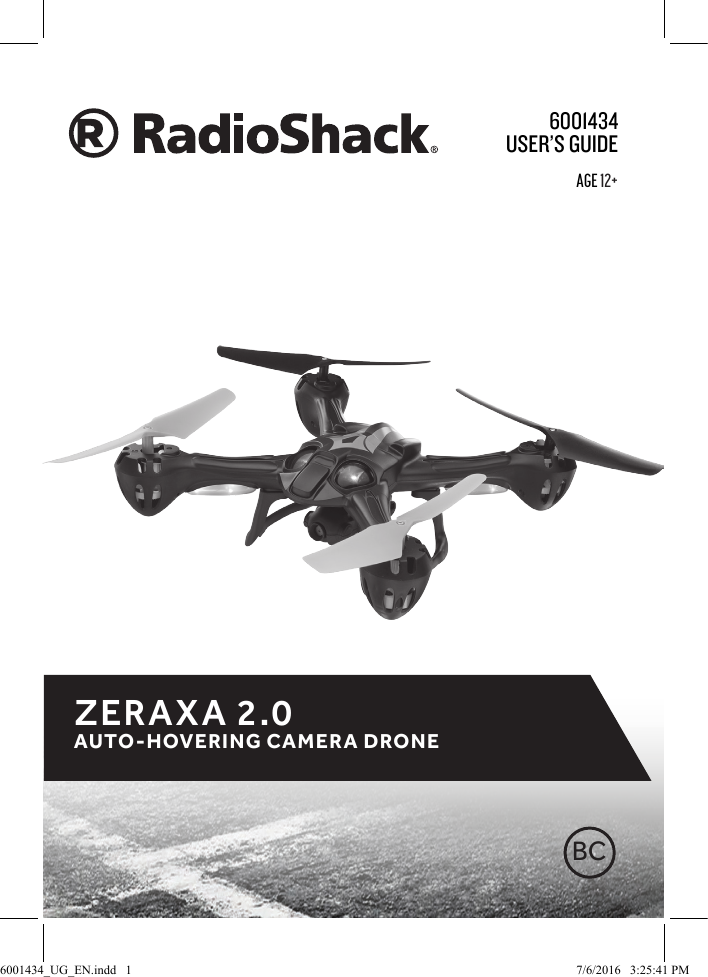
User’s GUide6001434ZERAXA 2.0 AUTO-HOVERING CAMERA DRONEBCAge 12+6001434_UG_EN.indd   1 7/6/2016   3:25:41 PM
2ContentsFeatures ...............................................................................................................3Package Contents ..............................................................................................3Specications .....................................................................................................3Fly Safely ..............................................................................................................3Charge the Drone Battery .................................................................................4Lithium Battery Notes ................................................................................................... 4Recycle Rechargeable Batteries ................................................................................ 4Install Batteries in the Remote Control ...........................................................5Battery Notes ................................................................................................................... 5Pairing ..................................................................................................................5Fly Your Drone .....................................................................................................5Drone Control and Design Overview ...............................................................6Remote Control Overview ................................................................................8Land Your Drone ...............................................................................................10Trim Your Drone ................................................................................................10Fly "Headless" in Special Mode .......................................................................10Perform Stunts .................................................................................................11Using the Camera  ............................................................................................11Setting up the Camera ................................................................................................12 Taking Photos and Videos on board the Drone ..................................................12Detaching and Mounting the Camera ...................................................................12Using as Standalone Camera ....................................................................................12Replace Damaged Propellers ..........................................................................13Troubleshooting ...............................................................................................13Drone does not respond ............................................................................................13Drone dicult to control ............................................................................................13Drone swerves or moves erratically before taking o .....................................14FCC Information ...............................................................................................14Limited Warranty ..............................................................................................146001434_UG_EN.indd   2 7/6/2016   3:25:41 PM
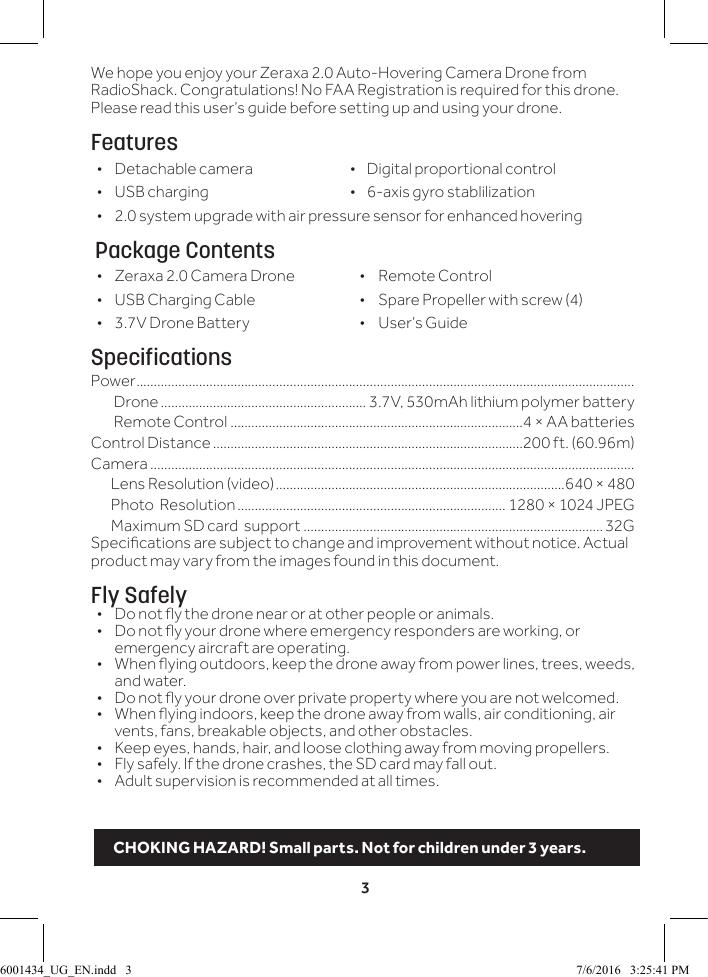
3We hope you enjoy your Zeraxa 2.0 Auto-Hovering Camera Drone from RadioShack. Congratulations! No FAA Registration is required for this drone. Please read this user’s guide before setting up and using your drone.Features • Detachable camera                            •    Digital proportional control • USB charging                  •    6-axis gyro stablilization  •2.0 system upgrade with air pressure sensor for enhanced hovering Package Contents • Zeraxa 2.0 Camera Drone  •  Remote Control • USB Charging Cable  •  Spare Propeller with screw (4) • 3.7V Drone Battery  •  User’s GuideSpecificationsPower ...............................................................................................................................................Drone ........................................................... 3.7V, 530mAh lithium polymer battery Remote Control ....................................................................................4 × AA batteries Control Distance .........................................................................................200 ft. (60.96m)Camera ...........................................................................................................................................       Lens Resolution (video) ...................................................................................640 × 480       Photo  Resolution ............................................................................. 1280 × 1024 JPEG       Maximum SD card  support ......................................................................................32GSpecications are subject to change and improvement without notice. Actual product may vary from the images found in this document.Fly Safely•  Do not y the drone near or at other people or animals.•  Do not y your drone where emergency responders are working, or emergency aircraft are operating.•  When ying outdoors, keep the drone away from power lines, trees, weeds, and water. •  Do not y your drone over private property where you are not welcomed.•  When ying indoors, keep the drone away from walls, air conditioning, air vents, fans, breakable objects, and other obstacles.•  Keep eyes, hands, hair, and loose clothing away from moving propellers.•  Fly safely. If the drone crashes, the SD card may fall out.•  Adult supervision is recommended at all times.CHOKING HAZARD! Small parts. Not for children under 3 years.6001434_UG_EN.indd   3 7/6/2016   3:25:41 PM
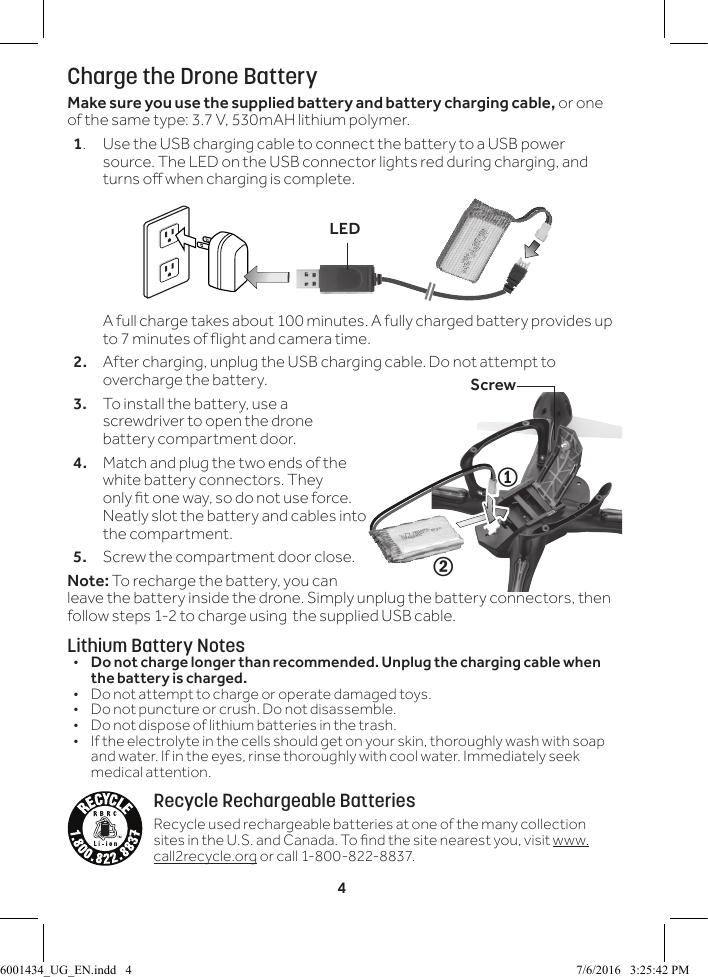
4Charge the Drone BatteryMake sure you use the supplied battery and battery charging cable, or one of the same type: 3.7 V, 530mAH lithium polymer.1.  Use the USB charging cable to connect the battery to a USB power source. The LED on the USB connector lights red during charging, and turns o when charging is complete.  A full charge takes about 100 minutes. A fully charged battery provides up to 7 minutes of ight and camera time.2.  After charging, unplug the USB charging cable. Do not attempt to overcharge the battery.3.  To install the battery, use a screwdriver to open the drone battery compartment door.4.  Match and plug the two ends of the white battery connectors. They only t one way, so do not use force. Neatly slot the battery and cables into the compartment.5.  Screw the compartment door close.Note: To recharge the battery, you can leave the battery inside the drone. Simply unplug the battery connectors, then follow steps 1-2 to charge using  the supplied USB cable.Lithium Battery Notes•  Do not charge longer than recommended. Unplug the charging cable when the battery is charged.•  Do not attempt to charge or operate damaged toys.•  Do not puncture or crush. Do not disassemble.•  Do not dispose of lithium batteries in the trash.•  If the electrolyte in the cells should get on your skin, thoroughly wash with soap and water. If in the eyes, rinse thoroughly with cool water. Immediately seek medical attention.Recycle Rechargeable BatteriesRecycle used rechargeable batteries at one of the many collection sites in the U.S. and Canada. To nd the site nearest you, visit www.call2recycle.org or call 1-800-822-8837.21ScrewLED6001434_UG_EN.indd   4 7/6/2016   3:25:42 PM
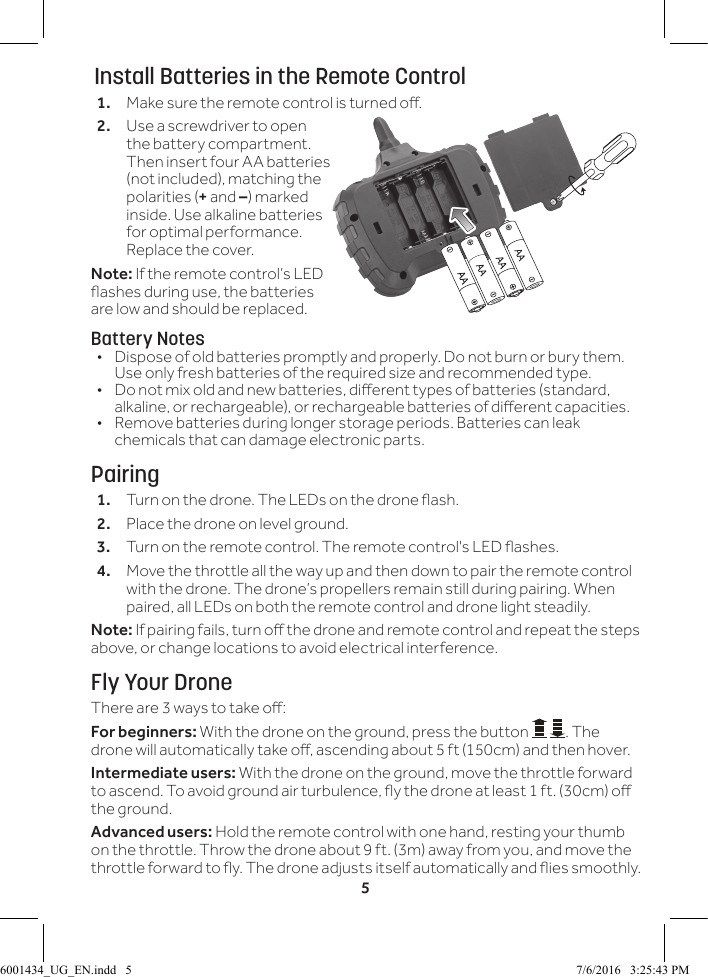
5 Install Batteries in the Remote Control1.  Make sure the remote control is turned o.2.  Use a screwdriver to open the battery compartment. Then insert four AA batteries (not included), matching the polarities (+ and –) marked inside. Use alkaline batteries for optimal performance. Replace the cover.Note: If the remote control’s LED ashes during use, the batteries are low and should be replaced.Battery Notes•  Dispose of old batteries promptly and properly. Do not burn or bury them. Use only fresh batteries of the required size and recommended type. •  Do not mix old and new batteries, dierent types of batteries (standard, alkaline, or rechargeable), or rechargeable batteries of dierent capacities.•  Remove batteries during longer storage periods. Batteries can leak chemicals that can damage electronic parts.Pairing1.  Turn on the drone. The LEDs on the drone ash.2.  Place the drone on level ground. 3.  Turn on the remote control. The remote control's LED ashes.4.  Move the throttle all the way up and then down to pair the remote control with the drone. The drone’s propellers remain still during pairing. When paired, all LEDs on both the remote control and drone light steadily.Note: If pairing fails, turn o the drone and remote control and repeat the steps above, or change locations to avoid electrical interference.Fly Your DroneThere are 3 ways to take o:For beginners: With the drone on the ground, press the button  . The drone will automatically take o, ascending about 5 ft (150cm) and then hover.Intermediate users: With the drone on the ground, move the throttle forward to ascend. To avoid ground air turbulence, y the drone at least 1 ft. (30cm) o the ground.Advanced users: Hold the remote control with one hand, resting your thumb on the throttle. Throw the drone about 9 ft. (3m) away from you, and move the throttle forward to y. The drone adjusts itself automatically and ies smoothly.6001434_UG_EN.indd   5 7/6/2016   3:25:43 PM
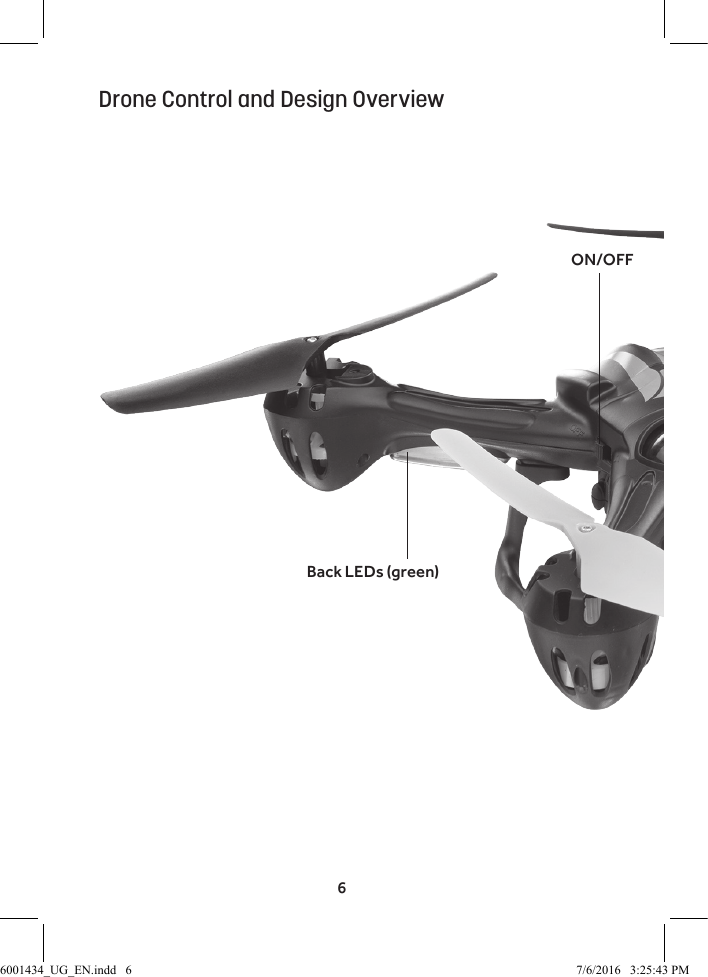
6ON/OFFBack LEDs (green)Drone Control and Design Overview6001434_UG_EN.indd   6 7/6/2016   3:25:43 PM
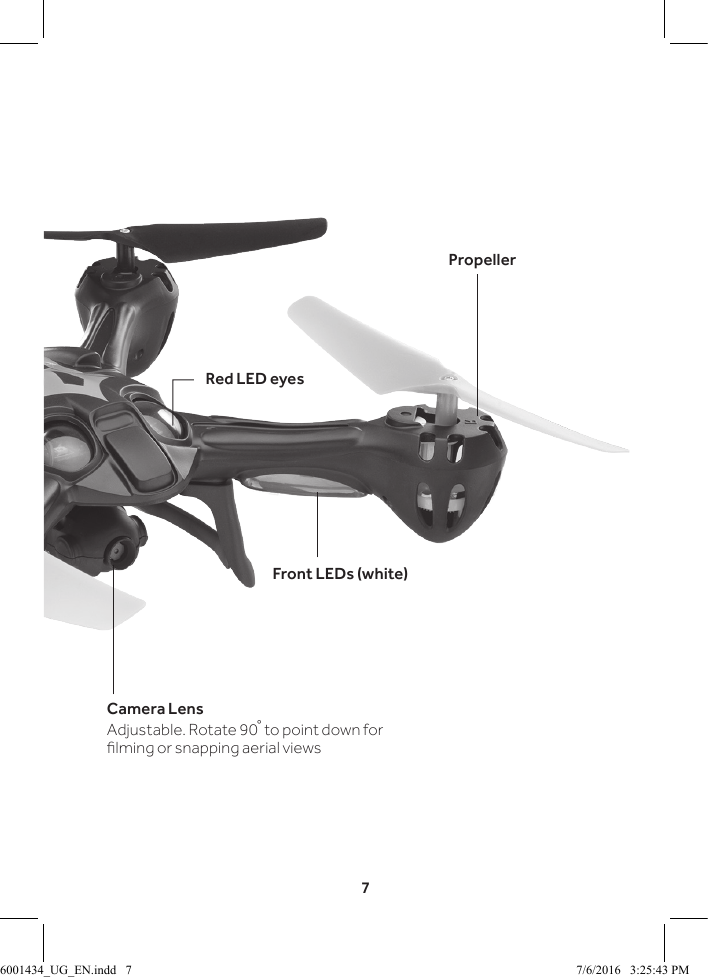
7Camera LensAdjustable. Rotate 90� to point down for lming or snapping aerial viewsFront LEDs (white)PropellerRed LED eyes6001434_UG_EN.indd   7 7/6/2016   3:25:43 PM
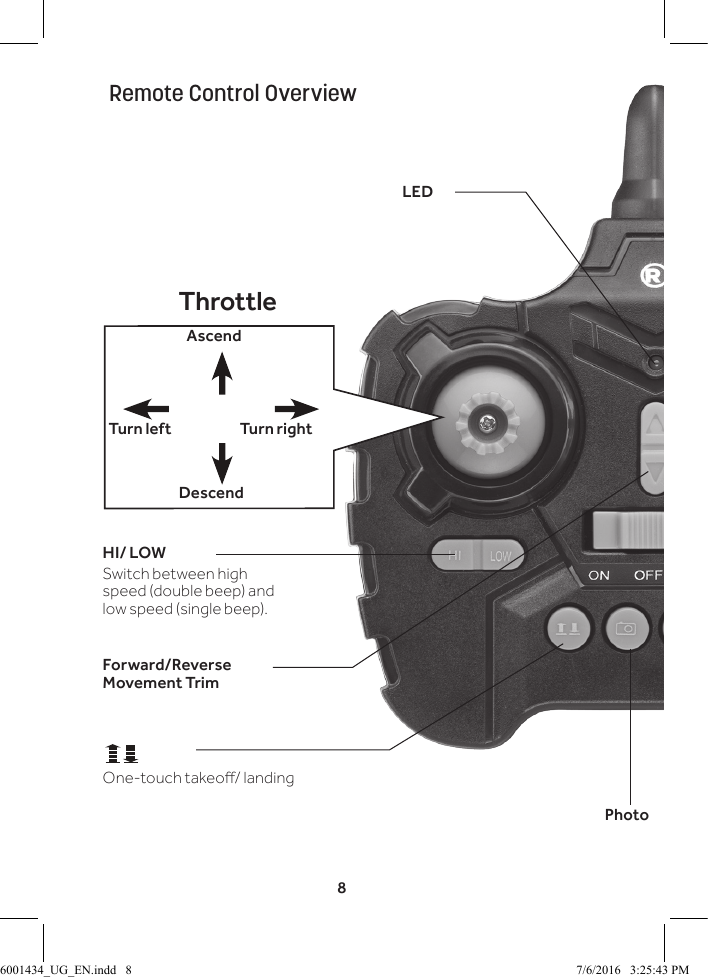
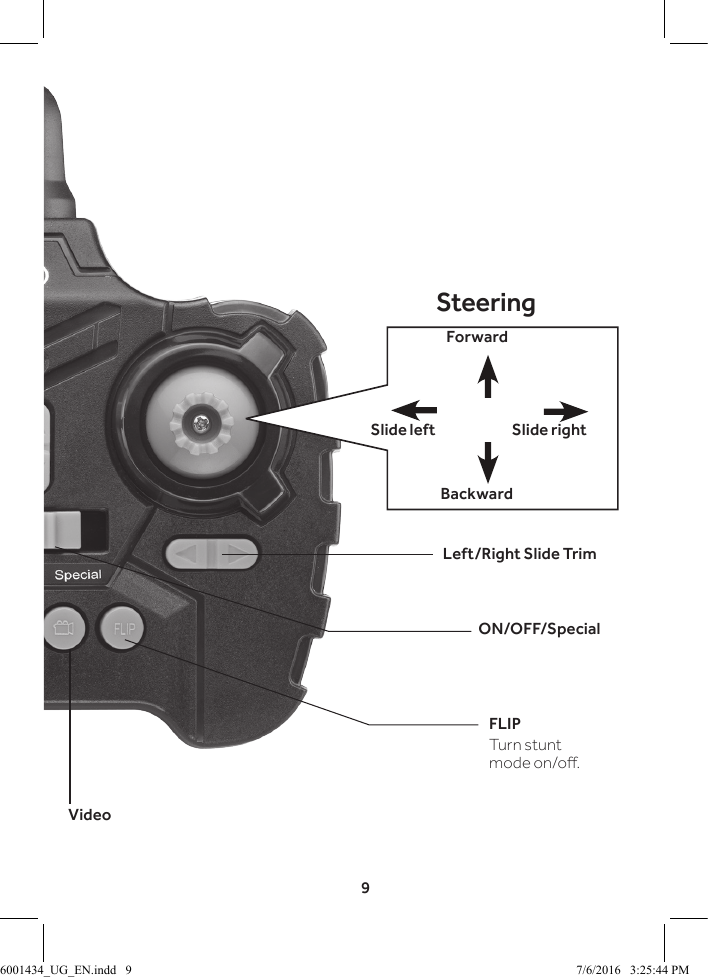
8PhotoHI/ LOWSwitch between high speed (double beep) and low speed (single beep).Forward/Reverse Movement TrimThrottleAscendDescendTurn rightTurn leftLEDOne-touch takeo/ landingRemote Control Overview6001434_UG_EN.indd   8 7/6/2016   3:25:43 PM
9Left/Right Slide TrimSteeringForwardBackwardSlide rightSlide leftON/OFF/SpecialFLIPTurn stunt mode on/o.Video6001434_UG_EN.indd   9 7/6/2016   3:25:44 PM
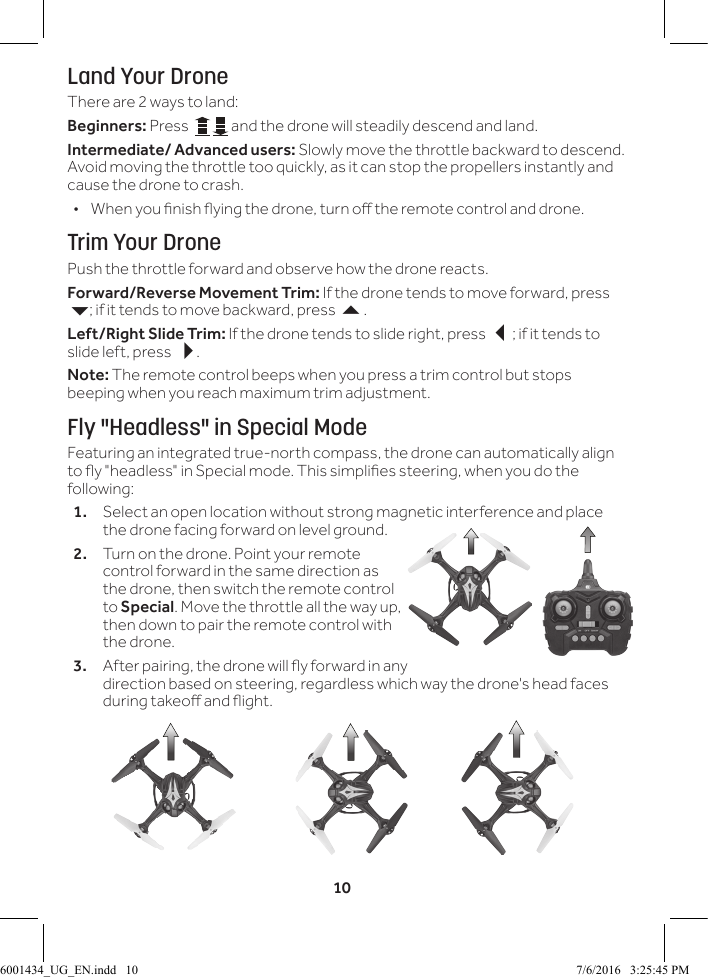
10Land Your DroneThere are 2 ways to land:Beginners: Press    and the drone will steadily descend and land.Intermediate/ Advanced users: Slowly move the throttle backward to descend. Avoid moving the throttle too quickly, as it can stop the propellers instantly and cause the drone to crash. • When you nish ying the drone, turn o the remote control and drone. Trim Your DronePush the throttle forward and observe how the drone reacts.Forward/Reverse Movement Trim: If the drone tends to move forward, press 6; if it tends to move backward, press 5.Left/Right Slide Trim: If the drone tends to slide right, press 3; if it tends to slide left, press 4.Note: The remote control beeps when you press a trim control but stops beeping when you reach maximum trim adjustment.Fly "Headless" in Special ModeFeaturing an integrated true-north compass, the drone can automatically align to y "headless" in Special mode. This simplies steering, when you do the following:1.  Select an open location without strong magnetic interference and place the drone facing forward on level ground.2.  Turn on the drone. Point your remote control forward in the same direction as the drone, then switch the remote control to Special. Move the throttle all the way up, then down to pair the remote control with the drone.3.  After pairing, the drone will y forward in any direction based on steering, regardless which way the drone's head faces during takeo and ight.6001434_UG_EN.indd   10 7/6/2016   3:25:45 PM
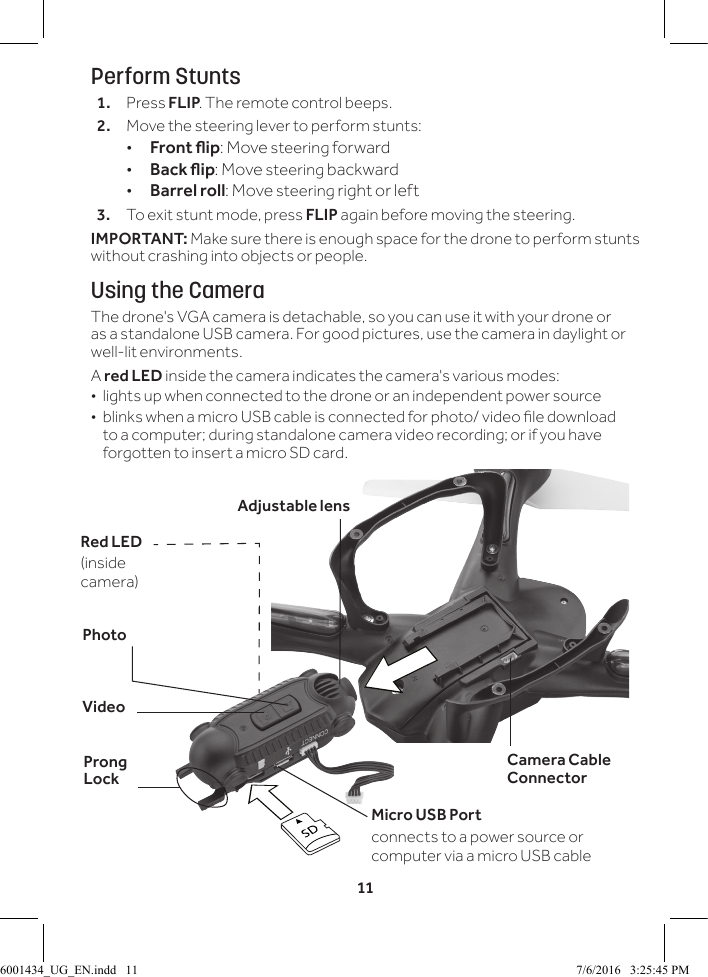
11Perform Stunts1.  Press FLIP. The remote control beeps.2.  Move the steering lever to perform stunts: •Front ip: Move steering forward •Back ip: Move steering backward •Barrel roll: Move steering right or left3.  To exit stunt mode, press FLIP again before moving the steering.IMPORTANT: Make sure there is enough space for the drone to perform stunts without crashing into objects or people. Using the CameraThe drone's VGA camera is detachable, so you can use it with your drone or as a standalone USB camera. For good pictures, use the camera in daylight or well-lit environments.A red LED inside the camera indicates the camera's various modes:  •lights up when connected to the drone or an independent power source • blinks when a micro USB cable is connected for photo/ video le download to a computer; during standalone camera video recording; or if you have forgotten to insert a micro SD card.VideoProng LockPhotoMicro USB Portconnects to a power source or computer via a micro USB cable Adjustable lensCamera Cable ConnectorRed LED (inside camera)6001434_UG_EN.indd   11 7/6/2016   3:25:45 PM
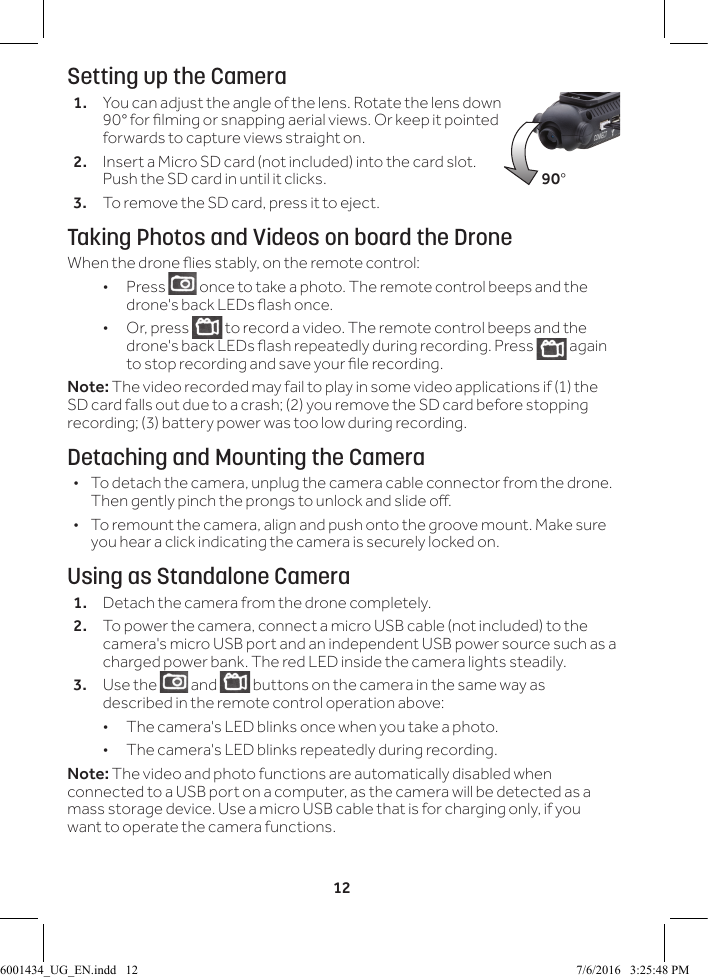
12Setting up the Camera1.  You can adjust the angle of the lens. Rotate the lens down 90° for lming or snapping aerial views. Or keep it pointed forwards to capture views straight on. 2.  Insert a Micro SD card (not included) into the card slot. Push the SD card in until it clicks.3.  To remove the SD card, press it to eject.Taking Photos and Videos on board the DroneWhen the drone ies stably, on the remote control: •Press   once to take a photo. The remote control beeps and the drone's back LEDs ash once. •Or, press   to record a video. The remote control beeps and the drone's back LEDs ash repeatedly during recording. Press   again to stop recording and save your le recording. Note: The video recorded may fail to play in some video applications if (1) the SD card falls out due to a crash; (2) you remove the SD card before stopping recording; (3) battery power was too low during recording.Detaching and Mounting the Camera •To detach the camera, unplug the camera cable connector from the drone. Then gently pinch the prongs to unlock and slide o. •To remount the camera, align and push onto the groove mount. Make sure you hear a click indicating the camera is securely locked on.Using as Standalone Camera1.  Detach the camera from the drone completely.2.  To power the camera, connect a micro USB cable (not included) to the camera's micro USB port and an independent USB power source such as a charged power bank. The red LED inside the camera lights steadily.3.  Use the   and   buttons on the camera in the same way as described in the remote control operation above:  • The camera's LED blinks once when you take a photo. • The camera's LED blinks repeatedly during recording. Note: The video and photo functions are automatically disabled when connected to a USB port on a computer, as the camera will be detected as a mass storage device. Use a micro USB cable that is for charging only, if you want to operate the camera functions.90°6001434_UG_EN.indd   12 7/6/2016   3:25:48 PM
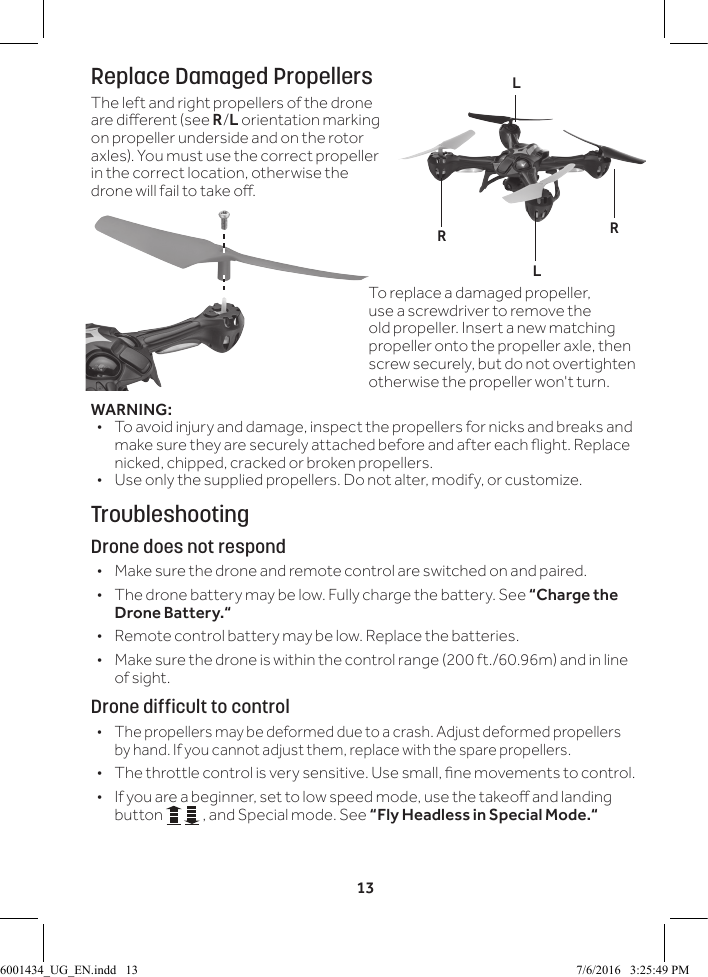
13Replace Damaged PropellersThe left and right propellers of the drone are dierent (see R/L orientation marking on propeller underside and on the rotor axles). You must use the correct propeller in the correct location, otherwise the drone will fail to take o. WARNING: •To avoid injury and damage, inspect the propellers for nicks and breaks and make sure they are securely attached before and after each ight. Replace nicked, chipped, cracked or broken propellers. • Use only the supplied propellers. Do not alter, modify, or customize.TroubleshootingDrone does not respond •Make sure the drone and remote control are switched on and paired. •The drone battery may be low. Fully charge the battery. See “Charge the Drone Battery.“ •Remote control battery may be low. Replace the batteries. • Make sure the drone is within the control range (200 ft./60.96m) and in line of sight.Drone difficult to control •The propellers may be deformed due to a crash. Adjust deformed propellers  by hand. If you cannot adjust them, replace with the spare propellers. • The throttle control is very sensitive. Use small, ne movements to control. • If you are a beginner, set to low speed mode, use the takeo and landing button   , and Special mode. See “Fly Headless in Special Mode.“RRLLTo replace a damaged propeller, use a screwdriver to remove the old propeller. Insert a new matching propeller onto the propeller axle, then screw securely, but do not overtighten otherwise the propeller won't turn.6001434_UG_EN.indd   13 7/6/2016   3:25:49 PM
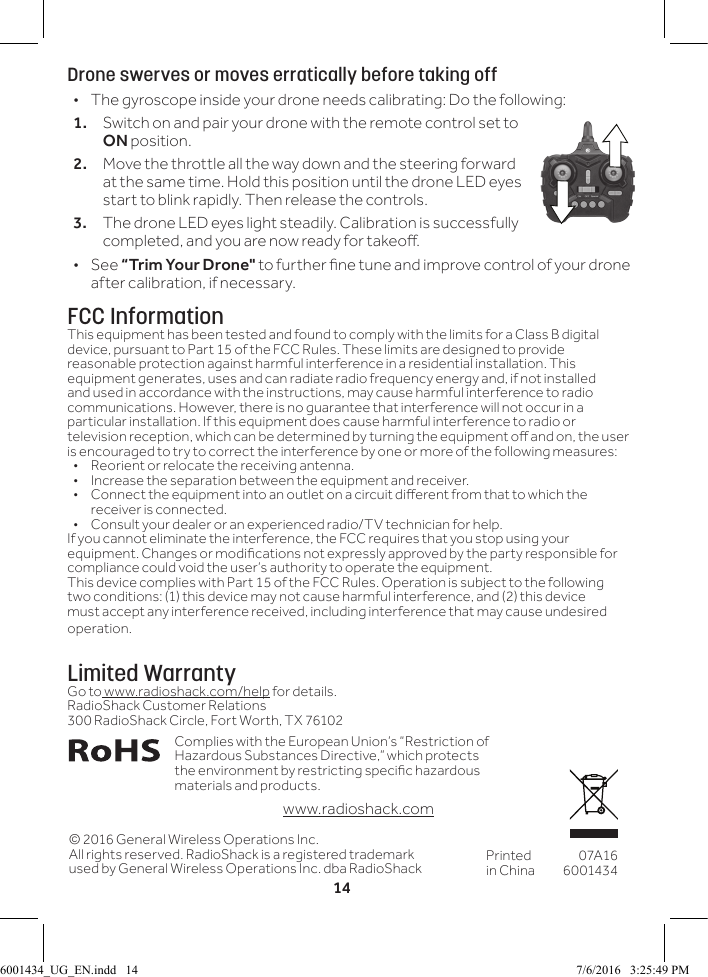
14Drone swerves or moves erratically before taking off •The gyroscope inside your drone needs calibrating: Do the following:1.  Switch on and pair your drone with the remote control set to ON position.2.  Move the throttle all the way down and the steering forward at the same time. Hold this position until the drone LED eyes start to blink rapidly. Then release the controls. 3.  The drone LED eyes light steadily. Calibration is successfully completed, and you are now ready for takeo.  •See “Trim Your Drone" to further ne tune and improve control of your drone after calibration, if necessary.FCC InformationThis equipment has been tested and found to comply with the limits for a Class B digital device, pursuant to Part 15 of the FCC Rules. These limits are designed to provide reasonable protection against harmful interference in a residential installation. This equipment generates, uses and can radiate radio frequency energy and, if not installed and used in accordance with the instructions, may cause harmful interference to radio communications. However, there is no guarantee that interference will not occur in a particular installation. If this equipment does cause harmful interference to radio or television reception, which can be determined by turning the equipment o and on, the user is encouraged to try to correct the interference by one or more of the following measures:•  Reorient or relocate the receiving antenna.•  Increase the separation between the equipment and receiver. •  Connect the equipment into an outlet on a circuit dierent from that to which the receiver is connected. •  Consult your dealer or an experienced radio/TV technician for help.If you cannot eliminate the interference, the FCC requires that you stop using your equipment. Changes or modications not expressly approved by the party responsible for compliance could void the user’s authority to operate the equipment.This device complies with Part 15 of the FCC Rules. Operation is subject to the following two conditions: (1) this device may not cause harmful interference, and (2) this device must accept any interference received, including interference that may cause undesired operation.Limited WarrantyGo to www.radioshack.com/help for details.RadioShack Customer Relations300 RadioShack Circle, Fort Worth, TX 76102© 2016 General Wireless Operations Inc.All rights reserved. RadioShack is a registered trademark used by General Wireless Operations Inc. dba RadioShack Printed in China07A166001434Complies with the European Union’s “Restriction of Hazardous Substances Directive,” which protects the environment by restricting specic hazardous materials and products.  www.radioshack.com6001434_UG_EN.indd   14 7/6/2016   3:25:49 PM

Navigation menu