ZENITH Direct View Digital 27 To 40 TV Manual 97090037
User Manual: ZENITH ZENITH Direct View Digital 27 to 40 TV Manual ZENITH Direct View Digital 27 to 40 TV Owner's Manual, ZENITH Direct View Digital 27 to 40 TV installation guides
Open the PDF directly: View PDF  .
.
Page Count: 39
OperatingGuide #206-2743 _JJ J('J(_-_-)/
#49532 SM2738RK
#43772 SM2771S
#43782 SM2773BT
#43492 SM25?lBT
4
i Aviso para nuestros
clientes de habla hispana:
consulte la informaci6n que
aparece al final de este manual!
$¥$TIM B
Direct-View Receiver/Monitor
MTS Stereo Audio with
SEq & Surround Sound
O
recycled paper
50 percent
Return the Product Registration
Card, and your TV could be free!
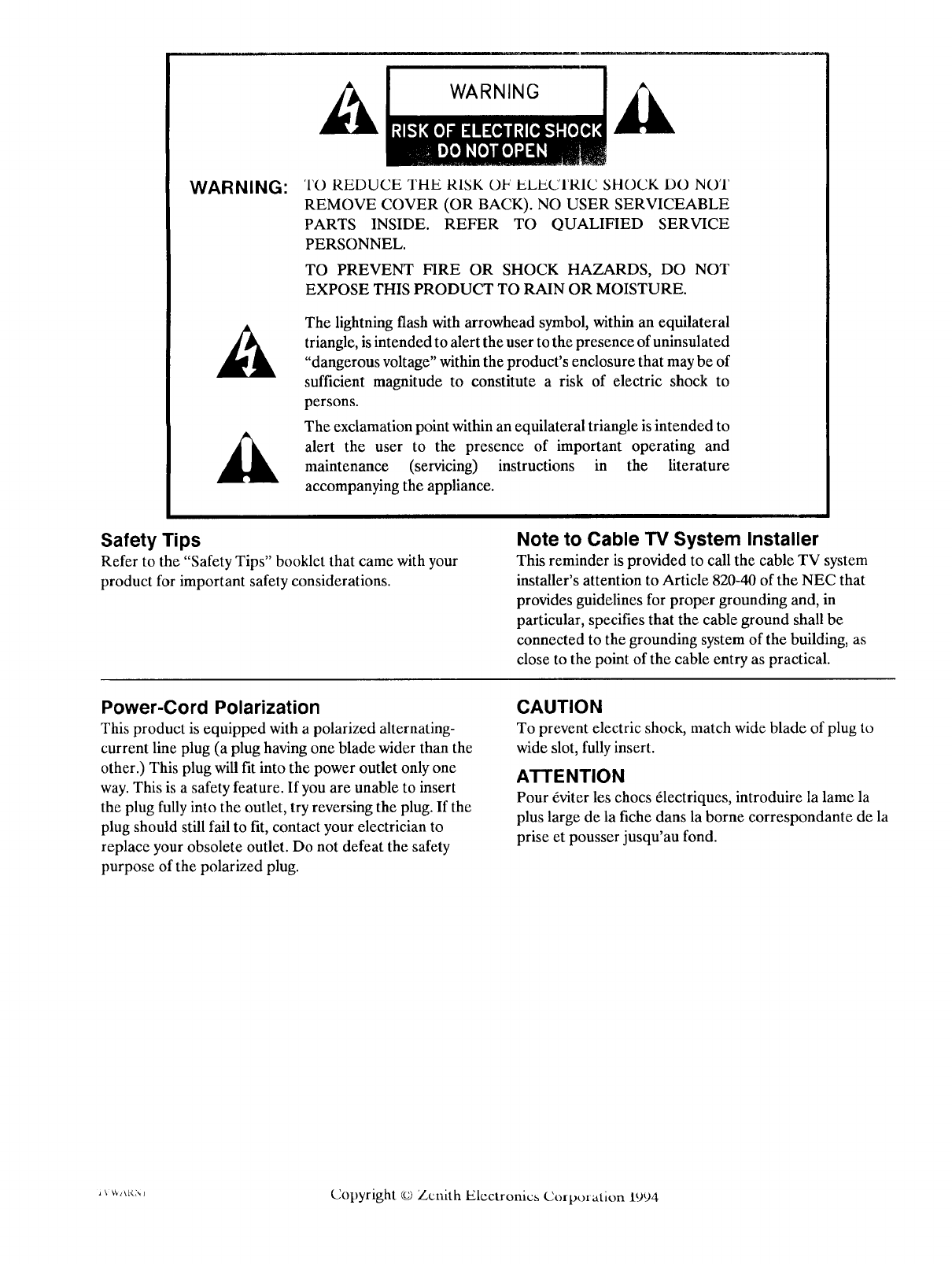
WARNING: TO REDUCE THE RISK OF ELECTRIC SHOCK DO NOT
REMOVE COVER (OR BACK). NO USER SERVICEABLE
PARTS INSIDE. REFER TO QUALIFIED SERVICE
PERSONNEL.
TO PREVENT FIRE OR SHOCK HAZARDS, DO NOT
EXPOSE THIS PRODUCT TO RAIN OR MOISTURE.
The lightning flash with arrowhead symbol, within an equilateral
triangle, is intended to alert the user to the presence of uninsulated
"dangerous voltage" within the product's enclosure that may be of
sufficient magnitude to constitute a risk of electric shock to
persons.
The exclamation point within an equilateral triangle is intended to
alert the user to the presence of important operating and
maintenance (servicing) instructions in the literature
accompanying the appliance.
Safety Tips
Refer to the "Safety Tips" booklet that came with your
product for important safety considerations.
Note to Cable TV System Installer
This reminder is provided to call the cable TV system
installer's attention to Article 820-40 of the NEC that
provides guidelines for proper grounding and, in
particular, specifies that the cable ground shall be
connected to the grounding system of the building, as
close to the point of the cable entry as practical.
Power-Cord Polarization
This product is equipped with a polarized alternating-
current line plug (a plug having one blade wider than the
other.) This plug will fit into the power outlet only one
way. This is a safety feature. If you are unable to insert
the plug fully into the outlet, try reversing the plug. If the
plug should still fail to fit, contact your electrician to
replace your obsolete outlet. Do not defeat the safety
purpose of the polarized plug.
CAUTION
To prevent electric shock, match wide blade of plug to
wide slot, fully insert.
ATTENTION
Pour dviter les chocs _lectriques, introduire la lame la
plus large de la fiche dans la borne correspondante de la
prise et pousser jusqu'au fond.
_'_*_:', Copyright c_ Zenith Electronics Corporation 1994
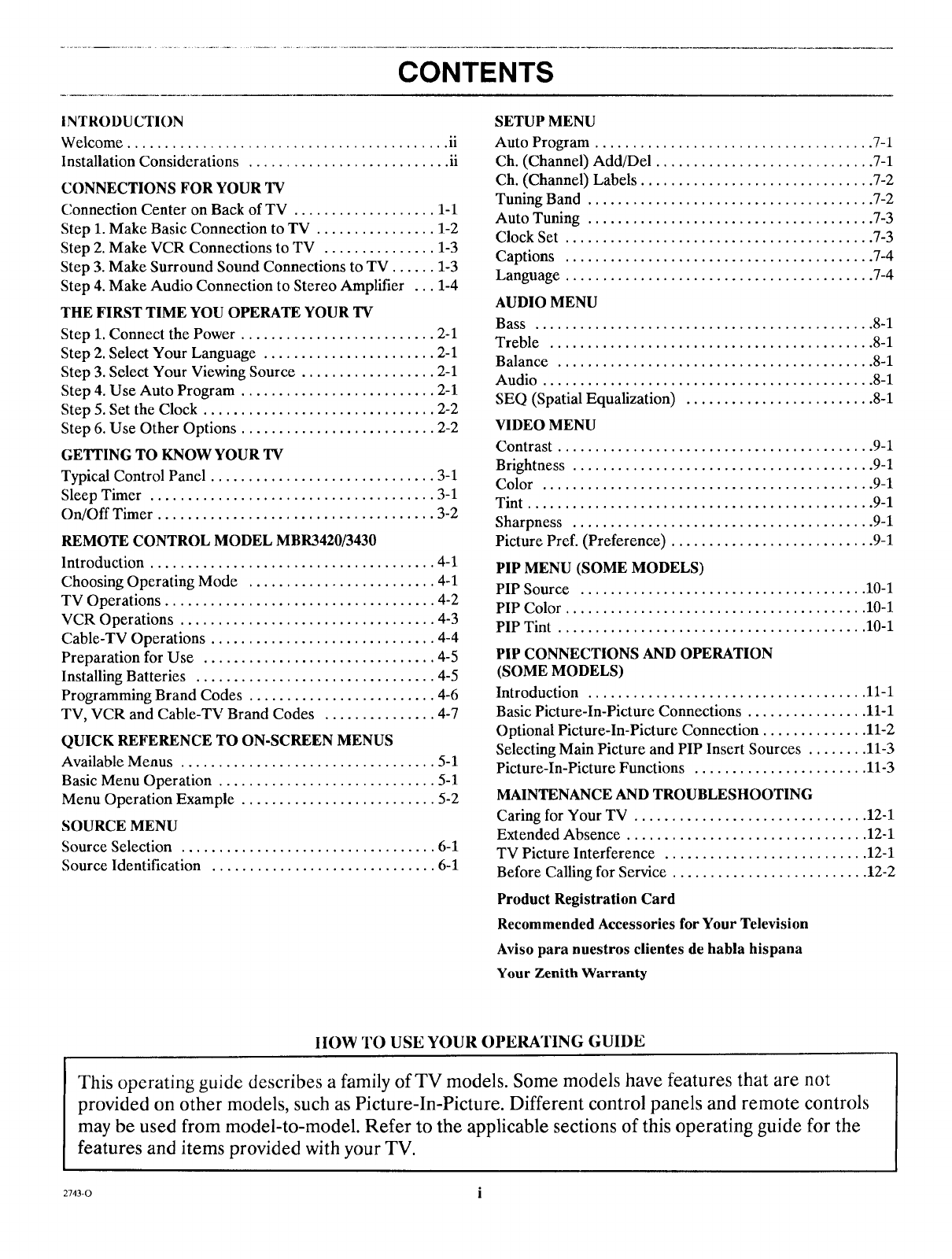
CONTENTS
INTRODUCTION
Welcome ........................................... ii
Installation Considerations ........................... ii
CONNECTIONS FOR YOUR TV
Connection Center on Back of TV ................... 1-1
Step 1. Make Basic Connection to TV ................ 1-2
Step 2. Make VCR Connections to TV ............... 1-3
Step 3. Make Surround Sound Connections to TV ...... 1-3
Step 4. Make Audio Connection to Stereo Amplifier ... 1-4
THE FIRST TIME YOU OPERATE YOUR TV
Step 1. Connect the Power .......................... 2-1
Step 2. Select Your Language ....................... 2-1
Step 3. Select Your Viewing Source .................. 2-1
Step 4. Use Auto Program .......................... 2-1
Step 5. Set the Clock ............................... 2-2
Step 6. Use Other Options .......................... 2-2
GETTING TO KNOW YOUR TV
Typical Control Panel .............................. 3-1
Sleep Timer ...................................... 3-1
On/Off Timer ..................................... 3-2
REMOTE CONTROL MODEL MBR3420/3430
Introduction ...................................... 4-1
Choosing Operating Mode ......................... 4-1
TV Operations .................................... 4-2
VCR Operations .................................. 4-3
Cable-TV Operations .............................. 4-4
Preparation for Use ............................... 4-5
Installing Batteries ................................ 4-5
Programming Brand Codes ......................... 4-6
TV, VCR and Cable-TV Brand Codes ............... 4-7
QUICK REFERENCE TO ON-SCREEN MENUS
Available Menus .................................. 5-1
Basic Menu Operation ............................. 5-1
Menu Operation Example .......................... 5-2
SOURCE MENU
Source Selection .................................. 6-1
Source Identification .............................. 6-1
SETUP MENU
Auto Program ..................................... 7-1
Ch. (Channel) Add/Del ............................. 7-1
Ch. (Channel) Labels ............................... 7-2
Tuning Band ...................................... 7-2
Auto Tuning ...................................... 7-3
Clock Set ......................................... 7-3
Captions ......................................... 7-4
Language ......................................... 7-4
AUDIO MENU
Bass ............................................. 8-1
Treble ........................................... 8-1
Balance .......................................... 8-1
Audio ............................................ 8-1
SEQ (Spatial Equalization) ......................... 8-1
VIDEO MENU
Contrast .......................................... 9-1
Brightness ........................................ 9-1
Color ............................................ 9-1
Tint .............................................. 9-1
Sharpness ........................................ 9-1
Picture Pref. (Preference) ........................... 9-1
PIP MENU (SOME MODELS)
PIP Source ...................................... 10-1
PIP Color ........................................ 10-1
PIP Tint ......................................... 10-1
PIP CONNECTIONS AND OPERATION
(SOME MODELS)
Introduction ..................................... 11-1
Basic Picture-In-Picture Connections ................ 11-1
Optional Picture-In-Picture Connection .............. 11-2
Selecting Main Picture and PIP Insert Sources ........ 11-3
Picture-In-Picture Functions ....................... 11-3
MAINTENANCE AND TROUBLESHOOTING
Caring for Your TV ............................... 12-1
Extended Absence ................................ 12-1
TV Picture Interference ........................... 12-1
Before Calling for Service .......................... 12-2
Product Registration Card
Recommended Accessories for Your Television
Aviso para nuestros clientes de habla hispana
Your Zenith Warranty
IIOW TO USE YOUR OPERATING GUIDE
This operating guide describes a family of TV models. Some models have features that are not
provided on other models, such as Picture-In-Picture. Different control panels and remote controls
may be used from model-to-model. Refer to the applicable sections of this operating guide for the
features and items provided with your TV.
2743-0 i
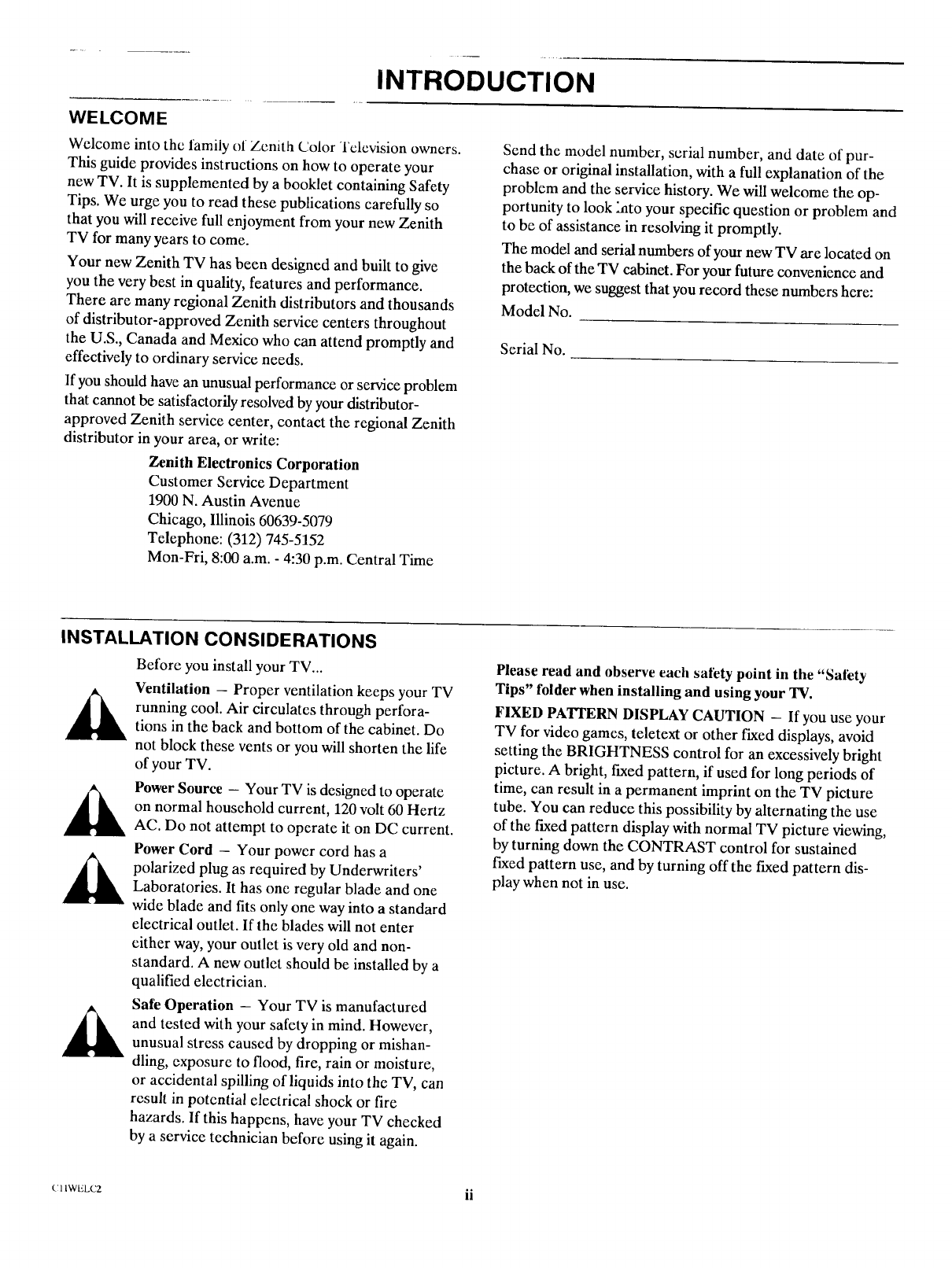
INTRODUCTION
WELCOME
Welcome into the family of Zenith Color Television owners.
This guide provides instructions on how to operate your
new TV. It is supplemented by a booklet containing Safety
Tips. We urge you to read these publications carefully so
that you will receive full enjoyment from your new Zenith
TV for many years to come.
Your new Zenith TV has been designed and built to give
you the very best in quality, features and performance.
There are many regional Zenith distributors and thousands
of distributor-approved Zenith service centers throughout
the U.S., Canada and Mexico who can attend promptly and
effectively to ordinary service needs.
If you should have an unusual performance or service problem
that cannot be satisfactorily resolved by your distributor-
approved Zenith service center, contact the regional Zenith
distributor in your area, or write:
Zenith Electronics Corporation
Customer Service Department
1900 N. Austin Avenue
Chicago, Illinois 60639-5079
Telephone: (312) 745-5152
Mon-Fri, 8:00 a.m. - 4:30 p.m. Central Time
Send the model number, serial number, and date of pur-
chase or original installation, with a full explanation of the
problem and the service history. We will welcome the op-
portunity to look hato your specific question or problem and
to be of assistance in resolving it promptly.
The model and serial numbers of your new TV are located on
the back of the TV cabinet. For your future convenience and
protection, we suggest that you record these numbers here:
Model No.
Serial No.
INSTALLATION CONSIDERATIONS
Before you install your TV...
Ventilation - Proper ventilation keeps your TV
running cool. Air circulates through perfora-
tions in the back and bottom of the cabinet. Do
not block these vents or you will shorten the life
of your TV.
Power Source -Your TV is designed to operate
on normal household current, 120 volt 60 Hertz
AC. Do not attempt to operate it on DC current.
Power Cord -Your power cord has a
polarized plug as required by Underwriters'
Laboratories. It has one regular blade and one
wide blade and fits only one way into a standard
electrical outlet. If the blades will not enter
either way, your outlet is very old and non-
standard. A new outlet should be installed by a
qualified electrician.
Safe Operation -Your TV is manufactured
and tested with your safety in mind. However,
unusual stress caused by dropping or mishan-
dling, exposure to flood, fire, rain or moisture,
or accidental spilling of liquids into the TV, can
result in potential electrical shock or fire
hazards. If this happens, have your TV checked
by a service technician before using it again.
Please read and observe each safety point in the "Sali_ty
Tips" folder when installing and using your 'IV.
FIXED PATTERN DISPLAY CAUTION - If you use your
TV for video games, teletext or other fixed displays, avoid
setting the BRIGHTNESS control for an excessively bright
picture. A bright, fLxedpattern, if used for long periods of
time, can result in a permanent imprint on the TV picture
tube. You can reduce this possibility by alternating the use
of the fixed pattern display with normal TV picture viewing,
by turning down the CONTRAST control for sustained
fLxed pattern use, and by turning off the fixed pattern dis-
play when not in use.
c:llwt_Lcz ii
CONNECTIONS FOR YOUR TV
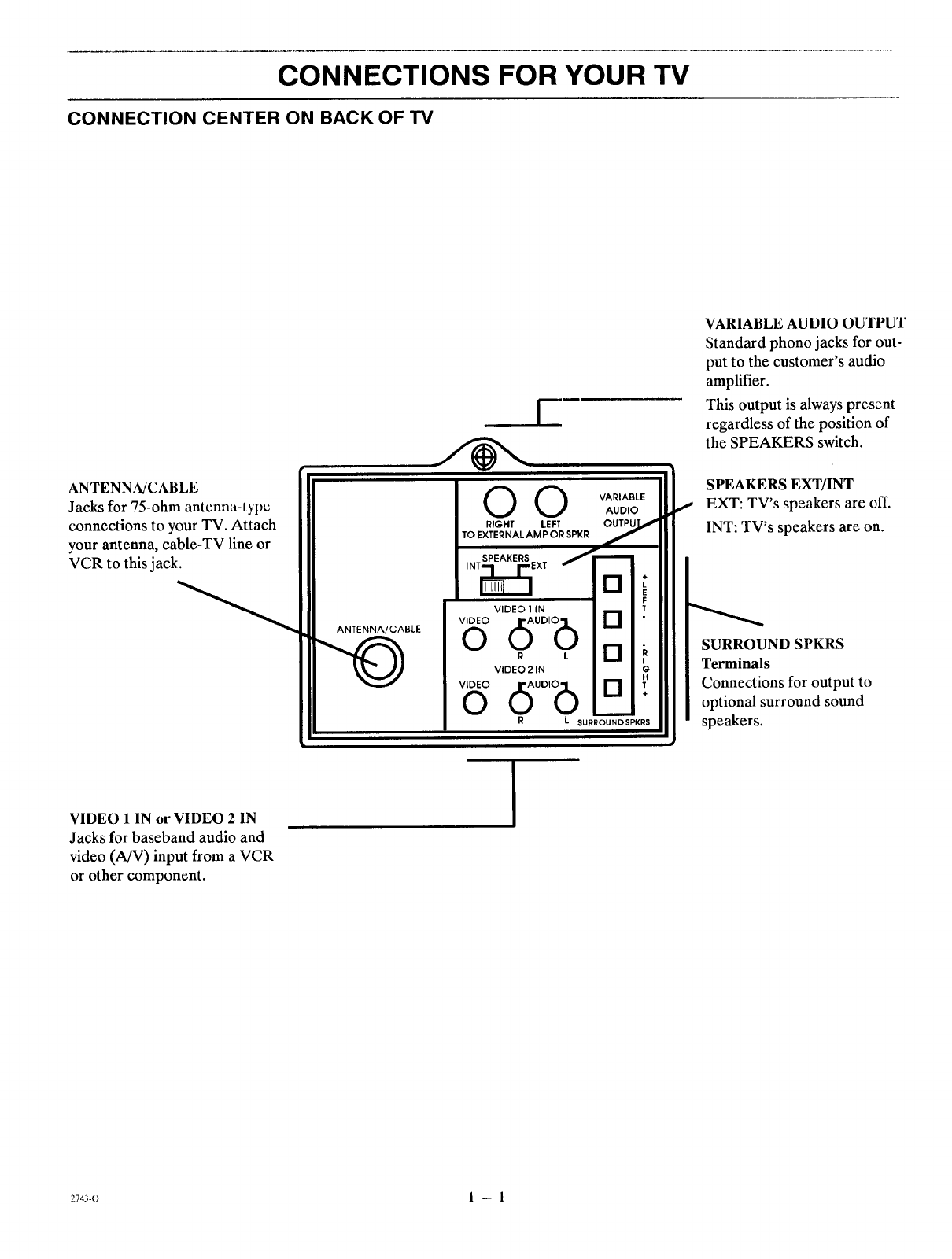
CONNECTION CENTER ON BACK OF TV
ANTENNA/CABLE
Jacks for 75-ohm antenna-type
connections to your TV. Attach
your antenna, cable-TV line or
VCR to this jack.
ANTENNA/CABLE
i
O O VARIABLE
AUDIO
RIGHT LEFt"
TO EXTERNAL AMP OR SPKR
SPEAKERS J
,.T_E×, i
F
VIDEO 1 IN T
[]
0 , [][]
VIDEO21N
v,o,OOdo°'°6
R
G
H
LSURROUNDSPKRS
VARIABLE AUDIO OIJTPUT
Standard phono jacks for out-
put to the customer's audio
amplifier.
This output is always present
regardless of the position of
the SPEAKERS switch.
SPEAKERS EXT/INT
I EXT: TV's speakers are off.
INT: TV's speakers are on.
SURROUND SPKRS
Terminals
Connections for output to
optional surround sound
speakers.
VIDEO 1 IN or VIDEO 2 IN
Jacks for baseband audio and
video (A/V) input from a VCR
or other component.
2743-0 I -- I
CONNECTIONS FOR YOUR TV
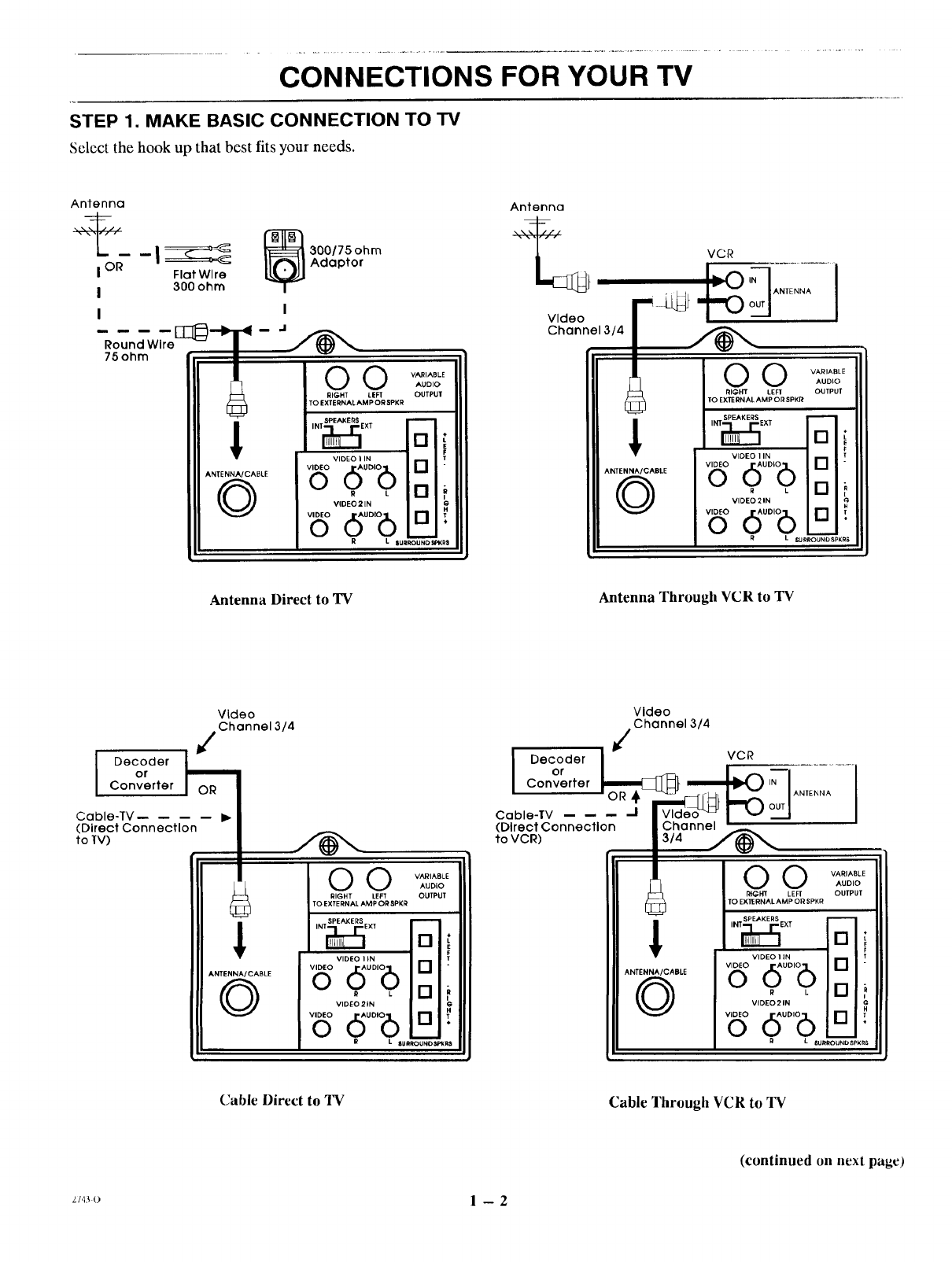
STEP 1. MAKE BASIC CONNECTION TO TV
Select the hook up that best fits your needs.
Antenna
IOR Flat Wire
I 300ohm
I
_00/75ohm
Adaptor
[_--'b- -< - J /_,,,_
Round Wire jr (fd_
RIGHT LEFT OUTPUT
TO EXTERNAL AMP OR SPKR
ANTE NNA/CABLE
©
VIDEO IIN
_ duo,e6D _
V'DEL'"L [] i
_ d0o,o6o:
R L IUR_NO _Ra
Antenna
_j VCR
v,ooo
Channel 3/4
O O VARIABLE
AUDIO
RIGHT LEF1 OUTPUT
tTO EXTERNAL AMP ORSPKR
ANTENNA/CABLE
©
SPEAKERS
,HT_E×, []
VIDEO I IN
_ dUO,b[]
R L []
VIDEO 2 IN
_ duo,e6[]
RLSUR_UND SPKR8
Antenna Direct to TV Antenna Through VCR to TV
Video
Channel3/4
Decoder O_R
or
Converter
Cable-TV --
(DirectConnectlon
to TV)
ANTENNA/CABLE
©
O O VARIABLE
AUDIO
RIGHT LEFT OUTPUT
TO EXTERNAL AMP OR SPKR
SPEAKERS
INT_EKT a;i
VIDEO IIN T
_ dUO,b,_a
R L I--,I
VIDEO 21N I
_'°'°du°'°6o a'
R L SU R_=_NO SptKg$
IDecoder
or
Converter
Cable-TV
(DirectConnection
to VCR)
Video
Channel 3/4
VCR
-I
314
I
ANTENNA/CABLE
©
O O VARIABLE
AUDIO
RIGHX LEFT OUTPUT
TO EXTERNALAMP ORSPKR
V'oEoV'OEO":O'(bO__naT
i
VIDEO 2 IN _,
_b°duo,ba:
RL SURRO_ND SPK RB
Cable Direct to TV Cable Through VCR to TV
(continued on next page)
z/,l:_ol-- 2
CONNECTIONS FOR YOUR TV
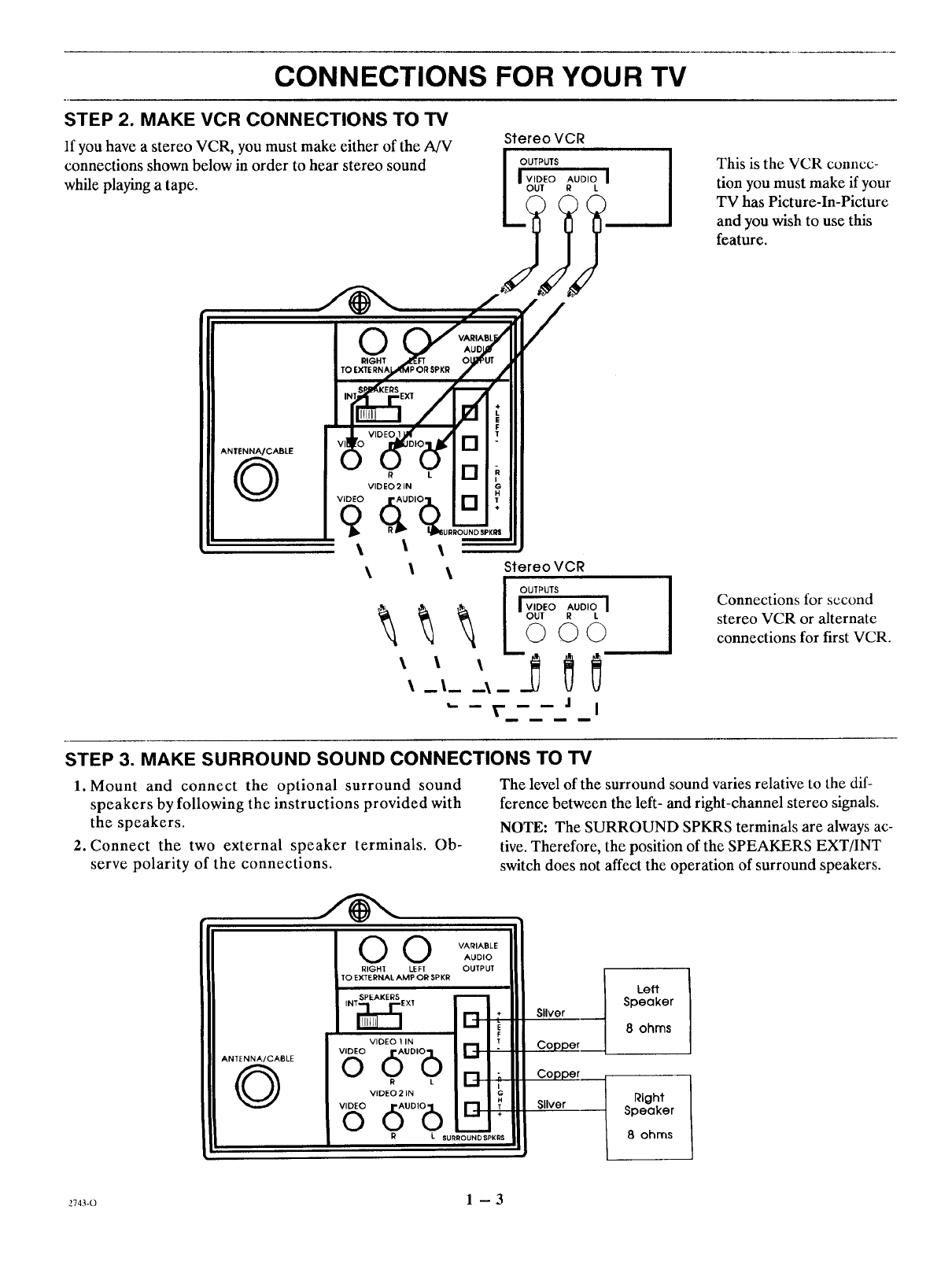
STEP 2. MAKE VCR CONNECTIONS TO TV
If you have a stereo VCR, you must make either of the AJV
connections shown below in order to hear stereo sound
while playing a tape.
StereoVCR
OUTPUTS
IVIDEO AUDIO I
OUT R L
This is the VCR connec-
tion you must make if your
TV has Picture-In-Picture
and you wish to use this
feature.
O
O R L
VIDEO21N
\
Connections for second
stereo VCR or alternate
connections for first VCR.
STEP 3. MAKE SURROUND SOUND CONNECTIONS TO TV
1. Mount and connect the optional surround sound
speakers by following the instructions provided with
the speakers.
2. Connect the two external speaker terminals. Ob-
serve polarity of the connections.
The level of the surround sound varies relative to the dif-
ference between the left- and right-channel stereo signals.
NOTE: The SURROUND SPKRS terminals are always ac-
tive. Therefore, the position of the SPEAKERS EXT/INT
switch does not affect the operation of surround speakers.
Sliver
]Copper
Copper
Sliver
IL ,o o o0 :11I0 .
Left
Speaker
8 ohms
Right
Speaker
8ohms
2743-0 1 -3
CONNECTIONS FOR YOUR TV
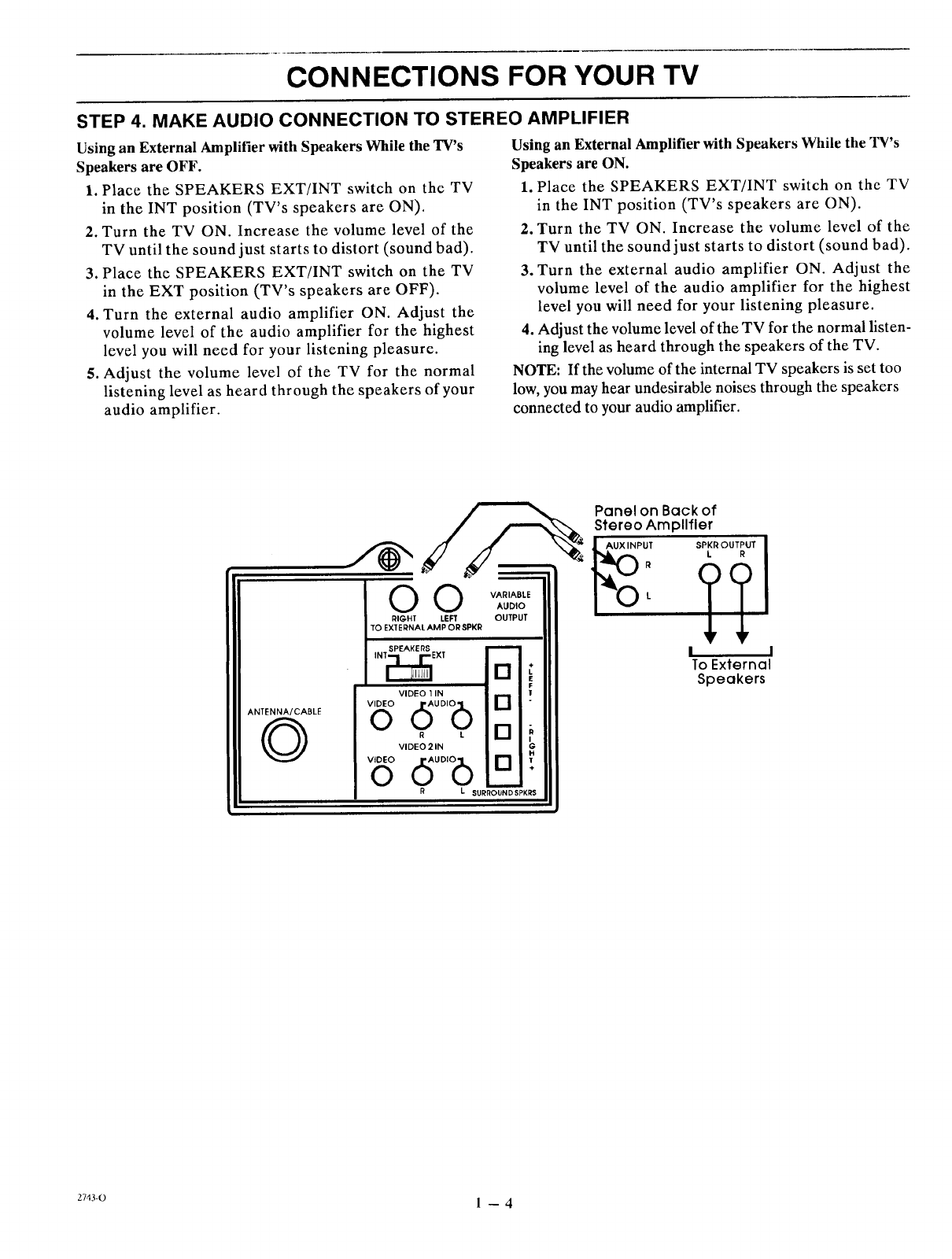
STEP 4. MAKE AUDIO CONNECTION TO STEREO AMPLIFIER
Using an External Amplifier with Speakers While the TV's
Speakers are OFF.
1. Place the SPEAKERS EXT/INT switch on the TV
in the INT position (TV's speakers are ON).
2. Turn the TV ON. Increase the volume level of the
TV until the sound just starts to distort (sound bad).
3. Place the SPEAKERS EXT/INT switch on the TV
in the EXT position (TV's speakers arc OFF).
4. Turn the external audio amplifier ON. Adjust the
volume level of the audio amplifier for the highest
level you will need for your listening pleasure.
5. Adjust the volume level of the TV for the normal
listening level as heard through the speakers of your
audio amplifier.
Using an External Amplifier with Speakers While the TV's
Speakers are ON.
1. Place the SPEAKERS EXT/INT switch on the TV
in the INT position (TV's speakers are ON).
2. Turn the TV ON. Increase the volume level of the
TV until the sound just starts to distort (sound bad).
3. Turn the external audio amplifier ON. Adjust the
volume level of the audio amplifier for the highest
level you will need for your listening pleasure.
4. Adjust the volume level of the TV for the normal listen-
ing level as heard through the speakers of the TV.
NOTE: If the volume of the internal TV speakers is set too
low, you may hear undesirable noises through the speakers
connected to your audio amplifier.
ANTENNA/CABLE
©
Panel on Back of
Stereo Amplifier
I--0
l_gR VARIABLE
O0 OUTPUT
SPKR
[]
VIDEO 1 IN
d °'bo0 . [][]
VIDEO21N
v'°'°6°°'°6o[]
RLSURRO_N_ND SPKI_3
I I
To External
Speakers
2743-0 1 -4
THE FIRST TIME YOU OPERATE YOUR TV
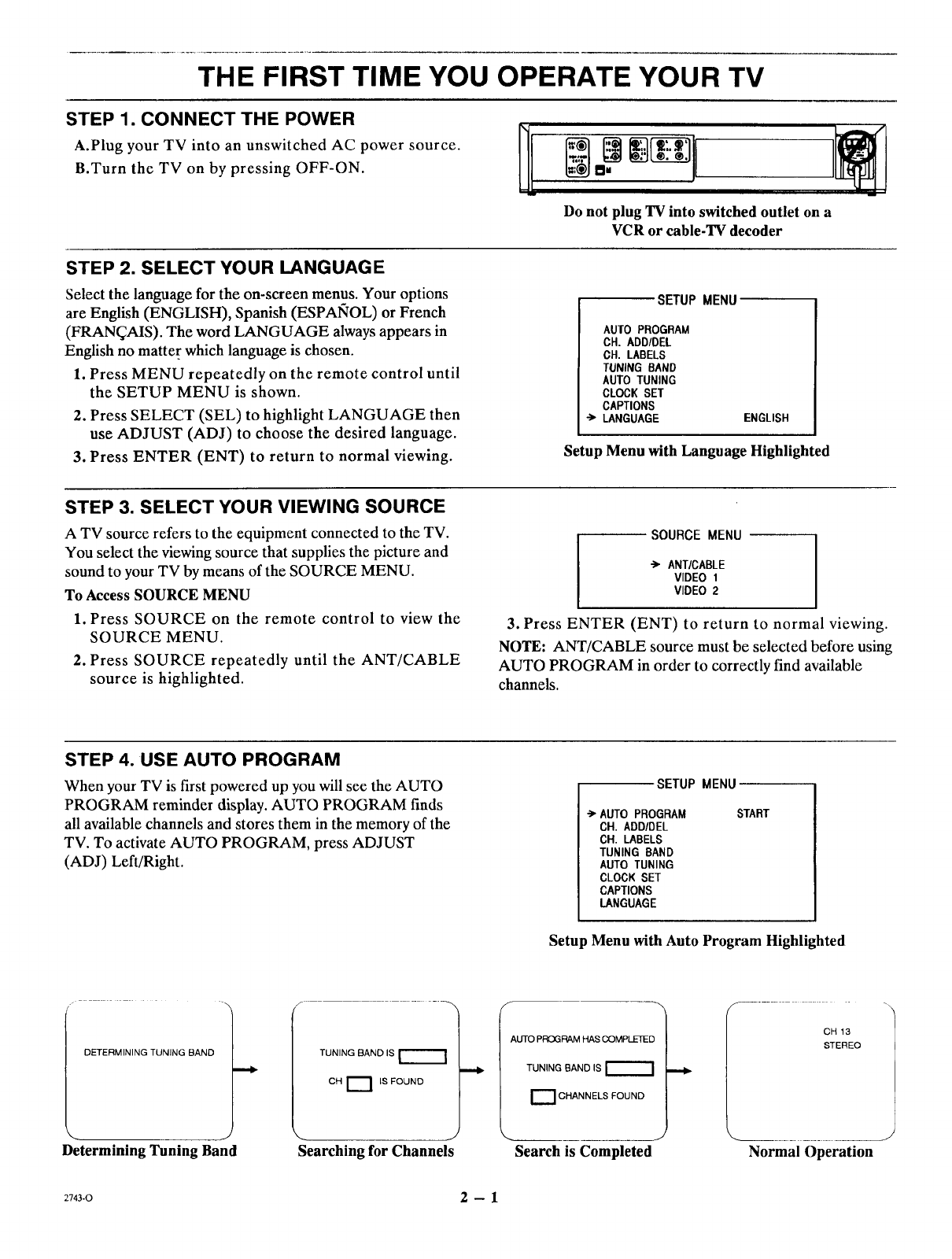
STEP 1. CONNECT THE POWER
A.Plug your TV into an unswitched AC power source.
B.Turn the TV on by pressing OFF-ON.
Do not plug TV into switched outlet on a
VCR or cable-TV decoder
STEP 2. SELECT YOUR LANGUAGE
Select the language for the on-screen menus. Your options
are English (ENGLISH), Spanish (ESPAIqOL) or French
(FRAN_AIS). The word LANGUAGE always appears in
English no matter which language is chosen.
1. Press MENU repeatedly on the remote control until
the SETUP MENU is shown.
2. Press SELECT (SEL) to highlight LANGUAGE then
use ADJUST (ADJ) to choose the desired language.
3. Press ENTER (ENT) to return to normal viewing.
SETUP MENU
AUTO PROGRAM
CH. ADD/DEL
CH. LABELS
TUNING BAND
AUTO TUNING
CLOCKSET
CAPTIONS
•-> LANGUAGE ENGLISH
Setup Menu with Language Highlighted
STEP 3. SELECT YOUR VIEWING SOURCE
A TV source refers to the equipment connected to the TV.
You select the viewing source that supplies the picture and
sound to your TV by means of the SOURCE MENU.
To Access SOURCE MENU
1. Press SOURCE on the remote control to view the
SOURCE MENU.
2. Press SOURCE repeatedly until the ANT/CABLE
source is highlighted.
SOURCE MENU
-> ANT/CABLE
VIDEO 1
VIDEO 2
3. Press ENTER (ENT) to return to normal viewing.
NOTE: ANT/CABLE source must be selected before using
AUTO PROGRAM in order to correctly find available
channels.
STEP 4. USE AUTO PROGRAM
When your TV is first powered up you will see the AUTO
PROGRAM reminder display. AUTO PROGRAM finds
all available channels and stores them in the memory of the
TV. To activate AUTO PROGRAM, press ADJUST
(ADJ) Left/Right.
SETUP MENU
->'AUTO PROGRAM
CH. ADD/DEL
CH. LABELS
TUNING BAND
AUTO TUNING
CLOCKSET
CAPTIONS
LANGUAGE
START
Setup Menu with Auto Program Highlighted
DETERMINING TUNING BAND TUNING BAND IS
CH _ IS FOUND
Determining Tuning Band Searching for Channels
AUTO PROGRAM HAS COMPLETED
TUNING BAND IS
r"--"l CHANN ELS FOUND
Search is Completed
f
CH 13
STEREO
Normal Operation
2743-0 2 -- 1
THE FIRST TIME YOU OPERATE YOUR TV
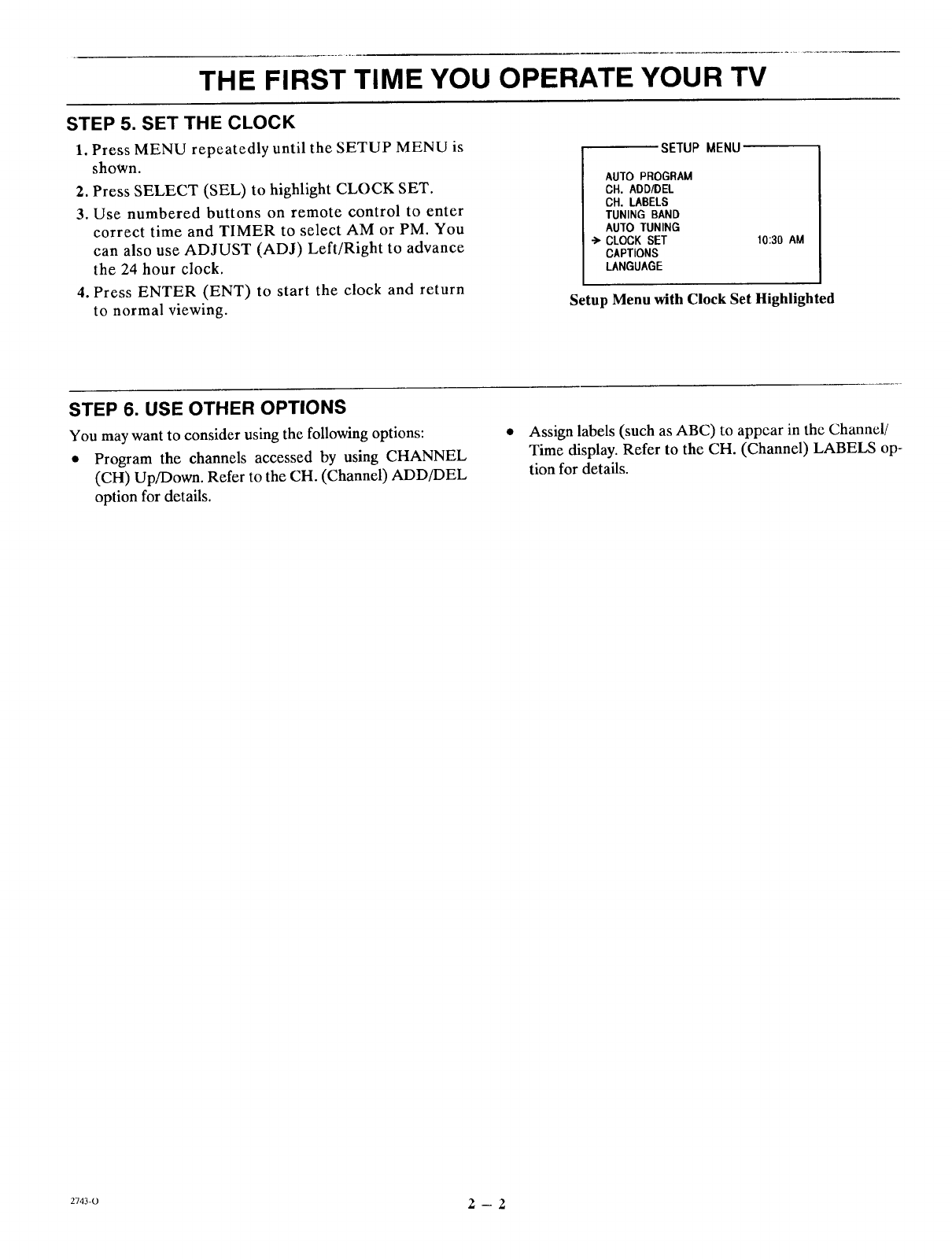
STEP 5. SET THE CLOCK
1. Press MENU repeatedly until the SETUP MENU is
shown.
2. Press SELECT (SEL) to highlight CLOCK SET.
3. Use numbered buttons on remote control to enter
correct time and TIMER to select AM or PM. You
can also use ADJUST (ADJ) Left/Right to advance
the 24 hour clock.
4. Press ENTER (ENT) to start the clock and return
to normal viewing.
SETUP MENU
AUTO PROGRAM
CH. ADD/DEL
CH. LABELS
TUNING BAND
AUTO TUNING
CLOCKSET
CAPTIONS
LANGUAGE
10:30 AM
Setup Menu with Clock Set Highlighted
STEP 6. USE OTHER OPTIONS
You may want to consider using the following options:
• Program the channels accessed by using CHANNEL
(CH) Up/Down. Refer to the CH. (Channel) ADD/DEL
option for details.
• Assign labels (such as ABC) to appear in the Channel/
Time display. Refer to the CH. (Channel) LABELS op-
tion for details.
2743-0 2- 2
GETTING TO KNOW YOUR TV
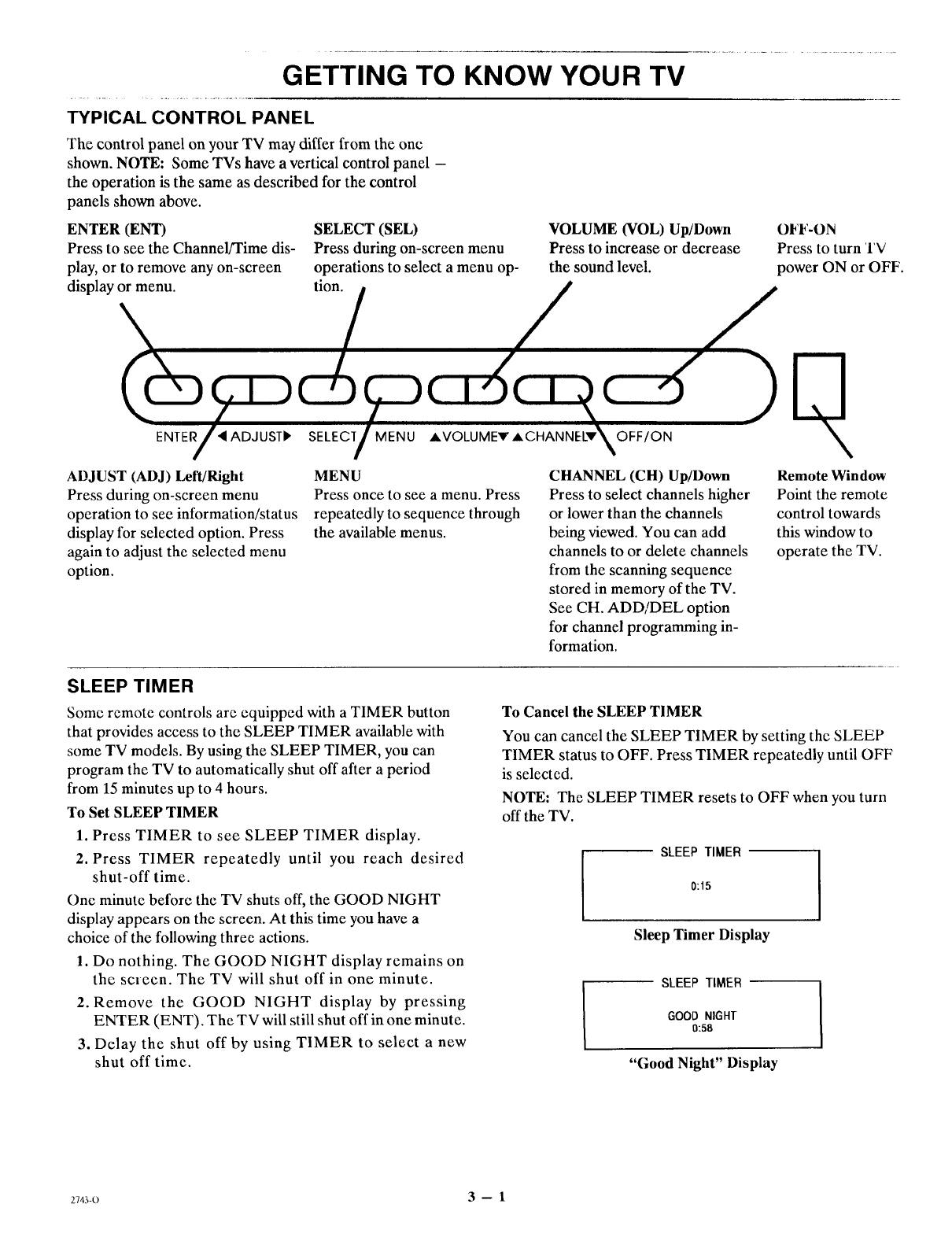
TYPICAL CONTROL PANEL
The control panel on your TV may differ from the one
shown. NOTE: Some TVs have a vertical control panel -
the operation is the same as described for the control
panels shown above.
ENTER (ENT) SELECT (SEL) VOLUME (VOL) Up/Down OFF-ON
Press to see the Channel/Time dis- Press during on-screen menu Press to increase or decrease Press to turn TV
play, or to remove any on-screen operations to select a menu op- the sound level, power ON or OFF.
display°rmeEnNUT'E__SELEC}T M_ENU _ V{
MENU
Press once to see a menu. Press
repeatedly to sequence through
the available menus.
ADJUST (ADJ) Left/Right
Press during on-screen menu
operation to see information/status
display for selected option. Press
again to adjust the selected menu
option.
CHANNEL (CH) Up/Down
Press to select channels higher
or lower than the channels
being viewed. You can add
channels to or delete channels
from the scanning sequence
stored in memory of the TV.
See CH. ADD/DEL option
for channel programming in-
formation.
Remote Window
Point the remote
control towards
this window to
operate the TV.
SLEEP TIMER
Some remote controls are equipped with a TIMER button
that provides access to the SLEEP TIMER available with
some TV models. By using the SLEEP TIMER, you can
program the TV to automatically shut off after a period
from 15 minutes up to 4 hours.
To Set SLEEP TIMER
1. Press TIMER to see SLEEP TIMER display.
2. Press TIMER repeatedly until you reach desired
shut-off time.
One minute before the TV shuts off, the GOOD NIGHT
display appears on the screen. At this time you have a
choice of the following three actions.
1. Do nothing. The GOOD NIGHT display remains on
the screen. The TV will shut off in one minute.
2. Remove the GOOD NIGHT display by pressing
ENTER (ENT). The TV will still shut off in one minute.
3. Delay the shut off by using TIMER to select a new
shut off time.
To Cancel the SLEEP TIMER
You can cancel the SLEEP TIMER by setting the SLEEP
TIMER status to OFF. Press TIMER repeatedly until OFF
is selected.
NOTE: The SLEEP TIMER resets to OFF when you turn
off the TV.
SLEEP TIMER
0:15
Sleep Timer Display
SLEEP TIMER
GOOD NIGHT
0:58
"Good Night" Display
2743-o 3 -- 1
GETTING TO KNOW YOUR TV
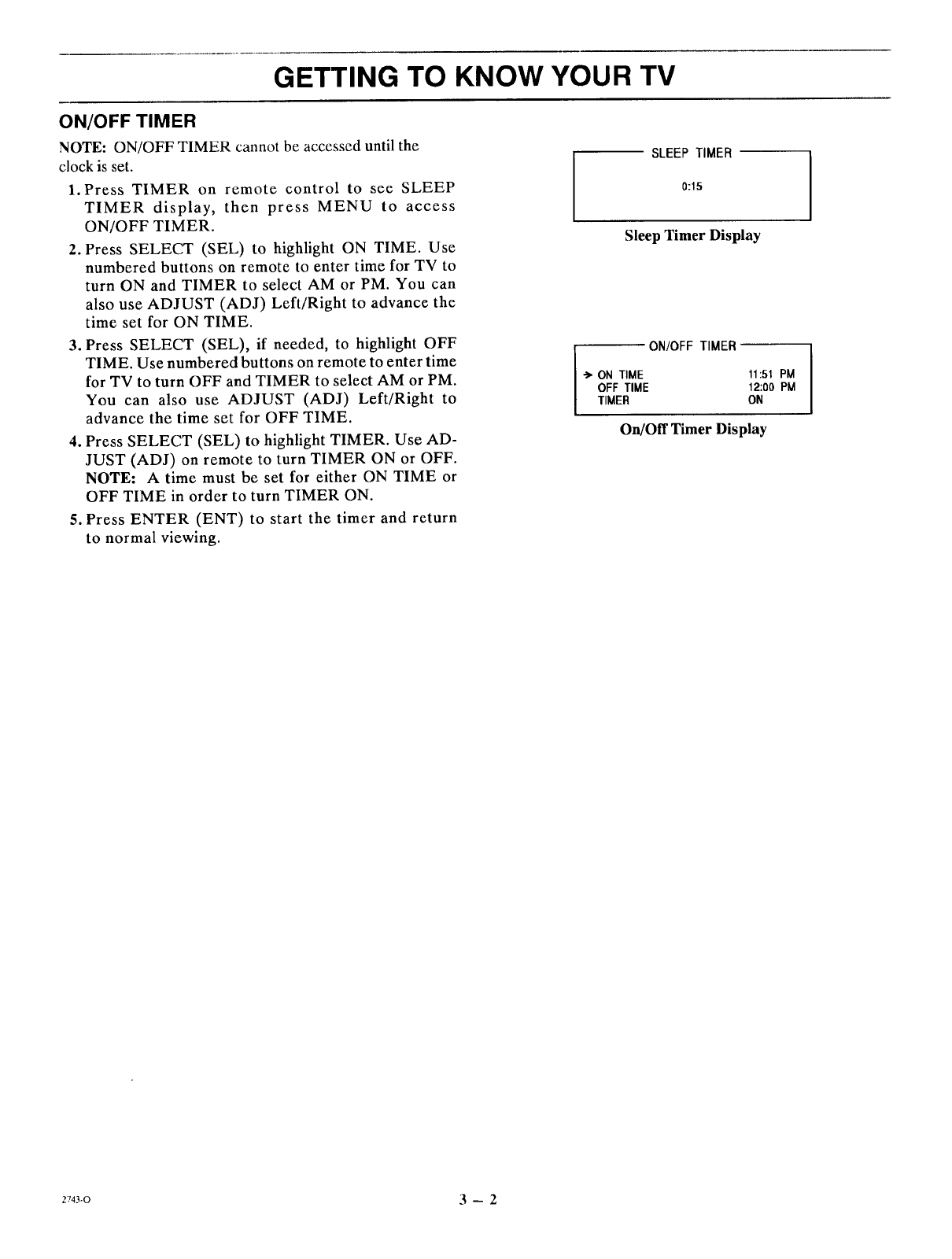
ON/OFF TIMER
NOTE: ON/OFF TIMER cannot be accessed until the
clock is set.
1.Press TIMER on remote control to see SLEEP
TIMER display, then press MENU to access
ON/OFF TIMER.
2. Press SELECT (SEL) to highlight ON TIME. Use
numbered buttons on remote to enter time for TV to
turn ON and TIMER to select AM or PM. You can
also use ADJUST (ADJ) Left/Right to advance the
time set for ON TIME.
3. Press SELECT (SEL), if needed, to highlight OFF
TIME. Use numbered buttons on remote to enter time
for TV to turn OFF and TIMER to select AM or PM.
You can also use ADJUST (ADJ) Left/Right to
advance the time set for OFF TIME.
4. Press SELECT (SEL) to highlight TIMER. Use AD-
JUST (ADJ) on remote to turn TIMER ON or OFF.
NOTE: A time must be set for either ON TIME or
OFF TIME in order to turn TIMER ON.
5. Press ENTER (ENT) to start the timer and return
to normal viewing.
SLEEP TIMER
0:15
Sleep Timer Display
ON/OFF TIMER
•_' ON TIME
OFF TIME
TIMER
11:51 PM
12:00 PM
ON
On/Off Timer Display
2743-0 3 -- 2
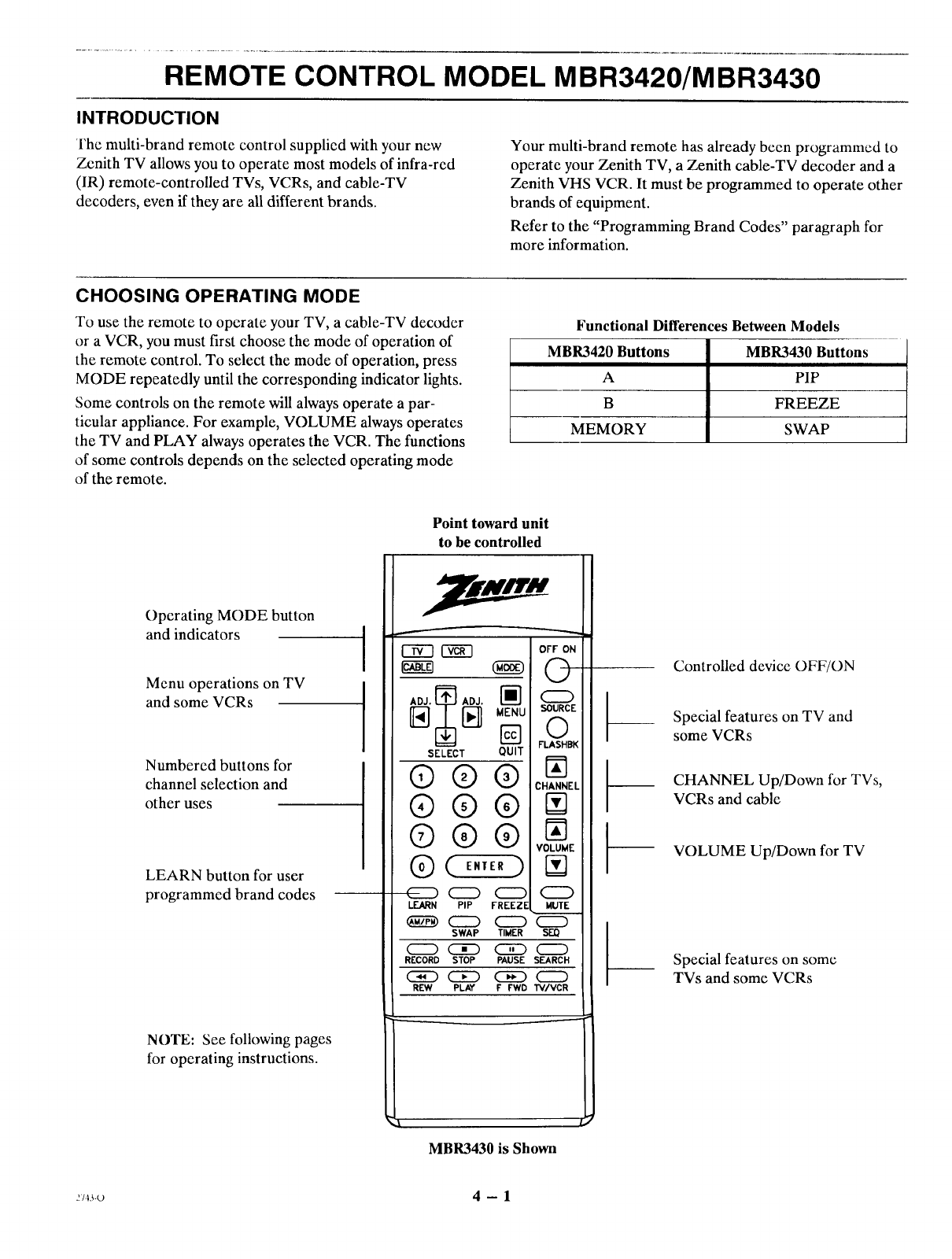
REMOTE CONTROL MODEL MBR3420/MBR3430
INTRODUCTION
The multi-brand remote control supplied with your new
Zenith TV allows you to operate most models of infra-red
(IR) remote-controlled TVs, VCRs, and cable-TV
decoders, even if they are all different brands.
Your multi-brand remote has already been programmed to
operate your Zenith TV, a Zenith cable-TV decoder and a
Zenith VHS VCR. It must be programmed to operate other
brands of equipment.
Refer to the "Programming Brand Codes" paragraph for
more information.
CHOOSING OPERATING MODE
To use the remote to operate your TV, a cable-TV decoder
or a VCR, you must first choose the mode of operation of
the remote control. To select the mode of operation, press
MODE repeatedly until the corresponding indicator lights.
Some controls on the remote will always operate a par-
ticular appliance. For example, VOLUME always operates
the TV and PLAY always operates the VCR. The functions
of some controls depends on the selected operating mode
of the remote.
Functional Differences Between Models
MBR3420 Buttons MBR3430 Buttons
A PIP
BFREEZE
MEMORY SWAP
Point toward unit
to be controlled
Operating MODE button
and indicators
Menu operations on TV
and some VCRs
Numbered buttons for
channel selection and
other uses
LEARN button for user
programmed brand codes
NOTE: See following pages
for operating instructions.
r_--q rc-_-q
SELECT QUIT
®®®
®®®
®®®
(D ( E,,E.)
CZD CZD CZD
LEARN PIP FREEZE
SWAP TIMER
RECORD STOP PAUSE
REW PLAY F FWD
OFF ON
O
CZD
_6 cE
FLASHBK
N
CHANNEL
N
N
VOLUME
N
oMUTE
CZD
s_
SEARCH
CZD
"tV/VCR
i
MBR3430 is Shown
m
t-
t-
Controlled device OFF/ON
Special features on TV and
some VCRs
CHANNEL Up/Down for TVs,
VCRs and cable
VOLUME Up/Down for TV
Special features on some
TVs and some VCRs
:/_,_ 4-- 1
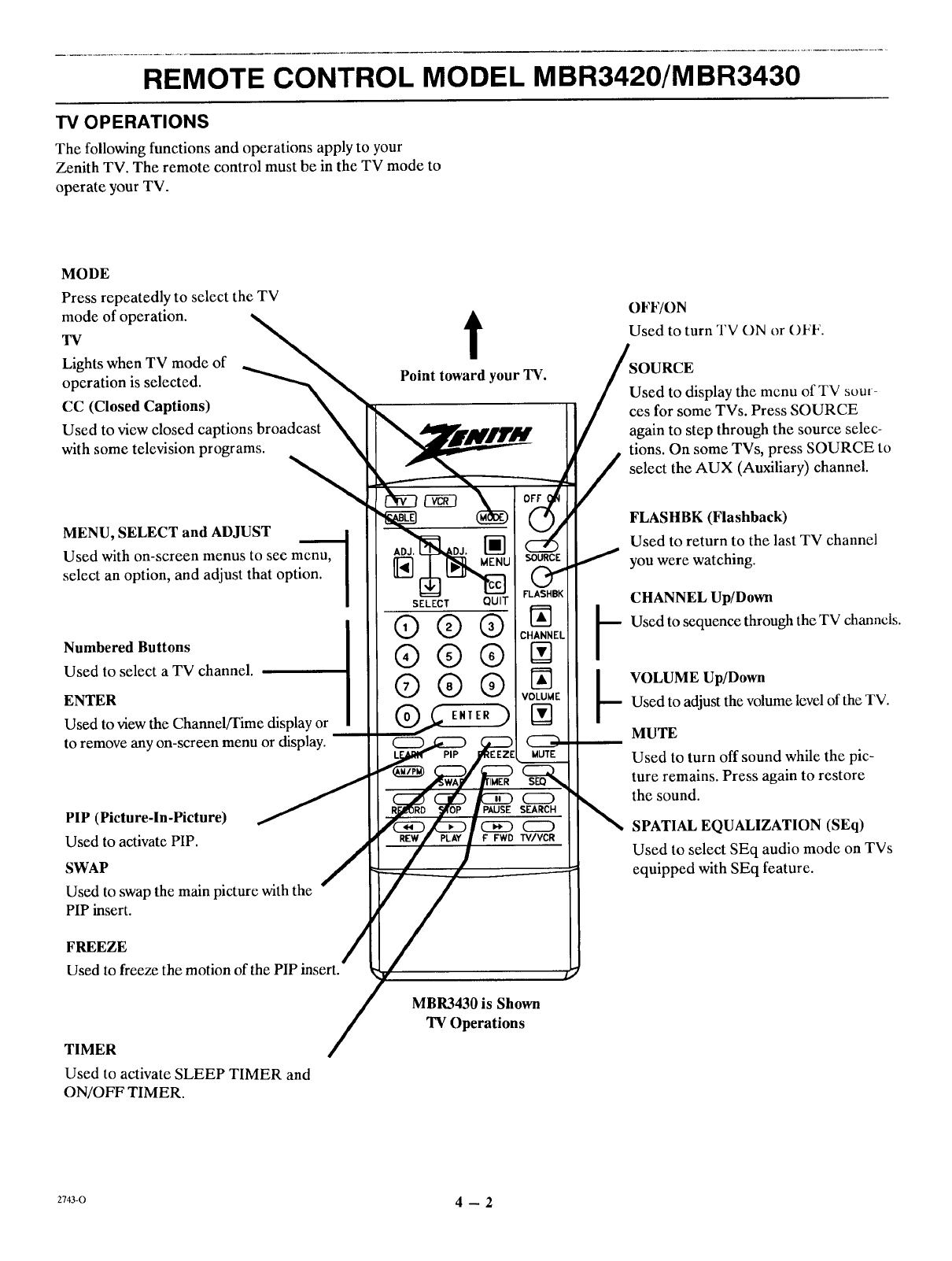
REMOTE CONTROL MODEL MBR3420/MBR3430
TV OPERATIONS
The following functions and operations apply to your
Zenith TV. The remote control must be in the TV mode to
operate your TV.
MODE
Press repeatedly to select the TV
mode of operation.
TV
Lights when TV mode of
operation is selected.
CC (Closed Captions)
Used to view closed captions broadcast
with some television programs.
MENU, SELECT and ADJUST
Used with on-screen menus to see menu,
select an option, and adjust that option.
Numbered Buttons
Used to select a TV channel.
ENTER
Used to view the Channel/Time display or
to remove any on-screen menu or display.
PIP (Picture-In-Picture)
Used to activate PIP.
SWAP
Used to swap the main picture with the
PIP insert.
FREEZE
Used to freeze the motion of the PIP insert.
TIMER
Used to activate SLEEP TIMER and
ON/OFF TIMER.
OFF/ON
t Used to turn TV ON or OFF.
Point toward your TV.
i
SELECT QUIT
®®®
®®®
®®®
C==)
PAUSE SEARCH
C_D CZD
F FWD TV/VCR
MBR3430 is Shown
TV Operations
SOURCE
Used to display the menu of TV sour-
ces for some TVs. Press SOURCE
again to step through the source selec-
tions. On some TVs, press SOURCE to
select the AUX (Auxiliary) channel.
FLASHBK (Flashback)
Used to return to the last TV channel
you were watching.
CHANNEL Up/Down
Used to sequence through the TV channels.
VOLUME Up/Down
Used to adjust the volume level of the TV.
MUTE
Used to turn off sound while the pic-
ture remains. Press again to restore
the sound.
SPATIAL EQUALIZATION (SEq)
Used to select SEq audio mode on TVs
equipped with SEq feature.
2743-0 4 -- 2
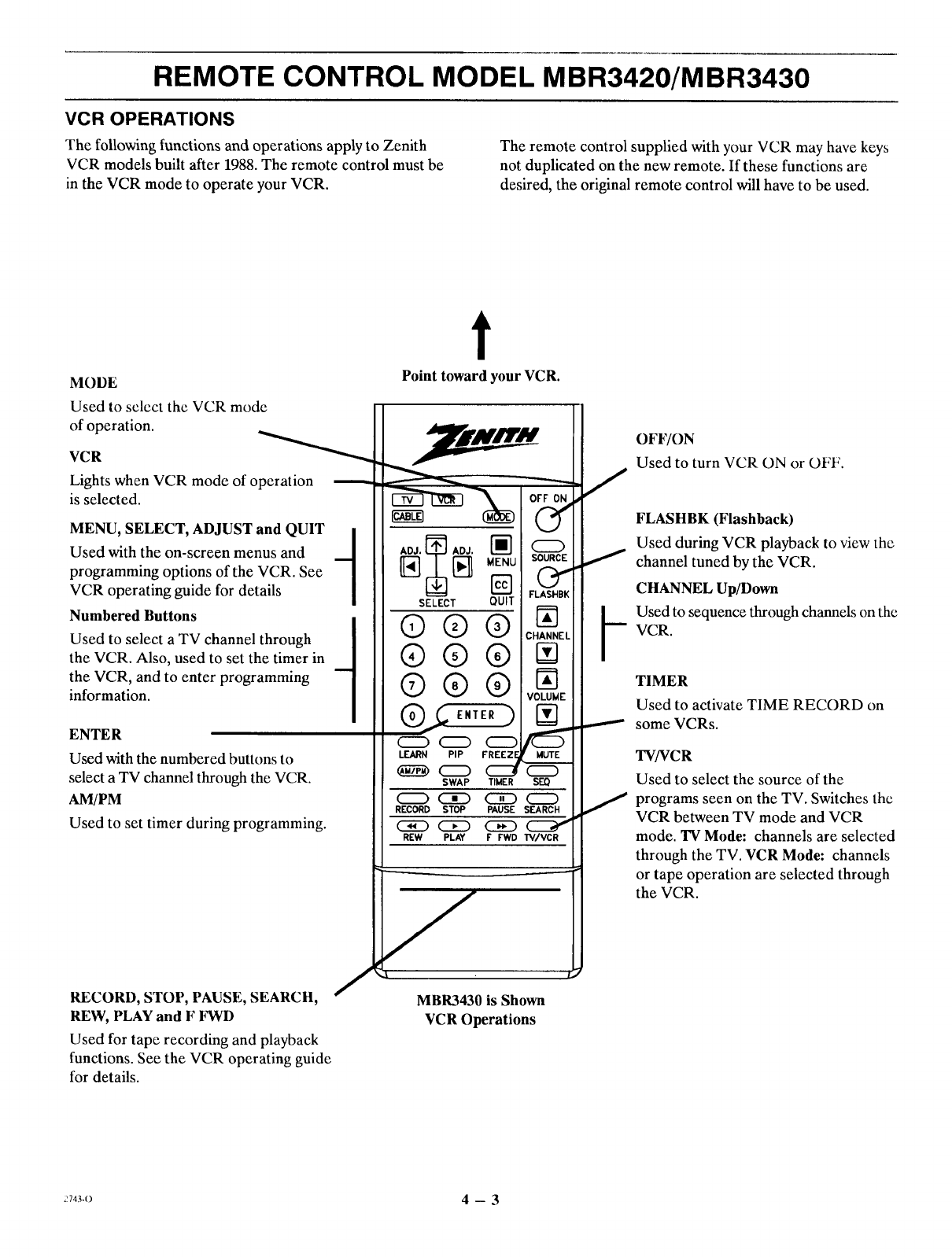
REMOTE CONTROL MODEL MBR3420/MBR3430
VCR OPERATIONS
The following functions and operations apply to Zenith
VCR models built after 1988. The remote control must be
in the VCR mode to operate your VCR.
The remote control supplied with your VCR may have keys
not duplicated on the new remote. If these functions are
desired, the original remote control will have to be used.
MODE
Used to select the VCR mode
of operation.
VCR
Lights when VCR mode of operation
is selected.
MENU, SELECT, ADJUST and QUIT 1
1
Used with the on-screen menus and
programming options of the VCR. See
VCR operating guide for details
Numbered Buttons 1
Used to select aTV channel through 1
the VCR. Also, used to set the timer in 1
the VCR, and to enter programming
information.
ENTER
Used with the numbered buttons to
select aTV channel through the VCR.
AM/PM
Used to set timer during programming.
/
RECORD, STOP, PAUSE, SEARCH, "
REW, PLAY and F FWD
Used for tape recording and playback
functions. See the VCR operating guide
for details.
t
Point toward your VCR.
FREEZE
(ZZ) (_)
LEARN PIP
SWAP TrMER SEQ
RECORD STOP PAUSE SEARCH
__ <_ cz_ ._'
REW PLAY F FWD W/VCR
MBR3430 is Shown
VCR Operations
OFF/ON
Used to turn VCR ON or OFF.
FLASHBK (Flashback)
Used during VCR playback to view the
channel tuned by the VCR.
CHANNEL Up/Down
Used to sequence through channels on the
VCR.
TIMER
Used to activate TIME RECORD on
some VCRs.
TV/VCR
Used to select the source of the
programs seen on the TV. Switches the
VCR between TV mode and VCR
mode. 'IV Mode: channels are selected
through the TV. VCR Mode: channels
or tape operation are selected through
the VCR.
2743-O 4 -- 3
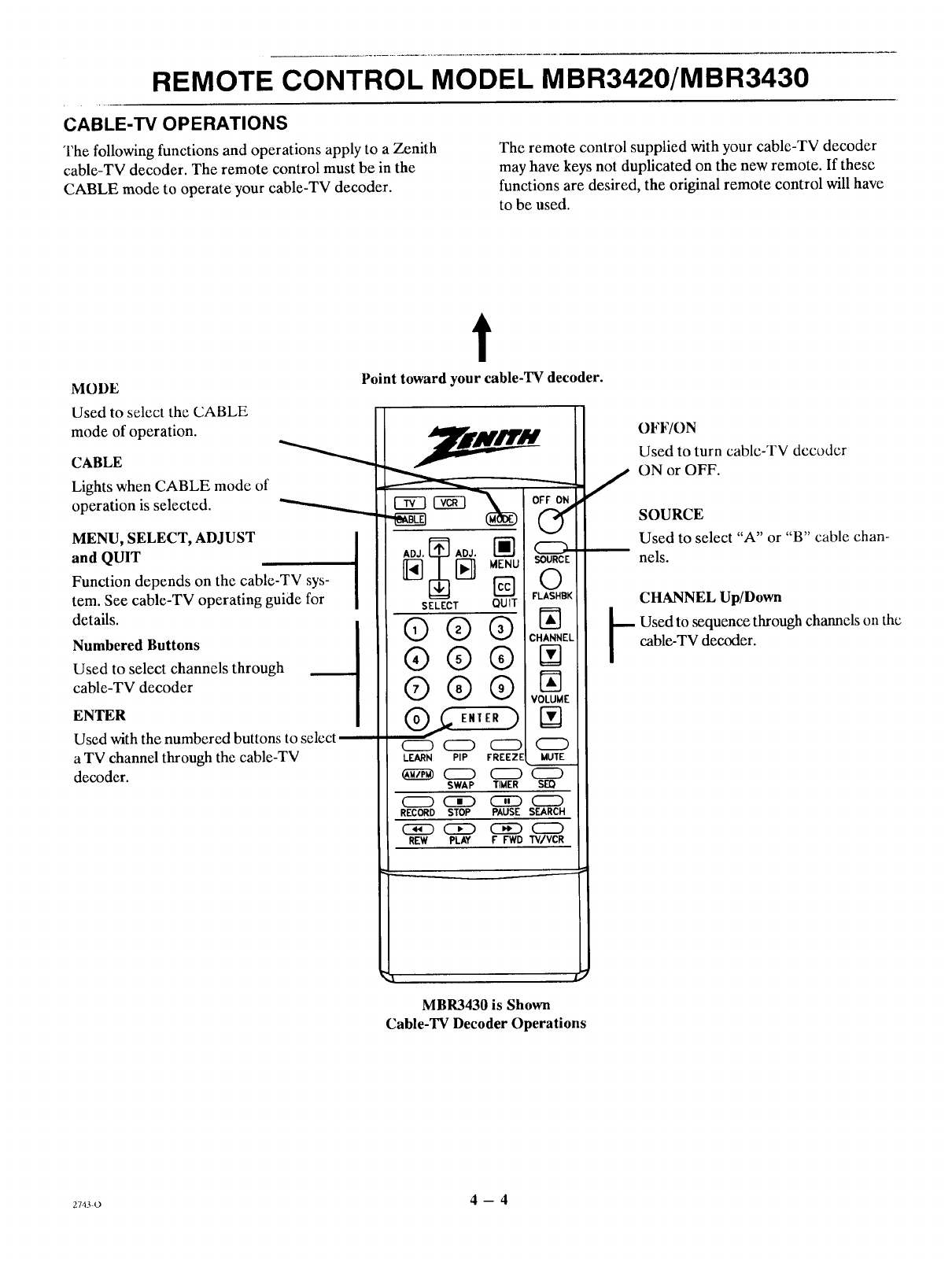
REMOTE CONTROL MODEL MBR3420/MBR3430
CABLE-TV OPERATIONS
The following functions and operations apply to a Zenith
cable-TV decoder. The remote control must be in the
CABLE mode to operate your cable-TV decoder.
The remote control supplied with your cable-TV decoder
may have keys not duplicated on the new remote. If these
functions are desired, the original remote control will have
to be used.
MODE
Used to select the CABLE
mode of operation.
CABLE
Lights when CABLE mode of
operation is selected.
MENU, SELECT, ADJUST
and QUIT
Function depends on the cable-TV sys-
tem. See cable-TV operating guide for
details.
Numbered Buttons
Used to select channels through
cable-TV decoder
ENTER
Used with the numbered buttons to select
a TV channel through the cable-TV
decoder.
t
Point toward your cable-TV decoder.
SELECT QUIT
®®®
®®®
©®®
LEARN PIP FREEZE
_ _ CZZ)
SWAP TIMER
(ZZ) CE_ CE)
RECORD STOP PAUSE
(3E) CED CED
REW PLAY F FWD
OFF ON
SOURCE
O
FLASHBK
N
CHANNEt
VOLUME
N
CE)
MUTE
CZD
$m
CED
SEARCH
TV/VCR
MBR3430 is Shown
Cable-TV Decoder Operations
OFF/ON
Used to turn cablc-TV decoder
ON or OFF.
SOURCE
Used to select "A" or "B" cable chan-
nels.
CHANNEL Up/Down
p sed to sequence through channels oil the
cable-TV decoder.
z74s-o 4-- 4
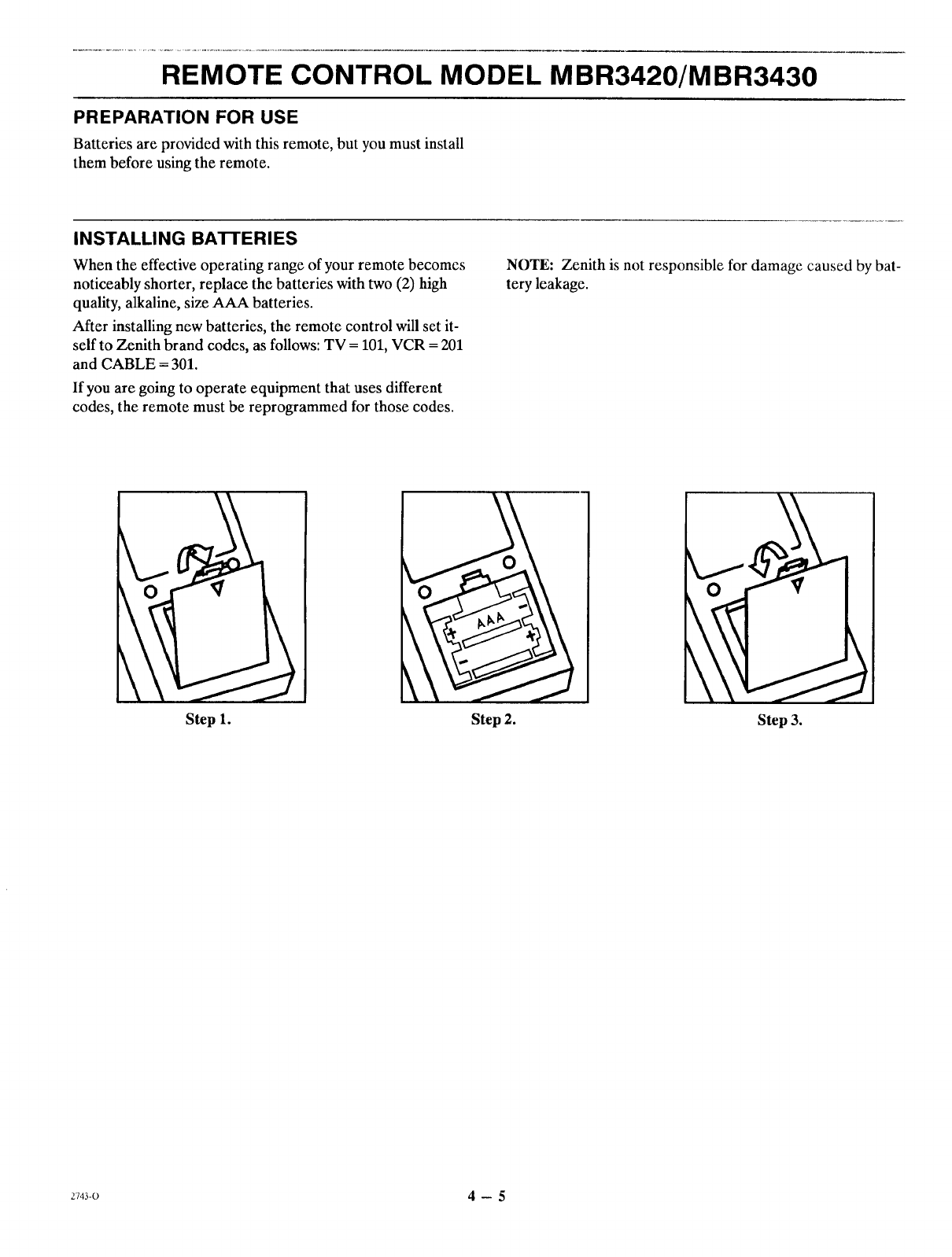
REMOTE CONTROL MODEL MBR3420/MBR3430
PREPARATION FOR USE
Batteries are provided with this remote, but you must install
them before using the remote.
INSTALLING BA'I-I'ERIES
When the effective operating range of your remote becomes
noticeably shorter, replace the batteries with two (2) high
quality, alkaline, size AAA batteries.
After installing new batteries, the remote control will set it-
self to Zenith brand codes, as follows: TV = 101, VCR = 201
and CABLE = 301.
If you are going to operate equipment that uses different
codes, the remote must be reprogrammed for those codes.
NOTE: Zenith is not responsible for damage caused by bat-
tery leakage.
Step 1. Step 2. Step 3.
2743-0 4-- 5
REMOTE CONTROL MODEL MBR3420/MBR3430
PROGRAMMING BRAND CODES
Before using your new rcmotc control, it must bc programmed
to recognize the brands of equipment it will be used to
operate. If you are using a Zenith TV, Zenith VHS VCR or a
Zenith cable-TV decoder, it has already been programmed for
yOU.
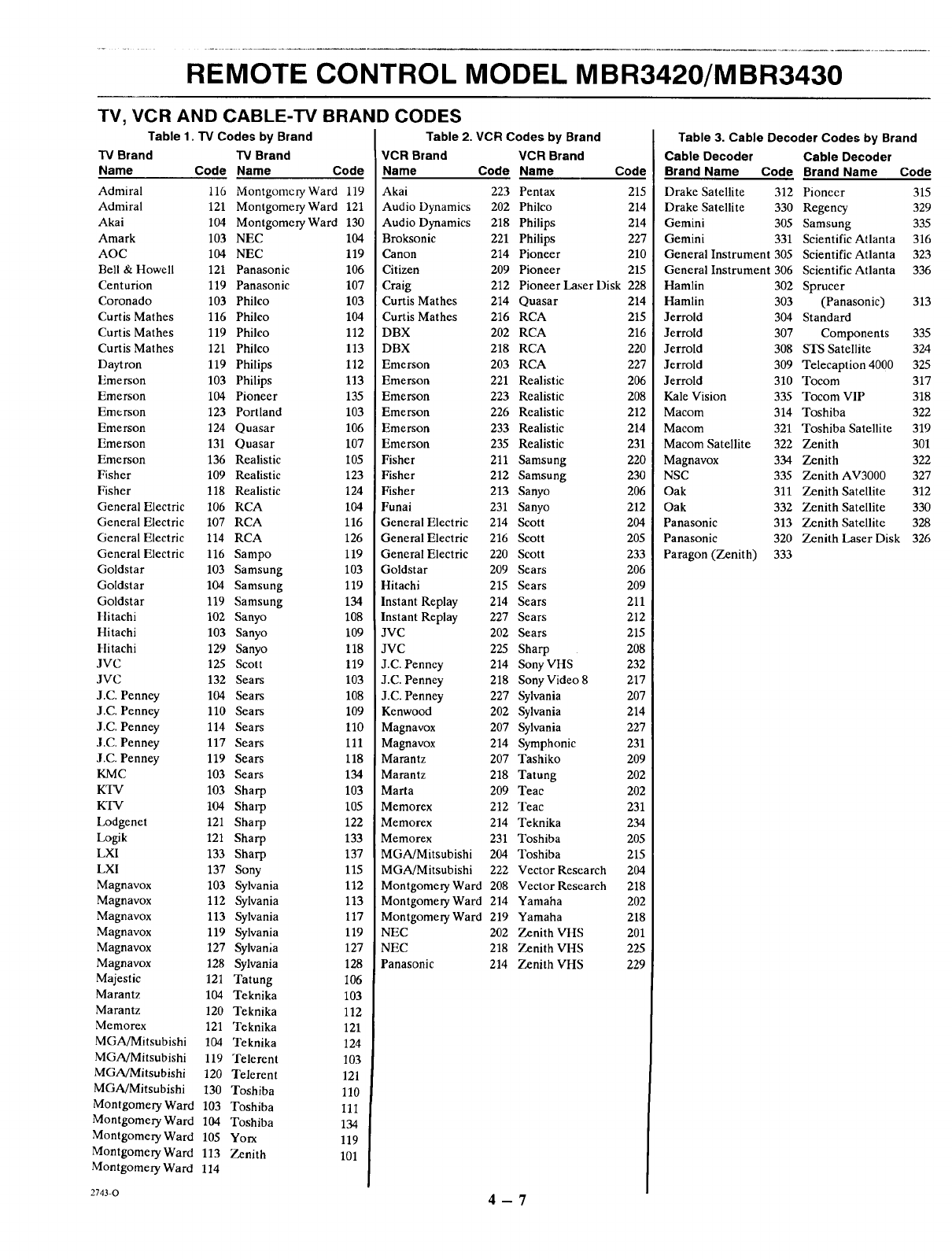
Find the code that corresponds to each brand and type of
equipment you are going to operate. Refer to Tables 1, 2
and 3.
For example, if you were programming the remote for use
with a Zenith TV, you would look up "Zenith" in "Table
1.", and find code "101."
Write the brand codes for your equipment on the following
lines.
TV CODE:
CABLE CODE:
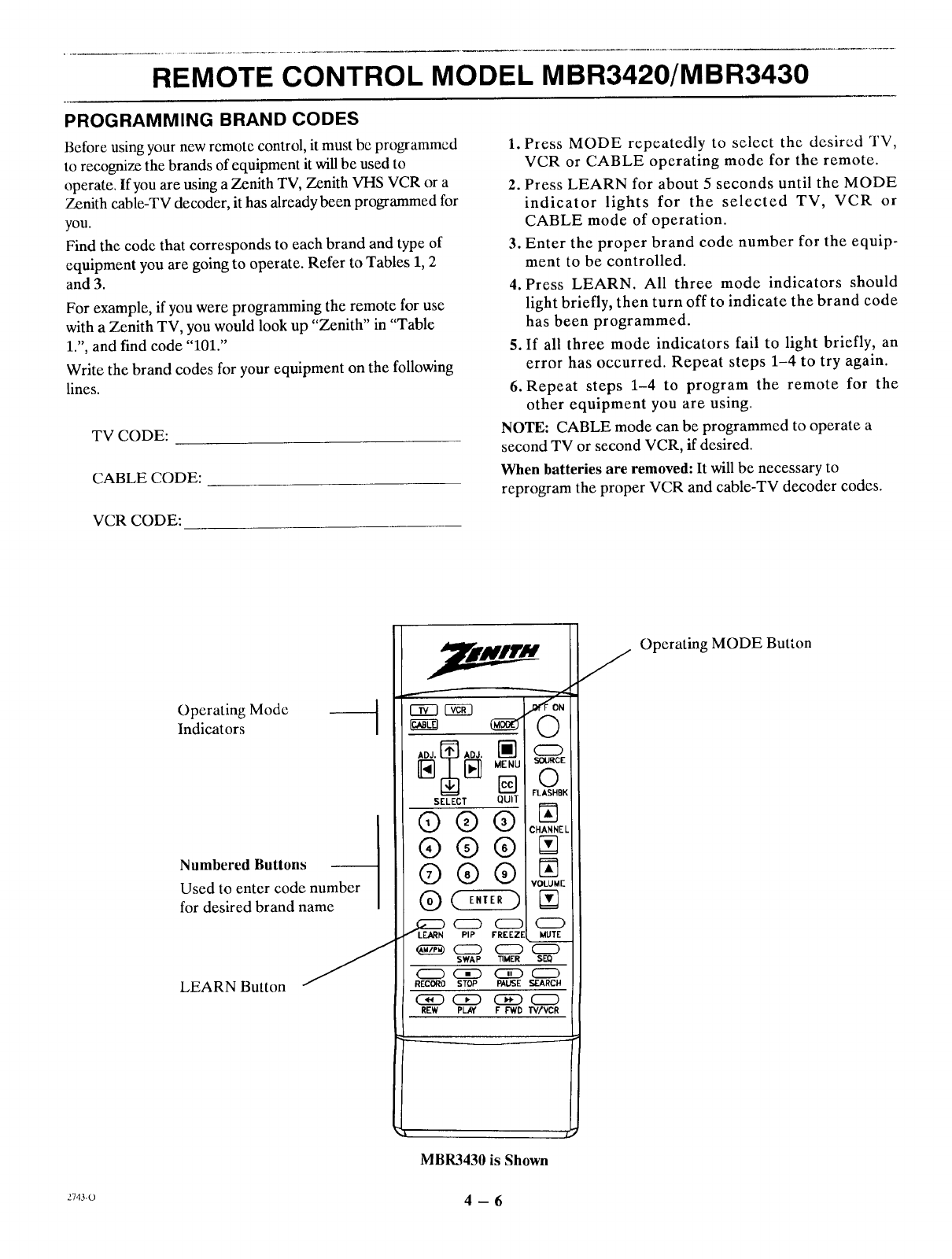
1. Press MODE rcpeatedly to select the desired TV,
VCR or CABLE operating mode for the remote.
2. Press LEARN for about 5 seconds until the MODE
indicator lights for the selected TV, VCR or
CABLE mode of operation.
3. Enter the proper brand code number for the equip-
ment to be controlled.
4. Press LEARN. All three mode indicators should
light briefly, then turn off to indicate the brand code
has been programmed.
5. If all three mode indicators fail to light briefly, an
error has occurred. Repeat steps 1-4 to try again.
6. Repeat steps 1-4 to program the remote for the
other equipment you are using.
NOTE: CABLE mode can be programmed to operate a
second TV or second VCR, if desired.
When batteries are removed: It will be necessary to
rcprogram the proper VCR and cable-TV decoder codes.
VCRCODE:
Operating Mode
Indicators
Numbered Buttons
Used to enter code number
for desired brand name
LEARN Button
SELECT QUIT
®®®
®®®
®®®
PIP FREEZE
_<ZD C_
SWAP TIMER
C223 C5E3 C3D
RECORD STOP PAUSE
(SE) CED C_3
REW PLAY F FWD
k
MBR3430 is Shown
Operating MODE Button
.'743-o 4 -- 6
REMOTE CONTROL MODEL MBR3420/MBR3430
TV, VCR AND CABLE-TV BRAND CODES
Table 1. TV Codes by Brand
TV Brand TV Brand
Name Code Name Code
Admiral 116 MontgomcryWard 119
Admiral 121 Montgomery Ward 121
Akai 104 Montgomery Ward 130
Amark 103 NEC 104
AOC 104 NEC 119
Bell & Howell 121 Panasonic 106
Centurion 119 Panasonic 107
Coronado 103 Philco 103
Curtis Mathes 116 Philco 104
Curtis Mathes 119 Philco 112
Curtis Mathes 121 Philco 113
Daytron 119 Philips 112
Emerson 103 Philips 113
Emerson 104 Pioneer 135
Emerson 123 Portland 103
Emerson 124 Quasar 106
Emerson 131 Quasar 107
Emerson 136 Realistic 105
Fisher 109 Realistic 123
Fisher 118 Realistic 124
General Electric 106 RCA 104
General Electric 107 RCA 116
General Electric 114 RCA 126
General Electric 116 Sampo 119
Goldstar 103 Samsung 103
Goldstar 104 Samsung 119
Goldstar 119 Samsung 134
Hitachi 102 Sanyo 108
Hitachi 103 Sanyo 109
tlitachi 129 Sanyo 118
JVC 125 Scott 119
JVC 132 Sears 103
J.C. Penney 104 Sears 108
J.C. Penney 110 Sears 109
J.C. Penney 114 Sears 110
J.C. Penney 117 Sears 111
J.C. Penney 119 Sears 118
KMC 103 Sears 134
KTV 103 Sharp 103
KTV 104 Sharp 105
Lodgenel 121 Sharp 122
Logik 121 Sharp 133
LXI 133 Sharp 137
LXI 137 Sony 115
Magnavox 103 Sylvania 112
Magnavox 112 Sylvania 113
Magnavox 113 Sylvania 117
Magnavox 119 Sylvania 119
Magnavox 127 Sylvania 127
Magnavox 128 Sylvania 128
Majestic 121 Tatung 106
Marantz 104 Teknika 103
Marantz 120 Teknika 112
Memorex 121 Teknika 121
MGA/Mitsubishi 104 Teknika 124
MGA/Mitsubishi 119 Telerent 103
MGA/Mitsubishi 120 Telerent 121
MGA/Mitsubishi 130 Toshiba 110
Montgomery Ward 103 Toshiba 111
Montgomery Ward 104 Toshiba 134
Montgomery Ward 105 Yorx 119
Montgomery Ward 113 Zenith 101
Montgomery Ward 114
Table 2. VCR Codes by Brand
VCR Brand
Name
Akai
Audio Dynamics
Audio Dynamics
Broksonic
Canon
Citizen
Craig
Curtis Mathes
Curtis Mathes
DBX
DBX
Emerson
Emerson
Emerson
Emerson
Emerson
Emerson
Fisher
Fisher
Fisher
Funai
General Electric
General Electric
General Electric
Goldstar
Hitachi
Instant Replay
Instant Replay
JVC
JVC
J.C. Penney
3.C. Penney
J.C. Penney
Kenwood
Magnavox
Magnavox
Marantz
Marantz
Marta
Memorex
Memorex
Memorex
MGA/Mitsubishi
Table 3. Cable Decoder Codes by Brand
VCR Brand
Code Name Code
223 Pentax 215
202 Philco 214
218 Philips 214
221 Philips 227
214 Pioneer 210
209 Pioneer 215
212 Pioneer Laser Disk 228
Cable Decoder Cable Decoder
Brand Name Code Brand Name Code
Drake Satellite 312 Pioneer 315
Drake Satellite 330 Regency 329
Gemini 305 Samsung 335
Gemini 331 Scientific Atlanta 316
General Instrument 305 Scientific Atlanta 323
General Instrument 306 Scientific Atlanta 336
Hamlin 302 Sprucer
303 (Panasonic) 313
304 Standard
307 Components 335
308 STS Satellite 324
309 Telecaption 4000 325
310 Tocom 317
335 Tocom VIP 318
314 Toshiba 322
321 Toshiba Satellite 319
322 Zenith 301
334 Zenith 322
335 Zenith AV3000 327
311 Zenith Satellite 312
332 Zenith Satellite 330
313 Zenith Satellite 328
214 Quasar
216 RCA
202 RCA
218 RCA
203 RCA
221 Realistic
223 Realistic
226 Realistic
233 Realistic
235 Realistic
211 Samsung
212 Samsung
213 Sanyo
231 Sanyo
214 Scott
216 Scott
220 Scott
209 Sears
215 Sears
214 Sears
227 Sears
202 Sears
225 Sharp
214 Sony VttS
218 SonyVideo8
227 Sylvania
202 Sylvania
207 Sylvania
214 Symphonic
207 Tashiko
218 Tatung
209 Teac
212 Teac
214 Teknika
231 Toshiba
204 Toshiba
214 Hamlin
215 Jerrold
216 Jerrold
220 Jerrold
227 Jerrold
206 Jerrold
208 Kale Vision
212 Macom
214 Macom
231 Macom Satellite
220 Magnavox
230 NSC
206 Oak
212 Oak
204 Panasonic
205 Panasonic
233 Paragon (Zenith)
206
209
211
212
215
208
232
217
207
214
227
231
209
202
202
231
234
205
215
MGA!Mitsubishi 222 Vector Research
Montgomery Ward 208 Vector Research
Montgomery Ward 214 Yamaha
Montgomery Ward 219 Yamaha
NEC 202 Zenith VHS
NEC 218 Zenith VHS
Panasonic 214 Zenith VHS
204
218
202
218
201
225
229
320 Zenith Laser Disk 326
333
2743-0 4 -- 7
QUICK REFERENCE TO ON-SCREEN MENUS
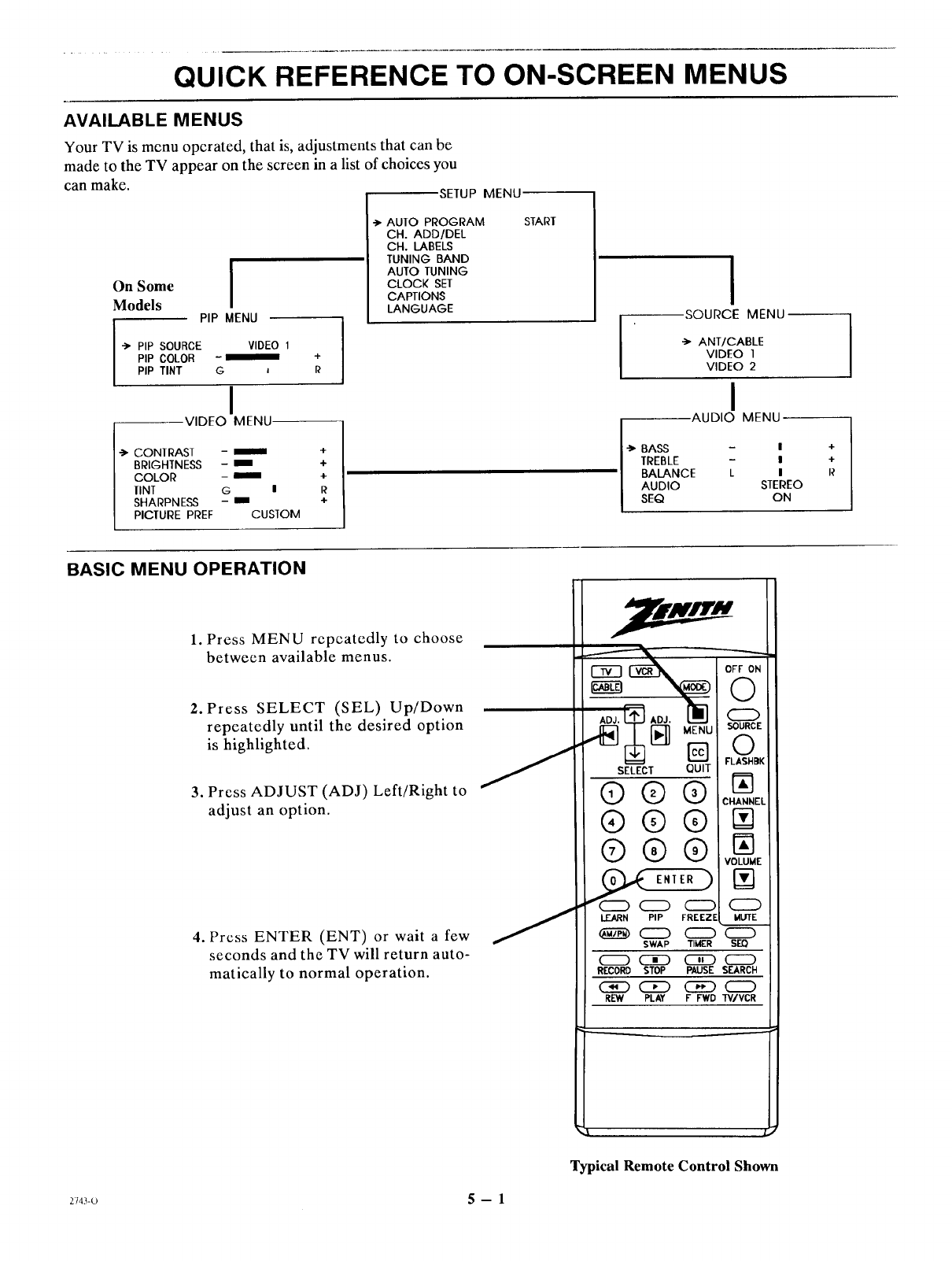
AVAILABLE MENUS
Your TV is menu operated, that is, adjustments that can be
made to the TV appear on the screen in a list of choices you
can make. SETUP MENU,
On Some ]
Models PiP MENU
•*AUIO PROGRAM
CH. ADD/DEL
CH. LABELS
TUNING BAND
AUTO TUNING
CLOCK SET
CAPTIONS
LANGUAGE
--> PIP SOURCE VIDEO 1
PIP COLOR -
PIP TINT G i
I
VIDEO MENU
CONTRAST -
BRIGHTNESS -
COLOR -
lINT G I
SHARPNESS -m
PICTURE PREF CUSTOM
4-
+
4-
R
÷
START
I
SOURCE MENU
,._ ANT/CABLE
VIDEO ]
VIDEO 2
I
•AUDIO MENU
BASS - I
TREBLE - I
BALANCE L I
AUDIO STEREO
SEQ ON
÷
4-
R
BASIC MENU OPERATION
1. Press MENU repeatedly to choose
between available menus.
2. Press SELECT (SEL) Up/Down
repeatedly until the desired option
is highlighted.
3. Press ADJUST (ADJ) Left/Right to
adjust an option.
4. Press ENTER (ENT) or wait a few
seconds and the TV will return auto-
matically to normal operation.
SELECT QUIT
®®®
®@®
®®®
_c_ ENIER)
CZD
LEARN PIP FREEZE
SWAP TIk'IER
RECORD STOP PAUSE
REW PLAY F FWD
OFF ON
©
SOURCE
©
FLASHBK
IN
CHANNEL
N
VOLUME
r_
CD
MUTE
CZD
SEI_
CZD
SEARCH
"[V/VCR
L
Typical Remote Control Shown
:143-o 5 -- 1
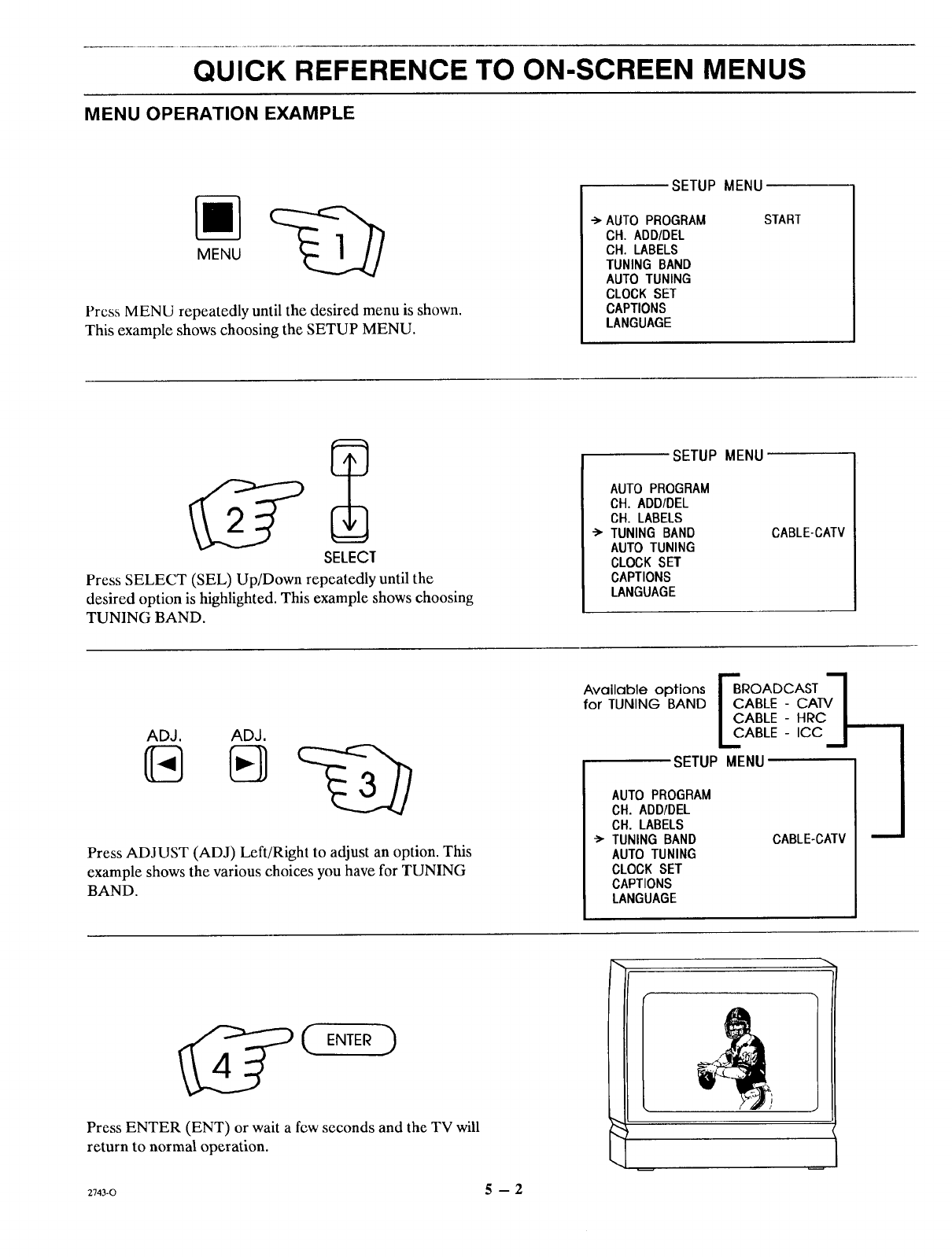
QUICK REFERENCE TO ON-SCREEN MENUS
MENU OPERATION EXAMPLE
MENU
Press MENU repeatedly until the desired menu is shown.
This example shows choosing the SETUP MENU.
SETUP MENU
-->'AUTO PROGRAM
CH. ADD/DEL
CH. LABELS
TUNING BAND
AUTO TUNING
CLOCK SET
CAPTIONS
LANGUAGE
START
SELECT
Press SELECT (SEL) Up/Down repeatedly until the
desired option is highlighted. This example shows choosing
TUNING BAND.
SETUP MENU
AUTO PROGRAM
CH. ADD/DEL
CH. LABELS
•-> TUNING BAND
AUTO TUNING
CLOCK SET
CAPTIONS
LANGUAGE
CABLE-CATV
ADJ, ADJ.
Press ADJUST (ADJ) Left/Right to adjust an option. This
example shows the various choices you have for TUNING
BAND.
Available options F"BROADCAST 7
for TUNING BAND | CABLE - CA]V |
|CABLE -H_C/
L_ABLE- ICC J
SETUP MENU
AUTO PROGRAM
CH. ADDIDEL
CH. LABELS
"_ TUNING BAND
AUTO TUNING
CLOCK SET
CAPTIONS
LANGUAGE
CABLE-CATV
Press ENTER (ENT) or wait a few seconds and the TV will
return to normal operation.
2743-0 5 -- 2
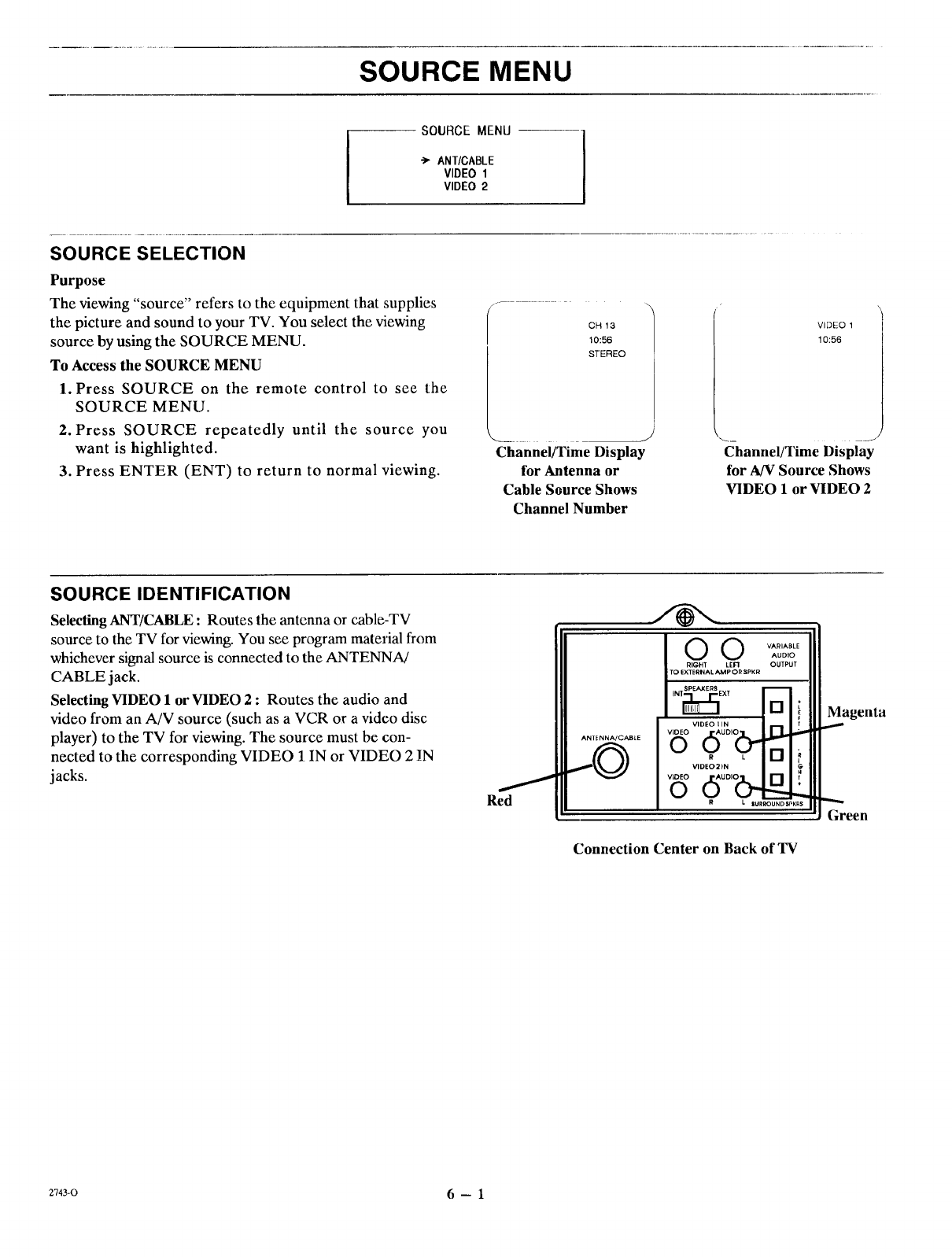
SOURCE MENU
SOURCE MENU
-> ANT/CABLE
VIDEO 1
VIDEO 2
SOURCE SELECTION
Purpose
The viewing "source" refers to the equipment that supplies
the picture and sound to your TV. You select the viewing
source by using the SOURCE MENU.
To Access the SOURCE MENU
1. Press SOURCE on the remote control to see the
SOURCE MENU.
2. Press SOURCE repeatedly until the source you
want is highlighted.
3. Press ENTER (ENT) to return to normal viewing.
/....
CH 13
10:56
STEREO
Channel/Time Display
for Antenna or
Cable Source Shows
Channel Number
VIDEO 1
10:56
Channel/Time Display
for A/V Source Shows
VIDEO I or VIDEO 2
SOURCE IDENTIFICATION
Selecting ANT/CABLE: Routes the antenna or cable-TV
source to the TV for viewing. You see program material from
whichever signal source is connected to the ANTENNA/
CABLE jack.
Selecting VIDEO 1 or VIDEO 2 : Routes the audio and
video from an A/V source (such as a VCR or a video disc
player) to the TV for viewing. The source must be con-
nected to the corresponding VIDEO 1 IN or VIDEO 2 IN
jacks.
Red
ANTE NNA/CAB[E
O O VARIABLE
AUDIO
RIGHT LEFt OUTPUT
TO EXTERNAL AMP OR SPKR
INI_EXT _[] L÷
VIDEO I IN
0
OL) kJ--_.....
R L 8LIRROUND SPKR$
Connection Center on Back of TV
Magenta
Green
2743-0 6-- 1
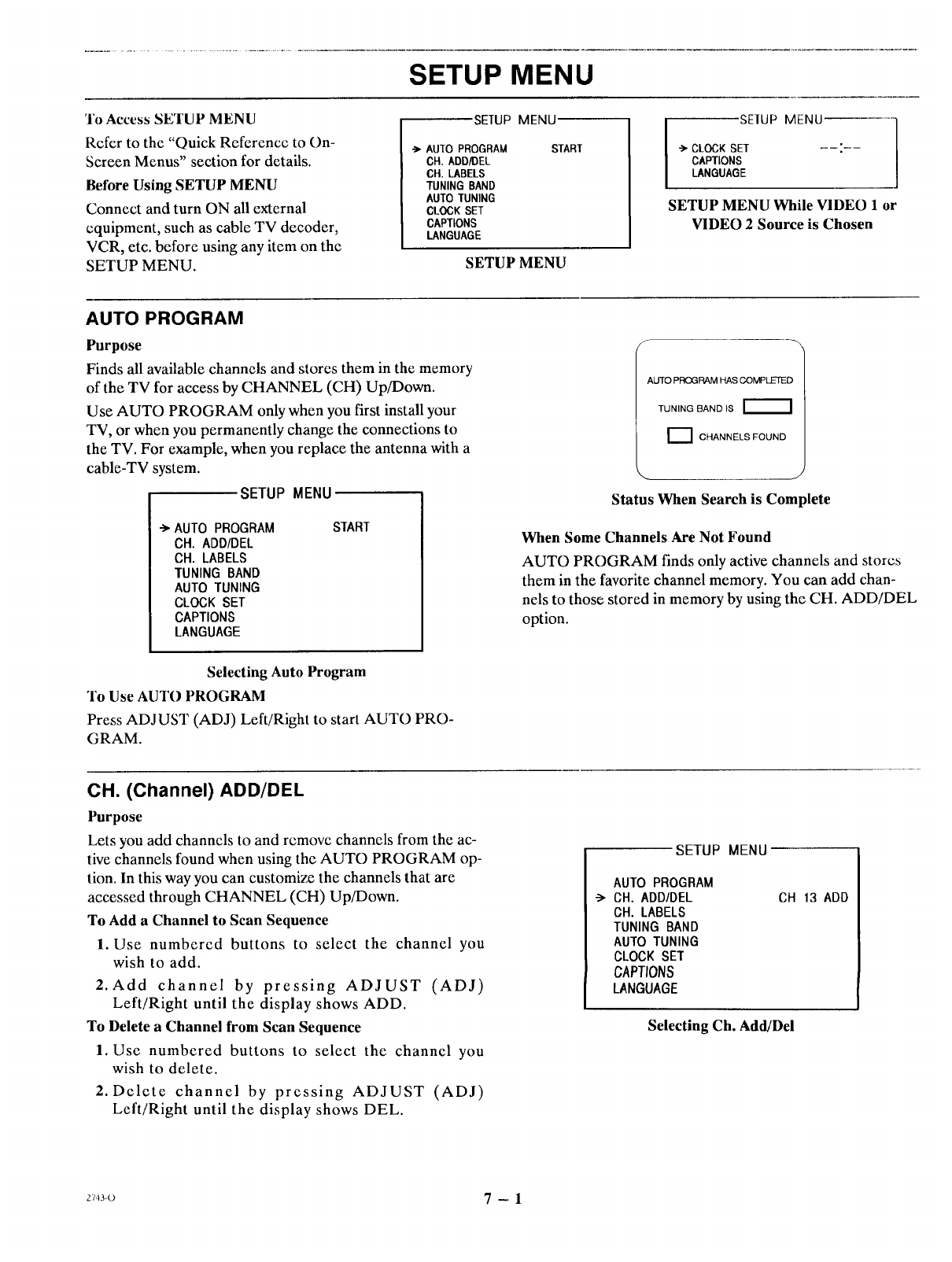
SETUP MENU
'SEIUP MENU 'SEIUP MENU
3"oAccess SETUP MENU
Refer to the "Quick Reference to On-
Screen Menus" section for details.
Before Using SETUP MENU
Connect and turn ON all external
equipment, such as cable TV decoder,
VCR, etc. before using any item on the
SETUP MENU.
•-> AU[O PROGRAM
CH. ADD/DEL
CH. LABELS
TUNING BAND
AUTO TUNING
CLOCK SET
CAPTIONS
LANGUAGE
START
SETUP MENU
-'>"CLOCK SET
CAPTIONS
LANGUAGE
SETUP MENU While VIDEO 1or
VIDEO 2 Source is Chosen
AUTO PROGRAM
Purpose
Finds all available channels and stores them in the memory
of the TV for access by CHANNEL (CH) Up/Down.
Use AUTO PROGRAM only when you first install your
TV, or when you permanently change the connections to
the TV. For example, when you replace the antenna with a
cable-TV system.
SETUP MENU
-> AUTO PROGRAM
CH. ADD/DEL
CH. LABELS
TUNING BAND
AUTO TUNING
CLOCK SET
CAPTIONS
LANGUAGE
START
AUTO PROGRAM HAS COMPLETED
TUNING BAND IS
r_l CHANNELS FOUND
-.,. J
Status When Search is Complete
When Some Channels Are Not Found
AUTO PROGRAM finds only active channels and stores
them in the favorite channel memory. You can add chan-
nels to those stored in memory by using the CH. ADD/DEL
option.
Selecting Auto Program
To Use AUTO PROGRAM
Press ADJUST (ADJ) Left/Right to start AUTO PRO-
GRAM.
CH. (Channel) ADD/DEL
Purpose
Lets you add channels to and remove channels from the ac-
tive channels found when using the AUTO PROGRAM op-
tion. In this way you can customize the channels that are
accessed through CHANNEL (CH) Up/Down.
To Add a Channel to Scan Sequence
1. Use numbered buttons to select the channel you
wish to add.
2. Add channel by pressing ADJUST (ADJ)
Left/Right until the display shows ADD.
To Delete a Channel from Scan Sequence
1. Use numbered buttons to select the channel you
wish to delete.
2. Delete channel by pressing ADJUST (ADJ)
Left/Right until the display shows DEL.
SETUP MENU
AUTO PROGRAM
-> CH. ADD/DEL
CH. LABELS
TUNING BAND
AUTO TUNING
CLOCK SET
CAPTIONS
LANGUAGE
CH 13 ADD
Selecting Ch. Add/Del
2_43-O 7-1
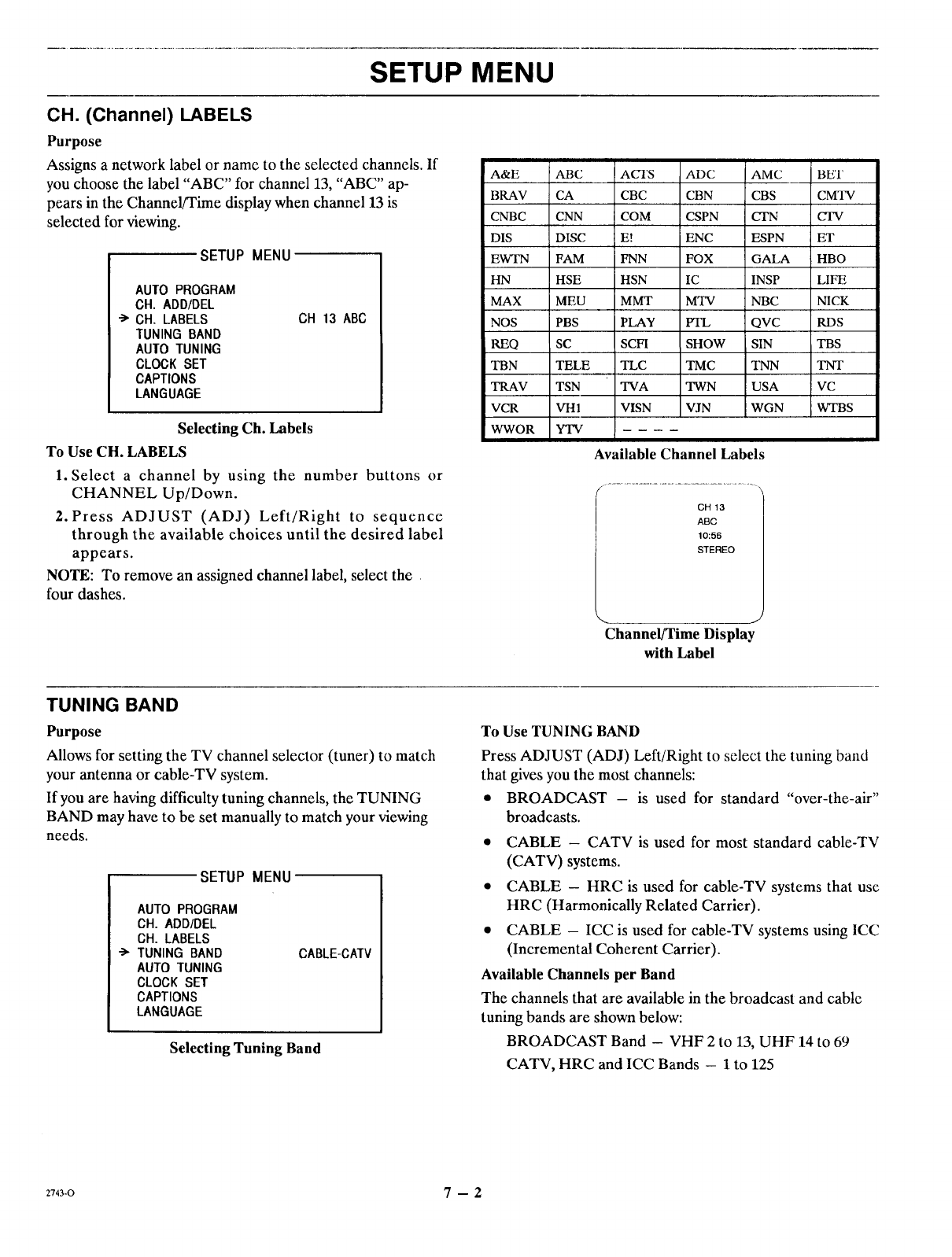
SETUP MENU
CH. (Channel) LABELS
Purpose
Assigns a network label or name to the selected channels. If
you choose the label "ABC" for channel 13, "ABC" ap-
pears in the Channel/Time display when channel 13 is
selected for viewing.
SETUP MENU
AU'IO PROGRAM
CH. ADD/DEL
-> CH. LABELS
IUNING BAND
AUIO TUNING
CLOCK SET
CAPTIONS
LANGUAGE
CH 13 ABC
Selecting Ch. Labels
To Use CH. LABELS
1. Select a channel by using the number buttons or
CHANNEL Up/Down.
2. Press ADJUST (ADJ) Left/Right to sequence
through the available choices until the desired label
appears.
NOTE: To remove an assigned channel label, select the
four dashes.
A&E
BRAV
CNBC
DIS
EWTN
HN
MAX
NOS
REQ
TBN
TRAV
VCR
WWOR
ABC
CA
CNN
DISC
FAM
HSE
MEU
PBS
SC
TELE
TSN
VH1
YTV
ACI'S ADC
CBC CBN
COM CSPN
EI ENC
FNN FOX
HSN IC
MMT MTV
PLAY PTL
SCFI SHOW
TLC TMC
TVA TWN
VISN VJN
AMC
CBS
CTN
ESPN
GALA
INSP
NBC
QVC
SIN
TNN
USA
WGN
Available Channel Labels
/.......................................... .
CH 13
ABC
10:56
STEREO
Channel/Time Display
with Label
BET
CMTV
C'FV
ET
HBO
LIFE
NICK
RDS
TBS
TNT
VC
WTBS
TUNING BAND
Purpose
Allows for setting the TV channel selector (tuner) to match
your antenna or cable-TV system.
If you are having difficulty tuning channels, the TUNING
BAND may have to be set manually to match your viewing
needs.
SETUP MENU
AUTO PROGRAM
CH. ADD/DEL
CH. LABELS
"->TUNING BAND
AUTO TUNING
CLOCK SET
CAPTIONS
LANGUAGE
CABLE-CMV
Selecting Tuning Band
To Use TUNING BAND
Press ADJUST (ADJ) Left/Right to select the tuning band
that gives you the most channels:
• BROADCAST - is used for standard "over-the-air"
broadcasts.
• CABLE - CATV is used for most standard cable-TV
(CATV) systems.
• CABLE - HRC is used for cable-TV systems that use
HRC (Harmonically Related Carrier).
• CABLE - ICC is used for cable-TV systems using ICC
(Incremental Coherent Carrier).
Available Channels per Band
The channels that are available in the broadcast and cable
tuning bands are shown below:
BROADCAST Band - VHF 2 to 13, UHF 14 to 69
CATV, HRC and ICC Bands - 1 to 125
2743-0 7 -- 2
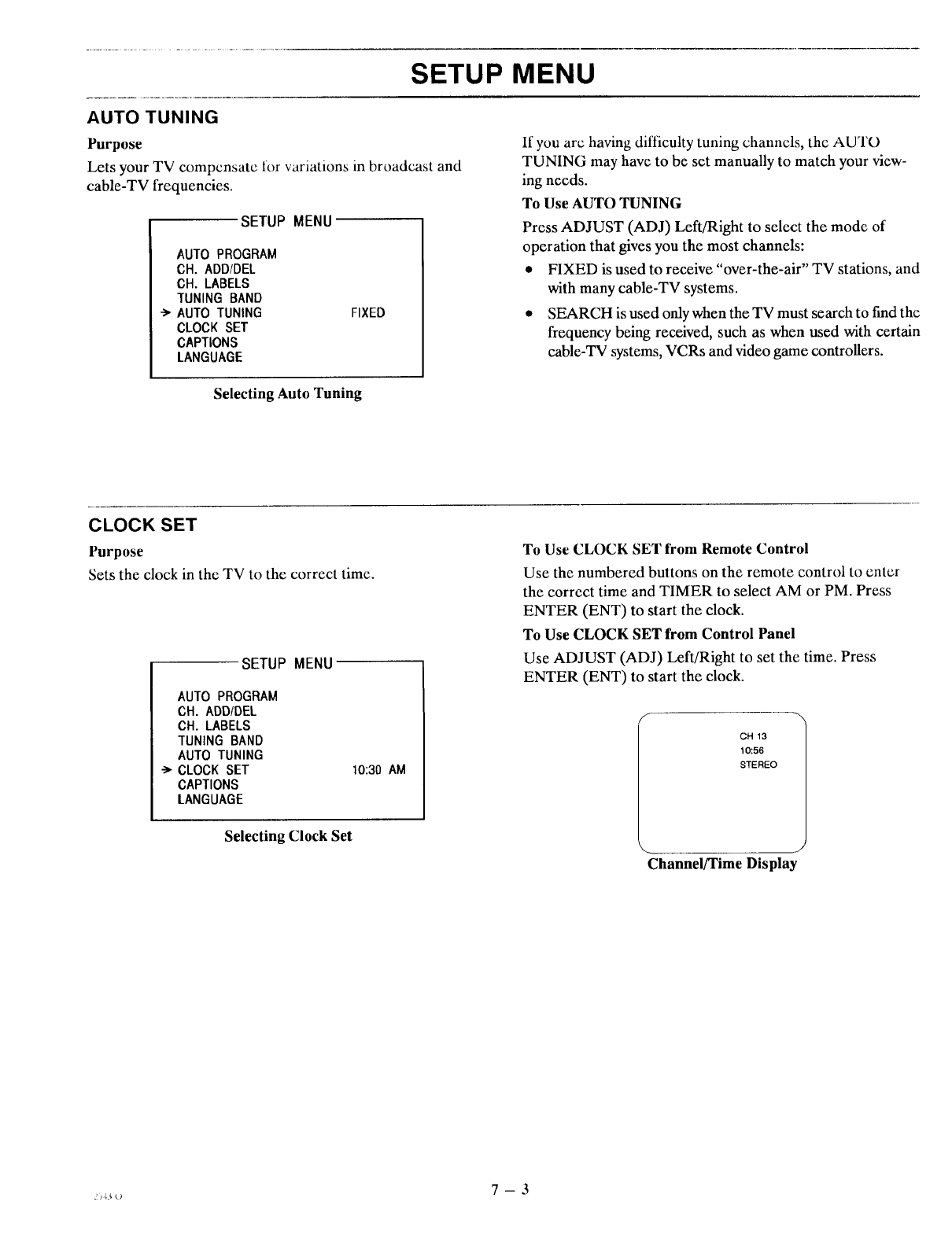
SETUP MENU
AUTO TUNING
Purpose
Lets your TV compensate for variations in broadcast and
cable-TV frequencies.
SETUP MENU
AUTO PROGRAM
CH. ADD/DEL
CH. LABELS
TUNING BAND
AUTO TUNING
CLOCK SET
CAPTIONS
LANGUAGE
FIXED
If you arc having difficulty tuning channels, the AU TO
TUNING may have to be set manually to match your view-
ing needs.
To Use AUTO TUNING
Press ADJUST (ADJ) Left/Right to select the mode of
operation that gives you the most channels:
* FIXED is used to receive "over-the-air" TV stations, and
with many cable-TV systems.
• SEARCH is used only when the TV must search to fred the
frequency being received, such as when used with certain
cable-TV systems, VCRs and video game controllers.
Selecting Auto Tuning
CLOCK SET
Purpose
Sets the clock in the TV to the correct time.
SETUP MENU
AUTO PROGRAM
CH. ADD/DEL
CH. LABELS
TUNING BAND
AUTO TUNING
CLOCK SET
CAPTIONS
LANGUAGE
10:30 AM
Selecting Clock Set
To Use CLOCK SET from Remote Control
Use the numbered buttons on the remote control to enter
the correct time and TIMER to select AM or PM. Press
ENTER (ENT) to start the clock.
To Use CLOCK SET from Control Panel
Use ADJUST (ADJ) Left/Right to set the time. Press
ENTER (ENT) to start the clock.
GH 13
10:56
STEREO
J
Channel/Time Display
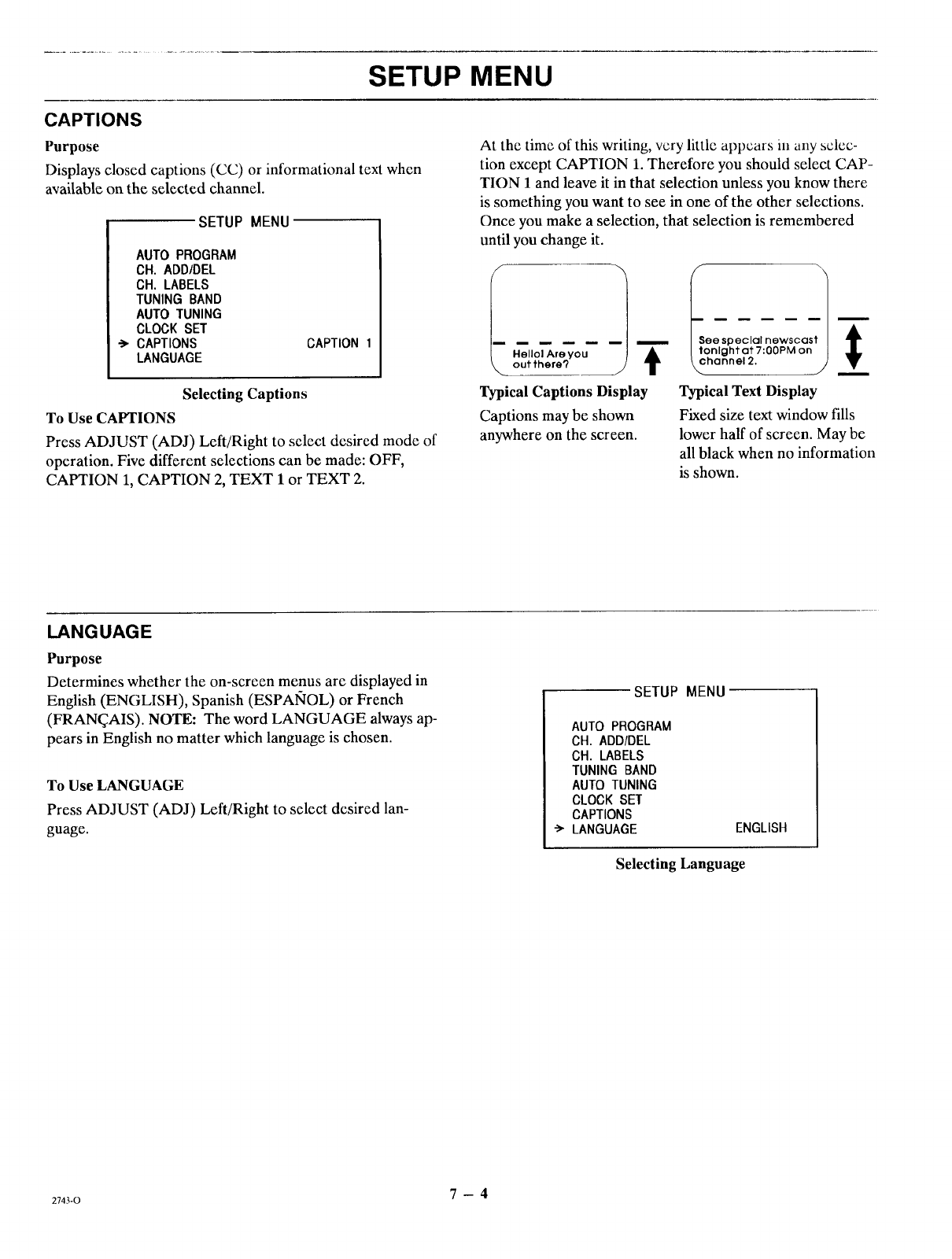
SETUP MENU
CAPTIONS
Purpose
Displays closed captions (CC) or informational text when
available on the selected channel.
SETUP MENU
AUTO PROGRAM
CH. ADD/DEL
CH. LABELS
TUNING BAND
AUTO TUNING
CLOCK SET
CAPTIONS
LANGUAGE
CAPTION 1
Selecting Captions
To Use CAPTIONS
Press ADJUST (ADJ) Left/Right to select desired mode of
operation. Five different selections can be made: OFF,
CAPTION 1, CAPTION 2, TEXT I or TEXT 2.
At the time of this writing, vcry little appcars in any sclcc-
tion except CAPTION 1. Therefore you should select CAP-
TION 1 and leave it in that selection unless you know there
is something you want to see in one of the other selections.
Once you make a selection, that selection is remembered
until you change it.
Typical Captions Display
Captions may be shown
anywhere on the screen.
t m m _ m m \
ee special newscast _=
e_
Typical Text Display
Fixed size text window fills
lower half of screen. May be
all black when no information
is shown.
LANGUAGE
Purpose
Determines whether the on-screen menus are displayed in
English (ENGLISH), Spanish (ESPAIqOL) or French
(FRANI_AIS). NOTE: The word LANGUAGE always ap-
pears in English no matter which language is chosen.
To Use LANGUAGE
Press ADJUST (ADJ) Left/Right to select desired lan-
guage.
SETUP MENU
AUTO PROGRAM
CH. ADD/DEL
CH. LABELS
TUNING BAND
AUTO TUNING
CLOCK SET
CAPTIONS
LANGUAGE ENGLISH
Selecting Language
2743-0 7 - 4
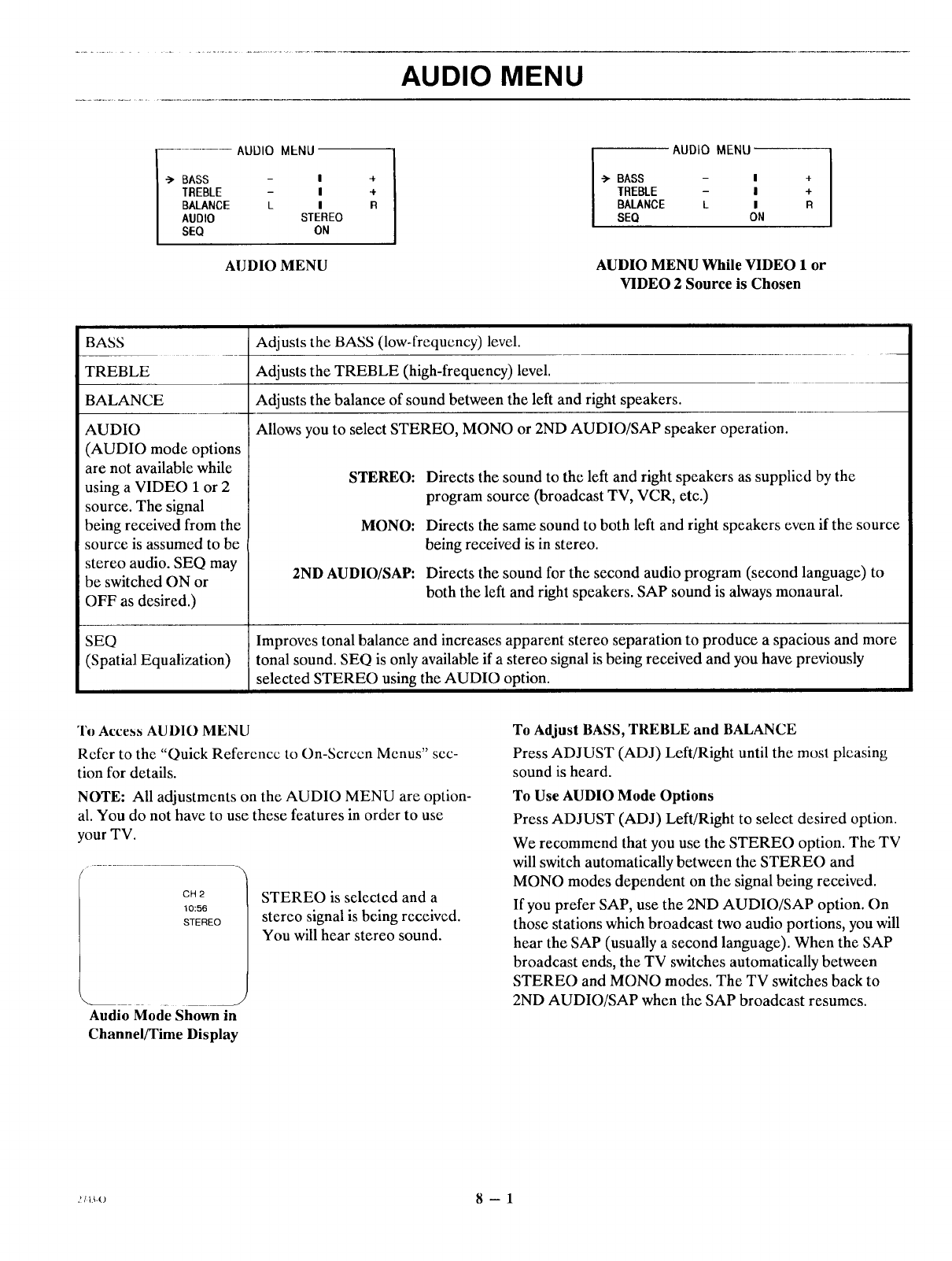
AUDIO MENU
AUDIO MENU
-> BASS - I
TREBLE - I
BALANCE L I
AUDIO STEREO
SEQ ON
4
4"
R
AUDIO MENU
AUDIO MENU
BASS - I
TREBLE - I
BALANCE L I
SEQ ON
4
-F
R
AUDIO MENU While VIDEO 1 or
VIDEO 2 Source is Chosen
BASS
TREBLE
BALANCE
AUDIO
(AUDIO mode options
are not available while
using a VIDEO 1 or 2
source. The signal
being received from the
source is assumed to be
stereo audio. SEQ may
be switched ON or
OFF as desired.)
SEQ
(Spatial Equalization)
Adjusts the BASS (low-frequency) level.
Adjusts the TREBLE (high-frequency) level.
Adjusts the balance of sound between the left and right speakers.
Allows you to select STEREO, MONO or 2ND AUDIO/SAP speaker operation.
STEREO:
MONO:
2ND AUDIO/SAP:
Directs the sound to the left and right speakers as supplied by the
program source (broadcast TV, VCR, etc.)
Directs the same sound to both left and right speakers even if the source
being received is in stereo.
Directs the sound for the second audio program (second language) to
both the left and right speakers. SAP sound is always monaural.
Improves tonal balance and increases apparent stereo separation to produce a spacious and more
tonal sound. SEQ is only available if a stereo signal is being received and you have previously
selected STEREO using the AUDIO option.
To Access AUDIO MENU
Refer to the "Quick Refcrcncc to On-Screen Menus" sec-
tion for details.
NOTE: All adjustments on the AUDIO MENU are option-
al. You do not have to use these features in order to use
your TV.
CH2
10:56
STEREO
STEREO is selected and a
stereo signal is being received.
You will hear stereo sound.
.... J
Audio Mode Shown in
Channel/Time Display
To Adjust BASS, TREBLE and BALANCE
Press ADJUST (ADJ) Left/Right until the most plcasing
sound is heard.
To Use AUDIO Mode Options
Press ADJUST (ADJ) Left/Right to select desired option.
We recommend that you use the STEREO option. The TV
will switch automatically between the STEREO and
MONO modes dependent on the signal being received.
If you prefer SAP, use the 2ND AUDIO/SAP option. On
those stations which broadcast two audio portions, you will
hear the SAP (usually a second language). When the SAP
broadcast ends, the TV switches automatically between
STEREO and MONO modes. The TV switches back to
2ND AUDIO/SAP when the SAP broadcast resumes.
,!I_._-o 8-- 1
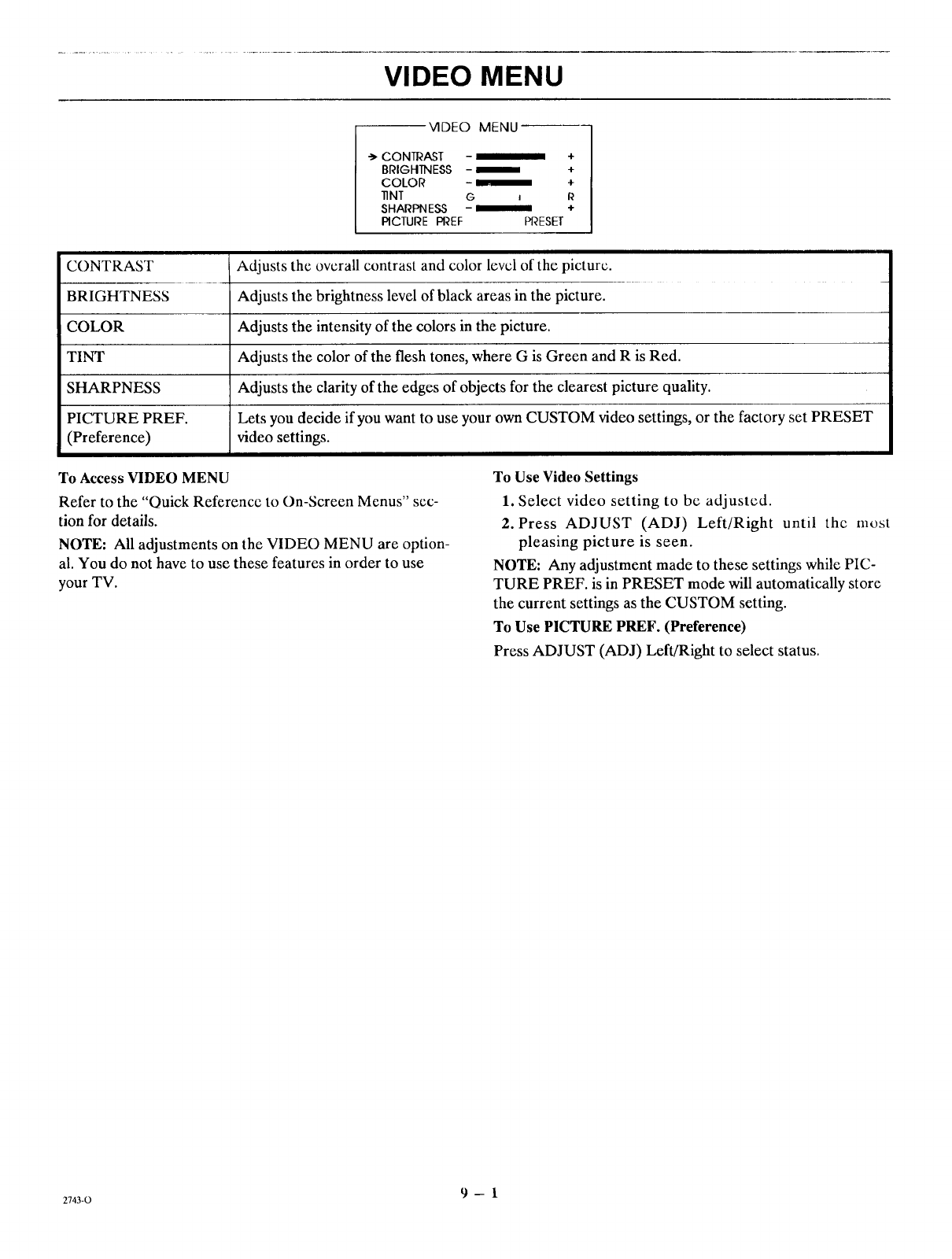
VIDEO MENU
VIDEO MENU
-_ CONTRAST +
BRIGHTNESS - l +
COLOR - l +
lINT G i R
SHARPNESS - "_=="' +
RCTURE PREF PI_ESET
CONTRAST
BRIGHTNESS
COLOR
TINT
SHARPNESS
PICTURE PREF.
(Preference)
To Access VIDEO MENU
Adjusts the overall contrast and color level of the picture.
Adjusts the brightness level of black areas in the picture.
Adjusts the intensity of the colors in the picture.
Adjusts the color of the flesh tones, where G is Green and R is Red.
Adjusts the clarity of the edges of objects for the clearest picture quality.
Lets you decide if you want to use your own CUSTOM video settings, or the factory set PRESET
video settings.
Refer to the "Quick Reference to On-Screen Menus" sec-
tion for details.
NOTE: All adjustments on the VIDEO MENU are option-
al. You do not have to use these features in order to use
your TV.
To Use Video Settings
1. Select video setting to be adjusted.
2. Press ADJUST (ADJ) Left/Right until thc most
pleasing picture is seen.
NOTE: Any adjustment made to these settings while PIC-
TURE PREF. is in PRESET mode will automatically store
the current settings as the CUSTOM setting.
To Use PICTURE PREF. (Preference)
Press ADJUST (ADJ) Left/Right to select status.
z743-o 9 - 1
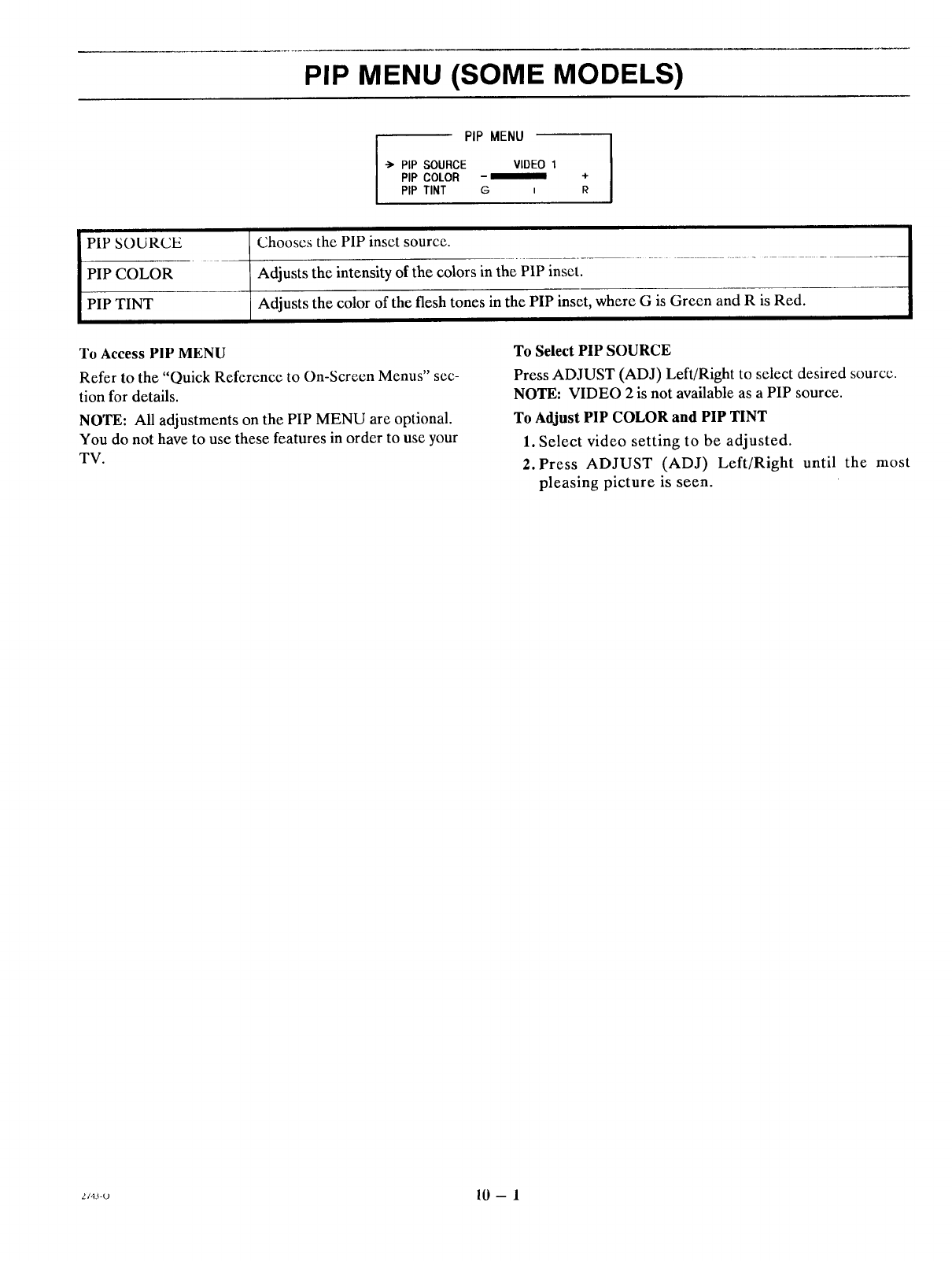
PIP MENU (SOME MODELS)
PIP MENU
-'> PiP SOURCE VIDEO 1
PIP COLOR - _===_ +
PIP TINT G _ R
PIP SOURCE
PIP COLOR
PIP TINT
Chooses the PIP inset source.
Adjusts the intensity of the colors in the PIP inset.
Adjusts the color of the flesh tones in the PIP inset, where G is Green and R is Red.
To Access PIP MENU
Refer to the "Quick Reference to On-Screen Menus" sec-
tion for details.
NOTE: All adjustments on the PIP MENU are optional.
You do not have to use these features in order to use your
TV.
To Select PIP SOURCE
Press ADJUST (ADJ) Left/Right to select desired source.
NOTE: VIDEO 2 is not available as a PIP source.
To Adjust PIP COLOR and PIP TINT
1. Select video setting to be adjusted.
2. Press ADJUST (ADJ) Left/Right until the most
pleasing picture is seen.
_J4._-u 10 -- 1
PIP CONNECTIONS AND OPERATION (SOME MODELS)
INTRODUCTION
Your TV must be connected to two separate sources in
order to view different pictures in the main picture and the
PIP (Picture-In-Picture) inset. One source must be con-
nected to the ANTENNA/CABLE jack. The other source
must be connected to the VIDEO i jacks.
The most common use of PIP is to view two different chan-
nels; one from the channel selector in the TV and the other
from the channel selector in the VCR. For example, you
can view two sporting events or two movies at the same time.
BASIC PICTURE-IN-PICTURE CONNECTIONS
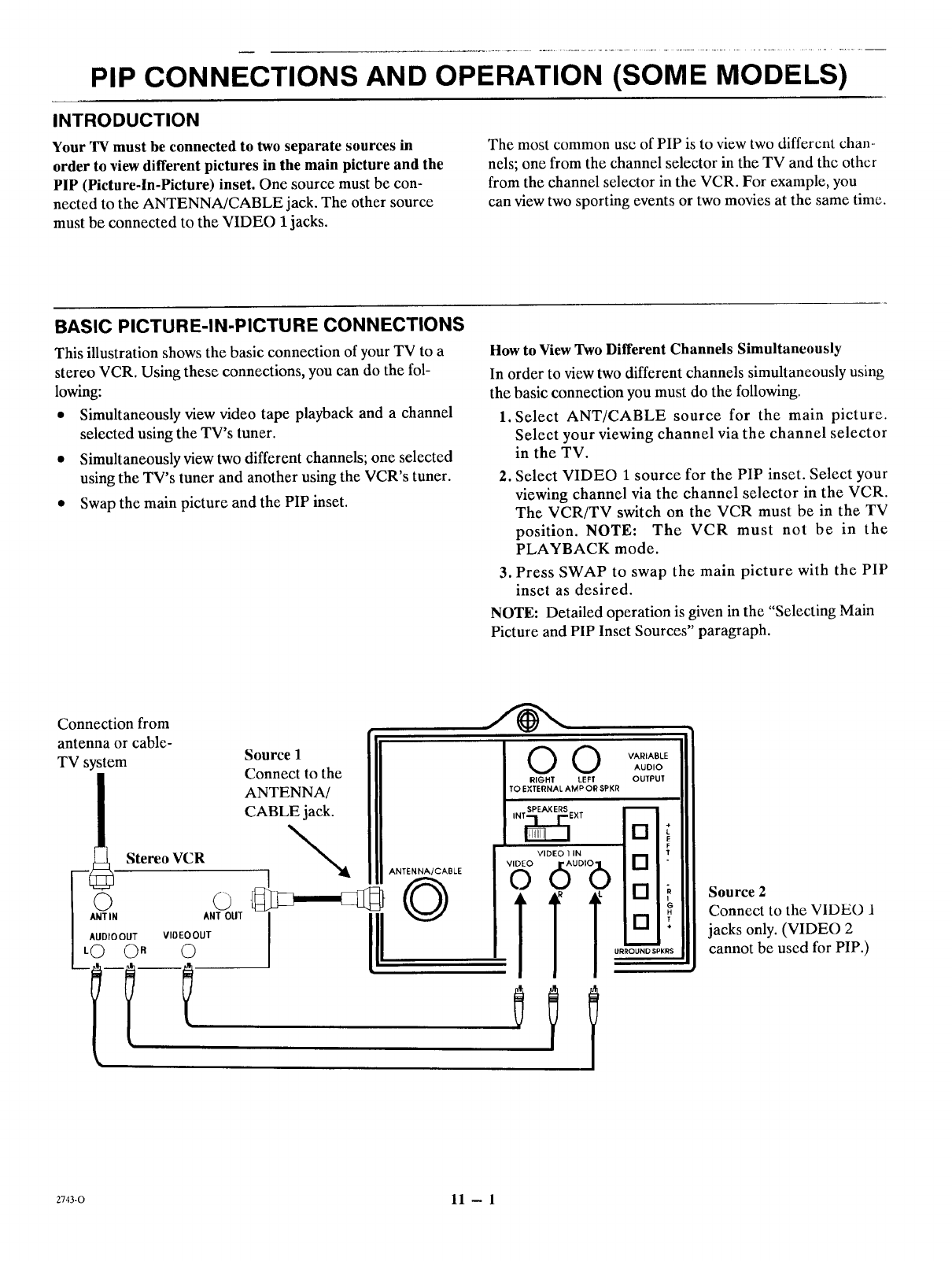
This illustration shows the basic connection of your TV to a
stereo VCR. Using these connections, you can do the fop
lowing:
* Simultaneously view video tape playback and a channel
selected using the TV's tuner.
• Simultaneously view two different channels; one selected
using the TV's tuner and another using the VCR's tuner.
• Swap the main picture and the PIP inset.
How to View Two Different Channels Simultaneously
In order to view two different channels simultaneously using
the basic connection you must do the following.
1. Select ANT/CABLE source for the main picture.
Select your viewing channel via the channel selector
in the TV.
2. Select VIDEO 1 source for the PIP inset. Select your
viewing channel via the channel selector in the VCR.
The VCR/TV switch on the VCR must be in the TV
position. NOTE: The VCR must not be in the
PLAYBACK mode.
3. Press SWAP to swap the main picture with the PIP
inset as desired.
NOTE: Detailed operation is given in the "Selecting Main
Picture and PIP Inset Sources" paragraph.
Connection from
antenna or cable-
TV system S_el vA--EAuoo
Connect to the oo_puT
ANTENNA/ T SPKR
CABLE jack.
it Stereo VCR ANrENNA/CAOLE[V_ V'C(_%,O(_ [] !
* II]l
.:=oo, ,o oou7°°' o!
Source 2
Connect to the VIDEO 1
jacks only. (VIDEO 2
cannot be used for PIP.)
2743-0 11 -- 1
PIP CONNECTIONS AND OPERATION (SOME MODELS)
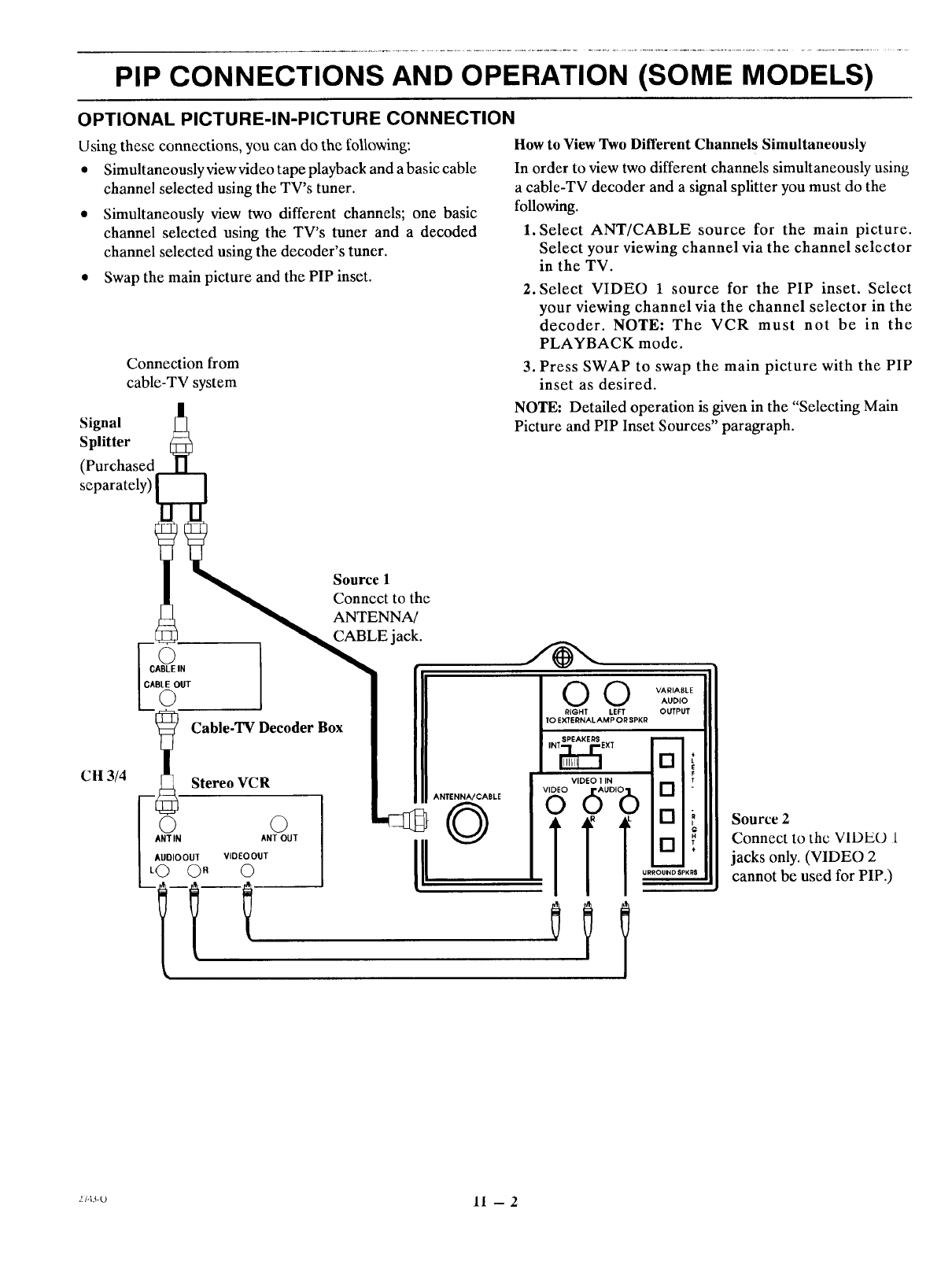
OPTIONAL PICTURE-IN-PICTURE CONNECTION
Using these connections, you can do the following:
* Simultaneouslyviewvideo tape playback and a basic cable
channel selected using the TV's tuner.
• Simultaneously view two different channels; one basic
channel selected using the TV's tuner and a decoded
channel selected using the decoder's tuner.
• Swap the main picture and the PIP inset.
Connection from
cable-TV system
How to View Two Different Channels Simultaneously
In order to view two different channels simultaneously using
a cable-TV decoder and a signal splitter you must do the
following.
1. Select ANT/CABLE source for the main picture.
Select your viewing channel via the channel selector
in the TV.
2. Select VIDEO 1 source for the PIP inset. Select
your viewing channel via the channel selector in the
decoder. NOTE: The VCR must not be in the
PLAYBACK mode.
3. Press SWAP to swap the main picture with the PIP
inset as desired.
CH3/4
Signal
Splitter
(Purchased_.L
separately) !
_._ Source 1
"_ Connect to the
ANTENNA/
cA_(_tE,N __BLE
jack
CABLE OUT
©
Iable-TV Decoder Box
Stereo VCR
-© ©
ANT IN ANT OUT
AUDIOOUT VIDEOOUT
LO O" 0
ANTENNA/CABLE
NOTE: Detailed operation is given in the "Selecting Main
Picture and PIP Inset Sources" paragraph.
0 VARIABLE
AUDIO
RIGHT LEFT OUTPUT
IO EXTERNAL AM P OR SPKR
INT_EXT
VIDEO 1 IN
d O,b
TT
[]
[]
[]
[]
URROUI'_ O_PKRS
Source 2
Connect to the VIDEO 1
jacks only. (VIDEO 2
cannot be used for PIP.)
_u,l.*-o 11 -- 2
PIP CONNECTIONS AND OPERATION (SOME MODELS)
SELECTING MAIN PICTURE AND PIP PICTURE-IN-PICTURE OPERATION
INSET SOURCES PIP
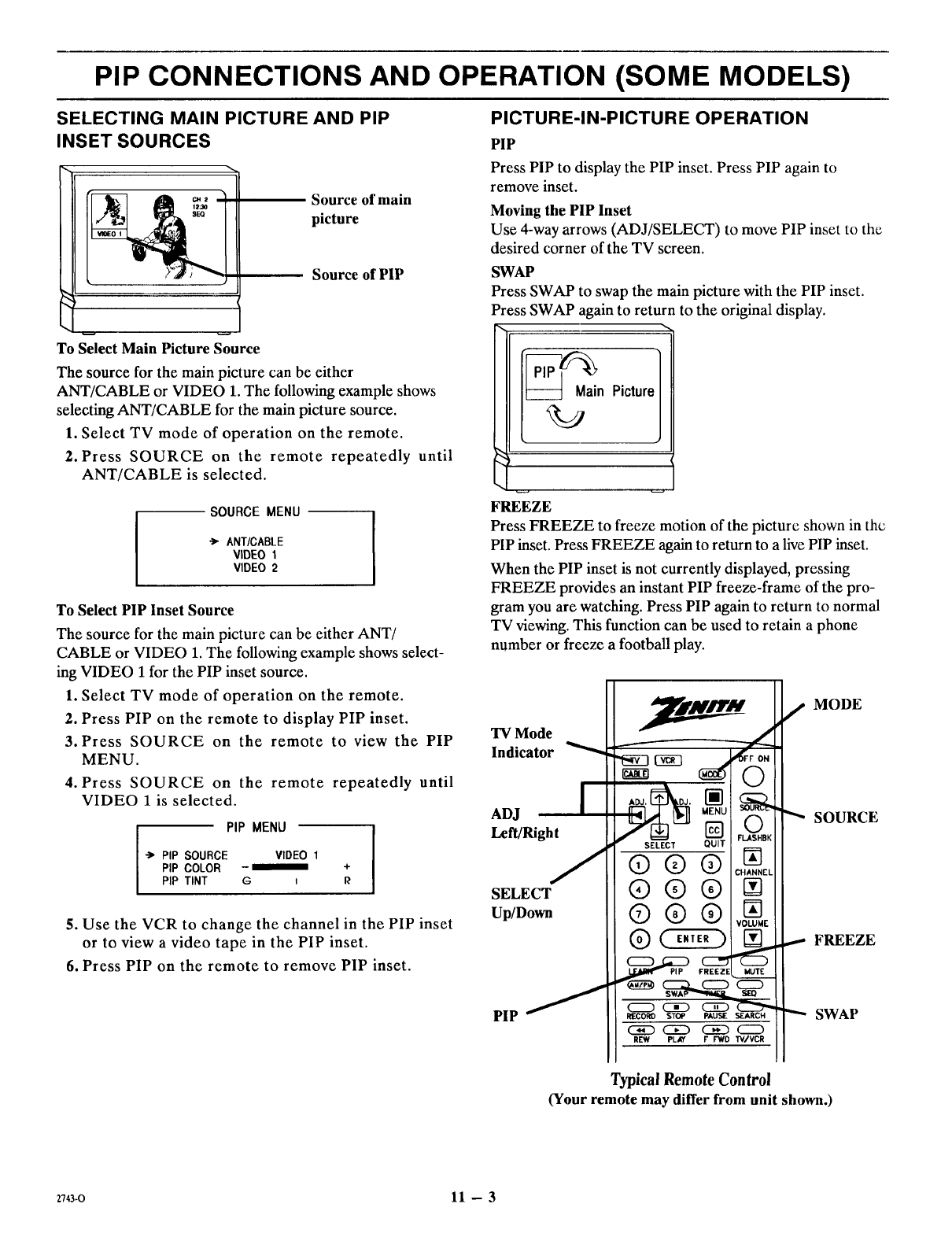
To Select Main Picture Source
Source of main
picture
Source of PIP
The source for the main picture can be either
ANT/CABLE or VIDEO 1. The following example shows
selecting ANT/CABLE for the main picture source.
1. Select TV mode of operation on the remote.
2. Press SOURCE on the remote repeatedly until
ANT/CABLE is selected.
SOURCE MENU
-> ANT/CABLE
VIDEO 1
VIDEO 2
To Select PIP Inset Source
The source for the main picture can be either ANT/
CABLE or VIDEO 1. The following example shows select-
ing VIDEO 1 for the PIP inset source.
1. Select TV mode of operation on the remote.
2. Press PIP on the remote to display PIP inset.
3. Press SOURCE on the remote to view the PIP
MENU.
4. Press SOURCE on the remote repeatedly until
VIDEO 1 is selected.
PIP MENU
-> PIP SOURCE VIDEO 1
PIP COLOR - _+
PIP TINT G=I_
5. Use the VCR to change the channel in the PIP inset
or to view a video tape in the PIP inset.
6. Press PIP on the remote to remove PIP inset.
Press PIP to display the PIP inset. Press PIP again to
remove inset.
Moving the PIP Inset
Use 4-way arrows (ADJ/SELECT) to move PIP inset to thc
desired corner of the TV screen.
SWAP
Press SWAP to swap the main picture with the PIP inset.
Press SWAP again to return to the original display.
_n Picture
FREEZE
Press FREEZE to freeze motion of the picture shown in the
PIP inset. Press FREEZE again to return to a live PIP inset.
When the PIP inset is not currently displayed, pressing
FREEZE provides an instant PIP freeze-frame of the pro-
gram you are watching. Press PIP again to return to normal
TV viewing. This function can be used to retain a phone
number or freeze a football play.
'IV Mode
Indicator
ADJ
Left/Right
SELECT
Up/Down
PIP J
SELECT QUIT
®Q®
®®®
®®®
_F ON
0
FI.ASHBK
N;
CHANNEL
VOLUME
RECORD STOP PAUSE SEARCH
REW PLAY F F'WD W/VCR
fMODE
SOURCE
,,- FREEZE
SWAP
Typical Remote Control
(Your remote may differ from unit shown.)
2743-0 11 -- 3
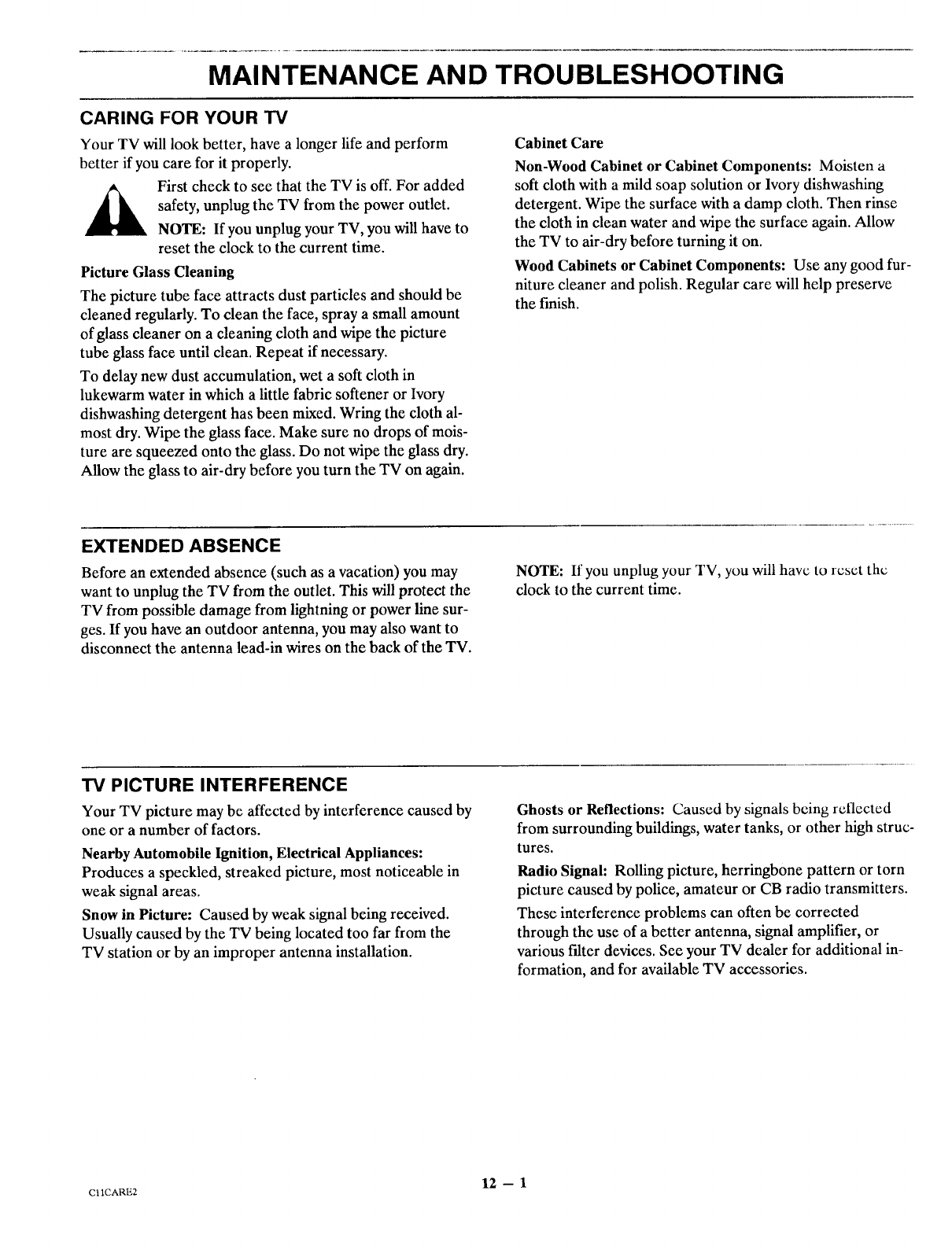
MAINTENANCE AND TROUBLESHOOTING
CARING FOR YOUR TV
Your TV will look better, have a longer life and perform
better if you care for it properly.
_ irst check to see that the TV is off. For added
safety, unplug the TV from the power outlet.
NOTE: If you unplug your TV, you will have to
reset the clock to the current time.
Picture Glass Cleaning
The picture tube face attracts dust particles and should be
cleaned regularly. To clean the face, spray a small amount
of glass cleaner on a cleaning cloth and wipe the picture
tube glass face until dean. Repeat if necessary.
To delay new dust accumulation, wet a soft cloth in
lukewarm water in which a little fabric softener or Ivory
dishwashing detergent has been mixed. Wring the cloth al-
most dry. Wipe the glass face. Make sure no drops of mois-
ture are squeezed onto the glass. Do not wipe the glass dry.
Allow the glass to air-dry before you turn the TV on again.
Cabinet Care
Non-Wood Cabinet or Cabinet Components: Moisten a
soft cloth with a mild soap solution or Ivory dishwashing
detergent. Wipe the surface with a damp cloth. Then rinse
the cloth in clean water and wipe the surface again. Allow
the TV to air-dry before turning it on.
Wood Cabinets or Cabinet Components: Use any good fur-
niture cleaner and polish. Regular care will help preserve
the finish.
EXTENDED ABSENCE
Before an extended absence (such as a vacation) you may
want to unplug the TV from the outlet. This will protect the
TV from possible damage from lightning or power line sur-
ges. If you have an outdoor antenna, you may also want to
disconnect the antenna lead-in wires on the back of the TV.
NOTE: If you unplug your TV, you will have to reset the
clock to the current time.
TV PICTURE INTERFERENCE
Your TV picture may be affected by interference caused by
one or a number of factors.
Nearby Automobile Ignition, Electrical Appliances:
Produces a speckled, streaked picture, most noticeable in
weak signal areas.
Snow in Picture: Caused by weak signal being received.
Usually caused by the TV being located too far from the
TV station or by an improper antenna installation.
Ghosts or Reflections: Caused by signals being reflected
from surrounding buildings, water tanks, or other high struc-
tures.
Radio Signal: Rolling picture, herringbone pattern or torn
picture caused by police, amateur or CB radio transmitters.
These interference problems can often be corrected
through the use of a better antenna, signal amplifier, or
various filter devices. See your TV dealer for additional in-
formation, and for available TV accessories.
12 -- 1
CllCARE2
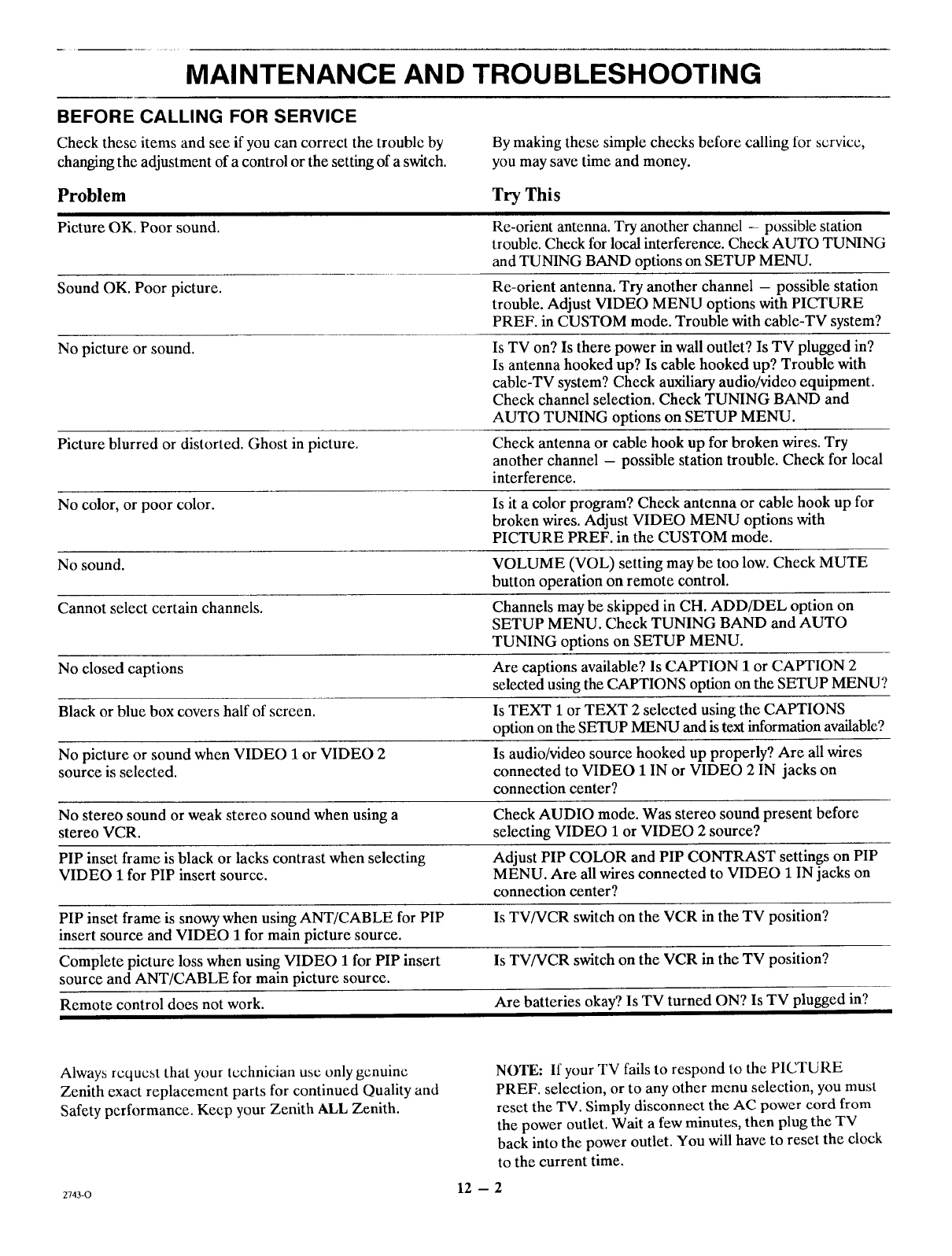
MAINTENANCE AND TROUBLESHOOTING
BEFORE CALLING FOR SERVICE
Check these items and see if you can correct the trouble by
changing the adjustment of a control or the setting of a switch.
Problem
Picture OK. Poor sound.
Sound OK. Poor picture.
No picture or sound.
By making these simple checks before calling for service,
you may save time and money.
Try This
Re-orient antenna. Try another channel - possible station
trouble. Check for local interference. Check AUTO TUNING
and TUNING BAND options on SETUP MENU.
Re-orient antenna. Try another channel - possible station
trouble. Adjust VIDEO MENU options with PICTURE
PREF. in CUSTOM mode. Trouble with cable-TV system?
Is TV on? Is there power in wall outlet? Is TV plugged in?
Is antenna hooked up? Is cable hooked up? Trouble with
cable-TV system? Check auxiliary audio/video equipment.
Check channel selection. Check TUNING BAND and
AUTO TUNING options on SETUP MENU.
Picture blurred or distorted. Ghost in picture. Check antenna or cable hook up for broken wires. Try
another channel - possible station trouble. Check for local
interference.
No color, or poor color. Is it a color program? Check antenna or cable hook up for
broken wires. Adjust VIDEO MENU options with
PICTURE PREF. in the CUSTOM mode.
No sound. VOLUME (VOL) setting may be too low. Check MUTE
button operation on remote control.
Cannot select certain channels. Channels may be skipped in CH. ADD/DEL option on
SETUP MENU. Check TUNING BAND and AUTO
TUNING options on SETUP MENU.
No closed captions Are captions available? Is CAPTION 1 or CAPTION 2
selected using the CAPTIONS option on the SETUP MENU?
Black or blue box covers half of screen. Is TEXT 1 or TEXT 2 selected using the CAPTIONS
option on the SETUP MENU and is text information available?
No picture or sound when VIDEO 1 or VIDEO 2 Is audio/video source hooked up properly? Are all wires
source is selected, connected to VIDEO 1 IN or VIDEO 2 IN jacks on
connection center?
No stereo sound or weak stereo sound when using a Check AUDIO mode. Was stereo sound present before
stereo VCR. selecting VIDEO 1 or VIDEO 2 source?
PIP inset frame is black or lacks contrast when selecting Adjust PIP COLOR and PIP CONTRAST settings on PIP
VIDEO 1 for PIP insert source. MENU. Are all wires connected to VIDEO 1 IN jacks on
connection center?
PIP inset frame is snowy when using ANT/CABLE for PIP Is TV/VCR switch on the VCR in the TV position?
insert source and VIDEO 1 for main picture source.
Complete picture loss when using VIDEO 1 for PIP insert Is TV/VCR switch on the VCR in the TV position?
source and ANT/CABLE for main picture source.
Remote control does not work. Are batteries okay? Is TV turned ON? Is TV plugged in?
Always rcqucst that your tcchnician usc only genuine
Zenith exact replacement parts for continued Quality and
Safety performance. Keep your Zenith ALL Zenith.
NOTE: If your TV fails to respond to the PICTURE
PREF. selection, or to any other menu selection, you must
reset the TV. Simply disconnect the AC power cord from
the power outlet. Wait a few minutes, then plug the TV
back into the power outlet. You will have to reset the clock
to the current time.
2743-0 12 -- 2
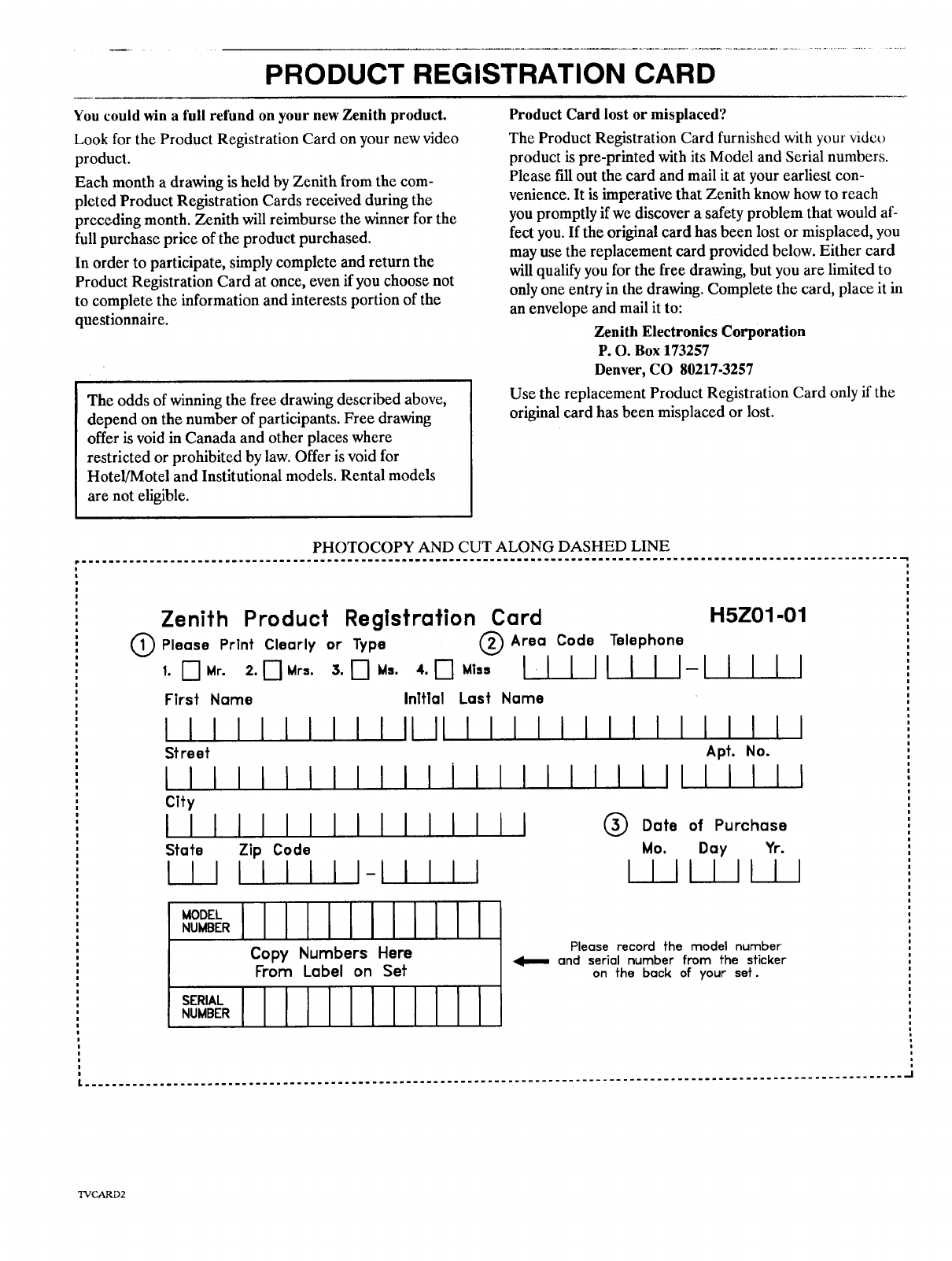
PRODUCT REGISTRATION CARD
You could win a full refund on your new Zenith product.
Look for the Product Registration Card on your new video
product.
Each month a drawing is held by Zenith from the com-
pleted Product Registration Cards received during the
preceding month. Zenith will reimburse the winner for the
full purchase price of the product purchased.
In order to participate, simply complete and return the
Product Registration Card at once, even if you choose not
to complete the information and interests portion of the
questionnaire.
The odds of winning the free drawing described above,
depend on the number of participants. Free drawing
offer is void in Canada and other places where
restricted or prohibited by law. Offer is void for
Hotel/Motel and Institutional models. Rental models
are not eligible.
Product Card lost or misplaced?
The Product Registration Card furnished with your video
product is pre-printed with its Model and Serial numbers.
Please fill out the card and mail it at your earliest con-
venience. It is imperative that Zenith know how to reach
you promptly if we discover a safety problem that would af-
fect you. If the original card has been lost or misplaced, you
may use the replacement card provided below. Either card
will qualify you for the free drawing, but you are limited to
only one entry in the drawing. Complete the card, place it in
an envelope and mail it to:
Zenith Electronics Corporation
P. O. Box 173257
Denver, CO 80217-3257
Use the replacement Product Registration Card only if the
original card has been misplaced or lost.
PHOTOCOPY AND CUT ALONG DASHED LINE
Zenith Product Registration Cord H5Z01-01
Please Print Clearly or Type @Area Code Telephone
,.tS]Mr.2.DMr,.3.1:]_,.'.D_',, II III II I-I I I II
First Name
IIIIIIIIII
Street
IIIIIIIIIIIIiI
City
IIIIIIIIII
State Zip Code
I I II IIIII-I IIII
Inltlal Last Name
II11IIIIIII
IIIlll
Illlll ®
IIIllll
Apt. No.
IIIIIII
Date of Purchase
Mo. Day Yr.
I
I
IIIIIII11
OOELN0 0E.IILlllllll
Copy Numbers Here
_om Label on Set
Please record the model number
'el==,== and serial number from the sticker
on the back of your set.
I........................................................................................................................ 'J
TVCARD2
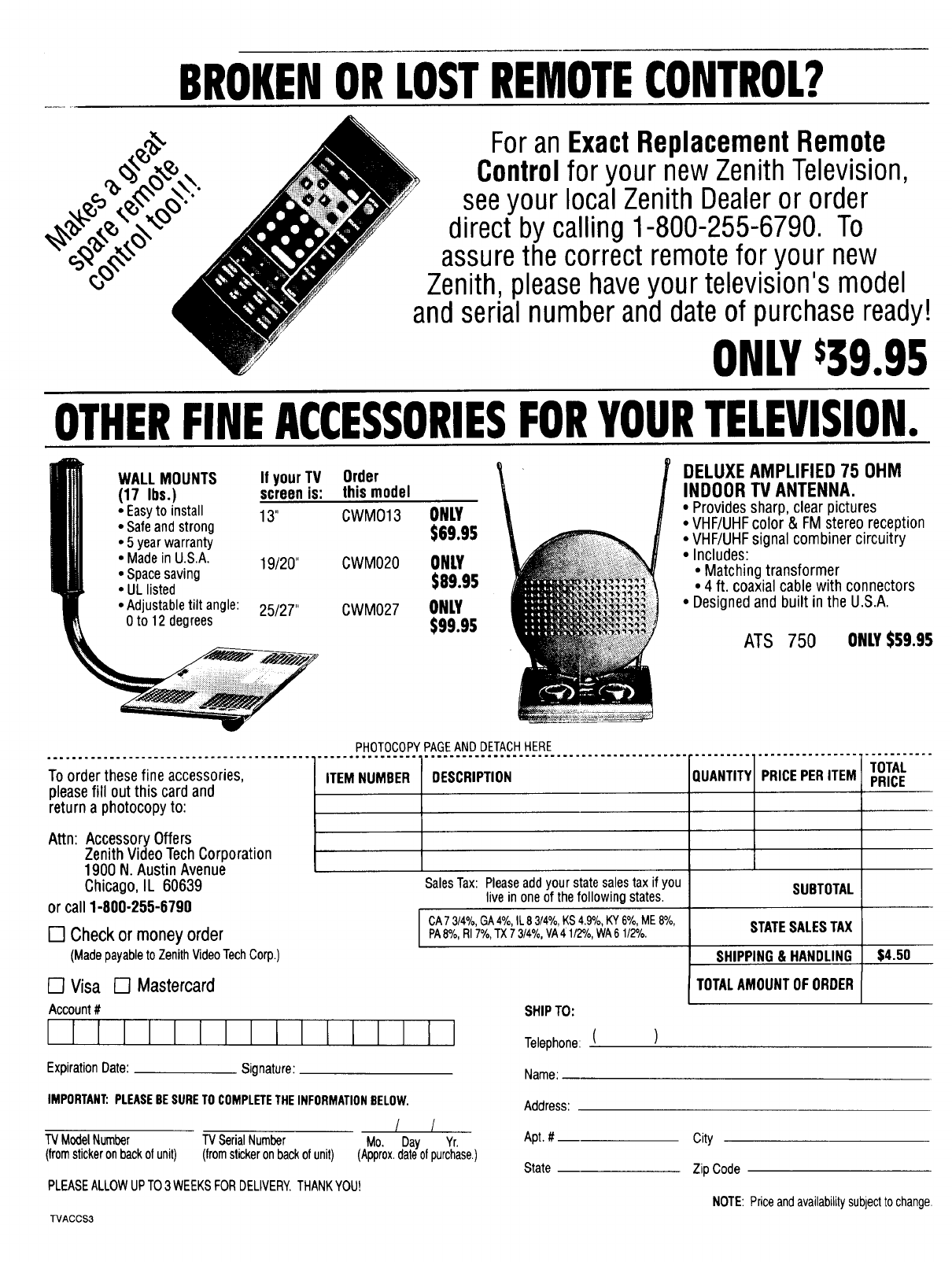
BROKENORLOSTREMOTECONTROL?
Foran ExactReplacementRemote
Controlfor your new ZenithTelevision,
seeyour localZenithDealeror order
direct by calling 1-800-255-6790. To
assurethecorrect remotefor your new
Zenith,pleasehaveyour television's model
and serialnumberand dateof purchaseready!
ONLY$39.95
OTHERFINEACCESSORIESFORYOURTELEVISION.
WALL MOUNTS
(17 Ibs.)
•Easyto install 13"
• Safe and strong
• 5 year warranty
•Madein U.S.A. 19/20"
•Space saving
• UL listed
•Adjustable tilt angle: 25/27"
0 to 12 degrees
If yourTV
screenis:
Order
this model
CWM013 ONLY
Ssg.gs
CWM020 ONLY
Seg.ss
CWM027 ONLY
$99.95
DELUXEAMPLIFIED 75 OHM
INDOORTV ANTENNA.
•Provides sharp, clear pictures
•VHF/UHF color & FM stereo reception
• VHF/UHF signal combiner circuitry
• Includes:
• Matching transformer
• 4 ft. coaxial cable with connectors
•Designed and built in the U.S.A.
ATS 750 ONLY$59.95
PHOTOCOPYPAGEANDDETACHHERE
.......................................... q .........................................................._ _ ......... q ................ _ ...........
TOTAL
TOorder these fine accessories, ITEMNUMBER DESCRIPTION PRICEPERITEM PRICE
please fill out this card and
return a photocopy to:
Attn: Accessory Offers
Zenith VideoTechCorporation
1900 N. Austin Avenue
Chicago, IL 60639
or call 1-800-255-6790
[] Check or money order
(Madepayableto ZenithVideoTechCorp.)
[] Visa [] Mastercard
Account#
1111 I
ExpirationDate: Signature:
IMPORTANT:PLEASEBESURETOCOMPLETETHEINFORMATIONBELOW.
TVModelNumber
(fromstickeronbackofunit)
/ /
TVSerialNumber Mo. Day Yr.
(fromstickeronbackofunit) (Approx.dateofpurchase.)
PLEASEALLOWUPTO3 WEEKSFORDELIVERY.THANKYOUr
"FVACCS3
SalesTax: Pleaseaddyour statesalestax if you
live in one of thefollowing states. SUBTOTAL
CA73/4%,GA4%,IL83/4%,KS4.9%,KY6%,ME6°/o,
PA8%,al7°/o,TX73/4%,VA41/2%,WA61/2%.
$4.50
STATESALESTAX
SHIPPING& HANDLING
TOTALAMOUNTOFORDER
Telephone:
Name:
Address:
Apt. #
State
()
SHIPTO:
City
ZipCode
NOTE:Priceandavailabilitysubjecttochange.

YOUR ZENITH WARRANTY
Consumer Protection Plan tor Zenith TV
Welcome into the Zenith family! We believe that you will be
pleased with your new Zenith Color TV. Please read this
Consumer Protection Plan carefully. It is a "LIMITED
WARRANTY" as defined under Federal Law. This warran-
ty gives you specific legal rights, and you may also have
other rights that vary from state to state within the U.S.A.
Zenith's Responsibility
Service Labor -During a period of 90 days from effective
warranty date, Zenith will pay for service labor by a U.S. or
Canadian distributor-approved Zenith service center when
needed as a result of manufacturing defects.
Parts - New or remanufactured replacements for factory-
defective parts will be supplied by a U.S. or Canadian
distributor-approved service center for one year from effective
warranty date (color picture tube - two years). Such replace-
ment parts are warranted for the remaining portion of the
originalwarranty period.
Home Service -- Warranty service for 19" diagonal
(U.S.A.) or larger screen size models is provided in the
home.
Not Covered -This warranty covers manufacturing defects
and does not cover installation, adjustment of customer con-
trols in the home, installation or repair of home antenna sys-
tems, cable converters or cable company-supplied
equipment; it also does not cover damage due to misuse,
abuse, negligence, acts of God or other causes beyond the
control of Zenith. Any alteration of the product after
manufacture voids this warranty in its entirety.
Owner's Responsibility
Effective Warranty Date - Warranty begins on the date of
original consumer installation. For your convenience, keep
the dealers dated bill of sale or delivery ticket as evidence
of the purchase date.
Operating Guide - Read your Operating Guide carefully
so that you will understand the operation of your set and
how to adjust the customer controls.
Carry-ln Service - Models under 19"diagonal (U.S.A.)
screen size must be taken to a distributor-approved Zenith
service center for warranty service and must be picked up
by the owner.
Antenna - Reception problems caused by inadequate
home antennas or faulty antenna connections are the
owner's responsibility.
Important: Product Registration - Please fill out and mail
your Product Registration Card. It is imperative that Zenith
know how to reach you promptly if we should discover a
safety problem that could affect you.
Warranty Service - For warranty service information, con-
tact your Zenith dealer preferably, or any distributor-
approved Zenith service center. Parts and service labor that
are Zenith's responsibility (see above) will be provided
without charge. Other service is at the owner's expense. If
you have any problem in obtaining satisfactory warranty ser-
vice, write:
Zenith Electronics Corporation
Customer Service Department
1900 N. Austin Avenue
Chicago, Illinois 60639-5079
Telephone: (312) 745-5152
Mon-Fri, 8:00 a.m. - 4:30 p.m. Central Time
NOTE: Before you ask for Warranty service, check
the Operating Guide section entitled, "MAIN-
TENANCE AND TROUBLESHOOTING." It may
be possible to avoid a service call.
TVWARR3

ZENII'H ELEC'IRONIt2b CEIRPORATION
1000 MILWAUKEE AVENUE
GLENVIEW, ILLINOIS 60025
Part No. 200-2743
Printed in U.S.A.
EP-EDCBA
