ZENITH Direct View Digital 27 To 40 TV Manual 97110128
User Manual: ZENITH ZENITH Direct View Digital 27 to 40 TV Manual ZENITH Direct View Digital 27 to 40 TV Owner's Manual, ZENITH Direct View Digital 27 to 40 TV installation guides
Open the PDF directly: View PDF  .
.
Page Count: 92
WARNING: TO REDUCE THE RISK OF ELECTRIC SHOCK DO NOT
REMOVE COVER (OR BACK). NO USER SERVICEABLE
PARTS INSIDE. REFER TO QUALIFIED SERVICE
PERSONNEL.
TO PREVENT FIRE OR SHOCK HAZARDS, DO NOT EXPOSE
THIS PRODUCT TO RAIN OR MO][STURE.
The lightning flash with arrowhead symbol, within an equilateral
triangle, is intended to alert the user to the presence of uninsula_:ed
"dangerous voltage" within the product's enclosure that may be of
sufficient magnitude to constitute a risk of electric shock to persons.
The exclamation point within an equilateral triangle is intended to
alert the user to the presence of important operating and maintenance
(servicing) instructions in the literature accompanying the appliance.
Safety Tips
Refer to the "Safety Tips" booklet that came with your
product for important safety considerations.
Note to Cable TV System Installer
This reminder is provided to call the cable TV system
installer's attention to Article 82,3-40 of the NEC that
provides guidelines fi_r proper grounding and, in particular,
specifies that the cable ground shall be connected to the
grounding system of the building, as close to the point of
the cable entry as practical.
Power-Cord Polarization
This product is equipped with a polarized
alternating-current line plug (a plug having one blade wider
than the other.) This plug will fit into the power outlet only
one way. This is a safety feature. If you are unable to insert
the plug tully into the outlet, try reversing the plug. If the
plug should still fail to fit, contact your electrician to
replace your obsolete outlet. Do not defeat the safety
purpose of the polarized plug.
CAUTION
To prevent electric shock, malch wide blade of plug to
wide slot, fully insert.
ATTENTION
Pour _viter les chocs _lectriques.r introduire la lame la plus
large de la fiche darts la borne correspondante de la prise et
pous ser jusqu' au fond.
INTQWRN
INTEQ is a trademark of Zenith Electronics Corporation.
Copyright ©ZENITH Electronics Corporation 1995
CONTENTS
Part 1. Connections and Basic
Operations
INTRODUCTION
Welcome ............................................ ii
Installation Considerations .............................. ii
Methods of Operation ................................. iii
ModeVFeatures Chart ................................. iii
STANDARD CONNECTIONS FOR YOUR TV
Connection Center, Auxiliary A/V Jacks, TV Only,
TV and Cable Box, IV and VCR, TV with VCR
and Cable Box, Accessory Jacks, Surround
Speakers and Audio Amplifier ......................... 1-1
FIRST TIME YOU OPERATE YOUR TV
Control Panel, Battery Installation, Power, Source,
Auto Program,Clock, and Other Options ................ 2-1
PIP OPERATION
Introduction,Selecting Main Picture and PIP Inset
Source, PIP Functions, Operation With Various
Configurations ...................................... 3-1
Part 2. Universal Remote Control
and Menus
UNIVERSAL REMOTE CONTROL
Battery Installation, Operating Mode, TV Operations,
StarSight Operations, Operational Modes, Programming,
Special Features, Auto Find, and Brand Codes ............ 4-1
QUICK REFERENCE TO MENUS
Available Menus. and Basic Operation .................. 5-1
SOURCE MENU
Menu Operation, Source Selection.
and Source Identification ............................. 6-1
SETUP MENU
Auto Program, Ch. Add/Del, Ch. Labels, Source ID,
Clock: Set, Timer Setup, Parental Ctl, Caption/
Text, Background, and StarSight ....................... 7-1
AUDIO MENU
Bass, Treble, Balance, Audio, SEQ,
Surround and Null .................................. 8-1
VIDEO MENU
Contrast, Brightness, Color, Tint, Sharpness, Color
Temp, Video Filter, Auto Flesh, and Picture Pref .......... 9-1
PIP MENU
Ch. Guide, Ch. Review, PIP Color, PIP Tint,
and PIP Size ...................................... 10-1
Part 3. Z-Trak Remote Control
and Menus
Z-TRAK REMOTE CONTROL
Battery Installation, Operating Mode,
Basic Operations and Auto Find ........................ 11-1
QUICK REFERENCE TO MENUS
Available Menus, Accessing the Menu,
Channel Icons and Volume Control ..................... 12-1
TV OPTIONS MENU
Timer, Captions, Z-Trak, PIP, Free;,e
and Mow_ PIP ...................................... 13-1
SOURCE MENU
Menu Operation, Source Selection,
and Source Identification ............................. 14-1
SETUP MENU o
Auto Program, Ch. Add/Del, Ch. Labels, Source ID,
Clock Set, Timer Setup, Parental Cfl, Caption/
Text, Background, and StarSight ....................... 15-1
AUDIO MENU
Bass, Treble, Balance, Audio, SEQ,
Surround, and Null .................................... 16-1
VIDEO MENU
Contrast, Brightness;, Color, Tint, Sharpness, Color
Temp, Video Filter, Auto Flesh, and Picture Pref .......... 17-1
PIP MENU
Ch. Guide, Ch. Review, PIP Color, PIP Tint,
and PIP Size ....................................... 18-1
Part 4. Maintenance, Accessories,,
and Warranty
MAINTENANCE AND TROUBLESHOOTING
Caring, Extended Absence, Interference,
Before Calling for Service ............................ 19-1
Replacement Product Registration Card
Your Inteq Warranty
How to use this operating guide
Standard TV installation and operation is given in this portion of the operating guide. Follow the procedures given if you will not
be using StarSight®.
_k Refer to the StarSight® portion of this operating guide for StarSight® activation and operation.
2949-1)!-A i
INTRODUCTION
WEL COME
Welcome into the family of 11-7TEO- Color Television
owners. This guide provides instructions on how to operate
your new TV. It is supplemented by a booklet containing
Safety Tips. We urge you to read these publications carefully
so that you will receive full enjoyment from your new
II-lTl:::z:l_)'- "IN for many years to come.
Your new TV has been designed and built to give you the very
besl in quality, features and performance. There are thousands
of I[-"ITEIS_- authorized service centers throughout the
U.S., Canada and Mexico who can attend promptly and effec-
tively to ordinary service needs.
If you should have an unusual performance or service problem
that cannot be satisfactorily resolved by your I/'-]TEI_-
dealer or IN-[-E[_- authorized service center, contact us at:
IF'qTEC_-
Customer Service Department
1000 Milwaukee Avenue
Glenview, IL 60025-2493
Telephone: (708) 391-8752
Mon-Fri, 8:00 a.m. - 4:30 p.m. Central Time
Send the model number, serial number, and date of purchase
or original installation, with a full explanation of the problem
and the service history. We will welcome the opportunity to
took in,to your specific question or problem and to be of assis-
tance in resolving it promptly.
The mcdel and serial numbers of },oar new TV are located on the
back of the TV cabinet. For your future convenience and protec-
tion, we suggest that you record these numbers here:
Model No.
Serial No.
rID i DOmYSURROUNDI
PRO •LOGIC
Manufactured under license from Dolb3, l_;tboratories Licensi ag Corporation.
Additionally licensed under Canadian patent number 1,037,877. "l)olby",
"Pro Logic" and the double-I) symbol are trademarks of DoWy Laboratories
Licensing Corporation.
INSTALLATION CONSIDERATIONS
Before you install your TV...
Ventilation -- Proper ventilation keeps your TV
running cool. Air circulates through perforations
in the back and bottom of the cabinet. Do not
block these vents or you will shorten the life of
your TV.
Power Source -- Your TV is designed to operate
on normal household current, 120 volt 60 Hertz AC.
Do not attempt to operate it on I)(2 current.
Power Cord -- Your power cord has a polarized
plug as required by Underwriters' Laboratories. It
has one regular blade and one wide blade and fits
only one way into a standard electrical outlet. If
the blades will not enter either way, your outlet is
very old and non-standard. A new outlet should be
installed by a qualified electrician.
Safe Operation -- Your TV is manufactured and
tested with your safety in mind. However, unusual
stress caused by dropping or mishandling, expo-
sure to flood, fire, rain or moisture, or accidental
spilling of liquids into the TV, can result in poten-
tial electrical shock or fire hazards. If this hap-
pens, have your TV checked by a service
technician before using it again.
PLEASE READ AND OBSERVE EACH SAFETY
POINT IN THE "SAFETY TIPS" FOLDER 'WHEN IN-
STALLING AND USING YOUR TV.
VIDEO GAMES AND OTHER FIXED
PATTERN DISPLAY CAUTION -- If you use your TV for
video games, teletext or other fixe:l displays, avoid setting the
BRIGHTNESS control for an excessively bright picture. A
bright, fixed pattern, if used for long periods of time, can
result in a permanent imprint on the TV picture tube. You
can reduce this possibility by alternating the use of the fixed
pattern display with normal TV picture viewing, by turning
down the CONTRAST control for sustained fixed pwLtern use,
and by turning off the fixed pattern display when not in use.
PLUGGING IN YOUR TV --- Be sure to plug your TV into
an "unswitched" AC power source. The "switched" AC out-
lets fo_and on some video equipment will not continue supply-
ing power to the TV once the equipment is turnecl off. If the
power to the TV is interrupted, you will have to reset the clock
in the IN to the current time.
Jr,_r,_wEL ii
INTRODUCTION
METHODS OF OPERATION
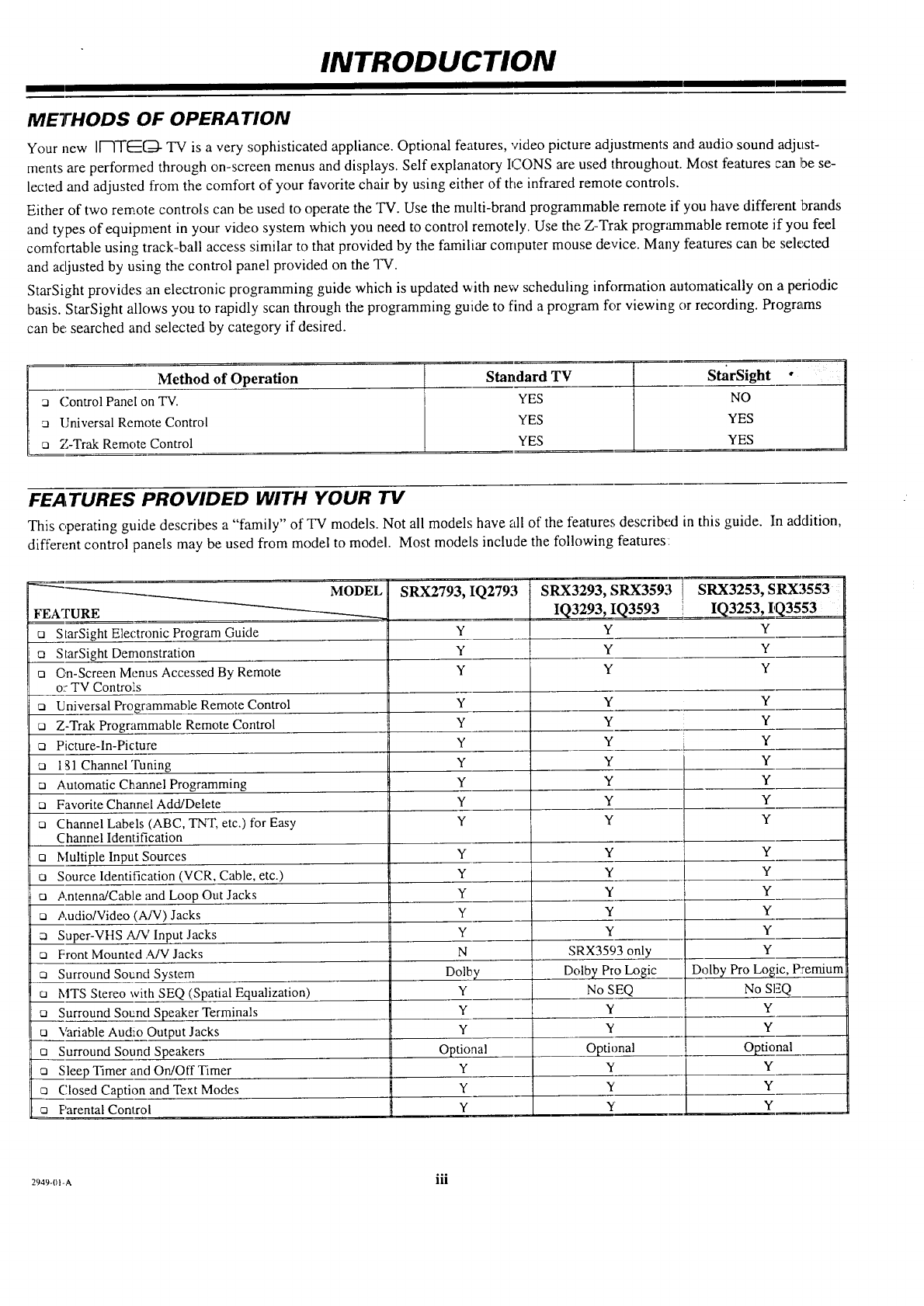
Your new II---TT__[--_-TV is a very sophisticated appliance. Optional features, video picture adjustments and audio sound adjust-
ments are performed through on-screen menus and displays. Self explanatory ICONS are used throughout. Most features can be se-
lected and adjusted from the comfort of your favorite chair by using either of the infrared remote controls.
Either of two remote controls can be used to operate the TV. Use the multi-brand programmable remote if you have different brands
and types of equipment in your video system which you need to control remotely. Use the Z-Trak progr;unmable remote if you feel
comfertable using track-ball access similar to that provided by the familiar computer mouse device. Many features can be selected
and adjusted by using the control panel provided on the TV.
StarSight provides ',anelectronic programming guide which is updated with new scheduling information automatically on a periodic
basis. StarSight allows you to rapidly scan through the programming guide to find a program for viewing or recording. Programs
can be searched and selected by category if desired.
i
Method of Operation Standard TV StarSight °
Control Panel on TV. YES NO n
Universal Remote Control YES YES
[] 7-Trak Remote Control YES YES
FEATURES PROVIDED WITH YOUR TV
This operating guide describes a "family" of TV models. Not all models have all of the features described in this guide. In addition,
different control panels may be used from model to model. Most models include the following features:
--------_ MODEL
FEATURE
StarSight Electronic Program Guide
Q StarSight Demonstration
n On-Screen Menus Accessed By Remote
o: TV Contro's
nUniversal Programmable Remote Control
ca Z-Trak Programmable Remote Control
c_ Picture-In-Picture
[] 1_1ChannelTuning
[] Automatic Channel Programming
ca Favorite Channel Add/Delete
ca Channel Labels (ABC, TNT, etc.) for Easy
Channel Identification
n Multiple Input Sources
a Source Identification (VCR, Cable, etc.)
c) Antenna/Cable and Loop Out Jacks
ca Audio/Video (A/V) Jacks
[] Super-VHS A/V Input Jacks
ca Front Mounted ?UV Jacks
Surround Sound System
t_ MTS Stereo with SEQ (Spatial Equalization)
Surround Sound Speaker Terminals
u Variable Audio Output Jacks
Surround Sound Speakers
Sleep Timer and On/Off Timer
[] Closed Caption and Text Modes
ca Parental Control
SRX2793, IQ2793
Y
Y
Y
Y
Y
Y
Y
Y
Y
Y
SRX3293, SRX359, iSRX3253, SRX3553 i
IQ3293, IQ3593 IQ3253, IQ3553
Y Y
Y Y
Y Y
Y Y
Y Y
Y Y
L
Y Y
Y Y
Y Y
Y Y
Y
Y
Y
Y
Y
SRX3593 only
Dolby Pro Logic
No SEQ
Y
Y
Optional
Y
Y
Y
Y
Y
Y
Y
Y
N
Dolby
Y
Y
Y
Optional
Y
Y
Y
Y
Y
Y
Y
Y
Y
Dolby Pro Logic, Premium
No SEQ
Y
Y
Optional
Y
Y
Y
2949-01-A iii
STANDARD CONNECTIONS FOR YOUR TV
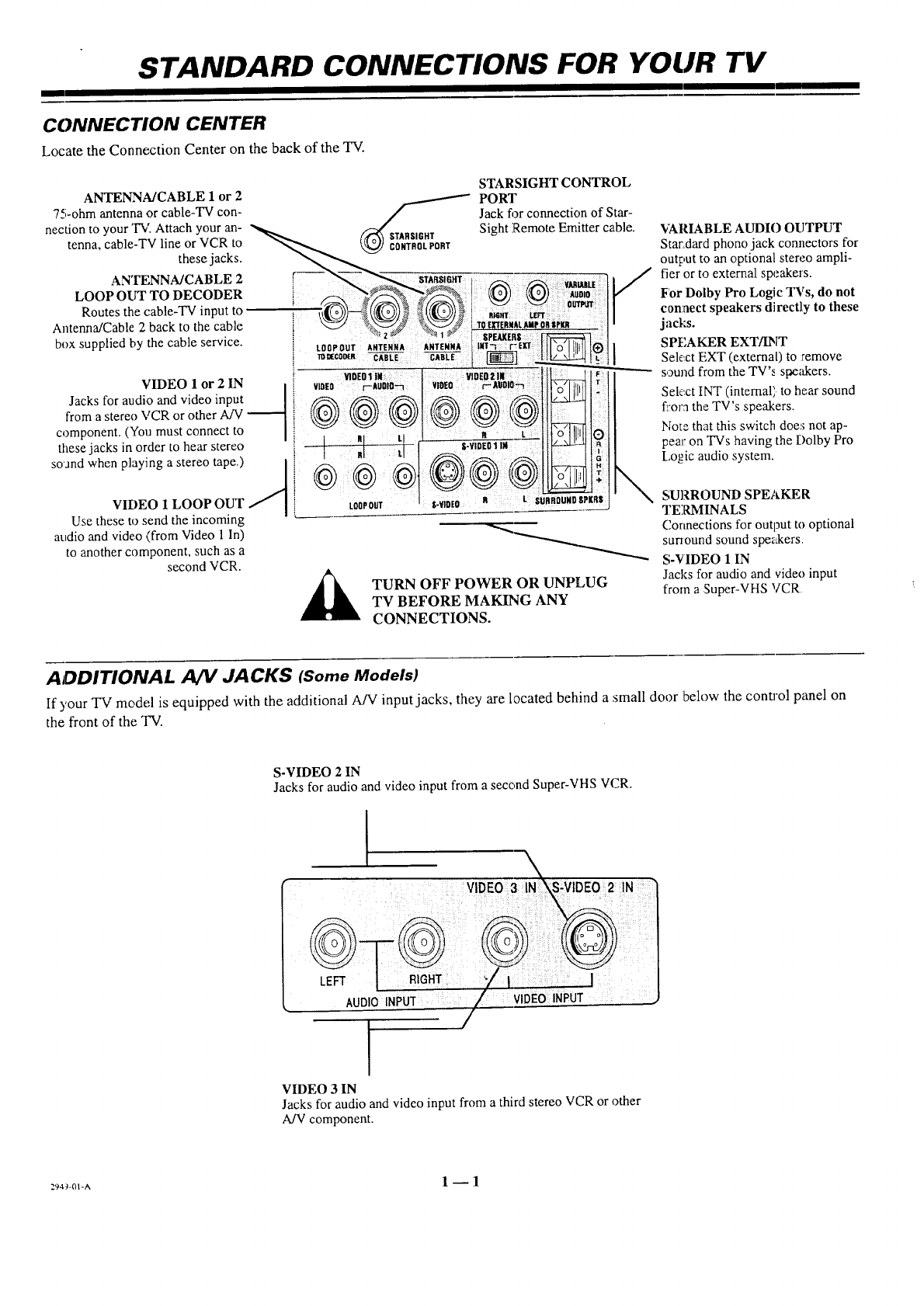
CONNECTION CENTER
Locate the Connection Center on the back of the TV.
Use these to send the incoming
attdio and video (from Video 1 In)
to another component, such as a
second VCR.
TURN OFF POWER OR UNPLUG
TV BEFORE MAKING ANY
CONNECTIONS.
"vARIABLE AUDIO OUTPUT
Star,dard phono jack connectors for
output to an optional stereo ampli-
fier or to external speakers.
For Dolby Pro Logic TVs, do not
connect speakers directly to these
jacks.
SPEAKER EXT/INT
Select EXT (external) to remove
sound from the TV's s_akers.
Select INT (internal) to hear sound
ffor,_the TV's speakers.
Note that this switch doe:+not ap-
pear on TVs having the Dolby Pro
I_,o_icaudio system.
SURROUND SPEAKER
TERMINALS
Connections for output to optional
sunound sound spe_&ers.
S-VIDEO 1 IN
Jacks for audio and video input
from a Super-VHS VCR
ADDITIONAL A/V JACKS (Some Models)
If your TV model is equipped with the additional A/V input jacks, they are located behind a small door below the control panel on
the front of the TV.
S-VIDEO 2 IN
Jacks for audio and video input from a second Super-VHS VCR.
r
VIDEO 3IN
Jacks for audio and video input from a third stereo VCR or other
A/V component.
294_÷01-A 1-- 1
STANDARD CONNECTIONS FOR YOUR TV
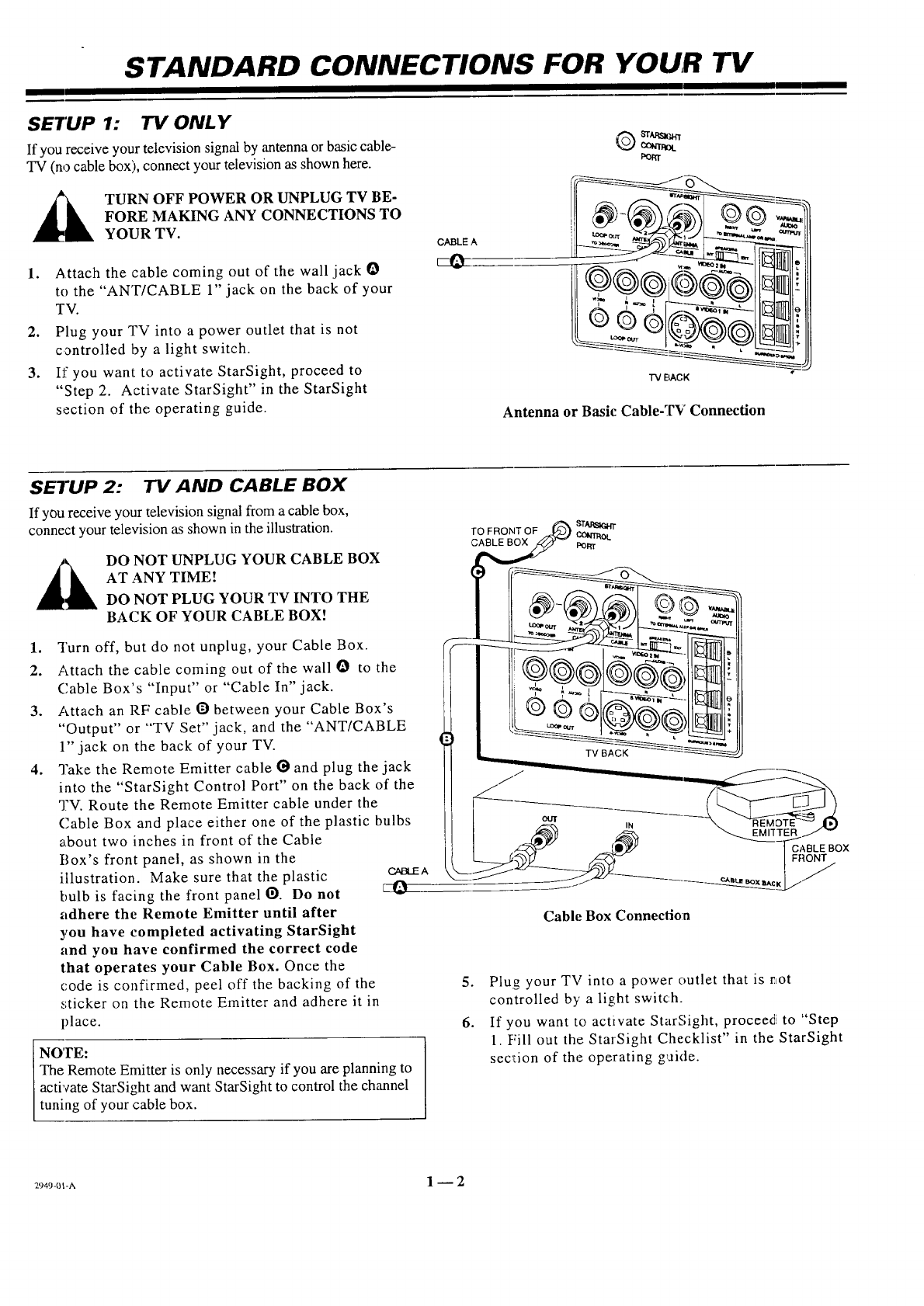
SETUP 1: TV ONLY
If you receive your television signal by antenna or basic cable-
TV (no cable box), connect your television as shown here.
_k TURN OFF POWER OR UNPLUG TV BE-
FORE MAKING ANY CONNECTIONS TO
YOUR TV.
1. Attach the cable coming out of the wall jack O
to the "ANT/CABLE 1" jack on the back of your
TV.
2. Plug your TV into a power outlet that is not
controlled by a light switch.
3. If you want to activate StarSight, proceed to
"Step 2. Activate StarSight" in the StarSight
section of the operating guide.
CABLE A
Q r_s_.rr
m_mr_x
matxt
"iV E_ACK
Antenna or Basic Cable-TV Connection
SETUP 2: 71/AND CABLE BOX
If you receive your television signal from a cable box,
connect your television as shown in the illustration.
_k O NOT UNPLUG YOUR CABLE BOX
AT ANY TIME:
DO NOT PLUG YOUR TV INTO THE
BACK OF YOUR CABLE BOX!
1. Turn off, but do not unplug, your Cable Box.
2. Attach the cable coming out of the wall O to the
Cable Box's "Input" or "Cable In" jack.
3. Attach an RF cable O between your Cable Box's
"Output" or "TV Set" jack, and the "ANT/CABLE
1" jack on the back of your TV.
4. Take the Remote Emitter cable _ and plug the jack
into the "StarSight Control Port" on the back of the
TV. Route the Remote Emitter cable under the
('-able Box and place either one of the plastic bulbs
about two inches in front of the Cable
Box's front panel, as shown in the
illustration. Make sure that the plastic C,_t_A
bulb is facing the front panel O. Do not
adhere the Remote Emitter until after
you have completed activating StarSight
and you have confirmed the correct code
that operates your Cable Box. Once the
code is confirmed, peel off the backing of the
.,:ticker on the Remote Emitter and adhere it in
place.
TO FRONT OF _ ,_L_
[/_ ,N --_&"-.. ""_REMDTE _ ._
NOTE:
The Remote Emitter is only necessary if you are planning to
activate StarSight and want StarSight to control the channel
tuning of your cable box.
Cable Box Connection
5. Plug your TV into a power outlet that is rtot
controlled by a light switch.
6. If you want to activate StarSight, proceed to "Step
1. Fill out the StarSight Checklist" in the StarSight
section of the operating gaide.
2949-01-A 1 -- 2
I
STANDARD CONNECTIONS FOR YOUR TV
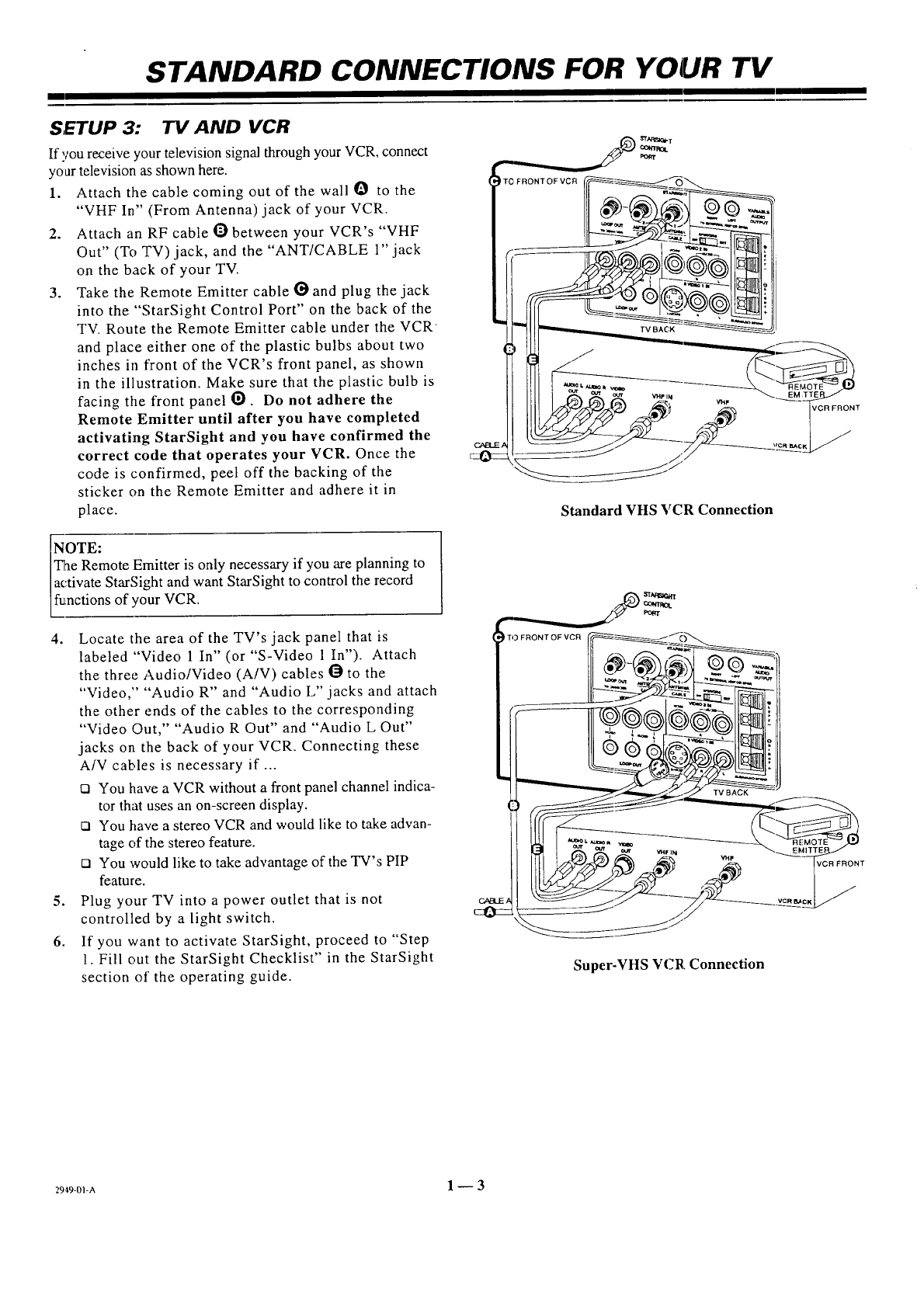
SETUP 3: "IV AND VCR
If you receive your television signal through your VCR, connect
your television as shown here.
1. Attach the cable coming out of the wall O to the
"VHF In" (From Antenna) jack of your VCR.
2. Attach an RF cable Obetween your VCR's "VHF
Out" (To TV) jack, and the "ANT/CABLE 1" jack
on the back of your TV.
3. Take the Remote Emitter cable I_ and plug the jack
into the "StarSight Control Port" on the back of the
TV. Route the Remote Emitter cable under the VCR
and place either one of the plastic bulbs about two
inches in front of the VCR's front panel, as shown
in the illustration. Make sure that the plastic bulb is
facing the front panelO. Do not adhere the
Remote Emitter until after you have completed
activating StarSight and you have confirmed the
correct code that operates your VCR. Once the
code is confirmed, peel off the backing of the
sticker on the Remote Emitter and adhere it in
place.
...... ;+
Standard VHS VCR Connection
iuNOTE:
The Remote Emitter is only necessary if you are planning to
activate StarSight and want StarSight to control the record
nctions of your VCR.
4. Locate the area of the TV's jack panel that is
labeled "Video 1 In" (or "S-Video 1 In"). Attach
the three Audio/Video (A/V) cables Oto the
"Video," "Audio R" and "Audio L" jacks and attach
the other ends of the cables to the corresponding
"Video Out," "Audio R Out" and "Audio L Out"
jacks on the back of your VCR. Connecting these
A/V cables is necessary if ...
[] You have a VCR without a front panel channel indica-
tor that uses an on-screen display.
[] You have a stereo VCR and would like to take advan-
tage of the stereo feature.
[] You would like to take advantage of the TV's PIP
feature.
5. Plug your TV into a power outlet that is not
controlled by a light switch.
6. If you want to activate StarSight, proceed to "Step
1. Fill out the StarSight Checklist" in the StarSight
section of the operating guide.
'TO FRONT OF VCR
!
Super-VHS VCR Connection
294.9-01-A 1-- 3
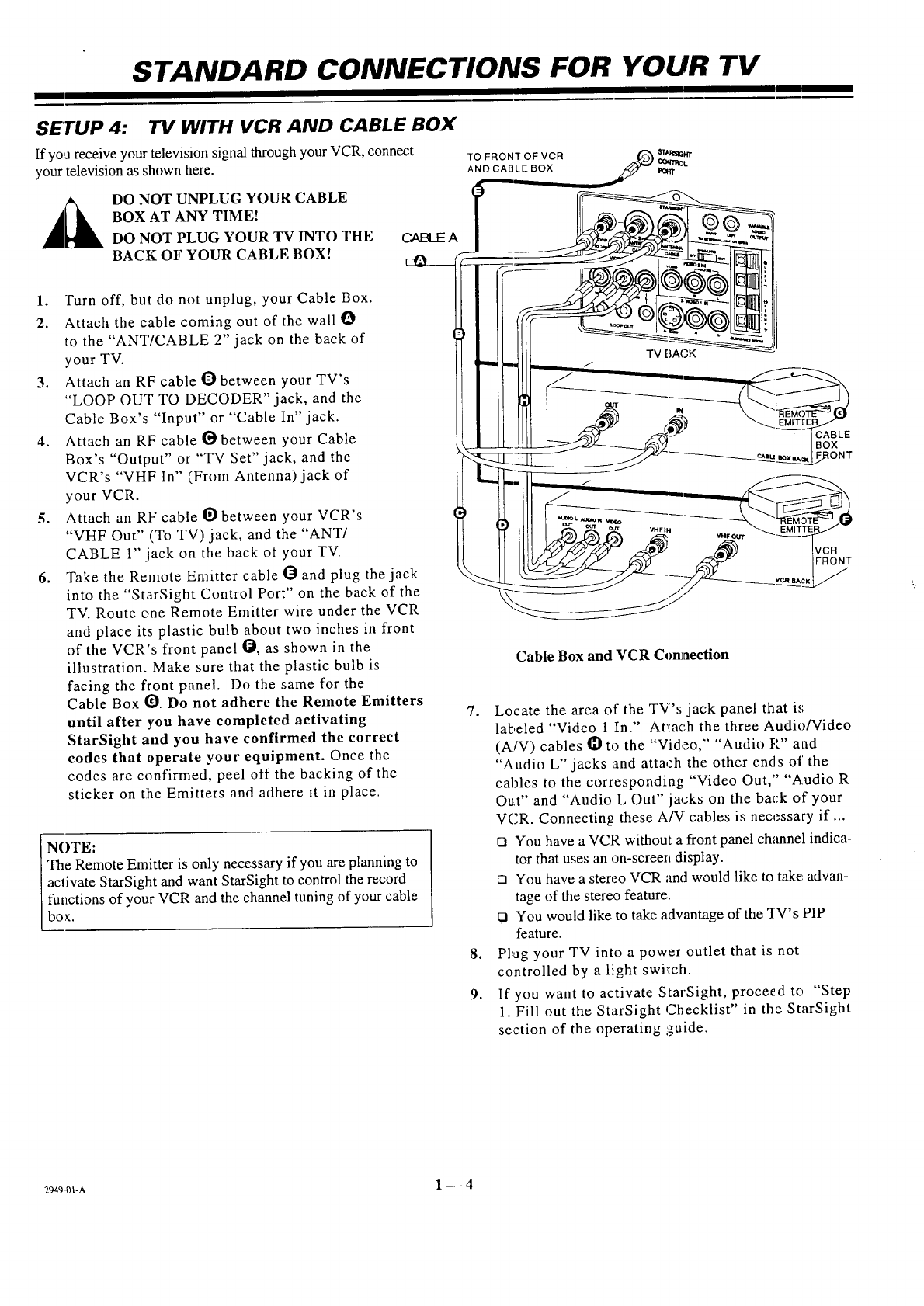
STANDARD CONNECTIONS FOR YOUR TV
SET'UP 4: "IV WITH VCR AND CABLE BOX
If yo,areceive your television signal through your VCR, connect
your television as shown here.
_k DO NOT UNPLUG YOUR CABLE
BOX AT ANY TIME!
DO NOT PLUG YOUR TV INTO THE
BACK OF YOUR CABLE BOX!
TO FRONT OF VCR srh'_l.n-
oom'_t.
AND CABLE BOX
1. l'urn off, but do not unplug, your Cable Box.
2. Attach the cable coming out of the wall O
to the "ANT/CABLE 2" jack on the back of
your TV.
3. Attach an RF cable Obetween your TV's
"LOOP OUT TO DECODER" jack, and the
Cable Box's "Input" or "Cable In" jack.
4. Attach an RF cable t_ between your Cable
Box's "Output" or "TV Set" jack, and the
VCR's "VHF In" (From Antenna) jack of
your VCR.
5. Attach an RF cable O between your VCR's
"VHF Out" (To TV) jack, and the "ANT/
CABLE 1" .jack on the back of your TV.
6. Take the Remote Emitter cable O and plug the jack
into the "StarSight Control Port" on the back of the
TV. Route one Remote Emitter wire under the VCR
and place its plastic bulb about two inches in front
of the VCR's front panel !_, as shown in the
illustration. Make sure that the plastic bulb is
facing the front panel. Do the same for the
Cable Box _. Do not adhere the Remote Emitters
until after you have completed activating
StarSight and you have confirmed the correct
codes that operate your equipment. Once the
codes are confirmed, peel off the backing of the
sticker on tlhe Emitters and adhere it in place.
NOTE:
The Remote Emitter is only necessary if you are planning to
activate StarSight and want StarSight to control the record
functions of your VCR and the channel tuning of your cable
bo_.
TV BAC, K
t-
CABLE
BOX
.qONT
Cable Box and VCR Connection
7. Locate the area of the TV's jack panel that is
labeled "VidLeo 1 In." Attach the three Audio/Video
(AIV) cables tl) to the "Video," "Audio P" and
"Audio L" jacks and attach the other ends of the
cables to the corresponding "Video Out," "Audio R
Out" and "Audio L Out" jacks on the back of your
VCR. Connecting these A/V cables is necessary if ...
Cl You have a VCR without a front panel ch;mnel indica-
tor that uses an on-screen display.
Cl You have a stereo VCR and would like to take: advan-
tage of the',stereo feature.
O You would like to take advantage of the q-V's PIP
feature.
8. Pl_ag your TV into a power outlet that is not
controlled by a light switch.
9. If you want to activate StarSight, proceed to "Step
1. Fill out the StarSight Checklist" in the StarSight
section of the operating :guide.
_949ol-a 1 -- 4
STANDARD CONNECTIONS FOR YOUR TV
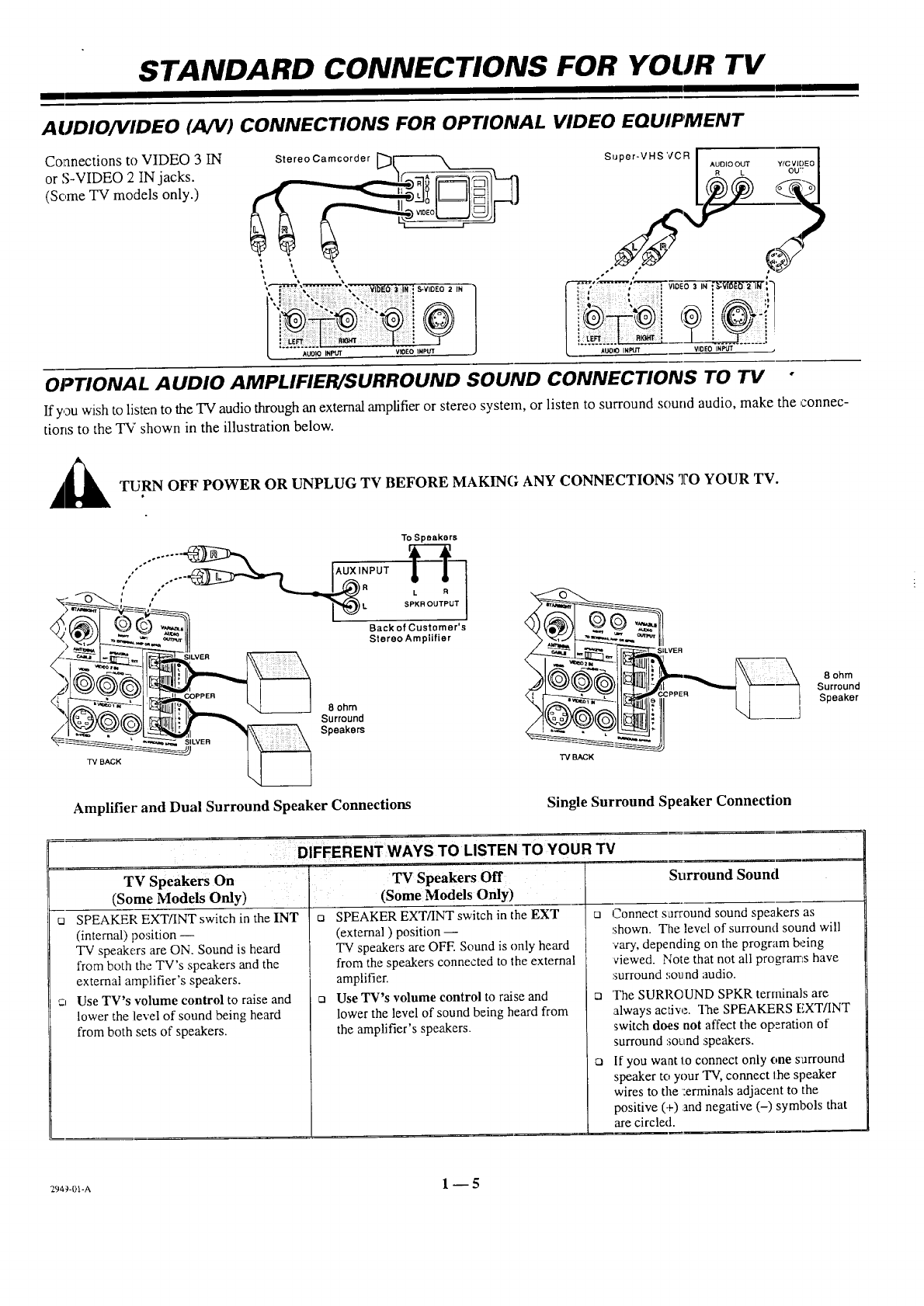
AUDIO/VIDEO (AN) CONNECTIONS FOR OPTIONAL VIDEO EQUIPMENT
Connections to VIDEO 3 IN
or S-VIDEO 2 IN jacks.
(Some TV models only.)
Stereo Camcorder [__
I \ \
:" ; _i EO S-VIDEO 2 IN "
i:!i!i...... VioEO
[
OPTIONAL AUDIO AMPLIFIER/SURROUND SOUND CONNECTIONS TO TV °
If you wish to listen to the TV audio through an external amplifier or stereo system, or listen to surround sound audio, make the connec-
tions to the "IN" shown in the illustration below.
__ TURN OFF POWER OR UNPLUG TV BEFORE MAKING ANY CONNECTIONS TO YOUR TV.
731 BACK
To Speakers
,''""" .... _ AUX INPUT
' ,,," _ _ RSPKR OUTPL_RIT-_
,[,._,
Back of Customer's
Stereo Amplifier
8 ohm
Surround
Speakers
"/'vBACK
_SILVER
8ohm
Surround
Speaker
Amplifier and Dual Surround Speaker Connections Single Surround Speaker Connection
DIFFERENT WAYS TO LISTEN TO YOUR TV
Surround Sound
[2 O rn
c_I
TV Speakers On
(Some Models Only)
SPEAKER EXT/INT switch in the INT
(internal) position --
TV speakers are ON. Sound is heard
from both the TV's speakers and the
external amplifier's speakers.
Use TV's volume control to raise and
lower the level of sound being heard
from both sets of speakers.
TV Speakers Off
(Some Models Only)
SPEAKER EXT/INT switch in the EXT
(external) position --
TV speakers are OFF. Sound is only heard
from the speakers connected to the external
amplifier.
Use TV's volume control to raise and
lower the level of sound being heard from
the amplifier's speakers.
Connect surround sound speakers as
shown. The level of surround sound will
vary, depending on the program being
viewed. Note that not all programs have
surround sound audio.
The SURROUND SPKR terminals are
always active. The SPEAKERS EXT/INT
switch does not affect the operation of
surround sound speakers.
If you want to connect only one sarround
speaker to your "IV, connect the speaker
wires to the :erminals adjacent to the
positive (+):and negative (-) symbols that
are circled.
294)-01-A 1 -- 5
THE FIRST TIME YOU OPERA TE YOUR TV
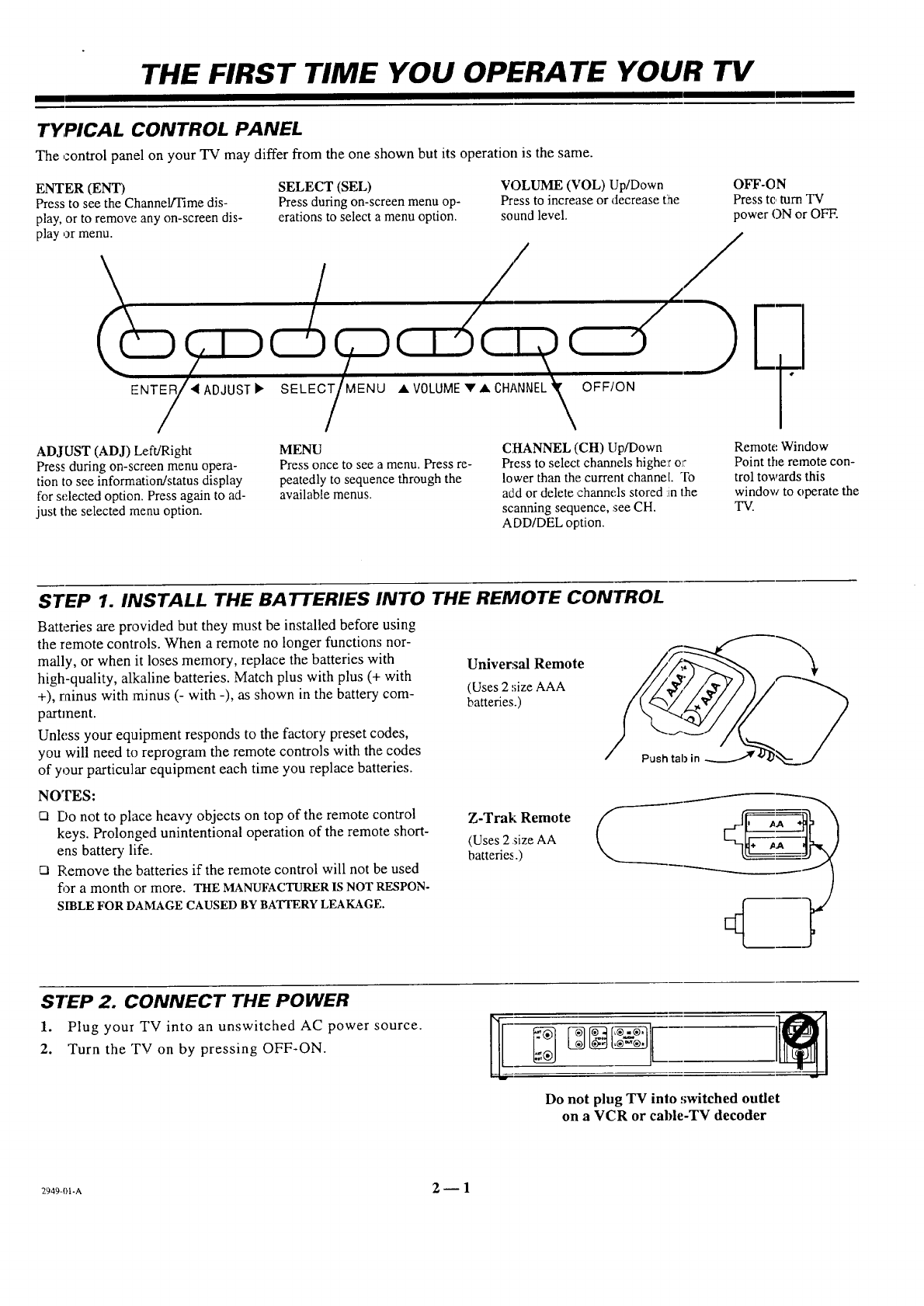
TYPICAL CONTROL PANEL
The control panel on your TV may differ from the one shown but its operation is the same.
ENTER (ENT) SELECT (SEL)
Press to see the Channel/Time dis- Press during on-screen menu op-
play, or to remove any on-screen dis- erations to select a menu option, sound level.
play or menu.
ENTER/4/ADJUST• SELE •VOLUME••CHANNE OFF/ON
ADJUST (ADJ) Left/Right
Press during on-screen menu opera-
tion to see information/status display
for selected option. Press again to ad-
just the selected menu option.
MENU
Press once to see a menu. Press re-
peatedly to sequence through the
available menus.
VOLUME (VOL) Up/Down
Press to increase or decrease t:he OFF-ON
Press tc, turn TV
power ON or OFF.
CHANNEL (CH) Up/I)own
Press to select channels higher o_:
lower than the current channet. To
add or delete ,channels stored :in the
scanning sequence, see CH.
ADD/DEL option.
Remote Window
Point the remote con-
trol towards this
window to operate the
TV.
STEP 1. INSTALL THE BATTERIES INTO THE REMOTE CONTROL
Batteries are provided but they must be installed before using
the remote controls. When a remote no longer functions nor-
mally, or when it loses memory, replace the batteries with
high-quality, alkaline batteries. Match plus with plus (+ with
+), rainus with :minus (- with -), as shown in the battery com-
partment.
Unless your equipment responds to the factory preset codes,
you will need to reprogram the remote controls with the codes
of your particular equipment each time you replace batteries.
Universal Remote
(Uses 2 !;izeAAA
batteries.)
NOTES:
[] Do not to place heavy objects on top of the remote control
keys. Prolonged unintentional operation of the remote short-
ens battery life.
[] Remove the batteries if the remote control will not be used
for a month or more. THE MANUFACTURER IS NOT RESPON-
SIBLE FOR DAMAGE CAUSED BY BATrERY LEAKAGE.
Z-Trak Remote
(Uses 2 size AA
batteries.)
STEP 2. CONNECT THE POWER
1. Plug your TV into an unswitched AC power source.
2. Turn the TV on by pressing OFF-ON.
Do not plug TV into ,,;witched outlet
on a VCR or cable-TV decoder
2949-01-A 2-- 1
THE FIRST TIME YOU OPERATE YOUR TV
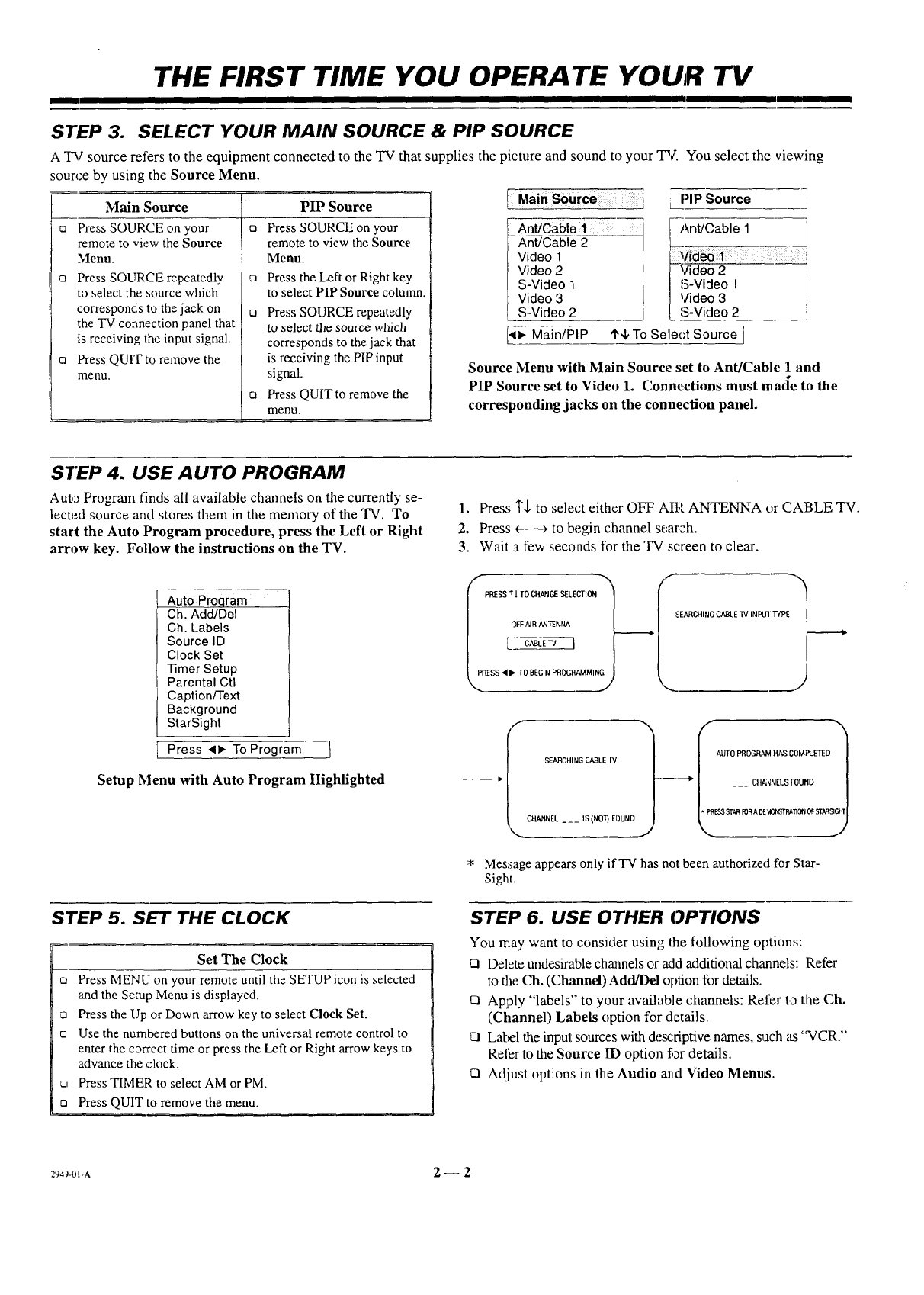
STEP 3. SELECT YOUR MAIN SOURCE & PIP SOURCE
A TV source refers to the equipment connected to the TV that supplies the picture and sound to your TV. You select the viewing
source by using the Source Menu.
O El
Main Source
Press SOURCE on your
remote to view the Source
Menu.
Press SOURCE repeatedly
to select the source which
corresponds to the jack on
the TV connection panel that
is receiving the input signal.
Press QUIT to remove the
menu.
PIP Source
Press SOURCE on your
remote to view the Source
Menu.
Press the Left or Right key
to select PIP Source column.
Q Press SOURCE repeatedly
to select the source which
corresponds to the jack that
is receiving the PIP input
signal.
o Press QUITto remove the
menu.
Main _urce
Ant/Cable 1 _
Ant/Cable 2
Video 1
Video 2
S-Video 1
Video 3
S-Video 2
<1_ Main/PIP
PIP Source
Ant/Cable 1
_-
S-Video 1
Video 3
S-V deo 2
'1'4,To Select Source ]
Source Menu with Main Source set to Ant/Cable 1 .'and
PIP Source set to Video 1. Connections must made to the
corresponding jacks on the connection panel.
STEP 4. USE AUTO PROGRAM
Auto Program finds all available channels on the currently se-
lected source and stores them in the memory of the TV. To
start the Auto Program procedure, press the Left or Right
arrow key. Follow the instructions on the TV.
Auto Proqram
Ch. Add/Del
Ch. Labels
Source ID
Clock Set
-timer Setup
Parental Ctl
CaptionFFext
Background
StarSight
Press <, To Program ]
Setup Menu with Auto Program Highlighted
STEP 5. SET THE CLOCK
Set The Clock
El Press MENU: on your remote until the SETUP icon is selected
and the Setup Menu is displayed.
,7 Press the Up or Down arrow key to select Clock Set.
ca Use the numbered buttons on the universal remote control to
enter the correct time or press the Left or Right arrow keys to
advance the clock.
r7 Press TIMER to select AM or PM.
cl Press QUIT to remove the menu.
1. Press 1",[,to select either OFF AIR ANTENNA or CABLE TV.
2. Press <-----4 to begin channel searzh.
3. Wait a few seconds for the TV screen to clear.
PRESS $ TO CHANGE SELECTION
)FFAIRANTENNA
L_
SS '41.TO BEGINPROGRAMMING
_EARCHINGCABLE"IVINPt,rlTYPE
SEARCHING CABLE FV
CHANNEL --- IS(NOT)FOUND
/*"-AUTO PROGRAIM HAS COMPLETED
---'--_ l___ CHA,_NELSF0UNO /
_,_ESS STAR FOR ADE WONSTRATION OF STAR S_,_
* Message appears only ifTV has not been authorized for Star-
Sight.
STEP 6. USE OTHER OPTIONS
You may want to, consider using the following options:
Q Delete undesirable channels or add additional channel:s: Refer
to the Ch. (C 'hannd) Add/Dd oplion for details.
[] Apply "labels" to your available channels: Refer to the Ch.
(Channel) Labels option for details.
Cl Label the input sources with descriptive names, such as "VCR."
Refer to the Source ID option for details.
[] Adjust options in the Audio and Video Menus.
Z94_-Ol-A 2-- 2
PIP OPERA TION
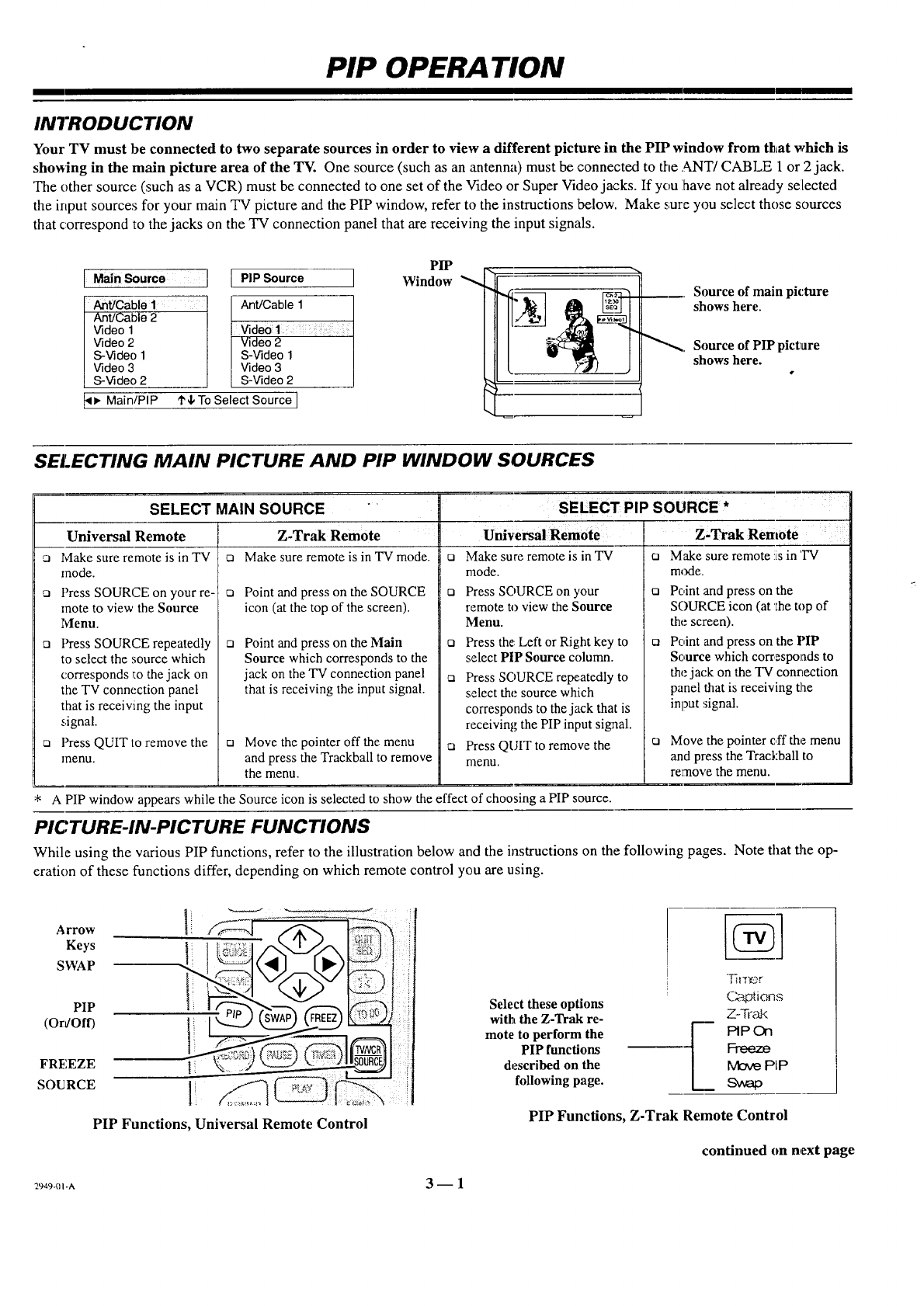
INTRODUCTION
Your TV must be connected to two separate sources in order to view a different picture in the PIP window from that which is
showing in the main picture area of the TV. One source (such as an antenna) must be connected to the ANT/CABLE 1 or 2 jack.
The other source (such as a VCR) must be connected to one set of the Video or Super Video jacks. If you ihave not already selected
the input sources for your main TV picture and the PIP window, refer to the instructions below. Make sure you select those sources
that correspond to the jacks on the TV connection panel that are receiving the input signals.
IMain Source
Ant/Cable 1
Ant/Cable 2
Video 1
Video 2
S-Video 1
Video 3
S-Video 2
_, Main/PIP
PIP Source
Ant/Cable 1
Video 1
Video 2
S-Video 1
Video 3
S-Video 2
'1'4,-1-oSelect Source ]
PIP
Window Source of main picture
shows here.
Source of PIP picture
shows here.
SELECTING MAIN PICTURE AND PIP WINDOW SOURCES
SELECT MAIN SOURCE "•
Z-Trak Remote
n Make sure remote is in TV mode•
Universal Remote
Make sure remote is in TV
mode.
Press SOURCF; on your re-
mote to view the Source
Menu.
[] Press SOURCE repeatedly
to select the source which
corresponds r.othe jack on
the TV connection panel
that is receiving the input
signal.
n Press QUIT to remove the
menu.
o Point and press on the SOURCE
icon (at the top of the screen).
Point andpress on the Main
Source which corresponds to the
jack on the TV connection panel
that is receiving the input signal.
Move the pointer off the menu
and press the Trackball to remove
the menu.
D
D
Q
Q
SELECT PIP S
Universal Remote
Make sure remote is in TV ca
mode.
Press SOURCE on )'our ta
remote to view the Source
Menu.
Press the Left or Right key to ta
select PIP Source column.
Press SOURCE repeatedly to
select the source which
corresponds to the jack that is
receiving the PIP input signal.
Press QUIT to remove the ca
menu.
Z-Trak Remote
Make sure remote !isin 'IV
m_xte.
Point and press on the
SOURCE icon (at 'Ihe top of
the screen).
Point and press on the PIP
Source which corresponds to
the jack on the TV connection
panel that is receiving the
input signal.
Move the pointer off the menu
and press the Trackball to
remove the menu.
* A PIP window appears while the Source icon is selected to show the effect of choosing a PIP source.
PICTURE-IN-PICTURE FUNCTIONS
While using the various PIP functions, refer to the illustration below and the instructions on the following pages. Note that the op-
eration of these functions differ, depending on which remote control you are using.
Arrow
Keys
SWAP
PIP
(OrJOff)
FREEZE
SOURCE tl .. I
PIP Functions, Universal Remote Control
_._49-m-A 3- 1
!
[
Select these options
with the Z-Trak re-
mote to perform the 1
PIP functions L
described on the
following page.
'Th'r_r
(_:_ptions
Z-"fi'_kk
PIPOn
Freeze
[Vk:r,_PIP
PIP Functions, Z-Trak Remote Control
continued on next page
PIP OPERA TION
PIP Functions using Universal Remote
ca PIP On/Off: Press the PIP key to display the PIP window.
Press it again to remove the PIPwindow.
nSWAP: Press the SWAP key to swap the main picture with the
PIP window. Press SWAP again to return to the original
display.
ca FREEZE: Press FREEZ to freeze motion of the picture shown
in the PIP window. Press FREEZ again to return to a live PIP
window.
nPIPSize: Select PIP Size in the PIPMenu to choose between
seeing asmall or large PIP window.
ca Moving the PIP window: Use the Left/Right and Up/Down
arrow keys to move the PIP window to the desired location of
the TV screen.
PIP Functions using Z-Trak Remote
ca PIP On/Off: Move pointer to left of'IN screen and press on ]PIP On
to display the PIP window. Move the PIP window to the desired
location on the screen and press the trackball to set it in place. Press
on PIP Off to remove the PIP window.
oSWAP: Move pointer to left of TV screen and press on Swap to swap
the main picture with the PIP window. Press on Swap again to return
to the original display.
ca FREEZE: Move pointer to left of TV screen and press on Freeze to
freeze motion of the picture shown in the PIP window. Press on Freeze
again to return to a live PIP window.
ca PIP Size: Select PIP Size in the PIPMenu to choose beLween seeing
a smal! or large PIP window, o
ca Moving the PIP Window: Move pointer to left of TV screen, press
on Move PIP and move the PIP window to desired location on the
screen. Press the trackball to set the window in place.
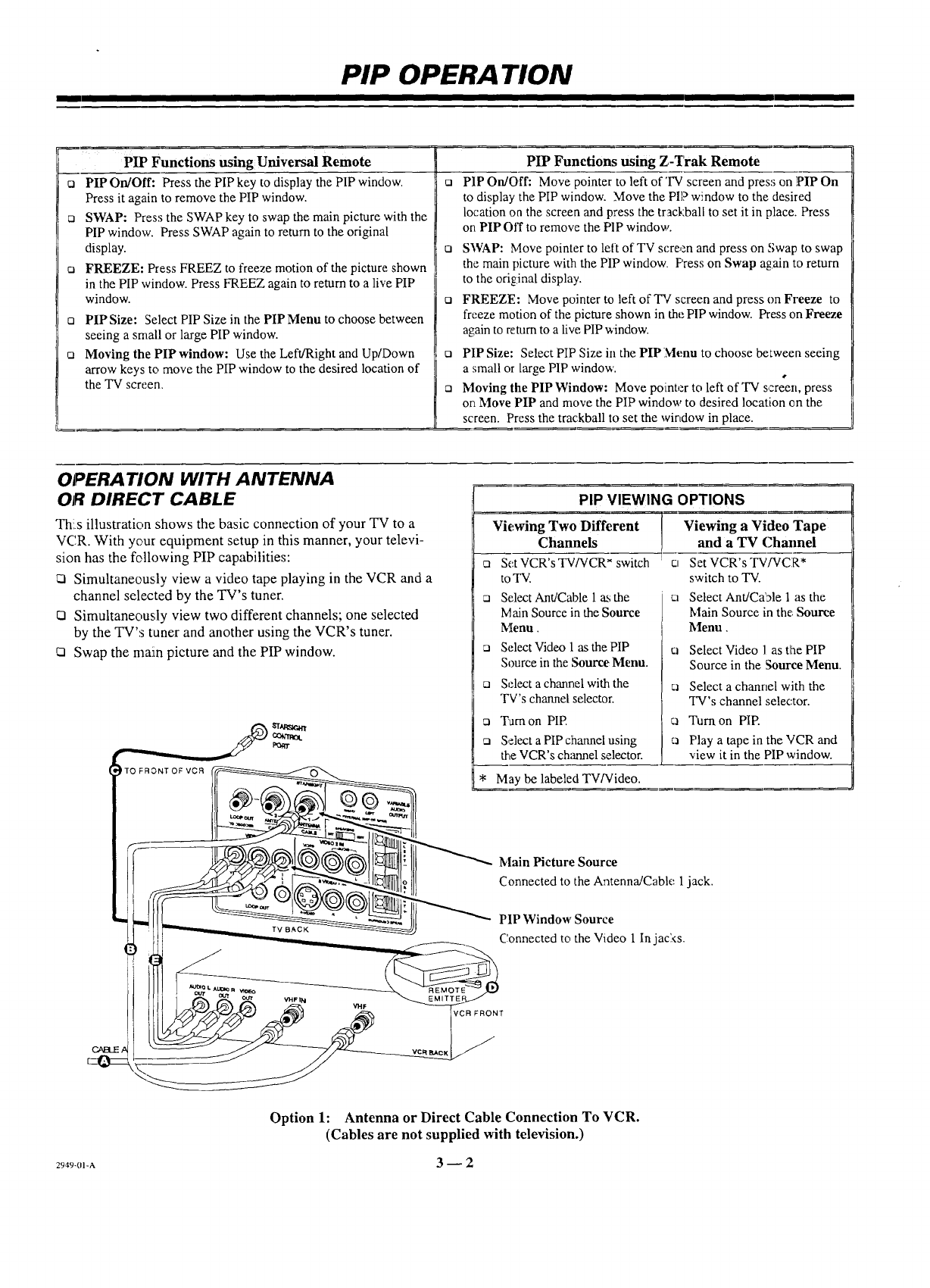
OPERATION WITH ANTENNA
OR DIRECT CABLE
Thls illustration shows the basic connection of your TV to a
VCR. With your equipment setup in this manner, your televi-
sion has the following PIP capabilities:
Cl Simultaneously view a video tape playing in the VCR and a
channel selected by the TV's tuner.
O Simultaneously view two different channels; one selected
by the TV's tuner and another using the VCR's tuner.
cq Swap the main picture and the PIP window.
PIP VIEWING OPTIONS
Vie,wing Two Different
Channels
ca Set VCR's TV/VCR _ switch
to TV.
ca Select Ant/Cable [ as the
Main Source in the Source
Menu.
ca Select Video 1as the PIP
Source in the Source Menu.
ca Select achannel with the
TV's channel selector.
ca Tam on PIP.
ca Select a PIP channel using
the VCR's channel selector.
* May be labeled TV/Video.
Viewing a Video Tape
and aTV Chmmel
Set VCR's TV/VCR*
switch to TV.
Select Ant/Ca'ale 1 as the
blain Source in the Source
blenu,
ca Select Video 1 as tlae PIP
Source in the Source Menu.
ca Select a channel with the
TV's channel selector.
c_ Turn on PIP.
ca Play a tape in the VCR and
view it in the PIP window.
Main Picture Source
Connected to the Antenna]Cable l jack.
PIP Window Source
Connected to the Video [ In jacks.
FRONT
Option 1: Antenna or Direct Cable Connection To VCR.
(Cables are not supplied with television.)
2949-01-A 3 -- 2
PIP OPERA TION
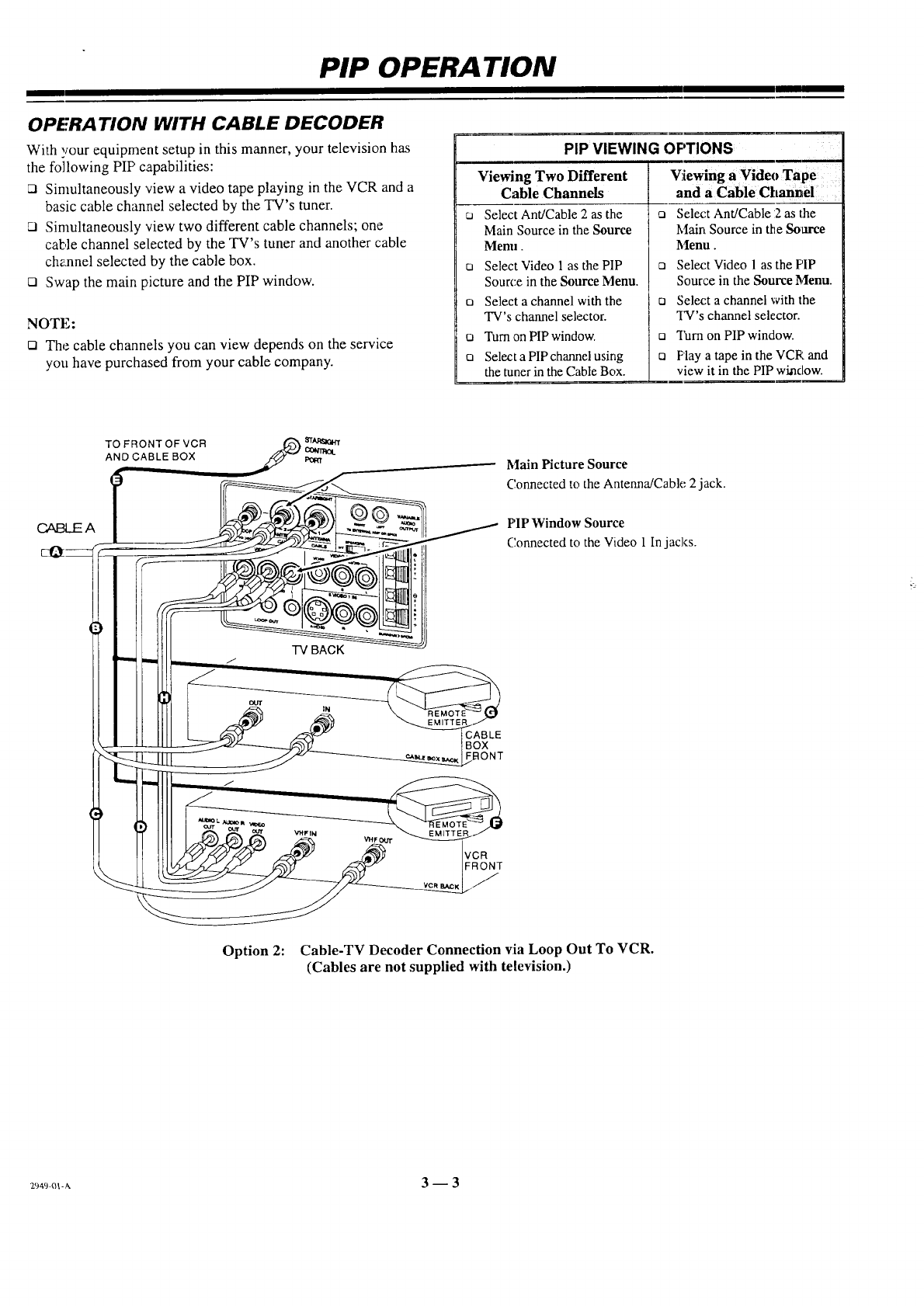
OPERA TION WITH CABLE DECODER
With your equipment setup in this manner, your television has
the following PIP capabilities:
21 Simultaneously view a video tape playing in the VCR and a
basic cable channel selected by the TV's tuner.
O Simultaneously view two different cable channels; one
cable channel selected by the TV's tuner and another cable
channel selected by the cable box.
o Swap the main picture and the PIP window.
NOTE:
o The cable channels you can view depends on the service
you have purchased from your cable company.
O
El
O
O
PIP VIEWING OPTIONS
Viewing Two Different
Cable Channels
Select Ant/Cable 2 as the o
Main Source in the Source
Mem_
Select Video 1 as the PIP o
Source in the Source Menu.
Select a channel with the o
TV's channel selector.
Turn ,onPIPwindow, o
Select a PIP charmel using o
the tuner in the Cable Box.
Viewing a Video Tape
and aCable Channel
Select Ant/Cable 12as the
Main Source in the Som'ce
Menu.
Select Video 1 as the PIP
Source in the Source Menu.
Select a channel with the
"I_'s channel selector.
Turn on PIP window.
Play a tape in the VCR and
view it in the PIP window.
TO FRONT OF VCR _,.n"
com_oL
ANO CABLE BOX Main Picture Source
C.onnected to the Antenna/Cable 2 jack.
PIP Window Source
Connected to the Video 1In jacks.
BOX
.::IONT
FRONT
Option 2: Cable-TV Decoder Connection via Loop Out To VCR.
(Cables are not supplied with television.)
29_ _w, 3 -- 3
UNIVERSAL REMOTE CONTROL
INTRODUCTION
This universal remote control operates the common features of most, but not all, model,; and brands of IR (infrared) controlled TVs,
VCRs, cable boxes, video disc players, and audio equipment. The remote may provide functions that are not available on your equip-
ment, e.g., menu operations. Some functions of optional equipment may not be controlled by this remote. In such cases, use the
original remote control for your equipment.
BATTERY INSTALLATION
Batteries are provided, but must be installed before using the remote control. When
it no longer functions normally, or when it loses memory, replace the batteries with
two high-quality, alkaline, size AAA batteries. Match plus with plus (+ with +),
minus with minus (- with -) in the battery compartment.
Unless your equipment responds to the factory preset codes,
i.e.. 101 for "IN', 201 for VCR, 353 for CABLE, and 401 for
AUX., you will need to reprogram the remote with the codes
of your particular equipment after you replace batteries.
NOTES:
Ca Do not place heavy objects on top of the remote control
keys. Prolonged unintentional operation of the remote short-
ens battery life.
Cl Remove the batteries if the remote will not be used for a
month or more. THE MANUFACTURER IS NOT RESPONSIBLE FOR
DAMAGE CAUSED BY BATTERY LEAKAGE.
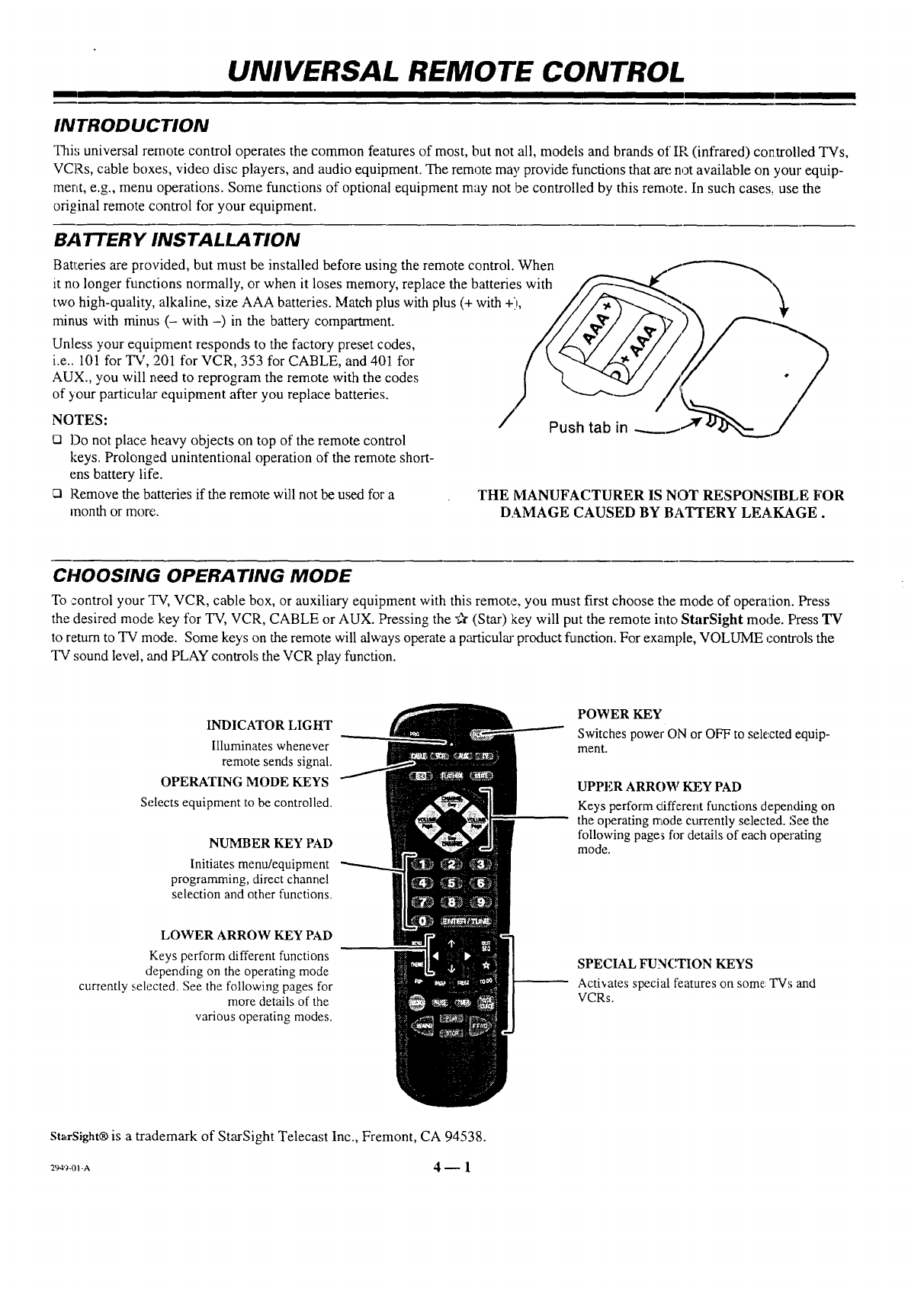
CHOOSING OPERATING MODE
To control your TV, VCR, cable box, or auxiliary equipment with this remote, you must first choose the mode of operalion. Press
the desired mode key for TV, VCR, CABLE or AUX. Pressing the "_r (Star) key will put the remote into StarSight mode. Press TV
to return to TV mode. Some keys on the remote will always operate a particular product function. For example, VOLUME controls the
TV sound level, and PLAY controls the VCR play function.
INDICATOR LIGHT
Illuminates whenever
remote sends signal.
OPERATING MODE KEYS
Selects equipment to be controlled.
NUMBER KEY PAD
Initiates menu/equipment
programming, direct channel
selection and other functions.
LOWER ARROW KEY PAD
Keys perform different functions
depending on the operating mode
currently selected. See the following pages for
more details of the
various operating modes.
POWER KEY
Switches power ON or OFF to selected equip-
ment.
UPPER ARROW KEY PAD
Keys perform different functions depending on
the operating mode currently selected. See the
following pages fi_r details of each operating
mode.
SPECIAL FUNCTION KEYS
Activates special features on some TVs and
VCRs.
StarSight® is a trademark of StarSight Telecast Inc., Fremont, CA 94538.
:ga._-ol-a 4- 1
UNIVERSAL REMOTE CONTROL
TV OPERA"lIONS
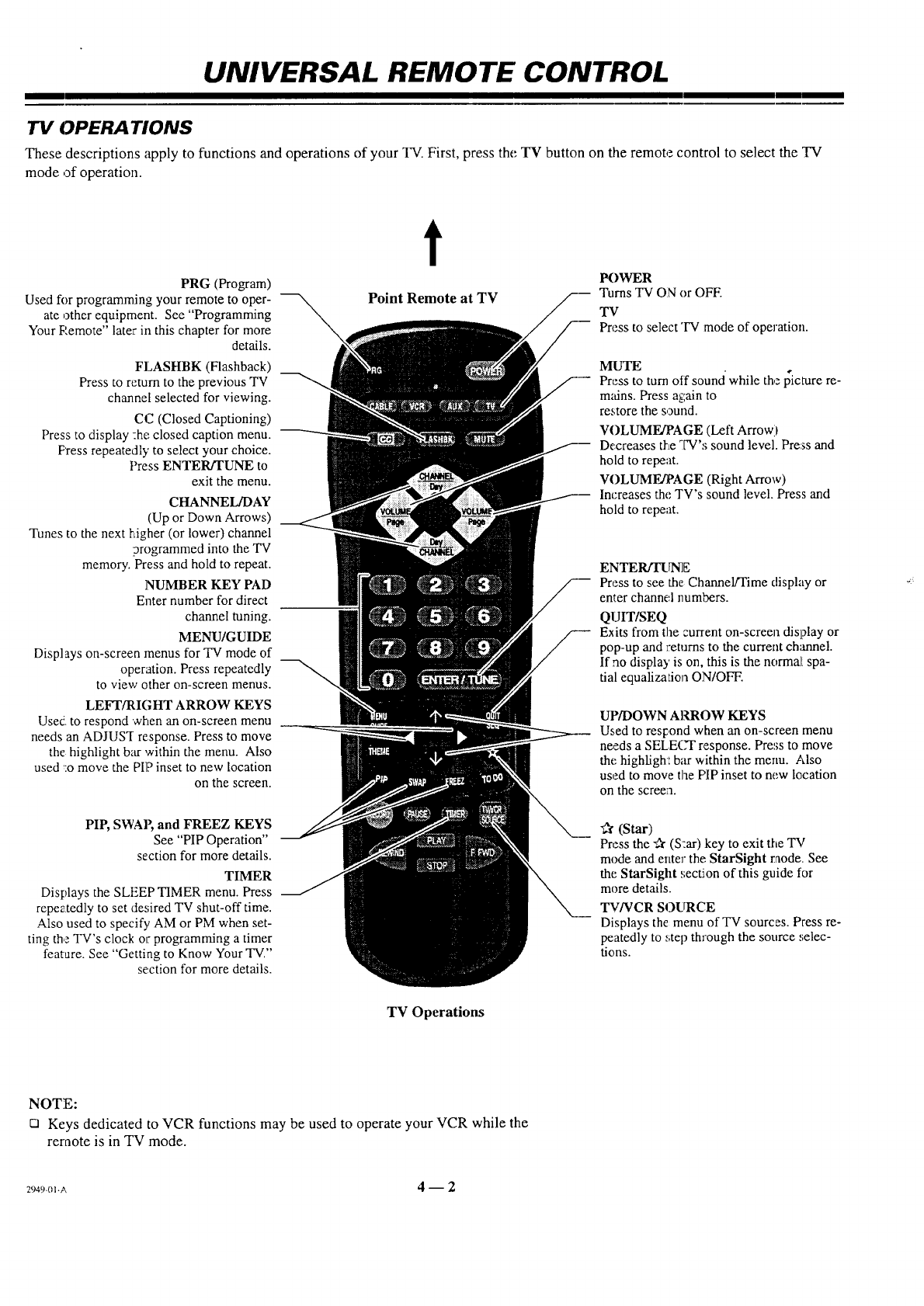
These descriptions apply to functions and operations of your TV. First, press the TV button on the remote control to select the TV
mode of operation.
PRG (Program)
Used for programming your remote to oper-
ate other equipment. See "Programming
Your P,emote" later in this chapter for more
details.
FLASHBK (Flashback)
Press to return to the previous TV
channel selected for viewing.
CC (Closed Captioning)
Press to display :he closed caption menu.
Press repeatedly to select your choice.
Press ENTER/TUNE to
exit the menu.
CHANNEL/DAY
(Up or Down Arrows)
Tunes to the next t-dgher (or lower) channel
programmed into the TV
memory. Press and hold to repeat.
NUMBER KEY PAD
Enter number for direct
channel tuning.
MENU/GUIDE
Displays on-screen menus for TV mode of
operation. Press repeatedly
to view other on-screen menus.
LEFI'/RIGHT ARROW KEYS
Used. to respond when an on-screen menu
needs an ADJUST response. Press to move
the highlight bar within the menu. Also
used :o move the PIP inset to new location
on the screen.
PIP, SWAF, and FREEZ KEYS
See "PIP Operation"
section for more details.
TIMER
Displays the SLEEP TIMER menu. Press
repeatedly to set desired TV shut-off time.
Also used to specify AM or PM when set-
ting the TV's clock or programming a timer
feature. See "Getting to Know Your TV."
section for more details.
t
Point Remote at TV
POWER
Turns TV ON or OFF.
TV
Press to select "IV mode of operation.
MUTE
sound
Press to turn otf while the picture re-
m_dns. Press again to
restore the sound.
VOLUME/PAGE (Left Arrow)
Decreases tl-teTV's sound level. Pre'ss and
hold to repeat.
VOLUME/PAGE (Right Arrow)
Increases the TV's sound level. Press and
hold to repeat.
ENTER/TUNE
Press to see the ChanneP"I'ime display or
enter channe,l numbers.
QUIT/SEQ
Exits from the current on-screen display or
pop-up and returns to the current channel.
If no display is on, this is the normal spa-
tial equalization ON/OFF.
UP/DOWN AILROW KEYS
Used to respond when an on-screen menu
needs a SELEC'I" response. Press to move
the highligh: bar within the menu. Also
used to move the PIP inset to new location
on the screen.
_r (Star)
Press the -_ (S:ar) key to exit the TV
m_e and enter the StarSight raode. See
the StarSight section of this guide for
more details.
TV/VCR SOURCE
Displays the menu of TV sources. Press re-
peatedly to _';tepthrough the source ,,;elec-
tions.
TV Operations
NOTE:
21 Keys dedicated to VCR functions may be used to operate your VCR while the
reraote is in TV mode.
29494}1-A 4-- 2
UNIVERSAL REMOTE CONTROL,
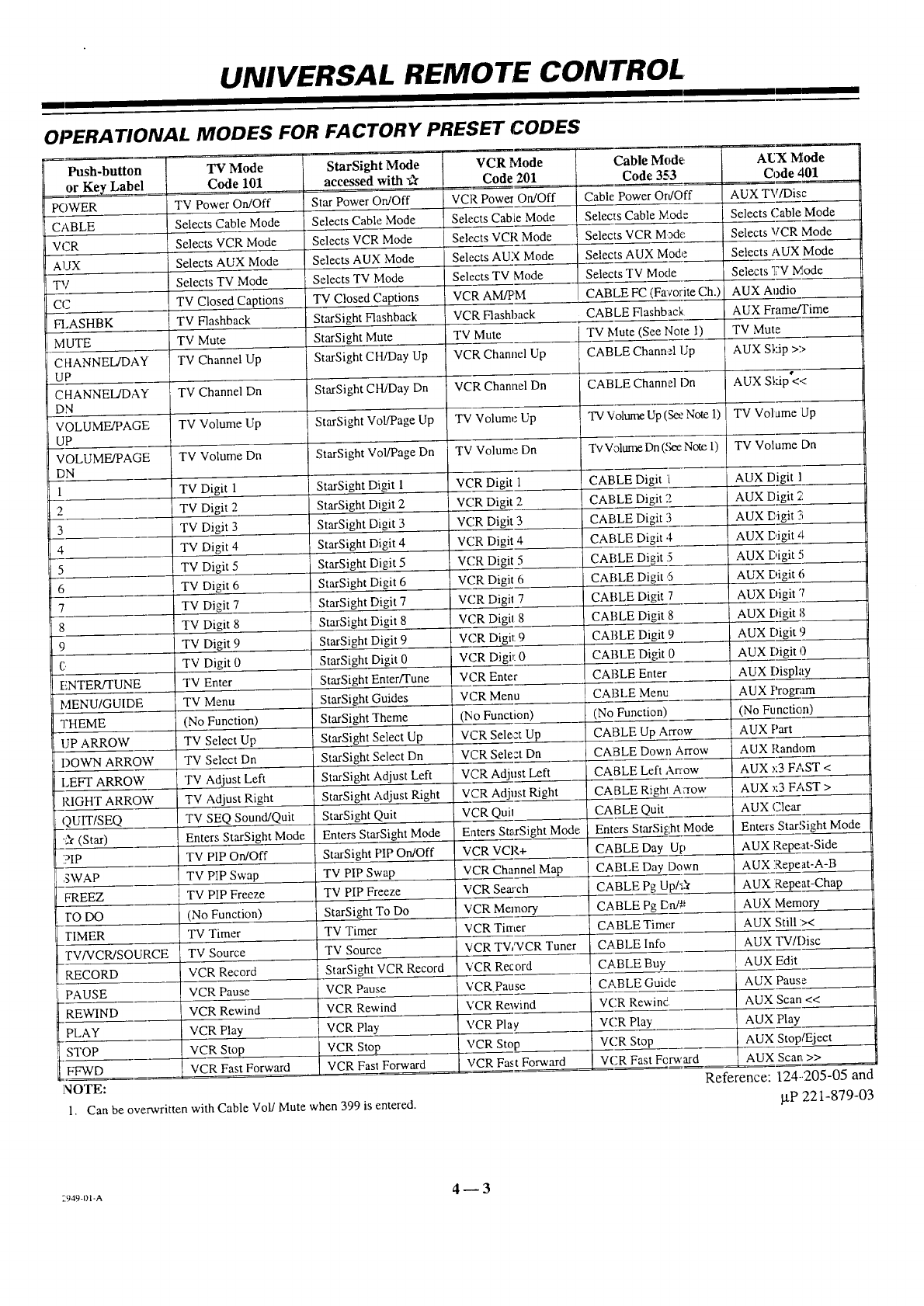
OPERA TIONAL MODES FOR FACTORY PRESET CODES
Push-button
or Key Label
POWER
CABLE
VCR
AUX
TV
CC
FI.ASHBK
MUTE
CHANNEL/DAY
UP
CHANNEL/DAY
DN
VOLUME/PAGF.
UP
DN
1
2
3
4
5
6
7
8
9
C,
ENTERffUNE
MENU/GUIDE
THEME
UP ARROW
DOWN ARROW
LEFT ARROW
RIGHT ARROW
QUIT/SEQ
-_ (Star)
?IP
SWAP
FREEZ
TO DO
TIMER
TV/VCR/S( CE
RECORD
PAUSE
REWIND
PLAY
STOP
FFWD
NOTE:
1.
TV Mode
Code 101
TV Power On/Off
Selects Cable Mode
Selects VCR Mode
Selects AUX Mode
Selects TV Mode
TV Closed Captions
TV F/ashback
TV Mute
TV Channel Up
TV Channel Dn
TV Volume Up
TV Volume Dn
TV Digit 1
TV Digit 2
TV Digit 3
TV Digit 4
TV Digit 5
TV Digit 6
TV Digit 7
TV Digit 8
TV Digit 9
TV Digit 0
TV Enter
TV Menu
(No Function)
TV Select Up
TV Select Dn
TV Adjust Left
TV Adjust Right
TV SEQ Sound!Quit
Enters StarSight Mode
TV PIP On/Off
TV PIP Swap
TV PIP Freeze
(No Function)
TV Timer
TV Source
VCR Record
VCR Pause
VCR Rewind
VCR Play
VCR Stop
VCR Fast Forward
StarSight Mode
accessed with "dr
Star Power On/Off
Selects Cable Mode
Selects VCR Mode
Selects AUX Mode
Selects TV Mode
TV Closed Captions
StarSight Flashback
StarSight Mute
StarSight CH/Day Up
StarSight CH/Day Dn
StarSight Vol/Page Up
StarSight Vol/Page Dn
StarSight Digit 1
StarSight Digit 2
StarSight Digit 3
StarSight Digit 4
StarSight Digit 5
StarSight Digit 6
StarSight Digit 7
StarSight Digit 8
StarSigbt Digit 9
StarSight Digit 0
StarSight Enter/Tune
StarSight Guides
StarSight Theme
StarSight Select Up
StarSight Select Dn
StarSight Adjust Left
StarSight Adjust Right
StarSight Quit
Enters StarSight Mode
StarSight PIP On/Off
TV PIP Swap
TV PIP Freeze
StarSight To Do
TV Timer
TV Source
StarSight VCR Record
VCR Pause
VCR Rewind
VCR Play
VCR Stop
VCR Fast Forward
VCR Mode
Code 201
vCR Poweron/off
Selects Cable Mode
Selects VCR Mode
Selects AUX Mode
Selects TV Mode
VCR AM/PM
VCR Flashback
TV Mute
VCR Channel Up
VCR Channel Dn
TV Volume Up
TV Volume Dn
VCR Digit 1
VC'.R Digit 2
VCR Digit 3
VCR Digit 4
VCR Digit 5
VCR Digit 6
VCR Digil 7
VCR Digil 8
VCR Digit 9
VC RDigit 0
VCR Enter
VCR Menu
(No Function)
VCR Select Up
VCR Selezt Dn
VCR Adjust Left
VCR Adjust Right
VCR Quil
Enters St_a-Sight Mode
VCR VCR+
VCR Channel Map
VCR Semch
VCR Memory
VCR Timer
VCR TV;VCR Tuner
VCR Rec ord
VCR.Pause
VCR Rewind
VCR Play
VCR Stop
VCR Fast Forward '
Cable M_
Code 3f
Cable Power Or
Selects Cable
Selects VCR Mode
Selects AUX Mode
Selects TV Moc
CABLE FC (Favorite Ch.)
CABLE Flashb;
TV Mute (See Note l)
CABLE Chann: 1.Jp
CABLE Chann_ Dn
TV Volume Up (See Note 1)
'1%'Volume Dn ('_e Note 1)
CABLE Digit [
CABLE Digit 2
CABLE Digit 13
CABLE Digit 4
CABLE Digit .5
CABLE Digit ,5
CABLE Digit 7
CABLE Digit 8
CABLE Digit 9
CABLE Digit 0
CABLE Enter
CABLE Menu
(No Function)
CABLE Up Arr,
CABLE Down Arrow
CABLE Left Ar
CABLE Right A_ow
CABLE Quit
Enters S!arSight Mode
CABLE Day !5
CABLE Day Dc
CABLE Pg Up/
, CABLE Pg .Dni_
CA B LE Timer
CABLE Info
CABLE Buy
CABLE Guide
VCR Rev,,ind
VCR Play
VCR Stop
VCR Fast Ferw_
Can be overwritten with Cable Vol/Mute when 399 is entered.
AUX Mode
Code 401
AUX TV/Disc
Selects ('able Mode
Selects VCR Mode
Selects AUX Mode
Selects TV Mode
AUX Audio
AUX Frame[Time
TV Mute
AUX Skip >>
AUX Strip'<<
TV Volame Up
TV Volume Dn
AUX Digit 1
AUX Digit 7:
AUX Digit 3
AUX Digit 4
AUX Digit 5
AUX Digit 6
AUX Digit 7
AUX Digit 8
AUX Digit 9
AUX Digit 0
AUX Display
AUX l:_ogram
(No Function)
AUX ['art
AUX Random
AUX x3 FAST <
AUX x3 FAST >
AUX Clear
Enters StarSight Mode
AUX Repeat-Side
AUX
AUX
AUX
AUX
AUX
AUX
AUX
AUX
AUX
AUX
AUX
Reference:
Repeat-A-B
Repeat-Chap
Memory
Still ><
TV/Disc
Edit
Pause
Scan <<
Play
Stop/Eject
Scan, >>
124-.205-05 and
p.P 221-879-03
;949-01-A 4 _ 3
UNIVERSAL REMOTE CONTROL
PROGRAMMING YOUR REMOTE
If you are using Inteq products, the remote is programmed for
the most commonly used codes. For other brands -- or if your
remote fails to control your Inteq products -- you will have to
pro_am the remote.
Follow these steps for each product you are using:
1. Look up the three-digit code for your brand (such as
Zenith) amt type of equipment (such as VCR) in the
code table oil the following page.
2. Press and hold PRG with a small blunt object until
the indicator lights (about three seconds).
3. Press TV, VCR, CABLE, or AUX to select the
product you want your remote to control. (Use
('.ABLE or AUX, to program your remote for a
second TV or VCR or to program your remote for a
video disc player or audio equipment.)
4. Key in the three-digit code fc,r your equipment, then
pres_,; ENTER/TUNE. The indicator light should
flash, then turn off to indicate that the code was
accepted. If the indicator stays on, repeat steps 2, and 4
or try using a different code
5. Write the codes that operate your equipment on the
label inside the battery compartment for fu_ture
reference.
To erase al! code programming and return to the factory preset
codes, key in code 9-1-1 when programming the remote.
NOTES:
OThe remote cannot be programmed while in the StarSight
mode: Choose TV, VCR, CABI,E or AUX mode before
pressing PRG.
rq If no key on your remote is pressed within 60 seconds, the
programming process will stop, and you will have to start
again.
O You may cancel programming at any time by pressing PRG.
SPF.CIAL FEATURES
AUX+I, AUX+2, AUX+3 Capability
Your remote can control up to seven electronic components. If
you have programmed the remote for four components using
the TV, VCR, CABLE and AUX keys, you may also program it
for up to threeadditionalcomponents (AUX+I, AUX+2,
AUX+3) by holding the AUX key and pressing the 1, 2 or 3key
during programming. Once programmed, hold down the AUX
key and press 1, 2 or 3, to access the additionalAUX +1, 2 or 3
mode.
Cable Box Volume
You ]nay use your remote to control cable box volume and mut-
ing if available on your equipment. First program your remote
with ,:he brand ccde for your cable device using the CABLE or
AUX key. Then repeat the programming steps, again using the
CABLE or AUX key, but key in code 3-9-9 instead of a brand
code.
To restore TV volume/mute control to the CABLE or AUX
mode, reprogram your cable code into that mode.
Amplifier Volume Override
You may use your remote to override your TV, VCR or video
disk player's volume functions with your _unplifier's volurne and
muting.
1. Program your amplifier code into the CABLE mode
or one of the AUX modes.
2. Selezt the mode on your remote (TV, VCR, etc.)
where you want the amplifier volume control
function to appear. In other words, if you want to
operate the volume and mute of your amplifier
while the remote is in TV mode, press TV for this
step.
3. Begin the programming steps as described in
"Programming Your Remol:e" and enter code 4.-9-9,
followed by ENTER.
The amplifier volume and mute features are nov/
avaiiable in the current mode.
To restore normal volume and muting control to your TV,
VCR, cable or laser disc player, reprogram the remote for these
units into each mode (TV, VCR, etc.) to be restored.
NOTE:
O CD and tape devices will automatically select amplifier vol-
ume and mute.
2949-01-A 4--4
UNIVERSAL REMOTE CONTROL
I I
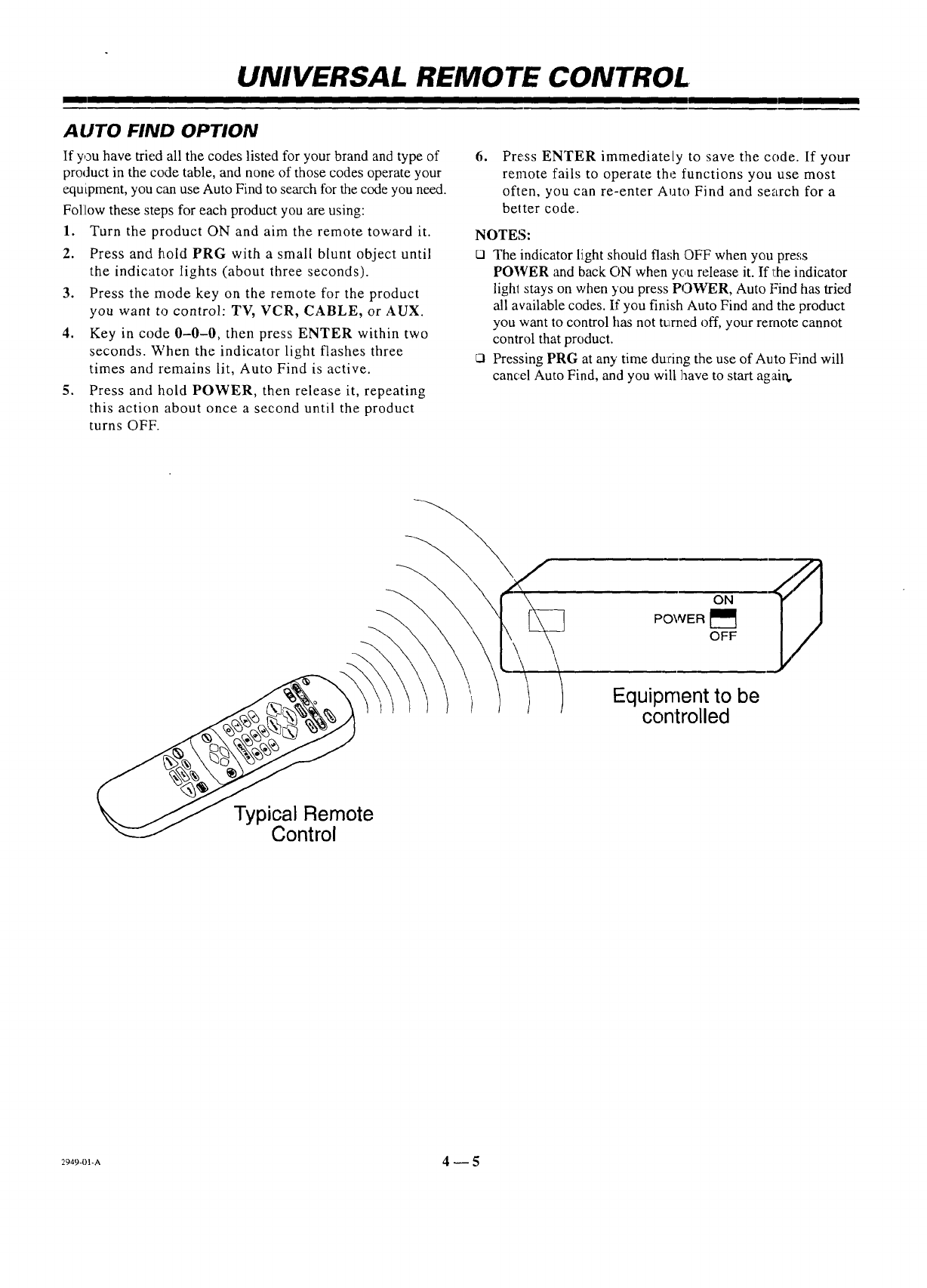
AUTO FIND OPTION
If you have tried all the codes listed for your brand and type of
product in the code table, and none of those codes operate your
equipment, you c_m use Auto Find to search for the code you need.
Folilow these steps for each product you are using:
1. Turn the product ON and aim the remote toward it.
2. Press and hold PRG with a small blunt object until
the indicator lights (about three seconds).
3. Press the mode key on the remote for the product
you want to control: TV, VCR, CABLE, or AUX.
4. Key in code 0-0-0, then press ENTER within two
seconds. When the indicator light flashes three
times and remains lit, Auto Find is active.
5. Press and hold POWER, then release it, repeating
this action about once a second until the product
turns OFF.
,Press ENTER immediately to save the code. If your
remote fails to operate the functions you use most
often, you can re-enter Auto Find and search for a
better code.
NOTES:
o The indicator light should fla,;h OFF when you press
POWER and back ON when you release it. If 1:heindicator
lighl stays on when you press POWER, Auto Find has tried
all available codes. If you finish Auto Find and the product
you want to control has not turned off, your remote cannot
control that product.
ra Pressing PRG at any time during the use of Auto Find will
cancel Auto Find, and you will have to start agai_
ON
POWER _1_
OFF
Equipment to be
controlled
Typical Remote
Control
2949-01-A 4 _ 5
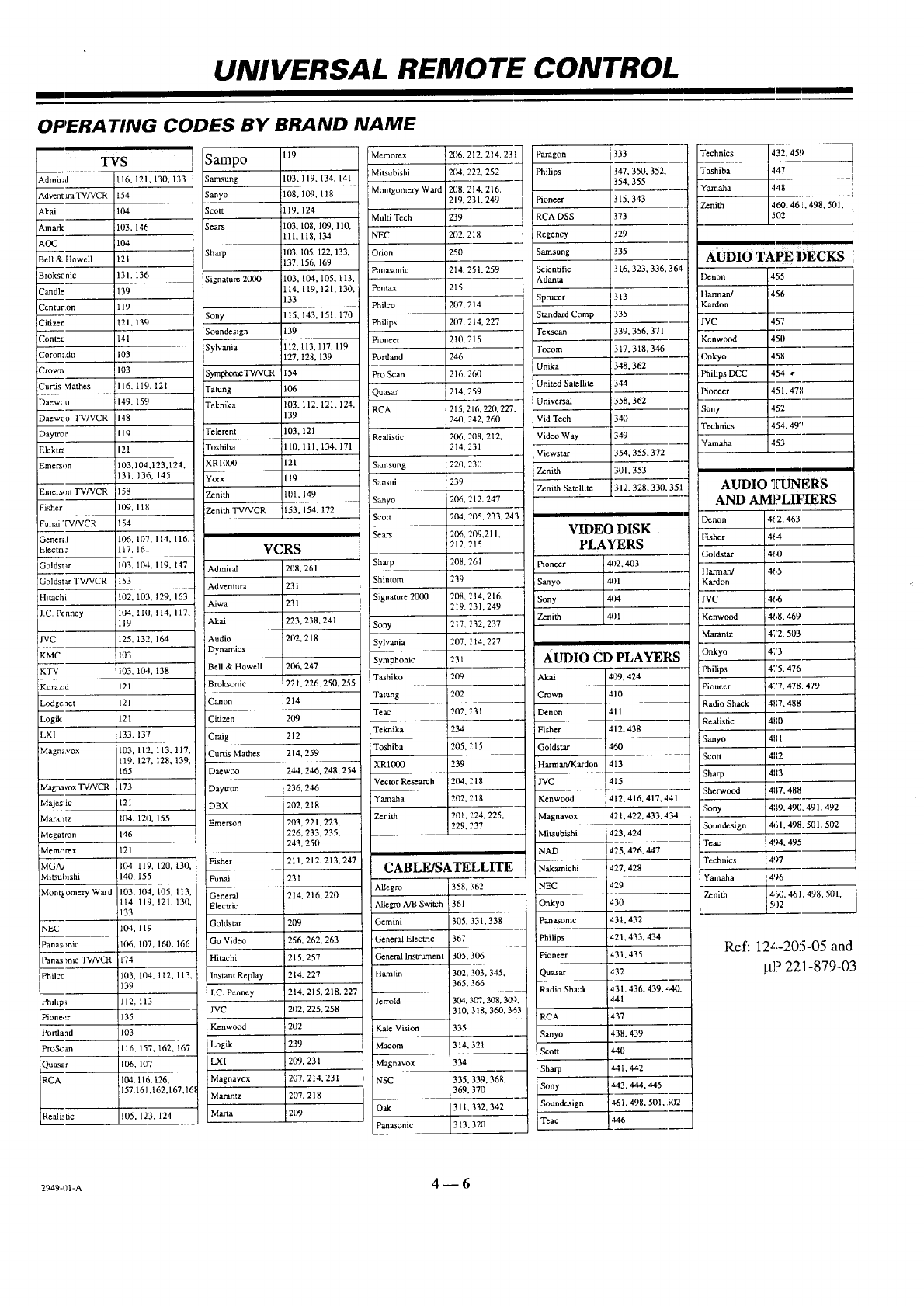
UNIVERSAL REMOTE CONTROL
OPERATING CODES BY BRAND NAME
TYS
Admmd
Adventlwa TVfv'CR
Akai
Amark
AOC
Bell & Howell
Brok._nic
Candle
enturon
Citizen
ontec
Coron; do
Crown
urtls Vlathes
Daewoo
Daewoo TV/VCR
Daytron
Elektra
Emerson
Emerslm TVNCR
Fisher
Funal "_WVCR
Gener;I
Electti:
Goldstar
Goldstar TV/VCR
Hitachi
1.C Penney
JVC
KMC
KTV
116. 121. 130. 133
154
104
103. 146
104
121
131. 136
139
19
121. 139
141
103
1113
16.119. 121
149. 159
148
119
121
103.104.123.124.
131. 136. 145
158
1139.118
154
106. 107. 114. 116.
117. 161
103. 104. 119. 147
153
102. 103. 129. 163
10t. 1111.114. 117.
119
125. 132. 164
103
103.10.1. 138
Sampo
Samsung
:Sa_yo
Sco_
Sears
Sharp
Signatum 2000
Sony
Soundesign
Sylvania
SmTVNCR
Tatung
Teknika
Telerent
Toshiba
XRI000
Yorx
Zenith
Zenith TV/VCR
Admiral
Adventura
Aiwa
Akai
Audio
Dynamics
Bell & Howell
119
103,119,134.141
108,109, 118
119,124
103, 108, 109,110,
111,118, 134
103,105,122,133,
137,156,169
103. 104,105, 113,
114,119,121.130,
133
115,143,151,170
139
112,113,117,119.
127,128, 139
154
106
103,112,121,124,
139
103,121
110.111,134,171
121
119
101,149
153,154.172
VCRS
2118.261
231
231
223. 238. 241
2112.218
2O6,247
Memorex
Mitsubishi
Montgomery Ward
Multi Tech
NEC
Orion
Panasonic
Pentax
Philco
Philips
Pioneer
Portland
Pro Scan
Quasar
RCA
Reahsdc
Samsung
Sansui
Sanyo
Scott
;ears
Sharp
;hintom
Signature 2000
Sony
Sylvania
Symphonic
21_.212.214.231
204. 222. 252
208.214.216.
219.231.249
239
202.218
250
214.251.259
215
207.214
207.214.227
210.215
246
216.260
214.259
215.216.220.227.
240. 242. 260
206,208,212,
214.231
220,230
239
206, 212.247
20.4.205.233.243
206,209,211,
212,215
208,261
239
208,214,216,
219,231,249
21%232,237
207,214,227
231
Paragon
Philips
Pioneer
RCA DSS
Regency
Samsung
Scientific
Atlanta
Sprucer
Standard Camp
Texscan
Tocom
Unika
United Satt:llite
Universal
Vid Tech
Video Way
Viewst.'_r
Zenith
Zenith Satellite
347.350. 352.
354.355
315.343
373
329
335
3t6. 323. 336.364
313
335
339. 356. 371
317.318.346
348. 362
344
358.362
34O
349
354. 355.372
301. 353
312.328.330. 351
VIDEO DISK
PLAYERS
P_oneer 4112.403
i Sanyo 401
oo,
Zenith
AUDIO CD PLAYERS
Technics 432.45!)
Toshiba 447
Yamaha 448
Zenith 460.46t. 498.501.
5O2
AUDIO TAPE DECKS
Denon 455
I']amman/ 456
Kardon
JVC 457
Kenwood 450
Onkyo 458
Phillps D_ 454 r
t_oneer 451. 478
Sony 452
Technics 454.49 "p
Yamaha 453
AUDIO ']tUNERS
AND AMPLIFIERS
Denon 462.463
IZtsher 464
(3oldstar 460
Harman/ 4(;5
Kardon
D,'C 466
Kenwood 468. 469
Marantz 4,'2. 503
Ortkyo 4"3
Kuraz:d
Lodge yet
Logik
LXI
Magn_vox
121
121
121
1133.
103.
119.
165
13"7
112.113.117.
12'7.128.139.
Broksonic
Canon
Citizen
Cmg
Curtis Mathes
Daewoo
221. 226. 250. 255
214
209
212
214. 259
244. 246.248. 254
Tashiko 209 Mcai 409. 424
iTatung 202 Crown 410
iTeac 202. 231 Denon 411
Teknika !234 Fisher 412. 438
Toshiba 205, 215 Goldstar 460
KR 1000 239 qaxman/Kardon 413
Philips 475,476
Pioneer 477,478,479
Radio Shack 4ll7, 488
Realistic 4110
Sanyo 481
Scott 4112
Sharp 4113
:Sherwood 4:17,488
:_ony 41_9,490, 49 l, 492
Soundesign 461,498. 501,502
reac 4!vl. 495
"l'echnics 497
Yamaha 496
Zenith 4,50. 461. 498. 501.
5,32
Magna mx TV/VCR
Majestic
Marantz
Megatron
Memorex
MGM
Mitsubishi
Montgomery Ward
NEC
Panaslmic
Philco
Philip.;
Pioneer
Ponlaad
ProScan
,ua_sar
RCA
173
I21
104. 120. 155
146
121
104 119, 120. 130.
140 155
103104,105,113.
114.119,121,130.
133
!04,119
106,107. 160, 166
174
103,104. 112. 113,
139
112,113
135
103
116,157.162,167
106. 107
104.116.126,
157.161,162,167,16_
Realistic 105. 123. 124
Daytron
)BX
Emerson
Fisher
Funai
General
Electric
Goldstar
Go Video
Hitachi
Instant Replay
J.C. Penney
JVC
Kenwood
Logik
LXI
Magnavox
Maramz
Maria
:236,246
202,218
203,221,223,
226.233,235,
243,250
211,212,213,247
231
214,216,220
209
256. 262. 263
215. 257
214. 227
214. 215. 218. 227
202. 225. 258
202
239
209. 231
207.214.231
207. 218
209
VecmrResearch 204.218
Yamaha 202.218
Zenith 201,224, 225,
229.237
CABLE/SATELLITE
Allegro
Allegro A/B Switch
iemini
General Electric
General Instrument
Hamlin
Jerrold
Kale Vision
dacom
Magnavox
NSC
Oak
Panasonic
358.362
361
305.331.338
367
305,3O6
302.3113.345,
365,366
304.307.308.3OL
310, 318. 360,3'53
335
314.321
334
335,339.368.
369.370
311.332.342
313,320
JVC
Kenwood
Magnaw_x
Mitsubishi
NAD
Nakamichi
NEC
Onkyo
Panasonic
Philips
Pioneer
Quasar
Radio Sh_ak
RCA
Sanyo
;cott
Sharp
Sony
Soundesign
Teac
415
412.416.417.441
421.422.433.434
423.424
425.426.447
427.428
429
430
431.432
421.433.434
431.435
432
431.436.439.._0.
441
437
Z38.439
_40
a41,442
a43. 444,445
461. 498,501. _02
446 ---
Ref: 12z;-205-05 and
p.]? 221-879-03
2949-III-A 4-- 6
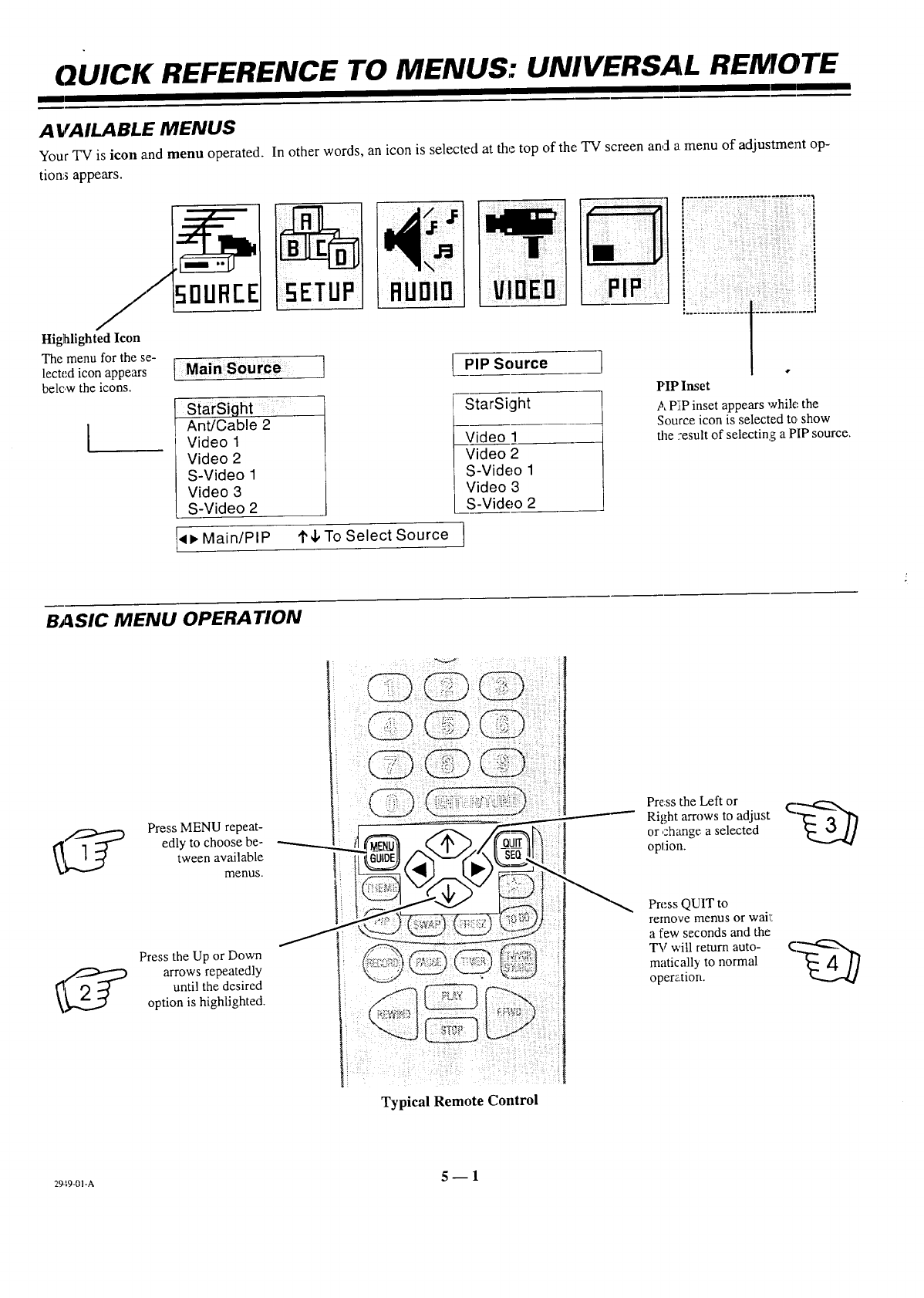
QUICK REFERENCE TO MENUS: UNIVERSAL REMOTE
I
AVAILABLE MENUS
Your "IV is icon and menu operated. In other words, an icon is selected at the top of the TV screen and a menu of adjustment op-
tions appears.
5:ju
ISETUP:] ..........
,uo,o
Highlighted Icon
ThelectedmenUiconfOrtheappearsSe-[ Main Sourbe J
below the icons.
IStarSight : :
Ant/Cable 2
Video 1
Video 2
S-Video 1
Video 3
S-Video 2
<p, Main/PIP
[PIP Source
StarSight
Video 1
Video 2
S-Video 1
Video 3
S-Video 2
q'4,To Select Source I
BASIC MENU OPERATION
_ ]_ Press MENU repeat-
edly to choose be-
tween available
menus.
Press the Up or Down
arrows repeatedly
until the desired
option is highlighted.
Press the Left or
Right arrows to adjust C_-._-x,_
or ch;mge a selected _57/
option.
Press QUIT to
remove menus or wak
a few seconds and the
TV will return auto- C-'"_
matically to normal
operation.
Typical Remote Control
2949-01-A 5- I
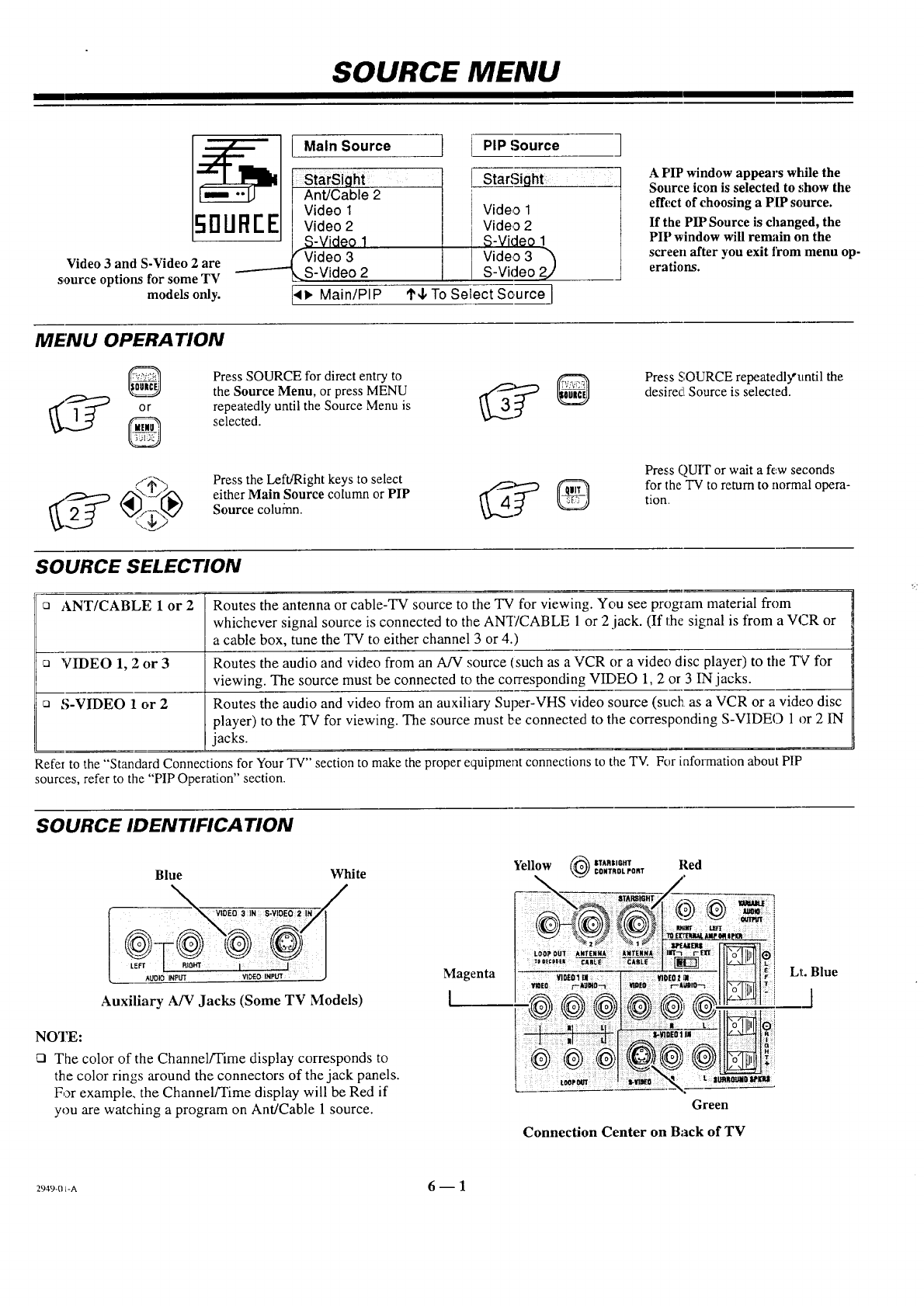
SOURCE MENU
Sg UREEI
Video 3 and S-Video 2 are
source options for some TV
models only.
Main Source [ [i PIP Source ]
StarSight =
Ant/Cable 2
Video 1
Video 2
S-Video 1
"-Video 3
K.S-Video 2
Video 1
Video 2
S-Video 1
Video 3
S-Vicleo 2.,./
'I'4, To Select Source I
• Main/PIP
APIP window appears while the
Source icon is selected to show the
effect of choosing a PIP source.
If the PIP Source is changed, the
PIP window will rem,'dn on the
screen after you exit from menu op-
erations.
MENU OPERATION
Press SOURCE for direct entry to
the Source Menu, or press MENU _
or repeatedly until the Source Menu is
_[]_ _ selected.
Press the Left/Right keys to select
either Main Source column or PIP
Source column.
Press SOURCE repeatedly'until the
desired Source is selected.
Press QUIT or wait a few seconds
for the TV to return to normal opera-
tion.
SOURCE SELECTION
aANT/CABLE 1 or 2 Routes the antenna or cable-TV source to the TV for viewing. You see program material from
whichever signal source is connected to the AN_ITCABLE 1 or 2.jack. (If the signal is from a VCR or
a cable box, tune the TV to either channel 3 or 4.)
n 'VIDEO 1, 2or 3Routes the audio and video from an A/V source (such as a VCR or a video disc player) to the TV for
viewing. The source must be connected to the corresponding VIDEO 1, 2 or 3 IN jacks.
S-VIDEO 1 or 2 Routes the audio and video from an auxiliary Super-VHS video source (such as a VCR or a video disc
player) to the TV for viewing. The source must be connected to the corresponding S-VIDEO 1 or 2 IN
jacks.
Refer to the "Standard Connections for Your TV" section to make the proper equipment connections to the TV. For information about PIP
sources, refer to the "PIP Operation" section.
SOURCE IDENTIFICATION
Blue White
_woEo 3_NS.WOEO2/
Auxiliary A!V Jacks (Some TV Models)
NOTE:
QThe color of the Channel/Time display corresponds to
the color rings around the connectors of the jack panels.
For example, the Channel/Time display will be Red if
you are watching a program on Ant/Cable 1 source.
Yellow (_ OT*.=onr RedCONTROL PORT
=,
: i
i
Magenta _:i Lt. Blue
Green
Connection Center on Back of TV
2949-01-A 6-- 1
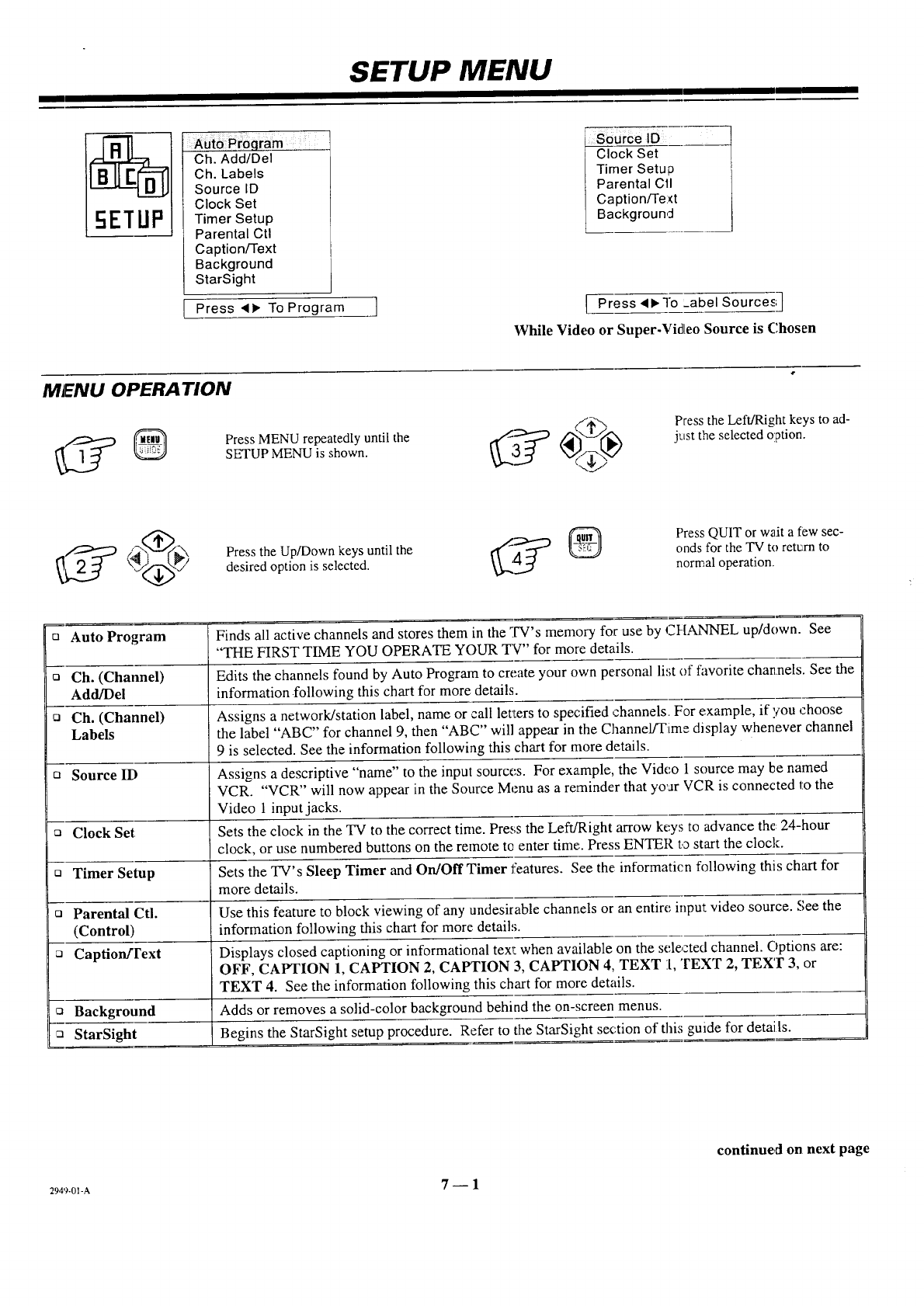
SETUP MENU
Ch. Add/Del
Ch. Labels
Source ID
Clock Set
Timer Setup
Parental Ctl
Caption/Text
Background
StarSight
Press 411_To Program ]
Clock Set 1
Timer Setup I
Parental Cll
Caption/Text
Background
[ Press ,ql_l'o :abel Sources]
While Video or Super-Video Source is C,hosen
MENU OPERATION
Press MENU repeatedly until the
SETUP MENU is shown.
Press the Left/Right keys to ad-
just the selected option.
Press the Up/Down keys until the
desired option is selected.
Press QUIT or wait a few sec-
onds for the TV to retc_rnto
normal operation.
mAuto Program
ca Ch. (Channel)
Add/Del
ca Ch. (Channel)
Labels
ca Source It-)
ca Clock Set
mTimer Setup
Finds all active channels and stores them in the TV's memory for use by CI-[ANNEL up/down. See
"THE FIRST TIME YOU OPERATE YOUR TV" for more details.
Edits the channels found by Auto Program to create your own personal list of favorite channels. See the
information following this chart for more details.
Assigns a network/station label, name or call letILersto specified channels. For example, if ,you choose
the label "ABC" for channel 9, then "ABC" will appear in the ChannelFFime display whenever channel
9 is selected. See the information following this chart for more details.
Assigns a descriptive "name" to the input sources. For example, the Video 1 source may be named
VCR. "VCR" will now appear in the Source Menu as a reminder that yoar VCR is connected to the
Video 1 input jacks.
Sets the clock in the TV to the correct time. Press the Left/Right arrow keys to advance the: 24-hour
clock, or use numbered buttons on the remote to enter time:. Press ENTER to start the clock.
Sets the TV's Sleep Timer and On/Off Timer features. See the: informaticn following this chart for
more details.
ca Parental Ctl. Use this feature to block viewing of any undesirable channels or an entire input video source. See the
(Control) information following this chart for more detail';.
c_ Caption/Text Displays closed captioning or informational texl: when available on the selected channel. Options are:
OFF, CAPTION 1, CAPTION 2, CAPTION 3, CAPTION 4, TEXT 1, TEXT 2, TEXT 3, or
TEXT 4. See the information following this chart for more details.
Q Background Adds or removes a solid-color background behind the on-screen menus.
:a StarSight Begins the StarSight setup procedure. Refer to the StarSight section of this guide for details.
2949-0I-A 7-- 1
continued onnext page
SETUP MENU
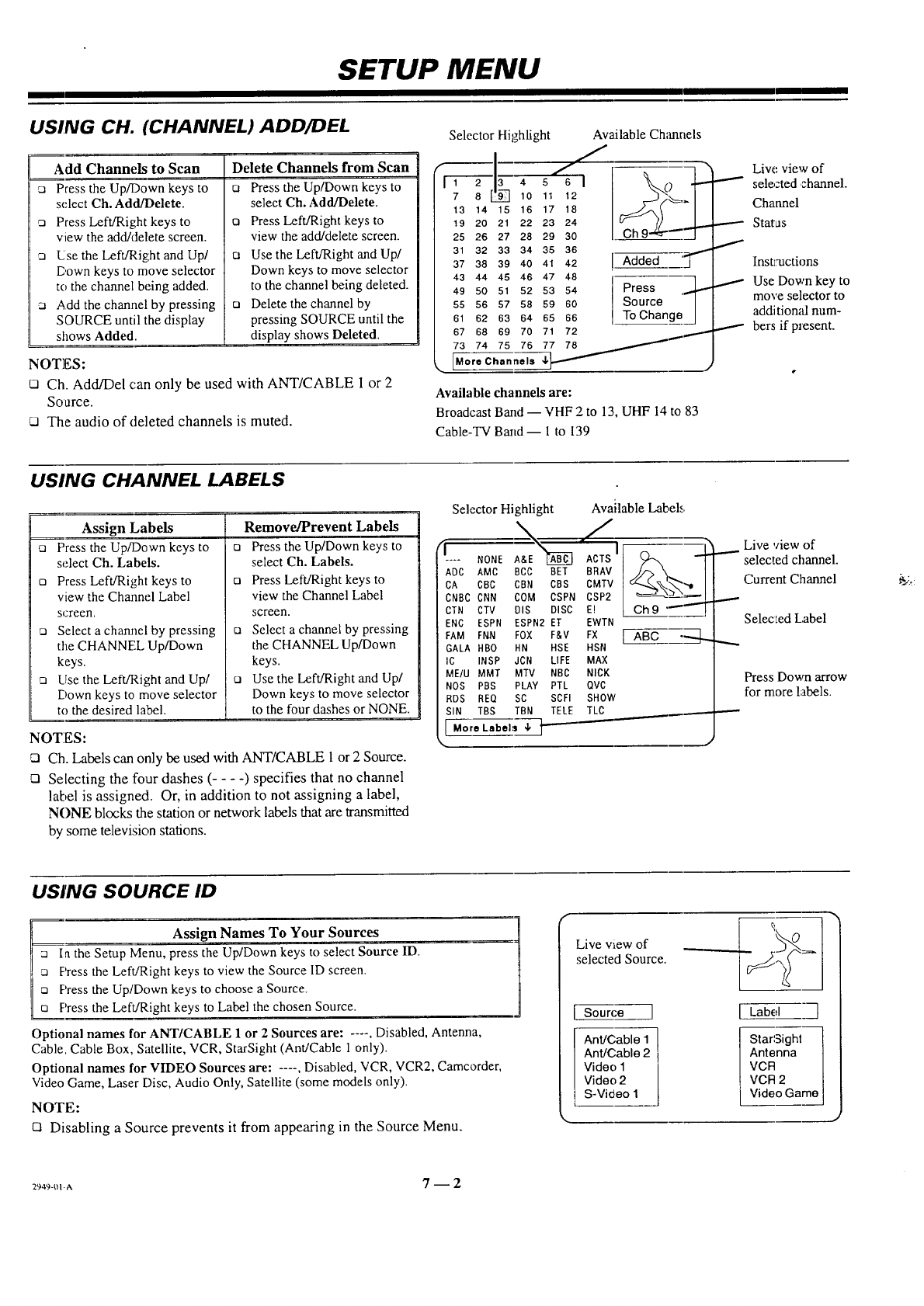
USING CH. (CHANNEL) ADD/DEL
Add Channels to Scan
Press the Up/Down keys to
select Ch. Add/Delete.
Press Left/Right keys to
view the add/delete screen.
_, Usethe Left/Right and Up/
I3.own keys to move selector
to the channel being added.
Add the channel by pressing
SOURCE until the display
shows Added.
Delete Channels from Scan
Press the Up/Down keys to
select Ch. Add/Delete.
Q Press Left/Right keys to
view the add/delete screen.
Use the Left/Right and Up/
Down keys to move selector
to the channel being deleted.
[] Delete the channel by
pressing SOURCE until the
display shows Deleted.
NOTES:
121Ch. Add/Del can only be used with ANT/CABLE I or 2
Source.
Cl The audio of deleted channels is muted.
Selector Highlight
,,,I/
F--2"-I_ 4 s s I
_ 10 11 12
7 8
13 14 15 16 17 18
19 20 21 22 23 24
25 26 27 28 29 30
31 32 33 34 35 36
37 38 39 40 41 42
43 44 45 46 47 48
49 50 51 52 53 54
55 56 57 58 59 60
61 62 63 64 65 66
67 68 69 70 71 72
73 74 75 76 77 78
k, [More Channels &J.-'_
Available Channels
[ Added '"_
Press
Source /
To ChangeJ
/
Available channels are:
Broadcast Band -- VHF 2 to 13, UHF 14 to 83
Cable-TV Band-- 1 to 139
Live view of
sele_zted channel.
Channel
---- Statas
Inst_nactions
I Use Down key to
move selector to
addition_d num-
bers if plesent.
USING CHANNEL LABELS
Assign Labels
a Press the Up/Down keys to
select Ch. Labels.
a Press Left/Right keys to
view the Channel Label
screen.
rn Select a channel by pressing
the CHANNEL Up/Down
keys.
mLrse the Left/Right and Up/
Down keys to move selector
to the desired label.
Remove/Prevent Labels
[] Press the Up/Down keys to
select Ch. Labels.
ta Press Left/Right keys to
view the Channel Label
screen.
ca Select a channel by pressing
the CHANNEL Up/Down
keys.
ca Use the Left/Right and Up/
Down keys to move selector
to the four dashes or NONE.
NOTES:
_3 Ch. Labels can only be used with ANT/CABLE 1 or 2 Source.
13 Selecting the four dashes (.... ) specifies that no channel
label is assigned. Or, in addition to not assigning a label,
NONE blocks the station or network labels that are transmitted
by some television stations.
Selector Highlight Available Labels
ADC AMC BCC BET BRAV
CA CBC CBN CBS CMTV "-_
CNBC CNN COM CSPN CSP2 ____b\_
CTN CTV DIS DISC E! Ch 9 "'"-""
ENC ESPN ESPN2 ET EWTN
FAM FNN FOX F&V FX [ ABC "'---_
GALA HBO HN HSE HSN
IC INSP JCN LIFE MAX
ME/U MMT MTV NBC NICK
NOS PBS PLAY PTL QVC
RDS REQ SC SCFI SHOW
SIN TBS TBN TELE TLC
[More Labels 4, t
Live view of
selected channel.
Current Channel
Selecled Label
Press Down arrow
for more labels.
USING SOURCE ID
Assign Names To Your Sources
Ia the Setup Menu, press the Up/Down keys to select Source ID.
Press the Left/Right keys to view the Source ID screen.
Press the Up/Down keys to choose a Source.
[] Press the Left/Right keys to Label the chosen Source.
Optional names for ANT/CABLE 1 or 2 Sources are: .... , Disabled, Antenna,
Cable, Cable Box, Satellite, VCR, StarSight (Ant/Cable 1 only).
Optional names for VIDEO Sources are: .... , Disabled, VCR, VCR2, Camcorder,
Video Game, Laser Disc, Audio Only, Satellite (some models only).
NOTE:
c3 Disabling a Source prevents it from appearing in the Source Menu.
Live v_ew of
selected Source.
Source ]
Ant/Cable 1
Ant/Cable 2
Video 1
Video 2
S-Vicleo 1
Label ]
Star',Sight ]
Antenna ]
vcn /
VCR 2 |
Video Game]
29_9-_vA 7-- 2
SETUP MENU
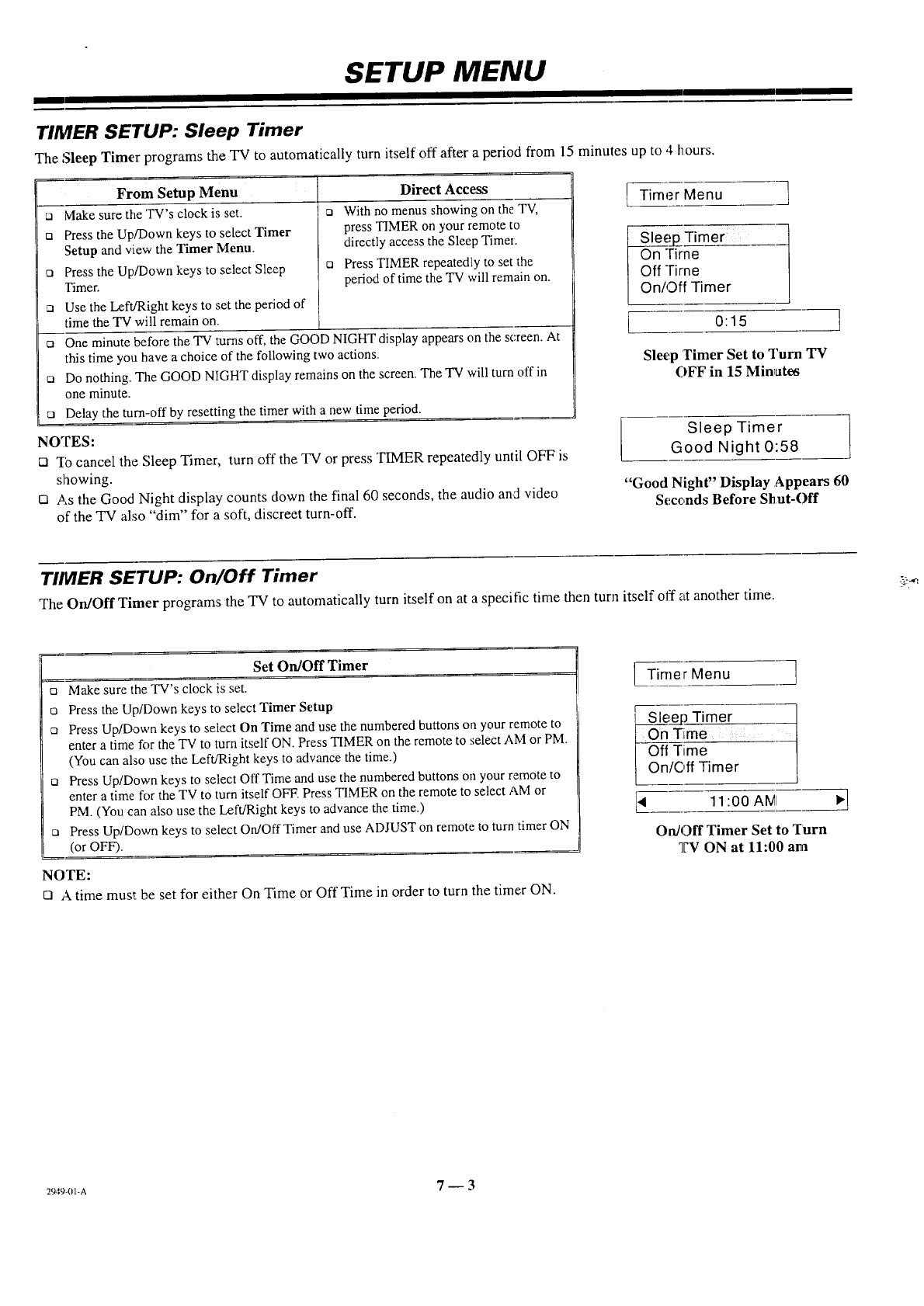
TIMER SETUP: Sleep Timer
The Sleep Timer programs the TV to automatically turn itself off after a period from 15 minutes up to 4 hours.
From Setup Menu
cJ Make sure the 'lW's clock is set.
o Press the Up/Down keys to select Timer
Setup and view the Timer Menu.
o Press the Up/Down keys to select Sleep
Timer.
c_ Use the Left/Right keys to set the period of
time the TV will remain on.
n
Direct Access
With no menus showing on the TV,
press TIMER on your remote to
directly access the Sleep TimeL
n Press TIMER repeatedly to set the
period of time the "IV will remain on.
One minute before the TV turns off, the GOOD NIGHT display appears on the screen. At
this time you have a choice of the following two actions.
D Do nothing. The GOOD NIGHT display remains on the screen. The TV will turn offin
one minute.
n Delay the turn-off by resetting the timer with a new time period.
NOTES:
D q[bcancel the Sleep Timer, turn off the TV or press TIMER repeatedly until OFF is
showing.
[] As the Good Night display counts down the final 60 seconds, the audio and video
of the TV also "dim" for a soft, discreet turn-off.
Timer Menu ]
_i_ _-Timer
rirne---
rime
ff Timer
l 0:15
Sleep Timer Set to Turn TV
OFF in 15 MinTates
Sleep Timer
Good Night 0:58
"Good Night" Display Appears 60
Seconds Before Shut-Off
TIMER SETUP: On/Off Timer
The On/Off Timer programs the TV to automatically turn itself on at a specific time then turn itself off at another time.
Set On/Off Timer
t3 Make sure the TV's clock is set.
o Press the Up/Down keys to select Timer Setup
ca Press Up/Down keys to select On Time and use the numbered buttons on your remote to
enter a time for the TV to turn itself ON. Press TIMER on the remote to select AM or PM.
(You can also use the Left/Right keys to advance the time.)
n Press Up/Down keys to select Off Time and use the numbered buttons on your remote to
enter a time R)r the TV to turn itself OFF. Press TIMER on the remote to select AM or
PM. (You can also use the Left/Right keys to advance the time.)
ca Press Up/Down keys to select On/Off Timer and use ADJUST on remote to turn timer ON
(or OFF).
NOTE:
rn Atime must be set for either On Time or Off Time in order to turn the timer ON.
[ Timer Menu ]
r.,ep Timer
Time i.
On/C, ff Timer
[< 11:00 AMI
On/Off Timer Set to Turn
TV ON at II:00 am
2949-01-A 7-- 3
SETUP MENU
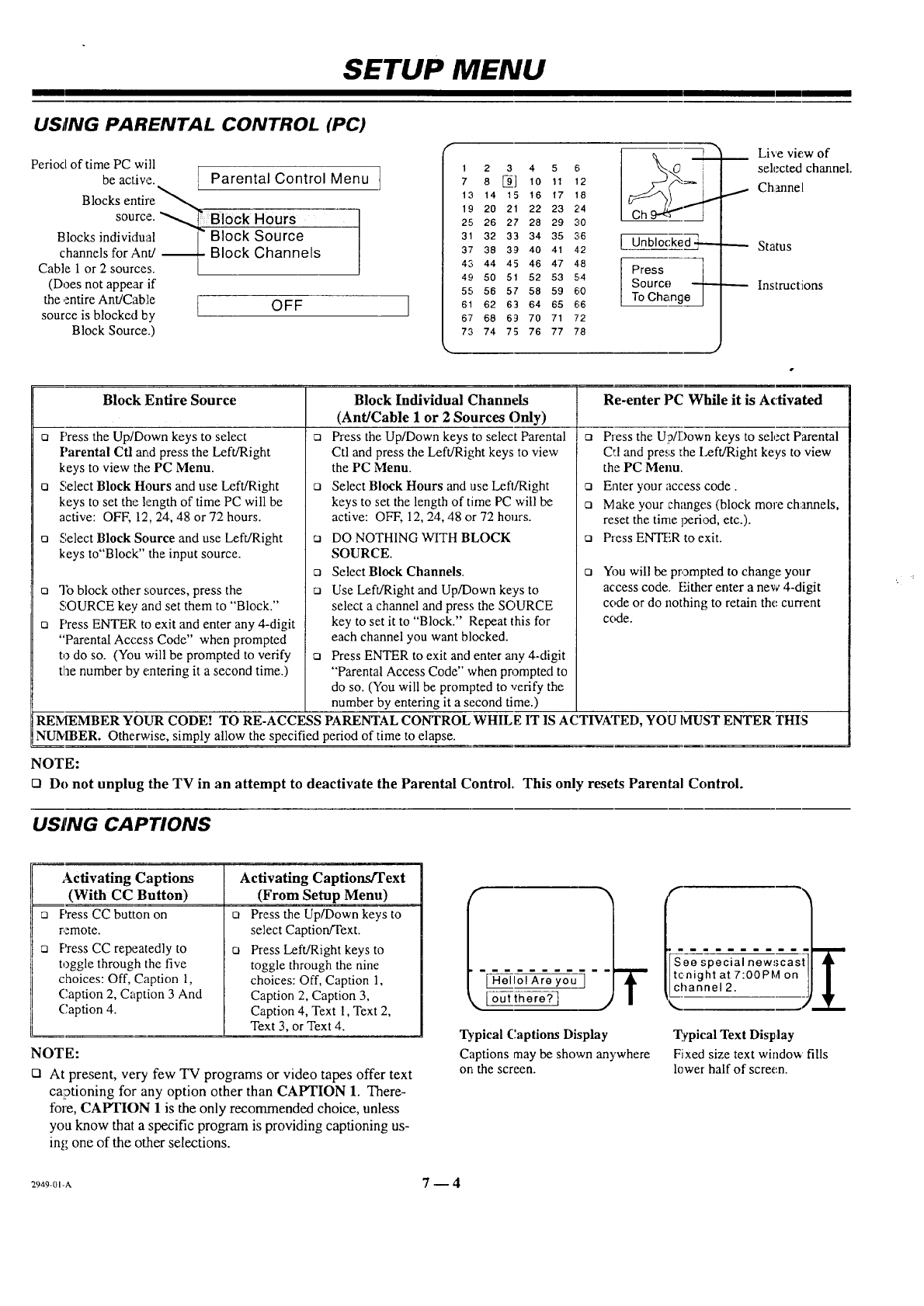
USING PARENTAL CONTROL (PC)
Period of time PC will
be active.. L[ Parental Control Menu ]
entire _ ---- _
Blocks
source. _ BlOck Hours
Blocks individual ]- Block Source
channels forAnd -_ Block Channels
Cable 1 or 2 sources. [
(Does not appear if
the entire Ant/Cable O F F
source is b!ocked by
Block Source.)
f
12 34 56
8 _] lo 11 12
7
13 14 15 16 17 18
19 20 21 22 23 7.'.4
25 26 27 28 29 30
31 32 33 34 35 2;6
37 38 39 40 41 4.2
43 44 45 46 47 4.8
49 50 51 52 53 5,4
55 56 57 58 59 60
61 62 63 64 65 66
67 68 69 70 71 72
73 74 75 76 77 7'8
I
d--q--_.___
Press ]
Source _
ToChange]
Live view of
selected channel.
Channel
Status
Instructions
Block Entire Source Re-enter PC While it is Activated
O [] O
Q
O
Press the Up/Down keys to select
Parental Ctl and press the Left/Right
keys to view the PC Menu.
Select Block Hours and use Left/Right
keys to set the length of time PC will be
active: OFF, 12, 24, 48 or 72 hours.
Select Block Source and use Left/Right
keys to"Block" the input source.
a qb block other sources, press the
SOURCE key and set them to "Block."
o Press ENTER to exit and enter any 4-digit
"Parental Access Code" when prompted
to do so. (You will be prompted to verify
the number by entering it a second time.)
Block Individual Channels
(Ant/Cable I or 2Sources Only)
Press the Up/Down keys to select Parental
Ctl andpress the Left/Right keys to view
the PC Menu.
o Select Block Hours and use Left/Right
keys to set the length of time PC will be
active: OFF, 12, 24, 48 or 72 hours.
[] DO NOTHING WITH BLOCK
SOURCE.
o Select Block Channels.
o Use Left/Right and Up/Down keys to
select a channel and press the SOURCE
key to set it to "Block." Repeat this for
each channel you want blocked.
o Press ENTER to exit and enter any 4-digit
"Parental Access Code" when prompted to
do so. (You will be prompted to verify the
number by entering it a second time.)
[]
O
O
[]
Press the Up/Down keys to select Parental
Cd and pre,;s the Left/Right keys to view
the PC Menu.
Enter your access code.
Make your ch_mges (block more channels,
reset the time lYeriod, etc.).
Press ENTER to exit.
You will be prompted to change your
access code. FJther enter a new 4-digit
code or do nothing to retain the cun'ent
cc_le.
REMEMBER YOUR CODEX TO RE-ACCESS PARENTAL CONTROL WHILE IT IS ACTIVATED, YOU IdUST ENTER THIS
NUMBER. Otherwise, simply allow the specified period of time to elapse.
NOTE:
ODo not unplug the TV in an attempt to deactivate the Parental Control, This only resets Parental Control.
USING CAPTIONS
0
Activating Captions
(With CC Button)
Press CC button on
remote.
Press CC repeatedly to
toggle through the five
choices: Off, Caption I,
Caption 2, Caption 3 And
Caption 4.
O
O
Activating Captions/Text
(From Setup Menu)
Press the Up/Down keys to
select Caption/Text.
Press Left/Right keys to
toggle through the nine
choices: Off, Caption 1,
Caption 2, Caption 3,
Caption 4, Text 1, Text 2,
Text 3, or Text 4.
NOTE:
OAt present, very few TV programs or video tapes offer text
captioning for any option other than CAPTION 1. There-
fore, CAPTION 1 is the only recommended choice, unless
you know that aspecific program is providing captioning us-
ing one of the other selections.
-I ;o;3 T
lout there? tj
Typical Captions Display
Captions may be shown anywhere
on the screen.
See special newscast
tcnight at 7:00PM on
channel 2. !
Typical Text Display
Fixed size text window fills
lower half of screen.
2949-01-A 7-- 4
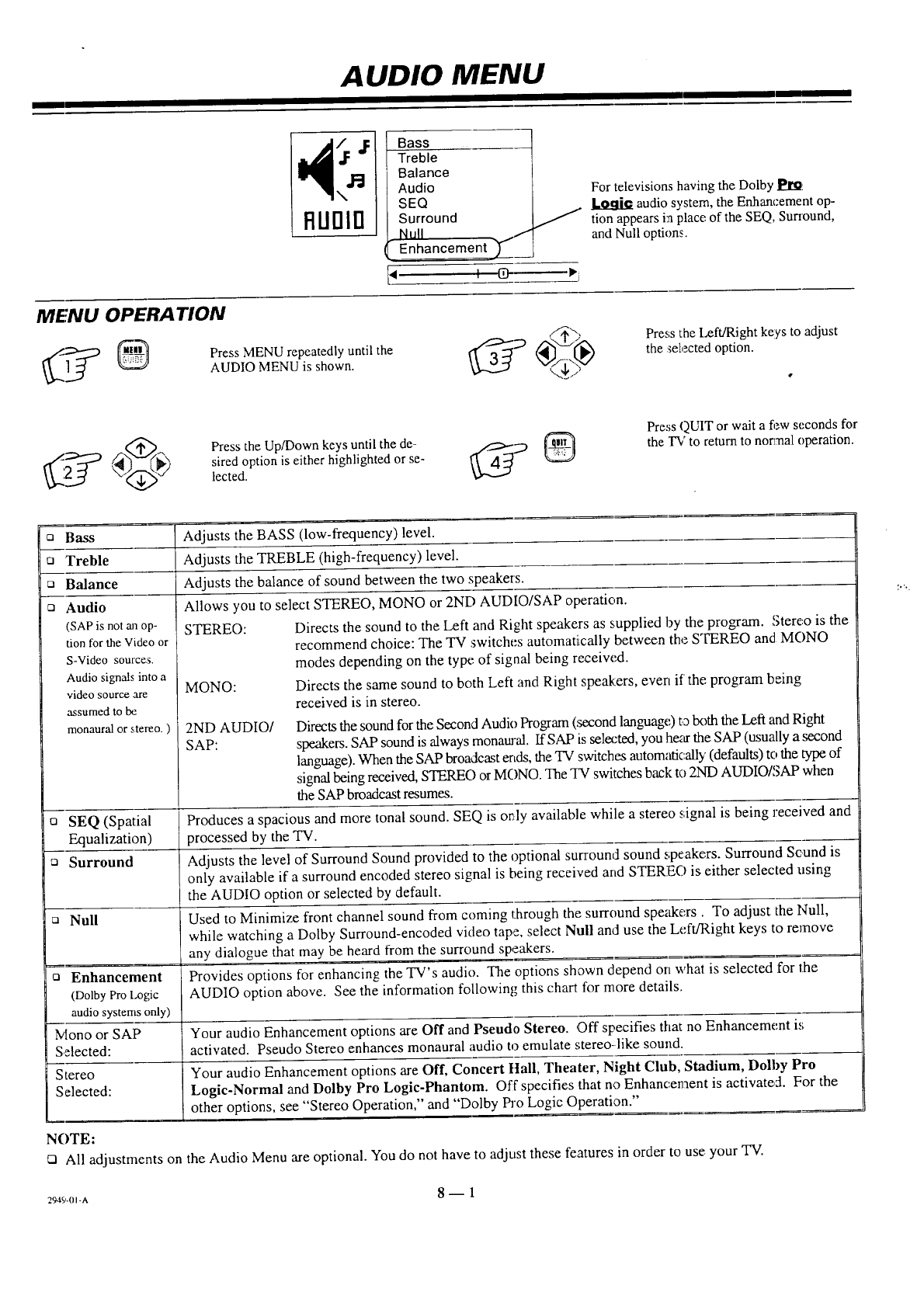
AUDIO MENU
\
RLIDID
Bass
YT_e
Balance
Audio
SEQ
Surround
Null _J
- Enhancement ____
For televisions having the Dolby P_l_
audio system, the Enhancement op-
t'/" tion appears in place of the SEQ, Surround,
and Null options.
M£WU OPERATION
_]_ _ Press MENU repeatedly until the
AUDIO MENU is shown.
Press the Left/Right keys to adjust
the sel,zcted option.
Press the Up/Down keys until the de-
sired option is either highlighted or se-
lected.
Press QUIT or wait a fi-_wseconds for
the TV to return to normal operation.
o Bass
ta Treble
ca Balance
Audio
(SAP is not aJ1op-
tion for the Video or
S-Video sources.
Audio signals into a
video sourceare
assumed to be
monaural or stereo. )
Adjusts the BASS (low-frequency) level.
Adjusts the TREBLE (high-frequency) level.
Adjusts the balance of sound between the two speakers.
Allows you to se]ect STEREO, MONO or 2ND AUDIO/SAP operation.
STEREO: Directs the sound to the Left and Right speakers as supplied by the pro_am. Stereo is the
recommend choice: The TV switches automatically between the STEREO and MONO
modes depending on the type of signal being received.
MONO: Directs the same sound to both Left and Right speakers, even if the program being
received is in stereo.
2ND AUDIO/
SAP:
Directs the sound for the Second Audio Program (.second language,) to tx)th the Left and Right
speakers. SAP sound is always monatnal. If SAP is selected, you he_ the SAP (usually a second
language). When the SAP broadcast ends, the TV switches automatically (defaults) to the type of
signal being received, STEREO or MONO. The "IY switches back to 2ND AUDIO/SAP when
the SAP broadcast resumes.
ta SEQ (Spatial Produces a spacious and more tonal sound. SEQ is only available while a stereo signal is being received and
Equalization) processed by the TV.
Surround Adjusts the level of Surround Sound provided to the optional surround sound speakers. Surround Sound is
only available if a surround encoded stereo signal is being received and STEREO is either selected using
the AUDIO option or selected by default.
ca Null Used to Minimize front channel sound from coming through the surround speakers. To adjust the Null,
while watching a Dolby Surround-encoded video tape, select Null and use the Left/Right keys to remove
any dialogue that may be heard from the surround speakers.
a Enhancement Provides options for enhancing the TV's audio. The options shown depend on what is selected for the
(Dolby Pro Logic AUDIO option above. See the information following this chart for more details.
audio systems only)
lVlono or SAP Your audio Enhancement options are Off and Pseudo Stereo. Off specifies that no Enhancement is
Selected: activated. Pseudo Stereo enhances monaural audio to emulate stereo-like sound.
Stereo Your audio Enhancement options are Off, Concert ttall, Theater, Night Club, Stadium, Dolby Pro
Selected: Logic-Normal and Dolby Pro Logic-Phantom. Off specifies that no Enhancement is activated. For the
other options, see "Stereo Operation," and "Dolby Pro Logic Operation."
NOTE:
ci All adjustments on the Audio Menu are optional. You do not have to adjust these features in order to use your "IV.
294s,.(,-A 8 _ 1
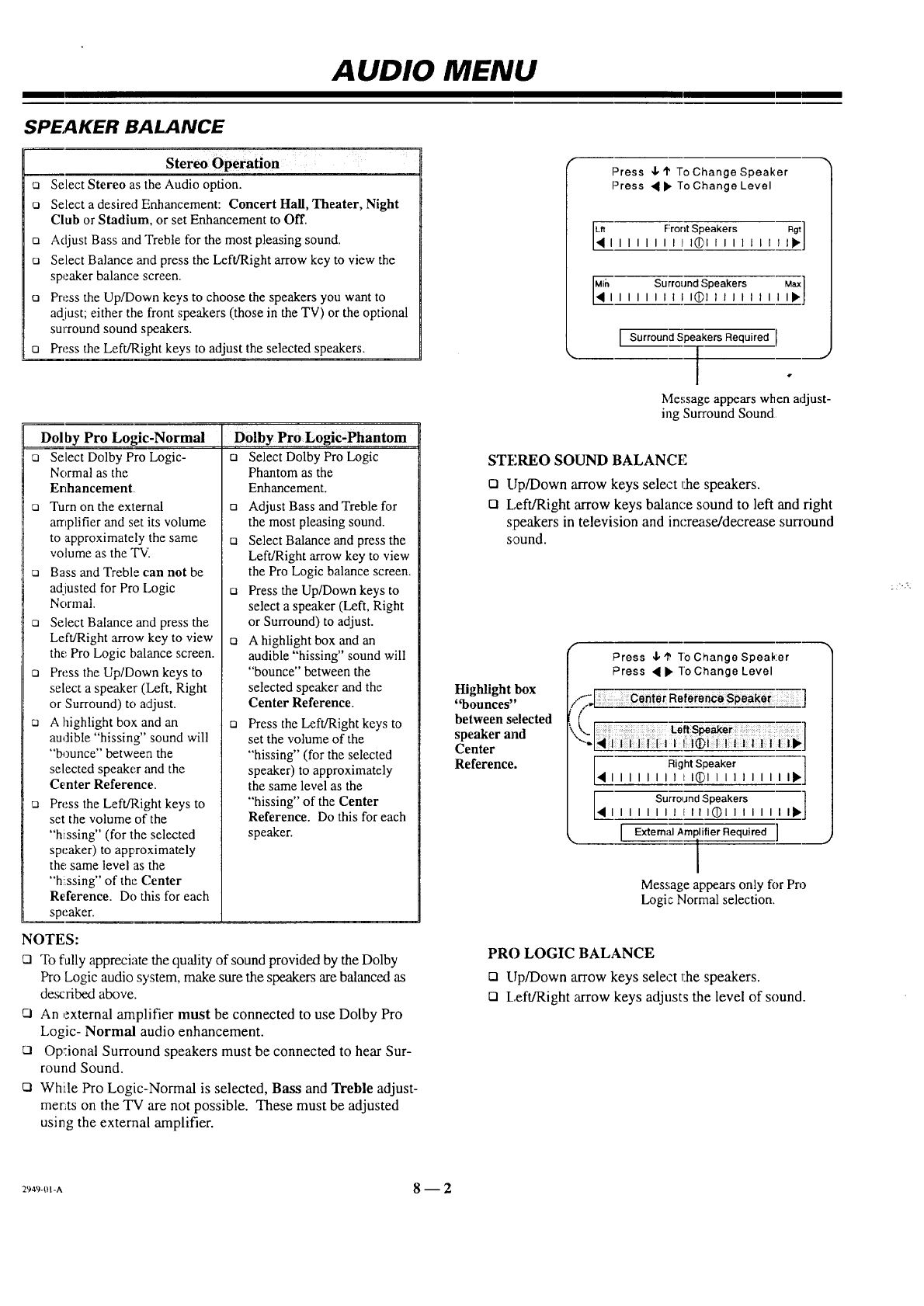
AUDIO MENU
SPEAKER BALANCE
Stereo Operation
c_ Select Stereo as the Audio option.
oSelect a desired Enhancement: Concert Hall, Theater, Night
Club or Stadium, or set Enhancement to Off.
nAdjust Bass and Treble for the most pleasing sound.
ca Select Balance and press the Left/Right arrow key to view the
speaker balance screen.
oPress the Up/Down keys to choose the speakers you want to
adiust; either the front speakers (those in the TV) or the optional
surround sound speakers.
nPress the Left/Right keys to adjust the selected speakers.
Dol by Pro Logic-Normal
[] Select Dolby ProLogic-
Normal as the
Enhancement
n Turn on the external
amplifier and set its volume
to approximately the same
volume as the T¥i
ca Bass and Treble can not be
adjusted for Pro Logic
Normal.
ca Select Balance and press the
Left/Right arrow key to view
the Pro Logic balance screen.
a Press the Up/Down keys to
select a speaker (Left, Right
or Surround) to adjust.
ca A highlight box and an
audible "hissing" sound will
"bounce" between the
selected speaker and the
Center Reference.
[] Press the Left/Right keys to
set the volume of the
"hissing" (for the selected
speaker) to approximately
the:same level as the
"hissing" of the (,'enter
Reference. Do this for each
speaker.
Dolby Pro Logic-Phantom
ca Select Dolby Pro Logic
Phantom as the
Enhancement.
ca Adjust Bass and Treble for
the most pleasing sound.
rn Select Balance and press the
Left/Right arrow key to view
the Pro Logic balance screen.
ca Press the Up/Down keys to
select a speaker (Left, Right
or Surround) to adjust.
ca A highlight box and an
audible "hissing" sound will
"bounce" between the
selected speaker and the
Center Reference.
n Press the Left/Right keys to
set the volume of the
"hissing" (for the selected
speaker) to approximately
the same level as the
"hissing" of the Center
Reference. Do this for each
speaker.
NOTES:
[] To fally appreciate the quality of sound provided by the Dolby
Pro Logic audio system, make sure the speakers are balanced as
described above.
[] An external amplifier must be connected to use Dolby Pro
Logic- Normal audio enhancement.
[] Optional Surround speakers must be connected to hear Sur-
round Sound.
[] While Pro Logic-Normal is selected, Bass and Treble adjust-
ments on the TV are not possible. These must be adjusted
using the external amplifier.
Press 4, '1" To Change Speaker
Press • t_ re Change Level
I_ Front Speakers Rgt ]
I I tlitill_lrlllllt ll*J
Mil..__h Surround Speakers /;]
I I I I I I I I I@1 I I I I I I I
Surround Speakers Required
Message appears when adjust-
ing Surround Sound
STEREO SOUND BALANCE
Cl Up/Down arrow keys select 1:hespeakers.
[] I.,eft/Right arrow keys balance sound to left and right
speakers in television and increase/decrease surround
sound.
Highlight box
"bounces"
between selected
speaker and
Center
Reference.
Press 4, _' To Change Speaker
Press • I_ ToChange Level
,...._,,1,: Center RefemnC_Speake_ ]
(
k,,. ]
'x._;i [ [;iii:151;ii: ii IiiP,]
Right Speaker ]
[• Surro,Jnd Speakers ]
I I I I I I I I III I(i)l I I I I I I I_"
_. [External Amplifier Required ]
I
Message appears only for Pro
Logic Normal selection.
PRO LOGIC BALANCE
[] Up/Down arrow keys select 1:he speakers.
[] Left/Right arrow keys adjusts the level of sound.
_-m-A 8-- 2
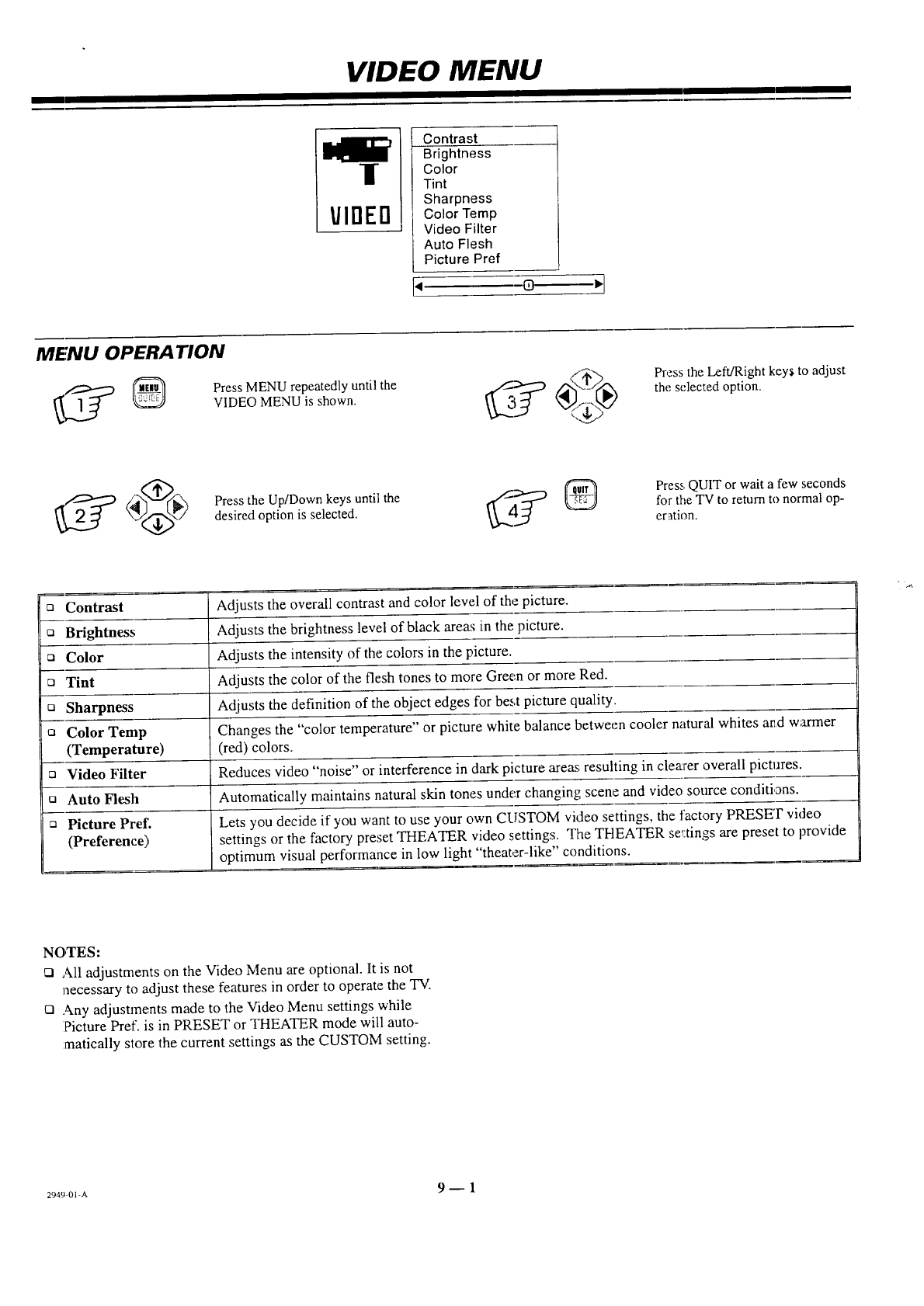
VIDEO MENU
|
YlrlErl
Contrast
Brightness
Color
Tint
Sharpness
Color Temp
Video Filter
Auto Flesh
Picture Pref
MENU OPERA ]'ION
_ ]_ _ Press MENU repeatedly until the
VIDEO MENU is shown.
Press the Left/Right keys to adjust
the selected option.
Press the Up/Down keys until the
desired option is selected.
Press,QUIT or wait a few seconds
for the TV to return to Normal op-
eration.
oContrast
oBrightness
o Color
o Tint
oSharpness
oColor Temp
(Temperature)
oVideo Filter
oAuto Flesh
oPicture Pref.
(Preference)
Adjusts the overall contrast and color level of the picture.
Adjusts the brightness level of black areas in the picture,
Adjusts the intensity of the colors in the picture.
Adjusts the color of the flesh tones to more Green or more Red.
Adjusts the definition of the object edges for best picture quality.
Changes the "color temperature" or picture white balance between cooler natural whites and warmer
(red) colors,
Reduces video "noise" or interference in dark picture areas resulting in clearer overall pictures,
Automatically maintains natural skin tones under changing scene and video source conditions.
Lets you decide if you want to use your own CUSTOM video settings, the factory PRESET video
settings or the factory preset THEATER video settings. The THEATER se_-tings are preset to provide
optimum visual performance in low light "theater-like" conditions.
NOTES:
Cl All adjustments on the Video Menu are optional. It is not
necessary to adjust these features in order to operate the TV.
Cl Any adjustments made to the Video Menu settings while
Picture Pref. is in PRESET or THEATER mode will auto-
matically store the current settings as the CUSTOM setting.
2949-01-A 9-- 1
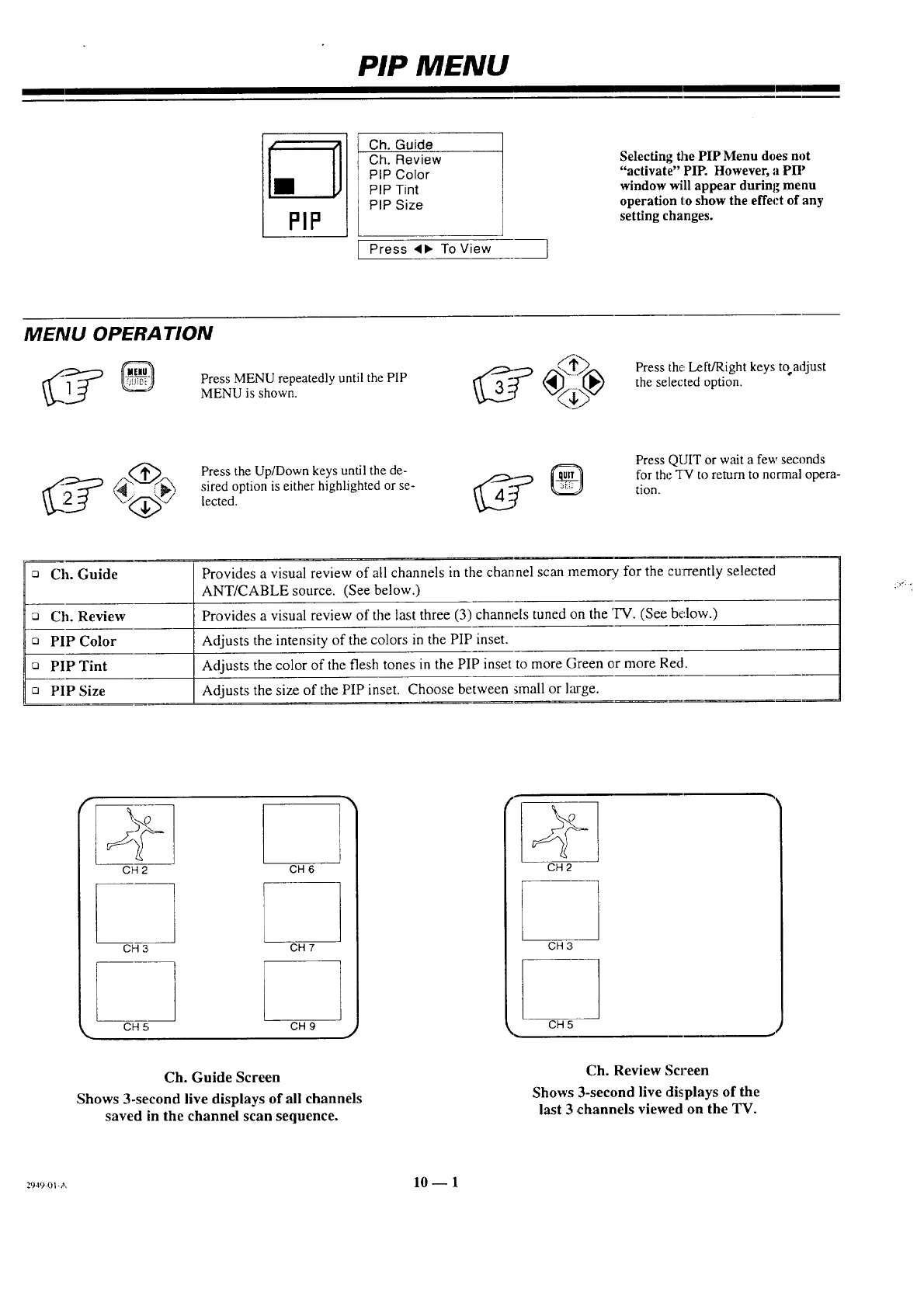
PIP MENU
Ch. Guide
Ch. Review
PIP Color
PIP Tint
PIP Size
Press <1_ ToView }
Selecting the PIP Menu does not
"activate" PIP. However, aPIP
window will appear during menu
operation to show the effect of any
setting changes.
MENU OPERA TION
_]_ [[_-JJ Press MENU repeatedly until the PIP
MENU is shown.
Press the Left/Right keys toadjust
the selected option.
.@_ Press the Up/Down keys until the de-
_.'2_ ¢x_f_-'_J siredoptioniseitherhighlightedorse-lected. _P
Press QUIT or wait a few seconds
for the "1-¥ to return to nerrnal opera-
tion.
a Ch. Guide Provides a visual review of all channels in the channel scan memory for the currently selected
ANT/CABLE source. (See below.)
u Ch. Review Provides a visual review of the last three (3) channels tuned on the 'IV. (See below.)
n PIP Color Adjusts the intensity of the colors in the PIP inset.
u PIP Tint Adjusts the color of the flesh tones in the PIP inset to more Green or more Red.
n PIP Size Adjusts the size of the PIP inset. Choose between _mall or large.
@
CH2
CH 3
CH5
CH6
CH 7
CH9
Ch. Guide Screen
Shows 3-second live displays of all channels
saved in the channel scan sequence.
CH 2
CH 3
CH 5
Ch. Review Screen
Shows 3-second live displays of the
last 3 ,channels viewed on the TV.
2949-0bA 10- 1
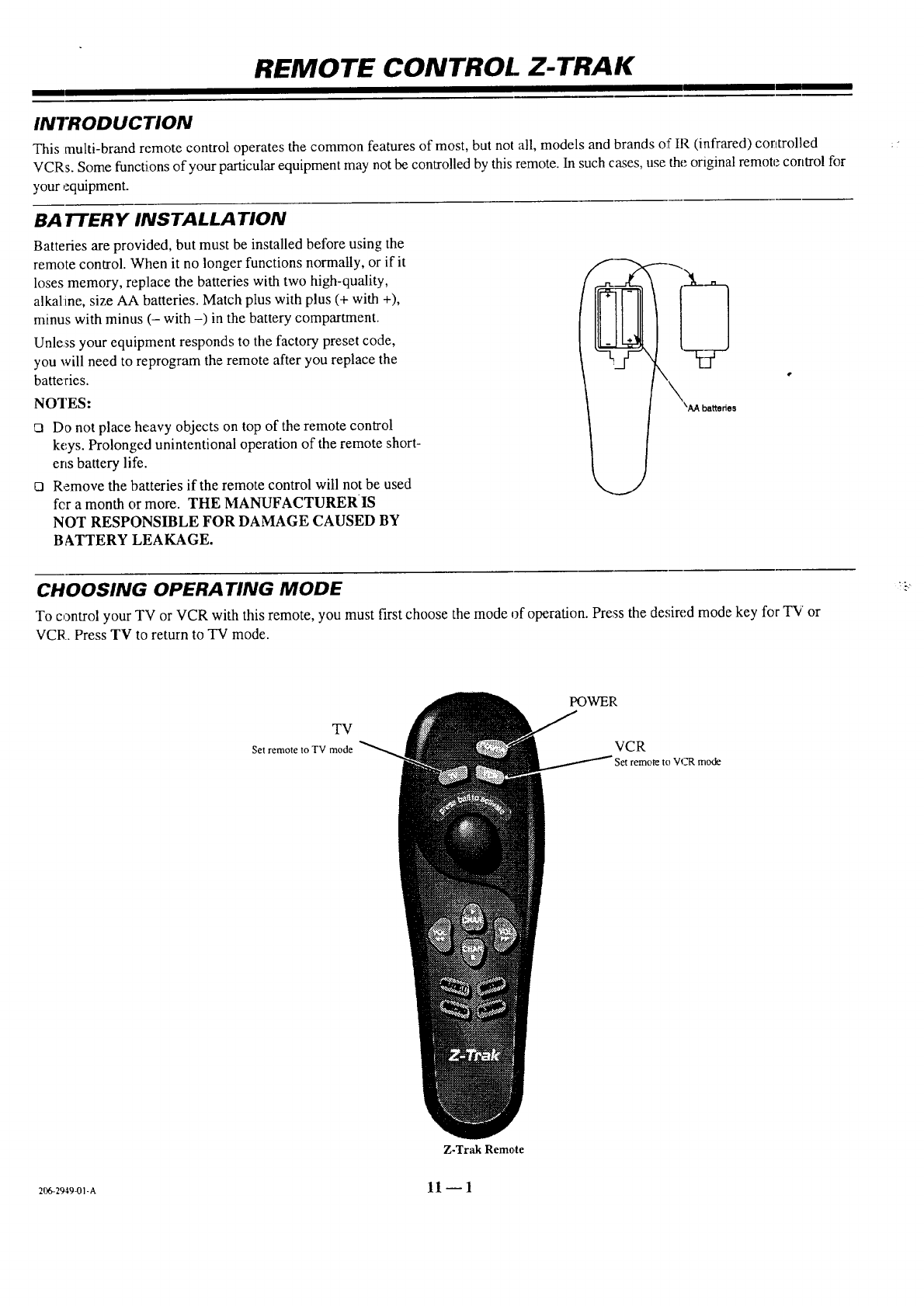
REMOTE CONTROL Z-TRAK
INTRODUCTION
This multi-brand remote control operates the common features of most, but not all, models and brands of IR (infrared) controlled
VCRs. Some functions of your particular equipment may not be controlled by this remote. In such cases, use the original remote control for
your equipment.
BATTERY INSTALLATION
Batteries are provided, but must be installed before using the
remote control. When it no longer functions normally, or if it
loses memory, replace the batteries with two high-quality,
alkal:ine, size AA batteries. Match plus with plus (+ with +),
minus with minus (- with -) in the battery compartment.
Unless your equipment responds to the factory preset code,
you will need to reprogram the remote after you replace the
batteries.
NOTES:
_1 Do not place heavy objects on top of the remote control
keys. Prolonged unintentional operation of the remote short-
ens battery life.
o Remove the batteries if the remote control will not be used
fcr a month or more. THE MANUFACTURERIS
NOT RESPONSIBLE FOR DAMAGE CAUSED BY
BATTERY LEAKAGE.
CHOOSING OPERA TING MODE
To control your TV or VCR with this remote, you must first choose the mode of operation. Press the de,;ired mode key for TV or
VCR. Press TV to return to TV mode.
!-:
TV
Set remote to TV mode
POWER
VCR
:remote to VCR mode
Z.Trak Remote
206-2949_91.A 11 -- 1
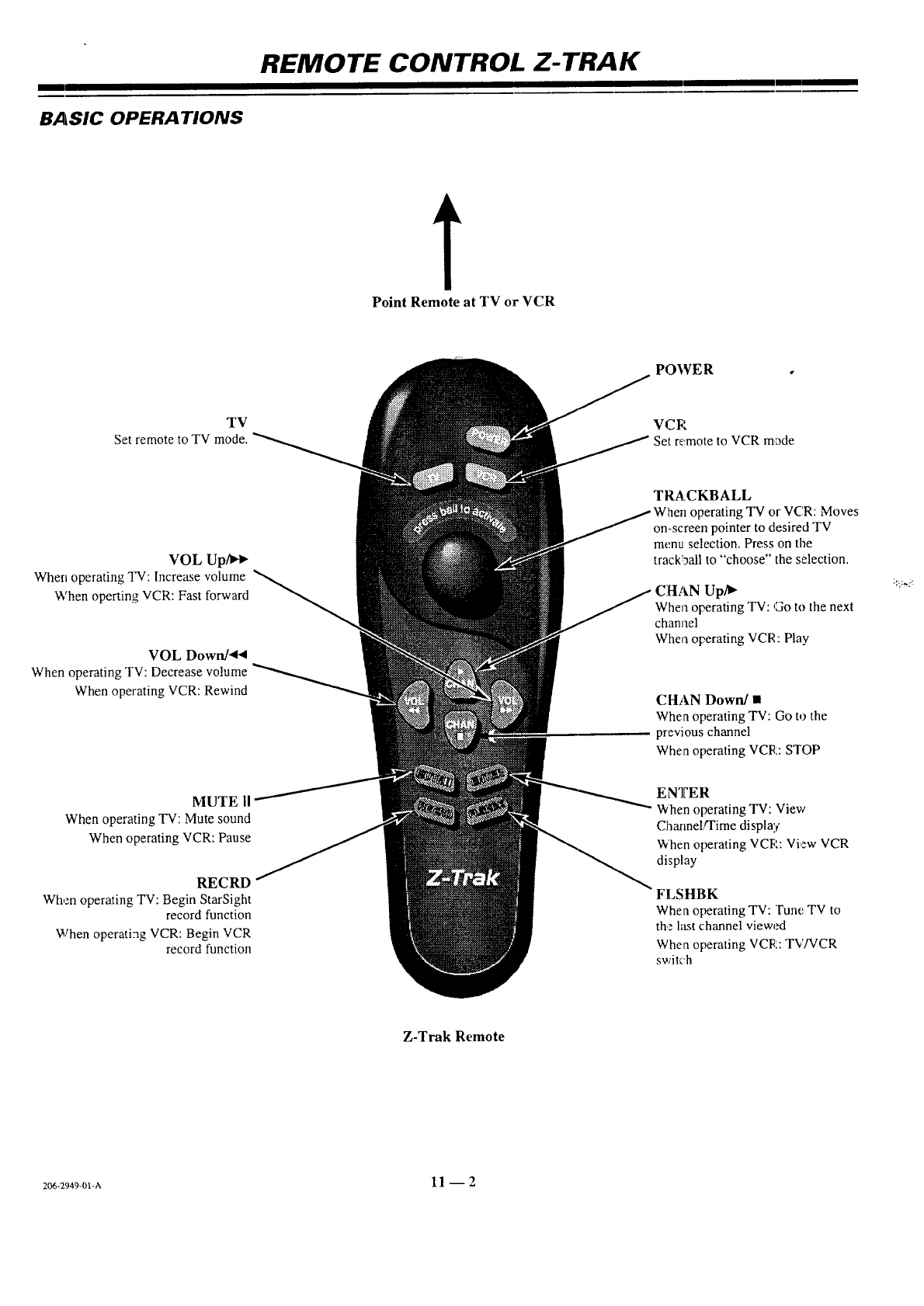
REMOTE CONTROL Z-TRAK
BASIC OPERA TIONS
Point Remote at TV or VCR
TV
Set remote to TV mode.
VOL Up/l_
When operating TV: Increase volume
When operting VCR: Fast forward
VOL Down/'q_
When operating TV: Decrease volume
When operating VCR: Rewind
MUTE II
When operating TV: Mute sound
When operating VCR: Pause
RECRD
When operating TV: Begin StarSight
record function
When operating VCR: Begin VCR
record function
POWER
VCR
Set remote to VCR mode
TRACKBALL
operating "IN or VCR: Moves
on-screen pointer to desired TV
menu selection. Press on the
track!gall to "choose" the selection.
CHAN Up/_
When operating"IV: Go to the next
channel
When operating VCR: Play
CHAN Down/•
When operating TV: Go to the
previous channel
When operating VCR: STOP
ENTER
When operating TV: View
Channel,q'ime display
When operating VCR: View VCR
display
FLSHBK
When operating "IV: Tune TV to
the htst channel viewed
When operating VCR: TV/VCR
switch
;::]'_5
Z-Trak Remote
206-2949-01-A 11 -- 2
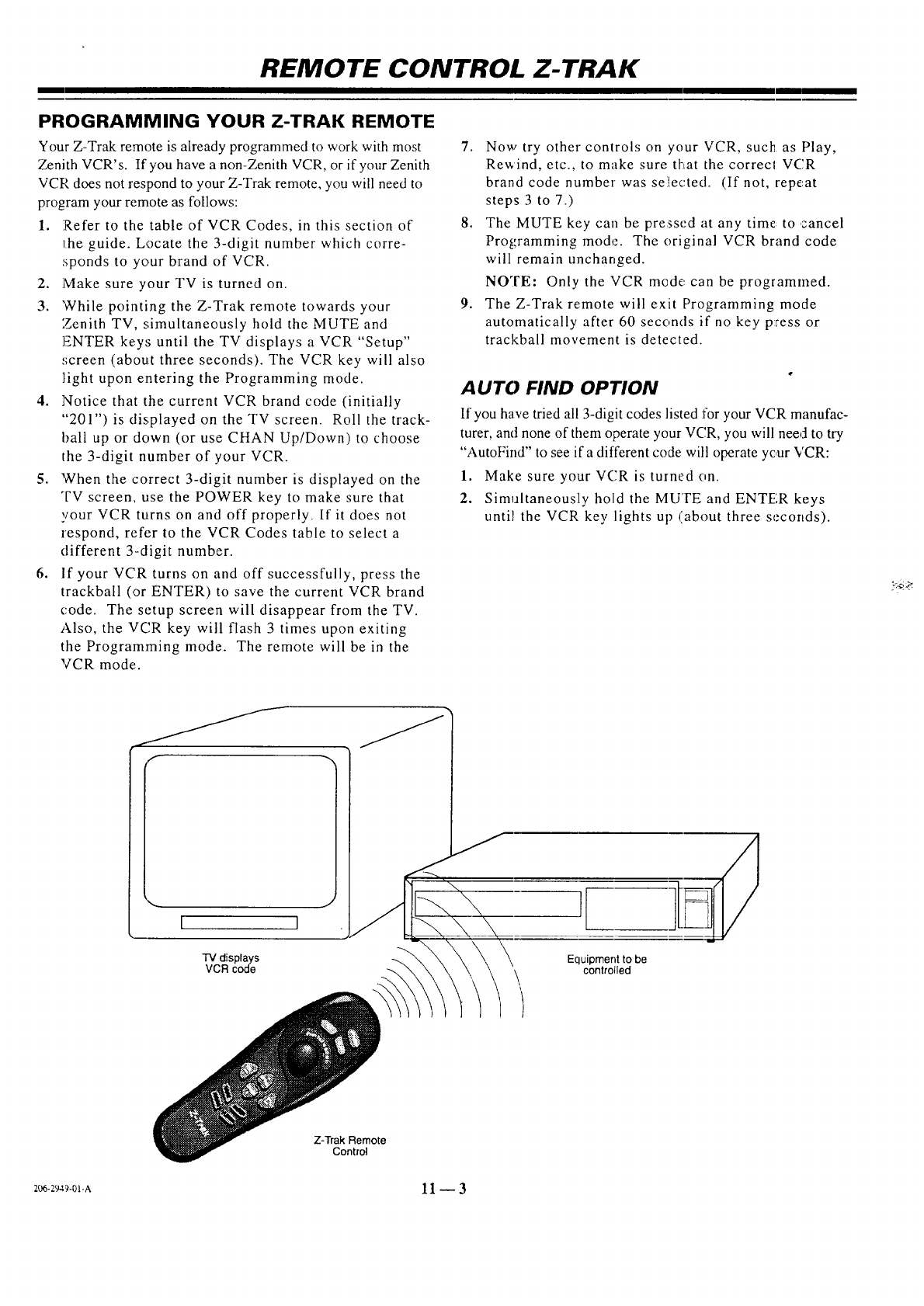
REMOTE CONTROL Z-TRAK
PROGRAMMING YOUR Z-TRAK REMOTE
Your Z-Trak remote is already programmed to work with most
Zenith VCR's. If you have a non-Zenith VCR, or if your Zenith
VCR does not respond to your Z-Trak remote, you will need to
program your remote as follows:
1. Refer to the table of VCR Codes, in this section of
the guide. Locate the 3-digit number which corre-
sponds to your brand of VCR.
2. ]Vlake sure your TV is turned on.
3. While pointing the Z-Trak remote towards your
Zenith TV, simultaneously hold the MUTE and
]ENTER keys until the TV displays a VCR "Setup"
screen (about three seconds). The VCR key will also
light upon entering the Programming mode.
4. Notice that the current VCR brand code (initially
"201") is displayed on the TV screen. Roll the track-
ball up or down (or use CHAN Up/Down) to choose
the 3-digit number of your VCR.
5. When the correct 3-digit number is displayed on the
TV screem use the POWER key to make sure that
your VCR turns on and off properly. If it does not
respond, refer to the VCR Codes table to select a
different 3-digit number.
6. If your VCR turns on and off successfully, press the
trackball (or ENTER) to save the current VCR brand
code. The setup screen will disappear from theTV.
Also, the VCR key will flash 3 times upon exiting
the Programming mode. The remote will be in the
VCR mode.
7. Now try other controls on your VCR, such as Play,
Rewind, etc., to make sure that the correc! VCR
brand code number wasse]ected. (If not, repeat
steps 3 to 7.)
8. The MUTE key can be pressed at any time: to cancel
Programming mode. The original VCR brand code
will remain unchanged.
NOTE" Only the VCR mode can be programmed.
9. The Z-Trak remote will exit Programming mode
automatically after 60 seconds if no key press or
trackball movement is detected.
AUTO FIND OPTION
If you have tried all 3-digit codes listed for your VCR manufac-
turer, and none of them operate your VCR, you will need to try
"AutoFind" to see if a different code will operate yc,ur VCR:
1. Make sure your VCR is tuined on.
2. Simultaneously hold the MUTE and ENTER keys
until the VCR key lights up (about three seconds).
I
"IV displays
VCR code
,[
Equipment to be
controlled
Z-Trak Remote
Control
_C_-2_-O1-A 11 _ 3
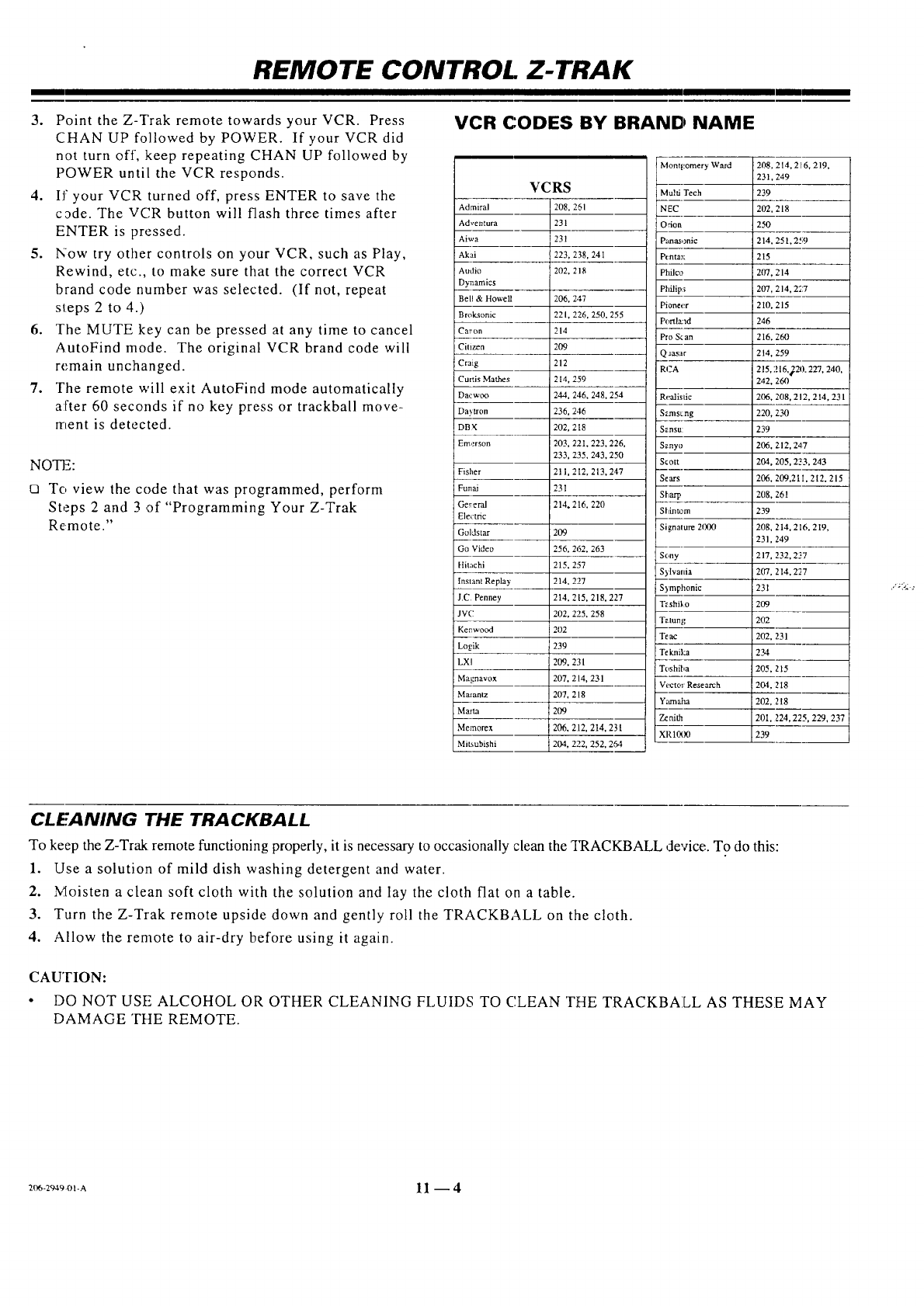
REMOTE CONTROL Z-TRAK
3. Point the Z-Trak remote towards your VCR. Press
CHAN UP followed by POWER. If yourVCRdid
not turn off, keep repeating CHAN UP followed by
POWER until the VCR responds.
4. If your VCR turned off, press ENTER to save the
c_de. The VCR button will flash three times after
ENTER is pressed.
5. Now try other controls on your VCR, such as Play,
Rewind, etc., to make sure that the correct VCR
brand code number was selected. (If not, repeat
steps 2 to 4.)
6. The MUTE key can be pressed at any time to cancel
AutoFindmode. The original VCR brand code will
remain unchanged.
7. The remote will exit AutoFind mode automatically
after 60 seconds if no key press or trackball move-
merit is detected.
NOTE:
o To view the code that was programmed, perform
Steps 2 and 3 of "Programming Your Z-Trak
Remote."
VCR CODES BY BRAND NAME
VCRS
Admiral 208.
Adventura 231
Aiwa 231
Akai 223,
Audio 202,
Dyrmmics
Bell & Howell 206. 2._.7
Brok_onic 221. 226, 250. 255
Car'on 214
Citizen 209
Craig 212
Curtis Mathes 214,259
Dacwoo 244, 246. 248, 254
Da_tron 236, 2,16
DBX 202, 218
Emq=rson 203, 22I. 223. 226,
233, 235,243,250
Fisher 211, 2 I2, 213,247
Funai 231
Gereral 214. 216. 220
Ele_:tfic
Goldstar 209
Go Video 256, 262. 263
Hitachi 215. 257
Instant Replay 214. 227
J.C Penney 214.215,218.227
JV(.: 202, 225. 258
Kenwood 202
Loglk 239
LXI 209. 231
MaL navox 207, 214,231
Ma**antz 207, 218
Marta ]209
Memorex i 206. 212, 214, 23l
Mik_,ubishi i 204 2 "19 252. 264
251
238,241
218
!Mont[:omery Ward 208,
231,
Multi Tech 239
NEC 202,
:Orion 250
Panasonic 214.
P(nta_; 215
Philco 207. 214
Philip:; 207, 214,227
Pioneer 2I0, 215
Portla:',d 246
Pro Scan 216. 260
Q aasar 2t4, 259
RCA 215.216,_220. 227, 240,
242, 260
Realistic 206. 208, 212, 2I4, 231
Szsns_ng 220, 230
S_.nsu: 239
S_nyo 206. 212,247
Scott 204, 205,223, 243
Sears 206, 209,21I, 212, 215
Siiarp 208, 261
Shint_m 239
Signalure 2000 208, 214. 216. 219,
231, 249
S_:)ny 217, 232. 227
S)Ivania 207, 214, 277
S_ mphonic 231
T_shi_,o 209
T_tung 202
Teac 202, 231
Teknil:a 234
Toshiba 205, 215
Vector Research 204.218
Yamaha 202, 218
Zenith 201. 224,225,229, 237
XR1000 239
214.216.219.
249
218
25 l, 2';9
CLEANING THE TRACKBALL
To keep the Z-Trak remote functioning properly, it is necessary to occasionally clean the TRACKBALL device. To do this:
1. Use a solution of mild dish washing detergent and water.
2. Moisten a clean soft cloth with the solution and lay the cloth flat on a table.
3. Turn the Z-Trak remote upside down and gently roll the TRACKBALL on the cloth.
4. Allow the remote to air-dry before using it again.
CAUTION:
• DO NOT USE ALCOHOL OR OTHER CLEANING FLUIDS TO C,LEAN THE TRACKBALL AS THESE MAY
DAMAGE THE REMOTE.
206-294901-A 11 --4
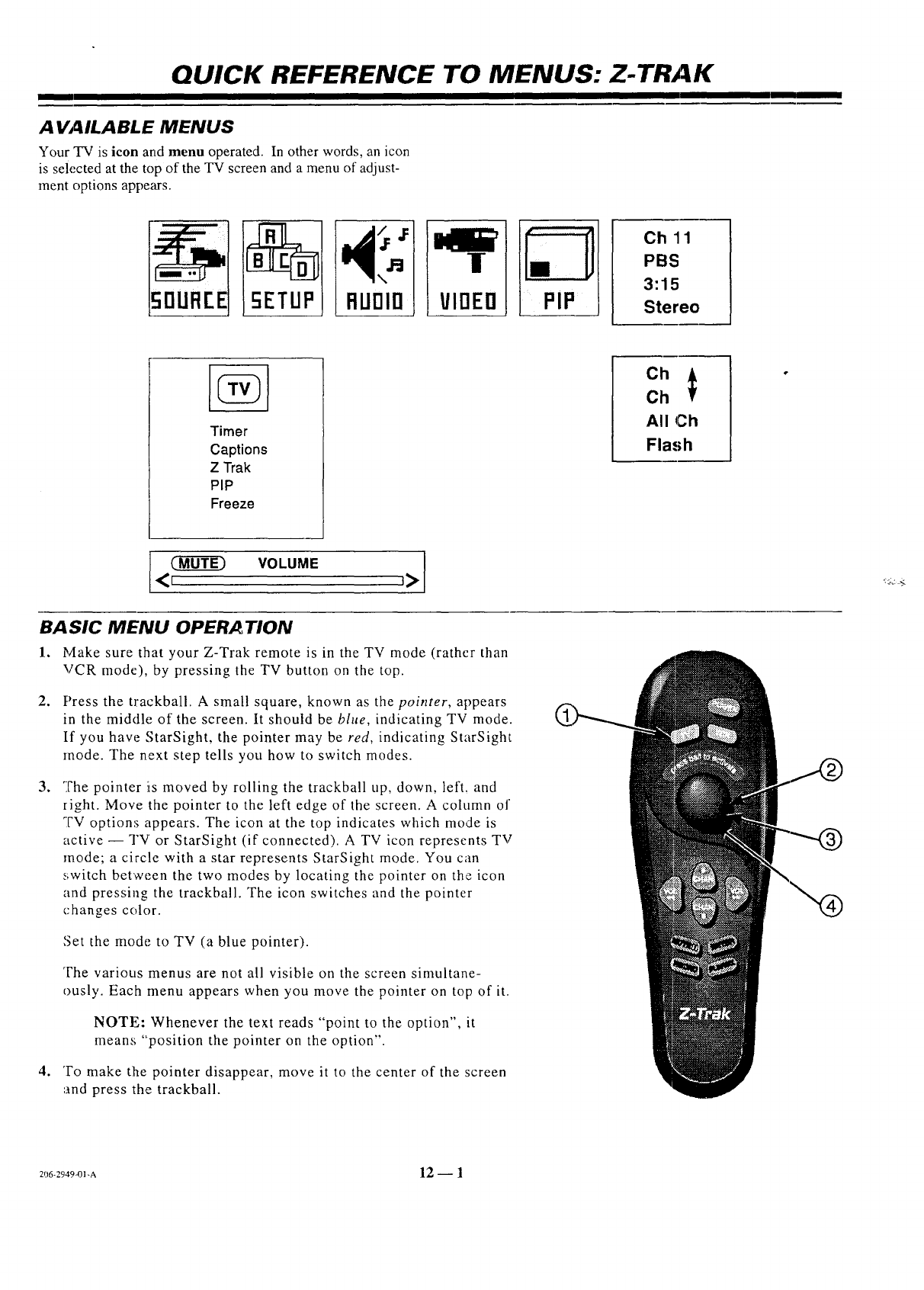
QUICK REFERENCE TO MENUS: Z-TRAK
AVAILABLE MENUS
Your TV is icon and menu operated. In other words, an icon
is selected at the top of the TV screen and a menu of adjust-
ment options appears.
Ch 11
PBS
3:15
Stereo
Timer
Captions
Z Trak
PIP
Freeze
All Oh
Flash
l <1(_]_ VOLUME ]_>1
BA SIC MENU OPERA TION
l. Make sure that your Z-Trak remote is in the TV mode (rather than
VCR mode), by pressing the TV button on the top.
2, Press the trackball. A small square, known as the pointer, appears
in the middle of the screen. It should be blue, indicating TV mode.
If you have StarSight, the pointer may be red, indicating StarSight
mode. The next step tells you how to switch modes.
.The pointer iis moved by rolling the trackball up, down, left. and
right. Move the pointer to the left edge of the screen. A column of
TV options appears. The icon at the top indicates which mode is
active-- TV or StarSight (if connected). A TV icon represents TV
mode; a circle with a star represents StarSight mode. You can
switch between the two modes by locating the pointer on the icon
and pressing the trackball. The icon switches and the pointer
changes color.
Set the mode. to TV (a blue pointer).
The various menus are not all visible on the screen simultane-
ously. Each menu appears when you move the pointer on top of it.
,
NOTE: Whenever the text reads "point to the option", it
means '"position the pointer on the option".
To make the pointer disappear, move it to the center of the screen
',and press the trackball.
'::L:.-:
206-29494)1-A 12 -- 1
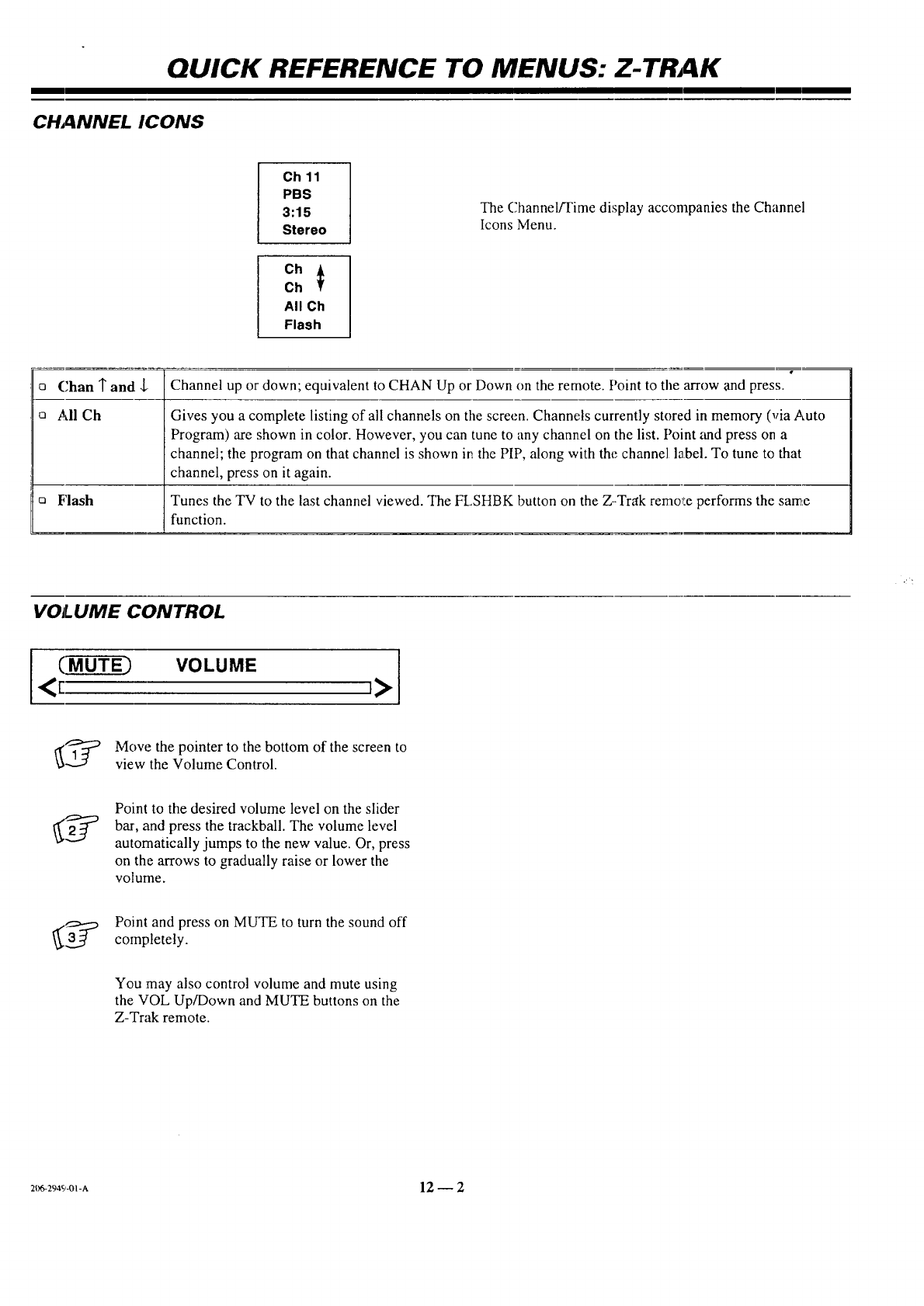
QUICK REFERENCE TO MENUS: Z-TRAK
C_NNELICONS
Ch 11
PBS
3:15
Stereo
Ch
Ch
All Ch
Flash
The Channel/Time display accompanies the Channel
Icons Menu.
oChan 1"and
aAll Ch
Flash
Channel up or down; equivalent to CHAN Up or Down on the remote. Point to tile arrow and press.
Gives you a complete listing of all channels on the screen. Channels currently stored in memory (via Auto
Program) are shown in color. However, you can tune to any channel on the list. Point and press on a
channel; the program on that channel is shown in the PIP, along with the channel label. To tune to that
channel, press on it again.
Tunes the TV to the last channel viewed. The FLSHBK button on the Z--Trak remo_!eperforms the same
function.
VOLUME CONTROL
(MUTE) VOLUME
<r I>
_ ove the pointer to the bottom of the screen to
view the Volume Control.
Point to the desired volume level on the slider
bar, and press the trackball. The volume level
automatically jumps to the new value. Or, press
on the arrows to gradually raise or lower the
volume.
Point and press on MUTE to turn the sound off
completely.
You may also control volume and mute using
the VOL Up/Down and MUTE buttons on the
Z-Trak remote.
2t_-294S,-OI-A 12 -- 2
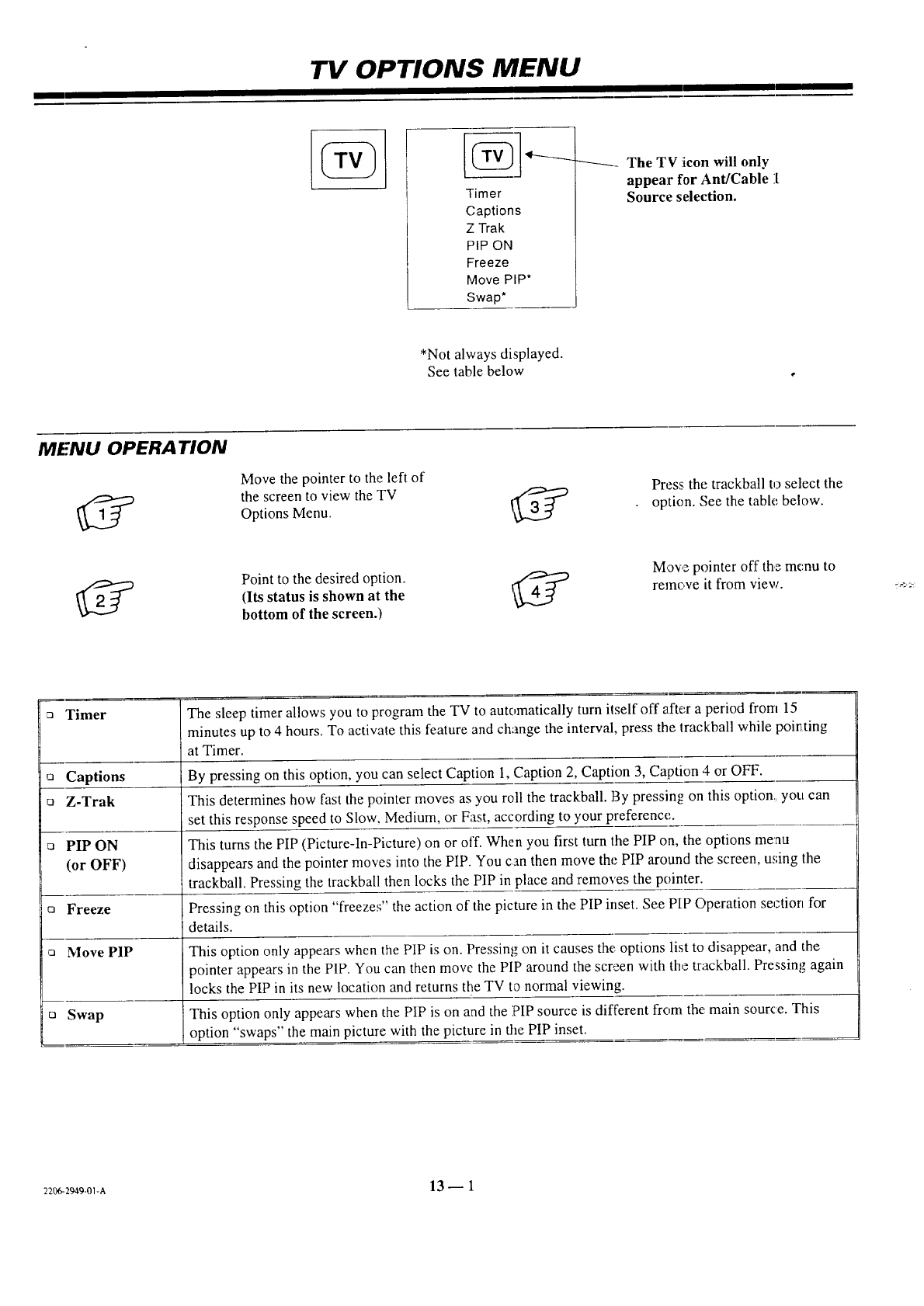
TV OPTIONS MENU
Timer
Captions
Z Trak
PIP ON
Freeze
Move PIP*
Swap*
The TV !icon will only
appear for Ant/Cable 1
Source selection.
*Not always displayed.
See table below
MENU OPERATION
Move the pointer to the left of
_[_ the screen to view the TV
Options Menu. f
Press the trackball to select the
option. See the tabh,' below.
Point to the desired option.
(Its status is shown at the
bottom of the screen.)
Move pointer off the menu to
remove it from view. 7,_" 2-"
aTimer The sleep timer allows you to program the TV to automatically turn itself off after a period from 15
minutes up to 4 hours. To activate this feature and change the interval, press the trackball while pointing
at Timer.
o Captions By pressing on this option, you can select Caption 1, Caption 2, Caption 3, Caption 4 or OFF.
oZ-Trak This determines how fast the pointer moves as you roll the trackball. By pressing on this option,, you can
set this response speed to Slow, Medium, or Fast, according to your preference,.
o PIP ON This turns the PIP (Picture-ln-Picture) on or off. When you first turn the PIP on, the options menu
(or OFF) disappears and the pointer moves into the PIP. You can then move the PIP around the screen, using the
trackball. Pressing the trackball then locks the PIP in place and removes the pointer.
o Freeze Pressing on this option "freezes" the action of the picture in the PIP inset. See PIP Operation section for
details.
c_ Move PIP This option only appears when the PIP is on. Pressing on it causes the options list to disappear, and the
pointer appears in the PiP. You can then move the PIP around the screen with the trackball. Pressing again
locks the PIP in its new location and returns the TV to normal viewing.
o Swap This option only appears when the PIP is on and the PIP source is different from the main source. This
option "swaps" the main picture with the picture in the PIP inset.
=_2_9-01-A 13 _ 1
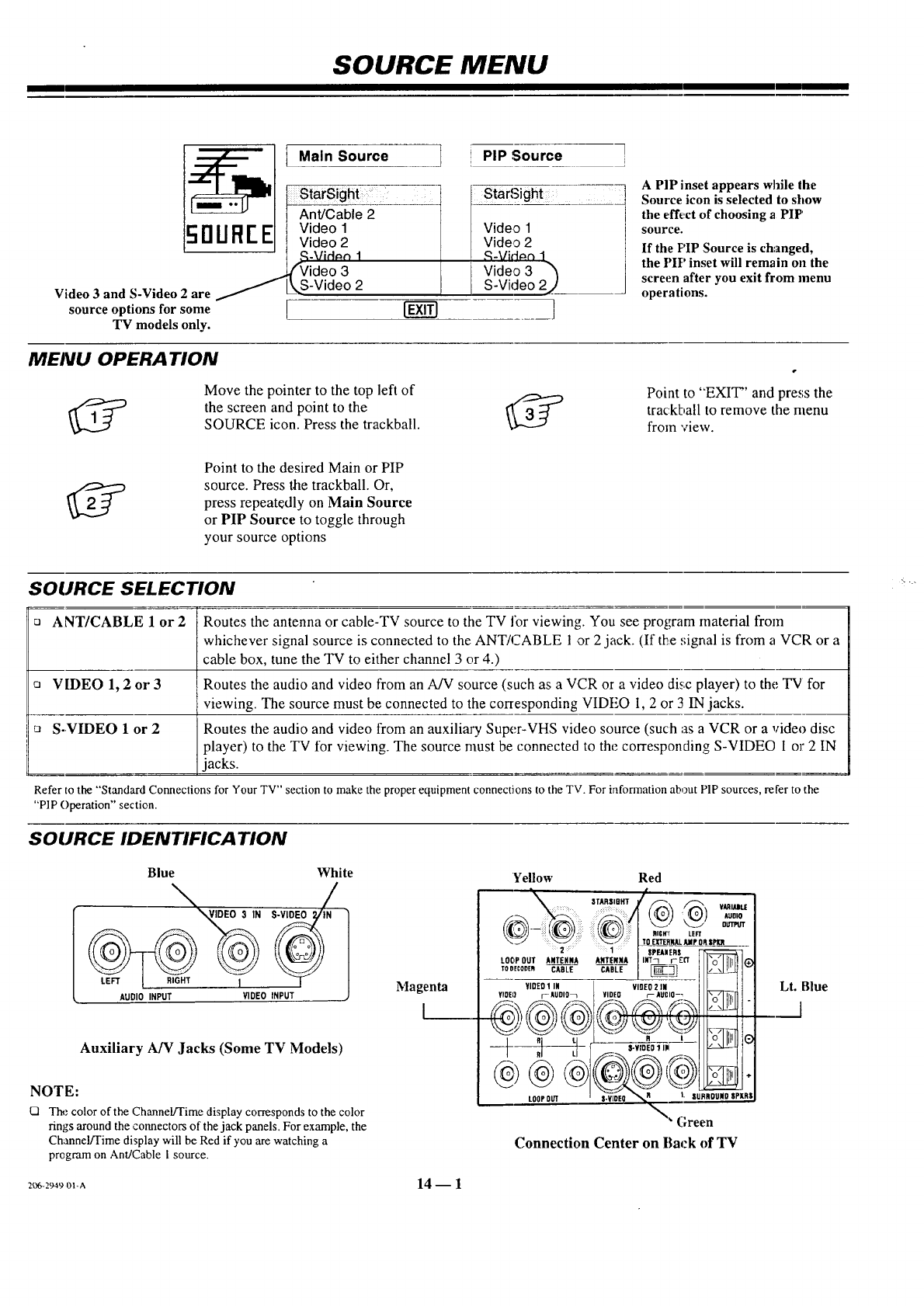
SOURCE MENU
_U_R_E I Maln_S_ource
StarSight "
Ant/Cable 2
Video 1
Video 2
,.t_-VidAo 1
(Video 3
k_S-Video 2
Video 3 and S-Video 2 are
source options for some
TV models only.
PIP Source ]i
StarSight ....
Video 1
Video 2
/ £-vid#n 1
Video 3 "_
S-Video 2/
A PIP inset appears while the
Source icon is selected to show
the effect of choosing a PIP'
source.
If the PIP Source is changed,
the PIP inset will remain oll the
screen after you exit from menu
operations.
MENU OPERATION
Move the pointer to the top left of
the screen and point to the
SOURCE icon. Press the trackball.
I,
Point to "EXIT" and press the
trackball to remove the menu
from view.
Point to the desired Main or PIP
source. Press the trackball. Or,
press repeatedly on Main Source
or PIP Source to toggle through
your source options
SOURCE SELECTION
[] ANT/CABLE 1 or 2Routes the antenna or cable-TV source to the TV tbr viewing. You see program material from
whichever signal source is connected to the ANT/CABLE 1 ,or 2 jack. (If thee ,;ignal is from a VCR or a
cable box, tune the TV to either channel 3 or 4.)
oVIDEO 1, 2 or 3 Routes the audio and video from an A/V source (such as a VCR or a video dis_c player) to the TV for
viewing. The source must be connected to the corresponding VIDEO I, 2 or 3 IN jacks.
[] S-VIDEO 1 or 2Routes the audio and video from an auxiliary Super-VHS video source (such as aVCR or avideo disc
player) to the TV for viewing. The source must be connected to the corresponding S-VIDEO 1 or 2 IN
jacks.
Refer to the "'Standard Connections for Your TV" section to make the proper equipment connections to the TV. For information about PIP sources, refer to the
"PIP Operation" section.
SOURCE IDENTIFICATION
Blue White
AUDIO INPuRTIGHT [VIDEO INPUT
Auxiliary A/V Jacks (Some TV Models)
NOTE:
12 The color of the Channel]Time display corresponds to the color
rings around the cmmectors of the jack panels. For example, the
Channel/Time display will be Red if you are watching a
program on Ant/Cable 1 source.
Magenta
I
Yellow Red
:\_-_wJ]i I .mN-_ un
TOEXTEM!IALAMPO_SPlm
.....+............. + , +._._-__--_ -
LOt_POUI A#TEN#A I_NTENIOt [INTn r-£ff l'n'II]lll
¥1DED 1 IN VlOEO 2 IN I
¥10E[) r AUDIO_
---3-
LOOPOUT
8+¥10E01 I_
_" Green
Connection Center on Back of TV
Lt. Blue
I
++6-_9_9m-a 14 -- 1
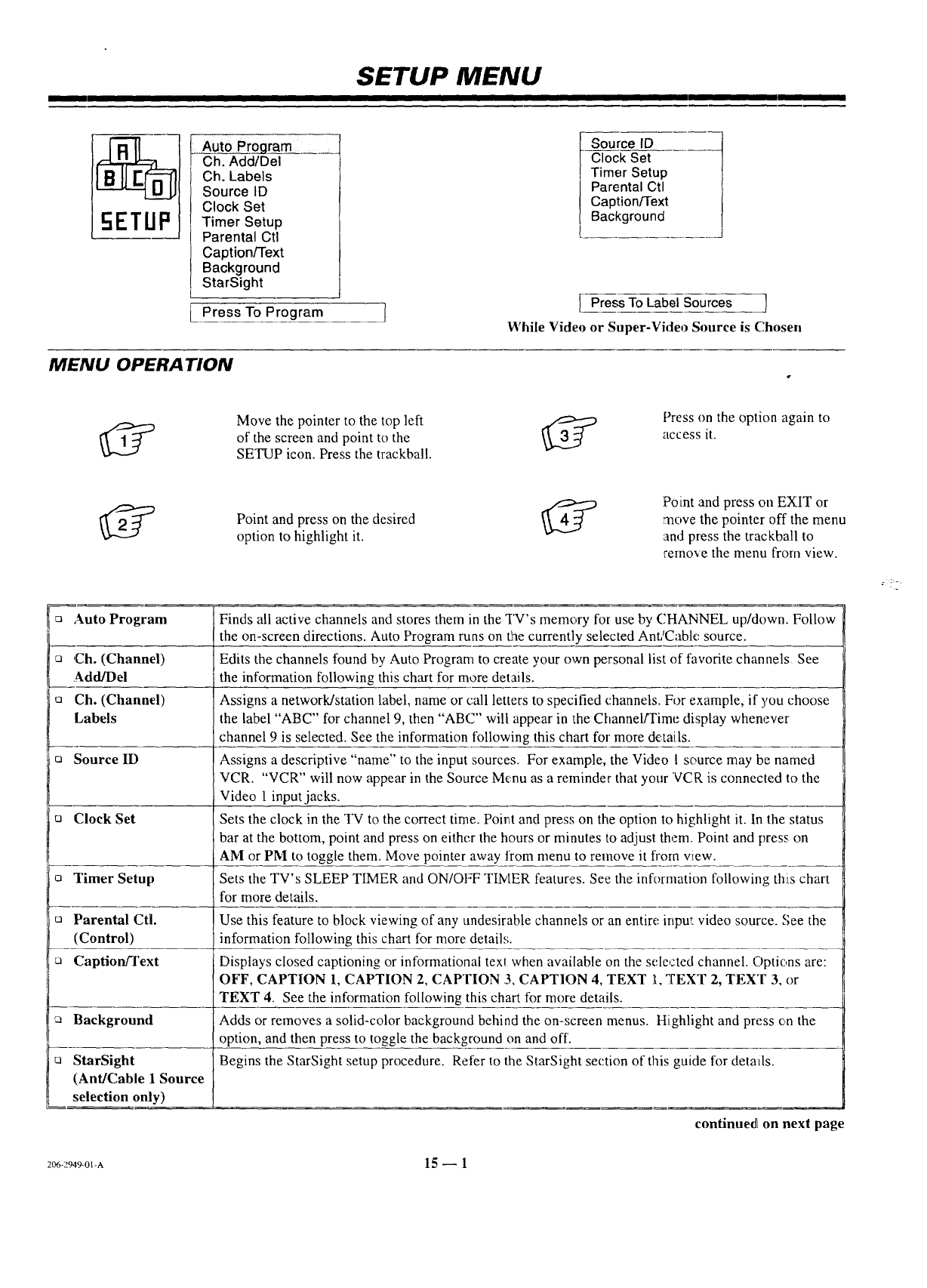
SETUP MENU
Auto Proqram
Ch. Add/Del
Ch. Labels
Source ID
Clock Set
Timer Setup
Parental Ctl
Caption/Text
Background
StarSight
Press To Program I
MENU OPERATION
Source ID
Clock Set
Timer Setup
Parental Ctl
Caption/Text
Background
[_ Press To Label Sources !
While Video or Super-Video Source is Chosen
Move the pointer to the top left
of the screen and point to the
SETUP icon. Press the trackball.
Press on the option again to
access it.
Point and press on the desired
option to highlight it.
Po int and press oll EXIT or
move the pointer off the menu
and press the trackball to
cernove the menu from view.
aAuto Program Finds all active channels and stores them in the TV's memory for use by CHANNEL up/down. Follow
the on-screen directions. Auto Program runs on the currently selected Ant/Cable source.
aCh. (Channel) Edits the channels found by Auto Program to create your own personal list of favorite channels See
._dd/Del the information following this chart for more details.
o Ch. (Channel) Assigns a network/station label, name or call letters to specified channels. For example, if you choose
Labels the label "ABC" for channel 9, then "ABC" will appear in 1LheChannel/Time display whenever
channel 9 is selected. See the information following this chart for more de.tails.
a Source ID Assigns a descriptive "name" to the input sources. For example, the Video 1source may be named
VCR. "VCR" will now appear in the Source Menu as a reminder that your VCR is connected to the
Video 1 input jacks.
u Clock Set Sets the clock in the TV to the correct time. Point and press on the option to highlight it. In the status
bar at the bottom, point and press on either the hours or minutes to adjust them. Point and press on
AM or PM to toggle them. Move pointer away from menu to remove it fi'orn view.
o Timer Setup Sets the TV's SLEEP TIMER and ON/OFF TIIVIER features. See the information following this chart
for more details.
a Parental Ctl. Use this feature to block viewing of any undesirable channels or an entire input video source. See the
(Control) information following this chart for more details.
a Captionfl'ext Displays closed captioning or informational texl when available on the selected channel. Options are:
OFF, CAPTION 1, CAPTION 2, CAPTION 13,CAPTI()N 4, TEXT 1, "TEXT 2, TEXT 3, or
TEXT 4. See the information following this chart for more details.
Background Adds or removes a solid-color background behind the on-screen menus. Highlight and press on the
option, and then press to toggle the background on and off'.
StarSight Begins the StarSight setup procedure. Refer to the StarSight section of this guide for details.
(Ant/Cable 1 Source
selection only)
continuedi on next page
206-2949-01-A 15 _ 1
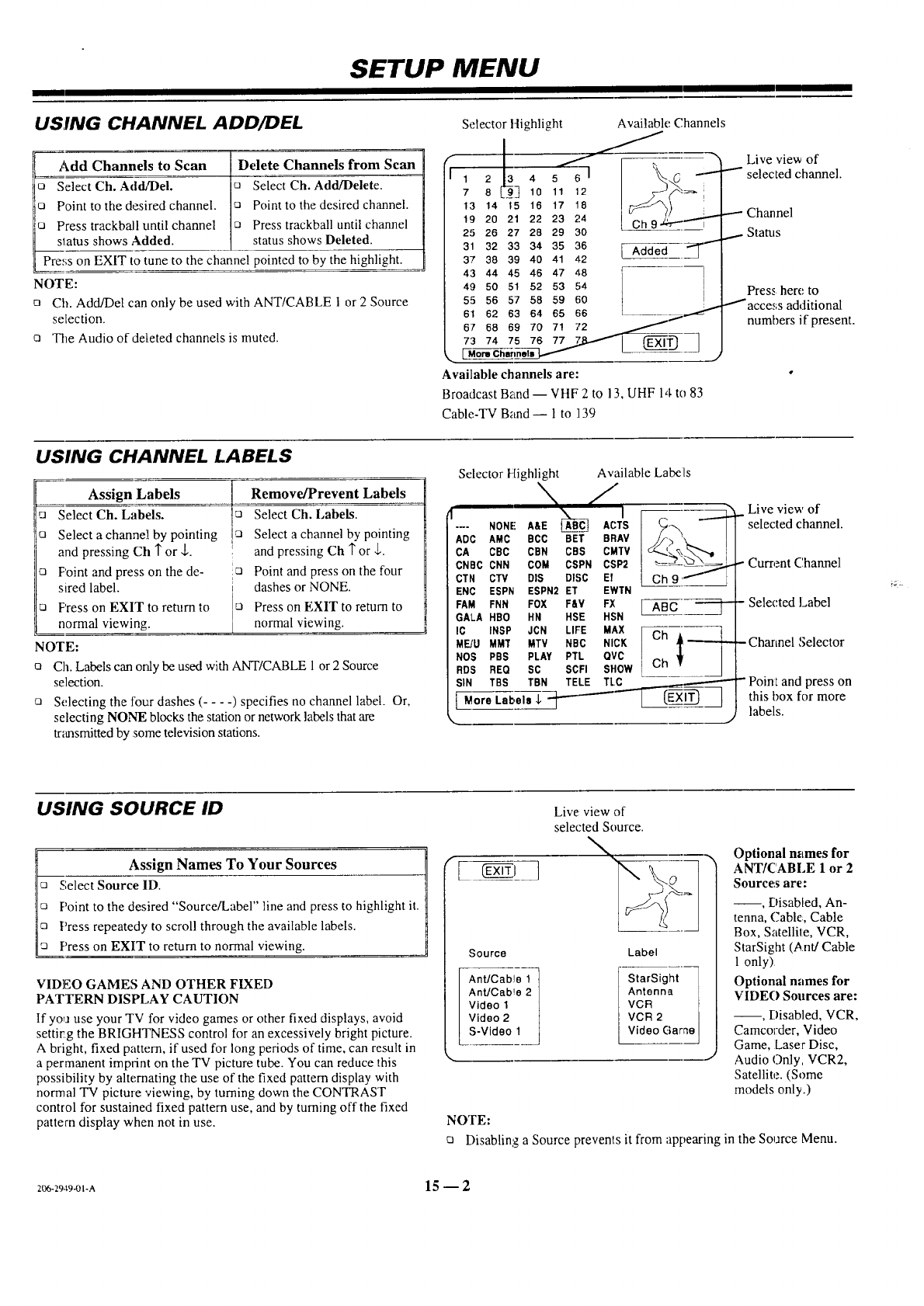
SETUP MENU
USING CHANNEL ADD/DEL
Add Channels to Scan Delete Channels from Scan
o Select Ch. Add/Del. _ Select Ch. Add/Delete.
oPoint to the desired channel, c_ Point to the desired channel.
oPress trackball until channel :_ Press trackball until channel
slatus shows Added. status shows Deleted.
Press on EXIT to tune to the channel pointed to by the highlight.
NOTE:
o Ch. Add/Del can only be used with ANT/CABLE I or 2 Source
selection.
Q Tile Audio of deleted channels is muted.
Selector ltighlight
112 4 s €_
r 8 _3 lO 11 12
13 14 15 16 17 18
19 20 21 22 23 24
25 26 27 28 29 30
31 32 33 34 35 .'-16
37 38 39 40 41 42
43 44 45 46 47 48
49 50 51 52 53 54
55 56 57 58 59 60
61 62 63 64 65 66
67 68 69 70 7! 72
Available Channels
Ch 9.z,_"- i
E Added ""T"'
I
I
,.. Edo_dh&6e6 _
Available channels are:
Broadcast Band -- VHF 2 to 13, UHF 14.to 83
Live view of
""" selected channel.
Press here to
laccess additional
numbers if present.
Cable-TV Band-- 1to 1139
USING CHANNEL LABELS
Assign Labels oRemove/Prevent Labels
o Select Ch. Labels. Select Ch. Labels.
t_ Select a channel by pointing ]_ Select a channel by pointing
and pressing Ch 1"or ,L. and pressing Ch 1"or _.
a Foint and press on the de- o Point and press on the four
sired label, i dashes or NONE.
Press on EXIT to return to o Press on EXIT to return to
normal viewing. ] normal viewing.
NOTE:
o Ch. Labels can ordy be used with ANT/CABLE 1 or 2 Source
selection.
:_ Selecting the four dashes ( .... ) specifies no channel label. Or,
selecting NONE blocks the station or network labels that are
transmitted by some television stations.
Selector Highlight
-- NONEAaE -_e3
ADC AMC BCC BET BRAV
CA CBC CBN CBS CMTV
CNBC CNN COM CSPN CSP2
CTN CW DIS DISC El
ENC ESPN ESPN2 ET EWTN
FAM FNN FOX F&V FX
GALA HBO HN HSE HSN
IC INSP JCN LIFE MAX
MF-JU MMT MTV NBC NICK
NOS PBS PLAY PTL QVC
RDS REQ SC SCFI SHOW
Available Labels
I ABc ---'i--
[Oh*--1-Oh
SIN TBS TBN TELE TLC _/
Live view of
-selected channel.
Current C,hannel
- Selected Label
- Charmel ,';elector
- PoinL and press on
this box for more
labels.
USING SOURCE ID
l! Assign Names To Your Sources
Select Source ID.
Point to the desired "Source/Label" line and press to highlight it.
Press repeatedy to scroll through the available labels.
Press on EXIT to return to normal viewing.
VIDEO GAMES AND OTHER FIXED
PATTERN DISPLAY CAUTION
If yoij use your TV for video games or other fixed displays, avoid
settir g the BRIGHTNESS control for an excessively bright picture.
Abright, fixed pattern, if used for long periods of time, can result in
a permanent impt-int on the TV picture tube. You can reduce this
possibility by alternating the use of the fixed pattern display with
normal TV picture viewing, by turning down the CONTRAST
control for sustained fixed pattern use, and by turning off the fixed
pattern display when not in use.
Live view of
selected Source.
Source
Ant/Cable !
AnUCab!e 2
Video 1
IVideo 2
LS- Video 1
Label
StarSight
Antenna
VCR
VCR 2
Video Garae
Optional names for
ANT/CABLE 1 or 2
Sources are:
--, Disabled, An-
tenna, Cable, Cable
Box, Satellite, VCR,
StarSight (Ant/Cable
1 only)
Optional names for
VIDE(} Sources are:
--, Disabled, VCR,
Camcorder, Video
Game, Laser Disc,
Audio Only. VCR2,
Satellite. (Some
models only.)
NOTE:
c_ Disabling a Source prevents it from appearing in the Source Menu.
206-29.tg-01-A 15 -- 2
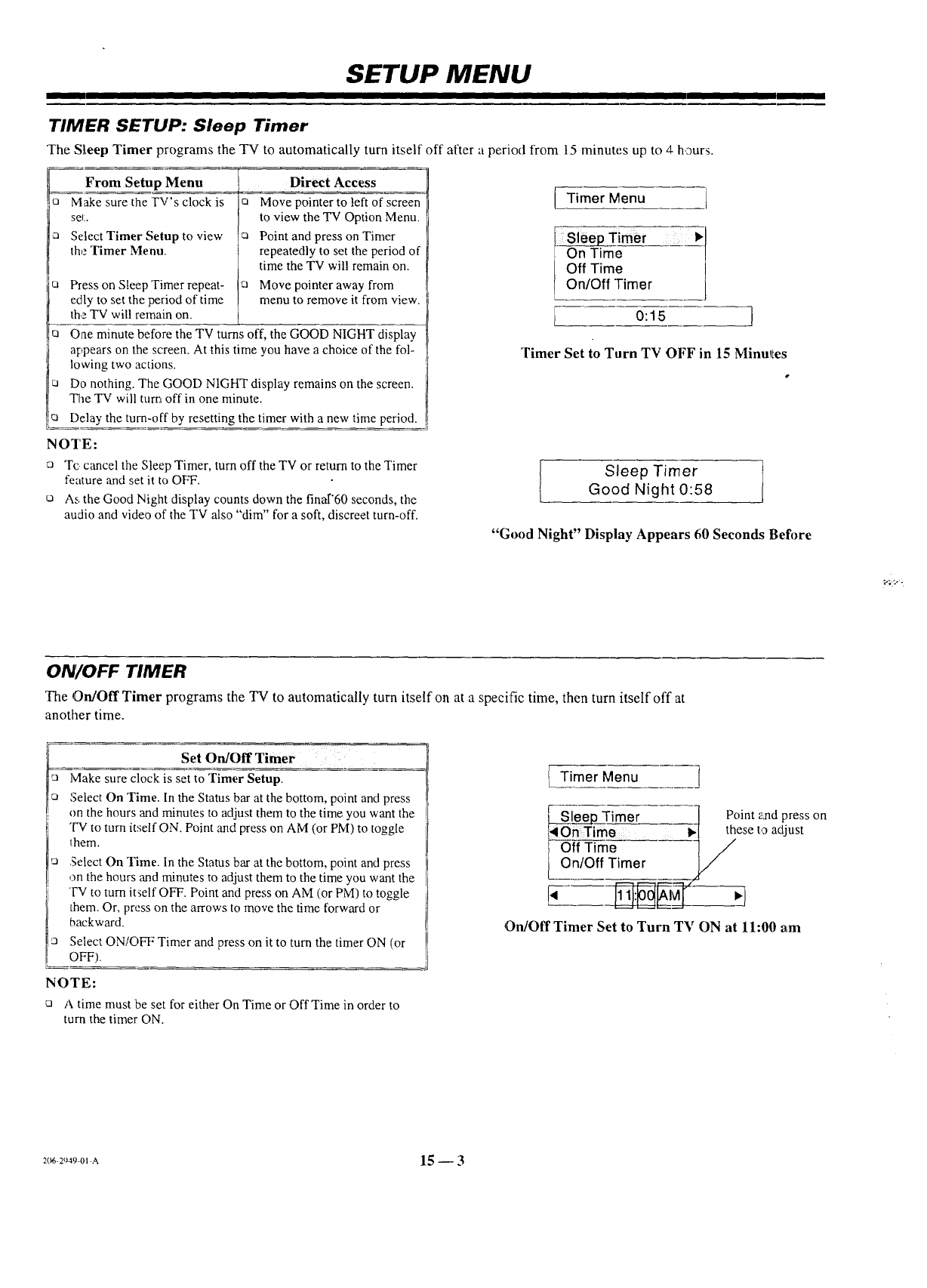
SETUP MENU
TIMER SETUP: Sleep Timer
The Sleep Timer programs the TV to automatically turn itself off after a period from 15 minutes up to 4-hours.
From Setup Menu
o Make sure the TV's clock is
sell.
Select Timer Setup to view
the Timer Menu.
ol
El
El
Press on Sleep Timer repeat-
edly to set the period of time
the TV will remain on.
Direct Access
oMove pointer to left of screen
to view the TV Option Menu.
ca Point and press on Timer
repeatedly to set the period of
time the TV will remain on.
a Move pointer away from
menu to remove it from view.
One minute before the TV turns off, the GOOD NIGHT display
appears on the screen, At this time you have a choice of the fol-
lowing two actions.
Do nothing. The GOOD NIGHT display remains on the screen.
The TV will turn off in one minute.
Delay the turn-off by resetting the timer with a new time period.
NOTE:
o Tc cancel the Sleep Timer, turn off the TV or return to the Timer
feature and set it to OFF.
As the Good Night display counts down the finaF60 seconds, the
audio and video of the TV also "dim" for a soft, discreet turn-off.
Timer Menu
Sleep Timer
On Time
Off Time
On/Off Timer
0:15 I
Timer Set to Turn TV OFF in 15 Minulles
Sleep Timer
Good Night 0:58
"Good Night" Display Appears 60 Seconds Befl)re
ON/OFF TIMER
The On/Off Timer programs the TV to automatically turn itself on at a specific time, then turn itself off at
another time.
21
D
Set On/Off Timer
Make sure clock is set to Timer Setup.
Select On Time. In the Status bar at the bottom, point andpress
on the hours and minutes to adjust them to the time you want the
"IV to turn itself ON. Point and press on AM (or PM) to toggle
Ihem.
Select On Time. In the Status bar at the bottom, point and press
on the hours and minutes to adjust them to the time you want the
'FV to turn itself OFF. Point and press on AM (or PM) to toggle
them. Or, press on the arrows to move the time forward or
backward.
Select ON/OFF Timer and press on it to turn the timer ON (or
OFF).
NOTE:
nAtime must be set for either On Time or Off Time in order to
turn the timer ON.
Timer Menu ]
[__S_ Timer ] Point and press on
On Time--- I_1 these to adjust
-/
On/Off Timer
Lo .... F
On/Off Timer Set to Turn TV ON at 11:00 am
2_6-r,_9-oi-A 15 -- 3
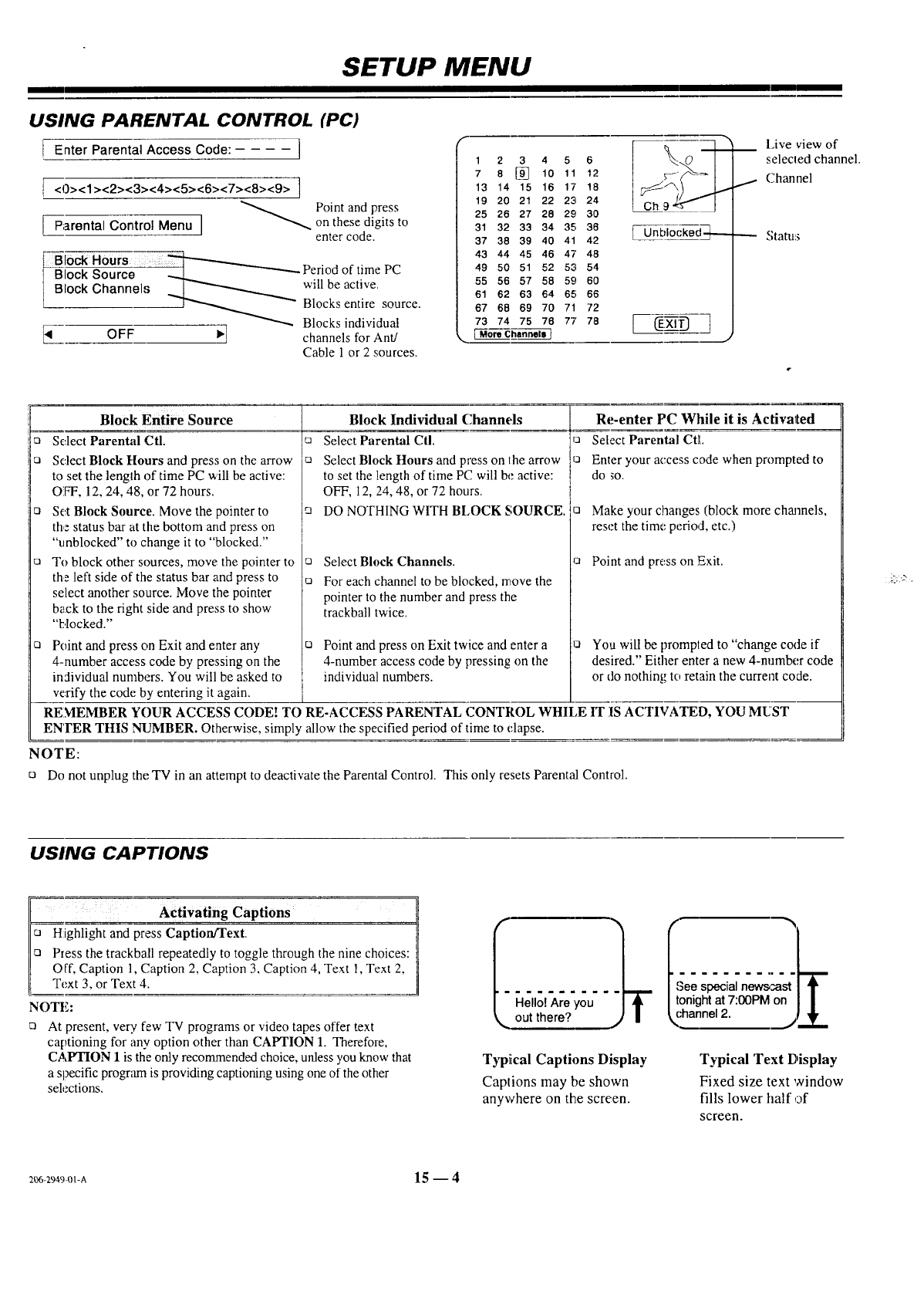
SETUP MENU
USING PARENTAL CONTROL (PC)
Enter Parental Access Code: .... I
<0><1><2><3><4><5><6><7><8><9> !
_ Point and press
Parental Control Menu ] on these digits to
enter code.
Block Hours
B_- So_--" Q _ Period of time PC
Block Channels ._[ _ will be active.
T"'__ Blocks entire source.
Blocks individua!
[4 OFF I_] channels for Ant!
Cable 1or 2 sources.
1 2 3 4
7 8 [] 10
13 14 15 16
19 20 21 22
25 26 27 28
31 32 33 34
37 38 39 40
43 44 45 46
49 50 51 52
55 56 57 58
61 62 63 64
67 68 69 70
73 74 75 78
5
11
17
23
29
35;
41
4"7
53
59
65
71
77
6
12
18
24
30
38
42
48
54
60
66
72
78
Unblocked --_-
lave view of
iselecled channel.
I Channel
Status
Block Entire Source
o Select Parental Ctl.
Select Block Hours and press on the arrow
to set the length of time PC will be active:
OFF, 12, 24, 48, or 72 hours.
:3 Set Block Source. Move the pointer to
the status bar at the bottom and press on
% nblocked" to change it to "blocked."
t3 To block other sources, move the pointer to
the left side of the status bar and press to
select another source. Move the pointer
back to the right side and press to show
"blocked."
Point and press on Exit and enter any
4-number access code by pressing on the
individual numbers. You will be asked to
verify the code by entering it again.
Block Individual Channds
Select Parental Ctl.
D Select Block Hours and press on lhe arrow
to set the length of time PC will be active:
OFF, 12, 24, 48, or 72 hours.
DO NOTHING WITH BLOCK SOURCE.
o
!21
Select Block Channels.
For each channel to be blocked, move the
pointer to the number and press the
trackball twice.
Point and press on Exit twice and enter a
4-number access code by pressing on the
individual numbers.
==
[.21
{-1
Re-enter PC While it is Activated
Select Parental Ctl.
Enter your access code when prompted to
do _,o.
Make your changes (block more channels,
reset the time period, etc.)
_Point and press on Exit.
_3 You will be prompted to "change code if
desired." Either enter a new 4-number code
or do nothing to retain the current code.
REMEMBER YOUR ACCESS CODE! TO RE-ACCESS PARENTAL CONTROL WHILE IT IS ACTIVATED, YOU MUST
ENrER THIS NUMBER. Otherwise, simply allow the specified period of time to e,lapse.
NOTE:
o Do not unplug the TV in an attempt to deactivate the Parental Control. This only resets Parental Control.
USING CAPTIONS
I: :: Activating Captions:
-'H:ig_ and press Caption/Text.
Press the trackball repeatedly to toggle through the nine choices:
O[f, Caption 1, Caption 2, Caption 3, Caption 4, Text 1, Text 2,
Text 3, or Text 4.
NOTE:
At present, very. few TV programs or video tapes offer text
captioning for any option other than CAPTION 1. Therefore,
CAPTION 1 is the only recommended choice, unless you know that
aspecific progrm-nis providing captioning using one of the other
selections.
Typical Captions Display
Captions may be shown
anywhere on the screen.
i3ee special now_st
Itonight at7:00PM on I I
,anne,
Typical Text Display
Fixed size text window
fills lower half of
screen.
206-2949-01-A 15 -- 4
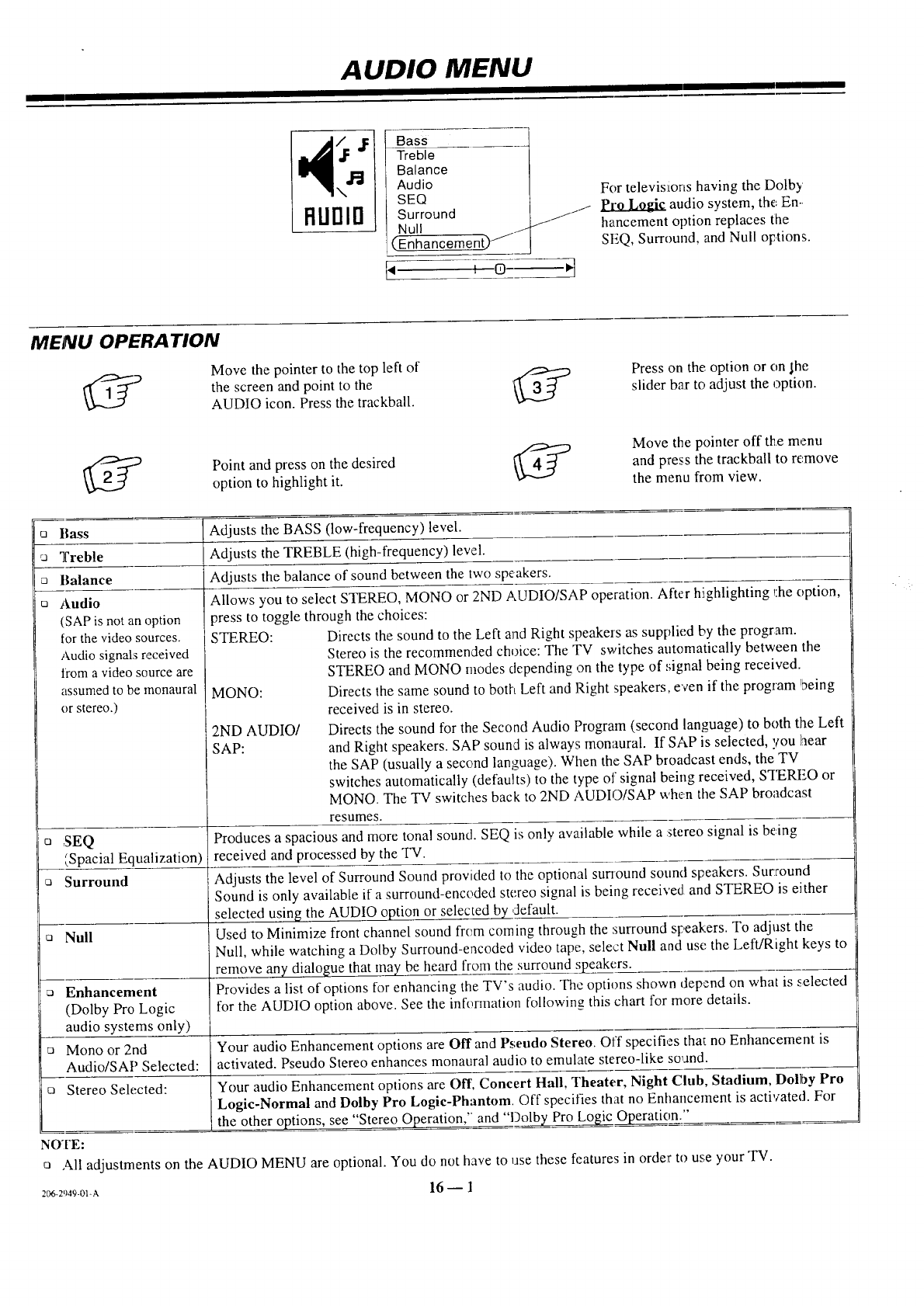
I
AUDIO MENU
I _ I Bass:
Balance
,m,_ ,_ Audio
SEQ
FlUrllrl Surround
Null /I
(EnhancemenO _j
[,,
For televisions having the Dolby
audio system, the En-.
J!J hancement option replaces the
SEQ, Surround, and Null options.
O-_
MENU OPERATION
Move the pointer to the top left of
the screen and point to the
AUDIO icon. Press the trackball.
Press on the option or on ,[he
slider bar to adjust the option.
Point and press on the desired
option to highlight it.
Move the pointer off the menu
and press the trackball to remove
the menu from view.
oBass
Treble
Balance
[] Audio
(SAP is not an option
Adjusts the BASS (low-frequency) level.
Adjusts the TREBLE (high-frequency) level.
Adjusts the balance of sound between the two speakers.
Allows you to select STEREO, MONO or 2ND AUDIO/SAP operation. After highlighting _:he option,
press to toggle through the choices:
STEREO: Directs the sound to the Left and Right speakers as supplied by the program.
Stereo is the recommended choice: The TV switches automatically between the
STEREO and MONO modes clepending on the type of signal being received.
MONO: Directs the same sound to both Left and Right speakers, even if the program !being
received is in stereo.
2ND AUDIO/ Directs the sound for the Second Audio Program (second language) to both the Left
SAP: and Right speakers. SAP souncl is always; monaural. If SAP is selected, you hear
the SAP (usually a second language). When the SAP broadcast ends, the TV
switches automatically (defaults) to the type of signal being received, STEREO or
MONO. The "IV switches back to 2ND AUDIO/SAP when the SAP broadcast
resumes.
Produces a spacious and more tonal sound. SEQ is only available while a :stereo signal is being
received and processed by the TV.
Adjusts the level of Surround Sound provided to the optional sunound sound speakers. Surround
Sound is only available if a surround-encoded stereo signal is being received and STEREO is either
selected using the AUDIO option or selected by default.
Used to Minimize front channel sound frem coming through the surround speakers. To adjust the
Null, while watching a Dolby Surround-encoded video tape, select Null and use the Left/Right keys to
remove any dialogue that may be heard from the surround _;peakers.
Provides a list of options for enhancing the TV's audio. Thc options shown depend on what is selected
for the AUDIO option above. See the information following this chart for more details.
for the video sources.
Audio signals received
trom a video source are
assumed to be monaural
or stereo.)
[] SEQ
_Spacial Equalization)
[] Surround
[] Null
Your audio Enhancement options are Off and Pseudo Stereo. Off specifies tha_. no Enhancement is
activated. Pseudo Stereo enhances monaural audio to emulate stereo-like so,and.
[] Your audio Enhancement options are Off, Concert Hall, Theater, Night Club, Stadium, Dolby Pro
Logic-Normal and Dolby Pro Logic-Phantom, Off specifies that no Enhancement is activated. For
the other options, see "Stereo Operation," and "l_)o[by Pro Logic Operation."
Enhancement
(Dolby Pro Logic
audio systems only)
Mono or 2nd
Audio/SAP Selected:
Stereo Selected:
NOTE:
All adjustments on the AUDIO MENU are optional. You do not have to use these features in order to use your TV.
2_6-2949-0_-a 16 -- l
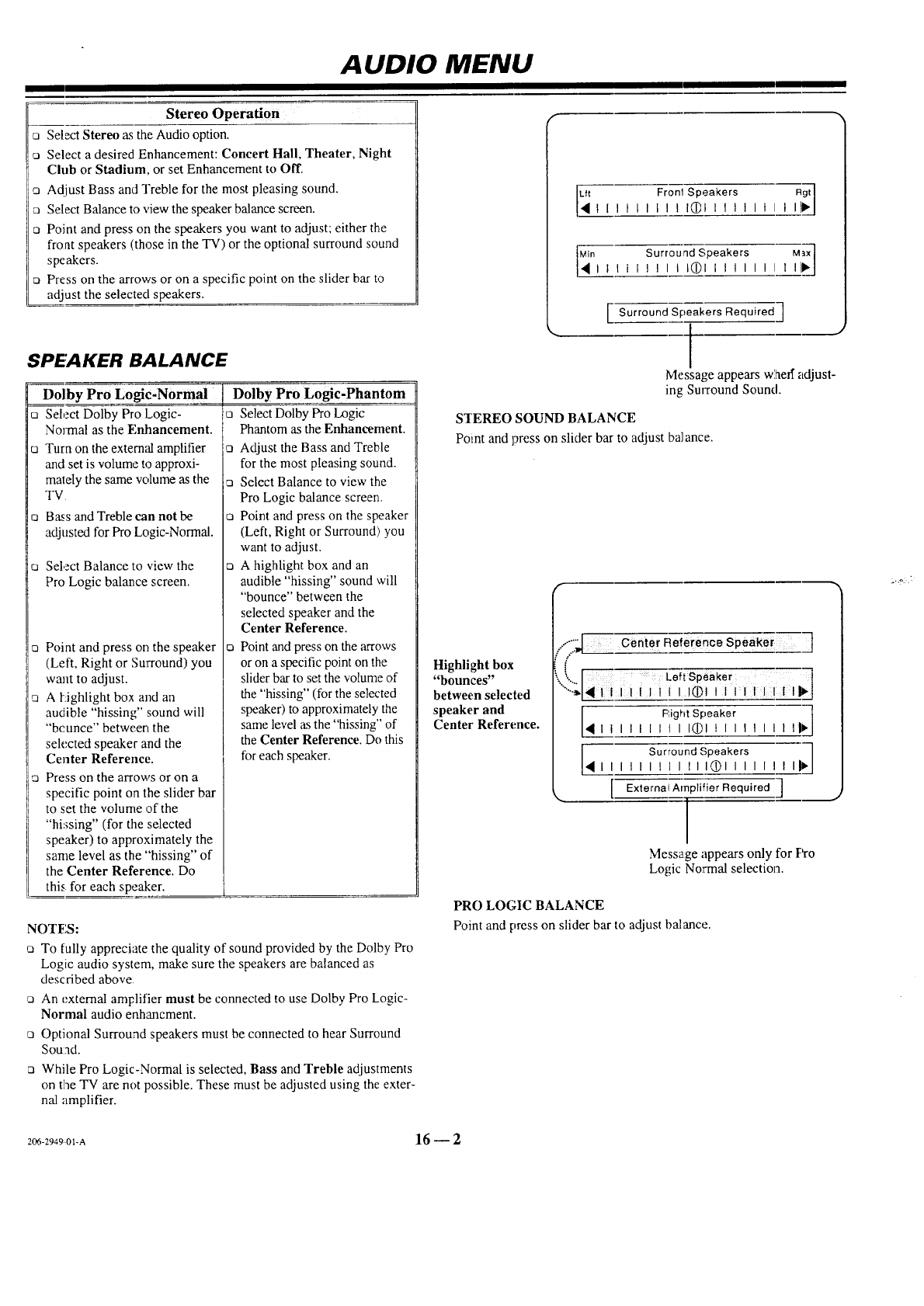
AUDIO MENU
Stereo Operation
[] Select Stereo as the Audio option.
[] Select adesired Enhancement: Concert Hall, Theater, Night
Club or Stadium, or set Enhancement to Off.
o Adjust Bass and Treble for the most pleasing sound.
[] Select Balance to view the speaker balance screen.
o Point and press on the speakers you want to adjust; either the
front speakers (those in the TV) or the optional surround sound
speakers.
o Press on the arrows or on a specific point on the slider bar to
adjust the selected speakers.
SPEAKER BALANCE
Dolby Pro Logic-Normal
o Select Dolby Pro Logic-
Nolmal as the F,nhancement.
o Turn on the external amplifier
and set is volume to approxi-
mately the same volume as the
TV
o Bass and Treble can not be
adjusted for Pro Logic-Normal.
o Select Balance to view the
Pro Logic balance screen.
o Point and press on the speaker
(Left, Right or Surround) you
want to adjust.
A tighlight box and an
audible "hissing" sound will
"be unce" between the
selected speaker and the
Center Reference.
o Press on the arrows or on a
specific point on the slider bar
to set the volume of the
"hissing" (for the selected
speaker) to approximately the
same level as the "hissing" of
the Center Reference. Do
this. for each speaker.
Dolby Pro Logic-Phantom
o Select Dolby Pro Logic
Phantom as the Enhancement.
o Adjust the Bass and Treble
for the most pleasing sound.
aSelect Balance to view the
Pro Logic balance screen.
o Point and press on the speaker
(Left, Right or Surround) you
want to adjust.
o A highlight box and an
audible "hissing" sound will
"bounce" between the
selected speaker and the
Center Reference.
o Point and press on the arrows
or on a specific point on the
slider bar to set the volume of
the "hissing" (for the selected
speaker) to approximately the
same level a.sthe "hissing" of
the Center Reference. Do this
for each speaker.
NOTES:
[] To fully appreciate the quality of sound provided by the Dolby Pro
Logic audio system, make sure the speakers are balanced as
described above
[] An external amplifier must be connected to use Dolby Pro Logic-
Normal audio enhancment.
[] Optional Surround speakers must be connected to hear Surround
Sound.
o While Pro Logic-Normal is selected, Bass and Treble adjustments
on the TV are not possible. These must be adjusted using the exter-
nal amplifier.
[_ Fronl Speakers Rgt]
lit illlt tl_llllltlt It!l_l
_n Surround Speakers Max]
iiilllt tLL(DIIllt tttIt!__J
I Surround Speakers Required ]
Message appears whefl" adjust-
ing Surround Sound.
STEREO SOUND BALANCE
Point and press on slider bar to adjust balance.
Highlight box
"bounces"
between selected
speaker and
Center Reference.
...-.f_ center Reference speaker _]
i
__.... Left Speaker
...... IJiill(DIt II:i
!
I F',ight Speaker ]
I I I I [III I_11 I I I II I I I|b.
I Surround Speakers ]
I I I I I I [ I III011 I I I I I I_
ExternalAr]plifier Required ]
Message appears only for Pro
Logic Normal selection.
PRO LOGIC BALANCE
Point and press on slider bar to adjust balance.
206-294901-A 16 -- 2
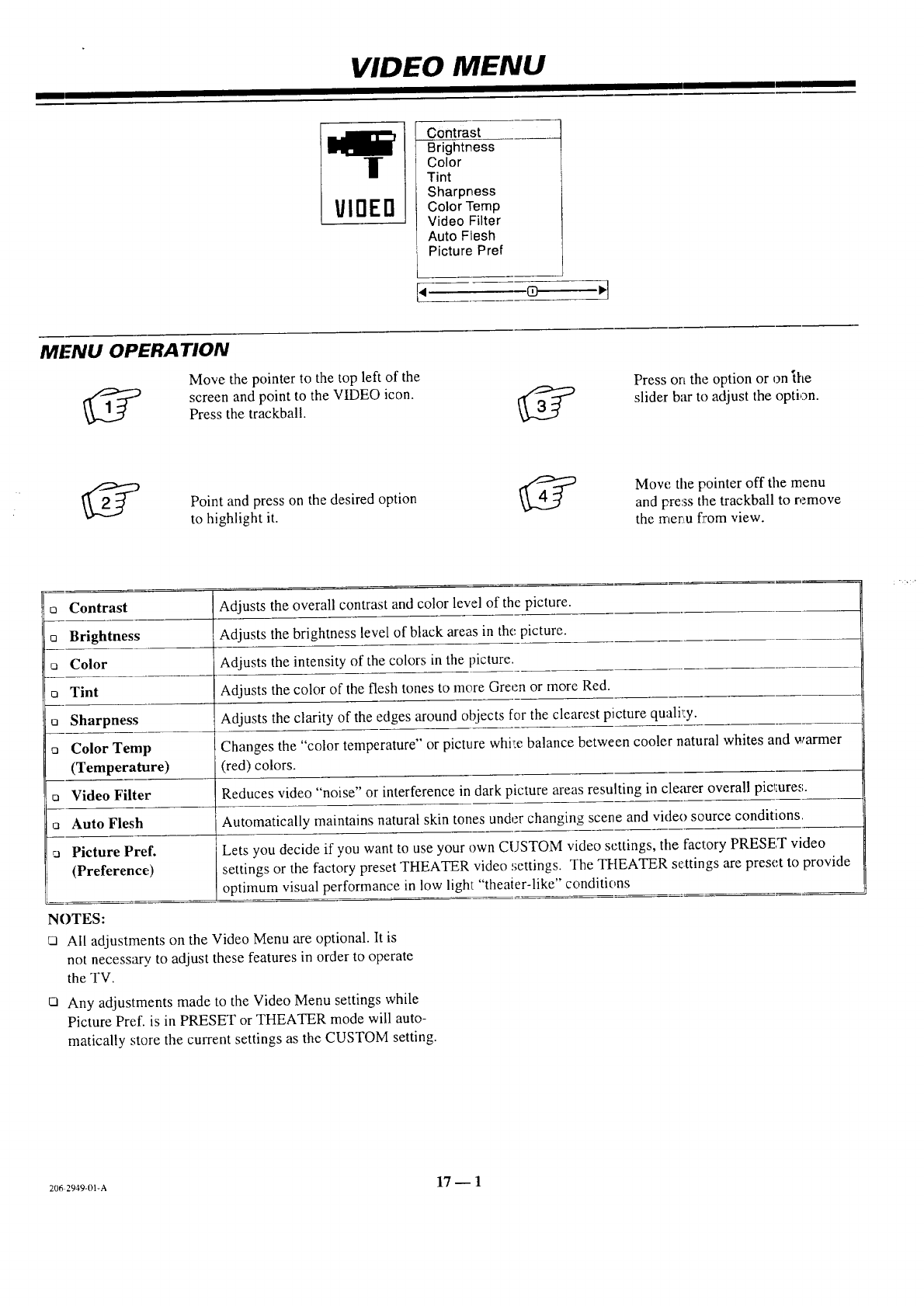
VIDEO MENU
|
I/IOEO
Contrast
Brightness
Color
Tint
Sharpness
Color Temp
Video Filter
Auto Flesh
i Picture Pref
[4 0
MENU OPERA "lION
Move the pointer to the top left of the
screen and point to the VIDEO icon.Press the trackball.
Press ort the option or on the
slider bar to adjust the option.
Point and press on the desired option _4_
to highlight it.
Mow', tile pointer off tile menu
and pre:_sthe trackball to remove
the merLufrom view.
o Contrast Adjusts the overall contrast and color level of the picture.
o Brightness Adjusts the brightness level of black areas in the picture.
o Color Adjusts the intensity of the colors in the picture.
o Tint Adjusts the color of the flesh tones to more Green or more Red.
o Sharpness Adjusts the clarity of the edges around objects for the clearest picture quali,:y.
o Color Temp Changes the "color temperature" or picture whi!:ebalance between cooler natural whites and warmer
(Temperature) (red) colors.
o Video Filter Reduces video "noise" or interference in dark picture areas resulting in clearer overall picmre,_.
o Auto Flesh Automatically maintains natural skin tones under changing scene and video source conditions.
o Picture Pref. Lets you decide if you want to use your own CUSTOM video settings, the factory PRESET video
(Preference) settings or the factory preset THEATER video :;ettings. The THEATER settings are preset to provide
! optimum visual performance in low light "theaier-like" conditions
NOTES:
rn All adjustments on the Video Menu are optional. It is
not necessary to adjust these features in order to operate
the TV.
O Any adjustments made to the Video Menu settings while
Picture Pref. is in PRESET or THEATER mode will auto-
matically store the current settings as the CUSTOM setting.
2062949-01-A 17 -- 1
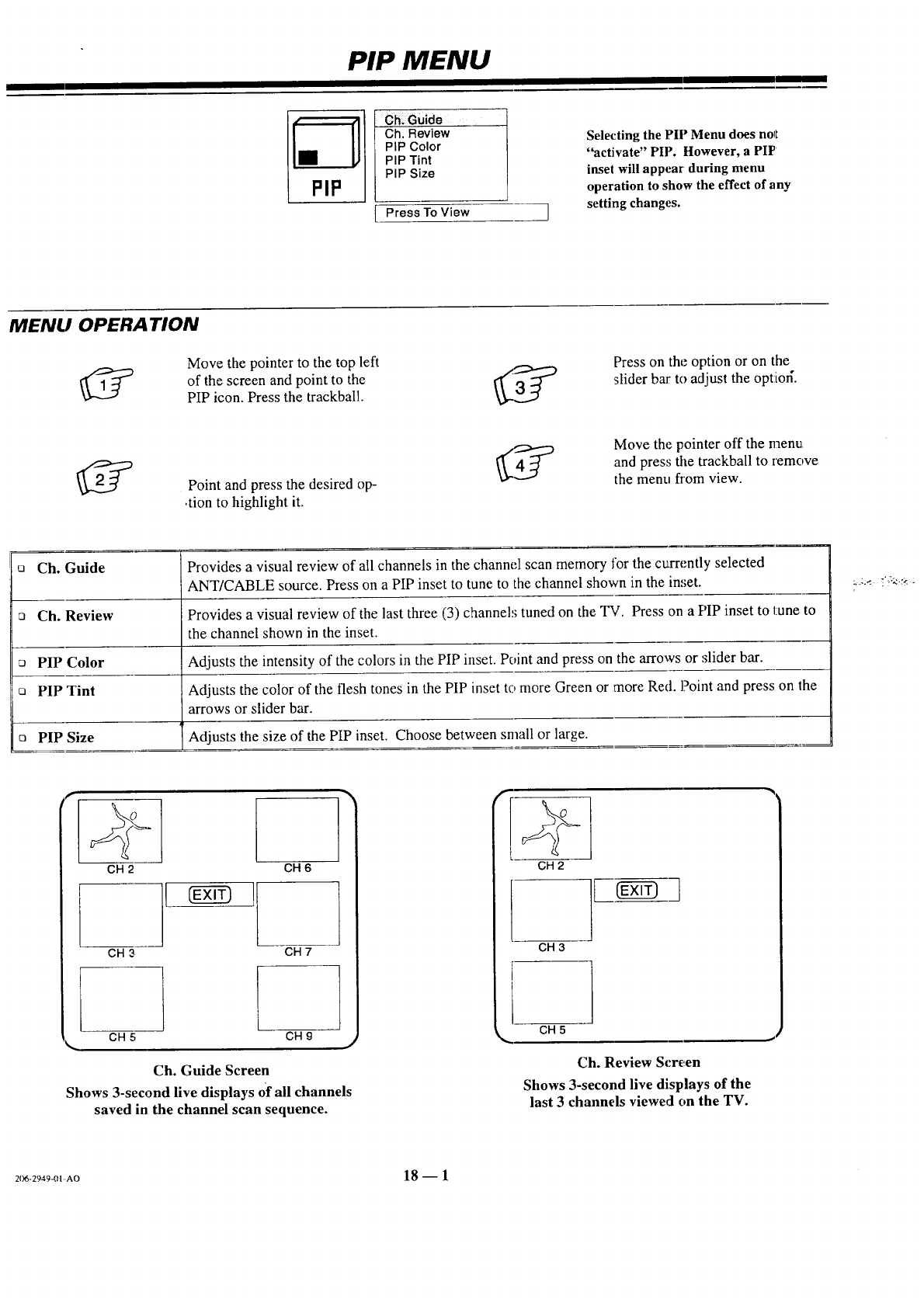
PIP MENU
PIP
Ch_ Guide
Ch. Review
PIP Color
PIP Tint
PIP Size
Press To View ]
Selecting the PIP Menu does nolt
"activate" PIP. However, a PIP
inset will appear during menu
operation to show the effect of any
setting changes.
MENU OPERATION
Move the pointer to the top left
of the screen and point to the __
PIP icon. Press the trackball.
Press on the option or on the
slider bar to adjust the optior[
Point and press the desired op-
,tion to highlight it.
Move the pointer off the menu
and press tile trackball to remove
the menu fi'om view.
ca Ch. Guide Provides a visual review of all channels in the channel scan memory for the currently selected
ANT/CABLE source. Press on a PIP inset to tune to the channel shown in the inset.
Ch. Review Provides a visual review of the last three (3) channeh; tuned on the TV. Press on a PIP inset to tune to
the channel shown in the inset.
PIP Color Adjusts the intensity of the colors in the PIP inset. Point and press on the arrows or slider bar.
ca PIP Tint Adjusts the color of the flesh tones in the PIP inset to more Green or more Red. Point and press on the
arrows or slider bar.
ca PIP Size Adjusts the size of the PIP inset. Choose between small or large.
CH 2 CH6
CH 3
CH5
CH 7
CH 9
Ch. Guide Screen
Shows 3-second live displays of all channels
saved in the channel scan sequence.
CH 2
CH3
]
CH5
Ch. Review Screen
Shows 3-second live displays of the
last 3 channels viewed on the TV.
206-29.19_1.AO 18- 1
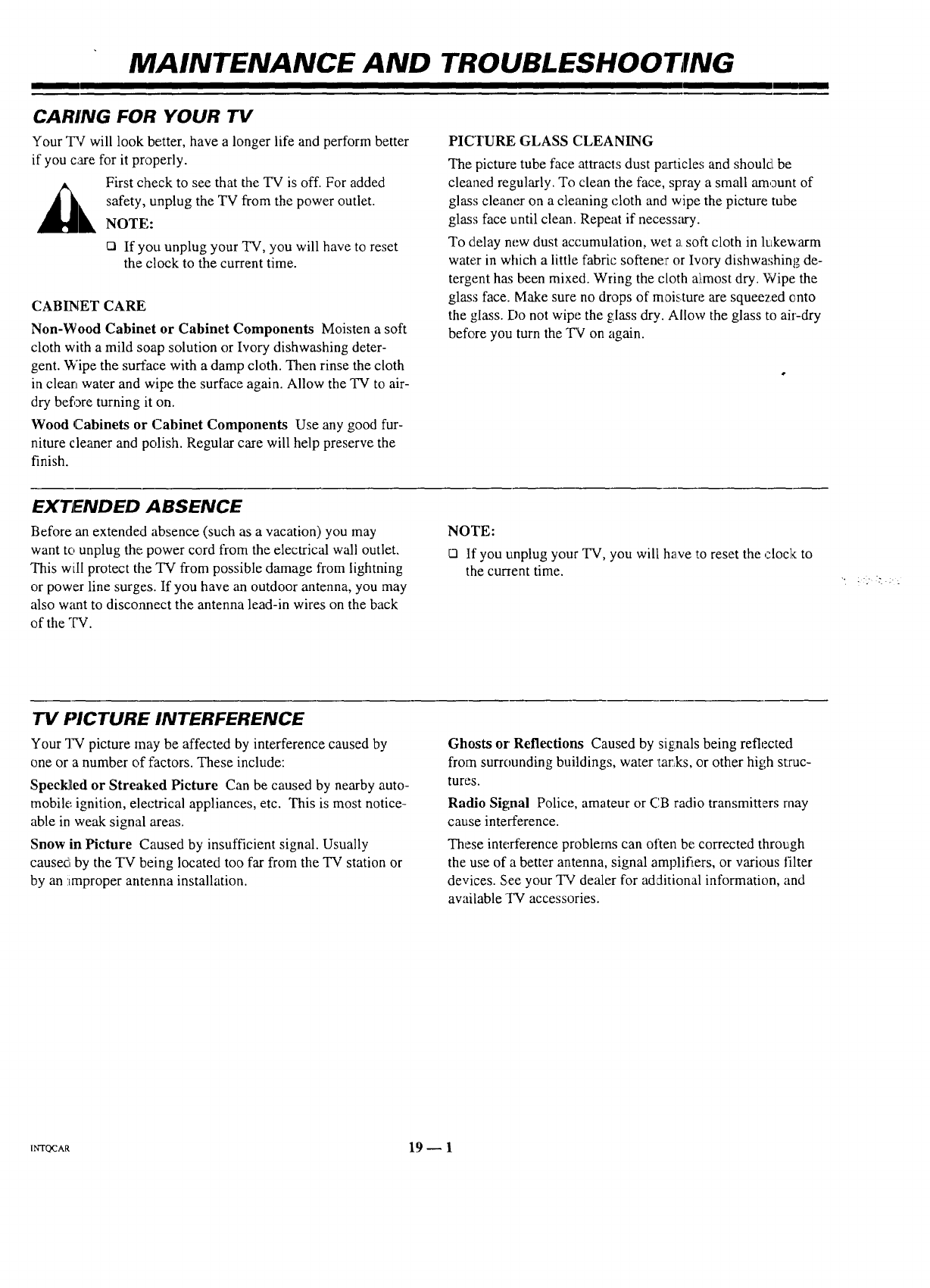
MAINTENANCE AND TROUBLESHOO fNG
CARING FOR YOUR TV
Your "PCwill look better, have a longer life and perform better
if you care for it properly.
First check to see that the TV is off. For added
safety, unplug the TV from the power outlet.
NOTE:
cl If you unplug your TV, you will have to reset
the clock to the current time.
CABINET CARE
Non-Wood Cabinet or Cabinet Components Moisten a soft
cloth with a mild soap solution or Ivory dishwashing deter-
gent. Wipe the surface with a damp cloth. Then rinse the cloth
in clean water and wipe the surface again. Allow the TV to air-
dry before turning it on.
Wood Cabinets or Cabinet Components Use any good fur-
niture cleaner and polish. Regular care will help preserve the
finish.
PICTURE GLASS (::LEANING
The picture tube face attracts dust particles and should be
cleaned regularly. To clean the face, spray a small amount of
glass cleaner on a cleaning cloth and wipe the picture tube
glass face until clean. Repeat if necessary.
To delay new dust accumulation, wet a soft cloth in lukewarm
water in which a little fabric softener or Ivory dishwashing de-
tergent has been mixed. Wring the cloth almost dry. Wipe the
glass face. Make sure no drops of moisture are squeezed onto
the glass. Do not wipe the glass dry. Allow the glass to air-dry
before you turn the TV on again.
EXTENDED ABSENCE
Before an extended absence (such as a vacation) you may
want to unplug the power cord from the electrical wall outlet.
This will protect the TV from possible damage from lightning
or power line surges. If you have an outdoor antenna, you may
also w_mt to disconnect the antenna lead-in wires on the back
of the TV.
NOTE:
[] If you unplug your TV, you will have to reset the clock to
the current time.
"IV PICTURE INTERFERENCE
Your TV picture may be affected by interference caused by
one or a number of factors. These include:
SpecMed or Streaked Picture Can be caused by nearby auto-
mobile ignition, electrical appliances, etc. This is most notice-
able in weak signal areas.
Snow in Picture Caused by insufficient signal. Usually
caused by the TV being located too far from the TV station or
by an !improper antenna installation.
Ghosts or' Reflections Caused by signals being reflected
from surrounding buildings, water tar&s, or other high struc-
tures.
Radio Signal Police, amateur or CB radio transmitters may
cause interference.
These interference problems can often be corrected through
the use of a better antenna, signal amplifiers, or various filter
devices. See your TV dealer for additional information, and
awfilable TV accessories.
I_QCAa 19 _ 1
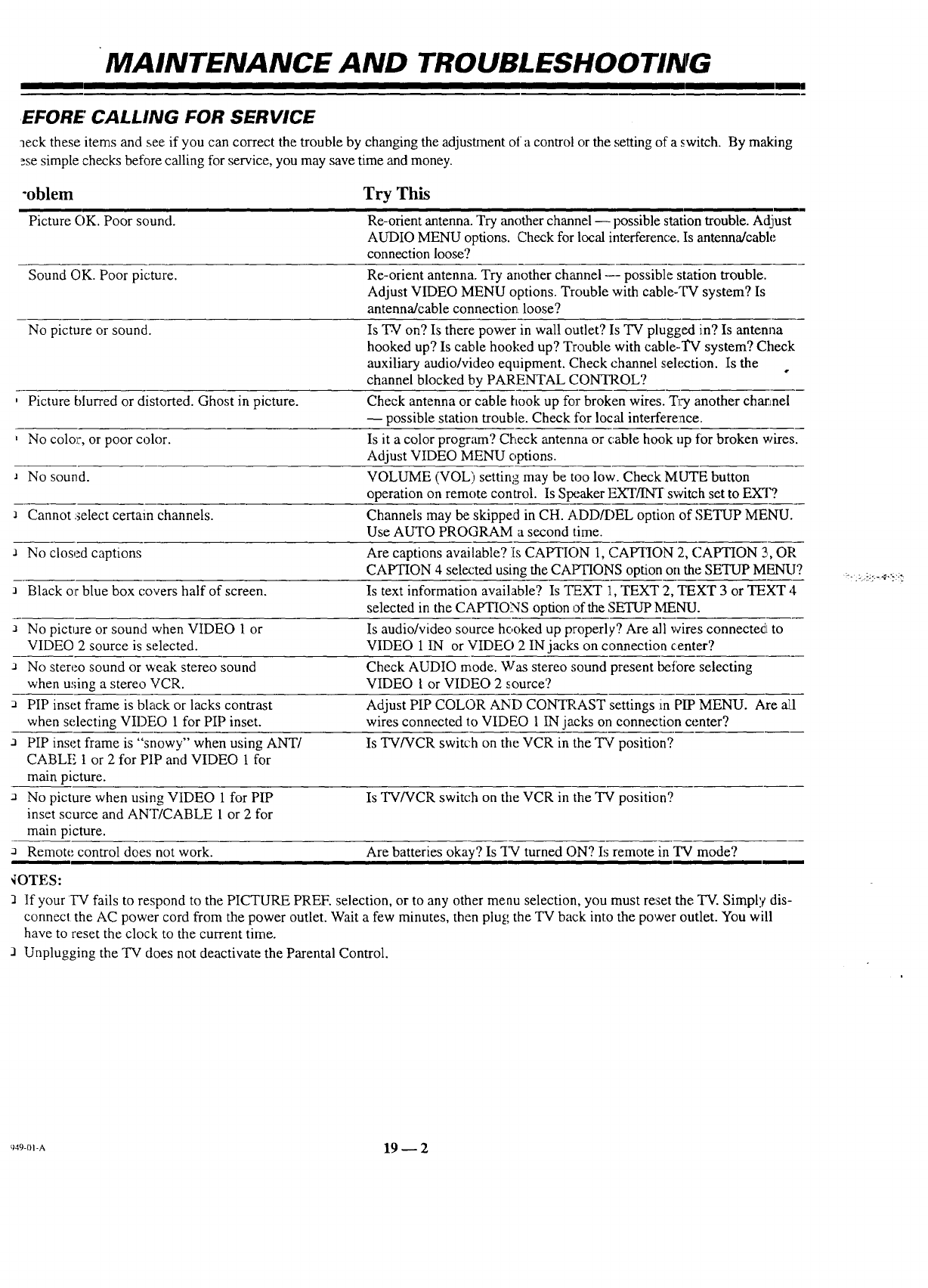
MAINTENANCE AND TROUBLESHOOTING
EFORE CALLING FOR SERVICE
neck these items and see'.if you can correct the trouble by changing the adjustment of a control or the setting of a switch. By making
_se simple checks before calling for service, you may save time and money.
-oblem Try This
Re-orient antenna. Try another channel -- possible station trouble. Adjlust
AUDIO MENU options. 'Check for local interference. Is antenna/cable
connection loose?
Sound OK. Poor picture. Re-orient antenna. Try another charmel -- possible station trouble.
Adjust VIDEO MENU options. Trouble with cable-TV system? Is
antenna/cable connection loose?
No picture or sound. Is TV on? Is there power in wall outlet? Is TV plugged in? Is antenna
hooked up? Is cable hooked up? Trouble with cable-TV system? Check
auxiliary audio/video equipment. Check channel selection. Is the
channel blocked by PARENTAL CONTROL?
, Picture blurred or distorted. Ghost in picture. Check antenna or cable hook up for broken wires. Try another charLnel
-- possible station trouble. Check for local interference.
,No color, or poor color. Is it a color program? Check antenna or cable hook up for broken wires.
Adjust VIDEO MENU options.
J No sound. VOLUME (VOL) setting may be too low. Check MUTE button
operation on remote control. Is Stx_akerEXT/IN3" switch set to EXT?
Cannot select certain channels. Channels may be skipped in CH. ADD/I)EL option of SETUP MENU.
Use AUTO PROGRAM a second time.
a No closed captions Are captions available? Is CAPTION 1, CAP'I1ON 2, CAPTION 2,,OP,
CAPTION 4 selected using the CAIYI'IONS option on the SETUP MENU?
J Black o:rblue box covers half of screen. Is text information available? Is TEXT 1, TEXT 2, TEXT 3 or TEXT 4
selected in the CAPTIONS option of the SETUP MENU.
a No picture or sound when VIDEO 1 or Is audio/video source hooked up properly? Are all wires connected to
VIDEO 2 source is selected. VIDEO 1 IN or VIDEO 2 IN jacks on connection center?
a No stereo sound or weak stereo sound Check AUDIO mode. Was stereo sound present beiore selecting
when u,;ing a stereo VCR. VIDEO 1 or VIDEO 2 source?
PIP inset frame is black or lacks contrast Adjust PIP COLOR AND CONTRAST settings :in PIP MENU. Are all
when selecting VIDEO 1 for PIP inset, wires connected to VIDEO 1 IN jacks on connection center?
aPIP inset frame is "snowy" when using ANTI Is TV/VCR switch on the VCR in the TV position?
CABLE 1 or 2 for PIP and VIDEO 1 for
main picture.
No picture when using VIDEO 1 for PIP Is TV/VCR switch on the VCR in the TV position?
inset scurce and ANT/CABLE 1 or 2 for
main picture.
Remote control does not work. Are batteries okay? Is "IN"turned ON? Is remote in TV mode?
Picture OK. Poor sound.
_OTES:
If your TV fails to respond to the PICTURE PREF. selection, or to any other menu selection, you must re:_et the TV. Simply dis-
connect the AC power cord from the power outlet. Wait a few minutes, then plug the TV back into the power outlet. You will
have to reset the clock to the current time.
J Unplugging the TV does not deactivate the Parental Control.
t149-0)-A 19 _ 2
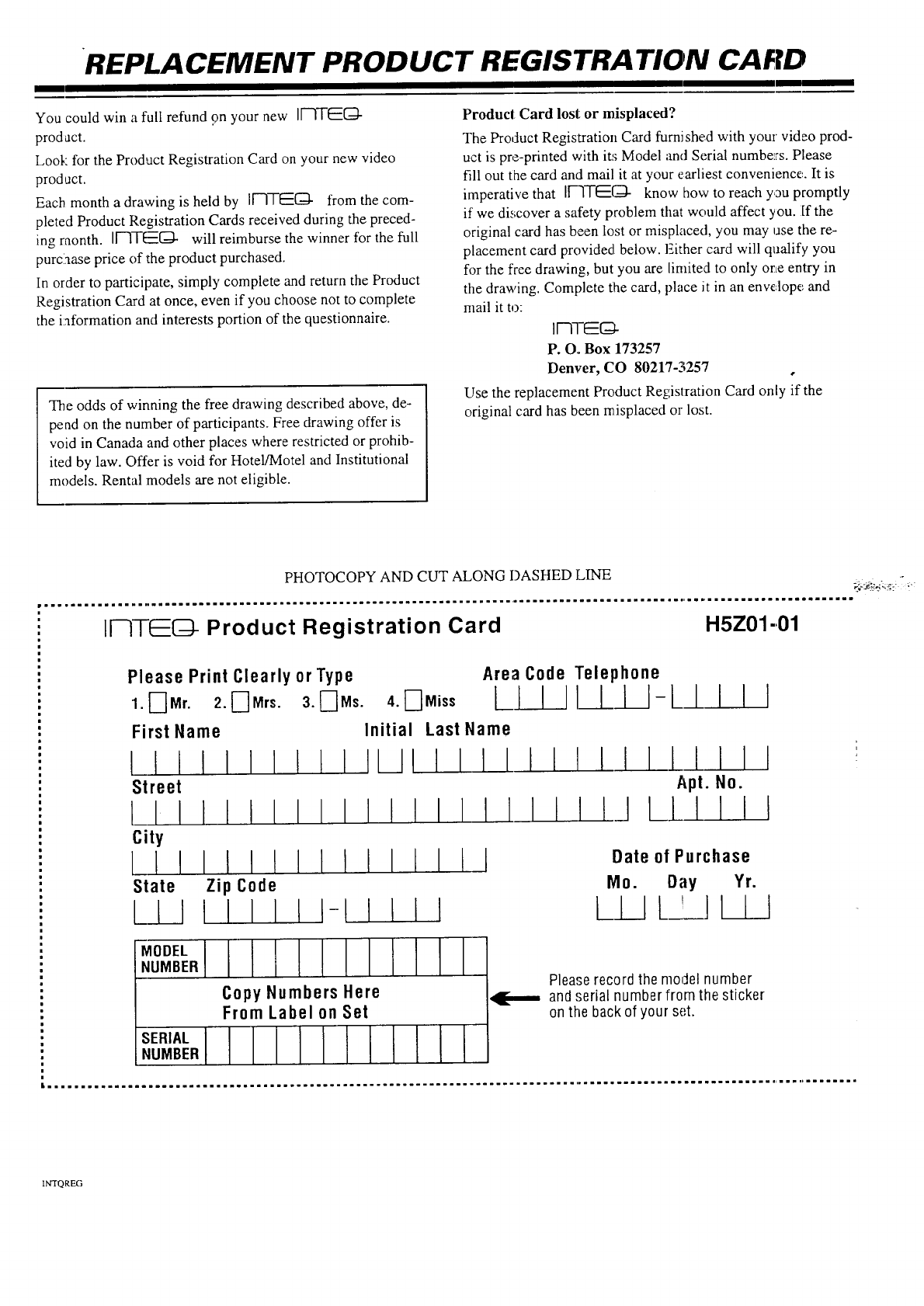
REPLACEMENT PRODUCT REGISTRATION CARD
You could win afull refund 9n your new IiIITEG} -
prod act.
Look for the Product Registration Card on your new video
product.
Each month a drawing is held by IF']TEEC_- from the com-
pleted Product Registration Cards received during the preced-
ing raonth. IFITE[_ will reimburse the winner for the full
purclaase price of the product purchased.
In order to participate, simply complete and return the Product
Registration Card at once, even if you choose not to complete
the information and interests portion of the questionnaire.
The odds of winning the free drawing described above, de-
pend on the number of participants. Free drawing offer is
void in Canada and other places where restricted or prohib-
ited by law. Offer is void for Hotel/Motel and Institutional
models. Rental models are not eligible.
Producl Card lost or misplaced?
The Product Registration Card furnished with your video prod-
uct is pre-printed with it,'; Model and Serial numbez_s. Please
fill out the card and mail it at your earliest convenience,,. It is
imperative that IF'ITE(-_- know how to reach you promptly
if we discover a safety problem that would affect you. If the
original card has been lost or misplaced, you may use the re-
placement card provided below. Either card will qualify you
for the free drawing, but you are limited to only orLe entry in
the drawing. Complete the card, place it in an envelope and
mail it to:
IB]-E(_
P. O., Box 173257
Denver, CO 80217-3257 ,
Use the replacement Product Registration Card only if the
original card has been misplaced or lost.
PHOTOCOPY AND CUT ALONG DASHED LINE ;._;_k_: i_....
IF-]TEG- Product Registration Card H5Z01-01
Please Print Clearly or Type
1. _[Mr. 2. r-]Mrs.
First Name
Area Code Telephone
3. E]Ms. 4,0Miss L!IIIII I-LI
Initial Last Name
I IIIllllll II I
I!111111111
II I
II!! IIIJ
IILIIII
Apt. No.
J LL/I ! I
LIIIIII
Street
LIIII!I
c_ty
LIIIIII
State Zip Code
L_LJI I I I I I-IIII I
Date of Purchase
Mo. Day Yr.
LII L2_I III
MODEL
NUMBER
SERIAL
NUMBER
Copy Numbers Here
From Label on Set
I IIII
'4[---- Pleaserecord the model number
and serial number from the sticker
on the back of your set.
INTQREG
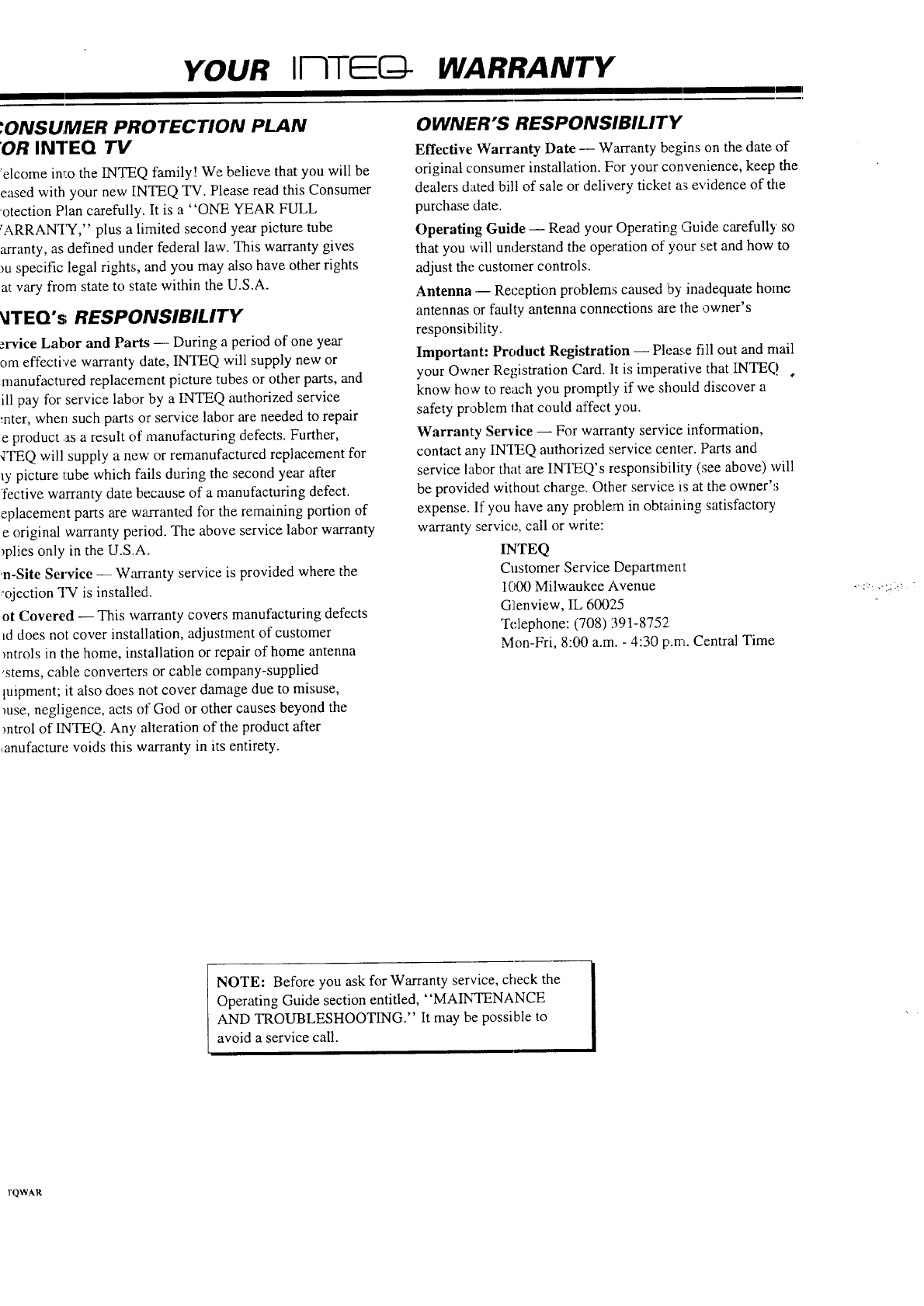
YOUR Ir-'ITEID- WARRANTY
;ONSUMER PROTECTION PLAN
OR INTEQ "/'V
_elcome inT:othe INTEQ family! We believe that you will be
eased with your new INTEQ TV. Please read this Consumer
-otection Plan carefully. It is a "ONE YEAR FULL
'ARRANTY," plus a limited second year picture tube
arranty, as defined under federal law. This warranty gives
_u specific legal rights, and you may also have other rights
at vary from state to state within the U.S.A.
_ITEQ's RESPONSIBILITY
zrvice Labor and Parts -- During a period of one year
om effective warranty date, INTEQ will supply new or
manufactured replacement picture tubes or other parts, and
ill pay for service labor by a INTEQ authorized service
'_nter, when such parts or service labor are needed to repair
e product .as a result of manufacturing defects. Further,
,!TEQ will supply a new or remanufactured replacement for
_y picture robe which fails during the second year after
fective warranty date because of a manufacturing defect.
eplacement parts are wa_anted for the remaining portion of
e original warranty period. The above service labor warranty
_plies only in the U.S.A.
'n-Site Service -- Warranty service is provided where the
._ojection TV is installed.
ot Covered -- This warranty covers manufacturing defects
_d does not cover installation, adjustment of customer
mtrols in the home, installation or repair of home antenna
,stems, cable converters or cable company-supplied
tuipment; it also does not cover damage due to misuse,
rose, negligence, acts of God or other causes beyond the
mtrol of 1NTEQ. Any alteration of the product after
,anufacture voids this warranty in its entirety.
OWNER'S RESPONSIBILITY
Effective Warranty Date -- Warranty begins on the date of
original consumer installation. For your convenience, keep the
dealers dated bill of sale or delivery ticket as evidence of the
purchase date.
Operating Guide -- Read your Operating Guide carefully so
that you will understand the operation of your set and how to
adjust the customer controls.
Antenna -- Reception problems caused by inadequate home
antennas or faulty antenna connections are the owner's
responsibility.
Important: Product Registration -- Please fill out and mail
your Owner Registration Card. It is imperative that INTEQ ,
know how to reach you promptly if we should discover a
safety problem that could affect you.
Warranty Service -- For warranty service information,
contact any IN_II2Q authorized service center. Parts and
service labor that are INTEQ's responsibility (see above) will
be provided without charge. Other service is at the owner's
expense. If you have any problem in obtaining satisfactory
warranty service, call or write:
INTEQ
Customer Service Department
1000 Milwaukee Avenue
G]lenview, IL 60025
Telephone: (708) 391-8752
Mon-Fri, 8:00 a.m. - 4:30 p.m. Central Time
NOTE: Before you ask for Warranty service, check the
Operating Guide section entitled, "MAINTENANCE
AND TROUBLESHOOTING." It may be possible to
avoid a service call.
rQWAR


S I G H T _'_
i_ STAR StarSightTelecast, lnc.
39650 Liberty Street
s I G H "r_, Fremont, CA 94538
Part No. 206--2918-01
Printed in U.S.A.
EP-EDCBA
WAT C H U S.
TO BE LICENSED TO USE THE STARSIGHT _ SYSTEM AND STARSIGHT
FEATURES OF THIS EQUIPMENT, YOU MUST BE REGISTERED WITH
STARSIGHT OR AN AUTHORIZED REPRESENTATIVE. LICENSED UNDER
U.S. PATENT NUMBERS 4,706,121 AND 5,151/789. USE RIGHTS RESERVED.
STARSIGHT IS NOT IN ANY WAY LIABLE FOR THE ACCURACY OF THE
PROGRAM SCHEDULE INFORMATION PROVIDED BY THE STARSIGHT
SYSTEM. IN NO EVENT SHALL STARSIGHT BE LIABLE FOR A!_Y
AMOUNTS REPRESENTING LOSS OF PROFITS, OR INDIRECT, SPECIAL,, OR
CONSEQUENTIAL DAMAGES IN CONNECTION WITH THE PROVISION OR
USE OF ANY INFORMATION, EQUIPMENT, OR SERVICE RELATING TO
THE STARSIGHT SYSTEM.
©1995 StarSight Telecast Inc.
StarSight is a trademark of StarSight Telecast.
StarSight is a subscription service.
This Operating Guide may not be duplicated,
copied or transferred in any way without prior
written permission of StarSight Telecast, Inc.
Patent Statement
The StarSight Guide system and its use are pro-
tected by one or more of the following U.S. pat-
ents: U.S. Patent No. 4,706,121, U.S. Patent No.
5,151,789; use rights reserved. For licensing and
subscription infomlation, call (800) 643-STAR.
Compliance Statement
This device complies with Part 15 of the FCC
Rules. Operation is subject to the following two
ccnditions: (1) this device may not cause harm-
ful interference and (2) this device must accept
any interference received, including interference
that may cause undesired operation.
Trademark Statement
StarSight is a registered trademark of StarSight
Telecast Inc.
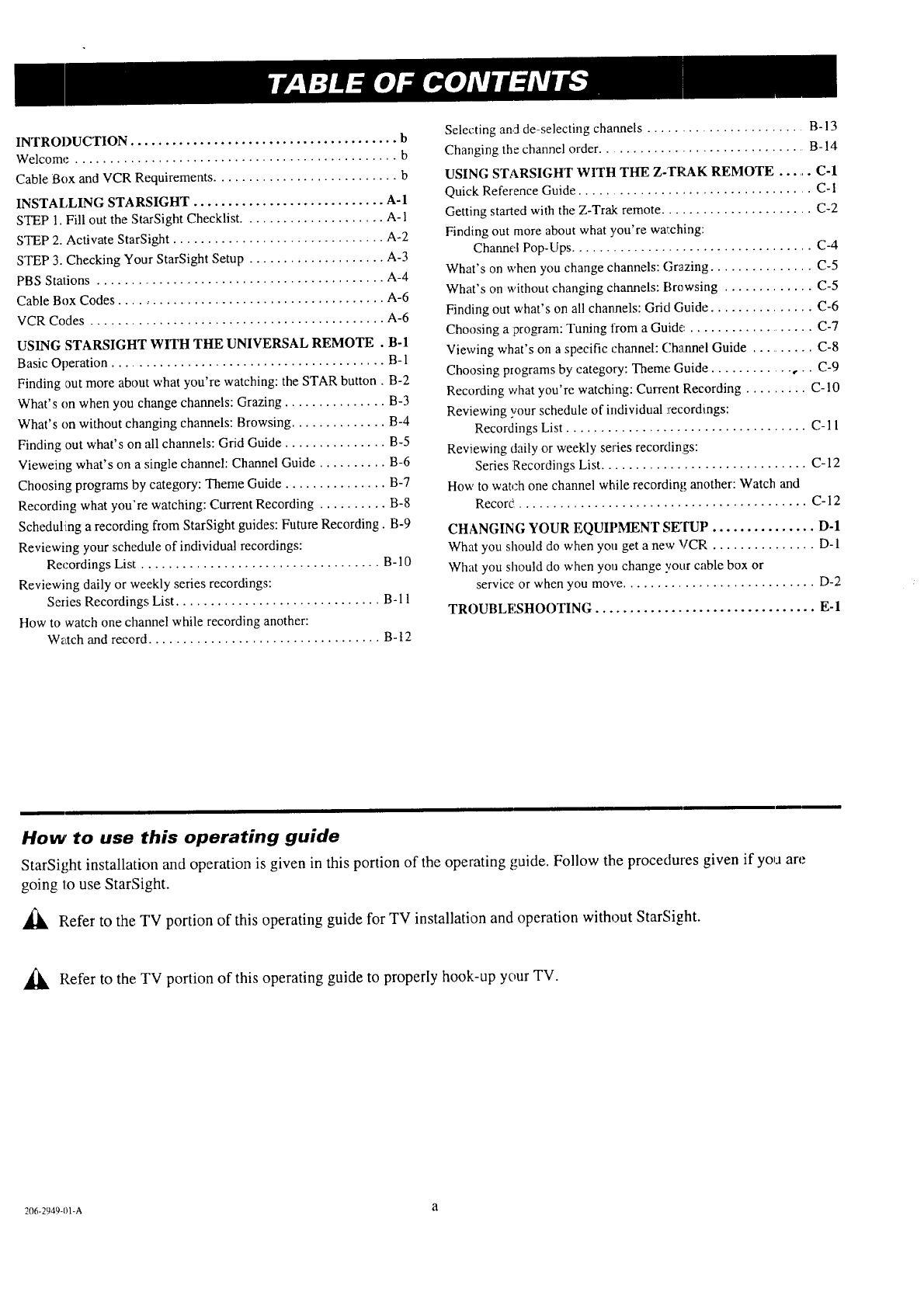
INTRODUCTION....................................... b
Welcome ............................................... b
Cable Box and VCR Requirements ........................... b
INSTALLING STARSIGHT ............................ A-1
STEP 1. Fill out the StarSight Checklist ..................... A-l
STEP 2. Activate StarSight ............................... A-2
STEP 3. Checking Your StarSight Setup .................... A-3
PBS Stations .......................................... A-4
Cable Box Codes ........................................ A-6
VCR Codes ........................................... A-6
USING STARSIGHT WITH THE UNIVERSAL REMOTE . B-1
Basic Operation ........................................ B-l
Finding out more about what you're watching: the STAR button. B-2
What's on when you change channels: Grazing ............... B-3
What's on without changing channels: Browsing .............. B-4
Finding out what's on all channels: Grid Guide ............... B-5
Vieweing what's on asingle channel: Channel Guide .......... B-6
Choosing programs by category: Theme Guide ............... B-7
Recording what you're watching: Current Recording .......... B-8
Scheduling a recording from StarSight guides: Future Recording. B-9
Reviewing your schedule of individual recordings:
Recordings List ................................... B-10
Reviewing daily or weekly series recordings:
Series Recordings List .............................. B-11
How to watch one channel while recording another:
Watch and record .................................. B- 12
Selecting and de-selecting channels ....................... B- 13
Changing the channel order ............................... B-14
USING STARSIGHT 'WITH THE Z-TRAK REMOTE ...... C-1
Quick Reference Guide .................................. C-1
Getting started with the Z-Trak remote ...................... C-2
Finding out more about what you're wa_:ching:
Channel Pop-Ups ................................... C-4
What's on when you change channels: Grazing ............... C-5
What's on without changing channels: Browsing ............. C-5
Finding out what's on all channels: Grid Guide ............... C-6
Choosing a program: Tuning from a Guide ................... C-7
Viewing what's on a specific channel: Channel Guide .......... C-8
Choosing programs by category: Theme Guide ............ ,,.. C-9
Recording what you're watching: Current Recording ......... C-10
Reviewing your schedule of individual :recordings:
Recordings List ................................... C-11
Reviewing daily or weekly series recordings:
Series Recordings List .............................. C-12
How to watch one channel while recording another: Watch and
Recor_ .......................................... C-12
CHANGING YOUR EQUIPMENT SETUP ............... D-1
What you shou/d do when you get a new VCR ............... D-1
What you should do when you change your cable box or
service or when you move ............................ D-2
TROUBLF, SHOOTING ................................ E-1
How' to use this operating guide
StarSight installation and operation is given in this portion of the operating guide. Follow the procedures given if you are
going to use StarSight.
_, Pefer to the TV portion of this operating guide for TV installation and operation without StarSight.
_k, Refer to the TV portion of this operating guide to properly hook-up your TV.
206-2949-01-A a
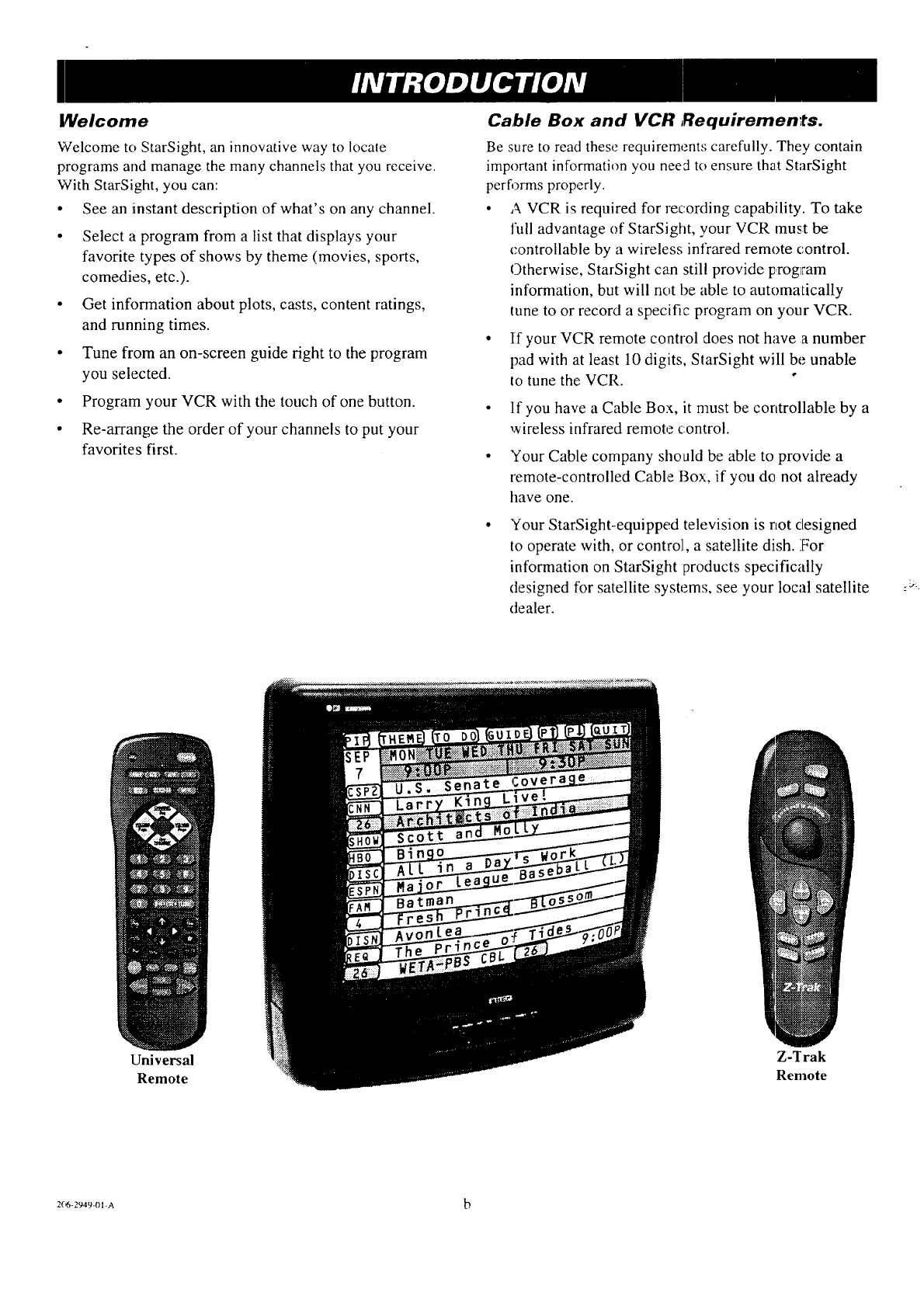
14lelcome
Welcome to StarSight, an innovative way to locate
programs and manage the many channels that you receive.
With StarSight, you can:
• See an instant description of what's on any channel.
• Select a program from a list that displays your
favorite types of shows by theme (movies, sports,
comedies, etc.).
•Get information about plots, casts, content ratings,
and running times.
• Tune from an on-screen guide right to the program
you selected.
• Program your VCR with the touch of one button.
• Re-arrange the order of your channels to put your
favorites :first,
Universal
Remote
Cable Box and VCR Requirements.
Be sure to read these requirements carefully. They contain
important information you need to ensure that StarSight
performs properly.
• A VCR is required for recording capability. To take
full advantage of StarSight, your VCR must be
controllable by a wireless infrared remote control.
Otherwise, StarSight can still provide program
information, but will not be able to automatically
tune to or record a specific program on your VCR.
•If your VCR remote control does not have a number
pad with at least 10 digits, SlarSight will be unable
to tune the', VCR.
•If you have a Cable Box, it must be controllable by a
wireless infrared remote control.
•"four Cable company should be able to provide a
remote-controlled Cable Box, if you do not already
have one.
"four StarSight-equipped television is not designed
to operate with, or control, a satellite dish. For
information on StarSight products specifically
designed for satellite systems, see your local satellite
dealer.
ZZ[rak
Remote
2_5-2949-01 -A b
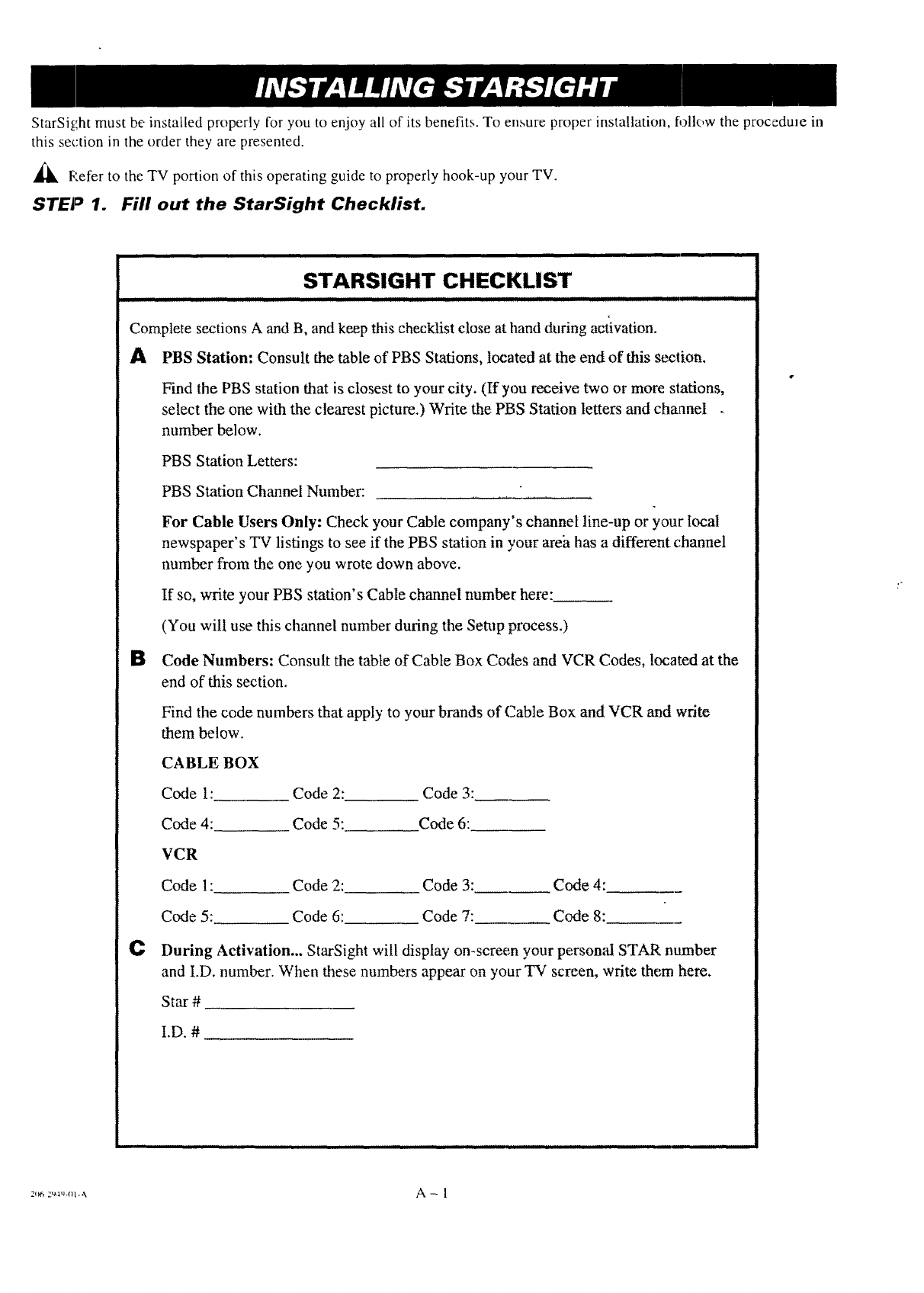
StarSight must be installed properly for you to enjoy all of its benefits. To ensure proper installation, follow the procedu]e in
this section in the order they are presented.
_k F'.efer to the TV portion of this operating guide to properly hook-up your TV.
STEP 1. Fill out the StarSight Checklist.
STARSIGHT CHECKLIST
[IIiiiiiiii IIIIIIIII iiiiii I I II i i i ::i i 77]_ .
Complete sections A and B, and keep this checklist close at hand during activation.
APBS Station: Consult the table of PBS Stations, located at the end of this section.
Find the PBS station that is closest to your city. (ff you receive two or more stations,
select the one with the clearest picture.) Write the PBS Station letters and channel
number below.
PBS Station Letters:
PBS Station Channel Number:
For Cable Users Only: Check your Cable company's channel line-up or your local
newspaper's TV listings to see if the PBS station in your area has a different channel
number from the one you wrote down above.
If so, write your PBS station's Cable channel number here:
(You will use this channel number during the Setup process.)
SCode Numbers: Consult the table of Cable Box Codes and VCR Codes, located at the
end of this section,
Find the code numbers that apply to your brands of Cable Box and VCR and write
them below.
CABLE BOX
Code 1: Code 2: Code 3:
Code 4: Code 5: Code 6:
VCR
Code 1: Code 2: Code 3: Code 4:
Code 5: Code 6: Code 7: Code 8:
CDuring Activation... StarSight will display on-screen your person,'d STAR number
and I.D. number. When these numbers appear on your TV screen, write them here.
Star #
I.D.#
2_m 2u4,J-ol-a, A - 1
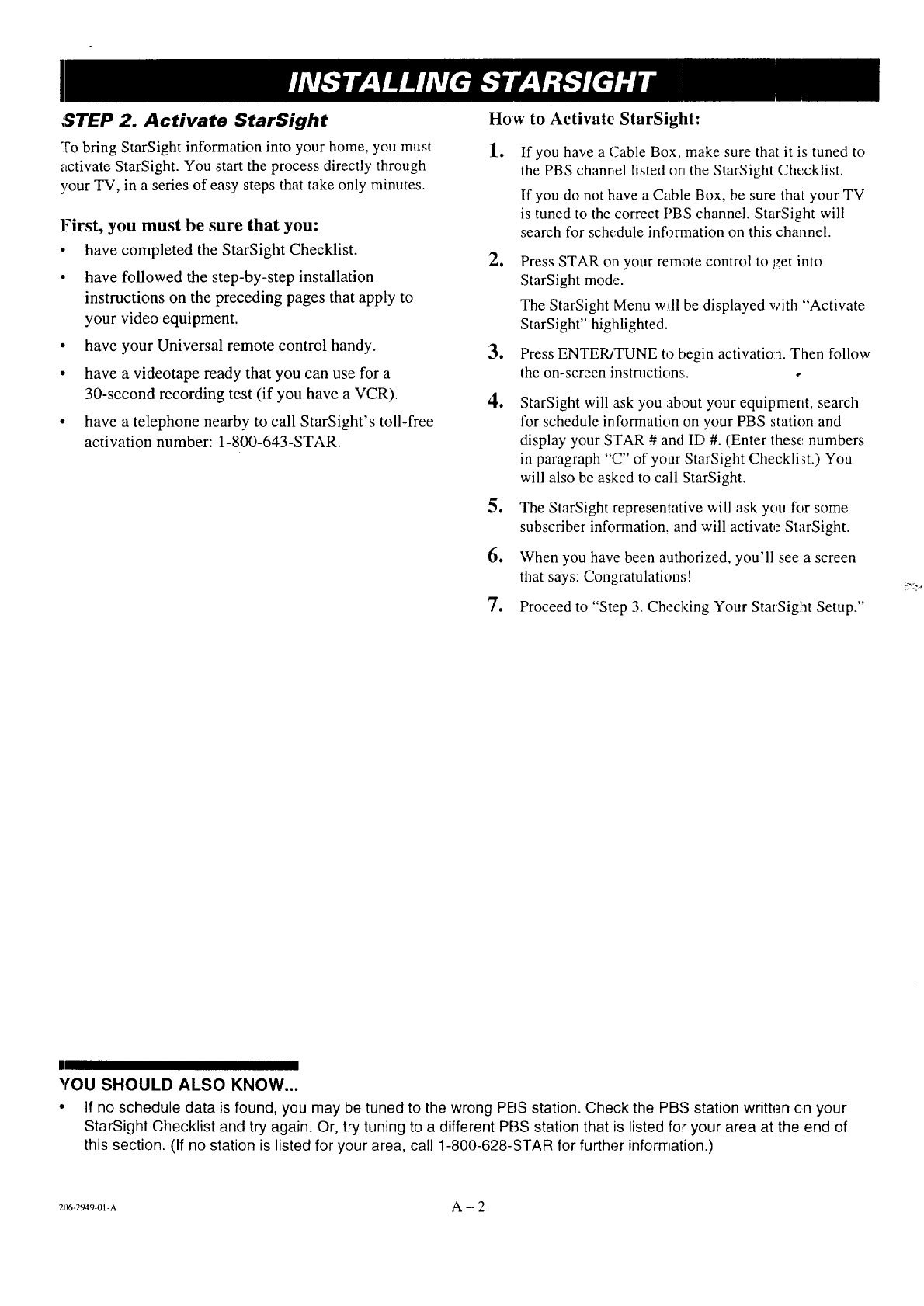
JSTEP 2. Activate StarSight
To bring StarSight information into your home, you must
activate StarSight. You start the process directly through
3,our TV, in a series of easy steps that take only minutes.
How to Activate StarSight:
.
First, you must be sure that you:
• have completed the StarSight Checklist. 2.
• have followed the step-by-step installation
instructions on the preceding pages that apply to
your video equipment.
• have your Universal remote control handy.
• have a videotape ready that you can use for a
30-second recording test (if you have aVCR). 4.
• have a telephone nearby to call StarSight's toll-free
activation number: 1-800-643-STAR.
If you have a (Sable Box, make sure that it is tuned to
the PBS ,channel listed on the StarSight Checklist.
If you do not have a Cable Box, be sure that your TV
is tuned to the correct PBS channel. StarSight will
search for schedule infonnation on this channel.
Press STAR on your remote control to get into
StarSight mode.
The StarSight Menu will be displayed with "Activate
StarSight" highlighted.
3. Press ENTER/TUNE to begin activation. Then follow
the on-screen instructions:, o
e
.
StarSight will ask you about your equipment, search
for schedule information on your PBS station and
display your STAR # and ID #. (Enter these numbers
in paragraph "C" of your StarSight Checklist.) You
will also be asked to call StarSight.
The StarSight representative will ask you for some
subscriber information,, and will activate StarSight.
When you have been authorized, you'll see a screen
that says: Congratulations!
7. Proceed to "Step 3. Checldng Your StarSight Setup."
I
YOU SHOULD ALSO KNOW...
• If no schedule data is found, you may be tuned to the wrong PBS station. Check the PB,'3station written on your
StarSight Checklist and try again. Or, try tuning to a different PI3S station that is listed fo_"your area at the end of
this section. (If no station is listed for your area, call 1-800-628-STAR for further information.)
2')6-294%01-A A --2
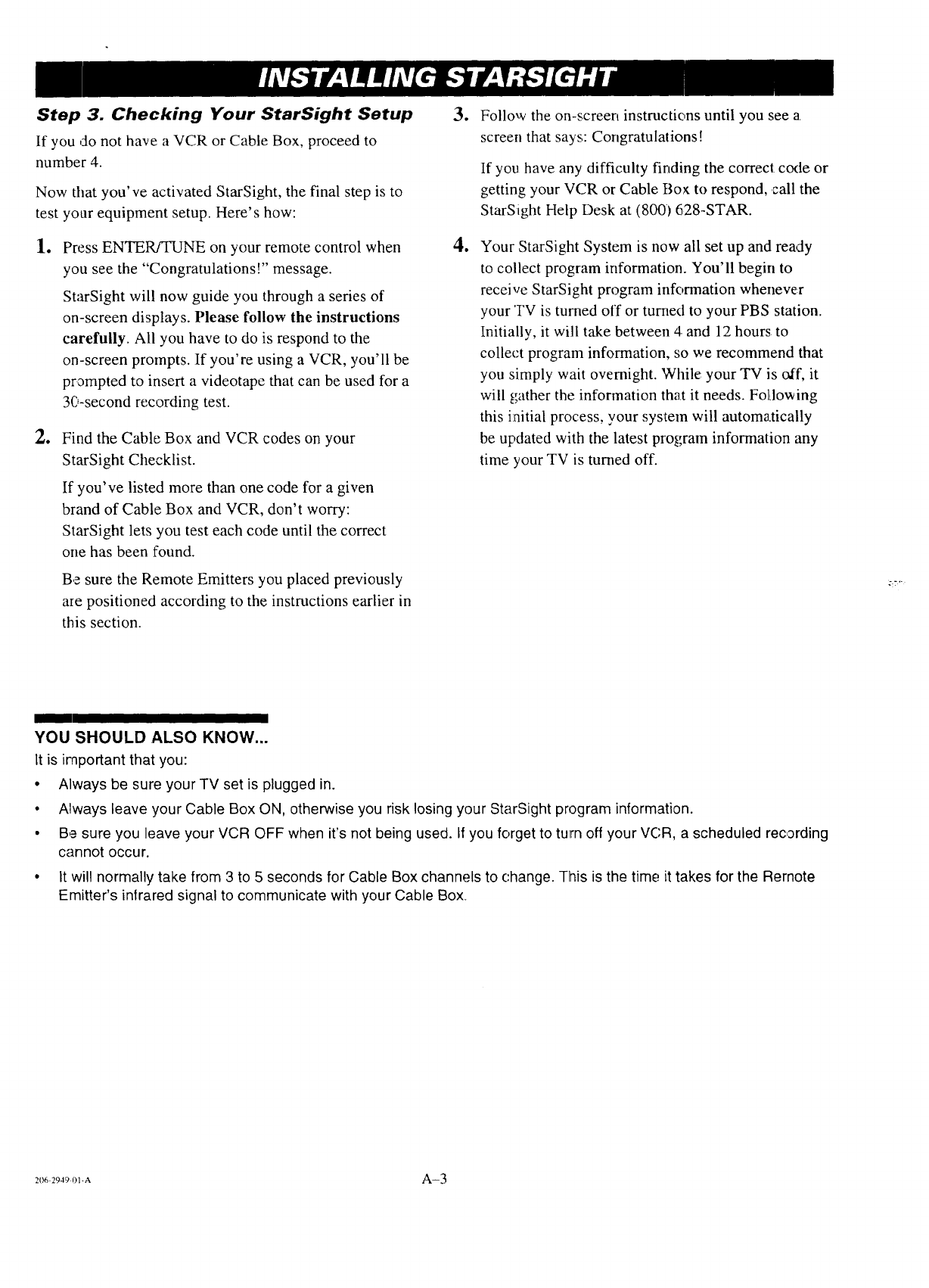
Step 3. Checking Your StarSight Setup
If you do not have a VCR or Cable Box, proceed to
number 4.
Now that you've activated StarSight, the final step is to
test your equipment setup. Here's how:
le Press ENTER/TUNE on your remote control when
you see the "Congratulations !" message.
StarSight will now guide you through a series of
on-screen displays. Please follow the instructions
carefully. All you have to do is respond to the
on-screen prompts. If you're using a VCR, you'll be
prompted to insert a videotape that can be used for a
30-second recording test.
eFind the Cable Box and VCR codes on your
StarSight Checklist.
If you've listed more than one code for a given
brand of Cable Box and VCR, don't worry:
StarSight lets you test each code until the correct
one has been found.
Be sure the Remote Emitters you placed previously
are positioned according to the instructions earlier in
this section.
.
o
Follow the on-screen instructions until you see a
screen that says,: Congratulations!
If you have any difficulty finding the correct code or
getting your VCR or Cable Box to respond, call the
StarSight Help Desk at (800I 628-STAR.
Your StarSight System is now all set up and ready
to collect program information. You'll begin to
receive StarSight program information whenever
your TV is turued off or turned to your PBS station.
Initially, it will take between 4 and 12 hours to
collect program information, so we recommend that
you simply wait overnight. While your TV is off, it
will gather the information that it needs. FolJowing
this initial process, your system will automa.tically
be updated with the latest program information any
time your TV is turned off.
;:7 "
YOU SHOULD ALSO KNOW...
It is important that you:
• Always be sure your TV set is plugged in.
• Always leave your Cable Box ON, otherwise you risk losing your StarSight program information.
• Be sure you leave your VCR OFF when it's not being used. If you forget to turn off your VC;R, a scheduled recording
cannot occur.
• It will normally take from 3 to 5 seconds for Cable Box channels to change. This is the time it takes for the Remote
Emitter's inlrared signal to communicate with your Cable Box.
:o6:949-o]-a A-3
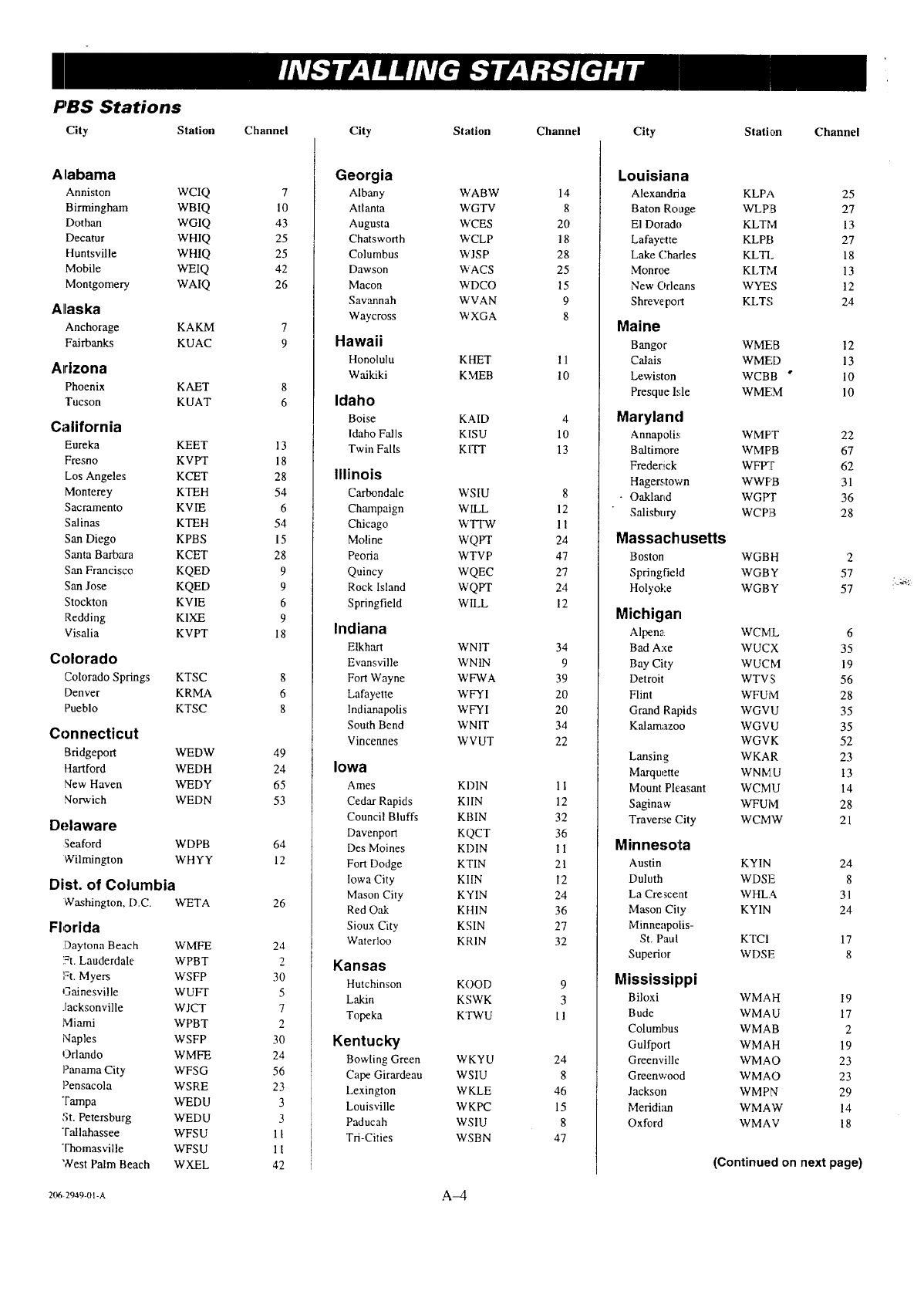
P'BS Stations
City Station Channel City Station Channel City Stati,un Channel
Alabama
Anniston WCIQ
Birmingham WBIQ
Dothan WGIQ
Decatur WHIQ
Huntsville WHIQ
Mobile WEIQ
Montgomery WAIQ
Alaska
Anchorage KAKM
Fairbanks KUAC
Arizona
Phoenix KAET
Tucson KUAT
7
10
43
25
25
42
26
7
9
8
6
California
Eureka KEET 13
Fresno KVPT 18
Los Angeles KCET 28
Monterey KTEH 54
Sacramento KVIE 6
Salines KTEH 54
San Diego KPBS 15
Santa Barbara KCET 28
San Francisco KQED 9
San Jose KQED 9
Stockton KVIE 6
Redding KIXE 9
Visalia KVPT 18
Colorado
Colorado Springs KTSC
Denver KRMA
Pueblo KTSC
8
6
8
Con necticut
Bridgeport WEDW 49
Hartford WEDH 24
New Haven WEDY 65
Norwich WEDN 53
Delaware
Seaford WDPB
Wilmington WHYY
Dist. of Columbia
Washington, D.C. WETA
Florida
Daytona Beach WMFE
',=t.Lauderdale WPBT
l=t. Myers WSFP
Gainesville WUFT
Jacksonville WJCT
Miami WPBT
Naples WSFP
Orlando WMFE
Panama City WFSG
Pensacola WSRE
Tampa WEDU
St. Petersburg WEDU
Tallahassee WFSU
Thomasville WFSU
',Vest Palm Beach WXEL
64
12
26
24
2
30
5
7
2
30
24
56
23
3
3
11
11
42
Georgia
Albany WABW 14
Atlanta WGTV 8
Augusta WCES 20
Chatsworth WCLP 18
Columbus WJSP 28
Dawson WACS 25
Macon WDCO 15
Savannah WVAN 9
Waycross W XGA 8
Hawaii
Honolulu KHET 11
Waikiki KMEB 10
Idaho
Boise KAID 4
Idaho Falls KISU 10
Twin Falls KIT]' 13
Illinois
Carbondale WSIU 8
Champaign WILL 12
Chicago WTTW 11
Moline WQPT 24
Peoria WTVP 47
Quincy WQEC 27
Rock Island WQPT 24
Springfield WILL 12
Indiana
Elkhart WNIT 34
Evansville WNIN 9
Fort Wayne WFWA 39
Lafayette WFY I 20
Indianapolis WFYI 20
South Bend WNIT 34
Vincennes WVUT 22
Iowa
Ames KDIN 11
Cedar Rapids KI IN 12
Council Bluffs KBIN 32
Davenport KQCT 36
Des Moines KDIN 11
Fort Dodge KTIN 21
Iowa City KIlN 12
Mason City KYIN 24
Red Oak KFJIN 36
Sioux City KSIN 27
Waterloo KRIN 32
Kansas
Hutchinson
Lakin
Topeka
KOOD 9
KSWK 3
KTWU II
Kentucky
Bowling Green WKYU 24
Cape Girardeau WSIU 8
Lexington WKLE 46
Louisville WKPC 15
Paducah WSIU 8
Td-Cities WSBN 47
Louisiana
Alexandri a
Baton Rouge
El Dorado
Lafayette
Lake (:hades
Monroe
New Orleans
Shreve port
Maine
Bangor
Calais
Lewiston
Presque Me
Maryland
Annapolis
Baltimore
Frederick
Hagerstown
• Oakland
Salisbury
Massachusetts
Boston
Springfield
Holyoke
Michigan
Alpen_: WCML 6
Bad Axe WUCX 35
Bay City WUCM 19
Detroit WTVS 56
Flint WFUM 28
Grand Rapids WGVU 35
Kalamazoo WGVU 35
WGVK 52
Lansing WKAR 23
Marquette WNMU 13
Mount Pleasant WCMU 14
Saginaw WFUM 28
Traverse City WCMW 21
Minnesota
Austin KYIN 24
Duluth WDSE 8
La Crescent WHLA 31
Mason Cily KYIN 24
Minneapolis-
St. Paul KTCI 17
Superior WDSE 8
Mississippi
Biloxi WMA H 19
Bude WMAU 17
Columbus WMA B 2
Gulfport WMAH 19
Greenville WMAO 23
Greenwood WMAO 23
Jackson WMPN 29
Meridian WMAW 14
Oxford WMAV 18
KLPA 25
WLPB 27
KLTM 13
KLPB 27
KLTL 18
KLTM 13
WYES 12
KLTS 24
WMEB 12
WMF, D 13
WCBB "10
WMEM 10
WMF'T 22
WMF'B 67
WFPT 62
WWPB 31
WGPT 36
WCPB 28
WGBH 2
WGBY 57
WGBY 57
(Continued on next page)
206 2949-01-A AM
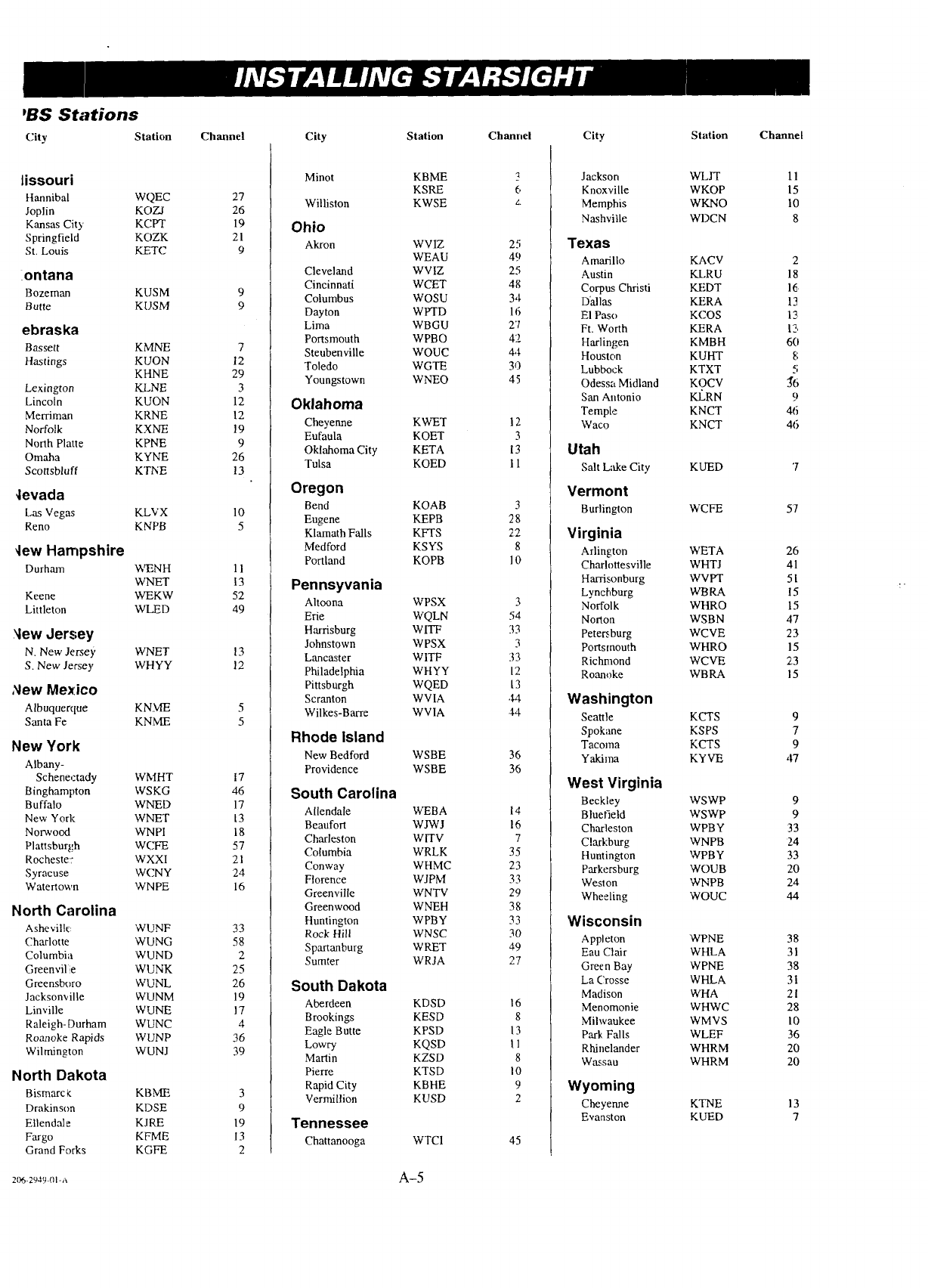
'BS Stations
City Station Channel City Station
lissouri
Hannibal WQEC 27
Joplin KOZI 26
Kansas City KCPT 19
Springfield KOZK 21
St. Louis KETC 9
ontana
Bozeman KUSM
Butte KUSM
9
9
ebraska
Bassett KMNE 7
Hastings KUON 12
KHNE 29
Lexington KLNE 3
Lincoln KUON 12
Merriman KRNE 12
Norfolk KXNE 19
North Platte KPNE 9
Omaha KYNE 26
Scottsbluff KTNE 13
4evada
Las Vegas KLVX
Reno KNPI3
Yew Hampshire
Durham "¢,rENH
WNET
Keene WEKW
Littleton WLED
,_iewJersey
N. New Jersey WNET
S. New Jersey WHYY
,_lew Mexico
Albuquerque KNME
Santa Fe KNME
10
5
11
13
52
49
13
12
5
5
New York
Albany-
Schenectady WMHT 17
Binghampton WSKG 46
Buffalo WNED 17
New York WNET 13
Norwood WNPI 18
Plattsburgh WCFE 57
Rocheste: WXXI 21
Syracuse WCNY 24
Watertown WNPE 16
North Carolina
Ashevilk_ WUNF
Charlotte WU NG
Columbia WUND
Greenvil e WUNK
Greensboro WUNL
Jacksonville WUNM
Linville WUNE
Raleigh- Durham WUNC
Roanoke Rapids WUNP
Wilmington WUNJ
33
58
2
25
26
19
17
4
36
39
North Dakota
Bismarck: KBME 3
Drakinson KDSE 9
Ellendale KJRE 19
Fargo KFME 13
Grand Forks KGFE 2
Channel
Minot KBME __
KSRE 6
Williston KWSE z.
Ohio
Akron WVIZ 25
WEAU 49
Cleveland WVIZ 25
Cincinnati WCET 48
Columbus WOSU 34
Dayton WPTD 16
Lima WBGU 2'1
Portsmouth WPBO 42
Steubenville WOUC 44
Toledo WGTE 30
Youngstown WNEO 45
Oklahoma
Cheyenne KWET 12
Eufaula KOET 3
Oklahoma City KETA 13
Tulsa KOED 11
Oregon
Bend KOAB 3
Eugene KEPB 28
Klamath Falls KFTS 22
Medford KSYS 8
Portland KOPB 10
Pennsyvania
Altoona WPSX 3
Erie WQLN 54
Harrisburg WITF 33
Johnstown WPSX 3
Lancaster WITF 33
Philadelphia WHYY 12
Pittsburgh WQED [3
Scranton WVIA ,M.
Wilkes-Barre WVIA 44
Rhode Island
New Bedford WSBE
Providence WSBE
36
36
South Carolina
Allendale WEBA 14
Beaufort WJWJ 16
Charleston WITV 7
Columbia WRLK 35
Conway WHMC 23
Florence WJPM 33
Greenville WNTV 29
Greenwood WNEH 38
Huntington WPBY 33
Rock Hill WNSC 30
Spartanburg WRET a9
Sumter WRJA 27
South Dakota
Aberdeen KDSD 16
13rookings KESD 8
Eagle Butte KPSD 13
Lowry KQSD I 1
Martin KZSD 8
Pierre KTSD I0
Rapid City KBHE 9
Vermillion KUSD 2
Tennessee
Chattanooga WTC1 45
City
Jackson
Knoxville
Memphis
Nashville
Texas
Amarillo
Austin
Corpus Christi
D'allas
E1 Paso
Ft. Worth
Harlingen
Houston
Lubbock
Odessa Midland
San Antonio
Temple
Waco
Utah
Salt Lake City
Vermont
Burlington
Virginia
Arlington
Charlottesville
Harrisonburg
Lynchburg
Norfolk
Norton
Petersburg
Portsmouth
Richmond
Roanoke
Washington
Seattle
Spokane
Tacoma
Yakima
West Virginia
Beckley
Bluefield
Charleston
Clarkburg
Huntington
Parkersburg
Weston
Wheeling
Wisconsin
Appleton
Eau Clair
Green Bay
La Crosse
Madison
Menomonie
Mihvaukee
Park Falls
Rhinelander
Wassau
Wyoming
Cheyenne
Evanston
Station
WLJT
WKOP
WKNO
WDCN
KACV
KLRU
KEDT
KERA
KCOS
KERA
KMBH
KUHT
KTXT
KOCV
KJ_,RN
KNCT
KNCT
KUED
WCFE
WETA
WHTJ
WVPT
WI3RA
WHRO
WSBN
WCVE
WHRO
WCVE
WBRA
KCTS
KSPS
KCTS
KYVE
WSWP
WSWP
WPBY
WNPB
WPBY
WOUB
WNPB
WOUC
WPNE
WHLA
WPNE
WHLA
WHA
WHWC
WMVS
WLEF
WHRM
WHRM
KTNE
KUED
Channel
11
15
10
8
2
18
16
13
13
12,
6(I
8
5
J6
9
46
46
57
26
41
51
15
15
47
23
15
23
15
9
7
9
,17
9
9
33
24
33
20
24
44
38
31
38
31
21
28
10
36
20
20
13
7
2o6-:9_90,-,, A-5
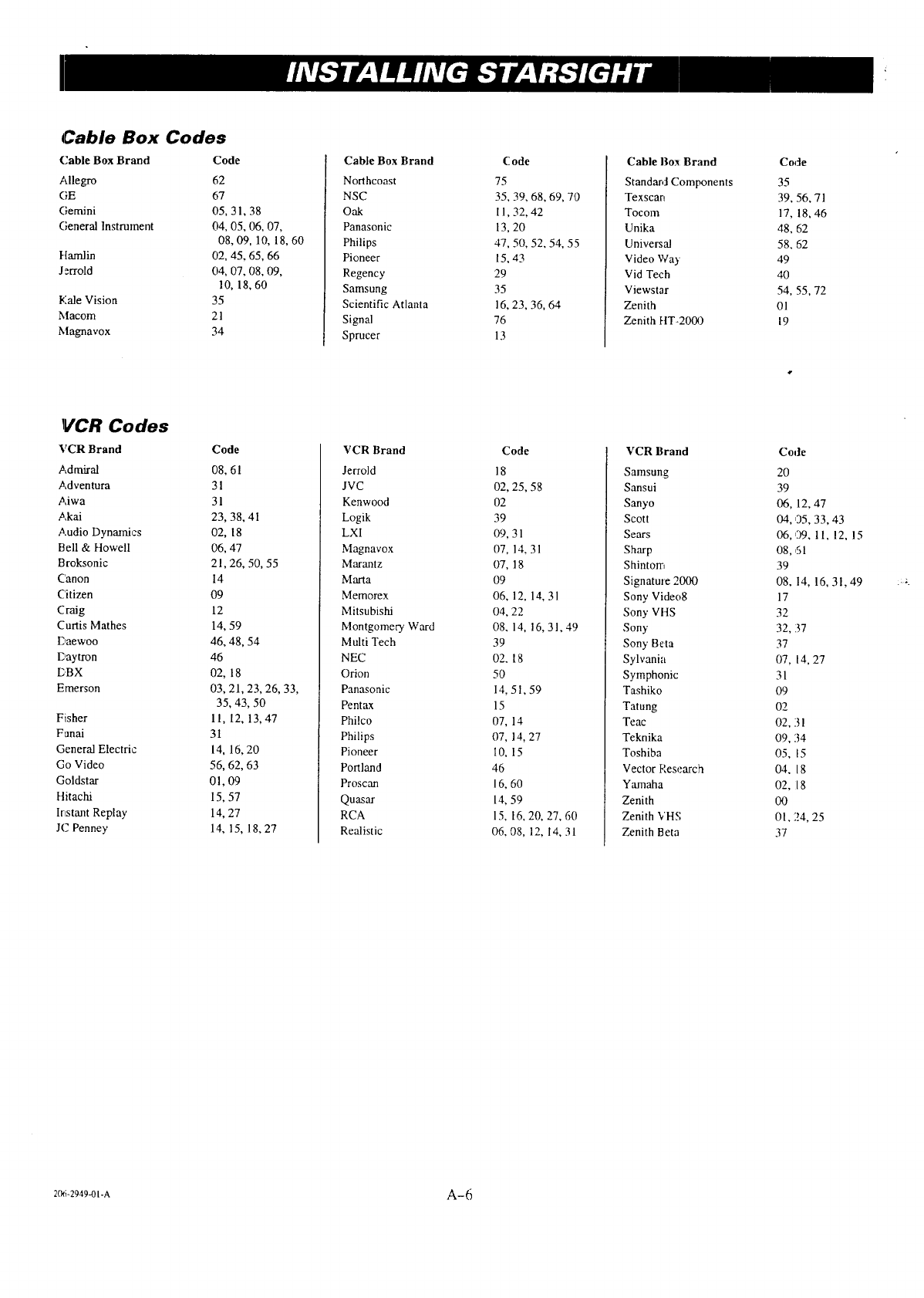
Cable Box Codes
(.'able Box Brand Code
Allegro
GE
Gemini
General Instrument
Harnlin
Jerrold
Kale Vision
Macom
Magnavox
62
67
05,31,38
04,05,06,07,
08,09,10,18,60
02,45,65,66
04,07,08,09,
10,18,60
35
21
34
Cable Box Brand
Northcoast
NSC
Oak
Panasonic
Philips
Pioneer
Regency
Samsung
Scientific Atlanta
Signal
Sprucer
Code
75
35,39,68,69,70
II,32,42
13,20
47,50,52,54,55
15,43
29
35
16,23,36,64
76
13
Cable Box Brand
Standard Components
Texscan
Tocom
Unika
Universal
Video Way
Vid Tech
Viewstar
Zenith
Zenith HT-2000
Code
35
39,56,71
17,18,46
48, 62
58, 62
49
4O
54,55,72
01
19
!VCR Codes
VCR Brand
Admiral
Adventura
Aiwa
Akai
Audio Dynamics
Bell & Howell
Broksonic
Canon
Citizen
Craig
Curtis Mathes
l) aewoo
Daytron
E,BX
Emerson
Fisher
Funai
General Electric
Go Video
Goldstar
Hitachi
Irtstant Replay
JC Penney
Code
08,61
31
31
23,38,41
02,18
06,47
21,26,50,55
14
O9
12
14,59
46,48,54
46
02,18
03,21,23,26,33,
35,43,50
11,12,13,47
31
14,16,20
56,62,63
01,09
15,57
14,27
14,15,18,27
VCR Brand
Jerrold
JVC
Kenwood
Logik
LXI
Magnavox
Marantz
Marta
Memorex
Mitsubishi
Montgomery Ward
Multi Tech
NEC
Orion
Panasonic
Pentax
Philco
Philips
Pioneer
Portland
Proscan
Quasar
RCA
Realistic
Code
18
02,25,58
O2
39
09,31
07,14.31
07,18
O9
06,12,14,31
04,22
08,14,16,31,4!)
39
02.18
5O
14,51,59
15
07,14
07,14,27
10,15
46
16,60
14,59
15,16,20,27,60
06.08,12,14,31
VCR Brand
Samsung
Sansui
Sanyo
Scott
Sears
Sharp
Shintom
Signature 2000
Sony Video8
Sony VHS
Sony
Sony Beta
Sylvania
Symphonic
Tashiko
Tatung
Teac
Teknika
Toshiba
Vector Research
Yamaha
Zenith
Zenith VHS
Zenith Beta
Code
20
39
06, 12,47
04, 05, 33, 43
06, 09, 11, !2, 15
08, ,51
39
08, 14, 16,31,49
17
32
32, 37
37
07, 14, 27
31
O9
O2
02, 31
09, 34
05, 15
04, 18
O2, 18
00
01, 24, 25
37
206-2949-01-A A-6
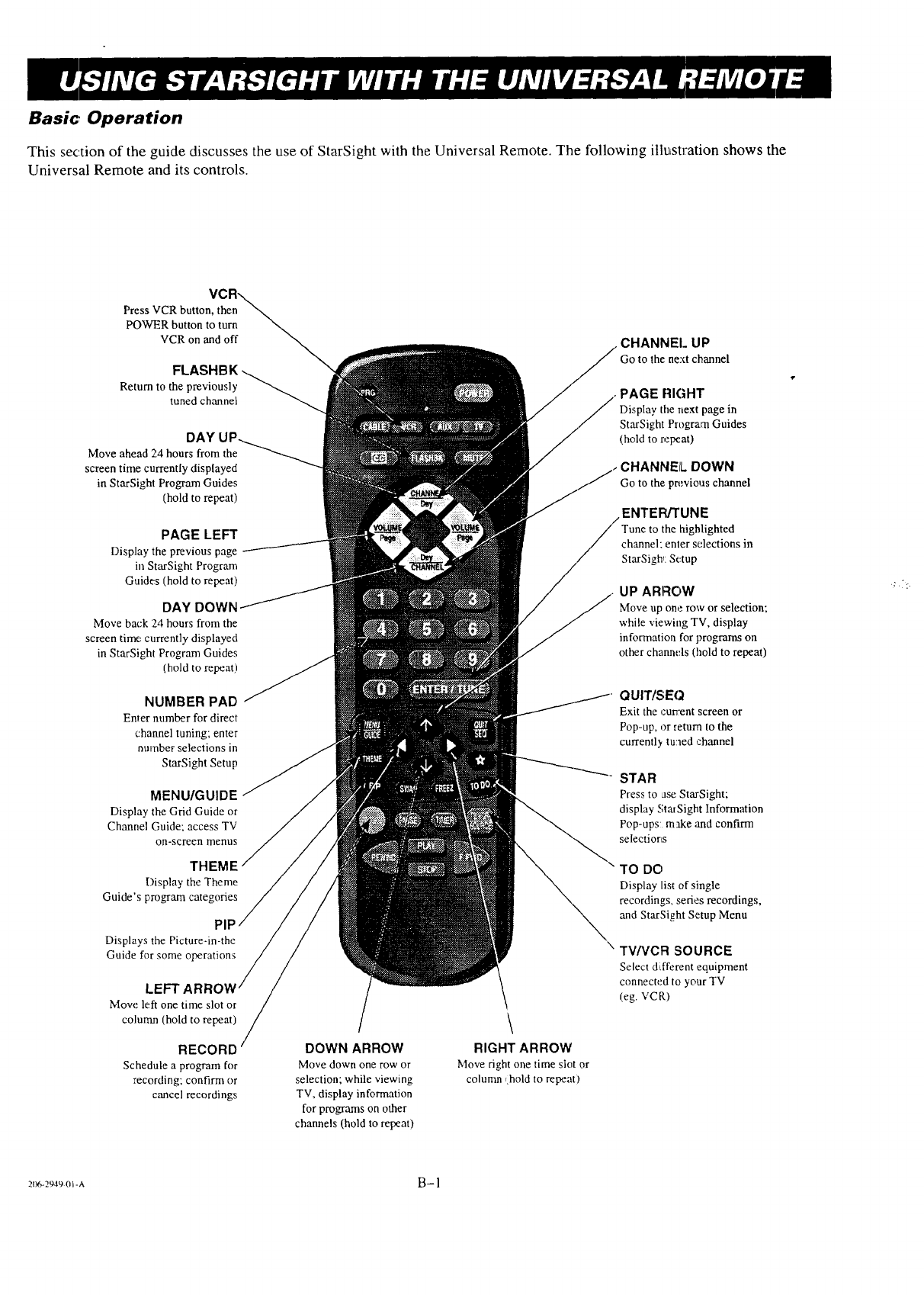
Basic Operation
This section of the guide discusses the use of StarSight with the Universal Re:mote. The following illustration shows tile
Universal Remote and its controls.
Press VCR button, then
POWER button to turn
VCR on and off
Return to the previously
tuned channel
Move ahead 24 hours from the
screen time currently displayed
in StarSight Program Guides
(hold to repeat)
PAGE LEFT
Display the previous page
ill StarSight Program
Guides (hold to repeat)
DAY DOWN
Move back 124hours from the
screen time currently displayed
in StarSight Program Guides
(hold to repeat)
NUMBER PAD
Enter number for direct
channel tuning; enter
number selections in
StarSight Setup
MENU/GUIDE
Display the Grid Guide or
Channel Guide; access TV
on-screen menus
Display the Theme
Guide's program categories
Displays the Picture-in-the
Guide for some
Move left one time slot or
column (hold to repeat)
RECORD
Schedule a program for
recording; confirm or
cancel recordings
DOWN ARROW
Move down one row or
selection; while viewing
TV, display information
for programs on other
channels (hold to repeat)
RIGHT ARROW
Move fight one time slot or
column (hold to repeat)
CHANNEl. UP
Go to the next channel
PAGE FLIGHT
Display the next page in
StarSight Program Guides
(hold to repeat)
CHANNEL DOWN
Go to the previous channel
ENTER/TUNE
the highlighted
channel; enler selections in
StarSigh,: Setup
UP ARROW
Move up one row or selection;
while viewing TV, display
information for programs on
other channels (hold to repeat)
QUIT/SEQ
Exit the cunent screen or
Pop-up, or return to the
currentl3, tuned channel
STAR
Press to ase StarSight;
display StafSight Information
Pop-ups: make ;rod confirm
selectiorts
TO DO
Display list of single
recordings, series recordings,
and StarSight Setup Menu
TV/VCR SOURCE
Select different equipment
connected to your TV
(eg. VCR)
206-2949 01-A B- 1
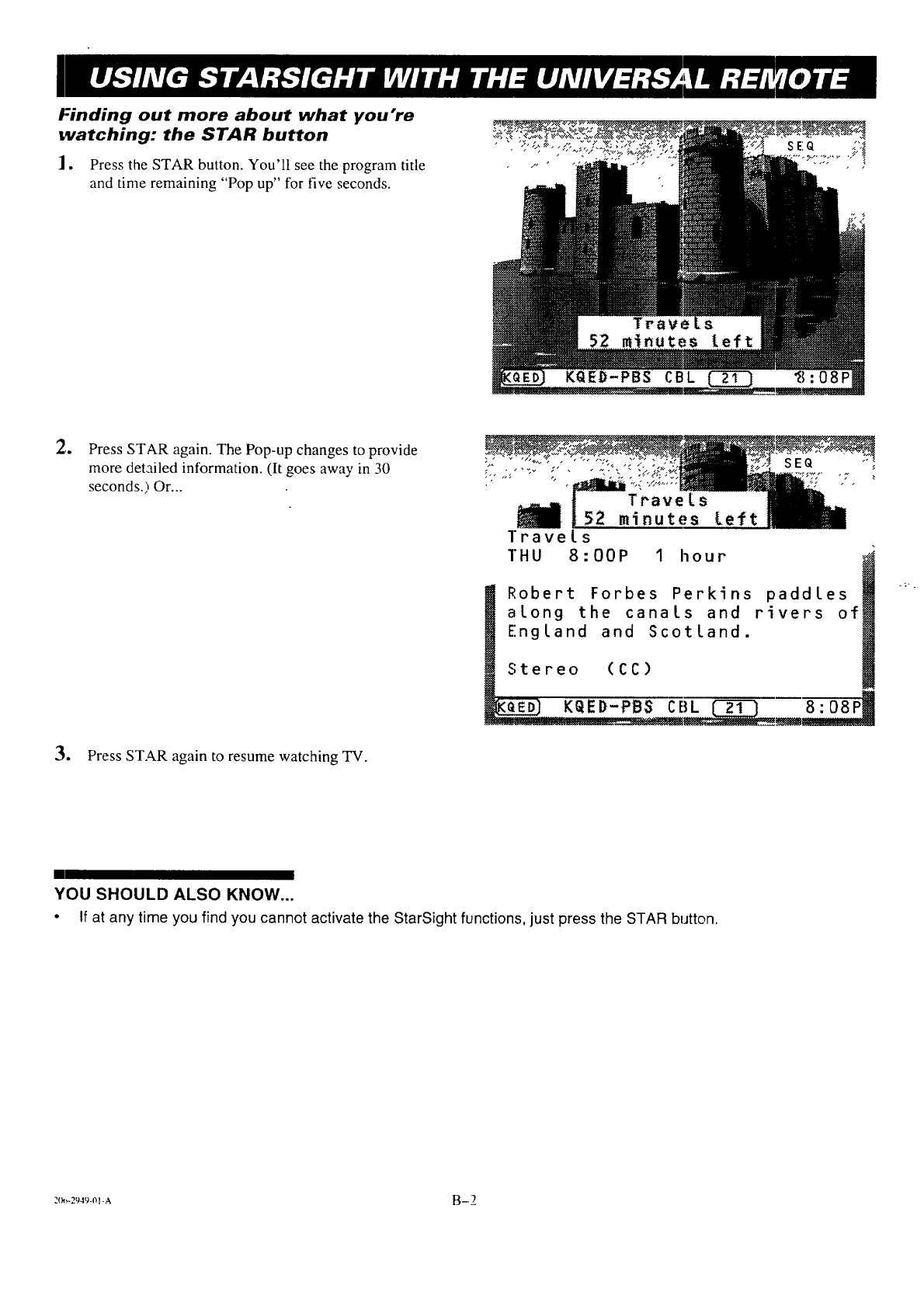
I-inding out more about what you're
watching: the STAR button
]. Press the STAR button. You'll see the program title
and time remaining "Pop up" for five seconds.
,•
•
Press STAR again. The Pop-up changes to provide
more detailed information. (It goes away in 30
seconds.) Or...
Press STAR again to resume watching TV.
SEQ
Robert Forbes Perkins paddles
along the canals and rivers of
England and Scotland.
Stereo (CC)
KQED-PBS CBL _..__,__---_8:08P!
YOU SHOULD ALSO KNOW...
• If at any time you find you cannot activate the StarSight functions, just press the STAR button.
:(_.2_.-m-A B-2
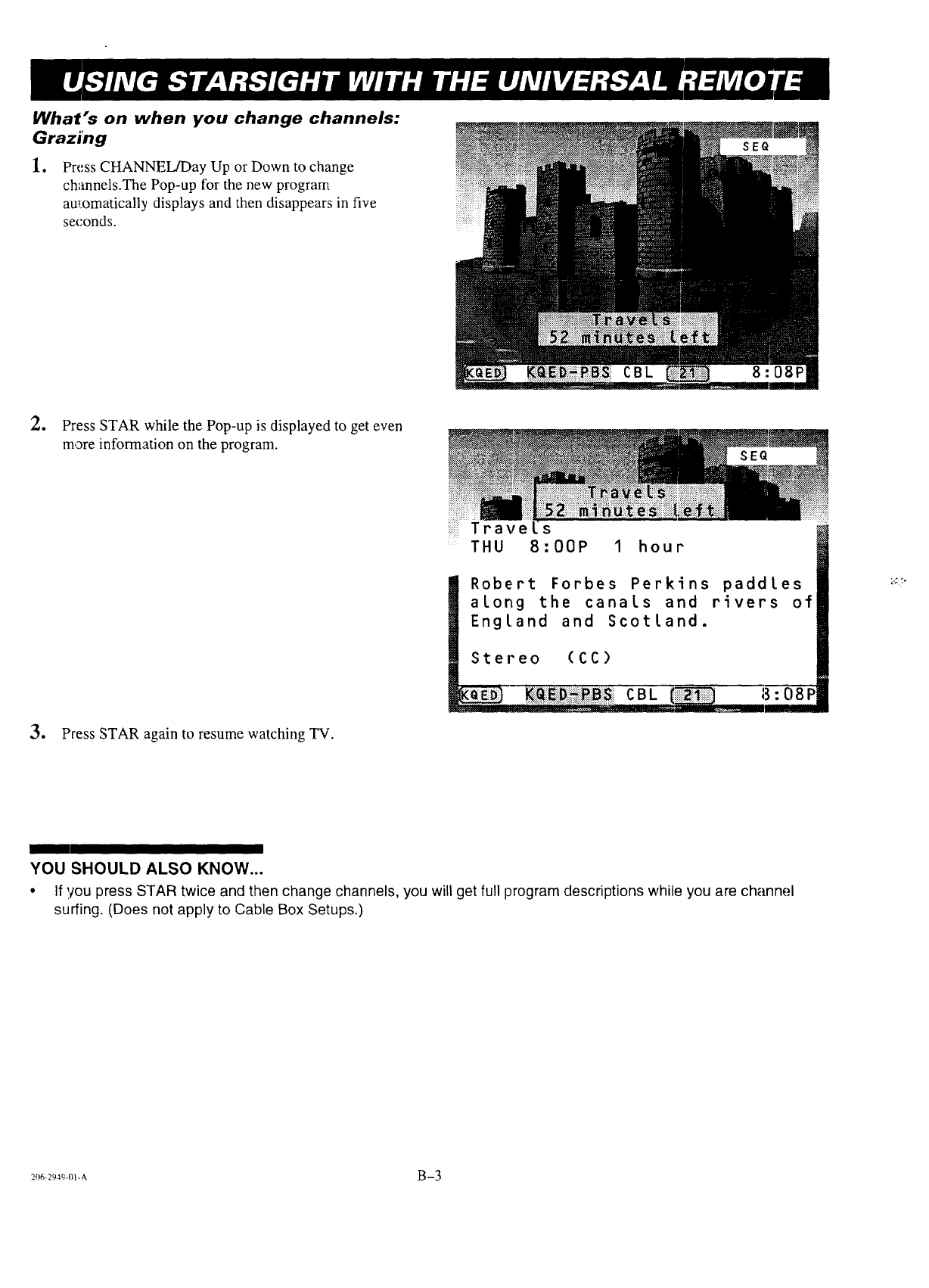
What's on when you change channels:
Grazing
1. Press CHANNEL/Day Up or Down to change
channels.The Pop-up for the new program
au_:omatically displays and then disappears in five
seconds.
CBL
2o Press STAR while the Pop-up is displayed to get even
more information on the program.
3. Press STAR again to resume watching TV.
T r a v e s
THU 8:00P 1 hour
I Stereo (CC)
_K.9._I ...i_;;i_::_i;;_i_;_i_ii...C B k_ 13:08 F
Robert Forbes Perkins paddles
along the canals and rivers of
England and Scotland.
%..°
YOU SHOULD ALSO KNOW...
•If you press STAR twice and then change channels, you will get full program descriptions while you are channel
surfing. (Does not apply to Cable Box Setups.)
2o6:9_-o_A B-3
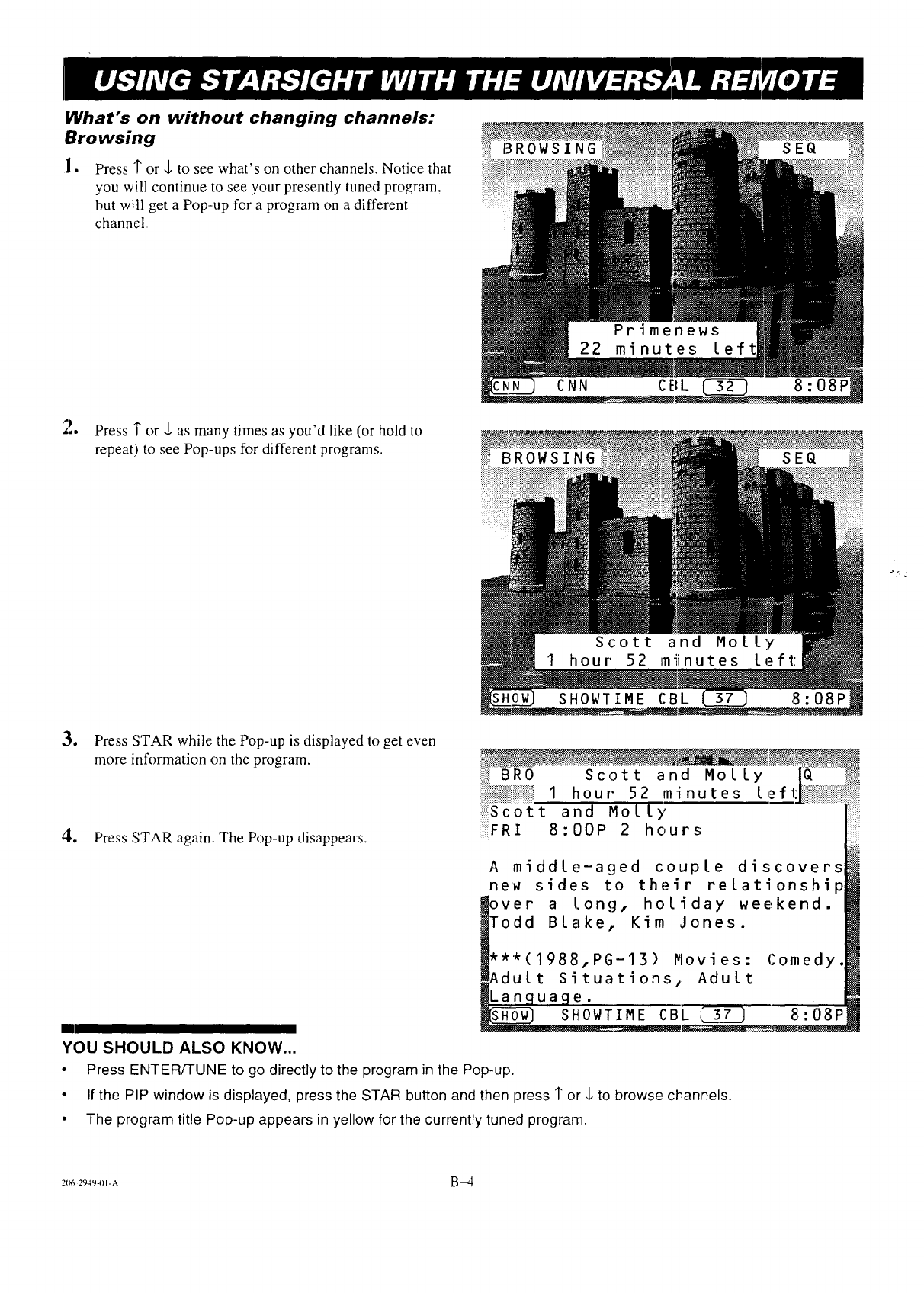
What's on without changing channels:
Browsing
1. Press 1"or $ to see what's on other channels, Notice that
you will continue to see your presently tuned program.
but will get a Pop-up for a program on a different
channel.•
iiiiiiiil
• _ iii
CNN CEIL 8:08P
Press 1"or ,1,as many times as you'd like (or hold to
repeat) to see Pop-ups for different programs. iiiiii_B R 0WSING
ii!i!ii< i
_._ 2
3. Press STAR while the Pop-up is displayed to get even
more information on the program.
4. Press STAR again. The Pop-up disappears.
_ BRO Scott and Molly
i{i{ii!@i!iiii_i!!!ii_I h o u r52 m in u t e s Ief
iii_i_Scottand Molly
FRI 8:00P 2 hours
A middle-aged couple discovers
ne_ sides to their relationship
ver a long, holiday weekend.
odd Blake, Kim Jones.
**(1988,PG-13) Movies: Comedy
_dult Situations, Adult
e
SHOWTIME CBL 8:08P
YOU SHOULD ALSO KNOW...
•Press ENTER/TUNE to go directly to the program in the Pop-up.
• If the PIP window is displayed, press the STAR button and then press 1"or ,1.to browse ct-annels.
• The program title Pop-up appears in yellow for the currently tuned program.
2[)6 2949-(11-A B _4
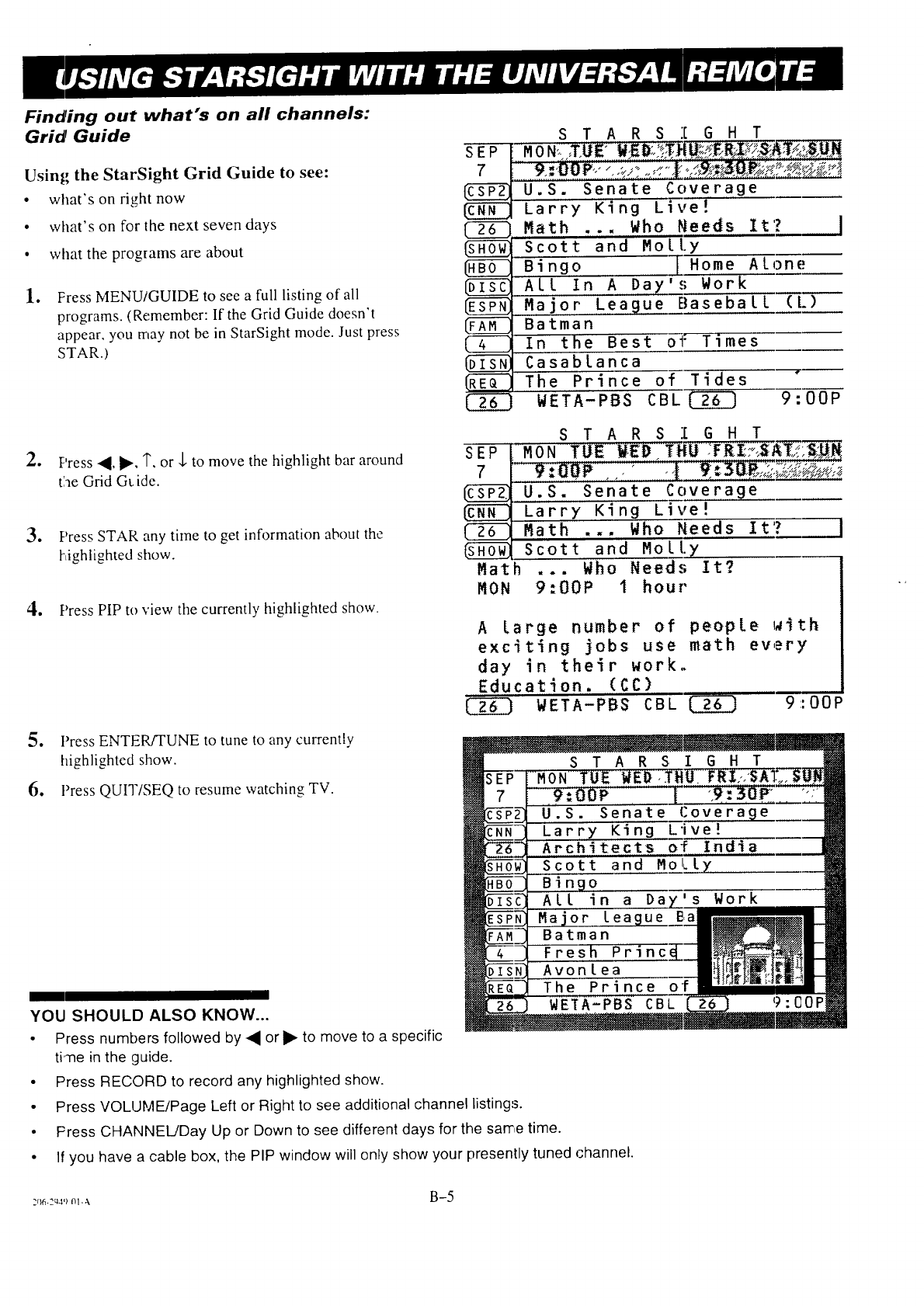
Finding out what's on all channels:
Grid Guide
Using the StarSight Grid Guide to see:
•what's on right now
•what's on for the next seven days
•what the programs are about
lo Press MENU/GUIDE to see a full listing of all
programs. (Remember: If the Grid Guide doesn't
appear, you may not be in StarSight mode. Just press
STAR.)
2. F'ress 4, I_, 1", or ,J,to move the highlight bar around
tlae Grid G_ ide.
3. r'ress STAR any time to get information about the
highlighted show.
4. Press PIP to view tile currently highlighted show.
5. Press ENTER/TUNE to tune to any currently
highlighted show.
6. Press QUIT/SEQ to resume watching TV.
S T A R S I G H T
U.S. Senate Coverage
Larry King Li_;e[
Math .., Who Needs It'? J
C2Z)
Scott: and Molly
Bingo T Home Alone
ALL In A Day'.'; Work
Major' League Baseball (L)
Batman
In the Best o-7: Times
Casablanca
The Prince of Tides
WETA-PBS CBL C_ 9:0OP
SEP
7
Mat
MON
S T A R S I G H T
- 'M 0 N tFUE WEll IIi'!.U. ."FR[i;;I_Ai;_:,_:__
U.S. Senate Coverage
Larry King Live!
Math ... Who Needs It'? l
Scott and Molly
h ... Who Needs It?
9:00P I hour
A large number of people with
exciting jobs use math every
day in their work,,
Education. (CC)
WETA-PBS CBL C_ 9::oop
YOU SHOULD ALSO KNOW...
• Press numbers followed by • or I_ to move to a specific
time in the guide.
• Press RECORD to record any highlighted show.
• Press VOLUME/Page Left or Right to see additional channel listings.
• Press CHANNEL/Day Up or Down to see different days for the same time.
• If you have a cable box, the PIP window will only show your presently tuned channel.
:_1_-:_4'_nl-_, B-5
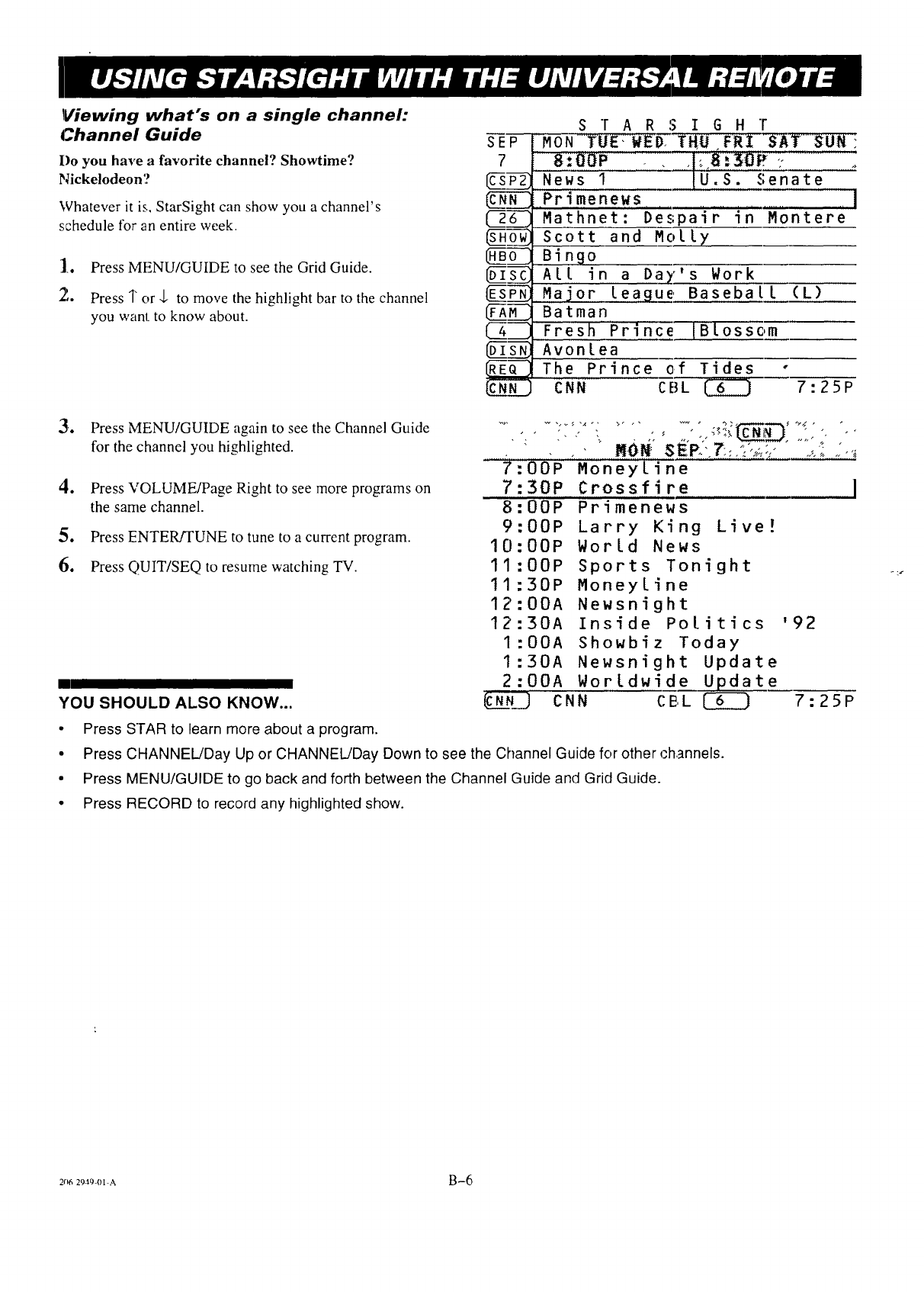
Viewing what's on a single channel:
Channel Guide
I)o you have a favorite channel? Showtime?
Nickelodeon?
Whatever it is, StarSight can show you a channel's
schedule for an entire week.
]., Press MENU/GUIDE to see the Grid Guide.
2,, Press Tor .l, to move the highlight bar to the channel
you want to know about.
SEP
7
S T A R S I G H r
MON TUE:W__ THO IFRI SAT$UN !
News t IU.S. Senate
,Primenews .... I
Mathnet: Despa'ir in Montere
scott and Molly
Bingo
All. in a Day's Work
_Major league, Baseball (L)
_-_Batman
_ Fresh'Prince _Blossom
_s__ Avonlea
R_ The Prince o,f Tides -
CNN CBL _ 7:25P
'e Press MENU/GUIDE again to see the Channel Guide
for the channel you highlighted.
4. Press VOLU!vIE/Page Right to see more programs on
the same channel.
5o
6.
Press ENTER/TUNE to tune to a current program.
Press QUIT/SEQ to resume watching TV.
YOU SHOULD ALSO KNOW...
........_i00"P "Money[ine
7:
8:
9:
10:
11:
11:30
1Z:00
12:30
1:00
1:30
2:00
V_ J
3OP Crossfire 1
00P Primenews
OOP Larry King Live!
OOP World News
00P Sports Tonight
P Moneyline
A Newsnight
A Inside Politics '92
A Showbiz Today
A Newsnight Update
A Worldwide Update
CNN CEL _ 7:25P
• Press STAR to learn more about a program.
• Press CHANNEL/Day Up or CHANNEL/Day Down to see the Channel Guide for other rhannels.
• Press MENU/GUIDE to go back and forth between the Channel Guide and Grid Guide.
• Press RECORD to record any highlighted show.
2()6 2949-01-A B-6
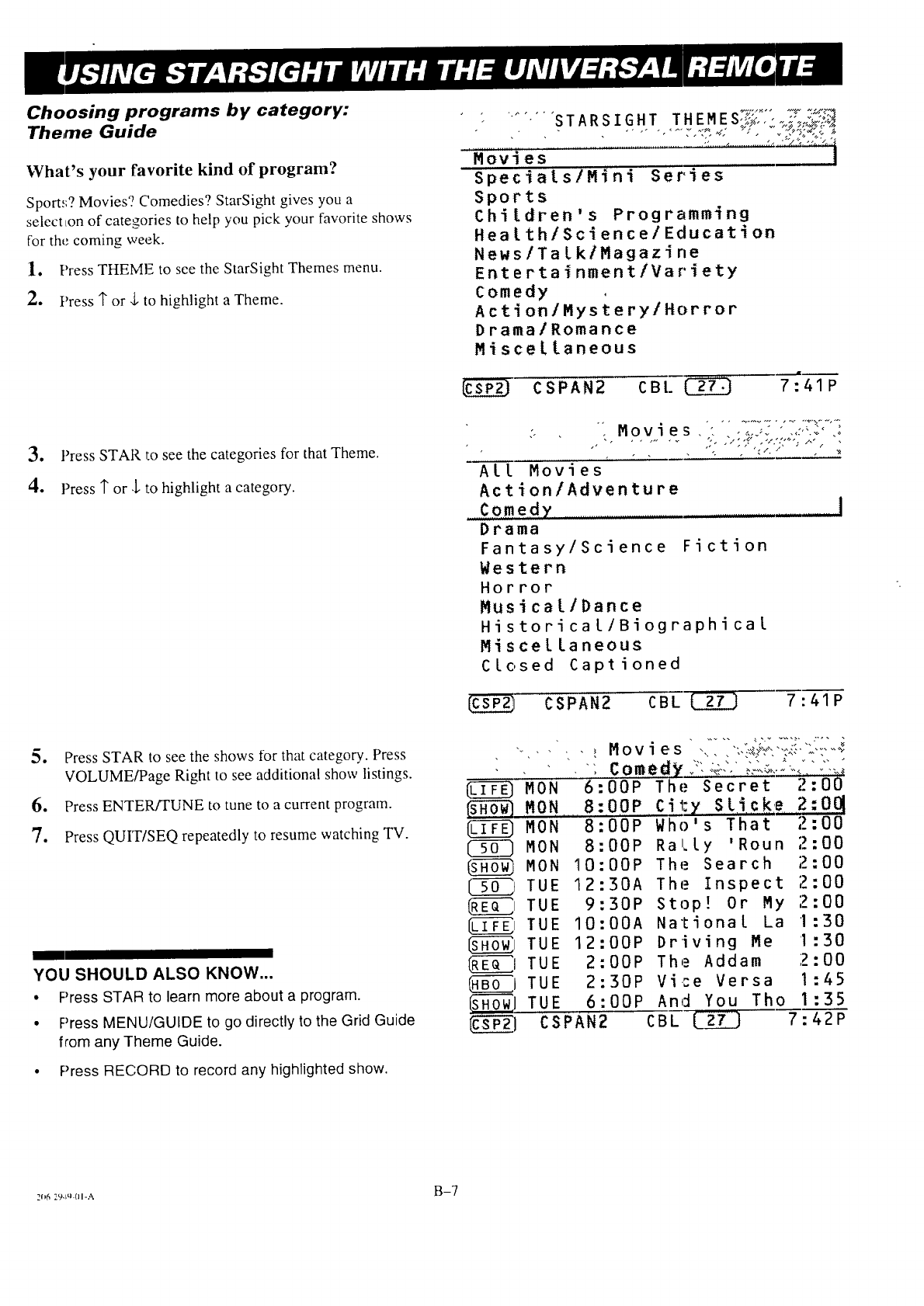
Choosing programs by category:
Theme Guide
What's your favorite kind of program?
Sport.';? Movies? Comedies? StarSight gives you a
selectLon of categories to help you pick your favorite shows
for the coming week.
1. Press THEME to see the StarSight Themes menu.
2. Press 1"or .1.to highlight a Theme.
3, Press STAR to see the categories for that Theme.
4. Press 1"or .1.to highlight a category.
:"" "STARSIGHT THEMES,'.:,,:,.,-:'o.:,.::,_
MiI
OV e s
SpecialslMini Series
Sports
Children's Programming
Health/Science/Education
News/Talk/Magazine
Entertainment/Variety
Comedy
Action/Mystery/Horror
Drama/Romance
Miscellaneous
CSPAN2 CB[. _ 7;41P
: Movies ' ......... -:-...... r.---,......;
ALL Movies
Act ion/Adventure
....C$).me.dy .....................
Drama
Fantasy/Science Fiction
Western
Horror
Musical/Dance
Hi stori ca I/Bi og raphi ca l
Miscellaneous
Closed Captioned
_i CSPAN2 CBL L_g.L] 7 :41P
5. Press STAR to see the shows tor that category. Press
VOLUME/Page Right to see additional show listings.
6. Press ENTER/TUNE to tune to a current program.
7. Press QUIT/SEQ repeatedly to resume watching TV.
YOU SHOULD ALSO KNOW...
•Press STAR to learn more about a program.
• Press MENU/GUIDE to go directly to the Grid Guide
from any Theme Guide.
• Press RECORD to record any highlighted show.
MON
MON
MON
MON
MON
(______jTUE
_I TUE
LI[[I-/-_.ITUE
TU
TU
TU
SH_,I TU
c
6:00P
8:00P
8:00P
8:00P
10:00P
12:30A
9:30P
I0:00A
E 12:00P
E 2:00P
E 2:30P
E 6:00P
SPAN2
The Secret 2:00
City Slicke 2:OR
Who's That 2:00
Rally 'Roun 2:00
The Search 2:00
The Inspect 2:00
Stop! Or My 2:00
National La 1:30
Driving Me '1:30
The Addam 2:00
Vice Versa 1:45
And You Tho 1:35
CBL L_ 7:42P
2(,629-:1-(11-A B-7
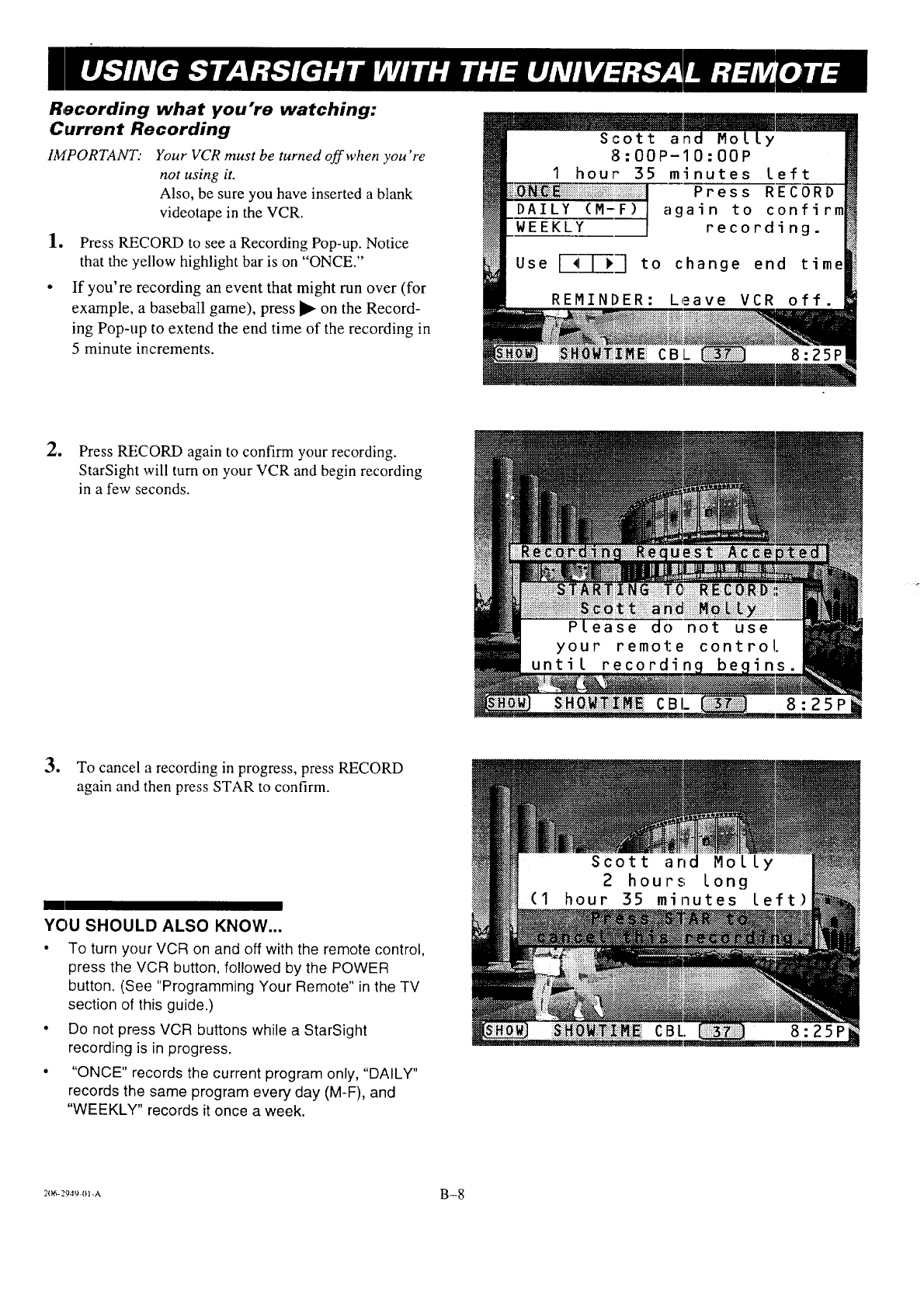
Recording what you're watching:
Current Recording
iMPORTANT." Your VCR must be turned off when you're
not using it.
Also, be sure you have inserted a blank
videotape in the VCR.
le Press RECORD to see a Recording Pop-up. Notice
that the yellow highlight bar is on "ONCE."
If you're recording an event that might run over (for
example, a baseball game), press _ on the Record-
ing Pop-up to extend the end time of the recording in
5 minute increments.
2. Press RECORD again to confirm your recording.
StarSight will turn on your VCR and begin recording
in a few seconds.
3. To cancel a recording in progress, press RECORD
again and then press STAR to confirm.
m
YOU SHOULD ALSO KNOW...
•To turn your VCR on and off with the remote control,
press the VCR button, followed by the POWER
button. (See "Programming Your Remote" in the TV
section of this guide.)
•Do not press VCR buttons while a StarSight
recording is in progress.
•"ONCE" records the current program only, "DAILY"
records the same program every day (M-F), and
"WEEKLY" records it once a week.
2_:94u _I-A B-8
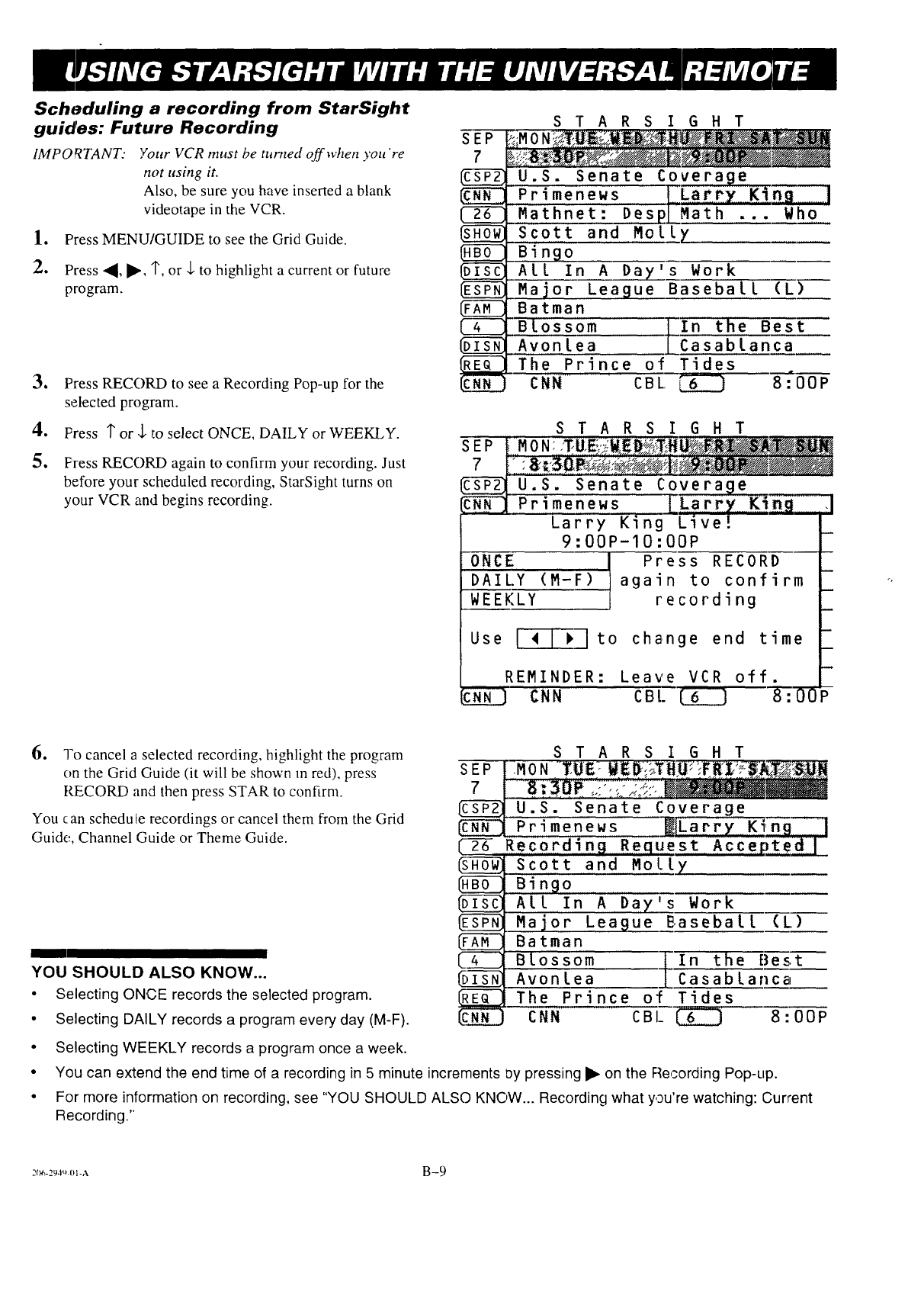
Scheduling a recording from StarSight
guides: Future Recording
IMPOFCTANT: Your VCR must be turned off when you're
not using it.
Also, be sure you have inserted a blank
videotape in the VCR.
1. Press MENU/GUIDE to see the Grid Guide.
2. Press ,,_, lIP', 1",or .l. to highlight a current or future
program.
Q
o
5.
Press RECORD to see a Recording Pop-up for the
selected program.
Press Tor ._ to select ONCE, DAILY or WEEKLY.
Press RECORD again to confirm your recording. Just
before your scheduled recording, StarSight turns on
your VCR and begins recording.
s-r A R S I G H T
U.S. Senate Coverage
Primenews [iiLa_Y King ]
M'athnet: DespL'"Math ... Who
Scott and Molly
_Bingo
.,,ALL In A Day's Work
.Major League Baseball (L}-----
Batman
F}n the Best
""BLossom Casablanca
Avonlea
The Prince of Tides
CNN CBL, _ 8:00P
SEP
7
Larry King Live!
9:00P-10:00P
ONCE l Press RECORD
DAILY (M-F) I again to confirm
WEEKLY recording
Use F__ to change end time
REMINDER: Leave VCR off.
CNN
STARSIGHT
U.S_ Senate Coverage
P r im e n e w s ]_La rr YllK]i_igiiiiiiiillI
CBI. _ 8: OOP
6. To cancel a selected recording, highlight the program
on the Grid Guide (it will be shown m red), press
RECORD and then press STAR to confirm.
You can schedu[e recordings or cancel them from the Grid
Guide, Channel Guide or Theme Guide.
YOU SHOULD ALSO KNOW...
• Selecting ONCE records the selected program.
• Selecting DAILY records a program every day (M-F).
STARSIGHT
7l.......
_ U.S. Senate Coverage
b--_-__-en ew s _JLarry King ........I
Recording Request Accept.ed[
Scott and Molly
Bin9o
ALL In A Day's Work
Major League Baseball (L)
Batman
Blossom _In the Best
Avonlea [ Casablanca
The Prince of Tides
CNN CBI_ C][_ 8:00P
• Selecting WEEKLY records a program once a week.
• You can extend the end time of a recording in 5 minute increments Dy pressing I_ on the Recording Pop-up.
• For more information on recording, see "YOU SHOULD ALSO KNOW... Recording what you're watching: Current
Recording."
2(}6-294 t_ 01-A B-9
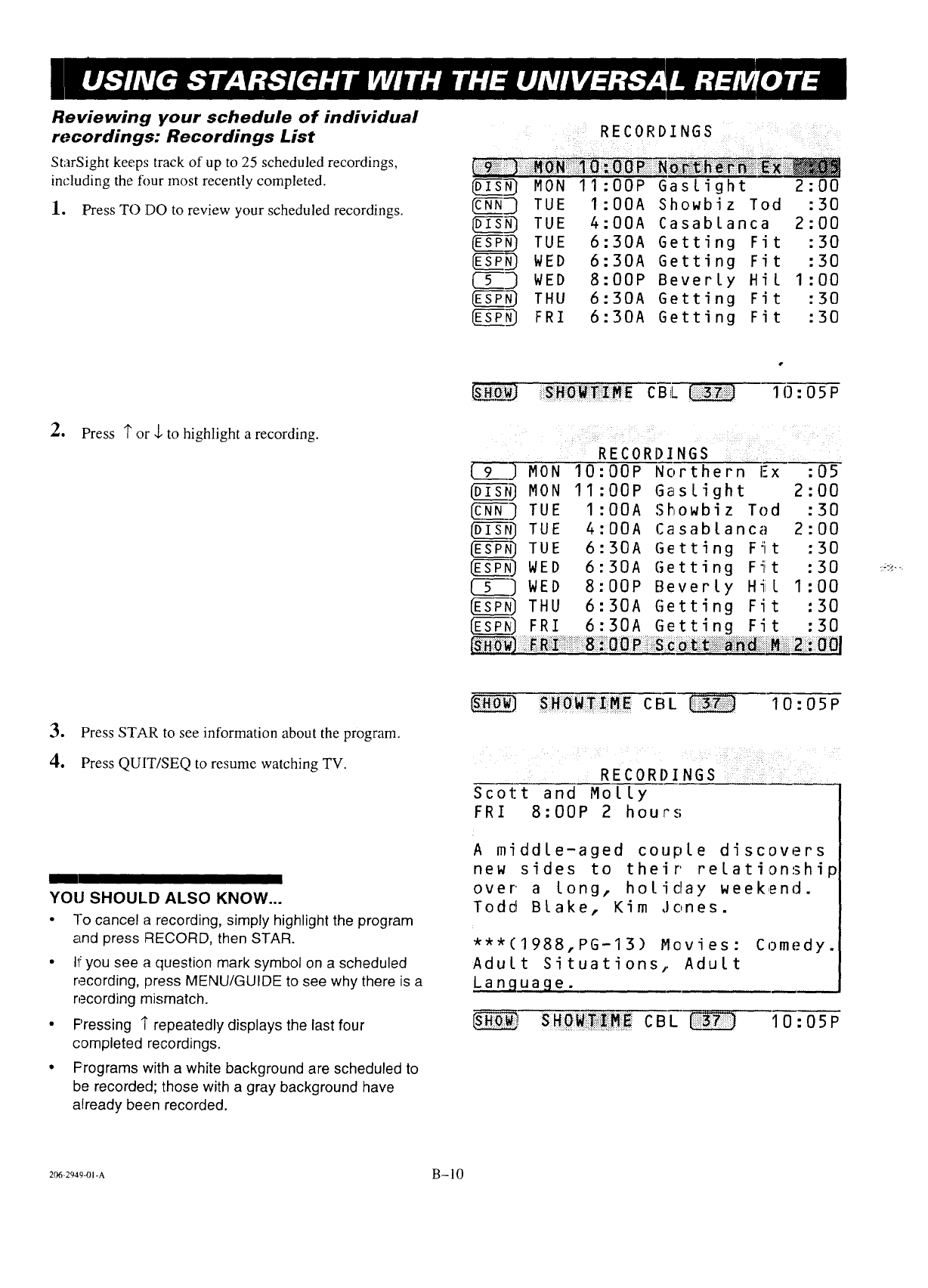
Reviewing your schedule of individual
rocordings: Recordings List
StarSight keeps track of up to 25 scheduled recordings,
including the four most recently completed.
1. Press TO DO to review your scheduled recordings.
_N_ MON
c(UffQ] TUE
D(STgN_ TUE
_N_ TUE
_N_ WED
(--5--] WED
ES(E-SP-N_THU
ES(E-gTN_FRI
11:00P
I:00A
4:00A
6:30A
6:30A
8:00P
6:30A
6:30A
Gaslight
Showbiz Tod
Casablanca
Getting Fit
Getting Fit
Beverly Hil
Getting Fit
Getting Fit
2:
2:
I:
00
30
00
30
30
00
30
30
2. Press 1"or J. to highlight a recording.
C B iL 10:05P
{90 MON I 0
DI_ MON 11
CN[_-fi_-]TUE I
DI['6-i-gF_TUE 4
ES_) TUE 6
ES_3 WED 6
5_3 WED 8
ES_] THU 6
ES_] FRI 6
....RECORDINGS I_
:OOP
:OOP
:ODA
:OOA
:30A
:30A
:OOP
:30A
:30A
Northern l--x
Gaslight
Showbiz Tod
Casablanca
Getting Fit
Getting Fit
Beverly Hill
Getting Fit
Getting Fit
:05
2:00
:30
2:00
:30
:30
1:00
:30
:30
r::::' i"_ :ii!i)!ii!i::i:::::.::::!i::_ :- :ii" :: :: :_::ii::iiiiiii:i{!!_;_:::_iU*{:?::::.{i:ii:.::iii! _ ':"
3. Press STAR to see information about the program.
4. Press QUIT/SEQ to resume watching TV.
I I
YOU SHOULD ALSO KNOW...
• To cancel a recording, simply highlight the program
and press RECORD, then STAR.
• I1:you see a question mark symbol on a scheduled
recording, press MENU/GUIDE to see why there is a
recording mismatch.
• Pressing _ repeatedly displays the last four
completed recordings.
• Frograms with a white background are scheduled to
be recorded; those with a gray background have
already been recorded.
SBOWTZBE CBL 10:05P
RECORDINGS :: :: :
Scott and Molly
FRI 8:00P 2 hours
A middle-aged couple discovers
new sides to their relationship
over a long, holiday weekend.
Todd Blake, Kim Jones.
***(1988,PG-13) Movies: Comedy.
Adult Situations,. Adult
Languaoe.
_! C B L I 0 :05P
206-2949-01-A B- 10
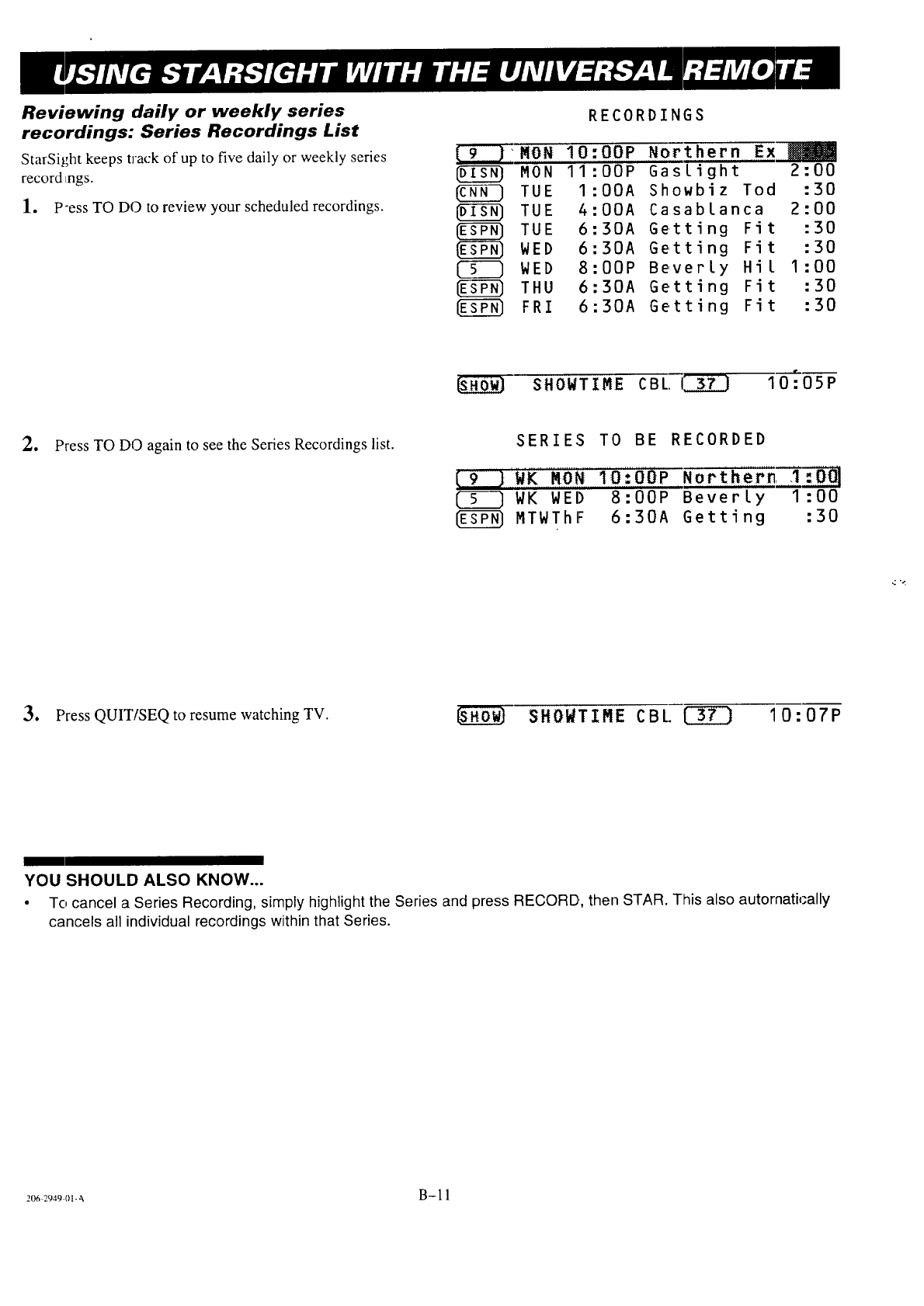
Reviewing daily or weekly series
recordings: Series Recordings List
StarSight keeps t]ack of up to five daily or weekly series
record Lngs.
1. P-ess TO DO to review your scheduled recordings.
I9
MON
TUE
TUE
TUE
{_ WED
WED
THU
FRI
RECORDINGS
IO:OOP
11:00P
I:00A
4:00A
6:30A
6:30A
8:00P
6:30A
6:30A
Norther
GasLigh
Showbiz
Casabla
Getting
Getting
Beverly
Getting
Getting
nEx_
t 2:00
Tod :30
nca 2:00
Fit :30
Fit :30
Hil 1:00
Fit :30
Fit :30
$HOWTIME CBL.]_ 10_05P
2. Press TO DO again to see the Series Recordings list. SERIES TO BE RECORDED
19 '),,,',W'KMON IO:OOP Northern ,I:DQ]
WK WED 8:00P Beverly 1:00
MTWThF 6:30A Getting :30
3. Press QUIT/SEQ to resume watching TV. SHOWTIME CBL _ I0:07P
YOU SHOULD ALSO KNOW...
•Tc, cancel a Series Recording, simply highlight the Series and press RECORD,, then STAR. This also autornatically
cancels all individual recordings within that Series.
206 2949 01-_% B-11
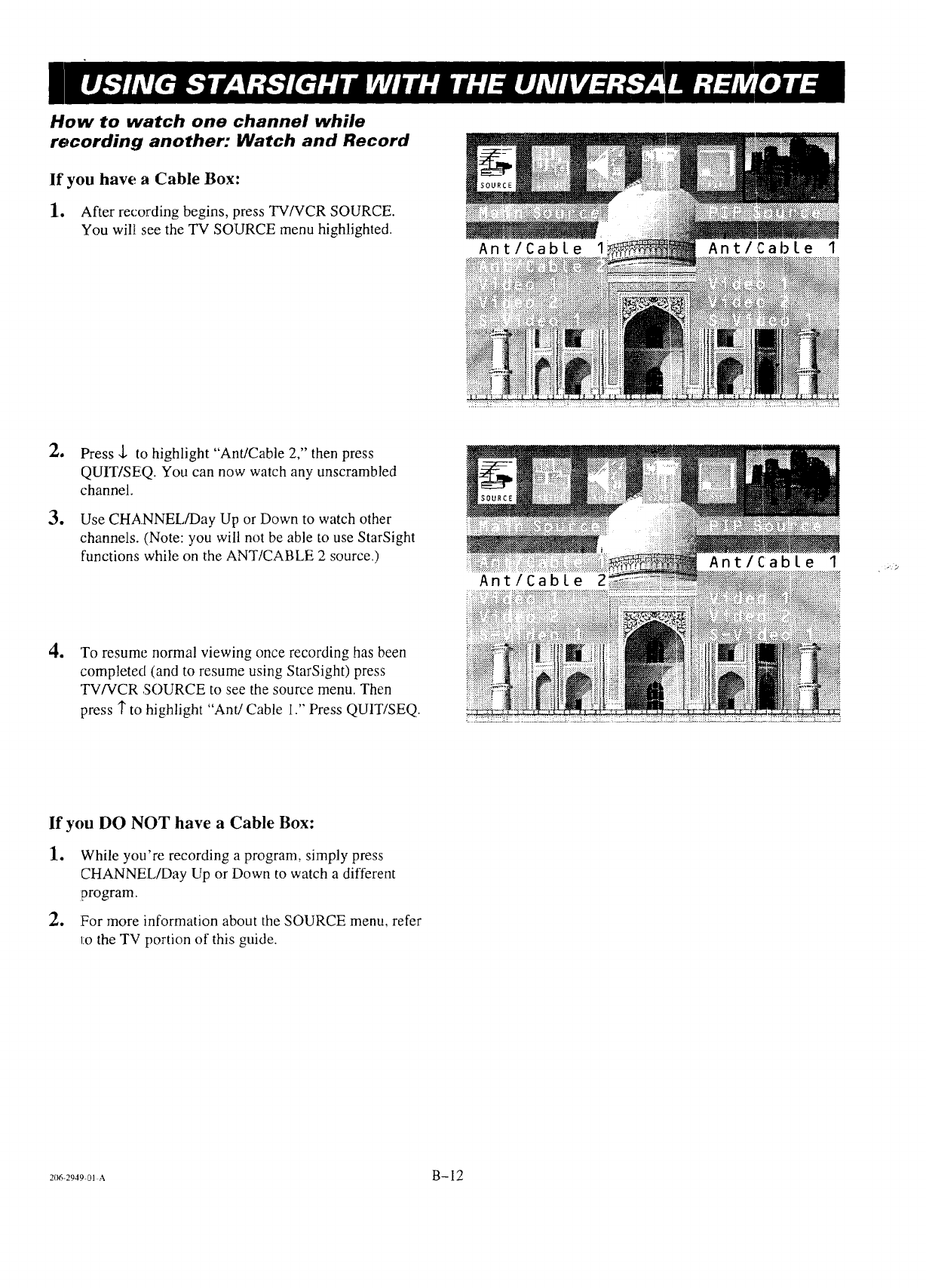
How to watch one channel while
recording another: Watch and Record
If you have aCable Box:
1. After recording begins, press TV/VCR SOURCE.
You will see the TV SOURCE menu highlighted.
Ant/Cable I Ant/Cable 1
2_
e
e
Press J. to highlight "Ant/Cable 2," then press
QUIT/SEQ. You can now watch any unscrambled
channel.
Use CHANNEL/Day Up or Down to watch other
channels. (Note: you will not be able to use StarSight
functions while on the ANT/CABLE 2 source.)
To resume normal viewing once recording has been
completed (and to resume using StarSight) press
TV/VCR SOURCE to see the source menu. Then
press 1"to highlight "Ant/Cable i." Press QUIT/SEQ.
Ant/Cable 2
Ant/Cable 1
If you DO NOT have a Cable Box:
1. While you're recording aprogram, simply press
CHANNEL/Day Up or Down to watch adifferent
program.
2. For more information about the SOURCE menu, refer
to the TV portion of this guide.
206-2949-_)1 AB-12
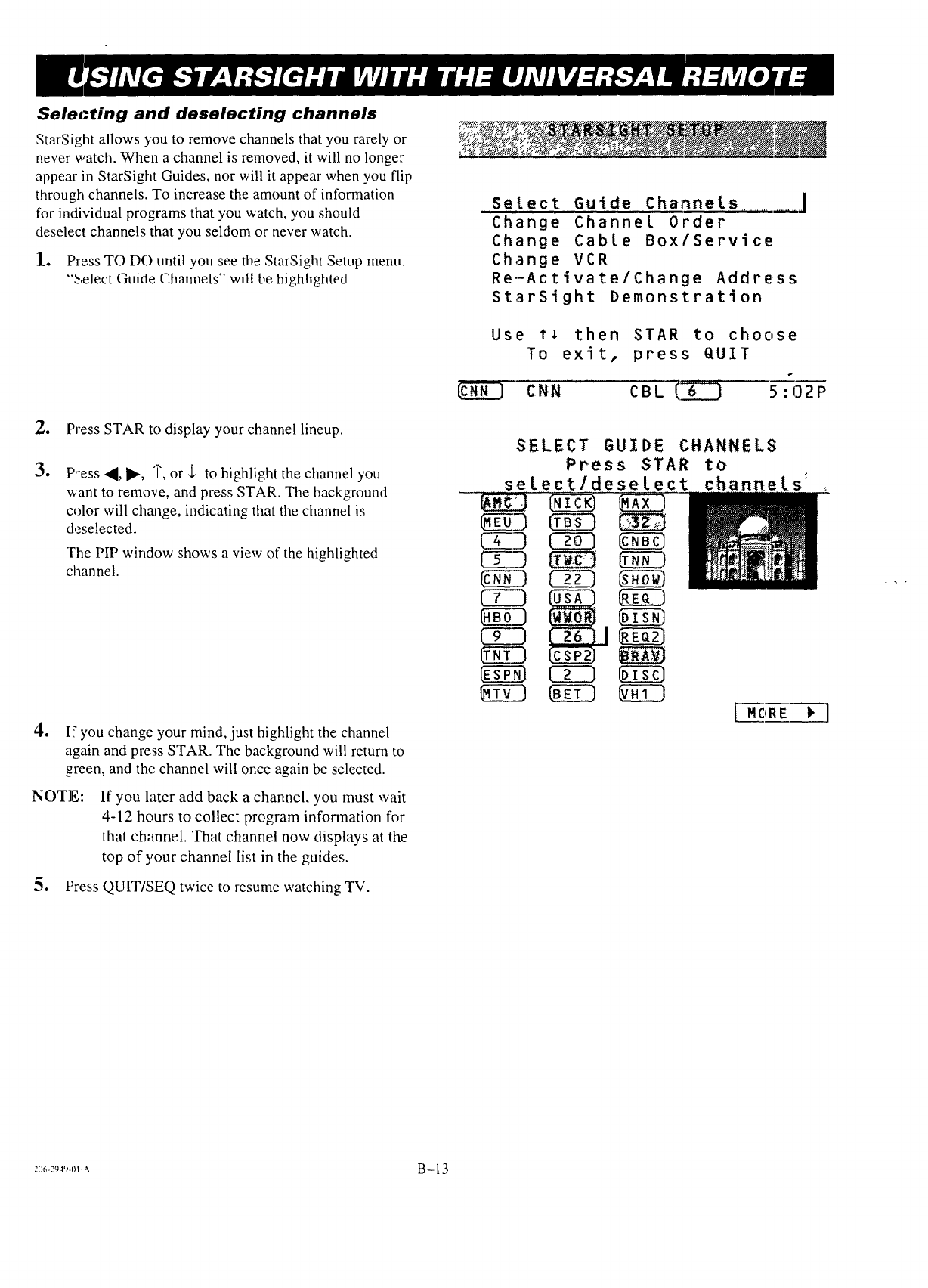
Sele(-ting and deselecting channels
StarSight allows you to remove channels that you rarely or
never watch. When a channel is removed, it will no longer
appear in StarSight Guides, nor will it appear when you flip
through channels. To increase the amount of information
for individual programs that you watch, you should
deselect channels that you seldom or never watch.
1. Press TO DO until you see the StarSight Setup menu.
"Select Guide Channels" will be highlighted.
e
3.
Press STAR to display your channel lineup.
P"ess 4, I_, 1",or $ to highlight the channel you
want to remove, and press STAR. The background
color will change, indicating that the channel is
&-selected.
The PIP window shows a view of the highlighted
channel.
4. IF you change your mind, just highlight the channel
again and press STAR. The background will return to
green, and the channel will once again be selected.
NOTE: If you later add back a channel, you must wait
4-12 hours to collect program information for
that channel. That channel now displays at the
top of your channel list in the guides.
5. Press QUIT/SEQ twice to resume watching TV.
Se,tect Guide,C,hannets .................... ]
Change Channel Order
Change CabLe Box/Service
Change VCR
Re.-Activate/Change Address
StarSight Demonstration
Use ** then STAR to choose
To exit, press QUIT
CNN CBL _6_ 5:02P
SELECT GUIDE CHANNELS
Press STAR to
selectldeselect channels:
(293
NSZ)
[MORE
:I_-:9a'_m_ B- 13
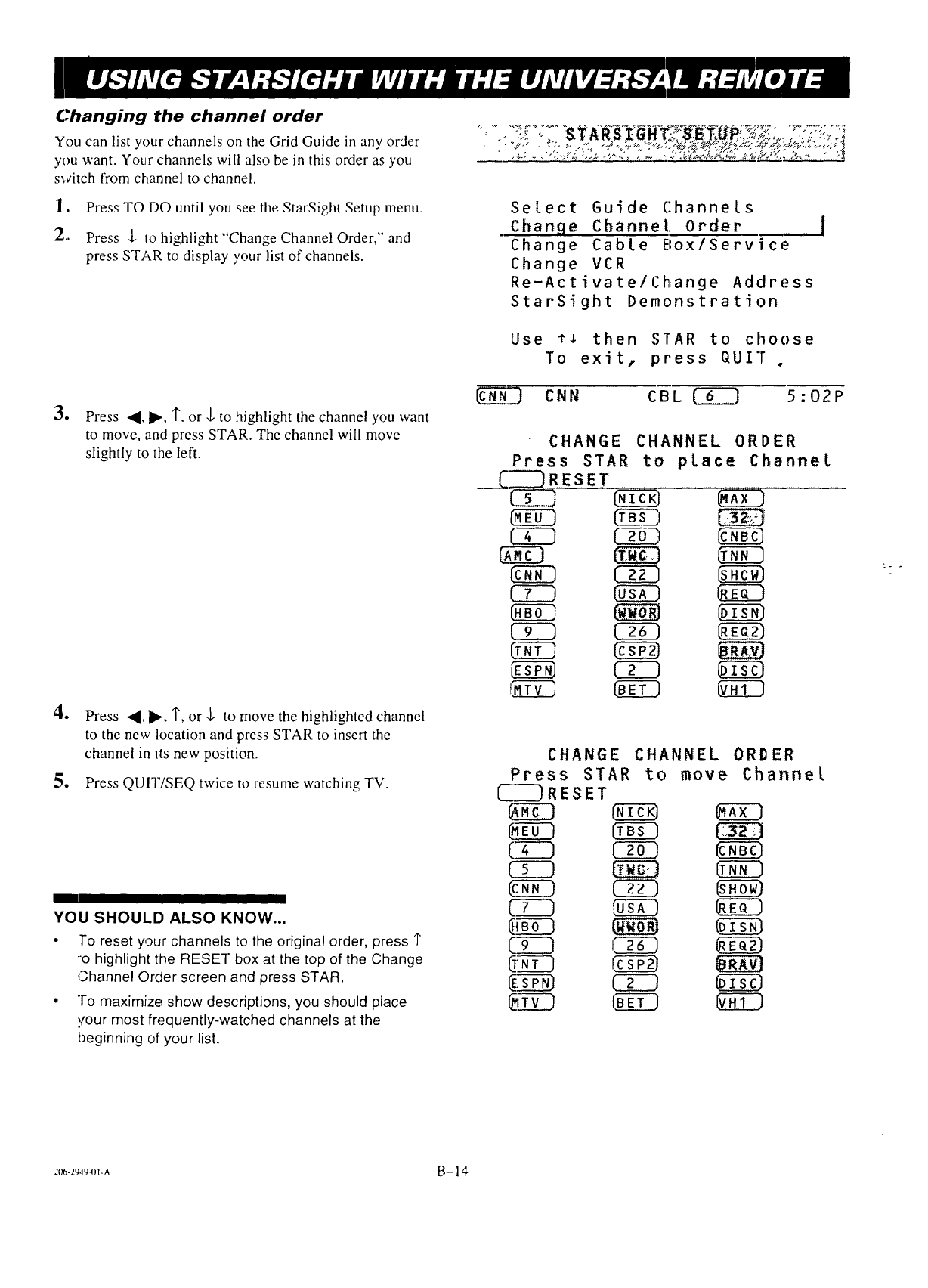
(:hanging the channel order
You can list your channels on the Grid Guide in any order
you want. Your channels will also be in this order as you
switch from channel to channel.
1, Press TO DO until you see the StarSighl Setup menu.
2., Press .[- to highlight"Change Channel Order," and
press STAR to display ,,'our list of channels.
3. Press 4, _, q'- or -].to highlight the channel you want
to move, and press STAR. The channel will move
slightly to the left.
.
.
Press ,_. I_. T, or ,!, to move the highlighted channel
to the new location and press STAR to insert the
channel in its new position.
Press QUIT/SEQ twice to resume watching TV.
YOU SHOULD ALSO KNOW...
•To reset your channels to the original order, press 1"
"o highlight the RESET box at the top of the Change
Ohannel Order screen and press STAR.
•!-o maximize show descriptions, you should place
!/our most frequently-watched channels at the
beginning of your list.
Select Guide Channels
Change Channel, Order
Change Cable Box/Service
Change VCR
Re-Activate/Ch, ange Address
StarSight Demonstration
Use ** then STAR to choose
To exit, press QUIT o
CNN CBL _ 5:02P
CHANGE CHANNEL ORDER
Press STAR to place Channel
C_RESET . A_[
NEE) _ _
CEZ] _
C2Z] QXg]
CZZ] _
CZZ]
CHANGE CHANNEL ORDER
Press STAR to move Channel
_RESET _KEK]
C_
{.s_ GED _i_
20'6-2949 OI-A B- ]4
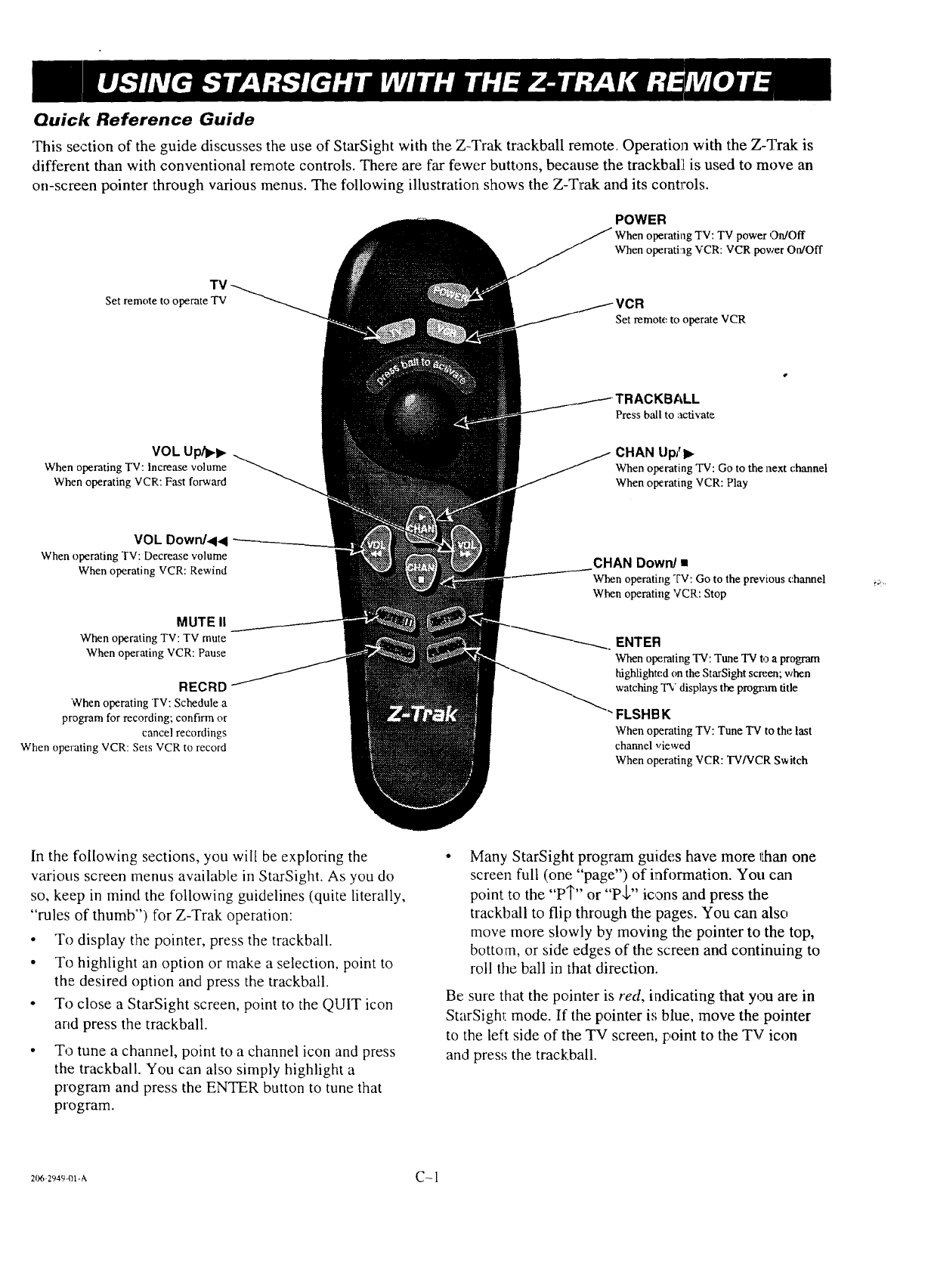
Quick Reference Guide
This section of the guide discusses the use of StarSight with the Z-Trak trackbaU remote. Operation with the Z-Trak is
different than with conventional remote controls. There are far fewer buttons, because the trackbaL[ is used to move an
on-screen pointer through various menus. The following illustration shows the Z-Trak and its controls.
Set remote to operate TV
VOL Up/l_l_
When operating TV: Increase volume
When operating VCR: Fast forward
VOL Down/<<
When operating TV: Decrease volume
When operating VCR: Rewind
MUTE II
When operating TV: TV mute
When operating VCR: Pause
RECRD
When operating TV: Schedule a
program for recording; confirm or
cancel recordings
When operating VCR: Sets VCR to record
POWER
TV power OrdOff
When opexati:ag VCR: VCR power On/Off
Set remote to operate VCR
Press ball to activate
CHAN Up/I_
When operating TV: Go to the next channel
When operating VCR: Play
CHAN Down/•
When operating TV: Go to the previous channel
When operating VCR: Stop
ENTER
When operating TV: Tune TV to a program
highlighted on the StarSight scR;en; when
watching "IN displays the program title
"FLSHB K
When operating TV: Tune TV to the last
channel viewed
When operating VCR: TV/VCR Switch
_.3..
In the following sections, you will be exploring the
various screen menus available in StarSight. As you do
so, keep in mind the following guidelines (quite literally,
"rules of thumb") for Z-Trak operation:
•To display the pointer, press the trackball.
• To highlight an option or make a selection, point to
the desired option and press the trackball.
•To close a StarSight screen, point to the QUIT icon
and press the trackball.
To tune a channel, point to a channel icon and press
the trackball. You can also simply highlight a
program and press the ENTER button to tune that
program.
Many StarSight program guides have more ILhanone
screen full (one "page") of information. You can
point to the "PT" or "P,L" icons and press the
trackball to flip through the pages. You can also
move more slowly by moving the pointer to the top,
bottom, or side edges of the screen and continuing to
roll the ball in that direction.
Be sure that the pointer is red, indicating that you are in
StarSight mode. If the pointer i,; blue, move the pointer
to the left side of the TV screen, point to the TV icon
and press the trackball.
206-2949-01-A C-- I
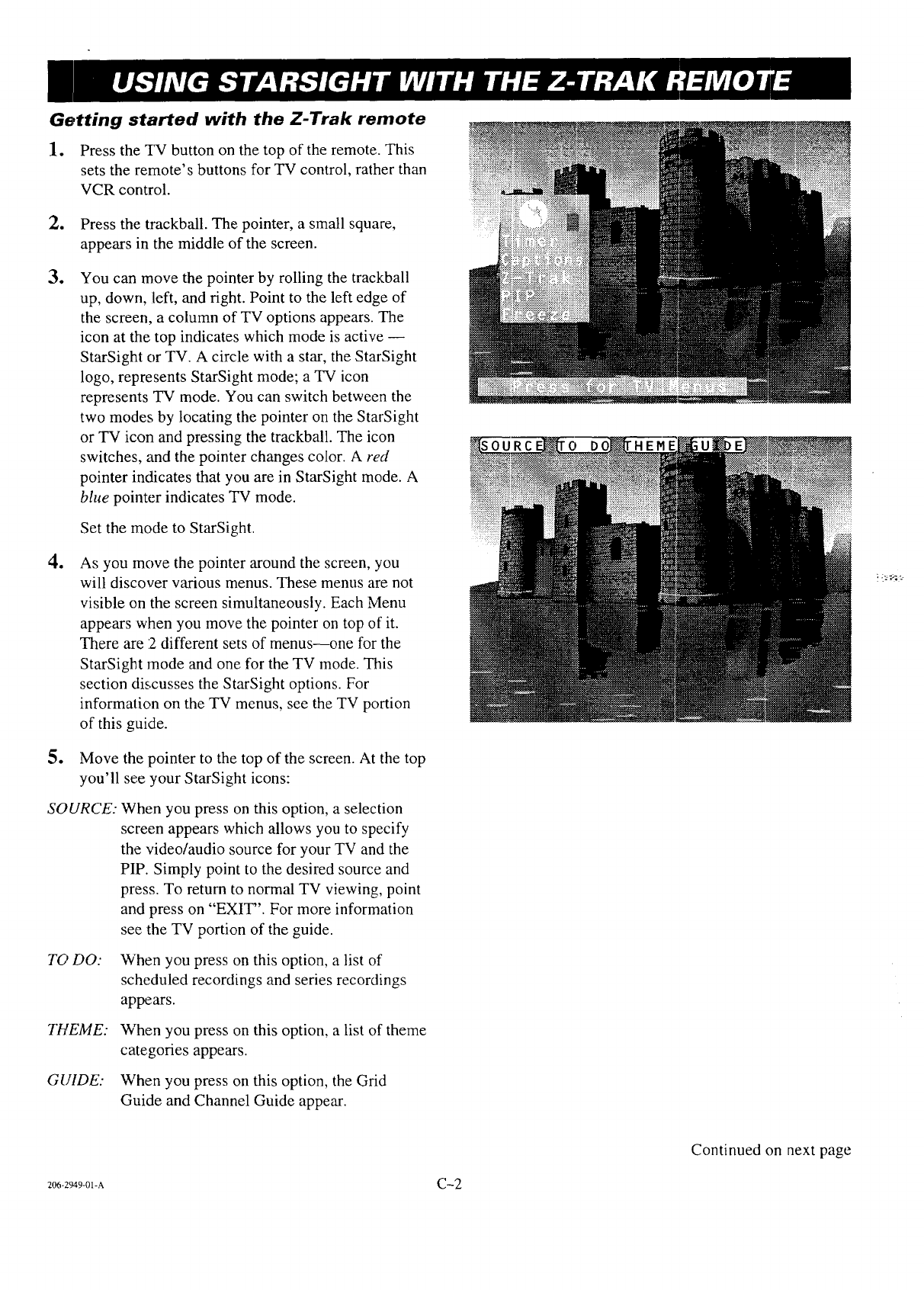
Getting started with the Z-Trak remote
l, Press the TV button on the top of the remote. This
sets the remote's buttons for TV control, rather than
VCR control.
e
t
e
e
Press the trackball. The pointer, a small square,
appears in the middle of the screen.
You can move the pointer by rolling the trackball
up, down, left, and right. Point to the left edge of
the screen, a column of TV options appears. The
icon at tile top indicates which mode is active --
StarSight or TV. A circle with a star, the StarSight
logo, represents StarSight mode; a TV icon
represents TV mode. You can switch between the
two modes by locating the pointer on the StarSight
or TV icon and pressing the trackball. The icon
switches, and the pointer changes color. A red
pointer indicates that you are in StarSight mode. A
blue pointer indicates TV mode.
Set the mode to StarSight.
As you move the pointer around the screen, you
will discover various menus. These menus are not
visible on the screen simultaneously. Each Menu
appears when you move the pointer on top of it.
There are :2different sets of menus--one for the
StarSight mode and one for the TV mode. This
section discusses the StarSight options. For
information on the TV menus, see the TV portion
of this guide.
Move the pointer to the top of the screen. At the top
you'll see your StarSight icons:
SO UR CE."
T6' DO:
THEME:
GUIDE:
When you press on this option, a selection
screen appears which allows you to specify
the video/audio source for your TV and the
PIP. Simply point to the desired source and
press. To return to normal TV viewing, point
and press on "EXIT". For more information
see the TV portion of the guide.
When you press on this option, a list of
scheduled recordings and series recordings
appears.
When you press on this option, a list of theme
categories appears.
When you press on this option, the Grid
Guide and Channel Guide appear.
Continued on next page
206-2949-01-A C-2
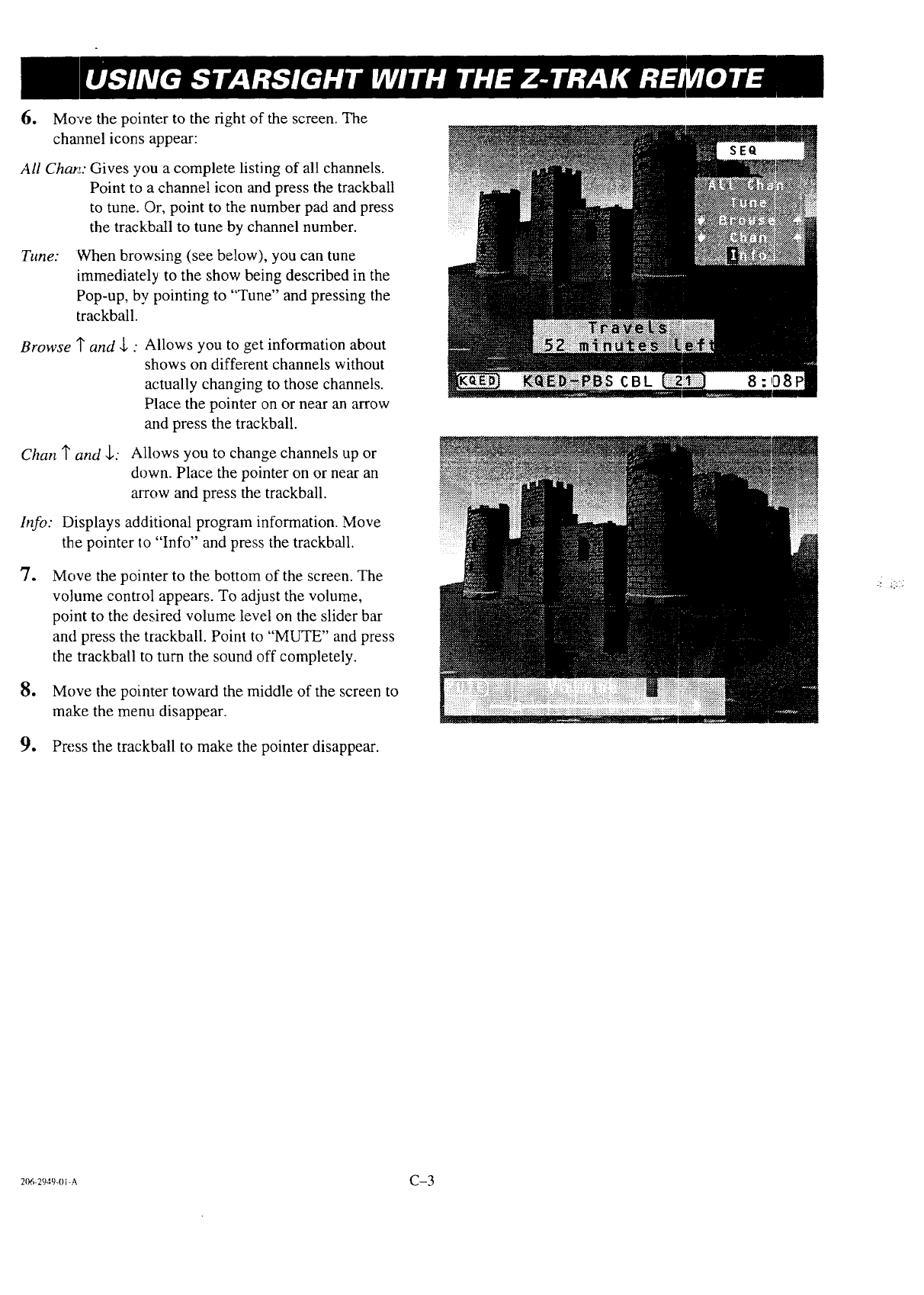
6. Movethepointertothefightofthescreen.The
channeliconsappear:
All Char.t: Gives you a complete listing of all channels.
Point to a channel icon and press the trackball
to tune. Or, point to the number pad and press
the trackball to tune by channel number.
Tune: When browsing (see below), you can tune
immediately to the show being described in the
Pop-up, by pointing to "Tune" and pressing the
trackball.
Browse _and ,L:Allows you to get information about
shows on different channels without
actually changing to those channels.
Place the pointer on or near an arrow
and press the trackball.
Chart _and $: Allows you to change channels up or
down. Place the pointer on or near an
arrow and press the trackball.
lnfo: Displays additional program information. Move
the pointer to "Info" and press the trackball.
oMove the pointer to the bottom of the screen. The
volume control appears. To adjust the volume,
point to the desired volume level on the slider bar
and press the trackball. Point to "MUTE" and press
the trackball to turn the sound off completely.
8, Move the pointer toward the middle of the screen to
make the menu disappear.
9. Press the trackball to make the pointer disappear.
206-2949-0 I-A C-3
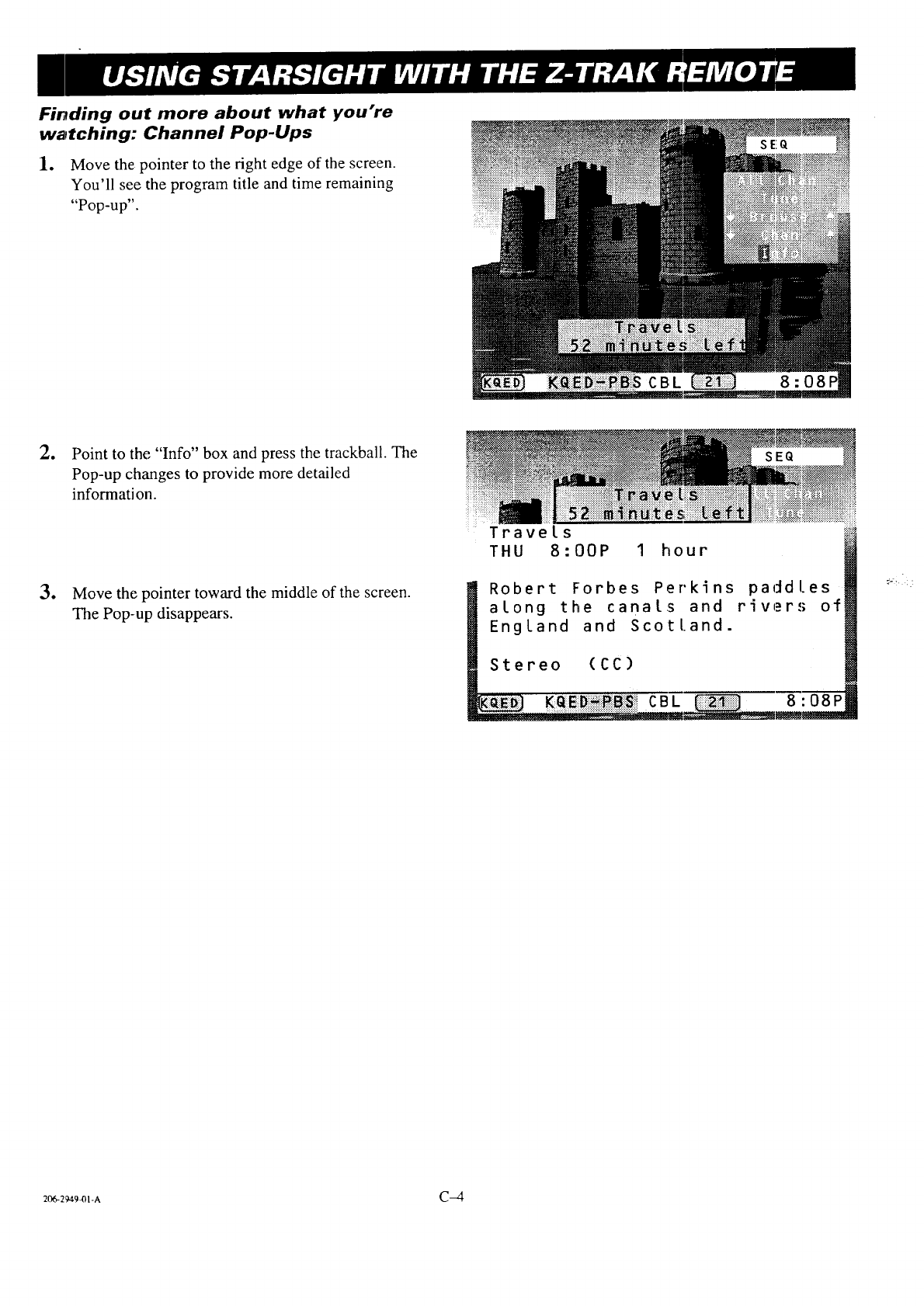
Finding out more about what you're
watching: Channel Pop-Ups
1. Move the pointer to the right edge of the screen.
You'll see the program title and time remaining
"Pop-up".
,
e
Point to the "Info" box and press the trackball. The
Pop-up changes to provide more detailed
informati on.
Move the pointer toward the middle of the screen.
The Pop-up disappears.
Travels
THU 8:00P 1 hour
Robert Forbes Perkins paddles
along the canals and rivers of
England and Scotland.
Stereo (CC)
CBL 8:08P
2_2949m-a C-4
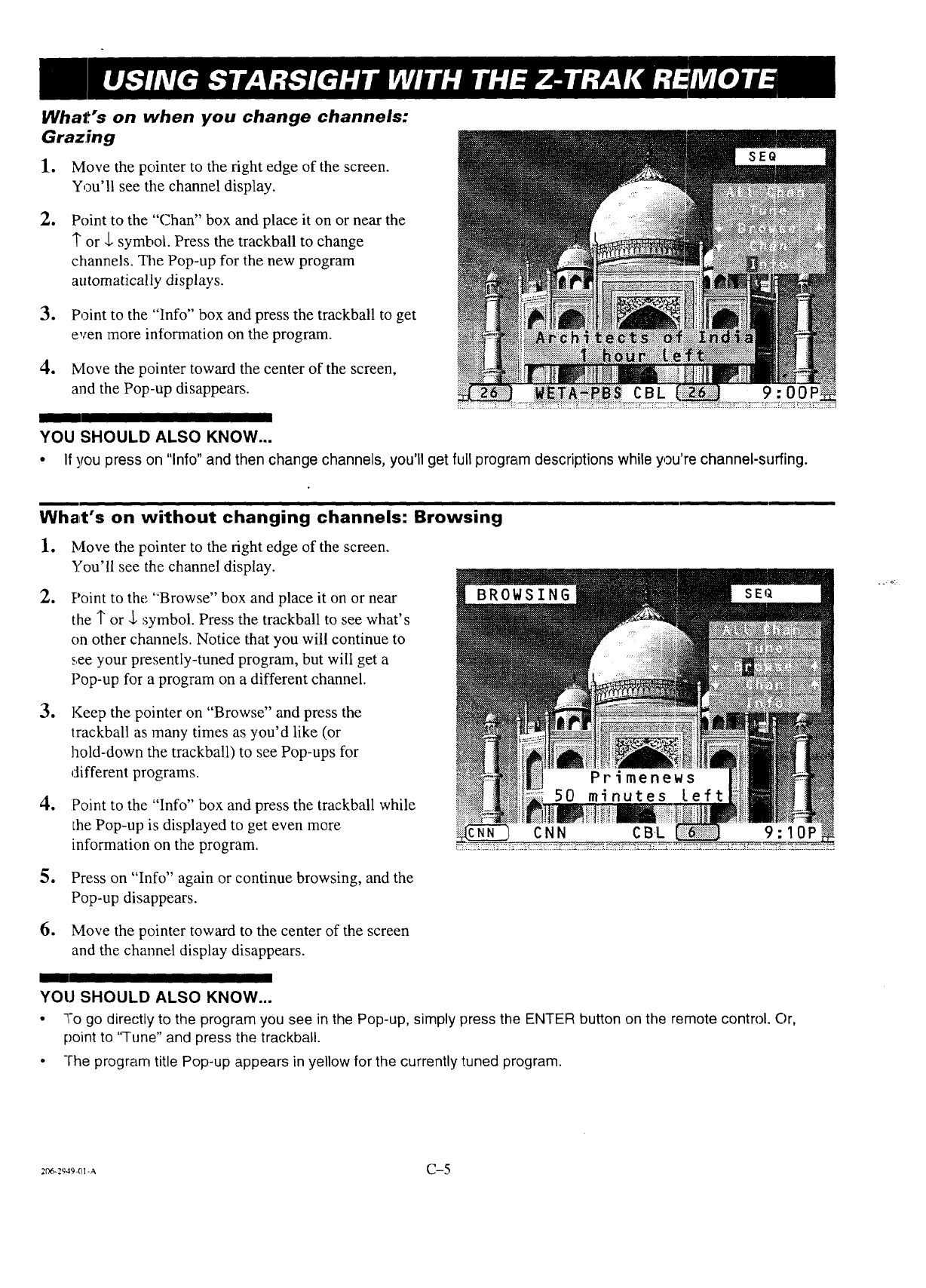
What.'s on when you change channels:
Grazing
1. Move the pointer to the right edge of the screen.
You'll see the channel display.
oPoint to the "Chart" box and place it on or near the
1" or _, symbol. Press the trackball to change
channels. The Pop-up for the new program
automatically displays.
3. Point to the "info" box and press the trackball to get
even more information on the program.
4. Ivlove the pointer toward the center of the screen,
and the Pop-up disappears. CBL
YOU SHOULD ALSO KNOW...
•If you press on "lnfo" and then change channels, you'll get full program descriptions while you're channel-surfing.
Wha_t's on without changing channels: Browsing
1. Move the pointer to the fight edge of the screen.
You'll see the channel display.
oPoint to the "Browse" box and place it on or near
the 1' or ,1,symbol. Press the trackball to see what's
on other channels. Notice that you will continue to
see your presently-tuned program, but will get a
Pop-up for a program on a different channel.
oKeep the pointer on "Browse" and press the
trackball as many times as you'd like (or
hold-down the trackball) to see Pop-ups for
different programs.
tPoint to the "Info" box and press the trackball while
the Pop-up is displayed to get even more
information on the program.
5. Press on "Info" again or continue browsing, and the
Pop-up disappears.
6. Move the pointer toward to the center of the screen
and the channel display disappears.
YOU SHOULD ALSO KNOW...
•7,0 go directly to the program you see in the Pop-up, simply press the ENTER button on the remote control. Or,
point to 'q-une" and press the trackball.
• -I-he program title Pop-up appears in yellow for the currently tuned program.
2r_:g49-ol-A C-5
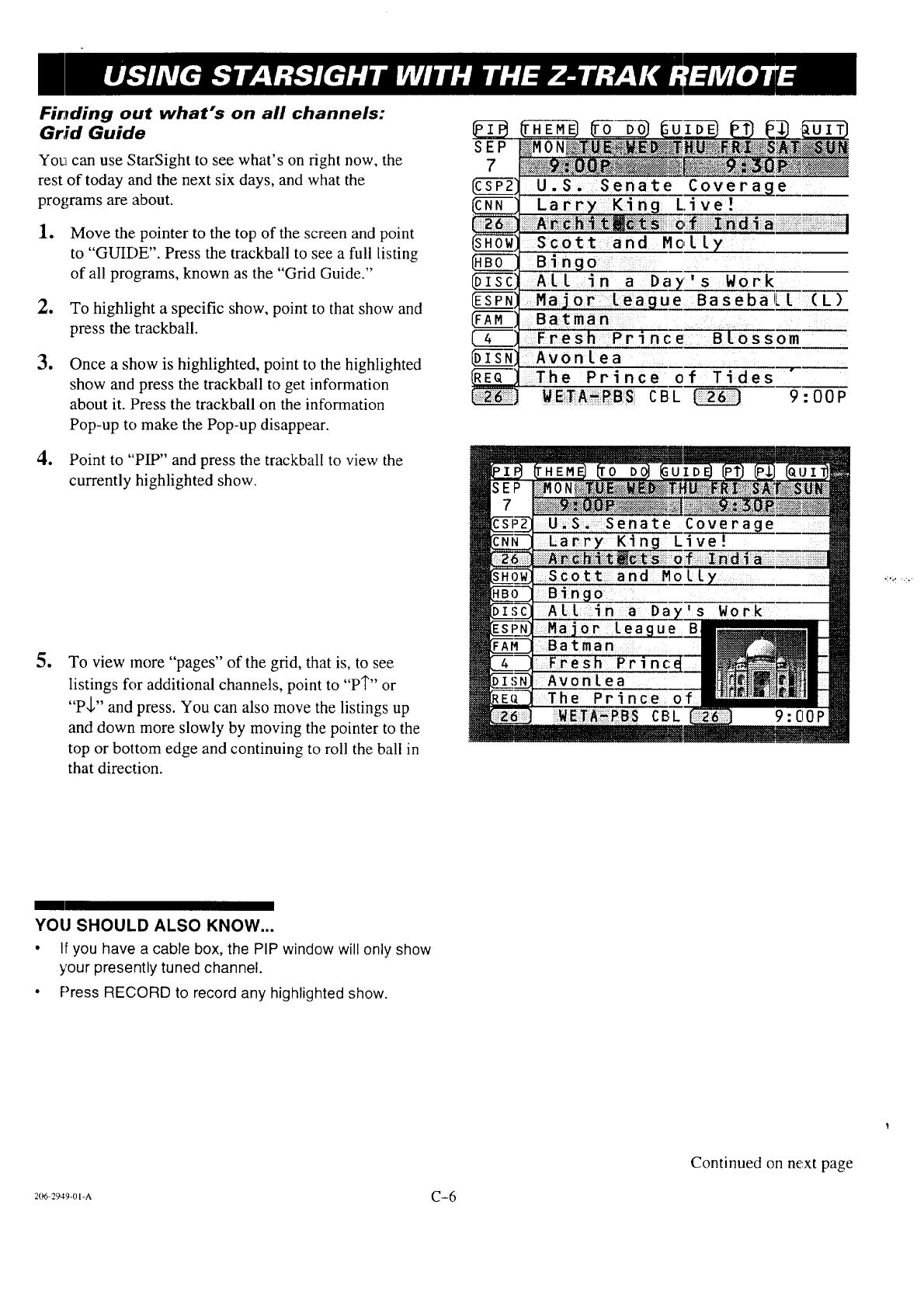
Finding out what's on all channels:
Grid Guide
Yo_t can use StarSight to see what's on right now, the
rest of today and the next six days, and what the
programs are about.
1. Move the pointer to the top of the screen and point
to "GUIDE". Press the trackball to see a full listing
of all programs, known as the "Grid Guide."
2. To highlight a specific show, point to that show and
press the trackball.
eOnce a show is highlighted, point to the highlighted
show and press the trackball to get information
about it. Press the trackball on the information
Pop-up to make the Pop-up disappear.
4. Point to "PIP" and press the trackball to view the
currently highlighted show.
oTo view more "pages" of the grid, that is, to see
listings for additional channels, point to "PI"" or
"P,[," and press. You can also move the listings up
and down more slowly by moving the pointer to the
top or bottom edge and continuing to roll the ball in
that direction.
SEP
7
HB 2g-d--
[42
1
U.S. Senate Coverage
Larry King Live!
Scott and Mclly
Bi n9o
All _n a Da_'s Work
Major league BasebaLl (L)
Batman
Fresh Prince ....Blossom
Avonlea
The Prince of Tides
W E!_A-PBS C B L 9 :0 0 P
YOU SHOULD ALSO KNOW...
•If you have a cable box, the PIP window will only show
your presently tuned channel.
•Press RECORD to record any highlighted show.
Continued on ne.xt page
206 2949-01-A C-6
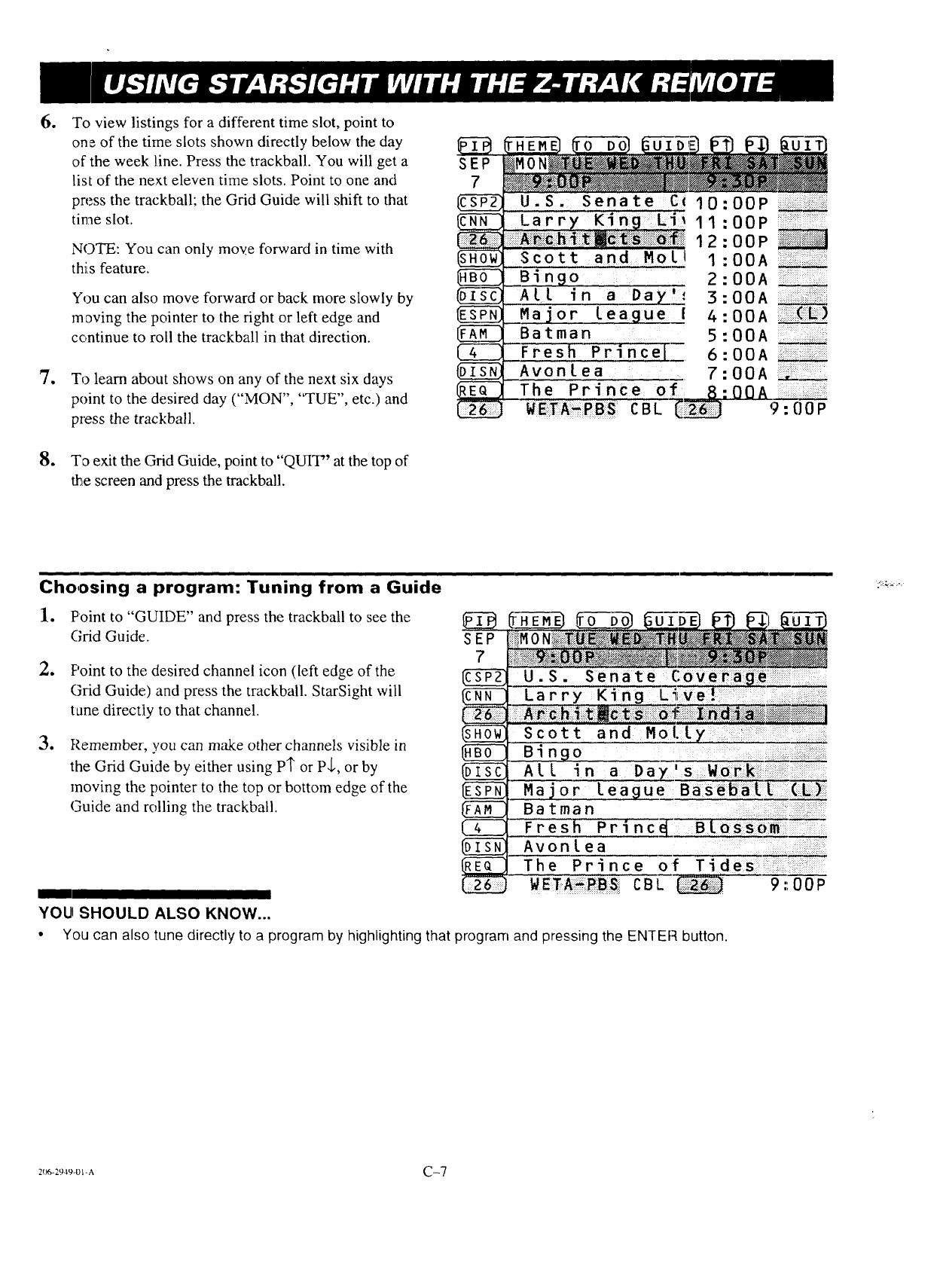
o
o
So
To view listings for a different time slot, point to
one of the time slots shown directly below the day
of the week line. Press the trackball. You will get a
list of the next eleven time slots. Point to one and
press the trackball; the Grid Guide will shift to that
time slot.
NOTE: You can only moye forward in time with
thiLsfeature,
You can also move forward or back more slowly by
moving the pointer to the right or left edge and
continue to roll the trackball in that direction.
To learn about shows on any of the next six days
point to the desired day ("MON", "TUE", etc.) and
press the trackbaI1.
To exit the Grid Guide, point to "QUIT" at the top of
• ,e screen and press the trackball.
SEP
7
U.S. Senate C_ 10
arry' 11
12
Scott and M0ii 1
0
:OOP
:OOP
2
3
4
5
6
7
__Bingo
All in a Day_
Major leagueJ
Batman
_Fresh Princel--
Avonlea
:OOA
: 0 0A
:00A
: 00 A (L)
: 00 A
: 00 A
OOA ..........
l
Choosing a program: Tuning from a Guide
1. Point to "GUIDE" and press the trackball to see the
Grid Guide.
o
,,
F'oint to the desired channel icon (left edge of the
(3rid Guide) and press the trackball. StarSight will
tane directly to that channel.
Remember, you can make other channels visible in
the Grid Guide by either using PI" or P_,, or by
moving the pointer to the top or bottom edge of the
Guide and rolling the trackball.
SEP
7
C3553
U.S. Senate Coverage
Larry King L_=ve! ......
Scott and Mol. ly ....:
ALL _n a Day's Wor:k
Major League Baseball (iL)::
Batman ....
Fresh Princ_ Blossom
Avonlea
The Prince of Tides
WE'FA_,PBS_ CBL 9 :,OOP
YOU SHOULD ALSO KNOW...
• You can also tune directly to a program by highlighting that program and pressing the ENTER button.
2(_zg._u-ovA C-7
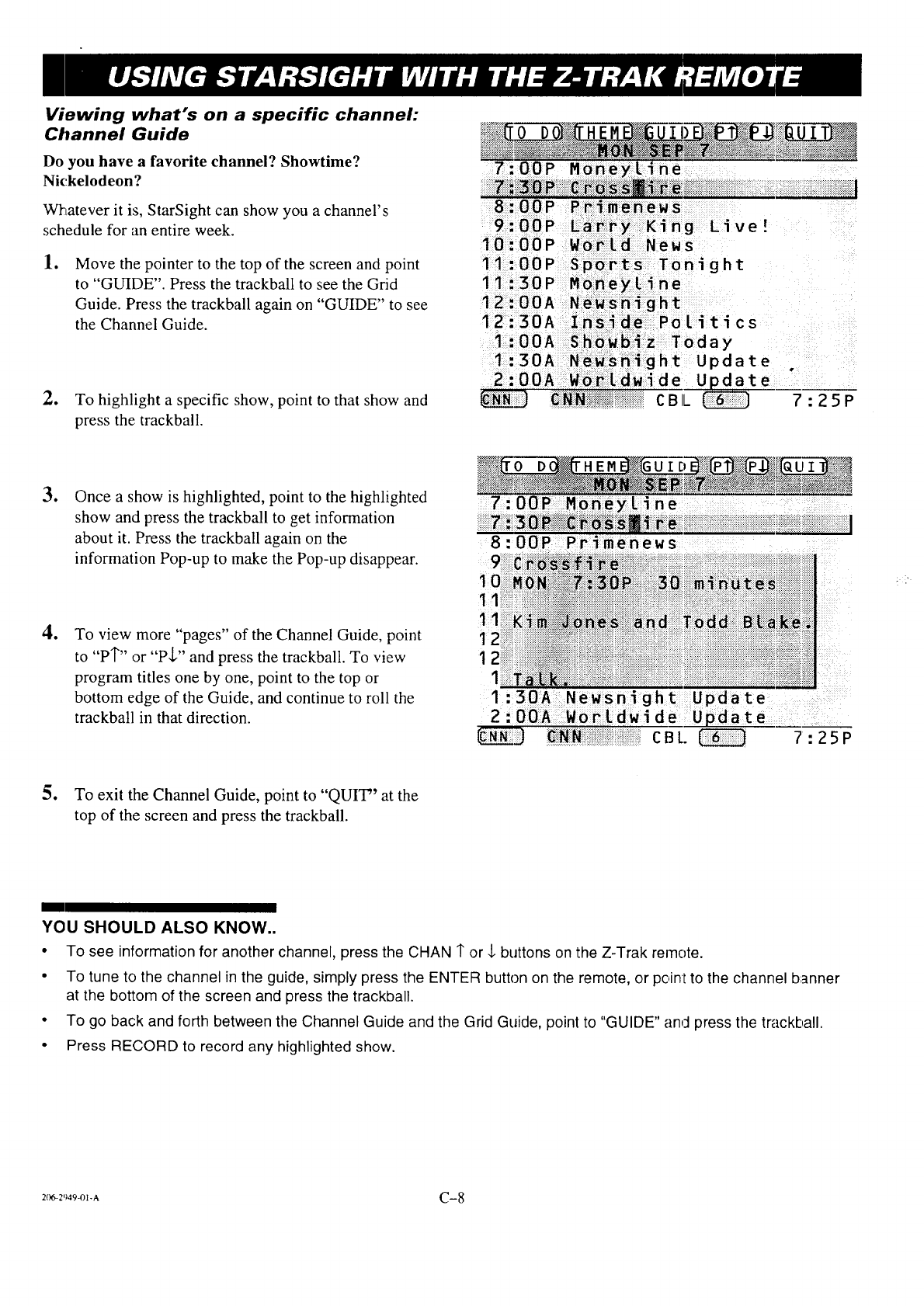
Viewing what's on a specific channel:
Channel Guide
Do you have a favorite channel? Showtime?
Nickelodeon?
Whatever it is, StarSight can show you a channel's
schedule for an entire week.
lo Move the pointer to the top of the screen and point
to "GUIDE". Press the trackball to see the Grid
Guide. Press the trackball again on "GUIDE" to see
the Channel Guide.
2. To highlight a specific show, point to that show and
press the trackball.
7:00P Moneyline
_:::_::::_::_::::_:::_::::::_C::::_Q::::_sM_::._,_,::::::::::::::::::::::::::::::::::_:_:_:::_::::::::::::::::::::::::::::::i;,:::!_!ill
8:00P P_:imenews
Live?
11:00P Sports Tonight
11:30P M oney_ine
12:00A N e:::_s:night
12:30A _Inside Politics
I ........ : :..-:;.....:
:OOA S_iowb_z Today
1:30A New.sri:ight Update
0 " :"
2.0 A W o;_::[dw_de Update
_ C_:::::_:iN!iii!iiiiiiii_i_i_ii!i_,_ii_?_i_C B L 7 :25 P
e
4_
Once a show is highlighted, point to the highlighted
show and press the trackball to get information
about it. Press the trackball again on the
information Pop-up to make the Pop-up disappear.
To view more "pages" of the Channel Guide, point
to "PI"" or "P,[," and press the trackball. To view
program titles one by one, point to the top or
bottom edge of the Guide, and continue to roll the
trackbatl in that direction.
_)_:_ " :" --) f:.._T .?_}_ _ .N_
1_ii!i!!iiiii!i
ii!Bi!iNi!i!i!iiiiiiiiiiiii!iiiiiiiiiiiiiiiiiiiiiiiiiiiiiiiCBt. 7:25P
-i'
5° To exit the Channel Guide, point to "QUIT" at the
top of the screen and press the trackball.
YOU SHOULD ALSO KNOW..
•To see information for another channel, press the CHAN 1"or $ buttons on the Z-Trak rernote.
• To tune to the channel in the guide, simply press the ENTER button on the remote, or point to the channel banner
at the bottom of the screen and press the trackball.
• To go back and forth between the Channel Guide and the Grid Guide, point to "GUIDE" and press the trackball.
• Press RECORD to record any highlighted show.
206-2[)494)I-A C-8
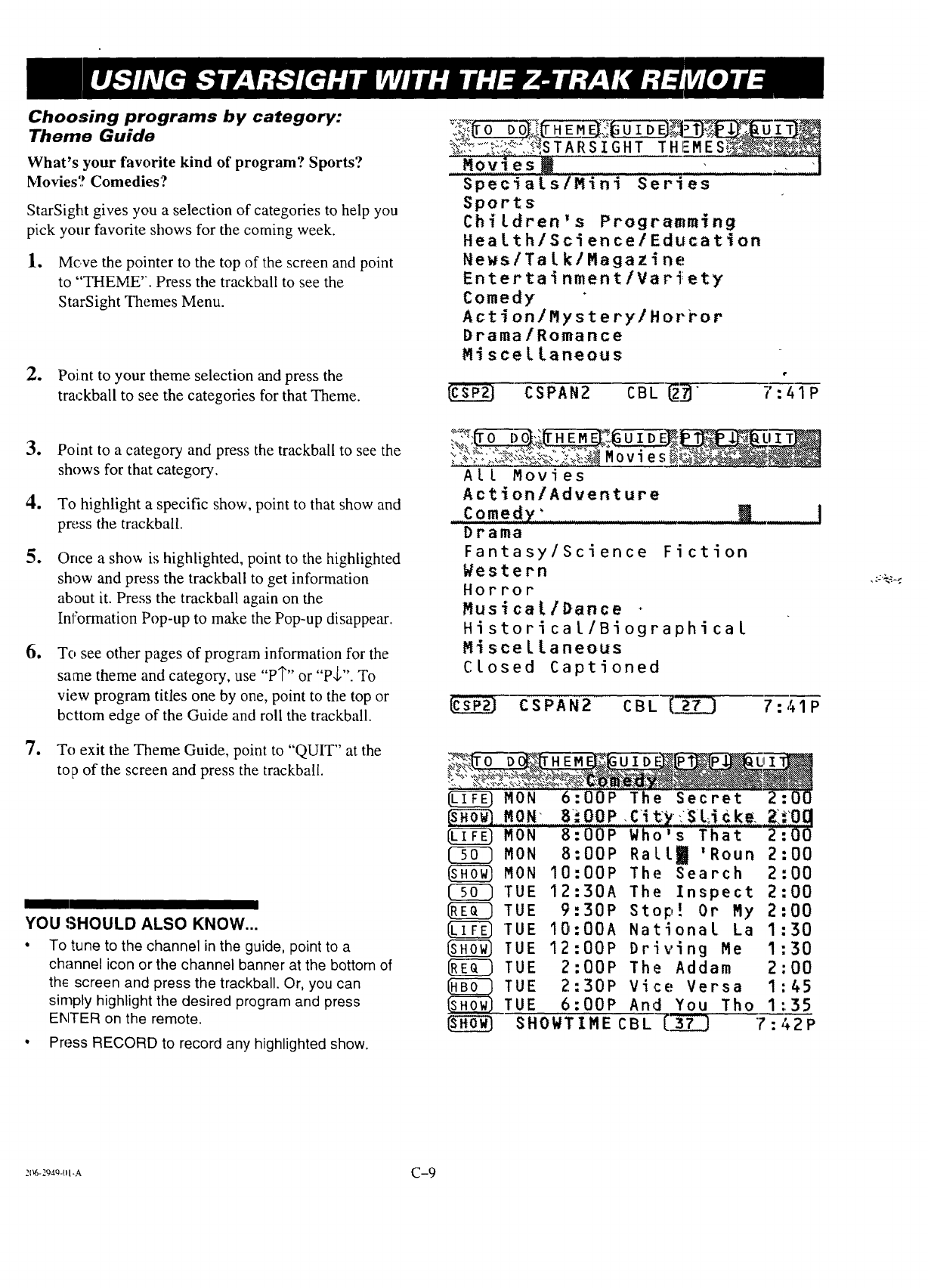
Choosing programs by category:
Theme Guide
What's your favorite kind of program? Sports?
Movies? Comedies?
StarSight gives you a selection of categories to help you
pick your favorite shows for the coming week.
1. Mc.ve the pointer to the top of the screen and point
to "THEME". Press the trackball to see the
StarSight Themes Menu.
2. Poim to your theme selection and press the
trackball to see the categories for that Theme.
e
o
o
o
o
Point to a category and press the trackball to see the
shows for that category.
To highlight a specific show, point to that show and
press the trackbal[.
Once a show is highlighted, point to the highlighted
show and press the trackball to get information
about it. Press the trackball again on the
Information Pop-up to make the Pop-up disappear.
To see other pages of program information for the
same theme and category, use "PI"" or "P_,". To
view program titles one by one, point to the top or
bcttom edge of the Guide and roll the trackball.
To exit the Theme Guide, point to "QUIT" at the
top of the screen and press the trackball.
YOU SHOULD ALSO KNOW...
•To tune to the channel in the guide, point to a
channel icon or the channel banner at the bottom of
the screen and press the trackball. Or, you can
simply highlight the desired program and press
ENTER on the remote.
•Press RECORD to record any highlighted show.
M0v!esN ...... -......!...............:
Specials/Mini Series
Sports
Children's Programming
Hea It h/Sci en ce /Educa tion
News/Ta Ik/Magazine
Entertai nmentiVari;ety
Comedy
Action/MysterylHorror
Drama/Romance
Miscellaneous
CSPAN2 CBL _ 7:41P
All Movies
Ac
.....Co
Dr
Fa
We
Ho
Mu
Hi
Mi
Cl
tion/Adventure
medy" ........................................... m ............ I
area
ntasy/Science Fiction
stern
rror
sica!/Dance
storical/Biographical
scellaneous
osed Captioned
CSPAN2 CBL _ 7:41P
MON 6:00P The Secret 2:00
_....M (}.t_.:.........BI_..OO.P_Ci.t:Y,.iS t,,.i€k_,.Z_i.O,,q
MON 8:00P Who's That 2:00
MON Rall_ 'Roun
MON The Search
C_ "[UE The Inspect
TUE Stop! Or My
TUE National La
TUE Driving Me
TUE The Addam
TUE Vice Versa
TUE And You Tho
8:00P 2:00
10:00P 2:00
12:30A 2:00
9:30P 2:00
10:00A 1:30
12:00P 1:30
2:00P 2:00
2:30P 1:45
6:00P 1:35
SHOWTIME CBL _ 7:42P
21_-294Q-OI-A C-9
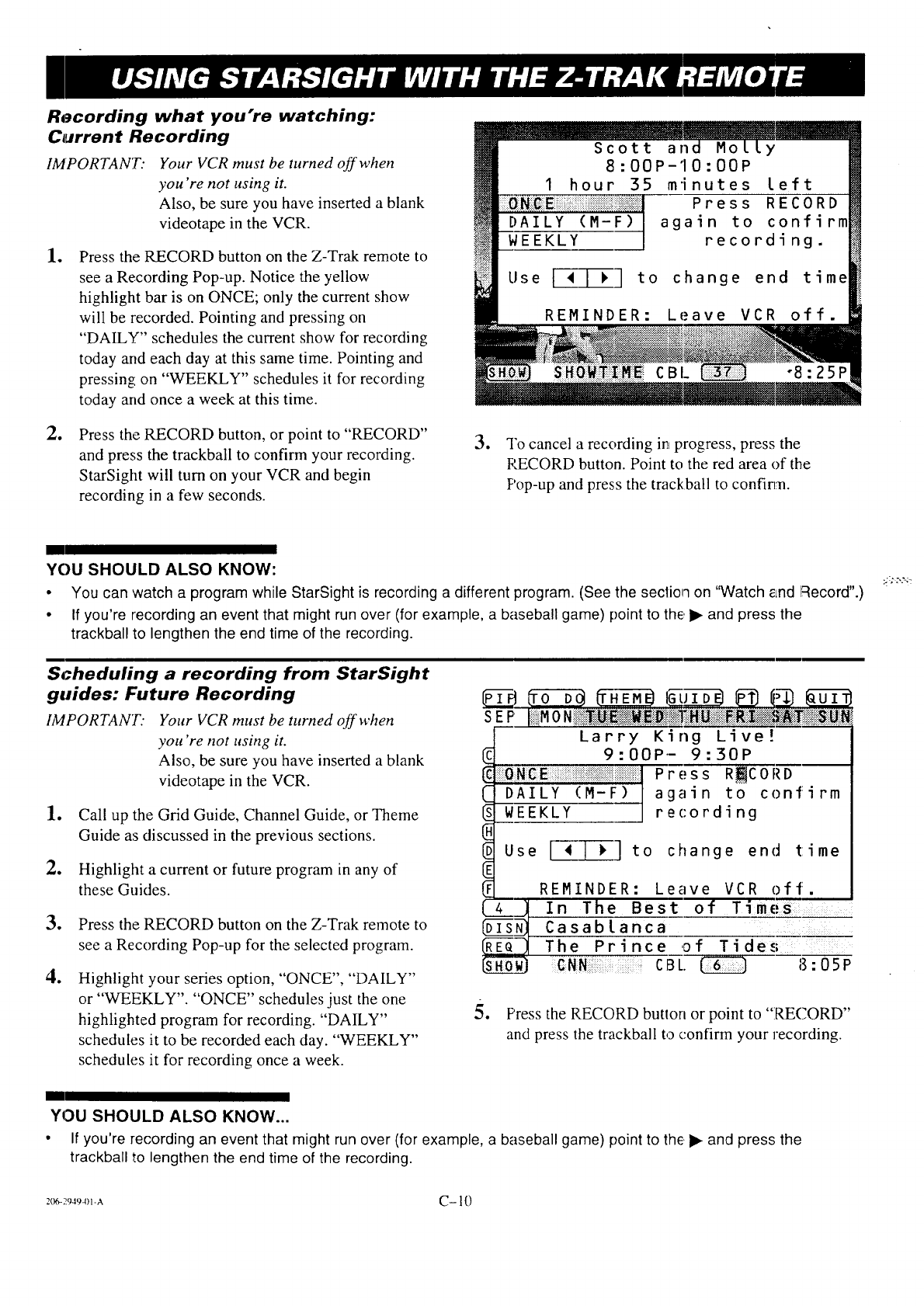
Recording what you're watching:
Cd_rrent Recording
IMPORTANT: Your VCR must be turned off when
you're not using it.
Also, be sure you have inserted a blank
videotape in the VCR.
le Press the RECORD button on the Z-Trak remote to
see a Recording Pop-up. Notice the yellow
highlight bar is on ONCE; only the current show
will be recorded. Pointing and pressing on
"DAILY" schedules the current show for recording
today and each day at this same time. Pointing and
pressing on "WEEKLY" schedules it for recording
today and once a week at this time.
.Press the RECORD button, or point to "RECORD"
and press the trackball to confirm your recording.
StarSight will turn on your VCR and begin
recording in a few seconds.
.To cancel arecording in progress, press the
PECORD button. Point to the red area of the
Pop-up and press the trackball to confirm.
II
YOU SHOULD ALSO KNOW:
•You can watch a program while StarSight is recording a different program. (See the section on "Watch eLndRecord".)
• If you're recording an event that might run over (for example, a baseball game) point to the,• and press the
trackball to lengthen the end time of the recording.
Schedufing a recording from StarSight
guides: Future Recording
IMPORTANT." Your VCR must be turned off when
you're not using it.
Also, be sure you have inserted a blank
videotape in the VCR.
le
e
Call up the Grid Guide, Channel Guide, or Theme
Guide as discussed in the previous sections.
Highlight a current or future program in any of
these Guides.
3o
,
Press the RECORD button on the Z-Trak remote to
see a Recording Pop-up for the selected program.
Highlight your series option, "ONCE", "DAILY"
or "WEEKLY". "ONCE" schedules just the one
highlighted program for recording. "DAILY"
schedules it to be recorded each day. "WEEKLY"
schedules it for recording once a week.
SE__PP_iiM0 N,ii_'_i_ii_i_i_i!i_!]_H_#iiiiiiiE_;_i_i_ii_ii_iUi_
Larry King Live?
9:00P- 9:30P
_DAILY_ (M-F) /again to confirm
WEEKLY ] recording
REMINDER: Leave VCR off.
{_41 In The Best of Times
_ Casablanca ----_
The Prince of Tides
CNN CBL. _8:05P
Use I4 ] P ] to change end time
5. Press the Iq'ECORD button or point to "RECORD"
and press the trackball to confirm your recording.
m
YOU SHOULD ALSO KNOW...
• If you're recording an event that might run over (for example, a baseball game) point to the.• and press the
trackball to lengthen the end time of the recording.
206-2949q)l-A C- 10
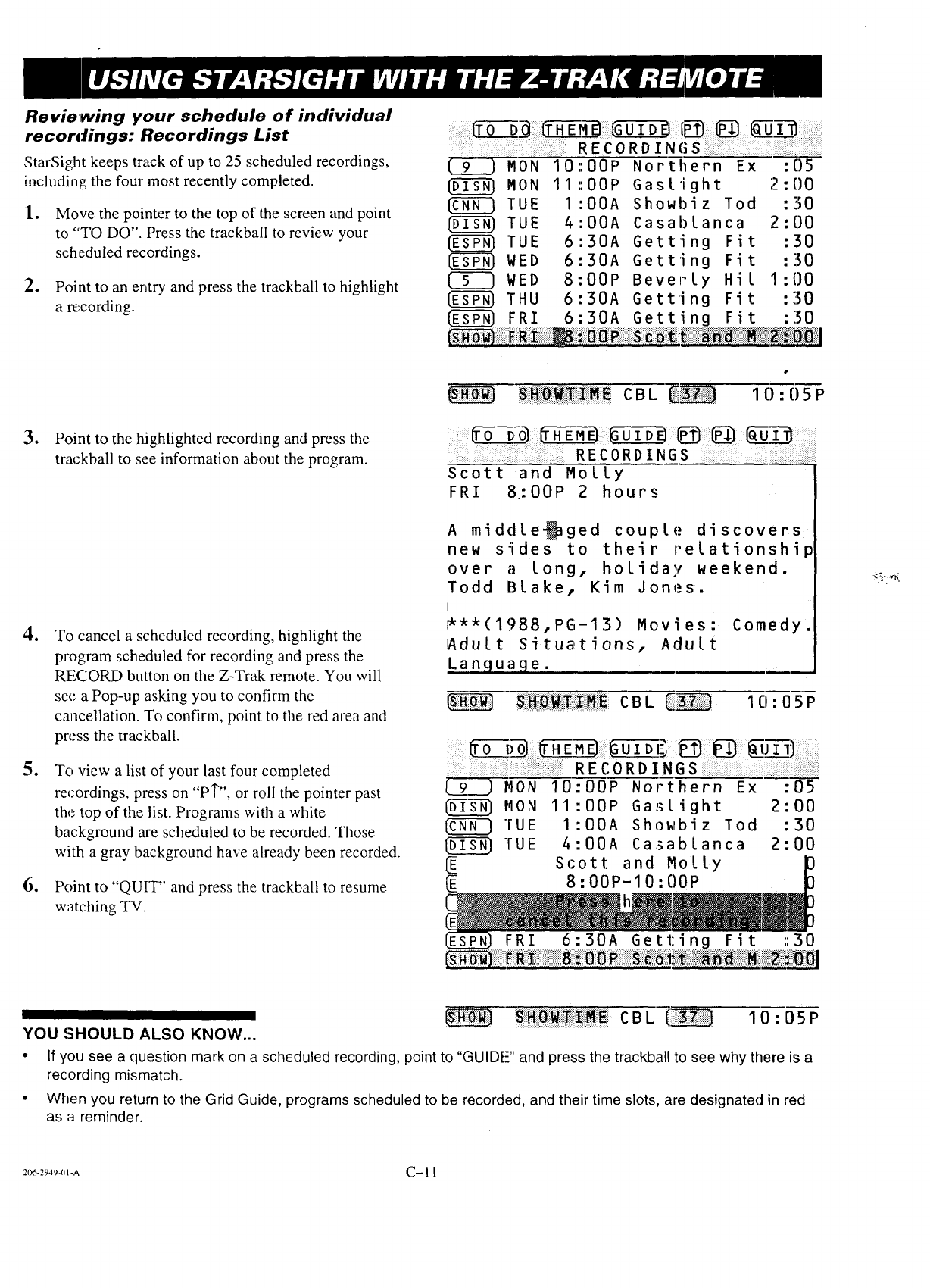
Reviewing your schedule of individual
recordings: Recordings List
StarSight keeps track of up to 25 scheduled recordings,
including the four most recently completed.
1. Move the pointer to the top of the screen and point
to "TO DO". Press the trackball to review your
scheduled recordings.
2. Point to an entry and press the trackball to highlight
a re,cording.
RECORDINGS
MON IO::OOP Northern Ex :05
MON 11::00P Gaslight
TUE I:00A Showbiz Tod
[_ TUE 4:00A Casablanca
TUE 6:30A Getting Fit
WED 6::30A Getting Fit
(_ WED 8:00P Beverly Hil
THU 6:30A Getting Fit
2 :00
:30
:00
:!50
:!50
I :00
:30
F RI 6:30A Gett!ng Fit _!3o0
o
e
e
e
Point to the highlighted recording and press the
trackball to see information about the program.
To cancel a scheduled recording, highlight the
program scheduled for recording and press the
RECORD button on the Z-Trak remote. You will
see a Pop-up asking you to confirm the
cancellation. To confirm, point to the red area and
press the trackball.
r
RECORDINGS
Scott and MolLy
FRI 8.:OOP 2 hours
A middle,aged couple discovers
new s_ides to their relationship
over a long, holiday weekend.
Todd BLake, Kim Jones.
I***(1988,PG-13) Movies: Comedy.
_Adult Situations, Adult
Language.
To view a list of your last four completed
recordings, press on "PI"", or roll the pointer past _ M0 N
the top of the list. Programs with a white _ M0 N
background are scheduled to be recorded. Those _ "[U E
with a gray background have already been recorded. _ "FU E
Point to "QUIT" and press the trackball to resume
watching TV.
I0:00P Northern Ex :05
11:00P Gaslight 2:00
I:00A Showbiz Tod :30
4:00A Casablanca 2:00
Scott and Nolly
8 :OOP-IO :OOP
_!_:!Hii_i!_i_i!_i_;;_!EiC B L_ 1 0:0 5 P
YOU SHOULD ALSO KNOW...
•If you see a question mark on ascheduled recording, point to "GUIDE--" and press the trackbafl to see why there is a
recording mismatch.
•When you return to the Grid Guide, programs scheduled to be recorded, and their time slots, are designated in red
as a reminder.
21)6-294%(11-A C- 11
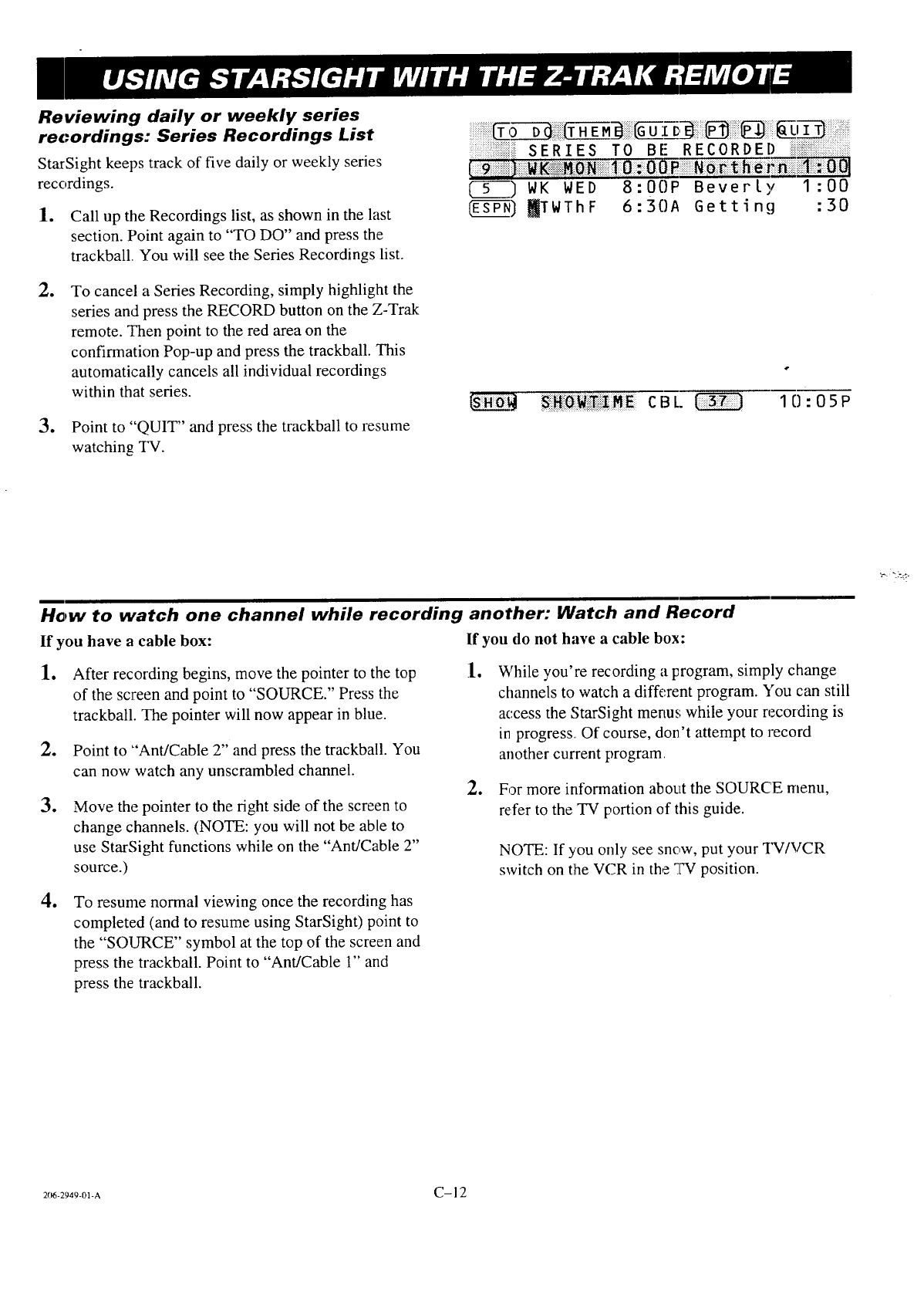
Reviewing daily or weekly series
recordings: Series Recordings List
StarSight keeps track of five daily or weekly series
recordings.
ll
o
Call up the Recordings list, as shown in the last
section. Point again to "TO DO" and press the
trackball. You will see the Series Recordings list.
To cancel a Series Recording, simply highlight the
series and press the RECORD button on the Z-Trak
remote. Then point to the red area on the
confirmation Pop-up and press the trackball. This
automatically cancels all individual recordings
within that series.
3. Point to "QUIT" and press the trackball to resume
watching TV.
SERIES TO.BE RECORDED
5_) WK WED 8:00P Beverly I :00
ES_-S-PN)_TWThF 6:30A Getting :30
How to watch one channel while recording another: Watch and Record
If you have a cable box: If you do not have a cable box:
1. After recording begins, move the pointer to the top 1.
of the screen and point to "SOURCE." Press the
trackball. The pointer will now appear in blue.
e
e
o
Point to "Ant/Cable 2" and press the trackball. You
can now watch any unscrambled channel.
Move the pointer to the fight side of the screen to
change channels. (NOTE: you will not be able to
use StarSight functions while on the "Ant/Cable 2"
source.)
To resume normal viewing once the recording has
completed (and to resume using StarSight) point to
the "SOURCE" symbol at the top of the screen and
press the trackball. Point to "Ant/Cable 1" and
press the trackball.
1,
While you're recording a program, simply change
channels to watch a different program. You can still
access the StarSight menu,,; while your recording is
in progress. Of course, don't attempt to record
another current program
For more information about the SOURCE menu,
refer to the TV portion of this guide.
NOTE: If you only see snow, put your TV/VCR
switch on the VCR in the "T_ position.
2(_-2949-01-A C-12
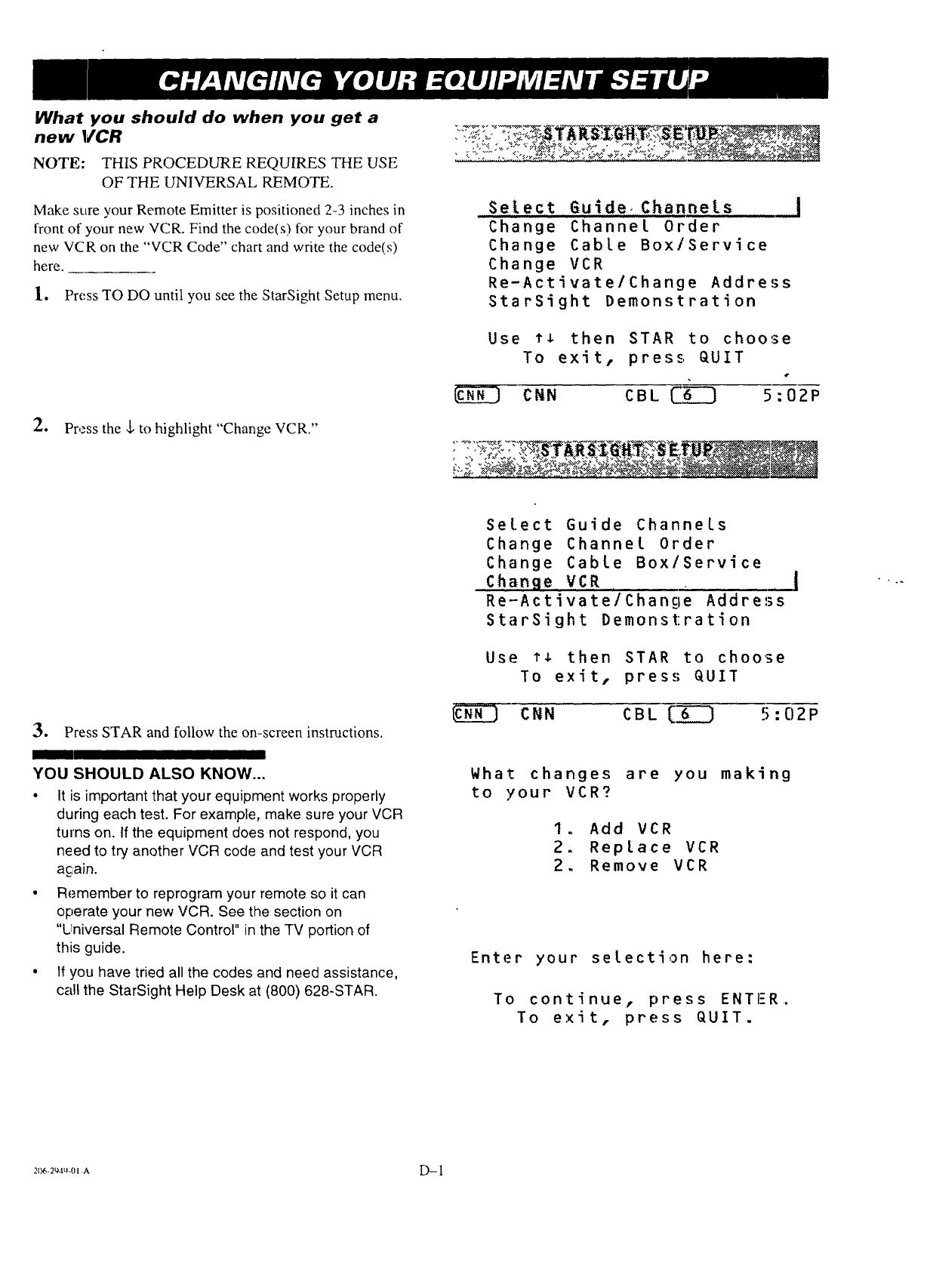
What you should do when you get a
new 1/CR
NOTE: THIS PROCEDURE REQUIRES THE USE
OF THE UNIVERSAL REMOTE.
Make sure your Remote Emitter is positioned 2-3 inches in
front of your new VCR. Find the code(s) for your brand of
new VCR on the "VCR Code" chart and write the code(s)
here.
l, Press TO DO until you see the StarSight Setup menu.
2, Press the ,l, to highlight "Change VCR."
SeLect 6uideoChannels J
Change Channel Order
Change Cable Box/Service
Change VCR
Re-Activate/Change Address
StarSight Demonstration
Use ** then STAR to choose
To exit, press. QUIT
_]_ CNN CBL _ 5:02P
3. Press STAR and follow the on-screen instructions.
I
YOU SHOULD ALSO KNOW...
• It is important that your equipment works properly
during each test. For example, make sure your VCR
turns on. If the equipment does not respond, you
need to try another VCR code and test your VCR
acain.
• Remember to reprogram your remote so it can
operate your new VCR. See the section on
"Universal Remote Control" in the TV portion of
this guide.
• If you have tried all the codes and need assistance,
call the StarSight Help Desk at (800) 628-STAR.
Select Guide Channels
Change Channel Order
Change Cable Box/Service
Change VCR j
Re-Activate/Change A'ddres's
StarSight Demonstration
Use ** then STAR to choose
To exit, press QUIT
CNN CBL [_ 5:02P
What changes are you making
to your VCR?
1. Add VCR
2. RepLace VCR
2. Remove VCR
Enter your selection here:
To continue, press ENTER.
To exit, press QUIT.
21x_.2'_4,_-o_-A D-- l
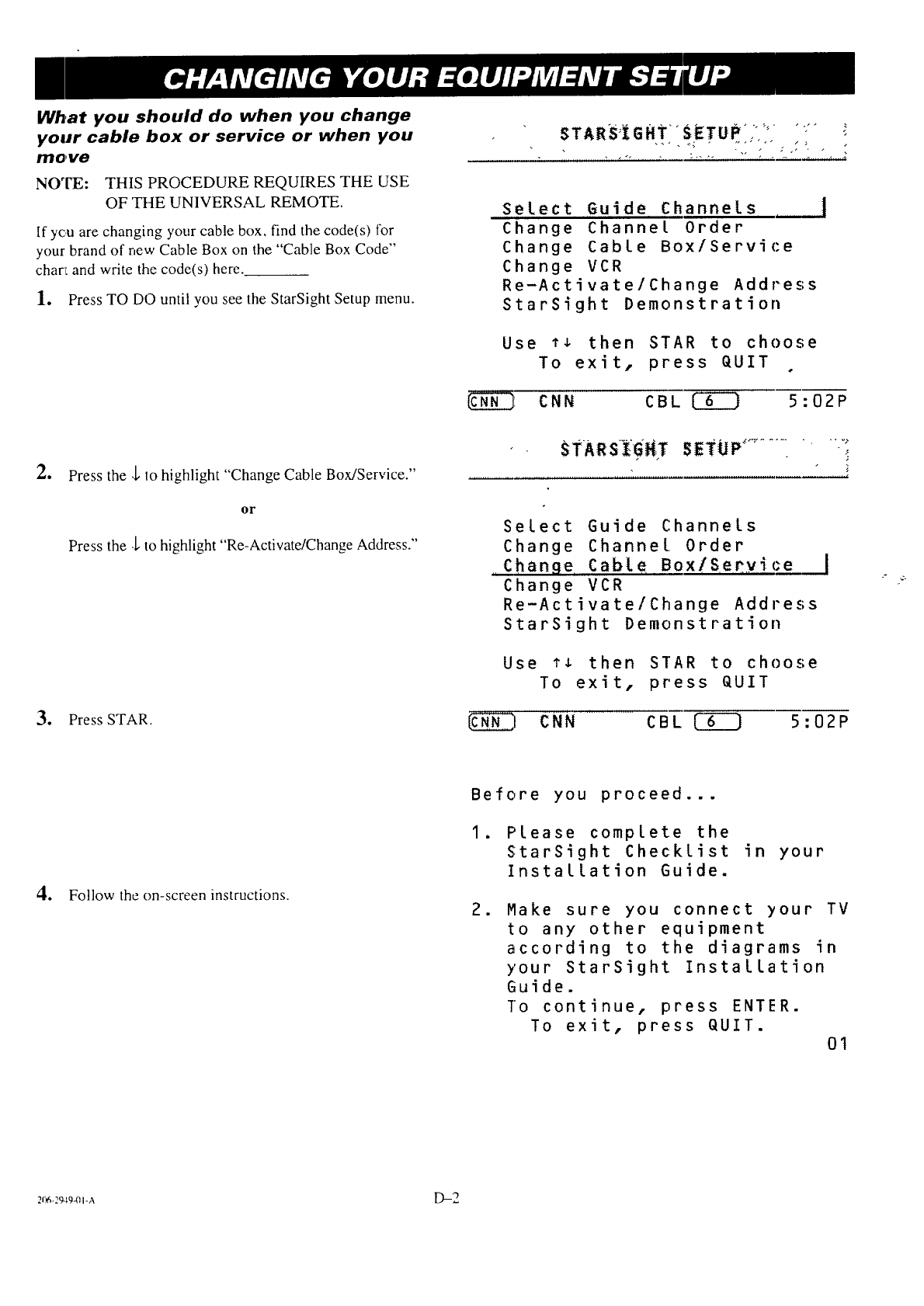
What you should do when you change
your cable box or service or when you
move
NOTE: THIS PROCEDURE REQUIRES THE USE
OF 'FILE UNIVERSAL REMOTE.
If ycu are changing your cable box, find the code(s) for
your brand of new Cable Box on the "Cable Box Code"
charL and write the code(s) here.
1. Press TO DO until you see the StarSight Setup menu.
STAR_S_IGHTI SETUPJ° '' ,.:- ;
Select Guide Channels r
Change Channel Order
Change Cable Box/Service
Change VCR
Re-Activate/Change Address
StarSight Demonstration
Use ** then STAR to choose
To exit, press QUIT
CNN CBL _ 5:02P
mPress the .Lto highlight "Change Cable Box/Service."
or
Press the .[_to highlight "Re-Activate/Change Address."
3. Press STAR.
STARS_GHT SETUP............ -v-,
Select Guide Channels
Change Channel Order
Change Cabte Box/S, ePy!ce
Change VCR
Re-Activate/Change Address
StarSight Demonstration
Use t, then STAR to choose
To exit, press QUIT
_I CNN CBL _ 5:02P
4. Follow the on-screen instructions.
Before you proceed...
I. Please complete the
StarSight Checklist in your
Installation Guide.
.Make sure you connect your TV
to any other equipment
according to the diagrams in
your StarSight Installation
Guide.
To continue, press ENTER.
To exit, press QUIT.
O1
2r,6-e_9-01-a D-2
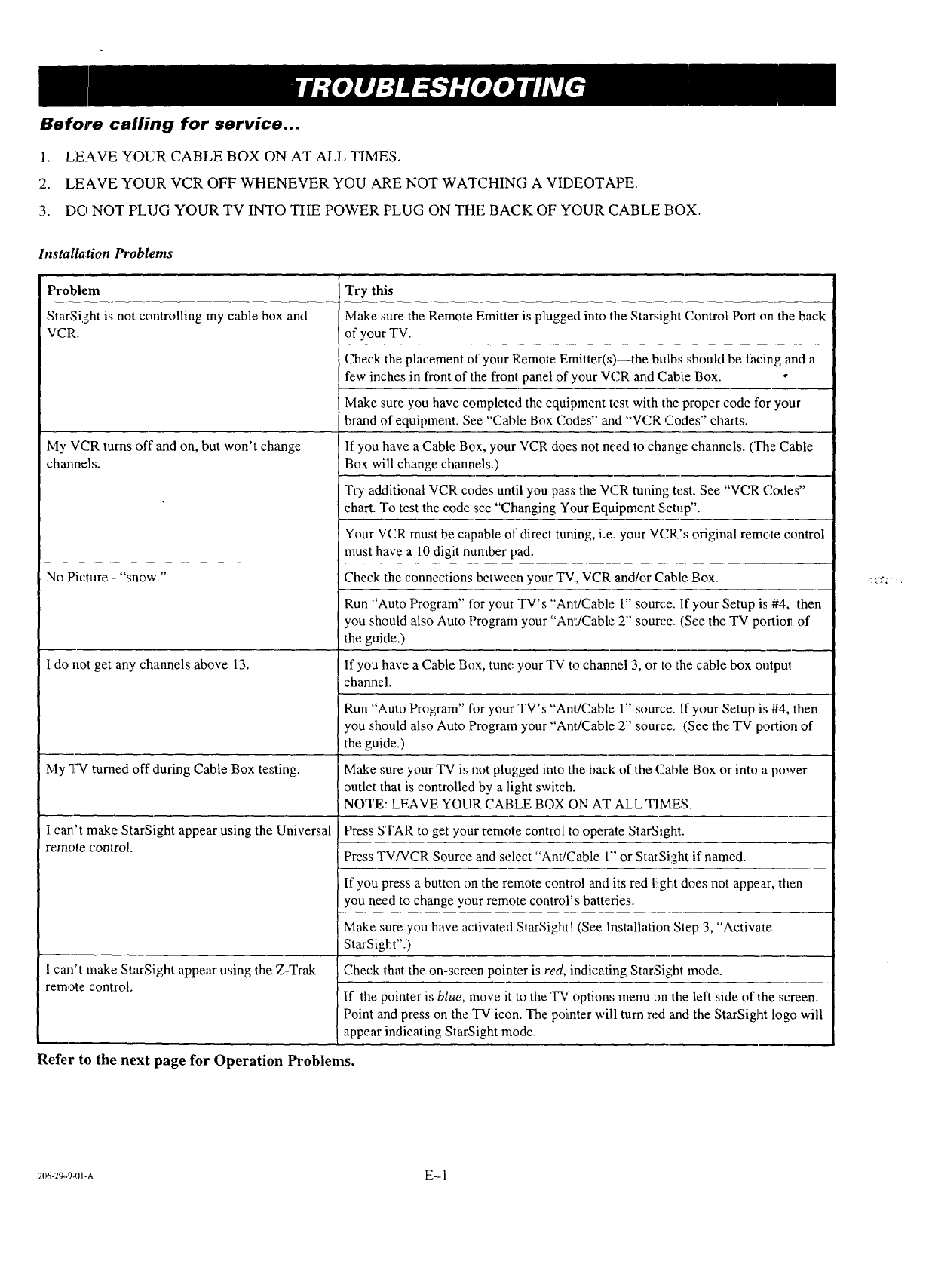
Before calling for service...
1. LEAVE YOUR CABLE BOX ON AT ALL TIMES.
2. LEAVE YOUR VCR OFF WHENEVER YOU ARE NOT WATCHING A VIDEOTAPE.
3. DO NOT PLLIG YOUR TV INTO THE POWER PLUG ON THE BACK OF YOUR CABLE BOX.
Installation Problems
Problem
StarSight is not controlling my cable box and
VCR.
My VCR turns off and on, but won't change
channels.
No Picture - "snow."
I do not get any channels above 13.
My 2W turned off during Cable Box testing.
I can't make StarSight appear using the Universal
remote control.
1can't make StarSight appear using the Z-Trak
remote control.
Try this
Make sure the Remote Emitter is plugged into the Starsight Control Port on the back
of your TV.
Check the placement o1 your Remote Emitter(s)--the bulbs should be facirtg and a
few inches in front of the front panel of your VCR and CablLeBox. o
Make sure you have completed the equipment test with the proper code for your
brand of equipment. See "Cable Box Codes" and "VCR Codes" charts.
If you have a Cable Box, your VCR does not need to change channels. (The Cable
Box will change channels.)
Try additional VCR codes until you pass the VCR tuning test. See "VCR Codes"
chart. To test the code see "Changing Your Equipment Setup".
Your VCR must be capable of direct tuning, i.e. your VCR's original remc,te control
must have a 10 digit number pad.
Check the connections between your TV, VCR and/or Cable Box.
Run "Auto Program" for your TV's "AnlJCable 1" source. If your Setup is #4, then
you should also Auto Program your "Ant/Cable 2" source. (See the TV portiOrL of
the guide.)
If you have a Cable Box, tune your TV to channel 3, or to the cable box outpu!
channel.
Run "Auto Program" for your TV's "Ant/Cable 1" source. If your Setup is #4, then
you should also Auto Program your "Ant/Cable 2" source, (See the TV portion of
the guide.)
Make sure your TV is not plugged into the back of the Cable Box or into apower
outlet that is controlled by a light switch.
NOTE: LEAVE YOUR CABLE BOX ON AT ALL TIMES.
Press STAR to get your remote control to operate StarSight.
Press TV/VCR Source and select "Ant/Cable l" or StarSight if named.
If you press a button on the remote control and its red l!tgl'Ltdoes not appear, then
you need to change your remote control's batteries.
Make sure you have activated StarSight! (See Installation Step 3, "Activate
StarSight".)
Check that the on-screen pointer is red, indicating StarSight mode.
If the pointer is blue, move it to the TV options menu on the left side of _:hescreen.
Point and press on the TV icon. The pointer will turn red and the StarSiglat logo will
appear indicating StarSight mode.
Refer to the next page for Operation Problems.
206-2949-01-A E-1
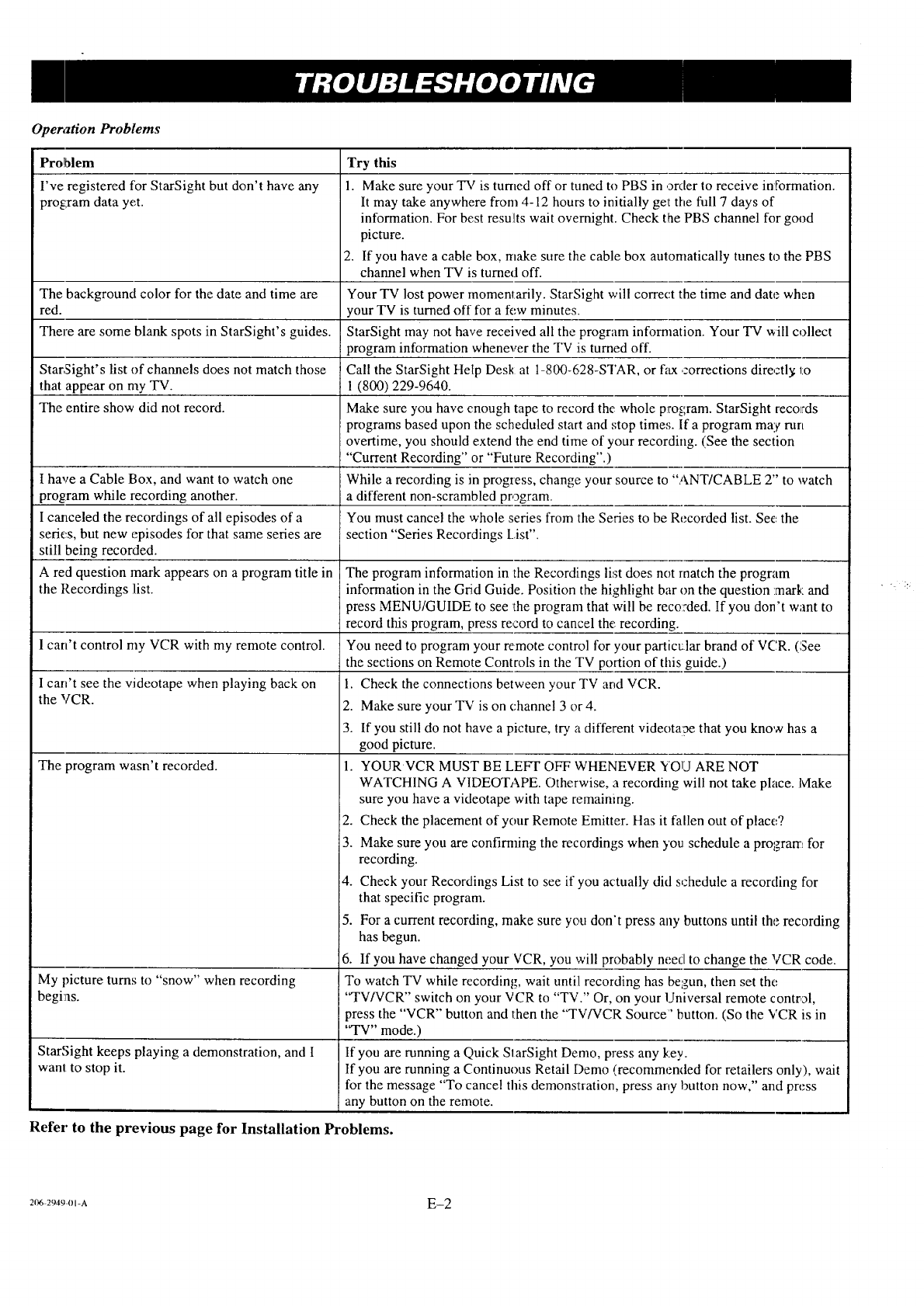
Operation Problems
Problem
I've registered for StarSight but don't have any
program data yet.
The background color for the date and time are
red.
There are some blank spots in StarSight's guides.
StarSight's list of channels does not match those
that appear on my TV.
The entire show did not record.
I have a Cable Box, and want to watch one
program while recording another.
I canceled the recordings of all episodes of a
series, but new episodes for that same series are
still being recorded.
A red question mark appears on a program title in
the Recordings list.
I can't control my VCR with my remote control.
I can't see the videotape when playing back on
the VCR.
The program wasn't recorded.
My picture turns to "snow" when recording
begins.
StarSight keeps playing a demonstration, and I
want to stop it.
Try this
1. Make sure your TV is turned off or tuned to PBS in order to receive information.
It may take anywhere from 4-12 hours to initially get the fifll 7days of
information. For best resu!tts wait overnight. Check the PBS channel for good
picture.
2. If you have a cable box, nlake sure the cable box automatically tunes to the PBS
channel when TV is turned off.
Your TV lost power momentarily. StarSight will correct the time and date when
your TV is turned off for a few minutes.
StarSight may not have received all the program information. Your TV ,,_ill collect
program information whenever the TV is turned off.
Call the StarSight Help Desk at 1-800-628-STAR, or fax corrections directl3; 1:o
I (800) 229-9640.
Make sure you have enough tape to record the whole program. StarSight records
programs based upon the scheduled start and stop times. If a program may run
overtime, you should extend the end time of your recording. (See the section
"Current Recording" or "Future Recording".)
While a recording is in progress, change your source to "ANT/CABLE 2" to watch
a different non-scrambled program
You must cancel the whole series from :the Series to be Recorded list. See the
section "Series Recordings List".
The program information in :theRecordings list does not match the program
information in the Grid Guide. Position the highlight bar on the question mark and
_ress MENU/GUIDE to see _Iheprogram that will be recorded. If you don't want to
record this program, press record to cancel the recording.
You need to program your remote control for your particular brand of VCR. (See
the sections on Remote Controls in the TV portion of this guide.)
1. Check the connections between your TV ard VCR.
2. Make sure your TV is on channel 3 or 4.
3. If you still do not have a picture, try a different videotaae that you know has a
good picture.
1. YOUR VCR MUST BE LEFT OFF WHENEVER YOU ARE NOT
WATCHING A VIDEOTAPE. Otherwise, a recording will not take place, lvIake
sure you have a videotape with tape remaining.
2. Check the placement of your Remote Emitter. Has it fallen out of place?
3. Make sure you are confirnfing the recordings when you schedule a program for
recording.
4. Check your Recordings List to see if you actually did schedule a recording for
that specific program.
5. For a current recording, make sure you don't press any buttons until the recording
has begun.
6. If you have changed your VCR, you will probably need to change the VCR code.
To watch TV while recording, wait until recording has begun, then set the
"TV/VCR" switch on your VCR to "TV." Or, on your Universal remote control,
press the "VCR" button and then the "TV/VCR Source' button. (So the VCR is in
"TV" mode.)
If you are running a Quick SlarSight Demo, press any key.
If you are running a Continuous Retail Demo (recommended for retailers only), wait
for the message "To cancel this demonsllration, press any button now," and press
any button on the remote.
Refer to the previous page for Installation Problems.
206 2949 OI-A E-2
