ZENITH Direct View Digital 27 To 40 TV Manual L0902209
User Manual: ZENITH ZENITH Direct View Digital 27 to 40 TV Manual ZENITH Direct View Digital 27 to 40 TV Owner's Manual, ZENITH Direct View Digital 27 to 40 TV installation guides
Open the PDF directly: View PDF  .
.
Page Count: 56

Operating Guide I Warranty
Model Numbers I C32V23, C3@V23, C34W23 I DigitaITVs
oh
®
<:) Copyright 2002, Zenith Electronics Corporation Z e n i t h ®
Do[by Digitab R_
Manufactured under License from Do[by Laboratories.
"DoLby" and the doubLe-D symbol are trademarks of DoLby Laboratories.
Confidential UnpuNished Works. <'_1992 - 1997 Do[by Laboratories, Inc. ALLrights reserved.
RECORDYOUR MODEL NUMBER/
The mode[ and serial number of your
Entertainment Machine 7Mare located on the
back of the TV cabinet. For your future conve-
nience, we suggest that you record these num-
bers here:
Node[ No.
Serial No.
WARNING
WARNING:
TO REDUCETHE RISKOF ELECTRICSHOCK DO NOT RENOVE COVER(OR BACK).NO USERSERVICEABLEPARTSINSIDE.
REFERSERVICINGTO QUALIFIEDSERVICEPERSONNEL.
The Lightning flash with arrowhead symbol within an equiLateraLtriangle, is intended to alert the userto the presence of
uninsu[ated "dangerous voltage" within the product's enclosure that maybe of sufficient magnitude to constitute a risk of
electric shockto persons.
The exclamation point within an equiLateraLtriangle is intended to alert the user to the presenceof important operating and
maintenance(servicing) instructions in the Literature accompanying the appliance.
WARNING:
TO PREVENTFIREOR SHOCK HAZARDS,DO NOT EXPOSETHISPRODUCTTO RAINOR MOISTURE.
POWER CORD POLARIZATION:
CAUTION:TO PREVENTELECTRICSHOCK,MATCH WIDE BLADEOF PLUGTO WIDESLOT,FULLYINSERT.
ATTENTION:POUR EVITERLESCHOCS ELECTRIQUES,INTRODUIRELA LANE LA PLUSLARGEDE LA FICHEDANS LA BORNE
CORRESPONDANTEDE LA PRISEET POUSSERJUSQU'AUFOND.
NOTE TO CABLE/TV INSTALLER:
This reminderisprovidedto ca[[the cane TV systeminsta[[efsattentionto Artic[e820-40 of the Nationa[E[ectricCode
(U.S.A.).The code providesguide[inesforpropergroundingand, in particular,specifiesthat the cane ground sha[[be
connected to the groundingsystem of the bui[ding,as dose to the pointofthe cane entryas practical
REGULATORY INFORMATION:
Thisequipmenthasbeentestedandfoundtocomp[ywiththe[imitsfora C[assB digita[device,pursuantto Part15
oftheFCCRu[es.These[imitsaredesignedtoprovidereasonab[eprotectionagainstharmfu[interferencewhen the
equipment is operated in a residential instaLLation.This equipment generates, usesand can radiate radio frequency
energy and, if not instaLLedand usedin accordancewith the instruction manual may cause harmful interference to radio
communications. However,there is no guaranteethat interference wiLLnot occur in a particular instaLLation.If this
equipment doescause harmful interference to radioor television reception, which can be determined by turning
the equipment off and on, the user is encouragedto try to correct the interference by one or more of the foLLowing
measures: • Reorient or relocate the receiving antenna.
• Increase the separation betweenthe equipment and receiver.
• Connectthe equipment into an outlet on a circuit different from that to which the receiver is connected.
• ConsuLtthe dealer or an experiencedradio/TV technician for help.
CAUTION:
Do not attempt to modify this product in any way without written authorization from Zenith ELectronicsCorporation.
Unauthorized modification could void the user'sauthority to operate this product.
COMPLIANCE:
The responsible party for this product's compliance is:
Zenith ELectronicsCorporation, 2000 NiL[brook Drive, Unco[nshire, IL 60069, USA° Phone: 1-847-941-8000.
Entertainment Machine TMis a trademark of Zenith Electronics Corporation
® Copyright 2002 Zenith Electronics Corporation
Importantsafeguards for you and your new product
Your product has been manufactured and tested with your safety in mind. However, improper use can result in potential
eLectricaL shock or fire hazards. To avoid defeating the safeguards that have been built into your new product, please read
and observe the foLLowing safety points when instaLLing and using your new product, and save them for future reference.
Observing the simple precautions discussed in this operating guide can help you get many years of enjoyment and safe oper-
ation that are built into your new product.
This product complies with all appLicabLe U.S. Federal safety requirements, and those of the Canadian Standards Association.
1. Read Instructions
ALLthe safety and operating instructions should be read
before the product is operated.
2. Follow Instructions
ALLoperating and use instructions should be foLLowed.
3. Retain Instructions
The safety and operating instructions should be retained for
future reference.
4. Heed Warnings
ALLwarnings on the product and in the operating instruc-
tions should be adhered to.
5. Cleaning
UnpLug this product from the watt outlet before cleaning.
Do not use Liquid cleaners or aerosol cleaners. Use a damp
cloth for cleaning.
6. Water and Moisture
Do not use this product near water for example, near a bath
tub, wash bowL, kitchen sink, or Laundry tub, in a wet base-
ment, or near a swimming pooL.
7. Accessories, Carts, and Stands
Do not place this product on a slippery or tilted surface, or
on an unstable cart, stand, tripod, bracket, or table. The
product may slide or faLL, causing serious injury to a child
or adult, and serious damage to the product. Use only with
a cart, stand, tripod, bracket, or table recommended by the
manufacturer, or sold with the product. Any mounting of
the product should follow the manufacturer's instructions,
and should use a mounting accessory recommended by the
manufacturer.
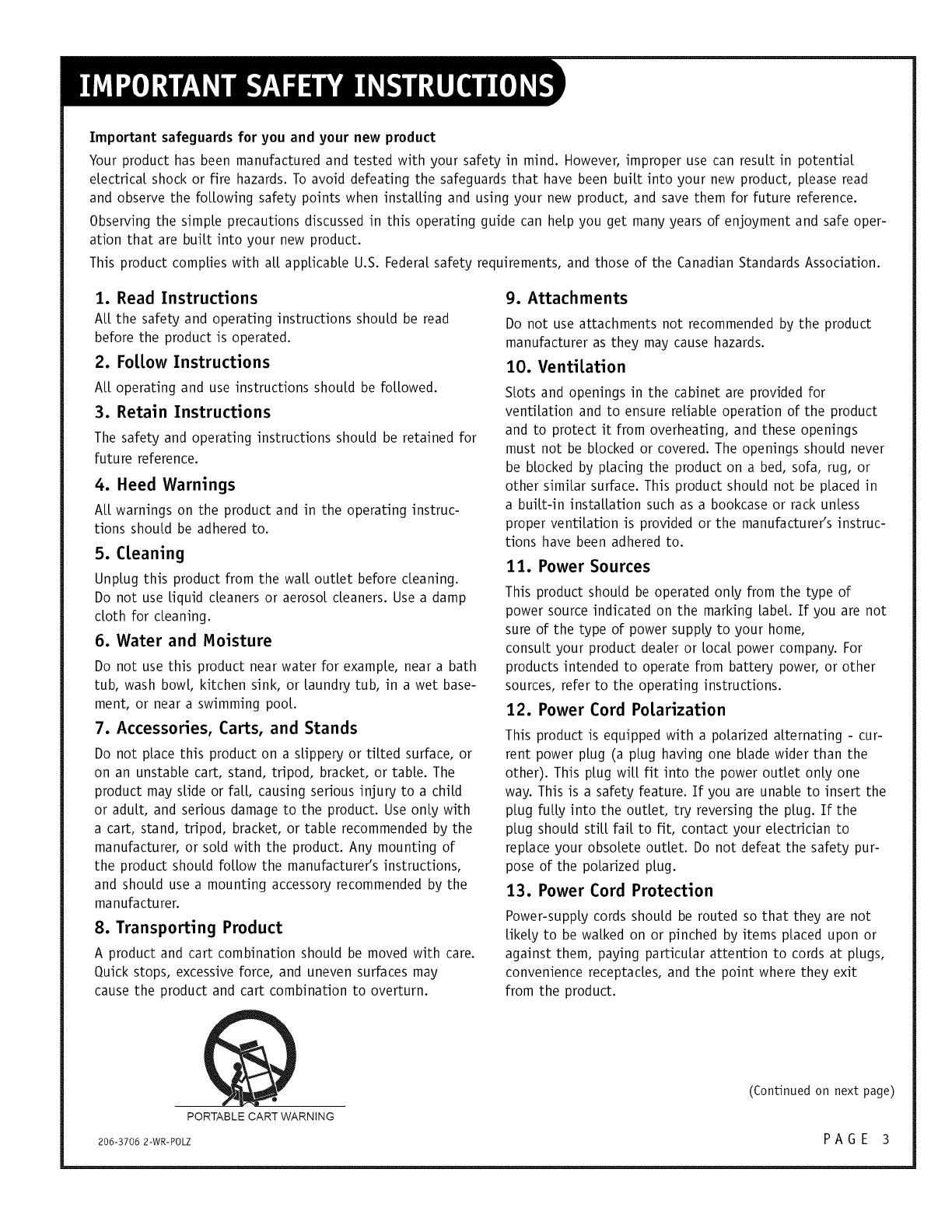
8. Transporting Product
A product and cart combination should be moved with care.
Quick stops, excessive force, and uneven surfaces may
cause the product and cart combination to overturn.
9. Attachments
Do not use attachments not recommended by the product
manufacturer as they may cause hazards.
10. Ventilation
SLots and openings in the cabinet are provided for
ventilation and to ensure reLiabLe operation of the product
and to protect it from overheating, and these openings
must not be blocked or covered. The openings should never
be blocked by placing the product on a bed, sofa, rug, or
other similar surface. This product should not be placed in
a buiLt-in instaLLation such as a bookcase or rack unless
proper ventilation is provided or the manufacturer's instruc-
tions have been adhered to.
11. Power Sources
This product should be operated only from the type of
power source indicated on the marking LabeL.If you are not
sure of the type of power supply to your home,
consult your product dealer or Local power company. For
products intended to operate from battery power, or other
sources, refer to the operating instructions.
12. Power Cord Polarization
This product is equipped with a polarized alternating - cur-
rent power plug (a plug having one blade wider than the
other). This plug wilt fit into the power outlet only one
way. This is a safety feature. If you are unable to insert the
plug fuLLyinto the outlet, try reversing the plug. If the
plug should stiLLfail to fit, contact your electrician to
replace your obsolete outlet. Do not defeat the safety pur-
pose of the polarized plug.
13. Power Cord Protection
Power-suppLy cords should be routed so that they are not
LikeLyto be walked on or pinched by items placed upon or
against them, paying particular attention to cords at plugs,
convenience receptacles, and the point where they exit
from the product.
PORTABLE CART WARNING
206-3706 2-WR-POLZ
(Continued on next page)
PA6 E 3
(Continued from previous page)
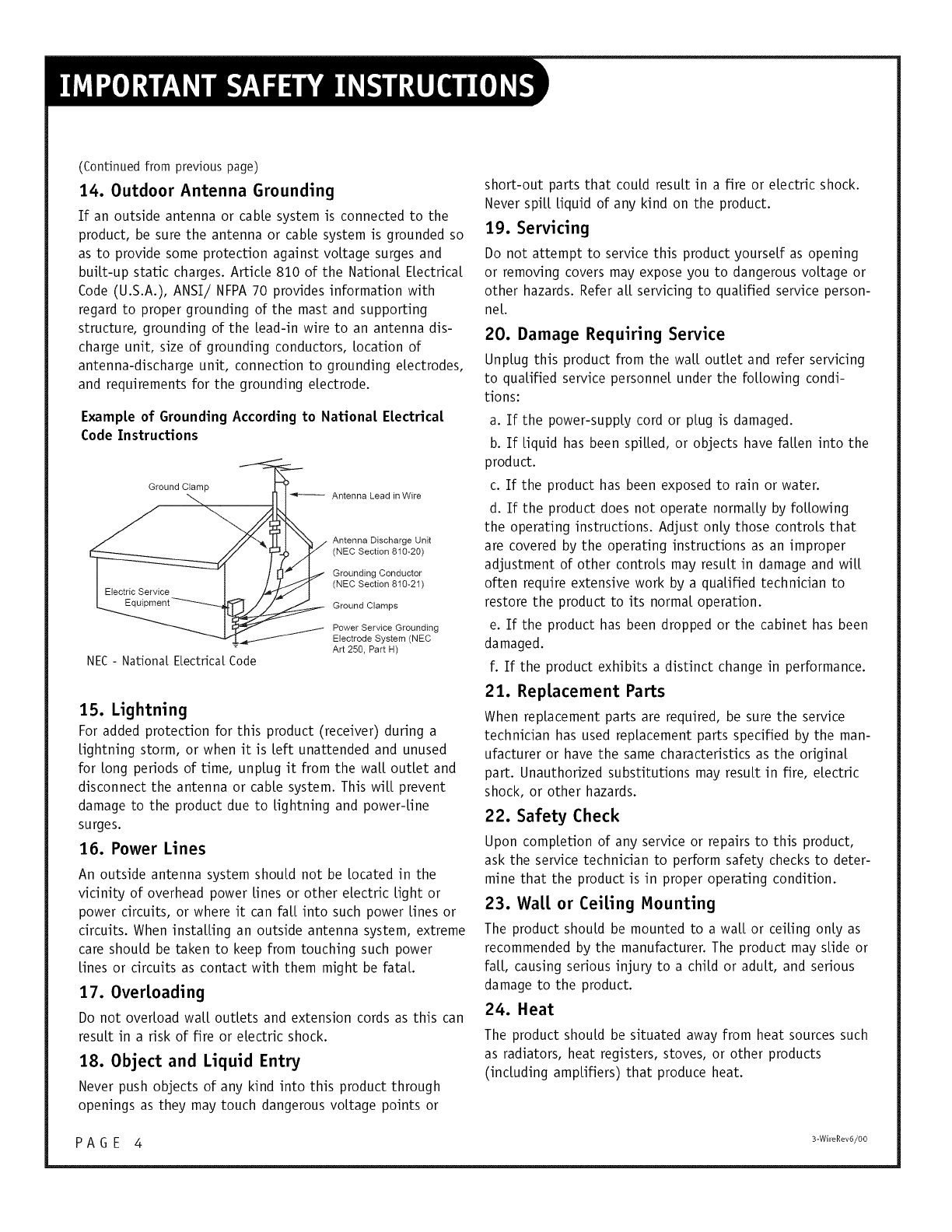
14. Outdoor Antenna Grounding
If an outside antenna or cable system is connected to the
product, be sure the antenna or cable system is grounded so
as to provide some protection against voltage surges and
buiLt-up static charges. ArticLe 810 of the National ELectricaL
Code (U.S.A.), ANSI//NFPA 70 provides information with
regard to proper grounding of the mast and supporting
structure, grounding of the Lead-in wire to an antenna dis-
charge unit, size of grounding conductors, Location of
antenna-discharge unit, connection to grounding electrodes,
and requirements for the grounding electrode.
Exampte of Grounding According to Nationa[ Electrica[
Code Instructions
Ground Clamp
NEC - Nationa{ E[ectrica[ Code
Antenna Lead in Wire
Antenna Discharge Unit
(NEC Section 810-20)
Grounding Conductor
(NEC Section 810-21)
Ground Clamps
Power Service Grounding
Electrode System (NEC
Art 250, Part H)
15. Lightning
For added protection for this product (receiver) during a
Lightning storm, or when it is Left unattended and unused
for Long periods of time, unplug it from the waLLoutlet and
disconnect the antenna or cable system. This wiLL prevent
damage to the product due to Lightning and power-Line
surges.
16. Power Lines
An outside antenna system should not be Located in the
vicinity of overhead power Lines or other electric Light or
power circuits, or where it can faLLinto such power Lines or
circuits. When instaLLing an outside antenna system, extreme
care should be taken to keep from touching such power
Lines or circuits as contact with them might be fataL.
17. Overloading
Do not overload waLLoutlets and extension cords as this can
result in a risk of fire or electric shock.
18. Object and Liquid Entry
Never push objects of any kind into this product through
openings as they may touch dangerous voltage points or
short-out parts that could result in a fire or electric shock.
Never spiLLLiquid of any kind on the product.
19. Servicing
Do not attempt to service this product yourself as opening
or removing covers may expose you to dangerous voltage or
other hazards. Refer aLLservicing to qualified service person-
net
20. Damage Requiring Service
UnpLug this product from the watt outlet and refer servicing
to qualified service personnel under the foLLowing condi-
tions:
a. If the power-suppLy cord or plug is damaged.
b. If Liquid has been spiLLed, or objects have faLLen into the
product.
c. If the product has been exposed to rain or water.
d. If the product does not operate normaLLy by foLLowing
the operating instructions. Adjust only those controls that
are covered by the operating instructions as an improper
adjustment of other controls may result in damage and wilt
often require extensive work by a qualified technician to
restore the product to its normal operation.
e. If the product has been dropped or the cabinet has been
damaged.
f. If the product exhibits a distinct change in performance.
21. Replacement Parts
When replacement parts are required, be sure the service
technician has used replacement parts specified by the man-
ufacturer or have the same characteristics as the original
part. Unauthorized substitutions may result in fire, electric
shock, or other hazards.
22. Safety Check
Upon completion of any service or repairs to this product,
ask the service technician to perform safety checks to deter-
mine that the product is in proper operating condition.
23. Watt or Ceiling Hounting
The product should be mounted to a watt or ceiling only as
recommended by the manufacturer. The product may slide or
faLL,causing serious injury to a child or adult, and serious
damage to the product.
24. Heat
The product should be situated away from heat sources such
as radiators, heat registers, stoves, or other products
(incLuding amplifiers) that produce heat.
P A G E 4 3WireR_v6/oo
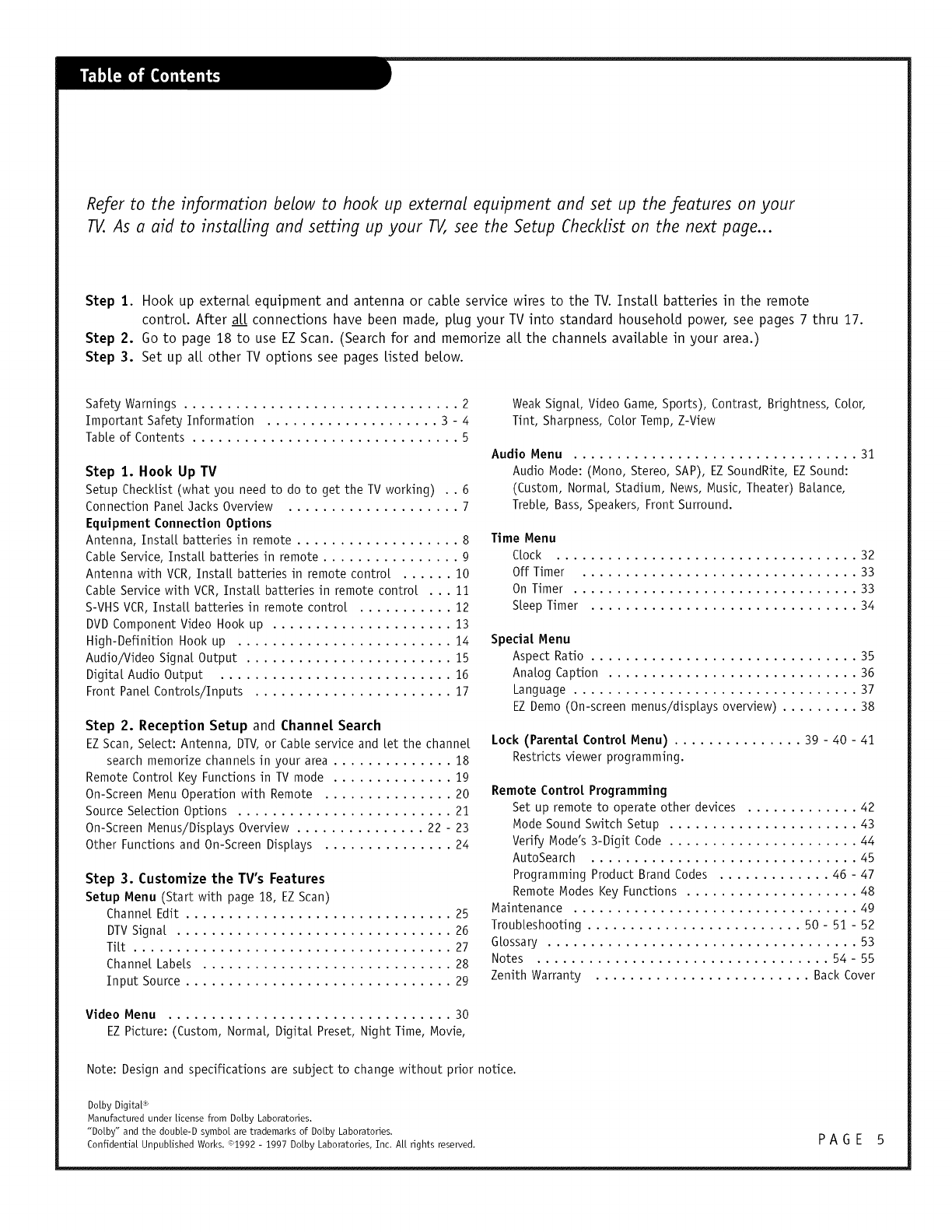
Refer to the information below to hook up external equipment and set up the features on your
TV. As a aid to installing and setting up your TV, see the Setup Checklist on the next page...
Step 1. Hook up external equipment and antenna or cable service wires to the TV. InstaLL batteries in the remote
controL. After at[ connections have been made, plug your TV into standard household power, see pages 7 thru 17.
Step 2. Go to page 18 to use EZScan. (Search for and memorize aLLthe channels avaiLabLe in your area.)
Step 3. Set up aLLother TV options see pages Listed below.
Safety Warnings ................................ 2
Important Safety Information .................... 3 - 4
TabLe of Contents ............................... 5
Step 1. Hook Up TV
Setup CheckList (what you need to do to get the TV working) . . 6
Connection Pane[ Jacks Overview .................... 7
Equipment Connection Options
Antenna, InstaLL batteries in remote ................... 8
CabLe Service, InstaLL batteries in remote ................ 9
Antenna with VCR, InstaLL batteries in remote control ...... 10
CabLe Service with VCR, InstaLL batteries in remote control ...11
S-VHS VCR, InstaLL batteries in remote control ........... 12
DVD Component Video Hook up ..................... 13
High-Definition Hook up ......................... 14
Audio/Video Signal Output ........................ 15
Digital Audio Output ........................... 16
Front Pane[ ControLs/Inputs ....................... 17
Step 2. Reception Setup and Channe[ Search
EZ Scan, Select: Antenna, DTV, or Cable service and let the channel
search memorize channels in your area .............. 18
Remote Control Key Functions in TV mode .............. 19
On-Screen Menu Operation with Remote ............... 20
Source SeLection Options ......................... 21
On-Screen Menus/DispLays Overview ............... 22 - 23
Other Functions and On-Screen DispLays ............... 24
Step 3. Customize the TV's Features
Setup Menu (Start with page 18, EZ Scan)
Channel Edit ............................... 25
DTVSignal ................................ 26
TiLt ..................................... 27
Channel LabeLs ............................. 28
Input Source ............................... 29
Weak SignaL, Video Game, Sports), Contrast, Brightness, CoLor,
Tint, Sharpness, CoLor Temp, Z-View
Audio Menu ................................. 31
Audio Mode: (Nono, Stereo, SAP), EZ SoundRite, EZ Sound:
(Custom, Normal, Stadium, News, Music, Theater) Balance,
TrebLe, Bass, Speakers, Front Surround.
Time Menu
CLock ................................... 32
Off Timer ................................ 33
On Timer ................................. 33
Steep Timer ............................... 34
Speciat Menu
Aspect Ratio ............................... 35
AnaLog Caption ............................. 36
Language ................................. 37
EZ Demo (On-screen menus/dispLays overview) ......... 38
Lock (Parentat Controt Menu) ............... 39 - 40 - 41
Restricts viewer programming.
Remote Controt Programming
Set up remote to operate other devices ............. 42
Node Sound Switch Setup ...................... 43
Verify Node's 3-Digit Code ...................... 44
AutoSearch ............................... 45
Programming Product Brand Codes ............. 46 - 47
Remote Modes Key Functions .................... 48
Maintenance ................................. 49
TroubLeshooting ......................... 50 - 51 - 52
GLossary .................................... 53
Notes .................................. 54- 55
Zenith Warranty ......................... Back Cover
Video Menu ................................. 30
EZ Picture: (Custom, NormaL, Digital Preset, Night Time, Movie,
Note: Design and specifications are subject to change without prior notice.
Do[by Digital <_
Manufactured under license from Do[by Laboratories.
"Do[by" and the doub[e-D symbol are trademarks of Do[by Laboratories.
Confidential UnpuNished Works. :'_1992 - 1997 Do[by Laboratories, Inc. A[[ rights reserved. PAGE
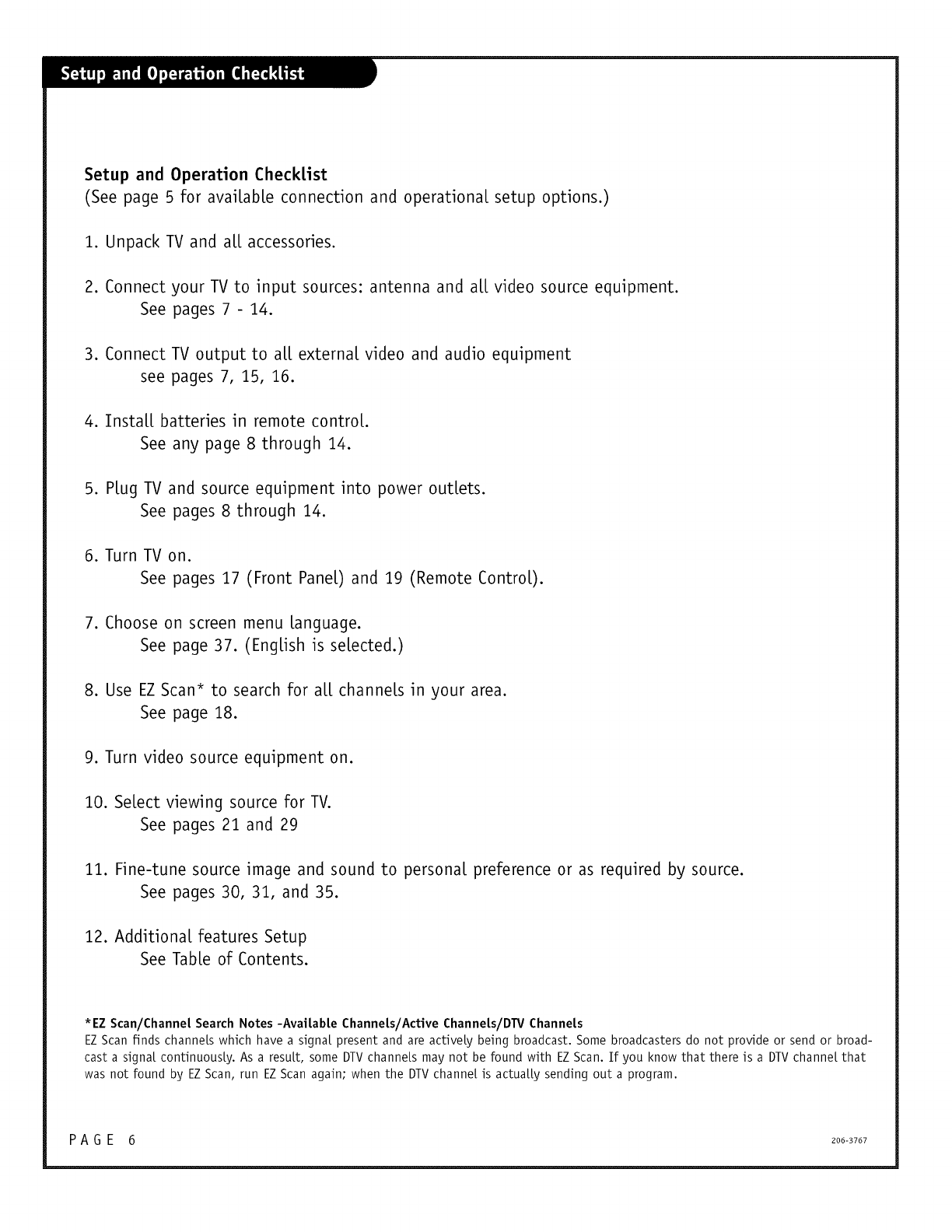
Setup and Operation Checktist
(See page 5 for available connection and operational setup options.)
1. Unpack TV and a[[ accessories.
2. Connect your TV to input sources: antenna and a[[ video source equipment.
See pages 7 - 14.
3. Connect TV output to a[[ external video and audio equipment
see pages 7, 15, 16.
4. Install batteries in remote control
See any page 8 through 14.
5. Rug TV and source equipment into power outlets.
See pages 8 through 14.
6. Turn TV on.
See pages 17 (Front Pane[) and 19 (Remote Control).
7. Choose on screen menu language.
See page 37. (English is selected.)
8. Use EZ Scan* to search for a[[ channels in your area.
See page 18.
9. Turn video source equipment on.
10. Select viewing source for TV.
See pages 21 and 29
11. Fine-tune source image and sound to persona[ preference or as required by source.
See pages 30, 31, and 35.
12. Additional features Setup
See Table of Contents.
*EZ Scan/Channe[ Search Notes -Avaitabte Channets/AcUve Channets/DTV Channets
EZ Scan finds channels which have a signal present and are actively being broadcast. Some broadcasters do not provide or send or broad-
cast a signal continuously. As a result, some DTV channels may not be found with EZ Scan. If you know that there is a DTVchannel that
was not found by EZ Scan, run EZ Scan again; when the DTVchannel is actually sending out a program.
PAGE 6 2oo-B7o7
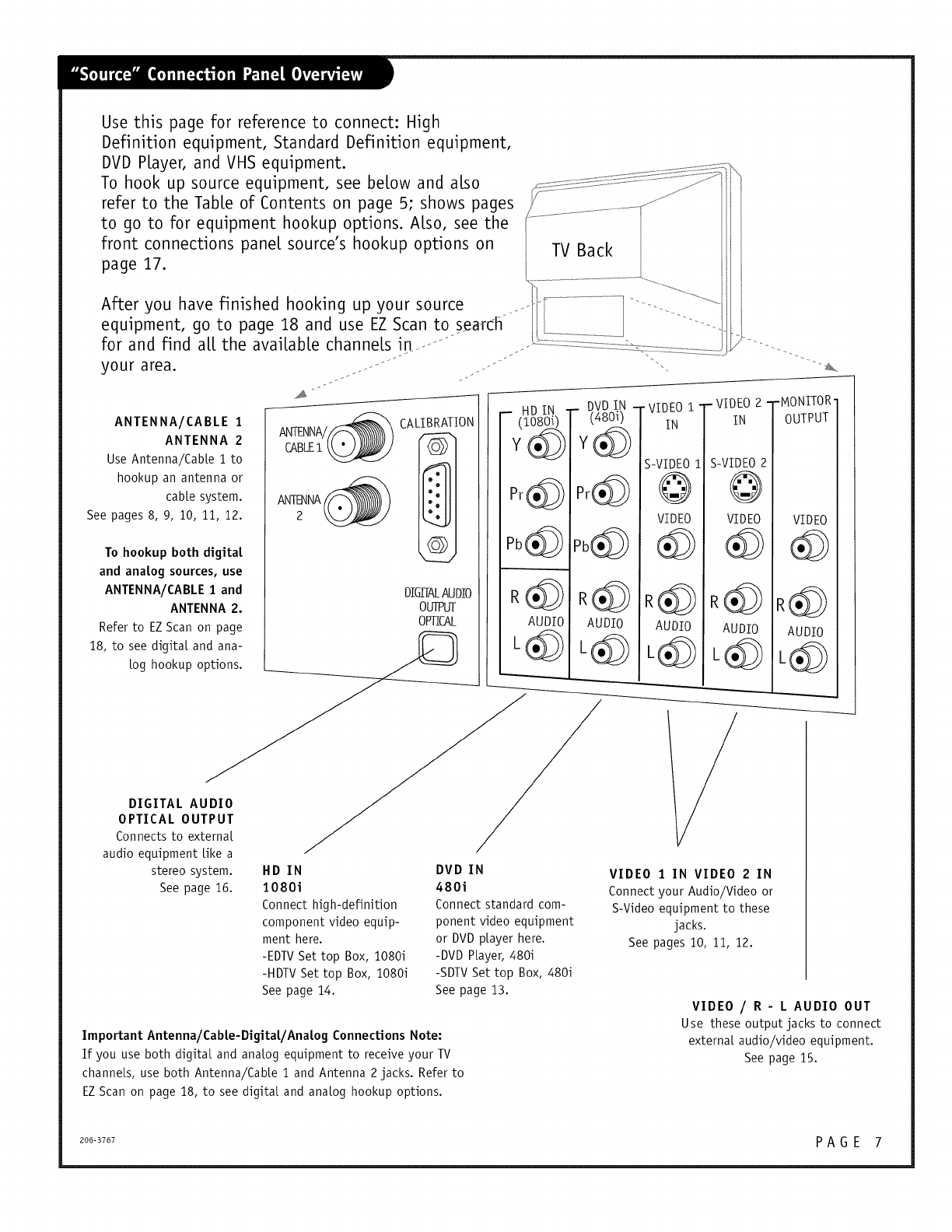
Use this page for reference to connect: High
Definition equipment, Standard Definition equipment,
DVD PLayer, and VHS equipment.
To hook up source equipment, see below and also
refer to the TabLe of Contents on page 5; shows pages
to go to for equipment hookup options. ALso, see the
front connections panel source's hookup options on
page 17. TV Back
After you have finished hooking up your source .........
equipment, go to page 18 and use EZ Scan to search
for and find aLLthe avaiLabLe channels in .............. ,
.,..o o. o" ". o''°_
your area. • .
ANTENNA/CABLE 1
ANTENNA 2
Use Antenna/Cable 1 to
hookup an antenna or
cable system.
See pages 8, 9, 10, 11, 12.
ANTENNA/_
CABLE1
To hookup both digital
and analog sources, use
ANTENNA/CABLE 1and
ANTENNA 2.
CI 1
DIGITALAUDIO
OUTPLr[
-- HDIN _DVDIN -
(1080i) (480i)
Refer to EZ Scan on page OPTICAL AUDIO AUDIO
log hookup options. _ _
audio equipment Like a
HD IN
1080i
Connect high-definition
component video equip-
ment here.
-EDTV Set top Box, 1080i
-HDTV Set top Box, 1080i
See page 14.
DVD IN
480i
Connect standard com-
ponent video equipment
or DVD player here.
-DVD Player, 480i
-SDTV Set top Box, 480i
See page 13.
stereo system.
See page 16.
Important Antenna/Cable-Digital/Analog ConnecUons Note:
If you use both digital and analog equipment to receive your TV
channels, use both Antenna/CaNe 1 and Antenna 2 jacks. Refer to
EZScan on page 18, to see digital and analog hookup options.
• VIDEO i ' -VIDEO 2 -
IN IN
S-VIDEO 2
VIDEO VIDEO
AUDIO AUDIO
-MONITOR
OUTPUT
VIDEO
AUDIO
VIDEO IIN VIDEO 2 IN
Connect your Audio/Video or
S-Video equipment to these
jacks.
See pages 10, 11, 12.
VIDEO /R- L AUDIO OUT
Use these output jacks to connect
external audio/video equipment.
See page 15.
206-3767 P A G E 7
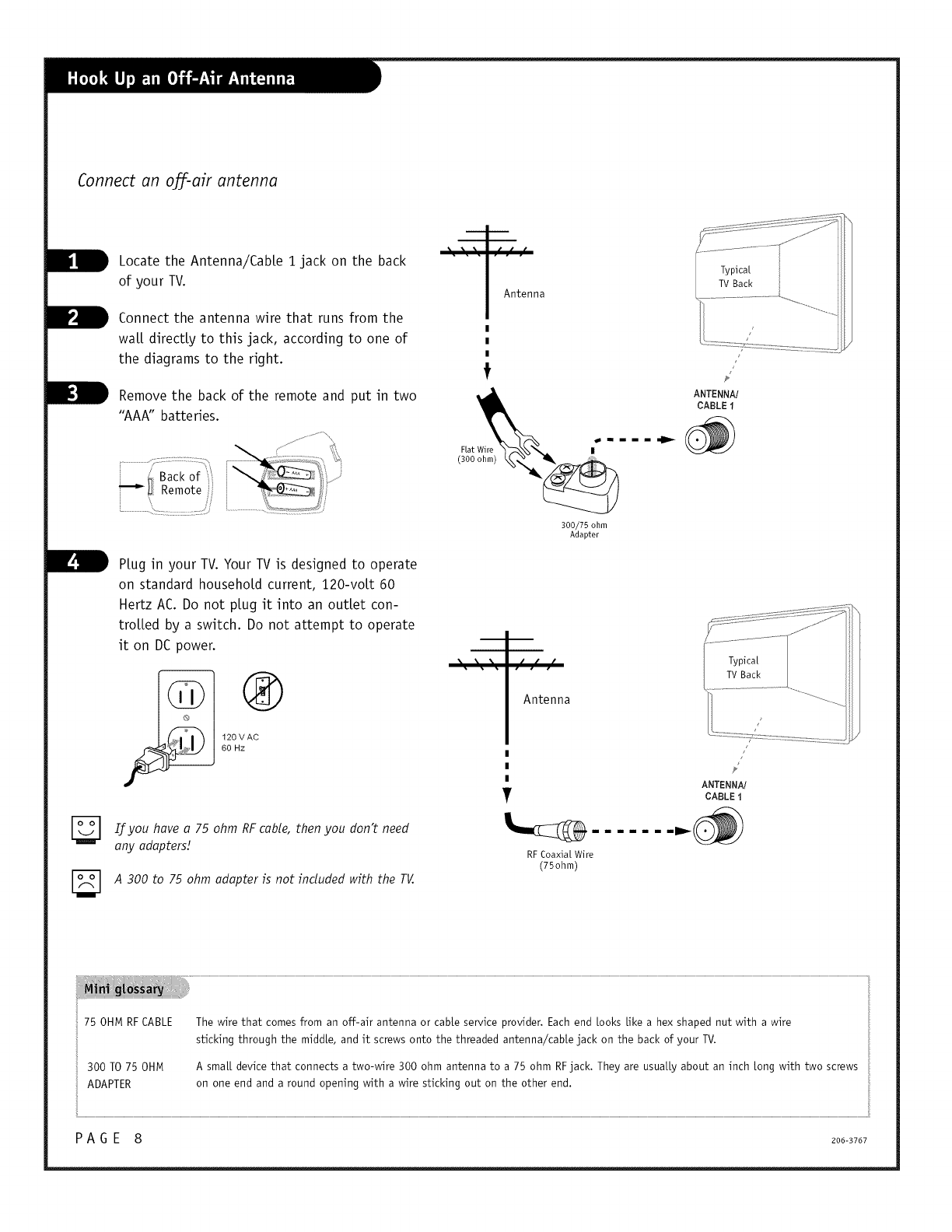
Connect an o_-air antenna
Locate the Antenna/CabLe i jack on the back
of your TV.
Connect the antenna wire that runs from the
waLLdirectly to this jack, according to one of
the diagrams to the right.
Remove the back of the remote and put in two
"AAA" batteries.
..... _ Back of _ >_'i
_ Remote i ....
PLug in your TV. Your TV is designed to operate
on standard household current, 120-voLt 60
Hertz AC. Do not plug it into an outlet con-
troLLed by a switch. Do not attempt to operate
it on DC power.
120 VAC_
60 Hz
If you have a75 ohm RF cable, then you don't need
any adapters!
A 300 to 75 ohm adapter is not included with the TV.
p • •
Antenna
t
300/75 ohm
Adapter
Antenna
T
RF Coaxial Wire
(750hm)
Iimm)
[ TVBack
#'
ANTENNA/
CABLE1
Typical
TV Back
/
ANTENNA/
CABLE i
75 OHM RF CABLE
300 TO75 OHM
ADAPTER
The wire that comes from an off-air antenna or cable service provider. Each end Looks Like a hex shaped nut with a wire
sticking through the middle, and it screws onto the threaded antenna/cabLe jack on the back of your TV.
A smaLL device that connects a two-wire 300 ohm antenna to a 75 ohm RFjack. They are usuaLLy about an inch Long with two screws
on one end and a round opening with a wire sticking out on the other end.
P A G E 8 206-3767
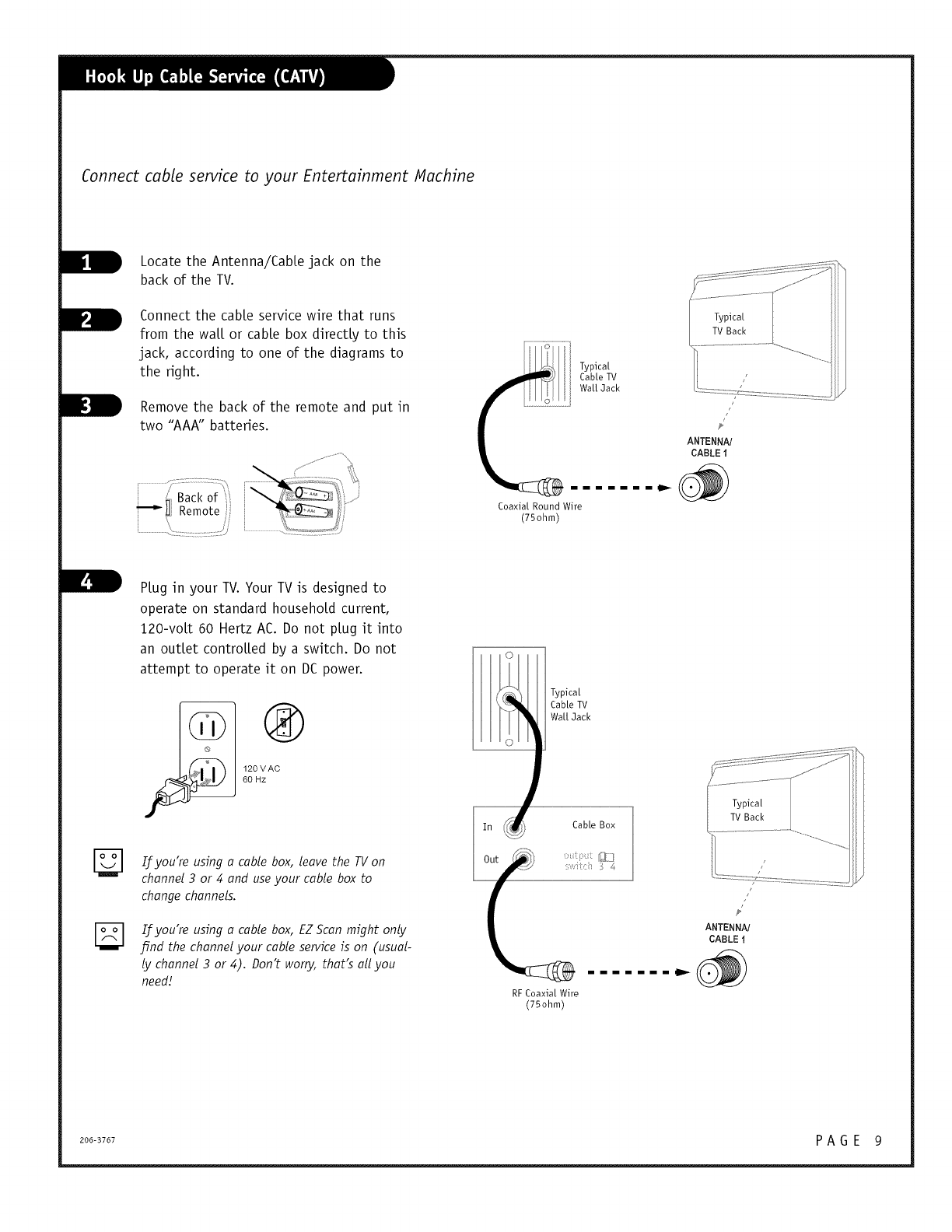
Connect cable service to your Entertainment Machine
Locate the Antenna/CabLe jack on the
back of the TV.
Connect the cable service wire that runs
from the waLLor cable box directly to this
jack, according to one of the diagrams to
the right.
Remove the back of the remote and put in
two "AAA" batteries.
Typical
CabLe TV
WaLt 3ack
Coaxial Round Wire
(75ohm)
PLug in your TV. Your TV is designed to
operate on standard household current,
120-voLt 60 Hertz AC. Do not plug it into
an outlet controLLed by a switch. Do not
attempt to operate it on DC power.
120 VAC_
60 Hz
If you're using acable box, leave the TV on
channel 3 or 4 and use your cable box to
change channels.
If you're using a cable box, EZ Scan might only
#rid the channel your cable service is on (usual-
ly channel 3 or 4). Don't worry, that's all you
need!
Typical
CabLe TV
Wait 3ack
RF Coaxial Wire
(75ohm)
/
Typical _J
TV Back _ J
/
ANTENNA/
CABLE i
206-3767 P A G E 9
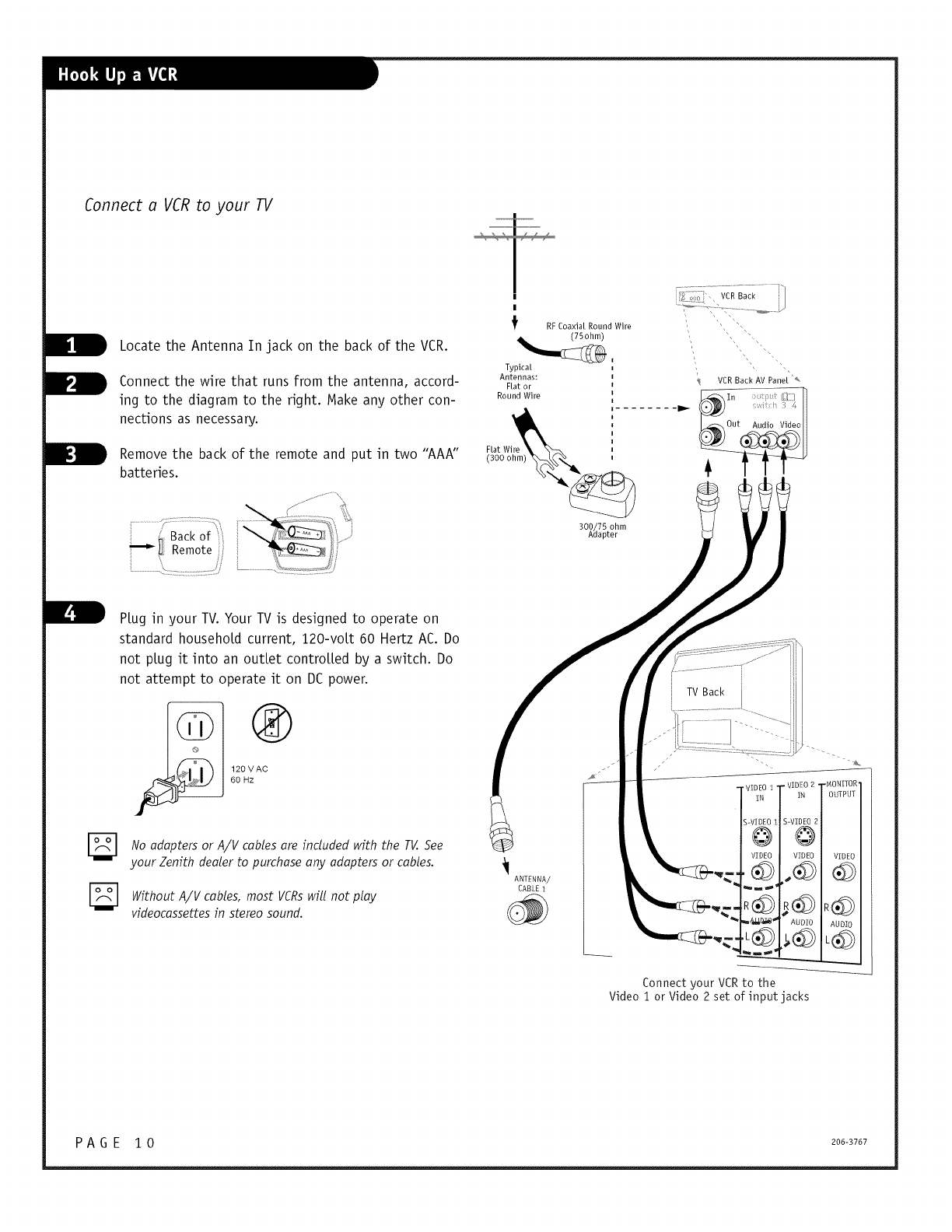
Connect a VCR to your TV
Locate the Antenna In jack on the back of the VCR.
Connect the wire that runs from the antenna, accord-
ing to the diagram to the right. Make any other con-
nections as necessary.
Remove the back of the remote and put in two "AAK'
batteries.
Remote/
|
|
RFCoaxial Round Wire
(75ohm)
Typical
Antennas:
Flat or
Round Wire
Rat Wi_ !- -
(300 ohm) _% ,
300/75 ohm
Adapter
Plug in your TV. Your TV is designed to operate on
standard household current, 120-volt 60 Hertz AC. Do
not plug it into an outlet controlled by a switch. Do
not attempt to operate it on DC power.
120 VA@
60 HZ
No adapters or A/V cables are included with the TV. See
your Zenith dealer to purchase any adapters or cables.
Without A/V cables, most VCRswill not play
videoeassettes in stereo sound.
ANTENNA/
CABLE 1
TV Back
FVIDEO I
IN
SWIDEO
@
VIDEO
.L@
VIDEO 2 ' ONITOR
IN )UTPUT
-VIDEO 2
@
VIDEO VIDEO
AUDIO AUDIO
.-..--._.,._
Connect your VCRto the
Video 1 or Video 2 set of input jacks
P A G E 1 0 206-3767
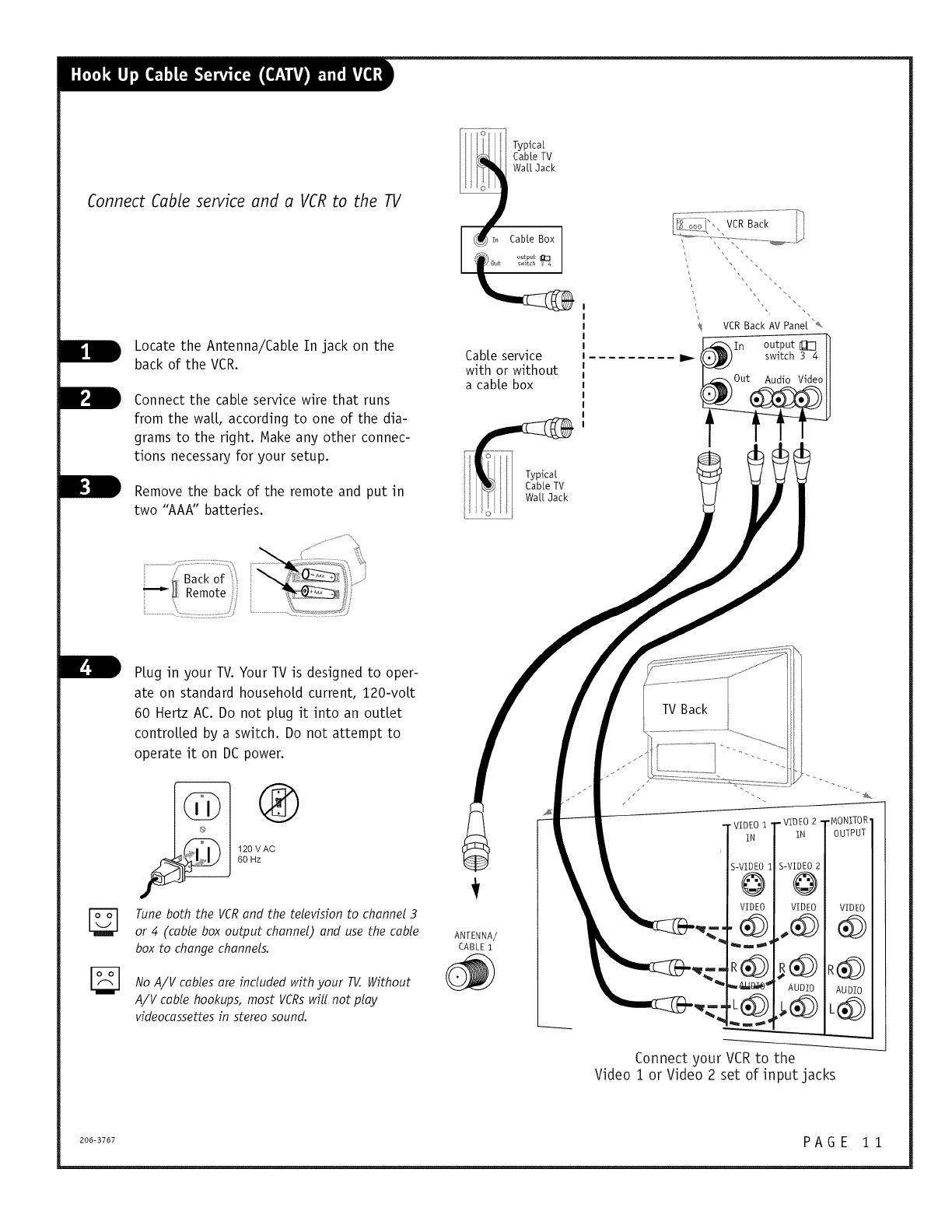
Connect Cable service and a VCR to the TV
Locate the Antenna/CabLe In jack on the
back of the VCR.
L
FConnect the cable service wire that runs
from the waLL, according to one of the dia-
grams to the right. Make any other connec-
tions necessary for your setup.
Remove the back of the remote and put in
two "AAA" batteries.
CaNe service
with or without
a cable box
VCR Back AM Pane[
In output
switch 3 4
Audio Video
[...........................
PLug in your TV. Your TV is designed to oper-
ate on standard household current, 120-voLt
60 Hertz AC. Do not plug it into an outlet
controLLed by a switch. Do not attempt to
operate it on DC power.
120 VA(_
60 Hz
Tune both the VCR and the television to channel 3
or 4 (cable box output channel) and use the cable
box to change channels.
No A/V cables are included with your TV. Without
A/V cable hookups, most VCRswill not play
videocassettes in stereo sound.
ANTENNA/
CABLE 1
• VIDEO i ' "VIDEO 2 • ,MONITOR
IN 1N OUTPUT
S-VIDEO I
@
VIDEO
S-VIDEO 2
VIDEO
AUDIO
VIDEO
AUDIO
Connect your VCRto the
Video Ior Video 2 set of input jacks
206-3767 P A G E 1 1
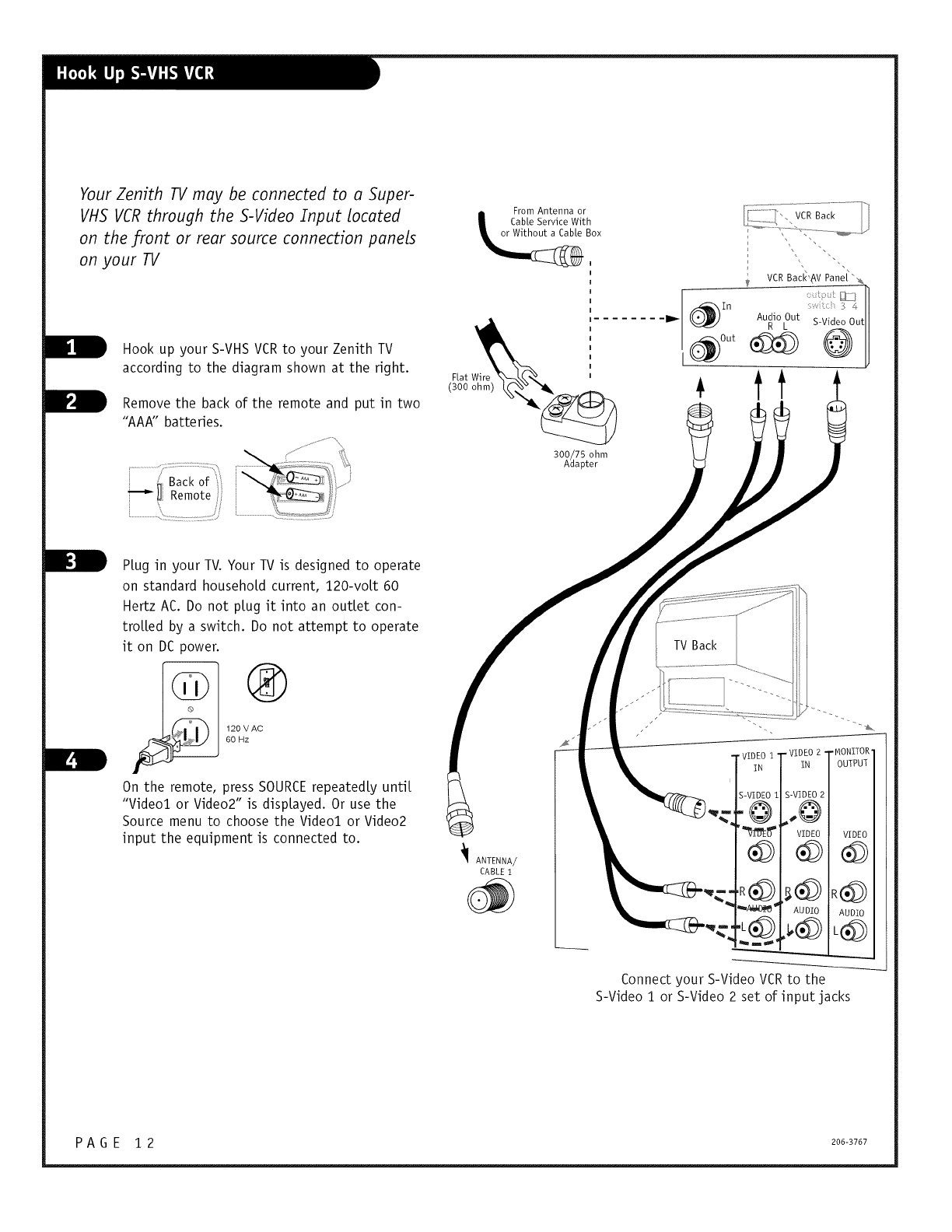
Your Zenith TV may be connected to a Super-
VHS VCRthrough the S-Video Input located
on the front or rear source connection panels
on your ll/
Hook up your S-VHS VCRto your Zenith TV
according to the diagram shown at the right.
Remove the back of the remote and put in two
"AAA" batteries.
....................................'_i_'
"_"d Remote ........
.....,,...............................:) ', _........................4;j
i From Antenna or
Cab[e Service With
Box
Hat W_re_
300/75 ohm
Adapter
Plug in your TV. Your TV is designed to operate
on standard household current, 120-volt 60
Hertz AC. Do not plug it into an outlet con-
trolled by a switch. Do not attempt to operate
it on DC power.
_ 2o VA_
60 Hz
On the remote, press SOURCErepeated[}/until
"Video1 or Video2" is displayed. Or use the
Source menu to choose the Video1 or Video2
input the equipment is connected to.
ANTENNA/
CABLE t
TV Back
'VIDE01 -VIDEO 2, .MONITOR l
IN IN OUTPUTI
I
S-VIDEO I S-VIDEO 2
-@ ,o@
'_i_ VIDEO
_A_N)I_" AU DIO
Connect your S-Video VCR to the
S-Video i or S-Video 2 set of input jacks
P A G E 1 2 206-3767
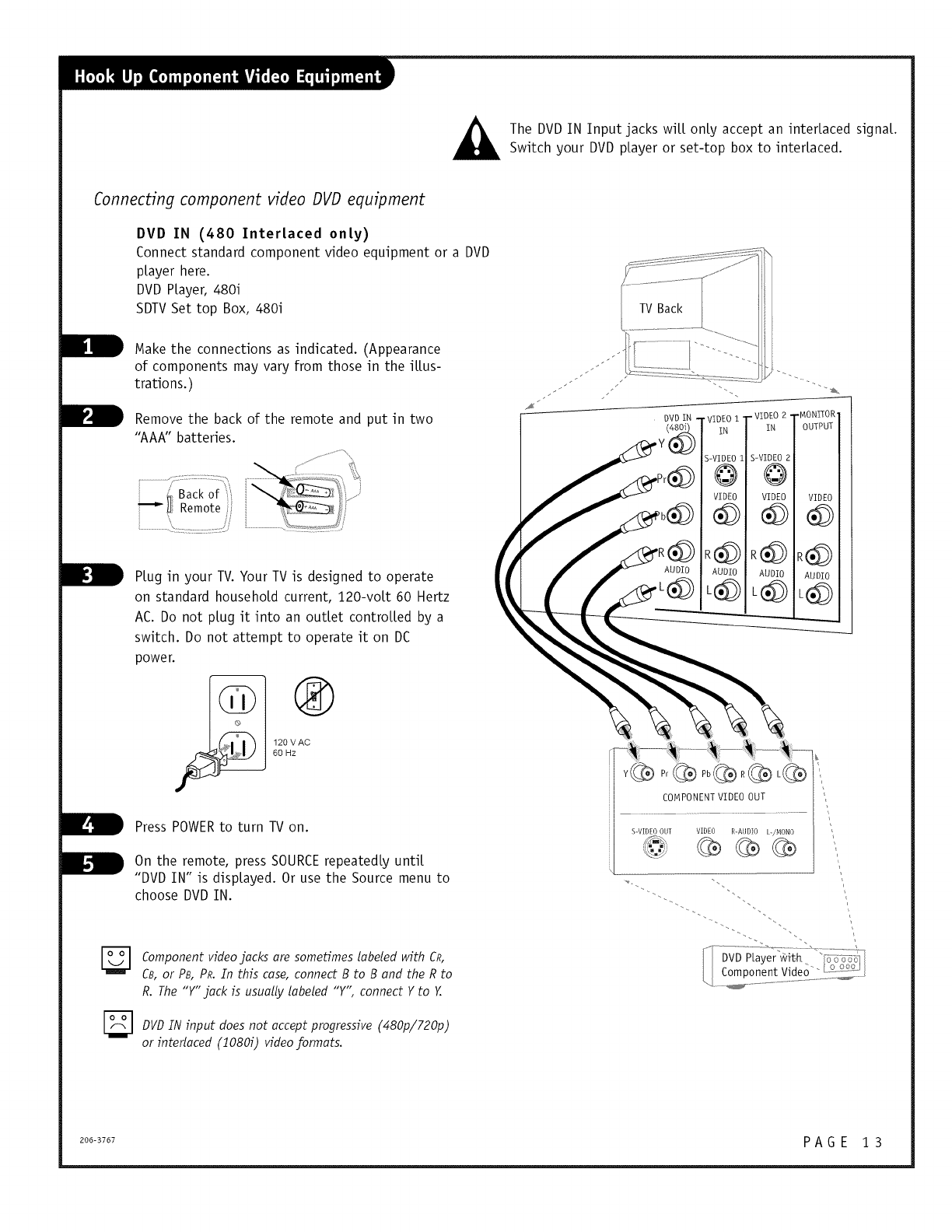
The DVD IN Input jacks wilt only accept an interlaced signaL.
Switch your DVD player or set-top box to interlaced.
Connecting component video DVD equipment
DVD IN (480 Interlaced only)
Connect standard component video equipment or a DVD
player here.
DVD PLayer, 480i
SDTV Set top Box, 480i
Make the connections as indicated. (Appearance
of components may vary from those in the iLLus-
trations.)
Remove the back of the remote and put in two
"AAA" batteries.
PLug in your TV. Your TV is designed to operate
on standard household current, 120-voLt 60 Hertz
AC. Do not plug it into an outlet controLLed by a
switch. Do not attempt to operate it on DC
power.
_ 20 VAC@
60 Hz
Press POWERto turn TV on.
On the remote, press SOURCErepeatedly until
"DVD IN" is displayed. Or use the Source menu to
choose DVD IN.
[_ Component video jacks are sometimes labeled with CR,
CB, or PB, PR. In this case, connect B to B and the R to
R. The "Y"jack is usually labeled "Y" connect Y to Y.
[_ DVD IN input does not accept progressive (480p/720p)
or interlaced (10800 video formats.
COMPONENT VIDEO OUT
S-VIDEO OUT VIDEO R-AUDIO U/MONO
\
206-3767 P A G E 1 3
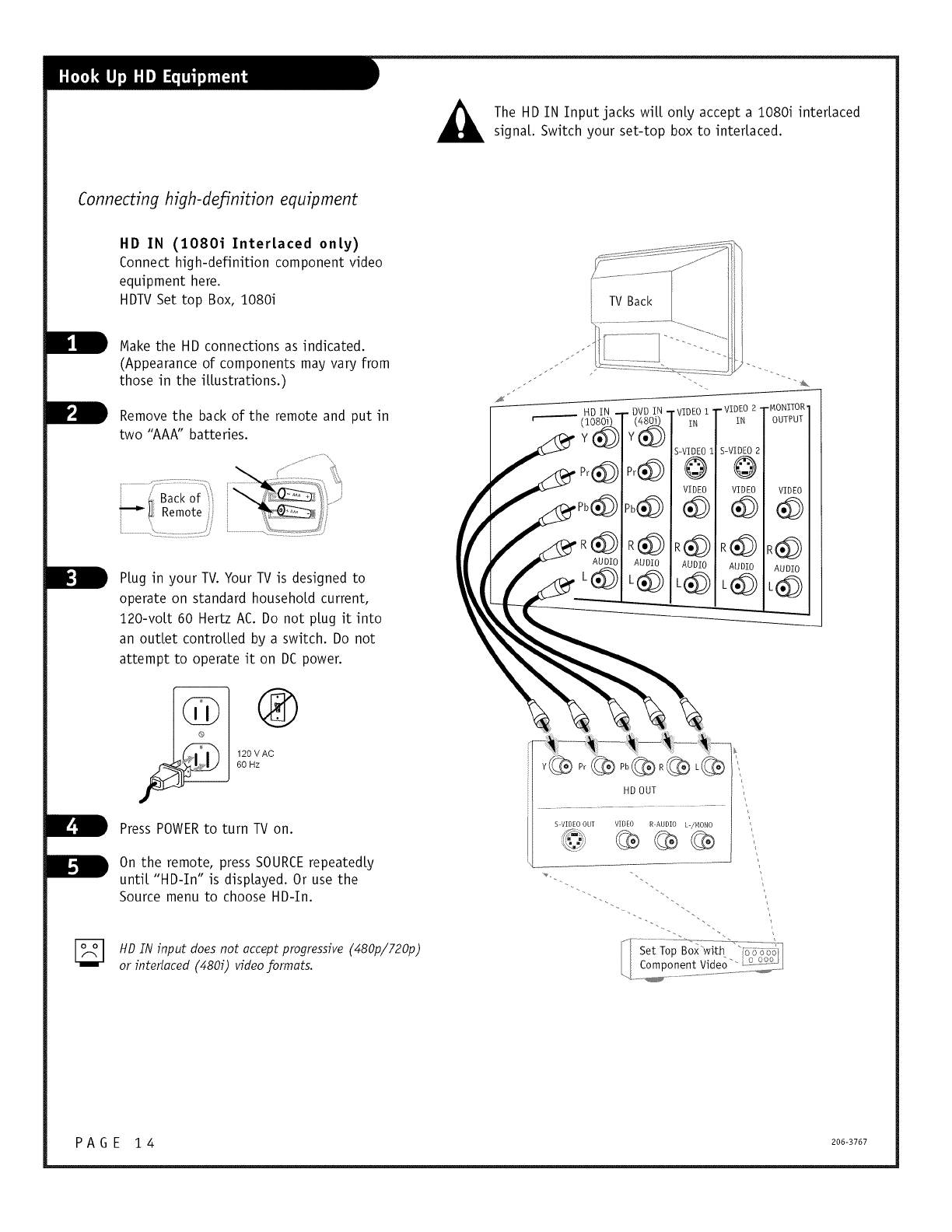
_ The HD IN Input jacks wiLLonly accept a 1080i interlaced
signaL. Switch your set-top box to interlaced.
Connecting high-definition equipment
HD IN (1080i InterLaced only)
Connect high-definition component video
equipment here.
HDTVSet top Box, i080i
Make the HD connections as indicated.
(Appearance of components may vary from
those in the iLLustrations.)
Remove the back of the remote and put in
two "AAA" batteries.
...........................
Backof
Remote
PLug in your TV. Your TV is designed to
operate on standard household current,
120-voLt 60 Hertz AC. Do not plug it into
an outlet controLLed by a switch. Do not
attempt to operate it on DC power.
120 VA(_
60 HZ
Press POWERto turn TV on.
On the remote, press SOURCErepeatedly
until "HD-In" is displayed. Or use the
Source menu to choose HD-In.
HD IN input does not accept progressive (480p/720p)
or interlaced (4800 video formats.
HD OUT
%VIDEO OUT VIDEO R_AUDIO L_/MONO
PA G E 1 4- 206-3767
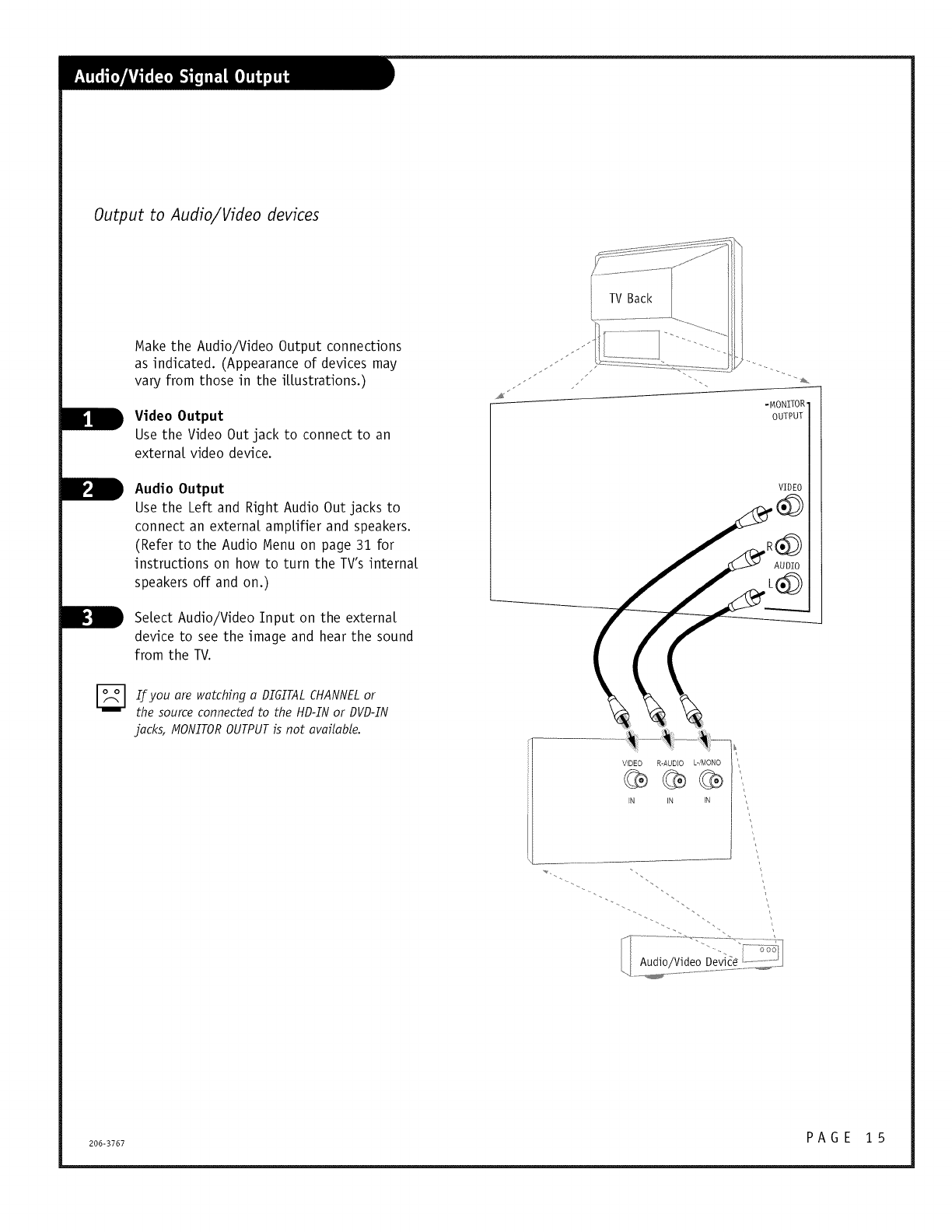
Output to Audio/Video devices
Make the Audio/Video Output connections
as indicated. (Appearance of devices may
vary from those in the ittustrations.)
Video Output
Use the Video Out jack to connect to an
externat video device.
Audio Output
Use the Left and Right Audio Out jacks to
connect an externat amptifier and speakers.
(Refer to the Audio Menu on page 31 for
instructions on how to turn the TV's internat
speakers off and on.)
Setect Audio/Video Input on the externat
device to see the image and hear the sound
from the TV.
[_ If you are watching a DI6ITAL CHANNEL or
the source connected to the HD-IN or DVD-IN
jacks, MONITOR OUTPUT is not available.
VIDEO
VIDEO R-AUDIO L-_MONO
IN IN IN
206-3767 P A G E 1 5
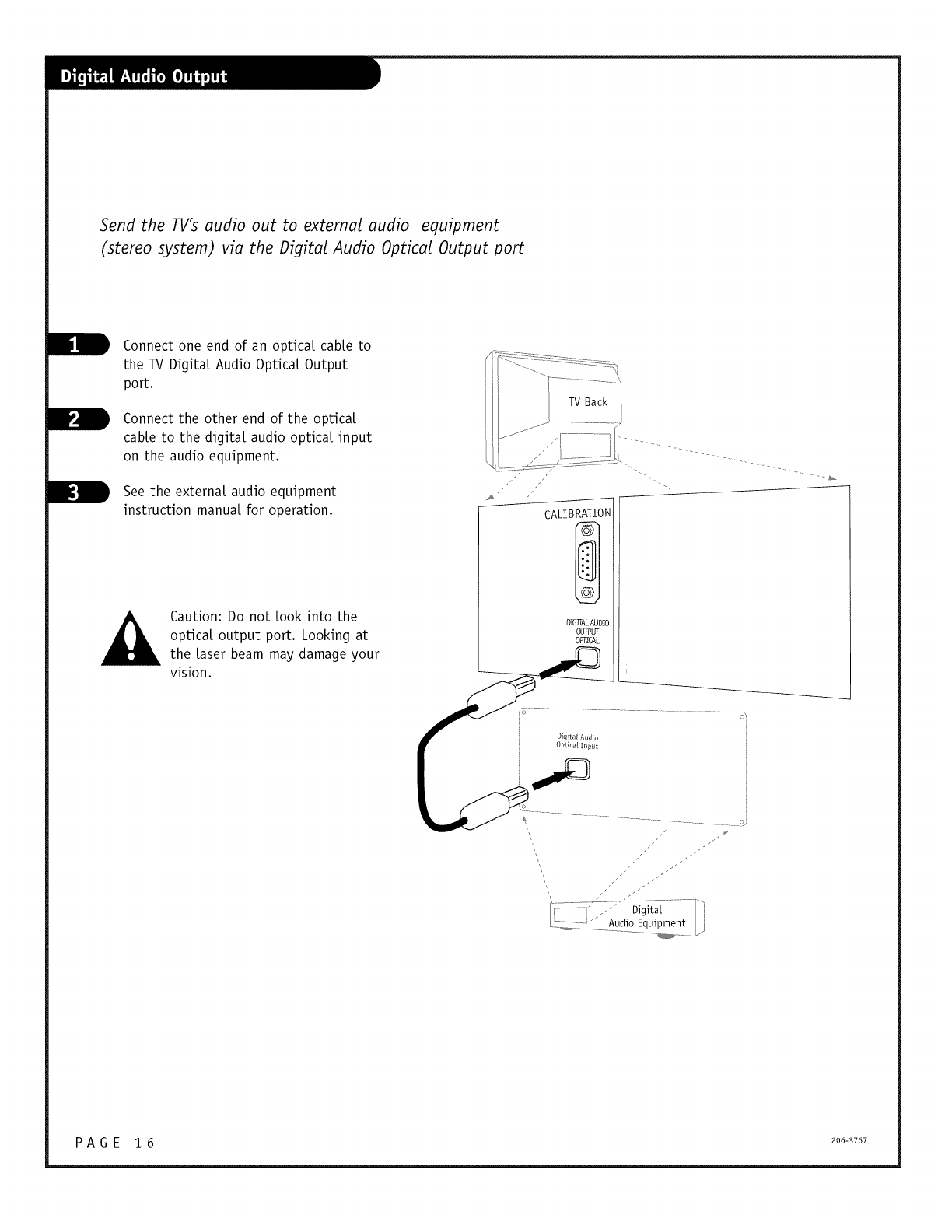
Send the TYs audio out to external audio equipment
(stereo system) via the Digital Audio Optical Output port
Connect one end of an optical cable to
the TV Digital Audio Optical Output
port.
Connect the other end of the optical
cable to the digital audio optical input
on the audio equipment.
See the external audio equipment
instruction manual for operation.
Caution: Do not Look into the
optical output port. Looking at
the Laser beam may damage your
vision.
CALIBRATION
DIGITALAUDIO
OUTPUT
OF!CAL
............_ _' DigitaL
.............."Audio Equipment
PAG E 16 2oo-37o7
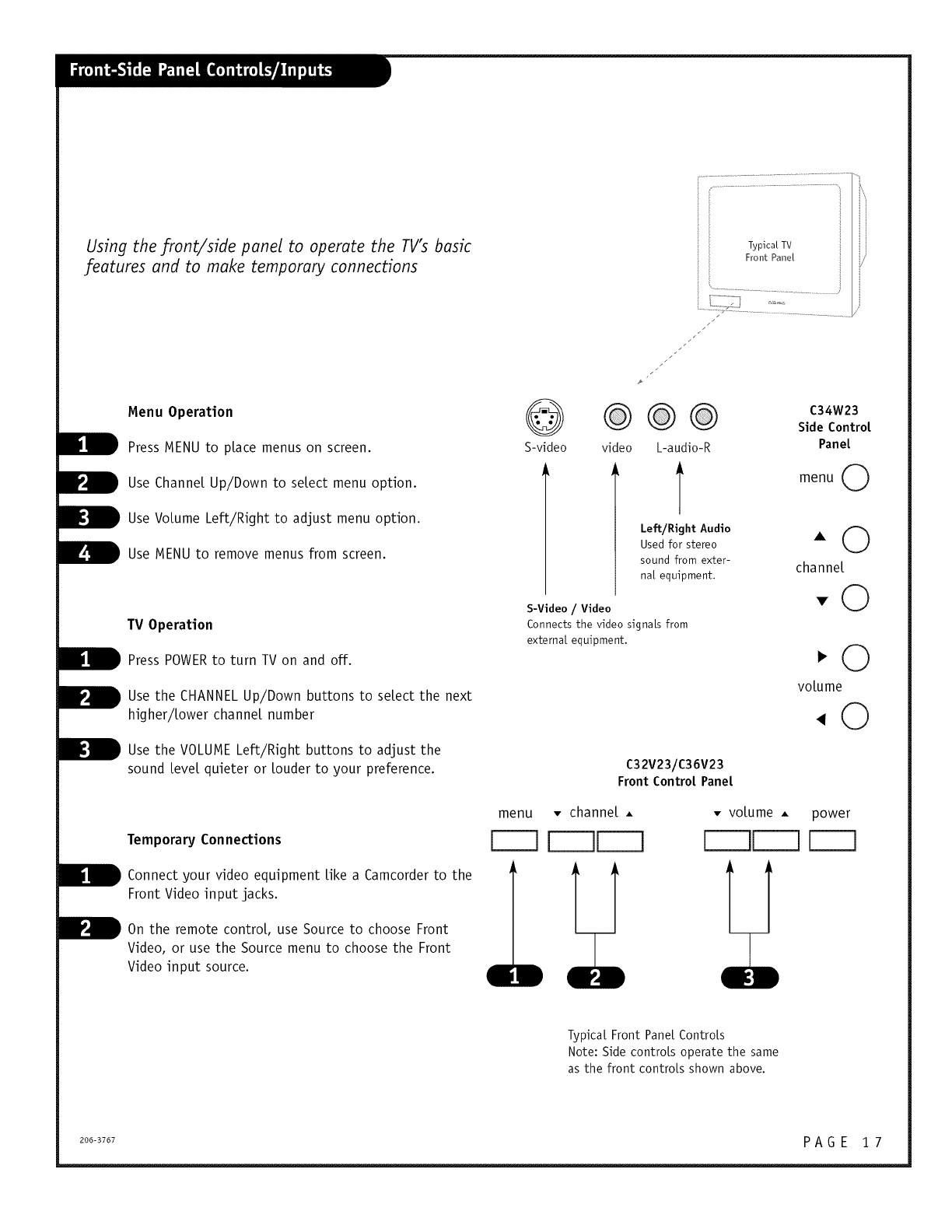
Using the front/side panel to operate the TV's basic
features and to make temporary connections
Menu Operation
Press MENU to place menus on screen.
Use Channel Up/Down to select menu option.
_Use VoLume Left/Right to adjust menu option.
_ Use MENU to remove menus from screen.
TV Operation
_ Press POWERto turn TV on and off.
_ se the CHANNEL Up/Down buttons to select the next
higher/Lower channel number
_ Use the VOLUME Left/Right buttons to adjust the
sound Level quieter or Louder to your preference.
Temporary Connections
_Connect video Like Camcorder to theyour equipment a
Front Video input jacks.
_On the remote controL, use Source to choose Front
Video, or use the Source menu to choose the Front
Video input source.
@
S-video
t _
S
@@@
video L-audio-R
Left/Right Audio
Used for stereo
sound from exter-
nal equipment.
S-Video /Video
Connects the video signals from
external equipment.
C32V23/C36V23
Front Control Panel
menu • channel •
V--q q
Typ[ca[ TV
Front Pane[
J
C34W23
Side Control
Panel
menu 0
-©
channel
-0
,©
volume
,0
• volume •power
F--]
t_I
Typical Front Pane[ ControLs
Note: Side controls operate the same
as the front controls shown above.
200-3707 P A G E i 7
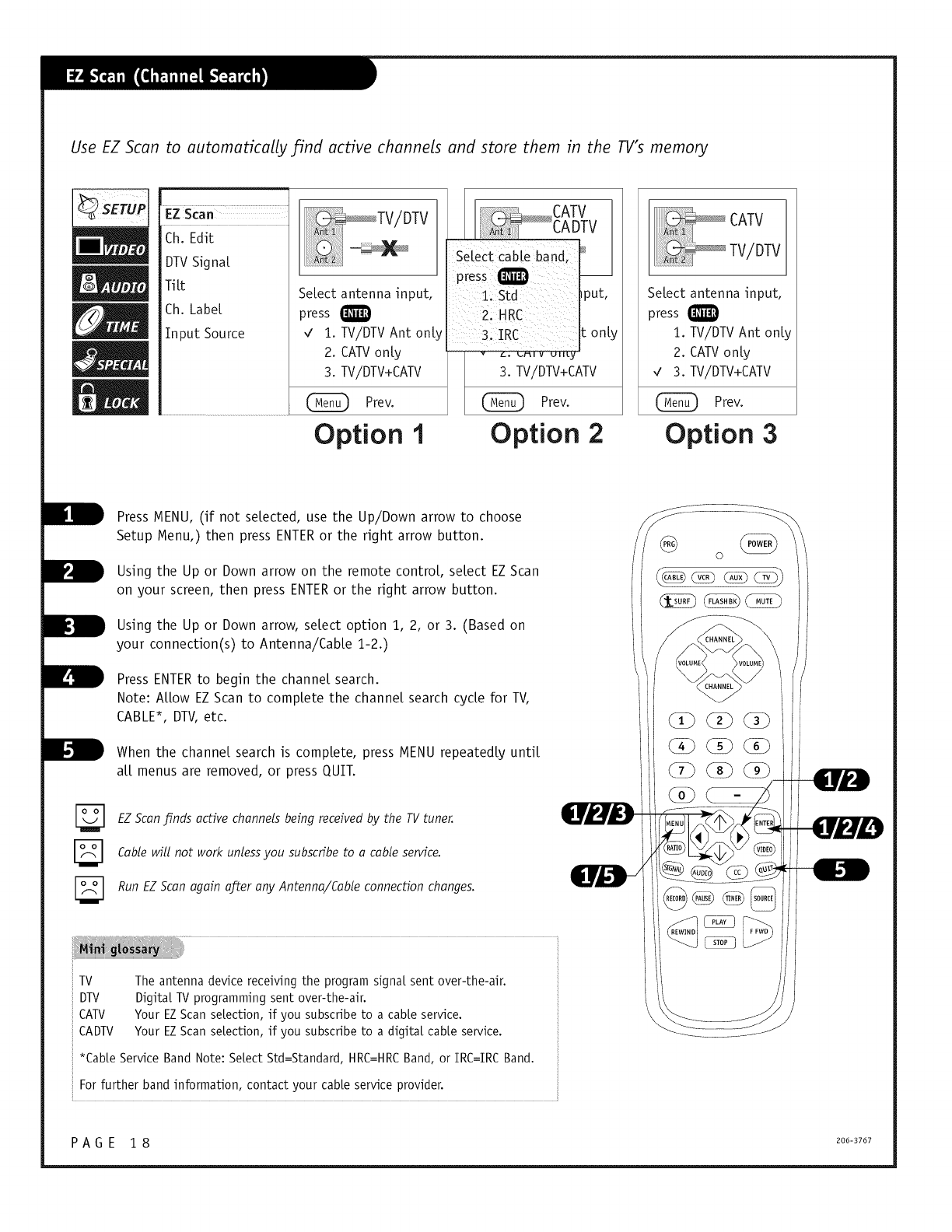
Use EZ Scan to automatically/ind active channels and store them in the TV's memory
EZ Scan
Ch. Edit
DTVSigna[
Titt
Ch. Labe[
Input Source
Select antenna input,
press Q
,/ 1. TV/DTV Ant only
2. CATVonly
3. TV/DTV+CATV
Prev.
Option 1
Setect cable band,
_ut,
on[
ATV
L _ Prev.
Option 2
Select antenna input,
press
1. TV/DTV Ant only
2. CATVonly
3. TV/DTV+CATV
Prev.
Option 3
Press MENU, (if not selected, use the Up/Down arrow to choose
Setup Menu,) then press ENTERor the right arrow button.
Using the Up or Down arrow on the remote control select EZScan
on your screen, then press ENTERor the right arrow button.
Using the Up or Down arrow, select option 1, 2, or 3. (Based on
your connection(s) to Antenna/Cable 1-2.)
Press ENTERto begin the channel search.
Note: Allow EZScan to complete the channel search cycle for TV,
CABLE*, DTV, etc.
When the channe[ search is comptete, press MENU repeatedty unti[
at[ menus are removed, or press QUIT.
EZ Scan jfinds active channels being received by the TV tuner.
Cable will not work unless you subscribe to a cable service.
Run EZ Scan again after any Antenna/Cable connection changes.
ilTV
DTV
CATV
CADTV
The antenna device receiving the program signal sent over-the-air.
Digital TVprogramming sent over-the-air.
Your EZScan selection, if you subscribe to a cane service.
Your EZScan selection, if you subscribe to a digital cane service.
*CaNe Service Band Note: Select Std=Standard, HRC=HRCBand, or IRC=IRC Band.
For further band information, contact your cable service provider.
PAGE 18 2oo-37o7
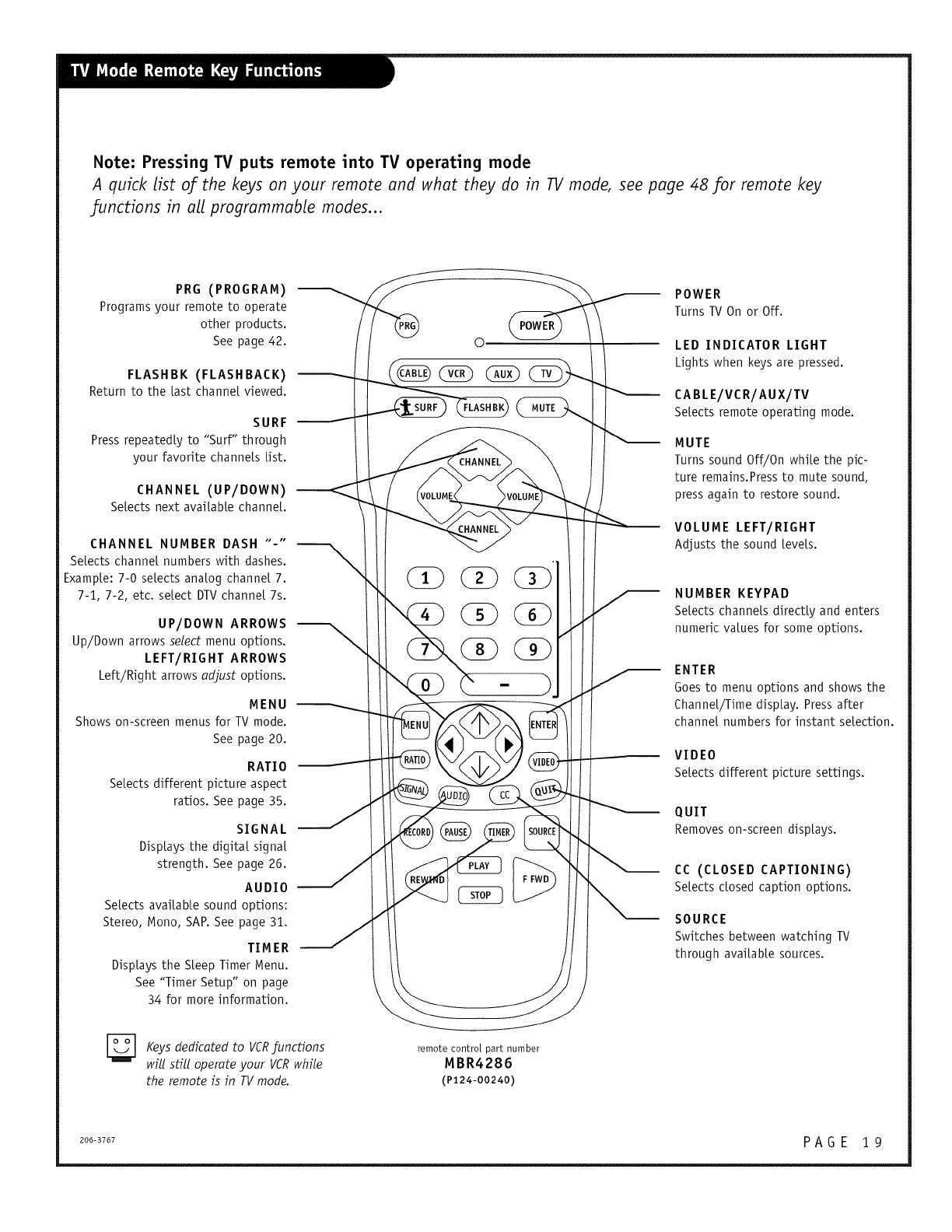
Note: Pressing TV puts remote into TV operating mode
A quick list of the keys on your remote and what they do in TV mode, see page 48 for remote key
functions in all programmable modes...
PRG (PROGRAM)
Programs your remote to operate
other products.
See page 42.
FLASHBK (FLASHBACK)
Return to the last channel viewed.
SURF
Press repeatedly to "Surf" through
your favorite channels list.
CHANNEL (UP/DOWN)
Selects next available channel
©
CHANNEL NUMBER DASH ....
Selects channel numbers with dashes.
Example: 7-0 selects analog channel 7.
7-1, 7-2, etc. select DTVchannel 7s.
UP/DOWN ARROWS
Up/Down arrows select menu options.
LEFT/RIGHT ARROWS
Left/Right arrows adjust options.
MENU
Shows on-screen menus for TV mode,
See page 20,
RATIO
Selects different picture aspect
ratios. See page 35.
SIGNAL
Displays the digital signal
strength. See page 26.
AUDIO
Selects available sound options:
Stereo, Mono, SAP. See page 31.
TIMER
Displays the Sleep Timer Menu.
See "Timer Setup" on page
34 for more information.
.
POWER
Turns TV On or Off.
LED INDICATOR LIGHT
Lights when keys are pressed.
CABLE/VCR/AUX/TV
Selects remote operating mode,
MUTE
Turns sound Off/On while the pic-
ture remains.Pressto mute sound,
press again to restore sound.
VOLUME LEFT/RIGHT
Adjusts the sound levels.
NUMBER KEYPAD
Selects channels directly and enters
numeric values for some options.
ENTER
Goesto menu options and shows the
Channel/Time display. Pressafter
channel numbers for instant selection.
VIDEO
Selects different picture settings.
QUIT
Removes on-screen displays.
CC (CLOSED CAPTIONING)
Selects dosed caption options.
SOURCE
Switches between watching TV
through available sources.
[_ dedicated to VCR
Keys /unctions
will still operate your VCR while
the remote is in TV mode.
remote control part number
MBR4286
(P124-oo24o)
206-3767 P A G E 1 9
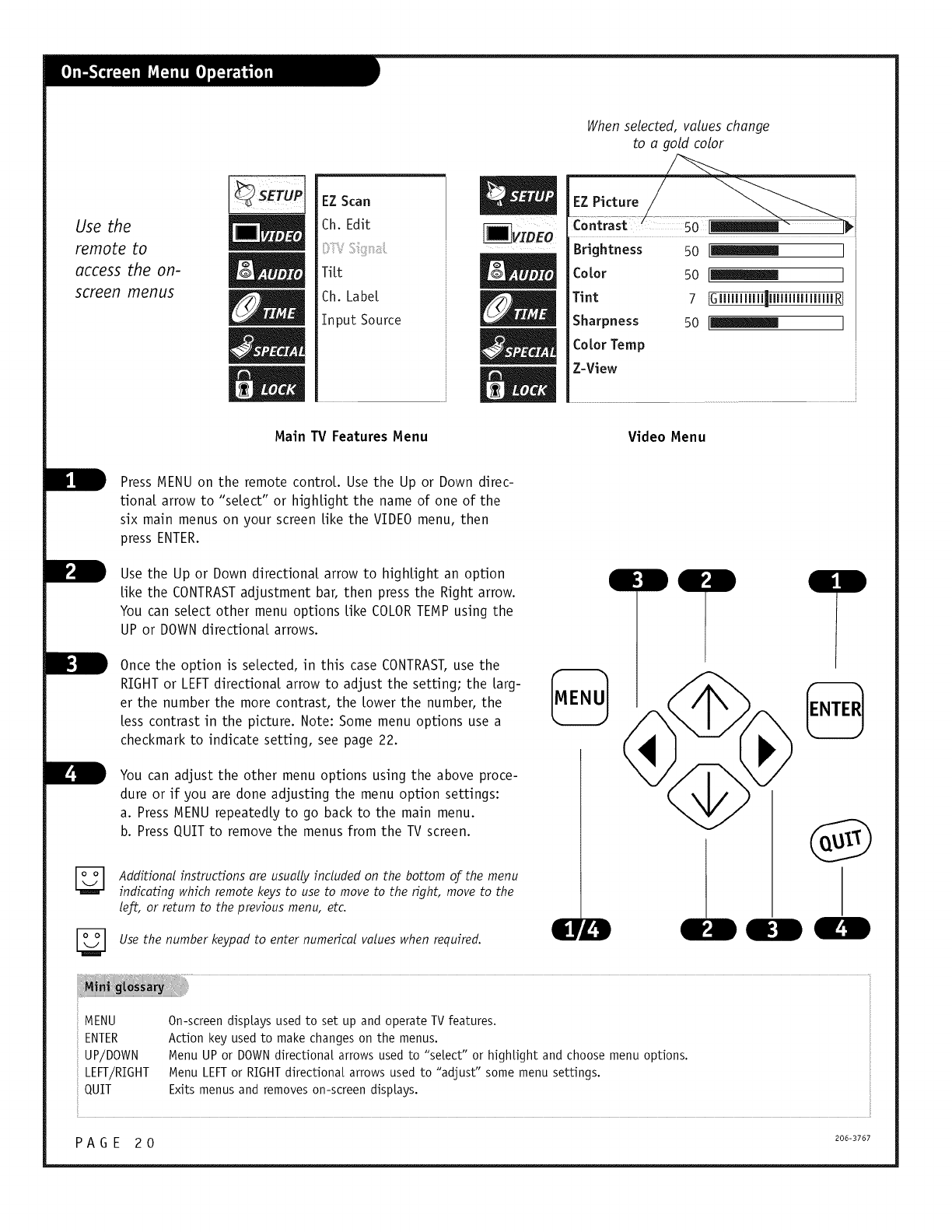
Use the
remote to
access the on-
screen menus
EZ Scan
Ch. Edit
TiLt
Ch. Label
Input Source
Hain TV Features Henu
When selected, values change
to a gold color
Brightness
Color
Tint
Sharpness
CoLor Temp
Z-View
so [_ I
5o !_ I
7IGmmm.lm.m.mmRI
50 !_ I
Video Henu
Press MENU on the remote controL. Use the Up or Down direc-
tional arrow to "seLect" or highlight the name of one of the
six main menus on your screen Like the VIDEO menu, then
press ENTER.
Use the Up or Down directional arrow to highlight an option
Like the CONTRASTadjustment bar, then press the Right arrow.
You can select other menu options Like COLORTEMP using the
UP or DOWN directional arrows.
Once the option is selected, in this case CONTRAST,use the
RIGHT or LEFTdirectional arrow to adjust the setting; the Larg-
er the number the more contrast, the Lower the number, the
Less contrast in the picture. Note: Some menu options use a
checkmark to indicate setting, see page 22.
You can adjust the other menu options using the above proce-
dure or if you are done adjusting the menu option settings:
a. Press MENU repeatedly to go back to the main menu.
b. Press QUIT to remove the menus from the TV screen.
[_ dditional instructions are usually included on the bottom of the menu
indicating which remote keys to use to move to the right, move to the
left, or return to the previous menu, etc.
Use the number keypad to enter numerical values when required. IDO
MENU
ENTER
UP/DOWN
LEN/RIG HT
QUIT
On-screendisplays used to set up and operate TV features.
Action key usedto make changeson the menus.
Menu UPor DOWNdirectional arrows used to "seLect" or highlight and choose menu options.
Menu LEFTor RIGHTdirectional arrows used to "adjust" some menu settings.
Exits menusand removeson-screen displays.
PAG E 20 200-3707
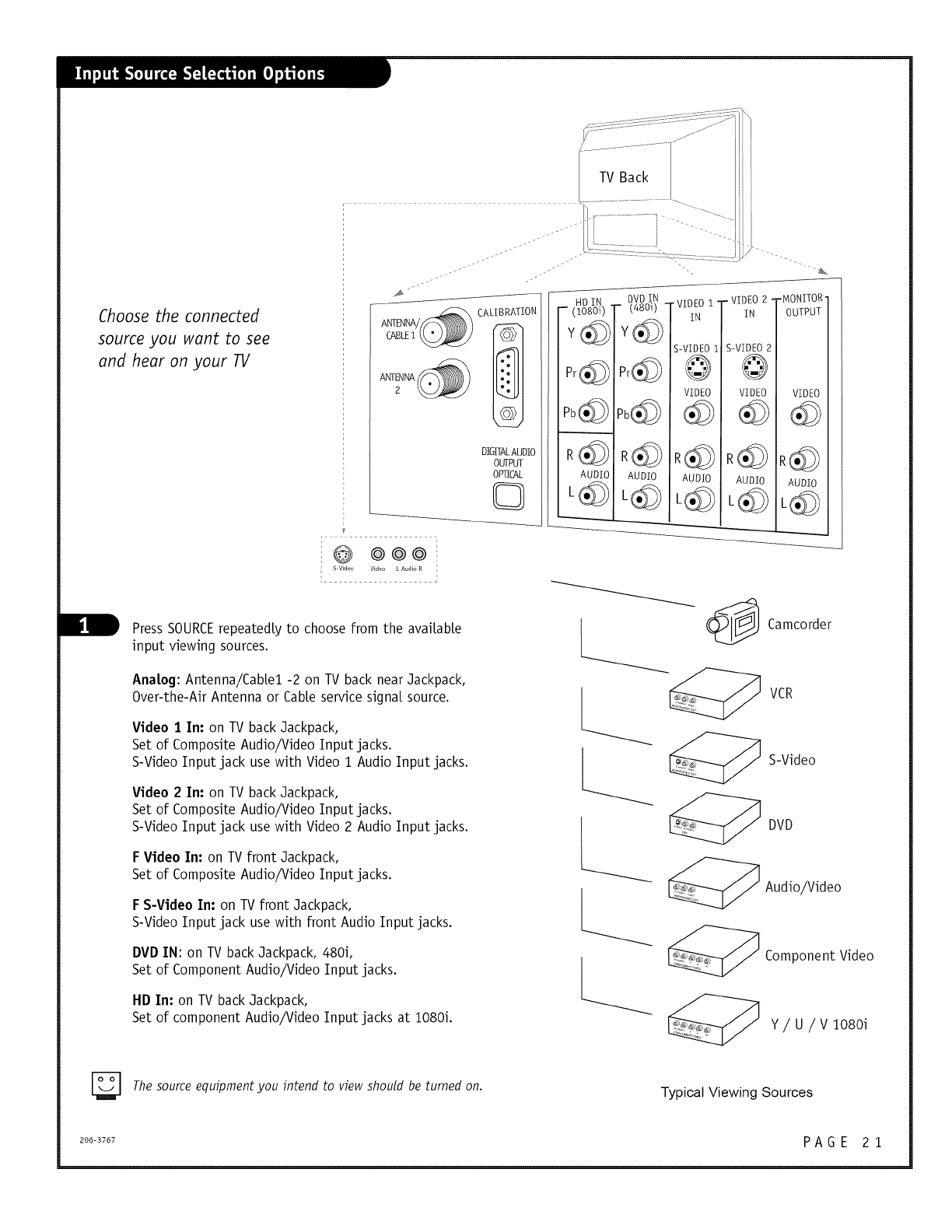
Choose the connected
source you want to see
and hear on your TV
DIGITALAUDIO
OUTPUT
OPTICAL
HD IN .
-(lo8oi)
Pr@
,@
AUDIO
@ @@@
S-Video Video L Au(_io R
DVDIN
- (480i)
Y@
R@
AUDIO
---------__.
,VIDEO i
IN
S-VIDEO 1
VIDEO
,@
AUDIO
.VIDEO 2
IN
S-VIDEO 2
VIDEO
R@
AUDIO
-MONITOR
OUTPUT
VIDEO
R@
AUDIO
Press SOURCErepeatedly to choose from the avaitabte
input viewing sources.
Analog: Antenna/Cabtel -2 on TV back near Jackpack,
Over-the-Air Antenna or Cable service signal source.
Video I In: on TV back Jackpack,
Set of Composite Audio/Video Input jacks.
S-Video Input jack use with Video 1 Audio Input jacks.
Video 2In: on TV back Jackpack,
Set of Composite Audio/Video Input jacks.
S-Video Input jack use with Video 2 Audio Input jacks.
F Video In: on TV front gackpack,
Set of Composite Audio/Video Input jacks.
F S-Video In: on TV front gackpack,
S-Video Input jack use with front Audio Input jacks.
DVDIN: on TVback Jackpack,480i,
Set of ComponentAudio/Video Input jacks.
HD In" on TV back Jackpack,
Set of component Audio/Video Input jacks at 1080i.
L Camcor er
__ VCR
k _ S-Video
__ DVD
Audio/video
Component Video
_ Y/U/Vl080i
[_ The source equipment you intend to view should be turned on. Typical Viewing Sources
2o6-B767 P A G E 2 1
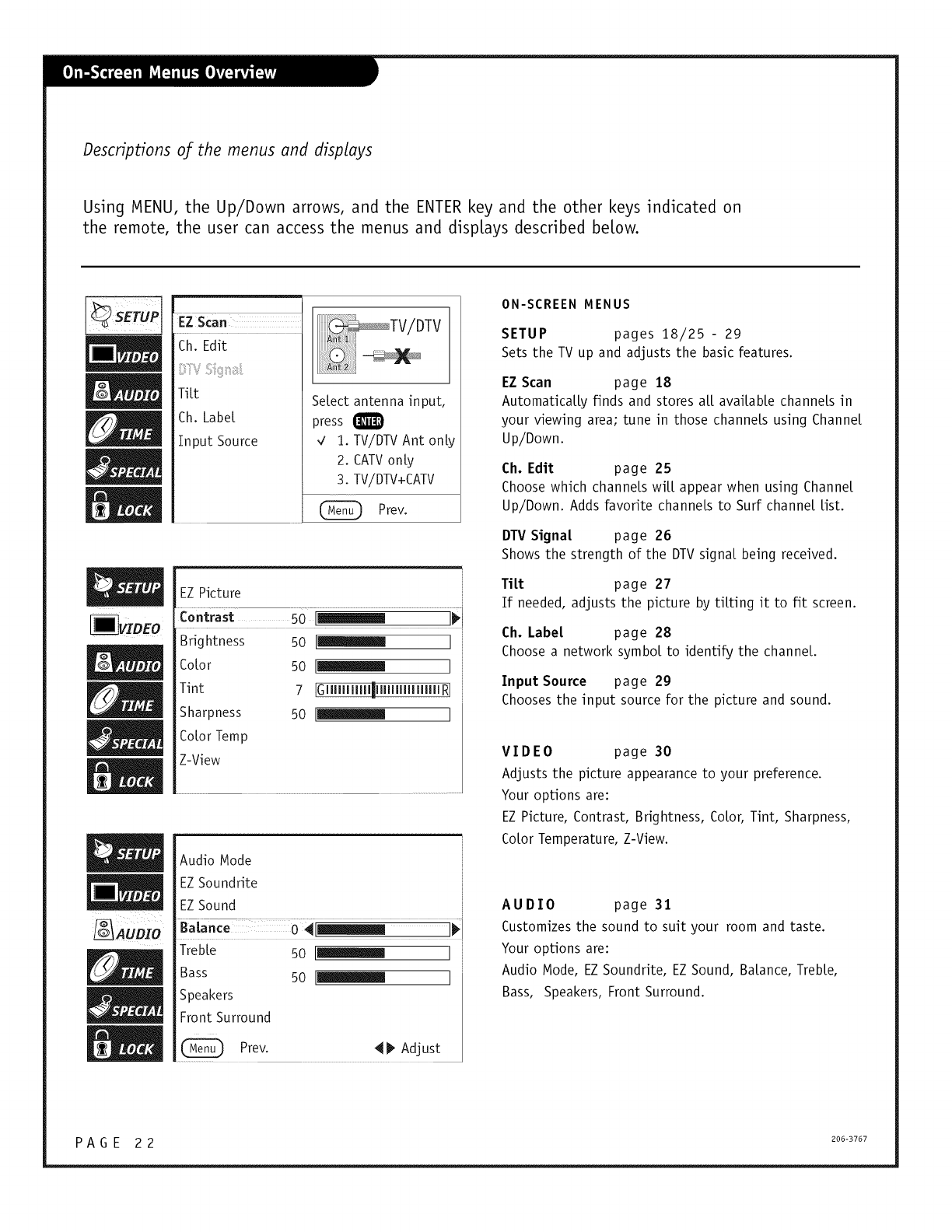
Descriptions of the menus and displays
Using MENU, the Up/Down arrows, and the ENTER key and the other keys indicated on
the remote, the user can access the menus and displays described below.
EZ Scan
Ch. Edit
TiLt
Ch. Label
Input Source
SeLect antenna input,
press Q
,/ 1. TV/DTV Ant only
2. CATVonly
3. TV/DTV+CATV
Prev.
EZ Picture
Brightness 50 _ ] [
CoLor 50 [_ ]
Tint 7 ]GIllllllllllJllllllllllllllll RI i
Sharpness 50 [_ ]
CoLorTemp
Z-View
Audio Node
EZSoundrite
EZSound
TrebLe 50 [_llllml ]
Bass 50 [_ ]
Speakers
Front Surround
Prev. 41_ Adjust
ON-SCREEN MENUS
SETUP pages 18/25 - 29
Sets the TV up and adjusts the basic features.
EZ Scan page 18
AutomaticaLLy finds and stores aLLavaiLabLe channels in
your viewing area; tune in those channels using Channel
Up/Down.
Oh. Ed,it page 25
Choose which channels wiLLappear when using Channel
Up/Down. Adds favorite channels to Surf channel List.
DTV S'igna[ page 26
Shows the strength of the DTVsignal being received.
T,itt page 27
If needed, adjusts the picture by tilting it to fit screen.
Oh. Label page 28
Choose a network symbol to identify the channeL.
Input Source page 29
Chooses the input source for the picture and sound.
VIDEO page 30
Adjusts the picture appearance to your preference.
Your options are:
EZ Picture, Contrast, Brightness, CoLor,Tint, Sharpness,
CoLorTemperature, Z-View.
AUDIO page 31
Customizes the sound to suit your room and taste.
Your options are:
Audio Mode, EZ Soundrite, EZ Sound, BaLance, TrebLe,
Bass, Speakers, Front Surround.
P A G E 2 2 2o6-3767
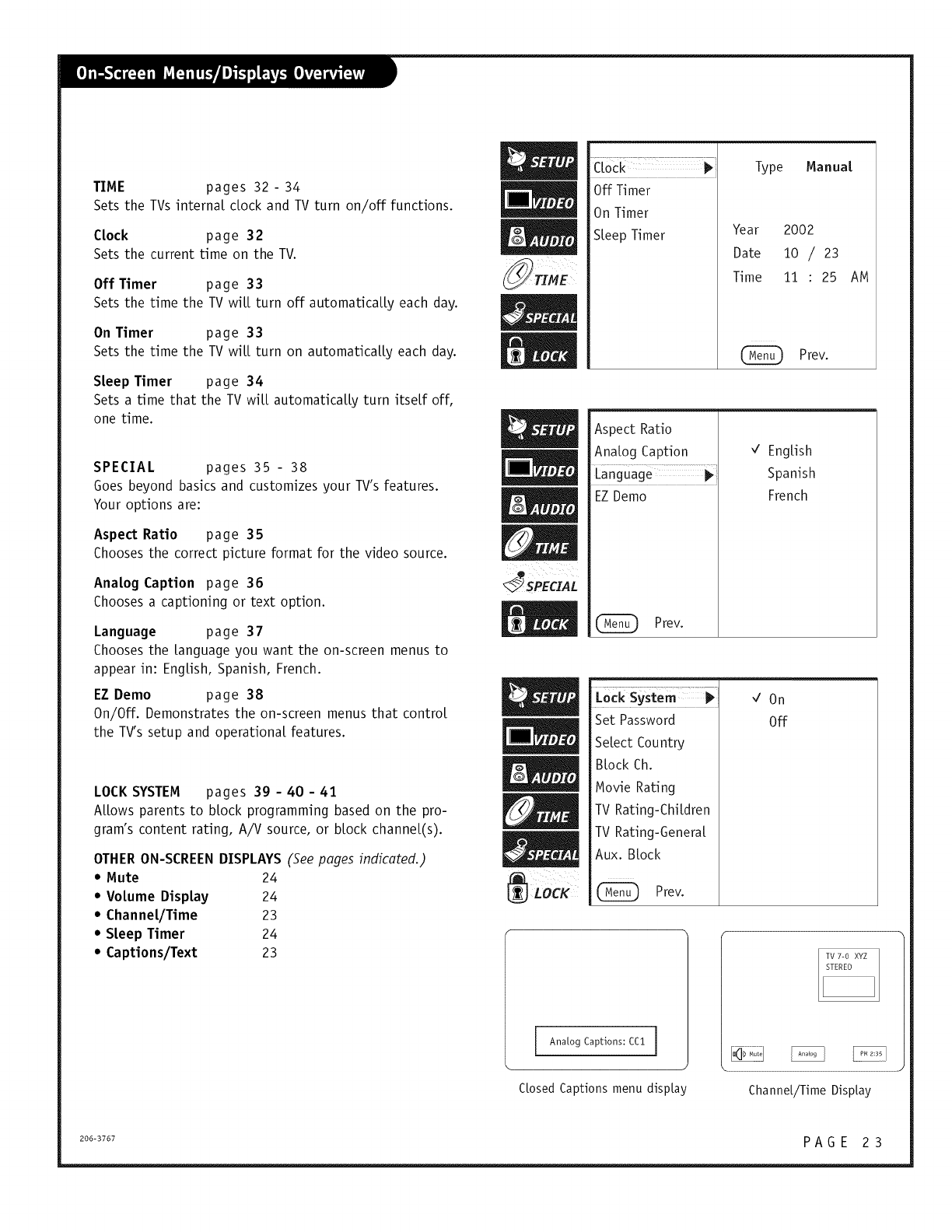
TIME pages32- 34
SetstheTVsinternalclockandTVturnon/offfunctions.
CLock page 32
Sets the current time on the TV.
Off Timer page 33
Sets the time the TV wiLL turn off automaticaLLy each day.
On Timer page 33
Sets the time the TV wiLL turn on automaticaLLy each day.
SLeep Timer page 34
Sets a time that the TV wilt automatically turn itself off,
one time.
SPECIAL pages 35 - 38
Goes beyond basics and customizes your TV's features.
Your options are:
Aspect Ratio page 35
Chooses the correct picture format for the video source.
Ana[og Caption page 36
Chooses a captioning or text option.
Language page 37
Chooses the Languageyou want the on-screen menus to
appear in: English, Spanish, French.
EZ Demo page 38
On/Off. Demonstrates the on-screen menus that control
the TV's setup and operational features.
LOCK SYSTEM pages 39 - 40 -41
ALLowsparents to block programming based on the pro-
gram's content rating, A/V source, or block channel(s).
OTHER ON-SCREEN DISPLAYS (See pages indicated.)
•Mute 24
• VoLume DispLay 24
•Channel/Time 23
• SLeep Timer 24
•Captions/Text 23
SPECZAL
Off Timer
On Timer
SLeep Timer
Type ManuaL
Year 2002
Date 10 /23
Time 11 : 25 AM
Prev.
Aspect Ratio
Analog Caption
Language
EZ Demo
Prev.
_/ English
Spanish
French
Set Password
SeLect Country
BLock Ch.
Movie Rating
TV Rating-ChiLdren
TV Rating-GeneraL
Aux. Block
Prev.
On
Off
l Analog Captions: CC!
Closed Captions menu display ChanneL/TimeDispLay
2oo-37o7 P A G E 2 3
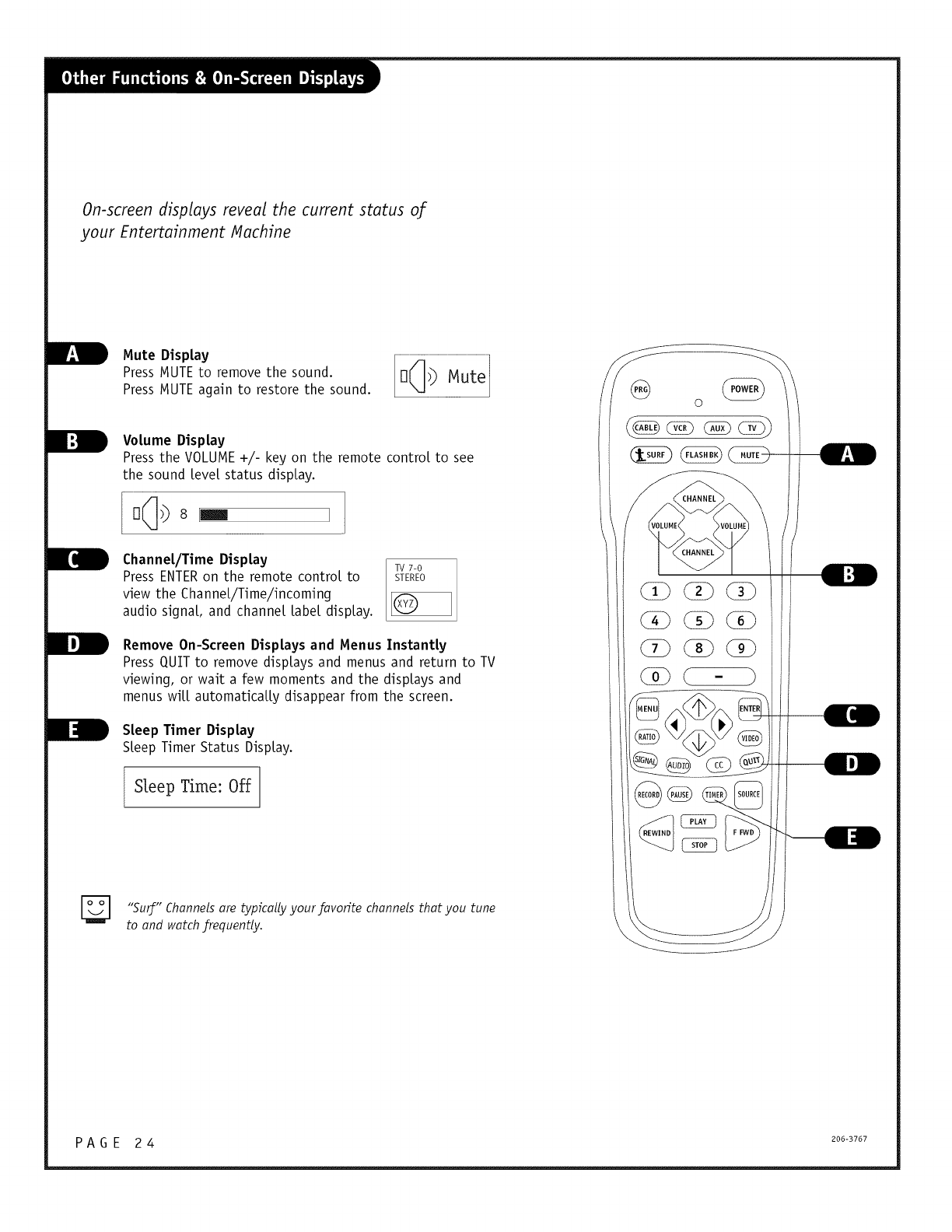
On-screen displays reveal the current status of
your Entertainment Machine
nremoVe ore, ore hesound. he,ounc,.
VoLume DispLay
Press the VOLUME +/- key on the remote control to see
the sound Level status display.
ChanneL/Time DispLay
Press ENTERon the remote control to
view the ChanneL/Time/incoming
audio signaL, and channel Labeldisplay.
TV 7-0
STEREO
Remove On-Screen DispLays and Menus InstantLy
Press QUIT to remove displays and menus and return to TV
viewing, or wait a few moments and the displays and
menus wiLL automaticaLLy disappear from the screen.
SLeepTimer DispLay
SLeepTimer Status DispLay.
Sbep Time:Off
o
"Surf" Channelsare typically your favorite channels that tune
you
to and watchfrequently.
PAG E 24 2oo-B7o7
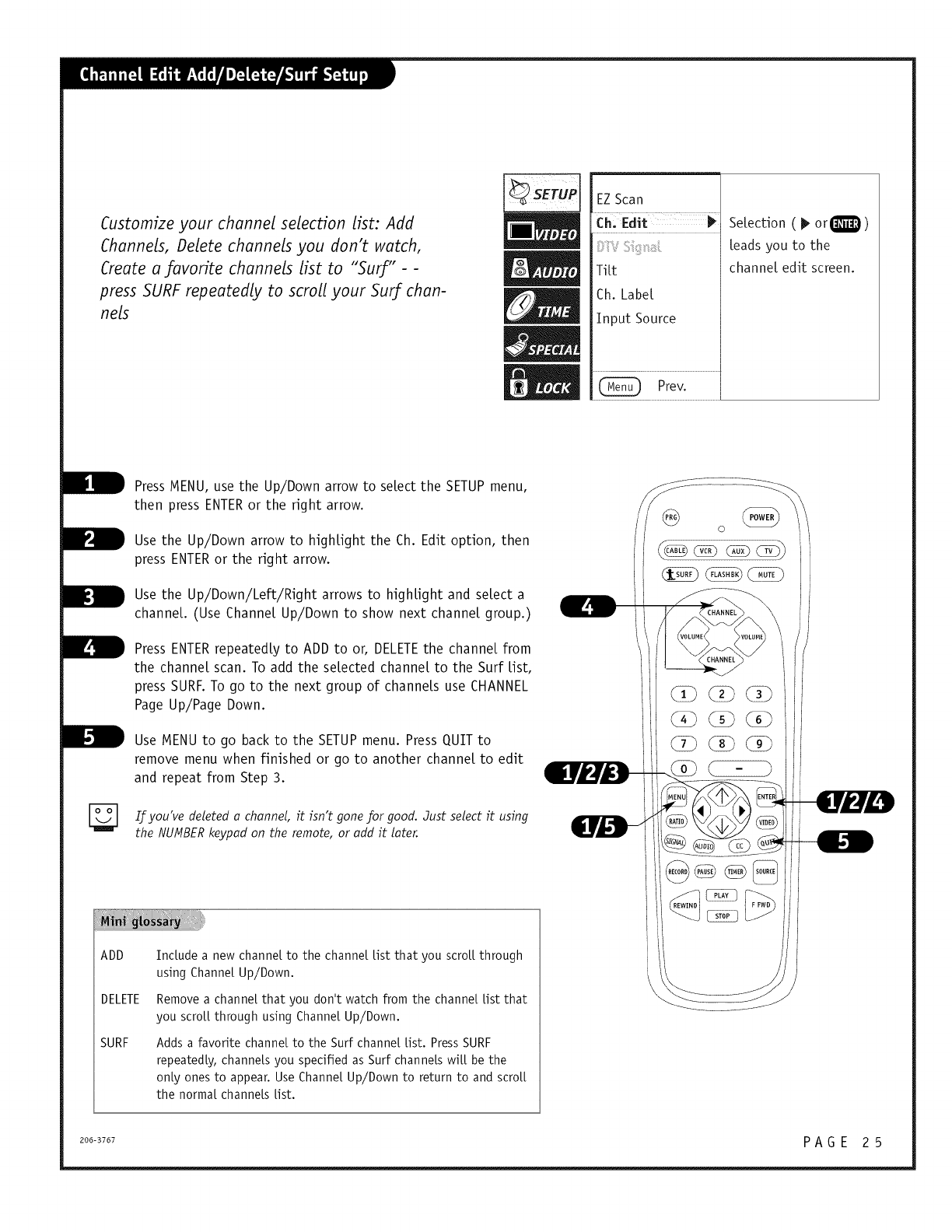
Customize your channel selection list: Add
Channels, Delete channels you don't watch,
Create a favorite channels list to "Surf" - -
press SURF repeatedly to scroll your Surf chan-
nels
EZ Scan
Ch. Edit
Tilt
Ch. Label
Input Source
Prey.
Selection ( _ orQ)
leads you to the
channel edit screen.
ADD
DELETE
SURF
Press MENU, use the Up/Down arrow to select the SETUP menu,
then press ENTERor the right arrow.
Use the Up/Down arrow to highlight the Ch. Edit option, then
press ENTERor the right arrow.
Use the Up/Down/Left/Right arrows to highlight and select a
channel. (Use Channel Up/Down to show next channel group.)
Press ENTERrepeatedly to ADD to or, DELETEthe channel from
the channel scan. To add the selected channel to the Surf list,
press SURF. To go to the next group of channels use CHANNEL
Page Up/Page Down.
Use MENU to go back to the SETUP menu. Press QUIT to
remove menu when finished or go to another channel to edit
and repeat from Step 3.
If you've deleted a channel, it isn't gone for good. 3ust select it using
the NUMBER keypad on the remote, or add it later.
Include a new channel to the channel list that you scroll through
using Channel Up/Down.
Remove a channel that you donIt watch from the channel list that
you scroll through using Channel Up/Down.
Adds a favorite channel to the Surf channel list. Press SURF
repeatedly, channels you specified as Surf channels wi[[ be the
only ones to appear. Use Channel Up/Down to return to and scroll
the normal channels list.
2oo-37o7 P A G E 2 5
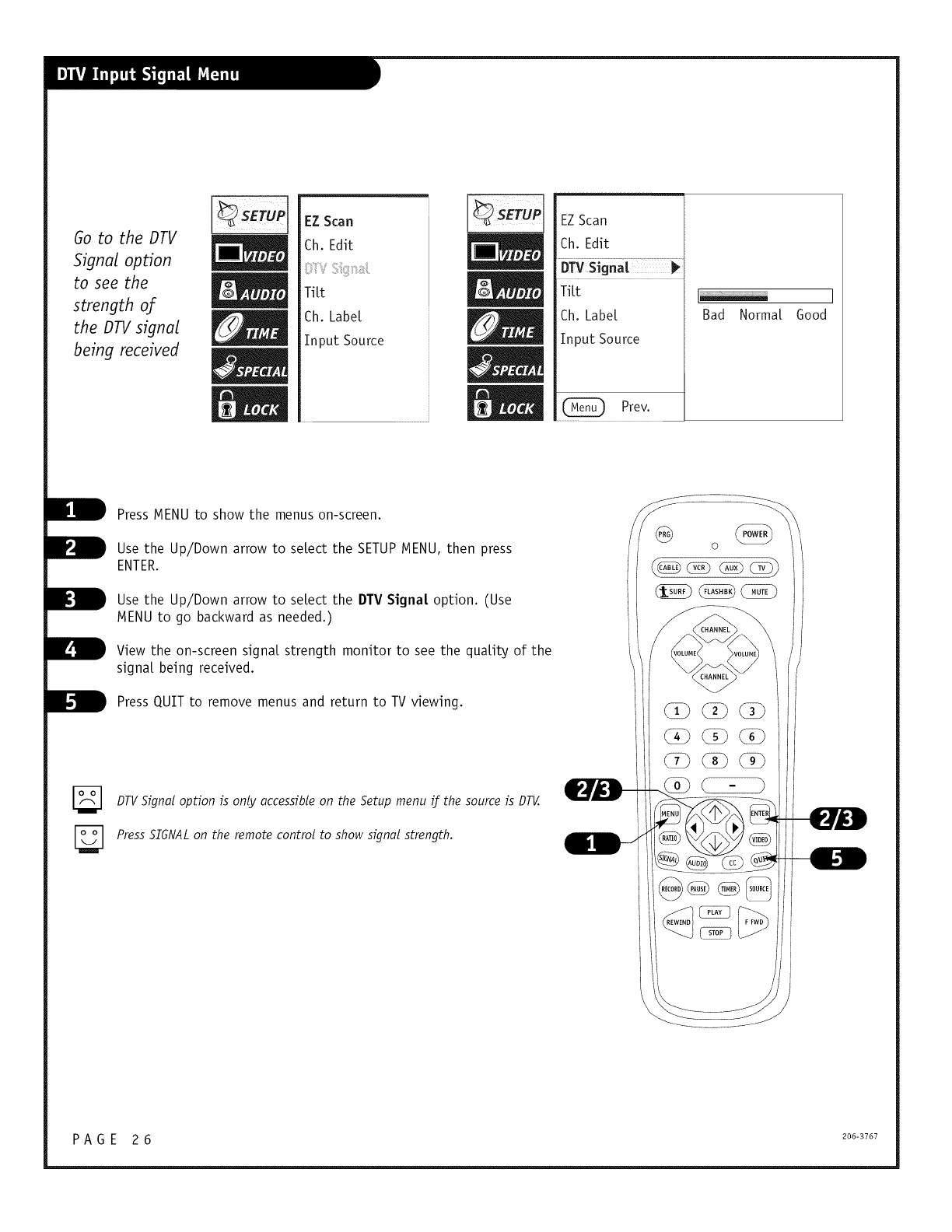
50 to the DTV
Signal option
to see the
strength of
the DTVsignal
being received
EZ Scan
Ch. Edit
V
Tilt
Ch. Labe[
Input Source
EZScan
Ch. Edit
Tilt
Ch. Label
Input Source
Prev.
Bad Normal. Good
B
B
Press MENU to show the menus on-screen.
Use the Up/Down arrow to sel.ect the SETUP MENU, then press
ENTER.
Use the Up/Down arrow to sel.ect the DTV Signa[ option. (Use
MENU to go backward as needed.)
View the on-screen signal, strength monitor to see the qual.ity of the
signal, being received.
Press QUIT to remove menus and return to TV viewing.
DTVSignal option is only accessible on the Setup menu if the source is DTV.
Press SIGNAL on the remote control to show signal strength.
_POWER_
©
P A G E 2 6 206-3767
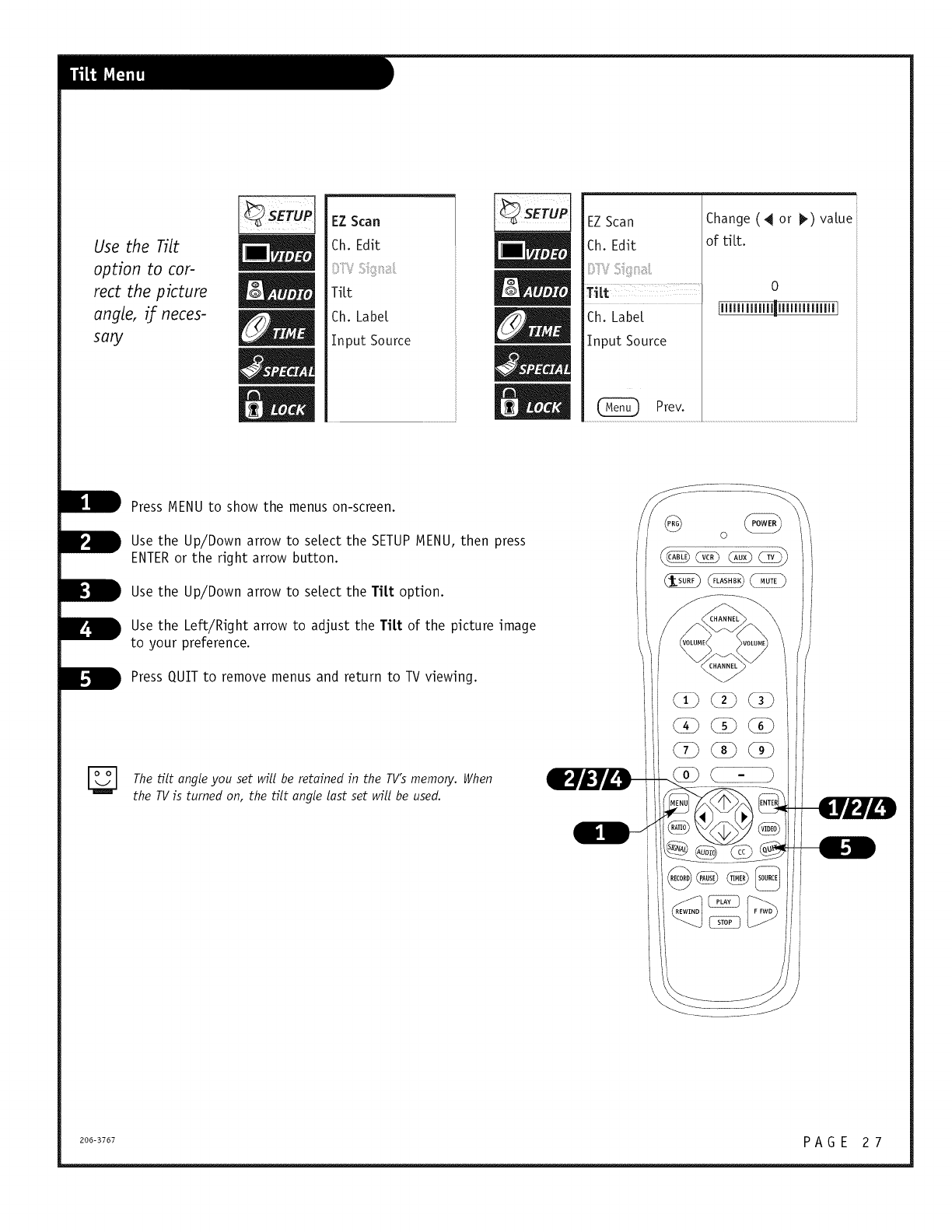
Use the Tilt
option to cor-
rect the picture
angle, if neces-
san_/
EZ Scan
Ch. Edit
TiLt
Ch. Label.
Input Source
EZ Scan
Ch. Edit
Ch. Labe[
Input Source
Change(4 or _) va[ue
of rift.
0
Prev.
Press NENU to show the menus on-screen.
Use the Up/Down arrow to select the SETUP NENU, then press
ENTERor the right arrow button.
Use the Up/Down arrow to se[ect the Ti[t option.
B se the Left/Right arrow to adjust the Titt of the picture image
to your preference.
D Press QUIT to remove menus and return to TV viewing.
[_ Thetilt ungle set will be retuined in the TV's When
you memory.
the TVis turned on, the tilt ungle lust set will be used.
206-3767 P A G E 2 7
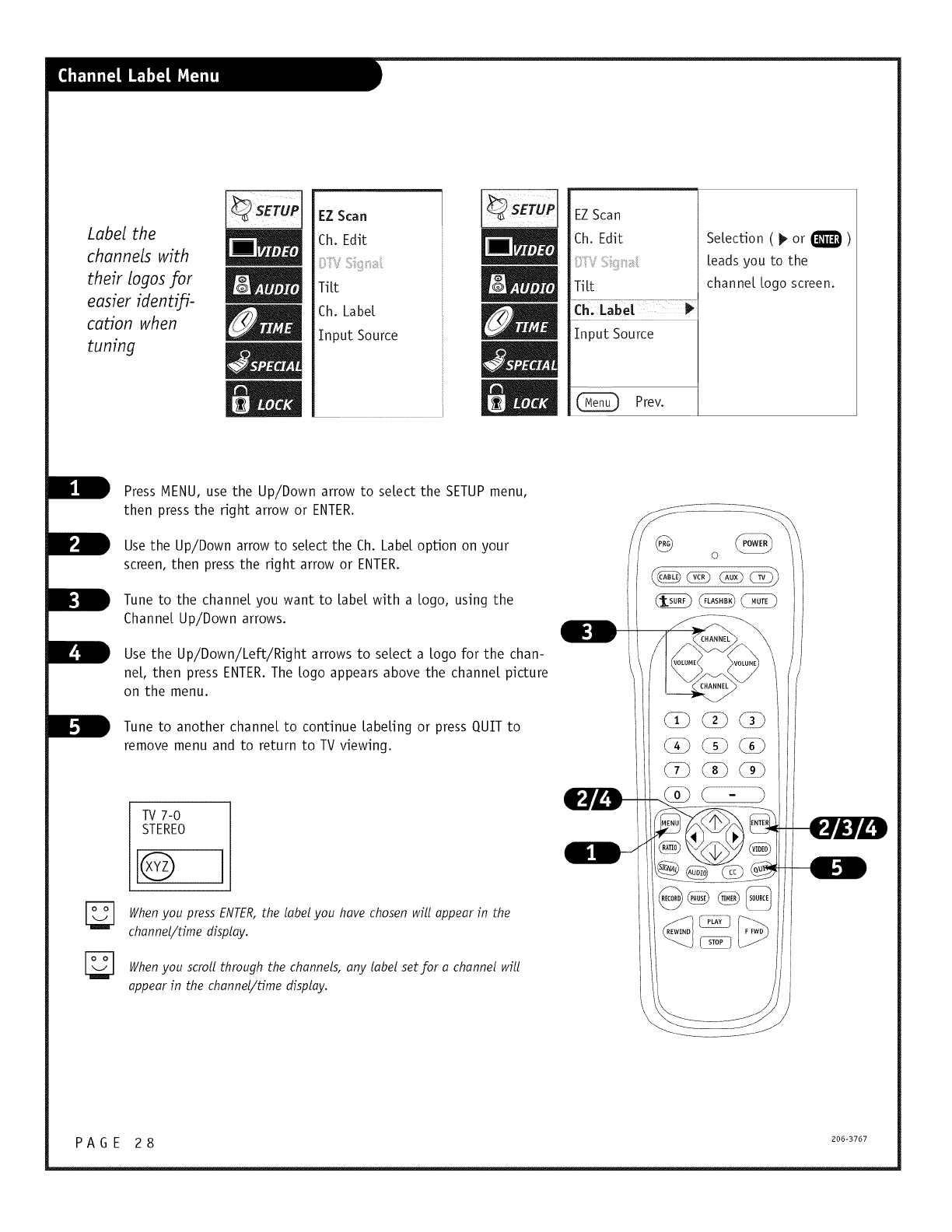
Label the
channels with
their logos for
easier identifi-
cation when
tuning
EZ Scan
Ch. Edit
TiLt
Ch. Label
Input Source
EZScan
Ch. Edit
TiLt
Input Source
Prev.
SeLection ( _ or _ )
Leads you to the
channel Logo screen.
Press MENU, use the Up/Down arrow to select the SETUP menu,
then press the right arrow or ENTER.
Use the Up/Down arrow to select the Ch. Label option on your
screen, then press the right arrow or ENTER.
Tune to the channel you want to Label with a Logo, using the
Channel Up/Down arrows.
Use the Up/Down/Left/Right arrows to select a Logo for the chan-
neL, then press ENTER.The Logo appears above the channel picture
on the menu.
Tune to another channel to continue LabeLing or press QUIT to
remove menu and to return to TV viewing.
TV 7-0
STEREO
Q
When you press ENTER, the label you have chosen will appear in the
channel/t#ne display.
When you scroll through the channels, any label set for achannel will
appear in the channel/time display.
<POWER_
©
PAGE 28 200-3707
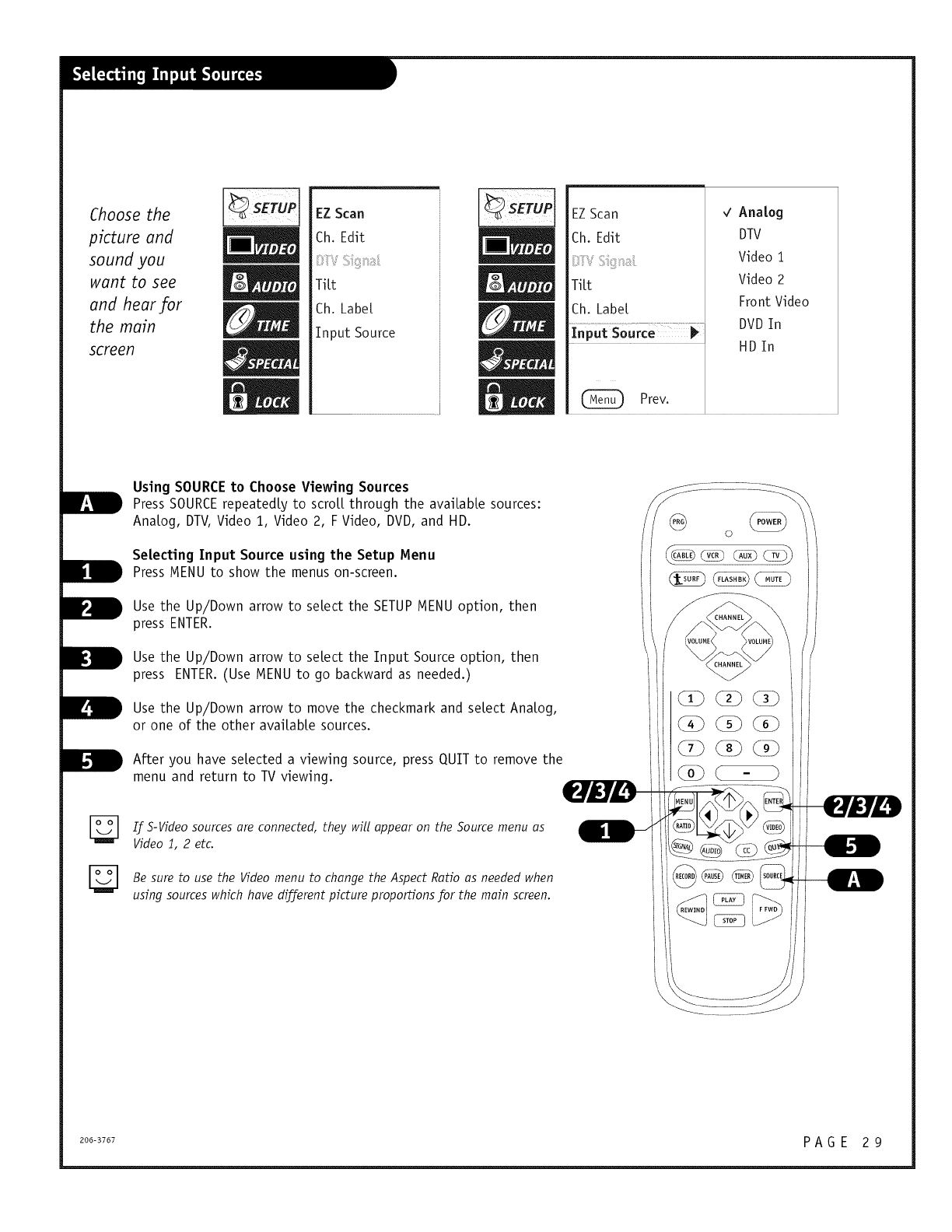
Choose the
picture and
sound you
want to see
and hear/or
the main
screen
EZ Scan
Ch. Edit
Tilt
Ch. Label
Input Source
EZScan
Ch. Edit
'V
Tilt
Ch. Label
Prey.
_/ Analog
DTV
Video i
Video 2
Front Video
DVDIn
HD In
B
Using SOURCE to Choose Viewing Sources
Press SOURCE repeatedly to scroll through the available sources:
Analog, DTV,Video 1, Video 2, F Video, DVD, and HD.
Selecting Input Source using the Setup Menu
Press MENU to show the menus on-screen.
Use the Up/Down arrow to select the SETUP MENU option, then
press ENTER.
Use the Up/Down arrow to select the Input Source option, then
press ENTER.(Use MENU to go backward as needed.)
Use the Up/Down arrow to move the checkmark and select Analog,
or one of the other available sources.
After you have selected a viewing source, press QUIT to remove the
menu and return to TV viewing.
I/ S-Video sources are connected, they will appear on the Source menu as
Video i, 2 etc.
Be sure to use the Video menu to change the Aspect Ratio as needed when
using sources which have di_/erent picture proportions for the main screen.
206-3767 P A G E 2 9
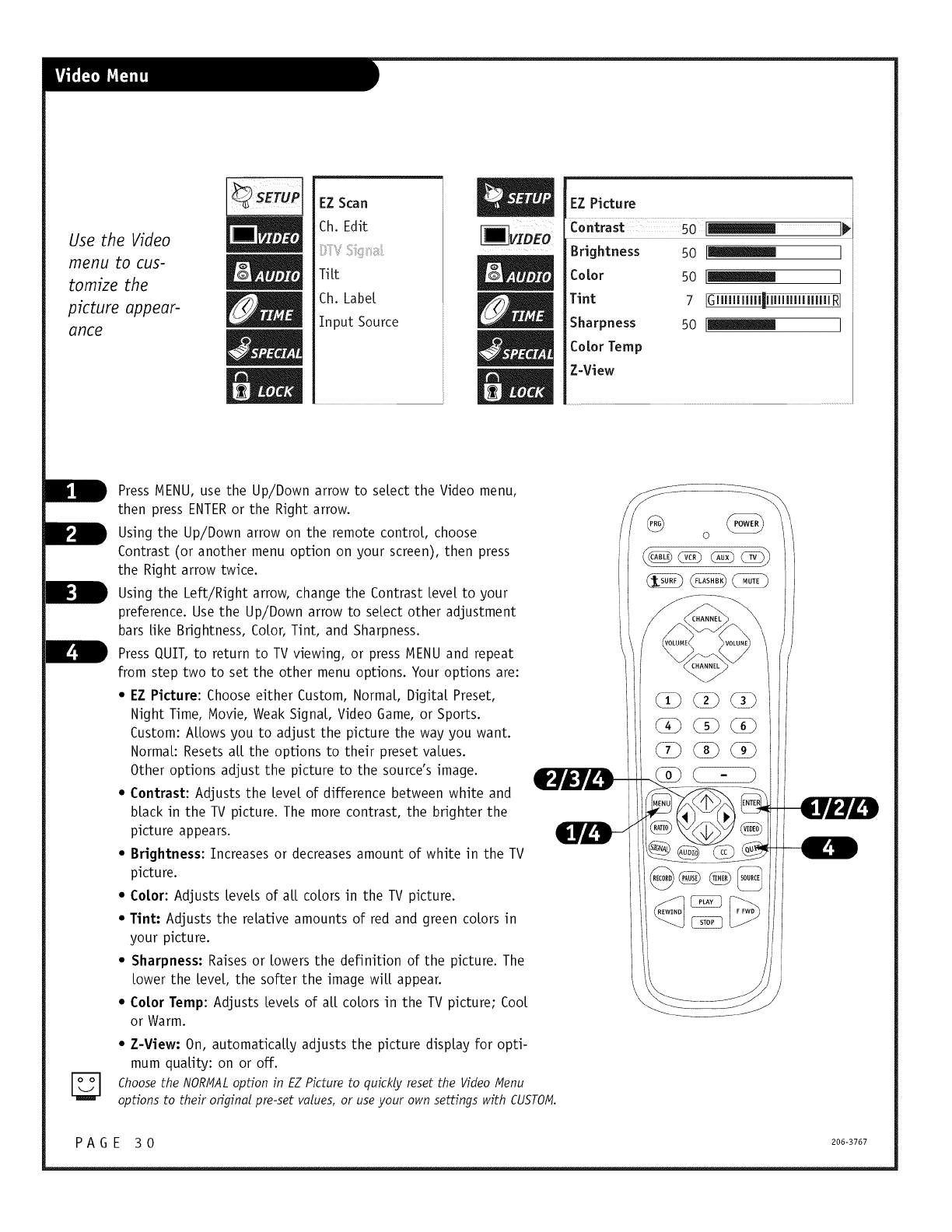
Use the Video
menu to cus-
tomize the
picture appear-
ance
EZ Scan
Ch. Edit
Ti It
Ch. Label
Input Source
EZ Picture
Brightness 50 [llmmllill_ ]
color 50 [_ I i
Tint 7 IGUlllllllll_HmllllllllIH RI i
Sharpness 50 [_ I
Color Temp
Z-View
Press MENU, use the Up/Down arrow to select the Video menu,
then press ENTERor the Right arrow.
Using the Up/Down arrow on the remote control, choose
Contrast (or another menu option on your screen), then press
the Right arrow twice.
Using the Left/Right arrow, change the Contrast [eve[ to your
preference. Use the Up/Down arrow to select other adjustment
bars like Brightness, Color, Tint, and Sharpness.
Press QUIT, to return to TV viewing, or press MENU and repeat
from step two to set the other menu options. Your options are:
•EZ Picture: Choose either Custom, Normal, Digital Preset,
Night Time, Movie, Weak Signal, Video Game, or Sports.
Custom: Allows you to adjust the picture the way you want.
Normal: Resets at[ the options to their preset values.
Other options adjust the picture to the source's image.
• Contrast: Adjusts the [eve[ of difference between white and
black in the TV picture. The more contrast, the brighter the
picture appears.
• Brightness: Increases or decreases amount of white in the TV
picture.
• Co[or: Adjusts levels of at[ colors in the TV picture.
•Tint: Adjusts the relative amounts of red and green colors in
your picture.
• Sharpness: Raises or towers the definition of the picture. The
tower the [eve[, the softer the image wit[ appear.
•Co[or Temp: Adjusts levels of at[ colors in the TV picture; Coot
or Warm.
• Z-View: On, automatically adjusts the picture display for opti-
mum quality: on or off.
Choosethe NORMALoption in EZPicture to quickly reset the Video Menu
options to their original pre-set values, or useyour own settings with CUSTOM.
P A G E 3 0 206-3767
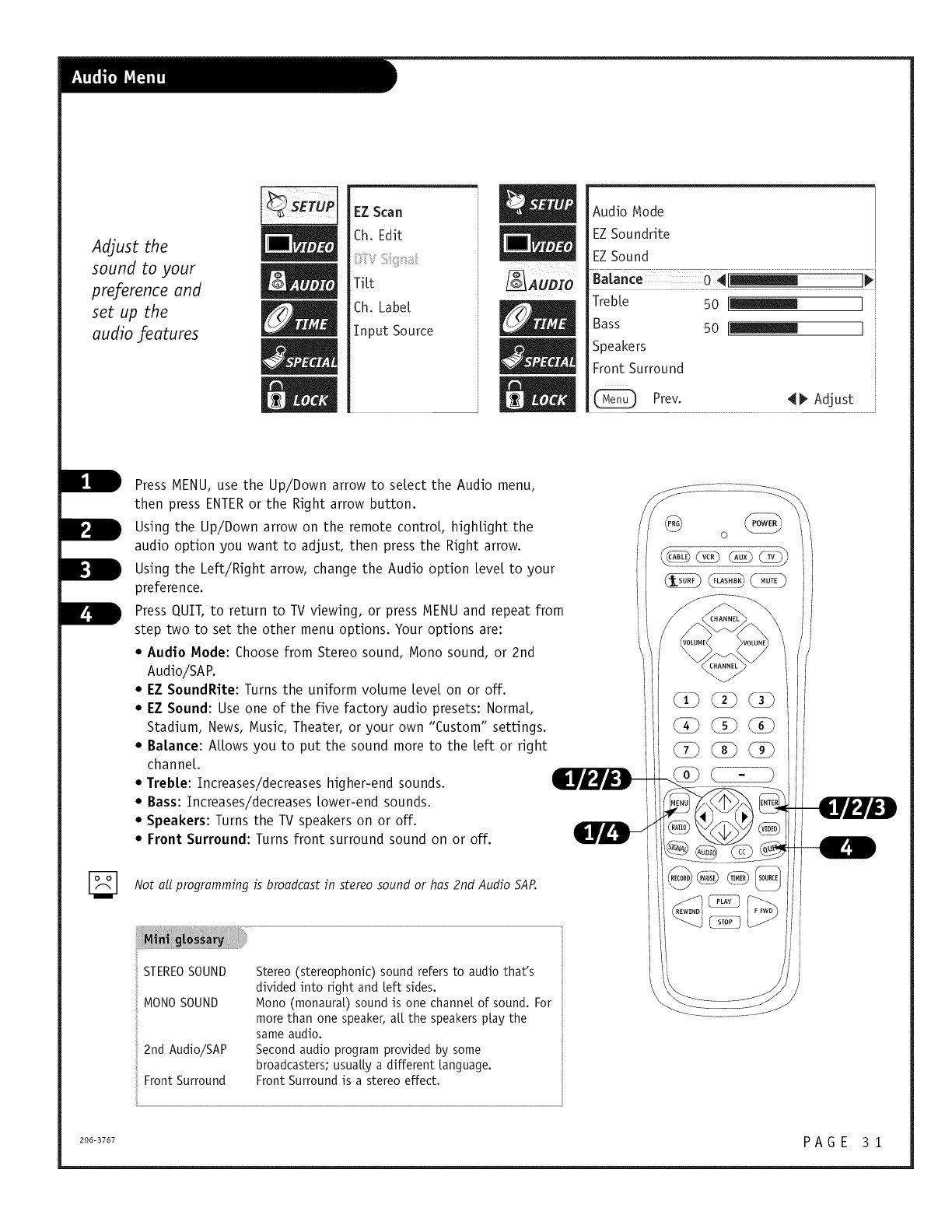
Adjust the
sound to your
preference and
set up the
audio features
EZ Scan
Ch. Edit
TiLt
Ch. Label
Input Source
Audio Mode
EZSoundrite
EZSound
TrebLe 50 [lilmllllll_m ]
Bass 50 [_ ]
Speakers
Front Surround
Prev. 41_ Adjust
Press MENU, use the Up/Down arrow to select the Audio menu,
then press ENTERor the Right arrow button.
Using the Up/Down arrow on the remote controL, highlight the
audio option you want to adjust, then press the Right arrow.
Using the Left/Right arrow, change the Audio option Level to your
preference.
Press QUIT, to return to TV viewing, or press MENU and repeat from
step two to set the other menu options. Your options are:
• Audio Mode: Choose from Stereo sound, Mono sound, or 2nd
Audio/SAP.
•EZ SoundRite: Turns the uniform volume Level on or off.
•EZ Sound: Use one of the five factory audio presets: NormaL,
Stadium, News, Music, Theater, or your own "Custom" settings.
•Balance: ALLowsyou to put the sound more to the Left or right
channeL.
•Treble: Tncreases/decreases higher-end sounds.
•Bass: Tncreases/decreases Lower-end sounds.
•Speakers: Turns the TV speakers on or off.
•Front Surround: Turns front surround sound on or off.
Not all programming is broadcast in stereo sound or has 2nd Audio SAP.
STEREOSOUND
MONO SOUND
2nd Audio/SAP
Front Surround
Stereo (stereophonic) sound refers to audio that's
divided into right and [eft sides.
Mono (monaural) sound is one channel of sound. For
more than one speaker, aU the speakers play the
same audio.
Second audio program provided by some
broadcasters, usually a different language.
Front Surround is a stereo effect.
2o0-3707 P A G E 3 1
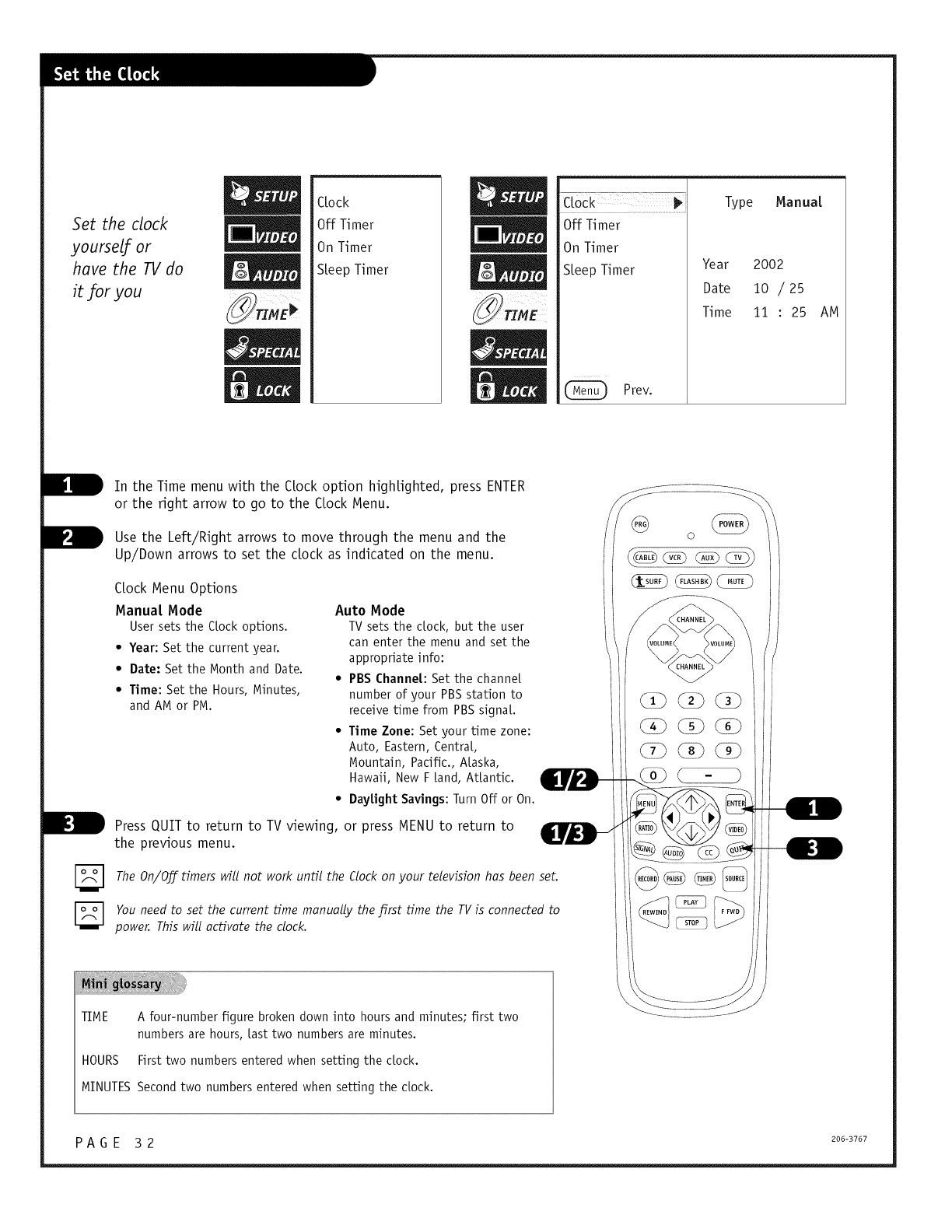
Set the clock
yourselfor
have the TV do
it for you
CLock
Off Timer
On Timer
SLeepTimer
CLock
Off Timer
On Timer
SLeep Timer
Prev.
Type Manual
Year 2002
Date 10 /25
Time 11 :25 AM
B In the Time menu with the CLock option highlighted, press ENTER
or the right arrow to go to the CLock Menu.
B Left/Right arrows to move through menu
Use the the and the
Up/Down arrows to set the clock as indicated on the menu.
CLock Menu Options
Manual Mode
User sets the Clock options.
•Year: Set the current year.
•Date: Set the Month and Date.
• Time: Set the Hours, Minutes,
and AM or PM.
Auto Mode
TVsets the dock, but the user
can enter the menu and set the
appropriate info:
•PBSChanneL:Set the channel
number of your PBSstation to
receive time from PBSsignal
•Time Zone: Set your time zone:
Auto, Eastern, Central
Mountain, Pacific., ALaska,
Hawaii, New F [and, AtLantic.
• DayLight Savings:Turn Off or On.
Press QUIT to return to TV viewing, or press MENU to return to
the previous menu.
TheOn/Off timers will not work until the Clockon your television has beenset.
Youneed to set the current time manually the jffrst time the TVis connected to
power. This will activate the clock.
TIME A four-number figure broken down into hours and minutes, first two
numbers are hours, Lasttwo numbersare minutes.
HOURS First two numbers entered when setting the dock.
MINUTESSecondtwo numbers entered when setting the dock.
P A G E 3 2 206-3767
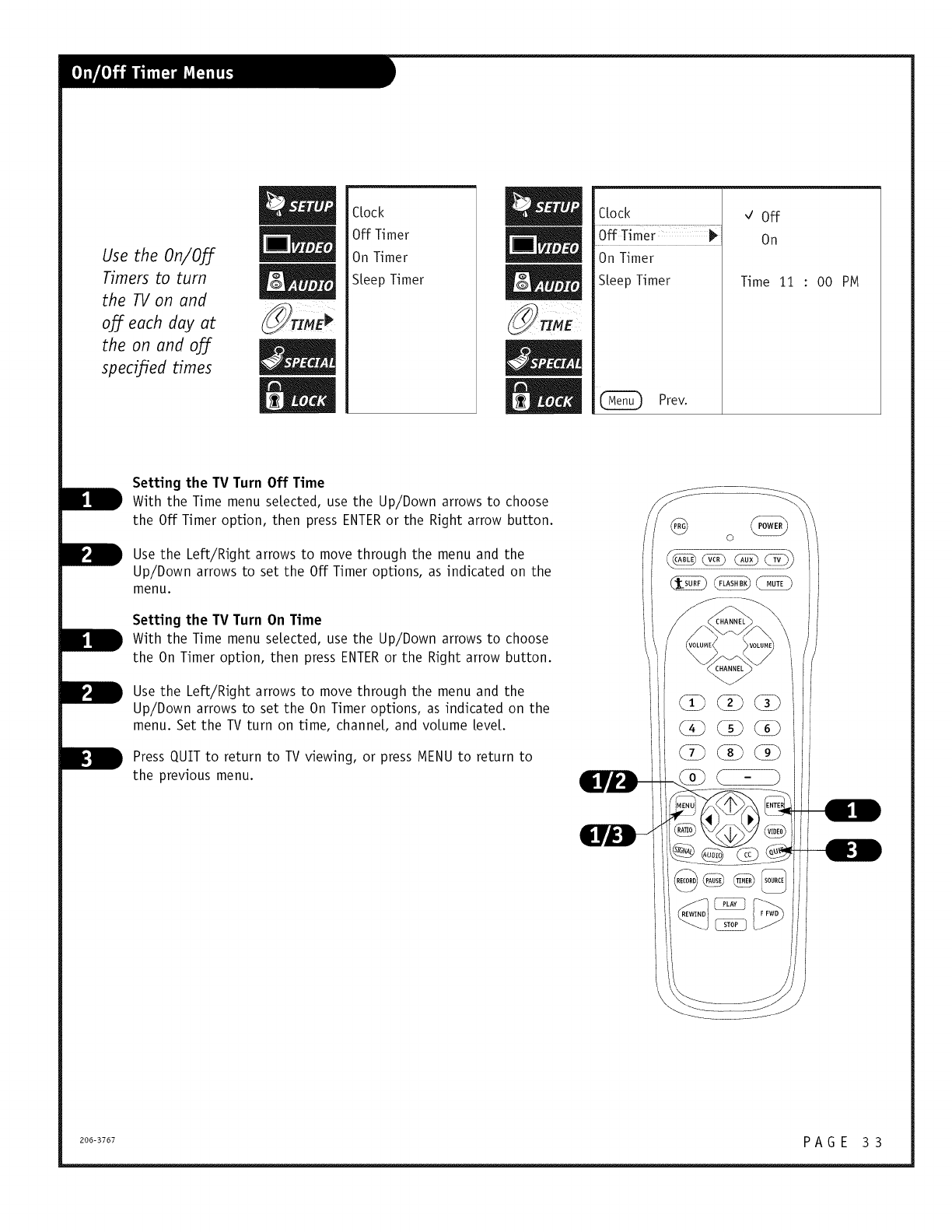
Use the On/Off
Timers to turn
the TVon and
the on and off
specified times
CLock
Off Timer
On Timer
SLeepTimer
CLock
On Timer
SLeepTimer
Prev.
,/ Off
On
Time 11 : O0 PM
Setting the TV Turn Off Time
With the Time menu selected, use the Up/Down arrows to choose
the Off Timer option, then press ENTERor the Right arrow button.
Use the Left/Right arrows to move through the menu and the
Up/Down arrows to set the Off Timer options, as indicated on the
menu.
Setting the TV Turn On Time
With the Time menu selected, use the Up/Down arrows to choose
the On Timer option, then press ENTERor the Right arrow button.
Use the Left/Right arrows to move through the menu and the
Up/Down arrows to set the On Timer options, as indicated on the
menu. Set the TV turn on time, channeL, and volume LeveL.
Press QUIT to return to TV viewing, or press MENU to return to
the previous menu.
206-3767 P A G E 3 3
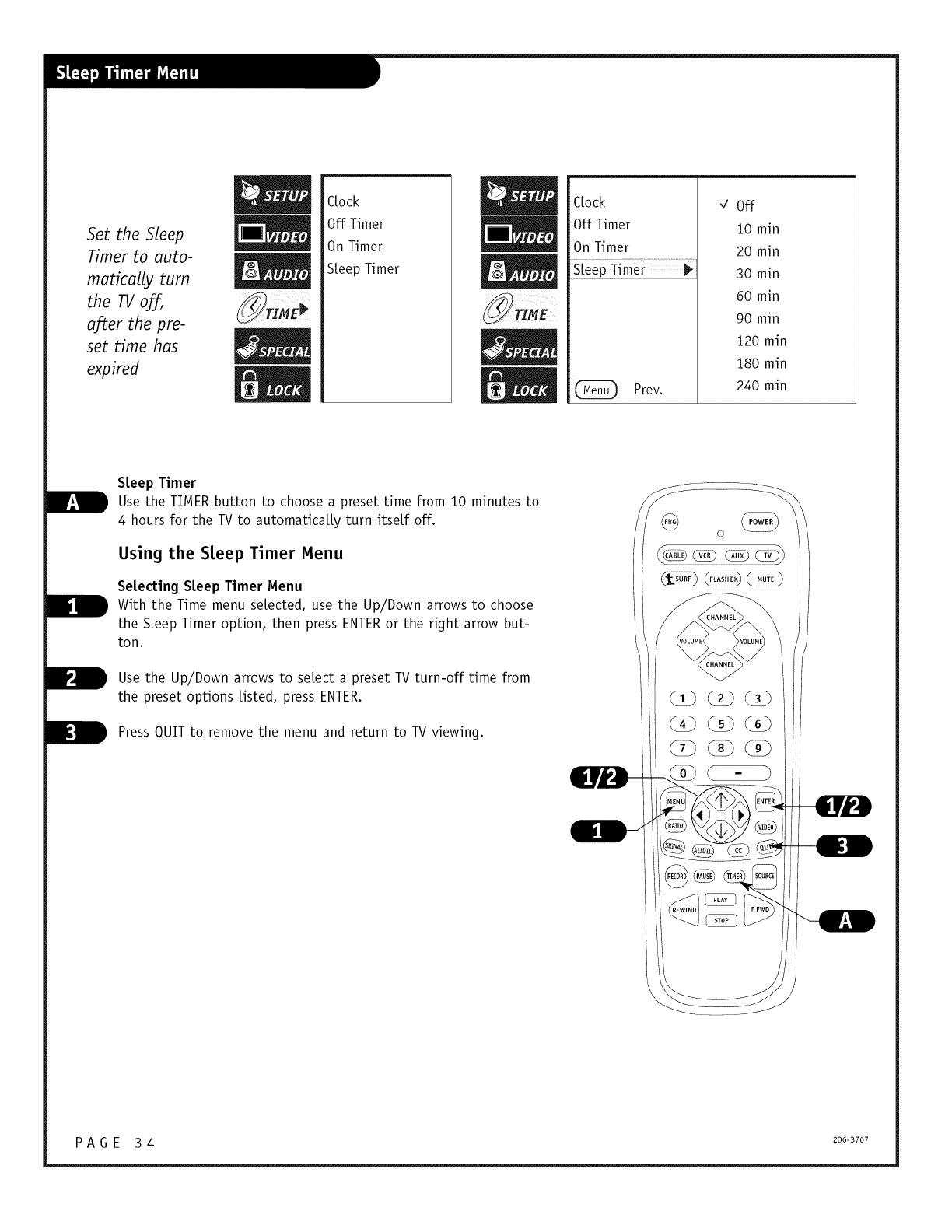
Set the Sleep
Timer to auto-
matically turn
the TV off,
a_ter the pre-
set time has
expired
CLock
Off Timer
On Timer
SLeepTimer
CLock
Off Timer
On Timer
SLeepTimer 1_
Prev.
,/ Off
10 mln
20 mln
30 mln
60 m]n
90 m]n
120 m]n
180 m]n
240 rain
Sleep Timer
Use the TIMER button to choose a preset time from 10 minutes to _
4 hours for the TV to automaticaLLy turn itself off. _R_ 0
Using the S[eep Timer Menu
Selecting Sleep Timer Menu
With the Time menu selected, use the Up/Down arrows to choose
the SLeepTimer option, then press ENTERor the right arrow but-
ton.
B Use the Up/Down arrows to select a preset TV turn-off time from
the preset options Listed, press ENTER. <_) (_ (_
Press QUIT to remove the menu and return to TV viewing. _ _ _
PAGE 34 200-3707
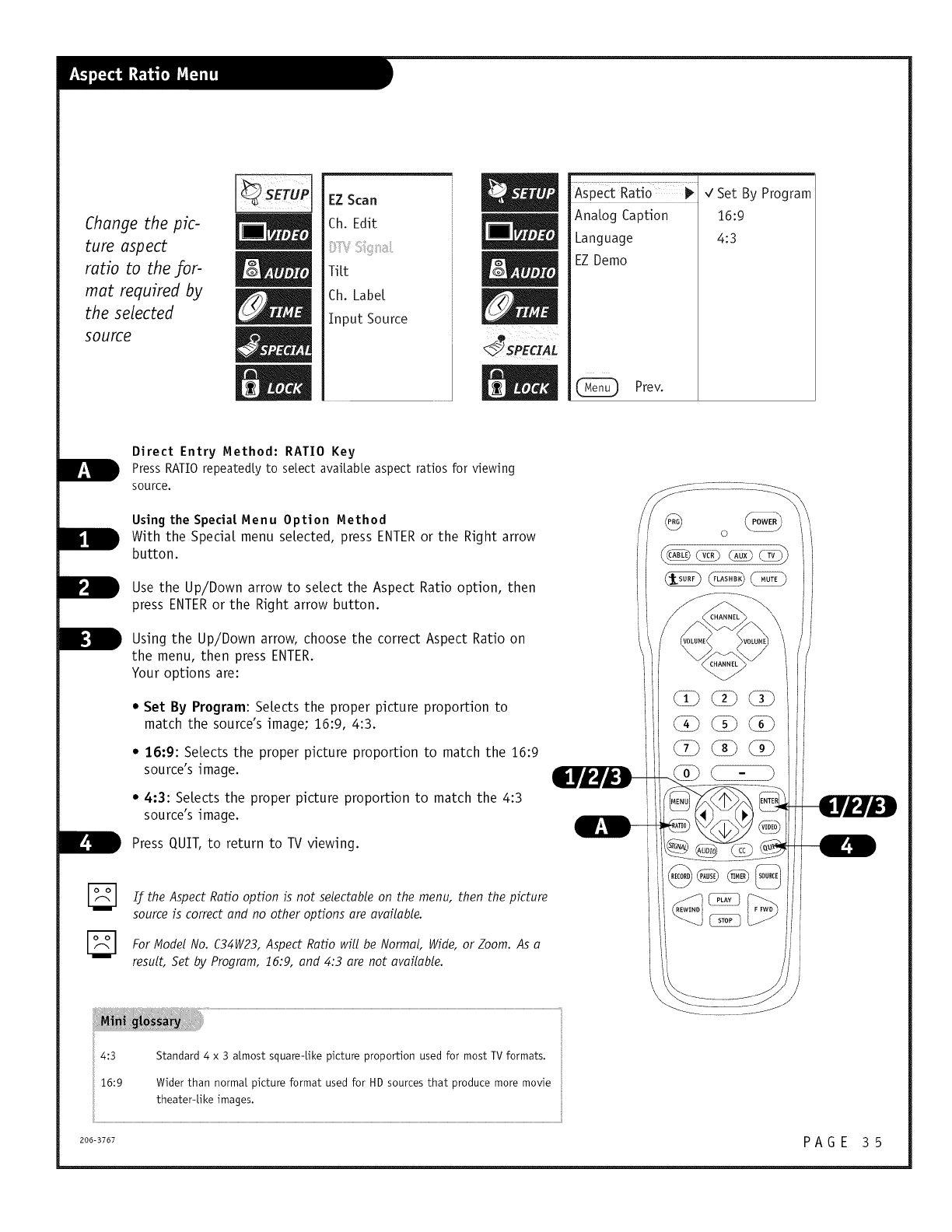
Change the pic-
ture aspect
ratio to the for-
mat required by
the selected
source
EZ Scan
Ch. Edit
TiLt
Ch. Label
Input Source
Aspect Ratio I_
AnaLog Caption
Language
EZ Demo
Prev.
,/Set By Program
16:9
4:3
Direct Entry Method: RATIO Key
Press RATIO repeatedly to select avaiLabLe aspect ratios for viewing
source.
Using the Special Menu Option Method
With the Speciat menu setected, press ENTERor the Right arrow
button.
Use the Up/Down arrow to select the Aspect Ratio option, then
press ENTERor the Right arrow button.
Using the Up/Down arrow, choose the correct Aspect Ratio on
the menu, then press ENTER.
Your options are:
•Set By Program: SeLects the proper picture proportion to
match the source's image; 16:9, 4:3.
• 16:9: SeLectsthe properpictureproportionto match the 16:9
source'simage.
• 4:3: SeLects the proper picture proportion to match the 4:3
source's image.
PressQUIT,to returnto TV viewing.
If the Aspect Ratio option is not seleetable on the menu, then the picture
source is correct and no other options are available.
For Model No. C34W23, Aspect Ratio will be Normal, Wide, or Zoom. As a
result, Set by Program, 16:9, and 4:3 are not available.
4:3 Standard 4 x 3 atmost square-[ike picture proportion used for most TV formats.
16:9 Wider than normal picture format used for HD sources that produce more movie
theater-Like images.
206-3767 PAGE 35
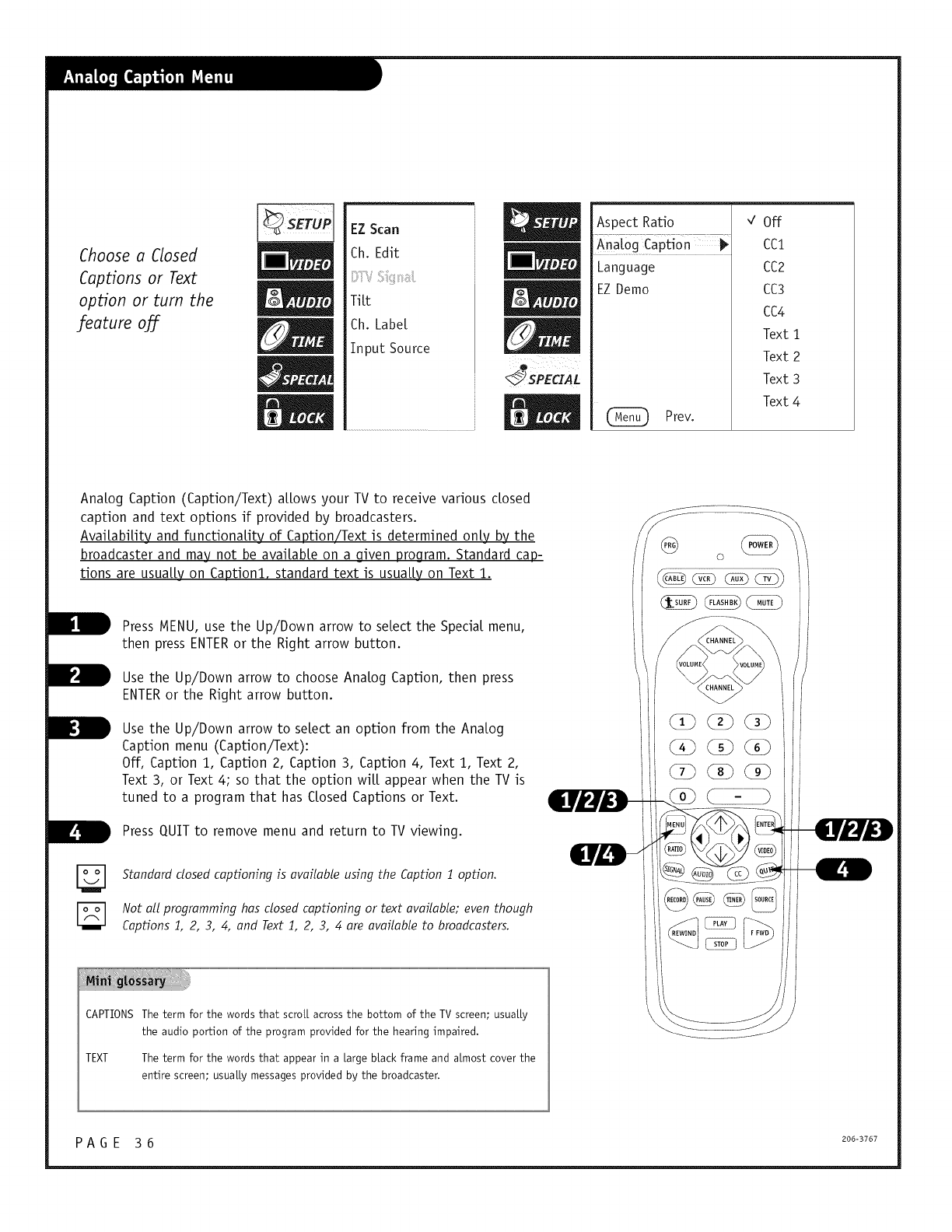
Choosea Closed
Captions or Text
option or turn the
feature oj_
EZ Scan
Ch. Edit
Titt
Ch. Labe[
Input Source
SPECIAL
Aspect Ratio
AnaLog Caption i_
Language
EZ Demo
C_ Prev.
,/ Off
CQ
CC2
CC3
CC4
Text 1
Text 2
Text 3
Text 4
Anatog Caption (Caption/Text) arrows your TV to receive various dosed
caption and text options if provided by broadcasters.
Avaitabitity and functionatity of Caption!Text is determined onty by the
broadcaster and may not be avaitabte on a given program. Standard cap-
tions are usuatty on Caption1, standard text is usuatty on Text 1.
Press IvlENU, use the Up/Down arrow to setect the Specia[ menu,
then press ENTERor the Right arrow button.
Use the Up/Down arrow to choose Ana[og Caption, then press
ENTERor the Right arrow button.
Use the Up/Down arrow to se[ect an option from the Ana[og
Caption menu (Caption/Text):
Off, Caption 1, Caption 2, Caption 3, Caption 4, Text 1, Text 2,
Text 3, or Text 4; so that the option wi[[ appear when the TV is
tuned to a program that has C[osed Captions or Text.
Press QUIT to remove menu and return to TV viewing.
Standard closed captioning is available using the Caption 1 option.
Not all programming has closed captioning or text available; even though
Captions 1, 2, 3, 4, and Text 1, 2, 3, 4 are available to broadcasters.
CAPTIONS The term for the words that scroll across the bottom of the TV screen; usua[[y
the audio portion of the program provided for the hearing impaired.
TEXT The term for the words that appear in a [arge black frame and almost cover the
entire screen; usua[[y messages provided by the broadcaster.
P A G E 3 6 206-3767
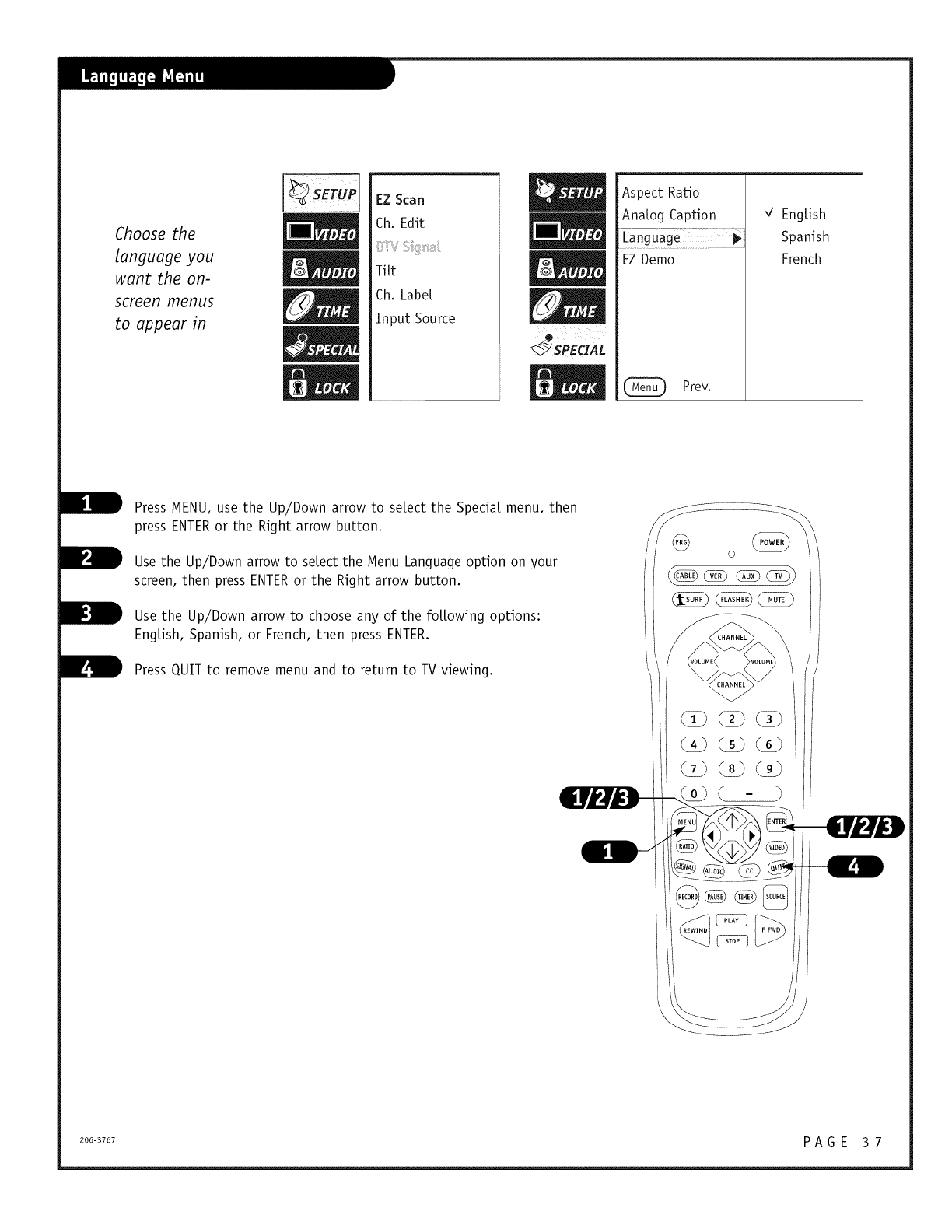
Choose the
language you
want the on-
screen menus
to appear in
EZ Scan
Ch. Edit
Ti Lt
Ch. Label
Input Source
Aspect Ratio
AnaLog Caption
Lang
EZ Demo
Prev.
'/ EngLish
Spanish
French
Press MENU, use the Up/Down arrow to select the Special menu, then
press ENTERor the Right arrow button.
Use the Up/Down arrow to select the Menu Language option on your
screen, then press ENTERor the Right arrow button.
Use the Up/Down arrow to choose any of the foLLowing options:
EngLish, Spanish, or French, then press ENTER.
Press QUIT to remove menu and to return to TV viewing.
2oo-37o7 P A G E 3 7
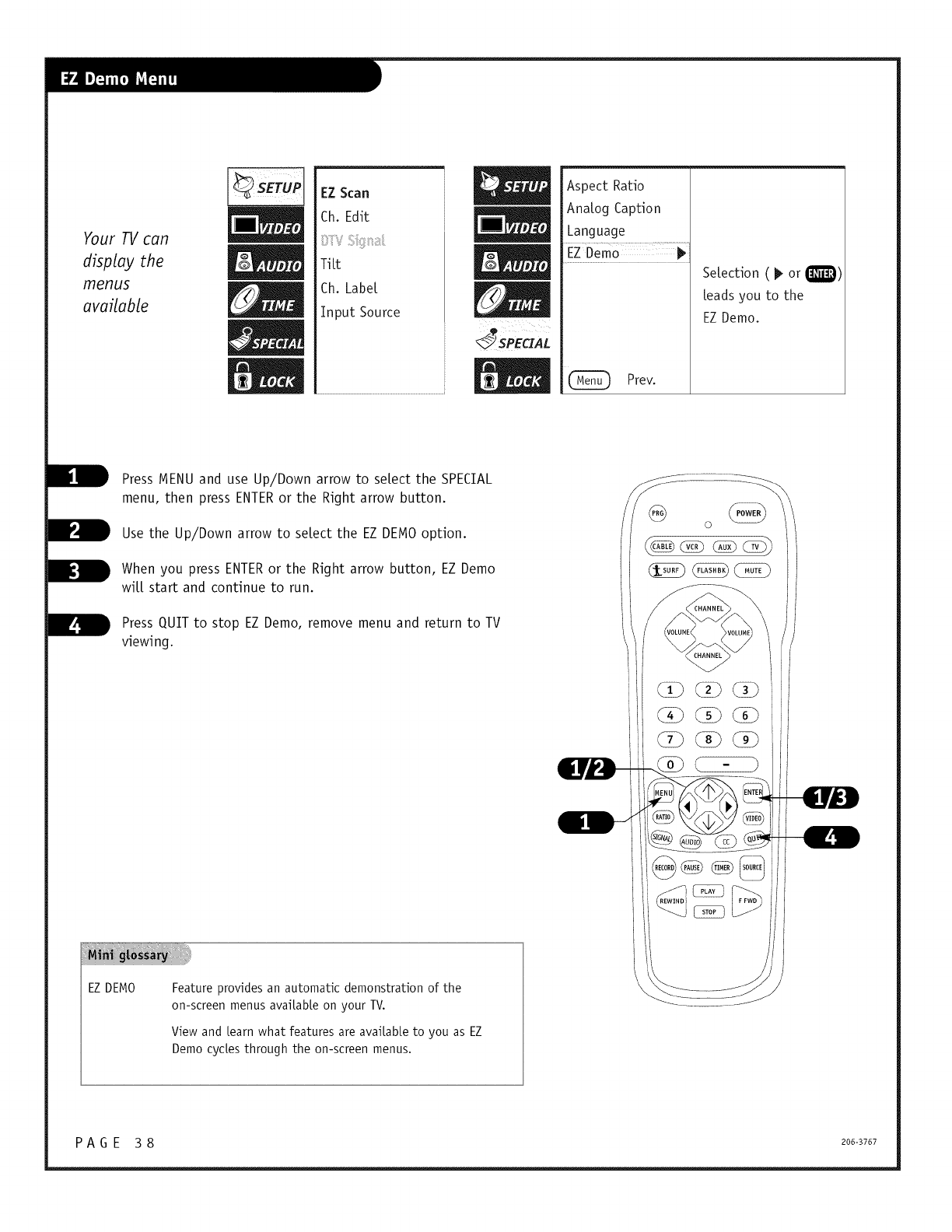
Your _can
display the
menus
available
EZ Scan
Ch. Edit
TiLt
Ch. Label
Input Source
SPEaAL
Aspect Ratio
AnaLog Caption
Language
EZDem0
(_ Prev.
SeLection ( I_ or Q)
Leadsyou to the
EZDemo.
Press MENU and use Up/Down arrow to select the SPECIAL
menu, then press ENTERor the Right arrow button.
Use the Up/Down arrow to select the EZ DEMOoption.
When you press ENTERor the Right arrow button, EZ Demo
wiLL start and continue to run.
Press QUIT to stop EZ Demo, remove menu and return to TV
viewing.
EZDEMO Feature provides an automatic demonstration of the
on-screen menus avaiLabLe on your TV.
View and [earn what features are available to you as EZ
Democyclesthrough the on-screen menus.
PAG E 38 2o6-3767
If used, this optional feature can "block" undesirable programming from appearing on the TV.
Note: Lock, is also known and referred to in the text as Parental Control. To block specific source inputs,
use the AUX. Block options. Lock options are available by country: USA and Canada. Lock options are
also available with TV Ratings for English and TV Ratings for French. Block individual channels if desired.
Lock/ParentaL Control offers the user a wide variety of options and settings that restrict or "bLock" the programming that
can appear on the TV. Parental control aLLows the user the capability of defining which program rating they consider
acceptable, to the younger or more sensitive viewer. It can be preset and turned either on or off by the user who speci-
fies the secret 4-number code, the password. General audience and children viewer blocks should both be programmed
into the TV's memory. Viewer ratings are specified for both TV and the motion picture industry; both rating systems
should be used, for complete coverage. The ratings are based mainly on children's ages.
Overview
To insure complete coverage for aLLTV programs, (movies and regular TV shows) choose a rating for MPAA, from the seLec-
tions AND choose ratings from the TV Parental Guidelines Rating System, using the Age Block option for General
Audiences, and for Children. In addition to those, you may wish to add additional restrictions from viewing certain chan-
nels. See the Lock menu, and submenus example on the foLLowing pages.
Things to Consider before Setting Up Lock (Parental Control)
• Determine which rating you consider acceptable to the viewer. (For example, if you choose TV-PG, at[ more restrictive
ratings wilt be automaticaLLy blocked; the viewer wilt not be able to see: TV-PG, TV-14, or TV-MA rated programming.)
• Do you want to block the auxiliary video sources? (BLocks the signal sent by the equipment, such as a VCR, connected
to the TV Audio/Video input jacks; in the Aux. BLock option.) Or Leave unbtocked, but choose aLLowabLeratings.
• In the TV Rating-GeneraL option, block program "Content" based on individual parameters such as: Age, DiaLog,
Language, Sex, VioLence, or in the TV Rating-ChiLdren option: Fantasy VioLence.
• SeLect a secret password; in the Set Password option. Use the number keys on the remote. Don't forget the password, it
is the only way you can access the Lock menu and change rating selections, or turn Lock off.
• Do you want Lock to be active all the time? Tf not, you can turn it on or off; with the Lock On/Off option.
[_ You can set different Parental Control viewing restric-
tions for general audiences and for children - - both can
be active at the same time.
[_ Simply specifying one content block such as Sex, will not
automatically block another content in the programs
from appearing.
[_ Even _you choose to leave the Aux source inputs unblocked,
the ratings you specify wilt automatically restrict the pro-
gramming that appears from the video sources.
[_ You cannot disable Lock by disconnecting the TVfrom power.
Lock will automatically reset if power is disconnected.
200-3707 P A G E 3 9
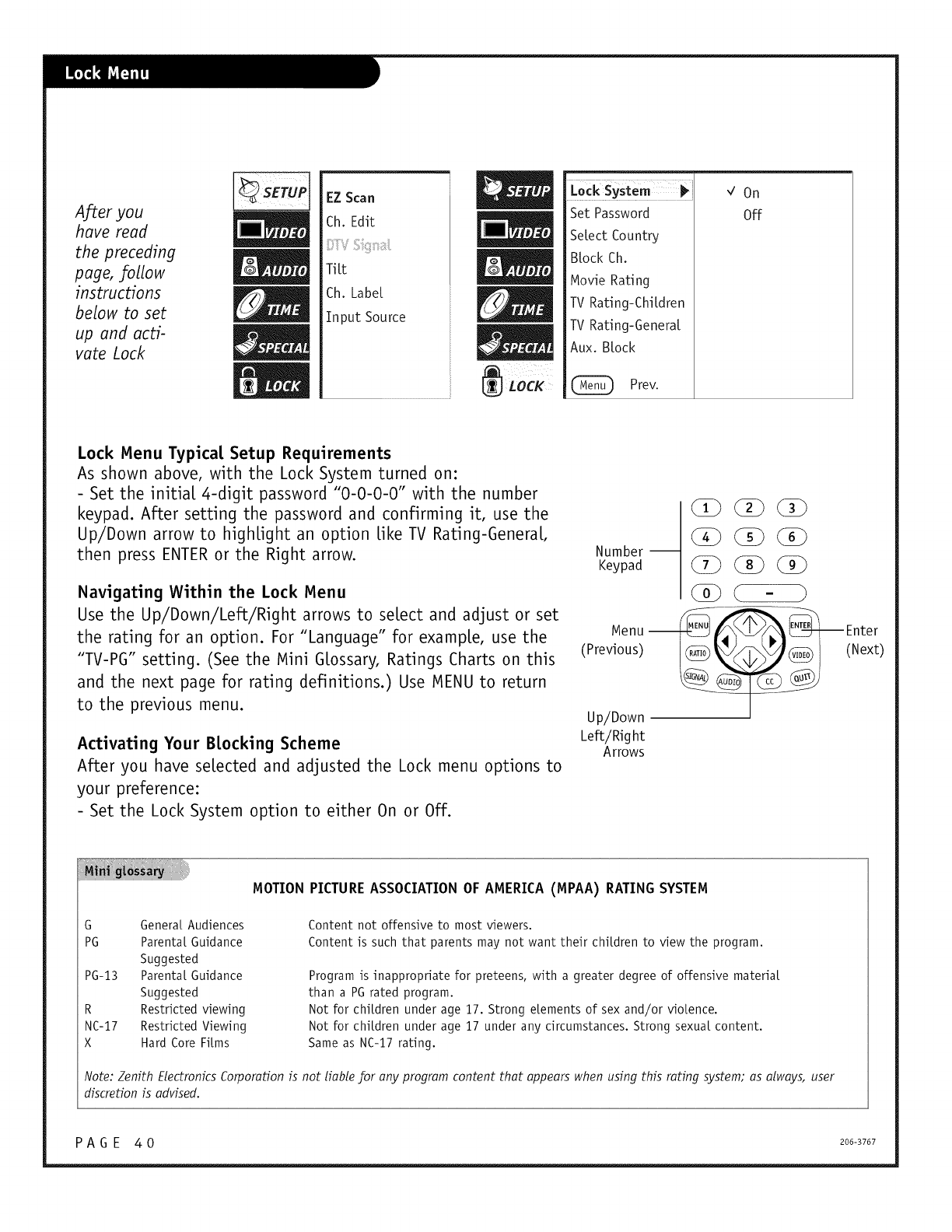
After you
have read
the preceding
page, follow
instructions
below to set
up and acti-
vate Lock
EZ Scan
Ch. Edit
TiLt
Ch. Label
Input Source
i isly
Set Password
SeLect Country
BLock Ch.
Movie Rating
TV Rating-ChiLdren
TV Rating-GeneraL
Aux. BLock
Prev.
On
Off
Lock Menu Typicat Setup Requirements
As shown above, with the Lock System turned on:
- Set the initiat 4-digit password "0-0-0-0" with the number
keypad. After setting the password and confirming it, use the
Up/Down arrow to hightight an option tike TV Rating-GeneraL
then press ENTER or the Right arrow.
Navigating Within the Lock Menu
Use the Up/Down/Left/Right arrows to setect and adjust or set
the rating for an option. For "Language" for exampte, use the
"TV-PG" setting. (See the Mini Gtossary, Ratings Charts on this
and the next page for rating definitions.) Use MENU to return
to the previous menu.
Activating Your Btocking Scheme
After you have setected and adjusted the Lock menu options to
your preference:
- Set the Lock System option to either On or Off.
Number --
Keypad
Menu i
(Previous)
Up/Down
Left/Right
Arrows
(Next)
MOTION PICTURE ASSOCIATION OF AMERICA (MPAA) RATING SYSTEM
G Genera[ Audiences
PG Parentat Guidance
Suggested
PG-13 Parentat Guidance
Suggested
R Restricted viewing
NC-17 Restricted Viewing
X Hard Core Firms
Content not offensive to most viewers.
Content is such that parents may not want their children to view the program.
Program is inappropriate for preteens, with a greater degree of offensive materiat
than a PGrated program.
Not for children under age 17. Strong elements of sex and/or violence.
Not for children under age 17 under any circumstances. Strong sexual content.
Sameas NC-17 rating.
Note: Zenith Electronics Corporation is not liable for any program content that appears when using this rating system; as always, user
discretion is advised.
P A G E 4 0 206-3767
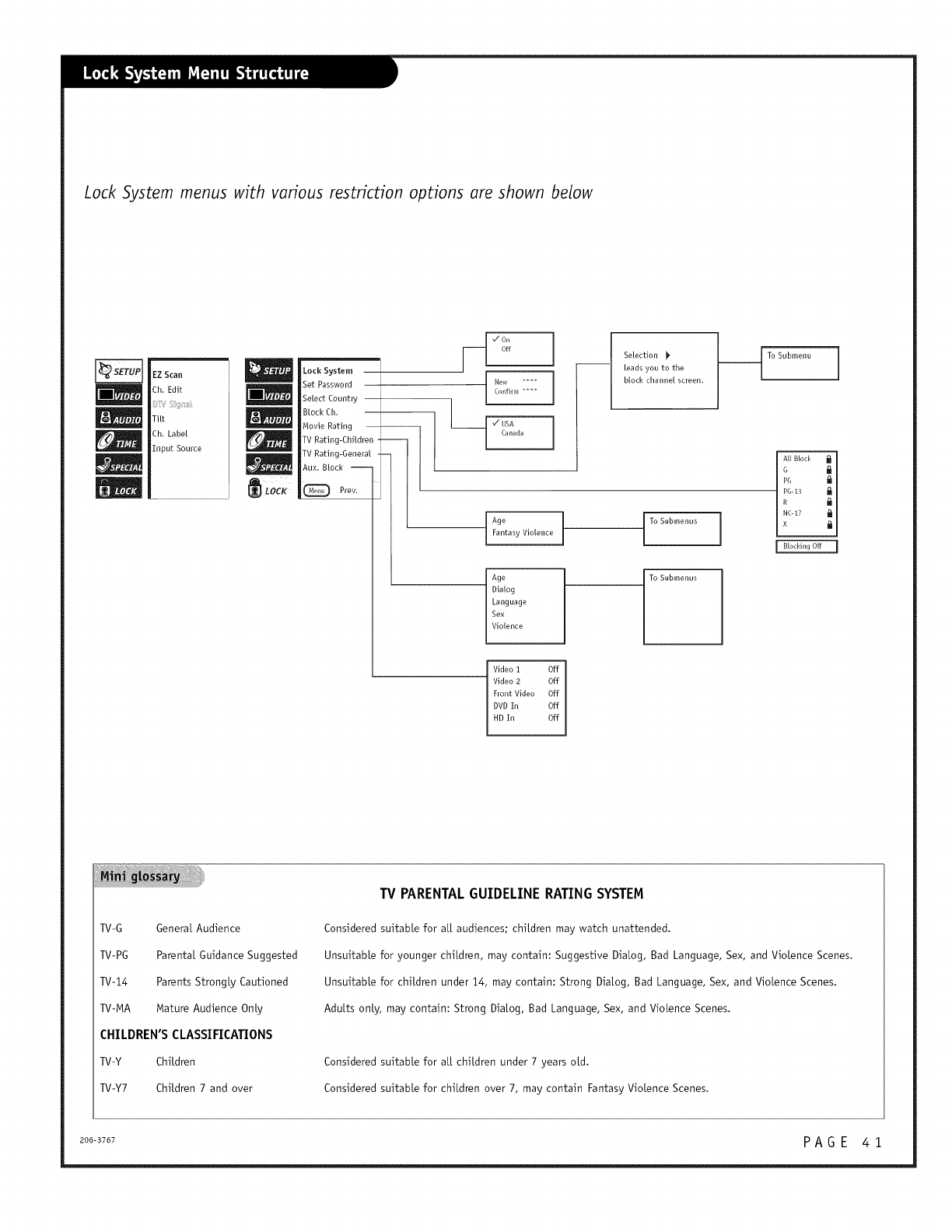
Lock System menus with various restriction options are shown below
EZScan
Ch_ Edit
Tilt
Ch, Label
Input Source
|m
Lock System
Set Password
Select Country
Brock Ch,
Movie Rating --
TV Rating-Children
TV Rating-General
Aux. Brock --
Prey,
[___[ ,/On
Off
_ New ....
CoHfirm
_/_USA
-- I I (anada
]
1
1
Age
Fantasy Violence
Age
Dialog
Language
Sex
Violence
Video i Off
Video 2 Off
Front Video Off
DVD In Off
HD In Off
Selection
leads you to the
block channel screen.
To Submenus ]
To Submenus
TV-G Genera[ Audience
TV-PG Parental Guidance Suggested
TV-14 Parents Strongly Cautioned
TV-MA Mature Audience Only
CHILDREN'S CLASSIFICATIONS
TV-Y Chitdren
TV-Y7 Children 7 and over
TV PARENTAL GUIDELINE RATING SYSTEM
Considered suitable for at[ audiences; chitdren may watch unattended.
Unsuitable for younger chitdren, may contain: Suggestive Dialog, Bad Language, Sex, and Viotence Scenes.
Unsuitable for chitdren under 14, may contain: Strong Dialog, Bad Language, Sex, and Violence Scenes.
Adults only, may contain: Strong Dialog, Bad Language, Sex, and Violence Scenes.
Considered suitable for at[ chitdren under 7 years old.
Considered suitable for chitdren over 7, may contain Fantasy Viotence Scenes.
206-3767 P A G E 4 1
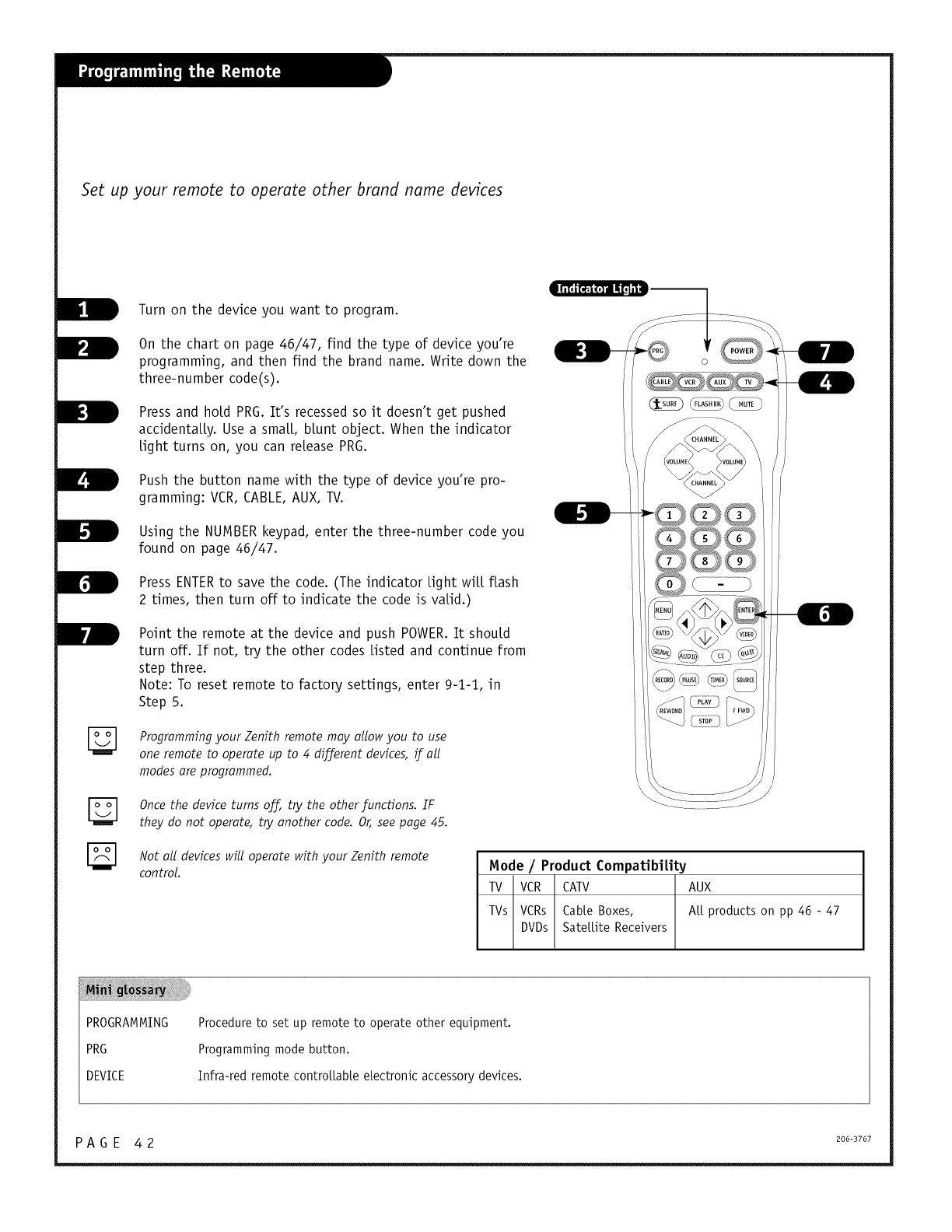
Set up your remote to operate other brand name devices
Turn on the device you want to program.
On the chart on page 46/47, find the type of device you're
programming, and then find the brand name. Write down the
three-number code(s).
Press and hold PRG. It's recessed so it doesn't get pushed
accidentaLLy. Use a smaLL,blunt object. When the indicator
Light turns on, you can release PRG.
Push the button name with the type of device you're pro-
gramming: VCR, CABLE, AUX, TV.
Using the NUMBER keypad, enter the three-number code you
found on page 46/47.
Press ENTERto save the code. (The indicator Light wiLL flash
2 times, then turn off to indicate the code is valid.)
Point the remote at the device and push POWER.It should
turn off. If not, try the other codes Listed and continue from
step three.
Note: To reset remote to factory settings, enter 9-1-1, in
Step 5.
Programming your Zenith remote may allow you to use
one remote to operate up to 4 different devices, if all
modes are programmed.
Once the device turns off, to' the other functions. IF
they do not operate, to" another code. Or, see page 45.
Not all devices will operate with your Zenith remote
control. Mode /Product Compatibility
TV VCR CAW AUX
TVs VCRs CabLeBoxes, At[ products on pp 46 - 47
DVDs SateLLiteReceivers
PROGRAMMING
PRG
DEVICE
Procedure to set up remote to operate other equipment.
Programming mode button.
Infra-red remote controLLabLe electronic accessory devices.
PAG E 42 200-3707
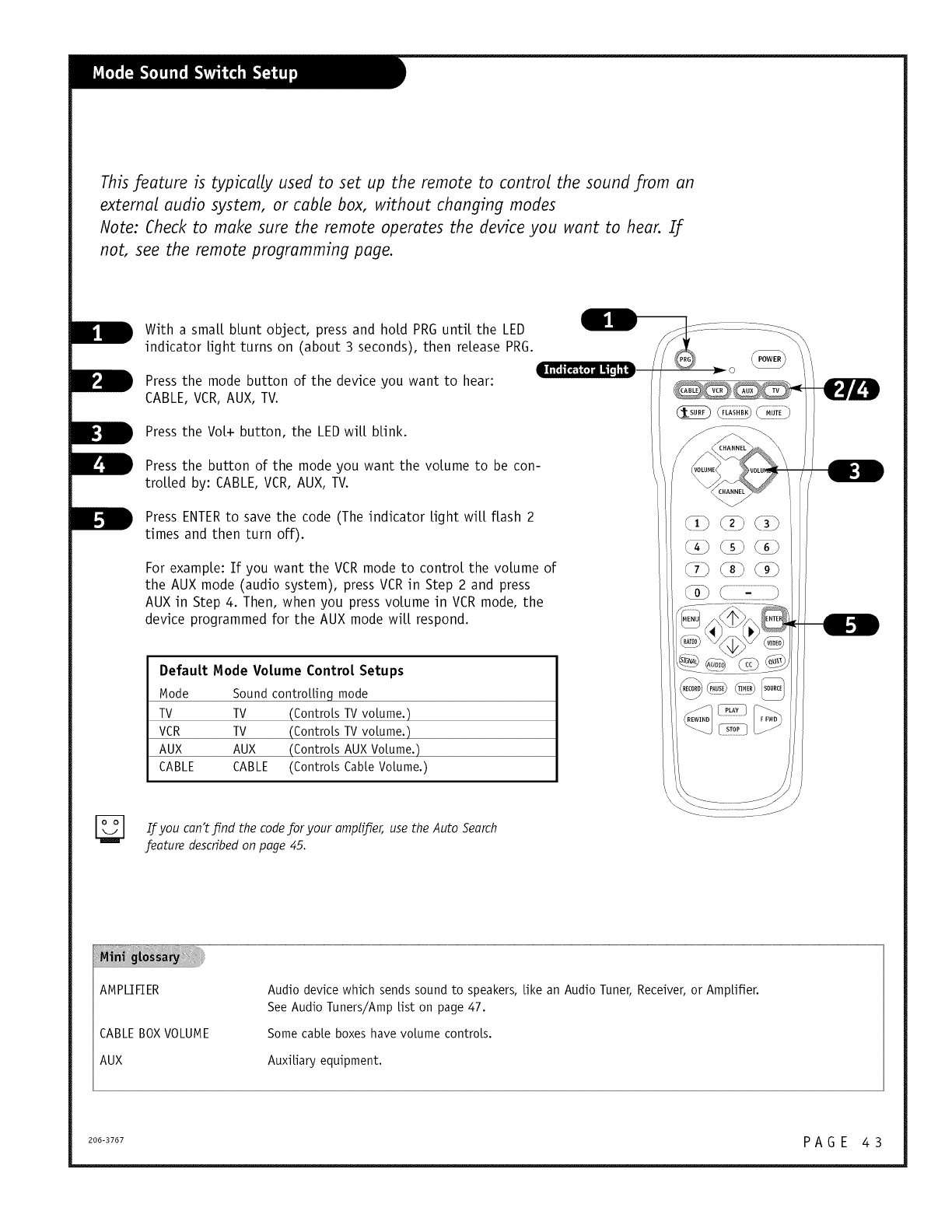
This feature is typically used to set up the remote to control the sound from an
external audio system, or cable box, without changing modes
Note: Check to make sure the remote operates the device you want to hear. If
not, see the remote programming page.
With a smaLLblunt object, press and hold PRG until the LED
indicator Light turns on (about 3 seconds), then release PRG.
Press the mode button of the device you want to hear:
CABLE, VCR, AUX, TV.
Press the Vot+ button, the LED will blink.
Press the button of the mode you want the volume to be con-
troLLed by: CABLE, VCR, AUX, TV.
Press ENTERto save the code (The indicator tight wilt flash 2
times and then turn off).
For example: If you want the VCRmode to control the volume of
the AUX mode (audio system), press VCRin Step 2 and press
AUX in Step 4. Then, when you press volume in VCR mode, the
device programmed for the AUX mode will respond.
Default Mode Volume Control Setups
Mode Sound controttinq mode
TV TV (Controls TV volume.)
VCR TV (Controls TV volume.)
AUX AUX (Controls AUX Volume.)
CABLE CABLE (Controls Cable Volume.)
PLAY
[_ If you can't Jfnd for your ampl_'er, use
the code the Auto Search
feature describedon page 45.
AMPLIFIER
CABLE BOX VOLUME
AUX
Audio device which sends sound to speakers, like an Audio Tuner, Receiver, or Amplifier.
See Audio Tuners/Amp list on page 47.
Some cable boxes have volume controls.
Auxiliary equipment.
200-3707 P A G E 4 3
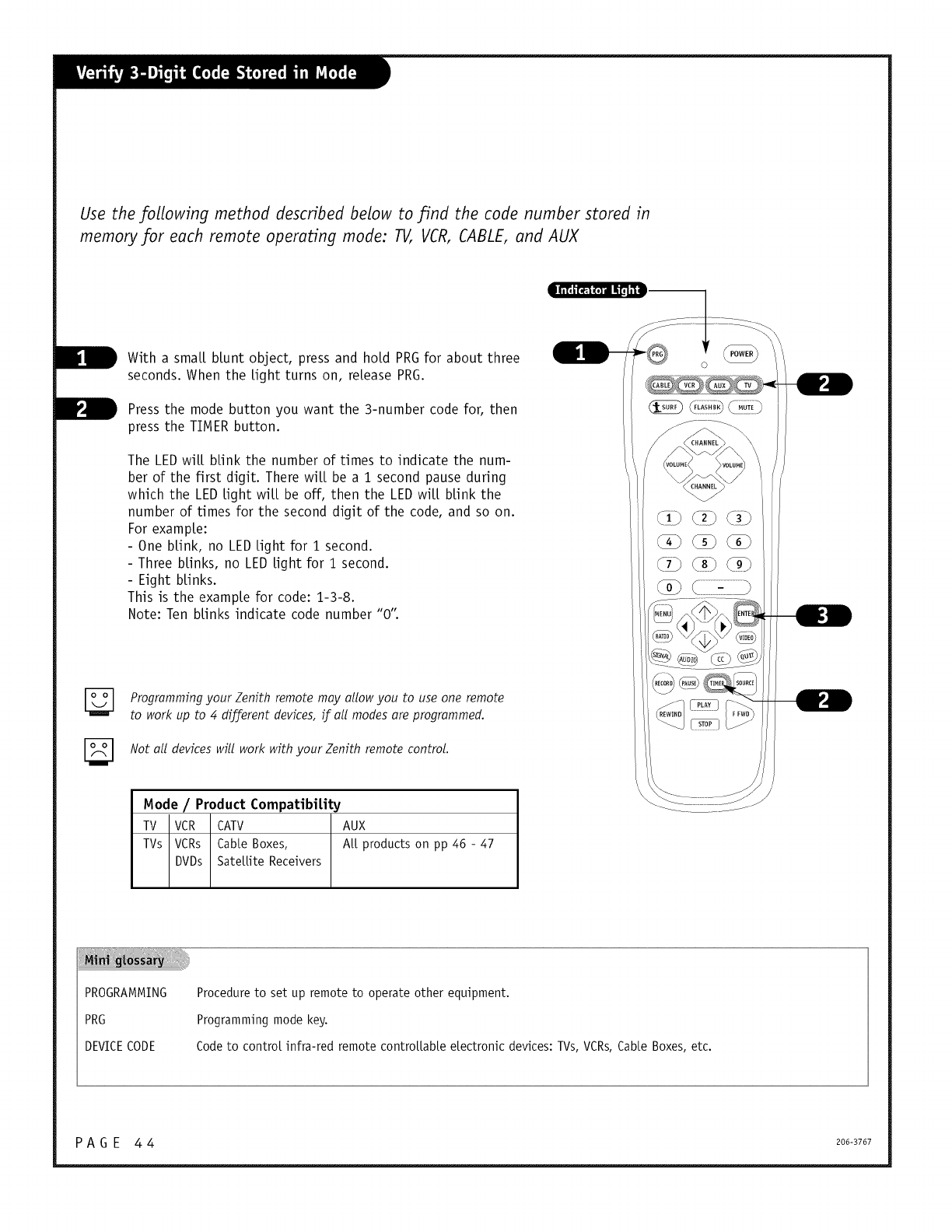
Use the following method described below to find the code number stored in
memory for each remote operating mode: 11/, VCR, CABLE, and AUX
With a smaLLblunt object, press and hold PRGfor about three
seconds. When the Light turns on, release PRG.
Press the mode button you want the 3-number code for, then
press the TTMERbutton.
The LED wilt blink the number of times to indicate the num-
ber of the first digit. There wiLL be a i second pause during
which the LED Light wiLL be off, then the LED wiLL blink the
number of times for the second digit of the code, and so on.
For example:
- One blink, no LED Light for i second.
- Three blinks, no LED Light for i second.
- Eight blinks.
This is the example for code: i-3-8.
Note: Ten blinks indicate code number "0';
Programming your Zenith remote may allow you to use one remote
to work up to 4 different devices, if all modes are programmed.
Not all devices will work with your Zenith remote control.
Mode /Product Compatibitity
TV VCR CATV AUX
TVs VCRs CabLeBoxes, Art products on pp 46 - 47
DVDs SateLLiteReceivers
PROGRAMMING
PRG
DEVICECODE
Procedure to set up remote to operate other equipment.
Programming mode key.
Code to controt infra-red remote controttabte etectronic devices: TVs, VCRs, Cabte Boxes, etc.
PAGE 44 206-3767
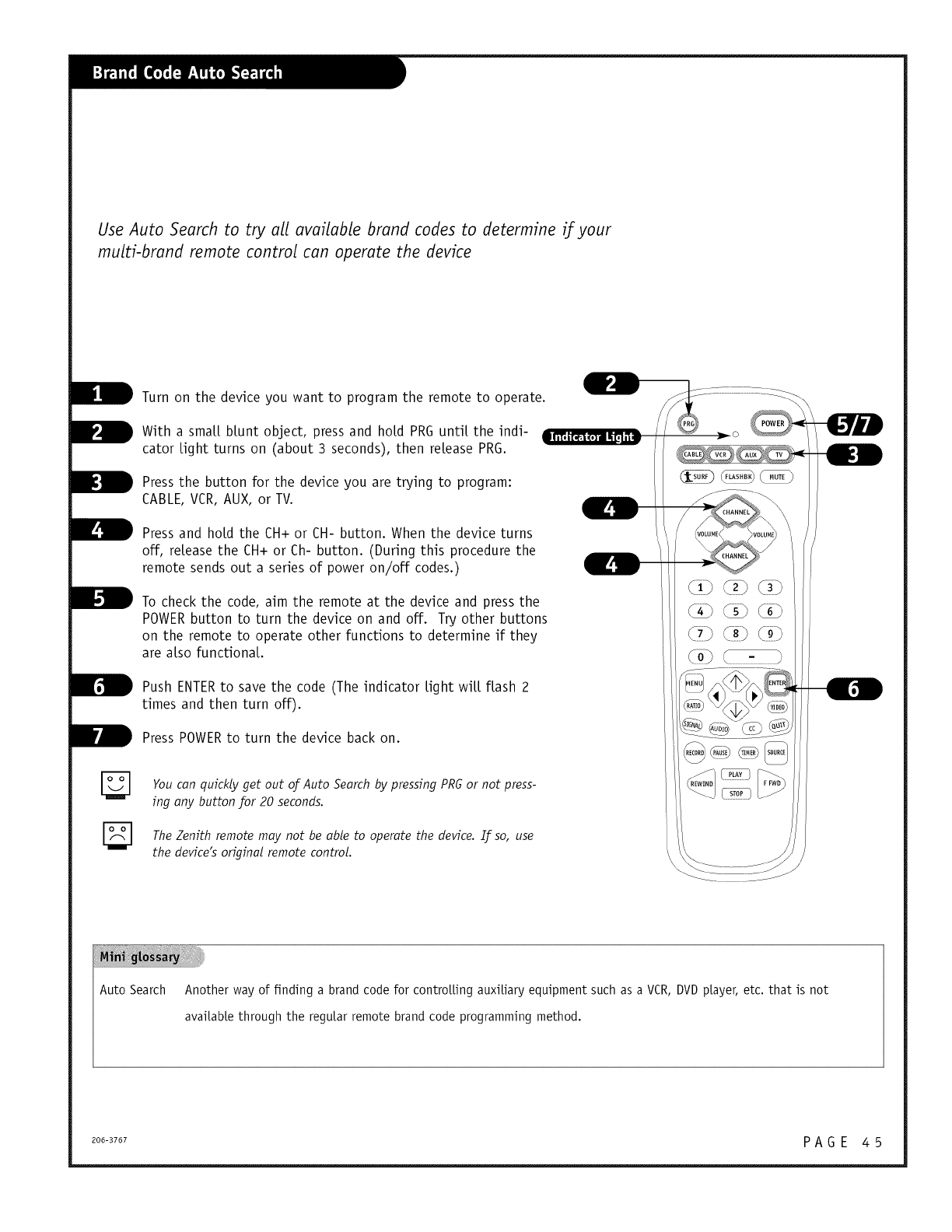
Use Auto Search to try all available brand codes to determine if your
multi-brand remote control can operate the device
Turn on the device you want to program the remote to operate. __:::-:--::: ::::_:::_
//
With a small blunt object, press and hold PRGuntil the indi- _ // <_ ___o
cator tight turns on (about 3seconds), then retease PRO. !
Press the button for the device you are trying to program: _ _
CABLE, VCR, AUX, or TV.
Press and hotd the CH+ or CH- button. When the device turns
off, release the CH+ or Ch- button. (During this procedure the
remote sends out a series of power on/off codes.)
To check the code, aim the remote at the device and press the
POWERbutton to turn the device on and off. Try other buttons
on the remote to operate other functions to determine if they
are atso functional
Push ENTERto save the code (The indicator tight writ flash 2
times and then turn off).
Press POWERto turn the device back on.
You can quickly get out o_ Auto Search by pressing PR6 or not press-
ing any button for 20 seconds.
The Zenith remote may not be able to operate the device. If so, use
the device's original remote control.
Auto Search Another way of finding a brand code for controlling auxiliary equipment such as a VCR,DVDplayer, etc. that is not
available through the regular remote brand code programming method.
200-3707 P A G E 4 5
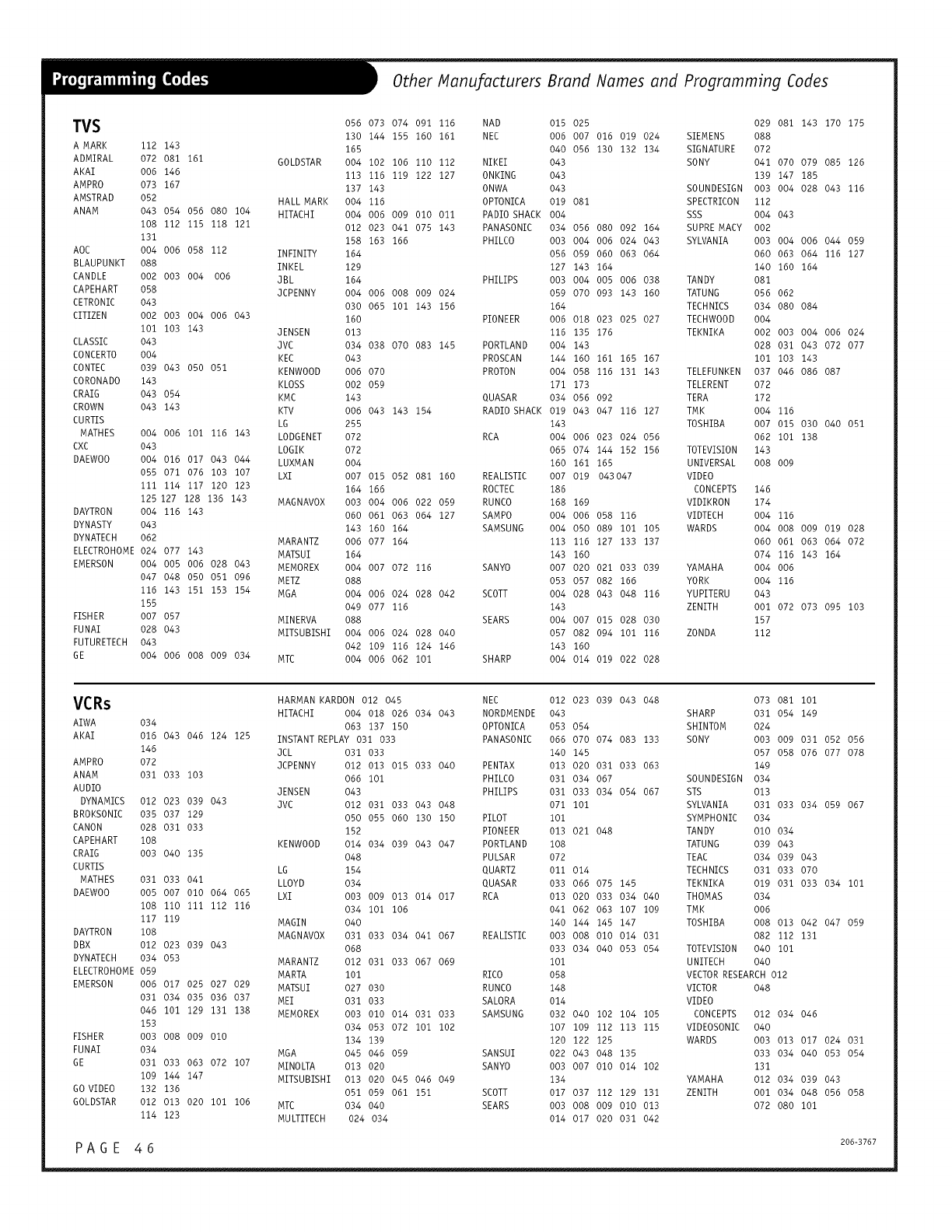
Other Manu/acturers Brand Names and Programming Codes
TVS 056 073 074 091 116 NAD 015 025 029 081 143 170 175
130 144 155 160 161 NEC 006 007 016 019 024 SIEMENS 088
A MARK 112 143 165 040 056 130 132 134 SIGNATURE 072
ADMIRAL 072 081 161 GOLDSTAR 004 102 106 ii0 112 NIKEI 043 SONY 041 070 079 085 126
AKAI 006 146 113 116 119 122 127 ONKING 043 139 147 185
AMPRO 073 167 137 143 ONWA 043 SOUNDESIGN 003 004 028 043 116
AMSTRAD 052 HALL MARK 004 116 OPTONICA 019 081 SPECTRICON 112
ANAM 043 054 056 080 104 HITACHI 004 006 009 OlO Oll PADIO SHACK 004 SSS 004 043
108 112 115 118 121 012 023 041 075 143 PANASONIC 034 056 080 092 164 SUPREMACY 002
131 158 163 166 PHILCO 003 004 006 024 043 SYLVANIA 003 004 006 044 059
AOC 004 006 058 112 INFINITY 164 056 059 060 063 064 060 063 064 116 127
BLAUPUNKT 088 INKEL 129 127 143 164 140 160 164
CANDLE 002 003 004 006 JBL 164 PHILIPS 003 004 005 006 038 TANDY 081
CAPEHART 058 JCPENNY 004 006 008 009 024 059 070 093 143 160 TATUNG 056 062
CETRONIC 043 OBO 065 iOl 143 156 164 TECHNICS 034 080 084
CITIZEN 002 003 004 006 043 160 PIONEER 006 018 023 025 027 TECHWOOD 004
iOl 103 143 JENSEN 013 116 135 176 TEKNIKA 002 003 004 006 024
CLASSIC 043 JVC 034 038 070 083 145 PORTLAND 004 143 028 031 043 072 077
CONCERTO 004 KEC 043 PROSCAN 144 160 161 165 167 i01 103 143
CONTEC 039 043 050 051 KENWOOD 006 070 PROTON 004 058 116 131 143 TELEFUNKEN 037 046 086 087
CORONADO 143 KLOSS 002 059 171 173 TELERENT 072
CRAIG 043 054 KMC 143 QUASAR 034 056 092 TERA 172
CROWN 043 143 KTV 006 043 143 154 RADIO SHACK 019 043 047 116 127 TMK 004 116
CURTIS LG 255 143 TOSHIBA 007 015 030 040 051
MATHES 004 006 i01 116 143 LODGENET 072 RCA 004 006 023 024 056 062 i01 138
CXC 043 LOGIK 072 065 074 144 152 156 TOTEVISION 143
DAEWOO 004 016 017 043 044 LUXMAN 004 160 161 165 UNIVERSAL 008 009
055 071 076 103 107 LXl 007 015 052 081 160 REALISTIC 007 019 043 047 VIDEO
iii 114 117 120 123 164 166 ROCTEC 186 CONCEPTS 146
125127 128 136 143 MAGNAVOX 003 004 006 022 059 RUNCO 168 169 VIDIKRON 174
DAYTRON 004 116 143 060 061 063 064 127 SAMPO 004 006 058 116 VIDTECH 004 116
DYNASTY 043 143 160 164 SAMSUNG 004 050 089 i01 105 WARDS 004 008 009 019 028
DYNATECH 062 MARANTZ 006 077 164 113 116 127 133 137 060 061 063 064 072
ELECTROHOME 024 077 143 MATSUI 164 143 160 074 116 143 164
EMERSON 004 005 006 028 043 MEMOREX 004 007 072 116 SANYO 007 020 021 033 039 YAMAHA 004 006
047 048 050 051 096 METZ 088 053 057 082 166 YORK 004 116
116 143 151 153 154 MGA 004 006 024 028 042 SCOTT 004 028 043 048 116 YUPITERU 043
155 049 077 116 143 ZENITH DO1 072 073 095 103
FISHER 007 057 MINERVA 088 SEARS 004 007 015 028 030 157
FUNAI 028 043 MITSUBISHI 004 006 024 028 040 057 082 094 i01 116 ZONDA 112
FUTURETECH 043 042 109 116 124 146 143 160
GE 004 006 008 009 034 MTC 004 006 062 i01 SHARP 004 014 019 022 028
VCRs HARMAN KARDON 012 045 NEC 012 023 039 043 048
HITACHI 004 018 026 034 043 NORDMENDE 043
AIWA 034 063 137 150 OPTONICA 053 054
AKAI 016 043 046 124 125 INSTANT REPLAY 031 033 PANASONIC 066 070 074 083 133
146 JCL 031 033 140 145
AMPRO 072 JCPENNY 012 013 015 033 040 PENTAX 013 020 031 033 063
ANAM 031 033 103 066 101 PHILCO 031 034 067
AUDIO JENSEN 043 PHILIPS 031 033 034 054 067
DYNAMICS 012 023 039 043 JVC 012 031 033 043 048 071 i01
BROKSONIC 035 037 129 050 055 060 130 150 PILOT i01
CANON 028 031 033 152 PIONEER 013 021 048
CAPEHART 108 KENWOOD 014 034 039 043 047 PORTLAND 108
CRAIG 003 040 135 048 PULSAR 072
CURTIS LG 154 QUARTZ Oll 014
MATHES 031 033 041 LLOYD 034 QUASAR 033 066 075 145
DAEWOO 005 007 OlO 064 065 LXl 003 009 013 014 017 RCA 013 020 033 034 040
108 ii0 iii 112 116 034 i01 106 041 062 063 107 109
117 119 MAGIN 040 140 144 145 147
DAYTRON 108 MAGNAVOX 031 033 034 041 067 REALISTIC 003 008 010 014 031
DBX 012 023 039 043 068 033 034 040 053 054
DYNATECH 034 053 MARANTZ 012 031 033 067 069 101
ELECTROHOME 059 MARTA iOl RICO 058
EMERSON 006 017 025 027 029 MATSUI 027 030 RUNCO 148
031 034 035 036 037 MEI 031 033 SALORA 014
046 lO1 129 131 138 MEMOREX 003 OlD 014 031 033 SAMSUNG 032 040 102 104 105
153 034 053 072 101 102 107 109 112 113 115
FISHER 003 008 009 010 134 139 120 122 125
FUNAI 034 MGA 045 046 059 SANSUI 022 043 048 135
GE 031 033 063 072 107 MINOLTA 013 020 SANYO 003 007 010 014 102
109 144 147 MITSUBISHI 013 020 045 046 049 134
GO VIDEO 132 136 051 059 061 151 SCOTT 017 037 112 129 131
GOLDSTAR 012 013 020 101 106 MTC 034 040 SEARS 003 008 009 OlO 013
114 123 MULTITECH 024 034 014 017 020 031 042
SHARP
SHINTOM
SONY
SOUNDESIGN
STS
SYLVANIA
SYMPHONIC
TAN DY
TATUNG 039
TEAC 034
TECHNICS 031
TEKNIKA 019
THOMAS 034
TMK 006
TOSHIBA 008
082
TOTEVISION 040
UNITECH 040
073 081 i01
031 054 149
024
003 009 031 052 056
057 058 076 077 078
149
034
013
031 033 034 059 067
034
010 034
043
039 043
033 070
031 033 034 iOl
013 042 047 059
112 131
i01
VECTOR RESEARCH
VICTOR
VIDEO
CONCEPTS
VIDEOSONIC
WARDS
YAMAHA
ZENITH
012
O48
012 034 046
O4O
003 013 017 024 031
033 034 040 053 054
131
012 034 039 043
OOl 034 048 056 058
072 080 101
PAGE 46 206-3767
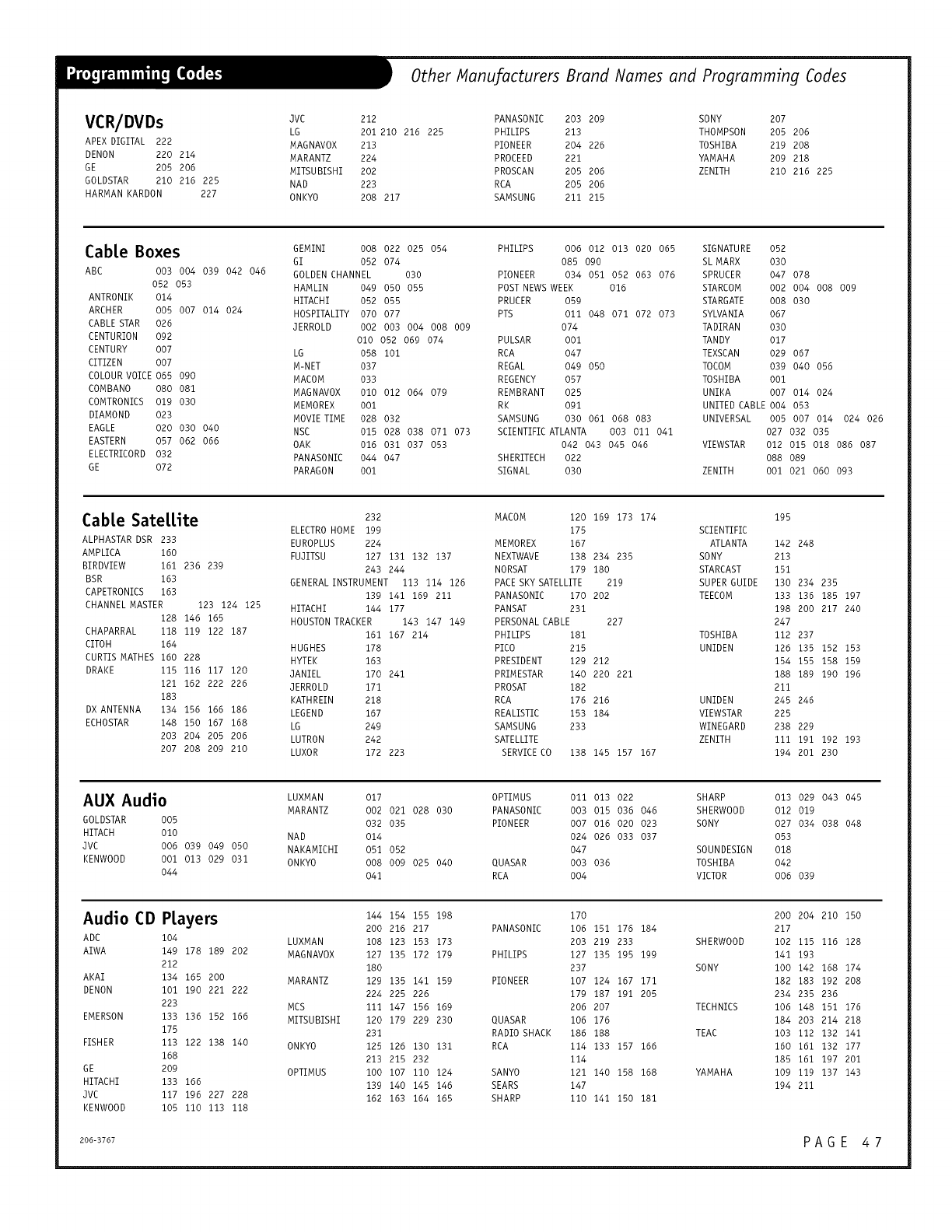
Other Manufacturers Brand Names and Programming Codes
VCR/DVDs
APEX DIGITAL 222
DENON 220 214
GE 205 206
GOLDSTAR 210 216 225
HARMAN KARDON 227
JVC 212
LG 201 210 216 225
MAGNAVOX 213
MARANTZ 224
MITSUBISHI 202
NAD 223
ONKYO 208 217
PANASONIC 203 209 SONY 207
PHILIPS 213 THOMPSON 205 206
PIONEER 204 226 TOSHIBA 219 208
PROCEED 221 YAMAHA 209 218
PROSCAN 205 206 ZENITH 210 216 225
RCA 205 206
SAMSUNG 211 215
Cab[e Boxes
ABC
ANTRONIK
ARCHER
CABLE STAR
CENTURION 092
CENTURY 007
CITIZEN 007
COLOUR VOICE 065
COMBANO 080
COMTRONICS 019
DIAMOND 023
EAGLE 020
EASTERN 057
ELECTRICORD 032
GE 072
003 004 039 042 046
052 053
014
005 007 014 024
026
090
081
O3O
030 040
062 066
GEMINI 008 022 025 054
GI 052 074
GOLDEN CHANNEL 030
HAMLIN 049 050 055
HITACHI 052 055
HOSPITALITY 070 077
JERROLD 002 003 004 008 009
010 052 069 074
LG 058 101
M-NET 037
MACOM 033
MAGNAVOX 010 012 064 079
MEMOREX 001
MOVIE TIME 028 032
NSC 015 028 038 071 073
OAK 016 031 037 053
PANASONIC 044 047
PARAGON 001
PHILIPS 006 012 013 020 065 SIGNATURE 052
085 090 SL MARX 030
PIONEER 034 051 052 063 076 SPRUCER 047 078
POST NEWS WEEK 016 STARCOM 002 004 008 009
PRUCER 059 STARGATE 008 030
PTS 011 048 071 072 073 SYLVANIA 067
074 TADIRAN 030
PULSAR 001 TANDY 017
RCA 047 TEXSCAN 029 067
REGAL 049 050 TOCOM 039 040 056
REGENCY 057 TOSHIBA 001
REMBRANT 025 UNIKA 007 014 024
RK 091 UNITED CABLE 004 053
SAMSUNG 030 061 068 083 UNIVERSAL 005 007 014 024 026
SCIENTIFIC ATLANTA 003 011 041 027 032 035
042 043 045 046 VIEWSTAR 012 015 018 086 087
SHERITECH 022 088 089
SIGNAL 030 ZENITH 001 021 060 093
Cab[e Sate[[ite
ALPHASTAR DSR 233
AMPLICA 160
BIRDVIEW 161 236 239
BSR 163
CAPETRONICS 163
CHANNEL MASTER 123 124 125
128 146 165
CHAPARRAL 118 119 122 187
CITOH 164
CURTIS MATHES 160 228
DRAKE 115 116 117 120
121 162 222 226
183
DX ANTENNA 134 156 166 186
ECHOSTAR 148 150 167 168
203 204 205 206
207 208 209 210
232
ELECTRO HOME 199
EUROPLUS 224
FUJITSU 127 131 132 137
243 244
GENERALINSTRUMENT 113 114 126
139 141 169 211
HITACHI 144 177
HOUSTON TRACKER 143 147 149
161 167 214
HUGHES 178
HYTEK 163
JANIEL 170 241
JERROLD 171
KATHREIN 218
LEGEND 167
LG 249
LUTRON 242
LUXOR 172 223
MACOM 120 169 173 174 195
175 SCIENTIFIC
MEMOREX 167 ATLANTA 142 248
NEXTWAVE 138 234 235 SONY 213
NORSAT 179 180 STARCAST 151
PACE SKY SATELLITE 219 SUPER GUIDE 130 234 235
PANASONIC 170 202 TEECOM 133 136 185 197
PANSAT 231 198 200 217 240
PERSONAL CABLE 227 247
PHILIPS 181 TOSHIBA 112 237
PICO 215 UNIDEN 126 135 152 153
PRESIDENT 129 212 154 155 158 159
PRIMESTAR 140 220 221 188 189 190 196
PROSAT 182 211
RCA 176 216 UNIDEN 245 246
REALISTIC 153 184 VIEWSTAR 225
SAMSUNG 233 WINEGARD 238 229
SATELLITE ZENITH iii 191 192 193
SERVICE CO 138 145 157 167 194 201 230
AUX Audio LUXMAN 017
MARANTZ 002 021 028 030
GOLDSTAR 005 032 035
HITACH OlD NAD 014
JVC 006 039 049 050 NAKAMICHI 051 052
KENWOOD DO1 013 029 031 ONKYO 008 009 025 040
044 041
OPTIMUS Oll 013 022 SHARP 013 029 043 045
PANASONIC 003 015 036 046 SHERWOOD 012 019
PIONEER 007 016 020 023 SONY 027 034 038 048
024 026 033 037 053
047 SOUNDESIGN 018
QUASAR 003 036 TOSHIBA 042
RCA 004 VICTOR 006 039
Audio CD P[ayers
ADC 104
AIWA 149 178 189 202
212
AKAI 134 165 200
DENON 101 190 221 222
223
EMERSON 133 136 152 166
175
FISHER 113 122 138 140
168
GE 209
HITACHI 133 166
JVC 117 196 227 228
KENWOOD 105 110 113 118
144 154 155 198
200 216 217
LUXMAN 108 123 153 173
MAGNAVOX 127 135 172 179
180
MARANTZ 129 135 141 159
224 225 226
MCS 111 147 156 169
MITSUBISHI 120 179 229 230
231
ONKYO 125 126 1BO 131
213 215 232
OPTIMUS 100 107 110 124
139 140 145 146
162 163 164 165
170 200 204 210 150
PANASONIC 106 151 176 184 217
203 219 233 SHERWOOD 102 115 116 128
PHILIPS 127 135 195 199 141 193
237 SONY 100 142 168 174
PIONEER 107 124 167 171 182 183 192 208
179 187 191 205 234 235 236
206 207 TECHNICS 106 148 151 176
QUASAR 106 176 184 203 214 218
RADIO SHACK 186 188 TEAC 103 112 132 141
RCA 114 133 157 166 160 161 132 177
114 185 161 197 201
SANYO 121 140 158 168 YAMAHA 109 119 137 143
SEARS 147 194 211
SHARP 110 141 150 181
206-3767 PA G E 4 7
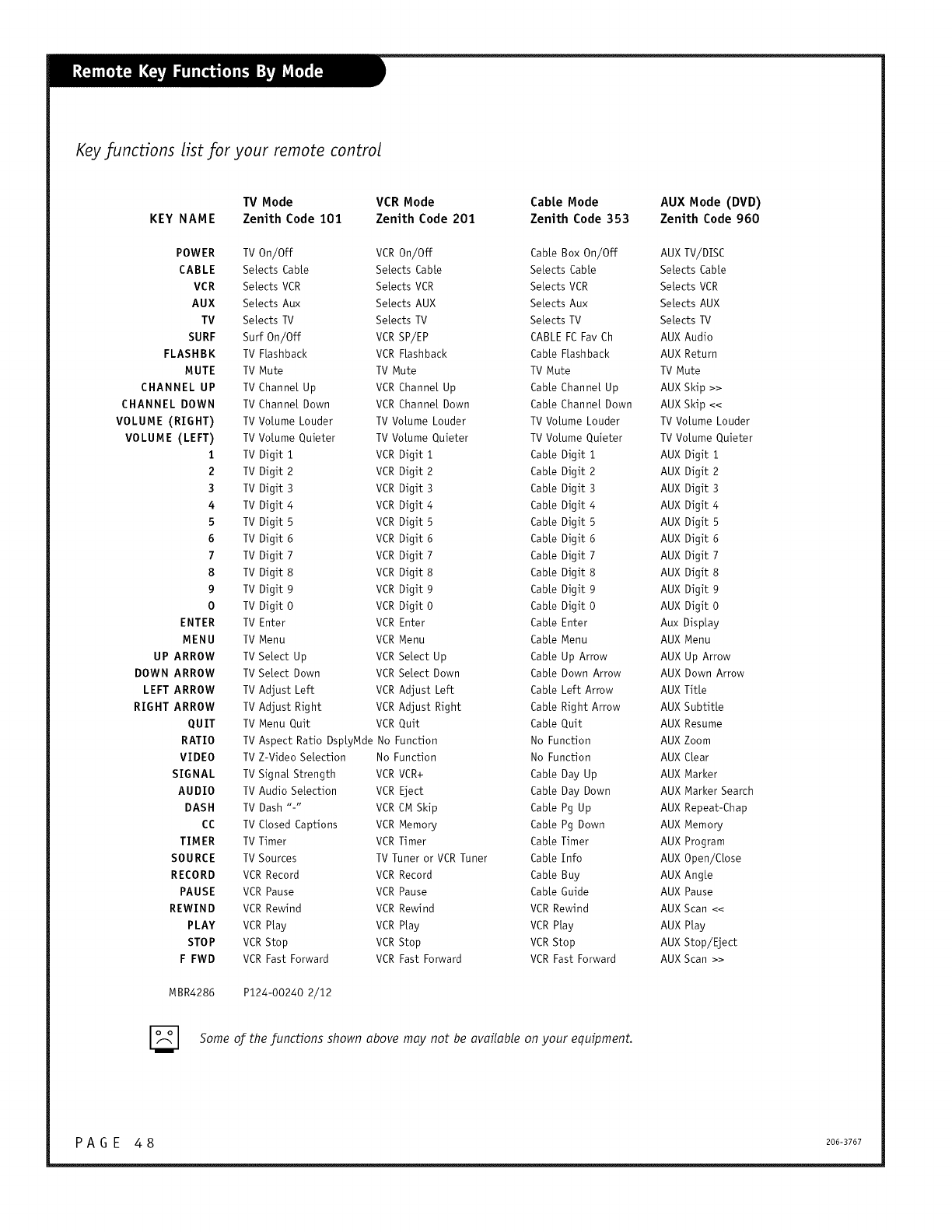
Key functions list for your remote control
TV Mode VCR Mode Cable Mode AUX Mode (DVD)
KEY NAME Zenith Code 101 Zenith Code 201 Zenith Code 353 Zenith Code 960
POWER TV On/Off VCR On/Off
CABLE Selects Cable Selects Cable
VCR Selects VCR Selects VCR
AUX Selects Aux Selects AUX
TV Selects TV SeLects TV
SURF Surf On/Off VCR SP/EP
FLASHBK TV FLashback VCR FLashback
MUTE TV Mute TV Mute
CHANNEL UP TV Channel Up VCR Channel Up
CHANNEL DOWN TV Channel Down VCR Channel Down
VOLUME (RIGHT) TV VoLume Louder TV VoLume Louder
VOLUME (LEFT) TV Volume Quieter TV Volume Quieter
1TV Digit 1 VCR Digit 1
2 TV Digit 2 VCR Digit 2
3 TV Digit 3 VCR Digit 3
4 TV Digit 4 VCR Digit 4
5 TV Digit 5 VCR Digit 5
6 TV Digit 6 VCR Digit 6
7TV Digit 7 VCR Digit 7
8 TV Digit 8 VCR Digit 8
9 TV Digit 9 VCR Digit 9
0TV Digit 0 VCR Digit 0
ENTER TV Enter VCR Enter
MENU TV Menu VCR Menu
UP ARROW TV SeLect Up VCR SeLect Up
DOWN ARROW TV SeLect Down VCR SeLect Down
LEFT ARROW TV Adjust Left VCR Adjust Left
RIGHT ARROW TV Adjust Right VCR Adjust Right
QUIT TV Menu Quit VCR Quit
RATIO TV Aspect Ratio DspLyMde No Function
VIDEO TV Z-Video SeLection No Function
SIGNAL TV SignaL Strength VCR VCR+
AUDIO TV Audio SeLection VCR Eject
DASH TV Dash "-" VCR CM Skip
CC TV CLosed Captions VCR Memory
TIMER TV Timer VCR Timer
SOURCE TV Sources TV Tuner or VCR Tuner
RECORD VCR Record VCR Record
PAUSE VCR Pause VCR Pause
REWIND VCR Rewind VCR Rewind
PLAY VCR PLay VCR PLay
STOP VCR Stop VCR Stop
FFWD VCR Fast Forward VCR Fast Forward
CabLe Box On/Off AUX TV/DISC
SeLects CabLe SeLects CabLe
SeLects VCR SeLects VCR
SeLects Aux SeLects AUX
SeLects TV SeLects TV
CABLE FC Fav Ch AUX Audio
CabLe FLashback AUX Return
TV Mute TV Mute
CabLe Channel Up AUX Skip >>
CabLe Channel Down AUX Skip <<
TV VoLume Louder TV VoLume Louder
TV VoLume Quieter TV VoLume Quieter
CabLe Digit i AUX Digit i
CabLe Digit 2 AUX Digit 2
CabLe Digit 3 AUX Digit 3
CabLe Digit 4 AUX Digit 4
CabLe Digit 5 AUX Digit 5
CabLe Digit 6 AUX Digit 6
CabLe Digit 7 AUX Digit 7
CabLe Digit 8 AUX Digit 8
CabLe Digit 9 AUX Digit 9
CabLe Digit 0 AUX Digit 0
CabLe Enter Aux DispLay
CabLe Menu AUX Menu
CabLe Up Arrow AUX Up Arrow
CabLe Down Arrow AUX Down Arrow
CabLe Left Arrow AUX TitLe
CabLe Right Arrow AUX SubtitLe
CabLe Quit AUX Resume
No Function AUX Zoom
No Function AUX CLear
CabLe Day Up AUX Marker
CabLe Day Down AUX Marker Search
CabLe Pg Up AUX Repeat-Chap
CabLe Pg Down AUX Memory
CabLe Timer AUX Program
CabLe Info AUX Open/CLose
CabLe Buy AUX AngLe
CabLe Guide AUX Pause
VCR Rewind AUX Scan <<
VCR PLay AUX PLay
VCR Stop AUX Stop/Eject
VCR Fast Forward AUX Scan >>
MBR4286 P124-00240 2/12
[_ Some of thefunctionsshown above may not be availableon your equipment.
P A G E 48 200-3707
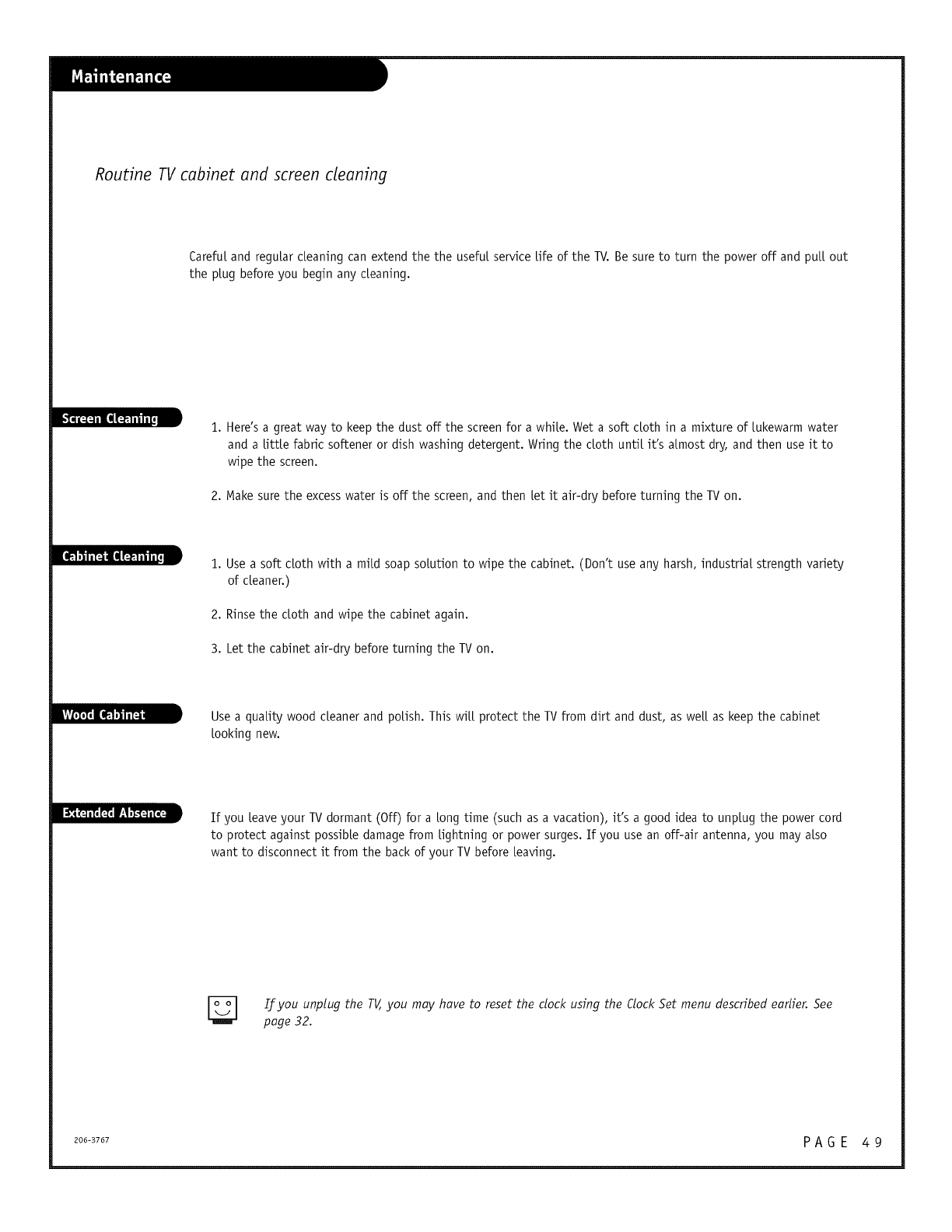
Routine TV cabinet and screen cleaning
Careful and regular cleaning can extend the the useful service life of the TV. Be sure to turn the power off and pu[[ out
the plug before you begin any cleaning.
_rt_m [_emnl_j 1. Here's a great way to keep the dust off the screen for a while. Wet a soft cloth in a mixture of lukewarm water
and a little fabric softener or dish washing detergent. Wring the cloth until it's almost dry, and then use it to
wipe the screen.
2. Make sure the excess water is off the screen, and then let it air-dry before turning the TV on.
1. Usea soft cloth with a mild soap solution to wipe the cabinet. (Don't use any harsh, industrial strength variety
of cleaner.)
2. Rinsethe cloth and wipe the cabinet again.
3. Let the cabinet air-dry before turning the TV on.
Usea quality wood cleaner and polish. This wi[[ protect the TVfrom dirt and dust, as we[[ as keepthe cabinet
looking new.
II_Im4"__f:It_ ,'mm"tr4tl If you leaveyour TV dormant (Off) for a long time (such as a vacation), it's a good idea to unplug the power cord
to protect against possible damagefrom lightning or power surges.If you usean off-air antenna, you may also
want to disconnect it from the back of your TV before leaving.
If you unplug the TV,you may hove to reset the clock using the Clock Set menu described eoflier. See
page 32.
206-3767 P A G E 4 9
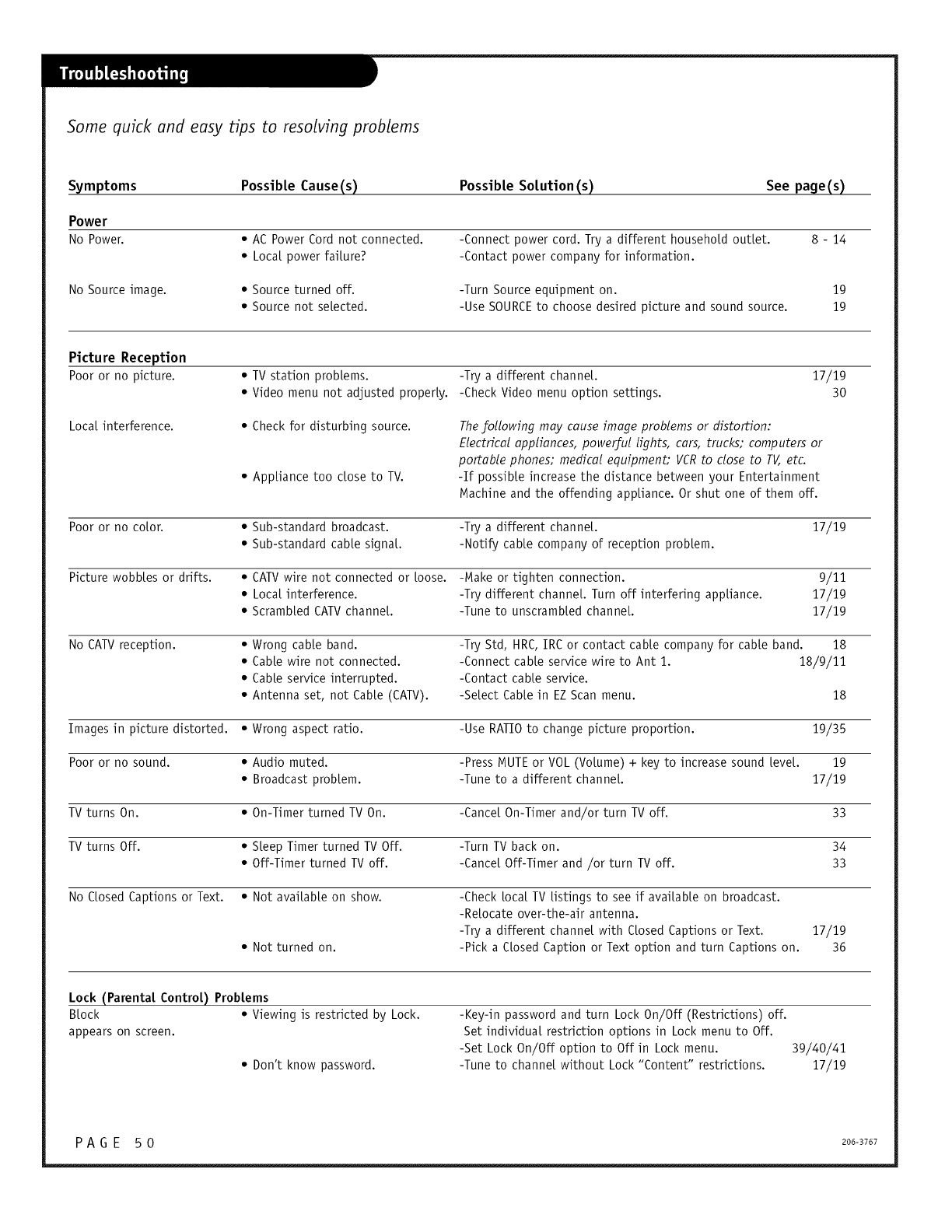
Some quick and easy tips to resolving problems
Symptoms
Power
No Power.
No Source image.
Possibte Cause(s) Possib|e Sotution (s) See page(s)
• AC Power Cord not connected.
• Local power failure?
• Source turned off.
• Source not selected.
-Connect power cord. Try a different household outlet.
-Contact power company for information.
-Turn Source equipment on.
-Use SOURCEto choose desired picture and sound source.
8 - 14
19
19
Picture Reception
Poor or no picture. • TV station problems. -Try a different channel
• Video menu not adjusted properly. -Check Video menu option settings.
17/19
30
Local interference. • Check for disturbing source.
• Appliance too dose to TV.
The following may cause image problems or distortion:
Electrical appliances, powerful lights, cars, trucks; computers or
portable phones; medical equipment; VCRto close to TV, etc.
-If possible increase the distance between your Entertainment
Machine and the offending appliance. Or shut one of them off.
Poor or no color. • Sub-standard broadcast. -Try a different channel 17/19
• Sub-standard cable signal -Notify cane company of reception problem.
Picture wobbles or drifts. • CATV wire not connected or loose. -Make or tighten connection. 9/11
• Local interference. -Try different channel Turn off interfering appliance. 17/19
• Scrambled CATV channel -Tune to unscrambled channel 17/19
No CATV reception. * Wrong cane band. -Try Std, HRC, IRC or contact cane company for cane band. 18
• Cable wire not connected. -Connect cable service wire to Ant 1. 18/9/11
• CaNe service interrupted. -Contact cane service.
• Antenna set, not Cable (CATV). -Select Cable in EZ Scan menu. 18
Images in picture distorted. • Wrong aspect ratio. -Use RATIO to change picture proportion. 19/35
Poor or no sound. • Audio muted. -Press MUTE or VOL (Volume) + key to increase sound [eve[. 19
• Broadcast problem. -Tune to a different channel 17/19
TV turns On. • On-Timer turned TV On. -fiance[ On-Timer and/or turn TV off. 33
TV turns Off. • Sleep Timer turned TV Off. -Turn TV back on. 34
• Off-Timer turned TV off. -Cancel Off-Timer and ,/or turn TV off. 33
No Closed Captions or Text. • Not available on show. -Check local TV listings to see if available on broadcast.
-Relocate over-the-air antenna.
-Try a different channel with Closed Captions or Text. 17/19
• Not turned on. -Pick a Closed Caption or Text option and turn Captions on. 36
Lock (Parentat Controt) Probtems
Block • Viewing is restricted by Lock.
appears on screen.
• Don't know password.
-Key-in password and turn Lock On/Off (Restrictions) off.
Set individual restriction options in Lock menu to Off.
-Set Lock On/Off option to Off in Lock menu.
-Tune to channel without Lock "Content" restrictions. 39140141
17119
P A G E 5 0 206-3767
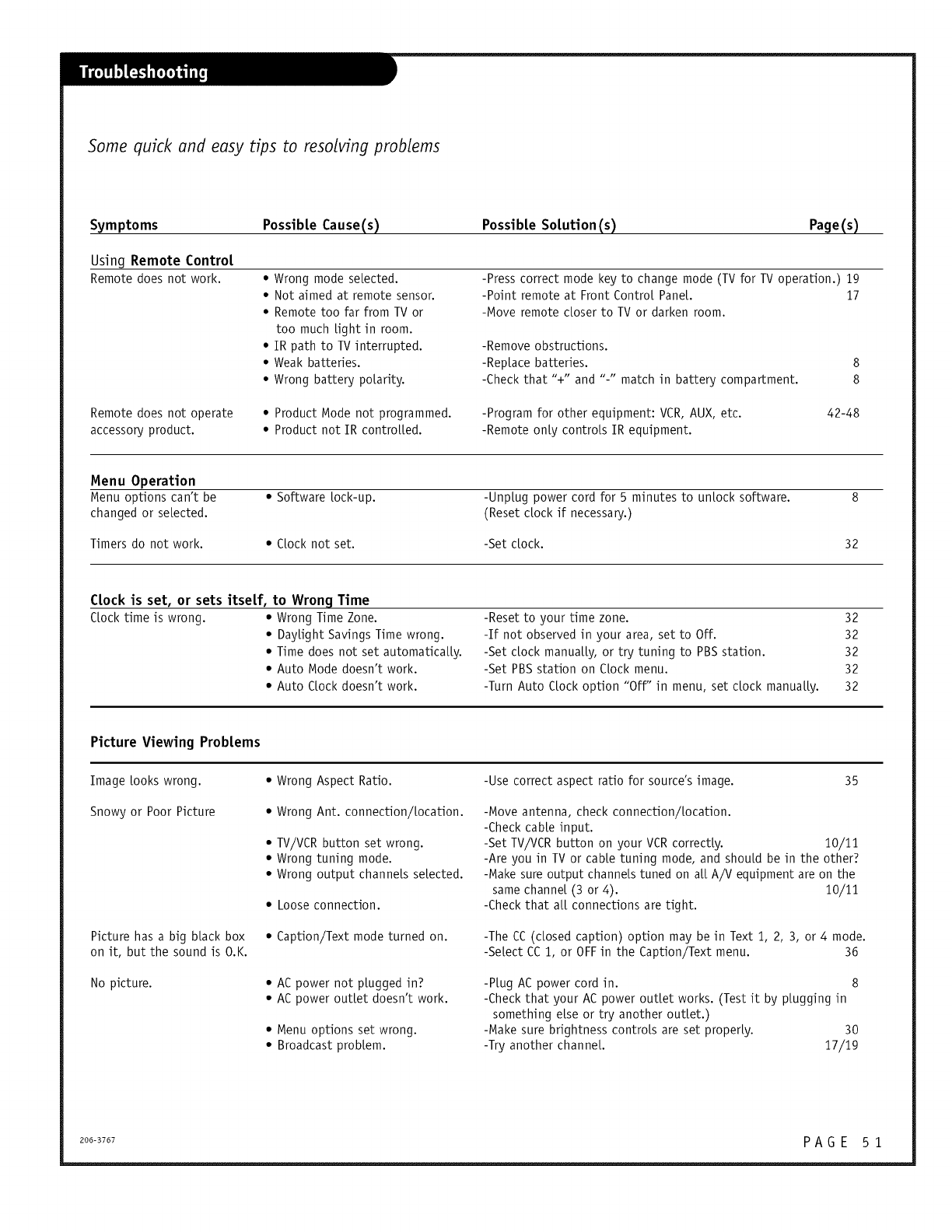
Some quick and easy tips to resolving problems
Symptoms
Using Remote Control
Remote does not work.
Remote does not operate
accessory product.
Possible Cause(s) Possible Solution (s) Page(s)
• Wrong mode selected.
• Not aimed at remote sensor,
• Remote too far from TV or
too much light in room.
• IR path to TV interrupted.
• Weak batteries.
• Wrong battery polarity,
• Product Node not programmed.
• Product not [R controlled.
-Press correct mode key to change mode (TV for TVoperation.) 19
-Point remote at Front Control Pane[. 17
-Move remote closer to TV or darken room.
-Remove obstructions.
-Replace batteries. 8
-Check that "+" and "-" match in battery compartment. 8
-Program for other equipment: VCR, AUX, etc.
-Remote only controls [R equipment.
42-48
Menu Operation
Menu options can't be • Software lock-up. -Unplug power cord for 5 minutes to unlock software. 8
changed or selected. (Reset dock if necessary.)
Timers do not work. * Clock not set. -Set dock. 32
Clock is set, or sets itself, to Wrong Time
Clocktime is wrong. • Wrong Time Zone.
• Daylight Savings Time wrong.
• Time does not set automatically.
• Auto Mode doesn't work.
• Auto Clockdoesn't work.
-Reset to your time zone. 32
-If not observed in your area, set to Off. 32
-Set dock manually, or try tuning to PBSstation. 32
-Set PBSstation on Clock menu. 32
-Turn Auto Clock option "Off" in menu, set dock manually. 32
Picture Viewing Problems
Image looks wrong.
Snowy or Poor Picture
Picture has a big black box
on it, but the sound is O.K.
No picture.
• Wrong Aspect Ratio.
• Wrong Ant. connection/location.
• TV/VCRbutton set wrong.
• Wrong tuning mode.
• Wrong output channels selected.
• Looseconnection.
• Caption/Text mode turned on.
• AC power not plugged in?
• AC power outlet doesn't work.
• Menu options set wrong.
• Broadcast problem.
-Use correct aspect ratio for source's image. 35
-Move antenna, check connection/location.
-Check cable input.
-Set TV/VCR button on your VCR correctly. 10/11
-Are you in TV or cane tuning mode, and should be in the other?
-Make sure output channels tuned on all A/V equipment are on the
same channel (3 or 4). 10/11
-Check that a[[ connections are tight.
-The CC (dosed caption) option may be in Text 1, 2, 3, or 4 mode.
-Select CC 1, or OFFin the Caption/Text menu. 36
-Plug ACpower cord in. 8
-Checkthat your ACpower outlet works. (Test it by plugging in
something else or try another outlet.)
-Make sure brightness controls are set properly. 30
-Try another channel 17/19
2o6-3767 P A G E 5 1
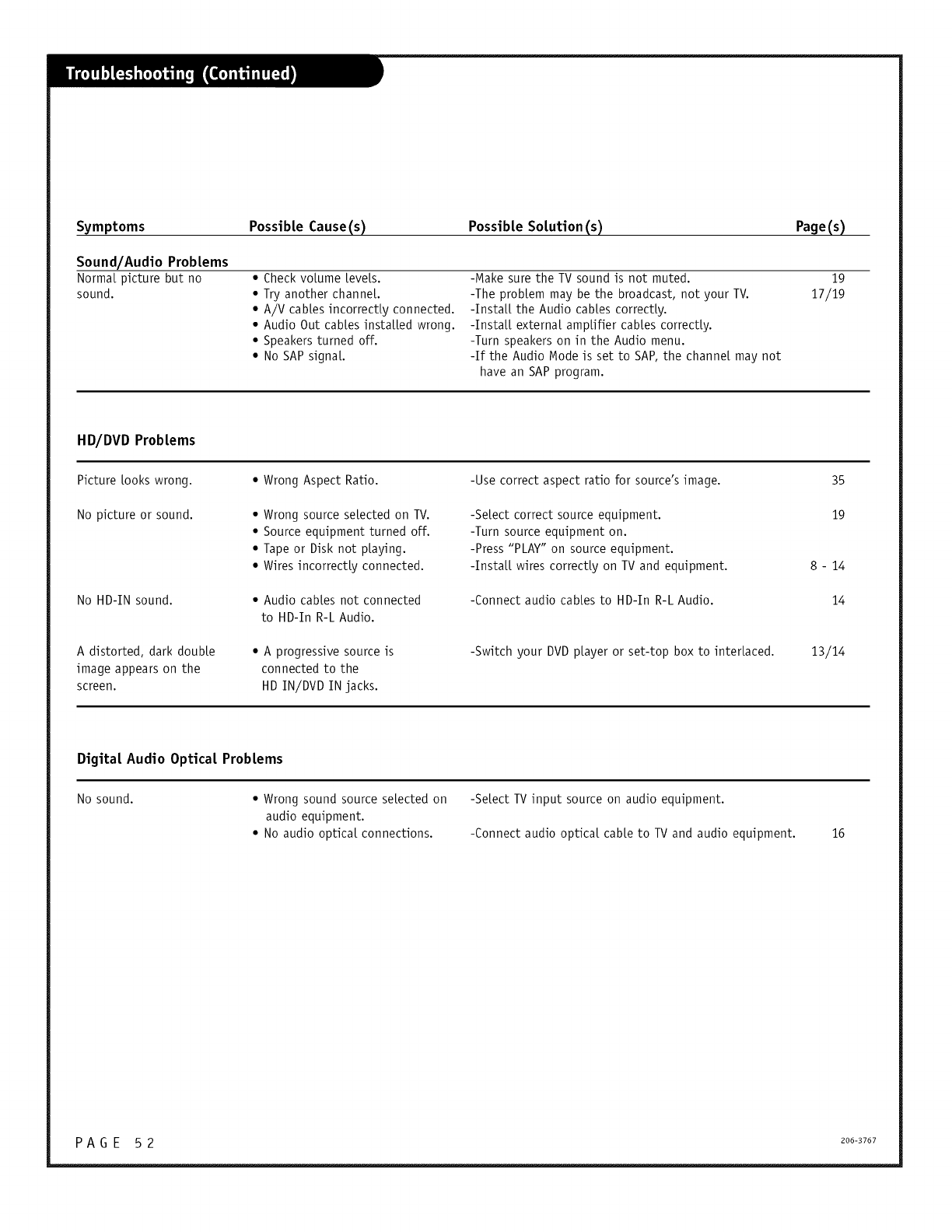
Symptoms Possible Cause(s) Possible So[ution (s) Page(s)
Sound/Audio Probtems
Normal picture but no • Check volume levels. -Nake sure the TV sound is not muted. 19
sound. • Try another channel -The problem may be the broadcast, not your TV. 17/19
• A/V cables incorrectly connected. -Install the Audio cables correctly.
• Audio Out cables installed wrong. -Install external amplifier cables correctly.
• Speakers turned off. -Turn speakers on in the Audio menu.
• No SAP signal -If the Audio Node is set to SAP, the channel may not
have an SAP program.
HD/DVD Problems
Picture looks wrong. • Wrong Aspect Ratio. -Use correct aspect ratio for source's image. 35
No picture or sound. • Wrong source se[ected on TV. -Se[ect correct source equipment. 19
• Source equipment turned off. -Turn source equipment on.
• Tape or Disk not playing. -Press "PLAY" on source equipment.
• Wires incorrectly connected. -Install wires correctly on TV and equipment.
No HD-IN sound.
A distorted, dark double
image appears on the
screen.
• Audio cables not connected
to HD-In R-L Audio.
• A progressive source is
connected to the
HD IN/DVD IN jacks.
-Connect audio canes to HD-In R-L Audio.
8- 14
14
-Switch your DVD player or set-top box to interlaced. 13/14
Digital Audio Optical Problems
No sound. • Wrong sound source selected on -Select TVinput source on audio equipment.
audio equipment.
• No audio optical connections. -Connect audio optical cane to TV and audio equipment. 16
P A G E 5 2 206-3767
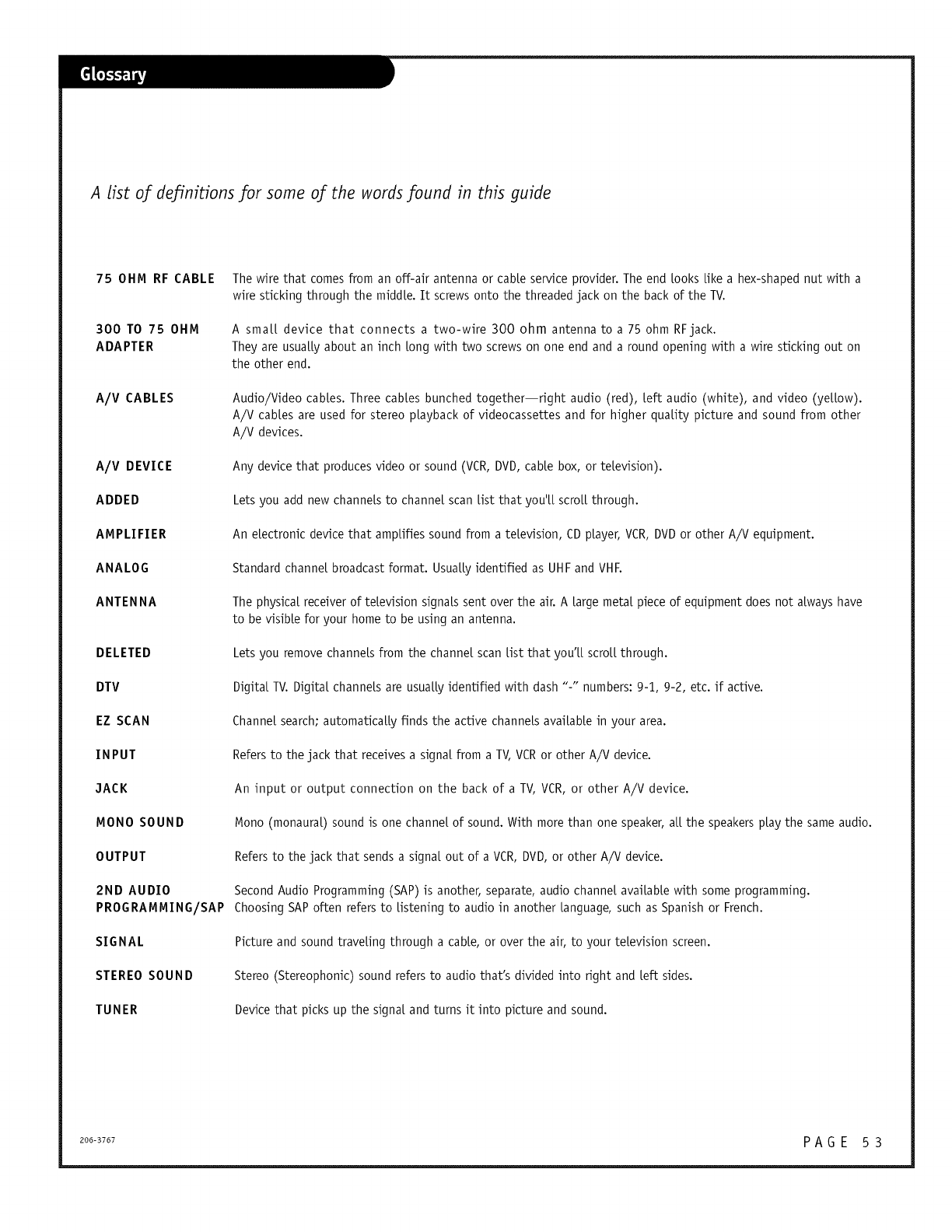
A list of definitions for some of the words found in this guide
75 OHM RF CABLE
300 TO 75 OHM
ADAPTER
A/V CABLES
A/V DEVICE
ADDED
AMPLIFIER
ANALOG
ANTENNA
DELETED
DTV
EZ SCAN
INPUT
3ACK
MONO SOUND
OUTPUT
2ND AUDIO
PROGRAMMING/SAP
SIGNAL
STEREO SOUND
TUNER
The wire that comes from an off-air antenna or cable service provider. The end looks like a hex-shaped nut with a
wire sticking through the middte. It screws onto the threaded jack on the back of the TV.
A small device that connects a two-wire 300 ohm antenna to a 75 ohm RFjack.
They are usually about an inch tong with two screws on one end and a round opening with a wire sticking out on
the other end.
Audio/Video cabtes. Three cabtes bunched together--right audio (red), [eft audio (white), and video (yettow).
A/V cables are used for stereo playback of vJdeocassettes and for higher quality picture and sound from other
A/V devices.
Any device that produces video or sound (VCR, DVD, cable box, or television).
Lets you add new channels to channel scan list that you'[[ scroll through.
An electronic device that amplifies sound from a television, CD player, VCR, DVD or other A/V equipment.
Standard channel broadcast format. Usually identified as UHF and VHR
The physical receiver of television signals sent over the air. A large metal piece of equipment does not always have
to be visible for your home to be using an antenna.
Lets you remove channels from the channel scan list that you'[[ scroll through.
Digital TV. Digital channels are usually identified with dash "-" numbers: 9-1_, 9-2, etc. if active.
Channel search; automatically finds the active channels available in your area.
Refers to the jack that receives a signal from a TV, VCR or other A/V device.
An input or output connection on the back of a TV, VCR, or other A/V device.
iVlono (monaural) sound is one channel of sound. With more than one speaker, at[ the speakers play the same audio.
Refers to the jack that sends a signal out of a VCR, DVD, or other A/V device.
Second Audio Programming (SAP) is another, separate, audio channel available with some programming.
Choosing SAP often refers to listening to audio in another language, such as Spanish or French.
Picture and sound traveling through a cable, or over the air, to your television screen.
Stereo (Stereophonic) sound refers to audio that's divided into right and [eft sides.
Device that picks up the signal and turns it into picture and sound.
200-3707 P A G E 5 3

PAG E 54 2o0-3707

200-3707 P A G E 5 5
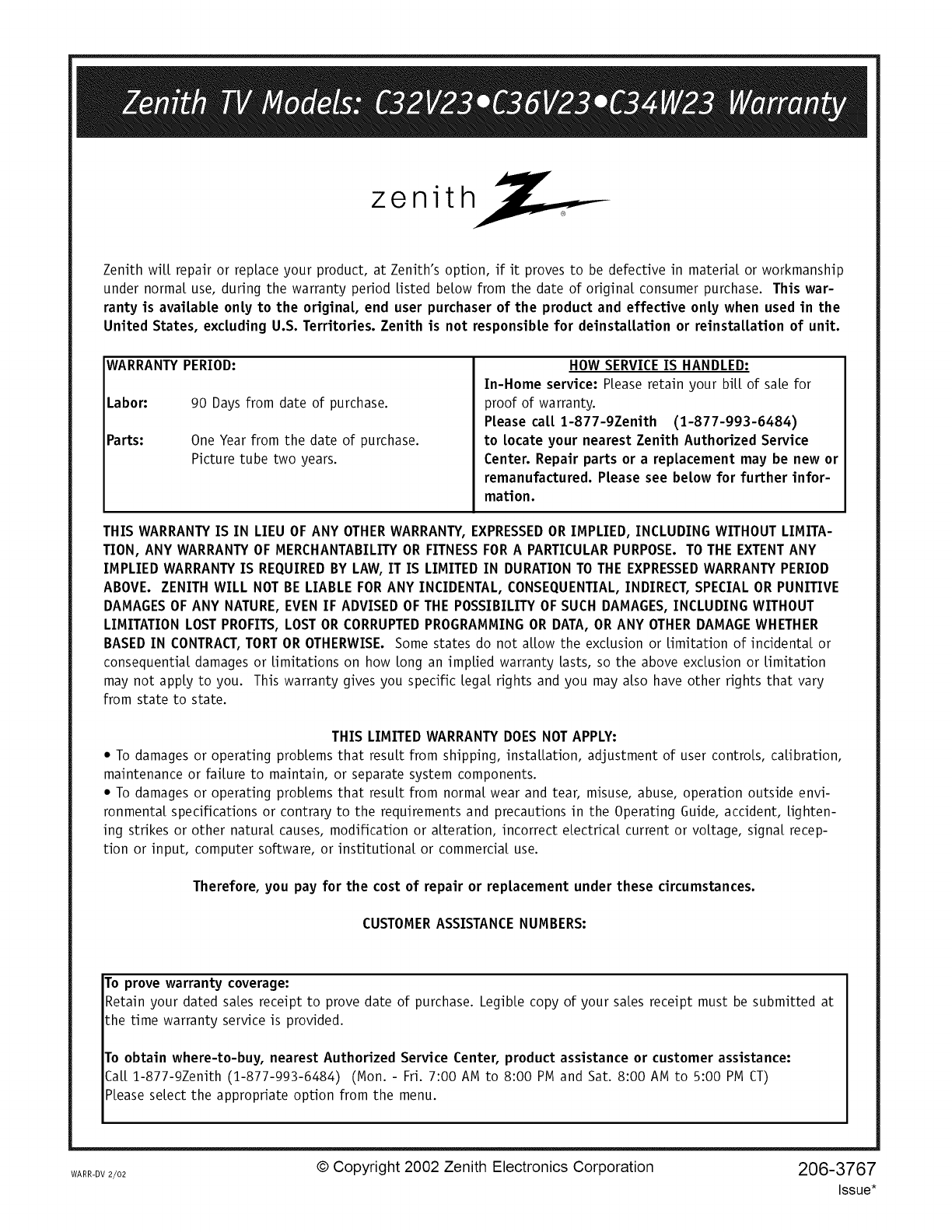
zenith
Zenith wiLL repair or replace your product, at Zenith's option, if it proves to be defective in material or workmanship
under normal use, during the warranty period Listed below from the date of original consumer purchase. This war-
ranty is available only to the original, end user purchaser of the product and effective only when used in the
United States, excluding U.S. Territories. Zenith is not responsible for deinstallation or reinstallation of unit.
WARRANTY PERIOD:
Labor: 90 Days from date of purchase.
Parts: One Year from the date of purchase.
Picture tube two years.
HOW SERVICE IS HANDLED:
In-Home service: PLeaseretain your biLLof sate for
proof of warranty.
Please call 1-877-gZenith (1-877-993-6484)
to locate your nearest Zenith Authorized Service
Center. Repair parts or a replacement may be new or
remanufactured. Please see below for further infor-
mation.
THIS WARRANTY IS IN LIEU OF ANY OTHERWARRANTY, EXPRESSEDOR IMPLIED, INCLUDING WITHOUT LIMITA-
TION, ANY WARRANTY OF MERCHANTABILITY OR FITNESS FOR A PARTICULAR PURPOSE. TO THE EXTENT ANY
IMPLIED WARRANTY IS REQUIRED BY LAW, IT IS LIMITED IN DURATION TO THE EXPRESSEDWARRANTY PERIOD
ABOVE. ZENITH WILL NOT BE LIABLE FOR ANY INCIDENTAL, CONSEQUENTIAL, INDIRECT, SPECIAL OR PUNITIVE
DAMAGES OF ANY NATURE, EVEN IF ADVISED OF THE POSSIBILITY OF SUCH DAMAGES, INCLUDING WITHOUT
LIMITATION LOST PROFITS, LOST OR CORRUPTED PROGRAMMING OR DATA, OR ANY OTHER DAMAGE WHETHER
BASED IN CONTRACT,TORT OR OTHERWISE. Some states do not aLLow the exclusion or Limitation of incidental or
consequential damages or Limitations on how tong an implied warranty Lasts, so the above exclusion or Limitation
may not apply to you. This warranty gives you specific Legal rights and you may also have other rights that vary
from state to state.
THIS LIMITED WARRANTY DOES NOT APPLY:
*To damages or operating problems that result from shipping, instaLLation, adjustment of user controls, calibration,
maintenance or failure to maintain, or separate system components.
*To damages or operating problems that result from normal wear and tear, misuse, abuse, operation outside envi-
ronmental specifications or contrary to the requirements and precautions in the Operating Guide, accident, Lighten-
ing strikes or other natural causes, modification or alteration, incorrect eLectricaL current or voltage, signal recep-
tion or input, computer software, or institutional or commercial use.
Therefore, you pay for the cost of repair or replacement under these circumstances.
CUSTOMER ASSISTANCE NUMBERS:
To prove warranty coverage:
Retain your dated sales receipt to prove date of purchase. LegibLe copy of your sales receipt must be submitted at
the time warranty service is provided.
To obtain where-to-buy, nearest Authorized Service Center, product assistance or customer assistance:
CaLL1-877-9Zenith (1-877-993-6484) (Mon. - Fri. 7:00 AM to 8:00 PM and Sat. 8:00 AM to 5:00 PM CT)
PLeaseselect the appropriate option from the menu.
WARR-DV 2/02 © Copyright 2002 Zenith Electronics Corporation 206-3767
Issue*
