ZMODO Technology I12316GY IP-CAM User Manual CM I12316GY

ZMODO Technology Shenzhen Corp. Ltd. IP-CAM CM I12316GY

Users Manual

User ManualNight Vision & Remote OperationWireless/Wired Network CameraCM-I12316GY IPCAM User ManualFor further help, please visit www.zmodo.com
Thank you for buying our IP camera.This series of products is designed and equipped for network video surveillance, including wired IP bullet cameras, wireless IP bullet cameras, IP IR dome cameras, IP IR waterproof cameras etc. We have adopted high performance chips to ensure high quality media processing that includes video and audio collection, compression, and transmission. Standard MJPEG compression format ensures clear video streaming performance and enables users to view feeds via IE browser, centre management software and client software. AJ series products are applicable for small, medium and large enterprises as well as franchise stores, factories, and home usage. These systems are easy to install and operate and are perfect for anywhere remote network video transmission is needed. Before you begin installation, please check to make sure all products accessories are included in the package.Product Components and Features:Table of CONTENTSIP cameraBracket(optional)Power adapter Warranty cardCD 1 PC1 PC1 PC1 PC1 PC1. General Introduction ................................................................................1.1. Product Specifications .......................................................................... 1.2. Applications ...........................................................................................1.3. System Requirements ..........................................................................2. Interface & Installation .............................................................................2.1. Interface  ...............................................................................................2.2. Installation .............................................................................................2.2.1. Installation in LAN ..............................................................................2.2.2. PPPoE Installation .............................................................................2.2.3. IP Camera & PC connection ..............................................................3. IE Browse to IP Camera...........................................................................3.1. Use Search tool Software...................................................................... 2333445566771
IP cameras are a new generation product that combine analog and IP video technology. IP cameras can compress and encrypt video and audio signals then send it to remote terminals through the internet with its built-in processor and web server. With an IP address, users can use the standard Internet Explorer browser to view the camera real-time, monitor targets, manage and store video and audio, as well as control PTZ through the network.As a new generation of products in the security family, IP cameras share the same function as analog cameras such as auto white balance, auto shutter speed, AGC, auto backlight compensation etc. On the other hand, IP cameras also support remote access through the internet, and support multi-user viewing functions. Some IP cameras are even able to extend to both analog and digital signals.The core of F series IP cameras is 32Bit RSIC with standard MJPEG compression format, CMOS image sensors, auto white balance and backlight balance, Internet Explorer compatibility, smart phone accessibility, and centralized monitor interface management. In general, these cameras host a variety of functions that can serve a number of users depending on their usage requirements and conditions.Table of CONTENTS3.1.1. Configure Network Parameter .............................................................3.2. Logging and Active X Installation.............................................................3.3. Main Operation Interface.........................................................................3.4.  Manager Operation ................................................................................3.4.1.  Multi-Device Settings...........................................................................3.4.2.  Basic Network Settings........................................................................3.4.3.  Wireless Settings.................................................................................3.4.4.  ADSL Settings......................................................................................3.4.5.  DDNS Settings....................................................................................3.4.6.  E-mail and FTP Services Settings.......................................................3.4.7.  Alarm Services Settings .....................................................................3.4.8.  Reset/Firmware Upgrade Settings......................................................3.4.9.  Restore Factory Settings ...................................................................3.4.10. Reboot Equipment Settings...............................................................4. Others .......................................................................................................4.1. Port Forwarding Settings in Router.........................................................4.2 Warranty .................................................................................................9101213141515161617181819191919202
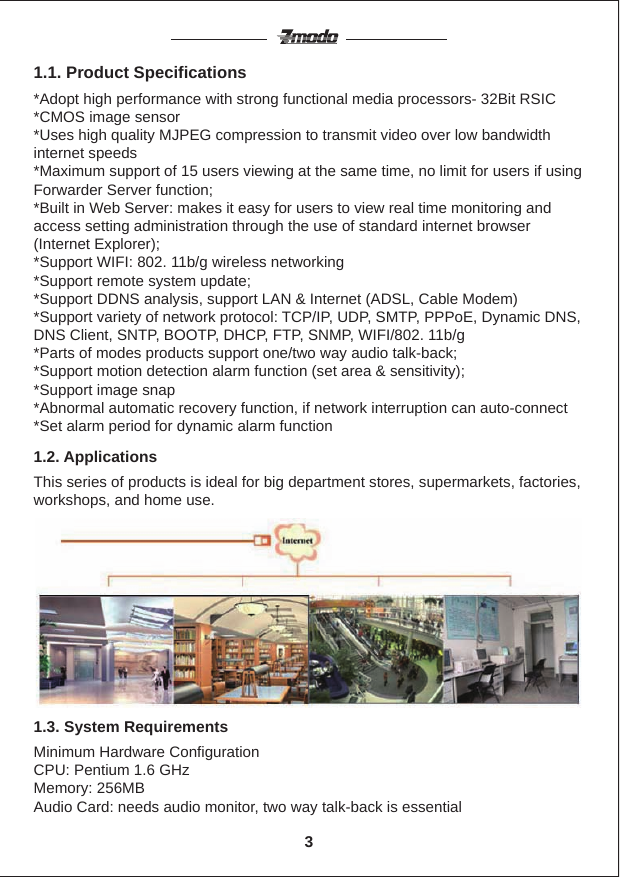
*Adopt high performance with strong functional media processors- 32Bit RSIC*CMOS image sensor*Uses high quality MJPEG compression to transmit video over low bandwidth internet speeds*Maximum support of 15 users viewing at the same time, no limit for users if using Forwarder Server function;*Built in Web Server: makes it easy for users to view real time monitoring and access setting administration through the use of standard internet browser (Internet Explorer);*Support WIFI: 802. 11b/g wireless networking*Support remote system update;*Support DDNS analysis, support LAN & Internet (ADSL, Cable Modem)*Support variety of network protocol: TCP/IP, UDP, SMTP, PPPoE, Dynamic DNS, DNS Client, SNTP, BOOTP, DHCP, FTP, SNMP, WIFI/802. 11b/g*Parts of modes products support one/two way audio talk-back;*Support motion detection alarm function (set area & sensitivity);*Support image snap*Abnormal automatic recovery function, if network interruption can auto-connect*Set alarm period for dynamic alarm function1.1. Product SpecificationsThis series of products is ideal for big department stores, supermarkets, factories, workshops, and home use.1.2. ApplicationsMinimum Hardware ConfigurationCPU: Pentium 1.6 GHzMemory: 256MBAudio Card: needs audio monitor, two way talk-back is essential1.3. System Requirements 3
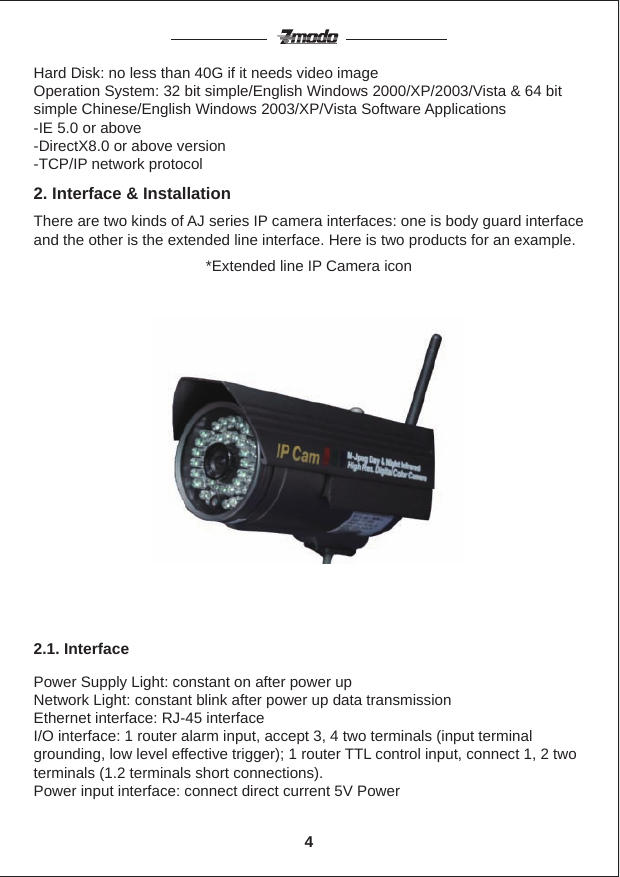
Hard Disk: no less than 40G if it needs video imageOperation System: 32 bit simple/English Windows 2000/XP/2003/Vista & 64 bit simple Chinese/English Windows 2003/XP/Vista Software Applications-IE 5.0 or above-DirectX8.0 or above version-TCP/IP network protocolThere are two kinds of AJ series IP camera interfaces: one is body guard interface and the other is the extended line interface. Here is two products for an example.2. Interface & Installation2.1. Interface*Extended line IP Camera iconPower Supply Light: constant on after power upNetwork Light: constant blink after power up data transmissionEthernet interface: RJ-45 interfaceI/O interface: 1 router alarm input, accept 3, 4 two terminals (input terminal grounding, low level effective trigger); 1 router TTL control input, connect 1, 2 two terminals (1.2 terminals short connections).Power input interface: connect direct current 5V Power4
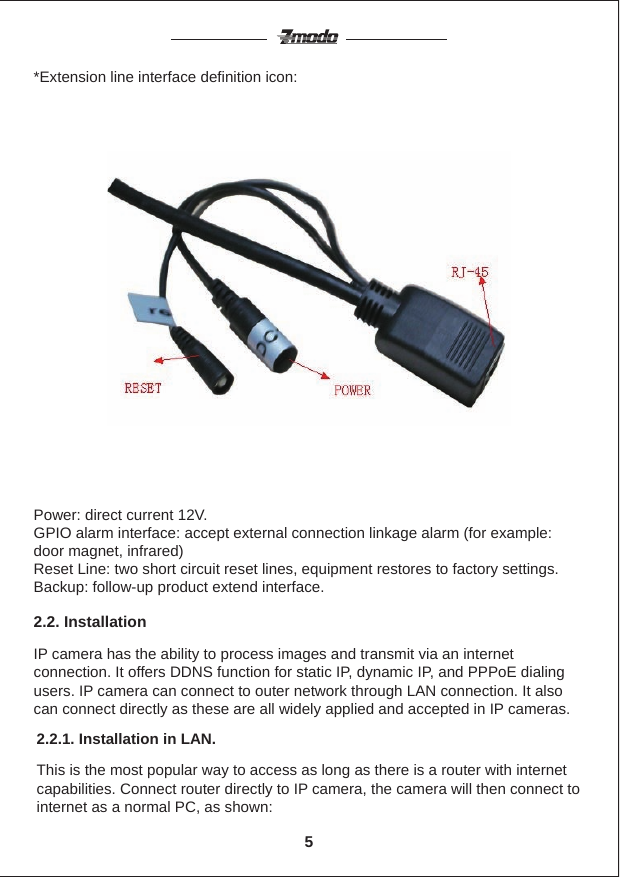
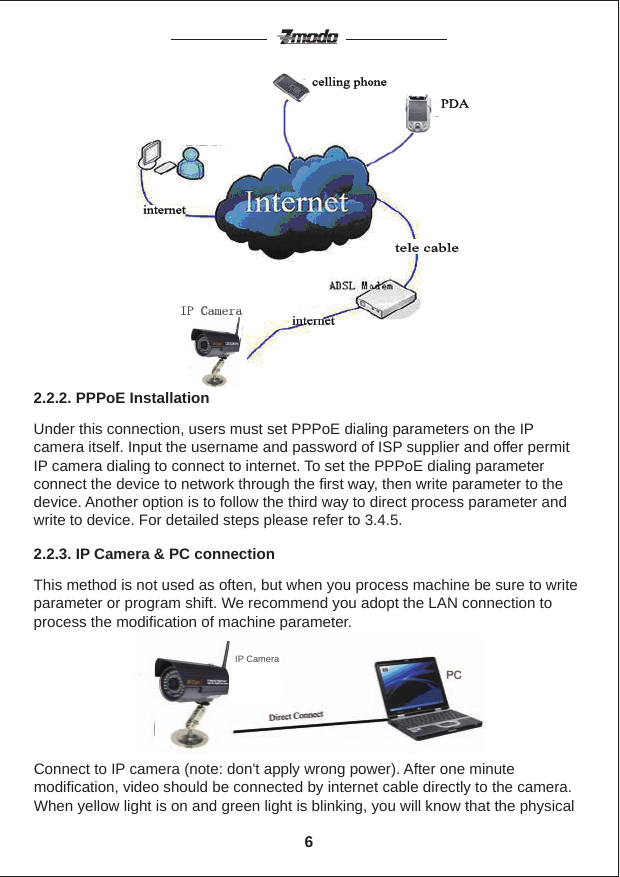
*Extension line interface definition icon:Power: direct current 12V.GPIO alarm interface: accept external connection linkage alarm (for example: door magnet, infrared)Reset Line: two short circuit reset lines, equipment restores to factory settings.Backup: follow-up product extend interface.IP camera has the ability to process images and transmit via an internet connection. It offers DDNS function for static IP, dynamic IP, and PPPoE dialing users. IP camera can connect to outer network through LAN connection. It also can connect directly as these are all widely applied and accepted in IP cameras.2.2. InstallationThis is the most popular way to access as long as there is a router with internet capabilities. Connect router directly to IP camera, the camera will then connect to internet as a normal PC, as shown:2.2.1. Installation in LAN.5
This method is not used as often, but when you process machine be sure to write parameter or program shift. We recommend you adopt the LAN connection to process the modification of machine parameter.2.2.3. IP Camera & PC connectionUnder this connection, users must set PPPoE dialing parameters on the IP camera itself. Input the username and password of ISP supplier and offer permit IP camera dialing to connect to internet. To set the PPPoE dialing parameter connect the device to network through the first way, then write parameter to the device. Another option is to follow the third way to direct process parameter and  write to device. For detailed steps please refer to 3.4.5.2.2.2. PPPoE InstallationConnect to IP camera (note: don't apply wrong power). After one minute modification, video should be connected by internet cable directly to the camera. When yellow light is on and green light is blinking, you will know that the physical 6  IP Camera
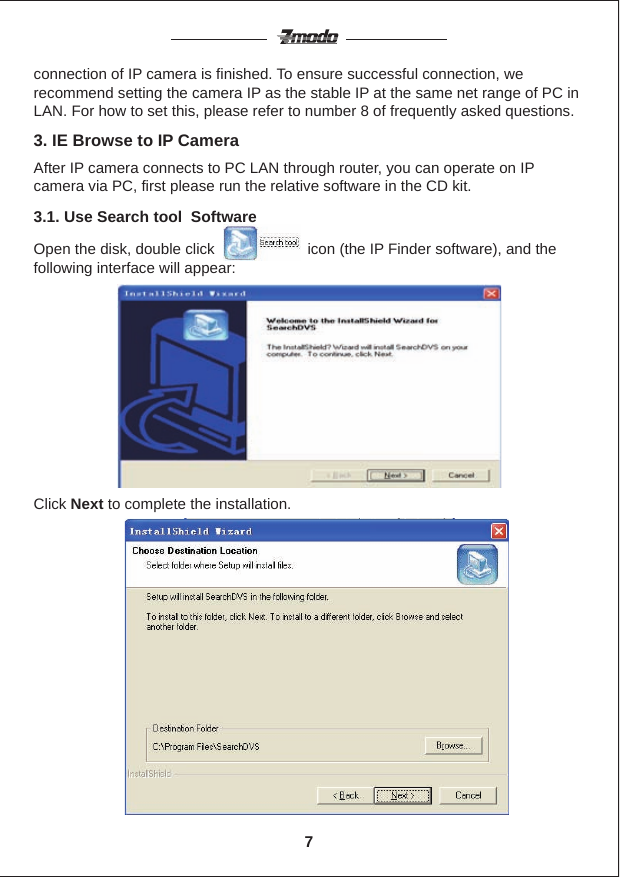
Click Next to complete the installation.connection of IP camera is finished. To ensure successful connection, we recommend setting the camera IP as the stable IP at the same net range of PC in LAN. For how to set this, please refer to number 8 of frequently asked questions.3.1. Use Search tool  SoftwareAfter IP camera connects to PC LAN through router, you can operate on IP camera via PC, first please run the relative software in the CD kit.3. IE Browse to IP CameraOpen the disk, double click                      icon (the IP Finder software), and the following interface will appear:7
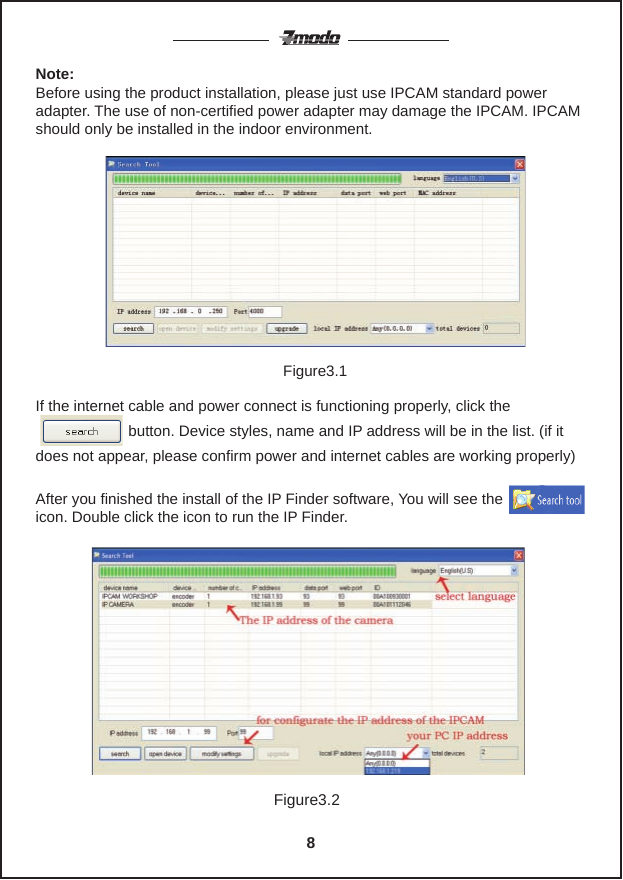
Note: Before using the product installation, please just use IPCAM standard power adapter. The use of non-certified power adapter may damage the IPCAM. IPCAM should only be installed in the indoor environment.If the internet cable and power connect is functioning properly, click the                                                                                                                      button. Device styles, name and IP address will be in the list. (if it does not appear, please confirm power and internet cables are working properly)After you finished the install of the IP Finder software, You will see the             icon. Double click the icon to run the IP Finder.Figure3.1Figure3.28
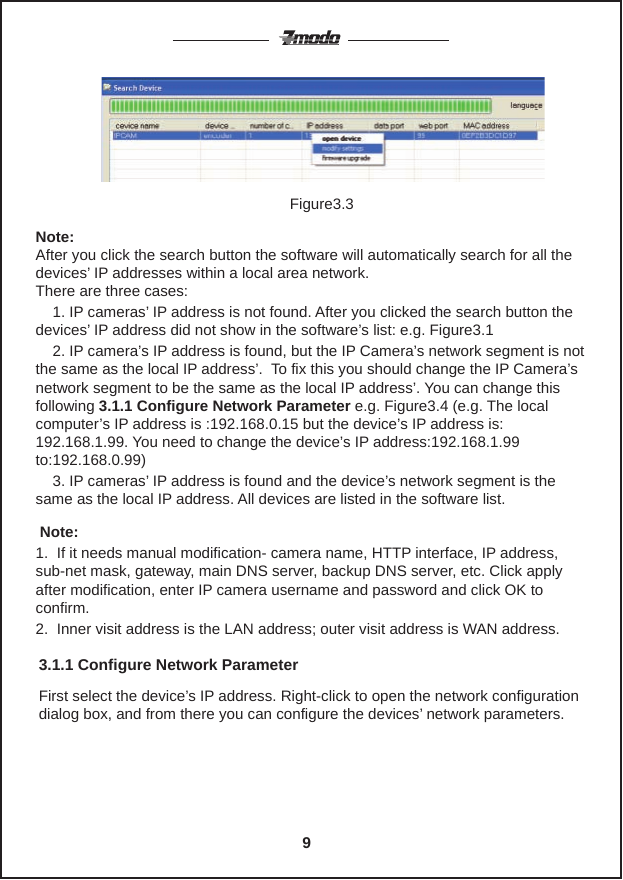
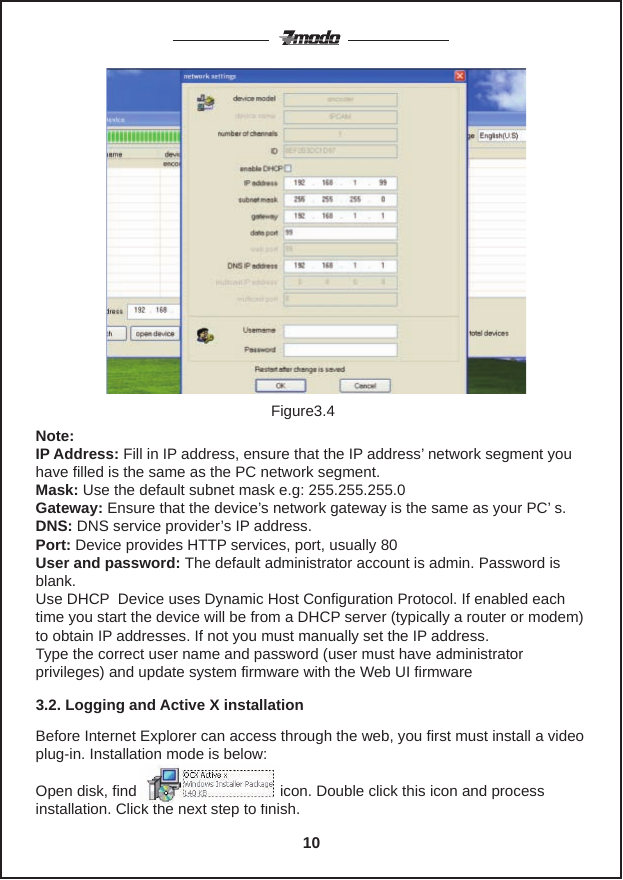
If the internet cable and power connect is functioning properly, click the                                                                                                                      button. Device styles, name and IP address will be in the list. (if it does not appear, please confirm power and internet cables are working properly)Note: After you click the search button the software will automatically search for all the devices’ IP addresses within a local area network.There are three cases:    1. IP cameras’ IP address is not found. After you clicked the search button the devices’ IP address did not show in the software’s list: e.g. Figure3.1    2. IP camera’s IP address is found, but the IP Camera’s network segment is not the same as the local IP address’.  To fix this you should change the IP Camera’s network segment to be the same as the local IP address’. You can change this following 3.1.1 Configure Network Parameter e.g. Figure3.4 (e.g. The local computer’s IP address is :192.168.0.15 but the device’s IP address is: 192.168.1.99. You need to change the device’s IP address:192.168.1.99 to:192.168.0.99)    3. IP cameras’ IP address is found and the device’s network segment is the same as the local IP address. All devices are listed in the software list. Note:  1.  If it needs manual modification- camera name, HTTP interface, IP address, sub-net mask, gateway, main DNS server, backup DNS server, etc. Click apply after modification, enter IP camera username and password and click OK to confirm.2.  Inner visit address is the LAN address; outer visit address is WAN address.Figure3.3First select the device’s IP address. Right-click to open the network configuration dialog box, and from there you can configure the devices’ network parameters.3.1.1 Configure Network Parameter9
Note:   IP Address: Fill in IP address, ensure that the IP address’ network segment you have filled is the same as the PC network segment.Mask: Use the default subnet mask e.g: 255.255.255.0Gateway: Ensure that the device’s network gateway is the same as your PC’ s.DNS: DNS service provider’s IP address.Port: Device provides HTTP services, port, usually 80User and password: The default administrator account is admin. Password is blank.Use DHCP  Device uses Dynamic Host Configuration Protocol. If enabled each time you start the device will be from a DHCP server (typically a router or modem) to obtain IP addresses. If not you must manually set the IP address.Type the correct user name and password (user must have administrator privileges) and update system firmware with the Web UI firmwareBefore Internet Explorer can access through the web, you first must install a video plug-in. Installation mode is below:Open disk, find                                  icon. Double click this icon and process installation. Click the next step to finish.3.2. Logging and Active X installationFigure3.410
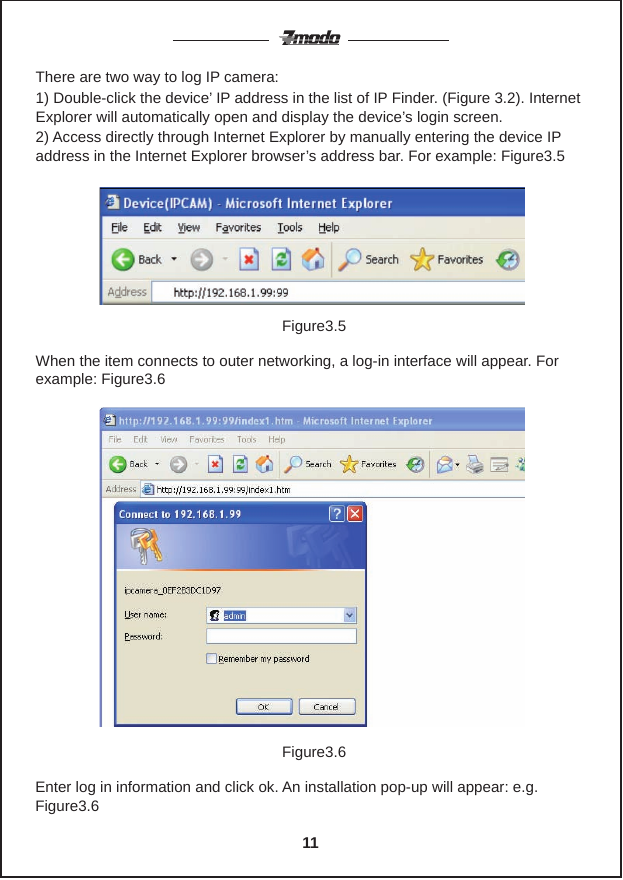
There are two way to log IP camera:1) Double-click the device’ IP address in the list of IP Finder. (Figure 3.2). Internet Explorer will automatically open and display the device’s login screen. 2) Access directly through Internet Explorer by manually entering the device IP address in the Internet Explorer browser’s address bar. For example: Figure3.5When the item connects to outer networking, a log-in interface will appear. For example: Figure3.6Figure3.5Enter log in information and click ok. An installation pop-up will appear: e.g. Figure3.6Figure3.611
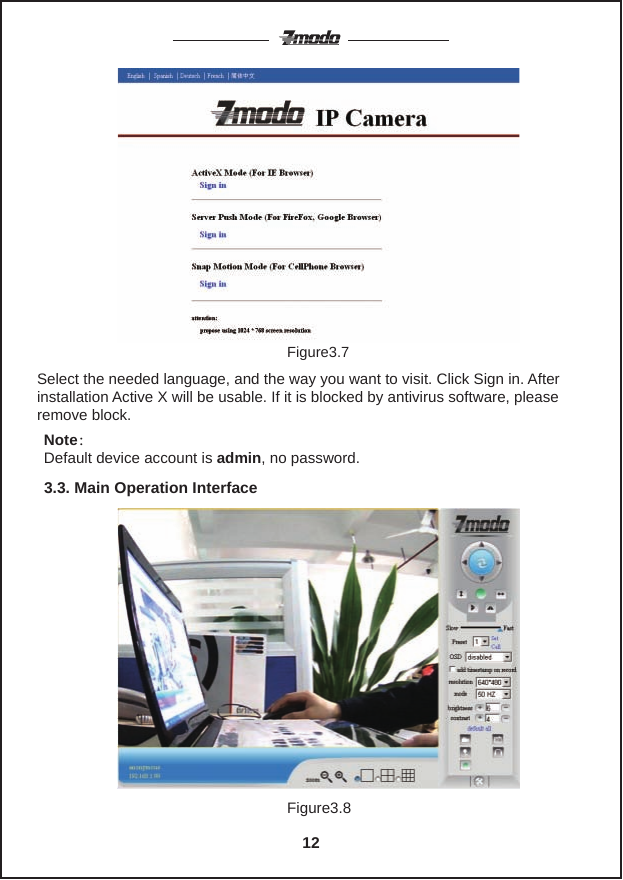
Select the needed language, and the way you want to visit. Click Sign in. After installation Active X will be usable. If it is blocked by antivirus software, please remove block.Figure3.7Note:Default device account is admin, no password.Figure3.83.3. Main Operation Interface12
For example: If the         is on , the device is the first to monitor the status. When you log on the operator interface, you can perform PTZ and video parameters.If you want to see 4-way, or 9-way-- you can click the icon           orDirection control: Click the arrows in different directions to rotate the lend in the appropriate direction.                  Vertical cruise          Level  cruise1. Image mirror indicates a reverse image.2. Resolution, mode, brightness, contrast default setting are: 320*240、50HZ、6、4、Mode is mainly for the adjustment of light strength, please adjust to 60HZ when lighting is poor/dark.3. There are 3 browse modes in Internet Explorer mode: visitor, operator and  administrator which has authority.Logging into different modes will cause the operation to differ. Regarding the user authorities, please refer to 3.4.4. Equipment User Administration.OSD: In the video display date and time. You can disable the OSD function or choose the color of OSD. Snapshot Photo: Click the icon         to take a photo.Video: Click         icon to enter the recording mode, the icon becomes         . Click again to end recording. When you are logged on as Administrator, click on “Administrator action” to enter setting interface. Device Information: You can see the device serial number, equipment systems and device firmware version of the application.Alias setting : You can set your favorite device aliases.Date&Time set : Set the date and time. User settings : Can be set up to 8 users. On this page you can set up accounts with user name and password as well as in their packet (administrator, operator, visitor).      Visitor: In this mode, you can only visit.      Operator: You can set the direction of the lens device, set the video screen’s brightness, contrast and other parameters.      Administrator: You can set the device advanced configuration.3.4. Manager Operation 13
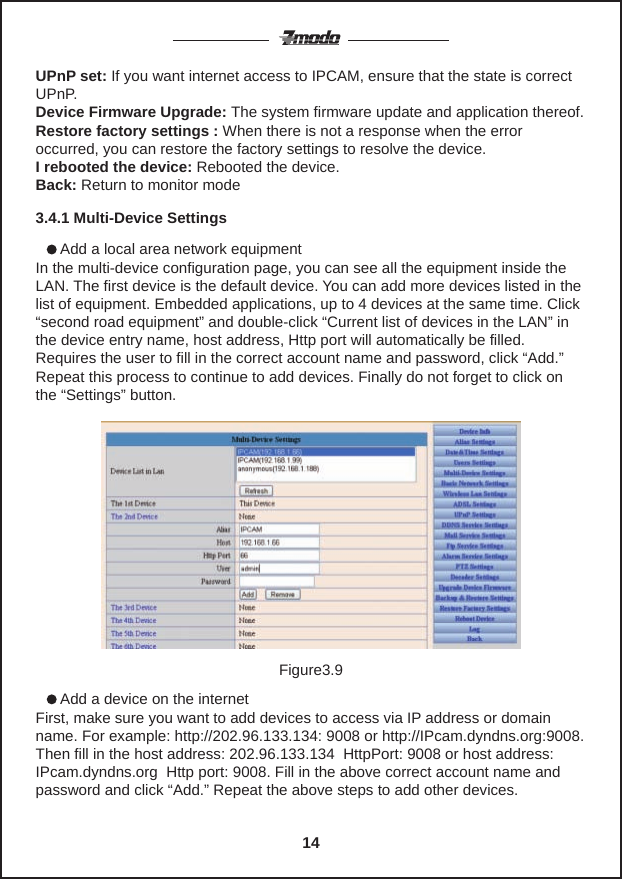
      Add a local area network equipmentIn the multi-device configuration page, you can see all the equipment inside the LAN. The first device is the default device. You can add more devices listed in the list of equipment. Embedded applications, up to 4 devices at the same time. Click “second road equipment” and double-click “Current list of devices in the LAN” in the device entry name, host address, Http port will automatically be filled. Requires the user to fill in the correct account name and password, click “Add.” Repeat this process to continue to add devices. Finally do not forget to click on the “Settings” button.UPnP set: If you want internet access to IPCAM, ensure that the state is correct UPnP.Device Firmware Upgrade: The system firmware update and application thereof.Restore factory settings : When there is not a response when the error occurred, you can restore the factory settings to resolve the device.I rebooted the device: Rebooted the device.Back: Return to monitor mode3.4.1 Multi-Device Settings      Add a device on the internetFirst, make sure you want to add devices to access via IP address or domain name. For example: http://202.96.133.134: 9008 or http://IPcam.dyndns.org:9008. Then fill in the host address: 202.96.133.134  HttpPort: 9008 or host address: IPcam.dyndns.org  Http port: 9008. Fill in the above correct account name and password and click “Add.” Repeat the above steps to add other devices.Figure3.914
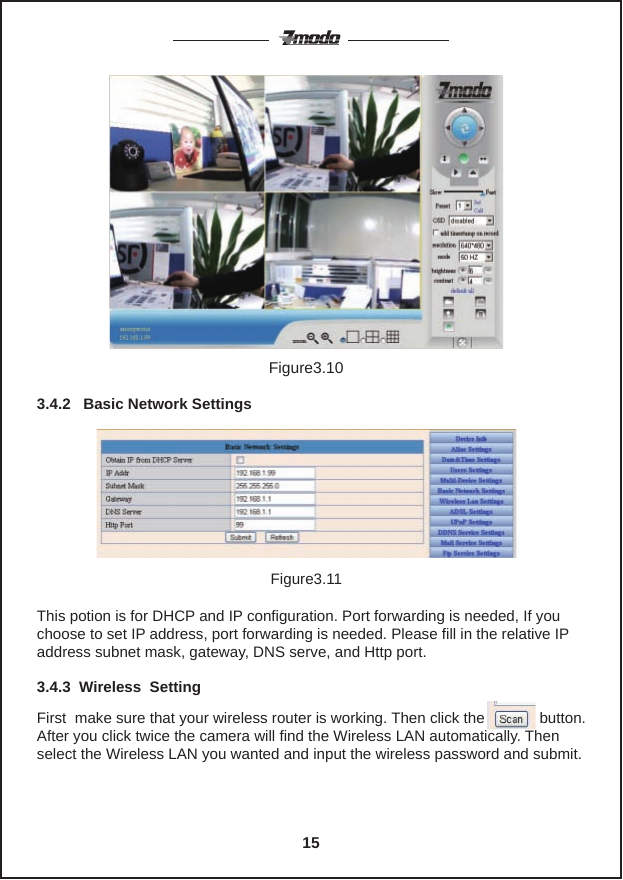
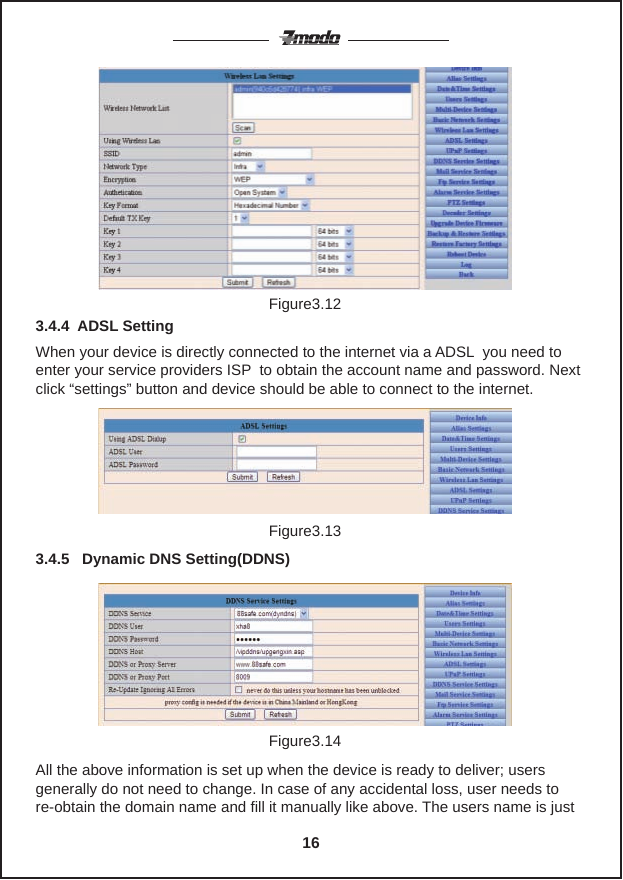
Figure3.10This potion is for DHCP and IP configuration. Port forwarding is needed, If you choose to set IP address, port forwarding is needed. Please fill in the relative IP address subnet mask, gateway, DNS serve, and Http port.Figure3.113.4.2   Basic Network SettingsFirst  make sure that your wireless router is working. Then click the             button. After you click twice the camera will find the Wireless LAN automatically. Then select the Wireless LAN you wanted and input the wireless password and submit.3.4.3  Wireless  Setting15
Figure3.12When your device is directly connected to the internet via a ADSL  you need to enter your service providers ISP  to obtain the account name and password. Next click “settings” button and device should be able to connect to the internet.3.4.4  ADSL Setting3.4.5   Dynamic DNS Setting(DDNS)Figure3.13Figure3.14All the above information is set up when the device is ready to deliver; usersgenerally do not need to change. In case of any accidental loss, user needs to re-obtain the domain name and fill it manually like above. The users name is just 16
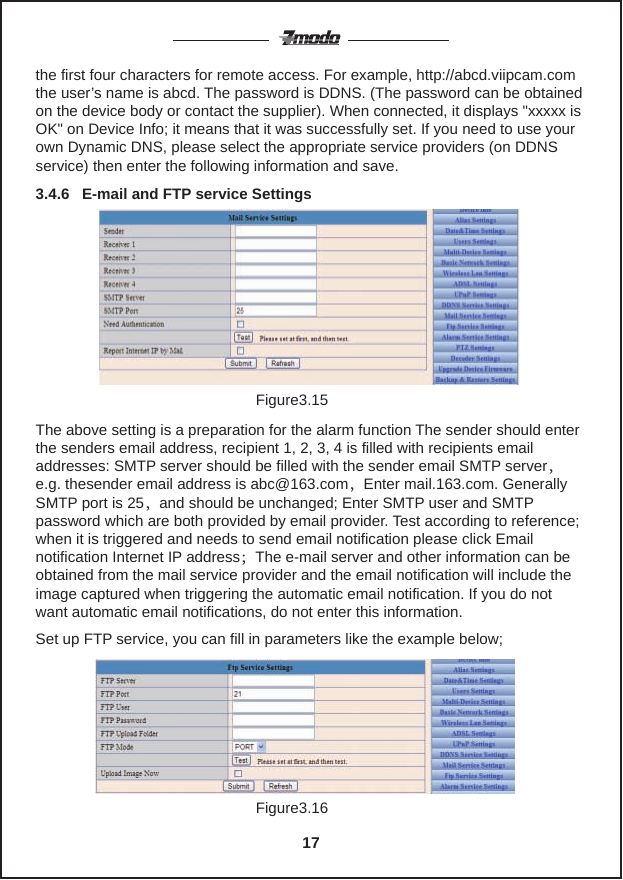
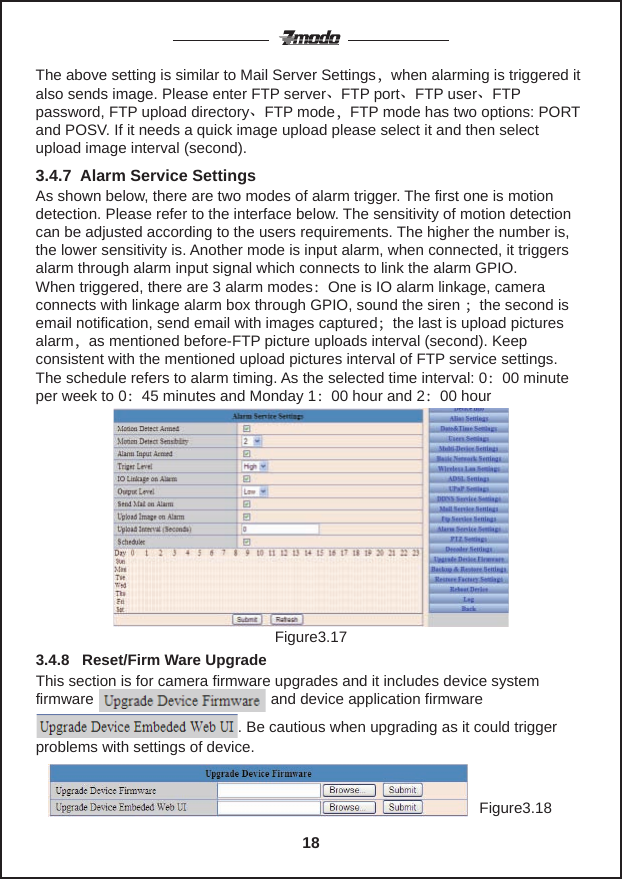
Figure3.15the first four characters for remote access. For example, http://abcd.viipcam.comthe user’s name is abcd. The password is DDNS. (The password can be obtained on the device body or contact the supplier). When connected, it displays "xxxxx is OK" on Device Info; it means that it was successfully set. If you need to use your own Dynamic DNS, please select the appropriate service providers (on DDNS service) then enter the following information and save.3.4.6   E-mail and FTP service SettingsThe above setting is a preparation for the alarm function The sender should enter the senders email address, recipient 1, 2, 3, 4 is filled with recipients email addresses: SMTP server should be filled with the sender email SMTP server,e.g. thesender email address is abc@163.com,Enter mail.163.com. Generally SMTP port is 25,and should be unchanged; Enter SMTP user and SMTP password which are both provided by email provider. Test according to reference; when it is triggered and needs to send email notification please click Email notification Internet IP address;The e-mail server and other information can be obtained from the mail service provider and the email notification will include the image captured when triggering the automatic email notification. If you do not want automatic email notifications, do not enter this information.Figure3.16Set up FTP service, you can fill in parameters like the example below;17
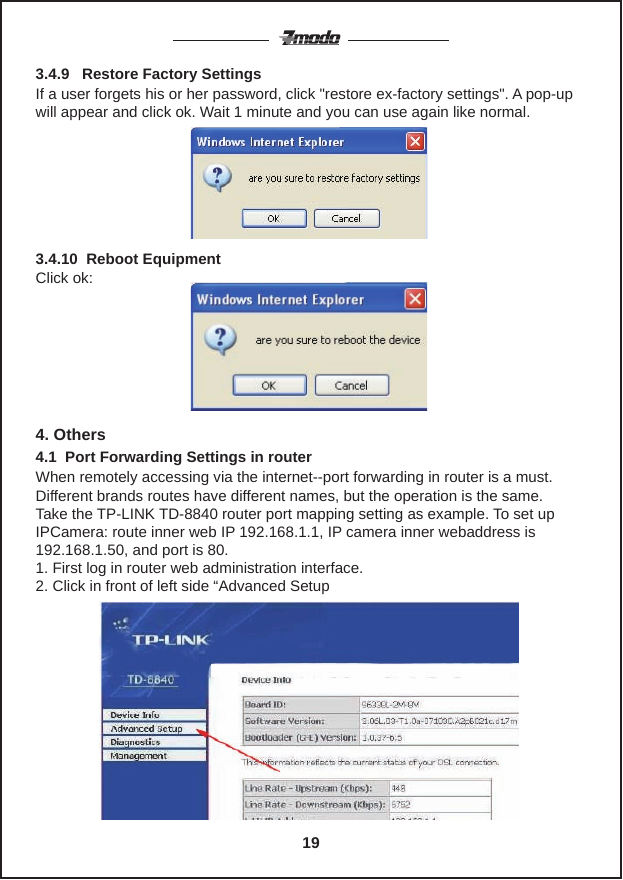
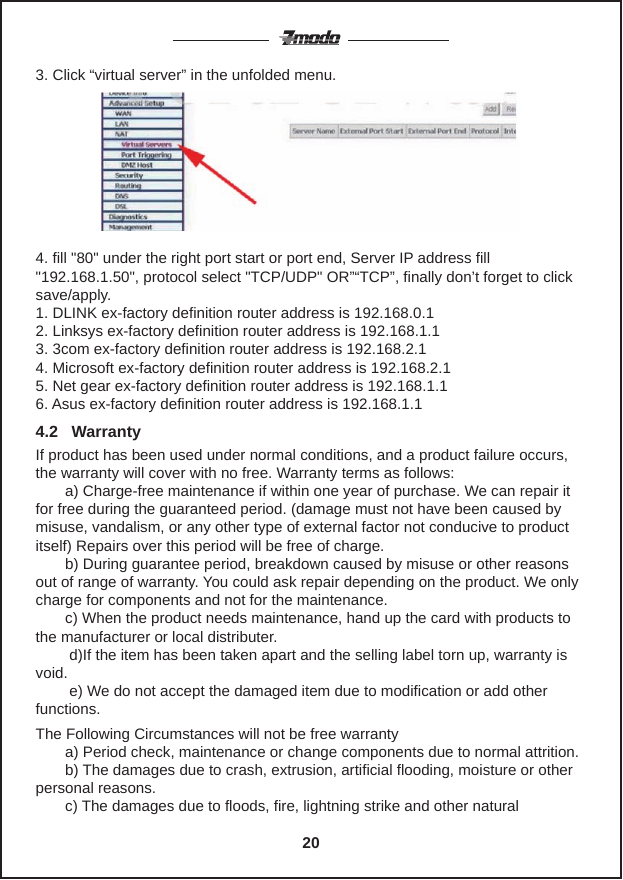
The above setting is similar to Mail Server Settings,when alarming is triggered it also sends image. Please enter FTP server、FTP port、FTP user、FTP password, FTP upload directory、FTP mode,FTP mode has two options: PORT and POSV. If it needs a quick image upload please select it and then select upload image interval (second).As shown below, there are two modes of alarm trigger. The first one is motion detection. Please refer to the interface below. The sensitivity of motion detection can be adjusted according to the users requirements. The higher the number is, the lower sensitivity is. Another mode is input alarm, when connected, it triggers alarm through alarm input signal which connects to link the alarm GPIO.When triggered, there are 3 alarm modes:One is IO alarm linkage, camera connects with linkage alarm box through GPIO, sound the siren ;the second is email notification, send email with images captured;the last is upload pictures alarm,as mentioned before-FTP picture uploads interval (second). Keep consistent with the mentioned upload pictures interval of FTP service settings. The schedule refers to alarm timing. As the selected time interval: 0:00 minute per week to 0:45 minutes and Monday 1:00 hour and 2:00 hour3.4.7  Alarm Service SettingsFigure3.17Figure3.18This section is for camera firmware upgrades and it includes device system firmware                                          and device application firmware                                                                      . Be cautious when upgrading as it could trigger problems with settings of device.3.4.8   Reset/Firm Ware Upgrade18
If a user forgets his or her password, click "restore ex-factory settings". A pop-up will appear and click ok. Wait 1 minute and you can use again like normal.3.4.9   Restore Factory SettingsClick ok:4. OthersWhen remotely accessing via the internet--port forwarding in router is a must. Different brands routes have different names, but the operation is the same.Take the TP-LINK TD-8840 router port mapping setting as example. To set up IPCamera: route inner web IP 192.168.1.1, IP camera inner webaddress is 192.168.1.50, and port is 80.1. First log in router web administration interface.2. Click in front of left side “Advanced Setup4.1  Port Forwarding Settings in router3.4.10  Reboot Equipment 19
4. fill "80" under the right port start or port end, Server IP address fill"192.168.1.50", protocol select "TCP/UDP" OR”“TCP”, finally don’t forget to click save/apply.1. DLINK ex-factory definition router address is 192.168.0.12. Linksys ex-factory definition router address is 192.168.1.13. 3com ex-factory definition router address is 192.168.2.14. Microsoft ex-factory definition router address is 192.168.2.15. Net gear ex-factory definition router address is 192.168.1.16. Asus ex-factory definition router address is 192.168.1.13. Click “virtual server” in the unfolded menu.If product has been used under normal conditions, and a product failure occurs, the warranty will cover with no free. Warranty terms as follows:       a) Charge-free maintenance if within one year of purchase. We can repair it for free during the guaranteed period. (damage must not have been caused by misuse, vandalism, or any other type of external factor not conducive to product itself) Repairs over this period will be free of charge.       b) During guarantee period, breakdown caused by misuse or other reasons out of range of warranty. You could ask repair depending on the product. We only charge for components and not for the maintenance.       c) When the product needs maintenance, hand up the card with products to the manufacturer or local distributer.        d)If the item has been taken apart and the selling label torn up, warranty is void.        e) We do not accept the damaged item due to modification or add otherfunctions.The Following Circumstances will not be free warranty       a) Period check, maintenance or change components due to normal attrition.       b) The damages due to crash, extrusion, artificial flooding, moisture or otherpersonal reasons.       c) The damages due to floods, fire, lightning strike and other natural 4.2   Warranty20
calamities or physical damage.       d) Repaired item by non-authorized repair centers.All above terms, if changed, regarded to relevant regulations.     21FCC STATEMENT1. This device complies with Part 15 of the FCC Rules. Operation is subject to the following two conditions:    (1) This device may not cause harmful interference.    (2) This device must accept any interference received, including interference that may cause undesired operation.2. Changes or modifications not expressly approved by the party responsible for compliance could void the user's authority to operate the equipment.Note: This equipment has been tested and found to comply with the limits for a Class B digital device, pursuant to Part 15 of the FCC Rules. These limits are designed to provide reasonable protection against harmful interference in a residential installation.This equipment generates uses and can radiate radio frequency energy and, if not installed and used in accordance with the instructions, may cause harmful interference to radio communications. However, there is no guarantee that interference will not occur in a particular installation. If this equipment does cause harmful interference to radio or television reception, which can be determined by turning the equipment off and on, the user is encouraged to try to correct the interference by one or more of the following measures:   Reorient or relocate the receiving antenna.   Increase the separation between the equipment and receiver.   Connect the equipment into an outlet on a circuit different from that to which the receiver is connected.   Consult the dealer or an experienced radio/TV technician for help.FCC Radiation Exposure StatementThis equipment complies with FCC radiation exposure limits set forth for an uncontrolled environment. This equipment should be installed and operated with minimum distance 20cm between the radiator & your body
Your Security, Our Priority.

Navigation menu