ZONDA de C V ZMTH200 GSM Mobile Phone User Manual
ZONDA Corporation, S.A. de C.V. GSM Mobile Phone Users Manual
Users Manual

User Guide
Mobile Phone
ZMTH200

I
Table of Contents
1 Safety and General Information........................................................................................... -1-
1.1 Brief Introduction......................................................................................................... -1-
1.2 Mobile Phone Security............................................................................................ -1-
1.3 Important Safety Precautions................................................................................. -1-
1.3.1 General Precautions............................................................................................... -1-
1.3.2 Phone Precautions............................................................................................... -2-
1.3.3 Battery Safety Precautions.................................................................................. -2-
1.3.4 Disposing of Used Battery........................................................................... -3-
1.3.5 Charger Precautions.................................................................................... -4-
1.3.6 Clean and Maintenance............................................................................... -5-
1.3.7 General Precautions..................................................................................... -5-
2 Specification............................................................................................................................ -5-
2.1 Specification................................................................................................................ -5-
2.2 Technical Performance........................................................................................... -6-
3 Phone Appearance and Keys............................................................................................... -6-
3.1 Physical Impression.................................................................................................... -6-
3.2 Soft Keys...................................................................................................................... -7-
3.3 Dial Key........................................................................................................................ -7-
3.4 End Key........................................................................................................................ -7-
3.5 Navigation Keys.......................................................................................................... -7-
3.6 Alphanumeric Keys..................................................................................................... -7-
3.7 1 Key............................................................................................................................. -7-
3.8 0 Key.......................................................................................................................... -7-
3.9 *Key......................................................................................................................... -8-
3.10 #Key......................................................................................................................... -8-
4 Icons......................................................................................................................................... -8-
4.1 Display.......................................................................................................................... -8-
4.2 Icons.............................................................................................................................. -8-
5 Menu Function........................................................................................................................ -9-
5.1 Overview of Menu Functions..................................................................................... -9-
5.2 Keypad Lock............................................................................................................ -9-
6 User Guide......................................................................................................................... -10-
6.1 Installing/ Removing the battery............................................................................. -10-
6.2 Charging the battery................................................................................................. -10-
6.3 Inserting/Removing the SIM card........................................................................... -10-
6.4 Power On or Off........................................................................................................ -11-
7 Call Functions....................................................................................................................... -11-
7.1 Making a Call............................................................................................................. -11-
7.1.1 Making a Call from the Phonebook.............................................................-11-
7.1.2 Making a Call from Call Records.............................................................. -12-
7.1.3 Redialing the Last Number........................................................................ -12-
7.2 Dialing an Emergency Number.................................................................... -12-

II
7.3 Dialing an International Number.......................................................................... -12-
7.4 Answering a Call.................................................................................................... -12-
7.5 Adjusting the Volume............................................................................................ -13-
7.6 Mic off/Mic On......................................................................................................... -13-
7.7 Answering a second call....................................................................................... -13-
7.8 Hold/Swap............................................................................................................... -13-
7.9 Hold/Unhold............................................................................................................ -13-
7.10 Call Options.......................................................................................................... -13-
7.10.1 During a call.............................................................................................. -13-
7.10.2 Making a Multiparty Call.......................................................................... -14-
7.11 Missed Calls......................................................................................................... -14-
8 Short Message............................................................................................................. -14-
8.1 Read message.......................................................................................................... -14-
8.2 Write message....................................................................................................... -15-
8.3 Outbox..................................................................................................................... -15-
8.4 Draftbox................................................................................................................... -15-
8.5 Template................................................................................................................. -15-
8.6 Voice mail................................................................................................................ -15-
8.7 Message setup....................................................................................................... -16-
8.8 Broadcast Message............................................................................................... -16-
8.9 Delete All................................................................................................................. -16-
9 Phonebook................................................................................................................. -17-
9.1 Browse..................................................................................................................... -17-
9.2 Create...................................................................................................................... -17-
9.3 SIM Phonebook......................................................................................................... -17-
9.4 ME Phonebook.......................................................................................................... -17-
9.5 Storage status........................................................................................................ -18-
9.6 Abbr.dial.................................................................................................................. -18-
9.7 Copy......................................................................................................................... -18-
9.8 Delete all entries.................................................................................................. -18-
9.9 SDN phonebook..................................................................................................... -18-
9.10 SOS..................................................................................................................... -18-
9.11 Group..................................................................................................................... -18-
10 Call Records............................................................................................................ -18-
10.1 Incoming Call........................................................................................................... -18-
10.2 Outgoing Call........................................................................................................ -19-
10.3 Missed Call........................................................................................................... -19-
10.4 Call Duration......................................................................................................... -19-
11 Settings..................................................................................................................... -19-
11.1 Phone Settings..................................................................................................... -19-
11.2 Network Settings.................................................................................................. -21-
11.2.1 Network select mode....................................................................................... -21-
11.3 Call Settings......................................................................................................... -21-
11.3.1 Call Waiting....................................................................................................... -21-

III
11.3.2 Call forwarding.................................................................................................. -21-
11.3.3 Call Barring........................................................................................................ -21-
11.3.4 Auto redial......................................................................................................... -22-
11.3.5 Any key answer................................................................................................ -22-
11.3.6 Fixed dial........................................................................................................... -22-
11.3.7 Enable FDN....................................................................................................... -22-
11.4 Shortcut Settings................................................................................................. -22-
12 Profiles...................................................................................................................... -22-
12.1 General.................................................................................................................. -22-
12.2 Meeting.................................................................................................................. -22-
12.3 Outdoor................................................................................................................. -22-
12.4 Indoor.................................................................................................................... -23-
13 Time Manager......................................................................................................... -23-
13.1 Set alarm............................................................................................................... -23-
13.1.1 Edit Alarm.......................................................................................................... -23-
13.2 Timer...................................................................................................................... -23-
13.3 Calculator.............................................................................................................. -23-
13.4 Calendar................................................................................................................ -24-
13.5 World Time........................................................................................................... -24-
14 Entertainments................................................................................................................ -24-
14.1 Box Man................................................................................................................ -24-
15 FM Radio..................................................................................................................... -24-
16 SIM Tool Kit................................................................................................................ -24-
17 Security................................................................................................................................ -24-
17.1 PIN Code............................................................................................................... -25-
17.2 PUK code.............................................................................................................. -25-
17.3 PIN2 code............................................................................................................. -25-
17.4 PUK2 code............................................................................................................ -25-
18 Text Input Settings............................................................................................................. -25-
18.1 Key functions for Input Mode............................................................................. -25-
18.2 English Input Mode.............................................................................................. -25-
18.2.1 Definition.................................................................................................... -25-
18.2.2 Clear Entries..............................................................................................-25-
18.2.3 Insert Word................................................................................................ -25-
19 Guidelines for Safe and Efficient Use............................................................................. -26-
19.1 Care and Maintenance.......................................................................................... -26-
19.2 Battery Maintenance........................................................................................... -26-
20 Troubleshooting................................................................................................................. -27-
21 FCC Warning...................................................................................................................... -29-

-1-
1 Safety and General Information
1.1 Brief Introduction
PLEASE READ THIS INFORMATION BEFORE USING THE PHONE. TRENDHARVEST IS
NOT RESPONSIBLE FOR ANY DAMAGE/S DUE TO MISINTERPRETATION OF THIS
INFORMATION AND MISUSE OF PRODUCT.
TRENDHARVEST aims to improve its products and services and reserves all rights to
revise/change the description of this product and its software as well as this user’s manual
without obligation to notify any person of such revisions and changes.
Some features introduced in this manual are network or subscription-dependent features.
Please contact your service provider for more information.
1.2 Mobile Phone Security
1) If your mobile phone is stolen or lost, the far more important action for you to
undertake is to contact your network operator to have your account disabled so that
nobody else can apply charges to it.
2) To make such a report, you need give them the IMEI number, a unique 15-digit serial
number which can be accessed by keying *#06# into most phones, or looking behind
the battery of your phone. Take a note of it, because if your mobile gets lost or stolen,
your network operator can use it to bar the handset.
3) To prevent your phone from any misuse, please take such measures:
Use your mobile phone PIN and not let others have access to your mobile phone.
Change your mobile phone PIN straight away if you think someone else knows it. Keep
the phone dry as it is not waterproof.
When you leave your car, do not put your phone on a place which can be easily seen.
You’d better take it with you or lock it in a case.
Set up call barring. Backup all important data.
1.3 Important Safety Precautions
Read these guidelines before using your wireless phone. Failure to comply with them
may be dangerous or illegal.
1.3.1 General Precautions
1) Use only approved accessories and batteries by the manufacturer. The use of any
other types may cause battery leaking, overheating, rupture or fire.
2) Do not violently bump, shake or sling the phone. Doing so could cause the phone
malfunction and fire.
3) Do not put battery, phone and charger into a microwave or high-pressure container,
or it may result in accidents like circuit damaged or fire.
4) Do not use the phone when near inflammable and explosive materials, or it may
cause phone malfunction and fire.
5) Do not place the phone at a high-temperature, high humidity or dusty locations, or they
can cause extensive damage to the phone.
6) Keep the phone out of the reach of children, as children may regard the phone as a toy,
posing a risk of injury.

-2-
7) Do not place the phone on uneven or unstable bases, as it may cause the phone to fall,
and result in malfunction or damage.
1.3.2 Phone Precautions
1) Switch off your phone in aircraft, hospital and any facility where posted notices instruct
you to do so. Wireless phone can cause interference to electronic instruments and
medical equipment, when using your phone in such kind of area, meet any special
regulations in force. Check your power settings and make sure your mobile phone will
not automatically switch on when on board an aircraft. Turn off your phone whenever
on board an air craft, so as not to interfere with electronic system and result in aircraft
accidents.
2) To avoid electromagnetic interference and/or compatibility conflicts, turn off your
mobile phone in any facility where posted notices instruct you to do so. Hospitals or
health care facilities may be using equipment that is sensitive to external RF energy.
Especially when near the below devices: hearing aid, pacemaker and other medical
devices, fire detector, automatic door and other automatic control devices. In the event
of mobile phone interfering with pacemaker and other medical electronic devices,
consult the manufacturer of the device or local salesman. Mobile phone may interfere
with appliances like television, radio, or PC
3) Do not hit the LCD display with extreme force or use it to hit other things. Doing so may
break the glass and cause the LCD liquid to leak. If the liquid enters into eyes, it may
blind you. In such case, rinse with a large quantity of water immediately (do not rub
your eyes) and consult a doctor.
4) Do not disassemble or remodel your phone. Doing this may damage your phone or
result in the leakage of electricity and circuit fault.
5) In a very few cases, the use of mobile phone may interfere with the electronic
equipments in some cars. In such case, for safety, do not use mobile phone.
6) Do not press keys with sharp things like needle or pen head. Doing so may cause
damage to your phone or operation mistakes.
7) Do not use the mobile phone if it has a damaged antenna, as it may cause injury to
persons.
8) Turn your phone off and do not remove its battery or charge the battery when in an
area with a potentially explosive atmosphere. Sparks in such areas could cause an
explosion or fire resulting in property damage, bodily injury or even death. For example:
switch off the phone before entering refueling point. Do not use the phone near at a
refueling point (service station) or near fuels or chemicals.
9) Keep your phone away from moisture. If water or other liquids get into phone, it will
cause phone overheating, leakage of electricity and malfunction.
1.3.3 Battery Safety Precautions
1) Battery Precautions
Do not throw a battery into a fire. A battery may rupture or bum violently when thrown
into a fire. Please dispose of the used battery according to your local environmental
laws.

-3-
When installing battery, do not forcibly put pressure on the battery, or it may result in
overheating, leaking, rupturing or fire.
Do not short-circuit the positive (+) and negative (-) terminals. If the positive and
negative terminals come into contact with each other or are shorted with wire or other
metallic objects, an instantaneous high current will flow, possibly damaging the battery
structure due to the generated heat, with the possible result of overheating, leaking,
rupturing or fire.
Do not exceed the battery manufacturer's charging current or voltage limitations. And
only use the approved peripherals.
Do not directly solder anything onto the battery terminals. Direct soldering onto the
battery terminals can cause heat generation, leaking, rupturing or fire.
If the electrolyte inside the battery gets into your eyes, it may blind you. In such case,
do not rub your eyes but rinse with a large quantity of water immediately and consult a
doctor.
For safety, do not put the battery into your mouth or use the damaged battery.
Do not attempt to disassemble or modify a battery. Doing so may result in leaking,
overheating, rupture or fire.
Do not use or put battery near high temperature places like fire or heat-generating
parts, or it may cause leaking, overheating, rupture or fire.
Stop using the battery if abnormal heat, odor, discoloration, deformation, or abnormal
conditions are detected during use, charge, or storage.
Do not allow leaked electrolyte to come into contact with your skin or clothes. If this
happens, rinse with a large quantity of water immediately and consult a doctor.
If the battery leaks electrolyte or emits a strange odor, immediately remove it from open
flame to avoid fire and rupture.
Keep battery from moisture, as it may cause the battery to overheat, smoke and
corrode.
Do not place or store the battery in an automobile in hot weather, under direct sunlight.
Use or storage of the battery in these places may cause battery leakage and
overheating, and possibly lower the performance and shorten the battery's life.
Only use the approved batteries and fittings. Do not connect to unspecified devices.
Do not continuously charge the battery for more than 24 hours, as battery may be
damaged by extensive overcharging.
2) Battery Capability
Calling, backlight on and playing game drain your battery much quicker. Long talk-time
decreases the duration of the standby time.
Idle time becomes shorter if the phone is out of coverage.
Battery capability varies along with charging level, temperature, signal strength, and
backlight.
1.3.4 Disposing of Used Battery
The rechargeable batteries contain toxic heavy metals like mercury, cadmium, and lead.
Improperly disposed batteries will cause heavy metal contamination. These batteries
when discarded in ordinary household or workplace, after a long time, the heavy metal

-4-
will leach slowly into the soil, ground water and surface water. Therefore, please dispose
of used battery in a proper way.
1) Do not land filled, because the heavy metal will leach slowly into the soil, ground water
and surface water.
2) Do not incinerate, because the heavy metals can enter the air through smokestack
emissions and can concentrate in the ash produced by combustion.
3) Do not compost, because the heavy metals in the compost may exceed standards.
4) Do not throw away used batteries random, avoiding environmental pollution.
5) Separate wasted batteries from household trash, reducing its harm to the environment.
1.3.5 Charger Precautions
1) Use charger to charge battery quickly. Before charging, make sure the battery has been
inserted in the phone correctly. Do not remove the battery while charging.
2) Please use the specified alternating current. Using other voltage will cause electricity
leakage, fire or damage to the phone and charger.
3) Charge your battery for at least 12 hours at the first time for its best performance and long
cycle life.
4) If the charger still plugs in the charge slot and the phone has been fully charged, the
phone will check the battery state automatically, and recharge the battery once it is not at
full level.
5) While the mobile phone is being charged, keep it out of the reach of children.
6) Do not short-circuit the charger. A short-circuit may result in electric shock, smoke and
damage to the charger.
7) If the power cord is damaged, please do not use the charger, or it may cause fire or
electric shock.
8) Please clean the dust on the power outlet in time.
9) Do not put container filled with water beside charger, as water may be splashed on
charger, causing the charger overheating, leakage of electricity and malfunction.
10) If the charger comes into contact with water or any other liquids, immediately unplug the
charger from outlet to reduce the risk of overheating, fire, electric shock or charger
malfunction.
11) Do not disassemble or modify the charger. Doing so could result in risk of injury to
persons, electric shock, fire and damage to the charger.
12) Do not use charger in a high moisture environment like bathroom, or it may cause
electric shock, fire and damage to the charger.
13) Do not touch the charger, power cord and power outlet with wet hands as it may cause
electric shock.
14) Never put a heavy object on the power cord or modify the power cord. Doing so may
cause electric shock or fire.
15) To reduce risk of electric shock or injury, unplug the charger from the power outlet
before cleaning or maintenance.
16) When you disconnect the power cord of the charger, grasp and pull the plug, not the
cord. Pulling the cord may cause electric shock and fire.

-5-
1.3.6 Clean and Maintenance
1) Your phone, battery and charger are not waterproof. Do not use them in a high
moisture environment like bathroom, and meanwhile, avoid getting wet in the rain.
2) Use soft dry cloth to clean the phone, battery and charger.
3) Do not use liquor like alcohol, thinner or benzene to clean the phone.
4) The dust or dirt on power outlet may cause poor contact, power failure and even fail to
charge. Please clean it up within a certain time.
1.3.7 General Precautions
1) Mobile Phone
Please use the phone at a temperature of 5℃~40℃and a relative humidity of
35%~85%.
Avoid using the phone near regular telephone, television, radio and automatic office
equipment, as they may interfere with one another.
Please keep the removable SIM card out of the reach of children as there is a risk
they could swallow it.
2) Battery
Please put the battery in a cool and well-ventilated place out of direct sunlight.
Batteries have life cycles. If the time that the battery powers equipment becomes
much shorter than usual, the battery life is at an end. Replace the battery with a new
battery of the same.
Do not discard battery with household trash. Please dispose of used battery
according to your local environmental laws and guidelines.
3) Charger
Do not charge the phone in the below environment:
Under direct sunlight;
Temperature out of range: 5℃to 40℃;
Humid, dusty or severely shaking environment (could cause a malfunction);
Near appliances such as television, radio (could affect the image, audio effect).
2 Specification
2.1 Specification
Band: GSM 850/PCS 1900 dual band
Dimensions: 92*57*15 (mm)
Weight: 70(g)
Talk Time: 400~600 minutes(Network Dependent)
Stand-by time: 200~240 hr. (Network Dependent)
Display parameters: display, 1.77”
Battery: Li-ion Battery 650mAh
Ringtone: Embedded 7 music ringtones
Other Features: such as dial, timer etc.
-6-
2.2 Technical Performance
Cellular
System
Technical
Performance
GSM850 PCS1900
Receive
frequency range 869~894MHz 1930~1990 MHz
Transmitter
frequency range 824~849 MHz 1850~1910 MHz
Transmitter
output Power +5…+33dBm/3.2mW…2W +0…+30dBm/1mW…1W
Frequency
Spacing 25 MHz 60 MHz
Channels 124 299
Adjacent channel
spacing 200KHz 200KHz
Power levels 15 16
Sensitivity -102dBm/BER<2% -100dBm/BER<2%
Frequency Error <±0.1ppm <±0.1ppm
RMS Phase
Error <5° <5°
Peak
phase Error <20° <20°
3 Phone Appearance and Keys
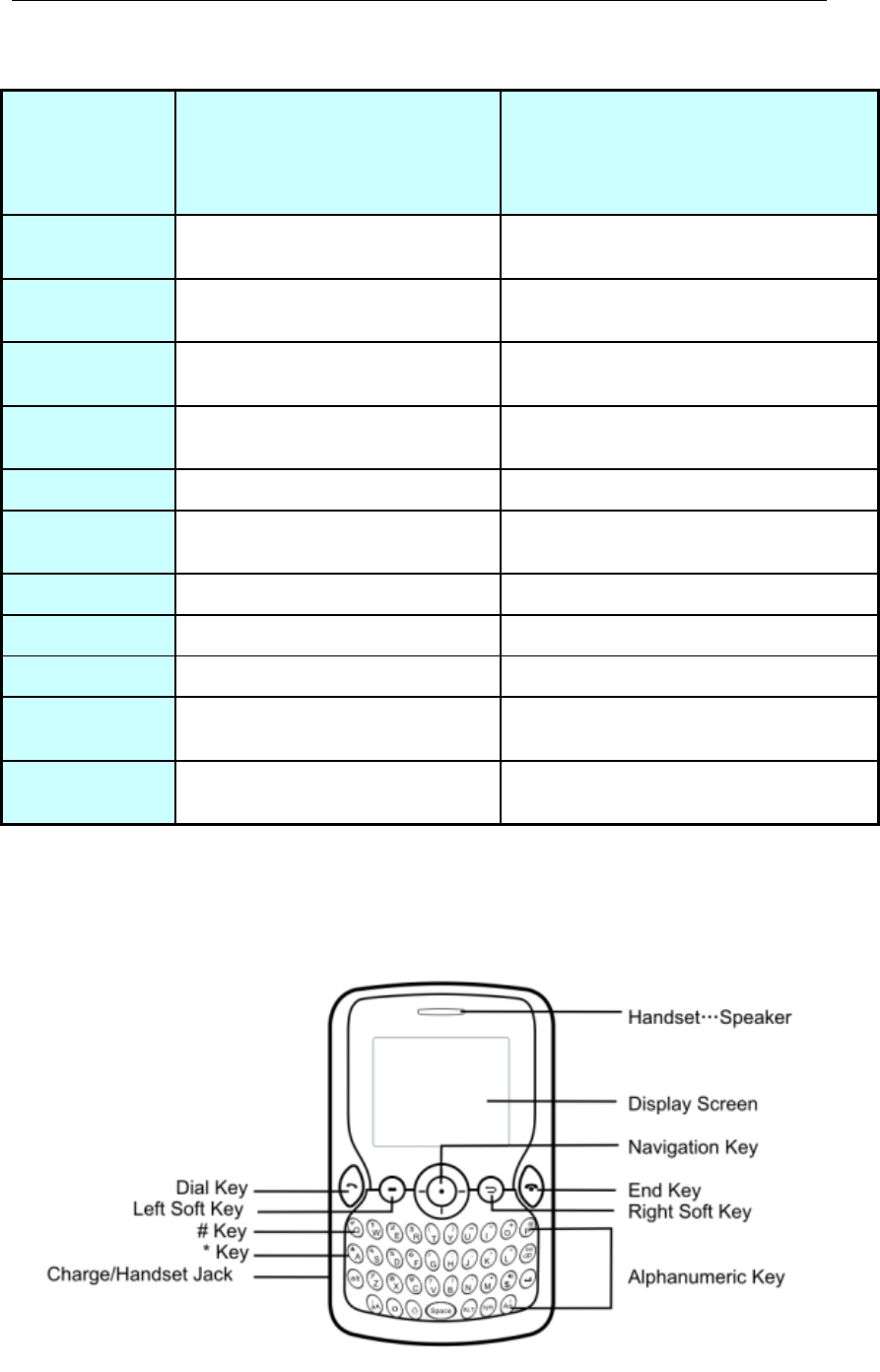
3.1 Physical Impression

-7-
3.2 Soft Keys
1) Perform the functions indicated by the text above (on the bottom line of the display).
2) In idle mode, press left soft key to access menu, and press right soft key to access
call records menu.
3.3 Dial Key
1) Answer a call.
2) In idle mode, enter phone number and press the key to make a call. Or dial a
number from phonebook or call records.
3) In idle mode, press the key to display the last 10 dialed calls phone numbers. Press
left/right navigation keys to switch to the list of missed calls or incoming calls.
3.4 End Key
1) End the call.
2) Return to idle mode.
3) With phone on, hold down the key (Approx. 3 seconds) to switch phone off. With
phone off, hold down the key (Approx. 3 seconds) to switch phone on.
3.5 Navigation Keys
separately indicates OK key and 【↑】【↓】【←】【→】four directions.
1)In idle mode, press【↑】to access SIM STK;
2) In idle mode, press【↓】to access phonebook;
3) In idle mode, press【←】to access write new short message;
4) In idle mode, press【→】to access calendar;
5) OK key to enter SMS main menu
6)When receiving an incoming call, press【←】【→】to decrease and increase the
ringtone volume.
7) In other interface, press navigation keys to move cursor or scroll through options.
※Note: You can reset navigation keys via Menu -> Settings -> Shortcut Settings. ※
3.6 Alphanumeric Keys
1) When dial a number, enter corresponding number.
2) In input mode, enter different characters according to input mode, like letter or
number.
3) In idle mode, press 2~9 digit key and Dial Key to access speed dials (You need
preset speed dials via [Phonebook]-[Speed dials]).
4) In idle mode, press one or more keys of 1-9 and then press # key to directly access
entries in phonebook. For example: press 1 and # in turn, it displays the first entry of
phonebook.
3.7 1 Key
1) When dial a number, enter number “1”.
2) In ABC mode, press to enter “W”. In abc mode, press to enter “w”. In 123 mode,
press to enter “1”.
3.8 0 Key
1) When dial a number, press to enter 0. Long press to enter “+”.
-8-
2) In all mode, press to enter number 0.
3.9 *Key
1) When dial a number, press to enter “*”.
2) In ABC mode, press to enter “A”. In abc mode, press to enter “a”. In 123 mode,
press to enter “*”.
3) In idle mode, long press to lock keypad; When keypad is locked, press left soft key
then press * key to unlock keypad.
3.10 #Key
1) When dial a number, press to enter “#”.
2) In ABC mode, press to enter “Q”. In abc mode, press to enter “q”. In 123 mode,
press to enter “#”.
3) In idle mode, long press to lock keypad; When keypad is locked, press left soft key
then press * key to unlock keypad
※Note: Idle mode means that your phone is switched on but not being used for any
function. ※
4 Icons
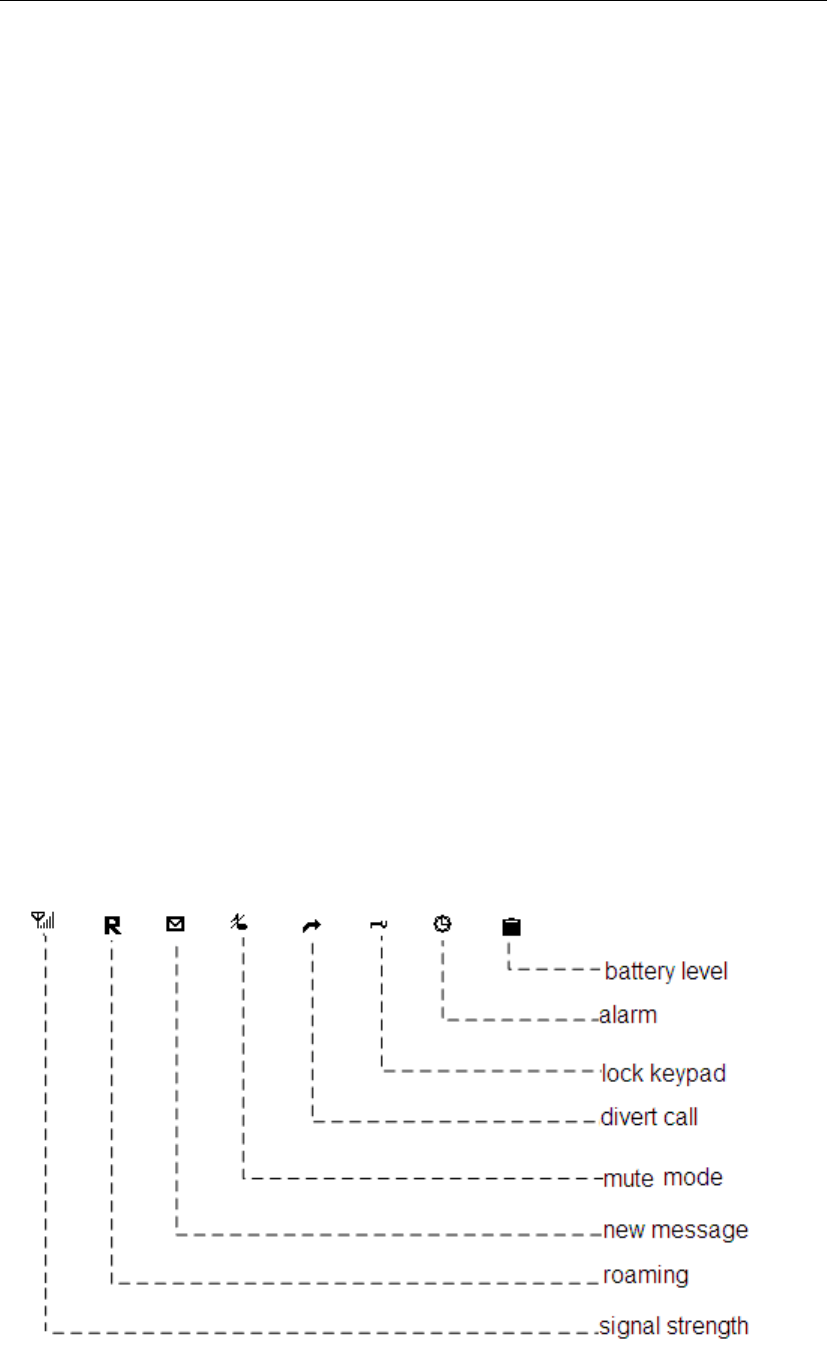
4.1 Display
Display includes three parts:
1) The icons on the top show status, indicating signal strength and battery charge
level.
2) The icons in the middle show text and image, including number, text and dynamic
icon.
3) The icons at the bottom indicate soft keys functions.
4.2 Icons
-9-
※Note: Here roaming refers to the extending of connectivity service in a network with which
your service provider has a roaming agreement. For example, suppose your service provider
is “China Mobile Communications (CMCC)”, and “Hong Kong Telecom (HKT)” is the network
with which CMCC has a roaming agreement. When you move from CMCC coverage to HKT,
then you can select HKT as your service provider. In such case, you are roaming. ※
5 Menu Function
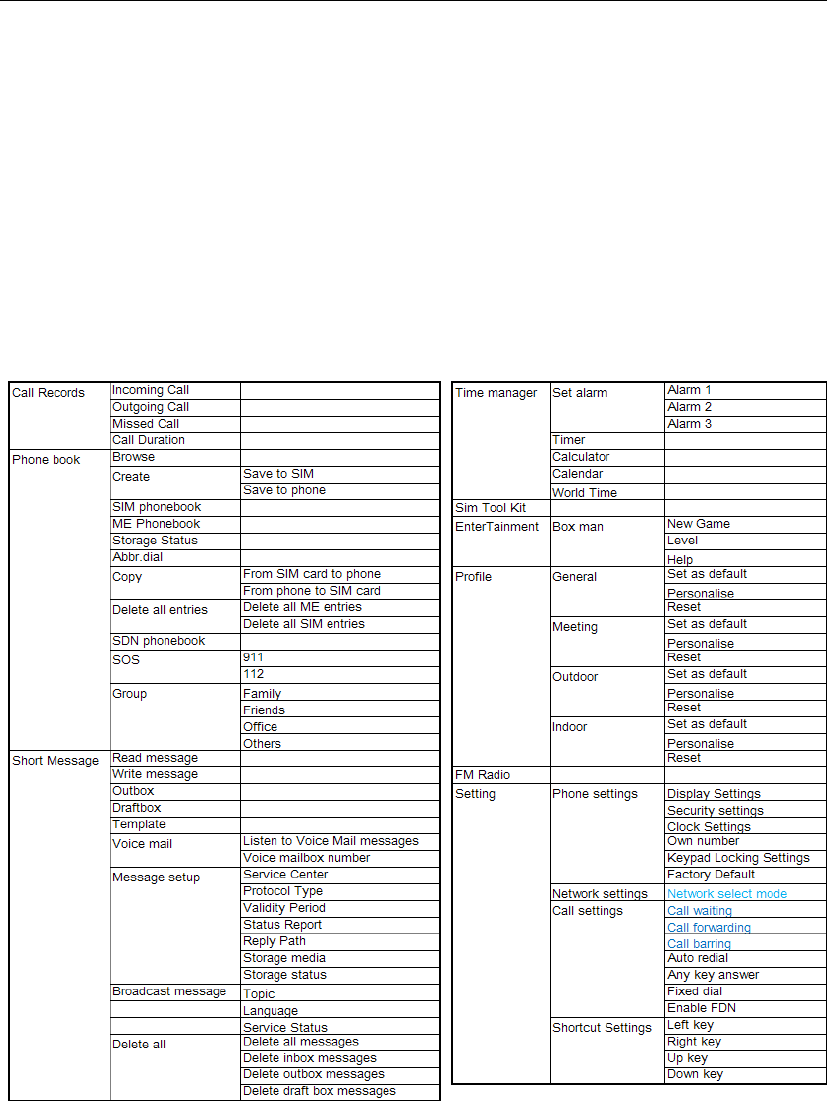
5.1 Overview of Menu Functions
In idle mode, press Left Soft Key to access menu. Scroll through options by pressing
navigation keys, and press Left Soft Key to access selected option. For menu tree please
refer to below table.
※Note:
(a) STK features depend on your SIM card.
(a) STK features depend on your SIM card.
(b) Part of secondary menu and its submenu are not listed on the above. ※
5.2 Keypad Lock
In idle mode, the phone provides you with auto keypad lock feature, preventing you from
pressing the keypad accidentally to make a call.

-10-
After you set auto keypad locking time via [Settings] -> [Phone Settings] ->[Keypad
Locking Settings], the phone locks the keypad automatically after being idle for 30
seconds or 60 seconds. Press left softkey first and then press ‘*’ key to unlock keypad.
※Notice: In idle mode, you can press Left Softkey or ‘*’ key to lock keypad. When
backlight powers off, only after press left soft key\right soft key\dial key\end key\* key\#key
to light the display for unlocking, preventing you from pressing the keypad accidentally to
consume the power. ※
6 User Guide
6.1 Installing/ Removing the battery
1) Installing the battery
With the top of battery (the terminal with pole) facing right toward the contacting
points in the battery compartment, press the bottom of battery slightly until it enters
into place;
Slide battery cover forward along the side slot until it clicks into place.
2) Removing the battery
Long press End key to switch the phone off;
Slide downward the battery cover;
Use your thumb to the hemicycle groove at the bottom of the phone, and use your
nail to lightly lift the battery away.
6.2 Charging the battery
Your phone is powered by a rechargeable Li-ion battery. When the battery is weak, the
battery sensor informs you. At this time, you need charge the battery. When the battery
becomes too weak for the phone to operate, it switches off automatically.
1) Plug the charger into the charger port at the left, top of the phone, and then plug
the other end of the charger into the appropriate electrical outlet.
2) The charging indicator icon starts to flash until charging is finished.
3) When charging is complete, disconnect the connector from the phone and
unplug the charger from electrical outlet.
* Attention:
i) Charging with phone on, a static battery icon appears on the display.
ii) During charging, the phone can operate as usual. But the charging time increases.
iii) Charging with phone off, the display says ‘Charging’ with charging indicator icon
flash.*
6.3 Inserting/Removing the SIM card
a) Inserting: make sure that the phone is already switched off and is not charging:
Remove the battery;
Contacting points downwards. The angled corner of SIM card towards the
outside and slide the card into the carrier. (The SIM card carrier is on the right top
of the battery apartment);
Insert battery.
b) Removing: make sure that the phone is already switched off:
Remove the battery;

-11-
Slide the card downward out of the carrier;
Insert battery.
※Note:
(a) SIM card contains your phonebook, PIN(personal identification number), PIN2,
PUK(PIN Unlock Code), PUK2(PIN2 Unlock Code)and IMSI (International Mobile
Subscriber Identity) number, as well as network information, call history, SMS (Short
Message) data, etc. So be careful when handling, inserting or removing the SIM card,
friction or bending may damage SIM card.
(b) If left unused, keep SIM card out of the reach of small children.
(c) Keep SIM card away from static, dusty and water.
(d) When inserting or removing SIM card, always make sure that the phone is switched
off before you remove the battery. Or the SIM card memory might be damaged. ※
6.4 Power On or Off
Make sure the battery is already inserted:
1) Power On: Hold down End Key for approximately 3 seconds until the phone-on
image display. After power on, the phone searches for your network automatically.
Some SIM card is protected by the PIN number, if you are asker for inputting the PIN
number, please enter it, then press Left Soft Key. (For further details see charpter 16
Security Code)
2) Power Off: Hold down End Key for approximately 3 seconds until the power-off
image display.
※Note:
(a) PIN is provided by your service provider. If the PIN is entered incorrectly three times,
the SIM card is barred. (More information, please reference part 16 security)
(b) If the phone asks for an unlock code when switched on, enter the unlock code and
press Left Soft Key. ※
7 Call Functions
7.1 Making a Call
Key in the area code and phone number when you want a call.
1) If the number is entered incorrectly, press Left/Right arrow key until the cursor is
to the right of the digit to be cleared and press Right Softkey to delete the digit; Or
hold down Right Softkey to delete all digits; Or press End key to clear all at one
time.
2) Key in the area code and phone number, and press Dial key to dial the number.
If the number is stored with a name, it appears on the display when you dial the
number.
3) Press End key to end a call. The display prompts a notification and returns to idle
mode.
7.1.1 Making a Call from the Phonebook
1) Enter [Phonebook], select Browse and find the required number;
2) Press Dial key to make a call.

-12-
*Note:You can quickly search numbers from [Phonebook] via navigation keys
and alphanumeric keys. Use navigation keys to move through pages; Use
alphanumeric keys to search by keywords. *
7.1.2 Making a Call from Call Records
1) Enter Menu -> Call Records
IncomingCall: list last 10 received numbers.
OutgoingCall: list last 10 dialed numbers.
MissedCall: list last 10 missed numbers.
Call Duration: Record the incoming & outgoing & missed call list quantity.
2) Use up and down keys to scroll to the required number.
3) Press Dial key to dial the number.
7.1.3 Redialing the Last Number
1) In idle mode, press Dial key to display the last number dialed.
2) Review the recent dialed 10 numbers, press up and down navigation keys to
select numbers.
3) Press Dial key to dial the number.
7.2 Dialing an Emergency Number
Only in GSM system coverage, you can make an emergency call, even though the
phone is locked, without SIM card, or cannot enroll to the system. Tell your
correspondent about your location, situation and Do not end the call until given
permission to do so.
1) Key in emergency number, such as 911 or 112;
2) Press Dial key to make the call. If no SIM card inserted in your phone, directly
press <Emergency call> to place the call.
※Note: This phone, like any wireless phone, operates using radio signals, wireless,
and landline networks as well as user programmed functions, which cannot
guarantee connection in all conditions. Therefore, you should never rely solely on
any wireless phone for essential communications like medical emergencies. To
make or receive calls, the phone must be switched on and in a service area with
adequate signal strength. Emergency calls may not be possible on all wireless
phone networks or when certain network services and/or phone features are in use.
Check with local service providers to make an emergency call.※
7.3 Dialing an International Number
1) Press ‘+’ key appears “+” or hold down ‘0’ key until character “+” appears, then you
can dial an international number. (The ‘+’ stands for international dial code.)
2) Key in the country code, area code and phone number.
3) Press Dial key to make the call.
※Note: Not all networks use ‘+’ as international dial code.※
7.4 Answering a Call
When somebody calls you, the phone rings or vibrates. If the caller can be identified, the
caller’s phone number (or name if stored in your phonebook) is displayed.
1) Press Dial key to answer the incoming call.
2) Press Right Softkey or End key to end the call.

-13-
3) Press Right Softkey to access <Option>. You can select “Ringer off” or “Accept”
or “Reject”
※Note: To answer a call, call forwarding must be disabled, nor is unconditional divert.
※
7.5 Adjusting the Volume
During a call, press left and right navigation keys to decrease and increase the volume
(The volume indicator appears).
7.6 Mic off/Mic On
Choose the Mute /Unmute option to mute and unmute the microphone. Mute the
microphone, the other party will not hear anything you say.
1) Mic Off: during a call, press Left Softkey to access <Option>, then select “Mute”.
2) Mic On: when Mic Off, press Left Softkey to access <Option>, then select
“Unmute”.
7.7 Answering a second call
You can answer an incoming call while you have a call in progress, if this service is
supported by the network and you have set the Call Waiting menu option (11.2.1) to
activate. You will be notified of an incoming call by a call waiting tone. To answer a call
while you have a call in progress, proceed as follows:
1) Accept: press Dial key to answer the incoming call. The first call is automatically put
on hold;
2) Reject: press Right Softkey to continue the first call, the second call is rejected.
7.8 Hold/Swap
One active call (and/or one call on hold) and one call waiting:
1) Press Right Softkey to switch between the two calls, i.e. Put the active call on hold
and connect the held call.
2) Press End key to end the active call, and remain the held call.
3) Press Left Softkey to access <Option>, select “Release All” to end the two calls.
7.9 Hold/Unhold
If your network supports call holding, during a call, you can place the call on hold by
pressing Left Softkey . Press Left Softkey again to unhold the call. Also you can make
another call while you have a call in progress.
1) Method 1
Key in the number or dial number from Phonebook, press Dial key to make a
second call. The first call (active call) is put on hold automatically.
2) Method 2
Press Right Softkey to automatically hold the current call.
Then make another call.
After the second call gets through, one call on hold and one call active, then you can
hold/swap between the two calls. See Hold/Swap.
7.10 Call Options
7.10.1 During a call
1) Call with one party
During a call with one party, press Left Softkey to access <Option>:
Mute/Unmute: turn on/off microphone.

-14-
Handsp/Handset: turn on/off hands free function.
Disconnect: disconnect the current call.
Main Menu: enter main menu.
2) One held call and one active call(require network support):
Mute/Unmute: turn on/off microphone.
Build conference: Join the active call and held call to conference.(require
network support)
Release All: end all calls
Main Menu: enter main menu.
7.10.2 Making a Multiparty Call
A multiparty call is a network service that allows up to six people (require network
support) to take part simultaneously in a multiparty or conference call. For more
information, contact your service provider.
Making a Conference Call:
1) Call the first participant in the normal way.
2) Call the second participant in the normal way. The first call is automatically put
on hold.
3) To join the first participant to the multiparty call, press Left Softkey to access
<Option>, and select “Build conference”.
4) To add a new person to the multiparty call, call the person in the normal way,
then press Left Softkey to access <Option>, and select “Build conference”.
5) You can add incoming callers by answering the call and pressing <Option>,
followed by “Build conference”. Repeat as required.
6) To end one participant or have a private conversation with one participant,
press Left Softkey to access <Option>, select “Browse conference”, and select
one participant in the call list, then press Left Softkey again to access options:
Split or Disconnect.
7) End the conference call by pressing End key .
※Note: Multiparty Call requires network support. ※
7.11 Missed Calls
The unanswered incoming calls appear on the display. Press left soft key to check
the details of the missed calls or press Dial key to call the number.
8 Short Message
This menu allows you to read, compose, send and receive text messages. Screen icon
that displays in standby mode refers to any new message just received and unviewed.
You can set the message tone to remind you of receiving any new message.
No more messages can be received when the Inbox is full. Screen icon flashes on the
screen in standby mode and remind you of full inbox. You can receive the new message
after you have deleted some old ones to release memory space.
8.1 Read message
For received SMS message, this menu allows you to delete, text reply, forward, edit, call
back, save number, etc. If no new message received or the message function is not
enabled, select inbox, the display says ‘(Empty)’.

-15-
1) Press <Accept>soft key, the display lists the received messages according to the
received time.
2) Press up and down keys to select message. Press <Accept>soft key to view the
message contents, then press <option> to access options: Delete, Text Reply,
Forward, Edit, Call back and Save number . Press navigation keys to scroll through
pages when reading message.
Delete: Delete the selected message. Press <Accept>, the display says
“Deleted” and return.
Text Reply: Reply by sending a text message. Press <Accept>, the display
shows text edit screen. When you have completed the message, press <Accept>
to send it to the sender.
Forward: Send the received message to another person.
Edit:Edit message then send the message.
Call back: call the sender directly.
Save number: Extracts a number from the message and save it to SIM card.
※Note: If status report activated, the report will be sent to inbox. After
reading the report, you can press Left Soft Key to confirm whether or not
deleting the report. ※
8.2 Write message
Via this menu, you can write new messages(For further information on how to enter
characters, See 17 Input Mode).
1) Press <Accept> soft key to access message edit screen;
2) When you are finished creating a message, press <Accept> soft key to access
the following options:
Only Send: send the message to a contact.
Only Save: save the message to draftbox send the message to contacts.
Send and Save: send the message to a contact and save the message to
draftbox at the same time.
8.3 Outbox
The outbox stores any messages that you have send and save and you have failed to
delivery. For the messages in this box, you can access options: Delete, Forward, Edit,
Call back and save number.
8.4 Draftbox
The draftbox stores any messages that you have saved. For the messages in this box,
you can access options: Delete, Forward and Edit.
8.5 Template
8.6 Voice mail
Select Voice mail to access the following options:
1) Listen to Voice mail Messages: If you apply this feature, you can listen to your
voice mail.
2) Voice mailbox number: store the voice mail server number. You must enter the
voicemail number before you can access your voicemail. Voice mail server number
is provided by your service provider.

-16-
8.7 Message setup
This menu allows you to preset message parameters.
1) Message Service Center: allows you to store the number of your message centre,
which is required when sending messages. You must obtain this number from your
service provider.
2) Message Type: allows you to set the default message type to Text, Fax or E-mail.
3) Message Validity: If messages can not be delivered from your message center
due to some reason (i.e. your phone is switched off). Select the period in which
the service center tries to deliver the message.
Press <Accept> to access this feature. The displays shows validity periods: 1 hour
/12 hours /24 hours/1 week/1 month/3 month /Maximum validity,
Press up and down keys to select validity period.
Press Left Softkey to confirm.
4) Status Report: Informs you whether or not your message has been delivered. To
enable or disable this option, choose the On or Off.
5) Reply Path: allow the recipient of your message to send you a reply via your
message center, if your network supports this service. To enable or disable this
option, choose the On or Off.
6) Memory status:you can check SIM memory status.
8.8 Broadcast Message
This network service allows you to receive text messages on various topics, such as the
weather or traffic. Messages are displayed immediately as they are received, you can
directly read the messages. At present, only a few networks support this feature. For
further information, contact your service provider.
Press <Accept> to access Broadcast Message. The display shows options: Topic,
Language and Service Status. Press navigation keys to select option and press left soft
key to access.
1) Topic: allows you to indicate the channels from which you wish to receive broadcast
messages. The following options are available:
Select Topic: Use to enable or disable channels;
Add Topic: Use to enter the ID and name for a new channel;
Edit Topic: use to edit the ID and name of an existing channel;
Delete Topic: use to remove a channel from the list.
2) Language: Allows you to select your preferred language to be used when
displaying cell broadcast messages. You can select [All Languages] or [Other
Languages].
※Note: When selecting other languages, press up and down keys to select
language, and press<Accept> to confirm. ※
3) Service Status: It allows you to turn the reception of broadcast messages on/off.
8.9 Delete All
This menu allows you to delete all of the text messages stored in each message box.
Press up and down keys to select option and press Left Softkey to confirm.
1) Delete all messages: delete all of the text messages in inbox, outbox and
draftbox at one time

-17-
2) Delete inbox messages: delete the selected messages in inbox.
3) Delete outbox messages: delete the selected messages in outbox.
4) Delete draftbox messages: delete the selected messages in draftbox.
9 Phonebook
This feature allows you to store phone numbers and their corresponding names in the
memory of your SIM card, at the same time, provides browsing, adding, managing
functions. SIM card memory depends on various SIM card.
9.1 Browse
9.2 Create
This feature allows you to store phone numbers and related information to the
Phonebook. Press Left Softkey to access number edit window ,when finished press Left
Softkey to access name edit window,when name finished press Left Softkey to save the
record.
※Note:
a) In idle mode, after entering phone number, press Left Softkey key to access edit
name window when finished then press Left Softkey key to save the record.
b) If SIM card is full, the display will show “Insufficient memory.”
9.3 SIM Phonebook
Displays all the contacts stored in the SIM card. You can use speed-search. Once you
have found the contact, press Left Soft Key to access the Phonebook entry options:
1) Dial to: dials the number.
2) Send Message to: sends text message to the contacts.
3)Details:check the number details.
4) Edit: first access edit number window,when finished press left soft key to
access name edit window,when finished press left soft key to save the record.
5) Delete: deletes the current contact from SIM Card.
6) Create: adds a new contact to phonebook.
7) Add to group :adds a new contact to group management
8) Copy to SIM Phonebook: Copy the contact to the SIM card
9) Storage statues: checks the details of the Phonebook.
9.4 ME Phonebook
Displays all the contacts stored in the ME Phonebookl. You can use speed-search.
Once you have found the contact, press Left Soft Key to access the Phonebook entry
options:
1) Dial to: dials the number.
2) Send Message to: sends text message to the contacts.
3)Details:check the number details.
4) Edit: first access edit number window,when finished press left soft key to
access name edit window,when finished press left soft key to save the record.
5) Delete: deletes the current contact from SIM Card.
6) Create: adds a new contact to phonebook.
7) Add to group :adds a new contact to group management
8) Copy to SIM Phonebook: Copy the contact to the SIM card
9) Storage statues: checks the details of the Phonebook.

-18-
9.5 Storage status
This menu shows the condition of the use of the SIM card book. The display shows used
and total space of Phonebooks on SIM card.
9.6 Abbr.dial
Allows you to assign up to eight phone numbers from Phonebook that you use most
frequently to the number keys (2~9), and then dial them easily whenever you want,
simply pressing the associated number key then pressing dial key (Or by pressing and
holding the associated number key).
Press Left Softkey to access Speed dials, displaying the Speed dials list: the associated
digit keys “2~9”=the names stored in phonebook. The keys not to be set are displayed
“2~9= ”. Press Left Softkey to access the following options:
1) Set/Change: allows you to assign a different number to the key. If no speed dial
number has been set in this list, it displays this option only.
2) Detail: allows you to view the number assigned to the key.
3) Delete: allows you to clear the setting so that no number is assigned to the key.
4) Dial to: dial the number.
9.7 Copy
You can copy all the contacts from SIM card to phone , also you can copy from phone to SIM
card .
9.8 Delete all entries
Delete all the records on the SIM card at one time, Press left soft key to access the menu:
1) Delete SIM records:delete all the records on the SIM card.
※Notice:Before deleting record, need to be confirmed.
a) Press left soft key to select <Accept>:confirm to delete;
b) Press right soft key to select <Back>:cancel delete。※
9.9 SDN phonebook
You can dial the service number saved on the SIM card in advanced. The feature need
the SIM card and ISP support.
9.10 SOS
You can call the SOS numbers which storage in the
9.11 Group
Family / Friends / Office / Others
10 Call Records
In this menu, you can view the calls you missed, dialed and received, as well as the
length of your calls. Your phone can record incoming and missed calls provided that the
network supports this feature, and the phone is switched on and covered by network
service.
10.1 Incoming Call
This menu lets you view the recent numbers of the calls you received. If the number of
the incoming call has already existed in the phonebook, it displays the name; or
displays the number. Press up and down navigation keys to browse incoming calls.

-19-
Select one incoming call and press dial key to dial the number; Press <Option> soft key
to access the following options:
1) Dial to: dial the number.
2) Send Message to: send message to the contact.
3) Delete: delete the selected call record.
4) Save Number: save the number to SIM phonebook.
5) Delete All: delete all the incoming call records.
6) Display Number: display the number of the call.
10.2 Outgoing Call
This menu lets you view the recent numbers you dialed. If the number of the dialed call
has already existed in the phonebook, it displays the name; or displays the number.
Press up and down navigation keys to browse dialed calls. Select one dialed call and
operate as received Call.
10.3 Missed Call
This menu lets you view the recent numbers of the calls you received, but did not
answer. If the number of the outgoing call has already existed in the phonebook, it
displays the name; or displays the number. Press up and down navigation keys to
browse outgoing calls. Select one missed call and operates as Received Call.
10.4 Call Duration
This menu lets you view the duration for calls made and received:
1) Outgoing Duration: total length of all calls made since the timer was last reset.
2) Incoming Duration: total length of all calls received since the timer was last reset.
3) Last Call Duration: length of the last call.
Press Right Softkey to return to previous menu, and press Left Softkey to reset
the calls durations to 0.
11 Settings
Many different features of your phone can be customized to suit your preferences. All of
these features are accessed in the Settings menu.
11.1 Phone Settings
Phone Settings enables you to access display settings, security settings, own number,
automatic keyguard and factory default. Press navigation keys to select option and
press left soft key to confirm. Detailed steps as below:
1) Display Settings: In this menu, you can change various settings for the display or
backlight.
LCD contrast: allows you to set lcd contrast .
Back light: allows you to select the length of time the backlight is on, including 4
options: Always on, Always off,15 seconds on and 30 seconds on.
Welcome note: allows you to set a greeting (not power-on animation) to be
displayed briefly when the phone is switched on. To activate or deactivate this
option, choose the Enable or Disable. When selecting Enable, it asks for
entering greeting note, then press <Accept>.
Language: allows you to select language for the display text, including
Automatic, English, Indonesian,Malaysian or Vietnamese.
Date & Time display: allows you to set display date&time on idle screen or not.

-20-
2) Security Settings: Use this menu to protect the phone against unauthorized use by
managing the several access codes of your phone and SIM card. When the phone
asks for entering any one of the following code, input the correct code (displaying “*”
on the screen), then press <Accept>. If you enter an incorrect code, press <Delete> to
delete the wrong entries and then enter the right one. Security settings include
Change PIN1, Chang PIN2, Phone Code, etc.
Power on PIN1: PIN1 is used to prevent your SIM card from misuse. The
following options are available:
i) On: If your current PIN1 is set to Off, select On and enter correct PIN1
code to activate this feature. If the PIN1 activates, it is requested each time
the phone is switched on. SIM card is protected by PIN1 code.
ii) Off: If your current PIN1 code is set to On, select Off and enter correct
PIN1 code to deactivate this feature.
iii) Change PIN1: allows you to change your current PIN1 to a new one,
provided that the Power On PIN1 is set to ON. You must enter the current PIN1
before you can specify a new one. Once you have entered a new PIN1, you are
asked to confirm it by entering it again.
※Note:If the PIN1 is entered incorrectly three times, the SIM card is barred. You have to
enter PUK to unlock SIM card. PIN1 and PUK codes may be provided together. If you do
not know your PIN1 and PUK, please contact your service provider. Generally, the
default PIN1 is 1234, please change it to your own number as soon as possible. ※
Change PIN2: enter the current PIN2, then you can set the PIN2.
Phone Code: This menu allows you to lock/unlock your phone, Phone code is
needed when you operate this option. When activated, you must enter a phone
code each time you switch your phone on or replace SIM card. You can set the
phone code to On/Off, or change phone code. For detail steps, reference Power
On PIN1.
※Note: It is 4-to-8 digit phone code. The default code is 0000. ※
3) Clock settings
Set the time and date of mobile phone as well as the display format in idle mode.
a) Date & Time settings: Press <Selsect><Accept> soft key to access this menu,
and press numeric keys or up and down navigation keys to enter the present time
and date, then press left soft key for confirmation.
b) Date format: The date format can be set to
DD-MM-YY,MM-DD-YY,DD-MM-YYYY,MM-DD-YYYY,M-D-YY,D-M-YY,M-D-YY
YY,D-M-YYYY,DD-MMM-YY,DD-MMM-YYYY.
c) Date separator: You can set separator for date format.
d) Time format: You can select 12 hours or 24 hours as time display format.
4) Own Number: allows you to edit your own phone number. You can edit two phone
numbers.
5) Keypad Locking Settings: Allow you to set keypad lock way. You can select Disable,
30 seconds, or 60 seconds.
6) Factory Default: in this menu, enter your phone code (the initial value is 0000) and
press <Accept> to reset your phone to its default settings.

-21-
11.2 Network Settings
These menu functions are network services. Please contact your service provider to
check their ability and subscribe to them, if you so wish. Select Network and press
center key to access the options: call waiting, call forwarding, call barring and network
select mode.
11.2.1 Network select mode
The Network Select feature allows you to choose how the phone searches for the
network. You can set it to automatic selection and manual selection.
1) Automatic (Automatic selection): if you select Automatic, you are connected to
the first available network of SIM card.
2) Manual (Manual selection): if you select Manual, the phone scans the available
networks. Select the preferred network and then press <Select><Accept>. You are
connected to that network.
11.3 Call Settings
This menu is used for setting Calling Identity Delivery and the way of dialing and
receiving call. Press up and down keys to select option and press Left Softkey to
confirm.
11.3.1 Call Waiting
This feature means you are informed of a second incoming call by an audible tone in the
earpiece. Activating this feature enables you to specify whether or not answer the
second incoming call. Deactivating this feature, you are not informed of a second
incoming call by an audible tone in the earpiece, and the caller will hear a busy tone (If
the divert feature is activated, the second incoming call is automatically diverted to
another phone.)
11.3.2 Call forwarding
This network feature allows you to divert your incoming calls to your another number. If
you can not answer the phone, forward your incoming calls.
1) Unconditional divert: when activated, all of your incoming calls will be diverted.
You can Interrogate, Activate or Unconditional divert
2) Busy divert: when activated, calls will be diverted when you are already in a
call. You can Interrogate, Activate or Deactivate this feature.
3) No answer divert: when activated, calls will be diverted if you do not answer
your phone. You can Interrogate, Activate or Deactivate this feature.
4) No service divert: when activated, calls will be diverted if your phone is off or if
you are out of coverage. You can Interrogate, Activate or Deactivate this feature.
11.3.3 Call Barring
The call barring network service allows you to restrict your calls. This feature needs call
barring password supplied by your service provider.
1) All Outgoing calls: calls cannot be made except emergency call.
2) All Int’l call: international calls cannot be made.
3) Int’l except to home: when abroad, calls can be made only to numbers within
the current country and to your home country, which is the country where your
phone network provider is located.
4) All incoming calls: calls cannot be received.

-22-
5) Incoming while roam: calls cannot be received when roaming.
※Note: The call barring password is provided by your service provider. ※
11.3.4 Auto redial
the phone automatically re-dial the number if no answer. You can set it to Enable or
Disable.
11.3.5 Any key answer
press any key to answer the call except the hook key and right soft key. You can select
Enable or Disable
11.3.6 Fixed dial
You can select the number from the phone to select : Dial to /Send message to /Edit
/Delete /Create
11.3.7 Enable FDN
This is a network function,require network support.
11.4 Shortcut Settings
Set the shortcut of four-way navigation keys. Press up and down keys to select option,
and press Left Softkey for confirmation.
12 Profiles
Use this menu to customize various call tones for incoming call. Select Profiles and press
left soft key to access. Then press up and down keys to select options:
12.1 General
You can set Standard mode to default mode, or customize it by selecting Personalise,
or reset to initial settings.
1) Set as default: Set the Standard to default.
2) Personalize: this menu allows you to set ring tone, SMS alert tone, call alert,
volume, etc.
a) Call ringing tone: lets you specify the ring tone for incoming calls. Select
option by pressing navigation keys, and press left soft key to confirm.
b) SMS alert tone: lets you specify the message tone. Operate as ring tone.
c) Call alert: set the ring tone way for incoming call, including ring once and
repeat ring.
d) Call ringing volume: lets you specify the ring tone volume.
e) Key volume: lets you specify the key tone volume.
f) Vibrating alert: set vibrate, you can select enable or disable.
g) Alarm tone: lets you specify the alarm tone,Operate as ring tone.
3) Reset: reset the settings in Personlize to initial values.
12.2 Meeting
In meeting mode, the phone vibrates for incoming calls and incoming messages. No
ringing tone and key tone. Operate as general.
12.3 Outdoor
In outdoor mode, the phone rings for incoming calls and incoming messages. Ringing
volume and key volume are both 8-grade by default. The vibrating alert is enabled.
Operate as general.

-23-
12.4 Indoor
In mute mode, no ringtone, no key tone, and vibrating alert is off. Operate as general.
※Notice:Select the different profiles or ringtone volume, the idle screen will display
the different icons.※
13 Time Manager
13.1 Set alarm
Use this function to set alarms to ring at a specific time. The alarm sounds even when
the phone is switched off.
13.1.1 Edit Alarm
Press <Select><Accept> to access this menu, you can set up to 3 alarms. Press up
and down navigation keys to select one alarm and press left soft key to access the
following options:
1) Enable alarm set: enable or disable the alarm, Press up and down keys to
select enable or disable, if select “ON” press Left Softkey access alarm time set,
if select “OFF” exit alarm set.
2) Alarm time set: use alphanumeric keys or up and down navigation keys to
enter time,press Left Softkey to save your settings and access to alarm style
set .
3) Alarm style set: selsect one short alarm or weekly alarm and press Left
Softkey to save your settings.
13.2 Timer
Use this menu to operate timer. Press “Start” to activate timer, the timer status is as
below:
1) Left Softkey key: Start/Stop;
2) Right Softkey key: back.
13.3 Calculator
Use this menu to perform basic arithmetic functions such as addition (+), subtraction(-),
multiplication(*), and division(/), square, square root, flip sign, currency convert, etc.
Detailed steps as follow:
1) Before you enter numbers, press <menu> soft key to access Exchange Rate.
And then press Left Softkey to access its sub menu, select the wanted way then
enter exchange rate.
2) Enter the first figure using numeric keys(Press“#” to enter decimal point; press
<Menu> soft key to select Flip sign to enter positive sign (+) and minus (–) or
press Left Shift to change sign;
3) The navigation keys and OK key separately represents “+ - * /” and “=”. In the
menu options, you can select Change sign,Square root, Square,
Add,subtract,Multiply,Divide, To Foreign Currency and To Domestic Currency.
Use corresponding keys or select corresponding option in the menu, the display
shows the arithmetic sign or result;
4) Enter the second figure. Repeat the steps if necessary;
5) Press OK key to view the result.
6) Press Right Softkey or Del to delete wrong entries.

-24-
13.4 Calendar
Use this menu to check date For example: you can check what day it is on December 5.
1) Left Softkey key: open the <Option> menu, you can do:
a) Go to date: enter the check date, then confirm.
2) Left/Right navigation keys: move the cursor to the previous/next day.
3) Up/Down navigation keys: move cursor up/down one row.
13.5 World Time
Use this menu to view the time about many countries in the world. Press the Navigation
key to switch the different cities, press the Left software key to the original city setting,
press the right software key to cancel.
14 Entertainments
This menu allows you to use the game box man.
14.1 Box Man
Using this menu, you can enjoy game. For more information, please refer to the Help
embedded in the game.
15 FM Radio
Please insert headset before listen to the FM Radio.Because the line of headset
equivalent to the antenna of FM Radio.
Press Left Softkey access to FM Radio.press up and down keys to adjust volume,press
left and right keys to listen different frequent .press Right Softkey to exit FM Radio.
In FM Radio ,press Left Softkey to open <option>menu:
1) Search mode: Used to set the search mode
Auto: Press left and right keys to forward or backward search channel,When found
a valid channel ,stop search and listen to the channel.
Manual: Press left and right keys to forward or backward 0.1 MHZ search channel.
2) Predefine:used to set predefine channel.max add 10 channel.press Left Softkey
then display the predefine list,If there is not channel save ,display empty.via up and
down keys to select channel number,press Left Softkey to operate menu:
Edit: Edit frequent you want between 87.5 – 108.0MHZ.
Listen: Listen to the predefine frequent.(If the list is empty cann’t display this item)
Delete: Delete the predefine frequent.(If the list is empty cann’t display this item)
3) Save:Save the current listen frequent to the predefine list ,If the list is full cann’t
save.(If current listen the predefine channel cann’t display this item)
16 SIM Tool Kit
STK features are provided by your service provider. If your SIM card supports STK
feature, you will see the STK menu. Different STK has different STK main menu. Please
contact your service provider if the STK does not work.
1 7 Security
Security code is used to prevent your SIM card and phone from misuse.

-25-
17.1 PIN Code
PIN code is a 4-8 digit personal identification number, and is used to prevent your SIM
card from misuse. It is provided by your service provider. If the PIN activates, it is
usually requested each time the phone is switched on.
※Note:If the PIN is entered incorrectly three times, the SIM card is barred. You have
to enter PUK to unlock SIM cards.(In general, service provider does not provide PUK
for user. So call your service provider if your phone requests PUK. Do not attempt to
enter any invalid characters.)※
17.2 PUK code
An 8 digit key code. Used to unlock SIM cards after the wrong PIN has been entered.
※Note:PUK is provided by your service provider. ※
17.3 PIN2 code
To protect the access of some advanced functions like fixed dial.
※Note:If the PIN2 is entered incorrectly three times,the SIM card is barred. Enter PUK2
to unlock SIM cards. ※
17.4 PUK2 code
An 8 digit key code. Used to unlock SIM cards after the wrong PIN2 has been entered.
※Note:PUK2 is provided by your service provider. ※
1 8 Text Input Settings
18.1 Key functions for Input Mode
1) Digital key 1~9: show different character with different input mode.
2) Arrow key:move cursor.
3) Shift key:In English Mode, press to change case.
4) Space key:In Input Mode, press to enter space.
5) 0 key:In Number Mode, press to enter 0.
6) Shift key:In input mode, press to change input mode.
18.2 English Input Mode
18.2.1 Definition
You are provided with the following text input modes.
1) English Mode:include “ABC”/“abc”/“Abc”,Press the according key the
character you want appears on the screen.
※Note:Abc means to enter first-letter-capitalized words; abc means to enter
lowercase letters while ABC means to enter uppercase letters.
2)Number Mode:Press the according key the number you want appears on the
screen.
18.2.2 Clear Entries
Press right soft key to delete words. Press SYM key to access punctuation mark or
symbol.
18.2.3 Insert Word
Use left and right navigation keys to move cursor, and insert words where the cursor
stays.

-26-
1 9 Guidelines for Safe and Efficient Use
19.1 Care and Maintenance
Your phone is a product of superior design and craftsmanship and should be treated
with care. By following the warranty obligations and by caring for your mobile, you can
enjoy it for many years:
1) Keep the mobile and all its parts and accessories out of the reach of children;
2) Keep the phone dry. Precipitation, humidity and liquids containing minerals will
corrode the electronic circuits;
3) Do not use or store the phone in dusty areas as the dust could obstruct or damage
the moveable parts;
4) Do not store the phone in hot areas. High temperatures can shorten the life of
electronic devices, damage batteries and warp or melt certain plastics;
5) Do not store the phone in cold areas, because moisture can form inside the
phonewhen temperature rises, which may damage the electronic circuits;
6) Do not attempt to disassemble or remodel the phone. Non-expert handling of the
phone may damage the electronic circuits;
7) Do not drop, knock, bump or shake the phone. Rough handling may damage the
internal circuits. Put the phone in a safe place when you do not use it;
8) Use a slightly cloth damping with clean water or neutral soap to clean your phone
housing. Never use any chemical or abrasive cleaners, as they could damage the
phone;
9) Do not use your phone in moist or very hot areas. Even small amounts of water can
corrode internal components, causing anything from the display to the memory to
stop working. If your mobile phone gets wet, in most cases, it will have to be replaced.
If your phone gets wet, please don't turn it on. Remove the battery and contact the
Approved Dealer;
10) Do not paint your phone as the paint could obstruct any moving parts and prevent
normal use;
11) To protect the shell and the internal structure of the phone, please do not
handling the phone with strong force;
12)Use only provided or approved components. Use of any unauthenticated
components could damage your phone;
13) Use only approved batteries and accessories. Use of any unauthenticated batteries
and accessories could damage your phone and may be dangerous;
14) Always treat your phone with care and use your phone in a normal way;
15) Only use original manufacturer accessories to avoid damage to your phone;
16) If there’s something wrong with your phone or its accessories, do not attempt to
dismantle the phone. Contact qualified service personnel to repair your phone.
19.2 Battery Maintenance
1) A new battery will require two or three times full charge/discharge cycles in
order to achieve its optimum performance.
2) Batteries typically have several hundreds charge cycles in their life span.
When the talk time and standby time decrease obviously, replace a new battery.

-27-
3) When completely charged, unplug the charger. Do not leave the battery on the
charger for more than one week, and overcharging shortens the life of the
battery.
4) If left unused, a fully charged battery will discharge itself in approximately one
month.
5) To extend the life of the battery, you can get the battery fully discharge until the
phone turns itself off. Do not attempt any other unapproved discharge ways.
6) When the battery level is low and only a few minutes talk time remain, a warning
signal will sound. When the battery is completely discharged, your phone will turn
off.
2 0 Troubleshooting
If problems occur when using the phone, try to find a solution here first.
Switch off your phone to optimize its performance if it does not work well.
It is recommended to fully charge your battery to get a better performance.
Avoid storing too much data in the phone, as doing so may affect its performance.
Meanwhile, check your phone with the following instructions:
1) Phone cannot be switched on
Press and hold the end key until image appears on the display.
Check the battery charge level.
Check the battery contacts. Remove and insert battery and switch your phone on
again.
2) Phone does not respond for several minutes
Press the end key.
Remove and insert battery, and switch your phone on again.
3) Poor Display
Clean display.
Use the phone in the recommended conditions.
4) The phone switches itself off
Check if the keypad is locked when left unused.
Check the battery charge level.
Check if the “Auto Power Off” feature has been turned on.
5) The battery won’t charge
Make sure the battery is not fully discharged.
Only charge the battery in an environment where the temperature does not go
below 0℃or above 40℃.
Make sure that the battery is inserted correctly. Note that charger can be
connected only after battery is inserted.
Only use the approved battery and charger.
The charger and the phone are not properly connected. Securely connect the
charger to the phone.
When abroad, check if the current is compatible.
6) Standby time too short
Standby time has something to do with the system settings of your service provider.
Switch your phone off in weak signal area.

-28-
Replace the battery.
When failing to connect to network, the phone will keep searching base station
that consumes much battery and reduces standby time. Move to an area with
stronger signal strength or switch your phone off temporarily.
7) Can not connect to network
Move into an area of better coverage.
Contact your service provider.
Contact your service provider if your SIM card is valid.
Try manually select network
If the network is busy, try again later.
8) SIM error
Make sure that SIM card is positioned correctly.
SIM card invalid. Contact your service provider.
Out of coverage or signal weak. Check the coverage of your service provider.
Move near a window or reconnection to another service provider.
Make sure that the chip in SIM card is not damaged or the SIM card is not
scratched.
9) Can not make calls
Make sure that the number you dialed is available and the dial key has been
pressed.
Use full national area code. When abroad, use also international access code to
reach home country.
Make sure that your phone has connected to network (Check if the network is too
busy or invalid).
Check with your service provider about your application to network (credit, SIM
card validity, etc.)
Fixed Dial is set or has call barring feature turned on. Deactivate fixed dial function
or call barring.
10) Can not receive calls
Make sure that your phone has connected to network (Check if the network is
too busy or invalid).
Contact your service provider about your application to network (credit, SIM
card validity, etc.)
Check call divert settings.
Check incoming call barring settings.
11) The caller’s number is not displayed
Contact your service provider if you have applied for the caller display service.
The caller has withheld his/her number.
12) The audio quality of the call is poor
Press navigator key to increase the volume when you are in a call.
Check the signal strength indicator on the display .
13) Can not access a certain function
Contact your service provider if you have applied the service.
Make sure that accessing the function does not require any other fittings.

-29-
14) No number is dialed when you recall a Phonebook entry
Be sure that the number has been stored correctly.
Be sure that you put the country code/area code in front of the number.
15) Entries cannot be made in Phonebook.
Phonebook is full. Delete entries in Phonebook
16) The caller cannot leave a voicemail message
Contact your service provider if the service is provided.
Make sure that the voice mail number you have saved is correct.
If the network is busy, try again later.
17) Messages cannot be sent/received
Delete some old or saved messages as both the SIM card and phone memories
are full.
Call your service provider if this service is offered, and also check if the message
center number is correct.
Contact your service provider to check your service center number.
The service center may be too busy. Try again later.
18) The icon appears
Outside coverage area.
19) PIN is entered incorrectly three times
Enter the PUK code (PIN Unlock Code). If you do not have this code, contact
your service provider.
2 1 FCC Warning
This device complies with part 15 of the FCC Rules. Operation is subject to the following
two conditions: (1) This device may not cause harmful interference, and (2) this device must
accept any interference received, including interference that may cause undesired
operation.
Any Changes or modifications not expressly approved by the party responsible for
compliance could void the user's authority to operate the equipment.
This phone meets the government’s requirements for exposure to radio waves.
the phone is a radio transmitter and receiver. It is designed and manufactured to exceed limits
for exposure to radio frequency (RF) energy set by the Federal Communication Commission
(FCC) of the U.S Government. These limits are part of comprehensive guidelines and
establish permitted levels of RF energy for the general population. The guidelines are based
on standards that were developed by independent scientific organizations through periodic
and thorough evaluation of scientific studies. The standards include a substantial safety
margin designed to assure the safety of all persons regardless of age or health.
The exposure standard for wireless mobile phones employs a unit of measurement
known as the Specific Absorption Rate, or SAR, The SAR limit set by the FCC is 1.6 W/Kg.