ZTE File Type Pdf Z291DL Hotspot User Manual_EN 0112 Manual EN
User Manual: ZTE File Type pdf Z291DL Hotspot User Manual_EN -0112 How do I get the User Guide for the ZTE (Z291DL) Mobile Hotspot with TracFone and Consumer Cellular?
Open the PDF directly: View PDF  .
.
Page Count: 51
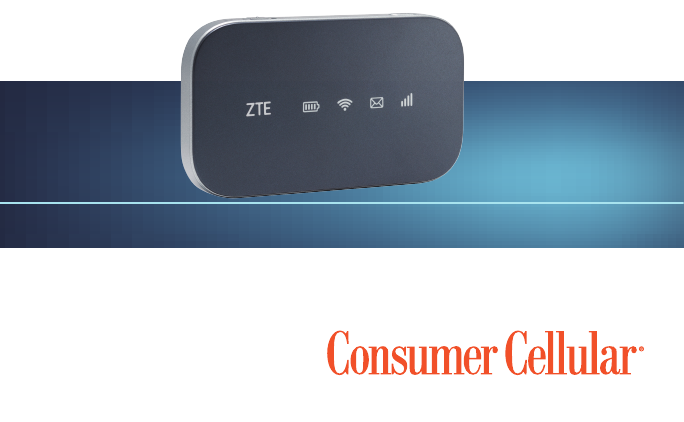
ZTE MOBILE HOTSPOT
User Guide

TABLE OF CONTENTS
Getting Started................................................................................... 3
Introduction ........................................................................................................ 3
Outline and Parts ............................................................................................. 3
Indicators ............................................................................................................ 5
Installing Your Device ......................................................................................7
Powering On/Off Your Device .....................................................................9
Sleep Mode ....................................................................................................... 9
Charging Your Device .................................................................................... 9
Resetting Your Device ....................................................................................11
Using the WPS (Optional) .............................................................................12
Internet Access ................................................................................ 13
Connection Scenario ..................................................................................... 13
Configuring Your PC ......................................................................................14
Connecting to Your Device .........................................................................18
Web UI Configuration ...................................................................... 21
Accessing the Configuration Page ...........................................................21
Login ................................................................................................................. 22
Settings .............................................................................................23
Verifying the PIN Code ................................................................................23
1

TABLE OF CONTENTS
Quick Settings ................................................................................................. 24
Network Settings .......................................................................................... 26
Wi-Fi Settings ..................................................................................................28
Device Settings ..............................................................................................32
Firewall ..............................................................................................................35
Router Settings ............................................................................................... 37
Software update ............................................................................................. 38
For Your Safety .................................................................................39
To the Owner ................................................................................................... 39
Using Your Device .........................................................................................40
Using Battery ...................................................................................................40
Radio Frequency (RF) Energy .....................................................................41
FCC Compliance ...........................................................................................43
CTIA Requirements .......................................................................................44
Troubleshooting .............................................................................. 46
Warranty ...........................................................................................48
Contact Us ........................................................................................ 49
2
GETTING STARTED
INTRODUCTION
The ZTE Mobile Hotspot is a lightweight, portable hub that allows you to
connect as many as 10 cellphones, laptops or tablets to 4G LTE internet
speeds.
OUTLINE AND PARTS
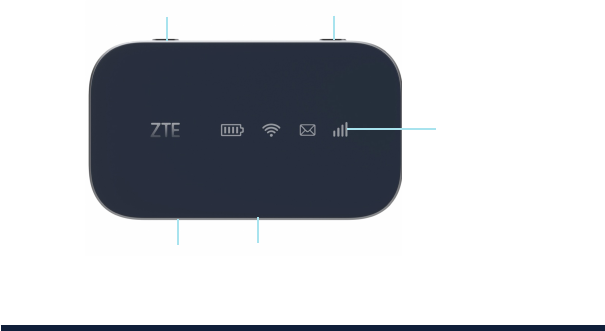
The following diagram is for your reference only. The actual device may be
different.
ON/OFF switch WPS key
LED indicators
Charging/USB portmicro-SIM card slot
3
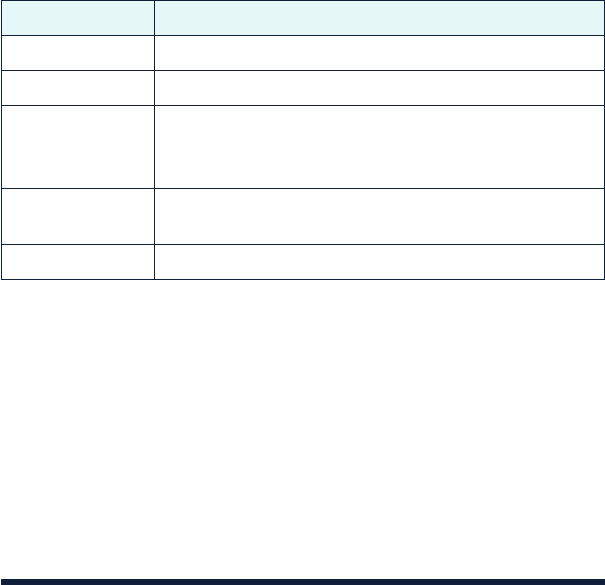
Part Description
ON/OFF switch Slide it to turn on/off the hotspot.
micro-SIM card slot Install the micro-SIM card here.
WPS key
• WhentheWi-Fifunctionisenabled,holditformore
than 3 seconds to active the WPS function.
• Wakeupthedevicewhenthehotspotisinsleepmode.
LED indicators It shows the signal strength, battery, Wi-Fi and any
messages you receive.
Charging/USB port Connect the cord to charge your device.
GETTING STARTED
4
INDICATORS
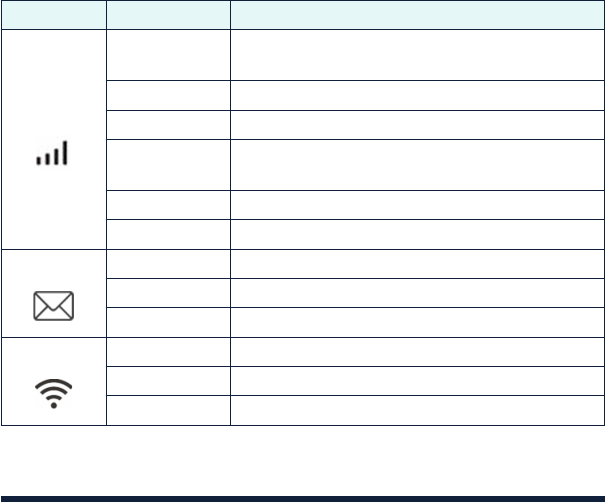
When the hotspot is powered on, the indicators will light up. For the
description of the icons, refer to the following table.
Indicator Status Description
Network
Red solid Limited or no service, no SIM card, SIM card
error or SIM card locked.
Red blinking Activation failed.
Green solid Registered to the LTE network.
Green blinking Registered to LTE network and connected to
LTE network.
Blue blinking FOTA upgrading.
LED light off In Power Save/Sleep mode.
SMS Blue solid You have unread messages.
Blue blinking You have new messages or your inbox is full.
LED light off No unread messages or no new messages.
Wi-Fi Blue solid Wi-Fi is on.
Blue blinking WPS is active.
LED light off Wi-Fi is off.
GETTING STARTED
5
Battery
Green solid The battery level is medium or high (charging
from 95% to 100%, not charging from 34% to
100%).
Green blinking The battery is from 34% to 94% (charging).
Amber solid The battery is from 6% to 33% (not charging).
Amber
blinking The battery is from 6% to 33% (charging).
Red solid The battery is from 0% to 5% (not charging).
Please charge the battery.
Red blinking The battery is from 0% to 5% (charging).
LED light off The battery is not inserted or the device is
powered off with no charger connected.
NOTE:
When the device is powering on, all the LED lights will appear for a moment.
The light status is: Battery (Amber solid), Wi-Fi (Blue solid), SMS (Blue solid)
and Network (Green solid).
When the device is turned off or in sleep mode, all the LED lights will turn off.
GETTING STARTED
6
INSTALLING YOUR DEVICE
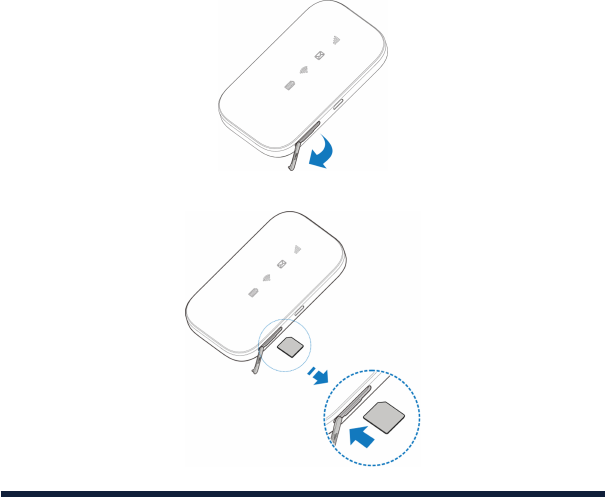
Inserting the SIM Card
1. Lift the SIM card cover.
2. Insert the SIM card into the SIM card slot.
GETTING STARTED
7
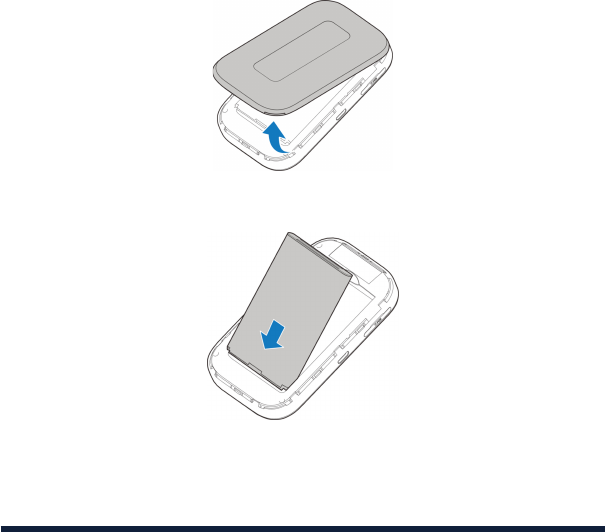
Inserting the battery
1. Remove the back cover.
2. Insert the battery as shown with the contacts aligned with the metal
springs, and press the battery down into the case.
3. Close the back cover.
GETTING STARTED
8
POWERING ON/OFF YOUR DEVICE
Slide the Power switch to the ON/OFF position to switch on/off the device.
SLEEP MODE
When you enable the Wi-Fi function and use the battery to supply power to a
device, the hotspot will enter sleep mode when there are no users connected
to the hotspot after a specified time. In sleep mode, the Wi-Fi function will be
disabled. Press the WPS key or plug in the USB cable to wake up the device
and resume Wi-Fi function.
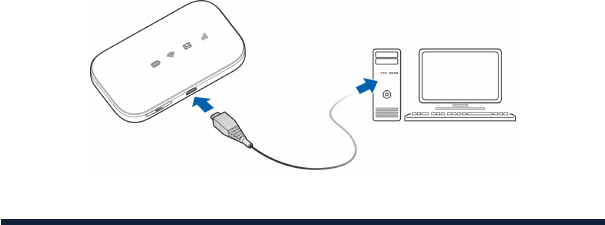
CHARGING YOUR DEVICE
You can charge your device by using the USB cable or adapter. Please charge
your device for more than two hours when you use it for the first time or when
you haven’t used it for a long time.
• UsetheUSBcabletoconnectyourdevicedirectlytoaPC.
GETTING STARTED
9
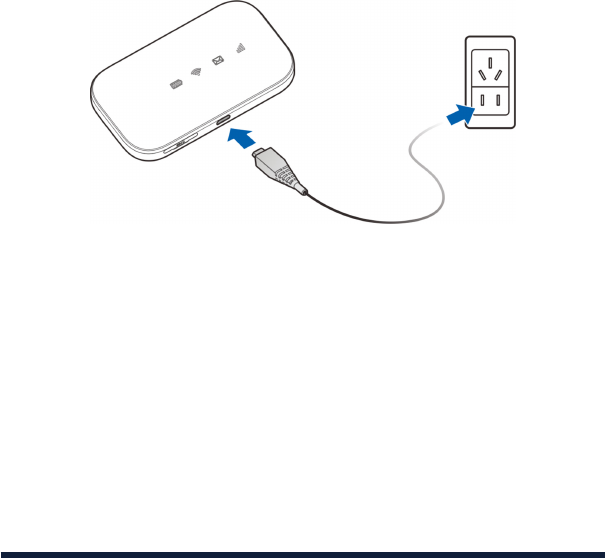
• UsetheadapterandUSBcabletoconnectthewalloutletandyourdevice.
NOTE:
The plug only fits one way to connect your device. Do not use excessive force
to insert the plug.
GETTING STARTED
10
RESETTING YOUR DEVICE
There are two ways to reset your device.
• ResetyourdeviceonWebUI.
Please refer to the section Settings - Device Settings – Reset in this user
manual.
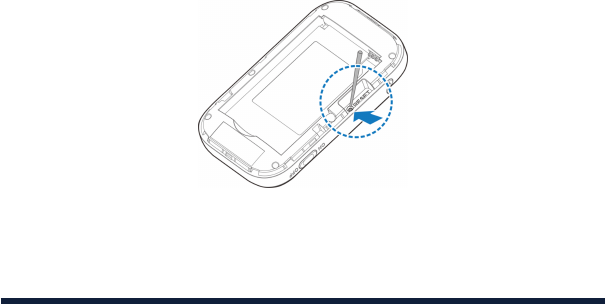
• ResetyourdevicebypressingandholdingtheRESET key.
1. Remove the back cover.
2. Find a hole labeled RESET on the bottom surface of the device. It should
be located near one side.
3. Press and hold the RESET key hidden in the hole with a pin for 3 seconds
or longer.
4. The factory reset will take effect and then the device will restart automatically.
GETTING STARTED
11

USING THE WPS (OPTIONAL)
If your client device (cellphone, tablet, laptop, etc.) supports WPS, you don’t
have to input the password manually after WPS has been enabled. Please
complete the following steps:
1. Log into the Web UI by visiting http://192.168.0.1 or http://mobile.hotspot.
2. Select Settings > Wi-Fi Settings > Basic Settings to enable the Broadcast
Network Name (SSID) and to set the Security Mode.
3. Set a Wi-Fi password in WPA2 (AES)-PSK mode or WPA-PSK/WPA2-PSK
mode and then click Apply to confirm the settings.
4. Press and hold the WPS key to start the Wi-Fi Protected Setup
authentication process.
5. Enable the WPS function on your client device to respond to this
authentication process.
6. Follow the system prompts on your client device to finish the connection.
NOTE:
Refer to your specific client device's instruction manual for more detailed
information regarding WPS settings.
GETTING STARTED
12
INTERNET ACCESS
CONNECTION SCENARIO
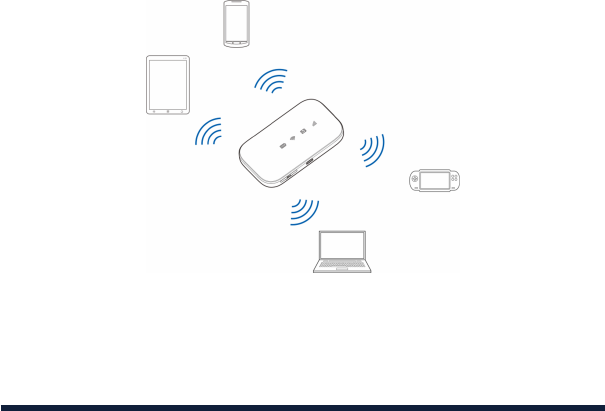
Your Mobile Hotspot allows you to use your SIM card to access the Internet
and supports multiple devices for surfing the Internet at the same time. It is
compatible with Windows 7, 8, and 10; iOS; and Android™ devices. The graphic
below is for your reference only.
NOTES:
• YoucanonlyuseWi-Fitoconnecttothishotspot.Makesurethedevice
you want to connect supports Wi-Fi.
• YoucancheckyourdatausagebyloggingintoMyAccountat
ConsumerCellular.com/MyAccount.
13
CONFIGURING YOUR PC
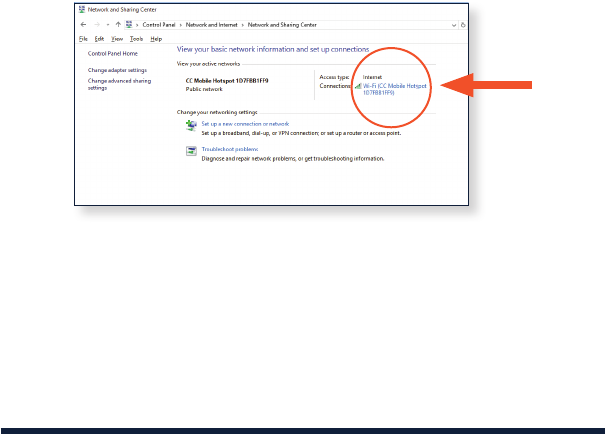
Follow these steps and images for Windows 10 to configure the Internet
Protocol for your Wi-Fi connection. Steps may vary if you use a different
operating system.
1. Access Network and Sharing Center from the Control Panel, and then click
the hotspot name next to Connections.
INTERNET ACCESS
14
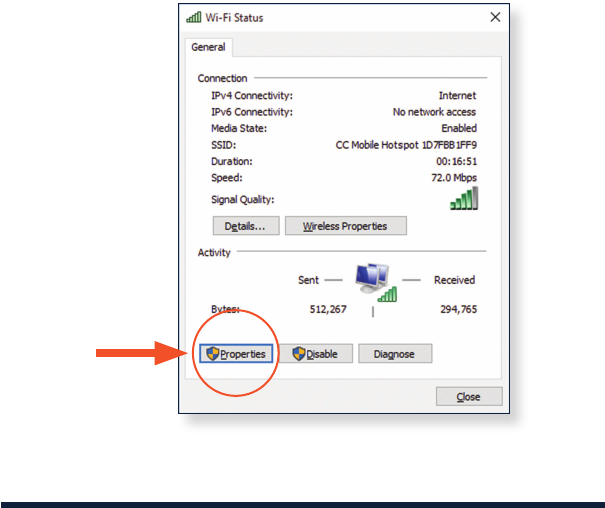
2. Press Properties.
INTERNET ACCESS
15
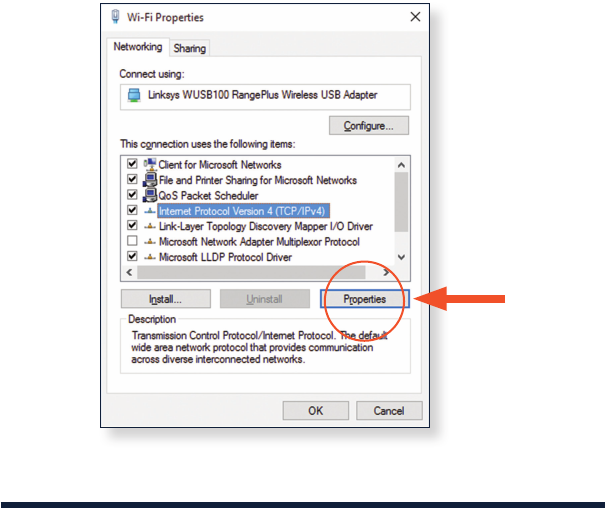
3. Select Internet Protocol Version 4 (TCP/IPv4), and then press Properties.
INTERNET ACCESS
16
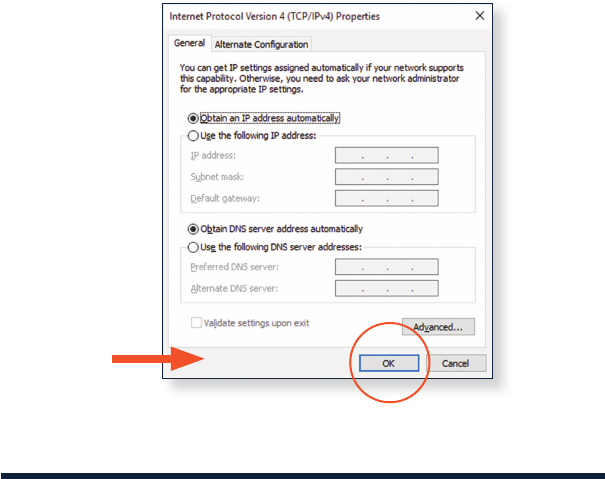
4. Select Obtain an IP address automatically and Obtain DNS server address
automatically, and then press OK to finish the configuration.
INTERNET ACCESS
17
CONNECTING TO YOUR DEVICE
NOTE:
You can only use Wi-Fi to connect to this hotspot. Make sure the device you
want to connect supports Wi-Fi.
1. Power on your Mobile Hotspot. It will take 1 to 2 minutes to initialize.
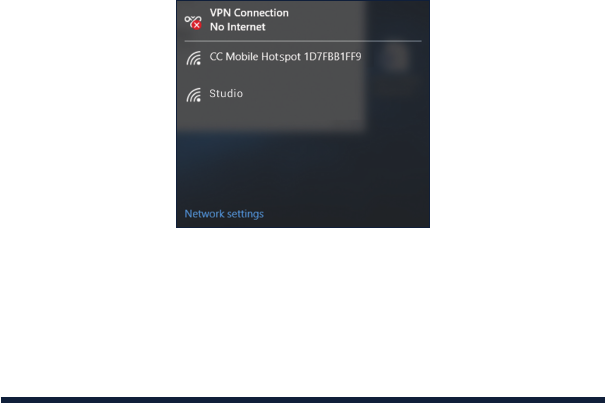
2. On your computer or other Wi-Fi enabled device, use your normal Wi-Fi
application to search for available wireless networks.
NOTE:
Please set the client to obtain an IP address automatically, and the client will
get an IP address that looks similar to “192.168.0.100”.
INTERNET ACCESS
18
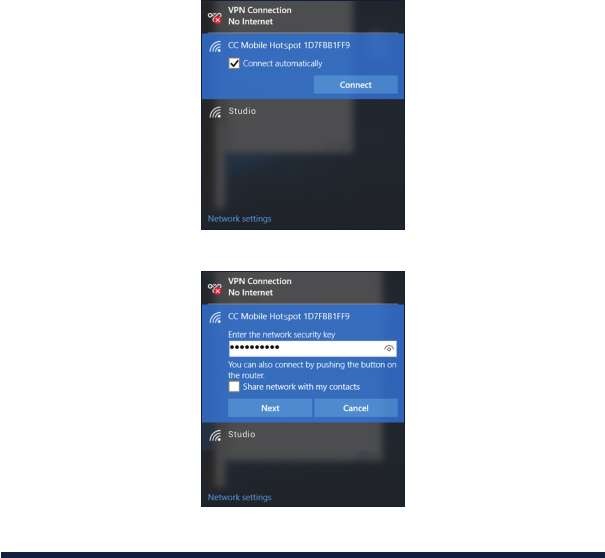
3. Select the SSID of your Mobile Hotspot, and then press Connect.
4. Input the password, and then press Next.
INTERNET ACCESS
19
NOTE:
Please check the label on the device on find the default SSID and password.
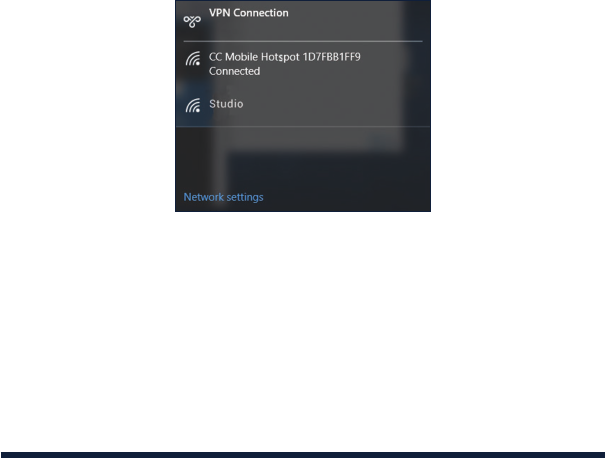
5. Your computer or other Wi-Fi enabled device will then connect to the
Mobile Hotspot. You will see Connected once this takes place.
6. Wait a moment, and then the client will connect to your device successfully.
INTERNET ACCESS
20
WEB UI CONFIGURATION
ACCESSING THE CONFIGURATION PAGE
1. Make sure the connection between your device and the client is correct.
2. Launch the Internet browser and enter http://192.168.0.1 or
http://mobile.hotspot in the address bar.
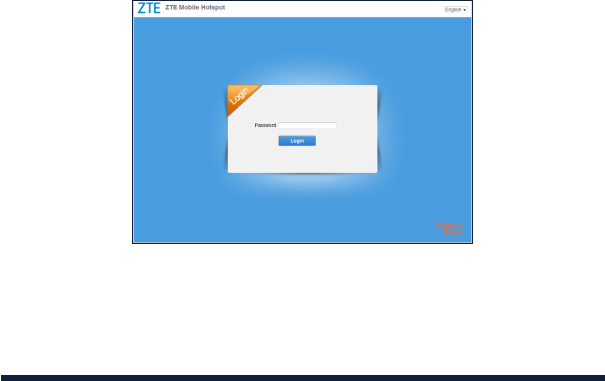
3. The login page will appear. The following image is only for your reference;
the actual page may be different.
21
LOGIN
In the Web UI Configuration page, select the desired language, input the
password Admin, and click Login to log into the device.
The whole interface is divided into three parts. Related functions can be
executed by operation in the related areas.
• Index area: Shows the configuration list for your device.
• Content area: Shows the detailed configuration.
• System information area: Shows the system status and different kinds of
tips.
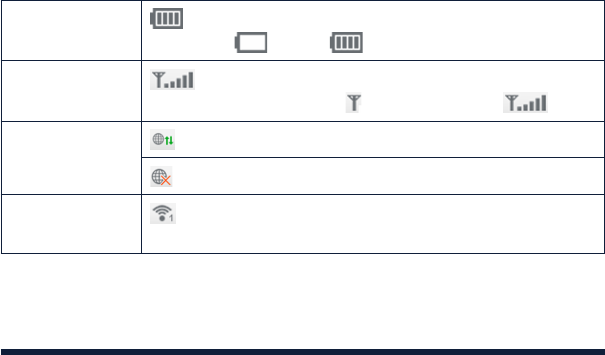
Battery
indicator
: This shows the battery level. There are 4 stages,
from none to high .
Signal strength : This shows the network signal intensity level.
There are 5 stages, from to a strong signal .
Internet status
: Connected to the Internet.
: Disconnected from the Internet.
Wi-Fi strength : Wi-Fi status and the number of connected users.
The maximum number is 10.
WEB UI CONFIGURATION
22
SETTINGS
Do not modify any settings unless instructed by your service provider.
VERIFYING THE PIN CODE
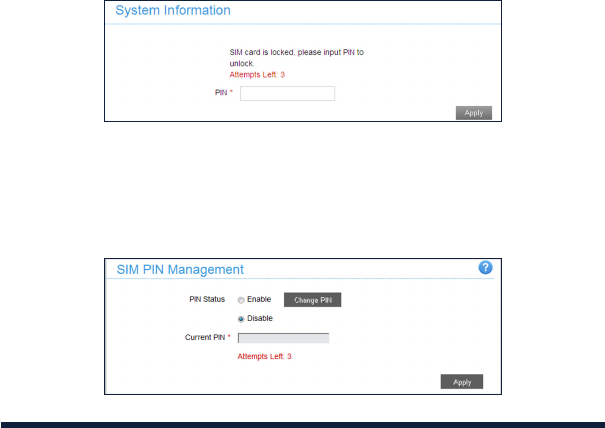
If the PIN code of your SIM card is enabled, you will need to input the PIN
code when you log in for the first time.
NOTE:
The SIM card will be locked if you enter the wrong PIN code consecutively
three times.
If you want to modify the PIN Status, please select Settings > Device Settings
> SIM PIN Management.
23
QUICK SETTINGS
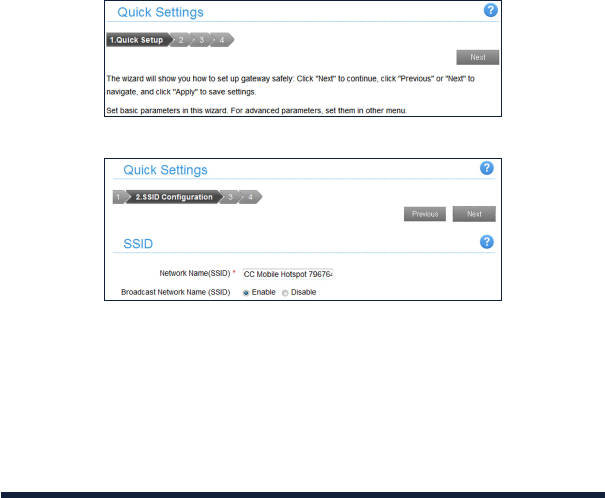
1. In the main interface click Settings > Quick Settings.
2. Read the guide carefully, and then click Next.
3. Set SSID Configuration in the following figure:
Network Name (SSID) is used to uniquely identify your Wi-Fi. If you enable
Broadcast Network Name (SSID), the hotspot will broadcast the SSID, and
other devices can detect and connect to it.
SETTINGS
24
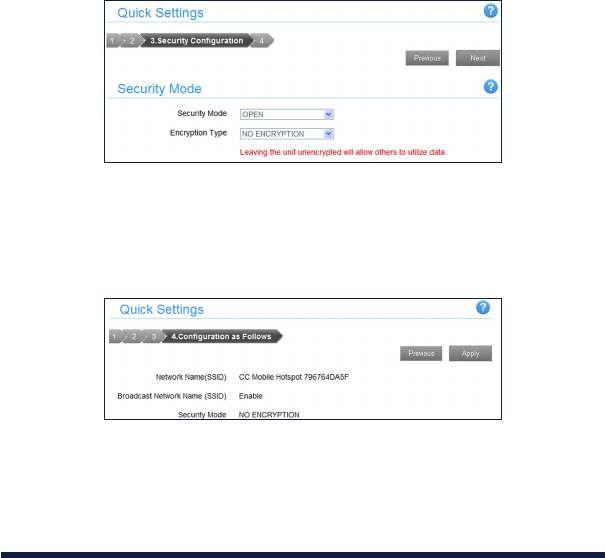
4. Set Security Configuration in the following figure:
Encryption will help secure your mobile hotspot so unauthorized sources
cannot access it. Select an encryption mode from the list, and then set a
password, key and/or algorithm for it.
5. Your chosen configuration will be shown below.
Note: the figure below is for your reference only.
Make sure that all the parameters shown in the figure are correct, and then
click Apply.
SETTINGS
25
NETWORK SETTINGS
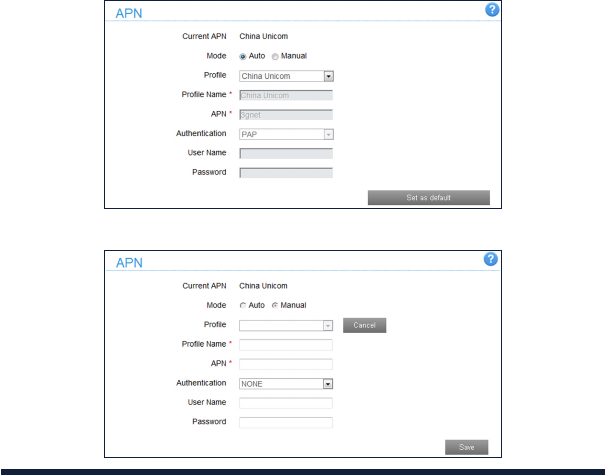
Add new APN
1. Select Settings > Network Settings > APN. The APN parameters are
shown in the following figure.
2. Click Manual > Add New to access the following figure:
SETTINGS
26

3. Enter the related parameters (please see following table), and then click
Apply to add a new profile.
Parameter Function
Mode
If a fixed APN is provided by your service provider,
select Manual APN. Otherwise, please select Auto APN,
and the device will automatically obtain parameters.
Profile Choose one profile from the list.
Profile Name Enter the profile name.
APN Enter the APN string.
DNS Mode Set DNS mode.
Authentication
Password Authentication Protocol (PAP) provides
a simple method without encryption for the peer
to establish its identity using a 2-way handshake.
Challenge-Handshake Authentication Protocol (CHAP) is
used to periodically verify the identity of the peer using
a 3-way handshake.
User Name User name is used to obtain authentication from the ISP
when the connection is established.
Password Password is used to obtain authentication from the ISP
when the connection is established.
SETTINGS
27
WI-FI SETTINGS
Basic Settings
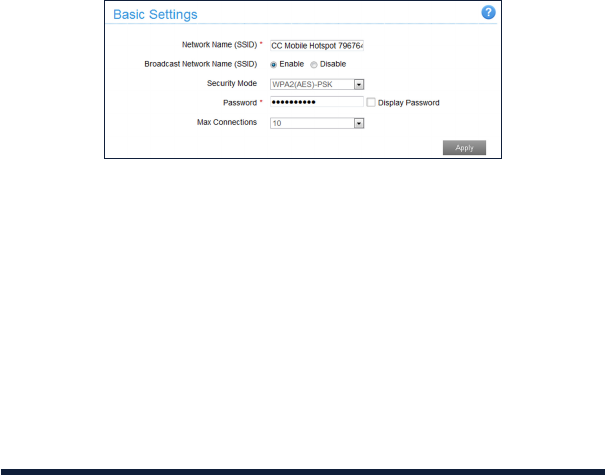
Select Settings > Wi-Fi Settings > Basic Settings. The wireless network basic
parameters are shown in the following figure:
• Network Name (SSID): Service Set Identifier (SSID). Enter a string less than
32 characters as the name for your wireless local area network (WLAN).
• Broadcast Network Name (SSID): Disable or Enable (Default) this function.
If Enable is selected, the device broadcasts the SSID, and other devices
can search and connect to it. When you select Disable, other devices
cannot search for the SSID. If you want someone to connect, you need to
tell them the SSID, and let them setup manually.
• Security Mode: The security modes are described below:
SETTINGS
28
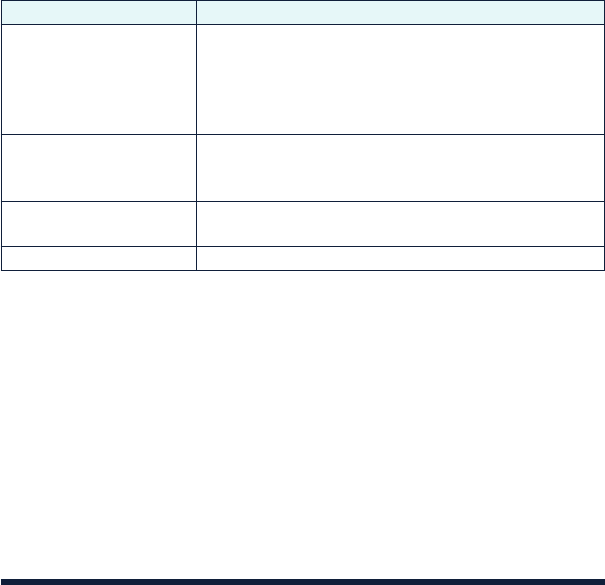
Mode Description
OPEN
(NO ENCRYPTION)
Authentication and encryption won't be performed.
There are risks that private info will be intercepted
or the network will be used by unauthorized
individuals. This encryption scheme isn't
recommended.
OPEN (WEP)
This authentication option is very weak and not
recommended. It had been superseded by Wi-Fi
Protected Access (WPA) by Wi-Fi Alliance.
WPA2 (AES)-PSK It is the most secure version of WPA with
implementation of the 802.11i standard.
WPA-PSK/WPA2-PSK Apply both the WPA-PSK and WPA2-PSK scheme.
• Encryption Type: Select an encryption type from the drop-down list.
• Max Connections: Choose the maximum number devices that can connect
to the hotspot simultaneously.
Click Apply to confirm your configuration.
SETTINGS
29
White List
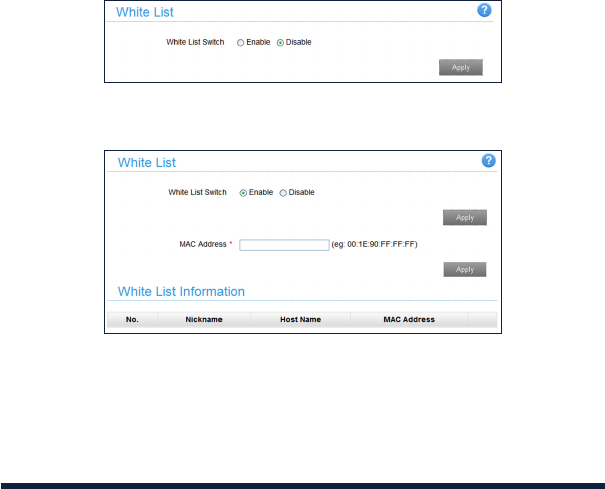
A white list is a list of Wi-Fi devices that are approved to connect to this Wi-
Fi hotspot. Select Settings > Wi-Fi Settings > White List. The White List
configuration is shown in the following figure:
If you select Enable, the white list settings will appear as shown below:
• MAC Address: Set the MAC addresses that are approved to connect to this
Wi-Fi hotspot.
Click Apply to confirm your configuration.
SETTINGS
30
WPS
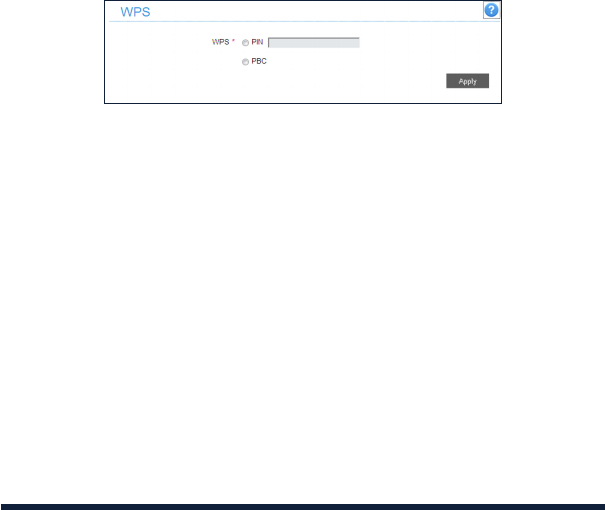
Select Settings > Wi-Fi Settings > WPS. The WPS configuration is shown in
the following figure:
• PIN: Enter the client PIN that is generated by the wireless access client.
• PBC (Push Button Configuration):
1. Select the PBC mode in the client WPS UI.
2. Select PBC mode in the WPS page of the device and then click Apply. (Or
press the WPS key to active your device’s WPS).
3. (Optional) Please press the "next" key on the client WPS UI. After a few
seconds the client can access the Wi-Fi, and the result will be shown in
the client WPS UI.
SETTINGS
31
DEVICE SETTINGS
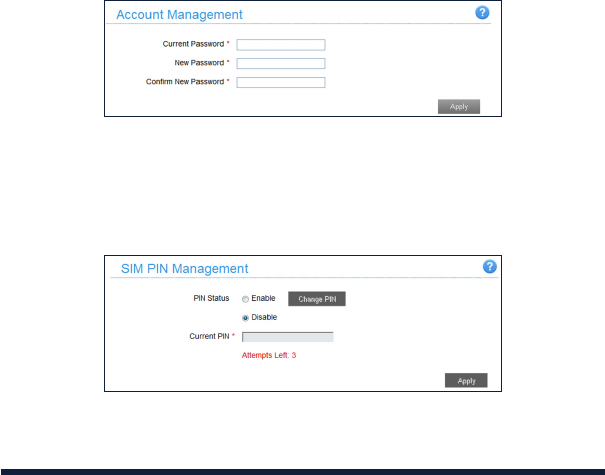
Account Management
Select Settings > Device Settings > Account Management. The administrator
settings information is shown in the following figure:
You can change the administrator’s password. Click Apply to confirm your
configuration.
SIM PIN Management
Select Settings > Device Settings > SIM PIN Management and the PIN
management is shown in the following figure:
SETTINGS
32
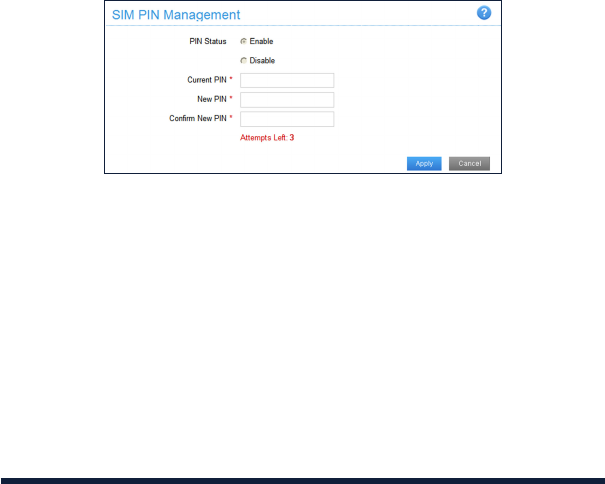
•PIN Status: Shows the current PIN status and allows you to select PIN status.
•Current PIN: Enter the PIN here.
If you select Change PIN, the modification parameters are shown in the
following figure:
Type the old PIN, and then enter the new PIN. You will need to type it a
second time to confirm the new PIN. Click Apply to confirm your configuration.
NOTE:
If you enter the wrong PIN three consecutive times, the SIM card will be locked.
SETTINGS
33
Power Save
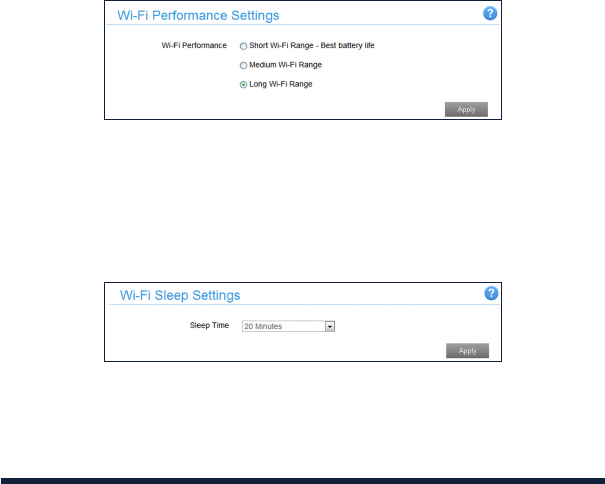
Select Settings > Device Settings > Power Save. You can set Wi-Fi
performance and Wi-Fi sleep settings in order to save power.
• Wi-FiPerformanceSettings
u Short Wi-Fi Range: Increases battery life but shortens the Wi-Fi range.
u Medium Wi-Fi Range: This option is a good balance between battery
life and Wi-Fi range.
u Long Wi-Fi Range: Extends the coverage of the mobile hotspot, but also
decreases battery life.
• Wi-FiSleepSettings
Sleep Time: Select a time from the drop-down list. When there is no Wi-Fi
connection active in the specified timeframe, Wi-Fi will be unavailable and the
system will turn to sleep mode for power-saving.
SETTINGS
34
Reset
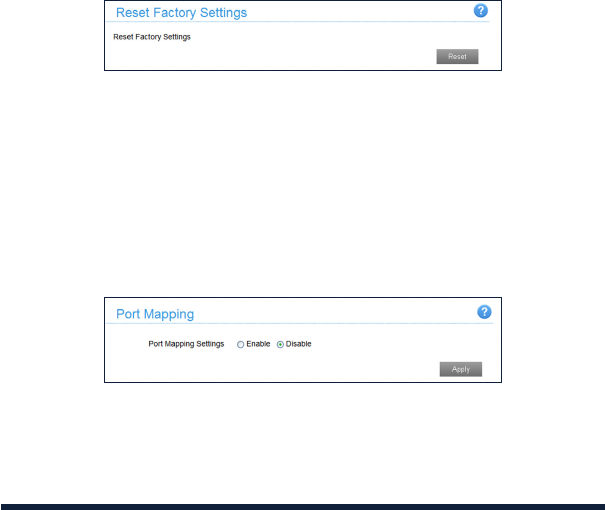
Select Settings > Device Settings > Reset. Click Reset to set all the settings
to their default values. Then, the device will restart automatically.
FIREWALL
You may set up firewall rules to protect your network from potential threats
such as viruses, malware and other malicious activity that can occur through
the Internet.
Port Mapping
You can set up Port Mapping to enable external computers to access URLs,
FTP or other services provided by LAN. Select Settings > Firewall > Port
Mapping and the Port Mapping page is shown in the following figure:
SETTINGS
35
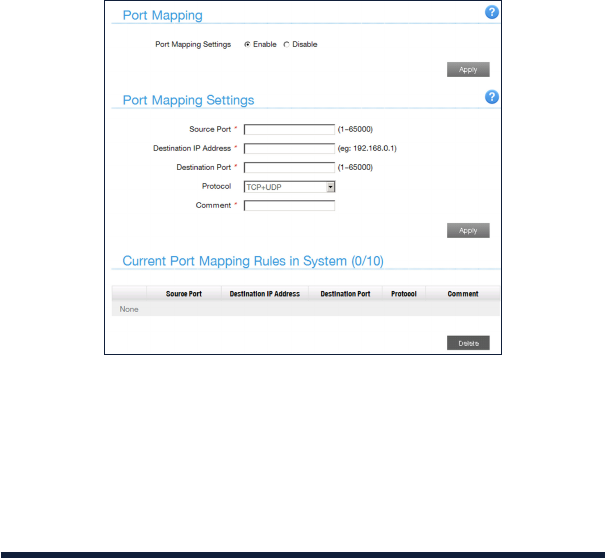
If you select Enable, the Port Mapping Settings will appear:
• Source Port: Set the source port of the computer that provides the service.
• Destination IP Address: Specify a computer located within a LAN to
provide a service.
• Destination Port: Set the destination port of the computer that provides the
service.
• Protocol: Set which protocol will be applied by services.
• Comment: Type comment for the port mapping settings.
SETTINGS
36
Click Apply to add a new rule.
Click Delete to delete the rule which you selected.
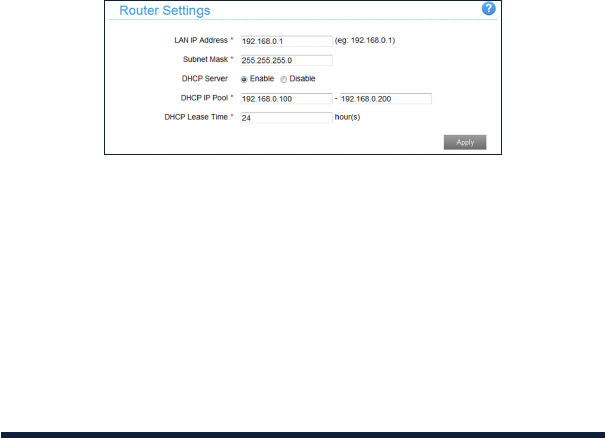
ROUTER SETTINGS
Select Settings > Router Settings, and then the router information is shown in
the following figure:
• LAN IP Address: IP address for LAN interface.
• Subnet Mask: Subnet mask for the IP address.
• DHCP Server: Enable or disable DHCP Server function.
• DHCP IP Pool: Allocate beginning and ending IP address for IP pool.
• DHCP Lease Time: Define how long the leased IP address will be expired.
The new IP address will be relocated after the IP address is expired.
Click Apply to confirm your configuration.
SETTINGS
37
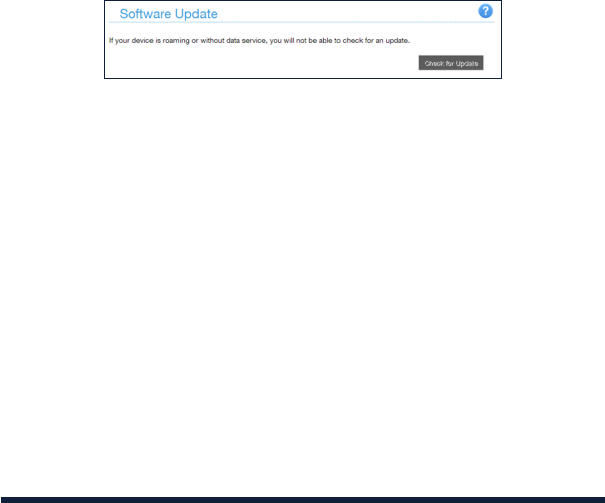
SOFTWARE UPDATE
Select Settings > Software Update to check if there are any new software
updates available.
SETTINGS
38

FOR YOUR SAFETY
TO THE OWNER
• Someelectronicdevicesaresusceptibletoelectromagneticinterference
sent by your device if inadequately shielded, such as the electronic system
of vehicles. Please consult the manufacturer of your device before using if
necessary.
• Operatingyourdevicemayinterferewithmedicaldeviceslikehearingaids
and pacemakers. Please keep the device at least 20 centimeters away
from such medical devices when they are turned on. Turn your device off if
necessary. Consult a physician or the manufacturer of the medical device
before using your device.
• Beawareofanyusagelimitationswhenusingyourdeviceatplacessuch
as oil warehouses or chemical factories, where there are explosive gases
or explosive products being processed. Turn off your device if required.
• Theuseofelectronictransmittingdevicesisforbiddeninaircrafts,atgas
stations and in hospitals. Please observe and obey all warning signs and
switch off your device in these conditions.
• Donottouchtheinnerantennaareaifitisnotnecessary;itmayaffectyour
device's performance. affect your device’s performance.
• Storeyourdeviceoutofthereachoflittlechildren.Yourdevicemaycause
injury if used as a toy.
• Toavoidaburn,donottouchthemetallicpartsofyourdevicewhenyour
device is powered on.
39

USING YOUR DEVICE
• Pleaseuseoriginalorauthorizedaccessories.Usinganyunauthorized
accessories may affect your device’s performance, and violate national
regulations about telecom terminals.
• Avoidusingyourdevicenearorinsidemetallicstructuresorestablishments
that can emit electromagnetic waves; it may influence signal reception.
• Yourdeviceisnotwaterproof.Pleasekeepitdryandstoreinashadyand
cool place.
• Donotuseyourdeviceimmediatelyafterasuddentemperaturechange.In
such case, it will produce condensation inside and outside of your device.
Wait until the device is acclimated to the new environment before powering
it on. If there is moisture present, wait until the device is dry before using it.
• Handleyourdevicecarefully.Donotdrop,bendorstrikeit.Otherwiseyour
device will be damaged.
• Nodismantlingnon-professionals;onlyqualifiedtechnicianscanundertake
repair work.
• Operatingtemperaturerangeof50°Fto131°F(10°Cto55°C)andhumidity
range of 5% to 95% are recommended.
USING BATTERY
• Donotshort-circuitthebattery,asthiscancauseexcessiveheatandfire.
• Toavoidanexplosion,donotstorethebatteryinhotareasordisposeofit
in a fire.
FOR YOUR SAFETY
40

• Donotdisassembleormodifythebattery.
• Whenyouarenotusingthebatteryforalongperiodoftime,removeit
from your device and store it in a cool, dry place.
• Neveruseadamagedorworn-outbatteryorcharger.
• Returntheworn-outbatterytothemanufacturerorputitinanapproved
recycling container. Do not put it in your household trash.
• Donotconnectthechargerwhileusingthedeviceforalongperiodof
time, or using the device and battery in non-operating temperatures.
Failing to do so will shorten the battery life or cause battery swelling or
leakage. If the battery shows signs of swelling or leakage, please stop use
immediately.
WARNING!
If the battery is damaged, keep away from it. If it touches your skin, wash
your skin with a large amount of fresh water and seek a doctor for help if
necessary.
RADIO FREQUENCY (RF) ENERGY
This model device meets the government’s requirements for exposure to
radio waves.
This device is designed and manufactured not to exceed the emission
limits for exposure to radio frequency (RF) energy set by the Federal
Communications Commission of the U.S. Government:
FOR YOUR SAFETY
41

The exposure standard for wireless devices employs a unit of measurement
known as the Specific Absorption Rate, or SAR. The SAR limit set by the FCC
is 1.6 W/kg. Tests for SAR are conducted using standard operating positions
accepted by the FCC with the device transmitting at its highest certified
power level in all tested frequency bands. Although the SAR is determined
at the highest certified power level, the actual SAR level of the device while
operating can be well below the maximum value. This is because the device
is designed to operate at multiple power levels so as to use only the power
required to reach the network. In general, the closer you are to a wireless
base station, the lower the power output.
The highest SAR value for the model device as reported to the FCC when
worn on the body, as described in this user guide, is 1.41 W/kg (Body-worn
measurements differ among device models, depending upon available
enhancements and FCC requirements.)
While there may be differences between the SAR levels of various devices
and at various positions, they all meet the government requirement.
The FCC has granted an Equipment Authorization for this model device with
all reported SAR levels evaluated as in compliance with the FCC RF exposure
guidelines. SAR information on this model device is on file with the FCC and
can be found under the Display Grant section of http://www.fcc.gov/oet/ea/
fccid/ after searching
FCC ID: SRQ-Z291DL.
FOR YOUR SAFETY
42

FCC COMPLIANCE
This device complies with part 15 of the FCC Rules. Operation is subject to the
following two conditions: (1) This device may not cause harmful interference,
and (2) this device must accept any interference received, including
interference that may cause undesired operation.
Caution: Changes or modifications not expressly approved by the
manufacturer could void the user’s authority to operate the equipment.
NOTE: This equipment has been tested and found to comply with the limits
for a Class B digital device, pursuant to part 15 of the FCC Rules. These limits
are designed to provide reasonable protection against harmful interference
in a residential installation. This equipment generates, uses and can radiate
radio frequency energy and, if not installed and used in accordance with
the instructions, may cause harmful interference to radio communications.
However, there is no guarantee that interference will not occur in a particular
installation. If this equipment does cause harmful interference to radio or
television reception, which can be determined by turning the equipment off
and on, the user is encouraged to try to correct the interference by one or
more of the following measures:
• Reorientorrelocatethereceivingantenna.
• Increasetheseparationbetweentheequipmentandreceiver.
• Connecttheequipmentintoanoutletonacircuitdifferentfromthatto
which the receiver is connected.
• ContactConsumerCellularcustomersupportforassistance.
FOR YOUR SAFETY
43

CTIA REQUIREMENTS
• Donotdisassembleoropen,crush,bendordeform,puncture,orshredthe
battery.
• Donotmodifyorremanufacture,attempttoinsertforeignobjectsinto
the battery, immerse or expose to water or other liquids, expose to fire,
explosion or other hazard.
• Onlyusethebatteryforthesystemforwhichitisspecified.
• Onlyusethebatterywithachargingsystemthathasbeenqualified
with the system per CTIA Certification Requirements for Battery System
Compliance to IEEE 1725. Use of an unqualified battery or charger may
present a risk of fire, explosion, leakage, or other hazard.
• Donotshortcircuitabatteryorallowmetallicconductiveobjectstocontact
battery terminals.
• Replacethebatteryonlywithanotherbatterythathasbeenqualified
with the system per this standard, IEEE-Std-1725. Use of an unqualified
battery may present a risk of fire, explosion, leakage or other hazard. Only
authorized service providers shall replace the battery. (If the battery is non-
user replaceable).
FOR YOUR SAFETY
44

• Promptlydisposeofusedbatteriesinaccordancewithlocalregulations.
• Batteryusagebychildrenshouldbesupervised.
• Avoiddroppingthedeviceorbattery.Ifthedeviceorbatteryisdropped,
especially on a hard surface, and the user suspects damage, return it to the
manufacturer for inspection.
• Improperbatteryusemayresultinafire,explosionorotherhazard.
• ThedeviceshallonlybeconnectedtoCTIAcertifiedadapters,products
that bear the USB-IF logo or products that have completed the USB-IF
compliance program.
FOR YOUR SAFETY
45

TROUBLESHOOTING
Problem Suggested Solution
Failing to establish a
connection between the
Mobile Hotspot and a Wi-
Fi enabled device
• EnsurethattheWi-Fifunctionisenabled.
Press the WPS key to enable the Wi-Fi
function.
• Refreshthenetworklistandselectthe
correct SSID.
• ChecktheIPaddress,andensurethatyour
client can automatically obtain an IP address.
The client connected to
the device cannot access
the Internet
• EnsurethatyourSIMcardisavailable.
• Changethelocationandfindaplacewitha
stronger signal.
• CheckthesettingoftheWANconnection
mode.
• ContactConsumerCellularat(800)686-
4460.
46

Problem Suggested Solution
Cannot access the web
configuration page
• Enterthecorrectaddress.The
default address is http://192.168.0.1 or
http://mobile.hotspot.
• UseonlyonenetworkadapterinyourPC.
• Donotuseanyproxyserver.
Forgot the password
• ThedefaultWi-Ficonnectionisopen,soyou
do not need to enter a password.
• ThedefaultpasswordoftheWebUI
configuration page is Admin.
• Ifyouchangedthepasswordandforgot
the new password, you need to restore the
device to the factory default settings.
TROUBLESHOOTING
47

WARRANTY
This product is guaranteed for a period of 12 months from the date of
purchase. In the unlikely event of a fault occurring during this period, please
contact the place of purchase. Proof of purchase is required for any service or
support needed during the guarantee period.
This guarantee will not apply to a fault caused by an accident or a similar
incident or damage, liquid ingress, negligence, abnormal usage, non-
maintenance, or any other circumstances on the user’s part. Furthermore, this
guarantee will not apply to any fault caused by a thunderstorm or any other
voltage fluctuations. As a matter of precaution, we recommend disconnecting
the charger during a thunderstorm. Batteries are consumables and are not
included in any guarantee.
48

CONTACT US
For assistance, please contact:
Email: Service@ConsumerCellular.com
Website: ConsumerCellular.com/Help
Telephone: (800) 686-4460
CONTACT US
49
ConsumerCellular.com
© 2018 Consumer Cellular, Inc. Consumer Cellular and the Consumer Cellular logo are trademarks of Consumer
Cellular, Inc.
ZTE and the ZTE logos are trademarks of the ZTE Corporation. Android is a trademark of Google LLC. Wi-Fi is
a registered trademark of Wi-Fi Alliance. LTE is a trademark of ETSI. Other trademarks and trade names are the
property of their respective owners.
