Zeroplus Technology 004T SNIPER User Manual Manual

Zeroplus Technology Corporation SNIPER Manual

Manual

Quick Start Guide - All Set in 5 MinutesGuide D’installation Rapide - Prêt à l’emploi en 5 minutesKurzanleitung - Schnelleinrichtung in 5 MinutenGuia Rápida - Todo listo en 5 minutos快速入門指南 - 五分鐘快速上手快速入门指南 - 五分钟快速上手ENTWCNFRDEES
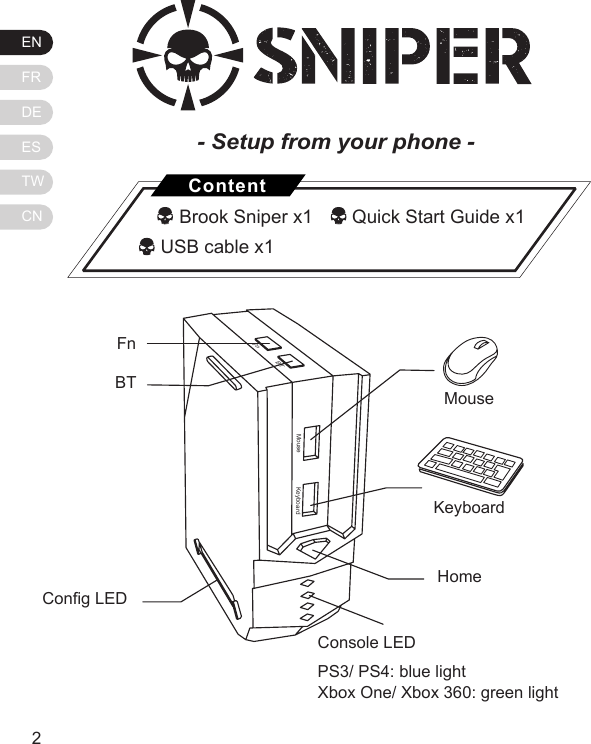
ENFRDEESTWCN32MouseFnBTKeyboardFn BT Cong LEDMouseKeyboardHomeConsole LEDPS3/ PS4: blue lightXbox One/ Xbox 360: green light- Setup from your phone -   Brook Sniper x1    Quick Start Guide x1          USB cable x1Content
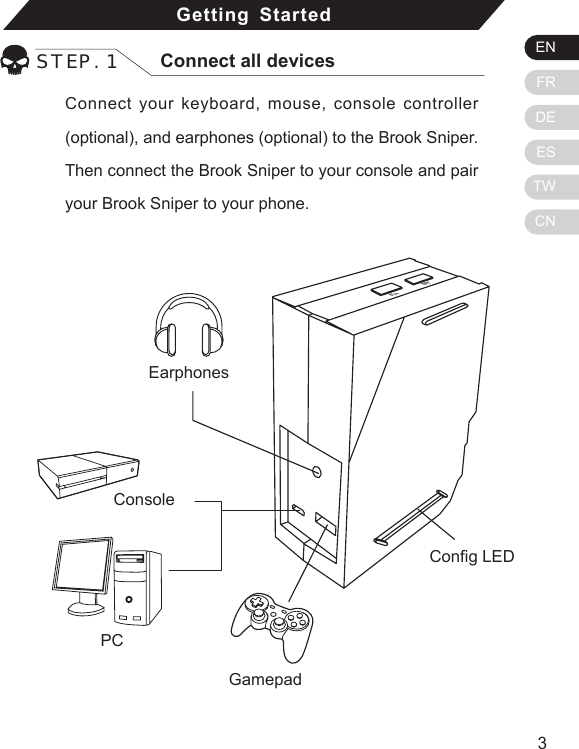
ENFRDEESTWCN32Getting StartedSTEP. 1 Connect all devicesConnect your keyboard, mouse, console controller (optional), and earphones (optional) to the Brook Sniper. Then connect the Brook Sniper to your console and pair your Brook Sniper to your phone.BTFnCong LEDConsolePCEarphonesGamepad
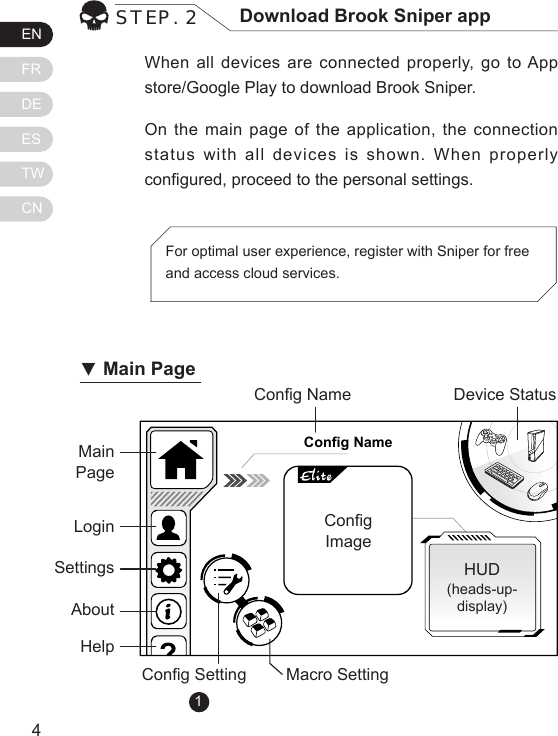
ENFRDEESTWCN54When all devices are connected properly, go to App store/Google Play to download Brook Sniper.On the main page of the application, the connection status with all devices is shown. When properly congured, proceed to the personal settings.STEP. 2 Download Brook Sniper appFor optimal user experience, register with Sniper for free and access cloud services.Config NameMain PageCong NameCong Setting Macro SettingHUD(heads-up-display)Device StatusCongImage           LoginSettingsAboutHelp▼Main Page1
ENFRDEESTWCN54STEP. 3 Add congurationsPress Cong Setting Icon        on the mian page. Press “New”    to add a conguration,  which is a set of settings  for a particular game.[1] Elite Congurations provide optimized dead zone and mouse movement speed curves for specic games. Check if there is an Elite version available for your game, otherwise choose Custom.1.2.Choose the console you will be connecting. Press “Custom” or “Elite” [1]. Select a platform that corresponds to your console and the congurations.3.4.Create NewCustom EliteXbox 360CancelLast PageChoosethe console Choosethe platformCancel34Elit eElit eElit eElit eConfig 1Config 2Config 3Config 4Config 5Config 6Xbox 360PS3PS4Xbox OnePS3PS4Save2Elit eConfig 4Config 5NewEditNew
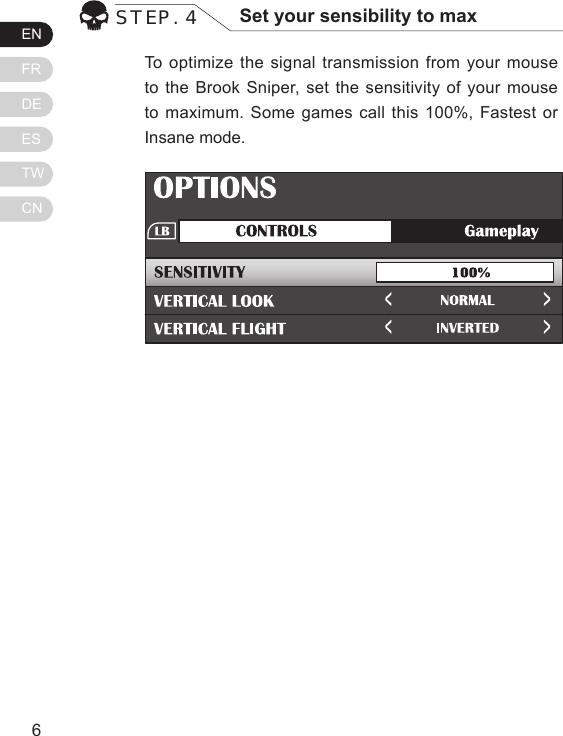
ENFRDEESTWCN76To optimize the signal transmission from your mouse to the Brook Sniper, set the sensitivity of your mouse to maximum. Some games call this 100%, Fastest or Insane mode.STEP. 4 Set your sensibility to maxCong Image
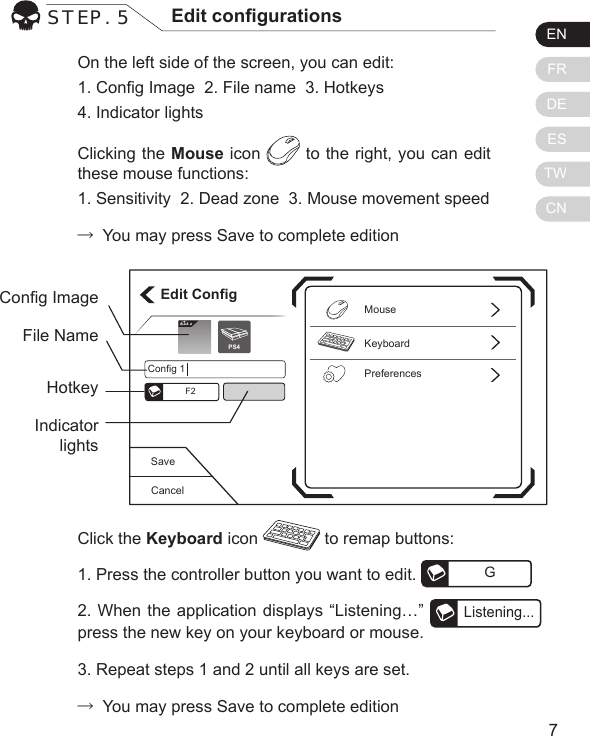
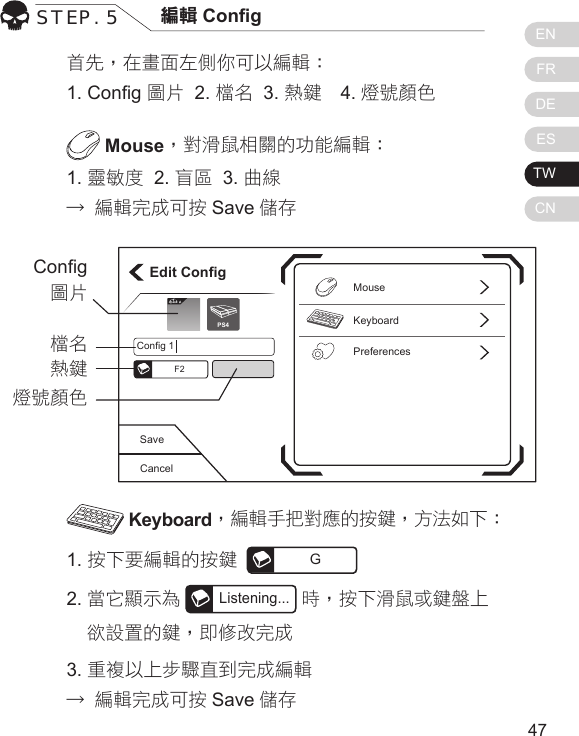
ENFRDEESTWCN76On the left side of the screen, you can edit:1. Cong Image  2. File name  3. Hotkeys  4. Indicator lightsClicking the Mouse icon   to the right, you can edit these mouse functions:1. Sensitivity  2. Dead zone  3. Mouse movement speed→ You may press Save to complete editionSTEP. 5 Edit congurationsClick the Keyboard icon   to remap buttons:1. Press the controller button you want to edit.  G2. When the application displays “Listening…” Listening...press the new key on your keyboard or mouse.3. Repeat steps 1 and 2 until all keys are set.→ You may press Save to complete editionCancelSaveEdit ConfigKeyboardPreferencesMouseConfig 1F2Elit ePS4Cong ImageFile NameHotkeyIndicator lights
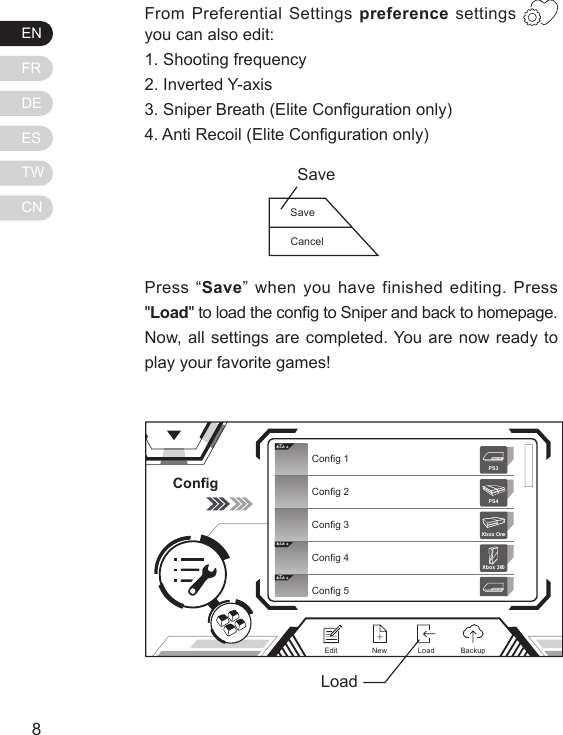
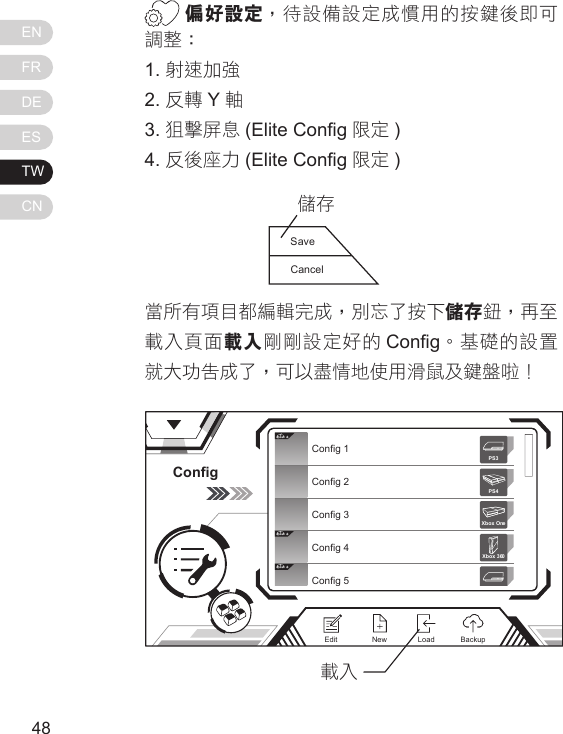
ENFRDEESTWCN98From Preferential Settings preference settings   you can also edit:1. Shooting frequency2. Inverted Y-axis3. Sniper Breath (Elite Conguration only)4. Anti Recoil (Elite Conguration only)Press “Save” when you have finished editing. Press "Load" to load the cong to Sniper and back to homepage. Now, all settings are completed. You are now ready to play your favorite games!ConfigElit eElit eElit eConfig 1Config 2Config 3Config 4Config 5Xbox 360PS3PS4Xbox OneNewEdit BackupLoadLoadSaveCancelSave
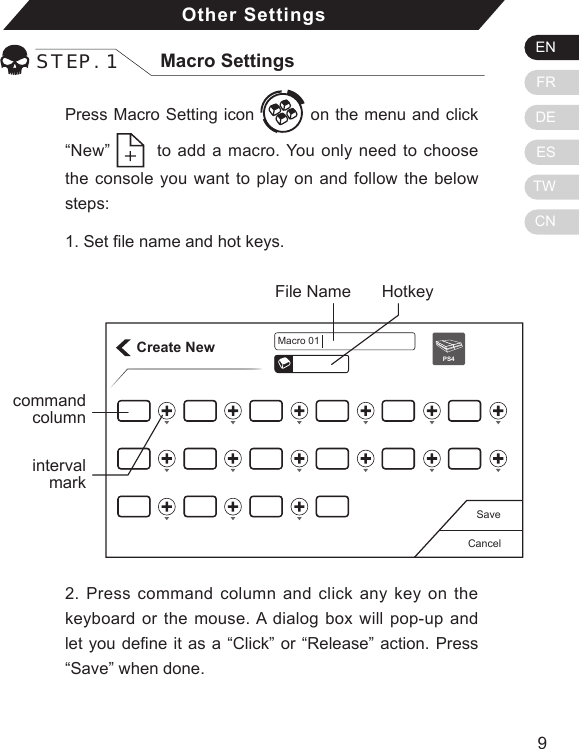
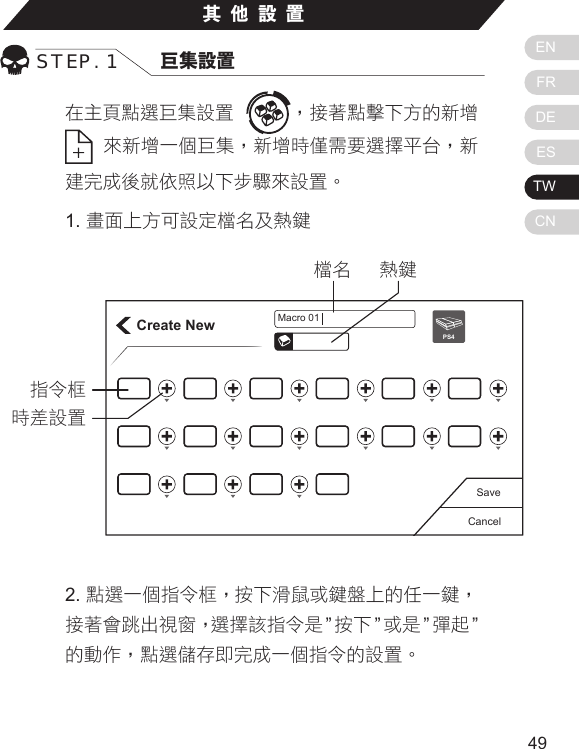
ENFRDEESTWCN98Press Macro Setting icon   on the menu and click “New”    to add a macro. You only need to choose the console you want to play on and follow the below steps: 1. Set le name and hot keys.Other SettingsSTEP. 1 Macro SettingsCreate NewCancelSavePS4Macro 01HotkeyFile Namecommand column2. Press command column and click any key on the keyboard or the mouse. A dialog box will pop-up and let you dene it as a “Click” or “Release” action. Press “Save” when done.intervalmark
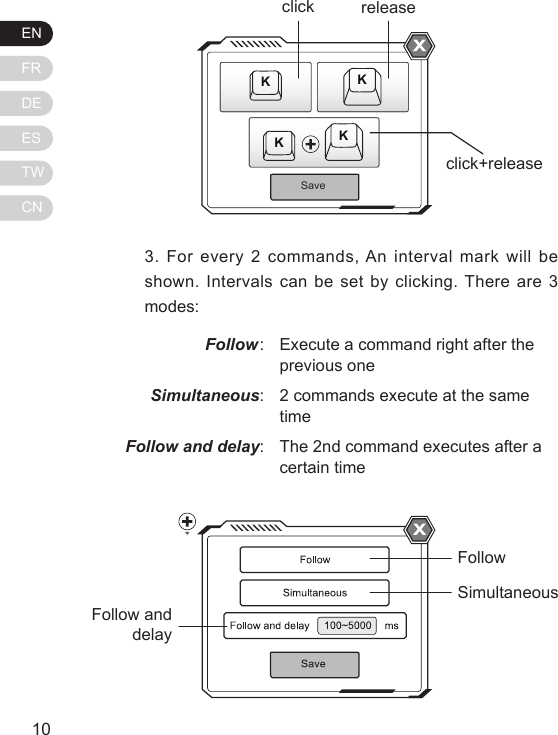
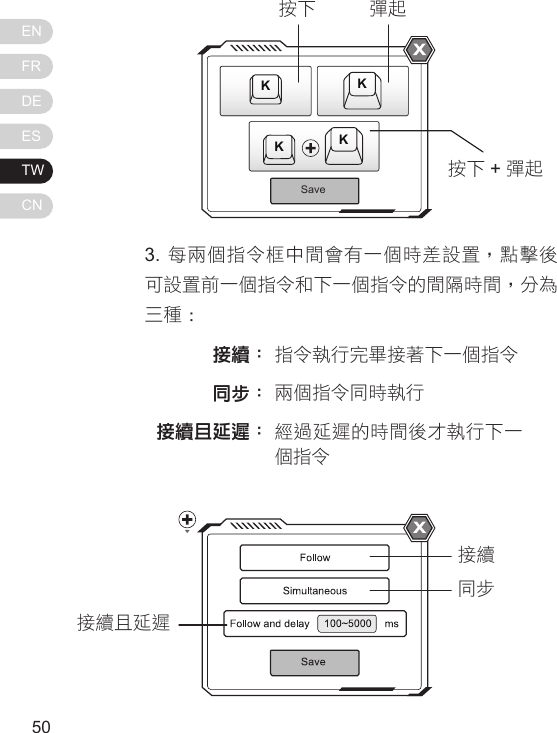
ENFRDEESTWCN11103. For every 2 commands, An interval mark will be shown. Intervals can be set by clicking. There are 3 modes:Follow: Simultaneous:Follow and delay:Execute a command right after the previous one2 commands execute at the same timeThe 2nd command executes after a certain timeSaveKKKKclickclick+releasereleaseFollowSimultaneousFollow and delay
ENFRDEESTWCN11104. Repeat the above steps to create your own custom macro!If you have any questions please visit us at:www.brookaccessory.com. We also invite you to register for a free membership on our website for news and updates.
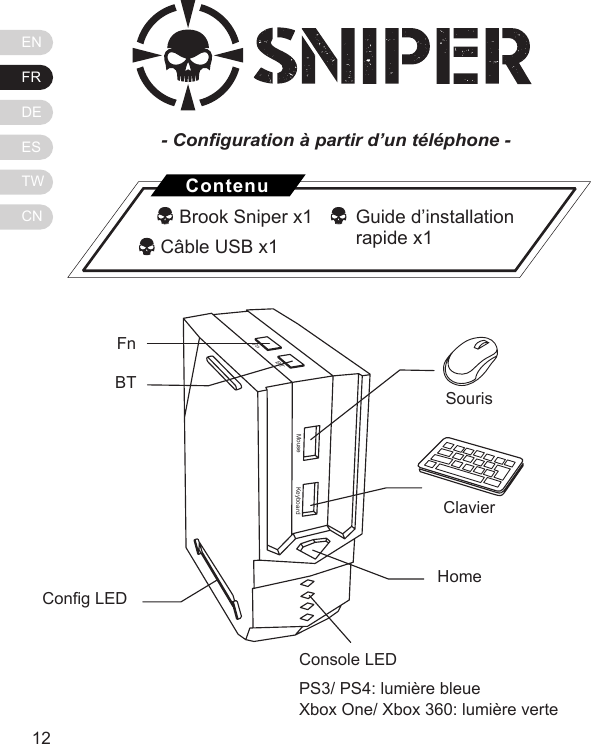
ENFRDEESTWCN1312MouseFnBTKeyboardFn BT Cong LEDSourisClavierHomeConsole LEDPS3/ PS4: lumière bleueXbox One/ Xbox 360: lumière verte- Conguration à partir d’un téléphone -   Brook Sniper x1             Câble USB x1ContenuGuide d’installation rapide x1
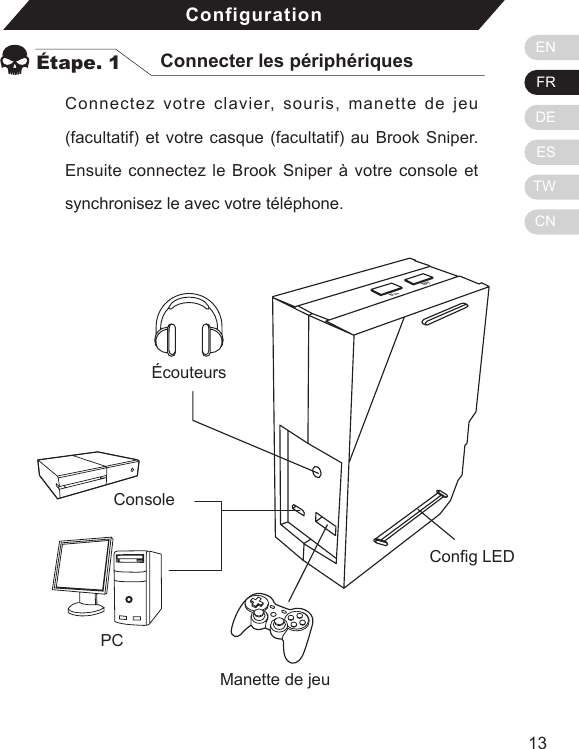
ENFRDEESTWCN1312ConfigurationÉtape. 1 Connecter les périphériquesConnectez votre clavier, souris, manette de jeu (facultatif) et votre casque (facultatif) au Brook Sniper. Ensuite connectez le Brook Sniper à votre console et synchronisez le avec votre téléphone.BTFnCong LEDConsolePCÉcouteursManette de jeu
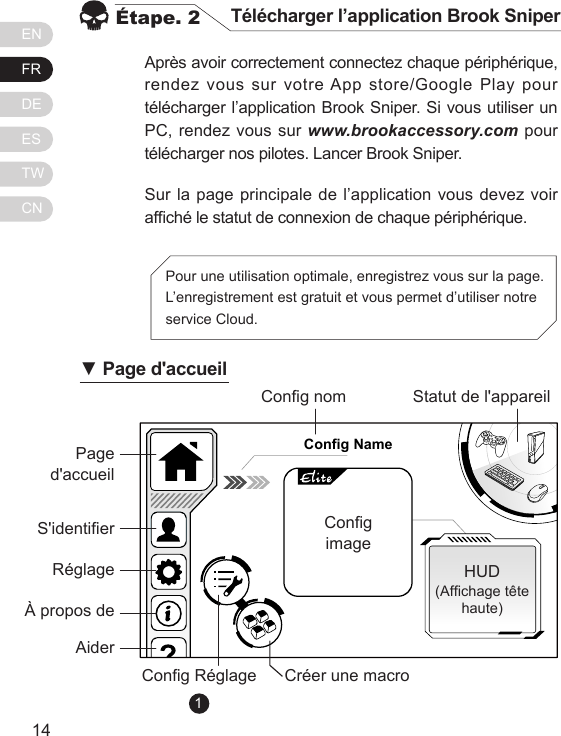
ENFRDEESTWCN1514Après avoir correctement connectez chaque périphérique, rendez vous sur votre App store/Google Play pour télécharger l’application Brook Sniper. Si vous utiliser un PC, rendez vous sur www.brookaccessory.com pour télécharger nos pilotes. Lancer Brook Sniper.Sur la page principale de l’application vous devez voir afché le statut de connexion de chaque périphérique.Étape. 2 Télécharger l’application Brook SniperPour une utilisation optimale, enregistrez vous sur la page. L’enregistrement est gratuit et vous permet d’utiliser notre service Cloud. Config NamePage d'accueilCong nomCong Réglage Créer une macroHUD(Afchage tête haute)Statut de l'appareilCongimageS'identierRéglageÀ propos deAider▼ Page d'accueil1
ENFRDEESTWCN1514Étape. 3 Ajouter une conguration personnaliséeChoisissez   Cong Setting Icon  sur la page d'accueil.[1]  La  configuration  Élite  offre  une  gestion  optimisée  des zones mortes et de la courbe d’accélération de la souris pour certains jeux. Vériez si une version Élite existe pour votre jeu, autrement choisissez Custom.1.2.Choisissez la console à laquelle vous souhaitez vous connecter.Choisissez « Custom » ou « Élite »[1]. Sélectionnez la plateforme correspondant à votre console et à vos congurations.3.4.Create NewCustom EliteXbox 360CancelDernièrepageChoisissezla consoleChoisissezla plateformeAnnuler34Elit eElit eElit eElit eConfig 1Config 2Config 3Config 4Config 5Config 6Xbox 360PS3PS4Xbox OnePS3PS4Save2Elit eConfig 4Config 5NewEditNouveauChoisissez « Nouveau »     pour ajouter une  nouvelle conguration,  c'est-à-dire un ensemble  de paramètres pour un jeu en particulier.
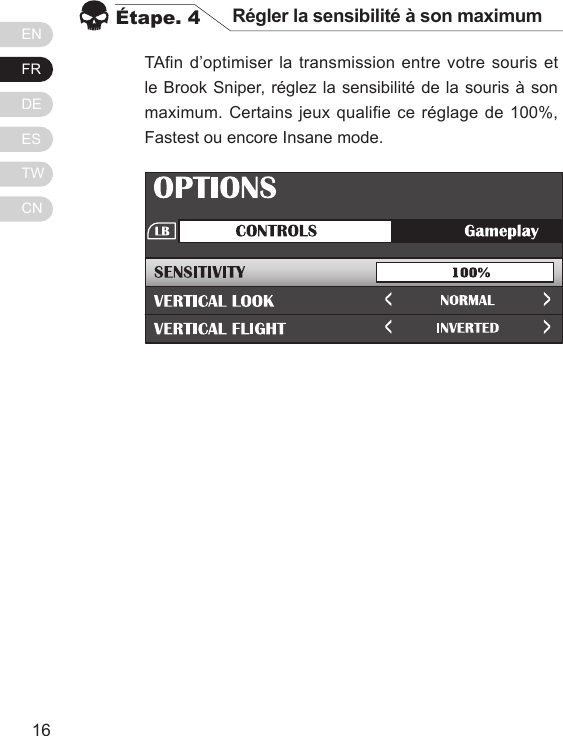
ENFRDEESTWCN1716TAfin d’optimiser la transmission entre votre souris et le Brook Sniper, réglez la sensibilité de la souris à son maximum. Certains jeux qualifie ce réglage de 100%, Fastest ou encore Insane mode.Étape. 4 Régler la sensibilité à son maximum
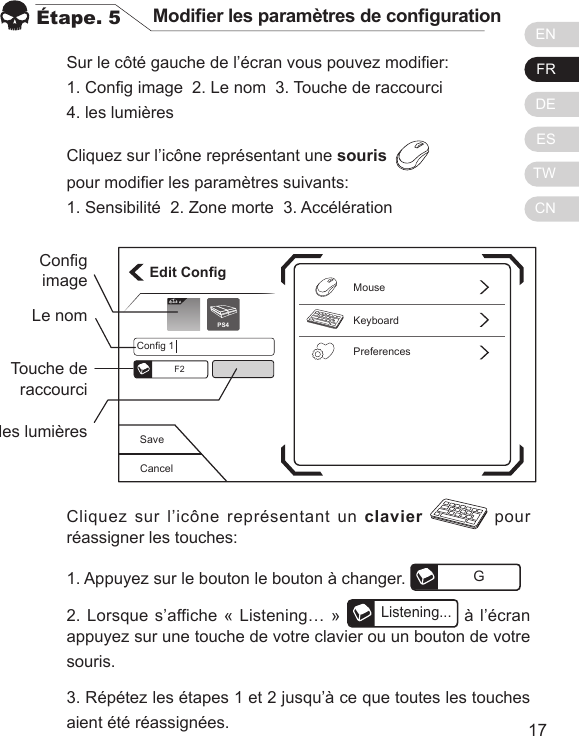
ENFRDEESTWCN1716Sur le côté gauche de l’écran vous pouvez modier:1. Cong image  2. Le nom  3. Touche de raccourci  4. les lumièresCliquez sur l’icône représentant une souris  pour modier les paramètres suivants:1. Sensibilité  2. Zone morte  3. AccélérationÉtape. 5 Modier les paramètres de congurationCliquez sur l’icône représentant un clavier  pour réassigner les touches:1. Appuyez sur le bouton le bouton à changer.  G2. Lorsque s’affiche « Listening… » Listening... à l’écran appuyez sur une touche de votre clavier ou un bouton de votre souris.3. Répétez les étapes 1 et 2 jusqu’à ce que toutes les touches aient été réassignées.CancelSaveEdit ConfigKeyboardPreferencesMouseConfig 1F2Elit ePS4CongimageLe nomTouche de raccourciles lumières
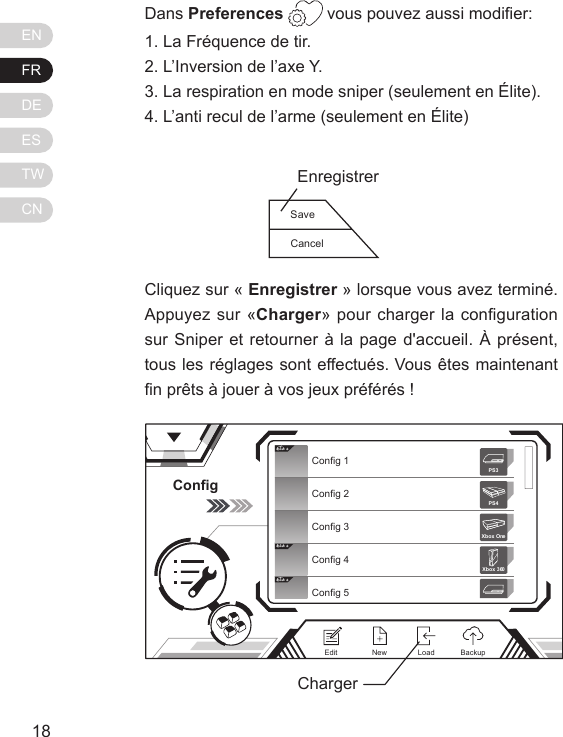
ENFRDEESTWCN1918Dans Preferences  vous pouvez aussi modier:1. La Fréquence de tir.2. L’Inversion de l’axe Y.3. La respiration en mode sniper (seulement en Élite).4. L’anti recul de l’arme (seulement en Élite)Cliquez sur « Enregistrer » lorsque vous avez terminé. Appuyez sur «Charger» pour charger la conguration sur Sniper et retourner à la page d'accueil. À présent, tous les réglages sont effectués. Vous êtes maintenant n prêts à jouer à vos jeux préférés !ConfigElit eElit eElit eConfig 1Config 2Config 3Config 4Config 5Xbox 360PS3PS4Xbox OneNewEdit BackupLoadChargerSaveCancelEnregistrer
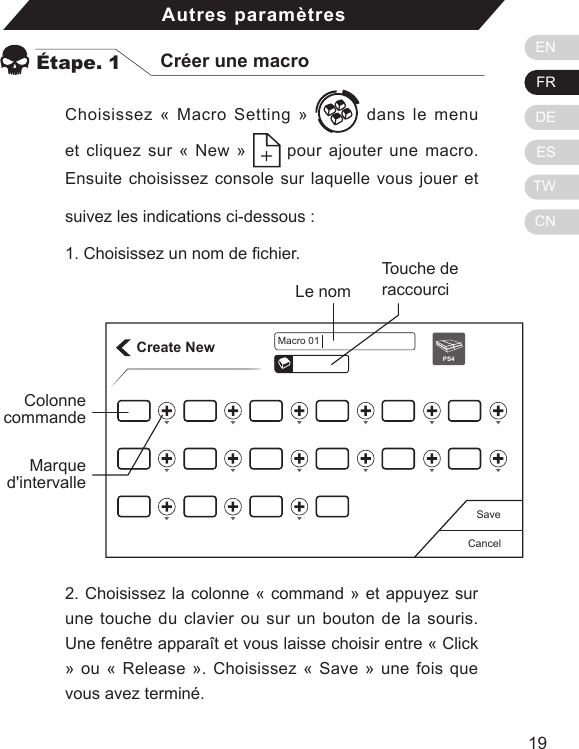
ENFRDEESTWCN1918Choisissez « Macro Setting »   dans le menu et cliquez sur « New »   pour ajouter une macro. Ensuite choisissez console sur laquelle vous jouer et suivez les indications ci-dessous :  1. Choisissez un nom de chier.Autres paramètresÉtape. 1 Créer une macroCreate NewCancelSavePS4Macro 01Touche de raccourciLe nomColonne commande2. Choisissez la colonne « command » et appuyez sur une touche du clavier ou sur un bouton de la souris. Une fenêtre apparaît et vous laisse choisir entre « Click » ou « Release ». Choisissez « Save » une fois que vous avez terminé.Marque d'intervalle
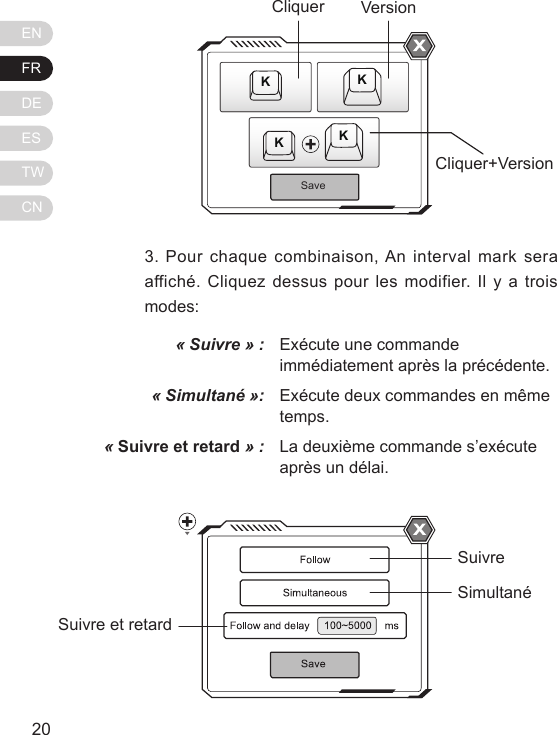
ENFRDEESTWCN21203. Pour chaque combinaison, An interval mark sera affiché. Cliquez dessus pour les modifier. Il y a trois modes:« Suivre » :« Simultané »:« Suivre et retard » :Exécute une commande immédiatement après la précédente.Exécute deux commandes en même temps.La deuxième commande s’exécute après un délai.SaveKKKKCliquerCliquer+VersionVersionSuivreSimultanéSuivre et retard
ENFRDEESTWCN21204. Répétez les étapes 1 à 3 pour créer vos propres macros !Pour plus d’informations rendez vous sur notre site internet www.brookaccessory.com. Nous vous invitons aussi à vous enregistrer sur notre site pour vous tenir au courant des nouveautés et des mises à jour.
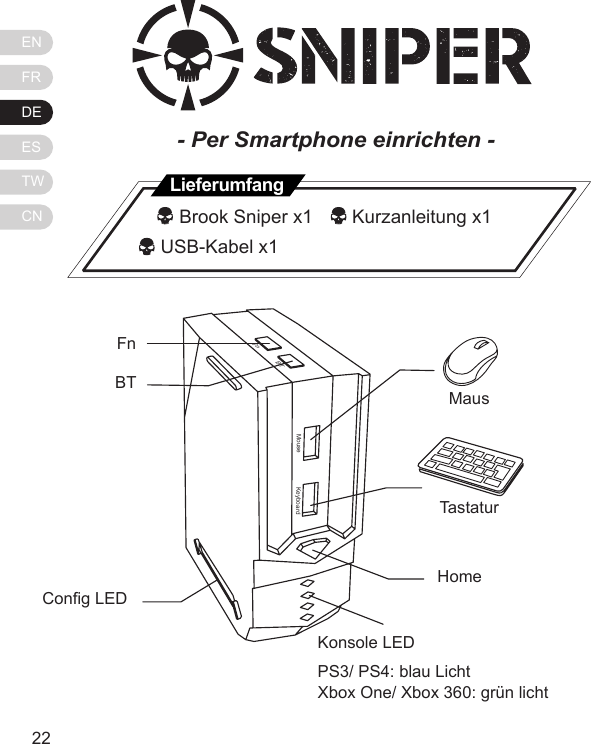
ENFRDEESTWCN2322MouseFnBTKeyboardFn BT Cong LEDMausTastaturHomeKonsole LEDPS3/ PS4: blau LichtXbox One/ Xbox 360: grün licht- Per Smartphone einrichten -   Brook Sniper x1    Kurzanleitung x1          USB-Kabel x1Lieferumfang
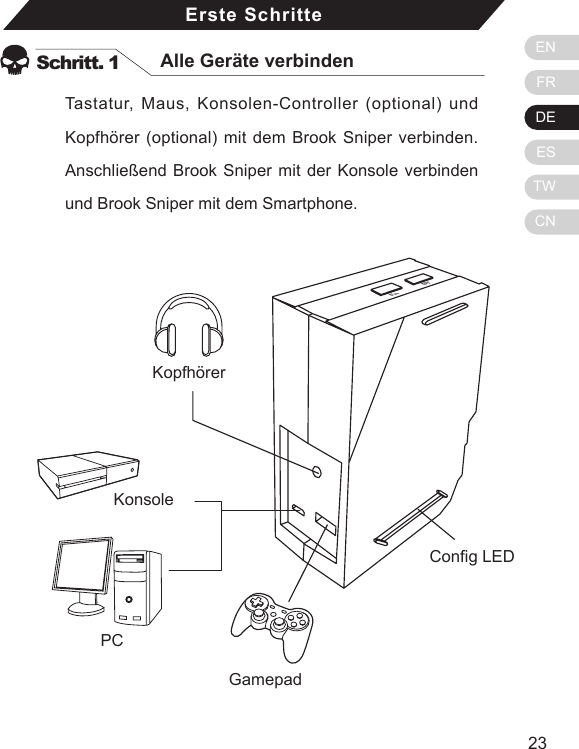
ENFRDEESTWCN2322Erste SchritteSchritt. 1 Alle Geräte verbindenTastatur, Maus, Konsolen-Controller (optional) und Kopfhörer (optional) mit dem Brook Sniper verbinden. Anschließend Brook Sniper mit der Konsole verbinden und Brook Sniper mit dem Smartphone.BTFnCong LEDKonsolePCKopfhörerGamepad
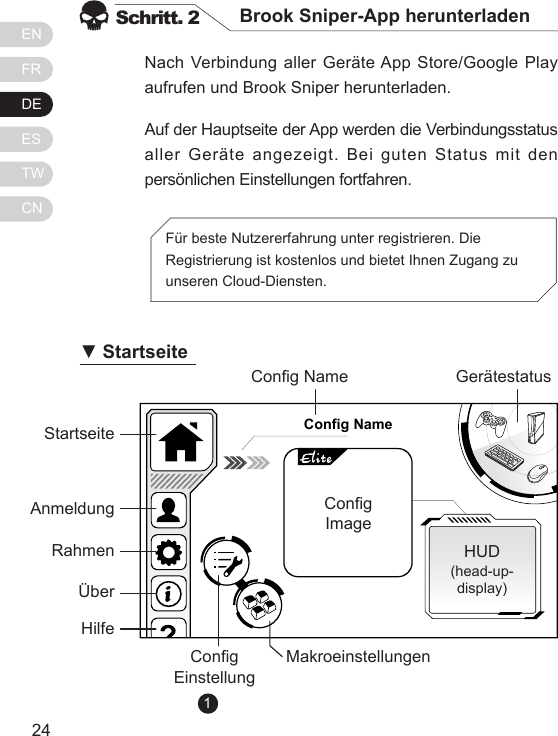
ENFRDEESTWCN2524Nach Verbindung aller Geräte App Store/Google Play aufrufen und Brook Sniper herunterladen. Auf der Hauptseite der App werden die Verbindungsstatus aller Geräte angezeigt. Bei guten Status mit den persönlichen Einstellungen fortfahren.Schritt. 2 Brook Sniper-App herunterladenFür beste Nutzererfahrung unter registrieren. Die Registrierung ist kostenlos und bietet Ihnen Zugang zu unseren Cloud-Diensten.Config NameStartseiteCong NameCong EinstellungMakroeinstellungenHUD(head-up-display)GerätestatusCongImage           AnmeldungRahmenÜberHilfe▼ Startseite1
ENFRDEESTWCN2524Schritt. 3 Konguration zufügen Auf der Startseite auf das Kongurationseinstellung-Symbol tippen   Zum Zufügen einer Konfiguration – bei der es sich um eine Auswahl Einstellungen für ein bestimmtes Spiel handelt – auf „New“ tippen    . [1] „Elite“ Konfigurationen bieten optimierte tote Zone und Mausbewegungsgeschwindigkeitskurven für spezifische Spiele. Prüfen Sie, ob eine „Elite“-Version bei Ihrem Spiel verfügbar ist; andernfalls wählen Sie „Custom“.1.2.Die Konsole wählen, die Sie verbinden möchtenDann auf „Custom“ oder „Elite“ [1] tippen. Wählen Sie dann eine Plattform, die Ihrer Konsole entspricht, und die Kongurationen.Konguration zufügen3.4.Create NewCustom EliteXbox 360CancelLetzte SeiteKonsole wählenPlattform wählenAbbrechen34Elit eElit eElit eElit eConfig 1Config 2Config 3Config 4Config 5Config 6Xbox 360PS3PS4Xbox OnePS3PS4Save2Elit eConfig 4Config 5NewEditNew
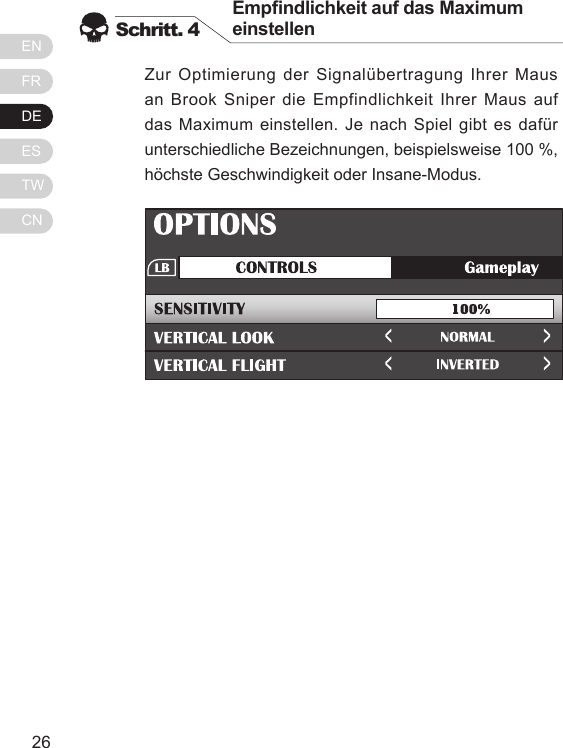
ENFRDEESTWCN2726Zur Optimierung der Signalübertragung Ihrer Maus an Brook Sniper die Empfindlichkeit Ihrer Maus auf das Maximum einstellen. Je nach Spiel gibt es dafür unterschiedliche Bezeichnungen, beispielsweise 100 %, höchste Geschwindigkeit oder Insane-Modus.Schritt. 4Empndlichkeit auf das Maximum einstellenCongimage
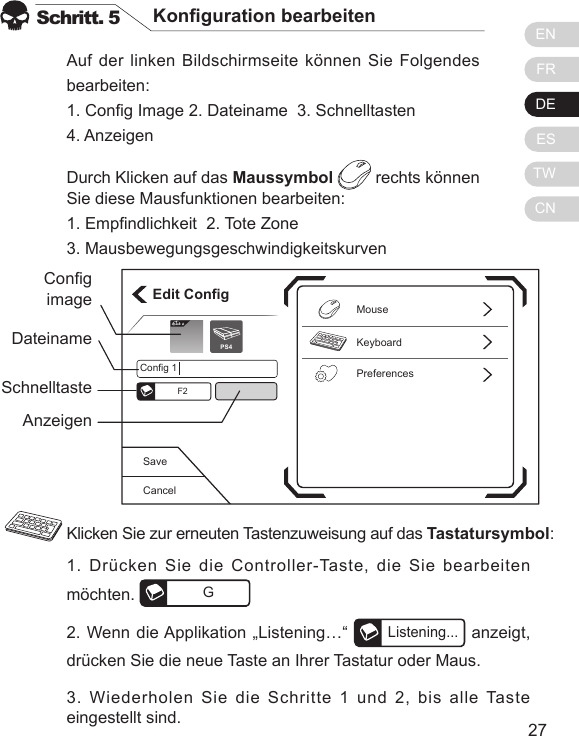
ENFRDEESTWCN2726Auf der linken Bildschirmseite können Sie Folgendes bearbeiten:1. Cong Image 2. Dateiname  3. Schnelltasten  4. AnzeigenDurch Klicken auf das Maussymbol  rechts können Sie diese Mausfunktionen bearbeiten:1. Empndlichkeit  2. Tote Zone  3. MausbewegungsgeschwindigkeitskurvenSchritt. 5 Konguration bearbeiten1. Drücken Sie die Controller-Taste, die Sie bearbeiten möchten.  G2. Wenn die Applikation „Listening…“ Listening... anzeigt, drücken Sie die neue Taste an Ihrer Tastatur oder Maus.3. Wiederholen Sie die Schritte 1 und 2, bis alle Taste eingestellt sind.Klicken Sie zur erneuten Tastenzuweisung auf das Tastatursymbol:CancelSaveEdit ConfigKeyboardPreferencesMouseConfig 1F2Elit ePS4CongimageDateinameSchnelltasteAnzeigen
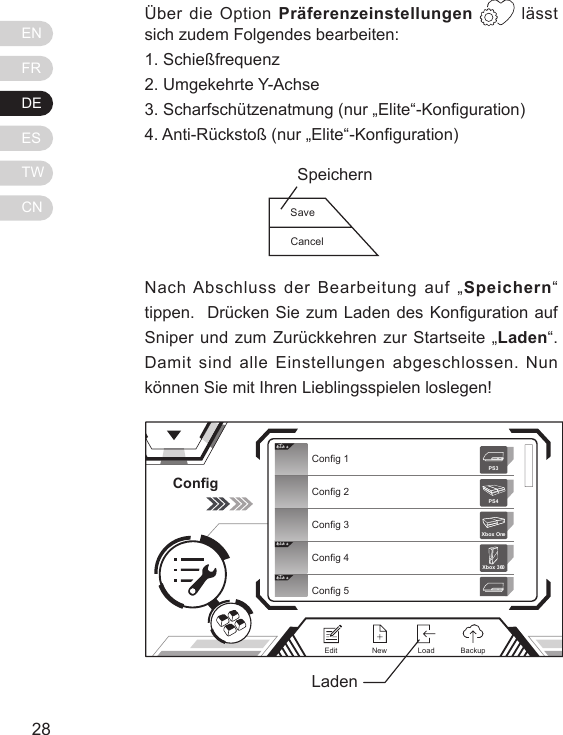
ENFRDEESTWCN2928Über die Option Präferenzeinstellungen  lässt sich zudem Folgendes bearbeiten:1. Schießfrequenz2. Umgekehrte Y-Achse3. Scharfschützenatmung (nur „Elite“-Konguration)4. Anti-Rückstoß (nur „Elite“-Konguration)Nach Abschluss der Bearbeitung auf „Speichern“ tippen.  Drücken Sie zum Laden des Konguration auf Sniper und zum Zurückkehren zur Startseite „Laden“. Damit sind alle Einstellungen abgeschlossen. Nun können Sie mit Ihren Lieblingsspielen loslegen!ConfigElit eElit eElit eConfig 1Config 2Config 3Config 4Config 5Xbox 360PS3PS4Xbox OneNewEdit BackupLoadLadenSaveCancelSpeichernIntervall-markierung
ENFRDEESTWCN2928Auf das Makroeinstellung-Symbol   im Menü und dann zum Zufügen eines Makros auf „New“   tippen. Anschließend die Konsole wählen, an der Sie spielen möchten, und die nachstehenden Schritte befolgen: 1. Dateinamen und Schnelltasten festlegen.Weitere EinstellungenSchritt. 1 MakroeinstellungenCreate NewCancelSavePS4Macro 01SchnelltasteDateinameBefehlss-palte2. Auf Befehlsspalte tippen und dann eine beliebige Taste an Tastatur oder Maus wählen. Ein Dialog erscheint und ermöglicht die Festlegung als „Drücken“- oder „Loslassen“-Aktion. Anschließend auf „Speichern“ tippen.Intervall-markierung
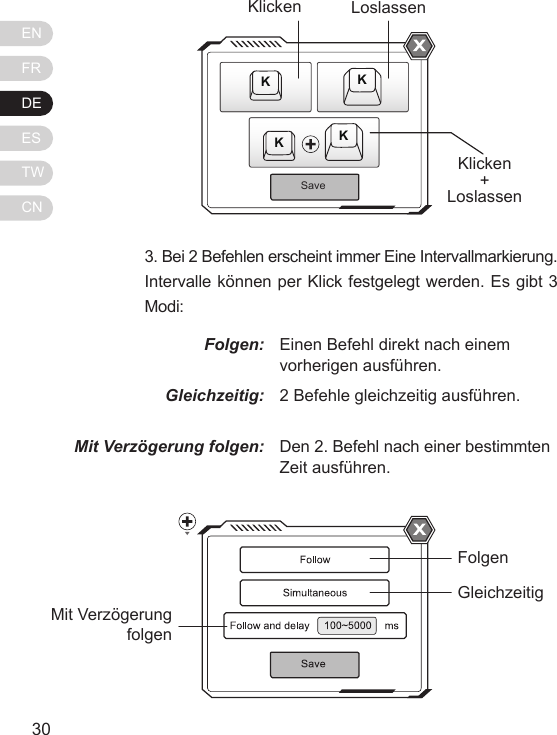
ENFRDEESTWCN31303. Bei 2 Befehlen erscheint immer Eine Intervallmarkierung. Intervalle können per Klick festgelegt werden. Es gibt 3 Modi:Folgen:Gleichzeitig:Mit Verzögerung folgen:Einen Befehl direkt nach einem vorherigen ausführen.2 Befehle gleichzeitig ausführen.Den 2. Befehl nach einer bestimmten Zeit ausführen.SaveKKKKKlickenKlicken+LoslassenLoslassenFolgenGleichzeitigMit Verzögerung folgen
ENFRDEESTWCN31304. Zur Erstellung Ihres eigenen angepassten Makros die obigen Schritte befolgen!IFalls Sie Fragen haben, besuchen Sie uns bitte unter: www.brookaccessory.com. Außerdem sind Sie herzlich eingeladen, sich für Neuigkeiten und Aktualisierungen kostenlos als Mitglied auf unserer Webseite zu registrieren.
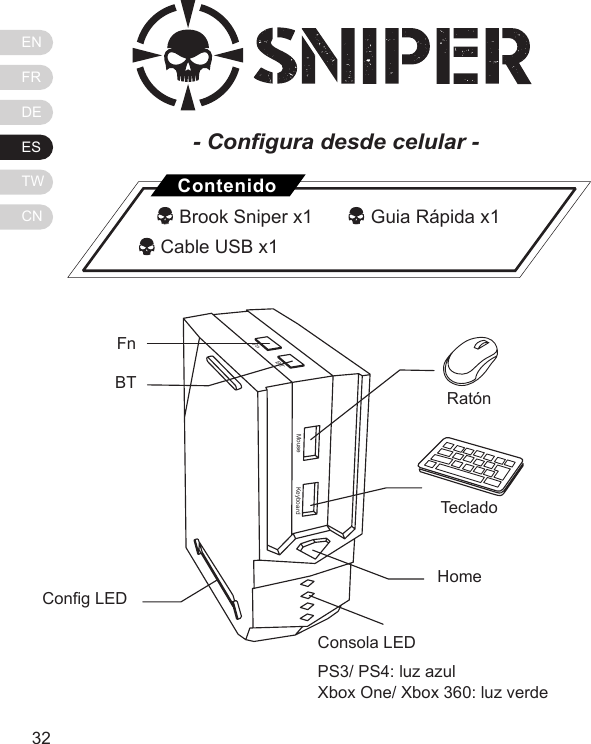
ENFRDEESTWCN3332MouseFnBTKeyboardFn BT Cong LEDRatónTecladoHomeConsola LEDPS3/ PS4: luz azulXbox One/ Xbox 360: luz verde- Congura desde celular -   Brook Sniper x1      Guia Rápida x1          Cable USB x1Contenido
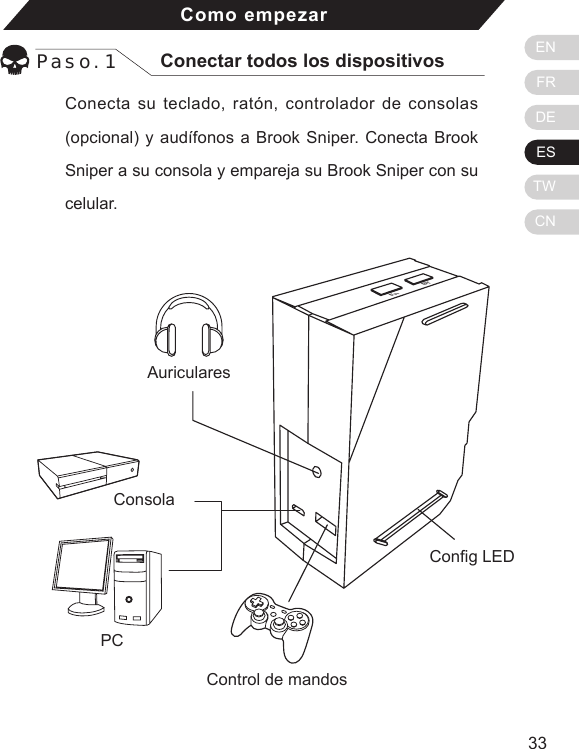
ENFRDEESTWCN3332Como empezarPaso. 1 Conectar todos los dispositivosConecta su teclado, ratón, controlador de consolas (opcional) y audífonos a Brook Sniper. Conecta Brook Sniper a su consola y empareja su Brook Sniper con su celular.BTFnCong LEDConsolaPCAuricularesControl de mandos
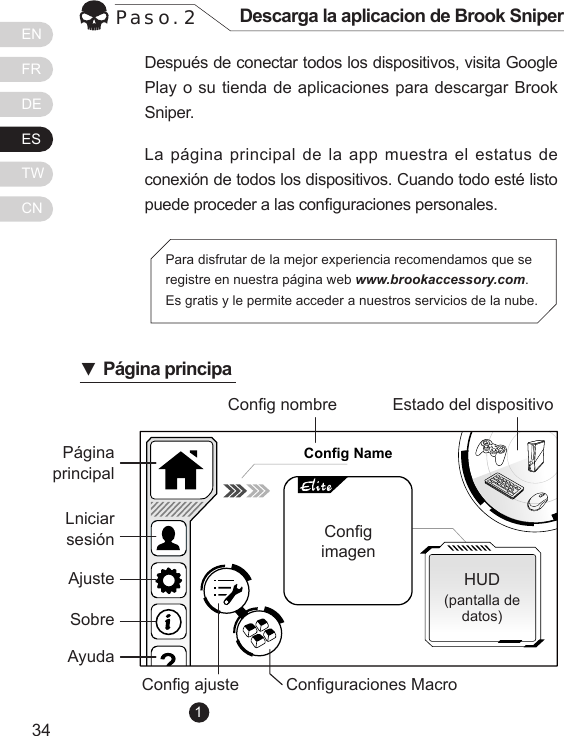
ENFRDEESTWCN3534Después de conectar todos los dispositivos, visita Google Play o su tienda de aplicaciones para descargar Brook Sniper.La página principal de la  app  muestra el  estatus de conexión de todos los dispositivos. Cuando todo esté listo puede proceder a las conguraciones personales.Paso. 2 Descarga la aplicacion de Brook SniperPara disfrutar de la mejor experiencia recomendamos que se registre en nuestra página web www.brookaccessory.com. Es gratis y le permite acceder a nuestros servicios de la nube.Config NamePágina principalCong nombreCong ajuste Conguraciones MacroHUD(pantalla de datos)Estado del dispositivoCongimagenLniciar sesiónAjusteSobre Ayuda▼Página principa1
ENFRDEESTWCN3534Paso. 3 Añade conguracionesAprieta el icono Conguration Settings   de la página principal Aprieta el icono Nuevo  , que es un conjunto de conguraciones para un juego particular.[1] Las conguraciones Elite permiten optimizar zonas de muerte y curvas de velocidad del ratón para juegos especícos. Revisa si una versión Elite está disponible para su juego, en caso que no escoge Custom.1.2.Escoge la consola que usará. Aprieta “Custom” o “Elite” [1] y escoge la plataforma que corresponde a su consola y las conguraciones.3.4.Create NewCustom EliteXbox 360CancelÚltimapáginaElegir la consolaElegir la plataformaCancelar34Elit eElit eElit eElit eConfig 1Config 2Config 3Config 4Config 5Config 6Xbox 360PS3PS4Xbox OnePS3PS4Save2Elit eConfig 4Config 5NewEditNuevo
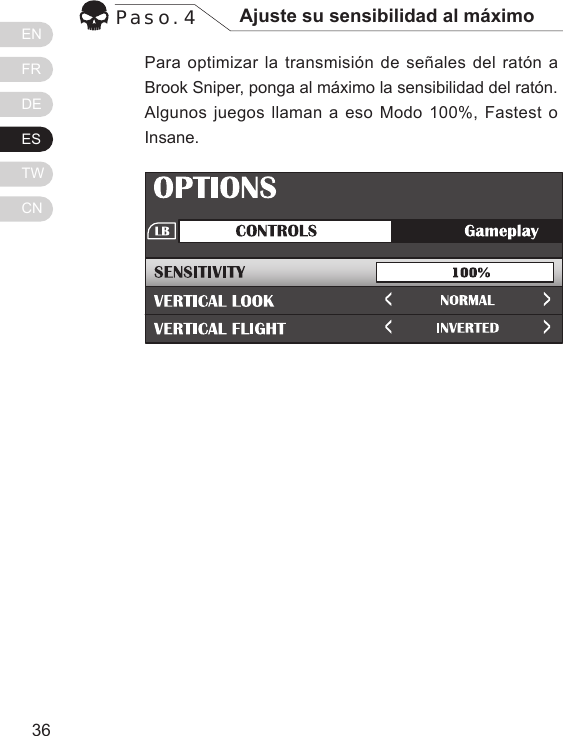
ENFRDEESTWCN3736Para optimizar la transmisión de señales del ratón a Brook Sniper, ponga al máximo la sensibilidad del ratón. Algunos juegos llaman a eso Modo 100%, Fastest o Insane.Paso. 4 Ajuste su sensibilidad al máximo
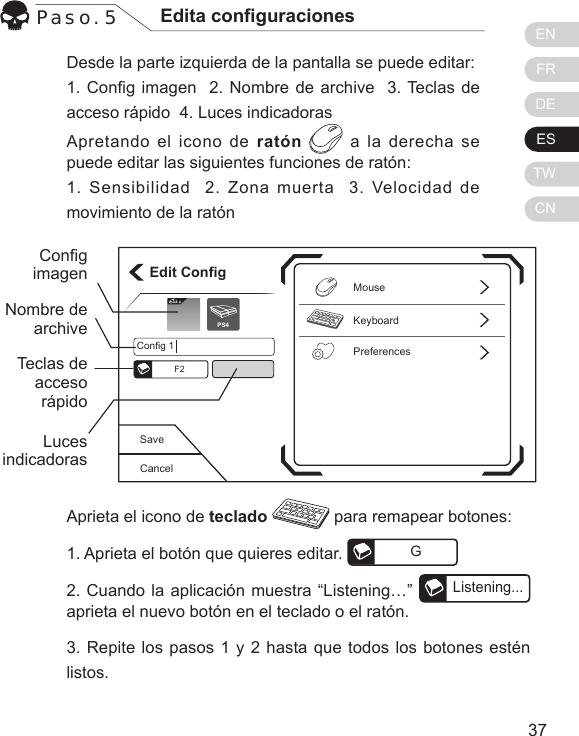
ENFRDEESTWCN3736Desde la parte izquierda de la pantalla se puede editar:1. Cong imagen  2. Nombre de archive  3. Teclas de acceso rápido  4. Luces indicadorasApretando el icono de ratón  a la derecha se puede editar las siguientes funciones de ratón:1. Sensibilidad  2. Zona muerta  3. Velocidad de movimiento de la ratónPaso. 5 Edita conguracionesAprieta el icono de teclado   para remapear botones:1. Aprieta el botón que quieres editar.  G2. Cuando la aplicación muestra “Listening…” Listening...aprieta el nuevo botón en el teclado o el ratón.3. Repite los pasos 1 y 2 hasta que todos los botones estén listos. CancelSaveEdit ConfigKeyboardPreferencesMouseConfig 1F2Elit ePS4CongimagenNombre de archiveTeclas de acceso rápidoLuces indicadoras
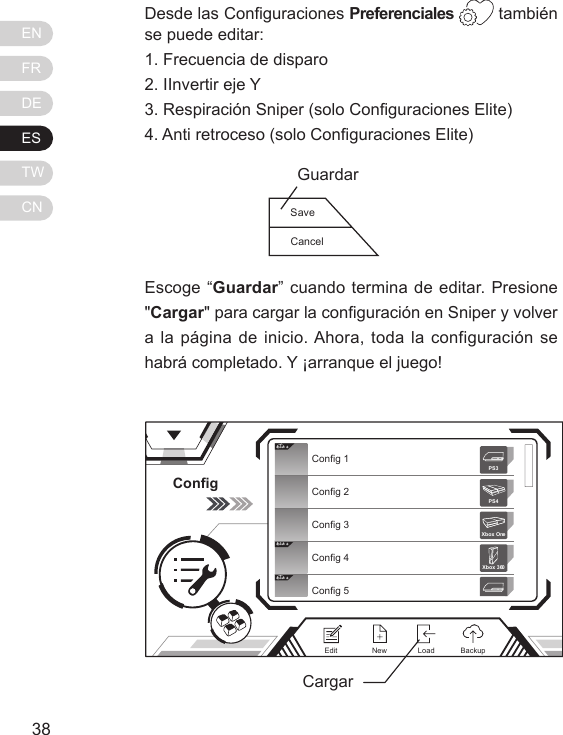
ENFRDEESTWCN3938Desde las Conguraciones Preferenciales  también se puede editar:  1. Frecuencia de disparo2. IInvertir eje Y3. Respiración Sniper (solo Conguraciones Elite)4. Anti retroceso (solo Conguraciones Elite)Escoge “Guardar” cuando termina de editar. Presione "Cargar" para cargar la conguración en Sniper y volver a la página de inicio. Ahora, toda la configuración se habrá completado. Y ¡arranque el juego!ConfigElit eElit eElit eConfig 1Config 2Config 3Config 4Config 5Xbox 360PS3PS4Xbox OneNewEdit BackupLoadCargarSaveCancelGuardar
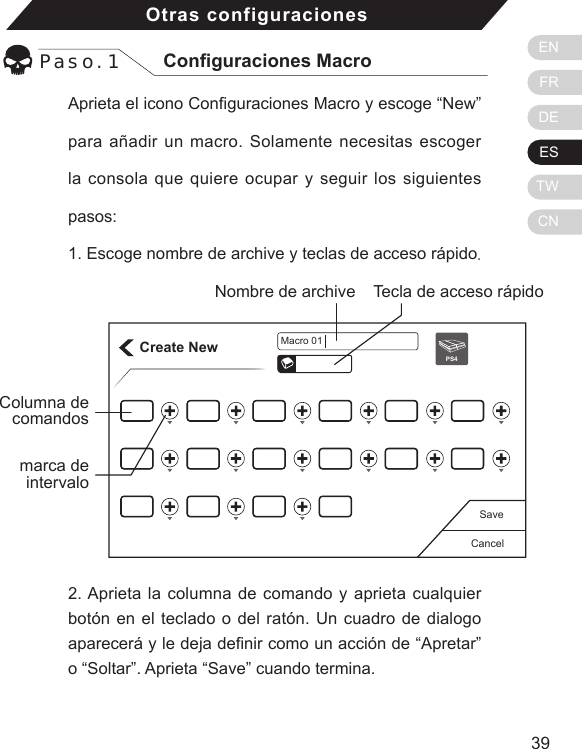
ENFRDEESTWCN3938Aprieta el icono Conguraciones Macro y escoge “New” para añadir un macro. Solamente necesitas escoger la consola que quiere ocupar y seguir los siguientes pasos: 1. Escoge nombre de archive y teclas de acceso rápido.Otras configuracionesPaso. 1 Conguraciones MacroCreate NewCancelSavePS4Macro 01Tecla de acceso rápidoNombre de archiveColumna de comandos2. Aprieta la columna de comando y aprieta cualquier botón en el teclado o del ratón. Un cuadro de dialogo aparecerá y le deja denir como un acción de “Apretar” o “Soltar”. Aprieta “Save” cuando termina.marca de intervalo
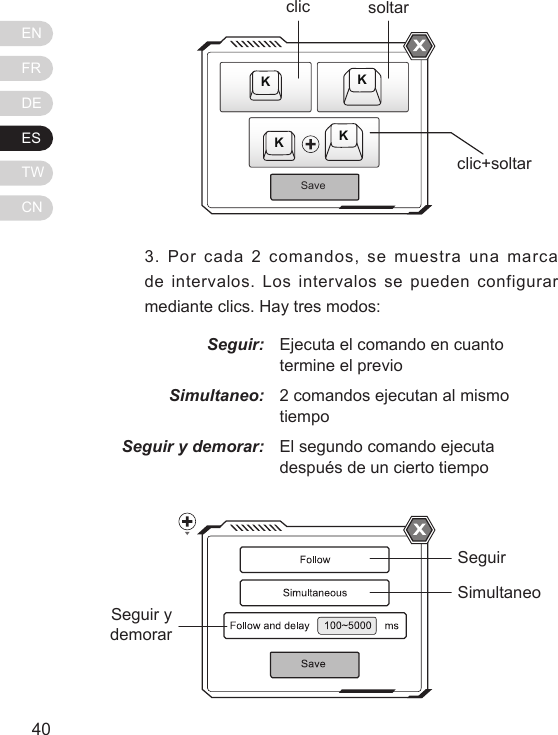
ENFRDEESTWCN41403. Por cada 2 comandos, se muestra una marca de intervalos.  Los intervalos  se pueden  configurar mediante clics. Hay tres modos:Seguir:Simultaneo:Seguir y demorar:Ejecuta el comando en cuanto termine el previo2 comandos ejecutan al mismo tiempoEl segundo comando ejecuta después de un cierto tiempoSaveKKKKclicclic+soltarsoltarSeguirSimultaneoSeguir y demorar
ENFRDEESTWCN41404. Repite los pasos para crear su macro personalizado!Si tiene alguna duda o pregunta visite nuestra página web www.brookaccessory.com. También le invitamos a registrarse gratuitamente para recibir actualizaciones y noticias.
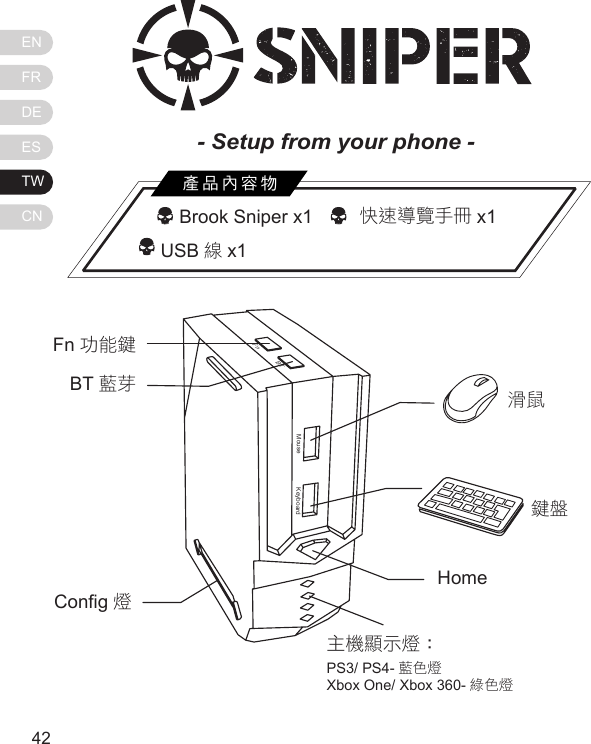
ENFRDEESTWCN4342  Brook Sniper x1     快速導覽手冊 x1          USB 線x1產品內容物MouseFnBTKeyboardFn 功能鍵BT 藍芽Cong 燈滑鼠鍵盤Home主機顯示燈:PS3/ PS4- 藍色燈Xbox One/ Xbox 360- 綠色燈- Setup from your phone -
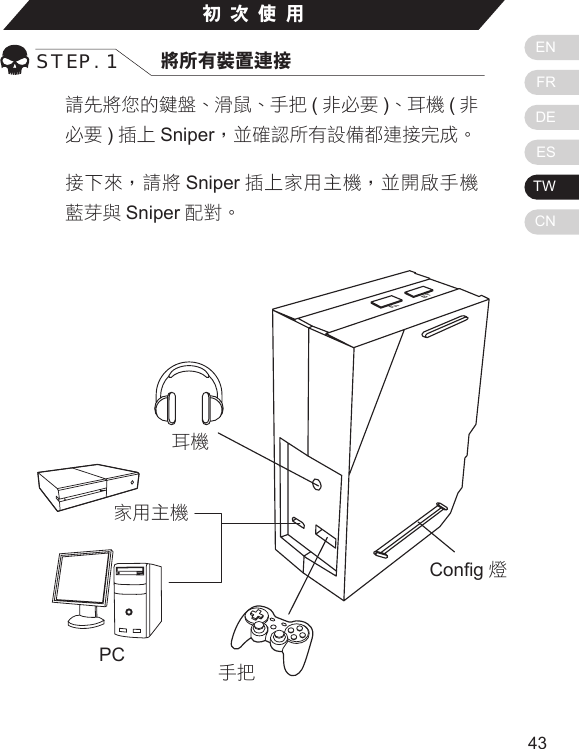
ENFRDEESTWCN4342初次使用STEP. 1 將所有裝置連接請先將您的鍵盤、滑鼠、手把 (非必要 )、耳機 (非必要 )插上 Sniper,並確認所有設備都連接完成。接下來,請將 Sniper 插上家用主機,並開啟手機藍芽與 Sniper 配對。Home主機顯示燈:PS3/ PS4- 藍色燈Xbox One/ Xbox 360- 綠色燈BTFnCong 燈家用主機PC耳機手把
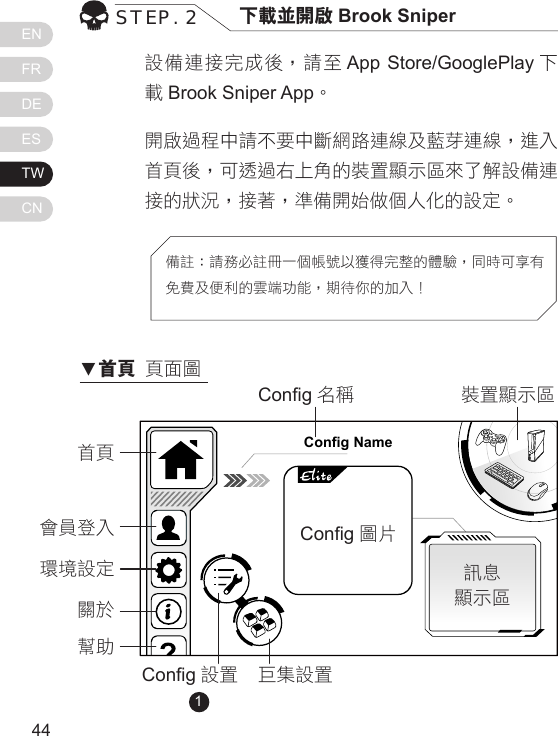
ENFRDEESTWCN4544設備連接完成後,請至 App Store/GooglePlay 下載Brook Sniper App。開啟過程中請不要中斷網路連線及藍芽連線,進入首頁後,可透過右上角的裝置顯示區來了解設備連接的狀況,接著,準備開始做個人化的設定。STEP. 2 下載並開啟 Brook Sniper備註:請務必註冊一個帳號以獲得完整的體驗,同時可享有免費及便利的雲端功能,期待你的加入!Config Name首頁Cong 名稱Cong 設置 巨集設置訊息顯示區裝置顯示區Cong 圖 片              會員登入環境設定關於幫助1▼首頁 頁面圖
ENFRDEESTWCN4544點擊首頁的 Cong 設置      接著點擊下方的 New   來新增一個 CongSTEP. 3 新增 Cong[1] Elite Cong 提供部分熱門遊戲最優化的盲區及曲線設定值,提供較便利的選項及更多的功能,請確認欲進行的遊戲是否有Elite 版本,否則請選擇 Custom。1.22.選擇一個家用主機平台 再選擇 Custom 或Elite[1] 版本,就完成了第一個Cong 的建立。(請務必選擇正確的平台及 Cong版本,否則可能會無法順利進行遊戲 )3.4.Elit eConfig 4Config 5NewEditCreate NewCustom EliteXbox 360Cancel上一頁選家用主機平台選版本取消34Elit eElit eElit eElit eConfig 1Config 2Config 3Config 4Config 5Config 6Xbox 360PS3PS4Xbox OnePS3PS4Save新增
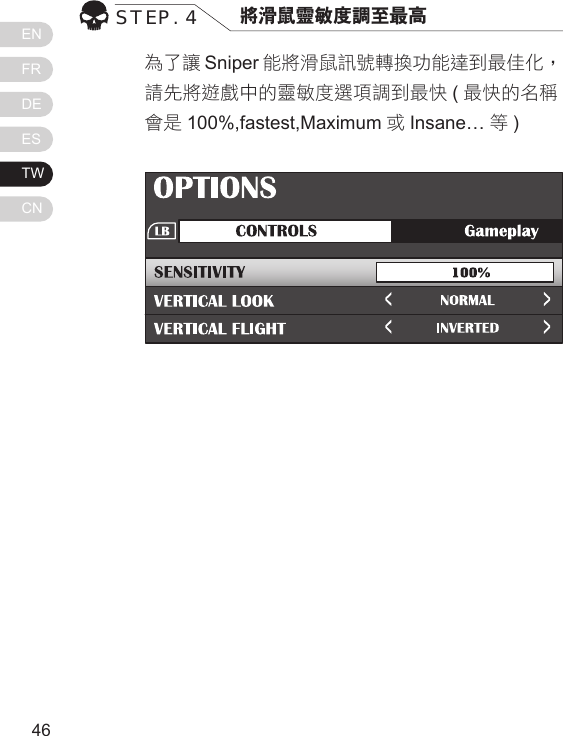
ENFRDEESTWCN4746為了讓 Sniper 能將滑鼠訊號轉換功能達到最佳化,請先將遊戲中的靈敏度選項調到最快 (最快的名稱會是 100%,fastest,Maximum 或Insane… 等)STEP. 4 將滑鼠靈敏度調至最高
ENFRDEESTWCN4746首先,在畫面左側你可以編輯:1. Cong 圖片  2. 檔名  3. 熱鍵  4. 燈號顏色 Mouse,對滑鼠相關的功能編輯:1. 靈敏度  2. 盲區  3. 曲線 → 編輯完成可按 Save 儲存 Keyboard,編輯手把對應的按鍵,方法如下:1. 按下要編輯的按鍵  G2. 當它顯示為Listening...時,按下滑鼠或鍵盤上   欲設置的鍵,即修改完成3. 重複以上步驟直到完成編輯→ 編輯完成可按 Save 儲存STEP. 5 編輯 CongCancelSaveEdit ConfigKeyboardPreferencesMouseConfig 1F2Elit ePS4Cong 圖片檔名熱鍵燈號顏色
ENFRDEESTWCN4948偏好設定,待設備設定成慣用的按鍵後即可調整:1. 射速加強2. 反轉 Y軸3. 狙擊屏息 (Elite Cong 限定 )4. 反後座力 (Elite Cong 限定 )當所有項目都編輯完成,別忘了按下儲存鈕,再至載入頁面載入剛剛設定好的 Cong。基礎的設置就大功告成了,可以盡情地使用滑鼠及鍵盤啦!SaveCancel儲存ConfigElit eElit eElit eConfig 1Config 2Config 3Config 4Config 5Xbox 360PS3PS4Xbox OneNewEdit BackupLoad載入
ENFRDEESTWCN4948在主頁點選巨集設置  ,接著點擊下方的新增  來新增一個巨集,新增時僅需要選擇平台,新建完成後就依照以下步驟來設置。1. 畫面上方可設定檔名及熱鍵其他設置STEP. 1 巨集設置Create NewCancelSavePS4Macro 01熱鍵檔名指令框時差設置2. 點選一個指令框,按下滑鼠或鍵盤上的任一鍵,    接著會跳出視窗,選擇該指令是 ”按下 ”或是 ”彈起 ”的動作,點選儲存即完成一個指令的設置。
ENFRDEESTWCN51503. 每兩個指令框中間會有一個時差設置,點擊後可設置前一個指令和下一個指令的間隔時間,分為三種 :接續 :同步 :接續且延遲 :指令執行完畢接著下一個指令兩個指令同時執行經過延遲的時間後才執行下一個指令SaveKKKK按下按下 +彈起彈起接續同步接續且延遲
ENFRDEESTWCN51504. 重複上述步驟來完成一組屬於你自己慣用的巨集吧!透過巨集,相信你會在遊戲中更加得心應手!這份 Quick Guide 沒辦法解答你全部的疑問嗎?想知道更多進階的功能嗎?請上我們的產品網站來了解更多! www.brookaccessory.com最後,我們誠摯地邀請您註冊 Brook 的會員,在這裡你可以得到產品的第一手消息並獲得完整的售後服務!
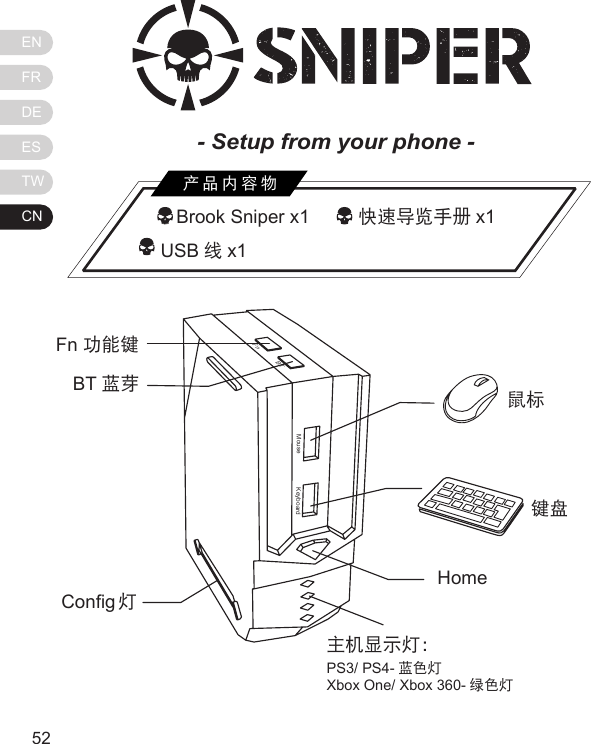
ENFRDEESTWCN5352   Brook Sniper x1         快速导览手册 x1          USB 线x1产品内容物MouseFnBTKeyboardFn 功能键BT 蓝芽Cong 灯鼠标键盘Home主机显示灯:PS3/ PS4- 蓝色灯Xbox One/ Xbox 360- 绿色灯- Setup from your phone -
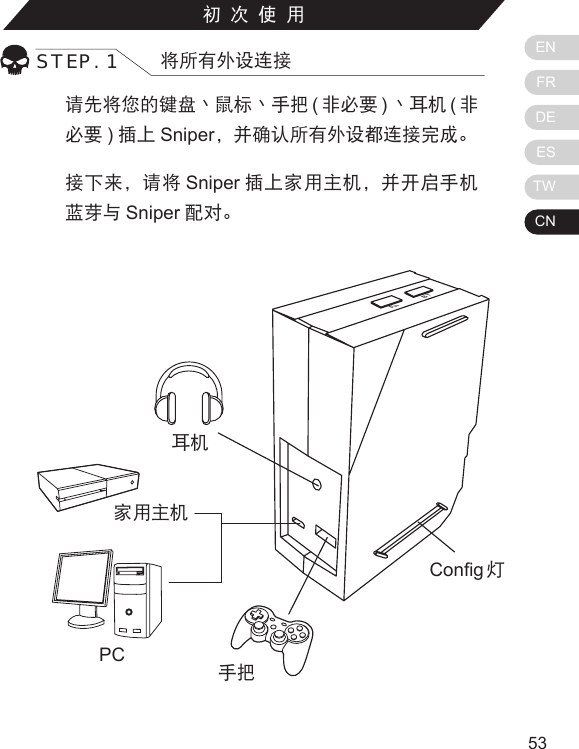
ENFRDEESTWCN5352初次使用STEP. 1 将所有外设连接请先将您的键盘丶鼠标丶手把 (非必要 )丶耳机 (非必要 )插上 Sniper,并确认所有外设都连接完成。接下来,请将 Sniper 插上家用主机,并开启手机蓝芽与 Sniper 配对。Home主机显示灯:PS3/ PS4- 蓝色灯Xbox One/ Xbox 360- 绿色灯BTFnCong 灯家用主机PC耳机手把
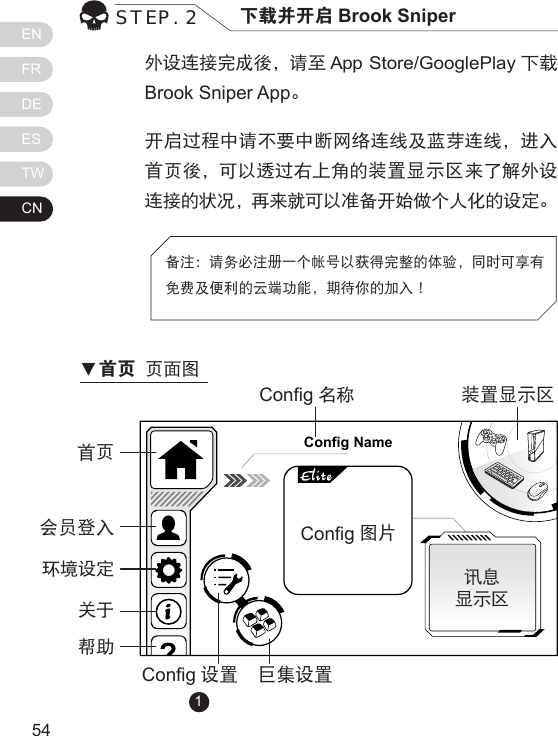
ENFRDEESTWCN5554外设连接完成後,请至 App Store/GooglePlay 下载Brook Sniper App。开启过程中请不要中断网络连线及蓝芽连线,进入首页後,可以透过右上角的装置显示区来了解外设连接的状况,再来就可以准备开始做个人化的设定。STEP. 2 下载并开启 Brook Sniper备注:请务必注册一个帐号以获得完整的体验,同时可享有免费及便利的云端功能,期待你的加入!Config Name首页Cong名称Cong 设置 巨集设置讯息显示区装置显示区Cong图片             会员登入环境设定关于帮助1▼首页 页面图
ENFRDEESTWCN5554点击首页的 Cong 设置      接着点击下方的 New   来新 增一个 CongSTEP. 3 新增 Cong[1] Elite Cong 提供部分热门游戏最优化的盲区及曲线设定值,提供较便利的选项及更多的功能,请确认欲进行的游戏是否有Elite 版本,否则请选择 Custom。1.22.选择一个家用主机平台 再选择 Custom 或Elite[1] 版本 Cong,就完成了第一个 Cong 的建立。(请务必选择正确的平台及Cong 版本,否则可能会无法顺利进行游戏 )3.4.Elit eConfig 4Config 5NewEditCreate NewCustom EliteXbox 360Cancel上一页选家用 主机平台选版本取消34Elit eElit eElit eElit eConfig 1Config 2Config 3Config 4Config 5Config 6Xbox 360PS3PS4Xbox OnePS3PS4Save新增
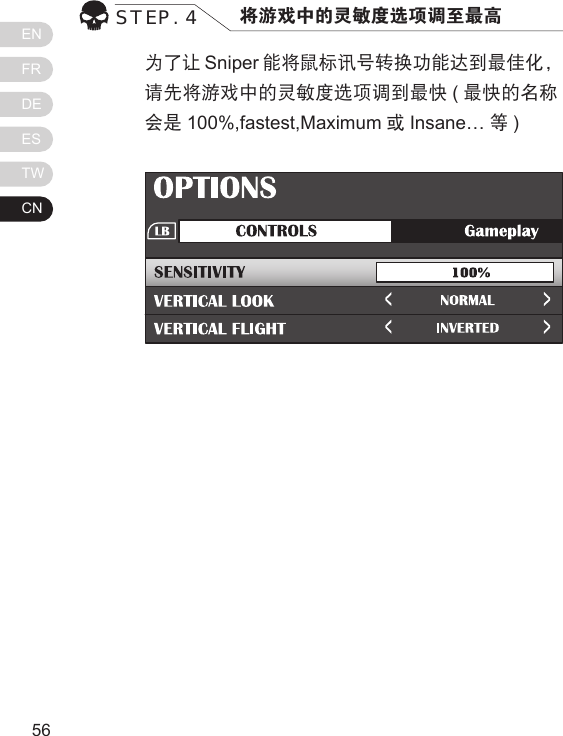
ENFRDEESTWCN5756为了让 Sniper 能将鼠标讯号转换功能达到最佳化,请先将游戏中的灵敏度选项调到最快 (最快的名称会是 100%,fastest,Maximum 或Insane… 等) STEP. 4 将游戏中的灵敏度选项调至最高
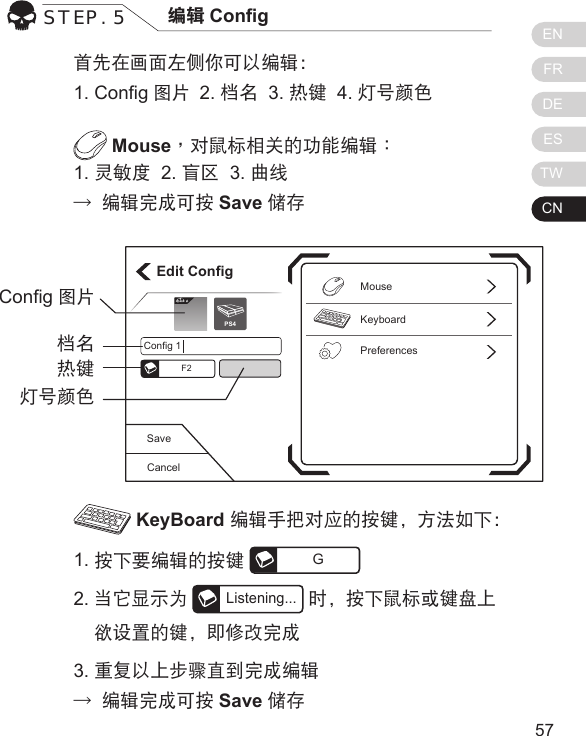
ENFRDEESTWCN5756首先在画面左侧你可以编辑:1. Cong图片  2. 档名  3. 热键  4. 灯号颜色 Mouse,对鼠标相关的功能编辑:1. 灵敏度  2. 盲区  3. 曲线→ 编辑完成可按 Save 储存 KeyBoard 编辑手把对应的按键,方法如下:1. 按下要编辑的按键 G2. 当它显示为Listening...时,按下鼠标或键盘上    欲设置的键,即修改完成3. 重复以上步骤直到完成编辑→ 编辑完成可按 Save 储存STEP. 5 编辑 CongCancelSaveEdit ConfigKeyboardPreferencesMouseConfig 1F2Elit ePS4Cong图片档名热键灯号颜色
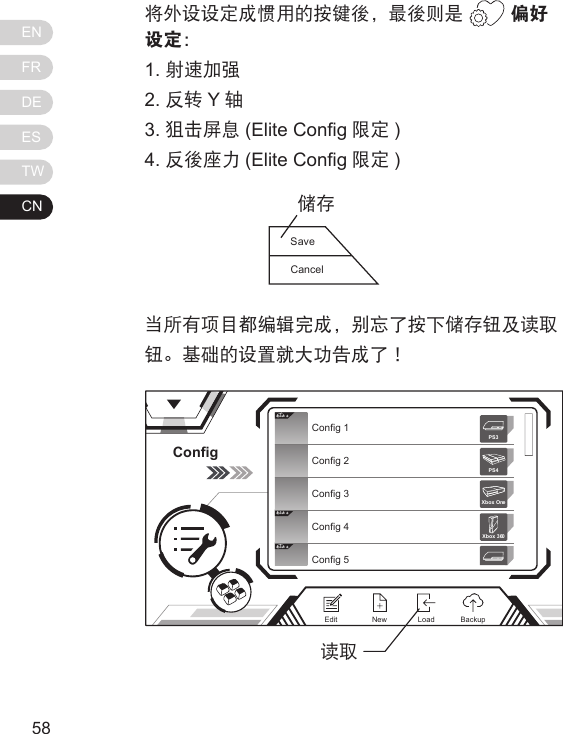
ENFRDEESTWCN5958将外设设定成惯用的按键後,最後则是   偏好设定:1. 射速加强2. 反转 Y轴3. 狙击屏息 (Elite Cong 限定 )4. 反後座力 (Elite Cong 限定 )当所有项目都编辑完成,别忘了按下储存钮及读取钮。基础的设置就大功告成了!ConfigElit eElit eElit eConfig 1Config 2Config 3Config 4Config 5Xbox 360PS3PS4Xbox OneNewEdit BackupLoad读取SaveCancel储存
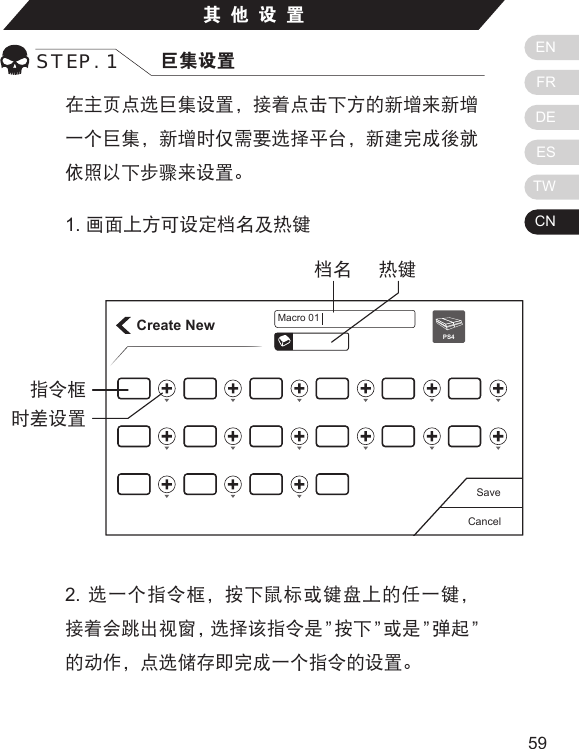
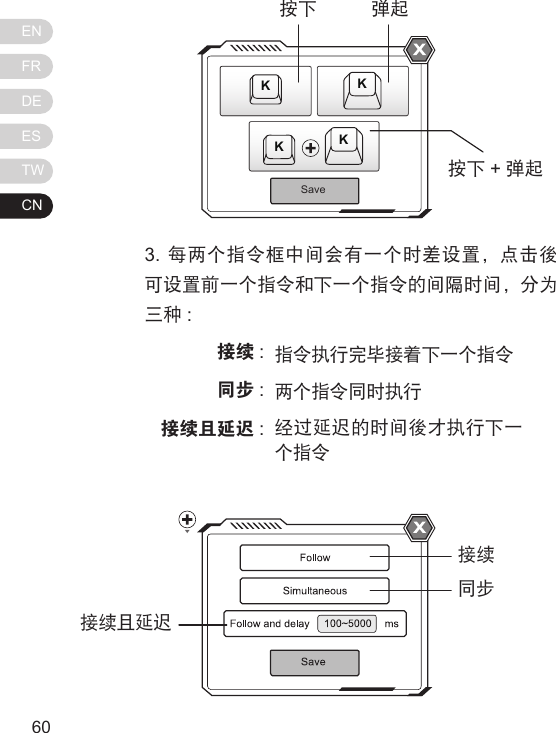
ENFRDEESTWCN5958在主页点选巨集设置,接着点击下方的新增来新增一个巨集,新增时仅需要选择平台,新建完成後就依照以下步骤来设置。1. 画面上方可设定档名及热键其他设置STEP. 1 巨集设置Create NewCancelSavePS4Macro 01热键档名指令框时差设置2.  选一个指令框,按下鼠标或键盘上的任一键,接着会跳出视窗,选择该指令是 ”按下 ”或是 ”弹起 ”的动作,点选储存即完成一个指令的设置。
ENFRDEESTWCN61603. 每两个指令框中间会有一个时差设置,点击後可设置前一个指令和下一个指令的间隔时间,分为三种 :接续 :同步 :接续且延迟 :指令执行完毕接着下一个指令两个指令同时执行经过延迟的时间後才执行下一个指令SaveKKKK按下按下 +弹起弹起接续同步接续且延迟
ENFRDEESTWCN61604. 重复上述步骤来完成一组属於你自己惯用的巨集吧!透过巨集,相信你会在游戏中更加得心应手!这份 Quick Guide 没办法解答你全部的疑问吗?想知道更多进阶的功能吗?请上我们的产品网站来了解更多! www.brookaccessory.com最後,我们诚挚地邀请您注册 Brook 的会员,在这里你可以得到产品的第一手消息并获得完整的售後服务!
6362NOTEThis equipment has been tested and found to comply with the limits for a Class B digital device, pursuant to part 15 of the FCC Rules. These limits are designed to provide reasonable protection against harmful interference in a residential installation.This equipment generates, uses and can radiate radio frequency energy and, if not installed and used in accordance with the instructions, may cause harmful interference to radio communications. However, there is no guarantee that interference will not occur in a particular installation. FCC StatementThis device complies with part 15 of the FCC Rules. Operation is subject to the following two conditions: (1) This device may not cause harmful interference, and(2) this device must accept any interference received, including interference that may        cause undesired operation.
6362If this equipment does cause harmful interference to radio or television reception, which can be determined by turning the equipment off and on, the user is encouraged to try to correct the interference by one or more of the following measures:•  Reorient or relocate the receiving antenna.•  Increase the separation between the equipment and receiver.•  Connect the equipment into an outlet on a circuit different from that to which the receiver      is connected.•  Consult the dealer or an experienced radio/TV technician for help.Changes or modications not expressly approved by the party responsible for compliance could void the user’s authority to operate the equipment.
www.brookaccessory.com

Navigation menu