Zhejiang Dahua Technology DH-HWS Radar Speed Measuring System User Manual

Zhejiang Dahua Technology Co. Ltd. Radar Speed Measuring System Users Manual

User's Manual

       DH-HWS200+ Radar Speed Measuring System User’s Manual
Welcome Thank you for purchasing our product! This user’s manual is designed to be a reference tool for your system.  Please read the following safeguard and warnings carefully before you use this series product! Please keep this user’s manual well for future reference!  Note:  This equipment has been tested and found to comply with the limits for a Class A digital device, pursuant to part 15 of the FCC Rules. These limits are designed to provide reasonable protection against harmful interference when the equipment is operated in a commercial environment. This equipment generates, uses, and can radiate radio frequency energy and, if not installed and used in accordance with the instruction manual, may cause harmful interference to radio communications. Operation of this equipment in a residential area is likely to cause harmful interference in which case the user will be required to correct the interference at his own expense.  Changes or modifications not expressly approved by the manufacturer could void the user’s authority to operate the equipment.
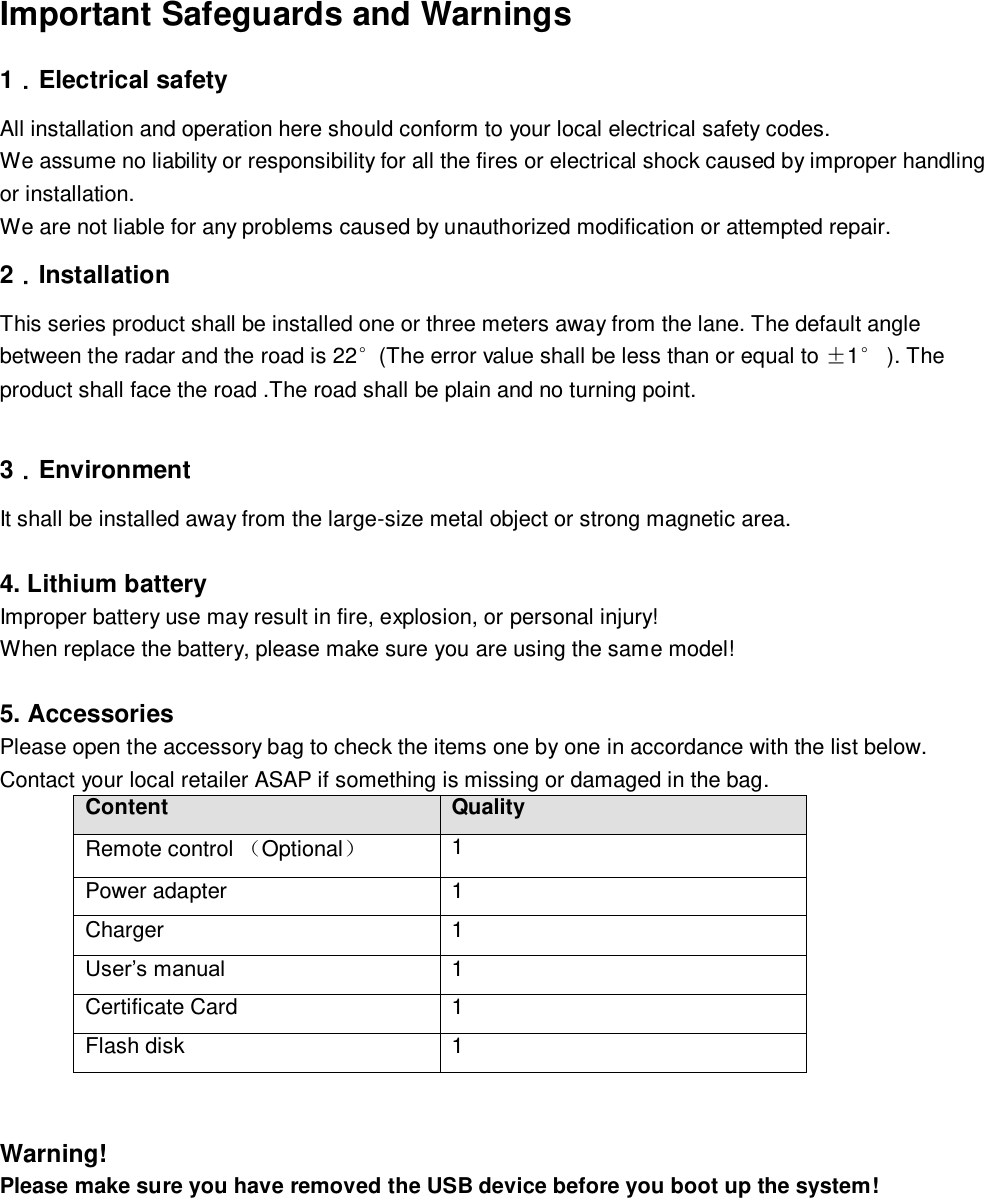
 Important Safeguards and Warnings  1.Electrical safety All installation and operation here should conform to your local electrical safety codes.  We assume no liability or responsibility for all the fires or electrical shock caused by improper handling or installation.  We are not liable for any problems caused by unauthorized modification or attempted repair. 2.Installation This series product shall be installed one or three meters away from the lane. The default angle between the radar and the road is 22°(The error value shall be less than or equal to ±1° ). The product shall face the road .The road shall be plain and no turning point.   3.Environment It shall be installed away from the large-size metal object or strong magnetic area.  4. Lithium battery  Improper battery use may result in fire, explosion, or personal injury!  When replace the battery, please make sure you are using the same model!  5. Accessories Please open the accessory bag to check the items one by one in accordance with the list below. Contact your local retailer ASAP if something is missing or damaged in the bag. Content Quality Remote control Optional 1 Power adapter 1 Charger 1 User’s manual  1 Certificate Card 1 Flash disk  1   Warning! Please make sure you have removed the USB device before you boot up the system!
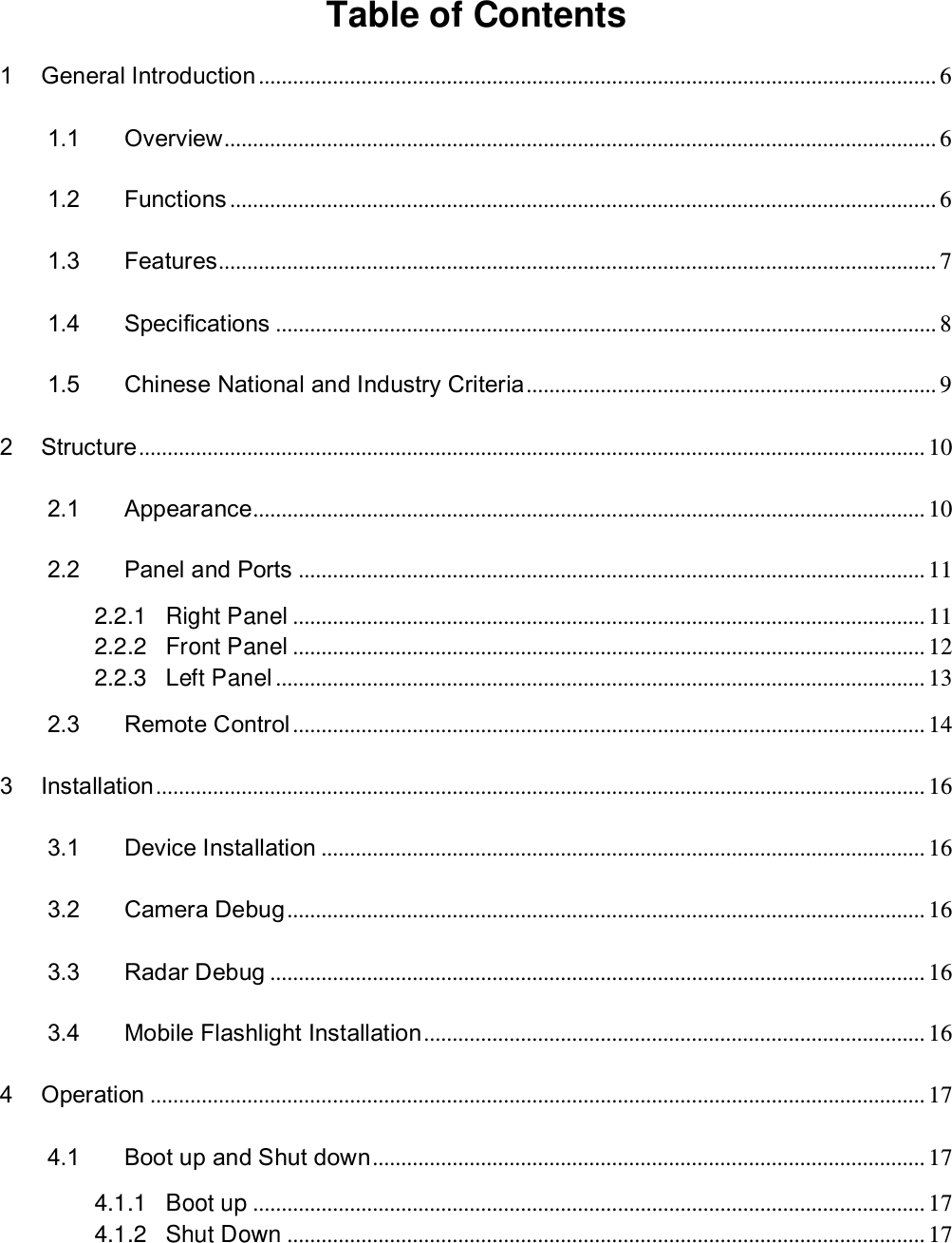
  Table of Contents  1 General Introduction ....................................................................................................................... 6 1.1 Overview ............................................................................................................................. 6 1.2 Functions ............................................................................................................................ 6 1.3 Features.............................................................................................................................. 7 1.4 Specifications .................................................................................................................... 8 1.5 Chinese National and Industry Criteria ........................................................................ 9 2 Structure .......................................................................................................................................... 10 2.1 Appearance...................................................................................................................... 10 2.2 Panel and Ports .............................................................................................................. 11 2.2.1 Right Panel ............................................................................................................... 11 2.2.2 Front Panel ............................................................................................................... 12 2.2.3 Left Panel .................................................................................................................. 13 2.3 Remote Control ............................................................................................................... 14 3 Installation ....................................................................................................................................... 16 3.1 Device Installation .......................................................................................................... 16 3.2 Camera Debug ................................................................................................................ 16 3.3 Radar Debug ................................................................................................................... 16 3.4 Mobile Flashlight Installation ........................................................................................ 16 4 Operation ........................................................................................................................................ 17 4.1 Boot up and Shut down ................................................................................................. 17 4.1.1 Boot up ...................................................................................................................... 17 4.1.2 Shut Down ................................................................................................................ 17
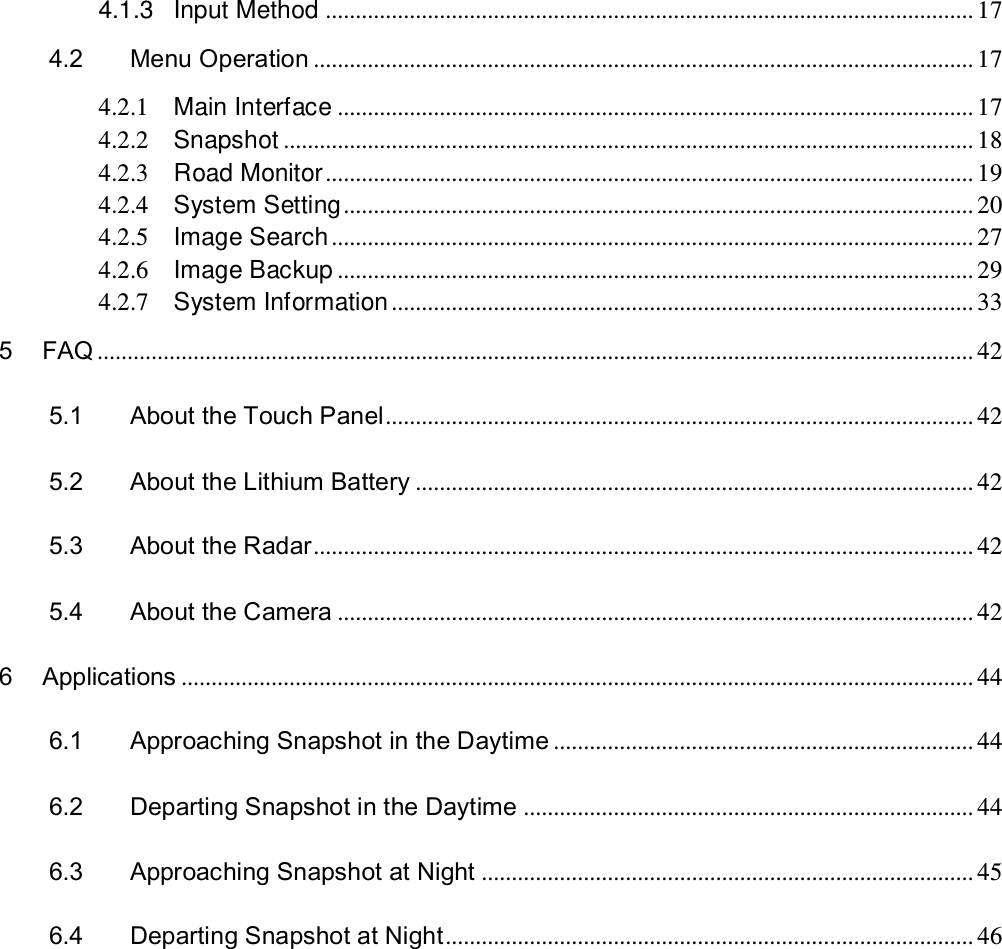
4.1.3 Input Method ............................................................................................................ 17 4.2 Menu Operation .............................................................................................................. 17 4.2.1 Main Interface .......................................................................................................... 17 4.2.2 Snapshot ................................................................................................................... 18 4.2.3 Road Monitor ............................................................................................................ 19 4.2.4 System Setting ......................................................................................................... 20 4.2.5 Image Search ........................................................................................................... 27 4.2.6 Image Backup .......................................................................................................... 29 4.2.7 System Information ................................................................................................. 33 5 FAQ .................................................................................................................................................. 42 5.1 About the Touch Panel .................................................................................................. 42 5.2 About the Lithium Battery ............................................................................................. 42 5.3 About the Radar .............................................................................................................. 42 5.4 About the Camera .......................................................................................................... 42 6 Applications .................................................................................................................................... 44 6.1 Approaching Snapshot in the Daytime ...................................................................... 44 6.2 Departing Snapshot in the Daytime ........................................................................... 44 6.3 Approaching Snapshot at Night .................................................................................. 45 6.4 Departing Snapshot at Night ........................................................................................ 46
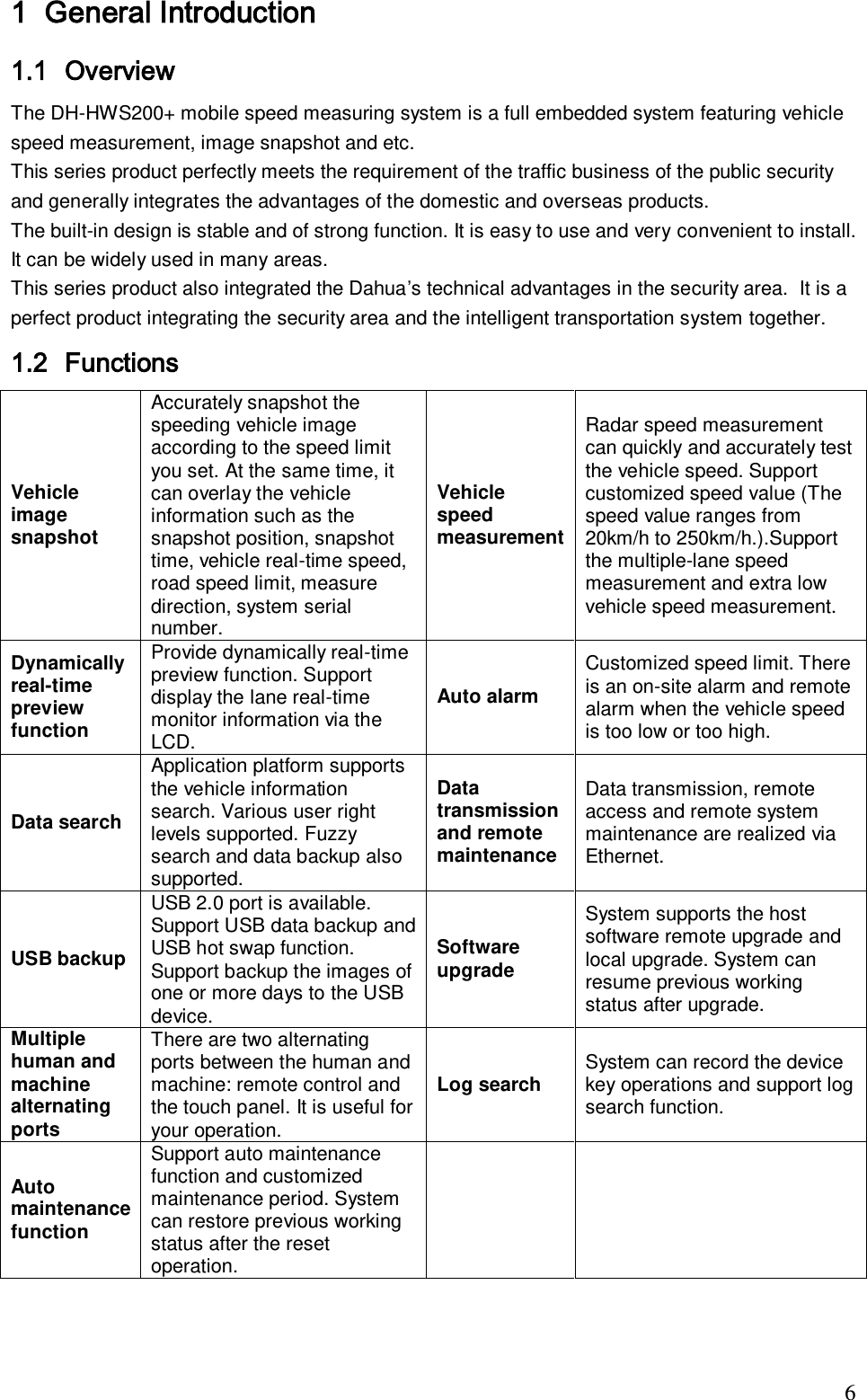
                                                                             6 1 General Introduction  1.1 Overview  The DH-HWS200+ mobile speed measuring system is a full embedded system featuring vehicle speed measurement, image snapshot and etc.  This series product perfectly meets the requirement of the traffic business of the public security and generally integrates the advantages of the domestic and overseas products. The built-in design is stable and of strong function. It is easy to use and very convenient to install. It can be widely used in many areas.  This series product also integrated the Dahua’s technical advantages in the security area.  It is a perfect product integrating the security area and the intelligent transportation system together.  1.2 Functions Vehicle image snapshot  Accurately snapshot the speeding vehicle image according to the speed limit you set. At the same time, it can overlay the vehicle information such as the snapshot position, snapshot time, vehicle real-time speed, road speed limit, measure direction, system serial number. Vehicle speed measurement  Radar speed measurement can quickly and accurately test the vehicle speed. Support customized speed value (The speed value ranges from 20km/h to 250km/h.).Support the multiple-lane speed measurement and extra low vehicle speed measurement.    Dynamically real-time preview function  Provide dynamically real-time preview function. Support display the lane real-time monitor information via the LCD.  Auto alarm  Customized speed limit. There is an on-site alarm and remote alarm when the vehicle speed is too low or too high.  Data search Application platform supports the vehicle information search. Various user right levels supported. Fuzzy search and data backup also supported.  Data transmission and remote maintenance  Data transmission, remote access and remote system maintenance are realized via Ethernet. USB backup  USB 2.0 port is available. Support USB data backup and USB hot swap function. Support backup the images of one or more days to the USB device.  Software upgrade System supports the host software remote upgrade and local upgrade. System can resume previous working status after upgrade.  Multiple human and machine alternating ports There are two alternating ports between the human and machine: remote control and the touch panel. It is useful for your operation. Log search  System can record the device key operations and support log search function. Auto maintenance function  Support auto maintenance function and customized maintenance period. System can restore previous working status after the reset operation.
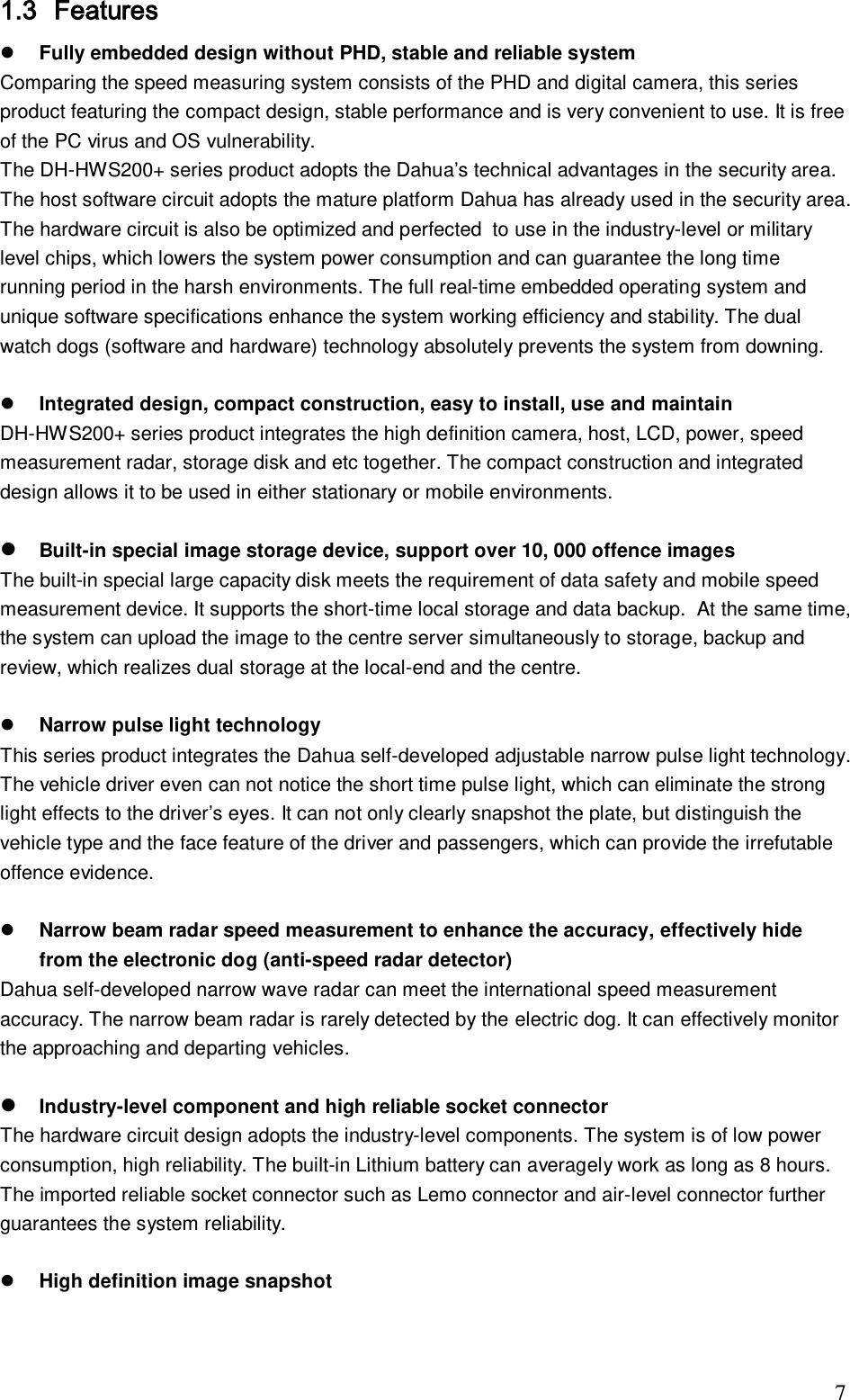
                                                                             7 1.3 Features  Fully embedded design without PHD, stable and reliable system Comparing the speed measuring system consists of the PHD and digital camera, this series product featuring the compact design, stable performance and is very convenient to use. It is free of the PC virus and OS vulnerability.  The DH-HWS200+ series product adopts the Dahua’s technical advantages in the security area. The host software circuit adopts the mature platform Dahua has already used in the security area.  The hardware circuit is also be optimized and perfected  to use in the industry-level or military level chips, which lowers the system power consumption and can guarantee the long time running period in the harsh environments. The full real-time embedded operating system and unique software specifications enhance the system working efficiency and stability. The dual watch dogs (software and hardware) technology absolutely prevents the system from downing.    Integrated design, compact construction, easy to install, use and maintain  DH-HWS200+ series product integrates the high definition camera, host, LCD, power, speed measurement radar, storage disk and etc together. The compact construction and integrated design allows it to be used in either stationary or mobile environments.   Built-in special image storage device, support over 10, 000 offence images The built-in special large capacity disk meets the requirement of data safety and mobile speed measurement device. It supports the short-time local storage and data backup.  At the same time, the system can upload the image to the centre server simultaneously to storage, backup and review, which realizes dual storage at the local-end and the centre.   Narrow pulse light technology  This series product integrates the Dahua self-developed adjustable narrow pulse light technology. The vehicle driver even can not notice the short time pulse light, which can eliminate the strong light effects to the driver’s eyes. It can not only clearly snapshot the plate, but distinguish the vehicle type and the face feature of the driver and passengers, which can provide the irrefutable offence evidence.    Narrow beam radar speed measurement to enhance the accuracy, effectively hide from the electronic dog (anti-speed radar detector) Dahua self-developed narrow wave radar can meet the international speed measurement accuracy. The narrow beam radar is rarely detected by the electric dog. It can effectively monitor the approaching and departing vehicles.    Industry-level component and high reliable socket connector  The hardware circuit design adopts the industry-level components. The system is of low power consumption, high reliability. The built-in Lithium battery can averagely work as long as 8 hours. The imported reliable socket connector such as Lemo connector and air-level connector further guarantees the system reliability.     High definition image snapshot
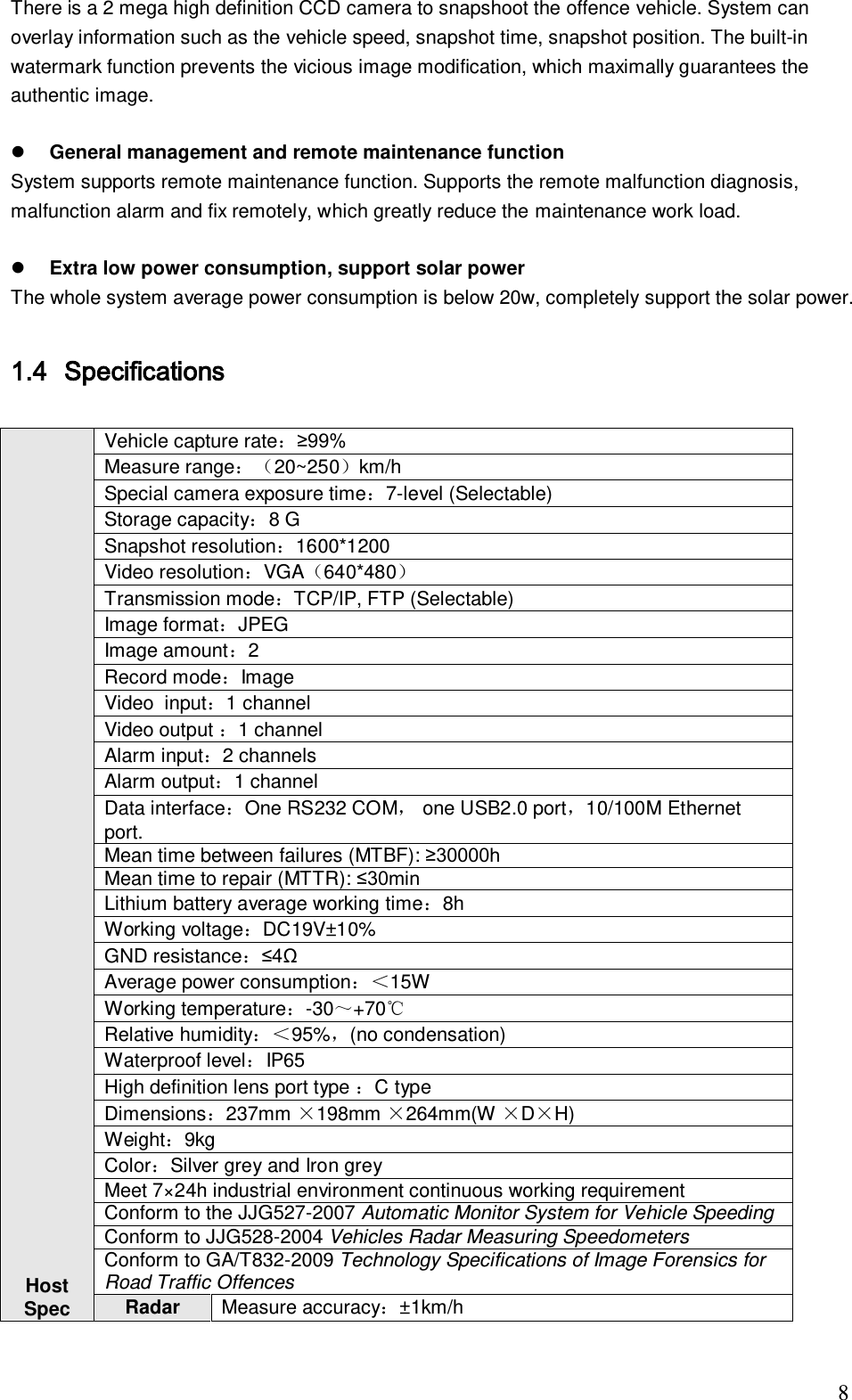
                                                                             8 There is a 2 mega high definition CCD camera to snapshoot the offence vehicle. System can overlay information such as the vehicle speed, snapshot time, snapshot position. The built-in watermark function prevents the vicious image modification, which maximally guarantees the authentic image.    General management and remote maintenance function  System supports remote maintenance function. Supports the remote malfunction diagnosis, malfunction alarm and fix remotely, which greatly reduce the maintenance work load.    Extra low power consumption, support solar power  The whole system average power consumption is below 20w, completely support the solar power.   1.4 Specifications                     Host  Spec  Vehicle capture rate:≥99% Measure range:20~250km/h Special camera exposure time:7-level (Selectable) Storage capacity:8 G Snapshot resolution:1600*1200 Video resolution:VGA640*480 Transmission mode:TCP/IP, FTP (Selectable) Image format:JPEG Image amount:2 Record mode:Image Video  input:1 channel Video output :1 channel  Alarm input:2 channels Alarm output:1 channel Data interface:One RS232 COM, one USB2.0 port,10/100M Ethernet port. Mean time between failures (MTBF): ≥30000h Mean time to repair (MTTR): ≤30min Lithium battery average working time:8h Working voltage:DC19V±10% GND resistance:≤4Ω Average power consumption:<15W Working temperature:-30~+70℃ Relative humidity:<95%,(no condensation) Waterproof level:IP65 High definition lens port type :C type  Dimensions:237mm ×198mm ×264mm(W ×D×H) Weight:9kg Color:Silver grey and Iron grey Meet 7×24h industrial environment continuous working requirement Conform to the JJG527-2007 Automatic Monitor System for Vehicle Speeding  Conform to JJG528-2004 Vehicles Radar Measuring Speedometers Conform to GA/T832-2009 Technology Specifications of Image Forensics for Road Traffic Offences Radar Measure accuracy:±1km/h
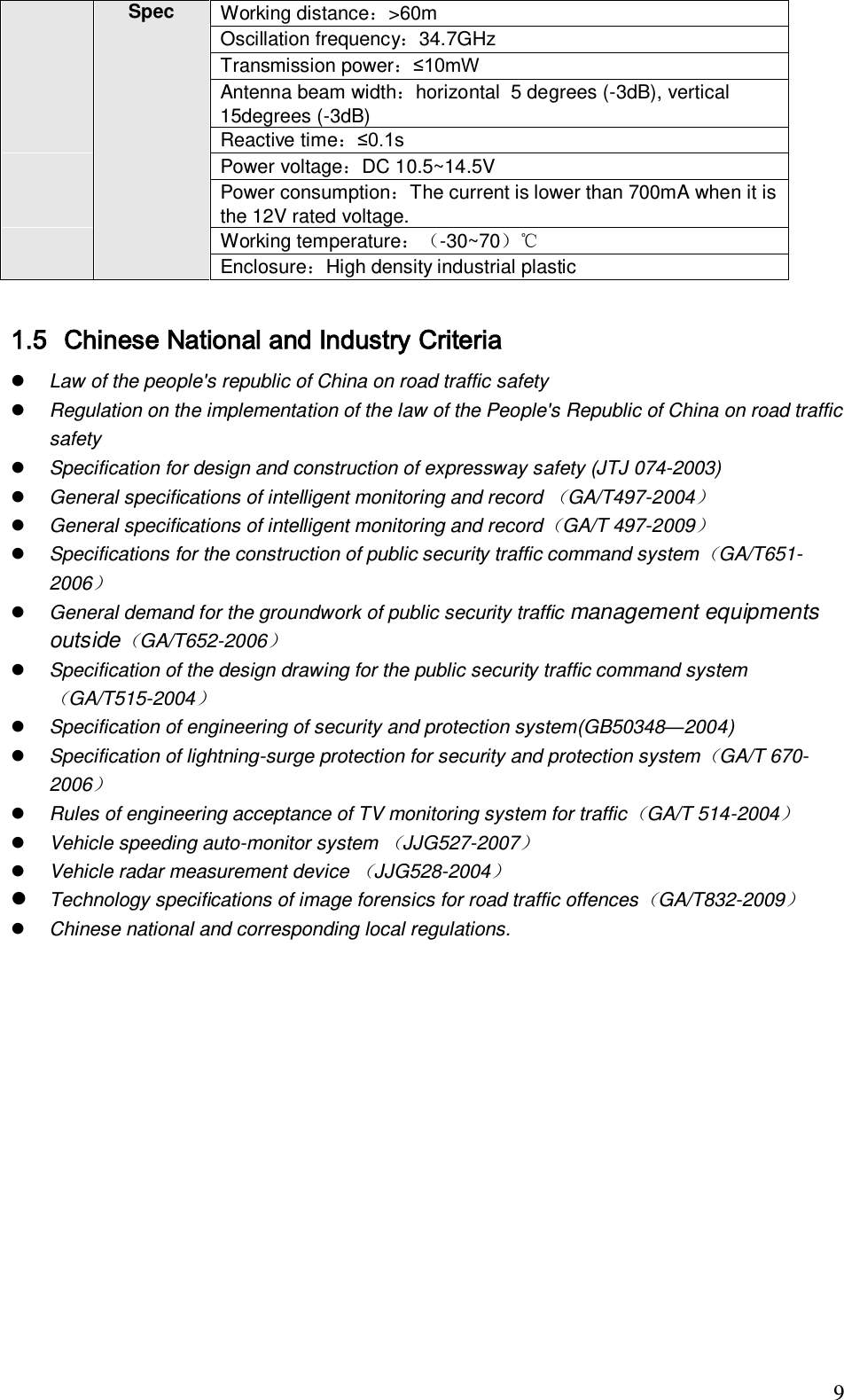
                                                                             9 Spec Working distance:>60m Oscillation frequency:34.7GHz Transmission power:≤10mW Antenna beam width:horizontal  5 degrees (-3dB), vertical 15degrees (-3dB) Reactive time:≤0.1s  Power voltage:DC 10.5~14.5V Power consumption:The current is lower than 700mA when it is the 12V rated voltage. Working temperature:-30~70℃ Enclosure:High density industrial plastic   1.5 Chinese National and Industry Criteria  Law of the people's republic of China on road traffic safety  Regulation on the implementation of the law of the People's Republic of China on road traffic safety  Specification for design and construction of expressway safety (JTJ 074-2003)  General specifications of intelligent monitoring and record GA/T497-2004  General specifications of intelligent monitoring and recordGA/T 497-2009  Specifications for the construction of public security traffic command systemGA/T651-2006  General demand for the groundwork of public security traffic management equipments outsideGA/T652-2006  Specification of the design drawing for the public security traffic command systemGA/T515-2004  Specification of engineering of security and protection system(GB50348—2004)  Specification of lightning-surge protection for security and protection systemGA/T 670-2006  Rules of engineering acceptance of TV monitoring system for trafficGA/T 514-2004  Vehicle speeding auto-monitor system JJG527-2007  Vehicle radar measurement device JJG528-2004  Technology specifications of image forensics for road traffic offencesGA/T832-2009  Chinese national and corresponding local regulations.
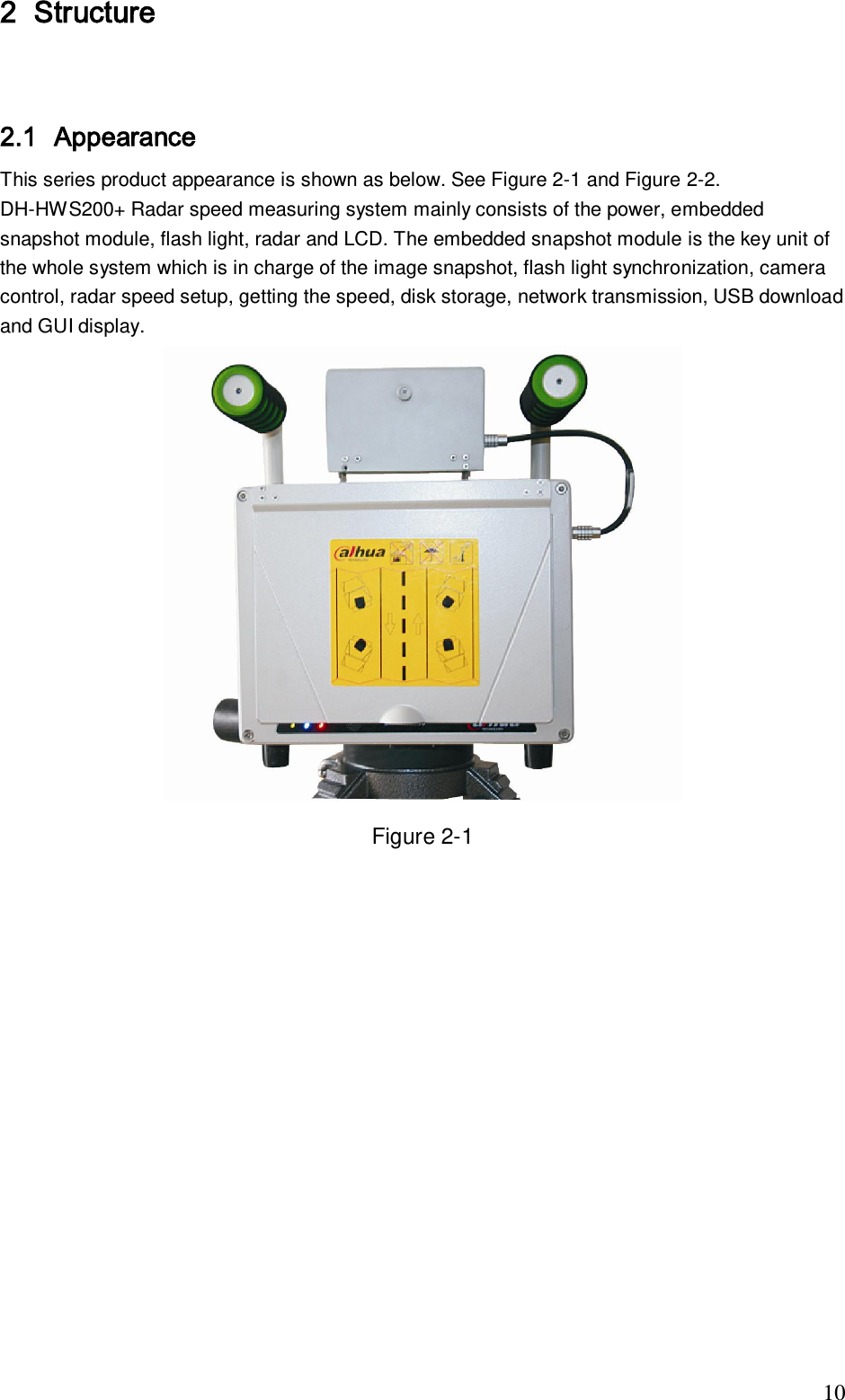
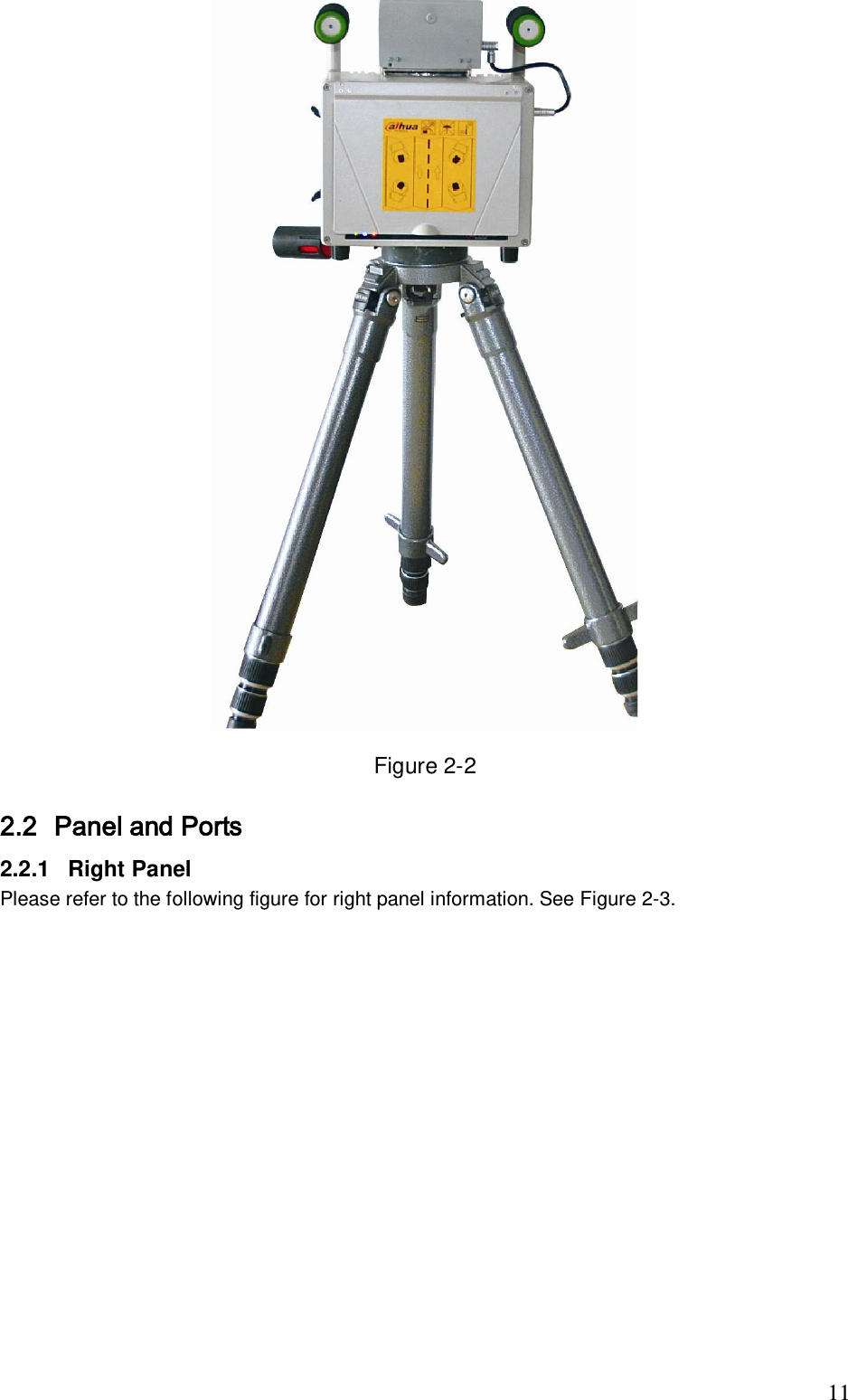
                                                                             10 2 Structure    2.1 Appearance This series product appearance is shown as below. See Figure 2-1 and Figure 2-2. DH-HWS200+ Radar speed measuring system mainly consists of the power, embedded snapshot module, flash light, radar and LCD. The embedded snapshot module is the key unit of the whole system which is in charge of the image snapshot, flash light synchronization, camera control, radar speed setup, getting the speed, disk storage, network transmission, USB download and GUI display.   Figure 2-1
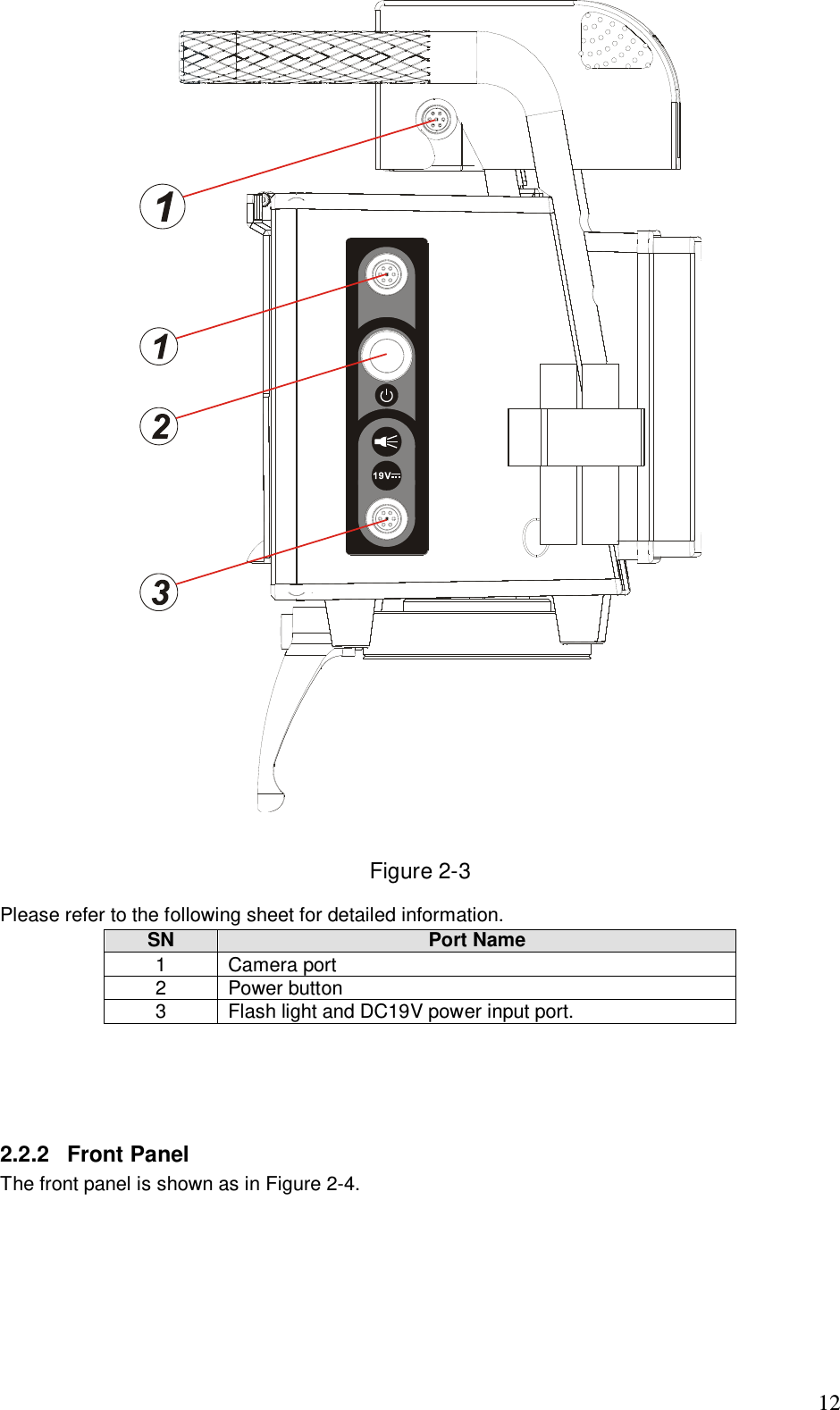
                                                                             11  Figure 2-2 2.2 Panel and Ports  2.2.1  Right Panel  Please refer to the following figure for right panel information. See Figure 2-3.
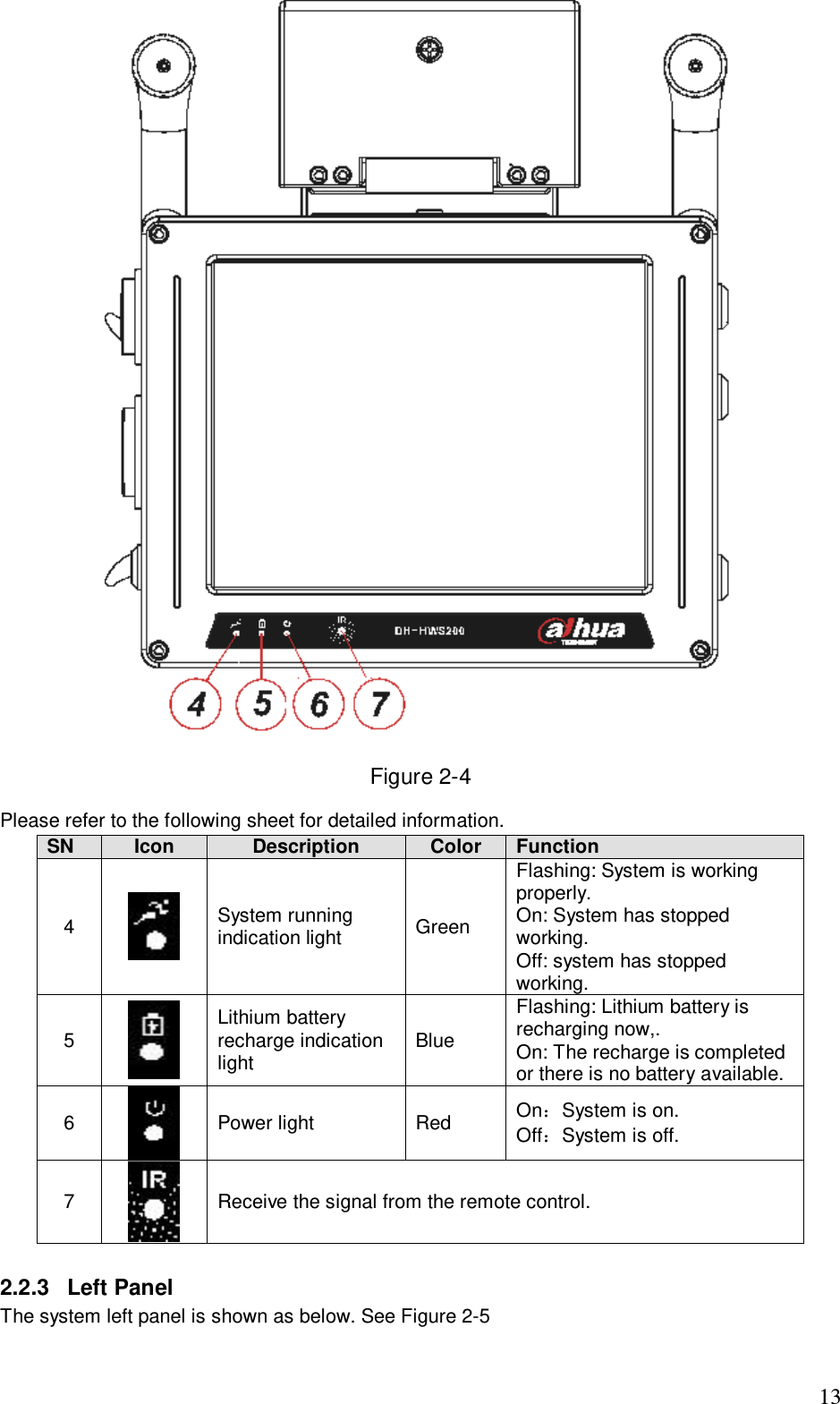
                                                                             12   Figure 2-3 Please refer to the following sheet for detailed information. SN Port Name  1 Camera port 2 Power button 3 Flash light and DC19V power input port.      2.2.2  Front Panel  The front panel is shown as in Figure 2-4.
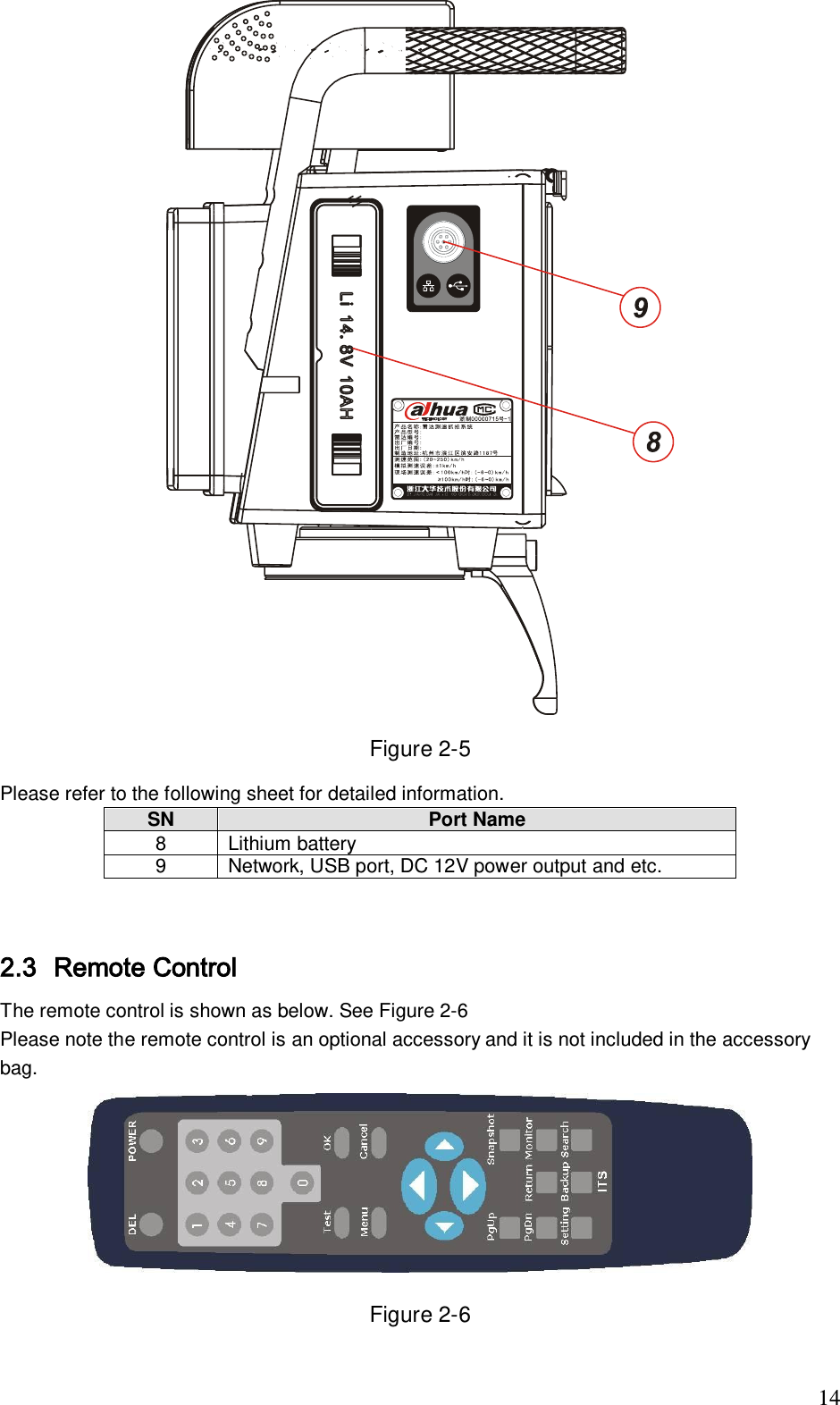
                                                                             13  Figure 2-4 Please refer to the following sheet for detailed information.  SN Icon  Description  Color Function  4  System running indication light  Green  Flashing: System is working properly. On: System has stopped working.  Off: system has stopped working.  5  Lithium battery recharge indication light  Blue Flashing: Lithium battery is recharging now,.  On: The recharge is completed or there is no battery available.  6  Power light  Red  On:System is on. Off:System is off. 7  Receive the signal from the remote control.  2.2.3  Left Panel  The system left panel is shown as below. See Figure 2-5
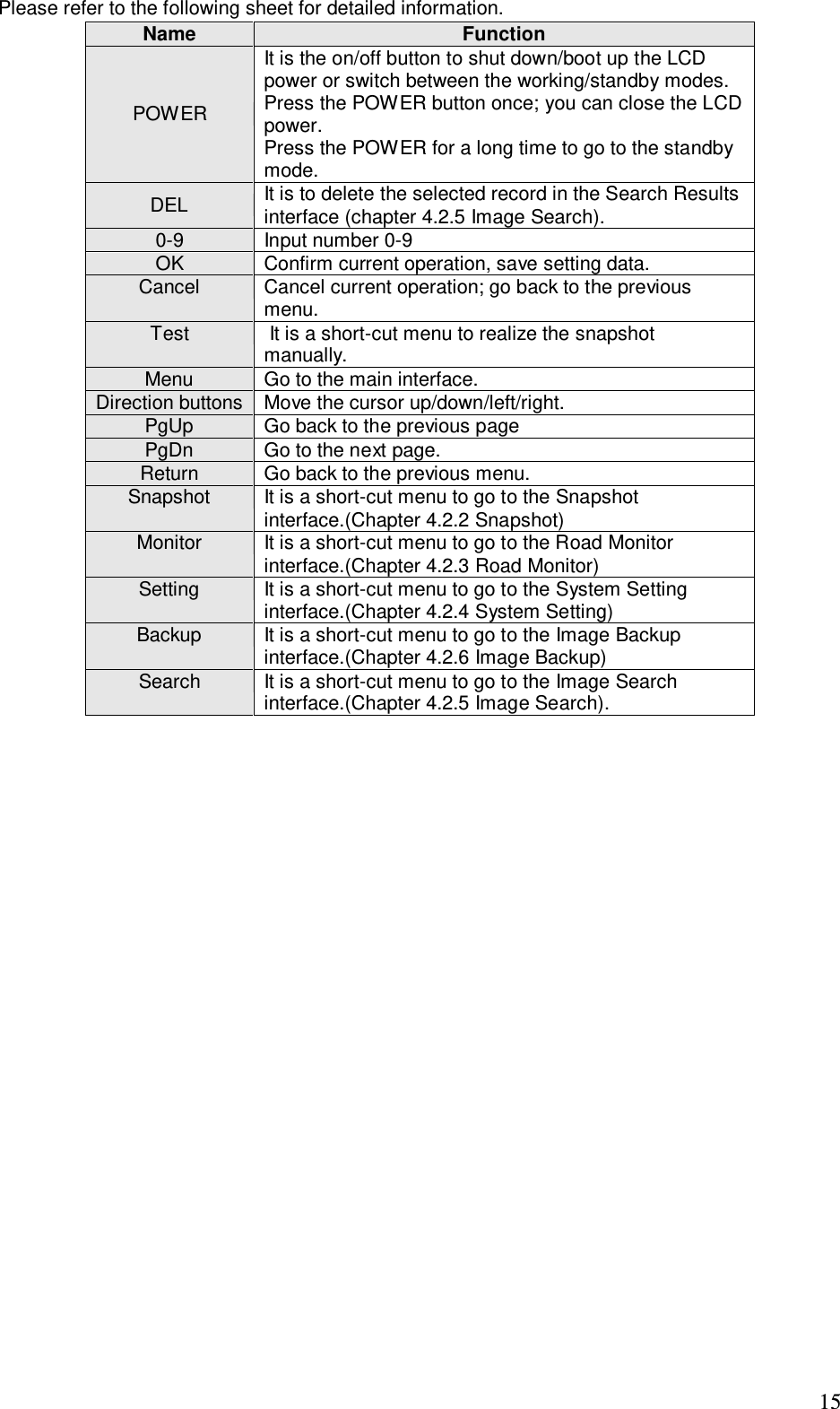
                                                                             14  Figure 2-5 Please refer to the following sheet for detailed information. SN  Port Name  8 Lithium battery  9 Network, USB port, DC 12V power output and etc.    2.3 Remote Control  The remote control is shown as below. See Figure 2-6 Please note the remote control is an optional accessory and it is not included in the accessory bag.   Figure 2-6
                                                                             15 Please refer to the following sheet for detailed information.  Name Function POWER It is the on/off button to shut down/boot up the LCD power or switch between the working/standby modes. Press the POWER button once; you can close the LCD power.  Press the POWER for a long time to go to the standby mode.  DEL It is to delete the selected record in the Search Results interface (chapter 4.2.5 Image Search). 0-9 Input number 0-9 OK Confirm current operation, save setting data.  Cancel Cancel current operation; go back to the previous menu.  Test  It is a short-cut menu to realize the snapshot manually. Menu Go to the main interface. Direction buttons Move the cursor up/down/left/right. PgUp Go back to the previous page  PgDn Go to the next page. Return Go back to the previous menu. Snapshot It is a short-cut menu to go to the Snapshot interface.(Chapter 4.2.2 Snapshot) Monitor It is a short-cut menu to go to the Road Monitor interface.(Chapter 4.2.3 Road Monitor) Setting It is a short-cut menu to go to the System Setting interface.(Chapter 4.2.4 System Setting) Backup It is a short-cut menu to go to the Image Backup interface.(Chapter 4.2.6 Image Backup) Search It is a short-cut menu to go to the Image Search interface.(Chapter 4.2.5 Image Search).
                                                                             16 3 Installation  3.1 Device Installation Take the device out of the box. Insert the Lithium battery. Put the device on the tripod and adjust to the proper height. Push the power button to boot up the device.  3.2 Camera Debug Go to the Road Monitor interface. Adjust the lens iris according to the actual environment. Adjust the lens focus distance and definition to the proper effect. Important Please adjust the lens focus distance to make the middle lane clear. For example, there are three lanes, and then you can adjust the lens to clearly snapshoot the second lane.   3.3 Radar Debug  The device shall be installed from one to three meters away of the  road.  The device and the road angle shall be 22°(≤±1°). Important The vehicle head and vehicle rear snapshot angle default value is  22°.  3.4 Mobile Flashlight Installation Use the accumulator to provide power to the 12V DC flashlight  The device is 5 meters away from the flashlight. The flashlight bracket is 1.5 meters height.  Adjust the flashlight angle to get the proper image (the proper environment brightness, vivid face, clear plate, no over exposure.)
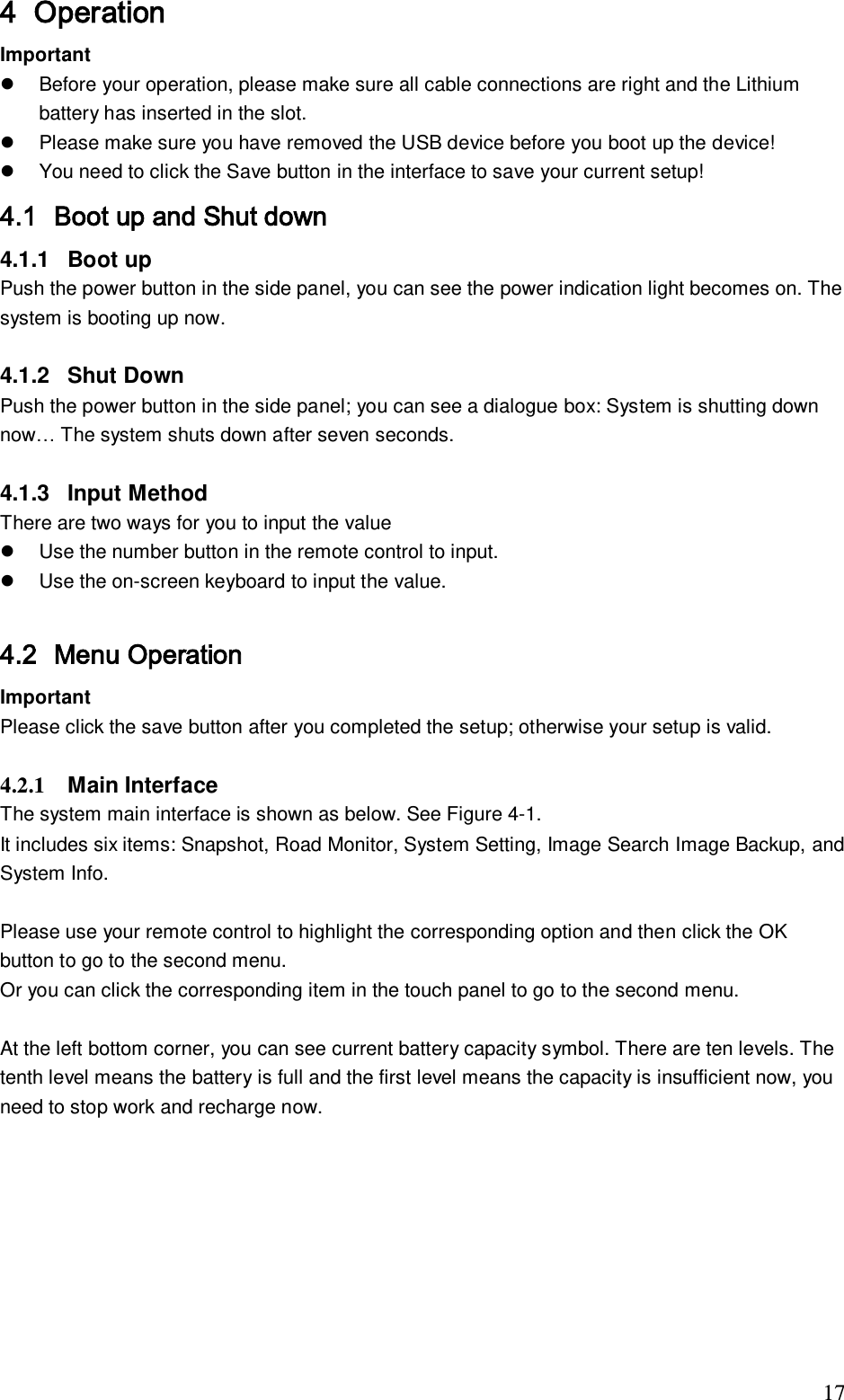
                                                                             17 4 Operation  Important    Before your operation, please make sure all cable connections are right and the Lithium battery has inserted in the slot.    Please make sure you have removed the USB device before you boot up the device!   You need to click the Save button in the interface to save your current setup! 4.1 Boot up and Shut down  4.1.1  Boot up Push the power button in the side panel, you can see the power indication light becomes on. The system is booting up now.   4.1.2  Shut Down  Push the power button in the side panel; you can see a dialogue box: System is shutting down now… The system shuts down after seven seconds.   4.1.3  Input Method  There are two ways for you to input the value    Use the number button in the remote control to input.   Use the on-screen keyboard to input the value.  4.2 Menu Operation  Important Please click the save button after you completed the setup; otherwise your setup is valid.  4.2.1  Main Interface  The system main interface is shown as below. See Figure 4-1. It includes six items: Snapshot, Road Monitor, System Setting, Image Search Image Backup, and System Info.  Please use your remote control to highlight the corresponding option and then click the OK button to go to the second menu.  Or you can click the corresponding item in the touch panel to go to the second menu.   At the left bottom corner, you can see current battery capacity symbol. There are ten levels. The tenth level means the battery is full and the first level means the capacity is insufficient now, you need to stop work and recharge now.
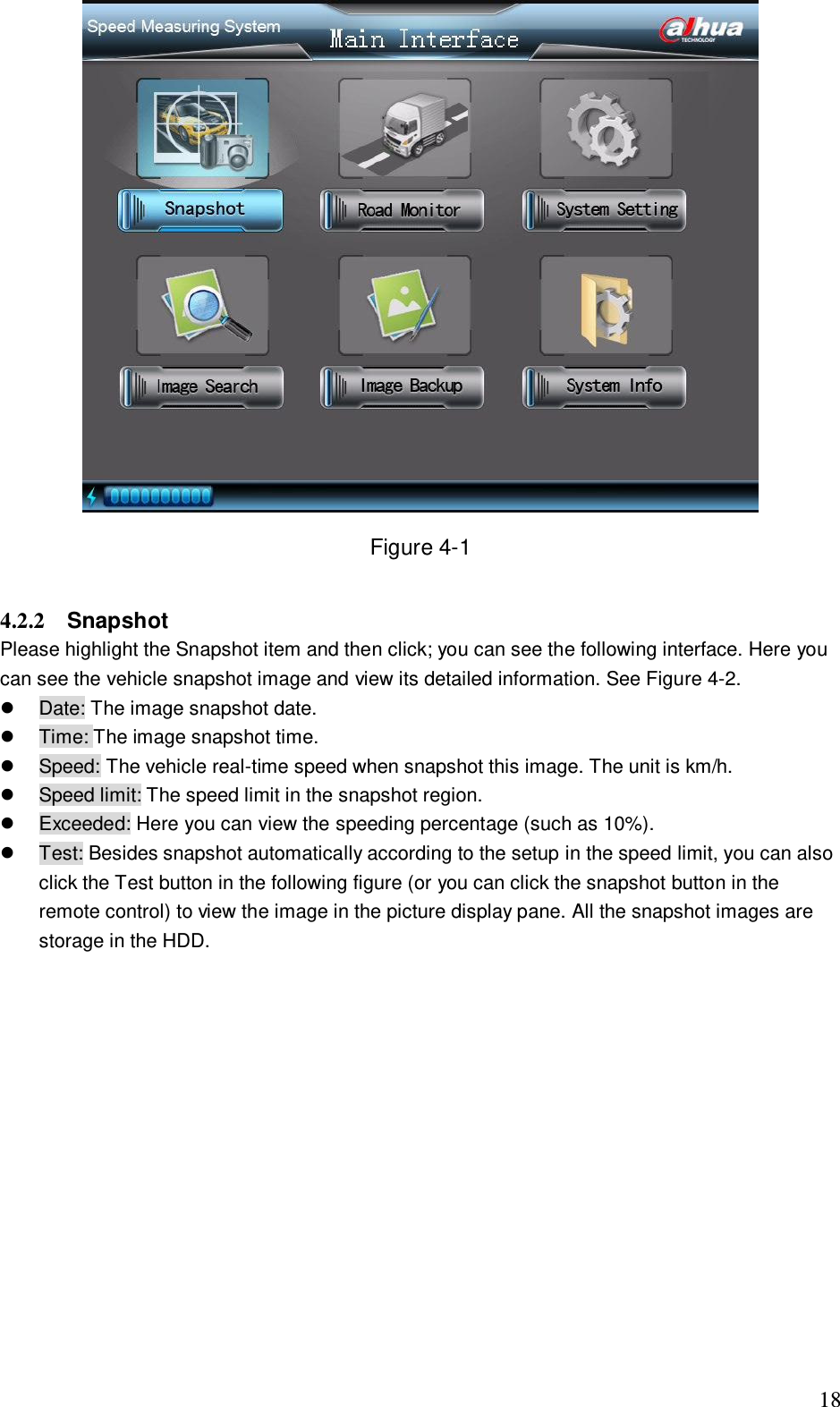
                                                                             18  Figure 4-1  4.2.2  Snapshot  Please highlight the Snapshot item and then click; you can see the following interface. Here you can see the vehicle snapshot image and view its detailed information. See Figure 4-2.    Date: The image snapshot date.   Time: The image snapshot time.    Speed: The vehicle real-time speed when snapshot this image. The unit is km/h.   Speed limit: The speed limit in the snapshot region.   Exceeded: Here you can view the speeding percentage (such as 10%).   Test: Besides snapshot automatically according to the setup in the speed limit, you can also click the Test button in the following figure (or you can click the snapshot button in the remote control) to view the image in the picture display pane. All the snapshot images are storage in the HDD.
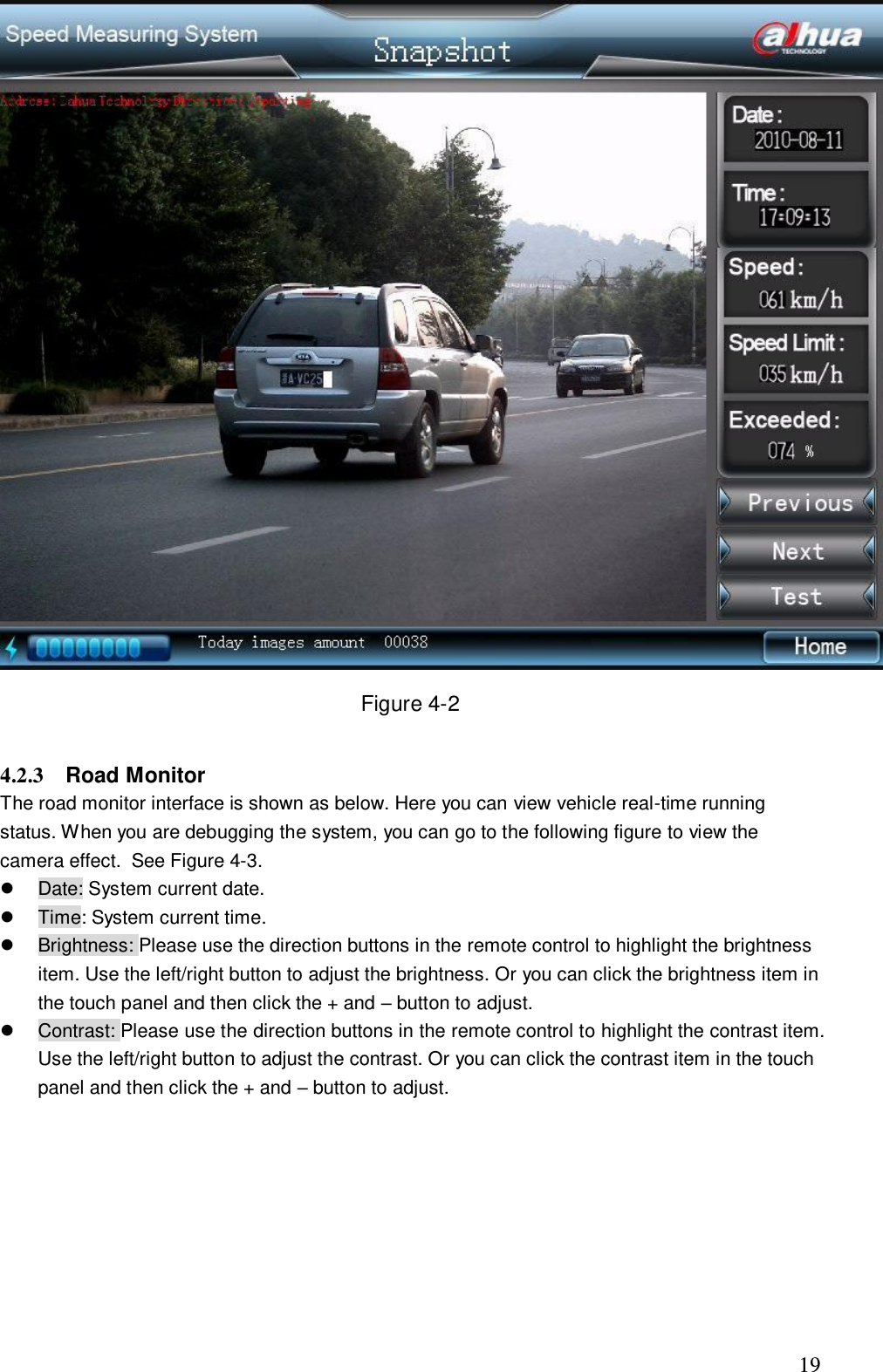
                                                                             19  Figure 4-2  4.2.3  Road Monitor  The road monitor interface is shown as below. Here you can view vehicle real-time running status. When you are debugging the system, you can go to the following figure to view the camera effect.  See Figure 4-3.   Date: System current date.   Time: System current time.    Brightness: Please use the direction buttons in the remote control to highlight the brightness item. Use the left/right button to adjust the brightness. Or you can click the brightness item in the touch panel and then click the + and – button to adjust.    Contrast: Please use the direction buttons in the remote control to highlight the contrast item. Use the left/right button to adjust the contrast. Or you can click the contrast item in the touch panel and then click the + and – button to adjust.
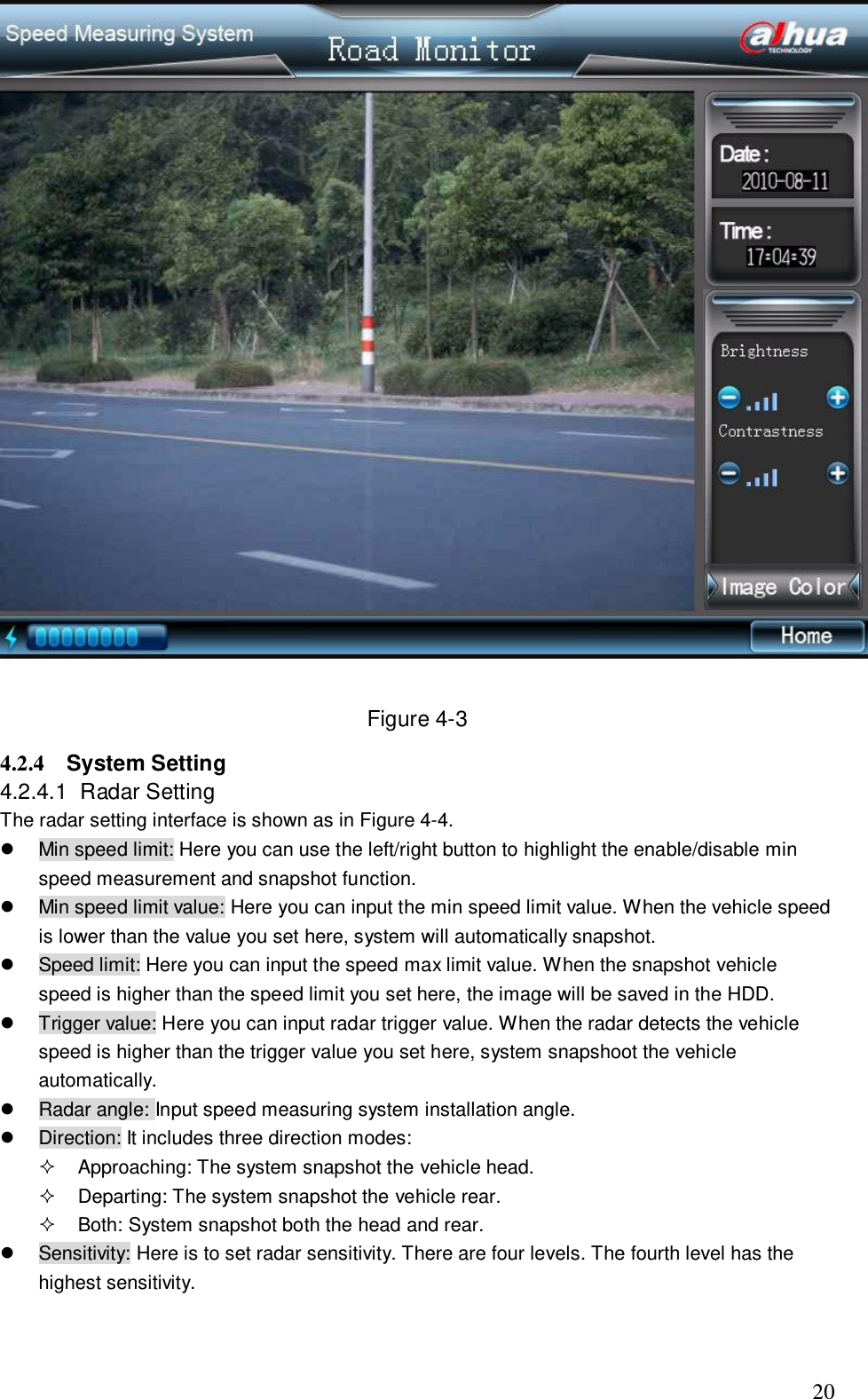
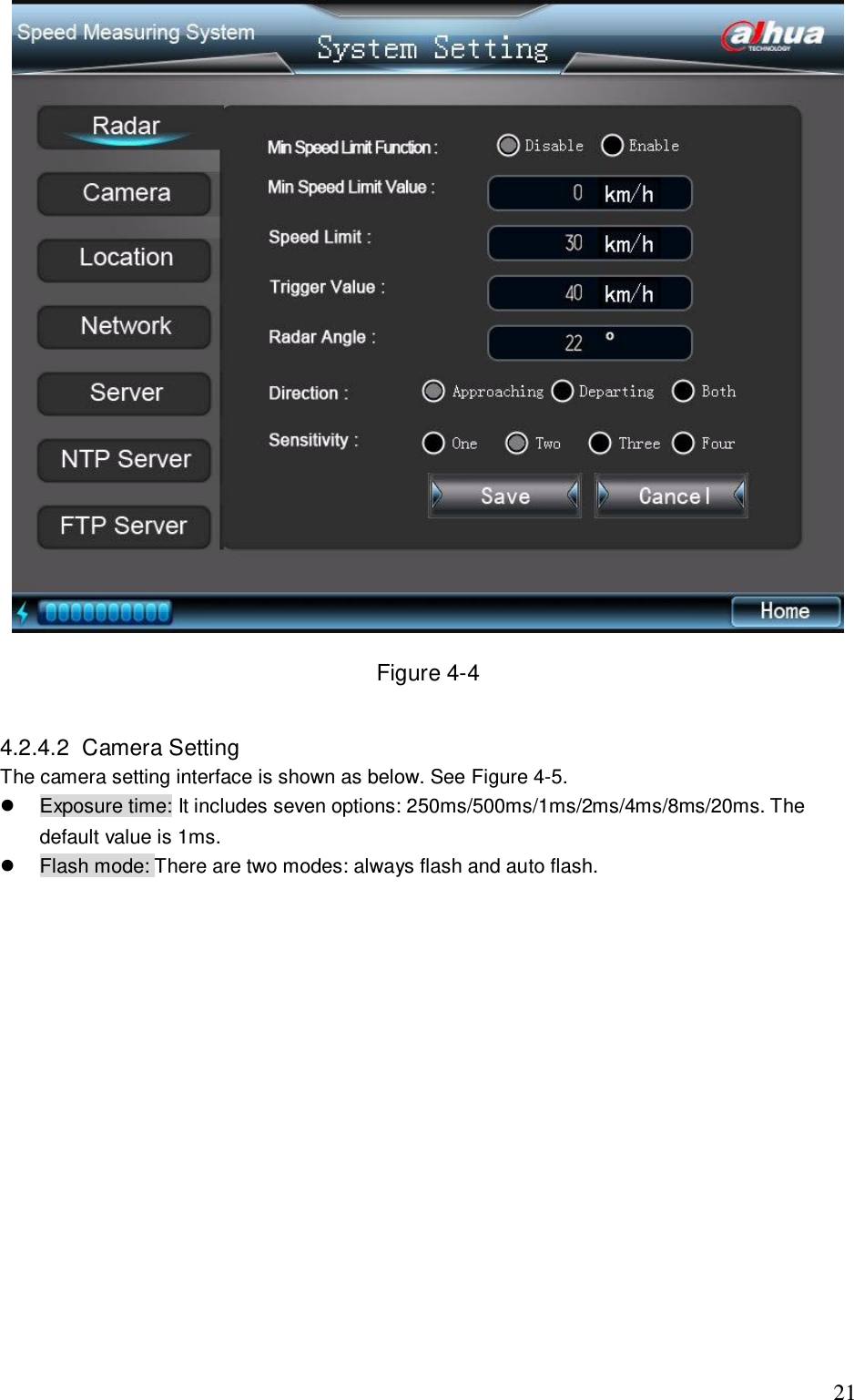
                                                                             20   Figure 4-3 4.2.4  System Setting  4.2.4.1  Radar Setting  The radar setting interface is shown as in Figure 4-4.    Min speed limit: Here you can use the left/right button to highlight the enable/disable min speed measurement and snapshot function.   Min speed limit value: Here you can input the min speed limit value. When the vehicle speed is lower than the value you set here, system will automatically snapshot.    Speed limit: Here you can input the speed max limit value. When the snapshot vehicle speed is higher than the speed limit you set here, the image will be saved in the HDD.    Trigger value: Here you can input radar trigger value. When the radar detects the vehicle speed is higher than the trigger value you set here, system snapshoot the vehicle automatically.   Radar angle: Input speed measuring system installation angle.    Direction: It includes three direction modes:    Approaching: The system snapshot the vehicle head.   Departing: The system snapshot the vehicle rear.   Both: System snapshot both the head and rear.    Sensitivity: Here is to set radar sensitivity. There are four levels. The fourth level has the highest sensitivity.
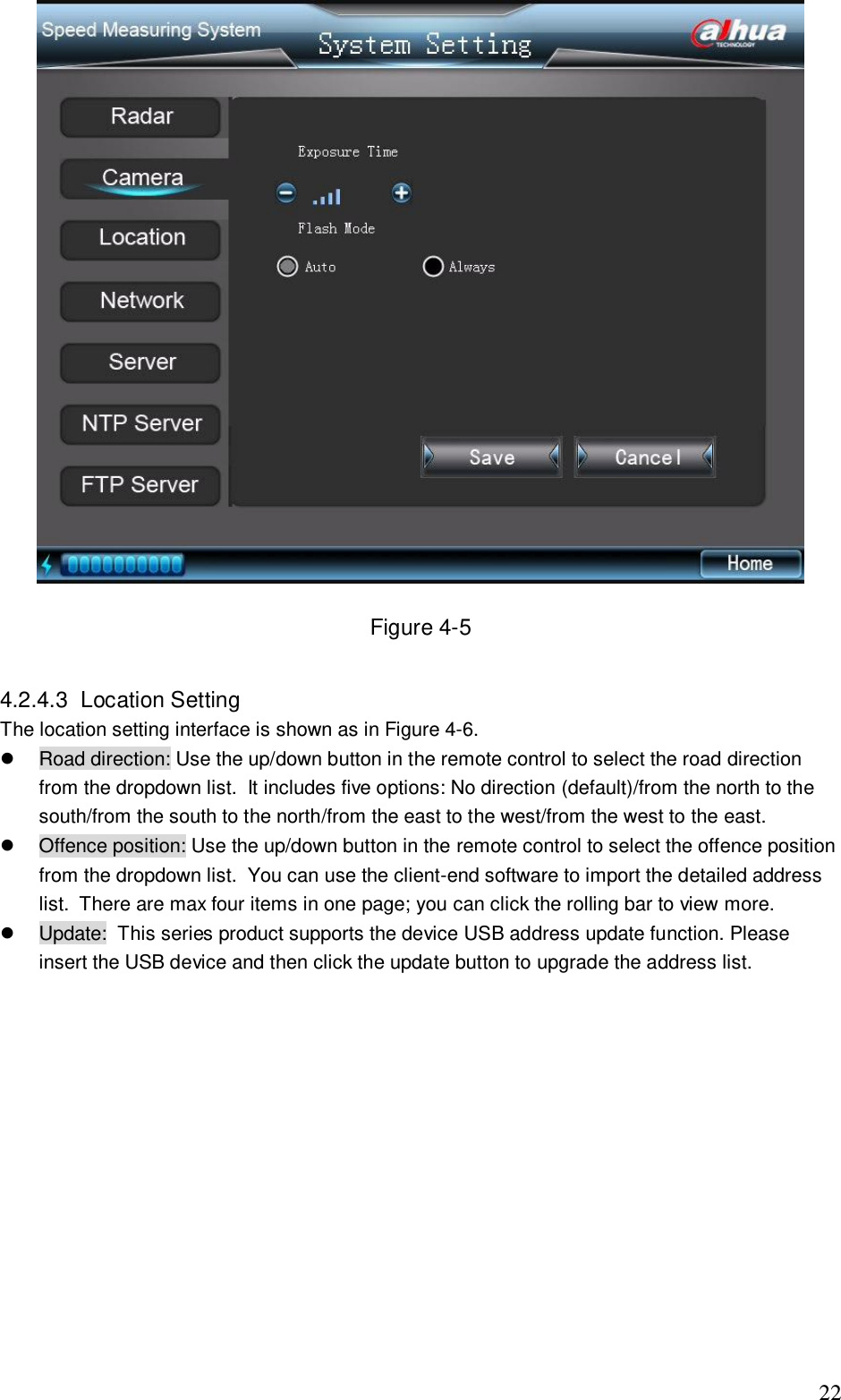
                                                                             21   Figure 4-4  4.2.4.2  Camera Setting  The camera setting interface is shown as below. See Figure 4-5.   Exposure time: It includes seven options: 250ms/500ms/1ms/2ms/4ms/8ms/20ms. The default value is 1ms.    Flash mode: There are two modes: always flash and auto flash.
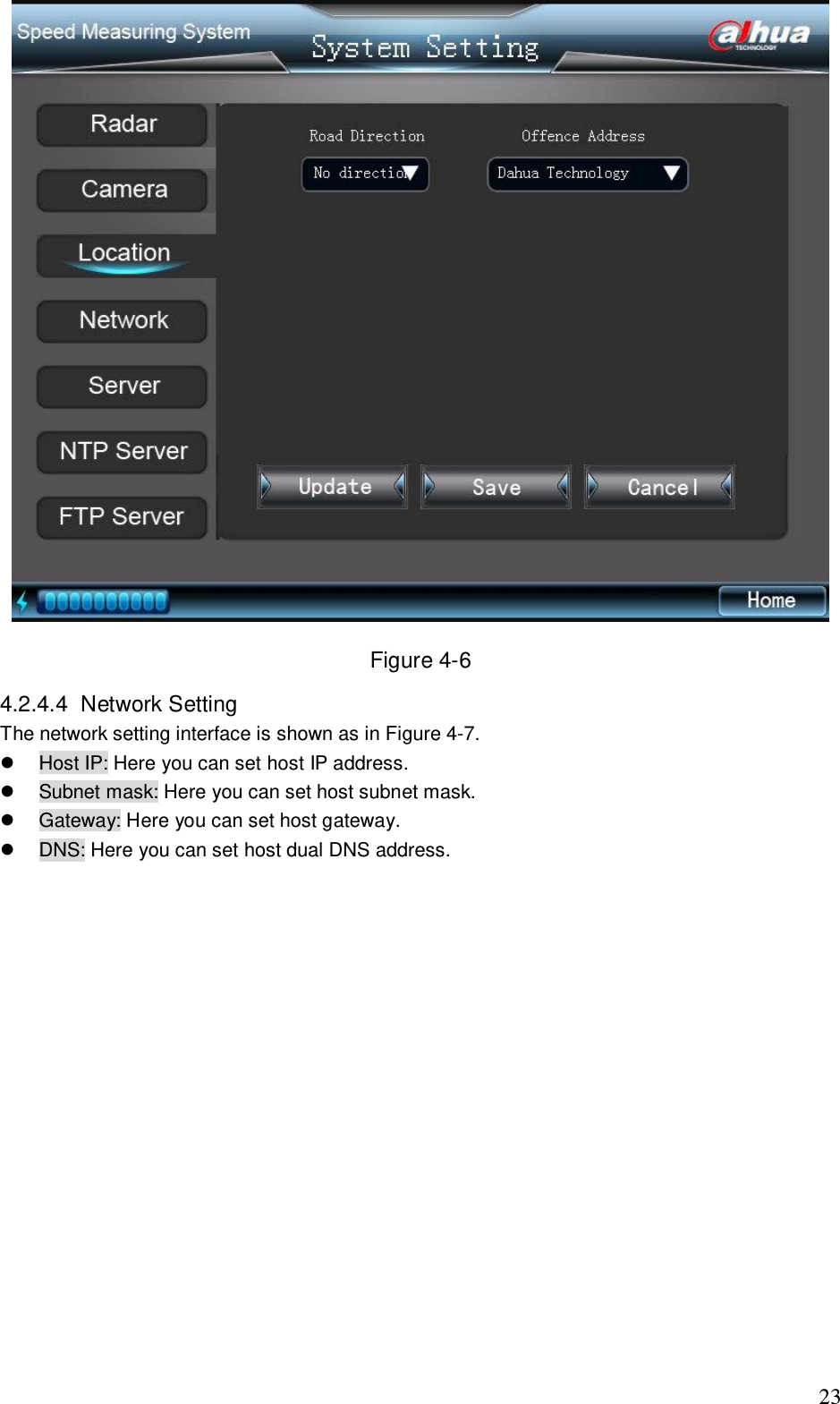
                                                                             22  Figure 4-5  4.2.4.3  Location Setting  The location setting interface is shown as in Figure 4-6.   Road direction: Use the up/down button in the remote control to select the road direction from the dropdown list.  It includes five options: No direction (default)/from the north to the south/from the south to the north/from the east to the west/from the west to the east.   Offence position: Use the up/down button in the remote control to select the offence position from the dropdown list.  You can use the client-end software to import the detailed address list.  There are max four items in one page; you can click the rolling bar to view more.   Update:  This series product supports the device USB address update function. Please insert the USB device and then click the update button to upgrade the address list.
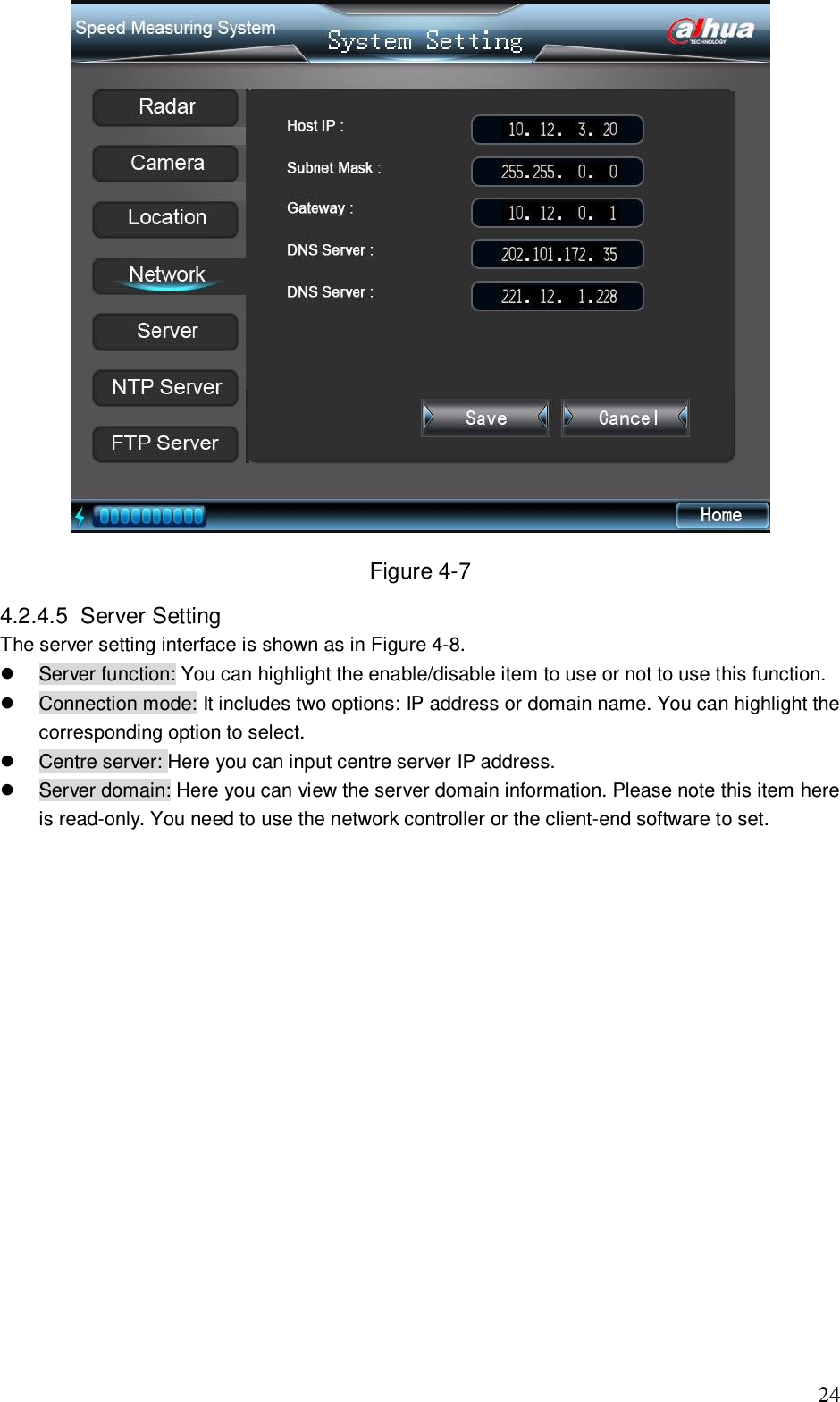
                                                                             23  Figure 4-6 4.2.4.4  Network Setting  The network setting interface is shown as in Figure 4-7.   Host IP: Here you can set host IP address.   Subnet mask: Here you can set host subnet mask.   Gateway: Here you can set host gateway.   DNS: Here you can set host dual DNS address.
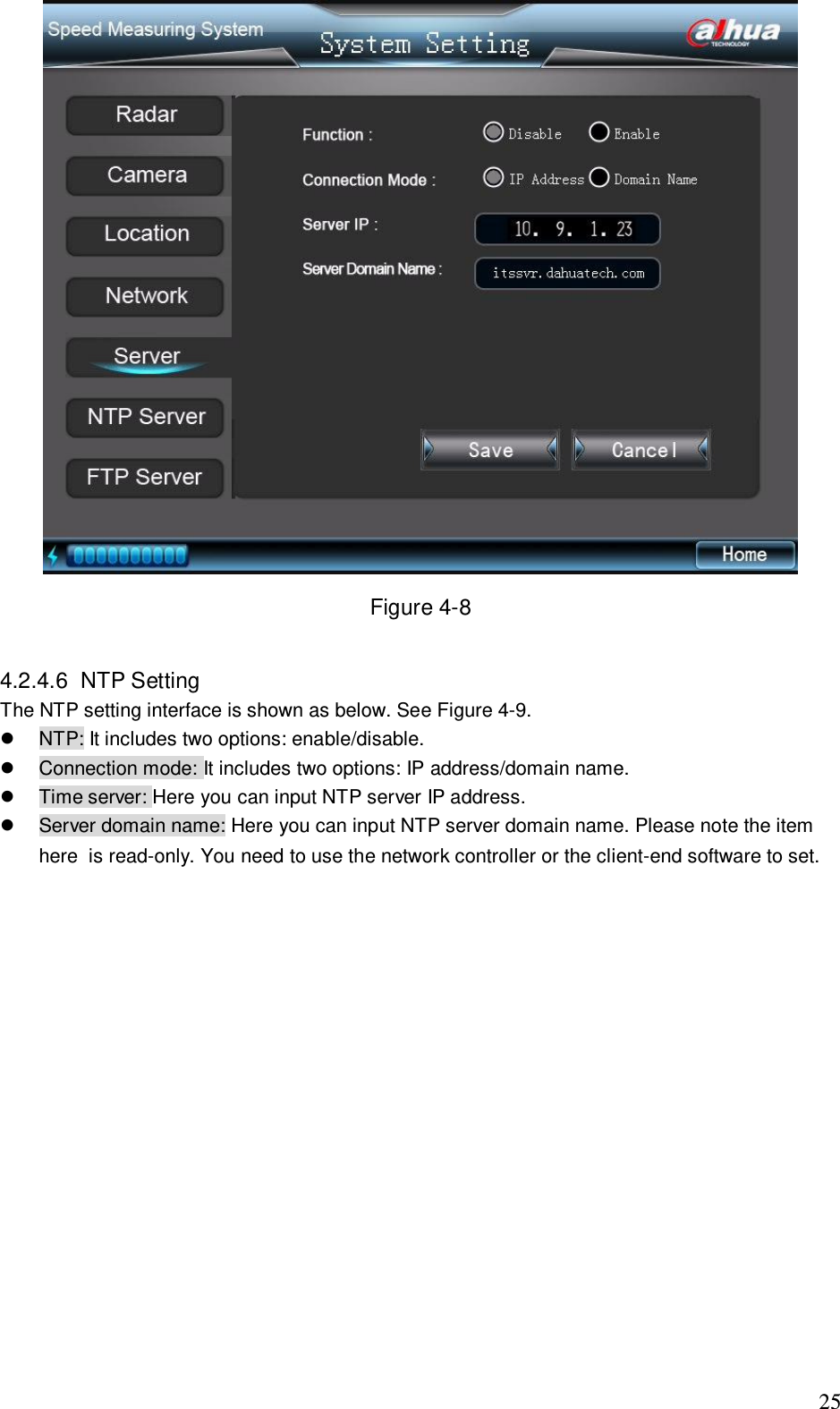
                                                                             24  Figure 4-7 4.2.4.5  Server Setting  The server setting interface is shown as in Figure 4-8.   Server function: You can highlight the enable/disable item to use or not to use this function.   Connection mode: It includes two options: IP address or domain name. You can highlight the corresponding option to select.   Centre server: Here you can input centre server IP address.   Server domain: Here you can view the server domain information. Please note this item here is read-only. You need to use the network controller or the client-end software to set.
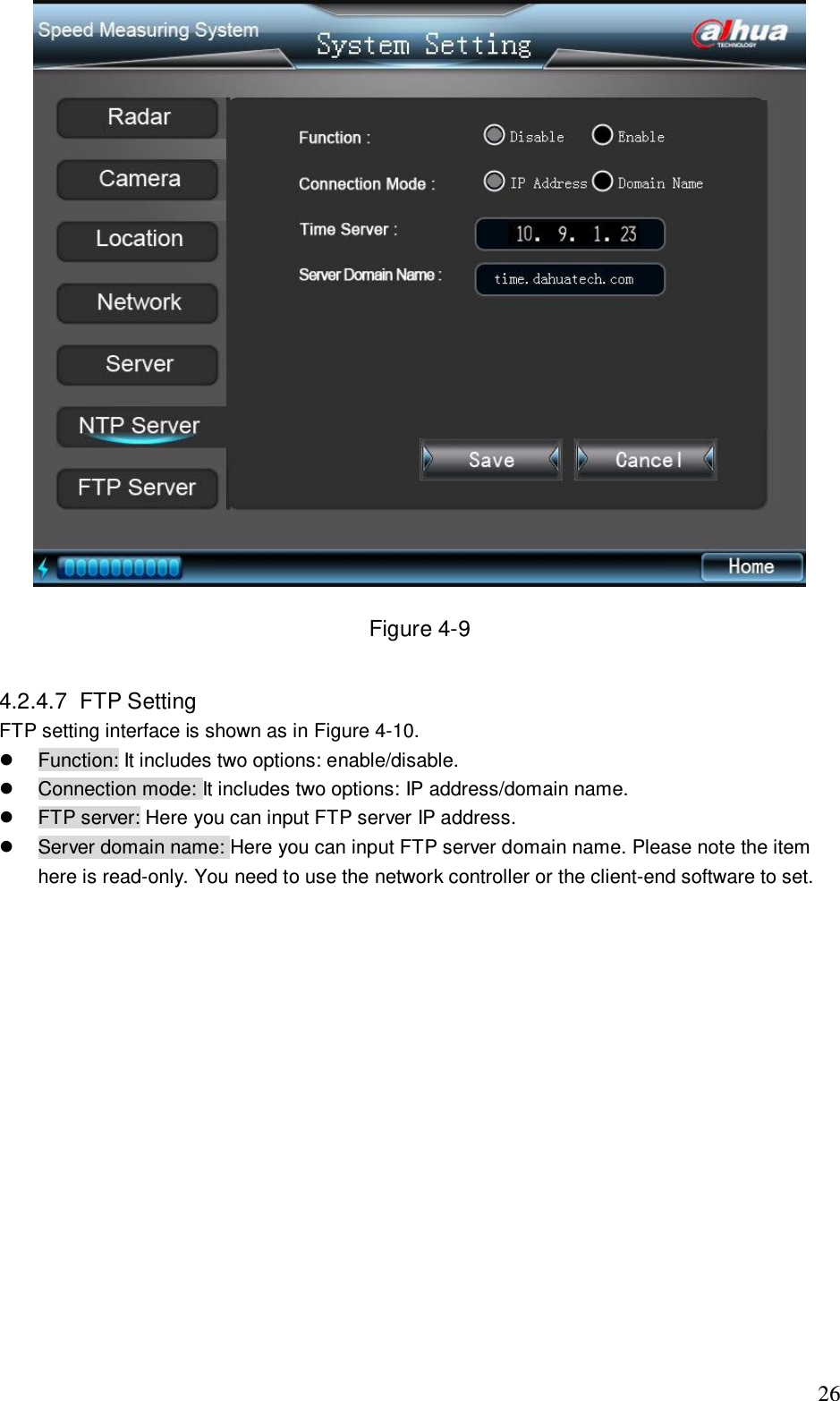
                                                                             25  Figure 4-8  4.2.4.6  NTP Setting  The NTP setting interface is shown as below. See Figure 4-9.   NTP: It includes two options: enable/disable.    Connection mode: It includes two options: IP address/domain name.   Time server: Here you can input NTP server IP address.   Server domain name: Here you can input NTP server domain name. Please note the item here  is read-only. You need to use the network controller or the client-end software to set.
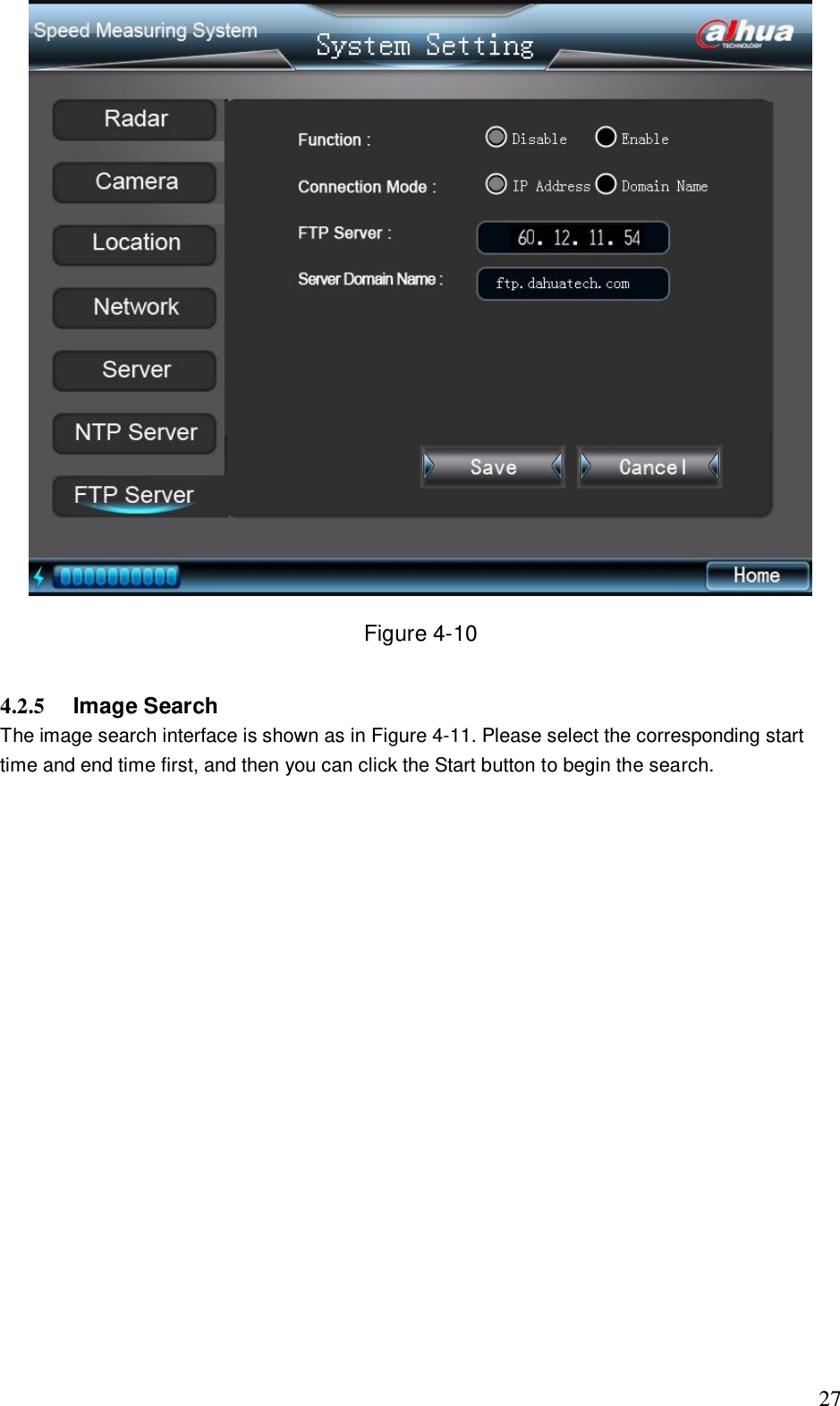
                                                                             26  Figure 4-9  4.2.4.7  FTP Setting  FTP setting interface is shown as in Figure 4-10.   Function: It includes two options: enable/disable.    Connection mode: It includes two options: IP address/domain name.   FTP server: Here you can input FTP server IP address.   Server domain name: Here you can input FTP server domain name. Please note the item here is read-only. You need to use the network controller or the client-end software to set.
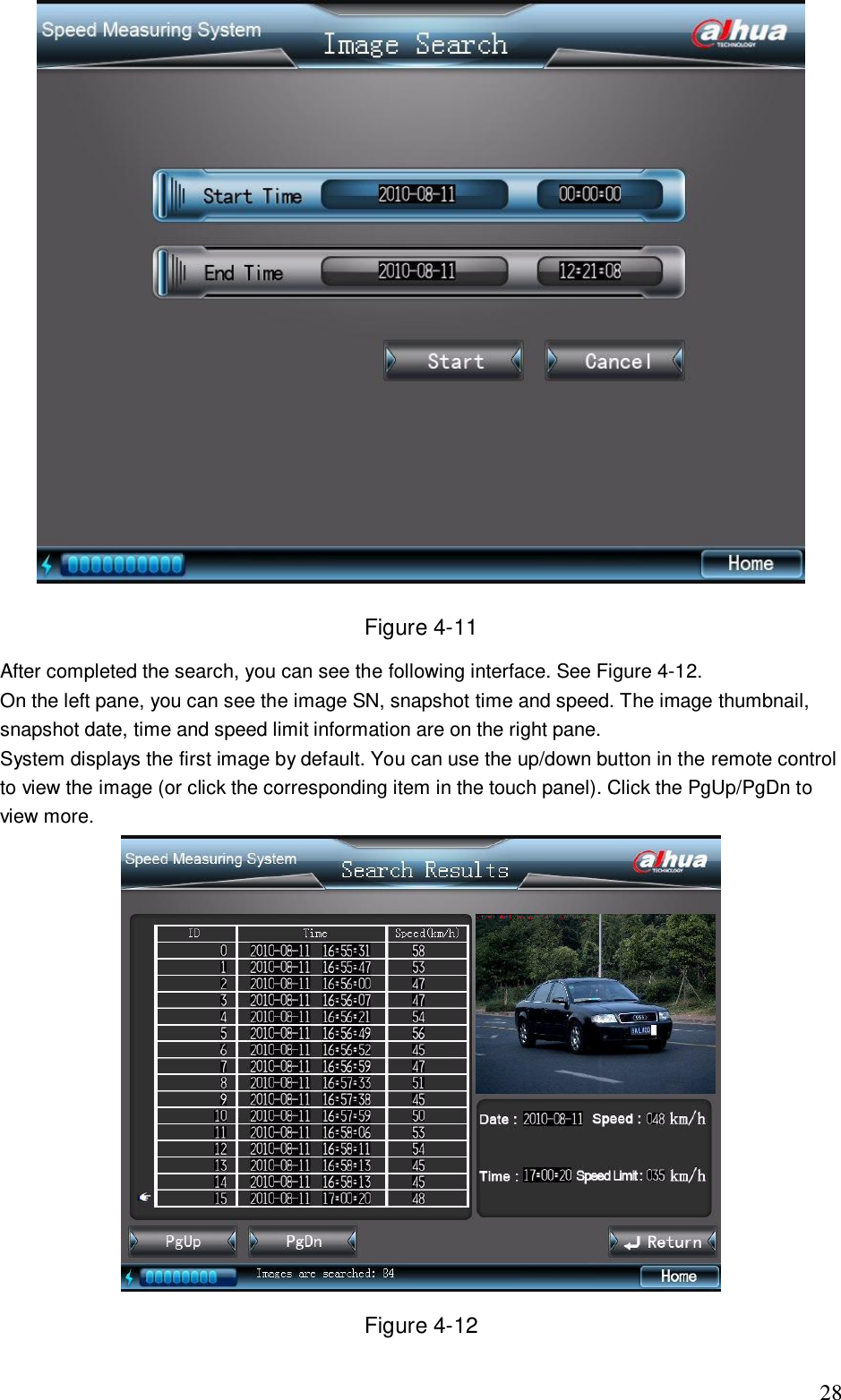
                                                                             27  Figure 4-10  4.2.5   Image Search The image search interface is shown as in Figure 4-11. Please select the corresponding start time and end time first, and then you can click the Start button to begin the search.
                                                                             28  Figure 4-11 After completed the search, you can see the following interface. See Figure 4-12. On the left pane, you can see the image SN, snapshot time and speed. The image thumbnail, snapshot date, time and speed limit information are on the right pane.  System displays the first image by default. You can use the up/down button in the remote control to view the image (or click the corresponding item in the touch panel). Click the PgUp/PgDn to view more.   Figure 4-12
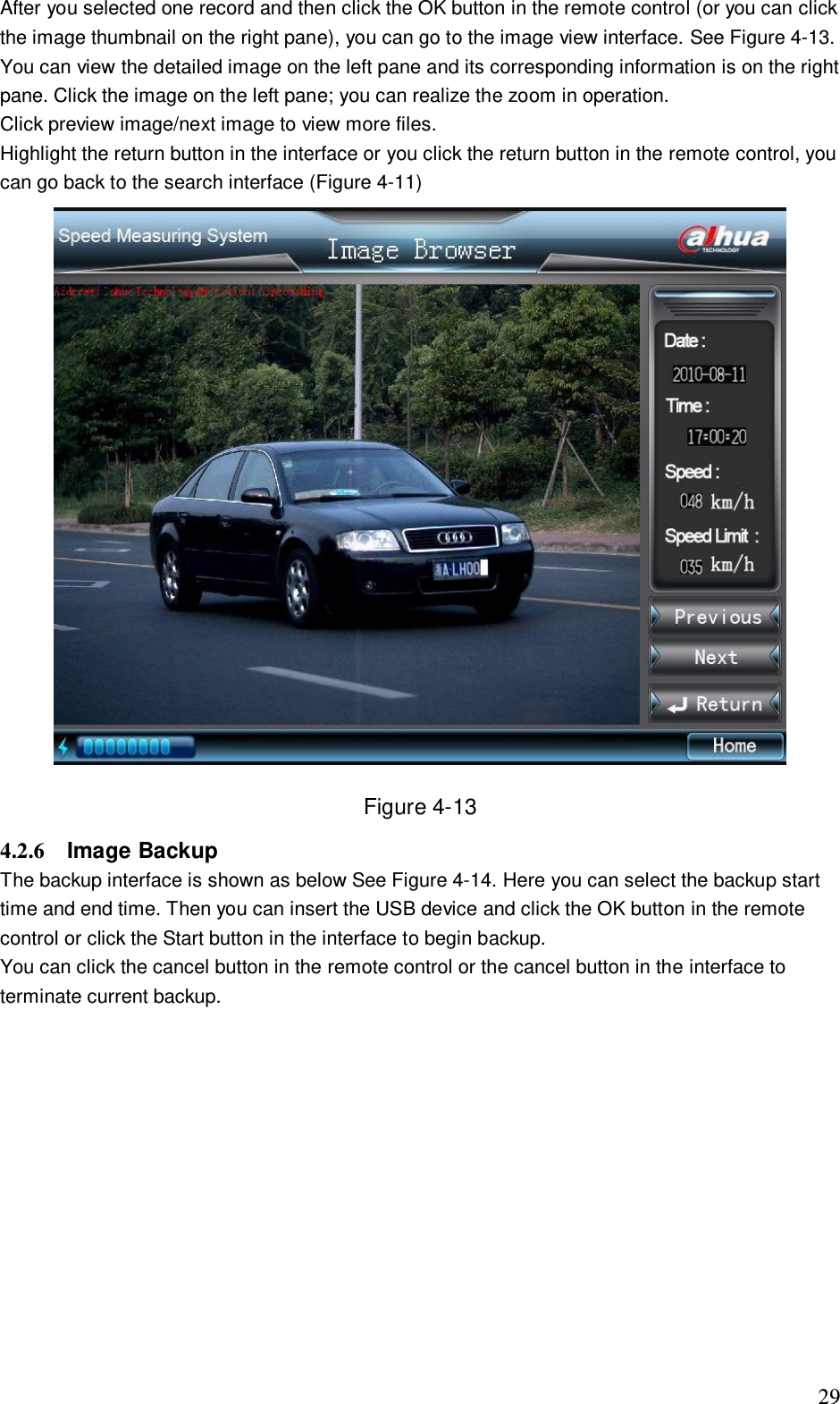
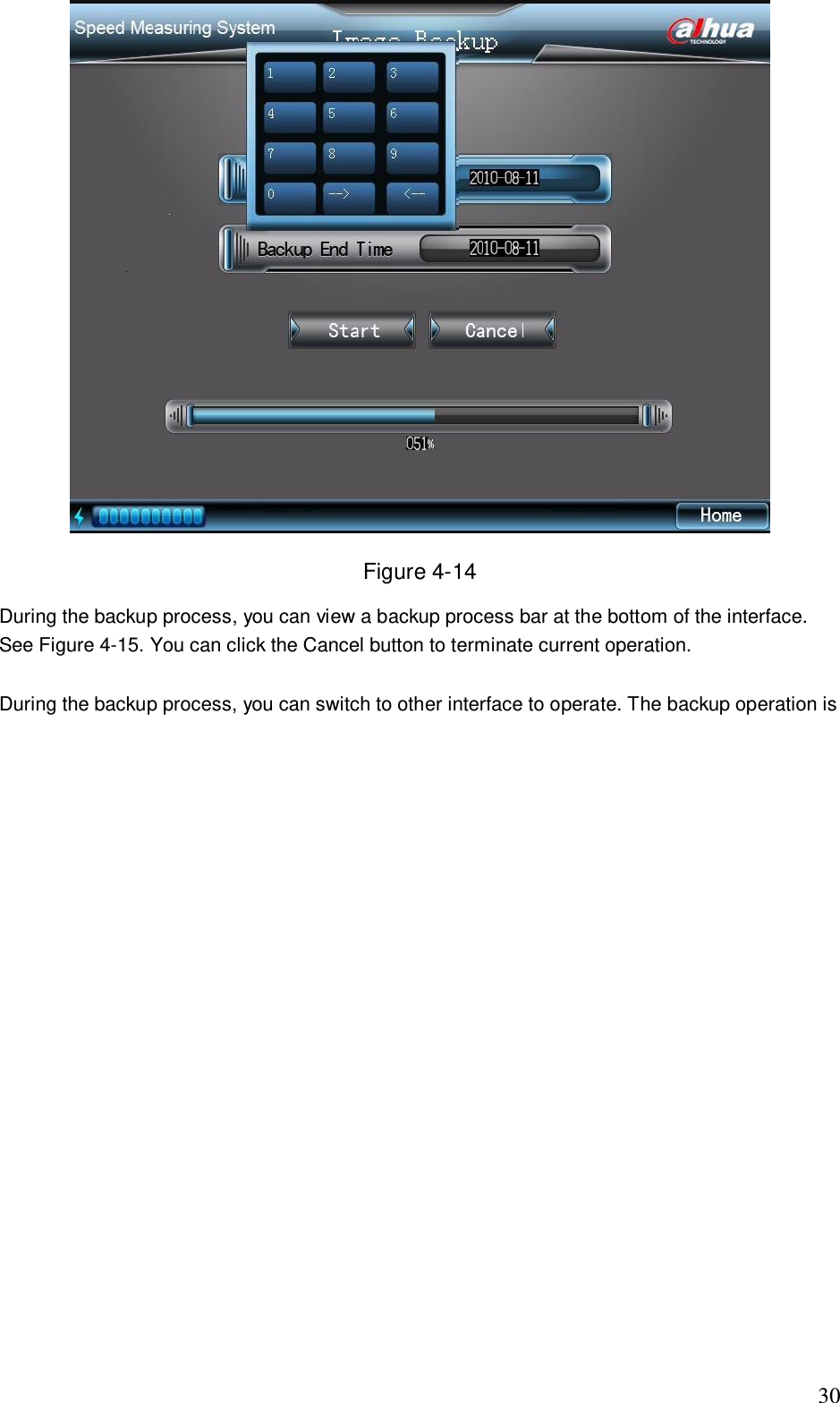
                                                                             29 After you selected one record and then click the OK button in the remote control (or you can click the image thumbnail on the right pane), you can go to the image view interface. See Figure 4-13. You can view the detailed image on the left pane and its corresponding information is on the right pane. Click the image on the left pane; you can realize the zoom in operation.  Click preview image/next image to view more files.  Highlight the return button in the interface or you click the return button in the remote control, you can go back to the search interface (Figure 4-11)  Figure 4-13 4.2.6  Image Backup  The backup interface is shown as below See Figure 4-14. Here you can select the backup start time and end time. Then you can insert the USB device and click the OK button in the remote control or click the Start button in the interface to begin backup. You can click the cancel button in the remote control or the cancel button in the interface to terminate current backup.
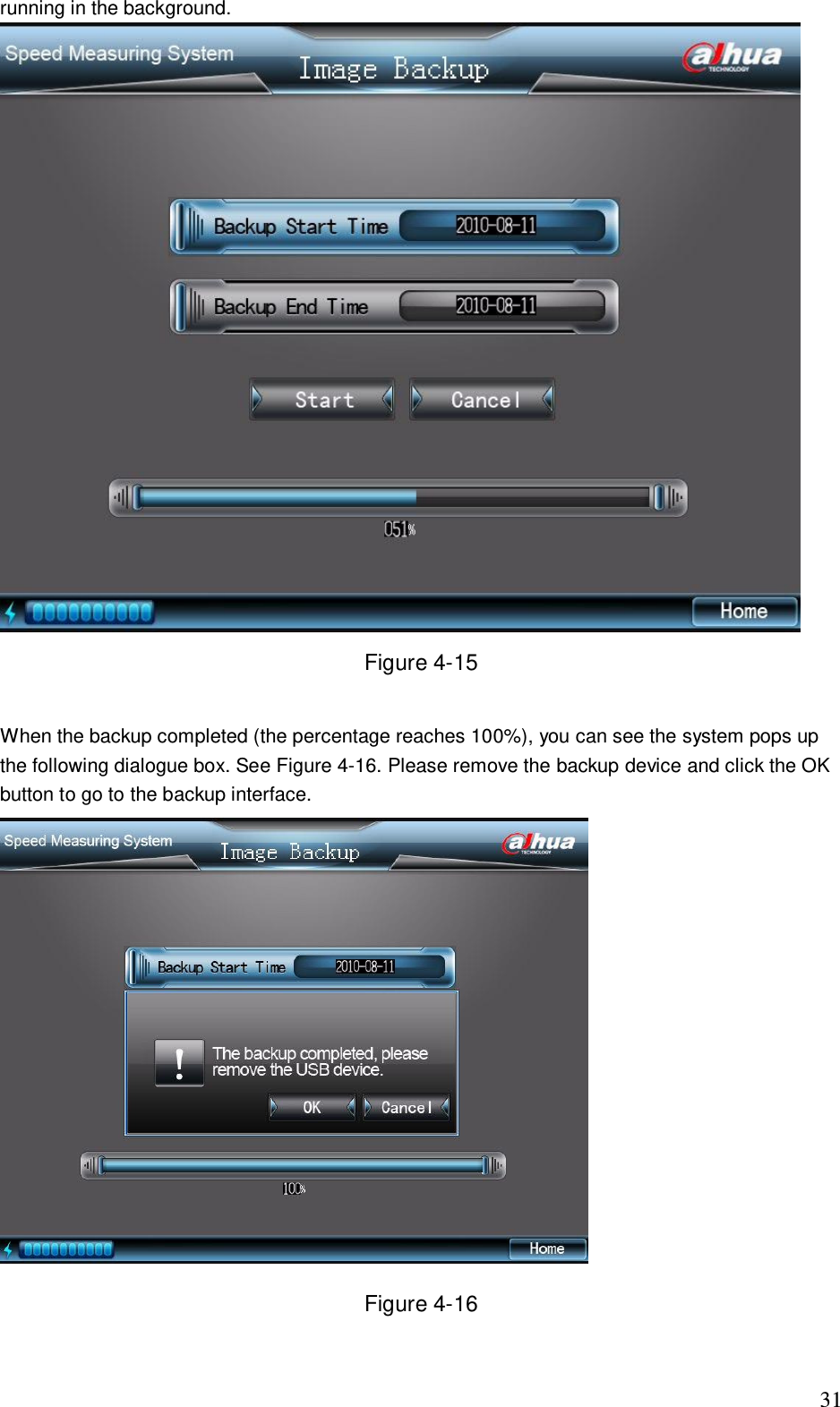
                                                                             30  Figure 4-14 During the backup process, you can view a backup process bar at the bottom of the interface. See Figure 4-15. You can click the Cancel button to terminate current operation.  During the backup process, you can switch to other interface to operate. The backup operation is
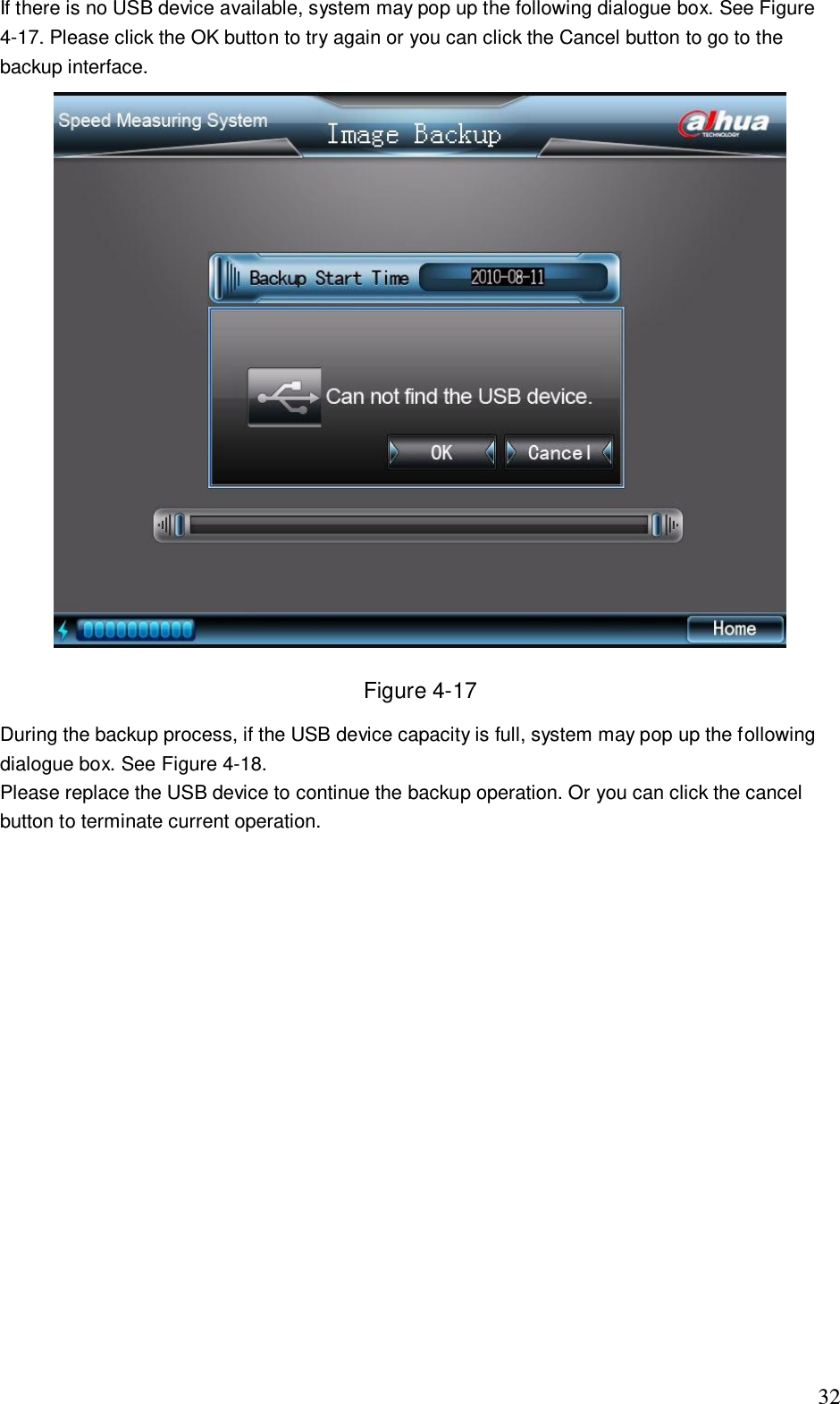
                                                                             31 running in the background.  Figure 4-15  When the backup completed (the percentage reaches 100%), you can see the system pops up the following dialogue box. See Figure 4-16. Please remove the backup device and click the OK button to go to the backup interface.   Figure 4-16
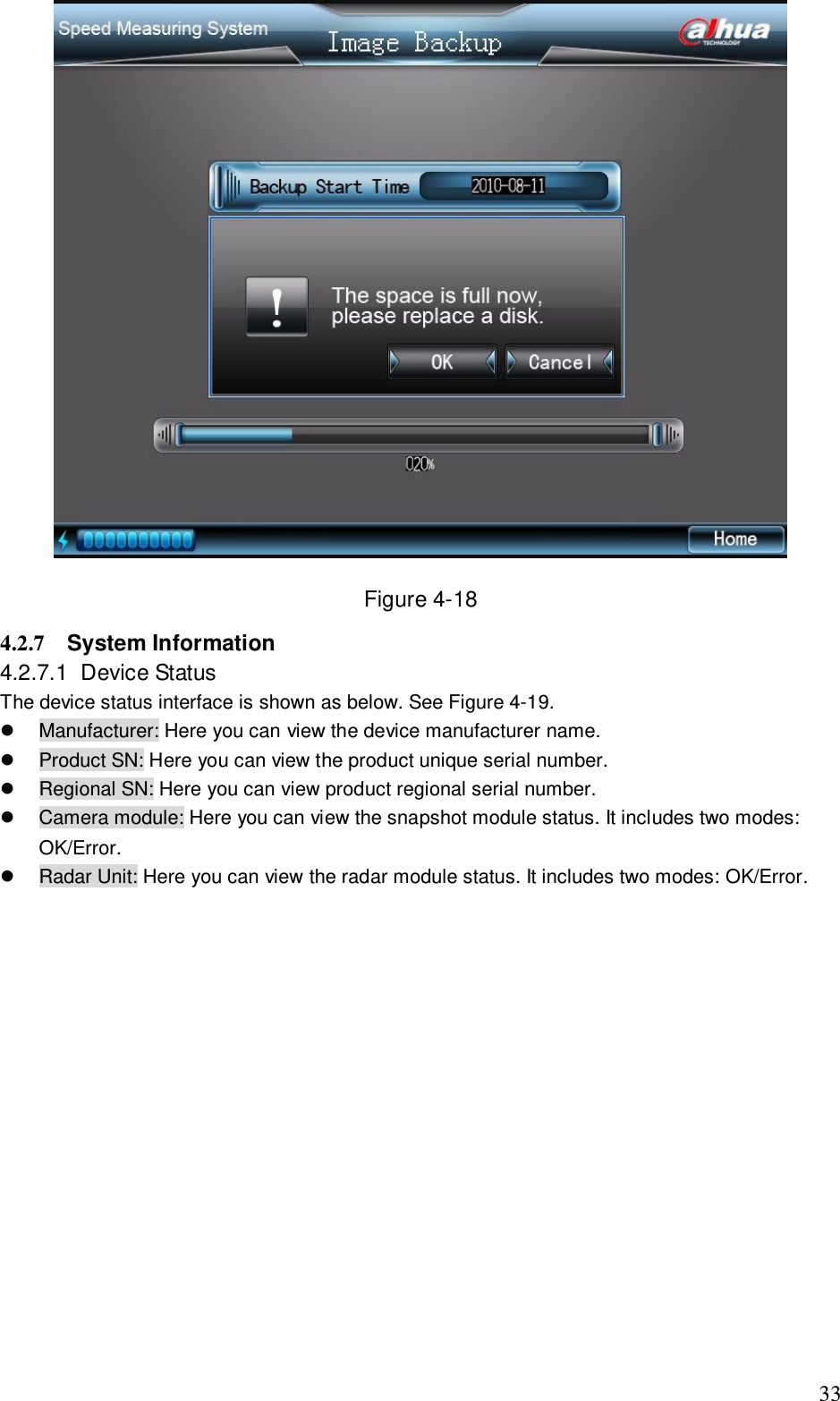
                                                                             32 If there is no USB device available, system may pop up the following dialogue box. See Figure 4-17. Please click the OK button to try again or you can click the Cancel button to go to the backup interface.  Figure 4-17 During the backup process, if the USB device capacity is full, system may pop up the following dialogue box. See Figure 4-18. Please replace the USB device to continue the backup operation. Or you can click the cancel button to terminate current operation.
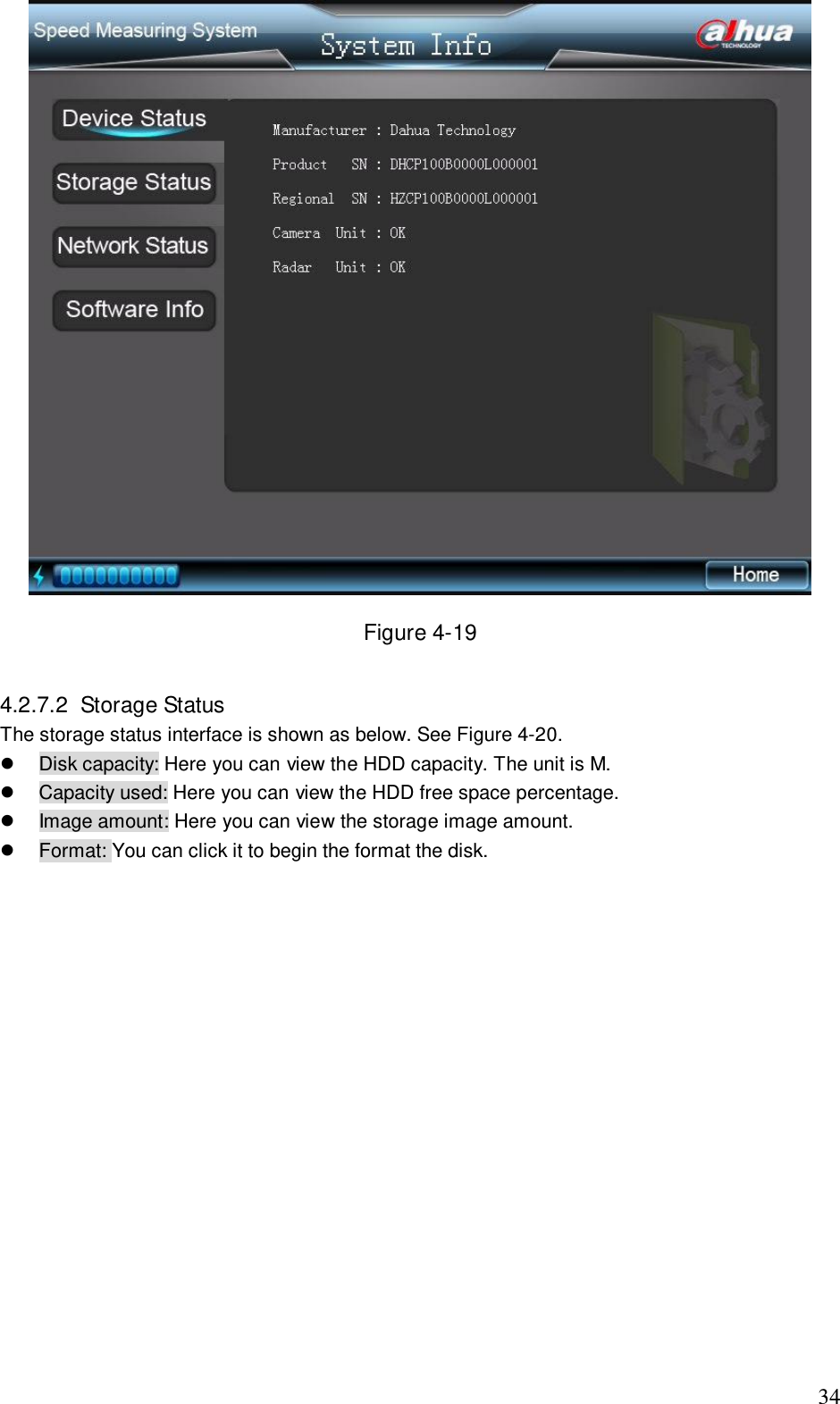
                                                                             33  Figure 4-18 4.2.7  System Information 4.2.7.1  Device Status  The device status interface is shown as below. See Figure 4-19.   Manufacturer: Here you can view the device manufacturer name.    Product SN: Here you can view the product unique serial number.   Regional SN: Here you can view product regional serial number.   Camera module: Here you can view the snapshot module status. It includes two modes: OK/Error.    Radar Unit: Here you can view the radar module status. It includes two modes: OK/Error.
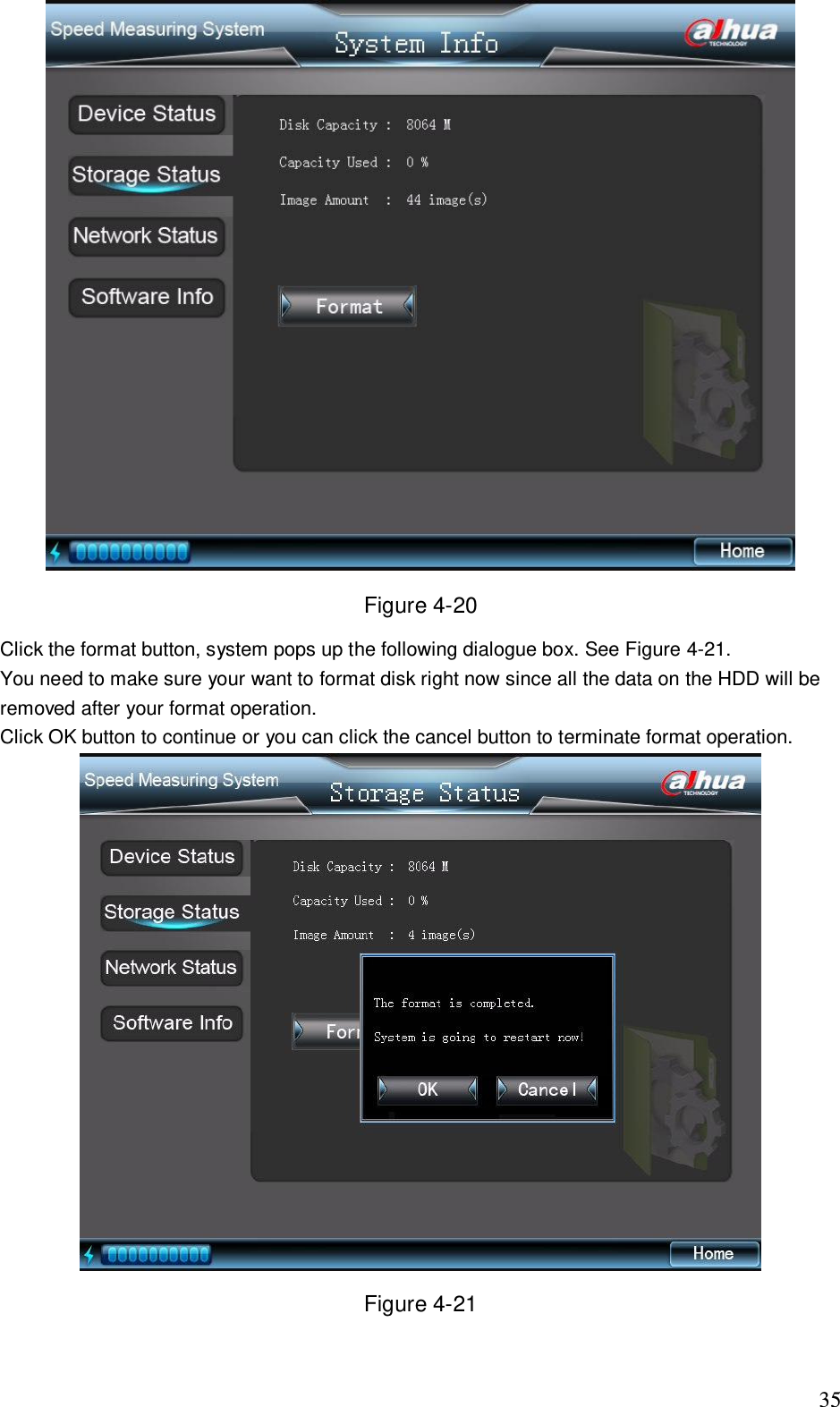
                                                                             34  Figure 4-19  4.2.7.2  Storage Status  The storage status interface is shown as below. See Figure 4-20.   Disk capacity: Here you can view the HDD capacity. The unit is M.   Capacity used: Here you can view the HDD free space percentage.    Image amount: Here you can view the storage image amount.    Format: You can click it to begin the format the disk.
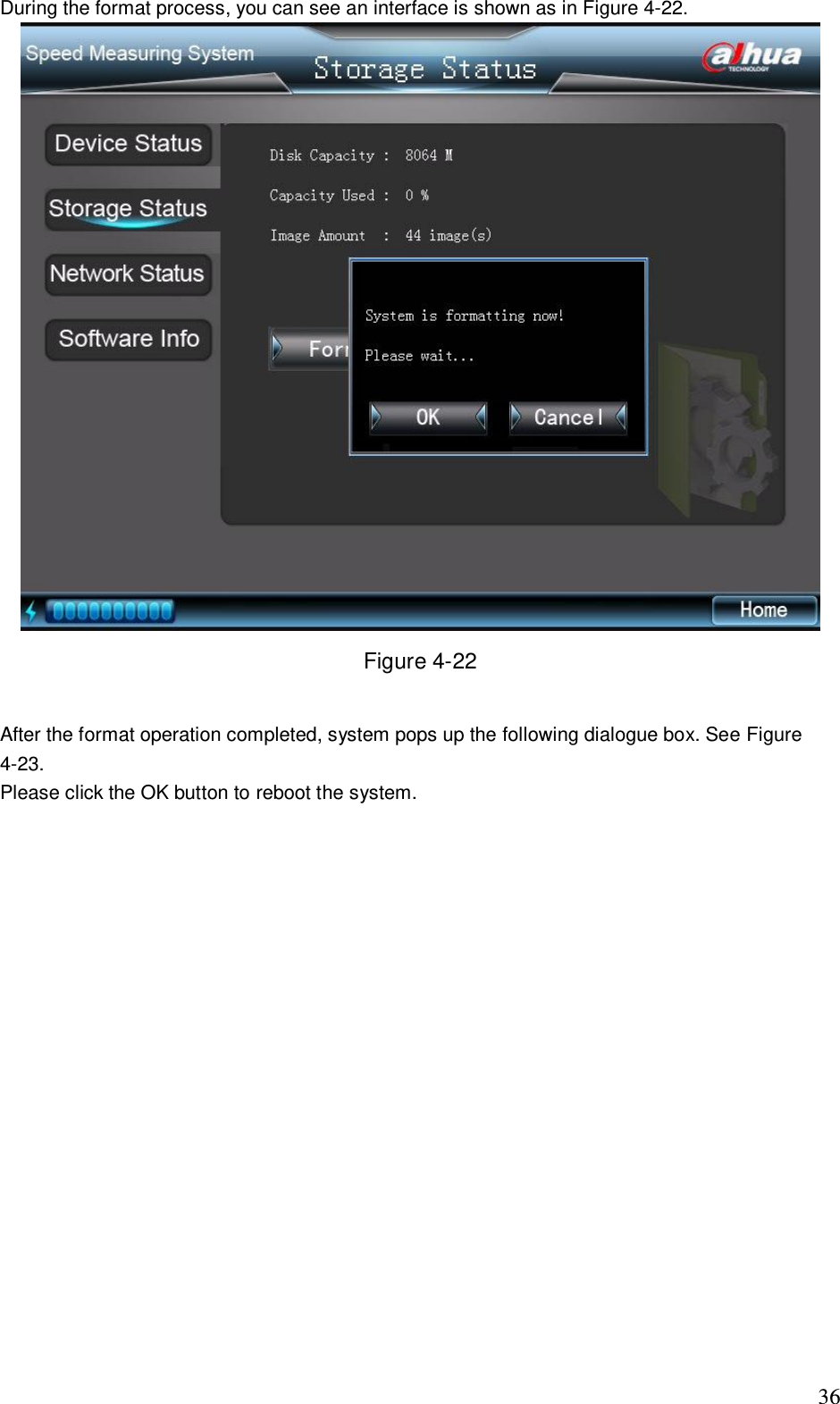
                                                                             35  Figure 4-20 Click the format button, system pops up the following dialogue box. See Figure 4-21. You need to make sure your want to format disk right now since all the data on the HDD will be removed after your format operation.  Click OK button to continue or you can click the cancel button to terminate format operation.  Figure 4-21
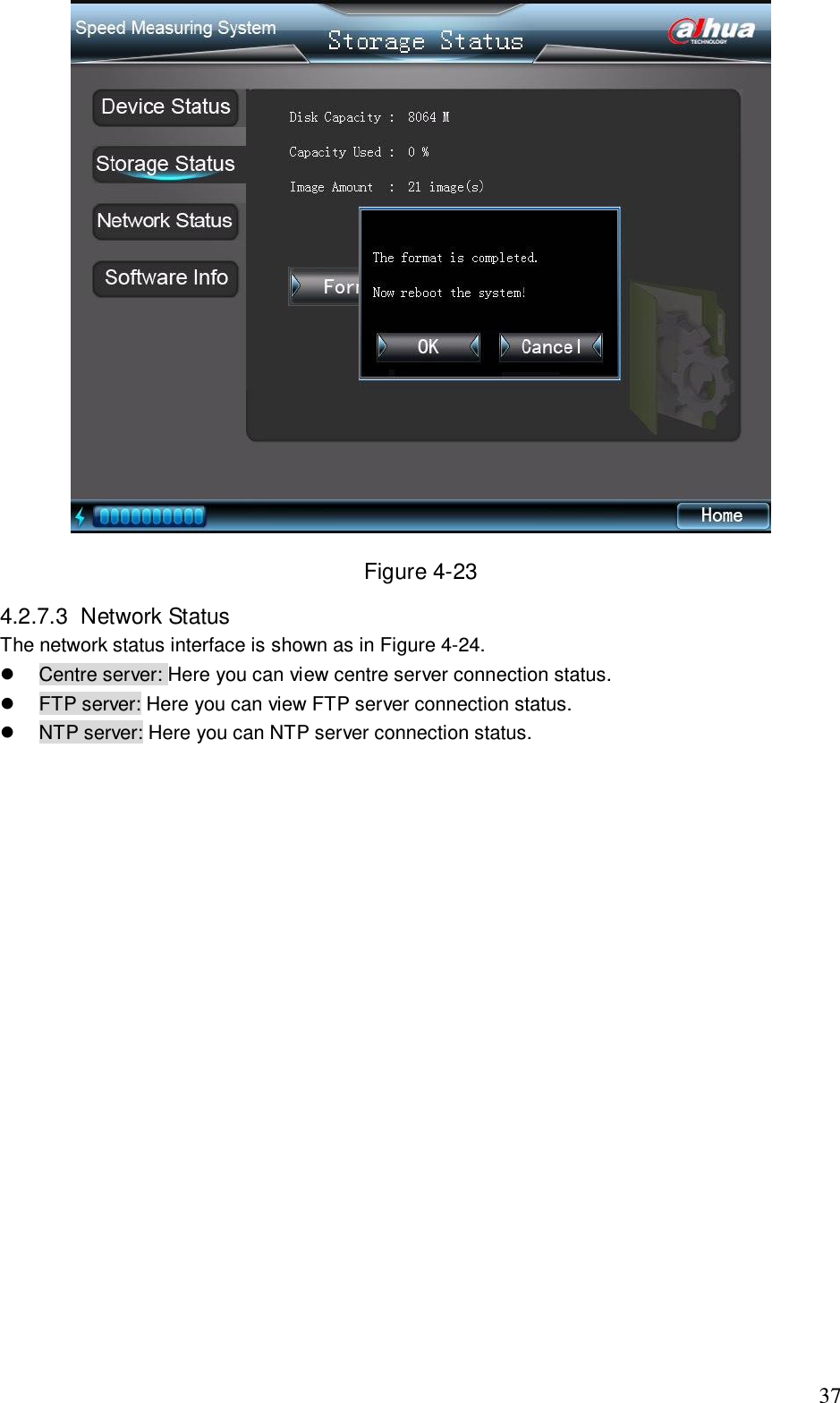
                                                                             36 During the format process, you can see an interface is shown as in Figure 4-22.  Figure 4-22  After the format operation completed, system pops up the following dialogue box. See Figure 4-23. Please click the OK button to reboot the system.
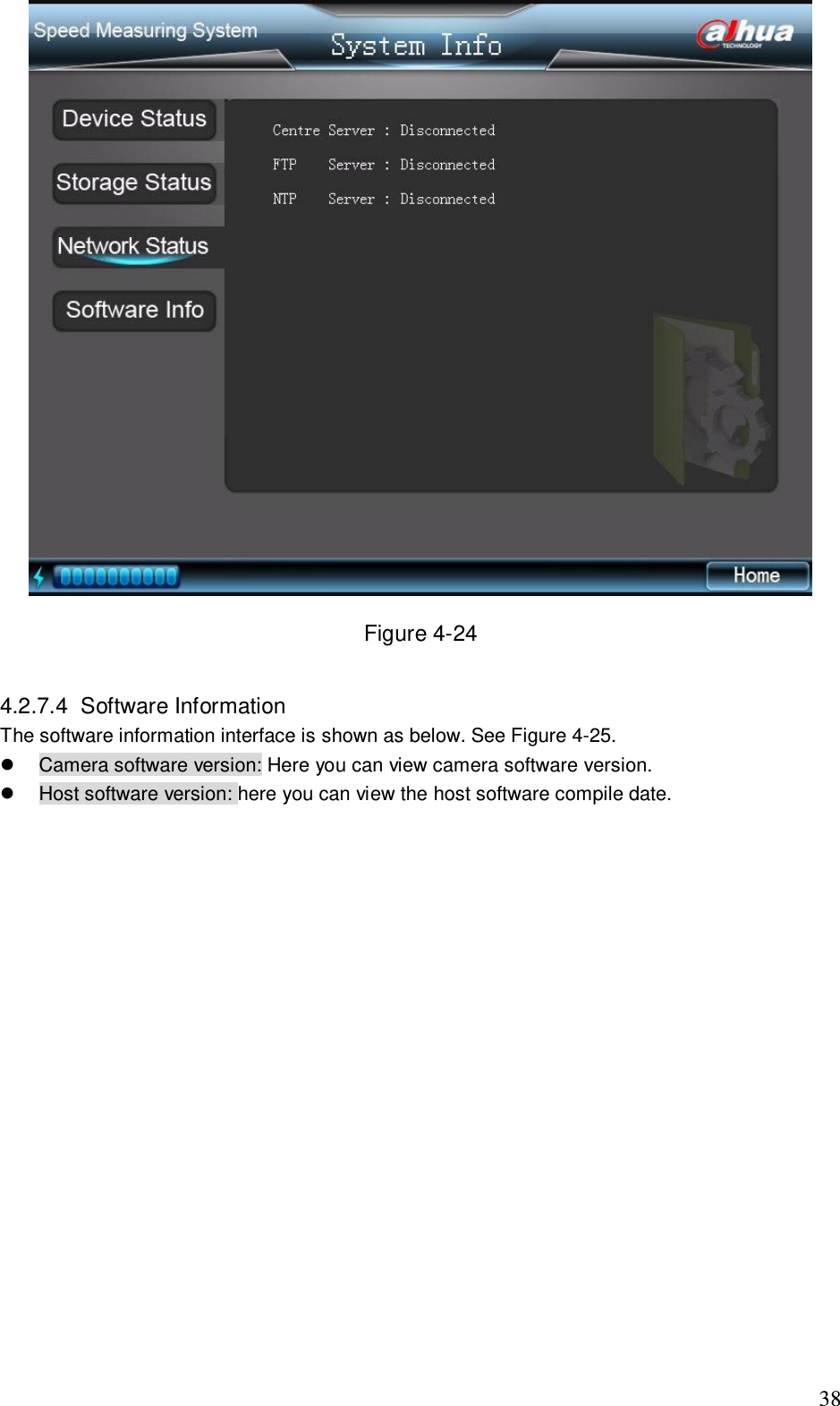
                                                                             37  Figure 4-23 4.2.7.3  Network Status  The network status interface is shown as in Figure 4-24.   Centre server: Here you can view centre server connection status.   FTP server: Here you can view FTP server connection status.   NTP server: Here you can NTP server connection status.
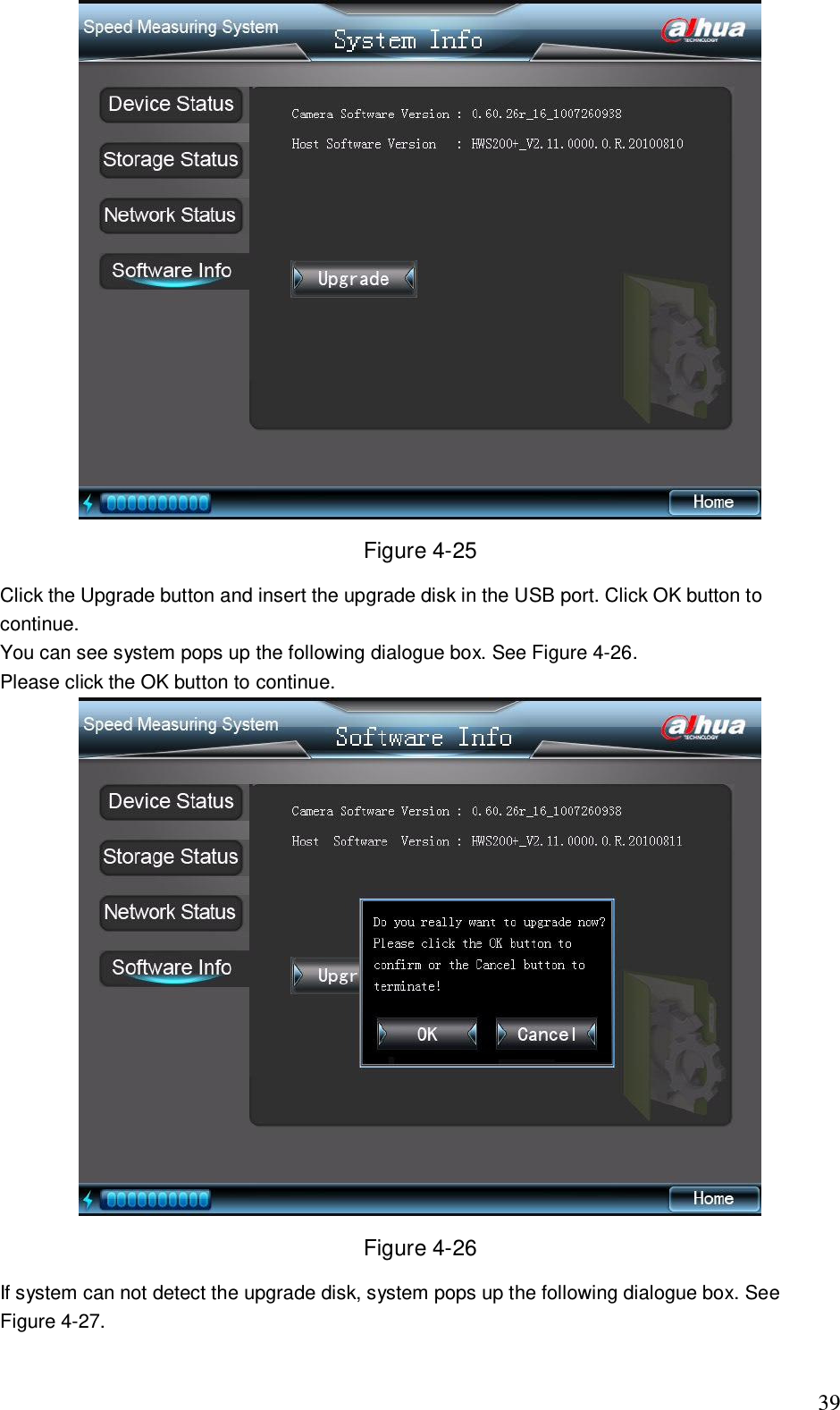
                                                                             38  Figure 4-24  4.2.7.4  Software Information  The software information interface is shown as below. See Figure 4-25.   Camera software version: Here you can view camera software version.   Host software version: here you can view the host software compile date.
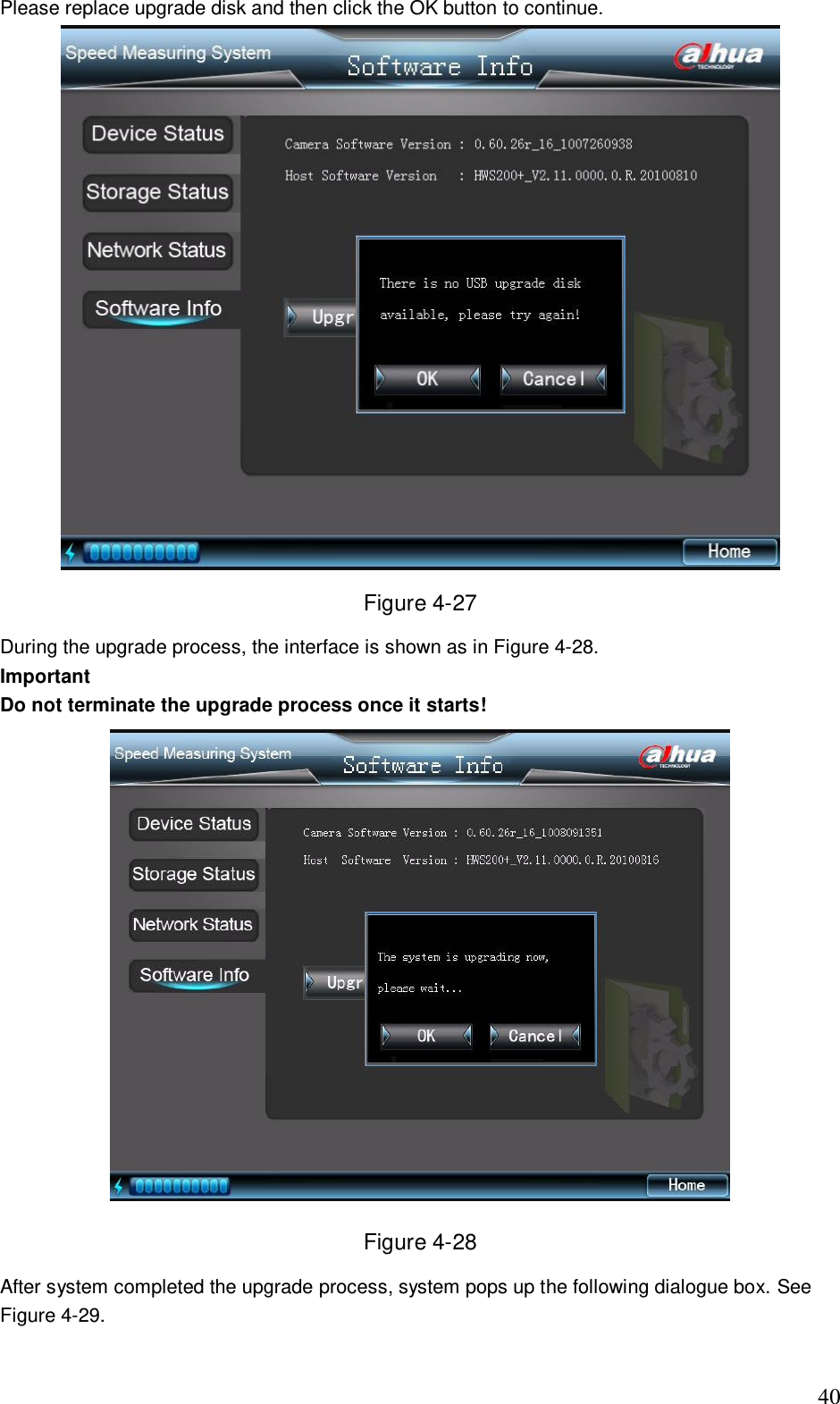
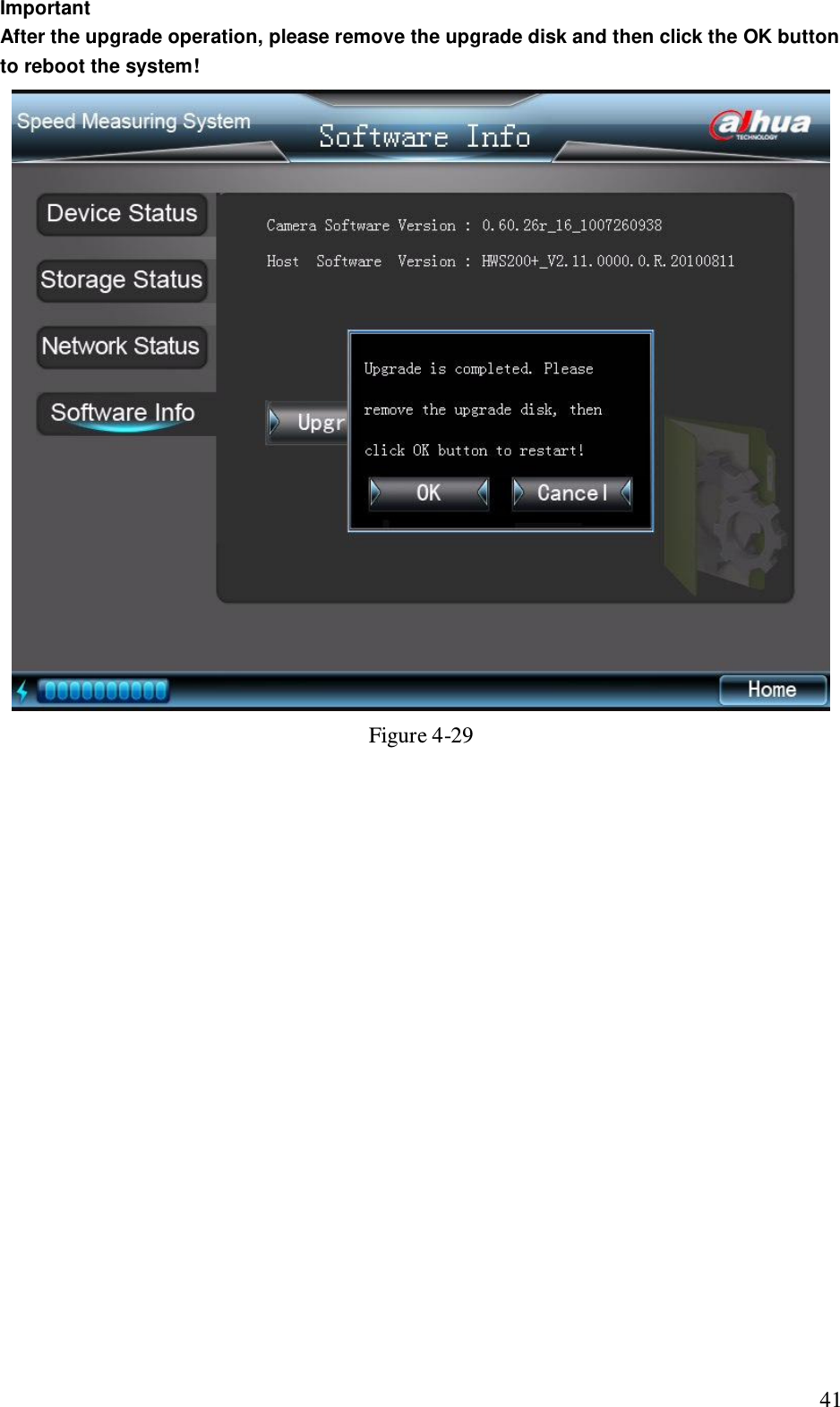
                                                                             39  Figure 4-25 Click the Upgrade button and insert the upgrade disk in the USB port. Click OK button to continue.  You can see system pops up the following dialogue box. See Figure 4-26. Please click the OK button to continue.  Figure 4-26 If system can not detect the upgrade disk, system pops up the following dialogue box. See Figure 4-27.
                                                                             40 Please replace upgrade disk and then click the OK button to continue.   Figure 4-27 During the upgrade process, the interface is shown as in Figure 4-28. Important Do not terminate the upgrade process once it starts!  Figure 4-28 After system completed the upgrade process, system pops up the following dialogue box. See Figure 4-29.
                                                                             41 Important After the upgrade operation, please remove the upgrade disk and then click the OK button to reboot the system!  Figure 4-29
                                                                             42 5 FAQ  5.1 About the Touch Panel    Enable screen saver function if the device is running for a long time.    Make sure the touch panel is away from the strong light or direct sunlight.    Do not use the harsh object to click the touch panel. Do not push hard in case the touch panel is physically injured.    Do not place other object on the touch panel.  Touch Panel Maintenance work    Please shut down the device and then unplug the power cable before you begin daily maintenance work.    Use the dry soft cloth to clean the touch panel.    Please use the water to dilute the mild detergent first and then use it to clean the device. Finally use the dry cloth to clean.   Do not directly pour the detergent on the touch panel  5.2 About the Lithium Battery    Do not use the Lithium battery if the environment temperature is higher than 60℃. Do not use the Lithium battery when the environment temperature is 0℃ and the battery capacity is below 2/3. Do not use the Lithium battery when the environment temperature is -10℃ and the battery capacity is below 1/3. Please make sure he recharge environment temperature ranges from 0℃ to 45℃.   Do not over exert the battery. Recharge the battery in time when there is insufficient capacity prompt.   If the Lithium battery has been idle for a long time, please recharge as the first time when you want to use it again.  After the recharge indication light has become blue, do not remove the battery immediately. Please wait a period of time and then remove the battery safely.  After three times of fully capacity exerts, the battery can use properly.   If the Lithium battery will be idle for a long time, please recharge considerable capacity in case the damage results from the over exert.  Please put the battery away from the extreme hot or cold environments.  5.3 About the Radar   Please make sure there is no huge metal object in front of the radar.   The radar shall be away from the strong magnetic environments.    The radar monitor road shall be straight and plain.   Handle with care. Do not strike or squeeze the radar interface.   5.4 About the Camera   The camera shall be away from the direct sunlight or strong light.
                                                                             43   Use the clean soft cloth to clear the dust. Use the air duster to clear the dust and the dry soft cloth to clear the camera.    Use a little detergent to clean the device if there is too much dust.
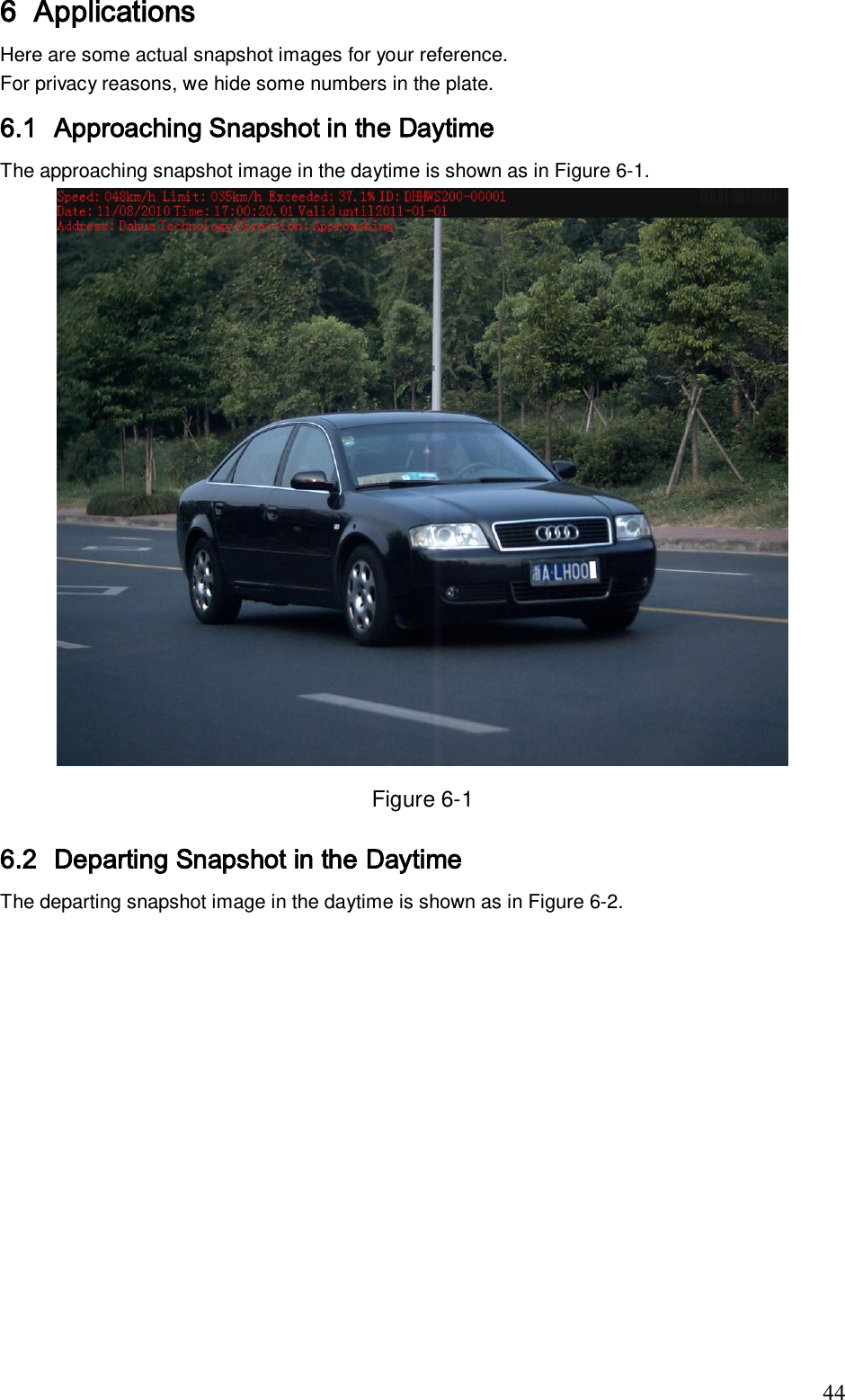
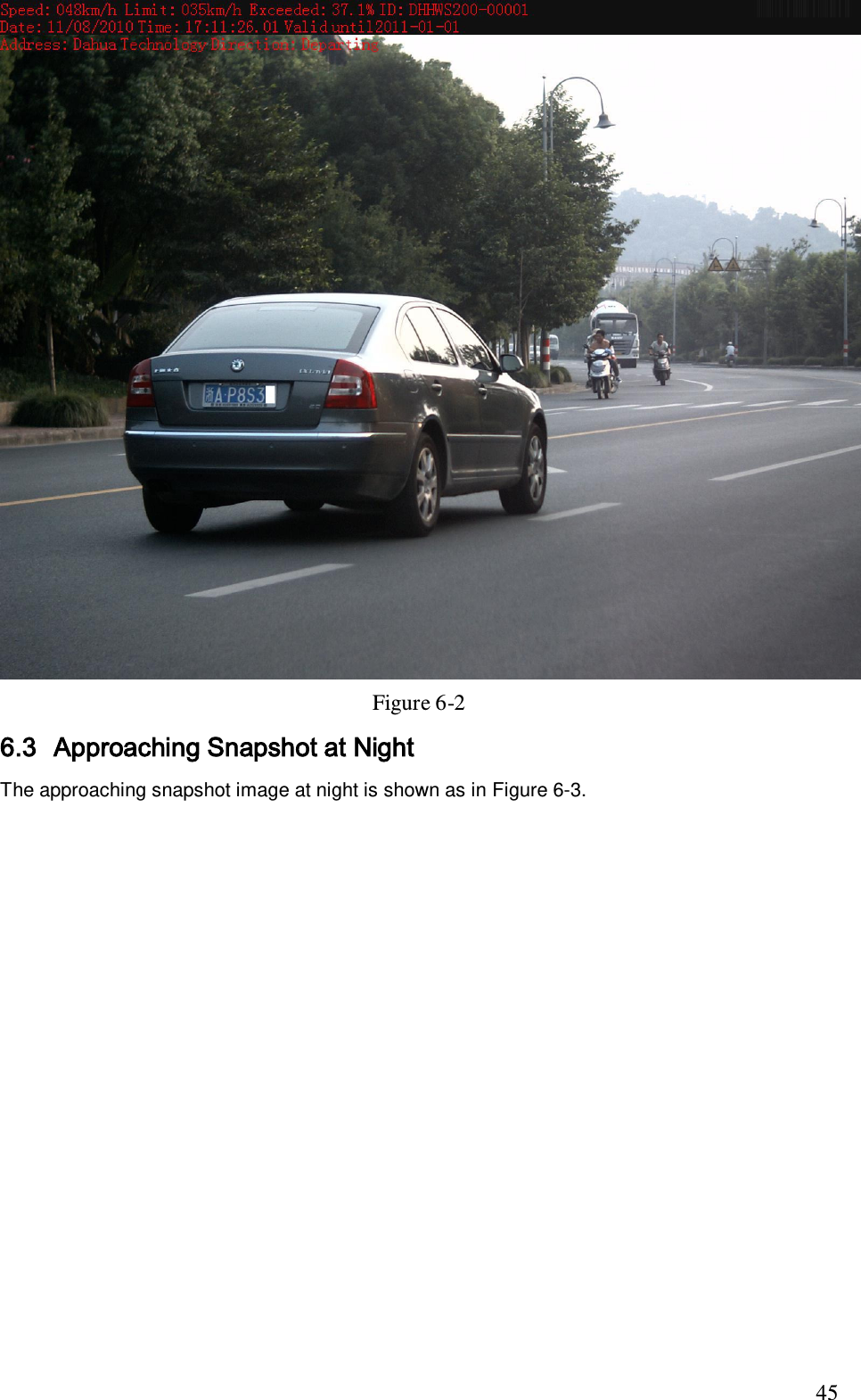
                                                                             44 6 Applications Here are some actual snapshot images for your reference.  For privacy reasons, we hide some numbers in the plate. 6.1 Approaching Snapshot in the Daytime The approaching snapshot image in the daytime is shown as in Figure 6-1.  Figure 6-1 6.2 Departing Snapshot in the Daytime The departing snapshot image in the daytime is shown as in Figure 6-2.
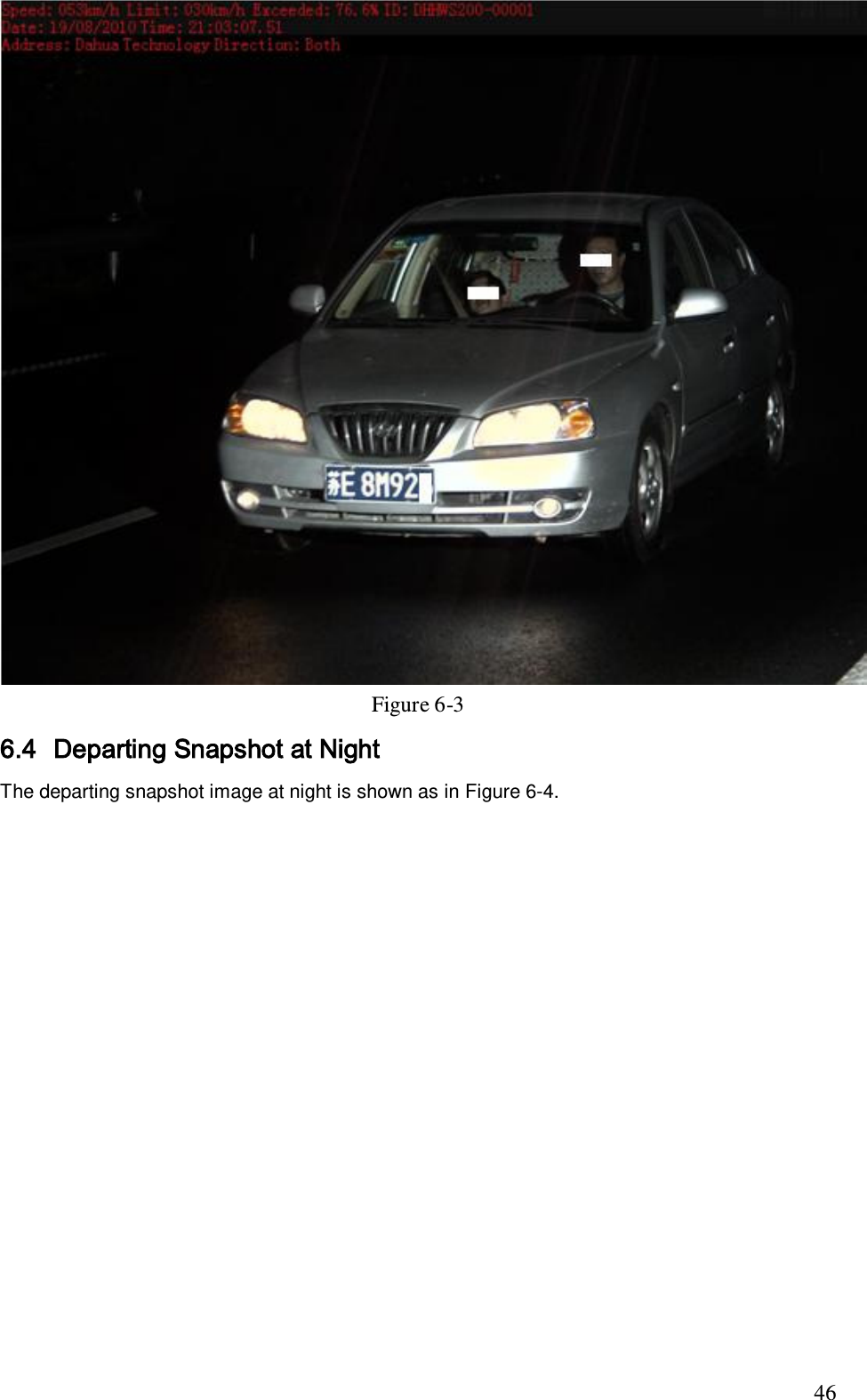
                                                                             45  Figure 6-2 6.3 Approaching Snapshot at Night  The approaching snapshot image at night is shown as in Figure 6-3.
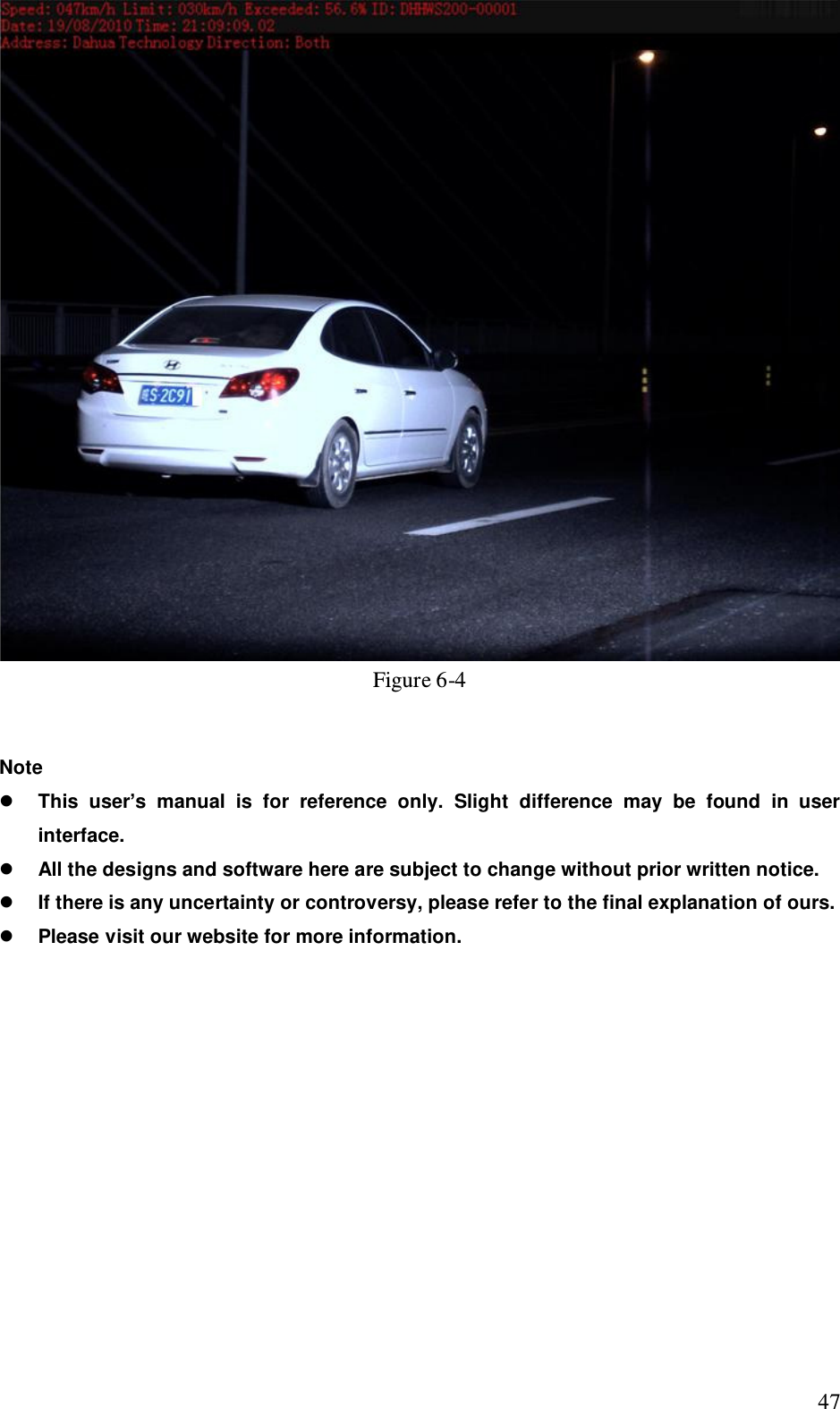
                                                                             46  Figure 6-3 6.4 Departing Snapshot at Night  The departing snapshot image at night is shown as in Figure 6-4.
                                                                             47  Figure 6-4   Note  This  user’s  manual  is  for  reference  only.  Slight  difference  may  be  found  in  user interface.  All the designs and software here are subject to change without prior written notice.  If there is any uncertainty or controversy, please refer to the final explanation of ours.  Please visit our website for more information.

Navigation menu