Zhone 4929 Dslam Users Manual IP Installation Guide
4929-A2-ZN20-30 4929-A2-ZN20-30
4929-A2-ZN20-30 4929-A2-ZN20-30
4929 DSLAM to the manual 2081ba50-df37-4339-b750-f5a2c7cd5771
2015-02-03
: Zhone Zhone-4929-Dslam-Users-Manual-475170 zhone-4929-dslam-users-manual-475170 zhone pdf
Open the PDF directly: View PDF  .
.
Page Count: 96
- 4929 DSLAM Installation and User’s Guide
- Contents
- Introduction
- Installation
- Cabling
- LEDs
- Configuration Using the NMS
- Command Line Interface
- SNMP Interface
- Connectors and Pin Assignments
- Equipment List
- Technical Specifications

4929 DSLAM Installation and User’s
Guide
November 2005
Document Part Number:
4929-A2-ZN20-30
Zhone Technologies
@Zhone Way
7001 Oakport Street
Oakland, CA 94621
USA
510.777.7000
www.zhone.com
info@zhone.com
COPYRIGHT 2005 Zhone Technologies, Inc. All rights reserved.
This publication is protected by copyright law. No part of this publication may be copied or
distributed, transmitted, transcribed, stored in a retrieval system, or translated into any human
or computer language in any form or by any means, electronic, mechanical, magnetic, manual
or otherwise, or disclosed to third parties without the express written permission from Zhone
Technologies, Inc.
Acculink, ADSL/R, Bitstorm, Comsphere, DSL the Easy Way, ETC, Etherloop, FrameSaver,
GranDSLAM, GrandVIEW, Hotwire, the Hotwire logo, iMarc, Jetstream, MVL, NextEDGE,
Net to Net Technologies, OpenLane, Paradyne, the Paradyne logo, Performance Wizard,
ReachDSL, StormPort, TruePut are registered trademarks of Zhone Technologies, Inc.
BAN, Connect to Success, GigMux, Hotwire Connected, JetFusion, JetVision, MALC,
MicroBurst, PacketSurfer, Quick Channel, Raptor, Reverse Gateway, SLMS, Spectrum
Manager, StormTracker, Z-Edge, Zhone, ZMS, and the Zhone logo are trademarks of Zhone
Technologies, Inc.
All other products or services mentioned herein are the trademarks, service marks, registered
trademarks, or registered service marks of their respective owners.
Zhone Technologies makes no representation or warranties with respect to the contents hereof
and specifically disclaims any implied warranties of merchantability, noninfringement, or
fitness for a particular purpose. Further, Zhone Technologies reserves the right to revise this
publication and to make changes from time to time in the contents hereof without obligation of
Zhone Technologies to notify any person of such revision or changes.
4929 DSLAM Installation and User’s Guide 3
End User License Agreement (Zhone and Affiliates)
License. Zhone Technologies, Inc. and/or an affiliate ("Zhone") hereby grants you ("User")—
either an individual or a single business entity—the non-exclusive right to install, access, run,
or interact with ("Use") one copy of the enclosed software (which may have been, or may be,
provided on media, as part of a hardware platform, through download, or otherwise) and
associated documentation ("Software") on the first computer system on which User installs the
Software ("System") solely for internal business purposes (including, without limitation,
providing products and services to User's customers) and subject to the restrictions below).
Zhone may, in its sole discretion, make available future updates or upgrades to the Software
each of which is also Software subject hereto. Title to and all patent rights, copyrights and other
intellectual property rights in the Software are retained by Zhone and its direct and indirect
suppliers and licensors ("Licensors").
Restrictions. The Software may not be (a) Used on or from any system other than the System;
(b) Used with more than any maximum number of subscribers stated in the documentation
accompanying the Software; (c) Used so as to circumvent any technological measure included
therein or provided by Zhone from time to time to control access to or limit use of the Software;
(d) sublicensed, rented, leased or lent to third parties; (e) imported or exported into any
jurisdiction except in compliance with all applicable laws of the United States and such
jurisdiction; (f) transferred to a third party unless (A) User transfers the original and all
surviving copies to a third party who has agreed in writing to be bound hereby and (B) such
third party pays to Zhone such reasonable additional fee as Zhone may impose from time to
time with respect to such transfer; or (g) made available to third parties as part of any
time-sharing or service bureau arrangement. User shall not have the right to use the Software or
any portion thereof for a use other than that contemplated by its documentation. User will not
copy all or any part of the Software or attempt, or encourage or permit any third party, to
modify, adapt, make derivative works from, reverse engineer, reverse compile, disassemble or
decompile the Software or any portion thereof except and only to the extent that such activity is
expressly permitted by law notwithstanding this limitation. Violation of any of the foregoing
shall be deemed a material breach hereof. User may make a reasonable number of copies solely
for archival or disaster recovery and subject to the restrictions imposed by copyright law, but
may not modify or otherwise copy the Software. User agrees to reproduce product
identification, copyright and other proprietary notices of Zhone and Licensors on all copies.
User's rights are only as expressly stated herein. Zhone may immediately terminate your rights
if you violate the provisions hereof.
Limited Warranty. Zhone warrants that the media containing the Software is free from defects
in material and workmanship for ninety (90) days following your purchase of the Software.
You may provide written notice of such defect (addressed to Zhone Technologies, Inc.,
Attention: Customer Service, 7001 Oakport Street @ Zhone Way, Oakland, CA 94621) no later
than ten (10) days following expiration of such period and, as your sole and exclusive remedy,
Zhone will provide replacement media. NEITHER ZHONE NOR ITS LICENSORS MAKE
ANY OTHER WARRANTY, EXPRESS, IMPLIED OR STATUTORY. ZHONE AND ITS
LICENSORS DISCLAIM ALL WARRANTIES OF FITNESS FOR PARTICULAR
PURPOSE, MERCHANTABILITY AND NON-INFRINGEMENT. Some states or other
jurisdictions do not allow the exclusion of implied warranties on limitations on how long an
implied warranty lasts, so the above limitations may not apply to you. This warranty gives you
specific legal rights, and you may also have other rights which vary from one state or
jurisdiction to another.
Limit of Liability. In case of any claim hereunder or related to the Software, neither Zhone nor
its Licensors shall be liable for direct damages exceeding the price paid by User for the
Software or for special, incidental, consequential or indirect damages, even if advised in
advance of the potential thereof.
Do not install this Software unless you agree to these provisions.
Return the Software promptly for a refund if you do not agree.

44929 DSLAM Installation and User’s Guide
U.S. Government Users. The Software is a "commercial item" as defined at 48 C.F.R. 2.101,
consisting of "commercial computer software" and "commercial computer software
documentation" as such terms are used in 48 C.F.R. 12.212. Under 48 C.F.R. 12.212 and 48
C.F.R. 227.7202-1 to 227.7202-4, U.S. Government Users acquire the Software only with the
rights set forth therein.
Third Party Licensors. This Zhone End User License Agreement may be accompanied by
differing or additional provisions applicable to portions of the Software provided by one or
more Licensors ("Licensor Provisions"). User acknowledges and agrees that its Use of such
portions of the Software is subject to the Licensor Provisions.
Important Safety Instructions
1. Read and follow all warning notices and instructions marked on the product or included in
the manual.
2. This product is to be connected to a nominal –48 to –60 VDC supply source that is
electrically isolated from the AC source using minimum 18 AWG (0.75mm² ) leads . Two
inputs are provided for redundancy. The positive terminal of the DC source is to be
reliably connected to earth. Connect a minimum 18 AWG (0.75mm² ) green/yellow
earthing (grounding) wire to the protective earthing (grounding) screw, identified by the
protective earth symbol on the back of the chassis.
3. This product may only be used in a Restricted Access Location in accordance with the
requirements of the National Electric Code, ANSI/NFPA 70, and the Canadian Electrical
Code, or in accordance with the standards and regulatory requirements of the country in
which it is installed. A Restricted Access Location is a secure area (dedicated equipment
rooms, equipment closets, or the like) for equipment where access can only be gained by
service personnel or by users who have been instructed about the reasons for the
restrictions applied to the location and about any precautions that must be taken. In
addition, access into this designated secured area is possible only through the use of a tool
or lock and key, or other means of security, and is controlled by the authority responsible
for the location.
4. A readily accessible disconnect device as part of the building installation shall be
incorporated in fixed wiring. The DC disconnect device must be rated at a minimum
60 VDC, minimum 2A. The disconnect device shall be readily accessible to the operator.
The disconnect device must be included with an adequately rated fuse or circuit breaker in
the ungrounded conductor. Use a minimum 18 AWG (0.75 mm²) fixed power source wires
with strain retention.
5. Do not allow anything to rest on the power cord and do not locate the product where
persons will walk on the power cord.
6. Slots and openings in the cabinet are provided for ventilation. To ensure reliable operation
of the product and to protect it from overheating, these slots and openings must not be
blocked or covered.
7. Do not attempt to service this product yourself, as it will void the warranty. Opening or
removing covers may expose you to dangerous high voltage points or other risks. Refer all
servicing to qualified service personnel.
8. A rare phenomenon can create a voltage potential between the earth grounds of two or
more buildings. If products installed in separate buildings are interconnected, the voltage
potential may cause a hazardous condition. Consult a qualified electrical consultant to
determine whether or not this phenomenon exists and, if necessary, implement corrective
action prior to interconnecting the products.
9. CLASS 1 LASER PRODUCT: This product has provisions for the customer to install a
Class 1 laser transceiver, which provides optical coupling to the telecommunication
network. Once a Class 1 laser product is installed, the equipment is to be considered to be
a Class 1 Laser Product (Appareil à Laser de Classe 1). The customer is responsible for
selecting and installing the laser transceiver and for insuring that the Class 1 AEL
(Allowable Emission Limit) per EN/IEC 60825 is not exceeded after the laser
!

4929 DSLAM Installation and User’s Guide 5
transponders have been installed. Do not install laser products whose class rating is greater
than 1. Refer to all important safety instructions that accompanied the transceiver prior to
installation. Only laser Class 1 devices certified for use in the country of installation by the
cognizant agency are to be utilized in this product. Also, laser warnings are to be provided
in accordance with IEC 60825-1 and its Amendments 1 and 2, as well as 21 CFR 1010 and
1040.10(g).
10. General purpose cables are described for use with this product. Special cables, which may
be required by the regulatory inspection authority for the installation site, are the
responsibility of the customer. To reduce the risk of fire, use a UL Listed or CSA
Certified, minimum No. 26 AWG (0.128 mm2) telecommunication cable, or comparable
cables certified for use in the country of installation.
11. The equipment is intended for installation in a maximum 149° F (65° C) ambient
temperature, in an environment that is free of dust and dirt.
12. Do not physically stack more than eight (8) units high. Physical stability has not been
evaluated for stacking higher than eight units, and any configuration greater than eight
may result in an unstable (tip-over) condition. Ensure that the four (4) rubber feet supplied
with the product have been installed on the bottom of each unit prior to stacking any 4929
units on top of one another.
13. In addition, if the equipment is to be used with telecommunications circuits, take the
following precautions:
— Never install telephone wiring during a lightning storm.
— Never install telephone jacks in wet locations unless the jack is specifically designed
for wet locations.
— Never touch uninsulated telephone wires or terminals unless the telephone line has
been disconnected at the network interface.
— Use caution when installing or modifying telephone lines.
— Avoid using a telephone (other than a cordless type) during an electrical storm. There
may be a remote risk of electric shock from lightning.
— Do not use the telephone to report a gas leak in the vicinity of the leak.
14. When installed in the final configuration, the product must comply with the applicable
Safety Standards and regulatory requirements of the country in which it is installed. If
necessary, consult with the appropriate regulatory agencies and inspection authorities to
ensure compliance.
EMI Notices
UNITED STATES – EMI NOTICE:
This equipment has been tested and found to comply with the limits for a Class A
digital device, pursuant to Part 15 of the FCC rules. These limits are designed to
provide reasonable protection against harmful interference when the equipment is
operated in a commercial environment. This equipment generates, uses, and can
radiate radio frequency energy and, if not installed and used in accordance with the
instruction manual, may cause harmful interference to radio communications.
Operation of this equipment in a residential area is likely to cause harmful
interference in which case the user will be required to correct the interference at his
own expense.
The authority to operate this equipment is conditioned by the requirements that no
modifications will be made to the equipment unless the changes or modifications are
expressly approved by the manufacturer.
If the equipment includes a ferrite choke or chokes, they must be installed per the
installation instructions.
!

64929 DSLAM Installation and User’s Guide
CANADA – EMI NOTICE:
This Class A digital apparatus meets all requirements of the Canadian
interference-causing equipment regulations.
Cet appareil numérique de la classe A respecte toutes les exigences du réglement sur
le matérial brouilleur du Canada.
Notices to Users of the Canadian Telephone
Network
NOTICE: This equipment meets the applicable Industry Canada Terminal Equipment
Technical Specifications. This is confirmed by the registration number. The abbreviation IC
before the registration number signifies that registration was performed based on a Declaration
of Conformity indicating that Industry Canada technical specifications were met. It does not
imply that Industry Canada approved the equipment.
NOTICE: The Ringer Equivalence Number (REN) for this terminal equipment is labeled on
the equipment and includes the effect of the POTS splitter. The REN assigned to each terminal
equipment provides an indication of the maximum number of terminals allowed to be
connected to a telephone interface. The termination on an interface may consist of any
combination of devices subject only to the requirement that the sum of the Ringer Equivalence
Numbers of all the devices does not exceed five.
CE Marking
When the product is marked with the CE mark on the equipment label, a supporting
Declaration of Conformity may be downloaded from www.zhone.com.
Japan
Class A ITE
This is a Class A product based on the standard of the Voluntary Control Council for
interference by Information Technology Equipment (VCCI). If this equipment is used in a
domestic environment, radio disturbance may arise. When such trouble occurs, the user may be
required to take corrective actions.
!

4929-A2-ZN20-30 November 2005 7
CONTENTS
Document Purpose and Intended Audience ............................................................11
Document Summary...................................................................................................11
Related Product Documents ......................................................................................12
Chapter 1 Introduction ............................................................................................................15
Overview......................................................................................................................15
Features ........................................................................................................................15
Chapter 2 Installation ...............................................................................................................17
Preparation ...................................................................................................................17
Cables Required ..........................................................................................................18
Unpacking the Hardware ...........................................................................................19
Package Contents........................................................................................................19
Mounting Configurations...........................................................................................19
Installing the Brackets for Rack Mounting .............................................................20
Installing the DSLAM Into a Rack...........................................................................21
Installing the DSLAM on a Wall..............................................................................22
Installing the DSLAM on a Shelf or Desktop.........................................................24
Chapter 3 Cabling ......................................................................................................................25
Cabling Overview.......................................................................................................25
Installing the Micro Interface Module .....................................................................26
Connecting the ADSL2+ and POTS Connectors ...................................................27
Connecting the SFP Connector or the 10/100/1000 Connector ...........................28
Connecting DSLAMs to Each Other........................................................................29
Connecting the COM Port .........................................................................................30
Connecting a Terminal or PC to the COM Port......................................................30
Connecting a Modem to the COM Port ..................................................................31
Connecting to Power ..................................................................................................31
Chapter 4 LEDs ...........................................................................................................................33
LED Locations ............................................................................................................33
LED Meanings ............................................................................................................33

84929 DSLAM Installation and User’s Guide 4929-A2-ZN20-30
Chapter 5 Configuration Using the NMS .........................................................................35
Overview......................................................................................................................35
Web Interface System Requirements.......................................................................35
Configuring Your Windows PC to Communicate with NMS..............................36
Management Configuration.......................................................................................38
Advanced Configuration............................................................................................39
HTTP Password ..........................................................................................................40
SNMP Configuration..................................................................................................41
SNMP Community Administration..........................................................................42
Global Set.....................................................................................................................43
Global Circuit Configuration ..................................................................................43
Global DSCP Rules.................................................................................................45
Global IP Rules.......................................................................................................47
Global MAC Rules .................................................................................................49
Global VLAN Rules ...............................................................................................51
Global Advanced Configuration .............................................................................54
Circuit Summary.........................................................................................................55
Circuit Configuration .................................................................................................56
DSCP Rules ............................................................................................................58
IP Rules...................................................................................................................60
MAC Rules .............................................................................................................62
VLAN Rules ...........................................................................................................64
Backbone VLAN ID ...............................................................................................66
Port Statistics ..........................................................................................................68
Copy Port ................................................................................................................69
SNR Advanced Configuration ................................................................................70
MAC and IGMP Summary........................................................................................71
DSLAM Interconnect Configuration .......................................................................73
Chapter 6 Command Line Interface ...................................................................................75
Overview......................................................................................................................75
CLI System Requirements.........................................................................................75
Connecting a PC Directly ..........................................................................................75
Launching the Terminal Emulation Program .........................................................76
Logging Into the CLI..................................................................................................76
CLI Commands ...........................................................................................................76
Using the CLI to Establish Inband Management ...................................................80
Chapter 7 SNMP Interface ......................................................................................................81
Overview......................................................................................................................81
Downloading MIBs ....................................................................................................81
SNMP Community Strings........................................................................................82
Appendix A Connectors and Pin Assignments ................................................................83
Overview......................................................................................................................83

4929-A2-ZN20-30 4929 DSLAM Installation and User’s Guide 9
DSL Ports and POTS Splitter Connectors...............................................................83
SFP Connector.............................................................................................................85
10/100/1000BaseT Connector...................................................................................86
DB9 to RJ45 Adapter Pinouts...................................................................................87
Appendix B Equipment List ......................................................................................................89
Appendix C Technical Specifications ...................................................................................91
Index......................................................................................................................................................93

10 4929 DSLAM Installation and User’s Guide 4929-A2-ZN20-30

4929-A2-ZN20-30 4929 DSLAM Installation and User’s Guide 11
ABOUT THIS GUIDE
Document Purpose and Intended Audience
This document is written for technicians who install the 4929 DSLAM.
Document Summary
A master glossary of terms and acronyms used in these documents is available
on the World Wide Web at www.zhone.com.
Section Description
Chapter 1, Introduction Describes the 4929 DSLAM.
Chapter 2, Installation Describes the physical installation of the 4929 DSLAM into a rack.
Chapter 3, Cabling Describes how to install all cables for the 4929 DSLAM.
Chapter 4, LEDs Explains the meaning and usage of the front panel LEDs.
Chapter 5, Configuration Using
the NMS
Describes the configuration of the 4929 DSLAM using the web
interface.
Chapter 6, Command Line
Interface
Describes the configuration of the 4929 DSLAM using the
command line interface.
Appendix A, Connectors and
Pin Assignments
Provides pinouts for all connectors on the 4929 DSLAM.
Appendix B, Equipment List Provides part numbers for the 4929 DSLAM and related products.
Appendix C, Technical
Specifications
Lists the technical characteristics of the 4929 DSLAM.
Index Lists key terms, acronyms, concepts, and sections in alphabetical
order.

12 4929 DSLAM Installation and User’s Guide 4929-A2-ZN20-30
Related Product Documents
Documentation for this product is available on the World Wide Web at
www.zhone.com.
Document Title
MIM-10/100 Installation Instructions
Describes how to install the MIM-10/100 Micro Interface Module.
MIM-2E1 Installation Instructions
Describes how to install the MIM-2E1 Micro Interface Module.
MIM-2T1 Installation Instructions
Describes how to install the MIM-2T1 Micro Interface Module.
MIM-2000F Installation Instructions
Describes how to install the MIM-2000F Micro Interface Module.
MIM-4E1 Installation Instructions
Describes how to install the MIM-4E1 Micro Interface Module.
MIM-4T1 Installation Instructions
Describes how to install the MIM-4T1 Micro Interface Module.
GrandVIEW® EMS User’s Guide
Contains instructions for maintaining network services and resources using
the GrandVIEW Element Management System (EMS).

Contacting Global Service and Support
4929-A2-ZN20-30 4929 DSLAM Installation and User’s Guide 13
Contacting Global Service and Support
Contact Global Service and Support (GSS) if you have any questions about
this or other Zhone products. Before contacting GSS, make sure you have the
following information:
zZhone product you are using
zSystem configuration
zSoftware version running on the system
zDescription of the issue
Technical Support
If you require assistance with the installation or operation of your product, or
if you want to return a product for repair under warranty, contact GSS. The
contact information is as follows:
If you purchased the product from an authorized dealer, distributor, Value
Added Reseller (VAR), or third party, contact that supplier for technical
assistance and warranty support.
Service Requirements
If the product malfunctions, all repairs must be performed by the
manufacturer or a Zhone-authorized agent. It is the responsibility of users
requiring service to report the need for service to GSS.
E-mail support@zhone.com
Telephone (North America) 877-ZHONE20
Telephone (International) 510-777-7133
Internet www.zhone.com/support

14 4929 DSLAM Installation and User’s Guide 4929-A2-ZN20-30
4929-A2-ZN20-30 4929 DSLAM Installation and User’s Guide 15
INTRODUCTION
Overview
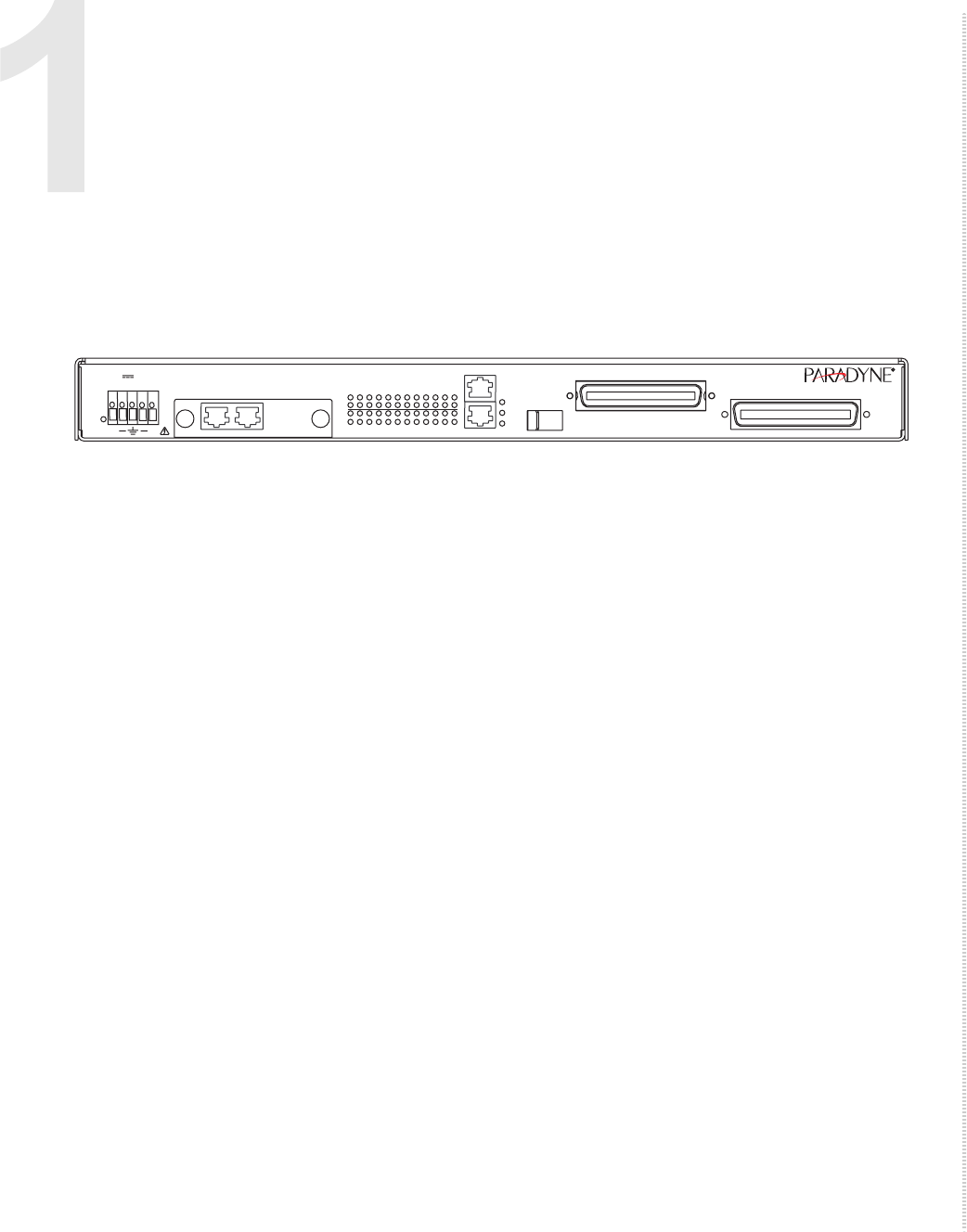
The 4900 Series DSLAMs are ADSL ITU G.992.5-compliant IP DSLAMs.
They are available with or without internal POTS splitters.
The 4900 Series DSLAMs are Ethernet based, environmentally hardened, and
small enough to fit in even crowded Remote Terminal cabinets.
The 4900 Series DSLAMs support IGMP snooping for IP Video support,
SNMP Management, Multimedia Traffic Management (MTM), enhanced
security features, and up to 24 Mbps downstream bandwidth available on
every one of its 24 DSL ports. Front loading, hot-swappable uplink module
options called Micro Interface Modules (MIMs) are available for installation
into the DSLAM. MIMs include T1/E1, 100BaseFX, 10/100BaseT, and
gigabit Ethernet for easy integration with other network elements and easy
migration as bandwidth requirements increase.
The 4900 Series DSLAMs interoperate with industry standard ADSL
modems over the local loop while preserving the benefits of a packet-based
architecture.
Features
Each 4900 Series DSLAM has the following features:
zUtilizes DSL The Easy Way™ Ethernet-based Architecture for optimum
throughput and plug and play operation without the need to configure
PVCs
zSmall enough to fit in any remote terminal; ETSI standard form factor for
19” and 23” racks
z24 ports of ADSL/ADSL2/ADSL2+ (ITU G.992.5), Annex A
zModular, hot-swappable media independent backhaul using the following
Micro Interface Modules: MIM-10/100, MIM-100FX, MIM-2E1,
MIM-4E1, MIM-2T1, MIM-4T1, or MIM-2000F
POTS
ADSL2+
05-17614
PWR
48 1.24A
MAX 1 2 3 4 5 6 7 8 9
13 14 15 16 17 18 19 20 21 22 23 24
10 11 12
COM
Lnk
Act
Dup
10/10/1000
SFP
MIM2 T1/E1
MIM
+
ACT
4929
+
LK
ACT
LK

Introduction
16 4929 DSLAM Installation and User’s Guide 4929-A2-ZN20-30
zCompliant to ETSI 300-119-1-3 Environmental Requirements
zMTM for enhanced security and prioritization
zEmbedded web-based management system for easy,
platform-independent remote management, and SNMP for remote
monitoring
zIGMP snooping for multicast video support
zAvailable with integral 600 Ohm POTS splitters, 900 Ohm POTS, or
ISDN splitters

4929-A2-ZN20-30 4929 DSLAM Installation and User’s Guide 17
INSTALLATION
Preparation
Consider the following before installing the DSLAM:
zInstallation Site – Your installation site should be well ventilated, clean,
and free of environmental extremes.
zInstallation Options – The DSLAM may be:
— Mounted with the included mounting brackets in a standard 19-inch
(483 mm) or 23-inch (584 mm) rack (including both Bay Networks
and Nortel 23-inch racks), or, with separately purchased mounting
brackets, in a 21-inch (535 mm) ETSI rack. ETSI brackets are
available. See Appendix B, Equipment List.
As many 4900 Series DSLAMs may be mounted in a standard rack as
there are 1.75-inch (44.45 mm) spaces in the rack, so long as
adequate cooling is provided.
— Mounted on a wall.
— Set on a shelf or desktop.
Up to eight 4900 Series DSLAMs may be stacked on a shelf or
desktop. Different models can be mixed in a stack.
zPower – The DSLAM operates from a –48 VDC power supply to allow
for standard power connections available in a CO. For AC voltage
environments, an external AC-to-DC power converter is required.

Installation
18 4929 DSLAM Installation and User’s Guide 4929-A2-ZN20-30
Cables Required
No cables are provided with the DSLAM. See Table 1, Cable Descriptions, to
determine what cables you need to obtain before installation. See
Appendix A, Connectors and Pin Assignments and Appendix B, Equipment
List for more information.
Table 1: Cable Descriptions
Connector
Name or MIM Connector and Cable For Connecting . . .
ADSL2+
POTS
50-pin RJ21X Telco-type straight
connector and 50-wire cable. Up to two
cables required: one for DSL and one for
POTS (if POTS splitters are installed).
Up to 24 DSL ports to a Main
Distribution Frame, punchdown block, or
splitters.
Up to 24 POTS splitter ports to Main
Distribution Frame or punchdown block.
SFP GigE SFP transceiver and cable. A 4900 Series DSLAM to an upstream
4900 or network.
10/100/1000 8-position modular plug and 8-wire
Category 5 or better unshielded twisted
pair (UTP) cable.
MIM10/100 8-position modular plug and 8-wire
Category 5 or better unshielded twisted
pair (UTP) cable.
MIM-100FX 100 Mbps SFP transceiver and fiber optic
cable.
MIM-2000F Up to two GigE SFP transceivers and
cables.
MIM-2E1
MIM-2T1
8-position modular plug and 8-wire
Category 5 or better unshielded twisted
pair (UTP) cable. Up to two required.
MIM-4E1
MIM-4T1
8-position modular plug and 8-wire
Category 5 or better unshielded twisted
pair (UTP) cable. Up to four required.
COM DB9 to RJ45 adapter cable. The 4900 Series DSLAM to a terminal or
a PC with a terminal emulation program.
Unpacking the Hardware
4929-A2-ZN20-30 4929 DSLAM Installation and User’s Guide 19
Unpacking the Hardware
HANDLING PRECAUTIONS FOR
STATIC-SENSITIVE DEVICES
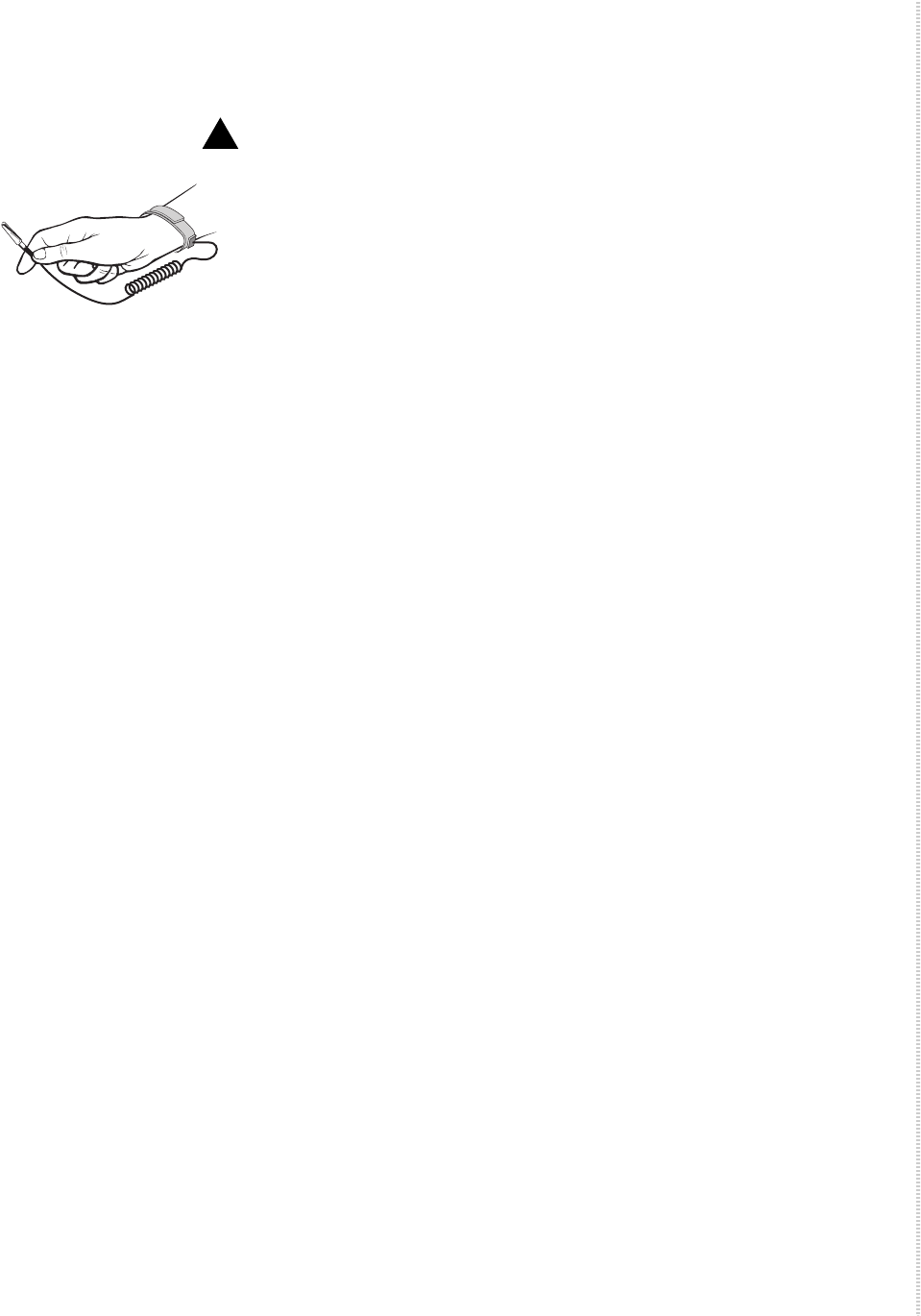
This product is designed to protect sensitive components from damage due
to electrostatic discharge (ESD) during normal operation. When performing
installation procedures, however, take proper static control precautions to
prevent damage to equipment. If you are not sure of the proper static control
precautions, contact your nearest sales or service representative.
The DSLAM is shipped in a cardboard shipping container. Carefully remove
the unit from its shipping container and check for physical damage. If the unit
shows signs of shipping damage, notify your sales representative.
Package Contents
In addition to this installation guide, the shipping carton should contain:
z4900 Series DSLAM
zTwo sets of mounting brackets: one set suitable for a 19-inch (483 mm)
rack and one set suitable for a 23-inch (584 mm) rack (including Bay
Networks and Nortel)
zOther hardware (including cable ties, rubber feet)
zInstallation guide
If anything is missing, notify your sales representative.
Before installing the DSLAM, read the Important Safety Instructions in the
beginning of this document.
Mounting Configurations
Three basic installation configurations are available:
zRack mount – see Installing the Brackets for Rack Mounting on page 20
and Installing the DSLAM Into a Rack on page 21. In this guide, the term
rack refers to any rack, cabinet, frame, or bay suitable for mounting
telecommunications equipment.
zWall mount – see Installing the DSLAM on a Wall on page 22.
zShelf or desktop – see Installing the DSLAM on a Shelf or Desktop on
page 24.
!
Installation
20 4929 DSLAM Installation and User’s Guide 4929-A2-ZN20-30
Installing the Brackets for Rack Mounting
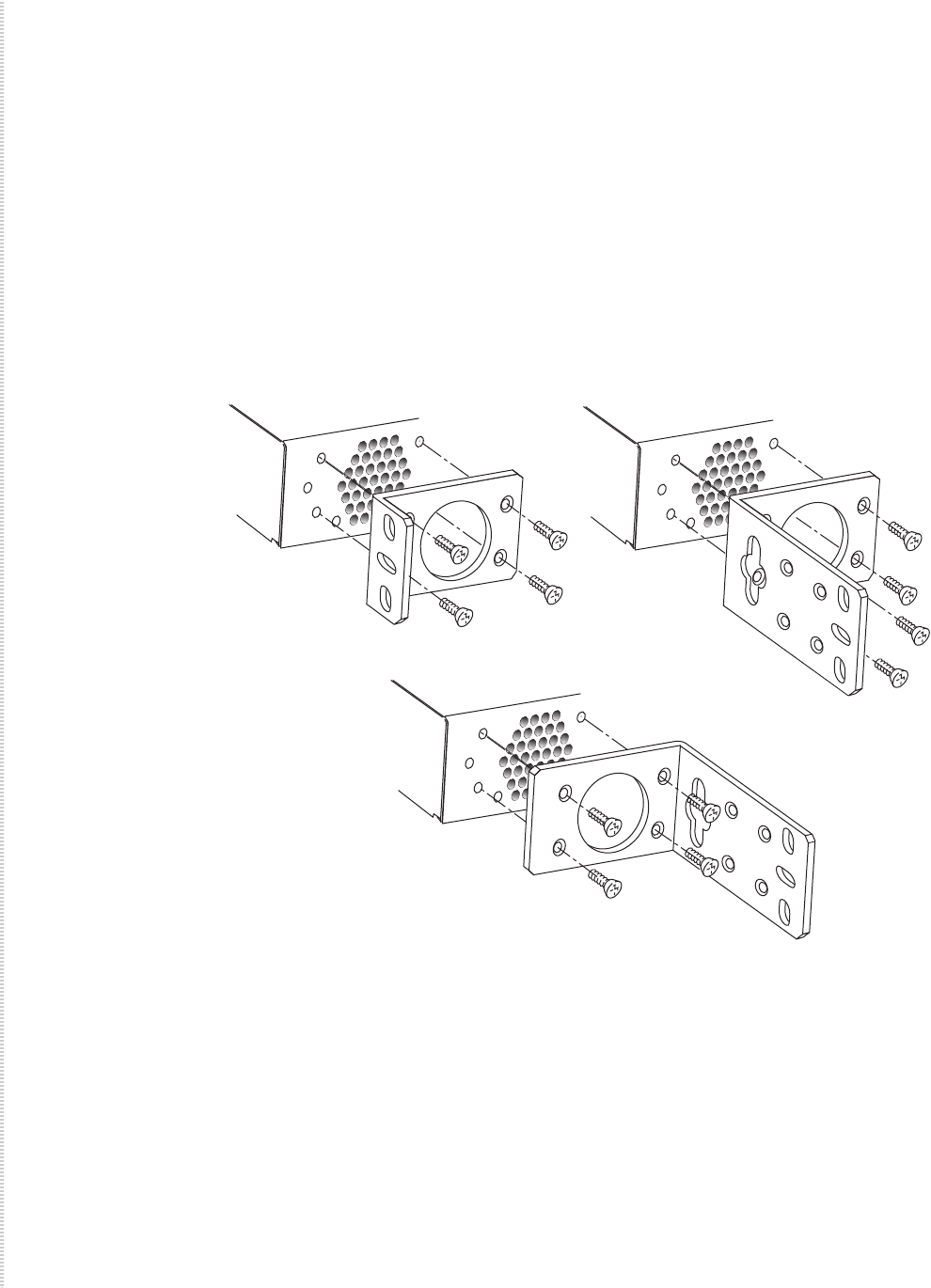
The 4900 DSLAM can be installed in a rack using mounting brackets. Two
brackets suitable for a 19-inch (483 mm) rack and two brackets suitable for a
23-inch (584 mm) Bay Networks or Nortel rack are shipped with the unit.
To install the mounting brackets for rack mounting:
1Identify eight flat-head screws provided with the mounting brackets.
2Attach the brackets appropriate to your rack size. Tighten all screws
firmly.
05-17631
23-inch (584 mm) EIA and Bay Networks
Rack Mount
19-inch (483 mm) Rack Mount
23-inch (584 mm) Nortel
Rack Mount
Installing the DSLAM Into a Rack
4929-A2-ZN20-30 4929 DSLAM Installation and User’s Guide 21
Installing the DSLAM Into a Rack
Use:
z#10-32 mounting screws for rails with threaded screw holes
z#12-24 mounting screws and self-retaining nuts for rails with unthreaded
screw holes
To install the DSLAM into a rack:
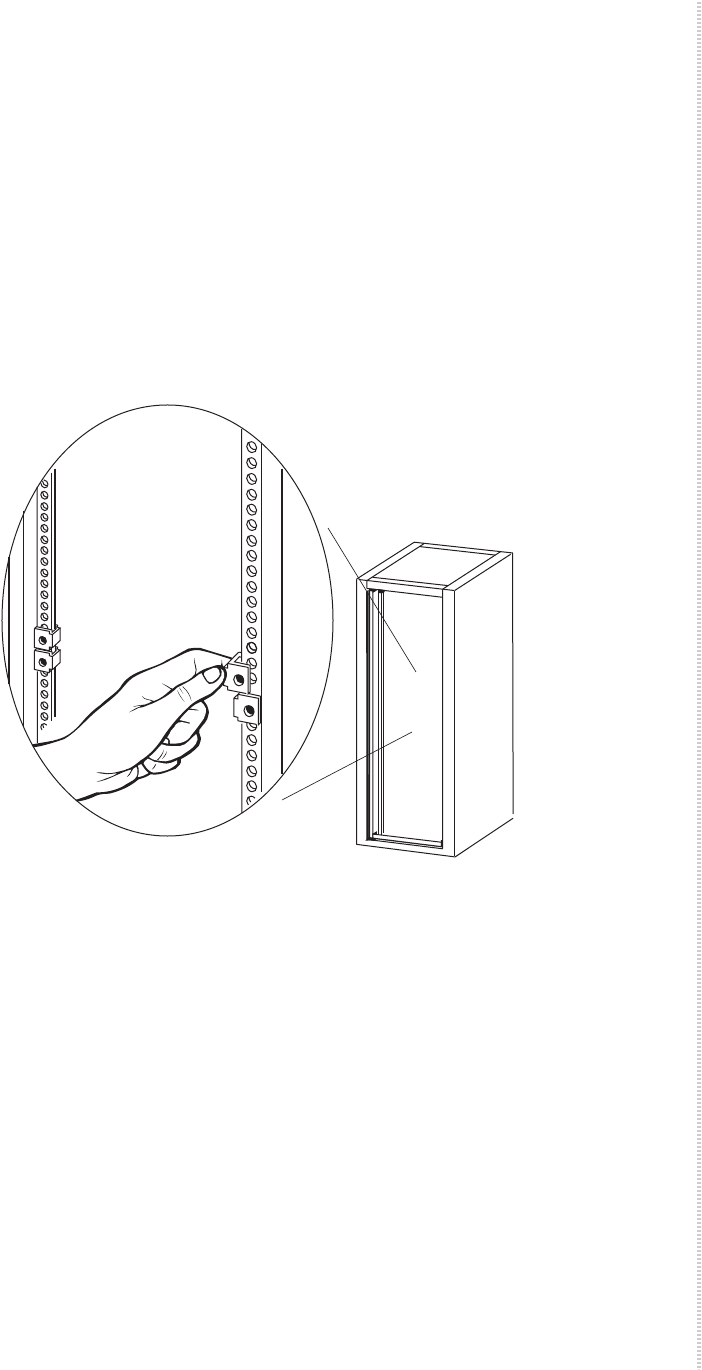
1Determine where in the rack you will mount the DSLAM. If your rack
does not have threaded screw holes, slip self-retaining nuts onto the rails
where the DSLAM will be fastened.
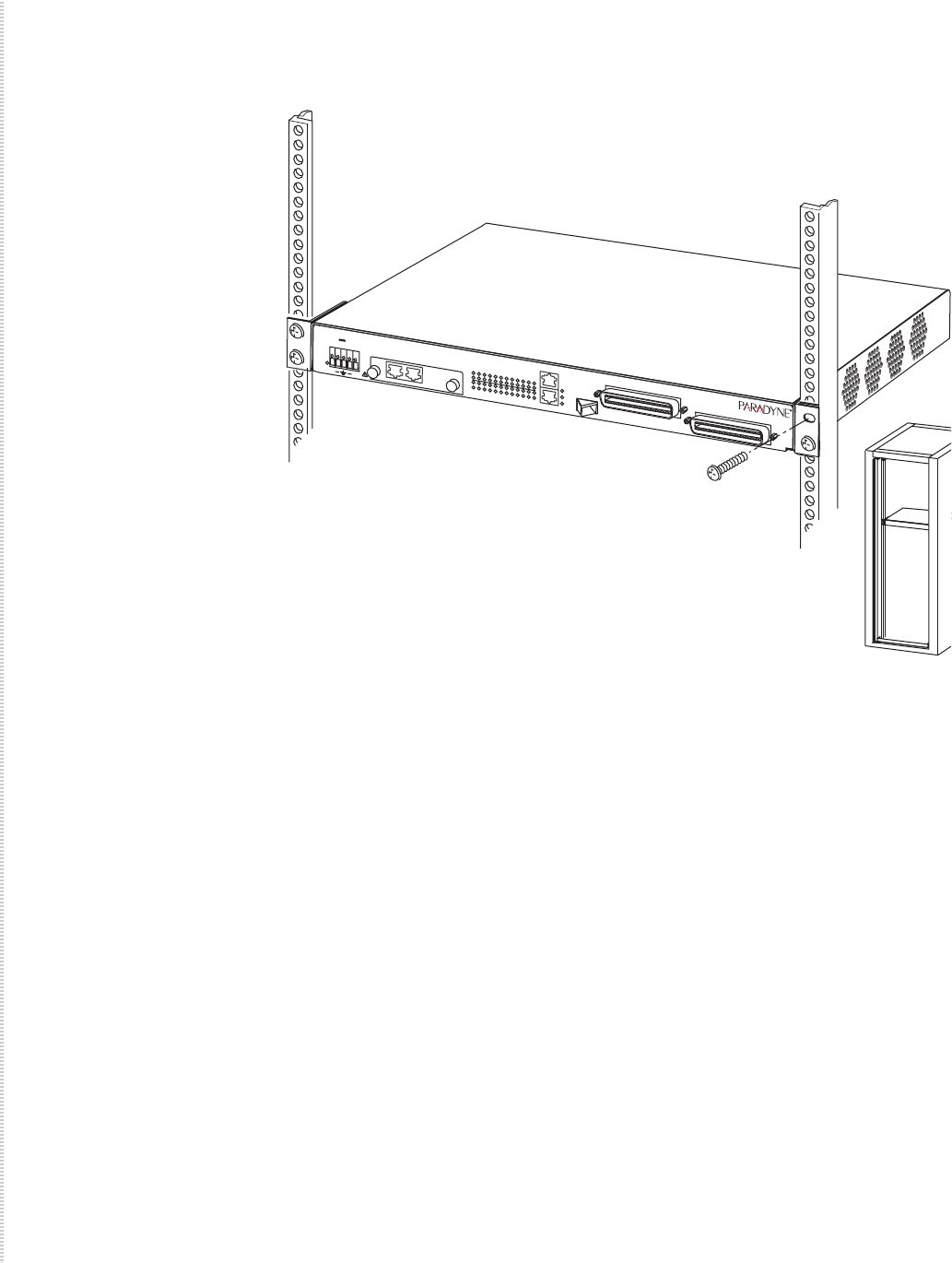
2Place the unit so that the brackets rest against the front of the rails. Insert
screws in the bottom screw positions and hand-tighten them.
02-17070
Installation
22 4929 DSLAM Installation and User’s Guide 4929-A2-ZN20-30
3Insert and tighten the screws in the top screw positions, then tighten the
bottom screws.
Installing the DSLAM on a Wall
Wall mounting requires two wood screws suitable for the weight of the fully
cabled unit. These are not included. Use at a minimum 1/4-inch (6 mm)
diameter screws in 3/4-inch (19 mm) plywood (not drywall).
To install the DSLAM on a wall:
1Identify the flat-head screws provided in the hardware kit and the brackets
suitable for a 23-inch rack. Two screws are required for each bracket.
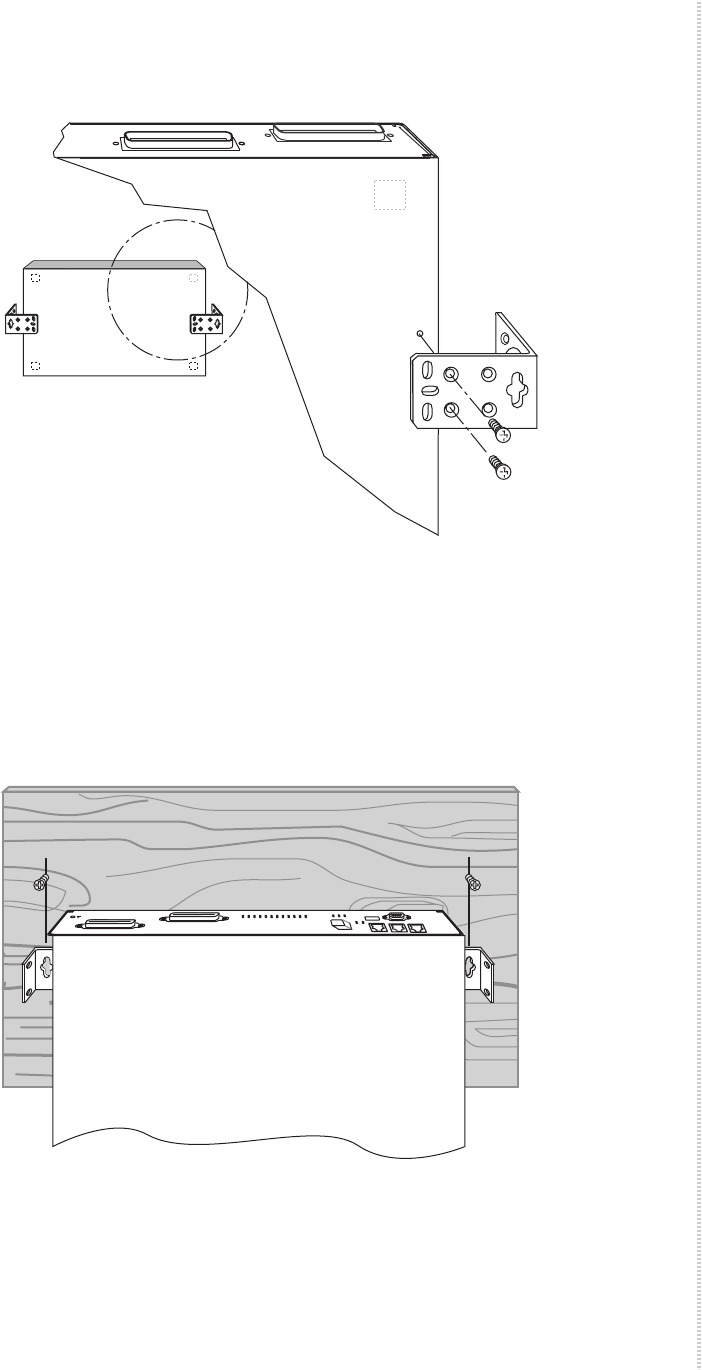
2Lay the unit upside down on a flat surface.
3Locate the pair of threaded holes on the right side of the unit. Attach a
bracket using the flat-head screws.
05-17616
POTS
ADSL2+
PWR
48 1.24A
MAX1 2 3 4 5 6 7 8 9
13 14 15 16 17 18 19 20 21 22 23 24
10 11 12
COM
Lnk
Act
Dup
10/10/1000
SFP
MIM2 T1/E1
MIM
+
ACT
4929
+
LK
ACT
LK
Installing the DSLAM on a Wall
4929-A2-ZN20-30 4929 DSLAM Installation and User’s Guide 23
4Locate the pair of threaded holes on the left side of the unit. Attach a
bracket using the flat-head screws.
5Tighten all screws firmly.
6Lift the unit into the position it will occupy on the wall and mark the
positions of the key slots in the brackets. Set the unit aside.
7Install two wood screws (not provided) at the points you have marked. Do
not completely tighten the screws. Leave them so their heads are about
1/4 inch (6 mm) from the wall.
05-17522-01
05-17437-01
Installation
24 4929 DSLAM Installation and User’s Guide 4929-A2-ZN20-30
8Hang the unit from the wood screws to verify that the screws are properly
placed. The screws should freely slide into the top of the key slots in the
brackets.
Do not fasten the unit to the wall until after it is completely cabled and
tested.
Installing the DSLAM on a Shelf or Desktop
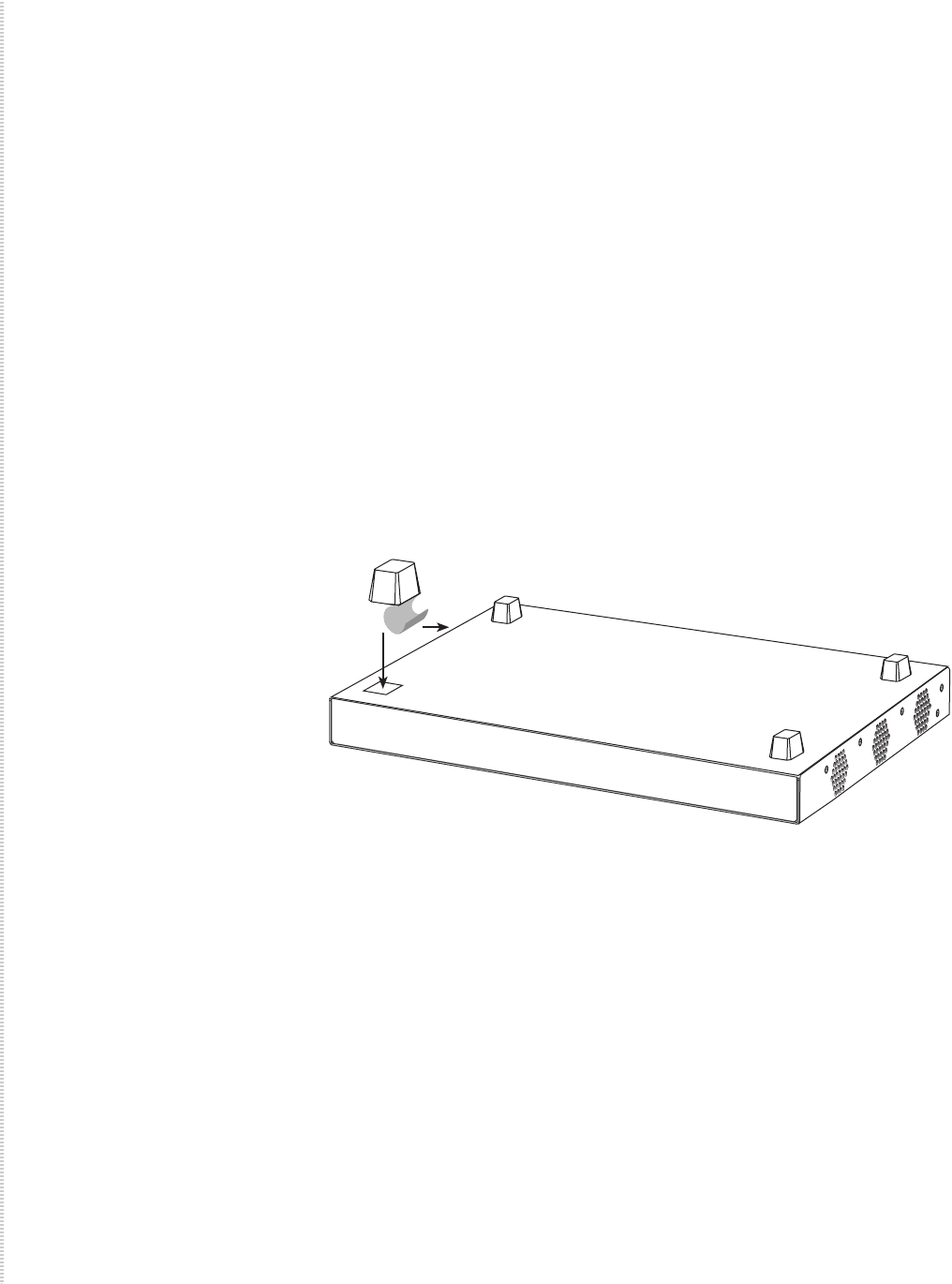
If the DSLAM will be placed on a shelf or desktop, install the provided rubber
feet before putting the unit in position.
To install the DSLAM on a shelf or desktop, as a standalone unit or in a stack:
1Locate the rubber feet in the hardware kit provided with the unit.
2Turn the unit upside down on a flat surface. Squares stamped into the
bottom of the unit show the proper positions for the feet.
3Remove the protective sheet from the bottom of each foot, then press the
foot onto a corner of the bottom of the unit.
4Turn the unit right side up and place it in position on a shelf or desktop.
5If the installation includes more than one unit, one can be stacked atop
another. Up to eight units can be stacked together.
03-17439

4929-A2-ZN20-30 4929 DSLAM Installation and User’s Guide 25
CABLING
Cabling Overview
The 4900 Series DSLAM has a large variety of possible cabling
configurations. This chapter describes all possible connections, not all of
which are required:
zInstalling the Micro Interface Module on page 26
zConnecting the ADSL2+ and POTS Connectors on page 27
zConnecting the SFP Connector or the 10/100/1000 Connector on page 28
zConnecting the COM Port on page 30
zConnecting to Power on page 31
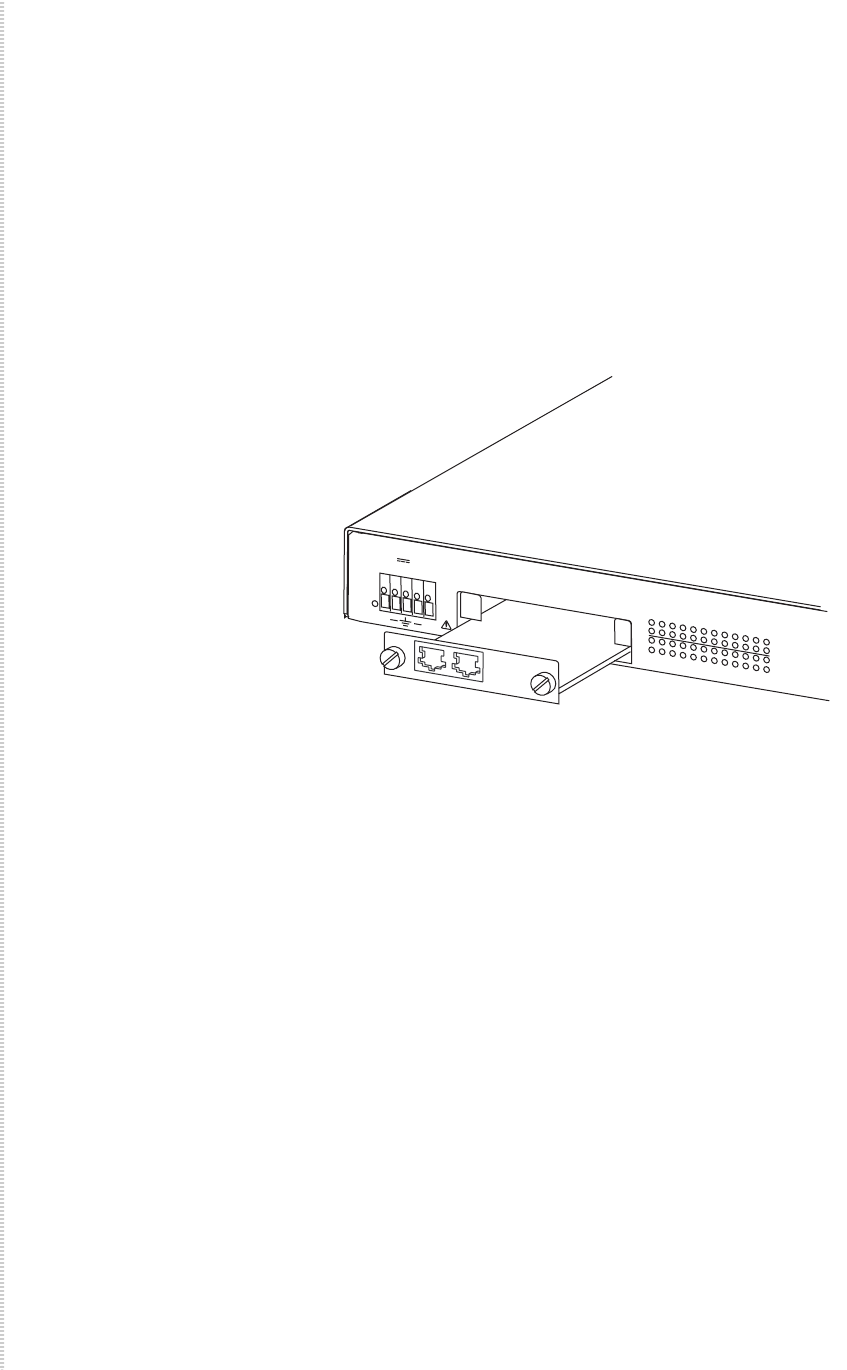
Cabling
26 4929 DSLAM Installation and User’s Guide 4929-A2-ZN20-30
Installing the Micro Interface Module
A Micro Interface Module (MIM) is not required for operation. It provides
additional Ethernet, T1, or E1 uplink ports for the DSLAM, depending upon
the MIM model installed.
To install a MIM:
1Using a flat-head screwdriver to loosen the fastening screws, remove the
blanking plate covering the MIM port on the front of the DSLAM.
2Align the MIM with the module guides inside the DSLAM's MIM port.
3Slide the MIM into the chassis until it is fully seated.
4Secure the MIM by tightening the fastening screws on the MIM faceplate
with a flat-head screwdriver.
5Cable the MIM as described in the MIM installation instructions.
05-17617
PWR
48 1.24A
MAX 1 2 3 4 5 6 7 8 9
13 14 15 16 17 18 19 20 21 22 23 24
10 11 12
MIM2 T1/E1
MIM
+
ACT
+
LK
ACT
LK
Connecting the ADSL2+ and POTS Connectors
4929-A2-ZN20-30 4929 DSLAM Installation and User’s Guide 27
Connecting the ADSL2+ and POTS Connectors
DSL connector supports the tip and ring connections of up to 24 DSL ports
over a 50-position cable. A POTS (plain old telephone service) splitter
connector is also provided in certain models. If your model does not contain
an integrated POTS splitter, you must connect the unit to a separate POTS
splitter.
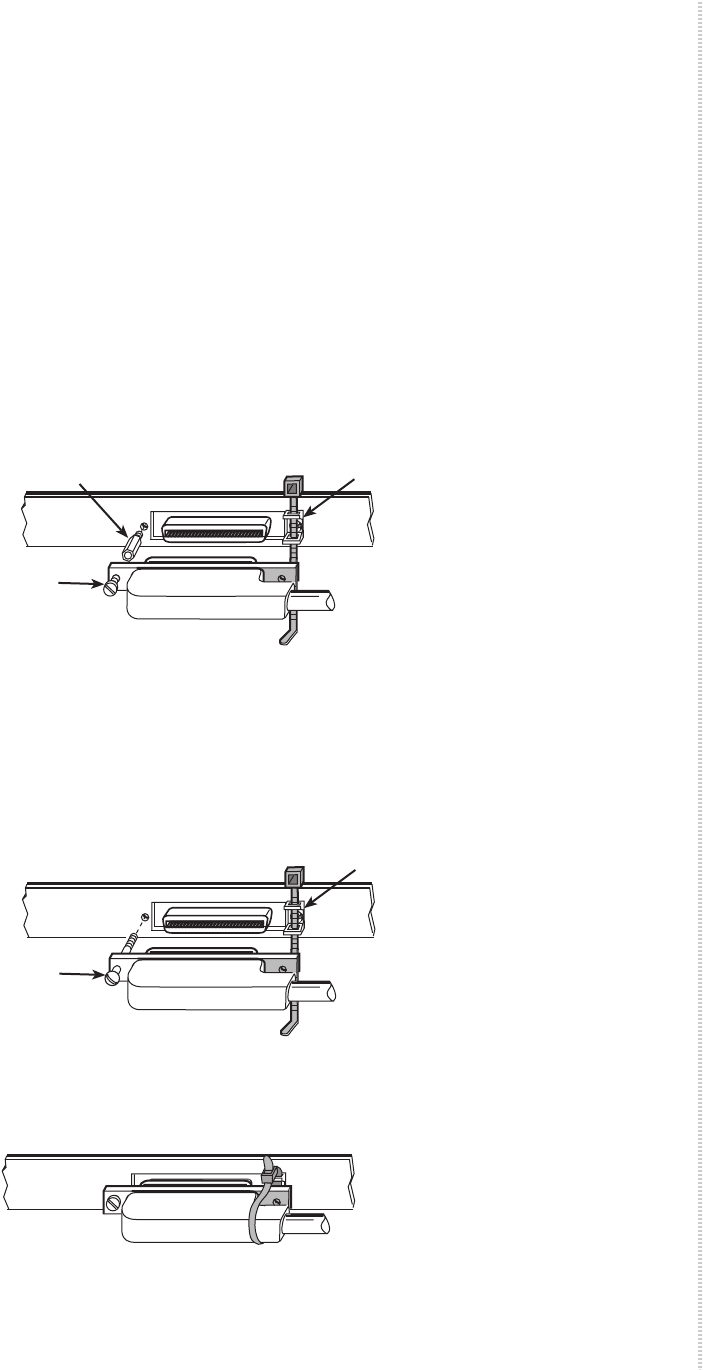
To cable the DSL Ports:
1Insert a cable tie (provided) through the top of the anchor mount next to
the ADSL2+ connector.
2If the connector for your cable has a short captive screw, attach the cable
to the ADSL2+ connector and fasten it to the jack screw with its short
captive screw.
3If the connector for your cable has a long captive screw, remove the
provided jack screw from the threaded hole next to the ADSL2+
connector. Attach the cable connector to the unit using the long captive
screw.
4Tighten the cable tie around the connector and trim the excess.
5If you are using an integrated POTS splitter, repeat Step 1 through Step 4,
substituting POTS for ADSL2+.
Short
Screw
#4-40
Jack Screw
02-17083
Anchor
Mount
50-Pin
Connector
02-17346
Anchor
Mount
50-Pin
Connector
Long
Screw
02-17084
Cabling
28 4929 DSLAM Installation and User’s Guide 4929-A2-ZN20-30
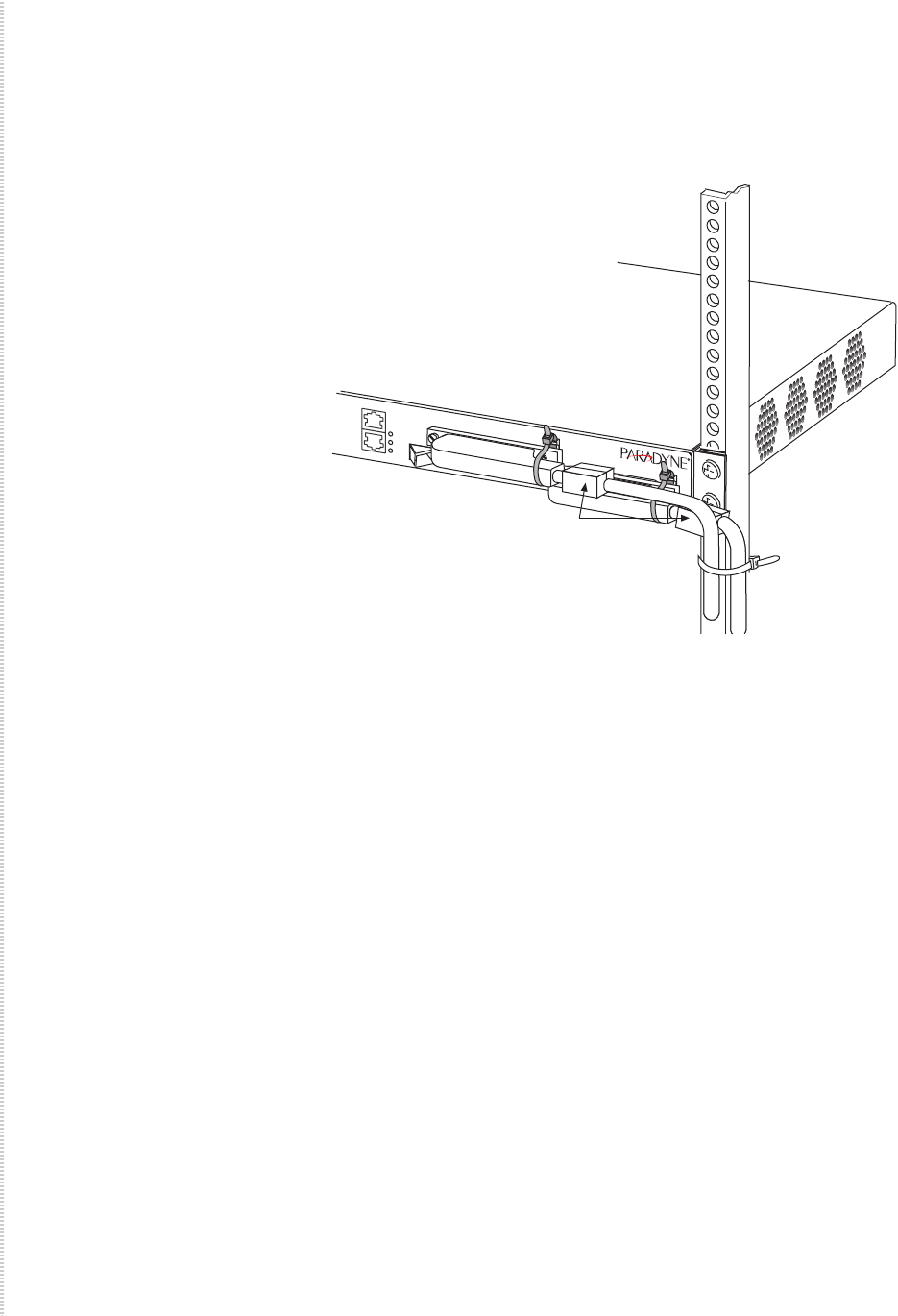
6Install the supplied large ferrite chokes on the DSL and POTS cables as
close as possible to the connectors. If necessary, use cables ties to hold the
chokes in place.
7Secure the cables as required for strain relief.
Connecting the SFP Connector or the 10/100/1000
Connector
There are two Ethernet interfaces on the faceplate of the DSLAM, only one of
which may be used at a time:
zAn 8-position modular jack providing support for 1000BaseT
zA Small Form-Factor Pluggable (SFP) socket providing, with the
appropriate transceiver installed, support for 1000BaseX and 1000BaseT.
See Appendix B, Equipment List.
Either interface can be used as the uplink for a single DSLAM, or for the
terminating unit in a stack of DSLAMs.
To use the SFP connector or 10/100/1000 connector:
1Connect the uplink cable to the DSLAM:
—For a wire connection, plug the 8-position modular plug of your
uplink cable into the 10/100/1000 modular jack. A straight-through
cable can be used regardless of the destination interface, since the
port automatically distinguishes between a Medium-Dependent
Interface (MDI) and an MDI Crossover (MDIX).
Install the supplied small ferrite choke on the cable as close as
possible to the jack. Use a cable tie to hold the choke in place.
05-17636
POTS
ADSL2+
COM
Lnk
Act
Dup
10/10/1000
SFP
4929
Ferrite
Chokes
Connecting DSLAMs to Each Other
4929-A2-ZN20-30 4929 DSLAM Installation and User’s Guide 29
—For an SFP copper connection, plug your transceiver into the SFP
socket. Plug the 8-position modular plug of your uplink cable into the
SFP transceiver’s modular jack.
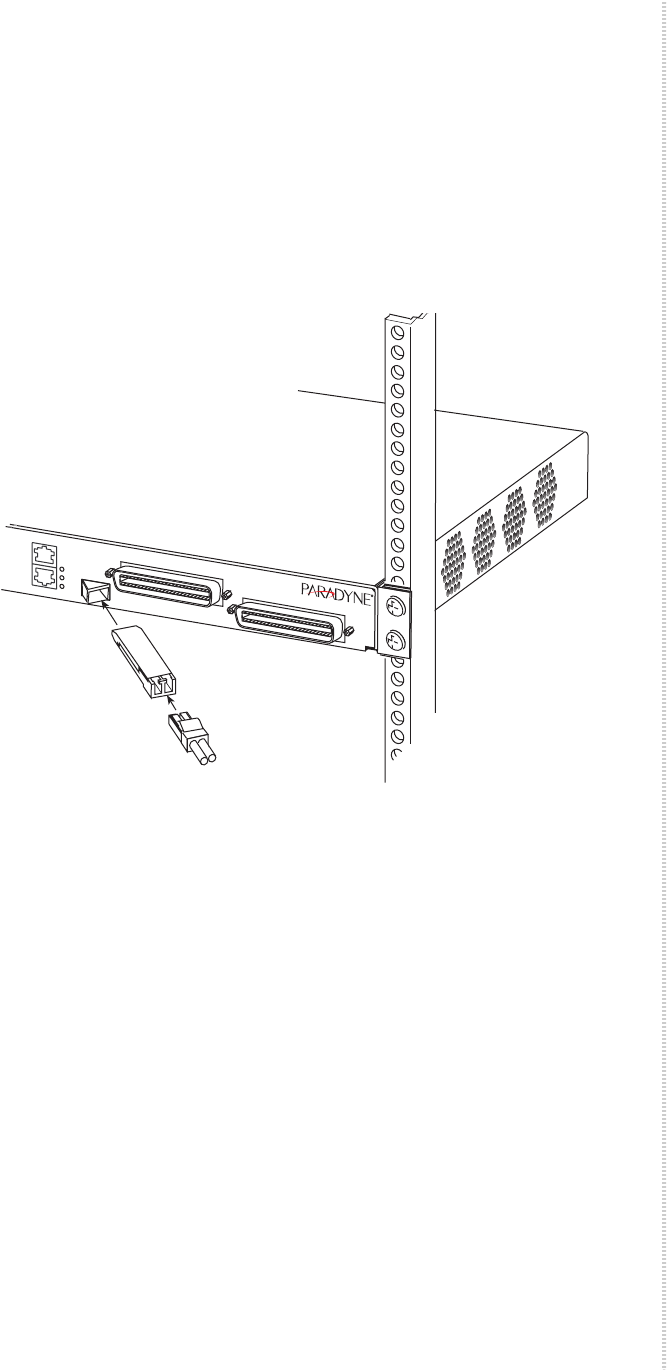
—For an SFP fiber connection, plug your transceiver into the SFP
socket. Plug the LC connector of your fiber optic uplink cable into the
cable socket of the transceiver. Observing the minimum bend radius
for your cable, fasten it with cable ties in such a way that it will not be
kinked or snagged in the course of other cabling. If you do not know
the specifications for your cable, maintain a radius of at least ten
times the cable diameter.
2Connect the other end of the uplink cable to the uplink interface, such as
an Ethernet switch.
Connecting DSLAMs to Each Other
Two or more DSLAMs can be daisy-chained together. All DSLAMs in this
configuration must have a MIM installed; the MIM2000F, with two GigE
ports, is recommended for performance reasons.
When daisy-chaining, one Ethernet port must be connected to the LAN,
normally to a router. A second Ethernet port is connected to an Ethernet port
of another 4900 DSLAM, or to the uplink interface.
The connection to the downstream DSLAM must be specified. This is done
using the web interface. See DSLAM Interconnect Configuration in Chapter 5,
Configuration Using the NMS.
05-17619
POTS
ADSL2+
COM
Lnk
Act
Dup
10/10/1000
SFP
4929
Cabling
30 4929 DSLAM Installation and User’s Guide 4929-A2-ZN20-30
Connecting the COM Port
You can use the COM port to directly connect a PC, terminal, or modem,
permitting use of the Command Line Interface (CLI).
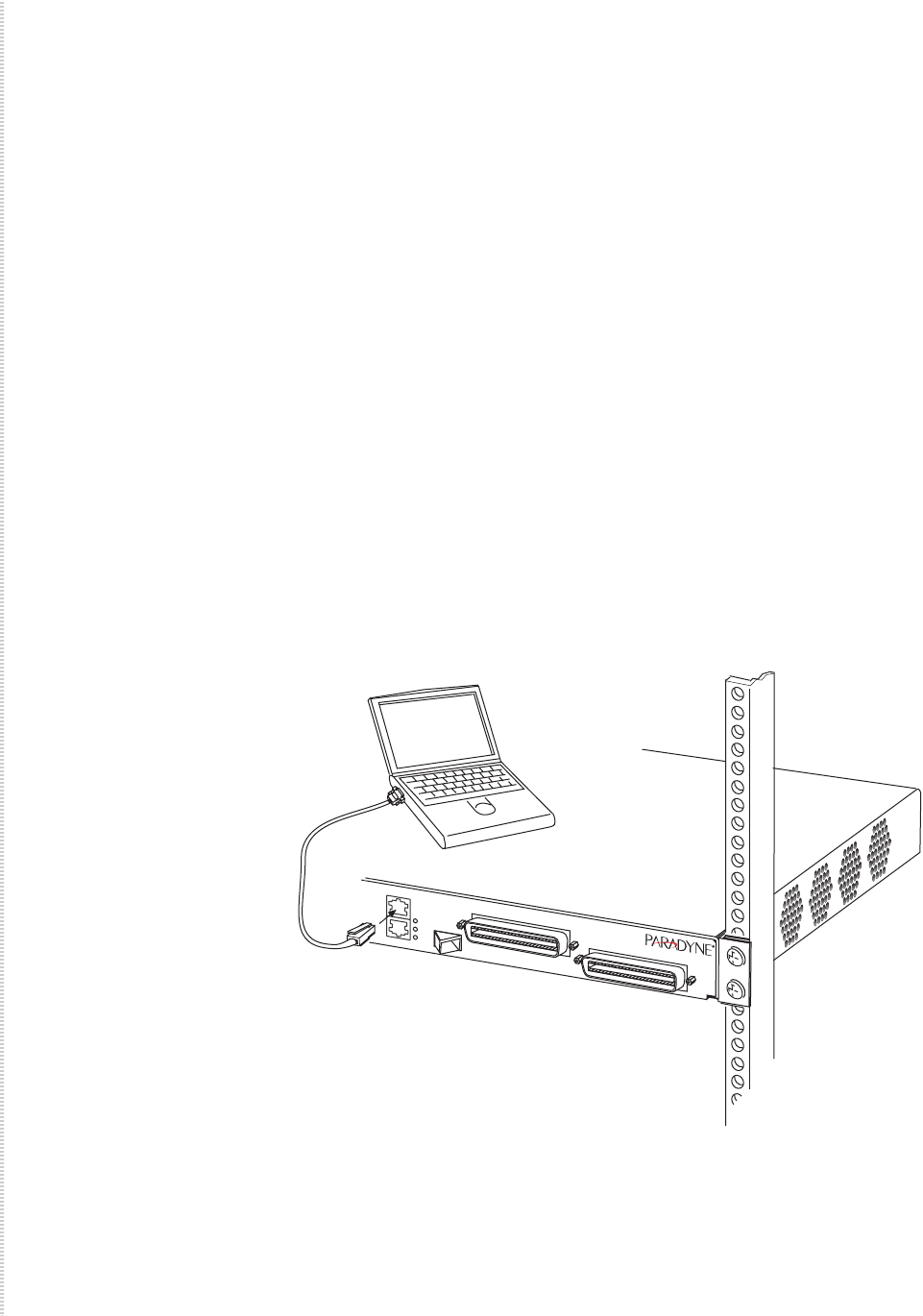
Connecting a Terminal or PC to the COM Port
To connect a terminal or PC to the COM port:
1Configure the terminal or terminal emulation program to use the
following parameters:
— Maximum speed: 9600 bps
— Data bits: 8
— Parity: None
— Flow Control: None
— Stop bits: 1
2Determine and procure the proper Data Terminal Equipment (DTE) cable
type. The COM port requires an RJ45-type plug connector. The other
connector depends on the serial port on your terminal or PC. See DB9 to
RJ45 Adapter Pinouts in Appendix A, Connectors and Pin Assignments.
3Connect the modular plug of your cable to the COM port socket.
4Connect the other end of the cable to the serial port of your terminal or
PC.
05-17620
POTS
ADSL2+
COM
Lnk
Act
Dup
10/10/1000
SFP
4929

Connecting to Power
4929-A2-ZN20-30 4929 DSLAM Installation and User’s Guide 31
Connecting a Modem to the COM Port
To connect a modem to the COM port:
1Determine and procure the proper DCE cable type for your modem. The
COM port requires an RJ45-type plug connector. The other connector
depends on the serial port on your modem. The connection requires an
EIA-232E crossover (null modem) cable or adapter. See DB9 to RJ45
Adapter Pinouts in Appendix A, Connectors and Pin Assignments.
2Connect the modular plug connector of your cable to the COM port
socket.
3Connect the other end of the cable or adapter to the serial port of your
modem.
Connecting to Power
The 4900 Series DSLAM is powered by a nominal –48 VDC source. Dual
power feeds are provided for redundancy. The terminal block accepts 18 to 14
AWG wire.
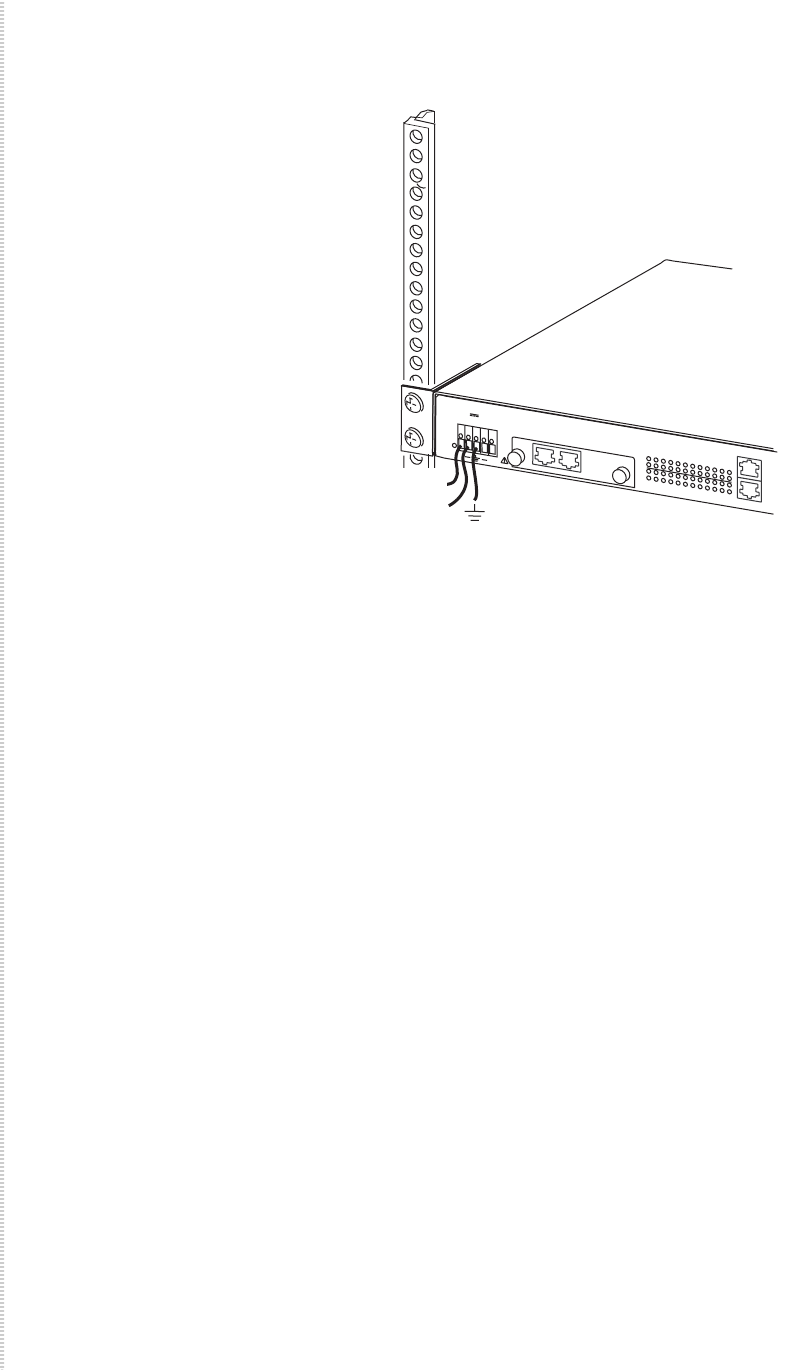
The DC power terminal block on the DSLAM has five terminals: two
positive, two negative, and one ground. Only one positive terminal and one
negative terminal pair need be connected for operational purposes. The
second positive and negative terminal pair may be connected to a backup DC
power supply for redundancy. The ground terminal must be connected
regardlessly. DO NOT OPERATE THE DSLAM WITHOUT A GROUND
CONNECTION.
To connect the DSLAM to power:
1Make sure that the DC power source wires are not powered (that is, the
circuit breakers or fuses are open at the source).
2Strip about 1/2 inch (13 mm) of insulation off the ends of the 18–14 AWG
or 0.75–2.5 mm2 solid or stranded wires you will use for power.
3Loosen the screw above the center terminal on the DC terminal strip on
the face of your DSLAM.
4Insert your ground wire into the center terminal and tighten the screw.
5Attach the other end of the ground wire to an earth ground.
6Loosen the screws above the positive and negative terminals on one side
of the terminal strip.
7Insert your negative DC power lead into the negative (–) terminal and
then tighten the screw.
8Insert your positive DC power lead into the positive (+) terminal and then
tighten the screw.
9Repeat Step 6 through Step 8 if you have a redundant power source.
Cabling
32 4929 DSLAM Installation and User’s Guide 4929-A2-ZN20-30
10 Turn on your power source and verify that the Power LED on the left side
of the DSLAM is illuminated. See Chapter 4, LEDs.
05-17621-01
PWR
48 1.24A
MAX 1 2 3 4 5 6 7 8 9
13 14 15 16 17 18 19 20 21 22 23 24
10 11 12
COM
10/10/1000
MIM2 T1/E1
MIM
+
ACT
+
LK
ACT
LK
+48 VDC
48 VDC
4929-A2-ZN20-30 4929 DSLAM Installation and User’s Guide 33
LEDS
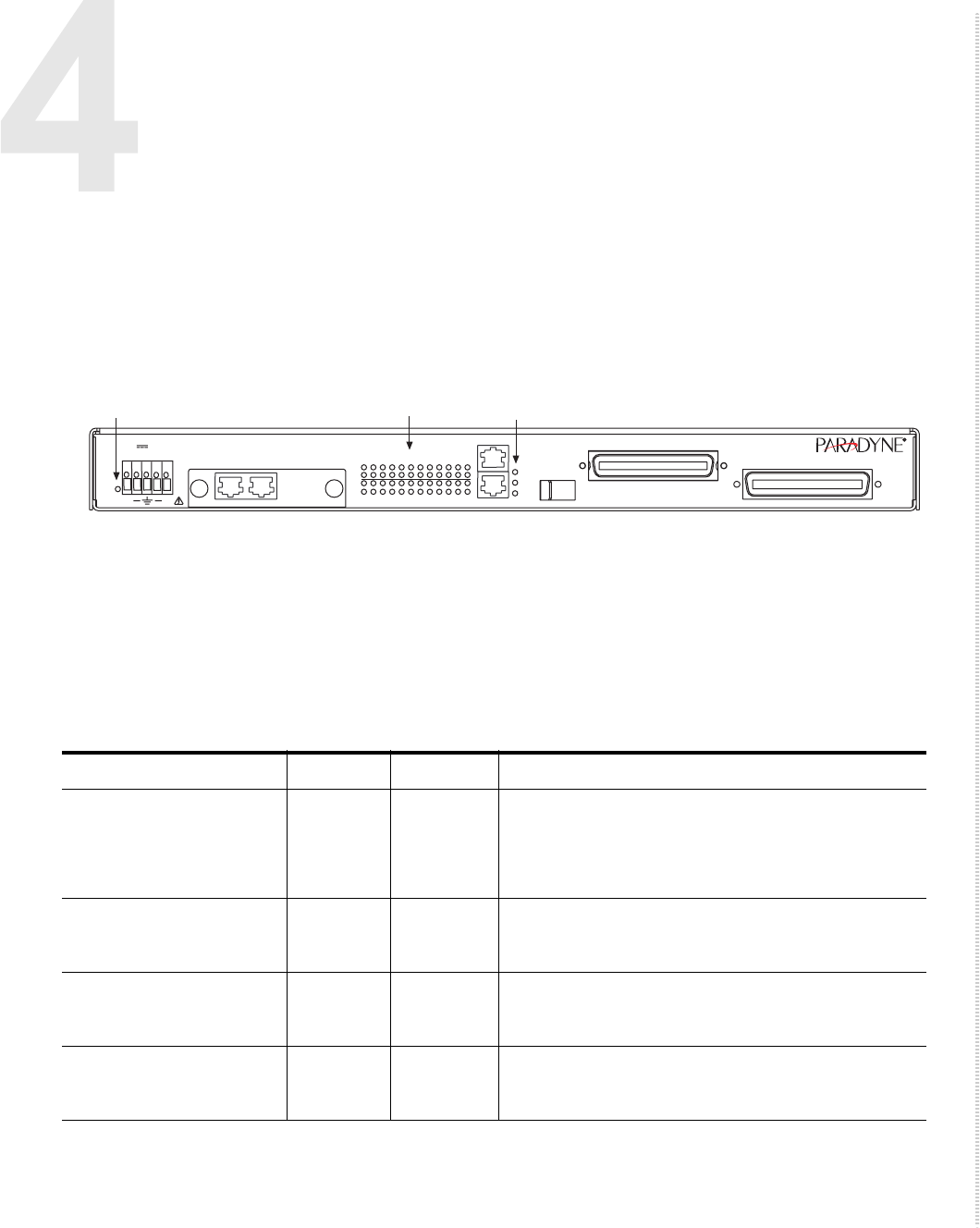
LED Locations
The locations of the System and DSL Port LEDs on the front panel of the
DSLAM are shown in Figure 1, Front Panel LEDs.
Figure 1: Front Panel LEDs
LED Meanings
The meaning of the front panel LEDs is shown in Table 2, Front Panel LEDs.
POTS
ADSL2+
05-17622
PWR
48 1.24A
MAX 1 2 3 4 5 6 7 8 9
13 14 15 16 17 18 19 20 21 22 23 24
10 11 12
COM
Lnk
Act
Dup
10/10/1000
SFP
MIM2 T1/E1
MIM
Power
Led
DSL Port
Leds
Link, Activity
and Duplex
Leds
+
ACT
4929
+
LK
ACT
LK
Table 2: Front Panel LEDs (Sheet 1 of 2)
LED Color State Meaning
10/100/1000 Lnk –
Green
Amber
Off
On
On
No Ethernet link present.
GigE Ethernet link present.
10/100BaseT link present.
10/100/1000 Act –
Green
Off
Flashing
No link or no activity.
Transmitting or receiving.
10/100/1000 Dup –
Green
Off
On
Half-duplex or no link.
Full-duplex link.
DSL Ports 1–24 LK –
Green
Off
On
No DSL link present.
DSL link present.

LEDs
34 4929 DSLAM Installation and User’s Guide 4929-A2-ZN20-30
DSL Ports 1–24 ACT –
Amber
Green
Off
Flashing
Flashing
No activity or no link.
Receiving data.
Transmitting data.
PWR Green Off
On
No power is applied to the DSLAM.
Power is applied to the DSLAM.
Table 2: Front Panel LEDs (Sheet 2 of 2)
LED Color State Meaning

4929-A2-ZN20-30 4929 DSLAM Installation and User’s Guide 35
CONFIGURATION USING THE NMS
Overview
The 4900 Series DSLAMs have an integral web interface that you can access
with a web browser. The DSLAM’s integral Network Management System
(NMS) lets you configure and monitor the DSLAM using a standard web
browser.
Web Interface System Requirements
zWeb Browser – Required for running NMS. Compatible web browsers
include, but are not limited to, Microsoft Internet Explorer (version 6.0 or
higher) and Netscape Navigator (version 6.0 or higher). NMS is
optimized for use with Internet Explorer.
zUse your browser's default settings when running NMS. JavaScript must
be enabled.
zScreen Resolution – 1024 x 768 pixels is the minimum resolution
required for all NMS views to fit within the dimensions of most monitors
and laptops. Lower screen resolutions (such as 800 x 600 pixels) may
cause NMS screens to exceed the width or height of the screen. To verify
screen resolution on a Windows system:
— Right click on your desktop
— Select Properties
— Click the Settings tab
— Adjust the Screen Resolution as needed

Configuration Using the NMS
36 4929 DSLAM Installation and User’s Guide 4929-A2-ZN20-30
Configuring Your Windows PC to Communicate with
NMS
To communicate with NMS, your PC’s Ethernet interface must be on the same
subnet as the network extender. For example, to configure the IP address
under Windows XP:
1In the Windows task bar, click on the Start button, and then click on
Control Panel.
2Double-click on the Network Connections icon.
3In the LAN or High-Speed Internet window, right-click on the icon
corresponding to your network interface card (NIC) and select Properties.
(Often this icon is labeled Local Area Connection.) The Local Area
Connection dialog box is displayed with a list of currently installed
network items.
4Ensure that the check box to the left of the item labeled Internet Protocol
(TCP/IP) is checked, and click on Properties.
5Write down the current IP Address and Subnet Mask in the Internet
Protocol (TCP/IP) Properties dialog box. When you are done using NMS,
you will need to reconfigure your PC with these values.
6In the Internet Protocol (TCP/IP) Properties dialog box, click in the radio
button labeled “Use the following IP address” and type 192.168.254.x
(where x is any number between 3 and 250, inclusive) in the IP Address
field.
7Type 255.255.255.0 in the Subnet Mask field.
8Click on OK twice to confirm your changes, and close the Control Panel.
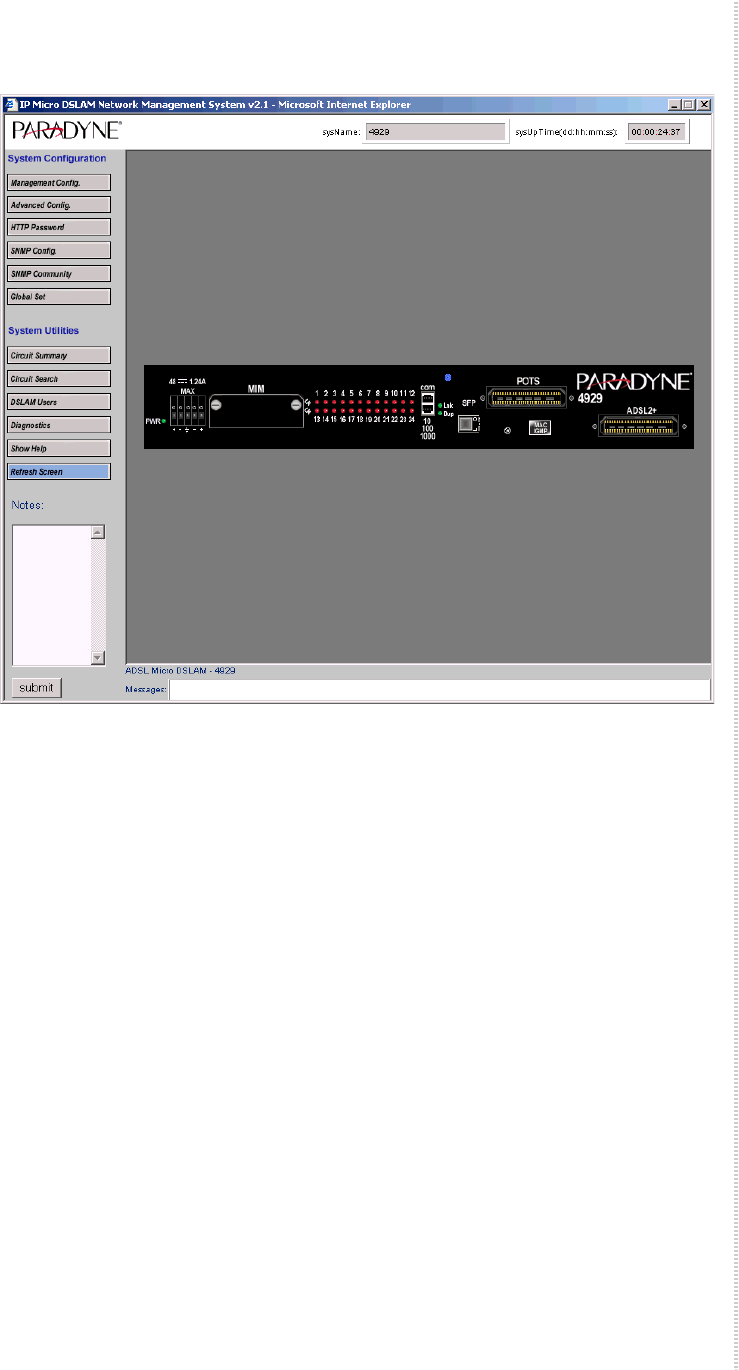
9Start your web browser. Type 192.168.254.252 into the Address field and
press Enter. The web server opening screen appears.
10 Click on >> Next >>. The login dialog box appears. Log in using:
Username: superuser
Password: Password
Configuring Your Windows PC to Communicate with NMS
4929-A2-ZN20-30 4929 DSLAM Installation and User’s Guide 37
The NMS home page appears.
Configuration Using the NMS
38 4929 DSLAM Installation and User’s Guide 4929-A2-ZN20-30
Management Configuration
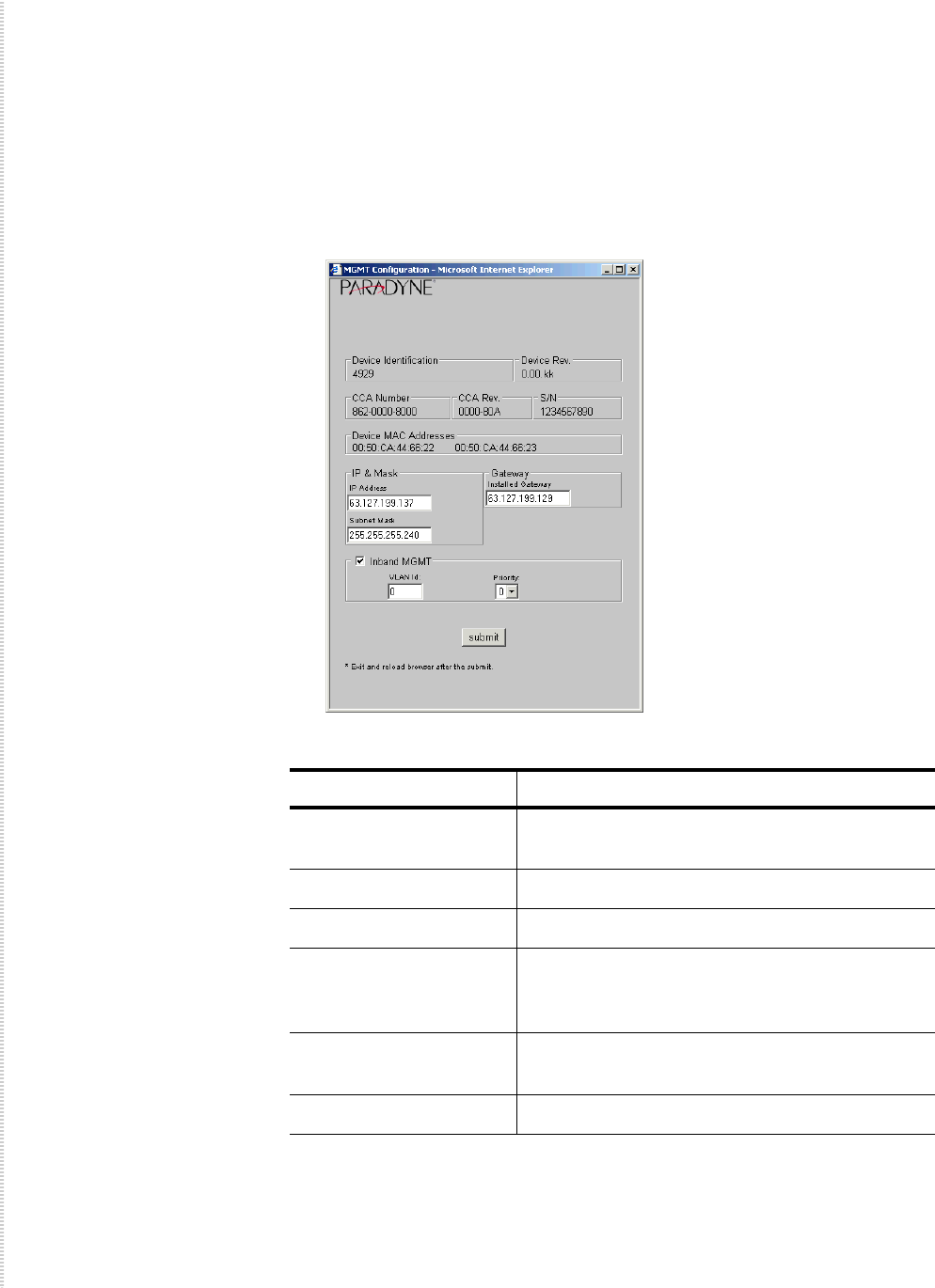
Use the Management Configuration screen to set the unit’s IP address and
other management parameters.
To configure management parameters:
1From the home screen, click on the Management Config button. The
Management Configuration screen appears.
2Select or enter the following parameters:
3Click on Submit.
Parameter Description
IP Address Specify the management IP address for the
DSLAM.
Subnet Mask Specify the subnet mask for the IP address.
Gateway Specify the first-hop gateway address.
Inband MGMT Check this box if you will use inband
management through MIM ports or ADSL
ports.
VLAN Id Specify a VLAN identifier for inband
management.
Priority Specify a priority (0–7) for management traffic.
Advanced Configuration
4929-A2-ZN20-30 4929 DSLAM Installation and User’s Guide 39
Advanced Configuration
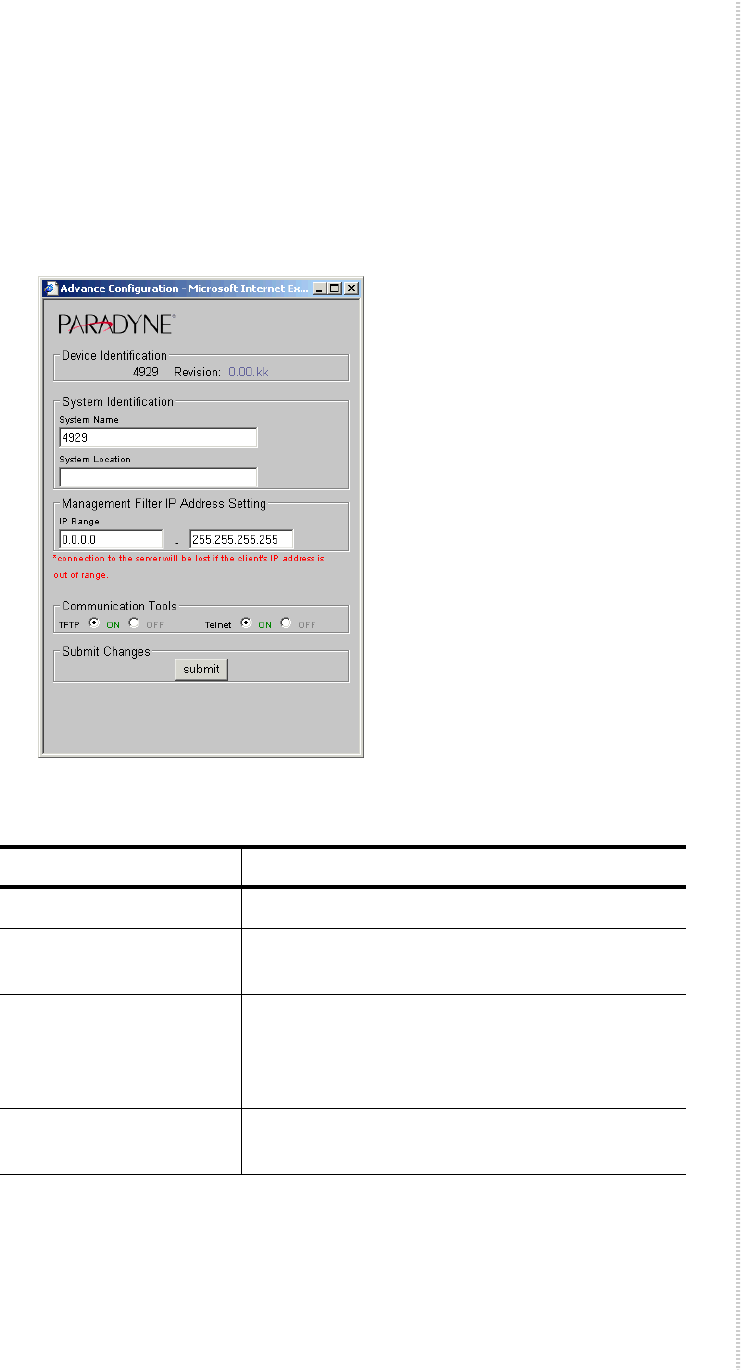
Use the Advanced Configuration screen to set the unit’s system name and
other parameters.
To configure advanced system parameters:
1From the home screen, click on the Advanced Config button. The
Advanced Configuration screen appears.
2Select or enter the following parameters:
3Click on Submit.
Parameter Description
System Name Specify a name to identify the DSLAM.
System Location Specify location information to further identify
the DSLAM.
IP Range Specify a range of IP addresses from which
management traffic is accepted. If your PC’s IP
address is outside the range, contact with the
DSLAM will be lost when you click on Submit.
Communication Tools Click in the On or Off buttons to enable or
disable TFTP and Telnet on this DSLAM.
Configuration Using the NMS
40 4929 DSLAM Installation and User’s Guide 4929-A2-ZN20-30
HTTP Password
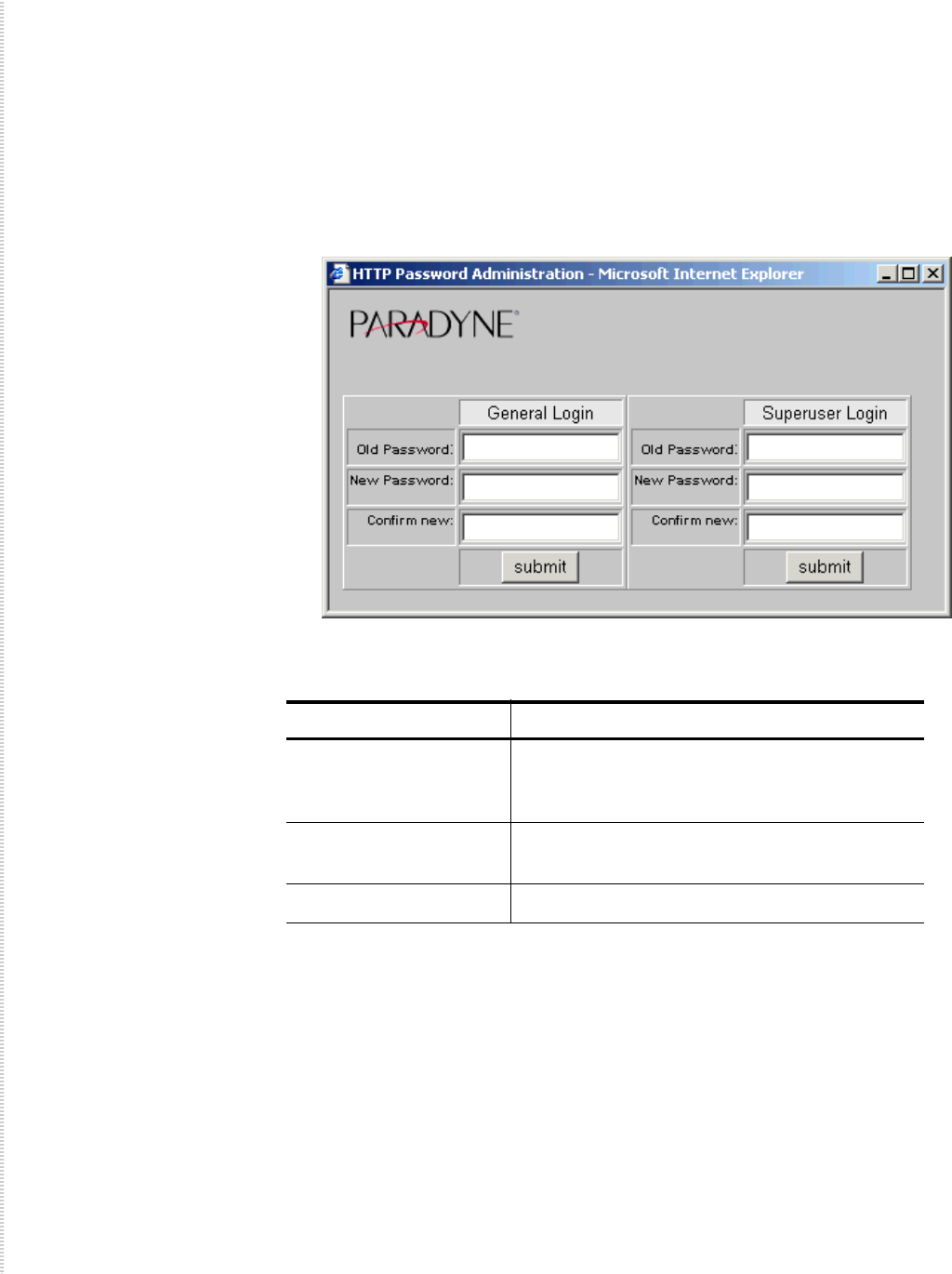
Use the HTTP Password screen to set the password for the General and
Superuser logins.
To configure HTTP passwords:
1From the home screen, click on the HTTP Password button. The HTTP
Password Administration screen appears.
2Select or enter the following parameters:
3Click on Submit.
Parameter Description
Old Password Specify the current password for the General or
Superuser login. The default setting is
Password.
New Password Specify the new password for the General or
Superuser login.
Confirm New Type the new password again.
SNMP Configuration
4929-A2-ZN20-30 4929 DSLAM Installation and User’s Guide 41
SNMP Configuration
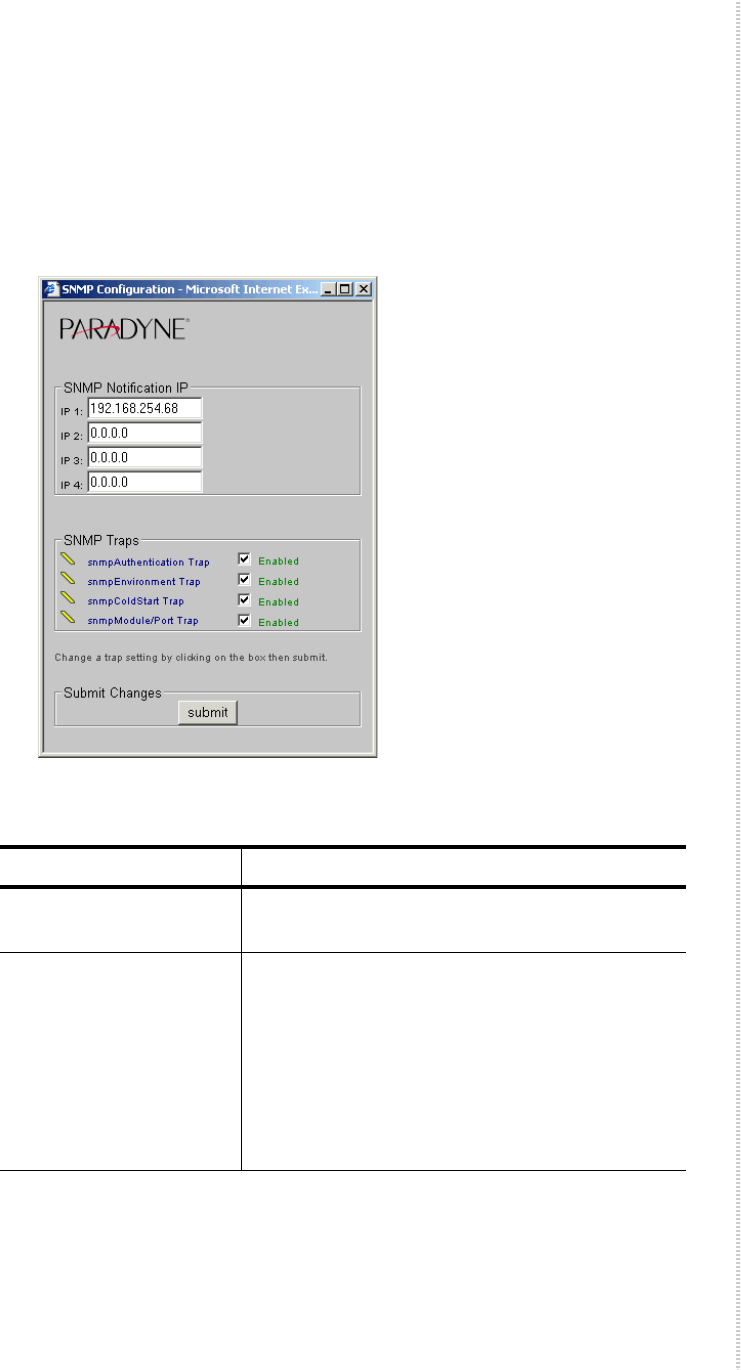
Use the SNMP Configuration screen to enable traps and establish trap
managers.
To configure SNMP parameters:
1From the home screen, click on the SNMP Config button. The SNMP
Configuration screen appears.
2Select or enter the following parameters:
3Click on Submit.
Parameter Description
SNMP Notification IP Specify the IP addresses of hosts that are to
receive trap notifications.
SNMP Traps Click in the check boxes to enable or disable
SNMP traps:
zsnmpAuthentication
zsnmpEnvironment
zsnmpColdStart
zsnmpModule/Port
Configuration Using the NMS
42 4929 DSLAM Installation and User’s Guide 4929-A2-ZN20-30
SNMP Community Administration
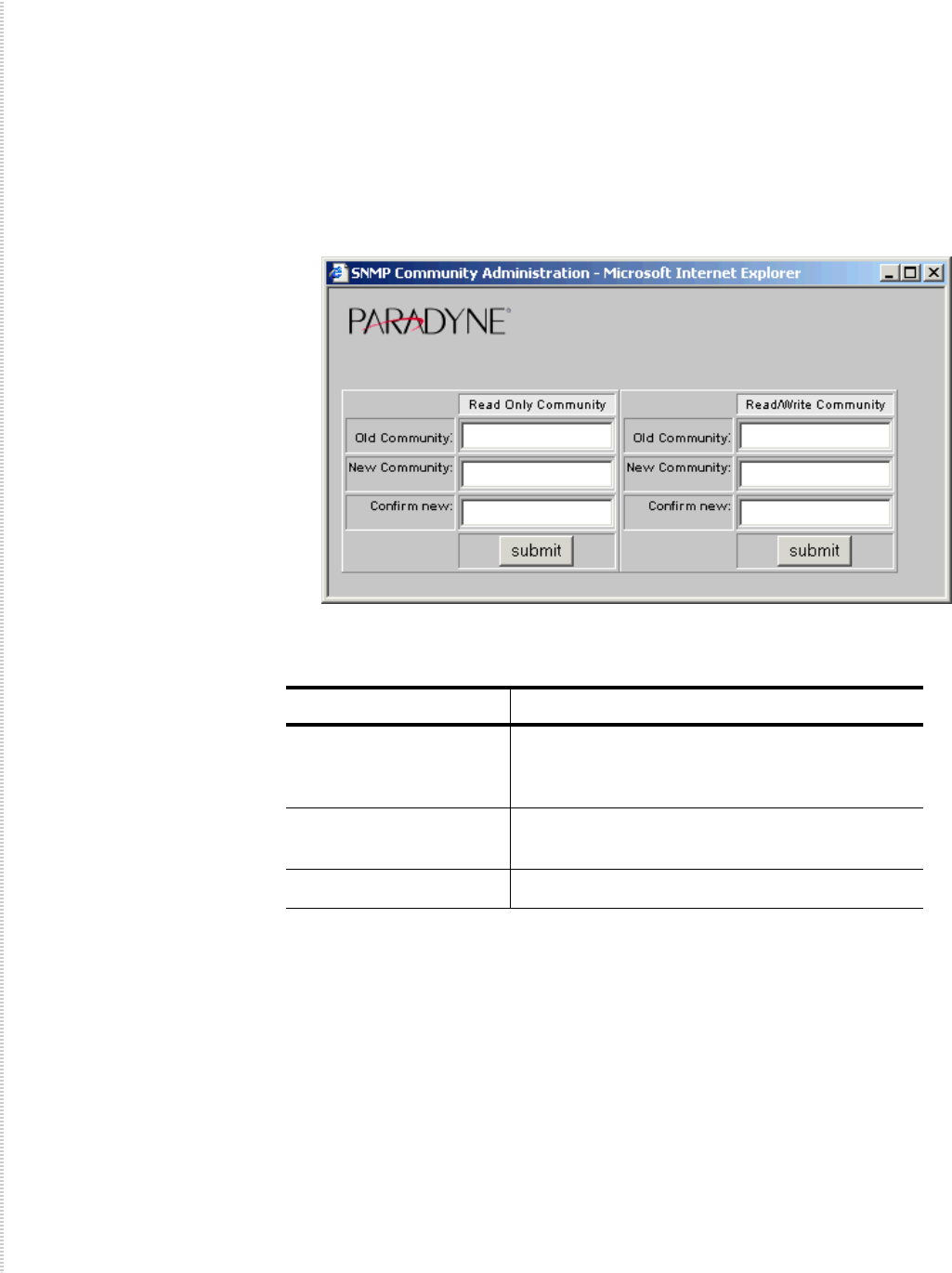
Use the SNMP Community Administration screen to set the read and read/
write community names.
To configure community names:
1From the home screen, click on the SNMP Community button. The
SNMP Community Administration screen appears.
2Select or enter the following parameters:
3Click on Submit.
Parameter Description
Old Community Specify the current community name for Read or
Read/Write operations. The default for both is
Password.
New Community Specify the new community name for Read or
Read/Write operations.
Confirm New Type the new community name again.
Global Set
4929-A2-ZN20-30 4929 DSLAM Installation and User’s Guide 43
Global Set
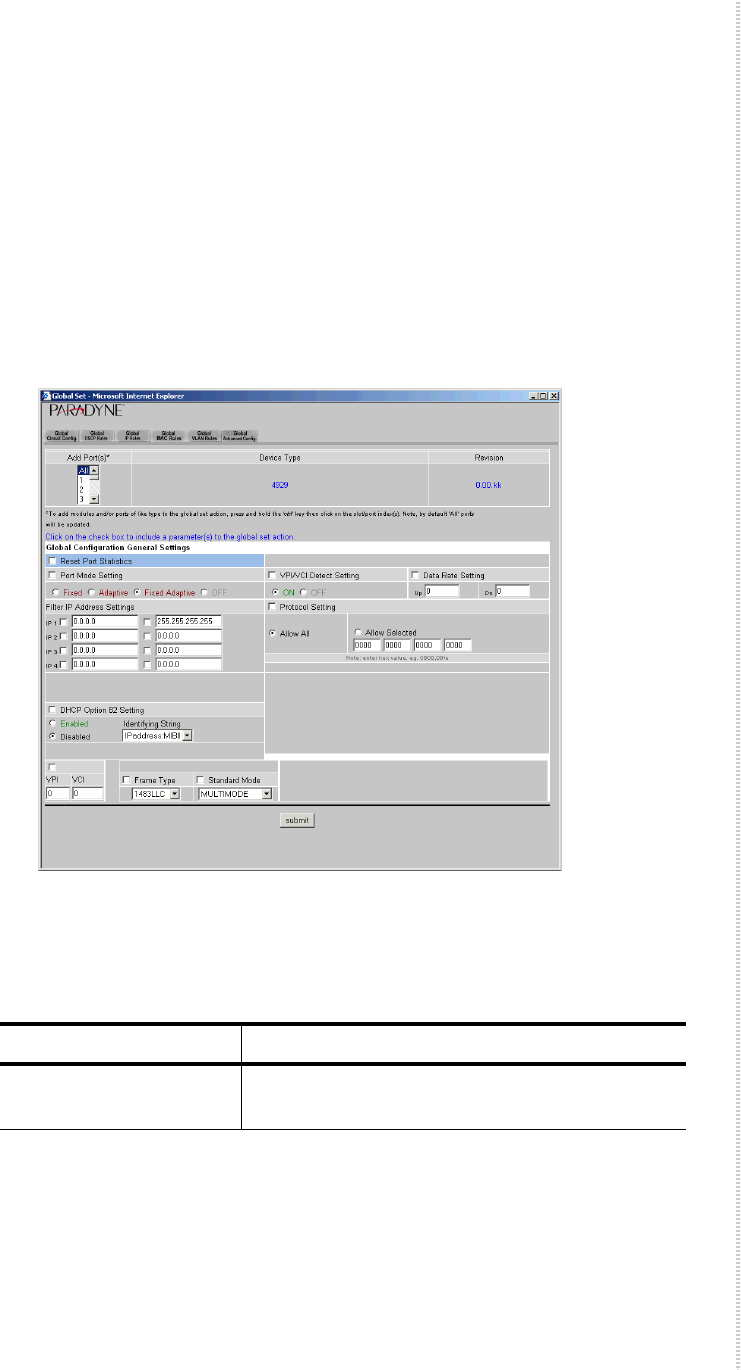
Use the Global Set screen to set parameters for all ports or for a group of ports
at once.
Global Circuit Configuration
To configure global parameters:
1From the home screen, click on the Global Set button. The Global Circuit
Configuration screen appears.
2In the Add Ports drop-down list, select All or a group of ports. To select
multiple ports, hold the Ctrl key while clicking on your selections.
3Select or enter the following parameters:
Parameter Description
Reset Port Statistics Click in this box to reset statistics when the
Submit button is clicked on.

Configuration Using the NMS
44 4929 DSLAM Installation and User’s Guide 4929-A2-ZN20-30
Port Mode Setting Specify a port mode:
zFixed – The upstream and downstream rates
are fixed.
zAdaptive – The ports will automatically train
up to the best possible speed supported by the
DSLAM, the modem at the remote end, and
the copper cable pair connecting the two.
zFixed Adaptive – The ports will automatically
train up to the best possible speed, subject to a
user-specified maximum upstream and
downstream bandwidth.
VPI/VCI Detect Setting Specify the port behavior with regard to VPI/
VCI detection:
zOn – The DSLAM will monitor the line to
determine the VPI and VCI settings of the
remote ADSL modem and set itself
accordingly. If no ATM cells are detected (at
any VPI/VCI setting), the port will default to
VPI 0 and VCI 35.
zOff – The port will use the default setting of
VPI and VCI (0/35 if not changed by the
setting of VPI and VCI, below), or lock in the
VPI/VCI already discovered while VPI/VCI
detection was On.
Data Rate Setting If you have selected a Port Mode of Fixed or
Fixed Adaptive, specify the maximum upstream
and downstream rates, in bps.
Filter IP Address Settings Specify up to four IP address ranges. Packets are
accepted from source IP addresses in the ranges
specified.
Protocol Setting Click in the check box to enable Protocol Setting
detection. Select Allow Selected and specify up
to four Ethertypes allowed on the ports.
DHCP Option 82 Specify whether DHCP Option 82 is enabled,
and if it is, whether packets are identified by IP
address or circuit ID. This identifier is added to
packets to let your DHCP Server recognize
which DSLAM port an IP address request is
coming from, thereby allowing the DHCP
Server to limit the number of IP addresses
assigned per port.
VPI and VCI Specify a default VPI and VCI if VPI/VCI
Detect Setting (above) is Off.
Parameter Description
Global Set
4929-A2-ZN20-30 4929 DSLAM Installation and User’s Guide 45
4Click on Submit.
Global DSCP Rules
To configure DSCP rules:
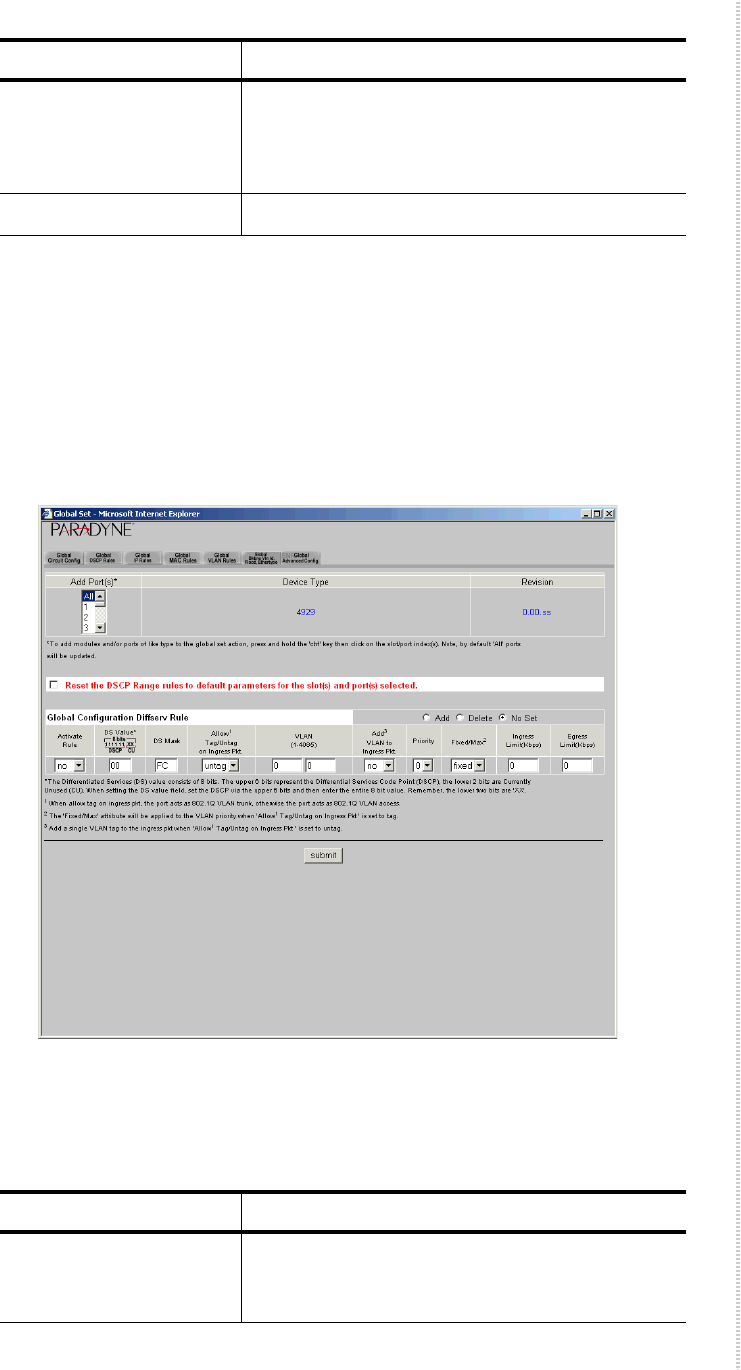
1Click on the Global DSCP Rules tab. The Global DSCP Rules screen
appears.
2In the Add Ports drop-down list, select All or a group of ports. To select
multiple ports, hold the Ctrl key while clicking on your selections.
3Select or enter the following parameters:
Frame Type Specify whether the ports use Logical Link
Control (LLC) or Virtual Channel Multiplexing
(VCM) bridged encapsulation. These are defined
in RFC 1483.
Standard Mode Specify the ports’ DSL mode.
Parameter Description
Parameter Description
Reset the DSCP Range
rules to default
parameters
Click in this box to reset DSCP Range rules
when the Submit button is clicked on.

Configuration Using the NMS
46 4929 DSLAM Installation and User’s Guide 4929-A2-ZN20-30
Global Configuration
Diffserv Rule
Specify Add, Delete, or No Set to add a rule,
delete a rule, or perform no action when the
Submit button is clicked on.
Activate Specify whether the rule you are adding is
active.
DS Value Specify the Differentiated Services value. The
DS Value of a packet is a hexadecimal value
calculated from the upper six bits of an eight-bit
field in the packet's IP header.
DS Mask Specify the DS mask. The DS Mask is a
hexadecimal value that indicates which of the
DSCP's upper six bits will be utilized in
considering a packet's DSCP type. Default is FC,
indicating that all of the DSCP's upper six bits
will be used in calculating the packet's DS Value.
Allow Tag/Untag on
Ingress Pkt.
Specify tag or untag. Tag indicates that ingress
packets already matched to the Diffserv Rule
must have a VLAN tag to be further considered;
packets without a VLAN tag will be dropped.
Untag indicates that ingress packets already
matched to the Diffserv Rule cannot have a
VLAN tag to be further considered; packets with
a VLAN tag will be dropped.
VLAN Specify a VLAN ID range. For each Global
Diffserv Rule, if you selected Tag for Allow Tag/
Untag, the VLAN field should specify either an
acceptable single VLAN, or an acceptable
VLAN Range, for VLAN tags on ingress
packets. If you selected Untag, the VLAN field
should specify a single VLAN only if you intend
to have a VLAN tag added to packets; if you do
not intend to have a VLAN tag added to packets,
the VLAN field should be left at the 0 - 0
default.
Add VLAN to Ingress
Pkt.
Specify whether the VLAN ID should be added
to ingress packets.
Priority Specify the priority to be used when adding a
configured VLAN ID to a packet.
Parameter Description
Global Set
4929-A2-ZN20-30 4929 DSLAM Installation and User’s Guide 47
4Click on Submit.
Global IP Rules
To configure IP rules:
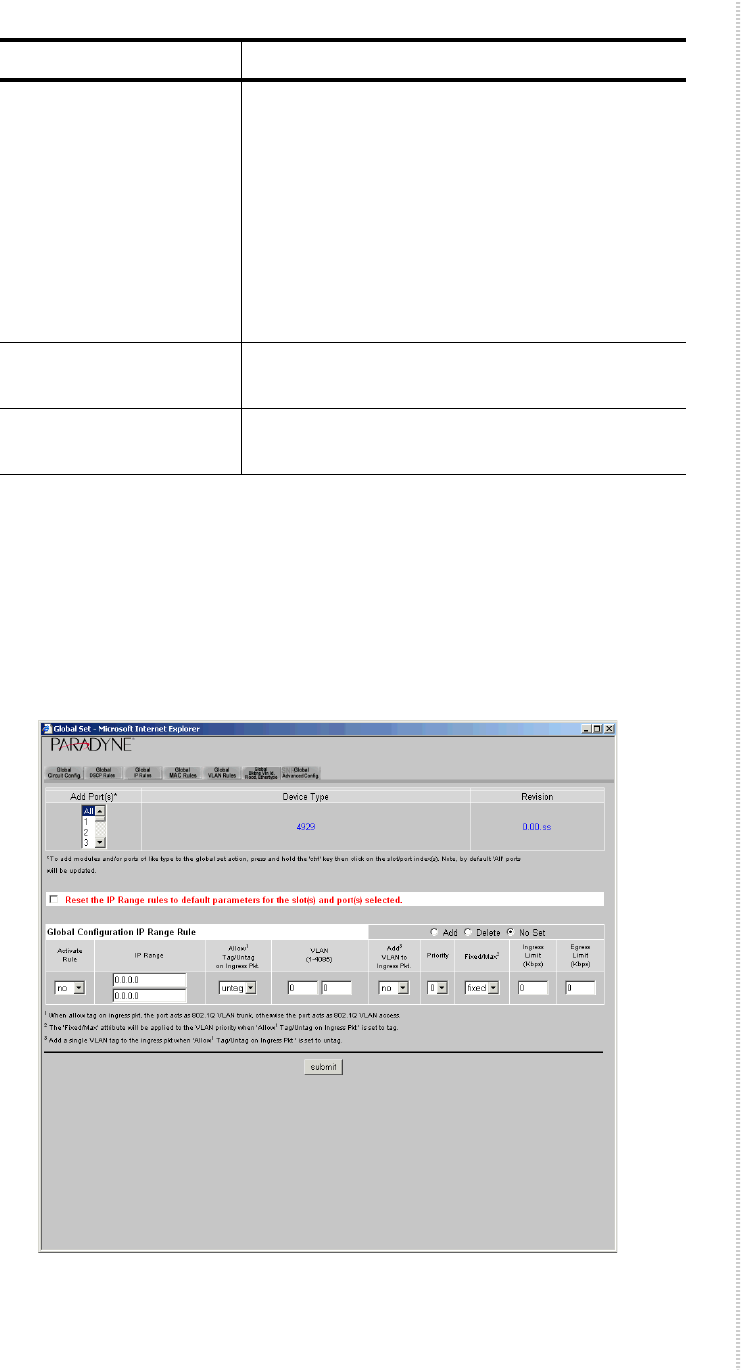
1Click on the Global IP Rules tab. The Global IP Rules screen appears.
Fixed/Max Specify the handling of VLAN priority (used
only if the received packet is already tagged):
zFixed – The packet's original priority will
automatically be replaced with the Priority
specified above,
zMax – The packet's original priority will be
replaced with the configured Priority only if
the packet's original priority is greater than
the configured Priority.
Ingress Limit Specify the ingress limit in kbps for packets
matching this rule.
Egress Limit Specify the egress limit in kbps for packets
matching this rule.
Parameter Description

Configuration Using the NMS
48 4929 DSLAM Installation and User’s Guide 4929-A2-ZN20-30
2In the Add Ports drop-down list, select All or a group of ports. To select
multiple ports, hold the Ctrl key while clicking on your selections.
3Select or enter the following parameters:
Parameter Description
Reset the IP Range rules
to default parameters
Click in this box to reset IP Range rules when
the Submit button is clicked on.
Global Configuration IP
Range Rule
Specify Add, Delete, or No Set to add a rule,
delete a rule, or perform no action when the
Submit button is clicked on.
Activate Specify whether the rule you are adding is
active.
IP Range Specify the range of IP addresses that constitutes
a match for this rule.
Allow Tag/Untag on
Ingress Pkt.
Specify tag or untag. Tag indicates that ingress
packets already matched to the IP Rule must
have a VLAN tag to be further considered;
packets without a VLAN tag will be dropped.
Untag indicates that ingress packets already
matched to the IP Rule cannot have a VLAN tag
to be further considered; packets with a VLAN
tag will be dropped.
VLAN Specify a VLAN ID range. For each Global IP
Range Rule, if you selected Tag for Allow Tag/
Untag, the VLAN field should specify either an
acceptable single VLAN, or an acceptable
VLAN Range, for VLAN tags on ingress
packets. If you selected Untag, the VLAN field
should specify a single VLAN only if you intend
to have a VLAN tag added to packets; if you do
not intend to have a VLAN tag added to packets,
the VLAN field should be left at the 0 - 0
default.
Add VLAN to Ingress
Pkt.
Specify whether the VLAN ID should be added
to ingress packets.
Priority Specify the priority to be used when adding a
configured VLAN ID to a packet.
Global Set
4929-A2-ZN20-30 4929 DSLAM Installation and User’s Guide 49
4Click on Submit.
Global MAC Rules
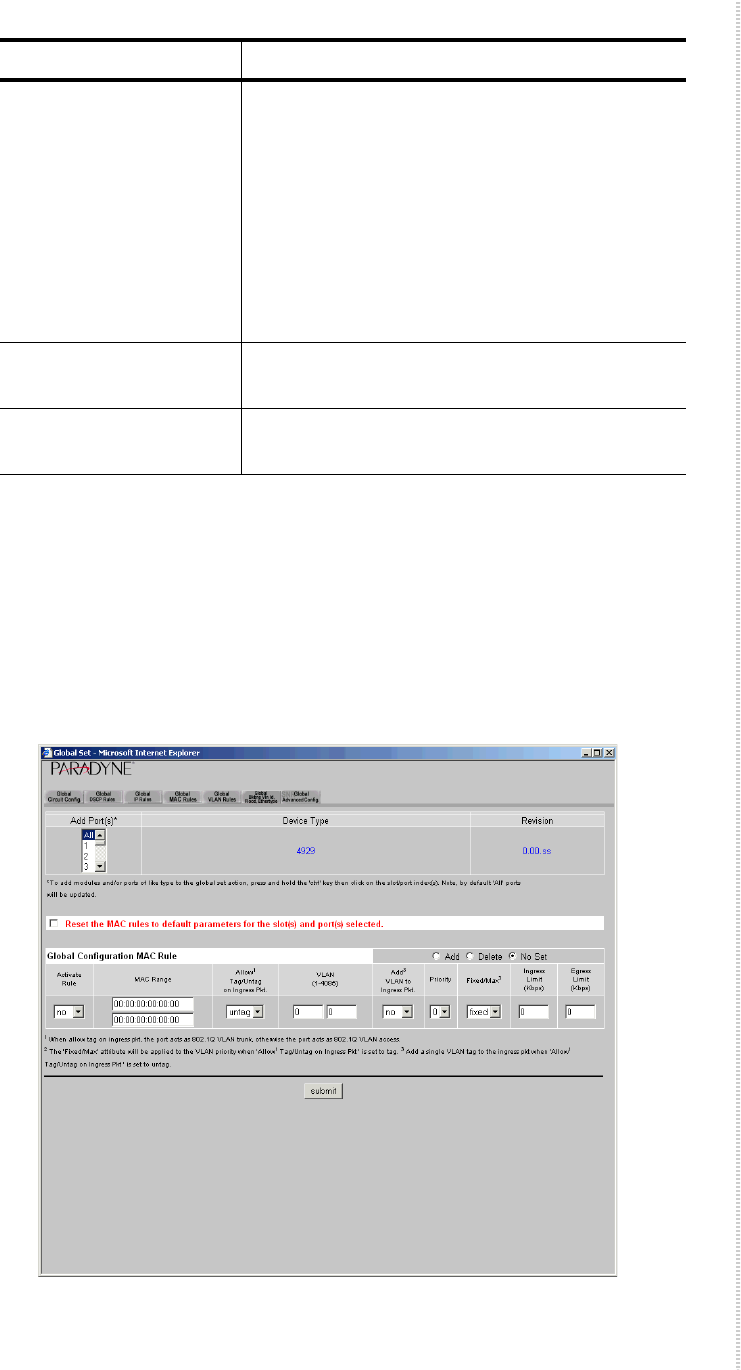
To configure MAC rules:
1Click on the Global MAC Rules tab. The Global MAC Rules screen
appears.
Fixed/Max Specify the handling of VLAN priority (used
only if the received packet is already tagged):
zFixed – The packet's original priority will
automatically be replaced with the Priority
specified above,
zMax – The packet's original priority will be
replaced with the configured Priority only if
the packet's original priority is greater than
the configured Priority.
Ingress Limit Specify the ingress limit in kbps for packets
matching this rule.
Egress Limit Specify the egress limit in kbps for packets
matching this rule.
Parameter Description

Configuration Using the NMS
50 4929 DSLAM Installation and User’s Guide 4929-A2-ZN20-30
2In the Add Ports drop-down list, select All or a group of ports. To select
multiple ports, hold the Ctrl key while clicking on your selections.
3Select or enter the following parameters:
Parameter Description
Reset the MAC rules to
default parameters
Click in this box to reset MAC rules when the
Submit button is clicked on.
Global Configuration IP
Range Rule
Specify Add, Delete, or No Set to add a rule,
delete a rule, or perform no action when the
Submit button is clicked on.
Activate Specify whether the rule you are adding is
active.
MAC Range Specify the range of MAC addresses that
constitutes a match for this rule.
Allow Tag/Untag on
Ingress Pkt.
Specify tag or untag. Tag indicates that ingress
packets already matched to the MAC Rule must
have a VLAN tag to be further considered;
packets without a VLAN tag will be dropped.
Untag indicates that ingress packets already
matched to the MAC Rule cannot have a VLAN
tag to be further considered; packets with a
VLAN tag will be dropped.
VLAN Specify a VLAN ID range. For each Global
MAC Rule, if you selected Tag for Allow Tag/
Untag, the VLAN field should specify either an
acceptable single VLAN, or an acceptable
VLAN Range, for VLAN tags on ingress
packets. If you selected Untag, the VLAN field
should specify a single VLAN only if you intend
to have a VLAN tag added to packets; if you do
not intend to have a VLAN tag added to packets,
the VLAN field should be left at the 0 - 0
default.
Add VLAN to Ingress
Pkt.
Specify whether the VLAN ID should be added
to ingress packets.
Priority Specify the priority to be used when adding a
configured VLAN ID to a packet.
Global Set
4929-A2-ZN20-30 4929 DSLAM Installation and User’s Guide 51
4Click on Submit.
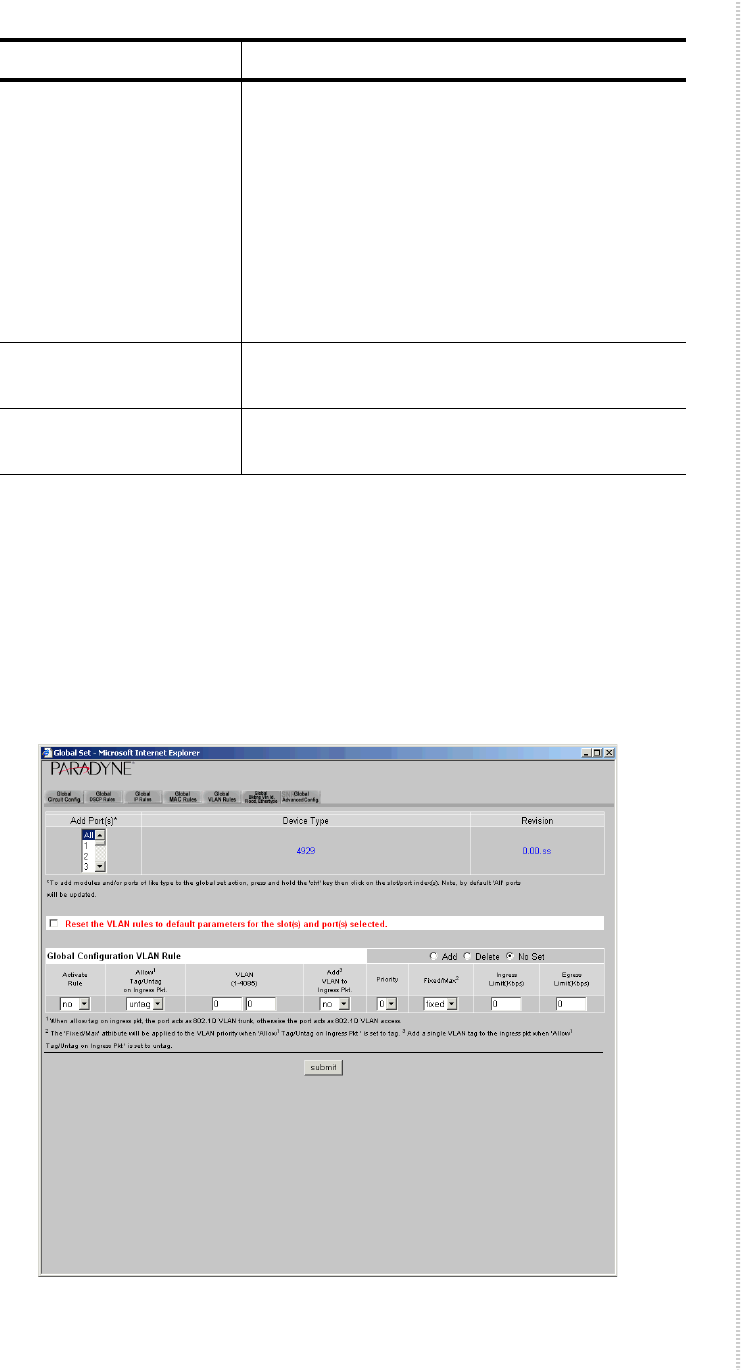
Global VLAN Rules
To configure VLAN rules:
1Click on the Global VLAN Rules tab. The Global VLAN Rules screen
appears.
Fixed/Max Specify the handling of VLAN priority (used
only if the received packet is already tagged):
zFixed – The packet's original priority will
automatically be replaced with the Priority
specified above,
zMax – The packet's original priority will be
replaced with the configured Priority only if
the packet's original priority is greater than
the configured Priority.
Ingress Limit Specify the ingress limit in kbps for packets
matching this rule.
Egress Limit Specify the egress limit in kbps for packets
matching this rule.
Parameter Description

Configuration Using the NMS
52 4929 DSLAM Installation and User’s Guide 4929-A2-ZN20-30
2In the Add Ports drop-down list, select All or a group of ports. To select
multiple ports, hold the Ctrl key while clicking on your selections.
3Select or enter the following parameters:
Parameter Description
Reset the VLAN rules to
default parameters
Click in this box to reset VLAN rules when the
Submit button is clicked on.
Global Configuration
VLAN Rule
Specify Add, Delete, or No Set to add a rule,
delete a rule, or perform no action when the
Submit button is clicked on.
Activate Specify whether the rule you are adding is
active.
Allow Tag/Untag on
Ingress Pkt.
Specify tag or untag.
The DSLAM tries to match to a VLAN rule
traffic that has not matched any other rule type.
If the packet is untagged it will match the one
and only allowed VLAN rule that indicates
Untagged. If the packet has a tag then the
DSLAM will try to find a Tagged rule that has a
VLAN range defined with the packet’s VLAN
ID. If it finds one it will use that rule, and then
the packet will be checked for all other criteria.
If it does not find a rule to match the packet
VLAN ID the packet is dropped.
VLAN Specify a VLAN ID range that constitutes a
match of this rule. If you selected Untag, the
VLAN field should specify a single VLAN only
if you intend to have a VLAN tag added to
packets; if you do not intend to have a VLAN tag
added to packets, the VLAN field should be left
at the 0 - 0 default.
Add VLAN to Ingress
Pkt.
Specify whether the VLAN ID should be added
to ingress packets.
Priority Specify the priority to be used when adding a
configured VLAN ID to a packet.
Fixed/Max Specify the handling of VLAN priority (used
only if the received packet is already tagged):
zFixed – The packet's original priority will
automatically be replaced with the Priority
specified above,
zMax – The packet's original priority will be
replaced with the configured Priority only if
the packet's original priority is greater than
the configured Priority.
Global Set
4929-A2-ZN20-30 4929 DSLAM Installation and User’s Guide 53
4Click on Submit.
Ingress Limit Specify the ingress limit in kbps for packets
matching this rule.
Egress Limit Specify the egress limit in kbps for packets
matching this rule.
Parameter Description
Configuration Using the NMS
54 4929 DSLAM Installation and User’s Guide 4929-A2-ZN20-30
Global Advanced Configuration
SNR settings may greatly affect ADSL performance. Do not change SNR
settings unless so advised by your service provider.
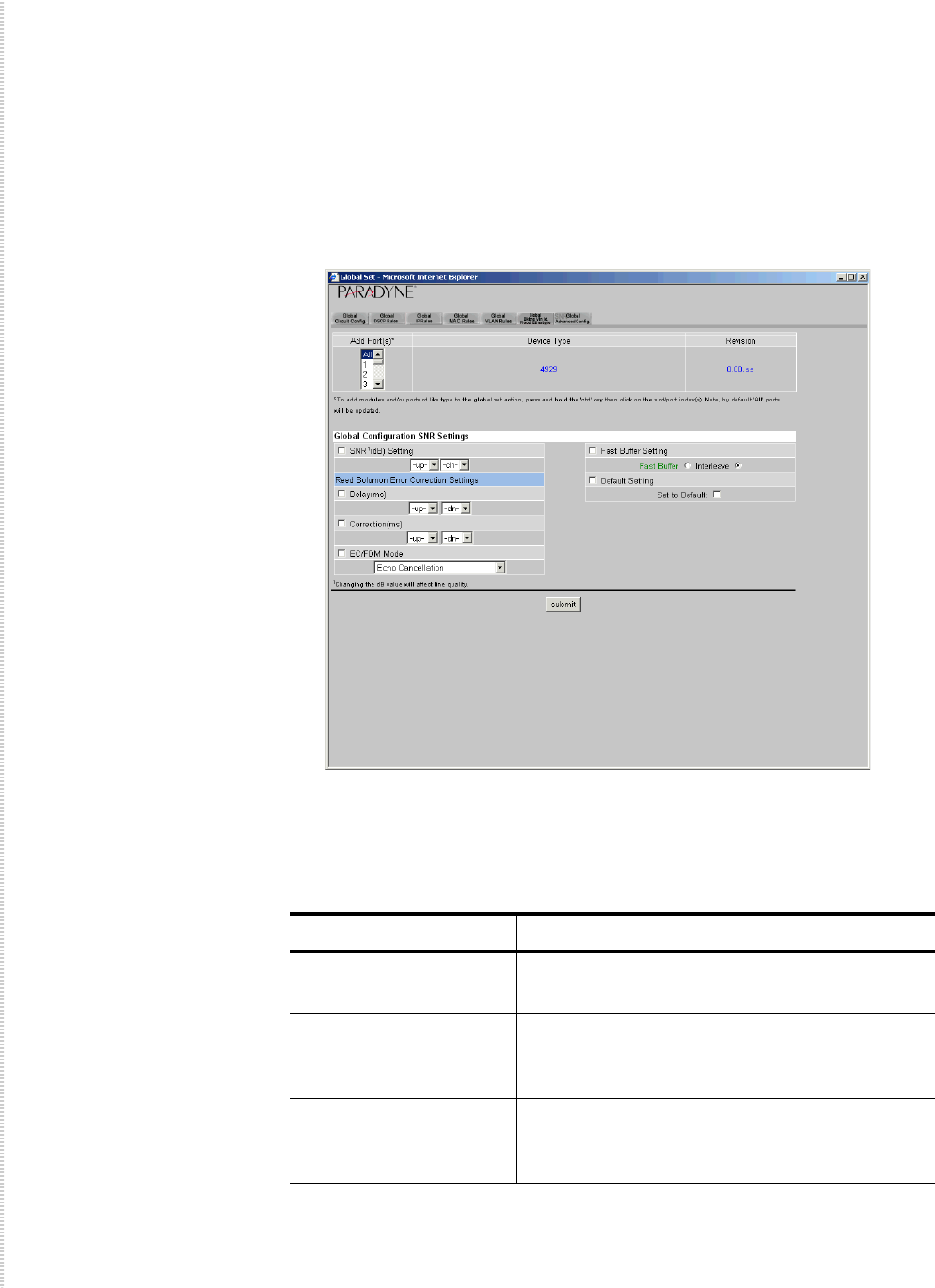
To configure SNR settings:
1Click on the Global Advanced Config tab. The Global Configuration
SNR settings screen appears.
2In the Add Ports drop-down list, select All or a group of ports. To select
multiple ports, hold the Ctrl key while clicking on your selections.
3Select or enter the following parameters:
Parameter Description
SNR (dB) Setting Specify the upstream and downstream Signal to
Noise Ratio settings for the selected ports.
Reed Solomon Error
Correction Settings:
Delay
Specify the upstream and downstream
Reed-Solomon delay.
Reed Solomon Error
Correction Settings:
Correction
Specify the upstream and downstream
Reed-Solomon correction.
Circuit Summary
4929-A2-ZN20-30 4929 DSLAM Installation and User’s Guide 55
4Click on Submit.
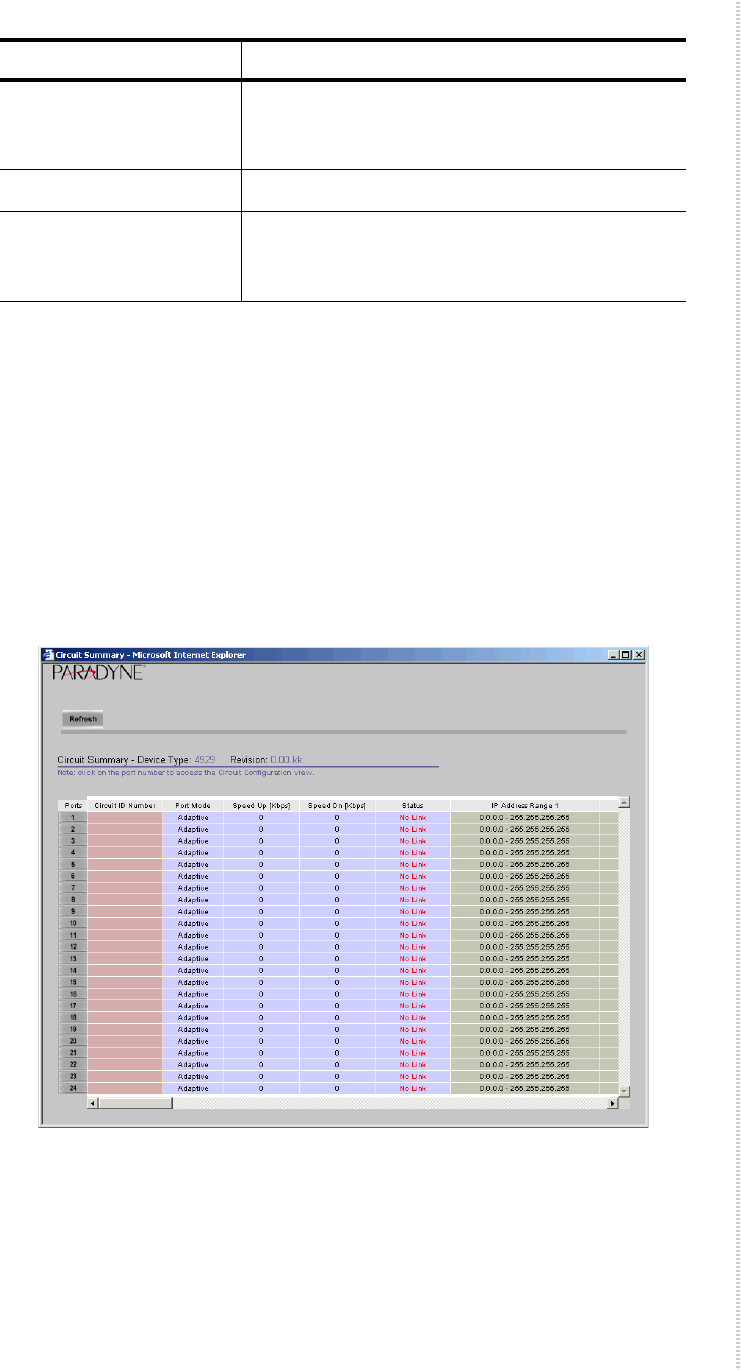
Circuit Summary
Use the Circuit Summary screen to display information about port
configurations.
To display the circuit summary:
1From the home screen, click on the Circuit Summary button. The Circuit
Summary screen appears.
2Click on Refresh to view current information. Click on a port number in
the leftmost column to view the Circuit Configuration screen.
EC/FDM Specify the upstream and downstream Echo
Cancellation or Frequency Division
Multiplexing mode.
Fast Buffer Setting Specify the buffer setting: Fast or Interleave.
Default Setting To return to the default settings when the Submit
button is clicked on, click in the Set to Default
check box.
Parameter Description
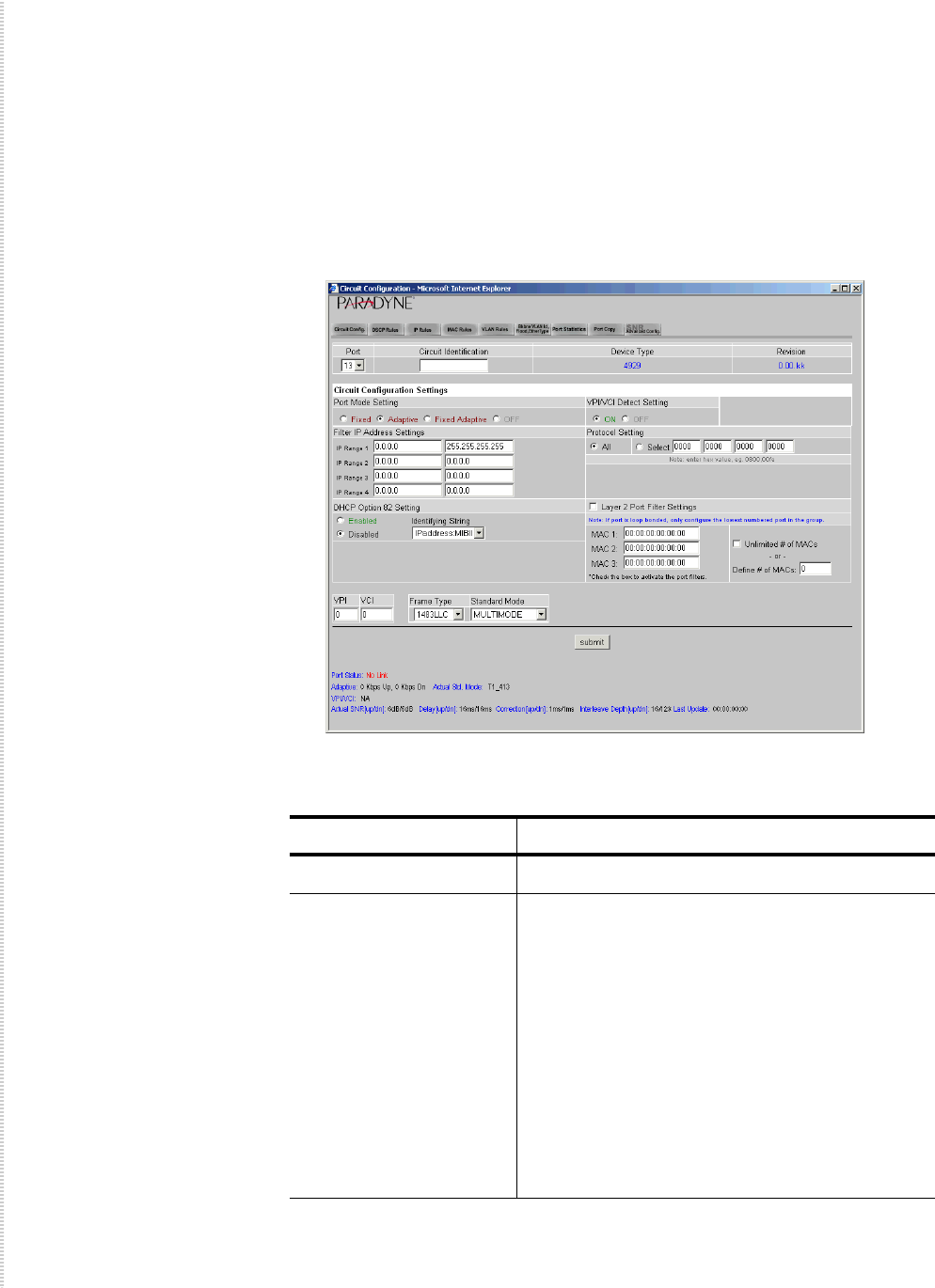
Configuration Using the NMS
56 4929 DSLAM Installation and User’s Guide 4929-A2-ZN20-30
Circuit Configuration
Use the Circuit Configuration screen to set the parameters for a single port.
To configure circuit parameters:
1From the home screen, click on one of the 24 DSL port LEDs.
Alternatively, click on the Circuit Summary button, then click on a port
number on the left side of the Circuit Summary listing. The Circuit
Configuration screen appears.
2Select or enter the following parameters:
Parameter Description
Port Select a port from the drop-down list.
Port Mode Setting Specify a port mode:
zFixed – The upstream and downstream rates
are fixed.
zAdaptive – The ports will automatically train
up to the best possible speed supported by the
DSLAM, the modem at the remote end, and
the copper cable pair connecting the two.
zFixed Adaptive – The ports will automatically
train up to the best possible speed, subject to a
user-specified maximum upstream and
downstream bandwidth.

Circuit Configuration
4929-A2-ZN20-30 4929 DSLAM Installation and User’s Guide 57
3Click on Submit.
VPI/VCI Detect Setting Specify the port behavior with regard to VPI/
VCI detection:
zOn – The DSLAM will monitor the line to
determine the VPI and VCI settings of the
remote ADSL modem and set itself
accordingly. If no ATM cells are detected (at
any VPI/VCI setting), the port will default to
VPI 0 and VCI 35.
zOff – The port will use the default setting of
VPI and VCI (0/35 if not changed by the
setting of VPI and VCI, below), or lock in the
VPI/VCI already discovered while VPI/VCI
detection was On.
Filter IP Address Settings Specify up to four IP address ranges. Packets are
accepted from source IP addresses in the ranges
specified.
Protocol Setting Click in the check box to enable Protocol Setting
detection. Select Allow Selected and specify up
to four Ethertypes allowed on the ports.
DHCP Option 82 Specify whether DHCP Option 82 is enabled,
and if it is, whether packets are identified by IP
address or circuit ID. This identifier is added to
packets to let your DHCP Server recognize
which DSLAM port an IP address request is
coming from, thereby allowing the DHCP
Server to limit the number of IP addresses
assigned per port.
Layer 2 Port Filter
Settings
Click in the check box if you want to filter by
MAC address the packets on this port.
MAC 1 – MAC 3 Enter up to three MAC addresses.
Unlimited # of MACs or
Define # of MACs
Specify whether the number of MAC addresses
with access to the port is to be limited to a
certain number (not including MAC 1, MAC 2,
and MAC 3, if specified above).
VPI and VCI Specify a default VPI and VCI if VPI/VCI
Detect Setting (above) is Off.
Frame Type Specify whether the ports use Logical Link
Control (LLC) or Virtual Channel Multiplexing
(VCM) bridged encapsulation. These are defined
in RFC 1483.
Standard Mode Specify the ports’ DSL mode.
Parameter Description
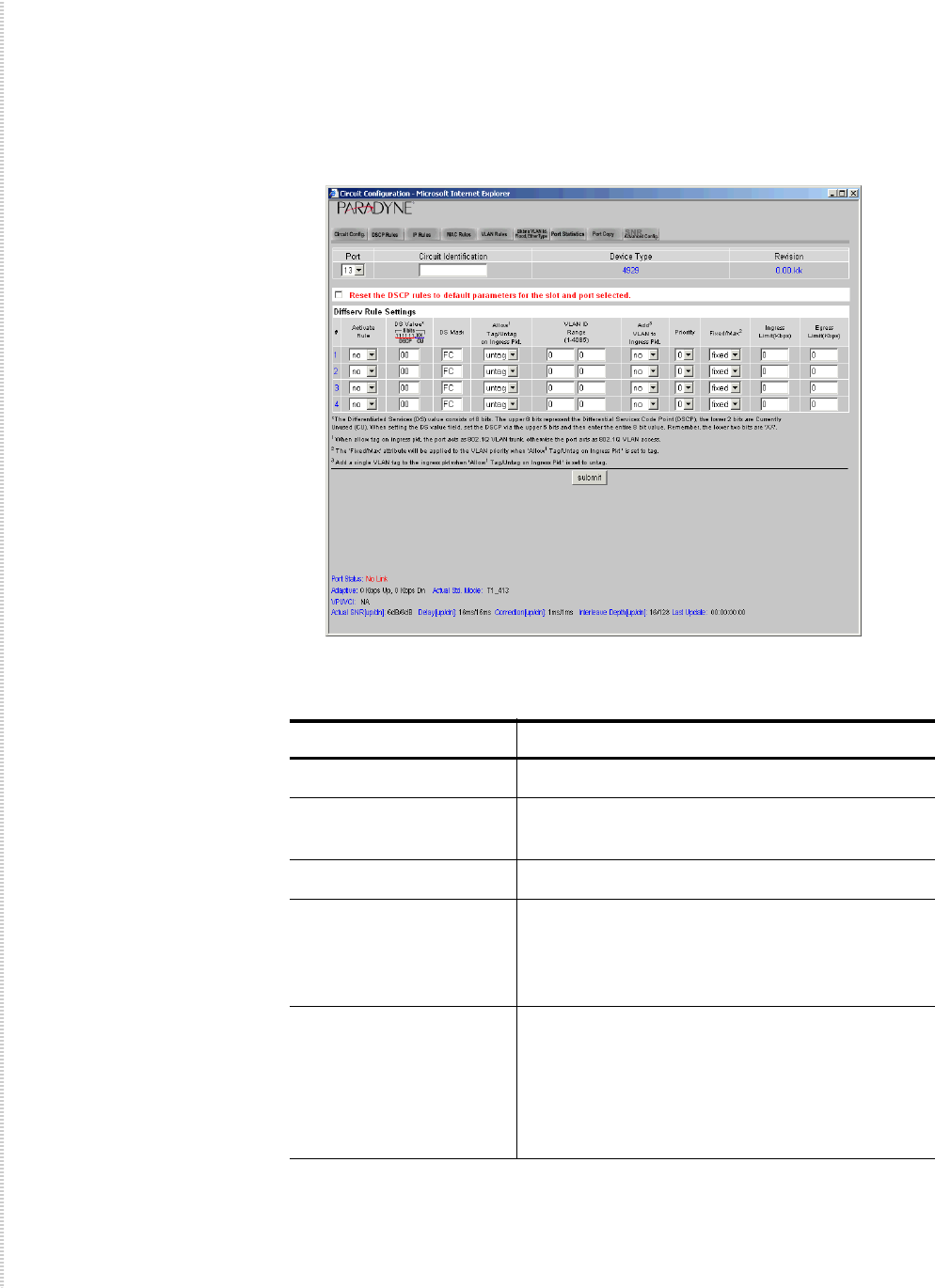
Configuration Using the NMS
58 4929 DSLAM Installation and User’s Guide 4929-A2-ZN20-30
DSCP Rules
To configure DSCP rules:
1Click on the DSCP Rules tab. The DSCP Rules screen appears.
2Select or enter the following parameters:
Parameter Description
Port Select a port from the drop-down list.
Reset the DSCP rules to
default parameters
Click in this box to reset DSCP rules when the
Submit button is clicked on.
Activate Specify whether the rule is active.
DS Value Specify the Differentiated Services value. The
DS Value of a packet is a hexadecimal value
calculated from the upper six bits of an eight-bit
field in the packet's IP header.
DS Mask Specify the DS mask. The DS Mask is a
hexadecimal value that indicates which of the
DSCP's upper six bits will be utilized in
considering a packet's DSCP type. Default is FC,
indicating that all of the DSCP's upper six bits
will be used in calculating the packet's DS Value.

Circuit Configuration
4929-A2-ZN20-30 4929 DSLAM Installation and User’s Guide 59
3Click on Submit.
Allow Tag/Untag on
Ingress Pkt.
Specify tag or untag. Tag indicates that ingress
packets already matched to the Diffserv Rule
must have a VLAN tag to be further considered;
packets without a VLAN tag will be dropped.
Untag indicates that ingress packets already
matched to the Diffserv Rule cannot have a
VLAN tag to be further considered; packets with
a VLAN tag will be dropped.
VLAN ID Range Specify a VLAN ID range. For each rule, if you
selected Tag for Allow Tag/Untag, the VLAN
field should specify either an acceptable single
VLAN, or an acceptable VLAN Range, for
VLAN tags on ingress packets. If you selected
Untag, the VLAN field should specify a single
VLAN only if you intend to have a VLAN tag
added to packets; if you do not intend to have a
VLAN tag added to packets, the VLAN field
should be left at the 0 - 0 default.
Add VLAN to Ingress
Pkt.
Specify whether the VLAN ID should be added
to ingress packets.
Priority Specify the priority to be used when adding a
configured VLAN ID to a packet.
Fixed/Max Specify the handling of VLAN priority (used
only if the received packet is already tagged):
zFixed – The packet's original priority will
automatically be replaced with the Priority
specified above,
zMax – The packet's original priority will be
replaced with the configured Priority only if
the packet's original priority is greater than
the configured Priority.
Ingress Limit Specify the ingress limit in kbps for packets
matching this rule.
Egress Limit Specify the egress limit in kbps for packets
matching this rule.
Parameter Description
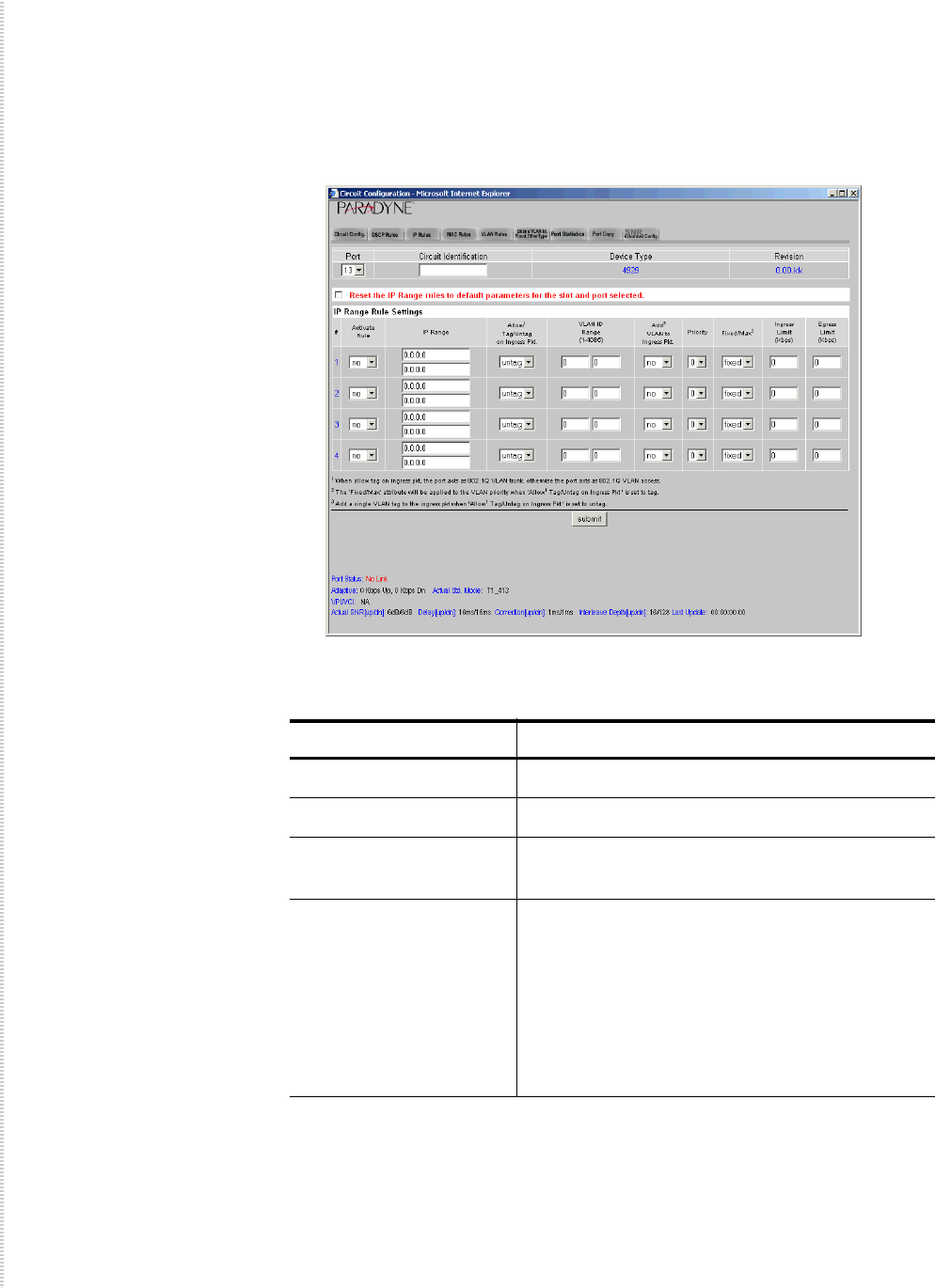
Configuration Using the NMS
60 4929 DSLAM Installation and User’s Guide 4929-A2-ZN20-30
IP Rules
To configure IP rules:
1Click on the IP Rules tab. The IP Rules screen appears.
2Select or enter the following parameters:
Parameter Description
Port Select a port from the drop-down list.
Activate Specify whether the rule is active.
IP Range Specify the range of IP addresses that constitutes
a match for this rule.
Allow Tag/Untag on
Ingress Pkt.
Specify tag or untag. Tag indicates that ingress
packets already matched to the IP Rule must
have a VLAN tag to be further considered;
packets without a VLAN tag will be dropped.
Untag indicates that ingress packets already
matched to the IP Rule cannot have a VLAN tag
to be further considered; packets with a VLAN
tag will be dropped.

Circuit Configuration
4929-A2-ZN20-30 4929 DSLAM Installation and User’s Guide 61
3Click on Submit.
VLAN ID Range Specify a VLAN ID range. For each IP Range
Rule, if you selected Tag for Allow Tag/Untag,
the VLAN field should specify either an
acceptable single VLAN, or an acceptable
VLAN Range, for VLAN tags on ingress
packets. If you selected Untag, the VLAN field
should specify a single VLAN only if you intend
to have a VLAN tag added to packets; if you do
not intend to have a VLAN tag added to packets,
the VLAN field should be left at the 0 - 0
default.
Add VLAN to Ingress
Pkt.
Specify whether the VLAN ID should be added
to ingress packets.
Priority Specify the priority to be used when adding a
configured VLAN ID to a packet.
Fixed/Max Specify the handling of VLAN priority (used
only if the received packet is already tagged):
zFixed – The packet's original priority will
automatically be replaced with the Priority
specified above,
zMax – The packet's original priority will be
replaced with the configured Priority only if
the packet's original priority is greater than
the configured Priority.
Ingress Limit Specify the ingress limit in kbps for packets
matching this rule.
Egress Limit Specify the egress limit in kbps for packets
matching this rule.
Parameter Description
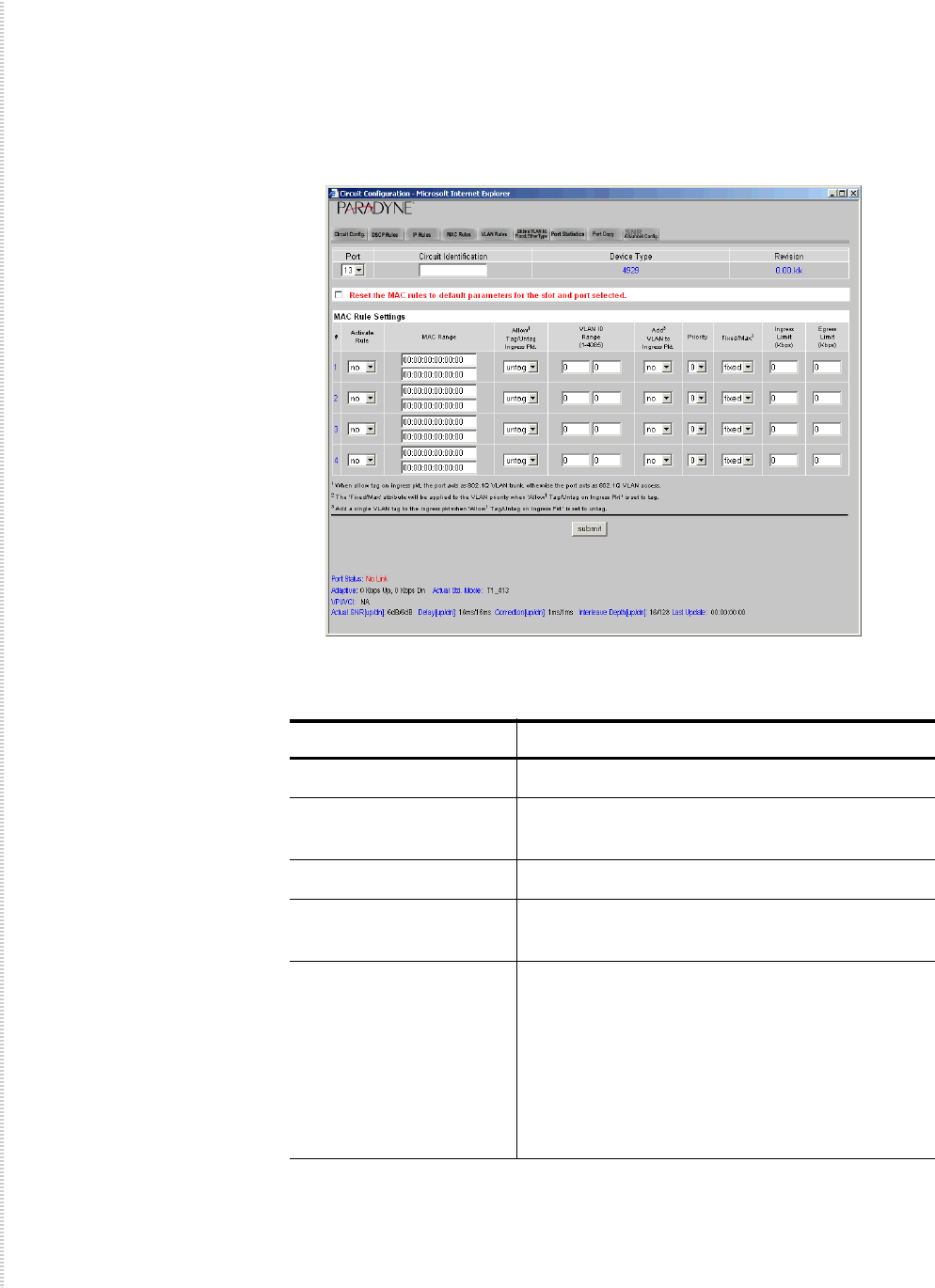
Configuration Using the NMS
62 4929 DSLAM Installation and User’s Guide 4929-A2-ZN20-30
MAC Rules
To configure MAC rules:
1Click on the MAC Rules tab. The MAC Rules screen appears.
2Select or enter the following parameters:
Parameter Description
Port Select a port from the drop-down list.
Reset the MAC rules to
default parameters
Click in this box to reset MAC rules when the
Submit button is clicked on.
Activate Specify whether the rule is active.
MAC Range Specify the range of MAC addresses that
constitutes a match for this rule.
Allow Tag/Untag on
Ingress Pkt.
Specify tag or untag. Tag indicates that ingress
packets already matched to the MAC Rule must
have a VLAN tag to be further considered;
packets without a VLAN tag will be dropped.
Untag indicates that ingress packets already
matched to the MAC Rule cannot have a VLAN
tag to be further considered; packets with a
VLAN tag will be dropped.
Circuit Configuration
4929-A2-ZN20-30 4929 DSLAM Installation and User’s Guide 63
3Click on Submit.
VLAN ID Range Specify a VLAN ID range. For each MAC Rule,
if you selected Tag for Allow Tag/Untag, the
VLAN field should specify either an acceptable
single VLAN, or an acceptable VLAN Range,
for VLAN tags on ingress packets. If you
selected Untag, the VLAN field should specify a
single VLAN only if you intend to have a VLAN
tag added to packets; if you do not intend to have
a VLAN tag added to packets, the VLAN field
should be left at the 0 - 0 default.
Add VLAN to Ingress
Pkt.
Specify whether the VLAN ID should be added
to ingress packets.
Priority Specify the priority to be used when adding a
configured VLAN ID to a packet.
Fixed/Max Specify the handling of VLAN priority (used
only if the received packet is already tagged):
zFixed – The packet's original priority will
automatically be replaced with the Priority
specified above,
zMax – The packet's original priority will be
replaced with the configured Priority only if
the packet's original priority is greater than
the configured Priority.
Ingress Limit Specify the ingress limit in kbps for packets
matching this rule.
Egress Limit Specify the egress limit in kbps for packets
matching this rule.
Parameter Description
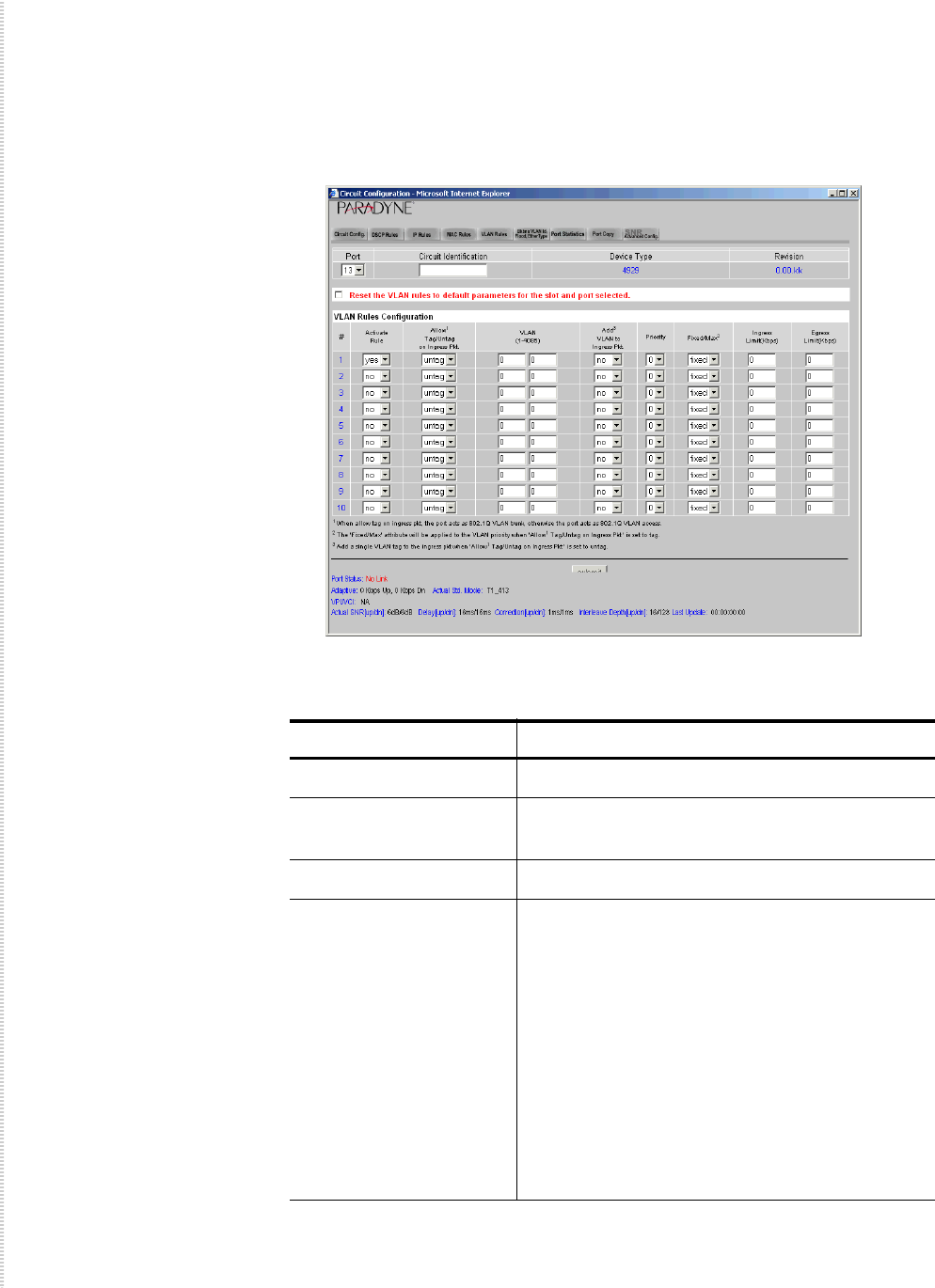
Configuration Using the NMS
64 4929 DSLAM Installation and User’s Guide 4929-A2-ZN20-30
VLAN Rules
To configure VLAN rules:
1Click on the VLAN Rules tab. The VLAN Rules screen appears.
2Select or enter the following parameters:
Parameter Description
Port Select a port from the drop-down list.
Reset the VLAN rules to
default parameters
Click in this box to reset VLAN rules when the
Submit button is clicked on.
Activate Specify whether the rule is active.
Allow Tag/Untag on
Ingress Pkt.
Specify tag or untag.
The DSLAM tries to match to a VLAN rule
traffic that has not matched any other rule type.
If the packet is untagged it will match the one
and only allowed VLAN rule that indicates
Untagged. If the packet has a tag then the
DSLAM will try to find a Tagged rule that has a
VLAN range defined with the packet’s VLAN
ID. If it finds one it will use that rule, and then
the packet will be checked for all other criteria.
If it does not find a rule to match the packet
VLAN ID the packet is dropped.
Circuit Configuration
4929-A2-ZN20-30 4929 DSLAM Installation and User’s Guide 65
3Click on Submit.
VLAN Specify a VLAN ID range that constitutes a
match of this rule. If you selected Untag, the
VLAN field should specify a single VLAN only
if you intend to have a VLAN tag added to
packets; if you do not intend to have a VLAN tag
added to packets, the VLAN field should be left
at the 0 - 0 default.
Add VLAN to Ingress
Pkt.
Specify whether the VLAN ID should be added
to ingress packets.
Priority Specify the priority to be used when adding a
configured VLAN ID to a packet.
Fixed/Max Specify the handling of VLAN priority (used
only if the received packet is already tagged):
zFixed – The packet's original priority will
automatically be replaced with the Priority
specified above,
zMax – The packet's original priority will be
replaced with the configured Priority only if
the packet's original priority is greater than
the configured Priority.
Ingress Limit Specify the ingress limit in kbps for packets
matching this rule.
Egress Limit Specify the egress limit in kbps for packets
matching this rule.
Parameter Description
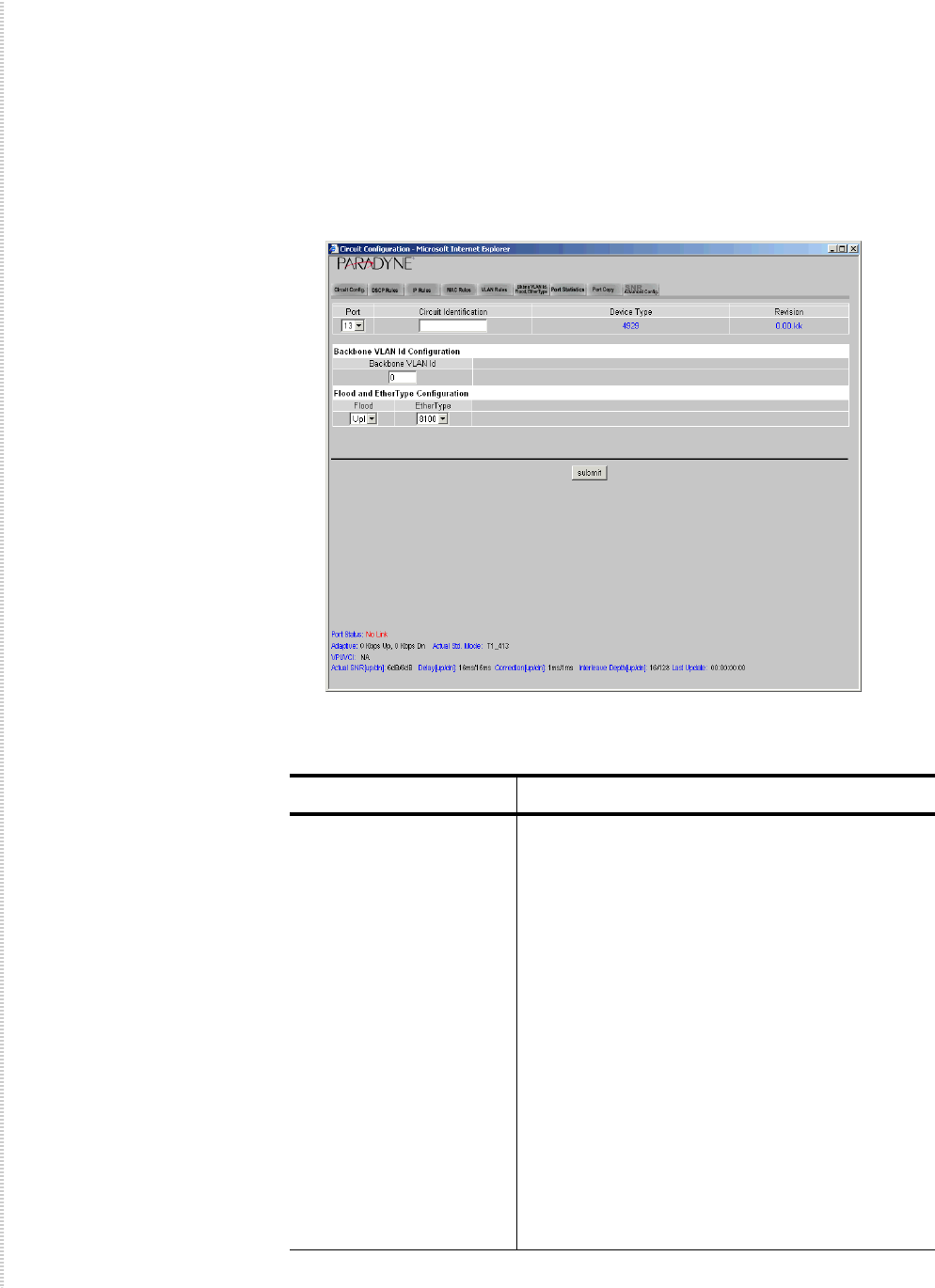
Configuration Using the NMS
66 4929 DSLAM Installation and User’s Guide 4929-A2-ZN20-30
Backbone VLAN ID
To configure the backbone VLAN ID, flood type, and Ethertype:
1Click on the Bkbone VLAN Id, Flood, Ethertype tab. The Bkbone VLAN
Id, Flood, Ethertype screen appears.
2Select or enter the following parameters:
Parameter Description
Backbone VLAN Id
Configuration
Specify the Backbone VLAN ID. Used in
conjunction with standard VLAN tags, the single
Backbone VLAN tag will become the primary
identifier, allowing a router with backbone
capabilities to make smarter decisions in
directing unlearned traffic. This helps prevent
traffic from being flooded to incorrect networks.
Once packets have been directed to the correct
network by the Backbone VLAN tag, standard
VLAN tags will then direct the packets to the
appropriate ports. The default is zero, meaning
the port is not configured to utilize the
Backbone-VLAN function.
A Backbone-VLAN tag cannot be used
independently; stardard VLAN tags must be set.
Additionally, the DSLAM uplink connection
must run through a router in order for a
Backbone VLAN tag to function.

Circuit Configuration
4929-A2-ZN20-30 4929 DSLAM Installation and User’s Guide 67
3Click on Submit.
Flood Specify the Flood setting. Flood refers to the
method in which interface modules handle
unknown unicasts (traffic directed to a single
MAC Address), broadcasts (traffic directed to all
MAC Addresses) and multicasts (traffic directed
to multiple MAC Addresses) for each port.
zUpl (Uplink) – Unknown unicast, broadcast
and multicast traffic is flooded only to the
DSLAM uplink interface ports. This prevents
communication between interface ports
without the intervention of an upstream
device such as a router. If communication
between interface ports is desired, the
upstream device must be properly configured
to allow it.
zVln (VLAN) – Unknown unicast, broadcast
and multicast traffic is flooded to the
DSLAM’s ADSL ports (within the sender's
VLAN range) in addition to the uplink
interface ports.
Ethertype Specify the Ethertype of the backbone tag added
to traffic if the backbone VLAN ID is
configured. Used only in conjunction with
backbone VLANs.
Parameter Description
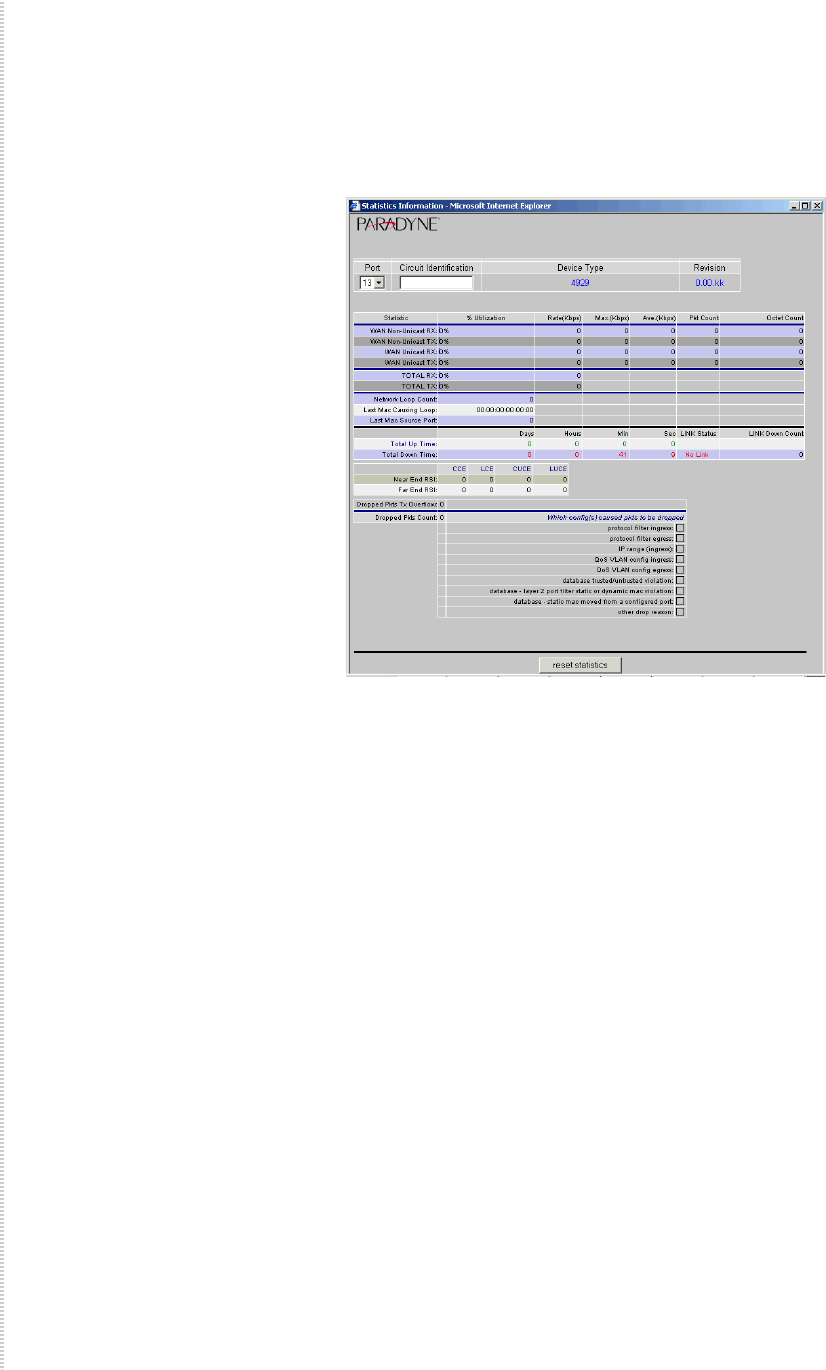
Configuration Using the NMS
68 4929 DSLAM Installation and User’s Guide 4929-A2-ZN20-30
Port Statistics
To view port statistics:
1Click on the Port Statistics tab. The Port Statistics screen appears.
2Click on Reset Statistics to set all statistics to zero.
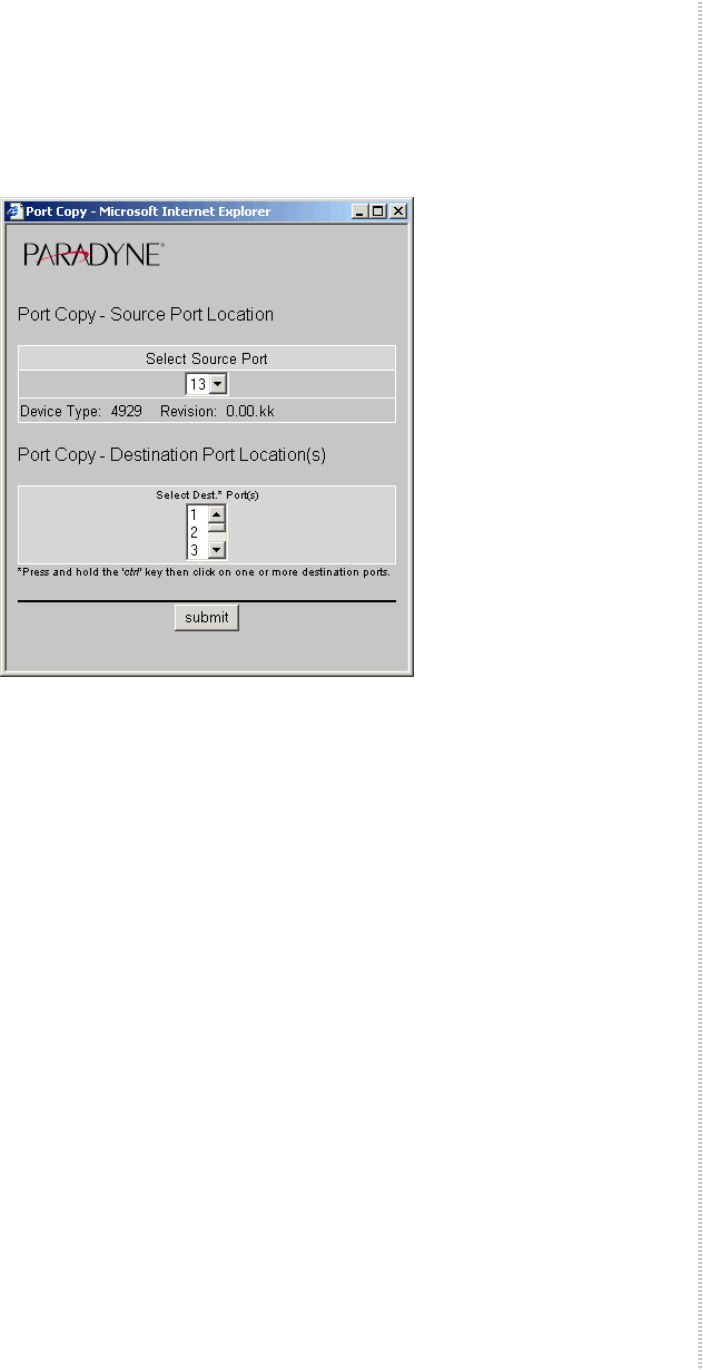
Circuit Configuration
4929-A2-ZN20-30 4929 DSLAM Installation and User’s Guide 69
Copy Port
To copy a port configuration to one or more other ports:
1Click on Port Copy. The Port Copy screen appears.
2Select a source port, then one or more destination ports.
3Click on Submit. The configuration of the source port is copied to the
destination port or ports.
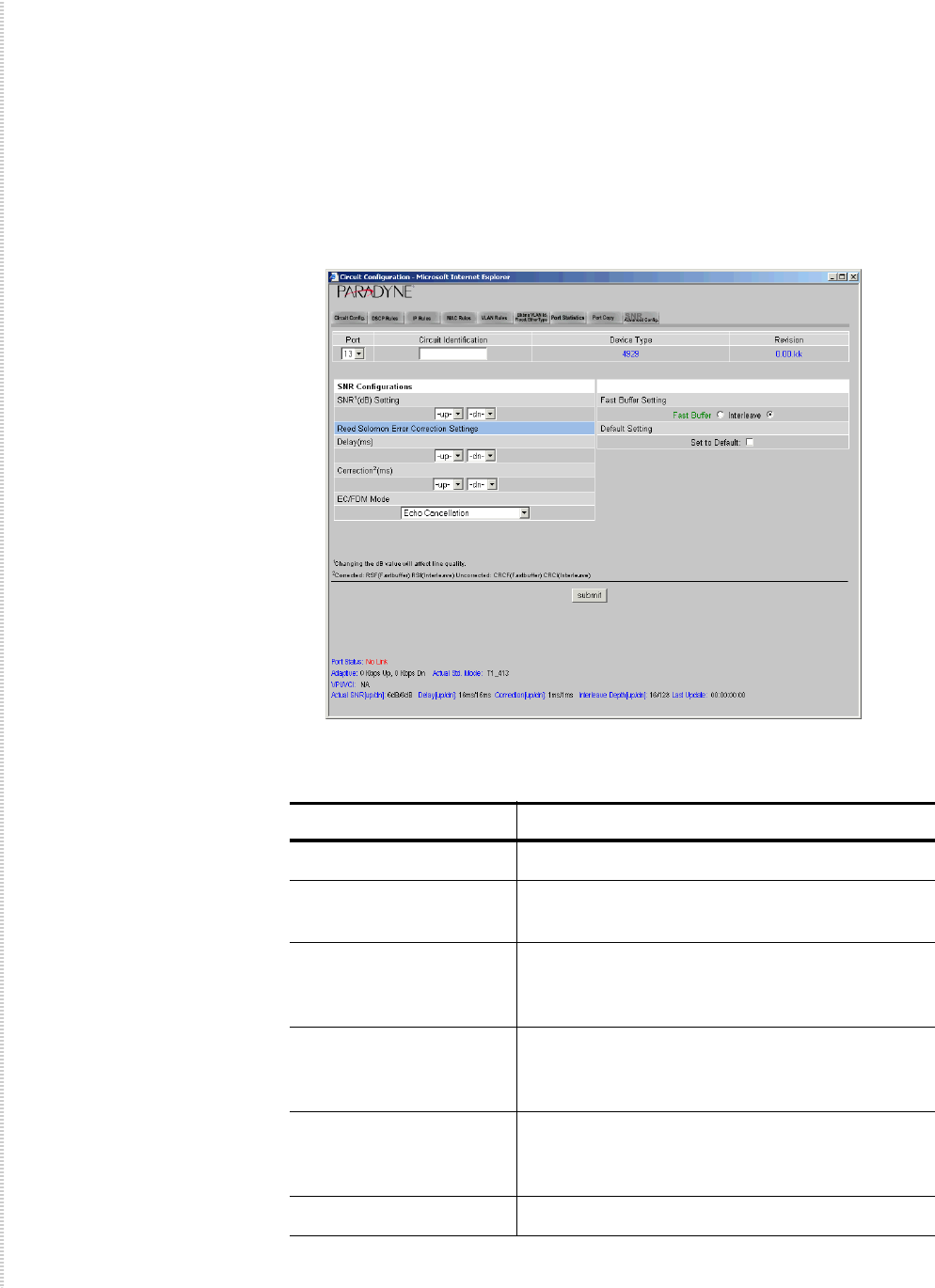
Configuration Using the NMS
70 4929 DSLAM Installation and User’s Guide 4929-A2-ZN20-30
SNR Advanced Configuration
SNR settings may greatly affect ADSL performance. Do not change SNR
settings unless so advised by your service provider.
To configure SNR settings:
1Click on the Advanced Config tab. The Configuration SNR settings
screen appears.
2Select or enter the following parameters:
Parameter Description
Port Select a port from the drop-down list.
SNR (dB) Setting Specify the upstream and downstream Signal to
Noise Ratio settings for the selected ports.
Reed Solomon Error
Correction Settings:
Delay
Specify the upstream and downstream
Reed-Solomon delay.
Reed Solomon Error
Correction Settings:
Correction
Specify the upstream and downstream
Reed-Solomon correction.
EC/FDM Specify the upstream and downstream Echo
Cancellation or Frequency Division
Multiplexing mode.
Fast Buffer Setting Specify the buffer setting: Fast or Interleave.
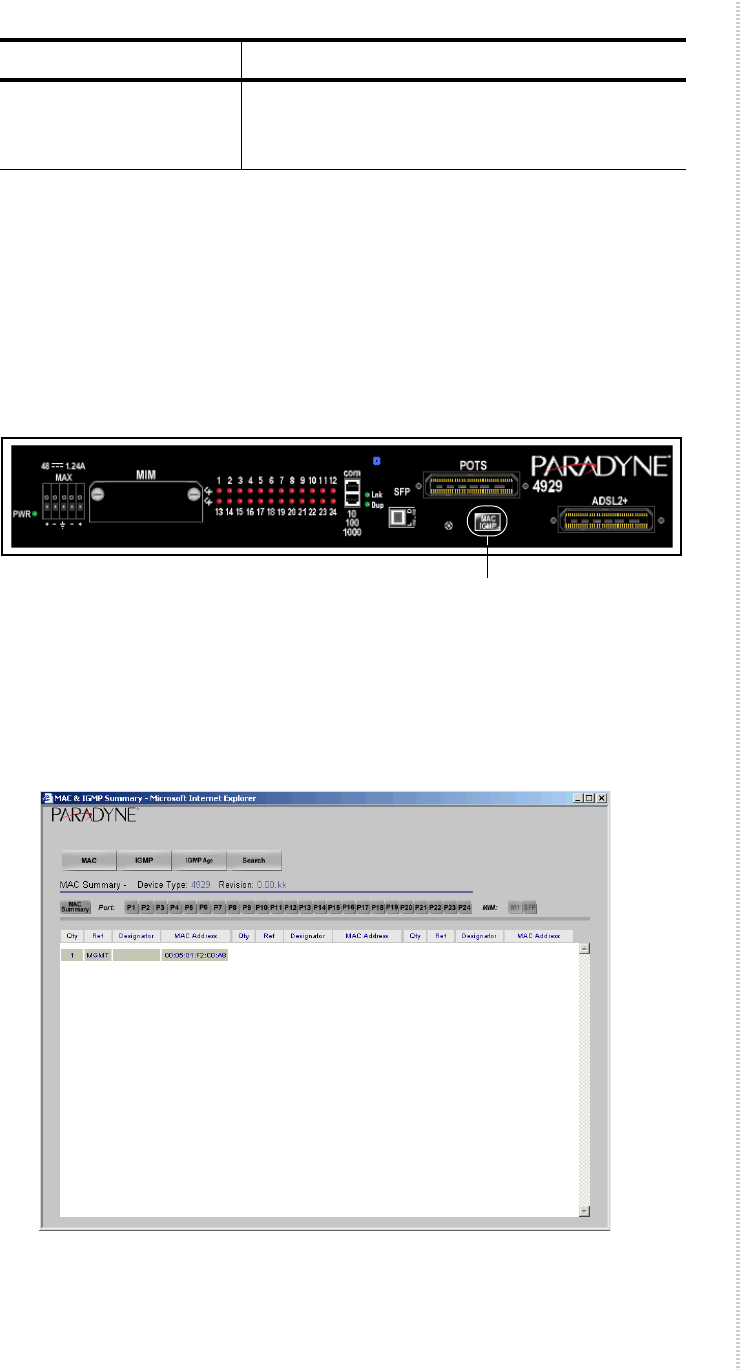
MAC and IGMP Summary
4929-A2-ZN20-30 4929 DSLAM Installation and User’s Guide 71
3Click on Submit.
MAC and IGMP Summary
On the home screen of the web interface is a schematic representation of the
front panel of the DSLAM. It includes a button not on the actual front panel,
labeled MAC-IGMP. This opens the MAC and IGMP Summary screen.
To view the MAC and IGMP Summary screens:
1From the home screen, click on the MAC-IGMP button. The MAC
Summary screen appears.
2Click on a Port or MIM button to see specific entries in the MAC table, or
click on MAC Summary to see all entries.
Default Setting To return to the default settings when the Submit
button is clicked on, click in the Set to Default
check box.
Parameter Description
MAC-IGMP
Button
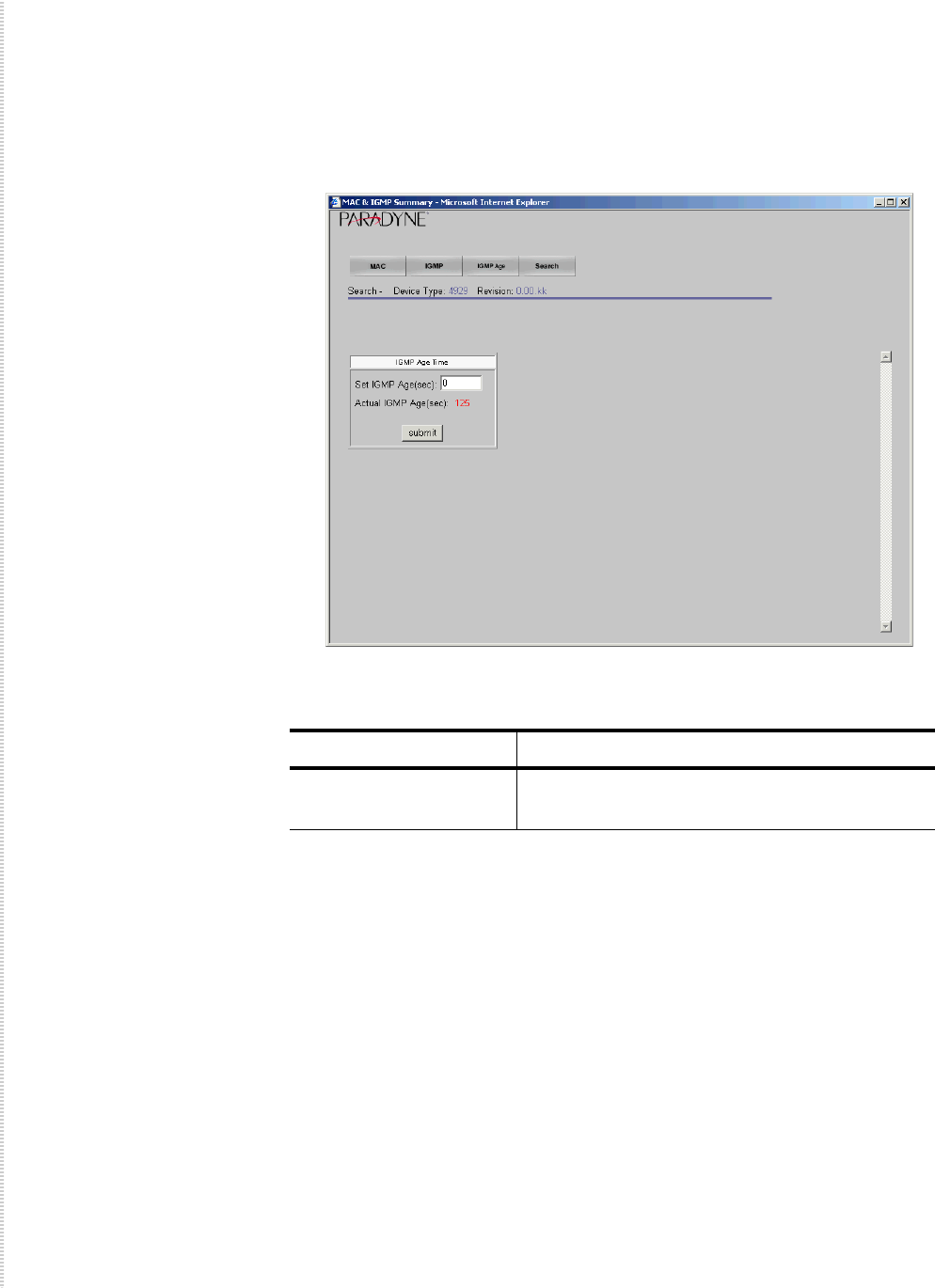
Configuration Using the NMS
72 4929 DSLAM Installation and User’s Guide 4929-A2-ZN20-30
3Click on the IGMP tab to display the IGMP table. Click on a Port or MIM
button to see specific entries in the IGMP table, or click on IGMP
Summary to see all entries.
4Click on the IGMP Age tab to set the IGMP age and enable or disable
IGMP proxy. The IGMP Age screen appears.
5Enter or select the following:
6To search for MAC or IGMP table entries, click on the Search tab. The
Search screen appears.
Parameter Description
IGMP Age Time Specify an IGMP age interval, in seconds. This
should be twice the query rate of your router.
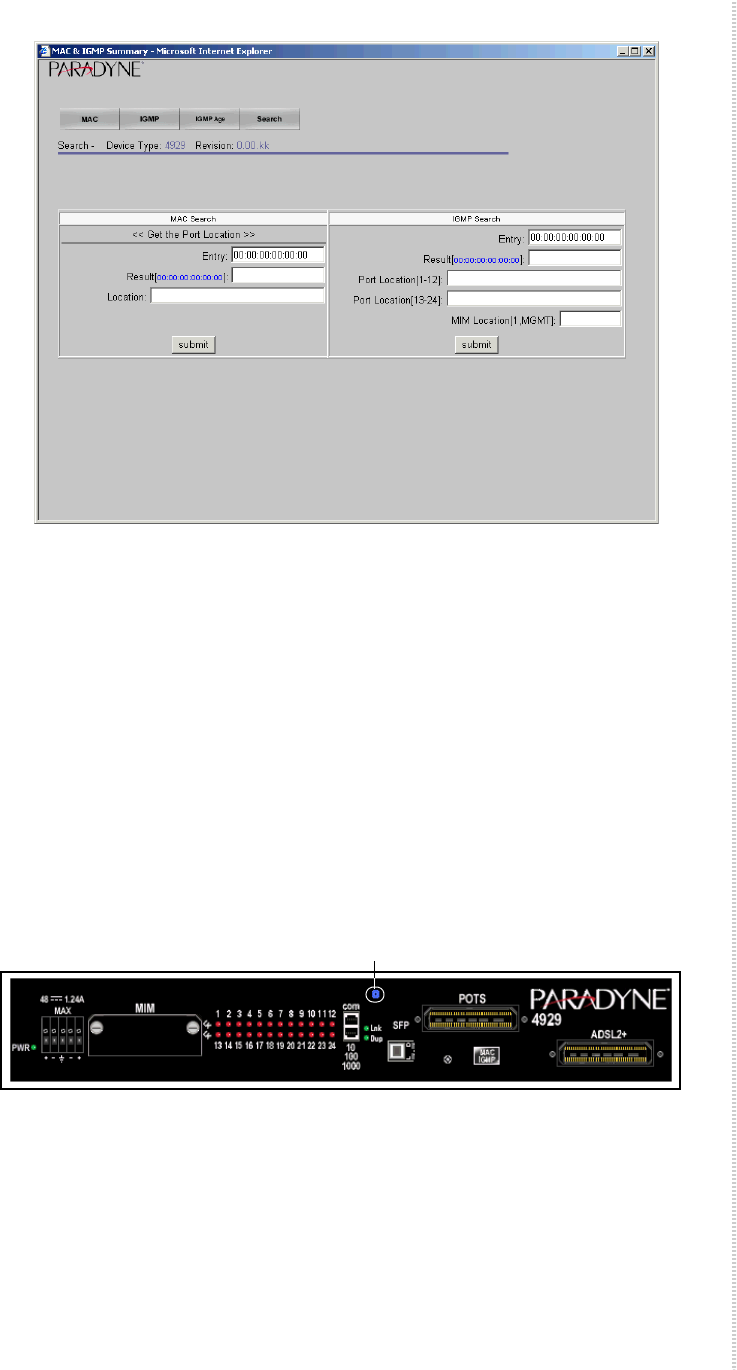
DSLAM Interconnect Configuration
4929-A2-ZN20-30 4929 DSLAM Installation and User’s Guide 73
7Enter a MAC address to search for a MAC table entry, or an IP address to
search for an IGMP table entry.
8Click on the appropriate Submit button.
DSLAM Interconnect Configuration
Use the DSLAM Interconnect Configuration screen to specify a port
connected to a downstream 4900 Series DSLAM. This information is used to
configure internal traffic flows. The screen is accessed using the blue button
above the Ethernet uplinks on the schematic representation of the faceplate on
the home page.
Downlink
Button
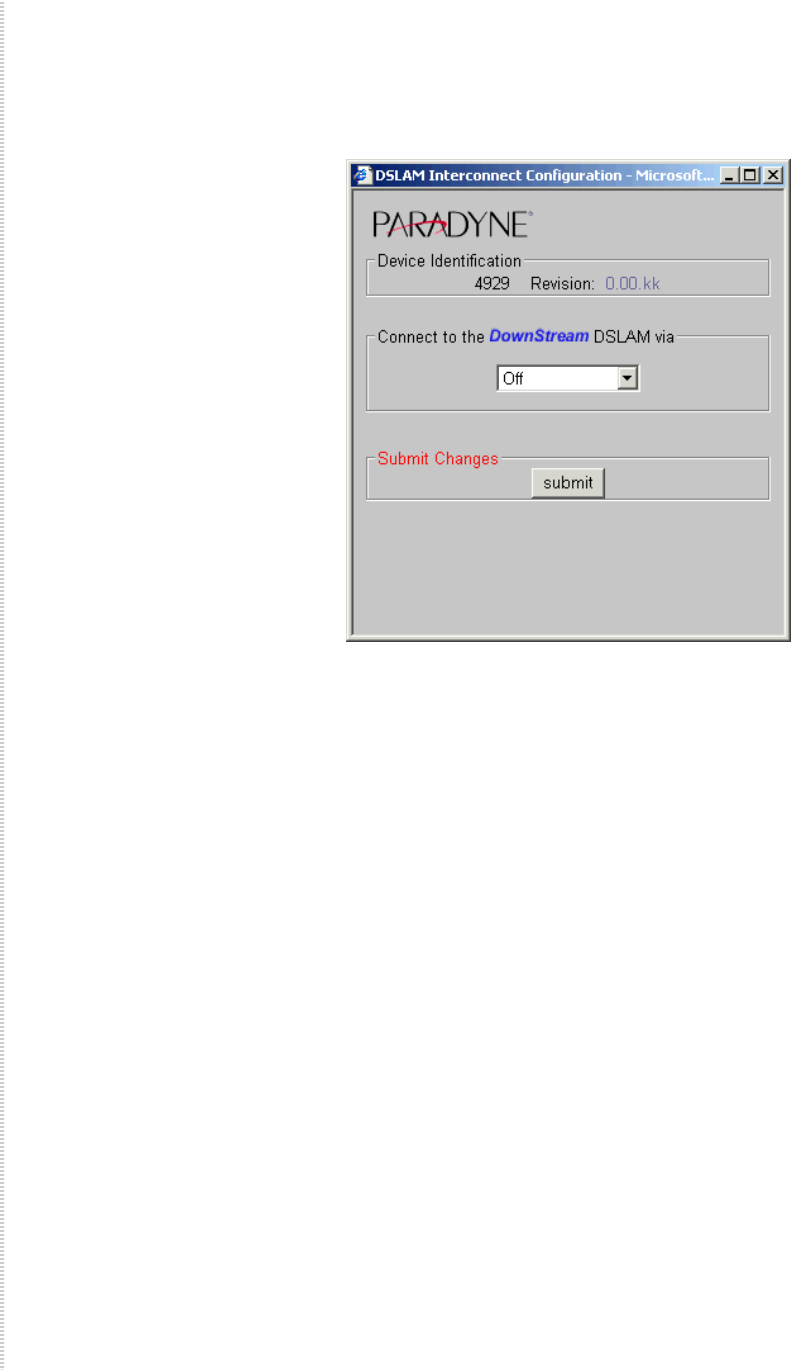
Configuration Using the NMS
74 4929 DSLAM Installation and User’s Guide 4929-A2-ZN20-30
To specify the port connected to a downstream DSLAM:
1From the home screen, click on blue button above the 10/100/1000 and
SFP connectors. The DSLAM Interconnect Configuration screen appears.
2Select Off or a port from the drop-down list. For example, if this DSLAM
is connected to a downstream DSLAM over the first MIM port, select
MIMp1.
3Click on Submit.

4929-A2-ZN20-30 4929 DSLAM Installation and User’s Guide 75
COMMAND LINE INTERFACE
Overview
The 4900 Series DSLAMs have an integral command line interface (CLI) that
can be accessed by direct connection to the COM port or by Telnet to the
DSLAM’s management address.
CLI System Requirements
zStraight-Through RJ45 to RJ45 Ethernet Cable – Required for
establishing a direct connection from the COM port to a DB9 adapter.
zDB9 Female to RJ45 Male Adapter – Required for conversion of your
PC's RS232 serial port for use with the RJ45 to RJ45 Ethernet cable.
zTerminal Emulation Program – Required for running the CLI over a
direct connection. The program must emulate a VT100 terminal.
zTelnet Client – Required for remote management with the CLI.
Microsoft Windows Operating Systems (98, 2000, NT, and XP) include a
Telnet client which is executed using the Windows command prompt
(cmd.exe). If you are using an operating system other than Windows, you
may need to install a Telnet client.
Connecting a PC Directly
To connect a PC directly to the DSLAM to use the CLI:
1Plug a DB9 to RJ45 adapter into the RS232 serial port on your PC. See
DB9 to RJ45 Adapter Pinouts in Appendix A, Connectors and
Pin Assignments.
2Connect one end of a straight-through RJ45 to RJ45 Ethernet cable into
the adapter plugged into your PC, and the other end of the cable into the
COM port on the face of the DSLAM.

Command Line Interface
76 4929 DSLAM Installation and User’s Guide 4929-A2-ZN20-30
Launching the Terminal Emulation Program
Launch the terminal emulation program on your PC and configure the
program settings. Actual configurations will depend upon the program being
used, though settings should be modeled after the list below; most are
standard defaults. Refer to your terminal emulation program’s user manual for
further information.
Logging Into the CLI
Once your terminal emulation program has been launched, device information
is displayed, followed by a request for username and password. You must log
in as a superuser in order to make configuration changes.
After you have logged in, enter a question mark (?) to list the available
commands.
CLI Commands
The CLI supports the following commands.
Baud: 9600 Port: Com
1
Data Bits: 8 Stop Bits: 1
Flow
Control:
none Transmit
Delay:
n/a
Parity: none
Username: superuser
Password: Password
Table 3: CLI Commands (Sheet 1 of 2)
Command Description
? Lists available commands and their syntax.
ALLOW Controls by IP address those hosts for which traffic is permitted on
the DSLAM. ALL (the default) permits all traffic.
Syntax:
allow [ALL, IP_ADDRESS [IP address]]
CLEAR_NVRAM Clears Non-Volatile Random Access Memory, restoring the DSLAM
to factory defaults.
DISABLE_TELNET Disables access to the DSLAM using Telnet.
DISABLE_TFTP Disables access to the DSLAM using Trivial File Transfer Protocol.

CLI Commands
4929-A2-ZN20-30 4929 DSLAM Installation and User’s Guide 77
The commands use the following parameters.
DISABLE_WEB_SERVER] Disables access to the DSLAM using the web server.
ENABLE_TELNET Enables access to the DSLAM using Telnet.
ENABLE_TFTP Enables access to the DSLAM using Trivial File Transfer Protocol.
ENABLE_WEB_SERVER Enables access to the DSLAM using the web server.
HELP Lists available commands and their syntax.
LOGOUT Ends the CLI session.
SET Sets a configuration option. Most SET commands require that slot
be specified, and allow port optionally to be specified. Exceptions
are the two system SET commands for session timeout and system
name.
Syntax:
set cli_session_timeout seconds
set system_name name
set slot 1 [[port] [all, port_number]] [item] [value]
Items and values for SET commands are shown in Table 4, Set and
Show Command Items and Values.
SHOW Shows a configuration option. SHOW commands require that slot be
specified, and allow port optionally to be specified.
Syntax:
show slot 1 [[port] [all, port_number]] [item] [value]
Items and values for SHOW commands are shown in Table 4, Set
and Show Command Items and Values.
WHO Shows who is logged in the system.
Table 3: CLI Commands (Sheet 2 of 2)
Command Description
Table 4: Set and Show Command Items and Values (Sheet 1 of 3)
Items Values
ADSL_ENCAPSULATION [RFC1483-LLC,RFC1483-VCMUX]
ADSL_PORT_MODE [ON,OFF,ADAPTIVE,FIXED_ADAPTIVE]
ADSL_SPEED [XXXX YYYY]
Where:
XXXX = downstream rate (in kbps) and
YYYY = upstream rate (in kbps)

Command Line Interface
78 4929 DSLAM Installation and User’s Guide 4929-A2-ZN20-30
ADSL_STANDARD [MULTIMODE,G.DMT,G.LITE,T1.413,ALCATEL]
ADSL_VCI [0–65535]
ADSL_VPI [0–255]
ADSL_VPI_VCI_DETECT [ON,OFF]
BACKBONE_VLAN [0–4085]
CIRCUIT_ID circuit_ID
Changes the CIRCUIT ID.
CLEAR_NVRAM Reboots the unit and restores factory defaults
CLI_SESSION_TIMEOUT [tbd–tbd]
CLI Session Timeout sets the amount of time a CLI session can sit
idle before the user is automatically logged out. Time is represented
in seconds; the minimum value is 30.
DEFAULT_GATEWAY xxx.xxx.xxx.xxx
Value for DEFAULT_GATEWAY is a valid IP address.
DOWNSTREAM_INTERCON-
NECT
[MGMT, UPLINK1,UPLINK2,UPLINK3,UPLINK4]
DYNAMIC_MAC Number of dynamic MAC addresses that can be learned on this port.
ETHER_TYPE [8100,9100]
Changes the Backbone tag type.
FIRMWARE_VERSION None. Displays the firmware version.
FLOOD [UPL,VLN]
GENERAL_PASSWORD None. You will be prompted for values.
IGMP [dump,stop,snoop 225.1.1.2 123,clear]
INBAND_MANAGEMENT [ON,OFF]
INBAND_MGMT_VLAN_ID [0–4085]
IP_ADDRESS xxx.xxx.xxx.xxx
Value for IP_ADDRESS is a valid IP address.
IP_RANGE SET: [1–4]
SHOW: [ALL,1–4]
LAYER2_ENABLE [on,off]
Enables or disables Layer 2 functionality.
Table 4: Set and Show Command Items and Values (Sheet 2 of 3)
Items Values

CLI Commands
4929-A2-ZN20-30 4929 DSLAM Installation and User’s Guide 79
MAC [dump,clear]
MGMT_PORT_UPLINK [on,off]
Allows the PHYSICAL management port to be an UPLINK port.
MIM [dump,reset_stats]
PHY PHY DEBUG args->cmd phy_num reg val
PRIORITY [0–7]
PROTOCOL [ALL,IP,VALUE]
Changes the protocol filter.
RESET None.
SNMP_READONLY_COM-
MUNITY
None. You will be prompted for values.
SNMP_READWRITE_COM-
MUNITY
None. You will be prompted for values.
STATIC_MAC xx:xx:xx:xx:xx:xx
Sets static mac addresses.
SUBNET_MASK xxx.xxx.xxx.xxx
SUPERUSER_PASSWORD None. You will be prompted for values.
SYSTEM_NAME [system_name]
Changes the DSLAM System Name and CLI Prompt.
VLAN_RANGE VLAN_RANGE:
SHOW: [ALL,1–10]
SET: [1–10]
VLAN_ID: [0–4085]–[0–4085]
Table 4: Set and Show Command Items and Values (Sheet 3 of 3)
Items Values

Command Line Interface
80 4929 DSLAM Installation and User’s Guide 4929-A2-ZN20-30
Using the CLI to Establish Inband Management
CLI Set commands are used to establish inband management. For example:
set slot 1 ip_address 137.182.10.251
set slot 1 subnet_mask 255.255.255.0
set slot 1 default_gateway 137.182.10.10
set slot 1 inband_management on
The DSLAM in this example can now be managed with NMS by attaching a
PC to the DSLAM’s 10/100/1000 port and opening the address
137.182.10.251 in a web browser.

4929-A2-ZN20-30 4929 DSLAM Installation and User’s Guide 81
SNMP INTERFACE
Overview
The 4900 Series DSLAM can be managed using the Simple Network
Management Protocol (SNMP).
This implementation uses a portion of SNMP v1.0: the MIB-II System Group
and Interfaces Group of OIDs. SNMP uses MIBs (Management Information
Bases) sanctioned by the IETF (Internet Engineering Task Force). MIBs are
composed of OIDs (Object Identifiers), each of which represents a system
configuration or request for data.
You will not be able to manage your DSLAM via SNMP until you have set
the unit IP address, subnet mask, and default gateway. See Management
Configuration in Chapter 5, Configuration Using the NMS or Using the CLI
to Establish Inband Management in Chapter 6, Command Line Interface.
Downloading MIBs
You must have a MIB browser installed on your PC in order to utilize the
Management Information Base.
1Launch your MIB browser and perform any necessary program
configurations. Refer to your MIB browser user manual for further
information.
2Download the MIBs from the Zhone website. Refer to your MIB browser
user manual for instructions on how to compile the OIDs into your MIB
browser.

SNMP Interface
82 4929 DSLAM Installation and User’s Guide 4929-A2-ZN20-30
SNMP Community Strings
The following are the default community strings for MIB access.
SNMP Community String
ACCESS COMMUNITY STRING*
read only Password
read/write Password
*Community strings are case sensitive.
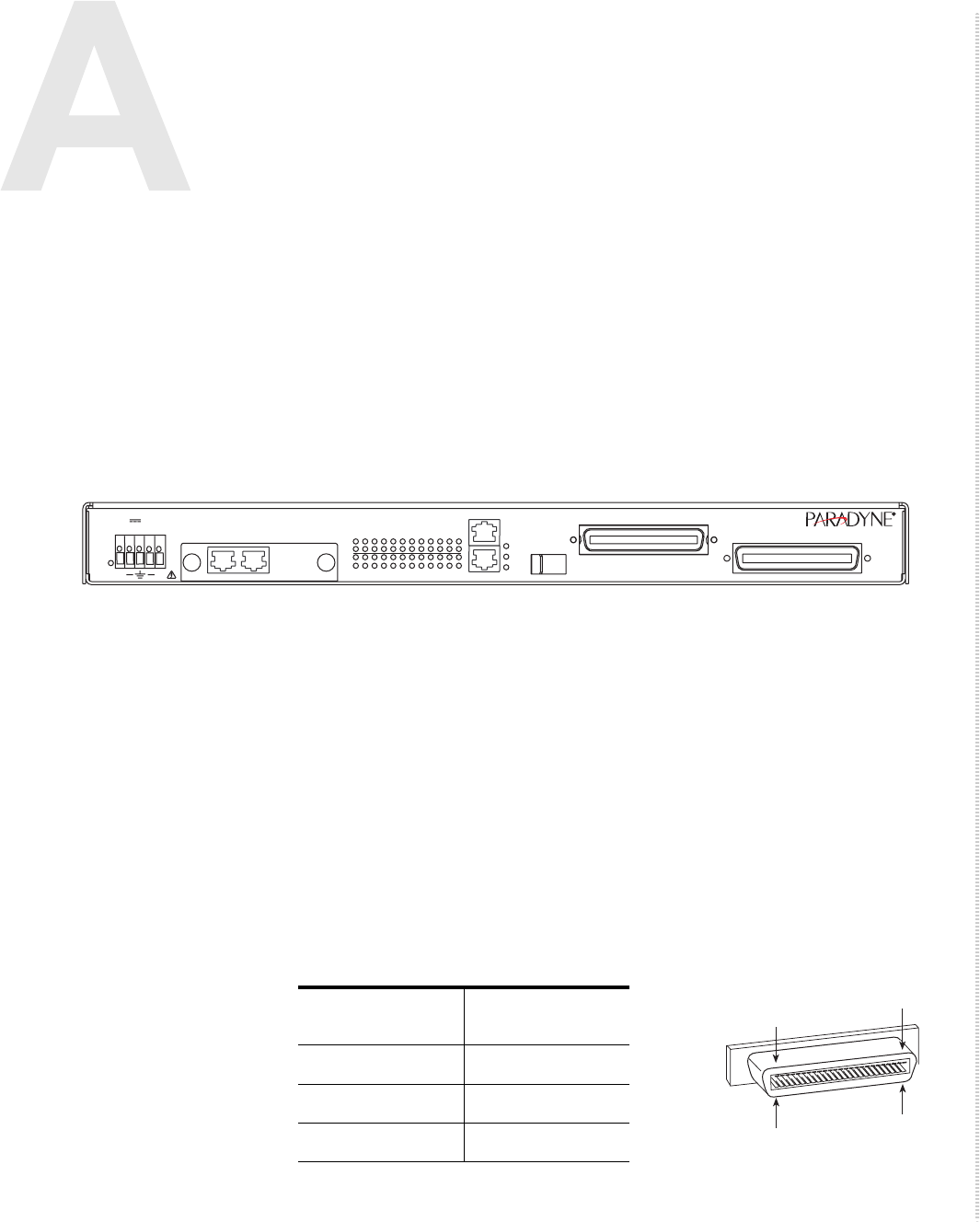
4929-A2-ZN20-30 4929 DSLAM Installation and User’s Guide 83
CONNECTORS AND PIN ASSIGNMENTS
Overview
The following sections provide pin assignments for:
zDSL Ports and POTS Splitter Connectors on page 83
zSFP Connector on page 85
z10/100/1000BaseT Connector on page 86
zDB9 to RJ45 Adapter Pinouts on page 87
Figure 2: 4929 DSLAM Front Panel
DSL Ports and POTS Splitter Connectors
The 50-pin RJ21X Telco connector labeled DSL Ports 1–24 provides the
2-wire loop interface from each DSL port to the demarcation point. (The
Canadian designation for this connector is CA21A.) The 50-pin RJ21X Telco
connector labeled POTS 1–24 provides the interface with the internal POTS
splitters, if installed.
Table 5 lists the pin assignments for each of these interfaces. Note that Pins 25
and 50 are not used.
POTS
ADSL2+
05-17614
PWR
48 1.24A
MAX 1 2 3 4 5 6 7 8 9
13 14 15 16 17 18 19 20 21 22 23 24
10 11 12
COM
Lnk
Act
Dup
10/10/1000
SFP
MIM2 T1/E1
MIM
+
ACT
4929
+
LK
ACT
LK
Table 5: DSL Connector Pinouts (Sheet 1 of 2)
DSL Port
Connector Pins
(Ring, Tip)
11, 26
22, 27
33, 28
25
02-17151
1
50 26

Connectors and Pin Assignments
84 4929 DSLAM Installation and User’s Guide 4929-A2-ZN20-30
44, 29
55, 30
66, 31
77, 32
88, 33
99, 34
10 10, 35
11 11, 36
12 12, 37
13 13, 38
14 14, 39
15 15, 40
16 16, 41
17 17, 42
18 18, 43
19 19, 44
20 20, 45
21 21, 46
22 22, 47
23 23, 48
24 24, 49
Table 5: DSL Connector Pinouts (Sheet 2 of 2)
SFP Connector
4929-A2-ZN20-30 4929 DSLAM Installation and User’s Guide 85
SFP Connector
The SFP interface is a standard SFP socket.
Table 6: Port 3 GigE Connector
Signal Pin
Ve e T 1
TXFault 2
TXDisable 3
MOD-DEF(2) – I2C_DATA 4
MOD-DEF(1) – I2C_CLK 5
MOD-DEF(0) – SFP_PRESENT_L 6
Rate Select 7
LOS 8
Ve e R 9
Ve e R 1 0
Ve e R 11
RD- 12
RD+ 13
Ve e R 1 4
VccR 15
VccT 16
Ve e T 1 7
TD+ 18
TD- 19
Ve e T 2 0

Connectors and Pin Assignments
86 4929 DSLAM Installation and User’s Guide 4929-A2-ZN20-30
10/100/1000BaseT Connector
The 10/100/1000 port is an 8-pin unkeyed modular jack for a 10/100/
1000BaseT interface.
Table 7: 10/100/1000 Pinouts
Signal Pin
Transmitted Data + 1
Transmitted Data – 2
Received Data + 3
Unused 4
Unused 5
Received Data – 6
Unused 7
Unused 8
97-15449
Pin 1 Pin 8
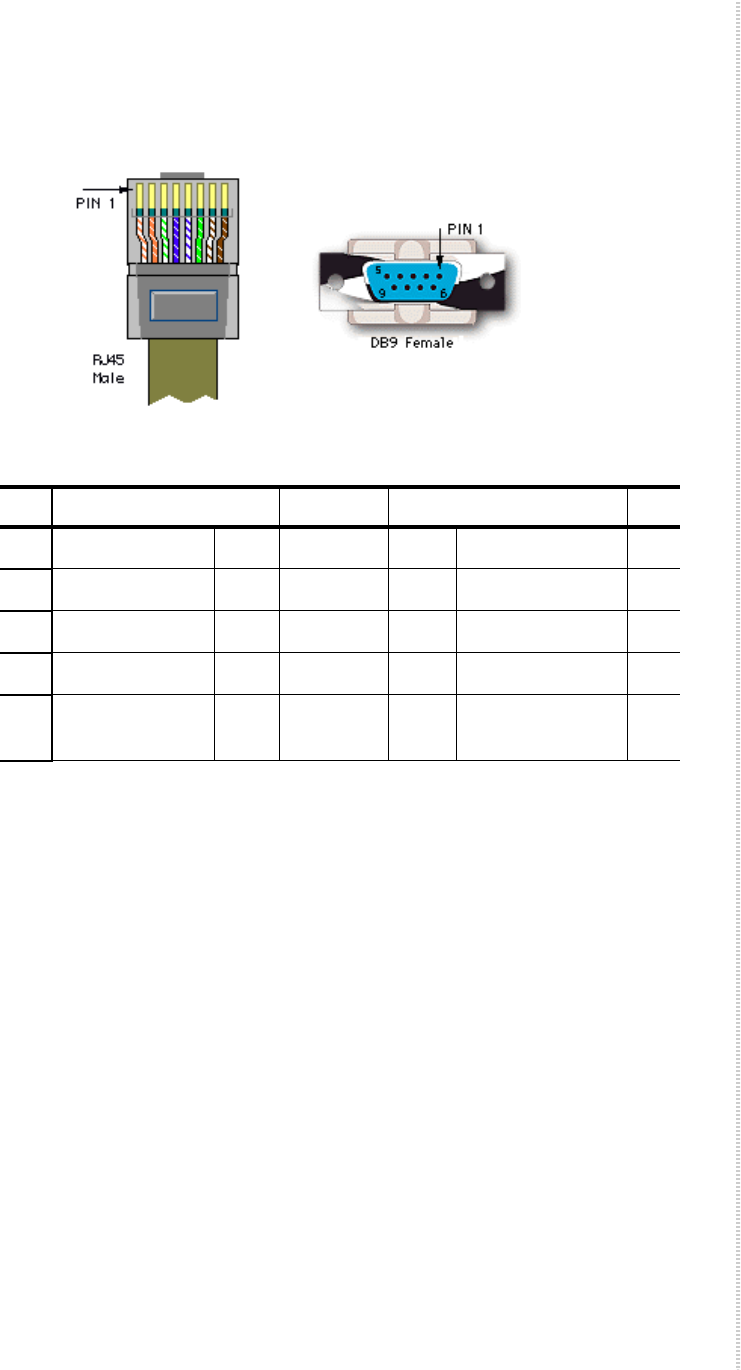
DB9 to RJ45 Adapter Pinouts
4929-A2-ZN20-30 4929 DSLAM Installation and User’s Guide 87
DB9 to RJ45 Adapter Pinouts
To connect the COM port to the DB9 serial port of a PC, use an adapter wired
as shown:
Pins not shown are unused.
Table 8: DB9 to RJ45 Adapter Pinouts
Pin RJ45 Port Direction PC RS232 Serial Port Pin
1 Transmit Data TxD →RxD Receive Data 2
2 Data Set Ready DSR ←RTS Request to Send 7
4 Receive Data RxD ←TxD Transmit Data 3
5 Ground GND ↔GND Ground 5
6 Data Terminal
Ready
DTR →CTS Clear to Send 8

Connectors and Pin Assignments
88 4929 DSLAM Installation and User’s Guide 4929-A2-ZN20-30

4929-A2-ZN20-30 4929 DSLAM Installation and User’s Guide 89
EQUIPMENT LIST
4900 Series DSLAM models are listed in Table 9, 4900 Series Models and
Features.
All 4900 Series DSLAMs come with 19- and 23-inch mounting brackets and
hardware, and the Installation Guide.
Table 9: 4900 Series Models and Features
Model Number Type
Number of
Ports POTS Splitters
4929-A1-520 ADSL2+ Annex A 24 No
4929-A1-530 ADSL2+ Annex A 24 900-Ohm
4929-A1-531 ADSL2+ Annex A 24 600-Ohm
Table 10: 4900 Series DSLAM Related Equipment
Model
Number Description
4200-F1-001 Mounting Brackets for ETSI 21-inch (535 mm) Rack
4200-F3-000 Single-Mode 1000BaseLX SFP Transceiver
(10 km, 1310 nm FP-LD)
4200-F3-001 Single-Mode 1000BaseLX SFP Transceiver
(40 km, 1310 nm DFB-LD)
4200-F3-002 Single-Mode 1000BaseZX SFP Transceiver
(80 km, 1550 nm DFB-LD)
4200-F3-003 Multimode 1000BaseSX SFP Transceiver
(0.55 km, 850 nm VCSEL)
8400-F1-001 LC to SC Multimode Conversion Cable
8400-F1-002 LC to SC Single-Mode Conversion Cable

Equipment List
90 4929 DSLAM Installation and User’s Guide 4929-A2-ZN20-30

4929-A2-ZN20-30 4929 DSLAM Installation and User’s Guide 91
TECHNICAL SPECIFICATIONS
Technical specifications are subject to change without notice.
Table 11: 4900 Series DSLAM Technical Specifications (Sheet 1 of 2)
Specifications Criteria
Cooling and Air
Handling
Each 4900 Series DSLAM is independently cooled with integral fans and does
not rely on vertical air flow.
DSL Compatibility zADSL2+ (G.992.5) Annex A
Electromagnetic
Compatibility (EMC)
Meets the following standards:
zICES-003
zEN 300 386-2
zCE Marking
zFCC Part 15, Class A
Interfaces zAccess Ports
— 24 ADSL2+ ports using RJ21 connector (Annex A)
— 24 Splitter ports using RJ21 connector (Annex A)
zUplink ports
— 1 - 10/100/1000BaseT or fiber based (SFP) GigE port for management
or uplink
— 1 - RS232 console port for RS-232 serial management connection
— 1 - Micro Interface Module (MIM) modular media independent
interface to support additional GigE, T1, E1, or 10/100BaseT ports
Operating
Environment
Ambient Temperature:–40° to 149° F (–40° to 65° C )
Relative Humidity: 5% to 95% noncondensing
Storage Temperature: –40° to 158° F (–40° to 70° C)
Altitude: –200 ft to 16,600 ft (–60 m to 5,000 m)
Shock and vibration tolerance sufficient to withstand normal shipping
Physical Dimensions Height: 1.75″ (44.5 mm, or 1U as defined in EIA-310-C) without feet
Width: 16.9″ (430 mm) without mounting brackets
Depth: 9.5″ (241 mm) without cables
Power The unit operates from a standard CO –48 VDC power supply. Dual feeds are
supported. The terminal block accepts 28 to 18 AWG bare wire.

Technical Specifications
92 4929 DSLAM Installation and User’s Guide 4929-A2-ZN20-30
Power Consumption –48 VDC, 1.5 A: 72 Watts Maximum
Standards and
Protocols Supported
zEnterprise MIBs Chassis and Module Identification, Configuration,
Multimedia Traffic Management
zFlash Upgradeable IEEE 802.3
zIEEE 802.1p CoS
zIEEE 802.1Q VLAN
zIGMP Snooping (IGMPv1 and IGMPv2)
Weight 2.5 lb (1.1 kg)
Table 11: 4900 Series DSLAM Technical Specifications (Sheet 2 of 2)
Specifications Criteria

4929-A2-ZN20-30 4929 DSLAM Installation and User’s Guide 93
INDEX
Numerics
10/100/1000BaseT pinouts 86
A
About This Guide 11
Activity LEDs 33
ADSL mode 45, 57
Advanced Configuration 39
Audience for this document 11
B
Backbone VLAN ID 66
Brackets 19
C
Cables 83
DSL ports 83
MGMT port 86
MIM 18
Required 18
Cabling 25
Overview 25
power 27
Chaining DSLAMs 29
Circuit Configuration 56
Circuit Summary 55
CLI
Commands 76
System Requirements 75
COM port
description 18
pinouts 87
Command Line Interface 75
Community names 42
Community strings 82
Configuring
using CLI 75, 81
using NMS 35
Windows PC to communicate with NMS 36
Connecting
10/100/1000 Connector 28
ADSL2+ and POTS Connectors 27
COM Port 30
DSLAMs to each other 29
Modem to the COM Port 31
PC Directly 75
SFP Connector 28
Terminal or PC to the COM Port 30
to DSLAM 81
to Power 31
Connectors 83
and Pin Assignments 83
DSL ports 83
Front panel 83
Management port 86
MIM 18
POTS splitter 83
SFP socket pin assignments 85
Contents of shipping carton 19
Cooling and air handling 91
Copy Port 69
D
Daisy-chaining 29
Data Rate Setting 44
DB9 pinouts 87
DB9 to RJ45 Adapter Pinouts 87
DC terminal strip 31
Desktop installation 24
DHCP Option 82 44, 57
Dimensions 91
Document Purpose 11
Document Summary 11
Documents, related 12
DS Mask 46, 58
DS Value 46, 58
DSCP Rules 58
DSL mode 45, 57
DSL ports
description 18
LEDs 33
Pin assignments 83
POTS Splitter Connectors 83

94 4929 DSLAM Installation and User’s Guide 4929-A2-ZN20-30
DSLAM
description 15
features 89
Interconnect Configuration 73
models 89
Dual power source 32
E
EC 55, 70
Echo Cancellation 55, 70
Electromagnetic Compatibility (EMC) 91
Environment 91
Equipment List 89
package contents 19
part numbers 89
ESD precautions 19
Ethernet LEDs 33
Ethertype 66
F
Fast Buffer Setting 55
FDM 55, 70
Feature numbers 89
Features 15
Feet 24
Ferrite choke 28
Flood type 66
Frame Type 45, 57
Frequency Division Multiplexing 55, 70
Front Panel 33, 83
illustration 83
LEDs 33
G
Gateway 38
Global
Advanced Configuration 54
Circuit Configuration 43
DSCP Rules 45
IP Rules 47
MAC Rules 49
Set 43
VLAN Rules 51
Glossary 11
Glossary URL 11
H
HTTP Password 40
I
IGMP
Age Time 72
Summary screen 71
Inband Management 38
establishing with CLI 80
Installation 15, 17
options 17
Installing
Brackets for Rack Mounting 20
DSLAM Into a Rack 21
DSLAM on a Shelf or Desktop 24
DSLAM on a Wall 22
feet for shelf installation 24
in rack 21
Micro Interface Module 26
MIM 26
mounting brackets for wall mount 22
on shelf or desktop 24
Screws for wall mount 23
Self-retaining nuts 21
Unit into rack 21
Unit on wall 22
Intended Audience 11
Interfaces 91
Introduction 15
IP Address 38
Filter Settings 57
filter settings 44
IP Range 39, 48, 60
IP Rules 60
L
Launching Terminal Emulation Program 76
Layer 2 Port Filter Settings 57
LED 33
Locations 33
Meanings 33
Link LEDs 33
Logging In 76

4929-A2-ZN20-30 4929 DSLAM Installation and User’s Guide 95
M
MAC and IGMP Summary 71
MAC Range 50, 62
MAC Rules 62
Management
Configuration 38
IP address 38
port pin assignments 86
Management port
connector 86
description 18
pin assignments 86
MIBs, downloading 81
MIM
cables required 18
CLI commands 79
inband management 38
installing 26
recommended 29
supported MIMs 15
Mounting Brackets 20
Mounting configurations 17, 19
Multi-User Support 76
O
Operating Environment 91
Option 82 44, 57
Order numbers 89
Overview 15
4900 Series DSLAM 15
cabling 25
CLI 75, 81
configuration 35
NMS 35
of book 11
of DSLAM 15
P
Package Contents 19
Part numbers 89
Password 40
Physical dimensions 91
Pin assignments 83
COM port 87
Management port 86
RJ21X connectors 83
SFP socket 85
Telco connectors 83
Port Mode Setting 44, 56
Port Statistics 68
POTS splitter
cabling 27
Pin assignments 83
Port description 18
Power 91
connecting to 27
consumption 92
dual source 32
requirements 91
Preinstallation 17
Preparation 17
Priority 38
Product-related documents 12
Protocol Setting 44, 57
Purpose of this document 11
R
Rack installation 21
example 22
procedure 21
Redundant power source 31, 32
Reed Solomon Error Correction Settings 54, 70
Related documents 12
RJ21X connectors 83
S
SFP
Connector 85
socket pinouts 85
Shelf installation 24
Shipping carton 19
Site preparation 17
Site requirements 17, 91
SNMP
Community Administration 42
Community names 42
Community strings 82
Configuration 41
Interface 81
Traps 41
SNR 54, 70
Advanced Configuration 70
Stacking 17

96 4929 DSLAM Installation and User’s Guide 4929-A2-ZN20-30
Standards 91
Subnet Mask 38
Synopsis of chapters 11
System
Location 39
Name 39
Requirements 75
T
Technical Specifications 91
Telco connectors 83
Telnet 39
Terminal strip 31
TFTP 39
Trap Managers 41
Traps 41
Troubleshooting, LEDs 33
U
Unpacking 19
Uplink ports 91
V
VLAN ID 38
VLAN Rules 64
VPI/VCI Detect Setting 44, 57
W
Wall mount
bracket installation 22
screw positions 23
Web Interface System Requirements 35
Weight 91
Windows 36
