Zhongsijin S1 android tv box User Manual
Shenzhen Zhongsijin Trading Co.,Ltd. android tv box
User Manual
AndroidTVBox
UserManual

Android TV BOX User Manual
1
Welcome to use our tv box,We stand with you together always.
Android TV BOX User Manual
2
How to setup before using:
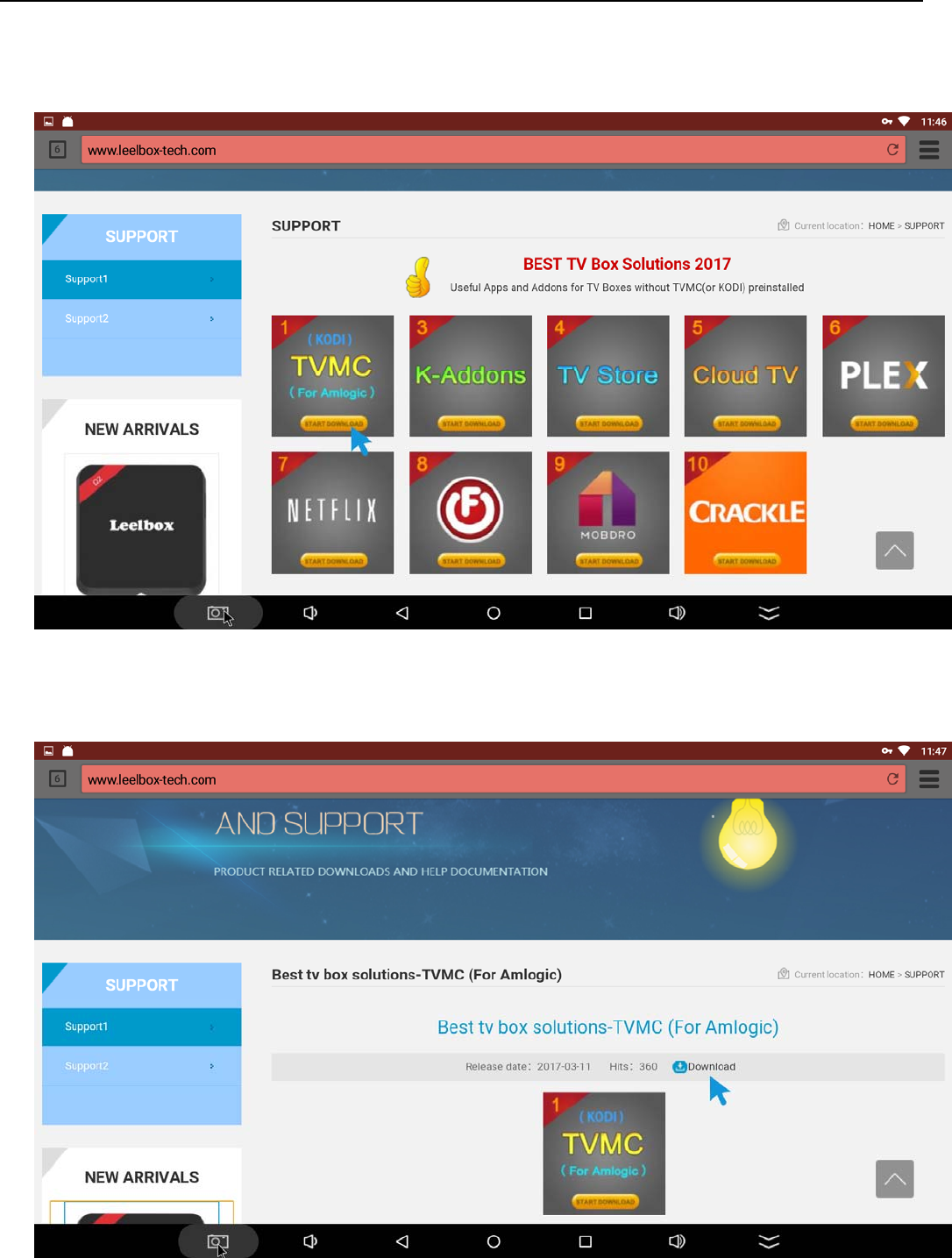
1. Press “help” key of remote control or open browser for help when using.then it is will go
to open browser and go to support page .there is many useful apps for android tv box.
2. you can click the app icon and download it.for example we want to install “TVMC/KODI”
app.you can click the “TVMC/KODI “icon.
Android TV BOX User Manual
3
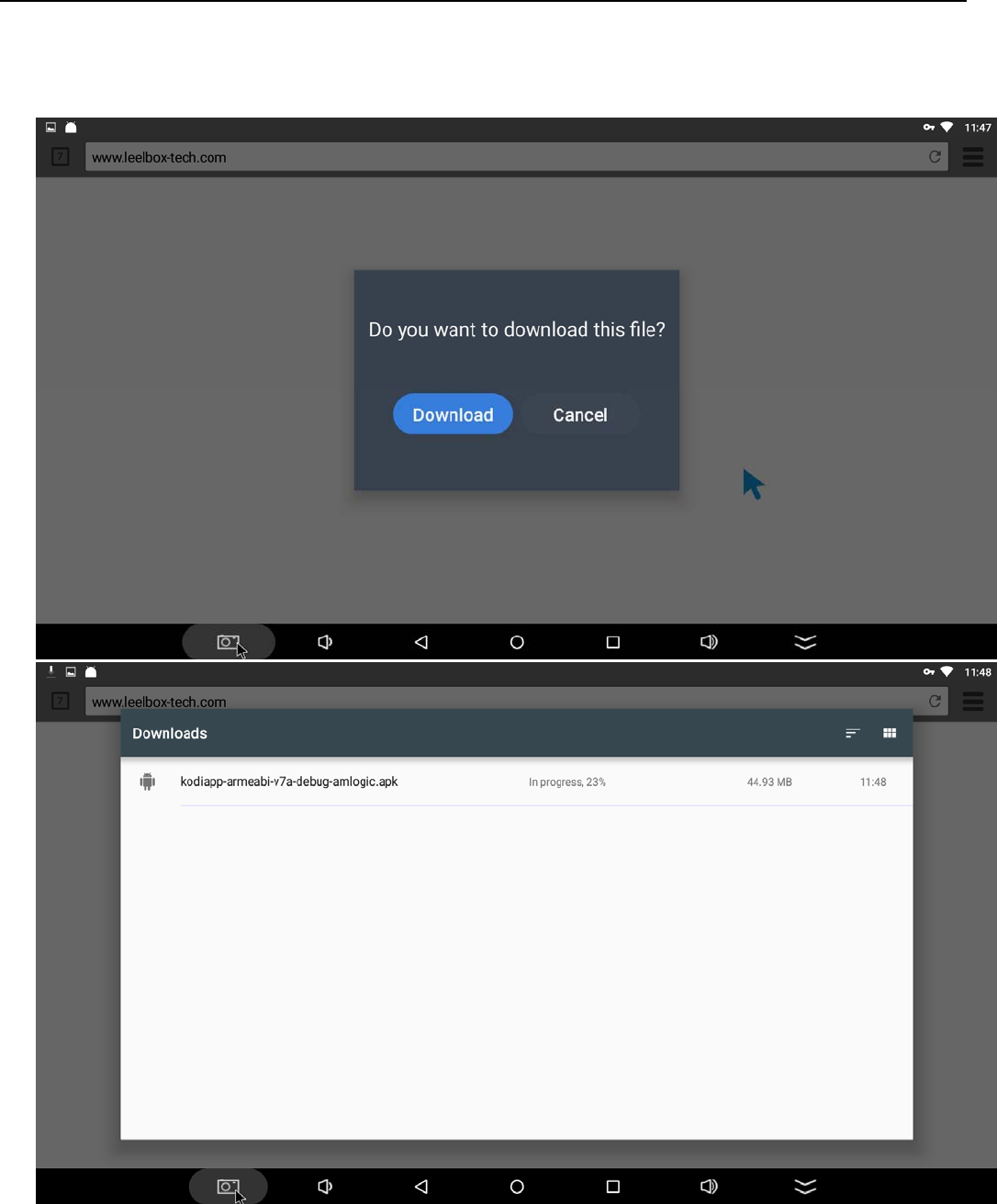
3. when you click the “download” icon,then it is will open a note,then you just need click
the “download” options.then it is begin to download.
Android TV BOX User Manual
4
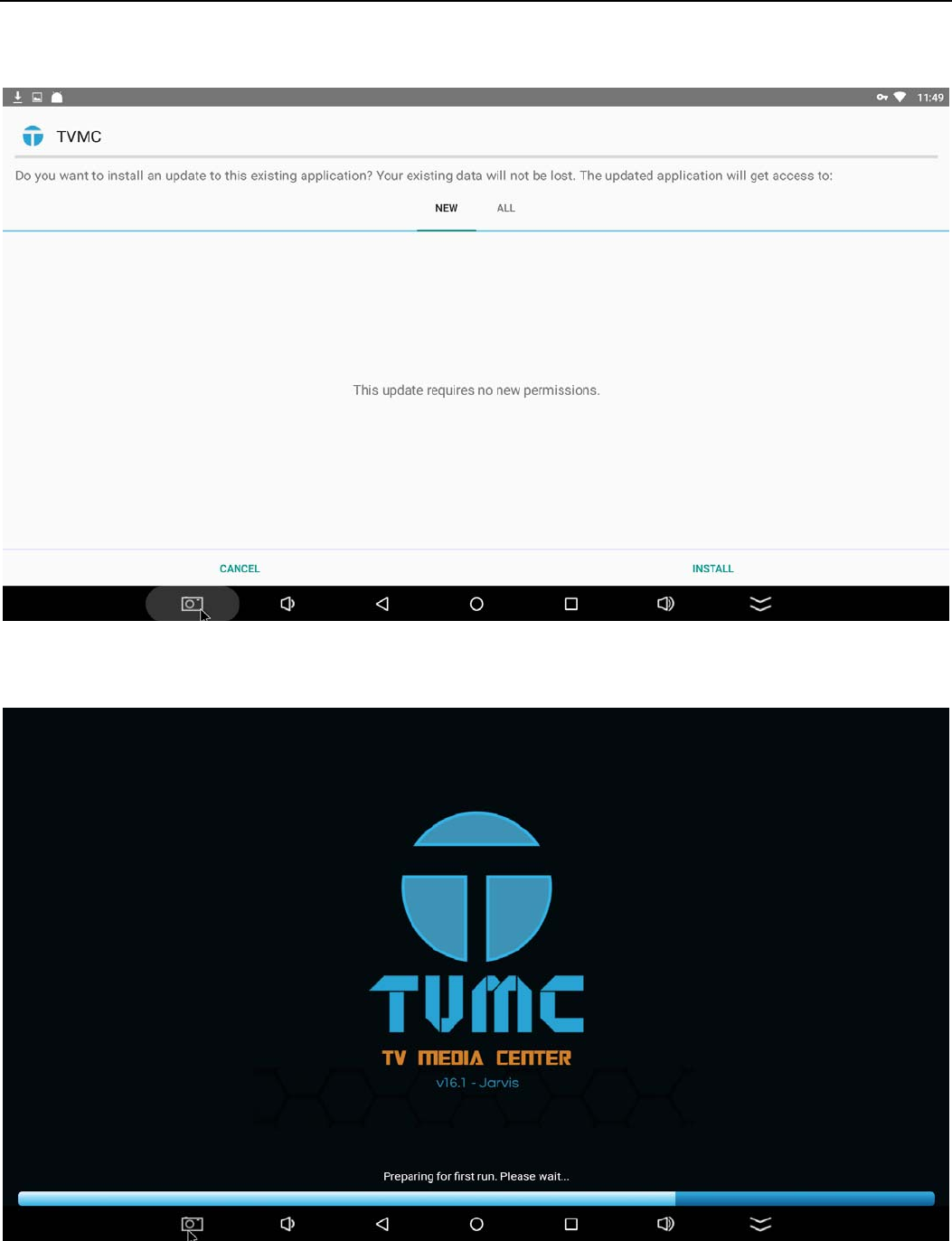
4,when it is downloaded.you can choose the file and press “ok” key of remote control,then it
is will ask you to install it.you can choose “install option ” and install it.
when you installed it,you can open the new app.
Android TV BOX User Manual
5
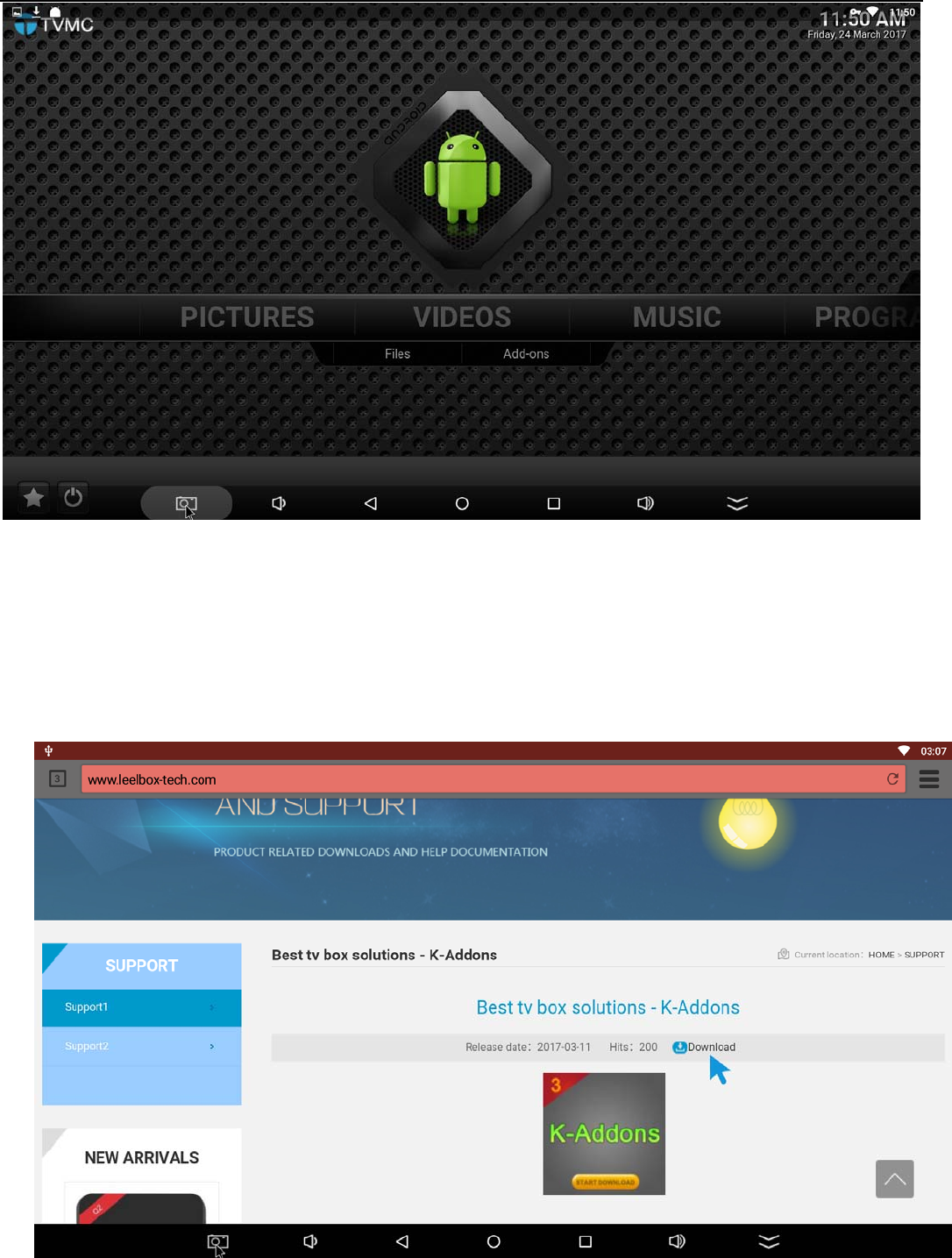
4. NOTE:
after you downloaded the TVMC(KODI),you can go to the support page and
download the “K-Addons”APK,it is will easy to use TVMC(KODI)
Android TV BOX User Manual
6
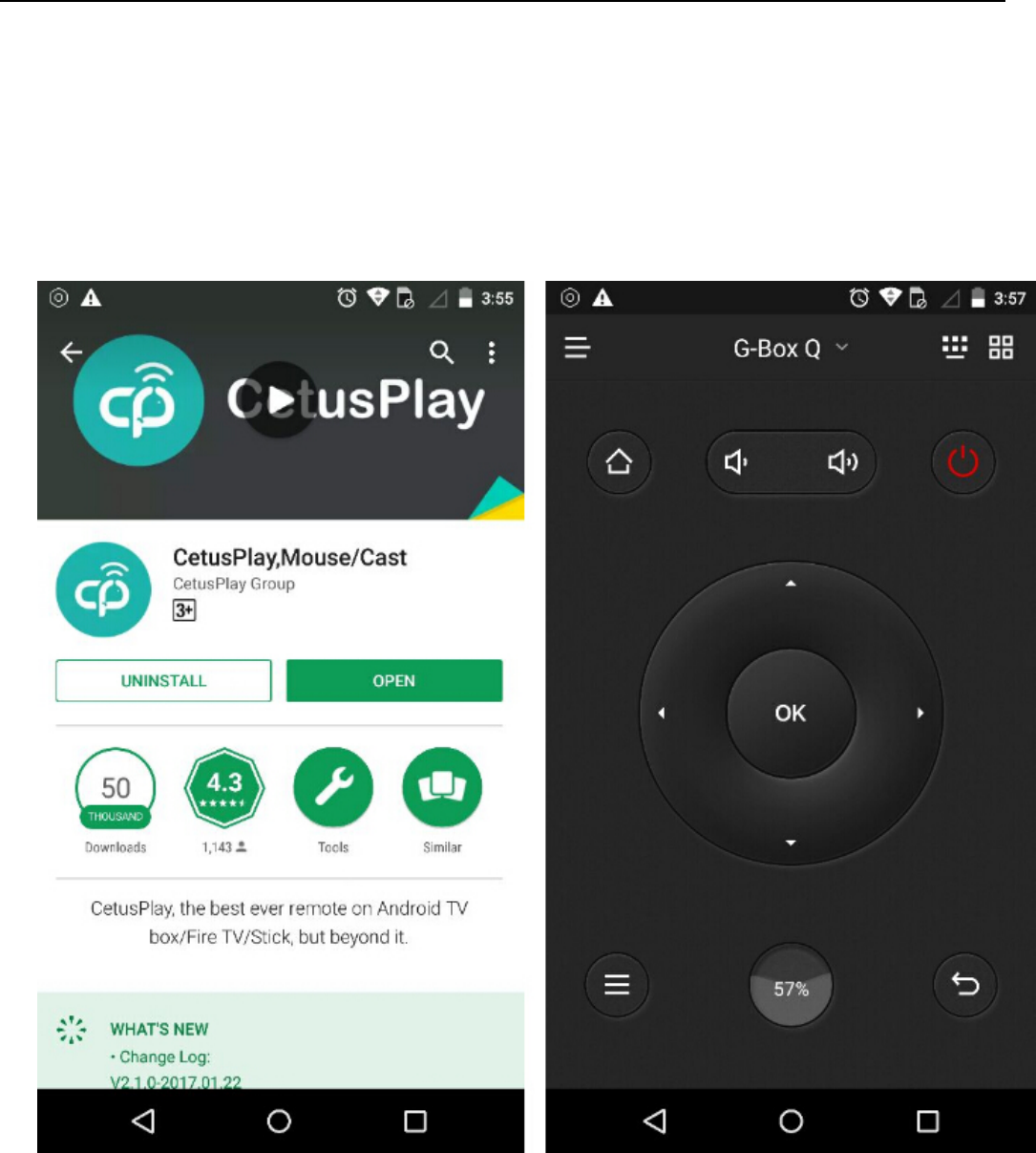
5. how to use the “CetusPlay”,it is make a lot easy use your tv box.
1,you must install the apk on your phone first,you can use this link to
download this apk,you can search “CetusPlay” in google store or app store.
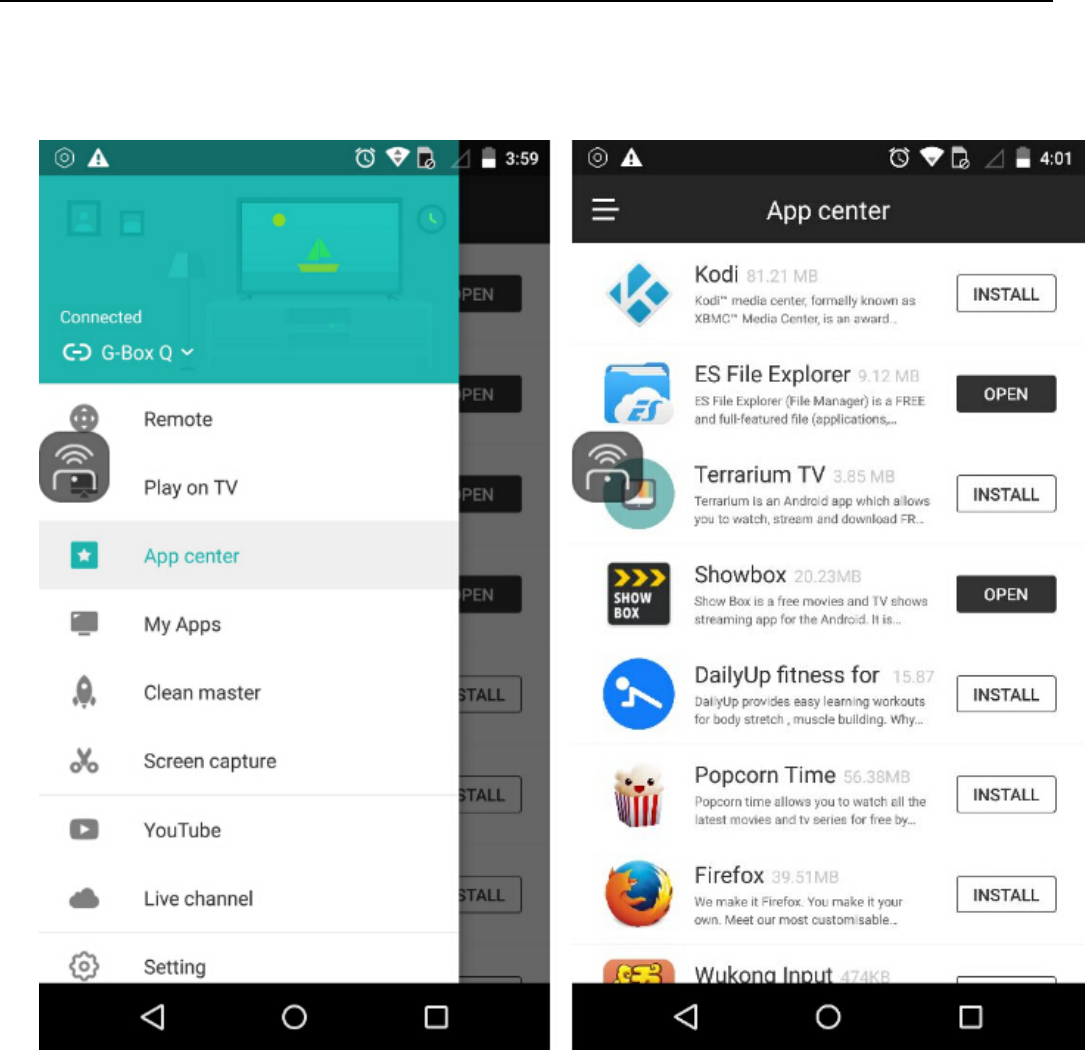
2. Go to App center in side bar and click KODI or other free movies/TV
Android TV BOX User Manual
7
shows app like Mobdro, UKTVNOW, Terrarium TV to install on phone.
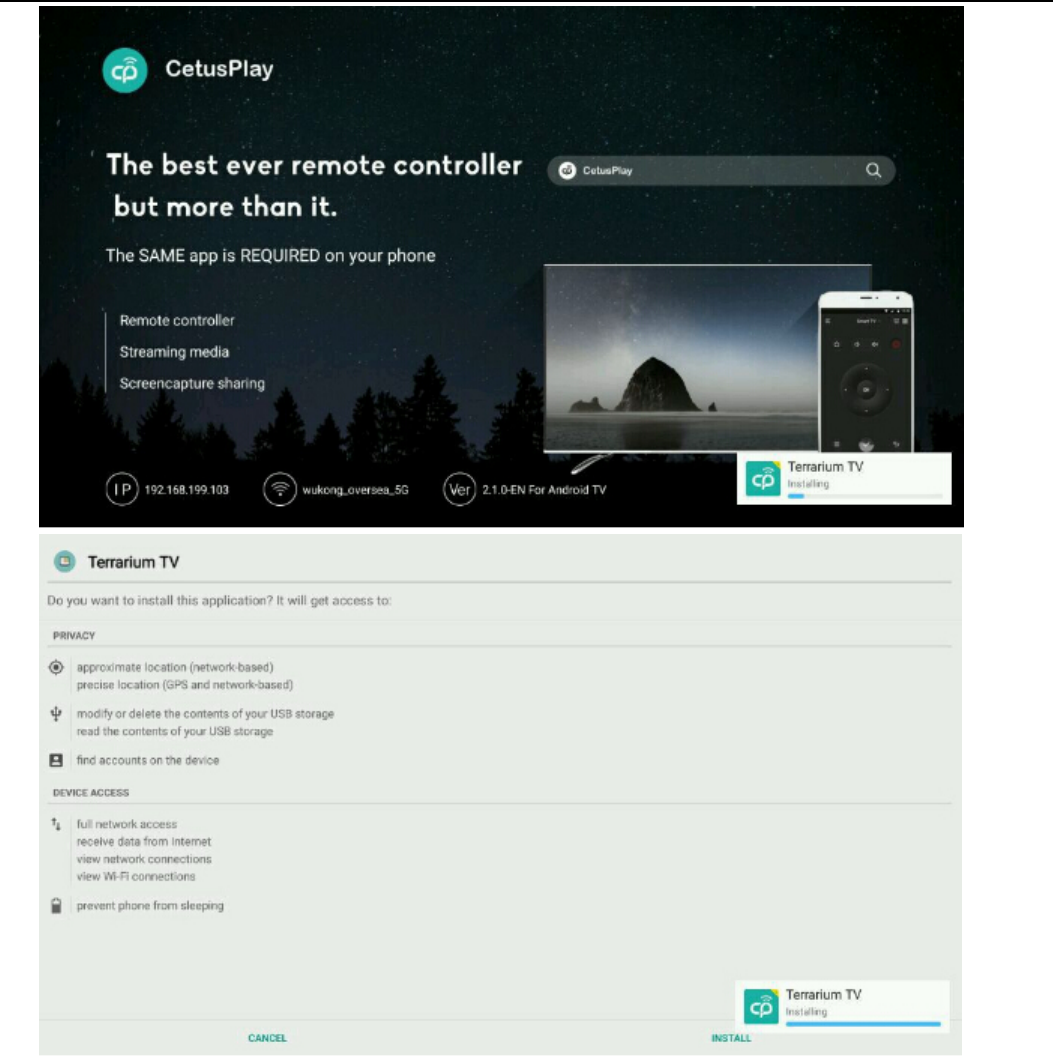
3. Mind the TV screen and wait for the dowload, then just click install the
certain apps you wan to install onto TV box.
Android TV BOX User Manual
8
1. Getting Started
1.1 Basic Operations
1.1.1 Power On/ Off and Sleep
1. Connect the box to the TV with HDMI cable, connect box to the power adaptor, Connect
mouse, air mouse or other input devices with USB port

Android TV BOX User Manual
9
2. After the device and cable connected ,power led turn to blue .
3. After the device and cable disconnected, Power LED turns off
4. Under power on mode, press remote control’s power button, device is entering into sleep
mode.
5. Under sleep mode, device will be wake when you press remote control’s power button,
1.1.2 Open applications
Use remote control’s arrow keys to choose the wanted program, click OK button to open the
selected program
1.1.3 Switch in the applications
Click "My Apps" to view recently used programs, click program icon to switch application
arbitrarily
1.1.4 Close Applications
Click icon * to view recently used programs, choose one of them by click and hold,
drag it to blank area to close the application
* This function only operated in the condition of Mouse mode
1.1.5 Back To Home Screen
Click icon to return to home screen
Click icon on remote control to return to home screen
1.1.6 Read External Storage Data
Read U Disk
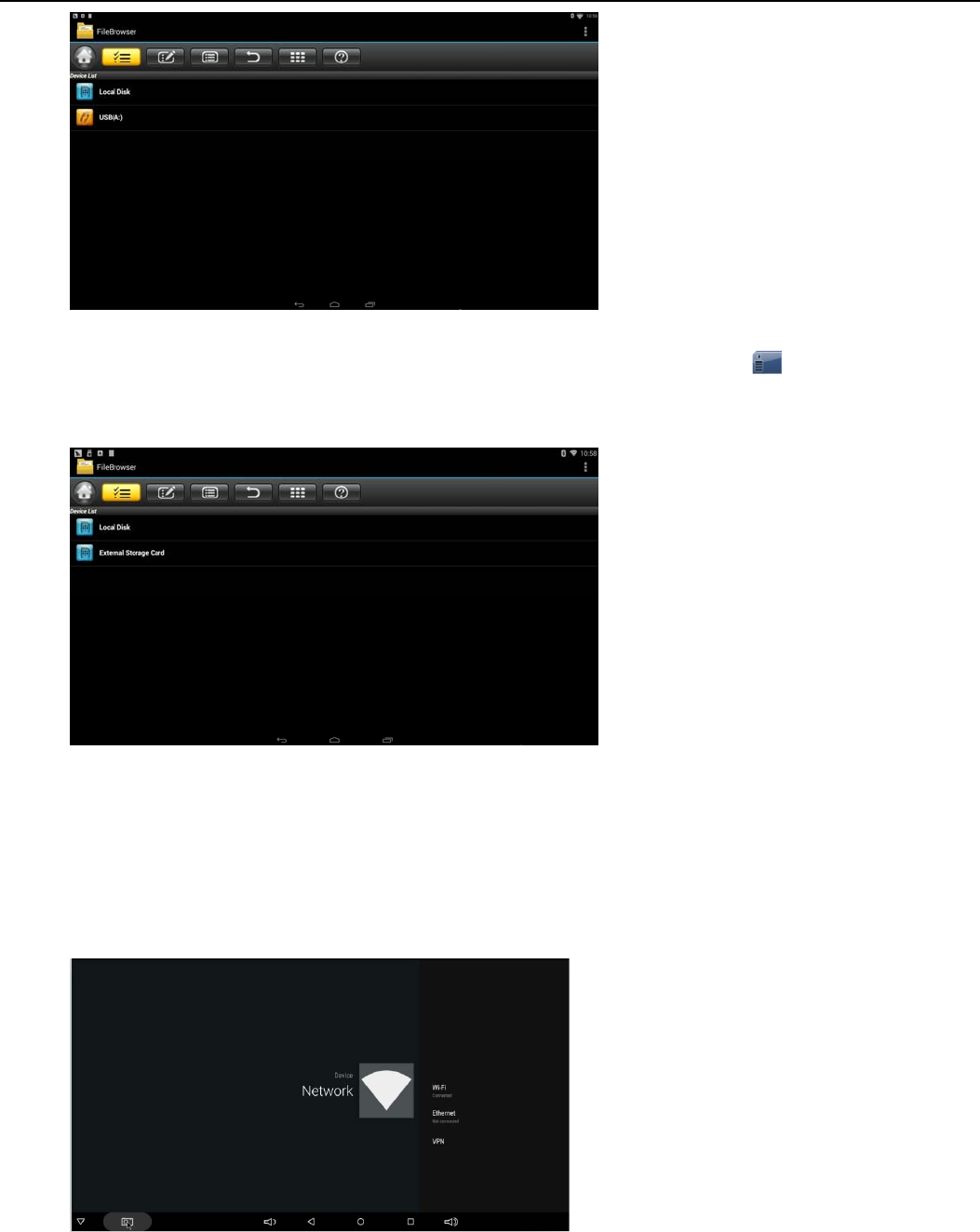
Insert U flash disk or removable hard disk into USB port in the status of power on, icon
appears in top left corner of the desktop, open “FileBrowser”, the identified USB(A:) will
appear under “Local Disk”, U disk’s operation is available now
Android TV BOX User Manual
10
Read TF card
Insert TF card into the device in the status of power on, when icon appears in top left
corner of the desktop, open “FileBrowser”, the identified External Storage Card will appear
under “Local Disk”, TF card’s operation is available now
1.1.7 WIFI Function
Home Screen SETTINGSNetwork Select“Wi-Fi”to open WIFI function
Choose hotspot Input Password Connect to the network
Android TV BOX User Manual
11
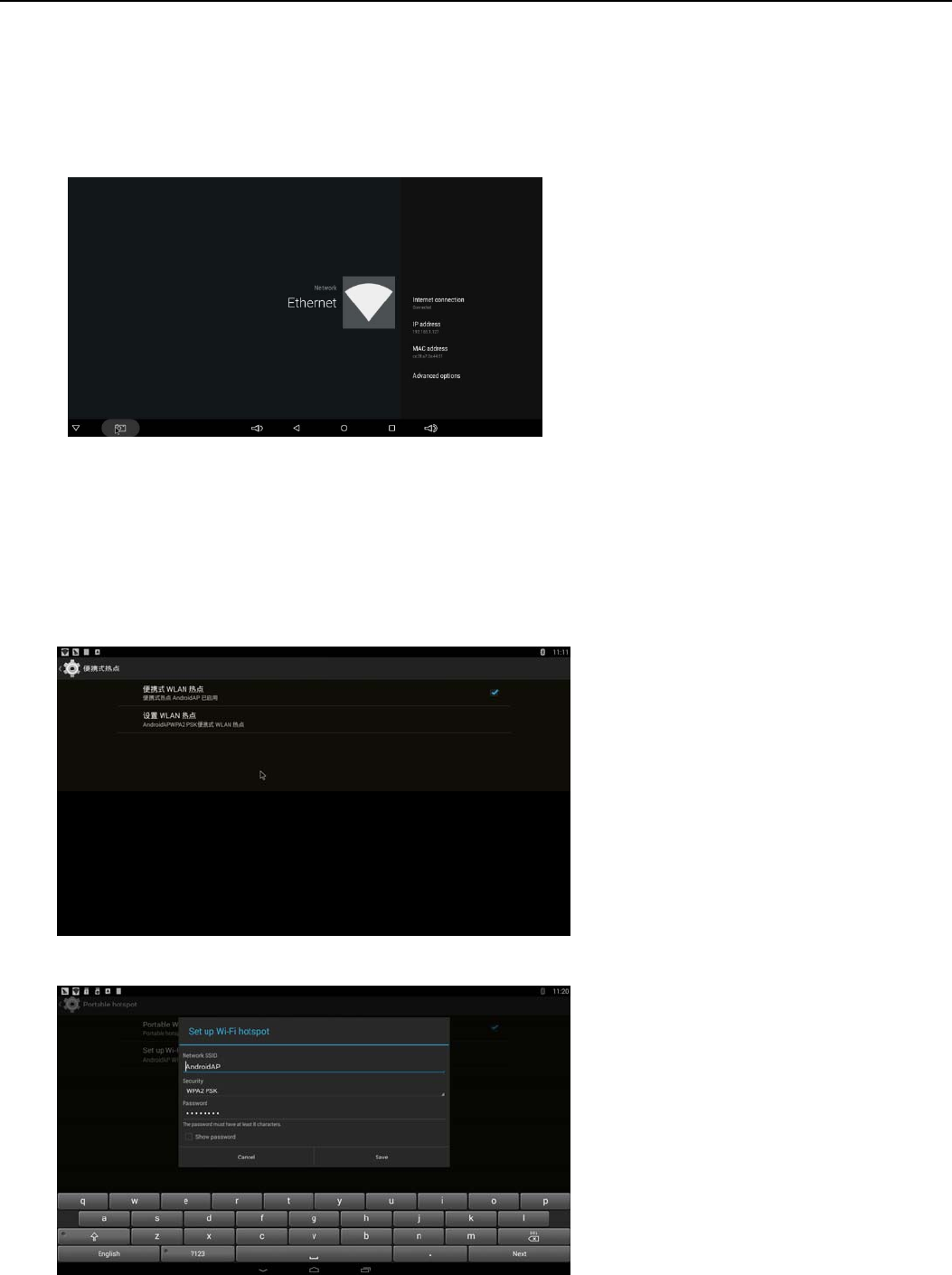
1.1.8 Ethernet Function
Home Screen SETTINGSNetwork Select “Ethernet” to open Ethernet function
Insert network cable, network will be connected automatically
1.1.9 WLAN Hotspot
Operations on the box :
Home Screen SETTINGS OtherMore SettingMore…Portable hotspot Select
“Portable Wi-Fi hotspot”
Select “Set up Wi-Fi hotspot” to set up “Network SSID”、“Security”、“Password” parameters

Android TV BOX User Manual
12
* Ensure connected to the wired network, the box can be used as wireless AP to support
more wireless devices access in the family
2.1.0 The Step that how to reflash the box
1) Uncompress the downloaded firmware (ROM) to the root of and SD card(format your SD card
first).
2) Insert the SD Card into powered-off Box (power cable not plugged in) with no external USB
storage attached.
3) Using a toothpick, insert into the AV port of Box, press and hold the hidden button while plugging
power in.Do not release until you see the screen of Robert Logo.
4) Update will run automatically. When it is done then choose “Reboot”. You can disregard any
errors that display after the update, they are not relevant to your device.
5) When system has rebooted then you should first check to ensure wifi is working by going to
Settings->Wi-Fi. Turn on the wifi if it’s off and you should be able to connect.
FCC Radiation Exposure Statement:
This equipment complies with FCC radiation exposure limits set forth for an uncontrolled
environment. This equipment should be installed and operated with minimum distance 20cm
between the radiator & your body.
FCC Warning
This device complies with Part 15 of the FCC Rules. Operation is subject to the following two
conditions:
(1) This device may not cause harmful interference, and (2) this device must accept any
interference received, including interference that may cause undesired operation.
NOTE 1: This equipment has been tested and found to comply with the limits for a Class B digital
device, pursuant to part 15 of the FCC Rules. These limits are designed to provide reasonable
protection against harmful interference in a residential installation. This equipment generates, uses
and can radiate radio frequency energy and, if not installed and used in accordance with the
instructions, may cause harmful interference to radio communications. However, there is no
guarantee that interference will not occur in a particular installation. If this equipment does cause
harmful interference to radio or television reception, which can be determined by turning the
equipment off and on, the user is encouraged to try to correct the interference by one or more of the
following measures:
- Reorient or relocate the receiving antenna.
- Increase the separation between the equipment and receiver.
-Connect the equipment into an outlet on a circuit different from that to which the receiver is
connected.

Android TV BOX User Manual
13
-Consult the dealer or an experienced radio/TV technician for help.
NOTE 2: Any changes or modifications to this unit not expressly approved by the party responsible
for compliance could void the user's authority to operate the equipment.