ZhuHai Seine Technology PANTUM Monochrome Laser Printer User Manual Confidential 1

ZhuHai Seine Technology Co.,Ltd. Monochrome Laser Printer Confidential 1

Contents

Confidential_User Manual1

User GuideIt is recommended to carefully read this Guide before using the printer  Pantum P2200/P2500 SeriesPantum P2900 SeriesMonochrome Laser Printer
I PrefaceWelcome to the Pantum series products!We heartily appreciate your using of Pantum series products!To protect your vital interests, please carefully read the following statements.Legal NoticeTrademark Pantum and Pantum 奔图 are registered trademarks of Zhuhai Seine Technology Co., Ltd. in the mainland of China.Microsoft®, Windows®, Windows Server® and Windows Vista® are trademarks registered by Microsoft Corporation in the United States or other countries/regions.The ownership to the names of the software in this User Guide belongs to their respective owned companies in accordance with corresponding license agreement, and they are referred for instructions only.All other product and brand names herein may be the registered trademarks, trademarks or service marks of their respective owners, and they are referred for instructions only.Copyright The copyright of this User Guide is owned by Zhuhai Seine Technology Co., Ltd.It is prohibited to copy, translate, modify and transmit this User Guide by any means or forms without the prior written consent of Zhuhai Seine Technology Co., Ltd.Version: V1.0 ENDisclaimer For a better user experience, Zhuhai Seine Technology Co., Ltd. reserves the right to make changes to the User Guide. The information contained herein is subject to change without notice.Users are responsible for any damages arising from failing to follow this User Guide. Meanwhile, except the express warranty made in the product maintenance manual or service commitment, Zhuhai Seine Technology Co., Ltd. does not make any express or implied warranty or guarantee to this User Guide (including composing or words).Using this product to copy, print, scan certain documents or images or make other forms of operations may be prohibited by the local laws. If you are uncertain about the legality of using this product for certain documents or images, you should consult your legal advisor in advance.
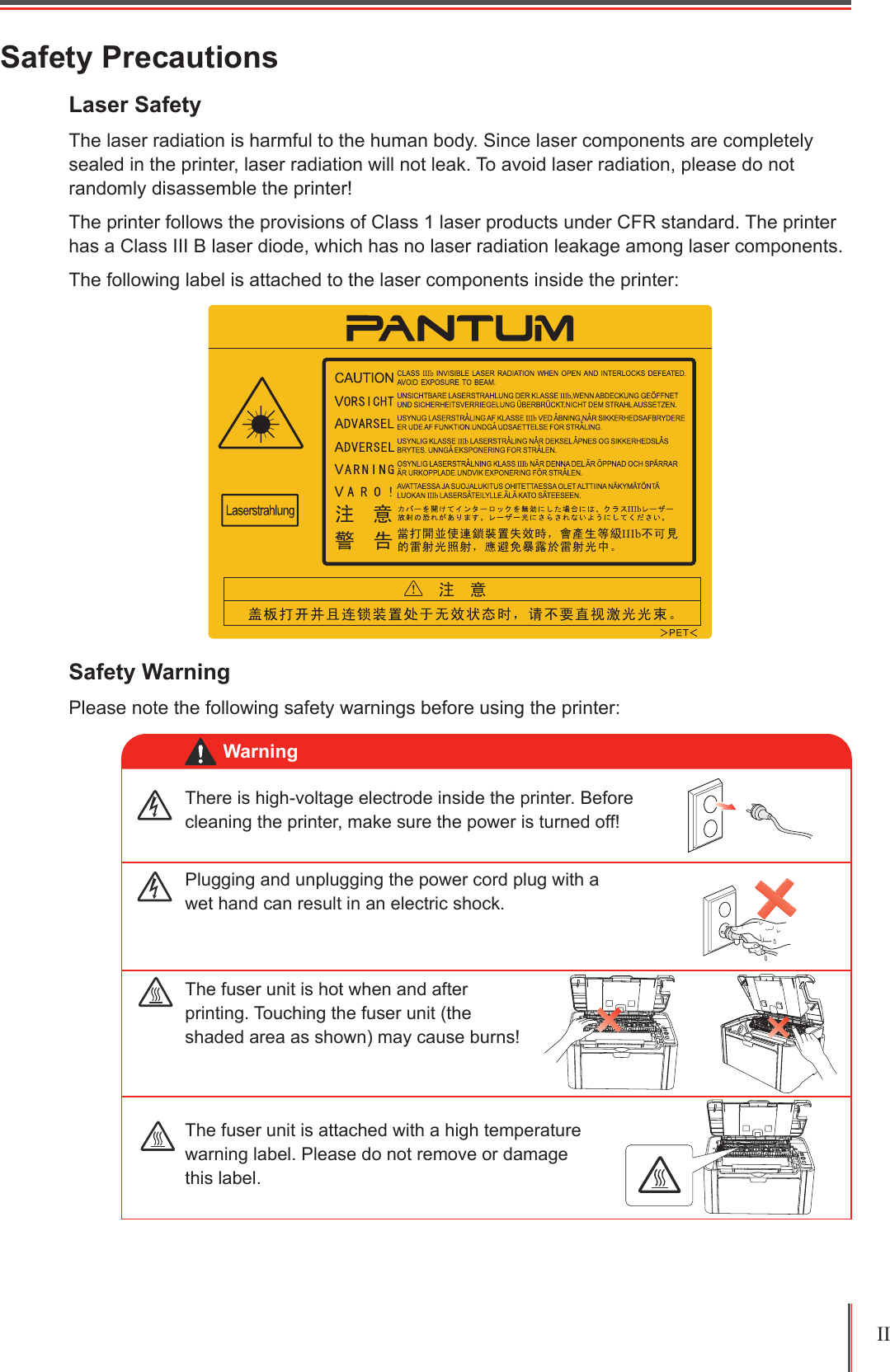
II Safety PrecautionsLaser Safety The laser radiation is harmful to the human body. Since laser components are completely sealed in the printer, laser radiation will not leak. To avoid laser radiation, please do not randomly disassemble the printer!The printer follows the provisions of Class 1 laser products under CFR standard. The printer has a Class III B laser diode, which has no laser radiation leakage among laser components.The following label is attached to the laser components inside the printer:Safety WarningPlease note the following safety warnings before using the printer:There is high-voltage electrode inside the printer. Before cleaning the printer, make sure the power is turned off!Plugging and unplugging the power cord plug with a wet hand can result in an electric shock.The fuser unit is attached with a high temperature warning label. Please do not remove or damage this label.The fuser unit is hot when and after printing. Touching the fuser unit (the shaded area as shown) may cause burns!Warning
III PrecautionsPrecautions before Using the Printer:1.  Read and understand all instructions;2.  Familiarize yourself with the basic principles associated with operating electrical appliances;3.  Comply with all warnings and instructions marked on the equipment or specied in the manual supplied with the equipment;4.  If the operating instructions conflict with the safety information, please refer back to the safety information, as you may have misunderstood the operating instructions. If you cannot resolve the conflicts, please call the Customer Service Hotline or contact a service representative for help;5.  Before cleaning the equipment, remove the power cord from the AC power supply outlet. Do not use liquid or aerosol cleaners;6.  Please make sure that the equipment is put on a stable desktop surface to avoid serious damage caused by the falling of the equipment;7.  Do not put the equipment near a radiator, an air conditioner, or a ventilation pipe;8.  Do not place any articles on top of the power cord. Do not put the equipment in a place where its power cord will be stepped on by people;9.  Outlets and extension cords must not be overloaded. This may reduce performance and could result in re or electric shock;10.  Do not allow pets to chew on the AC power cord or the computer interface cable;11.  Do not allow sharp objects piercing equipment slot, so as to avoid contact with the  high-voltage device, which otherwise may result in re or electric shock. Take care not to spill liquids onto the equipment;12.  Do not disassemble the equipment so as to avoid the risk of electric shock. Necessary repairs may only be carried out by professional maintenance personnel. Opening or removing the cover could result in an electric shock or other potential hazards. Incorrect disassembly and assembly could also result in an electric shock during future use; 13.  If any one of the following occurs, disconnect the equipment from the computer and pull out the power cord from the AC wall socket and contact a qualied member of the service personnel for maintenance: • Liquid has been spilled into the equipment.• The equipment has been exposed to rain or water.• The equipment falls, or the cover is damaged.• Signicant changes in the equipment’s performance.14.  Only adjust the control mentioned in the instructions. Incorrect adjustment of other controls may result in damage and mean that professional maintenance personnel need to spend more time xing it;15.  Do not use the equipment in a thunderstorm so as to avoid the risk of an electric shock. If possible, pull out the AC power cord during a thunderstorm; 16.  If you continuously print multiple pages, the surface of the tray will become very hot. Take care not to touch this surface, and keep children away from this surface; 17. The signal wire of the device connected with the printer can not be connected to the outdoors;18.  Please ensure timely ventilation in case of a prolonged use or printing huge amounts of documents in a poorly ventilated room;19.  In standby status, the product will automatically enter into the power saving (sleep) mode if it does not receive any job order for a while (such as 1 minute); and it can realize zero power consumption only if it has not been connected with any external input power supply;20.  As the Class 1 equipment, the product must be connected to the power supply outlet with protective grounding line when using;21. This product should be placed according to the shipping marks on the product package box during delivery;22. Thisproductisakindoflow-voltageequipment.Whenusingthisproductbelowthespeciedvoltage range, please refer to the product precautions or call Pantum Aftersales Service Centre, if the toner comes off the printed contents, or the equipment starts slowly;23.  This product is sold as a complete machine. The consumers can go to Pantum Aftersales Service Centre to purchase parts they need. If the product sold is inconsistent with the package list, please gotothespeciedAftersalesServiceCentretosolvetheproblem;24.  Install this product in a place with the temperature between 10°C to 32.5°C, and the relative humidity between 20% to 80%;25. This device complies with Industry Canada licence-exempt RSS standard(s). Operation is subject to the following two conditions:
IV Regulatory InformationThis symbol indicates that, at the end of your product’s life, it must not be discarded as domestic waste. Instead, you should dispose of your used equipment at a designated collection point for the recycling of waste electrical and electronic equipment. Ref: EU Directive 2002/96/EC on Waste Electrical and Electronic Equipment (WEEE). Please contact your distributor / supplier for further information.This product is suitable for indoor use only.European Community (EC) directives conformity This product complies with the protection requirements of EC directives 2004/108/EC and 2006/95/EC on the approximation and harmonization of the laws of the Member States relating to electromagnetic compatibility and safety of electrical equipment designed for use within certain voltage limits. The manufacturer of this product is: Zhuhai Seine Technology Co., Ltd., No. 3883, Zhuhai Avenue, Xiangzhou District, Zhuhai City, Guangdong, P.R. China. A declaration of conformity to the requirements of the Directives is available upon request from the Authorized Representative. ThisproductsatisestheClassBlimitsofEN55022andsafetyrequirementsofEN 60950. This printer is fully compliant with the ROHS Directive 2009/95/EC and the requirements of the revised Directive 2011/65/EU for managing toxic and hazardous substances.      (1) this device may not cause interference, and       (2) this device must accept any interference, including interference that may cause undesired operation of the device.26. IC Radiation Exposure Statement:      This equipment complies with Canada and FCC radiation exposure limits set forth for uncontrolled      environments. This equipment should be installed and operated with a minimum distance of 20cm      between the radiator and your body.      This transmitter must not be co-located or operating in conjunction with any other antenna or      transmitter.27. This equipment has been tested and found to comply with the limits for a Class B digital device, pursuant to Part 15 of the FCC Rules. These limits are designed to provide reasonable protection against harmful interference in a residential installation. This equipment generates, uses and can radiate radio frequency energy and, if not installed and used in accordance with the instructions, may cause harmful interference to radio communications. However, there is no guarantee that interference will not occur in a particular installation.       If this equipment does cause harmful interference to radio or television reception, which can be determined by turning the equipment off and on, the user is encouraged to try to correct the interference by one or more of the following measures: •Reorientorrelocatethereceivingantenna.•Increasetheseparationbetweentheequipmentandreceiver.•Connecttheequipmentintoanoutletonacircuitdifferentfromthattowhichthereceiveris        connected. •Consultthedealeroranexperiencedradio/TVtechnicianforhelp.28.Changesormodicationsnotexpresslyapprovedbythepartyresponsibleforcompliancecouldvoidthe user's authority to operate the equipment.29.  Please keep this User Guide properly.
V Table of Contents1. Before Using the Printer .................................................................................................................1-21.1. Packing List .............................................................................................................................1-21.2. Components of the Printer .......................................................................................................1-31.3. Laser Toner Cartridge ..............................................................................................................1-42. Paper and Print Media ....................................................................................................................2-22.1. Paper Specification ..................................................................................................................2-22.2. Special Paper ..........................................................................................................................2-32.3. Loading Paper .........................................................................................................................2-42.3.1. Loading into the Automatic Feeder Tray ...........................................................................2-42.3.2. Loading into the Manual Feeder Tray ...............................................................................2-52.4. Nonprinting Area ......................................................................................................................2-72.5. Guidelines for Paper Use .........................................................................................................2-73. Installation and Uninstallation of the Driver Software  ....................................................................3-23.1. Windows-based Driver .............................................................................................................3-23.1.1. Driver Installation ..............................................................................................................3-23.1.2. Uninstallation ....................................................................................................................3-83.2. Installation of the Driver Software on a Mac System .............................................................3-104. Wired Network Settings (For wired network printer models) ...................................................................4-24.1. Set IP Address .........................................................................................................................4-24.2. Install the Printer to Network ....................................................................................................4-34.3. Setting Network Products ........................................................................................................4-44.3.1. View or Change Network Settings ....................................................................................4-44.3.2. Set or Change Web Server Login Password ....................................................................4-44.3.3. Restore to Factory Settings ..............................................................................................4-45. Wireless settings (for models with Wi-Fi printing) ....................................................................................5-25.1. Wireless Network Type ............................................................................................................5-25.1.1. Configuration with infrastructure mode .............................................................................5-25.1.2. Configuration with Wi-Fi Direct..........................................................................................5-85.2. Turn off the Wireless Device ....................................................................................................5-86. Pantum Mobile Print .......................................................................................................................6-26.1. What's Pantum Mobile Print.....................................................................................................6-26.2. Download Pantum Mobile Print ...............................................................................................6-26.3. Supported Mobile Operating System .......................................................................................6-27. Print ................................................................................................................................................7-27.1. Print Function ...........................................................................................................................7-27.2. Opening Help Document .........................................................................................................7-37.3. Manual Duplex .........................................................................................................................7-47.4. Cancel Print Job ......................................................................................................................7-78. Control Panel ..................................................................................................................................8-28.1. Control Panel Overview for P2200/P2500 Series ....................................................................8-28.1.1. Functions of Buttons on the Control Panel  ......................................................................8-28.1.2. Function of LED Indicators on the Control Panel ..............................................................8-39. Routine Maintenance......................................................................................................................9-29.1. Cleaning the Printer .................................................................................................................9-29.2. Maintenance of Laser Toner Cartridge ....................................................................................9-49.2.1. Use and Maintenance of Laser Toner Cartridge ...............................................................9-49.2.2. Service Life of Laser Toner Cartridge ................................................................................9-49.2.3. Replace Laser Toner Cartridge .........................................................................................9-5
VI 10. Troubleshooting  .........................................................................................................................10-210.1. Clearing Jammed Paper  .....................................................................................................10-210.1.1. Paper Jam in the Feed Port ..........................................................................................10-310.2. Common Troubleshooting ....................................................................................................10-610.2.1. Common Trouble ..........................................................................................................10-610.2.2. Image Defects  ..............................................................................................................10-711. Product Specification .................................................................................................................. 11-211.1. P2200/P2500 Series Specification .......................................................................................11-211.1.1. Specification Overview .................................................................................................. 11-211.1.2. Printing Specification .....................................................................................................11-311.2. P2900 Series Specification ..................................................................................................11-411.2.1. Specification Overview .................................................................................................. 11-411.2.2. Printing Specification .....................................................................................................11-5
1Chapter1-1 Before Using the Printer1. Before Using the Printer ....................................................................................................................21.1. Packing List ................................................................................................................................21.2. Components of the Printer ..........................................................................................................31.3. Laser Toner Cartridge .................................................................................................................4
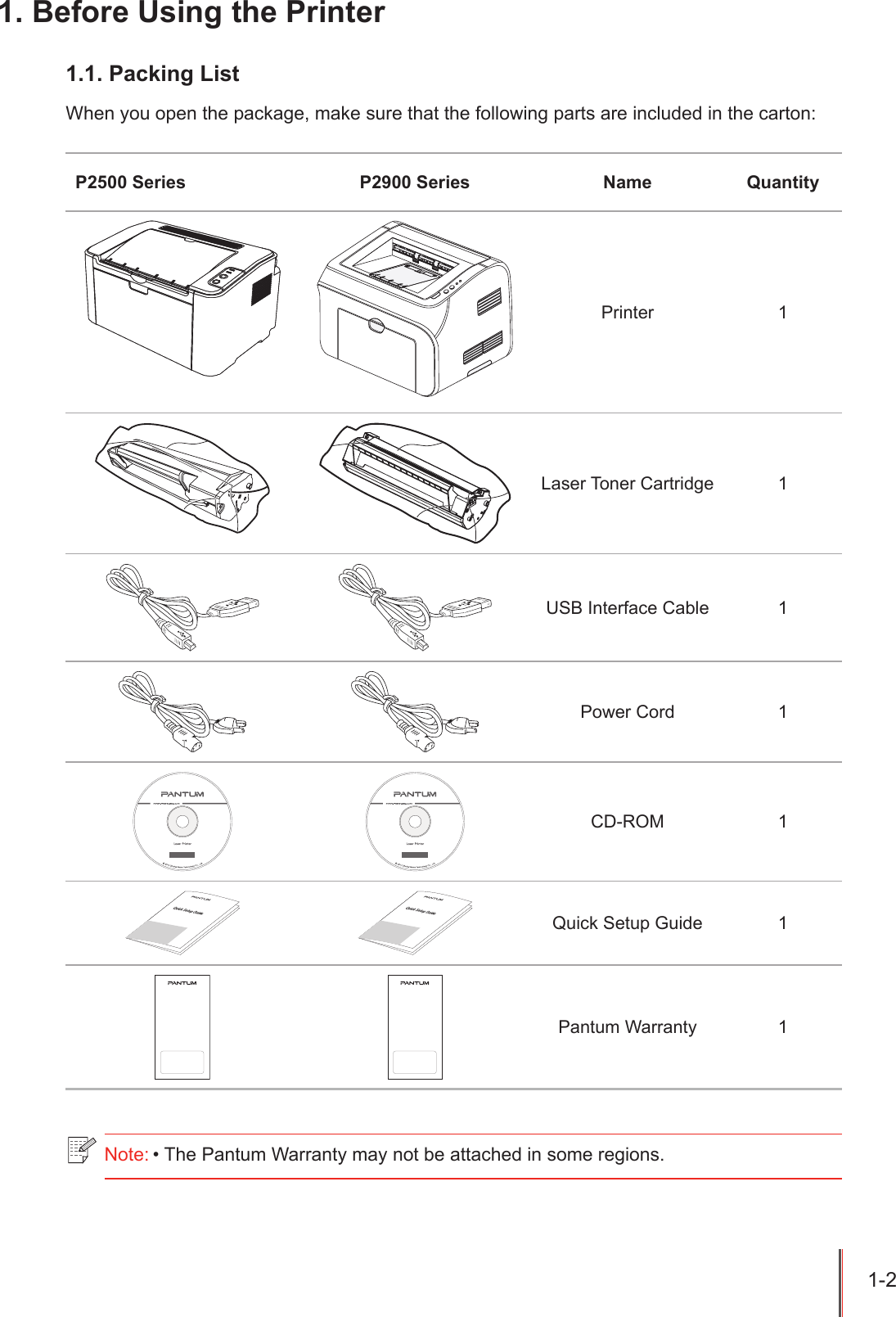
1-2 1. Before Using the Printer1.1. Packing ListWhen you open the package, make sure that the following parts are included in the carton:P2500 Series P2900 Series Name QuantityPrinter 1Laser Toner Cartridge 1USB Interface Cable 1Power Cord 1CD-ROM 1Quick Setup Guide 1Pantum Warranty 1Note: • The Pantum Warranty may not be attached in some regions.
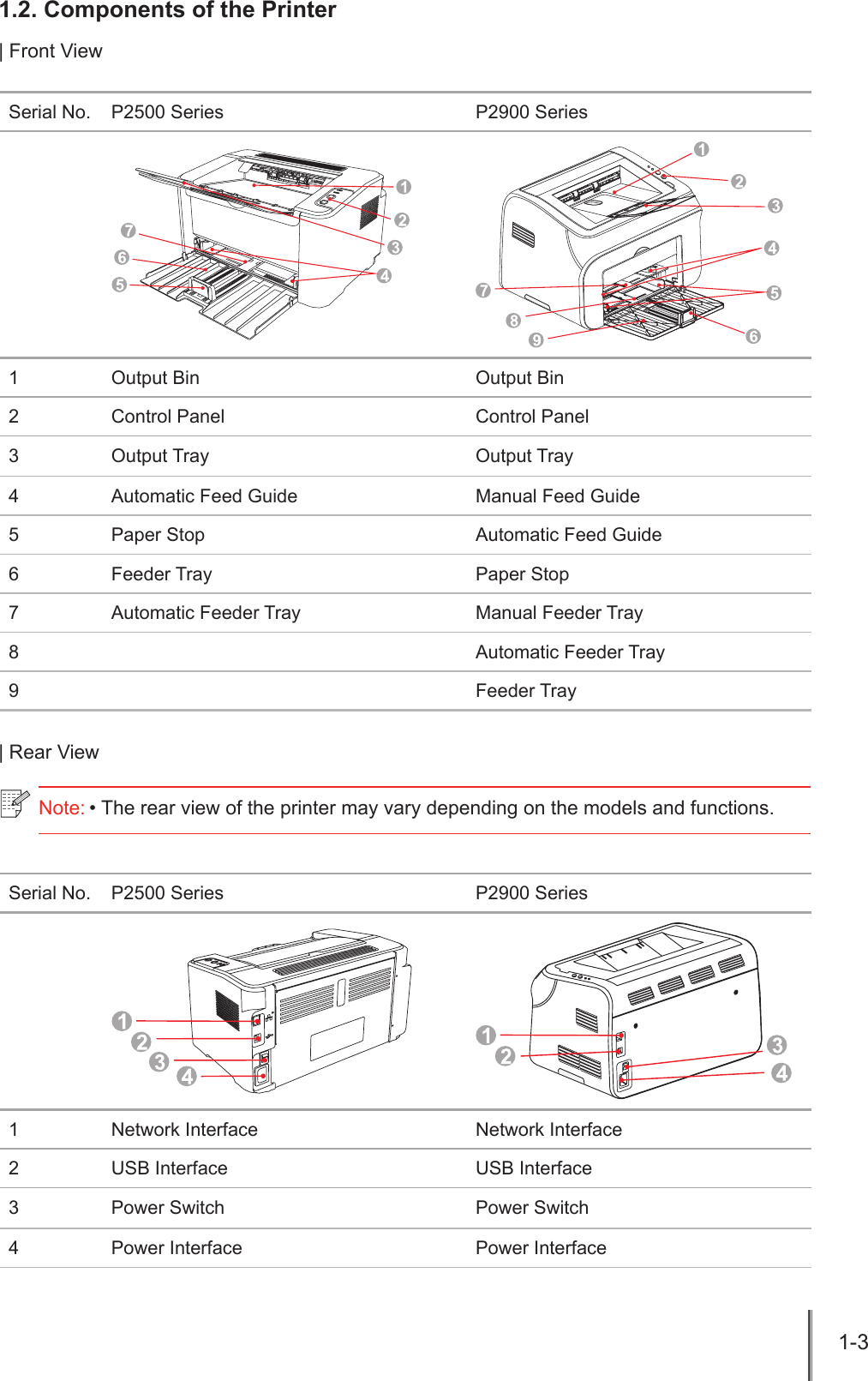
1-3 1.2. Components of the Printer| Front ViewSerial No. P2500 Series P2900 Series1 Output Bin Output Bin2 Control Panel Control Panel3 Output Tray Output Tray4 Automatic Feed Guide Manual Feed Guide5 Paper Stop Automatic Feed Guide6 Feeder Tray Paper Stop7 Automatic Feeder Tray Manual Feeder Tray8 Automatic Feeder Tray9 Feeder Tray| Rear ViewSerial No. P2500 Series P2900 Series1 Network Interface Network Interface2 USB Interface USB Interface3 Power Switch Power Switch4 Power Interface Power InterfaceNote: • The rear view of the printer may vary depending on the models and functions.
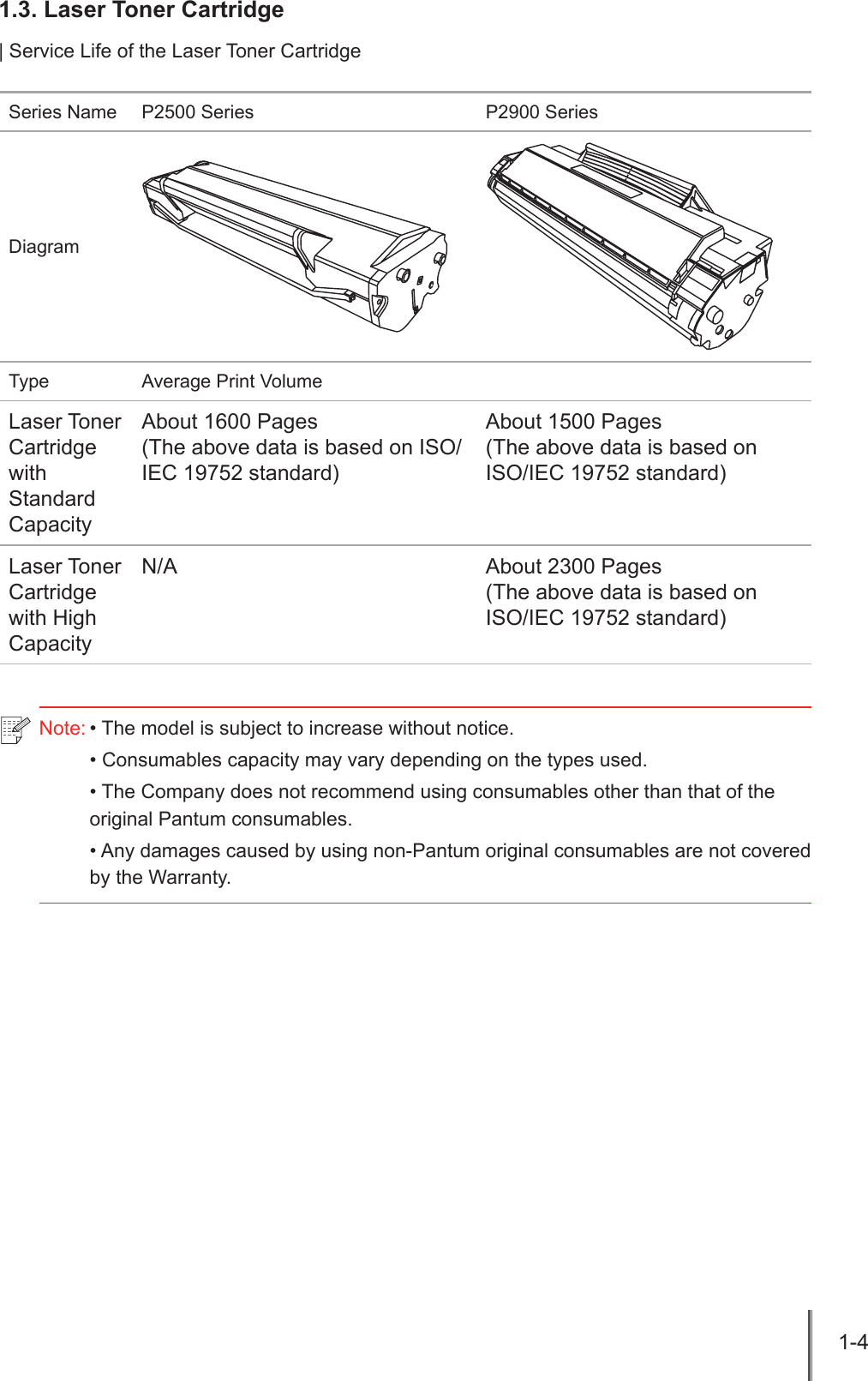
1-4 1.3. Laser Toner Cartridge| Service Life of the Laser Toner CartridgeSeries Name P2500 Series P2900 SeriesDiagramType Average Print VolumeLaser Toner Cartridge with Standard CapacityAbout 1600 Pages(The above data is based on ISO/IEC 19752 standard)About 1500 Pages(The above data is based on ISO/IEC 19752 standard)Laser Toner Cartridge with High CapacityN/A About 2300 Pages(The above data is based on ISO/IEC 19752 standard)Note: • The model is subject to increase without notice.• Consumables capacity may vary depending on the types used.• The Company does not recommend using consumables other than that of the original Pantum consumables.• Any damages caused by using non-Pantum original consumables are not covered by the Warranty.
2-1 2ChapterPaper and Print Media2. Paper and Print Media .......................................................................................................................22.1. Paper Specication .....................................................................................................................22.2. Special Paper .............................................................................................................................32.3. Loading Paper ............................................................................................................................42.3.1. Loading into the Automatic Feeder Tray ..............................................................................42.3.2. Loading into the Manual Feeder Tray ..................................................................................52.4. Nonprinting Area .........................................................................................................................72.5. Guidelines for Paper Use ............................................................................................................7
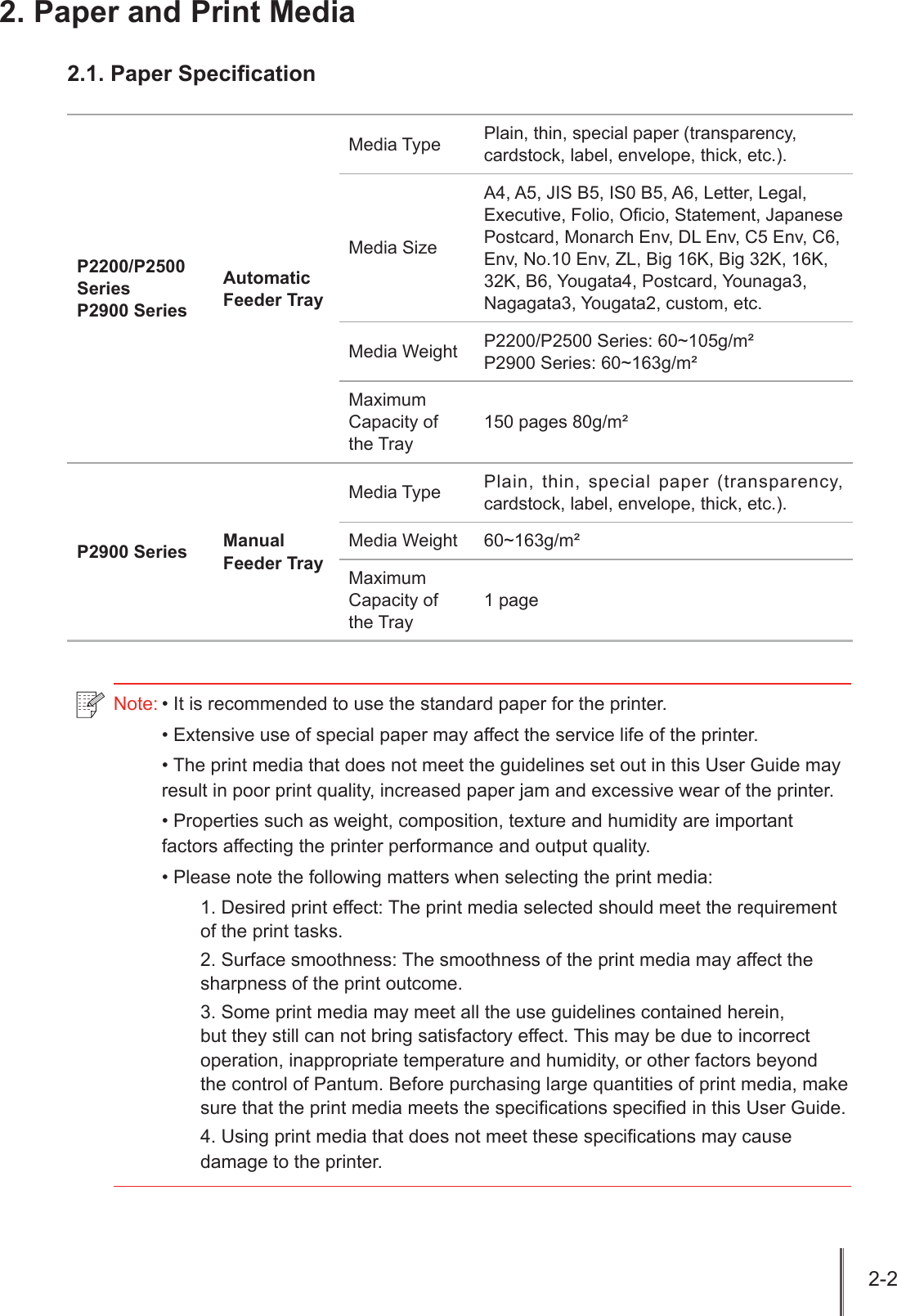
2-2 2. Paper and Print Media2.1. Paper SpecicationP2200/P2500 SeriesP2900 SeriesAutomatic Feeder Tray Media Type  Plain, thin, special paper (transparency, cardstock, label, envelope, thick, etc.).Media Size A4, A5, JIS B5, IS0 B5, A6, Letter, Legal, Executive, Folio, Ocio, Statement, Japanese Postcard, Monarch Env, DL Env, C5 Env, C6, Env, No.10 Env, ZL, Big 16K, Big 32K, 16K, 32K, B6, Yougata4, Postcard, Younaga3, Nagagata3, Yougata2, custom, etc.Media Weight  P2200/P2500 Series: 60~105g/m²P2900 Series: 60~163g/m²Maximum Capacity of the Tray 150 pages 80g/m²P2900 Series Manual Feeder Tray Media Type  Plain, thin, special paper (transparency, cardstock, label, envelope, thick, etc.).Media Weight  60~163g/m²Maximum Capacity of the Tray1 page Note: • It is recommended to use the standard paper for the printer.• Extensive use of special paper may affect the service life of the printer.• The print media that does not meet the guidelines set out in this User Guide may result in poor print quality, increased paper jam and excessive wear of the printer.• Properties such as weight, composition, texture and humidity are important factors affecting the printer performance and output quality.• Please note the following matters when selecting the print media:1. Desired print effect: The print media selected should meet the requirement of the print tasks.2. Surface smoothness: The smoothness of the print media may affect the sharpness of the print outcome.3. Some print media may meet all the use guidelines contained herein, but they still can not bring satisfactory effect. This may be due to incorrect operation, inappropriate temperature and humidity, or other factors beyond the control of Pantum. Before purchasing large quantities of print media, make sure that the print media meets the specications specied in this User Guide.4. Using print media that does not meet these specifications may cause damage to the printer.
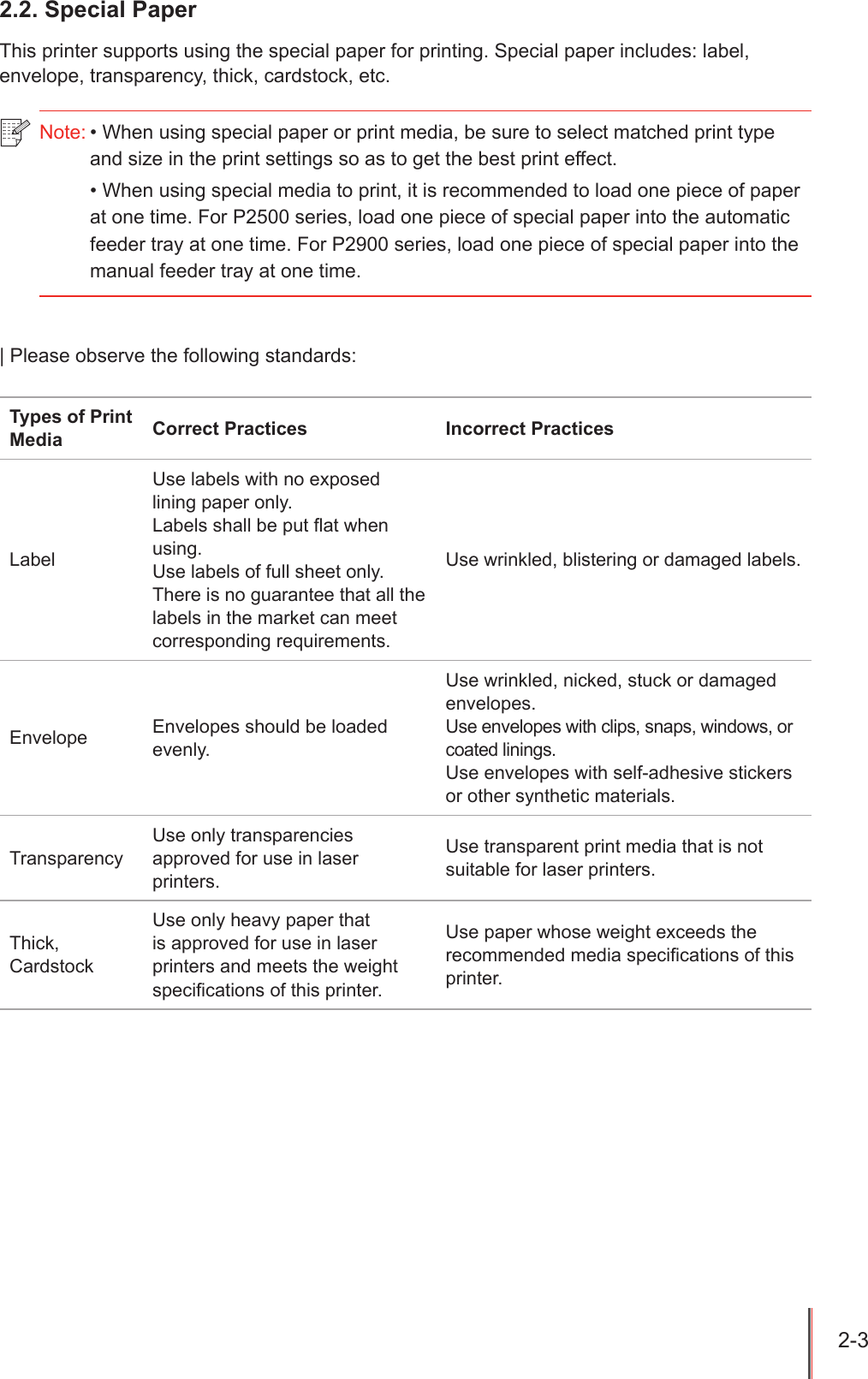
2-3 2.2. Special PaperThis printer supports using the special paper for printing. Special paper includes: label, envelope, transparency, thick, cardstock, etc.| Please observe the following standards:Types of Print Media  Correct Practices  Incorrect Practices LabelUse labels with no exposed lining paper only.Labels shall be put at when using.Use labels of full sheet only.There is no guarantee that all the labels in the market can meet corresponding requirements.Use wrinkled, blistering or damaged labels.Envelope Envelopes should be loaded evenly.Use wrinkled, nicked, stuck or damaged envelopes.Use envelopes with clips, snaps, windows, or coated linings.Use envelopes with self-adhesive stickers or other synthetic materials.TransparencyUse only transparencies approved for use in laser printers.Use transparent print media that is not suitable for laser printers.Thick, CardstockUse only heavy paper that is approved for use in laser printers and meets the weight specications of this printer.Use paper whose weight exceeds the recommended media specications of this printer.Note: • When using special paper or print media, be sure to select matched print type and size in the print settings so as to get the best print effect.• When using special media to print, it is recommended to load one piece of paper at one time. For P2500 series, load one piece of special paper into the automatic feeder tray at one time. For P2900 series, load one piece of special paper into the manual feeder tray at one time.
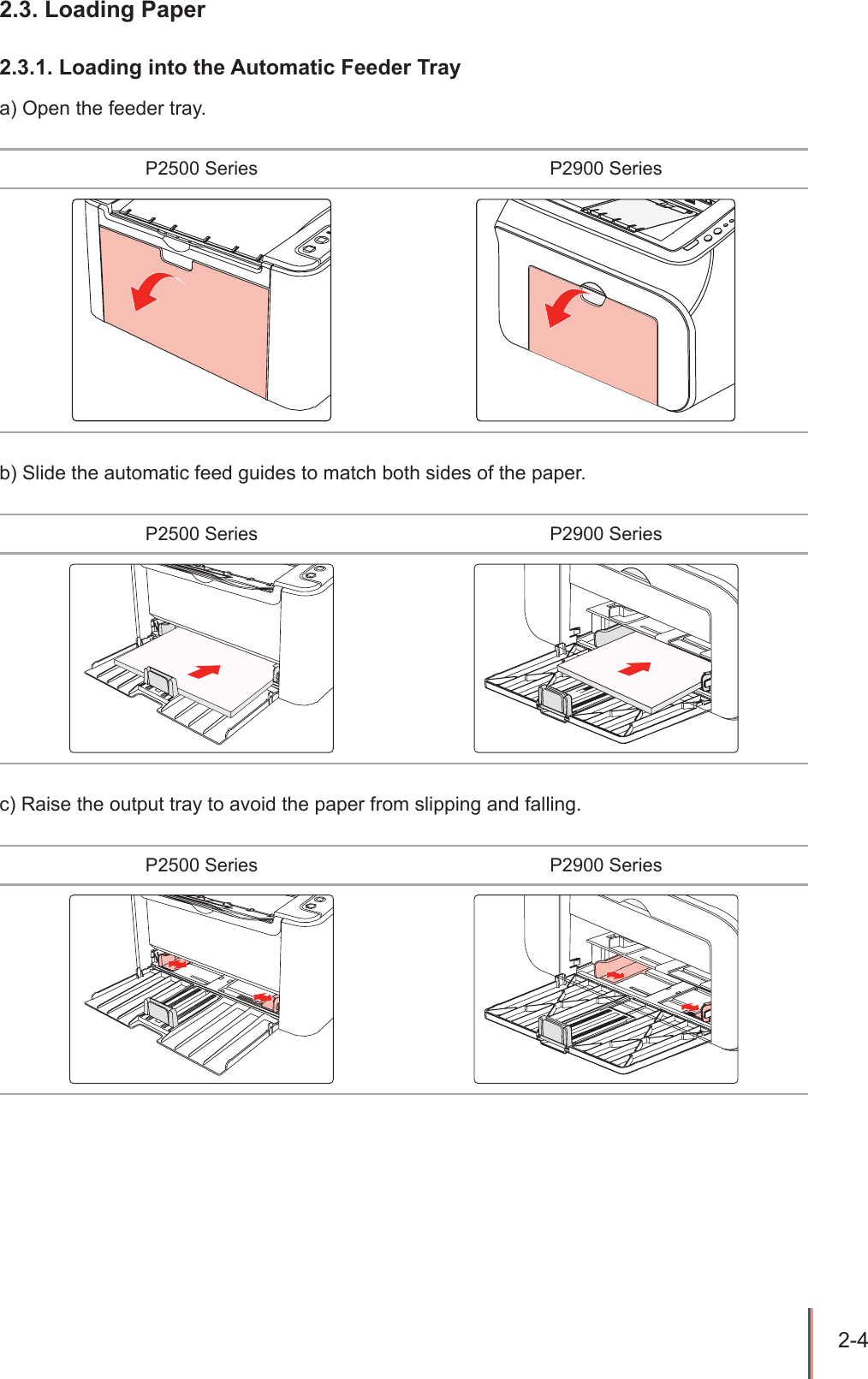
2-4 2.3. Loading Paper2.3.1. Loading into the Automatic Feeder Traya) Open the feeder tray.P2500 Series P2900 Seriesb) Slide the automatic feed guides to match both sides of the paper.P2500 Series P2900 Seriesc) Raise the output tray to avoid the paper from slipping and falling.P2500 Series P2900 Series
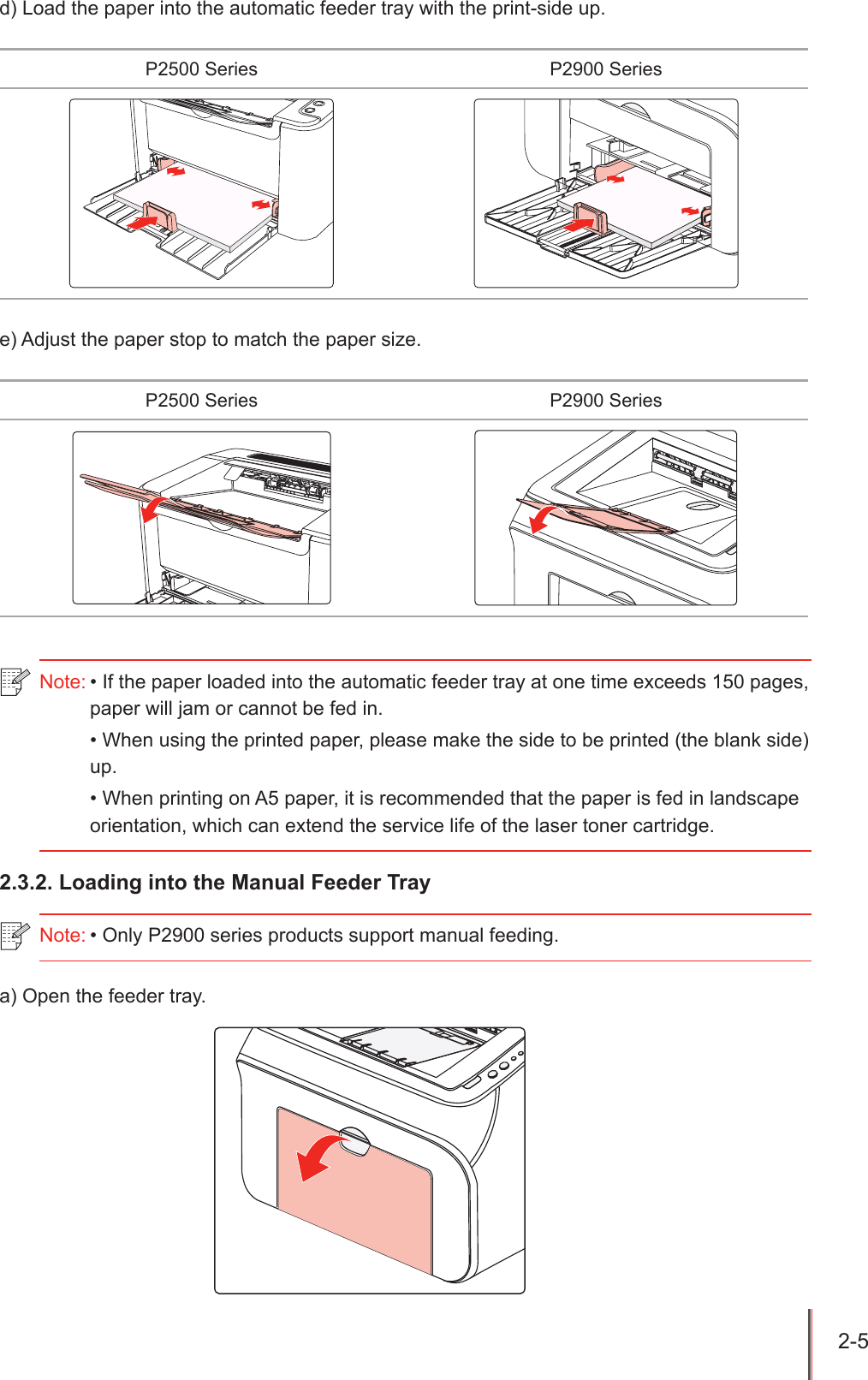
2-5 d) Load the paper into the automatic feeder tray with the print-side up.P2500 Series P2900 Seriese) Adjust the paper stop to match the paper size.P2500 Series P2900 Series2.3.2. Loading into the Manual Feeder Traya) Open the feeder tray.Note: • If the paper loaded into the automatic feeder tray at one time exceeds 150 pages, paper will jam or cannot be fed in.• When using the printed paper, please make the side to be printed (the blank side) up.• When printing on A5 paper, it is recommended that the paper is fed in landscape orientation, which can extend the service life of the laser toner cartridge.Note: • Only P2900 series products support manual feeding.
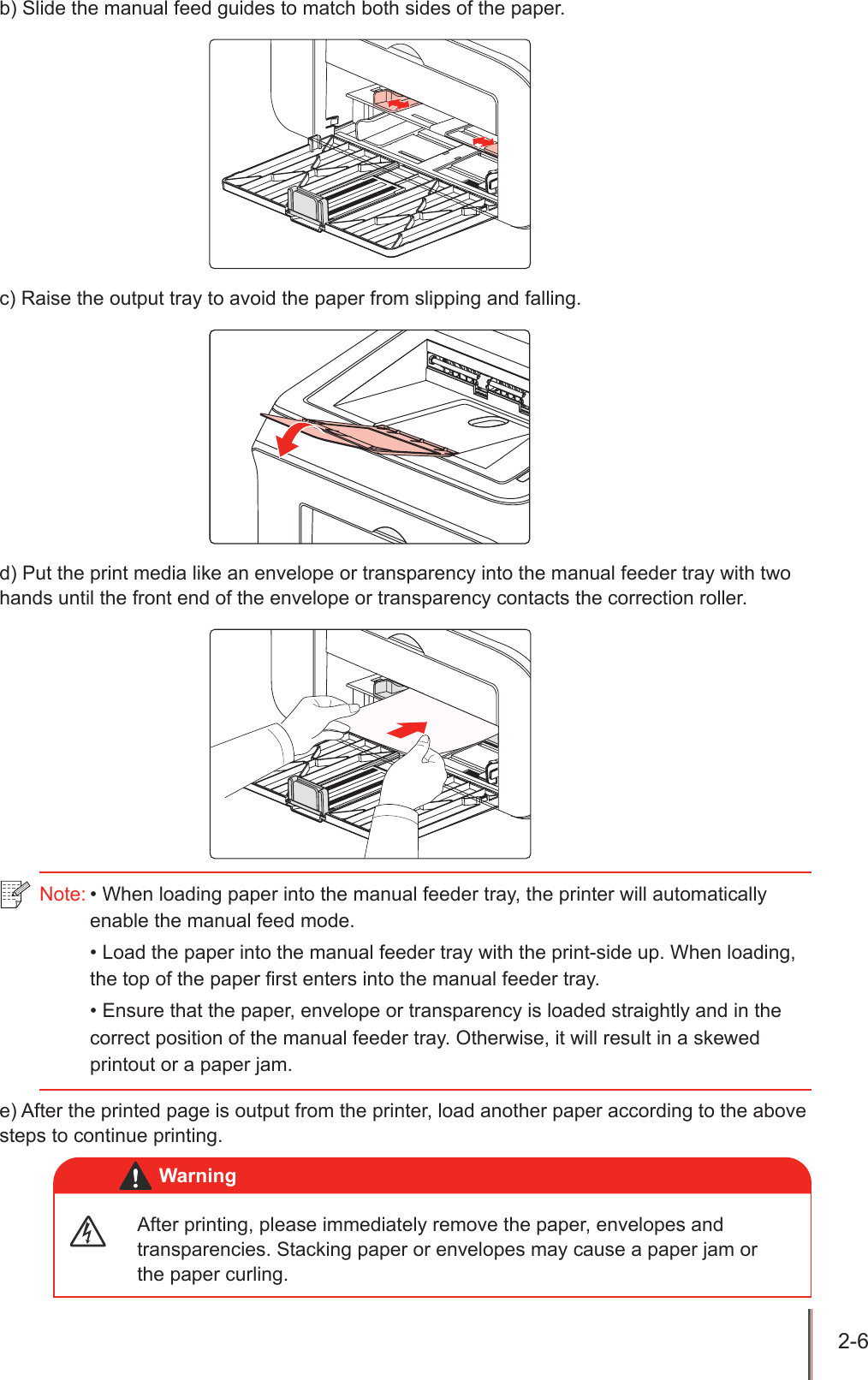
2-6 b) Slide the manual feed guides to match both sides of the paper.c) Raise the output tray to avoid the paper from slipping and falling.d) Put the print media like an envelope or transparency into the manual feeder tray with two hands until the front end of the envelope or transparency contacts the correction roller.e) After the printed page is output from the printer, load another paper according to the above steps to continue printing.Note: • When loading paper into the manual feeder tray, the printer will automatically enable the manual feed mode.• Load the paper into the manual feeder tray with the print-side up. When loading, the top of the paper first enters into the manual feeder tray.• Ensure that the paper, envelope or transparency is loaded straightly and in the correct position of the manual feeder tray. Otherwise, it will result in a skewed printout or a paper jam.After printing, please immediately remove the paper, envelopes and transparencies. Stacking paper or envelopes may cause a paper jam or the paper curling.Warning
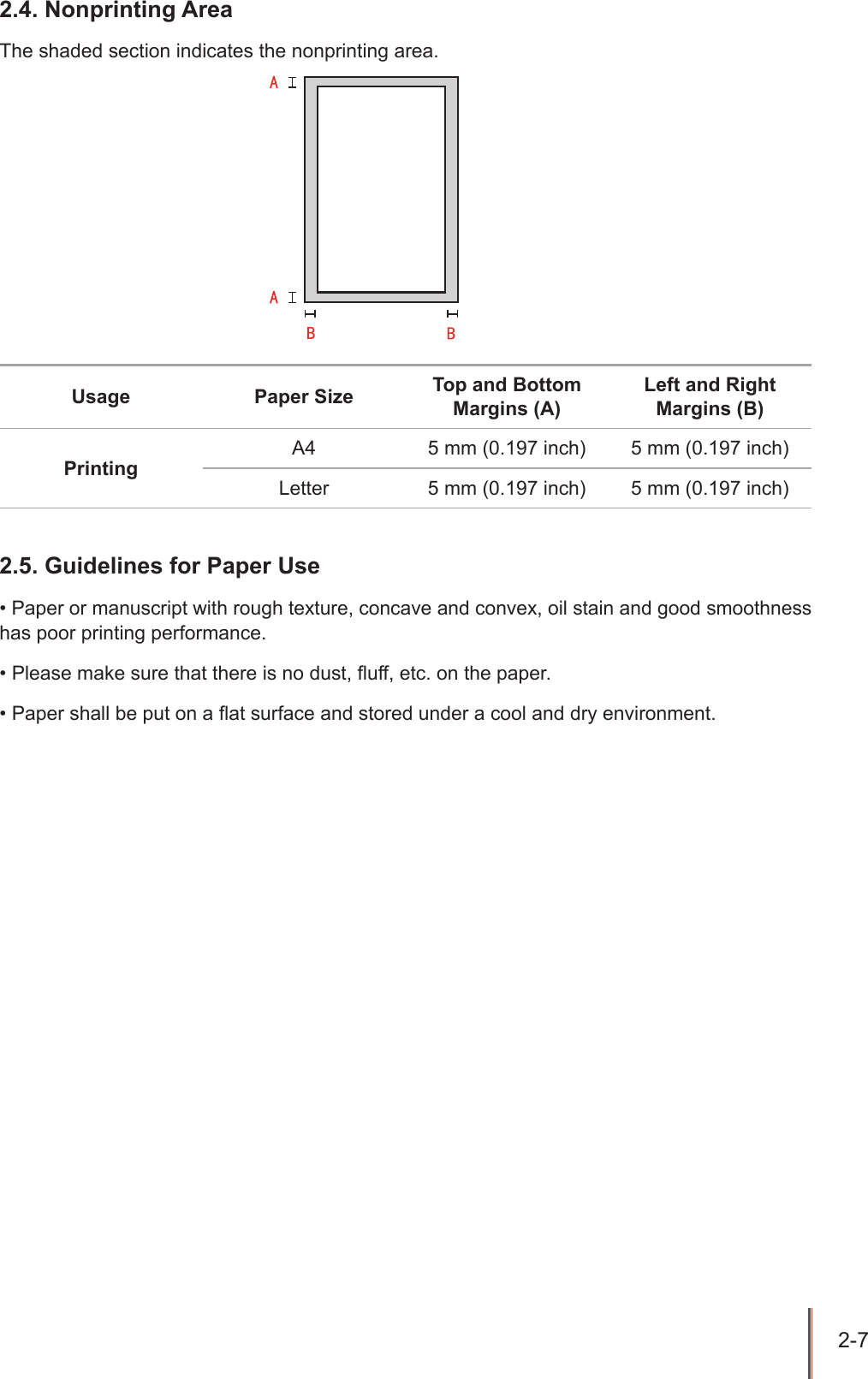
2-7 2.4. Nonprinting AreaThe shaded section indicates the nonprinting area.Usage Paper Size Top and Bottom Margins (A)Left and Right Margins (B)PrintingA4 5 mm (0.197 inch) 5 mm (0.197 inch)Letter 5 mm (0.197 inch) 5 mm (0.197 inch)2.5. Guidelines for Paper Use• Paper or manuscript with rough texture, concave and convex, oil stain and good smoothness has poor printing performance.• Please make sure that there is no dust, uff, etc. on the paper.• Paper shall be put on a at surface and stored under a cool and dry environment.
3-1 3ChapterInstallation and Uninstallation of the Driver Software3. Installation and Uninstallation of the Driver Software  .......................................................................23.1. Windows-based Driver ................................................................................................................23.1.1. Driver Installation .................................................................................................................23.1.2. Uninstallation .......................................................................................................................83.2. Installation of the Driver Software on a Mac System ................................................................10
3-2 3. Installation and Uninstallation of the Driver Software 3.1. Windows-based Driver3.1.1. Driver Installation1. IntroductionDriver software helps users to run the installer and uninstaller through the installation and uninstallation wizards, which provides the following modules and key functions:• Autorun completes the autoruning of the installation CD.• Installation: Provides users with the installation wizard of the printer driver.• Uninstallation: Provides users with the uninstallation wizard of the printer driver.2. Installation Steps 1) Running InterfaceAfter inserting the installation CD, the Pantum interface will pop up and the installation CD will run automatically. See the gure below:Note: • For users of Windows XP and Windows Server 2003, when connecting the printer device for the rst time, New Hardware Wizard Found window will pop up. You should close this window. If this window is not closed, the printer may not be detected, resulting in failure of installation.
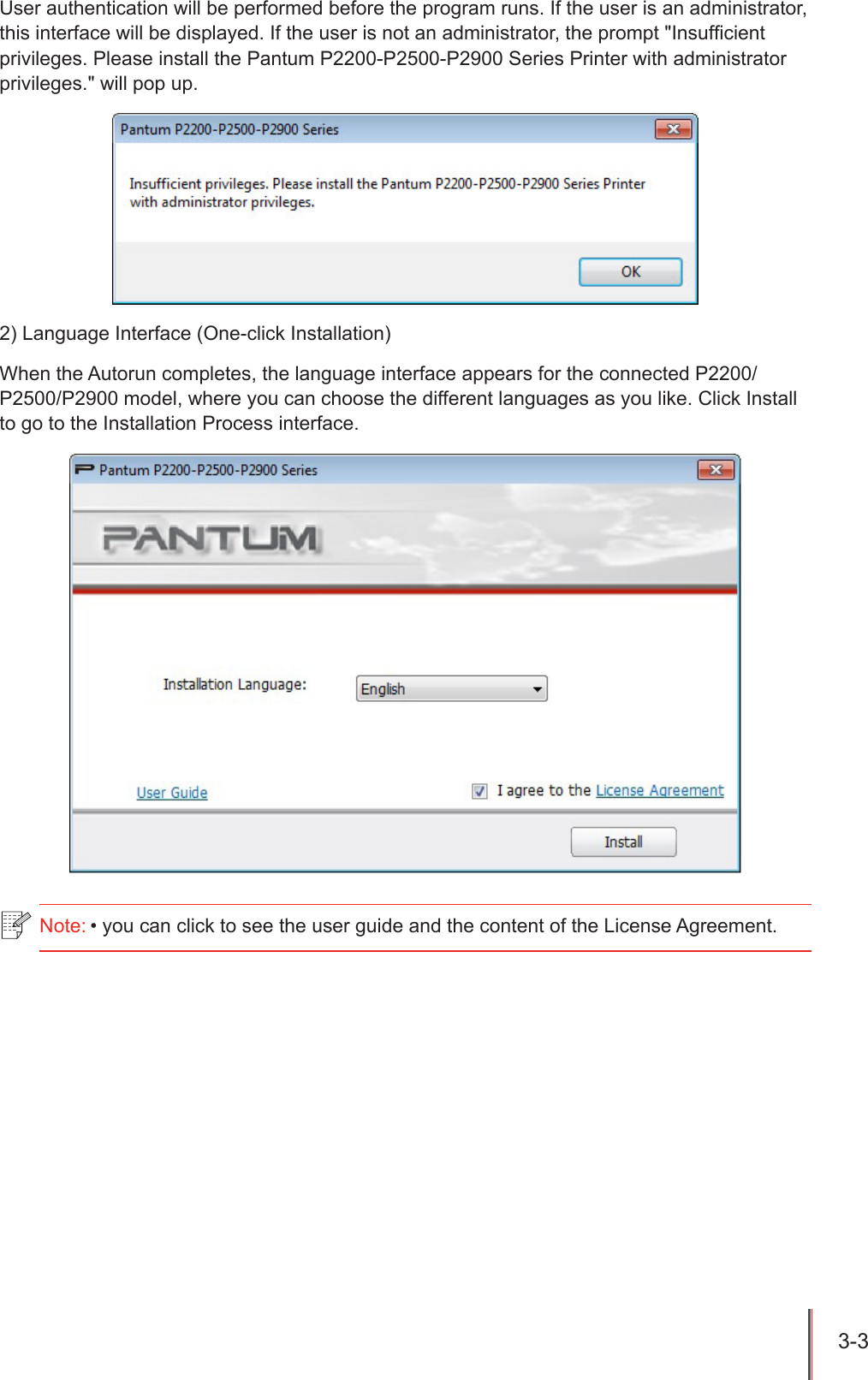
3-3 User authentication will be performed before the program runs. If the user is an administrator, this interface will be displayed. If the user is not an administrator, the prompt "Insufcient privileges. Please install the Pantum P2200-P2500-P2900 Series Printer with administrator privileges." will pop up.2) Language Interface (One-click Installation)When the Autorun completes, the language interface appears for the connected P2200/P2500/P2900 model, where you can choose the different languages as you like. Click Install to go to the Installation Process interface.Note: • you can click to see the user guide and the content of the License Agreement.
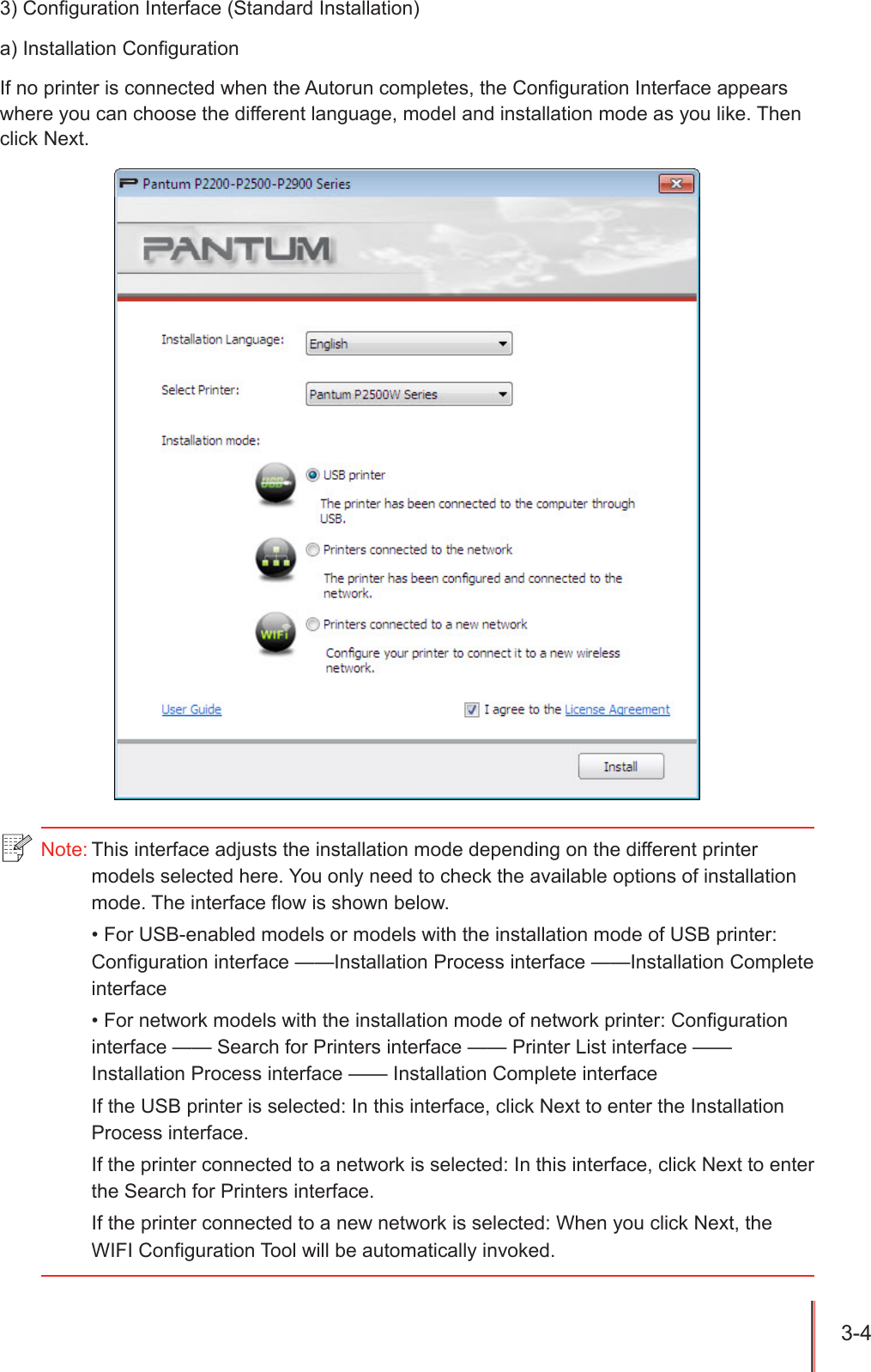
3-4 3) Conguration Interface (Standard Installation)a) Installation CongurationIf no printer is connected when the Autorun completes, the Conguration Interface appears where you can choose the different language, model and installation mode as you like. Then click Next.Note: This interface adjusts the installation mode depending on the different printer models selected here. You only need to check the available options of installation mode. The interface flow is shown below.• For USB-enabled models or models with the installation mode of USB printer: Configuration interface ——Installation Process interface ——Installation Complete interface• For network models with the installation mode of network printer: Configuration interface —— Search for Printers interface —— Printer List interface —— Installation Process interface —— Installation Complete interfaceIf the USB printer is selected: In this interface, click Next to enter the Installation Process interface.If the printer connected to a network is selected: In this interface, click Next to enter the Search for Printers interface.If the printer connected to a new network is selected: When you click Next, the WIFI Configuration Tool will be automatically invoked.
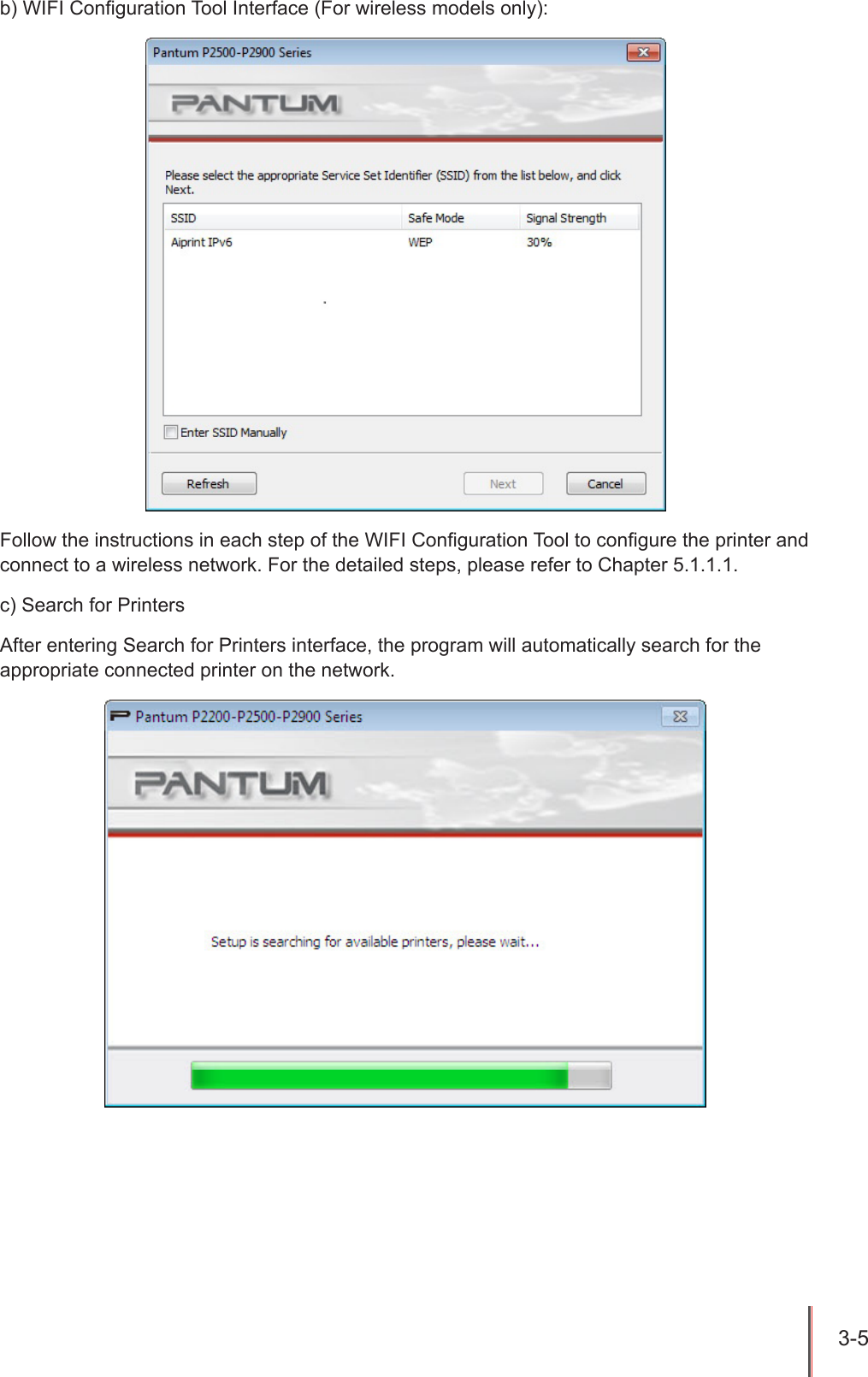
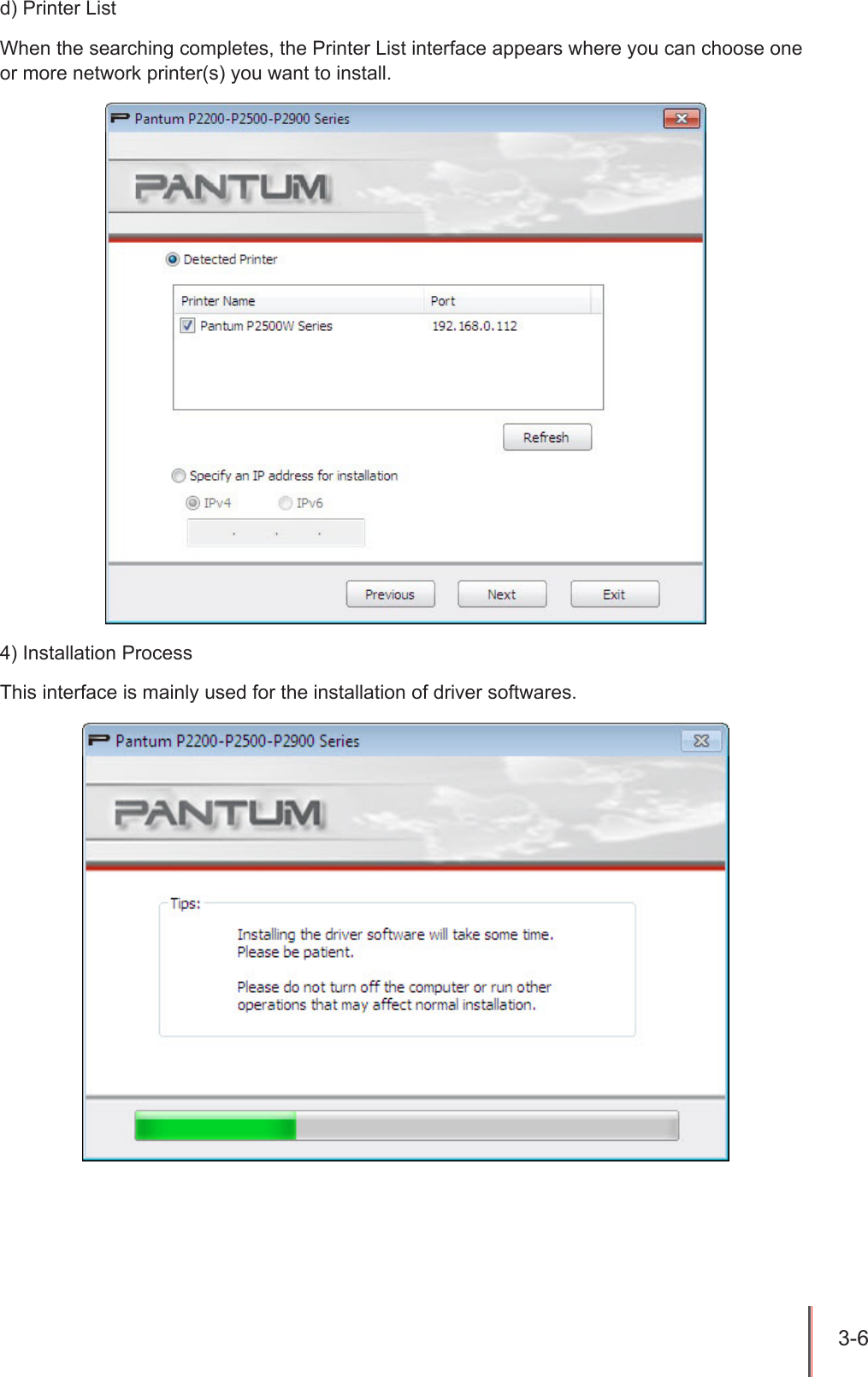
3-5 b) WIFI Conguration Tool Interface (For wireless models only):Follow the instructions in each step of the WIFI Conguration Tool to congure the printer and connect to a wireless network. For the detailed steps, please refer to Chapter 5.1.1.1.c) Search for PrintersAfter entering Search for Printers interface, the program will automatically search for the appropriate connected printer on the network.
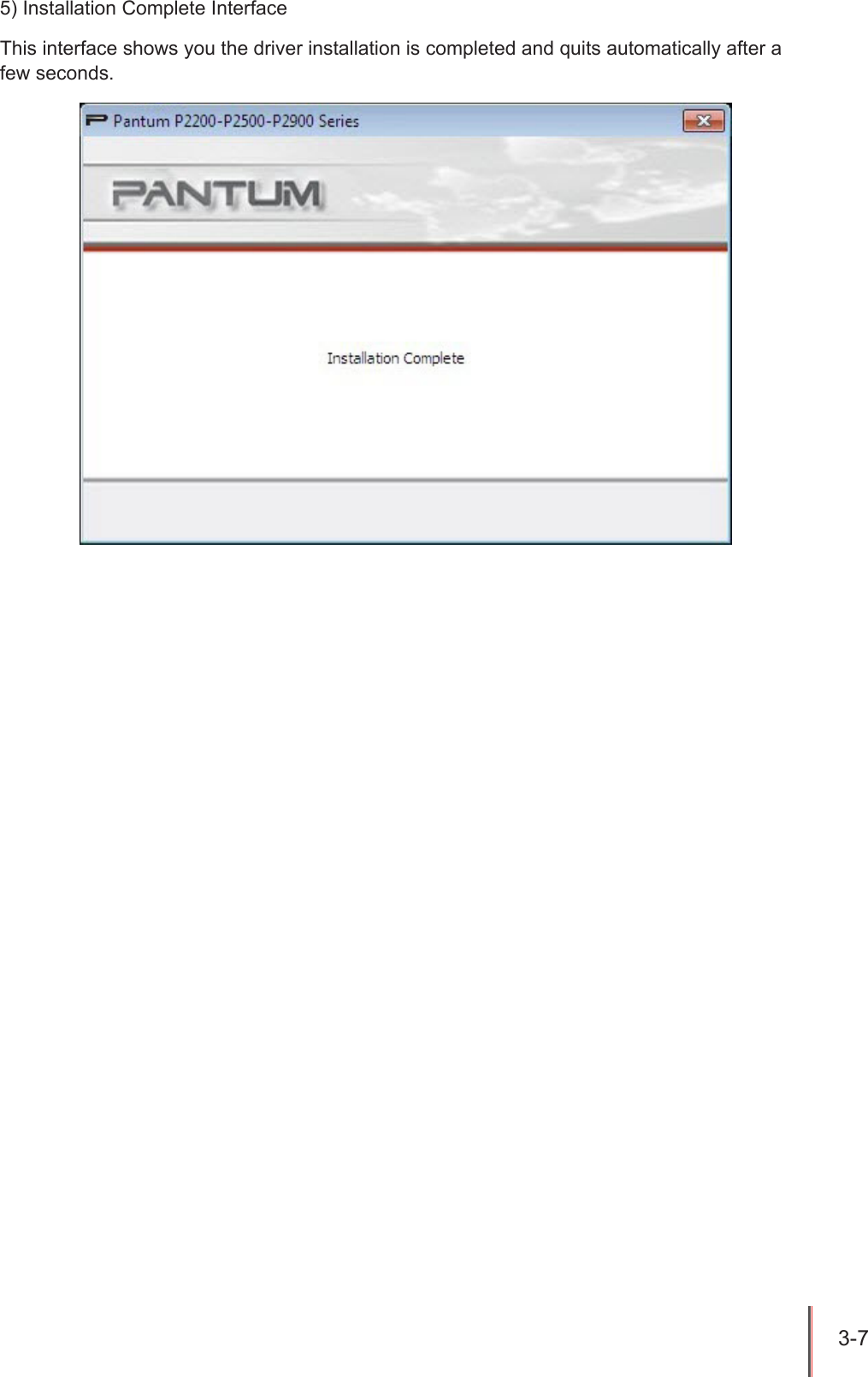
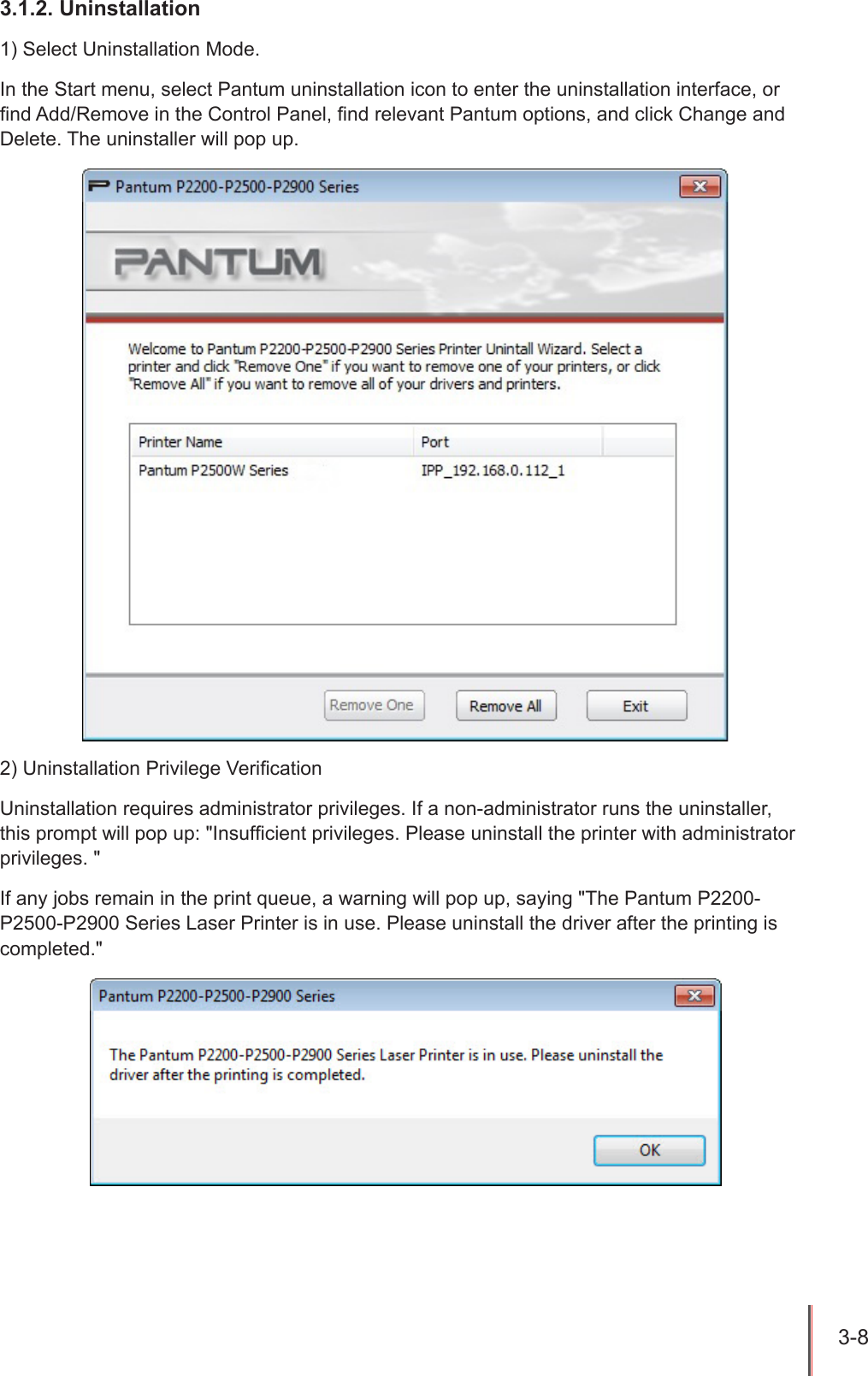
3-6 d) Printer ListWhen the searching completes, the Printer List interface appears where you can choose one or more network printer(s) you want to install.4) Installation ProcessThis interface is mainly used for the installation of driver softwares.
3-7 5) Installation Complete InterfaceThis interface shows you the driver installation is completed and quits automatically after a few seconds.
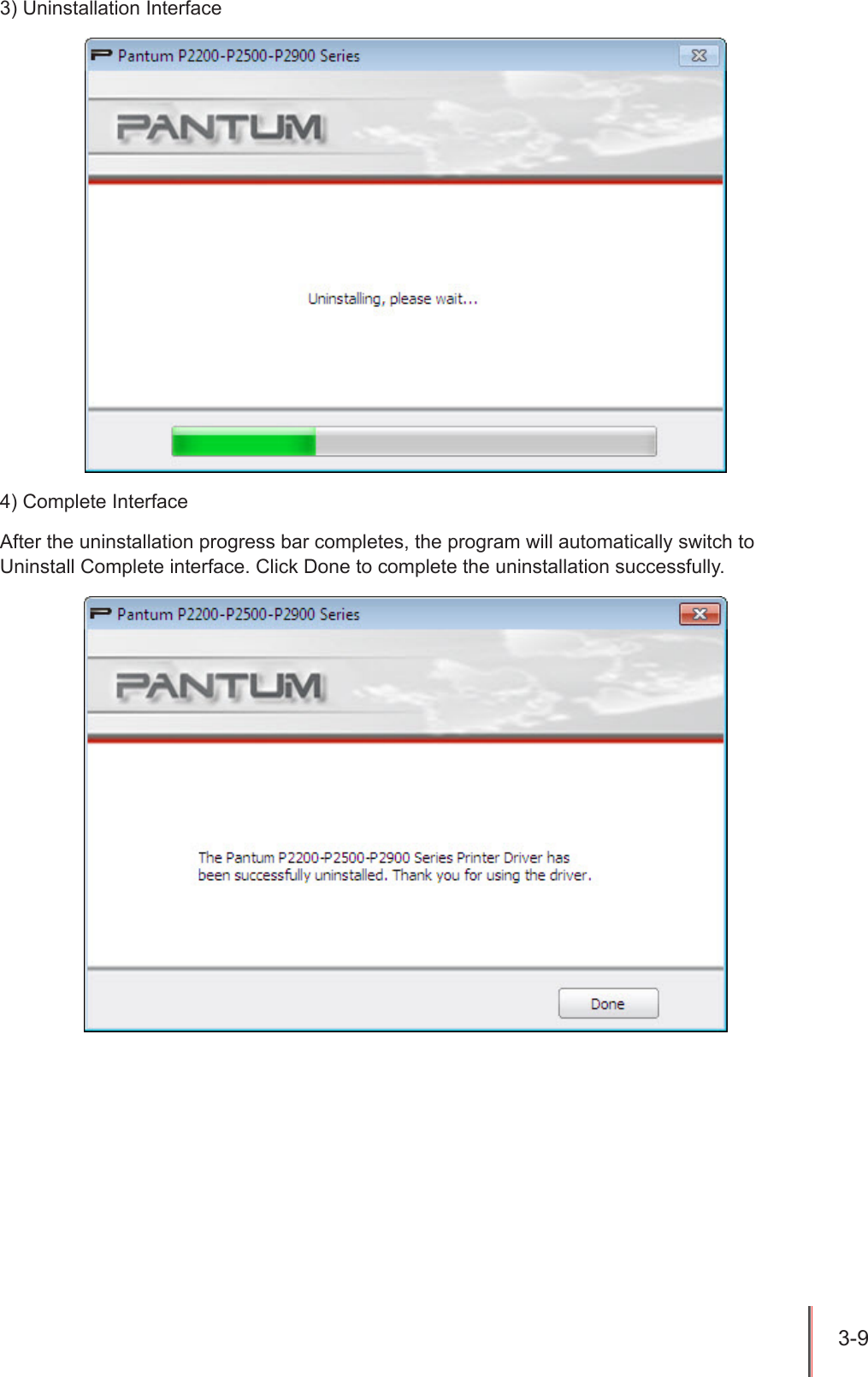
3-8 3.1.2. Uninstallation1) Select Uninstallation Mode.In the Start menu, select Pantum uninstallation icon to enter the uninstallation interface, or nd Add/Remove in the Control Panel, nd relevant Pantum options, and click Change and Delete. The uninstaller will pop up.2) Uninstallation Privilege VericationUninstallation requires administrator privileges. If a non-administrator runs the uninstaller, this prompt will pop up: "Insufcient privileges. Please uninstall the printer with administrator privileges. "If any jobs remain in the print queue, a warning will pop up, saying "The Pantum P2200-P2500-P2900 Series Laser Printer is in use. Please uninstall the driver after the printing is completed."
3-9 3) Uninstallation Interface4) Complete InterfaceAfter the uninstallation progress bar completes, the program will automatically switch to Uninstall Complete interface. Click Done to complete the uninstallation successfully.
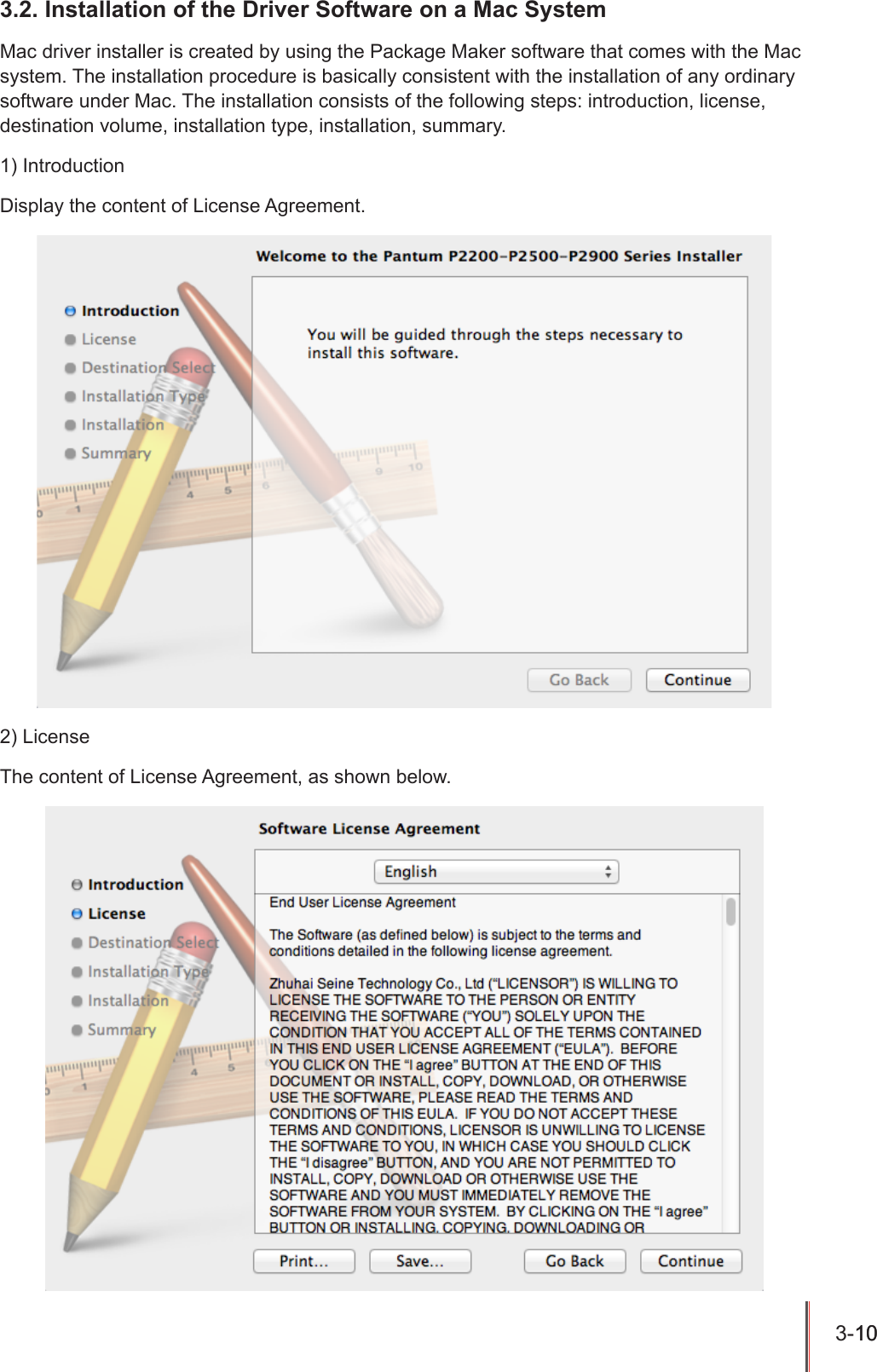
3-10 10  3.2. Installation of the Driver Software on a Mac SystemMac driver installer is created by using the Package Maker software that comes with the Mac system. The installation procedure is basically consistent with the installation of any ordinary software under Mac. The installation consists of the following steps: introduction, license, destination volume, installation type, installation, summary.1) IntroductionDisplay the content of License Agreement.2) LicenseThe content of License Agreement, as shown below.
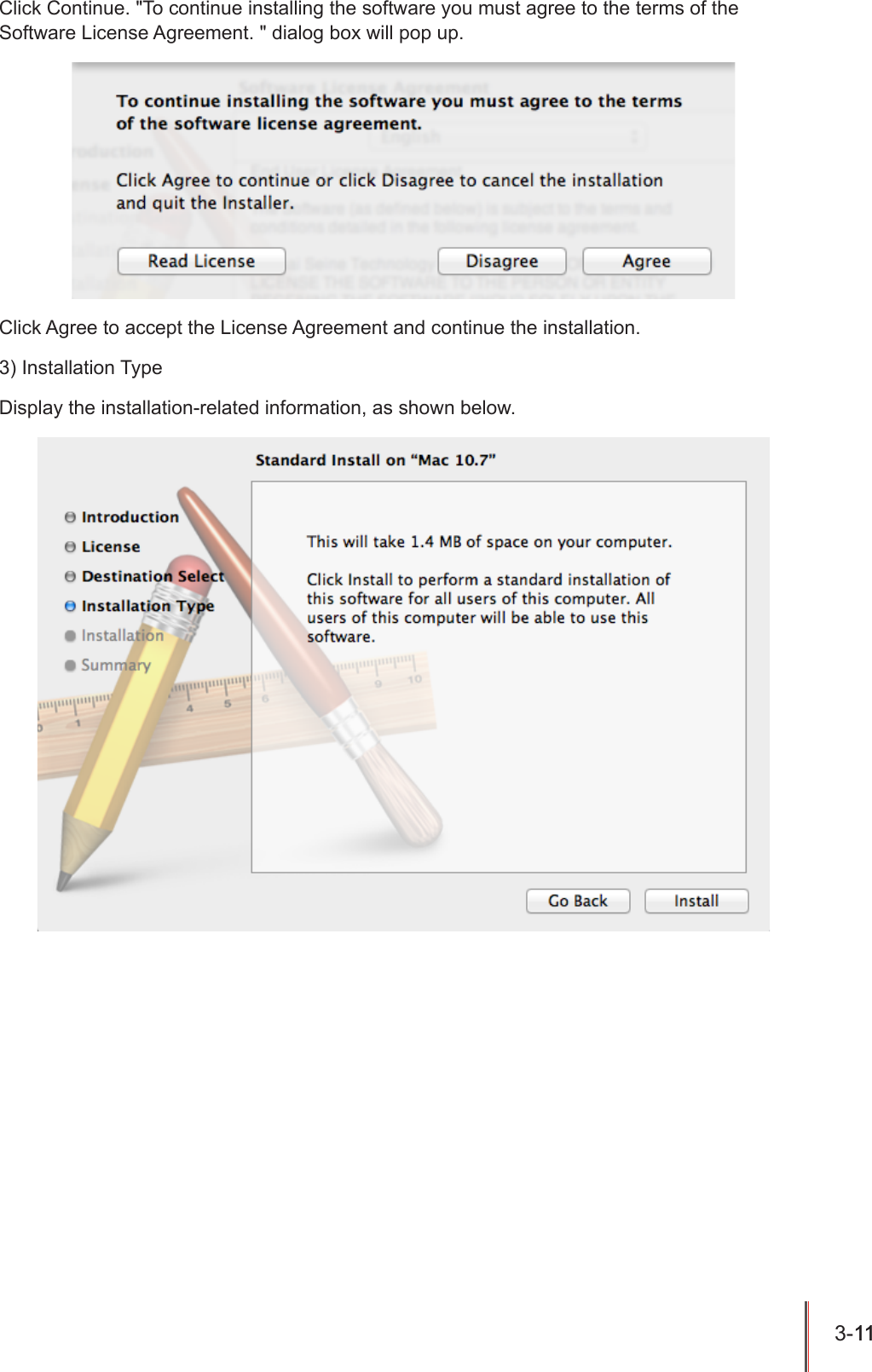
3-11 11  Click Continue. "To continue installing the software you must agree to the terms of the Software License Agreement. " dialog box will pop up.Click Agree to accept the License Agreement and continue the installation.3) Installation TypeDisplay the installation-related information, as shown below.
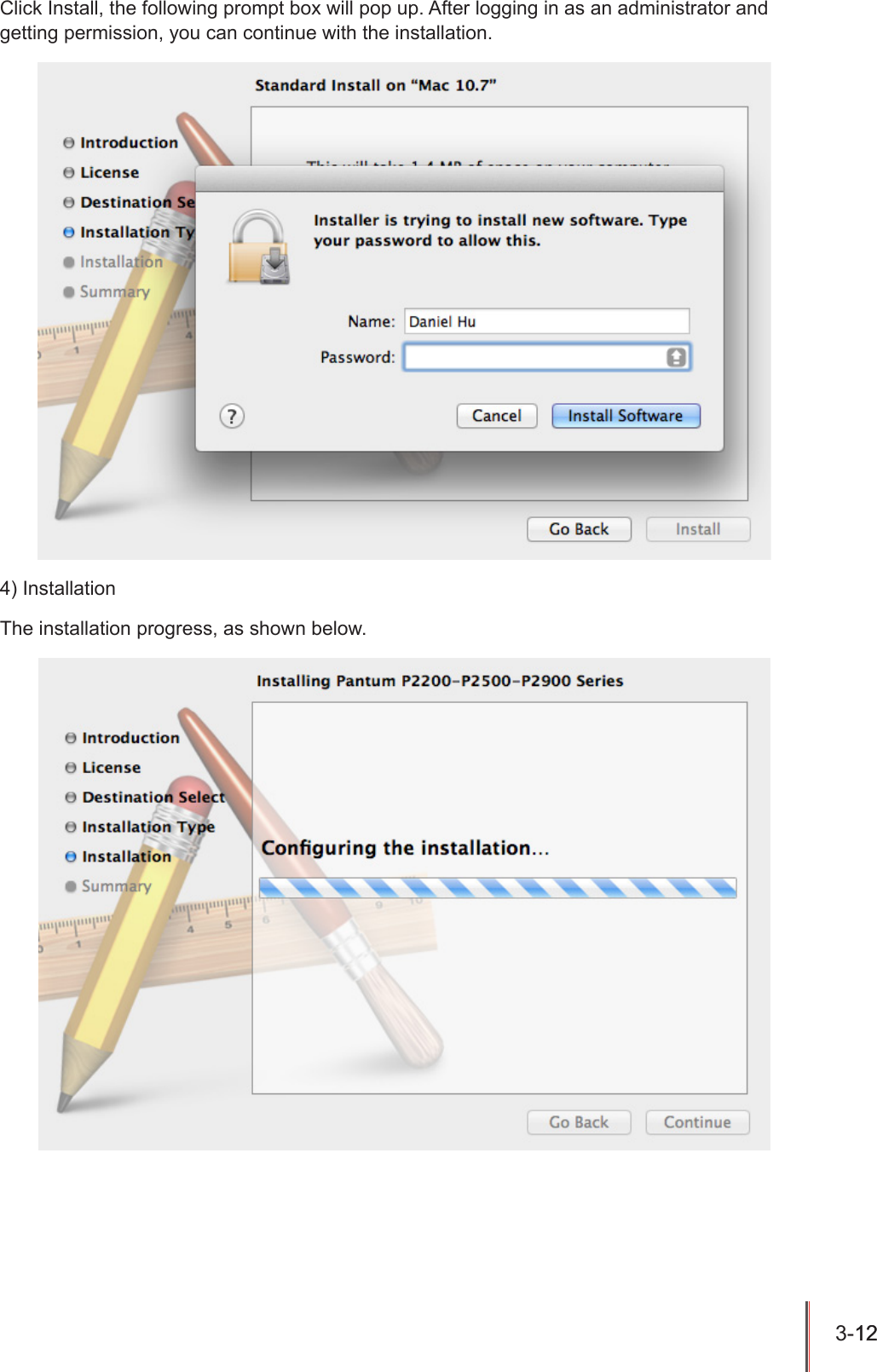
3-12 12  Click Install, the following prompt box will pop up. After logging in as an administrator and getting permission, you can continue with the installation.4) InstallationThe installation progress, as shown below.
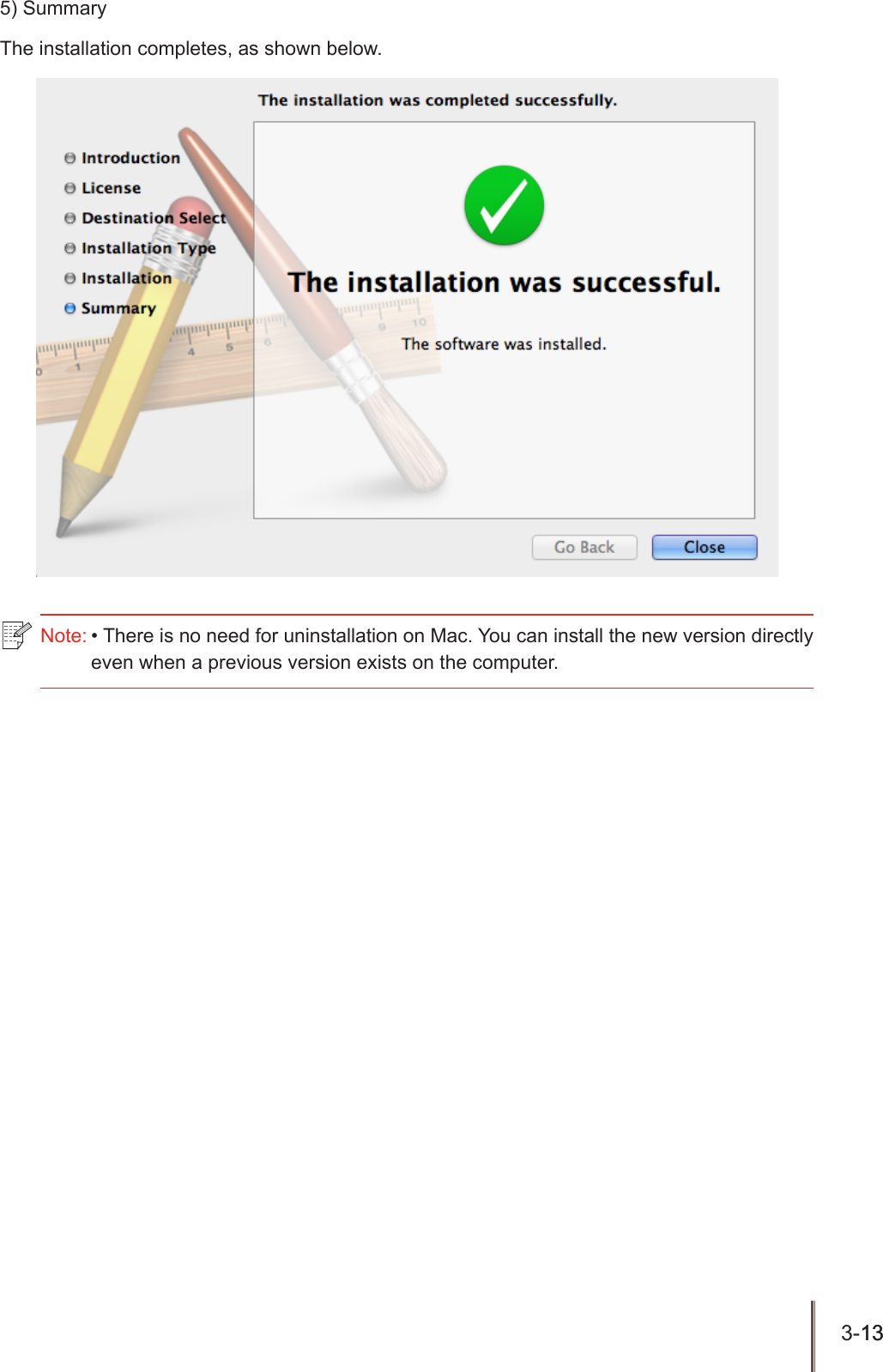
3-13 13  5) SummaryThe installation completes, as shown below.Note: • There is no need for uninstallation on Mac. You can install the new version directly even when a previous version exists on the computer.
4-1 4ChapterWired Network Settings (For wired network printer models)4. Wired Network Settings (For wired network printer models) ...................................................................... 24.1. Set IP Address ............................................................................................................................24.2. Install the Printer to Network .......................................................................................................34.3. Setting Network Products ...........................................................................................................44.3.1. View or Change Network Settings .......................................................................................44.3.2. Set or Change Web Server Login Password .......................................................................44.3.3. Restore to Factory Settings .................................................................................................4
4-2 4. Wired Network Settings (For wired network printer models)You may need to set some network parameters on the printer. These parameters can be set from the embedded Web server.4.1. Set IP AddressThe IP address of the printer may be automatically obtained through DHCP function or set manually.| Automatic SettingDHCP automatic setting function is enabled by default on the printer.1. Connect the printer to the network through a network cable and complete the startup preparation work.2. The printer will automatically obtain the IP address assigned by the server. The IP address obtained automatically can be used after a few minutes.| Manual SettingType the IP address in the Web browser's address bar to open the embedded Web server.1. Click Settings in the navigation bar to open the Settings page;2. Select Network Settings - IPV4 Settings;3. Set IP Address Assignment Mode (Manual), IP Address and Subnet Mask. Other items are optional;4. Click Apply to save the settings.Note: • If DHCP cannot automatically obtain the IP address, the printer will automatically use the default IP address: 169.254.xx.xx.• Due to the features of DHCP, the IP address of the printer automatically assigned by the network may vary if the printer has not been used for a long time or the network access point changes, which could result in unsuccessful connection to the printer. It is recommended that the IP address automatically assigned by the network is bound to the MAC address of the printer while the DHCP function is enabled.Note: • You can use the embedded Web server to change the IP Address Assignment Mode into Automatic or Manual.
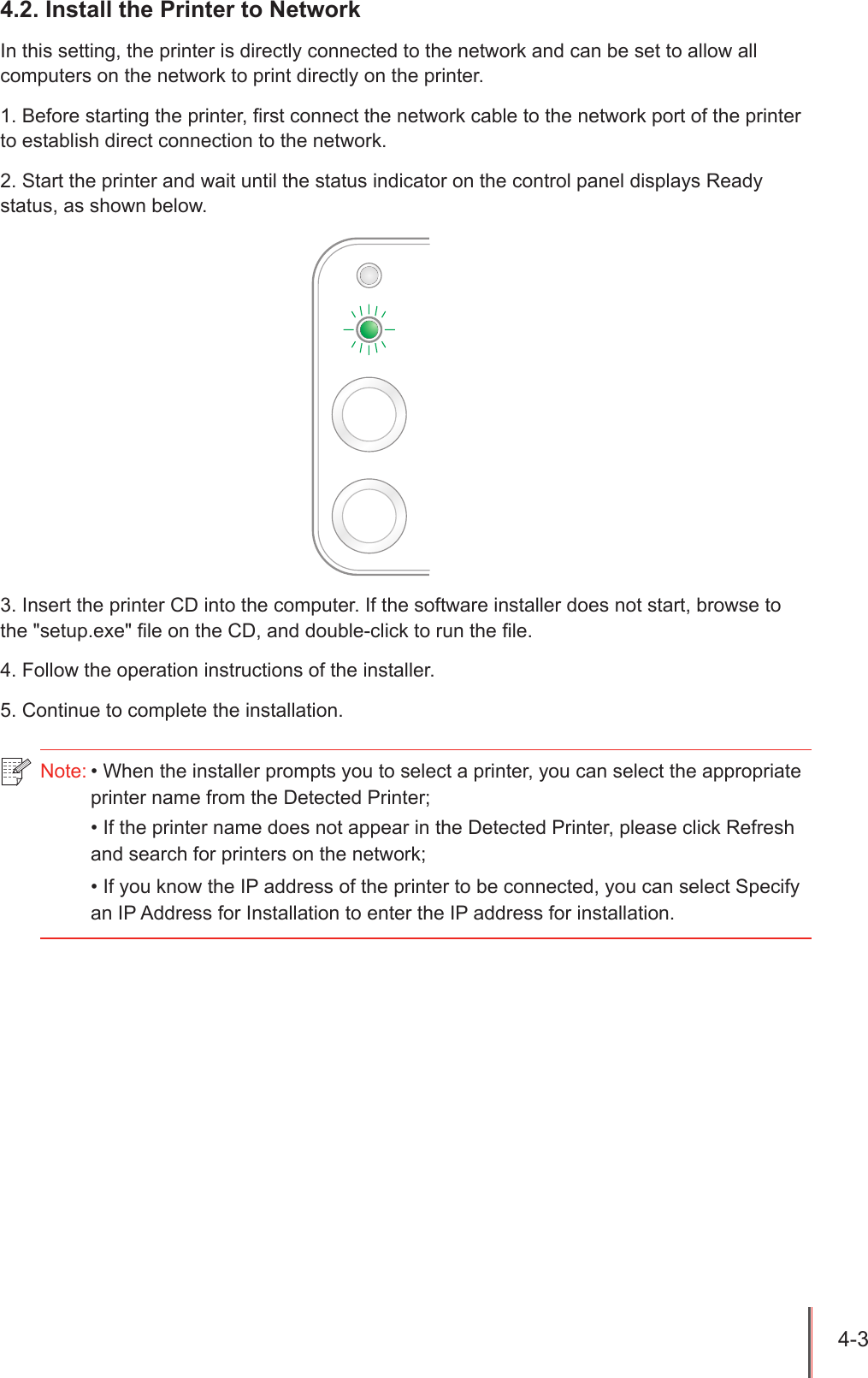
4-3 4.2. Install the Printer to NetworkIn this setting, the printer is directly connected to the network and can be set to allow all computers on the network to print directly on the printer.1. Before starting the printer, rst connect the network cable to the network port of the printer to establish direct connection to the network.2. Start the printer and wait until the status indicator on the control panel displays Ready status, as shown below.3. Insert the printer CD into the computer. If the software installer does not start, browse to the "setup.exe" le on the CD, and double-click to run the le.4. Follow the operation instructions of the installer.5. Continue to complete the installation.Note: • When the installer prompts you to select a printer, you can select the appropriate printer name from the Detected Printer;• If the printer name does not appear in the Detected Printer, please click Refresh and search for printers on the network;• If you know the IP address of the printer to be connected, you can select Specify an IP Address for Installation to enter the IP address for installation.
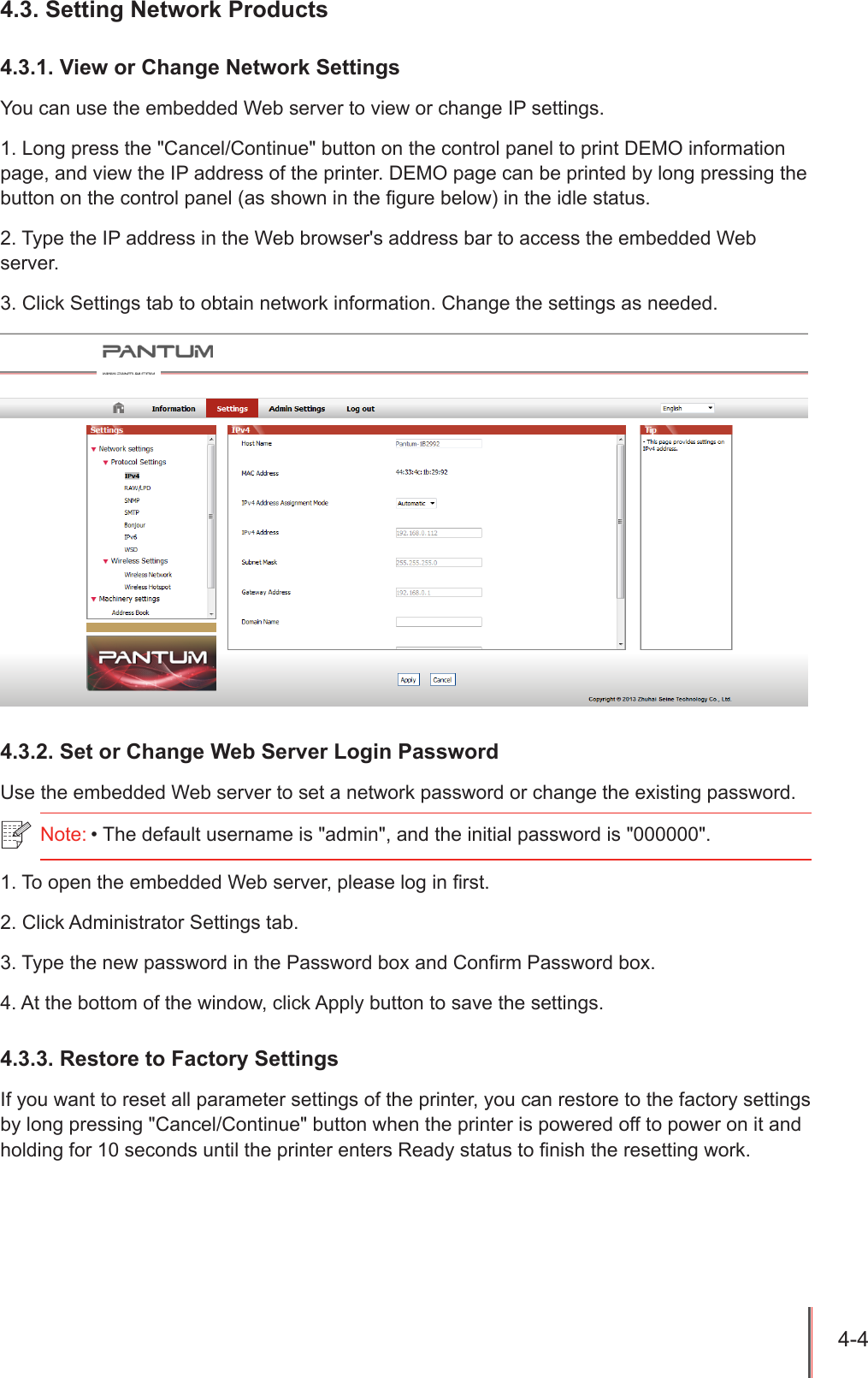
4-4 4.3. Setting Network Products4.3.1. View or Change Network SettingsYou can use the embedded Web server to view or change IP settings.1. Long press the "Cancel/Continue" button on the control panel to print DEMO information page, and view the IP address of the printer. DEMO page can be printed by long pressing the button on the control panel (as shown in the gure below) in the idle status.2. Type the IP address in the Web browser's address bar to access the embedded Web server.3. Click Settings tab to obtain network information. Change the settings as needed.4.3.2. Set or Change Web Server Login PasswordUse the embedded Web server to set a network password or change the existing password.1. To open the embedded Web server, please log in rst.2. Click Administrator Settings tab.3. Type the new password in the Password box and Conrm Password box.4. At the bottom of the window, click Apply button to save the settings.4.3.3. Restore to Factory SettingsIf you want to reset all parameter settings of the printer, you can restore to the factory settings by long pressing "Cancel/Continue" button when the printer is powered off to power on it and holding for 10 seconds until the printer enters Ready status to nish the resetting work.Note: • The default username is "admin", and the initial password is "000000".
5-1 5ChapterWireless settings (for models with Wi-Fi printing)5. Wireless settings (for models with Wi-Fi printing) ....................................................................................... 25.1. Wireless Network Type ...............................................................................................................25.1.1. Conguration with infrastructure mode ................................................................................25.1.2. Conguration with Wi-Fi Direct.............................................................................................85.2. Turn off the Wireless Device .......................................................................................................8
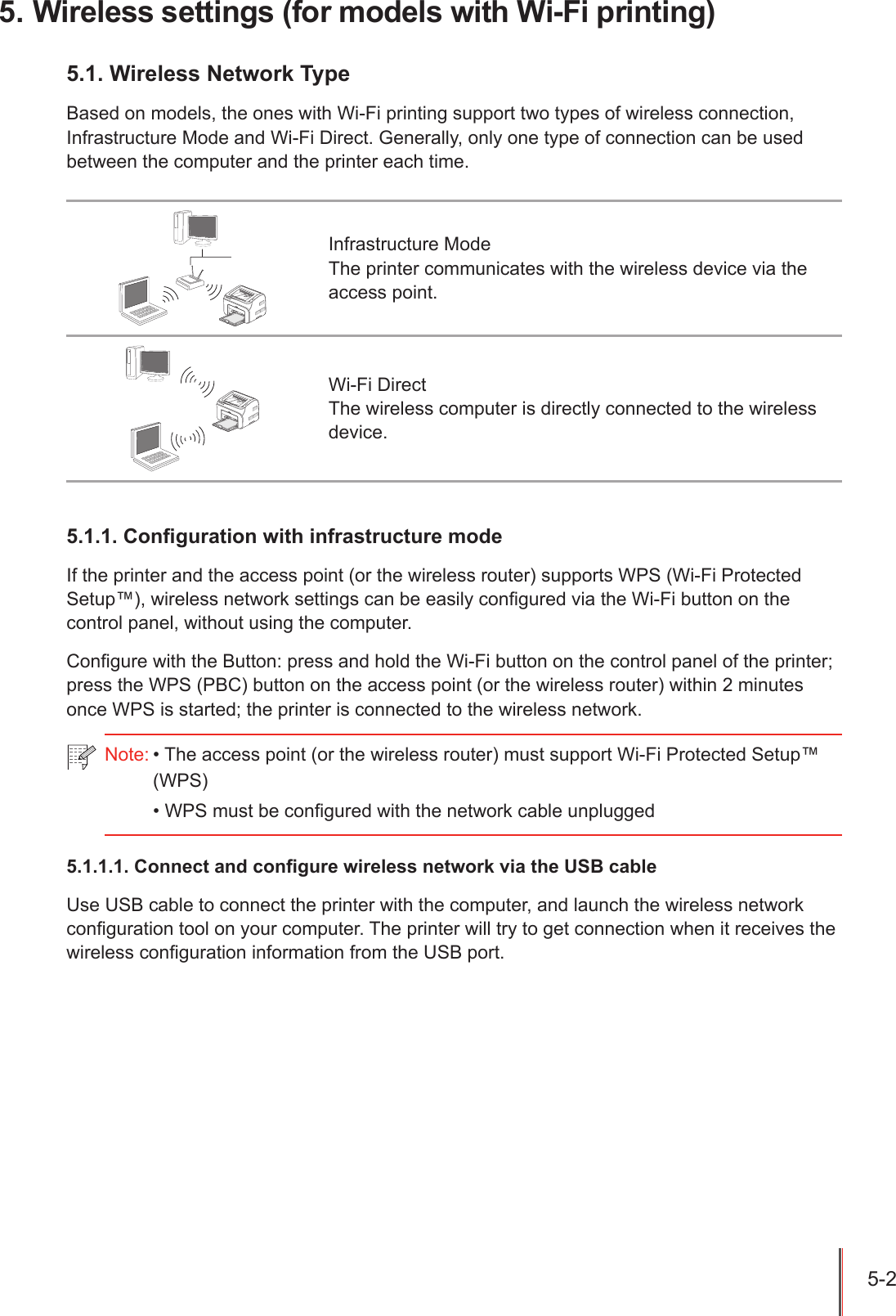
5-2 5. Wireless settings (for models with Wi-Fi printing)5.1. Wireless Network TypeBased on models, the ones with Wi-Fi printing support two types of wireless connection, Infrastructure Mode and Wi-Fi Direct. Generally, only one type of connection can be used between the computer and the printer each time. Infrastructure ModeThe printer communicates with the wireless device via the access point.Wi-Fi DirectThe wireless computer is directly connected to the wireless device.5.1.1. Conguration with infrastructure modeIf the printer and the access point (or the wireless router) supports WPS (Wi-Fi Protected Setup™), wireless network settings can be easily congured via the Wi-Fi button on the control panel, without using the computer.Congure with the Button: press and hold the Wi-Fi button on the control panel of the printer; press the WPS (PBC) button on the access point (or the wireless router) within 2 minutes once WPS is started; the printer is connected to the wireless network.5.1.1.1. Connect and congure wireless network via the USB cableUse USB cable to connect the printer with the computer, and launch the wireless network conguration tool on your computer. The printer will try to get connection when it receives the wireless conguration information from the USB port.Note: • The access point (or the wireless router) must support Wi-Fi Protected Setup™ (WPS)• WPS must be congured with the network cable unplugged

Navigation menu