Zoom H6 Users Manual
2015-01-26
: Zoom Zoom-H6-Users-Manual-360729 zoom-h6-users-manual-360729 zoom pdf
Open the PDF directly: View PDF  .
.
Page Count: 104 [warning: Documents this large are best viewed by clicking the View PDF Link!]
- Usage and safety precautions
- Introduction
- Contents
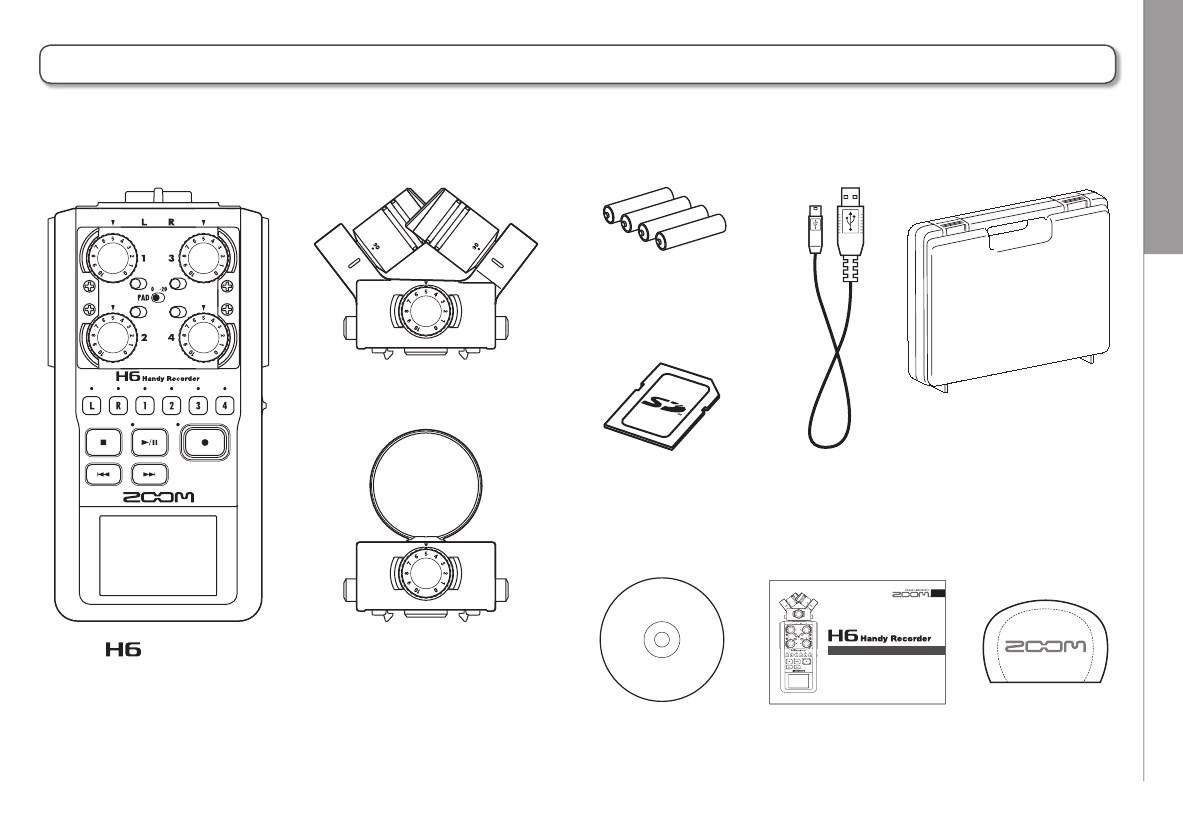
- Included items
- Names of parts
- Mic unit overview
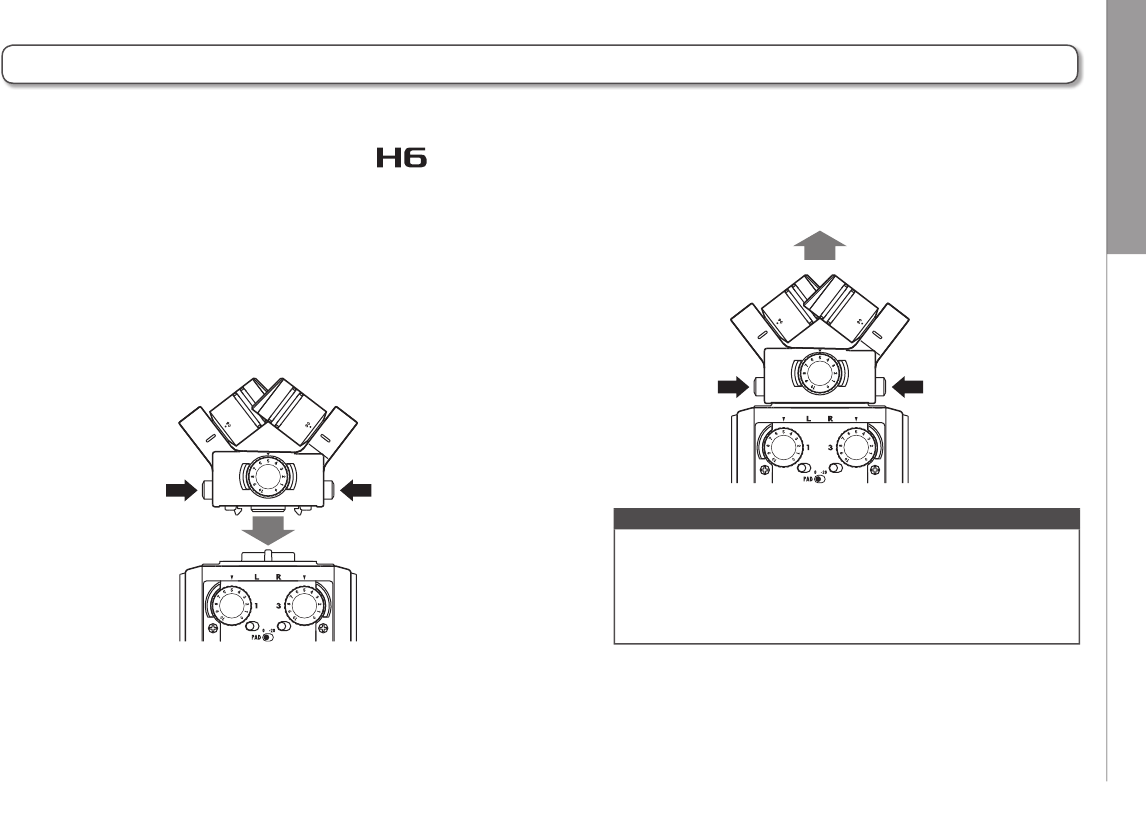
- Connecting and disconnecting mic units
- Connecting mics/other devices to Inputs 1–4
- Optional accessories
- Display overview
- Preparations
- Recording
- Playback
- Checking/editing projects/files
- USB functions
- Tools
- Other settings
- Reducing noise (low cut filter)
- Using the input compressor/limiter
- Adjusting the input signal monitoring mix
- Monitoring MS-RAW signals
- Setting the recording format
- Changing automatic recording settings
- Setting how projects are named
- Changing the phantom power setting
- Using plug-in power
- Using VU meters to check input levels
- Setting the display to save power
- Adjusting the display brightness
- Checking the firmware versions
- Restoring the default settings
- Other functions
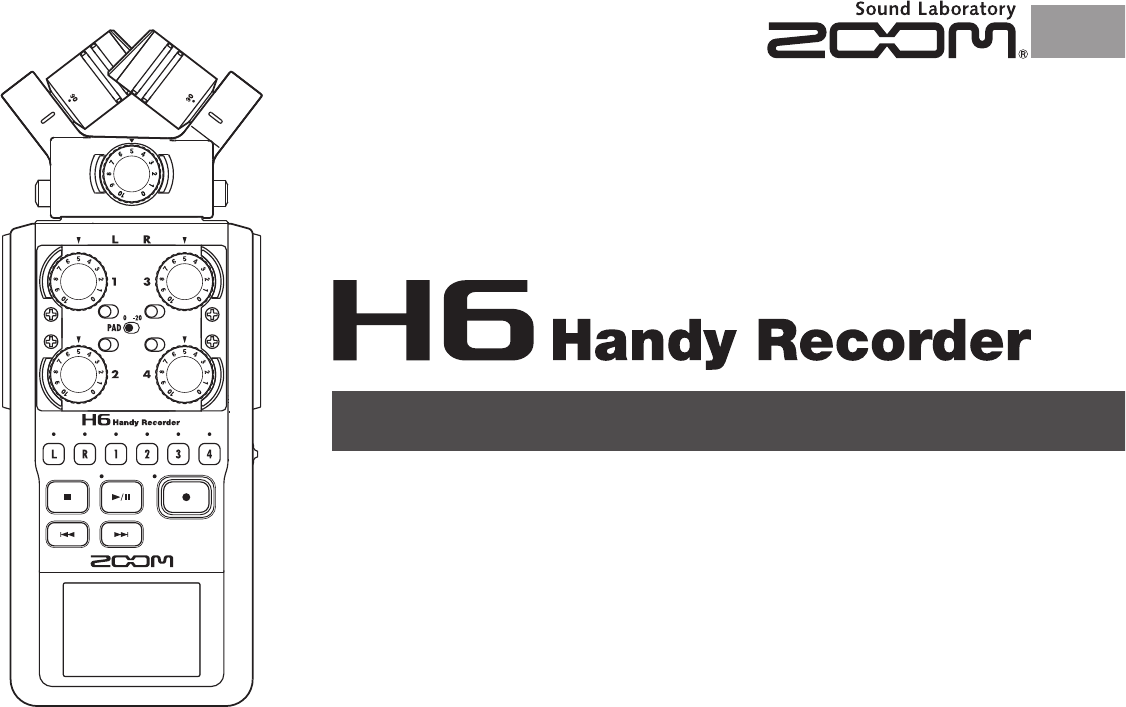
© 2013 ZOOM CORPORATION
Reproduction of this manual in whole or in part
by any means without permission is prohibited.
Operation Manual
Usage and safety precautions
02
Usage and safety precautions
SAFETY PRECAUTIONS
In this operation manual, symbols are used to
highlight warnings and cautions that you must
read to prevent accidents. The meanings of
these symbols are as follows.
Warning
Something that could cause serious
injury or death
Caution
Something that could cause injury
or damage to the equipment
Other symbols used
An action that is mandatory
An action that is prohibited
Warnings
Operation using an AC adapter
Use only a ZOOM AD-17 AC adapter (sold
separately) with this unit.
Do not do anything that could exceed the
ratings of outlets and other electrical wir-
ing equipment.
Do not use with power other than AC
100V. Before using the equipment in a for-
eign country or other region with a power
voltage other than AC100V, always consult
with a shop that carries ZOOM products
and use the appropriate AC adapter.
Operation using batteries
Use 4 conventional 1.5-volt AA batteries
(alkaline or nickel-metal hydride).
Read battery warning labels carefully.
Always close the battery compartment
cover when using the unit.
Alterations
Do not open the case or modify the
product.
Precautions
Product handling
Do not drop, bump or apply excessive
force to the unit.
Be careful not to allow foreign objects or
liquids enter the unit.
Operating environment
Do not use in extremely high or low
temperatures.
Do not use near heaters, stoves and other
heat sources.
Do not use in very high humidity or where
it could be splashed by water.
Do not use in places with frequent
vibrations.
Do not use in places with much dust or
sand.
AC adapter handling
When disconnecting the power plug from
an outlet, always hold the plug when
pulling.
Disconnect the power plug from the out-
let during lightning storms and when not
using the unit for a long time.
Battery handling
Install the batteries with the correct
+/− orientation.
Use a specified battery type. Do not mix
new and old batteries or different brands
or types at the same time.
When not using the unit for an extended
period of time, remove the batteries.
If a battery leak should occur, wipe the
battery compartment and the battery ter-
minals carefully to remove all residue.
Mics
Before connecting a mic, always turn the
power off. Do not use excessive force
when connecting a unit
When not using a mic for a long time, put
the protective cap on.
Connection cables and input/output jacks
Always turn the power OFF for all equip-
ment before connecting any cables.
Always disconnect all connection cables
and the AC adapter before moving the
unit.
Volume
Do not use at a loud volume for a long
time.
Usage Precautions
Interference with other electrical equipment
In consideration of safety, the has been
designed to minimize its emission of electro-
magnetic waves and to suppress interference
from external electromagnetic waves. However,
equipment that is very susceptible to interfer-
ence or that emits powerful electromagnetic
waves could result in interference if placed
nearby. If this occurs, place the and the
other device farther apart.
With any type of electronic device that uses dig-
ital control, including the , electromagnetic
interference could cause malfunction, corrupt
or destroy data and result in other unexpected
trouble. Always use caution.
Cleaning
Use a soft cloth to clean the exterior of the
unit if it becomes dirty. If necessary, use a
damp cloth that has been wrung out well.
Never use abrasive cleansers, wax or solvents
such as alcohol, benzene or paint thinner.
Breakdown and malfunction
If the unit becomes broken or malfunctions,
immediately disconnect the AC adapter, turn
the power OFF and disconnect other cables.
Contact the store where you bought the unit
or ZOOM service with the following informa-
tion: product model, serial number and spe-
cific symptoms of breakdown or malfunction,
along with your name, address and telephone
number.
Copyrights
Windows®, Windows® 8, Windows® 7,
Windows Vista® and Windows® XP are trade-
marks or registered trademarks of Microsoft
Corporation.
Macintosh, Mac OS and iPad are trade-
marks or registered trademarks of Apple Inc.
The SD, SDHC and SDXC logos are
trademarks.
The use of MPEG Layer-3 audio compres-
sion technology is licensed from Fraunhofer
IIS and Sisvel SpA.
All other product names, trademarks and
company names in this document are the
property of their respective owners.
Note: All trademarks and registered trade-
marks in this document are for identification
purposes only and are not intended to infringe
on the copyrights of their respective owners.
Recording for any purpose other than personal
use from copyrighted sources, including CDs,
records, tapes, live performances, video works
and broadcasts, without permission of the
copyright holder is prohibited by law.
Zoom Corporation will not assume any respon-
sibility related to infringements of copyrights.
Introduction
03
H6 Handy Recorder
Introduction
Thank you very much for purchasing a ZOOM Handy
Recorder. The has the following features.
Stereo mics can be changed according to use
An XY mic that can record sound images with depth and an
MS mic that allows the stereo width to be adjusted freely are
included. You can switch mics according to the situation as
you would switch lenses on an SLR camera.
Options include a highly-directional shotgun mic and an
external XLR/TRS input.
Record up to 6 track at once
In addition to the swappable stereo mic (L/R input), the main
unit has 4 XLR/TRS inputs (Inputs 1–4).
Use these to simultaneously record a maximum of 6 tracks,
including ambiance, narration, a stereo image and the voices
of multiple performers, for example.
Advanced recording features
• The XY mic, which has newly-developed 14.6mm large
diaphragm mics, records the full range of frequencies with
good stereo placement.
• Using the L/R input mics, you can simultaneously record
a backup file with a recording level that is 12 dB less than
the regular recording. You can use this backup recording if
an unexpected loud noise should cause the regular record-
ing to distort, for example.
• Inputs 1–4 have increased maximum gain compared to
previous models. In response to popular demand, they
have independent PAD switches that allow them to easily
handle +4dB input. They can also provide phantom power
(+12V/+24V/+48V).
• All input volume (gain) levels can be adjusted quickly by
hand using dedicated knobs.
Useful operation features
• High-capacity SDXC cards can be used as recording
media, allowing even longer recording times.
• The color LCD is positioned to be easy to read even when
mounted on an SLR camera.
• In addition to the standard headphones output, a line
output jack is built-in. This allows you to send the audio
signal to a video camera or other device while monitoring
with headphones.
• When the is connected by USB, in addition to card
reader functions, it can be used as an audio interface
that is either 2 IN and 2 OUT or 6 IN and 2 OUT (driver
required for 6 IN use with Windows).
• Of course, a tuner, a metronome and playback speed and
pitch adjustments are included among the useful func-
tions that are also found in other models in the H series.
• An optional remote control (wired) is also available.
Please read this manual carefully to fully understand the
functions of the so that you can make the most of it for
many years. After reading the manual, please keep it with
the warranty in a safe place.
Contents
04
Contents
Usage and safety precautions ............................... 02
Introduction ............................................................ 03
Contents .................................................................. 04
Included items ........................................................ 05
Names of parts ...................................................... 06
Mic overview ......................................................... 08
XY mic .................................................................. 08
MS mic ................................................................. 08
Connecting and disconnecting mics ....................09
Mic connection ..................................................09
Mic disconnection .............................................09
Connecting mics/other devices to Inputs 1–4 ...... 10
Connecting mics .................................................. 10
Connecting instruments/other devices .............. 10
Stereo inputs ....................................................... 10
Connection examples ......................................... 11
Optional accessories ............................................. 12
Display overview .................................................... 14
Home/Recording Screen .................................... 14
Playback Screen .................................................. 15
Preparations
Supplying power ................................................... 16
Using batteries ....................................................16
Using an AC adapter (sold separately) ............. 17
Loading an SD card ................................................ 18
Turning the power on and off ................................ 19
Turning the power on .......................................... 19
Turning the power off ......................................... 19
Using the hold function ......................................... 20
Activating the hold function ............................... 20
Deactivating the hold function ........................... 20
Setting the language .............................................. 21
Setting the date and time ......................................22
Setting the type of battery used ............................ 23
Recording
Recording process ..................................................24
Folder and file structure .........................................25
Basic recording ....................................................... 26
Selecting the folder where projects are saved .... 28
Recording automatically ........................................ 29
Pre-recording .......................................................... 31
Counting in before recording ................................32
Adjusting the side mic level .................................. 33
Backup recording ................................................... 34
Overdubbing ........................................................... 35
Playback
Basic playback ........................................................38
Select the playback project from the list ..............40
Changing the playback speed ...............................41
Repeat playback of a set interval (AB repeat) ......42
Changing the playback mode ................................44
Changing the playback pitch (key) ........................45
Mixing ..................................................................... 46
Checking/editing projects/files
Checking project information ................................ 48
Checking track marks .............................................49
Changing project names ........................................50
Mixing down a project ...........................................52
Normalizing tracks ................................................. 54
Dividing projects .................................................... 56
Trimming project beginnings and ends ...............58
Deleting one project ............................................... 60
Deleting all projects in a folder ............................. 61
Rebuilding a project ...............................................62
Recording a project voice memo ..........................63
Playing backup files ............................................... 64
USB functions
Data exchange with computers (card reader) ...... 66
Using as an audio interface ................................... 68
Audio interface settings ......................................... 70
Making direct monitoring settings .....................70
Using Loop Back (in stereo mix mode) .............71
Mixing the inputs ................................................72
Tools
Using the tuner ....................................................... 74
Using the metronome ............................................ 76
Other settings
Reducing noise (low cut filter) .............................. 78
Using the input compressor/limiter ......................79
Adjusting the input signal monitoring mix ..........80
Monitoring MS-RAW signals ................................. 82
Setting the recording format ................................. 83
Changing automatic recording settings ...............84
Enabling automatic stopping ............................85
Setting how projects are named ........................... 86
Changing the phantom power setting ..................87
Using plug-in power .............................................. 88
Using VU meters to check input levels ................. 89
Setting the display to save power ........................90
Adjusting the display brightness .......................... 91
Checking the firmware versions............................ 92
Restoring the default settings ...............................93
Other functions
Checking SD card open space ............................... 94
Formatting SD cards ..............................................95
Testing SD card performance ................................96
Updating the firmware ...........................................98
Using SD cards from older H series recorders .... 99
Using a remote control (sold separately) ...........100
Troubleshooting ................................................... 101
Specifications ....................................................... 102
Included items
05
H6 Handy Recorder
Included items
The package should contain the following items.
Please confirm that they have all been included.
4 AA batteries
(for unit testing)
Main unit case
SD card USB cable
main unit MS mic
XY mic
Cubase LE
installation DVD
Wind screen
(sponge)
© 2013 ZOOM CORPORATION
本マニュアルの一部または全部を
無断で複製/転載することを禁じます。
オペレーション マニュアル
Operation manual
(this document)
Names of parts
06
Names of parts
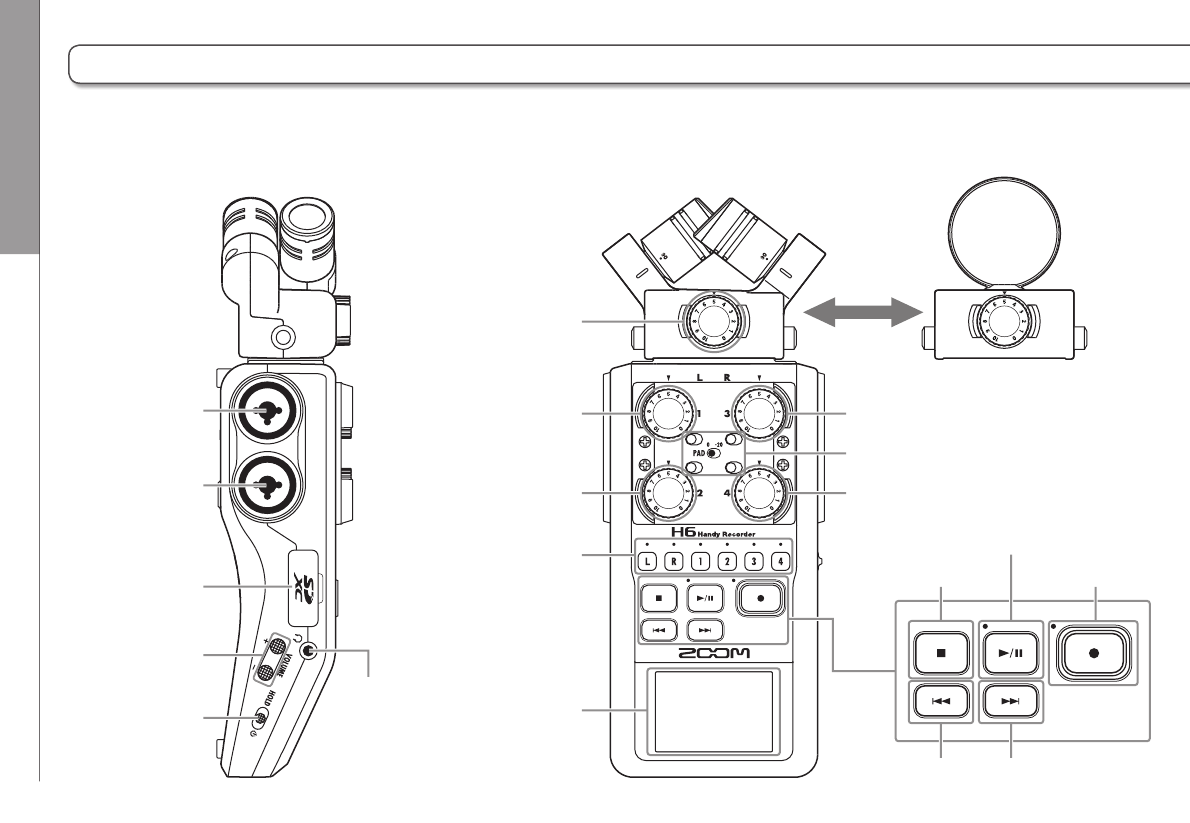
Left Front
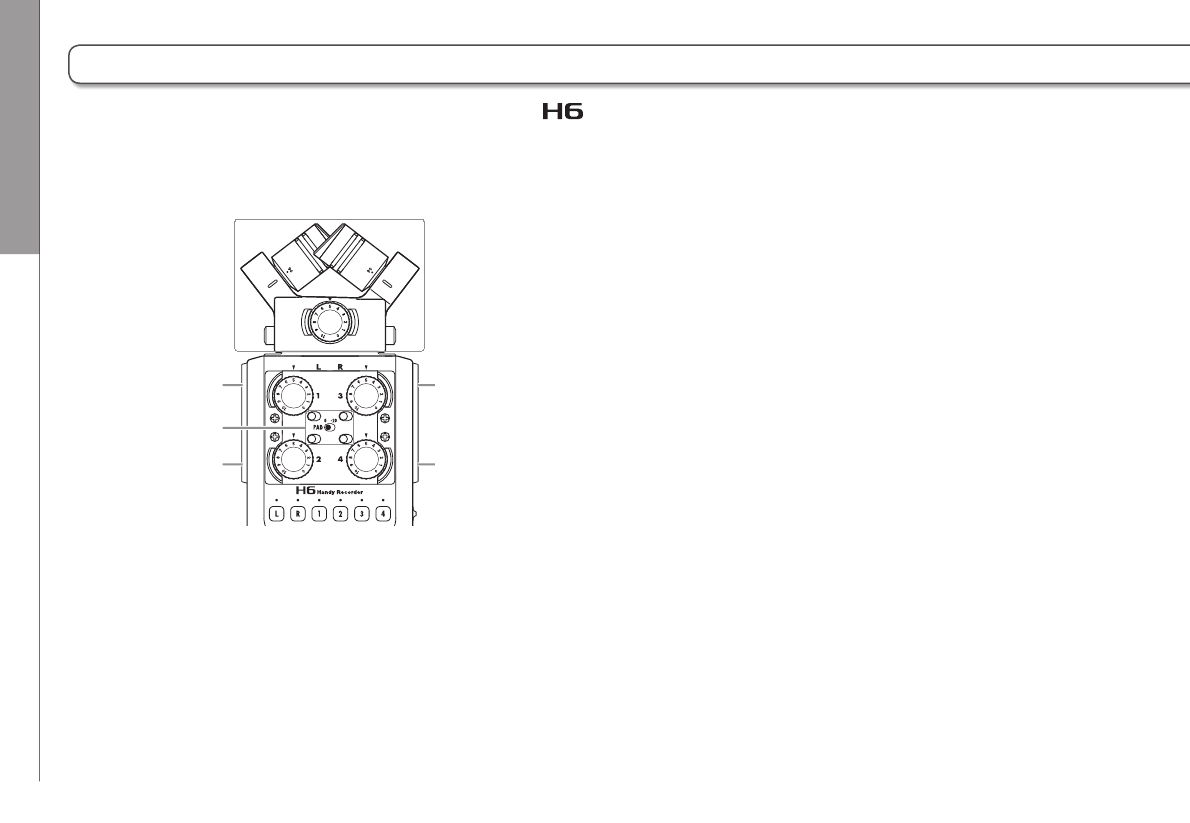
Input 1
Input volume L/R
Input volume 1
Input 2
SD card slot
VOLUME button
PHONE jack
POWER/HOLD switch
Input volume 2
Track buttons and
indicators
(L, R, 1–4)
Input volume 3
XY mic
(Swappable)
MS mic
PAD switches (1–4)
Input volume 4
Stop button
Display
Play/pause button
& indicator
Back button Forward button
Record button
& indicator
Names of parts
07
H6 Handy Recorder
Right (back)
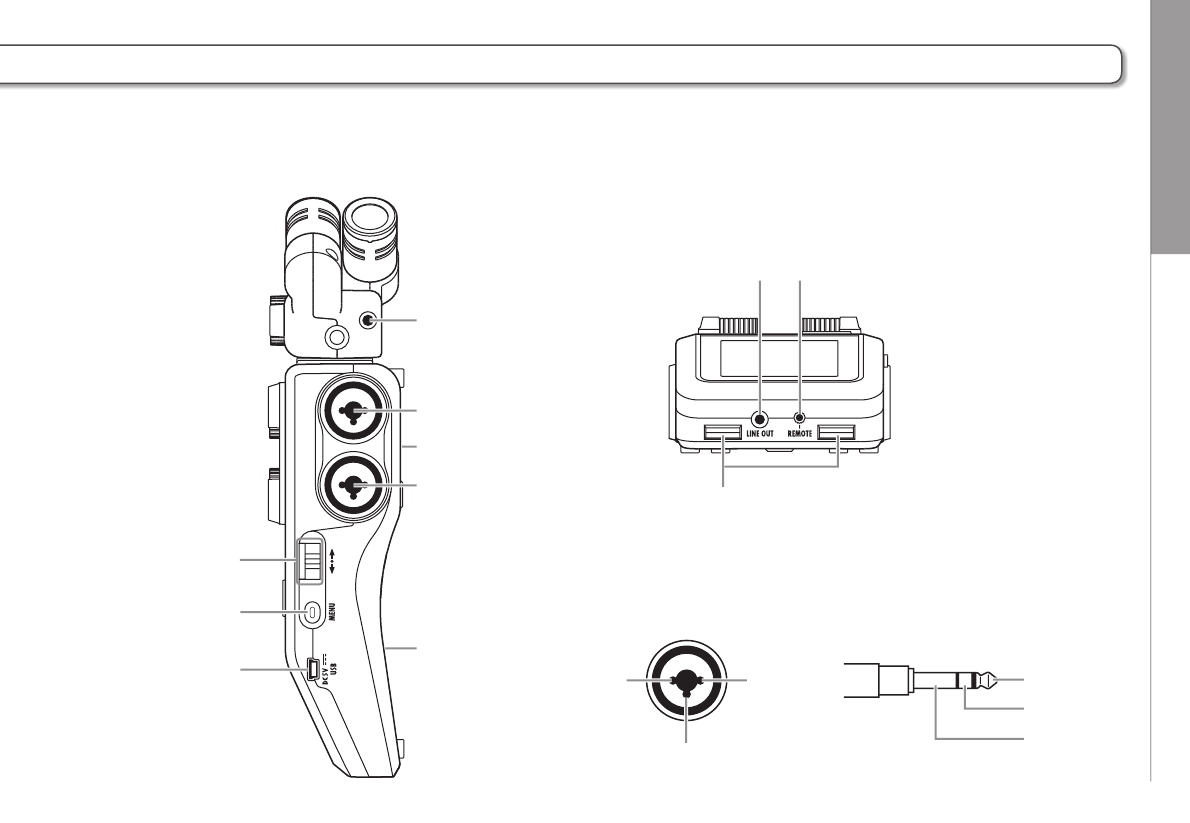
XLR TRS
Bottom
Input 3
MIC/LINE input jack
(supports plug-in power)
Input 4
Battery cover (back)
Speaker (back)
Scroll button
Up and down
Select menu items
Press: Confirm menu
selection
LINE OUT jack
Strap holes
(can also be used with camera straps)
REMOTE jack (remote control sold separately)
MENU button
Press:
Open menu,
Return to last screen
USB jack
1: GND
2: HOT
3: COLD
TIP: HOT
RING: COLD
SLEEVE: GND
12
3
Mic overview
08
Mic overview
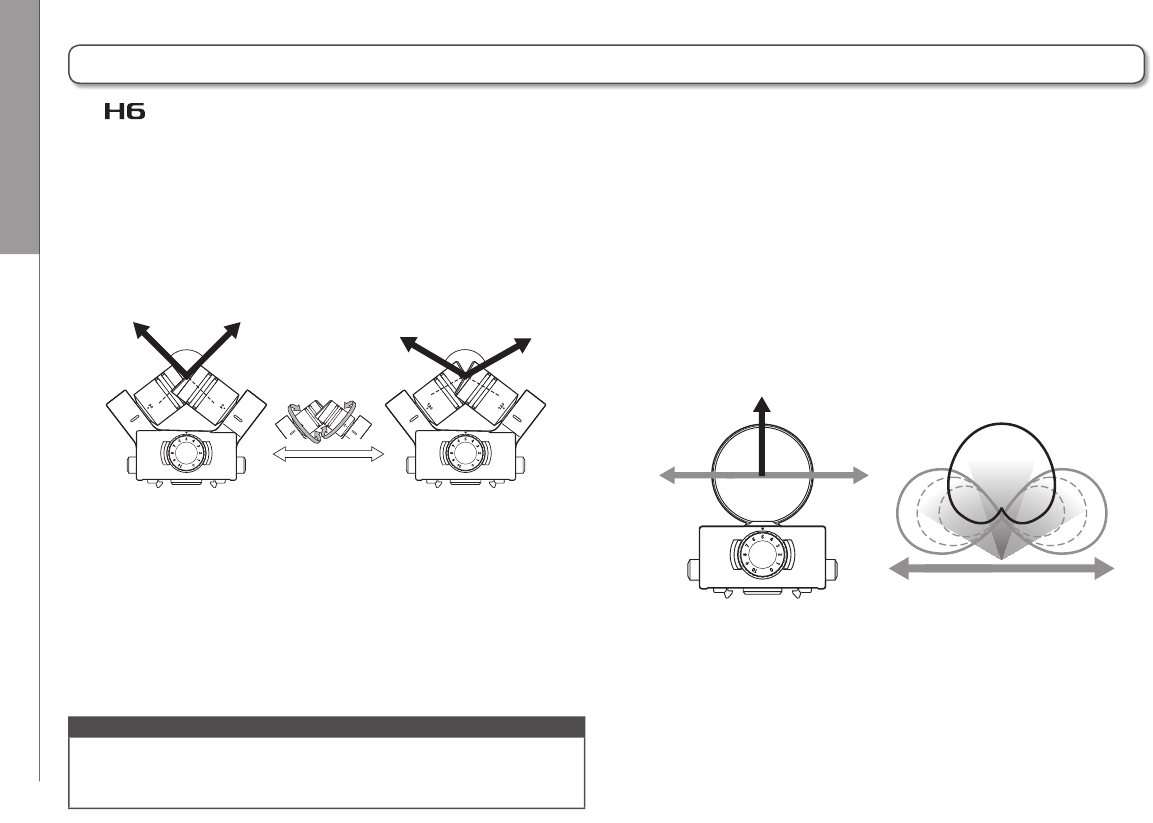
This has two crossing directional mics.
By rotating the mics, you can switch the width of the record-
ing field between 90° and 120°.
L R
90°
L R
120°
Features:
Newly-developed large diaphragm mics enable low and
high frequencies to be recorded with good stereo placement
while sounds in the center are captured clearly.
This mic is ideal for recording at close and medium ranges
when aimed at specific sound sources to capture a three-di-
mensional sound with natural depth and width.
Use examples: solo performances, chamber music, live
rehearsals, field recording
NOTE
The XY mic has a MIC/LINE input jack that can be used to connect
an external mic or line-level device. This jack can also provide
plug-in power to mics that use it. (P.88)
MS mic
This mic combines a unidirectional mid mic that captures
sound from the center with a bidirectional side mic that cap-
tures sound from the left and right.
By adjusting the side mic level, you can change the stereo
width as you like. If you record in MS-RAW mode, you can
adjust the side mic level after recording to change the stereo
width.
Features:
This mic can capture a wide and detailed stereo image,
making it ideal for recording wide open spaces with multiple
sound sources.
With the side mic off it can also be used for mono recording.
Use examples: orchestras, live concerts, soundscapes
Use examples with side mic off: interviews, narrations,
meetings
L R
Mid mic
Mid mic
Side mic level
Side mic
The includes XY and MS mics. These mics can be swapped according to your need.
A shotgun mic (SGH-6) and an external XLR/TRS input (EXH-6) are also available as optional accessories. (P. 1 2 )
The input from these mics (L/R input) is recorded on the L/R tracks.
XY mic
Connecting and disconnecting mics
09
H6 Handy Recorder
Connecting and disconnecting mics
Mic connection
1. Remove the protective caps from the main unit
and the mic.
2. While pressing the buttons on the sides of the mic,
connect it to the main unit, inserting the
connector completely.
Mic disconnection
1. While pressing the buttons on the sides of the mic,
pull it out of the main unit.
NOTE
• When disconnecting a mic, do not use too much force.
Doing so could damage the mic or the main unit.
• Recording will stop if a mic is removed during recording.
• If a mic will not be attached for a long time, put on the
protective cap.
Connecting mics/other devices to Inputs 1–4
10
Connecting mics/other devices to Inputs 1–4
Connecting mics
Connect dynamic mics and condenser mics to the Input 1–4
XLR jacks.
Phantom power (+12V/+24V/+48V) can be supplied to con-
denser mics. (P.87)
Connecting instruments/other devices
Connect keyboards and mixers directly to the Input 1–4 TRS
jacks.
Direct input of passive guitars and basses is not supported.
Connect these instruments through a mixer or effects device,
for example.
Set the PAD switch to −20 when connecting a mixer or other
device with a standard output level of +4dB.
Stereo inputs
By linking tracks 1 and 2 (or tracks 3 and 4) as a stereo tracks,
Inputs 1/2 (or Inputs 3/4) can be used for stereo input. (
P.26)
In this case, Input 1 (Input 3) becomes the left channel and
Input 2 (Input 4) becomes the right channel.
Input 1
PAD switch
Input 2
Input 3
Input 4
L/R inputs
In addition to the input (L/R) from an XY or MS mic, the also has Inputs 1–4.
These can be used together to record up to six tracks at one time.
Mics, instruments and other equipment can be connected to Inputs 1–4 and recorded independently to tracks 1–4.
Connecting mics/other devices to Inputs 1–4
11
H6 Handy Recorder
Connecting mics/other devices to Inputs 1–4
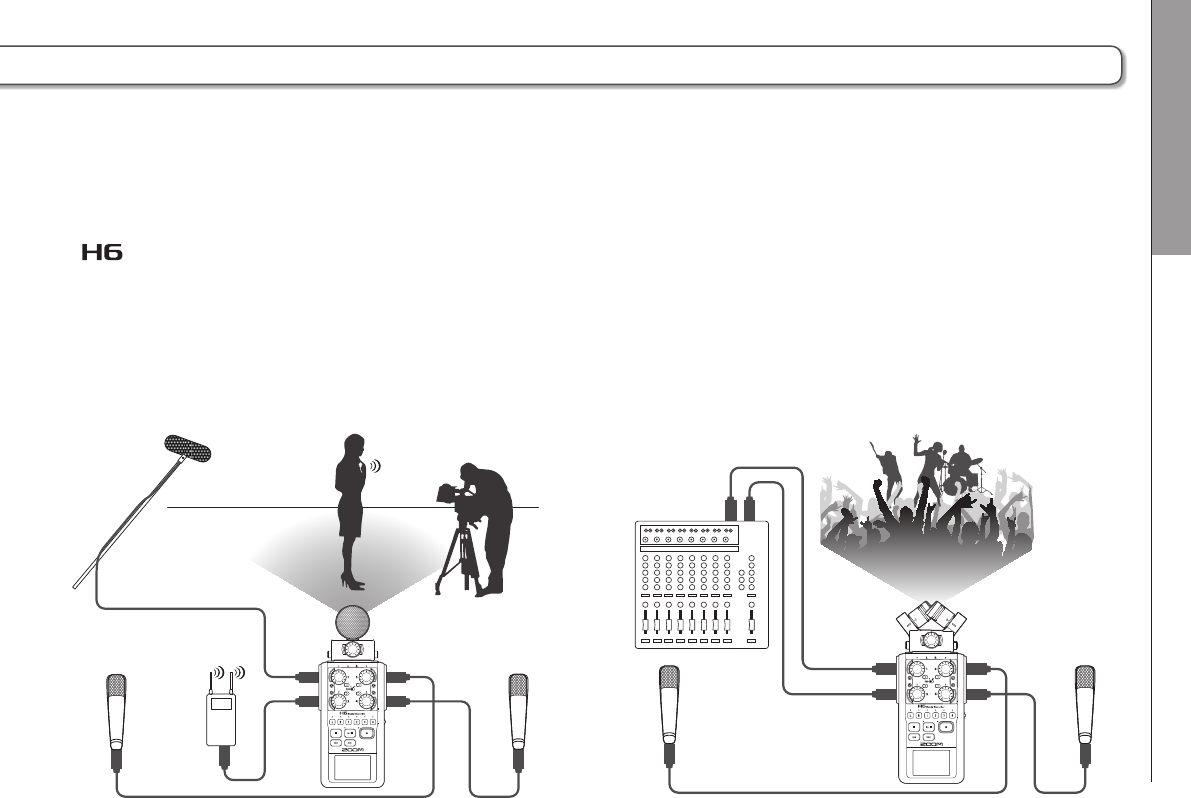
Connection examples
The allows you to record in a variety of configurations.
While filming
• L/R input mic: Main subject
• Shotgun/lapel mics connected to Inputs 1/2: Performer
• Mics connected to Inputs 3/4: Ambient sound
Ambient mic
Lapel mic
Shotgun mic
Lapel mic
L/R
3
4
1
2
Ambient mic
Concert recording
• L/R input mic: Performance on stage
• Inputs 1/2: Line outputs from mixer
• Mics connected to Inputs 3/4: Audience sound
Ambient mic
PA mixer
Ambient mic
3
4
1
2
L/R
Optional accessories
12
Optional accessories
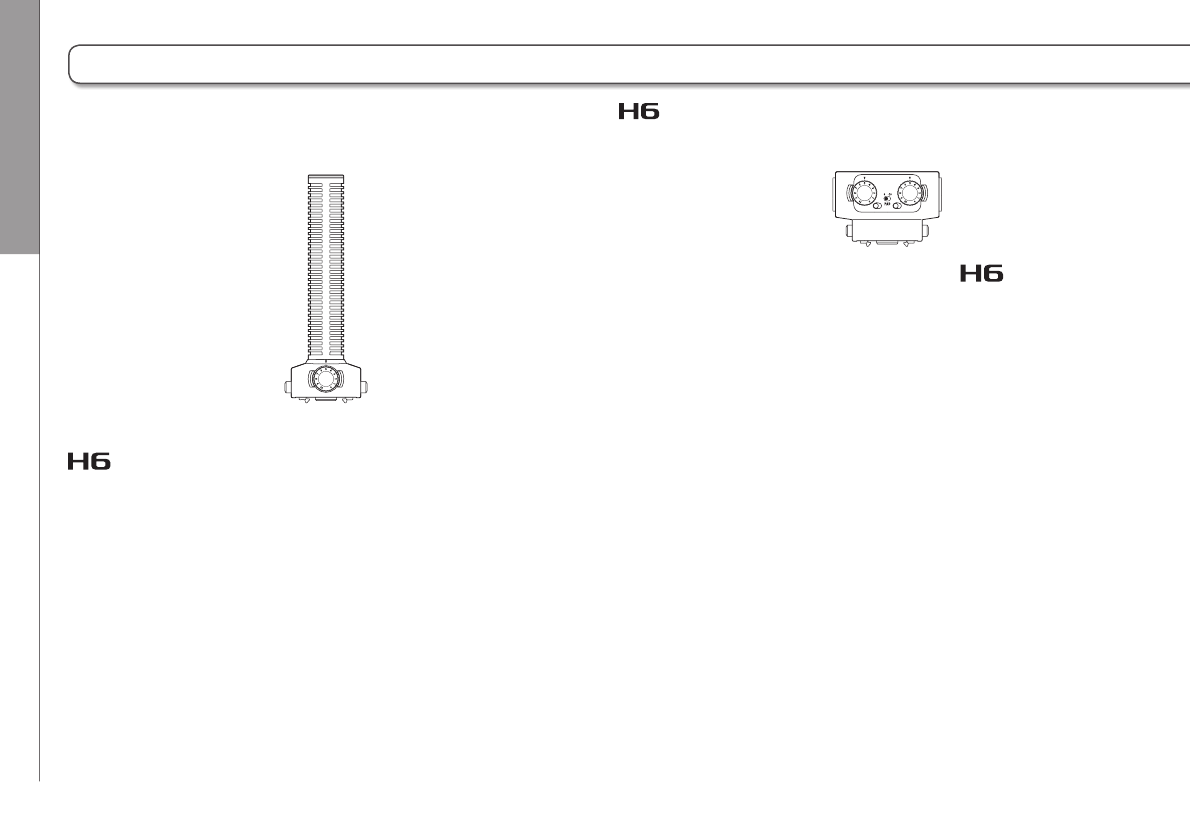
The following optional accessories are available for use with the .
Shotgun mic attachment (SGH-6)
This highly-directional mic is great for capturing mono-
phonic sound from a specific location. Use it in place of an
stereo mic.
• This mic records to the L/R track in mono.
External XLR/TRS input (EXH-6)
Use instead of a stereo mic to give the two more XLR/
TRS input jacks (L/R input).
• This does not support phantom power.
Optional accessories
13
H6 Handy Recorder
Accessory pack (APH-6)
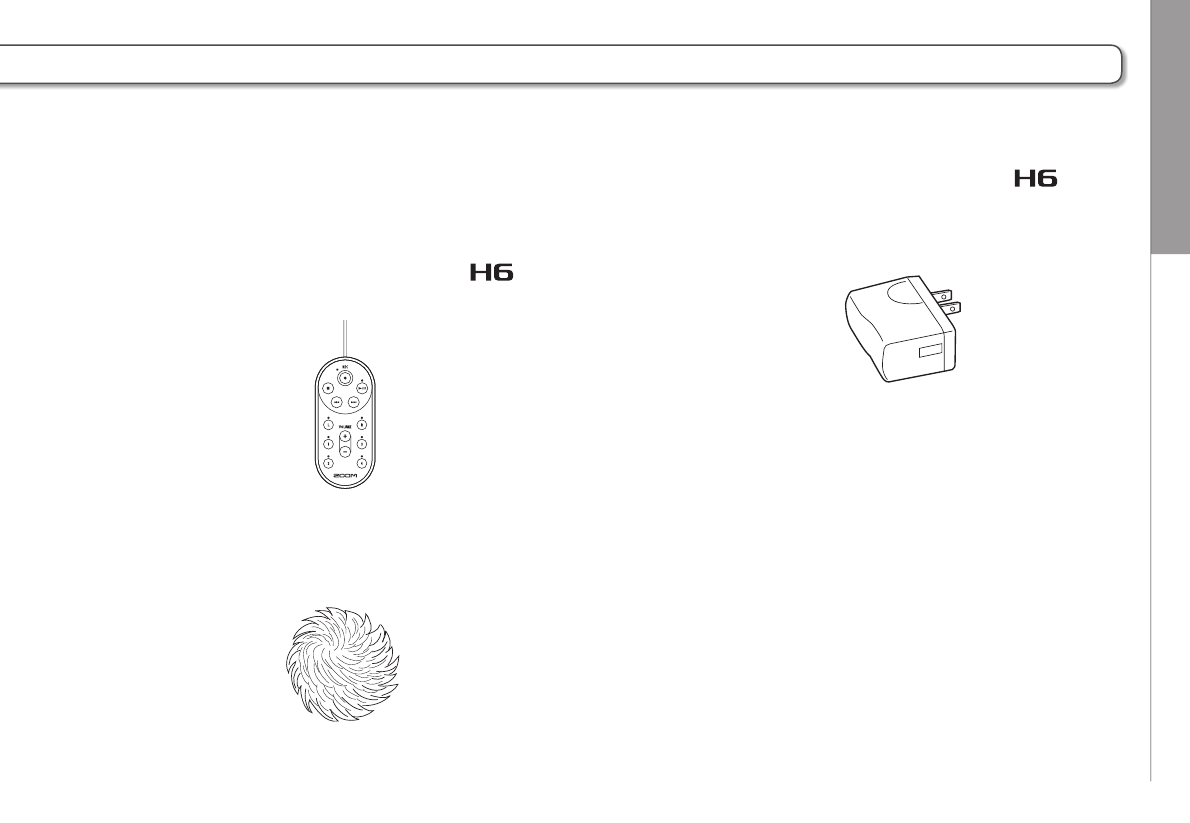
This accessory pack includes the following 3 items: a remote
control, a hairy windscreen and an AC adapter.
Remote control (RCH-6)
This is a wired remote control for use with the .
Connect it to the REMOTE jack.
Hairy windscreen
This windscreen can be used with both the XY and MS
mics.
AC adapter (AD-17)
This AC adapter is designed for use with the . Con-
nect it to the USB jack using a USB cable and plug it into
an outlet.
Display overview
14
Display overview
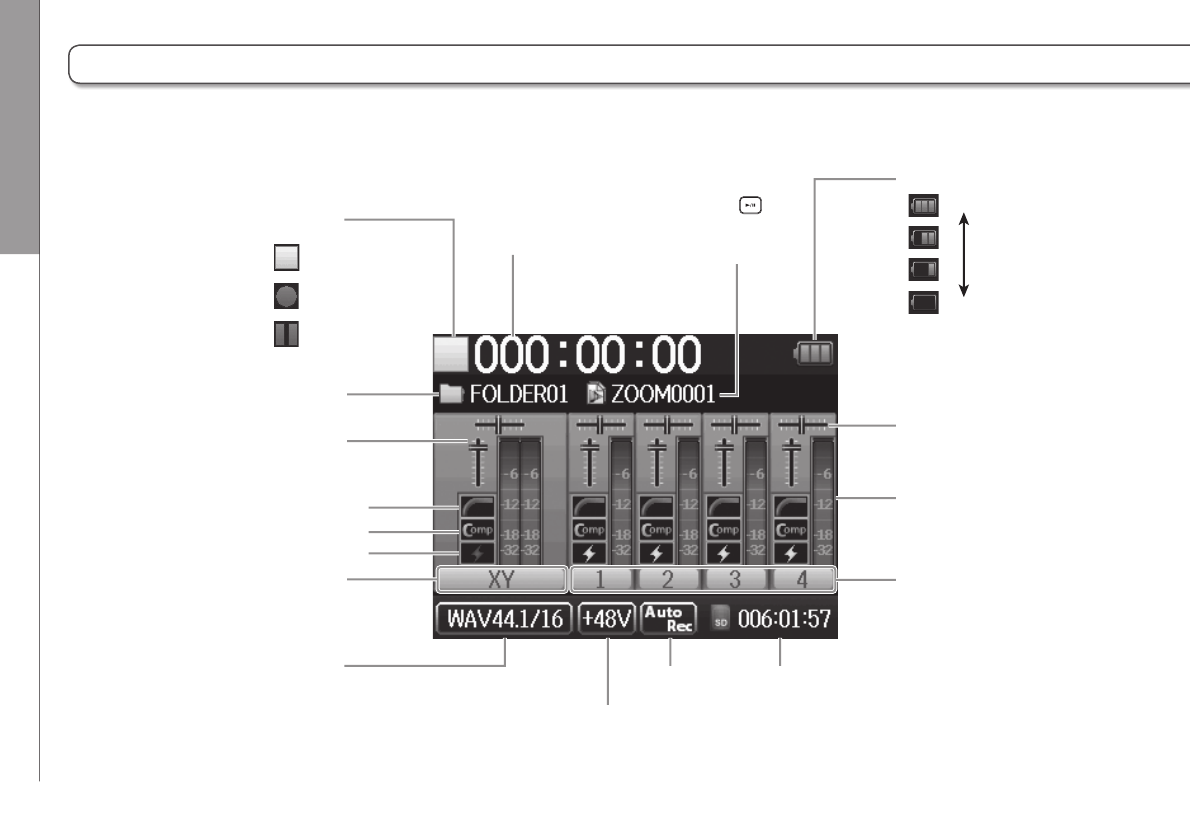
SD card icon and remaining
recording time
Phantom power voltage
(P.87)
L/R track
(Name of connected
mic unit shown)
Low cut indicator (P.78)
Compressor/limiter indicator (P.79)
Phantom power indicator (P.87)
Folder name
Recording format
(When using as an audio interface,
computer or iPad setting shown)
Auto record
(P.29)
Stopped
Status icon
Recording
Recording time
Battery charge indicator
Pan sliders
(Monitoring mixer P.80)
Full
Empty
Level meter
(Recording input level)
Tracks 1–4
Paused
Monitoring volume
(Monitoring mixer P.80)
Name of project that
will play when the
button is pressed
(when recording, name of
project being recorded)
Home/Recording Screen
Display overview
15
H6 Handy Recorder
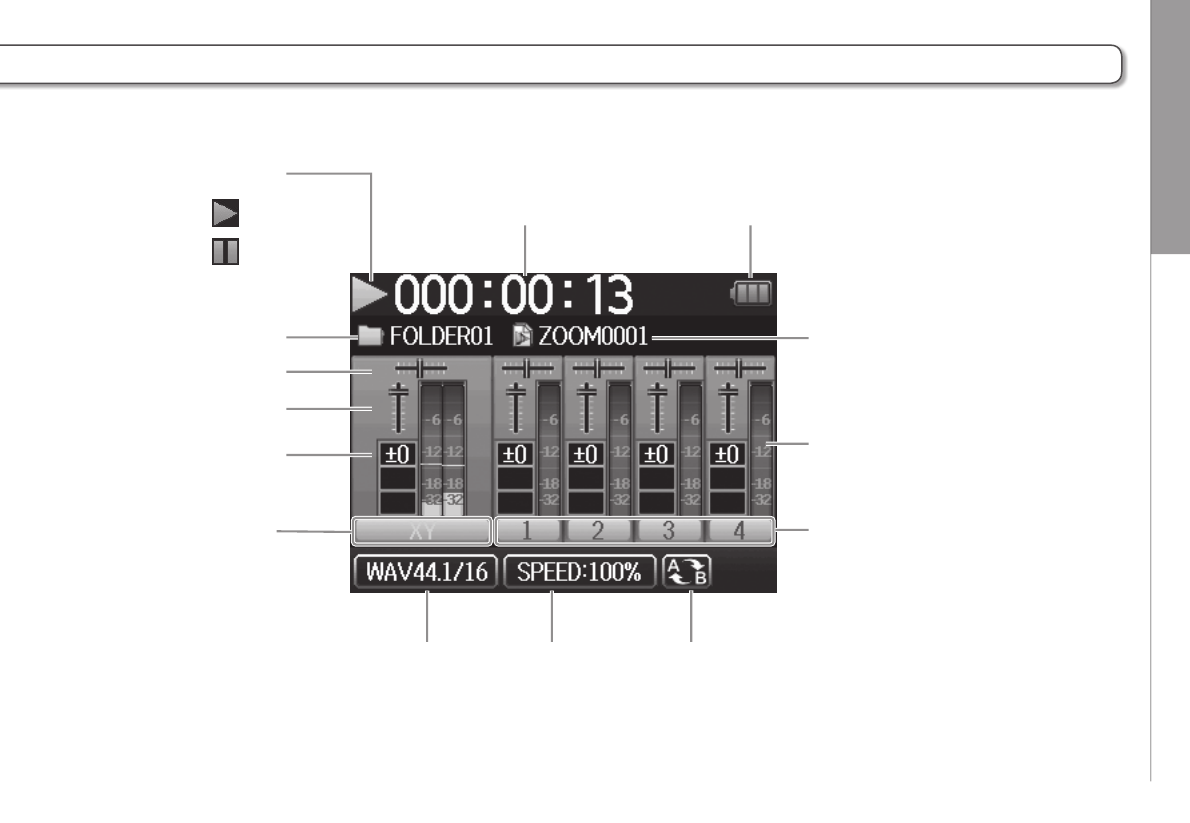
Playing back Playback time
Name of project playing back
Level meter
(playback level)
Tracks 1–4
Playback speed
( P.41)
Playback format
Battery charge indicator
Status icon
Pitch control
L/R track
(Name of connected
mic unit shown)
Playback volume
Pan sliders
Folder name
Paused
A-B repeat ( P.42)
(Shown when A and B points set)
Playback Screen
Preparations Supplying power
16
Supplying power
Using batteries
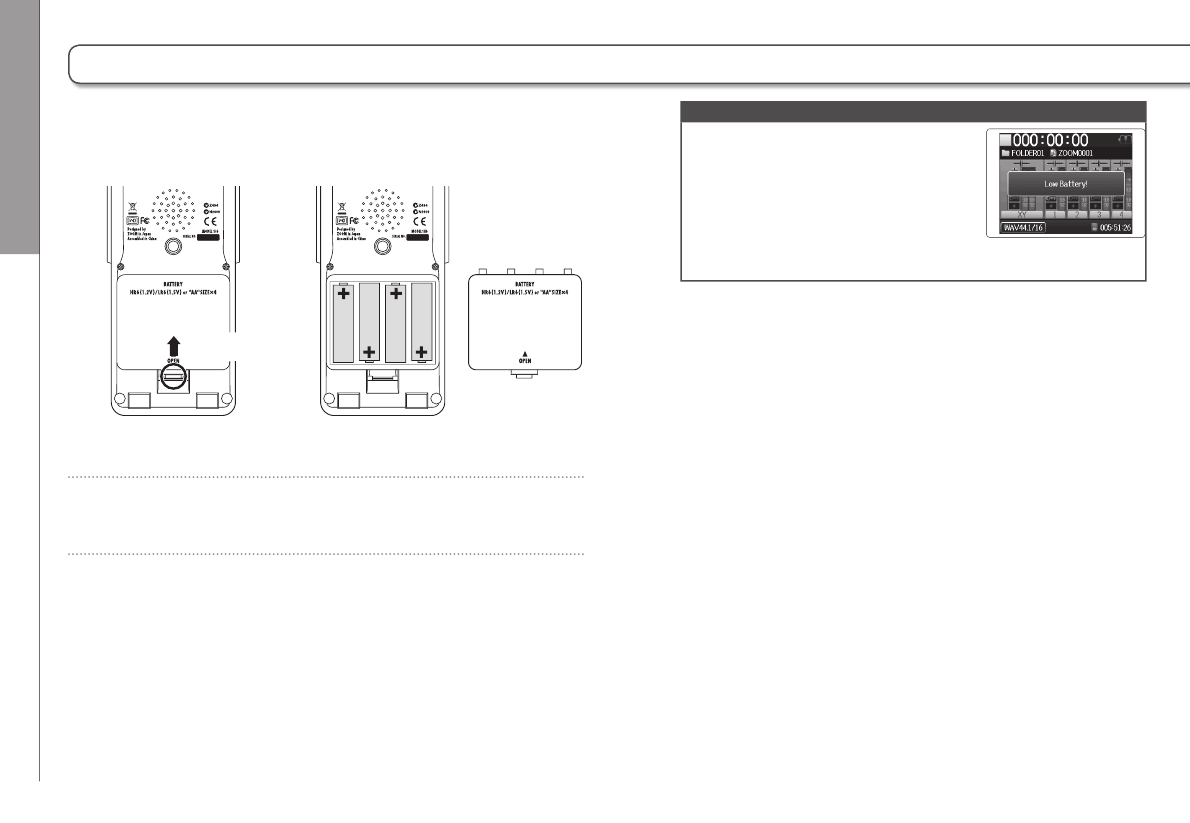
1. Turn the power off and then remove the battery
cover.
2. Install the batteries.
3. Replace the battery cover.
Open while
pushing up
NOTE
• Use alkaline batteries or nickel-
metal hydride batteries.
• If the battery indicator becomes
empty, turn the power off imme-
diately and install new batteries.
• Set the type of battery being
used. (P.23)
Preparations Supplying power
17
H6 Handy Recorder
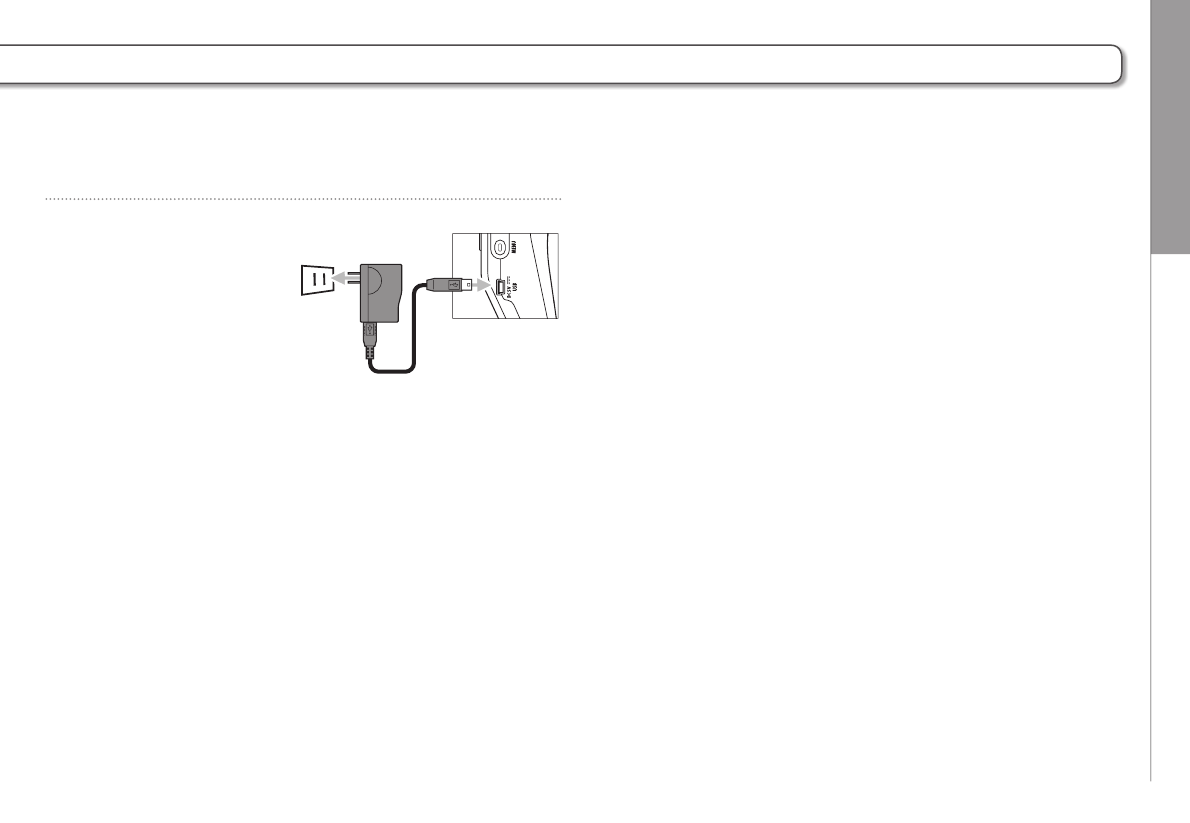
Using an AC adapter (sold separately)
1. Connect a USB cable to the USB jack.
2. Plug the adapter into
an outlet.
Preparations Loading an SD card
18
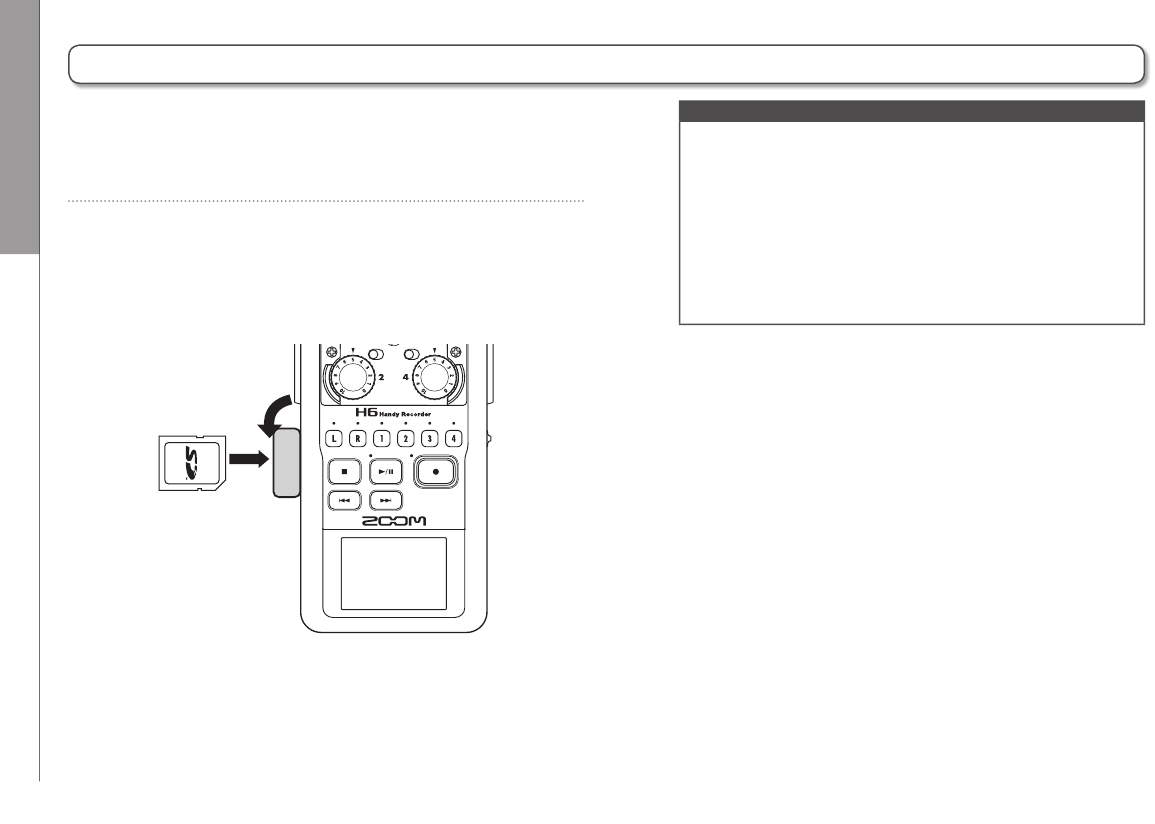
1. Turn the power off and then open the SD card slot
cover.
2. Insert the card in the slot.
To eject an SD card:
Push the card further into the slot and then pull it out.
Loading an SD card
NOTE
• Always turn the power off before inserting or removing an
SD card.
Inserting or removing a card while the power is on could
result in data loss.
• When inserting an SD card, be sure to insert the correct
end with the top side up as shown.
• When an SD card is not loaded, recording and playback
are not possible.
• See “Formatting SD cards”. (P.95)
SD card slot in
center of left side
Preparations Turning the power on and off
19
H6 Handy Recorder
Turning the power on and off
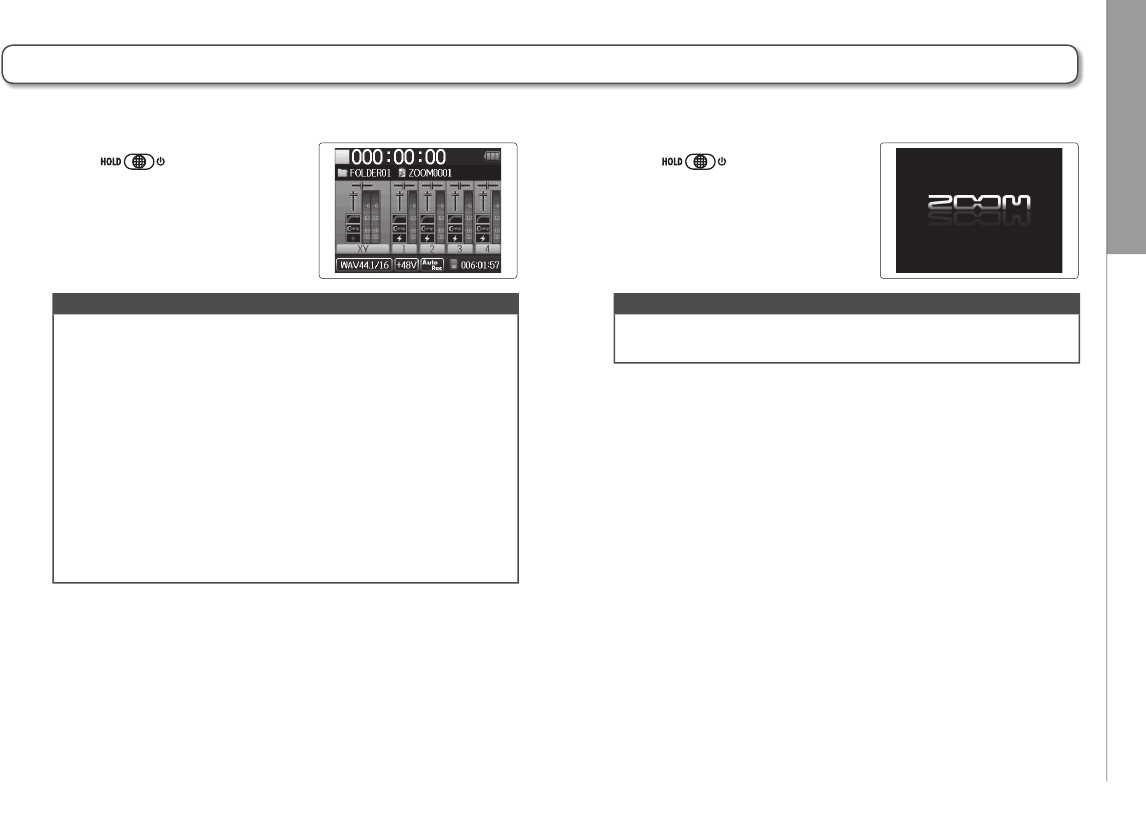
Turning the power on
Slide to the right.
NOTE
• The first time you turn the power on after purchase, you
must set the language (P.21) and date/time (P.22). You
can also change these settings later.
• If “No SD Card!” appears on the display, confirm that the
SD card is inserted properly.
• If “Card Protected!” appears on the display, the SD card
write-protection is enabled. Slide the lock switch on the
SD card to disable write-protection.
• If “Invalid Card!” appears on the display, the card is not
correctly formatted for use with this recorder. Format the
card or use a different card. See “Formatting SD cards”. (
P.95)
Turning the power off
Slide to the right.
NOTE
Keep holding the switch to the right until the ZOOM logo
appears.
Preparations Using the hold function
20
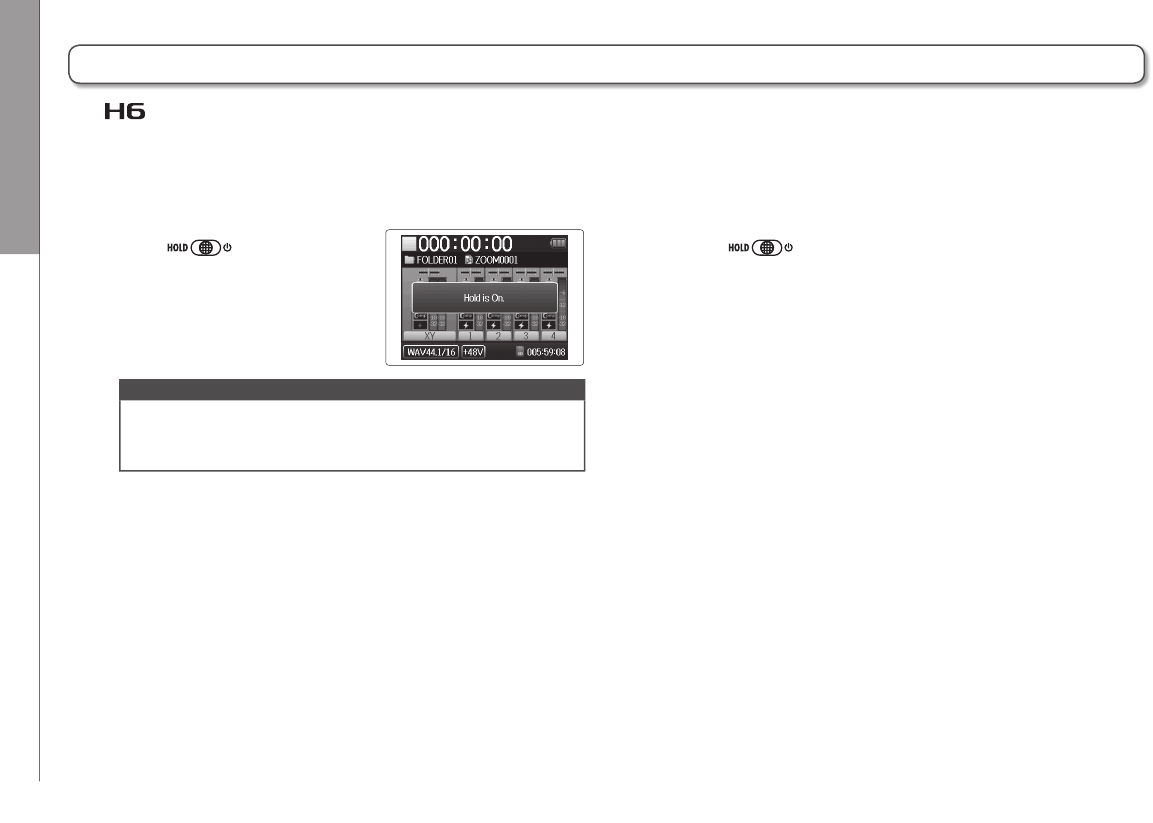
Activating the hold function
Slide to the left.
NOTE
The hold function does not affect the remote control (sold
separately). Even when hold is active, the remote can still
be used.
Deactivating the hold function
Slide to the center.
The has a hold function that can be used to disable the buttons in order to prevent accidental operation during recording.
Using the hold function
Preparations Setting the language
21
H6 Handy Recorder
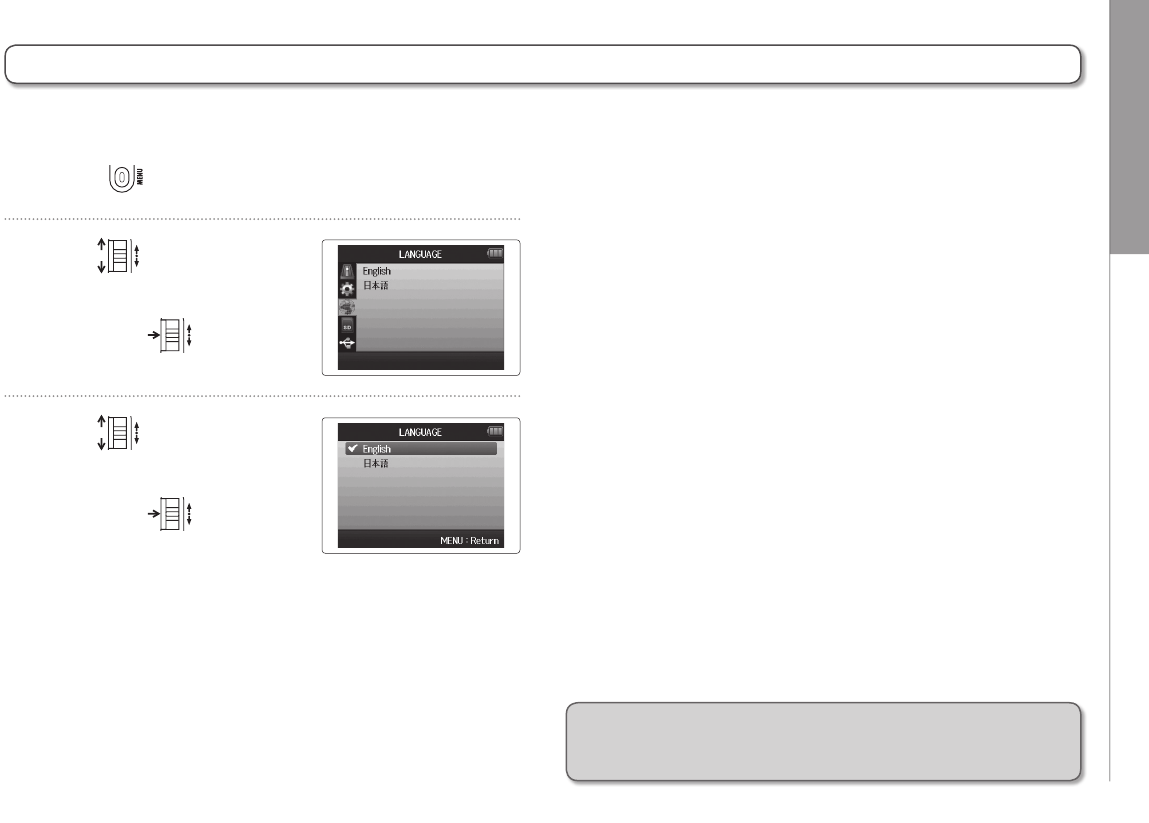
Setting the language
1. Press .
2. Use to
select “LANGUAGE”,
and press .
3. Use to select
the language,
and press .
The language shown on the display can be set to English or Japanese.
*The first time you turn the power on after purchase, you
must set the language and date/time.
*
Preparations Setting the date and time
22
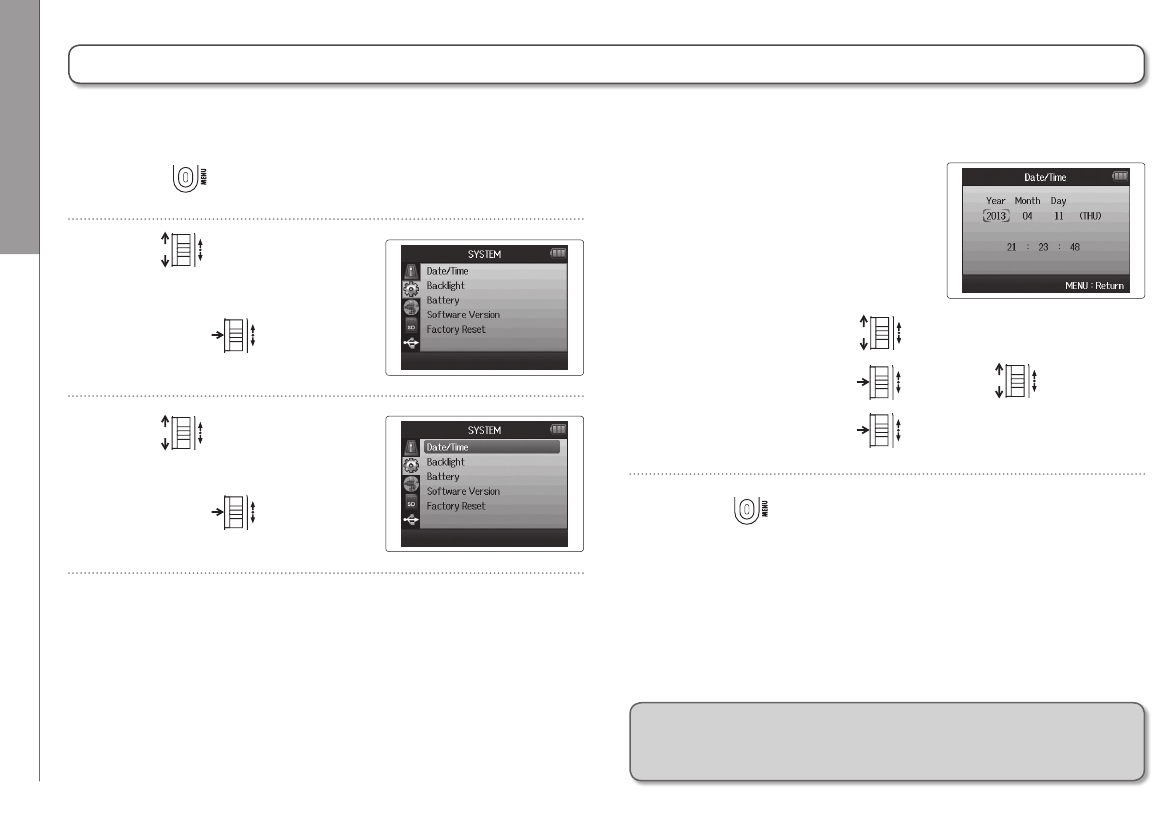
1. Press .
2. Use to select
“SYSTEM”,
and press .
3. Use to select
“Date/Time”,
and press .
Setting the date and time
4. Set the date and time.
Changing settings
Move cursor: Move up/down
Select item: Press then move up/down
Confirm change: Press
5. Press to complete the setting.
When the date and time are set, the recorder can store accurate recording date and time information in files.
*The first time you turn the power on after purchase, you
must set the language and date/time.
*
Preparations Setting the type of battery used
23
H6 Handy Recorder
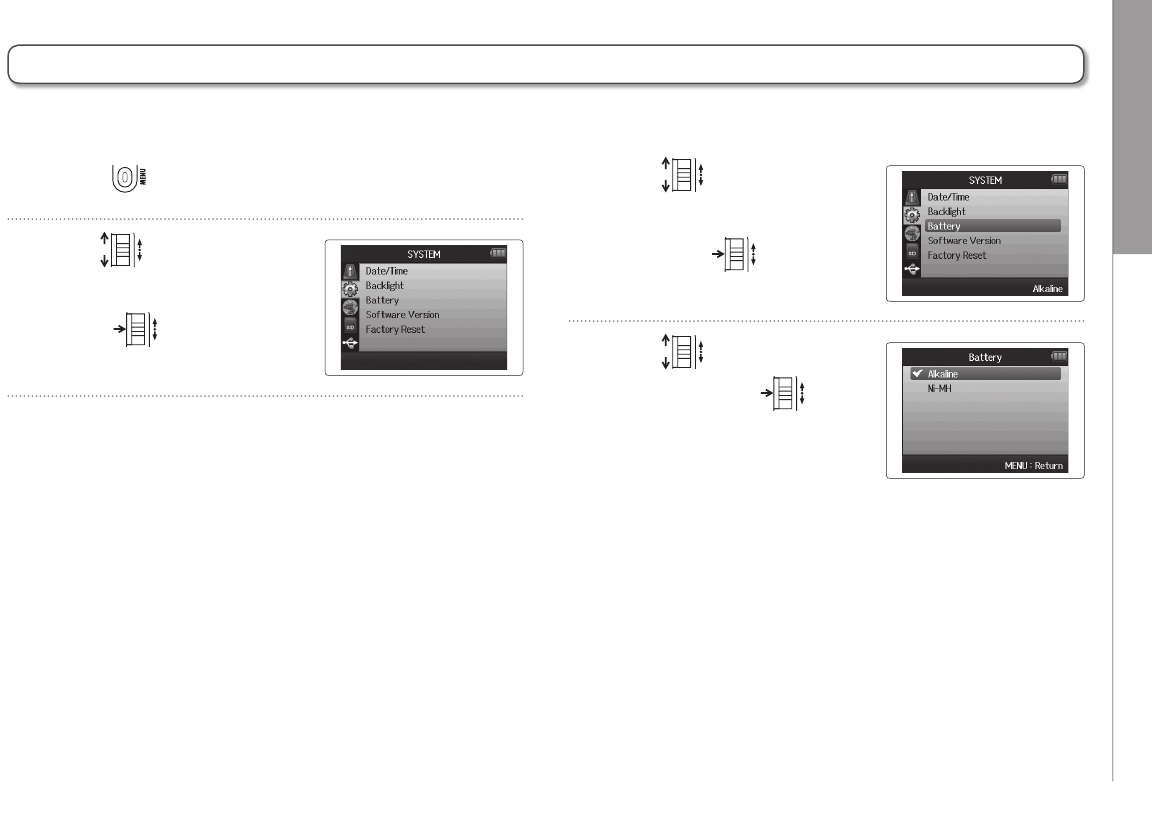
3. Use to
select “Battery”,
and press .
4. Use to select the
type, and press .
Setting the type of battery used
1. Press .
2. Use to select
“SYSTEM”, and
press .
Set the type of battery used so that the amount of remaining battery charge can be shown accurately.
Recording Recording process
24
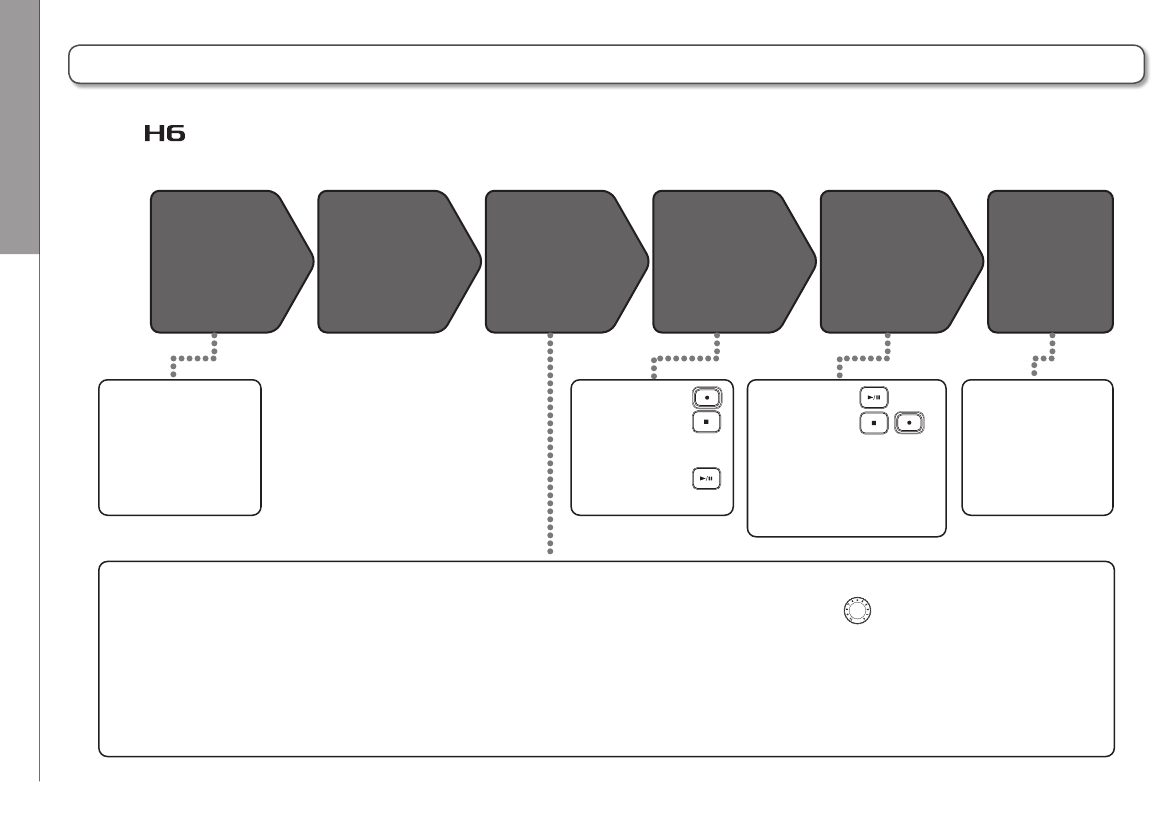
Recording process
Connect Turn power
on (P.19)
Prepare to
record
Record
( P.24)
Playback and
check (P.38)
Overdub
and edit
• Connect the XY or
MS mic unit. ( P.09)
• Connect mics,
instruments and
other equipment to
Inputs 1–4. ( P.10)
• Start recording:
• Stop recording:
• You can also make
mark settings.
• Pause recording:
• Start playback:
• Stop playback:
• Make settings as desired for
mark, AB repeat ( P.42),
playback speed (P.41)
playback pitch (P.45),
playback mode (P.44), and
the project mixer (P.46).
• You can overdub
( P.35), mix down
to a stereo file
( P.52) and check
project/file
information, for
example.
1. Set the recording format (WAV/MP3).
( P.83)
• When set to MP3, a stereo mix will be recorded
regardless of the number of tracks.
• You can also make automatic recording ( P.29),
pre-recording ( P.31), backup recording
( P.34), low cut ( P.78), compressor/limiter
( P.79) and metronome ( P.76) settings,
for example.
2. Select recording tracks ( P.26)
• Use the track buttons to select. When the selected
track indicator lights red, the input signal can be
monitored.
• Press two track buttons at the same time to use
them as a stereo track (stereo link).
3. Adjust input levels
• Use the for each input.
• Adjust so that the level meter stays in the yellow
when the loudest sound is input.
• When connecting a device with a standard output
level of +4 dB or the level stays too high for any
other reason, set the PAD switch to −20.
• You can also adjust the side mic level (when using
the MS mic unit) ( P.33) and show the VU meters
( P.89), for example.
The recording process includes the following steps.
With the , a unit of recording/playback data is called a project.
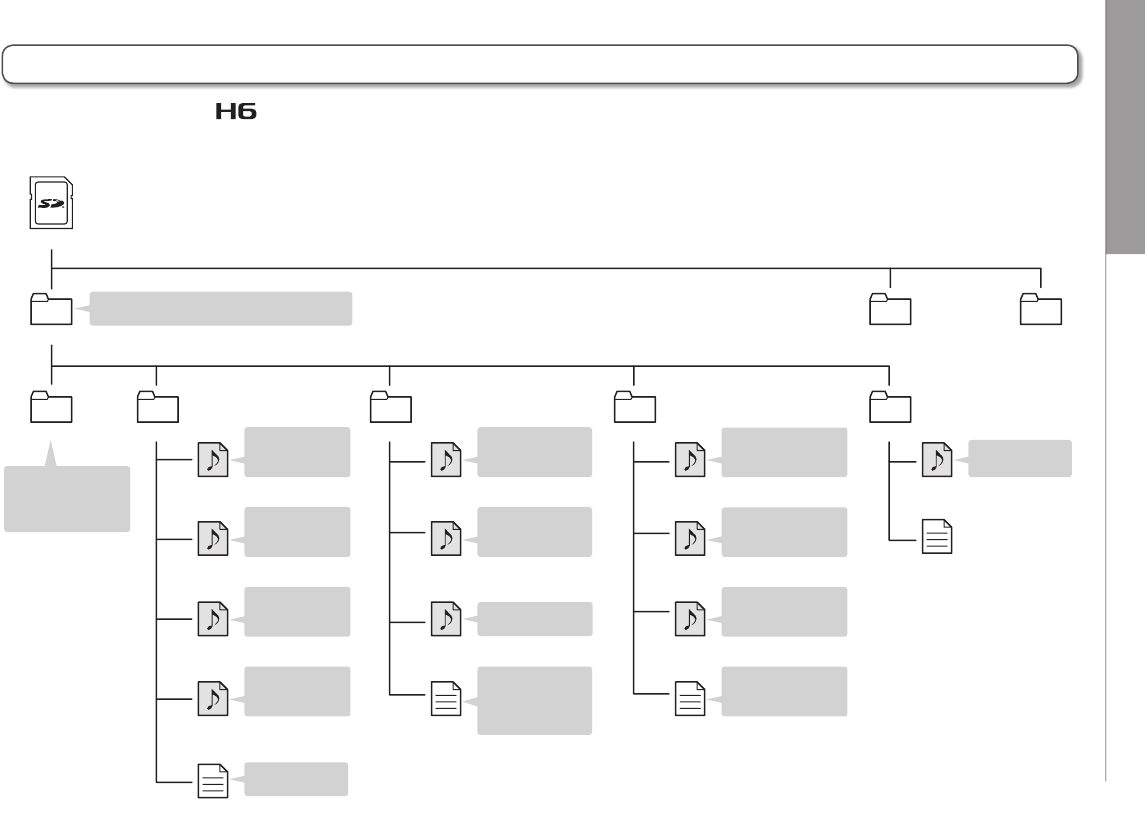
Recording Folder and file structure
25
H6 Handy Recorder
ZOOM0005.MP3
ZOOM0005
ZOOM0005.hprj
A folder named
ZOOM0001 –
ZOOM9999 is created
for each project.
ZOOM0003_VM.MP3
Recorded voice
memo file ( P.63)
ZOOM0004_LR.WAV
ZOOM0004
130410-163015.hprj
First stereo file
recorded on the L/R
tracks
JazzLive.hprj
ZOOM0004_Tr12_01.WAV
Additional
stereo file
recorded on the
1/2
tracks
( P.35)
ZOOM0004_ST001.WAV
Stereo file created
by mixing down
( P.52)
Recorded stereo
MP3 file ( P.83)
ZOOM0003_LR-0001.WAV
ZOOM0003
First file when
recording
exceeded 2GB
Second file when
recording
exceeded 2GB
The settings file
has the same
name as the
project name
Project file when
project name is set
to “Date” ( P.50)
ZOOM0003_LR-0002.WAV
ZOOM0002_Tr34.WAV
ZOOM0002.hprj
ZOOM0002_LR.WAV
ZOOM0002
Stereo file of
recorded L/R
input signals
Mono file of
recorded Input 1
signal
L/R input backup
recording file
( P.34)
Stereo file of
recorded
Input 3/4
signals
ZOOM0002_Tr1.WAV
ZOOM0002_BU.WAV
Project settings
file
ZOOM0001
FOLDER01
Root
FOLDER02 FOLDER10
• • • • • • •
Select FOLDER01 – FOLDER10 as the folder
where projects will be saved ( P.28)
When recording with the , the following folders and files are created on the SD card.
Folder and file structure
Recording Basic recording
26
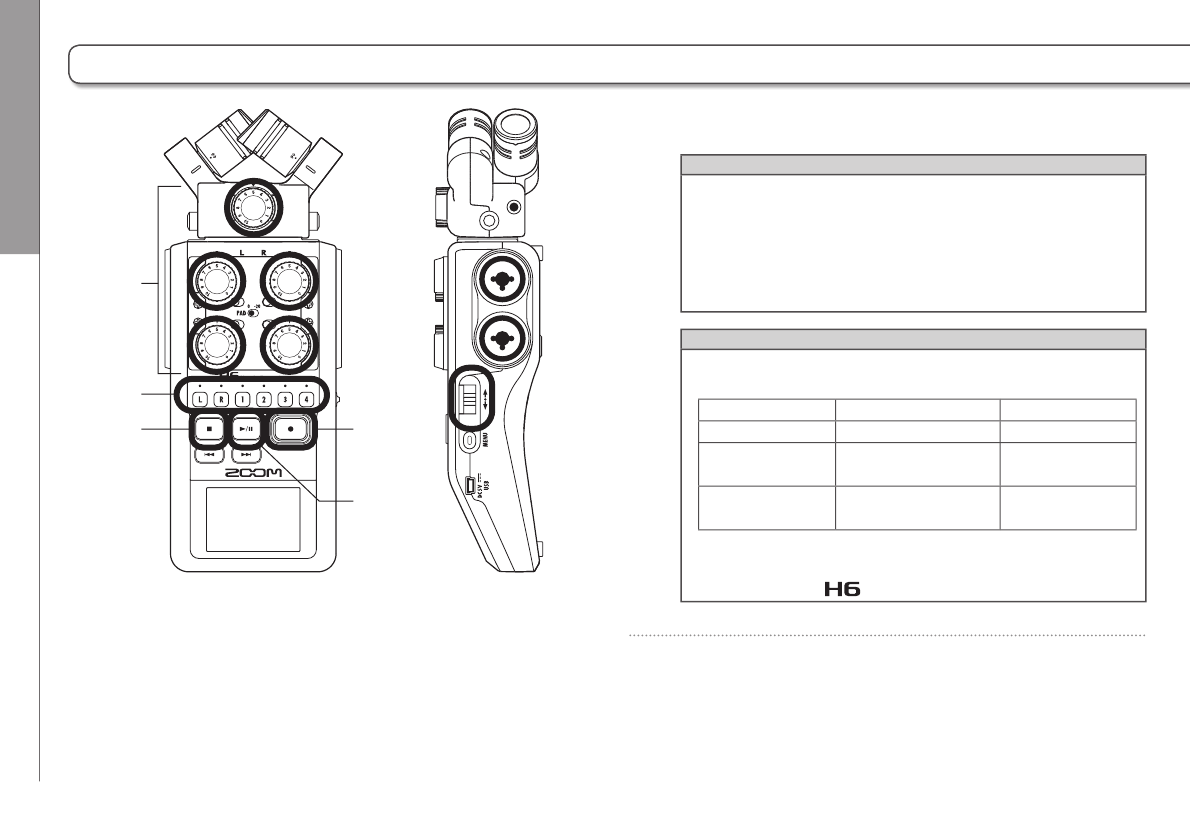
1. Press the button of the track that you want to record.
HINT
• The indicator of the selected track button lights red.
• If you press track button 2 while pressing and holding track
button 1, tracks 1/2 will become a stereo track (stereo link).
Tracks 3/4 can be made into a stereo track in the same way.
Stereo links can also be deactivated in the same way. The L/
R track stereo link, however, cannot be deactivated.
HINT
• When recording, files are created for each selected track
button as follows.
Tracks recorded File name Contents
L/R track ZOOMnnnn-LR Stereo file
Mono track ZOOMnnnn_Tr1
(for track 1)
Mono file
Stereo track ZOOMnnnn_Tr34
(for tracks 3/4)
Stereo file
Note: “nnnn” in the file name is the project number
• All the files that are created during the same recording are
managed by the as a single project unit.
Basic recording
4
1
2
6 3
5
Recording Basic recording
27
H6 Handy Recorder
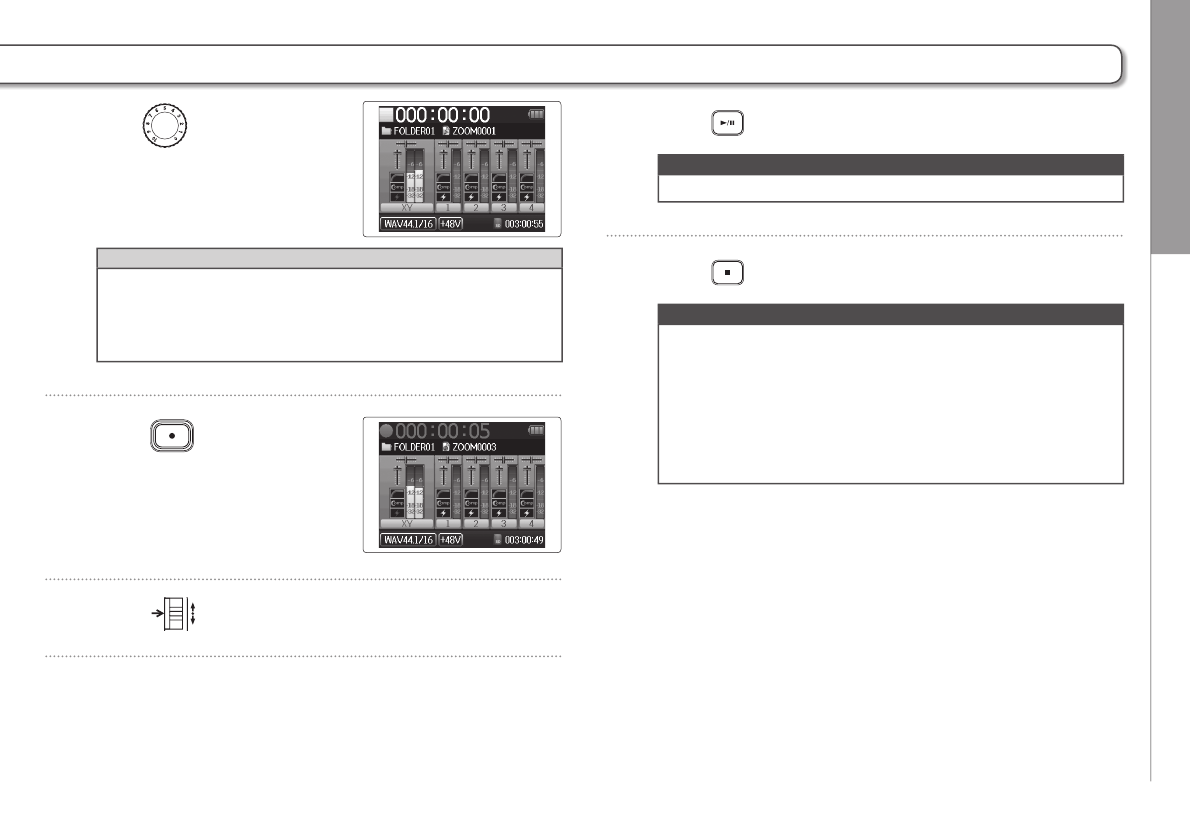
2. Turn for the selected
input to adjust the input
level.
HINT
• Adjust so that the peak level stays around −12dB.
• You can change the recording format. (P.83)
• You can cut noise from wind and other sources during
recording. (P.78)
3. Press to start
recording.
4. Press to add a mark.
5. Press to pause.
NOTE
When recording is paused, a mark is added at that point.
6. Press to stop recording.
NOTE
• A maximum of 99 marks can be added to a single project.
• During recording if the file size exceeds 2 GB a new file
will be created automatically in the same project and
recording will continue without pause. When this hap-
pens, numbers will be added to the ends of the file names:
“-0001” for the first file, “-0002” for the second file and so
on.
Recording Selecting the folder where projects are saved
28
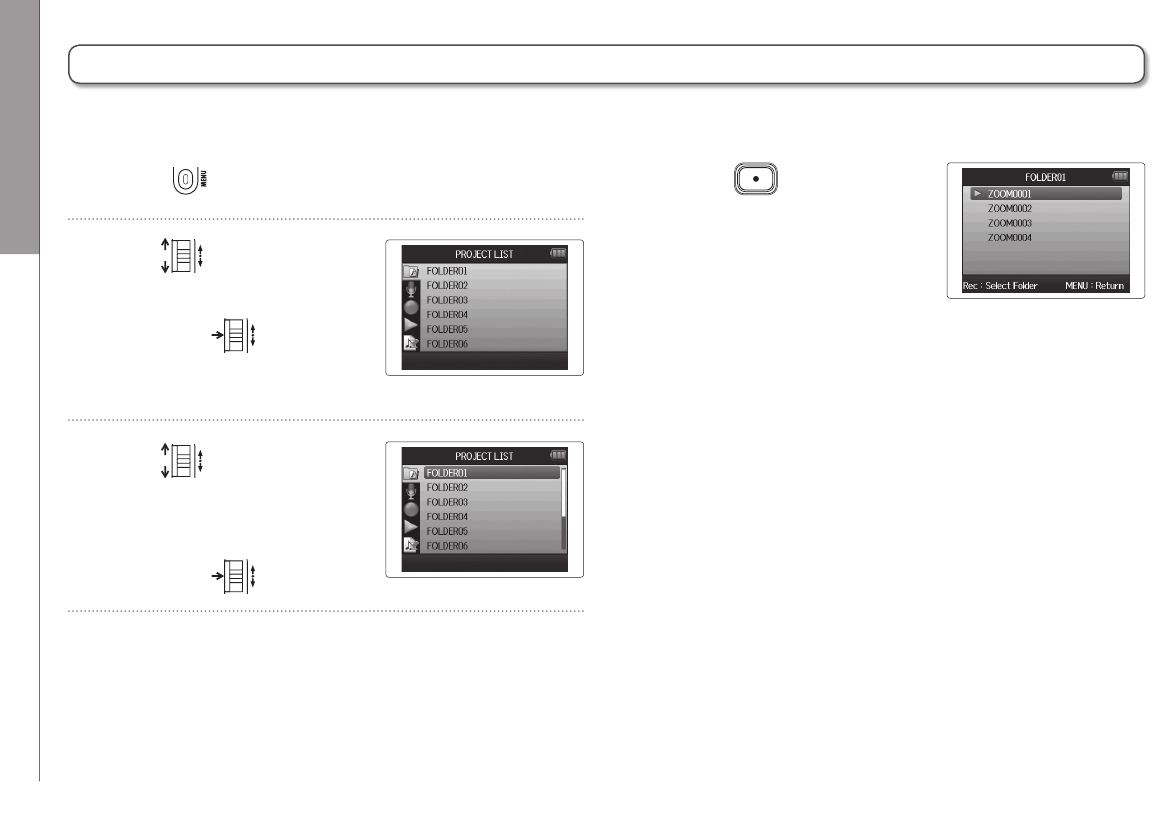
1. Press .
2. Use to
select “PROJECT LIST”,
and press .
3. Use to select the
folder where you want to
save new projects,
and press .
Selecting the folder where projects are saved
Choose one of ten folders as the folder where new recorded projects will be saved.
4. Press to confirm the
folder selection and return
to the Home Screen.
Recording Recording automatically
29
H6 Handy Recorder
Recording automatically
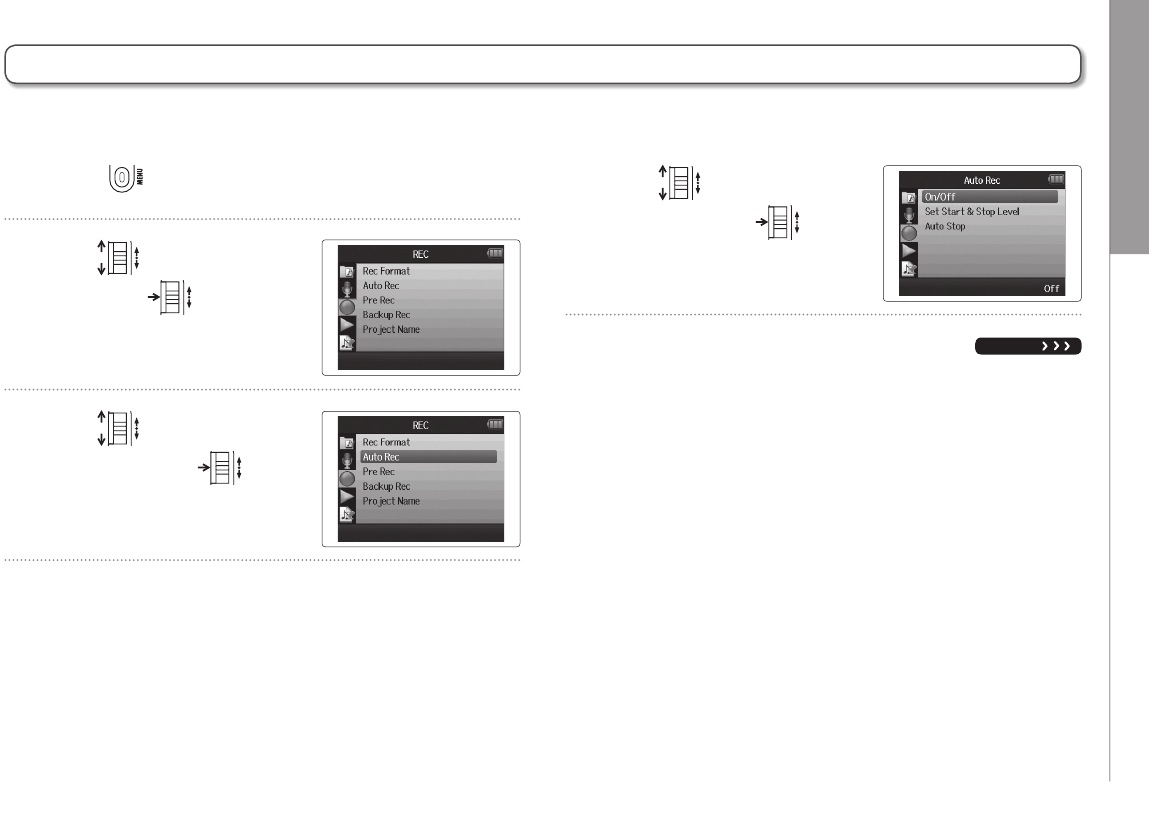
1. Press .
2. Use to select “REC”,
and press .
3. Use to select “Auto
Rec”, and press .
4. Use to select “On/
Off”, and press .
NEXT
Recording can be started and stopped automatically in response to the input level.
Recording Recording automatically
30
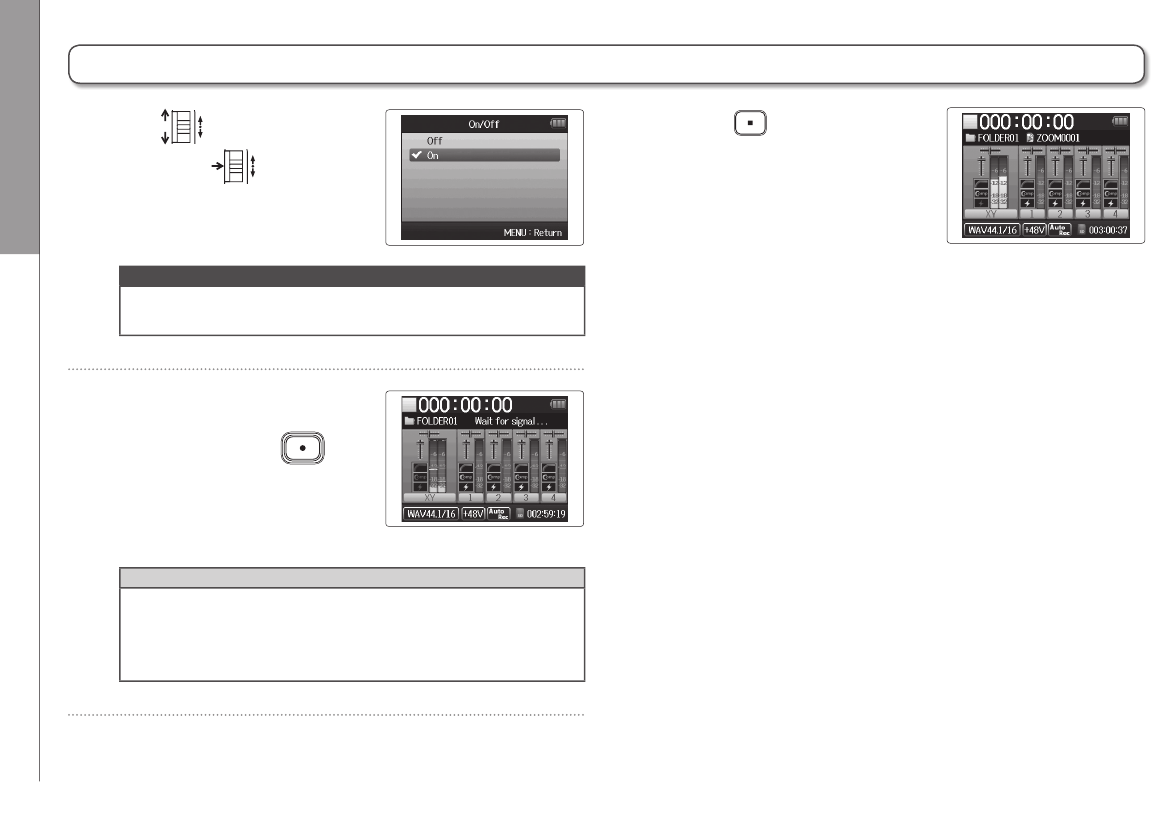
5. Use to select “On”,
and press .
NOTE
For details, see “Changing automatic recording function
settings”. (P.84)
6. Return to the Home
Screen, and press
to put the recorder into
standby.
HINT
When the input exceeds the set level (shown on the level
meters), recording starts automatically. You can also set the
recording to stop automatically when the input goes below
a set level. (P.85)
7. Press to exit standby
or stop recording.
Recording automatically (continued)
Recording Pre-recording
31
H6 Handy Recorder
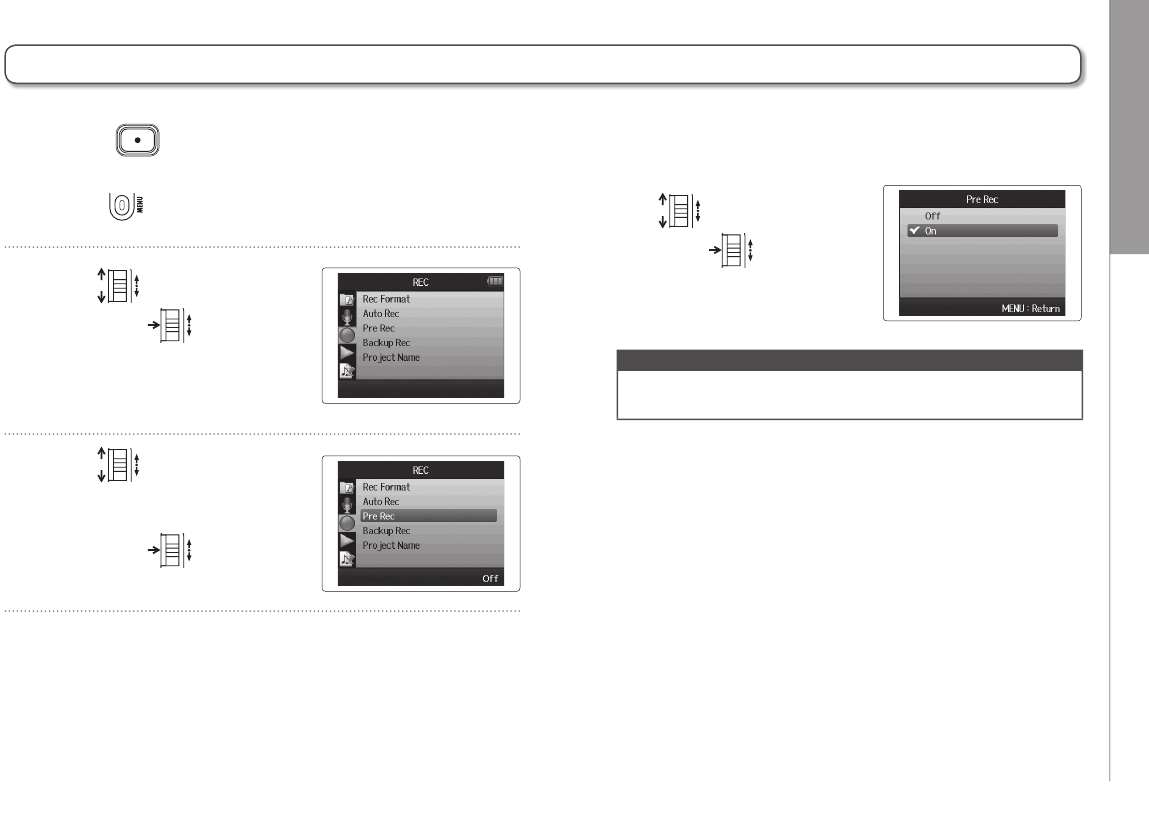
4. Use to select “On”,
and press .
NOTE
The Auto Rec and Pre Count functions cannot be used at the
same time as this function.
Pre-recording
1. Press .
2. Use to select “REC”,
and press .
3. Use to
select “Pre Rec”,
and press .
By setting the recorder to constantly capture the input signal, you can start recording two seconds before
pressing the button. This is useful when, for example, a performance starts suddenly.
Recording Counting in before recording
32
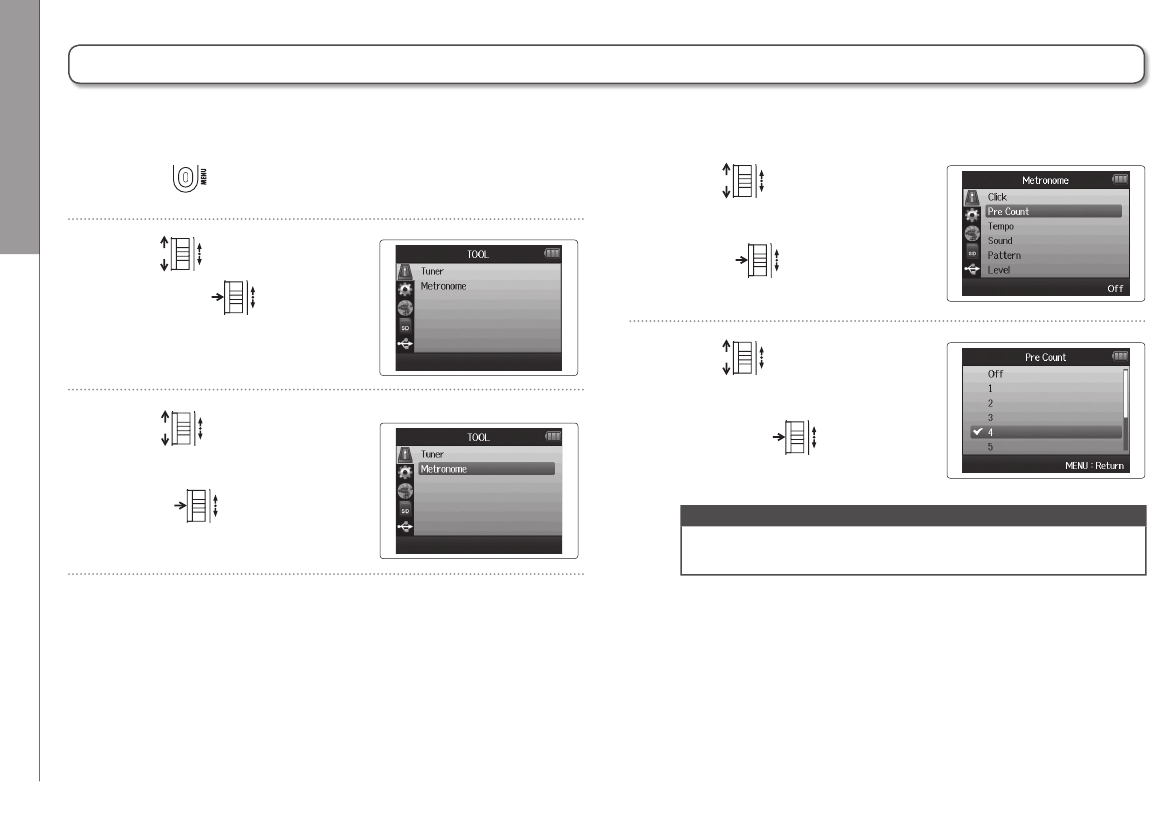
4. Use to select
“Pre Count”, and
press .
5. Use to select
the count number,
and press .
NOTE
The Auto Rec and Pre Rec functions cannot be used at the
same time as this function.
Counting in before recording
1. Press .
2. Use to select “TOOL”,
and press .
3. Use to select
“Metronome”, and
press .
The recorder metronome can be used to count in before starting recording.
Recording Adjusting the side mic level
33
H6 Handy Recorder
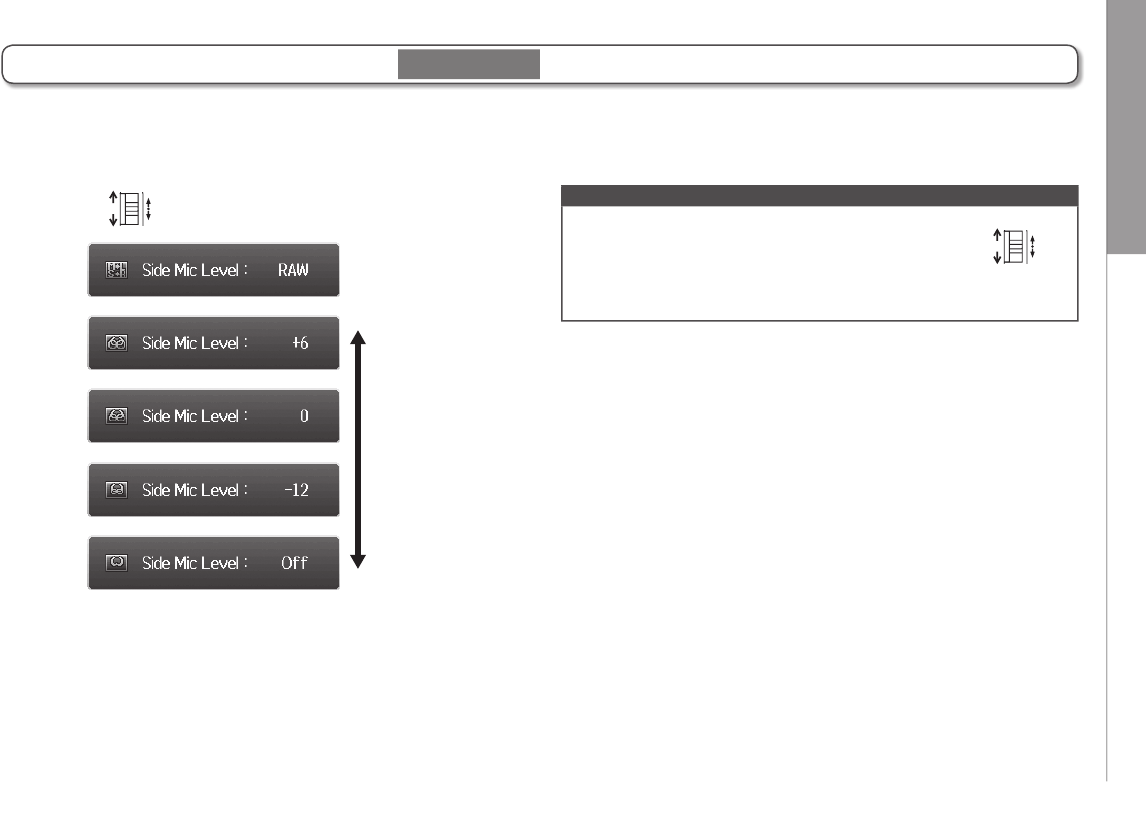
Move up and down to adjust.
Adjusting the side mic level
Wide
RAW mode
Icon changes
with the value
Narrow
Before using the MS mic to record, you can adjust the side mic level (stereo width).
Do this when the Home Screen is open.
NOTE
• Set to Off, −24 to +6 dB, or RAW.
• When recording in RAW mode, during playback move
up and down to adjust the side mic level.
• RAW mode can be selected only when the WAV format is used
for recording.
MS mic only
Recording Backup recording
34
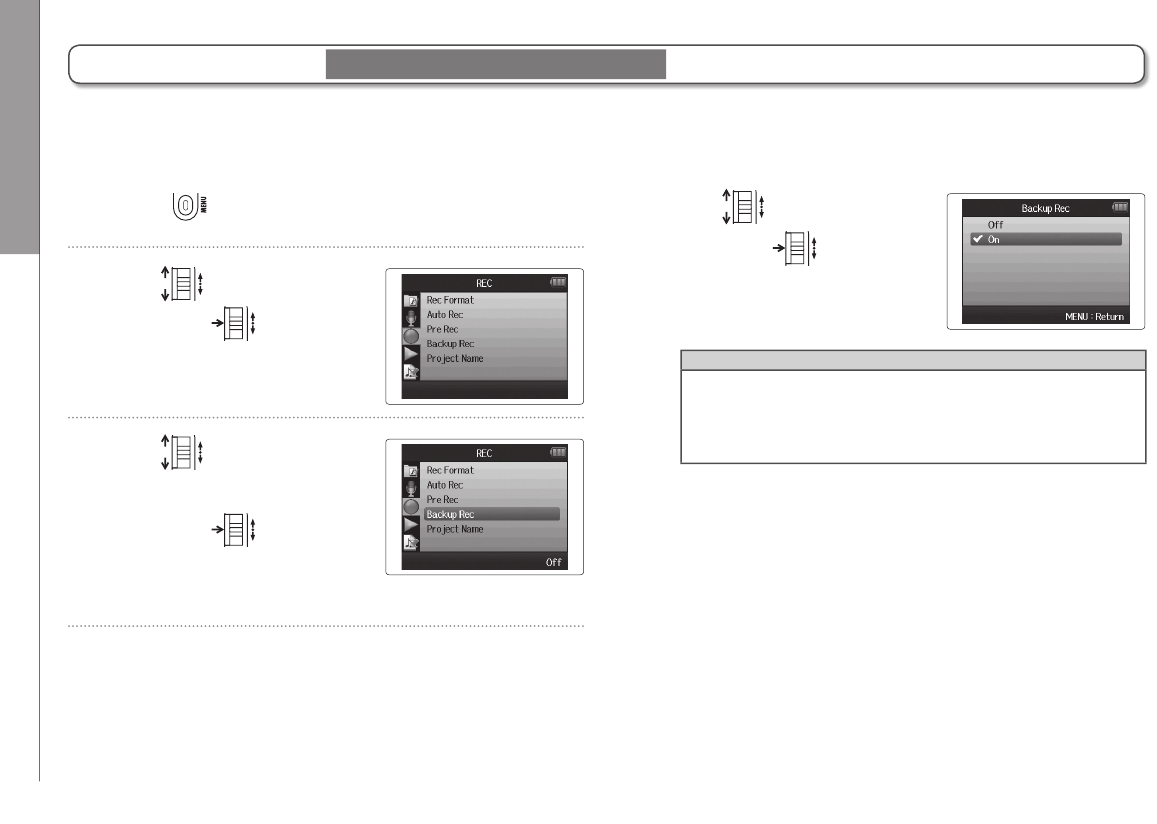
4. Use to select “On”,
and press .
HINT
• If the name of the original file is, for example,
“ZOOM0001_LR.wav”, the name of the backup file will be
“ZOOM0001_BU.wav”.
• You can play backup files. (P.64)
Backup recording
1. Press .
2. Use to select “REC”,
and press .
3. Use to select
“Backup Rec”,
and press .
When using the L/R input, in addition to the recording at the set input level, the recorder can also record a separate file at a
level 12dB below. This backup can be used if the recording level was set too high, causing distortion, for example.
L/R input and WAV format only
Recording Overdubbing
35
H6 Handy Recorder
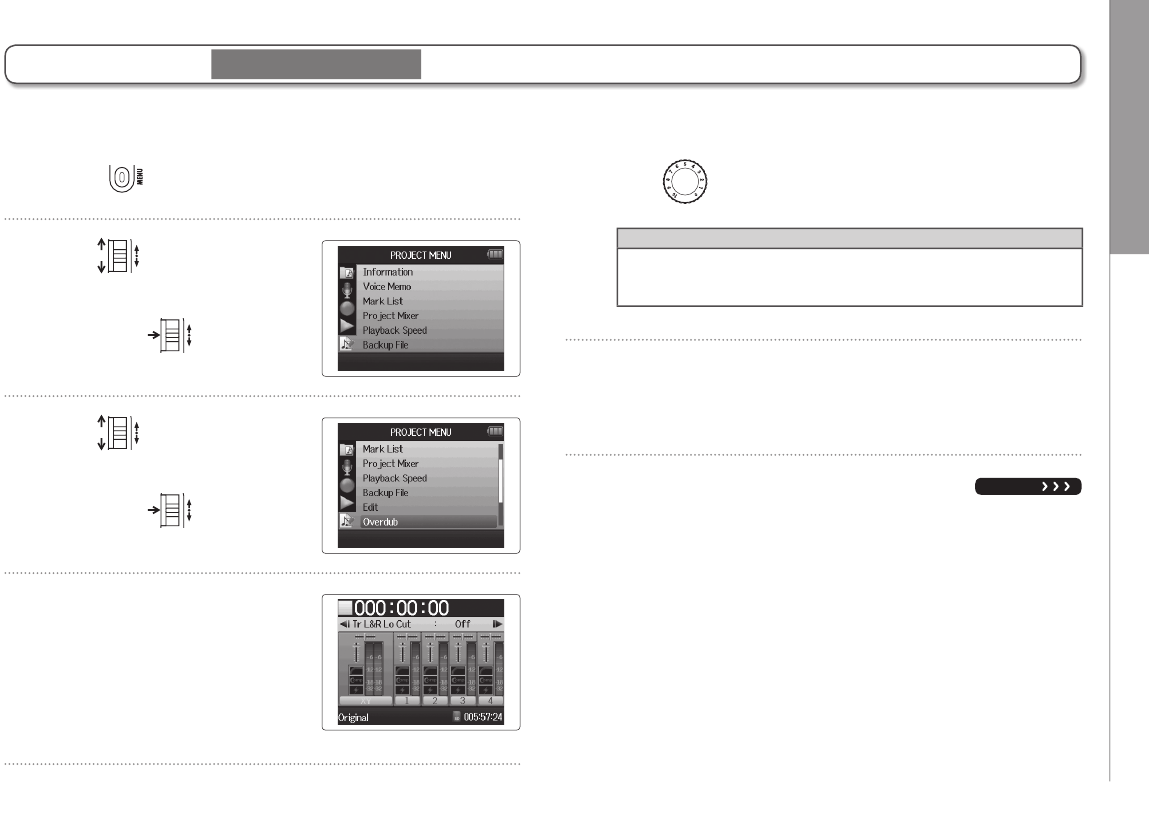
Overdubbing
1. Press .
2. Use to select
“PROJECT MENU”,
and press .
3. Use to select
“Overdub”,
and press .
4. Press the track button
until the indicator lights
red for the track to be
overdubbed.
5. Turn to adjust the input level.
HINT
You can also adjust the mixer (volume/pan) (P.46), low cut
filter (P.78) and compressor/limiter as needed (P.79).
6. To monitor already recorded tracks, press their track
buttons so their indicators light green.
NEXT
You can add recordings to an already recorded project.
WAV format only
Recording Overdubbing
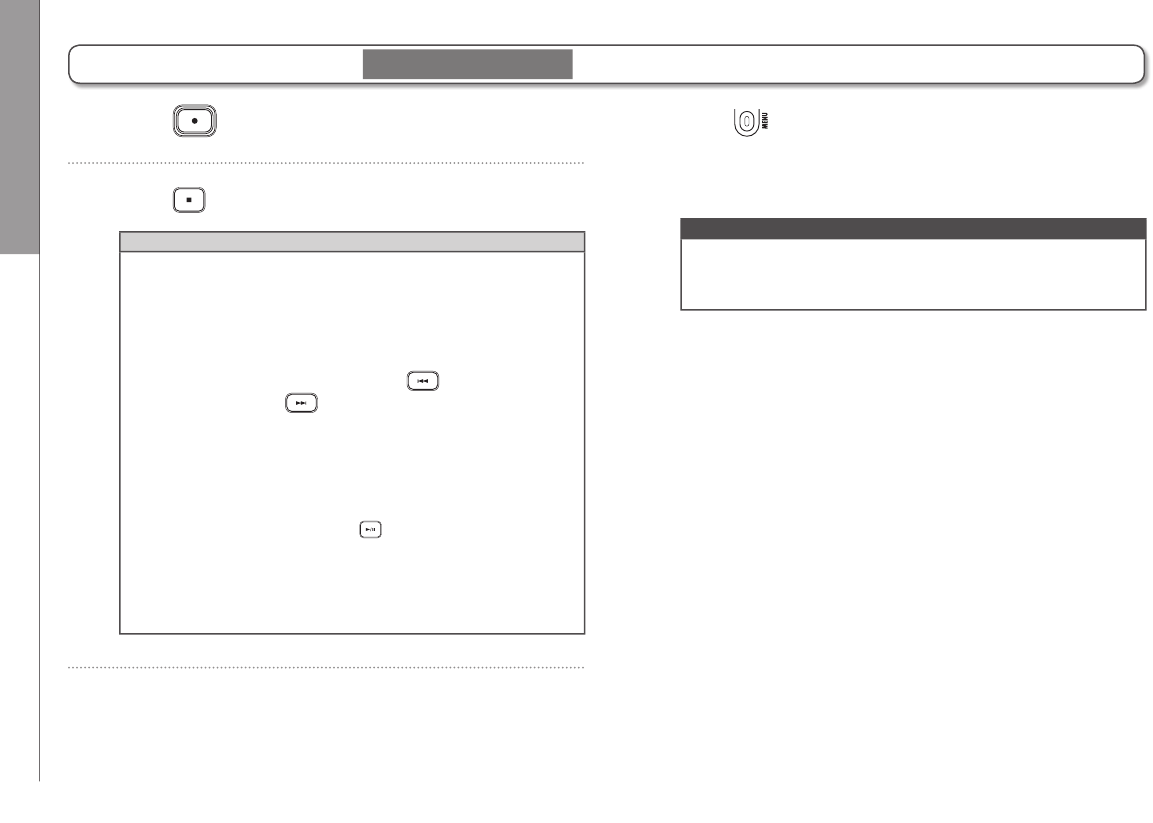
36
7. Press to start recording.
8. Press to stop recording.
HINT
• You can change the stereo link setting even during
overdubbing.
• Overdub files and volume, pan and stereo link settings are
saved in units called “takes”. You can change settings and
record multiple takes.
Then, when stopped you can press to select the pre-
vious take or press to select the next take.
• A maximum of 99 takes can be recorded.
• If you want to monitor the input sound of the track while
playing back an already recorded track, press the button
for the track that you want to monitor so that its indicator
lights orange and then press .
• If the playback speed of a project is set to any value other
than 100%, tracks cannot be overdubbed (their indicators
will not light red).
9. Press to stop overdubbing.
When you play back or edit an overdubbed project, the last
selected take will be used.
NOTE
Two digit take numbers are added to the ends of track
names to create file names for overdubbed recordings as
in, for example, “ZOOM0001_LR_01.WAV”.
Overdubbing (continued) WAV format only

Recording Overdubbing
37
H6 Handy Recorder
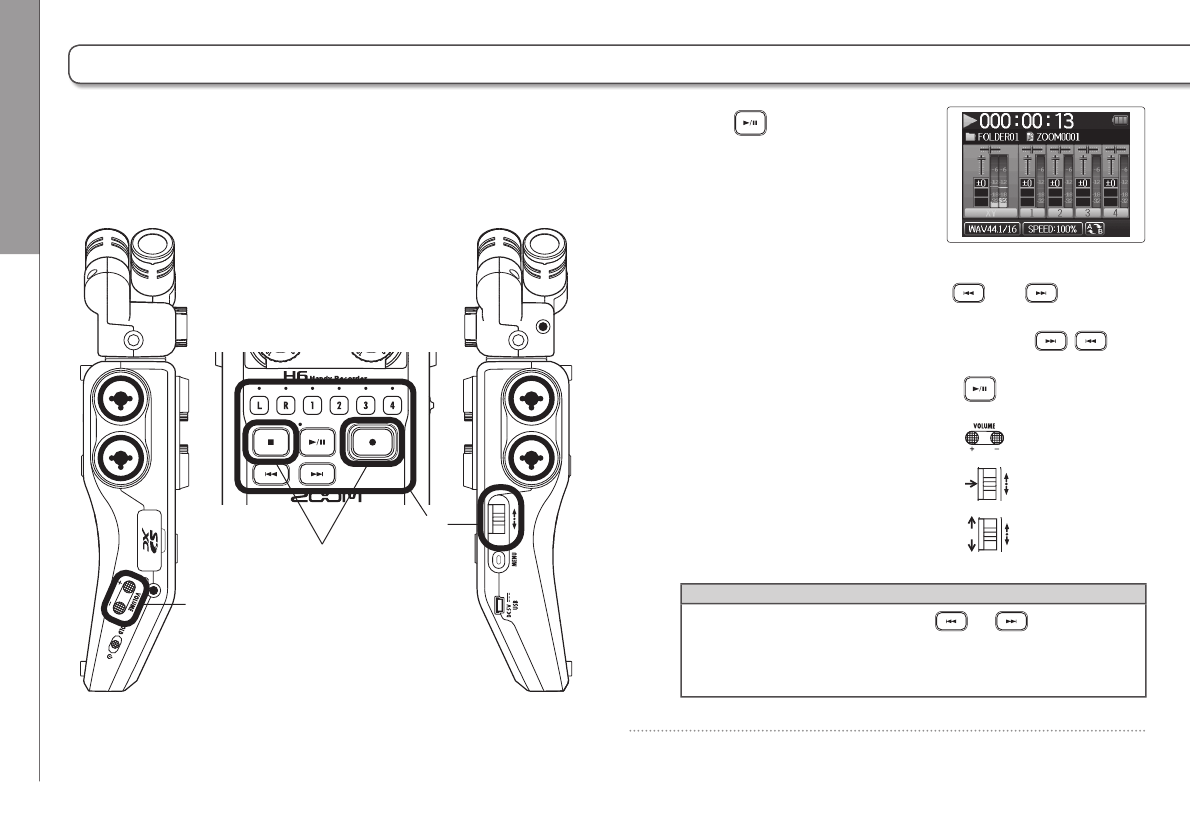
Playback Basic playback
38
Basic playback
1
2
1
1. Press to start
playback.
Controls during playback
Select project/move to mark: Use and
Search forward/backward: Press and hold /
Pause/resume playback: Press
Adjust volume: Press (+/−)
Add marks: Press
Change side mic level: Move up and down
(RAW mode only)
HINT
• The longer you press and hold or , the faster
searching backward/forward becomes.
• During playback you can press track buttons to unmute (lit
green) and mute (unlit) tracks.
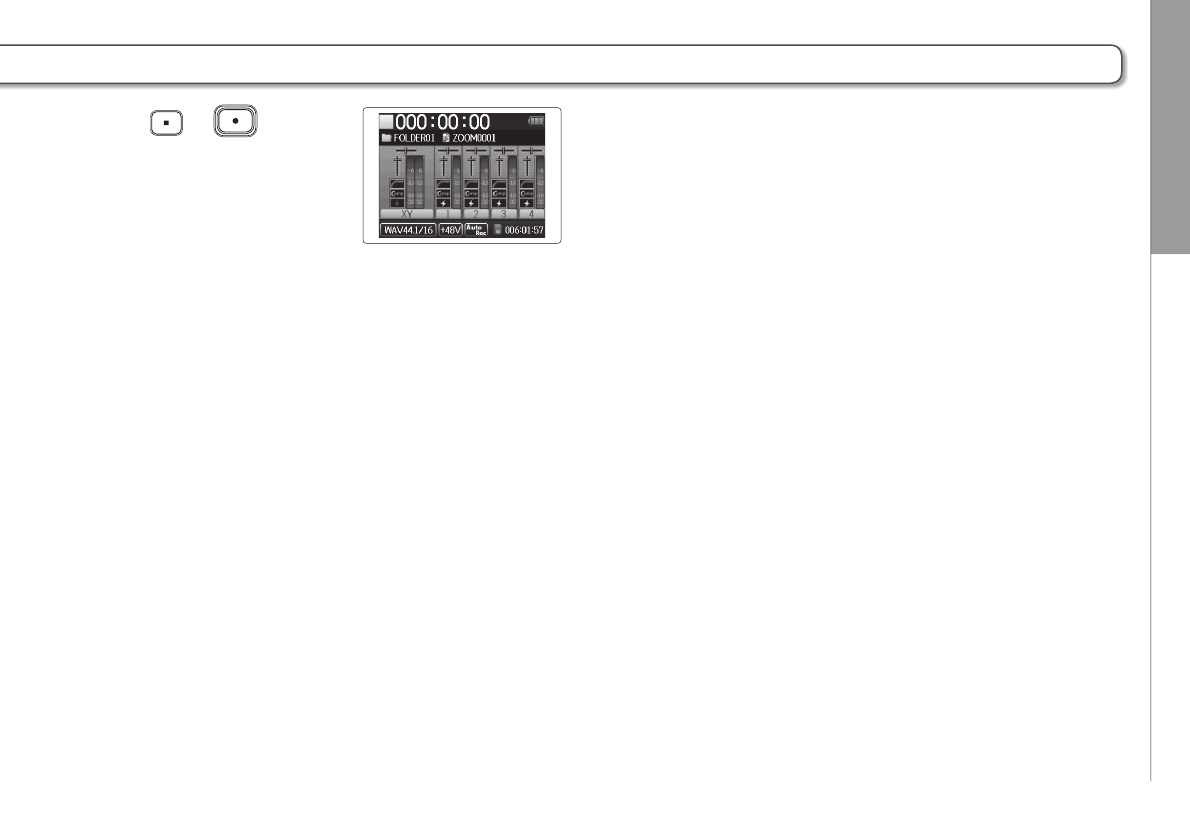
Playback Basic playback
39
H6 Handy Recorder
2. Press or to
return to the Home Screen.
Playback Select the playback project from the list
40
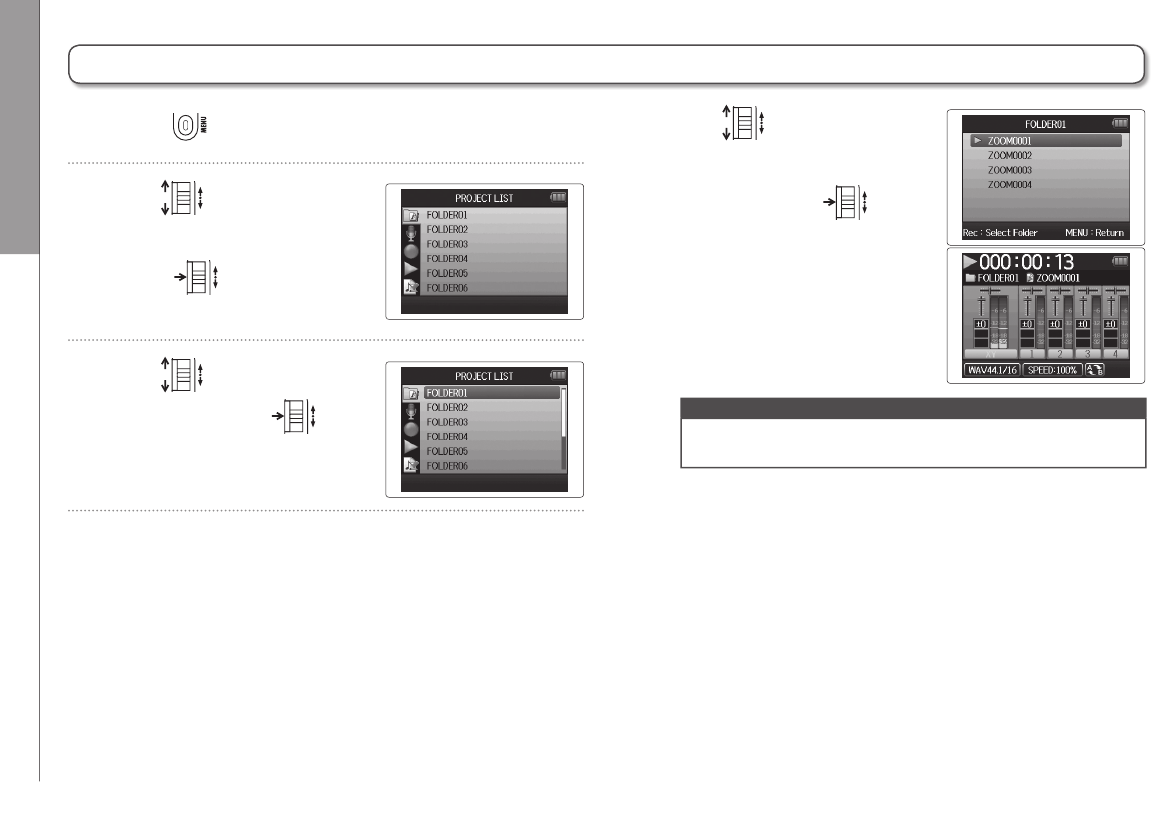
Select the playback project from the list
1. Press .
2. Use to select
“PROJECT LIST”, and
press .
3. Use to select the
folder, and press .
4. Use to select the
project you want to play
back, and press .
The selected project will start
playing back.
NOTE
After playback completes, playback might continue
depending on the playback mode. (P.44)
Playback Changing the playback speed
41
H6 Handy Recorder
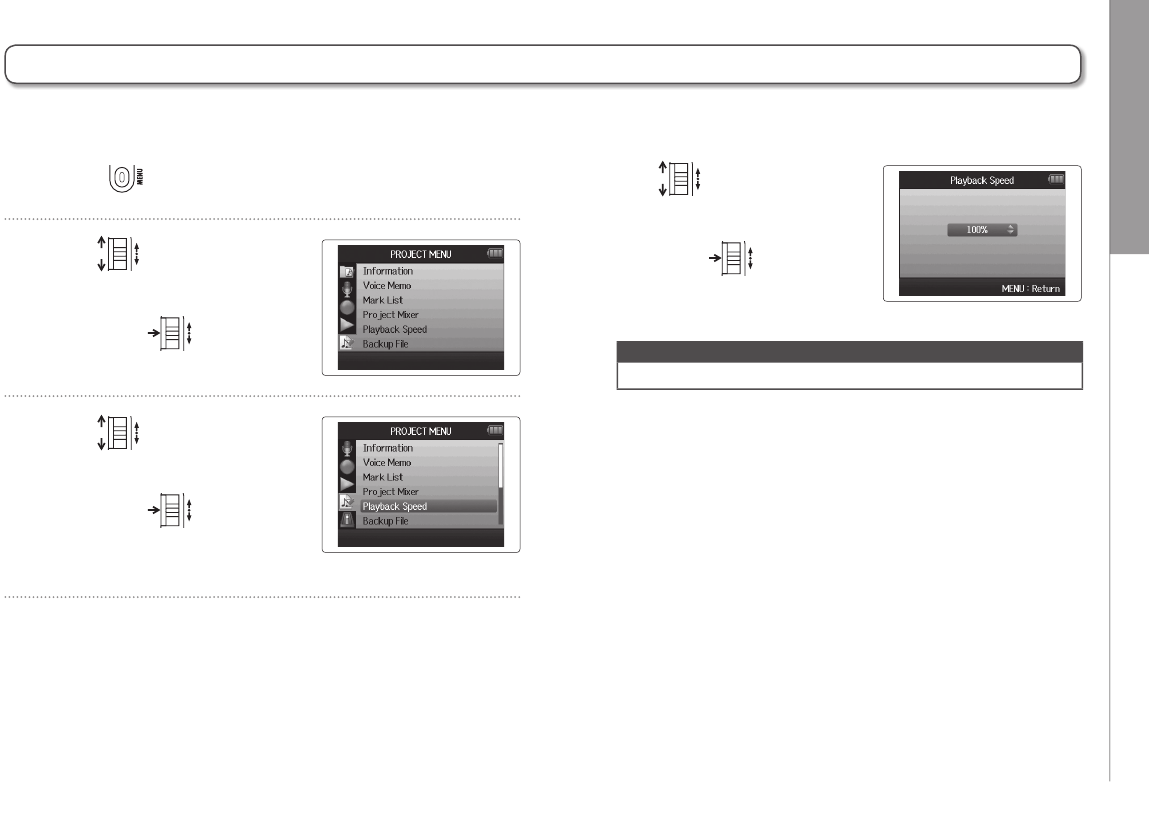
Changing the playback speed
1. Press .
2. Use to select
“PROJECT MENU”,
and press .
3. Use to select
“Playback Speed”,
and press .
4. Use to adjust the
playback speed,
and press .
Playback will occur at the adjusted speed.
NOTE
This setting is saved separately for each project.
You can adjust the playback speed in a range from 50% to 150% of normal.
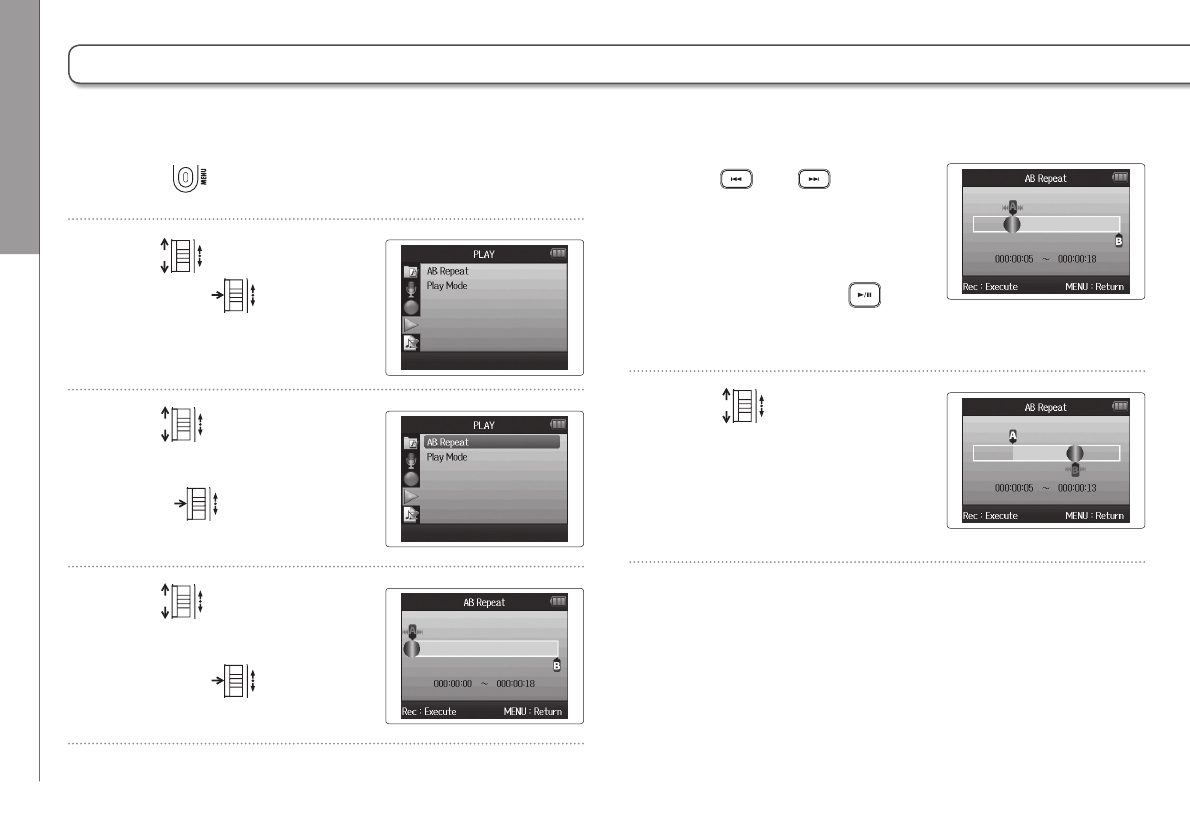
Playback Repeat playback of a set interval (AB repeat)
42
5. Use and to find
the starting point for
repeat playback.
You can also press to
search while playing back.
6. Use to select the B
point icon. Then, set the
repeat playback ending
point.
Repeat playback of a set interval (AB repeat)
1. Press .
2. Use to select “PLAY”,
and press .
3. Use to select
“AB Repeat”, and
press .
4. Use to select
the A point icon,
and press .
You can repeat playback between two set points.
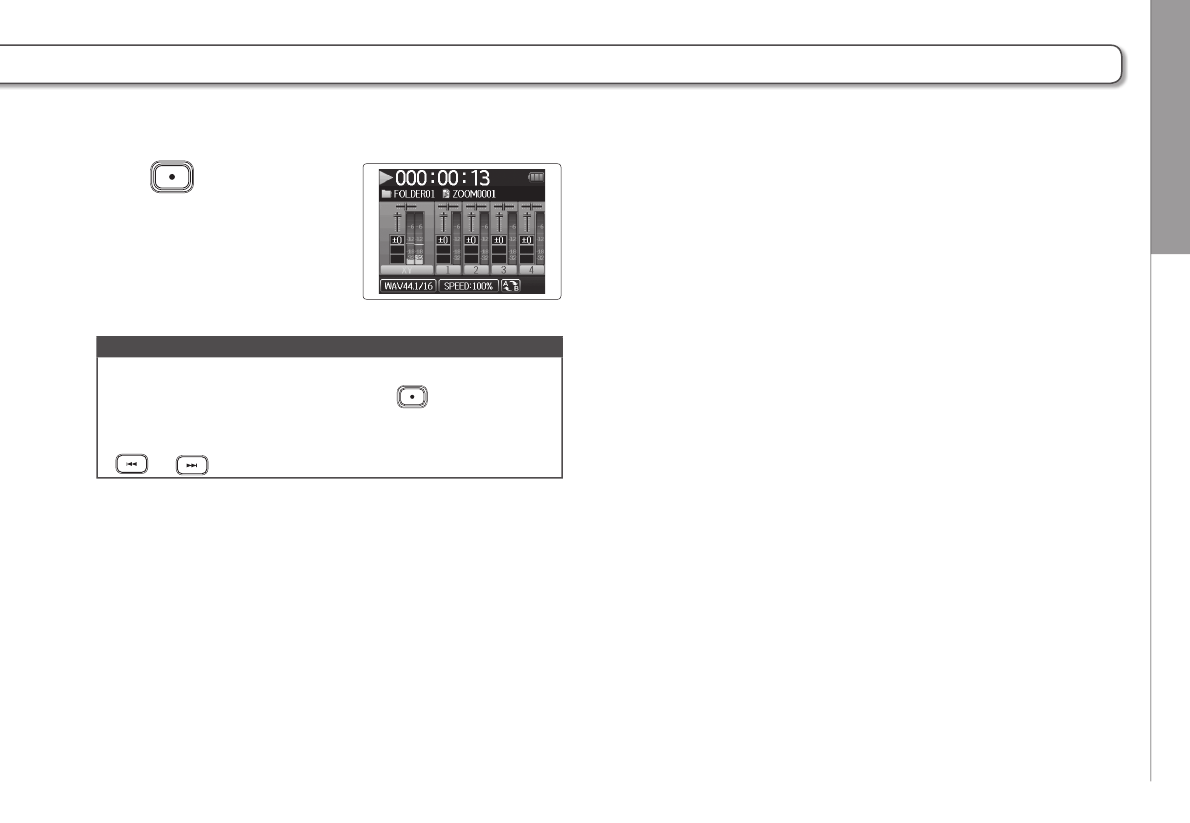
Playback Repeat playback of a set interval (AB repeat)
43
H6 Handy Recorder
7. Press to open the
playback screen.
Repeat playback will start
between the set points.
NOTE
• To end AB repeat playback, follow the instructions on P.42
to select “AB Repeat” and then press .
• During repeat playback, AB repeat will end if you press
or to select a different project.
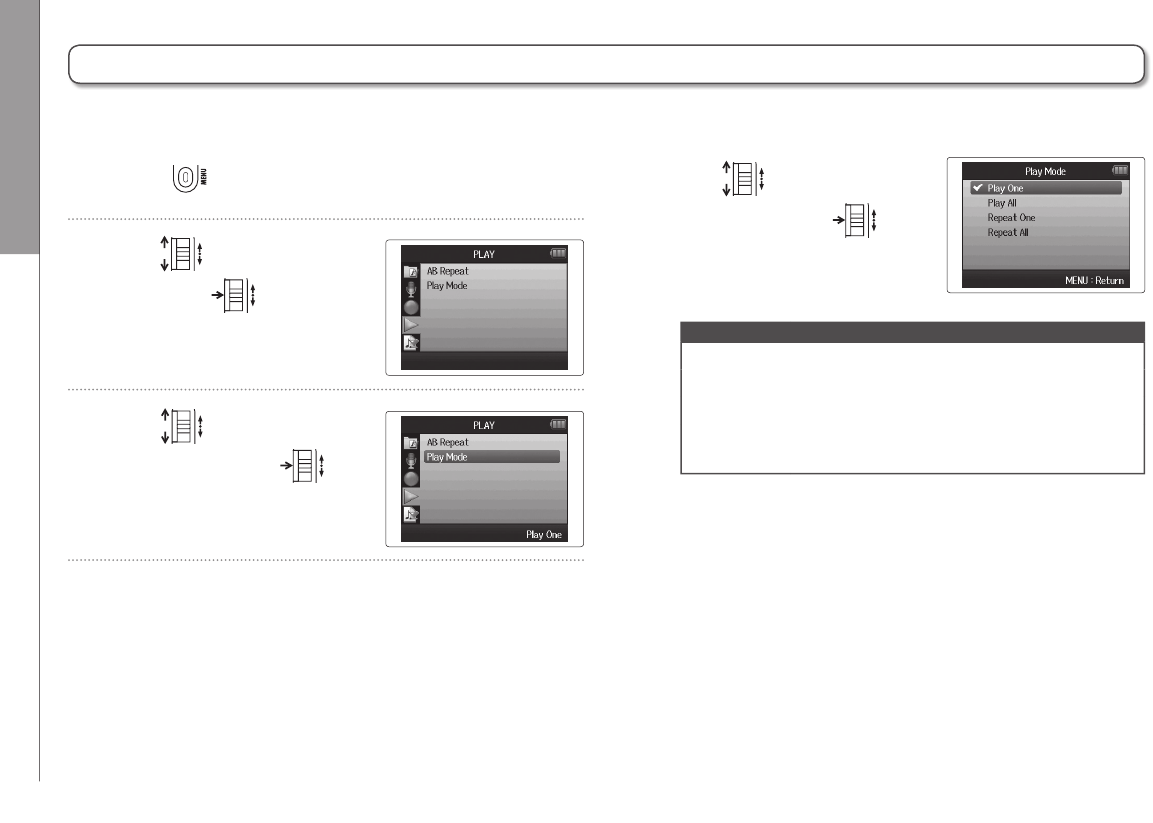
Playback Changing the playback mode
44
Changing the playback mode
1. Press .
2. Use to select “PLAY”,
and press .
3. Use to select “Play
mode”, and press .
4. Use to select the
mode, and press .
NOTE
Play All: Play all the projects in the current folder.
Play One: Play only the selected project.
Repeat One: Play the selected project repeatedly.
Repeat All: Play all the projects in the current folder
repeatedly.
You can set the playback mode.
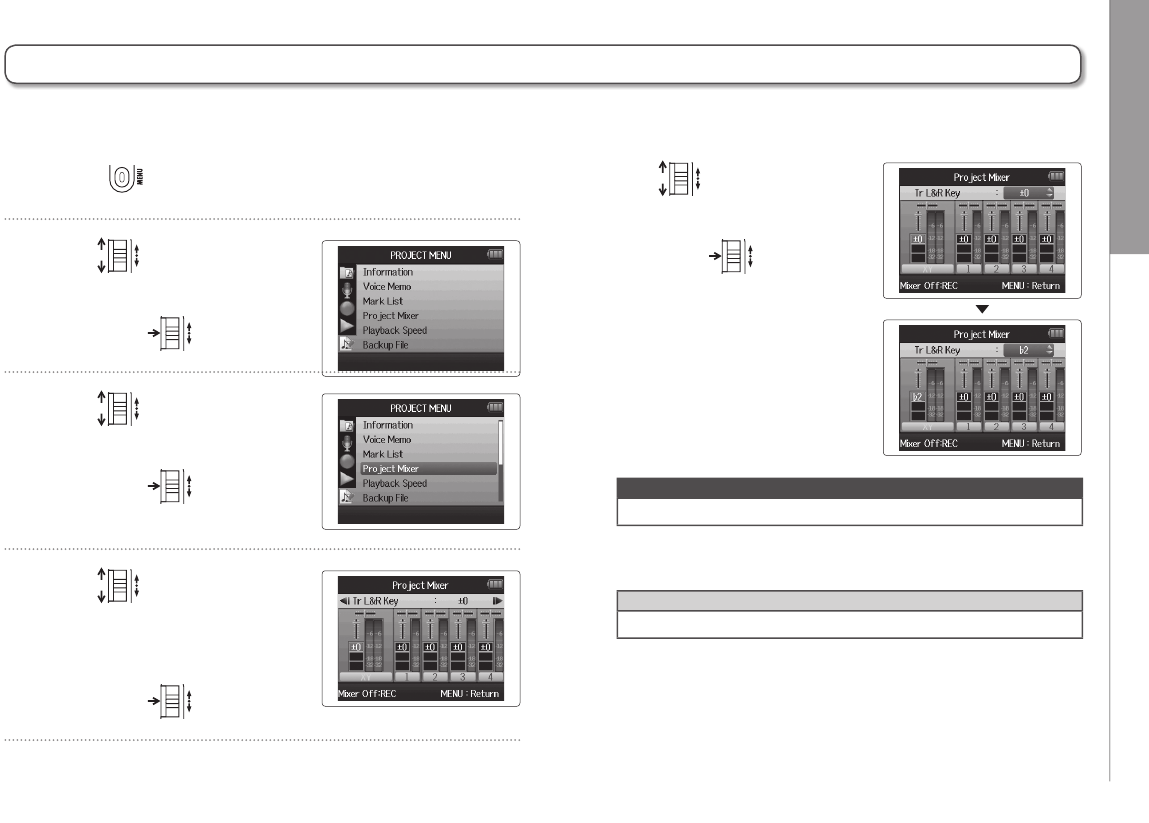
Playback Changing the playback pitch (key)
45
H6 Handy Recorder
Changing the playback pitch (key)
1. Press .
2. Use to select
“PROJECT MENU”,
and press .
3. Use to select
“Project Mixer”,
and press .
4. Use to select the
track for which you want
to change the pitch (key),
and press .
5. Use to set the play-
back pitch (key),
and press .
NOTE
This can be set between 6 and 6.
Playback will occur with the changed pitch.
HINT
This pitch setting is saved separately for each project.
The pitch can be changed in semitones for each track separately while keeping the same playback speed.
Playback Mixing
46
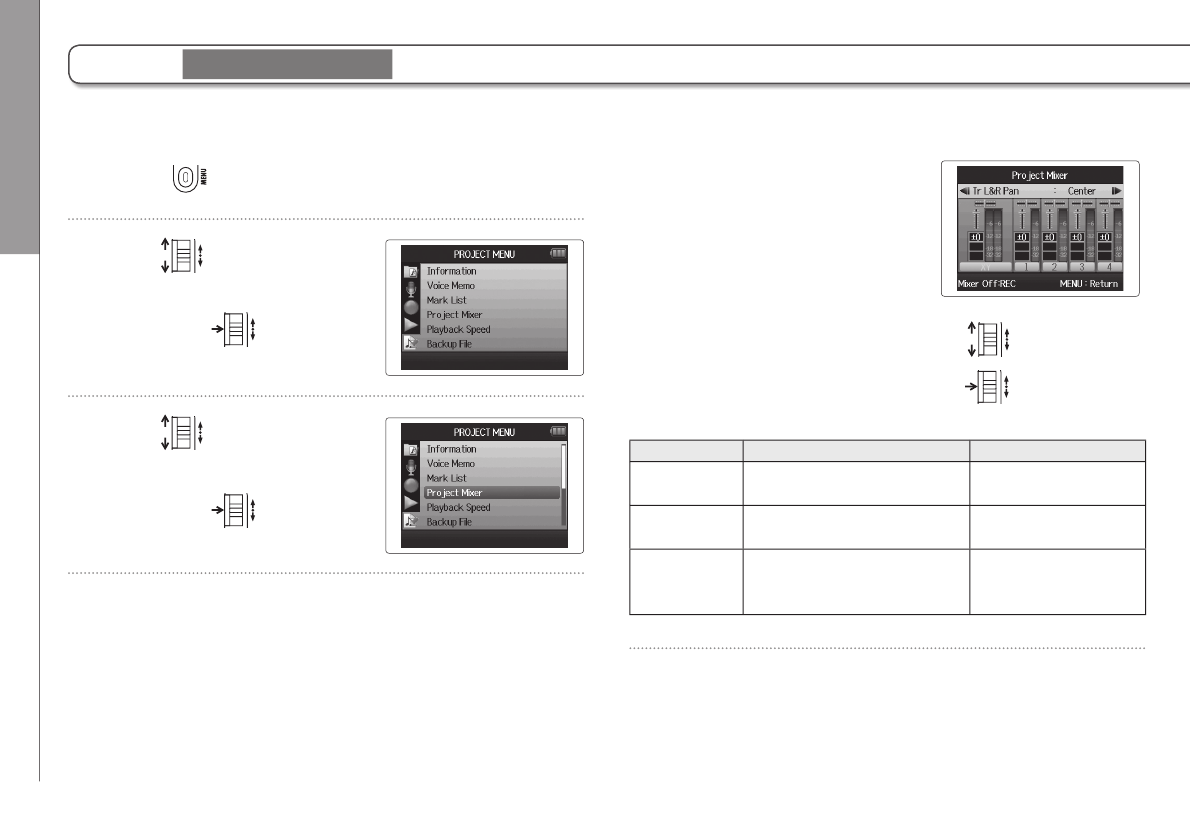
1. Press .
2. Use to select
“PROJECT MENU”,
and press .
3. Use to select
“Project Mixer”,
and press .
4. Change parameters as
desired.
Mixing controls
Move cursor/change value: Move up/down
Select parameter to change: Press
Parameter Setting range Explanation
Volume Mute, −48.0 – +12dB
(in 0.5dB increments) Adjusts track volume
Panning L100 – CENTER – R100 Adjusts left–right
position of sound.
Pitch (key) 6 – 6
Adjusts playback pitch
without changing
playback speed.
Mixing
You can use the Project Mixer to adjust the balance of the playback tracks.
WAV format only
Playback Mixing
47
H6 Handy Recorder
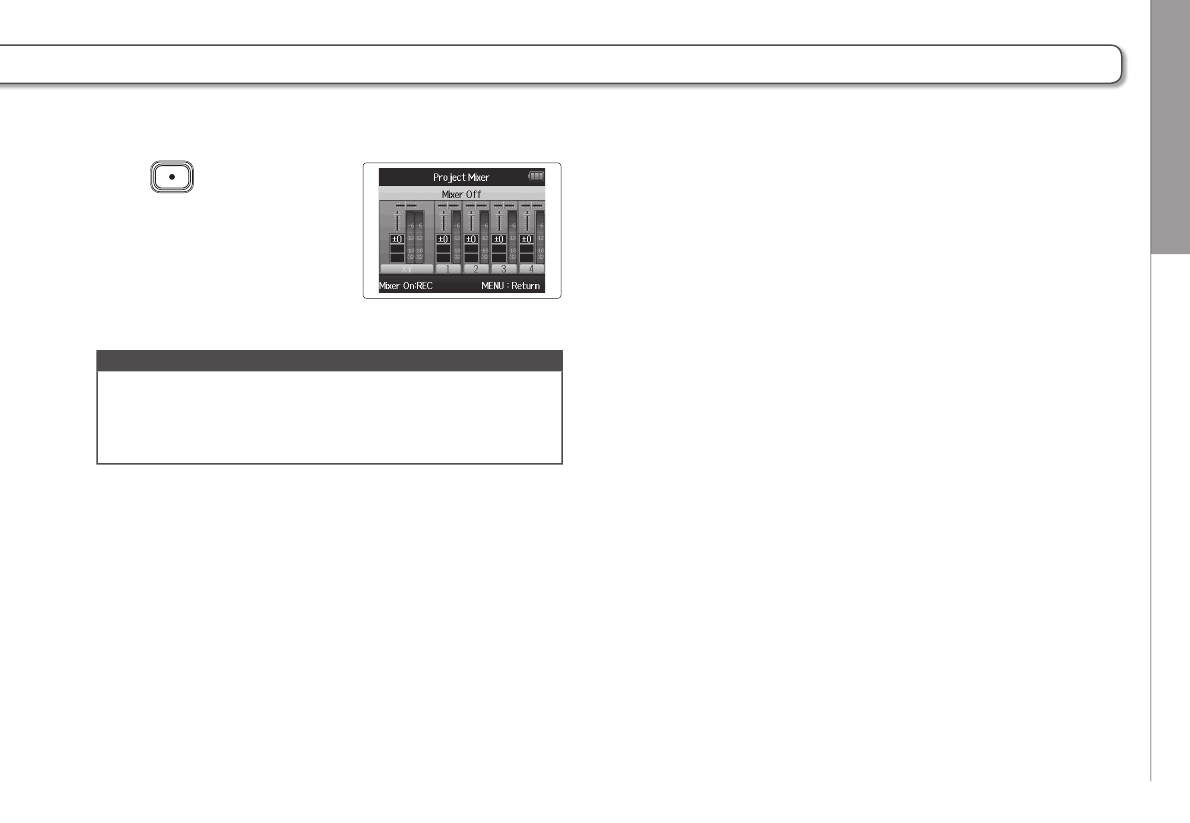
5. Press to listen to
the project without mixer
adjustments.
Pressing this button turns the
mixer settings on and off.
NOTE
• Mix settings are saved with each project separately and
applied during playback.
• Use the Monitor Mixer to adjust the balance when moni-
toring inputs. (P.80)
Checking/editing projects/files Checking project information
48
Checking project information
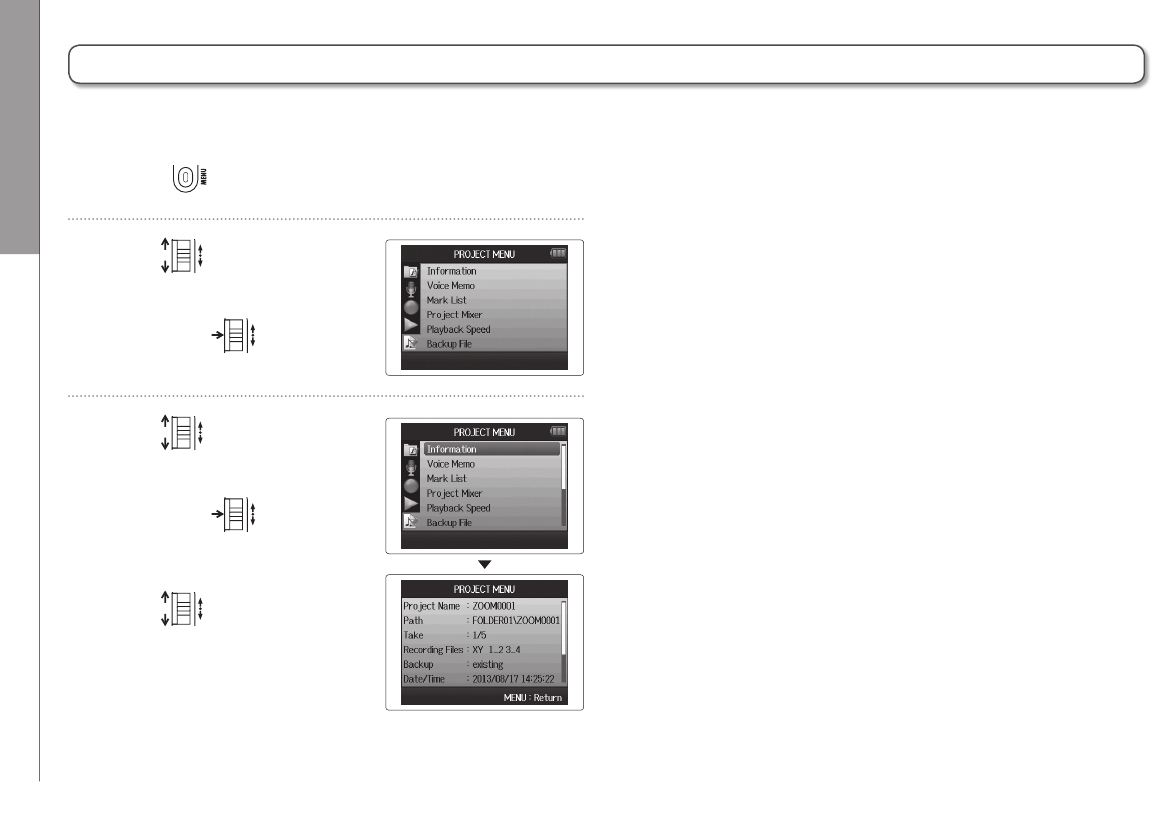
1. Press .
2. Use to select
“PROJECT MENU”,
and press .
3. Use to select
“Information”,
and press to view
information about the project.
Use to scroll down
to see information hidden
below the bottom of the
screen.
You can check information about the selected project.
Checking/editing projects/files Checking track marks
49
H6 Handy Recorder
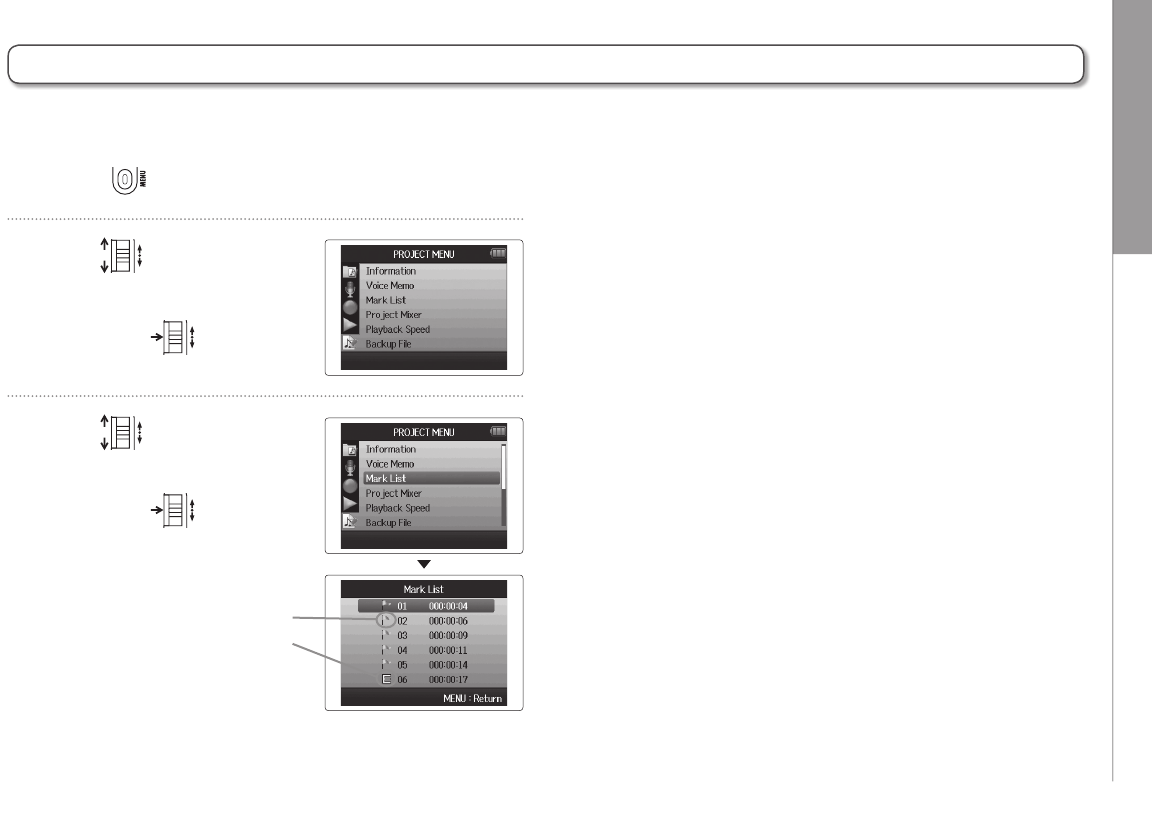
1. Press .
2. Use to select
“PROJECT MENU”,
and press .
3. Use to select
“Mark List”,
and press to open
the mark list.
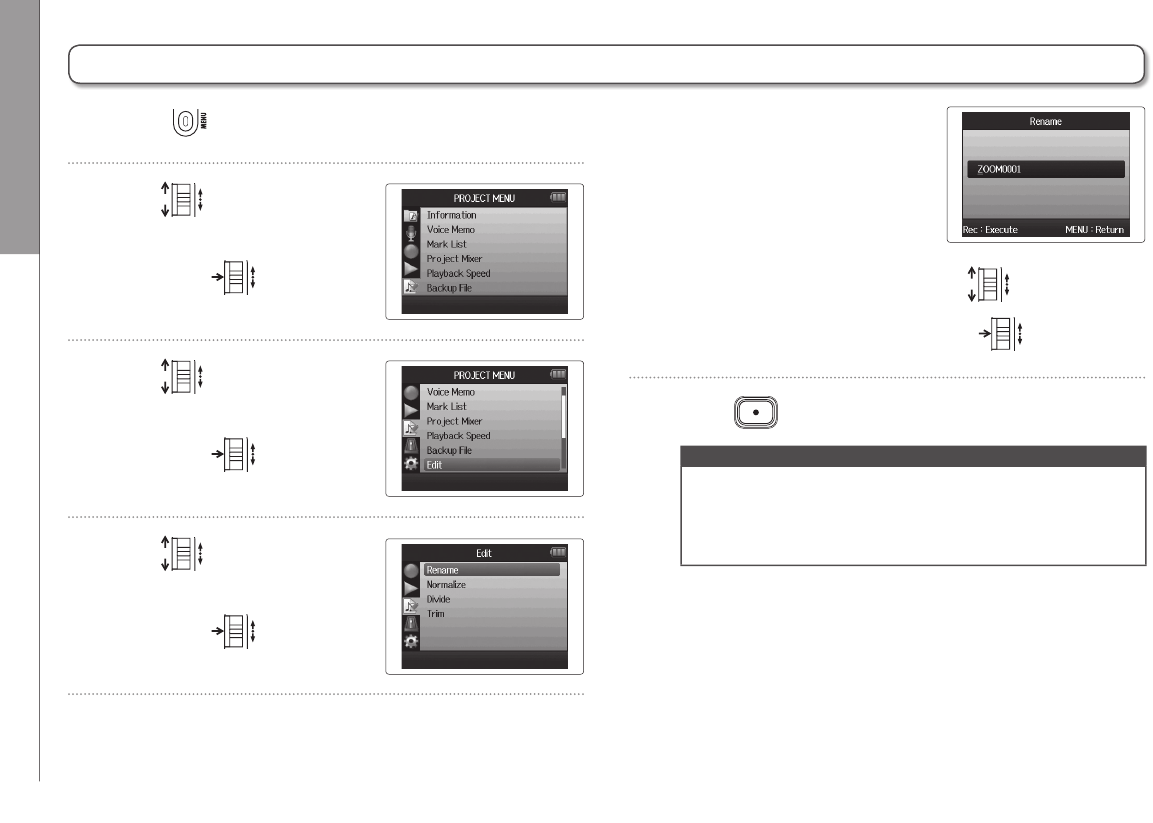
Checking track marks
A list of marks in the recorded project can be shown.
Mark user added
Mark added when a gap
occurred in the sound
during recording
Checking/editing projects/files Changing project names
50
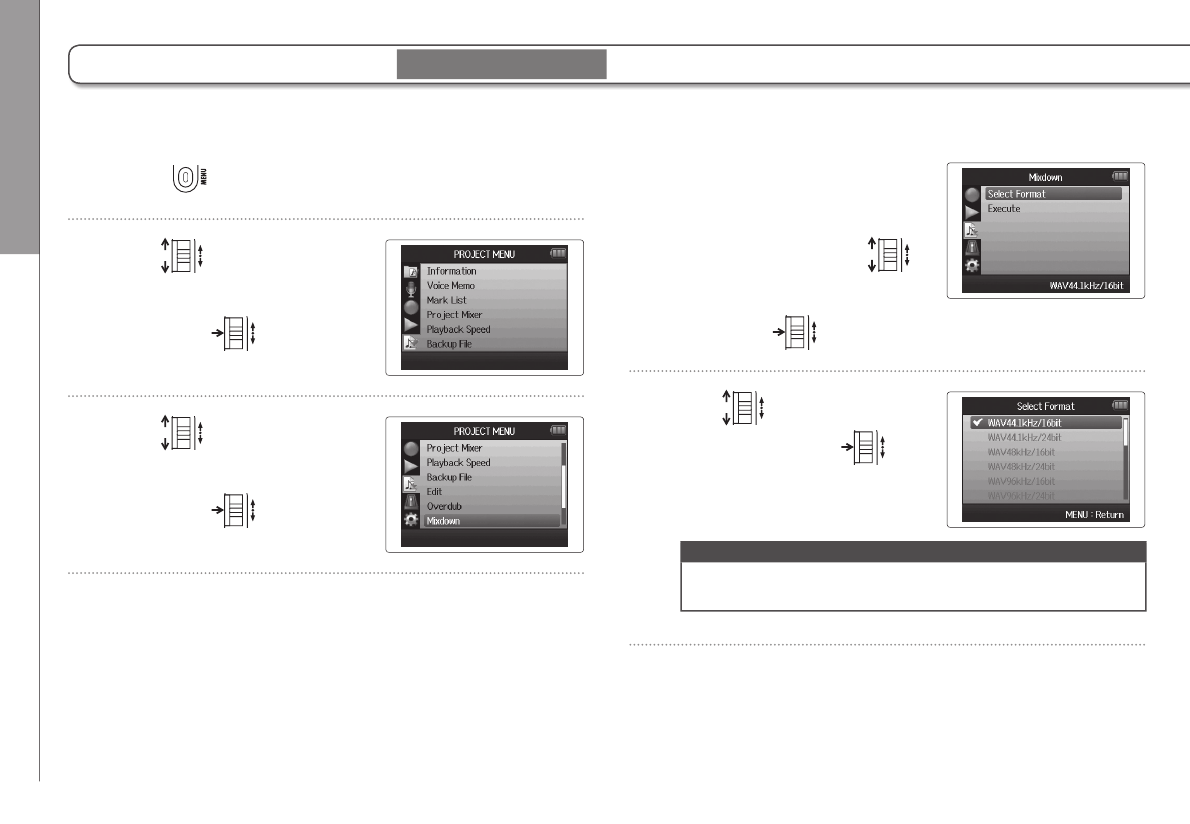
Changing project names
1. Press .
2. Use to select
“PROJECT MENU”,
and press .
3. Use to
select “Edit”,
and press .
4. Use to
select “Rename”,
and press .
5. Change the name.
Controls when changing names
Move cursor/change character: Move up/down
Select character/confirm change: Press
6. Press to complete the setting.
NOTE
• The following characters can be used in project names.
(space) !#$% &'()+,-0123456789;=@ABCDEFGHIJKLM-
NOPQRSTUVWXYZ[ ]^_`abcdefghijklmnopqrstuvwxyz{ }~
• A project name cannot be only spaces.

Checking/editing projects/files Changing project names
51
H6 Handy Recorder
Checking/editing projects/files Mixing down a project
52
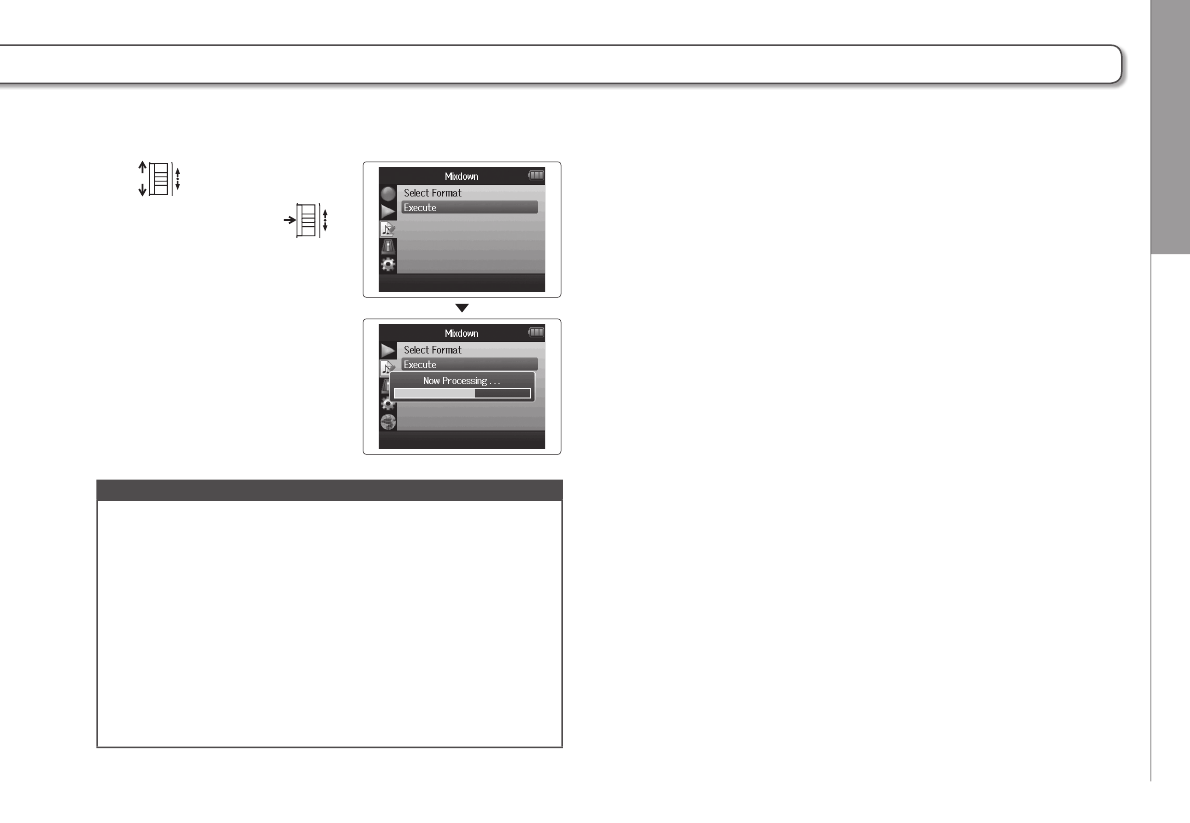
4. When mixing down a
project you can change
the formats by using
to select“Select Format”,
and press .
5. Use to select the
format, and press .
NOTE
You can only select WAV formats that have the same sam-
pling frequency and bit rate as the selected project
1. Press .
2. Use to select
“PROJECT MENU”,
and press .
3. Use to
select “Mixdown”,
and press .
Mixing down a project
You can mix down a project that has been recorded using WAV format into a stereo file (WAV or MP3).
WAV format only
Checking/editing projects/files Mixing down a project
53
H6 Handy Recorder
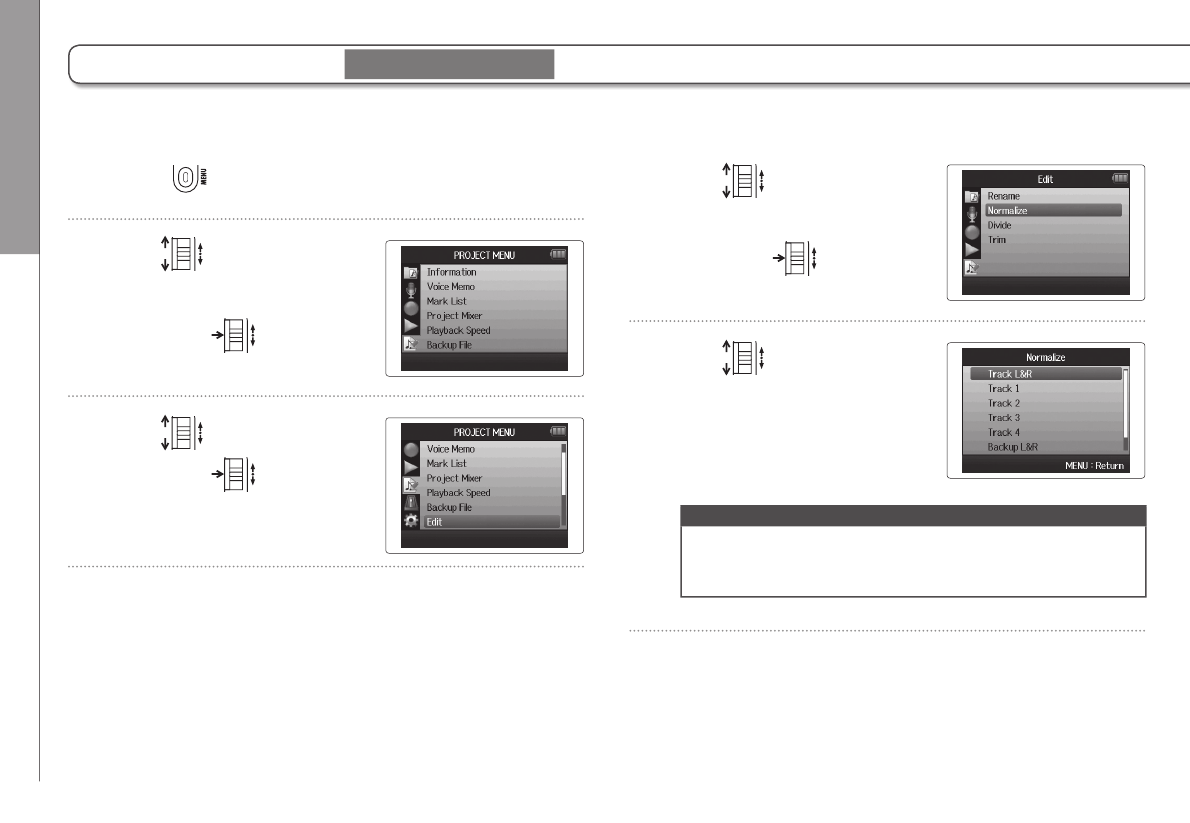
6. Use to select
“Execute”, and press
to start the mixdown.
NOTE
• The mixdown file will be created in the same folder.
• If the SD card does not have enough open capacity, the
recorder will return to the Mixdown screen.
• The file created by the mixdown will be named after the
original project with a three digit number added to the
end, as in “ZOOM0001_ST001”. If you mix down the same
project again, this number will increase by one.
• During mixdown, the volume, pan and track status (button)
settings made using the project mixer (P.46), as well as
the playback speed (P.41), will affect the sound of the
mixdown.
Checking/editing projects/files Normalizing tracks
54
Normalizing tracks
1. Press .
2. Use to select
“PROJECT MENU”,
and press .
3. Use to select “Edit”,
and press .
4. Use to
select “Normalize”,
and press .
5. Use to select the
track that you want to
normalize.
NOTE
• You cannot select a track that has no recorded file.
• If you select “All”, all tracks that have files will be
normalized.
If the volume of a project recorded using WAV format is too low, you can increase the overall level of the file.
WAV format only
Checking/editing projects/files Normalizing tracks
55
H6 Handy Recorder
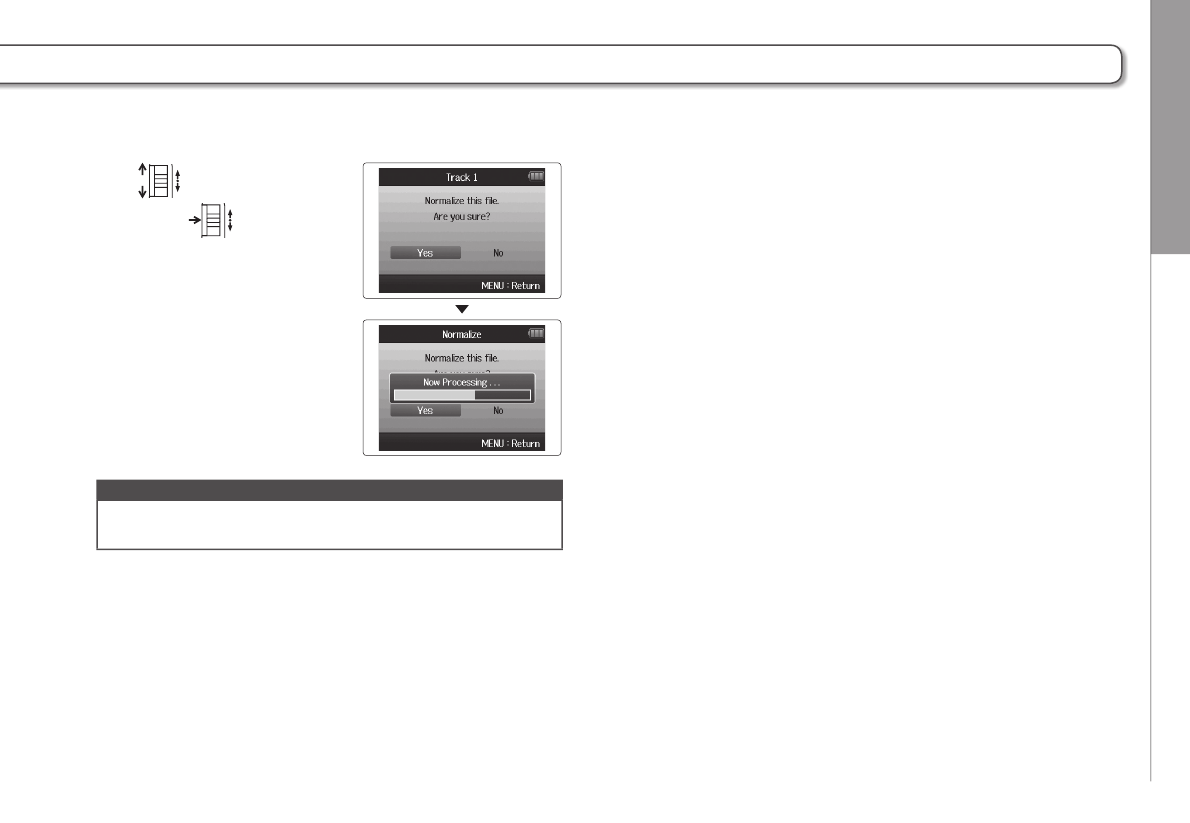
6. Use to select “Yes”,
and press to start
normalization.
NOTE
When normalized, the level of the entire file will be
increased by the same amount so that the peak level is 0 dB
Checking/editing projects/files Dividing projects
56
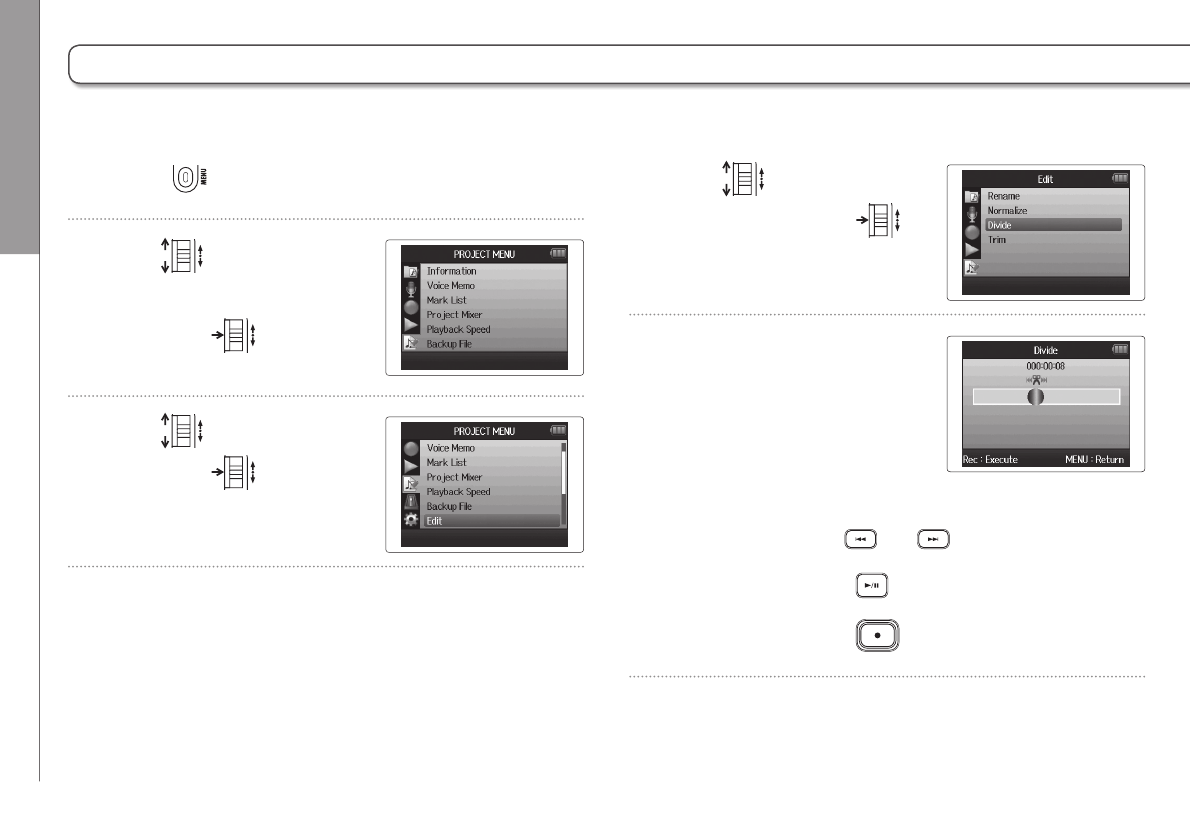
4. Use to select
“Divide”, and press .
5. Set the division point.
Controls when dividing
Move point: Use and
PLAY/pause: Press
Confirm point: Press
1. Press .
2. Use to select
“PROJECT MENU”,
and press .
3. Use to select “Edit”,
and press .
Dividing projects
You can divide a project into two new projects at any point.
Checking/editing projects/files Dividing projects
57
H6 Handy Recorder
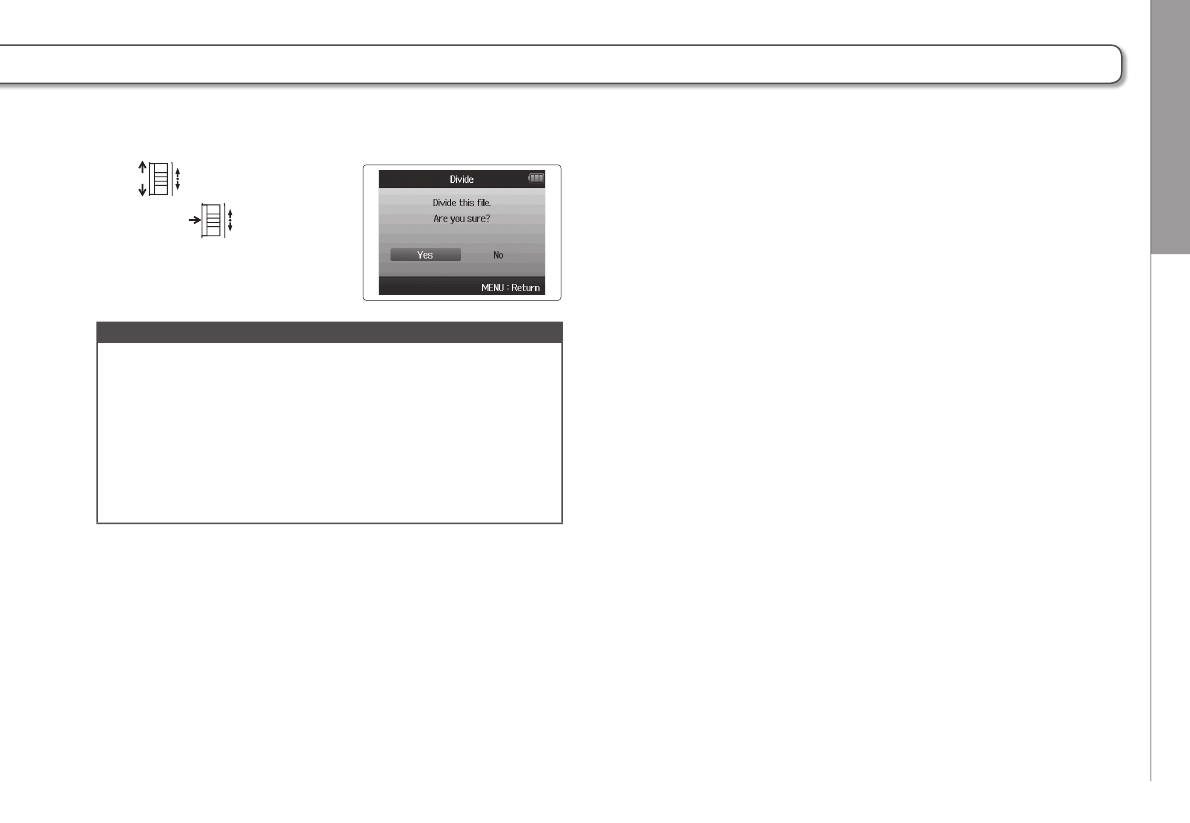
6. Use to select “Yes”,
and press .
NOTE
• After dividing a project, the part before the division point
will be given the same name as the original project with
“A” added to the end. The part after the point will have “B”
added to the end of its name.
• If you have made additional recordings and have multiple
takes, the current take will be divided. All other takes will
be saved with the original project.
• The original take is deleted.
Checking/editing projects/files Trimming project beginnings and ends
58
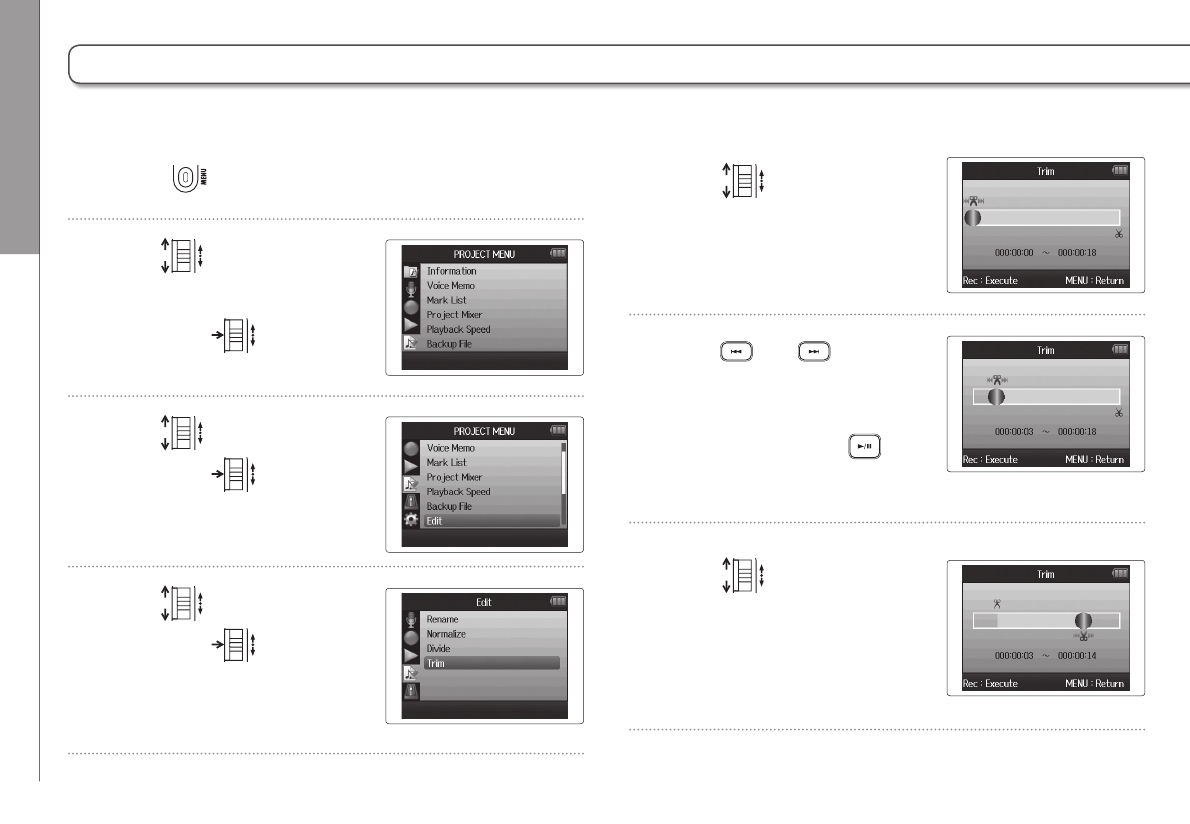
1. Press .
2. Use to select
“PROJECT MENU”,
and press .
3. Use to select “Edit”,
and press .
4. Use to select “Trim”,
and press .
5. Use to select
the starting point icon.
6. Use and to find
the starting point.
You can also press to
search while playing back.
7. Use to select the
ending point icon. Then,
set the ending point in the
same manner.
Trimming project beginnings and ends
You can delete (trim) unnecessary beginnings and endings of recorded projects. To do so, you will set the beginning and end-
ing points of the part to be kept.
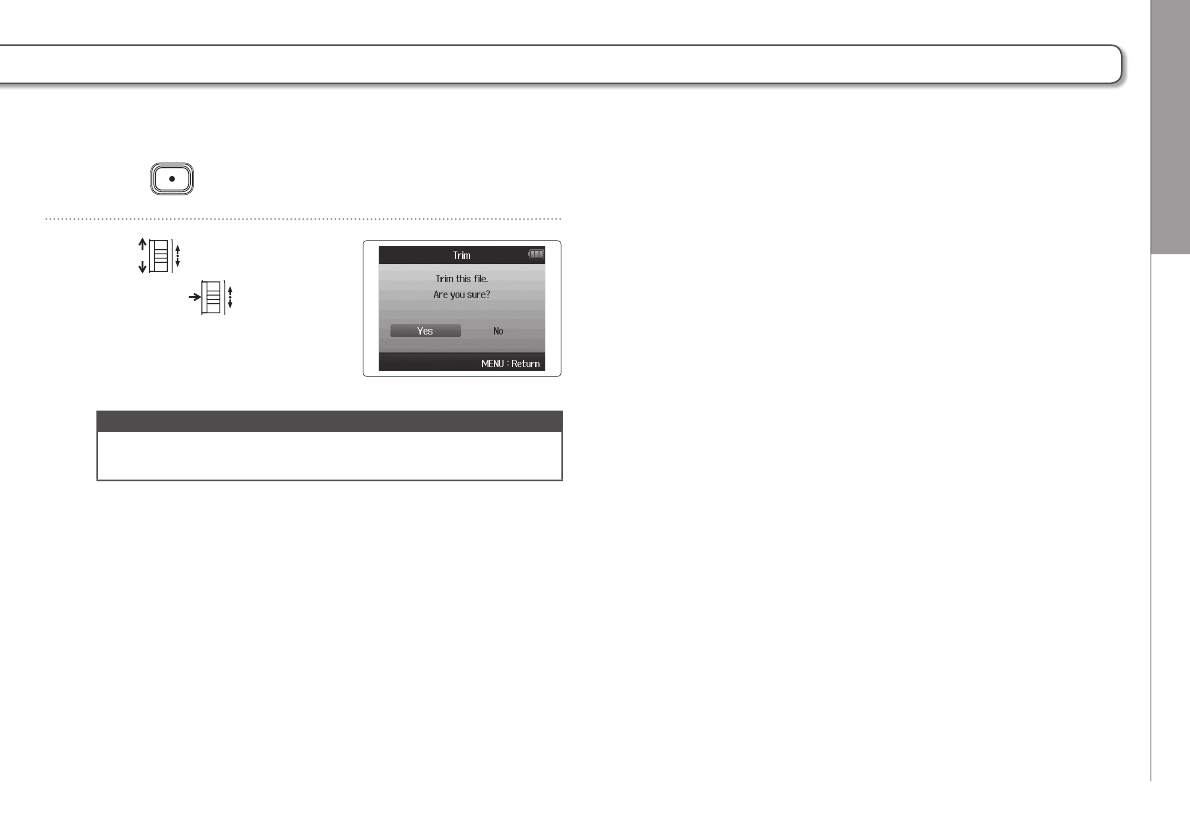
Checking/editing projects/files Trimming project beginnings and ends
59
H6 Handy Recorder
8. Press .
9. Use to select “Yes”,
and press to trim the
project.
NOTE
If you have made additional recordings and the project has
multiple takes, the current take will be trimmed.
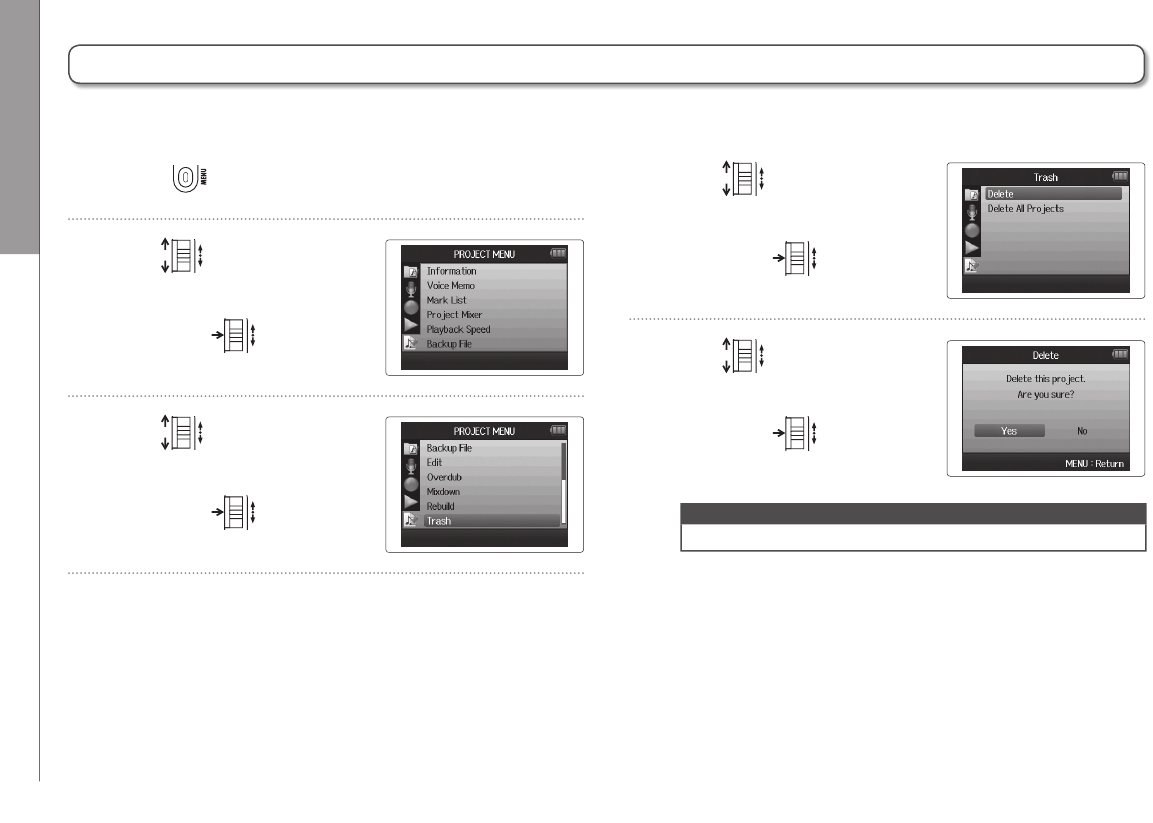
Checking/editing projects/files Deleting one project
60
Deleting one project
1. Press .
2. Use to select
“PROJECT MENU”,
and press .
3. Use to
select “Trash”,
and press .
4. Use to
select “Delete”,
and press .
5. Use to
select “Yes”,
and press .
NOTE
Deleting projects cannot be undone.
You can delete unneeded projects.
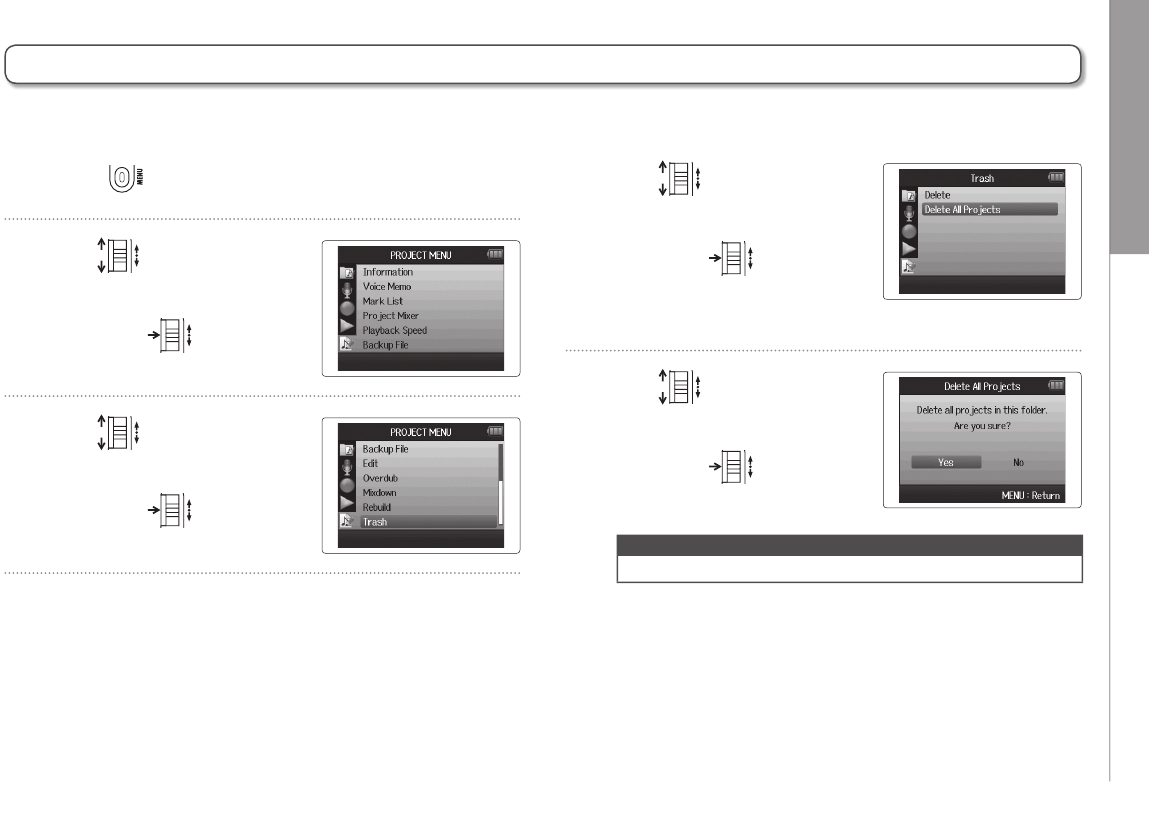
Checking/editing projects/files Deleting all projects in a folder
61
H6 Handy Recorder
Deleting all projects in a folder
1. Press .
2. Use to select
“PROJECT MENU”,
and press .
3. Use to
select “Trash”,
and press .
4. Use to select
“Delete All Projects”,
and press .
5. Use to
select “Yes”,
and press .
NOTE
Deleting projects cannot be undone.
You can delete all the projects in one folder at the same time.
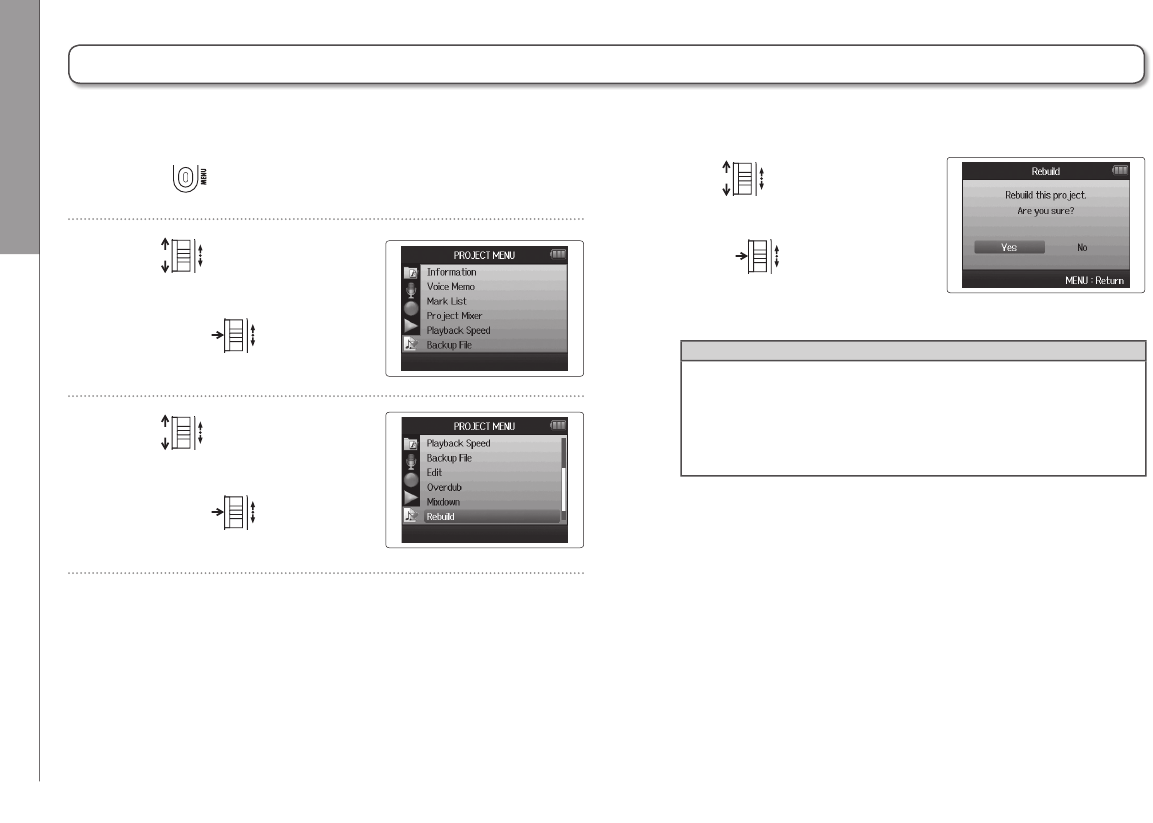
Checking/editing projects/files Rebuilding a project
62
4. Use to
select “Yes”, and
press to rebuild the
project.
HINT
A project will not play back if, for example, you accidentally
disconnect the adapter while recording or use a computer
to delete a setting file that is necessary for the project. In
such cases, rebuilding the project might repair it so it can
be used again.
Rebuilding a project
1. Press .
2. Use to select
“PROJECT MENU”,
and press .
3. Use to
select “Rebuild”,
and press .
If a project is missing necessary files or is damaged, you can try rebuilding it.
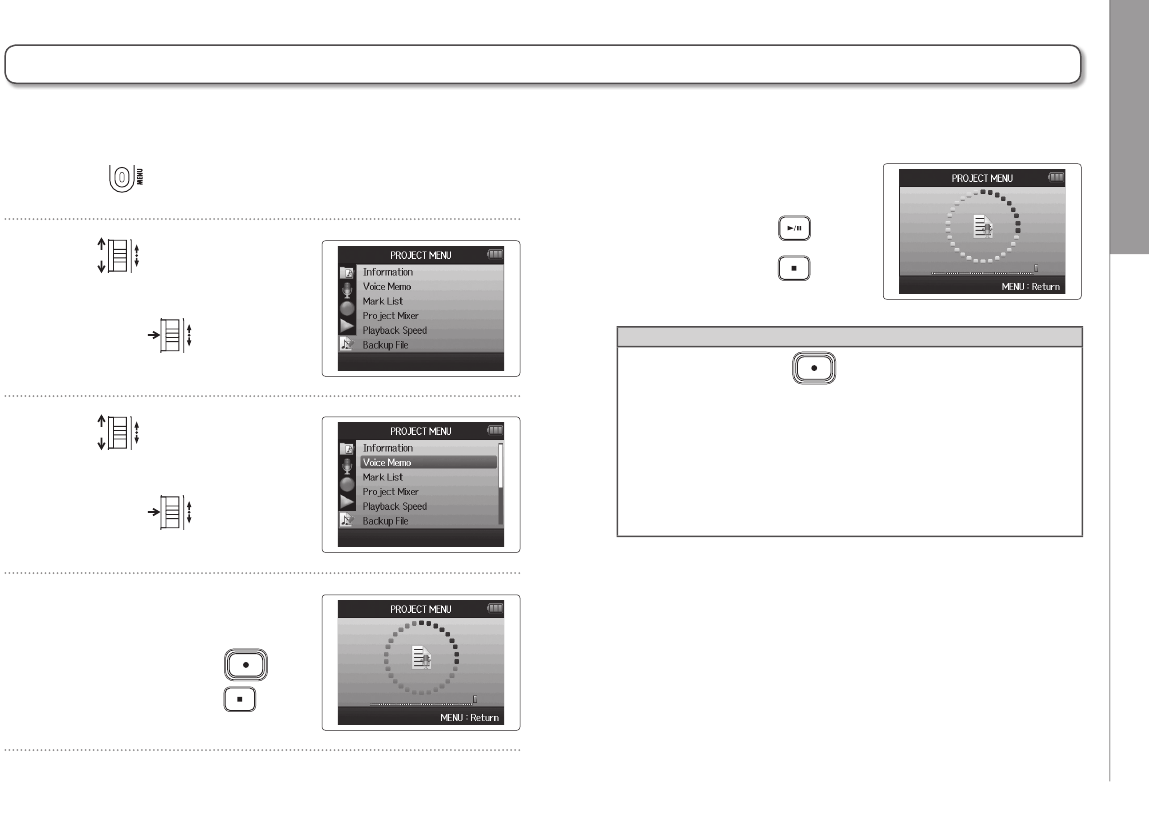
Checking/editing projects/files Recording a project voice memo
63
H6 Handy Recorder
Recording a project voice memo
1. Press .
2. Use to select
“PROJECT MENU”,
and press .
3. Use to select
“Voice Memo”,
and press .
4. Record the memo.
Start recording: Press
Stop recording: Press
5. Play the memo.
Start playback: Press
Stop playback: Press
HINT
• Each time you press , the voice memo is
overwritten.
• Voice memos are recorded using the stereo mic con-
nected to the L/R input.
It cannot be recorded using Inputs 1–4.
• The file name of the voice memo will be in the format of
“ZOOM0001_VM”.
• The voice memo file format is 128kbps MP3.
You can add a voice memo to a project.
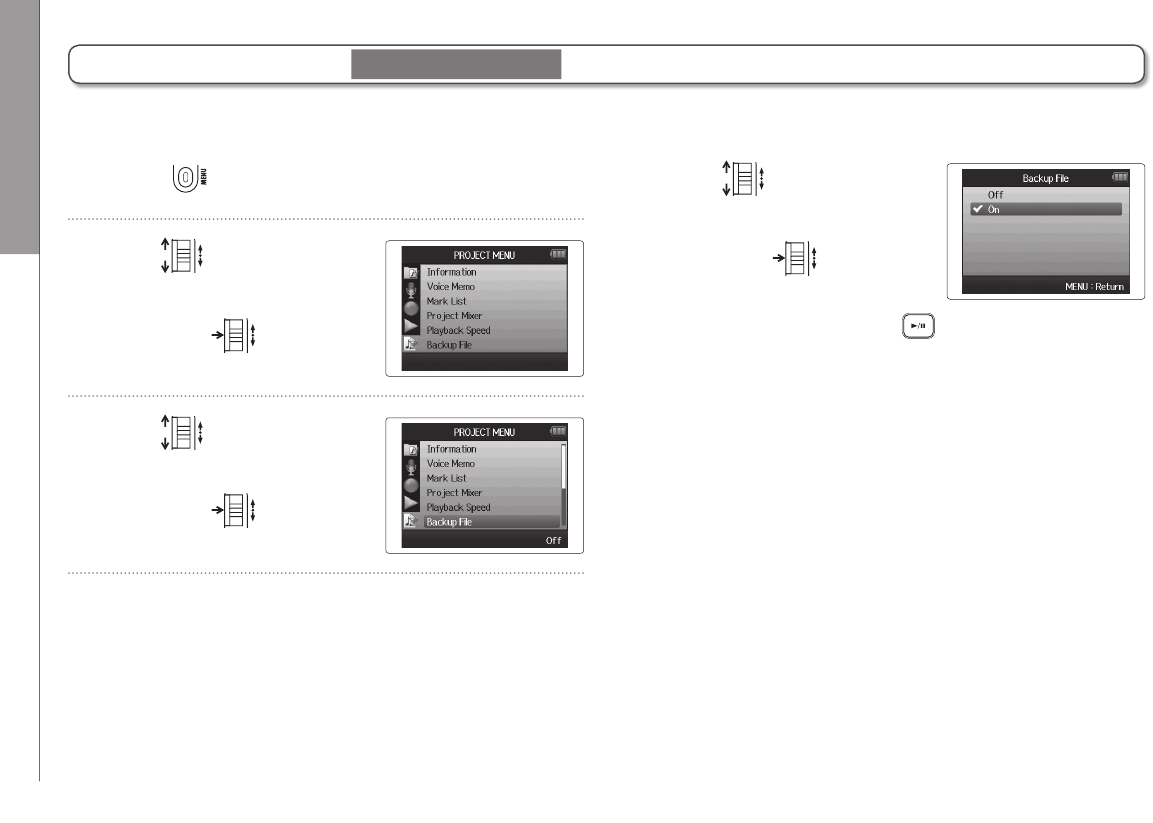
Checking/editing projects/files Playing backup files
64
Playing backup files
1. Press .
2. Use to select
“PROJECT MENU”,
and press .
3. Use to
select “Backup File”,
and press .
If you have made a backup recording, you can play the backup file instead of the normal file.
4. Use to
select “On”,
and press .
In this state, when you press , the backup file
will play back instead of the normal file for track L/R.
WAV format only

Checking/editing projects/files Playing backup files
65
H6 Handy Recorder
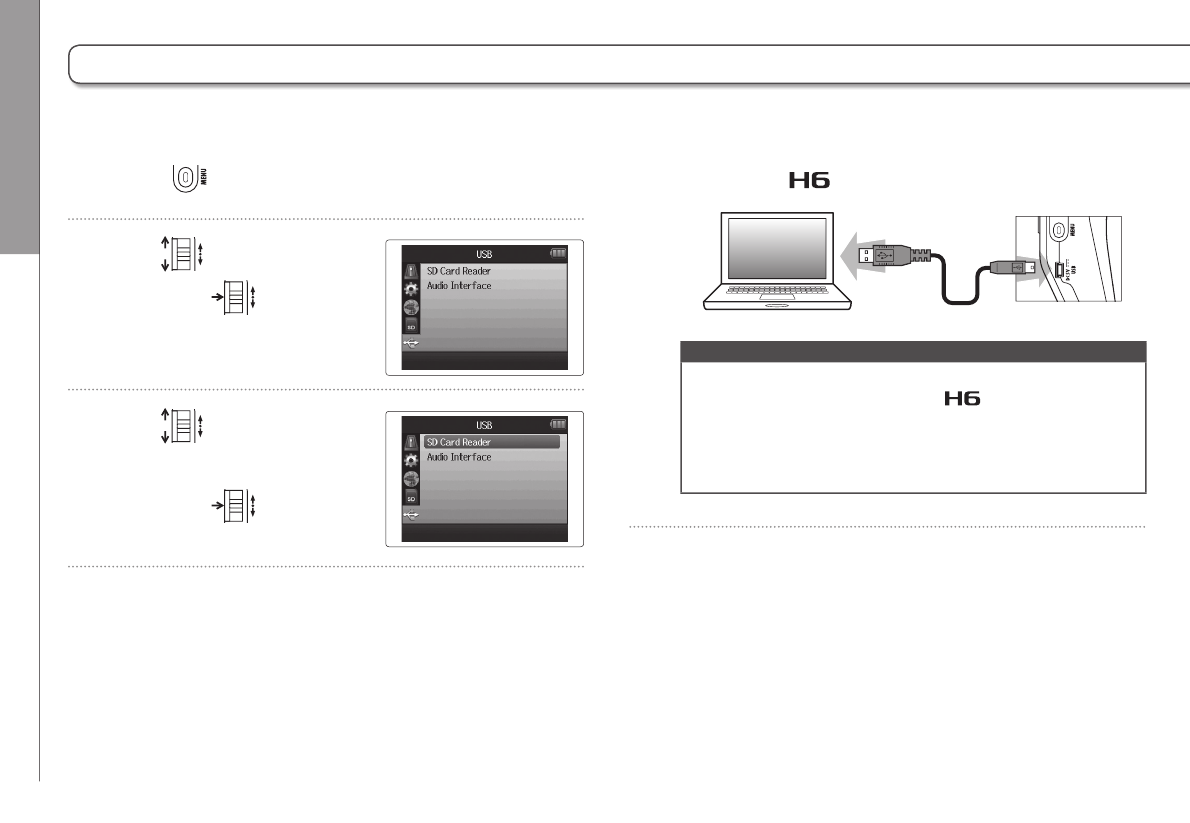
USB functions Data exchange with computers (card reader)
66
1. Press .
2. Use to select “USB”,
and press .
3. Use to select
“SD Card Reader”,
and press .
4. Connect the to the computer using a USB cable.
NOTE
• If you want to power the unit using the computer’s USB
bus, connect the cable while the power is off, and
then turn it on.
• The following operating systems are supported.
• Windows XP or later
• Mac OS X 10.6 or later
Data exchange with computers (card reader)
By connecting with a computer, you can check and copy data on the SD card.
USB functions Data exchange with computers (card reader)
67
H6 Handy Recorder
5. Follow the procedures for your computer when you
want to disconnect
.
Windows:
Use “Safely Remove Hardware” to select the .
Macintosh:
Drag-and-drop the icon into the trash.
NOTE
• Always follow these procedures before disconnecting the
USB cable.
6. Disconnect the cable from the computer
and the , and then press .
USB functions Using as an audio interface
68
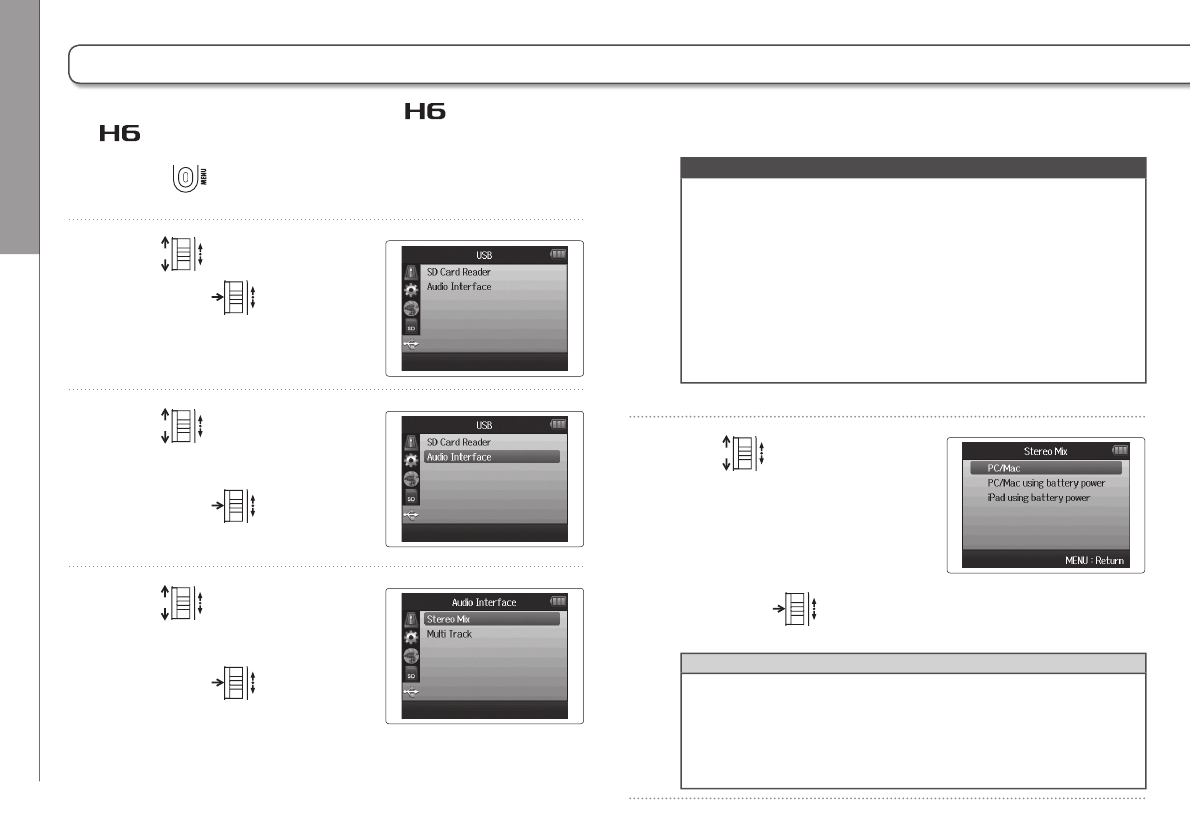
Using as an audio interface
You can send signals input through the directly to a computer or iPad as well as output signals from that device through
the .
1. Press .
2. Use to select “USB”,
and press .
3. Use to select
“Audio Interface”,
and press .
4. Use to select “Stereo
Mix” or “Multi track”,
and press .
NOTE
• Set to “Stereo Mix”, it is a 2 in/2 out interface. Set to “Multi
Track” it is a 6 in/2 out interface.
• With an iPad, use Stereo Mix mode. It will not work with
Multi Track mode.
• When using Stereo Mix mode you can use the recorder’s
mixer to mix all track inputs to stereo. ( P.72)
• When using Windows, a driver is necessary to use Multi
Track mode. You can download this driver from the ZOOM
website (www.zoom.co.jp).
5. Use to select
“PC/Mac”, “PC/MAC using
battery power” or “iPad
using battery power”,
and press .
HINT
• When using a computer that does not provide enough
power through its USB bus and when using phantom
power, select “PC/Mac using battery power”.
• The “iPad using battery power” setting uses the batteries
in the recorder.
USB functions Using as an audio interface
69
H6 Handy Recorder
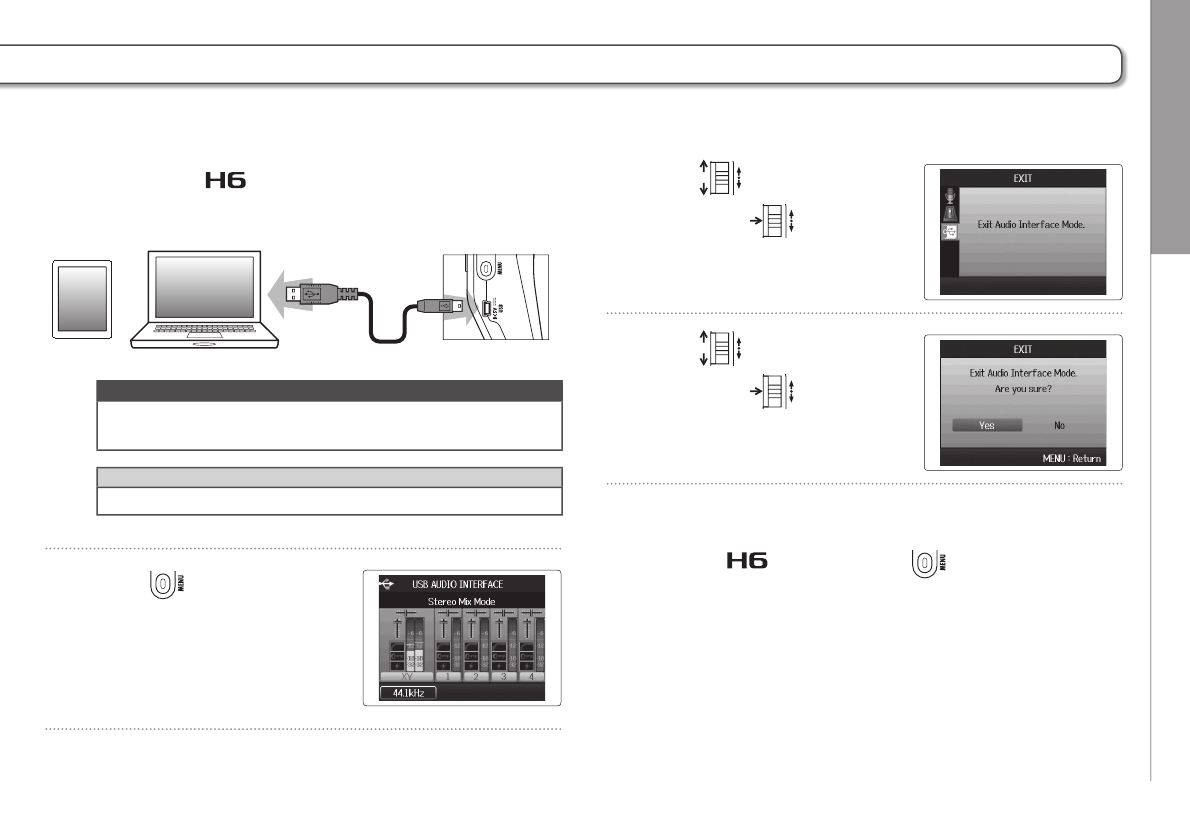
6. Connect the to the computer or iPad using a USB
cable.
NOTE
An iPad Camera Connection Kit is necessary to connect an
iPad.
HINT
See “Audio interface settings”. (P.70)
7. Press to disconnect.
8. Use to select “EXIT”,
and press .
9. Use to select “Yes”,
and press .
10. Disconnect the cable from the computer or iPad
and the , and then press .
USB functions Audio interface settings
70
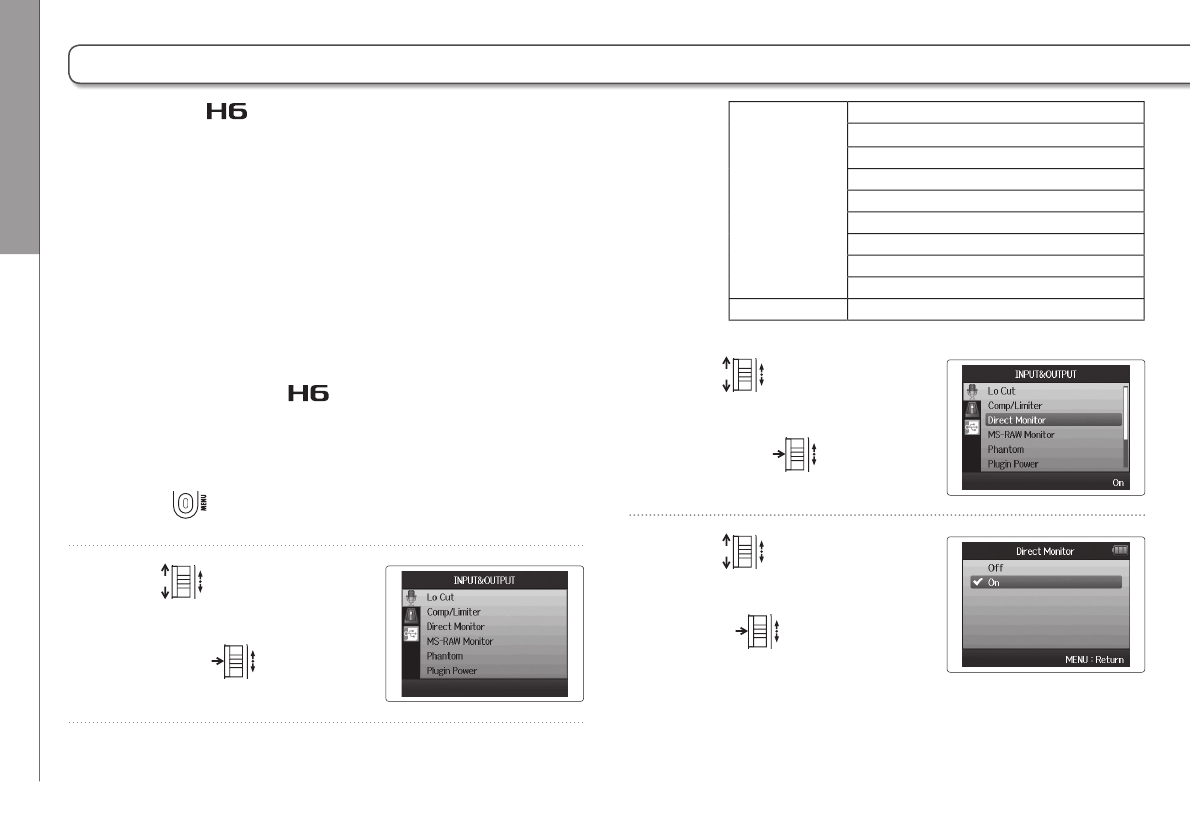
Audio interface settings
When using the as an audio interface, you can make the following
settings. Refer to each section for details.
Making direct monitoring settings
Sound that is input to the can be output directly before
it passes through the connected computer or iPad. This
enables monitoring without latency.
1. Press .
2. Use to select
“INPUT&OUTPUT”,
and press .
3. Use to select
“Direct Monitor”,
and press .
4. Use to select
“On”, and
press .
Input settings Low cut filter (P.78)
Compressor/limiter (P.79)
Direct monitoring (P.70)
MS-RAW monitoring (P.82)
Phantom power (P.87)
Plug-in power (P.88)
Loop Back function (P.71)
Mixer (P.72)
VU meters (P.89)
Tool Tuner (P.74)
USB functions Audio interface settings
71
H6 Handy Recorder
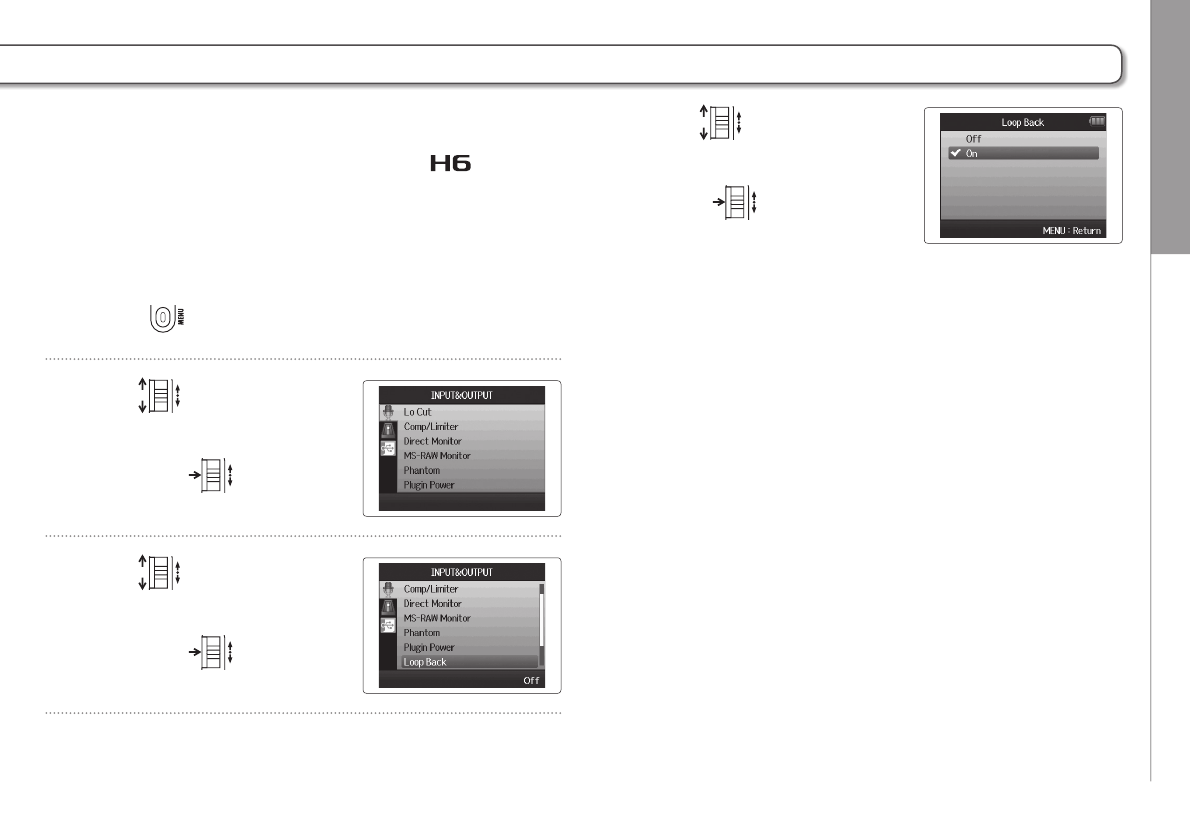
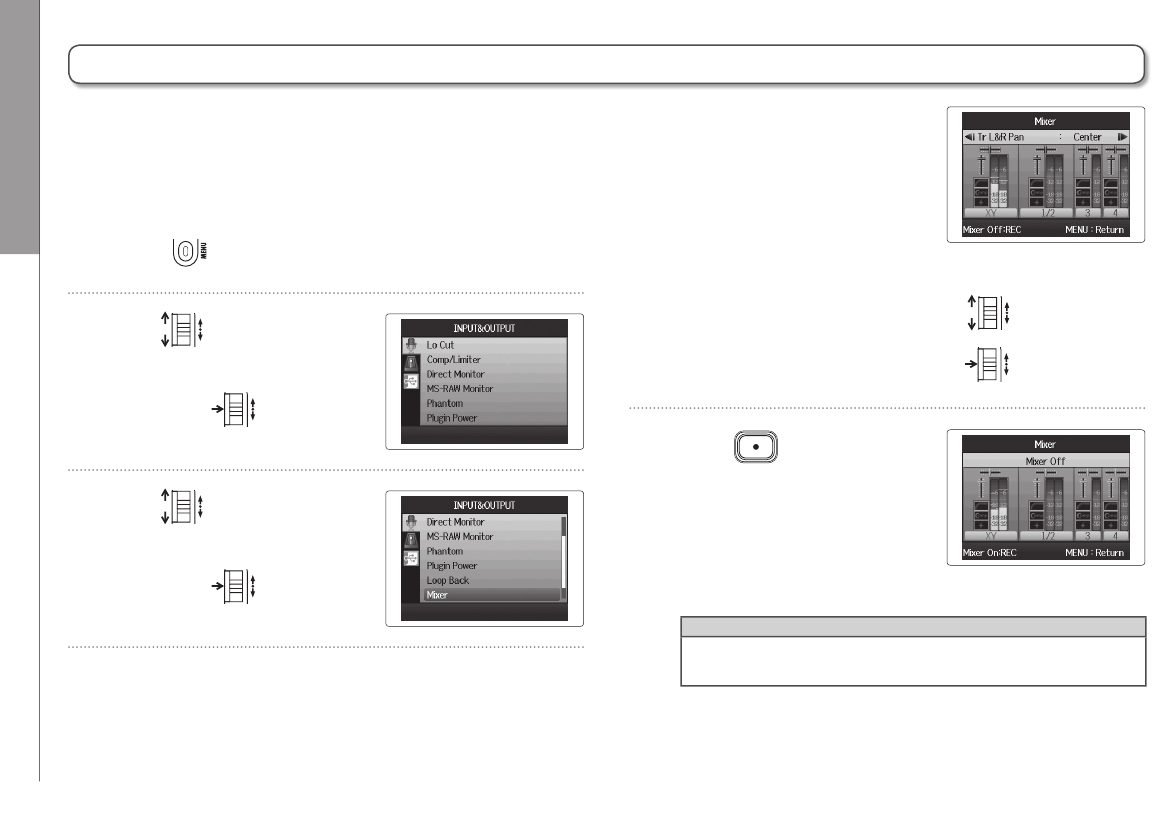
Using Loop Back (in stereo mix mode)
When in stereo mix mode, you can mix the sound from the
computer or iPad with the sound input in the and send
it back to the computer or iPad again (loop back). This can be
used, for example to add narration to a musical backing track
playing on the computer and then record using software on
the computer or stream it live via the Internet.
1. Press .
2. Use to select
“INPUT&OUTPUT”,
and press .
3. Use to select
“Loop Back”,
and press .
4. Use to select
“On”, and
press .
USB functions Audio interface settings
72
Audio interface settings (continued)
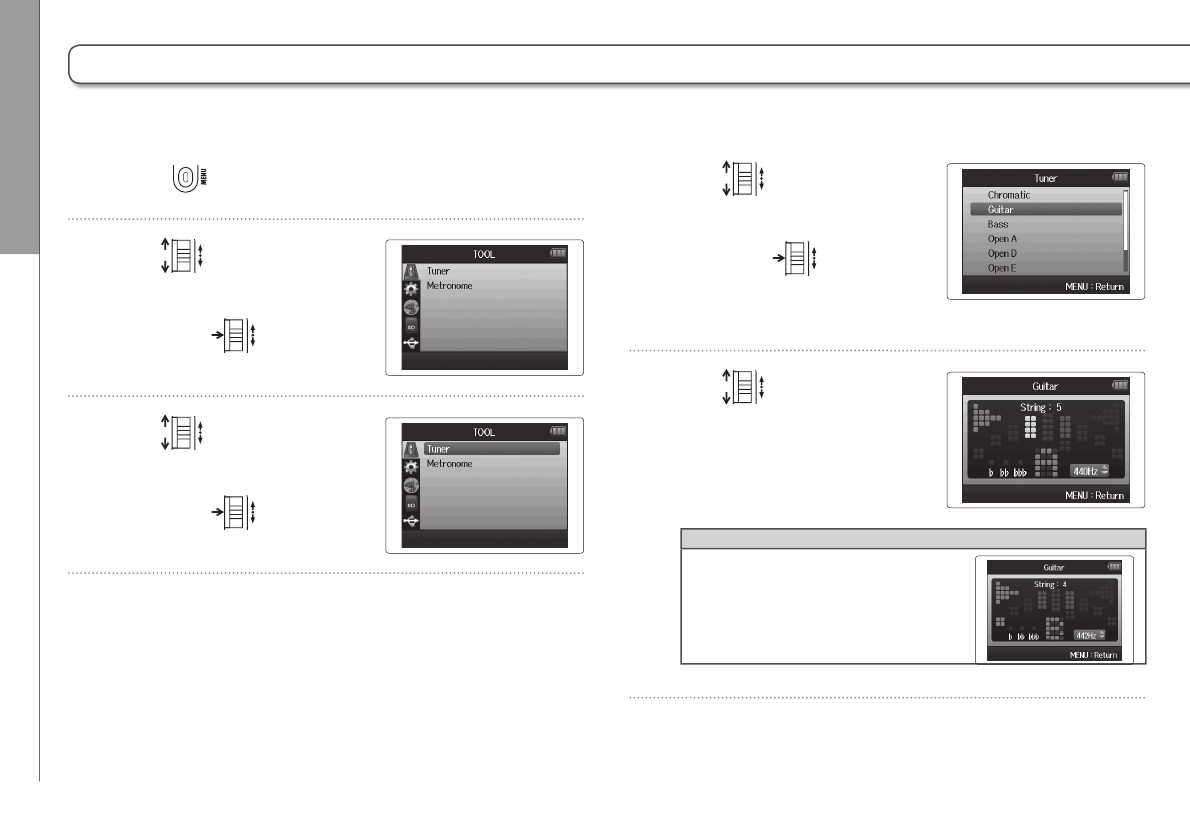
Mixing the inputs
You can adjust the mix of the inputs. The results of this mix
are input to a computer or iPad. When in stereo mix mode,
the resulting stereo mix is sent.
1. Press .
2. Use to select
“INPUT&OUTPUT”,
and press .
3. Use to
select “Mixer”,
and press .
4. Change the parameter
settings as desired.
Mixing controls
Move cursor/change value: Move up/down
Select parameter to change: Press
5. Press to listen to
the project without mixer
adjustments.
Pressing this button turns the
mixer settings on and off.
HINT
The same mix settings are saved and used for both stereo
mix and multi track modes.

USB functions Audio interface settings
73
H6 Handy Recorder
Tools Using the tuner
74
1. Press .
2. Use to
select “TOOL”,
and press .
3. Use to
select “Tuner”,
and press .
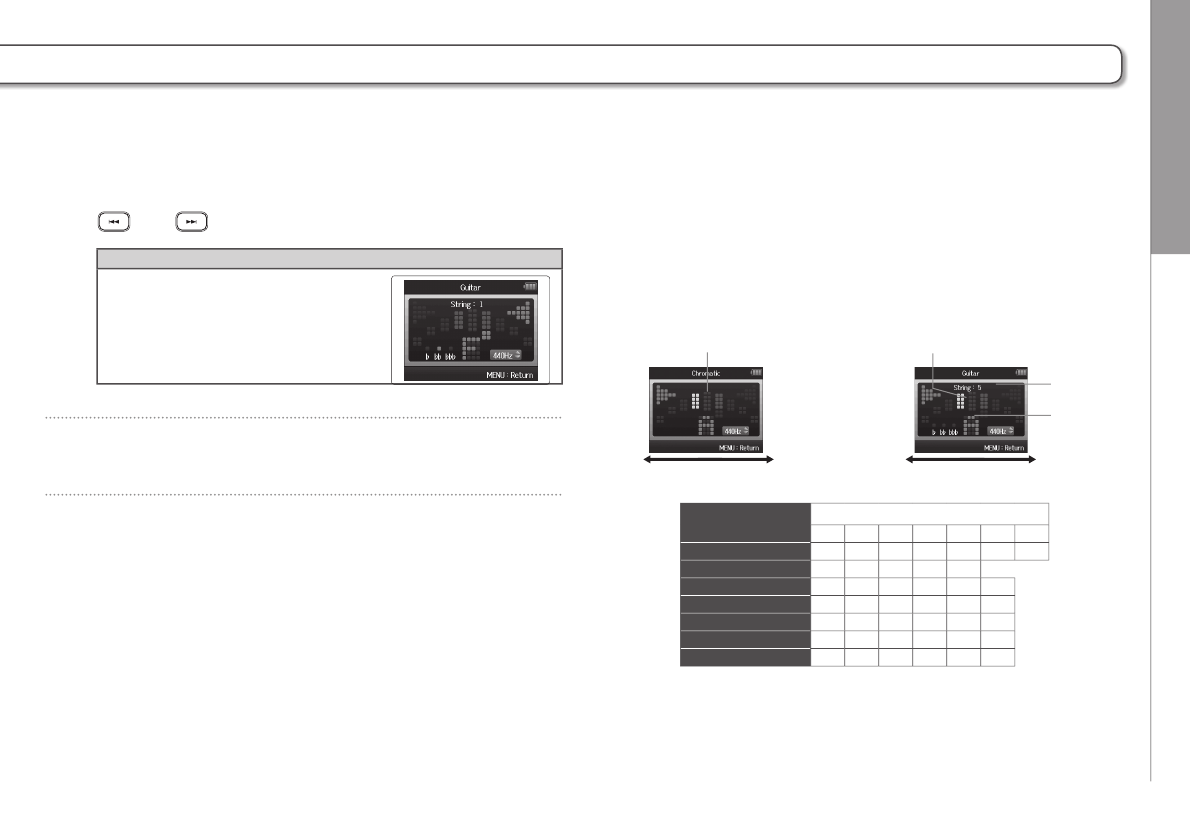
Using the tuner
The input signal can be used to tune an instrument.
4. Use to select the
tuning type,
and press .
5. Use to change the
standard pitch.
HINT
The standard pitch can be set in a
range between 435Hz–445Hz.
Tools Using the tuner
75
H6 Handy Recorder
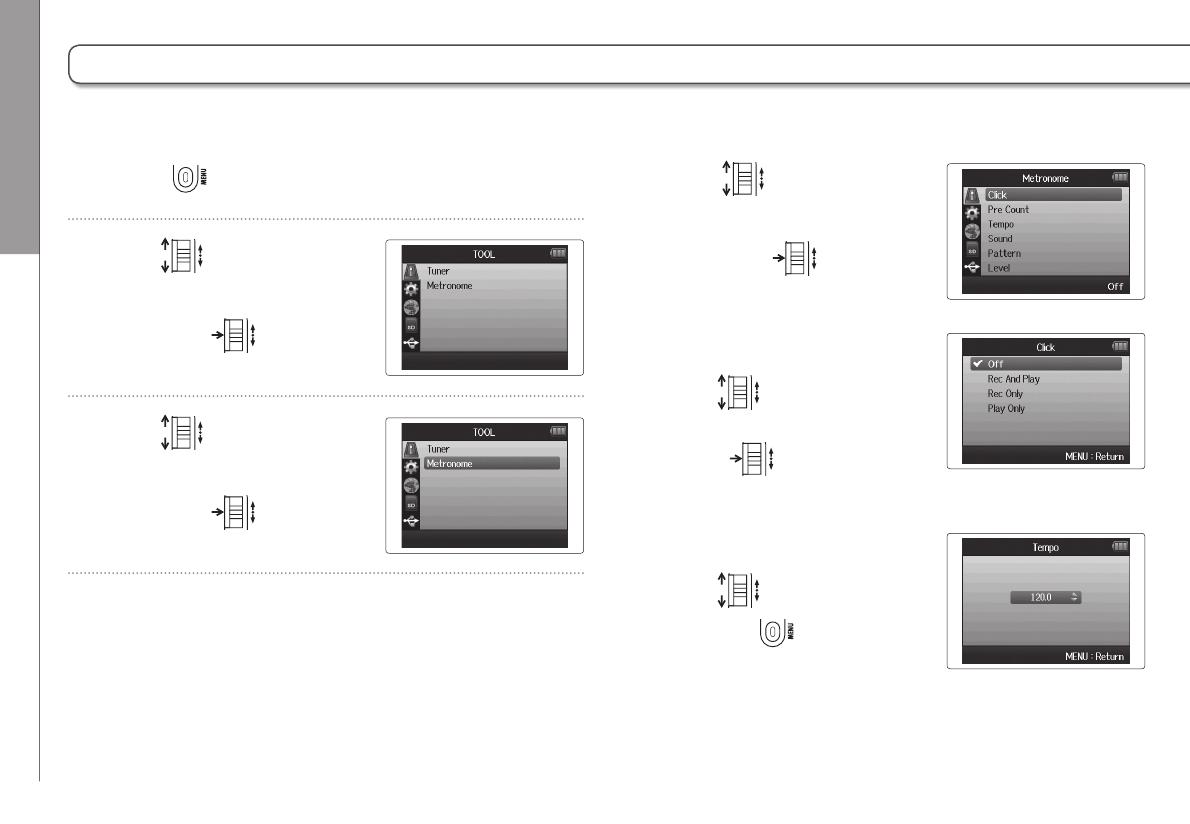
6. For all tuner types except chromatic, you can use
and to change the pitch (drop tuning).
HINT
You can drop the tuning by up to
three semitones.
7. Press a track button to select the input to use.
8. Use the tuner according to the type as follows
Chromatic tuner
The input is detected automati-
cally and the name of the near-
est note and the pitch inaccuracy
are shown.
Guitar/bass tuner
The number of the string you are
tuning is automatically detected,
allowing you to tune them one
at a time.
Tuner type String number/note name
1234567
Guitar E B G D A E B
Bass G D A E B
Open A E C# A E A E
Open D D A F# D A D
Open E E B G# E B E
Open G D B G D G D
DADGAD DAGDAD
Flat Sharp Flat Sharp
Center lights when pitch accurate Center lights when pitch accurate
Detected
string
Pitch
Tools Using the metronome
76
4. Use to select
a menu item,
and press .
Select “Click”
Use to set when the
metronome is active, and
press .
Select “Pre Count” (P.32)
Select “Tempo”
Use to set the speed,
and press .
Using the metronome
1. Press .
2. Use to
select “TOOL”,
and press .
3. Use to
select “Metronome”,
and press .
Use the metronome to count in before recording or as a click track.
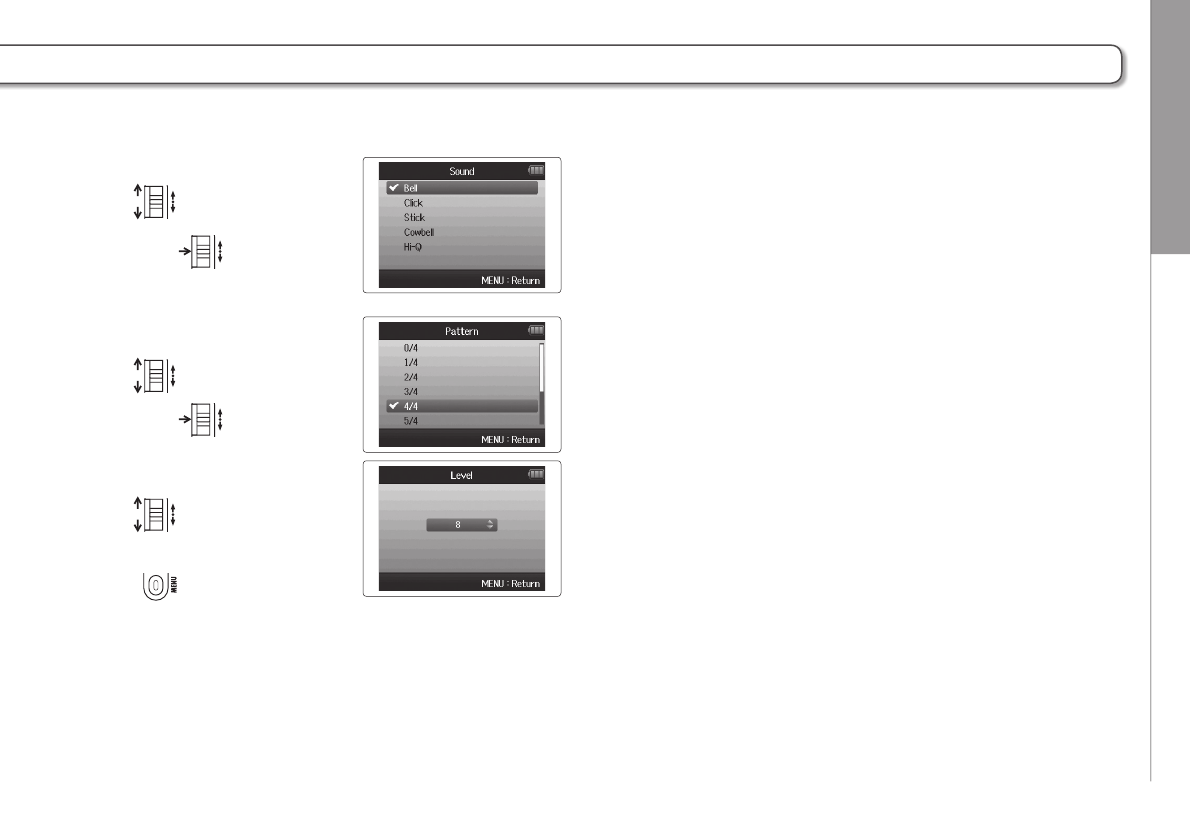
Tools Using the metronome
77
H6 Handy Recorder
Select “Sound”
Use to set the sound,
and press .
Select “Pattern”
Use to set the pattern,
and press .
Select “Level”
Use to set the
metronome volume, and
press .
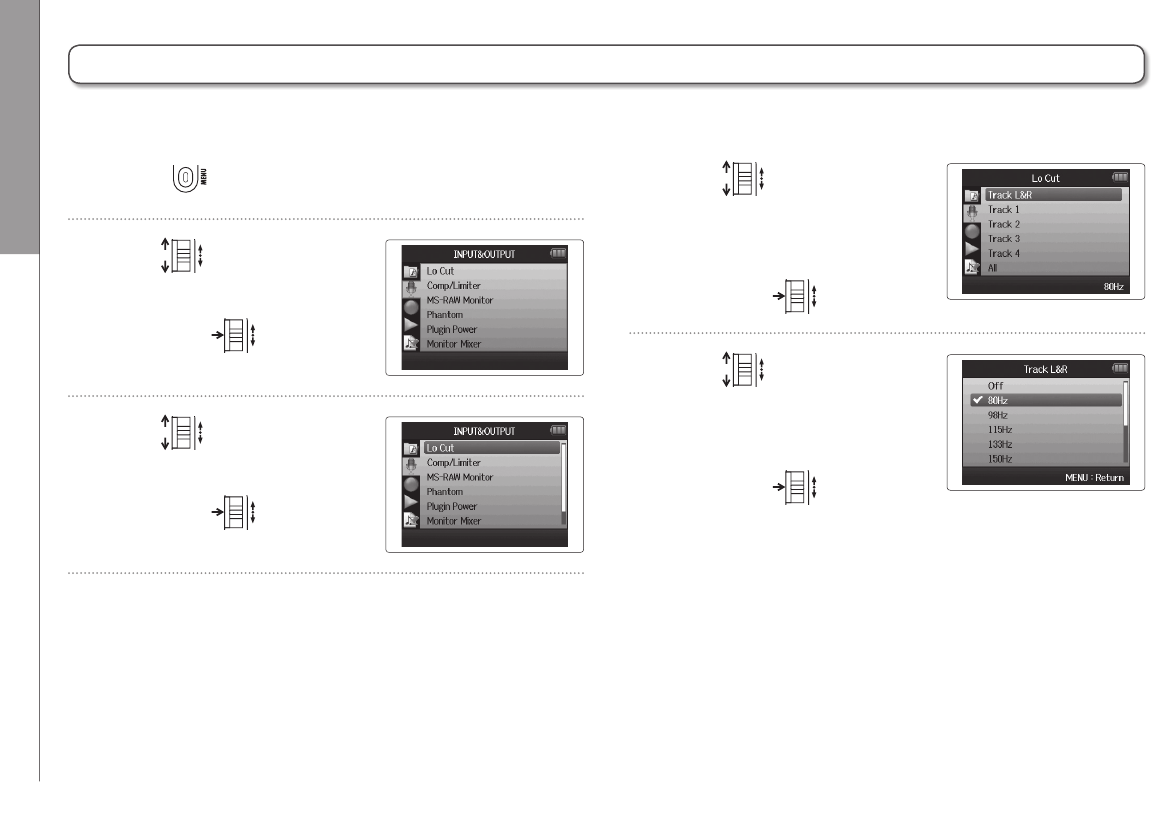
Other settings Reducing noise (low cut filter)
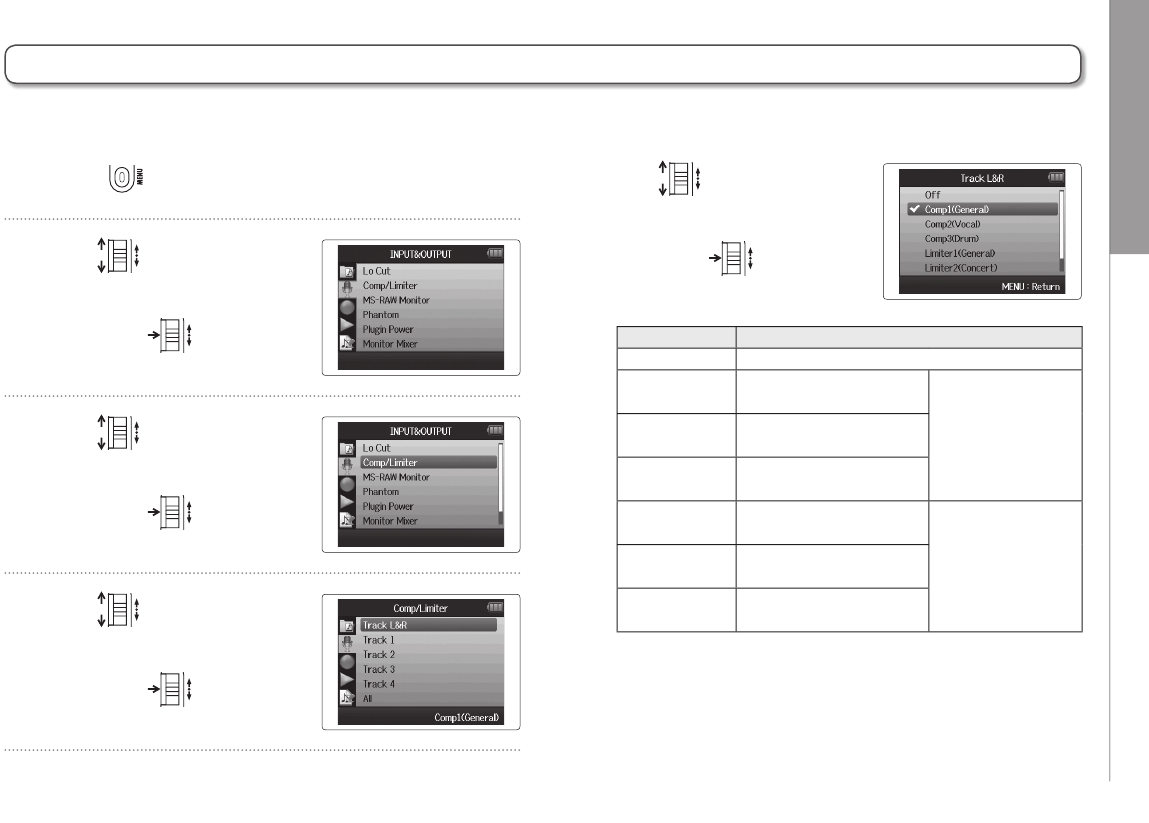
78
4. Use to select the
track you want to apply
the low cut filter to,
and press .
5. Use to select the
cutoff frequency of the
low cut filter,
and press .
Reducing noise (low cut filter)
1. Press .
2. Use to select
“INPUT&OUTPUT”,
and press .
3. Use to select
“Lo Cut”,
and press .
Use the low-cut filter to reduce wind noise and vocal pops, for example.
Other settings Using the input compressor/limiter
79
H6 Handy Recorder
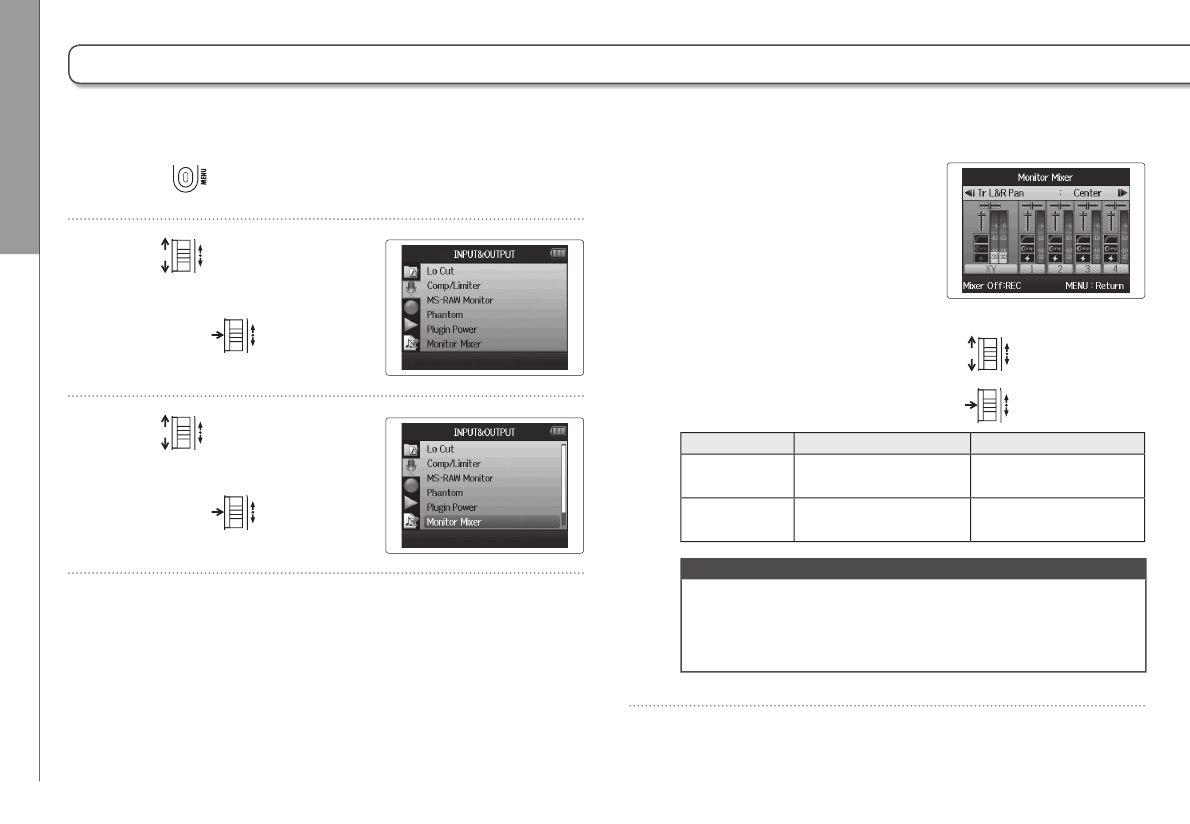
Using the input compressor/limiter
1. Press .
2. Use to select
“INPUT&OUTPUT”,
and press .
3. Use to select
“Comp/Limiter”,
and press .
4. Use to select the
track you want to affect,
and press .
Use the compressor/limiter to raise low-level input signals and lower high-level input signals.
5. Use to select the
type of compressor/limiter,
and press .
Setting Explanation
Off Compressor/limiter OFF
Comp1
(General)
Standard compressor Compressors
reduce high lev-
els and raise low
levels.
Comp2
(Vocal)
Compressor for vocals
Comp3
(Drum)
Compressor for drums
and percussion
Limiter1
(General)
Standard limiter Limiters reduce the
level when input
signals exceed a
set level.
Limiter2
(Concert)
Limiter for live
performances
Limiter3
(Studio)
Limiter for studio
recording
Other settings Adjusting the input signal monitoring mix
80
1. Press .
2. Use to select
“INPUT&OUTPUT”,
and press .
3. Use to select
“Monitor Mixer”,
and press .
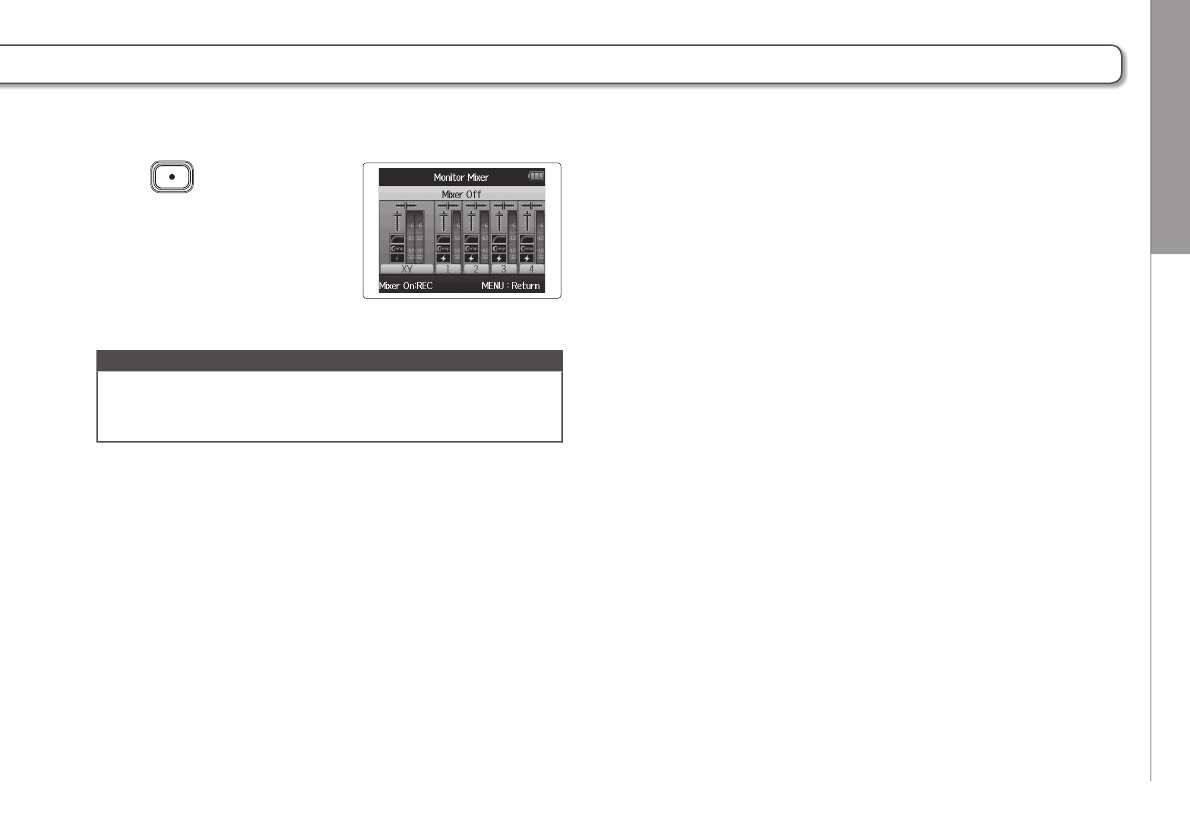
You can adjust the level and panning of each input signal for the monitoring mix.
4. Change parameters as
desired.
Mixing controls
Move cursor/change value: Move up/down
Select parameter to change: Press
Parameter Setting range Explanation
Volume Mute, −48.0 – +12dB
(in 0.5dB increments) Adjusts track volume
Panning L100 – CENTER – R100 Adjusts left–right
position of sound.
NOTE
• The use of volume and panning settings only affect the
monitoring signal. They do not affect the recorded data.
• Use the Project Mixer to adjust the balance during play-
back. (P.46)
Adjusting the input signal monitoring mix
Other settings Adjusting the input signal monitoring mix
81
H6 Handy Recorder
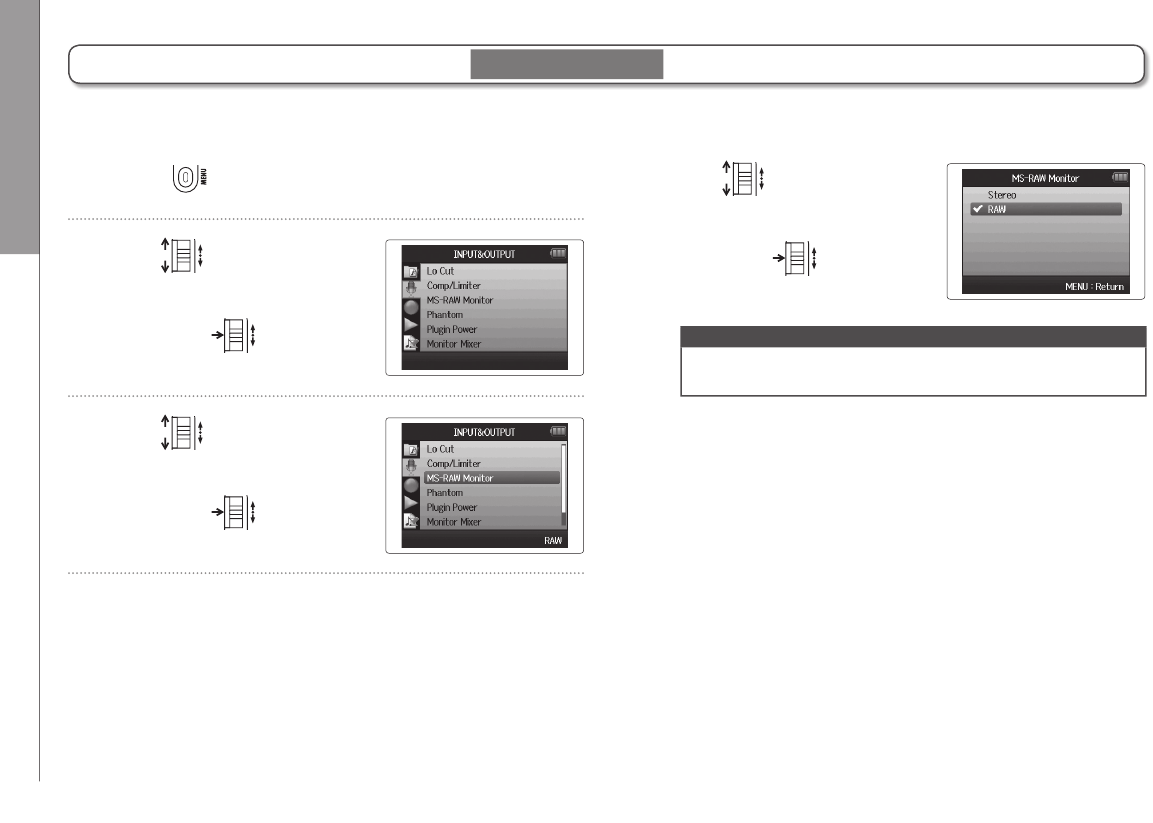
5. Press to listen to
the project without mixer
adjustments.
Pressing this button turns the
mixer settings on and off.
NOTE
These mix settings are saved with each recorded project
separately. Mix settings can also be applied during play-
back. (P.46)
Other settings Monitoring MS-RAW signals
82
Monitoring MS-RAW signals
1. Press .
2. Use to select
“INPUT&OUTPUT”,
and press .
3. Use to select
“MS-RAW Monitor”,
and press .
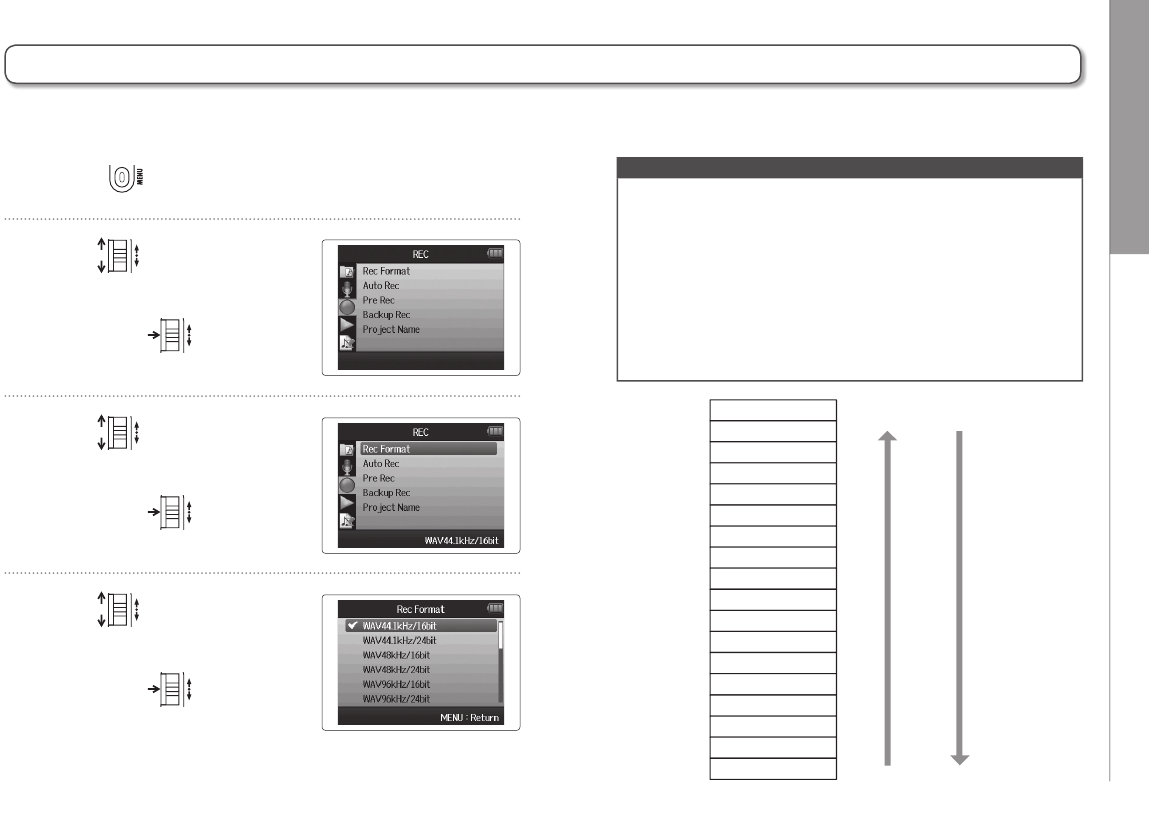
When recording in MS-RAW mode, you can monitor the mid mic input through the left channel and the side mic input through
the right channel.
4. Use to
select “RAW”,
and press .
NOTE
Select “Stereo” if you want to monitor with an ordinary
stereo mix.
MS-RAW mode only
Other settings Setting the recording format
83
H6 Handy Recorder
Setting the recording format
1. Press .
2. Use to select
“REC”,
and press .
3. Use to select
“Rec Format”,
and press .
4. Use to select the
desired format,
and press .
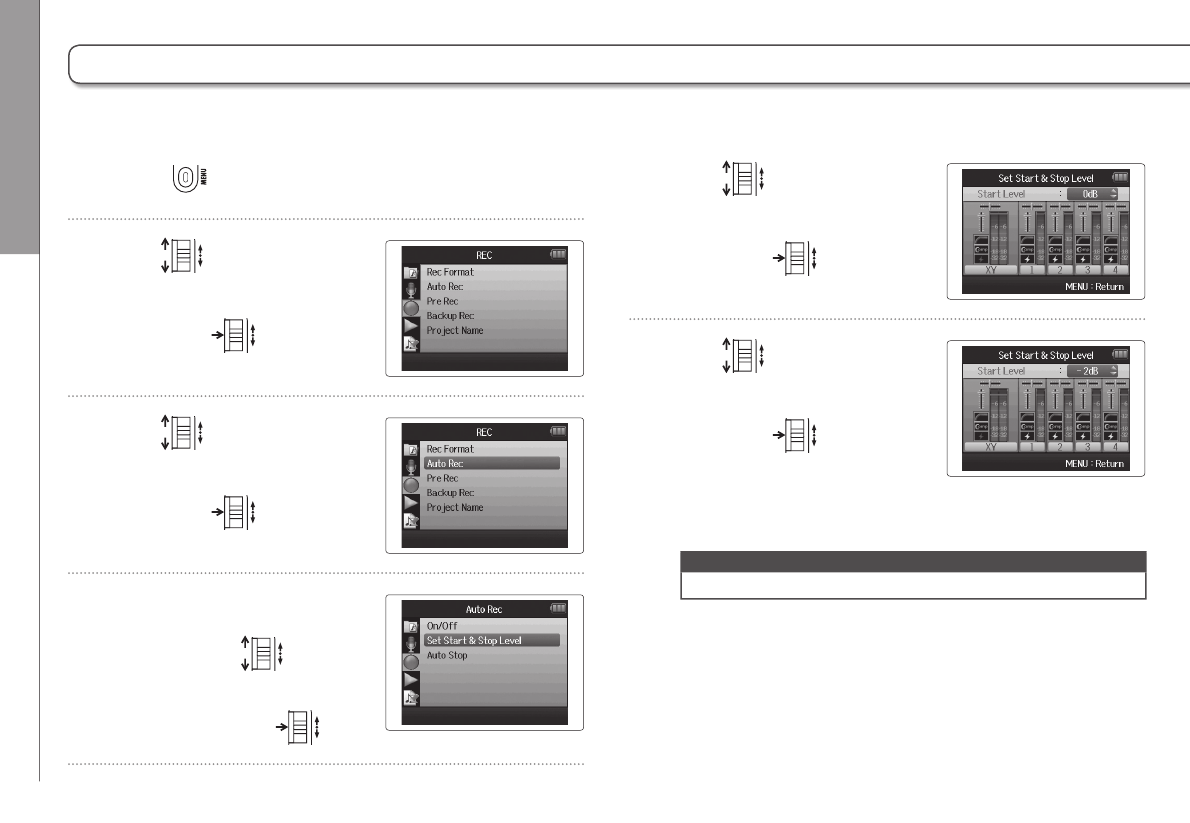
Set the format according to the desired audio quality and file size.
WAV96kHz/24bit
WAV96kHz/16bit
WAV48kHz/24bit
WAV44.1kHz/24bit
WAV48kHz/16bit
WAV44.1kHz/16bit
MP3 320kbps
MP3 256kbps
MP3 224kbps
MP3 192kbps
MP3 160kbps
MP3 128kbps
MP3 112kbps
MP3 96kbps
MP3 80kbps
MP3 64kbps
MP3 56kbps
MP3 48kbps
Audio quality File size
High
Low
Large
Small
NOTE
• Use the WAV format for recording high-quality audio.
• The MP3 format reduces file size through compression,
which also reduces the audio quality. Use this format if
you need to conserve space on the SD card to store many
recordings, for example.
• When recording in MP3 format, a single stereo MP3 file
will be created regardless of the number of tracks selected.
You can use the monitoring mixer to adjust the balance of
all the tracks in the stereo mix. (P.80)
Other settings Changing automatic recording settings
84
Changing automatic recording settings
1. Press .
2. Use to select
“REC”,
and press .
3. Use to
select “Auto Rec”,
and press .
4. To set the recording start-
ing level, use to
select “Set Start & Stop
Level”, and press .
You can set the input levels that cause automatic recording to start and stop.
5. Use to
select “Start Level”,
and press .
6. Use to set the
start level,
and press .
Recording will start
automatically when the input
level exceeds the set level.
NOTE
In step 5, you can also choose “Stop Level”.
Other settings Changing automatic recording settings
85
H6 Handy Recorder
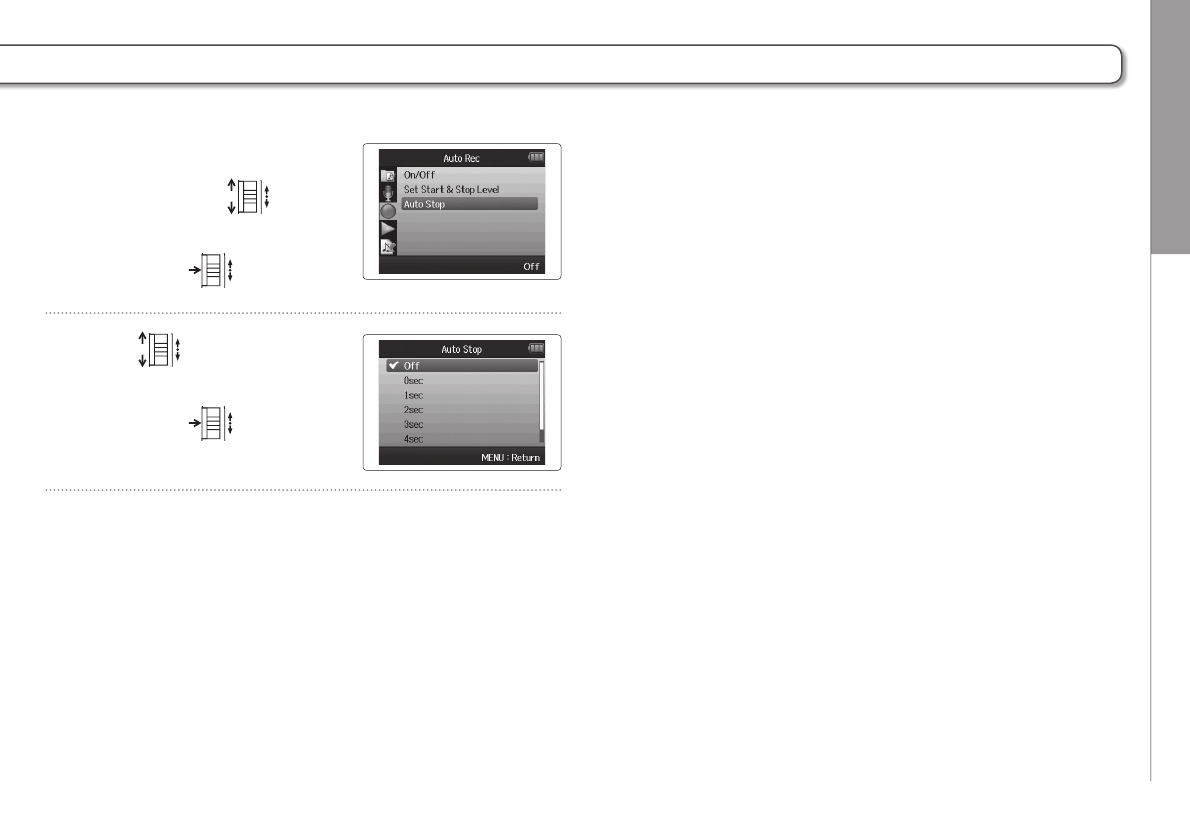
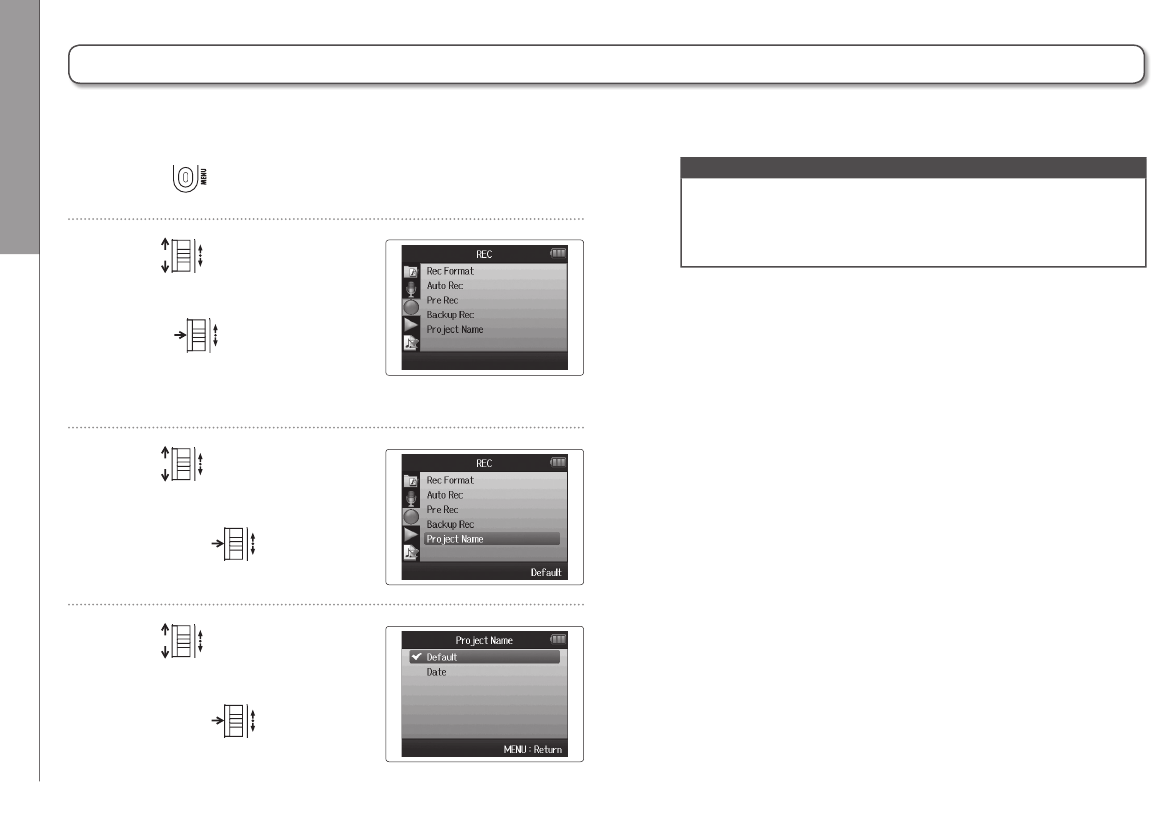
Enabling automatic stopping
1. To set the automatic stop-
ping time, use to
select “Auto Stop”,
and press .
2. Use to set
the stop time,
and press .
3. Set the stop level in the same manner as the start
level. ( P.84)
When the input level goes below the set level, recording
will stop automatically after the amount of time set in step 2
above.
Other settings Setting how projects are named
86
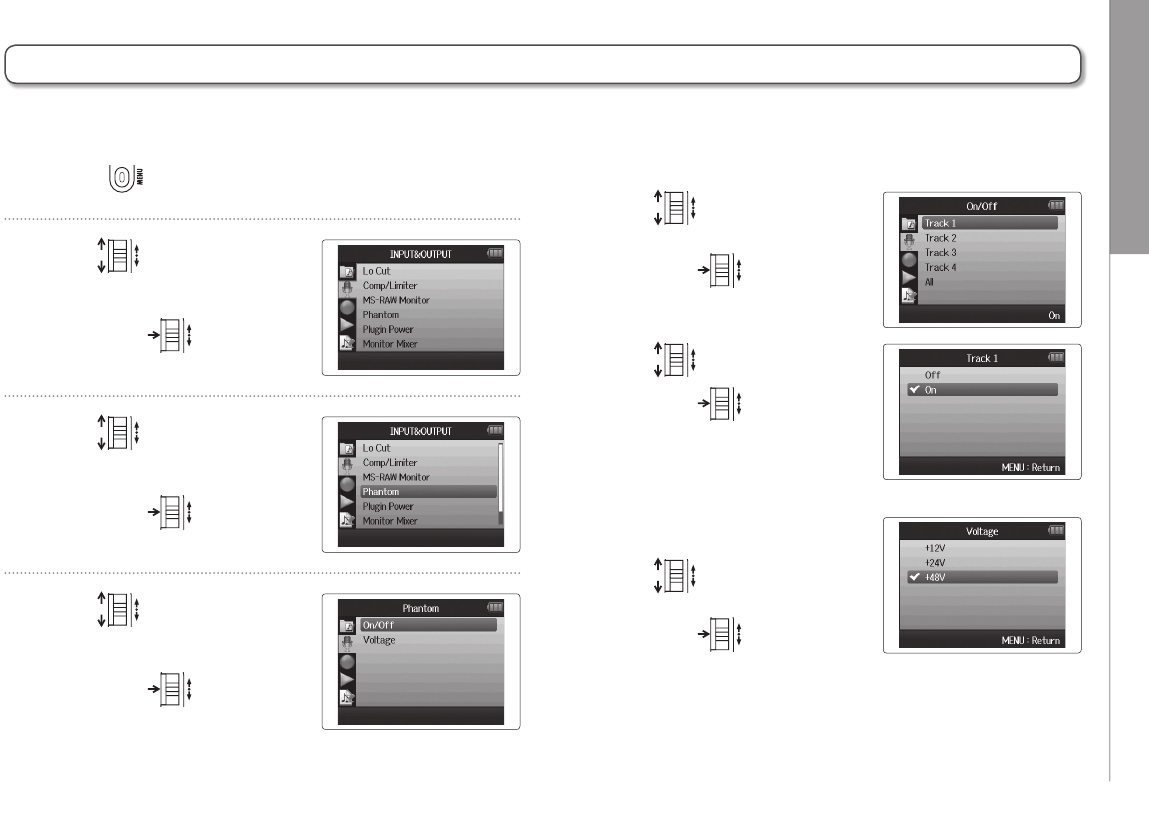
Setting how projects are named
1. Press .
2. Use to select
“REC”, and
press .
3. Use to select
“Project Name”,
and press .
4. Use to select
the type,
and press .
You can change the type of name that is automatically given to a project.
NOTE
• Project names are created in the following formats.
• Default: ZOOM0001–ZOOM9999
• Date: YYMMDD-HHMMSS (Example: 130331-123016)
• The “Date” format uses the recording starting time.
Other settings Changing the phantom power setting
87
H6 Handy Recorder
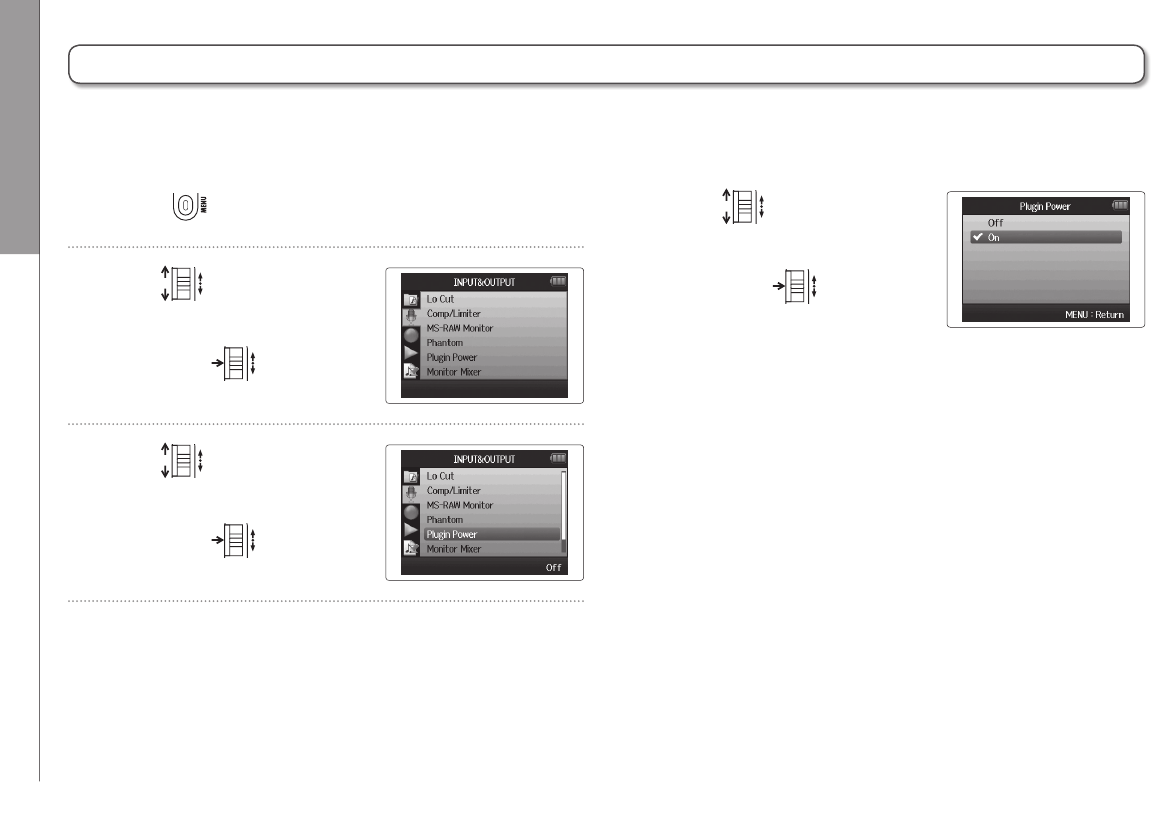
Changing the phantom power setting
1. Press .
2. Use to select
“INPUT&OUTPUT”,
and press .
3. Use to select
“Phantom”,
and press .
4. Use to select
a menu item,
and press .
Select “ON/OFF”
Use to select the
input you want to set,
and press .
Use to select “On”,
and press .
Select “Voltage”
Use to select
the desired voltage,
and press .
Inputs1–4 can provide phantom power of +12V, +24V or +48V.
Other settings Using plug-in power
88
Using plug-in power
1. Press .
2. Use to select
“INPUT&OUTPUT”,
and press .
3. Use to select
“Plugin Power”,
and press .
4. Use to
select “On”,
and press .
When using a mic that uses plug-in power, make the following setting before
connecting it to the MIC/LINE input jack of the XY mic.
Other settings Using VU meters to check input levels
89
H6 Handy Recorder
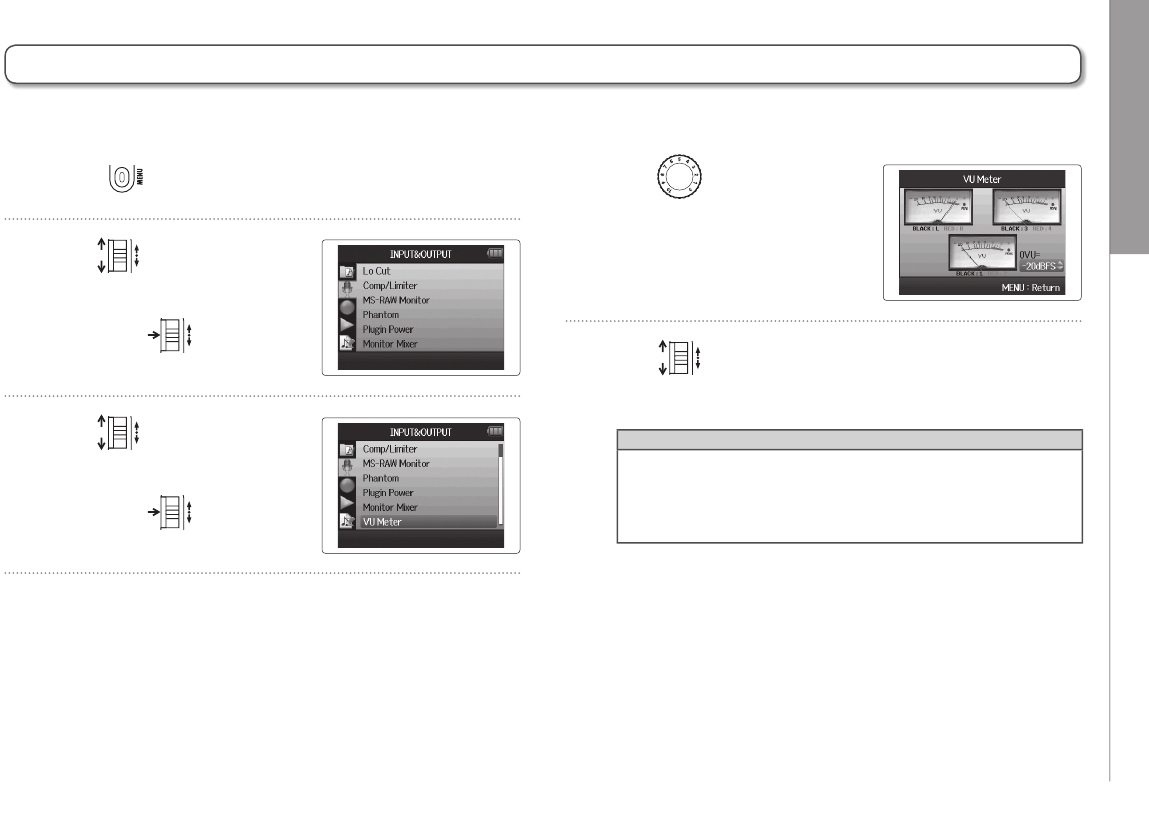
Using VU meters to check input levels
1. Press .
2. Use to select
“INPUT&OUTPUT”,
and press .
3. Use to select
“VU Meter”,
and press .
4. Use to adjust input
levels and check them
here.
5. Use to adjust the reference that is used for 0VU.
HINT
The reference level can be set between –20dBFS and
–10dBFs. The dBFS unit represents the loudness of the
signal in dB with 0dBFS being the maximum recordable
value for the digital data.
The virtual VU meters can be used to check input levels.
Other settings Setting the display to save power
90
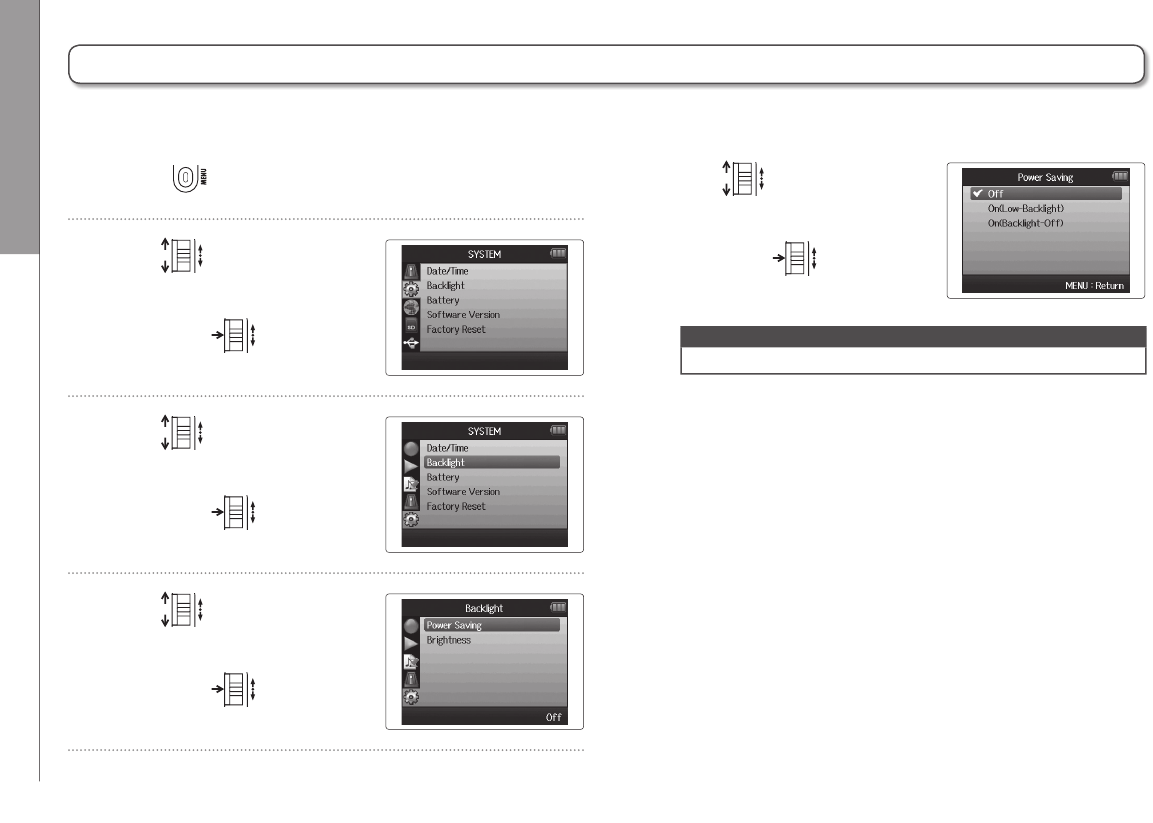
Setting the display to save power
1. Press .
2. Use to select
“SYSTEM”,
and press .
3. Use to select
“Backlight”,
and press .
4. Use to select
“Power Saving”,
and press .
You can set the display backlight to dim or turn off when no operation is conducted
for 30 seconds in order to save power.
5. Use to select
the desired setting,
and press .
NOTE
When using an AC adapter, this setting has no effect.
Other settings Adjusting the display brightness
91
H6 Handy Recorder
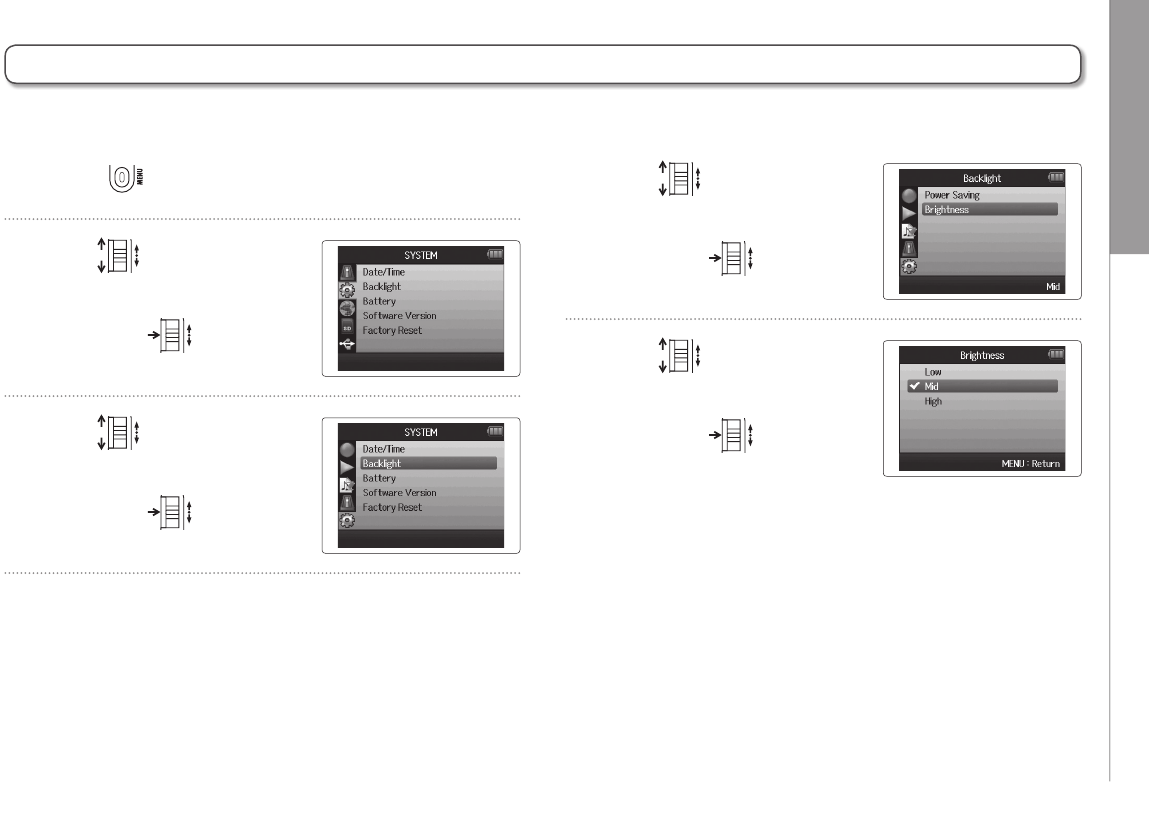
Adjusting the display brightness
1. Press .
2. Use to select
“SYSTEM”,
and press .
3. Use to select
“Backlight”,
and press .
4. Use to select
“Brightness”,
and press .
5. Use to select
the desired brightness,
and press .
Other settings Checking the firmware versions
92
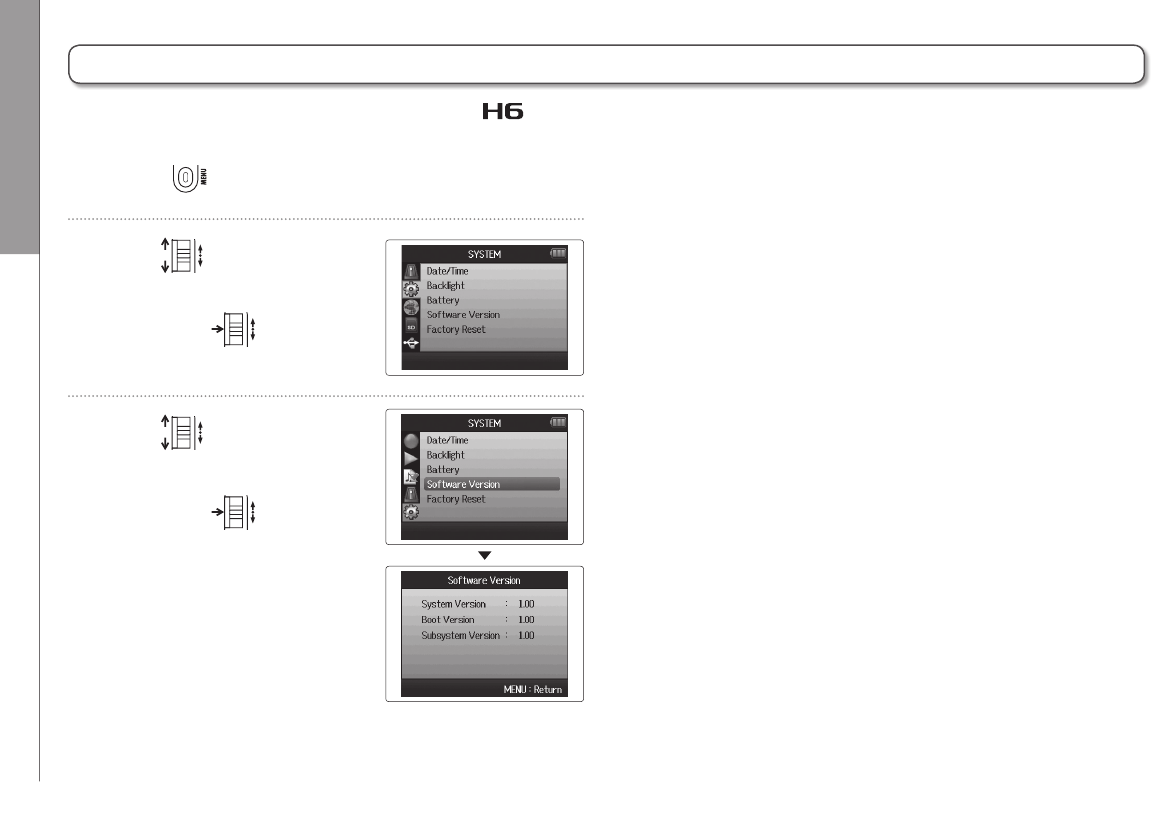
Checking the firmware versions
1. Press .
2. Use to select
“SYSTEM”,
and press .
3. Use to select
“Software Version”,
and press to open a
screen where you can
view the firmware
versions.
You can check the software versions used by the .
Other settings Restoring the default settings
93
H6 Handy Recorder
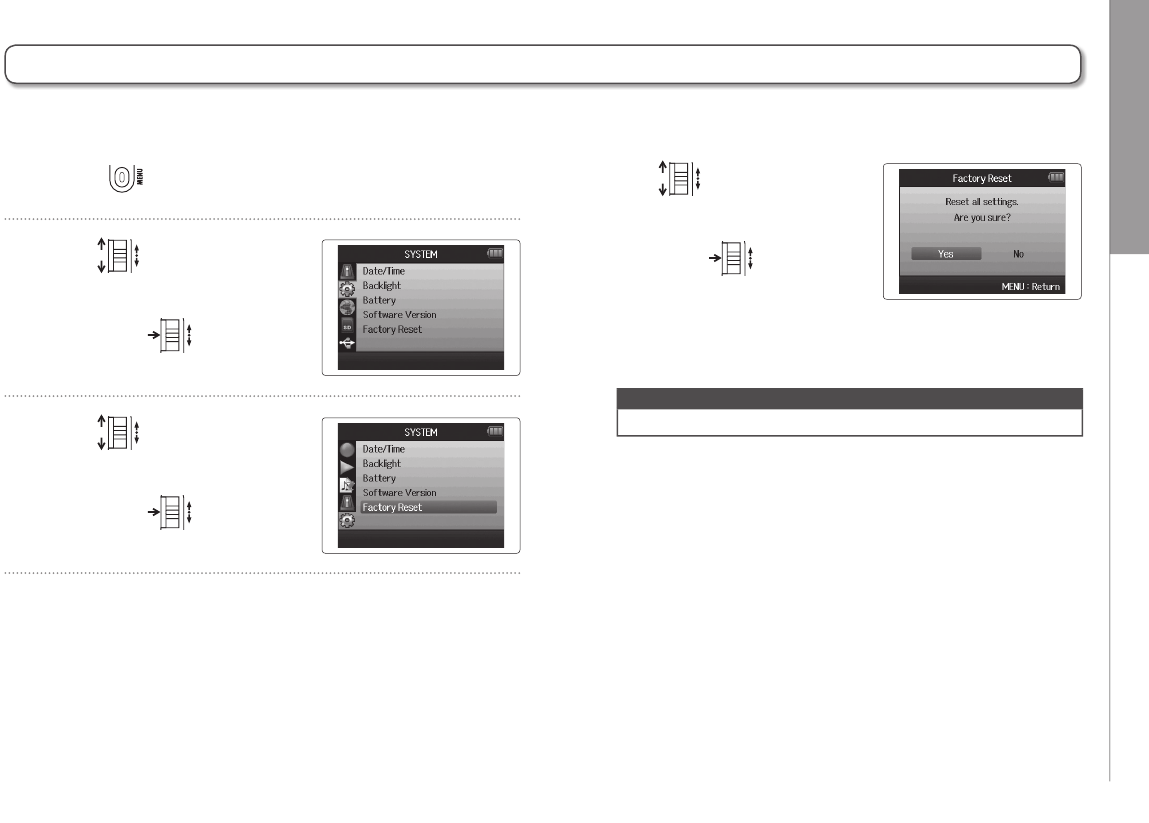
Restoring the default settings
1. Press .
2. Use to select
“SYSTEM”,
and press .
3. Use to select
“Factory Reset”,
and press .
You can restore the unit to its factory default settings.
4. Use to
select “Yes”,
and press to restore
the default settings.
The power will automatically
turn off.
NOTE
Input level settings are not reset.
Other functions Checking SD card open space
94
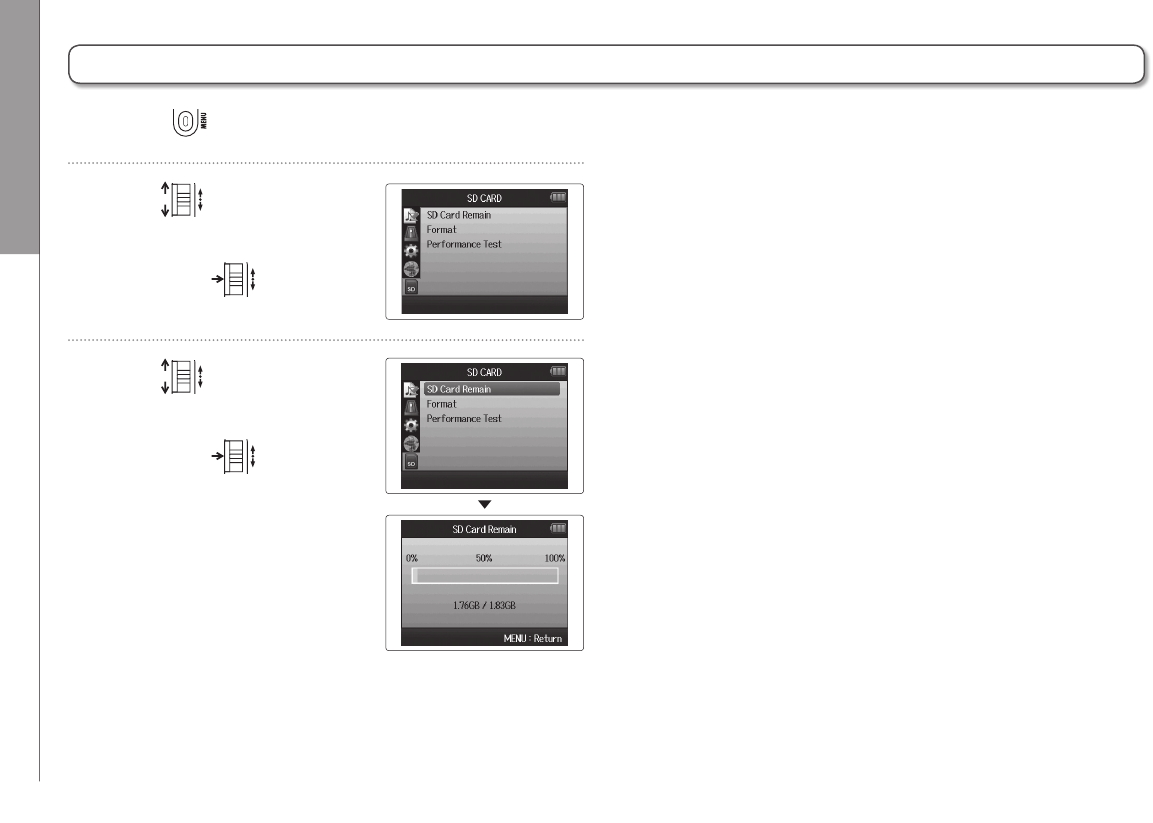
Checking SD card open space
1. Press .
2. Use to select
“SD CARD”,
and press .
3. Use to select
“SD Card Remain”,
and press to see the
amount of remaining open
space on the card.
Other functions Formatting SD cards
95
H6 Handy Recorder
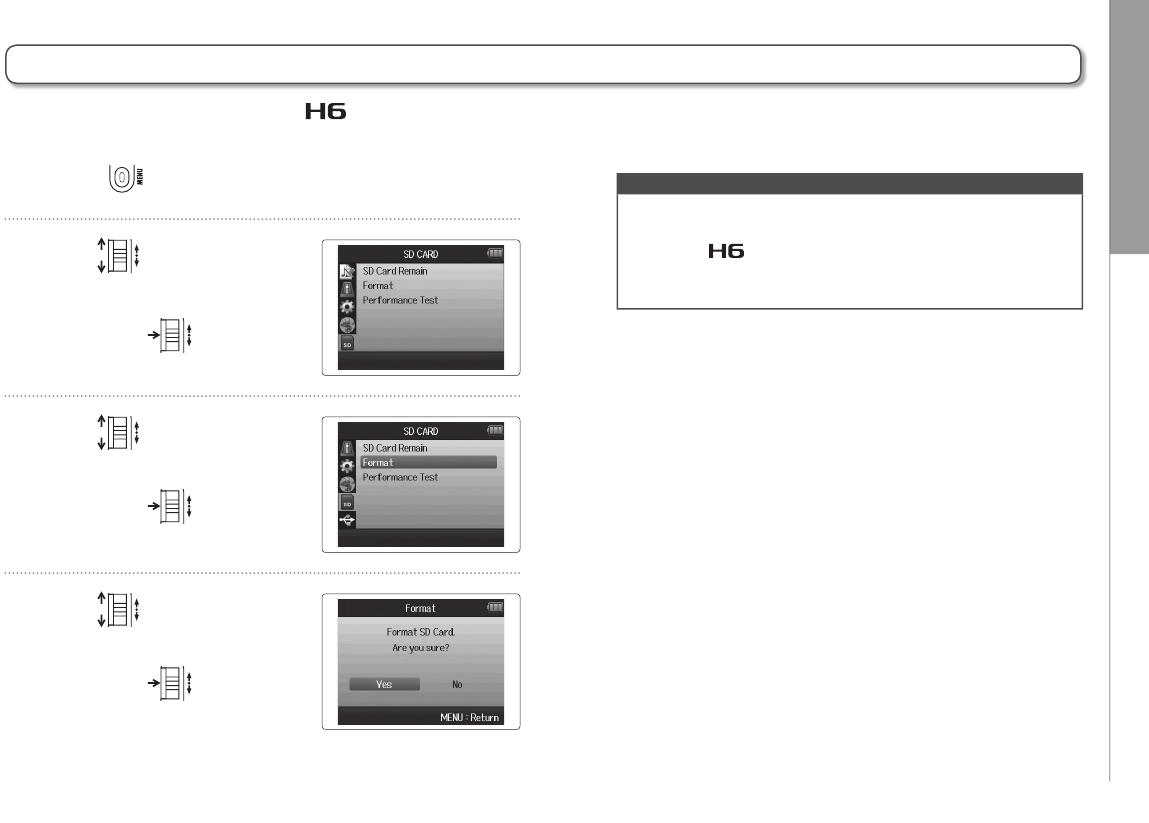
Formatting SD cards
1. Press .
2. Use to select
“SD CARD”,
and press .
3. Use to select
“Format”,
and press .
4. Use to
select “Yes”
and press to format
the SD card.
SD cards must be formatted by the for use with it.
NOTE
• If you use an SD card that has been formatted by a
computer or that you have purchased, you must format it
using the before it can be used with the unit.
• Be aware that all data previously saved on the SD card will
be deleted when it is formatted.
Other functions Testing SD card performance
96
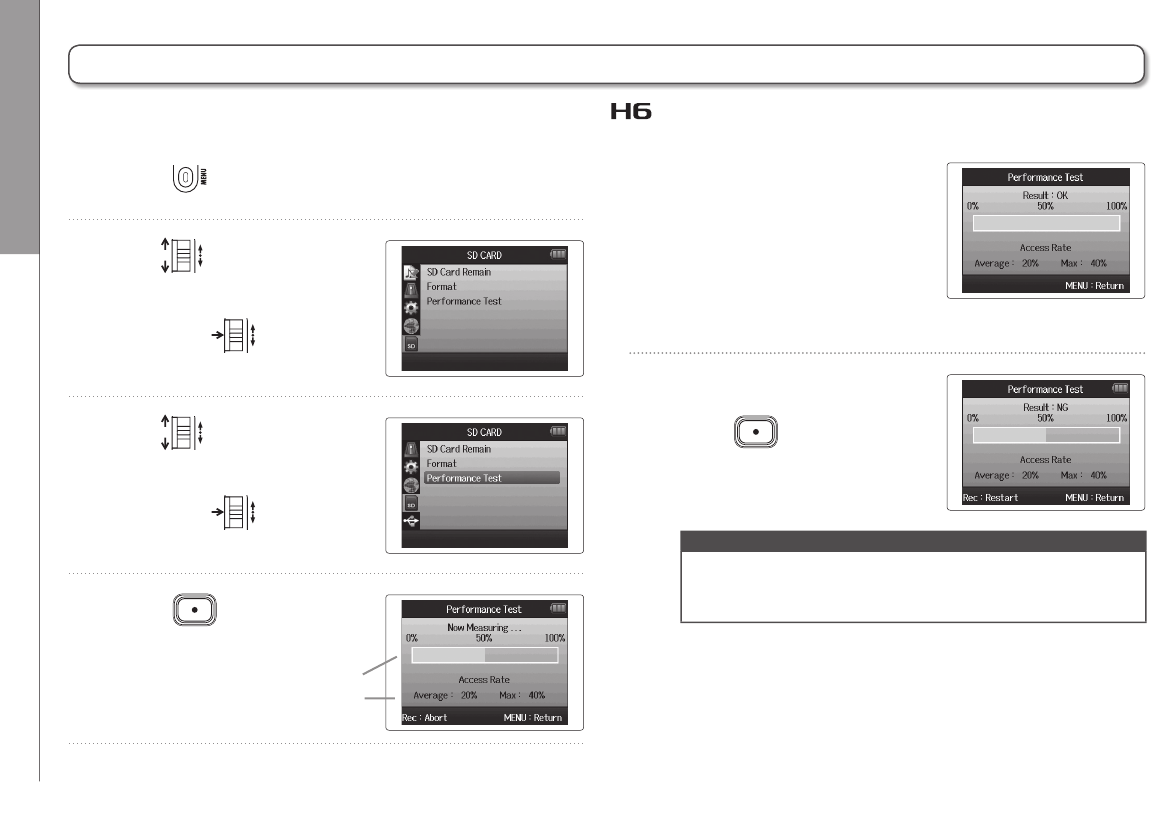
Testing SD card performance
You can test SD cards to confirm that they can be used with the .
1. Press .
2. Use to select
“SD CARD”,
and press .
3. Use to select
“Performance Test”,
and press .
4. Press to start the
performance test.
5. When the test completes,
the result will be shown.
If the MAX access rate is
100%, the result will be
“NG” (no good).
6. To cancel testing,
press .
NOTE
Even if an SD card is evaluated as “OK” by the performance
test, this does not guarantee that write errors will never
occur. Please use this test just as a guide.
Test progress
Card access rate

Other functions Testing SD card performance
97
H6 Handy Recorder
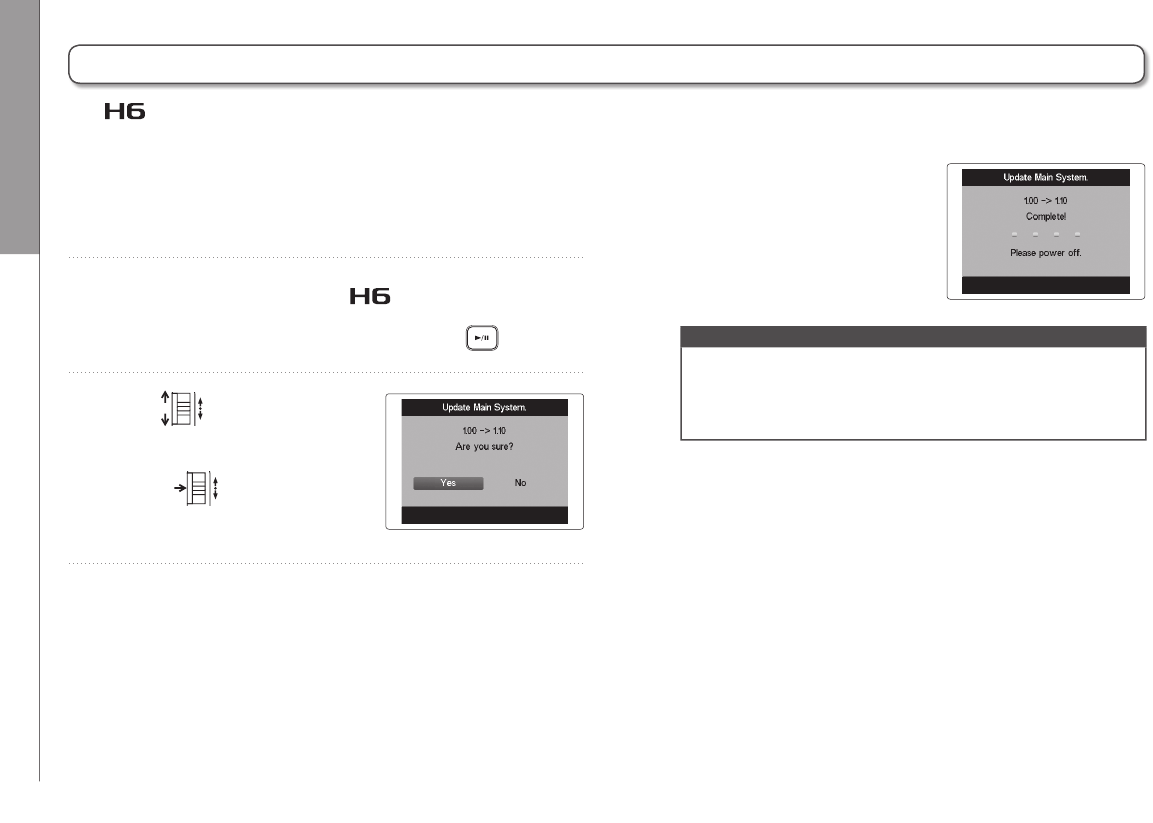
Other functions Updating the firmware
98
Updating the firmware
The can be updated to the latest firmware versions.
1. Copy the version update file to the root directory of
the SD card.
2. Insert the SD card into the .
Then, turn the power on while pressing .
3. Use to
select “Yes”, and
press to update the
firmware.
4. After the firmware update
completes, turn the power
off.
NOTE
Updating the firmware is not possible when the remaining
battery power is too low.
If this is the case, install new batteries or use an AC adapter
(sold separately).
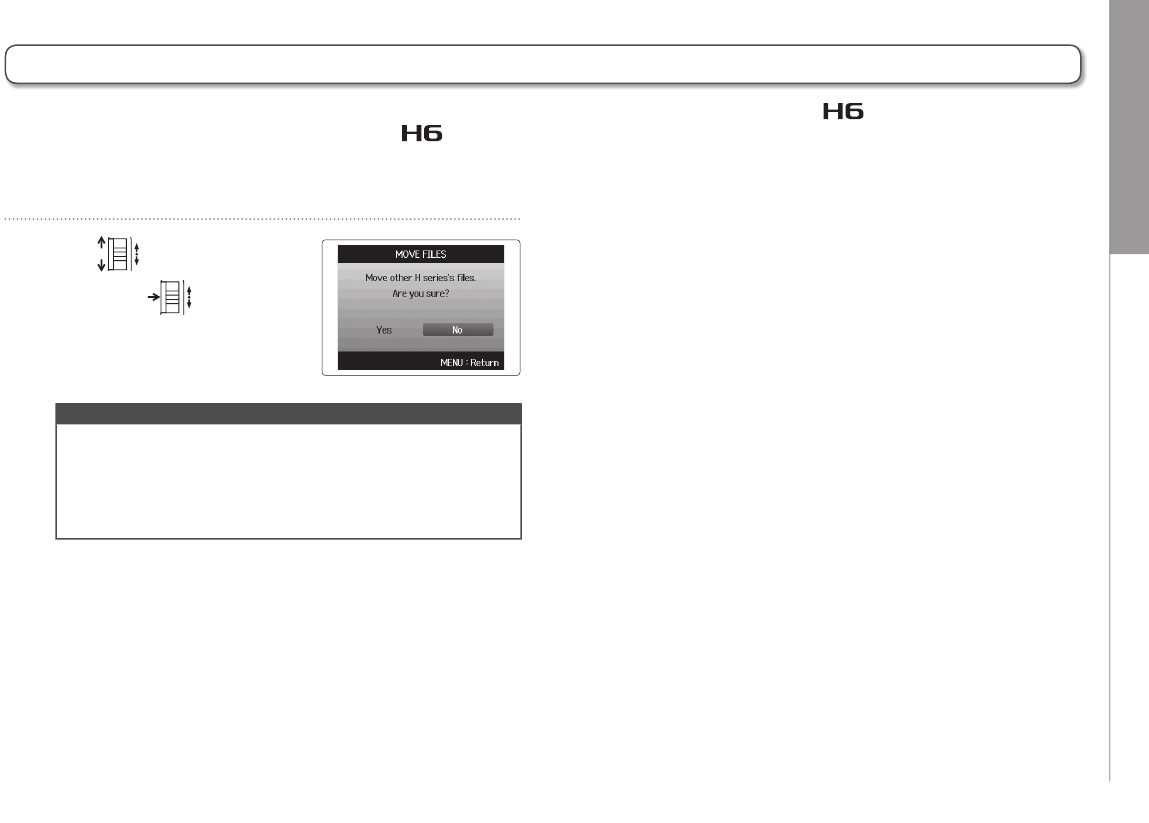
Other functions Using SD cards from older H series recorders
99
H6 Handy Recorder
Using SD cards from older H series recorders
1. Insert the SD card, and then turn the power on.
2. Use to select “Yes”,
and press to move
the files.
NOTE
• If a file with the same name already exists in a destination
location, movement will not be possible until the file name
is changed.
• After files are moved, they will not be recognized by older
H series recorders.
An SD card that has been used in an older ZOOM H series recorder can be read and used by the .
The files will be moved on the card so that the can use them.
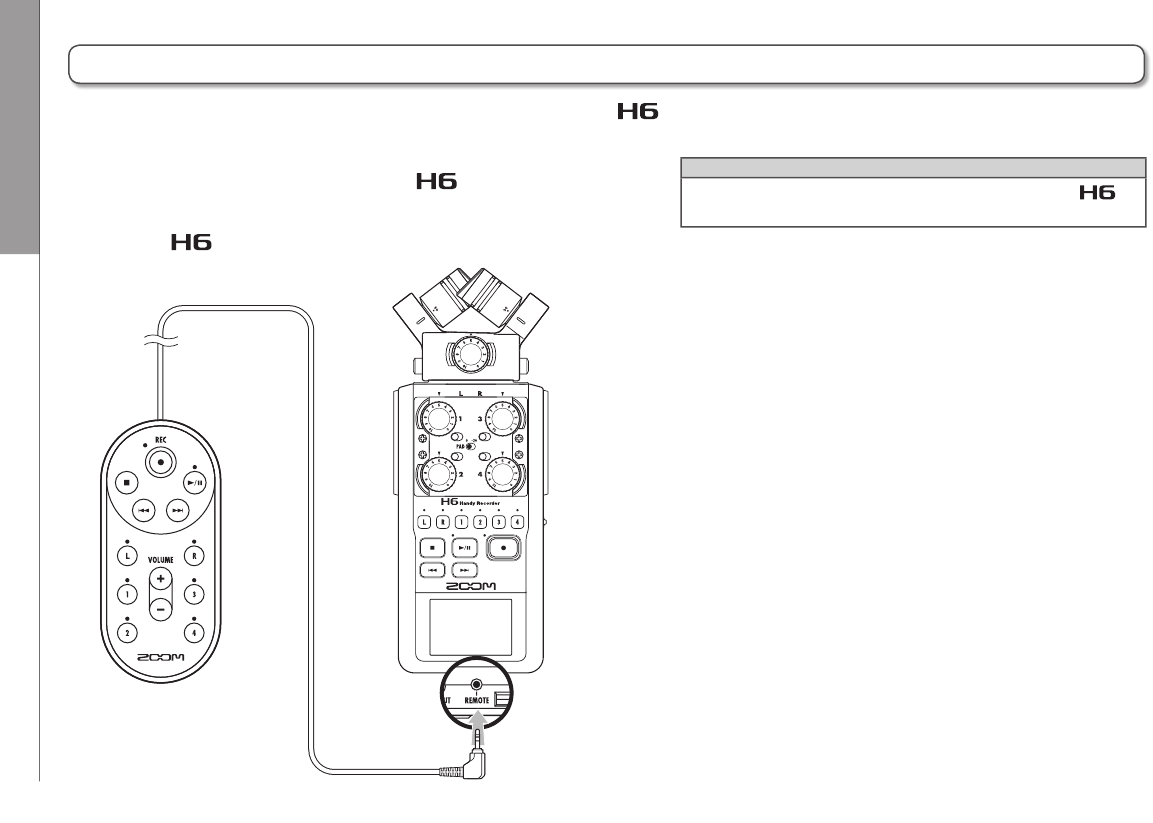
Other functions Using a remote control (sold separately)
100
Using a remote control (sold separately)
By using a remote control (sold separately), you can operate the from a distance.
Connect the remote control to the REMOTE jack.
The buttons on the remote control correspond to the buttons
on the main unit.
HINT
The remote control buttons function even when the
hold function is active.
Other functions Troubleshooting
101
H6 Handy Recorder
Troubleshooting
Recording/playback trouble
There is no sound or output is very quiet
• Check the connections to your monitoring system and its volume
setting.
• Confirm that the volume of the is not too low.
The recorded sound cannot be heard or is very quiet
• If you are using the included XY or MS mic, confirm that it is ori-
ented correctly.
• Check the input level settings. (P.24)
• If a CD player or other device is connected to an input jack, raise
the output level of that device.
If you think that the is not operating properly, please check the following first.
Recording is not possible
• Confirm that the SD card has open space. (P.94)
• If “Hold is On” appears on the display, the hold function is
enabled. Disable the hold function. (P.20).
Other trouble
The is not recognized by a computer when
connected by USB
• Check that the OS of the computer is compatible. (P.66).
• A USB operation mode must be selected on the to allow a
computer to recognize it. (P.66).

Other functions Specifications
102
Specifications
Recording media 16MB–2GB SD cards, 4GB–32GB SDHC cards, 64GB–128GB SDXC cards
Inputs
L/R inputs
XY mic (XYH-6)
Mic type Directional
Sensitivity –41 dB, 1 kHz at 1 Pa
Input gain –∞ to 46.5 dB
Maximum sound pressure input 136 dB SPL
MIC/LINE IN stereo mini jack Input gain: –∞ to 46.5 dB
Input impedance: 2 kΩ
Plug-in power: 2.5V supported
MS mic (MSH-6)
Mic types Directional and bidirectional
Sensitivity –37 dB, 1 kHz at 1 Pa (directional) , –39 dB, 1 kHz at 1 Pa (bidirectional)
Input gain –∞ to 42.5 dB
Maximum sound pressure input 120 dB SPL (directional), 122 dB SPL (bidirectional)
Backup input Set input gain –12 dB
INPUTS 1 – 4
Connectors XLR/TRS combo jacks (XLR: 2 hot, TRS: TIP hot)
Input gain (PAD OFF) –∞ to 55.5 dB
Input gain (PAD ON) –∞ to 35.5 dB
Input impedance 1.8kΩ or more
Maximum allowable input level +22 dBu (PAD ON)
Phantom power +12/+24/+48V (can be turned ON/OFF independently for INPUTS 1–4)
Equivalent input noise (EIN) –120 dBu or less
Outputs Output jack LINE OUT stereo mini jack (rated output level –10 dBu when output load impedance is 10 kΩ or more)
PHONE OUT stereo mini jack (20 W + 20 W into 32Ω load)
Built-in speaker 400 mW/8 Ω mono speaker
Recording formats
WAV setting
Supported formats 44.1/48/96kHz, 16/24-bit, mono/stereo, BWF format
Maximum simultaneous recording tracks 8 tracks (6 tracks + backup stereo recording)
MP3 setting
Supported formats 48–320 kbps
Maximum simultaneous recording tracks 2 tracks
Recording time
With 2GB card
3:08:00 (44.1kHz/16-bit WAV)
34:43:00 (128kbps MP3)
Display 2" full-color LCD (320 x 240)
Other functions Specifications
103
H6 Handy Recorder
Specifications
USB
Mass storage class operation
Class: USB 2.0 High Speed
Audio interface operation: multi track mode (Note: Use with Windows requires a driver, but Macintosh does not)
Class: USB 2.0 High Speed
Specifications: 6 in/2 out, 44.1/48kHz/96kHz sampling rate, 16/24-bit bit rate
Audio interface operation: stereo mode
Class: USB 2.0 Full Speed
Specifications: 2 in/2 out, 44.1/48kHz sampling rate, 16-bit bit rate
Note: Use as an iPad audio interface supported (stereo mode only)
Note: USB bus power operation possible
Approximate continuous
recording times when
using battery power
(in hours and minutes)
Recording mode
XY mic, 44.1kHz/16-bit (stereo x 1) 21h00m
XY mic and Inputs 1, 2, 3 and 4 used, 96kHz/24-bit (stereo x 3) 9h45m
Note: The above times are estimates.
Note: Approximate continuous recording times when using battery power were calculated using our own testing method. They may
differ greatly depending on operating conditions.
Power
Operating using 4 AA batteries
AC adapter: DC5V 1A AD-17 (sold separately)
USB bus power
Dimensions
Main unit: 77.8 mm (W) x 152.8 mm (D) x 47.8 mm (H), 280 g
XYH-6: 78.9 mm (W) x 60.2 mm (D) x 45.2 mm (H), 130 g
MSH-6: 58.0 mm (W) x 67.6 mm (D) x 42.1 mm (H) 85 g
Included accessories
Operation manual
SD card
4 AA batteries
Cubase LE DVD-ROM
Main unit case
Wind screen (sponge)
USB cable
XYH-6
MSH-6
Z2I-1721-02
ZOOM CORPORATION
4-4-3 Surugadai, Kanda, Chiyoda-ku, Tokyo 101-0062 Japan
http://www.zoom.co.jp
• Reorient or relocate the receiving antenna.
• Increase the separation between the equipment and receiver.
•
Connect the equipment to an outlet on a circuit different from that to
which the receiver is connected.
• Consult the dealer or an experienced radio/TV technician for help.
FCC regulation warning (for U.S.A.)
This equipment has been tested and found to comply with the limits
for a Class B digital device, pursuant to Part 15 of the FCC Rules. These
limits are designed to provide reasonable protection against harmful
interference in a residential installation. This equipment generates, uses,
and can radiate radio frequency energy and, if not installed and used in
accordance with the instructions, may cause harmful interference to radio
communications. However, there is no guarantee that interference will
not occur in a particular installation. If this equipment does cause harmful
interference to radio or television reception, which can be determined by
turning the equipment off and on, the user is encouraged to try to correct
the interference by one or more of the following measures:
Disposal of Old Electrical & Electronic Equipment
(Applicable in European countries with separate collection systems)
This symbol on the product or on its packaging indicates that this product
shall not be treated as household waste. Instead it shall be handed over to
the applicable collection point for the recycling of electrical and electronic
equipment. By ensuring this product is disposed of correctly, you will help
prevent potential negative consequences for the environment and human
health, which could otherwise be caused by inappropriate waste handling
of this product. The recycling of materials will help to conserve natural
resources. For more detailed information about recycling of this product,
please contact your local city office, your household waste disposal
service or the shop where you purchased the product.
Declaration of Conformity:
This product complies with the requirements of
EMC Directive 2004/108/EC and
Low Voltage Directive 2006/95/EC and
ErP Directive 2009/125/EC and
RoHS Directive 2011/65/EU
For EU Countries
