Zte Zxhn H108L Maintenance Manual (17 05 05)
2014-12-11
: Zte Zte-Zxhn-H108L-Maintenance-Manual-121979 zte-zxhn-h108l-maintenance-manual-121979 zte pdf
Open the PDF directly: View PDF  .
.
Page Count: 89

LEGAL INFORMATION
Copyright © 2010 ZTE CORPORATION.
The contents of this document are protected by copyright laws and international
treaties. Any reproduction or distribution of this document or any portion of this
document, in any form by any means, without the prior written consent of ZTE
CORPORATION is prohibited. Additionally, the contents of this document are
protected by contractual confidentiality obligations.
All company, brand and product names are trade or service marks, or registered
trade or service marks, of ZTE CORPORATION or of their respective owners.
This document is provided “as is”, and all express, implied, or statutory warranties,
representations or conditions are disclaimed, including without limitation any implied
warranty of merchantability, fitness for a particular purpose, title or non-
infringement. ZTE CORPORATION and its licensors shall not be liable for damages
resulting from the use of or reliance on the information contained herein.
ZTE CORPORATION or its licensors may have current or pending intellectual property
rights or applications covering the subject matter of this document. Except as
expressly provided in any written license between ZTE CORPORATION and its
licensee, the user of this document shall not acquire any license to the subject matter
herein.
The contents of this document and all policies of ZTE CORPORATION, including
without limitation policies related to support or training are subject to change without
notice.
Revision History
Date
Revision No.
Serial No.
Description
2012/10/19
R1.0
First Edition
2013/4/7
R2.0
Second Edition
ZTE CORPORATION
Values Your Comments & Suggestions!
Your opinion is of great value and will help us improve the quality of our
product documentation and offer better services to our customers.
Please fill out the following questionnaire and fax to:
(86) 755-26772236;
Or mail to:
Publications R&D Department, ZTE CORPORATION, ZTE Plaza, A Wing, Keji
Road South, Hi-Tech Industrial Park, Shenzhen, P. R. China 518057.
Thank you for your cooperation!
Your Comments & Suggestions
Document
Name
ZXHN H108L Wireless ADSL Router Maintenance Manual
Product
Version
V4.0
Document
Revision Number
R1.0
Equipment Installation Date
Your
evaluation of
this
document
Presentation:
(Introductions, Procedures, Illustrations, Completeness, Level of Detail, Organization,
Appearance)
Good Fair Average Poor Bad N/A
Accessibility:
(Contents, Index, Headings, Numbering, Glossary)
Good Fair Average Poor Bad N/A
Intelligibility:
(Language, Vocabulary, Readability & Clarity, Technical Accuracy, Content)
Good Fair Average Poor Bad N/A
Your
suggestions
for
improvement
of this
document
Please check the suggestions which you feel can improve this
documentation:
Improve the overview/introduction Make it more concise/brief
Improve the Contents Add more step-by-step procedures
Improve the organization Add more troubleshooting information
Include more figures Make it less technical
Add more examples Add more/better quick reference aids
Add more detail Improve the index
Other suggestions
____________________________________________________________________
____________________________________________________________________
____________________________________________________________________
____________________________________________________________________
____________________________________________________________________
# Please feel free to write any comments on an attached sheet.
If you wish to be contacted regarding your comments, please complete the following:
Name
Company
Postcode
Address
Telephone
E-mail

Contents
About this Manual .................................................................. i
Purpose of this Manual ....................................................................... i
Typographical Conventions ................................................................. i
Mouse Operation Conventions ............................................................ ii
Safety Signs ..................................................................................... ii
How to Get in Touch ......................................................................... iii
Customer Support .......................................................................................iii
Documentation Support ...............................................................................iii
Safety Instructions ............................................................... v
During Installation and Application ...................................................... v
For Service ...................................................................................... vi
Chapter 1 .............................................................................. 1
Introduction .......................................................................... 1
Overview ......................................................................................... 1
Packing List ..................................................................................... 2
Front Panel ...................................................................................... 2
Rear Panel ....................................................................................... 4
System Requirements ...................................................................... 5
Chapter 2 .............................................................................. 7
Product Installation .............................................................. 7
Hardware Connections...................................................................... 7
Default Settings ............................................................................... 8
Computer Configuration ....................................................................9
Checking Computer Configuration ................................................................ 9
Configuring TCP/IP ..................................................................................... 9
Chapter 3 ............................................................................ 11
Configuration Page Login ................................................... 11
Chapter 4 ............................................................................ 14
Interface Setup .................................................................. 14
Internet Configuration ..................................................................... 15
ATM VC and ATM Qos ................................................................................ 15
Encapsulation ............................................................................................ 17
LAN Configuration ........................................................................... 23
Router Local IP .......................................................................................... 24
DHCP ....................................................................................................... 25
Wireless Configuration ..................................................................... 27
Access Point Settings ................................................................................. 28
Multiple SSIDs Settings .............................................................................. 29
Wireless MAC Address Filter ........................................................................ 30
Chapter 5 ............................................................................ 31
Advanced Setup ................................................................. 31
Firewall Configuration ...................................................................... 31
Routing Configuration ...................................................................... 32
NAT Configuration ........................................................................... 33
QoS Configuration ........................................................................... 34
VLAN Configuration ......................................................................... 36
ADSL Configuration ......................................................................... 39
Chapter 6 ............................................................................ 40
Access Management ........................................................... 40
ACL Management ............................................................................ 40
Filter Management .......................................................................... 41
UPnP Management .......................................................................... 43
DDNS Management......................................................................... 44
CWMP Management ........................................................................ 45
Chapter 7 ............................................................................ 49
Maintenance ....................................................................... 49
Administration Configuration ............................................................ 49
Time Zone Configuration ................................................................. 50
Firmware Configuration ................................................................... 50
SysRestart Configuration ................................................................. 51
Diagnostics ..................................................................................... 52
Chapter 8 ............................................................................ 53
Status .................................................................................. 53
Device Information.......................................................................... 53
System Log .................................................................................... 54
Statistics ........................................................................................ 55
Chapter 9 ............................................................................ 58
Troubleshooting .................................................................. 58
Appendix A .......................................................................... 60
Technical Specifications ..................................................... 60
Appendix B .......................................................................... 62
Computer WLAN Configuration .......................................... 62
Appendix C .......................................................................... 69
PPPoE Dial-up Configuration .............................................. 69
Confidential and Proprietary Information of ZTE CORPORATION i
About this Manual
Purpose of this Manual
This manual provides the basic information of installing, configuring
and maintaining the ZXHN H108L wireless ADSL router. It is a
reference book for the maintenance personnel of ZXHN H108L.
Typographical Conventions
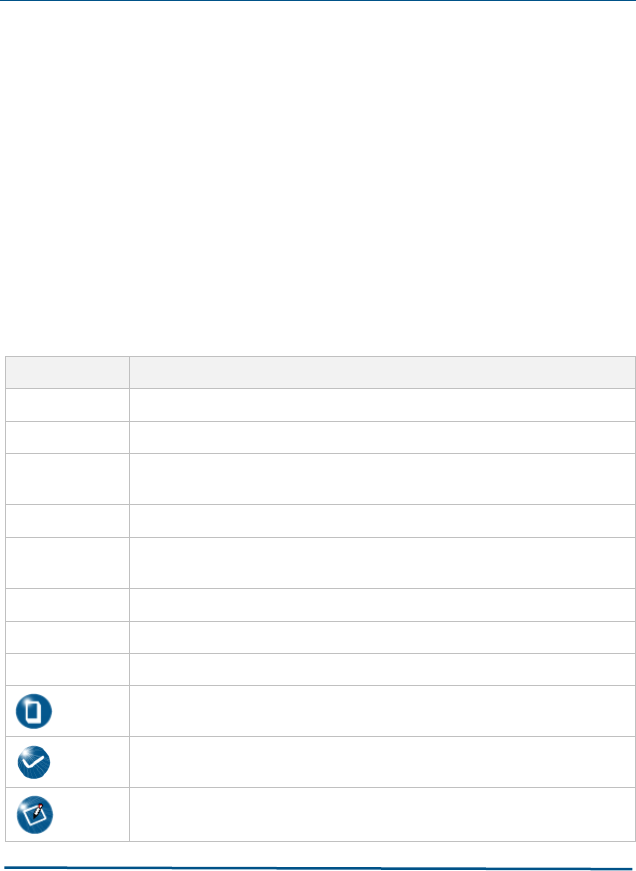
ZTE documents employ the following typographical conventions.
TABLE 1 TYPO GR AP HI C AL CO N V E N TI O N S
Typeface
Meaning
Italics
References to other guides and documents; parameter values
“Quotes”
Links on screens
Bold
Menus, menu options, input fields, radio button names, check boxes,
drop-down lists, dialog box names, window names
CAPS
Keys on the keyboard and buttons on screens and company name
Constant
w i d t h
Text that you type, program code, files and directory names, and
function names
[ ]
Optional parameters
{ }
Mandatory parameters
|
Select one of the parameters that are delimited by it
Note: Provides additional information about a certain topic
Checkpoint: Indicates that a particular step needs to be checked
before proceeding further
Tip: Indicates a suggestion or hint to make things easier or more
productive for the reader
ZXHN H108L Wireless ADSL Router Maintenance Manual
ii Confidential and Proprietary Information of ZTE CORPORATION
Mouse Operation Conventions
TABLE 2 MOUSE OP E RAT IO N CO N V EN T I O NS
Typeface
Meaning
Click
Refers to clicking the primary mouse button (usually the left
mouse button) once.
Double-click
Refers to quickly clicking the primary mouse button (usually the
left mouse button) twice.
Right-click
Refers to clicking the secondary mouse button (usually the right
mouse button) once.
Drag
Refers to pressing and holding a mouse button and moving the
mouse.
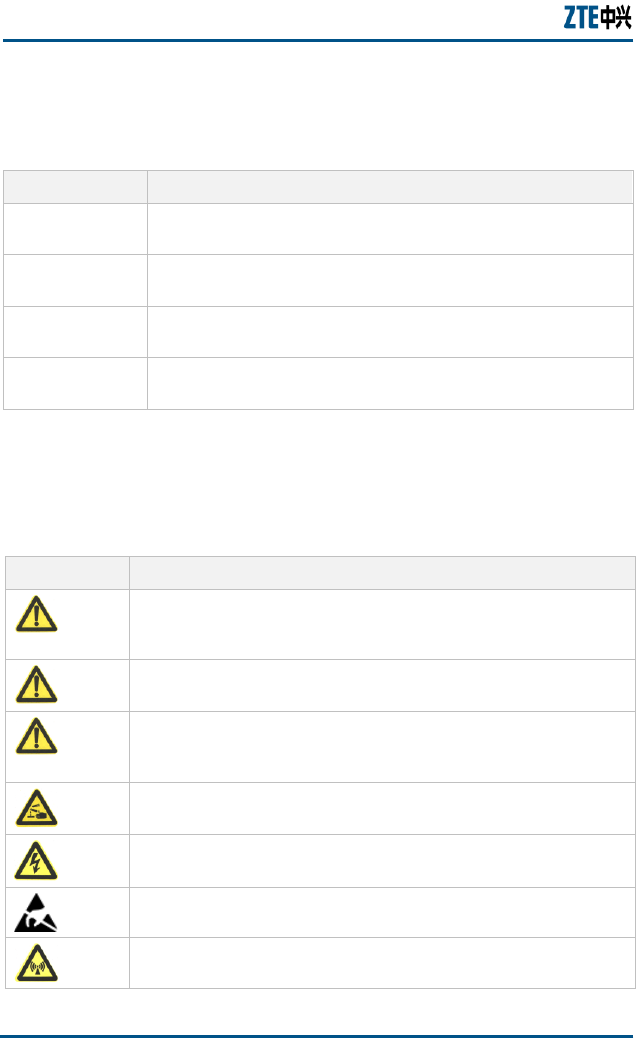
Safety Signs
TABLE 3 SAF E TY SI G NS
Safety Signs
Meaning
Danger: Indicates an imminently hazardous situation, which if not
avoided, will result in death or serious injury. This signal word
should be limited to only extreme situations.
Warning: Indicates a potentially hazardous situation, which if not
avoided, could result in death or serious injury.
Caution: Indicates a potentially hazardous situation, which if not
avoided, could result in minor or moderate injury. It may also be
used to alert against unsafe practices.
Erosion: Beware of erosion.
Electric shock: There is a risk of electric shock.
Electrostatic: The device may be sensitive to static electricity.
Microwave: Beware of strong electromagnetic field.

About this Manual
Confidential and Proprietary Information of ZTE CORPORATION iii
Safety Signs
Meaning
Laser: Beware of strong laser beam.
No flammables: No flammables can be stored.
No touching: Do not touch.
No smoking: Smoking is forbidden.
How to Get in Touch
The following sections provide information on how to obtain support
for the documentation and the software.
Customer Support
If you have problems, questions, comments, or suggestions
regarding your product, contact us by e-mail at
support@zte.com.cn. You can also call our customer support center
at (86) 755 26771900 and (86) 800-9830-9830.
Documentation Support
ZTE welcomes your comments and suggestions on the quality and
usefulness of this document. For further questions, comments, or
suggestions on the documentation, you can contact us by e-mail at
doc@zte.com.cn; or you can fax your comments and suggestions to
(86) 755 26772236. You can also explore our website at
http://support.zte.com.cn, which contains various interesting
subjects like documentation, knowledge base, forum and service
request.

ZXHN H108L Wireless ADSL Router Maintenance Manual
iv Confidential and Proprietary Information of ZTE CORPORATION
This page is intentionally blank.

Confidential and Proprietary Information of ZTE CORPORATION v
Safety Instructions
During Installation and Application
Use the power adapter included in this package. Another power
adaptor may make the device unable to work normally or even
damage the device.
Note the power load of the power socket and power cable. The
overloading power socket or broken power cable may cause an
electric shock or fire. It is recommended to check the cables
periodically and replace the broken one immediately.
Appropriate space for heat dissipation is required to prevent the
product from overheating.
Keep the product away from heat sources. Avoid the product
working in high-temperature or direct sunshine environment.
Keep the product away from moisture or vapor. Do not splash any
fluid on the product.
Do not place the product on any unstable surface.
Power off and unplug this product carefully when it is not in use or
before cleaning. Pay attention to the high temperature on the
transformer’s surface.
Wait for at least 15 seconds between powering off and re-powering
on of the device.
Do not block the heat dissipation opening of the product.
When the product is not used for a long period of time, unplug the
power cord.

ZXHN H108L Wireless ADSL Router Maintenance Manual
vi Confidential and Proprietary Information of ZTE CORPORATION
For Service
Do not attempt to disassemble, repair, or open this product, which
will lose the warranty services. Contact qualified service personnel in
case of problems, especially under the following conditions:
The power socket or cable is damaged.
Liquid is splashed into the product.
The product is exposed to rain or water.
The product does not work normally when the operating
instructions are followed.
The product is dropped or struck, causing the product damaged.

Confidential and Proprietary Information of ZTE CORPORATION 1
C h a p t e r 1
Introduction
This chapter gives an overview of the ZXHN H108L router, presents
the packing list, introduces the front and rear panels and system
requirements.
Overview
ZXHN H108L is a home and SOHO oriented wireless broadband
router integrating ADSL, AP and LAN Switch. It provides triple-play
services such as Internet data, voice access, and video access. ZXHN
H108L provides priority access for different services with
sophisticated ATM-based and IP-based QoS to meet different
requirements for high-speed Internet access, IPTV Video on Demand
(VoD), live-broadcast access and voice access. Wireless encryption
and built-in firewall prevent unauthorized users from accessing the
network, ensuring the security of legal users accessing the wired and
wireless networks. ZXHN H108L supports TR-069 protocols for
allowing overall remote network management.
Note: ZTE CORPORATION reserves the right to modify
technical specifications in this manual without any
notification in advance.
ZXHN H108L Wireless ADSL Router Maintenance Manual
2 Confidential and Proprietary Information of ZTE CORPORATION
Packing List
The package box for a ZXHN H108L includes the following
components, as shown in Table 4.
TABLE 4 PAC K IN G LIST
Component
Quantity
ZXV10 ZXHN H108L Wireless ADSL Router
1
External splitter
1
Power adapter
1
Telephone line
2
Straight-through Ethernet cable
1
ZXHN H108L Wireless ADSL Router User Manual
1
Note: Components actually delivered depend on the
service provider. If any component is missing or
damaged, immediately contact the service provider.
Please keep the packing box and components well in case
of replacement.
Front Panel
FIG U RE 1 FRO N T PA N E L

Chapter 1 - Introduction
Confidential and Proprietary Information of ZTE CORPORATION 3
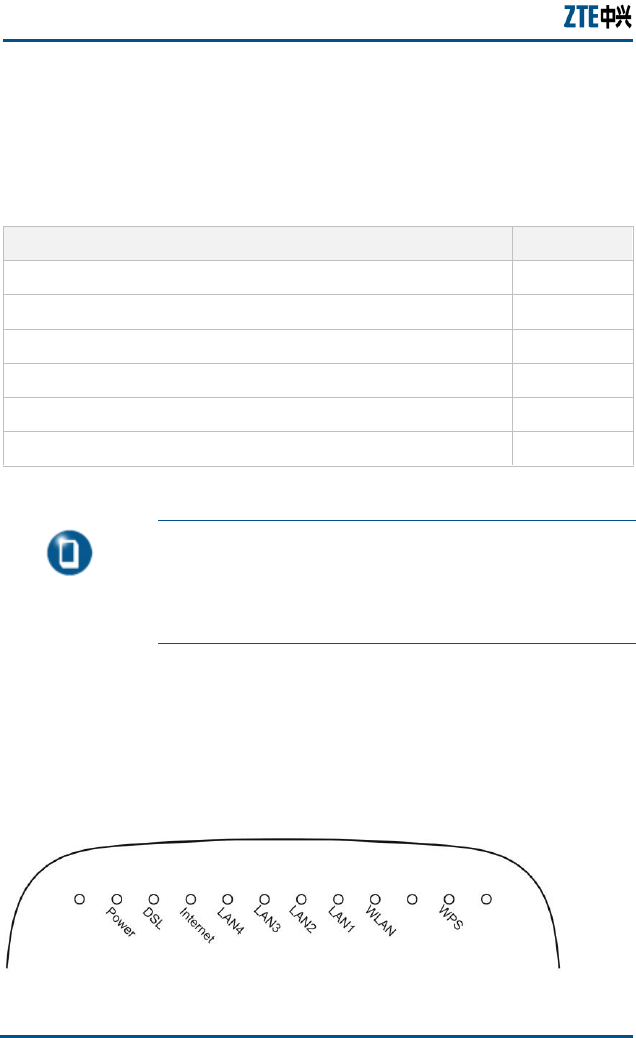
There are 9 indicators on the front panel of a ZXHN H108L indicating
the running status of the device, as shown in Figure 1. These
indicators are described in Table 5.
TABLE 5 DESC R IP T IO N S F OR TH E IN D I C A TO R S
Indicator
Color
Description
Power
Red/Gr
een
Red:Indicates the power is just connected or it fails to
function.
Green Steady on: Indicates switched on.
Off: Indicates the power has not been connected
DSL
Green
Steady on: Indicates a DSL link is established.
Slow flashing: Indicates no signal is detected.
Fast flashing: Indicates the MODEM is activating.
Internet
Green
Steady on: Indicates operating in Route mode and
the ADSL link is established. The IP data packet of
the MODEM can be transmitted and received normally
(For example, the embedded PPPOE link is
established and a dynamic IP address is allocated.).
Flashing: Indicates operating in Route mode and
there is data packet passing the MODEM.
Off: Indicates operating in Bridge mode or ADSL link
is not established.
Red
Red on: Device attempted to become IP
connected and failed (no DHCP response, no
PPPoE response, PPPoE authentication failed,
no IP address from IPCP, etc.)
LAN1
LAN2
LAN3
LAN4
Green
Steady on: Indicates a LAN connection is established.
Flashing: Indicates data is transmitting.
Off: Indicates the LAN connection has not been
established
WLAN
Green
Steady on: Indicates the wireless module is on.
Flashing: Indicates wireless data is transmitting.
Off: Indicates the wireless module is off.
ZXHN H108L Wireless ADSL Router Maintenance Manual
4 Confidential and Proprietary Information of ZTE CORPORATION
Indicator
Color
Description
WPS
Green
Steady on: The wireless terminal device is connected
through WPS successfully. The indicator turns off five
minutes later.
Slowly Flashing: The wireless terminal device is
connecting with H108L through WPS.
Fast Flashing: There is error when the wireless
terminal is connecting to H108L through WPS
Off: There is no wireless terminal device connected to
H108L through WPS or the wireless terminal device
has been connected to H108L through WPS for more
than five minutes.
Rear Panel
FIG U RE 2 RE AR PAN E L
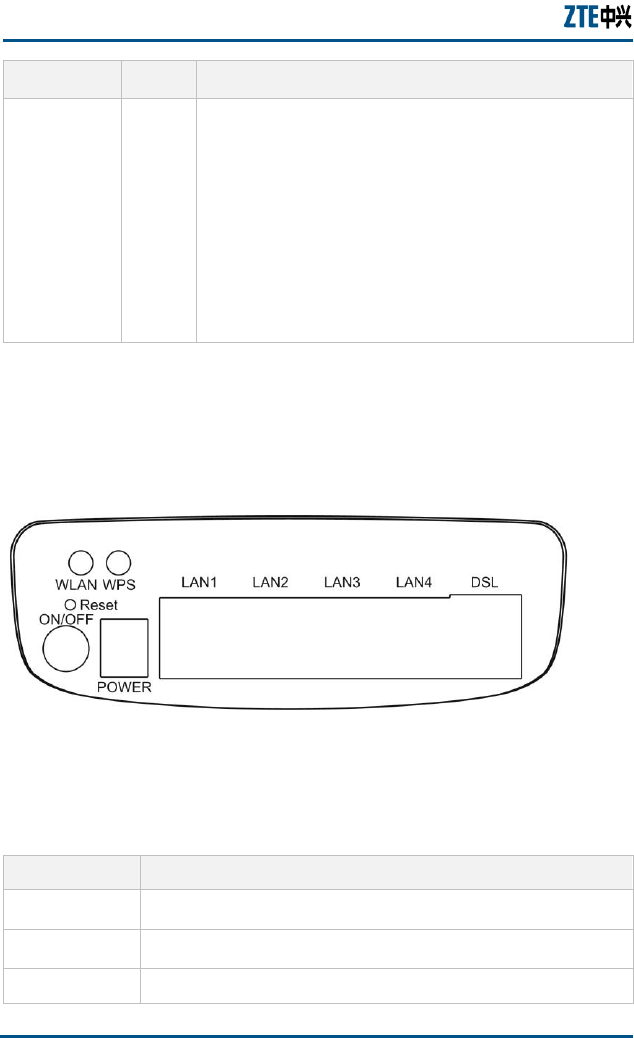
There are 10 ports and buttons on the rear panel of a ZXHN H108L,
as shown in Figure 2. These ports and buttons are described in Table
6.
TABLE 6 DE S CRI P TI ON S FO R T HE PO R TS AN D BU T T O NS
Identification
Description
DSL
RJ-11 connection interface: The equipment is connected to the
ADSL line or splitter via the telephone line.
LAN1-LAN4
RJ-45 connection interface: Connect it to the PC computer or other
network devices using the network cable.
WPS
WPS switch

Chapter 1 - Introduction
Confidential and Proprietary Information of ZTE CORPORATION 5
Identification
Description
WLAN
To turn on / off the Wi-Fi.
Reset
This button is on the bottom of modem. In the power-on state,
you can restore the system to the default configuration by using a
thin needle to press this slot for three seconds or for three
executive times.
ON/OFF
To turn on / off the power.
POWER
Power interface. Connect it to the power adapter.
System Requirements
System requirements for the ZXHN H108L router are as follows:
The user has already subscribed the ADSL or Ethernet service. The
service provider shall provide at least one legal IP address
(allocated either statically or dynamically).
One or more PCs with 10/100M Ethernet Network Interface Card
(NIC).
For wireless access, an external or built-in 802.11b/g/n wireless
adapter is required.
To configure the system via the web page based interface, you
need a web browser such as Internet Explorer (version6.0 or
above), Netscape (version4.7 or above).

ZXHN H108L Wireless ADSL Router Maintenance Manual
6 Confidential and Proprietary Information of ZTE CORPORATION
This page is intentionally blank.

Confidential and Proprietary Information of ZTE CORPORATION 7
C h a p t e r 2
Product Installation
This chapter shows hardware connections for installing ZXHN H108L,
presents factory default settings, and describes how to configure a
computer for using ZXHN H108L.
Hardware Connections
1. Place the ZXHN H108L router on the plane surface. Minimize
obstacles and the distance between the ZXHN H108L router and
the wireless terminal.
2. ADSL/Ethernet uplink connection
A ZXHN H108L router can access the ISP’s network in ADSL
uplink mode.
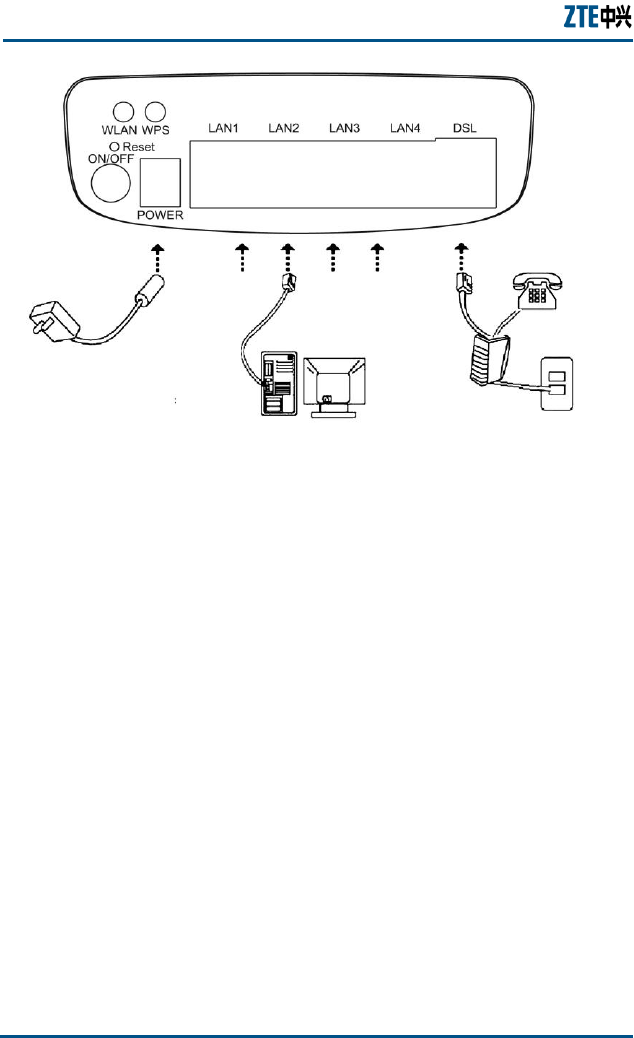
ADSL uplink
The user is suggested to adopt the following connection method
for ADSL uplink mode, as shown in Figure 3.
FIG U RE 3 ADSL UPL I NK CO N N E C TI O N S
ZXHN H108L Wireless ADSL Router Maintenance Manual
8 Confidential and Proprietary Information of ZTE CORPORATION
If a telephone needs to be installed in front of the splitter, the
user must connect a voice filter in the Line port of the splitter;
then connect the phone to the splitter’s Phone port. The other
port connections can be referred to Figure 3.
A splitter consists of three ports:
Line: The port connected to the ADSL subscriber line.
Modem: The port connected to the ZXHN H108L’s LINE port.
Phone: The port connected to a phone.
Default Settings
The factory default settings for a ZXHN H108L router are listed as
follows:
IP address: 192.168.1.1; subnet mask: 255.255.255.0.
Use the DHCP server by default (i.e., the IP address can be
obtained from the ZXHN H108L automatically via DHCP).
Line coding: Auto negotiation (T1.413/G.DMT/G.LITE/ADSL2
/ADSL2+).

Chapter 2 - Product Installation
Confidential and Proprietary Information of ZTE CORPORATION 9
Default network name (SSID) for WLAN, wireless encryption mode,
and encryption key are also marked on the label shown on the
cover of the ZXHN H108L router.
Note: If the ZXHN H108L router fails to work due to error
configuration or if the user forgets the login password,
insert a needle into the device’s Reset hole when the device
is running and hold Reset down for more than 10 seconds
to restore the settings to the default ones, then the system
restarts automatically.
Computer Configuration
This section shows how to check computer configuration and
configure TCP/IP for a ZXHN H108L.
Checking Computer Configuration
If the computer uses a proxy server to access the Internet, it is
suggested to disable this proxy service before performing the
configurations. It is recommended to close the VPN software and the
firewalls running on the computer. For example, in Microsoft Internet
Explorer, the user may check the proxy service configuration as
follows:
1. In the browser, select Tools > Internet Options.
2. Click the Connections tab and then click the LAN Settings
button.
3. Uncheck the Use a proxy server for your LAN box if it is
checked.
4. Click the OK button.
Configuring TCP/IP
If the operating system of the computer is one of the following ones:
Windows95, Windows98, WindowsME, Windows2000, and
WindowsXP, there are two ways for configuring the computer (the
first one is recommended). The following instruction uses

ZXHN H108L Wireless ADSL Router Maintenance Manual
10 Confidential and Proprietary Information of ZTE CORPORATION
WindowsXP as an example (the method under another operation
system is similar).
To obtain an address from the ZXHN H108L via DHCP, perform the
following procedure in the computer:
1. In Windows taskbar, select Start > Control Panel.
2. Double-click the Network Connection icon.
3. Right click Local Area Connection,and select Properties.
4. Select Internet Protocol (TCP/IP), and then click the
Properties button.
5. In the Internet Protocol (TCP/IP) Properties dialog box,
check Obtain an IP address automatically and check Obtain
DNS server address automatically.
6. Click OK to confirm and save the settings.
To configure a static address, perform the following procedure in
the computer:
1. In Windows taskbar, select Start > Control Panel.
2. Double-click the Network Connection icon.
3. Right click Local Area Connection,and select Properties.
4. Select Internet Protocol (TCP/IP), and then click the
Properties button.
5. In Internet Protocol (TCP/IP) Properties dialog box, check
Use the following IP address to specify this computer's IP
address. This IP address shall be in the same network segment
as the LAN port address of the ZXHN H108L and shall be in the
form 192.168.1.x (x is a decimal integer between 2~254, for
example, 192.168.1.2). Subnet mask is set to 255.255.255.0.
Default gateway is set to 192.168.1.1.
6. Check Use the following DNS server addresses. To set the
IP address of the DNS server, contact local service provider or
set it to 192.168.1.1.
Click OK to confirm and save the settings.

Confidential and Proprietary Information of ZTE CORPORATION 11
C h a p t e r 3
Configuration Page Login
This chapter introduces how to log into the configuration page and
presents the default main page after login.
Follow the precedures below to log into the web configuration page.
To log into configuration page:
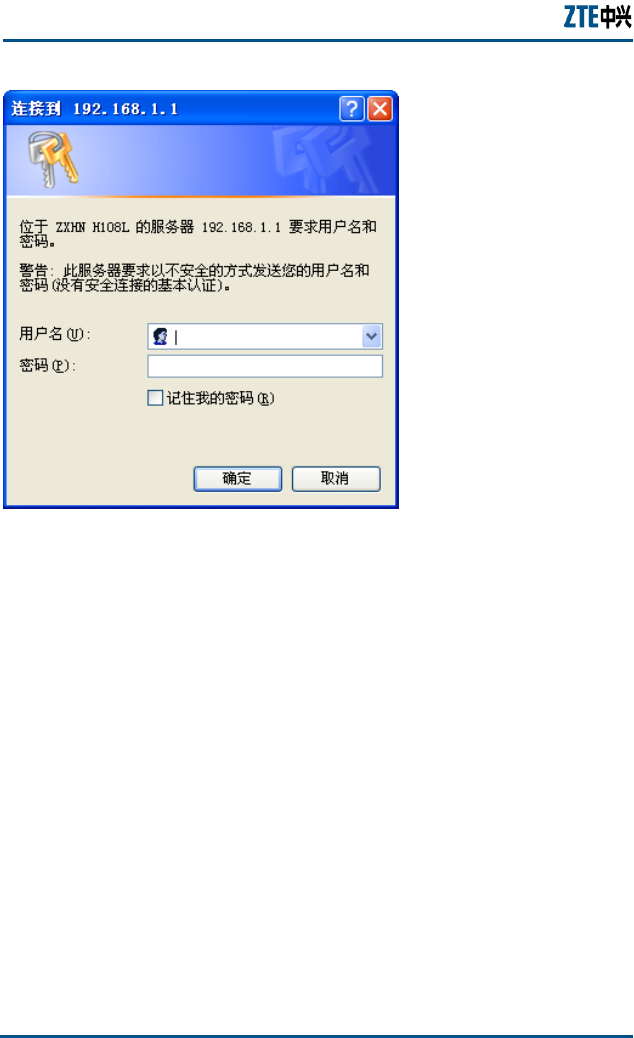
1. Open a browser (e.g, IE) and type http://192.168.1.1 (i.e.,
default IP address of the ZXHN H108L’s LAN port) in the address
bar.
2. Press the Enter key of the keyboard to display the login dialog
box, as shown in Figure 4.
Chapter 3 - Configuration Page Login
Confidential and Proprietary Information of ZTE CORPORATION 13
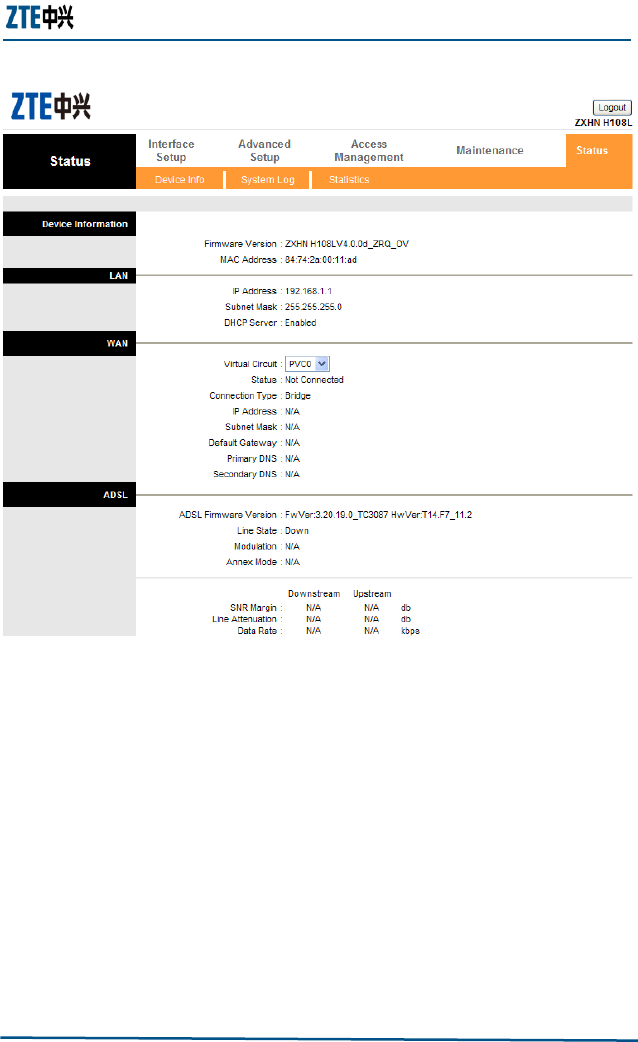
FIG U RE 5 MAI N PAG E FO R CO N F IG U R AT I O N
The main page shows the device information of the ZXHN H108L
ADSL router.

Chapter 4 - Interface Setup
Confidential and Proprietary Information of ZTE CORPORATION 15
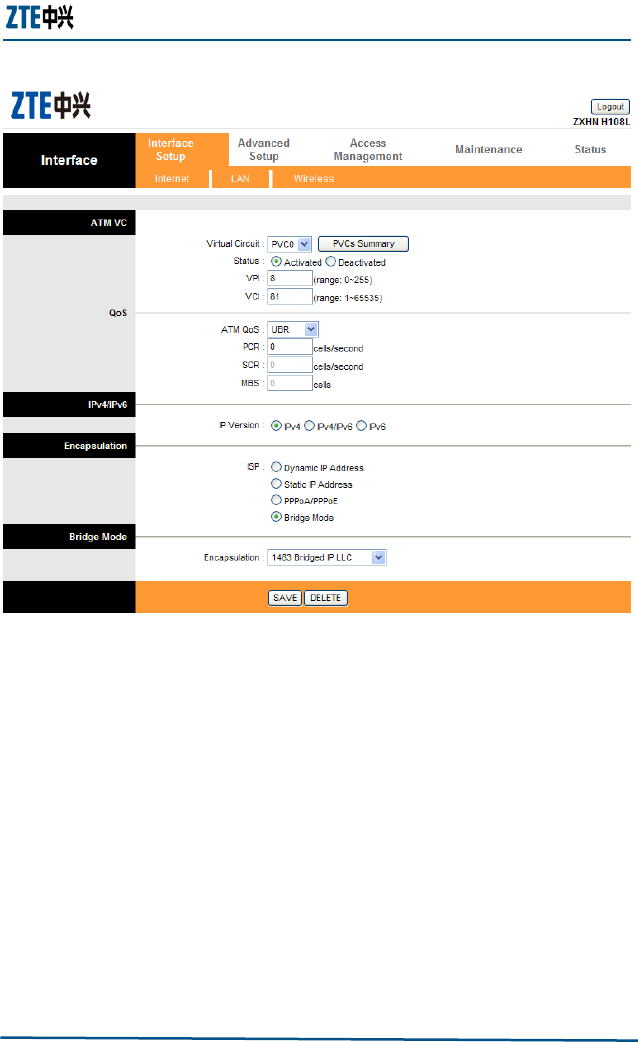
FIG U RE 6 THE IN TE R FAC E SE TU P PA G E
Three sub-pages are under the Interface Setup page, which are
Internet, LAN and Wireless.
Internet Configuration
By default the Interface Setup page displays the Internet
configuration page as shown in Figure 6.
ATM VC and ATM Qos
Asynchronous transfer mode (ATM) is a protocol that arranges data
into small, uniform-sized cells with VCI data, as opposed to variable-
sized data packets. ATM settings are used to connect to ISP. ISP
provides the VPI and VCI setting information. The users of ZXHN
H108L can configure up to 8 virtual circuits (VC), each using
ZXHN H108L Wireless ADSL Router Maintenance Manual
16 Confidential and Proprietary Information of ZTE CORPORATION
different encapsulation. Each VC must be activated to take effect.
For permanent virtual circuit (PVC) management, users can use ATM
Quality of Service (Qos) to set up each PVC traffic line’s priority.
Table 7 presents the ATM VC and Qos parameters descriptions.
TABLE 7 THE DE S CRI P TI ON S OF ATM VC & QOS PA R A M E TE R S
Parameter
Description
Virtual Circuit
Select the PVC to be modified
Status
Each PVC can be toggled Activated or Deactivated
VPI
Enter the VPI number
VCI
Enter the VCI number
ATM Qos
Select the Qos type for the PVC from the dropdown list
PCR
Enter the PCR. For all Qos types
SCR
Enter the SCR. Only for rtVBR and nrtVBR
MBS
Enter the MBS. Only for rtVBR and nrtVBR
Definitions
PCR: Peak Cell Rate, is the maximum rate at which the sender can
send cells. This parameter may be lower (but not higher) than the
maximum line speed. One ATM cell is 53 bytes (424 bits), so a
maximum speed of 832 Kbps gives a maximum PCR of 1962
cells/sec. This rate not guaranteed because it is dependent on the
line speed.
SCR: Sustained Cell Rate is the mean cell rate of a bursting, on-off
traffic source that can be sent at the peak rate, and a parameter
for burst-type traffic. SCR may not be greater than the PCR; the
system default is 0 cells/sec.
MBS: Maximum Burst Size is the maximum number of cells that
can be sent at the PCR. After MBS is reached, cell rates fall below
SCR until cell rate averages to the SCR again. At this time, more
cells (up to the MBS) can be sent at the PCR again.
CBR: It is for connections that support constant rates of data
transfer.
Chapter 4 - Interface Setup
Confidential and Proprietary Information of ZTE CORPORATION 17
UBR: It is for connections that have variable traffic.
rtVBR: It is for connections that, while having variable traffic,
require precise timing between traffic source and destination. PCR,
SCR and MBS must all be set for rtVBR.
nrtVBR: It is for connections that have variable traffic, do not
require precise timing, but still require a set bandwidth availability.
PCR, SCR and MBS must all be set for nrtVBR.
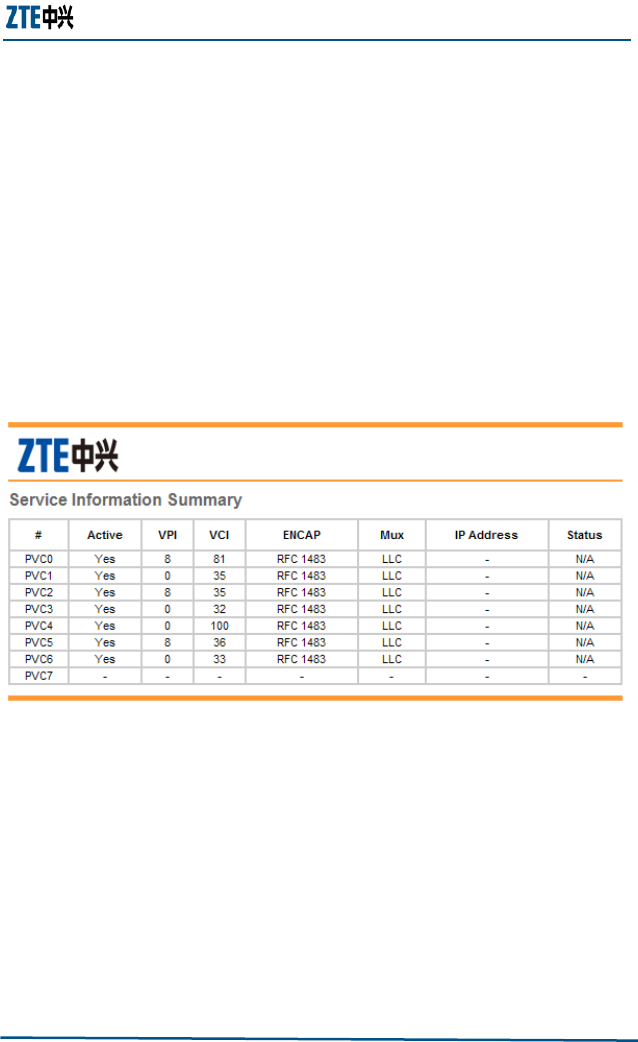
The PVCs Summary button opens a new window that displays the
current PVC settings, as shown in Figure 7.
FIG U RE 7 THE PVC SUM M AR Y TAB L E
Encapsulation
Four ISP connection modes can be selected according to requirement.
Dynamic IP Address: Choose this option to obtain an IP address
automatically from the ISP.
Static IP Address: Choose this option to set static IP information
provided by the ISP.
PPPoE/PPPoA: Choose this option if the ISP uses PPPoE/PPPoA.
Bridge Mode: Choose this option if the ISP uses bridge mode.
ZXHN H108L Wireless ADSL Router Maintenance Manual
18 Confidential and Proprietary Information of ZTE CORPORATION
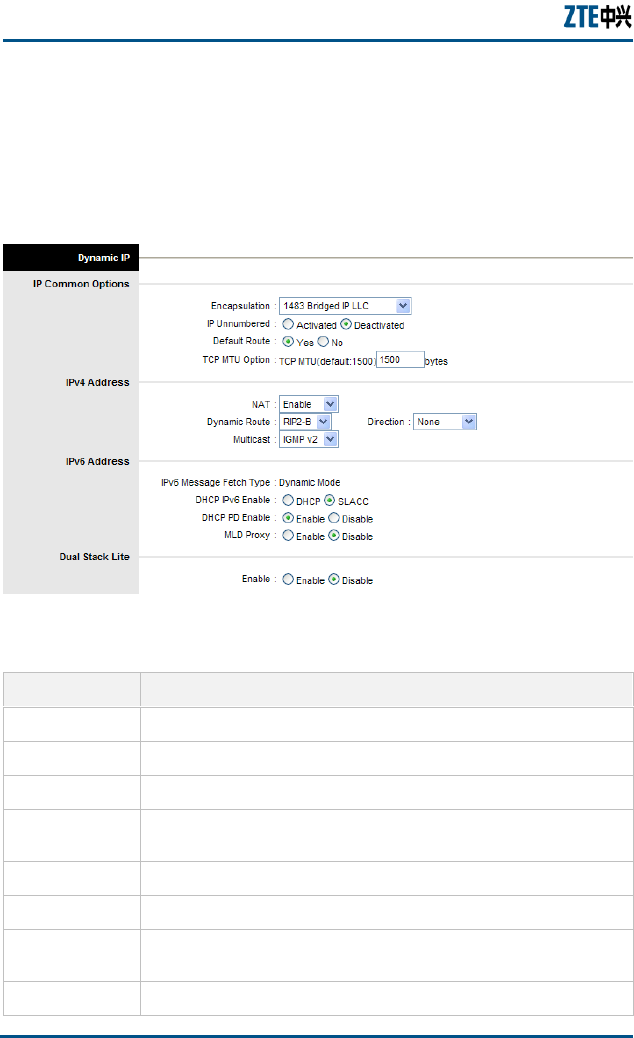
Dynamic IP address
Figure 8 shows the dynamic IP address parameters on the web
configuration page and Error! Reference source not found. gives
the descriptions of the parameters.
FIG U RE 8 DYN AM I C IP AD D R ESS PAR AM E TE R S (IPV4)
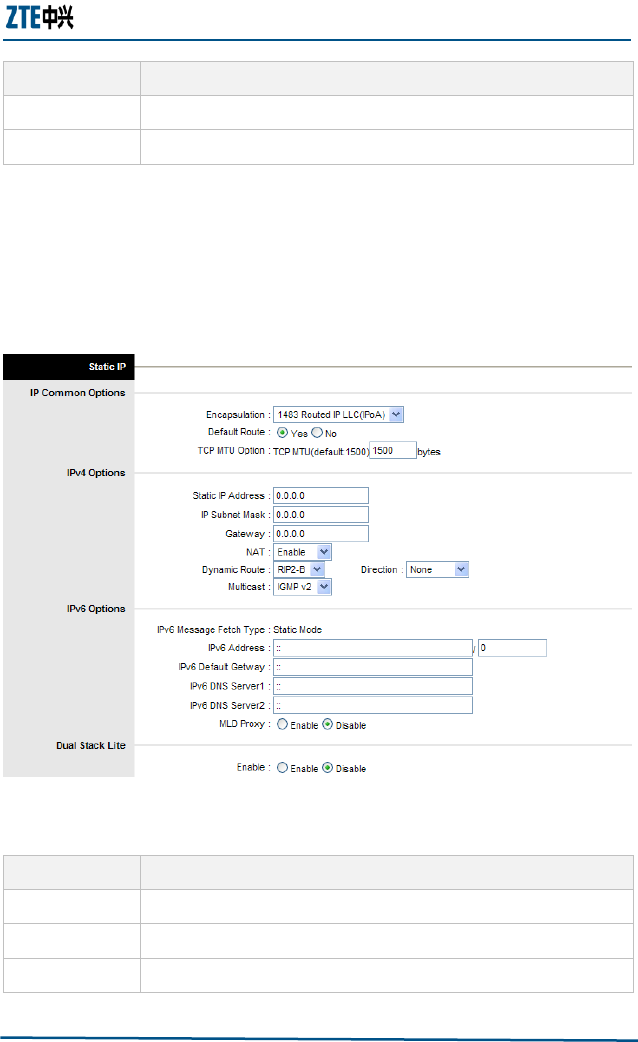
TABLE 8 THE DE S CRI P TI ON S OF TH E DYN AM I C IP AD D R ESS PA R AM E T E R S
Parameter
Description
Encapsulation
Select the encapsulation type from the dropdown list
IP Unnumbered
Deactivated usually, select Activated to enable Bridge interface
NAT
Select whether NAT is enabled or disabled
Default Route
Select whether this PVC will be the default route for the Internet
data
Dynamic Route
Select the RIP type and direction from the dropdown lists
Multicast
Select the multicast protocol to be used from the dropdown list
DHCP IPv6
Enable
Select the way of Modem to get IPv6 address
DHCP PD Enable
Usually select Enable, or modem can’t access internet
Chapter 4 - Interface Setup
Confidential and Proprietary Information of ZTE CORPORATION 19
Parameter
Description
MLD Proxy
Select whether MLD Proxy is enabled or disabled
Dual Stack Lite
Select whether enable DS Lite
Static IP Address
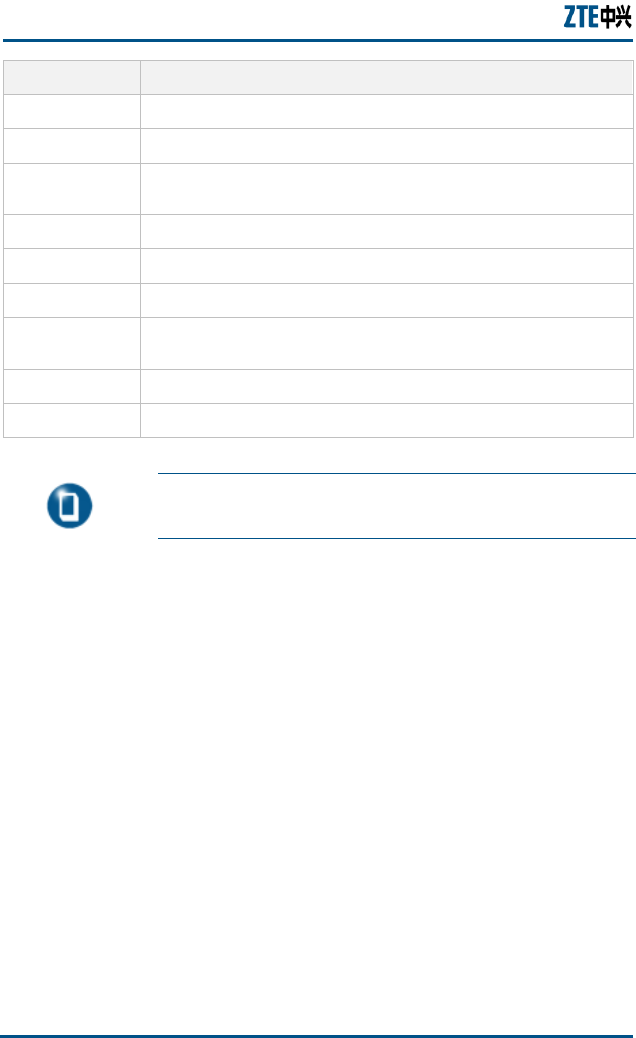
Figure 9 shows the static IP address parameters on the web
configuration page and Table 9 gives the parameter descriptions.
FIG U RE 9 ST AT IC IP AD DRE S S PA R AM E T E R S
TABLE 9 THE DE S CRI P TI ON S OF TH E STA TI C IP ADD R E SS PAR A M E TE R S
Parameter
Description
Encapsulation
Select the encapsulation type from the dropdown list
Static IP Address
Enter the static IP address
IP Subnet Mask
Enter the IP subnet mask
ZXHN H108L Wireless ADSL Router Maintenance Manual
20 Confidential and Proprietary Information of ZTE CORPORATION
Parameter
Description
Gateway
Enter the gateway address
NAT
Select whether NAT is enabled or disabled
Default Route
Select whether this PVC will be the default route for the Internet
data
Dynamic Route
Select the RIP type and direction form the dropdown lists
Multicast
Select the multicast protocol to be used from the dropdown list
IPv6 Address
Enter the static IP address
IPv6 Default
Gateway
Enter the gateway address
IPv6 DNS Server
Enter the IPv6 DNS address
MLD Proxy
Select whether MLD Proxy is enabled or disabled
Note: The parameters listed in Table 9 should be provided
by the ISP.
PPPoE/PPPoA
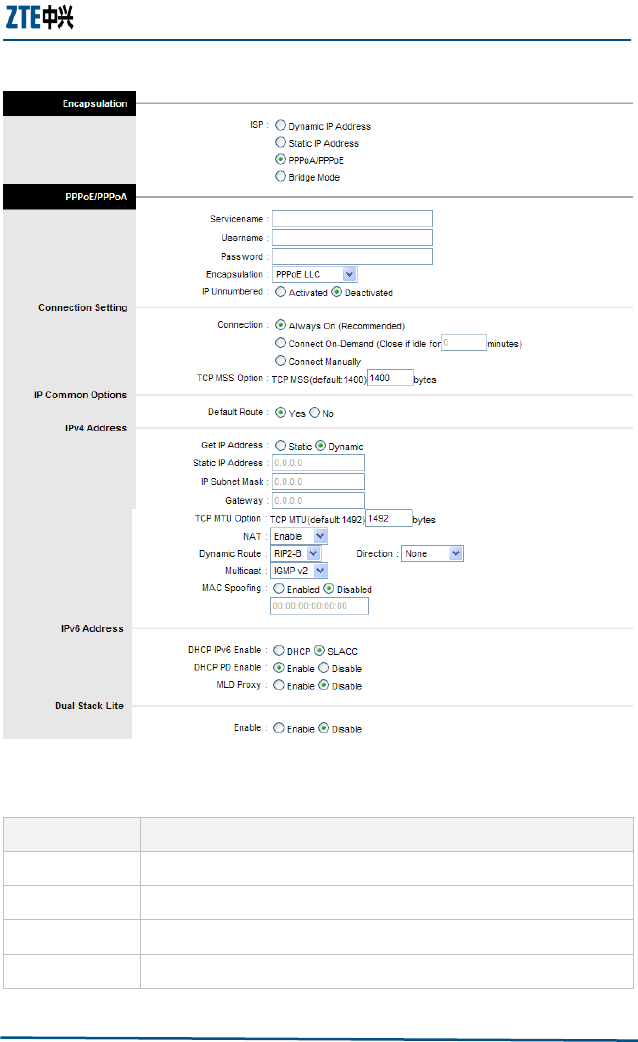
Figure 10 shows the PPPoE/PPPA parameters on the web
configuration page and Table 10 gives the parameter descriptions.
Chapter 4 - Interface Setup
Confidential and Proprietary Information of ZTE CORPORATION 21
FIG U RE 10 PPPOA/PPPOE PA R AM E T ER S
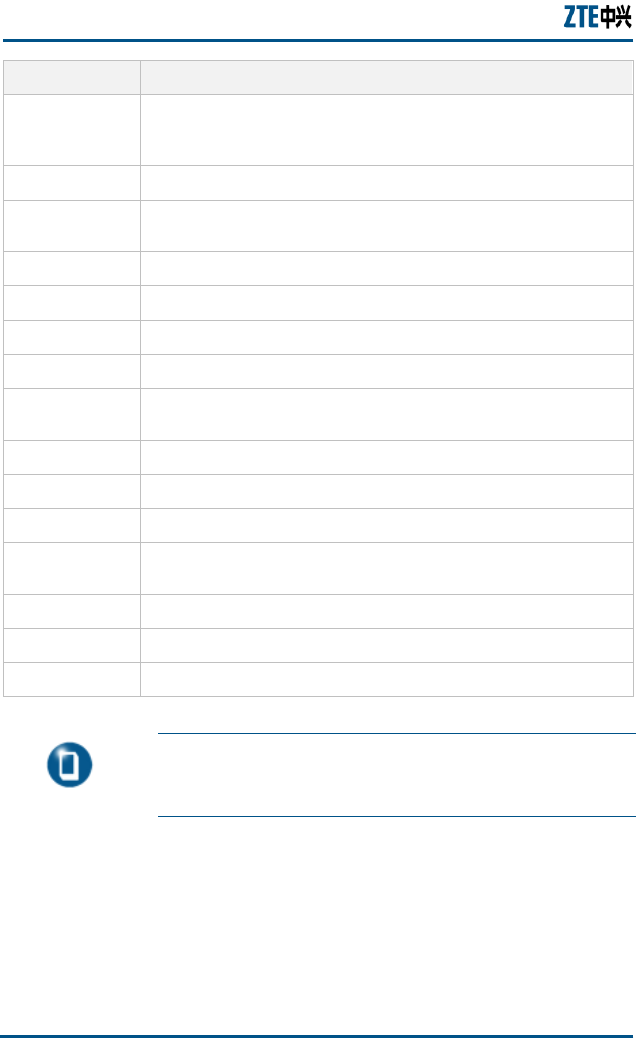
TABLE 10 THE DESCRIPTIONS OF THE PPPOE/PPPOA PA R AM E T E R S
Parameter
Description
Servicename
Enter the Servicename
Username
Enter the username
Password
Enter the password
Encapsulation
Select the encapsulation type from the dropdown list
ZXHN H108L Wireless ADSL Router Maintenance Manual
22 Confidential and Proprietary Information of ZTE CORPORATION
Parameter
Description
Connection
Select whether your connection is always on or if it connects on
demand. If on demand specify how many minutes the connection
may be idle before it disconnects
TCP MSS Option
Enter the TCP MSS to be used
Get IP Address
Choose whether the ZXHN H108L obtains the IP address statically
or dynamically
Static IP Address
Enter the static IP address. Only if static IP is selected.
IP Subnet Mask
Enter the IP subnet mask. Only if static IP is selected.
Gateway
Enter the gateway address. Only if static IP is selected.
NAT
Select whether NAT is enabled or disabled
Default Route
Select whether this PVC will be the default route for the Internet
data
Dynamic Route
Select the RIP type and direction form the dropdown lists
Multicast
Select the multicast protocol to be used from the dropdown list
MAC Spoofing
Disabled in default, Select Enabled to set a fake MAC of modem
DHCP IPv6
Enable
Select the way of Modem to get IPv6 address
DHCP PD Enable
Usually select Enable, or modem can’t access internet
MLD Proxy
Select whether MLD Proxy is enabled or disabled
Dual Stack Lite
Select whether enable DS Lite
Note: The parameters listed in Table 10 should be
provided by the ISP. The user name must be asigned by
the ISP.
Bridge Mode
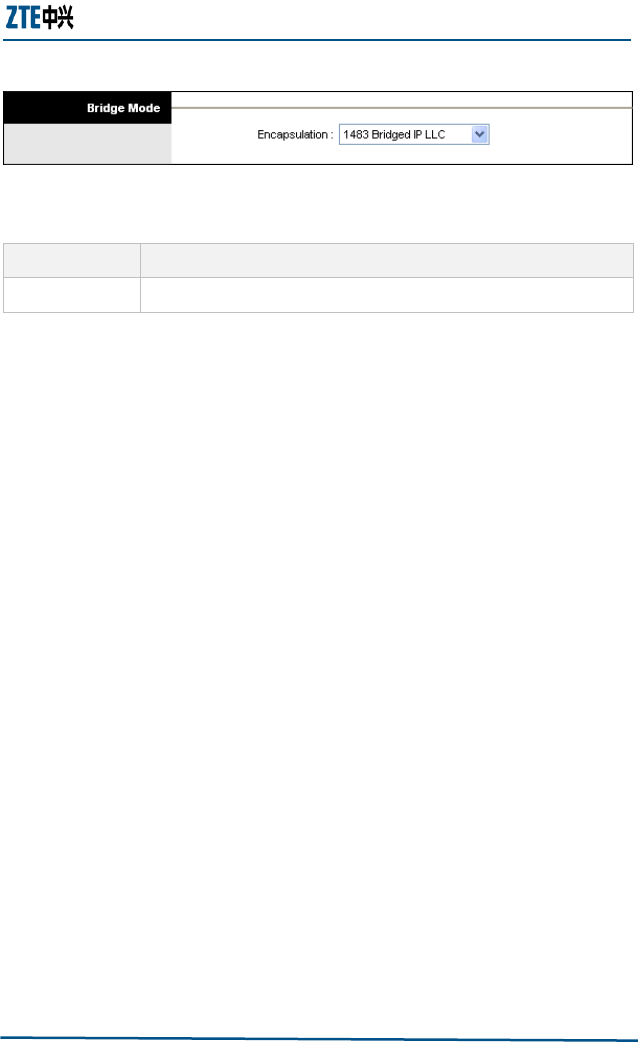
Figure 11 shows the bridge mode parameters on the web
configuration page and Table 11 gives the parameter descriptions.
Chapter 4 - Interface Setup
Confidential and Proprietary Information of ZTE CORPORATION 23
FIG U RE 11 BRI DG E MODE PA R AM E T E R S
TABLE 11 THE DESCRIPTIONS OF THE BR IDG E MO DE PAR A M E TE R S
Parameter
Description
Encapsulation
Select the encapsulation type from the dropdown list
LAN Configuration
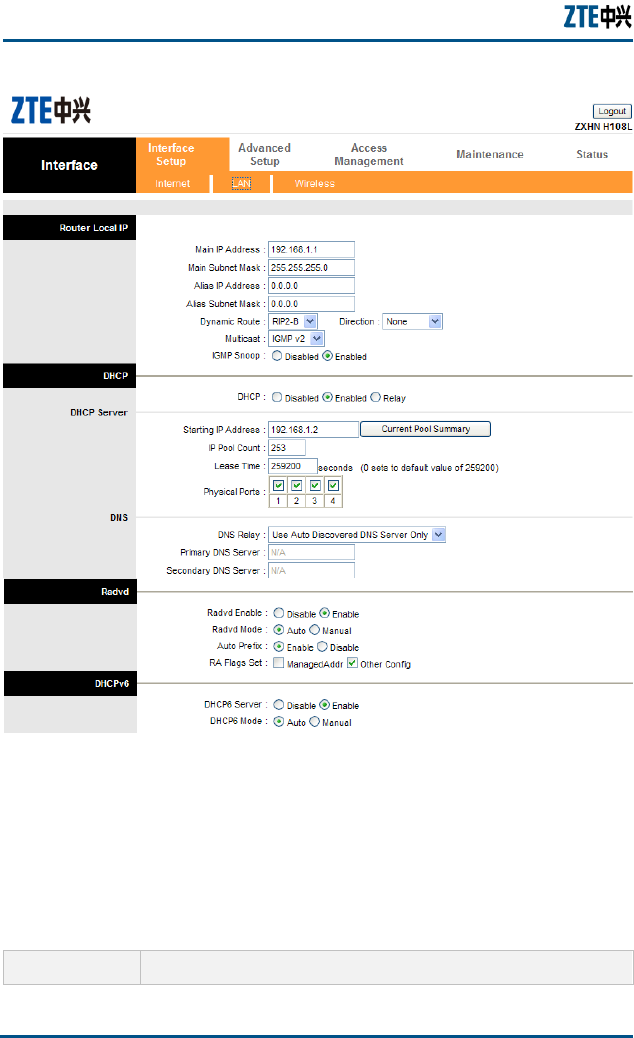
Click Interface Setup>LAN to show the LAN configuration page,
as shown in Figure 12.
ZXHN H108L Wireless ADSL Router Maintenance Manual
24 Confidential and Proprietary Information of ZTE CORPORATION
FIG U RE 12 THE LAN CONFIGURATION PA G E
Router Local IP
Table 12 gives the description of the local IP parameters.
TABLE 12 THE DESCRIPTIONS OF THE LO C AL IP PAR A M E TE R S
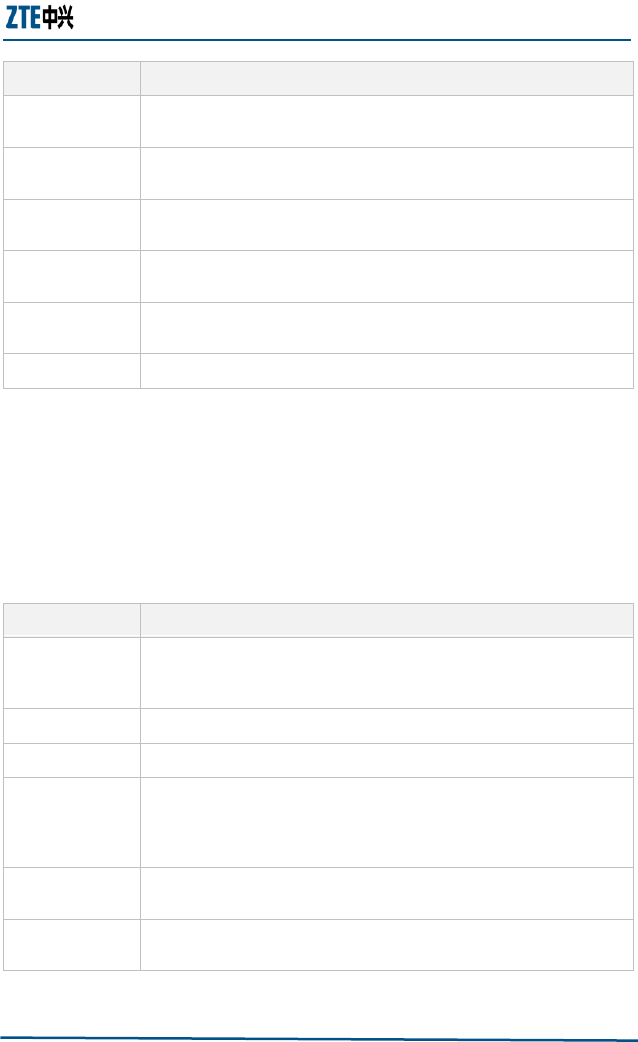
Parameter
Description
Chapter 4 - Interface Setup
Confidential and Proprietary Information of ZTE CORPORATION 25
Parameter
Description
Main IP Address
Enter the ZXHN H108L local IP address. By default, it is
192.168.1.1.
Main IP Subnet
Mask
Enter the ZXHN H108L IP subnet mask. By default, it is
255.255.255.0.
Alias IP Address
Enter the ZXHN H108L Second local IP address. By default ,it is
blank
Alias Main IP
Subnet Mask
Subnet mask of Second local IP address
Dynamic Route
Select the Routing Information Protocol (RIP) to be used from the
dropdown list. And select the direction from the dropdown list
Multicast
Select the multicast protocol to be used from the dropdown list
DHCP
DHCP function can be disabled, enabled or in relay mode. Figure 12
shows the parameters when DHCP is enabled. And Table 13 gives
the parameter descriptions.
TABLE 13 THE DESCRIPTIONS OF THE DHCP PA R A M E TE R S
Parameter
Description
Starting IP
Address
Enter the starting IP address to be used by the DHCP server’s IP
assignment. By default, the starting IP address is 192.168.1.2 and
the ending IP address is 192.168.1.254.
IP Pool Count
Enter the maximum user pool size to be assigned.
Lease Time
Enter the amount of time to lease out a given IP address.
DNS Relay
Select the DNS relay option to be used from the dropdown list. If
the users do not want to use the DNS relay option, set the DNS
relay to “Use User Discovered DNS Server Only” and set both
Primary and Secondary DNS servers to 0.0.0.0.
Primary DNS
Server
Enter the primary DNS server IP address to be used. For user
discovered DNS only.
Secondary DNS
Server
Enter the secondary DNS server IP address to be used. For user
discovered DNS only.
ZXHN H108L Wireless ADSL Router Maintenance Manual
26 Confidential and Proprietary Information of ZTE CORPORATION
Parameter
Description
Radvd Enable
modem allocate prefix of IPv6 address to PC. Usually, it
select Enable. or the PC connected to this Modem can’t
access internet
Radvd Mode
Usually enable,if disabled, modem can’t get correct IPv6 address;
So Disabled it if user doesn’t want to use IPv6 function
Auto Prefix
The way of modem to get IPv6 address prefix
DHCP6 Server
PC get complete IPv6 address from internet, not combine to
modem.
DHCP6 Mode
DHCPv6 Server allocate IPv6 address to modem auto, or user
config one
A DHCP relay is a computer that forwards DHCP data between
computers that request IP address and the DHCP server that assigns
the IP address. If the DHCP Relay option is enabled, DHCP requests
from local PCs will be forwarded to the DHCP server that runs on
WAN side. For this function working properly, ZXHN H108L must run
on the router mode, disable the DHCP server on the LAN port and
make sure the routing table has the correct routing entry.
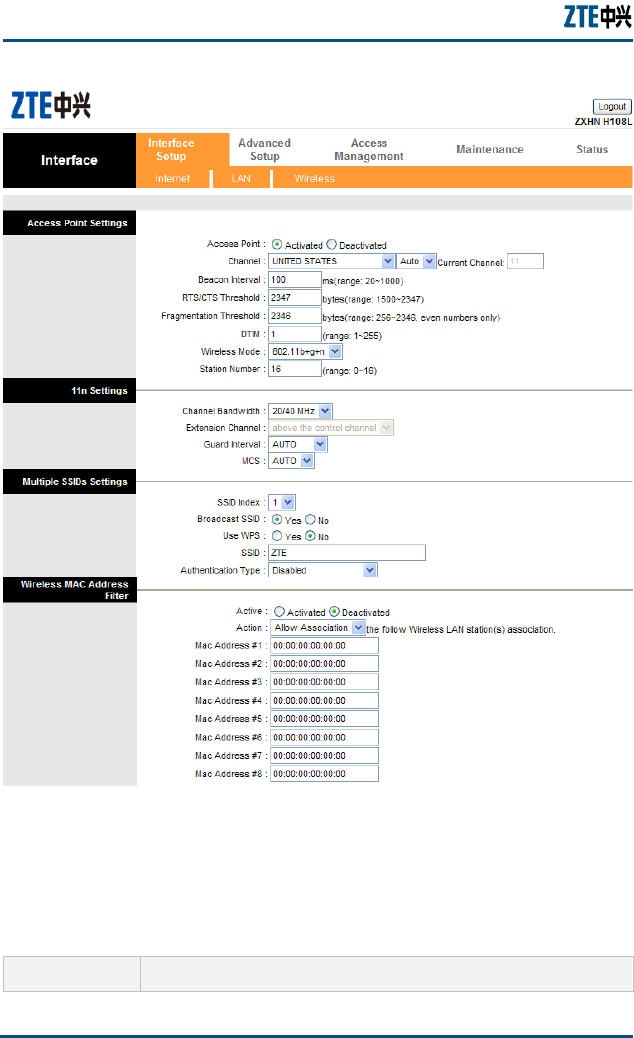
If relay DHCP is selected, Figure 13 will be display on the web
configuration page. Table 14 describes the parameter.
FIG U RE 13 THE RE LAY DHCP WEB CONF IG U R AT I ON PAG E
TABLE 14 THE REL AY DHCP PA R A ME T E R
Parameter
Description

Chapter 4 - Interface Setup
Confidential and Proprietary Information of ZTE CORPORATION 27
Parameter
Description
DHCP Server IP
for Relay Agent
Enter the IP address for the DHCP relay agent.
Wireless Configuration
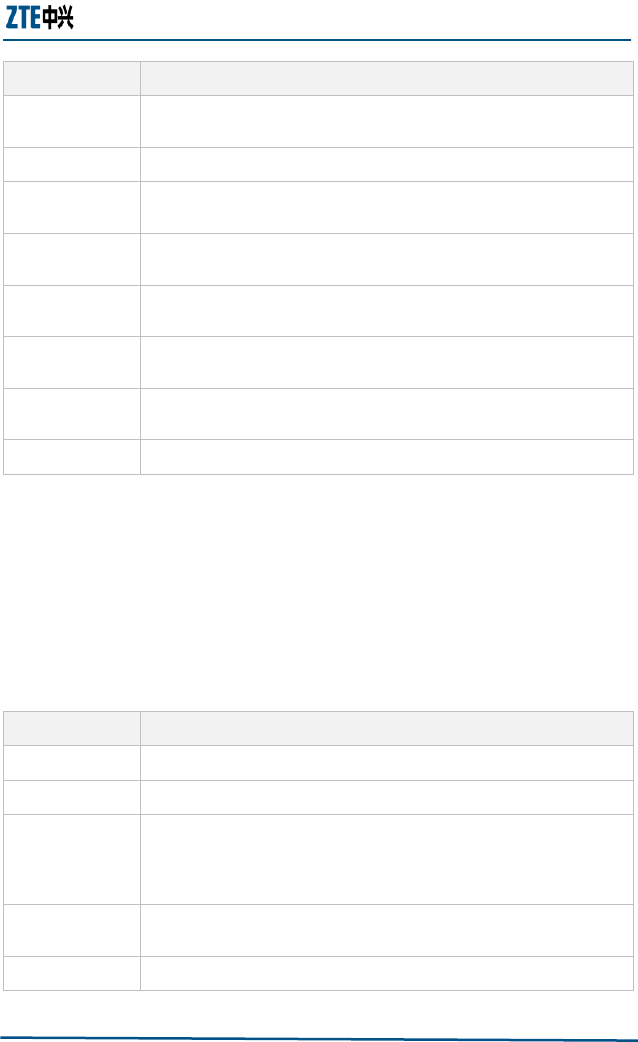
Click Interface Setup>Wireless to show the Wireless
configuration page, as shown in Figure 14.
ZXHN H108L Wireless ADSL Router Maintenance Manual
28 Confidential and Proprietary Information of ZTE CORPORATION
FIG U RE 14 THE WIRELESS CONF IG U R AT I ON PA G E
Access Point Settings
Table 15 describes the access point setting parameters.
TABLE 15 THE AC CES S PO INT PAR A M E T ER S
Parameter
Description
Chapter 4 - Interface Setup
Confidential and Proprietary Information of ZTE CORPORATION 29
Parameter
Description
Access Point
By default, it is activated. If there is no wireless device in the
network, select Deactivated.
Channel
Select a channel from the dropdown list.
Beacon Interval
A beacon is a packet broadcasted by the router to synchronize the
wireless network. Enter a value between 20 and 1000.
RTS/CTS
Threshold
The RTS (Request To Send) threshold for enabling RTS/CTS
handshake. Enter a value between 1500 and 2347.
Fragmentation
Threshold
The maximum fragment size that can be sent. Enter a value
between 256 and 2346.
DTIM
Enter a value between 1 and 255. It indicates the interval of eh
Delivery Traffic Indication Message (DTIM).
802.11 b/g/n
The default setting is 802.11 b+g+n. other modes can be selected
from the dropdown list.
Station Number
Enter a value between 0 and 16
Multiple SSIDs Settings
The SSID is the name of a wireless access point to be distinguished
from another. It is case sensitive and must not exceed 32 characters.
User can set multiple SSIDs for ZXHN H108L. Table 16 describes the
parameters.
TABLE 16 THE MULTIP L E SSIDS PA R AM E T E R S
Parameter
Description
SSID Index
Select an index number from the dropdown list.
SSID
Enter the SSID name.
Broadcast SSID
Select No to hide the SSID in so that a station cannot obtain the
SSID through passive scanning; select Yes to make the SSID
visible so that a station can obtain the SSID through passive
scanning.
Authentication
Type
Select the authentication type from the dropdown list.
Use WPS
Select yes, wireless client can connect Router by WPS
ZXHN H108L Wireless ADSL Router Maintenance Manual
30 Confidential and Proprietary Information of ZTE CORPORATION
Wireless MAC Address Filter
The MAC filter function allows the user to configure the ZXHN H108L
to give access or deny access to specified devices. Every Ethernet
device has a unique MAC (Media Access Control) address. The MAC
address is assigned at the factory and consists of six pairs of
hexadecimal characters, for example, 00:AA:BB:00:00:02.
Table 17 describes the parameters.
TABLE 17 THE MAC FI LT ER PA R A M E TE R S
Parameter
Description
Active
Select Activated to enable MAC address filtering.
Action
Select Deny Association to block access to ZXHN H108L or select
Allow Association to permit access to ZXHN H108L
MAC Address
#1 ~ #8
Enter the MAC address of the devices that are allowed or denied
access to the router in these address fields.
Click the SAVE button to save the changes, for configurations
mentioned in this chapter.
Confidential and Proprietary Information of ZTE CORPORATION 31
C h a p t e r 5
Advanced Setup
The Advanced Setup configuration page determines how data
enters and exits the ZXHN H108L router.
Firewall Configuration
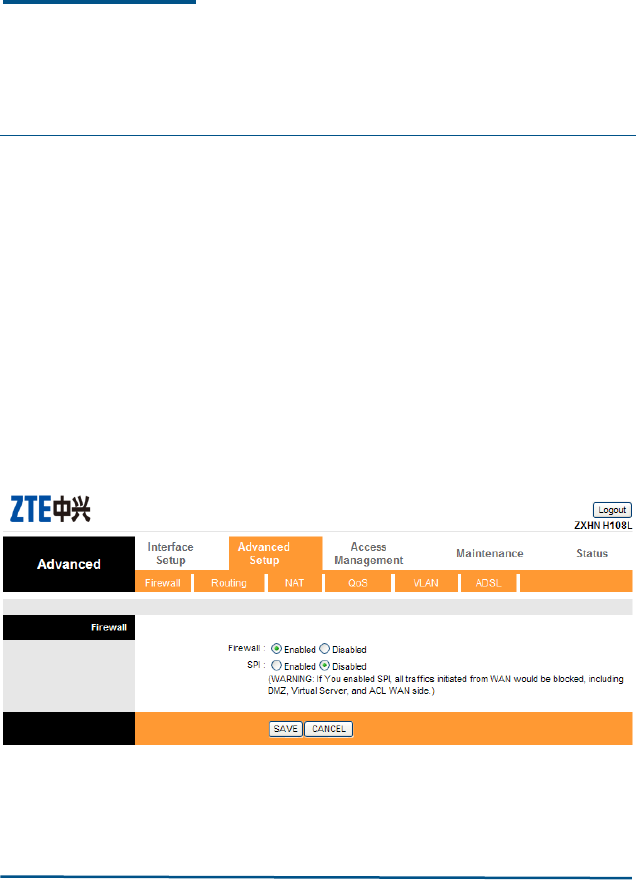
By default the Advanced Setup page displays the Firewall
configuration page as shown in Figure 6. Enable or disable the
firewall and SPI according to requirements.
FIG U RE 15 THE FIREW ALL CON F IG UR ATIO N PAG E
ZXHN H108L Wireless ADSL Router Maintenance Manual
32 Confidential and Proprietary Information of ZTE CORPORATION
Routing Configuration
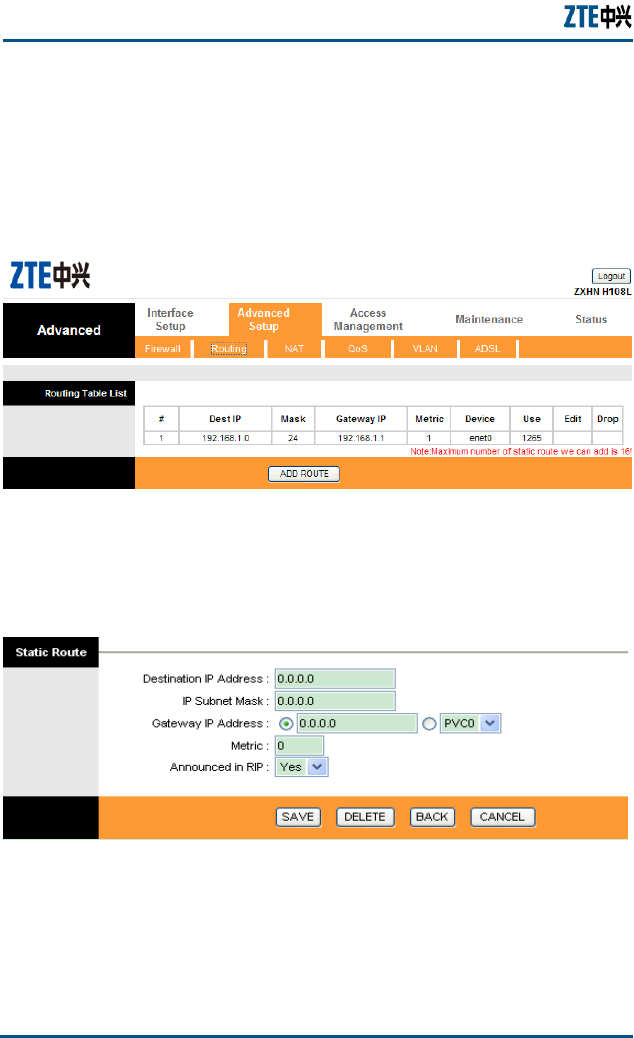
Routing directs the ZXHN H108L router to forward data to specific IP
address. Figure 16 shows the routing configuration page. It shows
the routing rules which have been set.
FIG U RE 16 THE RO UTI NG CONFIGURATION PA G E
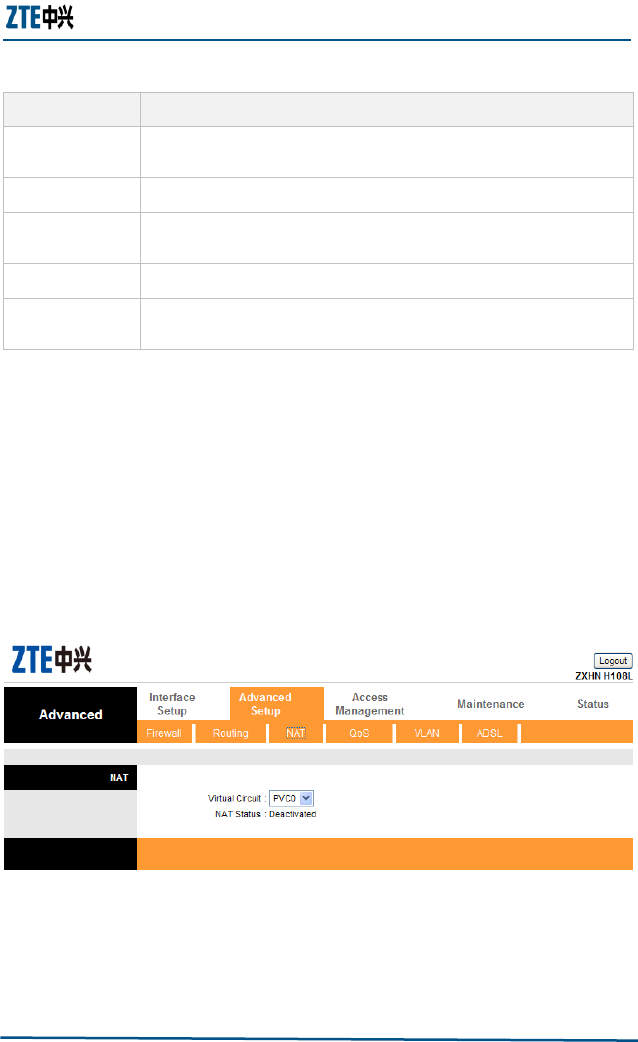
To add a route, click the Add Route button and Figure 17 displays.
Set the parameters according to Table 18.
FIG U RE 17 ADD I N G RO U T E
Click SAVE to save the changes; click DELETE to delete the
parameters; click BACK to return to the previous screen or CANCEL
to exit without saving.
Chapter 5 - Advanced Setup
Confidential and Proprietary Information of ZTE CORPORATION 33
TABLE 18 THE ST ATIC RO U TE PA R A M E T ER S
Parameter
Description
Destination IP
Address
Enter the destination IP address for this routing rule
IP Subnet Mask
Enter the destination IP subnet mask for this routing rule
Gateway IP
address
Enter the gateway IP address for this routing rule or select which
PVC will be affected by this routing rule.
Metric
Enter the metric for this routing rule.
Announced in
RIP
Choose whether this route is included in RIP broadcasts.
NAT Configuration
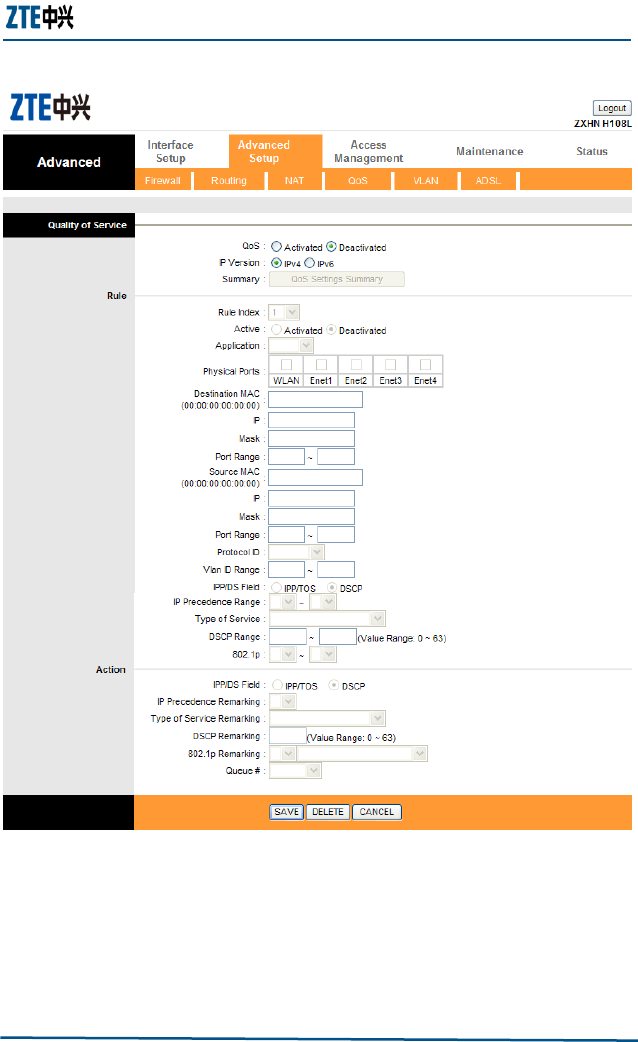
Network Address Translation (NAT) translates the host IP
address in a packet used within on network to a different IP
address known within another network. The NAT
configuration page is shown in Figure 18.
FIG U RE 18 THE NAT CONFIGURATION PA G E
Select a virtual circuit (PV0 ~ PV7) and the related NAT status is
displayed.

ZXHN H108L Wireless ADSL Router Maintenance Manual
34 Confidential and Proprietary Information of ZTE CORPORATION
QoS Configuration
Quality of Service (Qos) helps to prioritize the data entering the
ZXHN H108L router. By attaching special identification marks or
headers to incoming packets, Qos determines which queue the
packets enter, based on priority. Figure 19 shows the Qos
configuration page.
Chapter 5 - Advanced Setup
Confidential and Proprietary Information of ZTE CORPORATION 35
FIG U RE 19 THE QOS CONFIGURATION PA G E
The main goal of Qos is prioritizing incoming data, preventing data
loss due to factors such as jitter, delay and dropping. Another
important aspect of Qos is ensuring that prioritizing one data flow
doesn’t interfere with other data flows. Qos can be toggled
Activated or Deactivated. Activate Qos to edit the parameters
listed in Figure 19. Click the SAVE button to submit the changes.
ZXHN H108L Wireless ADSL Router Maintenance Manual
36 Confidential and Proprietary Information of ZTE CORPORATION
VLAN Configuration
A virtual LAN (VLAN) is a switched network logically segmented by
functions, project teams, or applications. The physical location of
VLAN members is unimportant. VLANs allow ports on the same or
different switches to be grouped so that traffic is confined to
members of only that group. In high-traffic networks, VLAN can
reduce the amount of data sent to unnecessary destinations.
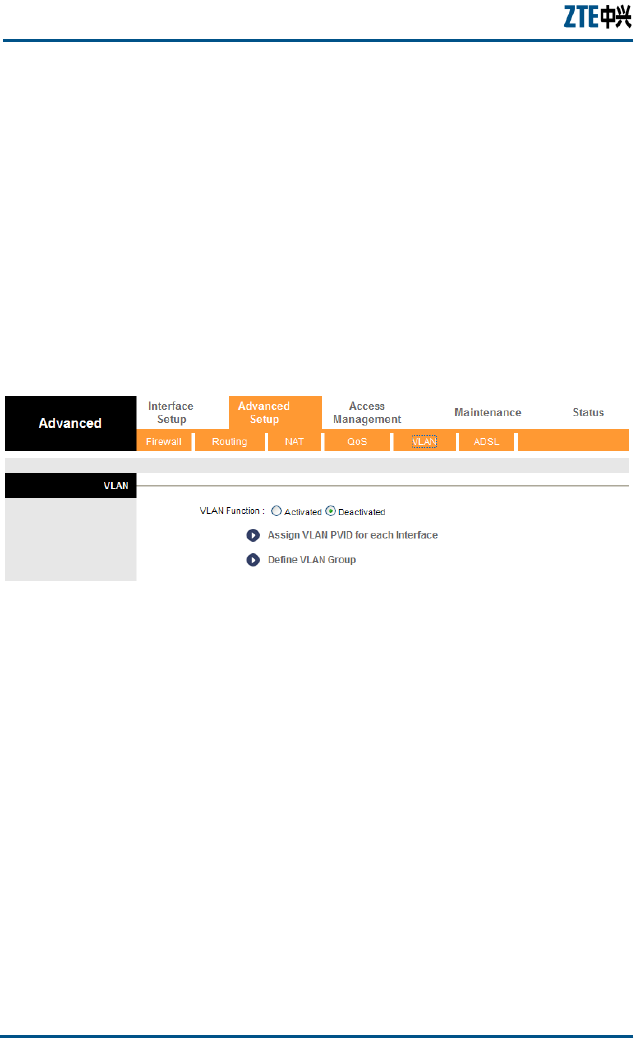
VLAN must be activated before the use can assign VLAN PVID and
define VLAN group.
FIG U RE 20 THE VL AN CO NF I GUR ATI O N PA G E
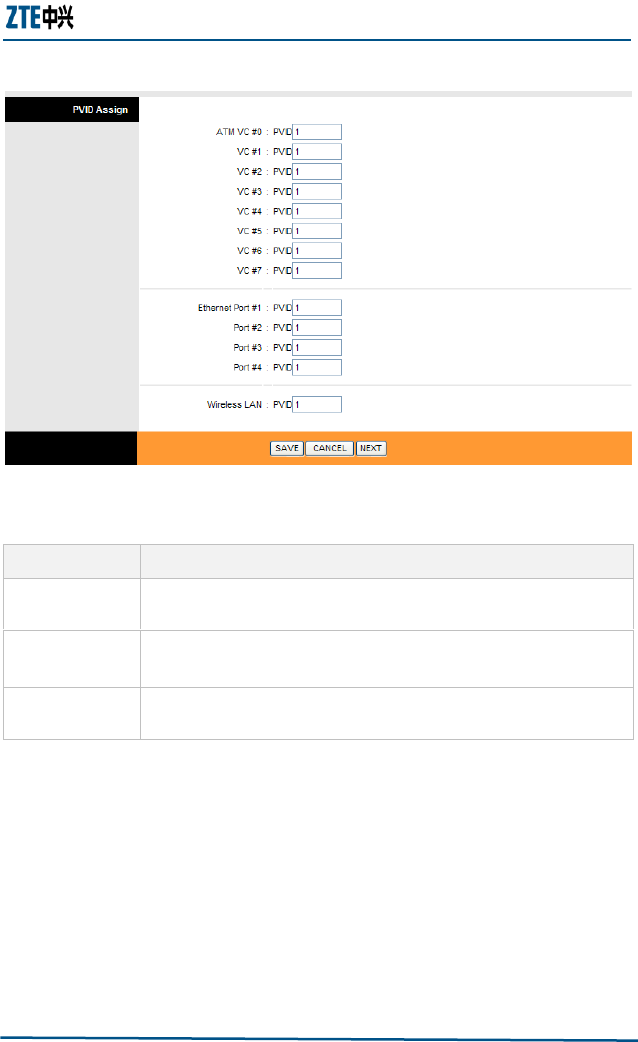
Click the link Assign VLAN PVID for each interface to display
Figure 21. Table 19 describes the parameters.
Chapter 5 - Advanced Setup
Confidential and Proprietary Information of ZTE CORPORATION 37
FIG U RE 21 ASS I GNI N G PVID
TABLE 19 THE PVID PA R AM E T E R S
Parameter
Description
ATM VC #0 ~
#7
Enter the PVID assigned to eight ATM VCs.
Ethernet Port
#1 ~ #4
Enter the PVID assigned to four Ethernet ports.
Wireless LAN
BSSID #1 ~ #4
Enter the PVID assigned to four wireless LAN BSSIDs.
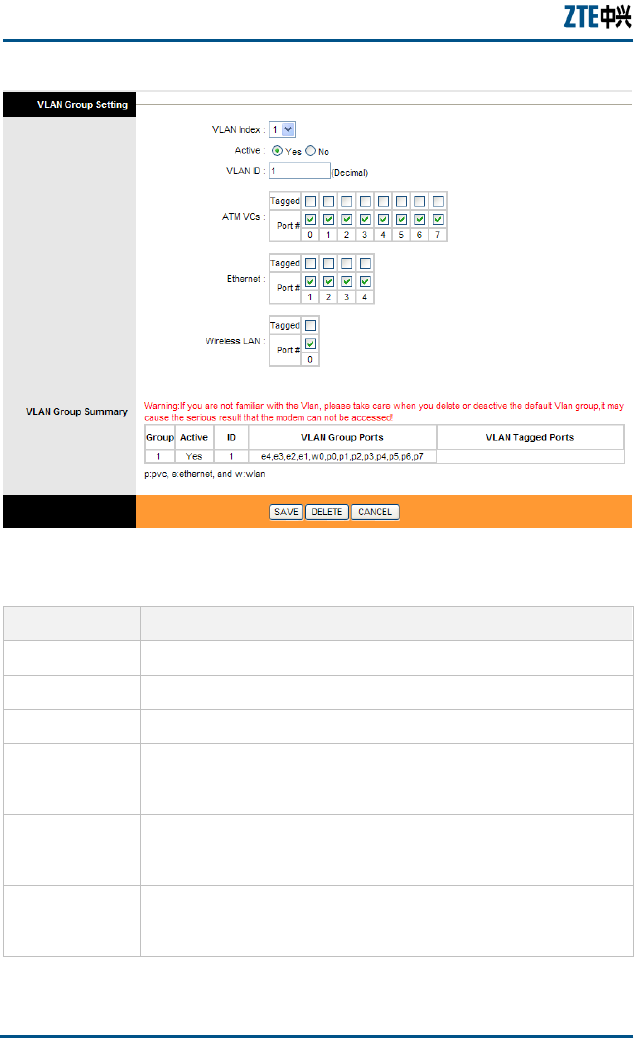
Click the link Define VLAN Group to display Figure 22. Table 20
describes the parameters.
ZXHN H108L Wireless ADSL Router Maintenance Manual
38 Confidential and Proprietary Information of ZTE CORPORATION
FIG U RE 22 DEF IN I NG VLAN GR O U P
TABLE 20 VLAN GR O U P SE T TI NG PAR A M E T E RS
Parameter
Description
VLAN Index
The number of the index is determined by the model or IC.
Active
Toggle this index on or off with Yes and No.
VLAN ID
Enter the VLAN ID number.
ATM VCs
Checking the Tagged and Port# box for each port number will
add a tag to let other devices know if they need to check the
packet and allow the packet through to the port in question.
Ethernet
Checking the Tagged and Port# box for each port number will
add a tag to let other devices know if they need to check the
packet and allow the packet through to the port in question.
Wireless LAN
Checking the Tagged and Port# box for each port number will
add a tag to let other devices know if they need to check the
packet and allow the packet through to the port in question.
Chapter 5 - Advanced Setup
Confidential and Proprietary Information of ZTE CORPORATION 39
Click SAVE to submit the changes, or DELETE to delete the rule
with the parameters, or CANCEL to exit without saving.
ADSL Configuration
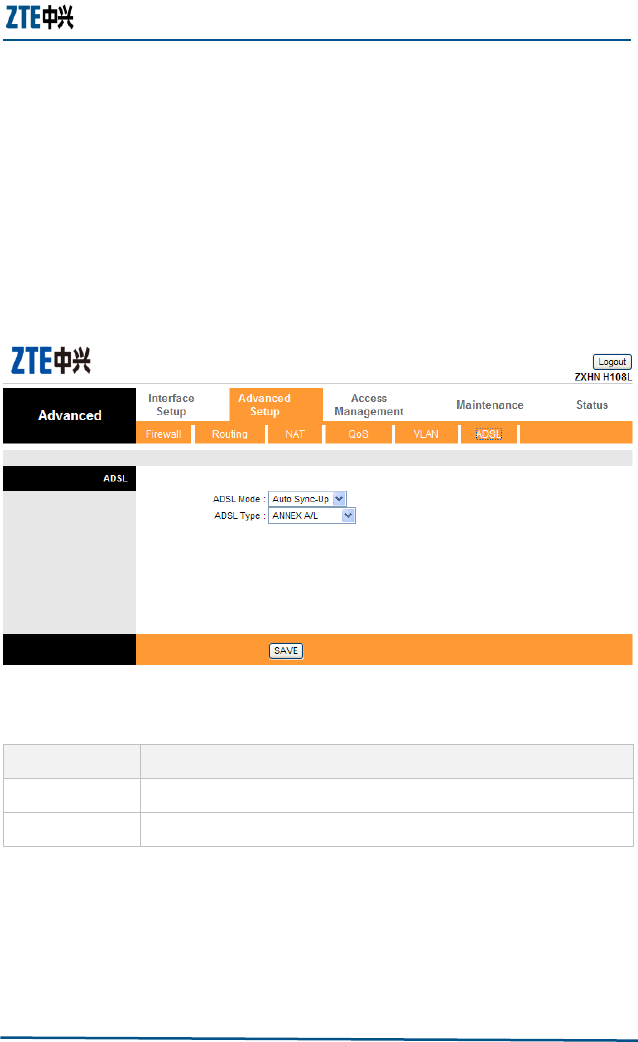
Figure 23 shows the ADSL configuration page and Table 21 describes
the parameters.
FIG U RE 23 THE ADSL CO N FIG UR ATIO N PAG E
TABLE 21 THE ADSL PAR A M E T E RS
Parameter
Description
ADSL Mode
Select the ADSL connection mode uses from the dropdown list.
ADSL Type
Select the ADSL type from the dropdown list.
Click the SAVE button to submit the changes.
Confidential and Proprietary Information of ZTE CORPORATION 40
C h a p t e r 6
Access Management
The Access Management configuration page determines which
device and application can access the network.
ACL Management
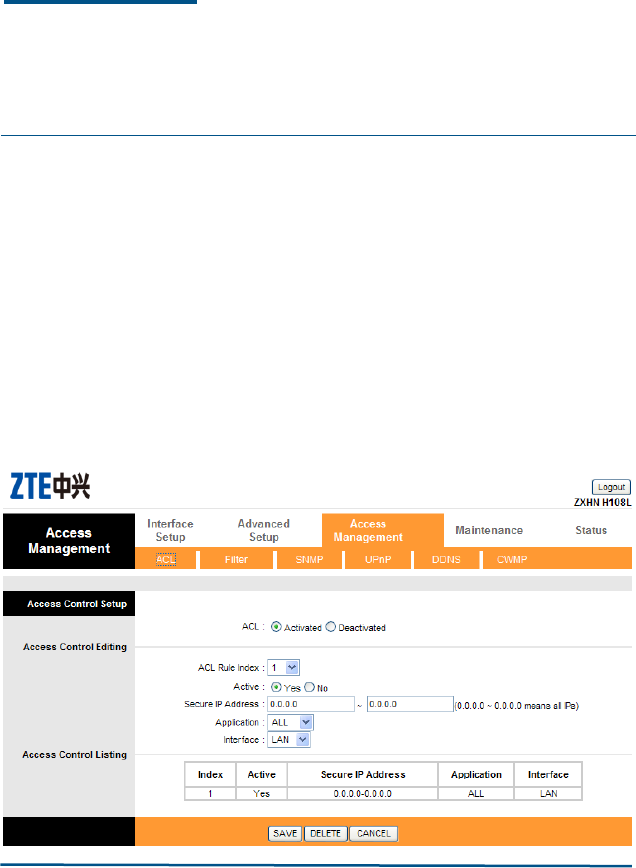
Access Control Listing (ACL) acts as a filter for incoming or outgoing
packets, based on application.
FIG U RE 24 THE ACL MAN AG EM E NT PA G E
Chapter 6 - Access Management
Confidential and Proprietary Information of ZTE CORPORATION 41
Figure 24 shows the configuration page and Table 22 describes the
parameters.
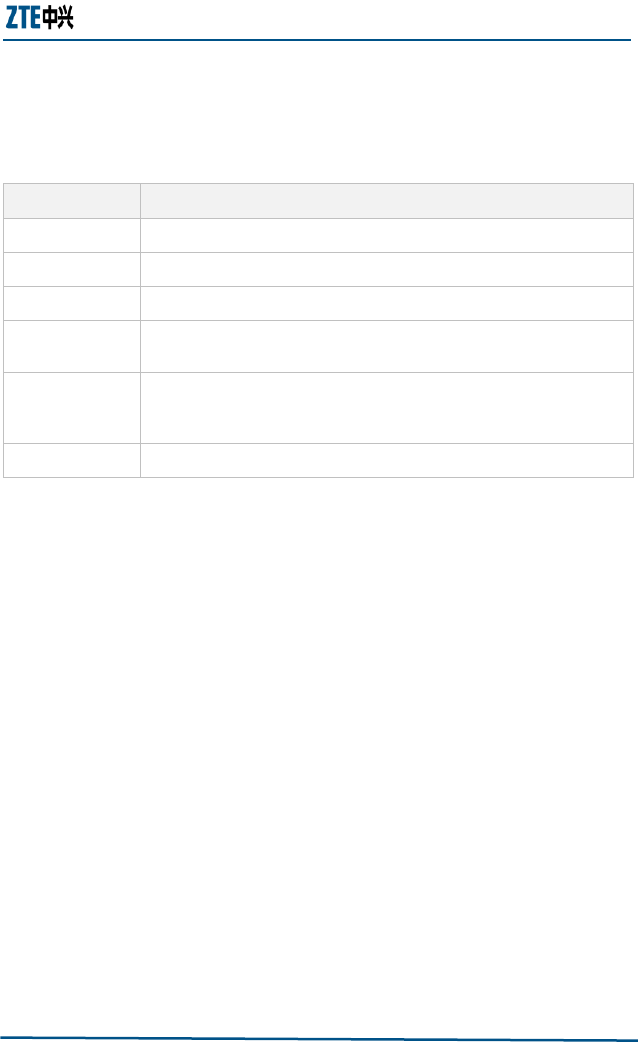
TABLE 22 THE ACL MAN AG E MEN T PA R A M E TE R S
Parameter
Description
ACL
ACL must be activated before editing the settings.
ACL Rule Index
Select the rule index from the dropdown list.
Active
Toggle the rule ON or OFF with Yes or No.
Secure IP
Address
Enter the IP address to allow access. If 0.0.0.0 is entered, all
packets are allowed.
Application
Select the application to allow access. The web browser must be
allowed first; otherwise the web configuration page cannot be
accessed.
Interface
Select the interface the above rules to be applied for.
Click SAVE to submit the changes, or DELETE to delete the rule
with the parameters, or CANCEL to exit without saving.
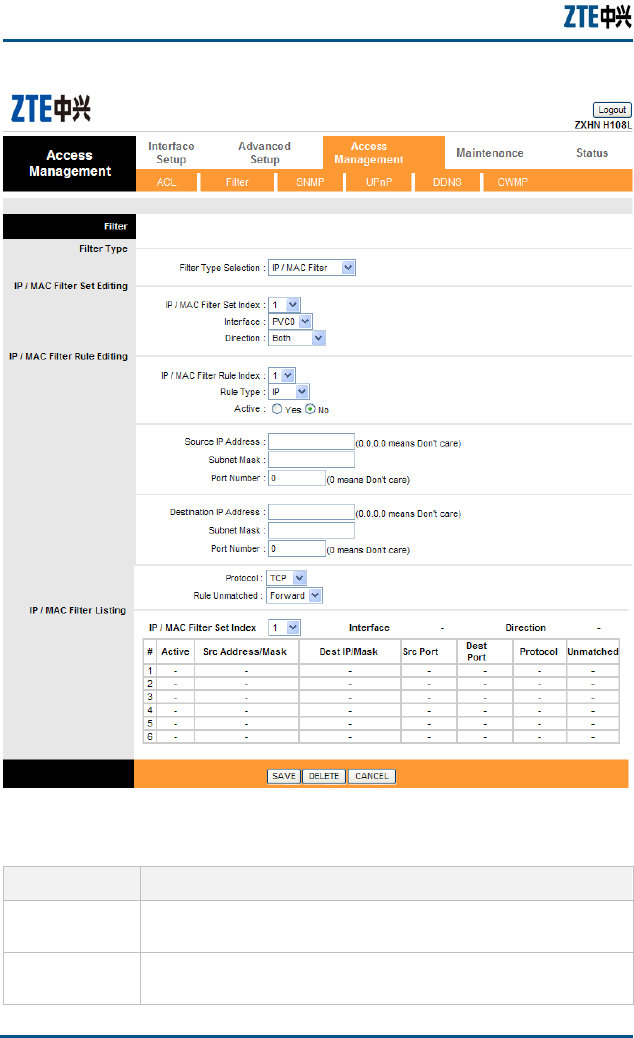
Filter Management
IP filter is a more complex filtering tool, based more on IP and
custom rules. Each of the indices can hold six rules, and each
interface can have four associated indices, allowing 24 rules per
interface.
ZXHN H108L Wireless ADSL Router Maintenance Manual
42 Confidential and Proprietary Information of ZTE CORPORATION
FIG U RE 25 THE FILTE R MANAGE M E NT PA G E
TABLE 23 THE FI L TE R MAN A GEM EN T PAR A M E T E RS
Parameter
Description
Filter Type
Selection
Select the IP filter to be viewed
IP Filter Set
Index
Select the IP filter set to be modified
Chapter 6 - Access Management
Confidential and Proprietary Information of ZTE CORPORATION 43
Parameter
Description
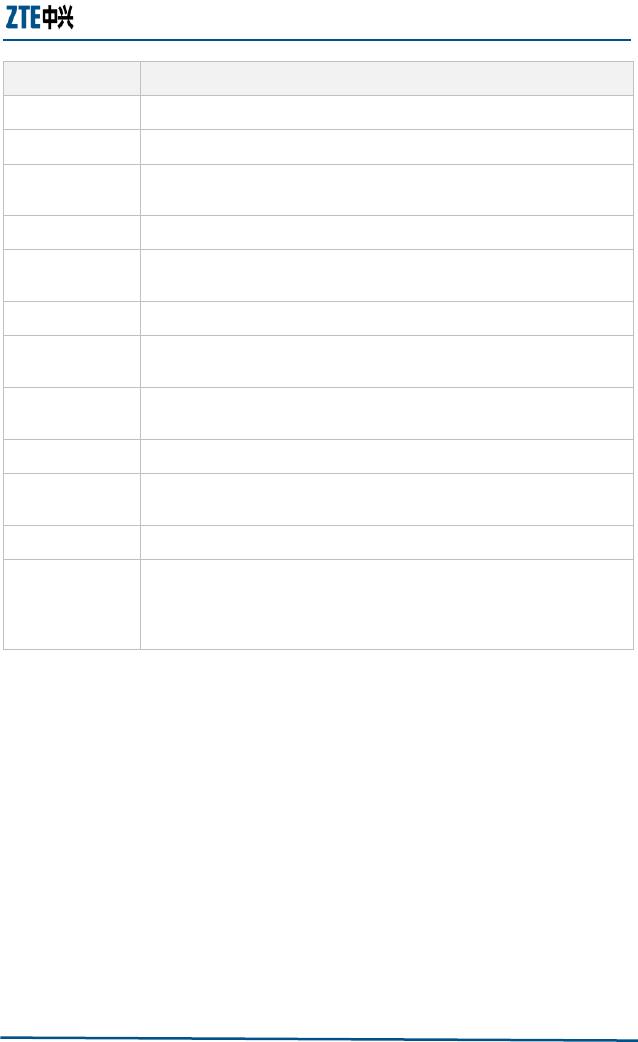
Interface
Select the interface to be modified. PV0~PV7 and WAN interfaces.
Direction
Select which direction of data flow to apply to the filters.
IP Filter Rule
Index
Select IP filter rule index to be modified.
Active
Toggle this rule index ON or OF with Yes or No.
Source IP
Address
Enter the source IP address to deny access to the ZXHN H108L
router.
Subnet Mask
Enter the subnet mask of the source IP address.
Port Number
Enter the port number of the source IP address. 0 means that all
ports are allowed.
Destination IP
Address
Enter the destination IP address to deny access to the ZXHN
H108L router.
Subnet Mask
Enter the subnet mask of the destination IP address.
Port Number
Enter the port number of the destination IP address. 0 means that
all ports are allowed.
Protocol
Select the protocol to filter.
Rule Unmatched
Select what happens to the data in question if the rule currently
editing is unmatched. Next means that the data is then compared
to the next IP filter rule. Forward means that the data will be
allowed into the user system.
Click SAVE to submit the changes, or DELETE to delete the rule
with the parameters, or CANCEL to exit without saving.
UPnP Management
Universal Plug and Play (UPnP) is an open networking standard that
uses TCP/IP for simple peer-to-peer network connectivity between
devices. An UPnP device can dynamically join a network, obtain an
IP address, convey its capabilities and learn about other devices on
the network. A device can leave a network smoothly and
automatically when it is no longer in use.
ZXHN H108L Wireless ADSL Router Maintenance Manual
44 Confidential and Proprietary Information of ZTE CORPORATION
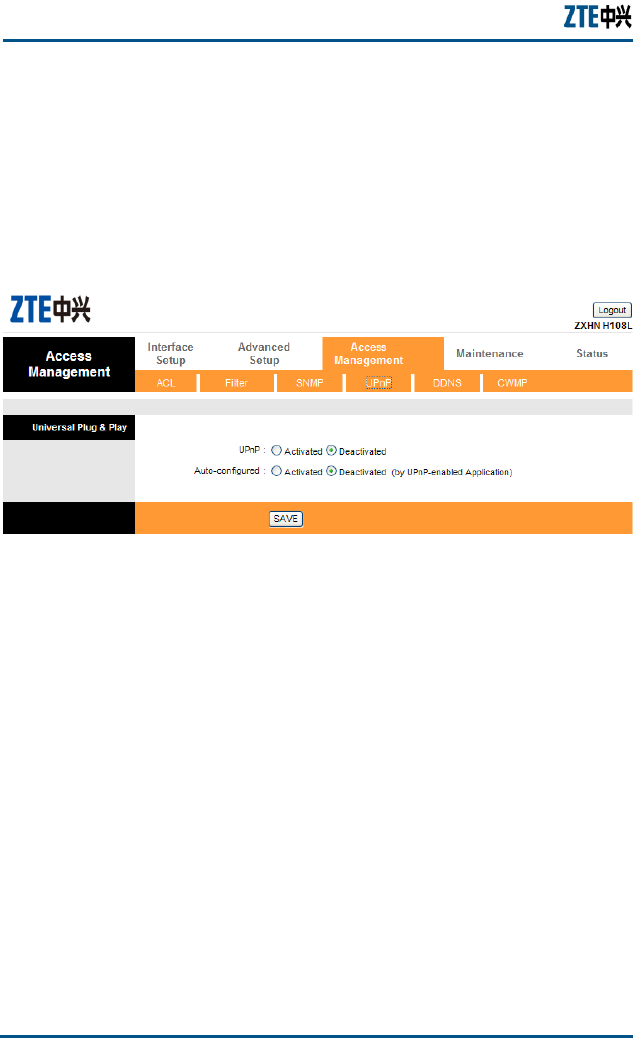
UPnP hardware is identified as an icon in the Network Connection
folder (in Windows XP). Each UPnP-compatible device that is
installed on the ZXHN H108L network will appear as a separate icon.
Figure 26 shows the UPnP management page. Set the parameters
according to requirement and click the SAVE button to save the
changes.
FIG U RE 26 THE UPNP MAN A GE M EN T PA G E
DDNS Management
Dynamic DNS (DDNS) allows the user to update the current dynamic
IP address with one or many dynamic DNS services so that anyone
can contact the user through various applications.
The user needs to have registered a dynamic DNS account with
www.dyndns.org. It is for people with a dynamic IP from their ISP
or DHCP server that would still like to have a DNS name. The
dynamic DNS service provider will give the user a password or key.
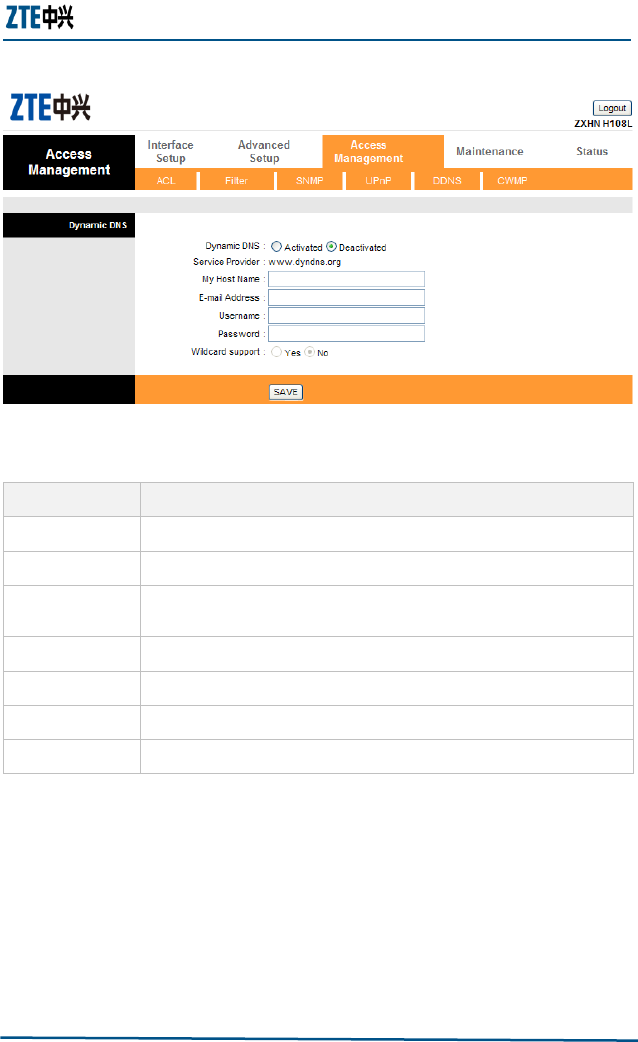
Figure 27 shows the DDNS management page. Table 24 describes
the parameters.
Chapter 6 - Access Management
Confidential and Proprietary Information of ZTE CORPORATION 45
FIG U RE 27 THE DDNS MAN A GE M EN T PA G E
TABLE 24 THE DDNS PA R A M E TE R S
Parameter
Description
Active
Dynamic DNS can be toggled Activated or Deactivated.
Service Provider
The name of the dynamic DNS service provider.
My Host Name
Enter the domain name assigned to the ZXHN H108L router by the
dynamic DNS provider.
E-mail Address
Enter the user’s e-mail address.
Username
Enter the username provided by ISP.
Password
Enter the password.
Wildcard support
Choose whether or not to have DYNDNS Wildcard.
Click the SAVE button to save the changes.
CWMP Management
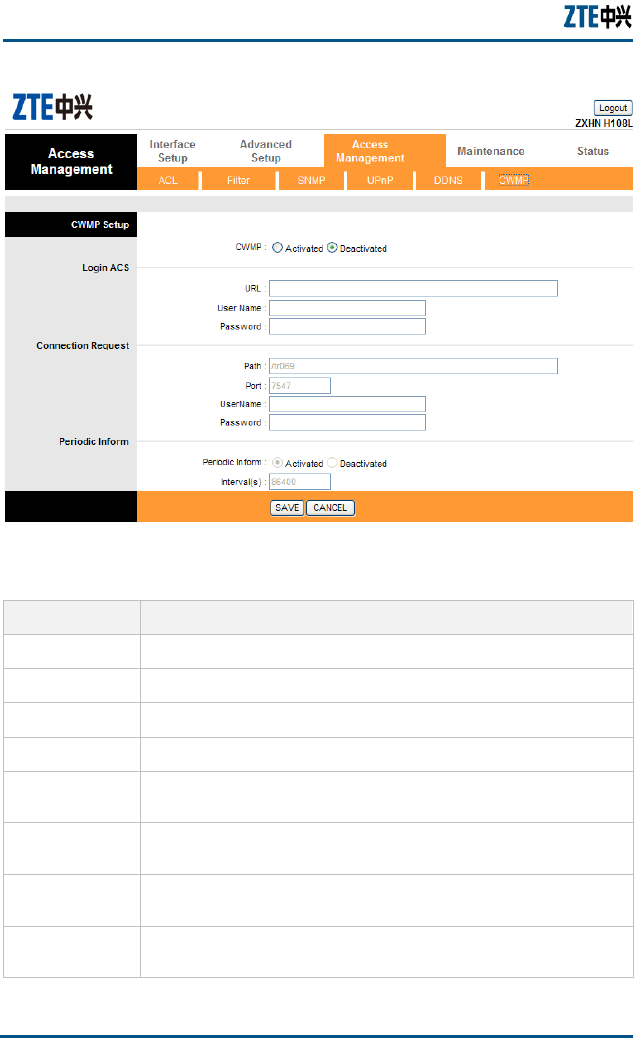
Figure 28 shows the CWMP management configuration page. By
default, the CWMP service is deactivated. Users can activate the
service and set the parameters according to Table 25.
ZXHN H108L Wireless ADSL Router Maintenance Manual
46 Confidential and Proprietary Information of ZTE CORPORATION
FIG U RE 28 THE CWMP MAN AG E ME N T PA G E
TABLE 25 THE CWMP PAR A M E TE R S
Parameter
Description
CWPM
CWMP can be toggled Activated and Deactivated.
URL
Enter the URL address of the ACS server
User Name
Enter the user name of ZXHN H108L to login the ACS server.
Password
Enter the password of ZXHN H108L to login the ACS server.
Path
Enter the path for the packet exchange between the ZXHN H108L
router and the ACS server. By default, the path is tr069.
Port
Enter the port for the packet exchange between the ZXHN H108L
router and the ACS server. By default, the port is 80.
UserName
Enter the user name for the ACS server to access the ZXHN H108L
router.
Password
Enter the password for the ACS server to access the ZXHN H108L
router.

Chapter 6 - Access Management
Confidential and Proprietary Information of ZTE CORPORATION 47
Parameter
Description
Periodic inform
To configure whether the ZXHN H108L router sends the Inform
packet periodically.
Interval(s)
Enter the interval to send the Inform packet: 1 ~ 86400 s (24
hours)
Click the SAVE button to save the changes or CANCEL to discard the
changes.

ZXHN H108L Wireless ADSL Router Maintenance Manual
48 Confidential and Proprietary Information of ZTE CORPORATION
This page is intentionally blank.
Confidential and Proprietary Information of ZTE CORPORATION 49
C h a p t e r 7
Maintenance
The Maintenance page helps the user to manage the ZXHN H108L
router.
Administration Configuration
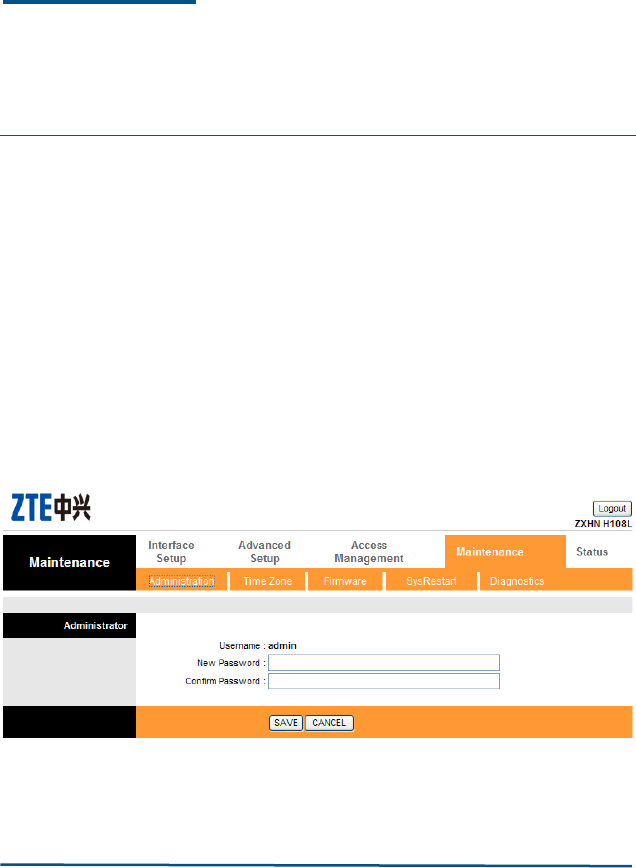
The Administration page, as shown in Figure 29 is used to change
the ZXHN H108L router login password. Click the SAVE button to
save the new password or CANCEL to discard the changes.
FIG U RE 29 THE AD M IN I S TR A TI O N CO NF I GU R ATION PAG E
ZXHN H108L Wireless ADSL Router Maintenance Manual
50 Confidential and Proprietary Information of ZTE CORPORATION
Time Zone Configuration
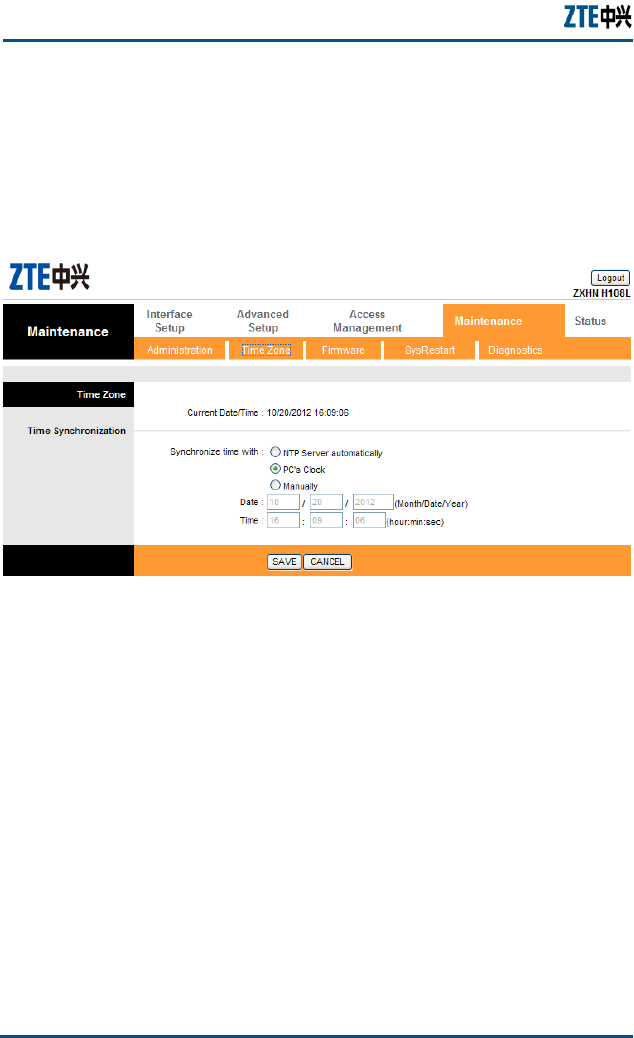
The Time Zone configuration page is used to change the ZXHN
H108L router’s date and time, as shown in Figure 30. Click the SAVE
button to save the new password or CANCEL to discard the changes.
FIG U RE 30 THE TIM E ZO NE CO N FI GUR ATI O N PA G E
Firmware Configuration
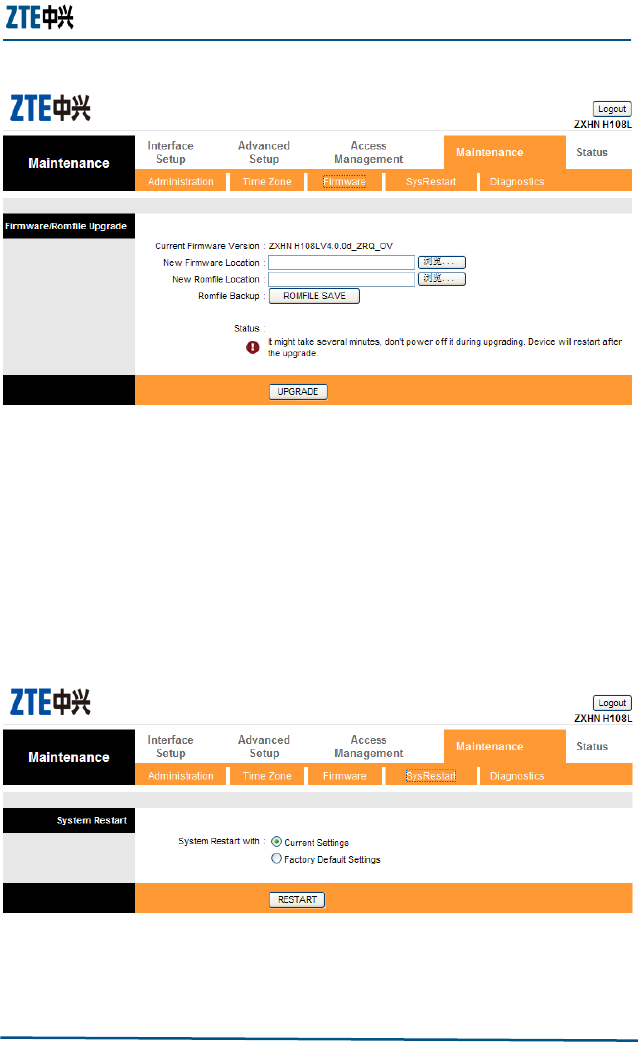
The Firmware configuration page shown in Figure 31 is used to
view and update the ZXHN H108L router firmware.
Click the Browse button to upload the firmware. And then click the
UPGRADE button to perform the update.
Chapter 7 - Maintenance
Confidential and Proprietary Information of ZTE CORPORATION 51
FIG U RE 31 THE FIR MW AR E CO NF I GUR ATI ON PA G E
SysRestart Configuration
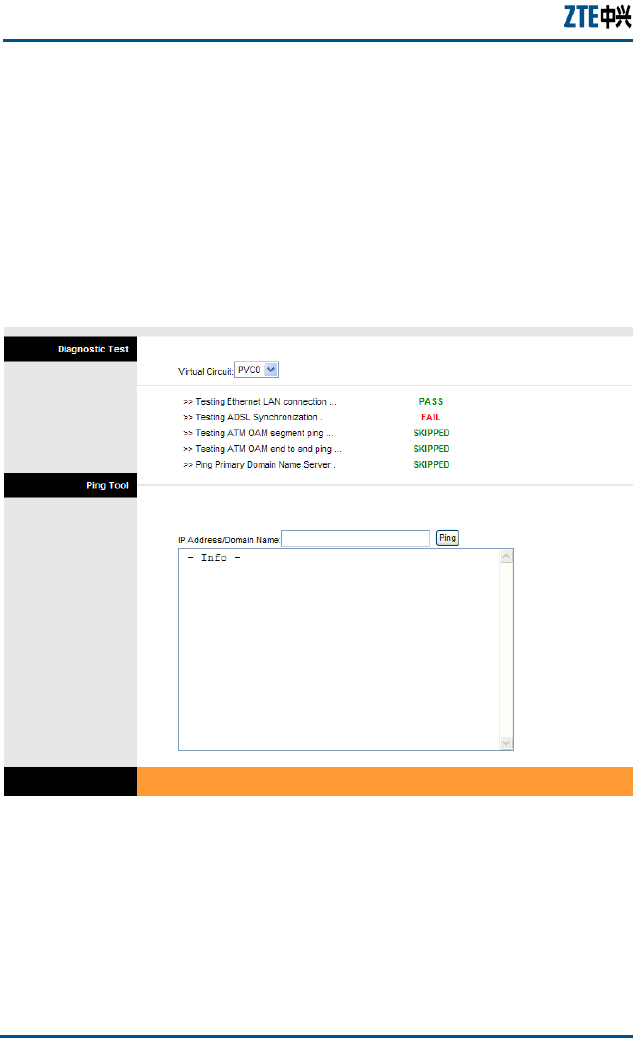
The SysRestart configuration page is used to determine whether
the current setting or the factory default setting to be loaded after
the ZXHN H108L router restarting. Click the RESTART button to
restart the ZXHN H108L router.
FIG U RE 32 THE SYS TE M RES T AR T CONFIGURATION PA G E
ZXHN H108L Wireless ADSL Router Maintenance Manual
52 Confidential and Proprietary Information of ZTE CORPORATION
Diagnostics
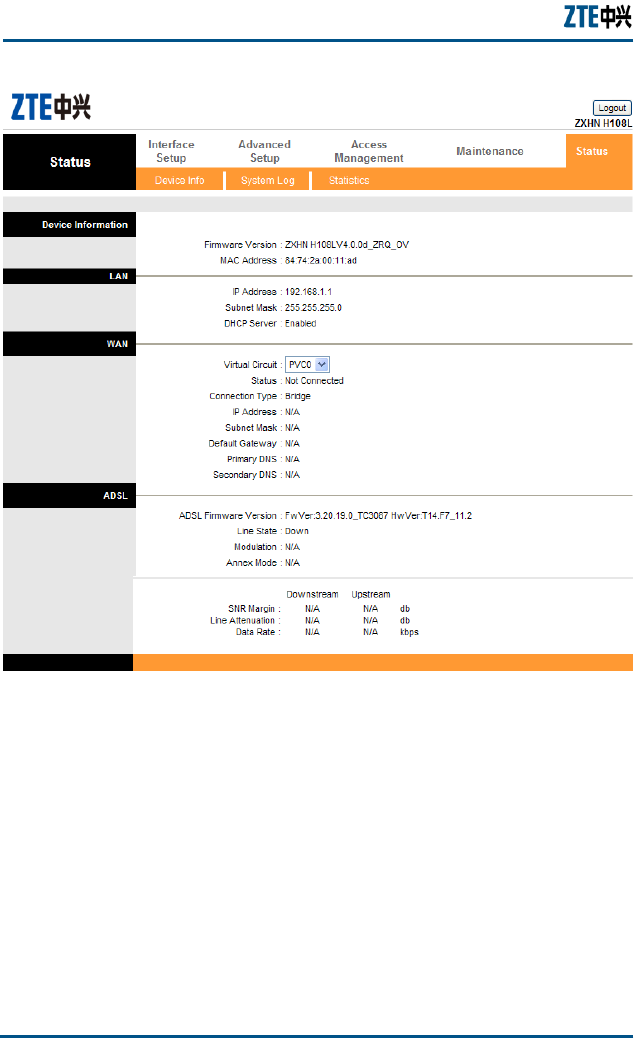
The performance of the virtual circuits can be tested through the
Diagnostics page, as shown in Figure 33. Select a PVC from the
dropdown list and the corresponding testing result will be displayed.
PASS means the test is passed; FAIL means the test is failed;
SKIPPED means the test is skipped.
FIG U RE 33 THE DI AG N OS TIC S PAG E

ZXHN H108L Wireless ADSL Router Maintenance Manual
54 Confidential and Proprietary Information of ZTE CORPORATION
FIG U RE 34 THE DE VI CE INFORMATION PA G E
System Log
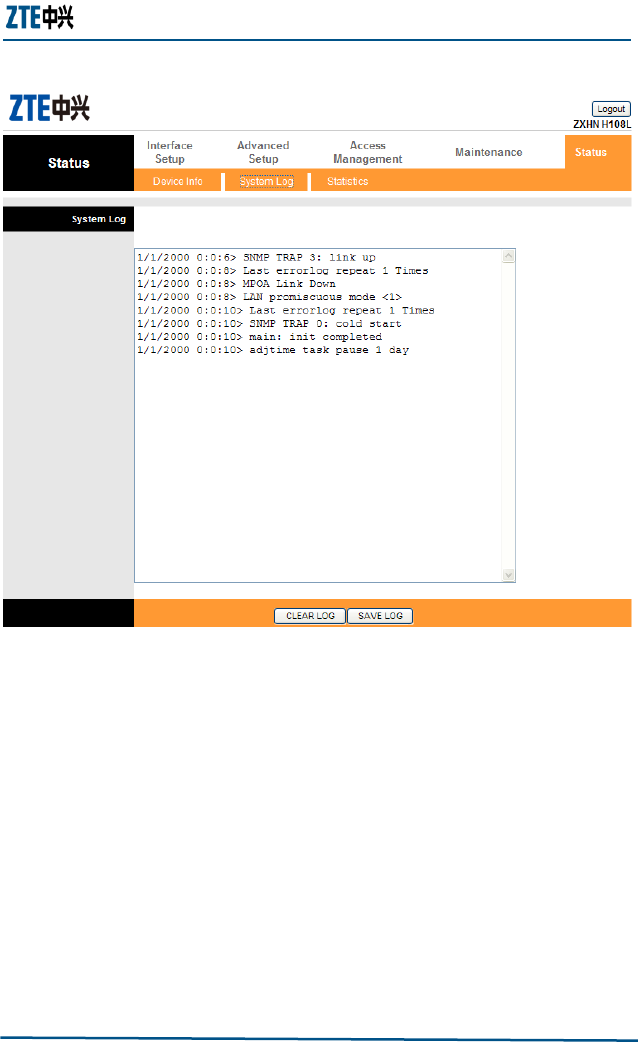
The System Log page displays a log of the ZXHN H108L router
operating, as shown in Figure 35. Click the CLEAR LOG button to
clear the log or SAVE LOG to save the log to a file.
Chapter 8 - Status
Confidential and Proprietary Information of ZTE CORPORATION 55
FIG U RE 35 THE SYS TE M LOG PAG E
Statistics
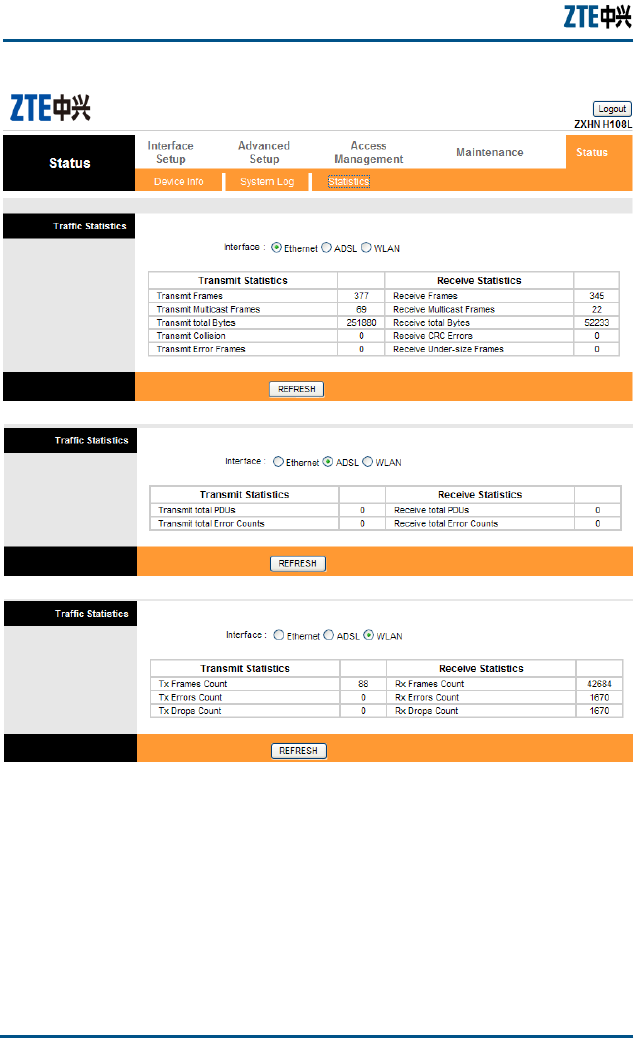
The Statistics page shown in Figure 36 presents the information on
how much data the ZXHN H108L router has processed. Choose
Ethernet, ADSL or WLAN option to view the corresponding
statistics information. Click the REFRESH button to update the data.
ZXHN H108L Wireless ADSL Router Maintenance Manual
56 Confidential and Proprietary Information of ZTE CORPORATION
FIG U RE 36 THE STATI S TI C S PA G E

Chapter 8 - Status
Confidential and Proprietary Information of ZTE CORPORATION 57
This page is intentionally blank.

Confidential and Proprietary Information of ZTE CORPORATION 58
C h a p t e r 9
Troubleshooting
This chapter describes how to troubleshoot problems when installing
and using a ZXHN H108L. For any problems not addressed here;
contact the service provider for help.
TABLE 26 TR O U B LE S H O O TI N G
Problem
Troubleshooting
Power indicator is
OFF when the
device is powered
on.
Make sure to use the power adapter included in the package.
Make sure that the adapter is connected properly to the
device and power outlet.
DSL indicator is OFF
when the telephone
line is connected.
Make sure to use standard telephone lines (e.g., the
companion telephone line). Make sure that the lines are
connected properly. Check all the port connections. Wait for
60 seconds for the device to establish an ADSL connection.
When the telephone
line is connected,
DSL indicator
alternates between
slow and fast
flashing.
It indicates the connection failure between the device and the
office-end DSLAM. Please make sure that the lines are
connected properly. If a telephone is required to be installed
in front of the splitter, make sure to install a voice filter
properly.
LAN indicator is OFF
when the Ethernet
cable is connected.
Make sure that the Ethernet cable is connected properly to
the computer and the ZXHN H108L. Make sure that the
device and computer are all powered on.
WLAN unable to be
connected
Make sure that the WLAN indicator is ON. Make sure that the
wireless NIC is set properly. Check the network name,
encryption mode, and encryption key to see whether they
match the settings of the ZXHN H108L.

Chapter 9 - Troubleshooting
Confidential and Proprietary Information of ZTE CORPORATION 59
Problem
Troubleshooting
PC unable to access
the network
Use the ping command to check if the IP address of the
network port of the ZXHN H108L (192.168.1.1 by
default) can be pinged from the computer. If it cannot
be pinged successfully, check the Ethernet connection
and see if the indicator status is normal.
It is recommended that the local IP address and DNS
server address are set to be obtained automatically.
It is recommended to close all the running firewall and
VPN software.
Disable the proxy server setting of the web browser
(e.g., IE).
The failure reason may be that the office-end devices of
the ADSL service provider are being upgraded or in
maintenance.

Confidential and Proprietary Information of ZTE CORPORATION 60
A p p e n d i x A
Technical Specifications
Items
Parameter Description
ADSL interface
Compatible standards: ANSI T1.413 Issue 2, ITU
G.992.1 (G.dmt), ITU G.992.2 (G.lite), ITU G.992.3
(ADSL2), ITU G.992.5 (ADSL2+), Annex A,, I, J, L,M
Line impedance: 100 Ω
Connection line: A pair of ordinary telephone wires
Connector: RJ-11
LAN interface
Interface: 10/100 Base-T, IEEE 802.3/802.3u
Connector: RJ-45
Automatic recognition of crossover cable and straight-
through cable
WAN interface
Working frequency band: 2.4GHz~2.4835GHz
Compatible standards: IEEE 802.11b, IEEE 802.11g,
IEEE 802.11n
Rates: 1/2/5.5/11/6/9/12/18/24/36/48/54/150Mbps
Physical size
120mm(L) x 110mm(W) x 50mm(H)
Weight
450g(including the package and kits)
Power adapter
Input: 100 ~ 240 VAC, 50/60Hz, 250m A(max)
Output: 12V±5%, 500 mA
Environmental
requirement
Operating temperature: -5 °C ~ 45 °C
Operating humidity: 5%~95%
Security
CE

Appendix A - Technical Specifications
Confidential and Proprietary Information of ZTE CORPORATION 61
This page is intentionally blank.

Confidential and Proprietary Information of ZTE CORPORATION 62
A p p e n d i x B
Computer WLAN
Configuration
To access the ZXHN H108L in the wireless way from the computer,
the user needs to configure WLAN settings of the computer as
follows (the following example assumes that the user adopts a
laptop computer with a built-in wireless NIC and the operating
system is Windows XP):
1. From the Windows taskbar, select Start > Control Panel.
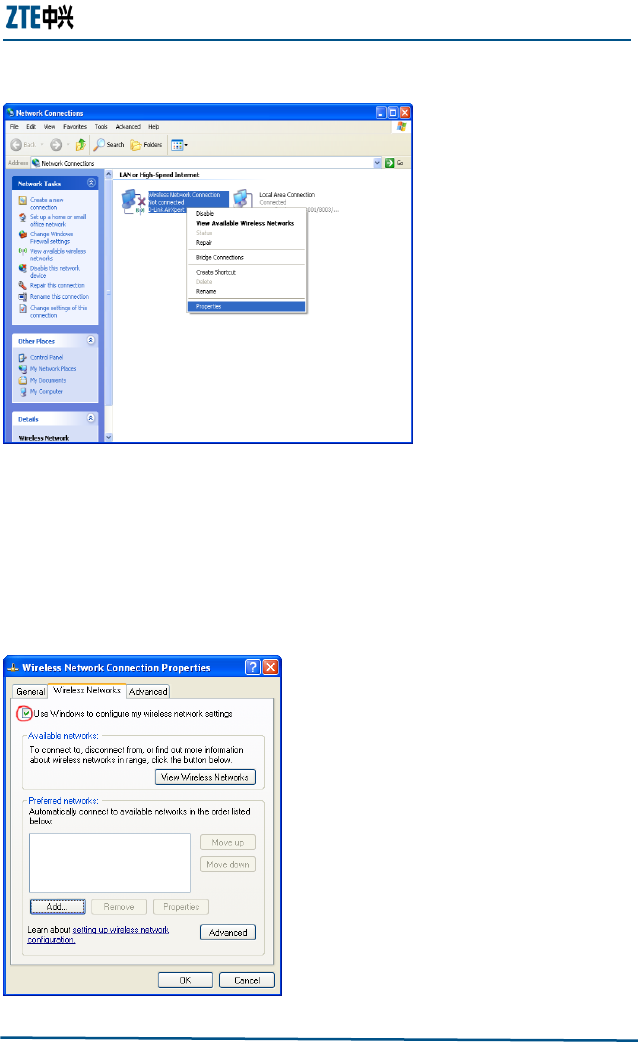
2. Double click the Network Connections icon. Right-click
Wireless Network Connection and then select Properties. In
the Wireless Network Connection Properties page, click the
General tab, and set the wireless NIC to obtain the IP address
and DNS server address from the ZXHN H108L automatically via
DHCP. Refer to section “Configuring TCP/IP” in Chapter 2 for
the detailed procedure.
Appendix B - Computer WLAN Configuration
Confidential and Proprietary Information of ZTE CORPORATION 63
FIG U RE 37 NET WO R K CO N N E C T I O N S
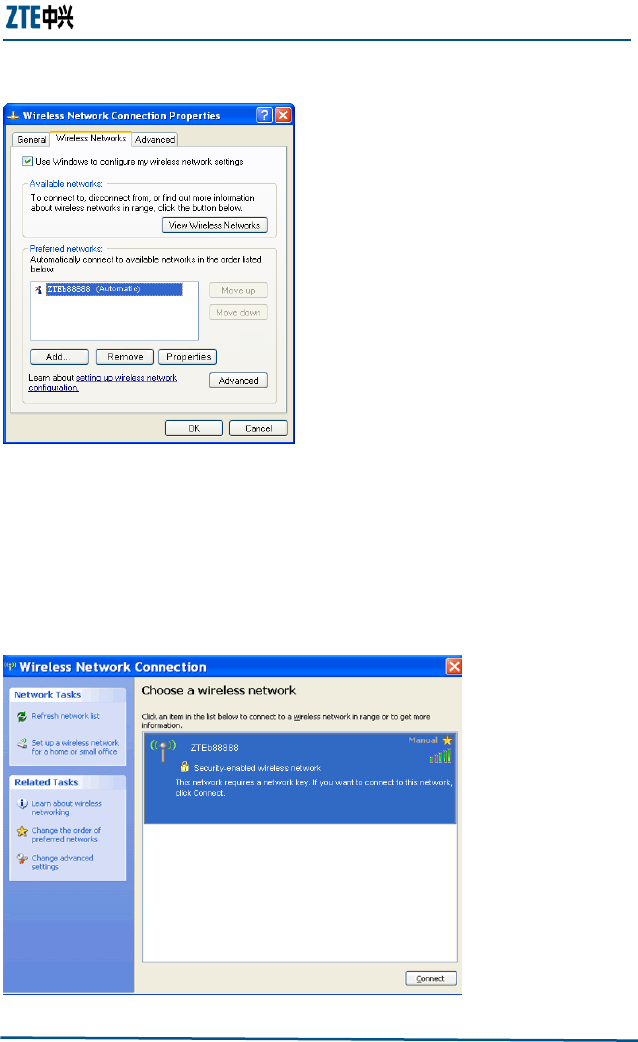
3. In the Wireless Network Connection Properties page, click
the Wireless Networks tab, and check Use Windows to
configure my wireless network settings. Check if the
desired WLAN SSID is included in the Preferred networks
area. If there is no desired SSID, click the Add button.
FIG U RE 38 WIRELESS NE T W O RK S
ZXHN H108L Wireless ADSL Router Maintenance Manual
64 Confidential and Proprietary Information of ZTE CORPORATION
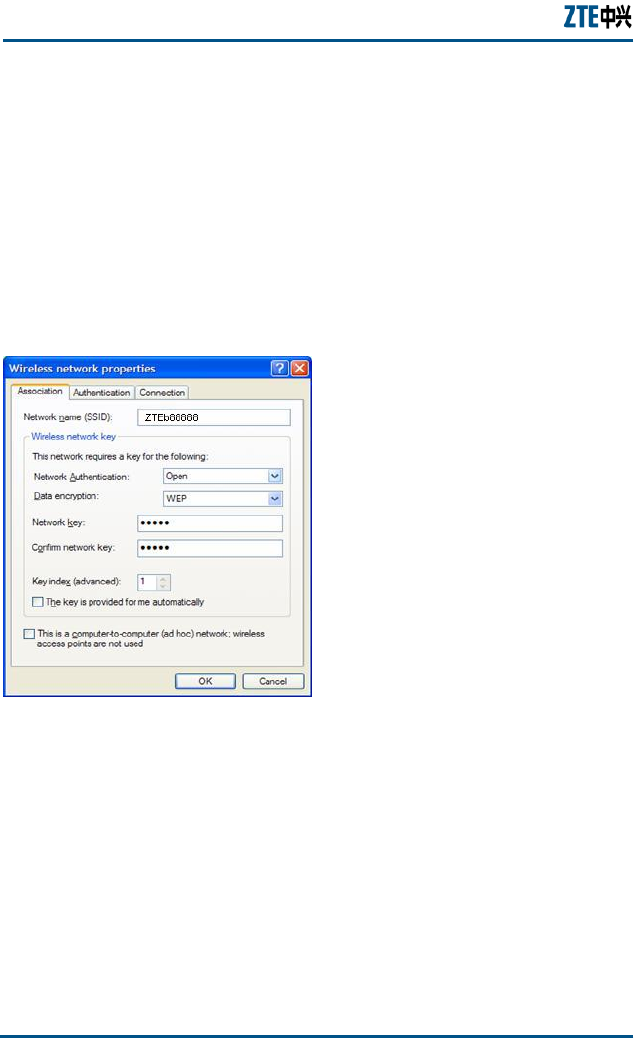
4. In the Network name (SSID) field, type in an SSID (the same
as the one set for the ZXHN H108L; case sensitive). If the ZXHN
H108L enables wireless security (see section Wireless
Security in Chapter 6 for security setup), supposing that the
user adopts WEP with Both as Authentication Type and
Ee68o as Encryption key, select Open for Network
Authentication and WEP for Data encryption. Uncheck The
key is provided for me automatically. In the Network key
fields, type in Ee68o (the same as the encryption key for the
ZXHN H108L), and then click OK.
FIG U RE 39 ASS O C IA TI O N TAB (WIRELESS NE TW O RK PROPERTIES)
5. Click the View Wireless Networks button to view the wireless
network list.
Appendix B - Computer WLAN Configuration
Confidential and Proprietary Information of ZTE CORPORATION 65
FIG U RE 40 VIE W WIRELESS NE TW O RK S
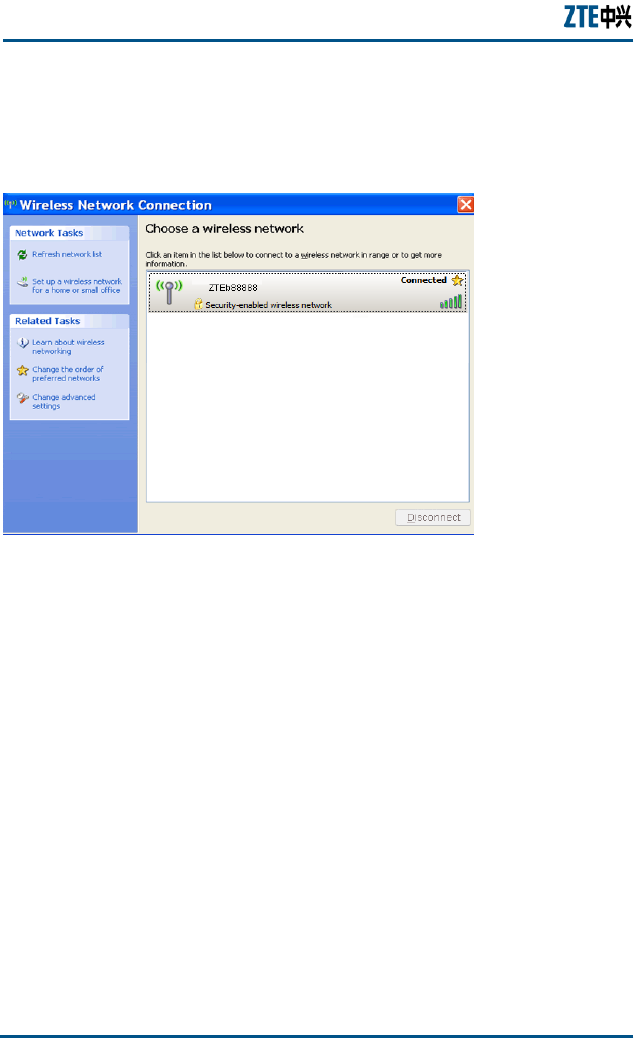
6. Check the wireless network list to see if the newly added
wireless network connection exists. If not, click Refresh
network list in the left pane of the page. If the wireless
network is found, select it and then click the Connect button on
the bottom of the page.
FIG U RE 41 CHO OS E A WIRELESS NE T W O RK
ZXHN H108L Wireless ADSL Router Maintenance Manual
66 Confidential and Proprietary Information of ZTE CORPORATION
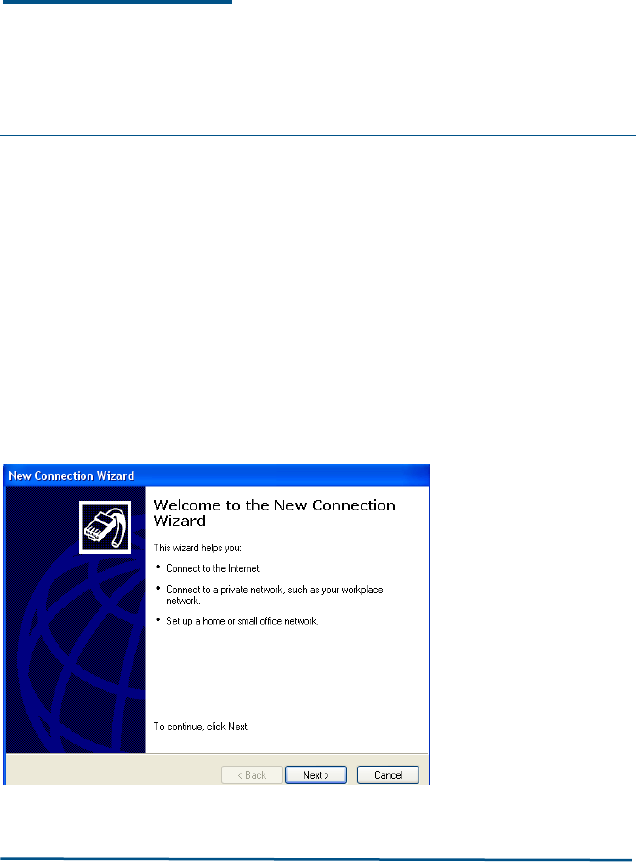
7. Now the computer shall be suceessfully connected to the
wireless network.
FIG U RE 42 SUC C ES S FU L WIRELESS CO N N E C T IO N

Confidential and Proprietary Information of ZTE CORPORATION 67

ZXHN H108L Wireless ADSL Router Maintenance Manual
68 Confidential and Proprietary Information of ZTE CORPORATION
This page is intentionally blank.
Confidential and Proprietary Information of ZTE CORPORATION 69
A p p e n d i x C
PPPoE Dial-up Configuration
This appendix presents the procedures to set up a PPPoE dial-up
connection in a Window XP operation system.
To set up a PPPoE dial-up connection:
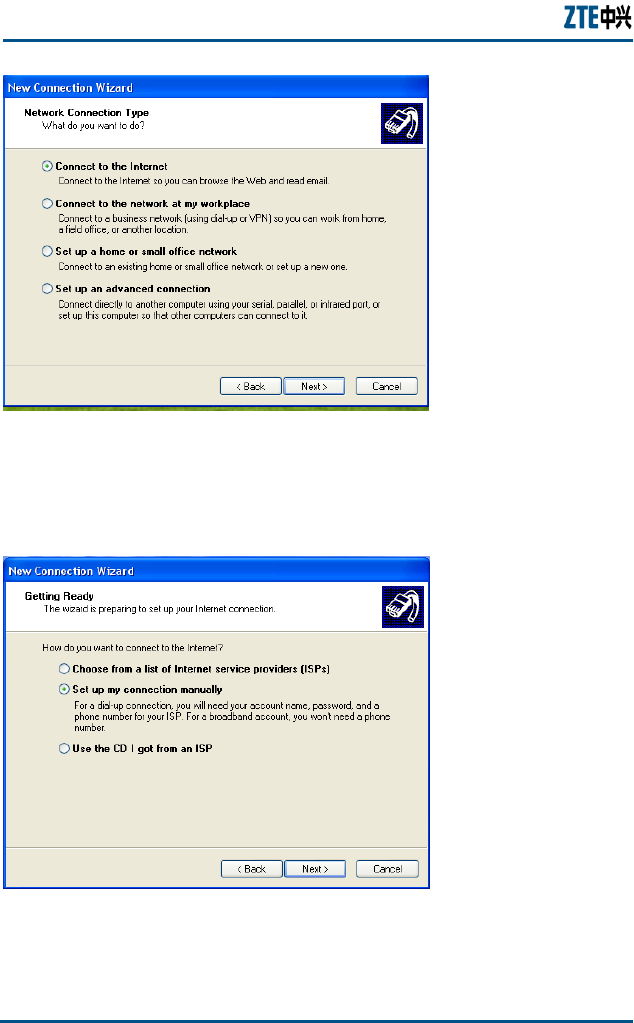
1. Click Start > All Programs > Accessories >
Communications > New Connection Wizard to open the page
as shown in Figure 43.
FIG U RE 43 PPPOE DI AL -UP CO NFI GU R AT I O N 1
2. Click Next and choose the option of Connect to the Internet.
ZXHN H108L Wireless ADSL Router Maintenance Manual
70 Confidential and Proprietary Information of ZTE CORPORATION
FIG U RE 44 PPPOE DI AL -UP CO NFI GUR ATI O N 2
3. Click Next and choose the option of Set up my conneciton
manually.
FIG U RE 45 PPPOE DIAL-U P CON FI G U R ATI O N 3
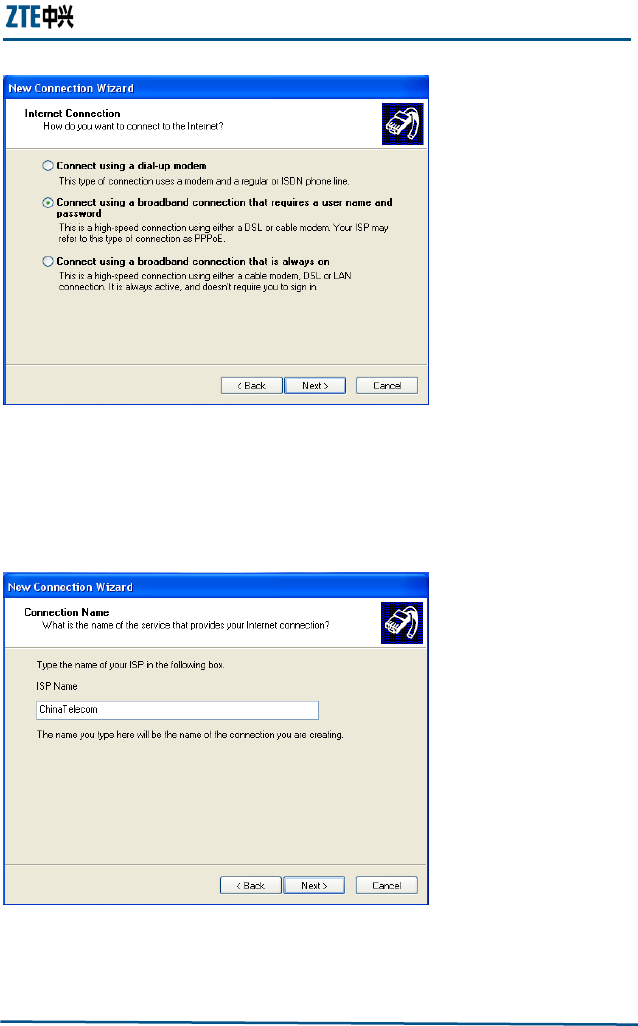
4. Click Next and choose the option of Connect using a
broadband that requires a user name and password.
Appendix C - PPPoE Dial-up Configuration
Confidential and Proprietary Information of ZTE CORPORATION 71
FIG U RE 46 PPPOE DI AL -UP CO NFI GU R AT I O N 4
5. Click Next and enter the connection name in the ISP name text
box(According the ISP: ChinaTelecom,the following just for
example).
FIG U RE 47 PPPOE DI AL -UP CO NFI GU R AT I O N 5
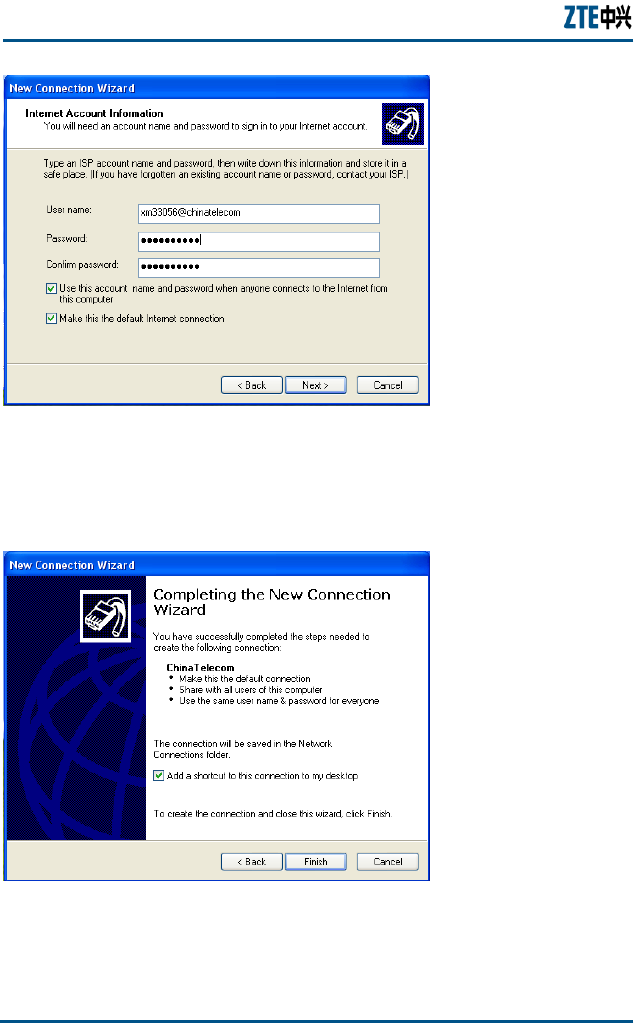
6. Click Next and enter the correct user name and
password.(According ISP provided:)
ZXHN H108L Wireless ADSL Router Maintenance Manual
72 Confidential and Proprietary Information of ZTE CORPORATION
FIG U RE 48 PPPOE DI AL -UP CO NFI GUR ATI O N 6
7. Click Next and check the box before Add a shortcut to this
connection to my desktop.
FIG U RE 49 PPPOE DI AL -UP CO NFI GUR ATI O N 7
8. Click Finish. A PPPoE connection shortcut will be appeared on the
desktop. And the connection is established.

Confidential and Proprietary Information of ZTE CORPORATION 73
Figures
Figure 1 Front Panel .................................................................. 2
Figure 2 Rear Panel ................................................................... 4
Figure 3 ADSL Uplink Connections............................................... 7
Figure 5 The Login Dialog Box .................................................. 12
Figure 6 Main Page for Configuration ......................................... 13
Figure 7 The Interface Setup Page ............................................ 15
Figure 8 The PVC Summary Table ............................................. 17
Figure 9 Dynamic IP Address Parameters (IPv4) ......................... 18
Figure 10 Static IP Address Parameters ..................................... 19
Figure 11 PPPoA/PPPoE Parameters ........................................... 21
Figure 12 Bridge Mode Parameters ............................................ 23
Figure 13 The LAN Configuration Page ....................................... 24
Figure 14 The Relay DHCP Web Configuration Page ..................... 26
Figure 15 The Wireless Configuration Page ................................. 28
Figure 16 The Firewall Configuration Page .................................. 31
Figure 17 The Routing Configuration Page .................................. 32
Figure 18 Adding Route ........................................................... 32
Figure 19 The NAT Configuration Page ....................................... 33
Figure 20 The Qos configuration Page ....................................... 35
Figure 21 The VLAN Configuration Page ..................................... 36
Figure 22 Assigning PVID ......................................................... 37
Figure 23 Defining VLAN Group ................................................ 38
Figure 24 The ADSL Configuration Page ..................................... 39
Figure 25 The ACL Management Page ........................................ 40
Figure 26 The Filter Management Page ...................................... 42
Figure 28 The UPnP Management Page ...................................... 44
Figure 29 The DDNS Management Page ..................................... 45
Figure 30 The CWMP Management Page .................................... 46
Figure 31 The Administration Configuration Page ........................ 49
Figure 32 The Time Zone Configuration Page ............................. 50
Figure 33 The Firmware Configuration Page ............................... 51
Figure 34 The System Restart Configuration Page ....................... 51
Figure 35 The Diagnostics Page ................................................ 52
Figure 36 The Device Information Page ..................................... 54
Figure 37 The System Log Page ................................................ 55

ZXHN H108L Wireless ADSL Router Maintenance Manual
74 Confidential and Proprietary Information of ZTE CORPORATION
Figure 38 The Statistics Page .................................................... 56
Figure 39 Network Connections ................................................. 63
Figure 40 Wireless Networks ..................................................... 63
Figure 41 Association Tab (Wireless Network Properties) .............. 64
Figure 42 View Wireless Networks ............................................. 65
Figure 43 Choose a Wireless Network ........................................ 65
Figure 44 Successful Wireless Connection ................................... 66
Figure 45 PPPoE Dial-up Configuration 1 .................................... 69
Figure 46 PPPoE Dial-up Configuration 2 .................................... 70
Figure 47 PPPoE Dial-up Configuration 3 .................................... 70
Figure 48 PPPoE Dial-up Configuration 4 .................................... 71
Figure 49 PPPoE Dial-up Configuration 5 .................................... 71
Figure 50 PPPoE Dial-up Configuration 6 .................................... 72
Figure 51 PPPoE Dial-up Configuration 7 .................................... 72

Confidential and Proprietary Information of ZTE CORPORATION 75
Tables
Table 1 Typographical Conventions .............................................. i
Table 2 Mouse Operation Conventions ......................................... ii
Table 3 Safety Signs ................................................................. ii
Table 4 Packing List .................................................................. 2
Table 5 Descriptions for the Indicators ........................................ 3
Table 6 Descriptions for the Ports and Buttons ............................ 4
Table 7 The Descriptions of ATM VC & Qos Parameters ................ 16
Table 8 The Descriptions of the Dynamic IP Address Parameters ... 18
Table 9 The Descriptions of the Static IP Address Parameters ....... 19
Table 10 The Descriptions of the PPPoE/PPPoA Parameters .......... 21
Table 11 The Descriptions of the Bridge Mode Parameters ........... 23
Table 12 The Descriptions of the Local IP Parameters .................. 24
Table 13 The Descriptions of the DHCP Parameters ..................... 25
Table 14 The Relay DHCP Parameter ......................................... 26
Table 15 The Access Point Parameters ....................................... 28
Table 16 The Multiple SSIDs Parameters .................................... 29
Table 17 The MAC Filter Parameters .......................................... 30
Table 18 The Static Route Parameters ....................................... 33
Table 19 The PVID Parameters ................................................. 37
Table 20 VLAN Group Setting Parameters .................................. 38
Table 21 The ADSL Parameters................................................. 39
Table 22 The ACL Management Parameters ................................ 41
Table 23 The Filter Management Parameters .............................. 42
Table 25 The DDNS Parameters ................................................ 45
Table 26 The CWMP Parameters ............................................... 46
Table 27 Troubleshooting ......................................................... 58
