Zyxel Nsa 220 Users Manual SMG 700 User’s Guide V1.00 (Nov 2004)
NSA-220 to the manual c03f0c17-1a15-47cd-8ab6-22df56471fda
2015-01-23
: Zyxel Zyxel-Nsa-220-Users-Manual-309471 zyxel-nsa-220-users-manual-309471 zyxel pdf
Open the PDF directly: View PDF  .
.
Page Count: 234 [warning: Documents this large are best viewed by clicking the View PDF Link!]
- User’s Guide
- Introduction
- System Setting and Applications
- System Setting Screens
- Storage Screens
- Network Screen
- Application Screens
- 8.1 Application Screens
- 8.2 FTP Access for NSA Files
- 8.3 Sharing Media Files on Your Network
- 8.4 Media Server Screen
- 8.5 Download Service
- 8.6 Download Service Screen
- 8.7 Adding a Download Task
- 8.8 Configuring Your General Download Preferences
- 8.9 Web Publishing
- 8.10 Web Publishing Screen
- 8.11 Web Publishing Example
- 8.12 Broadcatching
- 8.13 Broadcatching Screen
- 8.14 Adding or Editing a Broadcatching Channel
- 8.15 Printer Sharing
- 8.16 Print Server Screen
- 8.17 Print Server Rename
- User Accounts and Shares
- Maintenance, Protecting Data, and Media Client
- Troubleshooting and Specifications
- Troubleshooting
- Product Specifications
- Appendices and Index

www.zyxel.com
NSA-220
Network Storage Appliance
User’s Guide
Version 2.10
11/2007
Edition 1
DEFAULT LOGIN
Web Address nsa220
Password 1234

About This User's Guide
NSA-220 User’s Guide 3
About This User's Guide
Intended Audience
This manual is intended for people who want to configure the NSA using the web
configurator. A basic knowledge of TCP/IP networking concepts and topology will be helpful.
Related Documentation
• Quick Start Guide
The Quick Start Guide is designed to help you get up and running right away. It contains
information on setting up your network and configuring for Internet access.
• Web Configurator Online Help
Embedded web help for descriptions of individual screens and supplementary
information.
• Supporting Disk
Refer to the included CD for support documents.
• ZyXEL Web Site
Please refer to www.zyxel.com for additional support documentation and product
certifications.
User Guide Feedback
Help us help you. Send all User Guide-related comments, questions or suggestions for
improvement to the following address, or use e-mail instead. Thank you!
The Technical Writing Team,
ZyXEL Communications Corp.,
6 Innovation Road II,
Science-Based Industrial Park,
Hsinchu, 300, Taiwan.
E-mail: techwriters@zyxel.com.tw
Document Conventions
NSA-220 User’s Guide
4
Document Conventions
Warnings and Notes
These are how warnings and notes are shown in this User’s Guide.
1Warnings tell you about things that could harm you or your device.
"Notes tell you other important information (for example, other things you may
need to configure or helpful tips) or recommendations.
Syntax Conventions
• The NSA may be referred to as the “NSA”, the “device” or the “system” in this User’s
Guide.
• Product labels, screen names, field labels and field choices are all in bold font.
• A key stroke is denoted by square brackets and uppercase text, for example, [ENTER]
means the “enter” or “return” key on your keyboard.
• “Enter” means for you to type one or more characters and then press the [ENTER] key.
“Select” or “choose” means for you to use one of the predefined choices.
• A right angle bracket ( > ) within a screen name denotes a mouse click. For example,
Maintenance > Log > Log Setting means you first click Maintenance in the navigation
panel, then the Log sub menu and finally the Log Setting tab to get to that screen.
• Units of measurement may denote the “metric” value or the “scientific” value. For
example, “k” for kilo may denote “1000” or “1024”, “M” for mega may denote “1000000”
or “1048576” and so on.
• “e.g.,” is a shorthand for “for instance”, and “i.e.,” means “that is” or “in other words”.
Document Conventions
NSA-220 User’s Guide 5
Icons Used in Figures
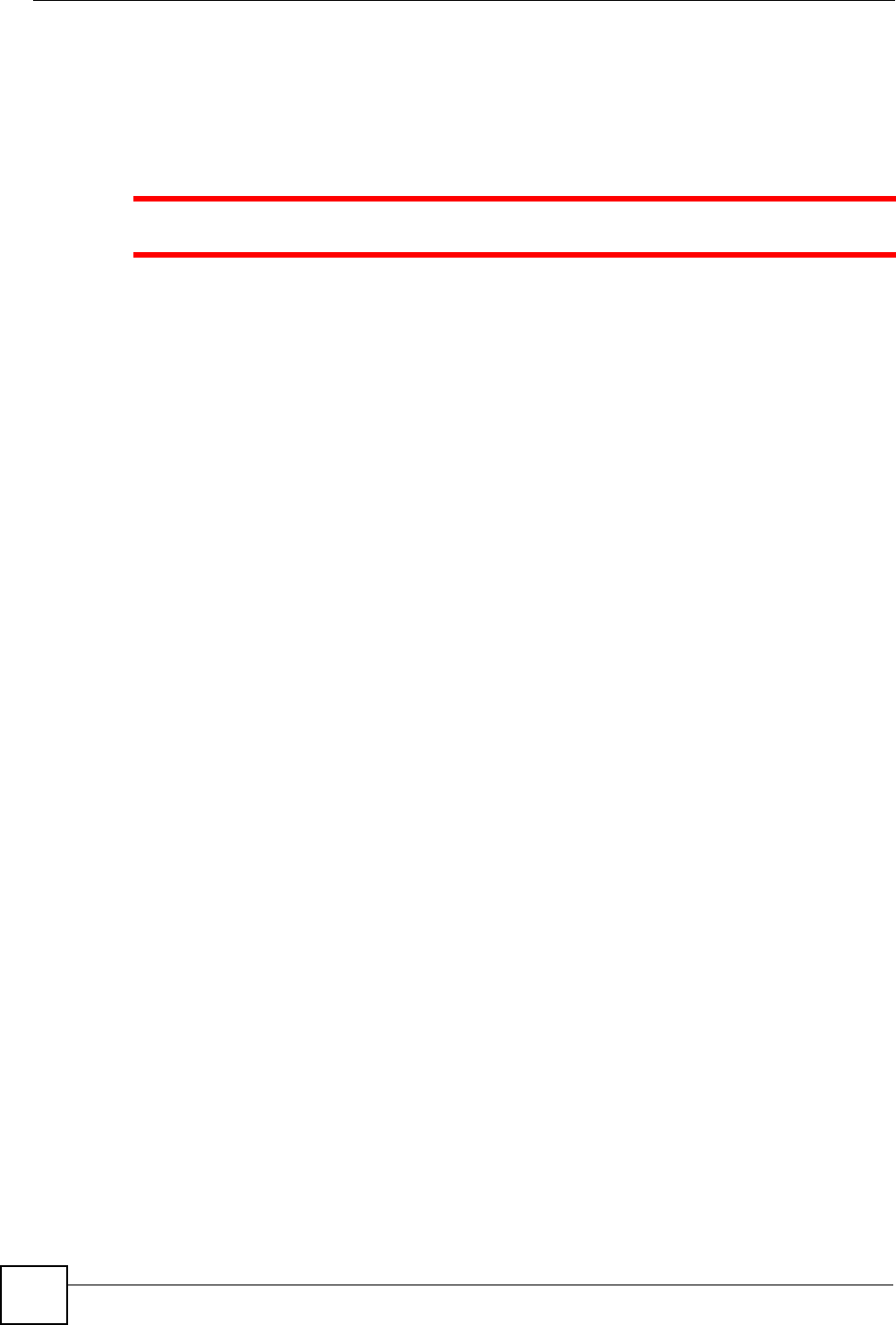
Figures in this User’s Guide may use the following generic icons. The NSA icon is not an
exact representation of your device.
NSA Computer Notebook computer
Server Television Firewall
Router Switch Internet
Safety Warnings
NSA-220 User’s Guide
6
Safety Warnings
1For your safety, be sure to read and follow all warning notices and instructions.
• Do NOT use this product near water, for example, in a wet basement or near a swimming
pool.
• Do NOT expose your device to dampness, dust or corrosive liquids.
• Do NOT store things on the device.
• Do NOT install, use, or service this device during a thunderstorm. There is a remote risk
of electric shock from lightning.
• Connect ONLY suitable accessories to the device.
• Do NOT open the device or unit. Opening or removing covers can expose you to
dangerous high voltage points or other risks. ONLY qualified service personnel should
service or disassemble this device. Please contact your vendor for further information.
• ONLY qualified service personnel should service or disassemble this device.
• Make sure to connect the cables to the correct ports.
• Place connecting cables carefully so that no one will step on them or stumble over them.
• Always disconnect all cables from this device before servicing or disassembling.
• Use ONLY an appropriate power adaptor or cord for your device.
• Connect the power adaptor or cord to the right supply voltage (for example, 110V AC in
North America or 230V AC in Europe).
• Do NOT allow anything to rest on the power adaptor or cord and do NOT place the
product where anyone can walk on the power adaptor or cord.
• Do NOT use the device if the power adaptor or cord is damaged as it might cause
electrocution.
• If the power adaptor or cord is damaged, remove it from the power outlet.
• Do NOT attempt to repair the power adaptor or cord. Contact your local vendor to order a
new one.
• Do not use the device outside, and make sure all the connections are indoors. There is a
remote risk of electric shock from lightning.
• CAUTION: RISK OF EXPLOSION IF BATTERY (on the motherboard) IS REPLACED
BY AN INCORRECT TYPE. DISPOSE OF USED BATTERIES ACCORDING TO
THE INSTRUCTIONS. Dispose them at the applicable collection point for the recycling
of electrical and electronic equipment. For detailed information about recycling of this
product, please contact your local city office, your household waste disposal service or the
store where you purchased the product.
• Do NOT obstruct the device ventilation slots, as insufficient airflow may harm your
device.
This product is recyclable. Dispose of it properly.
Safety Warnings
NSA-220 User’s Guide 7
Safety Warnings
NSA-220 User’s Guide
8
Contents Overview
NSA-220 User’s Guide 9
Contents Overview
Introduction ............................................................................................................................23
Getting to Know Your NSA ........................................................................................................ 25
Web Configurator Basics ........................................................................................................... 29
Tutorials ..................................................................................................................................... 45
Status Screen ............................................................................................................................ 63
System Setting and Applications .........................................................................................67
System Setting Screens ............................................................................................................ 69
Storage Screens ....................................................................................................................... 73
Network Screen ......................................................................................................................... 85
Application Screens ................................................................................................................... 89
User Accounts and Shares ................................................................................................. 113
Users ........................................................................................................................................115
Shares ......................................................................................................................................119
Maintenance, Protecting Data, and Media Client ..............................................................125
Maintenance Screens ............................................................................................................. 127
Protecting Your Data ................................................................................................................ 135
Media Client Software ............................................................................................................. 137
Memeo Autobackup Software ................................................................................................. 139
Troubleshooting and Specifications ..................................................................................141
Troubleshooting ...................................................................................................................... 143
Product Specifications ............................................................................................................. 155
Appendices and Index .........................................................................................................163
Contents Overview
NSA-220 User’s Guide
10
Table of Contents
NSA-220 User’s Guide 11
Table of Contents
About This User's Guide..........................................................................................................3
Document Conventions............................................................................................................4
Safety Warnings........................................................................................................................6
Contents Overview ...................................................................................................................9
Table of Contents....................................................................................................................11
List of Figures .........................................................................................................................17
List of Tables...........................................................................................................................21
Part I: Introduction................................................................................. 23
Chapter 1
Getting to Know Your NSA.....................................................................................................25
1.1 NSA Overview ..................................................................................................................... 25
1.1.1 LEDs .......................................................................................................................... 26
1.1.2 COPY Button ..............................................................................................................28
Chapter 2
Web Configurator Basics.......................................................................................................29
2.1 Web Configurator Overview ................................................................................................. 29
2.2 Accessing the NSA Web Configurator ................................................................................. 29
2.2.1 Access the NSA Via NDU .......................................................................................... 29
2.2.2 Web Browser Access ................................................................................................. 30
2.3 Login .................................................................................................................................... 30
2.4 User-level Screens Overview ............................................................................................. 31
2.5 My NSA Screen ................................................................................................................... 33
2.5.1 My NSA Share Browsing Screen ............................................................................... 34
2.5.2 My NSA Share Browsing Move to or Copy to Screen ................................................ 35
2.5.3 My NSA Management Overview Screen .................................................................... 36
2.5.4 My NSA Change Share Properties Screen ............................................................... 36
2.5.5 Share and Folder Names ........................................................................................... 38
2.5.6 Share Paths ............................................................................................................... 39
2.5.7 Password Screen ...................................................................................................... 39
2.6 Administration Screens ....................................................................................................... 40
Table of Contents
NSA-220 User’s Guide
12
2.6.1 Global Administration Icons ....................................................................................... 41
2.6.2 Navigation Panel ........................................................................................................ 42
2.6.3 Main Window ..............................................................................................................43
2.6.4 Status Messages ........................................................................................................ 43
2.6.5 Common Screen Icons ............................................................................................... 43
Chapter 3
Tutorials...................................................................................................................................45
3.1 File Sharing Tutorials ........................................................................................................... 45
3.1.1 Creating a User Account ............................................................................................ 45
3.1.2 Creating a Share ........................................................................................................ 47
3.1.3 Accessing a Share From Windows Explorer .............................................................. 49
3.1.4 Accessing a Share Using FTP ................................................................................... 50
3.1.5 Accessing a Share Through the Web Configurator .................................................... 51
3.2 Download Service Tutorial ................................................................................................... 52
3.3 Broadcatching Tutorial ......................................................................................................... 56
3.4 Printer Server Tutorial .......................................................................................................... 59
Chapter 4
Status Screen..........................................................................................................................63
4.1 Status Screen ...................................................................................................................... 63
4.1.1 Session Example (Windows) ..................................................................................... 65
Part II: System Setting and Applications............................................. 67
Chapter 5
System Setting Screens.........................................................................................................69
5.1 System Setting Screens ..................................................................................................... 69
5.1.1 Windows/CIFS ........................................................................................................... 69
5.2 Server Name ....................................................................................................................... 69
5.3 Date/Time ........................................................................................................................... 70
5.3.1 Time Lag .................................................................................................................... 70
5.3.2 Date/Time Screen ...................................................................................................... 70
Chapter 6
Storage Screens.....................................................................................................................73
6.1 Storage Introduction ........................................................................................................... 73
6.2 Storage Overview Screen ....................................................................................................73
6.3 Creating an Internal Volume ................................................................................................74
6.4 Editing a Volume .................................................................................................................. 76
6.5 Volumes and RAID .............................................................................................................. 76
Table of Contents
NSA-220 User’s Guide 13
6.5.1 Choosing A Storage Method For a Volume ................................................................ 77
6.5.2 Volume Status ............................................................................................................77
6.6 Disk Replacement Restrictions ............................................................................................ 78
6.6.1 Resychronizing or Recovering a RAID 1 Volume ....................................................... 79
6.6.2 Disk Replacement and Volume Labels ...................................................................... 79
6.7 Creating an External Volume .............................................................................................. 79
6.8 External Disks ...................................................................................................................... 80
6.9 RAID .................................................................................................................................... 81
6.9.1 JBOD .......................................................................................................................... 82
6.9.2 RAID 0 ........................................................................................................................ 82
6.9.3 RAID 1 ........................................................................................................................ 83
6.9.4 RAID and Data Protection .......................................................................................... 83
Chapter 7
Network Screen.......................................................................................................................85
7.1 Network Settings ................................................................................................................. 85
7.1.1 IP Address .................................................................................................................. 85
7.1.2 DNS Server Address .................................................................................................. 85
7.1.3 Jumbo Frames ........................................................................................................... 85
7.2 Network Config Screen ........................................................................................................ 86
Chapter 8
Application Screens ...............................................................................................................89
8.1 Application Screens ............................................................................................................. 89
8.2 FTP Access for NSA Files ...................................................................................................89
8.3 Sharing Media Files on Your Network ................................................................................ 90
8.3.1 iTunes Server ............................................................................................................. 91
8.3.2 Songs and Videos from the iTunes Store ................................................................... 92
8.4 Media Server Screen ........................................................................................................... 92
8.5 Download Service ................................................................................................................ 93
8.5.1 BitTorrent .................................................................................................................... 94
8.5.2 Protecting Your Network and NSA When Using BitTorrent ........................................ 94
8.6 Download Service Screen ................................................................................................... 96
8.7 Adding a Download Task ....................................................................................................99
8.8 Configuring Your General Download Preferences ............................................................ 100
8.9 Web Publishing ................................................................................................................. 101
8.9.1 Accessing Web-published Shares from the Internet ................................................ 101
8.9.2 Web Publishing Port Number ................................................................................... 102
8.10 Web Publishing Screen ................................................................................................... 102
8.11 Web Publishing Example ................................................................................................. 104
8.12 Broadcatching .................................................................................................................. 105
8.12.1 Channel Guides ..................................................................................................... 106
8.13 Broadcatching Screen ..................................................................................................... 106
Table of Contents
NSA-220 User’s Guide
14
8.14 Adding or Editing a Broadcatching Channel .................................................................... 108
8.15 Printer Sharing ................................................................................................................. 109
8.16 Print Server Screen ..........................................................................................................110
8.17 Print Server Rename ........................................................................................................110
Part III: User Accounts and Shares .....................................................113
Chapter 9
Users...................................................................................................................................... 115
9.1 User Accounts Introduction ...............................................................................................115
9.2 Users Overview Screen ......................................................................................................115
9.2.1 User Icons .................................................................................................................116
9.3 Adding or Editing an Account ............................................................................................116
9.3.1 Usernames ................................................................................................................117
9.4 Delete Account Screen .......................................................................................................118
Chapter 10
Shares.................................................................................................................................... 119
10.1 Shares Introduction ..........................................................................................................119
10.1.1 Share Icons .............................................................................................................119
10.1.2 Shares Screen ........................................................................................................119
10.2 Adding or Editing Share ..................................................................................................120
10.2.1 Public and ANONYMOUS Share Access Rights ................................................... 122
10.3 Share Path Browse Screen ............................................................................................. 122
Part IV: Maintenance, Protecting Data, and Media Client................. 125
Chapter 11
Maintenance Screens ..........................................................................................................127
11.1 Maintenance Overview .................................................................................................... 127
11.2 Log .................................................................................................................................. 127
11.3 Log Classes ..................................................................................................................... 128
11.4 Log Severity Levels .......................................................................................................... 128
11.5 Log Messages .................................................................................................................. 129
11.6 Configuration ................................................................................................................... 131
11.7 Firmware Upgrade .......................................................................................................... 131
11.8 Shutdown ........................................................................................................................ 132
Chapter 12
Protecting Your Data.............................................................................................................135
Table of Contents
NSA-220 User’s Guide 15
12.1 Protection Methods .......................................................................................................... 135
12.1.1 Configuration File Backup and Restoration ............................................................ 135
12.1.2 Memeo Autobackup ............................................................................................... 136
Chapter 13
Media Client Software...........................................................................................................137
13.1 Media Client Introduction .................................................................................................137
13.2 Using the Media Client Software ..................................................................................... 137
Chapter 14
Memeo Autobackup Software..............................................................................................139
14.1 Memeo Autobackup Introduction ..................................................................................... 139
14.2 Using the Memeo Autobackup Software ......................................................................... 139
Part V: Troubleshooting and Specifications...................................... 141
Chapter 15
Troubleshooting...................................................................................................................143
15.1 Troubleshooting Overview ............................................................................................... 143
15.2 Power, Hardware, Connections, and LEDs ..................................................................... 143
15.3 NSA Login and Access .................................................................................................... 145
15.3.1 Reset the NSA ....................................................................................................... 146
15.3.2 Enabling Scripting of Safe ActiveX Controls .......................................................... 147
15.4 I Cannot Access The NSA ............................................................................................... 148
15.5 External USB Drives ........................................................................................................ 149
15.6 Some Features’ Screens Do Not Display ........................................................................ 150
15.7 Media Server Functions ................................................................................................... 150
15.8 Download Service and Broadcatching Functions ............................................................ 152
15.9 Web Publishing ................................................................................................................ 152
Chapter 16
Product Specifications.........................................................................................................155
16.1 Physical Features ............................................................................................................ 155
16.2 Firmware Features .......................................................................................................... 155
16.3 Specification Tables ......................................................................................................... 156
16.4 Supported Media Server Content Formats ...................................................................... 160
16.5 Supported iTunes Server Content Formats ..................................................................... 160
16.6 Power Consumption ........................................................................................................ 160
16.7 Compatible Hard Disks .................................................................................................... 161
Table of Contents
NSA-220 User’s Guide
16
Part VI: Appendices and Index ........................................................... 163
Appendix A Setting up Your Computer’s IP Address............................................................165
Appendix B Pop-up Windows, JavaScripts and Java Permissions......................................179
Appendix C Common Services ............................................................................................187
Appendix D Open Source Licences .....................................................................................191
Appendix E Legal Information ..............................................................................................221
Appendix F Customer Support.............................................................................................223
Index.......................................................................................................................................229
List of Figures
NSA-220 User’s Guide 17
List of Figures
Figure 1 Example of the NSA in a Home Network ................................................................................. 25
Figure 2 NSA Front Panel ..................................................................................................................... 26
Figure 3 NSA Rear Panel ...................................................................................................................... 27
Figure 4 NDU Main Screen .................................................................................................................... 30
Figure 5 NSA URL .................................................................................................................................. 30
Figure 6 NSA Login Screen .................................................................................................................... 31
Figure 7 Change Password Screen ........................................................................................................ 31
Figure 8 My NSA ................................................................................................................................... 32
Figure 9 My NSA ................................................................................................................................... 33
Figure 10 My NSA Share Browsing ....................................................................................................... 34
Figure 11 My NSA Share Browsing > Move to (or Copy to) .................................................................. 35
Figure 12 My NSA Management Overview ........................................................................................... 36
Figure 13 My NSA Change Share Properties ........................................................................................ 37
Figure 14 Password ............................................................................................................................... 40
Figure 15 Status ................................................................................................................................... 41
Figure 16 Navigation Panel Links ........................................................................................................... 42
Figure 17 My NSA ................................................................................................................................. 45
Figure 18 Users ..................................................................................................................................... 46
Figure 19 Users > Create Example ...................................................................................................... 46
Figure 20 Users (Account Created) ...................................................................................................... 46
Figure 21 Shares .................................................................................................................................... 47
Figure 22 Shares > Create Example ...................................................................................................... 47
Figure 23 Shares > Create > Browse > Create Folder Example ............................................................ 48
Figure 24 Shares > Create > Browse > New Folder Example ................................................................ 48
Figure 25 Shares > Create Example ...................................................................................................... 49
Figure 26 NSA Top Level ....................................................................................................................... 49
Figure 27 Map Network Drive ................................................................................................................. 49
Figure 28 Enter Network Password ........................................................................................................ 50
Figure 29 Example Share Mapped (Folders View) ................................................................................. 50
Figure 30 FTP Example: Typing the FTP Target .................................................................................... 51
Figure 31 FTP Example: Enter the Password ........................................................................................ 51
Figure 32 FTP Example: Logged In ........................................................................................................ 51
Figure 33 My NSA User Login ............................................................................................................... 52
Figure 34 My NSA User Login ............................................................................................................... 52
Figure 35 Download Link Example ........................................................................................................ 53
Figure 36 Copy Shortcut ........................................................................................................................ 54
Figure 37 Download Service Tutorial: My NSA ..................................................................................... 54
Figure 38 Download Service Tutorial: Download Service ...................................................................... 54
List of Figures
NSA-220 User’s Guide
18
Figure 39 Download Service Tutorial: Paste Link .................................................................................. 55
Figure 40 Download Service Tutorial: Apply Pasted Link ...................................................................... 55
Figure 41 Download Service Tutorial: Download Task Added ............................................................... 55
Figure 42 Broadcatching Link Example ................................................................................................. 56
Figure 43 Copy Link Location ................................................................................................................ 57
Figure 44 Broadcatching Tutorial: My NSA ........................................................................................... 57
Figure 45 Broadcatching Tutorial: Broadcatching .................................................................................. 58
Figure 46 Broadcatching Tutorial: Paste Link ......................................................................................... 58
Figure 47 Broadcatching Tutorial: Apply Pasted Link ........................................................................... 58
Figure 48 Printer Sharing ...................................................................................................................... 59
Figure 49 Printer Connected to NSA: Windows Explorer ...................................................................... 59
Figure 50 Printer Connected to NSA: Windows Explorer Warning ........................................................ 59
Figure 51 Printer Driver Needed ............................................................................................................ 60
Figure 52 Applications > Print Server .................................................................................................... 60
Figure 53 Printer Screen in Windows Explorer ...................................................................................... 60
Figure 54 Status ..................................................................................................................................... 63
Figure 55 Session Example (Windows) .................................................................................................. 65
Figure 56 System Setting > Server Name .............................................................................................. 70
Figure 57 System Setting > Date/Time ................................................................................................... 71
Figure 58 System > Storage .................................................................................................................. 73
Figure 59 Delete a Volume Warning Screen .......................................................................................... 74
Figure 60 System > Storage > Create an Internal Volume .................................................................... 75
Figure 61 System > Storage > Edit ....................................................................................................... 76
Figure 62 System > Storage > Create an External Volume ................................................................... 80
Figure 63 Jumbo Frames ....................................................................................................................... 86
Figure 64 System Setting > Network > TCP/IP ..................................................................................... 87
Figure 65 Applications > FTP ................................................................................................................ 90
Figure 66 NSA link in iTunes ................................................................................................................. 91
Figure 67 Applications > Media Server .................................................................................................. 92
Figure 68 Firewall ................................................................................................................................... 95
Figure 69 Firewall Blocking Incoming BitTorrent Requests .................................................................... 95
Figure 70 Firewall Configured to Allow Incoming BitTorrent Requests ................................................... 96
Figure 71 Applications > Download Service .......................................................................................... 97
Figure 72 Applications > Download Service > Add ...............................................................................99
Figure 73 Applications > Download Service > Preferences ................................................................ 100
Figure 74 Web Publishing Port Number Example ................................................................................ 102
Figure 75 Applications > Web Publishing ............................................................................................. 103
Figure 76 Applications > Web Publishing (Example) ............................................................................ 104
Figure 77 Browsing to an NSA Share Example .................................................................................... 105
Figure 78 Feed Icon ............................................................................................................................. 106
Figure 79 Applications > Broadcatching .............................................................................................. 107
Figure 80 Applications > Broadcatching > Add ................................................................................... 108
Figure 81 Printer Sharing .................................................................................................................... 109
List of Figures
NSA-220 User’s Guide 19
Figure 82 Applications > Print Server ...................................................................................................110
Figure 83 Applications > Print Server > Rename .................................................................................110
Figure 84 Users .....................................................................................................................................115
Figure 85 Users > Add or Edit an Account ...........................................................................................116
Figure 86 Users > Delete Account ........................................................................................................118
Figure 87 Shares ................................................................................................................................. 120
Figure 88 Shares > Add Share ........................................................................................................... 121
Figure 89 Share Path Browse ............................................................................................................. 122
Figure 90 Maintenance > Log ............................................................................................................... 127
Figure 91 Maintenance > Configuration .............................................................................................. 131
Figure 92 Maintenance > FW Upgrade ............................................................................................... 132
Figure 93 Maintenance > Shutdown .................................................................................................... 132
Figure 94 Maintenance > Shutdown > Confirm Restart ........................................................................ 133
Figure 95 Maintenance > Shutdown > Confirm Shutdown ................................................................... 133
Figure 96 Internet Options: Security ..................................................................................................... 147
Figure 97 Security Settings - Script Safe ActiveX Controls .................................................................. 148
Figure 98 iTunes Eject Button ............................................................................................................. 151
Figure 99 iTunes Reconnected ............................................................................................................ 151
Figure 100 WIndows 95/98/Me: Network: Configuration ...................................................................... 166
Figure 101 Windows 95/98/Me: TCP/IP Properties: IP Address .......................................................... 167
Figure 102 Windows 95/98/Me: TCP/IP Properties: DNS Configuration .............................................. 168
Figure 103 Windows XP: Start Menu .................................................................................................... 169
Figure 104 Windows XP: Control Panel ............................................................................................... 169
Figure 105 Windows XP: Control Panel: Network Connections: Properties ......................................... 170
Figure 106 Windows XP: Local Area Connection Properties ............................................................... 170
Figure 107 Windows XP: Internet Protocol (TCP/IP) Properties .......................................................... 171
Figure 108 Windows XP: Advanced TCP/IP Properties ....................................................................... 172
Figure 109 Windows XP: Internet Protocol (TCP/IP) Properties .......................................................... 173
Figure 110 Macintosh OS X: Apple Menu ............................................................................................ 174
Figure 111 Macintosh OS X: Network ................................................................................................... 174
Figure 112 Red Hat 9.0: KDE: Network Configuration: Devices .......................................................... 175
Figure 113 Red Hat 9.0: KDE: Ethernet Device: General .................................................................... 176
Figure 114 Red Hat 9.0: KDE: Network Configuration: DNS ............................................................... 176
Figure 115 Red Hat 9.0: KDE: Network Configuration: Activate .......................................................... 177
Figure 116 Red Hat 9.0: Dynamic IP Address Setting in ifconfig-eth0 ................................................ 177
Figure 117 Red Hat 9.0: Static IP Address Setting in ifconfig-eth0 .................................................... 177
Figure 118 Red Hat 9.0: DNS Settings in resolv.conf ........................................................................ 178
Figure 119 Red Hat 9.0: Restart Ethernet Card ................................................................................... 178
Figure 120 Red Hat 9.0: Checking TCP/IP Properties ........................................................................ 178
Figure 121 Pop-up Blocker ................................................................................................................... 179
Figure 122 Internet Options: Privacy .................................................................................................... 180
Figure 123 Internet Options: Privacy .................................................................................................... 181
Figure 124 Pop-up Blocker Settings ..................................................................................................... 181
List of Figures
NSA-220 User’s Guide
20
Figure 125 Internet Options: Security ................................................................................................... 182
Figure 126 Security Settings - Java Scripting ....................................................................................... 183
Figure 127 Security Settings - Java ...................................................................................................... 183
Figure 128 Java (Sun) .......................................................................................................................... 184
Figure 129 Mozilla Firefox: Tools > Options ......................................................................................... 185
Figure 130 Mozilla Firefox Content Security ......................................................................................... 185
List of Tables
NSA-220 User’s Guide 21
List of Tables
Table 1 LEDs ......................................................................................................................................... 27
Table 2 User-level Global Labels and Icons .......................................................................................... 32
Table 3 My NSA ..................................................................................................................................... 34
Table 4 My NSA Share Browsing .......................................................................................................... 35
Table 5 My NSA Share Browsing > Move to (or Copy to) ...................................................................... 35
Table 6 My NSA Management Overview ............................................................................................... 36
Table 7 My NSA Change Share Properties ........................................................................................... 37
Table 8 Password .................................................................................................................................. 40
Table 9 Global Labels and Icons ........................................................................................................... 41
Table 10 Screens Summary .................................................................................................................. 42
Table 11 Common Configuration Screen Icons ..................................................................................... 43
Table 12 Status ...................................................................................................................................... 64
Table 13 System Setting > Server Name ............................................................................................... 70
Table 14 System Setting > Date/Time ................................................................................................... 71
Table 15 System > Storage ................................................................................................................... 74
Table 16 System > Storage > Create an Internal Volume ...................................................................... 75
Table 17 System > Storage > Edit ......................................................................................................... 76
Table 18 RAID Quick Comparison ......................................................................................................... 77
Table 19 System > Storage > Create an External Volume .................................................................... 80
Table 20 JBOD ...................................................................................................................................... 82
Table 21 RAID 0 .................................................................................................................................... 82
Table 22 RAID 1 .................................................................................................................................... 83
Table 23 System Setting > Network > TCP/IP ....................................................................................... 87
Table 24 Applications > FTP .................................................................................................................. 90
Table 25 Applications > Media Server ................................................................................................... 92
Table 26 Applications > Download Service ............................................................................................ 97
Table 27 Applications > Download Service > Add ................................................................................. 99
Table 28 Applications > Download Service > Preferences .................................................................. 100
Table 29 Applications > Web Publishing .............................................................................................. 103
Table 30 Applications > Broadcatching ................................................................................................ 107
Table 31 Applications > Broadcatching > Add ..................................................................................... 109
Table 32 Applications > Print Server .....................................................................................................110
Table 33 Applications > Print Server > Rename ...................................................................................110
Table 34 Users ......................................................................................................................................116
Table 35 User Icons ..............................................................................................................................116
Table 36 Users > Add or Edit an Account .............................................................................................117
Table 37 Users > Delete Account .........................................................................................................118
Table 38 Share Icons ............................................................................................................................119
List of Tables
NSA-220 User’s Guide
22
Table 39 Shares ................................................................................................................................... 120
Table 40 Shares > Add Share (or Change Share Properties) ............................................................. 121
Table 41 Shares > Share Path Browse ................................................................................................ 123
Table 42 Maintenance > Log ............................................................................................................... 128
Table 43 Log Classes .......................................................................................................................... 128
Table 44 Log Severity Levels ............................................................................................................... 128
Table 45 Log Messages ....................................................................................................................... 129
Table 46 Maintenance > Configuration ................................................................................................ 131
Table 47 Maintenance > FW Upgrade ................................................................................................. 132
Table 48 Maintenance > Shutdown ..................................................................................................... 132
Table 49 Overview of Protection Methods ........................................................................................... 135
Table 50 Ports Blocked By Default in Firefox ...................................................................................... 153
Table 51 Physical Features ................................................................................................................. 155
Table 52 Firmware Features ................................................................................................................ 155
Table 53 NSA Hardware Specifications ............................................................................................... 156
Table 54 NSA Firmware Specifications ................................................................................................ 157
Table 55 Supported Standards and Recommendations ...................................................................... 158
Table 56 Supported Media Server Content Formats ........................................................................... 160
Table 57 Power Consumption in Watts (W) ......................................................................................... 161
Table 58 .............................................................................................................................................. 161
Table 59 Commonly Used Services ..................................................................................................... 187

24
NSA-220 User’s Guide 25
CHAPTER 1
Getting to Know Your NSA
This chapter covers the main features and applications of the NSA.
1.1 NSA Overview
Use the NSA (Network Storage Appliance) to do the following.
• Share files between computers on your network.
• Back up files from your computers to the NSA.
• Use the COPY button to copy files directly to the NSA from USB devices like card
readers, MP3 players, memory sticks, and digital cameras without using a computer.
• Have the NSA handle large file downloads.
• Automatically download files from website feeds for convenient viewing.
• Play the NSA’s video, music and photo files on your computers using the included media
client software.
• Play the NSA’s video, music and photo files on hardware-based media clients like the
DMA-1000.
• Use the NSA’s web site to share files with remote users.
• Use iTunes on your computer to play video and music files stored on the NSA.
• Share printers.
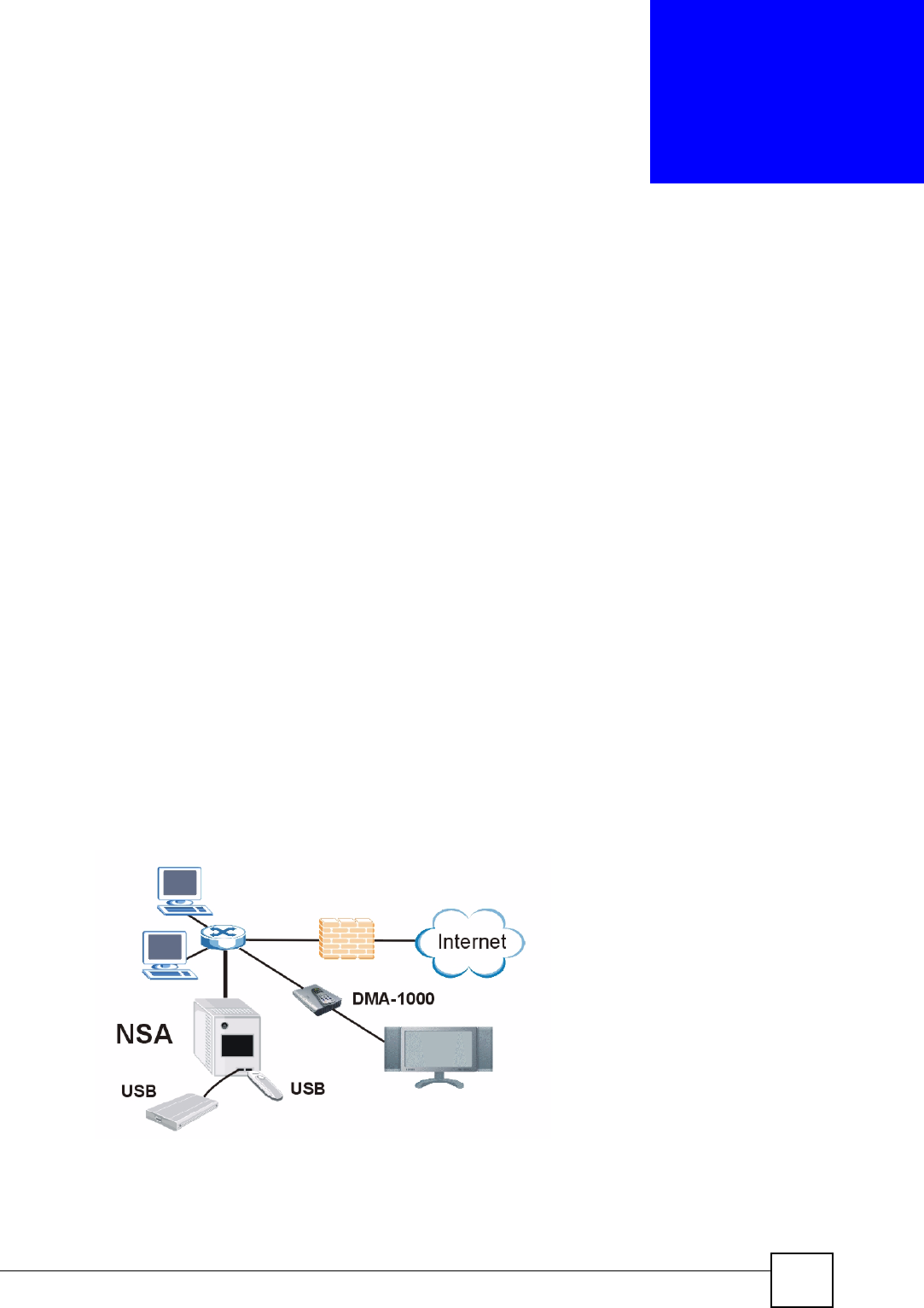
Figure 1 Example of the NSA in a Home Network
Above is the NSA in a home network. Users back up and share data on the NSA. The DMA-
1000 plays the NSA’s media files on the TV. A USB hard drive provides extra storage space
and files are copied directly from the USB memory stick to the NSA.
Chapter 1 Getting to Know Your NSA
NSA-220 User’s Guide
26
Place the NSA behind a firewall and/or IDP (Intrusion Detection and Prevention) device to
protect it from attacks from the Internet.
"See Chapter 16 on page 155 for a more detailed list of NSA features and lists
of compatible hard drives and USB devices.
Refer to the Quick Start Guide for hardware connections and how to install and remove hard
drives from the disk trays.
"Turn off and disconnect the NSA before you install or remove internal hard
drives.
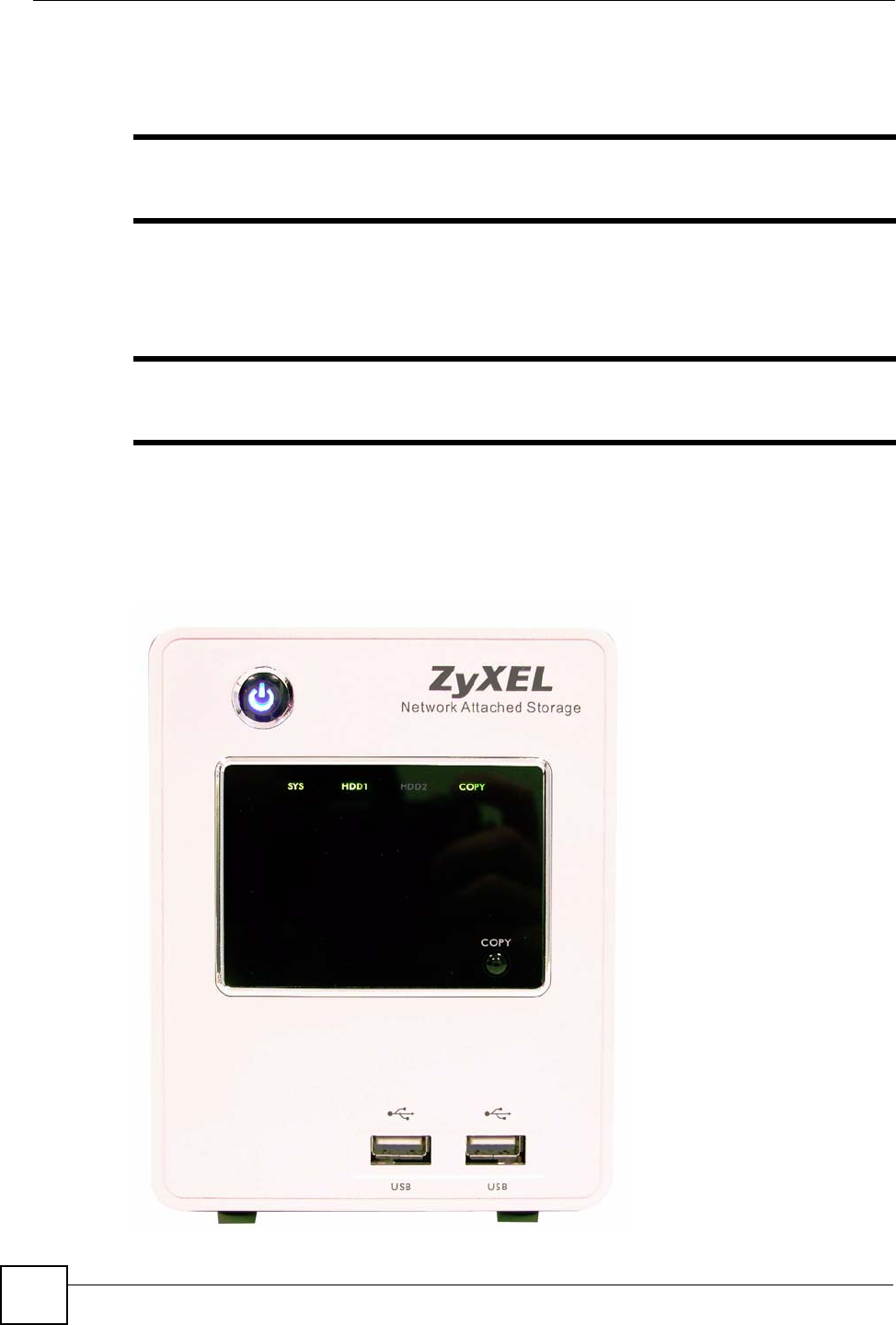
1.1.1 LEDs
The NSA LEDs (lights) tell you important information.
Figure 2 NSA Front Panel
Chapter 1 Getting to Know Your NSA
NSA-220 User’s Guide 27
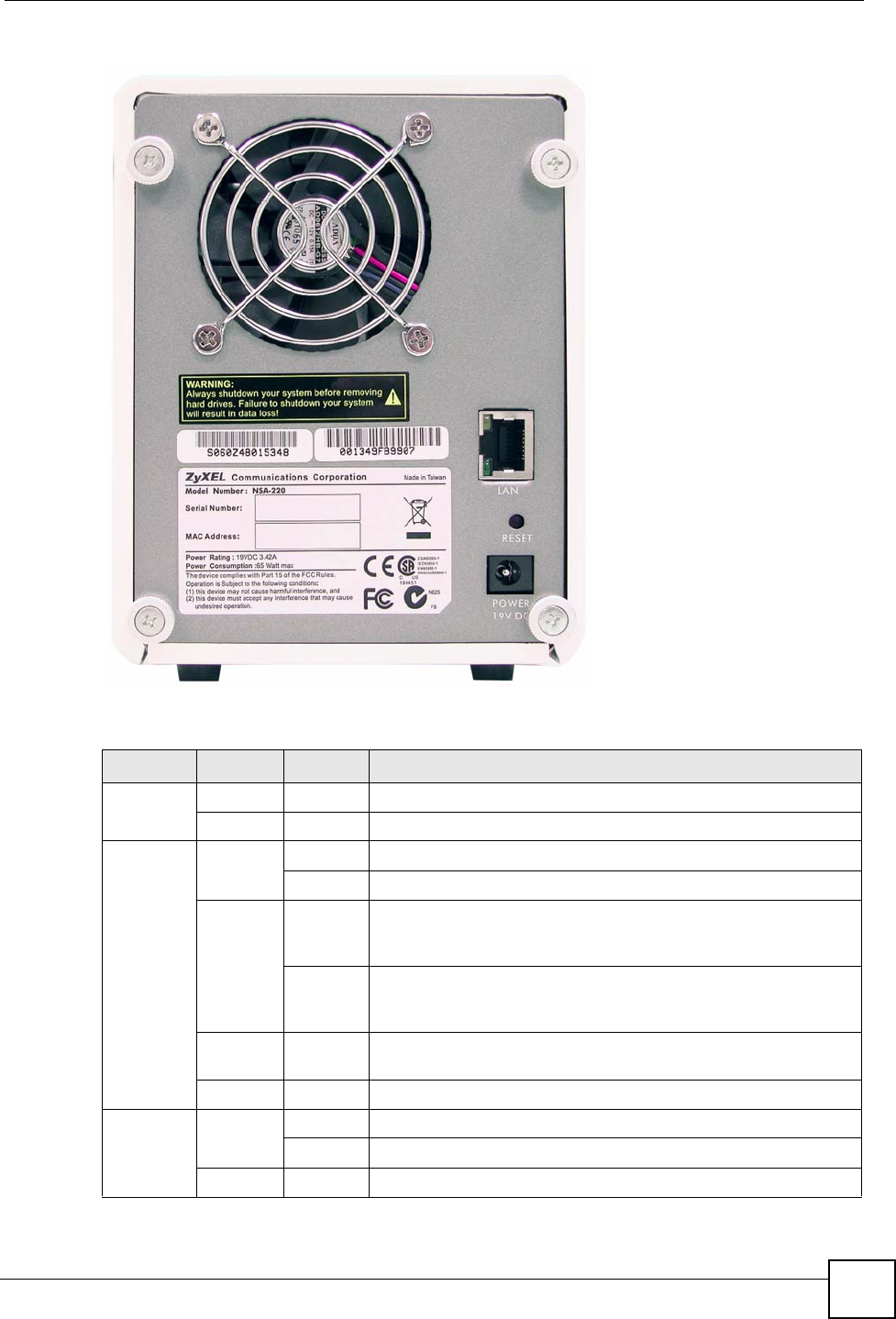
Figure 3 NSA Rear Panel
This table describes the NSA’s LEDs.
Table 1 LEDs
LED COLOR STATUS DESCRIPTION
POWER Blue On The NSA is turned on and receiving power.
Off The NSA is turned off.
HDD1/
HDD2 Green On The hard disk drive is connected properly to the NSA.
Blinking The NSA is saving data to the hard disk drive.
OrangeAOn The NSA detected an error on the hard disk drive (like a bad
sector for example). The NSA automatically tries to recover a bad
sector, but the LED stays orange until the NSA restarts.
Blinking The hard disk drive connection came loose or the NSA detected
an error on the hard disk drive (like a bad sector for example) and
is saving data to the hard disk drive.
Red On The hard disk drive has failed and the NSA can no longer detect
it.
Off The NSA cannot detect a hard disk in the disk bay.
SYS Green On The NSA has fully started and is operating normally.
Blinking The NSA is starting up.
Red On The NSA has failed.
Chapter 1 Getting to Know Your NSA
NSA-220 User’s Guide
28
1.1.2 COPY Button
Use the COPY button on the front panel to copy files from a connected USB device to the
NSA. The files are stored in a folder created within the public share. The name of the folder
created for the copied files consists of the date and time of the copy in
year_month_day_hour_minute_second format. Up to a total of 10 GB for files can be copied.
If the USB device has more than 10 GB of files, the NSA emits a long beep and does not copy
any of the files.
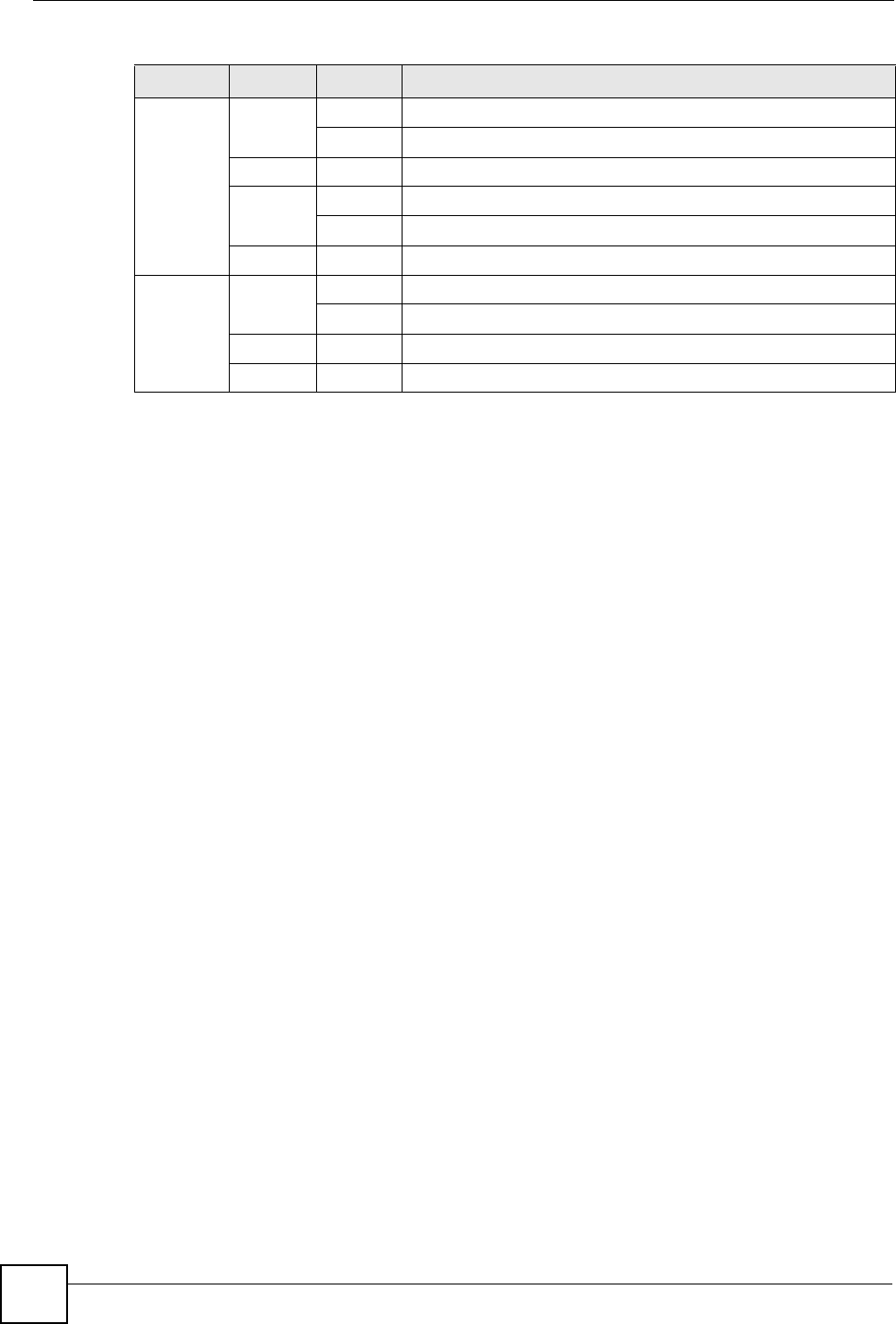
LAN Green On The NSA has a successful 10/100 Mbps Ethernet connection.
Blinking The 100M LAN is sending or receiving packets.
Off The NSA does not have a 10/100 Mbps Ethernet connection.
Yellow On The NSA has a successful 1000 Mbps Ethernet connection.
Blinking The 1000 M LAN is sending or receiving packets.
Off The NSA does not have a 1000 Mbps Ethernet connection.
COPY Green On A USB device is connected to the NSA.
Blinking The NSA is copying files from the USB device.
Red On Copying files from the USB device failed.
Off No USB device is connected.
A. The HDD1 and HDD2 LEDs are dual-color (green and red). The green LED is normally on when you have a hard
disk installed. If the NSA detects an error on the disk, the disk’s connection comes loose, or the disk fails, the red
LED also comes on. Since the green LED still stays on, the color appears to be orange. If the NSA is no longer
able to detect a hard disk in the disk bay, the green LED turns off and the LED appears as red.
Table 1 LEDs (continued)
LED COLOR STATUS DESCRIPTION

NSA-220 User’s Guide 29
CHAPTER 2
Web Configurator Basics
This chapter describes how to access the NSA web configurator and provides an overview of
its screens.
2.1 Web Configurator Overview
The web configurator is an HTML-based management interface that allows easy NSA setup
and management using an Internet browser. Use Internet Explorer 6.0, Mozilla Firefox 1.07,
Netscape Navigator 7.0 or later versions of these browsers. The recommended screen
resolution is 1024 by 768 pixels or higher.
In order to use the web configurator you need to allow:
• Web browser pop-up windows from your device. Web pop-up blocking is enabled by
default in Windows XP SP (Service Pack) 2.
• JavaScript (enabled by default).
2.2 Accessing the NSA Web Configurator
Make sure your NSA is properly connected and that your computer is in the same subnet as the
NSA (refer to the Quick Start Guide or the appendices).
2.2.1 Access the NSA Via NDU
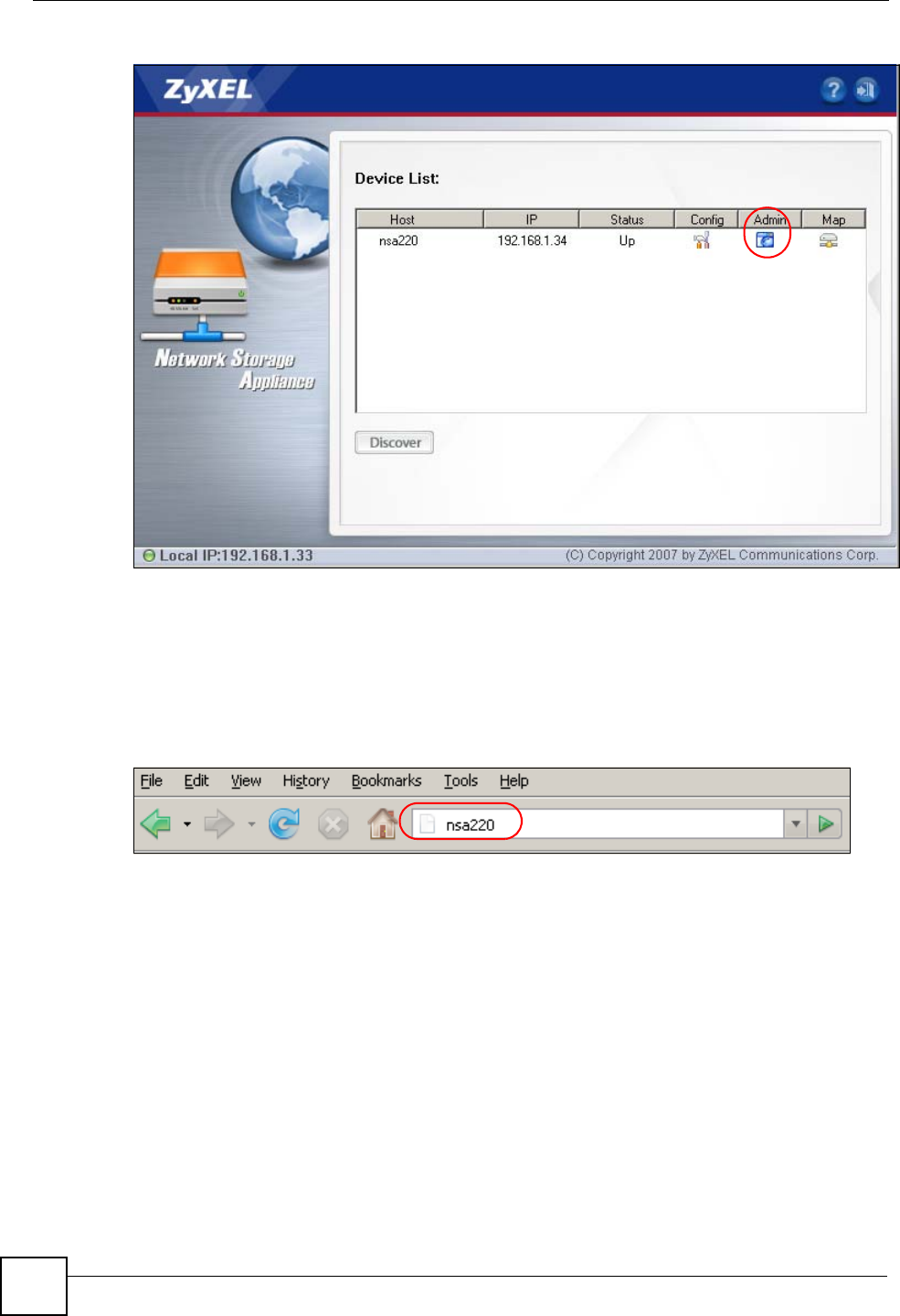
If you don’t know the IP address of the NSA, then use the NDU to find it. Refer to the Quick
Start Guide for how to install and run the NDU.
Chapter 2 Web Configurator Basics
NSA-220 User’s Guide
30
Figure 4 NDU Main Screen
From the NDU main page click an icon under Admin to see the web configurator screen login
screen.
2.2.2 Web Browser Access
Open your browser and type in the server name of the NSA (“nsa220” is the default).
Figure 5 NSA URL
2.3 Login
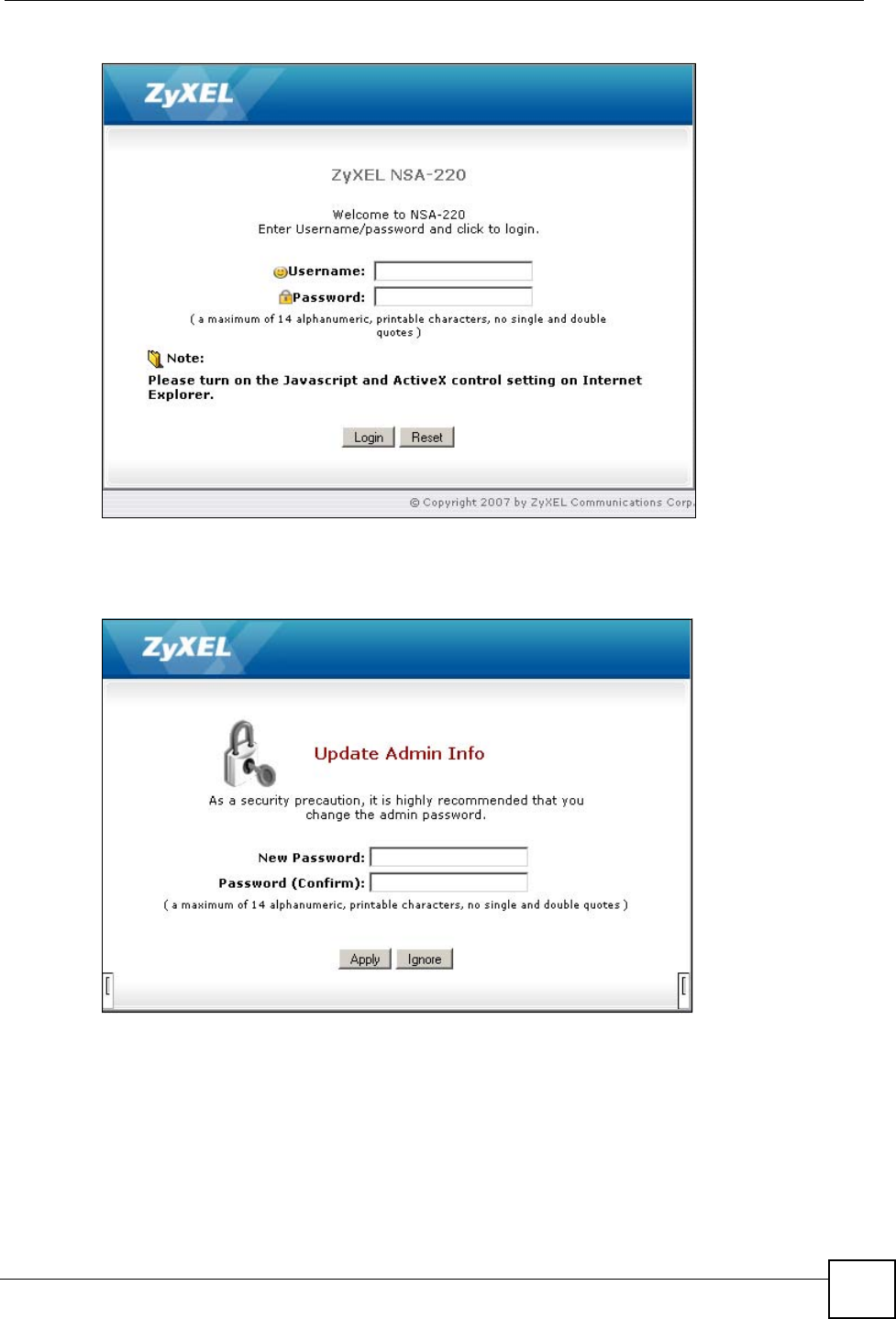
The default username and password are ‘admin’ and ‘1234’ respectively. Enter your username
and password, then click Login. See Chapter 9 on page 115 for how to create other user
accounts.
Chapter 2 Web Configurator Basics
NSA-220 User’s Guide 31
Figure 6 NSA Login Screen
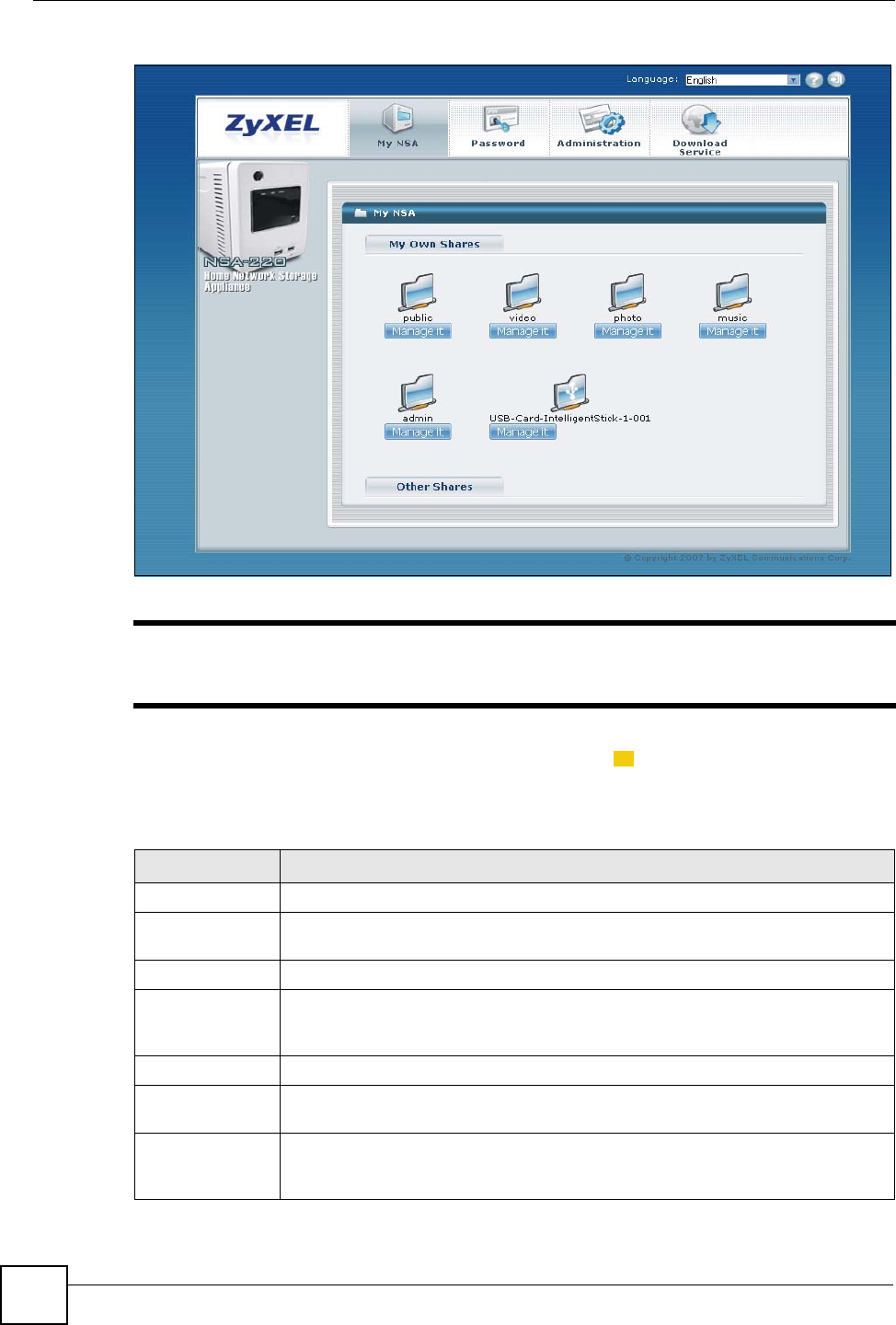
You should see a screen asking you to change your password (highly recommended) as shown
next. Type a new password (and retype it to confirm) and click Apply or click Ignore.
Figure 7 Change Password Screen
2.4 User-level Screens Overview
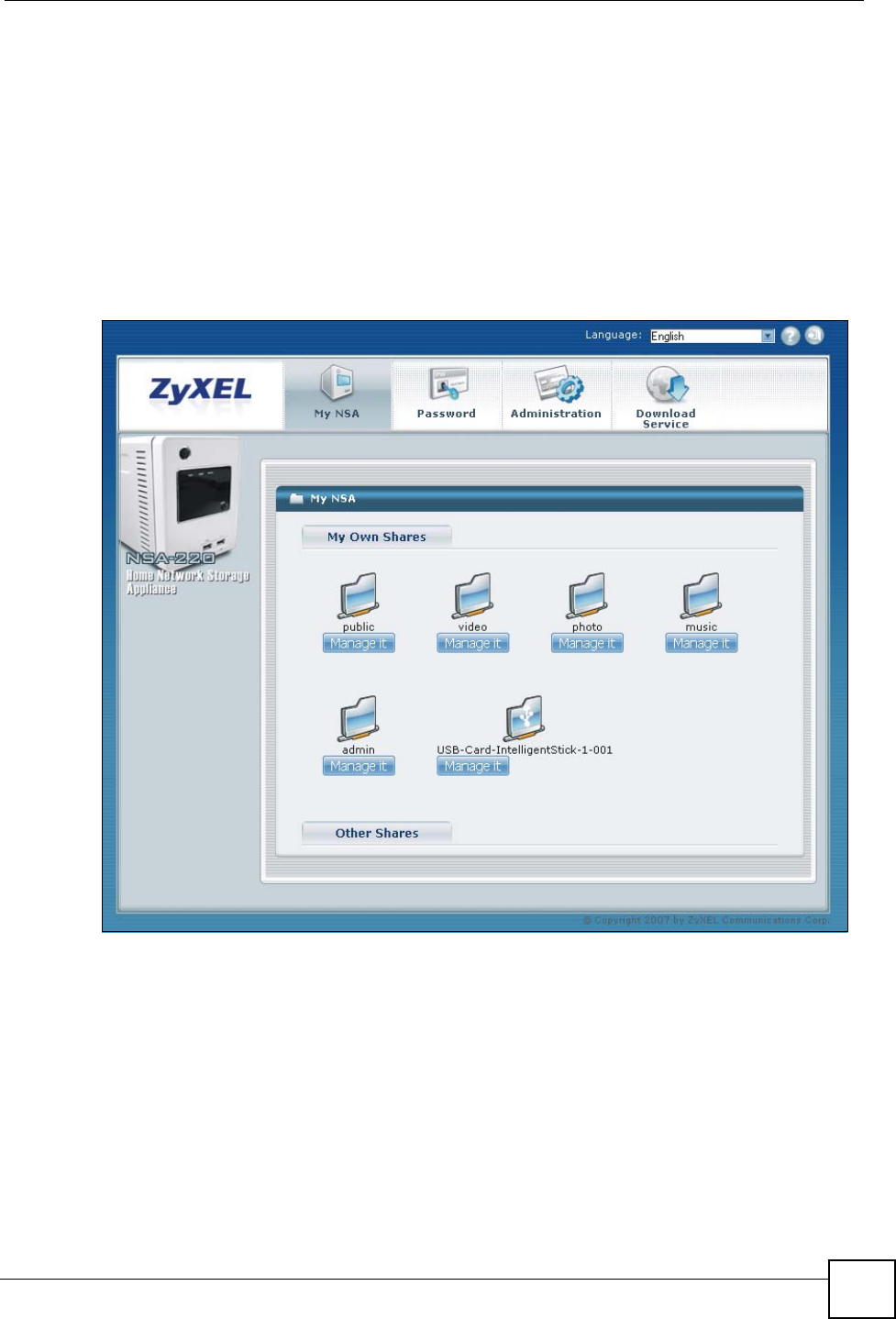
All users (including the administrator) first see the user-level access My NSA screen after
login.
Chapter 2 Web Configurator Basics
NSA-220 User’s Guide
32
Figure 8 My NSA
"The web configurator management session automatically times out if it is left
idle for 15 minutes. Simply log back into the NSA if this happens to you.
The icons and language label at the top-right of the screen ( ) are visible from most screens.
Use the tabs at the top of the screen to navigate between the user-level screens and menus. The
following table describes the ‘global’ icons and tabs in the user-level screens.
Table 2 User-level Global Labels and Icons
LABEL/ICON DESCRIPTION
Language Select the web configurator language from the drop-down list box.
Help Click the Help icon to open a web help page specific to the screen you are
currently configuring.
Logout Click the Logout icon at any time to exit the web configurator.
My NSA Click this tab to go to screens where you can manage your shares and access the
files on public shares. The administrator must go into the administration screens to
manage other user’s shares.
Password Click this tab to go to a screen where you can change your password.
Administration This tab displays when you log in as the administrator. Click the tab to go to
screens where you can manage advanced configurations.
Download
Service This tab displays when you log in as the administrator. Click the tab to go to
screens where you can have the NSA handle file downloads. See Section 8.5 on
page 93 for more information.
1
Chapter 2 Web Configurator Basics
NSA-220 User’s Guide 33
2.5 My NSA Screen
Use the My NSA screens to manage your shares and access the files in folders to which you
have access.
A share is a set of user access permissions for a specific folder on a volume (gives someone
access to a folder). It is equivalent to the Windows concept of a shared folder, but the access
rights are independent of the folder (you configure the share and the folder separately). You
can map a share to a network drive for easy and familiar file transfer for Windows users.
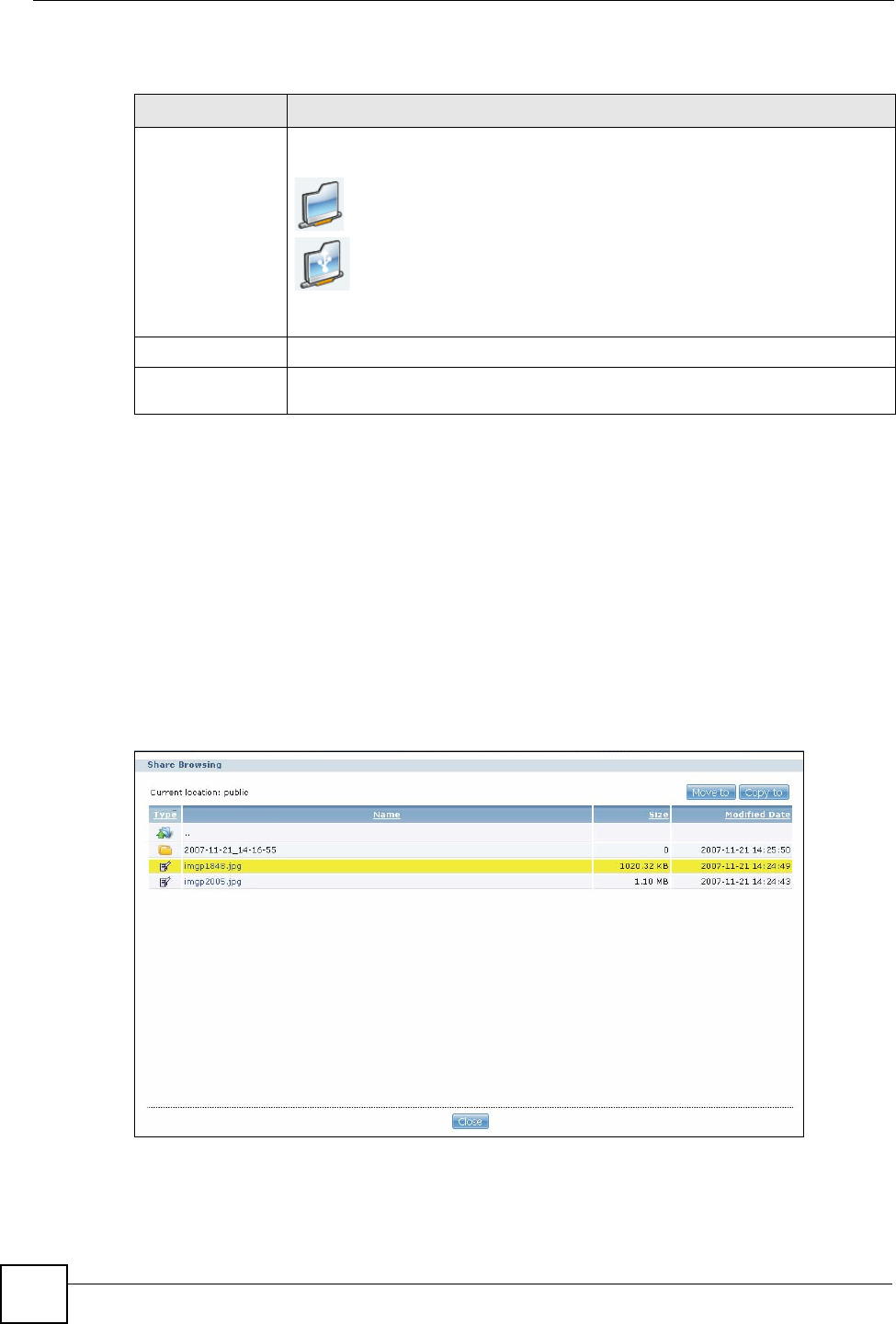
The main My NSA screen displays the shares to which you have access.
Figure 9 My NSA
Chapter 2 Web Configurator Basics
NSA-220 User’s Guide
34
The following table describes the labels in this screen.
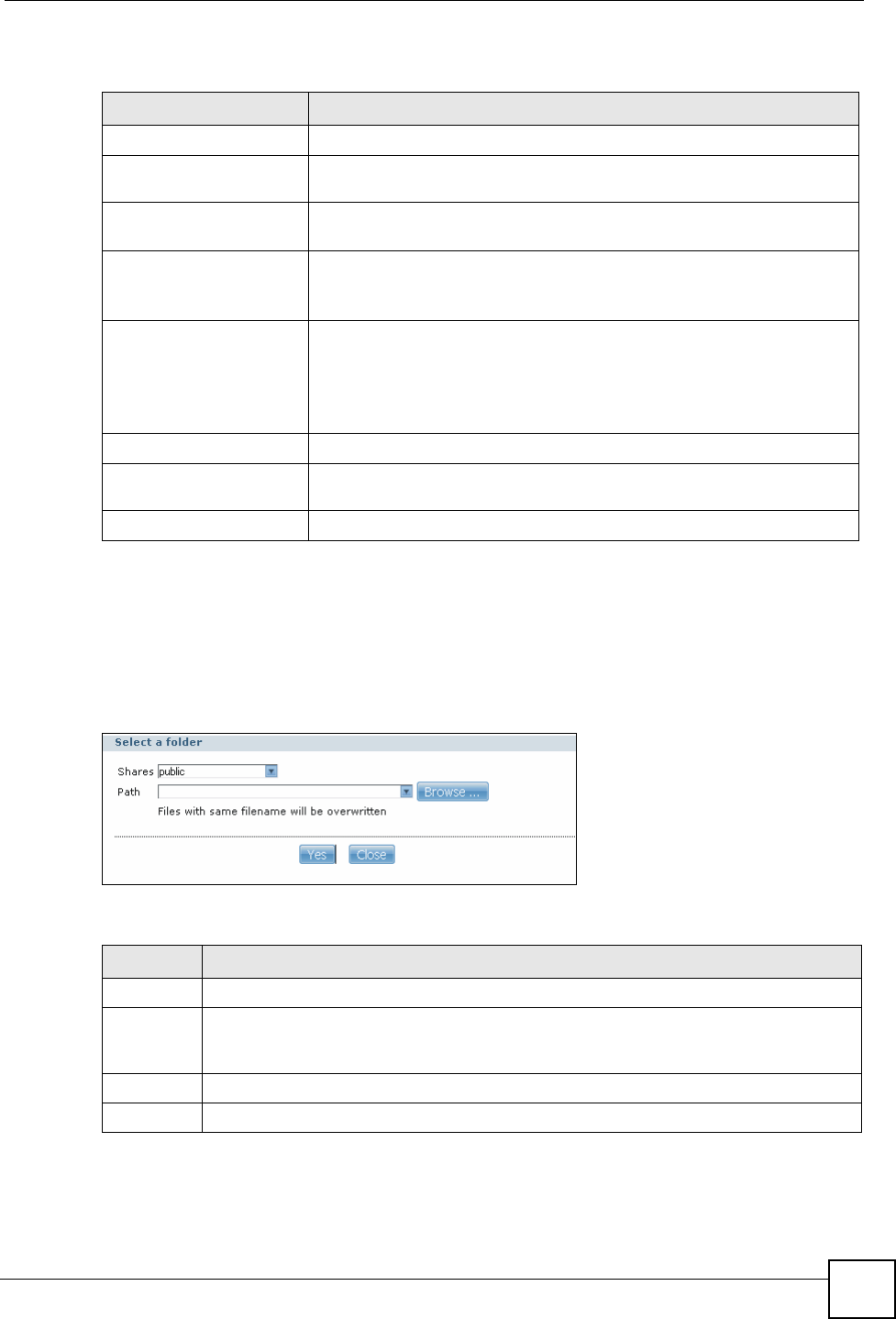
2.5.1 My NSA Share Browsing Screen
Click My NSA and then click a share to open the following screen. Use the My NSA share
browsing screens to see and access share contents.
• Click a folder’s name to go into the folder.
• Click a file’s name to be able to save the file to your computer.
• Click the play icon to play the file. At the time of writing this is supported for MP3 files.
• Click to the right of a file or folder name to select it.
• Use the [SHIFT] key to select a range of entries. Hold down the [CTRL] key to select
multiple individual entries.
Figure 10 My NSA Share Browsing
Table 3 My NSA
LABEL DESCRIPTION
My Own Shares These are the shares that you own (and manage). The share icons are folder
shaped. Click a share icon to access the share’s contents.
A plain share icon displays for a share on a volume on the internal hard
drives.
A USB symbol displays on the icon for a share on an external (USB)
device. An external share’s icon turns gray if the share is not currently
available (because the USB device was removed for example).
The administrator owns and manages the public shares.
Manage It Click this button to see and configure the management details for a share.
Other Shares These are other shares on the internal hard drives or external (USB) devices that
you can access (but not manage).
Chapter 2 Web Configurator Basics
NSA-220 User’s Guide 35
The following table describes the labels in this screen.
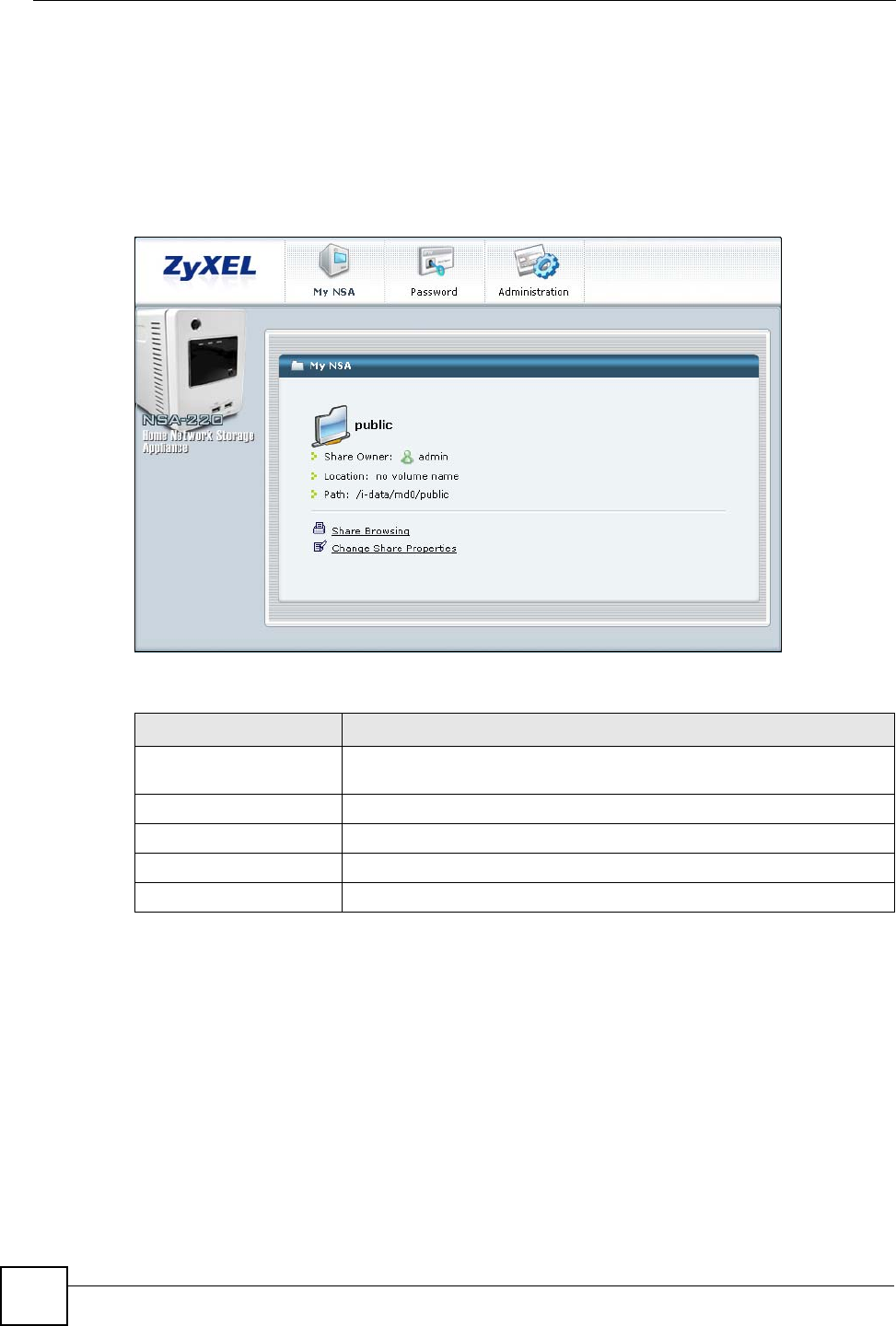
2.5.2 My NSA Share Browsing Move to or Copy to Screen
Select a folder or file in the My NSA share browsing screens and click the Move to button or
the Copy to button to display a screen like the following. Use this screen to select the target
path for moving or copying the folder or file.
Figure 11 My NSA Share Browsing > Move to (or Copy to)
The following table describes the labels in this screen.
Table 4 My NSA Share Browsing
LABEL DESCRIPTION
Current location This is the name of the share and folder path that you are in.
Move to Select a folder or file and click this button to move it to another location
within this share or another share that you can access.
Copy to Select a folder or file and click this button to move create a copy of it in
another location within this share or another share that you can access.
Type The icon in this column identifies the entry as a folder or a file.
The folder with an arrow pointing up is for the link that takes you to the
next higher layer in the share’s folder tree.
Name This column identifies the names of folders and files in the share.
Click Up One Level to go to the next higher layer in the share’s folder
tree.
Click a file’s file name to open the file or save it to your computer.
Click a folder’s name to display the folder’s contents.
Size This column displays a file’s size in bytes.
Modified Date This column displays the last time the file or folder was changed (in year-
month-day hour:minute:second format).
Close Click this button to return to the My NSA screen.
Table 5 My NSA Share Browsing > Move to (or Copy to)
LABEL DESCRIPTION
Shares Select the target share.
Path Select a folder on the NSA. You can also browse (see Section 10.3 on page 122) to find
or create a folder on the NSA or type the location of the folder using forward slashes as
branch separators.
Yes Click this button to move or copy the file.
Close Click this button to return to the My NSA share browsing screen.
Chapter 2 Web Configurator Basics
NSA-220 User’s Guide
36
2.5.3 My NSA Management Overview Screen
Use the My NSA management overview screens to see and configure share management
details.
Click My NSA and then the Manage It button of one of your shares to open the following
screen. This screen displays a share’s management details.
Figure 12 My NSA Management Overview
The following table describes the labels in the this screen.
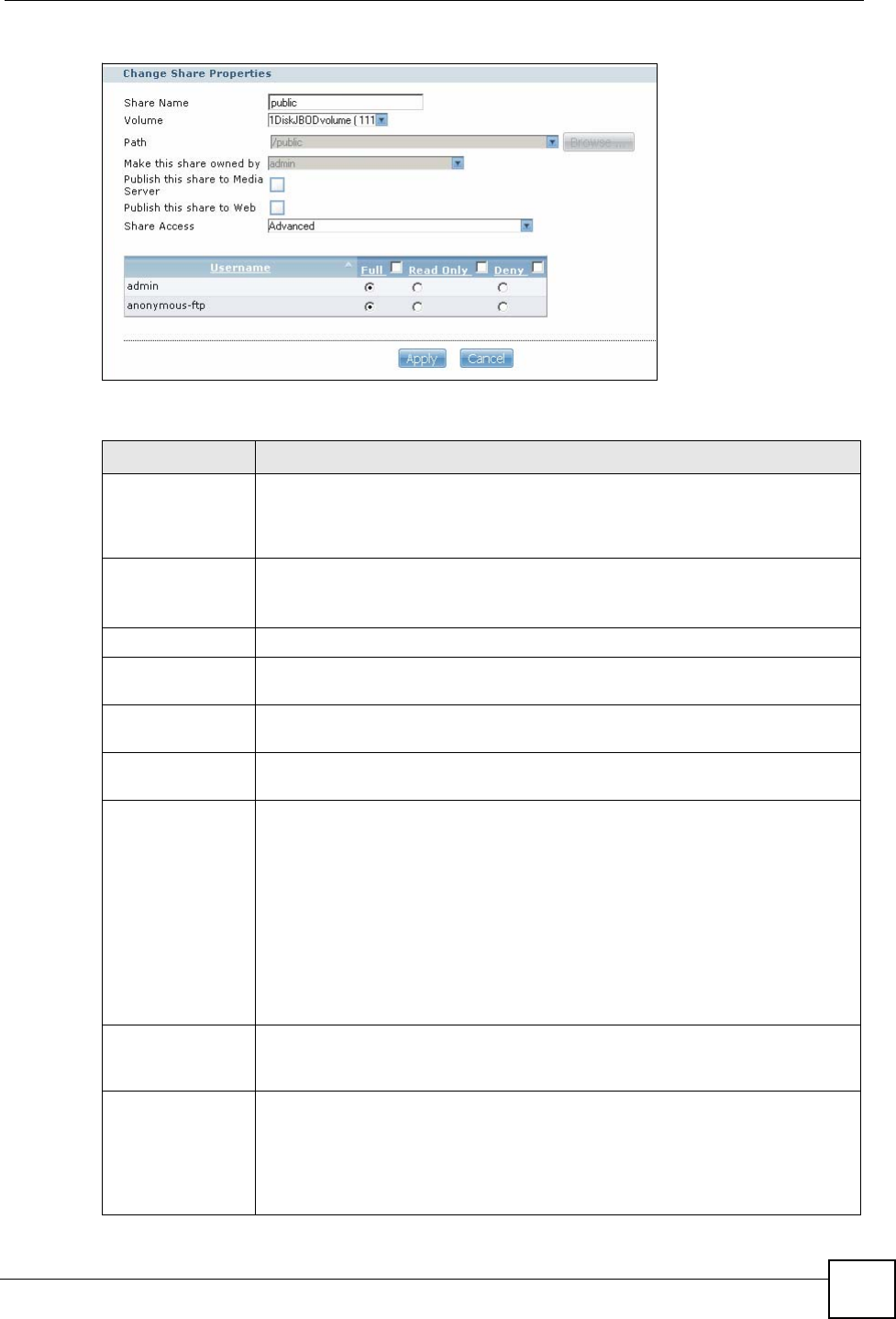
2.5.4 My NSA Change Share Properties Screen
Use the My NSA Change Share Properties screen to configure share management details.
Click My NSA and a share’s Manage It button. Then click Change Share Properties to open
the following screen. This screen displays a share’s management details.
Table 6 My NSA Management Overview
LABEL DESCRIPTION
Share Owner The share belongs to (and is managed by) this user account. The share
owner controls access rights to the share.
Location The share is for a folder on this volume.
Path This is the share’s file path.
Share Browsing Click this link to see and access the share’s contents.
Change Share Properties Click this link to configure the share’s management details.
Chapter 2 Web Configurator Basics
NSA-220 User’s Guide 37
Figure 13 My NSA Change Share Properties
The following table describes the labels in the this screen.
Table 7 My NSA Change Share Properties
LABEL DESCRIPTION
Share Name Configure a name to identify this share. Type a share name from 1 to 255 single-
byte (no Chinese characters allowed for example) ASCII characters. The name
cannot be the same as another existing local share. See Section 2.5.5 on page
38 for more information on share names.
Volume You should have already created volumes (a single accessible storage area with
a single file system) on the NSA.
Select the volume that you want to use with this share.
Path This is the share’s file path.
Make this share
owned by Select the administrator or user account that is to own (manage) this share. The
share owner controls access rights to the share.
Publish this share
to Media Server Select this option to make the share’s files available to media clients.
Publish this share
to Web Select this option to let people use a web browser to access this share’s files
without logging into the My NSA screens.
Share Access Select who can access the files in the share and how much access they are to be
given. If you publish the share to the media server or the web, all users will have
at least read-only access to the share, regardless of what you configure here.
Select Keep it private to owner to allow only the share owner to read files in the
share, delete files in the share and save files to the share.
Select Make it public to allow anyone (with or without a user account on the
NSA) to read files in the share, delete files in the share and save files to the
share.
Select Advanced to select which individual users can read the share’s files,
which users can delete the share’s files, and which users are blocked from doing
either.
Username This appears when you set the Share Access to Advanced. This column lists
the names of the NSA’s user accounts. Click Username in the heading column to
reverse the sort order.
Full This appears when you set the Share Access to Advanced. Select this column’s
radio button in a user account’s row to give the user full access to the share. This
allows the user to read files in the share, delete files in the share and save files to
the share.
Select the check box at the top of the column to give all of the users full access to
the share.
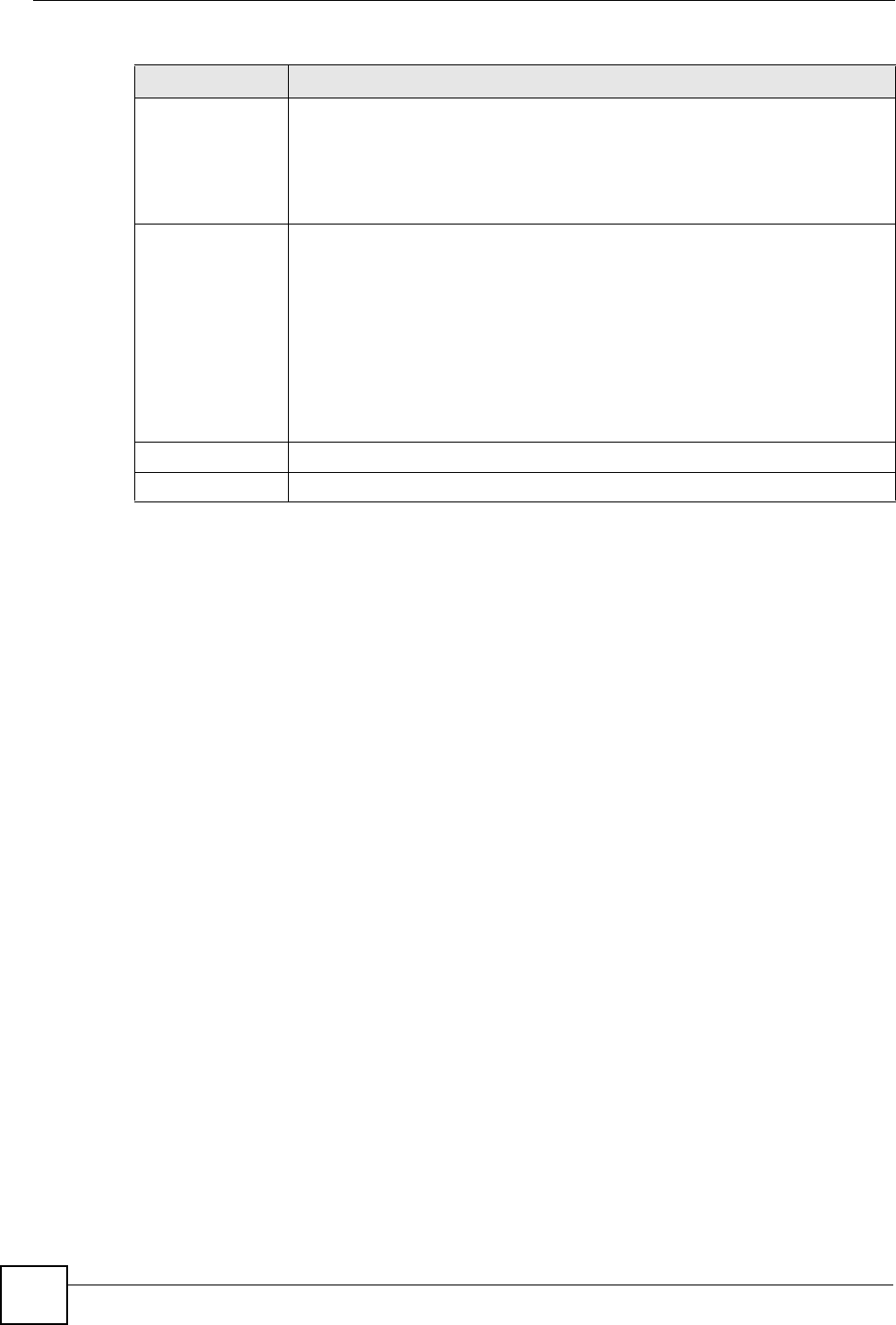
Chapter 2 Web Configurator Basics
NSA-220 User’s Guide
38
2.5.5 Share and Folder Names
The name can only contain the following characters:
• Alphanumeric (A-z 0-9) and Unicode.
The NSA allows FTP access to shares, folders or files with names encoded in the UTF-8
(8-bit UCS/Unicode Transformation Format) format. So your FTP client must support
UTF-8 in order to access shares, folders or files on the NSA with Unicode names.
• Spaces
• _ [underscores]
•. [periods]
• - [dashes]
Other limitations include:
• All leading and trailing spaces are removed automatically.
• Multiple spaces within names are converted to a single space.
• Share names must be unique (they cannot be the same as other share names).
• The NSA creates automatic volume names for external (USB) disk volumes. These are a
type of share, so the share name you configure cannot conflict with the external (USB)
disk volume names. “ExtVol1” or “ExtVol2” are examples of external (USB) disk volume
names.
• Folder names must be unique (they cannot be the same as other folder names).
• The minimum character length of a name is one character, that is a name cannot be blank.
• The maximum character length of share name is 255 characters.
• Unicode is supported for share names, although your FTP client must support UTF-8. Full
support should be available in all Windows versions after Windows 2000.
Read Only This appears when you set the Share Access to Advanced. Select this column’s
radio button in a user account’s row to give the user read-only access to the
share. This allows the user to view or copy files in the share, but not delete files in
the share or save files to the share.
Select the check box at the top of the column to give all of the users read-only
access to the share.
Deny This appears when you set the Share Access to Advanced. Select this column’s
radio button in a user account’s row to stop the user from accessing the share.
This means the user cannot read files in the share, delete files in the share, or
save files to the share.
Select the check box at the top of the column to stop all of the users from
accessing the share.
Note: Selecting the check box at the top of the column blocks
everyone (including the administrator) from accessing the
share.
Apply Click this button to save your changes back to the NSA.
Cancel Click this button to leave this screen without saving your changes.
Table 7 My NSA Change Share Properties (continued)
LABEL DESCRIPTION
Chapter 2 Web Configurator Basics
NSA-220 User’s Guide 39
2.5.6 Share Paths
A share path is the full path to a folder on a volume that will be shared, for example, /mynsa/
topsecret/ugs/. This is independent from a “share name” which is the name shown for this
share when accessing the share via CIFS or FTP. The path should start with a '/' (forward
slash) followed by a parent folder, child folders leading to the folder that is to be shared.
The share path can include all characters including unicode characters (that is, you can use
Chinese folder names for example) except for the following characters:
• \ [backslash] this will be converted to forward slash and interpreted as a path delimiter
• / [forward slash] this is always interpreted as a path delimiter, so a folder cannot include it
in its folder name
•: [colon]
•* [asterisk]
• ? [question mark]
• “[double quote]
• < [less than]
• > [greater than]
•| [pipe]
Please also note the following as regards share paths:
• If the share path is missing the root path slash (the first forward slash), the system will
automatically add the initial slash.
• If the share path is missing the end trailing slash, the system will automatically add the
trailing slash.
• If the share path has '\' (backslashes) instead of '/' (forward slashes) they will all be
automatically converted to forward slashes.
• Share paths are case sensitive.
• The maximum share path length is 600 characters (the entire path string including slashes)
• The share path cannot be blank
• You cannot have an empty folder name, that is, two consecutive slashes (for example, '/
My//Corner/')
• Each individual folder in the path (that is, the content between the slashes) cannot exceed
255 characters
2.5.7 Password Screen
Click Password to open the following screen. Use this screen to change an account’s
password. Enter a new password and confirm it by re-entering it.
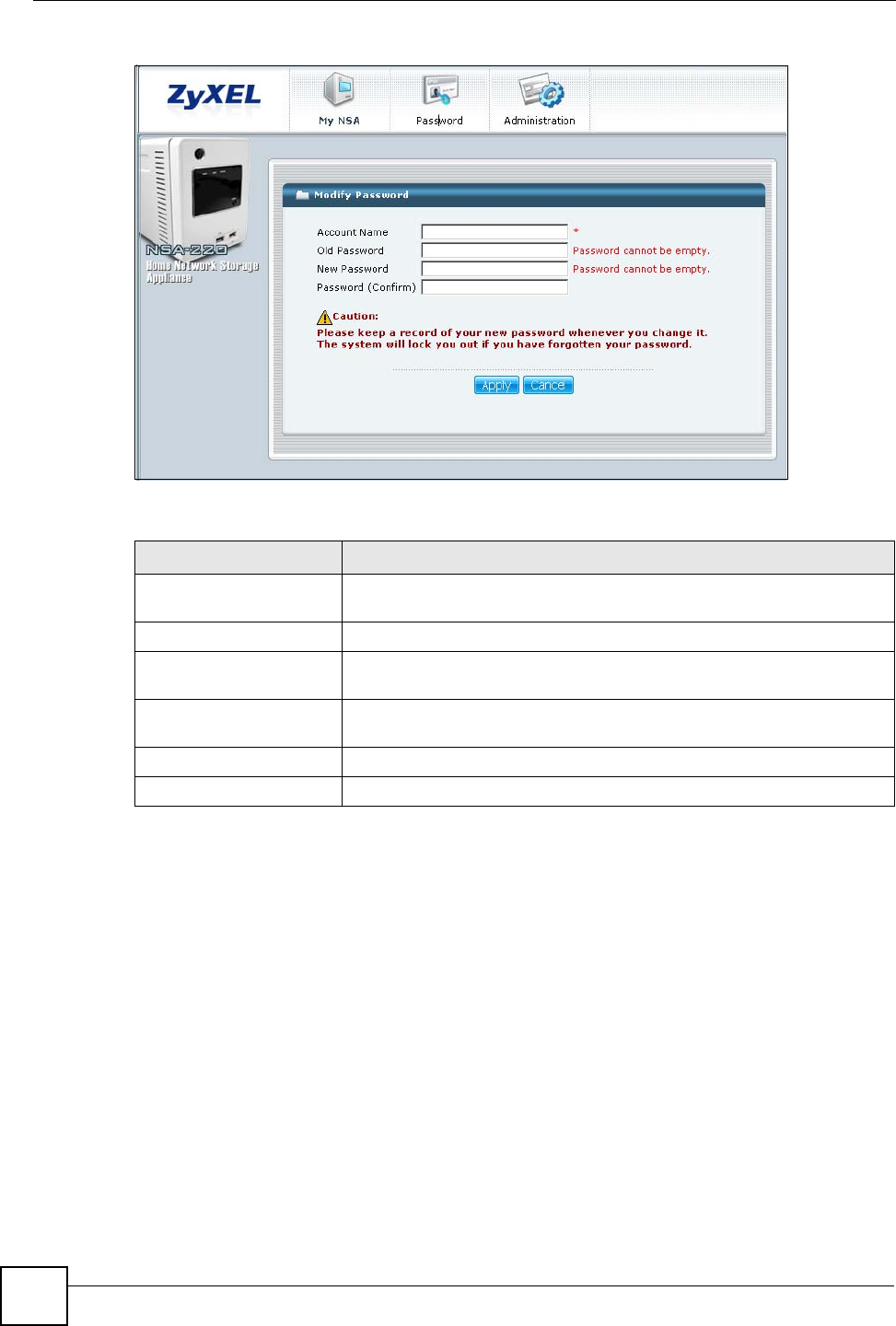
Chapter 2 Web Configurator Basics
NSA-220 User’s Guide
40
Figure 14 Password
The following table describes the labels in this screen.
2.6 Administration Screens
The Administration tab displays when you log in as the administrator. Click Administration
in the My NSA screens to open the advanced administration screens.
The Status screen is the first advanced administration screen that displays.
Table 8 Password
LABEL DESCRIPTION
Account Name Type the user name of the account for which you want to change the
password.
Old Password Type the user’s current password.
New Password Create a new password for the user. You can type from one to 14 single-
byte (no Chinese characters allowed for example) ASCII characters.
Retype to confirm You must type the exact same password that you just typed in the above
field.
Apply Click this button to save your changes back to the NSA.
Cancel Click this button to begin configuring this screen afresh.
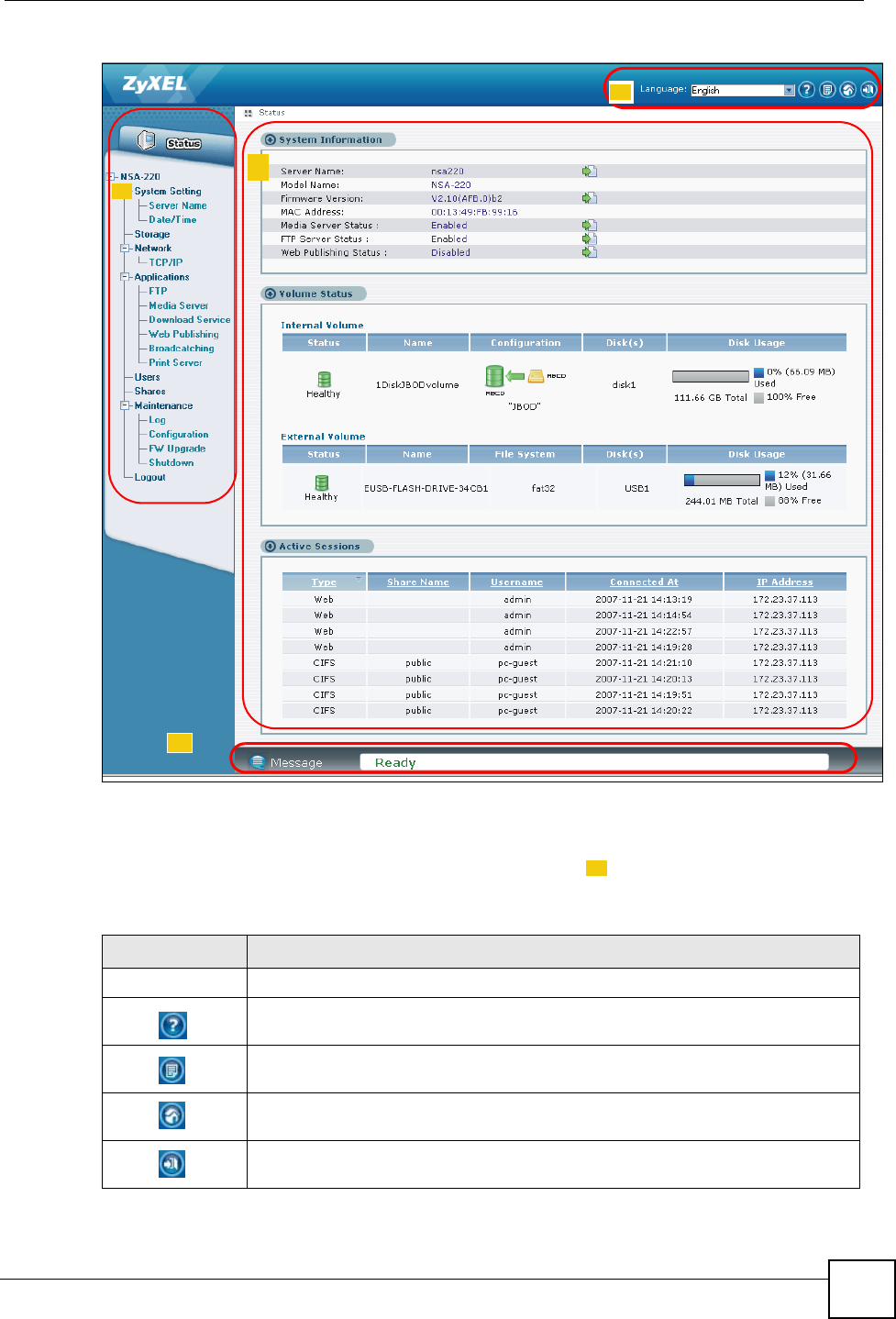
Chapter 2 Web Configurator Basics
NSA-220 User’s Guide 41
Figure 15 Status
2.6.1 Global Administration Icons
The icons and language label at the top-right of the screen ( ) are visible from most of the
administration screens. The following table describes the ‘global’ icons and labels.
1
2
3
4
Table 9 Global Labels and Icons
LABEL/ICON DESCRIPTION
Language Select the web configurator language from the drop-down list box.
Click this Help icon to open a web help page specific to the screen you are
currently configuring.
Click this About icon to view the model name, firmware version and copyright.
Click this Home icon to return to the user-level screens.
Click this Logout icon at any time to exit the web configurator. This is the same as
clicking the Logout link at the bottom of the Navigation panel.
1
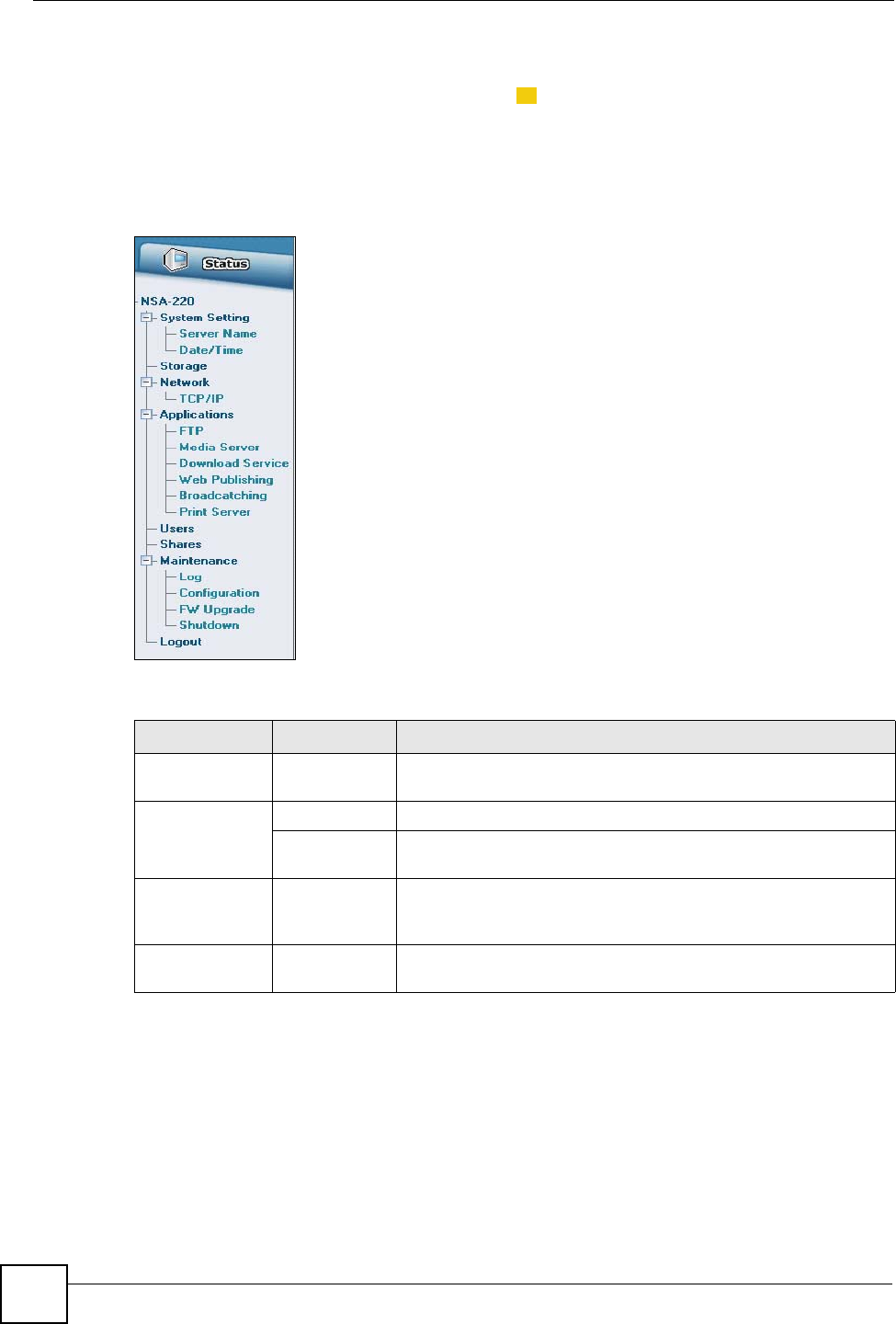
Chapter 2 Web Configurator Basics
NSA-220 User’s Guide
42
2.6.2 Navigation Panel
The navigation panel on the left of the screen ( ) contains screen links. Click a link to
display sub-links. There are no sub-links for the Status screen. Certain screens also contain
hyper links that allow you to jump to another screen.
Click the Status icon to open the Status screens.
Figure 16 Navigation Panel Links
The following table describes the navigation panel screens.
Table 10 Screens Summary
LINK SCREEN FUNCTION
Status This screen shows system information, the status of the volumes,
and the users who are currently using the NSA.
System Setting Server Name Specify the NSA’s server name and workgroup name.
Date & Time Chose a time zone and/or allow the NSA to synchronize with a
time server.
Storage View volume and disk information and create and edit volumes. A
volume is a storage area that can span one or more internal disks
or a single external (USB) disk.
Network TCP/IP Assign the NSA a dynamic or static IP address and DNS
information.
2
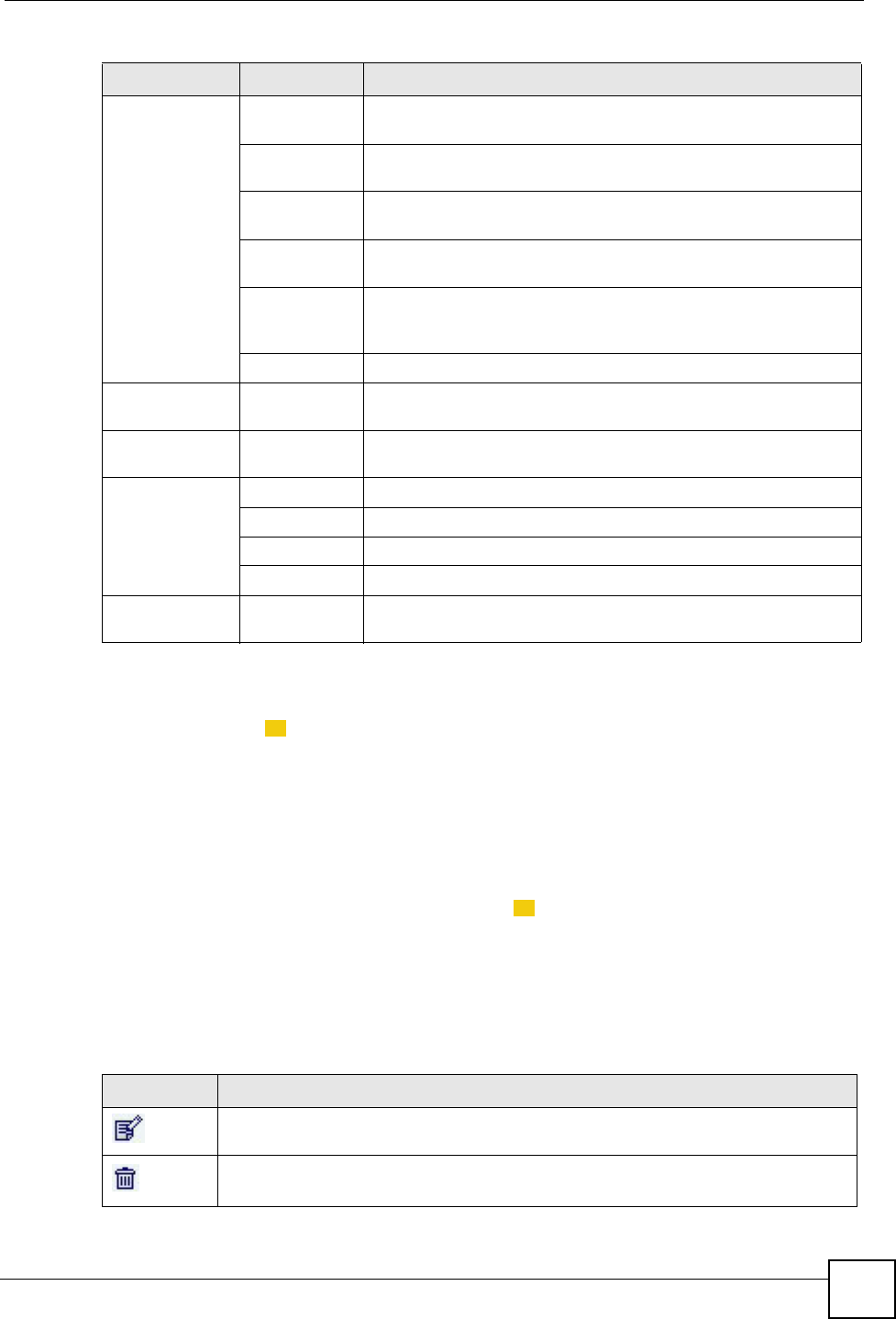
Chapter 2 Web Configurator Basics
NSA-220 User’s Guide 43
2.6.3 Main Window
The main window () shows the screen you select in the navigation panel. It is discussed in
the rest of this document.
The Status screen is the first administration screen to display. See Chapter 4 on page 63 for
more information about the Status screen.
2.6.4 Status Messages
The message text box at the bottom of the screen () displays status messages as you
configure the NSA.
2.6.5 Common Screen Icons
The following table explains some icons that appear in several configuration screens.
Applications FTP Enable FTP file transfer to/from the NSA, set the number of FTP
connections allowed, an FTP idle timeout, and the character set.
Media Server Enable or disable the sharing of media files and select which
shares to share.
Download
Service Have the NSA handle large file downloads.
Web
Publishing Let people use a web browser to access files in shares without
logging into the My NSA screens.
Broadcatching Subscribe the NSA to feeds to download frequently updated digital
content like TV programs, radio talk shows, Podcasts (audio files),
YouTube videos, or even BitTorrents.
Print Server View and manage the NSA’s list of printers and print jobs.
Users View, create and edit administrator and user accounts to let
people use the NSA.
Shares View, create and edit shares. Shares are shared folders to which
you can allow specific users read/write access rights.
Maintenance Log View the NSA’s logs.
Configuration Back up and/or restore the NSA configuration file.
FW Upgrade Upload new firmware to your NSA.
Shutdown Restart the NSA or shut it down.
Logout Click Logout to exit the web configurator. This is recommended to
prevent unauthorized administrator access to the NSA.
Table 10 Screens Summary (continued)
LINK SCREEN FUNCTION
3
4
Table 11 Common Configuration Screen Icons
ICON DESCRIPTION
Click the Edit icon to go to a screen where you can change the configuration settings
of an entry.
Click the Delete icon to delete an entry from the list.
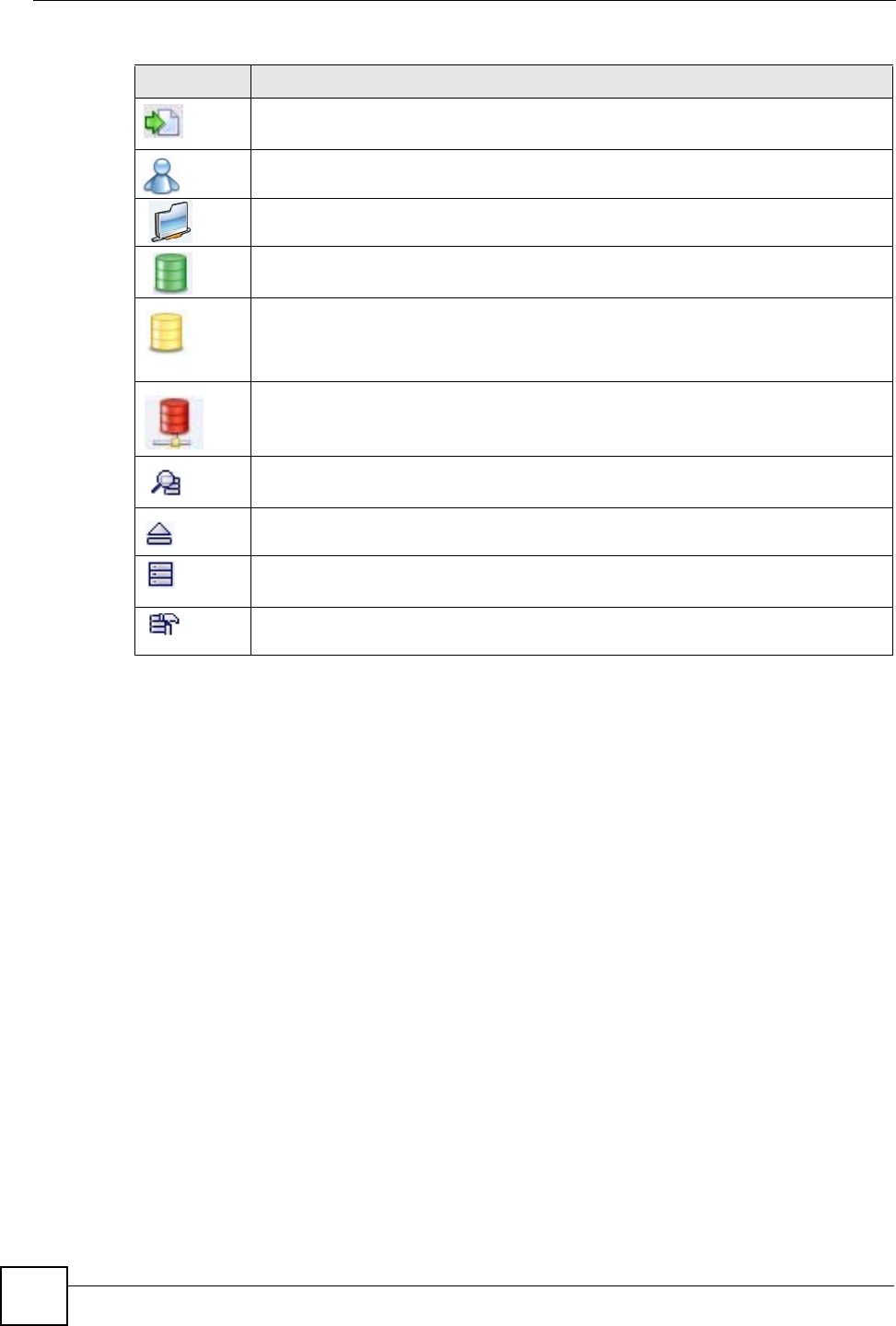
Chapter 2 Web Configurator Basics
NSA-220 User’s Guide
44
Click the Edit icon to jump to related item’s configuration screen.
This is a user icon. See the chapter on user accounts for detailed information on
variants of this icon.
This is a share icon. See the chapter on shares for detailed information on variants of
this icon.
This icon represents a Healthy volume.
This icon represents a Degraded RAID 1 volume. Replace the faulty disk. If the
replacement disk does not contain a volume, the NSA automatically restores the
volume. If the replacement disk already contains a volume, you need to delete the
volume and then click the Repair icon to fix the degraded RAID volume.
This icon represents a Down volume. Click the Initialize icon to create a volume.
Click the Scan Disk icon to scan a hard disk for file system errors.
Click the Eject icon before you remove an external hard drive so that you do not lose
data that is being transferred to or from that hard drive.
Click the Locate icon to cause the LED on the external storage device to blink.
If you replace a faulty disk with a disk that contains a volume, you need to delete the
volume and then click the Repair icon to fix the degraded RAID volume.
Table 11 Common Configuration Screen Icons (continued)
ICON DESCRIPTION
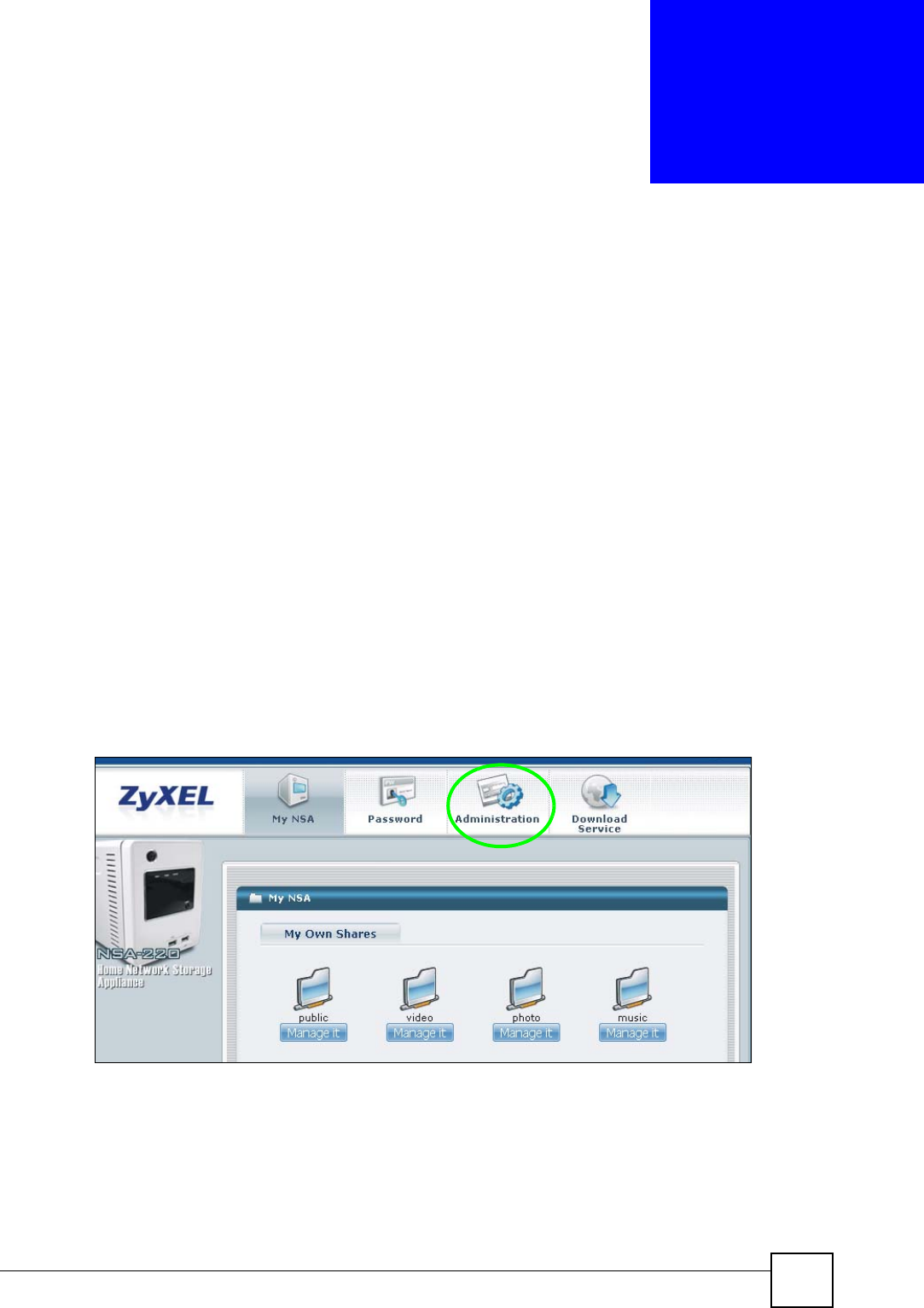
NSA-220 User’s Guide 45
CHAPTER 3
Tutorials
This chapter provides tutorials that show how to use the NSA.
3.1 File Sharing Tutorials
The following sections cover using the NSA for file sharing. This chapter assumes you have
already followed the Quick Start Guide instructions to perform initial setup and configuration
(so you have a working volume). See the Quick Start Guide for how to play media files using
the included DLNA-compliant media client software. See the rest of this User’s Guide for
details on configuring the NSA’s various screens.
3.1.1 Creating a User Account
Bob wants to create accounts for his sons Jimmy and Kevin. This is how he would do it.
1Log into the NSA web configurator (see Section 2.3 on page 30) and click
Administration to go to the configuration screens.
Figure 17 My NSA
2Click Users to open the Users screen. Then click Add Account.
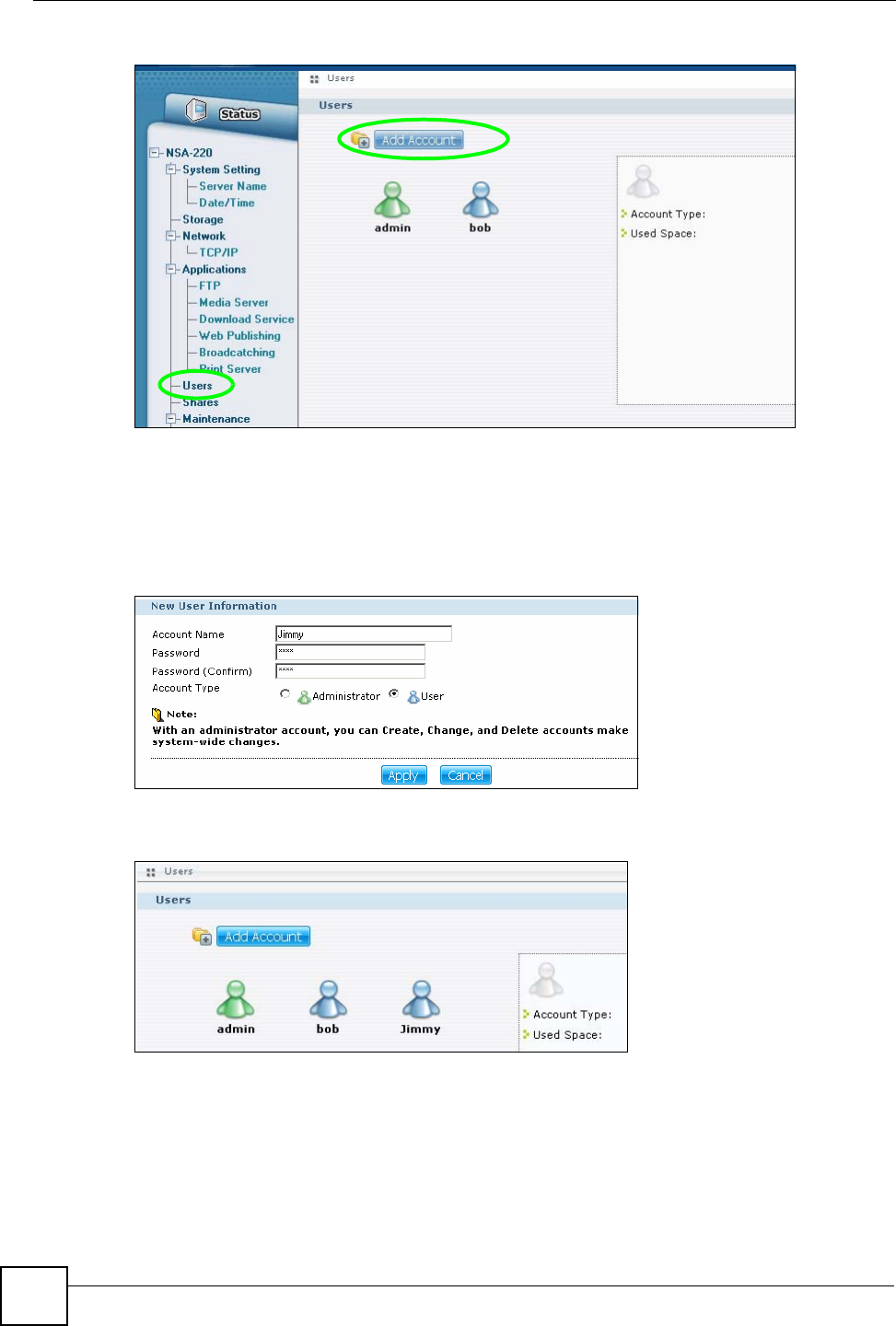
Chapter 3 Tutorials
NSA-220 User’s Guide
46
Figure 18 Users
3Configure the screen as follows and write down the username and password to give to
Jimmy. If the username and password are the same as Jimmy’s Windows login, Jimmy
will not need to enter a username and password when he logs into his share from his
computer. Set the Account Type to User so Jimmy doesn’t get to configure the whole
NSA. Click Apply to create the account.
Figure 19 Users > Create Example
4The account now displays in the Users screen.
Figure 20 Users (Account Created)
Now that Bob has created Jimmy’s account, he can go through the steps again to create
another account for Kevin. After both accounts are created, he can go to Section 3.1.2 on page
47 to create shares for Jimmy and Kevin.
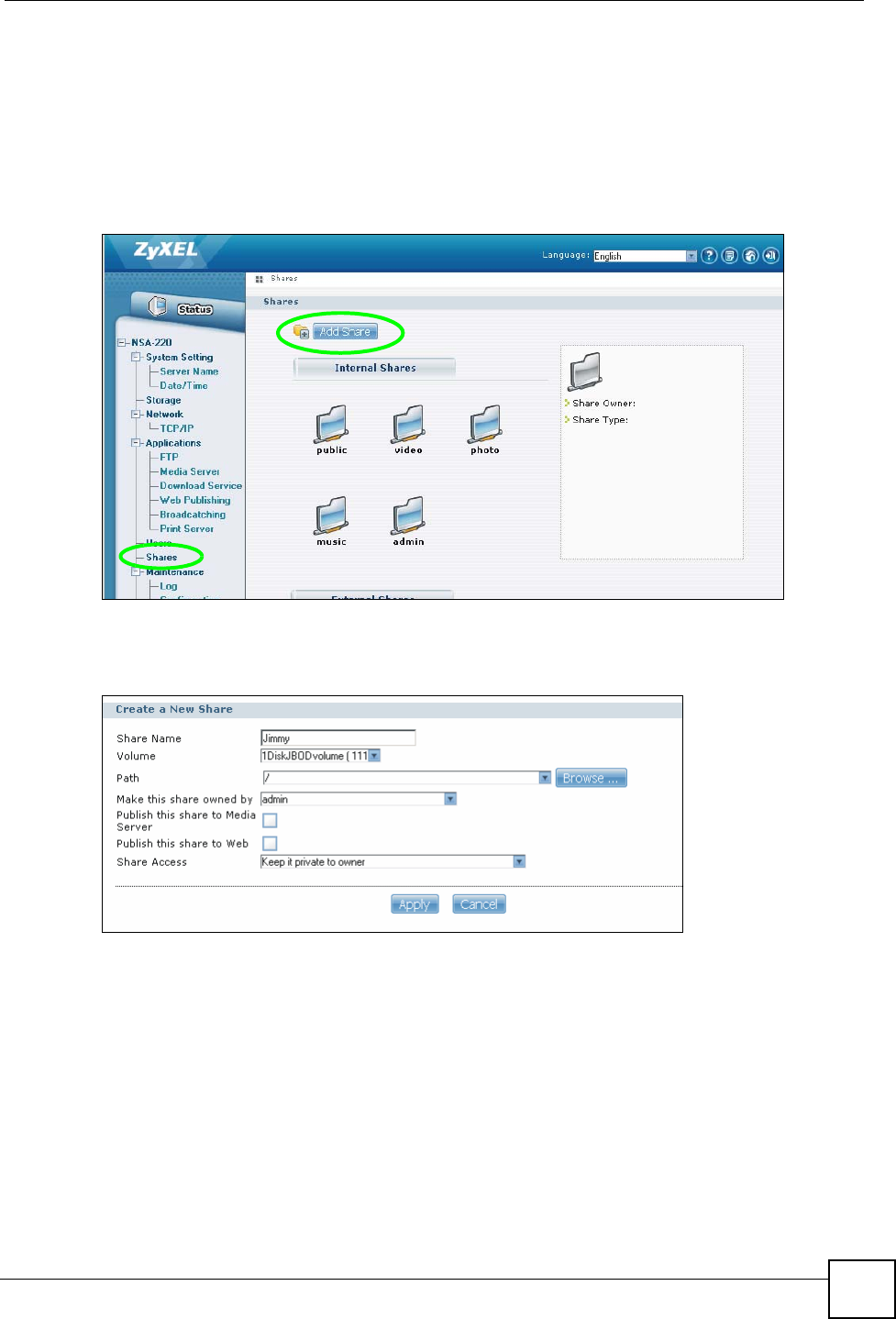
Chapter 3 Tutorials
NSA-220 User’s Guide 47
3.1.2 Creating a Share
Suppose Bob has already created separate accounts for his sons Jimmy and Kevin. Now Bob
wants to create a share for each son. He also wants to make sure that each son can only access
his own share (to keep them from deleting each other’s files). This is how he would do it.
1In the NSA’s administration web configurator screens, click Shares > Add Share.
Figure 21 Shares
2Specify a name for the share and select which volume it should be on. Then click
Browse.
Figure 22 Shares > Create Example
3Type a name for a new folder and click Create Folder.
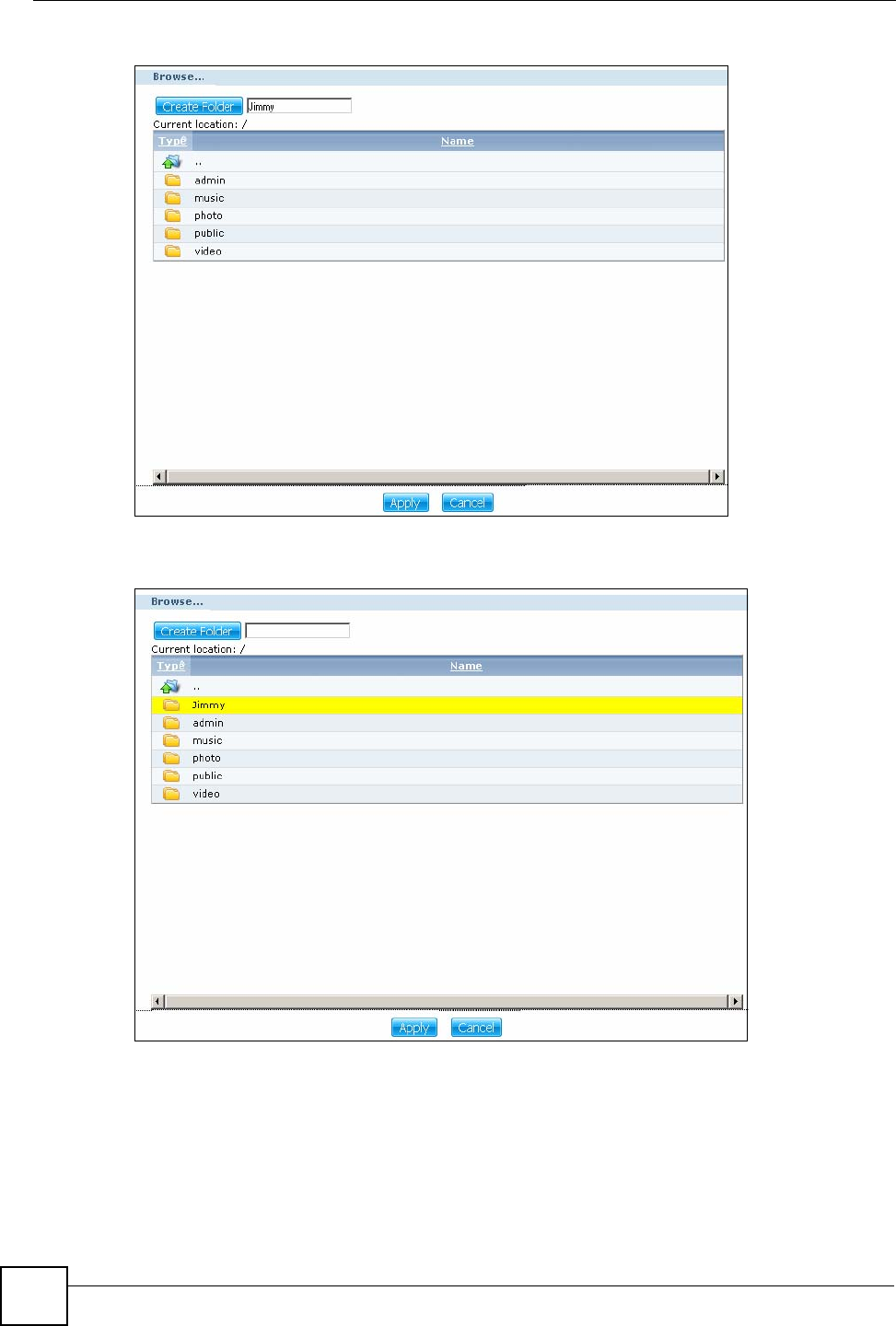
Chapter 3 Tutorials
NSA-220 User’s Guide
48
Figure 23 Shares > Create > Browse > Create Folder Example
4Select the new folder and click Apply.
Figure 24 Shares > Create > Browse > New Folder Example
5Configure the screen as follows and click Apply. (Make sure you also set the
anonymous-ftp access to Deny).
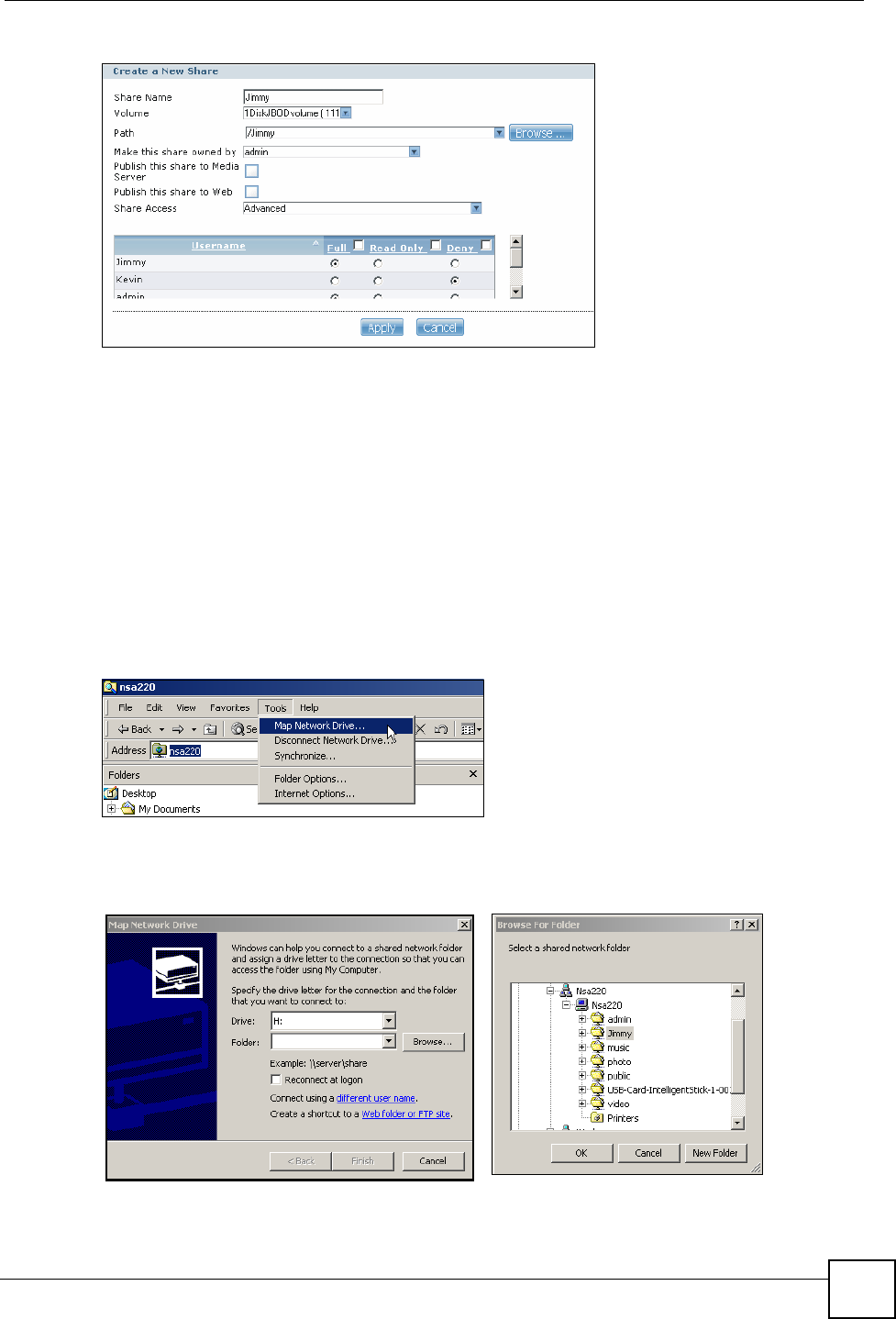
Chapter 3 Tutorials
NSA-220 User’s Guide 49
Figure 25 Shares > Create Example
Now that Bob has created Jimmy’s share, he can go through the steps again to create another
share for Kevin. Then he can see the rest of the tutorials for how to use the shares.
3.1.3 Accessing a Share From Windows Explorer
If you map a NSA share (where data is stored) to a Windows network drive, you can use
Windows Explorer to transfer files to and from the NSA as if it was another folder on your
computer. Here he maps Jimmy’s share to Jimmy’s computer.
1Start Windows Explorer and go to the NSA’s server name (“nsa220” is the default) or IP
address.
2click Tools > Map Network Drive.
Figure 26 NSA Top Level
3Select the network drive that you want to map the NSA to from the Drive list box. This
example uses I. Then browse to and select the share on the NSA. Click Finish.
Figure 27 Map Network Drive
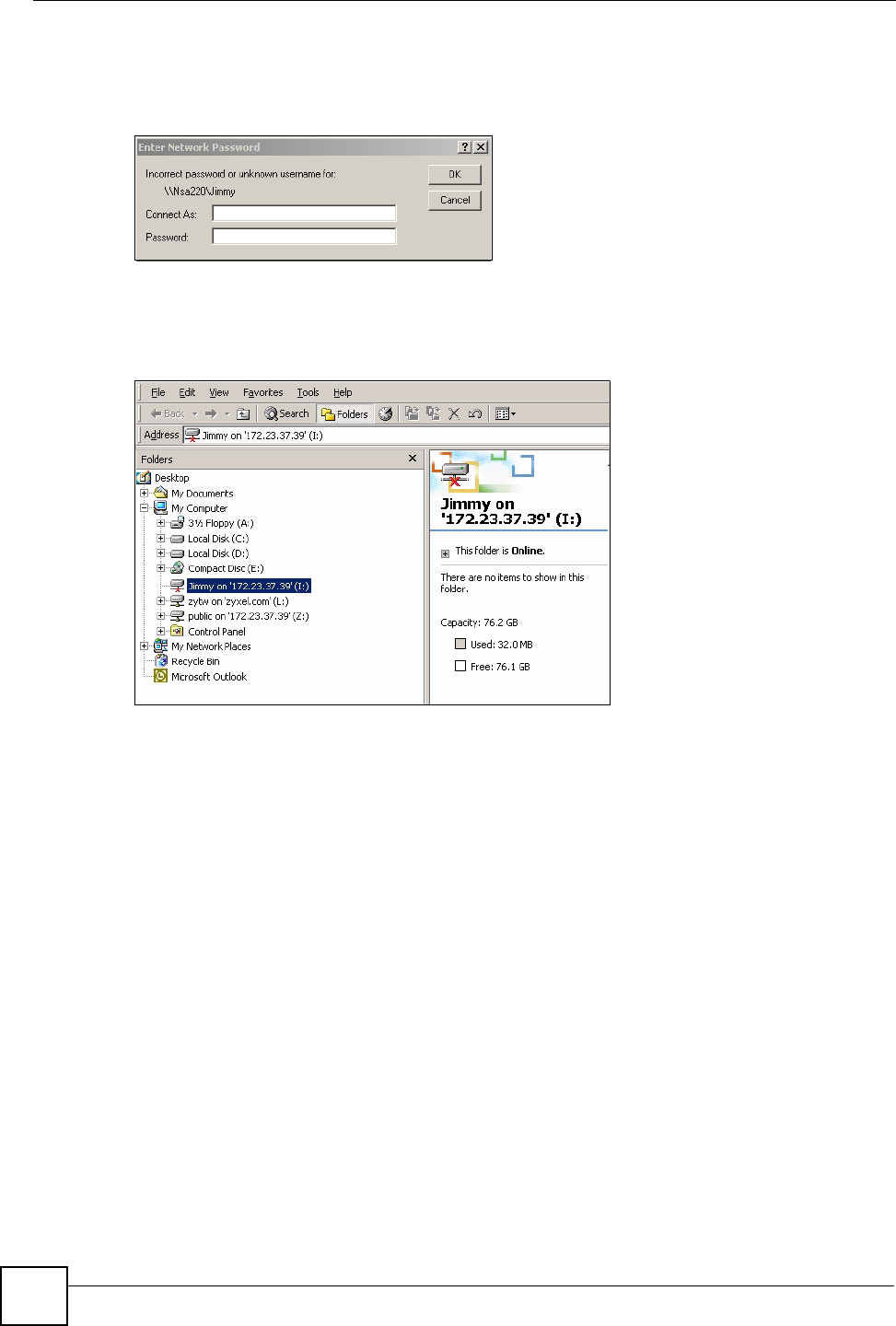
Chapter 3 Tutorials
NSA-220 User’s Guide
50
4Enter the username and password for Jimmy’s account and click OK. You do not need
to do this if the username and password are the same as Jimmy’s Windows login.
Figure 28 Enter Network Password
5After the mapping is done, you can then simply copy and paste or drag and drop files
from/to your local computer’s drives to or from this network folder. Just like the NSA’s
share was another folder on your computer.
Figure 29 Example Share Mapped (Folders View)
Now that Bob has mapped Jimmy’s share to Jimmy’s computer, he can go through the steps
again to map Kevin’s share to Kevin’s computer.
3.1.4 Accessing a Share Using FTP
You can also use FTP to access the NSA. Suppose Jimmy is temporarily using a different
computer and wants to access his share without mapping it to the computer. This is how he
would do it.
1Open the FTP client (Windows Explorer is used here) and type “ftp://username@server”
where “username” is the account’s username and “server” is the NSA’s IP address or
server name.
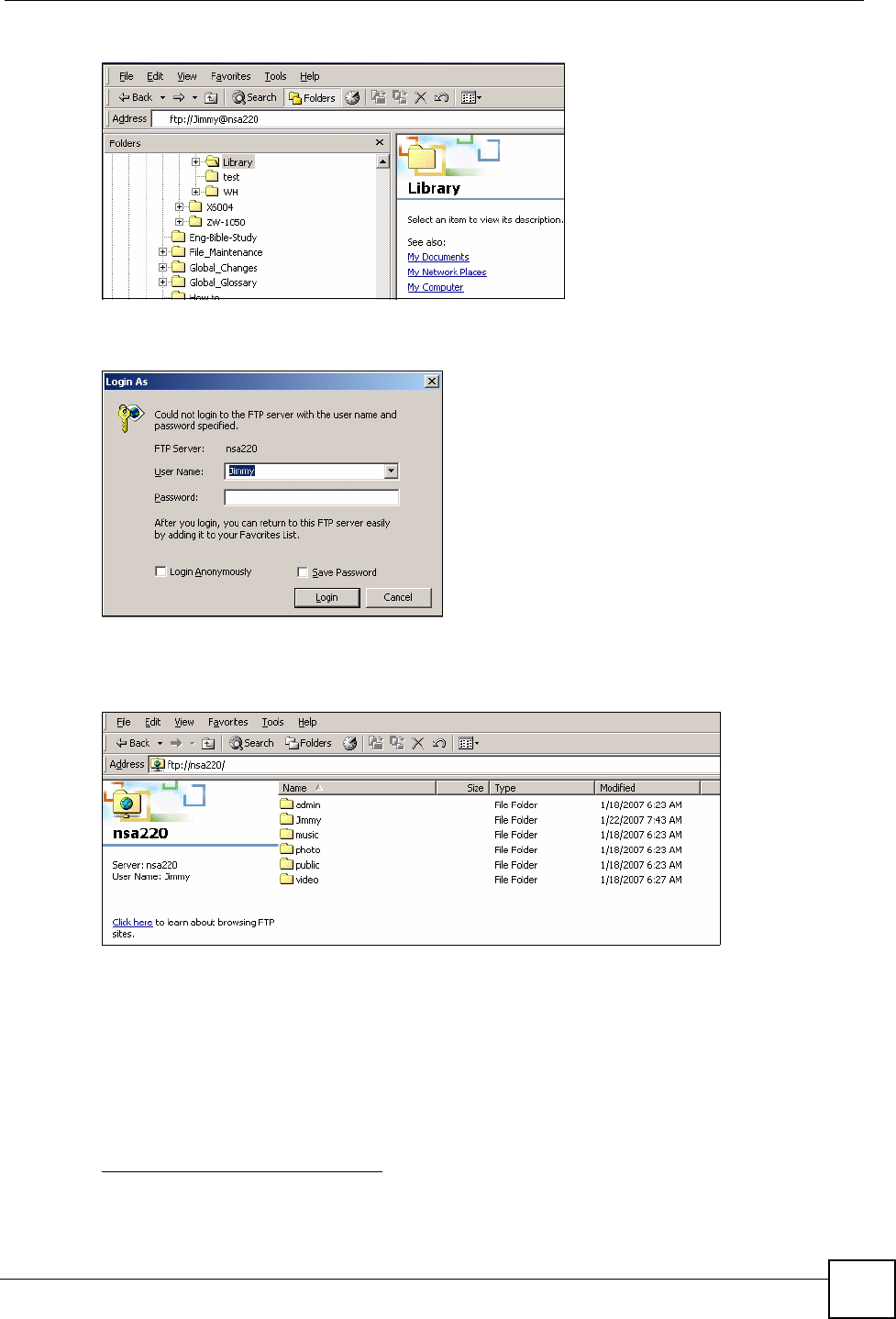
Chapter 3 Tutorials
NSA-220 User’s Guide 51
Figure 30 FTP Example: Typing the FTP Target
2Enter your password and click Login.
Figure 31 FTP Example: Enter the Password
3Now you can access files and copy files from/to your local computer’s drives to or from
this network folder. 1
Figure 32 FTP Example: Logged In
3.1.5 Accessing a Share Through the Web Configurator
You can browse and access files through the web configurator.
1Log into the NSA web configurator (see Section 2.3 on page 30) using your username
and password.
1. Even though the admin share displays, user accounts cannot access it unless you change it’s share access
settings.
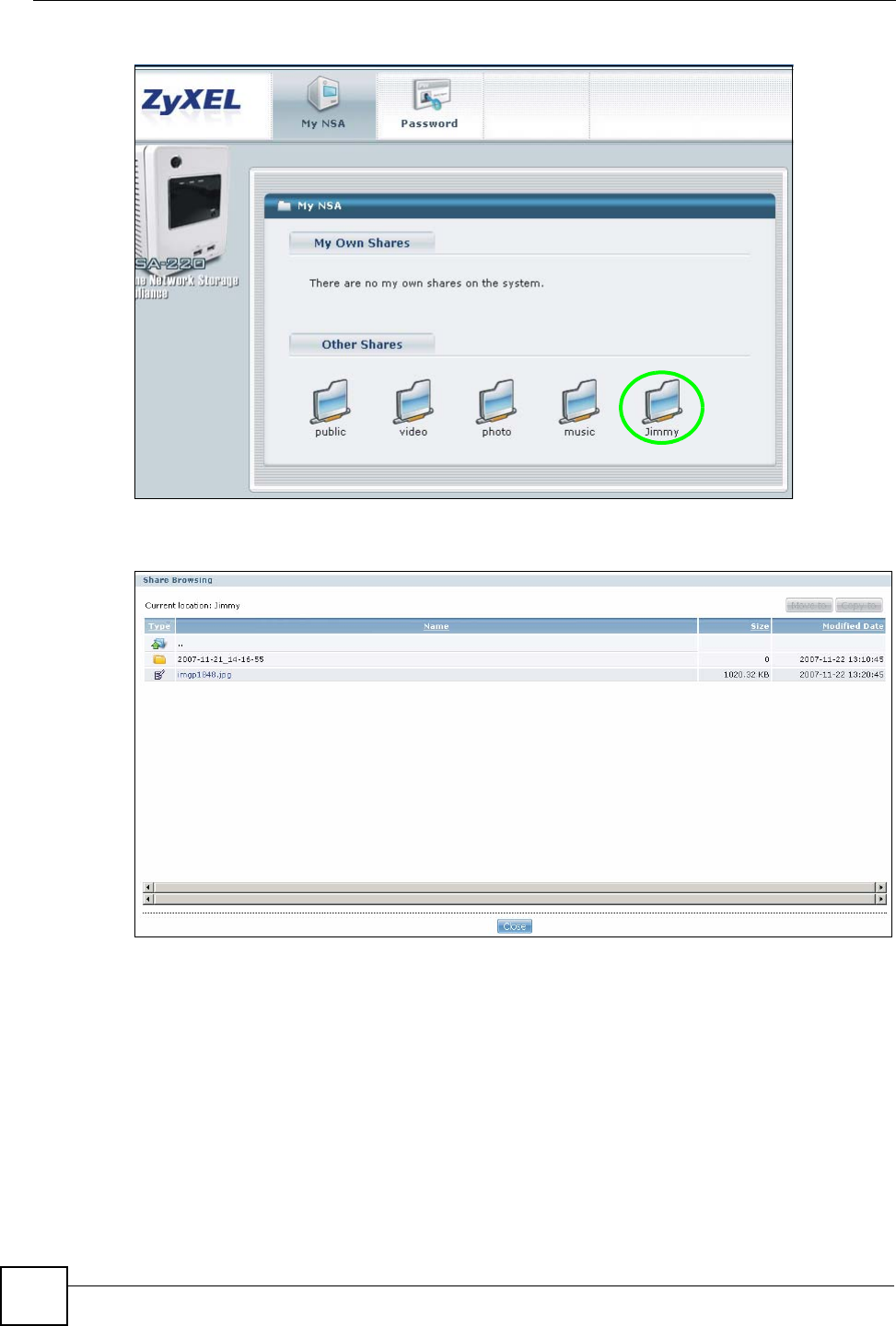
Chapter 3 Tutorials
NSA-220 User’s Guide
52
Figure 33 My NSA User Login
2Click a share to see the top level of the share’s contents. Here is the Jimmy share.
Figure 34 My NSA User Login
3Click a folder’s file name to browse the folder. You can open files or copy them to your
computer. However at the time of writing you cannot use the web configurator to upload
files to the NSA (use CIFS or FTP to upload files, see Section 3.1.3 on page 49 and
Section 3.1.4 on page 50).
4Click the logout icon when your are done (see Table 2 on page 32).
3.2 Download Service Tutorial
This tutorial covers using the NSA to download a file from the Internet. Use this same
procedure for BitTorrent downloads as well as regular HTTP (web) and FTP downloads. See
Section 8.5 on page 93 for more on the download service.
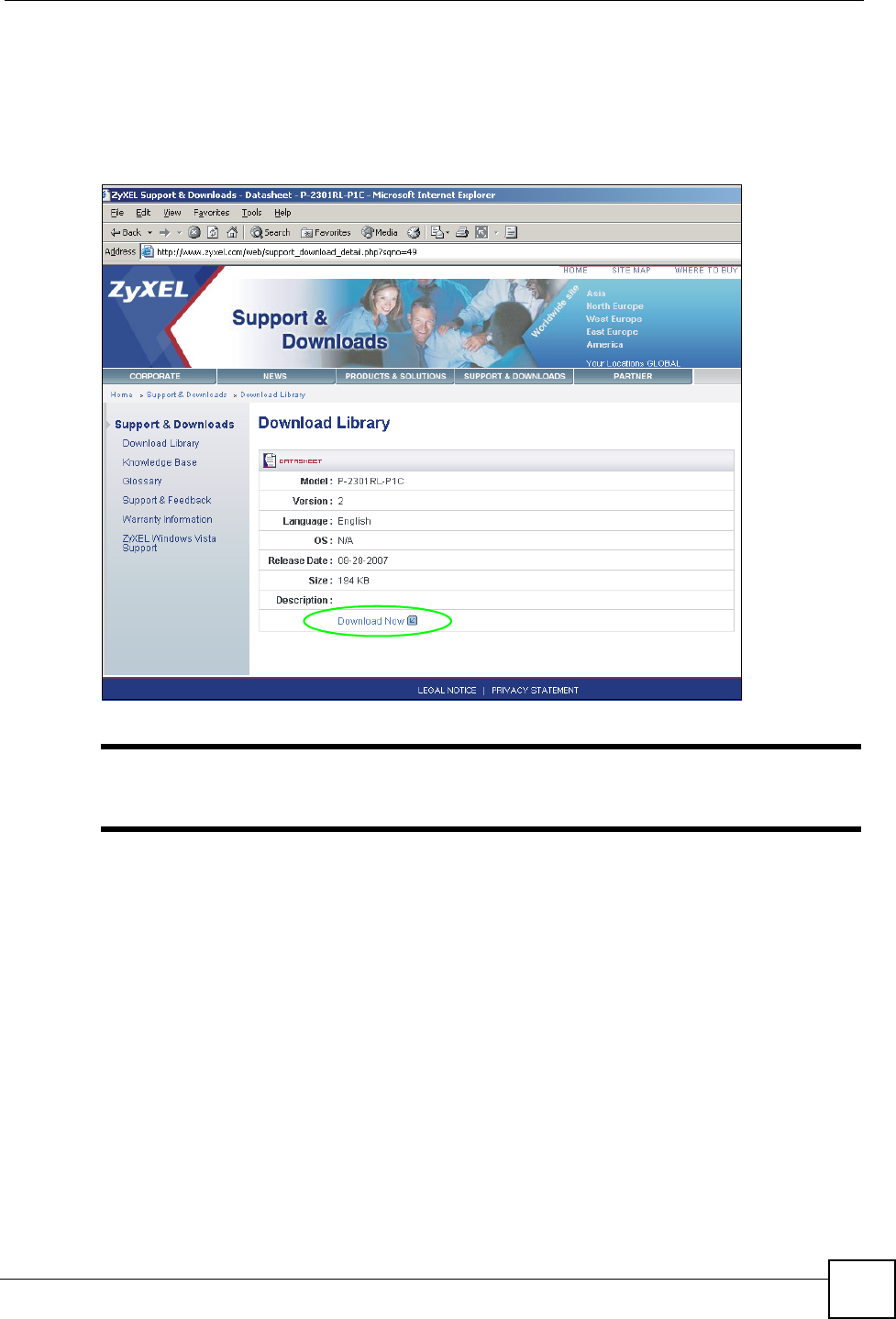
Chapter 3 Tutorials
NSA-220 User’s Guide 53
1Open your Internet browser (this example uses Internet Explorer).
2Find a download link for the file you want. In this example, www.zyxel.com has a
Download Now link for downloading a datasheet for ZyXEL’s P-2301RL-P1C (a
device for making phone calls over the Internet).
Figure 35 Download Link Example
"Make sure the link opens either the file you want or a pop-up window about
how to handle the file.
It is also OK for the link to open a .torrent file. If you are redirected to a screen
that says the download should start in a few seconds, there may be a link to
click if the download does not start automatically. See if that link opens the file
or the pop-up window.
3Right-click the download link and select Copy Shortcut in Internet Explorer (or Copy
Link Location in Firefox).
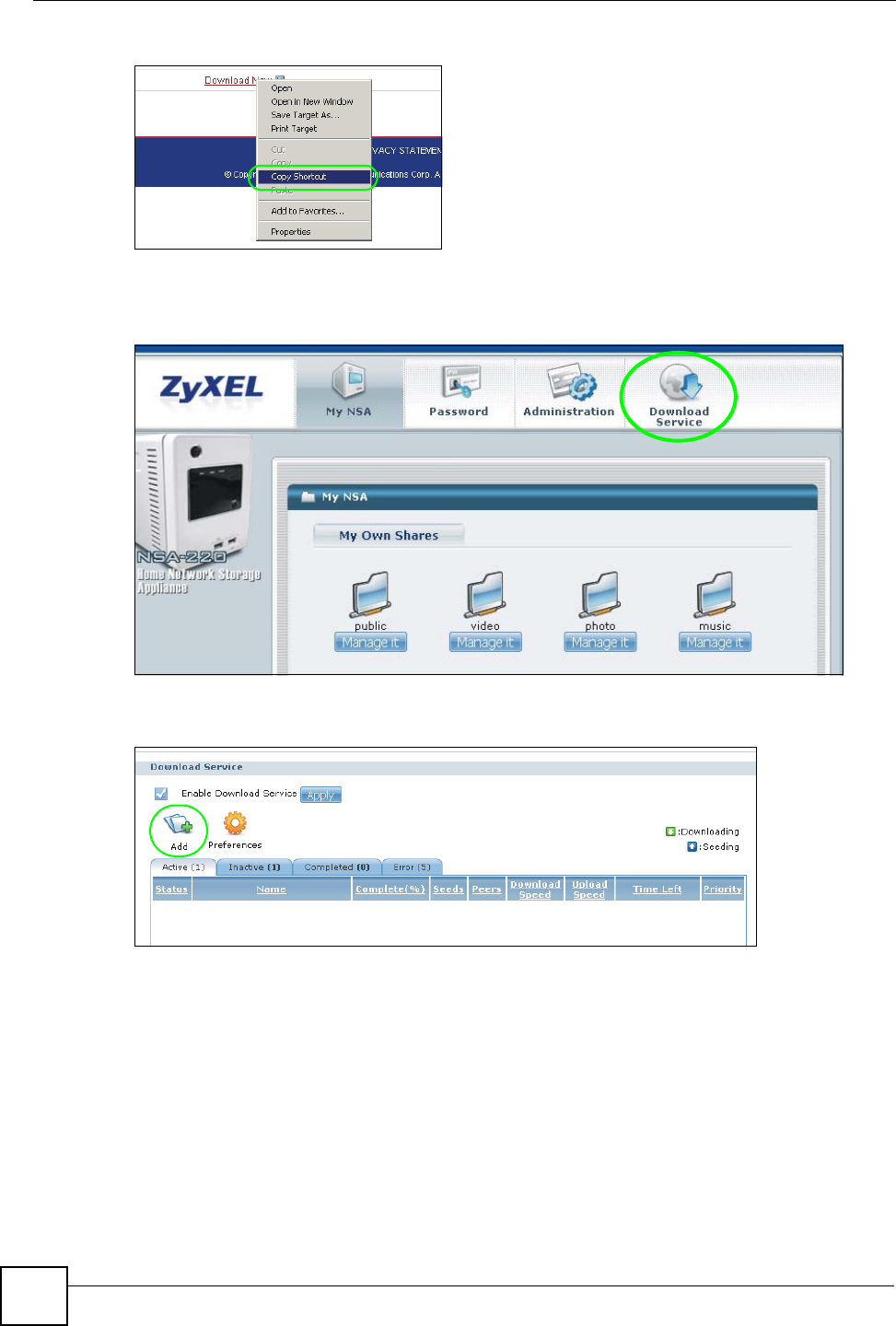
Chapter 3 Tutorials
NSA-220 User’s Guide
54
Figure 36 Copy Shortcut
4Log into the NSA web configurator (see Section 2.3 on page 30) using the administrator
account and click Download Service.
Figure 37 Download Service Tutorial: My NSA
5Click Add.
Figure 38 Download Service Tutorial: Download Service
6Right-click the URL field and select Paste.
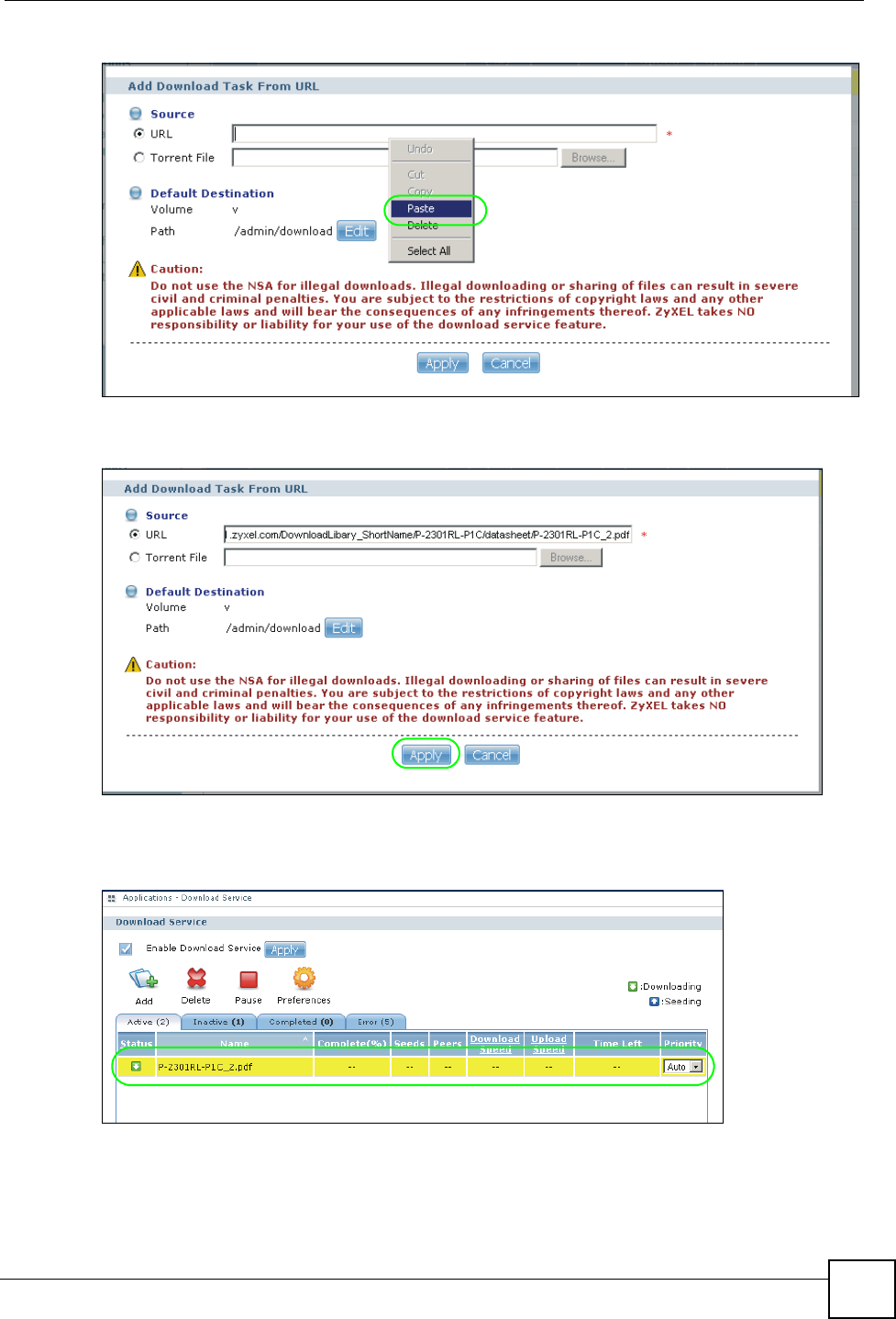
Chapter 3 Tutorials
NSA-220 User’s Guide 55
Figure 39 Download Service Tutorial: Paste Link
7The URL displays in the URL field. Click Apply.
Figure 40 Download Service Tutorial: Apply Pasted Link
8After a few moments, the download task appears in the Download Service screen’s
Active tab.
Figure 41 Download Service Tutorial: Download Task Added
The download appears in the Completed tab when it is done. By default the NSA stores all
downloads in the admin share’s download folder. See Section 3.1.3 on page 49, Section 3.1.4
on page 50, or Section 3.1.5 on page 51 for how to access a share.
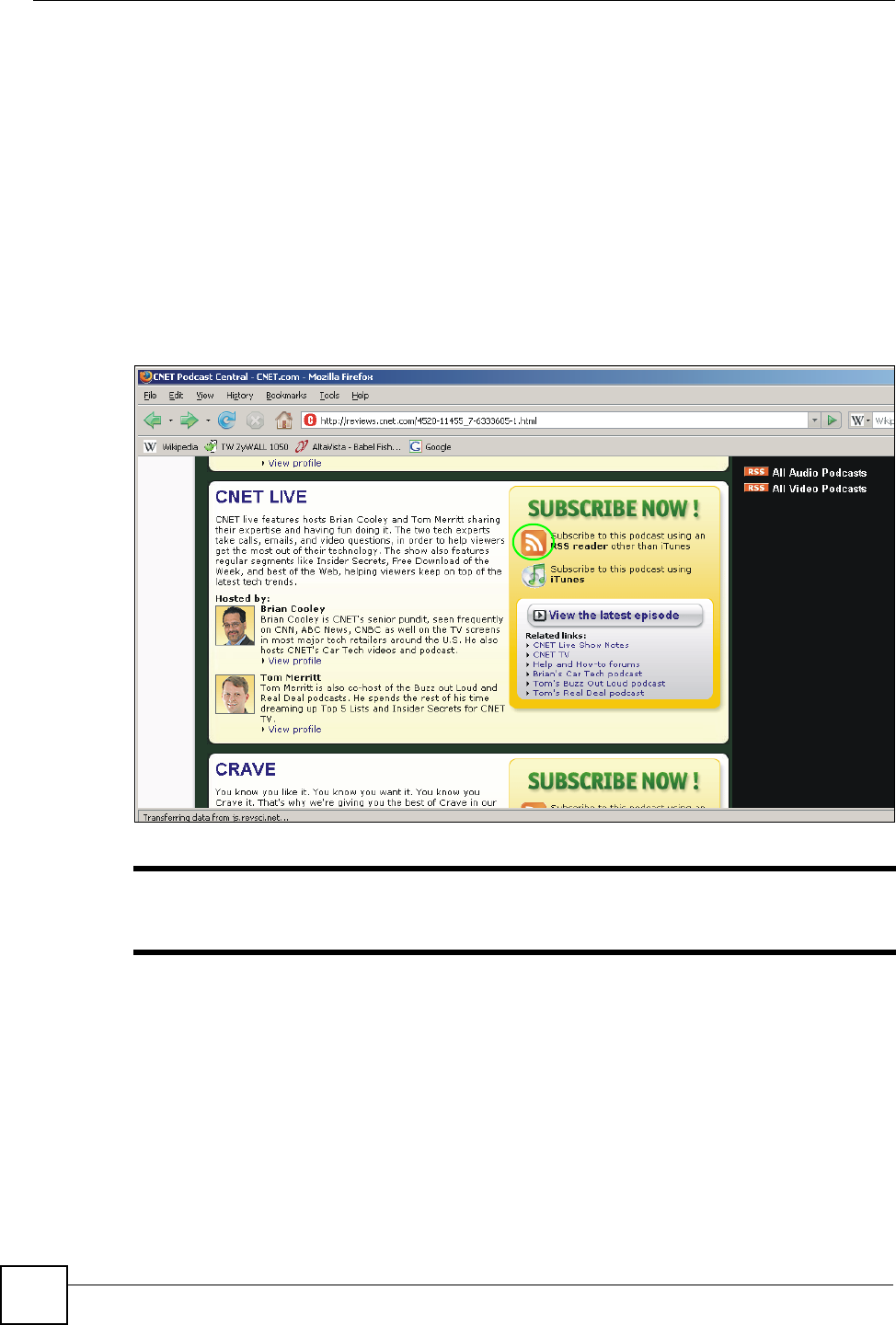
Chapter 3 Tutorials
NSA-220 User’s Guide
56
3.3 Broadcatching Tutorial
Use broadcatching to have the NSA download frequently updated digital content like TV
programs, radio talk shows, Podcasts (audio files), and blogs. This example shows how to
subscribe the NSA to the CNET TV Internet television channel. See Section 8.12 on page 105
for more on the broadcatching service.
1Open your Internet browser (this example uses Firefox).
1Find the link for the RSS feed containing the channel you want to add. In this example,
http://reviews.cnet.com/4520-11455_7-6333605-1.html has an RSS link for subscribing
to the CNET Live podcast. However this is not the link for the actual RSS feed. Click the
link to go to another screen that has RSS feed links.
Figure 42 Broadcatching Link Example
"Make sure the link goes to the actual RSS feed instead of to another list of
links or information about the channel.
One way to test this is by clicking the link. Clicking an actual RSS feed link opens a
screen of XML code (in browsers without an RSS feed aggregator) or a window where
you can add the RSS feed (in browsers with an RSS feed aggregator).
2Right-click the download link and select Copy Link Location in Internet Explorer (or
Copy Shortcut in Internet Explorer).
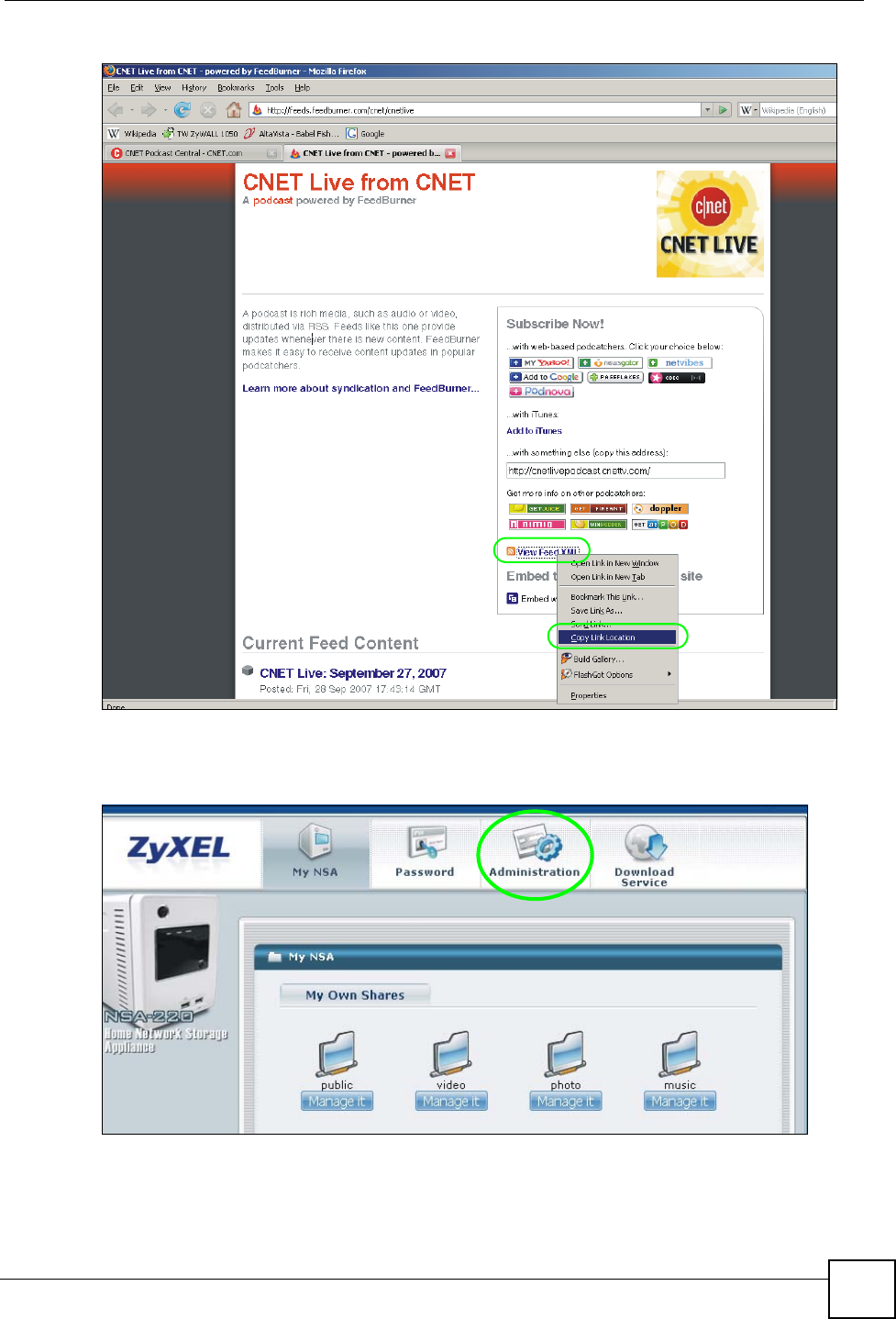
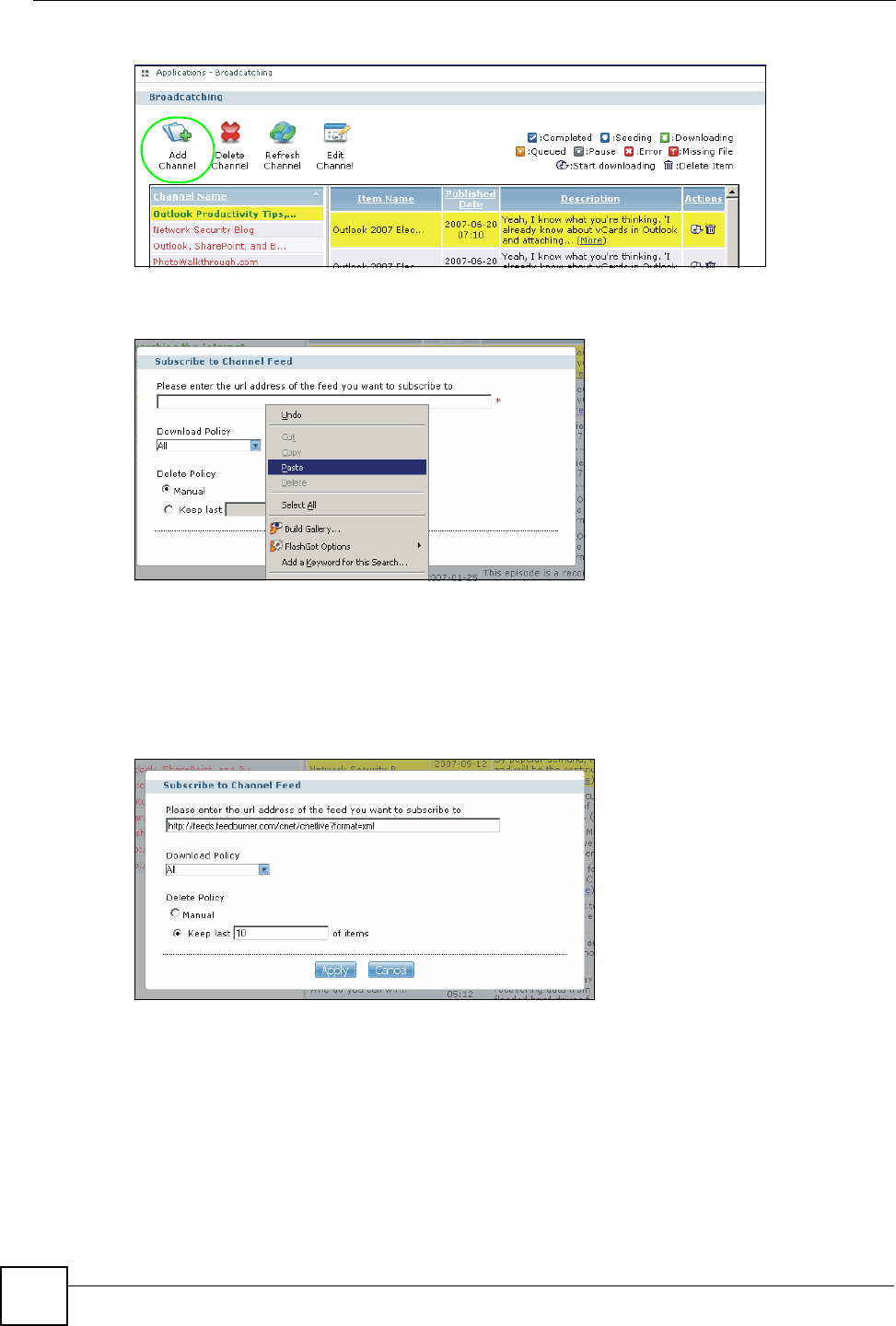
Chapter 3 Tutorials
NSA-220 User’s Guide
58
Figure 45 Broadcatching Tutorial: Broadcatching
5Right-click the URL field and select Paste.
Figure 46 Broadcatching Tutorial: Paste Link
6The URL displays in the URL field.
7Select a policy for what items to download. This example uses Manual so you will be
able to select individual items to download later.
8Select a policy for what items to delete. This example keeps the most recent 10 items.
9Click Apply.
Figure 47 Broadcatching Tutorial: Apply Pasted Link
10 After a few moments, the channel appears in the Broadcatching screen where you can
select items you want to download. The NSA saves the items you download in a folder
named after the channel. By default, the channel folders are created in the admin share’s
download folder. The NSA’s media server feature makes it easy for users on your
network to play the broadcatching files you download. See Section 8.3 on page 90 for
more on the media server.
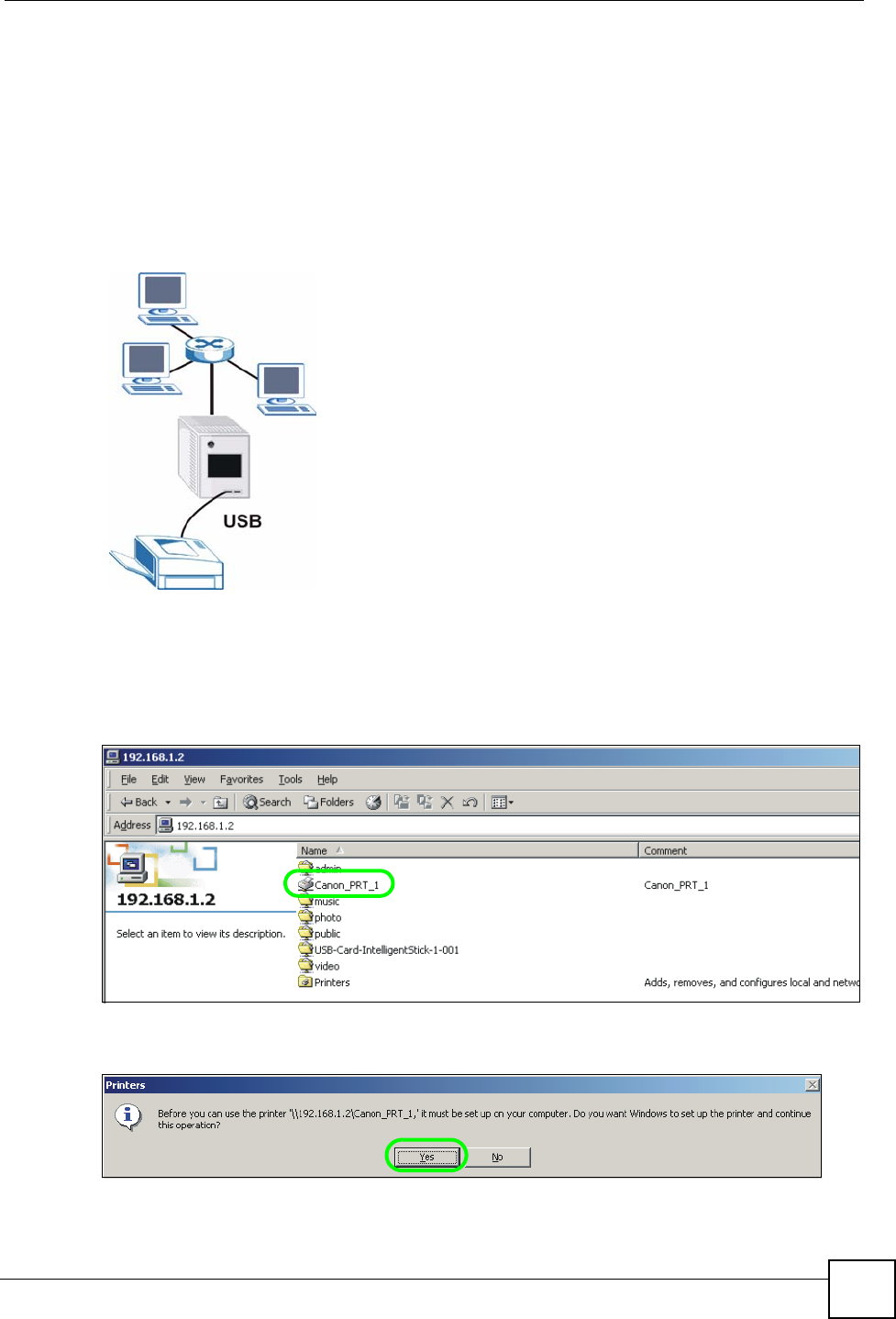
Chapter 3 Tutorials
NSA-220 User’s Guide 59
3.4 Printer Server Tutorial
Do the following to have the NSA let computers on your network share a printer. See
www.zyxel.com for a list of compatible printers.
1Make sure the NSA is on and the SYS light is on steady (not blinking).
2Use a USB cable to connect the printer’s USB port to one of the NSA’s USB ports.
Make sure the printer is also connected to an appropriate power source.
Figure 48 Printer Sharing
3Turn on the printer.
4The NSA detects the printer after a few moments.
5On your computer, open your CIFS file sharing program (Windows Explorer for
example) and browse to the NSA. Double-click the printer’s icon.
Figure 49 Printer Connected to NSA: Windows Explorer
6If you get a warning screen, click the option that lets you continue (Yes in this example).
Figure 50 Printer Connected to NSA: Windows Explorer Warning
7If your computer does not already have the printer’s driver installed, you will need to
install it. In this example, click OK.
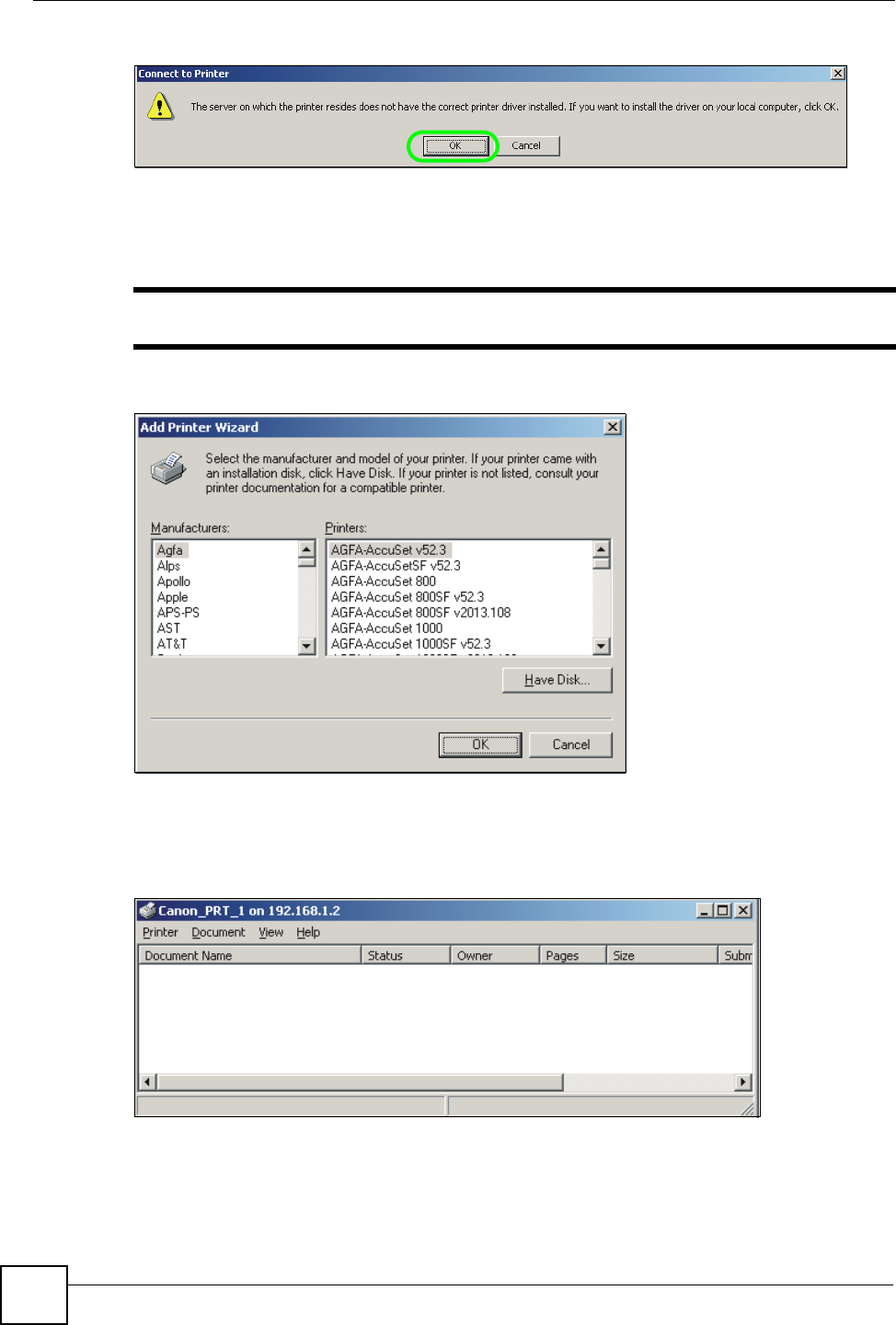
Chapter 3 Tutorials
NSA-220 User’s Guide
60
Figure 51 Printer Driver Needed
8Use the wizard screens to install the printer driver on the computer. You may need to get
the file from the printer’s CD or the printer manufacturer’s website (the driver is not
installed on the NSA).
"You must install the printer driver on each computer that will use the printer.
Figure 52 Applications > Print Server
After the driver installation finishes, the computer is ready to use the printer. Select the printer
in an application to use it to print. Browse to the NSA using a CIFS program (like Windows
Explorer) and double-click the printer’s icon to open the printer’s queue of print jobs.
Figure 53 Printer Screen in Windows Explorer
Chapter 3 Tutorials
NSA-220 User’s Guide
62
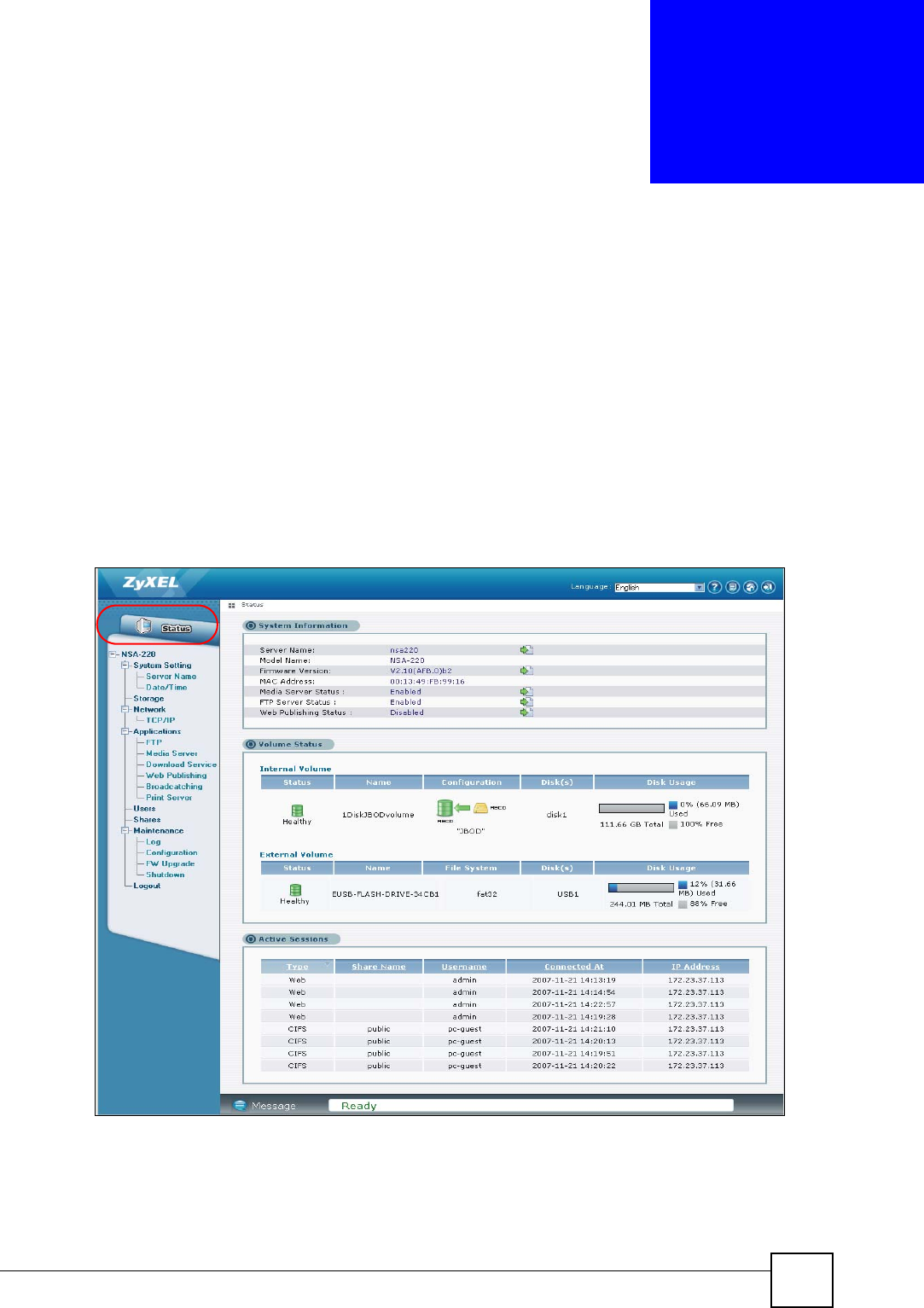
NSA-220 User’s Guide 63
CHAPTER 4
Status Screen
This chapter introduces the NSA Status screen.
4.1 Status Screen
The Status screen is the first main web configurator screen you see after you enter the
administrator screens. To view the status screens, click Status on the top-left of the navigation
panel.
Figure 54 Status
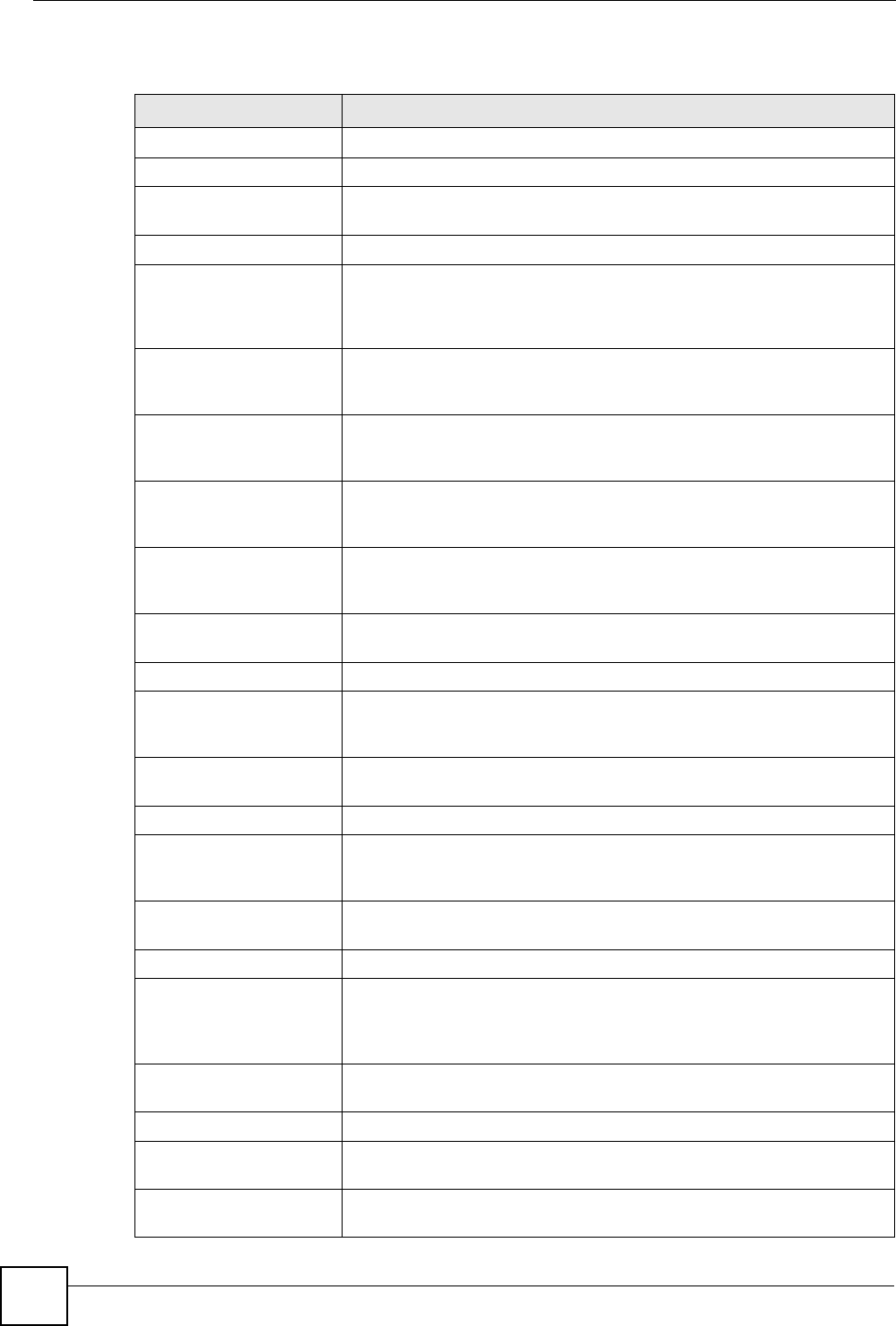
Chapter 4 Status Screen
NSA-220 User’s Guide
64
The following table describes the labels in this screen.
Table 12 Status
LABEL DESCRIPTION
Status Click Status to refresh the status screen statistics.
System Information
Server Name This displays the name which helps you find the NSA on the network.
Click the edit icon to go to the screen where you can configure this.
Model Name This displays which model this NSA device is.
Firmware Version This is the NSA firmware version. Click the update link to go to the
Maintenance > Firmware Upgrade screen from which you can upload
new firmware. Click the edit icon to go to the screen where you can
upload new firmware.
MAC Address This displays the NSA’s unique physical hardware address (MAC). You
need the MAC address to register the product at myZyXEL.com.
Customer support may also request it for troubleshooting purposes.
Media Server Status This shows whether the media server function is enabled or disabled. It
must be enabled for media clients to play content files stored on the NSA.
Click the edit icon to go to the screen where you can configure this.
FTP Server Status This shows whether the FTP server function is enabled or disabled. It
must be enabled to use FTP file transfer to/from the NSA. Click the edit
icon to go to the screen where you can configure this.
Web Publishing Status This shows whether the Web server function is enabled or disabled. It
must be enabled to use HTTP to access shares on the NSA. Click the edit
icon to go to the screen where you can configure this.
Volume Status A volume is a storage area on a single disk or spread across a number of
disks within a single file system.
Internal Volume This displays the volumes created on the hard drives installed in the NSA.
Create an Internal Volume This displays if there are no volumes created on the hard drive(s) installed
in the NSA. Click this button to create a volume. See Section 6.4 on page
76.
External Volume This displays the volumes created on USB hard drives connected to the
NSA. USB disks are numbered in the order that you insert USB devices.
Status This icon indicates whether the volume is healthy, degraded, or down.
Name This field shows the name for the volume. Read only displays for an
external volume that uses Windows NTFS. This means the NSA can read
the volume but can’t save files on it.
Configuration This field (also known as Type) shows what type of data storage system
(a RAID type or JBOD) an internal volume is using.
File System This field shows what file system an external (USB) volume is using.
Disk(s) For internal drives, this shows which hard drive bays are included in the
volume. For external drives, this field shows USB1 for the first external
hard drive you connect to the NSA (regardless of which USB port) and
USB2 for the second.
Disk Usage This field shows total disk size, the percentage of the disk being used and
the percentage that is available.
Active Sessions This shows how many users are currently connected to the NSA.
Type This shows whether it’s a Windows/CIFS, web (web configurator), or FTP
connection to the NSA.
Share Name This displays the shared folder name on the NSA that the user is
connected to for CIFS sessions and is blank for FTP sessions.
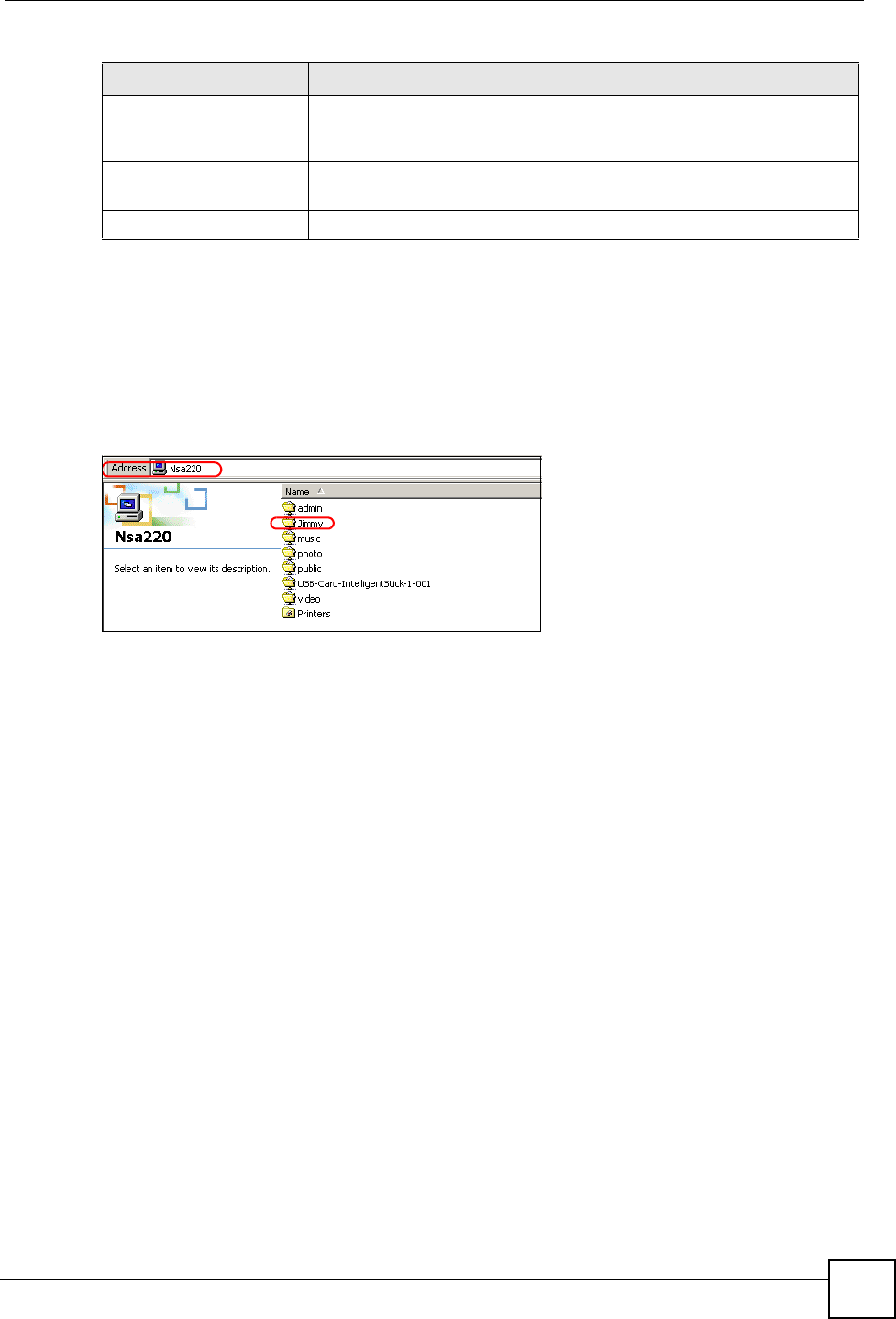
Chapter 4 Status Screen
NSA-220 User’s Guide 65
4.1.1 Session Example (Windows)
Open windows explorer and type two back slashes followed by the NSA name or IP address.
Initially you can only read and write to the Public, Video, Music, and Photo folders until you
create other shares on the NSA. This session is then displayed as shown in Figure 54 on page
63.
Figure 55 Session Example (Windows)
Username This displays the name of the user connected to the NSA if one is defined.
ANONYMOUS CIFS or ANONYMOUS FTP display if a username is not
defined for the user’s connection.
Connected At This displays the date and time the user last connected to the NSA in
year, month, day, hour, minute, second format.
IP Address This displays the IP address of the computer connected to the NSA.
Table 12 Status (continued)
LABEL DESCRIPTION
Chapter 4 Status Screen
NSA-220 User’s Guide
66

68

NSA-220 User’s Guide 69
CHAPTER 5
System Setting Screens
This chapter discusses the system setting screens.
5.1 System Setting Screens
This section gives an overview of the various features included in the system setting screens.
Use the system setting screens to:
• Specify the NSA’s Windows/CIFS server name and workgroup name.
• Chose a time zone and/or allow the NSA to synchronize with a time server.
• Create and edit volumes (see Chapter 6 on page 73 for details).
5.1.1 Windows/CIFS
Common Internet File System (CIFS) is a standard protocol supported by most operating
systems in order to share files across the network.
• CIFS is included by default in Windows and Mac OSX operating systems.
• You can use Samba with Linux to use CIFS.
• CIFS transfers use security.
5.2 Server Name
Click System Setting > Server Name to open the following screen. Use this screen to configure
your CIFS settings. In this screen you can set your server name and specify if your NSA is a
part of a workgroup or domain.
"CIFS cannot be disabled on the NSA.
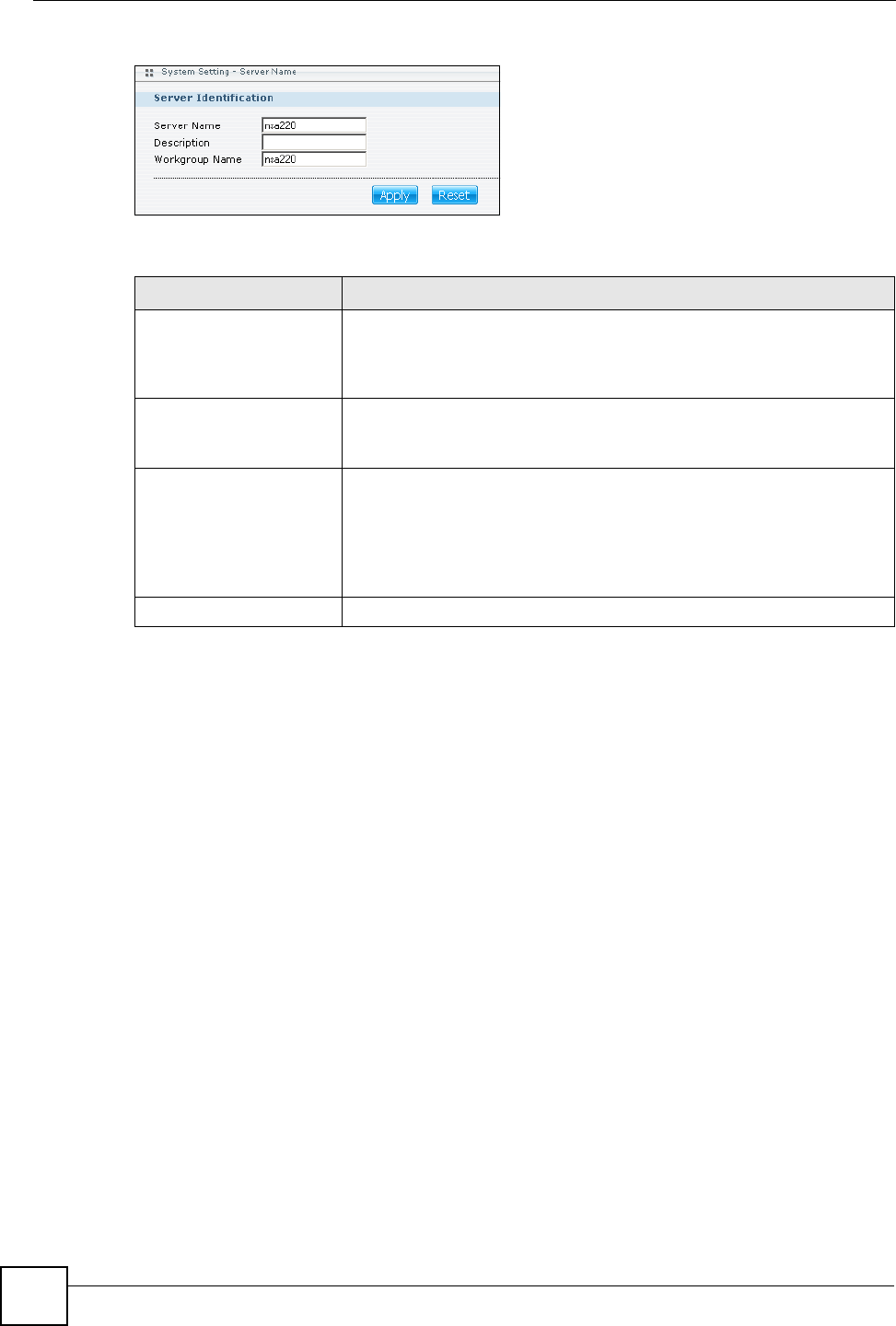
Chapter 5 System Setting Screens
NSA-220 User’s Guide
70
Figure 56 System Setting > Server Name
The following table describes the labels in these screens.
5.3 Date/Time
Use this screen to select a time zone and a time server from which your NSA can get the time
and date. This time is then used in NSA logs and alerts.
5.3.1 Time Lag
Time lag occurs when the time on the NSA falls behind the time on the time server. This may
happen if:
• the time server is no longer reachable
• if the NSA is shut down often (the NSA internal battery keeps time when the NSA is shut
down and this may cause possible variance)
• power surges occur.
The NSA gives no warning if time lag occurs. You should resynchronize the time after a
power surge or after you have shut down the NSA several times.
5.3.2 Date/Time Screen
Click the System Setting link in the navigation panel and then click the Date/Time link to
access the System Setting > Date/Time screen.
Table 13 System Setting > Server Name
LABEL DESCRIPTION
Server Name Enter a name to identify your NSA on the network in this field.
You can enter up to 15 alphanumeric characters with minus signs allowed
but not as the last character. The name must begin with an alphabetic
character (a-z) and is NOT case sensitive.
Description Add text here to describe the NSA if the Server Name field was not
enough. Use up to 61 characters. You can use all characters except the
following: . /\:|[]<>+;,?=*"~
Workgroup Name A workgroup is a group of computers on a network that can share
files.These user accounts are maintained on the NSA.
Type your workgroup name in this field.
You can enter up to 15 alphanumeric characters with minus signs allowed
but not as the last character. The name must begin with an alphabetic
character (a-z) and is NOT case sensitive.
Apply Click here to save your changes back to the NSA.
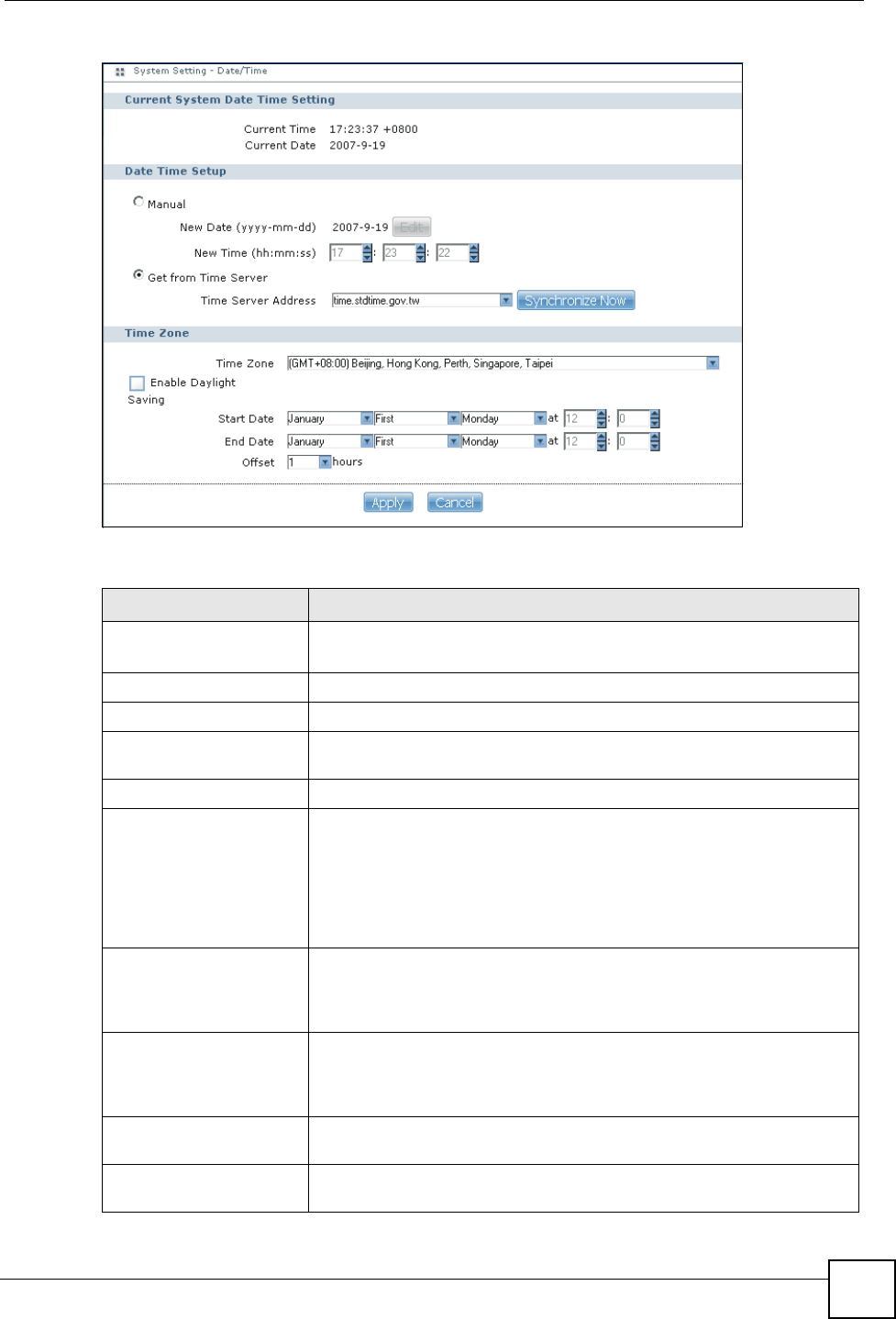
Chapter 5 System Setting Screens
NSA-220 User’s Guide 71
Figure 57 System Setting > Date/Time
The following table describes the labels in this screen.
Table 14 System Setting > Date/Time
LABEL DESCRIPTION
Current System Date
Time Setting
Current Time This field displays the time of your NSA.
Current Date This field displays the date of your NSA.
Current Time Zone This field displays the time zone of your location. This will set the time
difference between your time zone and Greenwich Mean Time (GMT).
Date Time Setup
Manual Select this radio button to enter the time and date manually.
When you enter the time settings manually, the NSA uses the new setting
once you click Apply.
Note: If you enter time settings manually, they revert to their
defaults when power is lost.
New Time (hh:mm:ss) This field displays the last updated time from the time server or the last
time configured manually.
When you set Time and Date Setup to Manual, enter the new time in this
field and then click Apply.
New Date (yyyy-mm-
dd) This field displays the last updated date from the time server or the last
date configured manually.
When you set Time and Date Setup to Manual, enter the new date in this
field and then click Apply.
Get from Time Server Select this check box to have the NSA get the time and date from the time
server you select in the Time Server Address field.
Synchronize Now Click this button for the NSA to retrieve the correct time from the
configured time server right away.
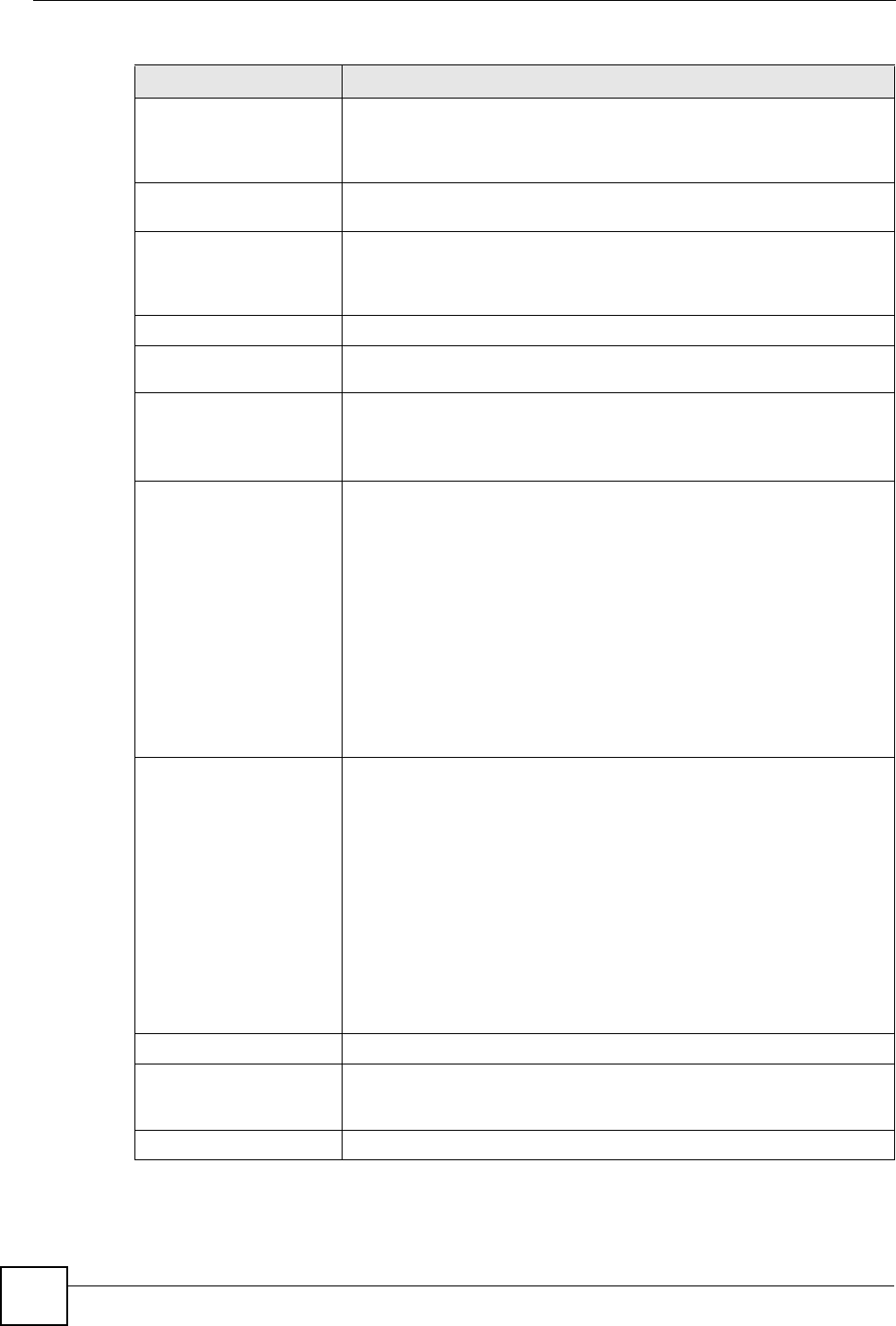
Chapter 5 System Setting Screens
NSA-220 User’s Guide
72
Time Server Address Select a time server from the drop-down list box or select Specify my
own time server and enter the time server you wish to use in the field
below. Check with your ISP/network administrator if you are unsure of this
information.
Synchronize Now Click this button for the NSA to retrieve the correct time from the
configured time server right away.
Time Server Address Select a time server from the drop-down list box or select Specify my
own time server and enter the time server you wish to use in the field
below. Check with your ISP/network administrator if you are unsure of this
information.
Time Zone
Time Zone Choose the time zone of your location. This will set the time difference
between your time zone and Greenwich Mean Time (GMT).
Enable Daylight
Saving Daylight saving is a period from late spring to early fall when many
countries set their clocks ahead of normal local time by one hour to give
more daytime light in the evening.
Select this option if you use Daylight Saving Time.
Start Date Configure the day and time when Daylight Saving Time starts if you
selected Enable Daylight Saving. The hour field uses the 24 hour
format. Here are a couple of examples:
Daylight Saving Time starts in most parts of the United States on the
second Sunday of March. Each time zone in the United States starts
using Daylight Saving Time at 2 A.M. local time. So in the United States
you would use March, Second, Sunday, at 2:00.
Daylight Saving Time starts in the European Union on the last Sunday of
March. All of the time zones in the European Union start using Daylight
Saving Time at the same moment (1 A.M. GMT or UTC). So in the
European Union you would select March, Last, Sunday. The time you
specify depends on your time zone. In Germany for instance, you would
type 2 because Germany's time zone is one hour ahead of GMT or UTC
(GMT+1).
End Date Configure the day and time when Daylight Saving Time ends if you
selected Enable Daylight Saving. The o'clock field uses the 24 hour
format. Here are a couple of examples:
Daylight Saving Time ends in the United States on the first Sunday of
November. Each time zone in the United States stops using Daylight
Saving Time at 2 A.M. local time. So in the United States you would select
November, First, Sunday, at 2:00.
Daylight Saving Time ends in the European Union on the last Sunday of
October. All of the time zones in the European Union stop using Daylight
Saving Time at the same moment (1 A.M. GMT or UTC). So in the
European Union you would select October, Last, Sunday. The time you
specify depends on your time zone. In Germany for instance, you would
type 2 because Germany's time zone is one hour ahead of GMT or UTC
(GMT+1).
Offset Specify by how many hours to change the time for Daylight Saving Time.
Apply Click Apply to save your changes back to the NSA. If you configured a
new time and date, Time Zone and Daylight Saving at the same time, all
of the settings take affect.
Reset Click Reset to begin configuring this screen afresh.
Table 14 System Setting > Date/Time (continued)
LABEL DESCRIPTION
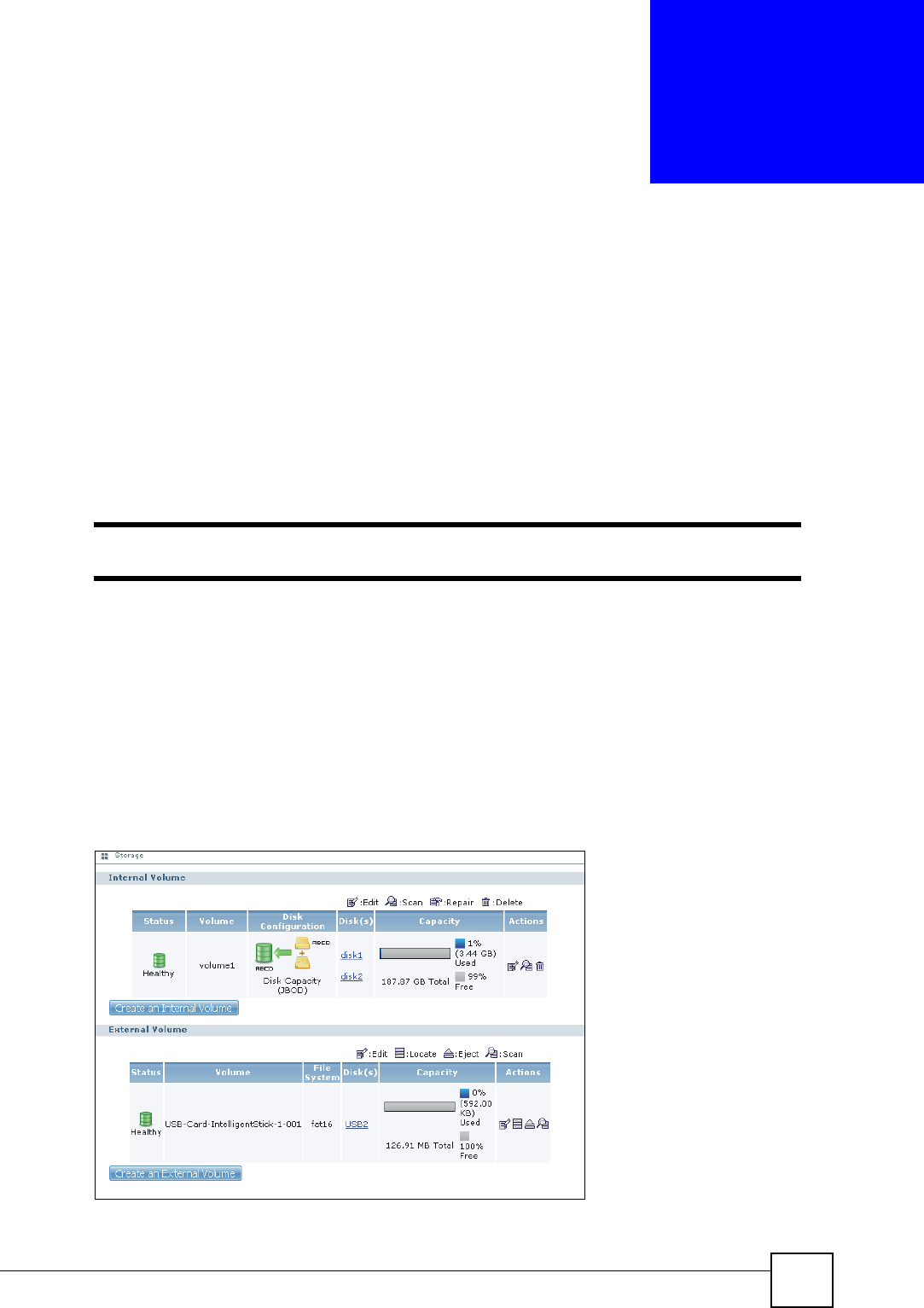
NSA-220 User’s Guide 73
CHAPTER 6
Storage Screens
This chapter covers storage systems, volumes and disks on the NSA.
6.1 Storage Introduction
Use the System > Storage screens to manage volumes and disks (both internal and external).
"Several NSA features require a valid internal volume.
• Volumes are storage areas on disks. See Section 6.5 on page 76 for details.
• For details on replacing internal disks, see Section 6.6 on page 78.
• For details about external disks, see Section 6.8 on page 80.
6.2 Storage Overview Screen
Click System > Storage in the navigation panel to display the following screen.
Figure 58 System > Storage
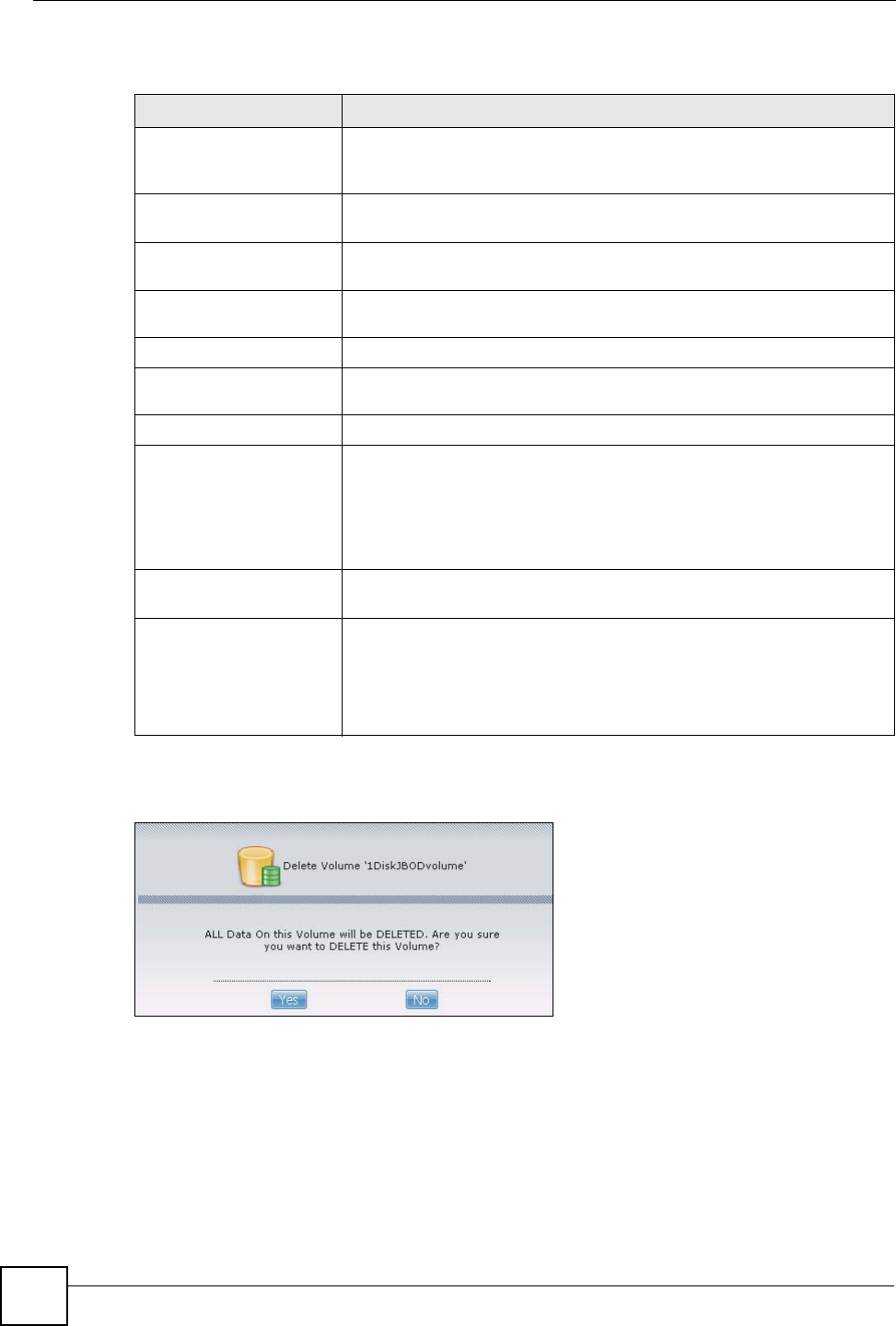
Chapter 6 Storage Screens
NSA-220 User’s Guide
74
The following table describes the labels in this screen.
You see a warning screen before you delete a volume.
Figure 59 Delete a Volume Warning Screen
6.3 Creating an Internal Volume
Click the Create an Internal Volume button in the Storage screen as shown in Figure 58 on
page 73 to open the following screen. Use this screen to create a new NSA internal disk drive
volume.
Table 15 System > Storage
LABEL DESCRIPTION
Internal/External Volume These tables display information on all internal volumes (created on NSA
internal disk drives) and external volumes (created on external disk drives
attached to the NSA USB ports). See the volume screen for field details.
Create an Internal Volume Click this to format internal hard drives and create a new volume. All data
on the disk(s) will be lost.
Create an External
Volume Click this to format an external hard drive and create a new volume. All
data on the disk will be lost.
Status This field shows whether the volume is Healthy, Resync, Recovering,
Degraded, or Down.
Volume The NSA creates the volume name automatically. You can edit it.
Disk Configuration This field shows which disks and data storage system the volume is
using.
File System This field displays the file system that an external (USB) volume is using.
Disk(s) Click or roll your mouse over a link in this column to display the following
details about the hard drive located in the corresponding hard drive bay.
Type: Whether it is an internal or external (USB) hard drive.
Model Name: This is the hard disk number that identifies the disk.
File System: The file system that an external volume is using
Capacity: The total storage space on the disk.
Capacity This field shows total disk size, the percentage of the volume being used
and the percentage that is available.
Actions This field displays icons allowing you to edit, scan, repair or delete a
volume. You can also locate or eject an external volume.
Note: If you delete a volume, all data in the volume disk(s) is
erased.
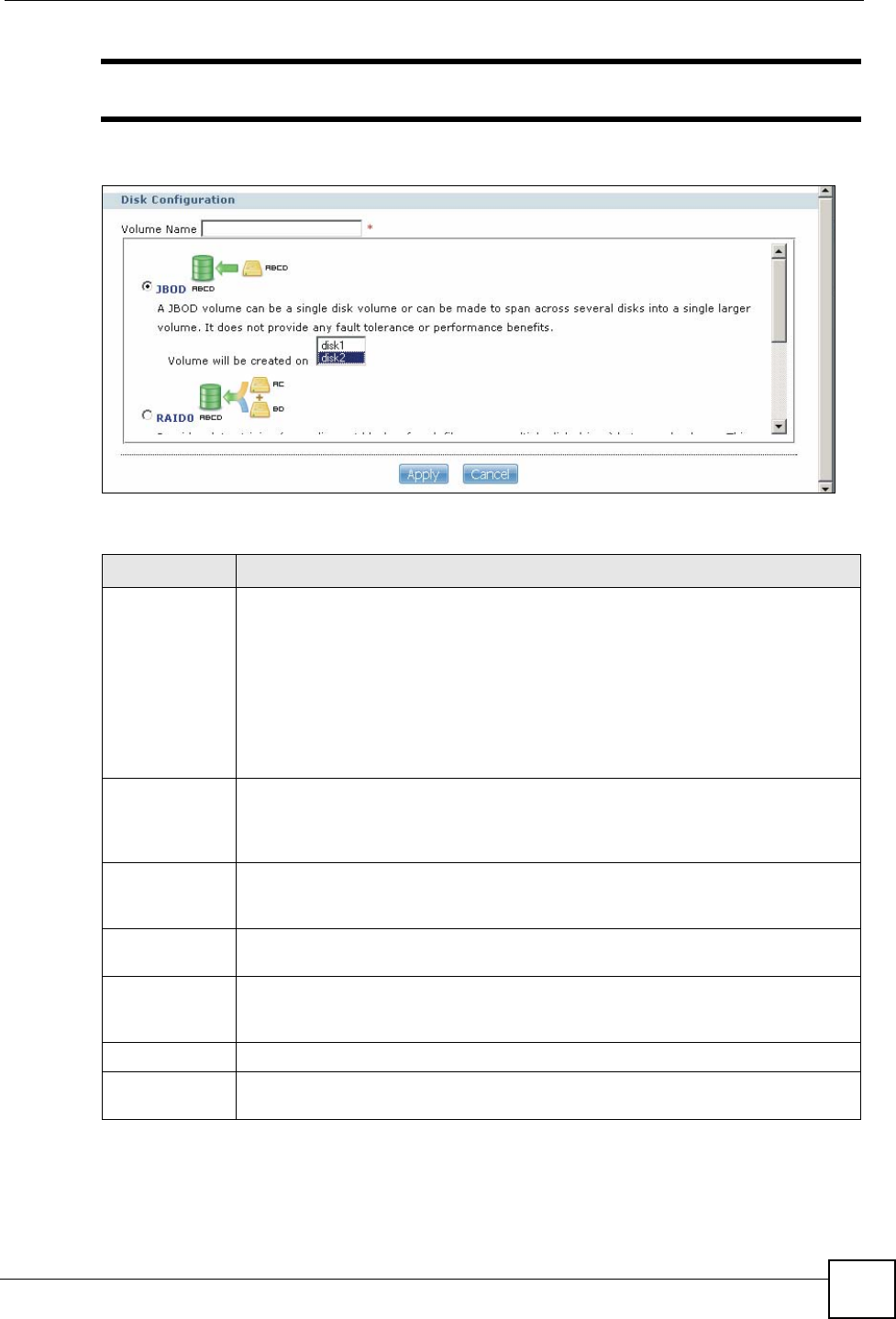
Chapter 6 Storage Screens
NSA-220 User’s Guide 75
"Creating a volume formats the hard drive. All data on the disk will be lost.
Figure 60 System > Storage > Create an Internal Volume
The following table describes the labels in this screen.
Table 16 System > Storage > Create an Internal Volume
LABEL DESCRIPTION
Volume Name Type a volume name from 1 to 31 characters. The name cannot be the same as
another existing external volume.
Acceptable characters are all alphanumeric characters and " " [spaces], "_"
[underscores], and "." [periods].
The first character must be alphanumeric (A-Z 0-9).
The last character cannot be a space " ".
For an external volume, type a volume name from 1 to 32 single-byte (no Chinese
characters allowed for example) ASCII characters. The name cannot be the same
as another existing external volume.
JBOD Use JBOD if you want maximum storage capacity and/or you have other means of
protecting your data. JBOD is the only option if you only have one disk installed.
With two disks, you can choose to create a JBOD volume on one of the disks or
both.
RAID 0 Use RAID 0 if you want maximum speed for your disks, and/or you have other
means of protecting your data. This is only available when you have two hard disks
installed.
RAID 1 Use RAID 1 if you want to mirror all data on one disk to the other disk. This is only
available when you have two hard disks installed.
Volume will be
created on This field lists all hard disks installed inside the NSA. Select which disks should
make up this volume. A disk can only belong to one volume. You do not need to
select anything if only one hard disk is installed.
Apply Click this button to save your changes back to the NSA and create the volume.
Cancel Click this button to exit this screen without saving your changes or creating a
volume.
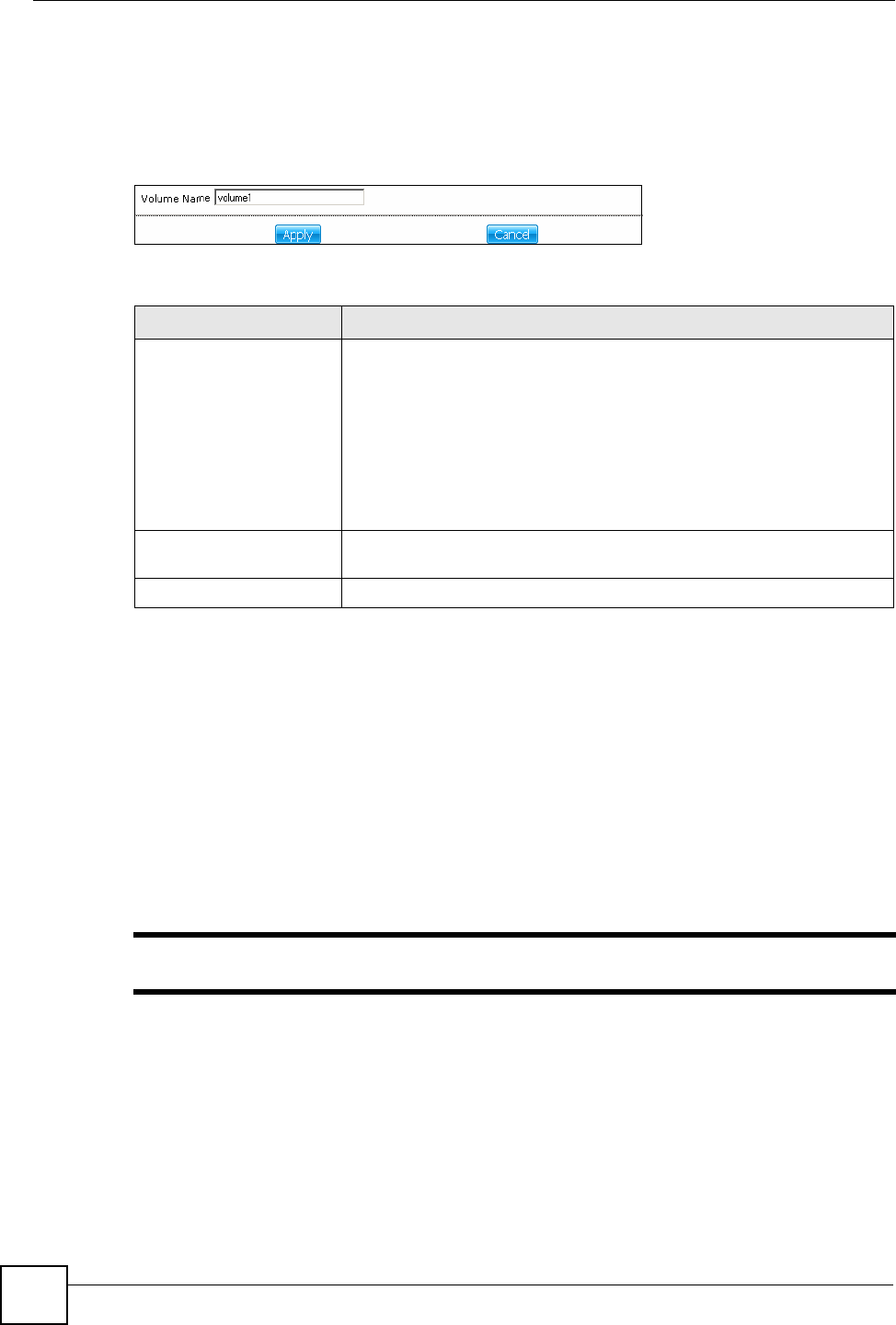
Chapter 6 Storage Screens
NSA-220 User’s Guide
76
6.4 Editing a Volume
Click an internal volume’s Edit icon in the System > Storage screen as shown in Figure 58 on
page 73 to open the following screen. Use this screen to change the volume’s name.
Figure 61 System > Storage > Edit
The following table describes the labels in this screen.
6.5 Volumes and RAID
A volume is a storage area on a disk or disks. You can create volumes on the internal disks and
external disks attached to the USB port(s). You can spread a volume across internal disks but
not between internal and external disks.
RAID (Redundant Array of Independent Disks) or JBOD is the storage method that the NSA
uses. The storage method you use depends on how many disks you have and how many
volumes you want to create. It’s important that you consider this carefully as all data is deleted
when you re-create a volume.
"Back up your data before deleting or re-creating a volume!
For example if you originally have one disk configured at JBOD, and you then install another
disk and want to configure the two disks to use RAID 1, you should first back up all your data
on the two disks (see the Memeo Autobackup utility on the included CD) and then restore your
data later after you create the new volume type.
Below is a table that summarizes some attributes of the various RAID levels as supported on
the NSA. For capacity and storage efficiency, “S” is the size of the smallest drive in the array,
and “N” is the number of drives in the array.
Table 17 System > Storage > Edit
LABEL DESCRIPTION
Volume Name For an internal volume, type a volume name from 1 to 31 characters. The
name cannot be the same as another existing external volume.
Acceptable characters are all alphanumeric characters and " " [spaces],
"_" [underscores], and "." [periods].
The first character must be alphanumeric (A-Z 0-9).
The last character cannot be a space " ".
For an external volume, type a volume name from 1 to 32 single-byte (no
Chinese characters allowed for example) ASCII characters. The name
cannot be the same as another existing external volume.
Apply Click this button to save your changes back to the NSA and rename the
volume.
Cancel Click this button to close this screen without saving your changes.
Chapter 6 Storage Screens
NSA-220 User’s Guide 77
Storage efficiency assumes all drives are of identical size.
Performance rankings are approximations.
6.5.1 Choosing A Storage Method For a Volume
The following is a guide to help you choose a storage method for the various number of disks
supported on the NSA. See Section 6.9 on page 81 for theoretical background on JBOD and
the RAID levels used on the NSA. Typical applications for each method are also shown there.
6.5.1.1 One Disk
If you only have one disk, you must use JBOD. All disk space is used for your data - none is
used for backup. If the disk fails, then you lose all the data on that volume (disk). You can add
another disk to your one-disk JBOD volume later without having to re-create shares, access
rights, and so on. Alternatively, you could create a different JBOD volume if you install a
second disk. (and create new shares, access rights and so on).
6.5.1.2 Two Disks:
You may choose JBOD, RAID 0 or RAID 1. With two disks you could create:
• up to two JBOD volumes
• one RAID 0 or RAID 1 volume
• Choose JBOD for flexibility and maximum usage of disk space for data.
• Choose RAID 0 if performance matters more than data security. RAID 0 has the
fastest read and write performance but if one disk fails you lose all your data on the
volume. It has fast performance as it can read and write to two disks simultaneously.
Performance may matter more than data security to gamers for example. This method
may also be acceptable for data that is already backed up somewhere else.
• Choose RAID 1 if data security is more important than performance. Since RAID 1
mirrors data onto a second disk, you can recover all data even if one disk fails, but the
performance is slower than RAID 0.
6.5.2 Volume Status
You (the administrator) can see the status of a volume in the Status or System > Storage
screens.
The NSA has the following classifications for the status of a volume:
•Healthy if all disks in the volume are OK and the file system is functioning properly.
Table 18 RAID Quick Comparison
RAID Level 0 1
Number of Disks 2 2
Capacity S*N S*N/2
Storage Efficiency 100% 50%
Fault Tolerance None YYYY
Availability Y YYYY
Read Performance YYYY YYY
Write Performance YYYY YYY
Chapter 6 Storage Screens
NSA-220 User’s Guide
78
•OK means the USB connected device is functioning properly.
•Resync when you create a RAID volume.
•Recovering appears when repairing a RAID 1 volume. (A RAID1 volume was once
degraded, but you have installed a new disk and the NSA is restoring the RAID1 volume
to a healthy state.)
•Degraded when a volume is currently down, but can be fixed. Data access may be slower
from a degraded volume, so it’s recommended that you replace the faulty disk and repair
the volume as soon as you can.
•Inactive when a disk is missing from a RAID 0 volume or a two-disk JBOD volume. The
volume is unusable. If you removed one of the disks you should be able to re-install it and
use the volume again (as long as you did not change anything on the disk). If a disk has
failed, you need to replace it and re-create the whole volume. All data will be lost. See
page 144 for how to install or replace a hard drive.
•Down when a volume is down and can not be fixed.
A down RAID volume cannot be used until you repair or replace the faulty disk(s) in the
volume. Degraded means one of the disks in the RAID volume is not available but the volume
can still be used. For a degraded volume, you should replace the faulty disk as soon as possible
to obtain previous performance. See your Quick Start Guide for more information on replacing
a disk.
If it’s down, then the only indication is that you can no longer transfer files to/from the shares
in the down volume. If it’s degraded, then file transfer to/from the shares in the degraded
volume will be slower.
"There is no explicit message from CIFS that tells users their volume is
degraded or down.
6.6 Disk Replacement Restrictions
See the Quick Start Guide for information on replacing disks in the NSA. When replacing a
disk in a degraded or down RAID volume, the new disk must be at least the same size or
bigger than the other disks that are already in the RAID volume, so as all data in the volume
can be restored.
For example, if you have RAID with 250 GB disks, you must put in a 250 GB or bigger disk as
a replacement in order to restore all original data in that volume. If you put a bigger disk, the
extra space on the disk will not be used.
"The NSA repairs a RAID volume automatically when you replace a faulty disk
with a disk that does not contain a volume.

Chapter 6 Storage Screens
NSA-220 User’s Guide 79
6.6.1 Resychronizing or Recovering a RAID 1 Volume
Resychronizing or recovering a RAID 1 volume that was down is done block-by-block, so the
time it takes depends more on the size of your hard drive(s) than the amount of data you have
on them.
"Do not restart the NSA while the NSA is resychronizing or recovering a volume
as this will cause the synchronization to begin again after the NSA fully
reboots.
"You can access data on a RAID volume while it is resychronizing or
recovering, but it is not recommended.
6.6.2 Disk Replacement and Volume Labels
When you create a volume, the NSA writes the volume label to the disk.
"Deleting a volume removes volume label information on its disk(s). It is
recommended that you first delete a volume before removing its disk(s).
If you do not want to keep the data on a disk that you will remove, it is recommended that you
delete the volume before you remove the disk. If you remove a disk(s) without deleting its
volume and you later put the disk(s) back in a different volume, you may have more than one
volume with the same name. For example, suppose you have two disks, Disk A and Disk B
and you create two JBOD volumes, volume1 (with Disk A) and volume2 (Disk B). Later you
remove Disk A and replace it with another disk, Disk C and you re-create volume1. (You did
not delete volume1 when you removed Disk A.) Later you replace Disk B with Disk A. Disk A
still retains the volume1 label, so at this point both Disk A and Disk C have the volume1 label.
Although you can still use the volumes, you may find the naming confusing.
6.7 Creating an External Volume
Click the Create a New External Volume button in the Volume screen as shown in Figure 58
on page 73 to open the following screen. Use this screen to create a new NSA external disk
drive volume.
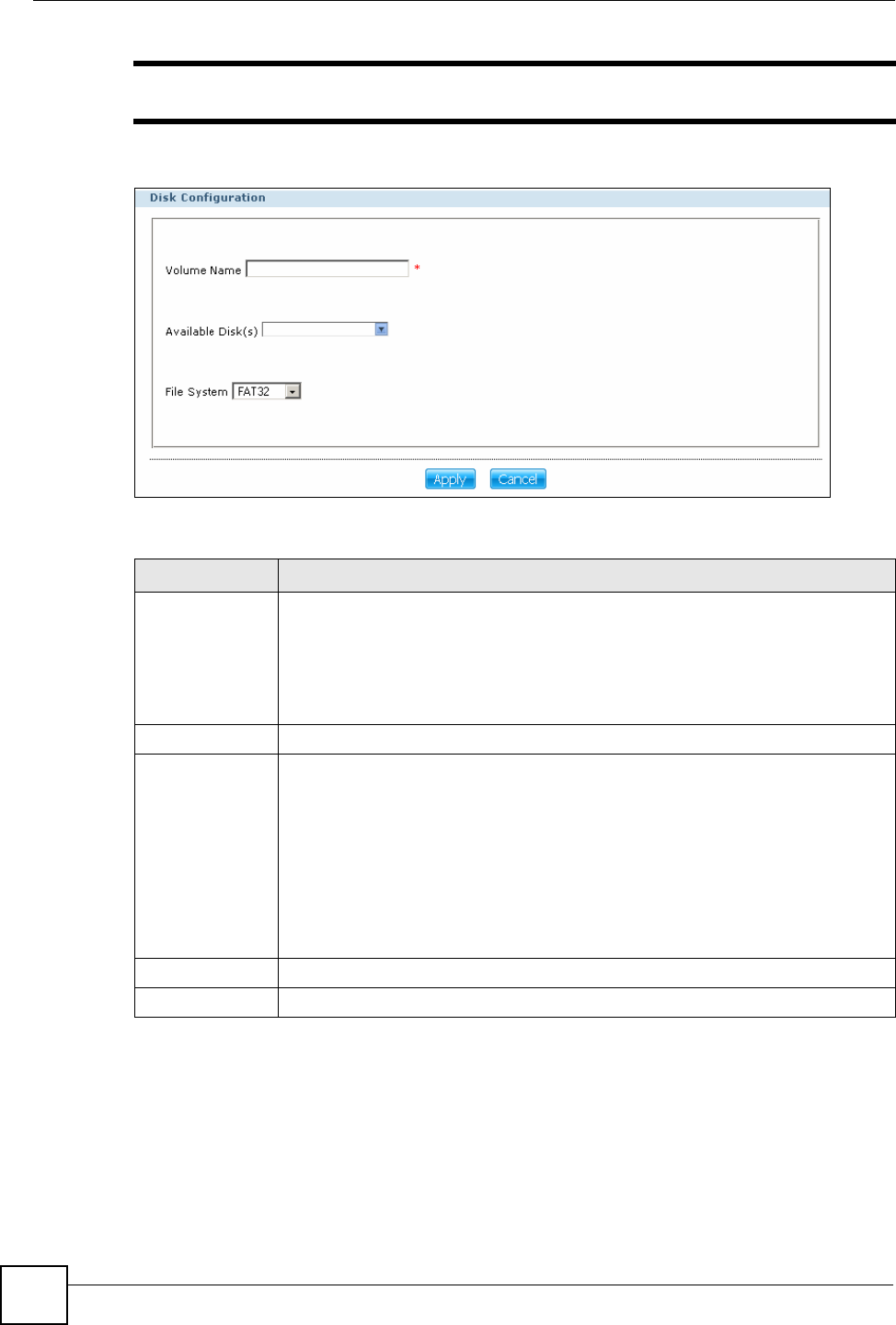
Chapter 6 Storage Screens
NSA-220 User’s Guide
80
"Creating a volume formats the drive. All data on the disk will be lost.
Figure 62 System > Storage > Create an External Volume
The following table describes the labels in this screen.
6.8 External Disks
You may connect USB storage devices that support the following file systems to the NSA.
• Windows File Systems: NTFS, FAT32 and FAT16.
• Linux File Systems: ReiserFS, EXT2, and EXT3.
Table 19 System > Storage > Create an External Volume
LABEL DESCRIPTION
Volume Name Type a volume name from 1 to 31 characters. The name cannot be the same as
another existing external volume.
Acceptable characters are all alphanumeric characters and " " [spaces], "_"
[underscores], and "." [periods].
The first character must be alphanumeric (A-Z 0-9).
The last character cannot be a space " ".
Available Disk(s) Select the external (USB) device upon which you want to create the volume.
File System Select the file system you want the new volume to use.
Windows file systems
FAT32: Newer, and more efficient than FAT16. Supports a volume size of up to
2 TB (Tera Bytes) and individual file sizes of up to 4 GB.
FAT16: Compatible with older Windows operating systems. Supports volume
and file sizes of up to 2 GB.
Linux file systems
EXT2: Older file system.
EXT3: The same as EXT2, but adds a journaled file system and is more robust.
ReiserFS: Offers better performance for small files.
Apply Click this button to save your changes back to the NSA and create the volume.
Cancel Click this button to exit this screen without saving changes.
Chapter 6 Storage Screens
NSA-220 User’s Guide 81
6.9 RAID
This section contains theoretical background on JBOD and the RAID levels used on the NSA.
Skip to the next section if you already understand RAID and know what storage system you
want to use on the NSA.
Redundant Array of Independent Disks (RAID) is a method of storing data on multiple disks
to provide a combination of greater capacity, reliability, and/or speed. JBOD (Just a Bunch Of
Disks) is not a RAID storage method but it is included in this discussion.
These are some terms that you need to know in order to understand storage systems.
•Mirroring
In a RAID system using mirroring, all data in the system is written simultaneously to two
hard disks instead of one. This provides 100% data redundancy as if one disk fails the
other has the duplicated data. Mirroring setups always require an even number of drives.
• Duplexing
Like in mirroring, all data is duplicated onto two distinct physical hard drives but in
addition it also duplicates the hardware that controls the two hard drives (one of the drives
would be connected to one adapter and the other to a second adapter).
• Striping
Striping is the breaking up of data and storing different data pieces on each of the drives in
an array. This allows faster reading and writing as it can be done simultaneously across
disks. Striping can be done at the byte level, or in blocks. Byte-level striping means that
the first byte of the file is sent to the first drive, then the second to the second drive, and so
on. Block-level striping means that each file is split into blocks of a certain size and those
are distributed to the various drives. The size of the blocks used is also called the stripe
size (or block size).
• Parity
In mirroring 50% of the drives in the array are reserved for duplicate data. Parity is
another way to allow data recovery in the event of disk failure using calculations rather
than duplicating the data. If you have ‘n’ pieces of data, parity computes an extra piece of
data. The’n+1’ pieces of data are stored on ‘n+1’drives. If you lose any one of the ‘n+1’
pieces of data, you can recreate it from the ‘n’ that remain, regardless of which piece is
lost. Parity protection is used with striping, and the “n” pieces of data are typically the
blocks or bytes distributed across the drives in the array. The parity information can either
be stored on a separate, dedicated drive, or be mixed with the data across all the drives in
the array.
"In the following figures, A1, A2, A3 and so on are blocks of data from the A file.
Similarly, B1, B2, B3 and C1, C2, C3 ar blocks of data from the B and C files.
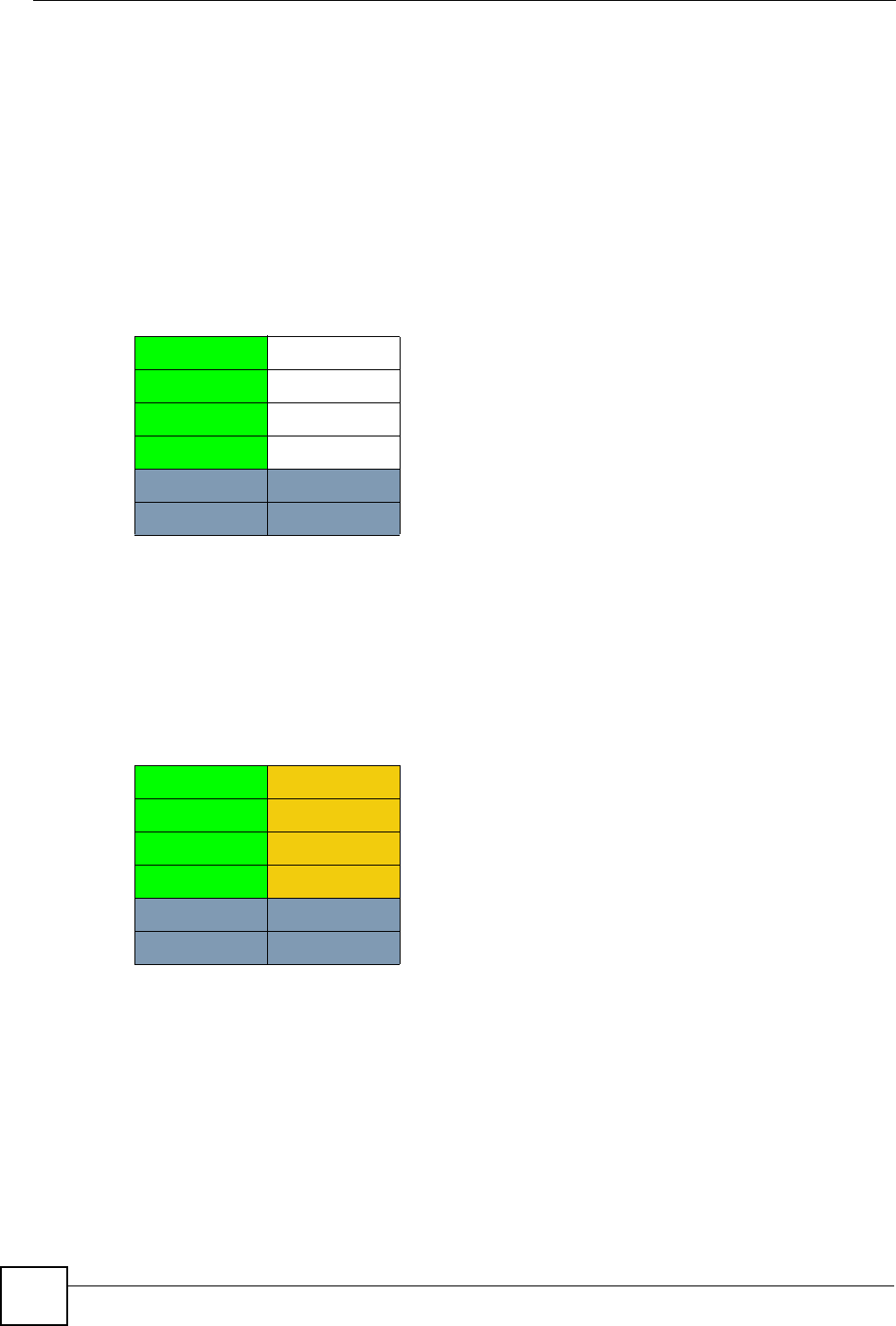
Chapter 6 Storage Screens
NSA-220 User’s Guide
82
6.9.1 JBOD
JBOD allows you to combine multiple physical disk drives into a single virtual one, so they
appear as a single large disk. JBOD can be used to turn multiple different-sized drives into one
big drive. For example, JBOD could convert 80 GB and 100 GB drives into one large logical
drive of 180 GB. If you have two JBOD volumes (with one disk in each), a failure of one disk
(volume) should not affect the other volume (disk). JBOD read performance is not as good as
RAID as only one disk can be read at a time and they must be read sequentially. The following
figure shows disks in a single JBOD volume. Data is not written across disks but written
sequentially to each disk until it’s full.
6.9.2 RAID 0
RAID 0 spreads data evenly across two or more disks (data striping) with no mirroring nor
parity for data redundancy, so if one disk fails the entire volume will be lost. The major benefit
of RAID 0 is performance. The following figure shows two disks in a single RAID 0 volume.
Data can be written and read across disks simultaneously for faster performance.
RAID 0 capacity is the size of the smallest disk multiplied by the number of disks you have
configured at RAID 0 on the NSA. For example, if you have two disks of sizes 100 GB and
200 GB respectively in a RAID 0 volume, then the maximum capacity is 200 GB (2 * 100 GB,
the smallest disk size) and the remaining space (100 GB) is unused.
Typical applications for RAID 0 are non-critical data (or data that changes infrequently and is
backed up regularly) requiring high write speed such as audio, video, graphics, games and so
on.
Table 20 JBOD
A1 B1
A2 B2
A3 B3
A4 B4
DISK 1 DISK 2
Table 21 RAID 0
A1 A2
A3 A4
A5 A6
A7 A8
DISK 1 DISK 2
Chapter 6 Storage Screens
NSA-220 User’s Guide 83
6.9.3 RAID 1
RAID 1 creates an exact copy (or mirror) of a set of data on another disk. This is useful when
data backup is more important than data capacity. The following figure shows two disks in a
single RAID 1 volume with mirrored data. Data is duplicated across two disks, so if one disk
fails, there is still a copy of the data.
As RAID 1 uses mirroring and duplexing, a RAID 1 volume needs an even number of disks
(two or four for the NSA).
RAID 1 capacity is limited to the size of the smallest disk in the RAID array. For example, if
you have two disks of sizes 150 GB and 200 GB respectively in one RAID 1 volume, then the
maximum capacity is 150 GB and the remaining space (50 GB) is unused.
Typical applications for RAID 1 are those requiring high fault tolerance without need of large
amounts of storage capacity or top performance, for example, accounting and financial data,
small database systems, and enterprise servers.
6.9.4 RAID and Data Protection
If a hard disk fails and you’re using a RAID 1 volume, then your data will still be available
(but at degraded speeds until you replace the hard disk that failed and resynchronize the
volume). However, RAID cannot protect against file corruption, virus attacks, files incorrectly
deleted or modified, or the NSA malfunctioning. Here are some suggestions for helping to
protect your data.
• Place the NSA behind a hardware-based firewall. It should have stateful packet inspection,
IDP (Intrusion Detection and Prevention), and anti-virus (like ZyXEL’s ZyWALL UTM
products for example).
• Use anti-virus software on your computer to scan files from others before saving the files
on the NSA.
• Keep another copy of important files (preferably in another location).
Table 22 RAID 1
A1 A1
A2 A2
A3 A3
A4 A4
DISK 1 DISK 2
Chapter 6 Storage Screens
NSA-220 User’s Guide
84

NSA-220 User’s Guide 85
CHAPTER 7
Network Screen
This chapter discusses the network configuration screen.
7.1 Network Settings
Use the network configuration screen to assign the NSA a dynamic or static IP address and
DNS information.
7.1.1 IP Address
The NSA needs an IP address to communicate with the media servers on your network. The
NSA can get an IP address automatically if you have a device on your network that gives them
out. Or you can assign the NSA a static (fixed) IP address.
7.1.2 DNS Server Address
A DNS (Domain Name System) server maps domain names (like www.zyxel.com) to their
corresponding IP addresses (204.217.0.2 in the case of www.zyxel.com). This lets you use
domain names to access web sites without having to know their IP addresses. The NSA can
receive the IP address of a DNS server automatically (along with the NSA’s own IP address).
You can also manually enter a DNS server IP address in the NSA.
7.1.3 Jumbo Frames
Jumbo frames are Ethernet frames larger than 1500 bytes. They enable data transfer with less
overhead. The bigger the frame, the better the network performance.
To use jumbo frames, your LAN must support 1 Gbps transmissions (Gigabit Ethernet). All of
your network devices (computer Ethernet cards and switches, hubs, or routers) must also
support the same size of jumbo frames that you specify in the NSA.
"If you enable jumbo frames on the NSA in a network that does not support
them, you will lose access to the NSA. If this occurs, you will have to restore
the factory default configuration. Push the RESET button on the NSA’s rear
panel and release it after you hear a beep.
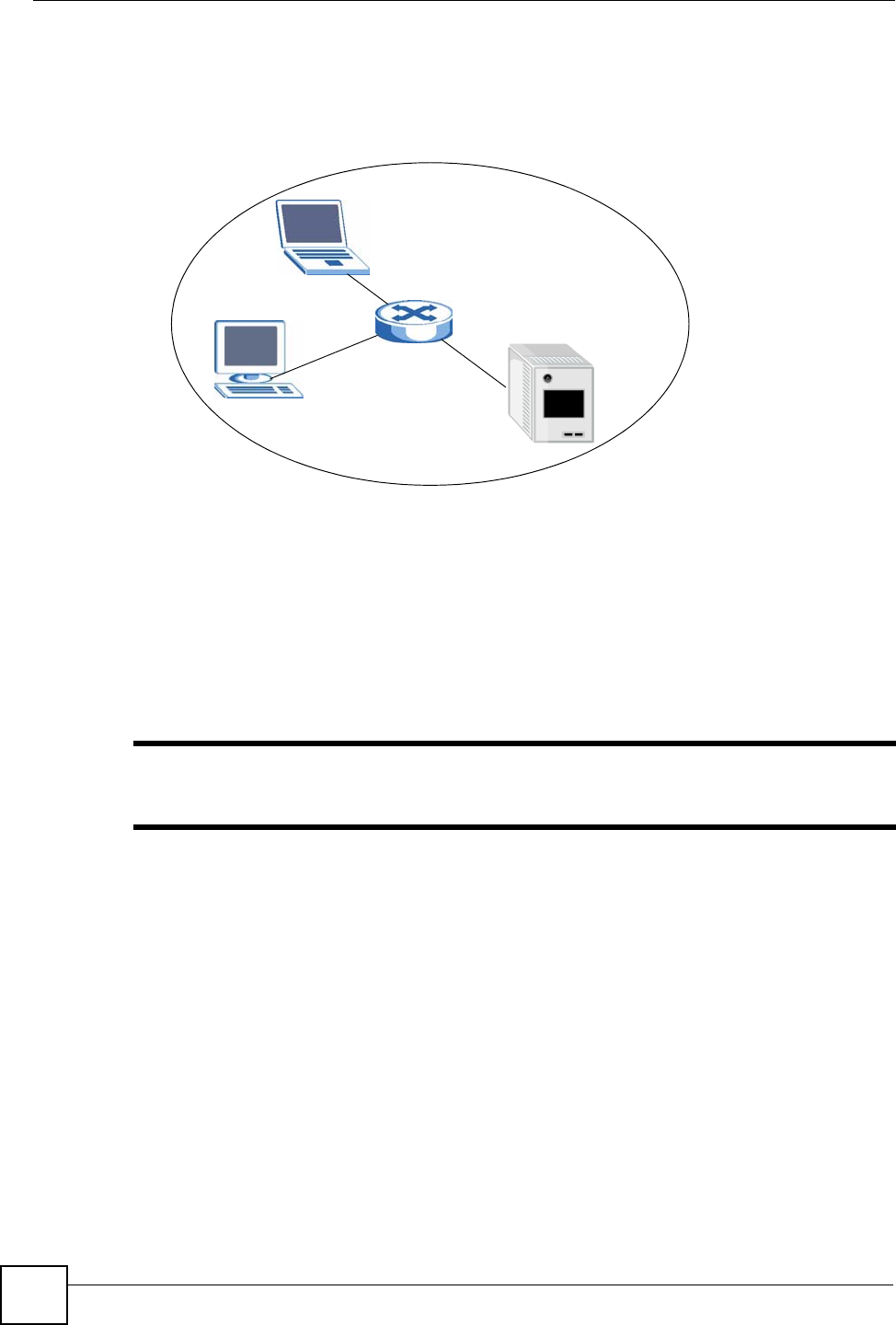
Chapter 7 Network Screen
NSA-220 User’s Guide
86
In the following example, the NSA has jumbo frames enabled and set to 8KB frames. This
means the computer, notebook computer, and switch must also have jumbo frames enabled
and be capable of supporting 8KB frames.
Figure 63 Jumbo Frames
7.2 Network Config Screen
Click System Setting > Network > TCP/IP in the navigation panel to open the following
screen.
Use this screen to have the NSA use a dynamic or static IP address, subnet mask, default
gateway and DNS servers.
"If you change the NSA’s IP address, you need to log in again after you apply
changes.
1 Gbps Ethernet
8KB
8KB 8KB
8KB
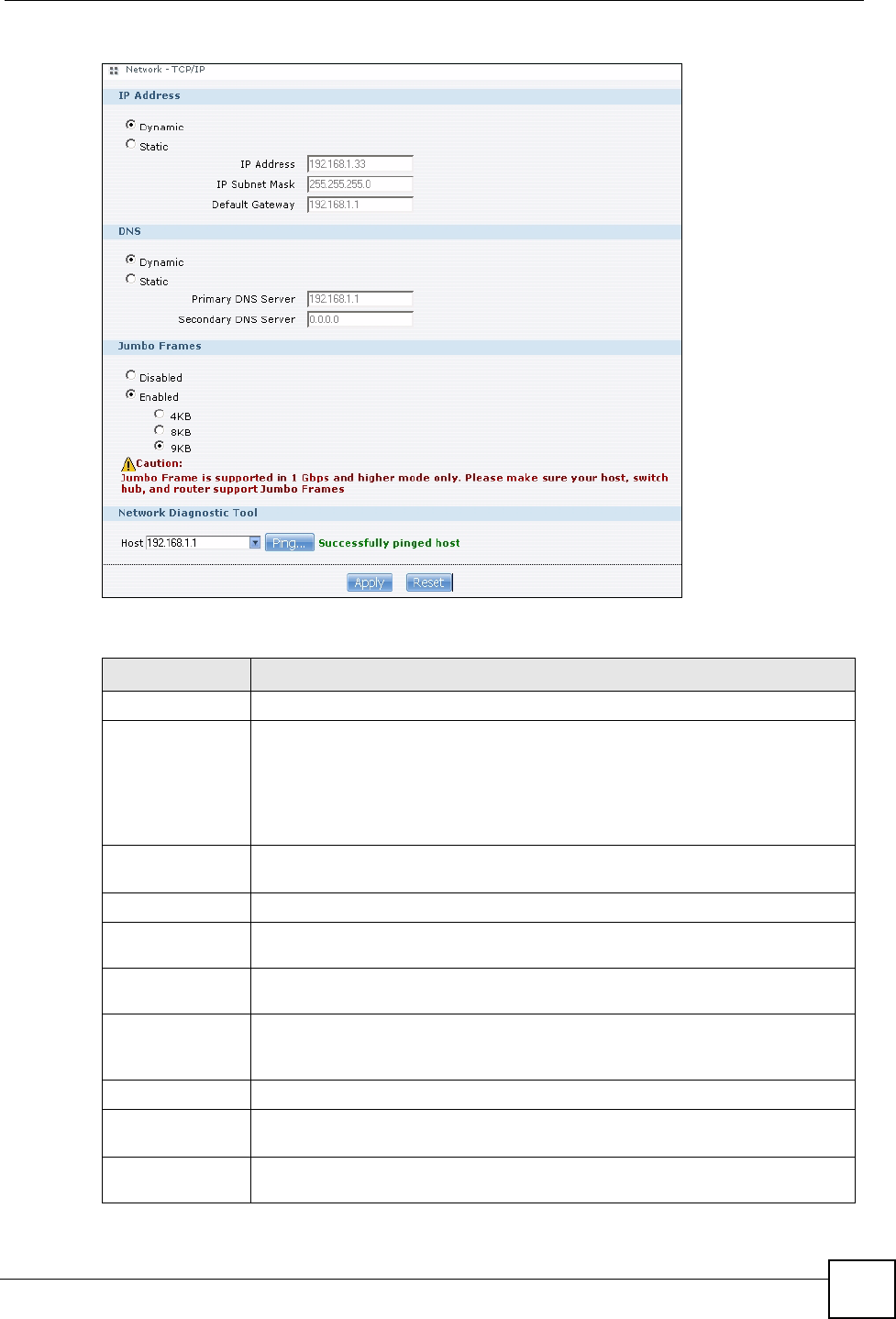
Chapter 7 Network Screen
NSA-220 User’s Guide 87
Figure 64 System Setting > Network > TCP/IP
The following table describes the labels in this screen.
Table 23 System Setting > Network > TCP/IP
LABEL DESCRIPTION
IP Address
Dynamic Select this option to have the NSA get IP address information automatically.
If no IP address information is assigned, the NSA uses Auto-IP to assign itself an
IP address and subnet mask. For example, you could connect the NSA directly to
your computer. If the computer is also set to get an IP address automatically, the
computer and the NSA will choose addresses for themselves and be able to
communicate.
Static Select this option for the NSA to use fixed TCP/IP information. You must fill in the
following fields.
IP Address Type an IP address in this field.
IP Subnet
Mask Type an IP subnet mask in this field.
Default
Gateway Type a default gateway address in this field.
DNS DNS (Domain Name System) is for mapping a domain name to its corresponding
IP address and vice versa. If you have the IP address(es) of the DNS server(s),
enter them.
Dynamic Select the option to have the NSA get a DNS server address automatically.
Static Select this option to choose a static DNS server address. Type the DNS server IP
address(es) into the fields below.
Primary DNS
Server Type a primary DNS server IP address.
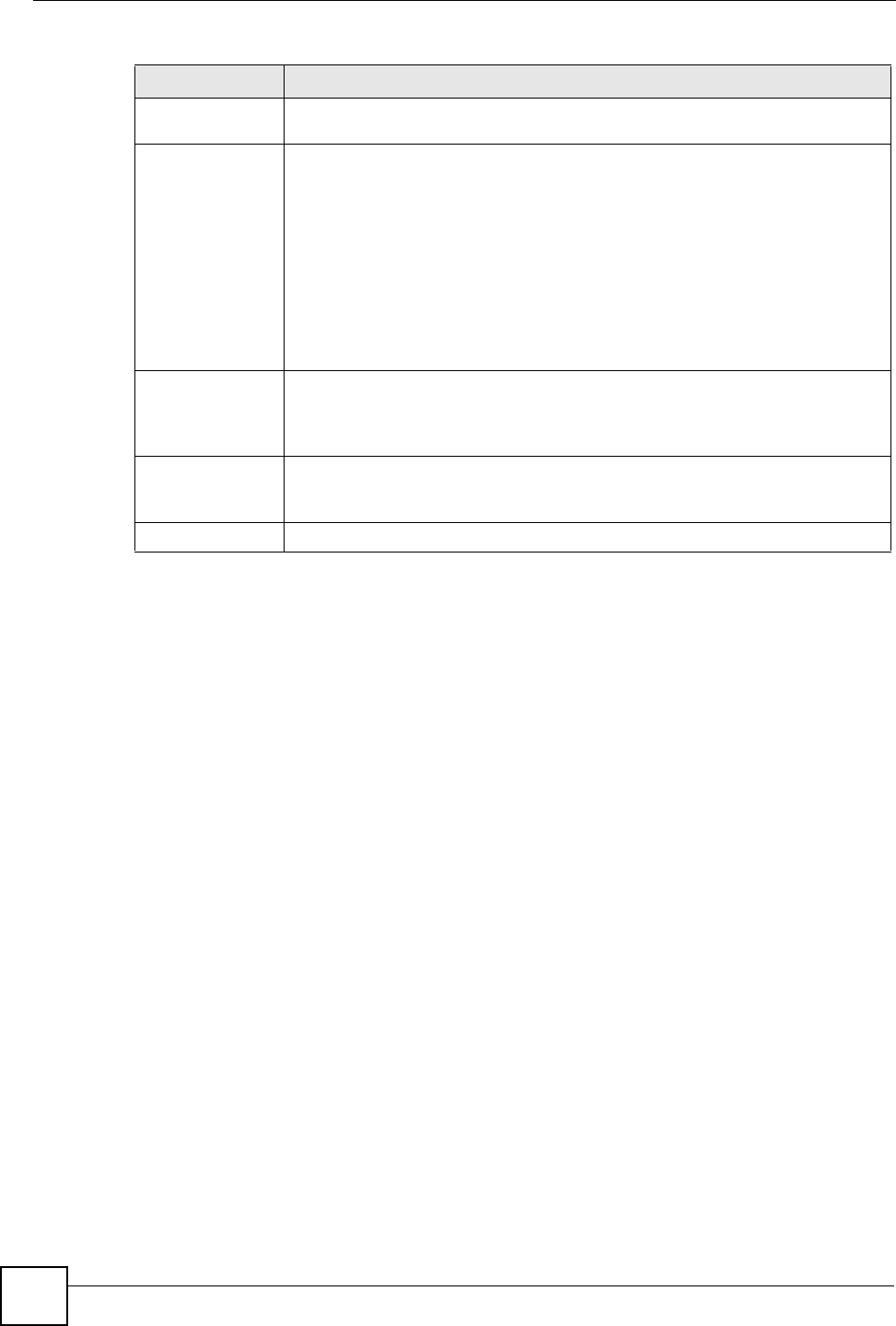
Chapter 7 Network Screen
NSA-220 User’s Guide
88
Secondary
DNS Server Type a secondary DNS server IP address.
Jumbo Frames Jumbo frames improve network performance. You must have a 1 Gbps (Gigabit
Ethernet) network that supports jumbo frames. Select the largest size of frame
that all of your network devices (including computer Ethernet cards and switches,
hubs, or routers) support.
Note: If you enable jumbo frames on the NSA in a network that
does not support them, you will lose access to the NSA. If
this occurs, you will have to restore the factory default
configuration. Push the RESET button on the NSA’s rear
panel and release it after you hear a beep.
Network
Diagnostic Tool Use this section to test the network connection to a particular IP address or
domain name. Select an address or type it into the field. Then click Ping to have
the NSA send a packet to test the network connection. If the NSA is able to “ping”
the host, the network connection is OK.
Apply Click Apply to save your TCP/IP configurations. After you click Apply, the NSA
restarts. Wait until you see the Login screen or until the NSA fully boots and then
use the NDU to rediscover it.
Reset Click Reset to begin configuring this screen afresh.
Table 23 System Setting > Network > TCP/IP
LABEL DESCRIPTION

NSA-220 User’s Guide 89
CHAPTER 8
Application Screens
This chapter discusses the application screens.
8.1 Application Screens
Use the application screens to:
• Configure settings for FTP file transfers to/from the NSA. See Section 8.2 on page 89.
• Share files with media clients. See Section 8.3 on page 90.
• Download files from the Internet. See Section 8.5 on page 93.
• Download frequently updated digital content like TV programs, radio talk shows,
Podcasts (audio files), and blogs. See Section 8.12 on page 105.
• Share a printer. See Section 8.15 on page 109.
8.2 FTP Access for NSA Files
Use FTP to upload files to the NSA and download files from the NSA. Click Applications >
FTP to open the following screen. Use this screen to:
• Enable or disable FTP.
• Set a connection limit.
• Set an idle timeout.
• Enable or disable anonymous FTP access.
• Specify a character set to use.
File Transfer Protocol (FTP) is a file transfer service that operates on the Internet. A system
running the FTP server accepts commands from a system running an FTP client. FTP is not a
secure protocol. Your file transfers could be subject to snooping.
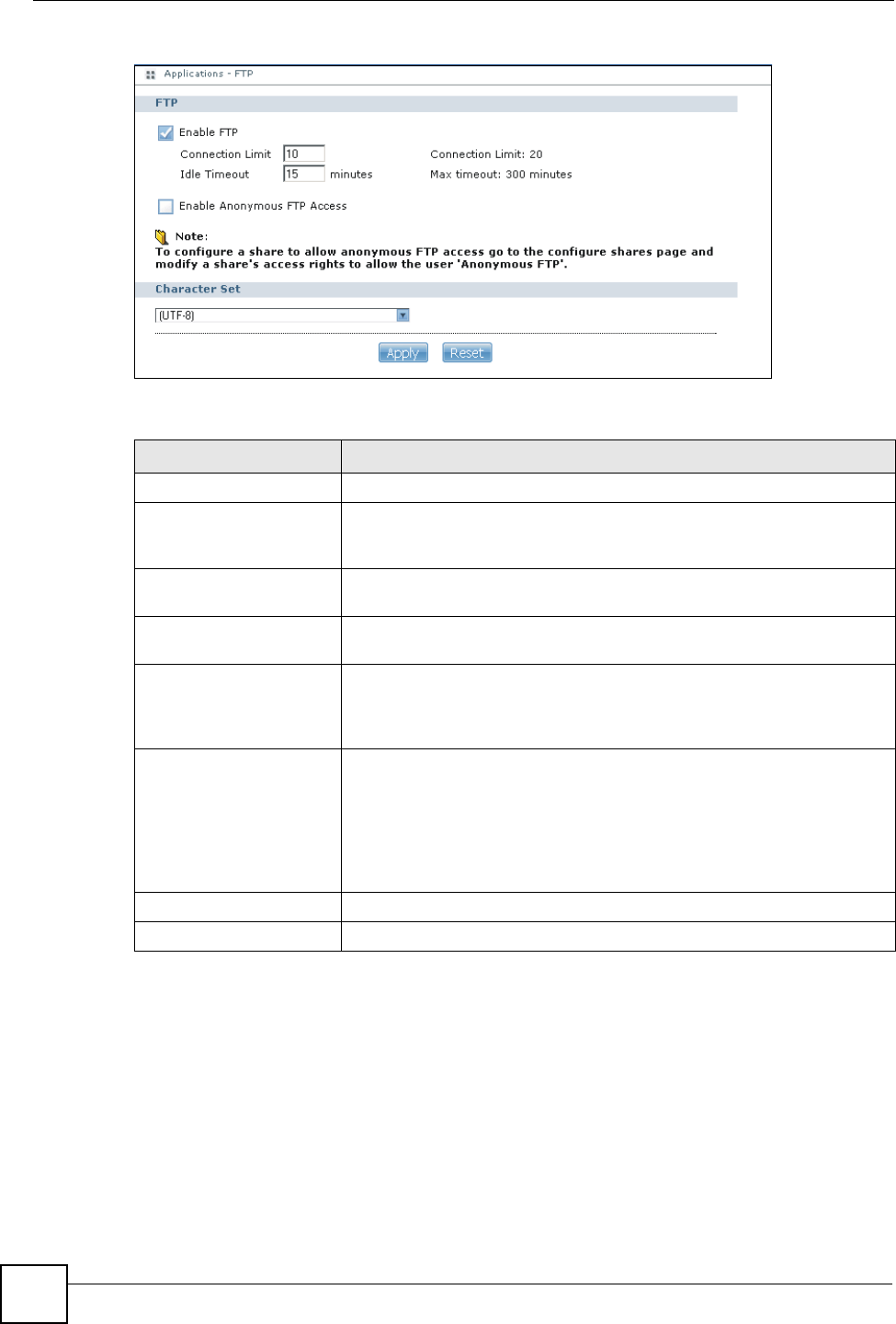
Chapter 8 Application Screens
NSA-220 User’s Guide
90
Figure 65 Applications > FTP
The following table describes the labels in this screen.
8.3 Sharing Media Files on Your Network
The media server feature lets anyone on your network play video, music, and photos from the
NSA (without having to copy them to another computer). The NSA can function as a DLNA-
compliant media server and/or an iTunes server. The NSA streams files to DLNA-compliant
media clients or computers using iTunes. The Digital Living Network Alliance (DLNA) is a
group of personal computer and electronics companies that works to make products
compatible in a home network.
• Publish shares to let others play the contained media files.
Table 24 Applications > FTP
LABEL DESCRIPTION
FTP
Enable FTP You can use FTP to send files to the NSA or get files from the NSA. Select
the Enable FTP check box to allow users to connect to the NSA via FTP;
otherwise clear the check box.
Connection Limit Enter the maximum number of concurrent FTP connections allowed on the
NSA in this field.
Idle Timeout Enter the length of time that an FTP connection can be idle before timing
out.
Enable Anonymous FTP
Access Select Enable Anonymous FTP Access to allow any user to log into the
NSA using ‘FTP’ or ‘anonymous’ as a username and no password. Any
other name is considered a username, so must be valid and have a
corresponding correct password.
Character Set The NSA uses UTF-8 (8-bit UCS/Unicode Transformation Format) format
for FTP by default. If the NSA’s folders, or file names do not display
correctly in your FTP client, select the appropriate language encoding
here.
This setting applies to all FTP client connections to the NSA. It does not
affect your Windows/CIFS connections (it will not correct the character
display in Windows Explorer).
Apply Click Apply to save your changes back to the NSA.
Reset Click Reset to begin configuring this screen afresh.
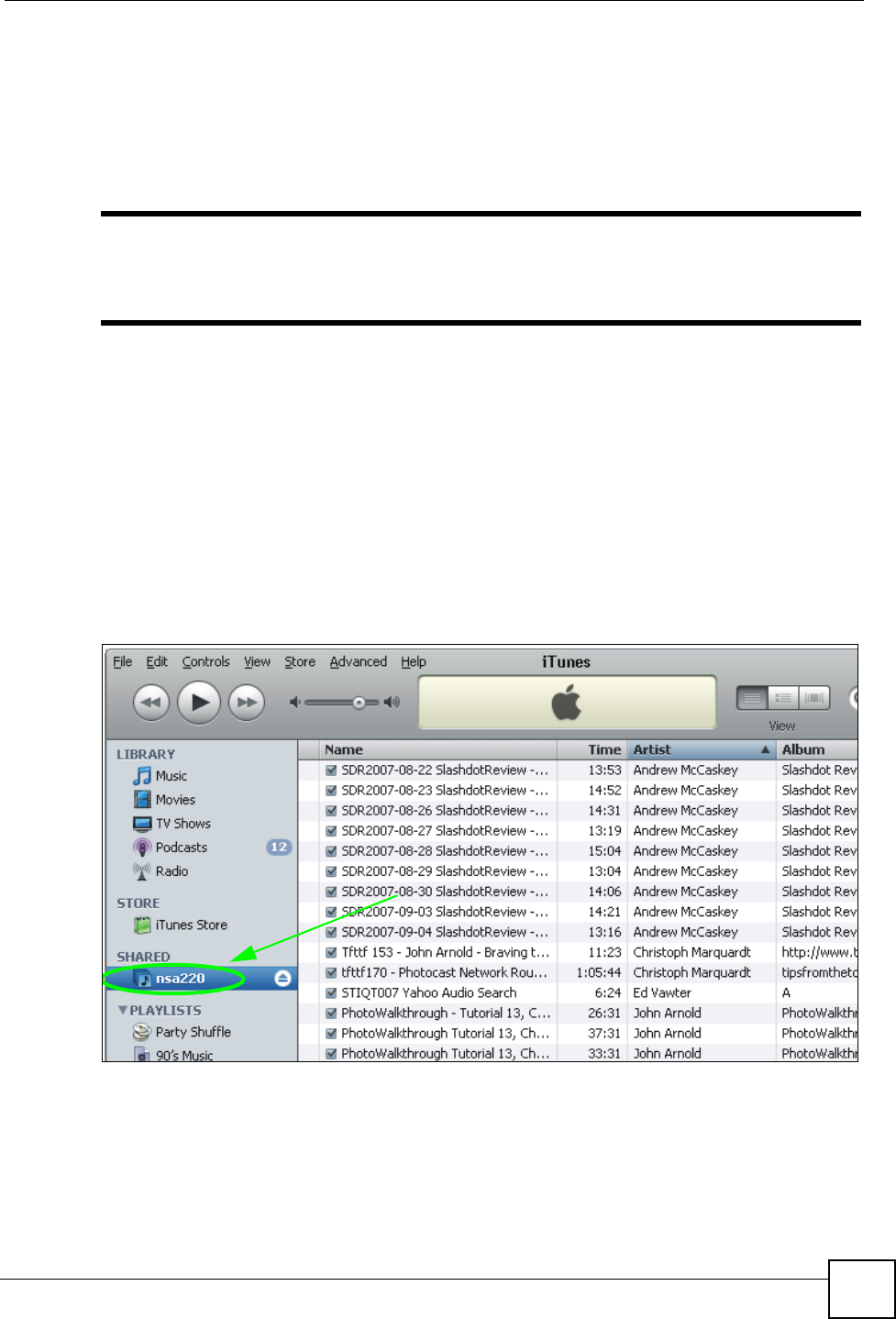
Chapter 8 Application Screens
NSA-220 User’s Guide 91
• The media server is a convenient way to share files you download using the broadcatching
service (see Chapter 8 on page 105).
• Media client software is included on the CD.
• Hardware-based media clients like the DMA-1000 can also play the files. See Appendix
on page 160 for the supported multimedia file formats.
"Anyone on your network can play the media files in the published shares. No
user name and password or other form of security is used. The media server is
enabled by default with the video, photo, and music shares published.
8.3.1 iTunes Server
The NSA iTunes server feature lets you use Apple’s iTunes software on a computer to play
music and video files stored on the NSA. You can download iTunes from www.apple.com.
• The iTunes server feature lets computers on your network use iTunes to play media files in
the NSA’s published shares.
• See Section 16.4 on page 160 for the multimedia file formats iTunes supports.
• A link for the NSA in iTunes under SHARED. Click it to display the NSA’s published
media files as shown next.
Figure 66 NSA link in iTunes
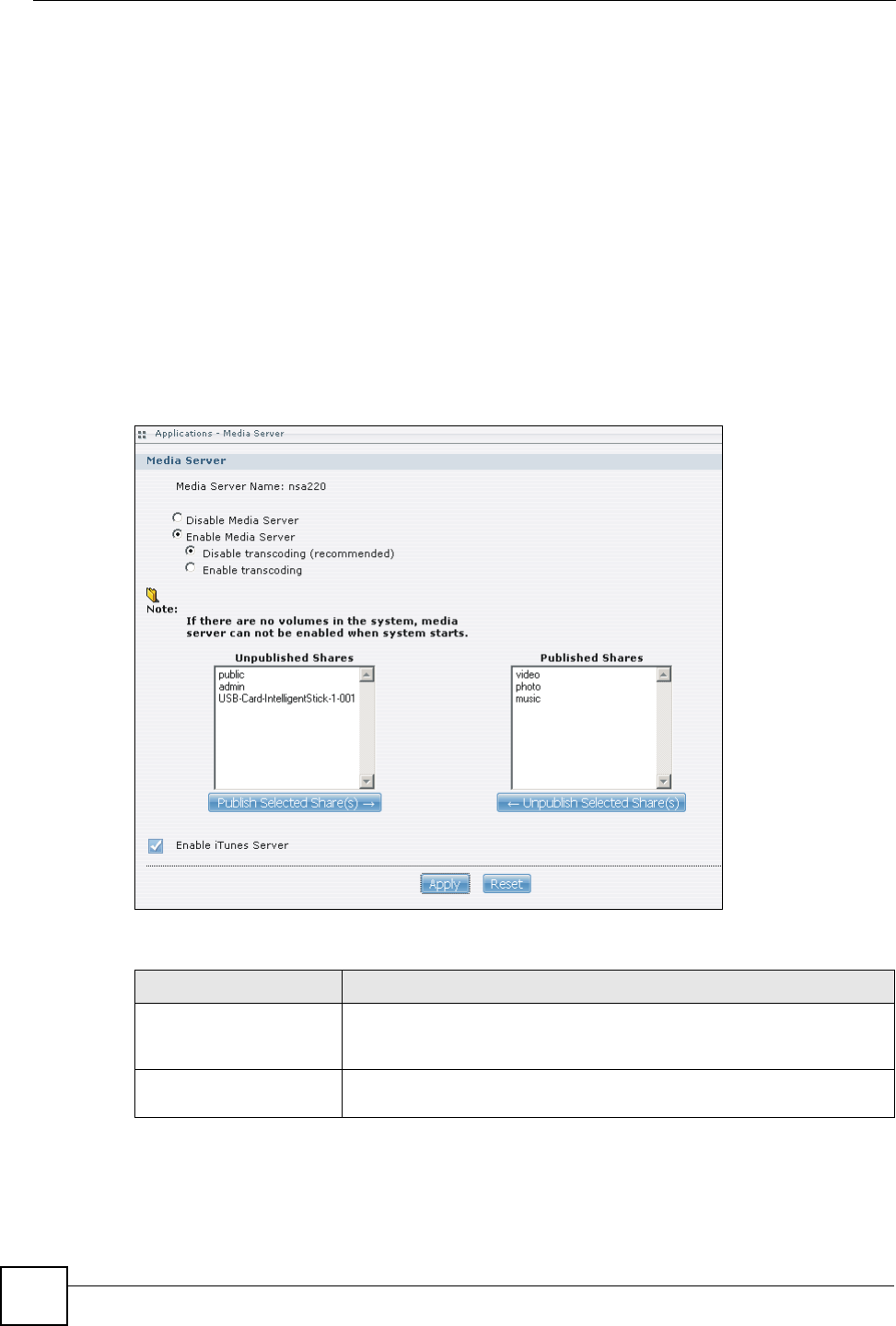
Chapter 8 Application Screens
NSA-220 User’s Guide
92
8.3.2 Songs and Videos from the iTunes Store
After using iTunes on your computer to download songs and videos from Apple’s iTunes
Store, you can copy them to the NSA. Many of these songs and videos have DRM (Digital
Rights Management). At the time of writing, you can use your Apple account ID and password
to authorize up to a total of five computers to play the files. To authorize a computer, open
iTunes and click Store > Authorize Computer.
8.4 Media Server Screen
Click Applications > Media Server to open the following screen. Use this screen to turn the
media server and/or iTunes server on or off and select shares to publish (share with media
clients like iTunes or the DLNA-compliant media client included on the NSA CD).
Figure 67 Applications > Media Server
The following table describes the labels in this screen.
Table 25 Applications > Media Server
LABEL DESCRIPTION
Media Server Name This is the name of the NSA media server on the network. It is the same
as the NSA’s server name. This name lets media clients distinguish
between multiple media servers on your network.
Disable / Enable Media
Server Turn on the media server to let (DLNA-compliant) media clients on your
network play media files located in the published shares.
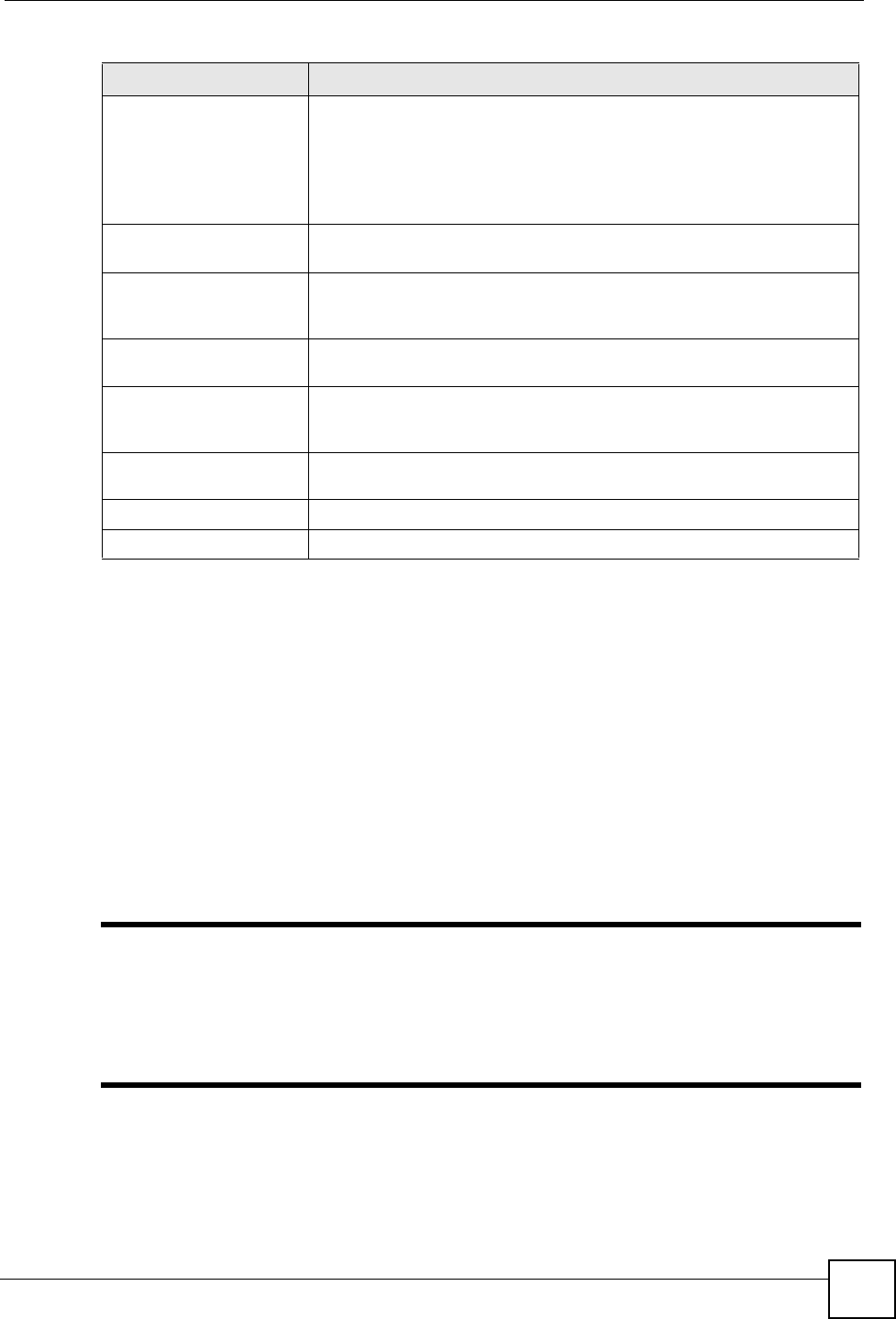
Chapter 8 Application Screens
NSA-220 User’s Guide 93
8.5 Download Service
The NSA’s download service downloads files from the Internet directly to the NSA. You do
not have to download to your computer and then copy to the NSA. This can free up your
computer’s system resources. The download service also handles your broadcatching
downloads. See Section 8.12 on page 105 for information on broadcatching.
The NSA can download using these protocols.
• HTTP: The standard protocol for web pages.
• FTP: A standard Internet file transfer service.
• BitTorrent: A popular distributed peer-to-peer files sharing protocol.
"Do not use the NSA for illegal purposes. Illegal downloading or sharing of files
can result in severe civil and criminal penalties. You are subject to the
restrictions of copyright laws and any other applicable laws and will bear the
consequences of any infringements thereof. ZyXEL bears NO responsibility or
liability for your use of the download service feature.
Disable / Enable
transcoding Disable transcoding to improve the performance of the NSA.
However, disabling may cause certain media clients to fail when
displaying non-JPEG photos. In the case of the media client included on
the CD with the NSA, TIFF and GIF images will not be properly displayed.
Enabling transcoding allows these files to be shown properly, but slows
down the NSA’s performance.
Unpublished Shares This list box displays the shares that the NSA does not share with the
media clients.
Publish Selected Share(s) Select shares in the Unpublished Shares box and click this button to
share the shares with media clients. Use the [SHIFT] key to select a range
of entries. Hold down the [CTRL] key to select multiple individual entries.
Published Shares This list box displays the shares that the NSA shares with the media
clients.
Unpublish Selected
Share(s) Select shares in the Published Shares box and click this button to not
share the shares with media clients. Use the [SHIFT] key to select a range
of entries. Hold down the [CTRL] key to select multiple individual entries.
Enable iTunes Server Select this option to let anyone on your network use iTunes to play music
and video files in the published shares.
Apply Click Apply to save your changes back to the NSA.
Reset Click Reset to begin configuring this screen afresh.
Table 25 Applications > Media Server
LABEL DESCRIPTION
Chapter 8 Application Screens
NSA-220 User’s Guide
94
8.5.1 BitTorrent
The NSA includes a BitTorrent client for fast downloading and sharing of large files (such as
educational public domain videos). With BitTorrent, you share while you’re downloading the
file. BitTorrent breaks up the file and distributes it in hundreds of chunks. You start sharing the
file as soon as you have downloaded a single chunk.
8.5.1.1 Torrent Files
Before using BitTorrent to download a file, you must first obtain a “torrent” file. The torrent
file uses a .torrent extension. The torrent file has information about the file to be downloaded
(and shared) and the computer(s) that coordinates the distribution of the file (called the
tracker). Your BitTorrent client uses the torrent file to connect to the tracker to find out where
to get the pieces of the file you want to download.
When you add a BitTorrent download task in the NSA’s web configurator screens, you can just
copy and paste the URL of the torrent file. The NSA automatically downloads the torrent file
and saves it in a torrent folder located in the same folder where the NSA stores downloaded
files (the admin share’s download folder by default).
If you already have the torrent file saved on your computer, you can just specify its location
when adding a download task through the web configurator. Another method is to use FTP or
a CIFS program (Windows Explorer for example) to copy the torrent file into the torrent
folder. The torrent folder is located in the same folder where the NSA stores downloaded files
(the admin share’s download folder by default). The NSA automatically downloads and uses
the torrent file.
After your BitTorrent download and sharing are finished, you can go to the torrent folder and
delete the .torrent file if you need to free up hard disk space.
8.5.2 Protecting Your Network and NSA When Using BitTorrent
When you download using BitTorrent, you reveal your IP address. This increases the risk of
hacking attacks, which can be protected against by a good firewall.
8.5.2.1 Use a Hardware-based Firewall
Place a hardware-based firewall between your network and the Internet (a software-based
firewall on your computer would just protect the computer itself, not the NSA since your
computer is not between your NSA and the Internet). Ideally your firewall should have all of
the following.
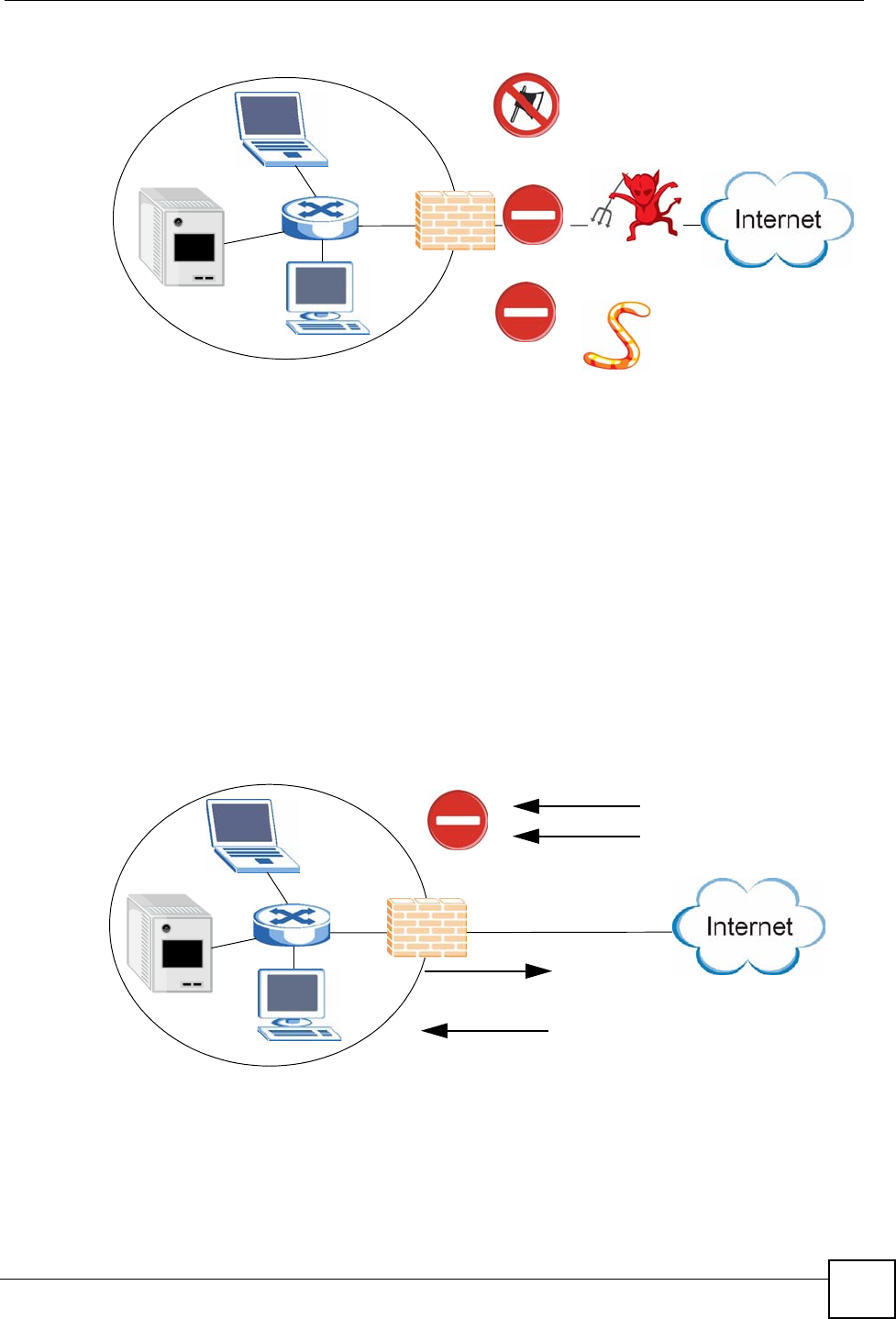
Chapter 8 Application Screens
NSA-220 User’s Guide 95
Figure 68 Firewall
• Stateful packet inspection to control access between the Internet and your network and
protect your NSA (and computers) from hacking attacks.
• IDP (Intrusion Detection and Prevention) to detect malicious packets within normal
network traffic and take immediate action against them.
• Anti-virus to check files you download for computer viruses.
8.5.2.2 BitTorrent and Your Firewall
The anti-virus feature on a firewall probably cannot check BitTorrent downloads for viruses,
so use anti-virus software on your computer to scan the NSA for viruses.
When you download using BitTorrent, many other BitTorrent users are also trying to
download the file from you. The firewall slows this down because by default, it only allows
traffic from the Internet in response to a request that originated on the LAN (it lets you get
files from the Internet and blocks those on the Internet from getting files from you).
Figure 69 Firewall Blocking Incoming BitTorrent Requests
To speed up BitTorrent file transfers, configure your firewall’s port forwarding to send
incoming TCP port 6881 and UDP port 6880 connections to the NSA. You probably need to
use your firewall’s HTML (web-based) configuration interface to set this up (see the firewall’s
manual for details). You may also have to configure a corresponding firewall rule.
Hacking
Malicious
Viruses
Packets
Incoming BitTorrent Requests Blocked
Outgoing BitTorrent Request Allowed
Corresponding BitTorrent Reply Allowed
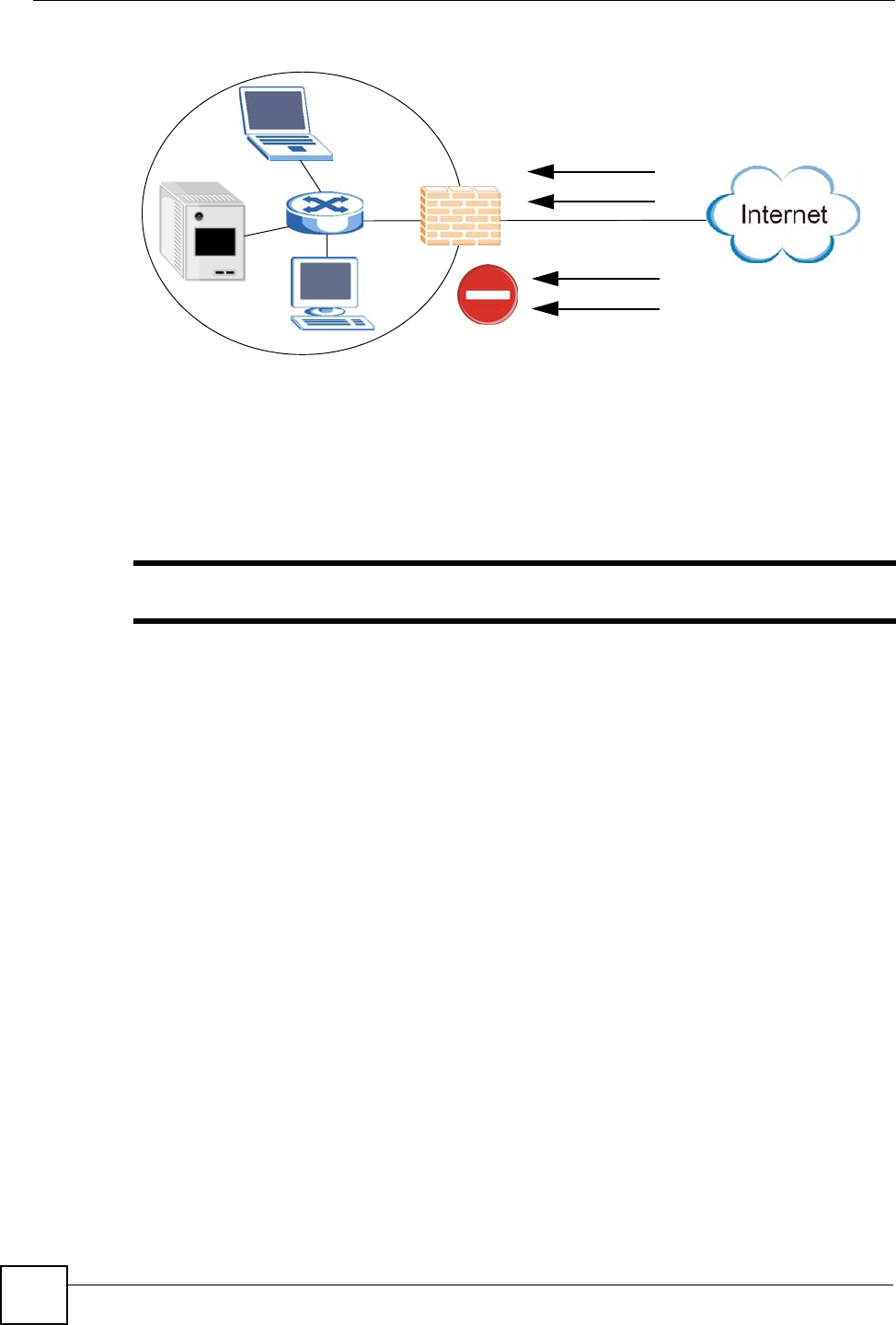
Chapter 8 Application Screens
NSA-220 User’s Guide
96
Figure 70 Firewall Configured to Allow Incoming BitTorrent Requests
8.6 Download Service Screen
Click Applications > Download Service to open the following screen. Use this screen to
manage the NSA’s file downloads.
"By default, the NSA saves downloads in the admin share’s download folder.
Incoming BitTorrent Requests Allowed
Other Incoming Traffic Blocked
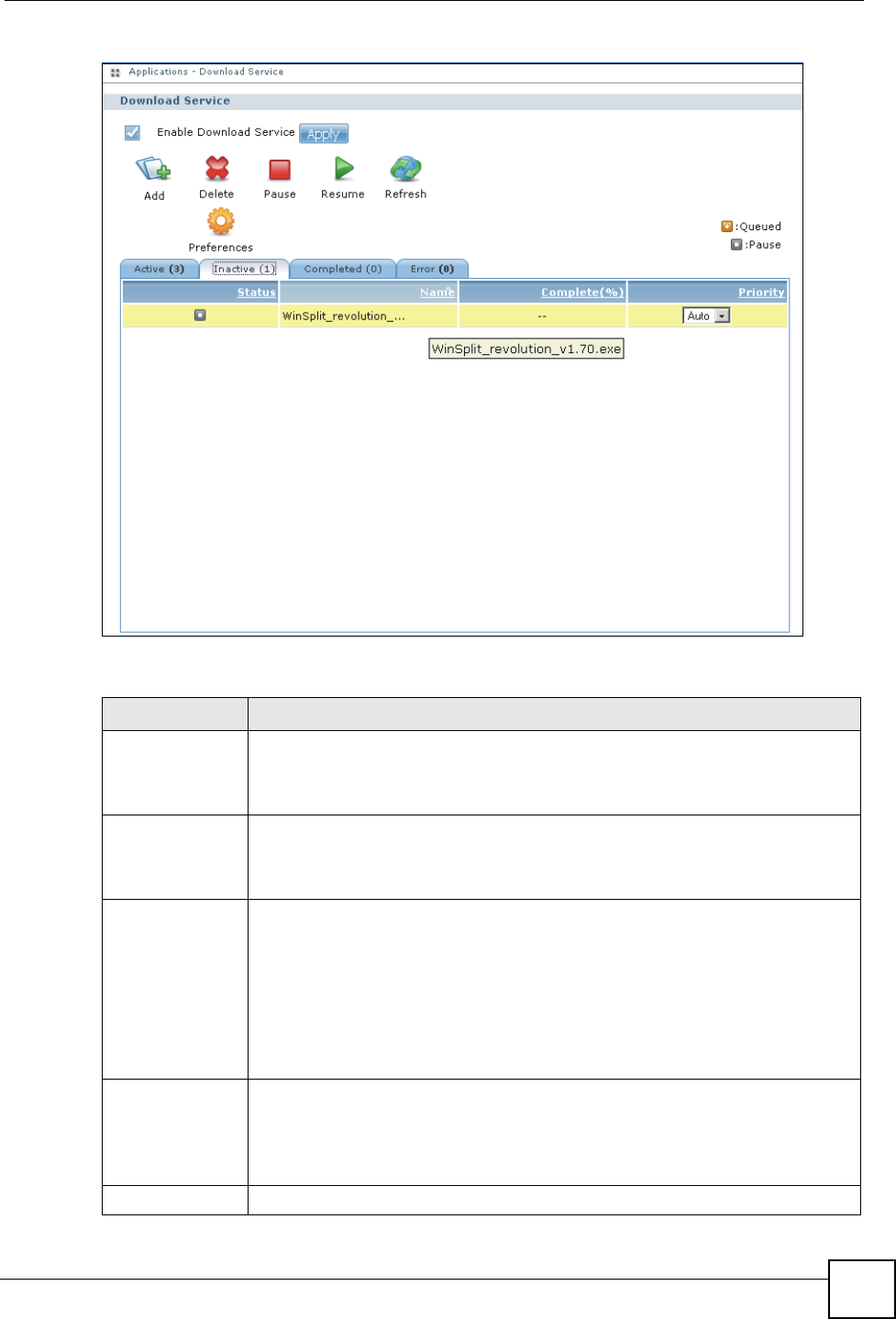
Chapter 8 Application Screens
NSA-220 User’s Guide 97
Figure 71 Applications > Download Service
The following table describes the labels in this screen.
Table 26 Applications > Download Service
LABEL DESCRIPTION
Enable Download
Service Use this option (and the Apply button) to turn the download service off or on. If you
turn off the service, all downloads are paused. The files that were downloading are
treated as queued. Turning the download service back on resumes your
downloads (or restarts them if they are not able to be resumed).
Add After you find a file to download, copy the file’s URL. Then log into the NSA web
configurator and go to the Applications > Download Server screen and click the
Add button. A screen opens where you create a new download task. You can
paste the file’s URL or use a BitTorrent file.
Delete To delete download tasks (or manually clear out completed download tasks),
select a download task and click Delete to remove it from the list. A pop-up screen
asks you to confirm. Click Apply to delete or Cancel to quit. When you delete a
download task, you are given the option to delete the associated files. Selecting
this option deletes a downloaded file and in the case of a BitTorrent download task,
also deletes the related .torrent file.
Use your keyboard’s [SHIFT] key to select a range of download tasks. Use the
[CTRL] key and click individual download tasks to select multiple individual
download tasks.
Pause Select a downloading item and click Pause to temporarily stop the download.
Paused downloads appear in the Download Service screen’s Inactive tab.
Use your keyboard’s [SHIFT] key to select a range of download tasks. Use the
[CTRL] key and click individual download tasks to select multiple individual
download tasks.
Resume Select a paused item and click Resume to continue the download.
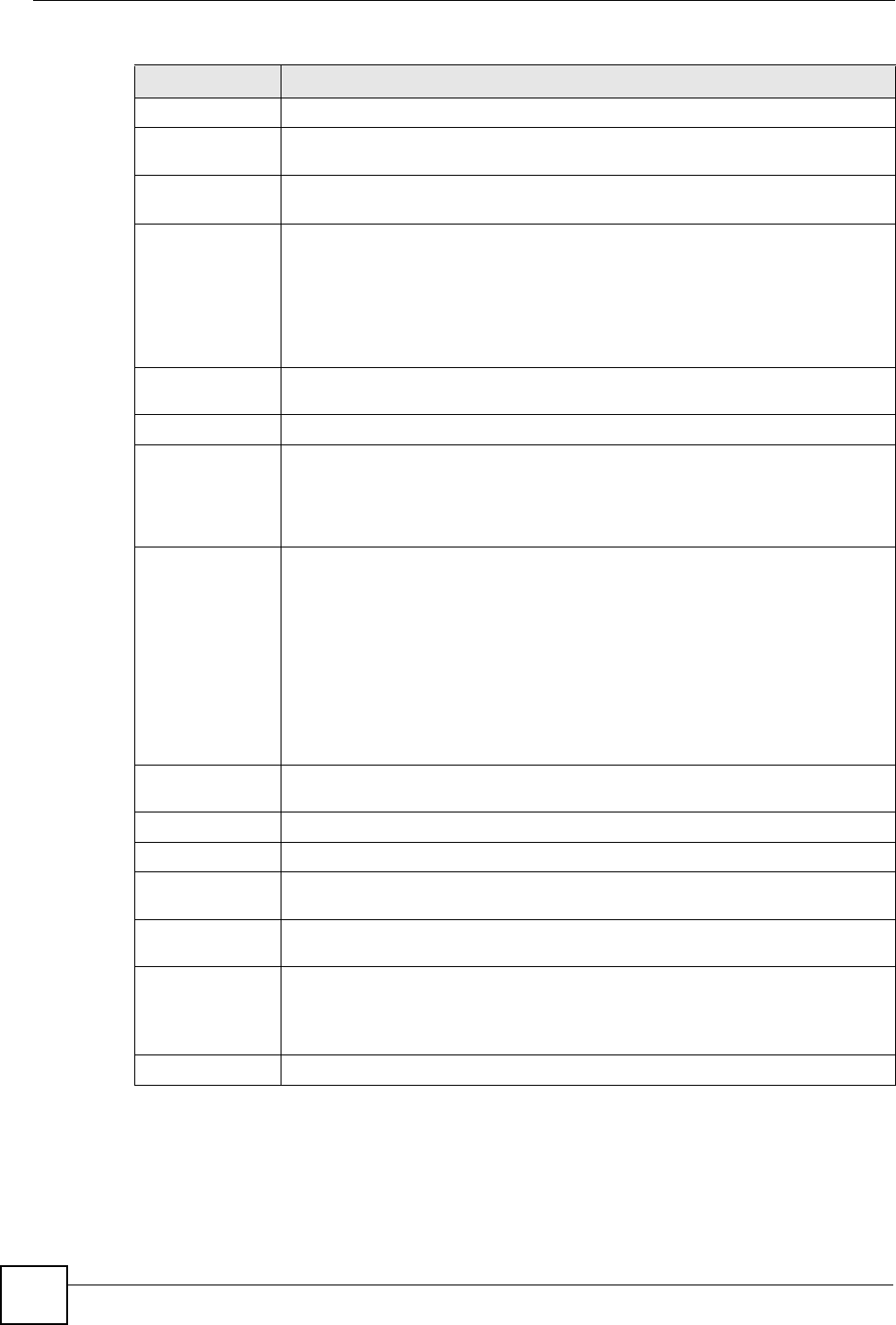
Chapter 8 Application Screens
NSA-220 User’s Guide
98
Refresh Click this button to update the information displayed on the screen.
Preferences Click this button to open a screen where you can set the default location for saving
downloads and configure your BitTorrent settings.
The table lists your downloads. Click a column’s heading to sort the entries by that
criteria.
Active Click this tab to see the list of files the NSA is currently downloading or sharing
with other BitTorrent users. The NSA handles a maximum of 10 active tasks at a
time (or fewer depending on how much of the NSA’s system memory is available).
If you add more, they appear in the Inactive tab.
Bit Torrent downloads may appear in the Inactive tab for a while before showing in
the Downloading tab. The NSA automatically moves completed tasks to the
Completed tab.
Inactive Click this tab to see the list of files that are queued (waiting in line) for the NSA to
download or the downloads that have been manually paused.
Completed Click this tab to see the list of files that the NSA has finished downloading.
Error Click this tab to see the list of files that the NSA was not able to download. The
NSA automatically retries unsuccessful download attempts. The download
displays in the error tab when the re-attempts are also unsuccessful and the NSA
stops trying to download the file. To try the download again, use the Add button to
create a new download task.
Status The icon shows the download’s status.
Completed: The NSA has downloaded the whole file.
Seeding: The download is finished and the NSA is allowing other BitTorrent users
to download it.
Downloading: The NSA is getting the file.
Queued: The download is waiting in line for the NSA to download it.
Pause: The download has been manually stopped. Select it and click Resume to
continue it.
Error: The NSA was not able to complete the download. Select it and click
Resume to reattempt the download.
Name This identifies the download file. A “...” indicates an abbreviated name. Hold your
cursor over the name to display the full name.
Complete (%) This is the percentage of the file that the NSA has downloaded.
Location This appears in the Completed tab. It displays the path for where the file is saved.
Seeds Seeds apply to BitTorrent downloads. This is the number of computers that are
sharing the complete file that you are downloading.
Peers Peers apply to BitTorrent downloads. This is the number of other computers that
are also downloading (and sharing) the file you are downloading.
Download Speed This is how fast the NSA is getting the file.
It is normal for a BitTorrent download to start out with a slow download speed since
it has to set up numerous connections. The speed should increase as the
download progresses and decrease near the end of the download.
Upload Speed This is how fast the NSA is sending the file to other BitTorrent users.
Table 26 Applications > Download Service
LABEL DESCRIPTION
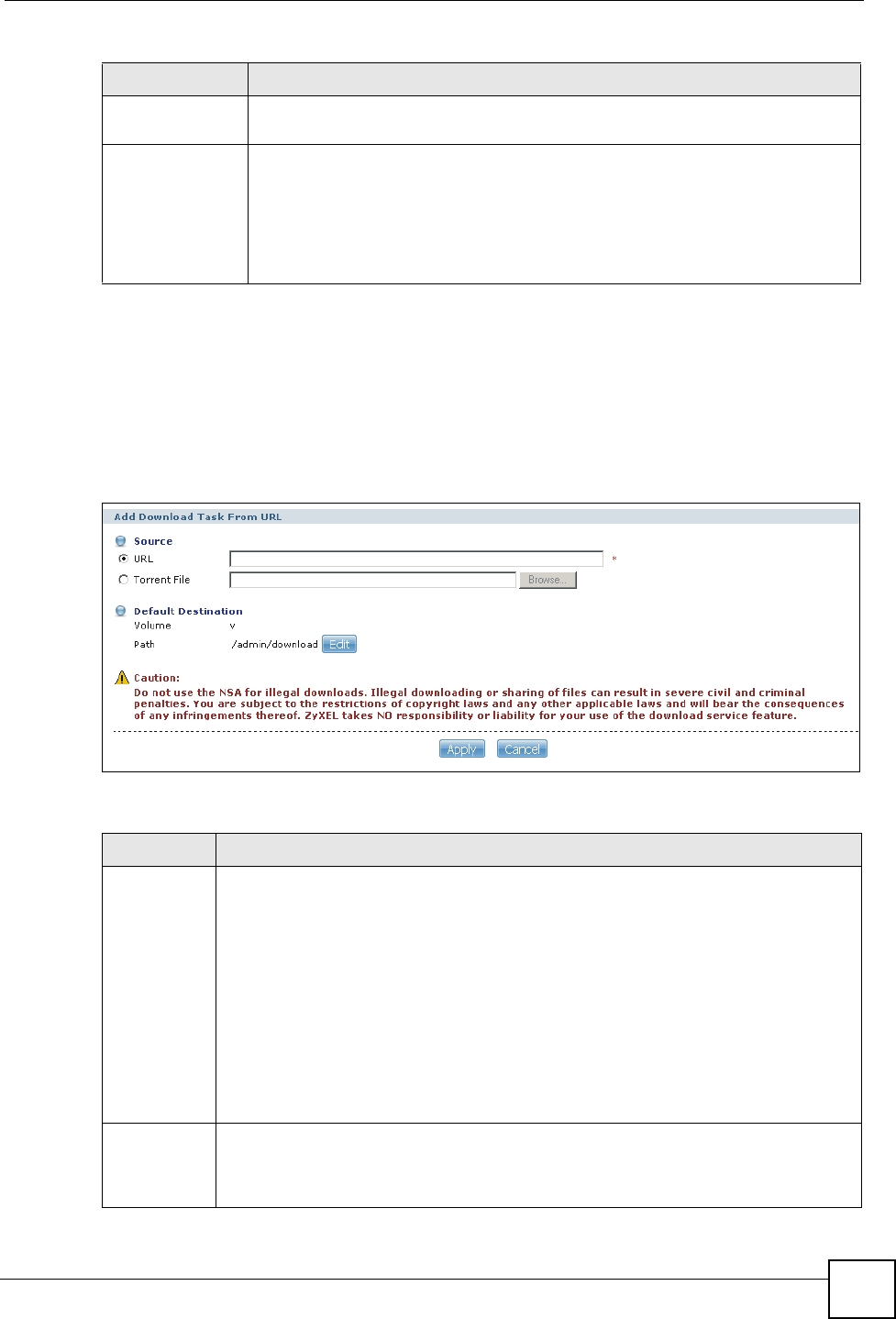
Chapter 8 Application Screens
NSA-220 User’s Guide 99
8.7 Adding a Download Task
Click Applications > Download Service > Add to open the following screen. Use this screen
to specify a file for the NSA to download. Section 3.2 on page 52 provides a tutorial on adding
a download task.
Figure 72 Applications > Download Service > Add
The following table describes the labels in this screen.
Time Left This is how much longer (in hours, minutes, and seconds) it should take to finish
the download at the current download speed.
Priority This is the download’s priority on the NSA. You can set a currently downloading or
queued download to high or automatic priority. You can set a download to high
priority to have the NSA try to download it before the other files. However the
actual download speed depends more on factors like the speed of you Internet
connection, the speed of the download source’s Internet connection, how many
others are trying to download at the same time, the peers and seeds available and
general network conditions.
Table 26 Applications > Download Service
LABEL DESCRIPTION
Table 27 Applications > Download Service > Add
LABEL DESCRIPTION
URL Paste the URL of the file you want to download into this field. The URL can be for an
HTTP, FTP, or BitTorrent download.
For a BitTorrent download, you can copy and paste the URL of the .torrent file. The
NSA will automatically download the .torrent file and use it. You do not have to
manually download the .torrent file or save it to your computer.
Note: Make sure the link opens either the file you want or a pop-up
window about how to handle the file.
It is also OK for the link to open a .torrent file. If you are redirected to a screen that says
the download should start in a few seconds, there may be a link to click if the download
does not start automatically. See if that link opens the file or the pop-up window.
Torrent File A “torrent” file has information the NSA uses to do a BitTorrent download. A torrent file
uses a .torrent extension. If you already have a torrent file saved on your computer,
select the Torrent File option and specify its path or click Browse and look for its
location.
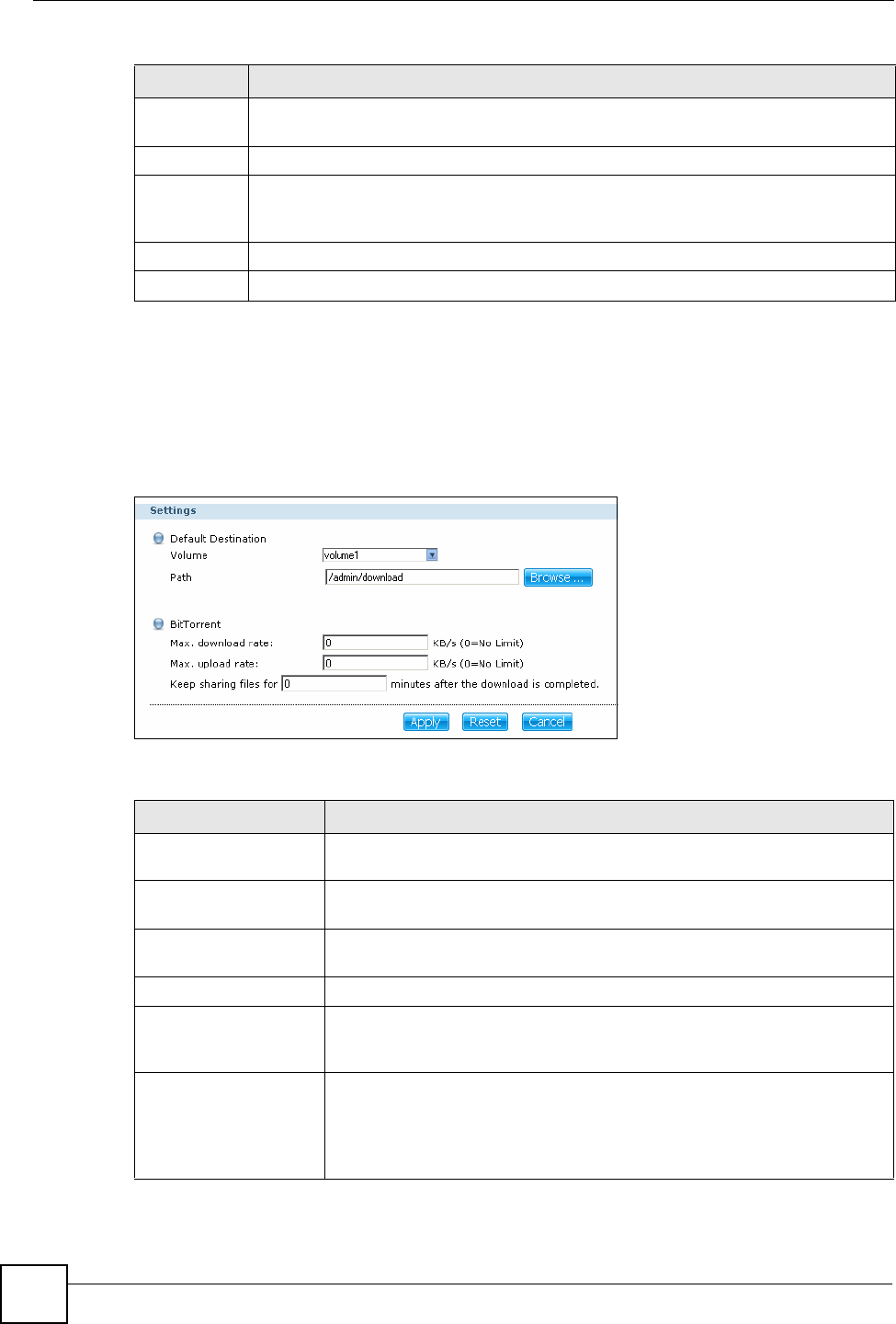
Chapter 8 Application Screens
NSA-220 User’s Guide
100
8.8 Configuring Your General Download Preferences
Click Applications > Download Service > Preferences to open the following screen. Use this
screen to set the default location for saving downloads and configure your BitTorrent settings.
Figure 73 Applications > Download Service > Preferences
The following table describes the labels in this screen.
Default
Destination This shows where the NSA stores files after downloading them.
Volume This is the volume where the NSA saves downloaded files.
Path This is the location of the share where the NSA will save the downloaded files. Click
Edit to go to a screen where you can set the default location for saving downloads and
configure your BitTorrent settings.
Apply Click Apply to save your changes back to the NSA.
Cancel Click Cancel to close this screen without saving your changes.
Table 27 Applications > Download Service > Add
LABEL DESCRIPTION
Table 28 Applications > Download Service > Preferences
LABEL DESCRIPTION
Default Destination Use these fields to select where on the NSA to store the files the NSA
downloads.
Volume If you have more than one volume, select the one that contains the share
where you want to save downloaded files.
Path Type the location of the share to save downloaded files in or click Browse
and navigate to the file’s location.
BitTorrent These settings control the NSA’s BitTorrent downloads.
Max. download rate You may need to limit the bandwidth the NSA uses for BitTorrent downloads
if your network’s other Internet applications are not getting enough
downstream bandwidth. 0 has the NSA impose no restriction.
Max. upload rate You may need to limit the bandwidth the NSA uses to share files through
BitTorrent if your network’s other Internet applications are not getting enough
upstream bandwidth. 0 has the NSA impose no restriction.
If you do not allow any uploads, (for example, you set a limit of 1 KB/s) you
will not have a good standing in the BitTorrent community.
Chapter 8 Application Screens
NSA-220 User’s Guide 101
8.9 Web Publishing
Web publishing lets you “publish” shares (containing folders and files) on the NSA so people
can access the files using a web browser without having to log into the My NSA screens. This
way you can share files with others without them having to know and enter a user name and
password.
For example, if you want to share photos in a FamilyPhotos share, you could “web publish” it
and others could use a web browser to access the photos at http://my-NSA’s-IP-Address/
MyWeb/FamilyPhotos.
"The NSA does not use any security for the files in the published folders. It is
not recommended to publish shares if you do not have the NSA behind a good
hardware-based firewall. See Section 8.5.2.1 on page 94 for more on firewalls.
Additionally, you can use HTML editing software (not included) to create an index.html or
index.htm file to define and customize how your website works and looks.
8.9.1 Accessing Web-published Shares from the Internet
You need to use a public address to access the NSA’s web-published shares from the Internet.
If your NSA uses a private IP address, you may need to use the public IP address of your
Internet gateway and configure NAT or port forwarding on your Internet gateway and possibly
firewall rules in order to let people access the NSA’s web-published shares from the Internet.
Keep sharing files for x
minutes after the
download is completed
With BitTorrent, the NSA starts sharing a file while you are downloading it.
Set how long to continue sharing a file after the NSA finishes the download.
Continuing to share a file helps other BitTorrent users finish downloading it.
Sharing out at least as much as you download helps keep you in good
standing in the BitTorrent community. 0 has the NSA stop sharing the file as
soon as the download finishes.
Set this to -1 to keep sharing files forever.
Apply Click Apply to save your changes back to the NSA.
Reset Click Reset to begin configuring this screen afresh.
Cancel Click Cancel to close this screen without saving your changes.
Table 28 Applications > Download Service > Preferences
LABEL DESCRIPTION
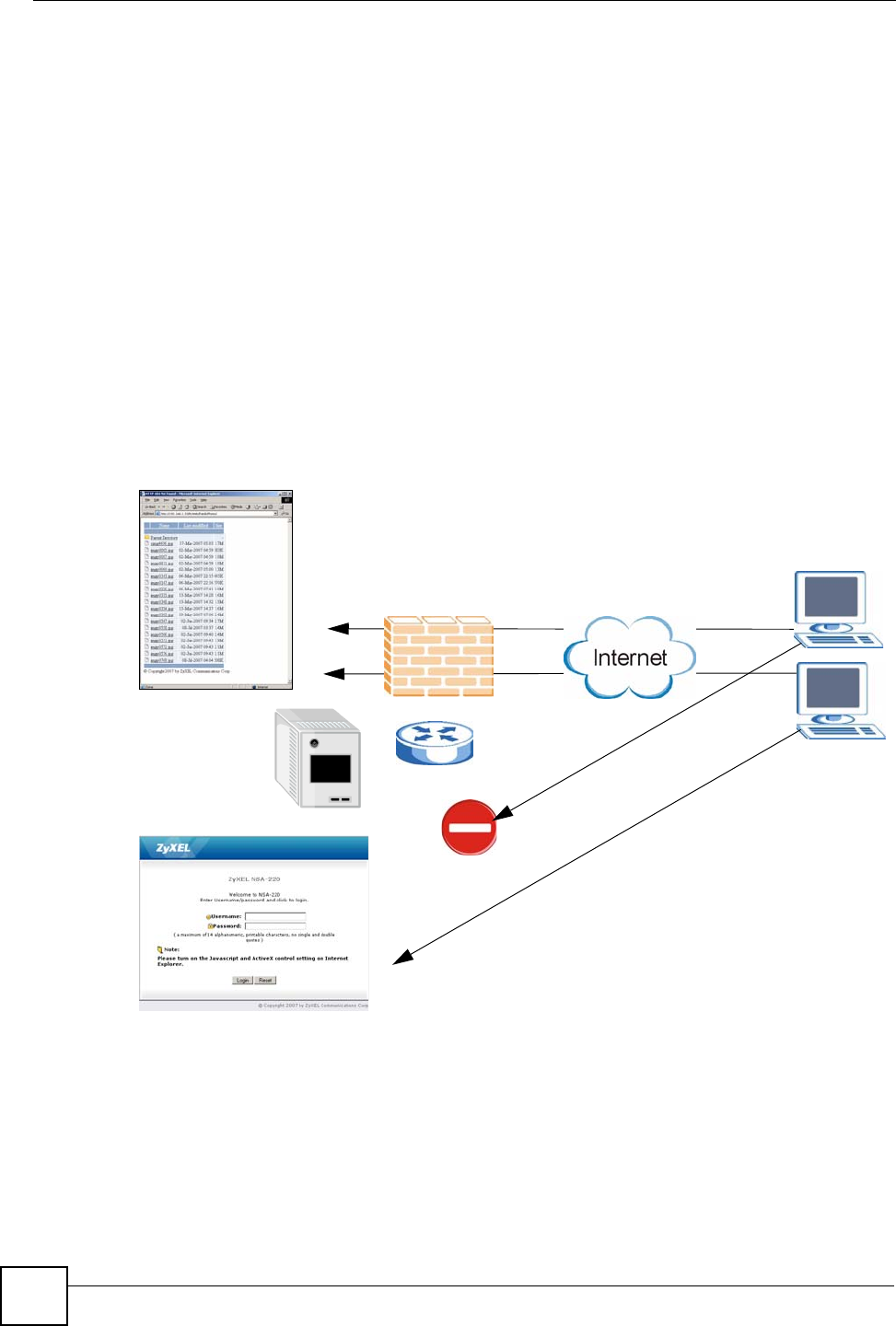
Chapter 8 Application Screens
NSA-220 User’s Guide
102
8.9.2 Web Publishing Port Number
If the web-published shares use a port number other than 80 (the normal port for web traffic),
users must include it after the NSA’s IP address in order to access the NSA’s web-published
shares. For example, say you specified port 8080, the NSA’s IP address is 192.168.1.23, and
the name of the web-published share is FamilyPhotos. You would have to enter “http://
192.168.1.23:8080/MyWeb/FamilyPhotos/” in your browser’s address bar to access the
share’s web page.
The NSA’s web configurator uses port 80. To make the web configurator more secure, you can
have the web-published shares use another port number. Then you can configure one set of
firewall rules and NAT or port forwarding settings on your Internet gateway specifically for
allowing access to the web-published shares and another separate set of rules for accessing the
NSA’s web configurator.
In the following example, the Internet gateway’s firewall is configured to allow anyone to
access the NSA’s web-published screens using port 8080. Web configurator access (port 80)
however, is only allowed from IP address a.b.c.d.
Figure 74 Web Publishing Port Number Example
8.10 Web Publishing Screen
Click Applications > Web Publishing to open the following screen. Use this screen to turn
web publishing on or off and select shares to publish.
e.f.g.h
a.b.c.d
8080
8080
80
80
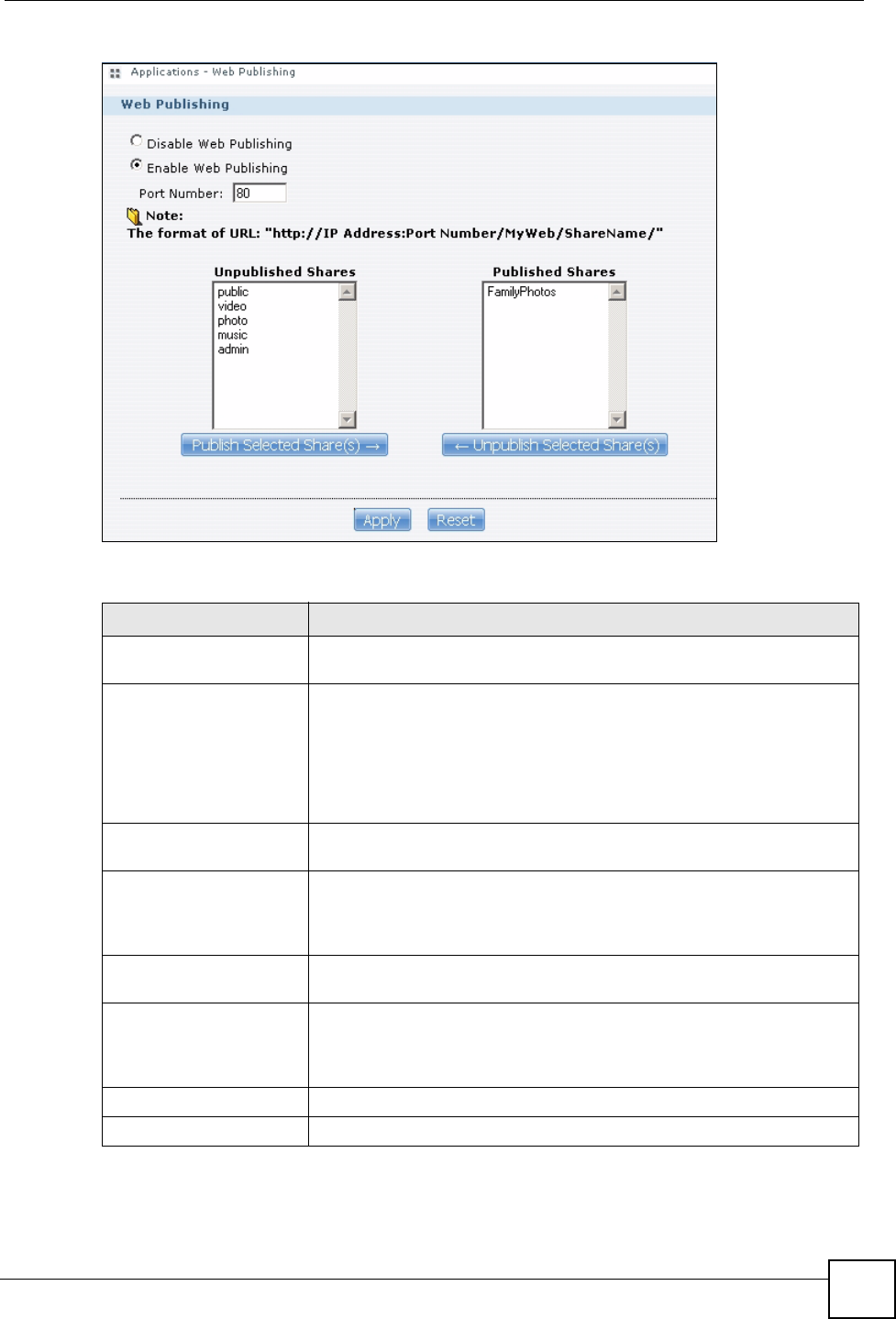
Chapter 8 Application Screens
NSA-220 User’s Guide 103
Figure 75 Applications > Web Publishing
The following table describes the labels in this screen.
Table 29 Applications > Web Publishing
LABEL DESCRIPTION
Disable / Enable Web
Publishing Turn on web publishing to let people access files in the published shares
using a web browser, without having to log into the My NSA screens.
Port Number Specify a port number for accessing the published share websites hosted
on the NSA. If you enter a number other than 80, make sure you include it
when telling others how to access the web-published share. For example,
say you specified port 8080, the NSA’s IP address is 192.168.1.23, and
the name of the web-published share is FamilyPhotos. You would have to
enter “http://192.168.1.23:8080/MyWeb/FamilyPhotos/” in your browser’s
address bar to access the share’s web page.
Unpublished Shares This list box displays the shares that the NSA does not publish for web
browser access.
Publish Selected Share(s) Select shares in the Unpublished Shares box and click this button to let
people access files in the published shares using a web browser, without
logging into the My NSA screens. Use the [SHIFT] key to select a range of
entries. Hold down the [CTRL] key to select multiple individual entries.
Published Shares This list box displays the shares people can access using a web browser,
without logging into the My NSA screens.
Unpublish Selected
Share(s) Select shares in the Published Shares box and click this button to not let
people access using a web browser without logging into the My NSA
screens. Use the [SHIFT] key to select a range of entries. Hold down the
[CTRL] key to select multiple individual entries.
Apply Click Apply to save your changes back to the NSA.
Reset Click Reset to begin configuring this screen afresh.
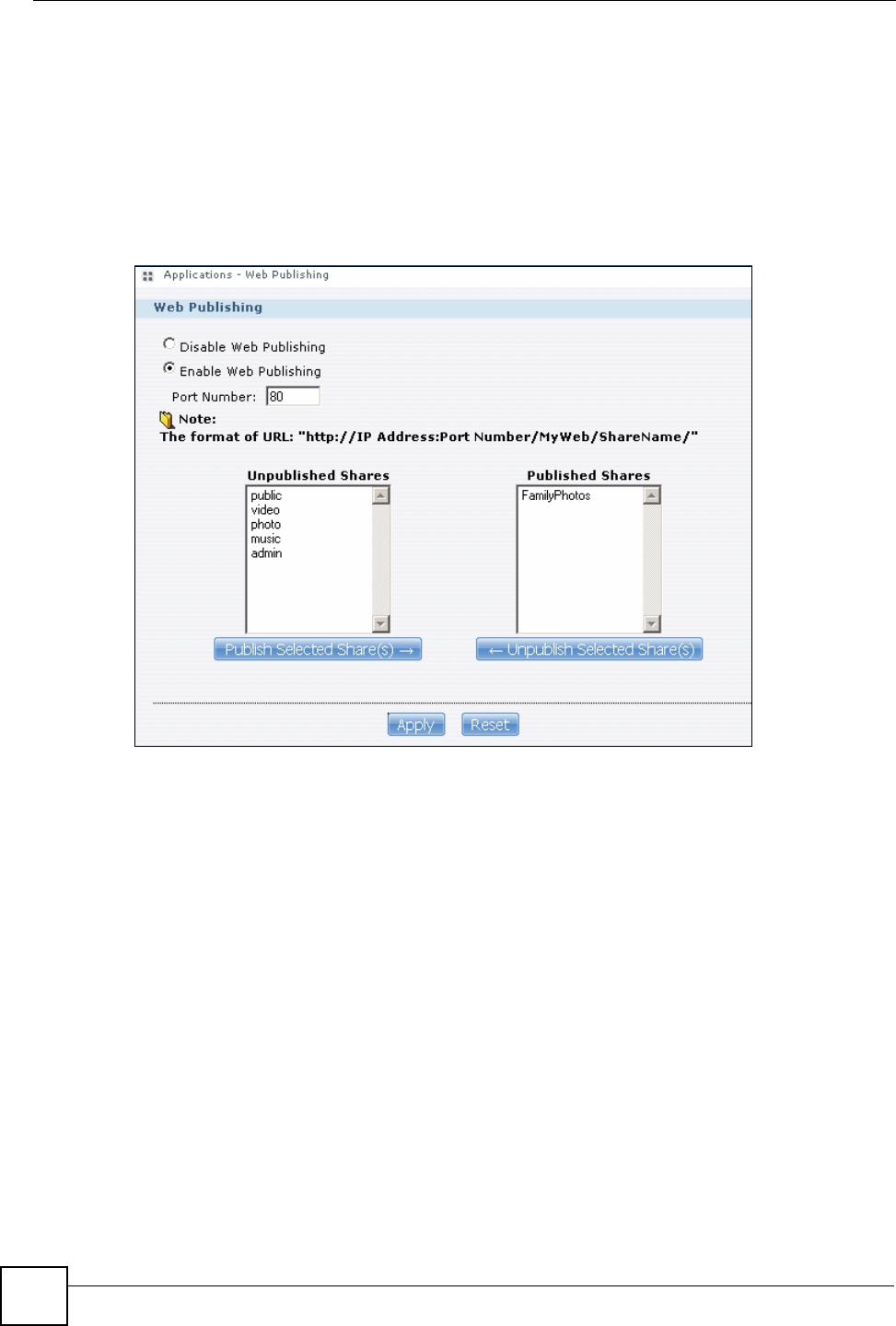
Chapter 8 Application Screens
NSA-220 User’s Guide
104
8.11 Web Publishing Example
This example covers how to configure the Web Publishing screen to let people use a web
browser to access a share named FamilyPhotos without logging into the My NSA screens and
shows how to access the share through the Internet.
1Click Applications > Web Publishing and configure the screen as shown (enable the
web publishing and move FamilyPhotos over to Published Shares) and click Apply.
Figure 76 Applications > Web Publishing (Example)
2Now open your web browser and type in the address of the NSA’s FamilyPhotos web
page. In this example, the NSA’s IP address is 192.168.1.33, and the name of the web-
published share is FamilyPhotos. So you would enter “http://192.168.1.33/MyWeb/
FamilyPhotos/” in your browser’s address bar. Then press [ENTER] or click Go. A
screen displays listing the share’s files.
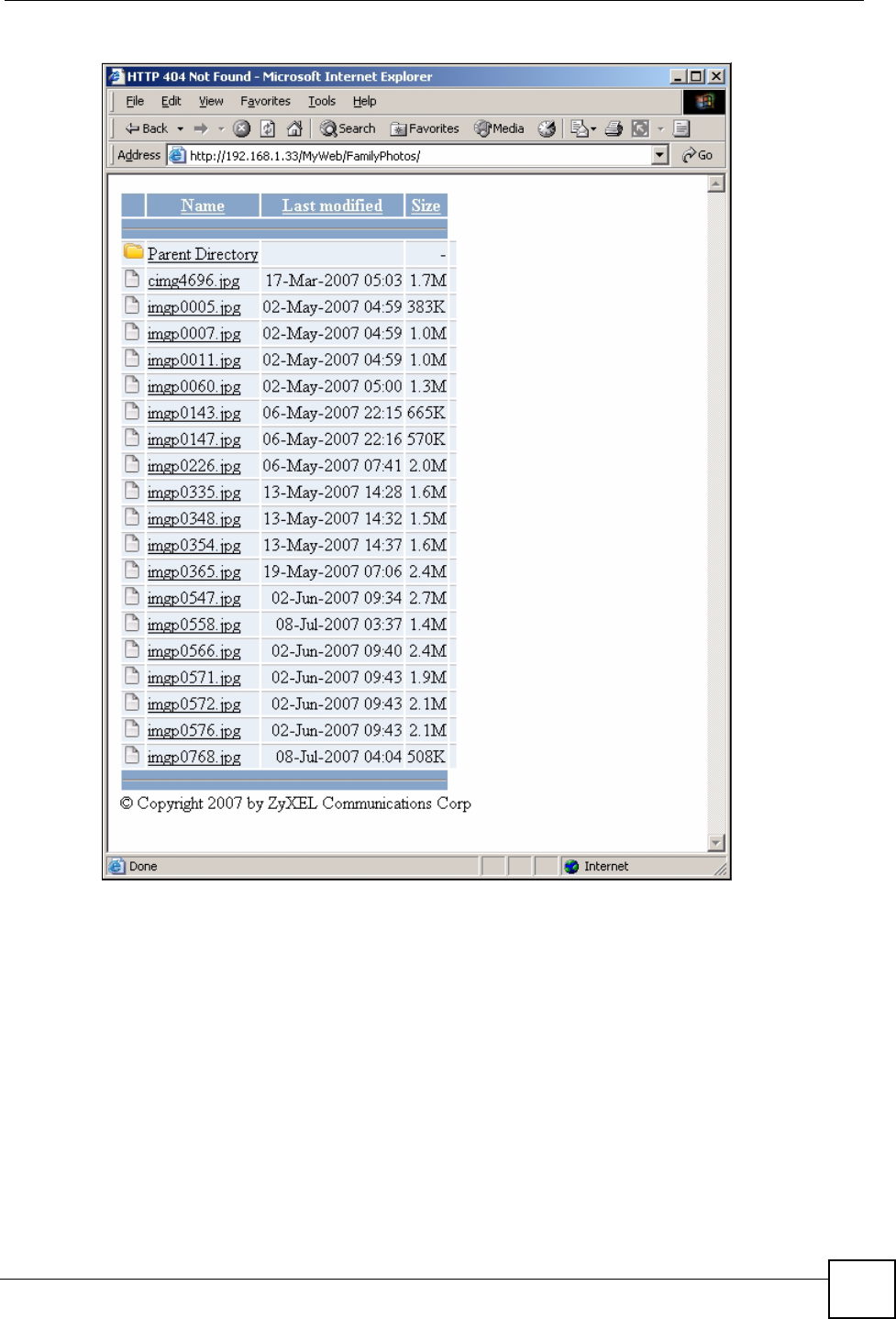
Chapter 8 Application Screens
NSA-220 User’s Guide 105
Figure 77 Browsing to an NSA Share Example
• Click a file’s link to open the file.
• Right-click a file’s link and select Save Target As.. (in Internet Explorer) to save a copy
of the file.
• Click a label in the heading row to sort the files by that criteria.
• To customize how the page looks and works, create an index.html or index.htm file and
store it in the share.
8.12 Broadcatching
Broadcatching is the downloading of digital content from Internet feeds. Use broadcatching to
have the NSA download frequently updated digital content like TV programs, radio shows,
podcasts (audio files), and blogs.
Chapter 8 Application Screens
NSA-220 User’s Guide
106
RSS (Really Simple Syndication) is a format for delivering frequently updated digital content.
At the time of writing, the NSA supports RSS 2.0 feeds. Websites with a feed usually display a
feed icon (shown next). Copy and paste the feed’s URL into the Applications >
Broadcatching > Add screen and you can download new files as they are added.
Figure 78 Feed Icon
A channel uses a feed to deliver its contents (items). Subscribe the NSA to a feed to be able to
download the contents.
8.12.1 Channel Guides
Here are some popular broadcatching channel guide web sites.
"ZyXEL does not endorse these web sites and is not responsible for any of their
contents. Use these or any other web sites at your own risk and discretion.
http://www.zencast.com/
http://www.miroguide.com/
http://www.vuze.com/
http://www.mefeedia.com/
http://www.vodstock.com/
8.13 Broadcatching Screen
Click Applications > Broadcatching to open the following screen. This screen displays the
NSA’s subscribed channels and the associated contents.
• The NSA saves a channel’s downloaded items in a folder named after the channel.
• The NSA creates the channel folders in the same destination as the download service. See
Section 8.8 on page 100 to change the destination for saving downloads.
• The NSA’s media server feature makes it easy for users on your network to play the
broadcatching files you download. See Section 8.3 on page 90 for more on the media
server.
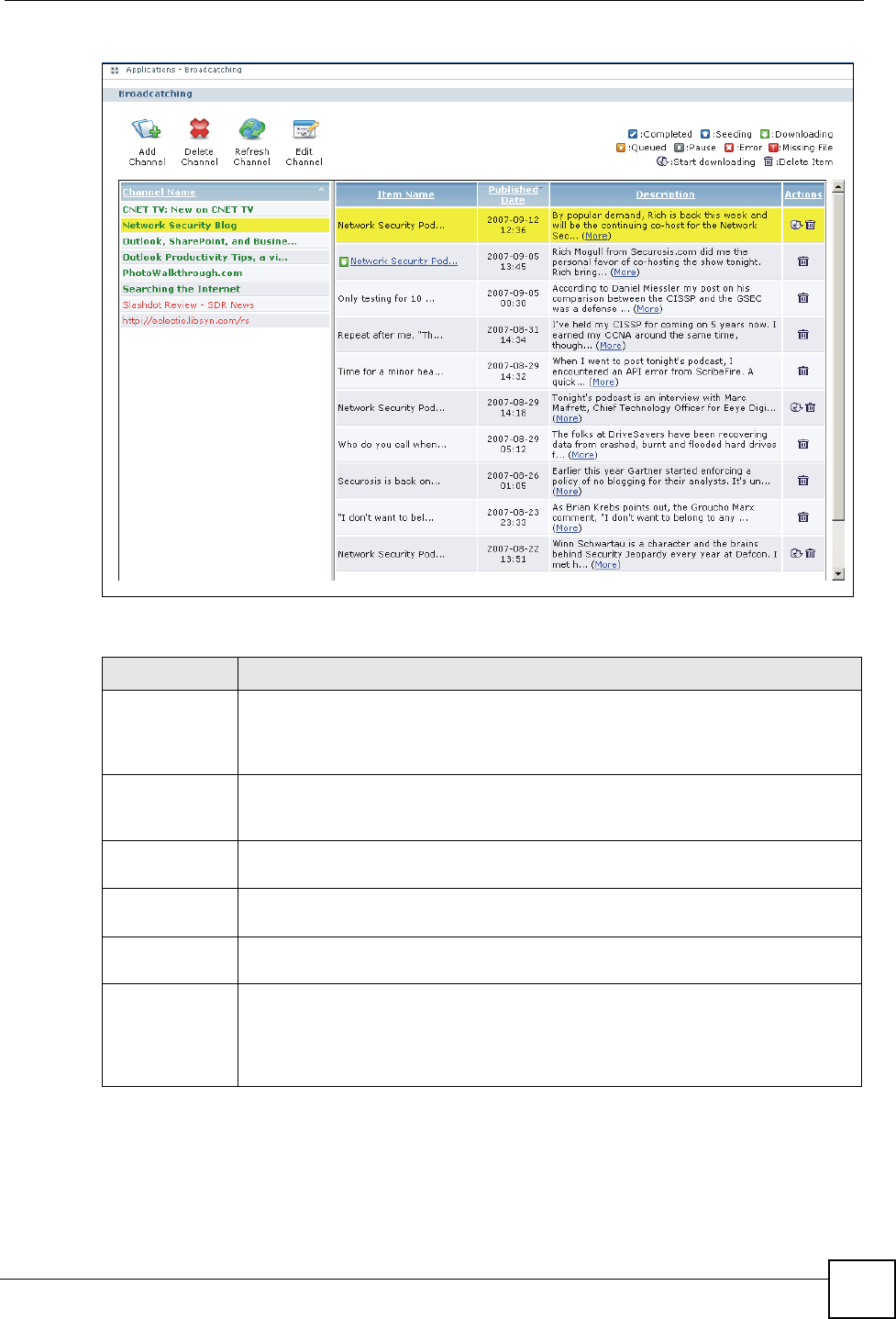
Chapter 8 Application Screens
NSA-220 User’s Guide 107
Figure 79 Applications > Broadcatching
The following table describes the labels in this screen.
Table 30 Applications > Broadcatching
LABEL DESCRIPTION
Add Channel When you find a channel to subscribe to, copy the URL of the channel’s feed and
click this button. A screen opens for you to subscribe to the feed. When you are
done, the feed’s channel and contents display in the Applications >
Broadcatching screen.
Delete Channel Select a channel and click Delete Channel to remove the channel from the NSA.
Any of the channel’s items that you have already downloaded stay in the channel’s
folder (in the admin share’s download folder).
Refresh
Channel Select a channel and click Refresh Channel to check for new files.
Edit Channel Select a channel and click Edit Channel to open a screen where you can set the
channel’s download and delete policies.
The table lists channels and their files. Click a column’s heading to sort the entries
by that criteria.
Channel Name This identifies the channel. A channel displays in red if there was an error the last
time the NSA attempted to connect to it. When this happens, you can select the
channel and click Refresh Channel to have the NSA reattempt to connect to it.
Select a channel to see its available files. A “...” indicates an abbreviated name.
Hold your cursor over the name to display the full name.
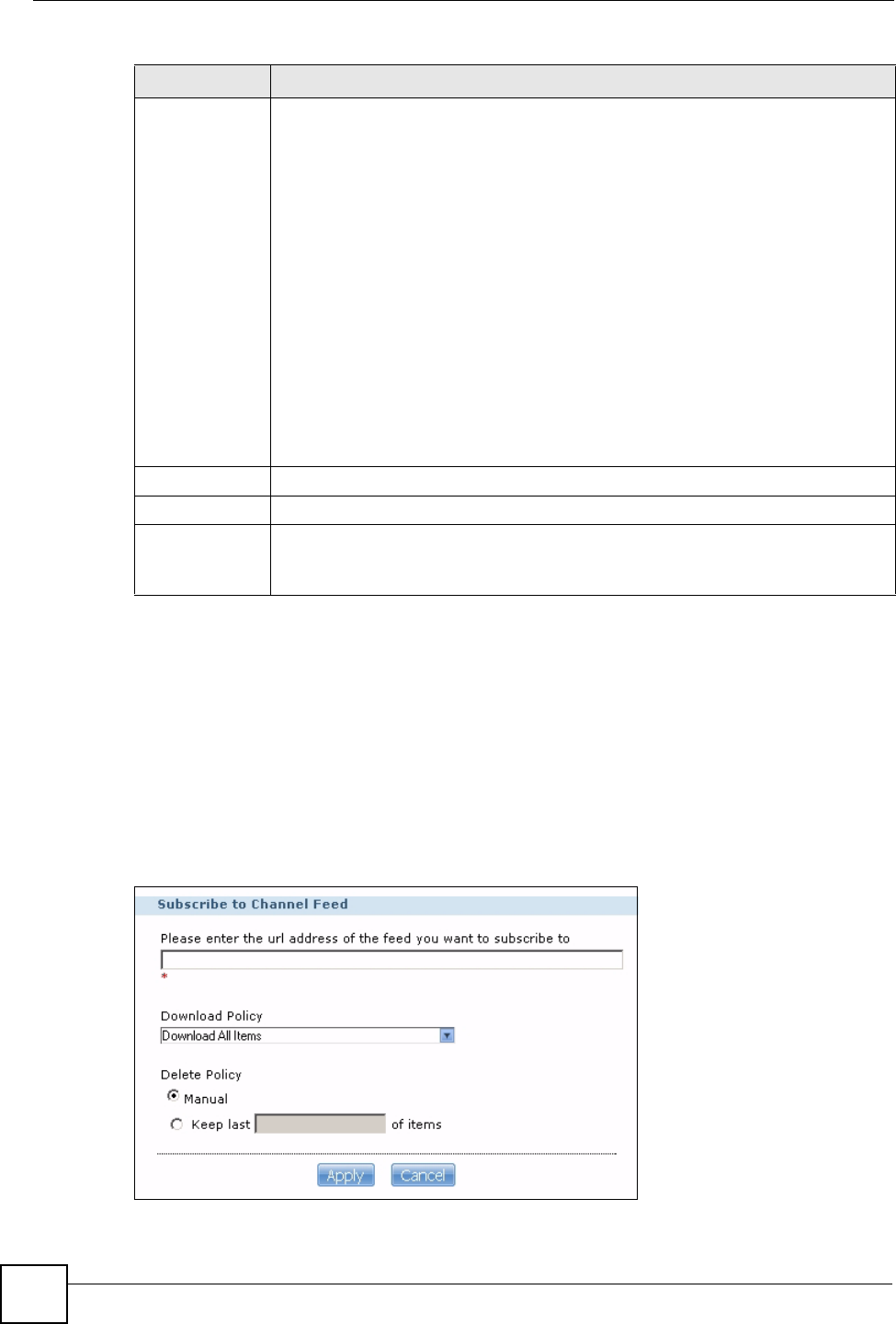
Chapter 8 Application Screens
NSA-220 User’s Guide
108
8.14 Adding or Editing a Broadcatching Channel
Click Applications > Broadcatching > Add Channel to open the following screen. Use the
Add screen to subscribe the NSA to a channel’s feed so you can view the channel. You also
select policies for downloading and deleting the channel’s items. Section 3.3 on page 56
provides a tutorial on adding a broadcatching channel. Click Applications > Broadcatching,
then select a channel and click Edit Channel to open a similar Edit screen. Use the Edit
screen to change the download or delete policies.
Figure 80 Applications > Broadcatching > Add
Item Name These are the downloadable files. The icon shows the file’s status in the NSA. A ...
indicates an abbreviated name. Hold your cursor over the name to display the full
name.
Completed: The NSA has downloaded the whole file. Double-click the item to go to
the Download Service screen where you can see the file’s name and location.
Seeding: The NSA downloaded the complete file and NSA is sharing it with other
BitTorrent users. Double-click the item to go to the Download Service screen.
Downloading: The NSA is downloading the file. Double-click the item to go to the
Download Service screen.
Queued: The file is waiting in line for the NSA to download it. Double-click the item
to go to the Download Service screen.
Pause: The download has been manually stopped. Double-click the item to go to
the Download Service screen.
Missing File: The NSA could not find the file.
Error: The NSA automatically retries unsuccessful download attempts. The status
displays as error when the re-attempts are also unsuccessful and the NSA stops
trying to download the file. To try the download again, use the Add button to create
a new download task.
Published Date This is when the file was made available for download.
Description This is the publishers introduction for the file.
Actions Start Downloading: Click this icon to add the file to the NSA’s download queue or
check the file’s status in the NSA’s download service.
Click the Delete icon to remove the file from the channel’s list.
Table 30 Applications > Broadcatching
LABEL DESCRIPTION
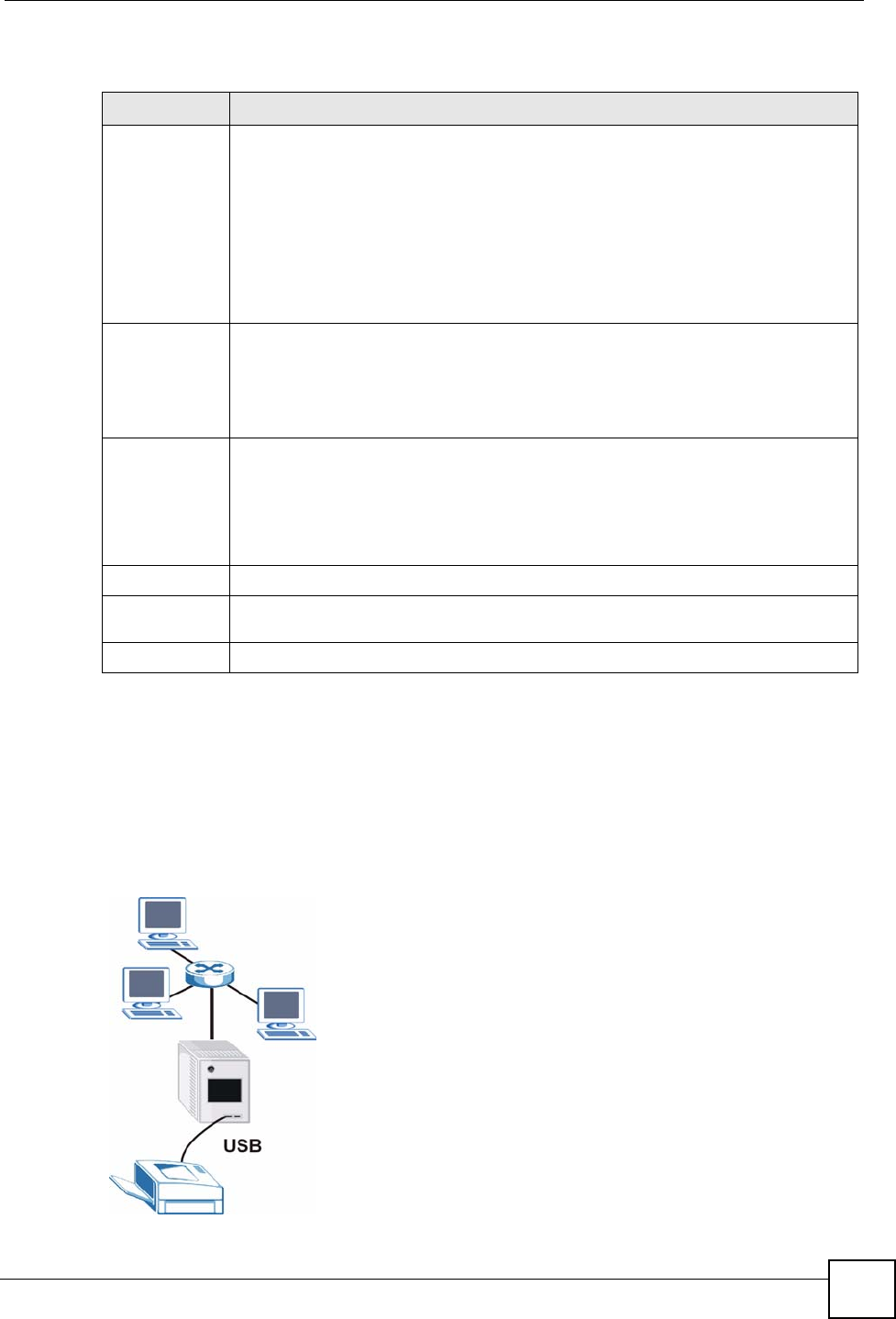
Chapter 8 Application Screens
NSA-220 User’s Guide 109
The following table describes the labels in this screen.
8.15 Printer Sharing
The NSA can act as a print server. A print server lets multiple computers share a printer.
Connect a printer to the NSA’s USB port to let multiple computers on your network use it. See
www.zyxel.com for a list of compatible printers.
Figure 81 Printer Sharing
Table 31 Applications > Broadcatching > Add
LABEL DESCRIPTION
Subscribe to
Channel Feed Paste (or type) the URL of the feed for the channel to which you want to subscribe
into this field. This is read-only in the Preferences screen.
Note: Make sure the link goes to the actual RSS feed instead of to
another list of links or information about the channel.
One way to test this is by clicking the link. Clicking an actual RSS feed link opens a
screen of XML code (in browsers without an RSS feed aggregator) or a window
where you can add the RSS feed (in browsers with an RSS feed aggregator).
Download
Policy Set which of the channel’s items the NSA downloads.
Download All Items: Download every file in the feed.
Download Only New Items: Download new files from today on.
Manually Choose Items for Download: Only download individual files you select
later in the Applications > Broadcatching screen.
Delete Policy Set how the NSA handles deleting the items downloaded from the channel.
Manual: Only delete individual files you select later in the Applications >
Broadcatching screen.
Keep last N of items: Select this to set the NSA to only keep a number of the
channel’s most recent files. When this number has been reached, if the NSA
downloads another file from the channel, it deletes the oldest file from the NSA.
Apply Click Apply to save your changes back to the NSA.
Reset This button appears in the Preferences screen. Click Reset to begin configuring this
screen afresh.
Cancel Click Cancel to close this screen without saving your changes.
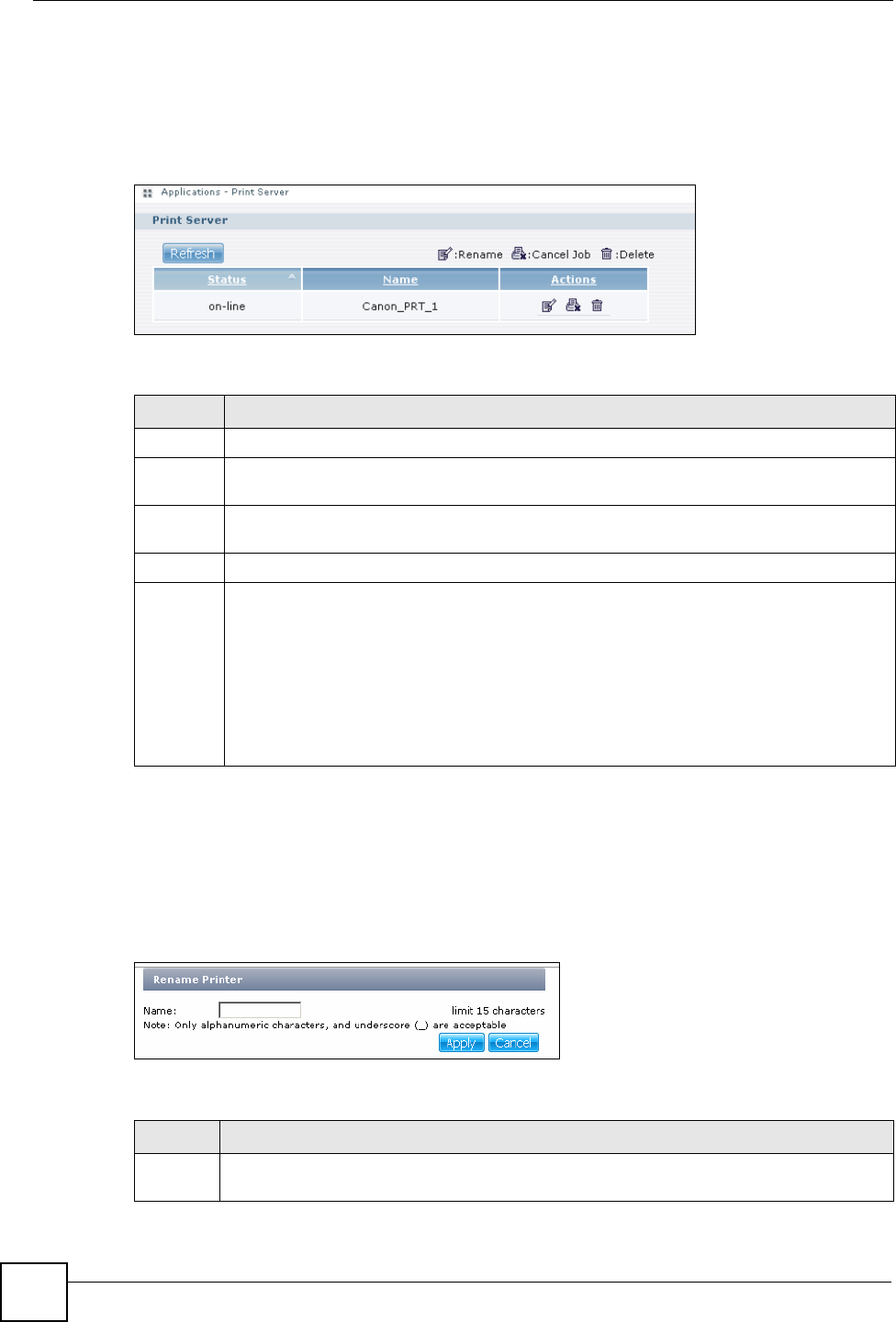
Chapter 8 Application Screens
NSA-220 User’s Guide
110
8.16 Print Server Screen
Click Applications > Print Server to open the following screen. Use this screen to view and
manage the NSA’s list of printers and print jobs.
Figure 82 Applications > Print Server
The following table describes the labels in this screen.
8.17 Print Server Rename
Click Applications > Print Server and a printer’s Rename icon to open the following screen.
Use this screen to change the name the NSA uses for the printer.
Figure 83 Applications > Print Server > Rename
The following table describes the labels in this screen.
Table 32 Applications > Print Server
LABEL DESCRIPTION
Refresh Click Refresh to update the list of printers and print jobs.
The table lists printers and their queued print jobs. Click a column’s heading to sort the
entries by that criteria.
Status This fields shows whether the printer is connected and turned on (on-line) or not (off-
line).
Name This identifies the printer. Each printer connected to the NSA must use a unique name.
Actions Rename: Click this to change the name the NSA uses for the printer.
Cancel Job: Click this to remove all print jobs from the NSA queue for a particular printer.
However, since the NSA sends print jobs to the printer as soon as it can, this button may
only have an effect if there are very large or many print jobs in the queue. To stop a print
job that has already started, you may have to turn off the printer.
Delete: Click this to remove a printer from the NSA’s printer list. To add the printer back
into the list, disconnect the printer from the NSA’s USB port and reconnect it. If that does
not work, disconnect the USB port and turn off the printer’s power. Then reconnect the
printer and turn it back on.
Table 33 Applications > Print Server > Rename
LABEL DESCRIPTION
Name Type a new name to identify the printer. The name must be unique from all the other names
of printers connected to the NSA.
Chapter 8 Application Screens
NSA-220 User’s Guide 111
Apply Click Apply to save your changes back to the NSA.
Cancel Click Cancel to close this screen without saving your changes.
Table 33 Applications > Print Server > Rename
LABEL DESCRIPTION
Chapter 8 Application Screens
NSA-220 User’s Guide
112

114
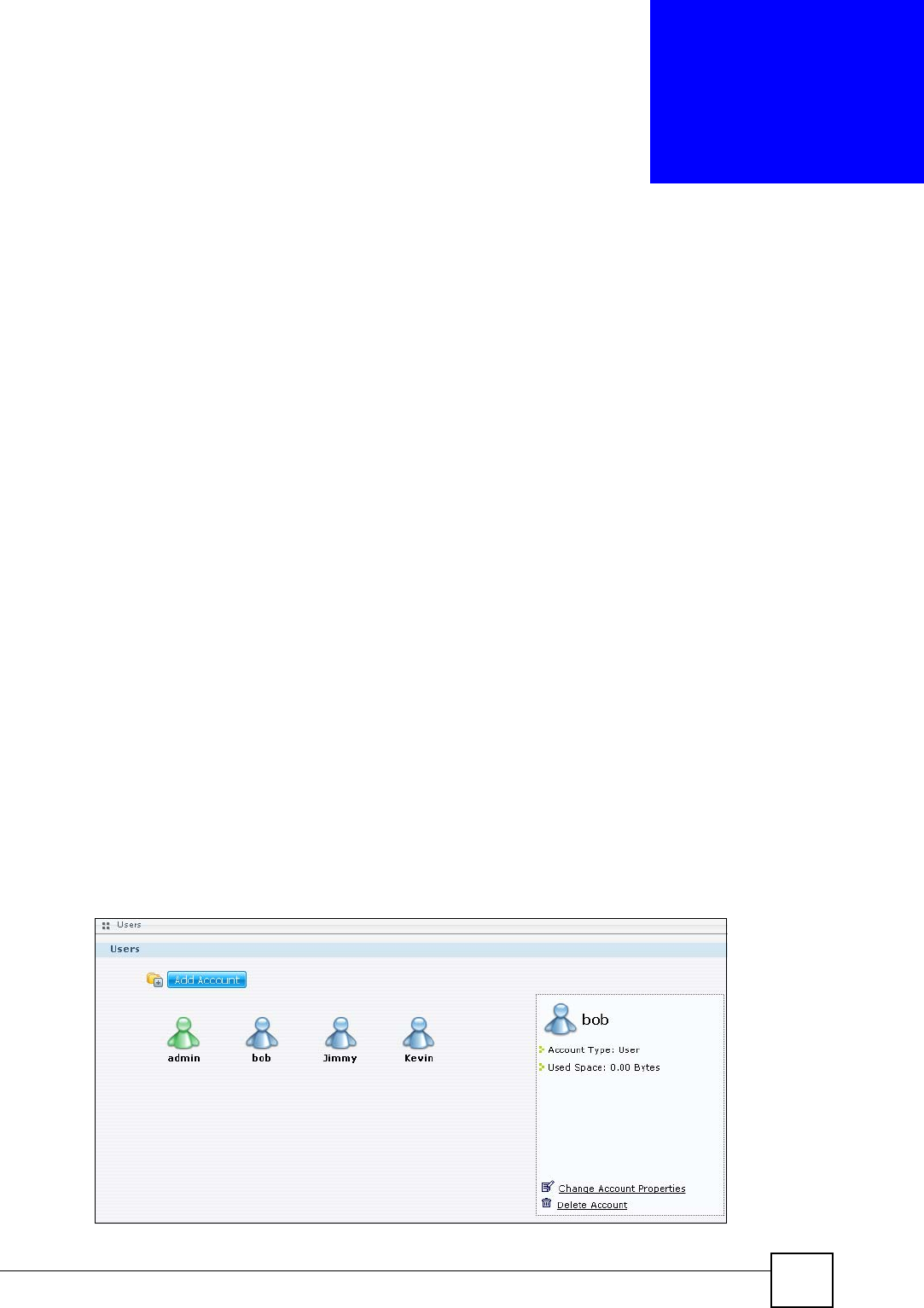
NSA-220 User’s Guide 115
CHAPTER 9
Users
This chapter introduces the Users screens of the NSA.
9.1 User Accounts Introduction
Use the Users screens to create and manage administrator and user accounts.
Administrators can:
• Configure and manage the NSA.
• Create volumes, shares, and user accounts.
• Assign individual users specific access rights for specific shares.
Users are people who have access rights to the NSA and can store files there for later retrieval.
A user can:
• Manage shares that he owns.
• Change his own password.
• Access the contents of other shares to which he is given access rights.
9.2 Users Overview Screen
Click Users to display the screen shown next.
Use this screen to create and manage accounts for users who can store files on the NSA.
Figure 84 Users
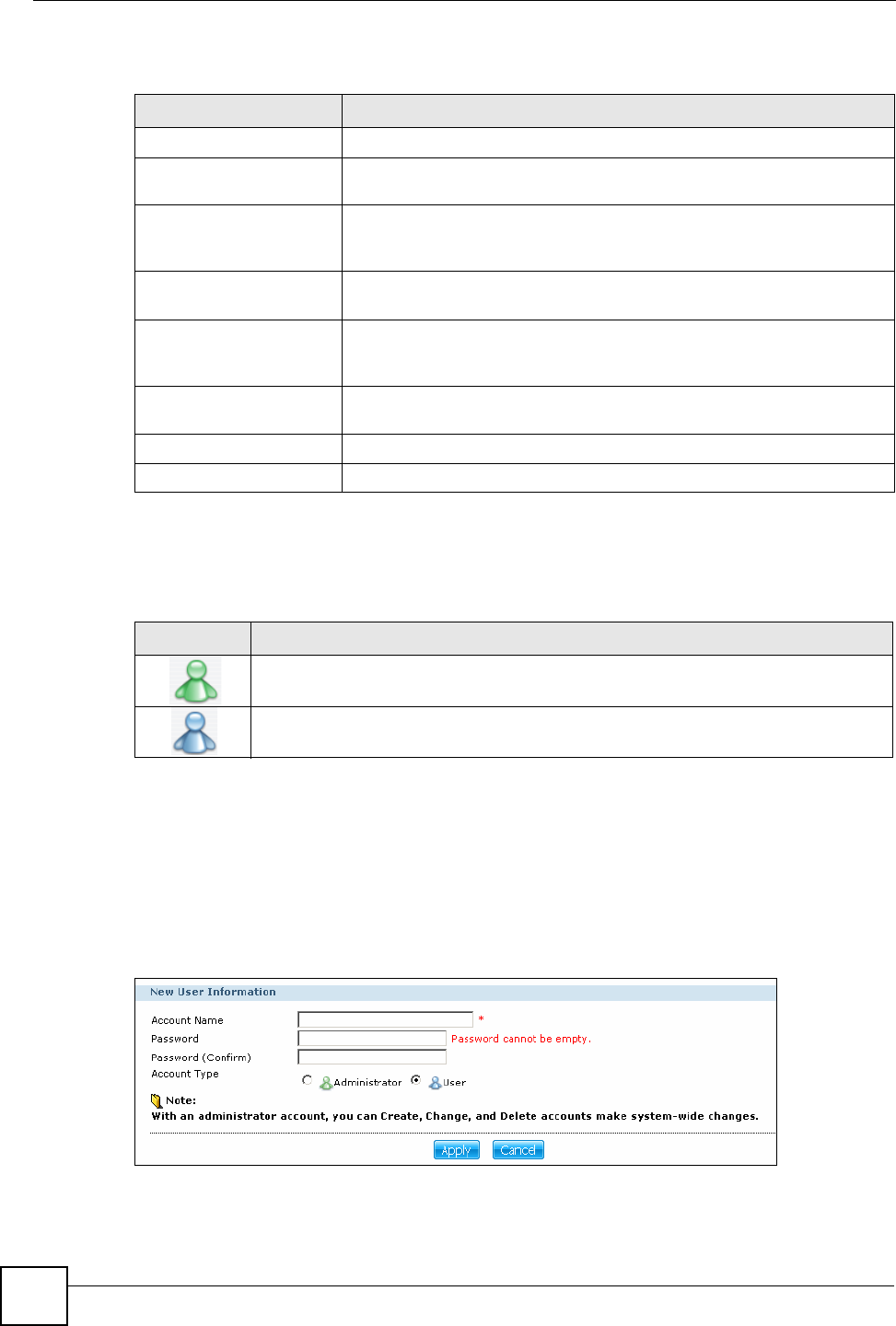
Chapter 9 Users
NSA-220 User’s Guide
116
The following table describes the labels in this screen.
9.2.1 User Icons
The following table describes the user icons.
9.3 Adding or Editing an Account
Click the Add Account button in the Users screen to open the following screen. Use this
screen to create or edit a NSA user account with NSA access password. Click the Change
Account Properties button in the screen shown previously to edit an existing account.
Figure 85 Users > Add or Edit an Account
Table 34 Users
LABEL DESCRIPTION
Users
Add Account Click this button to open a screen where you can configure a new user
account.
This screen lists the users configured on the NSA. Click a user icon to see
details about the user. Administrator account icons are green. User
account icons are blue.
Account Type This field displays whether the selected account is an administrator
account or a user account.
Used Space This field displays how much storage space the selected account is
currently using. This only applies for files that the user saved onto the
NSA while logged in with that username.
Change Account
Properties Click this to edit the selected account.
Change Password Click this to edit the selected account’s password.
Delete Account Click this to remove the selected account.
Table 35 User Icons
ICON DESCRIPTION
The green icon is for an administrator account.
The blue icon is for a user account.
Chapter 9 Users
NSA-220 User’s Guide 117
The following table describes the labels in this screen.
9.3.1 Usernames
Enter a username from one to 32 characters. The first character must be alphabetical (case
insensitive, [A-Z a-z]); numeric characters are not allowed as the first character.
The username can only contain the following characters:
• Alphanumeric A-z 0-9. Unicode usernames are supported with CIFS logins, but not FTP
or web configurator logins.
• Spaces
• _ [underscores]
•. [periods]
• - [dashes]
Other limitations on usernames are:
• All leading and trailing spaces are removed automatically.
• Multiple spaces within names are converted to a single space.
• Usernames are case insensitive. The username cannot be the same (no matter the letter
case) as an existing user. For example, if a user exists with the name 'BOB', you cannot
create a user named 'bob'. If you enter a user 'bob' but use 'BOB' when connecting via
CIFS or FTP, it will use the account settings used for 'bob'.
• The username cannot be the same as a system username such as ANONYMOUS_CIFS,
ANONYMOUS_FTP, EVERYONE nor be the same as an existing user. Other reserved
usernames that are not allowed are:
•bin
•daemon
•ftp
• anonymous-ftp
• nobody
•root
Table 36 Users > Add or Edit an Account
LABEL DESCRIPTION
Account Name Type a name from 1 to 32 single-byte (no Chinese characters allowed for
example) ASCII characters. See Section 9.3.1 on page 117 for more
details on usernames.
Password Create a password associated with this user. You can type from one to 14
single-byte (no Chinese characters allowed for example) ASCII
characters.
Password (confirm) You must type the exact same password that you just typed in the above
field.
Account Type Select Administrator to give full the account configuration and
management access to the NSA.
Select User to give the account basic access rights to the NSA and allow
the user to manage his own shares, change his own password, and
access the contents of other shares to which he is given access rights.
Apply Click this button to save your changes back to the NSA.
Cancel Click this button to leave this screen without saving changes.
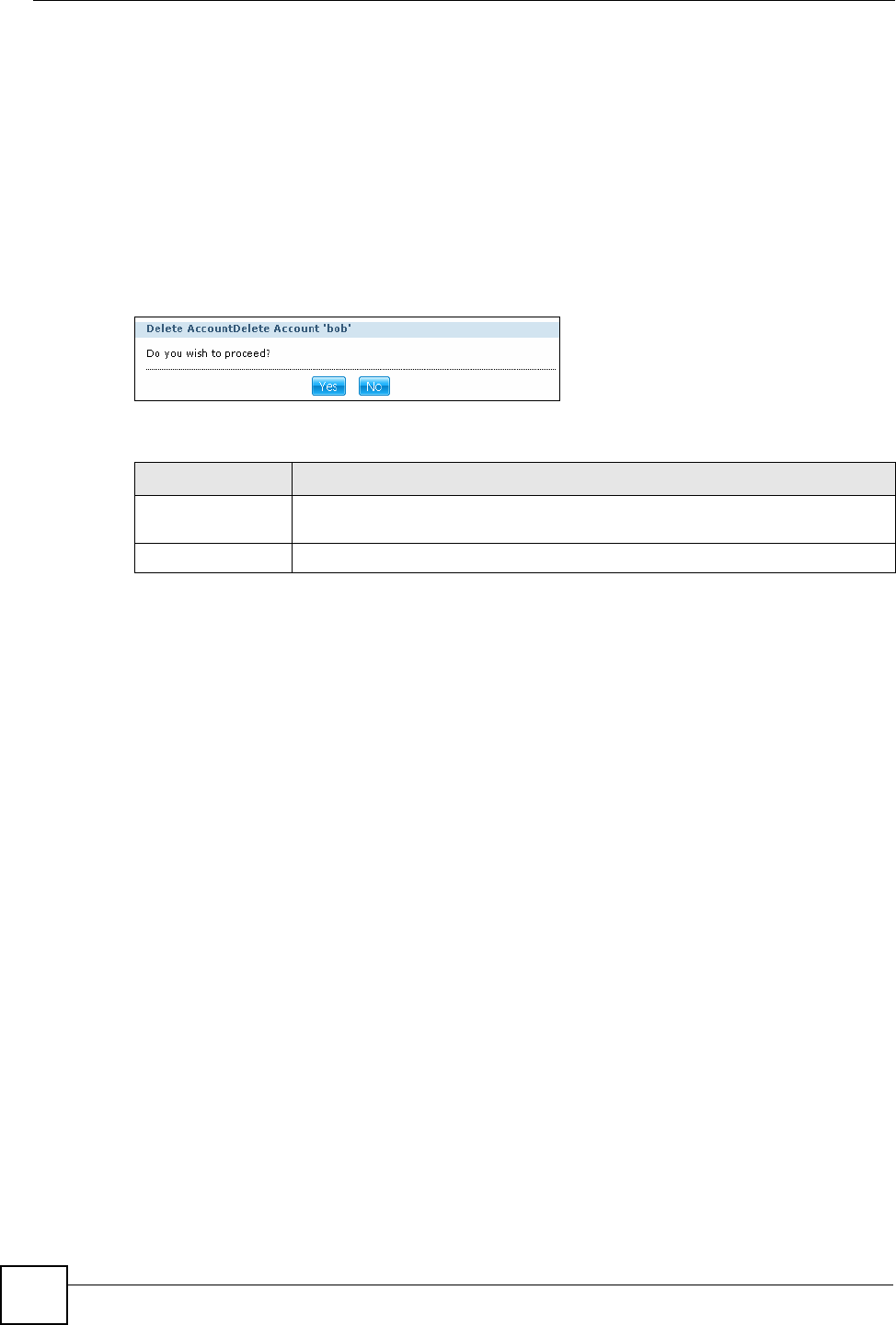
Chapter 9 Users
NSA-220 User’s Guide
118
• pc-guest
•admin
• password
9.4 Delete Account Screen
In the Users screen, select an account and click Delete Account to open the following screen.
Use this screen to remove a user account.
Figure 86 Users > Delete Account
The following table describes the labels in this screen.
Table 37 Users > Delete Account
LABEL DESCRIPTION
Yes Click Yes to remove the user account. Management of any shares that belonged
to the account passes to the default administrator account.
No Click No to keep the user account.
NSA-220 User’s Guide 119
CHAPTER 10
Shares
This chapter introduces the Shares screens of the NSA.
10.1 Shares Introduction
Use the Shares screens to create and manage shares. A share is a set of user access
permissions mapped to a specific folder on a volume. It is equivalent to the Windows concept
of a shared folder, but is independent of the folder. You can map a share to a network drive for
easy and familiar file transfer for Windows users.
10.1.1 Share Icons
These are the share icons.
10.1.2 Shares Screen
Click Shares in the Navigation panel to open the following screen. This screen lists all of the
shares.
Table 38 Share Icons
ICON DESCRIPTION
This represents a share on a volume on the internal hard drives. Click this icon to
access the share’s contents. The folder appears as gray if the share is not currently
available (because the hard drive was removed for example).
This represents a share on a volume on an external (USB) device. Click this icon to
access the share’s contents. The folder appears as gray if the share is not currently
available (because the USB drive was removed for example).
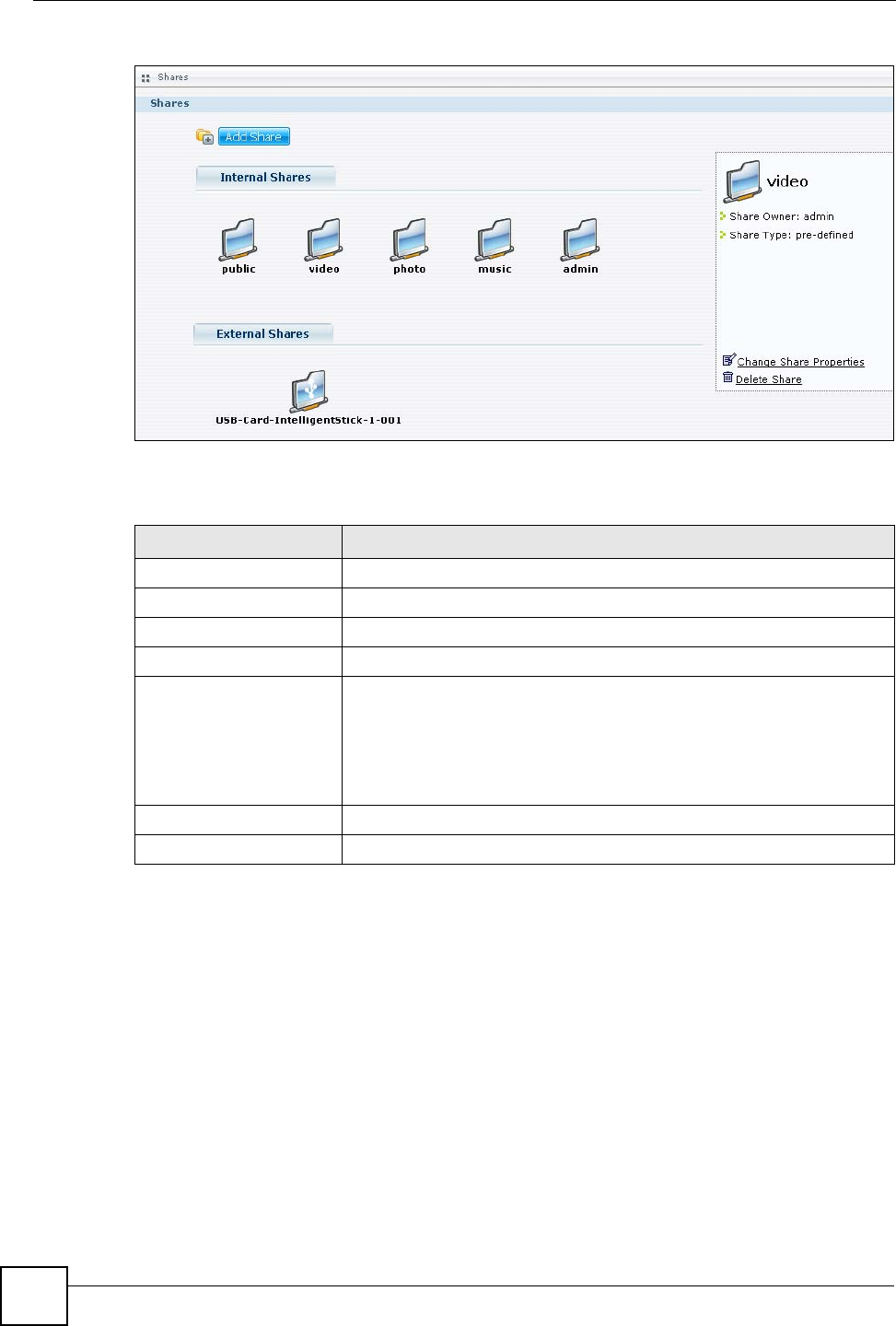
Chapter 10 Shares
NSA-220 User’s Guide
120
Figure 87 Shares
The following table describes the labels in this screen. See Table 38 on page 119 for icon
details.
10.2 Adding or Editing Share
Click the Add Share or Change Share Properties in the Shares screen to open the following
screen. Use this screen to create a new shared folder.
Table 39 Shares
LABEL DESCRIPTION
Add Share Click this button to create a new share.
Internal Shares These are shares on the internal hard drives.
External Shares These are shares on the external (USB) devices.
Share Owner This is the name of the user account to which this share belongs.
Share Type This field displays built-in for system shares. You cannot delete these
shares (these are the public and admin shares).
This field displays pre-defined for default shares. You can delete these
shares (these are the video, music, and photo shares).
This field displays user-created for shares that an administrator has
created. You can delete these shares.
Change Share Properties Click this to edit the selected share.
Delete Share Click this to remove the selected share.
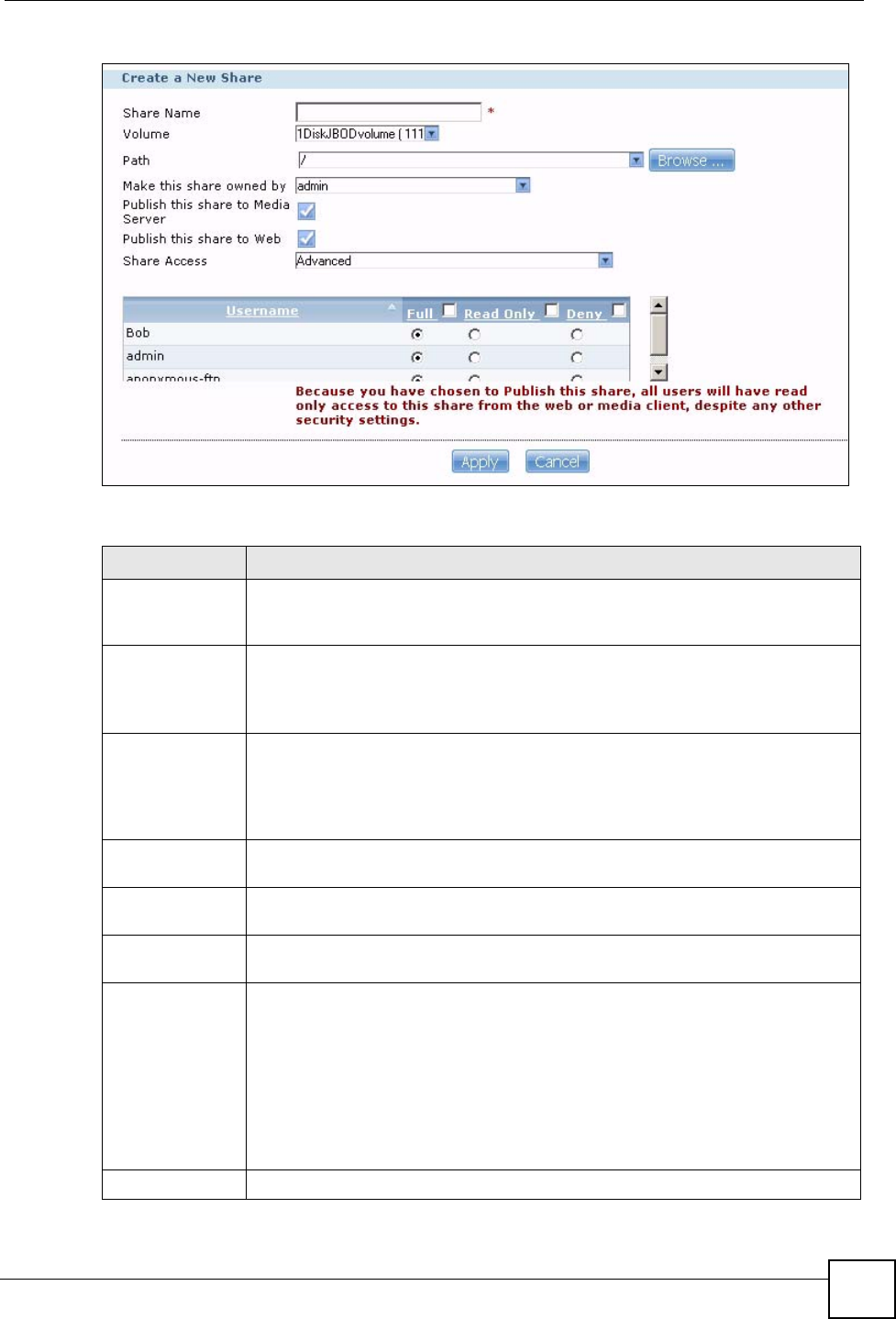
Chapter 10 Shares
NSA-220 User’s Guide 121
Figure 88 Shares > Add Share
The following table describes the labels in this screen.
Table 40 Shares > Add Share (or Change Share Properties)
LABEL DESCRIPTION
Share Name Type a share name from 1 to 255 single-byte (no Chinese characters allowed for
example) ASCII characters. The name cannot be the same as another existing
local share. See Section 2.5.5 on page 38 for more information on share names.
Volume You should have already created volumes (a single accessible storage area with a
single file system) on the NSA. Select the one that contains the folder that you
want to share out.
You cannot modify this when editing a share.
Path Select a folder on the NSA. You can also browse (see Section 10.3 on page 122)
to find or create a folder on the NSA or type the location of the folder using forward
slashes as branch separators. Each folder can only belong to a single share. See
Section 2.5.6 on page 39 for more information on share paths.
You cannot modify this when editing a share.
Make this share
owned by Select the administrator or user account that is to own (manage) this share. The
share owner controls access rights to the share.
Publish this share
to Media Server Select this option to have the NSA share files in this folder with media clients. The
media clients do not have to use a password to play the shares you publish.
Publish this share
to Web Select this option to let people use a web browser to access this share’s files
without logging into the My NSA screens.
Share Access Assign access rights (full, read only or deny) to users. If you publish the share to
the media server or the web, all users will have at least read-only access to the
share, regardless of what you configure here.
Keep it private to owner means only the share owner (selected above) can
access the share.
Public means every user (including people who do not have accounts on the NSA)
can access the share.
Advanced allows you to assign specific access rights (full, read only or deny) to
individual users.
Username This column lists all of the accounts configured on the NSA.
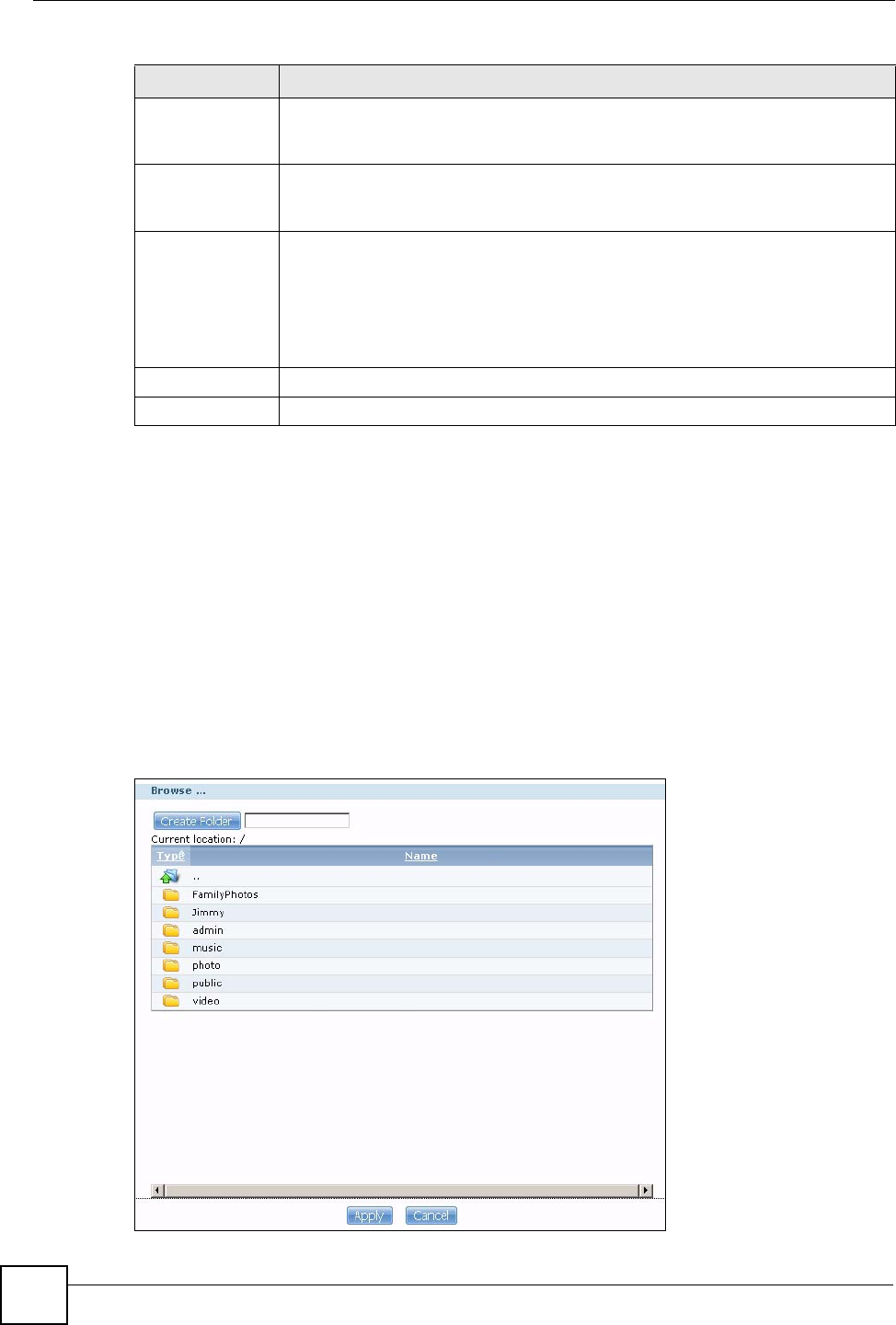
Chapter 10 Shares
NSA-220 User’s Guide
122
10.2.1 Public and ANONYMOUS Share Access Rights
If you make a share public, users do not need to log in.
With ANONYMOUS FTP, you must enter either 'anonymous' or 'ftp' as the username. Any
other name is considered a username, so must be valid and have a corresponding correct
password.
10.3 Share Path Browse Screen
Use this screen to navigate and/or create folders within a share.
Figure 89 Share Path Browse
Full Select this check box next to a user to give him or her full access (read, write and
execute) to all files contained within this share. Select the check box in the
heading row to select all users.
Read Only Select this check box next to a user to give him or her read-only access (they
cannot modify nor execute) to all files contained within this share. Select the check
box in the heading row to select all users.
Deny Select this check box next to a user to deny him or her any access (they cannot
read, modify, nor execute) to all files contained within this share. Select the check
box in the heading row to select all users.
Note: If you deny access to all users, no-one can use the share, not
even the administrator.
Apply Click this button to save your changes back to the NSA.
Cancel Click this button to close this screen without saving your changes.
Table 40 Shares > Add Share (or Change Share Properties) (continued)
LABEL DESCRIPTION
Chapter 10 Shares
NSA-220 User’s Guide 123
The following table describes the labels in this screen.
Table 41 Shares > Share Path Browse
LABEL DESCRIPTION
Create Folder Type a folder name and click Create Folder to make a new folder. The name can be
1 to 255 single-byte (no Chinese characters allowed for example) ASCII characters.
The name cannot be the same as another existing folder in the same path. See
Section 2.5.5 on page 38 for more information on folder names.
Current location This is the name of the share and folder path that you are in.
Type The icon in this column identifies the entry as a folder or a file.
The folder with an arrow pointing up is for the link that takes you to the next higher
layer in the share’s folder tree.
Name This section lists the volume’s existing folders. Select the one for which you want to
create a share (click to the right of the folder name to select). You can also click the
folder’s name to navigate to a sub-folder within the folder.
Apply Click this button to return to the previous screen with your folder selection.
Cancel Click this button to return to the previous screen without selecting a folder.
Chapter 10 Shares
NSA-220 User’s Guide
124

126
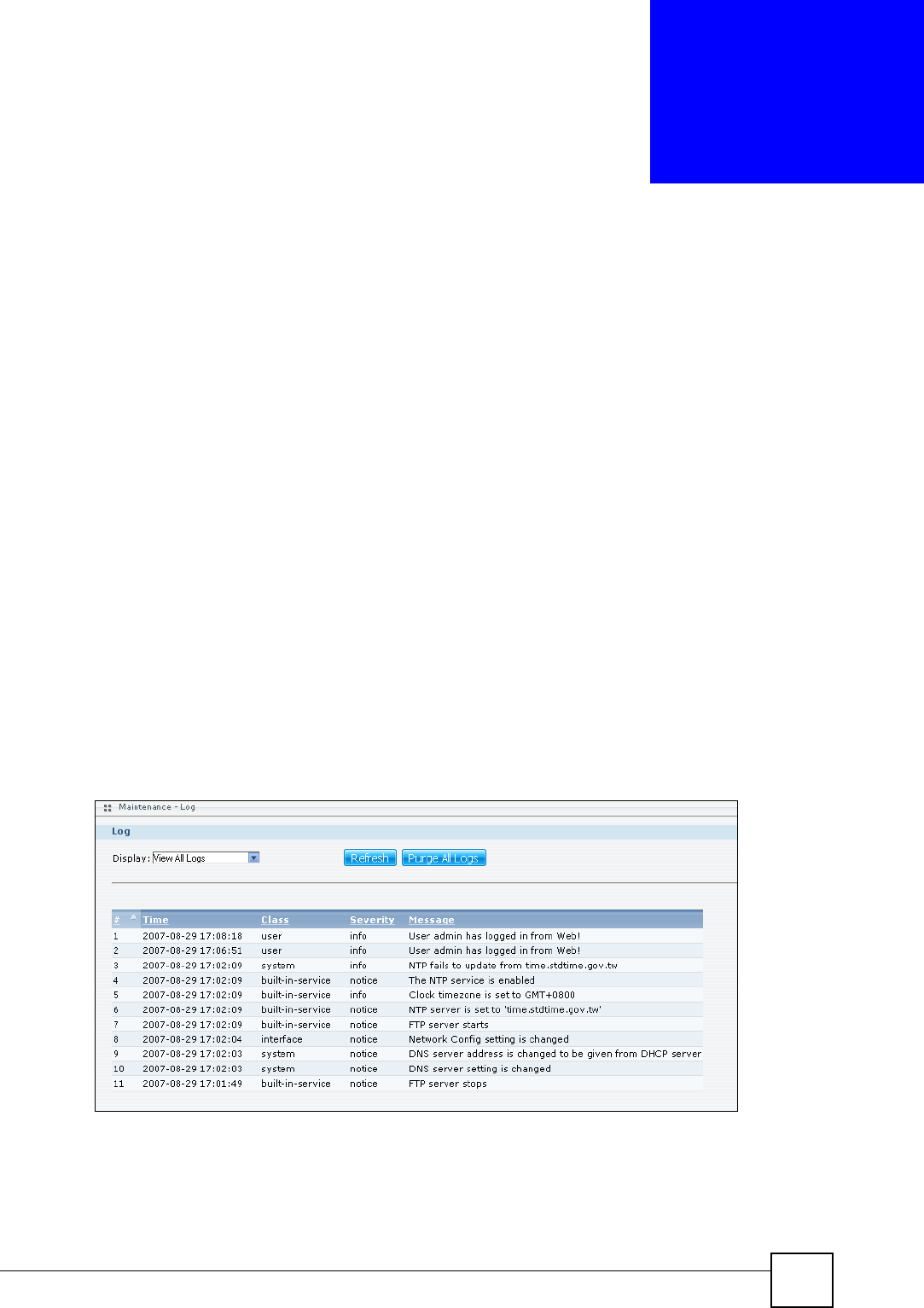
NSA-220 User’s Guide 127
CHAPTER 11
Maintenance Screens
This chapter discusses the Maintenance screens.
11.1 Maintenance Overview
Use the maintenance screens to:
• View logs
• Manage the NSA configuration file
• Upload new firmware
• Restart or shut down your NSA
11.2 Log
Click Maintenance > Log to display the following screen.
The Log screen displays all NSA logs. There are at most 128 entries in the log. Older logs are
removed by the system. You cannot download the log file via FTP or CIFS.
Figure 90 Maintenance > Log
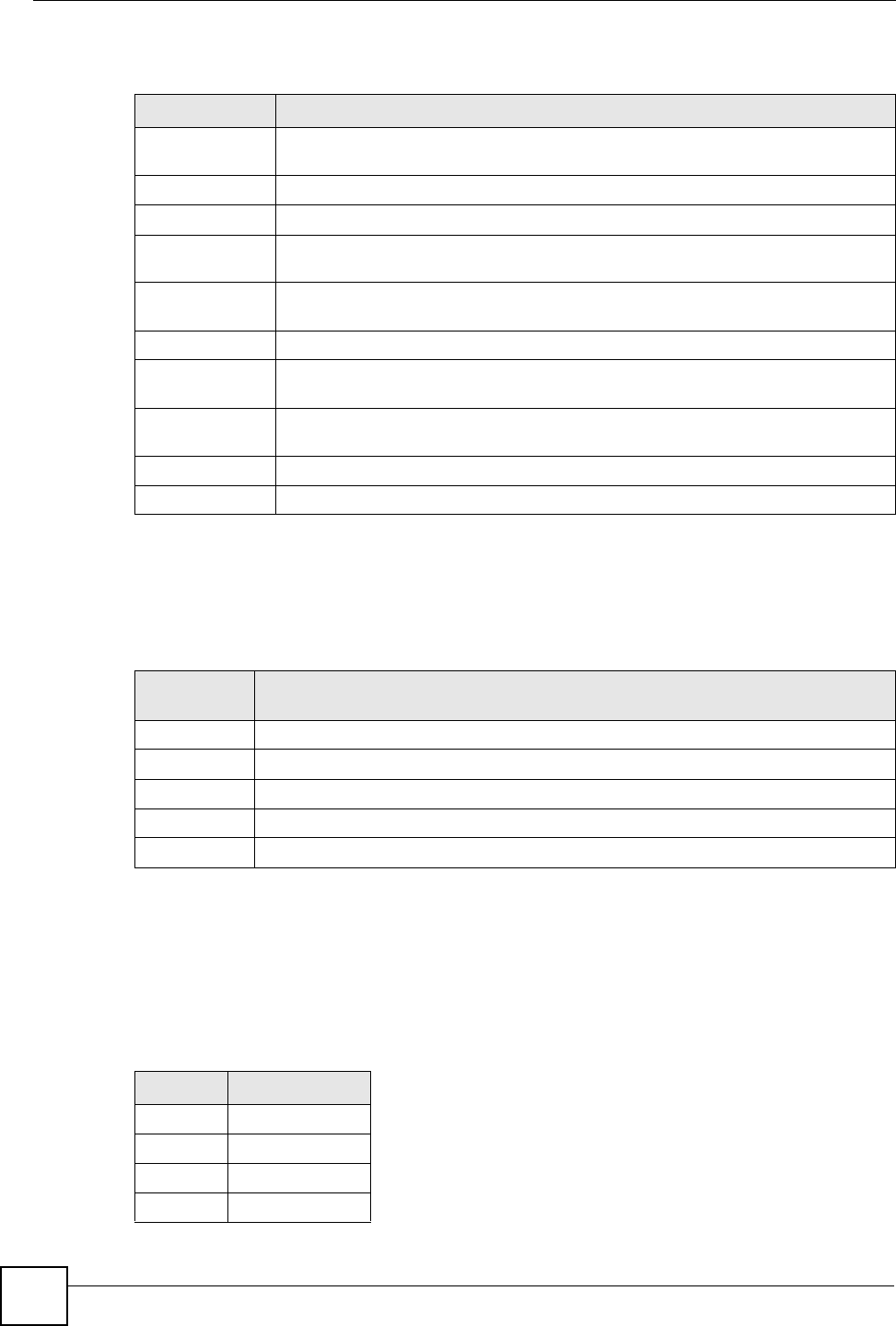
Chapter 11 Maintenance Screens
NSA-220 User’s Guide
128
The following table describes the labels in this screen.
11.3 Log Classes
The following table shows information on log classes.
11.4 Log Severity Levels
The following table shows information on log severity levels. Levels range from 0 to 6 with 0
being the most severe level log and 6 being an informational log only. Log levels are not
displayed in the logs and are for your reference only.
Table 42 Maintenance > Log
LABEL DESCRIPTION
Display The screen always shows all logs by default. Choose a specific log category to
view logs for just that category.
Refresh Click this button to update the log display.
Purge all Logs Click this button to erase all logs from the NSA.
# This is the log entry’s number in the list according to the currently selected sort
order.
Time This shows the date and time the log was created. Click the top of the column to
sort by oldest or newest.
Class This displays the log category; see Table 43 on page 128 for details.
Severity This displays how serious the log is rated by the NSA. See Table 44 on page 128
for more information.
Message This displays a description of the log. Click the top of the column to sort by
alphabetical or reverse alphabetical order.
First/Prev Use these hyperlinks to navigate to the first or previous log page.
Next/Last Use these hyperlinks to navigate to the next or final log page.
Table 43 Log Classes
LOG
CATEGORY DESCRIPTION
Network This log class shows information on network configuration, setting changes and so on.
Services This log class shows information on the operation of the NSA’s built-in services.
Shares This log class shows information on shares being created or deleted.
System This log class shows all other system related messages.
Users This log class shows information on user access to the NSA.
Table 44 Log Severity Levels
LEVEL DESCRIPTION
0 Emergency
1Alert
2 Critical
3Error
Chapter 11 Maintenance Screens
NSA-220 User’s Guide 129
11.5 Log Messages
Here are some example log messages.
4 Warning
5Notice
6Info
Table 44 Log Severity Levels (continued)
LEVEL DESCRIPTION
Table 45 Log Messages
CLASS SEVERITY MESSAGE
Network NOTICE %s is active because of changing Port Group. Enable DHCP client.
Network NOTICE %s is inactive because of changing Port Group. Disable DHCP
client.
Network NOTICE %s MTU > (%s MTU - 8), %s may not work correctly.
Network NOTICE (%s MTU - 8) < %s MTU, %s may not work correctly.
Network NOTICE Add interface %s.
Network NOTICE Because %s link down. Default route will not apply until %s link up.
Network NOTICE Because base interface %s will be disabled.Interface %s is disabled
now., base_ud_iface
Network NOTICE Network Config setting is changed
Network NOTICE Interface %s was disabled.
Network NOTICE Interface %s was enabled.
Network NOTICE Port Group on %s is changed. Renew DHCP client.
Network NOTICE show_sdx
Services INFO admin has changed the password
Services INFO HTTP management port has changed to %s
Services INFO Clock has disable daylight saving
Services INFO MyClock has enable daylight saving
Services INFO MyClock has set timezone to %s
Services INFO MyClock has set timezone to default
Services INFO The date and time are updated from NTP server.
Services INFO The date and time are updated manually.
Services INFO The time is updated manually.
Services NOTICE MyClock has changed daylight saving interval
Services NOTICE MyClock has disabled daylight saving interval
Services NOTICE NTP server has set to '%s'
Services NOTICE NTP server has set to null
Services NOTICE The NTP service is disabled.
Services NOTICE The NTP service is enabled.
Services WARNING Reaching Maximum Allowed Rules
Chapter 11 Maintenance Screens
NSA-220 User’s Guide
130
Services WARNING Reaching Maximum Allowed Rules
Services WARNING Rule is empty
Services WARNING The Rule Does Not Exist
Services NOTICE FTP server stops
Services NOTICE FTP server starts
Services INFO Clock timezone is set to GMT%s
Services INFO Clock timezone is set to default
Services INFO Clock daylight saving is enabled
Services INFO Clock daylight saving is disabled
Shares NOTICE Add new share %s.
Shares NOTICE Delete share %s.
Shares NOTICE Delete share %s.
System INFO NTP update failed
System INFO NTP updates successfully from %s
System INFO NTP fails to update from %s
System INFO Device is rebooted by administrator!
System INFO Device is shutdown by administrator!
System NOTICE DNS server is changed.
System NOTICE Hostname is cleared.
System NOTICE Hostname is set to '%s'.
System NOTICE System description is changed.
System NOTICE System description is empty now.
System NOTICE DNS server setting is changed
System NOTICE DNS server address is changed to be given from DHCP server
System NOTICE DNS server setting is changed
System NOTICE DNS server address is changed to be assigned by user
System NOTICE Name server is changed.
Users ALERT Failed %s login attempt (incorrect password or inexistent username)
Users ALERT Failed %s login attempt (incorrect password or inexistent username)
Users NOTICE Add new user %s.
Users NOTICE Change user %s's password.
Users NOTICE Delete user %s.
Users NOTICE User %s on %u.%u.%u.%u has been denied access from %s
Users INFO User %s has logged in from %s!
Users INFO User %s has logged out from %s!
Users INFO User %s from %s has been logged out (re-auth timeout)!
Users INFO User %s from %s has been logged out (lease timeout)!
Table 45 Log Messages (continued)
CLASS SEVERITY MESSAGE
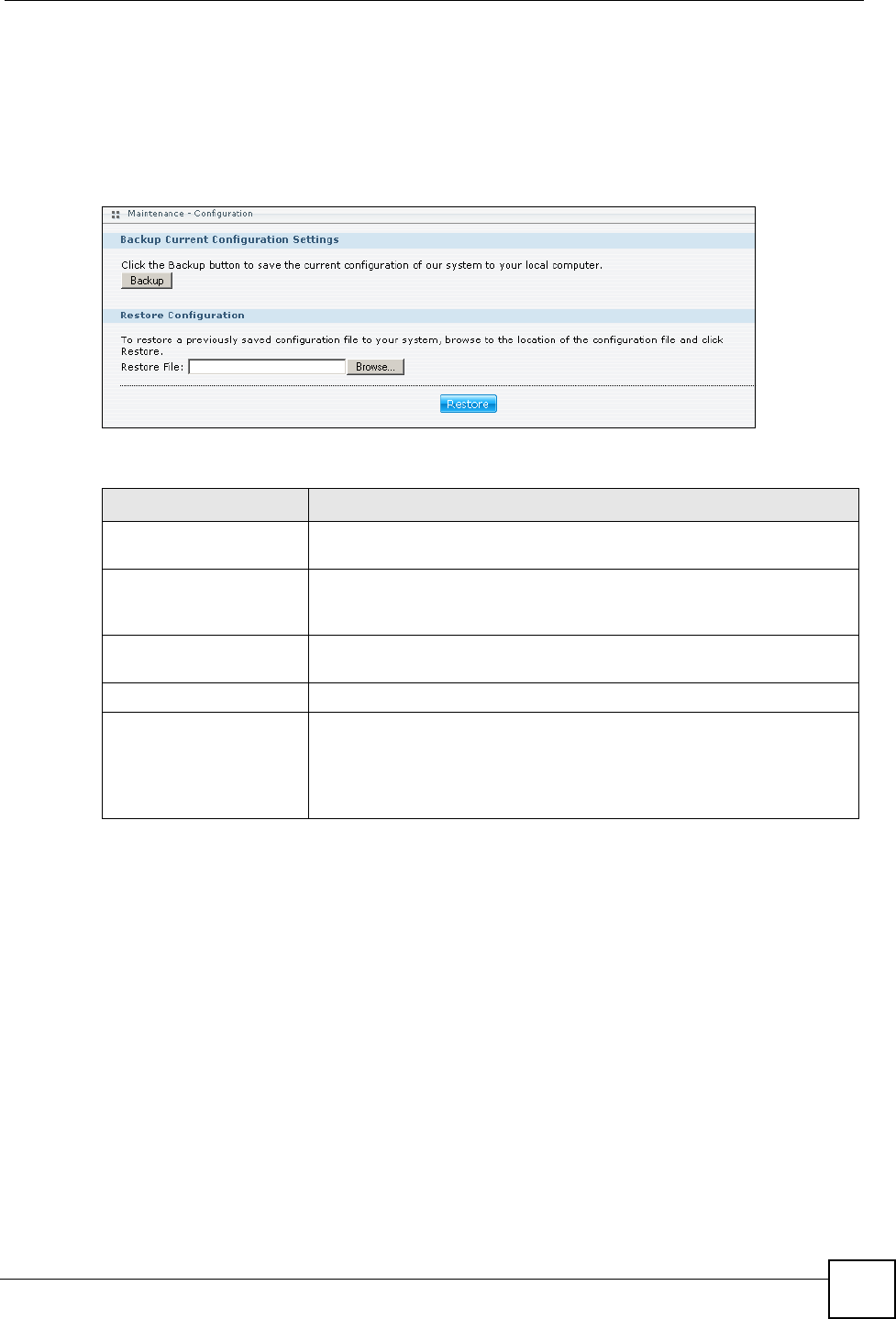
Chapter 11 Maintenance Screens
NSA-220 User’s Guide 131
11.6 Configuration
Click Maintenance > Configuration to open the following screen. Use the Configuration
screen to back up or restore the NSA configuration settings and enable or disable the hardware
reset button.
Figure 91 Maintenance > Configuration
The following table describes the labels in this screen.
11.7 Firmware Upgrade
Click the Maintenance link in the Navigation panel and then click the FW Upgrade link or
the FW Upgrade tab to access the Maintenance > FW Upgrade screen.
Use this screen to upgrade the NSA firmware. You should first have downloaded the latest
firmware files from the ZyXEL website.
Table 46 Maintenance > Configuration
LABEL DESCRIPTION
Backup Current
Configuration Settings
Backup Click Backup to save the current configuration of the NSA to your
computer. A pop-up screen appears asking you to confirm. Click OK to
continue or Cancel to quit.
Restore Configuration After you restore a configuration, if a share path does not exist, then it
appears be in red.
Browse Click Browse to locate a previously-saved configuration file.
Restore Click Restore to load the previously-saved configuration file to the NSA.
This replaces your current NSA configuration settings with the settings in
the previously-saved configuration file.
A pop-up screen appears asking you to confirm. Click OK to continue or
Cancel to quit.
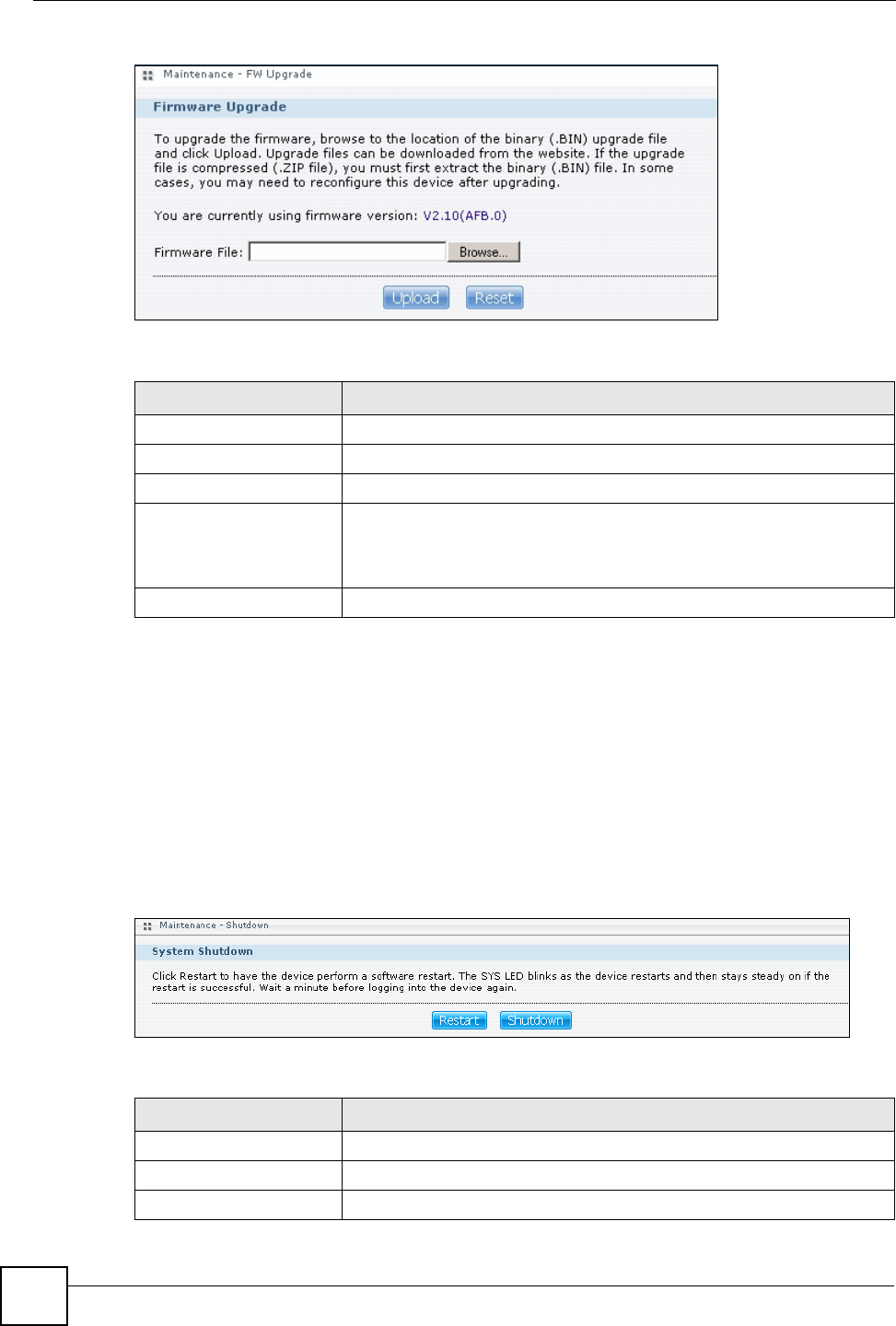
Chapter 11 Maintenance Screens
NSA-220 User’s Guide
132
Figure 92 Maintenance > FW Upgrade
The following table describes the labels in this screen.
11.8 Shutdown
Click the Maintenance link in the Navigation panel and then click the Shutdown link or the
Shutdown tab to access the Maintenance > Shutdown screen.
Use this screen to turn off the NSA or perform a software restart. A software restart is faster
than turning the NSA off and then turning it on again. Before shutting down or restarting,
check the System Status > Active Sessions screen to make sure that no one is logged into the
NSA or transferring files to or from the NSA.
Figure 93 Maintenance > Shutdown
The following table describes the labels in this screen.
Table 47 Maintenance > FW Upgrade
LABEL DESCRIPTION
Firmware Upgrade
Firmware File Type the location of the firmware file you want to upload
Browse Click Browse to find the file on your computer
Upload Click Upload to upload the new firmware. The NSA automatically restarts
after you upgrade. Wait until the restart completes before accessing the
NSA again. If you interrupt the upgrade, then the NSA may become
unusable.
Reset Click Reset to begin configuring this screen afresh.
Table 48 Maintenance > Shutdown
LABEL DESCRIPTION
System Shutdown
Restart Click Restart to have the device perform a software restart.
Shutdown Click Shutdown to shut down the system and restart it again later.
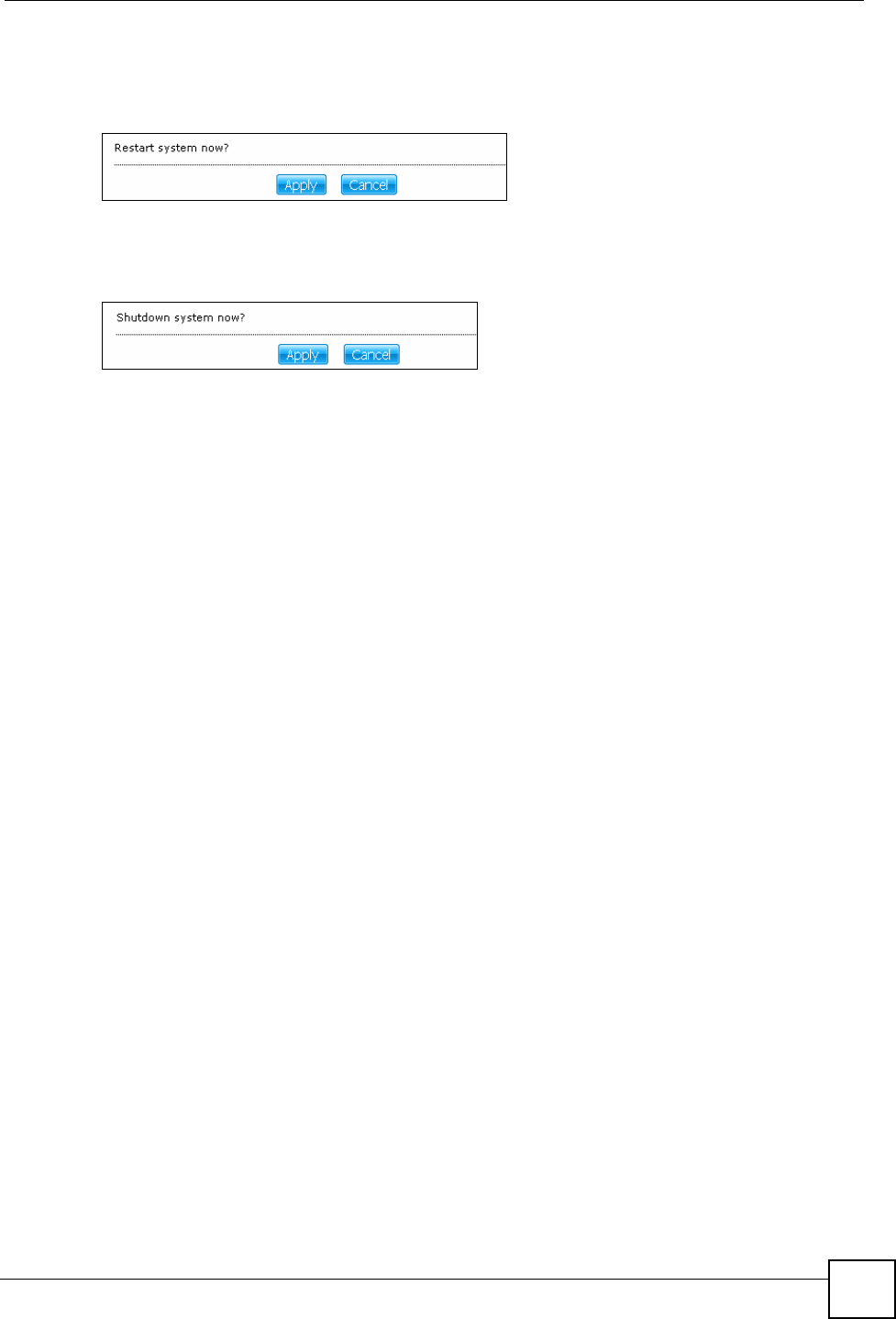
Chapter 11 Maintenance Screens
NSA-220 User’s Guide 133
When you click the Restart button a pop-up screen will appear asking you to confirm. Click
OK to continue or Cancel to quit the restart.
Figure 94 Maintenance > Shutdown > Confirm Restart
When you click the Shutdown button a pop-up screen will appear asking you to confirm.
Click OK to continue or Cancel to quit the shutdown.
Figure 95 Maintenance > Shutdown > Confirm Shutdown
Chapter 11 Maintenance Screens
NSA-220 User’s Guide
134
NSA-220 User’s Guide 135
CHAPTER 12
Protecting Your Data
This chapter compares the different ways of protecting data on the NSA and explains how to
use backup management software included on the CD.
12.1 Protection Methods
There are a variety of ways to protect your data on the NSA. Below is a summary table of what
can be done in each situation.
The following sections describe these methods in more detail. See Section 6.9 on page 81 for
more information on RAID.
12.1.1 Configuration File Backup and Restoration
Use the Maintenance > Configuration menus to create a file of your NSA configurations
such as passwords, shares and volumes created, network settings and so on. If you’re going to
do some major configuration changes, then it is advisable to create a configuration backup file.
If things go wrong after you make the configuration changes, you can always go back to the
previous configuration by restoring an earlier configuration file.
If you forgot the NSA password, then use the RESET button (see Section 15.3.1 on page 146)
to return the NSA to the factory default configuration.
Table 49 Overview of Protection Methods
SITUATION ACTION
Unexpected NSA behavior after configuration
changes Back up the NSA configuration file before you make
major configuration changes.
Need to transfer data from your computer to the
NSA after volume(s) have been created Use the Memeo Autobackup program.
Data infected by virus Use anti-virus software on your computer to scan
files before saving them onto the NSA. Although this
may be slow so you may want to schedule it to
occur while no one is using the NSA.
Use a firewall with anti-virus capability on your
network.
Hard drive malfunction. Use RAID.
NSA malfunction
Network down
Natural disaster such as a fire or earthquake
occurs where your NSA is located
Back up data to another NSA or external USB hard
drive.
Chapter 12 Protecting Your Data
NSA-220 User’s Guide
136
"Configuration File Backup and Restoration does not affect data (your files and
folders), volumes on the NSA.
12.1.2 Memeo Autobackup
Use the Memeo Autobackup software (included on the CD) on your computer to schedule and
manage backups. You can backup from your computer to the NSA. You can also backup from
one NSA on your network to another. You can set the Memeo Autobackup software to
automatically back up files from your computer to the NSA whenever you modify the files.
"The Memeo Autobackup program uses the same network port as the NDU to
discover the NSA. To avoid a port conflict, do not run the Memeo Autobackup
program at the same time as the NDU.

NSA-220 User’s Guide 137
CHAPTER 13
Media Client Software
This chapter introduces the media client software included on the CD.
13.1 Media Client Introduction
The NSA can function as a server to allow DLNA (Digital Living Network Alliance)
compliant media clients to play files. The DLNA is a group of leading personal computer and
electronics companies that works to make products compatible and able to work in a home
network in order to make digital living easy and seamless. The group’s members include
Nokia, Intel, Microsoft, Sony, Motorola, Philips, Samsung, Matsushita, and Hewlett-Packard.
Install the included DLNA-compliant media client software on your Windows XP computers
to let them browse and play files stored on the NSA.
• The software requires Windows XP.
• See the Quick Start Guide for how to install the media client software and the requirement
details.
13.2 Using the Media Client Software
Refer to the Quick Start Guide and the help (Start > All Programs > DigiOn > Help) for
details on how to use the media client software.
Chapter 13 Media Client Software
NSA-220 User’s Guide
138

NSA-220 User’s Guide 139
CHAPTER 14
Memeo Autobackup Software
This chapter introduces the Memeo Autobackup software included on the CD.
14.1 Memeo Autobackup Introduction
Use the Memeo Autobackup software included on the CD to automatically back up selected
files from your computer to the NSA whenever you modify the files. You can have Memeo
backup specific files, folders of files, or types of files.
Install the included DLNA-compliant Memeo Autobackup software on your Windows 2000 or
later computers to let them browse and play files stored on the NSA.
• The software requires Windows XP.
• See the Quick Start Guide for how to install the Memeo Autobackup software and the
requirement details.
14.2 Using the Memeo Autobackup Software
Refer to the Quick Start Guide for how to use the Memeo Autobackup software. The software
also includes help that you can display by clicking the help link in the screens.
Chapter 14 Memeo Autobackup Software
NSA-220 User’s Guide
140

142

NSA-220 User’s Guide 143
CHAPTER 15
Troubleshooting
15.1 Troubleshooting Overview
This chapter offers some suggestions to solve problems you might encounter. The potential
problems are divided into the following categories.
•Power, Hardware, Connections, and LEDs
•NSA Login and Access
•Reset the NSA
•I Cannot Access The NSA
•External USB Drives
•Media Server Functions
•Download Service and Broadcatching Functions
•Web Publishing
15.2 Power, Hardware, Connections, and LEDs
VThe NSA PWR LED does not turn on (no LEDs are on).
• Make sure the NSA is turned on.
• Make sure you are using the power adaptor or cord included with the NSA.
• Make sure the power adaptor or cord is connected to the NSA and plugged in to an
appropriate power source. Make sure the power source is turned on.
• Turn the NSA off and on.
• If the problem continues, contact the vendor.
V An HDD LED is off.
The HDD LED is off when the NSA cannot detect a hard drive in the drive bay. Replace or
install a hard drive. See Installing or replacing a hard drive
Chapter 15 Troubleshooting
NSA-220 User’s Guide
144
V An HDD LED is orange.
Orange means that the NSA detected an error on the hard drive (like a bad sector for example).
The NSA automatically tries to recover a bad sector, but the LED stays orange until the NSA
restarts. Even if the hard drive still functions, it is recommended that you replace it since errors
are a sign that the hard drive may fail soon. See Installing or replacing a hard drive
V An HDD LED is red.
Red means the hard drive has failed and the NSA can no longer detect it. Replace the hard
drive. See Installing or replacing a hard drive If you are using a RAID I volume, you may still
be able to use the volume but you should replace the faulty drive as soon as possible.
VInstalling or replacing a hard drive
1Do not remove or install hard drives while the NSA is turned on. The NSA must
be turned off before you remove or install hard drive(s).
1Turn the NSA off, remove the rear panel and the drive tray and make sure:
• there is a SATA I or SATA 3.0 Gbit/s compatible hard drive installed.
• the hard drive is installed correctly in the drive tray. Push the tray back into NSA drive
bay until the screw hole at the top of the drive tray is flush with the drive bay (see the
NSA Quick Start Guide and Section 6.6 on page 78).
• the hard drive could be faulty. Try a different hard drive or test the original hard drive
in a different NSA or computer.
2If you had to replace the drive, turn on the NSA and go to the Storage Setting screen.
• If you have a RAID I volume click the Repair icon next to the new drive.
• If you are using RAID 0 you will need to recreate the whole volume. All of your data
is lost.
• If you are using a single-disk JBOD volume, you need to create a new volume on the
new drive.
• If you are using a two-disk JBOD volume, you need to create a whole new volume on
both drives.

Chapter 15 Troubleshooting
NSA-220 User’s Guide 145
VThe LAN LED (by the LAN port) is off.
• Make sure the Ethernet cable is connected properly to the NSA and connected to another
(Ethernet) device. Make sure the other device is turned on. If it’s connected directly to a
computer, make sure that the computer network card is working (ping 127.0.0.1 on the
computer).
• Use another Ethernet cable. If you’re connecting to a Gigabit Ethernet, make sure you’re
using an 8-wire Ethernet cable.
• If the problem continues, contact the vendor.
See Section 1.1.1 on page 26 for a description of NSA LEDs.
15.3 NSA Login and Access
VI forgot the server name of the NSA.
• The default server name is nsa220.
• Use the NDU (NSA Discovery Utility) to discover your NSA. If you have admin
privileges, you can directly change the IP address of the NSA using the NDU.
• If the server name has changed and you don’t have the NDU, see Section 15.3.1 on page
146 to use the RESET button to return the default setting.
VI cannot get to the NSA login screen.
• Use the NDU (NSA Discovery Utility) to discover your NSA. If you have admin
privileges, you can directly change the IP address of the NSA using the NDU.
• If you used the RESET button, the NSA may have a new IP address. Close and reopen the
NDU to discover the NSA.
• Make sure the NSA is turned on.
• If you are trying to login directly by typing the server name into your web browser’s
address field, make sure you are using the correct server name as the web site address.
• The default server name is nsa220, if you have changed the server name, use the new
one.
• If the server name has been changed and you do not know the new server name, see
the troubleshooting suggestions for I forgot the server name of the NSA.
• If it still doesn’t work, try using the NDU.
• Check the hardware connections, and make sure the LEDs are behaving as expected. See
the Quick Start Guide and Section 1.1.1 on page 26.
Chapter 15 Troubleshooting
NSA-220 User’s Guide
146
• By default, the NSA gets an IP address automatically. The NSA assigns itself an IP
address if no device assigns one. If your computer is also set to get an IP address
automatically, the computer and the NSA can both assign themselves IP addresses and
communicate. See Chapter 7 on page 85 if you need to configure the NSA with a static IP
address.
• Make sure your computer’s IP address is in the same subnet as the NSA’s IP address. You
can use the NDU to find the NSA’s IP address. See Appendix A on page 165 for how to
change your computer’s IP address. Skip this if you know that there are routers between
your computer and the NSA.
• Ping the NSA from your computer. Make sure your computer’s Ethernet adapter is
installed and functioning properly. In a (Windows) computer, click Start, (All) Programs,
Accessories and then Command Prompt. In the Command Prompt window, type
“ping” followed by the NSA’s IP address (use the NDU to find the NSA’s IP address if
you don’t know it) and then press [ENTER].
• Make sure you are using Internet Explorer 6.0 (and later) or Firefox 1.07 (and later).
• Make sure your Internet browser does not block pop-up windows and has JavaScripts and
Java enabled. See Appendix B on page 179. With Internet Explorer 6, you may also have
to enable scripting of safe ActiveX controls. See Section 15.3.2 on page 147.
15.3.1 Reset the NSA
If you forget your password or cannot access the web configurator, use the RESET button at
the rear of the NSA. When you use the following reset procedure, the system name and admin
password are returned to the factory defaults.
You may need to close and re-open the NDU to discover the NSA. This is because the NSA
automatically re-acquires IP address information, so its IP address may change since. If no IP
address information is assigned, the NSA uses Auto-IP to assign itself an IP address and
subnet mask. For example, you could connect the NSA directly to your computer. If the
computer is also set to get an IP address automatically, the computer and the NSA will choose
addresses for themselves and be able to communicate.
1Press and hold the RESET button (for about two seconds) until you hear a beep, and
then release it.
2The NSA automatically restarts to complete the reset.
VI forgot the password.
• The default password is 1234.
• If you have changed the password and forgotten it, you will have to reset the NSA - see
Section 15.3.1 on page 146.
VThe NDU cannot discover my NSA.
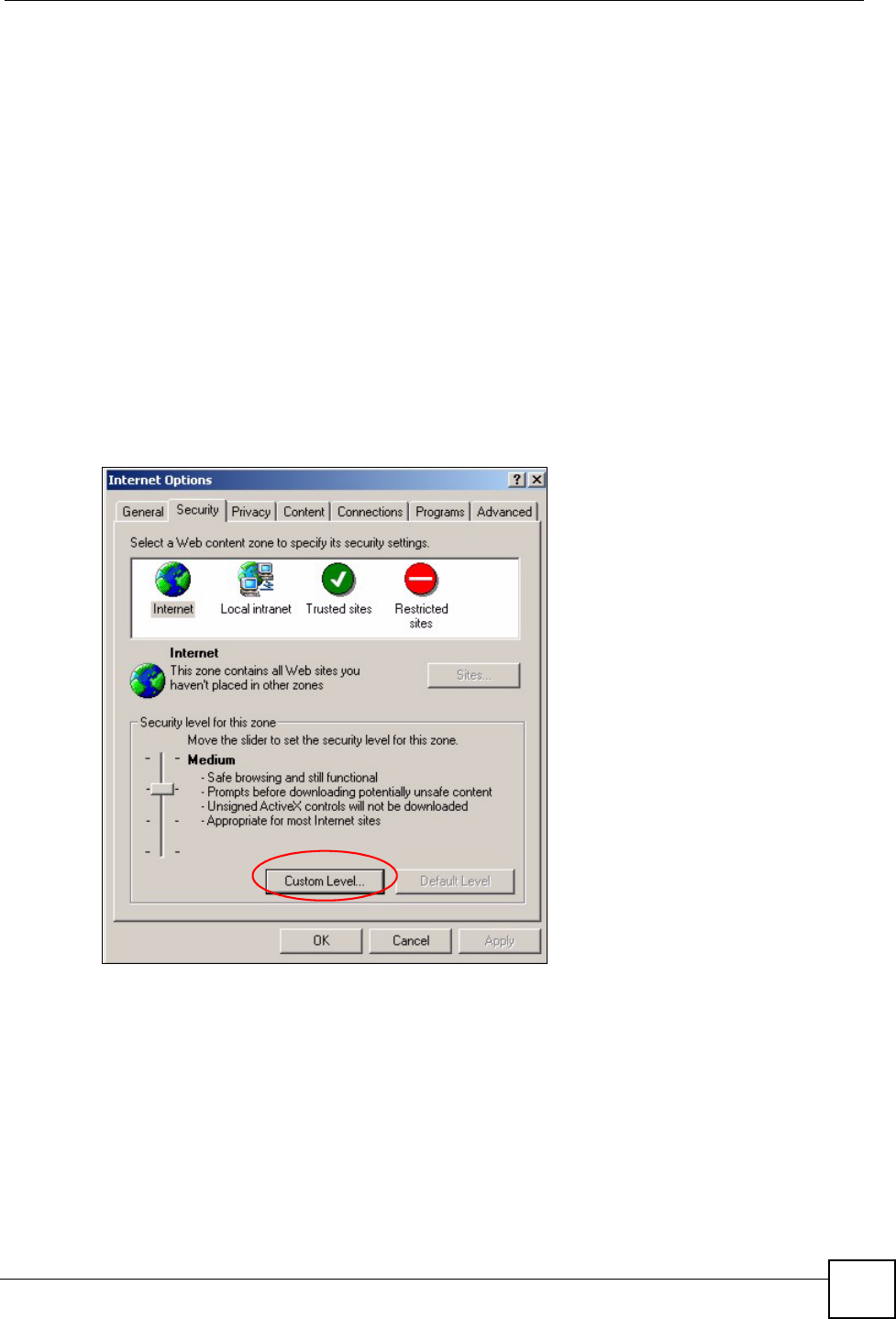
Chapter 15 Troubleshooting
NSA-220 User’s Guide 147
• Confirm that the computer running the NDU has a network connection. See the section on
the NSA’s LAN connection for related information.
• The computer running the NDU can only discover NSAs in the same subnet. NSAs
connected to the same switch or router as your NDU computer are usually in the same
subnet unless the router is doing subnetting or the switch is implementing VLAN.
• The Memeo Autobackup program uses the same network port as the NDU to discover the
NSA. To avoid a port conflict, do not run the Memeo Autobackup program at the same
time as the NDU.
• Close the NDU and reopen it.
15.3.2 Enabling Scripting of Safe ActiveX Controls
If pages of the web configurator do not display properly in Internet Explorer, check that
scripting of safe ActiveX controls is enabled.
1In Internet Explorer, click Tools, Internet Options and then the Security tab.
Figure 96 Internet Options: Security
2Click the Custom Level... button.
3Under Script ActiveX controls marked safe for scripting, make sure that Enable is
selected (the default).
4Click OK to close the window.
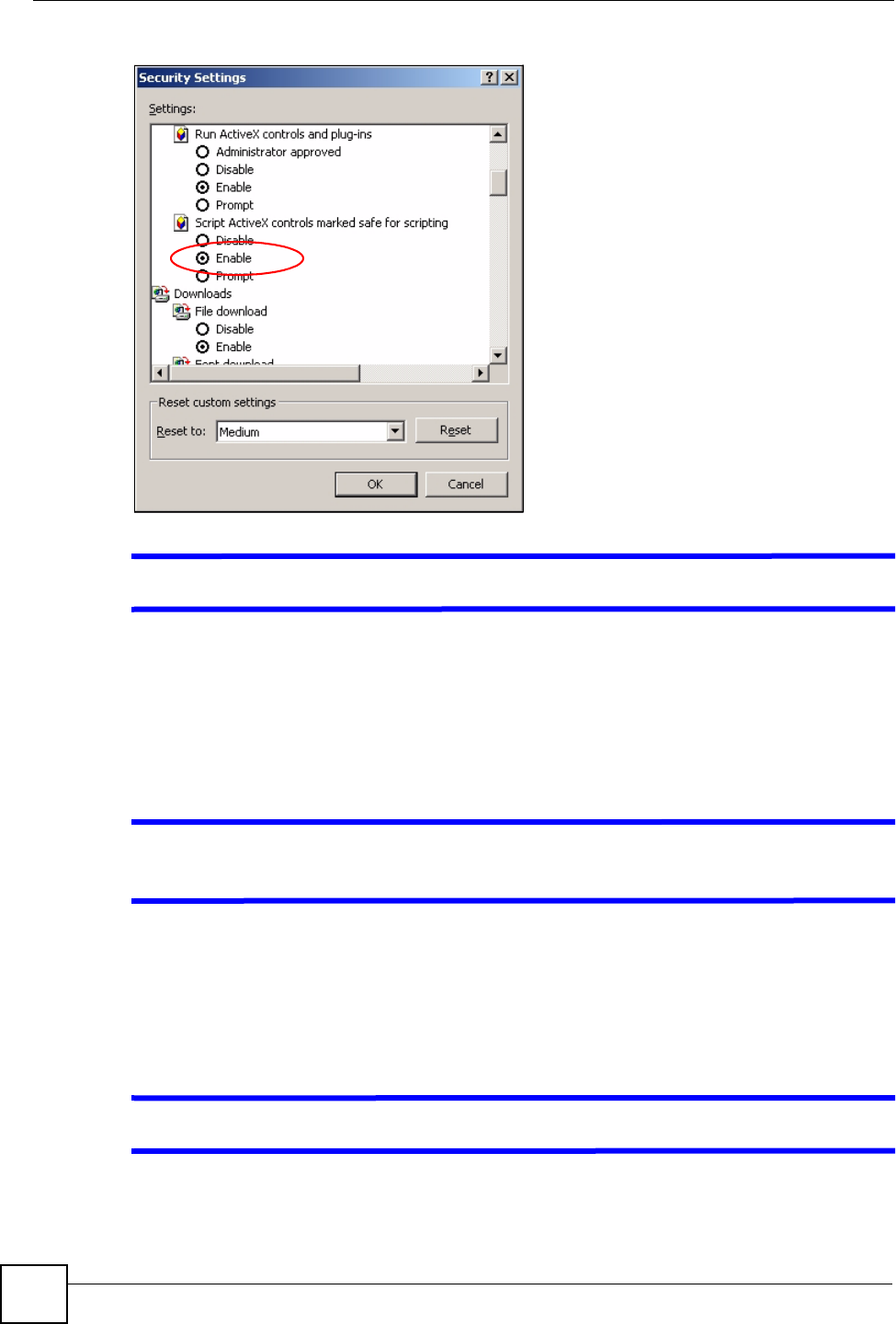
Chapter 15 Troubleshooting
NSA-220 User’s Guide
148
Figure 97 Security Settings - Script Safe ActiveX Controls
VI can see the login screen, but I cannot log in to the NSA.
• Make sure you have entered the username and password correctly. The default username is
admin, and the default password is 1234. These fields are case-sensitive, so make sure
[Caps Lock] is not on.
• Turn the NSA off and on.
• If this does not work, see Section 15.3.1 on page 146 to reset the device.
VI cannot see the multi-language web configurator screens while using Internet
Explorer.
Use Section 15.3.2 on page 147 to enable the scripting of safe ActiveX controls.
15.4 I Cannot Access The NSA
VI cannot access a share

Chapter 15 Troubleshooting
NSA-220 User’s Guide 149
• Check that the NSA is turned on and connected to the network. Try to ping the NSA or use
the NDU to discover it.
• Check that you entered your login name and password correctly.
• Check that the share exists and check its access settings.
• Check if the shared folder is a subfolder of another (parent) share. Check that the parent
share’s access rights do not conflict with the subfolder share. It is recommended that you
do not create subfolder shares.
• Check if there are any existing mapped network drives to the NSA. You may need to
disconnect existing mapped network drives as a new mapped network drive connection
may use (different) previously-saved login information. To do this, open Windows
Explorer and click Tools > Disconnect Mapped Network Drives.
• Check that the volume in which the share resides, exists and is not down or degraded. If it
is down or degraded, see Section 15.2 on page 143.
• Make sure you have the client for Microsoft networks installed and enabled in your
network connection’s properties.
• In Windows XP or 2000, click Start > Settings > Control Panel > Network
Connections (Network and Dial-up Connections in Windows 2000/NT) > Local
Area Connection > Properties.
• Check that Client for Microsoft Networks is in the list of components and has its
check box selected.
15.5 External USB Drives
VMy external USB drive is read-only.
If your USB drive was formatted as NTFS, then it is read-only on the NSA (the volume status
displays as OK). To solve this problem, re-format your USB drive using the NSA (or FAT or
FAT32 using a computer). See Chapter 6 on page 73 for information on volume creation using
the NSA (recommended). Back up the files on your computer before you format the USB
drive.
VThe COPY LED is red.
Copying files from a USB device failed. The USB device may not be compatible with the
NSA. Try save the files onto a computer and then from the computer to the NSA (through the
network connection).
Chapter 15 Troubleshooting
NSA-220 User’s Guide
150
15.6 Some Features’ Screens Do Not Display
VMany NSA features require a valid internal volume.
Features like the print server, download service, broadcatching, FTP and Windows/CIFS
access will not work without a valid internal volume. Make sure you have a volume on an
internal disk and that the volume is in the healthy state.
• Install an internal disk if one is not installed yet or has failed. See the Quick Start Guide
for how to install an internal disk.
• Create a new volume if you do not have one on the internal disk yet.
• Make sure the volume on the installed internal disk is in the healthy state.
15.7 Media Server Functions
VI set the media server function to publish a folder, but some of the files in the
folder do not display in the list on the media client.
Files with formats that are not supported on the media server may not display in the list. See
Appendix on page 160 for the file formats that the media server supports.
VI published a folder with the media server function, but the media client does
not play some of the files (or does not play them properly).
1Files with formats that are not supported on the media server may not display in the list.
See Appendix on page 160 for the file formats that the media server supports.
2If you are using media client software, you may need to install codecs on your computer.
Since the media client software uses your computer’s installed codecs, files do not play
if the required codec is not installed on your computer.
3The media client may not support the file’s format.
ViTunes does not display the names of all the music or video files I just put on
the NSA.
1Make sure the files are a format supported by iTunes. See Section 16.5 on page 160.
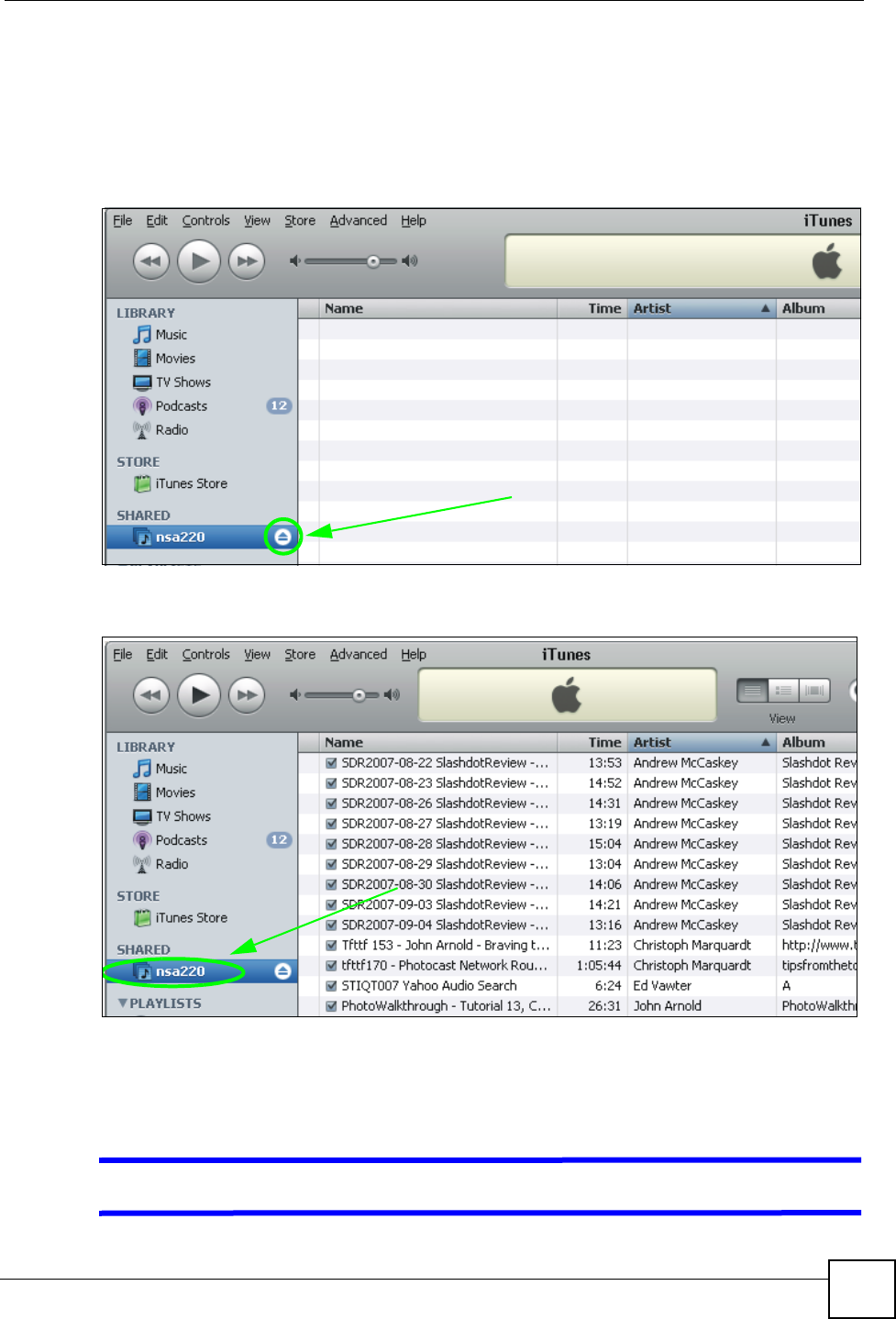
Chapter 15 Troubleshooting
NSA-220 User’s Guide 151
2Go to Applications > Media Server. Make sure the share containing the music and
video files is published and the iTunes server option is enabled.
3If an iTunes client is connected, the NSA’s iTunes server function scans the published
media server folders for files every three minutes. Leave iTunes connected to the NSA
for three minutes. Then use the NSA’s eject button (as shown next) to disconnect.
Figure 98 iTunes Eject Button
4Then click the NSA’s link to reconnect.
Figure 99 iTunes Reconnected
5Another way to get the NSA’s iTunes server function to scan the published media server
folders for files is to go to Applications > Media Server and disable and re-enable the
iTunes server option. If you uploaded many files, it may take awhile for the NSA to find
and list all of them. Then try reconnecting your iTunes client.
VI cannot use iTunes to play files located on my NSA.
Chapter 15 Troubleshooting
NSA-220 User’s Guide
152
1Make sure the files are a format supported by iTunes. See Section 16.5 on page 160.
2If you have files from the iTunes Store that use DRM, you need to use your Apple
account ID and password to authorize other computers to play the files. Apple permits
you to authorize up to five computers at a time. To authorize a computer, open iTunes
and click Store > Authorize Computer.
3If you are connecting through a NAT router, make sure that TCP port 3689 and UDP port
5353 are open for traffic on both the server and the client and all points in between
(especially the NAT router). If your router includes a firewall, make sure it also allows
TCP port 3689 and UDP port 5353 traffic.
15.8 Download Service and Broadcatching Functions
VThe download list or broadcatching items are missing after I removed a hard
drive.
The NSA’s download and broadcatching lists are stored on the system volume. If you have
two JBOD volumes, it is possible to remove one and still use the other. However if you
remove the system volume, you may lose the download and broadcasting lists. With two
JBOD volumes, the hard disk that was installed first is usually the system volume.
15.9 Web Publishing
VA web-published share cannot be accessed by web browser from the Internet.
• Make sure the person trying to access the share is using the correct web address (and port
number if the NSA’s web publishing feature is not using port 80). See Section 8.9.2 on
page 102 for details.
• Make sure the publishing feature is turned on and the share is in the list of published
shares.
• Make sure the person trying to access the share is using Internet Explorer 6.0 (and later) or
Firefox 1.07 (and later).
• You need to use a public address to access the NSA’s web-published shares from the
Internet. If your NSA uses a private IP address, use the public IP address of your Internet
gateway (firewall) and configure NAT or port forwarding on your Internet gateway and
possibly firewall rules in order to let people access the NSA’s web-published shares from
the Internet.
• Make sure the firewall’s public IP address is static or that the firewall uses a Dynamic
Domain Name (DDNS).
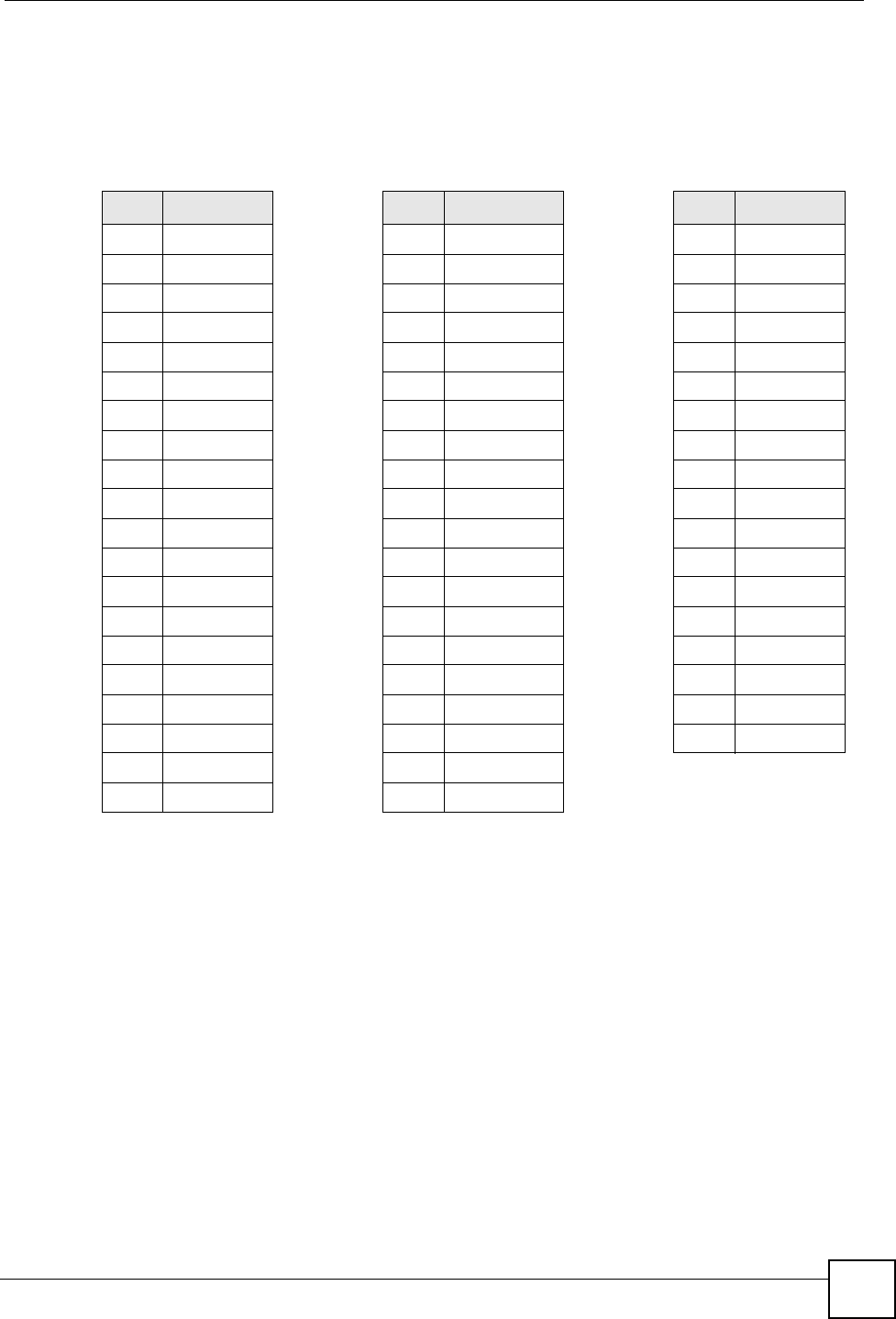
Chapter 15 Troubleshooting
NSA-220 User’s Guide 153
• Web publishing uses TCP protocol and the port number you specify. Make sure there is
not another service using TCP protocol with the same port number. See Appendix C on
page 187 for a list of common services and their associated protocols and port numbers.
• If Firefox access to the share does not work, check that you did not set the Web publishing
feature to use one of the following ports. (Firefox blocks these ports by default.)
• Make sure your ISP allows you to run a server and is not blocking the port number of the
NSA’s web publishing feature.
Table 50 Ports Blocked By Default in Firefox
PORT SERVICE PORT SERVICE PORT SERVICE
1 tcpmux 95 supdup 513 login
7 echo 101 hostriame 514 shell
9 discard 102 iso-tsap 515 printer
11 systat 103 gppitnp 526 tempo
13 daytime 104 acr-nema 530 courier
15 netstat 109 POP2 531 chat
17 qotd 110 POP3 532 netnews
19 chargen 111 sunrpc 540 uucp
20 ftp data 113 auth 556 remotefs
21 ftp control 115 sftp 563 NNTP+SSL
22 ssh 117 uucp-path 587 submission
23 telnet 119 NNTP 601 syslog
25 smtp 123 NTP 636 LDAP+SSL
37 time 135 loc-srv epmap 993 IMAP+SSL
42 name 139 netbios 995 POP3+SSL
43 nicname 143 IMAP2 2049 nfs
53 domain 179 BGP 4045 lockd
77 priv-rjs 389 LDAP 6000 X11
79 finger 465 SMTP+SSL
87 ttylink 512 print exec
Chapter 15 Troubleshooting
NSA-220 User’s Guide
154
NSA-220 User’s Guide 155
CHAPTER 16
Product Specifications
See also Chapter 1 on page 25 for a general overview of the key features.
16.1 Physical Features
These are the main external physical features.
16.2 Firmware Features
These are some of the main firmware features of the NSA.
Table 51 Physical Features
USB Ports 2 USB (version 2) ports.
Copy files directly to the NSA from compatible USB devices like card
readers, MP3 players, memory sticks, and digital cameras without
using a computer.
Expand the NSA’s storage capacity with compatible USB devices
(like hard drives).
Gigabit Ethernet Port The 10/100/1000 Mbps auto-negotiating Ethernet port allows the
NSA to detect the speed of incoming transmissions and adjust
appropriately without manual intervention. It allows data transfer of
either 100 Mbps or 1000 Mbps in either half-duplex or full-duplex
mode depending on your Ethernet network. Use an 8-wire Ethernet
cable for Gigabit connections. The port is also auto-crossover (MDI/
MDI-X) meaning it automatically adjusts to either a crossover or
straight-through Ethernet cable.
SATA Interface Serial ATA is a low cost interface technology that allows high speed
data transfer. Serial ATA also allows more efficient internal airflow
and also smaller chassis design.
RESET Button If you forget your (admin) password, then use the RESET button to
restore the factory default password to “1234” (with username
“admin”), and auto-IP address (DHCP client).
Table 52 Firmware Features
DLNA Server The NSA is a DLNA-certified media server that lets DLNA-compliant
media clients play video, audio, and photo content files stored on the
NSA.
DLNA Client Software The DLNA-certified media client software (included on the CD) lest
your Windows XP computers browser and play media files stored on
the NSA.
Chapter 16 Product Specifications
NSA-220 User’s Guide
156
16.3 Specification Tables
The NSA hardware specifications are shown in the following table.
RAID File Storage Use RAID 0 if you want pure write speed and/or maximum capacity
for your drives, and/or you have other means of protecting your data.
Use RAID 1 if you have two drives and want to mirror primary data to
the second drive. If one drive fails, replace it and then re-synchronize
to recover all data.
User Passwords Configure a password for an individual User to restrict access to the
NSA.
Client Support Data can be shared among all Windows, Mac, Linux, and UNIX users
that have FTP client software or CIFS file sharing support (such as
Samba for Linux and UNIX users).
The NSA is also a DLNA-certified media server that lets DLNA-
compliant media clients play video, audio, and photo content files
stored on the NSA.
HTTP Access the NSA using a regular web connection (HTTP).
DHCP (Dynamic Host
Configuration Protocol) DHCP (Dynamic Host Configuration Protocol) allows the NSA to
obtain an IP address and subnet mask at start-up from a centralized
DHCP server. Alternatively, you can give the NSA a static IP address
and subnet mask.
Full Network Management The embedded web configurator is an platform-independent web-
based utility that allows you to easily access the NSA’s management
settings.
Hard Disk Drive Power
Saving If a hard disk inside the NSA is idle for six minutes, the NSA puts it to
sleep until you use it again.
Firmware Upload and
Configuration File
Management
Upload new firmware to the NSA using the web configurator. You can
also back up and restore the NSA configuration file containing all its
settings to/from your computer.
NSA Discovery Utility (NDU) Use the NDU from a Windows computer to find NSA(s) in your
network, access the NSA login page, change its IP address
configuration or map to a Windows network drive.
Memeo Autobackup Memeo Autobackup is a tool for Windows users to create backups of
data stored on their Windows computers to an NSA. This software is
included on the CD.
Time and Date Configure a time server and set a time zone for your NSA to show the
correct times in logs.
Table 52 Firmware Features
Table 53 NSA Hardware Specifications
Default IP Address DHCP client. If no DHCP server is found, the NSA uses Auto-IP to choose
an IP address in the 169.254.X.X subnet (where X is a number from 1 to
254).
Default Subnet Mask DHCP client by default. If no DHCP server is found, the subnet mask
defaults to 255.255.255.0 (24 bits).
Default Username admin
Default Password 1234
Dimensions 113 (W)*202 (D)*142 (H) mm
Weight 1.5 kg (without hard drives)
Drive Trays Two
Chapter 16 Product Specifications
NSA-220 User’s Guide 157
The NSA firmware specifications are shown in the following table
Compatible Hard DisksASATA I and SATA 3.0 Gbit/s (Serial Advanced Technology Attachment)
compatible hard drives.
Maximum Storage
Capacity 1.5 TB (with two 750 GB hard drives installed) is the largest storage
capacity that has been tested as of this writing.
The NSA theoretically supports up to 17.6 TB per volume for a maximum
possible capacity of 35.2 TB with two 17.6 TB drives configured as JBOD
volumes.
Maximum Number of
Folders Per Share The NSA’s media server function can detect up to 8,000 folders within a
single published share.
After 8,000 folders have been created, new folder contents will not be
added to the media server's list. However you can still access the folders
using Samba.
Ports
Ethernet One auto-negotiating, auto MDI/MDI-X 10/100/1000B Mbps RJ-45 Ethernet
port (1000BASE-T)
USB v2.0 Storage Two ports on front panel.
Windows: NTFS (read only), FAT32 and FAT16
Linux: ReiserFS, EXT2, and EXT3
LEDs PWR, SYS, HDD1, HDD2, COPY, and LAN
Operating Temperature 0º C ~ 45º C
AC Input Voltage: 100 - 240 V at 50 - 60 Hz
Current: 3.42 A
Storage Temperature -30º C ~ 60º C
Operating Humidity 20% ~ 90% RH (non-condensing)
Storage Humidity 20% ~ 95% RH (non-condensing)
Certifications EMC: FCC Part15B, CE-EMC, VCCI, BSMI
Safety: CSA International, EN60950-1
A. Hard drives may not be included with your NSA.
B. Use an 8-wire Ethernet cable for Gigabit connections.
Table 54 NSA Firmware Specifications
File Storage System JBOD, RAID 0, 1,
Network Protocols TCP/IP, UDP/IP
DHCP Client
FTP
HTTP
File Management Create/Delete System Volume
Network File Sharing Protocol CIFS/SMB for Windows and Mac OSX
HTTP for web browser
FTP
Network Security Authentication
Share level
Table 53 NSA Hardware Specifications (continued)
Chapter 16 Product Specifications
NSA-220 User’s Guide
158
The following list, which is not exhaustive, illustrates the standards and recommendations
supported in the NSA.
Supported Clients Windows 2000 Professional/Server
Windows XP Home/Professional
Windows 2003
Windows Vista
Linux
Maximum Number of Users
Allowed 100A
Maximum Number of
Concurrent FTP Sessions 20A
Maximum Number of
Concurrent CIFS Sessions 20A
System Management Remote Management via Web Configurator (HTTP)
NSA Discovery Utility (NDU)
Logging/Monitoring Centralized Logs
Firmware Upgrade Web Configurator
Web Browsers Supported Internet Explorer 6.0 and later versions.
Firefox 1.07 and later versions.
A. Limits may vary depending on user-share resource usage.
Table 55 Supported Standards and Recommendations
CSS level 1 Cascading Style Sheets.
CSS level 2 revision 1
(“CSS 2.1”) Cascading Style Sheets.
DATETIME "Date and Time Formats", W3C (World Wide Web Consortium) Note, M.
Wolf and C. Wicksteed, 15 September 1997. Revised 27 August 1998. See
http://www.w3.org/TR/1998/NOTE-datetime-19980827
DLNA v1 Server The DLNA (Digital Living Network Alliance) group of companies works to
make products compatible and able to work in a home network in order to
make digital living easy and seamless. DLNA clients play files stored on
DLNA servers.
ECMA-262 The original ECMAScript standard, also known as JavaScript.
ECMA-262 Edition 2 The ECMAScript standard’s second revision; also ISO standard 16262.
ECMA-262 Edition 3 The ECMAScript standard’s third revision; corresponds to JavaScript 1.5.
ECMA-357 ECMAScript for XML (E4X). See also the E4X errata.
HTML 3.2 Reference
Specification The HyperText Markup Language (HTML).
HTML 4.01 Specification Defines the HyperText Markup Language (HTML), the publishing language
of the World Wide Web.
ISO 3166-1 Country names (official short names in English) in alphabetical order as
given in ISO 3166-1 and the corresponding ISO 3166-1-alpha-2 code
elements.
ISO 639-2 Two-letter and three-letter language code sets.
MIMETYPES IANA registered content types (MIME types). See the IANA web site (ftp://
ftp.isi.edu/in-notes/iana/assignments/media-types/).
Table 54 NSA Firmware Specifications (continued)
Chapter 16 Product Specifications
NSA-220 User’s Guide 159
ISO 15740 Picture Transfer Protocol (PTP) from the International imaging Industry
Association allows you to transfer pictures from digital cameras or other
devices without needing additional device drivers.
RFC 1001 (STD-19) - Protocol standard for NetBIOS service on a TCP/UDP transport:
Concepts and methods
RFC 1002 (STD-19) - Protocol standard for NetBIOS service on a TCP/UDP transport:
Detailed specifications
RFC 1034 (STD-13) - Domain names - concepts and facilities
RFC 1035 (STD-13) - Domain names - implementation and specification
RFC 1305 Network Time Protocol (NTP version 3)
RFC 1415 FTP-FTAM Gateway Specification
RFC 1510 The Kerberos Network Authentication Service (V5)
RFC 1738 Uniform Resource Locators (URL)
RFC 1808 Relative Uniform Resource Locators
RFC 1945 The Hypertext Transfer Protocol (HTTP) 1.0.
RFC 2131 Dynamic Host Configuration Protocol
RFC 2396 Uniform Resource Identifier (URI)
RFC 2396 Uniform Resource Identifiers (URI): Generic Syntax
RFC 2616 Hypertext Transfer Protocol (HTTP) 1.1.
RFC 2854 History of HTML development, and lists the relevant W3C (World Wide Web
Consortium) recommendations for the "text/html" MIME type.
RFC 3066, BCP 47 (Best
Current Practice) Language tags
RFC 3282 "Content-language:" headers.
RFC 3986 (STD-66) - Uniform Resource Identifier (URI): Generic Syntax
RFC 4120 The Kerberos Network Authentication Service (V5)
RFC 4248 The telnet URI Scheme
RFC 793 (STD-7) - Transmission Control Protocol
RFC 959 (STD-9) - File Transfer Protocol
SATA SATA I and SATA 3.0 Gbit/s (Serial Advanced Technology Attachment)
compatible hard drives. SATA 3.0 Gbit/s
UPnP
USB 2.0 USB (Universal Serial Bus) version 2.0 allows for interfacing devices with
data transfers rates of up to 480 Mbps.
XHTML 1.0 Extensible HyperText Markup Language (Second Edition)
XHTML 1.1 Module-based XHTML
Table 55 Supported Standards and Recommendations
Chapter 16 Product Specifications
NSA-220 User’s Guide
160
16.4 Supported Media Server Content Formats
The following describes the details about the files that the NSA media server can publish.
* Files may be converted to JPEG to allow play back on client applications that do not support
the original file formats.
"Not all published file types can be viewed by all client applications.
16.5 Supported iTunes Server Content Formats
At the time of writing, the NSA’s iTunes server can publish AAC (MPEG-4), MP3, AIFF,
WAV, and Apple Lossless files.
16.6 Power Consumption
The NSA was tested using the specified power sources with the external power adapter and
with two hard drives installed.
Table 56 Supported Media Server Content Formats
CATEGORY FILE TYPE EXTENSION
Video MPEG-1/MPEG-2 m2p, mpe, mpeg, mpg, vob
Windows Media Video asf, wmv
AVI avi
DivX divx , avi
DVR-MS dvr-ms
Music MP3 mp3
MPEG-4 AAC m4a
Ogg Vorbis ogg
WAVE wav
Windows Media Audio wma
M3U (Playlist) m3u
Photo Bitmap bmp
GIF* gif
JPEG jpeg, jpg
PNG png
TIFF* tiff, tif
Chapter 16 Product Specifications
NSA-220 User’s Guide 161
"This table is a laboratory test of NSA power consumption for your reference
only.
16.7 Compatible Hard Disks
The following hard disks have been tested and are known to be compatible with the NSA.
Table 57 Power Consumption in Watts (W)
POWER SOURCE SYSTEM BOOT UP SYSTEM READ/WRITE SYSTEM IDLE
240V/50Hz 58.14W 31.2W 23.9W
120V/60Hz 57.76W 29.3W 25.1W
100V/60Hz 58.14W 30.0W 25.1W
Table 58 Compatible Hard Disks
BRAND MODEL CAPACITY INTERFACE
Western Digital WD1600JS 160 GB SATA 3.0 Gbit/s
Seagate ST3200827AS 200 GB SATA 3.0 Gbit/s
Seagate ST3320820AS 320 GB SATA 3.0 Gbit/s
Seagate ST3500830AS 500 GB SATA 3.0 Gbit/s
Western Digital WD800 80 GB SATA I
Seagate ST3160023AS 160 GB SATA I
Hitachi HDS722516VLSA80 160 GB SATA I
Maxtor 6L120M0 120 GB SATA I
Hitachi HCS725032VLA380 320GB SATA 3.0 Gbit/s
Hitachi HCS725025VLA380 250GB SATA 3.0 Gbit/s
Seagate ST3160815AS 160GB SATA 3.0 Gbit/s
Seagate ST3750840AS 750GB SATA 3.0 Gbit/s
Seagate ST3160215SCE 160GB SATA 3.0 Gbit/s
Chapter 16 Product Specifications
NSA-220 User’s Guide
162

164

NSA-220 User’s Guide 165
APPENDIX A
Setting up Your Computer’s IP
Address
All computers must have a 10M or 100M Ethernet adapter card and TCP/IP installed.
Windows 95/98/Me/NT/2000/XP, Macintosh OS 7 and later operating systems and all
versions of UNIX/LINUX include the software components you need to install and use TCP/
IP on your computer. Windows 3.1 requires the purchase of a third-party TCP/IP application
package.
TCP/IP should already be installed on computers using Windows NT/2000/XP, Macintosh OS
7 and later operating systems.
After the appropriate TCP/IP components are installed, configure the TCP/IP settings in order
to “communicate” with your network.
Windows 95/98/Me
Click Start, Settings, Control Panel and double-click the Network icon to open the Network
window.
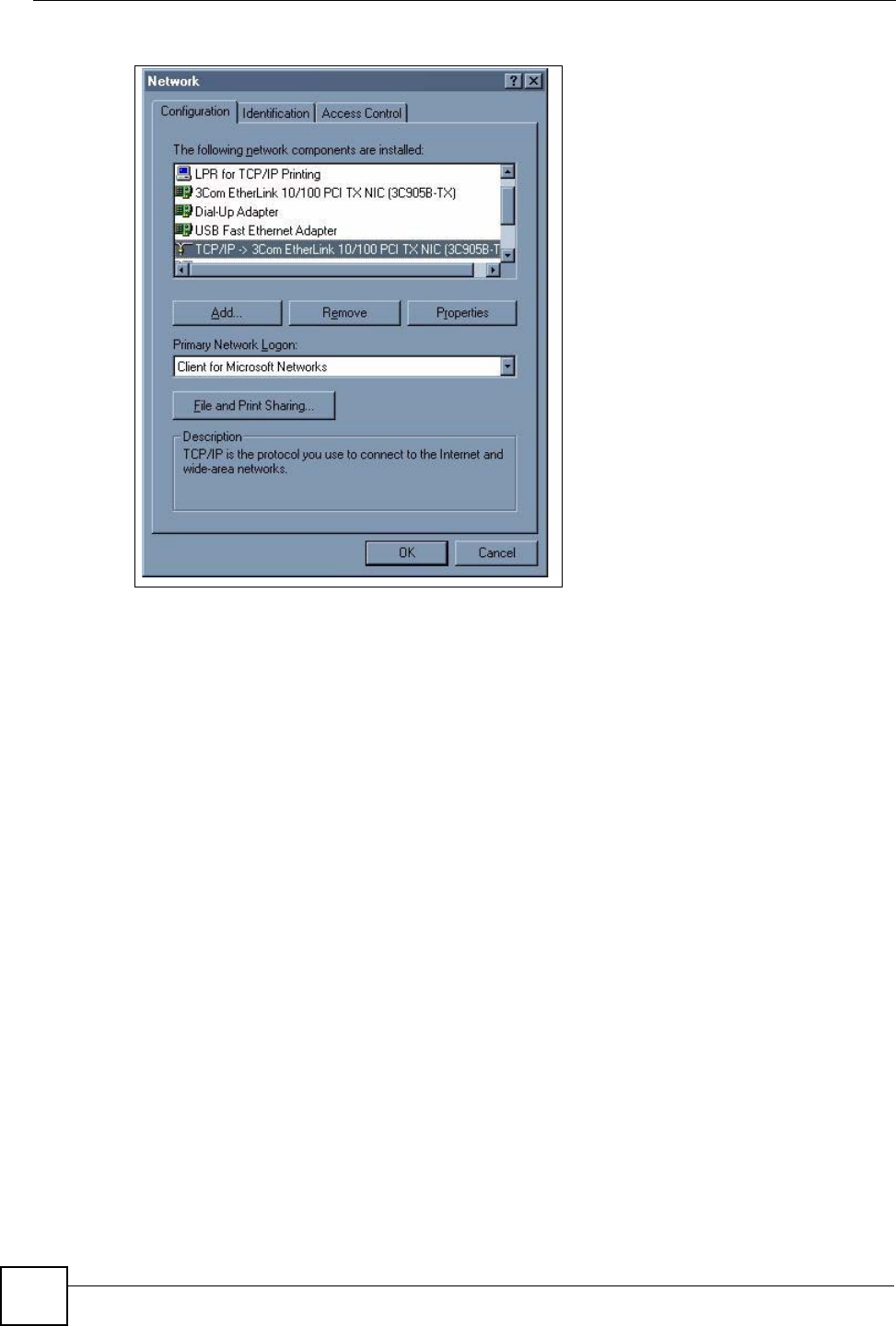
Appendix A Setting up Your Computer’s IP Address
NSA-220 User’s Guide
166
Figure 100 WIndows 95/98/Me: Network: Configuration
Installing Components
The Network window Configuration tab displays a list of installed components. You need a
network adapter, the TCP/IP protocol and Client for Microsoft Networks.
If you need the adapter:
1In the Network window, click Add.
2Select Adapter and then click Add.
3Select the manufacturer and model of your network adapter and then click OK.
If you need TCP/IP:
1In the Network window, click Add.
2Select Protocol and then click Add.
3Select Microsoft from the list of manufacturers.
4Select TCP/IP from the list of network protocols and then click OK.
If you need Client for Microsoft Networks:
1Click Add.
2Select Client and then click Add.
3Select Microsoft from the list of manufacturers.
4Select Client for Microsoft Networks from the list of network clients and then click
OK.
5Restart your computer so the changes you made take effect.
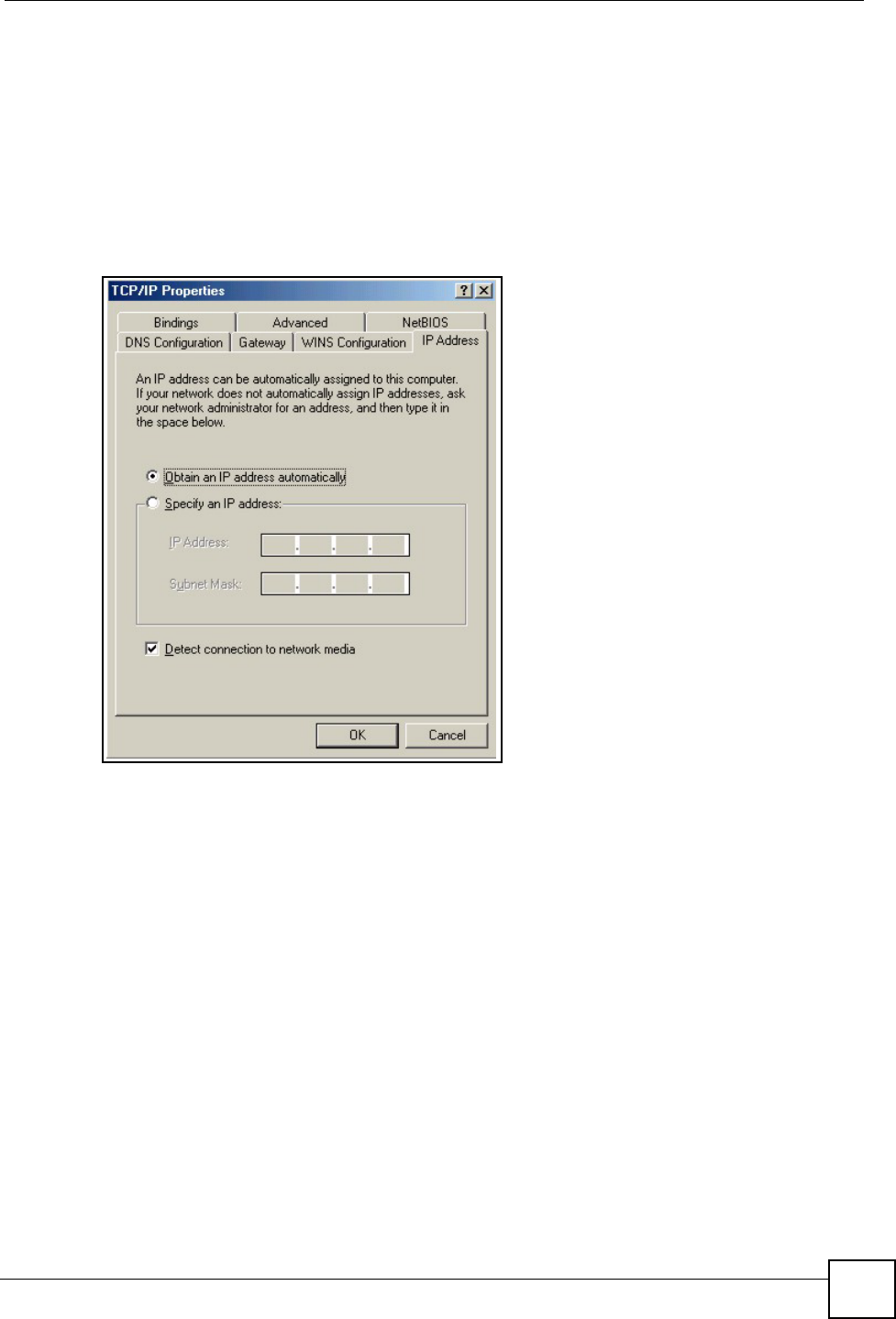
Appendix A Setting up Your Computer’s IP Address
NSA-220 User’s Guide 167
Configuring
1In the Network window Configuration tab, select your network adapter's TCP/IP entry
and click Properties
2Click the IP Address tab.
• If your IP address is dynamic, select Obtain an IP address automatically.
• If you have a static IP address, select Specify an IP address and type your
information into the IP Address and Subnet Mask fields.
Figure 101 Windows 95/98/Me: TCP/IP Properties: IP Address
3Click the DNS Configuration tab.
• If you do not know your DNS information, select Disable DNS.
• If you know your DNS information, select Enable DNS and type the information in
the fields below (you may not need to fill them all in).
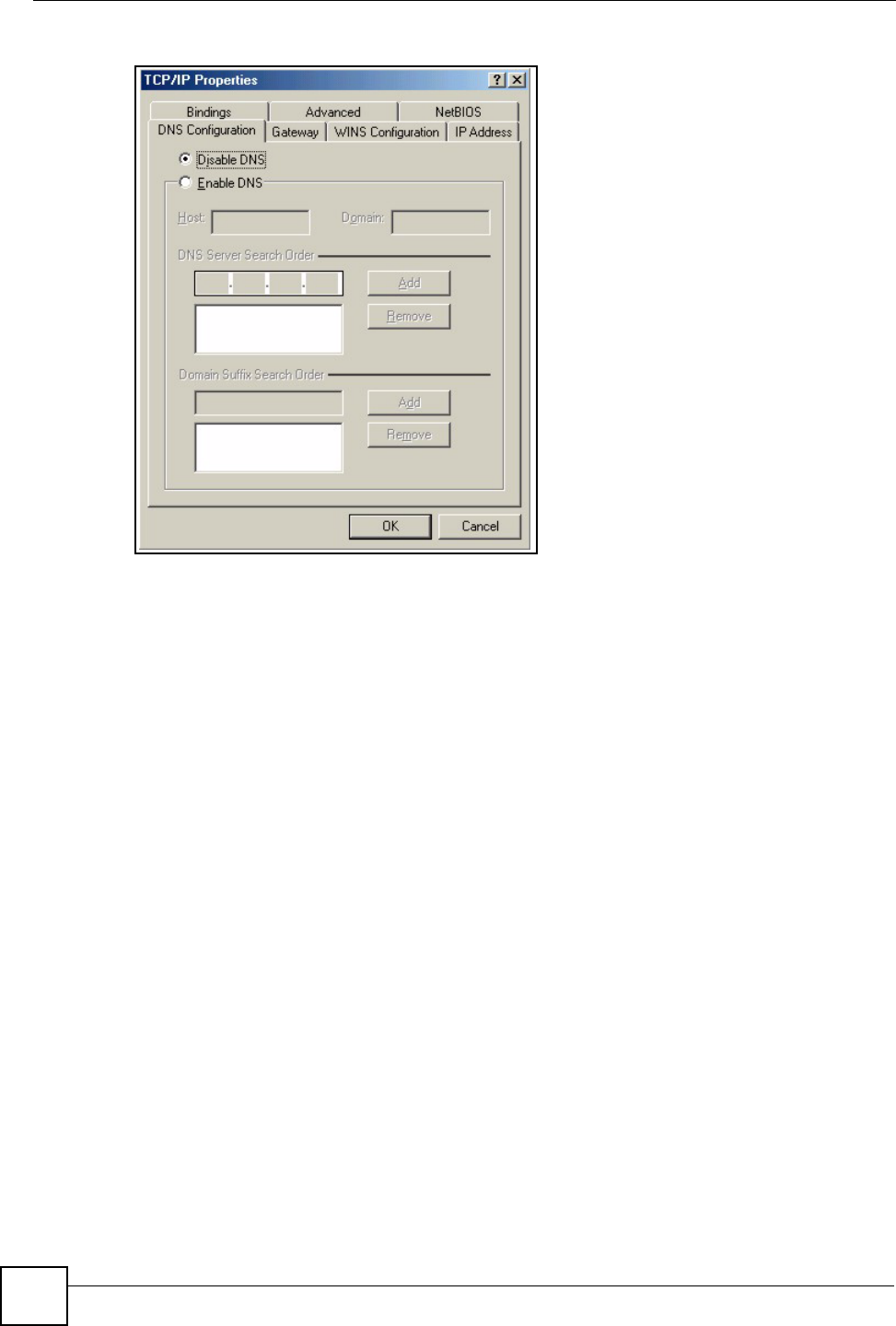
Appendix A Setting up Your Computer’s IP Address
NSA-220 User’s Guide
168
Figure 102 Windows 95/98/Me: TCP/IP Properties: DNS Configuration
4Click the Gateway tab.
• If you do not know your gateway’s IP address, remove previously installed gateways.
• If you have a gateway IP address, type it in the New gateway field and click Add.
5Click OK to save and close the TCP/IP Properties window.
6Click OK to close the Network window. Insert the Windows CD if prompted.
7Restart your computer when prompted.
Verifying Settings
1Click Start and then Run.
2In the Run window, type "winipcfg" and then click OK to open the IP Configuration
window.
3Select your network adapter. You should see your computer's IP address, subnet mask
and default gateway.
Windows 2000/NT/XP
The following example figures use the default Windows XP GUI theme.
1Click start (Start in Windows 2000/NT), Settings, Control Panel.
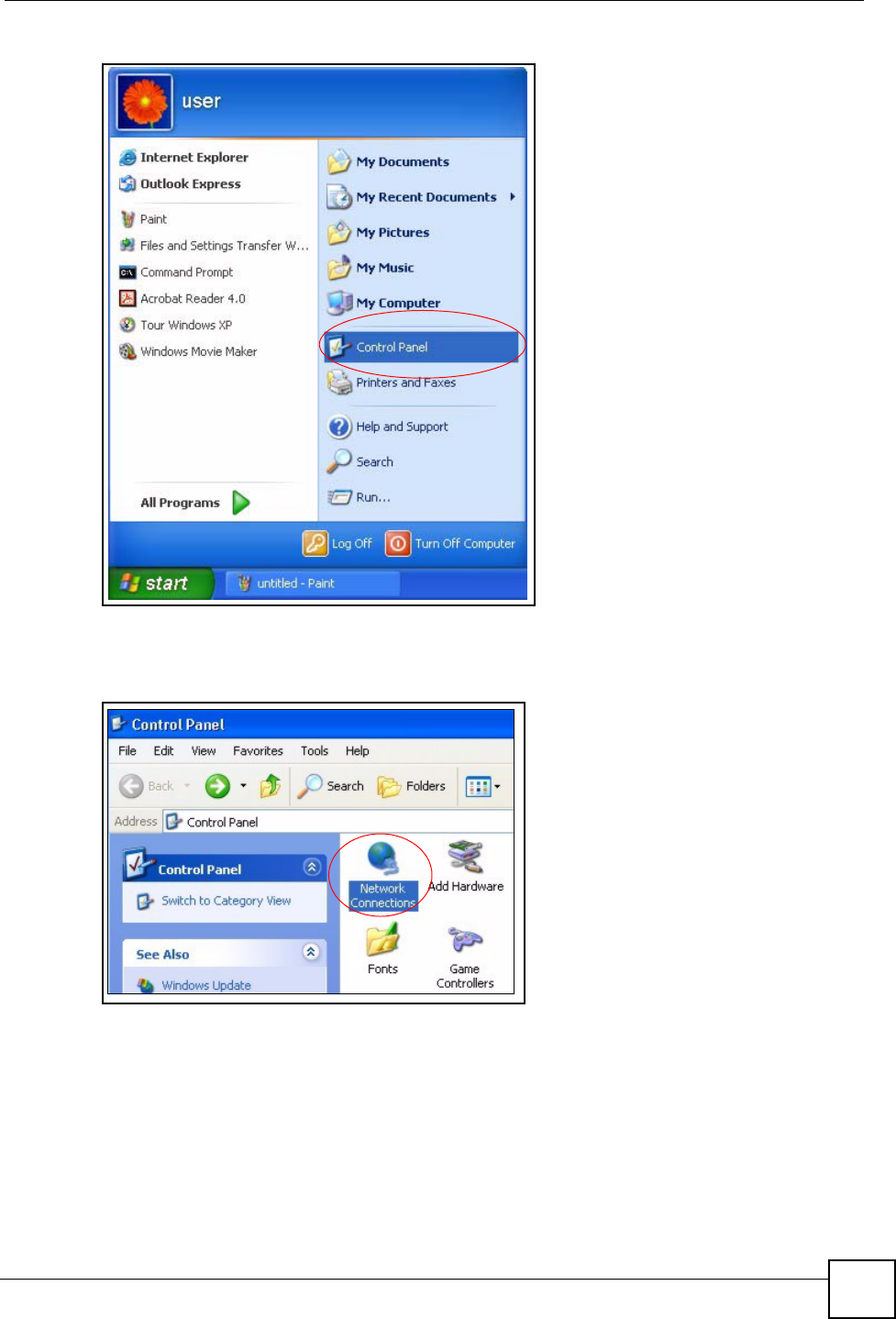
Appendix A Setting up Your Computer’s IP Address
NSA-220 User’s Guide 169
Figure 103 Windows XP: Start Menu
2In the Control Panel, double-click Network Connections (Network and Dial-up
Connections in Windows 2000/NT).
Figure 104 Windows XP: Control Panel
3Right-click Local Area Connection and then click Properties.
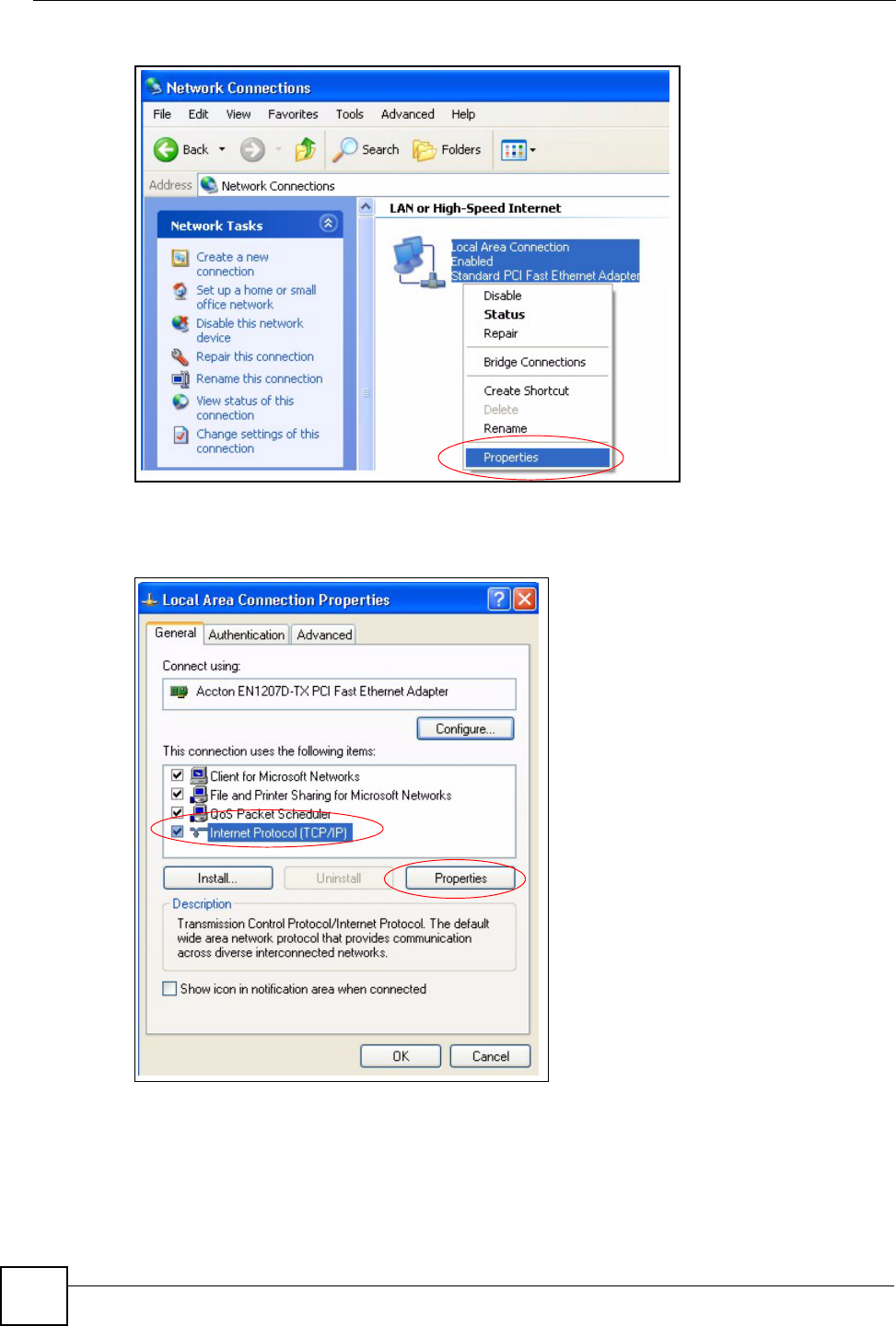
Appendix A Setting up Your Computer’s IP Address
NSA-220 User’s Guide
170
Figure 105 Windows XP: Control Panel: Network Connections: Properties
4Select Internet Protocol (TCP/IP) (under the General tab in Win XP) and then click
Properties.
Figure 106 Windows XP: Local Area Connection Properties
5The Internet Protocol TCP/IP Properties window opens (the General tab in
Windows XP).
• If you have a dynamic IP address click Obtain an IP address automatically.
• If you have a static IP address click Use the following IP Address and fill in the IP
address, Subnet mask, and Default gateway fields.
• Click Advanced.
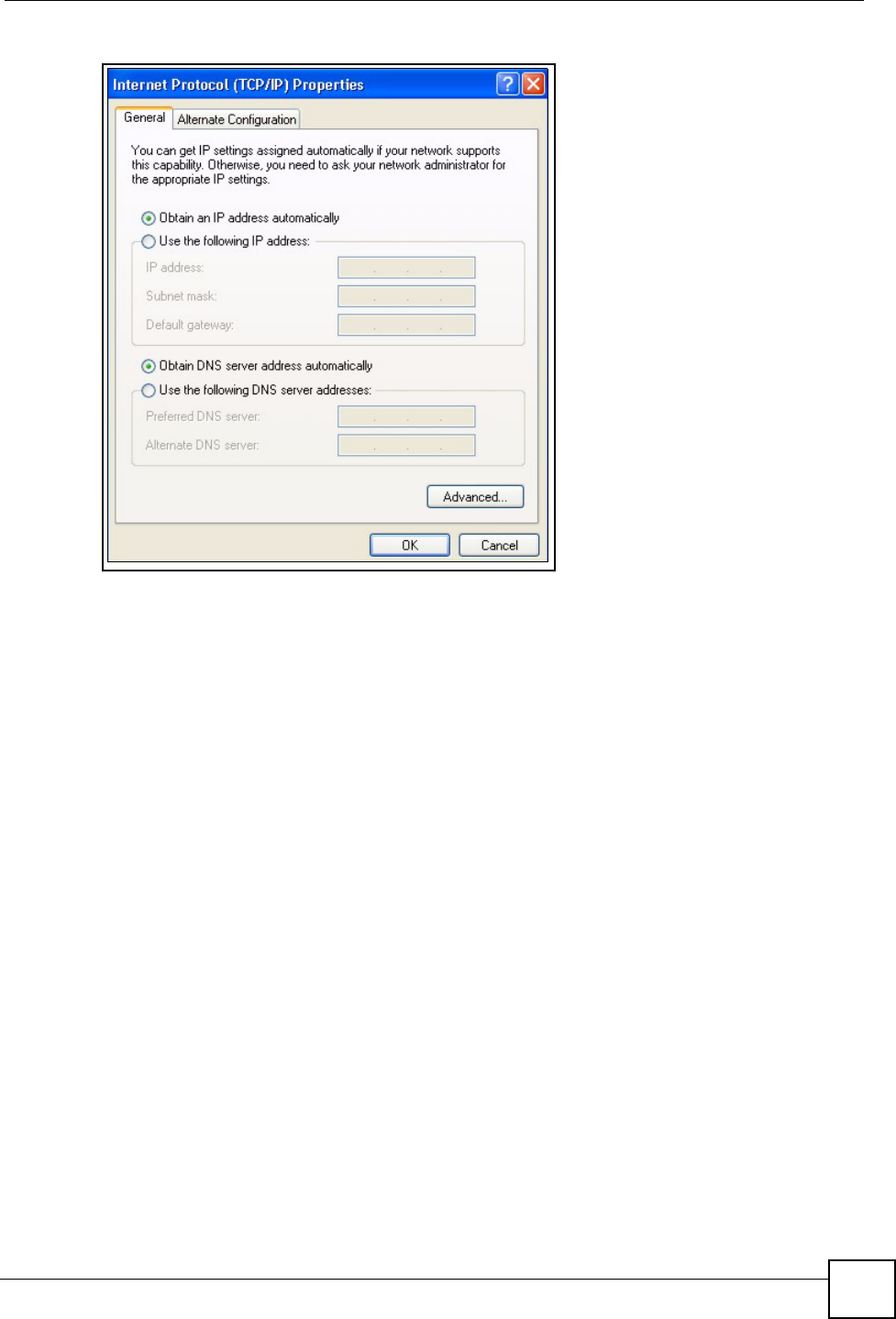
Appendix A Setting up Your Computer’s IP Address
NSA-220 User’s Guide 171
Figure 107 Windows XP: Internet Protocol (TCP/IP) Properties
6 If you do not know your gateway's IP address, remove any previously installed
gateways in the IP Settings tab and click OK.
Do one or more of the following if you want to configure additional IP addresses:
•In the IP Settings tab, in IP addresses, click Add.
•In TCP/IP Address, type an IP address in IP address and a subnet mask in Subnet
mask, and then click Add.
• Repeat the above two steps for each IP address you want to add.
• Configure additional default gateways in the IP Settings tab by clicking Add in
Default gateways.
•In TCP/IP Gateway Address, type the IP address of the default gateway in Gateway.
To manually configure a default metric (the number of transmission hops), clear the
Automatic metric check box and type a metric in Metric.
• Click Add.
• Repeat the previous three steps for each default gateway you want to add.
• Click OK when finished.
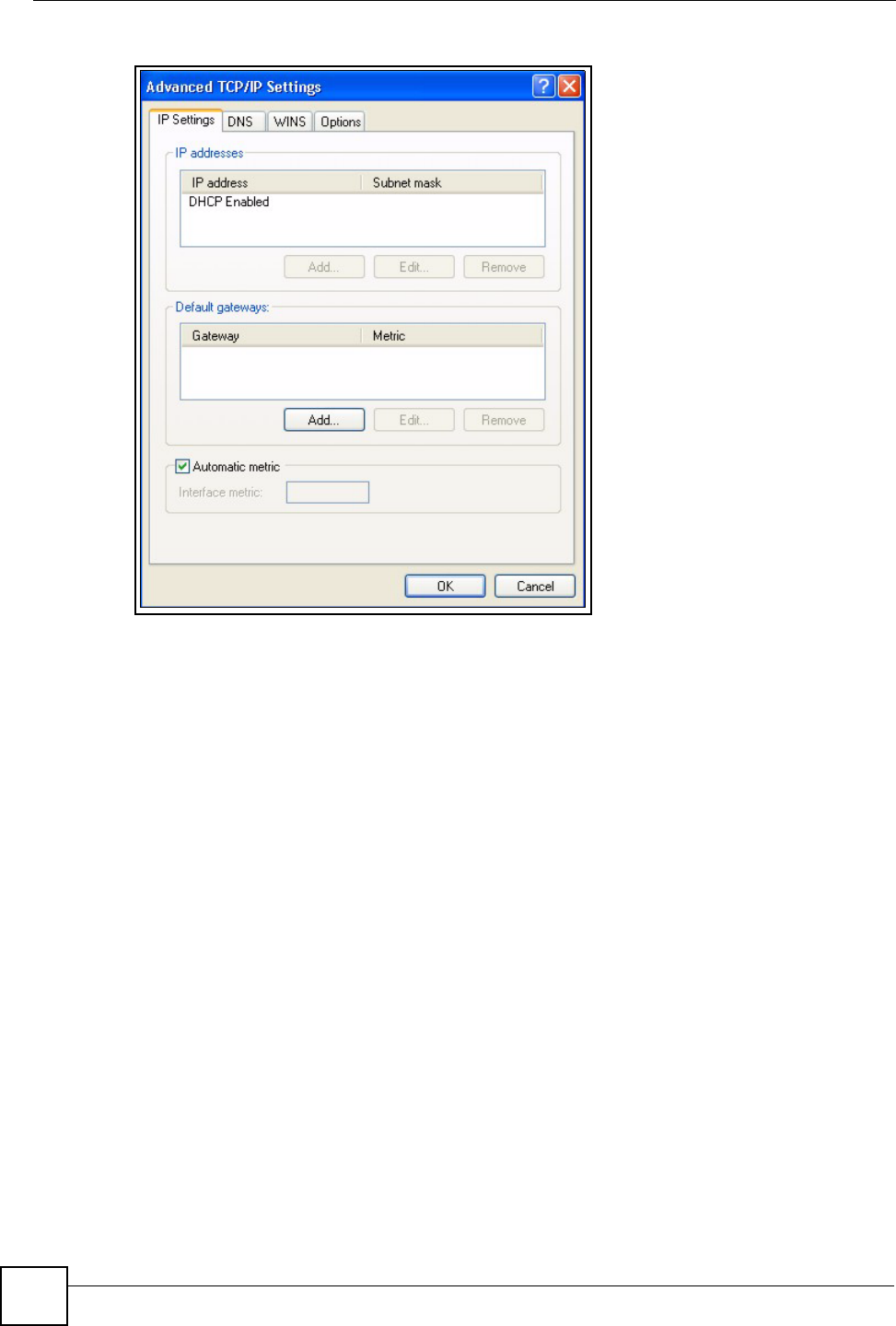
Appendix A Setting up Your Computer’s IP Address
NSA-220 User’s Guide
172
Figure 108 Windows XP: Advanced TCP/IP Properties
7In the Internet Protocol TCP/IP Properties window (the General tab in Windows
XP):
• Click Obtain DNS server address automatically if you do not know your DNS
server IP address(es).
• If you know your DNS server IP address(es), click Use the following DNS server
addresses, and type them in the Preferred DNS server and Alternate DNS server
fields.
If you have previously configured DNS servers, click Advanced and then the DNS
tab to order them.
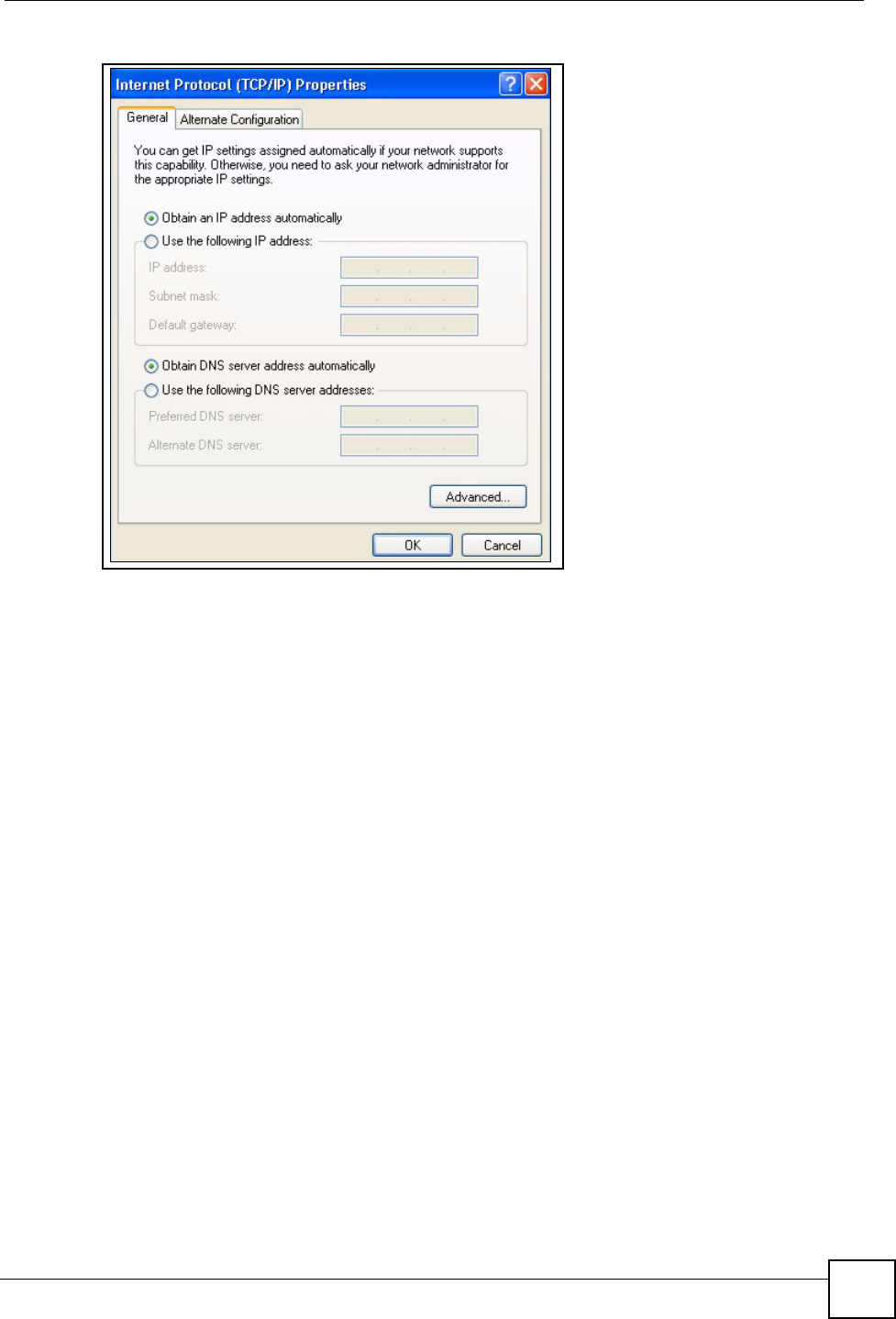
Appendix A Setting up Your Computer’s IP Address
NSA-220 User’s Guide 173
Figure 109 Windows XP: Internet Protocol (TCP/IP) Properties
8Click OK to close the Internet Protocol (TCP/IP) Properties window.
9Click Close (OK in Windows 2000/NT) to close the Local Area Connection
Properties window.
10 Close the Network Connections window (Network and Dial-up Connections in
Windows 2000/NT).
11 Restart your computer (if prompted).
Verifying Settings
1Click Start, All Programs, Accessories and then Command Prompt.
2In the Command Prompt window, type "ipconfig" and then press [ENTER]. You can
also open Network Connections, right-click a network connection, click Status and
then click the Support tab.
Macintosh OS X
1Click the Apple menu, and click System Preferences to open the System Preferences
window.
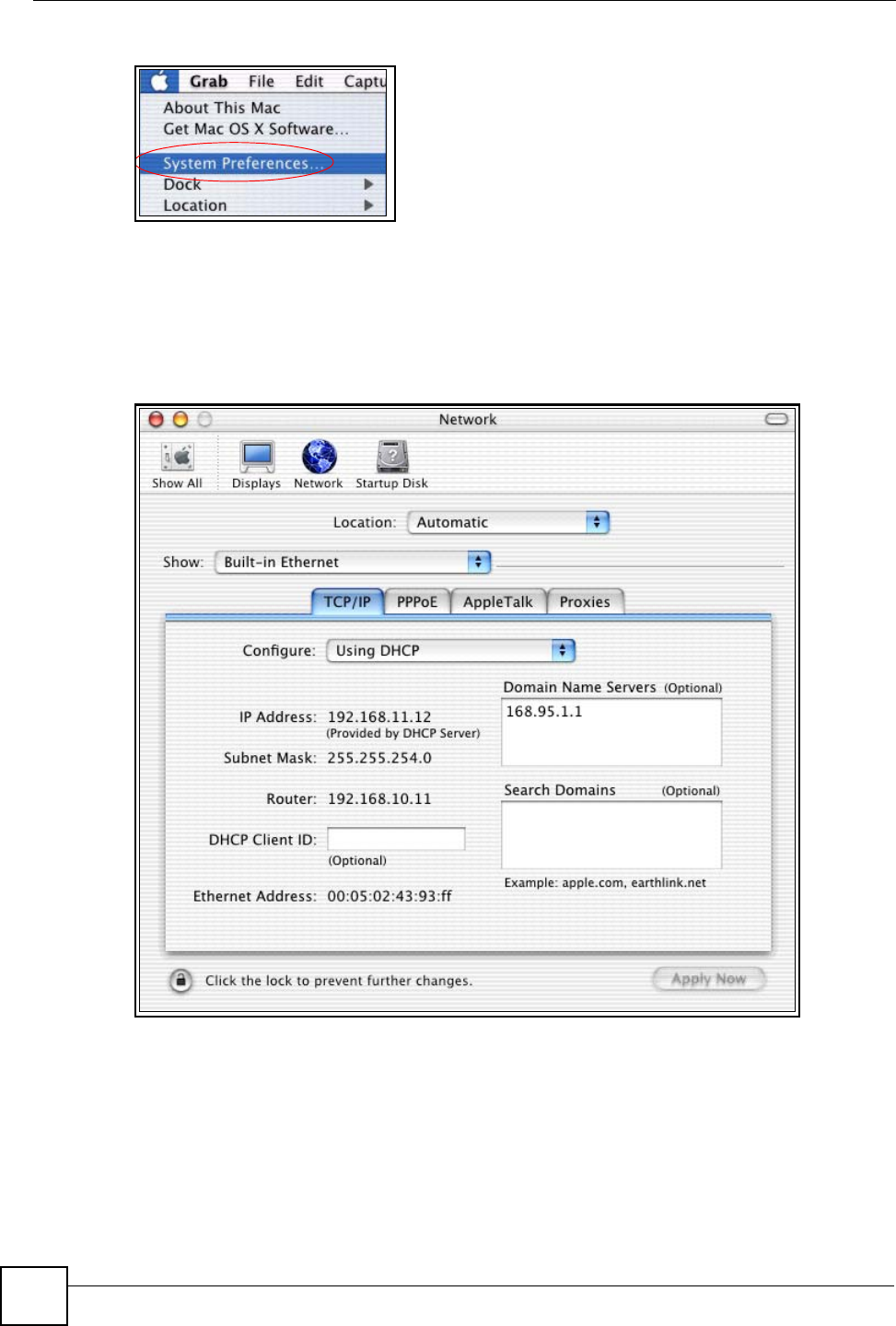
Appendix A Setting up Your Computer’s IP Address
NSA-220 User’s Guide
174
Figure 110 Macintosh OS X: Apple Menu
2Click Network in the icon bar.
• Select Automatic from the Location list.
• Select Built-in Ethernet from the Show list.
• Click the TCP/IP tab.
3For dynamically assigned settings, select Using DHCP from the Configure list.
Figure 111 Macintosh OS X: Network
4For statically assigned settings, do the following:
•From the Configure box, select Manually.
• Type your IP address in the IP Address box.
• Type your subnet mask in the Subnet mask box.
• Type the IP address of your gateway in the Router address box.
5Click Apply Now and close the window.
6Restart your computer (if prompted).
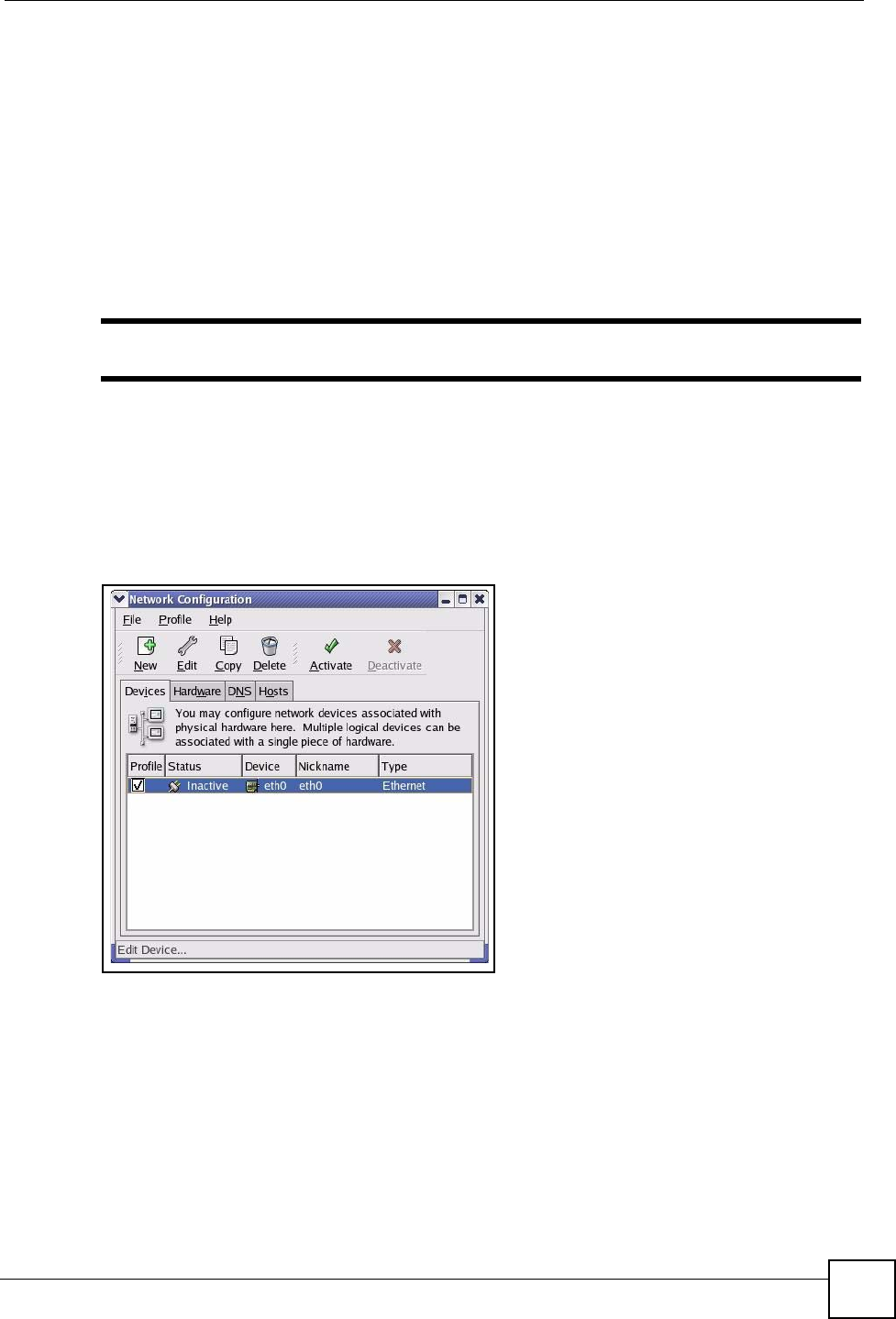
Appendix A Setting up Your Computer’s IP Address
NSA-220 User’s Guide 175
Verifying Settings
Check your TCP/IP properties in the Network window.
Linux
This section shows you how to configure your computer’s TCP/IP settings in Red Hat Linux
9.0. Procedure, screens and file location may vary depending on your Linux distribution and
release version.
"Make sure you are logged in as the root administrator.
Using the K Desktop Environment (KDE)
Follow the steps below to configure your computer IP address using the KDE.
1Click the Red Hat button (located on the bottom left corner), select System Setting and
click Network.
Figure 112 Red Hat 9.0: KDE: Network Configuration: Devices
2Double-click on the profile of the network card you wish to configure. The Ethernet
Device General screen displays as shown.
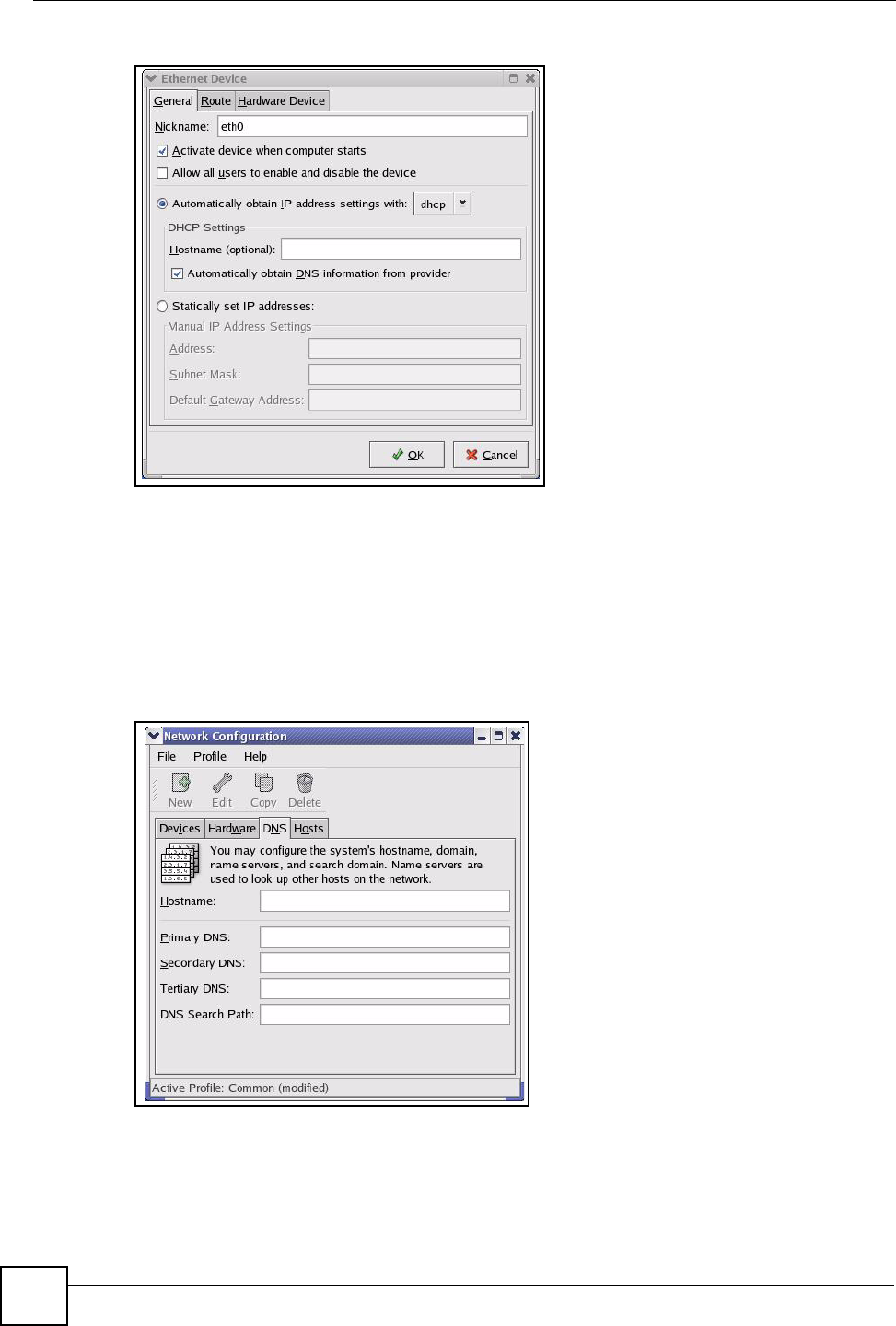
Appendix A Setting up Your Computer’s IP Address
NSA-220 User’s Guide
176
Figure 113 Red Hat 9.0: KDE: Ethernet Device: General
• If you have a dynamic IP address, click Automatically obtain IP address settings
with and select dhcp from the drop down list.
• If you have a static IP address, click Statically set IP Addresses and fill in the
Address, Subnet mask, and Default Gateway Address fields.
3Click OK to save the changes and close the Ethernet Device General screen.
4If you know your DNS server IP address(es), click the DNS tab in the Network
Configuration screen. Enter the DNS server information in the fields provided.
Figure 114 Red Hat 9.0: KDE: Network Configuration: DNS
5Click the Devices tab.
6Click the Activate button to apply the changes. The following screen displays. Click Yes
to save the changes in all screens.
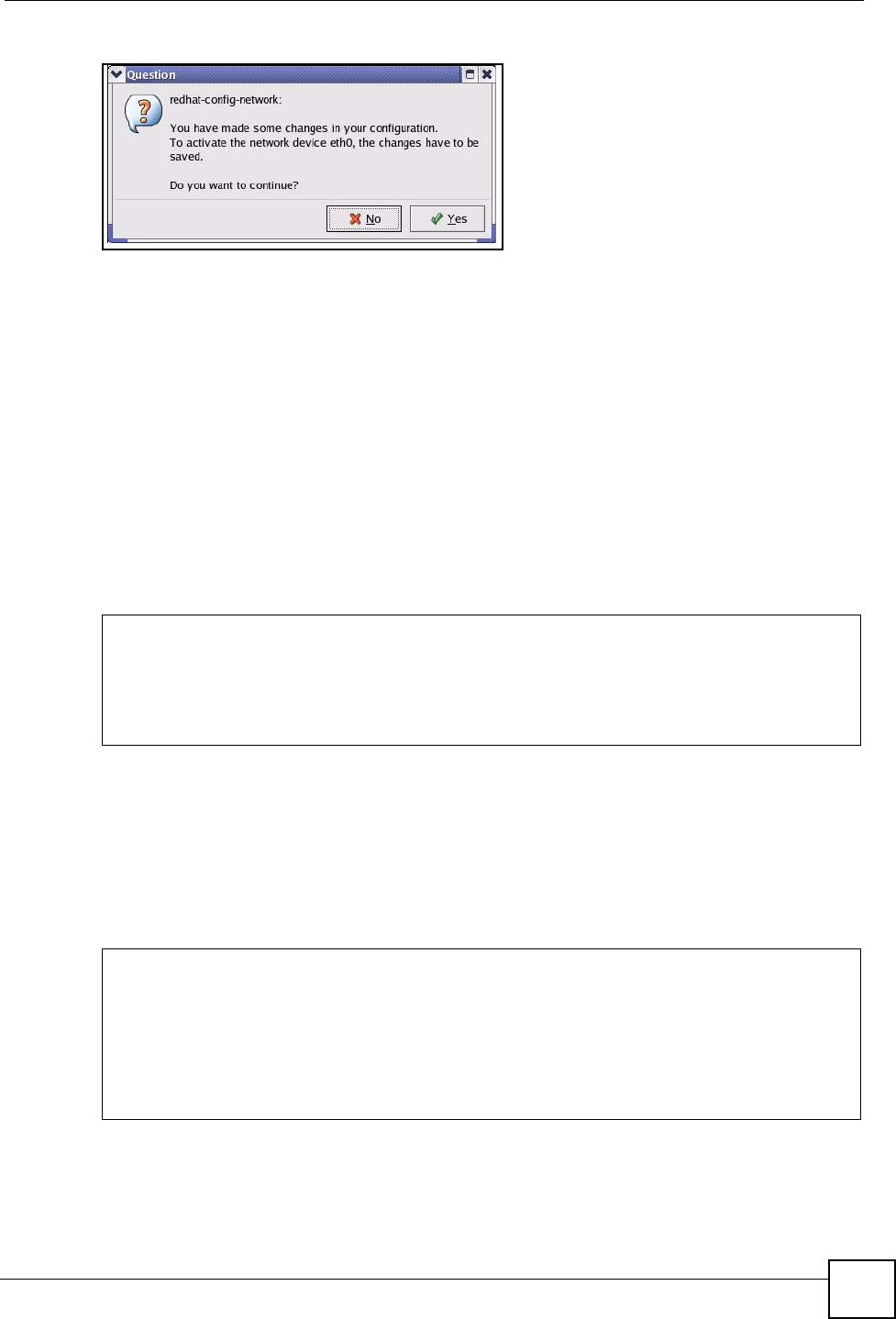
Appendix A Setting up Your Computer’s IP Address
NSA-220 User’s Guide 177
Figure 115 Red Hat 9.0: KDE: Network Configuration: Activate
7After the network card restart process is complete, make sure the Status is Active in the
Network Configuration screen.
Using Configuration Files
Follow the steps below to edit the network configuration files and set your computer IP
address.
1Assuming that you have only one network card on the computer, locate the ifconfig-
eth0 configuration file (where eth0 is the name of the Ethernet card). Open the
configuration file with any plain text editor.
• If you have a dynamic IP address, enter dhcp in the BOOTPROTO= field. The following
figure shows an example.
Figure 116 Red Hat 9.0: Dynamic IP Address Setting in ifconfig-eth0
• If you have a static IP address, enter static in the BOOTPROTO= field. Type
IPADDR= followed by the IP address (in dotted decimal notation) and type NETMASK=
followed by the subnet mask. The following example shows an example where the
static IP address is 192.168.1.10 and the subnet mask is 255.255.255.0.
Figure 117 Red Hat 9.0: Static IP Address Setting in ifconfig-eth0
2If you know your DNS server IP address(es), enter the DNS server information in the
resolv.conf file in the /etc directory. The following figure shows an example where
two DNS server IP addresses are specified.
DEVICE=eth0
ONBOOT=yes
BOOTPROTO=dhcp
USERCTL=no
PEERDNS=yes
TYPE=Ethernet
DEVICE=eth0
ONBOOT=yes
BOOTPROTO=static
IPADDR=192.168.1.10
NETMASK=255.255.255.0
USERCTL=no
PEERDNS=yes
TYPE=Ethernet
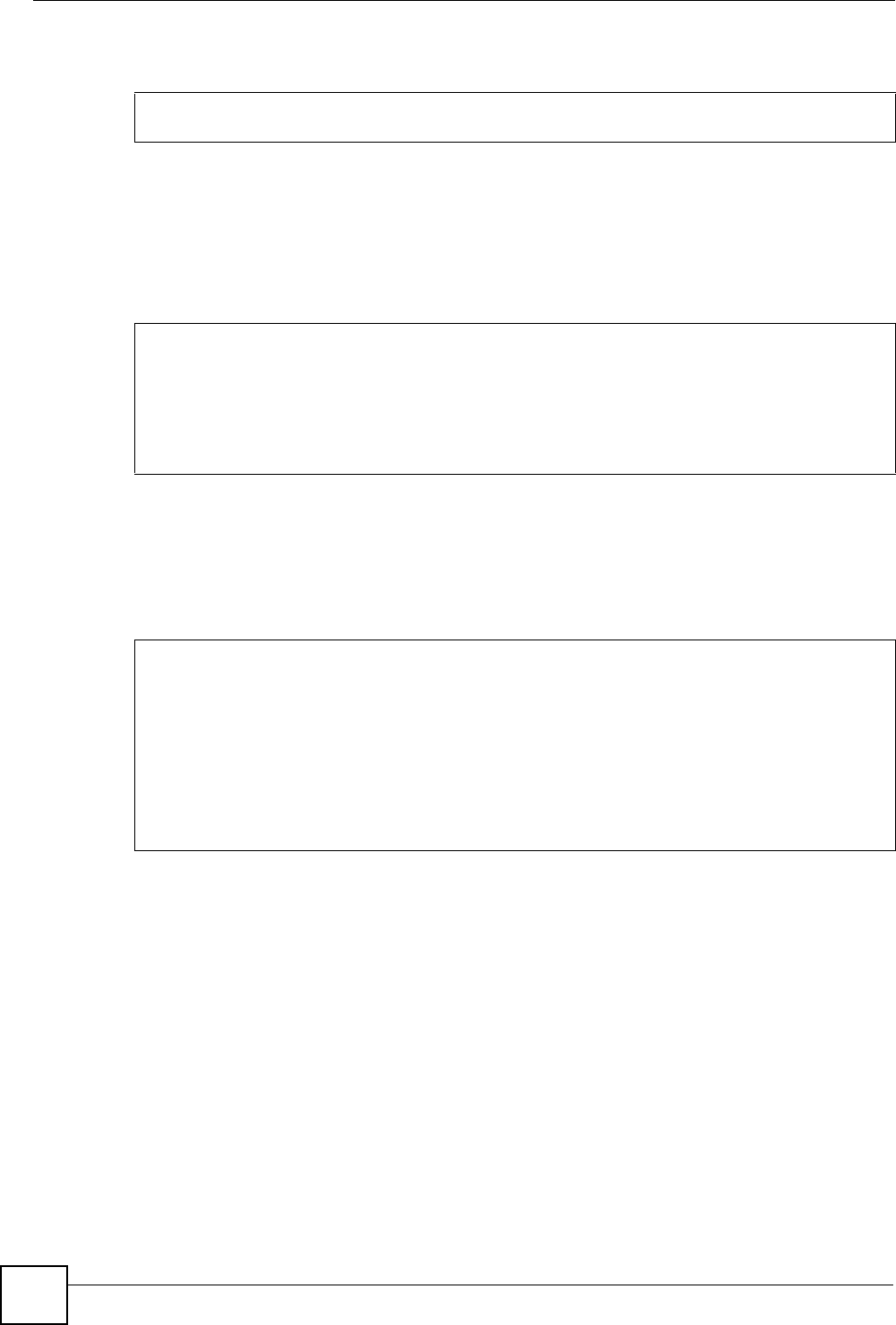
Appendix A Setting up Your Computer’s IP Address
NSA-220 User’s Guide
178
Figure 118 Red Hat 9.0: DNS Settings in resolv.conf
3After you edit and save the configuration files, you must restart the network card.
Enter./network restart in the /etc/rc.d/init.d directory. The following
figure shows an example.
Figure 119 Red Hat 9.0: Restart Ethernet Card
Verifying Settings
Enter ifconfig in a terminal screen to check your TCP/IP properties.
Figure 120 Red Hat 9.0: Checking TCP/IP Properties
nameserver 172.23.5.1
nameserver 172.23.5.2
[root@localhost init.d]# network restart
Shutting down interface eth0: [OK]
Shutting down loopback interface: [OK]
Setting network parameters: [OK]
Bringing up loopback interface: [OK]
Bringing up interface eth0: [OK]
[root@localhost]# ifconfig
eth0 Link encap:Ethernet HWaddr 00:50:BA:72:5B:44
inet addr:172.23.19.129 Bcast:172.23.19.255 Mask:255.255.255.0
UP BROADCAST RUNNING MULTICAST MTU:1500 Metric:1
RX packets:717 errors:0 dropped:0 overruns:0 frame:0
TX packets:13 errors:0 dropped:0 overruns:0 carrier:0
collisions:0 txqueuelen:100
RX bytes:730412 (713.2 Kb) TX bytes:1570 (1.5 Kb)
Interrupt:10 Base address:0x1000
[root@localhost]#
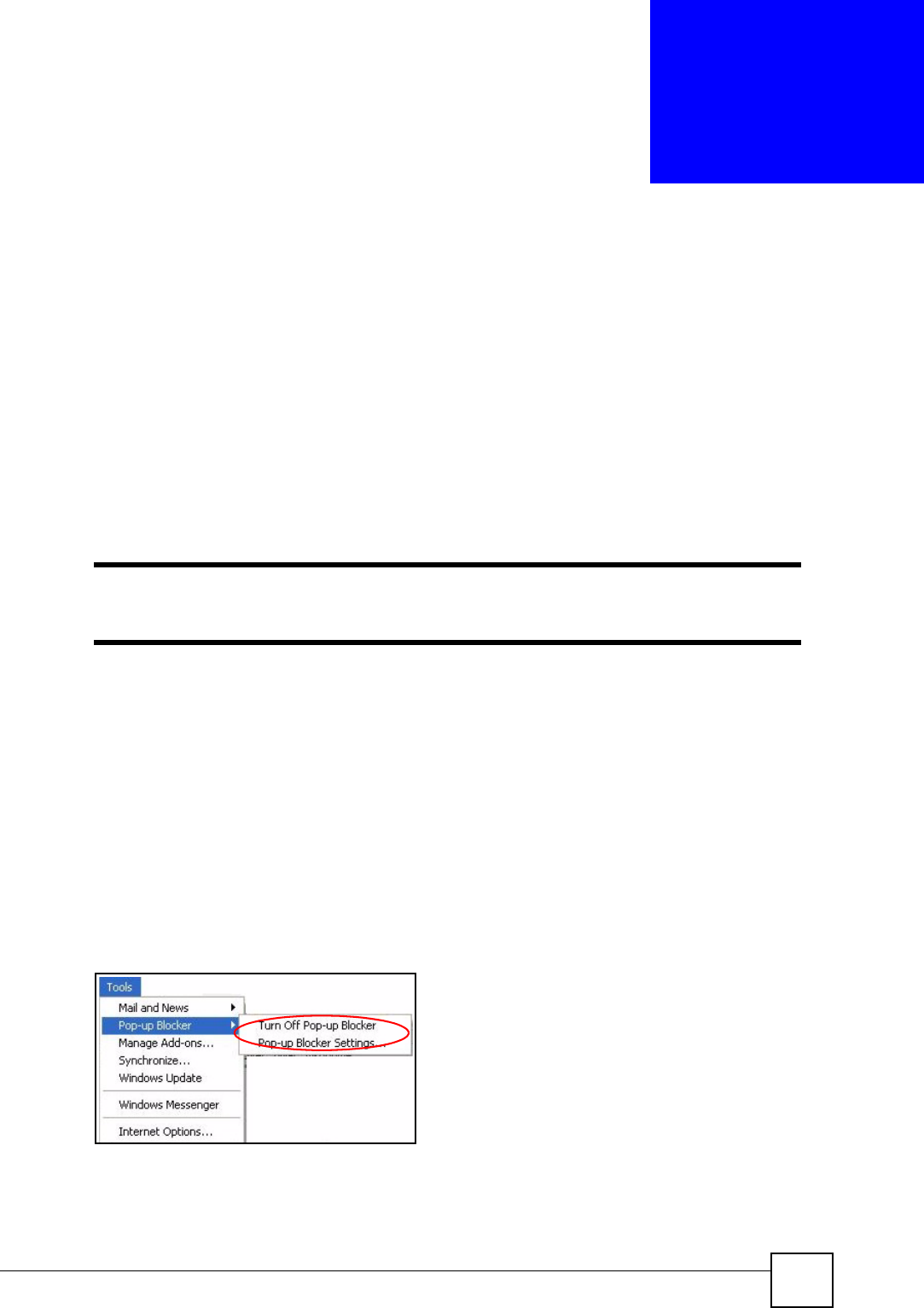
NSA-220 User’s Guide 179
APPENDIX B
Pop-up Windows, JavaScripts
and Java Permissions
In order to use the web configurator you need to allow:
• Web browser pop-up windows from your device.
• JavaScripts (enabled by default).
• Java permissions (enabled by default).
"Internet Explorer 6 screens are used here. Screens for other Internet Explorer
versions may vary.
Internet Explorer Pop-up Blockers
You may have to disable pop-up blocking to log into your device.
Either disable pop-up blocking (enabled by default in Windows XP SP (Service Pack) 2) or
allow pop-up blocking and create an exception for your device’s IP address.
Disable Pop-up Blockers
1In Internet Explorer, select Tools, Pop-up Blocker and then select Turn Off Pop-up
Blocker.
Figure 121 Pop-up Blocker
You can also check if pop-up blocking is disabled in the Pop-up Blocker section in the
Privacy tab.
1In Internet Explorer, select Tools, Internet Options, Privacy.
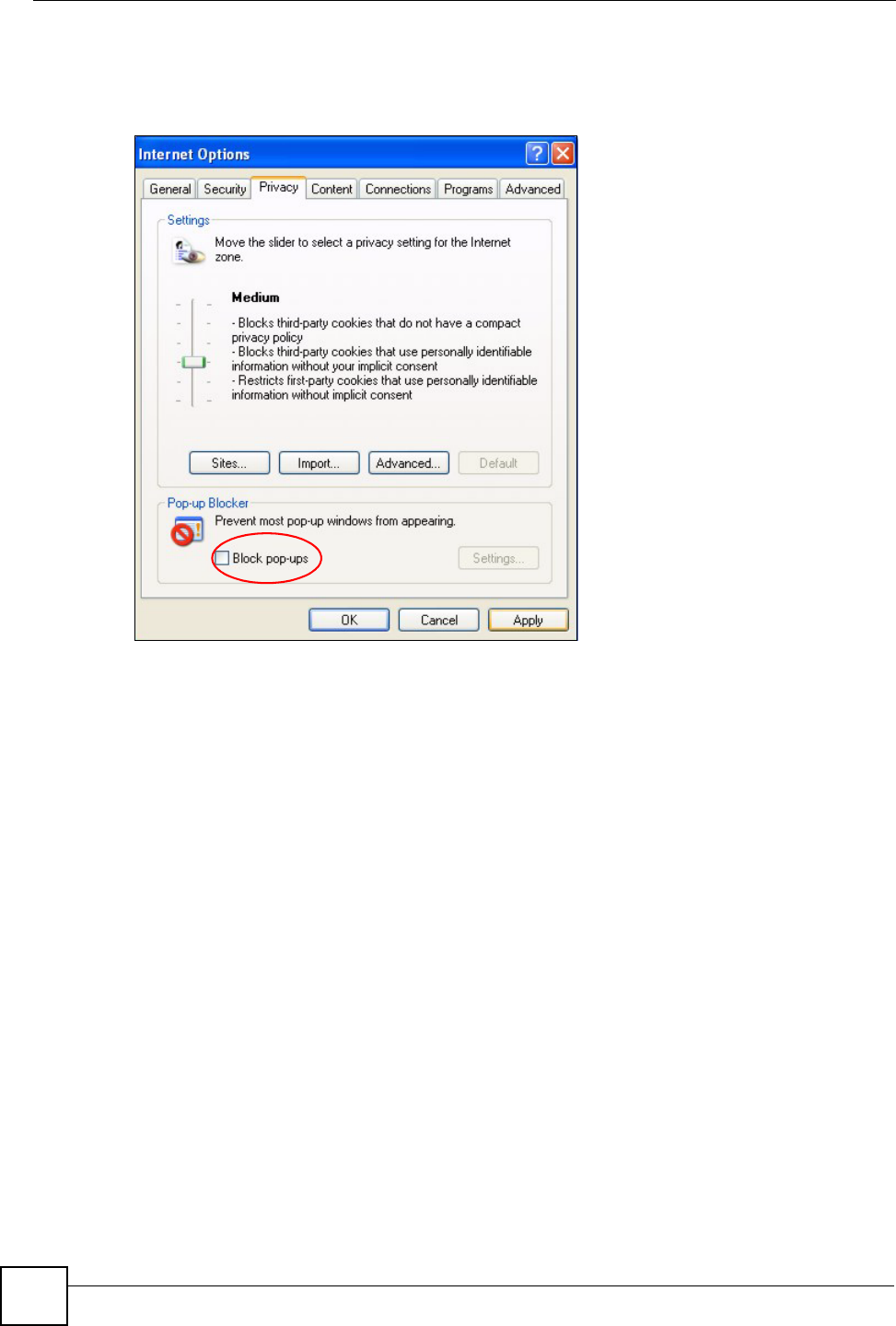
Appendix B Pop-up Windows, JavaScripts and Java Permissions
NSA-220 User’s Guide
180
2Clear the Block pop-ups check box in the Pop-up Blocker section of the screen. This
disables any web pop-up blockers you may have enabled.
Figure 122 Internet Options: Privacy
3Click Apply to save this setting.
Enable Pop-up Blockers with Exceptions
Alternatively, if you only want to allow pop-up windows from your device, see the following
steps.
1In Internet Explorer, select Tools, Internet Options and then the Privacy tab.
2Select Settings…to open the Pop-up Blocker Settings screen.
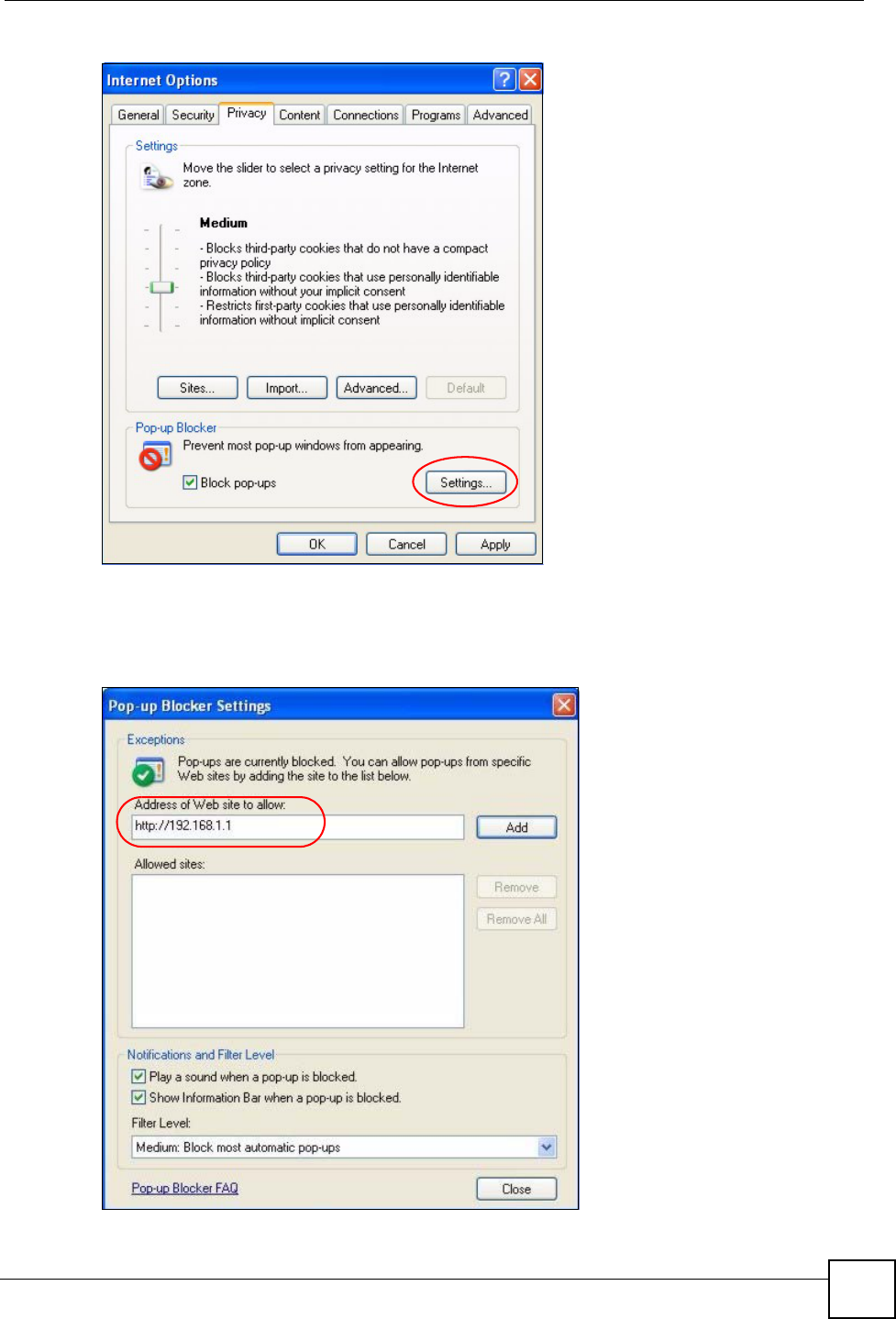
Appendix B Pop-up Windows, JavaScripts and Java Permissions
NSA-220 User’s Guide 181
Figure 123 Internet Options: Privacy
3Type the IP address of your device (the web page that you do not want to have blocked)
with the prefix “http://”. For example, http://192.168.167.1.
4Click Add to move the IP address to the list of Allowed sites.
Figure 124 Pop-up Blocker Settings
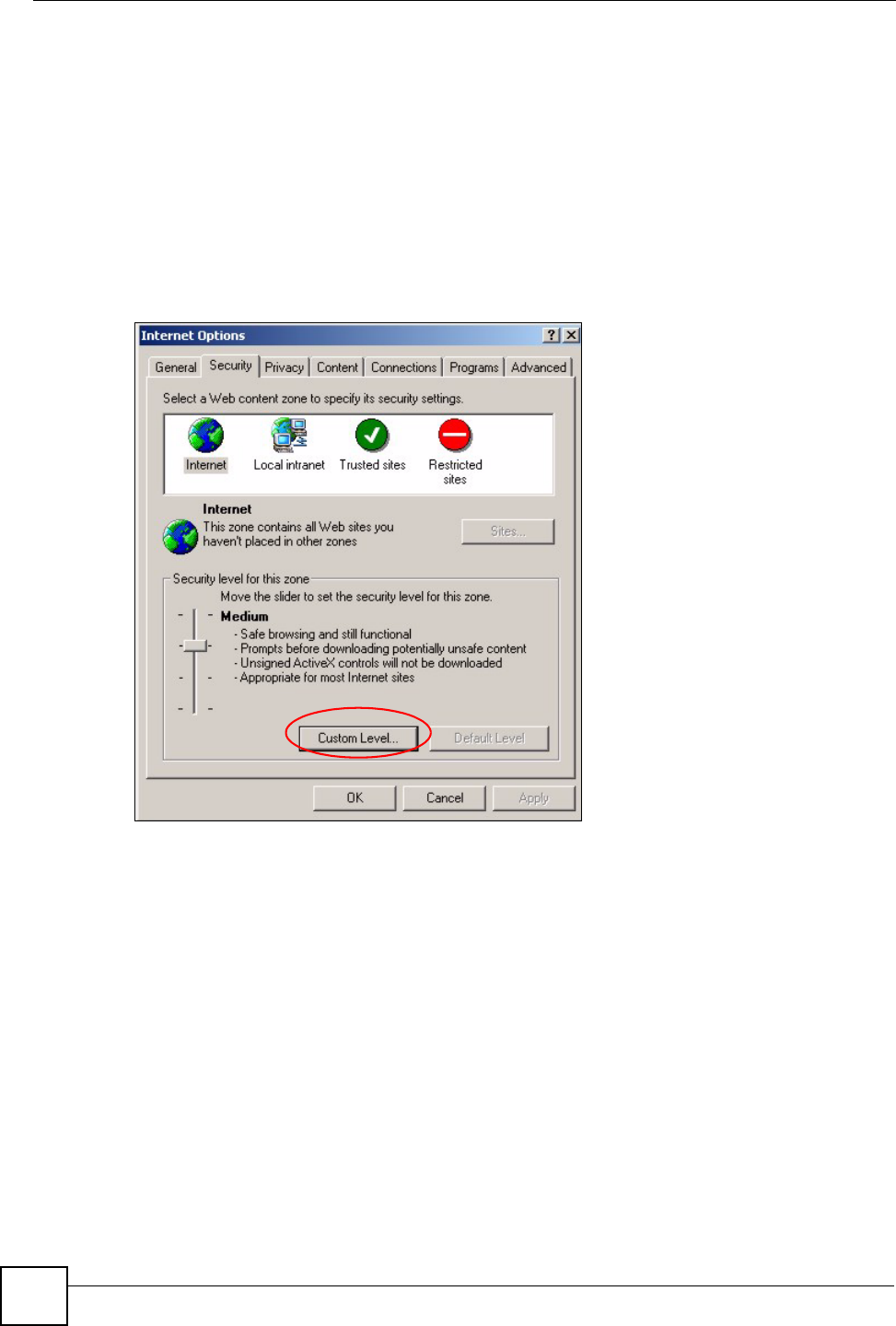
Appendix B Pop-up Windows, JavaScripts and Java Permissions
NSA-220 User’s Guide
182
5Click Close to return to the Privacy screen.
6Click Apply to save this setting.
JavaScripts
If pages of the web configurator do not display properly in Internet Explorer, check that
JavaScripts are allowed.
1In Internet Explorer, click Tools, Internet Options and then the Security tab.
Figure 125 Internet Options: Security
2Click the Custom Level... button.
3Scroll down to Scripting.
4Under Active scripting make sure that Enable is selected (the default).
5Under Scripting of Java applets make sure that Enable is selected (the default).
6Click OK to close the window.
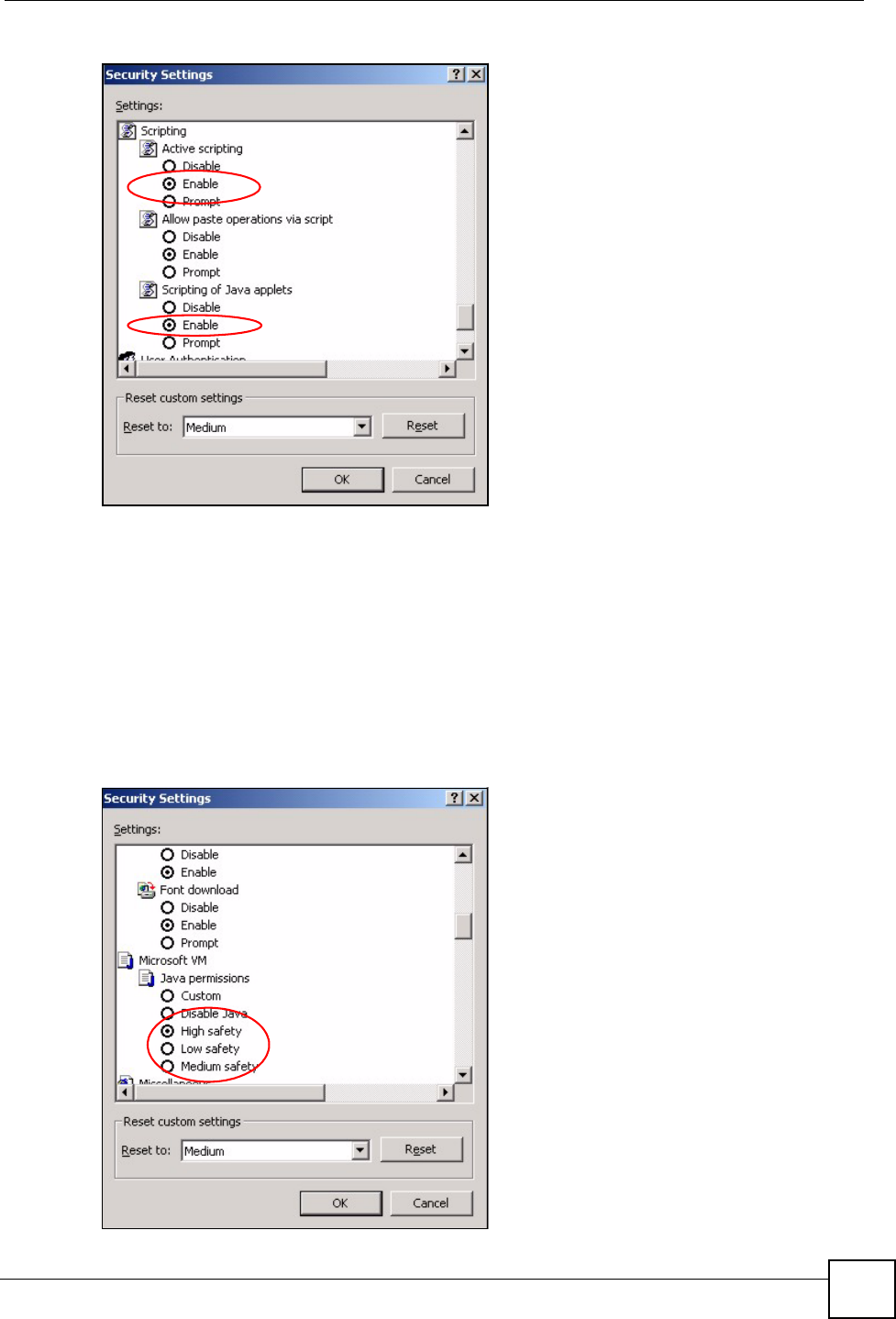
Appendix B Pop-up Windows, JavaScripts and Java Permissions
NSA-220 User’s Guide 183
Figure 126 Security Settings - Java Scripting
Java Permissions
1From Internet Explorer, click Tools, Internet Options and then the Security tab.
2Click the Custom Level... button.
3Scroll down to Microsoft VM.
4Under Java permissions make sure that a safety level is selected.
5Click OK to close the window.
Figure 127 Security Settings - Java
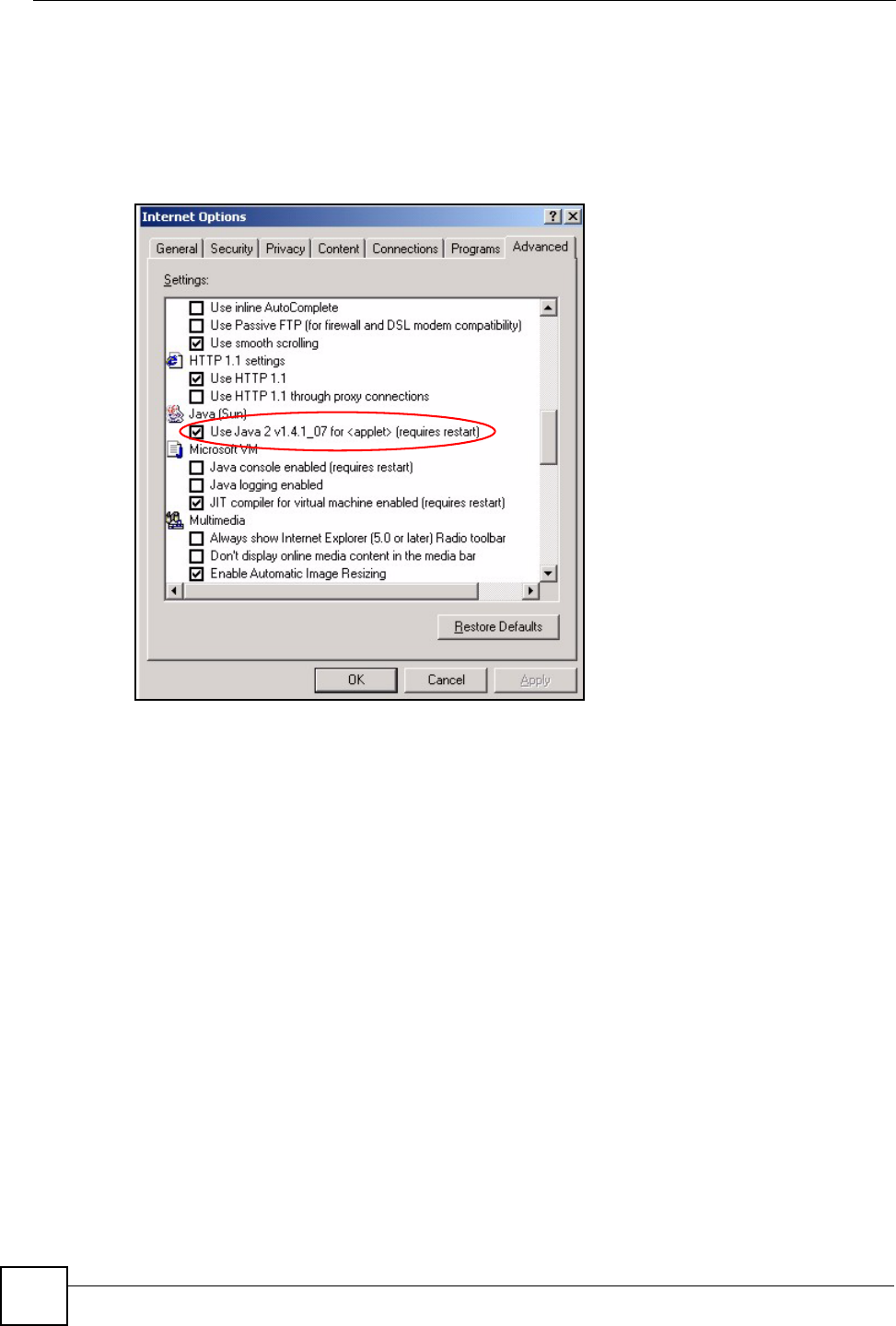
Appendix B Pop-up Windows, JavaScripts and Java Permissions
NSA-220 User’s Guide
184
JAVA (Sun)
1From Internet Explorer, click Tools, Internet Options and then the Advanced tab.
2Make sure that Use Java 2 for <applet> under Java (Sun) is selected.
3Click OK to close the window.
Figure 128 Java (Sun)
Mozilla Firefox
Mozilla Firefox 2.0 screens are used here. Screens for other versions may vary.
You can enable Java, Javascripts and pop-ups in one screen. Click Tools, then click Options
in the screen that appears.
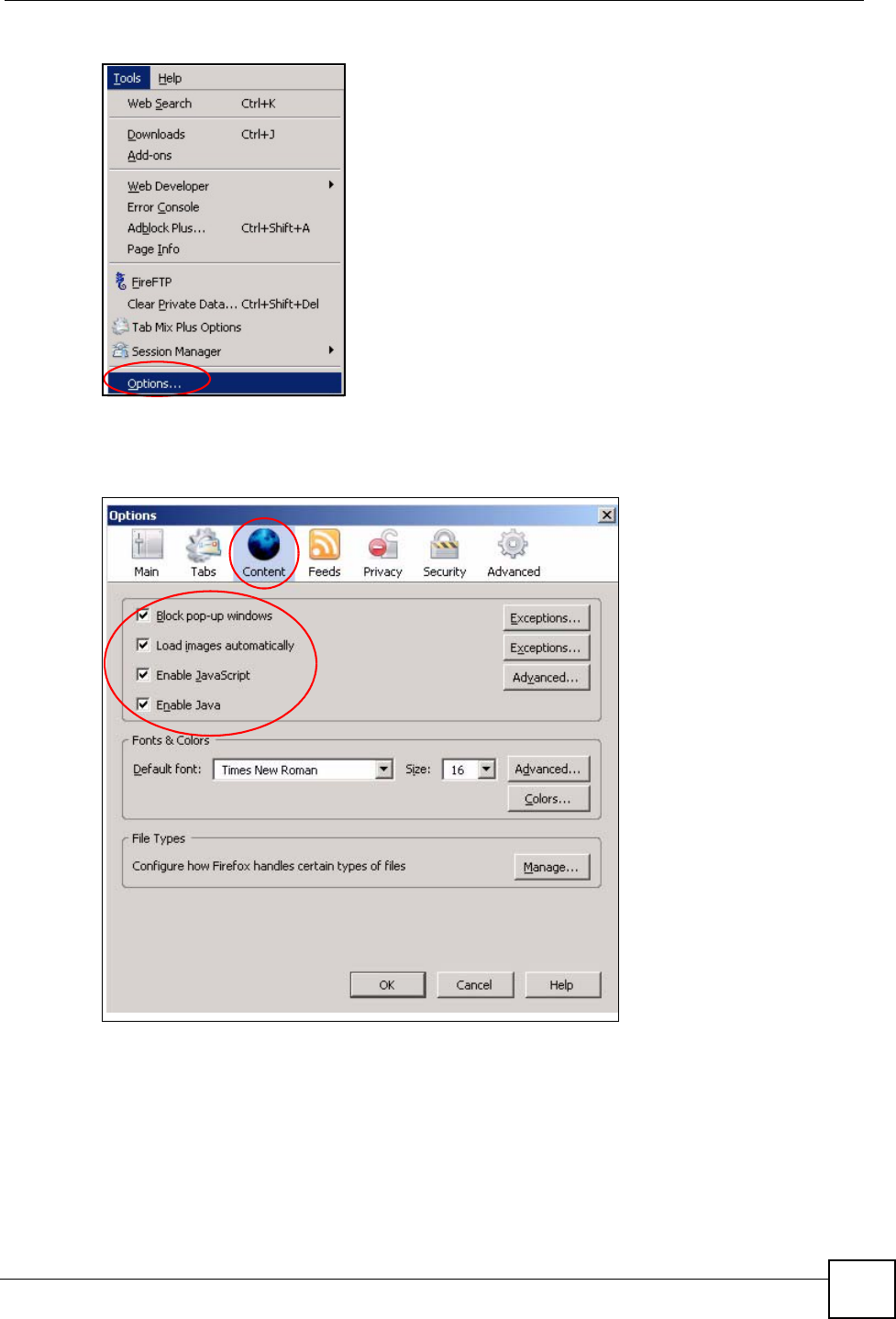
Appendix B Pop-up Windows, JavaScripts and Java Permissions
NSA-220 User’s Guide 185
Figure 129 Mozilla Firefox: Tools > Options
Click Content.to show the screen below. Select the check boxes as shown in the following
screen.
Figure 130 Mozilla Firefox Content Security
Appendix B Pop-up Windows, JavaScripts and Java Permissions
NSA-220 User’s Guide
186
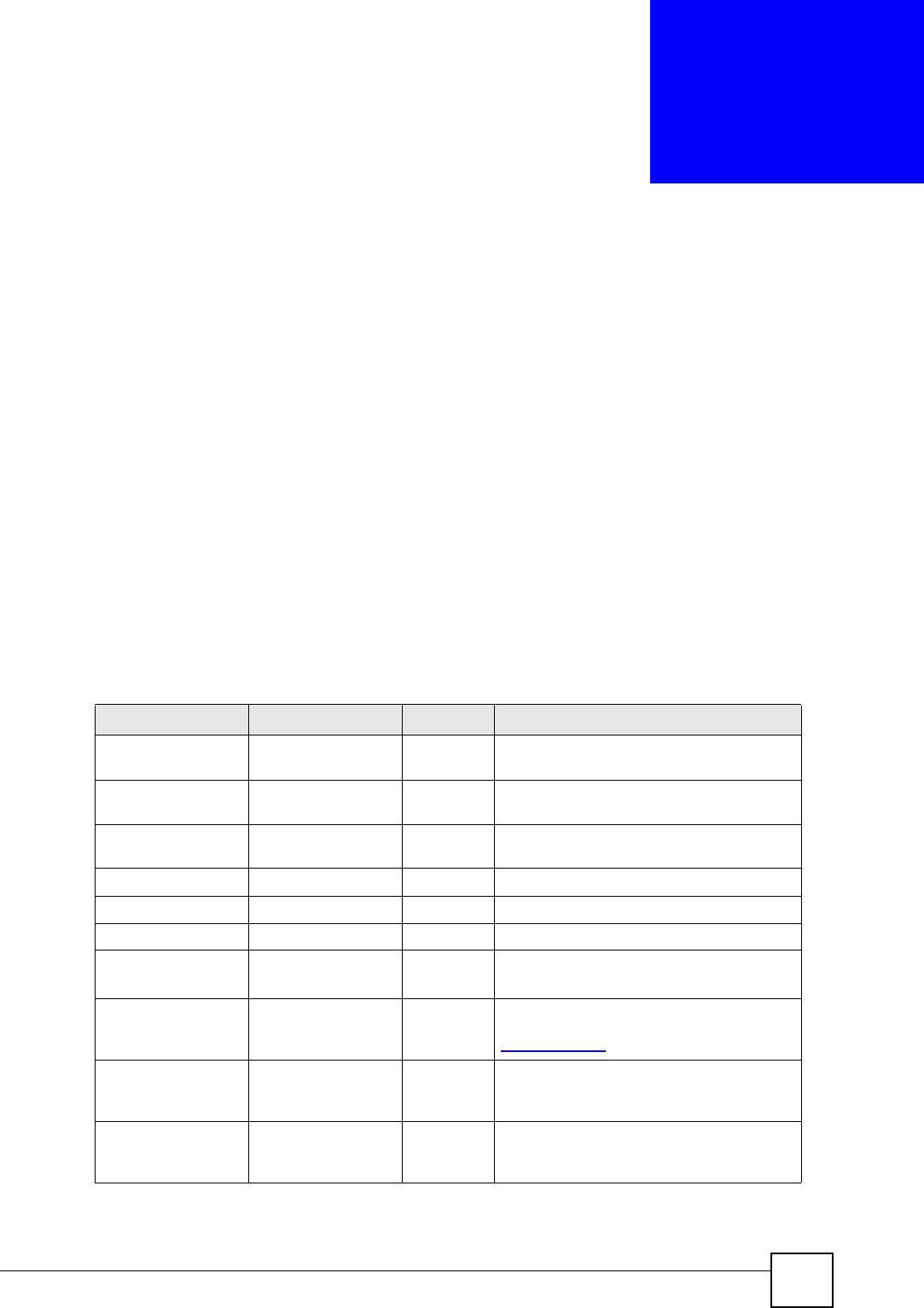
NSA-220 User’s Guide 187
APPENDIX C
Common Services
The following table lists some commonly-used services and their associated protocols and port
numbers. For a comprehensive list of port numbers, ICMP type/code numbers and services,
visit the IANA (Internet Assigned Number Authority) web site.
•Name: This is a short, descriptive name for the service. You can use this one or create a
different one, if you like.
•Protocol: This is the type of IP protocol used by the service. If this is TCP/UDP, then the
service uses the same port number with TCP and UDP. If this is USER-DEFINED, the
Port(s) is the IP protocol number, not the port number.
•Port(s): This value depends on the Protocol. Please refer to RFC 1700 for further
information about port numbers.
• If the Protocol is TCP, UDP, or TCP/UDP, this is the IP port number.
• If the Protocol is USER, this is the IP protocol number.
•Description: This is a brief explanation of the applications that use this service or the
situations in which this service is used.
Table 59 Commonly Used Services
NAME PROTOCOL PORT(S) DESCRIPTION
AH
(IPSEC_TUNNEL) User-Defined 51 The IPSEC AH (Authentication Header)
tunneling protocol uses this service.
AIM/New-ICQ TCP 5190 AOL’s Internet Messenger service. It is also
used as a listening port by ICQ.
AUTH TCP 113 Authentication protocol used by some
servers.
BGP TCP 179 Border Gateway Protocol.
BOOTP_CLIENT UDP 68 DHCP Client.
BOOTP_SERVER UDP 67 DHCP Server.
CU-SEEME TCP
UDP
7648
24032
A popular videoconferencing solution from
White Pines Software.
DNS TCP/UDP 53 Domain Name Server, a service that
matches web names (for example
www.zyxel.com) to IP numbers.
ESP
(IPSEC_TUNNEL) User-Defined 50 The IPSEC ESP (Encapsulation Security
Protocol) tunneling protocol uses this
service.
FINGER TCP 79 Finger is a UNIX or Internet related
command that can be used to find out if a
user is logged on.
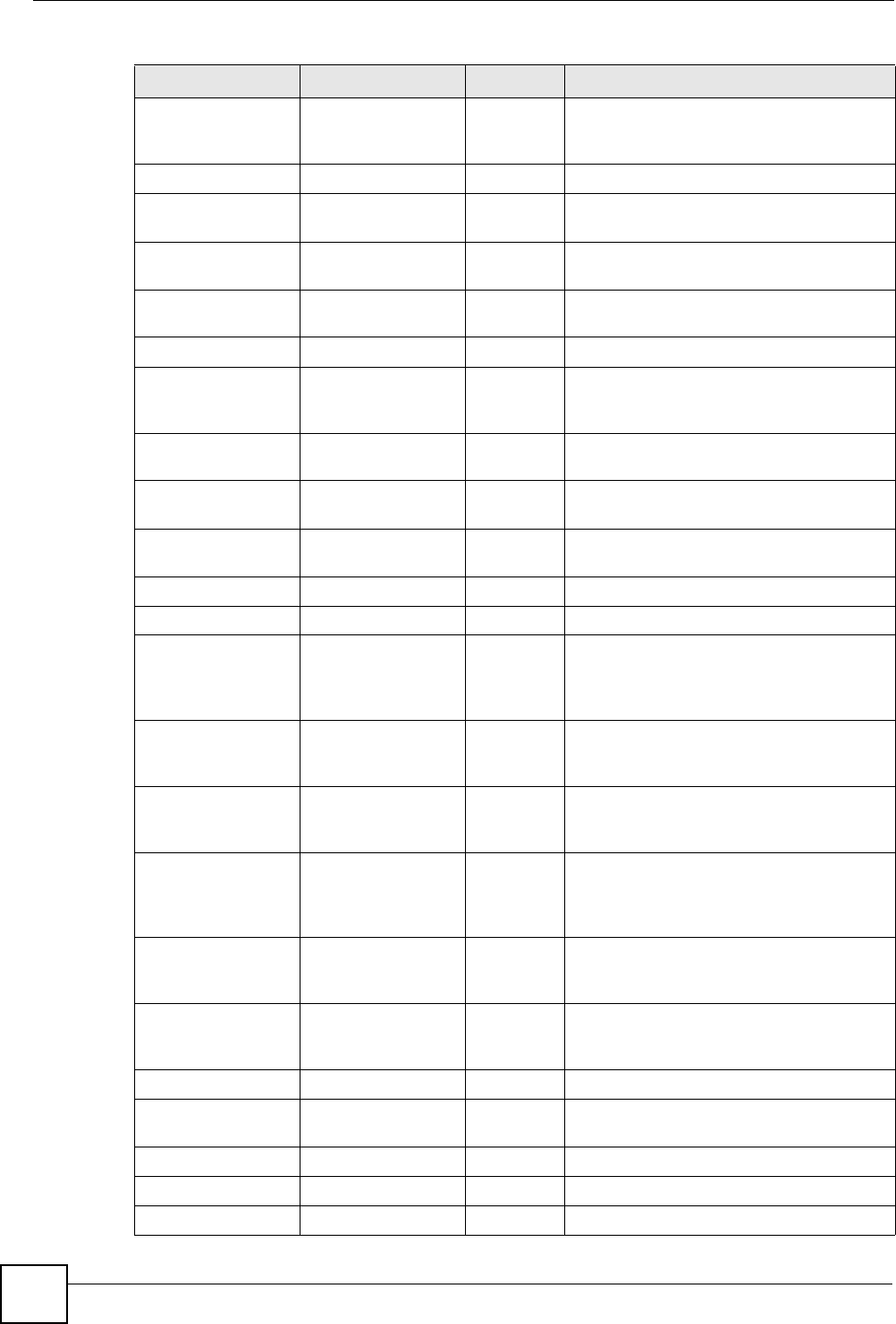
Appendix C Common Services
NSA-220 User’s Guide
188
FTP TCP
TCP
20
21
File Transfer Program, a program to enable
fast transfer of files, including large files
that may not be possible by e-mail.
H.323 TCP 1720 NetMeeting uses this protocol.
HTTP TCP 80 Hyper Text Transfer Protocol - a client/
server protocol for the world wide web.
HTTPS TCP 443 HTTPS is a secured http session often
used in e-commerce.
ICMP User-Defined 1Internet Control Message Protocol is often
used for diagnostic or routing purposes.
ICQ UDP 4000 This is a popular Internet chat program.
IGMP (MULTICAST) User-Defined 2Internet Group Management Protocol is
used when sending packets to a specific
group of hosts.
IKE UDP 500 The Internet Key Exchange algorithm is
used for key distribution and management.
IRC TCP/UDP 6667 This is another popular Internet chat
program.
MSN Messenger TCP 1863 Microsoft Networks’ messenger service
uses this protocol.
NEW-ICQ TCP 5190 An Internet chat program.
NEWS TCP 144 A protocol for news groups.
NFS UDP 2049 Network File System - NFS is a client/
server distributed file service that provides
transparent file sharing for network
environments.
NNTP TCP 119 Network News Transport Protocol is the
delivery mechanism for the USENET
newsgroup service.
PING User-Defined 1Packet INternet Groper is a protocol that
sends out ICMP echo requests to test
whether or not a remote host is reachable.
POP3 TCP 110 Post Office Protocol version 3 lets a client
computer get e-mail from a POP3 server
through a temporary connection (TCP/IP or
other).
PPTP TCP 1723 Point-to-Point Tunneling Protocol enables
secure transfer of data over public
networks. This is the control channel.
PPTP_TUNNEL
(GRE) User-Defined 47 PPTP (Point-to-Point Tunneling Protocol)
enables secure transfer of data over public
networks. This is the data channel.
RCMD TCP 512 Remote Command Service.
REAL_AUDIO TCP 7070 A streaming audio service that enables real
time sound over the web.
REXEC TCP 514 Remote Execution Daemon.
RLOGIN TCP 513 Remote Login.
RTELNET TCP 107 Remote Telnet.
Table 59 Commonly Used Services (continued)
NAME PROTOCOL PORT(S) DESCRIPTION
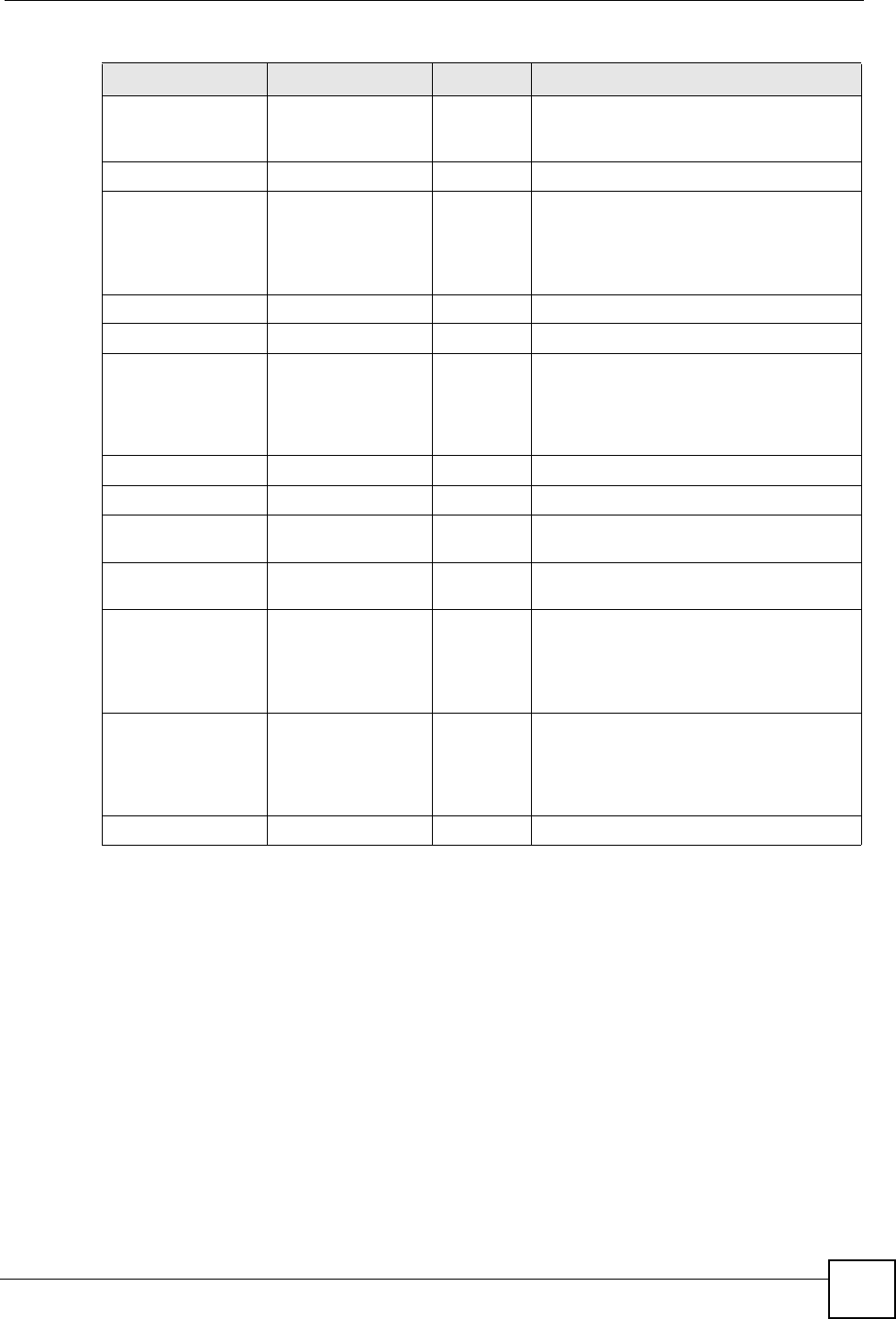
Appendix C Common Services
NSA-220 User’s Guide 189
RTSP TCP/UDP 554 The Real Time Streaming (media control)
Protocol (RTSP) is a remote control for
multimedia on the Internet.
SFTP TCP 115 Simple File Transfer Protocol.
SMTP TCP 25 Simple Mail Transfer Protocol is the
message-exchange standard for the
Internet. SMTP enables you to move
messages from one e-mail server to
another.
SNMP TCP/UDP 161 Simple Network Management Program.
SNMP-TRAPS TCP/UDP 162 Traps for use with the SNMP (RFC:1215).
SQL-NET TCP 1521 Structured Query Language is an interface
to access data on many different types of
database systems, including mainframes,
midrange systems, UNIX systems and
network servers.
SSH TCP/UDP 22 Secure Shell Remote Login Program.
STRM WORKS UDP 1558 Stream Works Protocol.
SYSLOG UDP 514 Syslog allows you to send system logs to a
UNIX server.
TACACS UDP 49 Login Host Protocol used for (Terminal
Access Controller Access Control System).
TELNET TCP 23 Telnet is the login and terminal emulation
protocol common on the Internet and in
UNIX environments. It operates over TCP/
IP networks. Its primary function is to allow
users to log into remote host systems.
TFTP UDP 69 Trivial File Transfer Protocol is an Internet
file transfer protocol similar to FTP, but
uses the UDP (User Datagram Protocol)
rather than TCP (Transmission Control
Protocol).
VDOLIVE TCP 7000 Another videoconferencing solution.
Table 59 Commonly Used Services (continued)
NAME PROTOCOL PORT(S) DESCRIPTION
Appendix C Common Services
NSA-220 User’s Guide
190

NSA-220 User’s Guide 191
APPENDIX D
Open Source Licences
Notice
Information herein is subject to change without notice. Companies, names, and data used in
examples herein are fictitious unless otherwise noted. No part may be reproduced or
transmitted in any form or by any means, electronic or mechanical, for any purpose, except the
express written permission of ZyXEL Communications Corporation.
This Product includes software developed by the Apache Software Foundation under Apache License.
Apache License
Version 2.0, January 2004
http://www.apache.org/licenses/
TERMS AND CONDITIONS FOR USE, REPRODUCTION, AND DISTRIBUTION
1. Definitions.
“License” shall mean the terms and conditions for use, reproduction, and distribution as
defined by Sections 1 through 9 of this document.
“Licensor” shall mean the copyright owner or entity authorized by the copyright owner that is
granting the License.
“Legal Entity” shall mean the union of the acting entity and all other entities that control, are
controlled by, or are under common control with that entity. For the purposes of this
definition,
“control” means (i) the power, direct or indirect, to cause the direction or management of such
entity, whether by contract or otherwise, or (ii) ownership of fifty percent (50%) or more of
the outstanding shares, or (iii) beneficial ownership of such entity.
“You” (or “Your”) shall mean an individual or Legal Entity exercising permissions granted by
this License.
“Source” form shall mean the preferred form for making modifications, including but not
limited to software source code, documentation source, and configuration files.
“Object” form shall mean any form resulting from mechanical transformation or translation of
a Source form, including but not limited to compiled object code, generated documentation,
and conversions to other media types.
“Work” shall mean the work of authorship, whether in Source or Object form, made available
under the License, as indicated by a copyright notice that is included in or attached to the work
(an example is provided in the Appendix below).
Appendix D Open Source Licences
NSA-220 User’s Guide
192
“Derivative Works” shall mean any work, whether in Source or Object form, that is based on
(or derived from) the Work and for which the editorial revisions, annotations, elaborations, or
other modifications represent, as a whole, an original work of authorship. For the purposes of
this License, Derivative Works shall not include works that remain separable from, or merely
link (or bind by name) to the interfaces of, the Work and Derivative Works thereof.
“Contribution” shall mean any work of authorship, including the original version of the Work
and any modifications or additions to that Work or Derivative Works thereof, that is
intentionally submitted to Licensor for inclusion in the Work by the copyright owner or by an
individual or Legal Entity authorized to submit on behalf of the copyright owner. For the
purposes of this definition, “submitted” means any form of electronic, verbal, or written
communication sent to the Licensor or its representatives, including but not limited to
communication on electronic mailing lists, source code control systems, and issue tracking
systems that are managed by, or on behalf of, the Licensor for the purpose of discussing and
improving the Work, but excluding communication that is conspicuously marked or otherwise
designated in writing by the copyright owner as “Not a Contribution.”
“Contributor” shall mean Licensor and any individual or Legal Entity on behalf of whom a
Contribution has been received by Licensor and subsequently incorporated within the Work.
2. Grant of Copyright License. Subject to the terms and conditions of this License, each
Contributor hereby grants to You a perpetual, worldwide, non-exclusive, no-charge, royalty-
free, irrevocable copyright license to reproduce, prepare Derivative Works of, publicly
display, publicly perform, sublicense, and distribute the Work and such Derivative Works in
Source or Object form.
3. Grant of Patent License. Subject to the terms and conditions of this License, each
Contributor hereby grants to You a perpetual, worldwide, non-exclusive, no-charge, royalty-
free, irrevocable (except as stated in this section) patent license to make, have made, use, offer
to sell import, and otherwise transfer the Work, where such license applies only to those patent
claims licensable by such Contributor that are necessarily infringed by their Contribution(s)
alone or by combination of their Contribution(s) with the Work to which such Contribution(s)
was submitted. If You institute patent litigation against any entity (including a cross-claim or
counterclaim in a lawsuit) alleging that the Work or a Contribution incorporated within the
Work constitutes direct or contributory patent infringement, then any patent licenses granted
to You under this License for that Work shall terminate as of the date such litigation is filed.
4. Redistribution. You may reproduce and distribute copies of the Work or Derivative Works
hereof in any medium, with or without modifications, and in Source or Object form, provided
that You meet the following conditions:
(a) You must give any other recipients of the Work or Derivative Works a copy of this
License; and
(b) You must cause any modified files to carry prominent notices stating that You changed the
files; and
(c) You must retain, in the Source form of any Derivative Works that You distribute, all
copyright, patent, trademark, and attribution notices from the Source form of the Work,
excluding those notices that do not pertain to any part of the Derivative Works; and
(d) If the Work includes a “NOTICE” text file as part of its distribution, then any Derivative
Works that You distribute must include a readable copy of the attribution notices contained
within such NOTICE file, excluding those notices that do not pertain to any part of the
Derivative Works, in at least one of the following places: within a NOTICE text file
Appendix D Open Source Licences
NSA-220 User’s Guide 193
distributed as part of the Derivative Works; within the Source form or documentation, if
provided along with the Derivative Works; or, within a display generated by the Derivative
Works, if and wherever such third-party notices normally appear. The contents of the
NOTICE file are for informational purposes only and do not modify the License. You may add
Your own attribution notices within Derivative Works that You distribute, alongside or as an
addendum to the NOTICE text from the Work, provided that such additional attribution
notices cannot be construed as modifying the License. You may add Your own copyright
statement to Your modifications and may provide additional or different license terms and
conditions for use, reproduction, or distribution of Your modifications, or for any such
Derivative Works as a whole, provided Your use, reproduction, and distribution of the Work
otherwise complies with the conditions stated in this License.
5. Submission of Contributions. Unless You explicitly state otherwise, any Contribution
intentionally submitted for inclusion in the Work by You to the Licensor shall be under the
terms and conditions of this License, without any additional terms or conditions.
Notwithstanding the above, nothing herein shall supersede or modify the terms of any separate
license agreement you may have executed with Licensor regarding such Contributions.
6. Trademarks. This License does not grant permission to use the trade names, trademarks,
service marks, or product names of the Licensor, except as required for reasonable and
customary use in describing the origin of the Work and reproducing the content of the
NOTICE file.
7. Disclaimer of Warranty. Unless required by applicable law or agreed to in writing, Licensor
provides the Work (and each Contributor provides its Contributions) on an “AS IS” BASIS,
WITHOUT WARRANTIES OR CONDITIONS OF ANY KIND, either express or implied,
including, without limitation, any warranties or conditions of TITLE, NON-
INFRINGEMENT, MERCHANTABILITY, or FITNESS FOR A PARTICULAR PURPOSE.
You are solely responsible for determining the appropriateness of using or redistributing the
Work and assume any risks associated with Your exercise of permissions under this License.
8. Limitation of Liability. In no event and under no legal theory, whether in tort (including
negligence), contract, or otherwise, unless required by applicable law (such as deliberate and
grossly negligent acts) or agreed to in writing, shall any Contributor be liable to You for
damages, including any direct, indirect, special, incidental, or consequential damages of any
character arising as a result of this License or out of the use or inability to use the Work
(including but not limited to damages for loss of goodwill, work stoppage, computer failure or
malfunction, or any and all other commercial damages or losses), even if such Contributor has
been advised of the possibility of such damages.
9. Accepting Warranty or Additional Liability. While redistributing the Work or Derivative
Works thereof, You may choose to offer, and charge a fee for, acceptance of support,
warranty, indemnity, or other liability obligations and/or rights consistent with this License.
However, in accepting such obligations, You may act only on Your own behalf and on Your
sole responsibility, not on behalf of any other Contributor, and only if You agree to indemnify,
defend, and hold each Contributor harmless for any liability incurred by, or claims asserted
against, such Contributor by reason of your accepting any such warranty or additional liability.
END OF TERMS AND CONDITIONS
Version 1.1
Copyright (c) 1999-2003 The Apache Software Foundation. All rights reserved.
Appendix D Open Source Licences
NSA-220 User’s Guide
194
Redistribution and use in source and binary forms, with or without modification, are permitted
provided that the following conditions are met:
Redistributions of source code must retain the above copyright notice, this list of conditions
and the following disclaimer.
Redistributions in binary form must reproduce the above copyright notice, this list of
conditions and the following disclaimer in the documentation and/or other materials provided
with the distribution.
The end-user documentation included with the redistribution, if any, must include the
following acknowledgment: “This product includes software developed by the Apache
Software Foundation (http://www.apache.org/).” Alternately, this acknowledgment may
appear in the software itself, if and wherever such third-party acknowledgments normally
appear.
The names “Apache” and “Apache Software Foundation” must not be used to endorse or
promote products derived from this software without prior written permission. For written
permission, please contact apache@apache.org.
Products derived from this software may not be called “Apache”, nor may “Apache” appear in
their name, without prior written permission of the Apache Software Foundation.
THIS SOFTWARE IS PROVIDED ``AS IS'' AND ANY EXPRESSED OR IMPLIED
WARRANTIES, INCLUDING, BUT NOT LIMITED TO, THE IMPLIED WARRANTIES
OF MERCHANTABILITY AND FITNESS FOR A PARTICULAR PURPOSE ARE
DISCLAIMED. IN NO EVENT SHALL THE APACHE SOFTWARE FOUNDATION OR
ITS CONTRIBUTORS BE LIABLE FOR ANY DIRECT, INDIRECT, INCIDENTAL,
SPECIAL, EXEMPLARY, OR CONSEQUENTIAL DAMAGES (INCLUDING, BUT NOT
LIMITED TO, PROCUREMENT OF SUBSTITUTE GOODS OR SERVICES; LOSS OF
USE, DATA, OR PROFITS; OR BUSINESS INTERRUPTION) HOWEVER CAUSED
AND ON ANY THEORY OF LIABILITY, WHETHER IN CONTRACT, STRICT
LIABILITY, OR TORT (INCLUDING NEGLIGENCE OR OTHERWISE) ARISING IN
ANY WAY OUT OF THE USE OF THIS SOFTWARE, EVEN IF ADVISED OF THE
POSSIBILITY OF SUCH DAMAGE.
This software consists of voluntary contributions made by many individuals on behalf of the
Apache Software Foundation. For more information on the Apache Software Foundation,
please see <http://www.apache.org/>.
Portions of this software are based upon public domain software originally written at the
National Center for Supercomputing Applications, University of Illinois, Urbana-Champaign.
This Product includes phpmvc software under LGPL license.
GNU LESSER GENERAL PUBLIC LICENSE
Version 2.1, February 1999
Copyright (C) 1991, 1999 Free Software Foundation, Inc.
59 Temple Place, Suite 330, Boston, MA 02111-1307 USA
Everyone is permitted to copy and distribute verbatim copies of this license document, but
changing it is not allowed. [This is the first released version of the Lesser GPL. It also counts
as the successor of the GNU Library Public License, version 2, hence the version number 2.1.
Preamble
Appendix D Open Source Licences
NSA-220 User’s Guide 195
The licenses for most software are designed to take away your freedom to share and change it.
By contrast, the GNU General Public Licenses are intended to guarantee your freedom to
share and change free software--to make sure the software is free for all its users.
This license, the Lesser General Public License, applies to some specially designated software
packages--typically libraries--of the Free Software Foundation and other authors who decide
to use it. You can use it too, but we suggest you first think carefully about whether this license
or the ordinary General Public License is the better strategy to use in any particular case, based
on the explanations below.
When we speak of free software, we are referring to freedom of use, not price. Our General
Public Licenses are designed to make sure that you have the freedom to distribute copies of
free software (and charge for this service if you wish); that you receive source code or can get
it if you want it; that you can change the software and use pieces of it in new free programs;
and that you are informed that you can do these things.
To protect your rights, we need to make restrictions that forbid distributors to deny you these
rights or to ask you to surrender these rights. These restrictions translate to certain
responsibilities for you if you distribute copies of the library or if you modify it.
For example, if you distribute copies of the library, whether gratis or for a fee, you must give
the recipients all the rights that we gave you. You must make sure that they, too, receive or can
get the source code. If you link other code with the library, you must provide complete object
files to the recipients, so that they can re-link them with the library after making changes to the
library and recompiling it. And you must show them these terms so they know their rights.
We protect your rights with a two-step method: (1) we copyright the library, and (2) we offer
you this license, which gives you legal permission to copy, distribute and/or modify the
library.
To protect each distributor, we want to make it very clear that there is no warranty for the free
library. Also, if the library is modified by someone else and passed on, the recipients should
know that what they have is not the original version, so that the original author's reputation
will not be affected by problems that might be introduced by others.
Finally, software patents pose a constant threat to the existence of any free program. We wish
to make sure that a company cannot effectively restrict the users of a free program by
obtaining a restrictive license from a patent holder. Therefore, we insist that any patent license
obtained for a version of the library must be consistent with the full freedom of use specified
in this license.
Most GNU software, including some libraries, is covered by the ordinary GNU General Public
License. This license, the GNU Lesser General Public License, applies to certain designated
libraries, and is quite different from the ordinary General Public License. We use this license
for certain libraries in order to permit linking those libraries into non-free programs.
When a program is linked with a library, whether statically or using a shared library, the
combination of the two is legally speaking a combined work, a derivative of the original
library. The ordinary General Public License therefore permits such linking only if the entire
combination fits its criteria of freedom. The Lesser General Public License permits more lax
criteria for linking other code with the library.
Appendix D Open Source Licences
NSA-220 User’s Guide
196
We call this license the “Lesser” General Public License because it does Less to protect the
user's freedom than the ordinary General Public License. It also provides other free software
developers Less of an advantage over competing non-free programs. These disadvantages are
the reason we use the ordinary General Public License for many libraries. However, the Lesser
license provides advantages in certain special circumstances.
For example, on rare occasions, there may be a special need to encourage the widest possible
use of a certain library, so that it becomes a de-facto standard. To achieve this, non-free
programs must be allowed to use the library. A more frequent case is that a free library does
the same job as widely used non-free libraries. In this case, there is little to gain by limiting the
free library to free software only, so we use the Lesser General Public License. In other cases,
permission to use a particular library in non-free programs enables a greater number of people
to use a large body of free software. For example, permission to use the GNU C Library in
non-free programs enables many more people to use the whole GNU operating system, as well
as its variant, the GNU/Linux operating system.
Although the Lesser General Public License is Less protective of the users' freedom, it does
ensure that the user of a program that is linked with the Library has the freedom and the
wherewithal to run that program using a modified version of the Library.
The precise terms and conditions for copying, distribution and modification follow. Pay close
attention to the difference between a “work based on the library” and a “work that uses the
library”. The former contains code derived from the library, whereas the latter must be
combined with the library in order to run.
GNU LESSER GENERAL PUBLIC LICENSE TERMS AND CONDITIONS FOR
COPYING, DISTRIBUTION AND MODIFICATION
0. This License Agreement applies to any software library or other program which contains a
notice placed by the copyright holder or other authorized party saying it may be distributed
under the terms of this Lesser General Public License (also called “this License”).
Each licensee is addressed as “you”.
A “library” means a collection of software functions and/or data prepared so as to be
conveniently linked with application programs (which use some of those functions and data)
to form executables. The “Library”, below, refers to any such software library or work which
has been distributed under these terms. A “work based on the Library” means either the
Library or any derivative work under copyright law: that is to say, a work containing the
Library or a portion of it, either verbatim or with modifications and/or translated
straightforwardly into another language. (Hereinafter, translation is included without
limitation in the term “modification”.)
“Source code” for a work means the preferred form of the work for making modifications to it.
For a library, complete source code means all the source code for all modules it contains, plus
any associated interface definition files, plus the scripts used to control compilation and
installation of the library. Activities other than copying, distribution and modification are not
covered by this License; they are outside its scope. The act of running a program using the
Library is not restricted, and output from such a program is covered only if its contents
constitute a work based on the Library (independent of the use of the Library in a tool for
writing it). Whether that is true depends on what the Library does and what the program that
uses the Library does.
Appendix D Open Source Licences
NSA-220 User’s Guide 197
1. You may copy and distribute verbatim copies of the Library's complete source code as you
receive it, in any medium, provided that you conspicuously and appropriately publish on each
copy an appropriate copyright notice and disclaimer of warranty; keep intact all the notices
that refer to this License and to the absence of any warranty; and distribute a copy of this
License along with the Library. You may charge a fee for the physical act of transferring a
copy, and you may at your option offer warranty protection in exchange for a fee.
2. You may modify your copy or copies of the Library or any portion of it, thus forming a
work based on the Library, and copy and distribute such modifications or work under the
terms of Section 1 above, provided that you also meet all of these conditions: a) The modified
work must itself be a software library. b) You must cause the files modified to carry prominent
notices stating that you changed the files and the date of any change. c) You must cause the
whole of the work to be licensed at no charge to all third parties under the terms of this
License. d) If a facility in the modified Library refers to a function or a table of data to be
supplied by an application program that uses the facility, other than as an argument passed
when the facility is invoked, then you must make a good faith effort to ensure that, in the event
an application does not supply such function or table, the facility still operates, and performs
whatever part of its purpose remains meaningful. (For example, a function in a library to
compute square roots has a purpose that is entirely well-defined independent of the
application. Therefore, Subsection 2d requires that any application-supplied function or table
used by this function must be optional: if the application does not supply it, the square root
function must still compute square roots.) These requirements apply to the modified work as a
whole. If identifiable sections of that work are not derived from the Library, and can be
reasonably considered independent and separate works in themselves, then this License, and
its terms, do not apply to those sections when you distribute them as separate works. But when
you distribute the same sections as part of a whole which is a work based on the Library, the
distribution of the whole must be on the terms of this License, whose permissions for other
licensees extend to the entire whole, and thus to each and every part regardless of who wrote
it. Thus, it is not the intent of this section to claim rights or contest your rights to work written
entirely by you; rather, the intent is to exercise the right to control the distribution of derivative
or collective works based on the Library. In addition, mere aggregation of another work not
based on the Library with the Library (or with a work based on the Library) on a volume of a
storage or distribution medium does not bring the other work under the scope of this License.
3. You may opt to apply the terms of the ordinary GNU General Public License instead of this
License to a given copy of the Library. To do this, you must alter all the notices that refer to
this License, so that they refer to the ordinary GNU General Public License, version 2, instead
of to this License. (If a newer version than version 2 of the ordinary GNU General Public
License has appeared, then you can specify that version instead if you wish.) Do not make any
other change in these notices. Once this change is made in a given copy, it is irreversible for
that copy, so the ordinary GNU General Public License applies to all subsequent copies and
derivative works made from that copy. This option is useful when you wish to copy part of the
code of the Library into a program that is not a library.
4. You may copy and distribute the Library (or a portion or derivative of it, under Section 2) in
object code or executable form under the terms of Sections 1 and 2 above provided that you
accompany it with the complete corresponding machine-readable source code, which must be
distributed under the terms of Sections 1 and 2 above on a medium customarily used for
software interchange. If distribution of object code is made by offering access to copy from a
designated place, then offering equivalent access to copy the source code from the same place
satisfies the requirement to distribute the source code, even though third parties are not
Appendix D Open Source Licences
NSA-220 User’s Guide
198
compelled to copy the source along with the object code.
5. A program that contains no derivative of any portion of the Library, but is designed to work
with the Library by being compiled or linked with it, is called a “work that uses the Library”.
Such a work, in isolation, is not a derivative work of the Library, and therefore falls outside the
scope of this License.
However, linking a “work that uses the Library” with the Library creates an executable that is
a derivative of the Library (because it contains portions of the Library), rather than a “work
that uses the library”. The executable is therefore covered by this License. Section 6 states
terms for distribution of such executables. When a “work that uses the Library” uses material
from a header file that is part of the Library, the object code for the work may be a derivative
work of the Library even though the source code is not. Whether this is true is especially
significant if the work can be linked without the Library, or if the work is itself a library. The
threshold for this to be true is not precisely defined by law. If such an object file uses only
numerical parameters, data structure layouts and accessories, and small macros and small
inline functions (ten lines or less in length), then the use of the object file is unrestricted,
regardless of whether it is legally a derivative work. (Executables containing this object code
plus portions of the Library will still fall under Section 6.) Otherwise, if the work is a
derivative of the Library, you may distribute the object code for the work under the terms of
Section 6. Any executables containing that work also fall under Section 6, whether or not they
are linked directly with the Library itself.
6. As an exception to the Sections above, you may also combine or link a “work that uses the
Library” with the Library to produce a work containing portions of the Library, and distribute
that work under terms of your choice, provided that the terms permit modification of the work
for the customer's own use and reverse engineering for debugging such modifications. You
must give prominent notice with each copy of the work that the Library is used in it and that
the Library and its use are covered by this License. You must supply a copy of this License. If
the work during execution displays copyright notices, you must include the copyright notice
for the Library among them, as well as a reference directing the user to the copy of this
License. Also, you must do one of these things: a) Accompany the work with the complete
corresponding
machine-readable source code for the Library including whatever changes were used in the
work (which must be distributed under Sections 1 and 2 above); and, if the work is an
executable linked with the Library, with the complete machine-readable “work that uses the
Library”, as object code and/or source code, so that the user can modify the Library and then
relent to produce a modified executable containing the modified Library. (It is understood that
the user who changes the contents of definitions files in the Library will not necessarily be
able to recompile the application to use the modified definitions.) b) Use a suitable shared
library mechanism for linking with the Library. A suitable mechanism is one that (1) uses at
run time a
copy of the library already present on the user's computer system, rather than copying library
functions into the executable, and (2) will operate properly with a modified version of the
library, if the user installs one, as long as the modified version is interface-compatible with the
version that the work was made with. c) Accompany the work with a written offer, valid for at
least three years, to give the same user the materials specified in Subsection 6a, above, for a
charge no more than the cost of performing this distribution. d) If distribution of the work is
made by offering access to copy from a designated place, offer equivalent access to copy the
above specified materials from the same place. e) Verify that the user has already received a
copy of these materials or that you have already sent this user a copy. For an executable, the
Appendix D Open Source Licences
NSA-220 User’s Guide 199
required form of the “work that uses the Library” must include any data and utility programs
needed for reproducing the executable from it. However, as a special exception, the materials
to be distributed need not include anything that is normally distributed (in either source or
binary form) with the major components (compiler, kernel, and so on) of the operating system
on which the executable runs, unless that component itself accompanies the executable.
It may happen that this requirement contradicts the license restrictions of other proprietary
libraries that do not normally accompany the operating system. Such a contradiction means
you cannot use both them and the Library together in an executable that you distribute.
7. You may place library facilities that are a work based on the Library side-by-side in a single
library together with other library facilities not covered by this License, and distribute such a
combined library, provided that the separate distribution of the work based on the Library and
of the other library facilities is otherwise permitted, and provided that you do these two things:
a) Accompany the combined library with a copy of the same work based on the Library,
uncombined with any other library facilities. This must be distributed under the terms of the
Sections above. b) Give prominent notice with the combined library of the fact that part of it is
a work based on the Library, and explaining where to find the accompanying uncombined
form of the same work.
8. You may not copy, modify, sublicense, link with, or distribute the Library except as
expressly provided under this License. Any attempt otherwise to copy, modify, sublicense,
link with, or distribute the Library is void, and will automatically terminate your rights under
this License. However, parties who have received copies, or rights, from you under this
License will not have their licenses terminated so long as such parties remain in full
compliance.
9. You are not required to accept this License, since you have not signed it. However, nothing
else grants you permission to modify or distribute the Library or its derivative works. These
actions are prohibited by law if you do not accept this License. Therefore, by modifying or
distributing the Library (or any work based on the Library), you indicate your acceptance of
this License to do so, and all its terms and conditions for copying, distributing or modifying
the Library or works based on it.
10. Each time you redistribute the Library (or any work based on the Library), the recipient
automatically receives a license from the original licensor to copy, distribute, link with or
modify the Library subject to these terms and conditions. You may not impose any further
restrictions on the recipients' exercise of the rights granted herein. You are not responsible for
enforcing compliance by third parties with this License.
11. If, as a consequence of a court judgment or allegation of patent infringement or for any
other reason (not limited to patent issues), conditions are imposed on you (whether by court
order, agreement or otherwise) that contradict the conditions of this License, they do not
excuse you from the conditions of this License. If you cannot distribute so as to satisfy
simultaneously your obligations under this License and any other pertinent obligations, then as
a consequence you may not distribute the Library at all. For example, if a patent license would
not permit royalty-free redistribution of the Library by all those who receive copies directly or
indirectly through you, then the only way you could satisfy both it and this License would be
to
refrain entirely from distribution of the Library. If any portion of this section is held invalid or
unenforceable under any particular circumstance, the balance of the section is intended to
apply, and the section as a whole is intended to apply in other circumstances. It is not the
purpose of this section to induce you to infringe any patents or other property right claims or to
Appendix D Open Source Licences
NSA-220 User’s Guide
200
contest validity of any such claims; this section has the sole purpose of protecting the integrity
of the free software distribution system which is implemented by public license practices.
Many people have made generous contributions to the wide range of software distributed
through that system in reliance on consistent application of that system; it is up to the author/
donor to decide if he or she is willing to distribute software through any other system and a
licensee cannot impose that choice. This section is intended to make thoroughly clear what is
believed to be a consequence of the rest of this License.
12. If the distribution and/or use of the Library is restricted in certain countries either by
patents or by copyrighted interfaces, the original copyright holder who places the Library
under this License may add an explicit geographical distribution limitation excluding those
countries, so that distribution is permitted only in or among countries not thus excluded. In
such case, this License incorporates the limitation as if written in the body of this License.
13. The Free Software Foundation may publish revised and/or new versions of the Lesser
General Public License from time to time. Such new versions will be similar in spirit to the
present version, but may differ in detail to address new problems or concerns. Each version is
given a distinguishing version number. If the Library specifies a version number of this
License which applies to it and “any later version”, you have the option of following the terms
and conditions either of that version or of any later version published by the Free Software
Foundation. If the Library does not specify a license version number, you may choose any
version ever published by the Free Software Foundation.
14. If you wish to incorporate parts of the Library into other free programs whose distribution
conditions are incompatible with these, write to the author to ask for permission. For software
which is copyrighted by the Free Software Foundation, write to the Free Software Foundation;
we sometimes make exceptions for this. Our decision will be guided by the two goals of
preserving the free status of all derivatives of our free software and of promoting the sharing
and reuse of software generally.
NO WARRANTY
15. BECAUSE THE LIBRARY IS LICENSED FREE OF CHARGE, THERE IS NO
WARRANTY FOR THE LIBRARY, TO THE EXTENT PERMITTED BY APPLICABLE
LAW. EXCEPT WHEN OTHERWISE STATED IN WRITING THE COPYRIGHT
HOLDERS AND/OR OTHER PARTIES PROVIDE THE LIBRARY “AS IS” WITHOUT
WARRANTY OF ANY KIND, EITHER EXPRESSED OR IMPLIED, INCLUDING, BUT
NOT LIMITED TO, THE IMPLIED WARRANTIES OF MERCHANTABILITY AND
FITNESS FOR A PARTICULAR PURPOSE. THE ENTIRE RISK AS TO THE QUALITY
AND PERFORMANCE OF THE LIBRARY IS WITH YOU. SHOULD THE LIBRARY
PROVE DEFECTIVE, YOU ASSUME THE COST OF ALL NECESSARY SERVICING,
REPAIR OR CORRECTION.
16. IN NO EVENT UNLESS REQUIRED BY APPLICABLE LAW OR AGREED TO IN
WRITING WILL ANY COPYRIGHT HOLDER, OR ANY OTHER PARTY WHO MAY
MODIFY AND/OR REDISTRIBUTE THE LIBRARY AS PERMITTED ABOVE, BE
LIABLE TO YOU FOR DAMAGES, INCLUDING ANY GENERAL, SPECIAL,
INCIDENTAL OR CONSEQUENTIAL DAMAGES ARISING OUT OF THE USE OR
INABILITY TO USE THE LIBRARY (INCLUDING BUT NOT LIMITED TO LOSS OF
DATA OR DATA BEING RENDERED INACCURATE OR LOSSES SUSTAINED BY
YOU OR THIRD PARTIES OR A FAILURE OF THE LIBRARY TO OPERATE WITH
ANY OTHER SOFTWARE), EVEN IF SUCH HOLDER OR OTHER PARTY HAS BEEN
ADVISED OF THE POSSIBILITY OF SUCHDAMAGES.
Appendix D Open Source Licences
NSA-220 User’s Guide 201
END OF TERMS AND CONDITIONS.
This Product includes apcid, apcupsd, autofs, device-mapper, evms, exim. Lm_sensors,
mdadm, pam_mount, raidtools, samba, sg_utils, smartmontools, vsftpd, xfsprogs and Linux
kernel software under GPL license.
GNU GENERAL PUBLIC LICENSE
Version 2, June 1991
Copyright (C) 1989, 1991 Free Software Foundation, Inc.
59 Temple Place - Suite 330, Boston, MA 02111-1307, USA
Everyone is permitted to copy and distribute verbatim copies of this license document, but
changing it is not allowed.
Preamble
The licenses for most software are designed to take away your freedom to share and change it.
By contrast, the GNU General Public License is intended to guarantee your freedom to share
and change free software--to make sure the software is free for all its users. This General
Public License applies to most of the Free Software Foundation's software and to any other
program whose authors commit to using it. (Some other Free Software Foundation software is
covered by the GNU Library General Public License instead.) You can apply it to your
programs, too.
When we speak of free software, we are referring to freedom, not price. Our General Public
Licenses are designed to make sure that you have the freedom to distribute copies of free
software (and charge for this service if you wish), that you receive source code or can get it if
you want it, that you can change the software or use pieces of it in new free programs; and that
you know you can do these things.
To protect your rights, we need to make restrictions that forbid anyone to deny you these rights
or to ask you to surrender the rights. These restrictions translate to certain responsibilities for
you if you distribute copies of the software, or if you modify it. For example, if you distribute
copies of such a program, whether gratis or for a fee, you must give the recipients all the rights
that you have. You must make sure that they, too, receive or can get the source code. And you
must show them these terms so they know their rights.
We protect your rights with two steps: (1) copyright the software, and (2) offer you this license
which gives you legal permission to copy, distribute and/or modify the software. Also, for
each author's protection and ours, we want to make certain that everyone understands that
there is no warranty for this free software. If the software is modified by someone else and
passed on, we want its recipients to know that what they have is not the original, so that any
problems introduced by others will not reflect on the original authors' reputations.
Finally, any free program is threatened constantly by software patents. We wish to avoid the
danger that re-distributors of a free program will individually obtain patent licenses, in effect
making the program proprietary. To prevent this, we have made it clear that any patent must
be licensed for everyone's free use or not licensed at all.
The precise terms and conditions for copying, distribution and modification follow.
TERMS AND CONDITIONS FOR COPYING, DISTRIBUTION AND MODIFICATION
Appendix D Open Source Licences
NSA-220 User’s Guide
202
0. This License applies to any program or other work which contains a notice placed by the
copyright holder saying it may be distributed under the terms of this General Public License.
The “Program”, below, refers to any such program or work, and a “work based on the
Program” means either the Program or any derivative work under copyright law: that is to say,
a work containing the Program or a portion of it, either verbatim or with modifications and/or
translated into another language. (Hereinafter, translation is included without limitation in the
term “modification”.) Each licensee is addressed as “you”. Activities other than copying,
distribution and modification are not covered by this License; they are outside its scope. The
act of running the Program is not restricted, and the output from the Program is covered only if
its contents constitute a work based on the Program (independent of having been made by
running the Program). Whether that is true depends on what the Program does.
1. You may copy and distribute verbatim copies of the Program's source code as you receive it,
in any medium, provided that you conspicuously and appropriately publish on each copy an
appropriate copyright notice and disclaimer of warranty; keep intact all the notices that refer to
this License and to the absence of any warranty; and give any other recipients of the Program a
copy of this License along with the Program. You may charge a fee for the physical act of
transferring a copy, and you may at your option offer warranty protection in exchange for a
fee.
2. You may modify your copy or copies of the Program or any portion of it, thus forming a
work based on the Program, and copy and distribute such modifications or work under the
terms of Section 1 above, provided that you also meet all of these conditions:
a) You must cause the modified files to carry prominent notices stating that you changed the
files and the date of any change.
b) You must cause any work that you distribute or publish, that in whole or in part contains or
is derived from the Program or any part thereof, to be licensed as a whole at no charge to all
third parties under the terms of this License.
c) If the modified program normally reads commands interactively when run, you must cause
it, when started running for such interactive use in the most ordinary way, to print or display
an announcement including an appropriate copyright notice and a notice that there is no
warranty (or else, saying that you provide a warranty) and that users may redistribute the
program under these conditions, and telling the user how to view a copy of this License.
(Exception: if the Program itself is interactive but does not normally print such an
announcement, your work based on the Program is not required to print an announcement.)
These requirements apply to the modified work as a whole. If identifiable sections of that work
are not derived from the Program, and can be reasonably considered independent and separate
works in themselves, then this License, and its terms, do not apply to those sections when you
distribute them as separate works. But when you distribute the same sections as part of a whole
which is a work based on the Program, the distribution of the whole must be on the terms of
this License, whose permissions for other licensees extend to the entire whole, and thus to
each and every part regardless of who wrote it. Thus, it is not the intent of this section to claim
rights or contest your rights to work written entirely by you; rather, the intent is to exercise the
right to control the distribution of derivative or collective works based on the Program. In
addition, mere aggregation of another work not based on the Program with the Program (or
with a work based on the Program) on a volume of a storage or distribution medium does not
bring the other work under the scope of this License.
Appendix D Open Source Licences
NSA-220 User’s Guide 203
3. You may copy and distribute the Program (or a work based on it, under Section 2) in object
code or executable form under the terms of Sections 1 and 2 above provided that you also do
one of the following:
a) Accompany it with the complete corresponding machine-readable source code, which must
be distributed under the terms of Sections 1 and 2 above on a medium customarily used for
software interchange; or,
b) Accompany it with a written offer, valid for at least three years, to give any third party, for
a charge no more than your cost of physically performing source distribution, a complete
machine-readable copy of the corresponding source code, to be distributed under the terms of
Sections 1 and 2 above on a medium customarily used for software interchange; or, c)
Accompany it with the information you received as to the offer to distribute corresponding
source code. (This alternative is allowed only for noncommercial distribution and only if you
received the program in object code or executable form with such an offer, in accord with
Subsection b above.) The source code for a work means the preferred form of the work for
making modifications to it. For an executable work, complete source code means all the
source code for all modules it contains, plus any associated interface definition files, plus the
scripts used to control compilation and installation of the executable. However, as a special
exception, the source code distributed need not include anything that is normally distributed
(in either source or binary form) with the major components (compiler, kernel, and so on) of
the operating system on which the executable runs, unless that component itself accompanies
the executable. If distribution of executable or object code is made by offering access to copy
from a designated place, then offering equivalent access to copy the source code from the
same place counts as distribution of the source code, even though third parties are not
compelled to copy the source along with the object code.
4. You may not copy, modify, sublicense, or distribute the Program except as expressly
provided under this License. Any attempt otherwise to copy, modify, sublicense or distribute
the Program is void, and will automatically terminate your rights under this License. However,
parties who have received copies, or rights, from you under this License will not have their
licenses terminated so long as such parties remain in full compliance.
5. You are not required to accept this License, since you have not signed it. However, nothing
else grants you permission to modify or distribute the Program or its derivative works. These
actions are prohibited by law if you do not accept this License. Therefore, by modifying or
distributing the Program (or any work based on the Program), you indicate your acceptance of
this License to do so, and all its terms and conditions for copying, distributing or modifying
the Program or works based on it.
6. Each time you redistribute the Program (or any work based on the Program), the recipient
automatically receives a license from the original licensor to copy, distribute or modify the
Program subject to these terms and conditions. You may not impose any further restrictions on
the recipients' exercise of the rights granted herein. You are not responsible for enforcing
compliance by third parties to this License.
7. If, as a consequence of a court judgment or allegation of patent infringement or for any
other reason (not limited to patent issues), conditions are imposed on you (whether by court
order, agreement or otherwise) that contradict the conditions of this License, they do not
excuse you from the conditions of this License. If you cannot distribute so as to satisfy
simultaneously your obligations under this License and any other pertinent obligations, then as
a consequence you may not distribute the Program at all. For example, if a patent license
would not permit royalty-free redistribution of the Program by all those who receive copies
Appendix D Open Source Licences
NSA-220 User’s Guide
204
directly or indirectly through you, then the only way you could satisfy both it and this License
would be to refrain entirely from distribution of the Program. If any portion of this section is
held invalid or unenforceable under any particular circumstance, the balance of the section is
intended to apply and the section as a whole is intended to apply in other circumstances. It is
not the purpose of this section to induce you to infringe any patents or other property right
claims or to contest validity of any such claims; this section has the sole purpose of protecting
the integrity of the free software distribution system, which is implemented by public license
practices. Many people have made generous contributions to the wide range of software
distributed through that system in reliance on consistent application of that system; it is up to
the author/donor to decide if he or she is willing to distribute software through any other
system and a licensee cannot impose that choice. This section is intended to make thoroughly
clear what is believed to be a consequence of the rest of this License.
8. If the distribution and/or use of the Program is restricted in certain countries either by
patents or by copyrighted interfaces, the original copyright holder who places the Program
under this License may add an explicit geographical distribution limitation excluding those
countries, so that distribution is permitted only in or among countries not thus excluded. In
such case, this License incorporates the limitation as if written in the body of this License.
9. The Free Software Foundation may publish revised and/or new versions of the General
Public License from time to time. Such new versions will be similar in spirit to the present
version, but may differ in detail to address new problems or concerns. Each version is given a
distinguishing version number. If the Program specifies a version number of this License
which applies to it and “any later version”, you have the option of following the terms and
conditions either of that version or of any later version published by the Free Software
Foundation. If the Program does not specify a version number of this License, you may choose
any version ever published by the Free Software Foundation.
10. If you wish to incorporate parts of the Program into other free programs whose distribution
conditions are different, write to the author to ask for permission. For software which is
copyrighted by the Free Software Foundation, write to the Free Software Foundation; we
sometimes make exceptions for this. Our decision will be guided by the two goals of
preserving the free status of all derivatives of our free software and of promoting the sharing
and reuse of software generally.
NO WARRANTY
11. BECAUSE THE PROGRAM IS LICENSED FREE OF CHARGE, THERE IS NO
WARRANTY FOR THE PROGRAM, TO THE EXTENT PERMITTED BY APPLICABLE
LAW. EXCEPT WHEN OTHERWISE STATED IN WRITING THE COPYRIGHT
HOLDERS AND/OR OTHER PARTIES PROVIDE THE PROGRAM “AS IS” WITHOUT
WARRANTY OF ANY KIND, EITHER EXPRESSED OR IMPLIED, INCLUDING, BUT
NOT LIMITED TO, THE IMPLIED WARRANTIES OF MERCHANTABILITY AND
FITNESS FOR A PARTICULAR PURPOSE. THE ENTIRE RISK AS TO THE QUALITY
AND PERFORMANCE OF THE PROGRAM IS WITH YOU. SHOULD THE PROGRAM
PROVE DEFECTIVE, YOU ASSUME THE COST OF ALL NECESSARY SERVICING,
REPAIR OR CORRECTION.
12. IN NO EVENT UNLESS REQUIRED BY APPLICABLE LAW OR AGREED TO IN
WRITING WILL ANY COPYRIGHT HOLDER, OR ANY OTHER PARTY WHO MAY
MODIFY AND/OR REDISTRIBUTE THE PROGRAM AS PERMITTED ABOVE, BE
LIABLE TO YOU FOR DAMAGES, INCLUDING ANY GENERAL, SPECIAL,
INCIDENTAL OR CONSEQUENTIAL DAMAGES ARISING OUT OF THE USE OR
Appendix D Open Source Licences
NSA-220 User’s Guide 205
INABILITY TO USE THE PROGRAM (INCLUDING BUT NOT LIMITED TO LOSS OF
DATA OR DATA BEING RENDERED INACCURATE OR LOSSES SUSTAINED BY
YOU OR THIRD PARTIES OR A FAILURE OF THE PROGRAM TO OPERATE WITH
ANY OTHER PROGRAMS), EVEN IF SUCH HOLDER OR OTHER PARTY HAS BEEN
ADVISED OF THE POSSIBILITY OF SUCH DAMAGES.
END OF TERMS AND CONDITIONS
All other trademarks or trade names mentioned herein, if any, are the property of their
respective owners.
This Product includes OpenLDAP software under the OpenLDAP Public License
The OpenLDAP Public License
Version 2.8, 17 August 2003
Redistribution and use of this software and associated documentation (“Software”), with or
without modification, are permitted provided that the following conditions are met:
1. Redistributions in source form must retain copyright statements and notices,
2. Redistributions in binary form must reproduce applicable copyright statements and notices,
this list of conditions, and the following disclaimer in the documentation and/or other
materials provided with the distribution, and
3. Redistributions must contain a verbatim copy of this document.
The OpenLDAP Foundation may revise this license from time to time. Each revision is
distinguished by a version number. You may use this Software under terms of this license
revision or under the terms of any subsequent revision of the license.
THIS SOFTWARE IS PROVIDED BY THE OPENLDAP FOUNDATION AND ITS
CONTRIBUTORS ``AS IS'' AND ANY EXPRESSED OR IMPLIED WARRANTIES,
INCLUDING, BUT NOT LIMITED TO, THE IMPLIED WARRANTIES OF
MERCHANTABILITY AND FITNESS FOR A PARTICULAR PURPOSE ARE
DISCLAIMED. IN NO EVENT SHALL THE OPENLDAP FOUNDATION, ITS
CONTRIBUTORS, OR THE AUTHOR(S) OR OWNER(S) OF THE SOFTWARE BE
LIABLE FOR ANY DIRECT, INDIRECT, INCIDENTAL, SPECIAL, EXEMPLARY, OR
CONSEQUENTIAL DAMAGES (INCLUDING, BUT NOT LIMITED TO,
PROCUREMENT OF SUBSTITUTE GOODS OR SERVICES; LOSS OF USE, DATA, OR
PROFITS; OR BUSINESS INTERRUPTION) HOWEVER CAUSED AND ON ANY
THEORY OF LIABILITY, WHETHER IN CONTRACT, STRICT LIABILITY, OR TORT
(INCLUDING NEGLIGENCE OR OTHERWISE) ARISING IN ANY WAY OUT OF THE
USE OF THIS SOFTWARE, EVEN IF ADVISED OF THE POSSIBILITY OF SUCH
DAMAGE.
The names of the authors and copyright holders must not be used in advertising or otherwise to
promote the sale, use or other dealing in this Software without specific, written prior
permission. Title to copyright in this Software shall at all times remain with copyright holders.
OpenLDAP is a registered trademark of the OpenLDAP Foundation.
Copyright 1999-2003 The OpenLDAP Foundation, Redwood City, California, USA. All
Rights Reserved. Permission to copy and distribute verbatim copies of this document is
granted
This Product includes open SSL under the Open SSL License
Appendix D Open Source Licences
NSA-220 User’s Guide
206
Open SSL License
LICENSE ISSUES
===============
The OpenSSL toolkit stays under a dual license, i.e. both the conditions of the OpenSSL
License and the original SSLeay license apply to the toolkit. See below for the actual license
texts. Actually both licenses are BSD-style Open Source licenses. In case of any license issues
related to OpenSSL please contact openssl-core@openssl.org.
OpenSSL License
========
Copyright (c) 1998-2004 The OpenSSL Project. All rights reserved.
Redistribution and use in source and binary forms, with or without modification, are permitted
provided that the following conditions are met:
Redistributions of source code must retain the above copyright notice, this list of conditions
and the following disclaimer.
Redistributions in binary form must reproduce the above copyright notice, this list of
conditions and the following disclaimer in the documentation and/or other materials provided
with the distribution.
All advertising materials mentioning features or use of this software must display the
following acknowledgment: “This product includes software developed by the OpenSSL
Project for use in the OpenSSL Toolkit. (http://www.openssl.org/)”
The names “OpenSSL Toolkit” and “OpenSSL Project” must not be used to endorse or
promote products derived from this software without prior written permission. For written
permission, please contact openssl-core@openssl.org.
Products derived from this software may not be called “OpenSSL” nor may “OpenSSL”
appear in their names without prior written permission of the OpenSSL Project.
Redistributions of any form whatsoever must retain the following acknowledgment:
“This product includes software developed by the OpenSSL Project for use in the OpenSSL
Toolkit (http://www.openssl.org/)”
THIS SOFTWARE IS PROVIDED BY THE OpenSSL PROJECT ``AS IS'' AND ANY
EXPRESSED OR IMPLIED WARRANTIES, INCLUDING, BUT NOT LIMITED TO, THE
IMPLIED WARRANTIES OF MERCHANTABILITY AND FITNESS FOR A
PARTICULAR PURPOSE ARE DISCLAIMED. IN NO EVENT SHALL THE OpenSSL
PROJECT OR ITS CONTRIBUTORS BE LIABLE FOR ANY DIRECT, INDIRECT,
INCIDENTAL, SPECIAL, EXEMPLARY, OR CONSEQUENTIAL DAMAGES
(INCLUDING, BUT NOT LIMITED TO, PROCUREMENT OF SUBSTITUTE GOODS OR
SERVICES; LOSS OF USE, DATA, OR PROFITS; OR BUSINESS INTERRUPTION)
HOWEVER CAUSED AND ON ANY THEORY OF LIABILITY, WHETHER IN
CONTRACT, STRICT LIABILITY, OR TORT (INCLUDING NEGLIGENCE OR
OTHERWISE) ARISING IN ANY WAY OUT OF THE USE OF THIS SOFTWARE, EVEN
IF ADVISED OF THE POSSIBILITY OF SUCH DAMAGE.
==================
This product includes cryptographic software written by Eric Young (eay@cryptsoft.com).
This product includes software written by Tim Hudson (tjh@cryptsoft.com).
Appendix D Open Source Licences
NSA-220 User’s Guide 207
Original SSLeay License
--------------------------------
Copyright (C) 1995-1998 Eric Young (eay@cryptsoft.com) All rights reserved.
This package is an SSL implementation written by Eric Young (eay@cryptsoft.com). The
implementation was written so as to conform with Netscape’s SSL.
This library is free for commercial and non-commercial use as long as the following
conditions are adhered to. The following conditions apply to all code found in this distribution,
be it the RC4, RSA, lhash, DES, etc., code; not just the SSL code. The SSL documentation
included with this distribution is covered by the same copyright terms except that the holder is
Tim Hudson (tjh@cryptsoft.com).
Copyright remains Eric Young's, and as such any Copyright notices in the code are not to be
removed. If this package is used in a product, Eric Young should be given attribution as the
author of the parts of the library used. This can be in the form of a textual message at program
startup or in documentation (online or textual) provided with the package.
Redistribution and use in source and binary forms, with or without modification, are permitted
provided that the following conditions are met:
Redistributions of source code must retain the copyright notice, this list of conditions and the
following disclaimer.
Redistributions in binary form must reproduce the above copyright notice, this list of
conditions and the following disclaimer in the documentation and/or other materials provided
with the distribution.
All advertising materials mentioning features or use of this software must display the
following acknowledgement:
“This product includes cryptographic software written by Eric Young (eay@cryptsoft.com)”
The word 'cryptographic' can be left out if the routines from the library being used are not
cryptographic related:-).
If you include any Windows specific code (or a derivative thereof) from the apps directory
(application code) you must include an acknowledgement:
“This product includes software written by Tim Hudson (tjh@cryptsoft.com)”
THIS SOFTWARE IS PROVIDED BY ERIC YOUNG ``AS IS'' AND ANY EXPRESS OR
IMPLIED WARRANTIES, INCLUDING, BUT NOT LIMITED TO, THE IMPLIED
WARRANTIES OF MERCHANTABILITY AND FITNESS FOR A PARTICULAR
PURPOSE ARE DISCLAIMED. IN NO EVENT SHALL THE AUTHOR OR
CONTRIBUTORS BE LIABLE FOR ANY DIRECT, INDIRECT, INCIDENTAL,
SPECIAL, EXEMPLARY, OR CONSEQUENTIAL DAMAGES (INCLUDING, BUT NOT
LIMITED TO, PROCUREMENT OF SUBSTITUTE GOODS OR SERVICES; LOSS OF
USE, DATA, OR PROFITS; OR BUSINESS INTERRUPTION) HOWEVER CAUSED
AND ON ANY THEORY OF LIABILITY, WHETHER IN CONTRACT, STRICT
LIABILITY, OR TORT (INCLUDING NEGLIGENCE OR OTHERWISE) ARISING IN
ANY WAY OUT OF THE USE OF THIS SOFTWARE, EVEN IF ADVISED OF THE
POSSIBILITY OF SUCH DAMAGE.
The licence and distribution terms for any publicly available version or derivative of this code
cannot be changed. i.e. this code cannot simply be copied and put under another distribution
licence [including the GNU Public Licence.]
Appendix D Open Source Licences
NSA-220 User’s Guide
208
This Product include mod_ssl software under BSD license
BSD
Copyright (c) [dates as appropriate to package]
The Regents of the University of California. All rights reserved. Redistribution and use in
source and binary forms, with or without modification, are permitted provided that the
following conditions are met:
Redistributions of source code must retain the above copyright notice, this list of conditions
and the following disclaimer.
Redistributions in binary form must reproduce the above copyright notice, this list of
conditions and the following disclaimer in the documentation and/or other materials provided
with the distribution.
Neither the name of the University nor of the Laboratory may be used to endorse or promote
products derived from this software without specific prior written permission.
THIS SOFTWARE IS PROVIDED BY THE REGENTS AND CONTRIBUTORS ``AS IS''
AND ANY EXPRESS OR IMPLIED WARRANTIES, INCLUDING, BUT NOT LIMITED
TO, THE IMPLIED WARRANTIES OF MERCHANTABILITY AND FITNESS FOR A
PARTICULAR PURPOSE ARE DISCLAIMED. IN NO EVENT SHALL THE REGENTS
OR CONTRIBUTORS BE LIABLE FOR ANY DIRECT, INDIRECT, INCIDENTAL,
SPECIAL, EXEMPLARY, OR CONSEQUENTIAL DAMAGES (INCLUDING, BUT NOT
LIMITED TO, PROCUREMENT OF SUBSTITUTE GOODS OR SERVICES; LOSS OF
USE, DATA, OR PROFITS; OR BUSINESS INTERRUPTION) HOWEVER CAUSED
AND ON ANY THEORY OF LIABILITY, WHETHER IN CONTRACT, STRICT
LIABILITY, OR TORT (INCLUDING NEGLIGENCE OR OTHERWISE) ARISING IN
ANY WAY OUT OF THE USE OF THIS SOFTWARE, EVEN IF ADVISED OF THE
POSSIBILITY OF SUCH DAMAGE.
This Product includes php software under the PHP License
The PHP License, version 3.0
Copyright (c) 1999 - 2006 The PHP Group. All rights reserved.
Redistribution and use in source and binary forms, with or without modification, is permitted
provided that the following conditions are met:
1. Redistributions of source code must retain the above copyright notice, this list of conditions
and the following disclaimer.
2. Redistributions in binary form must reproduce the above copyright notice, this list of
conditions and the following disclaimer in the documentation and/or other materials provided
with the distribution.
3. The name “PHP” must not be used to endorse or promote products derived from this
software without prior written permission. For written permission, please contact
group@php.net.
4. Products derived from this software may not be called “PHP”, nor may “PHP” appear in
their name, without prior written permission from group@php.net. You may indicate that your
software works in conjunction with PHP by saying “Foo for PHP” instead of calling it “PHP
Foo” or “phpfoo”
Appendix D Open Source Licences
NSA-220 User’s Guide 209
5. The PHP Group may publish revised and/or new versions of the license from time to time.
Each version will be given a distinguishing version number. Once covered code has been
published under a particular version of the license, you may always continue to use it under the
terms of that version. You may also choose to use such covered code under the terms of any
subsequent version of the license published by the PHP Group. No one other than the PHP
Group has the right to modify the terms applicable to covered code created under this License.
6. Redistributions of any form whatsoever must retain the following acknowledgment:
“This product includes PHP, freely available from <http://www.php.net/>”.
THIS SOFTWARE IS PROVIDED BY THE PHP DEVELOPMENT TEAM ``AS IS'' AND
ANY EXPRESSED OR IMPLIED WARRANTIES, INCLUDING, BUT NOT LIMITED TO,
THE IMPLIED WARRANTIES OF MERCHANTABILITY AND FITNESS FOR A
PARTICULAR PURPOSE ARE DISCLAIMED. IN NO EVENT SHALL THE PHP
DEVELOPMENT TEAM OR ITS CONTRIBUTORS BE LIABLE FOR ANY DIRECT,
INDIRECT, INCIDENTAL, SPECIAL, EXEMPLARY, OR CONSEQUENTIAL
DAMAGES (INCLUDING, BUT NOT LIMITED TO, PROCUREMENT OF SUBSTITUTE
GOODS OR SERVICES; LOSS OF USE, DATA, OR PROFITS; OR BUSINESS
INTERRUPTION) HOWEVER CAUSED AND ON ANY THEORY OF LIABILITY,
WHETHER IN CONTRACT, STRICT LIABILITY, OR TORT (INCLUDING
NEGLIGENCE OR OTHERWISE) ARISING IN ANY WAY OUT OF THE USE OF THIS
SOFTWARE, EVEN IF ADVISED OF THE POSSIBILITY OF SUCH DAMAGE.
This software consists of voluntary contributions made by many individuals on behalf of the
PHP Group.
The PHP Group can be contacted via E-mail at group@php.net. For more information on the
PHP Group and the PHP project, please see <http://www.php.net>.
This product includes the Zend Engine, freely available at <http://www.zend.com>.
The above copyright notice and this permission notice shall be included in all copies or
substantial portions of the Software.
THE SOFTWARE IS PROVIDED “AS IS”, WITHOUT WARRANTY OF ANY KIND,
EXPRESS OR IMPLIED, INCLUDING BUT NOT LIMITED TO THE WARRANTIES OF
MERCHANTABILITY, FITNESS FOR A PARTICULAR PURPOSE AND
NONINFRINGEMENT. IN NO EVENT SHALL THE AUTHORS OR COPYRIGHT
HOLDERS BE LIABLE FOR ANY CLAIM, DAMAGES OR OTHER LIABILITY,
WHETHER IN AN ACTION OF CONTRACT, TORT OR OTHERWISE, ARISING FROM,
OUT OF OR IN CONNECTION WITH THE SOFTWARE OR THE USE OR OTHER
DEALINGS IN THE SOFTWARE.
This Product includes Sablotron software under MPL License
Mozilla Public License Version 1.1
1. Definitions.
1.0.1. “Commercial Use” means distribution or otherwise making the Covered Code available
to a third party.
1.1. “Contributor” means each entity that creates or contributes to the creation of
Modifications.
Appendix D Open Source Licences
NSA-220 User’s Guide
210
1.2. “Contributor Version” means the combination of the Original Code, prior Modifications
used by a Contributor, and the Modifications made by that particular Contributor.
1.3. “Covered Code” means the Original Code or Modifications or the combination of the
Original Code and Modifications, in each case including portions thereof.
1.4. “Electronic Distribution Mechanism” means a mechanism generally accepted in the
software development community for the electronic transfer of data.
1.5. “Executable” means Covered Code in any form other than Source Code.
1.6. “Initial Developer” means the individual or entity identified as the Initial Developer in the
Source Code notice required by Exhibit A.
1.7. “Larger Work” means a work which combines Covered Code or portions thereof with
code not governed by the terms of this License.
1.8. “License” means this document.
1.8.1. “Licensable” means having the right to grant, to the maximum extent possible, whether
at the time of the initial grant or subsequently acquired, any and all of the rights conveyed
herein.
1.9. “Modifications” means any addition to or deletion from the substance or structure of
either the Original Code or any previous Modifications. When Covered Code is released as a
series of files, a Modification is:
Any addition to or deletion from the contents of a file containing Original Code or previous
Modifications.
Any new file that contains any part of the Original Code or previous Modifications.
1.10. “Original Code” means Source Code of computer software code which is described in
the Source Code notice required by Exhibit A as Original Code, and which, at the time of its
release under this License is not already Covered Code governed by this License.
1.10.1. “Patent Claims” means any patent claim(s), now owned or hereafter acquired,
including without limitation, method, process, and apparatus claims, in any patent Licensable
by grantor.
1.11. “Source Code” means the preferred form of the Covered Code for making modifications
to it, including all modules it contains, plus any associated interface definition files, scripts
used to control compilation and installation of an Executable, or source code differential
comparisons against either the Original Code or another well known, available Covered Code
of the Contributor's choice. The Source Code can be in a compressed or archival form,
provided the appropriate decompression or de-archiving software is widely available for no
charge.
1.12. “You” (or “Your”) means an individual or a legal entity exercising rights under, and
complying with all of the terms of, this License or a future version of this License issued under
Section 6.1. For legal entities, “You” includes any entity which controls, is controlled by, or is
under common control with You. For purposes of this definition, “control” means (a) the
power, direct or indirect, to cause the direction or management of such entity, whether by
contract or otherwise, or (b) ownership of more than fifty percent (50%) of the outstanding
shares or beneficial ownership of such entity.
2. Source Code License.
2.1. The Initial Developer Grant.
Appendix D Open Source Licences
NSA-220 User’s Guide 211
The Initial Developer hereby grants You a world-wide, royalty-free, non-exclusive license,
subject to third party intellectual property claims under intellectual property rights (other than
patent or trademark) Licensable by Initial Developer to use, reproduce, modify, display,
perform, sublicense and distribute the Original Code (or portions thereof) with or without
Modifications, and/or as part of a Larger Work; and under Patents Claims infringed by the
making, using or selling of Original Code, to make, have made, use, practice, sell, and offer
for sale, and/or otherwise dispose of the Original Code (or portions thereof) the licenses
granted in this Section 2.1 (a) and (b) are effective on the date Initial Developer first
distributes Original Code under the terms of this License.
Notwithstanding Section 2.1 (b) above, no patent license is granted: 1) for code that You
delete from the Original Code; 2) separate from the Original Code; or 3) for infringements
caused by: i) the modification of the Original Code or ii) the combination of the Original Code
with other software or devices.
2.2. Contributor Grant.
Subject to third party intellectual property claims, each Contributor hereby grants You a
world-wide, royalty-free, non-exclusive license under intellectual property rights (other than
patent or trademark) Licensable by Contributor, to use, reproduce, modify, display, perform,
sublicense and distribute the Modifications created by such Contributor (or portions thereof)
either on an unmodified basis, with other Modifications, as Covered Code and/or as part of a
Larger Work; and under Patent Claims infringed by the making, using, or selling of
Modifications made by that Contributor either alone and/or in combination with its
Contributor Version (or portions of such combination), to make, use, sell, offer for sale, have
made, and/or otherwise dispose of: 1) Modifications made by that Contributor (or portions
thereof); and 2) the combination of Modifications made by that Contributor with its
Contributor Version (or portions of such combination) the licenses granted in Sections 2.2 (a)
and 2.2 (b) are effective on the date Contributor first makes Commercial Use of the Covered
Code.
Notwithstanding Section 2.2 (b) above, no patent license is granted: 1) for any code that
Contributor has deleted from the Contributor Version; 2) separate from the Contributor
Version; 3) for infringements caused by: i) third party modifications of Contributor Version or
ii) the combination of Modifications made by that Contributor with other software (except as
part of the Contributor Version) or other devices; or 4) under Patent Claims infringed by
Covered Code in the absence of Modifications made by that Contributor.
3. Distribution Obligations.
3.1. Application of License.
The Modifications which You create or to which You contribute are governed by the terms of
this License, including without limitation Section 2.2. The Source Code version of Covered
Code may be distributed only under the terms of this License or a future version of this
License released under Section 6.1, and You must include a copy of this License with every
copy of the Source Code You distribute. You may not offer or impose any terms on any
Source Code version that alters or restricts the applicable version of this License or the
recipients' rights hereunder. However, You may include an additional document offering the
additional rights described in Section 3.5.
3.2. Availability of Source Code.
Appendix D Open Source Licences
NSA-220 User’s Guide
212
Any Modification which You create or to which You contribute must be made available in
Source Code form under the terms of this License either on the same media as an Executable
version or via an accepted Electronic Distribution Mechanism to anyone to whom you made
an Executable version available; and if made available via Electronic Distribution Mechanism,
must remain available for at least twelve (12) months after the date it initially became
available, or at least six (6) months after a subsequent version of that particular Modification
has been made available to such recipients. You are responsible for ensuring that the Source
Code version remains available even if the Electronic Distribution Mechanism is maintained
by a third party.
3.3. Description of Modifications.
You must cause all Covered Code to which You contribute to contain a file documenting the
changes You made to create that Covered Code and the date of any change. You must include
a prominent statement that the Modification is derived, directly or indirectly, from Original
Code provided by the Initial Developer and including the name of the Initial Developer in (a)
the Source Code, and (b) in any notice in an Executable version or related documentation in
which You describe the origin or ownership of the Covered Code.
3.4. Intellectual Property Matters
(a) Third Party Claims
If Contributor has knowledge that a license under a third party's intellectual property rights is
required to exercise the rights granted by such Contributor under Sections 2.1 or 2.2,
Contributor must include a text file with the Source Code distribution titled “LEGAL” which
describes the claim and the party making the claim in sufficient detail that a recipient will
know whom to contact. If Contributor obtains such knowledge after the Modification is made
available as described in Section 3.2, Contributor shall promptly modify the LEGAL file in all
copies Contributor makes available thereafter and shall take other steps (such as notifying
appropriate mailing lists or unscrupulous) reasonably calculated to inform those who received
the Covered Code that new knowledge has been obtained.
(b) Contributor Apes
If Contributor's Modifications include an application programming interface and Contributor
has knowledge of patent licenses which are reasonably necessary to implement that API,
Contributor must also include this information in the legal file.
(c) Representations.
Contributor represents that, except as disclosed pursuant to Section 3.4 (a) above, Contributor
believes that Contributor's Modifications are Contributor's original creation(s) and/or
Contributor has sufficient rights to grant the rights conveyed by this License.
3.5. Required Notices.
You must duplicate the notice in Exhibit A in each file of the Source Code. If it is not possible
to put such notice in a particular Source Code file due to its structure, then You must include
such notice in a location (such as a relevant directory) where a user would be likely to look for
such a notice. If You created one or more Modification(s) You may add your name as a
Contributor to the notice described in Exhibit A. You must also duplicate this License in any
documentation for the Source Code where You describe recipients' rights or ownership rights
relating to Covered Code. You may choose to offer, and to charge a fee for, warranty, support,
indemnity or liability obligations to one or more recipients of Covered Code. However, You
may do so only on Your own behalf, and not on behalf of the Initial Developer or any
Appendix D Open Source Licences
NSA-220 User’s Guide 213
Contributor. You must make it absolutely clear than any such warranty, support, indemnity or
liability obligation is offered by You alone, and You hereby agree to indemnify the Initial
Developer and every Contributor for any liability incurred by the Initial Developer or such
Contributor as a result of warranty, support, indemnity or liability terms You offer.
3.6. Distribution of Executable Versions.
You may distribute Covered Code in Executable form only if the requirements of Sections 3.1,
3.2, 3.3, 3.4 and 3.5 have been met for that Covered Code, and if You include a notice stating
that the Source Code version of the Covered Code is available under the terms of this License,
including a description of how and where You have fulfilled the obligations of Section 3.2.
The notice must be conspicuously included in any notice in an Executable version, related
documentation or collateral in which You describe recipients' rights relating to the Covered
Code. You may distribute the Executable version of Covered Code or ownership rights under a
license of Your choice, which may contain terms different from this License, provided that
You are in compliance with the terms of this License and that the license for the Executable
version does not attempt to limit or alter the recipient's rights in the Source Code version from
the rights set forth in this License. If You distribute the Executable version under a different
license You must make it absolutely clear that any terms which differ from this License are
offered by You alone, not by the Initial Developer or any Contributor. You hereby agree to
indemnify the Initial Developer and every Contributor for any liability incurred by the Initial
Developer or such Contributor as a result of any such terms You offer.
3.7. Larger Works.
You may create a Larger Work by combining Covered Code with other code not governed by
the terms of this License and distribute the Larger Work as a single product. In such a case,
You must make sure the requirements of this License are fulfilled for the Covered Code.
4. Inability to Comply Due to Statute or Regulation.
If it is impossible for You to comply with any of the terms of this License with respect to some
or all of the Covered Code due to statute, judicial order, or regulation then You must: (a)
comply with the terms of this License to the maximum extent possible; and (b) describe the
limitations and the code they affect. Such description must be included in the legal file
described in Section 3.4 and must be included with all distributions of the Source Code.
Except to the extent prohibited by statute or regulation, such description must be sufficiently
detailed for a recipient of ordinary skill to be able to understand it.
5. Application of this License.
This License applies to code to which the Initial Developer has attached the notice in Exhibit
A and to related Covered Code.
6. Versions of the License.
6.1. New Versions
Netscape Communications Corporation (“Netscape”) may publish revised and/or new
versions of the License from time to time. Each version will be given a distinguishing version
number.
6.2. Effect of New Versions
Appendix D Open Source Licences
NSA-220 User’s Guide
214
Once Covered Code has been published under a particular version of the License, You may
always continue to use it under the terms of that version. You may also choose to use such
Covered Code under the terms of any subsequent version of the License published by
Netscape. No one other than Netscape has the right to modify the terms applicable to Covered
Code created under this License.
6.3. Derivative Works
If You create or use a modified version of this License (which you may only do in order to
apply it to code which is not already Covered Code governed by this License), You must (a)
rename Your license so that the phrases “Mozilla”, “MOZILLAPL”, “MOZPL”, “Netscape”,
“MPL”, “NPL” or any confusingly similar phrase do not appear in your license (except to note
that your license differs from this License) and (b) otherwise make it clear that Your version of
the license contains terms which differ from the Mozilla Public License and Netscape Public
License. (Filling in the name of the Initial Developer, Original Code or Contributor in the
notice described in Exhibit A shall not of themselves be deemed to be modifications of this
License.)
7. Disclaimer of warranty
Covered code is provided under this license on an “as is” basis, without warranty of any kind,
either expressed or implied, including, without limitation, warranties that the covered code is
free of defects, merchantable, fit for a particular purpose or non-infringing. The entire risk as
to the quality and performance of the covered code is with you. Should any covered code
prove defective in any respect, you (not the initial developer or any other contributor) assume
the cost of any necessary servicing, repair or correction. This disclaimer of warranty
constitutes an essential part of this license. No use of any covered code is authorized hereunder
except under this disclaimer.
8. Termination
8.1. This License and the rights granted hereunder will terminate automatically if You fail to
comply with terms herein and fail to cure such breach within 30 days of becoming aware of
the breach. All sublicenses to the Covered Code which are properly granted shall survive any
termination of this License. Provisions which, by their nature, must remain in effect beyond
the termination of this License shall survive.
8.2. If You initiate litigation by asserting a patent infringement claim (excluding declaratory
judgment actions) against Initial Developer or a Contributor (the Initial Developer or
Contributor against whom You file such action is referred to as “Participant”) alleging that:
such Participant's Contributor Version directly or indirectly infringes any patent, then any and
all rights granted by such Participant to You under Sections 2.1 and/or 2.2 of this License
shall, upon 60 days notice from Participant terminate prospectively, unless if within 60 days
after receipt of notice You either: (i) agree in writing to pay Participant a mutually agreeable
reasonable royalty for Your past and future use of Modifications made by such Participant, or
(ii) withdraw Your litigation claim with respect to the Contributor Version against such
Participant. If within 60 days of notice, a reasonable royalty and payment arrangement are not
mutually agreed upon in writing by the parties or the litigation claim is not withdrawn, the
rights granted by Participant to You under Sections 2.1 and/or 2.2 automatically terminate at
the expiration of the 60 day notice period specified above.
Appendix D Open Source Licences
NSA-220 User’s Guide 215
any software, hardware, or device, other than such Participant's Contributor Version, directly
or indirectly infringes any patent, then any rights granted to You by such Participant under
Sections 2.1(b) and 2.2(b) are revoked effective as of the date You first made, used, sold,
distributed, or had made, Modifications made by that Participant.
8.3. If You assert a patent infringement claim against Participant alleging that such
Participant's Contributor Version directly or indirectly infringes any patent where such claim
is resolved (such as by license or settlement) prior to the initiation of patent infringement
litigation, then the reasonable value of the licenses granted by such Participant under Sections
2.1 or 2.2 shall be taken into account in determining the amount or value of any payment or
license.
8.4. In the event of termination under Sections 8.1 or 8.2 above, all end user license
agreements (excluding distributors and resellers) which have been validly granted by You or
any distributor hereunder prior to termination shall survive termination.
9. Limitation of liability
Under no circumstances and under no legal theory, whether tort (including negligence),
contract, or otherwise, shall you, the initial developer, any other contributor, or any distributor
of covered code, or any supplier of any of such parties, be liable to any person for any indirect,
special, incidental, or consequential damages of any character including, without limitation,
damages for loss of goodwill, work stoppage, computer failure or malfunction, or any and all
other commercial damages or losses, even if such party shall have been informed of the
possibility of such damages. This limitation of liability shall not apply to liability for death or
personal injury resulting from such party's negligence to the extent applicable law prohibits
such limitation. Some jurisdictions do not allow the exclusion or limitation of incidental or
consequential damages, so this exclusion and limitation may not apply to you.
10. U.S. government end users
The Covered Code is a “commercial item,” as that term is defined in 48 C.F.R. 2.101 (Oct.
1995), consisting of “commercial computer software” and “commercial computer software
documentation,” as such terms are used in 48 C.F.R. 12.212 (Sept. 1995). Consistent with 48
C.F.R. 12.212 and 48 C.F.R. 227.7202-1 through 227.7202-4 (June 1995), all U.S.
Government End Users acquire Covered Code with only those rights set forth herein.
11. Miscellaneous
This License represents the complete agreement concerning subject matter hereof. If any
provision of this License is held to be unenforceable, such provision shall be reformed only to
the extent necessary to make it enforceable. This License shall be governed by California law
provisions (except to the extent applicable law, if any, provides otherwise), excluding its
conflict-of-law provisions. With respect to disputes in which at least one party is a citizen of,
or an entity chartered or registered to do business in the United States of America, any
litigation relating to this License shall be subject to the jurisdiction of the Federal Courts of the
Northern District of California, with venue lying in Santa Clara County, California, with the
losing party responsible for costs, including without limitation, court costs and reasonable
attorneys' fees and expenses. The application of the United Nations Convention on Contracts
for the International Sale of Goods is expressly excluded. Any law or regulation which
provides that the language of a contract shall be construed against the drafter shall not apply to
this License.
12. Responsibility for claims
Appendix D Open Source Licences
NSA-220 User’s Guide
216
As between Initial Developer and the Contributors, each party is responsible for claims and
damages arising, directly or indirectly, out of its utilization of rights under this License and
You agree to work with Initial Developer and Contributors to distribute such responsibility on
an equitable basis. Nothing herein is intended or shall be deemed to constitute any admission
of liability.
13. Multiple-licensed code
Initial Developer may designate portions of the Covered Code as “Multiple-Licensed”.
“Multiple-Licensed” means that the Initial Developer permits you to utilize portions of the
Covered Code under Your choice of the MPL or the alternative licenses, if any, specified by
the Initial Developer in the file described in Exhibit A.
Exhibit A - Mozilla Public License.
“The contents of this file are subject to the Mozilla Public License Version 1.1 (the
“License”); you may not use this file except in compliance with the License. You may obtain a
copy of the License at http://www.mozilla.org/MPL/
Software distributed under the License is distributed on an “AS IS” basis, WITHOUT
WARRANTY OF ANY KIND, either express or implied. See the License for the specific
language governing rights and limitations under the License.
The Original Code is ______________________________________.
The Initial Developer of the Original Code is ________________________.
Portions created by ______________________ are Copyright (C) ______
_______________________. All Rights Reserved.
Contributor(s): ______________________________________.
Alternatively, the contents of this file may be used under the terms of the _____ license (the
“[___] License”), in which case the provisions of [______] License are applicable instead of
those above. If you wish to allow use of your version of this file only under the terms of the
[____] License and not to allow others to use your version of this file under the MPL, indicate
your decision by deleting the provisions above and replace them with the notice and other
provisions required by the [___] License. If you do not delete the provisions above, a recipient
may use your version of this file under either the MPL or the [___] License.”
NOTE: The text of this Exhibit A may differ slightly from the text of the notices in the Source
Code files of the Original Code. You should use the text of this Exhibit A rather than the text
found in the Original Code Source Code for Your Modifications.
This Product includes expiate and krb5 software under the MIT License
The MIT License
Copyright (c) <year> <copyright holders>
Permission is hereby granted, free of charge, to any person obtaining a copy of this software
and associated documentation files (the “Software”), to deal in the Software without
restriction, including without limitation the rights to use, copy, modify, merge, publish,
distribute, sublicense, and/or sell copies of the Software, and to permit persons to whom the
Software is furnished to do so, subject to the following conditions:
Appendix D Open Source Licences
NSA-220 User’s Guide 217
The above copyright notice and this permission notice shall be included in all copies or
substantial portions of the Software.
THE SOFTWARE IS PROVIDED “AS IS”, WITHOUT WARRANTY OF ANY KIND,
EXPRESS OR IMPLIED, INCLUDING BUT NOT LIMITED TO THE WARRANTIES OF
MERCHANTABILITY, FITNESS FOR A PARTICULAR PURPOSE AND
NONINFRINGEMENT. IN NO EVENT SHALL THE AUTHORS OR COPYRIGHT
HOLDERS BE LIABLE FOR ANY CLAIM, DAMAGES OR OTHER LIABILITY,
WHETHER IN AN ACTION OF CONTRACT, TORT OR OTHERWISE, ARISING FROM,
OUT OF OR IN CONNECTION WITH THE SOFTWARE OR THE USE OR OTHER
DEALINGS IN THE SOFTWARE.
NOTE: Some components of the NSA incorporate source code covered under the Apache
License, GPL License, LGPL License, BSD License, Open SSL License, OpenLDAP License,
PHP License and MIT License. To obtain the source code covered under those Licenses,
please contact ZyXEL Communications Corporation at: ZyXEL Technical Support.
End-User License Agreement for “NSA”
WARNING: ZyXEL Communications Corp. IS WILLING TO LICENSE THE ENCLOSED
SOFTWARE TO YOU ONLY UPON THE CONDITION THAT YOU ACCEPT ALL OF
THE TERMS CONTAINED IN THIS LICENSE AGREEMENT. PLEASE READ THE
TERMS CAREFULLY BEFORE COMPLETING THE INSTALLATION PROCESS AS
INSTALLING THE SOFTWARE WILL INDICATE YOUR ASSENT TO THEM. IF YOU
DO NOT AGREE TO THESE TERMS, THEN ZyXEL, INC. IS UNWILLING TO LICENSE
THE SOFTWARE TO YOU, IN WHICH EVENT YOU SHOULD RETURN THE
UNINSTALLED SOFTWARE AND PACKAGING TO THE PLACE FROM WHICH IT
WAS ACQUIRED, AND YOUR MONEY WILL BE REFUNDED.
1.Grant of License for Personal Use
ZyXEL Communications Corp. (“ZyXEL”) grants you a non-exclusive, non-sublicense, non-
transferable license to use the program with which this license is distributed (the “Software”),
including any documentation files accompanying the Software (“Documentation”), for
internal business use only, for up to the number of users specified in sales order and invoice.
You have the right to make one backup copy of the Software and Documentation solely for
archival, back-up or disaster recovery purposes. You shall not exceed the scope of the license
granted hereunder. Any rights not expressly granted by ZyXEL to you are reserved by
ZyXEL, and all implied licenses are disclaimed.
2.Ownership
You have no ownership rights in the Software. Rather, you have a license to use the Software
as long as this License Agreement remains in full force and effect. Ownership of the Software,
Documentation and all intellectual property rights therein shall remain at all times with
ZyXEL. Any other use of the Software by any other entity is strictly forbidden and is a
violation of this License Agreement.
3.Copyright
The Software and Documentation contain material that is protected by United States
Copyright Law and trade secret law, and by international treaty provisions. All rights not
granted to you herein are expressly reserved by ZyXEL. You may not remove any proprietary
notice of ZyXEL or any of its licensors from any copy of the Software or Documentation.
Appendix D Open Source Licences
NSA-220 User’s Guide
218
4.Restrictions
You may not publish, display, disclose, sell, rent, lease, modify, store, loan, distribute, or
create derivative works of the Software, or any part thereof. You may not assign, sublicense,
convey or otherwise transfer, pledge as security or otherwise encumber the rights and licenses
granted hereunder with respect to the Software. You may not copy, reverse engineer,
decompile, reverse compile, translate, adapt, or disassemble the Software, or any part thereof,
nor shall you attempt to create the source code from the object code for the Software. You may
not market, co-brand, private label or otherwise permit third parties to link to the Software, or
any part thereof. You may not use the Software, or any part thereof, in the operation of a
service bureau or for the benefit of any other person or entity. You may not cause, assist or
permit any third party to do any of the foregoing.
5.Confidentiality
You acknowledge that the Software contains proprietary trade secrets of ZyXEL and you
hereby agree to maintain the confidentiality of the Software using at least as great a degree of
care as you use to maintain the confidentiality of your own most confidential information. You
agree to reasonably communicate the terms and conditions of this License Agreement to those
persons employed by you who come into contact with the Software, and to use reasonable best
efforts to ensure their compliance with such terms and conditions, including, without
limitation, not knowingly permitting such persons to use any portion of the Software for the
purpose of deriving the source code of the Software.
6.No Warranty
THE SOFTWARE IS PROVIDED “AS IS.” TO THE MAXIMUM EXTENT PERMITTED
BY LAW, ZyXEL DISCLAIMS ALL WARRANTIES OF ANY KIND, EITHER
EXPRESSED OR IMPLIED, INCLUDING, WITHOUT LIMITATION, IMPLIED
WARRANTIES OF MERCHANTABILITY AND FITNESS FOR A PARTICULAR
PURPOSE. ZyXEL DOES NOT WARRANT THAT THE FUNCTIONS CONTAINED IN
THE SOFTWARE WILL MEET ANY REQUIREMENTS OR NEEDS YOU MAY HAVE,
OR THAT THE SOFTWARE WILL OPERATE ERROR FREE, OR IN AN
UNINTERUPTED FASHION, OR THAT ANY DEFECTS OR ERRORS IN THE
SOFTWARE WILL BE CORRECTED, OR THAT THE SOFTWARE IS COMPATIBLE
WITH ANY PARTICULAR PLATFORM. SOME JURISDICTIONS DO NOT ALLOW
THE WAIVER OR EXCLUSION OF IMPLIED WARRANTIES SO THEY MAY NOT
APPLY TO YOU. IF THIS EXCLUSION IS HELD TO BE UNENFORCEABLE BY A
COURT OF COMPETENT JURISDICTION, THEN ALL EXPRESS AND IMPLIED
WARRANTIES SHALL BE LIMITED IN DURATION TO A PERIOD OF THIRTY (30)
DAYS FROM THE DATE OF PURCHASE OF THE SOFTWARE, AND NO
WARRANTIES SHALL APPLY AFTER THAT PERIOD.
7.Limitation of Liability
IN NO EVENT WILL ZyXEL BE LIABLE TO YOU OR ANY THIRD PARTY FOR ANY
INCIDENTAL OR CONSEQUENTIAL DAMAGES (INCLUDING, WITHOUT
LIMITATION, INDIRECT, SPECIAL, PUNITIVE, OR EXEMPLARY DAMAGES FOR
LOSS OF BUSINESS, LOSS OF PROFITS, BUSINESS INTERRUPTION, OR LOSS OF
BUSINESS INFORMATION) ARISING OUT OF THE USE OF OR INABILITY TO USE
THE PROGRAM, OR FOR ANY CLAIM BY ANY OTHER PARTY, EVEN IF ZyXEL
HAS BEEN ADVISED OF THE POSSIBILITY OF SUCH DAMAGES. ZyXEL'S
AGGREGATE LIABILITY WITH RESPECT TO ITS OBLIGATIONS UNDER THIS
AGREEMENT OR OTHERWISE WITH RESPECT TO THE SOFTWARE AND
Appendix D Open Source Licences
NSA-220 User’s Guide 219
DOCUMENTATION OR OTHERWISE SHALL BE EQUAL TO THE PURCHASE PRICE,
BUT SHALL IN NO EVENT EXCEED $1,000. BECAUSE SOME STATES/COUNTRIES
DO NOT ALLOW THE EXCLUSION OR LIMITATION OF LIABILITY FOR
CONSEQUENTIAL OR INCIDENTAL DAMAGES, THE ABOVE LIMITATION MAY
NOT APPLY TO YOU.
8.Export Restrictions
THIS LICENSE AGREEMENT IS EXPRESSLY MADE SUBJECT TO ANY
APPLICABLE LAWS, REGULATIONS, ORDERS, OR OTHER RESTRICTIONS ON THE
EXPORT OF THE SOFTWARE OR INFORMATION ABOUT SUCH SOFTWARE
WHICH MAY BE IMPOSED FROM TIME TO TIME. YOU SHALL NOT EXPORT THE
SOFTWARE, DOCUMENTATION OR INFORMATION ABOUT THE SOFTWARE AND
DOCUMENTATION WITHOUT COMPLYING WITH SUCH LAWS, REGULATIONS,
ORDERS, OR OTHER RESTRICTIONS. YOU AGREE TO INDEMNIFY ZyXEL
AGAINST ALL CLAIMS, LOSSES, DAMAGES, LIABILITIES, COSTS AND EXPENSES,
INCLUDING REASONABLE ATTORNEYS' FEES, TO THE EXTENT SUCH CLAIMS
ARISE OUT OF ANY BREACH OF THIS SECTION 8.
9.Audit Rights
ZyXEL SHALL HAVE THE RIGHT, AT ITS OWN EXPENSE, UPON REASONABLE
PRIOR NOTICE, TO PERIODICALLY INSPECT AND AUDIT YOUR RECORDS TO
ENSURE YOUR COMPLIANCE WITH THE TERMS AND CONDITIONS OF THIS
LICENSE AGREEMENT.
10.Termination
This License Agreement is effective until it is terminated. You may terminate this License
Agreement at any time by destroying or returning to ZyXEL all copies of the Software and
Documentation in your possession or under your control. ZyXEL may terminate this License
Agreement for any reason, including, but not limited to, if ZyXEL finds that you have violated
any of the terms of this License Agreement. Upon notification of termination, you agree to
destroy or return to ZyXEL all copies of the Software and Documentation and to certify in
writing that all known copies, including backup copies, have been destroyed. All provisions
relating to confidentiality, proprietary rights, and non-disclosure shall survive the termination
of this Software License Agreement.
12.General
This License Agreement shall be construed, interpreted and governed by the laws of Republic
of China without regard to conflicts of laws provisions thereof. The exclusive forum for any
disputes arising out of or relating to this License Agreement shall be an appropriate court or
Commercial Arbitration Association sitting in ROC, Taiwan. This License Agreement shall
constitute the entire Agreement between the parties hereto. This License Agreement, the rights
granted hereunder, the Software and Documentation shall not be assigned by you without the
prior written consent of ZyXEL. Any waiver or modification of this License Agreement shall
only be effective if it is in writing and signed by both parties hereto. If any part of this License
Agreement is found invalid or unenforceable by a court of competent jurisdiction, the
remainder of this License Agreement shall be interpreted so as to reasonably effect the
intention of the parties.
Appendix D Open Source Licences
NSA-220 User’s Guide
220

NSA-220 User’s Guide 221
APPENDIX E
Legal Information
Copyright
Copyright © 2007 by ZyXEL Communications Corporation.
The contents of this publication may not be reproduced in any part or as a whole, transcribed,
stored in a retrieval system, translated into any language, or transmitted in any form or by any
means, electronic, mechanical, magnetic, optical, chemical, photocopying, manual, or
otherwise, without the prior written permission of ZyXEL Communications Corporation.
Published by ZyXEL Communications Corporation. All rights reserved.
Disclaimers
ZyXEL does not assume any liability arising out of the application or use of any products, or
software described herein. Neither does it convey any license under its patent rights nor the
patent rights of others. ZyXEL further reserves the right to make changes in any products
described herein without notice. This publication is subject to change without notice.
Do not use the NSA for illegal purposes. Illegal downloading or sharing of files can result in
severe civil and criminal penalties. You are subject to the restrictions of copyright laws and
any other applicable laws and will bear the consequences of any infringements thereof.
ZyXEL bears NO responsibility or liability for your use of the download service feature.
Make sure all data and programs on the NSA are also stored elsewhere. ZyXEL is not
responsible for any loss of or damage to any data, programs, or storage media resulting from
the use, misuse, or disuse of this or any other ZyXEL product.
Certifications
Federal Communications Commission (FCC) Interference Statement
The device complies with Part 15 of FCC rules. Operation is subject to the following two
conditions:
• This device may not cause harmful interference.
• This device must accept any interference received, including interference that may cause
undesired operations.

Appendix E Legal Information
NSA-220 User’s Guide
222
This device has been tested and found to comply with the limits for a Class B digital device
pursuant to Part 15 of the FCC Rules. These limits are designed to provide reasonable
protection against harmful interference in a residential installation. This device generates,
uses, and can radiate radio frequency energy, and if not installed and used in accordance with
the instructions, may cause harmful interference to radio communications. However, there is
no guarantee that interference will not occur in a particular installation.
Notices
Changes or modifications not expressly approved by the party responsible for compliance
could void the user's authority to operate the equipment.
This Class B digital apparatus complies with Canadian ICES-003.
Cet appareil numérique de la classe B est conforme à la norme NMB-003 du Canada.
Viewing Certifications
1Go to http://www.zyxel.com.
2Select your product on the ZyXEL home page to go to that product's page.
3Select the certification you wish to view from this page.
ZyXEL warrants to the original end user (purchaser) that this product is free from any defects
in materials or workmanship for a period of up to two years from the date of purchase. During
the warranty period, and upon proof of purchase, should the product have indications of failure
due to faulty workmanship and/or materials, ZyXEL will, at its discretion, repair or replace the
defective products or components without charge for either parts or labor, and to whatever
extent it shall deem necessary to restore the product or components to proper operating
condition. Any replacement will consist of a new or re-manufactured functionally equivalent
product of equal or higher value, and will be solely at the discretion of ZyXEL. This warranty
shall not apply if the product has been modified, misused, tampered with, damaged by an act
of God, or subjected to abnormal working conditions.
Note
Repair or replacement, as provided under this warranty, is the exclusive remedy of the
purchaser. This warranty is in lieu of all other warranties, express or implied, including any
implied warranty of merchantability or fitness for a particular use or purpose. ZyXEL shall in
no event be held liable for indirect or consequential damages of any kind to the purchaser.
To obtain the services of this warranty, contact ZyXEL's Service Center for your Return
Material Authorization number (RMA). Products must be returned Postage Prepaid. It is
recommended that the unit be insured when shipped. Any returned products without proof of
purchase or those with an out-dated warranty will be repaired or replaced (at the discretion of
ZyXEL) and the customer will be billed for parts and labor. All repaired or replaced products
will be shipped by ZyXEL to the corresponding return address, Postage Paid. This warranty
gives you specific legal rights, and you may also have other rights that vary from country to
country.
Registration
Register your product online to receive e-mail notices of firmware upgrades and information
at www.zyxel.com for global products, or at www.us.zyxel.com for North American products.

NSA-220 User’s Guide 223
APPENDIX F
Customer Support
Please have the following information ready when you contact customer support.
Required Information
• Product model and serial number.
• Warranty Information.
• Date that you received your device.
• Brief description of the problem and the steps you took to solve it.
“+” is the (prefix) number you dial to make an international telephone call.
Corporate Headquarters (Worldwide)
• Support E-mail: support@zyxel.com.tw
• Sales E-mail: sales@zyxel.com.tw
• Telephone: +886-3-578-3942
• Fax: +886-3-578-2439
• Web: www.zyxel.com, www.europe.zyxel.com
• FTP: ftp.zyxel.com, ftp.europe.zyxel.com
• Regular Mail: ZyXEL Communications Corp., 6 Innovation Road II, Science Park,
Hsinchu 300, Taiwan
Costa Rica
• Support E-mail: soporte@zyxel.co.cr
• Sales E-mail: sales@zyxel.co.cr
• Telephone: +506-2017878
• Fax: +506-2015098
• Web: www.zyxel.co.cr
• FTP: ftp.zyxel.co.cr
• Regular Mail: ZyXEL Costa Rica, Plaza Roble Escazú, Etapa El Patio, Tercer Piso, San
José, Costa Rica
Czech Republic
• E-mail: info@cz.zyxel.com
• Telephone: +420-241-091-350
• Fax: +420-241-091-359
• Web: www.zyxel.cz
Appendix F Customer Support
NSA-220 User’s Guide
224
• Regular Mail: ZyXEL Communications, Czech s.r.o., Modranská 621, 143 01 Praha 4 -
Modrany, Ceská Republika
Denmark
• Support E-mail: support@zyxel.dk
• Sales E-mail: sales@zyxel.dk
• Telephone: +45-39-55-07-00
• Fax: +45-39-55-07-07
• Web: www.zyxel.dk
• Regular Mail: ZyXEL Communications A/S, Columbusvej, 2860 Soeborg, Denmark
Finland
• Support E-mail: support@zyxel.fi
• Sales E-mail: sales@zyxel.fi
• Telephone: +358-9-4780-8411
• Fax: +358-9-4780-8448
• Web: www.zyxel.fi
• Regular Mail: ZyXEL Communications Oy, Malminkaari 10, 00700 Helsinki, Finland
France
• E-mail: info@zyxel.fr
• Telephone: +33-4-72-52-97-97
• Fax: +33-4-72-52-19-20
• Web: www.zyxel.fr
• Regular Mail: ZyXEL France, 1 rue des Vergers, Bat. 1 / C, 69760 Limonest, France
Germany
• Support E-mail: support@zyxel.de
• Sales E-mail: sales@zyxel.de
• Telephone: +49-2405-6909-69
• Fax: +49-2405-6909-99
• Web: www.zyxel.de
• Regular Mail: ZyXEL Deutschland GmbH., Adenauerstr. 20/A2 D-52146, Wuerselen,
Germany
Hungary
• Support E-mail: support@zyxel.hu
• Sales E-mail: info@zyxel.hu
• Telephone: +36-1-3361649
• Fax: +36-1-3259100
• Web: www.zyxel.hu
• Regular Mail: ZyXEL Hungary, 48, Zoldlomb Str., H-1025, Budapest, Hungary
Appendix F Customer Support
NSA-220 User’s Guide 225
India
• Support E-mail: support@zyxel.in
• Sales E-mail: sales@zyxel.in
• Telephone: +91-11-30888144 to +91-11-30888153
• Fax: +91-11-30888149, +91-11-26810715
• Web: http://www.zyxel.in
• Regular Mail: India - ZyXEL Technology India Pvt Ltd., II-Floor, F2/9 Okhla Phase -1,
New Delhi 110020, India
Japan
• Support E-mail: support@zyxel.co.jp
• Sales E-mail: zyp@zyxel.co.jp
• Telephone: +81-3-6847-3700
• Fax: +81-3-6847-3705
• Web: www.zyxel.co.jp
• Regular Mail: ZyXEL Japan, 3F, Office T&U, 1-10-10 Higashi-Gotanda, Shinagawa-ku,
Tokyo 141-0022, Japan
Kazakhstan
• Support: http://zyxel.kz/support
• Sales E-mail: sales@zyxel.kz
• Telephone: +7-3272-590-698
• Fax: +7-3272-590-689
• Web: www.zyxel.kz
• Regular Mail: ZyXEL Kazakhstan, 43 Dostyk Ave., Office 414, Dostyk Business Centre,
050010 Almaty, Republic of Kazakhstan
Malaysia
• Support E-mail: support@zyxel.com.my
• Sales E-mail: sales@zyxel.com.my
• Telephone: +603-8076-9933
• Fax: +603-8076-9833
• Web: http://www.zyxel.com.my
• Regular Mail: ZyXEL Malaysia Sdn Bhd., 1-02 & 1-03, Jalan Kenari 17F, Bandar
Puchong Jaya, 47100 Puchong, Selangor Darul Ehsan, Malaysia
North America
• Support E-mail: support@zyxel.com
• Support Telephone: +1-800-978-7222
• Sales E-mail: sales@zyxel.com
• Sales Telephone: +1-714-632-0882
• Fax: +1-714-632-0858
• Web: www.zyxel.com
Appendix F Customer Support
NSA-220 User’s Guide
226
• Regular Mail: ZyXEL Communications Inc., 1130 N. Miller St., Anaheim, CA 92806-
2001, U.S.A.
Norway
• Support E-mail: support@zyxel.no
• Sales E-mail: sales@zyxel.no
• Telephone: +47-22-80-61-80
• Fax: +47-22-80-61-81
• Web: www.zyxel.no
• Regular Mail: ZyXEL Communications A/S, Nils Hansens vei 13, 0667 Oslo, Norway
Poland
• E-mail: info@pl.zyxel.com
• Telephone: +48-22-333 8250
• Fax: +48-22-333 8251
• Web: www.pl.zyxel.com
• Regular Mail: ZyXEL Communications, ul. Okrzei 1A, 03-715 Warszawa, Poland
Russia
• Support: http://zyxel.ru/support
• Sales E-mail: sales@zyxel.ru
• Telephone: +7-095-542-89-29
• Fax: +7-095-542-89-25
• Web: www.zyxel.ru
• Regular Mail: ZyXEL Russia, Ostrovityanova 37a Str., Moscow 117279, Russia
Singapore
• Support E-mail: support@zyxel.com.sg
• Sales E-mail: sales@zyxel.com.sg
• Telephone: +65-6899-6678
• Fax: +65-6899-8887
• Web: http://www.zyxel.com.sg
• Regular Mail: ZyXEL Singapore Pte Ltd., No. 2 International Business Park, The Strategy
#03-28, Singapore 609930
Spain
• Support E-mail: support@zyxel.es
• Sales E-mail: sales@zyxel.es
• Telephone: +34-902-195-420
• Fax: +34-913-005-345
• Web: www.zyxel.es
• Regular Mail: ZyXEL Communications, Arte, 21 5ª planta, 28033 Madrid, Spain
Appendix F Customer Support
NSA-220 User’s Guide 227
Sweden
• Support E-mail: support@zyxel.se
• Sales E-mail: sales@zyxel.se
• Telephone: +46-31-744-7700
• Fax: +46-31-744-7701
• Web: www.zyxel.se
• Regular Mail: ZyXEL Communications A/S, Sjöporten 4, 41764 Göteborg, Sweden
Thailand
• Support E-mail: support@zyxel.co.th
• Sales E-mail: sales@zyxel.co.th
• Telephone: +662-831-5315
• Fax: +662-831-5395
• Web: http://www.zyxel.co.th
• Regular Mail: ZyXEL Thailand Co., Ltd., 1/1 Moo 2, Ratchaphruk Road, Bangrak-Noi,
Muang, Nonthaburi 11000, Thailand.
Ukraine
• Support E-mail: support@ua.zyxel.com
• Sales E-mail: sales@ua.zyxel.com
• Telephone: +380-44-247-69-78
• Fax: +380-44-494-49-32
• Web: www.ua.zyxel.com
• Regular Mail: ZyXEL Ukraine, 13, Pimonenko Str., Kiev 04050, Ukraine
United Kingdom
• Support E-mail: support@zyxel.co.uk
• Sales E-mail: sales@zyxel.co.uk
• Telephone: +44-1344-303044, 08707-555779 (UK only)
• Fax: +44-1344-303034
• Web: www.zyxel.co.uk
• FTP: ftp.zyxel.co.uk
• Regular Mail: ZyXEL Communications UK Ltd., 11 The Courtyard, Eastern Road,
Bracknell, Berkshire RG12 2XB, United Kingdom (UK)
Appendix F Customer Support
NSA-220 User’s Guide
228
Index
NSA-220 User’s Guide 229
Index
A
about icon 41
accessing share contents 34
accessing the web configurator 29
administration screens 32, 40
anonymous access rights 122
ANONYMOUS FTP 122
anonymous FTP access 90
anti-virus 95
apache license 191
B
BitTorrent 94
blogs 105
broadcatching 105
C
certifications 157, 221
notices 222
viewing 222
change password 31
changing configuration settings 43
channel 106
channel guides 106
character set 90
checking disks 44
common screen icons 43
compatible hard disks 157
computer virus 95
computer’s IP Address 165
configuration file
backup 131
restore 131
configuring entries 43
connection limit 90
contact information 223
copied files folder format 28
COPY
button 28
folder format 28
LED 28
copying files 28
copying share contents 35
copyright 41, 221
customer support 223
D
data storage system 64
date 70
daylight saving 72
degraded 78
degraded volume 44
delete icon 43
DHCP (Dynamic Host Configuration Protocol) 156
Digital Living Network Alliance (DLNA) 90
Digital Living Network Alliance, See DLNA 137, 158
disclaimer 221
disk
replacement restrictions 78
disk configuration 64
disk trays 26
disk usage 64
DLNA 90, 137, 158
DNS server
address assignment 85
Domain Name System. See DNS.
down 78
down volume 44
download preferences 100
download service 93
download task 99
DRM (Digital Rights Management) 92
E
edit icon 43, 44
eject icon 44
EMC 157
Index
NSA-220 User’s Guide
230
entry removal 43
everyone access rights 122
exiting the web configurator 32, 41
external devices 34
external disks 80
external hard drive
removal
hard drives
external 44
external hard drives 64
external shares 34
F
FAT16 80
FAT32 80
faulty hard disk 44
replacement 44
FCC interference statement 221
feeds 106
file path 36, 37
file storage system 157
file system errors 44
File Transfer Protocol (FTP) 89
finding external storage devices 44
finding the NSA 64
firewall 94
firmware specifications 157
firmware upgrade 131
firmware version 64
folder 33
name restrictions 38
folder format of copied files 28
format of copied files folder 28
formats supported 160
FTP 89
connection limit 90
idle timeout 90
language encoding 90
FTP downloads 93
FTP server status 64
G
Gigabit Ethernet 155
global icons 32, 41
global labels 32
global NSA icons 41
GMT 72
GNU GENERAL PUBLIC LICENSE 201
GNU LESSER GENERAL PUBLIC LICENSE 194
Greenwich Mean Time. See GMT.
H
hard disk
faulty 44
hard drives
bays 64
external 34, 64
internal 34, 64
USB 64
hardware connections 26
hardware specifications 156
HDD1 LED 27
HDD2 LED 27
healthy 77
healthy volume 44
help icon 41
home icon 41
home networks 137, 158
Home screen 31
HTTP downloads 93
hyperlinks 42
I
icons 32
about 41
administration 41
common 43
delete 43
edit 43, 44
eject 44
global 32, 41
help 41
home 41
logout 32, 41
repair 44
scan disk 44
share 44
user 44
volume 44
web help 32
identifying external storage devices 44
idle timeout 90
Index
NSA-220 User’s Guide 231
IDP (Intrusion Detection and Prevention) 95
inactive 78
install drives 26
internal hard drives 34, 64
iTunes 90
J
JavaScript 29
jumbo frames 85
L
LAN LEDs 28
language 41
language encoding 90
LEDs 26
liability 221
license 221
license Agreement for “NSA” 217
lights 26
links
sub-links 42
to screens 42
locate icon
icons
locate 44
log 127
classes 128
screen 127
severity 128
logging/monitoring 158
login
username 30
logout icon 32, 41
M
MAC address 64
Manage It 34
management session
timeout 32
managing shares 36
MDI/MDI-X 155
media clients 90
media server 90, 137, 158
configuration 137
software 137, 158
status 64
Memeo AutoBackup 156
messages 43
MIT License 216
model name 41, 64
moving share contents 35
Mozilla Public License 209
My NSA 32
Change Share Properties screen 36
management overview screens 36
My NSA screens 33
My Own Shares 34
N
navigation panel
screen summary 42
NDU (NSA Discovery Utility) 29
network protection 94
network protocols 157
network security 157
NSA Discovery Utility (NDU) 156
NTFS 80
O
OK 78
open source licences 191
Open SSL License 205, 206
OpenLDAP 205
OpenLDAP Public License 205
operating humidity 157
operating temperature 157
P
packet inspection 95
password 30, 32
changing 39
Patent 221
path 36, 37
PHP License 208
podcasts 105
Index
NSA-220 User’s Guide
232
pop-ups 29
power consumption 160, 161
POWER LED 27
print server 109
private shares 37
proof of purchase 222
public shares 37
publish shares 90
publishing shares to the web 101
R
radio shows 105
RAID
type 64
RAID file storage 156
RAID volume
repair 44
recovering 78
related documentation 3
remove hard drives 26
removing entries 43
removing external hard drives 44
repair icon 44
replacing faulty hard disks 44
reset button 155
restart 132
restrictions
on folder names 38
on share names 38
on volume names 38
resychronize 44
resynch 78
return material authorization (RMA) 222
rights 221
RMA 222
RSS (Really Simple Syndication) 106
S
safety warnings 6
scan disk icon 44
screen
hyperlinks 42
screen links 42
screen summary 42
screens summary 42
security 101
serial ATA (SATA) 155
settings
changing 43
share 33
access 37
access rights 122
anonymous access 122
browsing 34
changing properties 36
deny access 38
everyone 122
file path 36, 37
full access 37
management details 34
name restrictions 38
paths 39
private 37
public 37
read only access 38
share icon 44
share paths 39
shared folder 33
shares
other 34
sharing printers 109
shutdown 132
stateful packet inspection 95
status 63
status messages 43
storage humidity 157
storage temperature 157
streaming media files 90
sub-links 42
supported
formats 160
supported clients 158
syntax conventions 4
SYS LED 27
system management 158
system name 64
T
time 70
Daylight Saving Time 72
zone 72
time out 32
time server 71
time server address 72
time zone 71
Index
NSA-220 User’s Guide 233
torrent file 94
troubleshooting
external disks 149
forgot password 145
LED indicators 143
LAN 145
login 148
media files 150
NDU discovery 147
overview 143
user share access 149
web configurator access 145
TV programs 105
type 64
U
USB devices 34
USB hard drives 64
user access permissions 33
user icon 44
user name
restrictions 117
user password management 39
user passwords 156
user-level screens 41
V
volume 76
degraded 44, 78
down 44, 78
healthy 44, 77
inactive 78
name restrictions 38
OK 78
recovering 78
resync 78
status 77
volume icon 44
volume name 64
volume status 64
W
warranty 222
period 222
web browsers supported 158
web configurator 29
browsers 29
logout 32, 41
web help 41
web help icon 32
web publishing 101
troubleshooting 152
Web publishing status 64
Z
ZyXEL Communications Corporation 221
ZyXEL Limited Warranty
Note 222
BSD 208
Index
NSA-220 User’s Guide
234
