Zyxel Communications Network Router Not Available Users Manual Book
NOT AVAILABLE to the manual 8be43b31-fa36-409a-a722-c3a348ddddd3
2015-01-23
: Zyxel Zyxel-Zyxel-Communications-Network-Router-Not-Available-Users-Manual-310061 zyxel-zyxel-communications-network-router-not-available-users-manual-310061 zyxel pdf
Open the PDF directly: View PDF  .
.
Page Count: 300 [warning: Documents this large are best viewed by clicking the View PDF Link!]
- NXC Series
- Contents Overview
- Table of Contents
- Command Line Interface
- User and Privilege Modes
- Object Reference
- Status
- Registration
- Interfaces
- Route
- AP Management
- Wireless LAN Profiles
- Rogue AP
- Wireless Frame Capture
- Dynamic Channel Selection
- Wireless Load Balancing
- Dynamic Guest
- Zones
- ALG
- Captive Portal
- RTLS
- Firewall
- Application Patrol
- Anti-Virus
- IDP Commands
- Device HA
- User/Group
- Addresses
- Services
- Schedules
- AAA Server
- Authentication Objects
- Authentication Server
- ENC
- Certificates
- System
- System Remote Management
- File Manager
- 35.1 File Directories
- 35.2 Configuration Files and Shell Scripts Overview
- 35.3 File Manager Commands Input Values
- 35.4 File Manager Commands Summary
- 35.5 File Manager Command Example
- 35.6 FTP File Transfer
- 35.7 NXC File Usage at Startup
- 35.8 Notification of a Damaged Recovery Image or Firmware
- 35.9 Restoring the Recovery Image (NXC5200 Only)
- 35.10 Restoring the Firmware
- 35.11 Restoring the Default System Database
- Logs
- Reports and Reboot
- Session Timeout
- Diagnostics
- Packet Flow Explore
- Maintenance Tools
- Watchdog Timer
- Managed AP Commands
- List of Commands

www.zyxel.com
Quick Start Guide
NXC Series
Wireless LAN Controller
Versions: 2.25, 4.00
Edition 1, 06/2013
Copyright © 2011
ZyXEL Communications Corporation
CLI Reference Guide
Default Login Details
IP Address https://192.168.1.1
User Name admin
Password 1234
Copyright © 2013 ZyXEL Communications Corporation

IMPORTANT!
READ CAREFULLY BEFORE USE.
KEEP THIS GUIDE FOR FUTURE REFERENCE.
This is a Reference Guide for a series of products intended for people who want to configure the NXC
via Command Line Interface (CLI).
Some commands or command options in this guide may not be available in your
product. See your product's User’s Guide for a list of supported features. Every effort
has been made to ensure that the information in this guide is accurate.
How To Use This Guide
1Read Chapter 1 on page 15 for how to access and use the CLI (Command Line Interface).
2Read Chapter 2 on page 31 to learn about the CLI user and privilege modes.
Do not use commands not documented in this guide.
Related Documentation
• Quick Start Guide
The Quick Start Guide shows how to connect the NXC and access the Web Configurator.
• User’s Guide
The User’s Guide explains how to use the Web Configurator to configure the NXC.
It is recommended you use the Web Configurator to configure the NXC.

Contents Overview
NXC CLI Reference Guide 3
Contents Overview
Command Line Interface ........................................................................................................... 15
User and Privilege Modes ......................................................................................................... 31
Object Reference ....................................................................................................................... 35
Status ......................................................................................................................................... 37
Registration ............................................................................................................................... 41
Interfaces ................................................................................................................................... 49
Route ......................................................................................................................................... 65
AP Management ........................................................................................................................ 73
Wireless LAN Profiles ................................................................................................................ 77
Rogue AP .................................................................................................................................. 89
Wireless Frame Capture ............................................................................................................ 93
Dynamic Channel Selection ......................................................................................................95
Wireless Load Balancing ........................................................................................................... 99
Dynamic Guest ........................................................................................................................ 103
Zones ....................................................................................................................................... 107
ALG ..........................................................................................................................................111
Captive Portal ...........................................................................................................................113
RTLS .........................................................................................................................................117
Firewall .....................................................................................................................................119
Application Patrol ..................................................................................................................... 127
Anti-Virus ................................................................................................................................. 137
IDP Commands ....................................................................................................................... 145
Device HA ................................................................................................................................ 163
User/Group .............................................................................................................................. 169
Addresses ................................................................................................................................ 177
Services ................................................................................................................................... 181
Schedules ................................................................................................................................ 185
AAA Server .............................................................................................................................. 187
Authentication Objects ............................................................................................................. 193
Authentication Server .............................................................................................................. 197
ENC ......................................................................................................................................... 199
Certificates ............................................................................................................................... 203
System ..................................................................................................................................... 207
System Remote Management ................................................................................................. 213
File Manager ............................................................................................................................ 223
Logs ......................................................................................................................................... 241
Reports and Reboot ................................................................................................................ 249
Session Timeout ...................................................................................................................... 255

Contents Overview
NXC CLI Reference Guide
4
Diagnostics .............................................................................................................................. 257
Packet Flow Explore ................................................................................................................ 259
Maintenance Tools ................................................................................................................... 261
Watchdog Timer ....................................................................................................................... 267
Managed AP Commands ........................................................................................................ 271
List of Commands .................................................................................................................... 277

Table of Contents
NXC CLI Reference Guide 5
Table of Contents
Contents Overview ...............................................................................................................................3
Table of Contents .................................................................................................................................5
Chapter 1
Command Line Interface....................................................................................................................15
1.1 Overview ...........................................................................................................................................15
1.1.1 The Configuration File .............................................................................................................15
1.2 Accessing the CLI .............................................................................................................................15
1.2.1 Console Port ............................................................................................................................16
1.2.2 Web Configurator Console ......................................................................................................17
1.2.3 Telnet .......................................................................................................................................20
1.2.4 SSH (Secure SHell) .................................................................................................................20
1.3 How to Find Commands in this Guide ...............................................................................................21
1.4 How Commands Are Explained ........................................................................................................21
1.4.1 Background Information ..........................................................................................................21
1.4.2 Command Input Values ...........................................................................................................21
1.4.3 Command Summary ................................................................................................................22
1.4.4 Command Examples ...............................................................................................................22
1.4.5 Command Syntax ....................................................................................................................22
1.4.6 Changing the Password ..........................................................................................................22
1.5 CLI Modes .........................................................................................................................................22
1.6 Shortcuts and Help ............................................................................................................................23
1.6.1 List of Available Commands ....................................................................................................23
1.6.2 List of Sub-commands or Required User Input .......................................................................24
1.6.3 Entering Partial Commands .....................................................................................................25
1.6.4 Entering a ? in a Command .....................................................................................................25
1.6.5 Command History ....................................................................................................................25
1.6.6 Navigation ................................................................................................................................25
1.6.7 Erase Current Command .........................................................................................................25
1.6.8 The no Commands ..................................................................................................................25
1.7 Input Values ......................................................................................................................................26
1.8 Saving Configuration Changes .........................................................................................................29
1.9 Logging Out .......................................................................................................................................29
Chapter 2
User and Privilege Modes..................................................................................................................31
2.1 User And Privilege Modes .................................................................................................................31
2.1.1 Debug Commands ...................................................................................................................33

Table of Contents
NXC CLI Reference Guide
6
Chapter 3
Object Reference ................................................................................................................................35
3.1 Object Reference Commands ...........................................................................................................35
3.1.1 Object Reference Command Example ....................................................................................36
Chapter 4
Status...................................................................................................................................................37
4.1 Status Show Commands ...................................................................................................................37
Chapter 5
Registration.........................................................................................................................................41
5.1 myZyXEL.com overview ....................................................................................................................41
5.1.1 Subscription Services Available on the NXC ...........................................................................41
5.1.2 Maximum Number of Managed APs ........................................................................................42
5.2 Registration Commands ....................................................................................................................43
5.2.1 Command Examples ...............................................................................................................44
5.3 Country Code ....................................................................................................................................44
Chapter 6
Interfaces.............................................................................................................................................49
6.1 Interface Overview ............................................................................................................................49
6.1.1 Types of Interfaces ..................................................................................................................49
6.2 Interface General Commands Summary ...........................................................................................49
6.2.1 Basic Interface Properties and IP Address Commands ..........................................................50
6.2.2 DHCP Setting Commands .......................................................................................................53
6.2.3 Connectivity Check (Ping-check) Commands .........................................................................57
6.3 Ethernet Interface Specific Commands .............................................................................................58
6.3.1 MAC Address Setting Commands ...........................................................................................58
6.4 Port Commands ................................................................................................................................59
6.5 Port Role Commands ........................................................................................................................60
6.5.1 Port Role Examples .................................................................................................................60
6.6 USB Storage Specific Commands ....................................................................................................60
6.6.1 USB Storage General Commands Example ............................................................................62
6.7 VLAN Interface Specific Commands .................................................................................................62
6.7.1 VLAN Interface Examples .......................................................................................................64
Chapter 7
Route....................................................................................................................................................65
7.1 Policy Route ......................................................................................................................................65
7.2 Policy Route Commands ...................................................................................................................65
7.2.1 Assured Forwarding (AF) PHB for DiffServ .............................................................................68
7.2.2 Policy Route Command Example ............................................................................................69
7.3 IP Static Route ..................................................................................................................................69

Table of Contents
NXC CLI Reference Guide 7
7.4 Static Route Commands ...................................................................................................................70
7.4.1 Static Route Commands Example ...........................................................................................70
7.5 Learned Routing Information Commands .........................................................................................71
7.5.1 show ip route Command Example ...........................................................................................71
Chapter 8
AP Management..................................................................................................................................73
8.1 AP Management Overview ...............................................................................................................73
8.2 AP Management Commands ............................................................................................................74
8.2.1 AP Management Commands Example ...................................................................................76
Chapter 9
Wireless LAN Profiles ........................................................................................................................77
9.1 Wireless LAN Profiles Overview .......................................................................................................77
9.2 AP & Monitor Profile Commands ......................................................................................................77
9.2.1 AP & Monitor Profile Commands Example ..............................................................................82
9.3 SSID Profile Commands ...................................................................................................................83
9.3.1 SSID Profile Example ..............................................................................................................84
9.4 Security Profile Commands ...............................................................................................................84
9.4.1 Security Profile Example .........................................................................................................87
9.5 MAC Filter Profile Commands ...........................................................................................................87
9.5.1 MAC Filter Profile Example .....................................................................................................88
Chapter 10
Rogue AP.............................................................................................................................................89
10.1 Rogue AP Detection Overview ........................................................................................................89
10.2 Rogue AP Detection Commands ....................................................................................................89
10.2.1 Rogue AP Detection Examples .............................................................................................90
10.3 Rogue AP Containment Overview ..................................................................................................91
10.4 Rogue AP Containment Commands ...............................................................................................92
10.4.1 Rogue AP Containment Example ..........................................................................................92
Chapter 11
Wireless Frame Capture.....................................................................................................................93
11.1 Wireless Frame Capture Overview .................................................................................................93
11.2 Wireless Frame Capture Commands ..............................................................................................93
11.2.1 Wireless Frame Capture Examples .......................................................................................94
Chapter 12
Dynamic Channel Selection...............................................................................................................95
12.1 DCS Overview .................................................................................................................................95
12.2 DCS Commands .............................................................................................................................95
12.2.1 DCS Examples ......................................................................................................................96

Table of Contents
NXC CLI Reference Guide
8
Chapter 13
Wireless Load Balancing ...................................................................................................................99
13.1 Wireless Load Balancing Overview .................................................................................................99
13.2 Wireless Load Balancing Commands .............................................................................................99
13.2.1 Wireless Load Balancing Examples ....................................................................................101
Chapter 14
Dynamic Guest..................................................................................................................................103
14.1 Dynamic Guest Overview ..............................................................................................................103
14.2 Dynamic Guest Commands ..........................................................................................................103
14.2.1 Dynamic Guest Examples ...................................................................................................105
Chapter 15
Zones .................................................................................................................................................107
15.1 Zones Overview ............................................................................................................................107
15.2 Zone Commands Summary ..........................................................................................................108
15.2.1 Zone Command Examples ..................................................................................................109
Chapter 16
ALG .................................................................................................................................................... 111
16.1 ALG Introduction ........................................................................................................................... 111
16.2 ALG Commands ............................................................................................................................ 112
16.3 ALG Commands Example .............................................................................................................112
Chapter 17
Captive Portal.................................................................................................................................... 113
17.1 Captive Portal Overview ................................................................................................................ 113
17.1.1 Web Authentication Policy Commands ................................................................................113
17.1.2 page-customization Commands ..........................................................................................116
Chapter 18
RTLS ..................................................................................................................................................117
18.1 RTLS Introduction .........................................................................................................................117
18.2 RTLS Commands .......................................................................................................................... 117
Chapter 19
Firewall ..............................................................................................................................................119
19.1 Firewall Overview ..........................................................................................................................119
19.2 Firewall Commands ......................................................................................................................120
19.2.1 Firewall Sub-Commands .....................................................................................................122
19.2.2 Firewall Command Examples ..............................................................................................123
19.3 Session Limit Commands .............................................................................................................124

Table of Contents
NXC CLI Reference Guide 9
Chapter 20
Application Patrol.............................................................................................................................127
20.1 Application Patrol Overview ..........................................................................................................127
20.2 Application Patrol Commands Summary ......................................................................................128
20.2.1 Pre-defined Application Commands ....................................................................................128
20.2.2 Rule Commands for Pre-defined Applications .....................................................................128
20.2.3 Exception Commands for Pre-defined Applications ............................................................130
20.2.4 Other Application Commands ..............................................................................................131
20.2.5 Rule Commands for Other Applications ..............................................................................132
20.2.6 General Commands for Application Patrol ..........................................................................133
Chapter 21
Anti-Virus...........................................................................................................................................137
21.1 Anti-Virus Overview .......................................................................................................................137
21.2 Anti-virus Commands ....................................................................................................................137
21.2.1 General Anti-virus Commands ............................................................................................138
21.2.2 Zone to Zone Anti-virus Rules .............................................................................................138
21.2.3 White and Black Lists ..........................................................................................................140
21.2.4 Signature Search Anti-virus Command ...............................................................................142
21.3 Update Anti-virus Signatures ........................................................................................................142
21.3.1 Update Signature Examples ................................................................................................143
21.4 Anti-virus Statistics ........................................................................................................................143
21.4.1 Anti-virus Statistics Example ...............................................................................................144
Chapter 22
IDP Commands .................................................................................................................................145
22.1 Overview .......................................................................................................................................145
22.2 General IDP Commands ...............................................................................................................145
22.2.1 IDP Activation ......................................................................................................................145
22.3 IDP Profile Commands ..................................................................................................................146
22.3.1 Global Profile Commands ....................................................................................................146
22.3.2 IDP Zone to Zone Rules ......................................................................................................147
22.3.3 Editing/Creating IDP Signature Profiles ...............................................................................148
22.3.4 Editing/Creating Anomaly Profiles .......................................................................................149
22.3.5 Editing System Protect ........................................................................................................153
22.3.6 Signature Search .................................................................................................................153
22.4 IDP Custom Signatures .................................................................................................................156
22.4.1 Custom Signature Examples ...............................................................................................157
22.5 Update IDP Signatures .................................................................................................................160
22.5.1 Update Signature Examples ................................................................................................161
22.6 IDP Statistics .................................................................................................................................161
22.6.1 IDP Statistics Example ........................................................................................................162

Table of Contents
NXC CLI Reference Guide
10
Chapter 23
Device HA..........................................................................................................................................163
23.1 Device HA Overview .....................................................................................................................163
23.1.1 Before You Begin .................................................................................................................164
23.2 General Device HA Commands ....................................................................................................164
23.3 Active-Passive Mode Device HA ...................................................................................................164
23.4 Active-Passive Mode Device HA Commands ...............................................................................165
23.4.1 Active-Passive Mode Device HA Commands ......................................................................165
23.4.2 Active-Passive Mode Device HA Command Example ........................................................167
Chapter 24
User/Group........................................................................................................................................169
24.1 User Account Overview .................................................................................................................169
24.1.1 User Types ..........................................................................................................................169
24.2 User/Group Commands Summary ................................................................................................170
24.2.1 User Commands ..................................................................................................................170
24.2.2 User Group Commands .......................................................................................................171
24.2.3 User Setting Commands .....................................................................................................171
24.2.4 MAC Auth Commands .........................................................................................................173
24.2.5 Additional User Commands .................................................................................................174
Chapter 25
Addresses .........................................................................................................................................177
25.1 Address Overview .........................................................................................................................177
25.2 Address Commands Summary .....................................................................................................178
25.2.1 Address Object Commands .................................................................................................178
25.2.2 Address Group Commands .................................................................................................179
Chapter 26
Services.............................................................................................................................................181
26.1 Services Overview ........................................................................................................................181
26.2 Services Commands Summary .....................................................................................................181
26.2.1 Service Object Commands ..................................................................................................181
26.2.2 Service Group Commands ..................................................................................................182
Chapter 27
Schedules..........................................................................................................................................185
27.1 Schedule Overview .......................................................................................................................185
27.2 Schedule Commands Summary ...................................................................................................185
27.2.1 Schedule Command Examples ...........................................................................................186
Chapter 28
AAA Server........................................................................................................................................187

Table of Contents
NXC CLI Reference Guide 11
28.1 AAA Server Overview ...................................................................................................................187
28.2 Authentication Server Command Summary ..................................................................................187
28.2.1 aaa group server ad Commands .........................................................................................188
28.2.2 aaa group server ldap Commands ......................................................................................189
28.2.3 aaa group server radius Commands ...................................................................................190
28.2.4 aaa group server Command Example .................................................................................192
Chapter 29
Authentication Objects.....................................................................................................................193
29.1 Authentication Objects Overview ..................................................................................................193
29.2 aaa authentication Commands .....................................................................................................193
29.2.1 aaa authentication Command Example ...............................................................................194
29.3 test aaa Command ........................................................................................................................195
29.3.1 Test a User Account Command Example ............................................................................195
Chapter 30
Authentication Server ......................................................................................................................197
30.1 Authentication Server Overview ....................................................................................................197
30.2 Authentication Server Commands ................................................................................................197
30.2.1 Authentication Server Command Examples ........................................................................198
Chapter 31
ENC ....................................................................................................................................................199
31.1 ENC Overview ...............................................................................................................................199
31.2 ENC-Agent Commands .................................................................................................................199
31.2.1 ENC-Agent Command Examples ........................................................................................201
Chapter 32
Certificates ........................................................................................................................................203
32.1 Certificates Overview ....................................................................................................................203
32.2 Certificate Commands ...................................................................................................................203
32.3 Certificates Commands Input Values ............................................................................................203
32.4 Certificates Commands Summary ................................................................................................204
32.5 Certificates Commands Examples ................................................................................................206
Chapter 33
System...............................................................................................................................................207
33.1 System Overview ..........................................................................................................................207
33.2 Customizing the WWW Login Page ..............................................................................................207
33.3 Host Name Commands .................................................................................................................209
33.4 Time and Date ..............................................................................................................................209
33.4.1 Date/Time Commands .........................................................................................................210
33.5 Console Port Speed .....................................................................................................................211

Table of Contents
NXC CLI Reference Guide
12
33.6 DNS Overview ..............................................................................................................................211
33.6.1 DNS Commands .................................................................................................................. 211
33.6.2 DNS Command Example ....................................................................................................212
Chapter 34
System Remote Management..........................................................................................................213
34.1 Remote Management Overview ....................................................................................................213
34.1.1 Remote Management Limitations ........................................................................................213
34.1.2 System Timeout ...................................................................................................................213
34.2 Common System Command Input Values ....................................................................................214
34.3 HTTP/HTTPS Commands .............................................................................................................214
34.3.1 HTTP/HTTPS Command Examples ....................................................................................215
34.4 SSH ...............................................................................................................................................216
34.4.1 SSH Implementation on the NXC ........................................................................................216
34.4.2 Requirements for Using SSH ...............................................................................................216
34.4.3 SSH Commands ..................................................................................................................216
34.4.4 SSH Command Examples ...................................................................................................217
34.5 Telnet ............................................................................................................................................217
34.6 Telnet Commands .........................................................................................................................218
34.6.1 Telnet Commands Examples ...............................................................................................218
34.7 Configuring FTP ...........................................................................................................................219
34.7.1 FTP Commands ..................................................................................................................219
34.7.2 FTP Commands Examples ..................................................................................................219
34.8 SNMP ...........................................................................................................................................220
34.8.1 Supported MIBs ...................................................................................................................220
34.8.2 SNMP Traps ........................................................................................................................220
34.8.3 SNMP Commands ...............................................................................................................221
34.8.4 SNMP Commands Examples ..............................................................................................222
34.9 Language Commands ...................................................................................................................222
Chapter 35
File Manager......................................................................................................................................223
35.1 File Directories ..............................................................................................................................223
35.2 Configuration Files and Shell Scripts Overview ...........................................................................223
35.2.1 Comments in Configuration Files or Shell Scripts ...............................................................224
35.2.2 Errors in Configuration Files or Shell Scripts .......................................................................225
35.2.3 NXC Configuration File Details ............................................................................................225
35.2.4 Configuration File Flow at Restart .......................................................................................226
35.3 File Manager Commands Input Values .........................................................................................226
35.4 File Manager Commands Summary .............................................................................................227
35.5 File Manager Command Example .................................................................................................228
35.6 FTP File Transfer ..........................................................................................................................228
35.6.1 Command Line FTP File Upload .........................................................................................228

Table of Contents
NXC CLI Reference Guide 13
35.6.2 Command Line FTP Configuration File Upload Example ....................................................229
35.6.3 Command Line FTP File Download .....................................................................................229
35.6.4 Command Line FTP Configuration File Download Example ...............................................230
35.7 NXC File Usage at Startup ............................................................................................................230
35.8 Notification of a Damaged Recovery Image or Firmware .............................................................231
35.9 Restoring the Recovery Image (NXC5200 Only) ..........................................................................232
35.10 Restoring the Firmware ...............................................................................................................234
35.11 Restoring the Default System Database .....................................................................................236
35.11.1 Using the atkz -u Debug Command (NXC5200 Only) .......................................................238
Chapter 36
Logs ...................................................................................................................................................241
36.1 Log Commands Summary ............................................................................................................241
36.1.1 Log Entries Commands .......................................................................................................242
36.1.2 System Log Commands ......................................................................................................242
36.1.3 Debug Log Commands ........................................................................................................243
36.1.4 E-mail Profile Log Commands .............................................................................................244
36.1.5 Console Port Log Commands .............................................................................................246
36.1.6 Access Point Logging Commands .......................................................................................246
Chapter 37
Reports and Reboot..........................................................................................................................249
37.1 Report Commands Summary ........................................................................................................249
37.1.1 Report Commands ..............................................................................................................249
37.1.2 Report Command Examples ...............................................................................................250
37.1.3 Session Commands ............................................................................................................250
37.2 Email Daily Report Commands .....................................................................................................251
37.2.1 Email Daily Report Example ................................................................................................253
37.3 Reboot ...........................................................................................................................................254
Chapter 38
Session Timeout ...............................................................................................................................255
Chapter 39
Diagnostics .......................................................................................................................................257
39.1 Diagnostics ....................................................................................................................................257
39.2 Diagnosis Commands ...................................................................................................................257
39.3 Diagnosis Commands Example ....................................................................................................257
Chapter 40
Packet Flow Explore.........................................................................................................................259
40.1 Packet Flow Explore .....................................................................................................................259
40.2 Packet Flow Explore Commands ..................................................................................................259
40.3 Packet Flow Explore Commands Example ...................................................................................260

Table of Contents
NXC CLI Reference Guide
14
Chapter 41
Maintenance Tools............................................................................................................................261
41.1 Maintenance Tools Commands .....................................................................................................261
41.1.1 Command Examples ...........................................................................................................263
Chapter 42
Watchdog Timer................................................................................................................................267
42.1 Hardware Watchdog Timer ...........................................................................................................267
42.2 Software Watchdog Timer .............................................................................................................267
42.3 Application Watchdog ...................................................................................................................268
42.3.1 Application Watchdog Commands Example ........................................................................269
Chapter 43
Managed AP Commands..................................................................................................................271
43.1 Managed Series AP Commands Overview ...................................................................................271
43.2 Accessing the AP CLI ...................................................................................................................271
43.3 CAPWAP Client Commands .........................................................................................................272
43.3.1 CAPWAP Client Commands Example .................................................................................273
43.4 DNS Server Commands ................................................................................................................274
43.4.1 DNS Server Commands Example .......................................................................................274
43.4.2 DNS Server Commands and DHCP ....................................................................................275
List of Commands ............................................................................................................................277

NXC CLI Reference Guide 15
CHAPTER 1
Command Line Interface
This chapter describes how to access and use the CLI (Command Line Interface).
1.1 Overview
If you have problems with your NXC, customer support may request that you issue some of
these commands to assist them in troubleshooting.
Use of undocumented commands or misconfiguration can damage the NXC
and possibly render it unusable.
1.1.1 The Configuration File
When you configure the NXC using either the CLI (Command Line Interface) or the web
configurator, the settings are saved as a series of commands in a configuration file on the
NXC. You can store more than one configuration file on the NXC. However, only one
configuration file is used at a time.
You can perform the following with a configuration file:
• Back up NXC configuration once the NXC is set up to work in your network.
• Restore NXC configuration.
• Save and edit a configuration file and upload it to multiple NXCs in your network to have
the same settings.
You may also edit a configuration file using a text editor.
1.2 Accessing the CLI
You can access the CLI using a terminal emulation program on a computer connected to the
console port, from the web configurator or access the NXC using Telnet or SSH (Secure
SHell).

Chapter 1 Command Line Interface
NXC CLI Reference Guide
16
The NXC might force you to log out of your session if reauthentication time,
lease time, or idle timeout is reached. See Chapter 24 on page 169 for more
information about these settings.
1.2.1 Console Port
The default settings for the console port are as follows.
When you turn on your NXC, it performs several internal tests as well as line initialization.
You can view the initialization information using the console port.
• Garbled text displays if your terminal emulation program’s speed is set lower than the
NXC’s.
• No text displays if the speed is set higher than the NXC’s.
• If changing your terminal emulation program’s speed does not get anything to display,
restart the NXC.
• If restarting the NXC does not get anything to display, contact your local customer
support.
Figure 1 Console Port Power-on Display
After the initialization, the login screen displays.
Figure 2 Login Screen
Table 1 Managing the NXC: Console Port
SETTING VALUE
Speed 115200 bps
Data Bits 8
Parity None
Stop Bit 1
Flow Control Off
Flash: 8 MiB
BootModule Version: V0.9.1 | 2012-12-28 13:01:22
DRAM: Size = 1024 Mbytes
DRAM POST: Testing: 262144K
Welcome to NXC
Username:
Chapter 1 Command Line Interface
NXC CLI Reference Guide 17
Enter the user name and password at the prompts.
The default login username is admin and password is 1234. The username
and password are case-sensitive.
1.2.2 Web Configurator Console
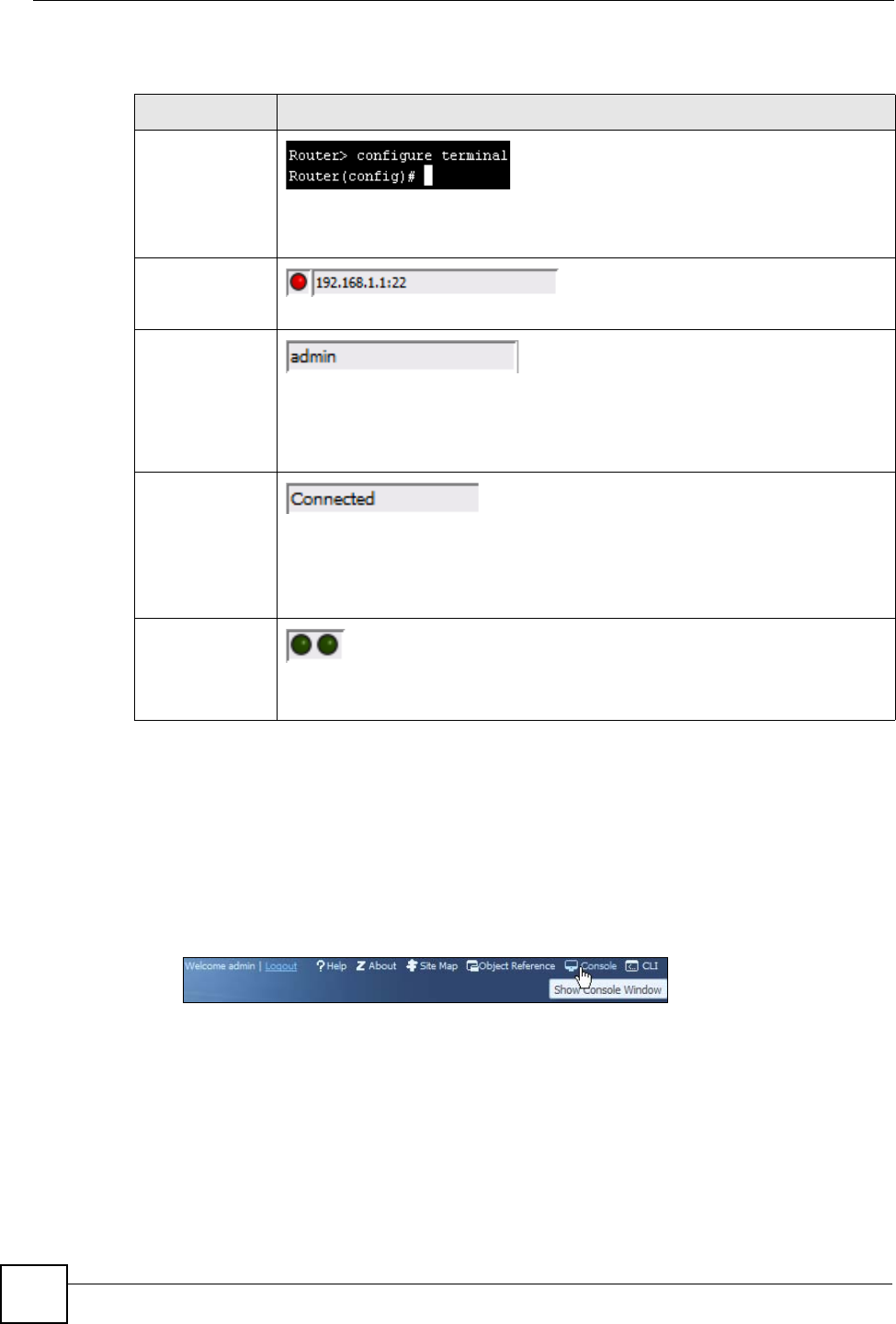
The Console allows you to use CLI commands from directly within the Web Configurator
rather than having to use a separate terminal program. In addition to logging in directly to the
NXC’s CLI, you can also log into other devices on the network through this Console. It uses
SSH to establish a connection.
To view the functions in the Web Configurator user interface that correspond
directly to specific NXC CLI commands, use the CLI Messages window
(described in the User’s Guide) in tandem with this one.
Figure 3 Console
Chapter 1 Command Line Interface
NXC CLI Reference Guide
18
The following table describes the elements in this screen.
Before you use the Console, ensure that:
• Your web browser of choice allows pop-up windows from the IP address assigned to your
NXC.
• Your web browser allows Java programs.
• You are using the latest version of the Java program (http://www.java.com).
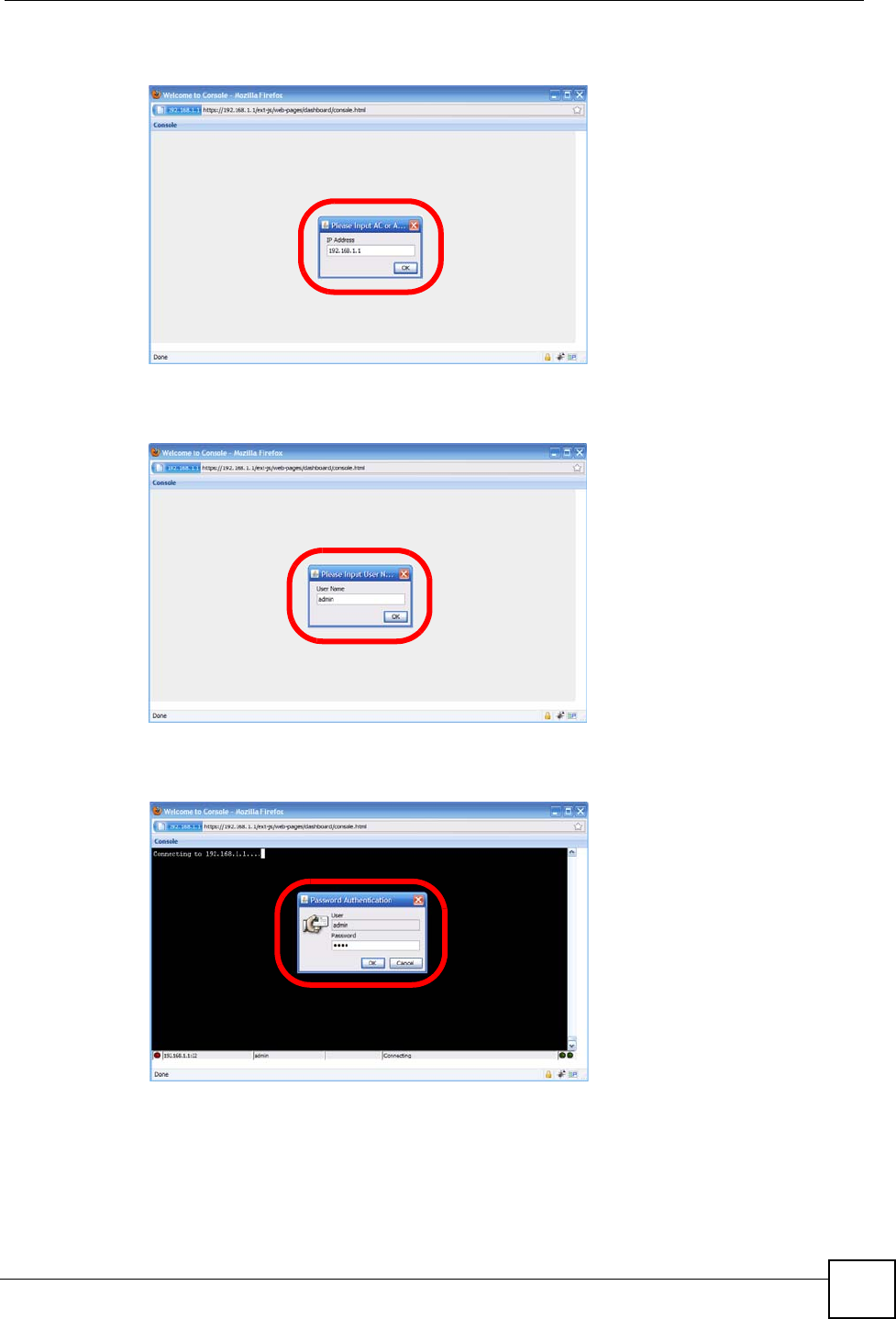
To login in through the Console:
1Click the Console button on the Web Configurator title bar.
Table 2 Console
LABEL DESCRIPTION
Command Line
Enter commands for the device that you are currently logged into here. If you are
logged into the NXC, see the CLI Reference Guide for details on using the
command line to configure it.
Device IP
Address
This is the IP address of the device that you are currently logged into.
Logged-In User
This displays the username of the account currently logged into the NXC through
the Console Window.
You can log into the Web Configurator with a different account than used to log into
the NXC through the Console.
Connection
Status
This displays the connection status of the account currently logged in.
If you are logged in and connected, then this displays ‘Connected’.
If you lose the connection, get disconnected, or logout, then this displays ‘Not
Connected’.
Tx/RX Activity
Monitor
This displays the current upload / download activity. The faster and more frequently
an LED flashes, the faster the data connection.
Chapter 1 Command Line Interface
NXC CLI Reference Guide 19
2Enter the IP address of the NXC and click OK.
3Next, enter the user name of the account being used to log into your target device and
then click OK.
4You may be prompted to authenticate your account password, depending on the type of
device that you are logging into. Enter the password and click OK.

Chapter 1 Command Line Interface
NXC CLI Reference Guide
20
5If your login is successful, the command line appears and the status bar at the bottom of
the Console updates to reflect your connection state.
1.2.3 Telnet
Use the following steps to Telnet into your NXC.
1If your computer is connected to the NXC over the Internet, skip to the next step. Make
sure your computer IP address and the NXC IP address are on the same subnet.
2In Windows, click Start (usually in the bottom left corner) and Run. Then type telnet
and the NXC’s IP address. For example, enter telnet 192.168.1.1 (the default
management IP address).
3Click OK. A login screen displays. Enter the user name and password at the prompts.
The default login username is admin and password is 1234. The username
and password are case-sensitive.
1.2.4 SSH (Secure SHell)
You can use an SSH client program to access the CLI. The following figure shows an example
using a text-based SSH client program. Refer to the documentation that comes with your SSH
program for information on using it.
The default login username is admin and password is 1234. The username
and password are case-sensitive.

Chapter 1 Command Line Interface
NXC CLI Reference Guide 21
Figure 4 SSH Login Example
1.3 How to Find Commands in this Guide
You can simply look for the feature chapter to find commands. In addition, you can use the
List of Commands at the end of the guide. This section lists the commands in alphabetical
order that they appear in this guide.
If you are looking at the CLI Reference Guide electronically, you might have additional
options (for example, bookmarks or Find...) as well.
1.4 How Commands Are Explained
Each chapter explains the commands for one keyword. The chapters are divided into the
following sections.
1.4.1 Background Information
See the User’s Guide for background information about most features.
This section provides background information about features that you cannot configure in the
web configurator. In addition, this section identifies related commands in other chapters.
1.4.2 Command Input Values
This section lists common input values for the commands for the feature in one or more tables
C:\>ssh2 admin@192.168.1.1
Host key not found from database.
Key fingerprint:
xolor-takel-fipef-zevit-visom-gydog-vetan-bisol-lysob-cuvun-muxex
You can get a public key's fingerprint by running
% ssh-keygen -F publickey.pub
on the keyfile.
Are you sure you want to continue connecting (yes/no)? yes
Host key saved to C:/Documents and Settings/user/Application Data/SSH/
hostkeys/
ey_22_192.168.1.1.pub
host key for 192.168.1.1, accepted by user Tue Aug 09 2005 07:38:28
admin's password:
Authentication successful.

Chapter 1 Command Line Interface
NXC CLI Reference Guide
22
1.4.3 Command Summary
This section lists the commands for the feature in one or more tables.
1.4.4 Command Examples
This section contains any examples for the commands in this feature.
1.4.5 Command Syntax
The following conventions are used in this guide.
• A command or keyword in courier new must be entered literally as shown. Do not
abbreviate.
• Values that you need to provide are in italics.
• Required fields that have multiple choices are enclosed in curly brackets {}.
• A range of numbers is enclosed in angle brackets <>.
• Optional fields are enclosed in square brackets [].
•The
| symbol means OR.
For example, look at the following command to create a TCP/UDP service object.
service-object object-name {tcp | udp} {eq <1..65535> | range <1..65535>
<1..65535>}
1Enter service-object exactly as it appears.
2Enter the name of the object where you see object-name.
3Enter tcp or udp, depending on the service object you want to create.
4Finally, do one of the following.
•Enter
eq exactly as it appears, followed by a number between 1 and 65535.
•Enter
range exactly as it appears, followed by two numbers between 1 and 65535.
1.4.6 Changing the Password
It is highly recommended that you change the password for accessing the NXC. See Section
24.2 on page 170 for the appropriate commands.
1.5 CLI Modes
You run CLI commands in one of several modes.
Table 3 CLI Modes
USER PRIVILEGE CONFIGURATION SUB-COMMAND
What Guest users
can do Unable to access Unable to access Unable to access Unable to access
What User users
can do • Look at (but not
run) available
commands
Unable to access Unable to access Unable to access

Chapter 1 Command Line Interface
NXC CLI Reference Guide 23
See Chapter 24 on page 169 for more information about the user types. User users can only
log in, look at (but not run) the available commands in User mode, and log out. Limited-
Admin users can look at the configuration in the web configurator and CLI, and they can run
basic diagnostics in the CLI. Admin users can configure the NXC in the web configurator or
CLI.
At the time of writing, there is not much difference between User and Privilege mode for
admin users. This is reserved for future use.
1.6 Shortcuts and Help
1.6.1 List of Available Commands
A list of valid commands can be found by typing ? or [TAB] at the command prompt. To view a
list of available commands within a command group, enter <command> ? or <command>
[TAB].
What Limited-
Admin users can
do
• Look at system
information (like
Status screen)
• Run basic
diagnostics
• Look at system
information (like
Status screen)
• Run basic
diagnostics
Unable to access Unable to access
What Admin
users can do • Look at system
information (like
Status screen)
• Run basic
diagnostics
• Look at system
information (like
Status screen)
• Run basic
diagnostics
• Configure simple
features (such as
an address
object)
• Create or remove
complex parts
(such as an
interface)
• Configure
complex parts
(such as an
interface) in the
NXC
How you enter it Log in to the NXC Type enable in User
mode Type configure
terminal in User or
Privilege mode
Type the command
used to create the
specific part in
Configuration mode
What the prompt
looks like Router> Router# Router(config)# (varies by part)
Router(zone)#
Router(config-
if-ge)#
...
How you exit it Type exit Type disable Type exit Type exit
Table 3 CLI Modes (continued)
USER PRIVILEGE CONFIGURATION SUB-COMMAND

Chapter 1 Command Line Interface
NXC CLI Reference Guide
24
Figure 5 Help: Available Commands Example 1
Figure 6 Help: Available Command Example 2
1.6.2 List of Sub-commands or Required User Input
To view detailed help information for a command, enter <command> <sub command> ?.
Figure 7 Help: Sub-command Information Example
Figure 8 Help: Required User Input Example
Router> ?
<cr>
apply
atse
clear
configure
------------------[Snip]--------------------
shutdown
telnet
test
traceroute
write
Router>
Router> show ?
<wlan ap interface>
aaa
access-page
account
ad-server
address-object
------------------[Snip]--------------------
wlan
workspace
zone
Router> show
Router(config)# ip telnet server ?
;
<cr>
port
rule
|
Router(config)# ip telnet server
Router(config)# ip telnet server port ?
<1..65535>
Router(config)# ip telnet server port

Chapter 1 Command Line Interface
NXC CLI Reference Guide 25
1.6.3 Entering Partial Commands
The CLI does not accept partial or incomplete commands. You may enter a unique part of a
command and press [TAB] to have the NXC automatically display the full command.
For example, if you enter config and press [TAB] , the full command of configure
automatically displays.
If you enter a partial command that is not unique and press [TAB], the NXC displays a list of
commands that start with the partial command.
Figure 9 Non-Unique Partial Command Example
1.6.4 Entering a ? in a Command
Typing a ? (question mark) usually displays help information. However, some commands
allow you to input a ?, for example as part of a string. Press [CTRL+V] on your keyboard to
enter a ? without the NXC treating it as a help query.
1.6.5 Command History
The NXC keeps a list of commands you have entered for the current CLI session. You can use
any commands in the history again by pressing the up () or down () arrow key to scroll
through the previously used commands and press [ENTER].
1.6.6 Navigation
Press [CTRL]+A to move the cursor to the beginning of the line. Press [CTRL]+E to move the
cursor to the end of the line.
1.6.7 Erase Current Command
Press [CTRL]+U to erase whatever you have currently typed at the prompt (before pressing
[ENTER]).
1.6.8 The no Commands
When entering the no commands described in this document, you may not need to type the
whole command. For example, with the “[no] mss <536..1452>” command, you use
“mss 536” to specify the MSS value. But to disable the MSS setting, you only need to type
“no mss” instead of “no mss 536”.
Router# c [TAB]
clear configure copy
Router# co [TAB]
configure copy

Chapter 1 Command Line Interface
NXC CLI Reference Guide
26
1.7 Input Values
You can use the ? or [TAB] to get more information about the next input value that is required
for a command. In some cases, the next input value is a string whose length and allowable
characters may not be displayed in the screen. For example, in the following example, the next
input value is a string called <description>.
The following table provides more information about input values like <description>.
Router# configure terminal
Router(config)# interface ge1
Router(config-if-ge)# description
<description>
Table 4 Input-Value Formats for Strings in CLI Commands
TAG # VALUES LEGAL VALUES
*1*
all -- ALL
authentication key 32-40
16-20
“0x” or “0X” + 32-40 hexadecimal values
alphanumeric or ;|`~!@#$%^&*()_+\\{}':,./<>=-
Used in MD5 authentication keys and text authentication key
0-16 alphanumeric or _-
Used in text authentication keys
0-8 alphanumeric or _-
certificate name 1-31 alphanumeric or ;`~!@#$%^&()_+[\]{}',.=-
community string 0-63 alphanumeric or .-
first character: alphanumeric or -
connection_id 1+ alphanumeric or -_:
contact 1-61 alphanumeric, spaces, or '()+,/:=?;!*#@$_%-.
country code 0 or 2 alphanumeric
custom signature file
name
0-30 alphanumeric or _-.
first character: letter
description Used in keyword criteria for log entries
1-64 alphanumeric, spaces, or '()+,/:=?;!*#@$_%-.
Used in other commands
1-61 alphanumeric, spaces, or '()+,/:=?;!*#@$_%-
distinguished name 1-511 alphanumeric, spaces, or .@=,_-
domain name 0+ lower-case letters, numbers, or .-
Used in ip dns server
1-248 alphanumeric or .-
first character: alphanumeric or -
Used in domainname, ip dhcp pool, and ip domain
1-255 alphanumeric or ._-
first character: alphanumeric or -
email 1-63 alphanumeric or .@_-

Chapter 1 Command Line Interface
NXC CLI Reference Guide 27
e-mail 1-64 alphanumeric or .@_-
encryption key 16-64
8-32
“0x” or “0X” + 16-64 hexadecimal values
alphanumeric or ;\|`~!@#$%^&*()_+\\{}':,./<>=-
file name 0-31 alphanumeric or _-
filter extension 1-256 alphanumeric, spaces, or '()+,/:=?;!*#@$_%.-
fqdn Used in ip dns server
1-253 alphanumeric or .-
first character: alphanumeric or -
Used in ip, time server, device HA, certificates, and
interface ping check
1-255 alphanumeric or .-
first character: alphanumeric or -
full file name 0-256 alphanumeric or _/.-
hostname Used in hostname command
1-64 alphanumeric or .-_
first character: alphanumeric or -
Used in other commands
1-253 alphanumeric or .-
first character: alphanumeric or -
import configuration
file
1-
26+”.conf”
alphanumeric or ;`~!@#$%^&()_+[]{}',.=-
add “.conf” at the end
import shell script 1-
26+”.zysh”
alphanumeric or ;`~!@#$%^&()_+[]{}',.=-
add “.zysh” at the end
initial string 1-64 alphanumeric, spaces, or '()+,/:=!*#@$_%-.&
key length -- 512, 768, 1024, 1536, 2048
license key 25 “S-” + 6 upper-case letters or numbers + “-” + 16
upper-case letters or numbers
mac address -- aa:bb:cc:dd:ee:ff (hexadecimal)
mail server fqdn lower-case letters, numbers, or -.
name 1-31 alphanumeric or _-
notification message 1-81 alphanumeric, spaces, or '()+,/:=?;!*#@$_%-
password: less than 15
chars
1-15 alphanumeric or `~!@#$%^&*()_\-+={}|\;:'<,>./
password: less than 8
chars
1-8 alphanumeric or ;/?:@&=+$\.-_!~*'()%,#$
Table 4 Input-Value Formats for Strings in CLI Commands (continued)
TAG # VALUES LEGAL VALUES

Chapter 1 Command Line Interface
NXC CLI Reference Guide
28
password Used in user and ip
1-63 alphanumeric or `~!@#$%^&*()_-+={}|\;:'<,>./
Used in e-mail log profile SMTP authentication
1-63 alphanumeric or `~!@#$%^&*()_-+={}|\;:'<>./
Used in device HA synchronization
1-63 alphanumeric or ~#%^*_-={}:,.
Used in registration
6-20 alphanumeric or .@_-
phone number 1-20 numbers or ,+
preshared key 16-64 “0x” or “0X” + 16-64 hexadecimal values
alphanumeric or ;|`~!@#$%^&*()_+\{}':,./<>=-
profile name 1-31 alphanumeric or _-
first character: letters or _-
proto name 1-16 lower-case letters, numbers, or -
protocol name 1-31 alphanumeric or _-
first character: letters or _-
quoted string less
than 255 chars
1-255 alphanumeric, spaces, or ;/?:@&=+$\.-_!~*'()%,
quoted string less
than 63 chars
1-63 alphanumeric, spaces, or ;/?:@&=+$\.-_!~*'()%
quoted string 0+ alphanumeric, spaces, or punctuation marks
enclosed in double quotation marks (“)
must put a backslash (\) before double quotation
marks that are part of input value itself
realm 1-253 alphanumeric or -_
first character: alphanumeric or -_
used in domain authentication
service name 0-63 alphanumeric or -_@$./
spi 2-8 hexadecimal
string less than 15
chars
1-15 alphanumeric or -_
string: less than 63
chars
1-63 alphanumeric or `~!@#$%^&*()_-+={}|\;:'<,>./
string 1+ alphanumeric or -_@
subject 1-61 alphanumeric, spaces, or '()+,./:=?;!*#@$_%-
system type 0-2 hexadecimal
timezone [-+]hh -- -12 through +12 (with or without “+”)
url 1-511 alphanumeric or '()+,/:.=?;!*#@$_%-
url “http://”+
“https://”+
alphanumeric or ;/?:@&=+$\.-_!~*'()%,
starts with “http://” or “https://”
may contain one pound sign (#)
user name 1-31 alphanumeric or _-
first character: letters or _-
Table 4 Input-Value Formats for Strings in CLI Commands (continued)
TAG # VALUES LEGAL VALUES

Chapter 1 Command Line Interface
NXC CLI Reference Guide 29
1.8 Saving Configuration Changes
Use the write command to save the current configuration to the NXC.
Always save the changes before you log out after each management session.
All unsaved changes will be lost after the system restarts.
1.9 Logging Out
Enter the exit or end command in configure mode to go to privilege mode.
Enter the exit command in user mode or privilege mode to log out of the CLI.
username 1-31 alphanumeric or _-
first character: alphanumeric or _-
domain authorization
username 6-20 alphanumeric or .@_-
registration
user name 1+ alphanumeric or -_.
logging commands
user@domainname 1-80 alphanumeric or .@_-
vrrp group name: less
than 15 chars
1-15 alphanumeric or _-
week-day sequence,
i.e. 1=first,2=second
11-4
xauth method 1-31 alphanumeric or _-
xauth password 1-31 alphanumeric or ;|`~!@#$%^&*()_+\{}':,./<>=-
mac address 0-12 (even
number)
hexadecimal
for example: xx-xx-xx-xx-xx-xx
Table 4 Input-Value Formats for Strings in CLI Commands (continued)
TAG # VALUES LEGAL VALUES

Chapter 1 Command Line Interface
NXC CLI Reference Guide
30

NXC CLI Reference Guide 31
CHAPTER 2
User and Privilege Modes
This chapter describes how to use these two modes.
2.1 User And Privilege Modes
This is the mode you are in when you first log into the CLI. (Do not confuse ‘user mode’ with
types of user accounts the NXC uses. See Chapter 24 on page 169 for more information about
the user types. ‘User’ type accounts can only run ‘exit’ in this mode. However, they may need
to log into the device in order to be authenticated for ‘user-aware’ policies, for example a
firewall rule that a particular user is exempt from.)
Type ‘enable’ to go to ‘privilege mode’. No password is required. All commands can be run
from here except those marked with an asterisk. Many of these commands are for trouble-
shooting purposes, for example the htm (hardware test module) and debug commands.
Customer support may ask you to run some of these commands and send the results if you
need assistance troubleshooting your device.
For admin logins, all commands are visible in ‘user mode’ but not all can be run there. The
following table displays which commands can be run in ‘user mode’. All commands can be
run in ‘privilege mode’.
The htm and psm commands are for ZyXEL’s internal manufacturing process.
Table 5 User (U) and Privilege (P) Mode Commands
COMMAND MODE DESCRIPTION
apply P Applies a configuration file.
atse U/P Displays the seed code
clear U/P Clears system or debug logs or DHCP binding.
configure U/P Use ‘configure terminal’ to enter configuration mode.
copy P Copies configuration files.
debug (*) U/P For support personnel only! The device needs to have the debug flag enabled.
delete P Deletes configuration files.
details P Performs diagnostic commands.
diag P Provided for support personnel to collect internal system information. It is not
recommended that you use these.

Chapter 2 User and Privilege Modes
NXC CLI Reference Guide
32
Subsequent chapters in this guide describe the configuration commands. User/privilege mode
commands that are also configuration commands (for example, ‘show’) are described in more
detail in the related configuration command chapter.
diag-info P Has the NXC create a new diagnostic file.
dir P Lists files in a directory.
disable U/P Goes from privilege mode to user mode
enable U/P Goes from user mode to privilege mode
exit U/P Goes to a previous mode or logs out.
htm U/P Goes to htm (hardware test module) mode for testing hardware components. You
may need to use the htm commands if your customer support Engineer asks you
to during troubleshooting.
Note: These commands are for ZyXEL’s internal manufacturing
process.
interface U/P Dials or disconnects an interface.
no packet-trace U/P Turns of packet tracing.
nslookup U/P Resolves an IP address to a host name and vice-versa.
packet-trace U/P Performs a packet trace.
ping U/P Pings an IP address or host name.
psm U/P Goes to psm (product support module) mode for setting product parameters. You
may need to use the htm commands if your customer support Engineer asks you
to during troubleshooting.
Note: These commands are for ZyXEL’s internal manufacturing
process.
reboot P Restarts the device.
release P Releases DHCP information from an interface.
rename P Renames a configuration file.
renew P Renews DHCP information for an interface.
run P Runs a script.
setenv U/P Turns stop-on-error on (terminates booting if an error is found in a configuration
file) or off (ignores configuration file errors and continues booting).
show U/P Displays command statistics. See the associated command chapter in this guide.
shutdown P Writes all d data to disk and stops the system processes. It does not turn off the
power.
telnet U/P Establishes a connection to the TCP port number 23 of the specified host name or
IP address.
test aaa U/P Tests whether the specified user name can be successfully authenticated by an
external authentication server.
traceroute P Traces the route to the specified host name or IP address.
write P Saves the current configuration to the NXC. All unsaved changes are lost after the
NXC restarts.
Table 5 User (U) and Privilege (P) Mode Commands (continued)
COMMAND MODE DESCRIPTION

Chapter 2 User and Privilege Modes
NXC CLI Reference Guide 33
2.1.1 Debug Commands
Debug commands marked with an asterisk (*) are not available when the debug flag is on and
are for ZyXEL service personnel use only. The debug commands follow a syntax that is
Linux-based, so if there is a Linux equivalent, it is displayed in this chapter for your reference.
You must know a command listed here well before you use it. Otherwise, it may cause
undesired results.
Table 6 Debug Commands
COMMAND SYNTAX DESCRIPTION LINUX COMMAND EQUIVALENT
debug alg FTP/SIP ALG debug commands
debug app Application patrol debug command
debug app show l7protocol
(*)
Shows app patrol protocol list > cat /etc/l7_protocols/
protocol.list
debug ca (*) Certificate debug commands
debug device-ha (*) Device HA debug commands
debug force-auth (*) Authentication policy debug commands
debug gui (*) Web Configurator related debug
commands
debug hardware (*) Hardware debug commands
debug idp IDP debug commands
debug idp-av IDP and Anti-Virus debug commands
debug interface Interface debug commands
debug interface ifconfig
[interface]
Shows system interfaces detail > ifconfig [interface]
debug ip dns DNS debug commands
debug ip virtual-server Virtual Server (NAT) debug commands.
debug logging System logging debug commands
debug manufacture Manufacturing related debug
commands
debug network arpignore (*) Enable/Display the ignoring of ARP
responses for interfaces which don't
own the IP address
cat /proc/sys/net/ipv4/
conf/*/arp_ignore
debug no registration
server (*)
Set the myZyXEL.com registration/
update server to the official site
debug policy-route (*) Policy route debug command
debug service-register Service registration debug command
debug show ipset Lists the NXC‘s received cards
debug show registration-
server status
myZyXEL.com debug commands
debug [cmdexec|corefile|ip
|kernel|mac-id-
rewrite|observer|switch
|system|zyinetpkt|zysh-ipt-
op] (*)
ZLD internal debug commands
debug update server (*) Update server debug command

Chapter 2 User and Privilege Modes
NXC CLI Reference Guide
34

NXC CLI Reference Guide 35
CHAPTER 3
Object Reference
This chapter describes how to use object reference commands.
3.1 Object Reference Commands
The object reference commands are used to see which configuration settings reference a
specific object. You can use this table when you want to delete an object because you have to
remove references to the object first.
Table 7 show reference Commands
COMMAND DESCRIPTION
show reference object username
[username]
Displays which configuration settings reference the
specified user object.
show reference object address
[profile]
Displays which configuration settings reference the
specified address object.
show reference object service
[profile]
Displays which configuration settings reference the
specified service object.
show reference object schedule
[profile]
Displays which configuration settings reference the
specified schedule object.
show reference object aaa
authentication [default |
auth_method]
Displays which configuration settings reference the
specified AAA authentication object.
show reference object ca
category {local|remote}
[cert_name]
Displays which configuration settings reference the
specified authentication method object.
show reference object zone
[profile]
Displays which configuration settings reference the
specified zone object.
show reference object-group
username [username]
Displays which configuration settings reference the
specified user group object.
show reference object-group
address [profile]
Displays which configuration settings reference the
specified address group object.
show reference object-group
service [profile]
Displays which configuration settings reference the
specified service group object.
show reference object-group
interface [profile]
Displays which configuration settings reference the
specified trunk object.
show reference object-group aaa
ad [group_name]
Displays which configuration settings reference the
specified AAA AD group object.
show reference object-group aaa
ldap [group_name]
Displays which configuration settings reference the
specified AAA LDAP group object.

Chapter 3 Object Reference
NXC CLI Reference Guide
36
3.1.1 Object Reference Command Example
This example shows how to check which configuration is using an address object named
LAN1_SUBNET. For the command output, firewall rule 3 named LAN1-to-NXC is using the
address object.
show reference object-group aaa
radius [group_name]
Displays which configuration settings reference the
specified AAA RADIUS group object.
show reference object [wlan-
radio-profile]
Displays the specified radio profile object.
show reference object [wlan-
monitor-profile]
Displays the specified monitor profile object.
show reference object [wlan-
ssid-profile]
Displays the specified SSID profile object.
show reference object [wlan-
security-profile]
Displays the specified security profile object.
show reference object [wlan-
macfilter-profile]
Displays the specified macfilter profile object.
Table 7 show reference Commands (continued)
COMMAND DESCRIPTION
Router(config)# show reference object address LAN1_SUBNET
LAN1_SUBNET References:
Category
Rule Priority Rule Name
Description
===========================================================================
Firewall
3 N/A
LAN1-to-NXC
Router(config)#

NXC CLI Reference Guide 37
CHAPTER 4
Status
This chapter explains some commands you can use to display information about the NXC’s
current operational state.
4.1 Status Show Commands
The following table describes the commands available for NXC system status.
Table 8 Status Show Commands
COMMAND DESCRIPTION
show boot status Displays details about the NXC’s startup state.
show comport status Displays whether the console and auxiliary ports are on or off.
show cpu status Displays the CPU utilization.
show disk Displays the disk utilization.
show extension-slot Displays the status of the extension card slot and the USB ports and the names of
any connected devices.
show fan-speed Displays the current fan speed.
show led status Displays the status of each LED on the NXC.
show mac Displays the NXC’s MAC address.
show mem status Displays what percentage of the NXC’s memory is currently being used.
show ram-size Displays the size of the NXC’s on-board RAM.
show serial-number Displays the serial number of this NXC.
show socket listen Displays the NXC’s listening ports
show socket open Displays the ports that are open on the NXC.
show system uptime Displays how long the NXC has been running since it last restarted or was turned
on.
show version Displays the NXC’s model, firmware and build information.

Chapter 4 Status
NXC CLI Reference Guide
38
Here are examples of the commands that display the CPU and disk utilization.
Here are examples of the commands that display the fan speed, MAC address, memory usage,
RAM size, and serial number.
Here is an example of the command that displays the listening ports.
Router(config)# show cpu status
CPU utilization: 0 %
CPU utilization for 1 min: 0 %
CPU utilization for 5 min: 0 %
Router(config)# show disk
; <cr> |
Router(config)# show disk
No. Disk Size(MB) Usage
===========================================================================
1 image 67 83%
2 onboard flash 163 15%
Router(config)# show fan-speed
FAN1(F00)(rpm): limit(hi)=6500, limit(lo)=1400, max=6650, min=6642, avg=6644
FAN2(F01)(rpm): limit(hi)=6500, limit(lo)=1400, max=6809, min=6783, avg=6795
FAN3(F02)(rpm): limit(hi)=6500, limit(lo)=1400, max=6683, min=6666, avg=6674
FAN4(F03)(rpm): limit(hi)=6500, limit(lo)=1400, max=6633, min=6617, avg=6627
Router(config)# show mac
MAC address: 28:61:32:89:37:61-28:61:32:89:37:67
Router(config)# show mem status
memory usage: 39%
Router(config)# show ram-size
ram size: 1024MB
Router(config)# show serial-number
serial number: S132L06160030
Router(config)# show socket listen
No. Proto Local_Address Foreign_Address State
===========================================================================
1 tcp 0.0.0.0:2601 0.0.0.0:0 LISTEN
2 tcp 0.0.0.0:2602 0.0.0.0:0 LISTEN
3 tcp 127.0.0.1:10443 0.0.0.0:0 LISTEN
4 tcp 0.0.0.0:2604 0.0.0.0:0 LISTEN
5 tcp 0.0.0.0:80 0.0.0.0:0 LISTEN
6 tcp 127.0.0.1:8085 0.0.0.0:0 LISTEN
7 tcp 1.1.1.1:53 0.0.0.0:0 LISTEN
8 tcp 172.16.13.205:53 0.0.0.0:0 LISTEN
9 tcp 10.0.0.8:53 0.0.0.0:0 LISTEN
10 tcp 172.16.13.240:53 0.0.0.0:0 LISTEN
11 tcp 192.168.1.1:53 0.0.0.0:0 LISTEN
12 tcp 127.0.0.1:53 0.0.0.0:0 LISTEN
13 tcp 0.0.0.0:21 0.0.0.0:0 LISTEN
14 tcp 0.0.0.0:22 0.0.0.0:0 LISTEN
15 tcp 127.0.0.1:953 0.0.0.0:0 LISTEN
16 tcp 0.0.0.0:443 0.0.0.0:0 LISTEN
17 tcp 127.0.0.1:1723 0.0.0.0:0 LISTEN

Chapter 4 Status
NXC CLI Reference Guide 39
Here is an example of the command that displays the open ports.
Router(config)# show socket open
No. Proto Local_Address Foreign_Address State
===========================================================================
1 tcp 172.16.13.240:22 172.16.13.10:1179 ESTABLISHED
2 udp 127.0.0.1:64002 0.0.0.0:0
3 udp 0.0.0.0:520 0.0.0.0:0
4 udp 0.0.0.0:138 0.0.0.0:0
5 udp 0.0.0.0:138 0.0.0.0:0
6 udp 0.0.0.0:138 0.0.0.0:0
7 udp 0.0.0.0:138 0.0.0.0:0
8 udp 0.0.0.0:138 0.0.0.0:0
9 udp 0.0.0.0:138 0.0.0.0:0
10 udp 0.0.0.0:138 0.0.0.0:0
11 udp 0.0.0.0:32779 0.0.0.0:0
12 udp 192.168.1.1:4500 0.0.0.0:0
13 udp 1.1.1.1:4500 0.0.0.0:0
14 udp 10.0.0.8:4500 0.0.0.0:0
15 udp 172.16.13.205:4500 0.0.0.0:0
16 udp 172.16.13.240:4500 0.0.0.0:0
17 udp 127.0.0.1:4500 0.0.0.0:0
18 udp 127.0.0.1:63000 0.0.0.0:0
19 udp 127.0.0.1:63001 0.0.0.0:0
20 udp 127.0.0.1:63002 0.0.0.0:0
21 udp 0.0.0.0:161 0.0.0.0:0
22 udp 127.0.0.1:63009 0.0.0.0:0
23 udp 192.168.1.1:1701 0.0.0.0:0
24 udp 1.1.1.1:1701 0.0.0.0:0
25 udp 10.0.0.8:1701 0.0.0.0:0
26 udp 172.16.13.205:1701 0.0.0.0:0
27 udp 172.16.13.240:1701 0.0.0.0:0
28 udp 127.0.0.1:1701 0.0.0.0:0
29 udp 127.0.0.1:63024 0.0.0.0:0
30 udp 127.0.0.1:30000 0.0.0.0:0
31 udp 1.1.1.1:53 0.0.0.0:0
32 udp 172.16.13.205:53 0.0.0.0:0
33 udp 10.0.0.8:53 0.0.0.0:0
34 udp 172.16.13.240:53 0.0.0.0:0
35 udp 192.168.1.1:53 0.0.0.0:0
36 udp 127.0.0.1:53 0.0.0.0:0
37 udp 0.0.0.0:67 0.0.0.0:0
38 udp 127.0.0.1:63046 0.0.0.0:0
39 udp 127.0.0.1:65097 0.0.0.0:0
40 udp 0.0.0.0:65098 0.0.0.0:0
41 udp 192.168.1.1:500 0.0.0.0:0
42 udp 1.1.1.1:500 0.0.0.0:0
43 udp 10.0.0.8:500 0.0.0.0:0
44 udp 172.16.13.205:500 0.0.0.0:0
45 udp 172.16.13.240:500 0.0.0.0:0
46 udp 127.0.0.1:500 0.0.0.0:0

Chapter 4 Status
NXC CLI Reference Guide
40
Here are examples of the commands that display the system uptime and model, firmware, and
build information.
This example shows the current LED states on the NXC. The SYS LED lights on and green.
Router> show system uptime
system uptime: 04:18:00
Router> show version
ZyXEL Communications Corp.
model : NXC5200
firmware version: 2.20(AQQ.0)b3
BM version : 1.08
build date : 2009-11-21 01:18:06
Router> show led status
sys: green
Router>

NXC CLI Reference Guide 41
CHAPTER 5
Registration
This chapter introduces myzyxel.com and shows you how to register the NXC for IDP/
AppPatrol and anti-virus using commands.
5.1 myZyXEL.com overview
myZyXEL.com is ZyXEL’s online services center where you can register your NXC and
manage subscription services available for the NXC.
You need to create an account before you can register your device and
activate the services at myZyXEL.com.
You can directly create a myZyXEL.com account, register your NXC and activate a service
using the Licensing > Registration screens. Alternatively, go to http://www.myZyXEL.com
with the NXC’s serial number and LAN MAC address to register it. Refer to the web site’s on-
line help for details.
To activate a service on a NXC, you need to access myZyXEL.com via that
NXC.
5.1.1 Subscription Services Available on the NXC
The NXC can use anti-virus and IDP/AppPatrol (Intrusion Detection and Prevention and
application patrol) subscription services.
• The NXC’s anti-virus packet scanner uses the signature files on the NXC to detect virus
files. Your NXC scans files transmitting through the enabled interfaces into the network.
Subscribe to signature files for ZyXEL’s anti-virus engine or one powered by Kaspersky.
After the service is activated, the NXC can download the up-to-date signature files from
the update server.

Chapter 5 Registration
NXC CLI Reference Guide
42
When using the trial, you can switch from one engine to the other in the Registration
screen. There is no limit on the number of times you can change the anti-virus engine
selection during the trial, but you only get a total of one anti-virus trial period (not a
separate trial period for each anti-virus engine). After the service is activated, the NXC
can download the up-to-date signature files from the update server.
After the trial expires, you need to purchase an iCard for the anti-virus engine you want to
use and enter the PIN number (license key) in the Registration > Service screen. You
must use the ZyXEL anti-virus iCard for the ZyXEL anti-virus engine and the Kaspersky
anti-virus iCard for the Kaspersky anti-virus engine. If you were already using an iCard
anti-virus subscription, any remaining time on your earlier subscription is automatically
added to the new subscription. Even if the earlier iCard anti-virus subscription was for a
different anti-virus engine. For example, suppose you purchase a one-year Kaspersky
engine anti-virus service subscription and use it for six months. Then you purchase a one-
year ZyXEL engine anti-virus service subscription and enter the iCard’s PIN number
(license key) in the Registration > Service screen. The one-year ZyXEL engine anti-virus
service subscription is automatically extended to 18 months.
• The IDP and application patrol features use the IDP/AppPatrol signature files on the NXC.
IDP detects malicious or suspicious packets and responds immediately. Application patrol
conveniently manages the use of various applications on the network. After the service is
activated, the NXC can download the up-to-date signature files from the update server.
• You will get automatic e-mail notification of new signature releases from mySecurityZone
after you activate the IDP/AppPatrol service. You can also check for new signatures at
http://mysecurity.zyxel.com.
See the respective chapters for more information about these features.
5.1.2 Maximum Number of Managed APs
The NXC2500 is initially configured to support up to 8 managed APs (such as the NWA5123-
NI). You can increase this by subscribing to additional licenses. As of this writing, each
license upgrade allows an additional 8 managed APs while the maximum number of APs a
single NXC2500 can support is 24.
The NXC5200 is initially configured to support up to 48 managed APs (such as the
NWA5160N). You can increase this by subscribing to additional licenses. As of this writing,
each license upgrade allows an additional 48 managed APs while the maximum number of
APs a single NXC5200 can support is 240.
To update the signature file or use a subscription service, you have to register
the NXC and activate the corresponding service at myZyXEL.com (through the
NXC).

Chapter 5 Registration
NXC CLI Reference Guide 43
5.2 Registration Commands
The following table identifies the values required for many of these commands. Other input
values are discussed with the corresponding commands.
The following table describes the commands available for registration. You must use the
configure terminal command to enter the configuration mode before you can use these
commands.
Table 9 Input Values for General Registration Commands
LABEL DESCRIPTION
user_name The user name of your myZyXEL.com account. You may use six to 20
alphanumeric characters (and the underscore). Spaces are not allowed.
password The password for the myZyXEL.com account. You may use six to 20
alphanumeric characters (and the underscore). Spaces are not allowed.
Table 10 Command Summary: Registration
COMMAND DESCRIPTION
device-register checkuser user_name Checks if the user name exists in the
myZyXEL.com database.
device-register username user_name password
password [e-mail user@domainname country-code
country_code] [reseller-name
reseller_name][reseller-mail user@domainname]
[reseller-phone reseller_phonenumber][vat
vat_number]
Registers the device with an existing account or
creates a new account and registers the device at
one time.
country_code: see Table 11 on page 44
vat_number: your seller’s Value-Added Tax
number, if you bought your NXC from Europe.
service-register checkexpire Gets information of all service subscriptions from
myZyXEL.com and updates the status table.
service-register service-type standard license-
key key_value
Activates a standard service subscription with the
license key.
service-register service-type trial service
{all|av|idp}
Activates the content filter or IDP trial service
subscription.
service-register service-type trial service all
{kav|zav}
Activates all of the trial service subscriptions,
including Kaspersky or ZyXEL anti-virus.
service-register service-type trial service av
{kav|zav}
Activates a Kaspersky or ZyXEL anti-virus trial
service subscription.
service-register service-type trial av-engine
{kav|zav}
Changes from one anti-virus engine to the other.
show device-register status Displays whether the device is registered and
account information.
show service-register status {all|idp|av|maps} Displays service license information.

Chapter 5 Registration
NXC CLI Reference Guide
44
5.2.1 Command Examples
The following commands allow you to register your device with an existing account or create
a new account and register the device at one time, and activate a trial service subscription.
The following command displays the account information and whether the device is
registered.
The following command displays the service registration status and type and how many days
remain before the service expires.
5.3 Country Code
The following table displays the number for each country.
Router# configure terminal
Router(config)# device-register username alexctsui password 123456
Router(config)# service-register service-type trial service idp
Router# configure terminal
Router(config)# show device-register status
username : alexctsui
password : 123456
device register status : yes
expiration self check : no
Router# configure terminal
Router(config)# show service-register status all
Service Status Type Count Expiration
===========================================================================
IDP Signature Licensed Standard N/A 698
Anti-Virus Licensed Standard N/A 698
MAPS Licensed Standard 240 N/A
Table 11 Country Codes
COUNTRY CODE COUNTRY NAME COUNTRY CODE COUNTRY NAME
001 Afghanistan 002 Albania
003 Algeria 004 American Samoa
005 Andorra 006 Angola
007 Anguilla 008 Antarctica
009 Antigua & Barbuda 010 Argentina
011 Armenia 012 Aruba
013 Ascension Island 014 Australia
015 Austria 016 Azerbaijan
017 Bahamas 018 Bahrain

Chapter 5 Registration
NXC CLI Reference Guide 45
019 Bangladesh 020 Barbados
021 Belarus 022 Belgium
023 Belize 024 Benin
025 Bermuda 026 Bhutan
027 Bolivia 028 Bosnia and Herzegovina
029 Botswana 030 Bouvet Island
031 Brazil 032 British Indian Ocean Territory
033 Brunei Darussalam 034 Bulgaria
035 Burkina Faso 036 Burundi
037 Cambodia 038 Cameroon
039 Canada 040 Cape Verde
041 Cayman Islands 042 Central African Republic
043 Chad 044 Chile
045 China 046 Christmas Island
047 Cocos (Keeling) Islands 048 Colombia
049 Comoros 050 Congo, Democratic Republic of the
051 Congo, Republic of 052 Cook Islands
053 Costa Rica 054 Cote d'Ivoire
055 Croatia/Hrvatska 056 Cyprus
057 Czech Republic 058 Denmark
059 Djibouti 060 Dominica
061 Dominican Republic 062 East Timor
063 Ecuador 064 Egypt
065 El Salvador 066 Equatorial Guinea
067 Eritrea 068 Estonia
069 Ethiopia 070 Falkland Islands (Malvina)
071 Faroe Islands 072 Fiji
073 Finland 074 France
075 France (Metropolitan) 076 French Guiana
077 French Polynesia 078 French Southern Territories
079 Gabon 080 Gambia
081 Georgia 082 Germany
083 Ghana 084 Gibraltar
085 Great Britain 086 Greece
087 Greenland 088 Grenada
089 Guadeloupe 090 Guam
091 Guatemala 092 Guernsey
093 Guinea 094 Guinea-Bissau
Table 11 Country Codes (continued)
COUNTRY CODE COUNTRY NAME COUNTRY CODE COUNTRY NAME

Chapter 5 Registration
NXC CLI Reference Guide
46
095 Guyana 096 Haiti
097 Heard and McDonald Islands 098 Holy See (City Vatican State)
099 Honduras 100 Hong Kong
101 Hungary 102 Iceland
103 India 104 Indonesia
105 Ireland 106 Isle of Man
107 Italy 108 Jamaica
109 Japan 110 Jersey
111 Jordan 112 Kazakhstan
113 Kenya 114 Kiribati
115 Korea, Republic of 116 Kuwait
117 Kyrgyzstan 118 Lao People’s Democratic Republic
119 Latvia 120 Lebanon
121 Lesotho 122 Liberia
123 Liechtenstein 124 Lithuania
125 Luxembourg 126 Macau
127 Macedonia, Former Yugoslav
Republic 128 Madagascar
129 Malawi 130 Malaysia
131 Maldives 132 Mali
133 Malta 134 Marshall Islands
135 Martinique 136 Mauritania
137 Mauritius 138 Mayotte
139 Mexico 140 Micronesia, Federal State of
141 Moldova, Republic of 142 Monaco
143 Mongolia 144 Montserrat
145 Morocco 146 Mozambique
147 Namibia 148 Nauru
149 Nepal 150 Netherlands
151 Netherlands Antilles 152 New Caledonia
153 New Zealand 154 Nicaragua
155 Niger 156 Nigeria
157 Niue 158 Norfolk Island
159 Northern Mariana Islands 160 Norway
161 Not Determined 162 Oman
163 Pakistan 164 Palau
165 Panama 166 Papua New Guinea
167 Paraguay 168 Peru
169 Philippines 170 Pitcairn Island
Table 11 Country Codes (continued)
COUNTRY CODE COUNTRY NAME COUNTRY CODE COUNTRY NAME

Chapter 5 Registration
NXC CLI Reference Guide 47
171 Poland 172 Portugal
173 Puerto Rico 174 Qatar
175 Reunion Island 176 Romania
177 Russian Federation 178 Rwanda
179 Saint Kitts and Nevis 180 Saint Lucia
181 Saint Vincent and the Grenadines 182 San Marino
183 Sao Tome and Principe 184 Saudi Arabia
185 Senegal 186 Seychelles
187 Sierra Leone 188 Singapore
189 Slovak Republic 190 Slovenia
191 Solomon Islands 192 Somalia
193 South Africa 194 South Georgia and the South
Sandwich Islands
185 Spain 196 Sri Lanka
197 St Pierre and Miquelon 198 St. Helena
199 Suriname 200 Svalbard and Jan Mayen Islands
201 Swaziland 202 Sweden
203 Switzerland 204 Taiwan
205 Tajikistan 206 Tanzania
207 Thailand 208 Togo
209 Tokelau 210 Tonga
211 Trinidad and Tobago 212 Tunisia
213 Turkey 214 Turkmenistan
215 Turks and Caicos Islands 216 Tuvalu
217 US Minor Outlying Islands 218 Uganda
219 Ukraine 220 United Arab Emirates
221 United Kingdom 222 United States
223 Uruguay 224 Uzbekistan
225 Vanuatu 226 Venezuela
227 Vietnam 228 Virgin Islands (British)
229 Virgin Islands (USA) 230 Wallis And Futuna Islands
231 Western Sahara 232 Western Samoa
233 Yemen 234 Yugoslavia
235 Zambia 236 Zimbabwe
Table 11 Country Codes (continued)
COUNTRY CODE COUNTRY NAME COUNTRY CODE COUNTRY NAME

Chapter 5 Registration
NXC CLI Reference Guide
48

NXC CLI Reference Guide 49
CHAPTER 6
Interfaces
This chapter shows you how to use interface-related commands.
6.1 Interface Overview
In general, an interface has the following characteristics.
• An interface is a logical entity through which (layer-3) packets pass.
• An interface is bound to a physical port or another interface.
• Many interfaces can share the same physical port.
• An interface is bound to one zone at most.
• Many interface can belong to the same zone.
• Layer-3 virtualization (IP alias, for example) is a kind of interface.
Some characteristics do not apply to some types of interfaces.
6.1.1 Types of Interfaces
You can create several types of interfaces in the NXC:
•Ethernet interfaces are the foundation for defining other interfaces and network policies.
RIP and OSPF are also configured in these interfaces.
•VLAN interfaces receive and send tagged frames. The NXC automatically adds or
removes the tags as needed.
6.2 Interface General Commands Summary
The following table identifies the values required for many of these commands. Other input
values are discussed with the corresponding commands.
Table 12 Input Values for General Interface Commands
LABEL DESCRIPTION
interface_name The name of the interface.
Ethernet interface: gex, x = 1 - N, where N equals the highest numbered Ethernet
interface for your NXC model.
VLAN interface: vlanx, x = 0 - 4094

Chapter 6 Interfaces
NXC CLI Reference Guide
50
The following sections introduce commands that are supported by several types of interfaces.
6.2.1 Basic Interface Properties and IP Address Commands
This table lists basic properties and IP address commands.
profile_name The name of the DHCP pool. You may use 1-31 alphanumeric characters,
underscores(_), or dashes (-), but the first character cannot be a number. This
value is case-sensitive.
domain_name Fully-qualified domain name. You may up to 254 alphanumeric characters,
dashes (-), or periods (.), but the first character cannot be a period.
Table 12 Input Values for General Interface Commands (continued)
LABEL DESCRIPTION
Table 13 interface General Commands: Basic Properties and IP Address Assignment
COMMAND DESCRIPTION
show interface {ethernet | vlan} status Displays the connection status of the specified type
of interfaces.
show interface {interface_name | ethernet |
vlan | all}
Displays information about the specified interface,
specified type of interfaces, or all interfaces.
show interface send statistics interval Displays the interval for how often the NXC
refreshes the sent packet statistics for the
interfaces.
show interface summary all Displays basic information about the interfaces.
show interface summary all status Displays the connection status of the interfaces.
[no] interface interface_name Creates the specified interface if necessary and
enters sub-command mode. The no command
deletes the specified interface.
[no] description description Specifies the description for the specified interface.
The no command clears the description.
description: You can use alphanumeric and
()+/:=?!*#@$_%- characters, and it can be up
to 60 characters long.
[no] downstream <0..1048576> This is reserved for future use.
Specifies the downstream bandwidth for the
specified interface. The no command sets the
downstream bandwidth to 1048576.
exit Leaves the sub-command mode.
[no] ip address dhcp Makes the specified interface a DHCP client; the
DHCP server gives the specified interface its IP
address, subnet mask, and gateway. The no
command makes the IP address static IP address
for the specified interface. (See the next command
to set this IP address.)
[no] ip address ip subnet_mask Assigns the specified IP address and subnet mask
to the specified interface. The no command clears
the IP address and the subnet mask.
[no] ip gateway ip Adds the specified gateway using the specified
interface. The no command removes the gateway.
ip gateway ip metric <0..15> Sets the priority (relative to every gateway on every
interface) for the specified gateway. The lower the
number, the higher the priority.

Chapter 6 Interfaces
NXC CLI Reference Guide 51
6.2.1.1 Basic Interface Properties Command Examples
The following commands make Ethernet interface ge1 a DHCP client.
[no] mss <536..1460> Specifies the maximum segment size (MSS) the
interface is to use. MSS is the largest amount of
data, specified in bytes, that the interface can
handle in a single, unfragmented piece. The no
command has the interface use its default MSS.
[no] mtu <576..1500> Specifies the Maximum Transmission Unit, which is
the maximum number of bytes in each packet
moving through this interface. The NXC divides
larger packets into smaller fragments. The no
command resets the MTU to 1500.
[no] shutdown Deactivates the specified interface. The no
command activates it.
traffic-prioritize {tcp-ack|dns} bandwidth
<0..1048576> priority <1..7> [maximize-
bandwidth-usage];
Applies traffic priority when the interface sends
TCP-ACK traffic, or traffic for resolving domain
names. It also sets how much bandwidth the traffic
can use and can turn on maximize bandwidth
usage.
traffic-prioritize {tcp-ack|dns}
deactivate
Turns off traffic priority settings for when the
interface sends the specified type of traffic.
[no] upstream <0..1048576> Specifies the upstream bandwidth for the specified
interface. The no command sets the upstream
bandwidth to 1048576.
interface send statistics interval <15..3600> Sets how often the NXC sends interface statistics
to external servers. For example, a syslog server.
show interface-name Displays all Ethernet interface system name and
user-defined name mappings.
interface-name ethernet_interface
user_defined_name
Specifies a name for an Ethernet interface. It can
use alphanumeric characters, hyphens, and
underscores, and it can be up to 11 characters
long.
ethernet_interface: This must be the system
name of an Ethernet interface. Use the show
interface-name command to see the system
name of interfaces.
user_defined_name:
• This name cannot be one of the follows:
"ethernet", "ppp", "vlan", "bridge", "virtual",
"wlan", "cellular", "aux", "tunnel", "status",
"summary", "all"
• This name cannot begin with one of the follows
either: "ge", "ppp", "vlan", "wlan-", "br",
"cellular", "aux", "tunnel".
Table 13 interface General Commands: Basic Properties and IP Address Assignment (continued)
COMMAND DESCRIPTION
Router# configure terminal
Router(config)# interface ge1
Router(config-if)# ip address dhcp
Router(config-if)# exit

Chapter 6 Interfaces
NXC CLI Reference Guide
52
This example shows how to modify the name of interface ge4 to “VIP”. First you have to
check the interface system name (ge4 in this example) on the NXC. Then change the name and
display the result.
This example shows how to restart an interface. You can check all interface names on the
NXC. Then use either the system name or user-defined name of an interface (ge4 or Customer
in this example) to restart it.
Router> show interface-name
No. System Name User Defined Name
===========================================================================
1 ge1 ge1
2 ge2 ge2
3 ge3 ge3
4 ge4 ge4
5 ge5 ge5
Router> configure terminal
Router(config)# interface-name ge4 VIP
Router(config)# show interface-name
No. System Name User Defined Name
===========================================================================
1 ge1 ge1
2 ge2 ge2
3 ge3 ge3
4 ge4 VIP
5 ge5 ge5
Router(config)#
Router> show interface-name
No. System Name User Defined Name
===========================================================================
1 ge1 ge1
2 ge2 ge2
3 ge3 ge3
4 ge4 Customer
5 ge5 ge5
Router> configure terminal
Router(config)# interface reset ge4
Router(config)# interface reset Customer
Router(config)#

Chapter 6 Interfaces
NXC CLI Reference Guide 53
6.2.2 DHCP Setting Commands
This table lists DHCP setting commands. DHCP is based on DHCP pools. Create a DHCP
pool if you want to assign a static IP address to a MAC address or if you want to specify the
starting IP address and pool size of a range of IP addresses that can be assigned to DHCP
clients. There are different commands for each configuration. Afterwards, in either case, you
have to bind the DHCP pool to the interface.
Table 14 interface Commands: DHCP Settings
COMMAND DESCRIPTION
show ip dhcp dhcp-options Shows the DHCP extended option settings.
show ip dhcp pool [profile_name]Shows information about the specified DHCP pool
or about all DHCP pools.
ip dhcp pool rename profile_name profile_name Renames the specified DHCP pool from the first
profile_name to the second profile_name.
[no] ip dhcp pool profile_name Creates a DHCP pool if necessary and enters sub-
command mode. You can use the DHCP pool to
create a static entry or to set up a range of IP
addresses to assign dynamically.
About the sub-command settings:
• If you use the host command, the NXC treats
this DHCP pool as a static DHCP entry.
• If you do not use the host command and use
the network command, the NXC treats this
DHCP pool as a pool of IP addresses.
• If you do not use the host command or the
network command, the DHCP pool is not
properly configured and cannot be bound to
any interface.
The no command removes the specified DHCP
pool.
show Shows information about the specified DHCP pool.
Use the following commands if you want to create
a static DHCP entry. If you do not use the host
command, the commands that are not in this
section have no effect, but you can still set them.
[no] host ip Specifies the static IP address the NXC should
assign. Use this command, along with
hardware-address, to create a static DHCP
entry.
Note: The IP address must be in the
same subnet as the interface to
which you plan to bind the DHCP
pool.
When this command is used, the NXC treats this
DHCP pool like a static entry, regardless of the
network setting. The no command clears this
field.
[no] hardware-address mac_address Reserves the DHCP pool for the specified MAC
address. Use this command, along with host, to
create a static DHCP entry. The no command
clears this field.

Chapter 6 Interfaces
NXC CLI Reference Guide
54
[no] client-identifier mac_address Specifies the MAC address that appears in the
DHCP client list. The no command clears this field.
[no] client-name host_name Specifies the host name that appears in the DHCP
client list. The no command clears this field.
host_name: You may use 1-31 alphanumeric
characters, underscores(_), or dashes (-), but the
first character cannot be a number. This value is
case-sensitive.
Use the following commands if you want to create
a pool of IP addresses. These commands have no
effect if you use the host command. You can still
set them, however.
dhcp-option <1..254> option_name {boolean
<0..1>| uint8 <0..255> | uint16 <0..65535>
| uint32 <0..4294967295> | ip ipv4 [ ipv4 [
ipv4]] | fqdn fqdn [ fqdn [ fqdn]] | text
text | hex hex | vivc enterprise_id hex_s
[enterprise_id hex_s ] | vivs
enterprise_id hex_s [enterprise_id hex_s ]
Adds or edits a DHCP extended option for the
specified DHCP pool.
text: String of up to 250 characters
hex: String of up to 250 hexadecimal pairs.
vivc: Vendor-Identifying Vendor Class option. A
DHCP client may use this option to unambiguously
identify the vendor that manufactured the hardware
on which the client is running, the software in use,
or an industry consortium to which the vendor
belongs.
enterprise_id: Number <0..4294967295>.
hex_s: String of up to 120 hexadecimal pairs.
vivs: Vendor-Identifying Vendor-Specific option.
DHCP clients and servers may use this option to
exchange vendor-specific information.
no dhcp-option <1..254> Removes the DHCP extended option for the
specified DHCP pool.
network IP/<1..32>
network ip mask
no network
Specifies the IP address and subnet mask of the
specified DHCP pool. The subnet mask can be
written in w.x.y.z format or in /<1..32> format.
Note: The DHCP pool must have the
same subnet as the interface to
which you plan to bind it.
The no command clears these fields.
[no] default-router ip Specifies the default gateway DHCP clients should
use. The no command clears this field.
[no] description description Specifies a description for the DHCP pool for
identification. The no command removes the
description.
[no] domain-name domain_name Specifies the domain name assigned to DHCP
clients. The no command clears this field.
Table 14 interface Commands: DHCP Settings (continued)
COMMAND DESCRIPTION

Chapter 6 Interfaces
NXC CLI Reference Guide 55
[no] starting-address ip pool-size
<1..65535>
Sets the IP start address and maximum pool size of
the specified DHCP pool. The final pool size is
limited by the subnet mask.
Note: You must specify the network
number first, and the start address
must be in the same subnet.
The no command clears the IP start address and
maximum pool size.
[no] first-dns-server {ip | interface_name
{1st-dns | 2nd-dns | 3rd-dns} |
EnterpriseWLAN}
Sets the first DNS server to the specified IP
address, the specified interface’s first, second, or
third DNS server, or the NXC itself. The no
command resets the setting to its default value.
[no] second-dns-server {ip |
interface_name {1st-dns | 2nd-dns | 3rd-
dns} | EnterpriseWLAN}
Sets the second DNS server to the specified IP
address, the specified interface’s first, second, or
third DNS server, or the NXC itself. The no
command resets the setting to its default value.
[no] third-dns-server {ip | interface_name
{1st-dns | 2nd-dns | 3rd-dns} |
EnterpriseWLAN}
Sets the third DNS server to the specified IP
address, the specified interface’s first, second, or
third DNS server, or the NXC itself. The no
command resets the setting to its default value.
[no] first-wins-server ip Specifies the first WINS server IP address to
assign to the remote users. The no command
removes the setting.
[no] second-wins-server ip Specifies the second WINS server IP address to
assign to the remote users. The no command
removes the setting.
[no] lease {<0..365> [<0..23> [<0..59>]] |
infinite}
Sets the lease time to the specified number of
days, hours, and minutes or makes the lease time
infinite. The no command resets the first DNS
server setting to its default value.
interface interface_name Enters sub-command mode.
[no] ip dhcp-pool profile_name Binds the specified interface to the specified DHCP
pool. You have to remove any DHCP relays first.
The no command removes the binding.
[no] ip helper-address ip Creates the specified DHCP relay. You have to
remove the DHCP pool first, if the DHCP pool is
bound to the specified interface. The no command
removes the specified DHCP relay.
release dhcp interface-name Releases the TCP/IP configuration of the specified
interface. The interface must be a DHCP client.
This command is available in privilege mode, not
configuration mode.
renew dhcp interface-name Renews the TCP/IP configuration of the specified
interface. The interface must be a DHCP client.
This command is available in privilege mode, not
configuration mode.
show ip dhcp binding [ip]Displays information about DHCP bindings for the
specified IP address or for all IP addresses.
clear ip dhcp binding {ip | *} Removes the DHCP bindings for the specified IP
address or for all IP addresses.
Table 14 interface Commands: DHCP Settings (continued)
COMMAND DESCRIPTION

Chapter 6 Interfaces
NXC CLI Reference Guide
56
6.2.2.1 DHCP Setting Command Examples
The following example uses these commands to configure DHCP pool DHCP_TEST.
Router# configure terminal
Router(config)# ip dhcp pool DHCP_TEST
Router(config-ip-dhcp-pool)# network 192.168.1.0 /24
Router(config-ip-dhcp-pool)# domain-name zyxel.com
Router(config-ip-dhcp-pool)# first-dns-server 10.1.5.1
Router(config-ip-dhcp-pool)# second-dns-server ge1 1st-dns
Router(config-ip-dhcp-pool)# third-dns-server 10.1.5.2
Router(config-ip-dhcp-pool)# default-router 192.168.1.1
Router(config-ip-dhcp-pool)# lease 0 1 30
Router(config-ip-dhcp-pool)# starting-address 192.168.1.10 pool-size 30
Router(config-ip-dhcp-pool)# hardware-address 00:0F:20:74:B8:18
Router(config-ip-dhcp-pool)# client-identifier 00:0F:20:74:B8:18
Router(config-ip-dhcp-pool)# client-name TWtester1
Router(config-ip-dhcp-pool)# exit
Router(config)# interface ge1
Router(config-if)# ip dhcp-pool DHCP_TEST
Router(config-if)# exit
Router(config)# show ip dhcp server status
binding interface : ge1
binding pool : DHCP_TEST

Chapter 6 Interfaces
NXC CLI Reference Guide 57
6.2.3 Connectivity Check (Ping-check) Commands
Use these commands to have an interface regularly check the connection to the gateway you
specified to make sure it is still available. You specify how often the interface checks the
connection, how long to wait for a response before the attempt is a failure, and how many
consecutive failures are required before the NXC stops routing to the gateway. The NXC
resumes routing to the gateway the first time the gateway passes the connectivity check.
This table lists the ping-check commands
Table 15 interface Commands: Ping Check
COMMAND DESCRIPTION
show ping-check [interface_name | status] Displays information about ping check settings for
the specified interface or for all interfaces.
status: displays the current connectivity check
status for any interfaces upon which it is activated.
show ping-check [interface_name]Displays information about ping check settings for
the specified interface or for all interfaces.
[no] connectivity-check continuous-log
activate
Use this command to have the NXC logs
connectivity check result continuously. The no
command disables the setting.
show connectivity-check continuous-log status Displays the continuous log setting about
connectivity check.
interface interface_name Enters sub-command mode.
[no] ping-check activate Enables ping check for the specified interface. The
no command disables ping check for the specified
interface.
ping-check {domain_name | ip | default-
gateway}
Specifies what the NXC pings for the ping check;
you can specify a fully-qualified domain name, IP
address, or the default gateway for the interface.
ping-check {domain_name | ip | default-
gateway} period <5..30>
Specifies what the NXC pings for the ping check
and sets the number of seconds between each
ping check.
ping-check {domain_name | ip | default-
gateway} timeout <1..10>
Specifies what the NXC pings for the ping check
and sets the number of seconds the NXC waits for
a response.
ping-check {domain_name | ip | default-
gateway} fail-tolerance <1..10>
Specifies what the NXC pings for the ping check
and sets the number of times the NXC times out
before it stops routing through the specified
interface.
ping-check {domain_name | ip | default-
gateway} method {icmp | tcp}
Sets how the NXC checks the connection to the
gateway.
icmp: ping the gateway you specify to make sure it
is still available.
tcp: perform a TCP handshake with the gateway
you specify to make sure it is still available.
ping-check {domain_name | ip | default-
gateway} port <1..65535>
Specifies the port number to use for a TCP
connectivity check.

Chapter 6 Interfaces
NXC CLI Reference Guide
58
6.2.3.1 Connectivity Check Command Example
The following commands show you how to set the WAN1 interface to use a TCP handshake
on port 8080 to check the connection to IP address 1.1.1.2
6.3 Ethernet Interface Specific Commands
This section covers commands that are specific to Ethernet interfaces.
The following table identifies the values required for many of these commands. Other input
values are discussed with the corresponding commands.
6.3.1 MAC Address Setting Commands
This table lists the commands you can use to set the MAC address of an interface..
Router# configure terminal
Router(config)# interface wan1
Router(config-if-wan1)# ping-check 1.1.1.2 method tcp port 8080
Router(config-if-wan1)# exit
Router(config)# show ping-check
Interface: wan1
Check Method: tcp
IP Address: 1.1.1.2
Period: 30
Timeout: 5
Fail Tolerance: 5
Activate: yes
Port: 8080
Router(config)#
Table 16 Input Values for Ethernet Interface Commands
LABEL DESCRIPTION
interface_name The name of the interface.
Ethernet interface: gex, x = 1 - N, where N equals the highest numbered
Ethernet interface for your NXC model.
VLAN interface: vlanx, x = 0 - 4094.
Table 17 interface Commands: MAC Setting
COMMAND DESCRIPTION
interface interface_name Enters sub-command mode.
no mac Has the interface use its default MAC address.
mac mac Specifies the MAC address the interface is to use.

Chapter 6 Interfaces
NXC CLI Reference Guide 59
6.4 Port Commands
This section covers commands that are specific to ports.
In CLI, representative interfaces are also called representative ports.
type {internal|external|general} Sets which type of network you will connect this
interface. The NXC automatically adds default
route and SNAT settings for traffic it routes from
internal interfaces to external interfaces; for
example LAN to WAN traffic.
internal: Set this to connect to a local network.
Other corresponding configuration options: DHCP
server and DHCP relay. The NXC automatically
adds default SNAT settings for traffic flowing from
this interface to an external interface.
external: Set this to connect to an external
network (like the Internet). The NXC automatically
adds this interface to the default WAN trunk.
general: Set this if you want to manually
configure a policy route to add routing and SNAT
settings for the interface.
no use-defined-mac Has the interface use its default MAC address.
use-defined-mac Has the interface use a MAC address that you
specify.
Table 17 interface Commands: MAC Setting (continued)
COMMAND DESCRIPTION
Table 18 Basic Interface Setting Commands
COMMAND DESCRIPTION
no port <1..x>Removes the specified physical port from its
current representative interface and adds it to its
default representative interface (for example, port x
--> gex).
port status Port<1..x>Enters a sub-command mode to configure the
specified port’s settings.
[no] duplex <full | half> Sets the port’s duplex mode. The no command
returns the default setting.
exit Leaves the sub-command mode.
[no] negotiation auto Sets the port to use auto-negotiation to determine
the port speed and duplex. The no command turns
off auto-negotiation.
[no] speed <100,10> Sets the Ethernet port’s connection speed in Mbps.
The no command returns the default setting.
show port setting Displays the Ethernet port negotiation, duplex, and
speed settings.
show port status Displays statistics for the Ethernet ports.

Chapter 6 Interfaces
NXC CLI Reference Guide
60
6.5 Port Role Commands
The following table describes the commands available for port role identification. You must
use the configure terminal command to enter the configuration mode before you can use
these commands.
6.5.1 Port Role Examples
The following are two port role examples..
6.6 USB Storage Specific Commands
Use these commands to configure settings that apply to the USB storage device connected to
the NXC.
Table 19 Command Summary: Port Role
COMMAND DESCRIPTION
show port type Displays the type of cable connection for each physical
interface on the device.
show module type Display the type of module for each physical interface on
the device.
Router(config)# show port type
Port Type
===========================================================================
1 Copper
2 Down
3 Down
4 Down
5 Down
6 Down
7 Down
8 Down
Router(config)# show module type
Port Type
===========================================================================
1 Copper
2 Copper
3 Copper
4 Copper
5 Fiber
6 Fiber
7 Fiber
8 Fiber

Chapter 6 Interfaces
NXC CLI Reference Guide 61
For the NXC which supports more than one USB ports, these commands only
apply to the USB storage device that is first attached to the NXC.
Table 20 USB Storage General Commands
COMMAND DESCRIPTION
show usb-storage Displays the status of the connected USB storage device.
[no] usb-storage activate Enables or disables the connected USB storage service.
usb-storage warn number
<percentage|megabyte>
Sets a number and the unit (percentage or megabyte) to have the NXC
send a warning message when the remaining USB storage space is less
than the set value.
percentage: 10 to 99
megabyte: 100 to 9999
usb-storage mount Mounts the connected USB storage device.
usb-storage umount Unmounts the connected USB storage device.
[no] logging usb-storage Sets to have the NXC log or not log any information about the connected
USB storage device(s) for the system log.
logging usb-storage category
category level <all|normal>
Configures the logging settings for the specified category for the connected
USB storage device.
logging usb-storage category
category disable
Stops logging for the specified category to the connected USB storage
device.
logging usb-storage
flushThreshold <1..100>
Configures the maximum storage space (in percentage) for storing system
logs on the connected USB storage device.
[no] diag-info copy usb-
storage
Sets to have the NXC save or stop saving the current system diagnostics
information to the connected USB storage device. You may need to send
this file to customer support for troubleshooting.
[no] corefile copy usb-
storage
Sets to have the NXC save or not save a process’s core dump to the
connected USB storage device if the process terminates abnormally
(crashes). You may need to send this file to customer support for
troubleshooting.
show corefile copy usb-
storage
Displays whether (enable or disable) the NXC saves core dump files to the
connected USB storage device.
show diag-info copy usb-
storage
Displays whether (enable or disable) the NXC saves the current system
diagnostics information to the connected USB storage device.
show logging status usb-
storage
Displays the logging settings for the connected USB storage device.

Chapter 6 Interfaces
NXC CLI Reference Guide
62
6.6.1 USB Storage General Commands Example
This example shows how to display the status of the connected USB storage device.
6.7 VLAN Interface Specific Commands
A Virtual Local Area Network (VLAN) divides a physical network into multiple logical
networks. The standard is defined in IEEE 802.1q.
In the NXC, each VLAN is called a VLAN interface. As a router, the NXC routes traffic
between VLAN interfaces, but it does not route traffic within a VLAN interface.
vlan0 is the default VLAN interface. It cannot be deleted and its VID cannot
changed.
Otherwise, VLAN interfaces are similar to other interfaces in many ways. They have an IP
address, subnet mask, and gateway used to make routing decisions. They restrict bandwidth
and packet size. They can provide DHCP services, and they can verify the gateway is
available.
The following table identifies the values required for many of these commands. Other input
values are discussed with the corresponding commands.
Router> show usb-storage
USBStorage Configuration:
Activation: enable
Criterion Number: 100
Criterion Unit: megabyte
USB Storage Status:
Device description: N/A
Usage: N/A
Filesystem: N/A
Speed: N/A
Status: none
Detail: none
Table 21 Input Values for VLAN Interface Commands
LABEL DESCRIPTION
virtual_interface The VLAN interface name. You may use 0 - 511 alphanumeric
characters, underscores (_), or dashes (-), but the first character cannot
be a number. This value is case-sensitive.
gateway The gateway IP address of the interface. Enter a standard IPv4 IP
address (for example, 127.0.0.1).
ip_address The network mask IP address. Enter a standard IPv4 IP address.
netmask The network subnet mask. For example, 255.255.255.0.

Chapter 6 Interfaces
NXC CLI Reference Guide 63
The following table describes the commands available for VLAN interface management. You
must use the configure terminal command to enter the configuration mode before you
can use these commands.
description Sets the description of the interface. You may use 0 - 511 alphanumeric
characters, underscores (_), or dashes (-), but the first character cannot
be a number. This value is case-sensitive.
profile_name The DHCP pool name.
Table 21 Input Values for VLAN Interface Commands (continued)
LABEL DESCRIPTION
Table 22 Command Summary: VLAN Interface Profile
COMMAND DESCRIPTION
[no] interface virtual_interface Enters configuration mode for the specified interface. Use
the no command to remove the specified VLAN interface.
vlanid <1..4094> Sets the interface’s VLAN identification number.
[no] ip address ip_address netmask Sets the interface’s IP address and netmask address.
Use the no command to remove these values from this
interface.
[no] ip address dhcp [metric <0..15>] Sets the interface to use the DHCP to acquire an IP
address. Enter the metric (priority) of the gateway (if any)
on this interface. The NXC decides which gateway to use
based on this priority. The lower the number, the higher
the priority. If two or more gateways have the same
priority, the NXC uses the one that was configured first.
mtu <576..1500> Sets the maximum size of each data packet, in bytes, that
can move through this interface. If a larger packet arrives,
the NXC divides it into smaller fragments.
no mtu Disables the mtu feature for this interface.
[no] ip gateway gateway [metric
<0..15>]
Enter the IP address of the gateway. The NXC sends
packets to the gateway when it does not know how to
route the packet to its destination. The gateway should be
on the same network as the interface.
Also enter the metric (priority) of the gateway (if any) on
this interface. The NXC decides which gateway to use
based on this priority. The lower the number, the higher
the priority. If two or more gateways have the same
priority, the NXC uses the one that was configured first.
join <interface_name> <tag|untag> Links the VLAN to the specified physical interface and
also sets this interface to send packets with or without a
VLAN tag.
no join <interface_name> Disassociates the specified physical interface from the
VLAN.
upstream <0..1048576> Sets the maximum amount of traffic, in kilobits per
second, the NXC can send through the interface to the
network.
no upstream Disables the upstream bandwidth limit.
downstream <0..1048576> Sets the maximum amount of traffic, in kilobits per
second, the NXC can receive from the network through
the interface.
no downstream Disables the downstream bandwidth limit.

Chapter 6 Interfaces
NXC CLI Reference Guide
64
6.7.1 VLAN Interface Examples
This example creates a VLAN interface called ‘vlan0’..
This example changes VLAN interface ‘vlan0’ to use DHCP..
description description Sets the description of this interface. It is not used
elsewhere. You can use alphanumeric and ()+/
:=?!*#@$_%- characters, and it can be up to 60
characters long.
no description Removes the VLAN description.
[no] shutdown Exits this sub-command mode, saving all changes but
without enabling the VLAN.
[no] ip dhcp-pool profile_name Sets the DHCP server pool. The no command removes
the specified DHCP pool.
[no] ip helper-address ip_address Sets the IP helper address. The no command removes
the IP address.
exit Exits configuration mode for this interface.
Table 22 Command Summary: VLAN Interface Profile (continued)
COMMAND DESCRIPTION
Router(config)# interface vlan0
Router(config-if-vlan)# vlanid 100
Router(config-if-vlan)# join ge2 untag
Router(config-if-vlan)# ip address 1.2.3.4 255.255.255.0
Router(config-if-vlan)# ip gateway 2.2.2.2 metric 11
Router(config-if-vlan)# mtu 598
Router(config-if-vlan)# upstream 345
Router(config-if-vlan)# downstream 123
Router(config-if-vlan)# description I am vlan0
Router(config-if-vlan)# exit
Router(config)#
Router(config)# interface vlan0
Router(config-if-vlan)# vlanid 100
Router(config-if-vlan)# join ge1 untag
Router(config-if-vlan)# ip address dhcp metric 4
Router(config-if-vlan)# exit
Router(config)#

NXC CLI Reference Guide 65
CHAPTER 7
Route
This chapter shows you how to configure policies for IP routing and static routes on your
NXC.
7.1 Policy Route
Traditionally, routing is based on the destination address only and the NXC takes the shortest
path to forward a packet. IP Policy Routing (IPPR) provides a mechanism to override the
default routing behavior and alter the packet forwarding based on the policy defined by the
network administrator. Policy-based routing is applied to incoming packets on a per interface
basis, prior to the normal routing.
7.2 Policy Route Commands
The following table identifies the values required for many of these commands. Other input
values are discussed with the corresponding commands.
Table 23 Input Values for General Policy Route Commands
LABEL DESCRIPTION
address_object The name of the IP address (group) object. You may use 1-31 alphanumeric
characters, underscores(_), or dashes (-), but the first character cannot be a
number. This value is case-sensitive.
interface_name The name of the interface.
Ethernet interface: gex, x = 1 - N, where N equals the highest numbered
Ethernet interface for your NXC model.
policy_number The number of a policy route. 1 - x where x is the highest number of policy
routes the NXC model supports. See the NXC’s User’s Guide for details.
schedule_object The name of the schedule. You may use 1-31 alphanumeric characters,
underscores(_), or dashes (-), but the first character cannot be a number. This
value is case-sensitive.
service_name The name of the service (group). You may use 1-31 alphanumeric characters,
underscores(_), or dashes (-), but the first character cannot be a number. This
value is case-sensitive.
user_name The name of a user (group). You may use 1-31 alphanumeric characters,
underscores(_), or dashes (-), but the first character cannot be a number. This
value is case-sensitive.

Chapter 7 Route
NXC CLI Reference Guide
66
The following table describes the commands available for policy route. You must use the
configure terminal command to enter the configuration mode before you can use these
commands.
Table 24 Command Summary: Policy Route
COMMAND DESCRIPTION
[no] bwm activate Globally enables bandwidth management. You
must globally activate bandwidth management to
have individual policy routes or application patrol
policies apply bandwidth management. The no
command globally disables bandwidth
management.
policy {policy_number | append | insert
policy_number}
Enters the policy-route sub-command mode to
configure, add or insert a policy.
[no] auto-disable When you set interface as the next-hop type
(using the next-hop interface) for this route,
you can use this command to have the NXC
automatically disable this policy route when the
next-hop’s connection is down. The no command
disables the setting.
[no] bandwidth <1..1048576> priority
<1..1024> [maximize-bandwidth-usage]
Sets the maximum bandwidth and priority for the
policy. The no command removes bandwidth
settings from the rule. You can also turn
maximize bandwidth usage on or off.
[no] deactivate Disables the specified policy. The no command
enables the specified policy.
[no] description description Sets a descriptive name for the policy. The no
command removes the name for the policy.
[no] destination {address_object|any} Sets the destination IP address the matched
packets must have. The no command resets the
destination IP address to the default (any). any
means all IP addresses.
[no] dscp {any | <0..63>} Sets a custom DSCP code point (0~63). This is
the DSCP value of incoming packets to which
this policy route applies. any means all DSCP
value or no DSCP marker.
[no] dscp class {default | dscp_class}Sets a DSCP class. Use default to apply this
policy route to incoming packets that are marked
with DSCP value 0. Use one of the pre-defined
AF classes (including af11~af13, af21~af23,
af31~af33, and af41~af43) to apply this policy
route to incoming packets that are marked with
the DSCP AF class.
The “af” entries stand for Assured Forwarding.
The number following the “af” identifies one of
four classes and one of three drop preferences.
dscp-marking <0..63> Sets a DSCP value to have the NXC apply that
DSCP value to the route’s outgoing packets.
dscp-marking class {default | dscp_class}Sets how the NXC handles the DSCP value of
the outgoing packets that match this route. Set
this to default to have the NXC set the DSCP
value of the packets to 0. Set this to an “af” class
(including af11~af13, af21~af23, af31~af33, and
af41~af43) which stands for Assured Forwarding.
The number following the “af” identifies one of
four classes and one of three drop preferences.

Chapter 7 Route
NXC CLI Reference Guide 67
no dscp-marking Use this command to have the NXC not modify
the DSCP value of the route’s outgoing packets.
[no] interface {interface_name |
EnterpriseWLAN}
Sets the interface on which the incoming packets
are received. The no command resets the
incoming interface to the default (any). any
means all interfaces.
EnterpriseWLAN: the packets are coming from
the NXC itself.
[no] next-hop {auto|gateway address object |
interface interface_name}
Sets the next-hop to which the matched packets
are routed. The no command resets next-hop
settings to the default (auto).
[no] schedule schedule_object Sets the schedule. The no command removes
the schedule setting to the default (none). none
means any time.
[no] service {service_name|any} Sets the IP protocol. The no command resets
service settings to the default (any). any means
all services.
[no] snat {outgoing-interface|pool
{address_object}}
Sets the source IP address of the matched
packets that use SNAT. The no command
removes source NAT settings from the rule.
[no] source {address_object|any} Sets the source IP address that the matched
packets must have. The no command resets the
source IP address to the default (any). any
means all IP addresses.
[no] trigger <1..8> incoming service_name
trigger service_name
Sets a port triggering rule. The no command
removes port trigger settings from the rule.
trigger append incoming service_name trigger
service_name
Adds a new port triggering rule to the end of the
list.
trigger delete <1..8> Removes a port triggering rule.
trigger insert <1..8> incoming service_name
trigger service_name
Adds a new port triggering rule before the
specified number.
trigger move <1..8> to <1..8> Moves a port triggering rule to the number that
you specified.
[no] user user_name Sets the user name. The no command resets the
user name to the default (any). any means all
users.
policy default-route Enters the policy-route sub-command mode to
set a route with the name “default-route”.
policy delete policy_number Removes a routing policy.
policy flush Clears the policy routing table.
policy list table Displays all policy route settings.
policy move policy_number to policy_number Moves a routing policy to the number that you
specified.
[no] policy override-direct-route activate Use this command to have the NXC forward
packets that match a policy route according to
the policy route instead of sending the packets to
a directly connected network. Use the no
command to disable it.
show policy-route [policy_number]Displays all or specified policy route settings.
Table 24 Command Summary: Policy Route (continued)
COMMAND DESCRIPTION

Chapter 7 Route
NXC CLI Reference Guide
68
7.2.1 Assured Forwarding (AF) PHB for DiffServ
Assured Forwarding (AF) behavior is defined in RFC 2597. The AF behavior group defines
four AF classes. Inside each class, packets are given a high, medium or low drop precedence.
The drop precedence determines the probability that routers in the network will drop packets
when congestion occurs. If congestion occurs between classes, the traffic in the higher class
(smaller numbered class) is generally given priority. Combining the classes and drop
precedence produces the following twelve DSCP encodings from AF11 through AF43. The
decimal equivalent is listed in brackets.
show policy-route begin policy_number end
policy_number
Displays the specified range of policy route
settings.
show policy-route override-direct-route Displays whether or not the NXC forwards
packets that match a policy route according to
the policy route instead of sending the packets to
a directly connected network.
show policy-route rule_count Displays the number of policy routes that have
been configured on the NXC.
show policy-route underlayer-rules Displays all policy route rule details for advanced
debugging.
show bwm activation Displays whether or not the global setting for
bandwidth management on the NXC is enabled.
show bwm-usage < [policy-route policy_number] |
[interface interface_name]
Displays the specified policy route or interface’s
bandwidth allotment, current bandwidth usage,
and bandwidth usage statistics.
Table 24 Command Summary: Policy Route (continued)
COMMAND DESCRIPTION
Table 25 Assured Forwarding (AF) Behavior Group
CLASS 1 CLASS 2 CLASS 3 CLASS 4
Low Drop Precedence AF11 (10) AF21 (18) AF31 (26) AF41 (34)
Medium Drop Precedence AF12 (12) AF22 (20) AF32 (28) AF42 (36)
High Drop Precedence AF13 (14) AF23 (22) AF33 (30) AF43 (38)

Chapter 7 Route
NXC CLI Reference Guide 69
7.2.2 Policy Route Command Example
The following commands create two address objects (TW_SUBNET and GW_1) and insert a
policy that routes the packets (with the source IP address TW_SUBNET and any destination
IP address) through the interface ge1 to the next-hop router GW_1. This route uses the IP
address of the outgoing interface as the matched packets’ source IP address.
7.3 IP Static Route
The NXC has no knowledge of the networks beyond the network that is directly connected to
the NXC. For instance, the NXC knows about network N2 in the following figure through
gateway R1. However, the NXC is unable to route a packet to network N3 because it doesn't
know that there is a route through the same gateway R1 (via gateway R2). The static routes are
for you to tell the NXC about the networks beyond the network connected to the NXC directly.
Router(config)# address-object TW_SUBNET 192.168.2.0 255.255.255.0
Router(config)# address-object GW_1 192.168.2.250
Router(config)# policy insert 1
Router(policy-route)# description example
Router(policy-route)# destination any
Router(policy-route)# interface ge1
Router(policy-route)# next-hop gateway GW_1
Router(policy-route)# snat outgoing-interface
Router(policy-route)# source TW_SUBNET
Router(policy-route)# exit
Router(config)# show policy-route 1
index: 1
active: yes
description: example
user: any
schedule: none
interface: ge1
tunnel: none
sslvpn: none
source: TW_SUBNET
destination: any
DSCP code: any
service: any
nexthop type: Gateway
nexthop: GW_1
nexthop state: Not support
auto destination: no
bandwidth: 0
bandwidth priority: 0
maximize bandwidth usage: no
SNAT: outgoing-interface
DSCP marking: preserve
amount of port trigger: 0
Router(config)#
Chapter 7 Route
NXC CLI Reference Guide
70
Figure 10 Example of Static Routing Topology
7.4 Static Route Commands
The following table describes the commands available for static route. You must use the
configure terminal command to enter the configuration mode before you can use these
commands.
7.4.1 Static Route Commands Example
The following command sets a static route with IP address 10.10.10.0 and subnet mask
255.255.255.0 and with the next-hop interface ge1. Then use the show command to display
the setting.
Table 26 Command Summary: Static Route
COMMAND DESCRIPTION
[no] ip route {w.x.y.z} {w.x.y.z}
{interface|w.x.y.z} [<0..127>]
Sets a static route. The no command disables a
static route.
ip route replace {w.x.y.z} {w.x.y.z}
{interface|w.x.y.z} [<0..127>] with {w.x.y.z}
{w.x.y.z} {interface|w.x.y.z} [<0..127>]
Changes an existing route’s settings.
show ip route-settings Displays static route information. Use show ip
route to see learned route information.
show ip route control-virtual-server-rules Displays whether or not static routes have priority
over NAT virtual server rules (1-1 SNAT).
Router(config)# ip route 10.10.10.0 255.255.255.0 ge1
Router(config)#
Router(config)# show ip route-settings
Route Netmask Nexthop Metric
===========================================================================
10.10.10.0 255.255.255.0 ge1 0

Chapter 7 Route
NXC CLI Reference Guide 71
7.5 Learned Routing Information Commands
This table lists the commands to look at learned routing information.
7.5.1 show ip route Command Example
The following example shows learned routing information on the NXC.
Table 27 ip route Commands: Learned Routing Information
COMMAND DESCRIPTION
show ip route [kernel | connected | static] Displays learned routing and other routing information.
Router> show ip route
Flags: A - Activated route, S - Static route, C - directly Connected
O - OSPF derived, R - RIP derived, G - selected Gateway
! - reject, B - Black hole, L - Loop
IP Address/Netmask Gateway IFace Metric Flags
Persist
===========================================================================
127.0.0.0/8 0.0.0.0 lo 0 ACG -
192.168.1.0/24 0.0.0.0 vlan0 0 ACG -
Router>

Chapter 7 Route
NXC CLI Reference Guide
72
NXC CLI Reference Guide 73
CHAPTER 8
AP Management
This chapter shows you how to configure wireless AP management options on your NXC.
8.1 AP Management Overview
The NXC allows you to remotely manage all of the wireless station Access Points (APs) on
your network. You can manage a number of APs without having to configure them
individually as the NXC automatically handles basic configuration for you.
The commands in this chapter allow you to add, delete, and edit the APs managed by the NXC
by means of the CAPWAP protocol. An AP must be moved from the wait list to the
management list before you can manage it. If you do not want to use this registration
mechanism, you can disable it and then any newly connected AP is registered automatically.
Figure 11 Example AP Management
In this example, the NXC (A) connects up to a number of Power over Ethernet switches, such
as the ES-2025 PWR (B). They connect to the NWA5160N Access Points (C), which in turn
provide access to the network for the wireless clients within their broadcast radius.
Let’s say one AP (D) starts giving you trouble. You can log into the NXC via console or Telnet
and troubleshoot, such as viewing its traffic statistics or reboot it or even remove it altogether
from the list of viable APs that stations can use.
ABC
D

Chapter 8 AP Management
NXC CLI Reference Guide
74
8.2 AP Management Commands
The following table identifies the values required for many of these commands. Other input
values are discussed with the corresponding commands.
The following table describes the commands available for AP management. You must use the
configure terminal command to enter the configuration mode before you can use these
commands.
Table 28 Input Values for General AP Management Commands
LABEL DESCRIPTION
ap_mac The Ethernet MAC address of the managed AP. Enter 6 hexidecimal pairs
separated by colons. You can use 0-9, a-z and A-Z.
ap_model The model name of the managed AP, such as NWA5160N, NWA5560-N,
NWA5550-N, NWA5121-NI or NWA5123-NI.
slot_name The slot name for the AP’s on-board wireless LAN card. Use either slot1 or
slot2. (The NWA5560-N supports up to 2 radio slots.)
profile_name The wireless LAN radio profile name. You may use 1-31 alphanumeric
characters, underscores(_), or dashes (-), but the first character cannot be a
number. This value is case-sensitive.
ap_description The AP description. This is strictly used for reference purposes and has no
effect on any other settings. You may use 1-31 alphanumeric characters,
underscores(_), or dashes (-), but the first character cannot be a number. This
value is case-sensitive.
sta_mac The MAC address of the wireless client. Enter 6 hexidecimal pairs separated by
colons. You can use 0-9, a-z and A-Z.
Table 29 Command Summary: AP Management
COMMAND DESCRIPTION
capwap manual-add {enable | disable} Allows the NXC to either automatically add new APs to
the network (disable) or wait until you manually confirm
them (enable).
show capwap manual-add Displays the current manual add option.
capwap ap add ap_mac [ap_model]Adds the specified AP to the NXC for management. If
manual add is disabled, this command can still be used; if
you add an AP before it connects to the network, then this
command simply preconfigures the management list with
that AP’s information.
capwap ap kick {all | ap_mac}Removes the specified AP (ap_mac) or all connected
APs (all) from the management list. Doing this removes
the AP(s) from the management list.
If the NXC is set to automatically add new APs to the AP
management list, then any kicked APs are added back to
the management list as soon as they reconnect.
capwap ap reboot ap_mac Forces the specified AP (ap_mac) to restart. Doing this
severs the connections of all associated stations.
capwap ap ap_mac Enters the sub-command mode for the specified AP.
slot_name ap-profile profile_name Sets the radio (slot_name) to AP mode and assigns a
created profile to the radio.
no slot_name ap-profile Removes the AP mode profile assignment for the
specified radio (slot_name).

Chapter 8 AP Management
NXC CLI Reference Guide 75
slot_name monitor-profile
profile_name
Sets the specified radio (slot_name) to monitor mode
and assigns a created profile to the radio. Monitor mode
APs act as wireless monitors, which can detect rogue
APs and help you in building a list of friendly ones. See
also Section 9.2 on page 77.
no slot_name monitor-profile Removes the monitor mode profile assignment for the
specified radio (slot_name).
description ap_description Sets the description for the specified AP.
[no] force vlan Sets whether or not the NXC changes the AP’s
management VLAN to match the one you configure using
the vlan sub-command. The management VLAN on the
NXC and AP must match for the NXC to manage the AP.
This takes priority over the AP’s CAPWAP client
commands described in Chapter 43 on page 271.
vlan <1..4094> {tag | untag} Sets the VLAN ID for the specified AP as well as whether
packets sent to and from that ID are tagged or untagged.
exit Exits the sub-command mode for the specified AP.
show capwap ap wait-list Displays a list of connected but as-of-yet unmanaged
APs. This is known as the ‘wait list’.
show capwap ap {all | ap_mac}Displays the management list (all) or whether the
specified AP is on the management list (ap_mac).
show capwap ap all statistics Displays radio statistics for all APs on the management
list.
show capwap ap ap_mac slot_name detail Displays details for the specified radio (slot_name) on
the specified AP (ap_mac).
show capwap ap {all | ap_mac} config
status
Displays whether or not any AP’s configuration or the
specified AP’s configuration is in conflict with the NXC’s
settings for the AP and displays the settings in conflict if
there are any.
show capwap station all Displays information for all stations connected to the APs
on the management list.
capwap station kick sta_mac Forcibly disconnects the specified station from the
network.
Table 29 Command Summary: AP Management (continued)
COMMAND DESCRIPTION

Chapter 8 AP Management
NXC CLI Reference Guide
76
8.2.1 AP Management Commands Example
The following example shows you how to add an AP to the management list, and then edit it.
Router# show capwap ap wait-list
index: 1
IP: 192.168.1.35, MAC: 00:11:11:11:11:FE
Model: NWA5160N, Description: AP-00:11:11:11:11:FE
index: 2
IP: 192.168.1.36, MAC: 00:19:CB:00:BB:03
Model: NWA5160N, Description: AP-00:19:CB:00:BB:03
Router# configure terminal
Router(config)# capwap ap add 00:19:CB:00:BB:03
Router(config)# capwap ap 00:19:CB:00:BB:03
Router(AP 00:19:CB:00:BB:03)# slot1 ap-profile approf01
Router(AP 00:19:CB:00:BB:03)# exit
Router(config)# show capwap ap all
index: 1
Status: RUN
IP: 192.168.1.37, MAC: 40:4A:03:05:82:1E
Description: AP-404A0305821E
Model: NWA5160N
R1 mode: AP, R1Prof: default
R2 mode: AP, R2Prof: n/a
Station: 0, RadioNum: 2
Mgnt. VLAN ID: 1, Tag: no
WTP VLAN ID: 1, WTP Tag: no
Force VLAN: disable
Firmware Version: 2.25(AAS.0)b2
Recent On-line Time: 08:43:04 2012/07/24
Last Off-line Time: N/A
Router(config)# show capwap ap 40:4A:03:05:82:1E slot1 detail
index: 1
SSID: ZyXEL, BSSID: 40:4A:03:05:82:1F
SecMode: NONE, Forward Mode: Local Bridge, Vlan: 1
Router(config)# show capwap ap all statistics
index: 1
Status: RUN, Loading: -
AP MAC: 40:4A:03:05:82:1E
Radio: 1, OP Mode: AP
Profile: default, MAC: 40:4A:03:05:82:1F
Description: AP-404A0305821E
Model: NWA5160N
Band: 2.4GHz, Channel: 6
Station: 0
RxPkt: 4463, TxPkt: 38848
RxFCS: 1083323, TxRetry: 198478

NXC CLI Reference Guide 77
CHAPTER 9
Wireless LAN Profiles
This chapter shows you how to configure wireless LAN profiles on your NXC.
9.1 Wireless LAN Profiles Overview
The NWA5160N Access Points designed to work explicitly with your NXC do not have on-
board configuration files, you must create “profiles” to manage them. Profiles are preset
configurations that are uploaded to the APs and which manage them. They include: Radio and
Monitor profiles, SSID profiles, Security profiles, and MAC Filter profiles. Altogether, these
profiles give you absolute control over your wireless network.
9.2 AP & Monitor Profile Commands
The radio profile commands allow you to set up configurations for the radios onboard your
various APs. The monitor profile commands allow you to set up monitor mode configurations
that allow your APs to scan for other APs in the vicinity.
The following table identifies the values required for many of these commands. Other input
values are discussed with the corresponding commands.
Table 30 Input Values for General Radio and Monitor Profile Commands
LABEL DESCRIPTION
radio_profile_name The radio profile name. You may use 1-31 alphanumeric characters,
underscores (_), or dashes (-), but the first character cannot be a
number. This value is case-sensitive.
monitor_profile_name The monitor profile name. You may use 1-31 alphanumeric characters,
underscores (_), or dashes (-), but the first character cannot be a
number. This value is case-sensitive.
wlan_role Sets the wireless LAN radio operating mode. At the time of writing, you
can use ap for Access Point.
wireless_channel_2g Sets the 2 GHz channel used by this radio profile. The channel range is
1 ~ 14.
Note: Your choice of channel may be restricted by
regional regulations.
wireless_channel_5g Sets the 5 GHz channel used by this radio profile. The channel range is
36 ~ 165.
Note: Your choice of channel may be restricted by
regional regulations.

Chapter 9 Wireless LAN Profiles
NXC CLI Reference Guide
78
The following table describes the commands available for radio and monitor profile
management. You must use the configure terminal command to enter the configuration
mode before you can use these commands.
wlan_hctw Sets the HT channel width. Select either auto or 20m.
wlan_htgi Sets the HT guard interval. Select either long or short.
wlan_2g_basic_speed Sets the basic band rate for 2.4 GHz. The available band rates are
1.0, 2.0, 5.5, 11.0, 6.0, 9.0, 12.0, 18.0, 24.0,
36.0, 48.0, 54.0.
wlan_2g_support_speed Sets the support rate for the 2.4 GHz band. The available band rates
are: 1.0, 2.0, 5.5, 11.0, 6.0, 9.0, 12.0, 18.0, 24.0,
36.0, 48.0, 54.0.
wlan_mcs_speed Sets the HT MCS rate. The available rates are: 0, 1, 2, 3, 4, 5,
6, 7, 8, 9, 10, 11, 12, 13, 14, 15.
wlan_5g_basic_speed Sets the basic band rate for 5 GHz. The available band rates are: 6.0,
9.0, 12.0, 18.0, 24.0, 36.0, 48.0, 54.0.
wlan_5g_support_speed Sets the support rate for the 5 GHz band. The available band rates are:
6.0, 9.0, 12.0, 18.0, 24.0, 36.0, 48.0, 54.0
chain_mask Sets the network traffic chain mask. The range is 1 ~ 7.
wlan_power Sets the radio output power. Select 100%, 50%, 25%, or 12.5%.
scan_method Sets the radio’s scan method while in Monitor mode. Select manual or
auto.
wlan_interface_index Sets the radio interface index number. The range is 1 ~ 8.
ssid_profile Sets the associated SSID profile name. This name must be an existing
SSID profile. You may use 1-31 alphanumeric characters, underscores
(_), or dashes (-), but the first character cannot be a number. This value
is case-sensitive.
Table 30 Input Values for General Radio and Monitor Profile Commands (continued)
LABEL DESCRIPTION
Table 31 Command Summary: Radio Profile
COMMAND DESCRIPTION
show wlan-radio-profile {all |
radio_profile_name}
Displays the radio profile(s).
all: Displays all profiles for the selected operating mode.
radio_profile_name: Displays the specified profile for
the selected operating mode.
wlan-radio-profile rename
radio_profile_name1 radio_profile_name2
Gives an existing radio profile (radio_profile_name1)
a new name (radio_profile_name2).
[no] wlan-radio-profile
radio_profile_name
Enters configuration mode for the specified radio profile.
Use the no parameter to remove the specified profile.
[no] activate Makes this profile active or inactive.
role wlan_role Sets the role of this profile.
rssi-dbm <-20~-76> When using the RSSI threshold, set a minimum client
signal strength for connecting to the AP. -20 dBm is the
strongest signal you can require and -76 is the weakest.
[no] rssi-thres Sets whether or not to use the Received Signal Strength
Indication (RSSI) threshold to ensure wireless clients
receive good throughput. This allows only wireless clients
with a strong signal to connect to the AP.

Chapter 9 Wireless LAN Profiles
NXC CLI Reference Guide 79
band {2.4G |5G} band-mode
{11n | bg | a}
Sets the radio band (2.4 GHz or 5 GHz) and band mode
for this profile. Band mode details:
For 2.4 GHz, 11n lets IEEE 802.11b, IEEE 802.11g, and
IEEE 802.11n clients associate with the AP.
For 2.4 GHz, bg lets IEEE 802.11b and IEEE 802.11g
clients associate with the AP.
For 5 GHz, 11n lets IEEE 802.11a and IEEE 802.11n
clients associate with the AP.
For 5 GHz, a lets only IEEE 802.11a clients associate
with the AP.
2g-channel wireless_channel_2g Sets the broadcast band for this profile in the 2.4 GHz
frequency range. The default is 6.
5g-channel wireless_channel_5g Sets the broadcast band for this profile in the 5 GHz
frequency range. The default is 36.
[no] disable-dfs-switch Makes the DFS switch active or inactive. By default this is
inactive.
[no] dot11n-disable-coexistence Fixes the channel bandwidth as 40 MHz. The no
command has the AP automatically choose 40 MHz if all
the clients support it or 20 MHz if some clients only
support 20 MHz.
[no] ctsrts <0..2347> Sets or removes the RTS/CTS value for this profile.
Use RTS/CTS to reduce data collisions on the wireless
network if you have wireless clients that are associated
with the same AP but out of range of one another. When
enabled, a wireless client sends an RTS (Request To
Send) and then waits for a CTS (Clear To Send) before it
transmits. This stops wireless clients from transmitting
packets at the same time (and causing data collisions).
A wireless client sends an RTS for all packets larger than
the number (of bytes) that you enter here. Set the RTS/
CTS equal to or higher than the fragmentation threshold
to turn RTS/CTS off.
The default is 2347.
[no] frag <256..2346> Sets or removes the fragmentation value for this profile.
The threshold (number of bytes) for the fragmentation
boundary for directed messages. It is the maximum data
fragment size that can be sent.
The default is 2346.
dtim-period <1..255> Sets the DTIM period for this profile.
Delivery Traffic Indication Message (DTIM) is the time
period after which broadcast and multicast packets are
transmitted to mobile clients in the Active Power
Management mode. A high DTIM value can cause clients
to lose connectivity with the network. This value can be
set from 1 to 255.
The default is 1.
Table 31 Command Summary: Radio Profile (continued)
COMMAND DESCRIPTION

Chapter 9 Wireless LAN Profiles
NXC CLI Reference Guide
80
beacon-interval <40..1000> Sets the beacon interval for this profile.
When a wirelessly networked device sends a beacon, it
includes with it a beacon interval. This specifies the time
period before the device sends the beacon again. The
interval tells receiving devices on the network how long
they can wait in low-power mode before waking up to
handle the beacon. This value can be set from 40ms to
1000ms. A high value helps save current consumption of
the access point.
The default is 100.
[no] ampdu Activates MPDU frame aggregation for this profile. Use
the no parameter to disable it.
Message Protocol Data Unit (MPDU) aggregation collects
Ethernet frames along with their 802.11n headers and
wraps them in a 802.11n MAC header. This method is
useful for increasing bandwidth throughput in
environments that are prone to high error rates.
By default this is enabled.
limit-ampdu < 100..65535> Sets the maximum frame size to be aggregated.
By default this is 50000.
subframe-ampdu <2..64> Sets the maximum number of frames to be aggregated
each time.
By default this is 32.
[no] amsdu Activates MPDU frame aggregation for this profile. Use
the no parameter to disable it.
Mac Service Data Unit (MSDU) aggregation collects
Ethernet frames without any of their 802.11n headers and
wraps the header-less payload in a single 802.11n MAC
header. This method is useful for increasing bandwidth
throughput. It is also more efficient than A-MPDU except
in environments that are prone to high error rates.
By default this is enabled.
limit-amsdu <2290..4096> Sets the maximum frame size to be aggregated.
The default is 4096.
[no] multicast-to-unicast “Multicast to unicast” broadcasts wireless multicast traffic
to all wireless clients as unicast traffic to provide more
reliable transmission. The data rate changes dynamically
based on the application’s bandwidth requirements.
Although unicast provides more reliable transmission of
the multicast traffic, it also produces duplicate packets.
The no command turns multicast to unicast off to send
wireless multicast traffic at the rate you specify with the
2g-multicast-speed or 5g-multicast-speed
command.
[no] block-ack Makes block-ack active or inactive. Use the no
parameter to disable it.
ch-width wlan_htcw Sets the channel width for this profile.
guard-interval wlan_htgi Sets the guard interval for this profile.
The default for this is short.
2g-basic-speed wlan_2g_basic_speed Sets the 2.4 GHz basic band rates.
The default is 1.0 2.0 5.5 11.0.
Table 31 Command Summary: Radio Profile (continued)
COMMAND DESCRIPTION

Chapter 9 Wireless LAN Profiles
NXC CLI Reference Guide 81
2g-support-speed {disable |
wlan_2g_support_speed}
Disables or sets the 2.4 GHz support rate.
The default is 1.0~54.0.
2g-mcs-speed {disable |
wlan_mcs_speed}
Disables or sets the 2.4 GHz HT MCS rate.
The default is 0~15.
2g-multicast-speed
wlan_2g_support_speed
When you disable multicast to unicast, use this
command to set the data rate { 1.0 | 2.0 | … } in
Mbps for 2.4 GHz multicast traffic.
5g-basic-speed wlan_5g_basic_speed Sets the 5 GHz basic band rate.
The default is 6.0 12.0 24.0.
5g-support-speed {disable |
wlan_5g_support_speed}
Disables or sets the 5 GHz support rate.
The default is 6.0~54.0.
5g-mcs-speed {disable |
wlan_mcs_speed}
Disables or sets the 5 GHz HT MCS rate.
The default is 0~15.
5g-multicast-speed
{wlan_5g_basic_speed}
When you disable multicast to unicast, use this
command to set the data rate { 6.0 | 9.0 | … } in
Mbps for 5 GHz multicast traffic.
tx-mask chain_mask Sets the outgoing chain mask rate.
rx-mask chain_mask Sets the incoming chain mask rate.
[no] htprotection Activates HT protection for this profile. Use the no
parameter to disable it.
By default, this is disabled.
output-power wlan_power Sets the output power for the radio in this profile.
The default is 100%.
[no] ssid-profile
wlan_interface_index ssid_profile
Assigns an SSID profile to this radio profile. Requires an
existing SSID profile. Use the no parameter to disable it.
exit Exits configuration mode for this profile.
show wlan-monitor-profile {all |
monitor_profile_name}
Displays all monitor profiles or just the specified one.
wlan-monitor-profile rename
monitor_profile_name1
monitor_profile_name2
Gives an existing monitor profile
(monitor_profile_name1) a new name
(monitor_profile_name2).
[no] wlan-monitor-profile
monitor_profile_name
Enters configuration mode for the specified monitor
profile. Use the no parameter to remove the specified
profile.
[no] activate Makes this profile active or inactive.
By default, this is enabled.
scan-method scan_method Sets the channel scanning method for this profile.
[no] 2g-scan-channel
wireless_channel_2g
Sets the broadcast band for this profile in the 2.4 Ghz
frequency range. Use the no parameter to disable it.
[no] 5g-scan-channel
wireless_channel_5g
Sets the broadcast band for this profile in the 5 GHz
frequency range. Use the no parameter to disable it.
scan-dwell <100..1000> Sets the duration in milliseconds that the device using
this profile scans each channel.
exit Exits configuration mode for this profile.
Table 31 Command Summary: Radio Profile (continued)
COMMAND DESCRIPTION

Chapter 9 Wireless LAN Profiles
NXC CLI Reference Guide
82
9.2.1 AP & Monitor Profile Commands Example
The following example shows you how to set up the radio profile named ‘RADIO01’, activate
it, and configure it to use the following settings:
• 2.4G band with channel 6
• channel width of 20MHz
• a DTIM period of 2
• a beacon interval of 100ms
• AMPDU frame aggregation enabled
• an AMPDU buffer limit of 65535 bytes
• an AMPDU subframe limit of 64 frames
• AMSDU frame aggregation enabled
• an AMSDU buffer limit of 4096
• block acknowledgement enabled
• a short guard interval
• an output power of 100%
It will also assign the SSID profile labeled ‘default’ in order to create WLAN VAP (wlan-1-1)
functionality within the radio profile.
Router(config)# wlan-radio-profile RADIO01
Router(config-profile-radio)# activate
Router(config-profile-radio)# band 2.4G
Router(config-profile-radio)# 2g-channel 6
Router(config-profile-radio)# ch-width 20m
Router(config-profile-radio)# dtim-period 2
Router(config-profile-radio)# beacon-interval 100
Router(config-profile-radio)# ampdu
Router(config-profile-radio)# limit-ampdu 65535
Router(config-profile-radio)# subframe-ampdu 64
Router(config-profile-radio)# amsdu
Router(config-profile-radio)# limit-amsdu 4096
Router(config-profile-radio)# block-ack
Router(config-profile-radio)# guard-interval short
Router(config-profile-radio)# tx-mask 5
Router(config-profile-radio)# rx-mask 7
Router(config-profile-radio)# output-power 100%
Router(config-profile-radio)# ssid-profile 1 default

Chapter 9 Wireless LAN Profiles
NXC CLI Reference Guide 83
9.3 SSID Profile Commands
The following table identifies the values required for many of these commands. Other input
values are discussed with the corresponding commands.
The following table describes the commands available for SSID profile management. You
must use the configure terminal command to enter the configuration mode before you
can use these commands.
Table 32 Input Values for General SSID Profile Commands
LABEL DESCRIPTION
ssid_profile_name The SSID profile name. You may use 1-31 alphanumeric characters,
underscores (_), or dashes (-), but the first character cannot be a
number. This value is case-sensitive.
ssid The SSID broadcast name. You may use 1-32 alphanumeric
characters, underscores (_), or dashes (-). This value is case-sensitive.
wlan_qos Sets the type of QoS the SSID should use.
disable: Turns off QoS for this SSID.
wmm: Turns on QoS for this SSID. It automatically assigns Access
Categories to packets as the device inspects them in transit.
wmm_be: Assigns the “best effort” Access Category to all traffic moving
through the SSID regardless of origin.
wmm_bk: Assigns the “background” Access Category to all traffic
moving through the SSID regardless of origin.
wmm_vi: Assigns the “video” Access Category to all traffic moving
through the SSID regardless of origin.
wmm_vo: Assigns the “voice” Access Category to all traffic moving
through the SSID regardless of origin.
vlan_iface The VLAN interface name of the controller (in this case, it is NXC5200).
The maximum VLAN interface number is product-specific; for the NXC,
the number is 512.
securityprofile Assigns an existing security profile to the SSID profile. You may use 1-
31 alphanumeric characters, underscores (_), or dashes (-), but the first
character cannot be a number. This value is case-sensitive.
macfilterprofile Assigns an existing MAC filter profile to the SSID profile. You may use
1-31 alphanumeric characters, underscores (_), or dashes (-), but the
first character cannot be a number. This value is case-sensitive.
description2 Sets the description of the profile. You may use up to 60 alphanumeric
characters, underscores (_), or dashes (-). This value is case-sensitive.
Table 33 Command Summary: SSID Profile
COMMAND DESCRIPTION
show wlan-ssid-profile {all |
ssid_profile_name}
Displays the SSID profile(s).
all: Displays all profiles for the selected operating mode.
ssid_profile_name: Displays the specified profile for
the selected operating mode.
wlan-ssid-profile rename
ssid_profile_name1 ssid_profile_name2
Gives an existing SSID profile (ssid_profile_name1)
a new name (ssid_profile_name2).
[no] wlan-ssid-profile ssid_profile_name Enters configuration mode for the specified SSID profile.
Use the no parameter to remove the specified profile.
[no] block-intra Enables intra-BSSID traffic blocking. Use the no
parameter to disable it in this profile.
By default this is disabled.

Chapter 9 Wireless LAN Profiles
NXC CLI Reference Guide
84
9.3.1 SSID Profile Example
The following example creates an SSID profile with the name ‘ZyXEL’. It makes the
assumption that both the security profile (SECURITY01) and the MAC filter profile
(MACFILTER01) already exist.
9.4 Security Profile Commands
The following table identifies the values required for many of these commands. Other input
values are discussed with the corresponding commands.
[no] hide Prevents the SSID from being publicly broadcast. Use the
no parameter to re-enable public broadcast of the SSID
in this profile.
By default this is disabled.
ssid Sets the SSID. This is the name visible on the network to
wireless clients. Enter up to 32 characters, spaces and
underscores are allowed.
The default SSID is ‘ZyXEL’.
qos wlan_qos Sets the type of QoS used by this SSID.
data-forward {localbridge | tunnel
vlan_iface}
Sets the data forwarding mode used by this SSID.
The default is localbridge.
vlan-id <1..4094> Applies to each SSID profile that uses localbridge. If
the VLAN ID is equal to the AP’s native VLAN ID then
traffic originating from the SSID is not tagged.
The default VLAN ID is 1.
security securityprofile Assigns the specified security profile to this SSID profile.
[no] macfilter macfilterprofile Assigns the specified MAC filtering profile to this SSID
profile. Use the no parameter to remove it.
By default, no MAC filter is assigned.
exit Exits configuration mode for this profile.
Table 33 Command Summary: SSID Profile (continued)
COMMAND DESCRIPTION
Router(config)# wlan-ssid-profile SSID01
Router(config-ssid-radio)# ssid ZyXEL
Router(config-ssid-radio)# qos wmm
Router(config-ssid-radio)# data-forward localbridge
Router(config-ssid-radio)# security SECURITY01
Router(config-ssid-radio)# macfilter MACFILTER01
Router(config-ssid-radio)# exit
Router(config)#
Table 34 Input Values for General Security Profile Commands
LABEL DESCRIPTION
security_profile_name The security profile name. You may use 1-31 alphanumeric characters,
underscores (_), or dashes (-), but the first character cannot be a
number. This value is case-sensitive.
wep_key Sets the WEP key encryption strength. Select either 64bit or 128bit.

Chapter 9 Wireless LAN Profiles
NXC CLI Reference Guide 85
The following table describes the commands available for security profile management. You
must use the configure terminal command to enter the configuration mode before you
can use these commands.
wpa_key Sets the WPA/WPA2 pre-shared key in ASCII. You may use 8~63
alphanumeric characters. This value is case-sensitive.
wpa_key_64 Sets the WPA/WPA2 pre-shared key in HEX. You muse use 64
alphanumeric characters.
secret Sets the shared secret used by your network’s RADIUS server.
auth_method The authentication method used by the security profile.
Table 34 Input Values for General Security Profile Commands (continued)
LABEL DESCRIPTION
Table 35 Command Summary: Security Profile
COMMAND DESCRIPTION
show wlan-security-profile {all |
security_profile_name}
Displays the security profile(s).
all: Displays all profiles for the selected operating mode.
security_profile_name: Displays the specified
profile for the selected operating mode.
wlan-security-profile rename
security_profile_name1
security_profile_name2
Gives existing security profile
(security_profile_name1) a new name,
(security_profile_name2).
[no] wlan-security-profile
security_profile_name
Enters configuration mode for the specified security
profile. Use the no parameter to remove the specified
profile.
[no] mac-auth activate MAC authentication has the AP use an external server to
authenticate wireless clients by their MAC addresses.
Users cannot get an IP address if the MAC authentication
fails. The no parameter turns it off.
RADIUS servers can require the MAC address in the
wireless client’s account (username/password) or Calling
Station ID RADIUS attribute. See Section 24.2.4.1 on
page 173 for a MAC authentication example.
mac-auth auth-method auth_method Sets the authentication method for MAC authentication.
mac-auth case account {upper | lower} Sets the case (upper or lower) the external server
requires for using MAC addresses as the account
username and password.
For example, use mac-auth case account upper
and mac-auth delimiter account dash if you
need to use a MAC address formatted like 00-11-AC-01-
A0-11 as the username and password.
mac-auth case calling-station-id
{upper | lower}
Sets the case (upper or lower) the external server
requires for letters in MAC addresses in the Calling
Station ID RADIUS attribute.
mac-auth delimiter account {colon |
dash | none}
Specify the separator the external server uses for the
two-character pairs within MAC addresses used as the
account username and password.
For example, use mac-auth case account upper
and mac-auth delimiter account dash if you
need to use a MAC address formatted like 00-11-AC-01-
A0-11 as the username and password.

Chapter 9 Wireless LAN Profiles
NXC CLI Reference Guide
86
mac-auth delimiter calling-station-id
{colon | dash | none}
Select the separator the external server uses for the pairs
in MAC addresses in the Calling Station ID RADIUS
attribute.
mode {none | wep | wpa | wpa2 | wpa2-
mix}
Sets the security mode for this profile.
wep <64 | 128> default-key <1..4> Sets the WEP encryption strength (64 or 128) and the
default key value (1 ~ 4).
If you select WEP-64 enter 10 hexadecimal digits in the
range of “A-F”, “a-f” and “0-9” (for example,
0x11AA22BB33) for each Key used; or enter 5 ASCII
characters (case sensitive) ranging from “a-z”, “A-Z” and
“0-9” (for example, MyKey) for each Key used.
If you select WEP-128 enter 26 hexadecimal digits in the
range of “A-F”, “a-f” and “0-9” (for example,
0x00112233445566778899AABBCC) for each Key used;
or enter 13 ASCII characters (case sensitive) ranging
from “a-z”, “A-Z” and “0-9” (for example,
MyKey12345678) for each Key used.
You can save up to four different keys. Enter the
default-key (1 ~ 4) to save your WEP to one of those
four available slots.
wep-auth-type {open | share} Sets the authentication key type to either open or share.
wpa-encrypt {tkip | aes | auto} Sets the WPA/WPA2 encryption cipher type.
auto: This automatically chooses the best available
cipher based on the cipher in use by the wireless client
that is attempting to make a connection.
tkip: This is the Temporal Key Integrity Protocol
encryption method added later to the WEP encryption
protocol to further secure. Not all wireless clients may
support this.
aes: This is the Advanced Encryption Standard
encryption method, a newer more robust algorithm than
TKIP Not all wireless clients may support this.
wpa-psk {wpa_key | wpa_key_64}Sets the WPA/WPA2 pre-shared key.
[no] wpa2-preauth Enables pre-authentication to allow wireless clients to
switch APs without having to re-authenticate their
network connection. The RADIUS server puts a
temporary PMK Security Authorization cache on the
wireless clients. It contains their session ID and a pre-
authorized list of viable APs.
Use the no parameter to disable this.
[no] reauth <30..30000> Sets the interval (in seconds) between authentication
requests.
The default is 0.
idle <30..30000> Sets the idle interval (in seconds) that a client can be idle
before authentication is discontinued.
The default is 300.
group-key <30..30000> Sets the interval (in seconds) at which the AP updates the
group WPA/WPA2 encryption key.
The default is 1800.
[no] dot1x-eap Enables 802.1x secure authentication. Use the no
parameter to disable it.
Table 35 Command Summary: Security Profile (continued)
COMMAND DESCRIPTION

Chapter 9 Wireless LAN Profiles
NXC CLI Reference Guide 87
9.4.1 Security Profile Example
The following example creates a security profile with the name ‘SECURITY01’..
9.5 MAC Filter Profile Commands
The following table identifies the values required for many of these commands. Other input
values are discussed with the corresponding commands.
eap {external | internal auth_method}Sets the 802.1x authentication method.
[no] server-auth <1..2> activate Activates server authentication. Use the no parameter to
deactivate.
server-auth <1..2> ip address
ipv4_address port <1..65535> secret
secret
Sets the IPv4 address, port number and shared secret of
the RADIUS server to be used for authentication.
[no] server-auth <1..2> Clears the server authentication setting.
exit Exits configuration mode for this profile.
Table 35 Command Summary: Security Profile (continued)
COMMAND DESCRIPTION
Router(config)# wlan-security-profile SECURITY01
Router(config-security-profile)# mode wpa2
Router(config-security-profile)# wpa-encrypt aes
Router(config-security-profile)# wpa-psk 12345678
Router(config-security-profile)# idle 3600
Router(config-security-profile)# reauth 1800
Router(config-security-profile)# group-key 1800
Router(config-security-profile)# exit
Router(config)#
Table 36 Input Values for General MAC Filter Profile Commands
LABEL DESCRIPTION
macfilter_profile_name The MAC filter profile name. You may use 1-31 alphanumeric
characters, underscores (_), or dashes (-), but the first character
cannot be a number. This value is case-sensitive.
description2 Sets the description of the profile. You may use up to 60
alphanumeric characters, underscores (_), or dashes (-). This value
is case-sensitive.

Chapter 9 Wireless LAN Profiles
NXC CLI Reference Guide
88
The following table describes the commands available for security profile management. You
must use the configure terminal command to enter the configuration mode before you
can use these commands.
9.5.1 MAC Filter Profile Example
The following example creates a MAC filter profile with the name ‘MACFILTER01’..
Table 37 Command Summary: MAC Filter Profile
COMMAND DESCRIPTION
show wlan-macfilter-profile {all |
macfilter_profile_name}
Displays the security profile(s).
all: Displays all profiles for the selected operating mode.
macfilter_profile_name: Displays the specified
profile for the selected operating mode.
wlan-macfilter-profile rename
macfilter_profile_name1
macfilter_profile_name2
Gives an existing security profile
(macfilter_profile_name1) a new name
(macfilter_profile_name2).
[no] wlan-macfilter-profile
macfilter_profile_name
Enters configuration mode for the specified MAC filter
profile. Use the no parameter to remove the specified
profile.
filter-action {allow | deny} Permits the wireless client with the MAC addresses in this
profile to connect to the network through the associated
SSID; select deny to block the wireless clients with the
specified MAC addresses.
The default is set to deny.
[no] MAC description description2 Sets the description of this profile. Enter up to 60
characters. Spaces and underscores allowed.
exit Exits configuration mode for this profile.
Router(config)# wlan-macfilter-profile MACFILTER01
Router(config-macfilter-profile)# filter-action deny
Router(config-macfilter-profile)# MAC 01:02:03:04:05:06 description MAC01
Router(config-macfilter-profile)# MAC 01:02:03:04:05:07 description MAC02
Router(config-macfilter-profile)# MAC 01:02:03:04:05:08 description MAC03
Router(config-macfilter-profile)# exit
Router(config)#

NXC CLI Reference Guide 89
CHAPTER 10
Rogue AP
This chapter shows you how to set up Rogue Access Point (AP) detection and containment.
10.1 Rogue AP Detection Overview
Rogue APs are wireless access points operating in a network’s coverage area that are not under
the control of the network’s administrators, and can potentially open holes in the network
security. Attackers can take advantage of a rogue AP’s weaker (or non-existent) security to
gain illicit access to the network, or set up their own rogue APs in order to capture information
from wireless clients.
Conversely, a friendly AP is one that the NXC network administrator regards as non-
threatening. This does not necessarily mean the friendly AP must belong to the network
managed by the NXC; rather, it is any unmanaged AP within range of the NXC’s own wireless
network that is allowed to operate without being contained. This can include APs from
neighboring companies, for example, or even APs maintained by your company’s employees
that operate outside of the established network.
10.2 Rogue AP Detection Commands
The following table identifies the values required for many of these commands. Other input
values are discussed with the corresponding commands.
The following table describes the commands available for rogue AP detection. You must use
the configure terminal command to enter the configuration mode before you can use
these commands.
Table 38 Input Values for Rogue AP Detection Commands
LABEL DESCRIPTION
ap_mac Specifies the MAC address (in XX:XX:XX:XX:XX:XX format) of the AP
to be added to either the rogue AP or friendly AP list. The no command
removes the entry.
description2 Sets the description of the AP. You may use 1-60 alphanumeric
characters, underscores (_), or dashes (-). This value is case-sensitive.
Table 39 Command Summary: Rogue AP Detection
COMMAND DESCRIPTION
rogue-ap detection Enters sub-command mode for rogue AP detection.
[no] activate Activates rogue AP detection. Use the no parameter to
deactivate rogue AP detection.

Chapter 10 Rogue AP
NXC CLI Reference Guide
90
10.2.1 Rogue AP Detection Examples
This example sets the device associated with MAC address 00:13:49:11:11:11 as a rogue AP,
and the device associated with MAC address 00:13:49:11:11:22 as a friendly AP. It then
removes MAC address from the rogue AP list with the assumption that it was misidentified.
This example displays the rogue AP detection list.
rogue-ap ap_mac description2 Sets the device that owns the specified MAC address as
a rogue AP. You can also assign a description to this
entry on the rogue AP list.
no rogue-ap ap_mac Removes the device that owns the specified MAC
address from the rogue AP list.
friendly-ap ap_mac description2 Sets the device that owns the specified MAC address as
a friendly AP. You can also assign a description to this
entry on the friendly AP list.
no friendly-ap ap_mac Removes the device that owns the specified MAC
address from the friendly AP list.
exit Exits configuration mode for rogue AP detection.
show rogue-ap detection monitoring Displays a table of detected APs and information about
them, such as their MAC addresses, when they were last
seen, and their SSIDs, to name a few.
show rogue-ap detection list {rogue |
friendly| all}
Displays the specified rogue/friendly/all AP list.
show rogue-ap detection status Displays whether rogue AP detection is on or off.
show rogue-ap detection info Displays a summary of the number of detected devices
from the following categories: rogue, friendly, ad-hoc,
unclassified, and total.
Table 39 Command Summary: Rogue AP Detection (continued)
COMMAND DESCRIPTION
Router(config)# rogue-ap detection
Router(config-detection)# rogue-ap 00:13:49:11:11:11 rogue
Router(config-detection)# friendly-ap 00:13:49:11:11:22 friendly
Router(config-detection)# no rogue-ap 00:13:49:11:11:11
Router(config-detection)# exit
Router(config)# show rogue-ap detection list rogue
no. mac description
contain
===========================================================================
1 00:13:49:18:15:5A
0

Chapter 10 Rogue AP
NXC CLI Reference Guide 91
This example shows the friendly AP detection list.
This example shows the combined rogue and friendly AP detection list.
This example shows both the status of rogue AP detection and the summary of detected APs.
10.3 Rogue AP Containment Overview
These commands enable rogue AP containment. You can use them to isolate a device that is
flagged as a rogue AP. They are global in that they apply to all managed APs on the network
(all APs utilize the same containment list, but only APs set to monitor mode can actively
engage in containment of rogue APs). This means if we add a MAC address of a device to the
containment list, then every AP on the network will respect it.
Router(config)# show rogue-ap detection list friendly
no. mac description
===========================================================================
1 11:11:11:11:11:11 third floor
2 00:13:49:11:22:33
3 00:13:49:00:00:05
4 00:13:49:00:00:01
5 00:0D:0B:CB:39:33 dept1
Router(config)# show rogue-ap detection list all
no. role mac description
===========================================================================
1 friendly-ap 11:11:11:11:11:11 third floor
2 friendly-ap 00:13:49:11:22:33
3 friendly-ap 00:13:49:00:00:05
4 friendly-ap 00:13:49:00:00:01
5 friendly-ap 00:0D:0B:CB:39:33 dept1
6 rogue-ap 00:13:49:18:15:5A
Router(config)# show rogue-ap detection status
rogue-ap detection status: on
Router(config)# show rogue-ap detection info
rogue ap: 1
friendly ap: 4
adhoc: 4
unclassified ap: 0
total devices: 0

Chapter 10 Rogue AP
NXC CLI Reference Guide
92
Containing a rogue AP means broadcasting unviable login data at it,
preventing legitimate wireless clients from connecting to it. This is a kind of
Denial of Service attack.
10.4 Rogue AP Containment Commands
The following table identifies the values required for many of these commands. Other input
values are discussed with the corresponding commands.
The following table describes the commands available for rogue AP containment. You must
use the configure terminal command to enter the configuration mode before you can use
these commands.
10.4.1 Rogue AP Containment Example
This example contains the device associated with MAC address 00:13:49:11:11:12 then
displays the containment list for confirmation.
Table 40 Input Values for Rogue AP Containment Commands
LABEL DESCRIPTION
ap_mac Specifies the MAC address (in XX:XX:XX:XX:XX:XX format) of the AP
to be contained. The no command removes the entry.
Table 41 Command Summary: Rogue AP Containment
COMMAND DESCRIPTION
rogue-ap containment Enters sub-command mode for rogue AP containment.
[no] activate Activates rogue AP containment. Use the no parameter
to deactivate rogue AP containment.
[no] contain ap_mac Isolates the device associated with the specified MAC
address. Use the no parameter to remove this device
from the containment list.
exit Exits configuration mode for rogue AP containment.
show rogue-ap containment list Displays the rogue AP containment list.
Router(config)# rogue-ap containment
Router(config-containment)# activate
Router(config-containment)# contain 00:13:49:11:11:12
Router(config-containment)# exit
Router(config)# show rogue-ap containment list
no. mac
=====================================================================
1 00:13:49:11:11:12
NXC CLI Reference Guide 93
CHAPTER 11
Wireless Frame Capture
This chapter shows you how to configure and use wireless frame capture on the NXC.
11.1 Wireless Frame Capture Overview
Troubleshooting wireless LAN issues has always been a challenge. Wireless sniffer tools like
Ethereal can help capture and decode packets of information, which can then be analyzed for
debugging. It works well for local data traffic, but if your devices are spaced increasingly
farther away then it often becomes correspondingly difficult to attempt remote debugging.
Complicated wireless packet collection is arguably an arduous and perplexing process. The
wireless frame capture feature in the NXC can help.
This chapter describes the wireless frame capture commands, which allows a network
administrator to capture wireless traffic information and download it to an Ethereal/Tcpdump
compatible format packet file for analysis.
11.2 Wireless Frame Capture Commands
The following table identifies the values required for many of these commands. Other input
values are discussed with the corresponding commands.
Table 42 Input Values for Wireless Frame Capture Commands
LABEL DESCRIPTION
ip_address The IP address of the Access Point (AP) that you want to monitor. Enter
a standard IPv4 IP address (for example, 192.168.1.2).
mon_dir_size The total combined size (in kbytes) of all files to be captured. The
maximum you can set is 50 megabtyes (52428800 bytes.)
file_name The file name prefix for each captured file. The default prefix is monitor
while the default file name is monitor.dump.
You can use 1-31 alphanumeric characters, underscores or dashes but
the first character cannot be a number. This string is case sensitive.
Chapter 11 Wireless Frame Capture
NXC CLI Reference Guide
94
The following table describes the commands available for wireless frame capture. You must
use the configure terminal command to enter the configuration mode before you can use
these commands.
11.2.1 Wireless Frame Capture Examples
This example configures the wireless frame capture parameters for an AP located at IP address
192.168.1.2.
This example shows frame capture status and configuration.
Table 43 Command Summary: Wireless Frame Capture
COMMAND DESCRIPTION
frame-capture configure Enters sub-command mode for wireless frame capture.
src-ip {add|del} {ipv4_address |
local}
Sets or removes the IPv4 address of an AP controlled by
the NXC that you want to monitor. You can use this
command multiple times to add additional IPs to the
monitor list.
file-prefix file_name Sets the file name prefix for each captured file. Enter up
to 31 alphanumeric characters. Spaces and underscores
are not allowed.
files-size mon_dir_size Sets the total combined size (in kbytes) of all files to be
captured.
exit Exits configuration mode for wireless frame capture.
[no] frame-capture activate Starts wireless frame capture. Use the no parameter to
turn it off.
show frame-capture status Displays whether frame capture is running or not.
show frame-capture config Displays the frame capture configuration.
Router(config)# frame-capture configure
Router(frame-capture)# src-ip add 192.168.1.2
Router(frame-capture)# file-prefix monitor
Router(frame-capture)# files-size 1000
Router(frame-capture)# exit
Router(config)#
Router(config)# show frame-capture status
capture status: off
Router(config)# show frame-capture config
capture source: 192.168.1.2
file prefix: monitor
file size: 1000

NXC CLI Reference Guide 95
CHAPTER 12
Dynamic Channel Selection
This chapter shows you how to configure and use dynamic channel selection on the NXC.
12.1 DCS Overview
Dynamic Channel Selection (DCS) is a feature that allows an AP to automatically select the
radio channel upon which it broadcasts by passively listening to the area around it and
determining what channels are currently being broadcast on by other devices.
When numerous APs broadcast within a given area, they introduce the possibility of
heightened radio interference, especially if some or all of them are broadcasting on the same
radio channel. This can make accessing the network potentially rather difficult for the stations
connected to them. If the interference becomes too great, then the network administrator must
open his AP configuration options and manually change the channel to one that no other AP is
using (or at least a channel that has a lower level of interference) in order to give the connected
stations a minimum degree of channel interference.
12.2 DCS Commands
The following table identifies the values required for many of these commands. Other input
values are discussed with the corresponding commands.
The following table describes the commands available for dynamic channel selection. You
must use the configure terminal command to enter the configuration mode before you
can use these commands.
Table 44 Input Values for DCS Commands
LABEL DESCRIPTION
interval Enters the dynamic channel selection interval time. The range is 10 ~
1440 minutes.
Table 45 Command Summary: DCS
COMMAND DESCRIPTION
[no] dcs activate Starts dynamic channel selection. Use the no parameter
to turn it off.
dcs 2g-selected-channel 2.4g_channels Sets the channels that are available in the 2.4 GHz band
when you manually configure the channels an AP can
use.

Chapter 12 Dynamic Channel Selection
NXC CLI Reference Guide
96
12.2.1 DCS Examples
This example creates a DCS configuration.
dcs 5g-selected-channel 5g_channels Sets the channels that are available in the 5 GHz band
when you manually configure the channels an AP can
use.
dcs dcs-2g-method {auto|manual} Sets the AP to automatically search for available
channels or manually configures the channels the AP
uses in the 2.4 GHz band.
dcs dcs-5g-method {auto|manual} Sets the AP to automatically search for available
channels or manually configures the channels the AP
uses in the 5 GHz band.
dcs time-interval interval Sets the interval that specifies how often DCS should run.
dcs sensitivity-level {high| medium |low} Sets how sensitive DCS is to radio channel changes in
the vicinity of the AP running the scan.
dcs client-aware {enable|disable} When enabled, this ensures that an AP will not change
channels as long as a client is connected to it. If disabled,
the AP may change channels regardless of whether it has
clients connected to it or not.
dcs channel-deployment {3-channel|4-
channel}
Sets either a 3-channel deployment or a 4-channel
deployment.
In a 3-channel deployment, the AP running the scan
alternates between the following channels: 1, 6, and 11.
In a 4-channel deployment, the AP running the scan
alternates between the following channels: 1, 4, 7, and 11
(FCC) or 1, 5, 9, and 13 (ETSI).
Sets the option that is applicable to your region. (Channel
deployment may be regulated differently between
countries and locales.)
dcs dfs-aware {enable|disable} Enables this to allow an AP to avoid phase DFS channels
below the 5 GHz spectrum.
show dcs config Displays the current DCS configuration.
Table 45 Command Summary: DCS (continued)
COMMAND DESCRIPTION
Router(config)# dcs time-interval 720
Router(config)# dcs sensitivity-level high
Router(config)# dcs client-aware enable
Router(config)# dcs channel-deployment 3-channel
Router(config)# dcs dfs-aware enable

Chapter 12 Dynamic Channel Selection
NXC CLI Reference Guide 97
This example displays the DCS configuration created in the previous example.
Router(config)# show dcs config
dcs activate: no
dcs time interval: 720
dcs sensitivity level: high
dcs client-aware: enable
dcs 2.4-ghz selection method: auto
dcs 2.4-ghz selected channels: none
dcs 2.4-ghz channel deployment: 3-channel
dcs 5-ghz selection method: auto
dcs 5-ghz selected channels: none
dcs 5-ghz DFS-aware: enable

Chapter 12 Dynamic Channel Selection
NXC CLI Reference Guide
98

NXC CLI Reference Guide 99
CHAPTER 13
Wireless Load Balancing
This chapter shows you how to configure wireless load balancing.
13.1 Wireless Load Balancing Overview
Wireless load balancing is the process whereby you limit the number of connections allowed
on an wireless access point (AP) or you limit the amount of wireless traffic transmitted and
received on it. Because there is a hard upper limit on the AP’s wireless bandwidth, this can be
a crucial function in areas crowded with wireless users. Rather than let every user connect and
subsequently dilute the available bandwidth to the point where each connecting device
receives a meager trickle, the load balanced AP instead limits the incoming connections as a
means to maintain bandwidth integrity.
13.2 Wireless Load Balancing Commands
The following table describes the commands available for wireless load balancing. You must
use the configure terminal command to enter the configuration mode before you can use
these commands.
Table 46 Command Summary: Load Balancing
COMMAND DESCRIPTION
[no] load-balancing kickout Enables an overloaded AP to disconnect (“kick”) idle
clients or clients with noticeably weak connections.
load-balancing mode {station | traffic} Enables load balancing based on either number of
stations (also known as wireless clients) or wireless traffic
on an AP.
load-balancing max sta <1..127> If load balancing by the number of stations/wireless
clients, this sets the maximum number of devices allowed
to connect to a load-balanced AP.
load-balancing traffic level {high | low |
medium}
If load balancing by traffic threshold, this sets the traffic
threshold level.
load-balancing alpha <1..255> Sets the load balancing alpha value.
When the AP is balanced, then this setting delays a
client’s association with it by this number of seconds.
Note: This parameter has been optimized for
the NXC and should not be changed
unless you have been specifically
directed to do so by ZyXEL support.

Chapter 13 Wireless Load Balancing
NXC CLI Reference Guide
100
load-balancing beta <1..255> Sets the load balancing beta value.
When the AP is overloaded, then this setting delays a
client’s association with it by this number of seconds.
Note: This parameter has been optimized for
the NXC and should not be changed
unless you have been specifically
directed to do so by ZyXEL support.
load-balancing sigma <51..100> Sets the load balancing sigma value.
This value is algorithm parameter used to calculate
whether an AP is considered overloaded, balanced, or
underloaded. It only applies to ‘by traffic mode’.
Note: This parameter has been optimized for
the NXC and should not be changed
unless you have been specifically
directed to do so by ZyXEL support.
load-balancing timeout <1..255> Sets the length of time that an AP retains load balancing
information it receives from other APs within its range.
load-balancing liInterval <1..255> Sets the interval in seconds that each AP communicates
with the other APs in its range for calculating the load
balancing algorithm.
Note: This parameter has been optimized for
the NXC and should not be changed
unless you have been specifically
directed to do so by ZyXEL support.
load-balancing kickInterval <1..255> Enables the kickout feature for load balancing and also
sets the kickout interval in seconds. While load balancing
is enabled, the AP periodically disconnects stations at
intervals equal to this setting.
This occurs until the load balancing threshold is no longer
exceeded.
show load-balancing config Displays the load balancing configuration.
[no] load-balancing activate Enables load balancing. Use the no parameter to disable
it.
Table 46 Command Summary: Load Balancing (continued)
COMMAND DESCRIPTION

Chapter 13 Wireless Load Balancing
NXC CLI Reference Guide 101
13.2.1 Wireless Load Balancing Examples
The following example shows you how to configure AP load balancing in "by station" mode.
The maximum number of stations is set to 1.
The following example shows you how to configure AP load balancing in "by traffic" mode.
The traffic level is set to low, and "disassociate station" is enabled.
Router(config)# load-balancing mode station
Router(config)# load-balancing max sta 1
Router(config)# show load-balancing config
load balancing config:
Activate: yes
Kickout: no
Mode: station
Max-sta: 1
Traffic-level: high
Alpha: 5
Beta: 10
Sigma: 60
Timeout: 20
LIInterval: 10
KickoutInterval: 20
Router(config)# load-balancing mode traffic
Router(config)# load-balancing traffic level low
Router(config)# load-balancing kickout
Router(config)# show load-balancing config
load balancing config:
Activate: yes
Kickout: yes
Mode: traffic
Max-sta: 1
Traffic-level: low
Alpha: 5
Beta: 10
Sigma: 60
Timeout: 20
LIInterval: 10
KickoutInterval: 20

Chapter 13 Wireless Load Balancing
NXC CLI Reference Guide
102
NXC CLI Reference Guide 103
CHAPTER 14
Dynamic Guest
This chapter shows you how to configure dynamic guest accounts.
14.1 Dynamic Guest Overview
Dynamic guest accounts are guest accounts, but are created dynamically with the guest
manager account and stored in the NXC’s local user database. A dynamic guest account user
can access the NXC’s services only within a given period of time and will become invalid after
the expiration date/time. A dynamic guest account has a dynamically-created user name and
password. You cannot modify or edit a dynamic guest account.
14.2 Dynamic Guest Commands
The following table describes the commands available for creating dynamic guest accounts.
You must use the configure terminal command to enter the configuration mode before
you can use these commands.
Table 47 Command Summary: Dynamic Guest
COMMAND DESCRIPTION
username username password password user-
type guest-manager
Creates a guest-manager user account to generate
dynamic guest accounts.
users default-setting [no] user-type
dynamic-guest logon-lease-time <0~1440>
Sets the default lease time for the dynamic guests. Set it
to zero to set unlimited lease time. The no command sets
the lease time to five minutes.
users default-setting [no] user-type
dynamic-guest logon-re-auth-time <0~1440>
Sets the default reauthorization time for the dynamic
guests. Set it to zero to set unlimited reauthorization time.
The no command sets the reauthorization time to thirty
minutes.
users default-setting user-type guest-
manager logon-lease-time <0~1440>
Sets the default lease time for the guest-manager user.
Set it to zero to set unlimited lease time. The no
command sets the lease time to five minutes.
users default-setting user-type guest-
manager logon-re-auth-time <0~1440>
Sets the default reauthorization time for the guest-
manager user. Set it to zero to set unlimited
reauthorization time. The no command sets the
reauthorization time to thirty minutes.
[no] groupname groupname Creates the specified user group if necessary and enters
sub-command mode. The no command deletes the
specified user group.

Chapter 14 Dynamic Guest
NXC CLI Reference Guide
104
[no] description description Sets the description for the specified user group. The no
command clears the description for the specified user
group.
dynamic-guest group Sets this group as a dynamic guest group.
dynamic-guest enable expired-account
deleted
Sets the NXC to remove the dynamic guest accounts
from the NXC’s local database when they expire.
dynamic-guest generate Creates one dynamic guest user.
address address Sets the geographic address for the dynamic guest user.
company company Sets the company name for the dynamic guest user.
e-mail mail Sets the E-mail address for the dynamic guest user.
expire-time yyyy-mm-dd Sets the date when the dynamic guest user account
becomes invalid.
group groupname Sets the name of the dynamic guest group with which the
dynamic guest user is associated.
name real-name Sets the name for the dynamic guest user.
phone phone-number Sets the telephone number for the dynamic guest user.
others description Sets the additional information for the dynamic guest
user.
dynamic-guest generate <2~32> Creates multiple dynamic guest users at a time.
address address Sets the geographic address for the dynamic guest user.
company company Sets the company name for the dynamic guest user.
expire-time yyyy-mm-dd Sets the date when the dynamic guest user account
becomes invalid.
group groupname Sets the name of the dynamic guest group with which the
dynamic guest user is associated.
others description Sets the additional information for the dynamic guest
user.
[no] dynamic-guest message-text note Sets the notes that display in the paper along with the
account information you print out for dynamic guest
users. The no command removes the notes that you
configure.
no dynamic-guest username Deletes the specified guest-manager user account.
no dynamic-guest expired-account deleted Sets the NXC to not remove the dynamic guest accounts
when they expire.
show dynamic-guest status Displays dynamic guest group settings.
show dynamic-guest Displays information about the dynamic guests.
Table 47 Command Summary: Dynamic Guest (continued)
COMMAND DESCRIPTION

Chapter 14 Dynamic Guest
NXC CLI Reference Guide 105
14.2.1 Dynamic Guest Examples
This example creates a guest-manager user account and a dynamic-guest user group, then sets
the NXC to generate two dynamic-guest accounts automatically. This also shows the dynamic
guest users information.
Router(config)# username GuestMaster password 4321 user-type guest-manager
Router(config)# groupname dynamic-guest
Router(group-user)# dynamic-guest group
Router(group-user)# exit
Router(config)# dynamic-guest generate 2
Router(config-dynamic-guest)# company example
Router(config-dynamic-guest)# group dynamic-guest
Router(config-dynamic-guest)# expire-time 2013-06-16 14:00
Router(config-dynamic-guest)# exit
[dynamic guest] username:N84AVAJN, password:QAA3KJ63
[dynamic guest] username:S6F8PZ3N, password:66DA3BCX
Router(config)# show dynamic-guest
Client: N84AVAJN
guest name:
phone:
e-mail:
address:
company: example
expire time: 2013-06-16 14:00
group: dynamic-guest
others:
expire: no
Client: S6F8PZ3N
guest name:
phone:
e-mail:
address:
company: example
expire time: 2013-06-16 14:00
group: dynamic-guest
others:
expire: no
Router(config)#

Chapter 14 Dynamic Guest
NXC CLI Reference Guide
106
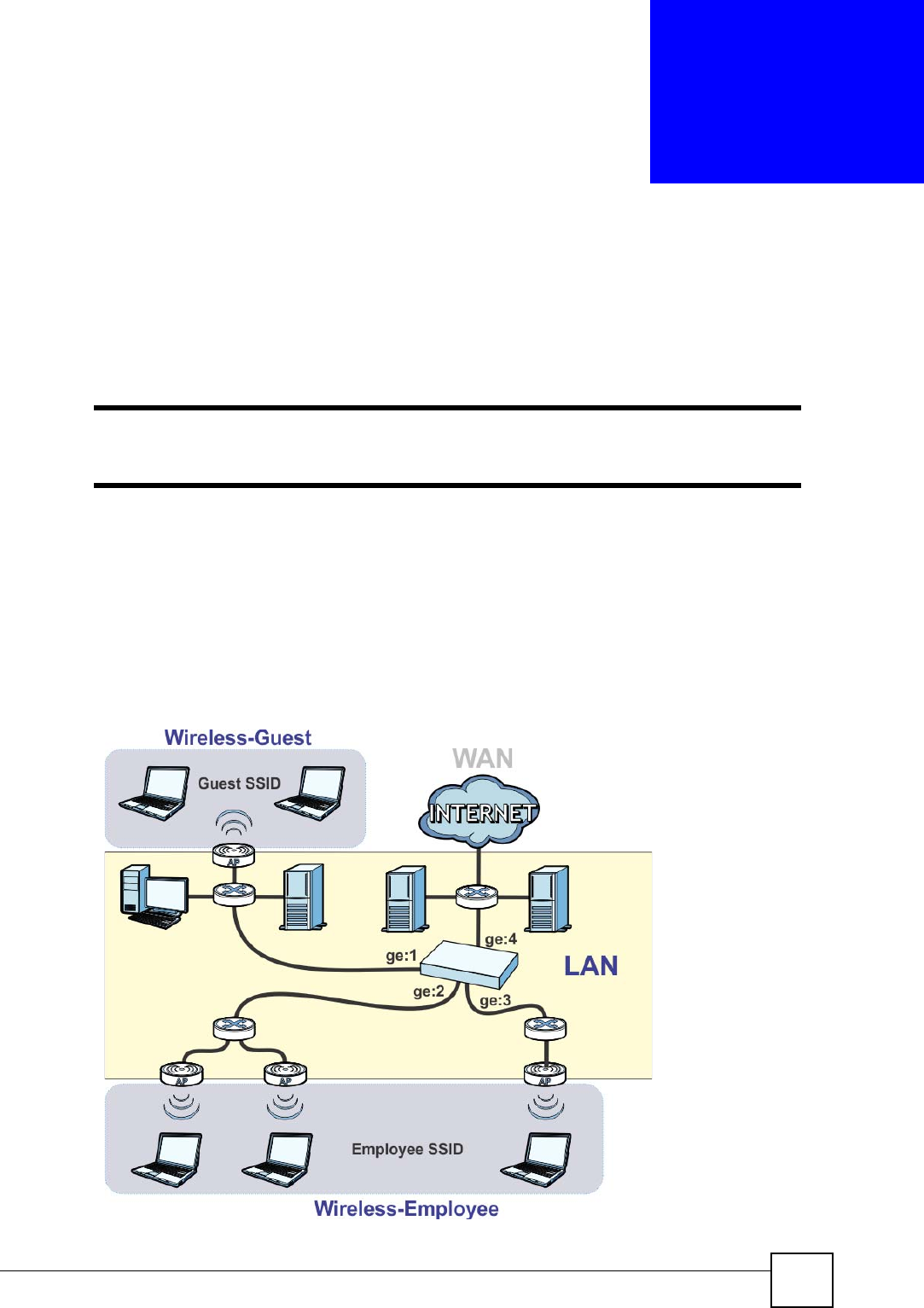
NXC CLI Reference Guide 107
CHAPTER 15
Zones
Set up zones to configure network security and network policies in the NXC.
Use the configure terminal command to enter Configuration mode in
order to use the commands described in this chapter.
15.1 Zones Overview
A zone is a group of interfaces. The NXC uses zones, not interfaces, in many security and
policy settings, such as firewall rules and remote management.
Zones cannot overlap. Each Ethernet interface or VLAN interface can be assigned to at most
one zone.
Figure 12 Example: Zones

Chapter 15 Zones
NXC CLI Reference Guide
108
15.2 Zone Commands Summary
The following table describes the values required for many zone commands. Other values are
discussed with the corresponding commands.
This table lists the zone commands.
Table 48 Input Values for Zone Commands
LABEL DESCRIPTION
profile_name The name of a zone.
Use up to 31 characters (a-zA-Z0-9_-). The name cannot start with a number.
This value is case-sensitive.
Table 49 zone Commands
COMMAND DESCRIPTION
show zone [profile_name]Displays information about the specified zone or about
all zones.
show zone binding-iface Displays each interface and zone mappings.
show zone none-binding Displays the interfaces that are not associated with a
zone yet.
show zone user-define Displays all customized zones.
[no] zone profile_name Creates the zone if necessary and enters sub-
command mode. The no command deletes the zone.
zone profile_name Enter the sub-command mode.
[no] block Blocks intra-zone traffic. The no command allows intra-
zone traffic.
[no] interface interface_name Adds the specified interface to the specified zone. The
no command removes the specified interface from the
specified zone.
exit Exits the sub-command mode for this zone.

Chapter 15 Zones
NXC CLI Reference Guide 109
15.2.1 Zone Command Examples
The following commands add Ethernet interfaces ge1 and ge2 to zone A and block intra-zone
traffic.
Router# configure terminal
Router(config)# zone A
Router(zone)# interface ge1
Router(zone)# interface ge2
Router(zone)# block
Router(zone)# exit
Router(config)# show zone
No. Name Block Member
===========================================================================
1 A yes ge1,ge2
Router(config)# show zone A
blocking intra-zone traffic: yes
No. Type Member
===========================================================================
1 interface ge1
2 interface ge2

Chapter 15 Zones
NXC CLI Reference Guide
110

NXC CLI Reference Guide 111
CHAPTER 16
ALG
This chapter covers how to use the NXC’s ALG feature to allow certain applications to pass
through the NXC.
16.1 ALG Introduction
The NXC can function as an Application Layer Gateway (ALG) to allow certain NAT un-
friendly applications (such as SIP) to operate properly through the NXC’s NAT.
Some applications cannot operate through NAT (are NAT un-friendly) because they embed IP
addresses and port numbers in their packets’ data payload. The NXC examines and uses IP
address and port number information embedded in the VoIP traffic’s data stream. When a
device behind the NXC uses an application for which the NXC has VoIP pass through enabled,
the NXC translates the device’s private IP address inside the data stream to a public IP address.
It also records session port numbers and allows the related sessions to go through the firewall
so the application’s traffic can come in from the WAN to the LAN.
The NXC only needs to use the ALG feature for traffic that goes through the NXC’s NAT. The
firewall allows related sessions for VoIP applications that register with a server. The firewall
allows or blocks peer to peer VoIP traffic based on the firewall rules.
You do not need to use a TURN (Traversal Using Relay NAT) server for VoIP devices behind
the NXC when you enable the SIP ALG.

Chapter 16 ALG
NXC CLI Reference Guide
112
16.2 ALG Commands
The following table lists the alg commands. You must use the configure terminal
command to enter the configuration mode before you can use these commands.
16.3 ALG Commands Example
The following example turns on pass through for SIP and turns it off for H.323.
Table 50 alg Commands
COMMAND DESCRIPTION
[no] alg sip [inactivity-timeout
| signal-port <1025..65535> |
signal-extra-port <1025..65535> |
media-timeout <1..86400> |
signal-timeout <1..86400> |
transformation]
Turns on or configures the ALG.
Use inactivity-timeout to have the NXC apply SIP media and
signaling inactivity time out limits.
Use signal-port with a listening port number (1025 to 65535) if
you are using SIP on a port other than UDP 5060.
Use signal-extra-port with a listening port number (1025 to
65535) if you are also using SIP on an additional UDP port number,
enter it here.
Use media-timeout and a number of seconds (1~86400) for how
long to allow a voice session to remain idle (without voice traffic)
before dropping it.
Use signal-timeout and a number of seconds (1~86400) for how
long to allow a SIP signaling session to remain idle (without SIP
packets) before dropping it.
Use transformation to have the NXC modify IP addresses and
port numbers embedded in the SIP data payload. You do not need to
use this if you have a SIP device or server that will modify IP
addresses and port numbers embedded in the SIP data payload.
The no command turns off the SIP ALG or removes the settings that
you specify.
[no] alg <h323 | ftp> [signal-
port <1025..65535> | signal-
extra-port <1025..65535> |
transformation]
Turns on or configures the H.323 or FTP ALG.
Use signal-port with a listening port number (1025 to 65535) if
you are using H.323 on a TCP port other than 1720 or FTP on a TCP
port other than 21.
Use signal-extra-port with a listening port number (1025 to
65535) if you are also using H.323 or FTP on an additional TCP port
number, enter it here.
Use transformation to have the NXC modify IP addresses and
port numbers embedded in the H.323 or FTP data payload. You do
not need to use this if you have an H.323 or FTP device or server
that will modify IP addresses and port numbers embedded in the
H.323 or FTP data payload.
The no command turns off the H.323 or FTP ALG or removes the
settings that you specify.
[no] alg sip defaultport
<1..65535>
Adds (or removes) a custom UDP port number for SIP traffic.
show alg <sip | h323 | ftp> Displays the specified ALG’s configuration.
Router# configure terminal
Router(config)# alg sip
Router(config)# no alg h323

NXC CLI Reference Guide 113
CHAPTER 17
Captive Portal
This chapter describes how to configure which HTTP-based network services default to the
captive portal page when client makes an initial network connection.
17.1 Captive Portal Overview
A captive portal can intercept all network traffic, regardless of address or port, until the user
authenticates his or her connection, usually through a specifically designated login Web page.
17.1.1 Web Authentication Policy Commands
Use these commands to use a custom login page from an external web portal instead of the
default one built into the NXC. You can configure the look and feel of the web portal page.
It is recommended to have the external web server on the same subnet as the
login users.
Table 51 Web Authentication Policy Commands
COMMAND DESCRIPTION
[no] web-auth activate Turns on the captive portal feature. This blocks all network traffic
until the client authenticates with the NXC through the external web
portal page. The no command turns off the external web portal
feature.
web-auth authentication
auth_method
Sets the authentication method for captive portal.
web-auth default-rule
authentication {required |
unnecessary} {no log | log
[alert]}
Sets the default authentication policy the NXC uses on traffic not
matching any exceptional service or other authentication policy.
required: Users need to be authenticated. Users must manually
go to the NXC’s login screen (the NXC does not redirect them to it).
unnecessary: Users do not need to be authenticated.
no log | log [alert]: Select whether to have the NXC
generate a log (log), log and alert (log alert) or not (no log) for
packets that match this default policy.
web-auth [no] exceptional-service
service_name
Lets users access a service without user authentication. The no
command removes the specified service from the exception list.
service_name: the name of network service, such as AH or DNS.

Chapter 17 Captive Portal
NXC CLI Reference Guide
114
17.1.1.1 web-auth login setting Sub-commands
The following table describes the sub-commands for the web-auth login setting
command.
web-auth login setting Sets the login web page through which the user authenticate their
connections before connecting to the rest of the network or Internet.
See Table 52 on page 114 for the sub-commands.
web-auth policy <1..1024> Creates the specified condition for forcing user authentication, if
necessary, and enters sub-command mode. The NXC checks the
conditions in sequence, starting at 1. See Table 53 on page 115 for
the sub-commands.
web-auth policy append Creates a new condition for forcing user authentication at the end of
the current list and enters sub-command mode. See Table 53 on
page 115 for the sub-commands.
web-auth policy delete <1..1024> Deletes the specified condition.
web-auth policy flush Deletes all the conditions for forcing user authentication.
web-auth policy insert <1..1024> Creates a new condition for forcing user authentication at the
specified location, renumbers the other conditions accordingly, and
enters sub-command mode. See Table 53 on page 115 for the sub-
commands.
web-auth policy move <1..1024> to
<1..1024>
Moves the specified condition to the specified location and
renumbers the other conditions accordingly.
show web-auth activation Displays whether forcing user authentication is enabled or not.
show web-auth authentication Displays the name of authentication method used for the captive
portal page.
show web-auth default-rule Displays the default captive portal authentication settings the NXC
uses on traffic not matching any exceptional service or other
authentication policy.
show web-auth exceptional-service Displays services that users can access without user authentication.
show web-auth policy {<1..1024> |
all}
Displays details about the policies for forcing user authentication.
show web-auth status Displays the web portal page settings.
Table 51 Web Authentication Policy Commands (continued)
COMMAND DESCRIPTION
Table 52 web-auth login setting Sub-commands
COMMAND DESCRIPTION
exit Leaves the sub-command mode.
type {external |
internal}
Sets which login page appears whenever the web portal intercepts network
traffic, preventing unauthorized users from gaining access to the network.
internal: Use the default login page built into the NXC.
external: Use a custom login page from an external web portal. You can
configure the look and feel of the web portal page.
[no] error-url <url>Sets the error page’s URL; for example: http://192.168.1.1/error.cgi.
192.168.1.1 is the web server on which the web portal files are installed.
[no] login-url <url>Sets the login page’s URL; for example: http://192.168.1.1/login.cgi.
192.168.1.1 is the web server on which the web portal files are installed.
[no] logout-url <url>Sets the logout page’s URL; for example: http://192.168.1.1/logout.cgi.
192.168.1.1 is the web server on which the web portal files are installed.

Chapter 17 Captive Portal
NXC CLI Reference Guide 115
17.1.1.2 web-auth policy Sub-commands
The following table describes the sub-commands for several web-auth policy commands. Note
that not all rule commands use all the sub-commands listed here.
17.1.1.3 Web Authentication Policy Insert Command Example
Here is an example of using a custom login page from an external web portal for web
authentication. The following commands:
• Turn on web authentication
• Set the NXC to use the authentication profile named AuthProfile1
• Set www.login.com as the login web page through which users authenticate their
connections
• Have the NXC use a custom login page from an external web portal instead of the default
one built into the NXC
• Create web-auth policy 1
[no] session-url <url>Sets the session page’s URL; for example: http://192.168.1.1/session.cgi.
192.168.1.1 is the web server on which the web portal files are installed.
[no] welcome-url <url>Sets the welcome page’s URL; for example: http://192.168.1.1/welcome.cgi.
192.168.1.1 is the web server on which the web portal files are installed
Table 52 web-auth login setting Sub-commands (continued)
COMMAND DESCRIPTION
Table 53 web-auth policy Sub-commands
COMMAND DESCRIPTION
[no] activate Activates the specified condition. The no command deactivates the
specified condition.
[no] authentication {force |
required}
Selects the authentication requirement for users with traffic matching
this policy. The no command requires no user authentication.
force: Users need to be authenticated. The NXC automatically
displays the login screen if unauthenticated users try to send HTTP
traffic.
required: Users need to be authenticated. They must manually go to
the login screen. The NXC does not redirect them to the login screen.
[no] description description Sets the description for the specified condition. The no command
clears the description.
description: You can use alphanumeric and ()+/:=?!*#@$_%-
characters, and it can be up to 61 characters long.
[no] destination
address_object
Sets the destination criteria for the specified condition. The no
command removes the destination criteria, making the condition
effective for all destinations.
[no] force Forces users that match the specified condition to log into the NXC.
The no command means users matching the specified condition do not
have to log into the NXC.
[no] schedule schedule_name Sets the time criteria for the specified condition. The no command
removes the time criteria, making the condition effective all the time.
[no] source address_object Sets the source criteria for the specified condition. The no command
removes the source criteria, so all sources match the condition.
[no] ssid_profile
{ssid_profile}
Sets the SSID profile criteria for the specified condition. The no
command removes the SSID profile criteria.
show Displays information about the specified condition.

Chapter 17 Captive Portal
NXC CLI Reference Guide
116
• Set web-auth policy 1 to use the SSID profile named SSIDprofile1
• Set web-auth policy 1 to require user authentication
• Have the NXC automatically display the login screen when unauthenticated users try to
send HTTP traffic
• Turn on web-auth policy 1
17.1.2 page-customization Commands
Use these commands to use a custom login page which is either built into the NXC or
uploaded to the NXC.
Router(config)# web-auth activate
Router(config)# web-auth authentication AuthProfile1
Router(config)# web-auth login setting
Router(web-auth)# login-url http://www.login.com
Router(web-auth)# type external
Router(web-auth)# exit
Router(config)# web-auth policy 1
Router(config-web-auth-1)# ssid_profile SSIDprofile1
Router(config-web-auth-1)# authentication force
Router(config-web-auth-1)# activate
Router(config-web-auth-1)# exit
Table 54 page-customization Commands
COMMAND DESCRIPTION
[no] page-customization Enters config-page-customization mode to set the NXC to use a
custom login page which is built into the NXC or uploaded to the
NXC.
The no command sets the NXC to use the default login page built
into the device.
customization-mode
{customization | use-uploaded-
file}
Sets which customized login page appears whenever the web portal
intercepts network traffic, preventing unauthorized users from
gaining access to the network.
customization: Use the custom login page built into the NXC.
You can configure the look and feel of the page through the web
configurator.
use-uploaded-file: Use a web portal file with custom html
pages, which is uploaded to the NXC through the web configurator.
exit Goes to configuration mode.
show page-customization Displays the custom login page settings.

NXC CLI Reference Guide 117
CHAPTER 18
RTLS
Use the RTLS commands to use the managed APs as part of an Ekahau RTLS to track the
location of Ekahau Wi-Fi tags.
18.1 RTLS Introduction
Ekahau RTLS (Real Time Location Service) tracks battery-powered Wi-Fi tags attached to
APs managed by the NXC to create maps, alerts, and reports.
The Ekahau RTLS Controller is the centerpiece of the RTLS system. This server software runs
on a Windows computer to track and locate Ekahau tags from Wi-Fi signal strength
measurements. Use the NXC with the Ekahau RTLS system to take signal strength
measurements at the APs (Integrated Approach / Blink Mode).
18.2 RTLS Commands
The following table lists the rtls commands. You must use the configure terminal
command to enter the configuration mode before you can use these commands.
Table 55 rtls Commands
COMMAND DESCRIPTION
rtls ekahau activate Turn on RTLS to use Wi-Fi to track the location of
Ekahau Wi-Fi tags.
rtls ekahau ip address
ipv4_address
Specify the IP address of the Ekahau RTLS Controller.
rtls ekahau ip port <1..65535> Specify the server port number of the Ekahau RTLS
Controller.
rtls ekahau flush Clear the saved RTLS information from the NXC.
show rtls ekahau config Displays the RTLS configuration.
show rtls ekahau cli Displays the RTLS information recorded on the NXC.

Chapter 18 RTLS
NXC CLI Reference Guide
118
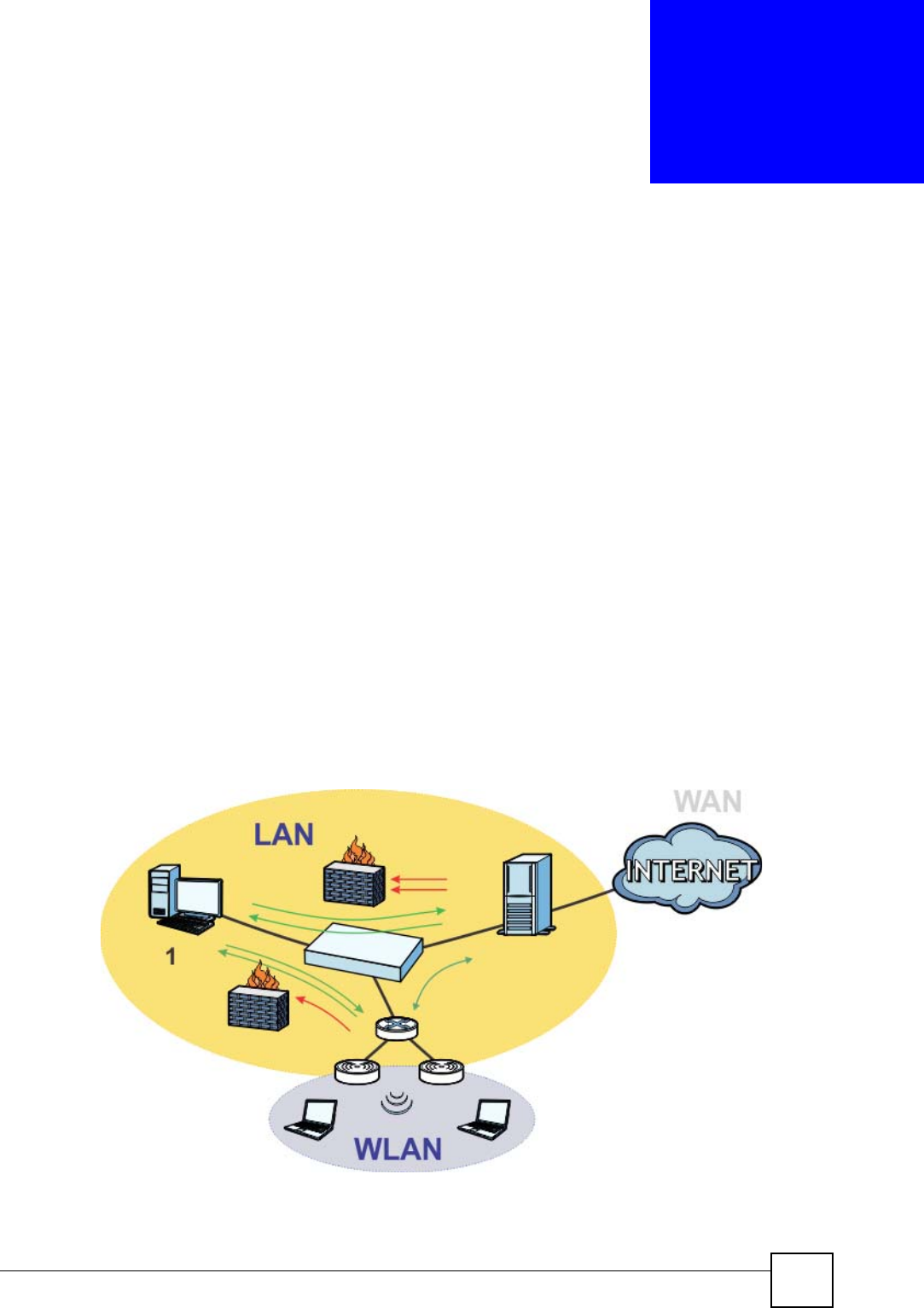
NXC CLI Reference Guide 119
CHAPTER 19
Firewall
This chapter introduces the NXC’s firewall and shows you how to configure your NXC’s
firewall.
19.1 Firewall Overview
The NXC’s firewall is a stateful inspection firewall. The NXC restricts access by screening
data packets against defined access rules. It can also inspect sessions. For example, traffic
from one zone is not allowed unless it is initiated by a computer in another zone first.
A zone is a group of interfaces. Group the NXC’s interfaces into different zones based on your
needs. You can configure firewall rules for data passing between zones or even between
interfaces in a zone.
The following figure shows the NXC’s default firewall rules in action as well as demonstrates
how stateful inspection works. User 1 can initiate a Telnet session from within the LAN zone
and responses to this request are allowed. However, other Telnet traffic initiated from the
WAN or DMZ zone and destined for the LAN zone is blocked. Communications between the
WAN and the DMZ zones are allowed.
Figure 13 Default Firewall Action

Chapter 19 Firewall
NXC CLI Reference Guide
120
Your customized rules take precedence and override the NXC’s default settings. The NXC
checks the schedule, user name (user’s login name on the NXC), source IP address, destination
IP address and IP protocol type of network traffic against the firewall rules (in the order you
list them). When the traffic matches a rule, the NXC takes the action specified in the rule.
For example, if you want to allow a specific user from any computer to access one zone by
logging in to the NXC, you can set up a rule based on the user name only. If you also apply a
schedule to the firewall rule, the user can only access the network at the scheduled time. A
user-aware firewall rule is activated whenever the user logs in to the NXC and will be disabled
after the user logs out of the NXC.
19.2 Firewall Commands
The following table identifies the values required for many of these commands. Other input
values are discussed with the corresponding commands.
The following table describes the commands available for the firewall. You must use the
configure terminal command to enter the configuration mode before you can use these
commands.
Table 56 Input Values for General Firewall Commands
LABEL DESCRIPTION
address_object The name of the IP address (group) object. You may use 1-31 alphanumeric
characters, underscores(_), or dashes (-), but the first character cannot be a
number. This value is case-sensitive.
user_name The name of a user (group). You may use 1-31 alphanumeric characters,
underscores(_), or dashes (-), but the first character cannot be a number.
This value is case-sensitive.
zone_object The name of the zone. Use up to 31 characters (a-zA-Z0-9_-). The name
cannot start with a number. This value is case-sensitive.
You can also use pre-defined zone names like LAN and WLAN.
rule_number The priority number of a firewall rule. 1 - X where X is the highest number of
rules the NXC model supports. See the NXC’s User’s Guide for details.
schedule_object The name of the schedule. You may use 1-31 alphanumeric characters,
underscores(_), or dashes (-), but the first character cannot be a number.
This value is case-sensitive.
service_name The name of the service (group). You may use 1-31 alphanumeric characters,
underscores(_), or dashes (-), but the first character cannot be a number.
This value is case-sensitive.
Table 57 Command Summary: Firewall
COMMAND DESCRIPTION
[no] connlimit max-per-host <1..8192> Sets the highest number of sessions that the
NXC will permit a host to have at one time.
The no command removes the settings.
firewall rule_number Enters the firewall sub-command mode to set
a firewall rule.
firewall zone_object {zone_object|EnterpriseWLAN}
rule_number
Enters the firewall sub-command mode to set
a direction specific through-EnterpriseWLAN
rule or to-EnterpriseWLAN rule.

Chapter 19 Firewall
NXC CLI Reference Guide 121
firewall zone_object {zone_object|EnterpriseWLAN}
append
Enters the firewall sub-command mode to add
a direction specific through-EnterpriseWLAN
rule or to-EnterpriseWLAN rule to the end of
the global rule list.
firewall zone_object {zone_object|EnterpriseWLAN}
delete rule_number
Removes a direction specific through-
EnterpriseWLAN rule or to-EnterpriseWLAN
rule.
<1..5000>: the index number in a direction
specific firewall rule list.
firewall zone_object {zone_object|EnterpriseWLAN}
flush
Removes all direction specific through-
EnterpriseWLAN rule or to-EnterpriseWLAN
rules.
firewall zone_object {zone_object|EnterpriseWLAN}
insert rule_number
Enters the firewall sub-command mode to add
a direction specific through-EnterpriseWLAN
rule or to-EnterpriseWLAN rule before the
specified rule number.
firewall zone_object {zone_object|EnterpriseWLAN}
move rule_number to rule_number
Moves a direction specific through-
EnterpriseWLAN rule or to-EnterpriseWLAN
rule to the number that you specified.
[no] firewall activate Enables the firewall on the NXC. The no
command disables the firewall.
firewall append Enters the firewall sub-command mode to add
a global firewall rule to the end of the global
rule list.
firewall default-rule action {allow | deny |
reject} { no log | log [alert] }
Sets how the firewall handles packets that do
not match any other firewall rule.
firewall delete rule_number Removes a firewall rule.
firewall flush Removes all firewall rules.
firewall insert rule_number Enters the firewall sub-command mode to add
a firewall rule before the specified rule
number.
firewall move rule_number to rule_number Moves a firewall rule to the number that you
specified.
show connlimit max-per-host Displays the highest number of sessions that
the NXC will permit a host to have at one time.
show firewall Displays all firewall settings.
show firewall rule_number Displays a firewall rule’s settings.
show firewall zone_object
{zone_object|EnterpriseWLAN}
Displays all firewall rules settings for the
specified packet direction.
show firewall zone_object
{zone_object|EnterpriseWLAN} rule_number
Displays a specified firewall rule’s settings for
the specified packet direction.
show firewall status Displays whether the firewall is active or not.
Table 57 Command Summary: Firewall (continued)
COMMAND DESCRIPTION

Chapter 19 Firewall
NXC CLI Reference Guide
122
19.2.1 Firewall Sub-Commands
The following table describes the sub-commands for several firewall commands.
Table 58 firewall Sub-commands
COMMAND DESCRIPTION
action {allow|deny|reject} Sets the action the NXC takes when packets match
this rule.
[no] activate Enables a firewall rule. The no command disables
the firewall rule.
[no] ctmatch {dnat | snat} Use dnat to block packets sent from a computer
on the NXC’s WAN network from being forwarded
to an internal network according to a virtual server
rule.
Use snat to block packets sent from a computer
on the NXC’s internal network from being
forwarded to the WAN network according to a 1:1
NAT or Many 1:1 NAT rule.
The no command forwards the matched packets.
[no] description description Sets a descriptive name (up to 60 printable ASCII
characters) for a firewall rule. The no command
removes the descriptive name from the rule.
[no] destinationip address_object Sets the destination IP address. The no command
resets the destination IP address(es) to the default
(any). any means all IP addresses.
[no] from zone_object Sets the zone on which the packets are received.
The no command removes the zone on which the
packets are received and resets it to the default
(any). any means all interfaces or VPN tunnels.
[no] log [alert] Sets the NXC to create a log (and optionally an
alert) when packets match this rule. The no
command sets the NXC not to create a log or alert
when packets match this rule.
[no] schedule schedule_object Sets the schedule that the rule uses. The no
command removes the schedule settings from the
rule.
[no] service service_name Sets the service to which the rule applies. The no
command resets the service settings to the default
(any). any means all services.
[no] sourceip address_object Sets the source IP address(es). The no command
resets the source IP address(es) to the default
(any). any means all IP addresses.
[no] sourceport {tcp|udp} {eq
<1..65535>|range <1..65535> <1..65535>}
Sets the source port for a firewall rule. The no
command removes the source port from the rule.
[no] to {zone_object|EnterpriseWLAN} Sets the zone to which the packets are sent. The
no command removes the zone to which the
packets are sent and resets it to the default (any).
any means all interfaces.
[no] user user_name Sets a user-aware firewall rule. The rule is
activated only when the specified user logs into the
system. The no command resets the user name to
the default (any). any means all users.

Chapter 19 Firewall
NXC CLI Reference Guide 123
19.2.2 Firewall Command Examples
The following example shows you how to add a firewall rule to allow a MyService connection
from the WLAN zone to the IP addresses Dest_1 in the LAN zone.
• Enter configuration command mode.
• Create an IP address object.
• Create a service object.
• Enter the firewall sub-command mode to add a firewall rule.
• Set the direction of travel of packets to which the rule applies.
• Set the destination IP address(es).
• Set the service to which this rule applies.
• Set the action the NXC is to take on packets which match this rule.
Router# configure terminal
Router(config)# service-object MyService tcp eq 1234
Router(config)# address-object Dest_1 10.0.0.10-10.0.0.15
Router(config)# firewall insert 3
Router(firewall)# from WLAN
Router(firewall)# to LAN
Router(firewall)# destinationip Dest_1
Router(firewall)# service MyService
Router(firewall)# action allow

Chapter 19 Firewall
NXC CLI Reference Guide
124
The following command displays the firewall rule(s) (including the default firewall rule) that
applies to the packet direction from WAN to LAN. The firewall rule numbers in the menu are
the firewall rules’ priority numbers in the global rule list.
19.3 Session Limit Commands
The following table identifies the values required for many of these commands. Other input
values are discussed with the corresponding commands.
Router# configure terminal
Router(config)# show firewall WAN LAN
firewall rule: 3
description:
user: any, schedule: none
from: WAN, to: LAN
source IP: any, source port: any
destination IP: Dest_1, service: MyService
log: no, action: allow, status: yes
firewall rule: 4
description:
user: any, schedule: none
from: WAN, to: LAN
source IP: any, source port: any
destination IP: any, service: any
log: log, action: deny, status: yes
Router(config)# show firewall WAN LAN 2
firewall rule: 4
description:
user: any, schedule: none
from: WAN, to: LAN
source IP: any, source port: any
destination IP: any, service: any
log: no, action: deny, status: yes
Router(config)#
Table 59 Input Values for General Session Limit Commands
LABEL DESCRIPTION
rule_number The priority number of a session limit rule, 1 - 1000.
address_object The name of the IP address (group) object. You may use 1-31 alphanumeric
characters, underscores(_), or dashes (-), but the first character cannot be a
number. This value is case-sensitive.
user_name The name of a user (group). You may use 1-31 alphanumeric characters,
underscores(_), or dashes (-), but the first character cannot be a number.
This value is case-sensitive.

Chapter 19 Firewall
NXC CLI Reference Guide 125
The following table describes the session-limit commands. You must use the configure
terminal command to enter the configuration mode before you can use these commands.
Table 60 Command Summary: Session Limit
COMMAND DESCRIPTION
[no] session-limit activate Turns the session-limit feature on or off.
session-limit limit <0..8192> Sets the default number of concurrent NAT/
firewall sessions per host.
session-limit rule_number Enters the session-limit sub-command mode
to set a session-limit rule.
[no] activate Enables the session-limit rule. The no
command disables the session limit rule.
[no] address address_object Sets the source IP address. The no command
sets this to any, which means all IP
addresses.
[no] description description Sets a descriptive name (up to 64 printable
ASCII characters) for a session-limit rule. The
no command removes the descriptive name
from the rule.
exit Quits the firewall sub-command mode.
[no] limit <0..8192> Sets the limit for the number of concurrent
NAT/firewall sessions this rule’s users or
addresses can have. 0 means any.
[no] user user_name Sets a session-limit rule for the specified user.
The no command resets the user name to the
default (any). any means all users.
session-limit append Enters the session-limit sub-command mode
to add a session-limit rule to the end of the
session-limit rule list.
session-limit delete rule_number Removes a session-limit rule.
session-limit flush Removes all session-limit rules.
session-limit insert rule_number Enters the session-limit sub-command mode
to add a session-limit rule before the specified
rule number.
session-limit move rule_number to rule_number Moves a session-limit to the number that you
specified.
show session-limit Shows the session-limit configuration.
show session-limit begin rule_number end
rule_number
Shows the settings for a range of session-limit
rules.
show session-limit rule_number Shows the session-limit rule’s settings.
show session-limit status Shows the general session-limit settings.

Chapter 19 Firewall
NXC CLI Reference Guide
126

NXC CLI Reference Guide 127
CHAPTER 20
Application Patrol
This chapter describes how to set up application patrol for the NXC.
20.1 Application Patrol Overview
Application patrol provides a convenient way to manage the use of various applications on the
network. It manages general protocols (for example, http and ftp) and instant messenger (IM),
peer-to-peer (P2P), Voice over IP (VoIP), and streaming (RSTP) applications. You can even
control the use of a particular application’s individual features (like text messaging, voice,
video conferencing, and file transfers). Application patrol also has powerful bandwidth
management including traffic prioritization to enhance the performance of delay-sensitive
applications like voice and video.
The NXC checks firewall rules before application patrol rules for traffic going
through the NXC. To use a service, make sure both the firewall and application
patrol allow the service’s packets to go through the NXC.
Application patrol examines every TCP and UDP connection passing through the NXC and
identifies what application is using the connection. Then, you can specify, by application,
whether or not the NXC continues to route the connection.

Chapter 20 Application Patrol
NXC CLI Reference Guide
128
20.2 Application Patrol Commands Summary
The following table describes the values required for many application patrol commands.
Other values are discussed with the corresponding commands.
The following sections list the application patrol commands.
20.2.1 Pre-defined Application Commands
This table lists the commands for each pre-defined application.
20.2.2 Rule Commands for Pre-defined Applications
This table lists the commands for rules in each pre-defined application.
Table 61 Input Values for Application Patrol Commands
LABEL DESCRIPTION
protocol_name The name of a pre-defined application. These are listed by category.
general: ftp | smtp | pop3 | irc | http
im: msn | aol-icq | yahoo | qq
p2p: bittorrent | eDonkey | fasttrack | gnutella | napster |
h323 | sip | soulseek
stream: rtsp
rule_number The number of an application patrol rule. 1 - X where X is the highest number of
rules the NXC model supports. See the NXC’s User’s Guide for details.
zone_name The name of a zone. You may use 1-31 alphanumeric characters,
underscores(_), or dashes (-), but the first character cannot be a number. This
value is case-sensitive.
schedule_name The name of a schedule. You may use 1-31 alphanumeric characters,
underscores(_), or dashes (-), but the first character cannot be a number. This
value is case-sensitive.
Table 62 app Commands: Pre-Defined Applications
COMMAND DESCRIPTION
[no] app protocol_name activate Enables application patrol for the specified
application. The no command disables application
patrol for the specified application.
bandwidth-graph
[no] app protocol_name defaultport <1..65535> For port-base applications. Adds the specified port
to the list of ports used to identify the specified
application. This port number can only be included
in one application’s list. The no command removes
the specified port from the list.
app protocol_name mode {portless | portbase} Specifies how the NXC identifies this application.
Table 63 app Commands: Rules in Pre-Defined Applications
COMMAND DESCRIPTION
app protocol_name rule insert rule_number Creates a new rule at the specified row and enters
sub-command mode.
app protocol_name rule append Creates a new rule, appends it to the end of the list,
and enters sub-command mode.

Chapter 20 Application Patrol
NXC CLI Reference Guide 129
20.2.2.1 Rule Sub-commands
The following table describes the sub-commands for several application patrol rule
commands. Note that not all rule commands use all the sub-commands listed here.
app protocol_name rule rule_number or app
protocol_name rule modify rule_number
Enters sub-command mode for editing the rule at
the specified row.
app protocol_name rule default or app
protocol_name rule modify default
Enters sub-command mode for editing the default
rule for the application.
no app protocol_name rule rule_number Deletes the specified rule.
Table 63 app Commands: Rules in Pre-Defined Applications (continued)
COMMAND DESCRIPTION
Table 64 app protocol rule Sub-commands
COMMAND DESCRIPTION
access {forward | drop | reject} Specifies the action when traffic matches the rule.
[no] action-block
{login|message|audio|video|file-transfer}
Blocks use of a specific feature.
[no] activate Turns on this rule. The no command turns off this
rule.
bandwidth {inbound|outbound} <0..1048576> Limits inbound or outbound bandwidth, in kilobits
per second. 0 disables bandwidth management for
traffic matching this rule.
[no] bandwidth excess-usage Enables maximize bandwidth usage to let the traffic
matching this policy “borrow” any unused
bandwidth on the out-going interface.
bandwidth priority <1..7> Set the priority for traffic that matches this rule. The
smaller the number, the higher the priority.
[no] destination address_object Adds the specified destination address to the rule.
[no] from zone_name Specifies the source zone.
[no] inbound-dscp-mark {<0..63> | class
{default | dscp_class}}
This is how the NXC handles the DSCP value of
the outgoing packets to a connection’s initiator that
match this policy.
Enter a DSCP value to have the NXC apply that
DSCP value. Set this to the class default to have
the NXC set the DSCP value to 0.
dscp_class: default | af11 | af12 | af13 | af21 |
af22 | af23 | af31 | af32 | af33 | af41 | af42 | af43 |
wmm_bk8 | wmm_bk16 | wmm_be0 | wmm_be24 |
wmm_vi32 | wmm_vi40 | wmm_vo48 | wmm_vo56 |
User_define
[no] log [alert] Creates log entries (and alerts) for traffic that
matches the rule. The no command does not
create any log entries.

Chapter 20 Application Patrol
NXC CLI Reference Guide
130
20.2.3 Exception Commands for Pre-defined Applications
This table lists the commands for exception rules for application access controls. These
commands are used for backward compatible only.
[no] outbound-dscp-mark {<0..63> | class
{default | dscp_class}}
This is how the NXC handles the DSCP value of
the outgoing packets from a connection’s initiator
that match this policy.
Enter a DSCP value to have the NXC apply that
DSCP value. Set this to the class default to have
the NXC set the DSCP value to 0.
dscp_class: default | af11 | af12 | af13 | af21 |
af22 | af23 | af31 | af32 | af33 | af41 | af42 | af43 |
wmm_bk8 | wmm_bk16 | wmm_be0 | wmm_be24 |
wmm_vi32 | wmm_vi40 | wmm_vo48 | wmm_vo56 |
User_define
port <0..65535> Specifies the destination port. 0 means any.
[no] schedule schedule_name Adds the specified schedule to the rule.
show Displays the rule’s configuration
[no] source address_object Adds the specified source address to the rule.
[no] to zone_name Specifies the destination zone.
[no] user username Adds the specified user to the rule.
Table 64 app protocol rule Sub-commands (continued)
COMMAND DESCRIPTION
Table 65 app Commands: Exception Rules in Pre-Defined Applications
COMMAND DESCRIPTION
app protocol_name exception insert rule_number Creates a new rule at the specified row and enters
sub-command mode.
app protocol_name exception append Creates a new rule, appends it to the end of the list,
and enters sub-command mode.
app protocol_name exception rule_number Enters sub-command mode for editing the rule at
the specified row.
app protocol_name exception modify rule_number Enters sub-command mode for editing the rule at
the specified row.
app protocol_name exception default or app
protocol_name exception modify default
Enters sub-command mode for editing the default
rule for the application.
app protocol_name exception move rule_number
to rule_number
Moves the specified rule (first index) to the
specified location. The process is (1) remove the
specified rule from the table; (2) re-number; (3)
insert the rule at the specified location.

Chapter 20 Application Patrol
NXC CLI Reference Guide 131
20.2.3.1 Exception Rule Sub-commands
The following table describes the sub-commands for several application patrol exception rule
commands. Note that not all rule commands use all the sub-commands listed here.
20.2.4 Other Application Commands
This table lists the commands for other applications in application patrol.
Table 66 app patrol exception rule Sub-commands
COMMAND DESCRIPTION
access {forward | drop | reject} Specifies the action when traffic matches the rule.
[no] action-block
{login|message|audio|video|file-transfer}
Blocks use of a specific feature.
[no] activate Turns on this rule. The no command turns off this
rule.
bandwidth {inbound | outbound}
<0..1048576>
Limits inbound or outbound bandwidth, in kilobits
per second. 0 disables bandwidth management for
traffic matching this rule.
[no] bandwidth excess-usage Enables maximize bandwidth usage to let the traffic
matching this policy “borrow” any unused
bandwidth on the out-going interface.
bandwidth priority <1..7> Set the priority for traffic that matches this rule. The
smaller the number, the higher the priority.
[no] destination address_object Adds the specified destination address to the rule.
[no] from zone_name Specifies the source zone.
[no] inbound-dscp-mark {<0..63> | class
{default | dscp_class}}
This is how the NXC handles the DSCP value of
the outgoing packets to a connection’s initiator that
match this policy.
Enter a DSCP value to have the NXC apply that
DSCP value. Set this to the class default to have
the NXC set the DSCP value to 0.
[no] log [alert] Creates log entries (and alerts) for traffic that
matches the rule. The no command does not
create any log entries.
[no] outbound-dscp-mark {<0..63> | class
{default | dscp_class}}
This is how the NXC handles the DSCP value of
the outgoing packets from a connection’s initiator
that match this policy.
Enter a DSCP value to have the NXC apply that
DSCP value. Set this to the class default to have
the NXC set the DSCP value to 0.
port <0..65535> Specifies the destination port. 0 means any.
[no] schedule schedule_name Adds the specified schedule to the rule.
show Displays the rule’s configuration
[no] source address_object Adds the specified source address to the rule.
[no] to zone_name Specifies the destination zone.
[no] user username Adds the specified user to the rule.
Table 67 app Commands: Other Applications
COMMAND DESCRIPTION
app other {del | forward | drop | reject} Specifies the default action for other applications.

Chapter 20 Application Patrol
NXC CLI Reference Guide
132
20.2.5 Rule Commands for Other Applications
This table lists the commands for rules in other applications.
20.2.5.1 Other Rule Sub-commands
The following table describes the sub-commands for several application patrol other rule
commands. Note that not all rule commands use all the sub-commands listed here.
Table 68 app Commands: Rules in Other Applications
COMMAND DESCRIPTION
app other insert rule_number Creates a new rule at the specified row and enters
sub-command mode.
app other append Creates a new rule, appends it to the end of the list,
and enters sub-command mode.
app other <1..64> Enters sub-command mode for editing the rule at
the specified row.
app other default Enters sub-command mode for editing the default
rule for traffic of an unidentified application.
app other move rule_number to rule_number Moves the specified rule (first index) to the
specified location. The process is (1) remove the
specified rule from the table; (2) re-number; (3)
insert the rule at the specified location.
no app other rule_number Deletes the specified rule.
Table 69 app patrol other rule Sub-commands
COMMAND DESCRIPTION
[no] activate Turns on this rule. The no command turns off this
rule.
[no] port <0..65535> Specifies the destination port. 0 means any.
[no] schedule profile_name Adds the specified schedule to the rule.
[no] user username Adds the specified user to the rule.
[no] from zone_name Specifies the source zone.
[no] to zone_name Specifies the destination zone.
[no] source profile_name Adds the specified source address to the rule.
[no] destination profile_name Adds the specified destination address to the rule.
[no] protocol {tcp | udp} Adds the specified protocol to the rule.
access {forward | drop | reject} Specifies the action when traffic matches the rule.
bandwidth {inbound|outbound} <0..1048576> Limits inbound or outbound bandwidth, in kilobits
per second. 0 disables bandwidth management for
traffic matching this rule.
[no] bandwidth excess-usage Enables maximize bandwidth usage to let the traffic
matching this policy “borrow” any unused
bandwidth on the out-going interface.
bandwidth priority <1..7> Set the priority for traffic that matches this rule. The
smaller the number, the higher the priority.

Chapter 20 Application Patrol
NXC CLI Reference Guide 133
20.2.6 General Commands for Application Patrol
You must register for the IDP/AppPatrol signature service (at least the trial)
before you can use it. See Chapter 5 on page 41.
This table lists the general commands for application patrol.
[no] inbound-dscp-mark {<0..63> | class
{default | dscp_class}}
This is how the NXC handles the DSCP value of
the outgoing packets to a connection’s initiator that
match this policy.
Enter a DSCP value to have the NXC apply that
DSCP value. Set this to the class default to have
the NXC set the DSCP value to 0.
[no] log [alert] Creates log entries (and alerts) for traffic that
matches the rule. The no command does not
create any log entries.
[no] outbound-dscp-mark {<0..63> | class
{default | dscp_class}}
This is how the NXC handles the DSCP value of
the outgoing packets from a connection’s initiator
that match this policy.
Enter a DSCP value to have the NXC apply that
DSCP value. Set this to the class default to have
the NXC set the DSCP value to 0.
show Displays the rule’s configuration
Table 69 app patrol other rule Sub-commands (continued)
COMMAND DESCRIPTION
Table 70 app Commands: Pre-Defined Applications
COMMAND DESCRIPTION
[no] app activate Turns on application patrol. The no command
turns off application patrol.
[no] app highest sip bandwidth priority Turns the option to maximize the throughput of SIP
traffic on or off.
[no] app protocol_name bandwidth-graph Sets the specified protocol to display on the
bandwidth statistics graph. The no command has it
not display on the bandwidth statistics graph.
[no] app other protocol_name bandwidth-graph Sets traffic for unidentified applications to display
on the bandwidth statistics graph. The no
command it not display on the bandwidth statistics
graph.
[no] bwm activate Globally enables bandwidth management. You
must globally activate bandwidth management to
have individual policy routes or application patrol
policies apply bandwidth management. The no
command globally disables bandwidth
management.
show app config Displays whether or not application patrol is active.
show app all Displays the settings for all applications.

Chapter 20 Application Patrol
NXC CLI Reference Guide
134
20.2.6.1 General Command Examples
The following examples show the information that is displayed by some of the show
commands.
show app all defaultport Displays the default port settings for all
applications.
show app all statistics Displays statistics for all applications.
show app {general|im|p2p|stream} Displays protocols by category.
show app im support action Displays the supported actions of each Instant
Messenger application.
show app protocol_name config Displays the basic configuration of this application.
show app protocol_name defaultport Displays the default ports of this application.
show app protocol_name statistics Display the statistics of this application.
show app protocol_name rule rule_number Displays the rule configuration of this application.
show app protocol_name rule rule_number
statistics
Displays the rule statistics of this application.
show app protocol_name rule default Displays the default rule configuration of this
application.
show app protocol_name rule default statistics Displays the default rule statistics of this
application.
show app protocol_name rule all Displays the configurations of all the rules for this
application.
show app protocol_name rule all statistics Displays all the rule statistics for this application.
show app other config Displays the basic configuration for other
applications,
show app other statistics Displays statistics for other applications.
show app other rule rule_number Displays the rule’s configuration.
show app other rule rule_number statistics Displays the rule’s statistics.
show app other rule default Displays the default rule’s configuration.
show app other rule default statistics Displays the default rule’s statistics.
show app other rule all Displays the configurations of all the rules for other
applications.
show app other rule all statistics Displays all the rule statistics for other applications.
show app highest sip bandwidth priority Displays whether or not the option to maximize the
throughput of SIP traffic is enabled.
show bwm activation Displays whether or not the global setting for
bandwidth management on the NXC is enabled.
Table 70 app Commands: Pre-Defined Applications (continued)
COMMAND DESCRIPTION
Router> configure terminal
Router(config)# show bwm activation
bwm activation: yes

Chapter 20 Application Patrol
NXC CLI Reference Guide 135
Router# configure terminal
Router(config)# show app http config
application: http
active: yes
mode: portless
default access: forward
bandwidth graph: yes
Router# configure terminal
Router(config)# show app http defaultport
No. Port
===========================================================================
1 80
Router# configure terminal
Router(config)# show app http rule all
index: default
activate: yes
port: 0
schedule: none
user: any
from zone: any
to zone: any
source address: any
destination address: any
access: forward
action login: na
action message: na
action audio: na
action video: na
action file-transfer: na
DSCP inbound marking: preserve
DSCP outbound marking: preserve
bandwidth excess-usage: no
bandwidth priority: 1
bandwidth inbound: 0
bandwidth outbound: 0
log: no
Router# configure terminal
Router(config)# show app other config
bandwidth-graph: yes

Chapter 20 Application Patrol
NXC CLI Reference Guide
136
Router# configure terminal
Router(config)# show app other rule all
index: 1
activate: yes
port: 5963
schedule: none
user: any
from zone: any
to zone: any
source address: any
destination address: any
protocol: tcp
access: forward
DSCP inbound marking: preserve
DSCP outbound marking: preserve
bandwidth excess-usage: no
bandwidth priority: 1
bandwidth inbound: 0
bandwidth outbound: 0
log: no
index: default
activate: yes
port: 0
schedule: none
user: any
from zone: any
to zone: any
source address: any
destination address: any
protocol: any
access: forward
DSCP inbound marking: preserve
DSCP outbound marking: preserve
bandwidth excess-usage: no
bandwidth priority: 1
bandwidth inbound: 0
bandwidth outbound: 0
log: no

NXC CLI Reference Guide 137
CHAPTER 21
Anti-Virus
This chapter introduces and shows you how to configure the anti-virus scanner.
21.1 Anti-Virus Overview
A computer virus is a small program designed to corrupt and/or alter the operation of other
legitimate programs. A worm is a self-replicating virus that resides in active memory and
duplicates itself. The effect of a virus attack varies from doing so little damage that you are
unaware your computer is infected to wiping out the entire contents of a hard drive to
rendering your computer inoperable.
21.2 Anti-virus Commands
The following table identifies the values required for many of these commands. Other input
values are discussed with the corresponding commands.
Table 71 Input Values for General Anti-Virus Commands
LABEL DESCRIPTION
zone_object The name of the zone. Use up to 31 characters (a-zA-Z0-9_-). The name cannot
start with a number. This value is case-sensitive.
av_file_pattern Use up to 80 characters to specify a file pattern. Alphanumeric characters,
underscores (_), dashes (-), question marks (?) and asterisks (*) are allowed.
A question mark (?) lets a single character in the file name vary. For example,
use “a?.zip” (without the quotation marks) to specify aa.zip, ab.zip and so on.
Wildcards (*) let multiple files match the pattern. For example, use “*a.zip”
(without the quotation marks) to specify any file that ends with “a.zip”. A file
named “testa.zip” would match. There could be any number (of any type) of
characters in front of the “a.zip” at the end and the file name would still match. A
file named “test.zipa” for example would not match.
A * in the middle of a pattern has the NXC check the beginning and end of the
file name and ignore the middle. For example, with “abc*.zip”, any file starting
with “abc” and ending in “.zip” matches, no matter how many characters are in
between.
The whole file name has to match if you do not use a question mark or asterisk.
If you do not use a wildcard, the NXC checks up to the first 80 characters of a file
name.

Chapter 21 Anti-Virus
NXC CLI Reference Guide
138
21.2.1 General Anti-virus Commands
The following table describes general anti-virus commands. You must use the configure
terminal command to enter the configuration mode before you can use these commands.
You must register for the ant-virus service before you can use it (see Chapter 5
on page 41).
21.2.1.1 Activate/Deactivate Anti-Virus Example
This example shows how to activate and deactivate anti-virus on the NXC.
21.2.2 Zone to Zone Anti-virus Rules
The following table describes the commands for configuring the zone to zone rules. You must
use the configure terminal command to enter the configuration mode before you can use
these commands.
Table 72 General Anti-virus Commands
COMMAND DESCRIPTION
[no] anti-virus activate Enables anti-virus service. Anti-virus service also depends on anti-
virus service registration.
show anti-virus activation Displays anti-virus service status.
[no] anti-virus eicar activate Turns detection of the EICAR test file on or off.
show anti-virus eicar activation Displays whether or not detection of the EICAR test file is turned on.
anti-virus reload signatures Recovers the anti-virus signatures. You should only need to do this if
instructed to do so by a support technician.
[no] anti-virus skip-unknown-
file-type activate
Sets whether or not anti-virus checks files for which the NXC cannot
identify a type.
show anti-virus skip-unknown-
file-type activation
Displays whether or not anti-virus checks files for which the NXC
cannot identify a type.
Router# configure terminal
Router(config)# anti-virus activate
Router(config)# show anti-virus activation
anti-virus activation: yes
Router(config)# no anti-virus activate
Router(config)# show anti-virus activation
anti-virus activation: no
Router(config)#
Table 73 Commands for Zone to Zone Anti-Virus Rules
COMMAND DESCRIPTION
anti-virus rule append Enters the anti-virus sub-command mode to add a direction
specific rule.
anti-virus rule insert <1..64> Enters the anti-virus sub-command mode to add a direction
specific rule.

Chapter 21 Anti-Virus
NXC CLI Reference Guide 139
anti-virus rule <1..64> Enters the anti-virus sub-command mode to edit the
specified direction specific rule.
[no] activate Turns a direction specific anti-virus rule on or off.
[no] log [alert] Sets the NXC to create a log (and optionally an alert) when
packets match this rule and are found to be virus-infected.
The no command sets the NXC not to create a log or alert
when packets match this rule.
[no] from-zone zone_object Sets the zone on which the packets are received. The no
command removes the zone on which the packets are
received and resets it to the default (any). any means all
interfaces or VPN tunnels.
[no] to-zone zone_object Sets the zone to which the packets are sent. The no
command removes the zone to which the packets are sent
and resets it to the default (any). any means all interfaces
or VPN tunnels.
[no] scan {http | ftp | imap4 | smtp
| pop3}
Sets the protocols of traffic to scan for viruses.
[no] infected-action {destroy |
send-win-msg}
Sets the action to take when the NXC detects a virus in a
file. The file can be destroyed (filled with zeros from the
point where the virus was found). The NXC can also send a
message alert to the file’s intended user using a Microsoft
Windows computer connected to the to interface.
[no] bypass {white-list | black-
list}
Have the NXC not check files against a pattern list.
[no] file-decompression [unsupported
destroy]
Enable file decompression to have the NXC attempt to to
decompress zipped files for further scanning. You can also
have it destroy the zipped files it cannot decompress due to
encryption or system resource limitations.
show [all] Displays the details of the anti-virus rule you are
configuring or all the rules.
anti-virus rule move <1..64> to <1..64> Moves a specific anti-virus rule to the number that you
specified.
anti-virus rule delete <1..64> Removes a specific anti-virus rule.
anti-virus rule flush Removes all anti-virus rules.
Table 73 Commands for Zone to Zone Anti-Virus Rules (continued)
COMMAND DESCRIPTION

Chapter 21 Anti-Virus
NXC CLI Reference Guide
140
21.2.2.1 Zone to Zone Anti-virus Rule Example
This example shows how to configure (and display) a WAN to LAN antivirus rule to scan
HTTP traffic and destroy infected files. The white and black lists are ignored and zipped files
are decompressed. Any zipped files that cannot be decompressed are not destroyed.
21.2.3 White and Black Lists
The following table describes the commands for configuring the white list and black list. You
must use the configure terminal command to enter the configuration mode before you
can use these commands.
Router(config)# anti-virus rule 1
Router(config-av-rule-1)# activate
Router(config-av-rule-1)# from-zone WAN
Router(config-av-rule-1)# to-zone LAN
Router(config-av-rule-1)# scan http
Router(config-av-rule-1)# infected-action destroy
Router(config-av-rule-1)# bypass white-list
Router(config-av-rule-1)# no bypass black-list
Router(config-av-rule-1)# file-decompression
Router(config-av-rule-1)# no file-decompression unsupported
destroy
Router(config-av-rule-1)#exit
Router(config)# show anti-virus rule 1
Anti-Virus Rule: 1
active: yes
log: log
from zone: WAN
to zone: LAN
scan protocols:
http: yes
ftp : yes
smtp: yes
pop3: yes
imap4: yes
infected action:
destroy: yes
send windows message: yes
bypass white list: yes
bypass black list: no
file decompression: yes
destroy unsupported compressed file: no
Table 74 Commands for Anti-virus White and Black Lists
COMMAND DESCRIPTION
[no] anti-virus white-list activate Turn on the white list to have the NXC not perform the anti-
virus check on files with names that match the white list
patterns.
[no] anti-virus white-list file-pattern
av_file_pattern {activate|deactivate}
Adds or removes a white list file pattern. Turns a file pattern
on or off.
anti-virus white-list replace
old_av_file_pattern new_av_file_pattern
{activate|deactivate}
Replaces the specified white list file pattern with a new file
pattern.

Chapter 21 Anti-Virus
NXC CLI Reference Guide 141
21.2.3.1 White and Black Lists Example
This example shows how to enable the white list and configure an active white list entry for
files with a .exe extension. It also enables the black list and configure an inactive black list
entry for files with a .exe extension.
[no] anti-virus black-list activate Turn on the black list to log and delete files with names that
match the black list patterns.
[no] anti-virus black-list file-pattern
av_file_pattern {activate|deactivate}
Adds or removes a black list file pattern. Turns a file pattern
on or off.
anti-virus black-list replace
old_av_file_pattern new_av_file_pattern
{activate|deactivate}
Replaces the specified black list file pattern with a new file
pattern.
Table 74 Commands for Anti-virus White and Black Lists (continued)
COMMAND DESCRIPTION
Router(config)# anti-virus white-list activate
Router(config)# anti-virus white-list file-pattern
Router(config)# anti-virus white-list file-pattern *.exe activate
Router(config)# anti-virus black-list activate
Router(config)# anti-virus black-list file-pattern *.exe deactivate
Router(config)# show anti-virus white-list status
anti-virus white-list status: yes
Router(config)# show anti-virus white-list
No. Status
File-Pattern
===========================================================================
1 yes
*.exe
Router(config)# show anti-virus black-list status
anti-virus black-list status: yes
Router(config)# show anti-virus black-list
No. Status
File-Pattern
===========================================================================
1 no
*.exe

Chapter 21 Anti-Virus
NXC CLI Reference Guide
142
21.2.4 Signature Search Anti-virus Command
The following table describes the command for searching for signatures. You must use the
configure terminal command to enter the configuration mode before you can use this
command.
21.2.4.1 Signature Search Example
This example shows how to search for anti-virus signatures with MSN in the name.
21.3 Update Anti-virus Signatures
Use these commands to update new signatures. You should have already registered for anti-
virus service.
Table 75 Command for Anti-virus Signature Search
COMMAND DESCRIPTION
anti-virus search signature {all |
category category | id id | name name |
severity severity [{from id to id}]
Search for signatures by their ID, name, severity, or
category.
all: displays all signatures.
category: select whether you want to see virus
signatures or spyware signatures.
id: type the ID or part of the ID of the signature you want to
find.
name: type the name or part of the name of the signature(s)
you want to find. This search is not case-sensitive.
severity: type the severity level of the signatures you
want to find (high, medium, or low).
Router(config)# anti-virus search signature name MSN
signature: 1
virus id: 41212
virus name: MSN
category: virus
severity: Low
Table 76 Update Signatures
COMMAND DESCRIPTION
anti-virus update signatures Immediately downloads signatures from an update
server.
[no] anti-virus update auto Enables (disables) automatic signature downloads
at regular times and days.
anti-virus update hourly Enables automatic signature download every hour.
anti-virus update daily <0..23> Enables automatic signature download every day at
the time specified.
anti-virus update weekly {sun | mon | tue |
wed | thu | fri | sat} <0..23>
Enables automatic signature download once-a-week
at the time and day specified.
show anti-virus update Displays signature update schedule.
show anti-virus update status Displays signature update status.
show anti-virus signatures status Displays details about the current signature set.

Chapter 21 Anti-Virus
NXC CLI Reference Guide 143
21.3.1 Update Signature Examples
These examples show how to enable/disable automatic anti-virus downloading, schedule
updates, display the schedule, display the update status, show the (new) updated signature
version number, show the total number of signatures and show the date/time the signatures
were created.
21.4 Anti-virus Statistics
The following table describes the commands for collecting and displaying anti-virus statistics.
You must use the configure terminal command to enter the configuration mode before
you can use these commands.
Router# configure terminal
Router(config)# anti-virus update signatures
ANTI-VIRUS signature update in progress.
Please check system log for future information.
Router(config)# anti-virus update auto
Router(config)# no anti-virus update auto
Router(config)# anti-virus update hourly
Router(config)# anti-virus update daily 10
Router(config)# anti-virus update weekly fri 13
Router(config)# show anti-virus update
auto: yes
schedule: weekly at Friday 13 o'clock
Router(config)# show anti-virus update status
current status: Anti-Virus Current signature version 1.046 on device is
latest at Tue Apr 17 10:18:00 2007
last update time: 2007/04/07 10:41:01
Router(config)# show anti-virus signatures status
current version : 1.046
release date : 2007/04/06 10:41:29
signature number: 4124
Table 77 Commands for Anti-virus Statistics
COMMAND DESCRIPTION
[no] anti-virus statistics collect Turn the collection of anti-virus statistics on or off.
anti-virus statistics flush Clears the collected statistics.
show anti-virus statistics summary Displays the collected statistics.
show anti-virus statistics collect Displays whether the collection of anti-virus statistics is
turned on or off.
show anti-virus statistics ranking
{destination | source | virus-name}
Query and sort the anti-virus statistics entries by
destination IP address, source IP address, or virus name.
virus-name: lists the most common viruses detected.
source: lists the source IP addresses of the most virus-
infected files.
destination: lists the most common destination IP
addresses for virus-infected files.

Chapter 21 Anti-Virus
NXC CLI Reference Guide
144
21.4.1 Anti-virus Statistics Example
This example shows how to collect and display anti-virus statistics. It also shows how to sort
the display by the most common destination IP addresses.
Router(config)# anti-virus statistics collect
Router(config)# show anti-virus statistics collect
collect statistics: yes
Router(config)# show anti-virus statistics summary
file scanned : 0
virus detected: 0
Router(config)# show anti-virus statistics ranking destination

NXC CLI Reference Guide 145
CHAPTER 22
IDP Commands
This chapter introduces IDP-related commands.
22.1 Overview
Commands mostly mirror web configurator features. It is recommended you use the web
configurator for IDP features such as searching for web signatures, creating/editing an IDP
profile or creating/editing a custom signature. Some web configurator terms may differ from
the command-line equivalent.
The “no” command negates the action or returns it to the default value.
The following table lists valid input for IDP commands.
22.2 General IDP Commands
22.2.1 IDP Activation
You must register for the IDP/AppPatrol signature service (at least the trial)
before you can use it. See Chapter 5 on page 41.
Table 78 Input Values for IDP Commands
LABEL DESCRIPTION
zone_profile The name of a zone. Use up to 31 characters (a-zA-Z0-9_-). The name cannot
start with a number. This value is case-sensitive.
You can also use pre-defined zone names like LAN and WLAN.
idp_profile The name of an IDP profile. It can consist of alphanumeric characters, the
underscore, and the dash, and it is 1-31 characters long. Spaces are not allowed.

Chapter 22 IDP Commands
NXC CLI Reference Guide
146
This table shows the IDP signature, anomaly, and system-protect activation commands.
22.2.1.1 Activate/Deactivate IDP Example
This example shows how to activate and deactivate signature-based IDP on the NXC.
22.3 IDP Profile Commands
22.3.1 Global Profile Commands
Use these commands to rename or delete existing profiles and show IDP base profiles.
Table 79 IDP Activation
COMMAND DESCRIPTION
[no] idp
{signature | anomaly |
system-protect}
activate
Enables IDP signatures, anomaly detection, and/or system-protect. IDP signatures
use requires IDP service registration. If you don’t have a standard license, you can
register for a once-off trial one. Anomaly detection and the self-protect feature do
not require registration. The no command disables the specified service.
idp system-protect
deactivate
Disables system-protect.
show idp
{signature | anomaly |
system-protect}
activation
Displays IDP signature, anomaly detection, or system protect service status.
idp reload Recovers the IDP signatures. You should only need to do this if instructed to do so
by a support technician.
Router# configure terminal
Router(config)# idp signature activate
Router(config)# show idp signature activation
idp signature activation: yes
Router(config)# no idp signature activate
Router(config)# show idp signature activation
idp signature activation: no
Table 80 Global Profile Commands
COMMAND DESCRIPTION
idp rename {signature |
anomaly} profile1 profile2
Rename an IDP signature or anomaly profile originally named profile1
to profile2.
no idp {signature | anomaly}
profile3
Delete an IDP signature or system protect profile named profile3.
show idp signature profile
signature all details
Lists the settings for all of the specified profile’s signatures. Use |more to
display the settings page by page.
show idp signature all
details
Lists the settings for all of the signatures. Use |more to display the
settings page by page.
show idp {signature |
anomaly} base profile
Displays all IDP signature or system protect base profiles.

Chapter 22 IDP Commands
NXC CLI Reference Guide 147
22.3.1.1 Example of Global Profile Commands
In this example we rename an IDP signature profile from “old_profile” to “new_profile”,
delete the “bye_profile” and show all base profiles available.
22.3.2 IDP Zone to Zone Rules
Use the following rules to apply IDP profiles to specific directions of packet travel.
show idp signature base
profile
{all|none|wan|lan|dmz}
settings
Lists the specified signature base profile’s settings. Use |more to display
the settings page by page.
show idp profiles Displays all IDP signature profiles.
Table 80 Global Profile Commands
COMMAND DESCRIPTION
Router# configure terminal
Router(config)# idp rename signature old_profile new_profile
Router(config)# no idp signature bye_profile
Router(config)# show idp signature base profile
No. Base Profile Name
==============================================================
1 none
2 all
3 wan
4 lan
5 dmz
Router(config)#
Table 81 IDP Zone to Zone Rule Commands
COMMAND DESCRIPTION
idp {signature| anomaly } rule { append
| <1..64> | insert <1..64> }
Create an IDP signature or anomaly rule and enter the sub-
command mode.
bind profile Binds the IDP profile to the entry’s traffic direction.
no bind Removes the IDP profile’s binding.
[no] from-zone zone_profile Specifies the zone the traffic is coming from. The no
command removes the zone specification.
[no] to-zone zone_profile Specifies the zone the traffic is going to. The no command
removes the zone specification.
[no] activate Turns on the IDP profile to traffic direction binding. The no
command turns it off.
idp {signature| anomaly } rule { delete
<1..64> | move <1..64> to <1..64> }
Remove or move an IDP profile to traffic direction entry.
no idp {signature| anomaly } rule
<1..64>
Removes an IDP profile to traffic direction entry.
show idp {signature| anomaly } rules Displays the IDP zone to zone rules.

Chapter 22 IDP Commands
NXC CLI Reference Guide
148
22.3.2.1 Example of IDP Zone to Zone Rule Commands
The following example creates IDP zone to zone rule one. The rule applies the LAN_IDP
profile to all traffic going to the LAN zone.
22.3.3 Editing/Creating IDP Signature Profiles
Use these commands to create a new IDP signature profile or edit an existing one. It is
recommended you use the web configurator to create/edit profiles. If you do not specify a base
profile, the default base profile is none.
You CANNOT change the base profile later!
The following table describes the values required for many IDP signature profile commands.
Other values are discussed with the corresponding commands.
This table lists the IDP signature profile commands.
Router# configure terminal
Router(config)# idp signature rule 1
Router(config-idp-signature-1)#
Router(config-idp-signature-1)# exit
Router(config)#
Router(config-idp-signature-1)# from-zone any
Router(config-idp-signature-1)# to-zone LAN
Router(config-idp-signature-1)# bind LAN_IDP
Router(config-idp-signature-1)# activate
Router(config)#show idp signature rules
Signature rules
idp rule: 1
from zone: any
to zone: LAN
profile: LAN_IDP
activate: yes
Table 82 Input Values for IDP Signature Profile Commands
LABEL DESCRIPTION
sid The signature ID (identification) number that uniquely identifies a NXC signature.
Table 83 Editing/Creating IDP Signature Profiles
COMMAND DESCRIPTION
idp signature newpro [base {all | lan | wan | dmz
| none}]
Creates a new IDP signature profile called
newpro. newpro uses the base profile you
specify. Enters sub-command mode. All the
following commands relate to the new profile.
Use exit to quit sub-command mode.
[no] signature sid activate Activates or deactivates an IDP signature.
signature sid log [alert] Sets log or alert options for an IDP signature
no signature sid log Deactivates log options for an IDP signature

Chapter 22 IDP Commands
NXC CLI Reference Guide 149
22.3.4 Editing/Creating Anomaly Profiles
Use these commands to create a new anomaly profile or edit an existing one. It is
recommended you use the web configurator to create/edit profiles. If you do not specify a base
profile, the default base profile is none.
You CANNOT change the base profile later!
signature sid action {drop | reject-sender |
reject-receiver | reject-both}
Sets an action for an IDP signature
no signature sid action Deactivates an action for an IDP signature.
show idp profile signature sid details Shows signature ID details of the specified
profile.
show idp profile signature {all | custom-
signature} details
Shows the signature details of the specified
profile.
Table 83 Editing/Creating IDP Signature Profiles (continued)
COMMAND DESCRIPTION
Table 84 Editing/Creating Anomaly Profiles
COMMAND DESCRIPTION
idp anomaly newpro [base {all | none}] Creates a new IDP anomaly profile called
newpro. newpro uses the base profile you
specify. Enters sub-command mode. All the
following commands relate to the new profile.
Use exit to quit sub-command mode.
scan-detection sensitivity {low | medium |
high}
Sets scan-detection sensitivity.
no scan-detection sensitivity Clears scan-detection sensitivity. The default
sensitivity is medium.
scan-detection block-period <1..3600> Sets for how many seconds the NXC blocks all
packets from being sent to the victim
(destination) of a detected anomaly attack.
[no] scan-detection {tcp-xxx} {activate | log
[alert] | block}
Activates TCP scan detection options where
{tcp-xxx} = {tcp-portscan | tcp-decoy-portscan |
tcp-portsweep | tcp-distributed-portscan | tcp-
filtered-portscan | tcp-filtered-decoy-portscan |
tcp-filtered-distributed-portscan | tcp-filtered-
portsweep}. Also sets TCP scan-detection logs
or alerts and blocking. no deactivates TCP
scan detection, its logs, alerts or blocking.
[no] scan-detection {udp-xxx} {activate | log
[alert] | block}
Activates or deactivates UDP scan detection
options where {udp-xxx} = {udp-portscan | udp-
decoy-portscan | udp-portsweep | udp-
distributed-portscan | udp-filtered-portscan |
udp-filtered-decoy-portscan | udp-filtered-
distributed-portscan | udp-filtered-portsweep}.
Also sets UDP scan-detection logs or alerts
and blocking. no deactivates UDP scan
detection, its logs, alerts or blocking.

Chapter 22 IDP Commands
NXC CLI Reference Guide
150
[no] scan-detection {ip-xxx} {activate | log
[alert] | block}
Activates or deactivates IP scan detection
options where {ip-xxx} = {ip-protocol-scan | ip-
decoy-protocol-scan | ip-protocol-sweep | ip-
distributed-protocol-scan | ip-filtered-protocol-
scan | ip-filtered-decoy-protocol-scan | ip-
filtered-distributed-protocol-scan | ip-filtered-
protocol-sweep}. Also sets IP scan-detection
logs or alerts and blocking. no deactivates IP
scan detection, its logs, alerts or blocking.
[no] scan-detection {icmp-sweep | icmp-
filtered-sweep} {activate | log [alert] |
block}
Activates or deactivates ICMP scan detection
options. Also sets ICMP scan-detection logs or
alerts and blocking. no deactivates ICMP scan
detection, its logs, alerts or blocking.
[no] scan-detection open-port {activate | log
[alert] | block}
Activates or deactivates open port scan
detection options. Also sets open port scan-
detection logs or alerts and blocking. no
deactivates open port scan detection, its logs,
alerts or blocking.
flood-detection block-period <1..3600> Sets for how many seconds the NXC blocks all
packets from being sent to the victim
(destination) of a detected anomaly attack.
[no] flood-detection {tcp-flood | udp-flood |
ip-flood | icmp-flood} {activate | log
[alert] | block}
Activates or deactivates TCP, UDP, IP or ICMP
flood detection. Also sets flood detection logs
or alerts and blocking. no deactivates flood
detection, its logs, alerts or blocking.
[no] http-inspection {http-xxx} activate Activates or deactivates http-inspection options
where http-xxx = {ascii-encoding | u-encoding |
bare-byte-unicode-encoding | base36-encoding
| utf-8-encoding | iis-unicode-codepoint-
encoding | multi-slash-encoding | iis-backslash-
evasion | self-directory-traversal | directory-
traversal | apache-whitespace | non-rfc-http-
delimiter | non-rfc-defined-char | oversize-
request-uri-directory | oversize-chunk-encoding
| webroot-directory-traversal}
http-inspection {http-xxx} log [alert] Sets http-inspection log or alert.
no http-inspection {http-xxx} log Deactivates http-inspection logs.
[no] http-inspection {http-xxx} action {drop
| reject-sender | reject-receiver | reject-
both}}
Sets http-inspection action
[no] tcp-decoder {tcp-xxx} activate Activates or deactivates tcp decoder options
where {tcp-xxx} = {undersize-len | undersize-
offset | oversize-offset | bad-length-options |
truncated-options | ttcp-detected | obsolete-
options | experimental-options}
tcp-decoder {tcp-xxx} log [alert] Sets tcp decoder log or alert options.
no tcp-decoder {tcp-xxx} log Deactivates tcp decoder log or alert options.
[no] tcp-decoder {tcp-xxx} action {drop |
reject-sender | reject-receiver | reject-
both}}
Sets tcp decoder action
[no] udp-decoder {truncated-header |
undersize-len | oversize-len} activate
Activates or deactivates udp decoder options
Table 84 Editing/Creating Anomaly Profiles (continued)
COMMAND DESCRIPTION

Chapter 22 IDP Commands
NXC CLI Reference Guide 151
udp-decoder {truncated-header | undersize-len
| oversize-len} log [alert]
Sets udp decoder log or alert options.
no udp-decoder {truncated-header | undersize-
len | oversize-len} log
Deactivates udp decoder log options.
udp-decoder {truncated-header | undersize-len
| oversize-len} action {drop | reject-sender
| reject-receiver | reject-both}
Sets udp decoder action
no udp-decoder {truncated-header | undersize-
len | oversize-len} action
Deactivates udp decoder actions.
[no] icmp-decoder {truncated-header |
truncated-timestamp-header | truncated-
address-header} activate
Activates or deactivates icmp decoder options
icmp-decoder {truncated-header | truncated-
timestamp-header | truncated-address-header}
log [alert]
Sets icmp decoder log or alert options.
no icmp-decoder {truncated-header |
truncated-timestamp-header | truncated-
address-header} log
Deactivates icmp decoder log options.
icmp-decoder {truncated-header | truncated-
timestamp-header | truncated-address-header}
action {drop | reject-sender | reject-
receiver | reject-both}}
Sets icmp decoder action
no icmp-decoder {truncated-header |
truncated-timestamp-header | truncated-
address-header} action
Deactivates icmp decoder actions.
show idp anomaly profile scan-detection [all
details]
Shows all scan-detection settings of the
specified IDP profile.
show idp anomaly profile scan-detection {tcp-
portscan | tcp-decoy-portscan | tcp-portsweep |
tcp-distributed-portscan | tcp-filtered-portscan
| tcp-filtered-decoy-portscan | tcp-filtered-
distributed-portscan | tcp-filtered-portsweep}
details
Shows selected TCP scan-detection settings
for the specified IDP profile.
show idp anomaly profile scan-detection {udp-
portscan | udp-decoy-portscan | udp-portsweep |
udp-distributed-portscan | udp-filtered-portscan
| udp-filtered-decoy-portscan |
udp-filtered-distributed-portscan | udp-
filtered-portsweep} details
Shows UDP scan-detection settings for the
specified IDP profile.
show idp anomaly profile scan-detection {ip-
protocol-scan | ip-decoy-protocol-scan | ip-
protocol-sweep | ip-distributed-protocol-scan |
ip-filtered-protocol-scan | ip-filtered-decoy-
protocol-scan | ip-filtered-distributed-
protocol-scan | ip-filtered-protocol-sweep}
details
Shows IP scan-detection settings for the
specified IDP profile.
show idp anomaly profile scan-detection {icmp-
sweep | icmp-filtered-sweep | open-port} details
Shows ICMP scan-detection settings for the
specified IDP profile.
Table 84 Editing/Creating Anomaly Profiles (continued)
COMMAND DESCRIPTION

Chapter 22 IDP Commands
NXC CLI Reference Guide
152
show idp anomaly profile flood-detection [all
details]
Shows all flood-detection settings for the
specified IDP profile.
show idp anomaly profile flood-detection {tcp-
flood | udp-flood | ip-flood | icmp-flood}
details
Shows flood-detection settings for the specified
IDP profile.
show idp anomaly profile http-inspection all
details
Shows http-inspection settings for the specified
IDP profile.
show idp anomaly profile http-inspection {ascii-
encoding | u-encoding | bare-byte-unicode-
encoding | base36-encoding | utf-8-encoding |
iis-unicode-codepoint-encoding | multi-slash-
encoding | iis-backslash-evasion | self-
directory-traversal | directory-traversal |
apache-whitespace | non-rfc-http-delimiter | non-
rfc-defined-char | oversize-request-uri-
directory | oversize-chunk-encoding | webroot-
directory-traversal} details
Shows http-inspection settings for the specified
IDP profile.
show idp anomaly profile tcp-decoder all details Shows tcp-decoder settings for the specified
IDP profile.
show idp anomaly profile tcp-decoder {undersize-
len | undersize-offset | oversize-offset | bad-
length-options | truncated-options | ttcp-
detected | obsolete-options | experimental-
options} details
Shows tcp-decoder settings for the specified
IDP profile.
show idp anomaly profile udp-decoder all details Shows udp-decoder settings for the specified
IDP profile.
show idp anomaly profile udp-decoder {truncated-
header | undersize-len | oversize-len} details
Shows specified udp-decoder settings for the
specified IDP profile.
show idp anomaly profile icmp-decoder all details Shows all icmp-decoder settings for the
specified IDP profile.
show idp anomaly profile icmp-decoder {truncated-
header | truncated-timestamp-header | truncated-
address-header} details
Shows specified icmp-decoder settings for the
specified IDP profile.
Table 84 Editing/Creating Anomaly Profiles (continued)
COMMAND DESCRIPTION

Chapter 22 IDP Commands
NXC CLI Reference Guide 153
22.3.4.1 Creating an Anomaly Profile Example
In this example we create a profile named “test”, configure some settings, display them, and
then return to global command mode.
22.3.5 Editing System Protect
Use these commands to edit the system protect profiles.
22.3.6 Signature Search
Use this command to search for signatures in the named profile.
Router# configure terminal
Router(config)# idp anomaly test
Router(config-idp-anomaly-profile-test)# tcp-decoder oversize-offset
action drop
Router(config-idp-anomaly-profile-test)# tcp-decoder oversize-offset log
alert
Router(config-idp-anomaly-profile-test)# tcp-decoder oversize-offset
activate
Router(config-idp-anomaly-profile-test)# no tcp-decoder oversize-offset
activate
Router(config-idp-anomaly-profile-test)# exit
Router(config)# show idp anomaly test tcp-decoder oversize-offset
details
message: (tcp_decoder) OVERSIZE-OFFSET ATTACK
keyword: tcp-decoder oversize-offset
activate: no
action: drop
log: log alert
Router(config)#
Table 85 Editing System Protect Profiles
COMMAND DESCRIPTION
idp system-protect Configure the system protect profile. Enters
sub-command mode. All the following
commands relate to the new profile. Use exit
to quit sub-command mode.
[no] signature sid activate Activates or deactivates an IDP signature.
signature sid log [alert] Sets log or alert options for an IDP signature
no signature sid log Deactivates log options for an IDP signature
signature sid action {drop | reject-sender |
reject-receiver | reject-both}
Sets an action for an IDP signature
no signature SID action Deactivates an action for an IDP signature.

Chapter 22 IDP Commands
NXC CLI Reference Guide
154
It is recommended you use the web configurator to search for signatures.
Table 86 Signature Search Command
COMMAND DESCRIPTION
idp search signature my_profile name
quoted_string sid SID severity severity_mask
platform platform_mask policytype policytype_mask
service service_mask activate {any | yes | no}
log {any | no | log | log-alert} action
action_mask
Searches for signature(s) in a profile by the
parameters specified. The quoted string is any
text within the signature name in quotes, for
example, [idp search LAN_IDP name "WORM"
sid 0 severity 0 platform 0 policytype 0 service
0 activate any log any action] searches for all
signatures in the LAN_IDP profile containing
the text “worm” within the signature name.
idp search system-protect my_profile name
quoted_string sid SID severity severity_mask
platform platform_mask policytype policytype_mask
service service_mask activate {any | yes | no}
log {any | no | log | log-alert} action
action_mask
Searches for signature(s) in a system-protect
profile by the parameters specified. The quoted
string is any text within the signature name in
quotes, for example, [idp search LAN_IDP
name "WORM" sid 0 severity 0 platform 0
policytype 0 service 0 activate any log any
action] searches for all signatures in the
LAN_IDP profile containing the text “worm”
within the signature name.
show idp search signature my_profile name
quoted_string sid SID severity severity_mask
platform platform_mask policytype policytype_mask
service service_mask activate {any | yes | no}
log {any | no | log | log-alert} action
action_mask
Searches for signature(s) in a profile by the
parameters specified. The quoted string is any
text within the signature name in quotes, for
example, [idp search LAN_IDP name "WORM"
sid 0 severity 0 platform 0 policytype 0 service
0 activate any log any action] searches for all
signatures in the LAN_IDP profile containing
the text “worm” within the signature name.
show idp search system-protect my_profile name
quoted_string sid SID severity severity_mask
platform platform_mask policytype policytype_mask
service service_mask activate {any | yes | no}
log {any | no | log | log-alert} action
action_mask
Searches for signature(s) in a system-protect
profile by the parameters specified. The quoted
string is any text within the signature name in
quotes, for example, [idp search LAN_IDP
name "WORM" sid 0 severity 0 platform 0
policytype 0 service 0 activate any log any
action] searches for all signatures in the
LAN_IDP profile containing the text “worm”
within the signature name.

Chapter 22 IDP Commands
NXC CLI Reference Guide 155
22.3.6.1 Search Parameter Tables
The following table displays the command line severity, platform and policy type equivalent
values. If you want to combine platforms in a search, then add their respective numbers
together. For example, to search for signatures for Windows NT, Windows XP and Windows
2000 computers, then type “12” as the platform parameter.
The following table displays the command line service and action equivalent values. If you
want to combine services in a search, then add their respective numbers together. For example,
to search for signatures for DNS, Finger and FTP services, then type “7” as the service
parameter.
22.3.6.2 Signature Search Example
This example command searches for all signatures in the LAN_IDP profile:
• Containing the text “worm” within the signature name
• With an ID of 12345
• Has a very low severity level
• Operates on the Windows NT platform
Table 87 Severity, Platform and Policy Type Command Values
SEVERITY PLATFORM POLICY TYPE
1 = Very Low
2 = Low
3 = Medium
4 = High
5 = Severe
1 = All
2 = Win95/98
4 = WinNT
8 = WinXP/2000
16 = Linux
32 = FreeBSD
64 = Solaris
128 = SGI
256 = Other-Unix
512 = Network-Device
1 = DoS
2 = Buffer-Overflow
3 = Access-Control
4 = Scan
5 = Backdoor/Trojan
6 = Others
7 = P2P
8 = IM
9 = Virtus/Worm
10 = Porn
11 = Web-Attack
12 = Spam
Table 88 Service and Action Command Values
SERVICE SERVICE ACTION
1 = DNS
2 = FINGER
4 = FTP
8 = MYSQL
16 = ICMP
32 = IM
64 = IMAP
128 = MISC
256 = NETBIOS
512 = NNTP
1024 = ORACLE
2048 = P2P
4096 = POP2
8192 = POP3
16384 = RPC
32768 = RSERVICES
65536 = SMTP
131072 = SNMP
262144 = SQL
524288 = TELNET
1048576 = TFTP
2097152 = n/a
4194304 = WEB_ATTACKS
8388608 = WEB_CGI
16777216 = WEB_FRONTPAGE
33554432 = WEB_IIS
67108864 = WEB_MISC
134217728 = WEB_PHP
268435456 = MISC_BACKDOOR
536870912 = MISC_DDOS
1073741824 = MISC_EXPLOIT
1 = None
2 = Drop
4 = Reject-sender
8 = Reject-receiver
16 = Reject-both

Chapter 22 IDP Commands
NXC CLI Reference Guide
156
• Is a scan policy type, DNS service
• Is enabled
• Generates logs.
22.4 IDP Custom Signatures
Use these commands to create a new signature or edit an existing one.
It is recommended you use the web configurator to create/edit signatures
using the web configurator Anti-X > IDP > Custom Signatures screen.
You must use the web configurator to import a custom signature file.
Router# configure terminal
Router(config)#
Router(config)# idp search signature LAN_IDP name “worm” sid 12345 severity
-> 1 platform 4 policytype 4 service 1 activate yes log log action 2
Table 89 Custom Signatures
COMMAND DESCRIPTION
idp customize signature quoted_string Create a new custom signature. The quoted
string is the signature command string enclosed
in quotes. for example. "alert tcp any any <> any
any (msg: \"test\"; sid: 9000000 ; )".
idp customize signature edit quoted_string Edits an existing custom signature.
no idp customize signature custom_sid Deletes a custom signature.
show idp signatures custom-signature custom_sid
{details | contents | non-contents}
Displays custom signature information.
show idp signatures custom-signature all details Displays all custom signatures’ information.
show idp signatures custom-signature number Displays the total number of custom signatures.

Chapter 22 IDP Commands
NXC CLI Reference Guide 157
22.4.1 Custom Signature Examples
These examples show how to create a custom signature, edit one, display details of one, all and
show the total number of custom signatures.
This example shows you how to edit a custom signature.
Router# configure terminal
Router(config)# idp customize signature "alert tcp any any <> any any
(msg: \"test\"; sid: 9000000 ; )"
sid: 9000000
message: test
policy type:
severity:
platform:
all: no
Win95/98: no
WinNT: no
WinXP/2000: no
Linux: no
FreeBSD: no
Solaris: no
SGI: no
other-Unix: no
network-device: no
service:
outbreak: no
Router(config)# idp customize signature edit "alert tcp any any <> any any
(msg : \"test edit\"; sid: 9000000 ; )"
sid: 9000000
message: test edit
policy type:
severity:
platform:
all: no
Win95/98: no
WinNT: no
WinXP/2000: no
Linux: no
FreeBSD: no
Solaris: no
SGI: no
other-Unix: no
network-device: no
service:
outbreak: no

Chapter 22 IDP Commands
NXC CLI Reference Guide
158
This example shows you how to display custom signature details.
Router(config)# show idp signatures custom-signature 9000000 details
sid: 9000000
message: test edit
policy type:
severity:
platform:
all: no
Win95/98: no
WinNT: no
WinXP/2000: no
Linux: no
FreeBSD: no
Solaris: no
SGI: no
other-Unix: no
network-device: no
service:
outbreak: no

Chapter 22 IDP Commands
NXC CLI Reference Guide 159
This example shows you how to display custom signature contents.
Router(config)# show idp signatures custom-signature 9000000 contents
sid: 9000000
Router(config)# show idp signatures custom-signature 9000000 non-contents
sid: 9000000
ack:
dport: 0
dsize:
dsize_rel:
flow_direction:
flow_state:
flow_stream:
fragbits_reserve:
fragbits_dontfrag:
fragbits_morefrag:
fragoffset:
fragoffset_rel:
icmp_id:
icmp_seq:
icode:
icode_rel:
id:
ipopt:
itype:
itype_rel:
sameip:
seq:
sport: 0
tcp_flag_ack:
tcp_flag_fin:
tcp_flag_push:
tcp_flag_r1:
tcp_flag_r2:
tcp_flag_rst:
tcp_flag_syn:
tcp_flag_urg:
threshold_type:
threshold_track:
threshold_count:
threshold_second:
tos:
tos_rel:
transport: tcp
ttl:
ttl_rel:
window:
window_rel:

Chapter 22 IDP Commands
NXC CLI Reference Guide
160
This example shows you how to display all details of a custom signature.
This example shows you how to display the number of custom signatures on the NXC.
22.5 Update IDP Signatures
Use these commands to update new signatures. You register for IDP service before you can
update IDP signatures, although you do not have to register in order to update system-protect
signatures.
You must use the web configurator to import a custom signature file.
Router(config)# show idp signatures custom-signature all details
sid: 9000000
message: test edit
policy type:
severity:
platform:
all: no
Win95/98: no
WinNT: no
WinXP/2000: no
Linux: no
FreeBSD: no
Solaris: no
SGI: no
other-Unix: no
network-device: no
service:
outbreak: no
Router(config)# show idp signatures custom-signature number
signatures: 1
Table 90 Update Signatures
COMMAND DESCRIPTION
idp {signature | system-protect} update
signatures
Immediately downloads IDP or system protect
signatures from an update server.
[no] idp {signature | system-protect} update
auto
Enables (disables) automatic signature downloads
at regular times and days.
idp {signature | system-protect} update hourly Enables automatic signature download every hour.
idp {signature | system-protect} update daily
<0..23>
Enables automatic signature download every day at
the time specified.
idp {signature | system-protect} update weekly
{sun | mon | tue | wed | thu | fri | sat}
<0..23>
Enables automatic signature download once-a-
week at the time and day specified.

Chapter 22 IDP Commands
NXC CLI Reference Guide 161
22.5.1 Update Signature Examples
These examples show how to enable/disable automatic IDP downloading, schedule updates,
display the schedule, display the update status, show the (new) updated signature version
number, show the total number of signatures and show the date/time the signatures were
created.
22.6 IDP Statistics
The following table describes the commands for collecting and displaying IDP statistics. You
must use the configure terminal command to enter the configuration mode before you
can use these commands.
show idp {signature | system-protect} update Displays signature update schedule.
show idp {signature | system-protect} update
status
Displays signature update status.
Table 90 Update Signatures
COMMAND DESCRIPTION
Router# configure terminal
Router(config)# idp signature update signatures
IDP signature update in progress.
Please check system log for future information.
Router(config)# idp update auto
Router(config)# no idp update auto
Router(config)# idp update hourly
Router(config)# idp update daily 10
Router(config)# idp update weekly fri 13
Router(config)# show idp update
auto: yes
schedule: weekly at Friday 13 o'clock
Router(config)# show idp signature update status
current status: IDP signature download failed, do 1 retry at Sat Jan 4
22:47:47 2003
last update time: 2003-01-01 01:34:39
Router(config)# show idp signature signatures version
version: 1.2000
Router(config)# show idp signature signatures number
signatures: 2000
Router(config)# show idp signature signatures date
date: 2005/11/13 13:56:03
Table 91 Commands for IDP Statistics
COMMAND DESCRIPTION
[no] idp statistics collect Turn the collection of IDP statistics on or off.
idp statistics flush Clears the collected statistics.
show idp statistics summary Displays the collected statistics.

Chapter 22 IDP Commands
NXC CLI Reference Guide
162
22.6.1 IDP Statistics Example
This example shows how to collect and display IDP statistics. It also shows how to sort the
display by the most common signature name, source IP address, or destination IP address.
show idp statistics collect Displays whether the collection of IDP statistics is turned
on or off.
show idp statistics ranking {signature-
name | source | destination}
Query and sort the IDP statistics entries by signature
name, source IP address, or destination IP address.
signature-name: lists the most commonly detected
signatures.
source: lists the source IP addresses from which the NXC
has detected the most intrusion attempts.
destination: lists the most common destination IP
addresses for detected intrusion attempts.
Table 91 Commands for IDP Statistics (continued)
COMMAND DESCRIPTION
Router# configure terminal
Router(config)# idp statistics collect
Router(config)# no idp statistics activate
Router(config)# idp statistics flush
Router(config)# show idp statistics collect status
IDP collect statistics status: yes
Router(config)# show idp statistics summary
scanned session : 268
packet dropped: 0
packet reset: 0
Router(config)# show idp statistics ranking signature-name
ranking: 1
signature id: 8003796
signature name: ICMP L3retriever Ping
type: Scan
severity: verylow
occurence: 22
ranking: 2
signature id: 8003992
signature name: ICMP Large ICMP Packet
type: DDOS
severity: verylow
occurence: 4
Router(config)# show idp statistics ranking destination
ranking: 1
destination ip: 172.23.5.19
occurence: 22
ranking: 2
destination ip: 172.23.5.1
occurence: 4
Router(config)# show idp statistics ranking source
ranking: 1
source ip: 192.168.1.34
occurence: 26
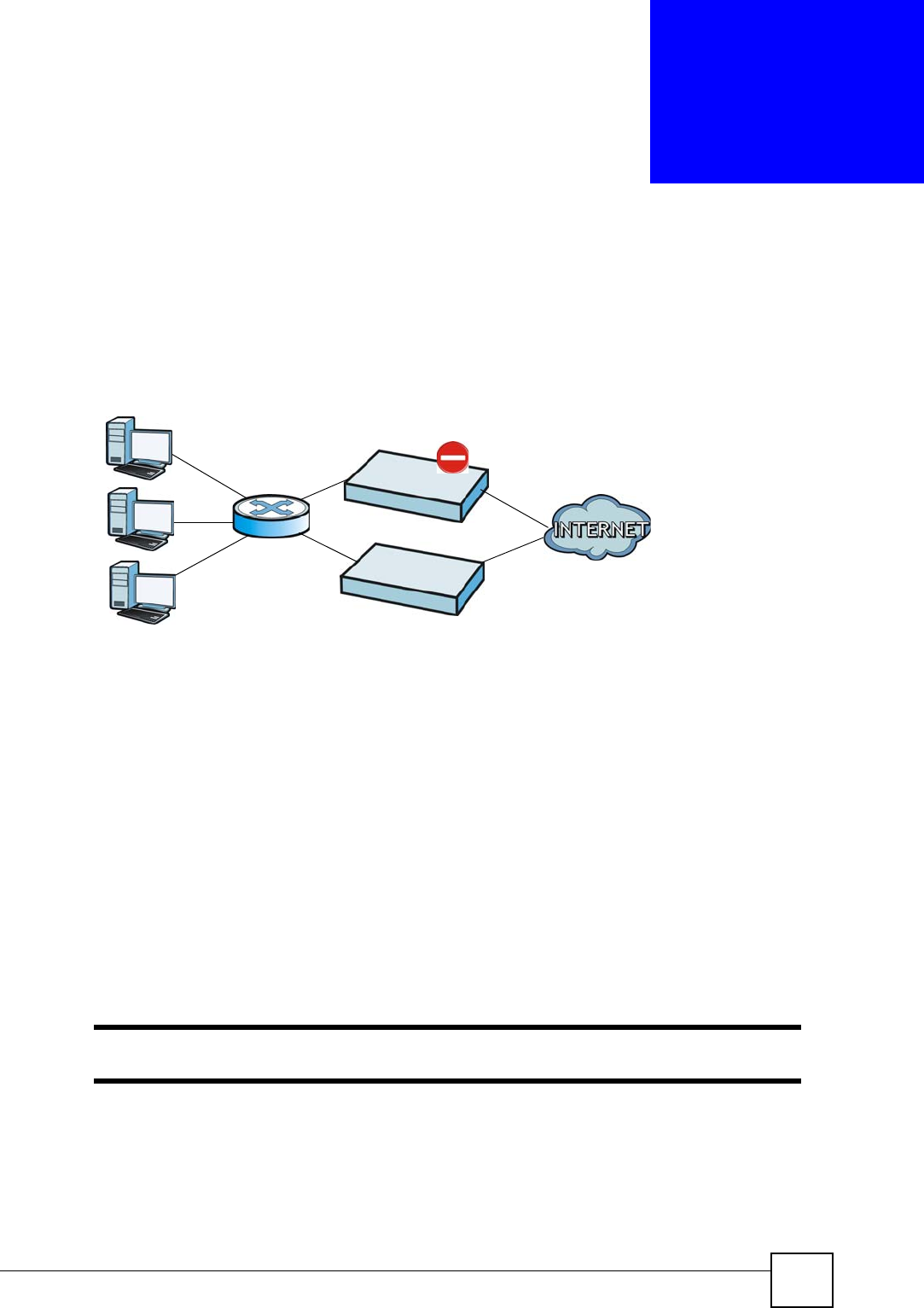
NXC CLI Reference Guide 163
CHAPTER 23
Device HA
Device HA lets a backup NXC automatically take over if the master NXC fails.
Figure 14 Device HA Backup Taking Over for the Master
In this example, device B is the backup for device A in the event something happens to it and
prevents it from managing the wireless network.
23.1 Device HA Overview
Management Access
You can configure a separate management IP address for each interface. You can use it to
access the NXC for management whether the NXC is the master or a backup. The
management IP address should be in the same subnet as the interface IP address.
Synchronization
Use synchronization to have a backup NXC copy the master NXC’s configuration, signatures
(anti-virus, IDP/application patrol, and system protect), and certificates.
Only NXCs of the same model and firmware version can synchronize.
Otherwise you must manually configure the master NXC’s settings on the backup (by editing
copies of the configuration files in a text editor for example).
A
B

Chapter 23 Device HA
NXC CLI Reference Guide
164
23.1.1 Before You Begin
• Configure a static IP address for each interface that you will have device HA monitor.
Subscribe to services on the backup NXC before synchronizing it with the
master NXC.
• Synchronization includes updates for services to which the master and backup NXCs are
both subscribed. For example, a backup subscribed to IDP/AppPatrol, but not anti-virus,
gets IDP/AppPatrol updates from the master, but not anti-virus updates. It is highly
recommended to subscribe the master and backup NXCs to the same services.
23.2 General Device HA Commands
This table lists the general commands for device HA.
23.3 Active-Passive Mode Device HA
Virtual Router
The master and backup NXC form a single ‘virtual router’.
Cluster ID
You can have multiple NXC virtual routers on your network. Use a different cluster ID to
identify each virtual router.
Monitored Interfaces in Active-Passive Mode Device HA
You can select which interfaces device HA monitors. If a monitored interface on the NXC
loses its connection, device HA has the backup NXC take over.
Enable monitoring for the same interfaces on the master and backup NXCs. Each monitored
interface must have a static IP address and be connected to the same subnet as the
corresponding interface on the backup or master NXC.
Table 92 device-ha General Commands
COMMAND DESCRIPTION
show device-ha status Displays whether or not device HA is activated, the
configured device HA mode, and the status of the
monitored interfaces.
[no] device-ha activate Turns device HA on or off.
device-ha mode {active-passive} Sets the NXC to use active-passive or legacy
(VRRP group based) device HA.
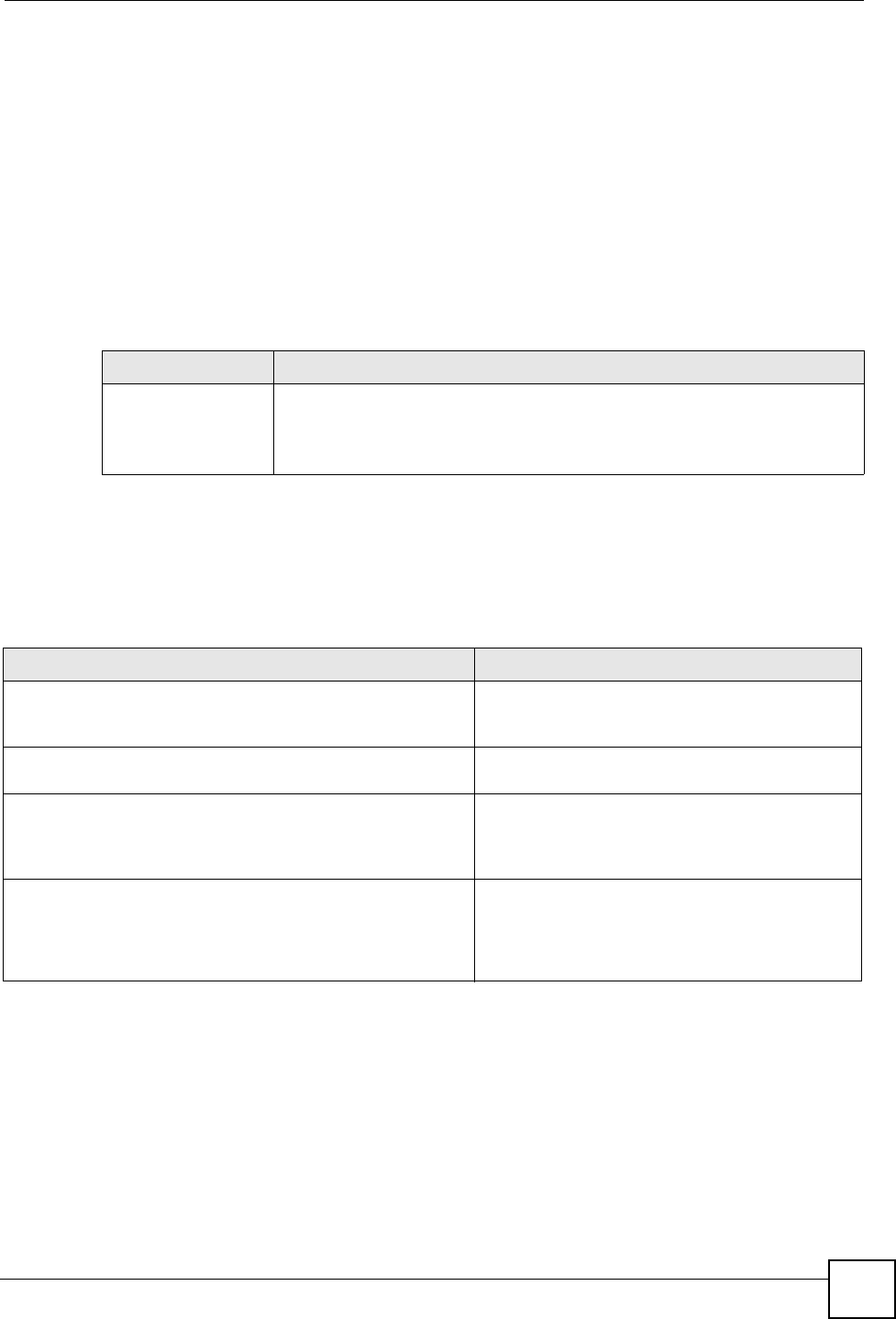
Chapter 23 Device HA
NXC CLI Reference Guide 165
Virtual Router and Management IP Addresses
• If a backup takes over for the master, it uses the master’s IP addresses. These IP addresses
are know as the virtual router IP addresses.
• Each interface can also have a management IP address. You can connect to this IP address
to manage the NXC regardless of whether it is the master or the backup.
23.4 Active-Passive Mode Device HA Commands
The following table identifies the values required for many of these commands. Other input
values are discussed with the corresponding commands.
The following sections list the device-ha commands.
23.4.1 Active-Passive Mode Device HA Commands
This table lists the commands for configuring active-passive mode device HA.
Table 93 Input Values for device-ha Commands
LABEL DESCRIPTION
interface_name The name of the interface.
Ethernet interface: gex, x = 1 - N, where N equals the highest numbered
Ethernet interface for your NXC model.
VLAN interface: vlanx, x = 0 - 511.
Table 94 device-ha ap-mode Commands
COMMAND DESCRIPTION
[no] device-ha ap-mode preempt Turn on preempt if this NXC should become the
master NXC if a lower-priority NXC is the master
when this NXC is enabled.
device-ha ap-mode role {master|backup} Sets the NXC to be the master or a backup in the
virtual router.
device-ha ap-mode cluster-id <1..32> Sets the cluster ID number. A virtual router consists
of a master NXC and all of its backup NXCs. If you
have multiple NXC virtual routers on your network,
use a different cluster ID for each virtual router.
device-ha ap-mode priority <1..254> Sets backup NXC’s priority. The backup NXC with
the highest value takes over the role of the master
NXC if the master NXC becomes unavailable. The
priority must be between 1 and 254. (The master
interface has priority 255.)

Chapter 23 Device HA
NXC CLI Reference Guide
166
[no] device-ha ap-mode authentication {string
key | ah-md5 key}
Sets the authentication method the virtual router
uses. Every interface in a virtual router must use
the same authentication method and password.
The no command disables authentication.
string: Use a plain text password for
authentication. key - Use up to eight characters
including alphanumeric characters, the underscore,
and some punctuation marks (+-/*= :; .! @$&%#~ ‘
\ () ).
ah-md5: Use an encrypted MD5 password for
authentication. key - Use up to eight characters
including alphanumeric characters, the underscore,
and some punctuation marks (+-/*= :; .! @$&%#~ ‘
\ () ).
[no] device-ha ap-mode interface_name manage-
ip ip subnet_mask
Sets the management IP address for an interface.
[no] device-ha ap-mode interface_name activate Has device HA monitor the status of an interface’s
connection.
[no] device-ha ap-mode master sync
authentication password password
This is for a master NXC. It specifies the password
to require from synchronizing backup NXCs. Every
router in the virtual router must use the same
password. The no command sets the password
setting to blank (which means no backups can
synchronize with this master).
password: Use 4-63 alphanumeric characters,
underscores (_), dashes (-), and #%^*={}:,.~
characters.
[no] device-ha ap-mode backup sync
authentication password password
Sets the password the backup NXC uses when
synchronizing with the master. The no command
sets the password setting to blank (which means
this backup NXC cannot synchronize with the
master).
password: Use 4-63 alphanumeric characters,
underscores (_), dashes (-), and #%^*={}:,.~
characters.
[no] device-ha ap-mode backup sync auto Turns on automatic synchronization according to
the interval you specify in device-ha ap-mode
backup sync interval. The first
synchronization begins after the specified interval
(not immediately).
[no] device-ha ap-mode backup sync interval
<5..1440>
When you use automatic synchronization, this sets
how often (in minutes) the NXC synchronizes with
the master.
[no] device-ha ap-mode backup sync from
master_address port <1..65535>
Sets the address of the master NXC with which this
backup NXC is to synchronize.
master_address: The master NXC’s IP address
or fully-qualified domain name (FQDN).
port: The master NXC’s FTP port number.
device-ha ap-mode backup sync now Synchronize now.
show device-ha ap-mode interfaces Displays the device HA AP mode interface settings
and status.
show device-ha ap-mode status Displays the NXC’s key device HA settings.
Table 94 device-ha ap-mode Commands (continued)
COMMAND DESCRIPTION

Chapter 23 Device HA
NXC CLI Reference Guide 167
23.4.2 Active-Passive Mode Device HA Command Example
This example configures a NXC to be a master NXC for active-passive mode device HA.
There is a management IP address of 192.168.1.3 on lan1. wan1 and lan1 are monitored. The
synchronization password is set to “mySyncPassword”.
show device-ha ap-mode master sync Displays the master NXC’s synchronization
settings.
show device-ha ap-mode backup sync Displays the backup NXC’s synchronization
settings.
show device-ha ap-mode backup sync status Displays the backup NXC’s current synchronization
status.
show device-ha ap-mode backup sync summary Displays the backup NXC’s synchronization
settings.
show device-ha ap-mode forwarding-port
interface_name
If you apply Device HA on a bridge interface on a
backup NXC, you can use this command to see
which port in the bridge interface is chosen to
receive VRRP packets used to monitor if the
master NXC goes down.
interface_name: This is a bridge interface, For
example, brx.
Table 94 device-ha ap-mode Commands (continued)
COMMAND DESCRIPTION
Router(config)# device-ha ap-mode lan1 manage-ip 192.168.1.3 255.255.255.0
Router(config)# device-ha ap-mode role master
Router(config)# device-ha ap-mode master sync authentication password
mySyncPassword
Router(config)# device-ha ap-mode wan1 activate
Router(config)# device-ha ap-mode lan1 activate
Router(config)# device-ha activate

Chapter 23 Device HA
NXC CLI Reference Guide
168

NXC CLI Reference Guide 169
CHAPTER 24
User/Group
This chapter describes how to set up user accounts, user groups, and user settings for the NXC.
You can also set up rules that control when users have to log in to the NXC before the NXC
routes traffic for them.
24.1 User Account Overview
A user account defines the privileges of a user logged into the NXC. User accounts are used in
firewall rules and application patrol, in addition to controlling access to configuration and
services in the NXC.
24.1.1 User Types
There are the types of user accounts the NXC uses.
Table 95 Types of User Accounts
TYPE ABILITIES LOGIN METHOD(S)
Admin Users
Admin Change NXC configuration (web, CLI) WWW, TELNET, SSH, FTP
Limited-Admin Look at NXC configuration (web, CLI)
Perform basic diagnostics (CLI)
WWW, TELNET, SSH
Access Users
User Access network services
Browse user-mode commands (CLI)
Captive Portal, TELNET, SSH
Guest Access network services Captive Portal
Ext-User External user account. Captive Portal
Ext-User-Group External group user account. Captive Portal
guest-manager Create dynamic guest accounts WWW
dynamic guest Access network services Captive Portal
mac-address As permitted by the user-aware feature
configuration. MAC Authentication

Chapter 24 User/Group
NXC CLI Reference Guide
170
24.2 User/Group Commands Summary
The following table identifies the values required for many username/groupname
commands. Other input values are discussed with the corresponding commands.
The following sections list the username/groupname commands.
24.2.1 User Commands
The first table lists the commands for users.
Table 96 username/groupname Command Input Values
LABEL DESCRIPTION
username The name of the user (account). You may use 1-31 alphanumeric characters,
underscores(_), or dashes (-), but the first character cannot be a number. This
value is case-sensitive.
groupname The name of the user group. You may use 1-31 alphanumeric characters,
underscores(_), or dashes (-), but the first character cannot be a number. This
value is case-sensitive. It cannot be the same as the user name.
Table 97 username/groupname Commands Summary: Users
COMMAND DESCRIPTION
show username [username]Displays information about the specified user or
about all users set up in the NXC.
username username nopassword user-type {admin
| guest | limited-admin | user}
Creates the specified user (if necessary), disables
the password, and sets the user type for the
specified user.
username username password password user-type
{admin | guest | limited-admin | user}
Creates the specified user (if necessary); enables
and sets the password; and sets the user type for
the specified user.
password: You can use 1-63 printable ASCII
characters, except double quotation marks (“) and
question marks (?).
username username user-type ext-group-user Creates the specified user (if necessary) and sets
the user type to Ext-User.
username username user-type mac-address Creates the specified user (if necessary) and sets
the user type to mac-address.
no username username Deletes the specified user.
username rename username username Renames the specified user (first username) to
the specified username (second username).
username username [no] description description Sets the description for the specified user. The no
command clears the description.
description: You can use alphanumeric and
()+/:=?!*#@$_%- characters, and it can be up
to 60 characters long.
username username logon-time-setting <default
| manual>
Sets the account to use the factory default lease
and reauthentication times or custom ones.

Chapter 24 User/Group
NXC CLI Reference Guide 171
24.2.2 User Group Commands
This table lists the commands for groups.
24.2.3 User Setting Commands
This table lists the commands for user settings, except for forcing user authentication.
username username [no] logon-lease-time
<0..1440>
Sets the lease time for the specified user. Set it to
zero to set unlimited lease time. The no command
sets the lease time to five minutes (regardless of
the current default setting for new users).
username username [no] logon-re-auth-time
<0..1440>
Sets the reauthorization time for the specified user.
Set it to zero to set unlimited reauthorization time.
The no command sets the reauthorization time to
thirty minutes (regardless of the current default
setting for new users).
Table 97 username/groupname Commands Summary: Users (continued)
COMMAND DESCRIPTION
Table 98 username/groupname Commands Summary: Groups
COMMAND DESCRIPTION
show groupname [groupname]Displays information about the specified user group
or about all user groups set up in the NXC.
[no] groupname groupname Creates the specified user group if necessary and
enters sub-command mode. The no command
deletes the specified user group.
[no] description description Sets the description for the specified user group.
The no command clears the description for the
specified user group.
[no] groupname groupname Adds the specified user group (second
groupname) to the specified user group (first
groupname).
[no] user username Adds the specified user to the specified user group.
show Displays information about the specified user
group.
groupname rename groupname groupname Renames the specified user group (first
groupname) to the specified group-name (second
groupname).
Table 99 username/groupname Commands Summary: Settings
COMMAND DESCRIPTION
show users default-setting {all | user-type
{admin|user|guest|limited-admin|ext-group-
user}}
Displays the default lease and reauthentication
times for the specified type of user accounts.
users default-setting [no] logon-lease-time
<0..1440>
Sets the default lease time (in minutes) for each
new user. Set it to zero to set unlimited lease time.
The no command sets the default lease time to
five.
users default-setting [no] logon-re-auth-time
<0..1440>
Sets the default reauthorization time (in minutes)
for each new user. Set it to zero to set unlimited
reauthorization time. The no command sets the
default reauthorization time to thirty.

Chapter 24 User/Group
NXC CLI Reference Guide
172
24.2.3.1 User Setting Command Examples
The following commands show the current settings for the number of simultaneous logins.
users default-setting [no] user-type <admin
|ext-user|guest|limited-admin|ext-group-user>
Sets the default user type for each new user. The
no command sets the default user type to user.
show users retry-settings Displays the current retry limit settings for users.
[no] users retry-limit Enables the retry limit for users. The no command
disables the retry limit.
[no] users retry-count <1..99> Sets the number of failed login attempts a user can
have before the account or IP address is locked out
for lockout-period minutes. The no command sets
the retry-count to five.
[no] users lockout-period <1..65535> Sets the amount of time, in minutes, a user or IP
address is locked out after retry-count number of
failed login attempts. The no command sets the
lockout period to thirty minutes.
show users simultaneous-logon-settings Displays the current settings for simultaneous
logins by users.
[no] users simultaneous-logon {administration
| access} enforce
Enables the limit on the number of simultaneous
logins by users of the specified account-type. The
no command disables the limit, or allows an
unlimited number of simultaneous logins.
[no] users simultaneous-logon {administration
| access} limit <1..1024>
Sets the limit for the number of simultaneous logins
by users of the specified account-type. The no
command sets the limit to one.
show users update-lease-settings Displays whether or not access users can
automatically renew their lease time.
[no] users update-lease automation Lets users automatically renew their lease time.
The no command prevents them from
automatically renewing it.
show users idle-detection-settings Displays whether or not users are automatically
logged out, and, if so, how many minutes of idle
time must pass before they are logged out.
[no] users idle-detection Enables logging users out after a specified number
of minutes of idle time. The no command disables
logging them out.
[no] users idle-detection timeout <1..60> Sets the number of minutes of idle time before
users are automatically logged out. The no
command sets the idle-detection timeout to three
minutes.
Table 99 username/groupname Commands Summary: Settings (continued)
COMMAND DESCRIPTION
Router# configure terminal
Router(config)# show users simultaneous-logon-settings
enable simultaneous logon limitation for administration account: yes
maximum simultaneous logon per administration account : 1
enable simultaneous logon limitation for access account : yes
maximum simultaneous logon per access account : 3

Chapter 24 User/Group
NXC CLI Reference Guide 173
24.2.4 MAC Auth Commands
This table lists the commands for mappings MAC addresses to MAC address user accounts.
24.2.4.1 MAC Auth Example
This example uses an external server to authenticate wireless clients by MAC address. After
authentication the NXC maps the wireless client to a mac-address user account (MAC role).
Configure user-aware features to control MAC address user access to network services.
The following commands:
• Create a MAC role (mac-address user type user account) named ZyXEL-mac
• Map a wireless client’s MAC address of 00:13:49:11:a0:c4 to the ZyXEL-mac MAC role
(MAC address user account)
• Modify the WLAN security profile named secureWLAN1 as follows:
• Turn on MAC authentication
• Use the authentication method named Auth1
• Use colons to separate the two-character pairs within account MAC addresses
Table 100 mac-auth Commands Summary
COMMAND DESCRIPTION
[no] mac-auth database mac mac address type
ext-mac-address mac-role username description
description
Maps the specified MAC address authenticated by
an external server to the specified MAC role (MAC
address user account).
The no command deletes the mapping between
the MAC address and the MAC role.
[no] mac-auth database mac mac address type
int-mac-address mac-role username description
description
Maps the specified MAC address authenticated by
the NXC’s local user database to the specified
MAC role (MAC address user account).
The no command deletes the mapping between
the MAC address and the MAC role.
[no] mac-auth database mac oui type ext-oui
mac-role username description description
Maps the specified OUI (Organizationally Unique
Identifier) authenticated by an external server to
the specified MAC role (MAC address user
account). The OUI is the first three octets in a MAC
address and uniquely identifies the manufacturer of
a network device.
The no command deletes the mapping between
the OUI and the MAC role.
[no] mac-auth database mac oui type int-oui
mac-role username description description
Maps the specified OUI (Organizationally Unique
Identifier) authenticated by the NXC’s local user
database to the specified MAC role (MAC address
user account). The OUI is the first three octets in a
MAC address and uniquely identifies the
manufacturer of a network device.
The no command deletes the mapping between
the OUI and the MAC role.
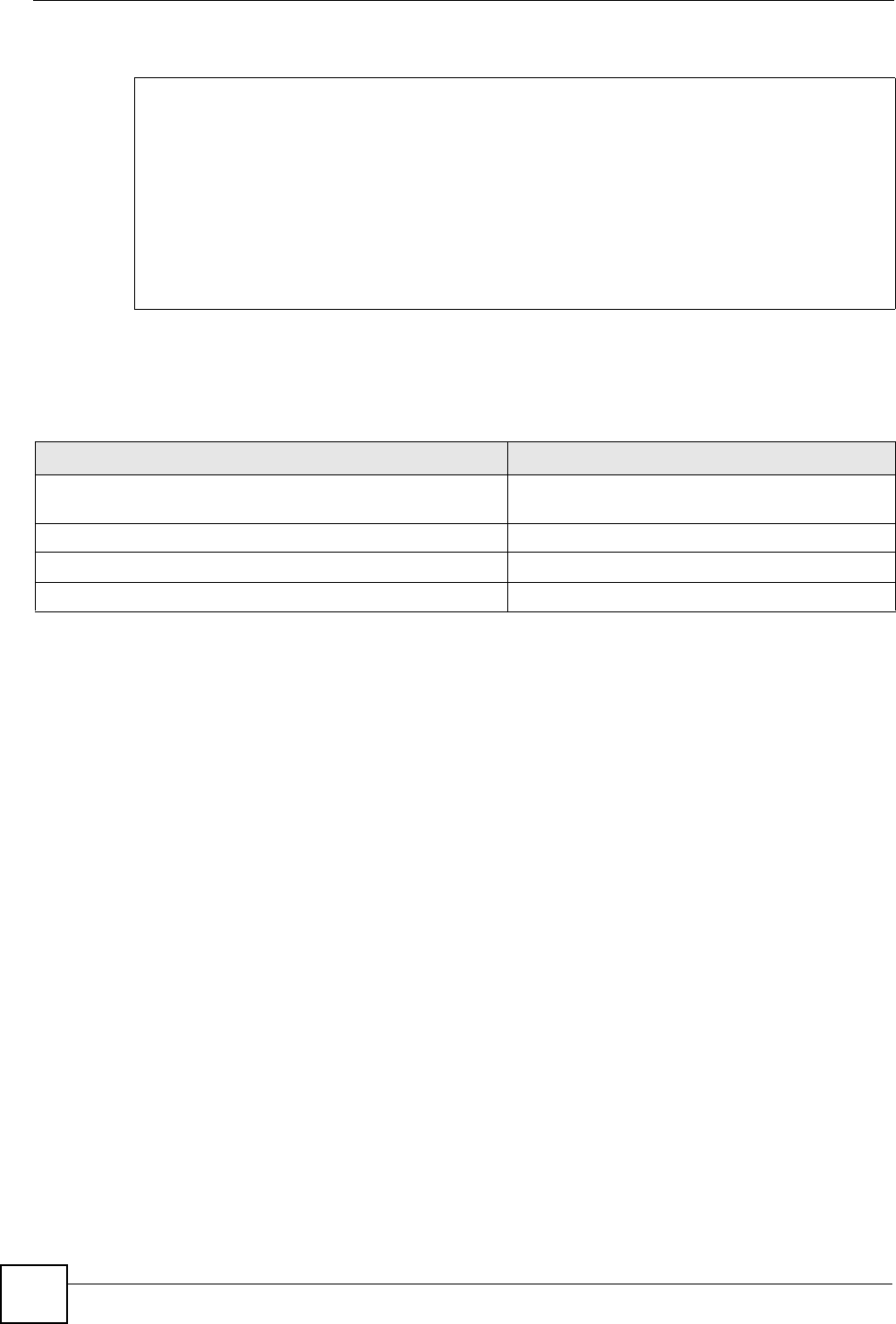
Chapter 24 User/Group
NXC CLI Reference Guide
174
• Use upper case letters in the account MAC addresses
24.2.5 Additional User Commands
This table lists additional commands for users.
Router(config)# username ZyXEL-mac user-type mac-address
Router(config)# mac-auth database mac 00:13:49:11:a0:c4 type ext-mac-address
mac-role ZyXEL-mac description zyxel mac
3. Modify wlan-security-profile
Router(config)# wlan-security-profile secureWLAN1
Router(config-wlan-security default)# mac-auth activate
Router(config-wlan-security default)# mac-auth auth-method Auth1
Router(config-wlan-security default)# mac-auth delimiter account colon
Router(config-wlan-security default)# mac-auth case account upper
Router(config-wlan-security default)# exit
Table 101 username/groupname Commands Summary: Additional
COMMAND DESCRIPTION
show users {username | all | current} Displays information about the users logged onto
the system.
show lockout-users Displays users who are currently locked out.
unlock lockout-users ip | console Unlocks the specified IP address.
users force-logout ip | username Logs out the specified logins.

Chapter 24 User/Group
NXC CLI Reference Guide 175
24.2.5.1 Additional User Command Examples
The following commands display the users that are currently logged in to the NXC and forces
the logout of all logins from a specific IP address.
Router# configure terminal
Router(config)# show users all
No. Name Role Type
MAC Service From
Session Time Idle Time Lease Timeout Re-Auth. Timeout
Acct. Status Profile Name
===============================================================================
1 admin admin admin
console console
00:35:36 unlimited 00:30:00 unlimited
- N/A
2 admin admin admin
http/https 192.168.1.5
00:04:06 unlimited 00:25:57 unlimited
- N/A
3 admin admin admin
http/https 192.168.1.5
00:03:39 unlimited 00:26:25 unlimited
- N/A
Router(config)# users force-logout 192.168.1.5
Logout user 'admin'(from 192.168.1.5): OK
Logout user 'admin'(from 192.168.1.5): OK
Total 2 users have been forced logout
Router(config)# show users all
No. Name Role Type
MAC Service From
Session Time Idle Time Lease Timeout Re-Auth. Timeout
Acct. Status Profile Name
===============================================================================
1 admin admin admin
console console
00:37:22 unlimited 00:30:00 unlimited
- N/A

Chapter 24 User/Group
NXC CLI Reference Guide
176
The following commands display the users that are currently locked out and then unlocks the
user who is displayed.
Router# configure terminal
Router(config)# show lockout-users
No. Username Tried From Lockout Time Remaining
===========================================================================
No. From Failed Login Attempt Record Expired Timer
===========================================================================
1 192.168.1.60 2 46
Router(config)# unlock lockout-users 192.168.1.60
User from 192.168.1.60 is unlocked
Router(config)# show lockout-users
No. Username Tried From Lockout Time Remaining
===========================================================================
No. From Failed Login Attempt Record Expired Timer
===========================================================================

NXC CLI Reference Guide 177
CHAPTER 25
Addresses
This chapter describes how to set up addresses and address groups for the NXC.
Use the configure terminal command to enter Configuration mode in
order to use the commands described in this chapter.
25.1 Address Overview
Address objects can represent a single IP address or a range of IP addresses. Address groups
are composed of address objects and other address groups.
You can create IP address objects based on an interface’s IP address, subnet, or gateway. The
NXC automatically updates these objects whenever the interface’s IP address settings change.
This way every rule or setting that uses the object uses the updated IP address settings. For
example, if you change the LAN1 interface’s IP address, the NXC automatically updates the
corresponding interface-based, LAN1 subnet address object. So any configuration that uses
the LAN1 subnet address object is also updated.
Address objects and address groups are used in dynamic routes, firewall rules, application
patrol, content filtering, and VPN connection policies. For example, addresses are used to
specify where content restrictions apply in content filtering. Please see the respective sections
for more information about how address objects and address groups are used in each one.
Address groups are composed of address objects and address groups. The sequence of
members in the address group is not important.

Chapter 25 Addresses
NXC CLI Reference Guide
178
25.2 Address Commands Summary
The following table describes the values required for many address object and address group
commands. Other values are discussed with the corresponding commands.
The following sections list the address object and address group commands.
25.2.1 Address Object Commands
This table lists the commands for address objects.
Table 102 Input Values for Address Commands
LABEL DESCRIPTION
object_name The name of the address. You may use 1-31 alphanumeric characters,
underscores(_), or dashes (-), but the first character cannot be a number. This
value is case-sensitive.
group_name The name of the address group. You may use 1-31 alphanumeric characters,
underscores(_), or dashes (-), but the first character cannot be a number. This
value is case-sensitive.
interface_name The name of the interface. Use gex, x = 1 ~ N for Ethernet interfaces, where N
equals the highest numbered Ethernet interface for your NXC model.
Use vlanx, x= 1 ~N for VLAN interfaces where N equals the highest numbered
Ethernet interface for your NXC model
Table 103 address-object Commands: Address Objects
COMMAND DESCRIPTION
show address-object [object_name]Displays information about the specified address or
all the addresses.
address-object object_name {ip | ip_range |
ip_subnet | interface-ip | interface-subnet |
interface-gateway} {interface}
Creates the specified address object using the
specified parameters.
ip_range: <1..255>.<0..255>.<0..255>.<1..255>-
<1..255>.<0..255>.<0..255>.<1..255>
ip_subnet:
<1..255>.<0..255>.<0..255>.<0..255>/<1..32>
interface: You only need to specify an interface
with you create an object based on an interface.
no address-object object_name Deletes the specified address.
address-object list Displays all address objects on the NXC.
address-object rename object_name object_name Renames the specified address (first
object_name) to the second object_name.

Chapter 25 Addresses
NXC CLI Reference Guide 179
25.2.1.1 Address Object Command Examples
The following example creates three address objects and then deletes one.
25.2.2 Address Group Commands
This table lists the commands for address groups.
Router# configure terminal
Router(config)# address-object A0 10.1.1.1
Router(config)# address-object A1 10.1.1.1-10.1.1.20
Router(config)# address-object A2 10.1.1.0/24
Router(config)# show address-object
Object name Type Address
Note Ref.
===========================================================================
====
LAN_SUBNET INTERFACE SUBNET 192.168.1.0/24
vlan0 0
A0 HOST 10.1.1.1
0
A1 RANGE 10.1.1.1-10.1.1.20
0
A2 SUBNET 10.1.1.0/24
0
Router(config)# no address-object A2
Router(config)# show address-object
Object name Type Address
Note Ref.
===========================================================================
====
LAN_SUBNET INTERFACE SUBNET 192.168.1.0/24
vlan0 0
A0 HOST 10.1.1.1
0
A1 RANGE 10.1.1.1-10.1.1.20
0
Router(config)#
Table 104 object-group Commands: Address Groups
COMMAND DESCRIPTION
show object-group address [group_name]Displays information about the specified address
group or about all address groups.
[no] object-group address group_name Creates the specified address group if necessary
and enters sub-command mode. The no command
deletes the specified address group.
[no] address-object object_name Adds the specified address to the specified
address group. The no command removes the
specified address from the specified group.
[no] object-group group_name Adds the specified address group (second
group_name) to the specified address group (first
group_name). The no command removes the
specified address group from the specified address
group.

Chapter 25 Addresses
NXC CLI Reference Guide
180
25.2.2.1 Address Group Command Examples
The following commands create three address objects A0, A1, and A2 and add A1 and A2 to
address group RD.
[no] description description Sets the description to the specified value. The no
command clears the description.
description: You can use alphanumeric and
()+/:=?!*#@$_%- characters, and it can be up
to 60 characters long.
object-group address rename group_name
group_name
Renames the specified address group from the first
group_name to the second group_name.
Table 104 object-group Commands: Address Groups (continued)
COMMAND DESCRIPTION
Router# configure terminal
Router(config)# address-object A0 192.168.1.1
Router(config)# address-object A1 192.168.1.2-192.168.2.20
Router(config)# address-object A2 192.168.3.0/24
Router(config)# object-group address RD
Router(group-address)# address-object A1
Router(group-address)# address-object A2
Router(group-address)# exit
Router(config)# show object-group address
Group name Reference
Description
===========================================================================
TW_TEAM 5
RD 0
Router(config)# show object-group address RD
Object/Group name Type Reference
===========================================================================
A1 Object 1
A2 Object 1

NXC CLI Reference Guide 181
CHAPTER 26
Services
Use service objects to define TCP applications, UDP applications, and ICMP messages. You
can also create service groups to refer to multiple service objects in other features.
26.1 Services Overview
See the appendices in the web configurator’s User Guide for a list of commonly-used services.
26.2 Services Commands Summary
The following table describes the values required for many service object and service group
commands. Other values are discussed with the corresponding commands.
The following sections list the service object and service group commands.
26.2.1 Service Object Commands
The first table lists the commands for service objects.
Table 105 Input Values for Service Commands
LABEL DESCRIPTION
group_name The name of the service group. You may use 1-31 alphanumeric characters,
underscores(_), or dashes (-), but the first character cannot be a number. This
value is case-sensitive.
object_name The name of the service. You may use 1-31 alphanumeric characters,
underscores(_), or dashes (-), but the first character cannot be a number. This
value is case-sensitive.
Table 106 service-object Commands: Service Objects
COMMAND DESCRIPTION
show service-object [object_name]Displays information about the specified service or
about all the services.
no service-object object_name Deletes the specified service.
service-object object_name {tcp | udp} {eq
<1..65535> | range <1..65535> <1..65535>}
Creates the specified TCP service or UDP service
using the specified parameters.

Chapter 26 Services
NXC CLI Reference Guide
182
26.2.1.1 Service Object Command Examples
The following commands create one service and display information about it.
26.2.2 Service Group Commands
The first table lists the commands for service groups.
service-object object_name icmp icmp_value Creates the specified ICMP message using the
specified parameters.
icmp_value: <0..255> | alternate-address |
conversion-error | echo | echo-reply | information-
reply | information-request | mask-reply | mask-
request | mobile-redirect | parameter-problem |
redirect | router-advertisement | router-solicitation |
source-quench | time-exceeded | timestamp-reply |
timestamp-request | unreachable
service-object object_name protocol <1..255> Creates the specified user-defined service using
the specified parameters.
service-object list Lists all available network services.
service-object rename object_name object_name Renames the specified service from the first
object_name to the second object_name.
Table 106 service-object Commands: Service Objects (continued)
COMMAND DESCRIPTION
Router# configure terminal
Router(config)# service-object FTP tcp range 20 21
Router(config)# show service-object FTP
Router(config)# show service-object FTP
Object name Protocol Minmum port Maxmum port Ref.
===========================================================================
FTP TCP 20 21 1
FTP References:
Category
Rule Priority Rule Name Description
===========================================================================
Captive Portal
3 N/A N/A
Router(config)#
Table 107 object-group Commands: Service Groups
COMMAND DESCRIPTION
show object-group service group_name Displays information about the specified service
group.
[no] object-group service group_name Creates the specified service group if necessary
and enters sub-command mode. The no command
removes the specified service group.
[no] service-object object_name Adds the specified service to the specified service
group. The no command removes the specified
service from the specified group.

Chapter 26 Services
NXC CLI Reference Guide 183
26.2.2.1 Service Group Command Examples
The following commands create service ICMP_ECHO, create service group SG1, and add
ICMP_ECHO to SG1.
[no] object-group group_name Adds the specified service group (second
group_name) to the specified service group (first
group_name). The no command removes the
specified service group from the specified service
group.
[no] description description Sets the description to the specified value. The no
command removes the description.
description: You can use alphanumeric and
()+/:=?!*#@$_%- characters, and it can be up
to 60 characters long.
object-group service rename group_name
group_name
Renames the specified service group from the first
group_name to the second group_name.
Table 107 object-group Commands: Service Groups (continued)
COMMAND DESCRIPTION
Router# configure terminal
Router(config)# service-object ICMP_ECHO icmp echo
Router(config)# object-group service SG1
Router(group-service)# service-object ICMP_ECHO
Router(group-service)# exit
Router(config)# show service-object ICMP_ECHO
Object name Protocol Minmum port Maxmum port Ref.
===========================================================================
ICMP_ECHO ICMP 8 8 1
ICMP_ECHO References:
Category
Rule Priority Rule Name Description
===========================================================================
Service Group
N/A SG1 N/A
Router(config)# show object-group service SG1
Object/Group name Type Reference
===========================================================================
ICMP_ECHO Object 1
Router(config)#

Chapter 26 Services
NXC CLI Reference Guide
184

NXC CLI Reference Guide 185
CHAPTER 27
Schedules
Use schedules to set up one-time and recurring schedules for policy routes, firewall rules,
application patrol, and content filtering.
27.1 Schedule Overview
The NXC supports two types of schedules: one-time and recurring. One-time schedules are
effective only once, while recurring schedules usually repeat. Both types of schedules are
based on the current date and time in the NXC.
Schedules are based on the current date and time in the NXC.
One-time schedules begin on a specific start date and time and end on a specific stop date and
time. One-time schedules are useful for long holidays and vacation periods.
Recurring schedules begin at a specific start time and end at a specific stop time on selected
days of the week (Sunday, Monday, Tuesday, Wednesday, Thursday, Friday, and Saturday).
Recurring schedules always begin and end in the same day. Recurring schedules are useful for
defining the workday and off-work hours.
27.2 Schedule Commands Summary
The following table describes the values required for many schedule commands. Other values
are discussed with the corresponding commands.
Table 108 Input Values for Schedule Commands
LABEL DESCRIPTION
object_name The name of the schedule. You may use 1-31 alphanumeric characters,
underscores(_), or dashes (-), but the first character cannot be a number. This
value is case-sensitive.
time 24-hour time, hours and minutes; <0..23>:<0..59>.

Chapter 27 Schedules
NXC CLI Reference Guide
186
The following table lists the schedule commands.
27.2.1 Schedule Command Examples
The following commands create recurring schedule SCHEDULE1 and one-time schedule
SCHEDULE2 and then delete SCHEDULE1.
Table 109 schedule Commands
COMMAND DESCRIPTION
show schedule-object Displays information about the schedules in the
NXC.
no schedule-object object_name Deletes the schedule object.
schedule-object list Lists all schedules configured on the NXC.
schedule-object object_name date time date
time
Creates or updates a one-time schedule.
date: yyyy-mm-dd date format; yyyy-<01..12>-
<01..31>
schedule-object object_name time time [day]
[day] [day] [day] [day] [day] [day]
Creates or updates a recurring schedule.
day: 3-character day of the week; sun | mon | tue |
wed | thu | fri | sat
Router# configure terminal
Router(config)# schedule-object SCHEDULE1 11:00 12:00 mon tue wed thu fri
Router(config)# schedule-object SCHEDULE2 2006-07-29 11:00 2006-07-31 12:00
Router(config)# show schedule-object
Object name Type Start/End Ref.
===========================================================================
SCHEDULE1 Recurring 11:00/12:00 ===MonTueWedThuFri=== 0
SCHEDULE2 Once 2006-07-29 11:00/2006-07-31 12:00 0
Router(config)# no schedule-object SCHEDULE1
Router(config)# show schedule-object
Object name Type Start/End Ref.
===========================================================================
SCHEDULE2 Once 2006-07-29 11:00/2006-07-31 12:00 0

NXC CLI Reference Guide 187
CHAPTER 28
AAA Server
This chapter introduces and shows you how to configure the NXC to use external
authentication servers.
28.1 AAA Server Overview
You can use an AAA (Authentication, Authorization, Accounting) server to provide access
control to your network.
The following lists the types of authentication server the NXC supports.
• Local user database
The NXC uses the built-in local user database to authenticate administrative users logging
into the NXC’s web configurator or network access users logging into the network through
the NXC. You can also use the local user database to authenticate VPN users.
• Directory Service (LDAP/AD)
LDAP (Lightweight Directory Access Protocol)/AD (Active Directory) is a directory
service that is both a directory and a protocol for controlling access to a network. The
directory consists of a database specialized for fast information retrieval and filtering
activities. You create and store user profile and login information on the external server.
• RADIUS
RADIUS (Remote Authentication Dial-In User Service) authentication is a popular
protocol used to authenticate users by means of an external or built-in RADIUS server.
RADIUS authentication allows you to validate a large number of users from a central
location.
28.2 Authentication Server Command Summary
This section describes the commands for authentication server settings.

Chapter 28 AAA Server
NXC CLI Reference Guide
188
28.2.1 aaa group server ad Commands
The following table lists the aaa group server ad commands you use to configure a
group of AD servers.
Table 110 aaa group server ad Commands
COMMAND DESCRIPTION
clear aaa group server ad [group-
name]
Deletes all AD server groups or the specified AD
server group.
Note: You can NOT delete a server group
that is currently in use.
show aaa group server ad group-
name
Displays the specified AD server group settings.
[no] aaa group server ad group-
name
Sets a descriptive name for an AD server group. Use
this command to enter the sub-command mode.
The no command deletes the specified server group.
aaa group server ad rename group-
name group-name
Changes the descriptive name for an AD server group.
aaa group server ad group-name Enter the sub-command mode to configure an AD
server group.
[no] server alternative-cn-
identifier uid
Sets the second type of identifier that the users can
use to log in if any. For example “name” or “e-mail
address”. The no command clears this setting.
[no] server basedn basedn Sets a base distinguished name (DN) to point to the
AD directory on the AD server group. The no
command clears this setting.
[no] server binddn binddn Sets the user name the NXC uses to log into the AD
server group. The no command clears this setting.
[no] server cn-identifier uid Sets the unique common name (cn) to identify a
record. The no command clears this setting.
[no] server description
description
Sets the descriptive information for the AD server
group. You can use up to 60 printable ASCII
characters. The no command clears the setting.
[no] server group-attribute
group-attribute
Sets the name of the attribute that the NXC is to check
to determine to which group a user belongs. The value
for this attribute is called a group identifier; it
determines to which group a user belongs. You can
add ext-group-user user objects to identify groups
based on these group identifier values.
For example you could have an attribute named
“memberOf” with values like “sales”, “RD”, and
“management”. Then you could also create an ext-
group-user user object for each group. One with
“sales” as the group identifier, another for “RD” and a
third for “management”. The no command clears the
setting.
[no] server host ad_server Enter the IP address (in dotted decimal notation) or the
domain name of an AD server to add to this group. The
no command clears this setting.
[no] server password password Sets the bind password (up to 15 alphanumerical
characters). The no command clears this setting.

Chapter 28 AAA Server
NXC CLI Reference Guide 189
28.2.2 aaa group server ldap Commands
The following table lists the aaa group server ldap commands you use to configure a
group of LDAP servers.
[no] server domain-auth
activate
Activates server domain authentication. The no
parameter deactivates it.
server domain-auth domain-
name <netbios_name>
Adds the NetBIOS name of the AD server. The NXC
uses it with the user name in the format
NetBIOS\USERNAME to do authentication.
The NXC uses the format USERNAME@realm if you
do not configure the NetBIOS name.
server domain-auth username
[username] password
[password]
Sets the user name and password for domain
authentication.
server domain-auth realm
[realm]
Sets the realm for domain authentication.
[no] server port port_no Sets the AD port number. Enter a number between 1
and 65535. The default is 389. The no command
clears this setting.
[no] server search-time-limit
time
Sets the search timeout period (in seconds). Enter a
number between 1 and 300. The no command clears
this setting and set this to the default setting of 5
seconds.
[no] server ssl Enables the NXC to establish a secure connection to
the AD server. The no command disables this feature.
Table 110 aaa group server ad Commands (continued)
COMMAND DESCRIPTION
Table 111 aaa group server ldap Commands
COMMAND DESCRIPTION
clear aaa group server ldap
[group-name]
Deletes all LDAP server groups or the specified LDAP
server group.
Note: You can NOT delete a server group
that is currently in use.
show aaa group server ldap group-
name
Displays the specified LDAP server group settings.
[no] aaa group server ldap group-
name
Sets a descriptive name for an LDAP server group.
Use this command to enter the sub-command mode.
The no command deletes the specified server group.
aaa group server ldap rename
group-name group-name
Changes the descriptive name for an LDAP server
group.
aaa group server ldap group-name Enter the sub-command mode.
[no] server alternative-cn-
identifier uid
Sets the second type of identifier that the users can
use to log in if any. For example “name” or “e-mail
address”. The no command clears this setting.
[no] server basedn basedn Sets a base distinguished name (DN) to point to the
LDAP directory on the LDAP server group. The no
command clears this setting.

Chapter 28 AAA Server
NXC CLI Reference Guide
190
28.2.3 aaa group server radius Commands
The following table lists the aaa group server radius commands you use to configure
a group of RADIUS servers.
[no] server binddn binddn Sets the user name the NXC uses to log into the LDAP
server group. The no command clears this setting.
[no] server cn-identifier uid Sets the unique common name (cn) to identify a
record. The no command clears this setting.
[no] server description
description
Sets the descriptive information for the LDAP server
group. You can use up to 60 printable ASCII
characters. The no command clears this setting.
[no] server group-attribute
group-attribute
Sets the name of the attribute that the NXC is to check
to determine to which group a user belongs. The value
for this attribute is called a group identifier; it
determines to which group a user belongs. You can
add ext-group-user user objects to identify groups
based on these group identifier values.
For example you could have an attribute named
“memberOf” with values like “sales”, “RD”, and
“management”. Then you could also create an ext-
group-user user object for each group. One with
“sales” as the group identifier, another for “RD” and a
third for “management”. The no command clears the
setting.
[no] server host ldap_server Enter the IP address (in dotted decimal notation) or the
domain name of an LDAP server to add to this group.
The no command clears this setting.
[no] server password password Sets the bind password (up to 15 characters). The no
command clears this setting.
[no] server port port_no Sets the LDAP port number. Enter a number between
1 and 65535. The default is 389. The no command
clears this setting.
[no] server search-time-limit
time
Sets the search timeout period (in seconds). Enter a
number between 1 and 300. The no command clears
this setting and set this to the default setting of 5
seconds.
[no] server ssl Enables the NXC to establish a secure connection to
the LDAP server. The no command disables this
feature.
Table 111 aaa group server ldap Commands (continued)
COMMAND DESCRIPTION
Table 112 aaa group server radius Commands
COMMAND DESCRIPTION
clear aaa group server radius
group-name
Deletes all RADIUS server groups or the specified
RADIUS server group.
Note: You can NOT delete a server group
that is currently in use.
show aaa group server radius
group-name
Displays the specified RADIUS server group settings.

Chapter 28 AAA Server
NXC CLI Reference Guide 191
[no] aaa group server radius
group-name
Sets a descriptive name for the RADIUS server group.
The no command deletes the specified server group.
aaa group server radius rename
{group-name-old} group-name-new
Changes the descriptive name for a RADIUS server
group.
aaa group server radius group-name Enter the sub-command mode.
[no] server description
description
Sets the descriptive information for the RADIUS server
group. You can use up to 60 printable ASCII
characters. The no command clears the setting.
[no] server group-attribute
<1-255>
Sets the value of an attribute that the NXC is used to
determine to which group a user belongs.
This attribute’s value is called a group identifier. You
can add ext-group-user user objects to identify
groups based on different group identifier values.
For example, you could configure attributes 1,10 and
100 and create a ext-group-user user object for each
of them. The no command clears the setting.
[no] server host
radius_server auth-port port
Enter the IP address (in dotted decimal notation) or
domain name and authentication port of a RADIUS
server to add to this server group. The no command
clears this setting.
[no] server key secret Sets a password (up to 15 alphanumeric characters)
as the key to be shared between the RADIUS
server(s) and the NXC. The no command clears this
setting.
[no] server timeout time Sets the search timeout period (in seconds). Enter a
number between 1 and 300. The no command clears
this setting and set this to the default setting of 5
seconds.
[no] server acct-address
radius_server acct-port port
Enter the IP address (in dotted decimal notation) or
domain name and authentication port of the RADIUS
accounting server to add to this server group. The no
command clears this setting.
[no] server acct-secret key Enter the key (up to 15 alphanumeric characters) to
share between the external accounting server and the
NXC. The key is not sent over the network. This key
must be the same on the external accounting server
and the NXC. The no command clears this setting.
[no] server acct-interim-
interval <1..1440>
Specifies the interval (in minutes) at which the NXC
sends subscriber status updates to the RADIUS
server. The no command clears this setting.
[no] server acct-retry-count
<retry_times>
Sets the number of times the NXC reattempts to use
the primary RADIUS server before attempting to use
the secondary RADIUS server. This also sets how
many times the NXC attempts to use the secondary
RADIUS server. The no command clears this setting.
[no] server nas-id
<nas_identifier>
Specifies the Network Access Server identifier attribute
value if the RADIUS server requires it. The no
command clears this setting.
Table 112 aaa group server radius Commands (continued)
COMMAND DESCRIPTION

Chapter 28 AAA Server
NXC CLI Reference Guide
192
28.2.4 aaa group server Command Example
The following example creates a RADIUS server group with two members and sets the secret
key to “12345678” and the timeout to 100 seconds. Then this example also shows how to view
the RADIUS group settings.
[no] server nas-ip
<nas_address>
Specifies the Network Access Server IP address
attribute value if the RADIUS server requires it. The no
command clears this setting.
[no] server acct-interim
activate Enable this to have the NXC send subscriber status
updates to the RADIUS server. The no command has
the NXC not send subscriber status updates to the
RADIUS server.
Table 112 aaa group server radius Commands (continued)
COMMAND DESCRIPTION
Router# configure terminal
Router(config)# aaa group server radius RADIUSGroup1
Router(group-server-radius)# server host 192.168.1.100 auth-port 1812
Router(group-server-radius)# server host 172.16.22.100 auth-port 1812
Router(group-server-radius)# server key 12345678
Router(group-server-radius)# server timeout 100
Router(group-server-radius)# exit
Router(config)# show aaa group server radius RADIUSGroup1
Router(config)# show aaa group server radius RADIUSGroup1
key : 12345678
timeout : 100
description :
group attribute : 11
nas-ip : 127.0.0.1
nas-id :
case-sensitive : yes
No. Host Member Auth. Port
===========================================================================
1 192.168.1.100 1812
2 172.16.22.100 1812
Router(config)#

NXC CLI Reference Guide 193
CHAPTER 29
Authentication Objects
This chapter shows you how to select different authentication methods for user authentication
using the AAA servers or the internal user database.
29.1 Authentication Objects Overview
After you have created the AAA server objects, you can specify the authentication objects
(containing the AAA server information) that the NXC uses to authenticate users (such as
managing through HTTP/HTTPS or Captive Portal).
29.2 aaa authentication Commands
The following table lists the aaa authentication commands you use to configure an
authentication profile.
Table 113 aaa authentication Commands
COMMAND DESCRIPTION
aaa authentication rename
profile-name-old profile-
name-new
Changes the profile name.
profile-name: You may use 1-31 alphanumeric characters,
underscores(_), or dashes (-), but the first character cannot be a
number. This value is case-sensitive.
clear aaa authentication
profile-name
Deletes all authentication profiles or the specified authentication
profile.
Note: You can NOT delete a profile that is currently
in use.
show aaa authentication
{group-name|default}
Displays the specified authentication server profile settings.
[no] aaa authentication
{profile-name}
Sets a descriptive name for the authentication profile. The no
command deletes a profile.

Chapter 29 Authentication Objects
NXC CLI Reference Guide
194
29.2.1 aaa authentication Command Example
The following example creates an authentication profile to authentication users using the
LDAP server group and then the local user database.
[no] aaa authentication
default member1 [member2]
[member3] [member4]
Sets the default profile to use the authentication method(s) in
the order specified.
member = group ad, group ldap, group radius, or local.
Note: You must specify at least one member for
each profile. Each type of member can only
be used once in a profile.
The no command clears the specified authentication method(s)
for the profile.
[no] aaa authentication
profile-name member1
[member2] [member3]
[member4]
Sets the profile to use the authentication method(s) in the order
specified.
member = group ad, group ldap, group radius, or local.
Note: You must specify at least one member for
each profile. Each type of member can only
be used once in a profile.
The no command clears the specified authentication method(s)
for the profile.
Table 113 aaa authentication Commands (continued)
COMMAND DESCRIPTION
Router# configure terminal
Router(config)# aaa authentication LDAPuser group ldap local
Router(config)# show aaa authentication LDAPuser
No. Method
===========================================================================
0 ldap
1 local
Router(config)#

Chapter 29 Authentication Objects
NXC CLI Reference Guide 195
29.3 test aaa Command
The following table lists the test aaa command you use to teat a user account on an
authentication server.
29.3.1 Test a User Account Command Example
The following example shows how to test whether a user account named userABC exists on
the AD authentication server which uses the following settings:
• IP address: 172.16.50.1
• Port: 389
• Base-dn: DC=ZyXEL,DC=com
• Bind-dn: zyxel\engineerABC
• Password: abcdefg
• Login-name-attribute: sAMAccountName
The result shows the account exists on the AD server. Otherwise, the NXC returns an error.
Table 114 test aaa Command
COMMAND DESCRIPTION
test aaa {server|secure-
server} {ad|ldap} host
{hostname|ipv4-address}
[host {hostname|ipv4-
address}] port <1..65535>
base-dn base-dn-string
[bind-dn bind-dn-string
password password] login-
name-attribute attribute
[alternative-login-name-
attribute attribute]
account account-name
Tests whether a user account exists on the specified
authentication server.
Router> test aaa server ad host 172.16.50.1 port 389 base-dn DC=ZyXEL,DC=com
bind-dn zyxel\engineerABC password abcdefg login-name-attribute
sAMAccountName account userABC
dn:: Q049MTIzNzco546L5aOr56uRKSxPVT1XaXRoTWFpbCxEQz1aeVhFTCxEQz1jb20=
objectClass: top
objectClass: person
objectClass: organizationalPerson
objectClass: user
cn:: MTIzNzco546L5aOr56uRKQ==
sn: User
l: 2341100
--------------------------SNIP!--------------------------------------------

Chapter 29 Authentication Objects
NXC CLI Reference Guide
196

NXC CLI Reference Guide 197
CHAPTER 30
Authentication Server
This chapter shows you how to configure the NXC as an authentication server for access
points.
30.1 Authentication Server Overview
The NXC can also work as a RADIUS server to exchange messages with other APs for user
authentication and authorization.
30.2 Authentication Server Commands
The following table lists the authentication server commands you use to configure the NXC’s
built-in authentication server settings.
Table 115 Command Summary: Authentication Server
COMMAND DESCRIPTION
[no] auth-server activate Sets the NXC to act as an authentication server for other
RADIUS clients, such as APs. The no command sets the NXC
to not act as an authentication server for other APs.
auth-server authentication
auth_method
Specifies an authentication method used by the authentication
server.
no auth-server
authentication
Resets the authentication method used by the authentication
server to the factory default (default).
[no] auth-server cert
certificate_name
Specifies a certificate used by the authentication server (NXC).
The no command resets the certificate used by the
authentication server to the factory default (default).
certificate_name: The name of the certificate. You can use
up to 31 alphanumeric and ;‘~!@#$%^&()_+[]{}’,.=- characters.
[no] auth-server trusted-
client profile_name
Creates a trusted RADIUS client profile. The no command
deletes the specified profile.
profile-name: You may use 1-31 alphanumeric characters,
underscores(_), or dashes (-), but the first character cannot be a
number. This value is case-sensitive.
[no] activate Enables the client profile. The no command disables the profile.
[no] ip address ip
subnet_mask
Sets the client’s IP address and subnet mask. The no command
clears this setting.
[no] secret secret Sets a password as the key to be shared between the NXC and
the client. The no command clears this setting.

Chapter 30 Authentication Server
NXC CLI Reference Guide
198
30.2.1 Authentication Server Command Examples
The following example shows you how to enable the authentication server feature on the NXC
and sets a trusted RADIUS client profile. This example also shows you the authentication
server and client profile settings.
[no] description
description
Sets the description for the profile. The no command clears this
setting.
description: You can use alphanumeric and ()+/
:=?!*#@$_%- characters, and it can be up to 60 characters
long.
show auth-server status Displays the NXC’s authentication server settings.
show auth-server trusted-
client
Displays all RADIUS client profile settings.
show auth-server trusted-
client profile_name
Displays the specified RADIUS client profile settings.
Table 115 Command Summary: Authentication Server (continued)
COMMAND DESCRIPTION
Router# configure terminal
Router(config)# auth-server activate
Router(config)# auth-server trusted-client AP-1
Router(config-trusted-client-AP-1)# activate
Router(config-trusted-client-AP-1)# ip address 10.10.1.2 255.255.255.0
Router(config-trusted-client-AP-1)# secret 12345678
Router(config-trusted-client-AP-1)# exit
Router(config)# show auth-server status
activation: yes
authentication method: default
certificate: default
Router(config)# show auth-server trusted-client AP-1
Client: AP-1
Activation: yes
Description:
IP: 10.10.1.2
Netmask: 255.255.255.0
Secret: VQEq907jWB8=
Router(config)#

NXC CLI Reference Guide 199
CHAPTER 31
ENC
This chapter shows you how to configure the NXC as an ENC agent and allow it to be
managed by the ENC server or an ACS (Auto Configuration Server) via TR-069 over HTTP
or HTTPs.
31.1 ENC Overview
ENC (Enterprise Network Center) is a browser-based network management system that allows
a network administrators from any location to manage and monitor multiple ZyXEL devices.
See the ENC User's Guide for details.
If you allow your NXC to be managed by the ENC server, then you should not do any
configurations directly to the NXC (using either the Web Configurator or commands) without
notifying the ENC administrator.
31.2 ENC-Agent Commands
The following table lists the ENC-agent commands you use to configure the NXC’s ENC
agent settings.
Table 116 Command Summary: ENC-Agent
COMMAND DESCRIPTION
[no] enc-agent activate Allows the NXC to be managed by the ENC or ACS server via
TR-069. The no command disallows the ENC or ACS server to
manage the NXC.
enc-agent manager
{https_url|http_url}
Specifies the URL of the ENC or ACS server starting with
“https://” or “http://” and followed by “/enc/TR069”.
Note: If the server port number has been changed to
a different number, you need to specify the
port number in the URL, for example “https://
the NXC’s IP address:8443/enc/TR069”.
enc-agent keepalive
interval <10..90>
Sets how often (in seconds) the NXC sends a keep alive packet
to the ENC server if there is no other traffic. The keep alive
packets maintain the ENC server’s control session.
enc-agent pause keepalive
<0..8640>
Sets the time interval (in seconds) during which the NXC stops
sending keep alive packets to the ENC server if there is no other
traffic.
enc-agent periodic-inform
activate
Allows the NXC to periodically send “Inform” messages to the
ENC or ACS server.

Chapter 31 ENC
NXC CLI Reference Guide
200
enc-agent periodic-inform
interval <10..86400>
Sets how often (in seconds) the NXC sends Inform messages to
initiate connections to the ENC or ACS server.
enc-agent authentication
enable
Sets the NXC to authenticate the ENC or ACS server’s
certificate when you are using HTTPs. In order to do this you
need to import the ENC or ACS server’s public key (certificate)
into the NXC’s trusted certificates.
enc-agent server
certificate
certificate_name
Specifies the certificate of the ENC or ACS server.
certificate_name: The name of the certificate. You can use
up to 31 alphanumeric and ;‘~!@#$%^&()_+[]{}’,.=- characters.
enc-agent acs username
username
Specifies the user name used to authenticate the ACS server
when the server makes a connection request.
username: You may use up to 254 alphanumeric characters,
underscores(_), or dashes (-). This value is case-sensitive.
enc-agent acs password
password
Specifies the password used to authenticate the ACS server
when the server makes a connection request.
password: You may use up to 254 alphanumeric characters,
underscores(_), or dashes (-). This value is case-sensitive.
enc-agent username
username
Specifies the NXC’s user name for authentication with the ENC
server.
username: You may use up to 254 alphanumeric characters,
underscores(_), or dashes (-). This value is case-sensitive.
enc-agent password
password
Specifies the NXC’s password for authentication with the ENC
server.
password: You may use up to 254 alphanumeric characters,
underscores(_), or dashes (-). This value is case-sensitive.
enc-agent server-type {enc
|tr069}
Specifies the type of the management server.
enc-agent my-ip auto Sets the NXC to allow management sessions to connect to any
of the NXC’s IP addresses.
enc-agent my-ip custom
ipv4_address
Specify the NXC’s IP address that allows management
sessions.
enc-agent trigger-inform
<0..8640>
The NXC can connect to the server automatically by sending an
Inform message.
Specifies after how many seconds the NXC sends an Inform
message to initiate a TR069 connection to the ENC or ACS
server.
no enc-agent manager Disables the ENC agent feature on the NXC.
no enc-agent
authentication
Sets the NXC to not authenticate the ENC or ACS server’s
certificate when you are using HTTPs.
no enc-agent server
certificate
Removes the certificate of the ENC or ACS server.
no enc-agent acs username Removes the user name used to authenticate the ENC or ACS
server when the server makes a connection request.
no enc-agent acs password Removes the password used to authenticate the ENC or ACS
server when the server makes a connection request.
no enc-agent username Removes the NXC’s user name for authentication with the ENC
or ACS server.
no enc-agent password Removes the NXC’s password for authentication with the ENC
or ACS server.
Table 116 Command Summary: ENC-Agent (continued)
COMMAND DESCRIPTION

Chapter 31 ENC
NXC CLI Reference Guide 201
31.2.1 ENC-Agent Command Examples
The following example shows you how to turn on the ENC agent feature on the NXC and sets
the ENC server’s IP address. This example also enables HTTPS authentication and shows you
the ENC agent settings.
no enc-agent periodic-
inform
Sets the NXC to not periodically send “Inform” messages to the
ENC or ACS server.
[no] debug enc-agent
activate
Enables ENC-agent debug logging. The no command disables
ENC-agent debug logging.
[no] debug enc-agent stderr Shows ENC-agent debug messages on the console. The no
command sets the NXC to not ENC-agent debug messages on
the console.
show enc-agent
configuration
Displays the NXC’s ENC agent settings.
Table 116 Command Summary: ENC-Agent (continued)
COMMAND DESCRIPTION
Router# configure terminal
Router(config)# enc-agent activate
Router(config)# enc-agent manager https://172.16.1.10:8443/enc/TR069
Router(config)# enc-agent server certificate enc.cer
Doing /var/zyxel/cert/https_trusted/
enc.cer.pem => 3eed352e.0
https_my_default_cert.pem => 470d99db.0
Router(config)# enc-agent authentication enable
Router(config)# show enc-agent configuration
Activate: YES
ACS URL: https://172.16.1.10:8443/enc/TR069
ACS Username:
ACS Password:
Username:
Password:
Provisioning Code:
Server Type: TR069 ACS
Keepalive: ENABLE
Keepalive Interval: 20
Periodic Inform: DISABLE
Periodic Inform Interval: 3600
Custom IP: NO
HTTPS Authentication: YES
Server Certificate: enc.cer
Router(config)#

Chapter 31 ENC
NXC CLI Reference Guide
202

NXC CLI Reference Guide 203
CHAPTER 32
Certificates
This chapter explains how to use the Certificates.
32.1 Certificates Overview
The NXC can use certificates (also called digital IDs) to authenticate users. Certificates are
based on public-private key pairs. A certificate contains the certificate owner’s identity and
public key. Certificates provide a way to exchange public keys for use in authentication.
A Certification Authority (CA) issues certificates and guarantees the identity of each
certificate owner. There are commercial certification authorities like CyberTrust or VeriSign
and government certification authorities. You can use the NXC to generate certification
requests that contain identifying information and public keys and then send the certification
requests to a certification authority.
32.2 Certificate Commands
This section describes the commands for configuring certificates.
32.3 Certificates Commands Input Values
The following table explains the values you can input with the certificate commands.
Table 117 Certificates Commands Input Values
LABEL DESCRIPTION
certificate_name The name of a certificate. You can use up to 31 alphanumeric and
;‘~!@#$%^&()_+[]{}’,.=- characters.
cn_address A common name IP address identifies the certificate’s owner. Type the IP
address in dotted decimal notation.
cn_domain_name A common name domain name identifies the certificate’s owner. The
domain name is for identification purposes only and can be any string.
The domain name can be up to 255 characters. You can use
alphanumeric characters, the hyphen and periods.
cn_email A common name e-mail address identifies the certificate’s owner. The e-
mail address is for identification purposes only and can be any string.
The e-mail address can be up to 63 characters. You can use
alphanumeric characters, the hyphen, the @ symbol, periods and the
underscore.

Chapter 32 Certificates
NXC CLI Reference Guide
204
32.4 Certificates Commands Summary
The following table lists the commands that you can use to display and manage the NXC’s
summary list of certificates and certification requests. You can also create certificates or
certification requests. Use the configure terminal command to enter the configuration
mode to be able to use these commands.
organizational_unit Identify the organizational unit or department to which the certificate
owner belongs. You can use up to 31 characters. You can use
alphanumeric characters, the hyphen and the underscore.
organization Identify the company or group to which the certificate owner belongs. You
can use up to 31 characters. You can use alphanumeric characters, the
hyphen and the underscore.
country Identify the nation where the certificate owner is located. You can use up
to 31 characters. You can use alphanumeric characters, the hyphen and
the underscore.
key_length Type a number to determine how many bits the key should use (512 to
2048). The longer the key, the more secure it is. A longer key also uses
more PKI storage space.
password When you have the NXC enroll for a certificate immediately online, the
certification authority may want you to include a key (password) to
identify your certification request. Use up to 31 of the following
characters. a-zA-Z0-9;|`~!@#$%^&*()_+\{}':,./<>=-
ca_name When you have the NXC enroll for a certificate immediately online, you
must have the certification authority’s certificate already imported as a
trusted certificate. Specify the name of the certification authority’s
certificate. It can be up to 31 alphanumeric and ;‘~!@#$%^&()_+[]{}’,.=-
characters.
url When you have the NXC enroll for a certificate immediately online, enter
the IP address (or URL) of the certification authority server. You can use
up to 511 of the following characters. a-zA-Z0-9'()+,/:.=?;!*#@$_%-
Table 117 Certificates Commands Input Values (continued)
LABEL DESCRIPTION
Table 118 ca Commands Summary
COMMAND DESCRIPTION
ca enroll cmp name certificate_name cn-type
{ip cn cn_address|fqdn cn cn_domain_name|mail
cn cn_email} [ou organizational_unit] [o
organization] [c country] [usr-def
certificate_name] key-type {rsa|dsa} key-len
key_length num <0..99999999> password password
ca ca_name url url;
Enrolls a certificate with a CA using Certificate
Management Protocol (CMP). The certification
authority may want you to include a reference
number and key (password) to identify your
certification request.
ca enroll scep name certificate_name cn-type
{ip cn cn_address|fqdn cn cn_domain_name|mail
cn cn_email} [ou organizational_unit] [o
organization] [c country] [usr-def
certificate_name] key-type {rsa|dsa} key-len
key_length password password ca ca_name url
url
Enrolls a certificate with a CA using Simple
Certificate Enrollment Protocol (SCEP). The
certification authority may want you to include a
key (password) to identify your certification
request.

Chapter 32 Certificates
NXC CLI Reference Guide 205
ca generate pkcs10 name certificate_name cn-
type {ip cn cn_address|fqdn cn
cn_domain_name|mail cn cn_email} [ou
organizational_unit] [o organization] [c
country] [usr-def certificate_name] key-type
{rsa|dsa} key-len key_length
Generates a PKCS#10 certification request.
ca generate pkcs12 name name password password Generates a PKCS#12 certificate.
ca generate x509 name certificate_name cn-type
{ip cn cn_address|fqdn cn cn_domain_name|mail
cn cn_email} [ou organizational_unit] [o
organization] [c country] [usr-def
certificate_name] key-type {rsa|dsa} key-len
key_length
Generates a self-signed x509 certificate.
ca rename category {local|remote} old_name
new_name
Renames a local (my certificates) or remote
(trusted certificates) certificate.
ca validation remote_certificate Enters the sub command mode for validation of
certificates signed by the specified remote (trusted)
certificates.
no ca category {local|remote} certificate_name Deletes the specified local (my certificates) or
remote (trusted certificates) certificate.
no ca validation name Removes the validation configuration for the
specified remote (trusted) certificate.
show ca category {local|remote} name
certificate_name certpath
Displays the certification path of the specified local
(my certificates) or remote (trusted certificates)
certificate.
show ca category {local|remote} [name
certificate_name format {text|pem}]
Displays a summary of the certificates in the
specified category (local for my certificates or
remote for trusted certificates) or the details of a
specified certificate.
show ca validation name name Displays the validation configuration for the
specified remote (trusted) certificate.
show ca spaceusage Displays the storage space in use by certificates.
Table 118 ca Commands Summary (continued)
COMMAND DESCRIPTION

Chapter 32 Certificates
NXC CLI Reference Guide
206
32.5 Certificates Commands Examples
The following example creates a self-signed X.509 certificate with IP address 10.0.0.58 as the
common name. It uses the RSA key type with a 512 bit key. Then it displays the list of local
certificates. Finally it deletes the pkcs12request certification request.
Router# configure terminal
Router(config)# ca generate x509 name test_x509 cn-type ip cn 10.0.0.58 key-
type rsa key-len 512
Router(config)# show ca category local
certificate: default
type: SELF
subject: CN=nxc2500_B0B2DC6EA897
issuer: CN=nxc2500_B0B2DC6EA897
status: VALID
ID: nxc2500_B0B2DC6EA897
type: EMAIL
valid from: 2012-12-07 10:49:31 GMT
valid to: 2032-12-02 10:49:31 GMT
certificate: MyCertificate
type: SELF
subject: CN=Mydevice@example.com
issuer: CN=Mydevice@example.com
status: VALID
ID: Mydevice@example.com
type: EMAIL
valid from: 2013-04-09 10:44:04 GMT
valid to: 2016-04-08 10:44:04 GMT
certificate: pkcs12request
type: REQ
subject: CN=1.1.1.2
issuer: none
status: VALID
ID: 1.1.1.2
type: IP
valid from: none
valid to: none
certificate: test_x509
type: SELF
subject: CN=10.0.0.58
issuer: CN=10.0.0.58
status: VALID
ID: 10.0.0.58
type: IP
valid from: 2013-06-07 15:52:52 GMT
valid to: 2016-06-06 15:52:52 GMT
Router(config)# no ca category local pkcs12request

NXC CLI Reference Guide 207
CHAPTER 33
System
This chapter provides information on the commands that correspond to what you can
configure in the system screens.
33.1 System Overview
Use these commands to configure general NXC information, the system time and the console
port connection speed for a terminal emulation program. They also allow you to configure
DNS settings and determine which services/protocols can access which NXC zones (if any)
from which computers.
33.2 Customizing the WWW Login Page
Use these commands to customize the Web Configurator login screen. You can also customize
the page that displays after an access user logs into the Web Configurator to access network
services like the Internet.
The following figures identify the parts you can customize in the login and access pages.
Figure 15 Login Page Customization
Logo Title
Message Color
Background
(color of all text)
Note Message
(last line of text)
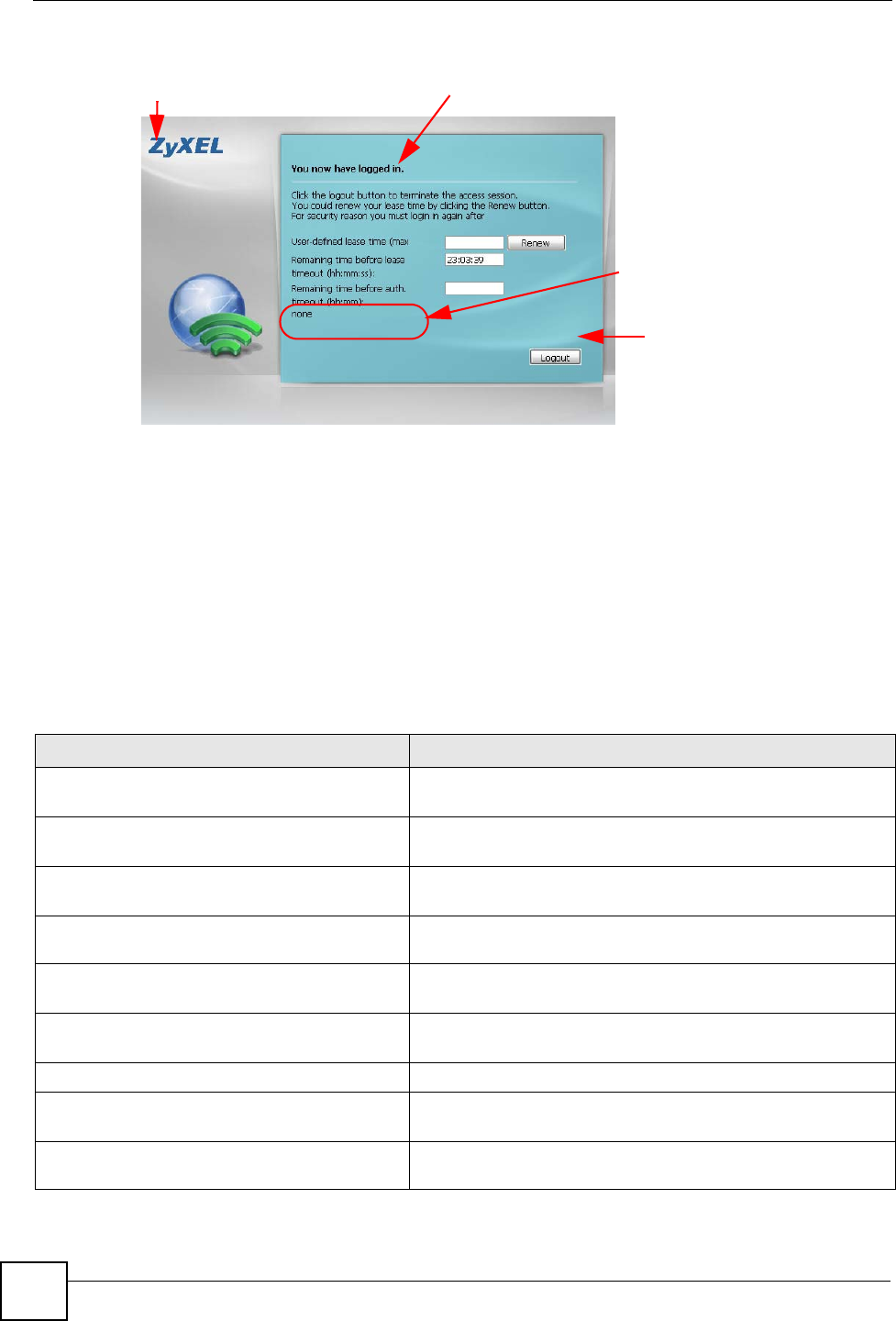
Chapter 33 System
NXC CLI Reference Guide
208
Figure 16 Access Page Customization
You can specify colors in one of the following ways:
•color-rgb: Enter red, green, and blue values in parenthesis and separate by commas.
For example, use “rgb(0,0,0)” for black.
•color-name: Enter the name of the desired color.
•color-number: Enter a pound sign (#) followed by the six-digit hexadecimal number
that represents the desired color. For example, use “#000000” for black.
The following table describes the commands available for customizing the Web Configurator
login screen and the page that displays after an access user logs into the Web Configurator to
access network services like the Internet. You must use the configure terminal command
to enter the configuration mode before you can use these commands.
Logo Title
Message Color
(color of all text)
Window
Background
Note Message
(last line of text)
Table 119 Command Summary: Customization
COMMAND DESCRIPTION
[no] access-page color-window-
background
Sets whether or not the access page uses a colored background.
access-page message-color {color-rgb
| color-name | color-number}
Sets the color of the message text on the access page.
[no] access-page message-text
message
Sets a note to display below the access page’s title. Use up to 64
printable ASCII characters. Spaces are allowed.
access-page title <title> Sets the title for the top of the access page. Use up to 64
printable ASCII characters. Spaces are allowed.
access-page window-color {color-rgb
| color-name | color-number}
Sets the color of the access page’s colored background.
login-page background-color {color-
rgb | color-name | color-number}
Sets the color of the login page’s background.
[no] login-page color-background Sets the login page to use a solid colored background.
login-page message-color {color-rgb
| color-name | color-number}
Sets the color of the message text on the login page.
[no] login-page message-text message Sets a note to display at the bottom of the login screen. Use up to
64 printable ASCII characters. Spaces are allowed.
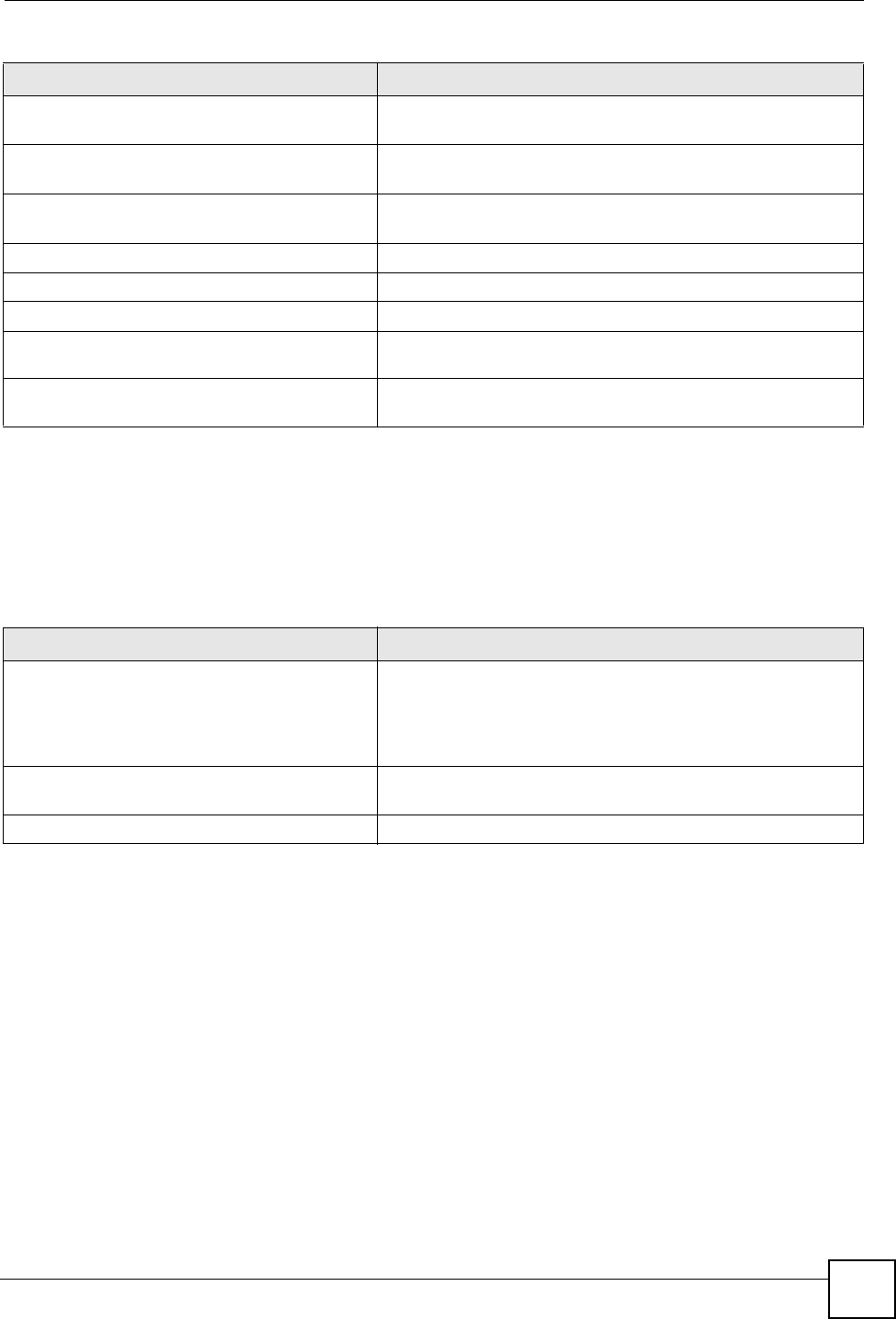
Chapter 33 System
NXC CLI Reference Guide 209
33.3 Host Name Commands
The following table describes the commands available for the hostname and domain name.
You must use the configure terminal command to enter the configuration mode before
you can use these commands.
33.4 Time and Date
For effective scheduling and logging, the NXC system time must be accurate. The NXC’s Real
Time Chip (RTC) keeps track of the time and date. There is also a software mechanism to set
the time manually or get the current time and date from an external server.
login-page title title Sets the title for the top of the login screen. Use up to 64
printable ASCII characters. Spaces are allowed.
login-page title-color {color-rgb |
color-name | color-number}
Sets the title text color of the login page.
logo background-color {color-rgb |
color-name | color-number}
Sets the color of the logo banner across the top of the login
screen and access page.
show access-page settings Lists the current access page settings.
show login-page default-title Lists the factory default title for the login page.
show login-page settings Lists the current login page settings.
show logo settings Lists the current logo background (banner) and floor (line below
the banner) settings.
show page-customization Lists whether the NXC is set to use custom login and access
pages or the default ones.
Table 119 Command Summary: Customization (continued)
COMMAND DESCRIPTION
Table 120 Command Summary: Host Name
COMMAND DESCRIPTION
[no] domainname <domain_name> Sets the domain name. The no command removes the domain
name.
domain_name: This name can be up to 254 alphanumeric
characters long. Spaces are not allowed, but dashes “-” and
underscores “_” are accepted.
[no] hostname <hostname> Sets a descriptive name to identify your NXC. The no command
removes the host name.
show fqdn Displays the fully qualified domain name.

Chapter 33 System
NXC CLI Reference Guide
210
33.4.1 Date/Time Commands
The following table describes the commands available for date and time setup. You must use
the configure terminal command to enter the configuration mode before you can use
these commands.
Table 121 Command Summary: Date/Time
COMMAND DESCRIPTION
clock date <yyyy-mm-dd> time <hh:mm:ss> Sets the new date in year, month and day format
manually and the new time in hour, minute and
second format.
[no] clock daylight-saving Enables daylight saving. The no command
disables daylight saving.
[no] clock saving-interval begin
{apr|aug|dec|feb|jan|jul|jun|mar|may|nov|oct|se
p} {1|2|3|4|last} {fri|mon|sat|sun|thu|tue|wed}
hh:mm end
{apr|aug|dec|feb|jan|jul|jun|mar|may|nov|oct|se
p} {1|2|3|4|last} {fri|mon|sat|sun|thu|tue|wed}
hh:mm offset
Configures the day and time when Daylight
Saving Time starts and ends. The no command
removes the day and time when Daylight Saving
Time starts and ends.
offset: a number from 1 to 5.5 (by 0.5 increments)
clock time hh:mm:ss Sets the new time in hour, minute and second
format.
[no] clock time-zone {-|+hh}Sets your time zone. The no command removes
time zone settings.
[no] ntp Saves your date and time and time zone settings
and updates the data and time every 24 hours.
The no command stops updating the data and
time every 24 hours.
[no] ntp server {fqdn|w.x.y.z}Sets the IP address or URL of your NTP time
server. The no command removes time server
information.
ntp sync Gets the time and date from a NTP time server.
show clock date Displays the current date of your NXC.
show clock status Displays your time zone and daylight saving
settings.
show clock time Displays the current time of your NXC.
show ntp server Displays time server settings.

Chapter 33 System
NXC CLI Reference Guide 211
33.5 Console Port Speed
This section shows you how to set the console port speed when you connect to the NXC via
the console port using a terminal emulation program. The following table describes the
console port commands. You must use the configure terminal command to enter the
configuration mode before you can use these commands.
33.6 DNS Overview
DNS (Domain Name System) is for mapping a domain name to its corresponding IP address
and vice versa. The DNS server is extremely important because without it, you must know the
IP address of a machine before you can access it.
33.6.1 DNS Commands
The following table identifies the values required for many of these commands. Other input
values are discussed with the corresponding commands.
The following table describes the commands available for DNS. You must use the configure
terminal command to enter the configuration mode before you can use these commands.
Table 122 Command Summary: Console Port Speed
COMMAND DESCRIPTION
[no] console baud baud_rate Sets the speed of the console port. The no command
resets the console port speed to the default
(115200).
baud_rate: 9600, 19200, 38400, 57600 or 115200.
show console Displays console port speed.
Table 123 Input Values for General DNS Commands
LABEL DESCRIPTION
address_object The name of the IP address (group) object. You may use 1-31 alphanumeric
characters, underscores(_), or dashes (-), but the first character cannot be a
number. This value is case-sensitive.
interface_name The name of the interface.
Ethernet interface: gex, x = 1 - N, where N equals the highest numbered
Ethernet interface for your NXC model.
VLAN interface: vlanx, x = 0 - 511.
Table 124 Command Summary: DNS
COMMAND DESCRIPTION
[no] ip dns server a-record fqdn w.x.y.z Sets an A record that specifies the mapping of a
fully qualified domain name (FQDN) to an IP
address. The no command deletes an A record.
ip dns server cache-flush Clears the DNS .
[no] ip dns server mx-record domain_name
{w.x.y.z|fqdn}
Sets a MX record that specifies a mail server that
is responsible for handling the mail for a
particular domain. The no command deletes a
MX record.

Chapter 33 System
NXC CLI Reference Guide
212
33.6.2 DNS Command Example
This command sets an A record that specifies the mapping of a fully qualified domain name
(www.abc.com) to an IP address (210.17.2.13).
ip dns server rule {<1..64>|append|insert
<1..64>} access-group {ALL|profile_name} zone
{ALL|profile_name} action {accept|deny}
Sets a service control rule for DNS requests.
ip dns server rule move <1..64> to <1..64> Changes the number of a service control rule.
ip dns server zone-forwarder
{<1..32>|append|insert <1..32>}
{domain_zone_name|*} user-defined w.x.y.z
[private | interface {interface_name | auto}]
Sets a domain zone forwarder record that
specifies a DNS server’s IP address.
private | interface: Use private if the
NXC connects to the DNS server through a VPN
tunnel. Otherwise, use the interface
command to set the interface through which the
NXC sends DNS queries to a DNS server. The
auto means any interface that the NXC uses to
send DNS queries to a DNS server according to
the routing rule.
ip dns server zone-forwarder move <1..32> to
<1..32>
Changes the index number of a zone forwarder
record.
no ip dns server rule <1..64> Deletes a service control rule.
show ip dns server database Displays all configured records.
show ip dns server status Displays whether this service is enabled or not.
show ip dns server cache Displays all DNS records.
show ip dns server tcp-listen Displays whether TCP listen is enabled to allow
an application to accept incoming TCP
connections.
Table 124 Command Summary: DNS (continued)
COMMAND DESCRIPTION
Router# configure terminal
Router(config)# ip dns server a-record www.abc.com 210.17.2.13

NXC CLI Reference Guide 213
CHAPTER 34
System Remote Management
This chapter shows you how to determine which services/protocols can access which NXC
zones (if any) from which computers.
To allow the NXC to be accessed from a specified computer using a service,
make sure you do not have a service control rule or to-NXC rule to block that
traffic.
34.1 Remote Management Overview
You may manage your NXC from a remote location via:
To disable remote management of a service, deselect Enable in the corresponding service
screen.
34.1.1 Remote Management Limitations
Remote management will not work when:
1You have disabled that service in the corresponding screen.
2The accepted IP address in the Service Control table does not match the client IP
address. If it does not match, the NXC will disconnect the session immediately.
3There is a firewall rule that blocks it.
34.1.2 System Timeout
There is a lease timeout for administrators. The NXC automatically logs you out if the
management session remains idle for longer than this timeout period. The management session
does not time out when a statistics screen is polling.
Each user is also forced to log in the NXC for authentication again when the reauthentication
time expires.
• Internet (WAN only) • ALL (LAN&WAN&DMZ)
• LAN only •DMZ only

Chapter 34 System Remote Management
NXC CLI Reference Guide
214
34.2 Common System Command Input Values
The following table identifies the values required for many of these commands. Other input
values are discussed with the corresponding commands.
34.3 HTTP/HTTPS Commands
The following table describes the commands available for HTTP/HTTPS. You must use the
configure terminal command to enter the configuration mode before you can use these
commands.
Table 125 Input Values for General System Commands
LABEL DESCRIPTION
address_object The name of the IP address (group) object. You may use 1-31 alphanumeric
characters, underscores(_), or dashes (-), but the first character cannot be a
number. This value is case-sensitive.
rule_number The number of a service control rule. 1 - X where X is the highest number of rules
the NXC model supports.
zone_object The name of the zone. Use up to 31 characters (a-zA-Z0-9_-). The name cannot
start with a number. This value is case-sensitive.
The NXC uses pre-defined zone names like LAN and WLAN.
Table 126 Command Summary: HTTP/HTTPS
COMMAND DESCRIPTION
[no] ip http authentication auth_method Sets an authentication method used by the
HTTP/HTTPS server. The no command resets
the authentication method used by the HTTP/
HTTPS server to the factory default (default).
auth_method: The name of the authentication
method. You may use 1-31 alphanumeric
characters, underscores(_), or dashes (-), but the
first character cannot be a number. This value is
case-sensitive.
[no] ip http port <1..65535> Sets the HTTP service port number. The no
command resets the HTTP service port number
to the factory default (80).
[no] ip http secure-port <1..65535> Sets the HTTPS service port number. The no
command resets the HTTPS service port number
to the factory default (443).
[no] ip http secure-server Enables HTTPS access to the NXC web
configurator. The no command disables HTTPS
access to the NXC web configurator.
[no] ip http secure-server auth-client Sets the client to authenticate itself to the HTTPS
server. The no command sets the client not to
authenticate itself to the HTTPS server.
[no] ip http secure-server cert certificate_name Specifies a certificate used by the HTTPS server.
The no command resets the certificate used by
the HTTPS server to the factory default
(default).
certificate_name: The name of the
certificate. You can use up to 31 alphanumeric
and ;‘~!@#$%^&()_+[]{}’,.=- characters.

Chapter 34 System Remote Management
NXC CLI Reference Guide 215
34.3.1 HTTP/HTTPS Command Examples
This following example adds a service control rule that allowed an administrator from the
computers with the IP addresses matching the Marketing address object to access the WAN
zone using HTTP service.
[no] ip http secure-server force-redirect Redirects all HTTP connection requests to a
HTTPS URL. The no command disables
forwarding HTTP connection requests to a
HTTPS URL.
ip http secure-server table {admin|user} rule
{rule_number|append|insert rule_number} access-
group {ALL|address_object} zone
{ALL|zone_object} action {accept|deny}
Sets a service control rule for HTTPS service.
ip http secure-server table {admin|user} rule
move rule_number to rule_number
Changes the index number of a HTTPS service
control rule.
ip http secure-server cipher-suite
{cipher_algorithm} [cipher_algorithm]
[cipher_algorithm] [cipher_algorithm]
Sets the encryption algorithms (up to four) that
the NXC uses for the SSL in HTTPS connections
and the sequence in which it uses them. The
cipher_algorithm can be any of the
following.
rc4: RC4 (RC4 may impact the NXC’s CPU
performance since the NXC’s encryption
accelerator does not support it).
aes: AES
des: DES
3des: Triple DES.
no ip http secure-server cipher-suite
{cipher_algorithm}
Has the NXC not use the specified encryption
algorithm for the SSL in HTTPS connections.
[no] ip http server Allows HTTP access to the NXC web
configurator. The no command disables HTTP
access to the NXC web configurator.
ip http server table {admin|user} rule
{rule_number|append|insert rule_number} access-
group {ALL|address_object} zone
{ALL|zone_object} action {accept|deny}
Sets a service control rule for HTTP service.
ip http server table {admin|user} rule move
rule_number to rule_number
Changes the number of a HTTP service control
rule.
no ip http secure-server table {admin|user} rule
rule_number
Deletes a service control rule for HTTPS service.
no ip http server table {admin|user} rule
rule_number
Deletes a service control rule for HTTP service.
show ip http server status Displays HTTP settings.
show ip http server secure status Displays HTTPS settings.
Table 126 Command Summary: HTTP/HTTPS (continued)
COMMAND DESCRIPTION
Router# configure terminal
Router(config)# ip http server table admin rule append access-group
Marketing zone WAN action accept
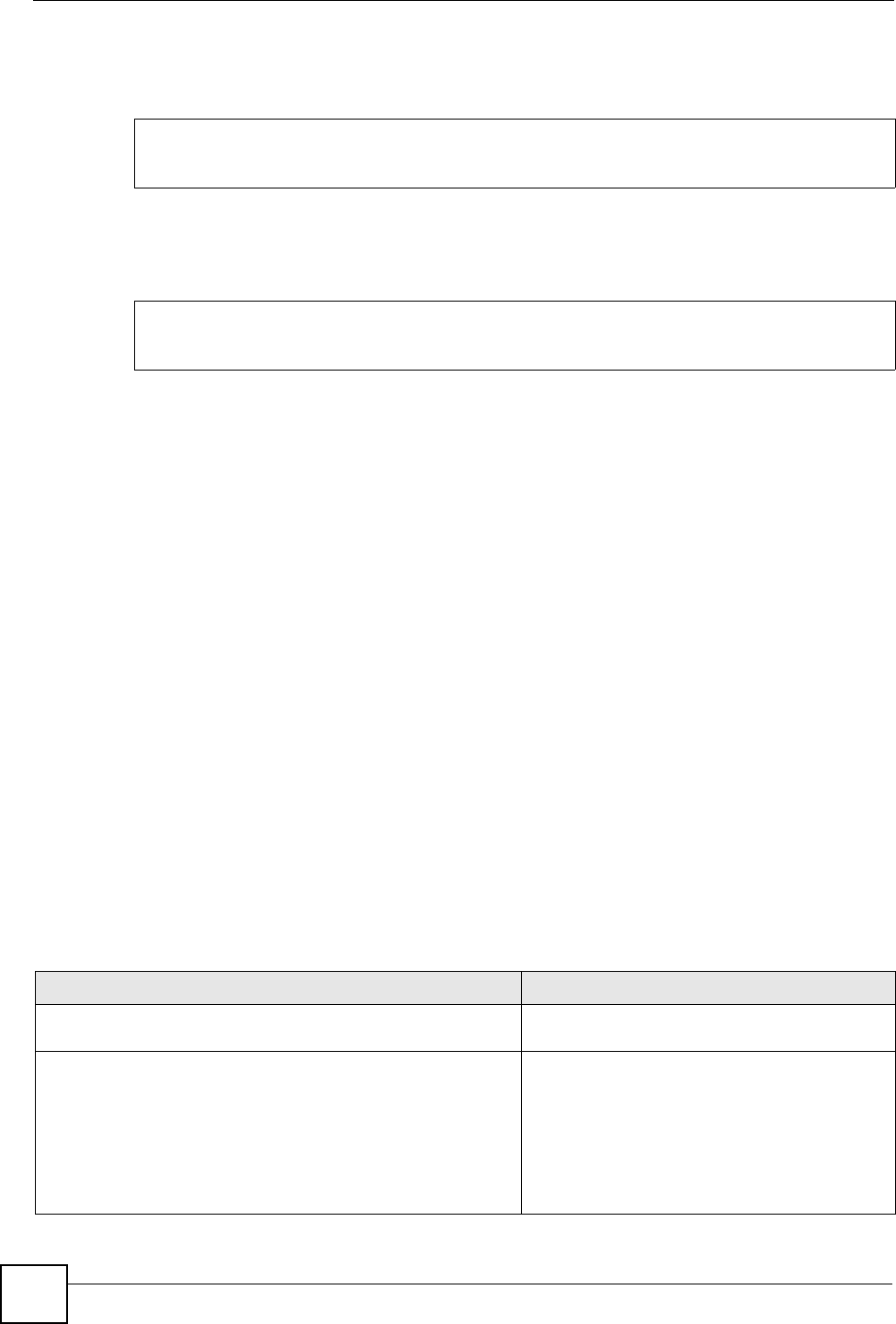
Chapter 34 System Remote Management
NXC CLI Reference Guide
216
This command sets an authentication method used by the HTTP/HTTPS server to authenticate
the client(s).
This following example sets a certificate named MyCert used by the HTTPS server to
authenticate itself to the SSL client.
34.4 SSH
Unlike Telnet or FTP, which transmit data in clear text, SSH (Secure Shell) is a secure
communication protocol that combines authentication and data encryption to provide secure
encrypted communication between two hosts over an unsecured network.
34.4.1 SSH Implementation on the NXC
Your NXC supports SSH versions 1 and 2 using RSA authentication and four encryption
methods (AES, 3DES, Archfour, and Blowfish). The SSH server is implemented on the NXC
for remote management on port 22 (by default).
34.4.2 Requirements for Using SSH
You must install an SSH client program on a client computer (Windows or Linux operating
system) that is used to connect to the NXC over SSH.
34.4.3 SSH Commands
The following table describes the commands available for SSH. You must use the configure
terminal command to enter the configuration mode before you can use these commands.
Router# configure terminal
Router(config)# ip http authentication Example
Router# configure terminal
Router(config)# ip http secure-server cert MyCert
Table 127 Command Summary: SSH
COMMAND DESCRIPTION
[no] ip ssh server Allows SSH access to the NXC CLI. The no
command disables SSH access to the NXC CLI.
[no] ip ssh server cert certificate_name Sets a certificate whose corresponding private
key is to be used to identify the NXC for SSH
connections. The no command resets the
certificate used by the SSH server to the factory
default (default).
certificate_name: The name of the
certificate. You can use up to 31 alphanumeric
and ;‘~!@#$%^&()_+[]{}’,.=- characters.
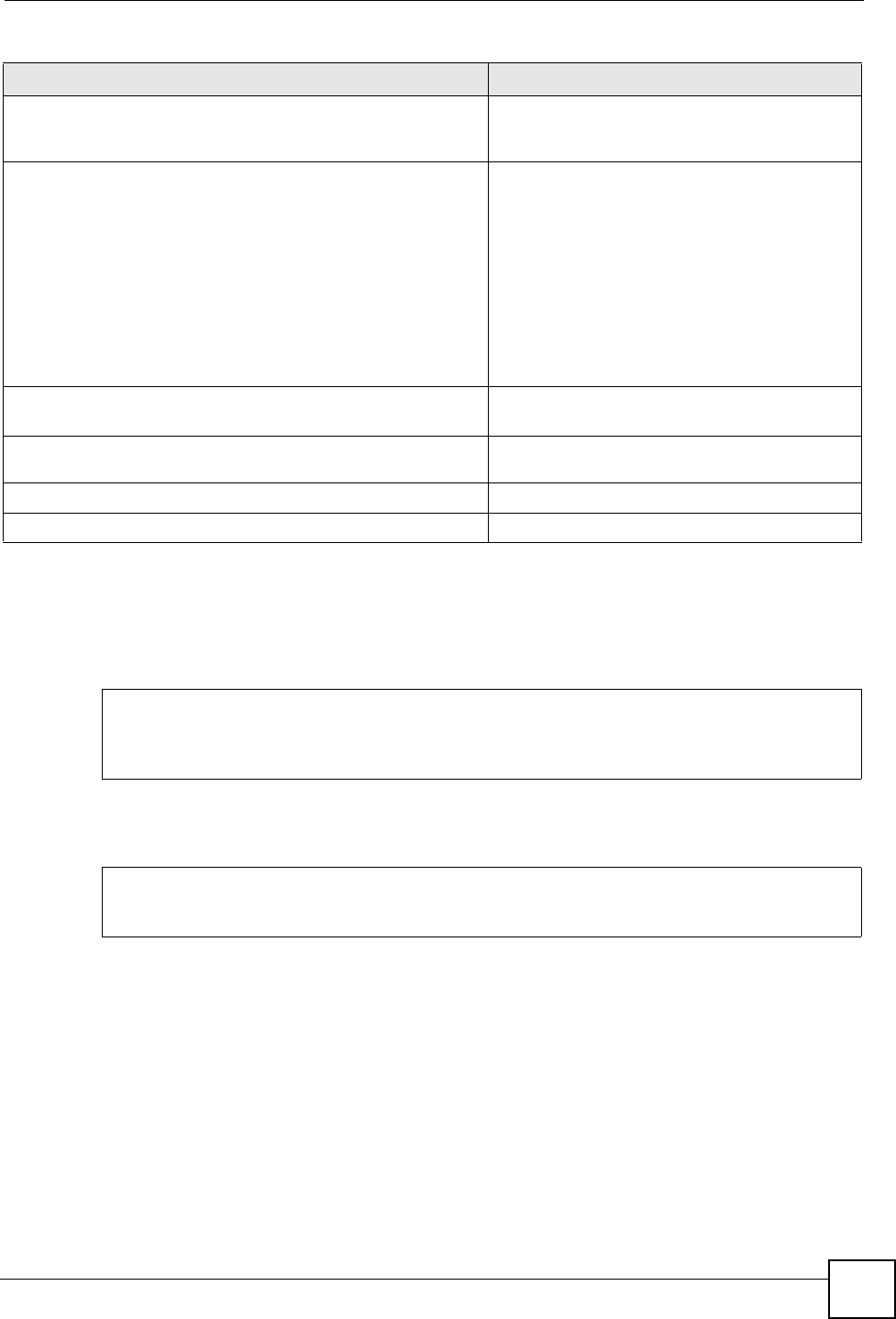
Chapter 34 System Remote Management
NXC CLI Reference Guide 217
34.4.4 SSH Command Examples
This command sets a service control rule that allowed the computers with the IP addresses
matching the specified address object to access the specified zone using SSH service.
This command sets a certificate (Default) to be used to identify the NXC.
34.5 Telnet
You can configure your NXC for remote Telnet access.
[no] ip ssh server port <1..65535> Sets the SSH service port number. The no
command resets the SSH service port number to
the factory default (22).
ip ssh server rule {rule_number|append|insert
rule_number} access-group {ALL|address_object}
zone {ALL|zone_object} action {accept|deny}
Sets a service control rule for SSH service.
address_object: The name of the IP address
(group) object. You may use 1-31 alphanumeric
characters, underscores(_), or dashes (-), but the
first character cannot be a number. This value is
case-sensitive.
zone_object: The name of the zone. Use up to
31 characters (a-zA-Z0-9_-). The name cannot
start with a number. This value is case-sensitive.
You can also use pre-defined zone names like
LAN and WLAN.
ip ssh server rule move rule_number to
rule_number
Changes the index number of a SSH service
control rule.
[no] ip ssh server v1 Enables remote management using SSH v1. The
no command stops the NXC from using SSH v1.
no ip ssh server rule rule_number Deletes a service control rule for SSH service.
show ip ssh server status Displays SSH settings.
Table 127 Command Summary: SSH (continued)
COMMAND DESCRIPTION
Router# configure terminal
Router(config)# ip ssh server rule 2 access-group Marketing zone LAN action
accept
Router# configure terminal
Router(config)# ip ssh server cert Default

Chapter 34 System Remote Management
NXC CLI Reference Guide
218
34.6 Telnet Commands
The following table describes the commands available for Telnet. You must use the
configure terminal command to enter the configuration mode before you can use these
commands.
34.6.1 Telnet Commands Examples
This command sets a service control rule that allowed the computers with the IP addresses
matching the specified address object to access the specified zone using Telnet service.
This command displays Telnet settings.
Table 128 Command Summary: Telnet
COMMAND DESCRIPTION
[no] ip telnet server Allows Telnet access to the NXC CLI. The no
command disables Telnet access to the NXC
CLI.
[no] ip telnet server port <1..65535> Sets the Telnet service port number. The no
command resets the Telnet service port number
back to the factory default (23).
ip telnet server rule {rule_number|append|insert
rule_number} access-group {ALL|address_object}
zone {ALL|zone_object} action {accept|deny}
Sets a service control rule for Telnet service.
address_object: The name of the IP address
(group) object. You may use 1-31 alphanumeric
characters, underscores(_), or dashes (-), but the
first character cannot be a number. This value is
case-sensitive.
zone_object: The name of the zone. Use up to
31 characters (a-zA-Z0-9_-). The name cannot
start with a number. This value is case-sensitive.
You can also use pre-defined zone names like
LAN and WLAN.
ip telnet server rule move rule_number to
rule_number
Changes the index number of a service control
rule.
no ip telnet server rule rule_number Deletes a service control rule for Telnet service.
show ip telnet server status Displays Telnet settings.
Router# configure terminal
Router(config)# ip telnet server rule 11 access-group RD zone LAN action
accept
Router# configure terminal
Router(config)# show ip telnet server status
active : yes
port : 23
service control:
No. Zone Address Action
========================================================================
Router(config)#

Chapter 34 System Remote Management
NXC CLI Reference Guide 219
34.7 Configuring FTP
You can upload and download the NXC’s firmware and configuration files using FTP. To use
this feature, your computer must have an FTP client.
34.7.1 FTP Commands
The following table describes the commands available for FTP. You must use the configure
terminal command to enter the configuration mode before you can use these commands.
34.7.2 FTP Commands Examples
This command sets a service control rule that allowed the computers with the IP addresses
matching the specified address object to access the specified zone using FTP service.
Table 129 Command Summary: FTP
COMMAND DESCRIPTION
[no] ip ftp server Allows FTP access to the NXC. The no
command disables FTP access to the NXC.
[no] ip ftp server cert certificate_name Sets a certificate to be used to identify the NXC.
The no command resets the certificate used by
the FTP server to the factory default.
[no] ip ftp server port <1..65535> Sets the FTP service port number. The no
command resets the FTP service port number to
the factory default (21).
[no] ip ftp server tls-required Allows FTP access over TLS. The no command
disables FTP access over TLS.
ip ftp server rule {rule_number|append|insert
rule_number} access-group {ALL|address_object}
zone {ALL|zone_object} action {accept|deny}
Sets a service control rule for FTP service.
address_object: The name of the IP address
(group) object. You may use 1-31 alphanumeric
characters, underscores(_), or dashes (-), but the
first character cannot be a number. This value is
case-sensitive.
zone_object: The name of the zone. Use up to
31 characters (a-zA-Z0-9_-). The name cannot
start with a number. This value is case-sensitive.
You can also use pre-defined zone names like
LAN and WLAN.
ip ftp server rule move rule_number to
rule_number
Changes the index number of a service control
rule.
no ip ftp server rule rule_number Deletes a service control rule for FTP service.
show ip ftp server status Displays FTP settings.
Router# configure terminal
Router(config)# ip ftp server rule 4 access-group Sales zone LAN action
accept

Chapter 34 System Remote Management
NXC CLI Reference Guide
220
This command displays FTP settings.
34.8 SNMP
Simple Network Management Protocol is a protocol used for exchanging management
information between network devices. Your NXC supports SNMP agent functionality, which
allows a manager station to manage and monitor the NXC through the network. The NXC
supports SNMP version one (SNMPv1) and version two (SNMPv2c).
34.8.1 Supported MIBs
The NXC supports MIB II that is defined in RFC-1213 and RFC-1215. The NXC also
supports private MIBs (AAT-private-lol.mib) to collect information about CPU and memory
usage. The focus of the MIBs is to let administrators collect statistical data and monitor status
and performance. You can download the NXC’s MIBs from www.zyxel.com.
34.8.2 SNMP Traps
The NXC will send traps to the SNMP manager when any one of the following events occurs:
Router# configure terminal
Router(config)# show ip ftp server status
active : yes
port : 21
certificate: default
TLS : no
service control:
No. Zone Address Action
========================================================================
Table 130 SNMP Traps
OBJECT LABEL OBJECT ID DESCRIPTION
Cold Start 1.3.6.1.6.3.1.1.5.1 This trap is sent when the NXC is turned on or an agent
restarts.
linkDown 1.3.6.1.6.3.1.1.5.3 This trap is sent when the Ethernet link is down.
linkUp 1.3.6.1.6.3.1.1.5.4 This trap is sent when the Ethernet link is up.
authenticationFailure 1.3.6.1.6.3.1.1.5.5 This trap is sent when an SNMP request comes from
non-authenticated hosts.

Chapter 34 System Remote Management
NXC CLI Reference Guide 221
34.8.3 SNMP Commands
The following table describes the commands available for SNMP. You must use the
configure terminal command to enter the configuration mode before you can use these
commands.
Table 131 Command Summary: SNMP
COMMAND DESCRIPTION
[no] snmp-server Allows SNMP access to the NXC. The no
command disables SNMP access to the NXC.
[no] snmp-server community community_string
{ro|rw}
Enters up to 64 characters to set the password
for read-only (ro) or read-write (rw) access. The
no command resets the password for read-only
(ro) or read-write (rw) access to the default.
[no] snmp-server contact description Sets the contact information (of up to 60
characters) for the person in charge of the NXC.
The no command removes the contact
information for the person in charge of the NXC.
[no] snmp-server enable {informs|traps} Enables all SNMP notifications (informs or traps).
The no command disables all SNMP
notifications (informs or traps).
[no] snmp-server host {fqdn | ipv4_address}
[community_string]
Sets the IP address or domain name of the host
that receives the SNMP notifications. The no
command removes the host that receives the
SNMP notifications.
[no] snmp-server location description Sets the geographic location (of up to 60
characters) for the NXC. The no command
removes the geographic location for the NXC.
[no] snmp-server port <1..65535> Sets the SNMP service port number. The no
command resets the SNMP service port number
to the factory default (161).
snmp-server rule {rule_number|append|insert
rule_number} access-group {ALL|address_object}
zone {ALL|zone_object} action {accept|deny}
Sets a service control rule for SNMP service.
address_object: The name of the IP address
(group) object. You may use 1-31 alphanumeric
characters, underscores(_), or dashes (-), but the
first character cannot be a number. This value is
case-sensitive.
zone_object: The name of the zone. Use up to
31 characters (a-zA-Z0-9_-). The name cannot
start with a number. This value is case-sensitive.
You can also use pre-defined zone names like
LAN and WLAN.
snmp-server rule move rule_number to rule_number Changes the index number of a service control
rule.
no snmp-server rule rule_number Deletes a service control rule for SNMP service.
show snmp status Displays SNMP Settings.
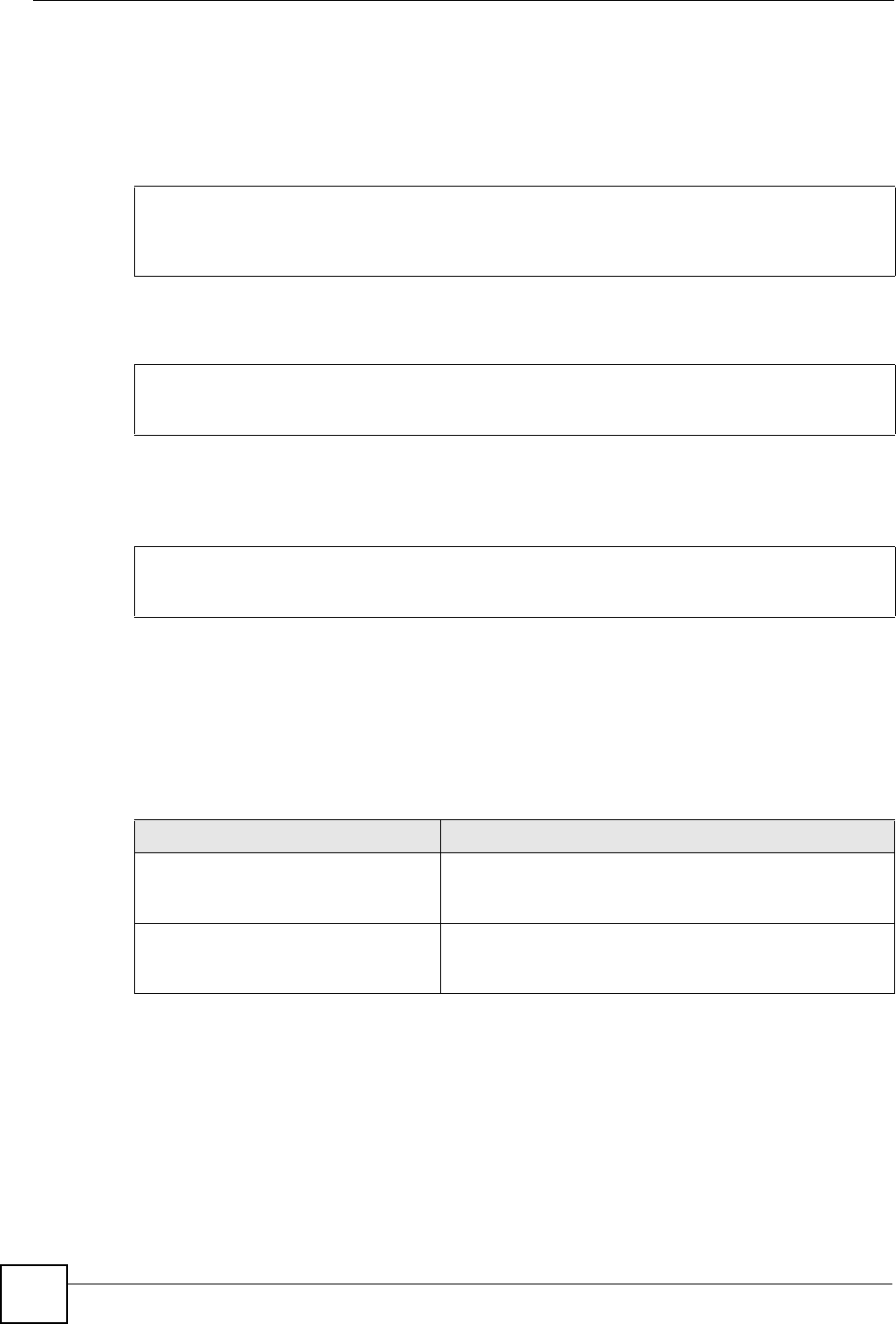
Chapter 34 System Remote Management
NXC CLI Reference Guide
222
34.8.4 SNMP Commands Examples
The following command sets a service control rule that allowed the computers with the IP
addresses matching the specified address object to access the specified zone using SNMP
service.
The following command sets the password (secret) for read-write (rw) access.
The following command sets the IP address of the host that receives the SNMP notifications to
172.23.15.84 and the password (sent with each trap) to qwerty.
34.9 Language Commands
Use the language commands to display what language the web configurator is using or
change it. You must use the configure terminal command to enter the configuration
mode before you can use these commands.
Router# configure terminal
Router(config)# snmp-server rule 11 access-group Example zone WAN action
accept
Router# configure terminal
Router(config)# snmp-server community secret rw
Router# configure terminal
Router(config)# snmp-server host 172.23.15.84 qwerty
Table 132 Command Summary: Language
COMMAND DESCRIPTION
language <English |
Simplified_Chinese |
Traditional_Chinese>
Specifies the language used in the web configurator
screens.
show language {setting | all} setting displays the current display language in the web
configurator screens.
all displays the available languages.

NXC CLI Reference Guide 223
CHAPTER 35
File Manager
This chapter covers how to work with the NXC’s firmware, certificates, configuration files,
custom IDP signatures, packet trace results, shell scripts and temporary files.
35.1 File Directories
The NXC stores files in the following directories.
35.2 Configuration Files and Shell Scripts Overview
You can store multiple configuration files and shell script files on the NXC.
When you apply a configuration file, the NXC uses the factory default settings for any features
that the configuration file does not include. Shell scripts are files of commands that you can
store on the NXC and run when you need them. When you run a shell script, the NXC only
applies the commands that it contains. Other settings do not change.
You can edit configuration files or shell scripts in a text editor and upload them to the NXC.
Configuration files use a .conf extension and shell scripts use a .zysh extension.
Table 133 FTP File Transfer Notes
DIRECTORY FILE TYPE FILE NAME
EXTENSION
A
A. After you log in through FTP, you do not need to change directories in order to upload the firmware.
Firmware (upload only) bin
cert Non-PKCS#12 certificates cer
conf Configuration files conf
idp IDP custom signatures rules
packet_trace Packet trace results (download only)
script Shell scripts .zysh
tmp Temporary system maintenance files and crash dumps for
technical support use (download only)

Chapter 35 File Manager
NXC CLI Reference Guide
224
These files have the same syntax, which is also identical to the way you run CLI commands
manually. An example is shown below.
While configuration files and shell scripts have the same syntax, the NXC applies
configuration files differently than it runs shell scripts. This is explained below.
You have to run the example in Table 17 on page 224 as a shell script because the first
command is run in Privilege mode. If you remove the first command, you have to run the
example as a configuration file because the rest of the commands are executed in
Configuration mode. (See Section 1.5 on page 22 for more information about CLI modes.)
35.2.1 Comments in Configuration Files or Shell Scripts
In a configuration file or shell script, use “#” or “!” as the first character of a command line to
have the NXC treat the line as a comment.
Your configuration files or shell scripts can use “exit” or a command line consisting of a single
“!” to have the NXC exit sub command mode.
Figure 17 Configuration File / Shell Script: Example
# enter configuration mode
configure terminal
# change administrator password
username admin password 4321 user-type admin
# configure ge3
interface ge3
ip address 172.16.37.240 255.255.255.0
ip gateway 172.16.37.254 metric 1
exit
# create address objects for remote management / to-NXC firewall rules
# use the address group in case we want to open up remote management later
address-object TW_SUBNET 172.16.37.0/24
object-group address TW_TEAM
address-object TW_SUBNET
exit
# enable Telnet access (not enabled by default, unlike other services)
ip telnet server
# open WLAN-to-NXC firewall for TW_TEAM for remote management
firewall WLAN NXC insert 4
sourceip TW_TEAM
service TELNET
action allow
exit
write
Table 134 Configuration Files and Shell Scripts in the NXC
Configuration Files (.conf) Shell Scripts (.zysh)
• Resets to default configuration.
• Goes into CLI Configuration mode.
• Runs the commands in the configuration file.
• Goes into CLI Privilege mode.
• Runs the commands in the shell script.

Chapter 35 File Manager
NXC CLI Reference Guide 225
“exit” or “!'” must follow sub commands if it is to make the NXC exit sub
command mode.
Line 3 in the following example exits sub command mode.
Lines 1 and 3 in the following example are comments and line 4 exits sub command mode.
Lines 1 and 2 are comments. Line 5 exits sub command mode.
35.2.2 Errors in Configuration Files or Shell Scripts
When you apply a configuration file or run a shell script, the NXC processes the file line-by-
line. The NXC checks the first line and applies the line if no errors are detected. Then it
continues with the next line. If the NXC finds an error, it stops applying the configuration file
or shell script and generates a log.
You can change the way a configuration file or shell script is applied. Include setenv stop-
on-error off in the configuration file or shell script. The NXC ignores any errors in the
configuration file or shell script and applies all of the valid commands. The NXC still
generates a log for any errors.
35.2.3 NXC Configuration File Details
You can store multiple configuration files on the NXC. You can also have the NXC use a
different configuration file without the NXC restarting.
• When you first receive the NXC, it uses the system-default.conf configuration file of
default settings.
interface ge1
ip address dhcp
!
!
interface ge1
# this interface is a DHCP client
!
! this is from Joe
# on 2006/06/05
interface ge1
ip address dhcp
!
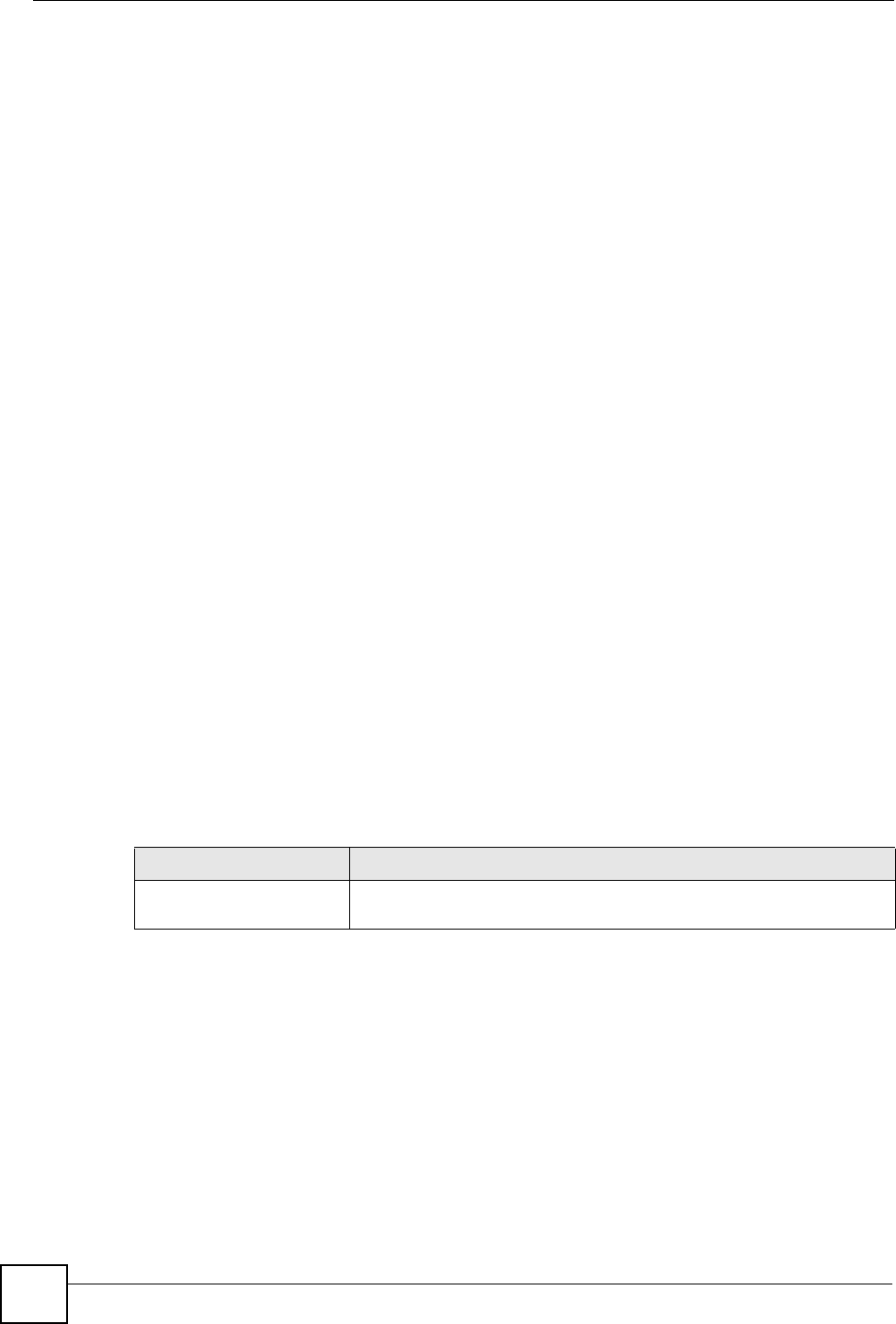
Chapter 35 File Manager
NXC CLI Reference Guide
226
• When you change the configuration, the NXC creates a startup-config.conf file of the
current configuration.
• The NXC checks the startup-config.conf file for errors when it restarts. If there is an error
in the startup-config.conf file, the NXC copies the startup-config.conf configuration file
to the startup-config-bad.conf configuration file and tries the existing lastgood.conf
configuration file.
• When the NXC reboots, if the startup-config.conf file passes the error check, the NXC
keeps a copy of the startup-config.conf file as the lastgood.conf configuration file for
you as a back up file. If you upload and apply a configuration file with an error, you can
apply lastgood.conf to return to a valid configuration.
35.2.4 Configuration File Flow at Restart
If there is not a startup-config.conf when you restart the NXC (whether through a
management interface or by physically turning the power off and back on), the NXC uses the
system-default.conf configuration file with the NXC’s default settings.
If there is a startup-config.conf, the NXC checks it for errors and applies it. If there are no
errors, the NXC uses it and copies it to the lastgood.conf configuration file. If there is an error,
the NXC generates a log and copies the startup-config.conf configuration file to the startup-
config-bad.conf configuration file and tries the existing lastgood.conf configuration file. If
there isn’t a lastgood.conf configuration file or it also has an error, the NXC applies the
system-default.conf configuration file.
You can change the way the startup-config.conf file is applied. Include the setenv-
startup stop-on-error off command. The NXC ignores any errors in the startup-
config.conf file and applies all of the valid commands. The NXC still generates a log for any
errors.
35.3 File Manager Commands Input Values
The following table explains the values you can input with the file manager commands.
Table 135 File Manager Command Input Values
LABEL DESCRIPTION
file_name The name of a file. Use up to 25 characters (including a-zA-Z0-
9;‘~!@#$%^&()_+[]{}’,.=-).

Chapter 35 File Manager
NXC CLI Reference Guide 227
35.4 File Manager Commands Summary
The following table lists the commands that you can use for file management.
Table 136 File Manager Commands Summary
COMMAND DESCRIPTION
apply /conf/file_name.conf [ignore-error]
[rollback]
Has the NXC use a specific configuration file. You must
still use the write command to save your
configuration changes to the flash (“non-volatile” or
“long term”) memory.
Use this command without specify both ignore-
error and rollback: this is not recommended
because it would leave the rest of the configuration
blank. If the interfaces were not configured before the
first error, the console port may be the only way to
access the device.
Use ignore-error without rollback: this applies
the valid parts of the configuration file and generates
error logs for all of the configuration file’s errors. This
lets the NXC apply most of your configuration and you
can refer to the logs for what to fix.
Use both ignore-error and rollback: this applies
the valid parts of the configuration file, generates error
logs for all of the configuration file’s errors, and starts
the NXC with a fully valid configuration file.
Use rollback without ignore-error: this gets the
NXC started with a fully valid configuration file as
quickly as possible.
You can use the “apply /conf/system-
default.conf” command to reset the NXC to go
back to its system defaults.
copy {/cert | /conf | /idp | /packet_trace |
/script | /tmp}file_name-a.conf {/cert | /
conf | /idp | /packet_trace | /script | /
tmp}/file_name-b.conf
Saves a duplicate of a file on the NXC from the source
file name to the target file name.
Specify the directory and file name of the file that you
want to copy and the directory and file name to use for
the duplicate. Always copy the file into the same
directory.
copy running-config startup-config Saves your configuration changes to the flash (“non-
volatile” or “long term”) memory. The NXC immediately
uses configuration changes made via commands, but if
you do not use this command or the write command,
the changes will be lost when the NXC restarts.
copy running-config /conf/file_name.conf Saves a duplicate of the configuration file that the NXC
is currently using. You specify the file name to which to
copy.
delete {/cert | /conf | /idp | /packet_trace
| /script | /tmp}/file_name
Removes a file. Specify the directory and file name of
the file that you want to delete.
dir {/cert | /conf | /idp | /packet_trace |
/script | /tmp}
Displays the list of files saved in the specified directory.
rename {/cert | /conf | /idp | /packet_trace
| /script | /tmp}/old-file_name {/cert | /
conf | /idp | /packet_trace | /script | /
tmp}/new-file_name
Changes the name of a file.
Specify the directory and file name of the file that you
want to rename. Then specify the directory again
followed by the new file name.
run /script/file_name.zysh Has the NXC execute a specific shell script file. You
must still use the write command to save your
configuration changes to the flash (“non-volatile” or
“long term”) memory.

Chapter 35 File Manager
NXC CLI Reference Guide
228
35.5 File Manager Command Example
This example saves a back up of the current configuration before applying a shell script file.
35.6 FTP File Transfer
You can use FTP to transfer files to and from the NXC for advanced maintenance and support.
35.6.1 Command Line FTP File Upload
1Connect to the NXC.
2Enter “bin” to set the transfer mode to binary.
3You can upload the firmware after you log in through FTP. To upload other files, use
“cd” to change to the corresponding directory.
4Use “put” to transfer files from the computer to the NXC.1 For example:
In the conf directory, use "put config.conf today.conf” to upload the configuration file
(config.conf) to the NXC and rename it “today.conf”.
"put 1.00(XL.0).bin” transfers the firmware (1.00(XL.0).bin) to the NXC.
show running-config Displays the settings of the configuration file that the
system is using.
setenv-startup stop-on-error off Has the NXC ignore any errors in the startup-
config.conf file and apply all of the valid commands.
show setenv-startup Displays whether or not the NXC is set to ignore any
errors in the startup-config.conf file and apply all of the
valid commands.
write Saves your configuration changes to the flash (“non-
volatile” or “long term”) memory. The NXC immediately
uses configuration changes made via commands, but if
you do not use the write command, the changes will
be lost when the NXC restarts.
Table 136 File Manager Commands Summary (continued)
COMMAND DESCRIPTION
Router(config)# copy running-config /conf/backup.conf
Router(config)# run /script/vpn_setup.zysh
1. When you upload a custom signature, the NXC appends it to the existing custom signatures stored in the
"custom.rules” file.

Chapter 35 File Manager
NXC CLI Reference Guide 229
The firmware update can take up to five minutes. Do not turn off or reset the
NXC while the firmware update is in progress! If you lose power during the
firmware upload, you may need to refer to Section 35.8 on page 231 to recover
the firmware.
35.6.2 Command Line FTP Configuration File Upload Example
The following example transfers a configuration file named tomorrow.conf from the computer
and saves it on the NXC as next.conf.
Uploading a custom signature file named "custom.rules”, overwrites all custom
signatures on the NXC.
Figure 18 FTP Configuration File Upload Example
35.6.3 Command Line FTP File Download
1Connect to the NXC.
2Enter “bin” to set the transfer mode to binary.
3Use “cd” to change to the directory that contains the files you want to download.
4Use “dir” or “ls” if you need to display a list of the files in the directory.
5Use "get” to download files. For example:
“get vlan_setup.zysh vlan.zysh” transfers the vlan_setup.zysh configuration file on the
NXC to your computer and renames it “vlan.zysh.”
C:\>ftp 192.168.1.1
Connected to 192.168.1.1.
220 FTP Server [192.168.1.1]
User (192.168.1.1:(none)): admin
331 Password required for admin.
Password:
230 User admin logged in.
ftp> cd conf
250 CWD command successful
ftp> bin
200 Type set to I
ftp> put tomorrow.conf next.conf
200 PORT command successful
150 Opening BINARY mode data connection for next.conf
226-Post action ok!!
226 Transfer complete.
ftp: 20231 bytes sent in 0.00Seconds 20231000.00Kbytes/sec.
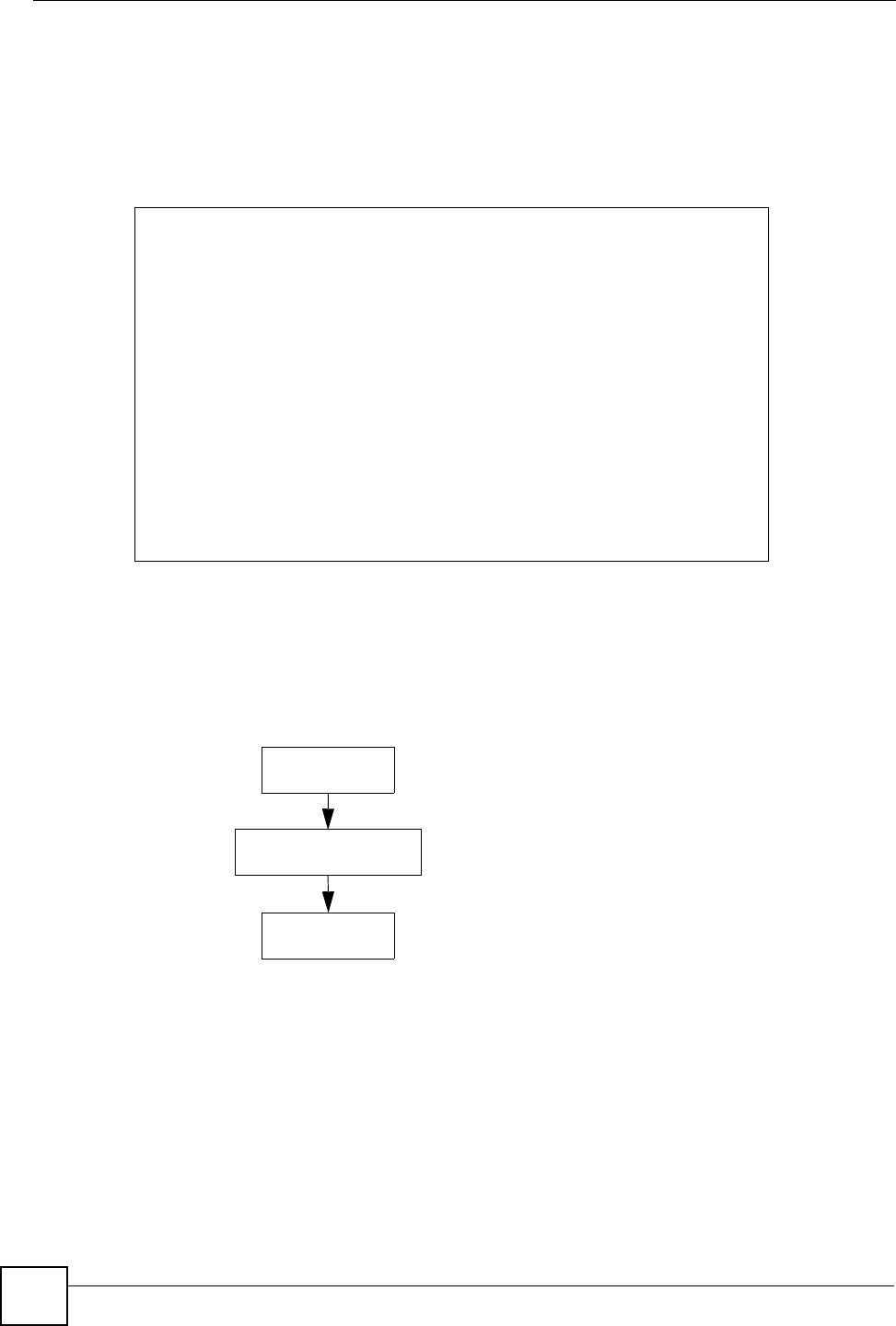
Chapter 35 File Manager
NXC CLI Reference Guide
230
35.6.4 Command Line FTP Configuration File Download Example
The following example gets a configuration file named today.conf from the NXC and saves it
on the computer as current.conf.
Figure 19 FTP Configuration File Download Example
35.7 NXC File Usage at Startup
The NXC uses the following files at system startup.
Figure 20 NXC File Usage at Startup
1The boot module performs a basic hardware test. You cannot restore the boot module if it
is damaged. The boot module also checks and loads the recovery image. The NXC
notifies you if the recovery image is damaged.
2The recovery image checks and loads the firmware. The NXC notifies you if the
firmware is damaged.
C:\>ftp 192.168.1.1
Connected to 192.168.1.1.
220 FTP Server [192.168.1.1]
User (192.168.1.1:(none)): admin
331 Password required for admin.
Password:
230 User admin logged in.
ftp> bin
200 Type set to I
ftp> cd conf
250 CWD command successful
ftp> get today.conf current.conf
200 PORT command successful
150 Opening BINARY mode data connection for conf/today.conf
(20220 bytes)
226 Transfer complete.
ftp: 20220 bytes received in 0.03Seconds 652.26Kbytes/sec.
1. Boot Module
2. Recovery Image
3. Firmware
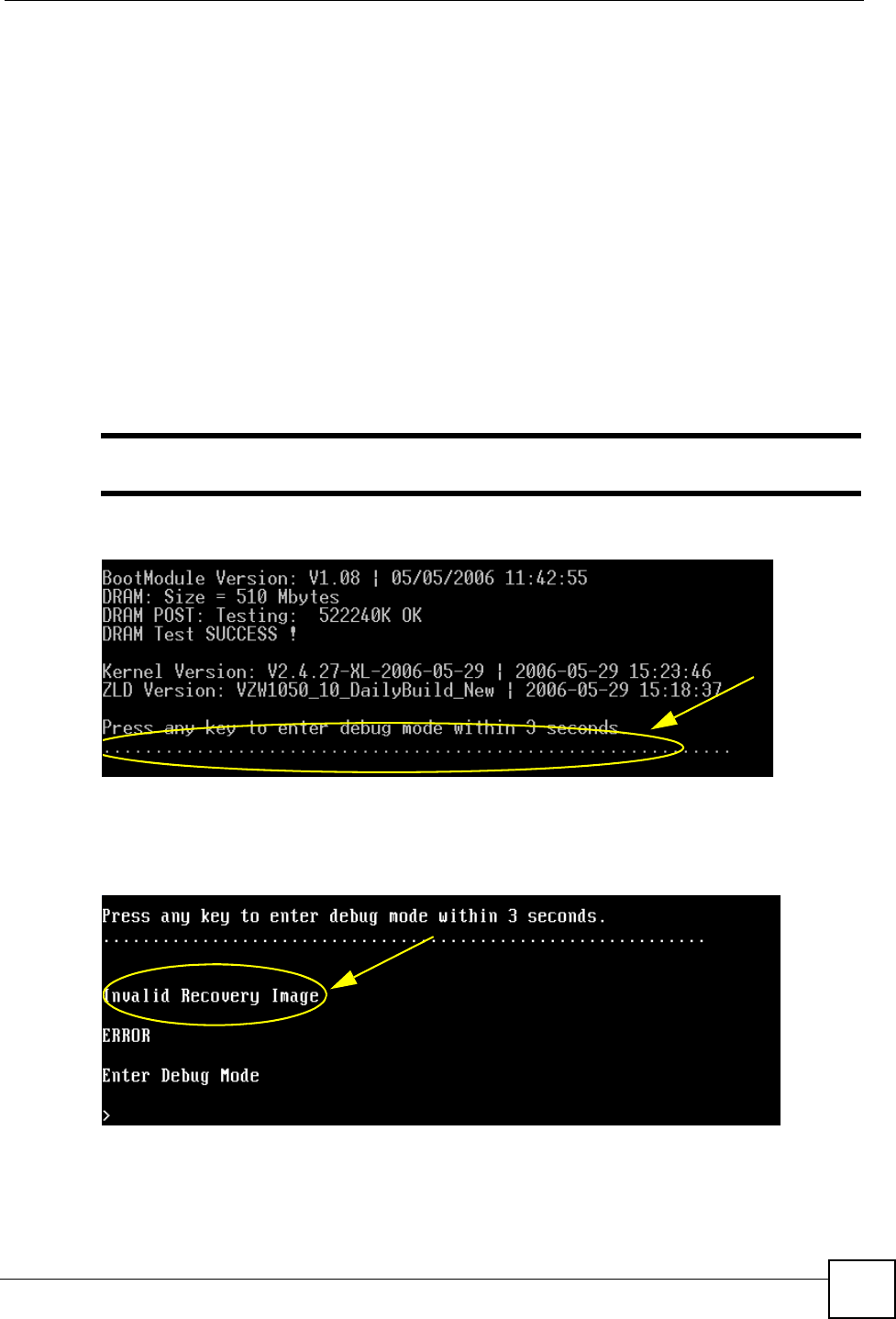
Chapter 35 File Manager
NXC CLI Reference Guide 231
35.8 Notification of a Damaged Recovery Image or Firmware
The NXC’s recovery image and/or firmware could be damaged, for example by the power
going off during a firmware upgrade. This section describes how the NXC notifies you of a
damaged recovery image or firmware file. Use this section if your device has stopped
responding for an extended period of time and you cannot access or ping it. Note that the NXC
does not respond while starting up. It takes less than five minutes to start up with the default
configuration, but the start up time increases with the complexity of your configuration.
1Use a console cable and connect to the NXC via a terminal emulation program (such as
HyperTerminal). Your console session displays the NXC’s startup messages. If you
cannot see any messages, check the terminal emulation program’s settings (see Section
1.2.1 on page 16) and restart the NXC.
2The system startup messages display followed by “Press any key to enter debug mode
within 3 seconds.”
Do not press any keys at this point. Wait to see what displays next.
Figure 21 System Startup Stopped
3If the console session displays “Invalid Firmware”, or “Invalid Recovery Image”, or the
console freezes at "Press any key to enter debug mode within 3 seconds" for more than
one minute, go to Section 35.9 on page 232 to restore the recovery image.
Figure 22 Recovery Image Damaged
4If “Connect a computer to port 1 and FTP to 192.168.1.1 to upload the new file”
displays on the screen, the firmware file is damaged. Use the procedure in Section 35.10
on page 234 to restore it. If the message does not display, the firmware is OK and you do
not need to use the firmware recovery procedure.
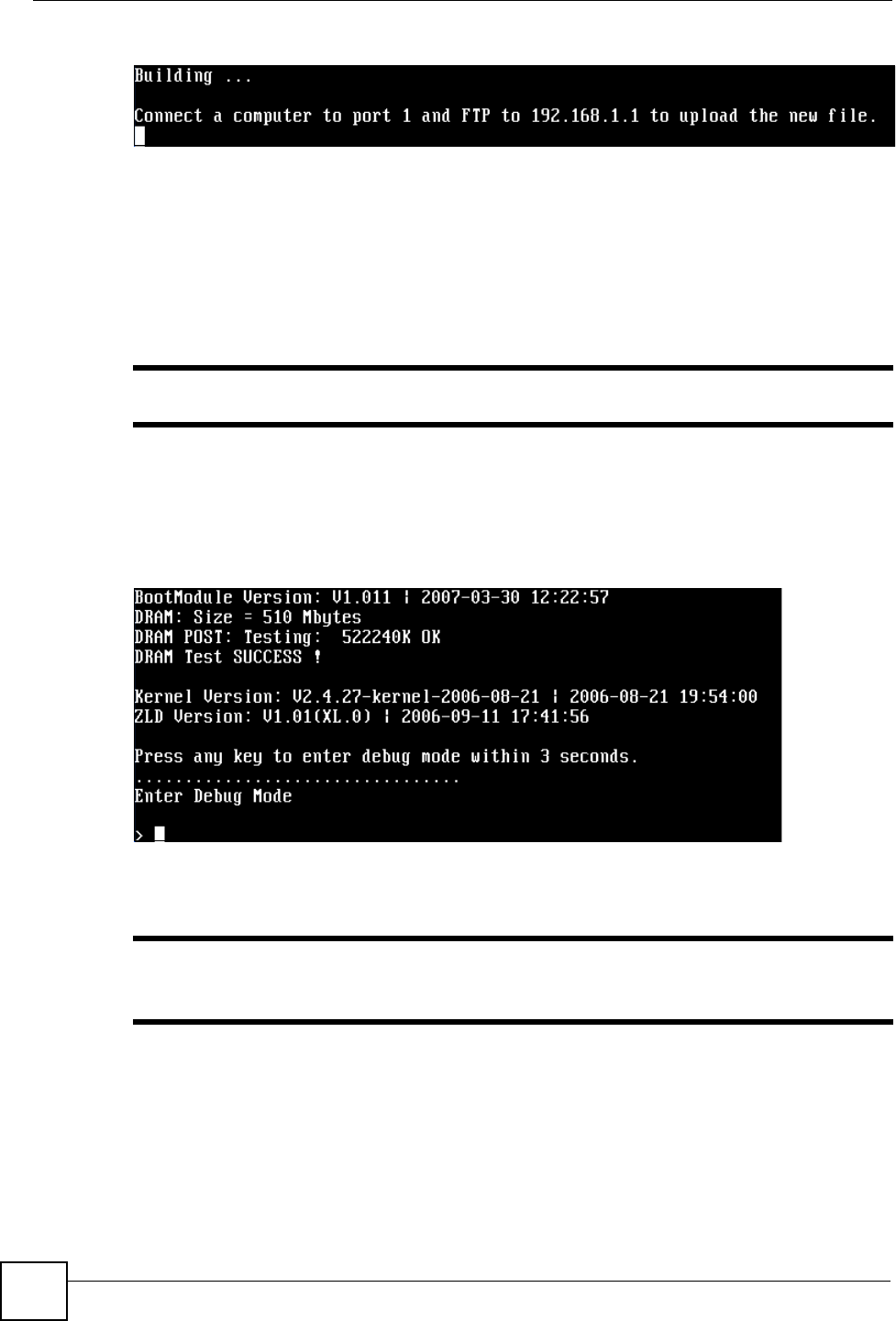
Chapter 35 File Manager
NXC CLI Reference Guide
232
Figure 23 Firmware Damaged
35.9 Restoring the Recovery Image (NXC5200 Only)
This procedure requires the NXC’s recovery image. Download the firmware package from
www.zyxel.com and unzip it. The recovery image uses a .ri extension, for example,
"1.01(XL.0)C0.ri". Do the following after you have obtained the recovery image file.
You only need to use this section if you need to restore the recovery image.
1Restart the NXC.
2When “Press any key to enter debug mode within 3 seconds.” displays, press a key to
enter debug mode.
Figure 24 Enter Debug Mode
3Enter atuk to initialize the recovery process. If the screen displays “ERROR”, enter
atur to initialize the recovery process.
You only need to use the atuk or atur command if the recovery image is
damaged.
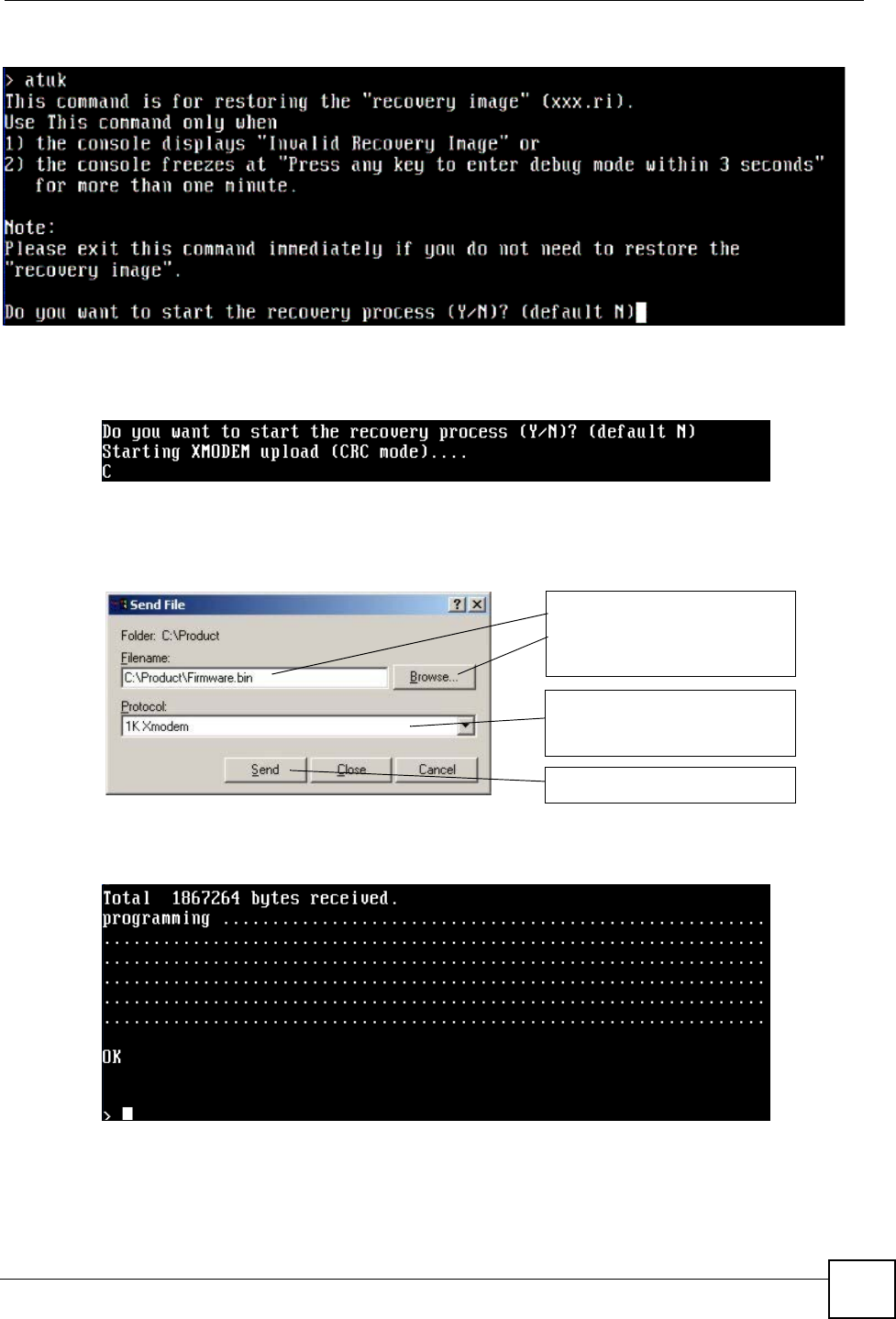
Chapter 35 File Manager
NXC CLI Reference Guide 233
Figure 25 atuk Command for Restoring the Recovery Image
4Enter Y and wait for the “Starting XMODEM upload” message before activating
XMODEM upload on your terminal.
Figure 26 Starting Xmodem Upload
5This is an example Xmodem configuration upload using HyperTerminal. Click
Transfer, then Send File to display the following screen.
Figure 27 Example Xmodem Upload
6Wait for about three and a half minutes for the Xmodem upload to finish.
Figure 28 Recovery Image Upload Complete
7Enter atgo. The NXC starts up. If “Connect a computer to port 1 and FTP to
192.168.1.1 to upload the new file” displays on the screen, the firmware file is damaged
and you need to use the procedure in Section 35.10 on page 234 to recover the firmware.
Type the firmware file's
location, or click Browse to
search for it.
Choose the 1K Xmodem
protocol.
Then click Send.
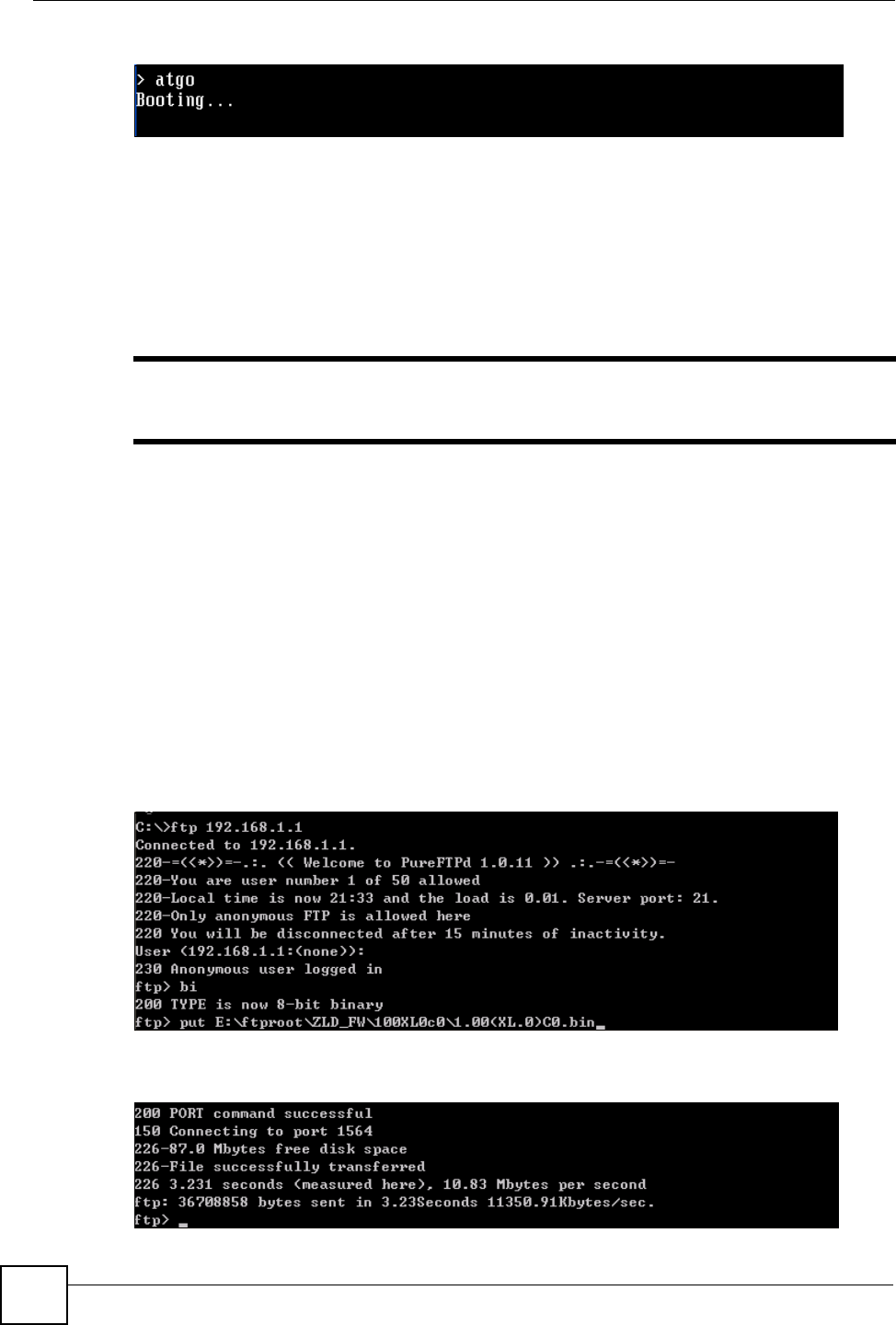
Chapter 35 File Manager
NXC CLI Reference Guide
234
Figure 29 atgo Debug Command
35.10 Restoring the Firmware
This procedure requires the NXC’s firmware. Download the firmware package from
www.zyxel.com and unzip it. The firmware file uses a .bin extension, for example,
"1.01(XL.0)C0.bin". Do the following after you have obtained the firmware file.
This section is not for normal firmware uploads. You only need to use this
section if you need to recover the firmware.
1Connect your computer to the NXC’s port 1 (only port 1 can be used).
2The NXC’s FTP server IP address for firmware recovery is 192.168.1.1, so set your
computer to use a static IP address from 192.168.1.2 ~192.168.1.254.
3Use an FTP client on your computer to connect to the NXC. For example, in the
Windows command prompt, type ftp 192.168.1.1. Keep the console session
connected in order to see when the firmware recovery finishes.
4Hit enter to log in anonymously.
5Set the transfer mode to binary (type bin).
6Transfer the firmware file from your computer to the NXC. Type put followed by the
path and name of the firmware file. This examples uses put e:\ftproot\ZLD FW
\1.01(XL.0)C0.bin.
Figure 30 FTP Firmware Transfer Command
7Wait for the file transfer to complete.
Figure 31 FTP Firmware Transfer Complete
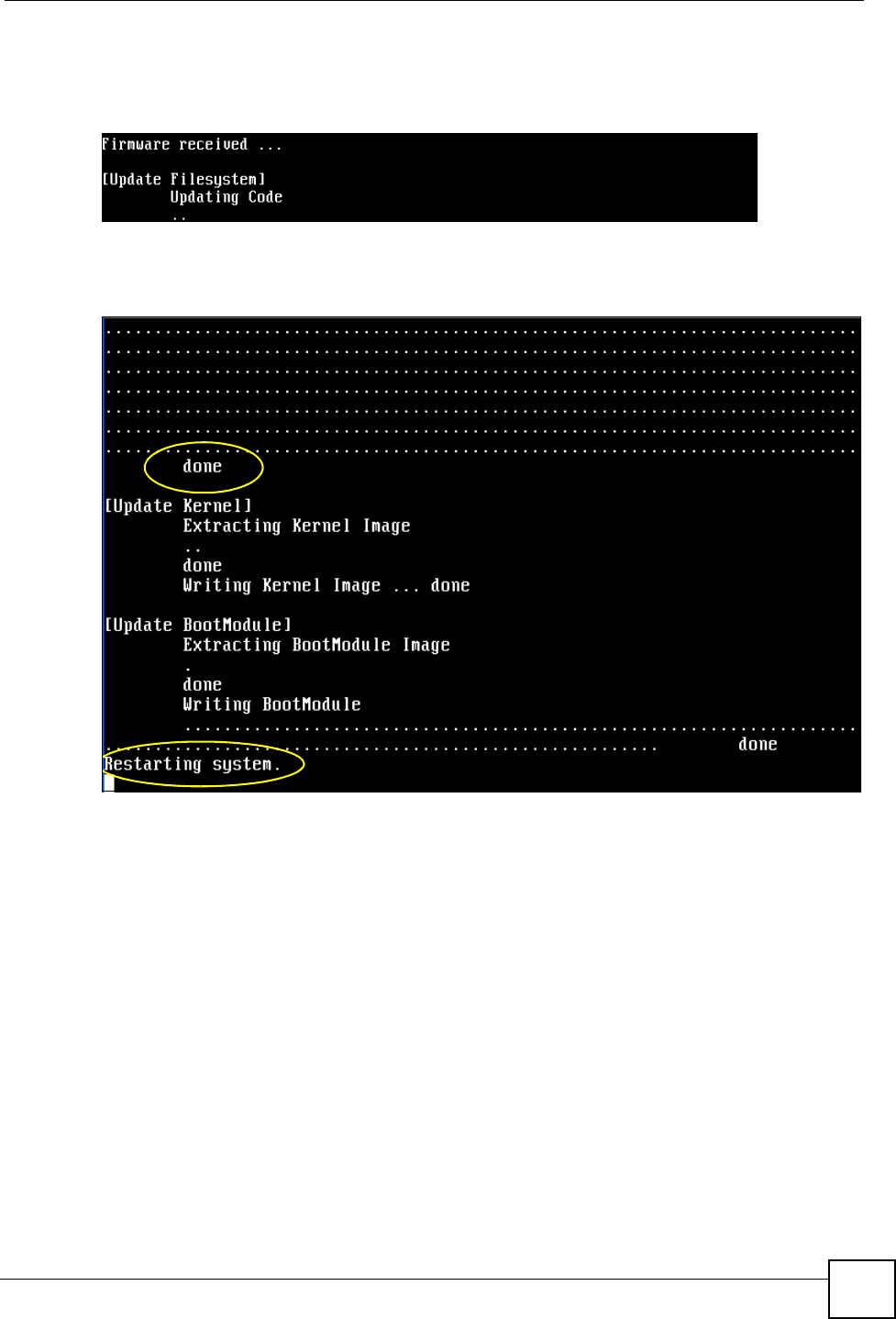
Chapter 35 File Manager
NXC CLI Reference Guide 235
8After the transfer is complete, “Firmware received” or “ZLD-current received” displays.
Wait (up to four minutes) while the NXC recovers the firmware.
Figure 32 Firmware Received and Recovery Started
9The console session displays “done” when the firmware recovery is complete. Then the
NXC automatically restarts.
Figure 33 Firmware Recovery Complete and Restart
10 The username prompt displays after the NXC starts up successfully. The firmware
recovery process is now complete and the NXC is ready to use.
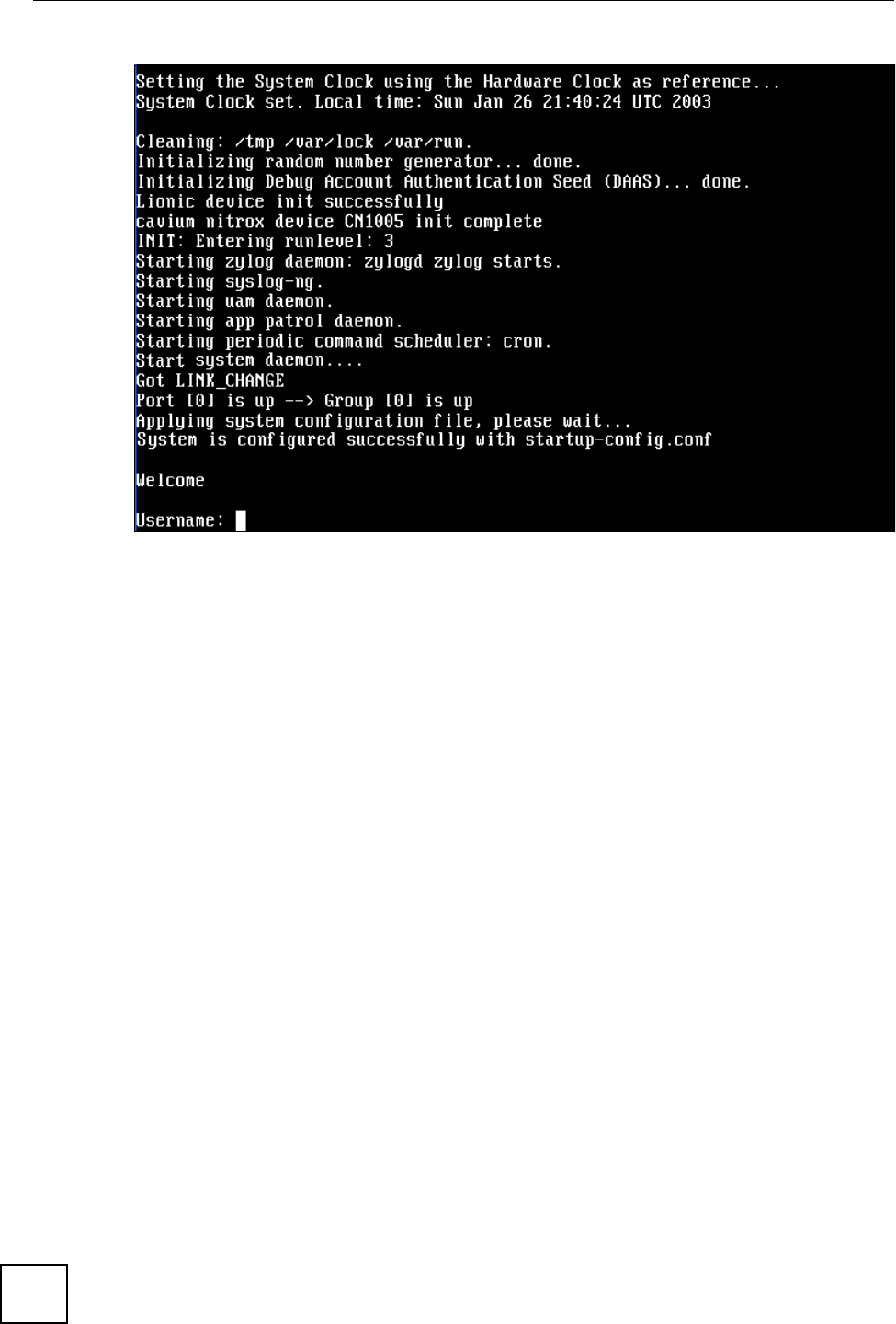
Chapter 35 File Manager
NXC CLI Reference Guide
236
Figure 34 Restart Complete
35.11 Restoring the Default System Database
The default system database stores information such as the default anti-virus or IDP
signatures. The NXC can still operate if the default system database is damaged or missing,
but related features (like anti-virus or IDP) may not function properly.
If the default system database file is not valid, the NXC displays a warning message in your
console session at startup or when reloading the anti-virus or IDP signatures. It also generates
a log. Here are some examples. Use this section to restore the NXC’s default system database.
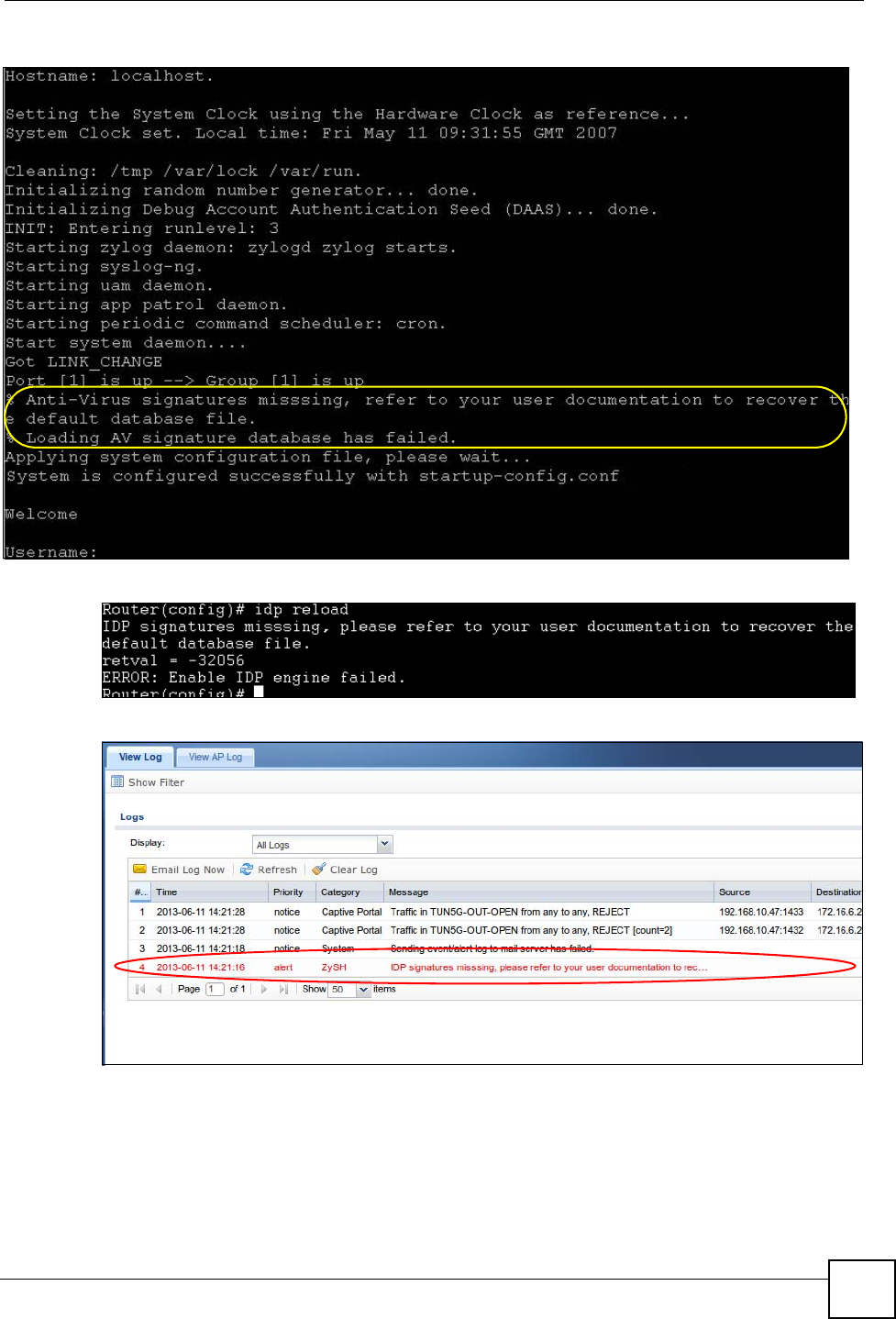
Chapter 35 File Manager
NXC CLI Reference Guide 237
Figure 35 Default System Database Console Session Warning at Startup: Anti-virus
Figure 36 Default System Database Console Session Warning When Reloading IDP
Figure 37 Default System Database Missing Log: Anti-virus
This procedure requires the NXC’s default system database file. Download the firmware
package from www.zyxel.com and unzip it. The default system database file uses a .db
extension, for example, "1.01(XL.0)C0.db". Do the following after you have obtained the
default system database file.
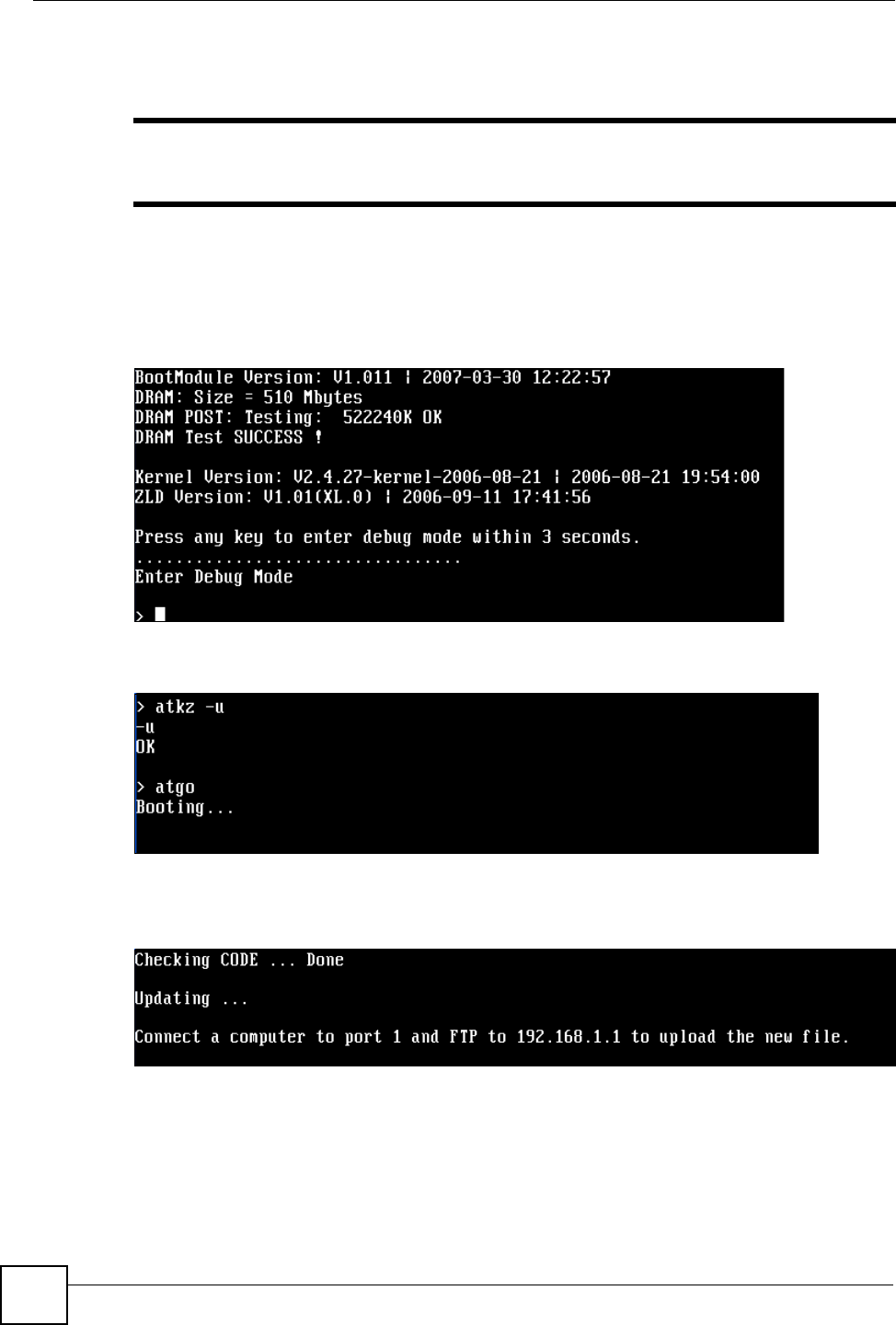
Chapter 35 File Manager
NXC CLI Reference Guide
238
35.11.1 Using the atkz -u Debug Command (NXC5200 Only)
You only need to use the atkz -u command if the default system database is
damaged.
1Restart the NXC.
2When “Press any key to enter debug mode within 3 seconds.” displays, press a key to
enter debug mode.
Figure 38 Enter Debug Mode
3Enter atkz -u to start the recovery process.
Figure 39 atkz -u Command for Restoring the Default System Database
4“Connect a computer to port 1 and FTP to 192.168.1.1 to upload the new file” displays
on the screen. Connect your computer to the NXC’s port 1 (only port 1 can be used).
Figure 40 Use FTP with Port 1 and IP 192.168.1.1 to Upload File
5The NXC’s FTP server IP address for firmware recovery is 192.168.1.1, so set your
computer to use a static IP address from 192.168.1.2 ~192.168.1.254.
6Use an FTP client on your computer to connect to the NXC. For example, in the
Windows command prompt, type ftp 192.168.1.1. Keep the console session
connected in order to see when the default system database recovery finishes.
7Hit enter to log in anonymously.
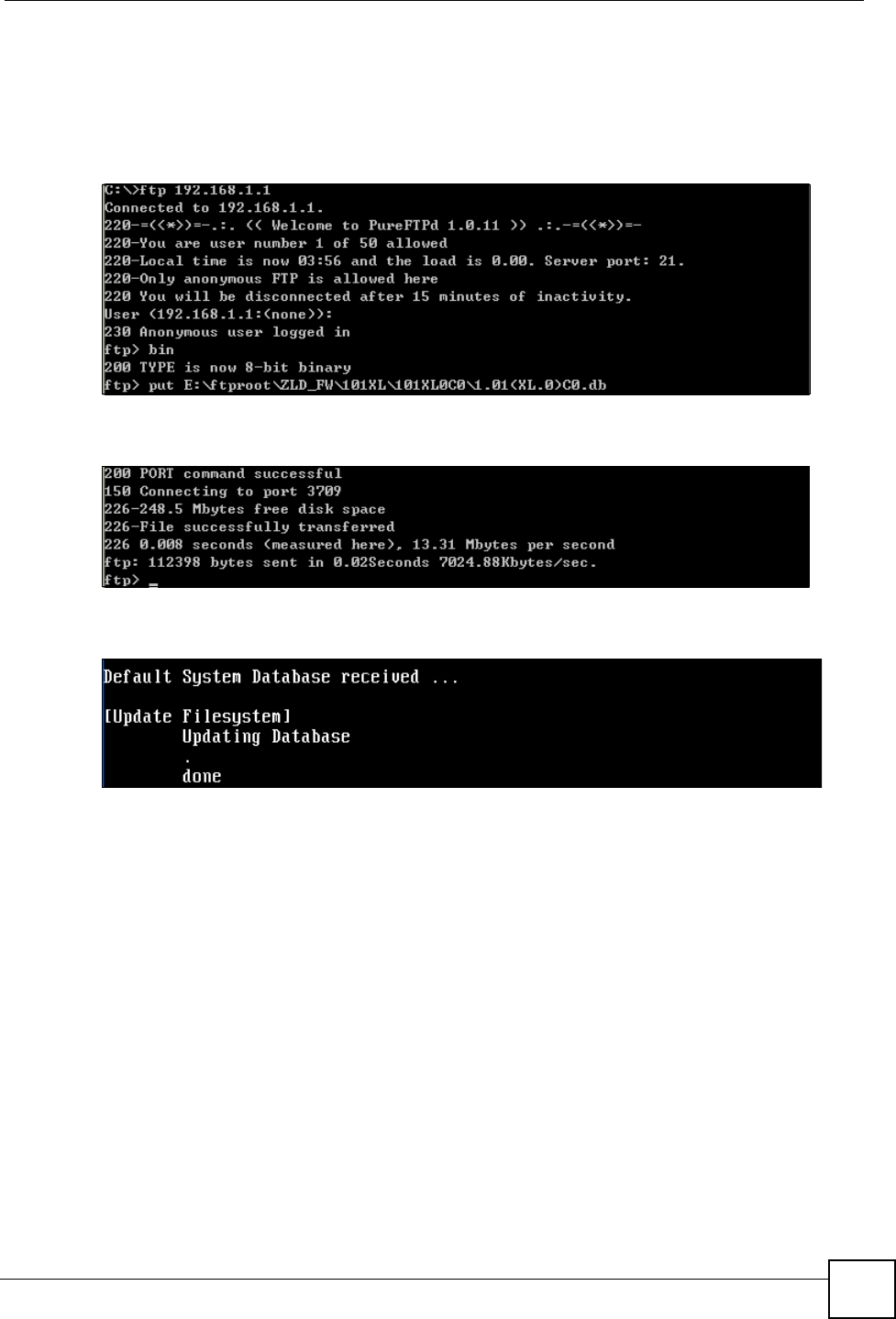
Chapter 35 File Manager
NXC CLI Reference Guide 239
8Set the transfer mode to binary (type bin).
9Transfer the firmware file from your computer to the NXC. Type put followed by the
path and name of the firmware file. This examples uses put e:\ftproot\ZLD FW
\1.01(XL.0)C0.db.
Figure 41 FTP Default System Database Transfer Command
10 Wait for the file transfer to complete.
Figure 42 FTP Default System Database Transfer Complete
11 The console session displays “done” after the default system database is recovered.
Figure 43 Default System Database Received and Recovery Complete
12 The username prompt displays after the NXC starts up successfully. The default system
database recovery process is now complete and the NXC IDP and anti-virus features are
ready to use again.
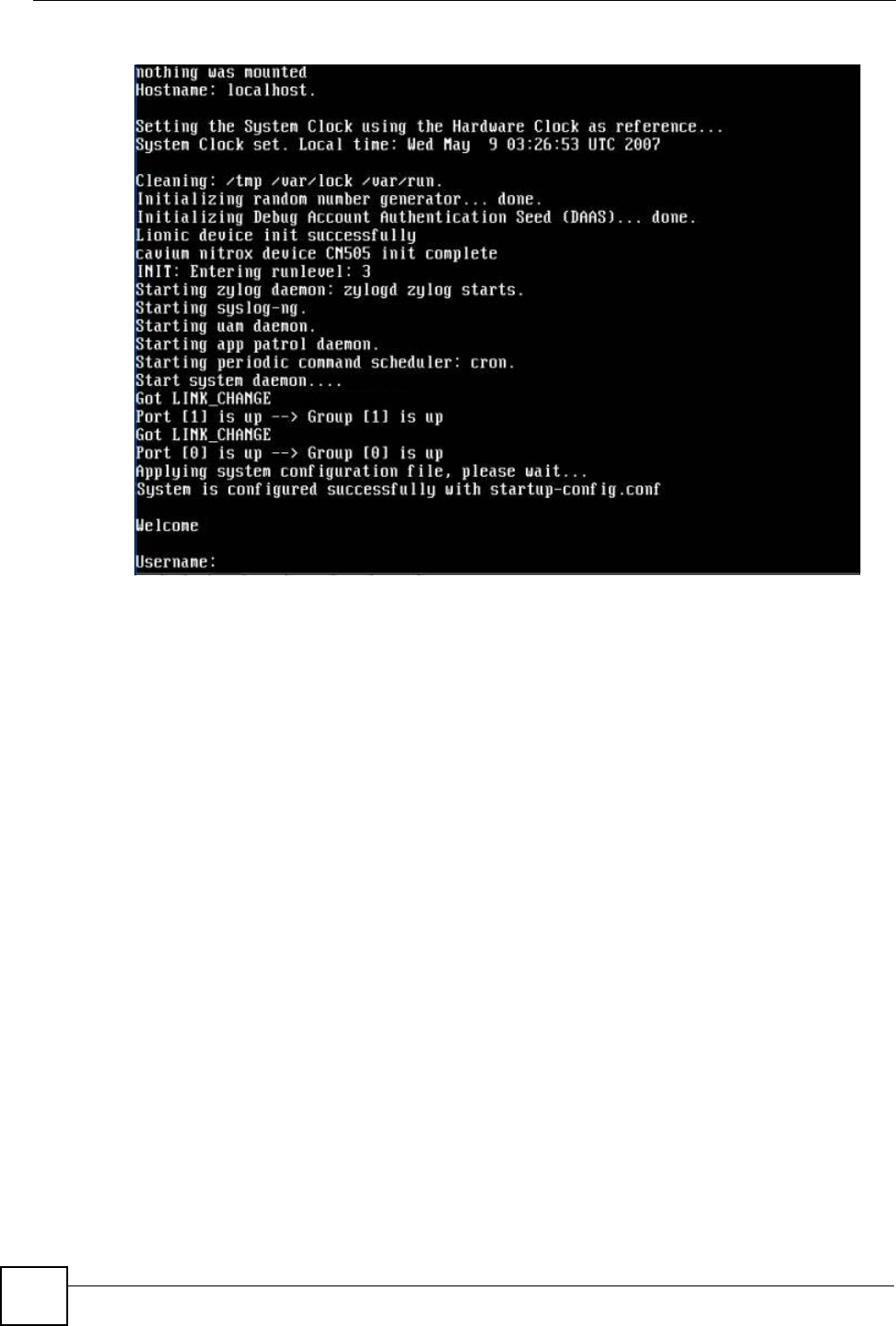
Chapter 35 File Manager
NXC CLI Reference Guide
240
Figure 44 Startup Complete

NXC CLI Reference Guide 241
CHAPTER 36
Logs
This chapter provides information about the NXC’s logs.
When the system log reaches the maximum number of log messages, new log
messages automatically overwrite existing log messages, starting with the
oldest existing log message first.
See the User’s Guide for the maximum number of system log messages in the NXC.
36.1 Log Commands Summary
The following table describes the values required for many log commands. Other values are
discussed with the corresponding commands.
The following sections list the logging commands.
Table 137 Input Values for Log Commands
LABEL DESCRIPTION
module_name The name of the category; kernel, syslog, .... The default category
includes debugging messages generated by open source software. The
all category includes all messages in all categories.
ap_mac The Ethernet MAC address for the specified Access Point.
pri The log priority. Enter one of the following values: alert, crit, debug, emerg,
error, info, notice, or warn.
ipv4 The standard version 4 IP address (such as 192.168.1.1).
service The service object name.
keyword The keyword search string. You may use up to 63 alphanumeric characters.
log_proto_accept The log protocol. Enter one of the following values: icmp, tcp, udp, or others.
config_interface The interface name. Enter up to 15 alphanumeric characters, including
hyphens and underscores.

Chapter 36 Logs
NXC CLI Reference Guide
242
36.1.1 Log Entries Commands
This table lists the commands to look at log entries.
36.1.2 System Log Commands
This table lists the commands for the system log settings.
Table 138 logging Commands: Log Entries
COMMAND DESCRIPTION
show logging entries [priority pri] [category
module_name] [srcip ip] [dstip ip] [service
service_name] [begin <1..512> end <1..512>]
[keyword keyword]
Displays the selected entries in the system log.
PRI: alert | crit | debug | emerg | error | info | notice
| warn
keyword: You can use alphanumeric and ()+/
:=?!*#@$_%- characters, and it can be up to 63
characters long. This searches the message,
source, destination, and notes fields.
show logging entries field field [begin
<1..512> end <1..512>]
Displays the selected fields in the system log.
field: time | msg | src | dst | note | pri | cat | all
Table 139 logging Commands: System Log Settings
COMMAND DESCRIPTION
show logging status system-log Displays the current settings for the system log.
logging system-log category module_name
{disable | level normal | level all}
Specifies what kind of information, if any, is logged
in the system log and debugging log for the
specified category.
[no] logging system-log suppression interval
<10..600>
Sets the log consolidation interval for the system
log. The no command sets the interval to ten.
[no] logging system-log suppression Enables log consolidation in the system log. The
no command disables log consolidation in the
system log.
[no] connectivity-check continuous-log
activate
Has the NXC generate a log for each connectivity
check. The no command has the NXC only log the
first connectivity check.
show connectivity-check continuous-log status Displays whether or not the NXC generates a log
for each connectivity check.
clear logging system-log buffer Clears the system log.

Chapter 36 Logs
NXC CLI Reference Guide 243
36.1.2.1 System Log Command Examples
The following command displays the current status of the system log.
36.1.3 Debug Log Commands
This table lists the commands for the debug log settings.
Router# configure terminal
Router(config)# show logging status system-log
512 events logged
suppression active : yes
suppression interval: 10
category settings :
content-filter : normal , forward-web-sites : no ,
blocked-web-sites : normal , user : normal ,
myZyXEL.com : normal , zysh : normal ,
idp : normal , app-patrol : normal ,
ike : normal , ipsec : normal ,
firewall : normal , sessions-limit : normal ,
policy-route : normal , built-in-service : normal ,
system : normal , connectivity-check: normal ,
device-ha : normal , routing-protocol : normal ,
nat : normal , pki : normal ,
interface : normal , interface-statistics: no ,
account : normal , port-grouping : normal ,
force-auth : normal , l2tp-over-ipsec : normal ,
anti-virus : normal , white-list : normal ,
black-list : normal , ssl-vpn : normal ,
cnm : normal , traffic-log : no ,
file-manage : normal , dial-in : normal ,
adp : normal , default : all ,
Table 140 logging Commands: Debug Log Settings
COMMAND DESCRIPTION
show logging debug status Displays the current settings for the debug log.
show logging debug entries [priority pri]
[category module_name] [srcip ip] [dstip ip]
[service service_name] [begin <1..1024> end
<1..1024>] [keyword keyword]
Displays the selected entries in the debug log.
pri: alert | crit | debug | emerg | error | info | notice
| warn
keyword: You can use alphanumeric and ()+/
:=?!*#@$_%- characters, and it can be up to 63
characters long. This searches the message,
source, destination, and notes fields.
show logging debug entries field field [begin
<1..1024> end <1..1024>]
Displays the selected fields in the debug log.
field: time | msg | src | dst | note | pri | cat | all
[no] logging debug suppression Enables log consolidation in the debug log. The no
command disables log consolidation in the debug
log.
[no] logging debug suppression interval
<10..600>
Sets the log consolidation interval for the debug
log. The no command sets the interval to ten.
clear logging debug buffer Clears the debug log.

Chapter 36 Logs
NXC CLI Reference Guide
244
This table lists the commands for the remote syslog server settings.
36.1.4 E-mail Profile Log Commands
This table lists the commands for the e-mail profile settings.
Table 141 logging Commands: Remote Syslog Server Settings
COMMAND DESCRIPTION
show logging status syslog Displays the current settings for the remote
servers.
[no] logging syslog <1..4> Enables the specified remote server. The no
command disables the specified remote server.
[no] logging syslog <1..4> address {ip |
hostname}
Sets the URL or IP address of the specified remote
server. The no command clears this field.
hostname: You may up to 63 alphanumeric
characters, dashes (-), or periods (.), but the first
character cannot be a period.
[no] logging syslog <1..4> category {disable |
level normal | level all}
Specifies what kind of information, if any, is logged
for the specified category.
[no] logging syslog <1..4> facility {local_1 |
local_2 | local_3 | local_4 | local_5 | local_6
| local_7}
Sets the log facility for the specified remote server.
The no command sets the facility to local_1.
[no] logging syslog <1..4> format {cef | vrpt} Sets the format of the log information.
cef: Common Event Format, syslog-compatible
format.
vrpt: ZyXEL’s Vantage Report, syslog-compatible
format.
Table 142 logging Commands: E-mail Profile Settings
COMMAND DESCRIPTION
show logging status mail Displays the current settings for the e-mail profiles.
[no] logging mail <1..2> Enables the specified e-mail profile. The no
command disables the specified e-mail profile.
[no] logging mail <1..2> address {ip |
hostname}
Sets the URL or IP address of the mail server for
the specified e-mail profile. The no command
clears the mail server field.
hostname: You may up to 63 alphanumeric
characters, dashes (-), or periods (.), but the first
character cannot be a period.
[no] logging mail <1..2> authentication Enables SMTP authentication. The no command
disables SMTP authentication.
[no] logging mail <1..2> authentication
username username password password
Sets the username and password required by the
SMTP mail server. The no command clears the
username and password fields.
username: You can use alphanumeric characters,
underscores (_), and dashes (-), and it can be up to
31 characters long.
password: You can use most printable ASCII
characters. You cannot use square brackets [ ],
double quotation marks (“), question marks (?),
tabs or spaces. It can be up to 31 characters long.

Chapter 36 Logs
NXC CLI Reference Guide 245
36.1.4.1 E-mail Profile Command Examples
The following commands set up e-mail log 1.
[no] logging mail <1..2> {send-log-to | send-
alerts-to} e_mail
Sets the e-mail address for logs or alerts. The no
command clears the specified field.
e_mail: You can use up to 63 alphanumeric
characters, underscores (_), or dashes (-), and you
must use the @ character.
[no] logging mail <1..2> subject subject Sets the subject line when the NXC mails to the
specified e-mail profile. The no command clears
this field.
subject: You can use up to 60 alphanumeric
characters, underscores (_), dashes (-), or
!@#$%*()+=;:’,./ characters.
[no] logging mail <1..2> category module_name
level {alert | all}
Specifies what kind of information is logged for the
specified category. The no command disables
logging for the specified category.
[no] logging mail <1..2> from e_mail Sets the e-mail address from which the outgoing e-
mail is delivered. The no command clears this
field.
[no] logging mail <1..2> schedule {full |
hourly}
Sets the e-mail schedule for the specified e-mail
profile. The no command clears the schedule field.
logging mail <1..2> schedule daily hour
<0..23> minute <0..59>
Sets a daily e-mail schedule for the specified e-mail
profile.
logging mail <1..2> schedule weekly day day
hour <0..23> minute <0..59>
Sets a weekly e-mail schedule for the specified e-
mail profile.
day: sun | mon | tue | wed | thu | fri | sat
logging mail sending_now Sends mail immediately, according to the current
settings.
Table 142 logging Commands: E-mail Profile Settings (continued)
COMMAND DESCRIPTION
Router# configure terminal
Router(config)# logging mail 1 address mail.zyxel.com.tw
Router(config)# logging mail 1 subject AAA
Router(config)# logging mail 1 authentication username lachang.li password
XXXXXX
Router(config)# logging mail 1 send-log-to lachang.li@zyxel.com.tw
Router(config)# logging mail 1 send-alerts-to lachang.li@zyxel.com.tw
Router(config)# logging mail 1 from lachang.li@zyxel.com.tw
Router(config)# logging mail 1 schedule weekly day mon hour 3 minute 3
Router(config)# logging mail 1

Chapter 36 Logs
NXC CLI Reference Guide
246
36.1.5 Console Port Log Commands
This table lists the commands for the console port settings.
36.1.6 Access Point Logging Commands
This table lists the commands for the Access Point settings.
For the purposes of this device’s CLI, Access Points are referred to as WTPs.
Table 143 logging Commands: Console Port Settings
COMMAND DESCRIPTION
show logging status console Displays the current settings for the console log.
(This log is not discussed above.)
[no] logging console Enables the console log. The no command
disables the console log.
logging console category module_name level
{alert | crit | debug | emerg | error | info |
notice | warn}
Controls whether or not debugging information for
the specified priority is displayed in the console log,
if logging for this category is enabled.
[no] logging console category module_name Enables logging for the specified category in the
console log. The no command disables logging.
Table 144 logging Commands: Access Point Settings
COMMAND DESCRIPTION
show wtp-logging status system-log [ap_mac]Displays the system log for the specified AP.
show wtp-logging entries [priority pri]
[category module_name] [srcip ipv4] [dstip
ipv4] [service service] [srciface
config_interface] [dstiface config_interface]
[protocol log_proto_accept][begin <1..512> end
<1..512>] [keyword keyword] [ap_mac]
Displays only the specified log entries for the
specified AP.
show wtp-logging entries field
{srcif|dstif|proto|time|msg|src|dst|note|pri|c
at|all} [begin <1..512> end <1..512>] [ap_mac]
Displays only log entries for specified fields for the
specified AP. You can display a range of field
entries from 1-512.
show wtp-logging debug status ap_mac Displays the debug status of the specified AP.
show wtp-logging debug entries [priority pri]
[category module_name] [srcip ipv4] [dstip
ipv4] [service service] [srciface
config_interface] [dstiface config_interface]
[protocol log_proto_accept ] [begin <1..512>
end <1..512>] [keyword keyword] [ap_mac]
Display only the specified debug log entries for the
specified AP.
show wtp-logging debug entries field {
srcif|dstif|proto
|time|msg|src|dst|note|pri|cat|all} [begin
<1..1024> end <1..1024>] [ap_mac]
Displays only the log entries for the specified fields
for the specified AP. You can display a range of
field entries from 1-1024.
show wtp-logging status syslog [ap_mac]Displays the logging status for the specified AP’s
syslog.

Chapter 36 Logs
NXC CLI Reference Guide 247
show wtp-logging status mail [ap_mac]Displays the logging status for the specified AP’s
mail log.
show wtp-logging query-log ap_mac Displays the specified AP’s query log.
show wtp-logging query-dbg-log ap_mac Displays the specified AP’s query debug log.
show wtp-logging result-status Displays the AP logging result status.
show wtp-logging dbg-result-status Displays the AP logging debug result status.
[no] wtp-logging syslog syslog_range category
module_name disable
Disables the logging of the specified syslog
category.
[no] wtp-logging syslog syslog_range category
module_name level {normal | all}
Enables logging of the specified syslog category
and specifies the logging level.
[no] wtp-logging mail mail_range category
module_name level {alert | all}
Enables mail logging on APs for the specified
category.
[no] wtp-logging system-log category
module_name level {normal | all }
Enables system logging on the APs for the
specified category.
[no] wtp-logging system-log category
module_name disable
Disables system logging on the APs for the
specified category.
[no] wtp-logging system-log suppression Enables log consolidation in the system log on the
APs. The no command disables log consolidation
in the debug log.
[no] wtp-logging system-log suppression
interval <10..600>
Sets the log consolidation interval for the system
log on the APs. The no command sets the interval
to ten.
[no] wtp-logging debug suppression Enables debug logging suppression. Use the no
parameter to disable.
[no] wtp-logging debug suppression interval
<10..600>
Enables debug logging suppression during the
specified interval. Use the no parameter to disable.
[no] wtp-logging console Enables logging of console activity. Use the no
parameter to disable.
[no] wtp-logging console category module_name
level pri
Enables logging of the specified category at the
specified priority level.
Table 144 logging Commands: Access Point Settings (continued)
COMMAND DESCRIPTION

Chapter 36 Logs
NXC CLI Reference Guide
248
NXC CLI Reference Guide 249
CHAPTER 37
Reports and Reboot
This chapter provides information about the report associated commands and how to restart
the NXC using commands. It also covers the daily report e-mail feature.
37.1 Report Commands Summary
The following sections list the report and session commands.
37.1.1 Report Commands
This table lists the commands for reports.
Table 145 report Commands
COMMAND DESCRIPTION
[no] report Begins data collection. The no command stops
data collection.
show report status Displays whether or not the NXC is collecting data
and how long it has collected data.
clear report [interface_name]Clears the report for the specified interface or for all
interfaces.
show report [interface_name {ip | service |
url}]
Displays the traffic report for the specified interface
and controls the format of the report. Formats are:
ip - traffic by IP address and direction
service - traffic by service and direction
url - hits by URL

Chapter 37 Reports and Reboot
NXC CLI Reference Guide
250
37.1.2 Report Command Examples
The following commands start collecting data, display the traffic reports, and stop collecting
data.
37.1.3 Session Commands
This table lists the command to display the current sessions for debugging or statistical
analysis.
Router# configure terminal
Router(config)# show report ge1 ip
No. IP Address User Amount Direction
===================================================================
1 192.168.1.4 admin 1273(bytes) Outgoing
2 192.168.1.4 admin 711(bytes) Incoming
Router(config)# show report ge1 service
No. Port Service Amount Direction
====================================================================
1 21 ftp 1273(bytes) Outgoing
2 21 ftp 711(bytes) Incoming
Router(config)# show report ge1 url
No. Hit URL
=====================================================================
1 1 140.114.79.60
Router(config)# show report status
Report status: on
Collection period: 0 days 0 hours 0 minutes 18 seconds
Table 146 session Commands
COMMAND DESCRIPTION
show conn [user {username|any|unknown}]
[service {service-name|any|unknown}] [source
{ip|any}] [destination {ip|any}] [begin
<1..100000>] [end <1..100000>]
Displays information about the selected sessions
or about all sessions. You can look at all the active
sessions or filter the information by user name,
service object, source IP, destination IP, or session
number(s).
any means all users, services and IP addresses
respectively.
unknow means unknown users and services
respectively.
show conn ip-traffic destination Displays information about traffic session sorted by
the destination.
show conn ip-traffic source Displays information about traffic session sorted by
the source.
show conn status Displays the number of active sessions.

Chapter 37 Reports and Reboot
NXC CLI Reference Guide 251
37.2 Email Daily Report Commands
The following table identifies the values used in some of these commands. Other input values
are discussed with the corresponding commands.
Use these commands to have the NXC e-mail you system statistics every day. You must use
the configure terminal command to enter the configuration mode before you can use
these commands.
Table 147 Input Values for Email Daily Report Commands
LABEL DESCRIPTION
e_mail An e-mail address. You can use up to 80 alphanumeric characters, underscores
(_), periods (.), or dashes (-), and you must use the @ character.
Table 148 Email Daily Report Commands
COMMAND DESCRIPTION
daily-report [no] activate Turns daily e-mail reports on or off.
show daily-report status Displays the e-mail daily report settings.
daily-report Enter the daily report sub-command mode.
smtp-address {ip | hostname}Sets the SMTP mail server IP address or domain
name.
[no] smtp-auth activate Enables or disables SMTP authentication.
smtp-auth username username password
password
Sets the username and password for SMTP
authentication.
no smtp-address Resets the SMTP mail server configuration.
no smtp-auth username Resets the authentication configuration.
mail-subject set subject Configures the subject of the report e-mails.
no mail-subject set Clears the configured subject for the report e-
mails.
no] mail-subject append system-name Determines whether the system name will be
appended to the subject of report mail.
[no] mail-subject append date-time Determine whether the sending date-time will be
appended at subject of the report e-mails.
mail-from e_mail Sets the sender value of the report e-mails.
mail-to-1 e_mail Sets to whom the NXC sends the report e-mails
(up to five recipients).
mail-to-2 e_mail See above.
mail-to-3 e_mail See above.
mail-to-4 e_mail See above.
mail-to-5 e_mail See above.
[no] item cf-report Determines whether or not content filtering
statistics are included in the report e-mails.
no] item cpu-usage Determines whether or not CPU usage statistics
are included in the report e-mails.
[no] item mem-usage Determines whether or not memory usage
statistics are included in the report e-mails.

Chapter 37 Reports and Reboot
NXC CLI Reference Guide
252
smtp-port <1..65535> Sets the SMTP service port.
no smtp-port Resets the SMTP service port configuration.
daily-report [no] item station-count Determines whether or not the station statistics
are included in the report e-mails.
daily-report [no] item wtp-tx Determines whether or not the NXC’s outgoing
traffic statistics are included in the report e-mails.
daily-report [no] item session-usage Determines whether or not session usage
statistics are included in the report e-mails.
daily-report [no] item port-usage Determines whether or not port usage statistics
are included in the report e-mails.
daily-report [no] item idp-report Determines whether or not IDP statistics are
included in the report e-mails.
daily-report [no] item av-report Determines whether or not anti-virus statistics are
included in the report e-mails.
daily-report [no] item traffic-report Determines whether or not network traffic
statistics are included in the report e-mails.
daily-report schedule hour <0..23> minute
<00..59>
Sets the time for sending out the report e-mails.
daily-report [no] daily-report reset-counter Determines whether or not to clear the report
statistics data after successfully sending out a
report e-mail.
daily-report send-now Sends the daily e-mail report immediately.
let user actively send out the report e-mails.
daily-report reset-counter-now Discards all report data and starts all of the
counters over at zero.
daily-report [no] item wtp-rx Determines whether or not the NXC’s incoming
traffic statistics are included in the report e-mails.
Table 148 Email Daily Report Commands (continued)
COMMAND DESCRIPTION

Chapter 37 Reports and Reboot
NXC CLI Reference Guide 253
37.2.1 Email Daily Report Example
This example sets the NXC to send a daily report e-mail.
Router(config)# daily-report
Router(config-daily-report)# smtp-address example-SMTP-mail-server.com
Router(config-daily-report)# mail-subject set test subject
Router(config-daily-report)# no mail-subject append system-name
Router(config-daily-report)# mail-subject append date-time
Router(config-daily-report)# mail-from my-email@example.com
Router(config-daily-report)# example-administrator@example.com
Router(config-daily-report)# no mail-to-2
Router(config-daily-report)# no mail-to-3
Router(config-daily-report)# mail-to-4 my-email@example.com
Router(config-daily-report)# no mail-to-5
Router(config-daily-report)# smtp-auth activate
Router(config-daily-report)# smtp-auth username 12345 password pass12345
Router(config-daily-report)# schedule hour 13 minutes 57
Router(config-daily-report)# no reset-counter
Router(config-daily-report)# item cpu-usage
Router(config-daily-report)# item mem-usage
Router(config-daily-report)# item session-usage
Router(config-daily-report)# item port-usage
Router(config-daily-report)# item idp-report
Router(config-daily-report)# item av-report
Router(config-daily-report)# item traffic-report
Router(config-daily-report)# daily-report activate

Chapter 37 Reports and Reboot
NXC CLI Reference Guide
254
This displays the email daily report settings and has the NXC send the report now.
37.3 Reboot
Use this to restart the device (for example, if the device begins behaving erratically).
If you made changes in the CLI, you have to use the write command to save the
configuration before you reboot. Otherwise, the changes are lost when you reboot.
Use the reboot command to restart the device.
Router(config)# show daily-report status
email daily report status
=========================
activate: yes
scheduled time: 13:57
reset counter: no
smtp address: example-SMTP-mail-server.com
smtp auth: yes
smtp username: 12345
smtp password: pass12345
mail subject: test subject
append system name: no
append date time: yes
mail from: my-email@example.com
mail-to-1: example-administrator@example.com
mail-to-2:
mail-to-3:
mail-to-4: my-email@example.com
mail-to-5:
cpu-usage: yes
mem-usage: yes
session-usage: yes
port-usage: yes
idp-report: yes
av-report: yes
as-report: yes
traffic-report: yes
Router(config)# daily-report send-now

NXC CLI Reference Guide 255
CHAPTER 38
Session Timeout
Use these commands to modify and display the session timeout values. You must use the
configure terminal command before you can use these commands.
The following example sets the UDP session connect timeout to 10 seconds, the UDP deliver
session timeout to 15 seconds, and the ICMP timeout to 15 seconds.
Table 149 Session Timeout Commands
COMMAND DESCRIPTION
session timeout {udp-connect <1..300> | udp-
deliver <1..300> | icmp <1..300>}
Sets the timeout for UDP sessions to connect or
deliver and for ICMP sessions.
session timeout { tcp-close <1..300> | tcp-
closewait <1..300> | tcp-established
<1..432000> | tcp-finwait <1..300> | tcp-
lastack <1..300> | tcp-synrecv <1..300> | tcp-
synsent <1..300> | tcp-timewait <1..300> }
Sets the timeout for TCP sessions in the
ESTABLISHED, SYN_RECV, FIN_WAIT,
SYN_SENT, CLOSE_WAIT, LAST_ACK, or
TIME_WAIT state.
show session timeout {icmp | tcp | udp} Displays ICMP, TCP, and UDP session timeouts.
Router(config)# session timeout udp-connect 10
Router(config)# session timeout udp-deliver 15
Router(config)# session timeout icmp 15
Router(config)# show session timeout udp
UDP session connect timeout: 10 seconds
UDP session deliver timeout: 15 seconds
Router(config)# show session timeout icmp
ICMP session timeout: 15 seconds

Chapter 38 Session Timeout
NXC CLI Reference Guide
256
NXC CLI Reference Guide 257
CHAPTER 39
Diagnostics
This chapter covers how to use the diagnostics feature.
39.1 Diagnostics
The diagnostics feature provides an easy way for you to generate a file containing the NXC’s
configuration and diagnostic information. You may need to generate this file and send it to
customer support during troubleshooting.
39.2 Diagnosis Commands
The following table lists the commands that you can use to have the NXC collect diagnostics
information. Use the configure terminal command to enter the configuration mode to be
able to use these commands.
39.3 Diagnosis Commands Example
The following example creates a diagnostic file and displays its name, size, and creation date.
Table 150 diagnosis Commands
COMMAND DESCRIPTION
diag-info collect Has the NXC create a new diagnostic file.
diag-info copy
usb-storage
Sets the NXC to create an extra copy of the diagnostic file to a connected USB storage
device.
show diag-info Displays the name, size, and creation date (in yyyy-mm-dd hh:mm:ss format) of the
diagnostic file.
show diag-info
copy usb-storage
Displays whether the NXC is set to create an extra copy of the diagnostic file to a
connected USB storage device.
Router# configure terminal
Router(config)# diag-info collect
Please wait, collecting information
Router(config)# show diag-info
Filename : diaginfo-20070423.tar.bz2
File size : 1259 KB
Date : 2007-04-23 09:55:09

Chapter 39 Diagnostics
NXC CLI Reference Guide
258
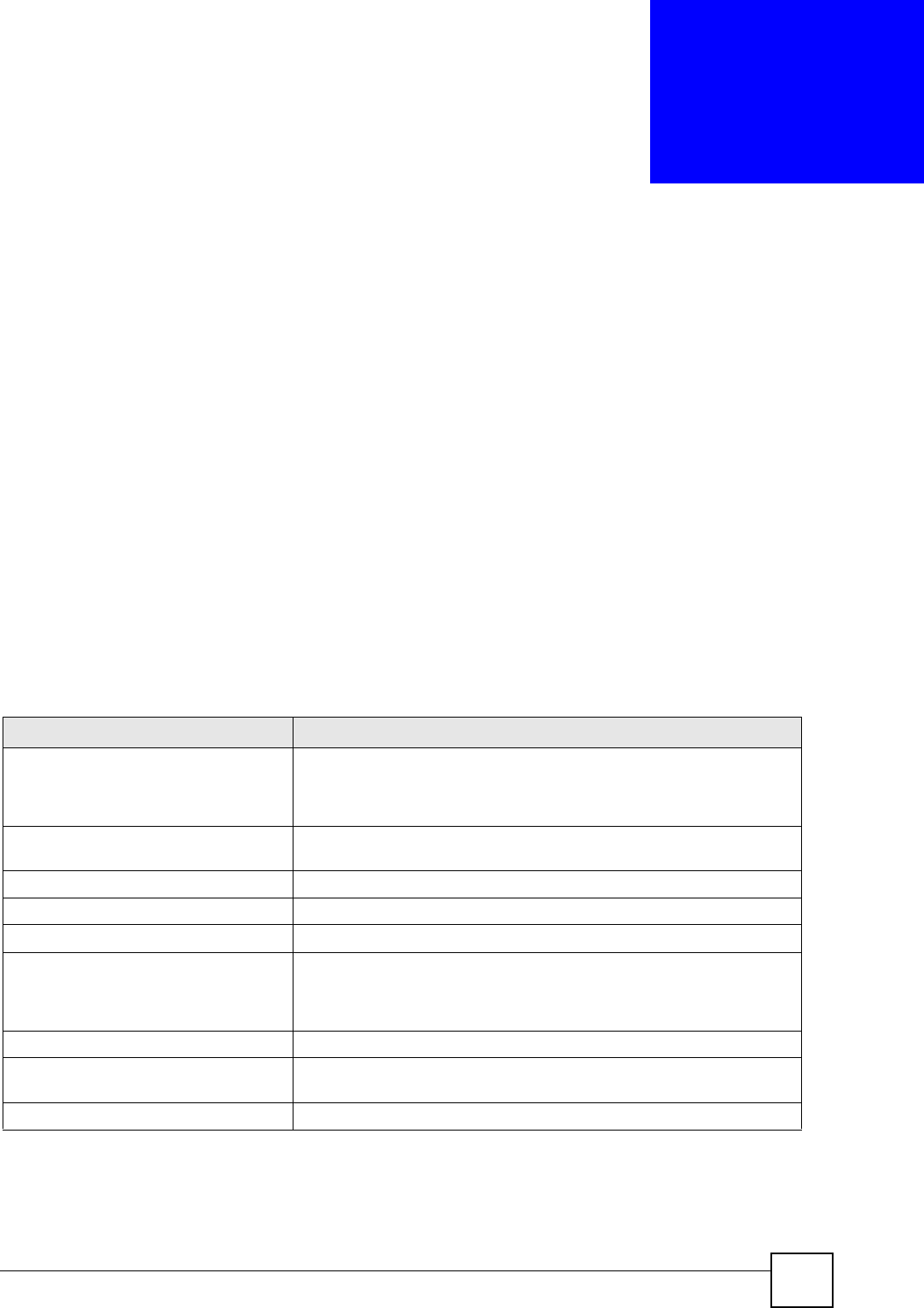
NXC CLI Reference Guide 259
CHAPTER 40
Packet Flow Explore
This chapter covers how to use the packet flow explore feature.
40.1 Packet Flow Explore
Use this to get a clear picture on how the NXC determines where to forward a packet and how
to change the source IP address of the packet according to your current settings. This function
provides you a summary of all your routing and SNAT settings and helps troubleshoot the
related problems.
40.2 Packet Flow Explore Commands
The following table lists the commands that you can use to have the NXC display routing and
SNAT related settings.
Table 151 Packet Flow Explore Commands
COMMAND DESCRIPTION
show route order Displays the order of routing related functions the NXC checks for
packets. Once a packet matches the criteria of a routing rule, the NXC
takes the corresponding action and does not perform any further flow
checking.
show system default-snat Displays whether the NXC enable SNAT or not. The NXC performs SNAT
by default for traffic going to or from the WAN interfaces.
show system route policy-route Displays activated policy routes.
show system route nat-1-1 Displays activated 1-to-1 NAT rules.
show system snat default-snat Displays activated default routes which use SNAT.
show system snat order Displays the order of SNAT related functions the NXC checks for packets.
Once a packet matches the criteria of an SNAT rule, the NXC uses the
corresponding source IP address and does not perform any further flow
checking.
show system snat nat-1-1 Displays activated NAT rules which use SNAT.
show system snat nat-loopback Displays activated NAT rules which use SNAT with NAT loopback
enabled.
show system snat policy-route Displays activated policy routes which use SNAT.
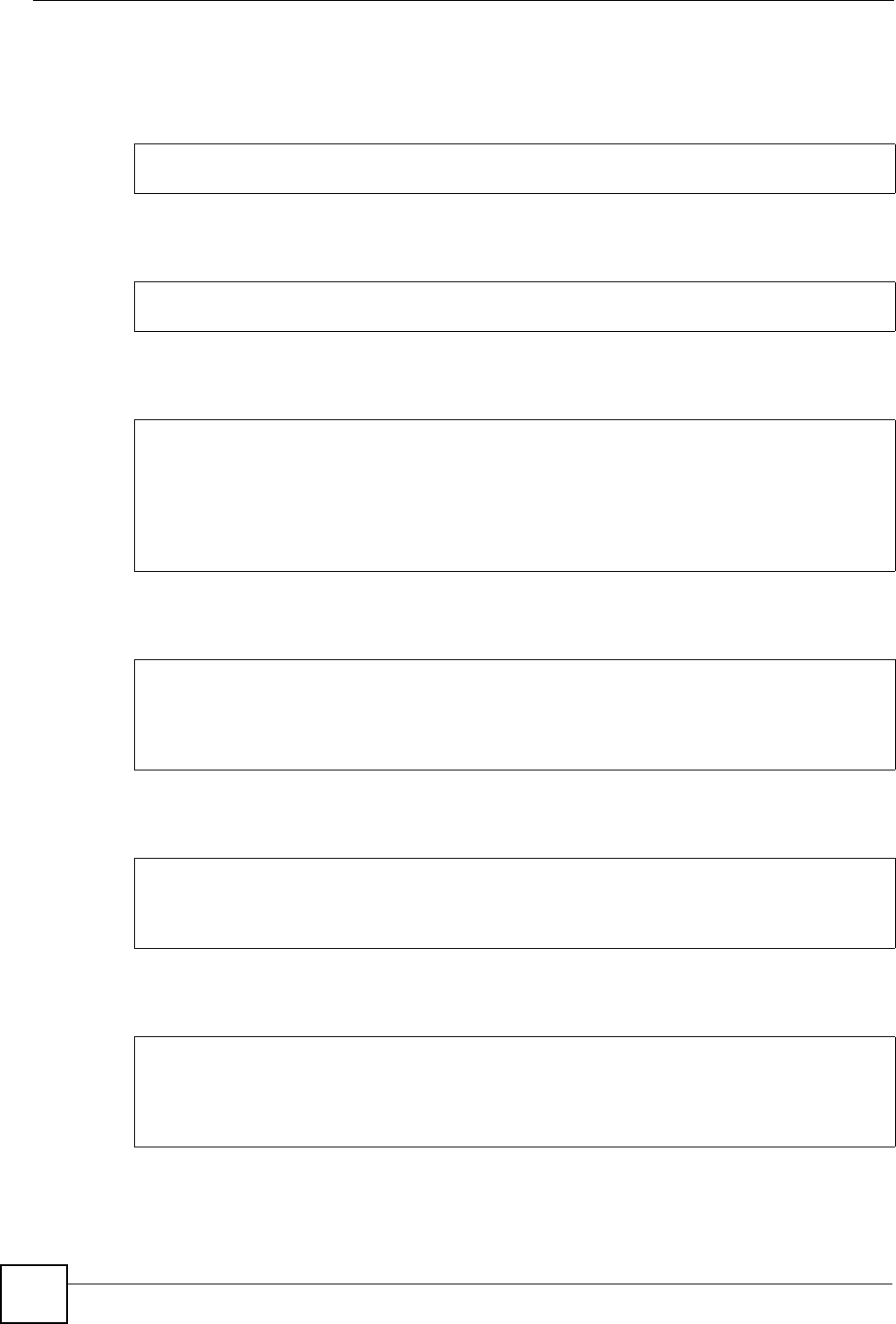
Chapter 40 Packet Flow Explore
NXC CLI Reference Guide
260
40.3 Packet Flow Explore Commands Example
The following example shows all routing related functions and their order.
The following example shows all SNAT related functions and their order.
The following example shows all activated policy routes.
The following example shows all activated 1-to-1 SNAT rules.
The following example shows all activated policy routes which use SNAT.
The following example shows all activated 1-to-1 NAT rules.
Router> show route order
route order: Direct Route, Policy Route, 1-1 SNAT, Main Route
Router> show system snat order
snat order: Policy Route SNAT, 1-1 SNAT, Loopback SNAT, Default SNAT
Router> show system route policy-route
No. PR NO. Source Destination In
coming
DSCP Service Source Port Ne
xthop Type Nexthop Info
===========================================================================
====
Router> show system route nat-1-1
No. VS Name Source Destinati
on Outgoing Gateway
===========================================================================
============================================
Router> show system snat policy-route
No. PR NO. Outgoing SNAT
===========================================================================
Router>
Router> show system snat nat-1-1
No. VS Name Source Destinati
on Outgoing SNAT
===========================================================================
===========

NXC CLI Reference Guide 261
CHAPTER 41
Maintenance Tools
Use the maintenance tool commands to check the conditions of other devices through the
NXC. The maintenance tools can help you to troubleshoot network problems.
41.1 Maintenance Tools Commands
Here are maintenance tool commands that you can use in privilege mode.
Table 152 Maintenance Tools Commands in Privilege Mode
COMMAND DESCRIPTION
packet-trace [interface interface_name] [ip-
proto {<0..255> | protocol_name | any}] [src-
host {ip | hostname | any}] [dst-host {ip |
hostname | any}] [port {<1..65535> | any}]
[file] [duration <1..3600>] [extension-filter
filter_extension]
Sends traffic through the specified interface with
the specified protocol, source address, destination
address, and/or port number.
If you specify file, the NXC dumps the traffic to /
packet_trace/
packet_trace_interface. Use FTP to
retrieve the files (see Section 35.6 on page 228).
If you do not assign the duration, the NXC keeps
dumping traffic until you use Ctrl-C.
Use the extension filter to extend the use of this
command.
protocol_name: You can use the name, instead
of the number, for some IP protocols, such as tcp,
udp, icmp, and so on. The names consist of 1-16
alphanumeric characters, underscores (_), or
dashes (-). The first character cannot be a number.
hostname: You can use up to 252 alphanumeric
characters, dashes (-), or periods (.). The first
character cannot be a period.
filter_extension: You can use 1-256
alphanumeric characters, spaces, or '()+,/
:=?;!*#@$_%.- characters.
traceroute {ip | hostname}Displays the route taken by packets to the specified
destination. Use Ctrl+c when you want to return
to the prompt.
show arp-table Displays the current Address Resolution Protocol
table.
show arp reply restricted Displays whether the NXC is set to only respond to
ARP requests, in which both the source and
destination IP addresses are in different subnets.
show packet-capture status Displays whether a packet capture is ongoing.
show packet-capture config Displays current packet capture settings.

Chapter 41 Maintenance Tools
NXC CLI Reference Guide
262
Here are maintenance tool commands that you can use in configure mode.
Table 153 Maintenance Tools Commands in Configuration Mode
COMMAND DESCRIPTION
[no] packet-capture activate Performs a packet capture that captures network traffic
going through the set NXC’s interface(s). Studying these
packet captures may help you identify network problems.
The no command stops the running packet capture on the
NXC.
Note: Use the packet-capture configure
command to configure the packet-
capture settings before using this
command.
packet-capture configure Enters the sub-command mode.
duration <0..300> Sets a time limit in seconds for the capture. The NXC
stops the capture and generates the capture file when
either this period of time has passed or the file reaches the
size specified using the files-size command below. 0
means there is no time limit.
file-suffix <profile_name>Specifies text to add to the end of the file name (before the
dot and filename extension) to help you identify the packet
capture files. Modifying the file suffix also avoids making
new capture files that overwrite existing files of the same
name.
The file name format is “interface name-file suffix.cap”, for
example “vlan2-packet-capture.cap”.
files-size <1..1000000000> Specify a maximum size limit in kilobytes for the total
combined size of all the capture files on the NXC,
including any existing capture files and any new capture
files you generate.
The NXC stops the capture and generates the capture file
when either the file reaches this size or the time period
specified ( using the duration command above) expires.
Note: If you have existing capture files you may
need to set this size larger or delete
existing capture files.
host-ip {ip-address | profile_name |
any>
Sets a host IP address or a host IP address object for
which to capture packets. any means to capture packets
for all hosts.
host-port <0..65535> If you set the IP Type to any, tcp, or udp using the ip-
type command below, you can specify the port number of
traffic to capture.
iface {add | del} {interface_name |
virtual_interface_name}
Adds or deletes an interface or a virtual interface for which
to capture packets to the capture interfaces list.
ip-version {any | ip | ip6} Sets the version of the Internet Protocol (IP) by which
traffic is routed across the networks and Internet. any
means to capture packets for traffic sent by either IP
version.
proto-type {icmp | igmp | igrp | pim |
ah | esp | vrrp | udp | tcp | any}
Sets the protocol of traffic for which to capture packets.
any means to capture packets for all types of traffic.

Chapter 41 Maintenance Tools
NXC CLI Reference Guide 263
41.1.1 Command Examples
Some packet-trace command examples are shown below.
snaplen <68..1512> Specifies the maximum number of bytes to capture per
packet. The NXC automatically truncates packets that
exceed this size. As a result, when you view the packet
capture files in a packet analyzer, the actual size of the
packets may be larger than the size of captured packets.
arp ip_address mac_address Edits or creates an ARP table entry.
no arp ip_address Removes an ARP table entry.
[no] arp reply restricted Sets the NXC to only respond to ARP requests, in which
both the source and destination IP addresses are in
different subnets.
The no command sets the NXC to respond to any ARP
request.
Table 153 Maintenance Tools Commands in Configuration Mode (continued)
COMMAND DESCRIPTION
Router# packet-trace duration 3
tcpdump: listening on eth0
19:24:43.239798 192.168.1.10 > 192.168.1.1: icmp: echo request
19:24:43.240199 192.168.1.1 > 192.168.1.10: icmp: echo reply
19:24:44.258823 192.168.1.10 > 192.168.1.1: icmp: echo request
19:24:44.259219 192.168.1.1 > 192.168.1.10: icmp: echo reply
19:24:45.268839 192.168.1.10 > 192.168.1.1: icmp: echo request
19:24:45.269238 192.168.1.1 > 192.168.1.10: icmp: echo reply
6 packets received by filter
0 packets dropped by kernel
Router# packet-trace interface ge2 ip-proto icmp file extension-filter -s
-> 500 -n
tcpdump: listening on eth1
07:24:07.898639 192.168.105.133 > 192.168.105.40: icmp: echo request (DF)
07:24:07.900450 192.168.105.40 > 192.168.105.133: icmp: echo reply
07:24:08.908749 192.168.105.133 > 192.168.105.40: icmp: echo request (DF)
07:24:08.910606 192.168.105.40 > 192.168.105.133: icmp: echo reply
8 packets received by filter
0 packets dropped by kernel

Chapter 41 Maintenance Tools
NXC CLI Reference Guide
264
The following example creates an ARP table entry for IP address 192.168.1.10 and MAC
address 01:02:03:04:05:06. Then it shows the ARP table and finally removes the new entry.
The following examples show how to configure packet capture settings and perform a packet
capture. First you have to check whether a packet capture is running. This example shows no
other packet capture is running. Then you can also check the current packet capture settings.
Router# packet-trace interface ge2 ip-proto icmp file extension-filter
-> and src host 192.168.105.133 and dst host 192.168.105.40 -s 500 -n
tcpdump: listening on eth1
07:26:51.731558 192.168.105.133 > 192.168.105.40: icmp: echo request (DF)
07:26:52.742666 192.168.105.133 > 192.168.105.40: icmp: echo request (DF)
07:26:53.752774 192.168.105.133 > 192.168.105.40: icmp: echo request (DF)
07:26:54.762887 192.168.105.133 > 192.168.105.40: icmp: echo request (DF)
8 packets received by filter
0 packets dropped by kernel
Router# traceroute www.zyxel.com
traceroute to www.zyxel.com (203.160.232.7), 30 hops max, 38 byte packets
1 172.16.13.254 3.049 ms 1.947 ms 1.979 ms
2 172.16.6.253 2.983 ms 2.961 ms 2.980 ms
3 172.16.6.1 5.991 ms 5.968 ms 6.984 ms
4 * * *
Router# arp 192.168.1.10 01:02:03:04:05:06
Router# show arp-table
Address HWtype HWaddress Flags Mask Iface
192.168.1.10 ether 01:02:03:04:05:06 CM ge1
172.23.19.254 ether 00:04:80:9B:78:00 C ge2
Router# no arp 192.168.1.10
Router# show arp-table
Address HWtype HWaddress Flags Mask Iface
192.168.1.10 (incomplete) ge1
172.23.19.254 ether 00:04:80:9B:78:00 C ge2
Router(config)# show packet-capture status
capture status: off
Router(config)#
Router(config)# show packet-capture config
iface: wan1,lan2,wan2
ip-type: any
host-port: 0
host-ip: any
file-suffix: Example
snaplen: 1500
duration: 150
file-size: 10000
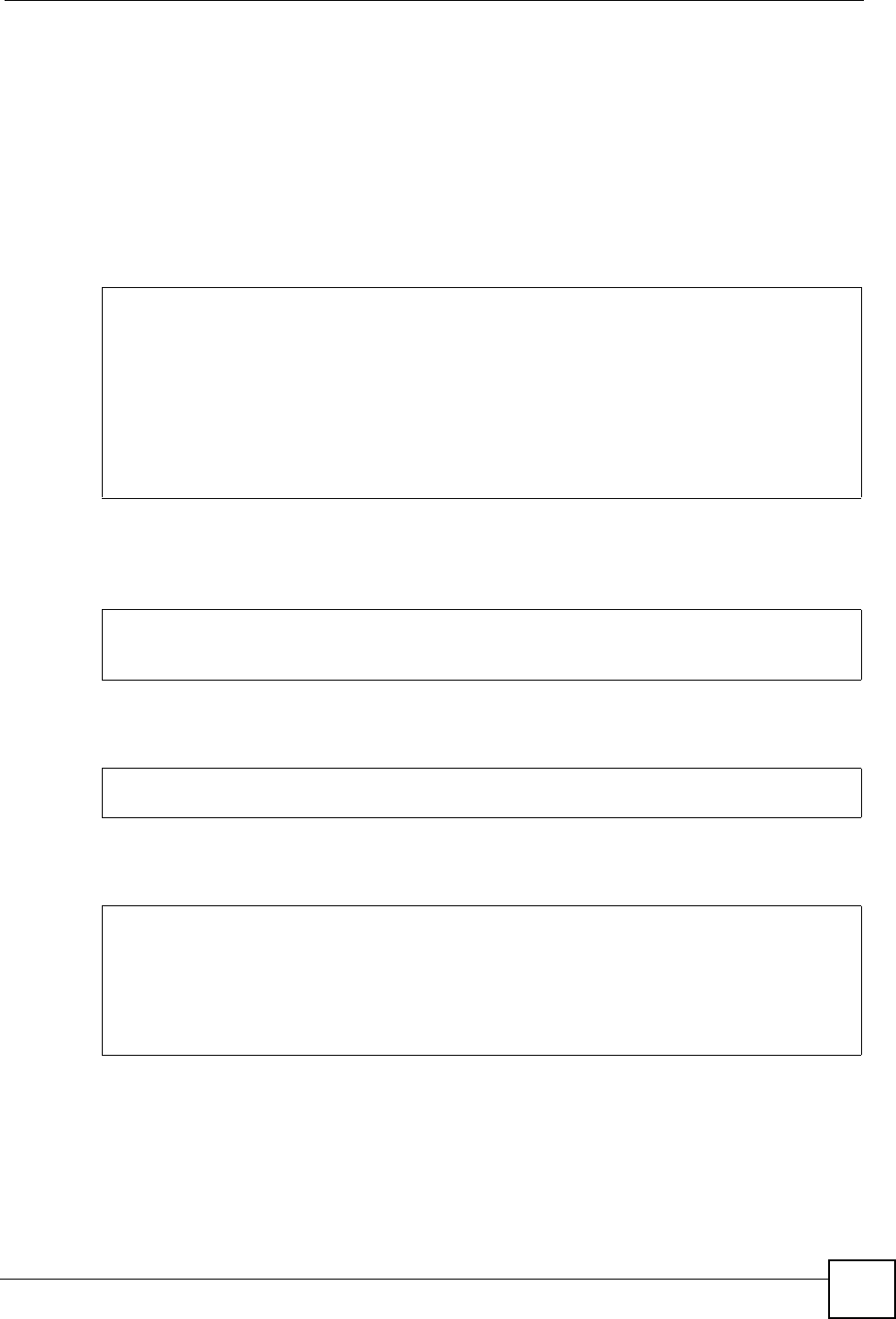
Chapter 41 Maintenance Tools
NXC CLI Reference Guide 265
Then configure the following settings to capture packets going through the NXC’s WAN1
interface only (this means you have to remove LAN2 and WAN2 from the iface list).
• IP address: any
• Host IP: any
• Host port: any (then you do not need to configure this setting)
• File suffix: Example
• File size: 10000 byes
• Duration: 150 seconds
Exit the sub-command mode and have the NXC capture packets according to the settings you
just configured.
Manually stop the running packet capturing.
Check current packet capture status and list all packet captures the NXC has performed.
You can use FTP to download a capture file. Open and study it using a packet analyzer tool
(for example, Ethereal or Wireshark).
Router(config)# packet-capture configure
Router(packet-capture)# iface add wan1
Router(packet-capture)# iface del lan2
Router(packet-capture)# iface del wan2
Router(packet-capture)# ip-type any
Router(packet-capture)# host-ip any
Router(packet-capture)# file-suffix Example
Router(packet-capture)# files-size 10000
Router(packet-capture)# duration 150
Router(packet-capture)#
Router(packet-capture)# exit
Router(config)# packet-capture activate
Router(config)#
Router(config)# no packet-capture activate
Router(config)#
Router(config)# show packet-capture status
capture status: off
Router(config)# dir /packet_trace
File Name Size Modified Time
===========================================================================
wan1-Example.cap 575160 2009-11-24 09:06:59
Router(config)#

Chapter 41 Maintenance Tools
NXC CLI Reference Guide
266
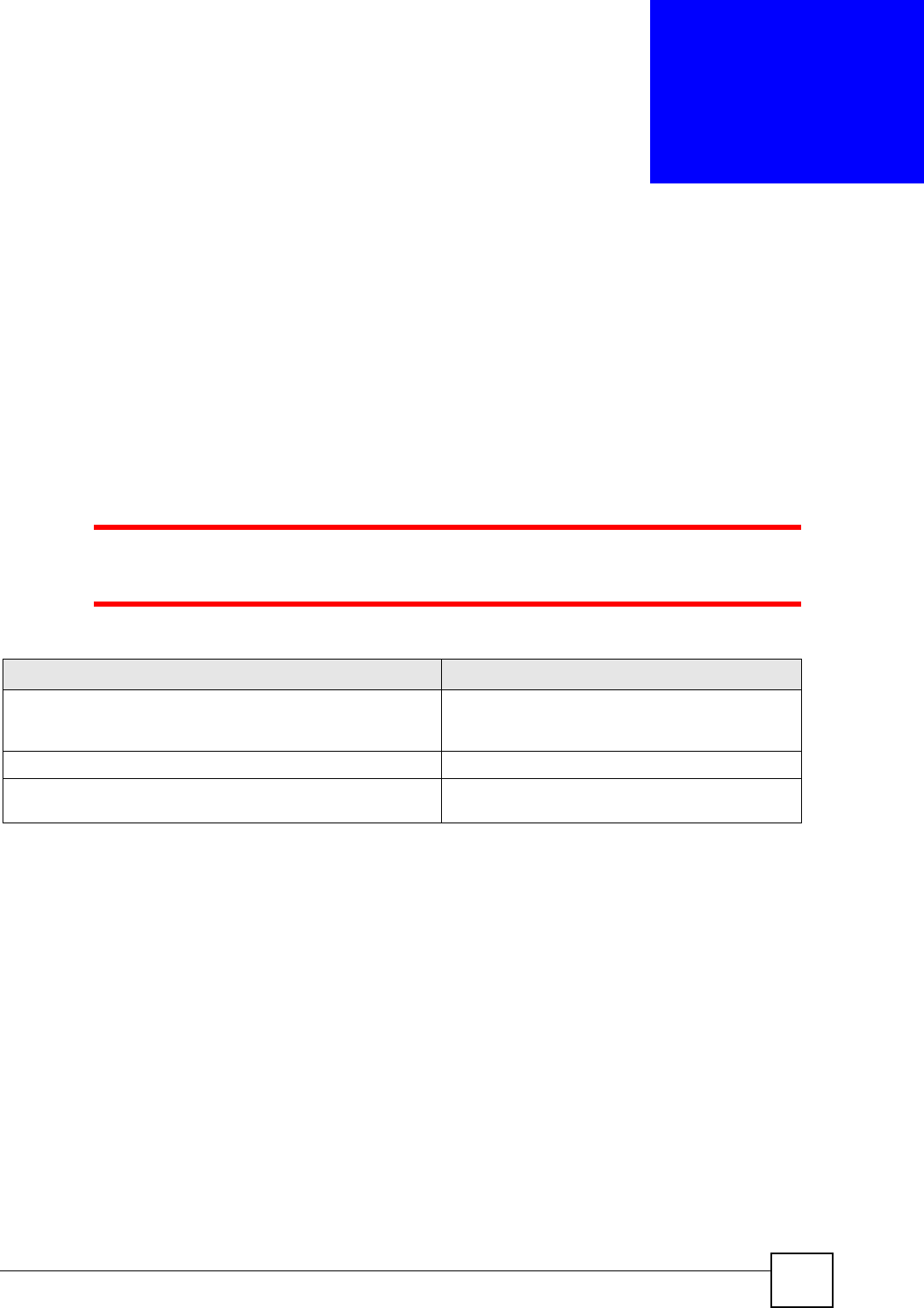
NXC CLI Reference Guide 267
CHAPTER 42
Watchdog Timer
This chapter provides information about the NXC’s watchdog timers.
42.1 Hardware Watchdog Timer
The hardware watchdog has the system restart if the hardware fails.
The hardware-watchdog-timer commands are for support engineers. It
is recommended that you not modify the hardware watchdog timer settings.
42.2 Software Watchdog Timer
The software watchdog has the system restart if the core firmware fails.
Table 154 hardware-watchdog-timer Commands
COMMAND DESCRIPTION
[no] hardware-watchdog-timer <4..37> Sets how long the system’s hardware can be
unresponsive before resetting. The no command
turns the timer off.
hardware-watchdog-timer start Enables the hardware watchdog timer.
show hardware-watchdog-timer status Displays the settings of the hardware watchdog
timer.

Chapter 42 Watchdog Timer
NXC CLI Reference Guide
268
The software-watchdog-timer commands are for support engineers. It
is recommended that you not modify the software watchdog timer settings.
42.3 Application Watchdog
The application watchdog has the system restart a process that fails. These are the app-
watchdog commands. Use the configure terminal command to enter the configuration
mode to be able to use these commands.
Table 155 software-watchdog-timer Commands
COMMAND DESCRIPTION
[no] software-watchdog-timer timer Sets how long the system’s core firmware can be
unresponsive before resetting. The no command
turns the timer off.
timer: 10 to 600 (NXC5200) or 10 to 60
(NXC2500).
show software-watchdog-timer status Displays the settings of the software watchdog
timer.
show software-watchdog-timer log Displays a log of when the software watchdog timer
took effect.
Table 156 app-watchdog Commands
COMMAND DESCRIPTION
[no] app-watch-dog activate Turns the application watchdog timer on or off.
[no] app-watch-dog alert Has the NXC send an alert the user when the system is out of memory
or disk space.
[no] app-watch-dog auto-recover If app-watch-dog detects a dead process, app-watch-dog will try to auto
recover. The no command turns off auto-recover.
[no] app-watch-dog console-
print {always|once}
Display debug messages on the console (every time they occur or
once). The no command changes the setting back to the default.
[no] app-watch-dog cpu-
threshold min <1..100> max
<1..100>
Sets the percentage thresholds for sending a CPU usage alert. The
NXC starts sending alerts when CPU usage exceeds the maximum (the
second threshold you enter). The NXC stops sending alerts when the
CPU usage drops back below the minimum threshold (the first threshold
you enter). The no command changes the setting back to the default.
[no] app-watch-dog disk-
threshold min <1..100> max
<1..100>
Sets the percentage thresholds for sending a disk usage alert. The NXC
starts sending alerts when disk usage exceeds the maximum (the
second threshold you enter). The NXC stops sending alerts when the
disk usage drops back below the minimum threshold (the first threshold
you enter). The no command changes the setting back to the default.
[no] app-watch-dog interval
interval
Sets how frequently (in seconds) the NXC checks the system
processes. The no command changes the setting back to the default.
interval: 5 to 60 (NXC5200) or 5 to 300 (NXC2500).

Chapter 42 Watchdog Timer
NXC CLI Reference Guide 269
42.3.1 Application Watchdog Commands Example
The following example displays the application watchdog configuration.
[no] app-watch-dog mem-
threshold min <1..100> max
<1..100>
Sets the percentage thresholds for sending a memory usage alert. The
NXC starts sending alerts when memory usage exceeds the maximum
(the second threshold you enter). The NXC stops sending alerts when
the memory usage drops back below the minimum threshold (the first
threshold you enter). The no command changes the setting back to the
default.
app-watch-dog reboot-log flush Flushes the reboot log record.
[no] app-watch-dog retry-count
<1..5>
Set how many times the NXC is to re-check a process before
considering it failed. The no command changes the setting back to the
default.
[no] app-watch-dog sys-reboot If auto recover fail reaches the maximum retry count, app-watch-dog
reboots the device. The no command turns off system auto reboot.
show app-watch-dog config Displays the application watchdog timer settings.
show app-watch-dog monitor-list Displays the list of applications that the application watchdog is
monitoring.
show app-watch-dog reboot-log Displays the application watchdog reboot log.
Table 156 app-watchdog Commands
COMMAND DESCRIPTION
Router# configure terminal
Router(config)# show app-watch-dog config
Application Watch Dog Setting:
activate: yes
alert: yes
console print: always
retry count: 3
auto recover: yes
system reboot: yes
interval: 60 seconds
mem threshold: 80% ~ 90%
cpu threshold: 80% ~ 90%
disk threshold: 80% ~ 90%
Router(config)#

Chapter 42 Watchdog Timer
NXC CLI Reference Guide
270
The following example lists the processes that the application watchdog is monitoring.
Router# configure terminal
Router(config)# show app-watch-dog monitor-list
#app_name min_process_count max_process_count(-1 unlimited) recover_enable
recover_reboot recover_always recover_max_try_count ecover_max_fail_count
uamd 1 -1 1
2 1 1 3
firewalld 1 -1 0
1 1 1 3
policyd 1 -1 1
1 1 1 3
classify 1 -1 0
1 1 1 3
resd 1 -1 0
1 1 1 3
zyshd_wd 1 -1 0
1 1 1 3
zyshd 1 -1 0
0 1 1 3
httpd 1 -1 1
httpd 1 -1 1
dhcpd 1 -1 1
1 1 1 3
zylogd 1 -1 0
1 1 1 3
syslog-ng 1 -1 0
1 1 1 3
zylogger 1 -1 0
1 1 1 3
ddns_had 1 -1 0
1 1 1 3
zebra 1 -1 0
1 1 1 3
link_updown 1 -1 0
1 1 1 3
fauthd 1 -1 0
1 1 1 3
signal_wrapper 1 -1 0
1 1 1 3
capwap_srv 1 1 0
1 1 1 3
ipmonitord 1 -1 0
1 1 1 3
Router(config)#

NXC CLI Reference Guide 271
CHAPTER 43
Managed AP Commands
Connect directly to a managed AP’s CLI (Command Line Interface) to configure the managed
AP’s CAPWAP (Control And Provisioning of Wireless Access Points) client and DNS server
settings.
43.1 Managed Series AP Commands Overview
Log into an AP’s CLI and use the commands in this chapter if the AP does not automatically
connect to the NXC or you need to configure the AP’s DNS server. Use the CAPWAP client
commands to configure settings to let the AP connect to the NXC. Use the DNS server
commands to configure the DNS server address to which the AP connects. When the AP
reboots, it only keeps the configuration from commands covered in this chapter.
43.2 Accessing the AP CLI
Connect to the AP’s console port and use a terminal emulation program or connect through the
network using Telnet or SSH. The settings and steps for logging in are similar to connecting to
the NXC. See Section 1.2 on page 15 for details.
The AP’s default login username is admin and password is 1234. The
username and password are case-sensitive. If the AP has connected to the
NXC, the AP uses the same admin password as the NXC.
Use the write command to save the current configuration to the NXC.
Always save the changes before you log out after each management session.
All unsaved changes will be lost after the system restarts.

Chapter 43 Managed AP Commands
NXC CLI Reference Guide
272
43.3 CAPWAP Client Commands
Use the CAPWAP client commands to configure the AP’s IP address and other related
management interface settings. Do not use the original interface commands to configure the IP
address and related settings on the AP, because the AP does not save interface command
settings after rebooting.
The following table identifies the values required for many of these commands. Other input
values are discussed with the corresponding commands.
The following table describes commands for configuring the AP’s CAPWAP client
parameters, which include the management interface. You must use the configure
terminal command to enter the configuration mode before you can use these commands.
Table 157 Input Values for CAPWAP Client Commands
LABEL DESCRIPTION
ip IPv4 address.
netmask The network subnet mask. For example, 255.255.255.0.
gateway The default gateway IP address of the interface. Enter a standard IPv4 IP
address (for example, 127.0.0.1).
primary_ac_ap The primary IPv4 address of the NXC.
secondary_ac_ap Optional IPv4 address of the NXC.
vid The VLAN ID (1~4094) of the managed AP.
primary_ac_dns The primary fully qualified domain name (FQDN) of the NXC.
secondary_ac_dns The secondary fully qualified domain name (FQDN) of the NXC.
Table 158 Command Summary: CAPWAP Client
COMMAND DESCRIPTION
capwap ap vlan ip address ip netmask Sets the IP address and network mask of the AP’s
management interface.
capwap ap vlan ip gateway gateway Sets the default gateway IP address for the AP’s
management interface.
capwap ap vlan no ip gateway Clears the default gateway IP address setting for the AP’s
management interface.
capwap ap vlan vlan-id vid { tag | untag } Sets the AP’s management VLAN ID as well as whether
the AP sends tagged or untagged packets. The
management VLAN on the NXC and AP must match for
the NXC to manage the AP. The NXC’s force vlan
command (see Table 29 on page 74) takes priority over
this command.
capwap ap ac-ip
{primary_ac_ip|primary_ac_dns}
{secondary_ac_ip|secondary_ac_dns}
Specifies the primary and secondary IP address or
domain name of the AP controller (the NXC) to which the
AP connects.
capwap ap ac-ip auto Sets the AP to use DHCP to get the address of the AP
controller (the NXC).
show capwap ap info Displays the IP address of the NXC managing the AP and
CAPWAP settings and status.
show capwap ap discovery-type Displays how the AP finds the NXC.
show capwap ap ac-ip Displays the address of the NXC or auto if the AP finds
the NXC through broadcast packets.

Chapter 43 Managed AP Commands
NXC CLI Reference Guide 273
43.3.1 CAPWAP Client Commands Example
This example shows how to configure the AP’s management interface and how it connects to
the AP controller (the NXC), and check the connecting status. The following commands:
• Display how the AP finds the NXC
• Set the AP’s management IP address to 192.168.1.37 and netmask 255.255.255.0
• Set the AP’s default gateway IP address to 192.168.1.32
• Sets the AP’s management interface to use VLAN ID 2 and send tagged packets
• Specifies the primary and secondary IP addresses of the NXC (192.168.1.1 and
192.168.1.2) to which the AP connects.
• Displays the settings it configured
Router# configure terminal
Router(config)# show capwap ap discovery-type
Discovery type : Broadcast
Router(config)# capwap ap vlan ip address 192.168.1.37 255.255.255.0
Router(config)# capwap ap vlan ip gateway 192.168.1.32
Router(config)# capwap ap vlan vlan-id 2 tag
Router(config)# capwap ap ac-ip 192.168.1.1 192.168.1.2
Router(config)# show capwap ap discovery-type
Discovery type : Static AC IP
Router(config)# show capwap ap ac-ip
AC IP: 192.168.1.1 192.168.1.2
Router(config)# exit
Router# show capwap ap info
AC-IP 192.168.1.1
Discovery type Static AC IP
SM-State RUN(8)
msg-buf-usage 0/10 (Usage/Max)
capwap-version 10118
Radio Number 1/4 (Usage/Max)
BSS Number 8/8 (Usage/Max)
IANA ID 037a
Description AP-0013499999FF

Chapter 43 Managed AP Commands
NXC CLI Reference Guide
274
43.4 DNS Server Commands
The following table describes commands for configuring the AP’s DNS server. You must use
the configure terminal command to enter the configuration mode before you can use
these commands.
43.4.1 DNS Server Commands Example
This example configures the AP to connect to the AP controller (the NXC) by DNS. The
following commands:
• Set the AP’s management IP address to 192.168.1.100 and netmask 255.255.255.0
• Sets the AP’s management interface to use VLAN ID 3
• Set the AP’s default gateway IP address to 192.168.1.1
• Add a domain zone forwarder record that specifies a DNS server’s IP address of 10.1.1.1
and uses the bridge 0 interface to send queries to that DNS server
• Set the AP controller’s primary domain name as capwap-server.zyxel.com and secondary
domain name as capwap.test.com
Table 159 Command Summary: DNS Server
COMMAND DESCRIPTION
ip dns server zone-forwarder
{<1..32>|append|insert <1..32>}
{domain_zone_name|*} {interface
interface_name | user-defined
ipv4_address [interface {interface_name |
auto}]}
Sets a domain zone forwarder record that specifies a fully
qualified domain name. You can also use a asterisk (*) if
all domain zones are served by the specified DNS
server(s).
domain_zone_name: This is a domain zone, not a host.
For example, zyxel.com.tw is the domain zone for the
www.zyxel.com.tw fully qualified domain name. So
whenever the NXC receives needs to resolve a
zyxel.com.tw domain name, it can send a query to the
recorded name server IP address.
interface_name: This is the interface through which
the ISP provides a DNS server. The interface should be
activated and set to be a DHCP client.
auto: any interface that the NXC uses to send DNS
queries to a DNS server according to the routing rule.
ip dns server zone-forwarder move <1..32>
to <1..32>
Changes the index number of a zone forwarder record.
no ip dns server zone-forwarder <1..4> Removes the specified zone forwarder record.
Router(config)# capwap ap vlan ip address 192.168.1.100 255.255.255.0
Router(config)# capwap ap vlan vlan-id 3
Router(config)# capwap ap vlan ip gateway 192.168.1.1
Router(config)# ip dns server zone-forwarder append * user-defined 10.1.1.1
interface br0
Router(config)# capwap ap ac-ip capwap-server.zyxel.com capwap.test.com

Chapter 43 Managed AP Commands
NXC CLI Reference Guide 275
43.4.2 DNS Server Commands and DHCP
The AP in the example in Section 43.4.1 on page 274 uses a static IP address. If the AP uses
DHCP instead, you do not need to configure the DNS server’s IP address on the AP when you
configure DHCP option 6 on the DHCP server. For the example in Section 43.4.1 on page 274,
you would just need to configure the management interface’s VLAN ID (capwap ap vlan
vlan-id 3).

Chapter 43 Managed AP Commands
NXC CLI Reference Guide
276

List of Commands
NXC CLI Reference Guide 277
List of Commands
This section lists the root commands in alphabetical order.
[no] 2g-scan-channel wireless_channel_2g ......................................... 81
[no] 5g-scan-channel wireless_channel_5g ......................................... 81
[no] aaa authentication {profile-name} .......................................... 193
[no] aaa authentication default member1 [member2] [member3] [member4] ........... 194
[no] aaa authentication profile-name member1 [member2] [member3] [member4] ...... 194
[no] aaa group server ad group-name ............................................. 188
[no] aaa group server ldap group-name ........................................... 189
[no] aaa group server radius group-name ......................................... 191
[no] access-page color-window-background ........................................ 208
[no] access-page message-text message ........................................... 208
[no] action-block {login|message|audio|video|file-transfer} ..................... 129
[no] action-block {login|message|audio|video|file-transfer} ..................... 131
[no] activate ................................................................... 115
[no] activate ................................................................... 122
[no] activate ................................................................... 125
[no] activate ................................................................... 129
[no] activate ................................................................... 131
[no] activate ................................................................... 132
[no] activate ................................................................... 139
[no] activate ................................................................... 147
[no] activate ................................................................... 197
[no] activate .................................................................... 78
[no] activate .................................................................... 81
[no] address address_object ..................................................... 125
[no] address-object object_name ................................................. 179
[no] alg <h323 | ftp> [signal-port <1025..65535> | signal-extra-port <1025..65535> |
transformation] .......................................................... 112
[no] alg sip [inactivity-timeout | signal-port <1025..65535> | signal-extra-port
<1025..65535> | media-timeout <1..86400> | signal-timeout <1..86400> | transfor-
mation] .................................................................. 112
[no] alg sip defaultport <1..65535> ............................................. 112
[no] ampdu ....................................................................... 80
[no] amsdu ....................................................................... 80
[no] anti-virus activate ........................................................ 138
[no] anti-virus black-list activate ............................................. 141
[no] anti-virus black-list file-pattern av_file_pattern {activate|deactivate} ... 141
[no] anti-virus eicar activate .................................................. 138
[no] anti-virus skip-unknown-file-type activate ................................. 138
[no] anti-virus statistics collect .............................................. 143
[no] anti-virus update auto ..................................................... 142
[no] anti-virus white-list activate ............................................. 140
[no] anti-virus white-list file-pattern av_file_pattern {activate|deactivate} ... 140
[no] app activate ............................................................... 133
[no] app highest sip bandwidth priority ......................................... 133
[no] app other protocol_name bandwidth-graph .................................... 133
[no] app protocol_name activate ................................................. 128
[no] app protocol_name bandwidth-graph .......................................... 133
[no] app protocol_name defaultport <1..65535> ................................... 128
[no] app-watch-dog activate ..................................................... 268
[no] app-watch-dog alert ........................................................ 268

List of Commands
NXC CLI Reference Guide
278
[no] app-watch-dog auto-recover ................................................. 268
[no] app-watch-dog console-print {always|once} .................................. 268
[no] app-watch-dog cpu-threshold min <1..100> max <1..100> ...................... 268
[no] app-watch-dog disk-threshold min <1..100> max <1..100> ..................... 268
[no] app-watch-dog interval interval ............................................ 268
[no] app-watch-dog mem-threshold min <1..100> max <1..100> ...................... 269
[no] app-watch-dog retry-count <1..5> ........................................... 269
[no] app-watch-dog sys-reboot ................................................... 269
[no] arp reply restricted ....................................................... 263
[no] authentication {force | required} .......................................... 115
[no] auth-server activate ....................................................... 197
[no] auth-server cert certificate_name .......................................... 197
[no] auth-server trusted-client profile_name .................................... 197
[no] auto-disable ................................................................ 66
[no] bandwidth <1..1048576> priority <1..1024> [maximize-bandwidth-usage] ........ 66
[no] bandwidth excess-usage ..................................................... 129
[no] bandwidth excess-usage ..................................................... 131
[no] bandwidth excess-usage ..................................................... 132
[no] block ...................................................................... 108
[no] block-ack ................................................................... 80
[no] bwm activate ............................................................... 133
[no] bwm activate ................................................................ 66
[no] bypass {white-list | black-list} ........................................... 139
[no] client-identifier mac_address ............................................... 54
[no] client-name host_name ....................................................... 54
[no] clock daylight-saving ...................................................... 210
[no] clock saving-interval begin {apr|aug|dec|feb|jan|jul|jun|mar|may|nov|oct|sep}
{1|2|3|4|last} {fri|mon|sat|sun|thu|tue|wed} hh:mm end
{apr|aug|dec|feb|jan|jul|jun|mar|may|nov|oct|sep} {1|2|3|4|last}
{fri|mon|sat|sun|thu|tue|wed} hh:mm offset ............................... 210
[no] clock time-zone {-|+hh} .................................................... 210
[no] connectivity-check continuous-log activate ................................. 242
[no] connectivity-check continuous-log activate .................................. 57
[no] connlimit max-per-host <1..8192> ........................................... 120
[no] console baud baud_rate ..................................................... 211
[no] corefile copy usb-storage ................................................... 61
[no] ctmatch {dnat | snat} ...................................................... 122
[no] ctsrts <0..2347> ............................................................ 79
[no] dcs activate ................................................................ 95
[no] deactivate .................................................................. 66
[no] debug enc-agent activate ................................................... 201
[no] debug enc-agent stderr ..................................................... 201
[no] default-router ip ........................................................... 54
[no] description description .................................................... 104
[no] description description .................................................... 115
[no] description description .................................................... 122
[no] description description .................................................... 125
[no] description description .................................................... 171
[no] description description .................................................... 180
[no] description description .................................................... 183
[no] description description .................................................... 198
[no] description description ..................................................... 50
[no] description description ..................................................... 54
[no] description description ..................................................... 66
[no] destination {address_object|any} ............................................ 66
[no] destination address_object ................................................. 115
[no] destination address_object ................................................. 129
[no] destination address_object ................................................. 131
[no] destination profile_name ................................................... 132

List of Commands
NXC CLI Reference Guide 279
[no] destinationip address_object ............................................... 122
[no] device-ha activate ......................................................... 164
[no] device-ha ap-mode authentication {string key | ah-md5 key} ................. 166
[no] device-ha ap-mode backup sync authentication password password ............. 166
[no] device-ha ap-mode backup sync auto ......................................... 166
[no] device-ha ap-mode backup sync from master_address port <1..65535> .......... 166
[no] device-ha ap-mode backup sync interval <5..1440> ........................... 166
[no] device-ha ap-mode interface_name activate .................................. 166
[no] device-ha ap-mode interface_name manage-ip ip subnet_mask .................. 166
[no] device-ha ap-mode master sync authentication password password ............. 166
[no] device-ha ap-mode preempt .................................................. 165
[no] diag-info copy usb-storage .................................................. 61
[no] disable-dfs-switch .......................................................... 79
[no] domainname <domain_name> ................................................... 209
[no] domain-name domain_name ..................................................... 54
[no] dot11n-disable-coexistence .................................................. 79
[no] downstream <0..1048576> ..................................................... 50
[no] dscp {any | <0..63>} ........................................................ 66
[no] dscp class {default | dscp_class} ........................................... 66
[no] duplex <full | half> ........................................................ 59
[no] dynamic-guest message-text note ............................................ 104
[no] enc-agent activate ......................................................... 199
[no] error-url <url> ............................................................ 114
[no] file-decompression [unsupported destroy] ................................... 139
[no] firewall activate .......................................................... 121
[no] first-dns-server {ip | interface_name {1st-dns | 2nd-dns | 3rd-dns} | EnterpriseW-
LAN} ...................................................................... 55
[no] first-wins-server ip ........................................................ 55
[no] flood-detection {tcp-flood | udp-flood | ip-flood | icmp-flood} {activate | log
[alert] | block} ......................................................... 150
[no] force ...................................................................... 115
[no] frag <256..2346> ............................................................ 79
[no] frame-capture activate ...................................................... 94
[no] from zone_name ............................................................. 129
[no] from zone_name ............................................................. 131
[no] from zone_name ............................................................. 132
[no] from zone_object ........................................................... 122
[no] from-zone zone_object ...................................................... 139
[no] from-zone zone_profile ..................................................... 147
[no] groupname groupname ........................................................ 103
[no] groupname groupname ........................................................ 171
[no] groupname groupname ........................................................ 171
[no] hardware-address mac_address ................................................ 53
[no] hardware-watchdog-timer <4..37> ............................................ 267
[no] host ip ..................................................................... 53
[no] hostname <hostname> ........................................................ 209
[no] htprotection ................................................................ 81
[no] http-inspection {http-xxx} action {drop | reject-sender | reject-receiver | reject-
both}} ................................................................... 150
[no] http-inspection {http-xxx} activate ........................................ 150
[no] icmp-decoder {truncated-header | truncated-timestamp-header | truncated-address-
header} activate ......................................................... 151
[no] idp ........................................................................ 146
[no] idp {signature | system-protect} update auto ............................... 160
[no] idp statistics collect ..................................................... 161
[no] inbound-dscp-mark {<0..63> | class {default | dscp_class}} ................. 129
[no] inbound-dscp-mark {<0..63> | class {default | dscp_class}} ................. 131
[no] inbound-dscp-mark {<0..63> | class {default | dscp_class}} ................. 133
[no] infected-action {destroy | send-win-msg} ................................... 139

List of Commands
NXC CLI Reference Guide
280
[no] interface {interface_name | EnterpriseWLAN} ................................. 67
[no] interface interface_name ................................................... 108
[no] interface interface_name .................................................... 50
[no] interface virtual_interface ................................................. 63
[no] ip address dhcp ............................................................. 50
[no] ip address dhcp [metric <0..15>] ............................................ 63
[no] ip address ip subnet_mask .................................................. 197
[no] ip address ip subnet_mask ................................................... 50
[no] ip address ip_address netmask ............................................... 63
[no] ip dhcp pool profile_name ................................................... 53
[no] ip dhcp-pool profile_name ................................................... 55
[no] ip dhcp-pool profile_name ................................................... 64
[no] ip dns server a-record fqdn w.x.y.z ........................................ 211
[no] ip dns server mx-record domain_name {w.x.y.z|fqdn} ......................... 211
[no] ip ftp server .............................................................. 219
[no] ip ftp server cert certificate_name ........................................ 219
[no] ip ftp server port <1..65535> .............................................. 219
[no] ip ftp server tls-required ................................................. 219
[no] ip gateway gateway [metric <0..15>] ......................................... 63
[no] ip gateway ip ............................................................... 50
[no] ip helper-address ip ........................................................ 55
[no] ip helper-address ip_address ................................................ 64
[no] ip http authentication auth_method ......................................... 214
[no] ip http port <1..65535> .................................................... 214
[no] ip http secure-port <1..65535> ............................................. 214
[no] ip http secure-server ...................................................... 214
[no] ip http secure-server auth-client .......................................... 214
[no] ip http secure-server cert certificate_name ................................ 214
[no] ip http secure-server force-redirect ....................................... 215
[no] ip http server ............................................................. 215
[no] ip route {w.x.y.z} {w.x.y.z} {interface|w.x.y.z} [<0..127>] ................. 70
[no] ip ssh server .............................................................. 216
[no] ip ssh server cert certificate_name ........................................ 216
[no] ip ssh server port <1..65535> .............................................. 217
[no] ip ssh server v1 ........................................................... 217
[no] ip telnet server ........................................................... 218
[no] ip telnet server port <1..65535> ........................................... 218
[no] item cf-report ............................................................. 251
[no] item mem-usage ............................................................. 251
[no] lease {<0..365> [<0..23> [<0..59>]] | infinite} ............................. 55
[no] limit <0..8192> ............................................................ 125
[no] load-balancing activate .................................................... 100
[no] load-balancing kickout ...................................................... 99
[no] log [alert] ................................................................ 122
[no] log [alert] ................................................................ 129
[no] log [alert] ................................................................ 131
[no] log [alert] ................................................................ 133
[no] log [alert] ................................................................ 139
[no] logging console ............................................................ 246
[no] logging console category module_name ....................................... 246
[no] logging debug suppression .................................................. 243
[no] logging debug suppression interval <10..600> ............................... 243
[no] logging mail <1..2> ........................................................ 244
[no] logging mail <1..2> {send-log-to | send-alerts-to} e_mail .................. 245
[no] logging mail <1..2> address {ip | hostname} ................................ 244
[no] logging mail <1..2> authentication ......................................... 244
[no] logging mail <1..2> authentication username username password password ..... 244
[no] logging mail <1..2> category module_name level {alert | all} ............... 245
[no] logging mail <1..2> from e_mail ............................................ 245

List of Commands
NXC CLI Reference Guide 281
[no] logging mail <1..2> schedule {full | hourly} ............................... 245
[no] logging mail <1..2> subject subject ........................................ 245
[no] logging syslog <1..4> ...................................................... 244
[no] logging syslog <1..4> address {ip | hostname} .............................. 244
[no] logging syslog <1..4> category {disable | level normal | level all} ........ 244
[no] logging syslog <1..4> facility {local_1 | local_2 | local_3 | local_4 | local_5 |
local_6 | local_7} ....................................................... 244
[no] logging syslog <1..4> format {cef | vrpt} .................................. 244
[no] logging system-log suppression ............................................. 242
[no] logging system-log suppression interval <10..600> .......................... 242
[no] logging usb-storage ......................................................... 61
[no] login-page color-background ................................................ 208
[no] login-page message-text message ............................................ 208
[no] login-url <url> ............................................................ 114
[no] logout-url <url> ........................................................... 114
[no] mac-auth database mac mac address type ext-mac-address mac-role username description
description .............................................................. 173
[no] mac-auth database mac mac address type int-mac-address mac-role username description
description .............................................................. 173
[no] mac-auth database mac oui type ext-oui mac-role username description description
173
[no] mac-auth database mac oui type int-oui mac-role username description description
173
[no] mail-subject append date-time .............................................. 251
[no] mss <536..1460> ............................................................. 51
[no] mtu <576..1500> ............................................................. 51
[no] multicast-to-unicast ........................................................ 80
[no] negotiation auto ............................................................ 59
[no] next-hop {auto|gateway address object | interface interface_name} ........... 67
[no] ntp ........................................................................ 210
[no] ntp server {fqdn|w.x.y.z} .................................................. 210
[no] object-group address group_name ............................................ 179
[no] object-group group_name .................................................... 179
[no] object-group group_name .................................................... 183
[no] object-group service group_name ............................................ 182
[no] outbound-dscp-mark {<0..63> | class {default | dscp_class}} ................ 130
[no] outbound-dscp-mark {<0..63> | class {default | dscp_class}} ................ 131
[no] outbound-dscp-mark {<0..63> | class {default | dscp_class}} ................ 133
[no] packet-capture activate .................................................... 262
[no] page-customization ......................................................... 116
[no] ping-check activate ......................................................... 57
[no] policy override-direct-route activate ....................................... 67
[no] port <0..65535> ............................................................ 132
[no] protocol {tcp | udp} ....................................................... 132
[no] report ..................................................................... 249
[no] rssi-thres .................................................................. 78
[no] scan {http | ftp | imap4 | smtp | pop3} .................................... 139
[no] scan-detection {icmp-sweep | icmp-filtered-sweep} {activate | log [alert] | block}
150
[no] scan-detection {ip-xxx} {activate | log [alert] | block} ................... 150
[no] scan-detection {tcp-xxx} {activate | log [alert] | block} .................. 149
[no] scan-detection {udp-xxx} {activate | log [alert] | block} .................. 149
[no] scan-detection open-port {activate | log [alert] | block} .................. 150
[no] schedule profile_name ...................................................... 132
[no] schedule schedule_name ..................................................... 115
[no] schedule schedule_name ..................................................... 130
[no] schedule schedule_name ..................................................... 131
[no] schedule schedule_object ................................................... 122
[no] schedule schedule_object .................................................... 67

List of Commands
NXC CLI Reference Guide
282
[no] second-dns-server {ip | interface_name {1st-dns | 2nd-dns | 3rd-dns} | EnterpriseW-
LAN} ...................................................................... 55
[no] second-wins-server ip ....................................................... 55
[no] secret secret .............................................................. 197
[no] server acct-address radius_server acct-port port ........................... 191
[no] server acct-interim activate ............................................... 192
[no] server acct-interim-interval <1..1440> ..................................... 191
[no] server acct-retry-count <retry_times> ...................................... 191
[no] server acct-secret key ..................................................... 191
[no] server alternative-cn-identifier uid ....................................... 188
[no] server alternative-cn-identifier uid ....................................... 189
[no] server basedn basedn ....................................................... 188
[no] server basedn basedn ....................................................... 189
[no] server binddn binddn ....................................................... 188
[no] server binddn binddn ....................................................... 190
[no] server cn-identifier uid ................................................... 188
[no] server cn-identifier uid ................................................... 190
[no] server description description ............................................. 188
[no] server description description ............................................. 190
[no] server description description ............................................. 191
[no] server domain-auth activate ................................................ 189
[no] server group-attribute <1-255> ............................................. 191
[no] server group-attribute group-attribute ..................................... 188
[no] server group-attribute group-attribute ..................................... 190
[no] server host ad_server ...................................................... 188
[no] server host ldap_server .................................................... 190
[no] server host radius_server auth-port port ................................... 191
[no] server key secret .......................................................... 191
[no] server nas-id <nas_identifier> ............................................. 191
[no] server nas-ip <nas_address> ................................................ 192
[no] server password password ................................................... 188
[no] server password password ................................................... 190
[no] server port port_no ........................................................ 189
[no] server port port_no ........................................................ 190
[no] server search-time-limit time .............................................. 189
[no] server search-time-limit time .............................................. 190
[no] server ssl ................................................................. 189
[no] server ssl ................................................................. 190
[no] server timeout time ........................................................ 191
[no] server-auth <1..2> .......................................................... 87
[no] service {service_name|any} .................................................. 67
[no] service service_name ....................................................... 122
[no] service-object object_name ................................................. 182
[no] session-limit activate ..................................................... 125
[no] session-url <url> .......................................................... 115
[no] shutdown .................................................................... 51
[no] shutdown .................................................................... 64
[no] signature sid activate ..................................................... 148
[no] signature sid activate ..................................................... 153
[no] smtp-auth activate ......................................................... 251
[no] snat {outgoing-interface|pool {address_object}} ............................. 67
[no] snmp-server ................................................................ 221
[no] snmp-server community community_string {ro|rw} ............................. 221
[no] snmp-server contact description ............................................ 221
[no] snmp-server enable {informs|traps} ......................................... 221
[no] snmp-server host {fqdn | ipv4_address} [community_string] .................. 221
[no] snmp-server location description ........................................... 221
[no] snmp-server port <1..65535> ................................................ 221
[no] software-watchdog-timer timer .............................................. 268

List of Commands
NXC CLI Reference Guide 283
[no] source {address_object|any} ................................................. 67
[no] source address_object ...................................................... 115
[no] source address_object ...................................................... 130
[no] source address_object ...................................................... 131
[no] source profile_name ........................................................ 132
[no] sourceip address_object .................................................... 122
[no] sourceport {tcp|udp} {eq <1..65535>|range <1..65535> <1..65535>} ........... 122
[no] speed <100,10> .............................................................. 59
[no] ssid_profile {ssid_profile} ................................................ 115
[no] ssid-profile wlan_interface_index ssid_profile .............................. 81
[no] starting-address ip pool-size <1..65535> .................................... 55
[no] tcp-decoder {tcp-xxx} action {drop | reject-sender | reject-receiver | reject-both}}
150
[no] tcp-decoder {tcp-xxx} activate ............................................. 150
[no] third-dns-server {ip | interface_name {1st-dns | 2nd-dns | 3rd-dns} | EnterpriseW-
LAN} ...................................................................... 55
[no] to {zone_object|EnterpriseWLAN} ............................................ 122
[no] to zone_name ............................................................... 130
[no] to zone_name ............................................................... 131
[no] to zone_name ............................................................... 132
[no] to-zone zone_object ........................................................ 139
[no] to-zone zone_profile ....................................................... 147
[no] trigger <1..8> incoming service_name trigger service_name ................... 67
[no] udp-decoder {truncated-header | undersize-len | oversize-len} activate ..... 150
[no] upstream <0..1048576> ....................................................... 51
[no] usb-storage activate ........................................................ 61
[no] user user_name ............................................................. 122
[no] user user_name ............................................................. 125
[no] user username .............................................................. 130
[no] user username .............................................................. 131
[no] user username .............................................................. 132
[no] user username .............................................................. 171
[no] user user_name .............................................................. 67
[no] users idle-detection ....................................................... 172
[no] users idle-detection timeout <1..60> ....................................... 172
[no] users lockout-period <1..65535> ............................................ 172
[no] users retry-count <1..99> .................................................. 172
[no] users retry-limit .......................................................... 172
[no] users simultaneous-logon {administration | access} enforce ................. 172
[no] users simultaneous-logon {administration | access} limit <1..1024> ......... 172
[no] users update-lease automation .............................................. 172
[no] web-auth activate .......................................................... 113
[no] welcome-url <url> .......................................................... 115
[no] wlan-macfilter-profile macfilter_profile_name ............................... 88
[no] wlan-monitor-profile monitor_profile_name ................................... 81
[no] wlan-radio-profile radio_profile_name ....................................... 78
[no] wlan-security-profile security_profile_name ................................. 85
[no] wlan-ssid-profile ssid_profile_name ......................................... 83
[no] wtp-logging console ........................................................ 247
[no] wtp-logging console category module_name level pri ......................... 247
[no] wtp-logging debug suppression .............................................. 247
[no] wtp-logging debug suppression interval <10..600> ........................... 247
[no] wtp-logging mail mail_range category module_name level {alert | all} ....... 247
[no] wtp-logging syslog syslog_range category module_name disable ............... 247
[no] wtp-logging syslog syslog_range category module_name level {normal | all} .. 247
[no] wtp-logging system-log category module_name disable ........................ 247
[no] wtp-logging system-log category module_name level {normal | all } .......... 247
[no] wtp-logging system-log suppression ......................................... 247
[no] wtp-logging system-log suppression interval <10..600> ...................... 247

List of Commands
NXC CLI Reference Guide
284
[no] zone profile_name .......................................................... 108
{11n | bg | a} ................................................................... 79
{signature | anomaly | system-protect} activate ................................. 146
{signature | anomaly | system-protect} activation ............................... 146
| uint32 <0..4294967295> | ip ipv4 [ ipv4 [ ipv4]] | fqdn fqdn [ fqdn [ fqdn]] | text
text | hex hex | vivc enterprise_id hex_s [enterprise_id hex_s ] | vivs
enterprise_id hex_s [enterprise_id hex_s ] ................................ 54
2g-basic-speed wlan_2g_basic_speed ............................................... 80
2g-channel wireless_channel_2g ................................................... 79
2g-mcs-speed {disable | wlan_mcs_speed} .......................................... 81
2g-multicast-speed wlan_2g_support_speed ......................................... 81
2g-support-speed {disable | wlan_2g_support_speed} ............................... 81
5g-basic-speed wlan_5g_basic_speed ............................................... 81
5g-channel wireless_channel_5g ................................................... 79
5g-mcs-speed {disable | wlan_mcs_speed} .......................................... 81
5g-multicast-speed {wlan_5g_basic_speed} ......................................... 81
5g-support-speed {disable | wlan_5g_support_speed} ............................... 81
aaa authentication rename profile-name-old profile-name-new ..................... 193
aaa group server ad group-name .................................................. 188
aaa group server ad rename group-name group-name ................................ 188
aaa group server ldap group-name ................................................ 189
aaa group server ldap rename group-name group-name .............................. 189
aaa group server radius group-name .............................................. 191
aaa group server radius rename {group-name-old} group-name-new .................. 191
access {forward | drop | reject} ................................................ 129
access {forward | drop | reject} ................................................ 131
access {forward | drop | reject} ................................................ 132
access-page message-color {color-rgb | color-name | color-number} ............... 208
access-page title <title> ....................................................... 208
access-page window-color {color-rgb | color-name | color-number} ................ 208
action {allow|deny|reject} ...................................................... 122
address address ................................................................. 104
address address ................................................................. 104
address-object list ............................................................. 178
address-object object_name {ip | ip_range | ip_subnet | interface-ip | interface-subnet
| interface-gateway} {interface} ......................................... 178
address-object rename object_name object_name ................................... 178
anti-virus black-list replace old_av_file_pattern new_av_file_pattern {activate|deacti-
vate} .................................................................... 141
anti-virus reload signatures .................................................... 138
anti-virus rule <1..64> ......................................................... 139
anti-virus rule append .......................................................... 138
anti-virus rule delete <1..64> .................................................. 139
anti-virus rule flush ........................................................... 139
anti-virus rule insert <1..64> .................................................. 138
anti-virus rule move <1..64> to <1..64> ......................................... 139
anti-virus search signature {all | category category | id id | name name | severity se-
verity [{from id to id}] ................................................. 142
anti-virus statistics flush ..................................................... 143
anti-virus update daily <0..23> ................................................. 142
anti-virus update hourly ........................................................ 142
anti-virus update signatures .................................................... 142
anti-virus update weekly {sun | mon | tue | wed | thu | fri | sat} <0..23> ...... 142
anti-virus white-list replace old_av_file_pattern new_av_file_pattern {activate|deacti-
vate} .................................................................... 140
app other {del | forward | drop | reject} ....................................... 131
app other <1..64> ............................................................... 132
app other append ................................................................ 132
app other default ............................................................... 132

List of Commands
NXC CLI Reference Guide 285
app other insert rule_number .................................................... 132
app other move rule_number to rule_number ....................................... 132
app protocol_name exception append .............................................. 130
app protocol_name exception default or app protocol_name exception modify default 130
app protocol_name exception insert rule_number .................................. 130
app protocol_name exception modify rule_number .................................. 130
app protocol_name exception move rule_number to rule_number ..................... 130
app protocol_name exception rule_number ......................................... 130
app protocol_name mode {portless | portbase} .................................... 128
app protocol_name rule append ................................................... 128
app protocol_name rule default or app protocol_name rule modify default ......... 129
app protocol_name rule insert rule_number ....................................... 128
app protocol_name rule rule_number or app protocol_name rule modify rule_number . 129
apply ............................................................................ 31
apply /conf/file_name.conf [ignore-error] [rollback] ............................ 227
app-watch-dog reboot-log flush .................................................. 269
arp ip_address mac_address ...................................................... 263
atse ............................................................................. 31
auth_method ..................................................................... 197
auth-server authentication ...................................................... 197
band {2.4G |5G} band-mode ........................................................ 79
bandwidth {inbound | outbound} <0..1048576> ..................................... 131
bandwidth {inbound|outbound} <0..1048576> ....................................... 129
bandwidth {inbound|outbound} <0..1048576> ....................................... 132
bandwidth priority <1..7> ....................................................... 129
bandwidth priority <1..7> ....................................................... 131
bandwidth priority <1..7> ....................................................... 132
bandwidth-graph ................................................................. 128
beacon-interval <40..1000> ....................................................... 80
bind profile .................................................................... 147
ca enroll cmp name certificate_name cn-type {ip cn cn_address|fqdn cn cn_domain_name|mail
cn cn_email} [ou organizational_unit] [o organization] [c country] [usr-def
certificate_name] key-type {rsa|dsa} key-len key_length num <0..99999999> pass-
word password ca ca_name url url; ........................................ 204
ca enroll scep name certificate_name .............. cn-type {ip cn cn_address|fqdn cn
cn_domain_name|mail cn cn_email} [ou organizational_unit] [o organization] [c
country] [usr-def certificate_name] key-type {rsa|dsa} key-len key_length pass-
word password ca ca_name url url ......................................... 204
ca generate pkcs10 name certificate_name cn-type {ip cn cn_address|fqdn cn
cn_domain_name|mail cn cn_email} [ou organizational_unit] [o organization] [c
country] [usr-def certificate_name] key-type {rsa|dsa} key-len key_length 205
ca generate pkcs12 name name password password .................................. 205
ca generate x509 name certificate_name cn-type {ip cn cn_address|fqdn cn
cn_domain_name|mail cn cn_email} [ou organizational_unit] [o organization] [c
country] [usr-def certificate_name] key-type {rsa|dsa} key-len key_length 205
ca rename category {local|remote} old_name new_name ............................. 205
ca validation remote_certificate ................................................ 205
capwap ap ac-ip {primary_ac_ip|primary_ac_dns} {secondary_ac_ip|secondary_ac_dns} 272
capwap ap ac-ip auto ............................................................ 272
capwap ap add ap_mac [ap_model] .................................................. 74
capwap ap ap_mac ................................................................. 74
capwap ap kick {all | ap_mac} .................................................... 74
capwap ap reboot ap_mac .......................................................... 74
capwap ap vlan ip address ip netmask ............................................ 272
capwap ap vlan ip gateway gateway ............................................... 272
capwap ap vlan no ip gateway .................................................... 272
capwap ap vlan vlan-id vid { tag | untag } ...................................... 272
capwap manual-add {enable | disable} ............................................. 74
capwap station kick sta_mac ...................................................... 75

List of Commands
NXC CLI Reference Guide
286
ch-width wlan_htcw ............................................................... 80
clear ............................................................................ 31
clear aaa authentication profile-name ........................................... 193
clear aaa group server ad [group-name] .......................................... 188
clear aaa group server ldap [group-name] ........................................ 189
clear aaa group server radius group-name ........................................ 190
clear ip dhcp binding {ip | *} ................................................... 55
clear logging debug buffer ...................................................... 243
clear logging system-log buffer ................................................. 242
clear report [interface_name] ................................................... 249
clock date <yyyy-mm-dd> time <hh:mm:ss> ......................................... 210
clock time hh:mm:ss ............................................................. 210
company company ................................................................. 104
company company ................................................................. 104
configure ........................................................................ 31
copy ............................................................................. 31
copy {/cert | /conf | /idp | /packet_trace | /script | /tmp}file_name-a.conf {/cert | /
conf | /idp | /packet_trace | /script | /tmp}/file_name-b.conf ........... 227
copy running-config /conf/file_name.conf ........................................ 227
copy running-config startup-config .............................................. 227
customization-mode {customization | use-uploaded-file} .......................... 116
daily-report .................................................................... 251
daily-report [no] activate ...................................................... 251
daily-report [no] daily-report reset-counter .................................... 252
daily-report [no] item av-report ................................................ 252
daily-report [no] item idp-report ............................................... 252
daily-report [no] item port-usage ............................................... 252
daily-report [no] item session-usage ............................................ 252
daily-report [no] item station-count ............................................ 252
daily-report [no] item traffic-report ........................................... 252
daily-report [no] item wtp-rx ................................................... 252
daily-report [no] item wtp-tx ................................................... 252
daily-report reset-counter-now .................................................. 252
daily-report schedule hour <0..23> minute <00..59> .............................. 252
daily-report send-now ........................................................... 252
dcs 2g-selected-channel 2.4g_channels ............................................ 95
dcs 5g-selected-channel 5g_channels .............................................. 96
dcs channel-deployment {3-channel|4-channel} ..................................... 96
dcs client-aware {enable|disable} ................................................ 96
dcs dcs-2g-method {auto|manual} .................................................. 96
dcs dcs-5g-method {auto|manual} .................................................. 96
dcs dfs-aware {enable|disable} ................................................... 96
dcs sensitivity-level {high| medium |low} ........................................ 96
dcs time-interval interval ....................................................... 96
debug (*) ........................................................................ 31
debug [cmdexec|corefile|ip |kernel|mac-id-rewrite|observer|switch |system|zyinetp-
kt|zysh-ipt-op] (*) ....................................................... 33
debug alg ........................................................................ 33
debug app ........................................................................ 33
debug app show l7protocol (*) .................................................... 33
debug ca (*) ..................................................................... 33
debug device-ha (*) .............................................................. 33
debug force-auth (*) ............................................................. 33
debug gui (*) .................................................................... 33
debug hardware (*) ............................................................... 33
debug idp ........................................................................ 33
debug idp-av ..................................................................... 33
debug interface .................................................................. 33
debug interface ifconfig [interface] ............................................. 33

List of Commands
NXC CLI Reference Guide 287
debug ip dns ..................................................................... 33
debug ip virtual-server .......................................................... 33
debug logging .................................................................... 33
debug manufacture ................................................................ 33
debug network arpignore (*) ...................................................... 33
debug no registration server (*) ................................................. 33
debug policy-route (*) ........................................................... 33
debug service-register ........................................................... 33
debug show ipset ................................................................. 33
debug show registration-server status ............................................ 33
debug update server (*) .......................................................... 33
delete ........................................................................... 31
delete {/cert | /conf | /idp | /packet_trace | /script | /tmp}/file_name ........ 227
description description .......................................................... 64
details .......................................................................... 31
device-ha ap-mode backup sync now ............................................... 166
device-ha ap-mode cluster-id <1..32> ............................................ 165
device-ha ap-mode priority <1..254> ............................................. 165
device-ha ap-mode role {master|backup} .......................................... 165
device-ha mode {active-passive} ................................................. 164
device-register checkuser user_name .............................................. 43
device-register username user_name password password [e-mail user@domainname country-
code country_code] [reseller-name reseller_name][reseller-mail user@domainname]
[reseller-phone reseller_phonenumber][vat vat_number] ..................... 43
dhcp-option <1..254> option_name {boolean <0..1>| uint8 <0..255> | uint16 <0..65535>
54
diag ............................................................................. 31
diag-info ........................................................................ 32
diag-info collect ............................................................... 257
diag-info copy usb-storage ...................................................... 257
dir .............................................................................. 32
dir {/cert | /conf | /idp | /packet_trace | /script | /tmp} ..................... 227
disable .......................................................................... 32
downstream <0..1048576> .......................................................... 63
dscp-marking <0..63> ............................................................. 66
dscp-marking class {default | dscp_class} ........................................ 66
dtim-period <1..255> ............................................................. 79
duration <0..300> ............................................................... 262
dynamic-guest enable expired-account deleted .................................... 104
dynamic-guest generate .......................................................... 104
dynamic-guest generate <2~32> ................................................... 104
dynamic-guest group ............................................................. 104
e-mail mail ..................................................................... 104
enable ........................................................................... 32
enc-agent acs password password ................................................. 200
enc-agent acs username username ................................................. 200
enc-agent authentication enable ................................................. 200
enc-agent keepalive interval <10..90> ........................................... 199
enc-agent manager {https_url|http_url} .......................................... 199
enc-agent my-ip auto ............................................................ 200
enc-agent my-ip custom ipv4_address ............................................. 200
enc-agent password password ..................................................... 200
enc-agent pause keepalive <0..8640> ............................................. 199
enc-agent periodic-inform activate .............................................. 199
enc-agent periodic-inform interval <10..86400> .................................. 200
enc-agent server certificate certificate_name ................................... 200
enc-agent server-type {enc |tr069} .............................................. 200
enc-agent trigger-inform <0..8640> .............................................. 200
enc-agent username username ..................................................... 200

List of Commands
NXC CLI Reference Guide
288
exit ............................................................................ 114
exit ............................................................................ 116
exit ............................................................................ 125
exit ............................................................................. 32
exit ............................................................................. 50
exit ............................................................................. 59
exit ............................................................................. 64
exit ............................................................................. 81
exit ............................................................................. 81
exit ............................................................................. 84
exit ............................................................................. 87
exit ............................................................................. 88
exit ............................................................................. 90
expire-time yyyy-mm-dd .......................................................... 104
expire-time yyyy-mm-dd .......................................................... 104
files-size <1..1000000000> ...................................................... 262
file-suffix <profile_name> ...................................................... 262
firewall append ................................................................. 121
firewall default-rule action {allow | deny | reject} { no log | log [alert] } ... 121
firewall delete rule_number ..................................................... 121
firewall flush .................................................................. 121
firewall insert rule_number ..................................................... 121
firewall move rule_number to rule_number ........................................ 121
firewall rule_number ............................................................ 120
firewall zone_object {zone_object|EnterpriseWLAN} append ........................ 121
firewall zone_object {zone_object|EnterpriseWLAN} delete rule_number ............ 121
firewall zone_object {zone_object|EnterpriseWLAN} flush ......................... 121
firewall zone_object {zone_object|EnterpriseWLAN} insert rule_number ............ 121
firewall zone_object {zone_object|EnterpriseWLAN} move rule_number to rule_number 121
firewall zone_object {zone_object|EnterpriseWLAN} rule_number ................... 120
flood-detection block-period <1..3600> .......................................... 150
frame-capture configure .......................................................... 94
group groupname ................................................................. 104
group groupname ................................................................. 104
groupname rename groupname groupname ............................................ 171
guard-interval wlan_htgi ......................................................... 80
hardware-watchdog-timer start ................................................... 267
host-ip {ip-address | profile_name | any> ....................................... 262
host-port <0..65535> ............................................................ 262
htm .............................................................................. 32
http-inspection {http-xxx} log [alert] .......................................... 150
icmp-decoder {truncated-header | truncated-timestamp-header | truncated-address-header}
action {drop | reject-sender | reject-receiver | reject-both}} ........... 151
icmp-decoder {truncated-header | truncated-timestamp-header | truncated-address-header}
log [alert] .............................................................. 151
idp {signature | system-protect} update daily <0..23> ........................... 160
idp {signature | system-protect} update hourly .................................. 160
idp {signature | system-protect} update signatures .............................. 160
idp {signature | system-protect} update weekly {sun | mon | tue | wed | thu | fri | sat}
<0..23> .................................................................. 160
idp {signature| anomaly } rule { append | <1..64> | insert <1..64> } ............ 147
idp {signature| anomaly } rule { delete <1..64> | move <1..64> to <1..64> } ..... 147
idp anomaly newpro [base {all | none}] .......................................... 149
idp customize signature edit quoted_string ...................................... 156
idp customize signature quoted_string ........................................... 156
idp reload ...................................................................... 146
idp rename {signature | anomaly} profile1 profile2 .............................. 146
idp search signature my_profile name quoted_string sid SID severity severity_mask plat-
form platform_mask policytype policytype_mask service service_mask activate {any

List of Commands
NXC CLI Reference Guide 289
| yes | no} log {any | no | log | log-alert} action action_mask .......... 154
idp search system-protect my_profile name quoted_string sid SID severity severity_mask
platform platform_mask policytype policytype_mask service service_mask activate
{any | yes | no} log {any | no | log | log-alert} action action_mask ..... 154
idp signature newpro [base {all | lan | wan | dmz | none}] ...................... 148
idp statistics flush ............................................................ 161
idp system-protect .............................................................. 153
idp system-protect deactivate ................................................... 146
iface {add | del} {interface_name | virtual_interface_name} ..................... 262
interface ........................................................................ 32
interface interface_name ......................................................... 55
interface interface_name ......................................................... 57
interface interface_name ......................................................... 58
interface send statistics interval <15..3600> .................................... 51
interface-name ethernet_interface user_defined_name .............................. 51
ip dhcp pool rename profile_name profile_name .................................... 53
ip dns server cache-flush ....................................................... 211
ip dns server rule {<1..64>|append|insert <1..64>} access-group {ALL|profile_name} zone
{ALL|profile_name} action {accept|deny} .................................. 212
ip dns server rule move <1..64> to <1..64> ...................................... 212
ip dns server zone-forwarder {<1..32>|append|insert <1..32>} {domain_zone_name|*} {in-
terface interface_name | user-defined ipv4_address [interface {interface_name |
auto}]} .................................................................. 274
ip dns server zone-forwarder {<1..32>|append|insert <1..32>} {domain_zone_name|*} user-
defined w.x.y.z [private | interface {interface_name | auto}] ............ 212
ip dns server zone-forwarder move <1..32> to <1..32> ............................ 212
ip dns server zone-forwarder move <1..32> to <1..32> ............................ 274
ip ftp server rule {rule_number|append|insert rule_number} access-group
{ALL|address_object} zone {ALL|zone_object} action {accept|deny} ......... 219
ip ftp server rule move rule_number to rule_number .............................. 219
ip gateway ip metric <0..15> ..................................................... 50
ip http secure-server cipher-suite {cipher_algorithm} [cipher_algorithm]
[cipher_algorithm] [cipher_algorithm] .................................... 215
ip http secure-server table {admin|user} rule {rule_number|append|insert rule_number}
access-group {ALL|address_object} zone {ALL|zone_object} action {accept|deny}
215
ip http secure-server table {admin|user} rule move rule_number to rule_number ... 215
ip http server table {admin|user} rule {rule_number|append|insert rule_number} access-
group {ALL|address_object} zone {ALL|zone_object} action {accept|deny} ... 215
ip http server table {admin|user} rule move rule_number to rule_number .......... 215
ip route replace {w.x.y.z} {w.x.y.z} {interface|w.x.y.z} [<0..127>] with {w.x.y.z}
{w.x.y.z} {interface|w.x.y.z} [<0..127>] .................................. 70
ip ssh server rule {rule_number|append|insert rule_number} access-group
{ALL|address_object} zone {ALL|zone_object} action {accept|deny} ......... 217
ip ssh server rule move rule_number to rule_number .............................. 217
ip telnet server rule {rule_number|append|insert rule_number} access-group
{ALL|address_object} zone {ALL|zone_object} action {accept|deny} ......... 218
ip telnet server rule move rule_number to rule_number ........................... 218
ip-version {any | ip | ip6} ..................................................... 262
join <interface_name> <tag|untag> ................................................ 63
language <English | Simplified_Chinese | Traditional_Chinese> ................... 222
limit-ampdu < 100..65535> ........................................................ 80
limit-amsdu <2290..4096> ......................................................... 80
load-balancing alpha <1..255> .................................................... 99
load-balancing beta <1..255> .................................................... 100
load-balancing kickInterval <1..255> ............................................ 100
load-balancing liInterval <1..255> .............................................. 100
load-balancing max sta <1..127> .................................................. 99
load-balancing mode {station | traffic} .......................................... 99

List of Commands
NXC CLI Reference Guide
290
load-balancing sigma <51..100> .................................................. 100
load-balancing timeout <1..255> ................................................. 100
load-balancing traffic level {high | low | medium} ............................... 99
logging console category module_name level {alert | crit | debug | emerg | error | info
| notice | warn} ......................................................... 246
logging mail <1..2> schedule daily hour <0..23> minute <0..59> .................. 245
logging mail <1..2> schedule weekly day day hour <0..23> minute <0..59> ......... 245
logging mail sending_now ........................................................ 245
logging system-log category module_name {disable | level normal | level all} .... 242
logging usb-storage category category disable .................................... 61
logging usb-storage category category level <all|normal> ......................... 61
logging usb-storage flushThreshold <1..100> ...................................... 61
login-page background-color {color-rgb | color-name | color-number} ............. 208
login-page message-color {color-rgb | color-name | color-number} ................ 208
login-page title title .......................................................... 209
login-page title-color {color-rgb | color-name | color-number} .................. 209
logo background-color {color-rgb | color-name | color-number} ................... 209
mac mac .......................................................................... 58
mail-from e_mail ................................................................ 251
mail-subject set subject ........................................................ 251
mail-to-1 e_mail ................................................................ 251
mail-to-2 e_mail ................................................................ 251
mail-to-3 e_mail ................................................................ 251
mail-to-4 e_mail ................................................................ 251
mail-to-5 e_mail ................................................................ 251
mtu <576..1500> .................................................................. 63
name real-name .................................................................. 104
network ip mask .................................................................. 54
network IP/<1..32> ............................................................... 54
no address-object object_name ................................................... 178
no app other rule_number ........................................................ 132
no app protocol_name rule rule_number ........................................... 129
no arp ip_address ............................................................... 263
no auth-server authentication ................................................... 197
no bind ......................................................................... 147
no ca category {local|remote} certificate_name .................................. 205
no ca validation name ........................................................... 205
no description ................................................................... 64
no dhcp-option <1..254> .......................................................... 54
no downstream .................................................................... 63
no dscp-marking .................................................................. 67
no dynamic-guest expired-account deleted ........................................ 104
no dynamic-guest username ....................................................... 104
no enc-agent acs password ....................................................... 200
no enc-agent acs username ....................................................... 200
no enc-agent authentication ..................................................... 200
no enc-agent manager ............................................................ 200
no enc-agent password ........................................................... 200
no enc-agent periodic-inform .................................................... 201
no enc-agent server certificate ................................................. 200
no enc-agent username ........................................................... 200
no http-inspection {http-xxx} log ............................................... 150
no icmp-decoder {truncated-header | truncated-timestamp-header | truncated-address-head-
er} action ............................................................... 151
no icmp-decoder {truncated-header | truncated-timestamp-header | truncated-address-head-
er} log .................................................................. 151
no idp {signature | anomaly} profile3 ........................................... 146
no idp {signature| anomaly } rule <1..64> ....................................... 147
no idp customize signature custom_sid ........................................... 156

List of Commands
NXC CLI Reference Guide 291
no ip dns server rule <1..64> ................................................... 212
no ip dns server zone-forwarder <1..4> .......................................... 274
no ip ftp server rule rule_number ............................................... 219
no ip http secure-server cipher-suite {cipher_algorithm} ........................ 215
no ip http secure-server table {admin|user} rule rule_number .................... 215
no ip http server table {admin|user} rule rule_number ........................... 215
no ip ssh server rule rule_number ............................................... 217
no ip telnet server rule rule_number ............................................ 218
no join <interface_name> ......................................................... 63
no mac ........................................................................... 58
no mail-subject set ............................................................. 251
no mtu ........................................................................... 63
no network ....................................................................... 54
no packet-trace .................................................................. 32
no port <1..x> ................................................................... 59
no scan-detection sensitivity ................................................... 149
no schedule-object object_name .................................................. 186
no service-object object_name ................................................... 181
no signature sid action ......................................................... 149
no signature SID action ......................................................... 153
no signature sid log ............................................................ 148
no signature sid log ............................................................ 153
no smtp-address ................................................................. 251
no smtp-auth username ........................................................... 251
no smtp-port .................................................................... 252
no snmp-server rule rule_number ................................................. 221
no tcp-decoder {tcp-xxx} log .................................................... 150
no udp-decoder {truncated-header | undersize-len | oversize-len} action ......... 151
no udp-decoder {truncated-header | undersize-len | oversize-len} log ............ 151
no upstream ...................................................................... 63
no use-defined-mac ............................................................... 59
no username username ............................................................ 170
no] item cpu-usage .............................................................. 251
no] mail-subject append system-name ............................................. 251
nslookup ......................................................................... 32
ntp sync ........................................................................ 210
object-group address rename group_name group_name ............................... 180
object-group service rename group_name group_name ............................... 183
others description .............................................................. 104
others description .............................................................. 104
output-power wlan_power .......................................................... 81
packet-capture configure ........................................................ 262
packet-trace ..................................................................... 32
packet-trace [interface interface_name] [ip-proto {<0..255> | protocol_name | any}] [src-
host {ip | hostname | any}] [dst-host {ip | hostname | any}] [port {<1..65535> |
any}] [file] [duration <1..3600>] [extension-filter filter_extension] .... 261
phone phone-number .............................................................. 104
ping ............................................................................. 32
ping-check {domain_name | ip | default-gateway} .................................. 57
ping-check {domain_name | ip | default-gateway} fail-tolerance <1..10> ........... 57
ping-check {domain_name | ip | default-gateway} method {icmp | tcp} .............. 57
ping-check {domain_name | ip | default-gateway} period <5..30> ................... 57
ping-check {domain_name | ip | default-gateway} port <1..65535> .................. 57
ping-check {domain_name | ip | default-gateway} timeout <1..10> .................. 57
policy {policy_number | append | insert policy_number} ........................... 66
policy default-route ............................................................. 67
policy delete policy_number ...................................................... 67
policy flush ..................................................................... 67
policy list table ................................................................ 67

List of Commands
NXC CLI Reference Guide
292
policy move policy_number to policy_number ....................................... 67
port <0..65535> ................................................................. 130
port <0..65535> ................................................................. 131
port status Port<1..x> ........................................................... 59
proto-type {icmp | igmp | igrp | pim | ah | esp | vrrp | udp | tcp | any} ....... 262
psm .............................................................................. 32
reboot ........................................................................... 32
release .......................................................................... 32
release dhcp interface-name ...................................................... 55
rename ........................................................................... 32
rename {/cert | /conf | /idp | /packet_trace | /script | /tmp}/old-file_name {/cert | /
conf | /idp | /packet_trace | /script | /tmp}/new-file_name .............. 227
renew ............................................................................ 32
renew dhcp interface-name ........................................................ 55
rogue-ap containment ............................................................. 92
rogue-ap detection ............................................................... 89
role wlan_role ................................................................... 78
rssi-dbm <-20~-76> ............................................................... 78
rtls ekahau activate ............................................................ 117
rtls ekahau flush ............................................................... 117
rtls ekahau ip address ipv4_address ............................................. 117
rtls ekahau ip port <1..65535> .................................................. 117
run .............................................................................. 32
run /script/file_name.zysh ...................................................... 227
rx-mask chain_mask ............................................................... 81
scan-detection block-period <1..3600> ........................................... 149
scan-detection sensitivity {low | medium | high} ................................ 149
scan-dwell <100..1000> ........................................................... 81
scan-method scan_method .......................................................... 81
schedule-object list ............................................................ 186
schedule-object object_name date time date time ................................. 186
schedule-object object_name time time [day] [day] [day] [day] [day] [day] [day] . 186
server domain-auth domain-name <netbios_name> ................................... 189
server domain-auth realm [realm] ................................................ 189
server domain-auth username [username] password [password] ...................... 189
service-object list ............................................................. 182
service-object object_name {tcp | udp} {eq <1..65535> | range <1..65535> <1..65535>}
181
service-object object_name icmp icmp_value ...................................... 182
service-object object_name protocol <1..255> .................................... 182
service-object rename object_name object_name ................................... 182
service-register checkexpire ..................................................... 43
service-register service-type standard license-key key_value ..................... 43
service-register service-type trial av-engine {kav|zav} .......................... 43
service-register service-type trial service {all|av|idp} ......................... 43
service-register service-type trial service all {kav|zav} ........................ 43
service-register service-type trial service av {kav|zav} ......................... 43
session timeout { tcp-close <1..300> | tcp-closewait <1..300> | tcp-established
<1..432000> | tcp-finwait <1..300> | tcp-lastack <1..300> | tcp-synrecv <1..300>
| tcp-synsent <1..300> | tcp-timewait <1..300> } ......................... 255
session timeout {udp-connect <1..300> | udp-deliver <1..300> | icmp <1..300>} ... 255
session-limit append ............................................................ 125
session-limit delete rule_number ................................................ 125
session-limit flush ............................................................. 125
session-limit insert rule_number ................................................ 125
session-limit limit <0..8192> ................................................... 125
session-limit move rule_number to rule_number ................................... 125
session-limit rule_number ....................................................... 125
setenv ........................................................................... 32

List of Commands
NXC CLI Reference Guide 293
setenv-startup stop-on-error off ................................................ 228
show ............................................................................ 115
show ............................................................................ 130
show ............................................................................ 131
show ............................................................................ 133
show ............................................................................ 171
show ............................................................................. 32
show ............................................................................. 53
show [all] ...................................................................... 139
show aaa authentication {group-name|default} .................................... 193
show aaa group server ad group-name ............................................. 188
show aaa group server ldap group-name ........................................... 189
show aaa group server radius group-name ......................................... 190
show access-page settings ....................................................... 209
show address-object [object_name] ............................................... 178
show alg <sip | h323 | ftp> ..................................................... 112
show anti-virus activation ...................................................... 138
show anti-virus eicar activation ................................................ 138
show anti-virus signatures status ............................................... 142
show anti-virus skip-unknown-file-type activation ............................... 138
show anti-virus statistics collect .............................................. 143
show anti-virus statistics ranking {destination | source | virus-name} .......... 143
show anti-virus statistics summary .............................................. 143
show anti-virus update .......................................................... 142
show anti-virus update status ................................................... 142
show app {general|im|p2p|stream} ................................................ 134
show app all .................................................................... 133
show app all defaultport ........................................................ 134
show app all statistics ......................................................... 134
show app config ................................................................. 133
show app highest sip bandwidth priority ......................................... 134
show app im support action ...................................................... 134
show app other config ........................................................... 134
show app other rule all ......................................................... 134
show app other rule all statistics .............................................. 134
show app other rule default ..................................................... 134
show app other rule default statistics .......................................... 134
show app other rule rule_number ................................................. 134
show app other rule rule_number statistics ...................................... 134
show app other statistics ....................................................... 134
show app protocol_name config ................................................... 134
show app protocol_name defaultport .............................................. 134
show app protocol_name rule all ................................................. 134
show app protocol_name rule all statistics ...................................... 134
show app protocol_name rule default ............................................. 134
show app protocol_name rule default statistics .................................. 134
show app protocol_name rule rule_number ......................................... 134
show app protocol_name rule rule_number statistics .............................. 134
show app protocol_name statistics ............................................... 134
show app-watch-dog config ....................................................... 269
show app-watch-dog monitor-list ................................................. 269
show app-watch-dog reboot-log ................................................... 269
show arp reply restricted ....................................................... 261
show arp-table .................................................................. 261
show auth-server status ......................................................... 198
show auth-server trusted-client ................................................. 198
show auth-server trusted-client profile_name .................................... 198
show boot status ................................................................. 37
show bwm activation ............................................................. 134

List of Commands
NXC CLI Reference Guide
294
show bwm activation .............................................................. 68
show bwm-usage < [policy-route policy_number] | [interface interface_name] ...... 68
show ca category {local|remote} [name certificate_name format {text|pem}] ....... 205
show ca category {local|remote} name certificate_name certpath .................. 205
show ca spaceusage .............................................................. 205
show ca validation name name .................................................... 205
show capwap ap {all | ap_mac} .................................................... 75
show capwap ap {all | ap_mac} config status ...................................... 75
show capwap ap ac-ip ............................................................ 272
show capwap ap all statistics .................................................... 75
show capwap ap ap_mac slot_name detail ........................................... 75
show capwap ap discovery-type ................................................... 272
show capwap ap info ............................................................. 272
show capwap ap wait-list ......................................................... 75
show capwap manual-add ........................................................... 74
show capwap station all .......................................................... 75
show clock date ................................................................. 210
show clock status ............................................................... 210
show clock time ................................................................. 210
show comport status .............................................................. 37
show conn [user {username|any|unknown}] [service {service-name|any|unknown}] [source
{ip|any}] [destination {ip|any}] [begin <1..100000>] [end <1..100000>] ... 250
show conn ip-traffic destination ................................................ 250
show conn ip-traffic source ..................................................... 250
show conn status ................................................................ 250
show connectivity-check continuous-log status ................................... 242
show connectivity-check continuous-log status .................................... 57
show connlimit max-per-host ..................................................... 121
show console .................................................................... 211
show corefile copy usb-storage ................................................... 61
show cpu status .................................................................. 37
show daily-report status ........................................................ 251
show dcs config .................................................................. 96
show device-ha ap-mode backup sync .............................................. 167
show device-ha ap-mode backup sync status ....................................... 167
show device-ha ap-mode backup sync summary ...................................... 167
show device-ha ap-mode forwarding-port interface_name ........................... 167
show device-ha ap-mode interfaces ............................................... 166
show device-ha ap-mode master sync .............................................. 167
show device-ha ap-mode status ................................................... 166
show device-ha status ........................................................... 164
show device-register status ...................................................... 43
show diag-info .................................................................. 257
show diag-info copy usb-storage ................................................. 257
show diag-info copy usb-storage .................................................. 61
show disk ........................................................................ 37
show dynamic-guest .............................................................. 104
show dynamic-guest status ....................................................... 104
show enc-agent configuration .................................................... 201
show extension-slot .............................................................. 37
show fan-speed ................................................................... 37
show firewall ................................................................... 121
show firewall rule_number ....................................................... 121
show firewall status ............................................................ 121
show firewall zone_object {zone_object|EnterpriseWLAN} .......................... 121
show firewall zone_object {zone_object|EnterpriseWLAN} rule_number .............. 121
show fqdn ....................................................................... 209
show frame-capture config ........................................................ 94
show frame-capture status ........................................................ 94

List of Commands
NXC CLI Reference Guide 295
show groupname [groupname] ...................................................... 171
show hardware-watchdog-timer status ............................................. 267
show idp ........................................................................ 146
show idp {signature | anomaly} base profile ..................................... 146
show idp {signature | system-protect} update .................................... 161
show idp {signature | system-protect} update status ............................. 161
show idp {signature| anomaly } rules ............................................ 147
show idp anomaly profile flood-detection [all details] .......................... 152
show idp anomaly profile flood-detection {tcp-flood | udp-flood | ip-flood | icmp-flood}
details .................................................................. 152
show idp anomaly profile http-inspection {ascii-encoding | u-encoding | bare-byte-uni-
code-encoding | base36-encoding | utf-8-encoding | iis-unicode-codepoint-encoding
| multi-slash-encoding | iis-backslash-evasion | self-directory-traversal | di-
rectory-traversal | apache-whitespace | non-rfc-http-delimiter | non-rfc-defined-
char | oversize-request-uri-directory | oversize-chunk-encoding | webroot-direc-
tory-traversal} details .................................................. 152
show idp anomaly profile http-inspection all details ............................ 152
show idp anomaly profile icmp-decoder {truncated-header | truncated-timestamp-header |
truncated-address-header} details ........................................ 152
show idp anomaly profile icmp-decoder all details ............................... 152
show idp anomaly profile scan-detection [all details] ........................... 151
show idp anomaly profile scan-detection {icmp-sweep | icmp-filtered-sweep | open-port}
details .................................................................. 151
show idp anomaly profile scan-detection {ip-protocol-scan | ip-decoy-protocol-scan | ip-
protocol-sweep | ip-distributed-protocol-scan | ip-filtered-protocol-scan | ip-
filtered-decoy-protocol-scan | ip-filtered-distributed-protocol-scan | ip-fil-
tered-protocol-sweep} details ............................................ 151
show idp anomaly profile scan-detection {tcp-portscan | tcp-decoy-portscan | tcp-ports-
weep | tcp-distributed-portscan | tcp-filtered-portscan | tcp-filtered-decoy-
portscan | tcp-filtered-distributed-portscan | tcp-filtered-portsweep} details
151
show idp anomaly profile scan-detection {udp-portscan | udp-decoy-portscan | udp-ports-
weep | udp-distributed-portscan | udp-filtered-portscan | udp-filtered-decoy-
portscan | ............................................................... 151
show idp anomaly profile tcp-decoder {undersize-len | undersize-offset | oversize-offset
| bad-length-options | truncated-options | ttcp-detected | obsolete-options | ex-
perimental-options} details .............................................. 152
show idp anomaly profile tcp-decoder all details ................................ 152
show idp anomaly profile udp-decoder {truncated-header | undersize-len | oversize-len}
details .................................................................. 152
show idp anomaly profile udp-decoder all details ................................ 152
show idp profile signature {all | custom-signature} details ..................... 149
show idp profile signature sid details .......................................... 149
show idp profiles ............................................................... 147
show idp search signature my_profile name quoted_string sid SID severity severity_mask
platform platform_mask policytype policytype_mask service service_mask activate
{any | yes | no} log {any | no | log | log-alert} action action_mask ..... 154
show idp search system-protect my_profile name quoted_string sid SID severity
severity_mask platform platform_mask policytype policytype_mask service
service_mask activate {any | yes | no} log {any | no | log | log-alert} action
action_mask .............................................................. 154
show idp signature all details .................................................. 146
show idp signature base profile {all|none|wan|lan|dmz} settings ................. 147
show idp signature profile signature all details ................................ 146
show idp signatures custom-signature all details ................................ 156
show idp signatures custom-signature custom_sid {details | contents | non-contents}
156
show idp signatures custom-signature number ..................................... 156
show idp statistics collect ..................................................... 162

List of Commands
NXC CLI Reference Guide
296
show idp statistics ranking {signature-name | source | destination} ............. 162
show idp statistics summary ..................................................... 161
show interface {ethernet | vlan} status .......................................... 50
show interface {interface_name | ethernet | vlan | all} .......................... 50
show interface send statistics interval .......................................... 50
show interface summary all ....................................................... 50
show interface summary all status ................................................ 50
show interface-name .............................................................. 51
show ip dhcp binding [ip] ........................................................ 55
show ip dhcp dhcp-options ........................................................ 53
show ip dhcp pool [profile_name] ................................................. 53
show ip dns server cache ........................................................ 212
show ip dns server database ..................................................... 212
show ip dns server status ....................................................... 212
show ip dns server tcp-listen ................................................... 212
show ip ftp server status ....................................................... 219
show ip http server secure status ............................................... 215
show ip http server status ...................................................... 215
show ip route [kernel | connected | static] ...................................... 71
show ip route control-virtual-server-rules ....................................... 70
show ip route-settings ........................................................... 70
show ip ssh server status ....................................................... 217
show ip telnet server status .................................................... 218
show language {setting | all} ................................................... 222
show led status .................................................................. 37
show load-balancing config ...................................................... 100
show lockout-users .............................................................. 174
show logging debug entries [priority pri] [category module_name] [srcip ip] [dstip ip]
[service service_name] [begin <1..1024> end <1..1024>] [keyword keyword] . 243
show logging debug entries field field [begin <1..1024> end <1..1024>] .......... 243
show logging debug status ....................................................... 243
show logging entries [priority pri] [category module_name] [srcip ip] [dstip ip] [service
service_name] [begin <1..512> end <1..512>] [keyword keyword] ............ 242
show logging entries field field [begin <1..512> end <1..512>] .................. 242
show logging status console ..................................................... 246
show logging status mail ........................................................ 244
show logging status syslog ...................................................... 244
show logging status system-log .................................................. 242
show logging status usb-storage .................................................. 61
show login-page default-title ................................................... 209
show login-page settings ........................................................ 209
show logo settings .............................................................. 209
show mac ......................................................................... 37
show mem status .................................................................. 37
show module type ................................................................. 60
show ntp server ................................................................. 210
show object-group address [group_name] .......................................... 179
show object-group service group_name ............................................ 182
show packet-capture config ...................................................... 261
show packet-capture status ...................................................... 261
show page-customization ......................................................... 116
show page-customization ......................................................... 209
show ping-check [interface_name | status] ........................................ 57
show ping-check [interface_name] ................................................. 57
show policy-route [policy_number] ................................................ 67
show policy-route begin policy_number end policy_number .......................... 68
show policy-route override-direct-route .......................................... 68
show policy-route rule_count ..................................................... 68
show policy-route underlayer-rules ............................................... 68

List of Commands
NXC CLI Reference Guide 297
show port setting ................................................................ 59
show port status ................................................................. 59
show port type ................................................................... 60
show ram-size .................................................................... 37
show reference object [wlan-macfilter-profile] ................................... 36
show reference object [wlan-monitor-profile] ..................................... 36
show reference object [wlan-radio-profile] ....................................... 36
show reference object [wlan-security-profile] .................................... 36
show reference object [wlan-ssid-profile] ........................................ 36
show reference object aaa authentication [default | auth_method] ................. 35
show reference object address [profile] .......................................... 35
show reference object ca category {local|remote} [cert_name] ..................... 35
show reference object schedule [profile] ......................................... 35
show reference object service [profile] .......................................... 35
show reference object username [username] ........................................ 35
show reference object zone [profile] ............................................. 35
show reference object-group aaa ad [group_name] .................................. 35
show reference object-group aaa ldap [group_name] ................................ 35
show reference object-group aaa radius [group_name] .............................. 36
show reference object-group address [profile] .................................... 35
show reference object-group interface [profile] .................................. 35
show reference object-group service [profile] .................................... 35
show reference object-group username [username] .................................. 35
show report [interface_name {ip | service | url}] ............................... 249
show report status .............................................................. 249
show rogue-ap containment list ................................................... 92
show rogue-ap detection info ..................................................... 90
show rogue-ap detection list {rogue | friendly| all} ............................. 90
show rogue-ap detection monitoring ............................................... 90
show rogue-ap detection status ................................................... 90
show route order ................................................................ 259
show rtls ekahau cli ............................................................ 117
show rtls ekahau config ......................................................... 117
show running-config ............................................................. 228
show schedule-object ............................................................ 186
show serial-number ............................................................... 37
show service-object [object_name] ............................................... 181
show service-register status {all|idp|av|maps} ................................... 43
show session timeout {icmp | tcp | udp} ......................................... 255
show session-limit .............................................................. 125
show session-limit begin rule_number end rule_number ............................ 125
show session-limit rule_number .................................................. 125
show session-limit status ....................................................... 125
show setenv-startup ............................................................. 228
show snmp status ................................................................ 221
show socket listen ............................................................... 37
show socket open ................................................................. 37
show software-watchdog-timer log ................................................ 268
show software-watchdog-timer status ............................................. 268
show system default-snat ........................................................ 259
show system route nat-1-1 ....................................................... 259
show system route policy-route .................................................. 259
show system snat default-snat ................................................... 259
show system snat nat-1-1 ........................................................ 259
show system snat nat-loopback ................................................... 259
show system snat order .......................................................... 259
show system snat policy-route ................................................... 259
show system uptime ............................................................... 37
show usb-storage ................................................................. 61

List of Commands
NXC CLI Reference Guide
298
show username [username] ........................................................ 170
show users {username | all | current} ........................................... 174
show users default-setting {all | user-type {admin|user|guest|limited-admin|ext-group-
user}} ................................................................... 171
show users idle-detection-settings .............................................. 172
show users retry-settings ....................................................... 172
show users simultaneous-logon-settings .......................................... 172
show users update-lease-settings ................................................ 172
show version ..................................................................... 37
show web-auth activation ........................................................ 114
show web-auth authentication .................................................... 114
show web-auth default-rule ...................................................... 114
show web-auth exceptional-service ............................................... 114
show web-auth policy {<1..1024> | all} .......................................... 114
show web-auth status ............................................................ 114
show wlan-macfilter-profile {all | macfilter_profile_name} ....................... 88
show wlan-monitor-profile {all | monitor_profile_name} ........................... 81
show wlan-radio-profile {all | radio_profile_name} ............................... 78
show wlan-security-profile {all | security_profile_name} ......................... 85
show wlan-ssid-profile {all | ssid_profile_name} ................................. 83
show wtp-logging dbg-result-status .............................................. 247
show wtp-logging debug entries [priority pri] [category module_name] [srcip ipv4] [dstip
ipv4] [service service] [srciface config_interface] [dstiface config_interface]
[protocol log_proto_accept ] [begin <1..512> end <1..512>] [keyword keyword]
[ap_mac] ................................................................. 246
show wtp-logging debug entries field { srcif|dstif|proto
|time|msg|src|dst|note|pri|cat|all} [begin <1..1024> end <1..1024>] [ap_mac] 246
show wtp-logging debug status ap_mac ............................................ 246
show wtp-logging entries [priority pri] [category module_name] [srcip ipv4] [dstip ipv4]
[service service] [srciface config_interface] [dstiface config_interface] [proto-
col log_proto_accept][begin <1..512> end <1..512>] [keyword keyword] [ap_mac]
246
show wtp-logging entries field {srcif|dstif|proto|time|msg|src|dst|note|pri|cat|all}
[begin <1..512> end <1..512>] [ap_mac] ................................... 246
show wtp-logging query-dbg-log ap_mac ........................................... 247
show wtp-logging query-log ap_mac ............................................... 247
show wtp-logging result-status .................................................. 247
show wtp-logging status mail [ap_mac] ........................................... 247
show wtp-logging status syslog [ap_mac] ......................................... 246
show wtp-logging status system-log [ap_mac] ..................................... 246
show zone [profile_name] ........................................................ 108
show zone binding-iface ......................................................... 108
show zone none-binding .......................................................... 108
show zone user-define ........................................................... 108
shutdown ......................................................................... 32
signature sid action {drop | reject-sender | reject-receiver | reject-both} ..... 149
signature sid action {drop | reject-sender | reject-receiver | reject-both} ..... 153
signature sid log [alert] ....................................................... 148
signature sid log [alert] ....................................................... 153
smtp-address {ip | hostname} .................................................... 251
smtp-auth username username password password ................................... 251
smtp-port <1..65535> ............................................................ 252
snaplen <68..1512> .............................................................. 263
snmp-server rule {rule_number|append|insert rule_number} access-group
{ALL|address_object} zone {ALL|zone_object} action {accept|deny} ......... 221
snmp-server rule move rule_number to rule_number ................................ 221
subframe-ampdu <2..64> ........................................................... 80
tcp-decoder {tcp-xxx} log [alert] ............................................... 150
telnet ........................................................................... 32

List of Commands
NXC CLI Reference Guide 299
test aaa ......................................................................... 32
test aaa {server|secure-server} {ad|ldap} host {hostname|ipv4-address} [host {host-
name|ipv4-address}] port <1..65535> base-dn base-dn-string [bind-dn bind-dn-
string password password] login-name-attribute attribute [alternative-login-name-
attribute attribute] account account-name ................................ 195
traceroute ....................................................................... 32
traceroute {ip | hostname} ...................................................... 261
traffic-prioritize {tcp-ack|dns} bandwidth <0..1048576> priority <1..7> [maximize-band-
width-usage]; ............................................................. 51
traffic-prioritize {tcp-ack|dns} deactivate ...................................... 51
trigger append incoming service_name trigger service_name ........................ 67
trigger delete <1..8> ............................................................ 67
trigger insert <1..8> incoming service_name trigger service_name ................. 67
trigger move <1..8> to <1..8> .................................................... 67
tx-mask chain_mask ............................................................... 81
type {external | internal} ...................................................... 114
type {internal|external|general} ................................................. 59
udp-decoder {truncated-header | undersize-len | oversize-len} action {drop | reject-send-
er | reject-receiver | reject-both} ...................................... 151
udp-decoder {truncated-header | undersize-len | oversize-len} log [alert] ....... 151
udp-filtered-distributed-portscan | udp-filtered-portsweep} details ............. 151
unlock lockout-users ip | console ............................................... 174
upstream <0..1048576> ............................................................ 63
usb-storage mount ................................................................ 61
usb-storage umount ............................................................... 61
usb-storage warn number <percentage|megabyte> .................................... 61
use-defined-mac .................................................................. 59
username rename username username ............................................... 170
username username [no] description description .................................. 170
username username [no] logon-lease-time <0..1440> ............................... 171
username username [no] logon-re-auth-time <0..1440> ............................. 171
username username logon-time-setting <default | manual> ......................... 170
username username nopassword user-type {admin | guest | limited-admin | user} ... 170
username username password password user-type {admin | guest | limited-admin | user}
170
username username password password user-type guest-manager ..................... 103
username username user-type ext-group-user ...................................... 170
username username user-type mac-address ......................................... 170
users default-setting [no] logon-lease-time <0..1440> ........................... 171
users default-setting [no] logon-re-auth-time <0..1440> ......................... 171
users default-setting [no] user-type <admin |ext-user|guest|limited-admin|ext-group-us-
er> ...................................................................... 172
users default-setting [no] user-type dynamic-guest logon-lease-time <0~1440> .... 103
users default-setting [no] user-type dynamic-guest logon-re-auth-time <0~1440> .. 103
users default-setting user-type guest-manager logon-lease-time <0~1440> ......... 103
users default-setting user-type guest-manager logon-re-auth-time <0~1440> ....... 103
users force-logout ip | username ................................................ 174
vlanid <1..4094> ................................................................. 63
web-auth [no] exceptional-service service_name .................................. 113
web-auth authentication auth_method ............................................. 113
web-auth default-rule authentication {required | unnecessary} {no log | log [alert]}
113
web-auth login setting .......................................................... 114
web-auth policy <1..1024> ....................................................... 114
web-auth policy append .......................................................... 114
web-auth policy delete <1..1024> ................................................ 114
web-auth policy flush ........................................................... 114
web-auth policy insert <1..1024> ................................................ 114
web-auth policy move <1..1024> to <1..1024> ..................................... 114

List of Commands
NXC CLI Reference Guide
300
wlan-macfilter-profile rename macfilter_profile_name1 macfilter_profile_name2 .... 88
wlan-monitor-profile rename monitor_profile_name1 monitor_profile_name2 .......... 81
wlan-radio-profile rename radio_profile_name1 radio_profile_name2 ................ 78
wlan-security-profile rename security_profile_name1 security_profile_name2 ....... 85
wlan-ssid-profile rename ssid_profile_name1 ssid_profile_name2 ................... 83
write ........................................................................... 228
write ............................................................................ 32
zone profile_name ............................................................... 108
