Adobe Illustrator10 Scripting Guide Illustrator 10.0 10
User Manual: adobe Illustrator - 10.0 - Scripting Guide Free User Guide for Adobe Illustrator Software, Manual
Open the PDF directly: View PDF  .
.
Page Count: 494 [warning: Documents this large are best viewed by clicking the View PDF Link!]
- Table Of Contents
- Introduction
- Scripting Basics
- Scripting Illustrator
- Looking at Illustrator’s objects and commands
- The application
- Your first Illustrator script
- Adding features to “Hello World”
- Measurement units
- Coordinates
- Object references
- Object containment: document vs. layer
- Working with selections
- Working with paths
- Working with color
- Working with symbols
- Working with symbol items
- Working with text art
- Transformation matrices
- Working with variables and datasets
- Launching and quitting Illustrator from a script
- Some objects that cannot be created by a script
- User Interaction Levels
- The Scripts menu
- AppleScript Reference
- About the script examples
- Illustrator’s object model
- application
- art style, art styles
- brush, brushes
- character, characters
- CMYK color info
- compound path item, compound path items
- dataset, datasets
- document, documents
- ellipse
- EPS save options
- fixed point
- fixed rectangle
- Flash export options
- GIF export options
- gradient, gradients
- gradient color info
- gradient stop, gradient stops
- gradient stop info
- graph item, graph items
- gray color info
- group item, group items
- Illustrator save options
- insertion point, insertion points
- JPEG export options
- layer, layers
- line, lines
- matrix
- mesh item, mesh items
- page item, page items
- paragraph, paragraphs
- path item, path items
- path point, path points
- path point info
- pattern, patterns
- pattern color info
- PDF open options
- PDF save options
- Photoshop options
- Photoshop export options
- placed item, placed items
- plugin item, plugin items
- PNG24 export options
- PNG8 export options
- polygon
- raster item, raster items
- rectangle
- RGB color info
- rounded rectangle
- spot, spots
- spot color info
- star
- SVG export options
- swatch, swatches
- symbol, symbols
- symbol item, symbol items
- tab stop info
- tag, tags
- text
- text art item, text art items
- text face, text faces
- text path, text paths
- variable, variables
- view, views
- word
- Command reference
- activate
- apply
- close
- colorize
- concatenate matrix
- concatenate rotation matrix
- concatenate scale matrix
- concatenate translation matrix
- convert to paths
- copy
- count
- cut
- delete
- display
- do javascript
- do script
- duplicate
- equal matrices
- exists
- export
- export variables
- get
- get identity matrix
- get rotation matrix
- get scale matrix
- get translation matrix
- end tell
- invert matrix
- make
- move
- open
- paste
- quit
- redraw
- rotate
- save
- scale
- set
- singular matrix
- transform
- translate
- update
- Visual Basic Reference
- About the script examples
- Illustrator’s object model
- Referencing and creating objects in Visual Basic
- Application
- ArtStyle
- ArtStyles
- Brush
- Brushes
- Character
- Characters
- CMYKColor
- Color
- CompoundPathItem
- CompoundPathItems
- DataSet
- DataSets
- Document
- Documents
- EPSSaveOptions
- ExportOptionsFlash
- ExportOptionsGIF
- ExportOptionsPhotoshop
- ExportOptionsJPEG
- ExportOptionsPNG24
- ExportOptionsPNG8
- ExportOptionsSVG
- Gradient
- Gradients
- GradientColor
- GradientStop
- GradientStops
- GraphItem
- GraphItems
- GrayColor
- GroupItem
- GroupItems
- IllustratorSaveOptions
- Layer
- Layers
- Matrix
- MeshItem
- MeshItems
- PageItem
- PageItems
- Paragraph
- Paragraphs
- PathItem
- PathItems
- PathPoint
- PathPoints
- Pattern
- Patterns
- PatternColor
- PDFOpenOptions
- PDFSaveOptions
- PhotoshopFileOptions
- PlacedItem
- PlacedItems
- PluginItem
- PluginItems
- RasterItem
- RasterItems
- RGBColor
- Spot
- Spots
- SpotColor
- Swatch
- Swatches
- Symbol
- Symbols
- SymbolItem
- SymbolItems
- Tag
- Tags
- TextArtItem
- TextArtItems
- TextFace
- TextFaces
- TextLine
- TextLines
- TextPath
- TextPaths
- TextPath_PathItems
- TextRange
- Variable
- Variables
- View
- Views
- Word
- Words
- Enumerations reference
- Bibliography

Adobe Developer Support
345 Park Avenue
San Jose, CA 95110-2704
408-536-9000
FaxYI: 206-628-5737
ada@adobe.com
Europe:
PO Box 12356
Edinburgh EH11 4GJ
United Kingdom
+44.131.458.6800
Fax: +44.131.458 6801
euroADA@adobe.com
http://partners.adobe.com
A
DOBE
I
LLUSTRATOR
® 10
S
CRIPTING
G
UIDE

ii
Adobe Illustrator 10 Scripting Guide
Copyright 2000 Adobe Systems Incorporated.
All Rights Reserved.
The information in this document is furnished for informational use only, is subject to
change without notice, and should not be construed as a commitment by Adobe Systems
Incorporated. Adobe Systems Incorporated assumes no responsibility or liability for any
errors or inaccuracies that may appear in this document. The software described in this
document is furnished under license and may only be used or copied in accordance with
the terms of such license.
Adobe, Adobe After Effects, Adobe PhotoDeluxe, Adobe Premiere, Adobe Photoshop,
Adobe Illustrator, Adobe InDesign, Adobe Type Manager, ATM and PostScript are
trademarks of Adobe Systems Incorporated that may be registered in certain jurisdictions.
Macintosh and Apple are registered trademarks, and Mac OS and AppleScript are
trademarks of Apple Computer, Inc. Microsoft, Visual Basic, Windows, Windows 95,
Windows 98, and Windows NT are registered trademarks of Microsoft Corporation. All
other products or name brands are trademarks of their respective holders.

iii
Table of Contents
Chapter 1: Introduction . . . . . . . . . . . . . . . . . . . . . . . . . . . . 11
About this manual . . . . . . . . . . . . . . . . . . . . . . . . . . . . . . . . . .11
What is scripting? . . . . . . . . . . . . . . . . . . . . . . . . . . . . . . . . . .12
Why use scripting? . . . . . . . . . . . . . . . . . . . . . . . . . . . . . . . . .12
What about actions?. . . . . . . . . . . . . . . . . . . . . . . . . . . . . . . . .13
System requirements . . . . . . . . . . . . . . . . . . . . . . . . . . . . . . . .13
Mac OS . . . . . . . . . . . . . . . . . . . . . . . . . . . . . . . . . . . . .14
Windows . . . . . . . . . . . . . . . . . . . . . . . . . . . . . . . . . . . .14
Chapter 2: Scripting Basics. . . . . . . . . . . . . . . . . . . . . . . . . . 15
Object model concepts . . . . . . . . . . . . . . . . . . . . . . . . . . . . . . .15
Object classes . . . . . . . . . . . . . . . . . . . . . . . . . . . . . . . . .16
Object inheritance. . . . . . . . . . . . . . . . . . . . . . . . . . . . . . . .16
Object elements or collections . . . . . . . . . . . . . . . . . . . . . . . . .17
Object references . . . . . . . . . . . . . . . . . . . . . . . . . . . . . . . .17
Scripting concepts . . . . . . . . . . . . . . . . . . . . . . . . . . . . . . . . . .17
Comments . . . . . . . . . . . . . . . . . . . . . . . . . . . . . . . . . . .17
About long script lines . . . . . . . . . . . . . . . . . . . . . . . . . . . . .18
Values. . . . . . . . . . . . . . . . . . . . . . . . . . . . . . . . . . . . . .18
Variables . . . . . . . . . . . . . . . . . . . . . . . . . . . . . . . . . . . .20
Properties . . . . . . . . . . . . . . . . . . . . . . . . . . . . . . . . . . . .21
Operators . . . . . . . . . . . . . . . . . . . . . . . . . . . . . . . . . . . .22
Commands and methods . . . . . . . . . . . . . . . . . . . . . . . . . . . .22
Conditional statements . . . . . . . . . . . . . . . . . . . . . . . . . . . . .23
Control structures . . . . . . . . . . . . . . . . . . . . . . . . . . . . . . . .24
Handlers and subroutines. . . . . . . . . . . . . . . . . . . . . . . . . . . .25
Testing and troubleshooting . . . . . . . . . . . . . . . . . . . . . . . . . . . . .27
About error handling. . . . . . . . . . . . . . . . . . . . . . . . . . . . . . . . .29

Table of Contentsiv
Chapter 3: Scripting Illustrator . . . . . . . . . . . . . . . . . . . . . . . . 31
Looking at Illustrator’s objects and commands . . . . . . . . . . . . . . . . . . .31
AppleScript . . . . . . . . . . . . . . . . . . . . . . . . . . . . . . . . . . .31
Visual Basic. . . . . . . . . . . . . . . . . . . . . . . . . . . . . . . . . . .33
The application . . . . . . . . . . . . . . . . . . . . . . . . . . . . . . . . . . .34
Your first Illustrator script . . . . . . . . . . . . . . . . . . . . . . . . . . . . . .34
Creating an AppleScript script . . . . . . . . . . . . . . . . . . . . . . . . .34
Creating a Visual Basic script. . . . . . . . . . . . . . . . . . . . . . . . . .35
VBScript. . . . . . . . . . . . . . . . . . . . . . . . . . . . . . . . . . . . .36
Adding features to “Hello World” . . . . . . . . . . . . . . . . . . . . . . . . . .38
Measurement units . . . . . . . . . . . . . . . . . . . . . . . . . . . . . . . . .40
Unit conversion to points . . . . . . . . . . . . . . . . . . . . . . . . . . . .41
Coordinates . . . . . . . . . . . . . . . . . . . . . . . . . . . . . . . . . . . . .41
Fixed points . . . . . . . . . . . . . . . . . . . . . . . . . . . . . . . . . . .41
Zero point . . . . . . . . . . . . . . . . . . . . . . . . . . . . . . . . . . . .42
Fixed rectangle . . . . . . . . . . . . . . . . . . . . . . . . . . . . . . . . .42
Page item positioning and dimensions . . . . . . . . . . . . . . . . . . . . .43
Object references . . . . . . . . . . . . . . . . . . . . . . . . . . . . . . . . . .43
Object references in AppleScript . . . . . . . . . . . . . . . . . . . . . . . .44
Object references in Visual Basic. . . . . . . . . . . . . . . . . . . . . . . .45
Object containment: document vs. layer . . . . . . . . . . . . . . . . . . . . . .45
Working with selections . . . . . . . . . . . . . . . . . . . . . . . . . . . . . . .47
Working with paths . . . . . . . . . . . . . . . . . . . . . . . . . . . . . . . . .49
Working with color . . . . . . . . . . . . . . . . . . . . . . . . . . . . . . . . . .50
Working with symbols . . . . . . . . . . . . . . . . . . . . . . . . . . . . . . . .50
Working with symbol items . . . . . . . . . . . . . . . . . . . . . . . . . . . . .50
Working with text art. . . . . . . . . . . . . . . . . . . . . . . . . . . . . . . . .51
Transformation matrices. . . . . . . . . . . . . . . . . . . . . . . . . . . . . . .52
Using a matrix in an AppleScript script . . . . . . . . . . . . . . . . . . . . .52
Using a matrix in a Visual Basic script . . . . . . . . . . . . . . . . . . . . .52
Working with variables and datasets . . . . . . . . . . . . . . . . . . . . . . . .53
Datasets . . . . . . . . . . . . . . . . . . . . . . . . . . . . . . . . . . . .53
Launching and quitting Illustrator from a script . . . . . . . . . . . . . . . . . . .54
Launching and quitting from AppleScript . . . . . . . . . . . . . . . . . . . .54
Launching and quitting from Visual Basic. . . . . . . . . . . . . . . . . . . .54
Some objects that cannot be created by a script . . . . . . . . . . . . . . . . . .54
User Interaction Levels . . . . . . . . . . . . . . . . . . . . . . . . . . . . . . .55
AppleScript . . . . . . . . . . . . . . . . . . . . . . . . . . . . . . . . . . .55
Visual Basic and JavaScript . . . . . . . . . . . . . . . . . . . . . . . . . .55
The Scripts menu . . . . . . . . . . . . . . . . . . . . . . . . . . . . . . . . . .56
Notes . . . . . . . . . . . . . . . . . . . . . . . . . . . . . . . . . . . . . .56

Adobe Illustrator 10 Scripting Guide Table of Contents v
Supported scripting languages . . . . . . . . . . . . . . . . . . . . . . . . .56
Script files. . . . . . . . . . . . . . . . . . . . . . . . . . . . . . . . . . . .56
Installing scripts. . . . . . . . . . . . . . . . . . . . . . . . . . . . . . . . .57
Executing other scripts . . . . . . . . . . . . . . . . . . . . . . . . . . . . .57
Chapter 4: AppleScript Reference . . . . . . . . . . . . . . . . . . . . . . 59
About the script examples . . . . . . . . . . . . . . . . . . . . . . . . . . . . . .59
Illustrator’s object model. . . . . . . . . . . . . . . . . . . . . . . . . . . . . . .60
application . . . . . . . . . . . . . . . . . . . . . . . . . . . . . . . . . . . . . .62
art style, art styles . . . . . . . . . . . . . . . . . . . . . . . . . . . . . . . . . .65
brush, brushes. . . . . . . . . . . . . . . . . . . . . . . . . . . . . . . . . . . .67
character, characters . . . . . . . . . . . . . . . . . . . . . . . . . . . . . . . .70
CMYK color info . . . . . . . . . . . . . . . . . . . . . . . . . . . . . . . . . . .75
compound path item, compound path items. . . . . . . . . . . . . . . . . . . . .77
dataset, datasets . . . . . . . . . . . . . . . . . . . . . . . . . . . . . . . . . .82
document, documents . . . . . . . . . . . . . . . . . . . . . . . . . . . . . . . .83
ellipse . . . . . . . . . . . . . . . . . . . . . . . . . . . . . . . . . . . . . . . .90
EPS save options . . . . . . . . . . . . . . . . . . . . . . . . . . . . . . . . . .92
fixed point . . . . . . . . . . . . . . . . . . . . . . . . . . . . . . . . . . . . . .95
fixed rectangle . . . . . . . . . . . . . . . . . . . . . . . . . . . . . . . . . . . .97
Flash export options . . . . . . . . . . . . . . . . . . . . . . . . . . . . . . . . .99
GIF export options. . . . . . . . . . . . . . . . . . . . . . . . . . . . . . . . . 101
gradient, gradients. . . . . . . . . . . . . . . . . . . . . . . . . . . . . . . . . 105
gradient color info . . . . . . . . . . . . . . . . . . . . . . . . . . . . . . . . . 107
gradient stop, gradient stops . . . . . . . . . . . . . . . . . . . . . . . . . . . 108
gradient stop info . . . . . . . . . . . . . . . . . . . . . . . . . . . . . . . . . 110
graph item, graph items . . . . . . . . . . . . . . . . . . . . . . . . . . . . . . 112
gray color info . . . . . . . . . . . . . . . . . . . . . . . . . . . . . . . . . . . 116
group item, group items . . . . . . . . . . . . . . . . . . . . . . . . . . . . . . 117
Illustrator save options. . . . . . . . . . . . . . . . . . . . . . . . . . . . . . . 125
insertion point, insertion points . . . . . . . . . . . . . . . . . . . . . . . . . . 128
JPEG export options. . . . . . . . . . . . . . . . . . . . . . . . . . . . . . . . 132
layer, layers . . . . . . . . . . . . . . . . . . . . . . . . . . . . . . . . . . . . 135
line, lines. . . . . . . . . . . . . . . . . . . . . . . . . . . . . . . . . . . . . . 139
matrix . . . . . . . . . . . . . . . . . . . . . . . . . . . . . . . . . . . . . . . 143
mesh item, mesh items . . . . . . . . . . . . . . . . . . . . . . . . . . . . . . 146
page item, page items . . . . . . . . . . . . . . . . . . . . . . . . . . . . . . . 149
paragraph, paragraphs . . . . . . . . . . . . . . . . . . . . . . . . . . . . . . 153
path item, path items . . . . . . . . . . . . . . . . . . . . . . . . . . . . . . . 158
path point, path points . . . . . . . . . . . . . . . . . . . . . . . . . . . . . . . 163

Table of Contentsvi
path point info . . . . . . . . . . . . . . . . . . . . . . . . . . . . . . . . . . . 165
pattern, patterns . . . . . . . . . . . . . . . . . . . . . . . . . . . . . . . . . . 166
pattern color info. . . . . . . . . . . . . . . . . . . . . . . . . . . . . . . . . . 168
PDF open options . . . . . . . . . . . . . . . . . . . . . . . . . . . . . . . . . 170
PDF save options . . . . . . . . . . . . . . . . . . . . . . . . . . . . . . . . . 171
Photoshop options. . . . . . . . . . . . . . . . . . . . . . . . . . . . . . . . . 174
Photoshop export options . . . . . . . . . . . . . . . . . . . . . . . . . . . . . 178
placed item, placed items . . . . . . . . . . . . . . . . . . . . . . . . . . . . . 181
plugin item, plugin items. . . . . . . . . . . . . . . . . . . . . . . . . . . . . . 185
PNG24 export options . . . . . . . . . . . . . . . . . . . . . . . . . . . . . . . 188
PNG8 export options . . . . . . . . . . . . . . . . . . . . . . . . . . . . . . . 190
polygon . . . . . . . . . . . . . . . . . . . . . . . . . . . . . . . . . . . . . . 193
raster item, raster items . . . . . . . . . . . . . . . . . . . . . . . . . . . . . . 194
rectangle. . . . . . . . . . . . . . . . . . . . . . . . . . . . . . . . . . . . . . 198
RGB color info . . . . . . . . . . . . . . . . . . . . . . . . . . . . . . . . . . . 199
rounded rectangle . . . . . . . . . . . . . . . . . . . . . . . . . . . . . . . . . 200
spot, spots . . . . . . . . . . . . . . . . . . . . . . . . . . . . . . . . . . . . . 202
spot color info . . . . . . . . . . . . . . . . . . . . . . . . . . . . . . . . . . . 204
star. . . . . . . . . . . . . . . . . . . . . . . . . . . . . . . . . . . . . . . . . 205
SVG export options . . . . . . . . . . . . . . . . . . . . . . . . . . . . . . . . 207
swatch, swatches . . . . . . . . . . . . . . . . . . . . . . . . . . . . . . . . . 210
symbol, symbols. . . . . . . . . . . . . . . . . . . . . . . . . . . . . . . . . . 212
symbol item, symbol items . . . . . . . . . . . . . . . . . . . . . . . . . . . . 213
tab stop info . . . . . . . . . . . . . . . . . . . . . . . . . . . . . . . . . . . . 216
tag, tags . . . . . . . . . . . . . . . . . . . . . . . . . . . . . . . . . . . . . . 217
text. . . . . . . . . . . . . . . . . . . . . . . . . . . . . . . . . . . . . . . . . 219
text art item, text art items . . . . . . . . . . . . . . . . . . . . . . . . . . . . . 223
text face, text faces . . . . . . . . . . . . . . . . . . . . . . . . . . . . . . . . 228
text path, text paths . . . . . . . . . . . . . . . . . . . . . . . . . . . . . . . . 230
variable, variables . . . . . . . . . . . . . . . . . . . . . . . . . . . . . . . . . 232
view, views . . . . . . . . . . . . . . . . . . . . . . . . . . . . . . . . . . . . 233
word . . . . . . . . . . . . . . . . . . . . . . . . . . . . . . . . . . . . . . . . 235
Command reference. . . . . . . . . . . . . . . . . . . . . . . . . . . . . . . . 239
activate . . . . . . . . . . . . . . . . . . . . . . . . . . . . . . . . . . . . 239
apply . . . . . . . . . . . . . . . . . . . . . . . . . . . . . . . . . . . . . 240
close . . . . . . . . . . . . . . . . . . . . . . . . . . . . . . . . . . . . . 241
colorize . . . . . . . . . . . . . . . . . . . . . . . . . . . . . . . . . . . . 241
concatenate matrix . . . . . . . . . . . . . . . . . . . . . . . . . . . . . . 242
concatenate rotation matrix . . . . . . . . . . . . . . . . . . . . . . . . . . 242
concatenate scale matrix . . . . . . . . . . . . . . . . . . . . . . . . . . . 243
concatenate translation matrix . . . . . . . . . . . . . . . . . . . . . . . . 243
convert to paths. . . . . . . . . . . . . . . . . . . . . . . . . . . . . . . . 244

Adobe Illustrator 10 Scripting Guide Table of Contents vii
copy. . . . . . . . . . . . . . . . . . . . . . . . . . . . . . . . . . . . . . 244
count . . . . . . . . . . . . . . . . . . . . . . . . . . . . . . . . . . . . . 245
cut. . . . . . . . . . . . . . . . . . . . . . . . . . . . . . . . . . . . . . . 246
delete . . . . . . . . . . . . . . . . . . . . . . . . . . . . . . . . . . . . . 247
display . . . . . . . . . . . . . . . . . . . . . . . . . . . . . . . . . . . . 247
do javascript . . . . . . . . . . . . . . . . . . . . . . . . . . . . . . . . . 247
do script. . . . . . . . . . . . . . . . . . . . . . . . . . . . . . . . . . . . 248
duplicate . . . . . . . . . . . . . . . . . . . . . . . . . . . . . . . . . . . 248
equal matrices . . . . . . . . . . . . . . . . . . . . . . . . . . . . . . . . 249
exists . . . . . . . . . . . . . . . . . . . . . . . . . . . . . . . . . . . . . 249
export . . . . . . . . . . . . . . . . . . . . . . . . . . . . . . . . . . . . . 250
export variables . . . . . . . . . . . . . . . . . . . . . . . . . . . . . . . . 251
get. . . . . . . . . . . . . . . . . . . . . . . . . . . . . . . . . . . . . . . 251
get identity matrix . . . . . . . . . . . . . . . . . . . . . . . . . . . . . . . 252
get rotation matrix. . . . . . . . . . . . . . . . . . . . . . . . . . . . . . . 252
get scale matrix . . . . . . . . . . . . . . . . . . . . . . . . . . . . . . . . 253
get translation matrix . . . . . . . . . . . . . . . . . . . . . . . . . . . . . 254
end tell . . . . . . . . . . . . . . . . . . . . . . . . . . . . . . . . . . . . 254
invert matrix. . . . . . . . . . . . . . . . . . . . . . . . . . . . . . . . . . 255
make . . . . . . . . . . . . . . . . . . . . . . . . . . . . . . . . . . . . . 255
move . . . . . . . . . . . . . . . . . . . . . . . . . . . . . . . . . . . . . 256
open. . . . . . . . . . . . . . . . . . . . . . . . . . . . . . . . . . . . . . 257
paste . . . . . . . . . . . . . . . . . . . . . . . . . . . . . . . . . . . . . 258
print . . . . . . . . . . . . . . . . . . . . . . . . . . . . . . . . . . . . . . 258
quit . . . . . . . . . . . . . . . . . . . . . . . . . . . . . . . . . . . . . . 259
redraw. . . . . . . . . . . . . . . . . . . . . . . . . . . . . . . . . . . . . 259
rotate . . . . . . . . . . . . . . . . . . . . . . . . . . . . . . . . . . . . . 260
save. . . . . . . . . . . . . . . . . . . . . . . . . . . . . . . . . . . . . . 261
scale . . . . . . . . . . . . . . . . . . . . . . . . . . . . . . . . . . . . . 264
set. . . . . . . . . . . . . . . . . . . . . . . . . . . . . . . . . . . . . . . 265
singular matrix . . . . . . . . . . . . . . . . . . . . . . . . . . . . . . . . 265
transform . . . . . . . . . . . . . . . . . . . . . . . . . . . . . . . . . . . 267
translate. . . . . . . . . . . . . . . . . . . . . . . . . . . . . . . . . . . . 268
update. . . . . . . . . . . . . . . . . . . . . . . . . . . . . . . . . . . . . 269
Chapter 5: Visual Basic Reference . . . . . . . . . . . . . . . . . . . . . .271
About the script examples . . . . . . . . . . . . . . . . . . . . . . . . . . . . . 271
Illustrator’s object model. . . . . . . . . . . . . . . . . . . . . . . . . . . . . . 272
Referencing and creating objects in Visual Basic . . . . . . . . . . . . . . . . . 274
Syntax differences between Sub and Function methods . . . . . . . . . . . 275

Table of Contentsviii
Application. . . . . . . . . . . . . . . . . . . . . . . . . . . . . . . . . . . . . 277
ArtStyle . . . . . . . . . . . . . . . . . . . . . . . . . . . . . . . . . . . . . . 282
ArtStyles . . . . . . . . . . . . . . . . . . . . . . . . . . . . . . . . . . . . . . 284
Brush . . . . . . . . . . . . . . . . . . . . . . . . . . . . . . . . . . . . . . . 286
Brushes . . . . . . . . . . . . . . . . . . . . . . . . . . . . . . . . . . . . . . 288
Character . . . . . . . . . . . . . . . . . . . . . . . . . . . . . . . . . . . . . 290
Characters. . . . . . . . . . . . . . . . . . . . . . . . . . . . . . . . . . . . . 294
CMYKColor . . . . . . . . . . . . . . . . . . . . . . . . . . . . . . . . . . . . 296
Color. . . . . . . . . . . . . . . . . . . . . . . . . . . . . . . . . . . . . . . . 298
CompoundPathItem . . . . . . . . . . . . . . . . . . . . . . . . . . . . . . . . 300
CompoundPathItems . . . . . . . . . . . . . . . . . . . . . . . . . . . . . . . 306
DataSet . . . . . . . . . . . . . . . . . . . . . . . . . . . . . . . . . . . . . . 308
DataSets. . . . . . . . . . . . . . . . . . . . . . . . . . . . . . . . . . . . . . 309
Document . . . . . . . . . . . . . . . . . . . . . . . . . . . . . . . . . . . . . 310
Documents . . . . . . . . . . . . . . . . . . . . . . . . . . . . . . . . . . . . 317
EPSSaveOptions . . . . . . . . . . . . . . . . . . . . . . . . . . . . . . . . . 318
ExportOptionsFlash . . . . . . . . . . . . . . . . . . . . . . . . . . . . . . . . 320
ExportOptionsGIF . . . . . . . . . . . . . . . . . . . . . . . . . . . . . . . . . 322
ExportOptionsPhotoshop . . . . . . . . . . . . . . . . . . . . . . . . . . . . . 325
ExportOptionsJPEG . . . . . . . . . . . . . . . . . . . . . . . . . . . . . . . . 327
ExportOptionsPNG24 . . . . . . . . . . . . . . . . . . . . . . . . . . . . . . . 329
ExportOptionsPNG8. . . . . . . . . . . . . . . . . . . . . . . . . . . . . . . . 331
ExportOptionsSVG . . . . . . . . . . . . . . . . . . . . . . . . . . . . . . . . 334
Gradient . . . . . . . . . . . . . . . . . . . . . . . . . . . . . . . . . . . . . . 336
Gradients . . . . . . . . . . . . . . . . . . . . . . . . . . . . . . . . . . . . . 338
GradientColor . . . . . . . . . . . . . . . . . . . . . . . . . . . . . . . . . . . 340
GradientStop . . . . . . . . . . . . . . . . . . . . . . . . . . . . . . . . . . . 342
GradientStops . . . . . . . . . . . . . . . . . . . . . . . . . . . . . . . . . . . 343
GraphItem . . . . . . . . . . . . . . . . . . . . . . . . . . . . . . . . . . . . . 345
GraphItems . . . . . . . . . . . . . . . . . . . . . . . . . . . . . . . . . . . . 349
GrayColor . . . . . . . . . . . . . . . . . . . . . . . . . . . . . . . . . . . . . 350
GroupItem . . . . . . . . . . . . . . . . . . . . . . . . . . . . . . . . . . . . . 351
GroupItems . . . . . . . . . . . . . . . . . . . . . . . . . . . . . . . . . . . . 357
IllustratorSaveOptions . . . . . . . . . . . . . . . . . . . . . . . . . . . . . . . 359
Layer. . . . . . . . . . . . . . . . . . . . . . . . . . . . . . . . . . . . . . . . 361
Layers . . . . . . . . . . . . . . . . . . . . . . . . . . . . . . . . . . . . . . . 365
Matrix . . . . . . . . . . . . . . . . . . . . . . . . . . . . . . . . . . . . . . . 367
MeshItem . . . . . . . . . . . . . . . . . . . . . . . . . . . . . . . . . . . . . 369
MeshItems. . . . . . . . . . . . . . . . . . . . . . . . . . . . . . . . . . . . . 373
PageItem . . . . . . . . . . . . . . . . . . . . . . . . . . . . . . . . . . . . . 375
PageItems . . . . . . . . . . . . . . . . . . . . . . . . . . . . . . . . . . . . . 381
Paragraph . . . . . . . . . . . . . . . . . . . . . . . . . . . . . . . . . . . . . 383

Adobe Illustrator 10 Scripting Guide Table of Contents ix
Paragraphs . . . . . . . . . . . . . . . . . . . . . . . . . . . . . . . . . . . . 388
PathItem . . . . . . . . . . . . . . . . . . . . . . . . . . . . . . . . . . . . . . 390
PathItems . . . . . . . . . . . . . . . . . . . . . . . . . . . . . . . . . . . . . 397
PathPoint . . . . . . . . . . . . . . . . . . . . . . . . . . . . . . . . . . . . . 399
PathPoints . . . . . . . . . . . . . . . . . . . . . . . . . . . . . . . . . . . . . 401
Pattern. . . . . . . . . . . . . . . . . . . . . . . . . . . . . . . . . . . . . . . 403
Patterns . . . . . . . . . . . . . . . . . . . . . . . . . . . . . . . . . . . . . . 404
PatternColor . . . . . . . . . . . . . . . . . . . . . . . . . . . . . . . . . . . . 406
PDFOpenOptions . . . . . . . . . . . . . . . . . . . . . . . . . . . . . . . . . 408
PDFSaveOptions . . . . . . . . . . . . . . . . . . . . . . . . . . . . . . . . . 409
PhotoshopFileOptions . . . . . . . . . . . . . . . . . . . . . . . . . . . . . . . 411
PlacedItem. . . . . . . . . . . . . . . . . . . . . . . . . . . . . . . . . . . . . 412
PlacedItems . . . . . . . . . . . . . . . . . . . . . . . . . . . . . . . . . . . . 417
PluginItem . . . . . . . . . . . . . . . . . . . . . . . . . . . . . . . . . . . . . 418
PluginItems . . . . . . . . . . . . . . . . . . . . . . . . . . . . . . . . . . . . 422
RasterItem. . . . . . . . . . . . . . . . . . . . . . . . . . . . . . . . . . . . . 423
RasterItems . . . . . . . . . . . . . . . . . . . . . . . . . . . . . . . . . . . . 429
RGBColor . . . . . . . . . . . . . . . . . . . . . . . . . . . . . . . . . . . . . 431
Spot . . . . . . . . . . . . . . . . . . . . . . . . . . . . . . . . . . . . . . . . 433
Spots . . . . . . . . . . . . . . . . . . . . . . . . . . . . . . . . . . . . . . . 435
SpotColor . . . . . . . . . . . . . . . . . . . . . . . . . . . . . . . . . . . . . 436
Swatch. . . . . . . . . . . . . . . . . . . . . . . . . . . . . . . . . . . . . . . 438
Swatches . . . . . . . . . . . . . . . . . . . . . . . . . . . . . . . . . . . . . 439
Symbol. . . . . . . . . . . . . . . . . . . . . . . . . . . . . . . . . . . . . . . 440
Symbols . . . . . . . . . . . . . . . . . . . . . . . . . . . . . . . . . . . . . . 441
SymbolItem . . . . . . . . . . . . . . . . . . . . . . . . . . . . . . . . . . . . 442
SymbolItems. . . . . . . . . . . . . . . . . . . . . . . . . . . . . . . . . . . . 446
Tag . . . . . . . . . . . . . . . . . . . . . . . . . . . . . . . . . . . . . . . . 447
Tags . . . . . . . . . . . . . . . . . . . . . . . . . . . . . . . . . . . . . . . . 449
TextArtItem . . . . . . . . . . . . . . . . . . . . . . . . . . . . . . . . . . . . 451
TextArtItems . . . . . . . . . . . . . . . . . . . . . . . . . . . . . . . . . . . . 458
TextFace. . . . . . . . . . . . . . . . . . . . . . . . . . . . . . . . . . . . . . 459
TextFaces . . . . . . . . . . . . . . . . . . . . . . . . . . . . . . . . . . . . . 460
TextLine . . . . . . . . . . . . . . . . . . . . . . . . . . . . . . . . . . . . . . 462
TextLines . . . . . . . . . . . . . . . . . . . . . . . . . . . . . . . . . . . . . 466
TextPath . . . . . . . . . . . . . . . . . . . . . . . . . . . . . . . . . . . . . . 468
TextPaths . . . . . . . . . . . . . . . . . . . . . . . . . . . . . . . . . . . . . 470
TextPath_PathItems. . . . . . . . . . . . . . . . . . . . . . . . . . . . . . . . 471
TextRange. . . . . . . . . . . . . . . . . . . . . . . . . . . . . . . . . . . . . 472
Variable . . . . . . . . . . . . . . . . . . . . . . . . . . . . . . . . . . . . . . 476
Variables. . . . . . . . . . . . . . . . . . . . . . . . . . . . . . . . . . . . . . 477
View . . . . . . . . . . . . . . . . . . . . . . . . . . . . . . . . . . . . . . . . 478

Table of Contentsx
Views . . . . . . . . . . . . . . . . . . . . . . . . . . . . . . . . . . . . . . . 479
Word. . . . . . . . . . . . . . . . . . . . . . . . . . . . . . . . . . . . . . . . 480
Words . . . . . . . . . . . . . . . . . . . . . . . . . . . . . . . . . . . . . . . 484
Enumerations reference . . . . . . . . . . . . . . . . . . . . . . . . . . . . . . 486
Chapter : Bibliography . . . . . . . . . . . . . . . . . . . . . . . . . . . .493
AppleScript . . . . . . . . . . . . . . . . . . . . . . . . . . . . . . . . . . . . 493
Visual Basic . . . . . . . . . . . . . . . . . . . . . . . . . . . . . . . . . . . . 493
Internet resources . . . . . . . . . . . . . . . . . . . . . . . . . . . . . . . . . 493
Adobe Systems, Inc. . . . . . . . . . . . . . . . . . . . . . . . . . . . . . 493
AppleScript . . . . . . . . . . . . . . . . . . . . . . . . . . . . . . . . . . 494
Visual Basic. . . . . . . . . . . . . . . . . . . . . . . . . . . . . . . . . . 494

11
1
Introduction
Welcome to scripting, arguably the most exciting new feature of Illustrator. No other
feature, new or old, can save you as much time, effort, and money as scripting.
About this manual
This manual provides an introduction to scripting Adobe Illustrator 10 on Mac OS and
Windows. We realize that not every Illustrator user will be familiar with programming
terms, concepts, and techniques, so we’ve included Chapter 2, “Scripting Basics,” which
contains introductory information that should help get you started with scripting. If you’re
an experienced AppleScript scripter or Visual Basic programmer, you will probably want
to skip to Chapter 3 to get the specifics on scripting Illustrator.
This manual consists of the following chapters:
1. An introduction to scripting.
2. The basics of each platform’s scripting language: AppleScript in Mac OS and
Visual Basic in Windows. If you are new to scripting, be sure to read this
chapter. Beginners are heartily encouraged to consult the Bibliography for books
on AppleScript and Visual Basic.
3. A brief introduction to the specifics of scripting Illustrator. Concepts and
approaches specific to the application are covered here, such as measurement
units, matrices, and color models.
4. The Illustrator AppleScript Reference. Here you’ll find details and examples for
every object and command in Illustrator’s AppleScript dictionary.
5. The Illustrator Visual Basic Reference. Details and examples are provided for
every class in Illustrator’s Visual Basic type library.
6. A bibliography of helpful resources for learning more about scripting.

What is scripting? Introduction12
What is scripting?
A script is a series of commands that tells Illustrator to perform a series of actions. These
actions can be simple, and affect only a single, selected object in the current document;
or complex, and affect all of the objects in all of your Illustrator documents. The actions
might involve only Illustrator, or they might involve other applications, such as word
processors, spreadsheets, and database management programs. Many of the tasks you
can perform with Illustrator’s tools, menus, palettes, and dialog boxes can be performed
by a script (a notable exception is third-party plug-ins, which cannot be scripted at this
time).
We naturally think of scripting as a way to automate repetitive tasks, but it can also be a
creative tool. You can use scripts for creative tasks that would be too difficult or time
consuming to do manually. For example, you could write a script to systematically create
a series of objects, modifying the new objects’ position, stroke, and fill properties along
the way. You could also write a script that accessed Illustrator’s built-in transformation
matrix functions to stretch, scale and distort a series of objects. Without scripting, you’ll
likely miss out on the creative potential of such labor-intensive techniques.
Scripting isn’t just for computer programmers—it’s for everybody. You don’t need a degree
in computer science or mathematics to write scripts that can automate a wide variety of
common tasks. If you can read this text, you can write scripts.
Why use scripting?
Graphic design is a field characterized by creativity, but aspects of the actual work of
illustration and page layout are anything but creative. When you think about the work that
you do, chances are good you’ll find that you spend most of your time doing the same or
similar production tasks, over and over again. In fact, you’ll probably notice that the time
you spend placing and replacing images, correcting errors in text, and preparing files for
printing at an imagesetting service provider often reduce the time you have available for
doing creative work.
Wouldn’t it be great if you had an assistant—one that wouldn’t mind doing some or all of
the boring, repetitive tasks for you? With that kind of help, you’d have more time to
concentrate on the creative aspects of your work.
With a small investment of time, Illustrator scripting can be the assistant you need. You
can start with short, simple scripts that save you a few seconds every day, and move on
to scripts that work all night while you’re sleeping.

Adobe Illustrator 10 Scripting Guide What about actions? 13
Think about your work—is there a repetitive task that’s driving you crazy? If so, you’ve
identified a candidate for a script. What are the steps involved in performing the task?
What are the conditions in which you need to do the task? Once you understand the
process you go through to perform the task, you’ll be ready to turn it into a script.
What about actions?
Illustrator actions are different from scripts. An Illustrator action is a series of tasks you
have recorded while using the application—menu choices, tool choices, object selection,
and other commands. When you “play” an action, Illustrator performs all of the recorded
commands.
You record, play, edit and delete actions using Illustrator’s built-in Actions palette. The
“Automating Tasks” chapter in the Adobe Illustrator User Guide covers actions in detail.
With the introduction of scripting for Illustrator, it is important to avoid any confusion about
the difference between actions and scripting. Actions and scripts are both ways of
automating repetitive tasks, but they work very differently. The following points summarize
the key differences.
• Actions use a program’s user interface to do their work. As an action runs, menu
choices are executed, objects are selected, and recorded paths are created. Scripts
do not use a program’s user interface to perform tasks, and can execute faster than
actions.
• Actions have very limited facilities for getting and responding to information. You
cannot add conditional logic to an action. Therefore, actions cannot make decisions
based on the current situation. Scripts are capable of getting information and making
decisions and calculations based on the information they receive from Illustrator.
•A script can execute an action, but actions cannot execute scripts.
System requirements
The language you use to write scripts depends on the operating system of the platform
you’re using: AppleScript for Mac OS; Visual Basic for Windows. While the two scripting
systems differ, the ways that they work with Illustrator are very similar. Each example
script shown in this manual will be shown in both systems. Make sure the scripting plug-in
is installed on your system before attempting to script Illustrator.

System requirements Introduction14
Mac OS
To write scripts on Mac OS, you must have Mac OS version 8.6 or later. You will also need
AppleScript and a script editor installed. AppleScript and the Script Editor application
from Apple come installed on all supported versions of Mac OS. The default location for
the Script Editor application is the Apple Extras folder. In the unlikely event that these
items are not installed on your system, reinstall them from your original system software
CD-ROM.
As your scripts become more complex, you may find the need for debugging and
productivity features not found in Script Editor. Third-party script editors, such as Script
Debugger (from Late Night Software, http://www.latenightsw.com) or Scripter (from Main
Event Software, http://www.mainevent.com) provide additional features that aid script
development.
If your script would benefit from a complete user interface, you might want to use
FaceSpan (http://www.facespan.com) or Real Basic (http://www.realsoftware.com)—
programs created in these development environments can have complete graphical user
interfaces as well as send AppleScript commands to Illustrator.
We use the Script Editor from Apple in this manual.
Windows
To use Illustrator scripting in Windows, you must have Windows 98, Windows NT 4.0, or
Windows 2000. You will also need the Microsoft Visual Basic development environment or
one of the applications that contain a Visual Basic editor. Many applications that support
the Visual Basic for Applications (VBA) language contain a built-in editor. Applications
that contain a built-in editor include: Microsoft Word, Microsoft Excel, and Visio. You can
use any Visual Basic editor to create your scripts.
As your scripts become more complex or require a user interface, you will find the need
for a complete development environment than one of the built-in editors. The Microsoft
Visual Basic development environment comes in a variety of package, all of which
provide everything you need to script Illustrator.
In this manual, we use the Microsoft Visual Basic development environment’s editor.

15
2
Scripting Basics
If you use Illustrator, then you work with documents and their contents. You create
documents, layers, colors, and design elements. If you do all of this, you’ve probably
gotten used to thinking of an Illustrator document as a series of objects.
Automating Illustrator with scripting uses the same object-oriented way of thinking. The
heart of a scriptable application is the object model. In Illustrator, the object model is
comprised of documents, layers, colors, and page items—objects that can appear in an
Illustrator document. Each type of object has its own special properties, and every object
in an Illustrator document has its own identity.
In this chapter, we’ll cover the basic concepts of scripting for both AppleScript on Mac OS
and Visual Basic on Windows. This brief introduction to the basic concepts and syntax of
each scripting language is by no means complete or exhaustive. The bibliography
contains references to more complete language guides for both scripting languages.
For detailed information on using your particular scripting system with Illustrator, see the
appropriate reference chapter later in this manual. Experienced scripters may want to
skip to those chapters now.
Object model concepts
The terminology of object oriented programming can be hard to understand, at first.
“Objects” belong to “classes” and have “properties” you manipulate using “commands”
(AppleScript) or “methods” (Visual Basic). What do these words mean in this context?
Here’s a way to think about objects and their properties. Imagine that you live in a house
that responds to your commands (you can think of this house as technologically
advanced, or magical, or both). The house is an object, and its properties might include
the number of rooms, the color of the exterior paint, or the date of its construction.

Object classes Object model concepts16
Your house can also contain other objects. Just like your house can contain other objects,
the objects within the house can also contain a number of smaller objects. Each room, for
example, is an object in the house, while each window, door, or appliance is an object
inside of the room.
Each object can respond to various commands according to its capabilities. Windows and
doors, for example, can open or close—but the floor and ceiling cannot. Using scripting,
you can talk to each object directly, or you can talk to them as part of the house. You have
to be very specific, though—you can’t tell your house to open a window without telling it
which window you want to open. So windows, just like all other objects, need names or at
least a numbering system so you can refer to them specifically. “Tell the house to open
the north window of the living room,” you might say.
Objects also have properties that describe specific details about them, like color and size.
Imagine that the properties of objects in your house can be changed. You might say,
“Door, paint yourself blue.” Because your door can respond to the command “paint,” you’ll
soon have a door of a different color.
Now let’s apply this object model idea to Illustrator. The Illustrator application is the house,
its documents are the rooms, and the objects in your documents are the windows and
doors. You can tell Illustrator documents to add and remove objects. You can ask objects
to get or change their properties.
Object classes
Objects with the same properties and behaviors are grouped into “classes.” In the house
example, windows and doors belong to their own classes, since they have unique
properties, like number of panes for windows or the door style for doors. In Illustrator,
every type of graphic object—paths, text, meshes, etc.—belongs to its own class, each
with its own set of properties and behaviors. Properties such as
visible bounds
,
width
, and
height
, for example, are common to all
page items
.
Object inheritance
Object classes may also “inherit,” or share, the properties of a parent, or superclass.
When an class inherits properties, we call that class a child, or subclass of the class from
which it inherits properties. So in our house example, windows and doors are subclasses
of an openings class, since they are both openings in a house. In Illustrator,
path
items
, for example, inherit geometric properties like
width
and
height
from the
page item
class.
Classes will often have properties that aren’t shared with their superclass. In our house,
both a window and door inherit an opened property from the opening class, but a window

Adobe Illustrator 10 Scripting Guide Scripting concepts 17
has number of panes property which the opening class doesn’t. In Illustrator,
path
items
, for example, have the property
stroke color
which isn’t inherited from the
page item
class.
Object elements or collections
Object elements (AppleScript) or collections (Visual Basic) are objects contained within
other objects. For example, rooms are elements (or collections) of our house, contained
within the house object. In Illustrator, documents are elements of the application object,
and page items are elements of a document object.
Object references
The objects in your documents are arranged in a hierarchy like the house object—page
items are in layers, which are inside a document, which is inside Illustrator. When you
send a command to an Illustrator object, you need to make sure you send the message to
the right object. To do this, you identify objects by their position in the hierarchy. You
might, for example, write the following statement.
AppleScript
page item 1 of layer 1 of document 1
Visual Basic
Documents(1).Layers(1).PageItems(1)
When you identify an object in this fashion, you’re creating an
object reference
.
AppleScript and Visual Basic use different ways of creating object references, but the idea
is the same—to give the script a way of finding the object you want to work with.
Scripting concepts
Comments
Comments are a way to add descriptive text to a script. Comments come in handy when
you want to document the operation of a script (for yourself or for someone else). The use
of comments is the most important technique for good scripting. Comments are where
you should leave important notes about the specific operation of a script that might
provide valuable help when the script is modified at a later date. The time you save later
trying to figure out what the script does may be your own. Comments are ignored by the
scripting system as the script executes and cause no run-time speed penalty.

About long script lines Scripting concepts18
AppleScript
To enter a single-line comment in an AppleScript, type “--” to the left of your description.
For multiple line comments, start your comment with the characters “(*” and end it with
“*)”.
-- this is a single-line comment
(* this is a
multiple line comment *)
Visual Basic
In Visual Basic, enter “'” (a single straight quote) to the left of the comment.
' This is a comment
About long script lines
In some cases, individual script lines are too long to print on a single line in this guide.
AppleScript
AppleScript uses the special character (¬) to show that the line continues to the next line.
This continuation character denotes a “soft return” in the script. You can enter this
character in the script editor by pressing Option-Return at the end of the line you wish to
continue.
Visual Basic
Visual Basic uses a special character (_) to show that the line continues to the next line.
This continuation character denotes a “soft return” in the script. You can enter this
character in the editor by pressing Shift--(dash) at the end of the line you wish to
continue.
Values
Values are the data your scripts use to do their work. Most of the time, the values used in
your scripts will be numbers or text.
Adobe Illustrator 10 Scripting Guide Scripting concepts 19
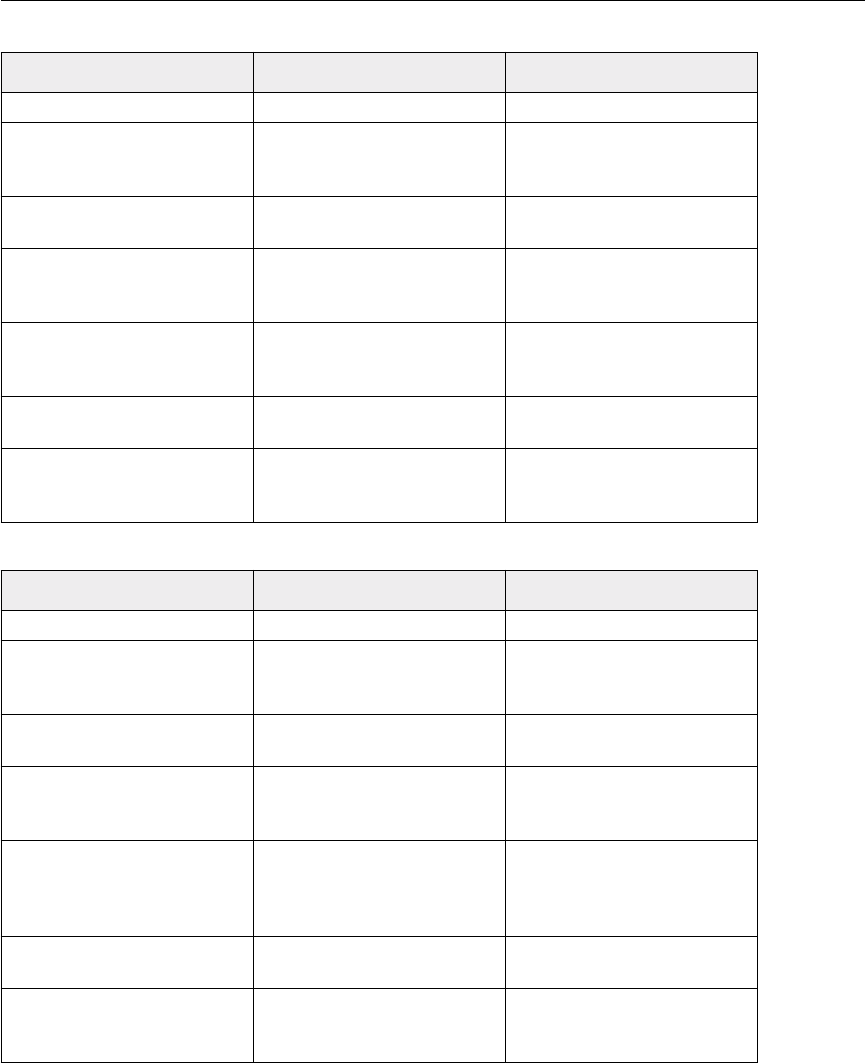
AppleScript
Visual Basic
Value type: What it is: Example:
Boolean Logical true or false. true
Integer Whole numbers (no decimal
points). Integers can be
positive or negative.
14
Real A number which may contain
a decimal point. 13.9972
String A series of text characters.
Strings appear inside
(straight) quotation marks.
"I am a string"
List An ordered list of values. The
values of a list may be any
type.
{10.0, 20.0, 30.0, 40.0}
Object reference A specific reference to an
object. document 1
Record An unordered list of
properties, Each property is
identified by its label.
{name: "you", index: 1}
Value type: What it is: Example:
Boolean Logical true or false true
Long Whole numbers (no decimal
points). Longs can be positive
or negative.
14
Double A number which may contain
a decimal point. 13.9972
String A series of text characters.
Strings appear inside
(straight) quotation marks.
"I am a string"
Array A list of values. Arrays
contain a single value type
unless the type is defined as
Variant.
Array(10.0, 20.0, 30.0, 40.0)
Object reference A specific reference to an
object. Application.Documents(1)
User-defined A collection of elements
referenced by a key and
stored as a key-value pair.
Var.name = "you"
Var.index = 1

Variables Scripting concepts20
Variables
Variables are containers for data. A variable might contain a number, a string, a list (or
array), or an object reference. Variables have names, and you refer to a variable by its
name. To put data into a variable, we assign the data to the variable. The file name of the
current Illustrator document or the current date are both examples of data that can be
assigned to a variable.
Why not simply enter the value directly in the script rather than using a variable? When
you use a value directly the flexibility of script is reduced. By using variables the scripts
you write will be reusable in a wider variety of situations. As a script executes, it can
assign data to the variables that reflect the state of the current document and selection,
for example, and then make decisions based on the content of the variables.
In AppleScript, it is not important to declare your variables before assigning values to
them. In Visual Basic, however, it is considered good form to declare all of your variables
before using them with the Dim statement. Using the Dim statement assigns a value type
to the variable, which helps us keep our scripts clear and readable. Memory is also used
more efficiently if variables are declared before use. If you start your scripts in Visual
Basic with the line Option Explicit, you will be required to declare all variables
before assigning data to them.
Visual Basic
Option Explicit
Dim thisNumber As Single
thisNumber = 10
Assigning values to variables is fairly simple, as shown below.
AppleScript
set thisNumber to 10
set thisString to "Hello, World!"
Visual Basic
thisNumber = 10
thisString = "Hello, World!"
Variables can also be used to store references to objects. In AppleScript, a reference is
returned when you create a new object in an Illustrator document. This returned reference

Adobe Illustrator 10 Scripting Guide Scripting concepts 21
points to the newly created object. Storing references in variables is just the same as
assigning any other value to the variable.
set thisLayer to make new layer at beginning of document 1
or you can fill the variable with a reference to an existing object:
set thisLayer to layer 1 of document 1
Visual Basic works similarly, however, there is an important distinction to note. If you are
assigning an object reference to a variable you must use the Set command. For
example, to assign a variable as you create a layer, use Set:
Set thisLayer = Illustrator.Documents(1).Layers.Add
or in reference to an existing layer, since it is also an object reference, use Set:
Set thisLayer = Illustrator.Documents(1).Layers(1)
If you are simply trying to assign a value to a variable in Visual Basic that is not an object
reference, do not use set but simply use Visual Basic’s assignment operator, the equals
sign:
thisNumber = 12
Try to use descriptive names for your variables—something like firstPage or
corporateLogo, rather than x or c. While it will take a little more time to type the
longer names, using them will make your scripts much easier to read. The length of a
variable’s name has no effect on the execution speed of your script, so use descriptive
names. You can also give your variable names a standard prefix so that they’ll stand out
from the objects, commands, and keywords of your scripting system. Variable names
must be a single word, but you can use internal capitalization (such as myFirstPage)
or underscore characters (my_first_page) to create more readable names. Variable
names cannot begin with a number, and they can’t contain punctuation or quotation
marks.
Properties
Both AppleScript and Visual Basic allow you to define properties for your scripts. Script
properties are much like variables, but with additional features and requirements specific
to each language. Since the meaning and usage of script properties differs so greatly

Operators Scripting concepts22
between AppleScript and Visual Basic, please consult the bibliography for appropriate
language references.
Operators
Operators perform calculations (addition, subtraction, multiplication, and division) on
variables or values and return a result. For example:
docWidth/2
would return a value equal to half of the content of the variable docWidth. So if
docWidth contained the number 20.5, the value returned would be 10.25.
You can also use operators to perform comparisons (equal to, not equal to, greater than,
or less than). For example:
docWidth > docHeight
Would return the value true if docWidth is greater than docHeight, or false, if it
is not.
Some operators differ between AppleScript and Visual Basic. For example, AppleScript
uses the non-equality symbol (≠, use Option- = from keyboard), while Visual Basic uses
the greater and less than symbols juxtaposed: <>.
Both scripting systems use the ampersand (&) as the concatenation operator to join two
strings.
"Pride " & "and Prejudice."
would return the string “Pride and Prejudice.”
Commands and methods
If objects are “nouns” and properties are “adjectives” in our scripting systems, then
commands (AppleScript) or methods (Visual Basic) are the “verbs”—they’re the parts of
the script that make things happen. The type of the object you’re working with determines
which methods you can use to manipulate it.

Adobe Illustrator 10 Scripting Guide Scripting concepts 23
AppleScript
In AppleScript, use the make command to create new objects, the set command to
assign object references to variables and to change object properties, and the get
command to retrieve objects and their properties.
Visual Basic
In Visual Basic, use the Add method to create new objects, the Set statement to assign
object references to Visual Basic variables or properties, the assignment operator ( = )
to retrieve and change object properties.
Conditional statements
If you could speak to Illustrator in the course of a work session, you might say, “If the
selected object is a path, then set its stroke width to 12 points.” Conditional statements
make decisions—they give your scripts a way to evaluate something (the color of the
selected object, or the number of color swatches in the document, or the date) and then
act according to the result. Most conditional statements start with the word if in both
scripting systems.
The following examples check the number of currently open documents. If no documents
are open, the scripts display a messages in a dialog box.

Control structures Scripting concepts24
AppleScript
tell application "Adobe Illustrator 10"
activate
set documentCount to count every document
if documentCount = 0 then
display dialog "No Illustrator documents are open!"
end if
end tell
Visual Basic
Private Sub Command1_Click()
Dim documentCount as long
Dim appRef As New Illustrator.Application
documentCount = appRef.Documents.Count
If documentCount = 0 then
MsgBox "No Illustrator documents are open!"
End If
End Sub
Control structures
If you could talk to Illustrator, you might say, “Repeat the following procedure twenty
times.” In scripting terms, this sort of direction is called a “control structure.” Control
structures provide for repetitive processes, or “loops.” The idea of a loop is to repeat some
action over and over again, with or without changes each time through the loop, until
some condition is met.
Both AppleScript and Visual Basic have a variety of different control structures to choose
from. The simplest form of a loop is one that repeats some series of script operations a
set number of times.
AppleScript
repeat with counter from 1 to 20
display dialog counter
end repeat
Visual Basic
For counter = 1 to 20
MsgBox counter
Next
A more complicated type of control structure includes conditional logic, so that it loops
while or until some condition is true or false.

Adobe Illustrator 10 Scripting Guide Scripting concepts 25
AppleScript
repeat while flag = false
set flag to (button returned of display dialog "Quit?") = "Cancel"
end repeat
repeat until flag = true
set flag to (button returned of display dialog "Quit?") = "OK"
end repeat
Visual Basic
Do While flag = false
flag = (MsgBox ("Quit?", vbOKCancel)) = vbCancel
loop
Do Until flag = true
flag = (MsgBox ("Quit?", vbOKCancel)) = vbOK
loop
Handlers and subroutines
Handlers (in AppleScript) or subroutines (in Visual Basic) are scripting modules you can
refer to from within your script. Handlers and subroutines are ways to re-use parts of
scripts. Typically, you send one or more values to a handler (or subroutine), and it returns
one or more values. Handlers (and subroutines) can be used for performing conversions
from one measurement system to another, or for calculating the geometric center point of
an object from its geometric bounds.
There’s nothing special about the code used in subroutines and handlers—they are
simply conveniences that save you from having to type the same lines of code over and
over again in your script. If you find yourself typing or pasting the same lines of code into
several different places in a script, you’ve identified a good candidate for a subroutine or
handler.

Handlers and subroutines Scripting concepts26
AppleScript
-- Calculate the geometric center of a selected art item
-- Assumes you have a single art item selected
tell application "Adobe Illustrator 10"
-- Get the selection from the current document
set selectedItems to selection
(* Make sure there is a selected item, and that the selection is not
text *)
if selectedItems ≠ {} and class of selectedItems ≠ text then
-- Get the first item from the list and get it bounds
set firstItem to item 1 of selectedItems
set itemBounds to geometric bounds of firstItem
end if
end tell
set itemCenter to GetItemCenter(itemBounds)
display dialog "Center x:" & item 1 of itemCenter & ", y:" & item 2 of
itemCenter
-- This handler finds the center of an item given its bounds
on GetItemCenter(itemBounds)
-- Assign coordinates from the bounds to individual variables
set {itemLeft, itemTop, itemRight, itemBottom} to itemBounds
-- Calculate the center position
set xCenter to (itemLeft + itemRight) / 2
set yCenter to (itemTop + itemBottom) / 2
return {xCenter, yCenter}
end GetItemCenter
Visual Basic
Private Sub Command1_Click()
' Calculate the geometric center of a selected art item
' Assumes you have a single art item selected
Dim appRef As New Illustrator.Application
Dim selectedObjects As Variant
Dim objectBounds As Variant
Dim objectCenter As Variant
If appRef.Documents.Count > 0 Then

Adobe Illustrator 10 Scripting Guide Testing and troubleshooting 27
selectedObjects = appRef.Documents(1).Selection
If TypeName(selectedObjects) = "Variant()" Then
objectBounds = selectedObjects(0).GeometricBounds
objectCenter = GetItemCenter(objectBounds)
MsgBox ("Center x:" & objectCenter(0) & ", y:" &
objectCenter(1))
End If
End If
End Sub
' The following lines define the function
Function GetItemCenter(sourceBounds As Variant) As Variant
Dim left As Single
Dim top As Single
Dim right As Single
Dim bottom As Single
Dim xCenter As Single
Dim yCenter As Single
left = sourceBounds(0)
top = sourceBounds(1)
right = sourceBounds(2)
bottom = sourceBounds(3)
xCenter = (left + right) / 2
yCenter = (top + bottom) / 2
GetItemCenter = Array(xCenter, yCenter)
End Function
Testing and troubleshooting
Both scripting environments provide tools for monitoring the progress of your script while
it is running—which make it easier for you to track down any problems your script might
be encountering or causing.
AppleScript
While the basic syntax of your script will be checked when compiled, it is possible to
create and compile scripts in AppleScript that will not run properly. The Script Editor
doesn’t have extensive debugging tools, but it does have the an Event Log window.
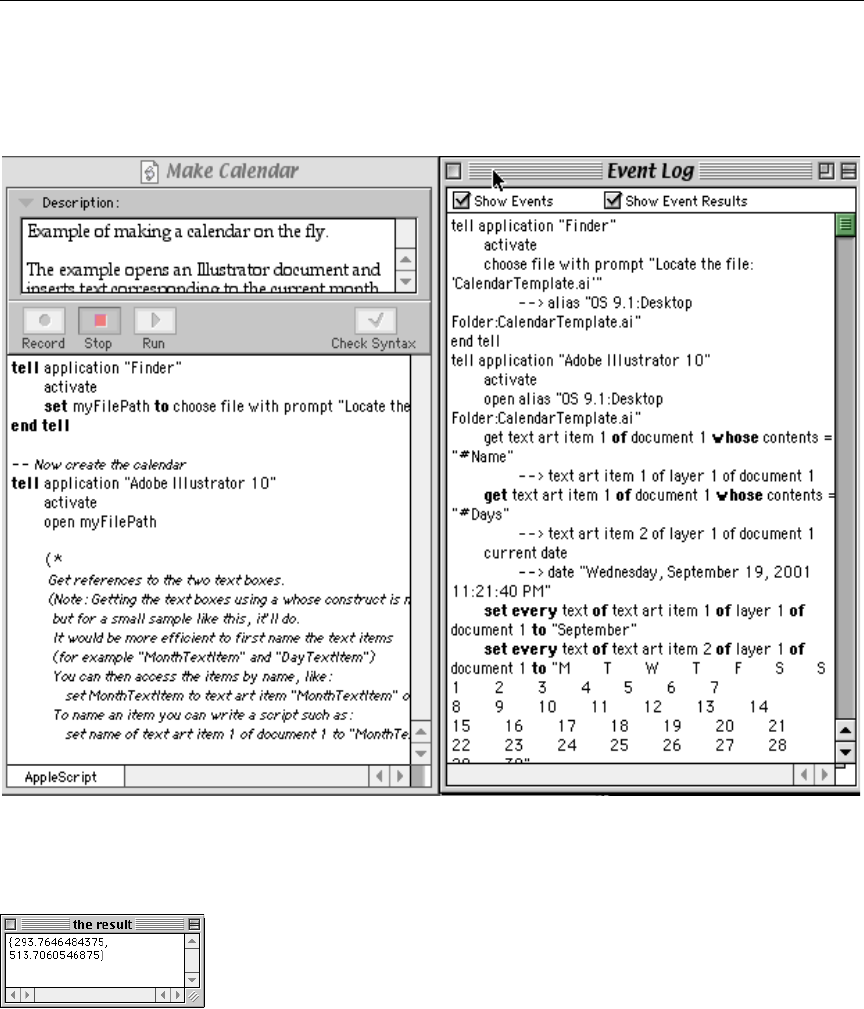
Handlers and subroutines Testing and troubleshooting28
To watch the commands your script sends and the results it receives, choose Controls >
Open Event Log. The Script Editor displays the Event Log window. Check the Show
Events and Show Events Results options at the top of the Event Log window and then run
your script. As the script executes, you’ll see the commands sent to Illustrator, and
Illustrator’s responses.
In addition, the Result window (choose Controls > Show Result) will display the value
from the last script statement evaluated. Third-party editors offer additional debugging
features.
Visual Basic
In Visual Basic, you can stop your script at any point, or step through your script one line
at a time. To stop your script at a particular line, select that line in your script and choose
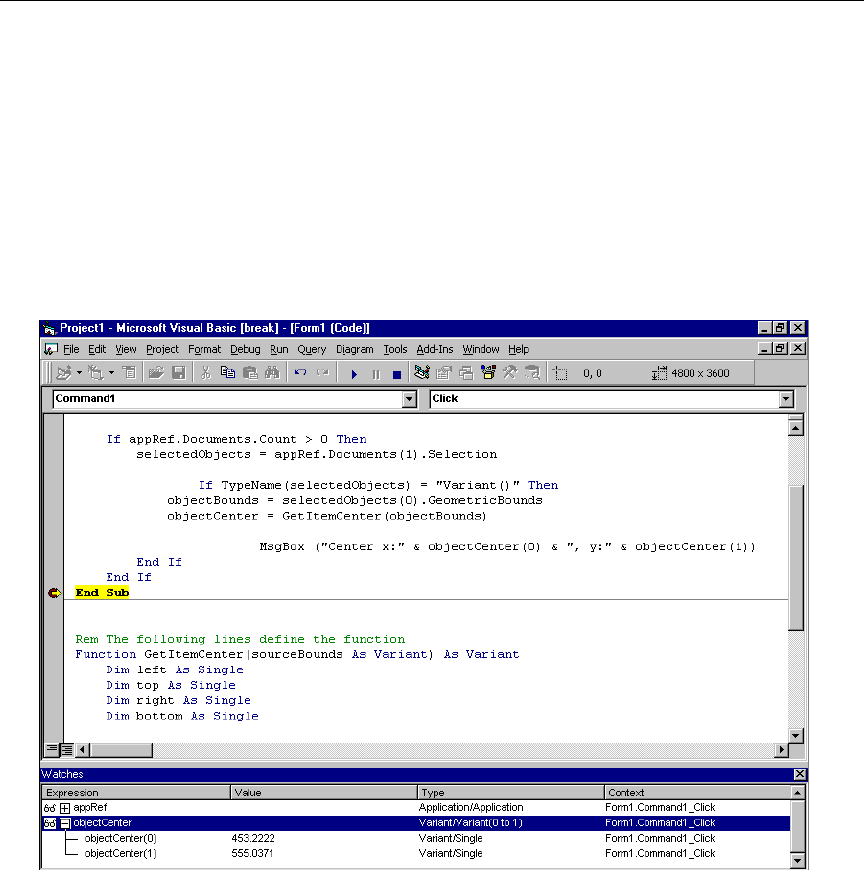
Adobe Illustrator 10 Scripting Guide About error handling 29
Debug > Toggle Breakpoint. When you run the script, Visual Basic will stop at the
breakpoint you have set. Choose Debug > Step Into (or press F8) to execute the next line
of your script, or choose Run > Start (or press F5) to continue normal execution of the
script. You can also observe the values of variables defined in your script using the Watch
window—a very valuable tool for debugging your scripts. To view a variable in the Watch
window, select the variable and choose Debug > Quick Watch. Visual Basic displays the
Quick Watch dialog box. Click the Add button. Visual Basic displays the Watch window.
If you have closed the Watch window, you can display it again by choosing View > Watch
Window.
About error handling
Imagine that you’ve written a script that formats the current text selection. What should
the script do if the current selection turns out not to be text at all, but a path item? “Error
handling” is code you add to your script to respond to conditions other than those you
expect it to encounter.

Handlers and subroutines About error handling30
If you have complete control over the situations in which your script will run, there’s no
need for you to worry about error handling. If not, however, you’ll have to add some error
handling capabilities to your script. The following examples show how to how you can
stop a script from executing when a specific file cannot be found.
AppleScript
--Store a reference to the fifth path item of the document in a variable
--If the object does not exist in the current document, display a message
tell application "Adobe Illustrator 10"
activate
try
set itemCount to count of path items in current document
set fifthItem to path item 5 of current document
on error
display dialog "Couldn't locate 5th path object - Only " ¬
& itemCount & " objects."
end try
end tell
Visual Basic
Private Sub Command1_Click()
' Store a reference to the fifth path item of the document in a
' variable. If the object does not exist in the current document,
' display message.
Dim appRef As New Illustrator.Application
Dim docRef As Illustrator.Document
Dim aiObject As Illustrator.PathItem
Dim numObjects As Single
Dim errorMessage As String
Set docRef = appRef.ActiveDocument
numObjects = docRef.PathItems.Count
On Error GoTo DisplayError
Set aiObject = docRef.PathItems(5)
Exit Sub
DisplayError:
errorMessage = "Couldn't locate 5th path object - Only "
errorMessage = errorMessage & numObjects & " objects."
MsgBox errorMessage
End Sub

31
3
Scripting Illustrator
At this point, you should have a good idea of what scripting is and how it works. We are
ready to begin looking at scripting Adobe Illustrator.
Looking at Illustrator’s objects and commands
While the objects and commands available in Illustrator are all documented in this guide,
you can also view them from inside your scripting system.
AppleScript
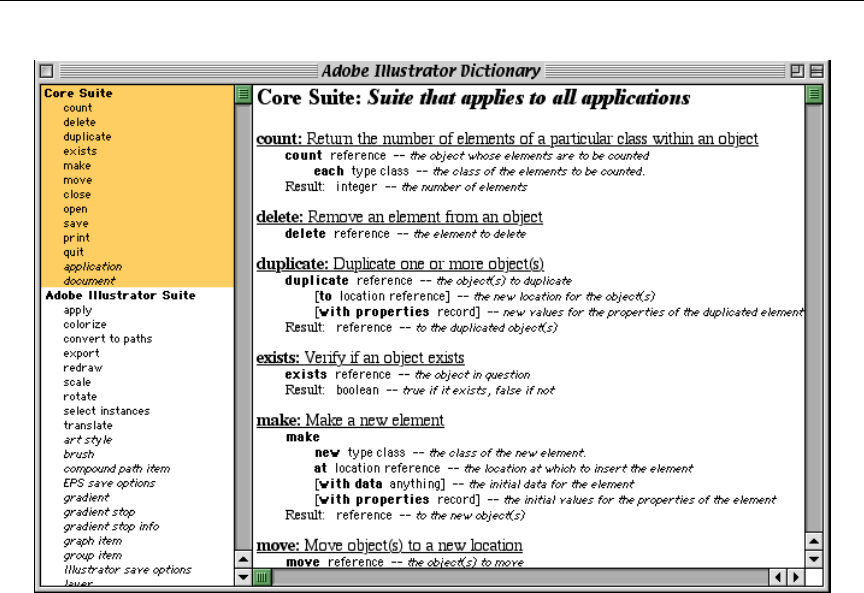
To view Illustrator’s AppleScript dictionary:
1. Start Illustrator and then your script editor. Apple’s Script Editor comes with all
Macintosh systems. If you can’t find the Script Editor application, you’ll have to
reinstall it from your Mac OS System CD.
2. In Script Editor, choose File > Open Dictionary. Script Editor displays an Open
File dialog.
3. Find and then select the Illustrator application and click the OK button. Script
Editor displays a list of Illustrator’s objects and commands. You’ll also be able to
see the properties and elements associated with each object, as well as the
parameters for each command.
Looking at Illustrator’s objects and commands Scripting Illustrator32
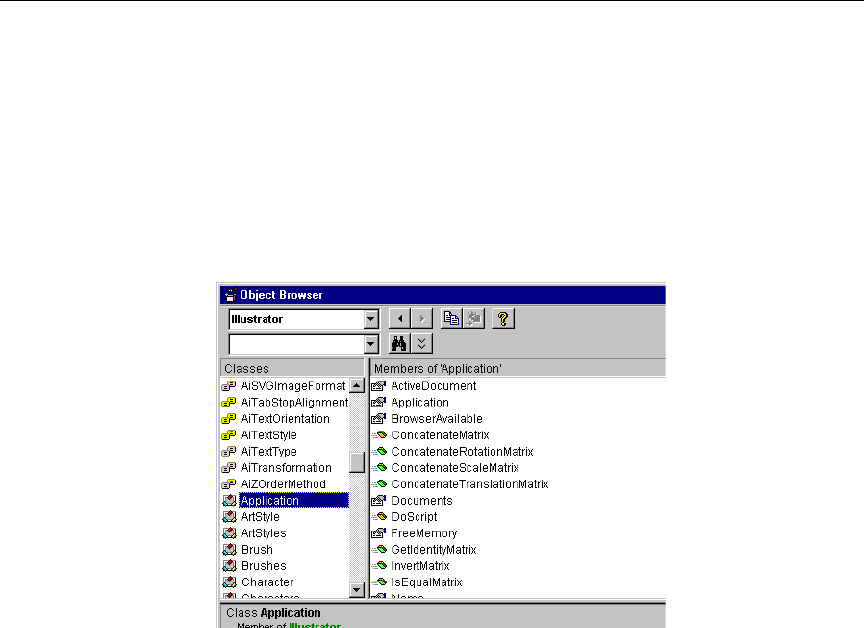
Adobe Illustrator 10 Scripting Guide Looking at Illustrator’s objects and commands 33
Visual Basic
To view Illustrator’s type library:
1. In any Visual Basic project, choose Project > References. Visual Basic displays
the References dialog box. If you are using a built-in editor in a VBA application,
choose Tools > References.
2. Turn on the “Adobe Illustrator 10.0 Type Library” option from the list of available
references and click the OK button. If the library does not appear in the list of
available references, reinstall Illustrator with your scripting plugins.
3. Choose View > Object Browser. Visual Basic displays the Object Browser
window.
4. Choose “Illustrator” from the list of open libraries shown in the top-left pull-down
menu. Visual Basic displays the classes and the members of those classes in
the Object Browser window.
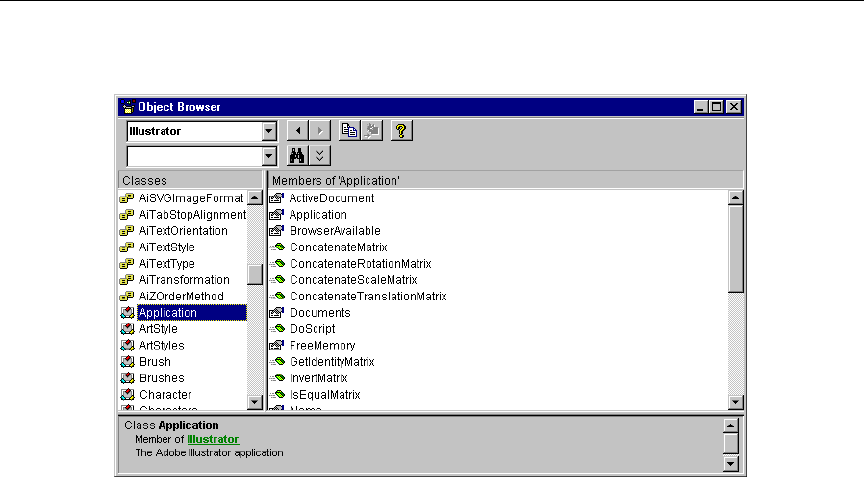
The application Scripting Illustrator34
5. Click an object class or class member. Visual Basic displays more information
about the object in the frame at the bottom of the Object Browser window.
The application
In all of your scripts, in either AppleScript or Visual Basic, the first thing you refer to is the
application. As we’re concerned here with Illustrator 10, that is the application your scripts
will target.
Your first Illustrator script
The traditional first project in any programming language is to display the message “Hello
World!” In this example, we’ll create a new Illustrator document, then add a text art item
containing this message.
Creating an AppleScript script
To create an AppleScript script follow these steps:
1. Locate and open Script Editor.
2. Enter the following script. The lines preceded by -- are comments, and will be
ignored by the scripting system. They’re included to document the operation of
the script. As you look through the script, you’ll see how we create, then
Adobe Illustrator 10 Scripting Guide Your first Illustrator script 35
address, each object in turn. The AppleScript command tell indicates the
object that will receive the next message we send.
-- Send the following commands to Illustrator
tell application "Adobe Illustrator 10"
-- Create a new document with the string "Hello World"
set docRef to make new document
set textRef to make new text art item in docRef ¬
with properties {contents: "Hello World!", position:{200,
200}}
end tell
3. Run the script. Illustrator will create a new document, add a text art item at
position (200, 200) and set the text to “Hello World!”.
Creating a Visual Basic script
To create a Visual Basic script follow these steps:
1. Start Visual Basic and create a new project. Add the “Adobe Illustrator 10.0 Type
Library” reference to the project, as shown earlier. If you are using a built-in
editor in a VBA application, skip to step 4.
2. Add a form to the project.
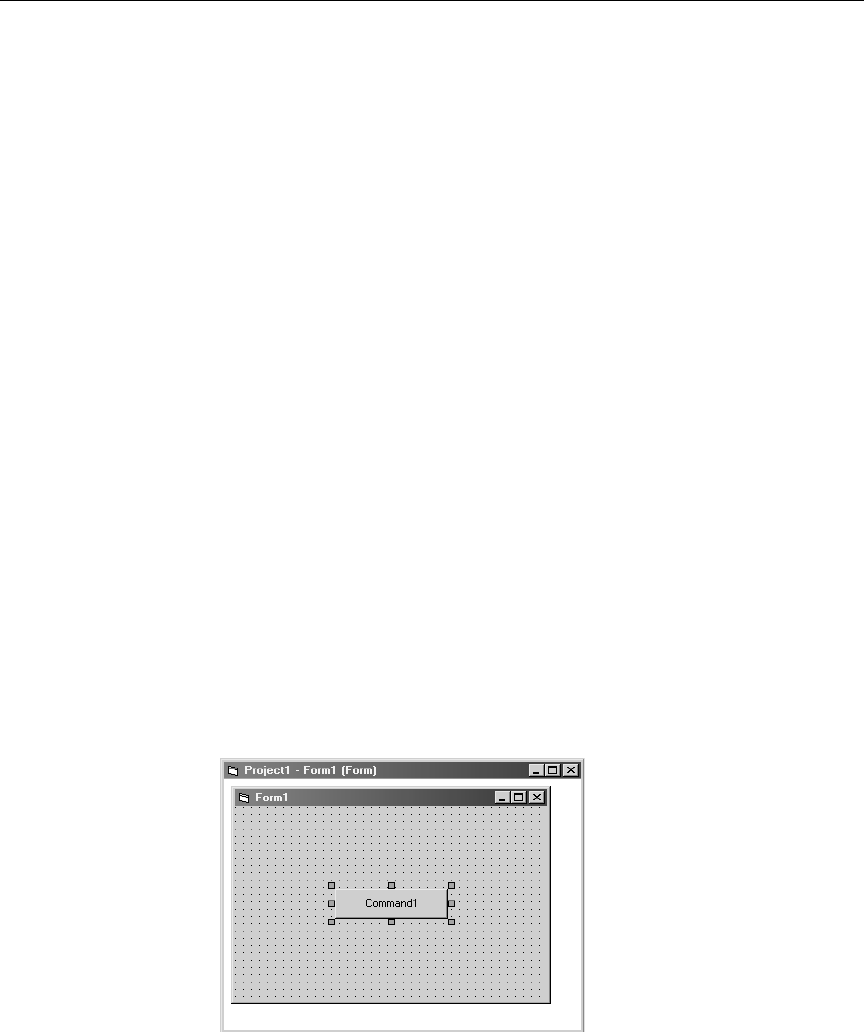
3. Create a new button on the form. Double-click the button to open the Code
window.

Your first Illustrator script Scripting Illustrator36
4. Enter the following code. The lines preceded by’ (single-quote) are
comments, and will be ignored by the scripting system. They’re included to
describe the operation of the script. As you look through the script, you’ll see
how we create, then address each object in turn.
'Hello World! Script
Private Sub Command1_Click()
Dim appRef As New Illustrator.Application
Dim documentRef As Illustrator.Document
Dim sampleText As Illustrator.TextArtItem
'Create a new document and assign it to a variable
Set documentRef = appRef.Documents.Add
'Create a new text art item and assign it to a variable
Set sampleText = documentRef.TextArtItems.Add
'Set the contents and position of the TextArtItem
sampleText.Position = Array(200, 200)
sampleText.Contents = "Hello World!"
End Sub
5. Save the form.
6. Start Illustrator.
7. Return to Visual Basic and run the program. If you created a form, click the
button you created earlier.
8. Run the script. Illustrator will create a new document, add a text art item at the
specified position, and set the text to “Hello World!”.
VBScript
You don't need to use Visual Basic to run scripts on Windows. Another way to script
Illustrator is to use a VBA editor (such as the one that is included in Microsoft Word) or to
use Windows Scripting Host.
Windows Scripting Host is part of Windows2000. If you don't have Windows2000, you can
download Windows Scripting Host from : http://msdn.microsoft.com/scripting/
Both VBA and Windows Scripting Host use VBScript as their scripting language. The
syntax for VBScript is very similar to the Visual Basic syntax. The three main differences
relating to the scripts shown in this guide are:

Adobe Illustrator 10 Scripting Guide Your first Illustrator script 37
• VBScript is not as strongly typed as Visual basic. In Visual Basic you say:
Dim aRef as Illustrator.PathItem
in VBScript you say:
Dim aRef
For VBScript simply omit the "as X" part
• VBScript does not support the "as New Illustrator.Application" form.
In Visual Basic you retrieve the Application object as:
Dim appRef as New Illustrator.Application
In VBScript you write the following to retrieve the Application object:
Dim appRef
Set appRef = CreateObject("Illustrator.Application")
• VBScript does not support enumerations. Here’s an example of how to close the
frontmost document without saving. In Visual Basic:
Dim appRef As New Illustrator.Application
appRef.ActiveDocument.Close (aiDoNotSaveChanges)
In VBScript you must use integer values instead of the enumeration. (See
“Enumerations reference” at the end of Chapter 5 to find the values that correspond
to the various enumerations.) The corresponding VBScript is:
Dim appRef
Set appRef = CreateObject("Illustrator.Application")
appRef.ActiveDocument.Close ( 2 )
Here is an example of Hello World! for VBScript:
'Hello World! script
Dim appRef
Dim documentRef
Dim SampleText

Adding features to “Hello World” Scripting Illustrator38
'Create a new document and assign it to a variable
Set appRef = CreateObject("Illustrator.Application")
Set documentRef = appRef.Documents.Add
'Create a new text art item and assign it to a variable
Set SampleText = documentRef.TextArtItems.Add
'Set the contents and position of the TextArtItem
SampleText.Position = Array(200, 200)
SampleText.Contents = "Hello World!"
To run this script create a text file and copy the script into it. Save the file with a
"vbs" extension. If you have Windows Scripting Host installed, you can double-click
on the file to execute the script.
Another way to execute the script is to choose File>Scripts>Browse from the Scripts
menu in Illustrator and select the file.
Adding features to “Hello World”
Next, let’s create a new script that makes changes to the Illustrator document you created
with your first script. Don’t worry if you’ve closed the Illustrator document without saving
it—just run your script to create a new one.
Our second script will demonstrate how to:
1. Get the active document.
2. Get the width of the active document.
3. Resize the text art item to match the document’s width.
Adding features to the AppleScript script
To create the enhanced script follow these steps:
1. Choose File > New in Script Editor to create a new script.
2. Enter the following code.

Adobe Illustrator 10 Scripting Guide Adding features to “Hello World” 39
tell application "Adobe Illustrator 10"
-- current document is always the active document
set docRef to the current document
set docWidth to the width of docRef
-- resize the text art item to match the page width
set width of text art item 1 of docRef to docWidth
-- alternatively, one can reference the item directly, as follows:
set width of text art item 1 of current document to docWidth
end tell
3. Save the script.
4. Make sure you have the document created by the original “Hello World” script
open, then run the script.
Adding features to the Visual Basic script
To create the enhanced script follow these steps:
1. Open the project you created for the “Hello World” script, if it’s not already open.
2. Add a new button to the form.
3. Double-click the button to display the Code window, then enter the following
code.
Private Sub Command1_Click()
Dim appRef As New Illustrator.Application
Dim documentRef As Illustrator.Document
Dim sampleText As Illustrator.TextArtItem
Dim documentWidth As Single
' Get the active document
Set documentRef = appRef.ActiveDocument
documentWidth = documentRef.Width
Set sampleText = documentRef.TextArtItems(1)
' Resize the TextArtItem to match the document width
sampleText.Width = documentWidth
sampleText.Left = 0
End Sub
4. Save the form.
5. Open the original document you created using the “Hello World” script, then
return to Visual Basic and run the script.

Measurement units Scripting Illustrator40
6. Click the button you created in Step 2.
Measurement units
Illustrator always uses points as the unit of distance measurement. One inch is equal to
72 points. Even if you change the current document ruler’s units of measurement,
Illustrator will still use points when communicating with your scripts. Your scripts will need
to perform any unit conversions needed to represent your measurements as points. For
example, to move the current selection to a position 2 inches to the right of and 6 inches
above its current position, you’d use the following script in AppleSccript:
tell application "Adobe Illustrator 10"
(* first, manually select the text art item from the previous exercise or use AppleScript to make the
selection *)
set selection to text art item 1 of current document
(* There are 72 points per inch. To translate an item by 2 inches to the right and 6 inches to
the left, multiply by 72 translate selection delta x (2 * 72) delta y (6 * 72) *)
end tell
and this script for Visual Basic:
Private Sub Command1_Click()
Dim appRef As New Illustrator.Application
Dim documentRef As Illustrator.Document
Dim selectedObjects As Variant
Dim objectRef As Variant
Set documentRef = appRef.ActiveDocument
selectedObjects = documentRef.Selection
If TypeName(selectedObjects) = "Variant()" Then
For Each objectRef In selectedObjects
There are 72 points per inch, so the following will move the
'object 2" to the right and 6" up
objectRef.Translate 144, 226
Next
End If
End Sub
If your script depends on adding, subtracting, multiplying, or dividing specific
measurement values for units other than points, the script will need to convert between
the units numerically. For example, to use English measurements such as inch values for
coordinates or measurement units, your script will need to multiply all inch values by 72 to
Adobe Illustrator 10 Scripting Guide Coordinates 41
convert to points, since there are 72 points in an inch. To use metric measurements such
as centimeters, you will need to multiply all centimeter values by 28.346, since there are
28.346 points in a centimeter.
Unit conversion to points
This table displays the conversion formulae for various units of measurement:
Coordinates
Illustrator uses simple two-dimensional geometry to record the position of objects in a
document. The coordinates used in Illustrator are the same as the “traditional” geometric
coordinate system you learned about in school. The horizontal component of a coordinate
pair (or “point”) is referred to as “x” and the vertical position is denoted by “y”. You can see
these coordinates in the Info palette when you select or create an object in Illustrator.
Illustrator scripting uses a special class called fixed point to receive and return
coordinate data. The fixed point is represented as a list of two items in AppleScript and as
a variant array of two elements in Visual Basic. In both cases, the first item is the
horizontal or “x” coordinate, while the second item is the vertical or “y” coordinate. The
position (Position in Visual Basic) of objects on a document are described with a
fixed point.
Fixed points
In AppleScript, a fixed point with an x coordinate of 5.0 and a y coordinate of 10.2 is
represented as a list that looks like this:
{5.0, 10.2}
Unit Conversion formula
centimeters 28.346 points = 1 centimeter
inches 72 points = 1 inch
millimeters 2.834645 points = 1 millimeter
picas 12 points = 1 pica
Qs 0.709 point = 1 Q (1 Q equals 0.23 millimeter)

Coordinates Scripting Illustrator42
In Visual Basic, a fixed point with an x coordinate of 5.0 and a y coordinate of 10.2 is
represented as a variant array that looks like this:
Array (5.0, 10.2)
Note that if you declare an array to hold the values of a point, you should pass 1 as the
dimension, since Visual Basic uses index position 0 for the first item in an array.
Dim aPoint(1) As Single
aPoint(0) = 5.0
aPoint(1) = 10.2
Zero point
The zero point (0, 0) for coordinate numbering in Illustrator is in the lower left corner of the
document. On the horizontal axis, coordinates to the right of the ruler’s zero point are
positive numbers, and on the vertical axis, coordinates above the zero point are positive.
The page origin (PageOrigin in Visual Basic) of a document defines the lower left
corner of the printable region of the document as a fixed point.
Fixed rectangle
To work with rectangular coordinates where there are a pair of x and y values, Illustrator
uses the special class called a fixed rectangle. This class is comprised of a list
with four items in AppleScript and a variant array with four elements in Visual Basic. The
coordinates of a fixed rectangle in order are: left, top, right, bottom.
In AppleScript, a fixed rectangle with a left-top corner of (5.0, 200.0) and a right-bottom
corner of (100.0, 20.0) is represented by a list that looks like this:
{5.0, 200.0, 100.0, 20.0}
In Visual Basic, a fixed rectangle with a left-top corner of (5.0, 200.0) and a right-bottom
corner of (100.0, 20.0) is represented by a variant array that looks like this:
Array (5.0, 200.0, 100.0, 20.0)
Alternatively, you can define your array and assign values to its elements like this:
Dim boundsRect(3) As Single
boundsRect(0) = 5.0
boundsRect(1) = 20.0
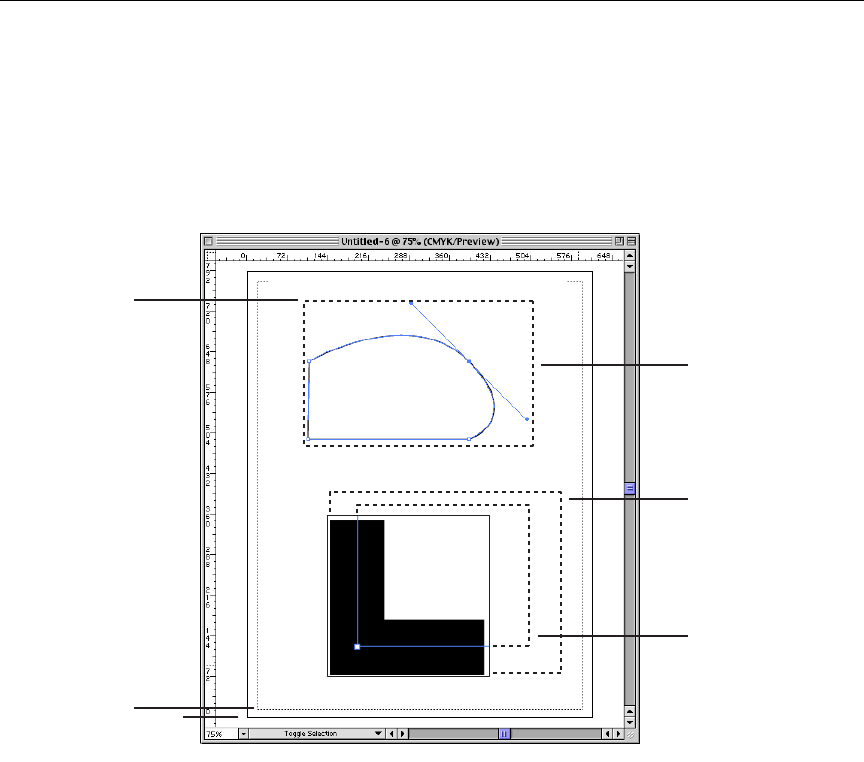
Adobe Illustrator 10 Scripting Guide Object references 43
boundsRect(2) = 100.0
boundsRect(3) = 200.0
Page item positioning and dimensions
Every object, or page item, in a document has a position described by a fixed point and a
width and height. The maximum value allowed for the width or height of a page item is
16348 points.
Every page item also has three properties that describe the object’s overall extent using
fixed rectangles. The geometric bounds (GeometricBounds in Visual Basic) of a
page item are the rectangular dimensions of the object excluding stroke width. The
visible bounds (VisibleBounds in Visual Basic) of a page item are the
dimensions of the object including any stroke widths. Finally, the control bounds
(ControlBounds in Visual Basic) define the rectangular dimensions of the object
including in- and out- control points.
Object references
The different scripting languages take different approaches to object references.
(0,0)
page origin
PageOrigin
position
Position
control bounds
ControlBounds
Detail
visible bounds
VisibleBounds
geometric bounds
GeometricBounds

Object references Scripting Illustrator44
Object references in AppleScript
In AppleScript, Illustrator returns object references by index position or name. For
example, a reference to the first path in layer 2 would be: path item 1 of layer 2
of document 1. An object’s index position may change when other objects are
created or deleted. For example, when a new path item is created on layer 2, it will
become path item 1 of layer 2 of document 1. This new object displaces
our original path item, forcing it to index position 2. Therefore, any references made to
path item 1 of layer 2 of document 1 will refer to the new object. Consider
the following sample script.
-- Make 2 new objects and try to select both
tell application "Adobe Illustrator 10"
set newDocument to make new document
set rectPath to make new rectangle in newDocument
set starPath to make new star in newDocument
set selection of newDocument to {rectPath, starPath}
end tell
This script will not select both the rectangle and the star. It will select only the star. Try
running the script with the Event Log window open to observe the references returned
from Illustrator for each of the consecutive make commands. You will notice that both
commands return the same object reference: path item 1 of layer 1 of
document 1.
Therefore, the script really says:
set selection of document 1 to ¬
{path item 1 of layer 1 of document 1, path item 1 of layer 1 of
document 1}
Instead, you might try referencing the objects by name, such as:
tell application "Adobe Illustrator 10"
set newDocument to make new document
make new rectangle in newDocument with properties {name:"rectangle"}
make new star in newDocument with properties {name:"star"}
set selection of newDocument to ¬
{path item "rectangle" of newDocument, path item "star" of
newDocument}
end tell

Adobe Illustrator 10 Scripting Guide Object containment: document vs. layer 45
This example illustrates the need to uniquely identify objects. It is recommended that you
assign names to objects you need to access at a later time, as there’s no guarantee
you’re accessing the objects you expect when accessing them by index.
Object references in Visual Basic
Object references in Visual Basic are dynamic and remain valid until disposed.
To create a star and rectangle, and then select them, you could do:
Private Sub Command1_Click()
'Make 2 new objects and select both
Dim appRef As New Illustrator.Application
Dim pathItemsRef As Illustrator.PathItems
Dim rectPath As Illustrator.PathItem
Dim starPath As Illustrator.PathItem
Set pathItemsRef = appRef.ActiveDocument.ActiveLayer.PathItems
Set rectPath = pathItemsRef.Rectangle(50, 70, 100, 200)
Set starPath = pathItemsRef.Star(40, 70, 200, 110, 5, False)
Dim pathSelection(1) As Variant
Set pathSelection(0) = rectPath
Set pathSelection(1) = starPath
appRef.Selection = pathSelection
End Sub
Object containment: document vs. layer
In Illustrator, all artwork objects are contained in layers, groups or compound paths that
are themselves contained in a document. The index of an object in a layer or group
indicates the object’s position in the stacking order of the layer or group. This means that
page item 1 of layer 1, or Layers(1).PageItems(1) in Visual Basic, is
the frontmost object in a document, while page item 2 of layer 1, or
Layers(1).PageItems(2) in Visual Basic, lies directly behind in the stacking order.
Note that if you delete all the layers in a document, the document is left with the default
empty layer called Layer 1.
When you refer to an object in your document, you can reference it directly as part of the
document or by its complete containment hierarchy, including layers and any group or
compound path if valid. When you refer to objects contained by the document directly, you
can access the entire flattened contents of the document, without regard to the

Object containment: document vs. layer Scripting Illustrator46
containment of objects within layers, groups, or compound paths. All objects, whether or
not they are contained in groups or compound paths, are returned as individual objects
contained by the document. The following scripts demonstrate how to reference an object
as part of a document.
In AppleScript:
-- Get reference for first page item of document 1
tell application "Adobe Illustrator 10"
set pageItemRef to page item 1 of document 1
end tell
In Visual Basic:
Private Sub Command1_Click()
'Get reference for first page item of document 1
Dim appRef As New Illustrator.Application
Dim documentRef As Illustrator.Document
Dim pageItemRef As Illustrator.PageItem
Set documentRef = appRef.ActiveDocument
Set pageItemRef = documentRef.PageItems(1)
End Sub
In the scripts below, the variable pageItemRef will not necessarily refer to the same
object as the above script since this script includes a reference to a layer:
In AppleScript:
-- Get reference for first page item of layer 1 of document 1
tell application "Adobe Illustrator 10"
set pageItemRef to page item 1 of layer 1 of document 1
end tell
In Visual Basic:
Private Sub Command1_Click()
'Get reference for first page item of document 1
Dim appRef As New Illustrator.Application
Dim documentRef As Illustrator.Document
Dim pageItemRef As Object

Adobe Illustrator 10 Scripting Guide Working with selections 47
Set documentRef = appRef.ActiveDocument
Set pageItemRef = documentRef.Layers(1).PageItems(1)
End Sub
Working with selections
There are instances where you will want to write scripts that act upon the currently
selected object(s). For example, you might want to have a script that applies formatting to
selected text, or changes a selected path’s shape. To do this, you need to know the
number of selected objects and the type of each object. The following scripts work with
the current selection.
In AppleScript:
--selection sorter
tell application "Adobe Illustrator 10"
set selectedObjects to selection
try
if selectedObjects is {} then
display dialog "No objects are selected"
else
if class of selectedObjects = list and ¬
(count of items in selectedObjects > 1) then
--selection contains more than one object.
else
--a single object is selected. What is it?
set selectedObjectClass to class of selectedObjects
if selectedObjectClass = list then ¬
set selectedObjectClass to class of item 1 of
selectedObjects
if selectedObjectClass = text then
-- text is selected
else
-- determine what type of object is selected.
if selectedObjectClass = path item then
-- object is a path item
else if selectedObjectClass = compound path item then
-- object is a compound path
else if selectedObjectClass = raster item then
-- object is a raster image
else if selectedObjectClass = placed item then
-- object is a placed image
else if selectedObjectClass = mesh item then
-- object is a mesh

Working with selections Scripting Illustrator48
else if selectedObjectClass = text art item then
-- object is a text art item
else if selectedObjectClass = plugin item then
-- object is a plugin art item
else if selectedObjectClass = path point then
-- object is a point of a path
else if selectedObjectClass = group item then
-- object is a group
end if
end if
end if
end if
on error errString
display dialog errString
end try
end tell
In Visual Basic:
'Selection sorter
Private Sub Command1_Click()
Dim appRef As New Illustrator.Application
Dim documentRef As Illustrator.Document
Set documentRef = appRef.ActiveDocument
selectedObjects = documentRef.Selection
If TypeName(selectedObjects) = "String" Then
'text is selected
Else
'Is anything selected?
If selectedObjects = Empty Then GoTo noSelection
For Each artObject In selectedObjects
selectedObjectClass = TypeName(artObject)

Adobe Illustrator 10 Scripting Guide Working with paths 49
Select Case selectedObjectClass
'Something is selected, let’s find out what it is.
Case "PathItem"
'Object is a path item
Case "CompoundPathItem"
'Object is a compound path
Case "RasterItem"
'Object is a raster image
Case "PlacedItem"
'Object is a placed image
Case "MeshItem"
'Object is a mesh
Case "TextArtItem"
'Object is a text art item
Case "PluginItem"
'Object is a plugin art item
Case "PathPoint"
'Object is a point of a path
Case "GroupItem"
'Object is a group of objects
End Select
Next
End If
Exit Sub
noSelection:
MsgBox "Select an object and try again."
End Sub
Working with paths
Path items include all artwork that is comprised of paths, including rectangles, ellipses,
polygons, as well as freeform paths. In Illustrator, every path is comprised of a series of
points. Path items, as well as path points, can be created and manipulated from a script.
Every aspect of a path point can be accessed from scripting, including the anchor
point (AnchorPoint in Visual Basic) and both control points, known as the left
direction (LeftDirection in Visual Basic) and right direction
(RightDirection in Visual Basic) properties. Refer to the Illustrator Plug-in Software
Development Kit Function Reference for more information on working with paths, bezier
curves and path points. This document is available in Adobe Acrobat® Portable
Document Format (PDF) as part of the Illustrator Software Development Kit (SDK). The
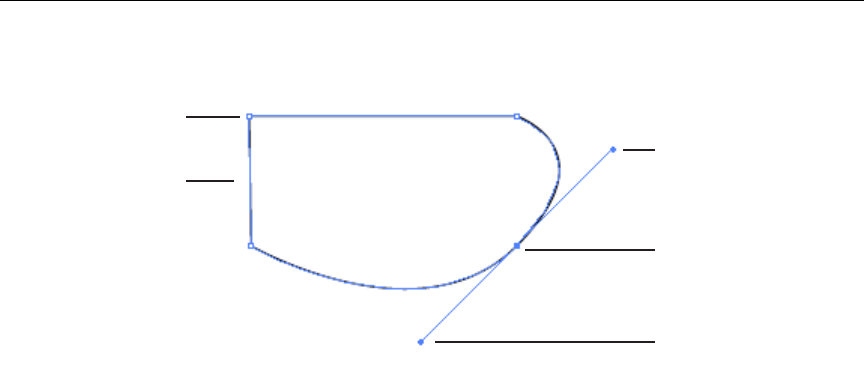
Working with color Scripting Illustrator50
SDK can be downloaded from the Adobe Solutions Network web site (http://
partners.adobe.com/asn/developer/sdks.html).
Working with color
Swatches can be created and manipulated from your scripts. You can also create new
patterns, gradients and spot colors from scripts. Just as in the user interface, percentages
(0.0 through 100.0) are used to specify grayscale, individual CMYK values and spot tints.
The range 0.0 to 255.0 is used for the individual RGB color values. Special attention
should be paid to working with CMYK and RGB color values. Illustrator 10 supports only a
single color model within each document, either CMYK or RGB. When you specify a
CMYK color value in a document that uses the RGB color model, Illustrator will convert
the values to RGB and return an RGB color, and vice-versa when specifying RGB colors
in a CMYK document. However, there is some data loss during this conversion. Refer to
the “Applying Color” chapter in the Adobe Illustrator User Guide for more information on
working with color.
Working with symbols
Symbols are art objects that are stored in the Symbols palette and applied to
documents. You can create, delete and duplicate symbols. When you create
symbols, Illustrator adds them to the Symbols Palette for the target document.
When you save the document, Illustrator also saves the symbols you created and
used in the document.
Working with symbol items
Symbol items refer to instances of symbols in a document. You can create, delete, and
duplicate symbol items. They are “linked” to the symbol definition such that changing the
path item
PathItem
path point
PathPoint right direction
RightDirection
anchor
Anchor
left direction
LeftDirection
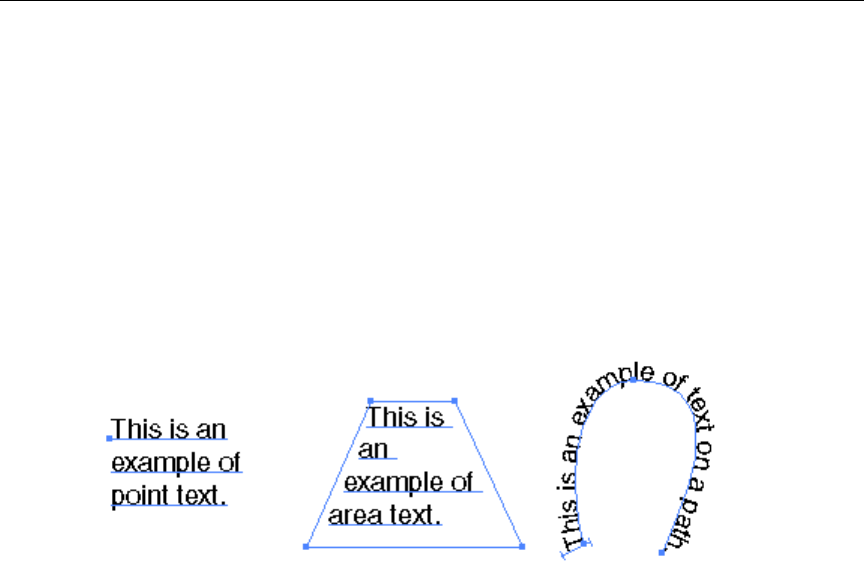
Working with text art Scripting Illustrator51
definition of a symbol causes all of the instances of the symbol to change as well. Symbol
items are Illustrator art objects and therefore can be treated as other art objects or page
items. In other words, you can rotate, resize, select, lock, hide and perform other
operations on them.
Working with text art
There are three types of text art items in Adobe Illustrator: point text, path text, and area
text. The kind property (Kind in Visual Basic) of a text art item is used to determine the
type of the text art item. While all three kinds of text art have some common
characteristics, such as an orientation, each kind of text art also has unique
characteristics.
All three kinds of text art have least one text path associated with them. A text path
(TextPath in Visual Basic) is not the same as a path art item, but defines the text art
item’s position on the artboard and its orientation (horizontal or vertical). Point text is
defined completely by the properties of its text art item and associated text path.
For path and area text, text paths are associated with normal path art items. These path
art items can be accessed and manipulated to modify the appearance of the associated
text art item. If the text art item is path text, it will have a text path offset property
(TextPathOffset in Visual Basic), which indicates where on the path object the text
begins.
All text art objects also have at least one line of text depending on the object’s geometry.
A line of text (TextLine in Visual Basic) is all of the characters that fit on a single line
in the text art item. Text art will have multiple text lines if it contains hard line breaks or its
characters flow to a new line because they do not fit in the width of the text art. Unlike
characters, paragraphs and words, lines can only be created by the Illustrator application.
Refer to the “Using Type” chapter in the Adobe Illustrator User Guide for more information
on working with text art.

Transformation matrices Scripting Illustrator52
Transformation matrices
Thanks to the matrix class and the many commands that support matrices, you have
access to the power of geometric transformation matrices. Transformation matrices are
mathematical concepts originating in the field of linear algebra. Geometric manipulations
like scaling, rotating and moving can all be described using transformation matrices.
Matrices are the basis of how Illustrator internally performs a user’s request to scale,
rotate or move an object. Using the command set available to create, concatenate, and
apply matrices, you can transform objects in documents with programmatic precision and
control. By concatenating a series of rotation, translation and scaling matrices together
and applying the resulting matrix, you can perform a large series of geometric
transformations in record speed. The following examples demonstrate how to combine
multiple modifications in a single matrix and then apply the matrix to every object in a
document.
Refer to the Illustrator Plug-in Software Development Kit Function Reference for more
information on working with transformation matrices.
Using a matrix in an AppleScript script
(* This script gets the identity matrix, combines it with a
rotation matrix and a scale matrix and then applies the
resulting matrix to all page items. *)
tell application "Adobe Illustrator 10"
set transformationmatrix to get identity matrix
set transformationmatrix to concatenate rotation matrix ¬
transformationmatrix angle 45.0
set transformationmatrix to concatenate scale matrix ¬
transformationmatrix horizontal scale 60
transform every page item of document 1 using transformationmatrix
end tell
Using a matrix in a Visual Basic script
'This example shows how to apply 2 transformations to all art in
'a document using the matrix command. This is more efficient than
'performing these transformations one at a time
Private Sub ApplyMatrix_Click()
Dim appRef As New Illustrator.Application
Dim moveMatrix As Illustrator.Matrix
Dim totalMatrix As Illustrator.Matrix

Working with variables and datasets Scripting Illustrator53
'Move art half an inch to the right and 1.5 inch up on the page
Set moveMatrix = appRef.GetTranslationMatrix(72# * 0.5,
72# * 1.5)
'Add a rotation to the translation. We rotate 10 degrees counter clockwise
Set totalMatrix = appRef.ConcatenateRotationMatrix(moveMatrix,
10)
'Apply the transformation to all art in the document
Dim frontDocument As Illustrator.Document
Dim artItem As Illustrator.PageItem
Set frontDocument = appRef.ActiveDocument
For Each artItem In frontDocument.PageItems
artItem.Transform totalMatrix
Next
End Sub
A matrix object in Illustrator is comprised of 6 properties. In AppleScript, these properties
are: mvalue_a, mvalue_b, mvalue_c, mvalue_d, mvalue_tx, and
mvalue_ty. In Visual Basic, these properties are: MValueA, MValueB, MValueC,
MValueD, MValueTX, and MValueTY. By experimenting with the matrix concatenation
commands in both AppleScript and Visual Basic, you can discover how to construct
matrices that can applied to perform movement (also called translation), rotation, scaling,
skewing and other transformations. See the script examples for the matrix commands for
working samples.
Working with variables and datasets
By creating dynamic objects, you can create data-driven graphics. You can define
dynamic objects by using variables. In scripting, the variable class corresponds
to these variables. Variables are document-level objects; therefore, you create them in the
document object. You can add and delete variables to/from a script by using the Add and
Remove/ RemoveAll methods (Visual Basic) or make and delete (AppleScript).
Datasets
Datasets are closely related to variables in that a dataset collects variables and their
associated dynamic data into a single object. The DataSet (VB) / dataset (AS) class
is the object that corresponds to an AI DataSet. The dataset collection in the
document class provides methods so you can create, update and delete datasets.

Launching and quitting Illustrator from a script Scripting Illustrator54
Launching and quitting Illustrator from a script
Your scripts can control the activation and quitting of the Illustrator application. Take note
of the particular comments below for your scripting system.
Launching and quitting from AppleScript
Use the activate and quit commands to control Illustrator’s run state. The
activate command will bring the Illustrator application to the front if it is not already
the frontmost application. Note that if the clipboard contains data at the time of quitting,
Illustrator may show a dialog asking if the data on the clipboard should be saved for other
applications. You can avoid this dialog by clearing the clipboard with the statement:
set the clipboard to {}
Launching and quitting from Visual Basic
In Visual Basic, the Activate method will bring the Illustrator application to the front if it
is not already frontmost.
Note that if the clipboard contains data at the time of quitting, Illustrator may show a
dialog prompting the user to save the data on the clipboard for other applications. You can
avoid this dialog by clearing the clipboard with the command:
Clipboard.Clear
Some objects that cannot be created by a script
Following are some objects that cannot be created from a script:
•Art styles
•Brushes
•Graphs
• Mesh art
• Plugin art
• Spirals

User Interaction Levels Scripting Illustrator55
User Interaction Levels
An application will usually present a dialog when it needs to provide feedback or request
information. This is called user interaction, and is useful and expected when you are
directly interacting with the application. On the other hand, when a script is interacting
with an application, an unexpected dialog will bring the execution of the script to a halt
until the dialog is dismissed. This can be a serious problem in an automation environment
where there is typically no one present to deal with dialogs.
The Illustrator 10 application class contains a user interaction level property. By setting
this property a script can control the level of interaction allowed during script execution.
All interaction is normally suppressed in an automation environment, and some
interaction might be useful where scripts are being used in a more interactive fashion.
AppleScript
There are four possible values for the user interaction level property in AppleScript:
•never interact No interaction is allowed
• interact with self Interact only with scripts executed from the scripts menu
• interact with local Interact with script executed on the local machine (including self)
• interact with all Interact with all scripts
Using AppleScript, it is possible to send commands from one machine to another. The
four possible values allow you to control interaction based on the source of the script
commands. For example, if the application is acting as a server for remote users, it would
be difficult for a remote user to dismiss a dialog, but it would be no problem for someone
sitting in front of the machine. In this case, an interaction level of ‘interact with local’ would
prevent dialogs from halting remote scripts but would allow dialogs to be presented for
local scripts.
Visual Basic and JavaScript
There are two possible values for the UserInteractionLevel property in Visual Basic:
• aiDontDisplayAlerts No interaction is allowed
• aiDisplayAlerts Interaction is allowed

The Scripts menu Scripting Illustrator56
The Illustrator 10 Windows scripting interface doesn’t support remote script execution so
it doesn’t need to provide values based on where a script is being executed.
The Scripts menu
Illustrator 10’s interface includes a Scripts menu (File>Scripts) which provides quick and
easy access to your scripts. To execute a script from the Scripts menu simply select it in
the menu. The script associated with the selected menu item will be then be executed.
Notes
If there is an error encounter during script execution an error dialog will be displayed
containing the error message returned by the script.
It is not possible to execute scripts that contain the do script (DoScript in Visual
Basic) command from the Scripts menu. Attempting to do so will result in an error.
Supported scripting languages
The Scripts menu supports AppleScript and JavaScript scripts for Mac OS, and VBScript,
JavaScript, and Visual Basic scripts for Windows.
Script files
For a file to be recognized by Illustrator as a valid script file it must have the correct file
type (Mac OS) or name extension (Mac OS and Windows).
Note: For files on Mac OS (9.x and 10.x) it is possible for files to be identified by the
classic file type and creator codes, file name extensions, or both. The.scpt extension is
only required for AppleScript files which do not have file type information, such as those
installed with Mac OS X. There is no harm in having a name extension when a file has file
type codes.
Script Type File Type Extension Platform(s)
AppleScript compiled script .scpt Mac OS
JavaScript text .js Mac OS &
Windows
VBScript text .vbs Windows
Visual Basic executable .exe Windows

The Scripts menu Scripting Illustrator57
Installing scripts
To install a script in the Scripts menu, place it in the Scripts folder (Illustrator
10>Presets>Scripts). The names of the scripts in the Scripts folder, less any file
name extension, will be displayed in the Scripts menu. Any number of scripts may be
installed in the Scripts menu.
Note: Scripts added to the Scripts folder while Illustrator is running will not appear in the
Scripts menu until the next time you launch Illustrator.
If you have a large collection of scripts you wish to use, you may use sub-folders in the
Scripts folder to help organize the scripts in the Scripts menu. Each subfolder will be
displayed as a separate submenu containing the scripts in that subfolder.
Note: Because of a limitation in the Mac OS, there is a limit of 4 levels of nested sub-
folders inside the Scripts folder for the Mac OS version of Illustrator.
Executing other scripts
A Browse item is provided at the end of the Scripts menu (File>Scripts>Browse…)
which allows you to execute scripts which are not installed in the Scripts folder. Selecting
the Browse menu item will display a file browser dialog which will allow you to select a
script file for execution. Only files which are of one of the supported file types, as listed in
the Script Files section above will be displayed in the browse dialog. When a script file is
selected in the browse dialog, it will be executed the same way as an installed script.

The Scripts menu Scripting Illustrator58

67
4
AppleScript Reference
This reference section describes the objects and commands in Illustrator’s AppleScript
dictionary. All of the objects in the dictionary are presented alphabetically. Following the
objects is a command reference which lists all of the commands in the Illustrator
dictionary.
Each object listing includes the following:
• Elements that are contained within the object.
• Properties of the object, including value type, read-only status, and an explanation.
•Valid commands.
• Notes to explain special issues.
• Script examples.
Throughout this guide, when an object inherits properties from another object, we repeat
all of the property definitions to maximize usability.
About the script examples
The examples presented here do not necessarily represent the most efficient way to
construct an AppleScript script. All example scripts are written in a manner that should be
easy to read and understand. The samples contain little error checking, and assume that
the proper context exists for the scripts to execute in, i.e., that there is a document open,
items selected, etc. The purpose of these examples is to show you how to address and
work with Illustrator’s objects. These examples may be combined to make scripts with
greater functionality.

Illustrator’s object model AppleScript Reference60
Illustrator’s object model
A good understanding of Illustrator’s object model will improve your scripting abilities. This
diagram shows the containment hierarchy of the object model, starting with the
application object. Note that the layer, group item, and all text classes can contain
additional objects of the same class which can in turn contain additional nested objects.
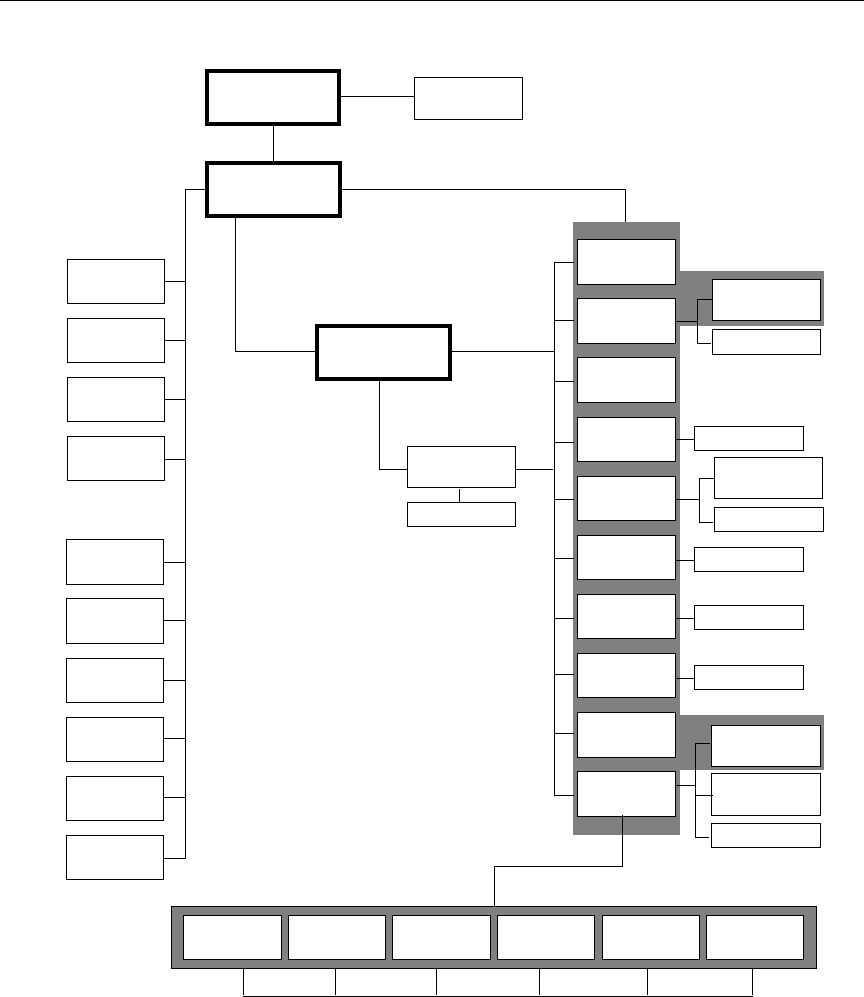
Adobe Illustrator 10 Scripting Guide Illustrator’s object model 61
art style
brush
data set
symbol
variable
view
character insertion line paragraph text word
point
page item
compound
graph
mesh item
path item
placed
plugin
raster
symbol
text art
path item
item
item
item
item
item
item
path point
tag
tag
text face
group item
path item
path item
tag
tag
text path
application
layer
document
tag
gradient
pattern
spot
swatch
tag
tag
tag
text classes
color-related
classes
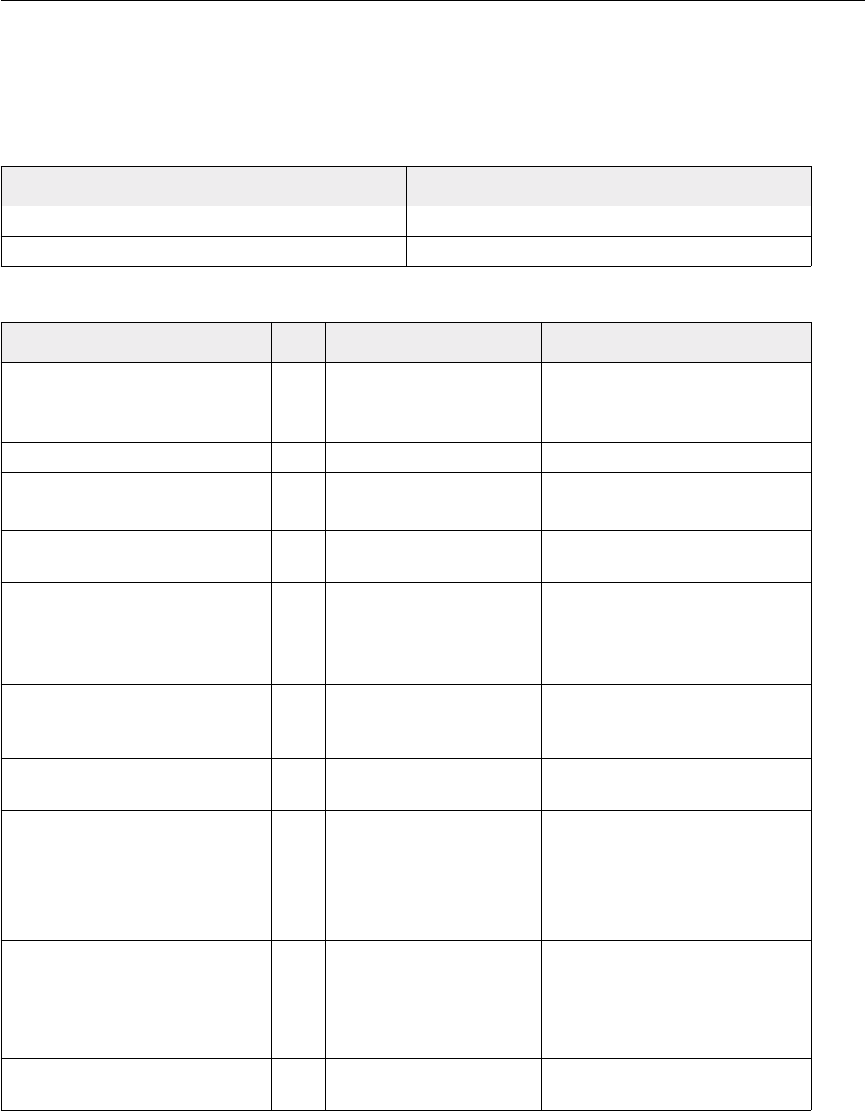
application AppleScript Reference62
application
The Adobe Illustrator application object, which contains all other Illustrator objects.
Elements
Properties
Element: Refer to by:
document name, index, before/after, range, test
text face name, index, before/after, range, test
Property: R/O Value type: What it is:
best type R/O class The best type for the application
object's value. Always returns
reference.
browser available R/O boolean Is a web browser available?
class R/O class The application object's class,
which is application.
current document object reference The active (frontmost)
document in Illustrator.
default type R/O class The default type for the
application object's value.
Always returns
reference.
free memory R/O integer The amount of unused memory
(in bytes) within the Adobe
Illustrator partition.
frontmost R/O boolean Is this the frontmost (active)
application?
name R/O string The application's name (not
related to the filename of the
application file). Always returns
"Adobe
Illustrator 10".
properties record All of the application's
properties returned in a single
record (properties which are
individually read-only remain so
in this record).
scripting version R/O string The version of the Scripting
plugin.

Adobe Illustrator 10 Scripting Guide application 63
Valid Commands
• activate
• copy
• cut
• do script
• launch
• paste
• quit
• redraw
Notes
In Illustrator, the application’s selection can be accessed as well as modified. The
selection will contain an empty list, {}, when there are no selected objects. To deselect
all objects in the current document, simply set the selection to an empty list. A
reference to an insertion point is returned when there is an active insertion point in the
contents of a text art item. Similarly, a reference to a range of text is returned when
characters are selected in the contents of a text art item.
settings Illustrator preferences Preferences for the Illustrator
application.
selection list (of object references) All of the currently selected
objects in the active (frontmost)
document. See the note for
more information.
user interaction level interact with all/interact
with local/interact with
self/never interact
The level of interaction with the
user that is allowed when
handling script commands.
Default: interact with all
version R/O string The version of the Adobe
Illustrator application.
Property: R/O Value type: What it is:

application AppleScript Reference64
Illustrator does not support the select command to change the application’s current
selection. Use set the selection to in place of select.
-- Select the first object in the document
tell application "Adobe Illustrator 10"
-- Make sure there is a page item to select
if (document 1 exists) and (page item 1 of document 1 exists) then
set the selection to page item 1 of document 1
end if
end tell
Example 1.1
You don’t need to make objects part of the selection to act on them. The selection is most
useful for moving objects to and from the clipboard using the cut, copy and paste
commands, which act on the current selection. The clipboard can be used effectively for
moving data between applications that do not share common object classes.
Note that Illustrator must be the frontmost application when executing any command that
deals with the clipboard. We bring Illustrator to the front in Example 1.1 by using
AppleScript’s activate command.
-- Copy the current selection to the clipboard then paste it into a new document
tell application "Adobe Illustrator 10"
-- If Illustrator is not the frontmost application, activate it.
if not frontmost then activate
-- Make sure there is a document to copy from
if (count of documents) > 0 then
-- and a selection to work with
set selectedItems to selection of current document
if selectedItems is not {} then
copy
set colorSpace to color space of current document
make new document with properties {color space:colorSpace}
paste
end if
end if
end tell

Adobe Illustrator 10 Scripting Guide art style, art styles 65
art style, art styles
An art style or list of art styles. Each art style defines a set of appearance attributes that
you can apply non-destructively to page items. Art styles are contained in documents.
Properties
Valid Commands
• apply
• count
• delete
•exists
Notes
Illustrator’s art styles can be accessed from scripting, but cannot be created.
You cannot delete default art styles.
Property: R/O Value type: What it is:
best type R/O class The best type for the art style
object's value. Always returns
reference.
class R/O class The art style object's class,
which is art style.
container R/O object reference A reference to the document
that contains this art style.
default type R/O class The default type for the art style
object, which is
reference.
index R/O integer The index of this art style.
name R/O string The name of this art style.
properties R/O record All of the properties of this
object returned as a record.

art style, art styles AppleScript Reference66
Example 2.1
This example demonstrates how to apply art styles to newly created groups of objects.
Note how this script deals with the fact that applying an art style to a group item does not
apply the art style to the page items contained in the group.
-- Duplicate and group the selected path items, then apply
-- a user-selected art style to the items in the new group
tell application "Adobe Illustrator 10" to ¬
set selectedItems to selection of document 1
-- Check for empty selection or a text selection before proceeding
if selectedItems is not {} and class of selectedItems is not text then
tell application "Adobe Illustrator 10"
-- Create the new group to contain the duplicated items
set groupRef to make new group item at document 1
-- Duplicate the selected items to the new group
set newItemList to duplicate selectedItems to beginning of groupRef
-- Get art style names for display in the choice list
set artStyleNames to name of every art style of document 1
end tell
-- Present dialog and let user choose the style to apply
set styleName to (choose from list artStyleNames ¬
with prompt "Style for selection?") as string
if styleName is not "" then
tell application "Adobe Illustrator 10"
(* The chosen art style is applied to the list of items returned by the
duplicate command, rather than to the new group itself, because the
apply command works on individual path items, not groups of items
*)
apply art style styleName of current document to newItemList
end tell
end if
end if

Adobe Illustrator 10 Scripting Guide brush, brushes 67
brush, brushes
A brush or list of brushes. Brushes are contained in documents.
Properties
Valid Commands
• apply
• count
•exists
Notes
Additional brushes may be created by the user within Illustrator. Illustrator’s brushes can
be accessed from scripting, but cannot be created.
Property: R/O Value type: What it is:
best type R/O class The best type for the brush
object's value. Always returns
reference.
class R/O class The brush object's class, which
is brush.
container R/O object reference A reference to the document
that contains this brush.
default type R/O class The default type for the brush
object, which is
reference.
index R/O integer The index of this brush.
name R/O string The name of this brush.
properties R/O record All of the properties of this
object returned as a record.

brush, brushes AppleScript Reference68
Example 3.1
This example demonstrates how to apply a series of brushes to objects.
-- Duplicate the current selection (if it is a single item)
-- and apply each available brush to the new object
tell application "Adobe Illustrator 10" to ¬
set selectedItems to selection
-- Check for selection of single non-text object
if class of selectedItems is text or (count of items of selectedItems) is
not 1 then
display dialog "Select a single path item before running this script"
else
tell application "Adobe Illustrator 10"
set pathItem to item 1 of selectedItems
-- Get the item's position and use it to tile the new items below
set {itemX, itemY} to position of pathItem
-- Get a list of all brushes and apply each brush to the selectec item
set brushList to every brush of current document
-- Get coordinates of upper-left of document
set docLeft to 0
set docTop to height of current document
set brushCount to count of items of brushList
repeat with i from 1 to brushCount
set aBrush to item i of brushList
set itemOffset to i * 20 -- use to tile the duplicated items
-- Duplicate the selected path item, tiling them from the
-- upper-left of the document
set pathRef to duplicate pathItem to beginning of current document ¬
with properties {position:{docLeft + itemOffset, docTop -
itemOffset}}
-- Must clear the document's selection before applying a brush
-- since the duplicate above seems to add to it each time through
set selection of current document to {}
apply aBrush to pathRef

Adobe Illustrator 10 Scripting Guide brush, brushes 69
end repeat
end tell
end if
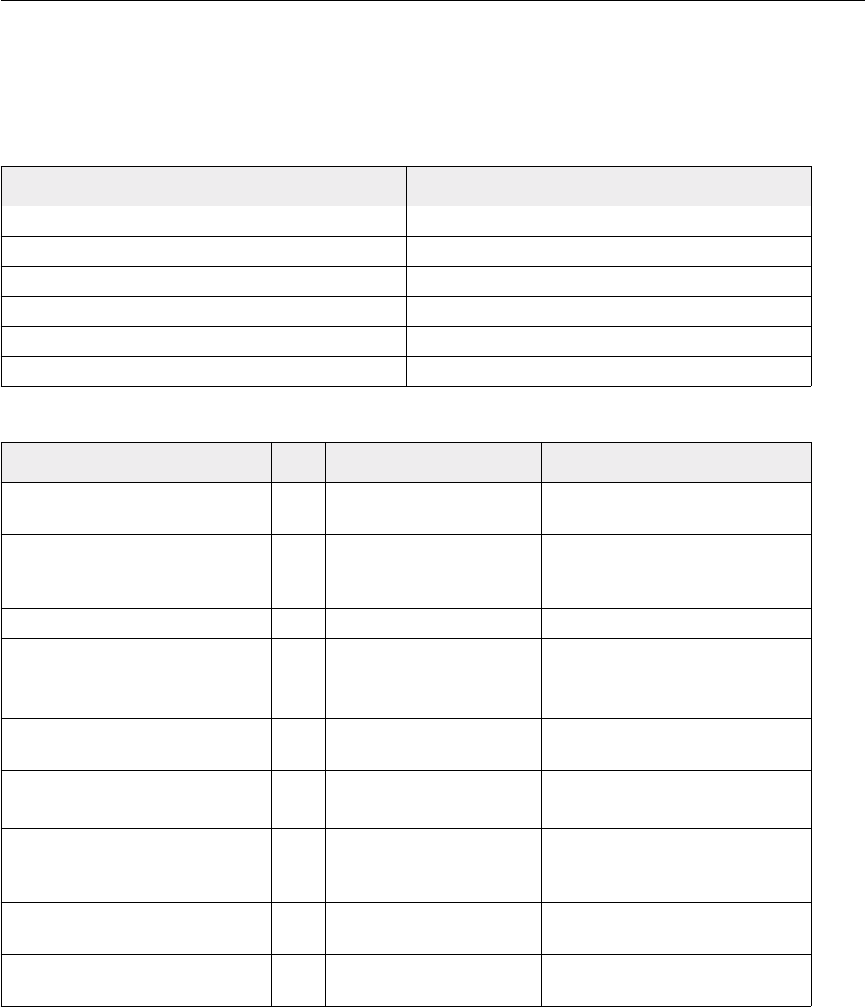
character, characters AppleScript Reference70
character, characters
A character or list of characters in the contents of a text art item.
Elements
Properties
Element: Refer to by:
character index, before/after, range, test
insertion point index, before/after, range, test
line index, before/after, range, test
paragraph index, before/after, range, test
text index, before/after, range
word index, before/after, range, test
Property: R/O Value type: What it is:
auto kerning boolean Should the font’s built-in kerning
rules be used?
baseline real Bottom position of horizontally-
oriented text or left position of
vertically-oriented text.
baseline shift real The baseline offset.
best type R/O class The best type for the character
object's value. Always returns
reference.
character offset R/O integer Offset from beginning (in
characters).
class R/O class The character object's class,
which is text.
clipping R/O boolean Is there a clipping path
associated with the text art item
containing this character?
container R/O object reference A reference to the text art item
that contains this character.
contents string The contents of the character
as a string.
Adobe Illustrator 10 Scripting Guide character, characters 71
default type R/O class The default type for the
character object, which is
string. The string value
returned is the value contained
in the character’s
contents property.
direction normal/rotated/KumiMoji The direction of characters in a
vertical text block.
evenodd boolean Should the even-odd rule be
used to determine fills?
fill color CMYK color info/gray
color info/RGB color info/
spot color info/pattern
color info/gradient color
info
The character’s fill color.
fill overprint boolean Should art beneath the filled
character be overprinted?
filled boolean Should the character’s path be
filled?
font string The name of the text face (font).
index R/O integer The index of this character in
the complete string.
kerning real The character spacing between
characters.
leading real The leading.
length R/O integer Length (in characters).
note R/O string A note associated with the text.
properties record All of the character’s properties
returned in a single record
(properties which are
individually read-only remain so
in this record).
resolution real The resolution of the path in
dots per inch.
scaling fixed point Horizontal and vertical scaling
specified as a point value.
size real The font size.
stroke cap butted/rounded/
projecting The type of cap on the
character’s stroke.
Property: R/O Value type: What it is:
character, characters AppleScript Reference72
Valid Commands
• count
• delete
• duplicate
•exists
• make
stroke color CMYK color info/gray
color info/RGB color info/
spot color info/pattern
color info/gradient color
info
The character’s stroke color.
stroke dash offset real The default distance to start the
stroke dash pattern.
stroke dashes list (of real numbers) The lengths for dashes and
gaps in dashed lines, starting
with the first dash length,
followed by the first gap length,
and so on. Set to an empty list,
{}, for a solid line.
stroke join mitered/rounded/beveled The type of joins in the
character’s stroke.
stroke miter limit real The angle at which a stroke join
switches from mitered to
beveled.
stroke overprint boolean Should art beneath the stroked
character be overprinted?
stroke width real The width of the stroke.
stroked boolean Should the character’s path be
stroked?
text orientation R/O horizontal/vertical Should this text be displayed
horizontally? Use the text
path class to modify this
value.
text path R/O object reference A reference to the text path
associated with the text art item
containing this text.
tracking real The uniform spacing amount
between characters.
Property: R/O Value type: What it is:

Adobe Illustrator 10 Scripting Guide character, characters 73
•move
Notes
The text contained within text art items in Illustrator can be accessed using the
character, insertion point, word, line, paragraph and text classes.
The properties and valid commands for all of these classes are similar, but not identical.
For example, while character has a kerning property, the other text classes do not.
Example 4.1
In the example below, the selection property has all of the properties that
character or any other text class would have.
-- Make the currently selected text superscript
tell application "Adobe Illustrator 10"
-- Make sure one or more characters of text are selected
set selectedText to selection of current document
if class of selectedText is text ¬
or class of selectedText is character then
-- Adjust the properties of the selected text to superscript it
set fontSize to size of selectedText
set fontBaseline to baseline shift of selectedText
set properties of selectedText to ¬
{size:fontSize / 2, baseline shift:fontBaseline + (fontSize / 2)}
end if
end tell
Example 4.2
This example demonstrates how to use character properties to create unique effects from
a script.
(* Distort every character in the first text art item of a document by incrementally modifying the
horizontal scaling of each character to give the effect of stretching words out *)
-- A smaller value for this property means more difference between largest and
-- smallest horizontal scaling of the characters
property pVariability : 1.0

character, characters AppleScript Reference74
tell application "Adobe Illustrator 10"
-- Is there is a document and a text art item to work with
if (exists text art item 1 of current document) then
-- Make sure the text art item contains some text
set textArtItem to first text art item of current document
if textArtItem is not "" then -- contains some text
-- Gather info needed to calculate the scale factor
set characterCount to count of characters in textArtItem
set factor to (characterCount + 1) / 2
-- Iterate over each character, changing its horizontal scale
repeat with i from 1 to characterCount
set hScaling to (factor - i) / factor
if hScaling < 0 then set hScaling to -hScaling
set widthScale to 100 * pVariability - (hScaling * 100)
set scaling of character i of text art item 1 of document 1 ¬
to {widthScale, 100.0}
end repeat
end if
end if
end tell

Adobe Illustrator 10 Scripting Guide CMYK color info 75
CMYK color info
A CMYK color specification, used to specify a CMYK color in conjunction with the color
property.
Properties
Valid Commands
none
Notes
This class is used to define a record which contains the color component values of a
CMYK color. It is used for specifying and retrieving color information from an Illustrator
document or from page items in a document.
If the color space of a document is RGB and you specify the color value for a page
item in that document using CMYK color info, Illustrator will translate the CMYK
color specification into a RGB color specification. The same thing happens if the
document’s color space is CMYK and you specify colors using RGB color info.
Since this translation can cause information loss you should specify colors using the color
info class that matches the document’s color space.
Property: R/O Value type: What it is:
cyan real The cyan color value as a value
in the range 0.0 - 100.0.
magenta real The magenta color value as a
value in the range 0.0 - 100.0.
yellow real The yellow color value as a
value in the range 0.0 - 100.0.
black real The black color value as a value
in the range 0.0 - 100.0.

CMYK color info AppleScript Reference76
Example 5.1
This example demonstrates how to create a new swatch in a document and assign a
CMYK color to the swatch.
-- Make a new CYMK color swatch in the current document
tell application "Adobe Illustrator 10"
if not (exists swatch "Yellow" in current document) then
set swatchColor to {cyan:50.0, magenta:20.0, yellow:20.0, black:0.0}
make new swatch at beginning of current document with properties ¬
{name:"Yellow", color:swatchColor}
end if
end tell
Adobe Illustrator 10 Scripting Guide compound path item, compound path items 77
compound path item, compound path items
A compound path or list of compound paths. Compound paths are objects composed of
multiple intersecting paths, resulting in transparent interior spaces where the original
paths overlapped.
Elements
Properties
Element: Refer to by:
path item name, index, before/after, range, test
tag name, index, before/after, range, test
Property: R/O Value type: What it is:
best type R/O class The best type for the compound
path item object's value. Always
returns reference.
blend mode normal/multiply/screen/
overlay/soft light/hard
light/color dodge/color
burn/darken/lighten/
difference/exclusion/hue/
saturation blend/color
blend/luminosity/numeric
The mode to use when
compositing this object. An
object is considered
composited when its opacity is
set to less than 100.0 (or
100%).
class R/O class The compound path item
object's class, which is always
compound path
item.
container R/O object reference A reference to the layer that
contains this compound path
item.
control bounds R/O fixed rectangle The bounds of the object
including stroke width and
controls.
default type R/O class The default type for the
compound path item object,
which is reference.
editable boolean Is this compound path editable?
geometric bounds R/O fixed rectangle The object’s bounds excluding
the stroke width.
graph item graph item object The graph item contained in this
compound path.

compound path item, compound path items AppleScript Reference78
group item group item object The group items contained in
this compound path.
height real The height of the compound
path item excluding stroke
width, calculated from the
geometric bounds.
hidden boolean Is this compound path item
hidden?
index R/O integer The position of this compound
path item in the current stacking
order of the containing layer,
where compound path item 1 is
always the topmost compound
path item.
inheritance R/O class The class that is the parent for
this class. Always returns
page item.
isolated boolean Is this object isolated?
knockout unknown/disabled/
enabled/inherited Is this object used to create a
knockout?
layer R/O object reference The layer to which this
compound path item belongs.
locked boolean Is this compound path item
locked?
mesh item mesh item object The mesh item contained in this
compound path item.
name string The name of this compound
path item.
opacity real The opacity of this object,
where 100.0 is completely
opaque and 0.0 is completely
transparent.
path item path item object The path item contained in this
compound path.
placed item placed item object The placed item contained in
this compound path.
plugin item plugin item object The plugin item contained in
this compound path.
position fixed point The position of the top left
corner of the compound path
item excluding stroke width.
Property: R/O Value type: What it is:

Adobe Illustrator 10 Scripting Guide compound path item, compound path items 79
Valid Commands
• count
• delete
• duplicate
•exists
•move
•translate
• rotate
• scale
•transform
properties record All of the compound path item’s
properties returned in a single
record (properties which are
individually read-only remain so
in this record).
raster item raster item object The raster item contained in this
compound path.
selected boolean Is this compound path item
selected?
slices boolean Preserve slices?
symbol item symbol item object The symbol item contained in
this compound path.
text art item text art item object The text art item contained in
this compound path.
URL string The value of the Adobe URL tag
assigned to this compound path
item.
visibility variable anything The visibility variable to which
this compound path is bound.
visible bounds R/O fixed rectangle The object’s visible bounds,
including stroke width of any
objects in the illustration.
width real The width of the compound
path item excluding stroke
width, calculated from the
geometric bounds.
Property: R/O Value type: What it is:

compound path item, compound path items AppleScript Reference80
Notes
Paths contained within a compound path or group in a document will be returned as
individual paths when a script asks for the paths contained in the document. However,
paths contained in a compound path or group will not be returned when a script asks for
the paths in a layer which contains the compound path or group.
All paths inside of a compound path share property values. Therefore, if you set the value
of a property of any one of the paths in the compound path, all other path’s matching
property will be updated to the new value.

Adobe Illustrator 10 Scripting Guide compound path item, compound path items 81
Example 6.1
This example demonstrates how to get a list containing all of the paths in a document that
are not part of a compound path or a group by iterating through each layer in the
document.
-- A handler which return paths in a document that are not part of a
-- compound path or group
to GetPathItemsOfDocument(docRef)
tell application "Adobe Illustrator 10"
set pathItemList to {}
set layerCount to count of layers of docRef
repeat with i from 1 to layerCount
set pathItemList to pathItemList & path items of layer i of docRef
end repeat
end tell
return pathItemList
end GetPathItemsOfDocument
-- Call handler
tell application "Adobe Illustrator 10" to set docRef to current document
set allPathItems to GetPathItemsOfDocument(docRef)
Example 6.2
Compound paths contain path items that can be accessed from a script. This example
shows how to duplicate the paths in a compound path and then group them in a new
group item.
-- Create a group containing a set of paths duplicated from the
-- first compound path item of the document
tell application "Adobe Illustrator 10"
set pathItemList to path every item of ¬
compound path item 1 of current document
set groupRef to make new group item at beginning of ¬
layer 1 of document 1
duplicate pathItemList to beginning of groupRef
end tell

dataset, datasets AppleScript Reference82
dataset, datasets
An object, or list of objects, that contains variables and their dynamic data.
Properties
Valid Commands
• count
• delete
• display
•exists
• make
• update
Property: R/O Value type: What it is:
best type R/O class The best type for the dataset’s
value. Always returns
reference.
class R/O class The dataset object’s class,
which is dataset.
container R/O object reference A reference to the art object
that contains this dataset.
default type R/O class The default type for the dataset.
Always returns
reference.
index R/O integer The index of this dataset in the
art object.
name string The name of the dataset.
properties record all of the dataset’s properties
returned in a single record
Adobe Illustrator 10 Scripting Guide document, documents 83
document, documents
An Illustrator document or a list of documents. Documents are contained in the
application object.
Elements
Properties
Element: Refer to by:
art style name, index, before/after, range, test
brush name, index, before/after, range, test
compound path item name, index, before/after, range, test
dataset name, index, before/after, range, test
gradient name, index, before/after, range, test
graph item name, index, before/after, range, test
group item name, index, before/after, range, test
layer name, index, before/after, range, test
mesh item name, index, before/after, range, test
page item name, index, before/after, range, test
path item name, index, before/after, range, test
pattern name, index, before/after, range, test
placed item name, index, before/after, range, test
plugin item name, index, before/after, range, test
raster item name, index, before/after, range, test
spot name, index, before/after, range, test
swatch name, index, before/after, range, test
symbol name, index, before/after, range, test
symbol item name, index, before/after, range, test
tag name, index, before/after, range, test
text art item name, index, before/after, range, test
variable name, index, before/after, range, test
view index, before/after, range, test
Property: R/O Value type: What it is:
best type R/O class The best type for the document
object's value. Always returns
reference.
document, documents AppleScript Reference84
class R/O class The document object's class,
which is document.
color space R/O RGB/CMYK The color specification system
to use for this document’s color
space.
crop marks fixed rectangle The boundary of the
document's cropping box for
output.
crop style standard/japanese The style of the document's
cropping box, either standard or
japanese.
current dataset object reference The currently active dataset.
current layer object reference The active layer in the
document.
current view R/O object reference The document's current view.
default fill color CMYK color info/gray
color info/RGB color info/
spot color info/pattern
color info/gradient color
info
The color to fill new paths if
default filled is true.
default fill overprint boolean Will art beneath a filled object
be overprinted by default?
default filled boolean Should a new path be filled?
default stroke cap butted/rounded/
projecting Default type of line capping for
paths created.
default stroke color CMYK color info/gray
color info/RGB color info/
spot color info/pattern
color info/gradient color
info
The stroke color for new paths if
default stroked is true.
default stroke dash offset real The default distance into the
dash pattern at which the
pattern should be started for
new paths.
default stroke dashes list (of real numbers) Default lengths for dashes and
gaps in dashed lines, starting
with the first dash length,
followed by the first gap length,
and so on. Set to an empty list,
{}, for a solid line.
default stroke join mitered/rounded/beveled Default type of joints in new
paths.
Property: R/O Value type: What it is:
Adobe Illustrator 10 Scripting Guide document, documents 85
default stroke miter limit real Specifies when a join is mitered
(pointed) or beveled (squared-
off) by default, when default
stroke join is set to mitered.
default stroke overprint boolean Will art beneath a stroked
object be overprinted by
default?
default stroke width real Default width of stroke for new
paths.
default stroked boolean Should a new path be stroked?
default type R/O class The default type for the
document object's value.
Always returns
reference.
file path R/O file specification The file associated with the
document, which includes the
complete path to the file.
geometric bounds R/O fixed rectangle The object’s bounds excluding
the stroke width.
height R/O real The height of the document,
calculated from the geometric
bounds.
index R/O integer The position of this document in
the stacking order of all open
documents. The current
(frontmost) document is always
document 1.
modified boolean Has the document been
modified since the last save?
name R/O string The document's name (not the
complete file path to the
document).
output resolution R/O real The current output resolution for
the document in dots per inch
(dpi).
page origin fixed point The zero-point of the page in
the document without margins,
relative to the overall height and
width.
print tiles R/O boolean Does this document print as
tiled output?
Property: R/O Value type: What it is:

document, documents AppleScript Reference86
Valid Commands
• close
• count
•exists
•export
• make
• open
properties record All of the document's properties
returned in a single record
(properties which are
individually read-only remain so
in this record).
ruler origin fixed point The zero-point of the rulers in
the document relative to the
bottom left of the document.
ruler units R/O unknown/inches/
centimeters/points/picas/
millimeters/qs
The default units for the rulers
in the document.
selection list (of object references) The list of references to the
objects in this document's
current selection.
show placed images R/O boolean Are placed images displayed in
the document?
split long paths R/O boolean Are long paths to be split when
printing?
stationery R/O boolean Is the document saved as a
stationery file?
tile full pages R/O boolean Should full pages be tiled when
printing this document?
use default screen R/O boolean Should the printer's default
screen be used when printing
this document?
visible bounds R/O fixed rectangle The object’s visible bounds,
including stroke width of any
objects in the illustration.
width R/O real The width of this document,
calculated from the geometric
bounds.
Property: R/O Value type: What it is:

Adobe Illustrator 10 Scripting Guide document, documents 87
•print
•save
Notes
Illustrator’s default document settings—those properties starting with the word “default”—
are global settings that affect the current document. Be sure to modify these default
properties only when a document is open. Note that if you set default properties to
desired values before creating new objects, you can streamline your scripts, eliminating
the need to specify properties such as fill color and stroked that have
analogous default properties.
A document’s color space, height, and width can only be set when the
document is created. Once a document is created, these properties cannot be changed.
The frontmost document can be referred to as either current document or
document 1.

document, documents AppleScript Reference88
Example 7.1
The following example shows how to make sure a document is open before setting any of
the application’s default properties.
-- Check to make sure a document is open in Illustrator
-- before setting the application's default stroke width to 8 points
tell application "Adobe Illustrator 10"
if not (document 1 exists) then
make new document with properties {color space: CMYK, width: 100.0,
height: 50.0}
end if
set the default stroke width of document 1 to 8.0
end tell
Example 7.2
The following example shows how to make new documents with custom defaults.
-- Present a dialog to the user to choose a new document type
-- from, then create a new document with its properties set accordingly
-- Note: You can only change writable document defaults when a document is open
-- Prompt user for new document properties from list of choices
set listChoice to (choose from list ¬
{"CMYK, filled, 2 pt stroke with dashes", ¬
"RGB, filled, no stroke", ¬
"RGB, no fill, 1 pt stroke"} ¬
with prompt "What kind of new document to create?")
if listChoice is not false then
-- Gather the values needed to set the document's properties
set documentType to item 1 of listChoice
set fillPaths to (documentType contains "filled")
set strokePaths to (documentType contains "pt stroke")
set strokeWidth to 0.0
if documentType contains "1 pt" then
set strokeWidth to 1.0
else if documentType contains "2 pt" then
set strokeWidth to 2.0

document, documents AppleScript Reference89
end if
if documentType contains "with dashes" then
set strokeDashes to {2.5, 1, 2.5, 1, 2.5, 1}
else
set strokeDashes to {}
end if
tell application "Adobe Illustrator 10"
-- Create a document with the requested color space
if documentType starts with "CMYK" then
set docRef to make new document with properties {color space:CMYK}
else
set docRef to make new document with properties {color space:RGB}
end if
-- Set the document's properties with one command
set properties of docRef to ¬
{default filled:fillPaths ¬
, default stroked:strokePaths ¬
, default stroke width:strokeWidth ¬
, default stroke dashes:strokeDashes}
end tell
end if
Example 7.3
This example demonstrates how to use document properties in other applications. In this
case, the script uses the file path property of the active document to open the folder
containing the Illustrator document in the Finder.
-- Reveal and select a document’s file icon in the Finder
tell application "Adobe Illustrator 10"
set filePath to file path of current document
end tell
tell application "Finder"
activate
reveal filePath
end tell

ellipse AppleScript Reference90
ellipse
A class used to create an elliptical path in an Illustrator document. This class can only be
used to create new path item objects.
Properties
Valid Commands
• make
Notes
Illustrator’s ellipse object is available exclusively for use with the make command.
The class of the object created will be a path item. Therefore, the properties for an ellipse
are write-once (W/O) in the sense that they can be used only to specify the creation of a
new path item. This special class allows you to quickly create complex path items using
the straightforward properties provided. If you do not specify any properties when making
a new ellipse, default values will be used. Properties usually associated with path items,
such as fill color, can also be specified at the time of creation.
Example 8.1
This examples demonstrates how to create a series of ellipses based on the geometry of
a single selected object.
-- Embellish a single selected path item by adding a bright red
-- ellipse to each point on the path
property pEllipseScale : 0.1
tell application "Adobe Illustrator 10"
activate
set selectedItems to selection
-- A bit of sanity checking
Property: R/O Value type: What it is:
bounds W/O fixed rectangle The bounds of the ellipse.
inscribed W/O boolean Is the ellipse path inscribed
(drawn inside the rectangle
described by the bounds)?
reversed W/O boolean Is the ellipse path reversed?

ellipse AppleScript Reference91
if (count of selectedItems) is not 1 ¬
or class of selectedItems is text ¬
or class of item 1 of selectedItems is not path item then
display dialog "Please select a single path item before running this
script"
else
set pathItem to item 1 of selectedItems
-- Set ellipse color based on document color space
set docColorSpace to color space of current document
if docColorSpace is RGB then
set ellipseColor to {red:255.0, green:0.0, blue:0.0}
else
set ellipseColor to {cyan:0.0, magenta:100.0, yellow:100.0,
black:0.0}
end if
-- Gather needed info about the path item to be embellished
set itemWidth to width of pathItem
set itemHeight to height of pathItem
set pathPointList to anchor of every path point of pathItem
-- Calculate the position and bounds for each ellipse
repeat with aPoint in pathPointList
set {x, y} to aPoint
set rectLeft to x - (itemWidth * pEllipseScale)
set rectRight to x + (itemWidth * pEllipseScale)
set rectTop to y + (itemHeight * pEllipseScale)
set rectBottom to y - (itemHeight * pEllipseScale)
set ellipseRect to {rectLeft, rectTop, rectRight, rectBottom}
make new ellipse at beginning of current document ¬
with properties {bounds:ellipseRect, inscribed:true ¬
, reversed:false, stroke color:ellipseColor, fill
color:ellipseColor} ¬
end repeat
end if
end tell

EPS save options AppleScript Reference92
EPS save options
Options which may be supplied when saving a document as an Illustrator EPS file. See
the save command in the command reference for additional details.
Properties
Notes
Postscipt level 1 is only valid for compatibility with Illustrator 8 or earlier.
Property: R/O Value type: What it is:
CMYK PostScript boolean Use CMYK PostScript? default:
false
compatibility Illustrator 3/Illustrator 4/
Illustrator 5/Illustrator 6/
Illustrator 7/Illustrator 8/
Illustrator 9/Illustrator 10
Specifies the version of the
Illustrator file format to create.
default: Illustrator
10
embed all fonts boolean Include fonts used in the EPS
file? default: false
embed linked files boolean Are linked image files to be
included in the saved
document? default: false
flatten output preserve paths/preserve
appearance How should transparency be
flattened for file formats before
Illustrator 10. default:
preserve
appearance
included document thumbnails boolean Include thumbnail image of the
EPS artwork? default: true
japanese file format boolean Save the file using Japanese
version of file format? Valid only
for Illustrator 3 - 5 compatibility.
default: false
PostScript level 1/level 2/level 3 Specifies the PostScript level to
use when saving the file.
default: level 3
preview none/BW Macintosh/
color Macintosh/BW
TIFF/color TIFF/
transparent color TIFF
Specifies the format for the EPS
preview image. default:
color Macintosh

Adobe Illustrator 10 Scripting Guide EPS save options 93
This class is used to define a record containing properties that specify options when
saving a document as an EPS file. EPS save options can only be used in
conjunction with the save command. It is not possible to get or create an EPS save
options object.
It is not necessary to specify values for all properties. Default values will be provided for
any properties not specified.
Example 9.1
This handler processes a folder of Illustrator files, saving each as an EPS file with level 2
PostScript and Illustrator 10 compatibility. The files are save to the folder specified in the
destinationFolder parameter. Note that the class property is specified in the
record to ensure that Illustrator can determine the save option class.
-- fileList is a list of aliases to Illustrator files
-- destinationFolder is an alias to a folder where the EPS files are to be saved
set sourceFolder to choose folder with prompt "Source folder?"
tell application "Finder" to
set fileList to every file of folder sourceFolder as alias list
set destinationFolder to choose folder with prompt "Destination folder?"
set destinationPath to destinationFolder as string
repeat with aFile in fileList
tell application "Finder" to set fileName to name of aFile
set newFilePath to destinationPath & fileName & ".EPS"
tell application "Adobe Illustrator 10"
open aFile
save current document in file newFilePath as eps ¬
with options {class:EPS save options ¬
, compatibility:Illustrator 10 ¬
, preview:color Macintosh ¬
, embed linked files:true ¬
, include document thumbnails:true ¬
, embed all fonts:true ¬
, japanese file format:false ¬
, CMYK PostScript:true ¬
, PostScript:level 2}

EPS save options AppleScript Reference94
close current document saving no
end tell
end repeat

Adobe Illustrator 10 Scripting Guide fixed point 95
fixed point
A pair of values that defines the coordinates for a point. Stored as a list of two real
numbers, where the first item is the horizontal (x) coordinate of the point and the second
item is the vertical (y) coordinate of the point. For example, {10.0, 5.0} would
specify a point where the x coordinate is 10.0 and the y coordinate is 5.0.
Notes
The point is used to specify the coordinates for many properties of objects in Illustrator.
All distance and measurement values in Illustrator use the points unit of measure.
It is not possible to get or create a fixed point object.
Example 10.1
The values in fixed point can be used in a number of way in a script.
tell application "Adobe Illustrator 10"
if (count of documents)>0 then
-- Get the position of a page item
set itemPos to position of page item 1 of document 1
--> {100.0, 200.0}
-- Assigns the two values in a fixed point to two variables
set {x, y} to itemPos
--> x = 100.0, y = 200.0
-- or assign to two variables directly
set {x, y} to position of page item 1 of document 1
--> x = 100.0, y = 200.0
-- Change the x value in a fixed point
set item 1 of itemPos to (item 1 of itemPos) + 100.0
--> {200.0, 200.0}
-- Change position of a page item
set position of page item 1 of document 1 to itemPos
-- or change it using the individual variables
set position of page item 1 of document 1 to {x + 100.0, y}
end if

fixed point AppleScript Reference96
end tell

Adobe Illustrator 10 Scripting Guide fixed rectangle 97
fixed rectangle
Four coordinates that defines the rectangular geometry of an object. Stored as a list of
four real numbers, where the first item is the leftmost horizontal coordinate of the
rectangle, the second item is the top vertical coordinate of the rectangle, the third item is
the rightmost horizontal coordinate, and the fourth item is the bottom vertical coordinate
of the rectangle.
Notes
The fixed rectangle is used to specify the geometry for a number of properties for objects
in Illustrator. All distance and measurement values in Illustrator use the points unit. It is
not possible to get or create fixed rectangle object.
Remember that in the Illustrator coordinate system, vertical coordinates increase from
bottom to top, which is the opposite of screen coordinates. This mean that the top
coordinate value in a fixed rectangle will be larger than the bottom coordinate value.
Example 11.1
The values in a fixed rectangle can be used in a number of way in a script.
tell application "Adobe Illustrator 10"
-- Get the bounds of a page item
set itemBounds to geometric bounds of page item 1 of document 1
--> {100.0, 400.0, 300.0, 200.0}
-- Assigns the four values in a rectangle point to four variables
set {l, t, r, b} to itemBounds
--> l = 100.0, t = 400.0, r = 300.0, b = 200.0
-- or assign to four variables directly
set {l, t, r, b} to geometric bounds of page item 1 of document 1
--> l = 100.0, t = 400.0, r = 300.0, b = 200.0
-- Calculate center of page item from its bounds
set xCenter to ((item 1 of itemBounds) + (item 3 of itemBounds)) / 2
set yCenter to ((item 2 of itemBounds) + (item 4 of itemBounds)) / 2
--> xCenter = 200.0, yCenter = 300.0
-- or calculate the center using the individual coordinate variables
set xCenter to (l + r) / 2
set yCenter to (t + b) / 2

fixed rectangle AppleScript Reference98
--> xCenter = 200.0, yCenter = 300.0
-- Change the left value in a fixed rectangle
set item 1 of itemBounds to (item 1 of itemBounds) + 100.0
--> {200.0, 400.0, 300.0, 200.0}
end tell
Adobe Illustrator 10 Scripting Guide Flash export options 99
Flash export options
You can supply a number of options when exporting a document as Flash (.SWF). See
the export command in the command reference for additional details.
Properties
Notes
This class is used to define a record containing properties that specify options when
exporting a document as a Flash (.SWF) file. Flash export options can only be
supplied in conjunction with the export command. It is not possible to get or create a
Flash export options object.
Property: R/O Value type: What it is:
artboard clipping boolean Should the resulting image be
clipped to the artboard? default:
false
curve quality integer How much curve information
should be preserved (0-10,
default: 7)
export style Flash file/layers to files/
layers to Flash frames How the Flash file should be
created (default: Flash file)
frame rate real When exporting layers to Flash
frames (0.01-120, default: 12)
generate HTML boolean export as HTML file (default:
true)
JPEG method optimized/standard What method to use (default:
standard)
JPEG quality integer Level of compression (0-10,
default: 3)
looping boolean Should the Flash file be set to
loop when run (default: false)
read only boolean Export as read only file (default:
false)
replacing yes/no/ask If a file with the same name
already exists, should it be
replaced?
Default: ask
resolution real Pixels per inch (72-2400,
default: 72)

Flash export options AppleScript Reference100
It is not necessary to specify values for all properties. Default values will be provided for
all properties not specified.

Adobe Illustrator 10 Scripting Guide GIF export options 101
GIF export options
Options which may be supplied when exporting a document as a GIF file. See the
export command in the command reference for additional details.
Properties
Property: R/O Value type: What it is:
antialiasing boolean Should the resulting image be
anti-aliased? default: true
artboard clipping boolean Should the resulting image be
clipped to the artboard? default:
false
color count integer The number of colors in the
exported color table. range: 2 -
256. default: 128
color dither none/diffusion/pattern
dither/noise The method used to dither
colors. default: diffusion
color reduction selective/adaptive/
perceptual/web The method used to reduce the
number of colors in the
document. default:
selective
dither percent integer How much should the colors be
dithered? range: 0 - 100.
default: 88
horizontal scaling real The horizontal scaling factor to
apply to the resulting image.
range: 0.0 - 100.0. default:
100.0
information loss integer The level of information loss
during compression (as a
percentage). range: 0 - 100.
default: 0
interlaced boolean Should the resulting image be
interlaced? default: false
matte boolean Should the artboard be matted
with a color? default: true

GIF export options AppleScript Reference102
Notes
This class is used to define a record containing properties that specify options when
exporting a document as a GIF file. GIF export options can only be supplied in
conjunction with the export command. It is not possible to get or create an GIF
export options object.
It is not necessary to specify values for all properties. Default values will be provided for
any properties not specified.
matte color RGB color info The color to use when matting
the artboard. default:
{255.0, 255.0,
255.0}
saving as HTML boolean Should the resulting image be
saved with an accompanying
HTML file? default: false
transparency boolean Should the resulting image use
transparency? default: true
vertical scaling real The vertical scaling factor to
apply to the resulting image.
range: 0.0 - 100.0
web snap integer How much should the color
table be changed to match the
web pallet? range: 0 - 100,
where 100 is the maximum
change. default: 0
Property: R/O Value type: What it is:

Adobe Illustrator 10 Scripting Guide GIF export options 103
Example 12.1
This handler processes all Illustrator files in a specific folder, exporting each as a scaled
GIF image. Note that the class property is specified in the record to ensure that
Illustrator can determine the export option class.
-- fileList is assumed to be a list of aliases to Illustrator files
-- destinationFolder is assumed to be an alias to a folder where the
-- GIF files are to be exported
on ExportFilesAsGIF(fileList, destinationFolder)
set destinationPath to destinationFolder as string
repeat with aFile in fileList
tell application "Finder" to ¬
set fileName to name of aFile
set newFilePath to destinationPath & fileName & ".gif"
tell application "Adobe Illustrator 10"
open aFile
export current document to file newFilePath as GIF with options ¬
{class:GIF export options ¬
, color count:256 ¬
, color reduction:adaptive ¬
, information loss:0 ¬
, color dither:none ¬
, dither percent:100 ¬
, web snap:0 ¬
, transparency:false ¬
, interlaced:false ¬
, matte:true ¬
, matte color:{red:128, green:0, blue:60} ¬
, horizontal scaling:50.0 ¬
, vertical scaling:50.0 ¬
, antialiasing:true ¬
, artboard clipping:false ¬
, saving as HTML:false}
close current document saving no
end tell
end repeat

GIF export options AppleScript Reference104
end ExportFilesAsGIF
-- Call handler
set sourceFolder to choose folder with prompt "Source folder?"
tell application "Finder" to ¬
set fileList to every file of folder sourceFolder as alias list
set destinationFolder to choose folder with prompt "Destination folder?"
ExportFilesasGIF(fileList, destinationFolder)
Adobe Illustrator 10 Scripting Guide gradient, gradients 105
gradient, gradients
A gradient definition or gradient definitions. Gradients are contained in documents.
Elements
Properties
Valid Commands
• count
• delete
• duplicate
•exists
• make
Element: Refer to by:
gradient stop index, before/after, range, test
Property: R/O Value type: What it is:
best type R/O class The best type for the gradient
object's value. Always returns
reference.
class R/O class The gradient object's class,
which is gradient.
container R/O object reference A reference to the document
that contains this gradient.
default type R/O class The default type for the gradient
object's value. Always returns
reference.
entire gradient list (of gradient stop info) All of the gradient stops in the
gradient.
gradient type linear/radial The type of the gradient.
index R/O integer The position of this gradient in
the application.
name string The gradient’s name.
properties record All of the gradient’s properties
returned in a single record
(properties which are
individually read-only remain so
in this record).

gradient, gradients AppleScript Reference106
Notes
Illustrator’s gradient object represents a gradient as defined in the Illustrator
application. Additional gradients may be created by the user within Illustrator or via a
script.
Example 13.1
This example shows how to create a linear RGB gradient.
-- create a new RGB gradient with three gradient stops
property pGradientName : "RGB Hot Streak"
tell application "Adobe Illustrator 10"
if not (exists gradient pGradientName in current document) then
set newgradient to make new gradient at beginning of ¬
current document
with properties {name:pGradientName, kind:linear}
-- Since all new gradients are created with 2 gradient stops,
-- create another stop for the 3 stop gradient
make new gradient stop at beginning of newgradient
set properties of gradient stop 1 of newgradient to ¬
{midpoint:50.0, ramp point:0.0,¬
color:{red:255.0, green:255.0, blue:0.0}}
set properties of gradient stop 2 of newgradient to ¬
{midpoint:50.0, ramp point:50.0, color:{red:255.0, green:127.0,
blue:127.0}}
set properties of gradient stop 3 of newgradient to ¬
{midpoint:50.0, ramp point:100.0, color:{red:255.0, green:0.0,
blue:0.0}}
end if
end tell
Adobe Illustrator 10 Scripting Guide gradient color info 107
gradient color info
A gradient color specification, used to specify a gradient color in conjunction with the
color property.
Properties
Notes
This class is used to define a record which contains the color component values of a
gradient color swatch. It is used for specifying and retrieving color information from an
Illustrator document or from page items in a document.
Example 14.1
This example demonstrates how to set a path item’s fill color to a gradient color.
-- Set fill color of the first path in the current document
-- to the first gradient in the document
tell application "Adobe Illustrator 10"
set the fill color of path item 1 of document 1 to ¬
{gradient:gradient 1 of document 1}
end tell
Property: R/O Value type: What it is:
angle real The gradient vector angle (in
degrees).
gradient object reference A reference to the gradient
object that defines the gradient
to use in this color definition.
hilite angle real The gradient hilite vector angle
(in degrees).
hilite length real The gradient hilite vector length.
length real The gradient vector length.
matrix matrix An additional transformation
matrix to manipulate the
gradient path.
origin fixed point The gradient vector origin.

gradient stop, gradient stops AppleScript Reference108
gradient stop, gradient stops
A gradient stop definition or definitions contained in a specific gradient.
Properties
Valid Commands
• count
• delete
Property: R/O Value type: What it is:
best type R/O class The best type for the gradient
stop object's value. Always
returns reference.
class R/O class The gradient stop object's class,
which is gradient
stop.
color CMYK color info/gray
color info/RGB color info/
spot color info/pattern
color info/gradient color
info
The color linked to this gradient
stop.
container R/O object reference A reference to the gradient that
contains this gradient stop.
default type R/O class The default type for the gradient
stop object's value. Always
returns reference.
index R/O integer The position of this gradient
stop in the gradient.
midpoint real The midpoint of the blend
between this stop’s and the next
stop’s colors. range: 13.0 -
87.0
properties record All of the gradient stop’s
properties returned in a single
record (properties which are
individually read-only remain so
in this record).
ramp point real The location of the color in the
gradient. range: 0.0 -
100.0

Adobe Illustrator 10 Scripting Guide gradient stop, gradient stops 109
• duplicate
•exists
• make
Notes
Illustrator’s gradient stop object represents a point on a specific gradient defined in
the Illustrator application. Each gradient stop specifies a color change in the containing
gradient.
Example 15.1
This example demonstrates how to reverse the colors in a gradient by getting, then
switching, the colors of the contained gradient stops.
-- This handler reverses the colors in gradient identified
-- by the gradientRef parameter
on ReverseGradientColors(gradientRef)
tell application "Adobe Illustrator 10"
-- Get a list of the gradient's colors
set colorList to color of every gradient stop of gradientRef
-- Tell AppleScript to reverse the order of the list
set colorList to reverse of colorList
-- Iterate over the gradient resetting its colors
set colorCount to count of items in colorList
repeat with i from 1 to colorCount
set color of gradient stop i of gradientRef to (item i of colorList)
end repeat
end tell
end ReverseGradientColors
-- call handler
tell application "Adobe Illustrator 10" to set gradientRef to ¬
gradient 1 of document 1
ReverseGradientColors(gradientRef)

gradient stop info AppleScript Reference110
gradient stop info
Gradient stop information of a specific gradient, returned by the entire gradient
property of a gradient.
Properties
Notes
When you get the entire gradient property of a gradient, a list of gradient
stop info records is returned, one record for each gradient stop in the gradient.
The gradient stops for a new gradient can be specified by providing a list of gradient
stop info records in the entire gradient property. The following applies when
creating a gradient from a list of gradient stop info records:
•a gradient stop’s location in the gradient is determined by its ramp point value, not
the gradient stop info record’s order in the entire gradient list.
• the midpoint value of the last gradient stop info record in the entire
gradient list is not used for the newly created gradient and need not be provided. If it is
present, its value must be in the valid range.
Property: R/O Value type: What it is:
color CMYK color info/gray
color info/RGB color info/
spot color info/pattern
color info/gradient color
info
The color linked to this gradient
stop.
midpoint real The midpoint of the blend
between this stop’s and the next
stop’s colors. range: 13.0 -
87.0
ramp point real The location of the color in the
gradient. range: 0.0 -
100.0

Adobe Illustrator 10 Scripting Guide gradient stop info 111
Example 16.1
This example shows how to create a circular CMYK gradient using a list of gradient stop
info records.
-- Create a new CMYK gradient with 4 gradient stops
property pGradientName : "CMYK Circle"
tell application "Adobe Illustrator 10"
if not (exists gradient pGradientName in current document) then
set entireGradient to {{midpoint:50.0, ramp point:0.0 ¬
, color:{cyan:0.0, magenta:0.0, yellow:0.0, black:100.0}} ¬
, {midpoint:50.0, ramp point:33.3 ¬
, color:{cyan:0.0, magenta:0.0, yellow:100.0, black:0.0}} ¬
, {midpoint:50.0, ramp point:66.7 ¬
, color:{cyan:0.0, magenta:100.0, yellow:0.0, black:0.0}} ¬
, {midpoint:50.0, ramp point:100.0 ¬
, color:{cyan:100.0, magenta:0.0, yellow:0.0, black:0.0}}}
set gradientRef to make new gradient in current document with
properties ¬
{name:pGradientName, kind:radial, entire gradient:entireGradient}
end if
end tell
graph item, graph items AppleScript Reference112
graph item, graph items
A graph item is a graph or a list of graphs.
Elements
Properties
Element: Refer to by:
tag name, index, before/after, range, test
Property: R/O Value type: What it is:
best type R/O class The best type for the graph item
object's value. Always returns
reference.
blend mode normal/multiply/screen/
overlay/soft light/hard
light/color dodge/color
burn/darken/lighten/
difference/exclusion/hue/
saturation blend/color
blend/luminosity/numeric
The mode to use when
compositing this object. An
object is considered
composited when its opacity is
set to less than 100.0 (or
100%).
class R/O class The graph item object's class,
which can be any one of the
specific classes that are
children of the page item class,
including compound path item,
group item, mesh item, path
item, placed item, plugin item,
raster item, and text art item.
compound path item compound path object The compound path contained
in this graph item.
container R/O object reference A reference to the layer that
contains this graph item.
content variable content variable The content variable to which
this graph item is bound.
control bounds R/O fixed rectangle The bounds of the graph item
including stroke width and
controls.
default type R/O class The default type for the graph
item object's value. Always
returns reference.
editable boolean Is this graph item editable?
Adobe Illustrator 10 Scripting Guide graph item, graph items 113
geometric bounds R/O fixed rectangle The object’s bounds excluding
the stroke width.
group item group item object The group items contained in
this graph item.
height real The height of the graph item,
calculated from the geometric
bounds.
hidden boolean Is this graph item hidden?
index R/O integer The position of this graph item
in the current stacking order of
the containing layer, where
graph item 1 is always topmost.
isolated boolean Is this object isolated?
knockout unknown/disabled/
enabled/inherited Is this object used to create a
knockout?
layer R/O object reference The layer to which this graph
item belongs.
locked boolean Is this graph item locked?
mesh item mesh item object The mesh item contained in this
graph item.
name string The name of this graph item.
opacity real The opacity of this object,
where 100.0 is completely
opaque and 0.0 is completely
transparent.
path item path item object The path item contained in this
graph item.
placed item placed item object The placed item contained in
this graph item.
plugin item plugin item object The plugin item contained in
this graph item.
position fixed point The position of the top left
corner of the graph item.
properties record All of the graph item’s
properties returned in a single
record (properties which are
individually read-only remain so
in this record).
raster item raster item object The raster item contained in this
graph item.
selected boolean Is this object selected?
Property: R/O Value type: What it is:

graph item, graph items AppleScript Reference114
Valid Commands
• count
• delete
• duplicate
•exists
•move
• rotate
• scale
•transform
•translate
Notes
Note that it is not necessary to set the type of the content variable before binding.
Illustrator automatically sets the type to graph.
slices boolean Preserve slices?
symbol item symbol item object The symbol item contained in
this graph item.
text art item text art item object The text art item contained in
this graph item.
URL string The value of the Adobe URL tag
assigned to this graph item.
visibility variable anything The visibility variable to which
this graph item is bound.
visible bounds R/O fixed rectangle The object’s visible bounds,
including stroke width of any
objects in the illustration.
width real The width of the graph item,
calculated from the geometric
bounds.
Property: R/O Value type: What it is:

Adobe Illustrator 10 Scripting Guide graph item, graph items 115
Example
-- an AppleScript to demonstrate how to determine if a graph exists, set
-- its name, select it and move it.
tell application "Adobe Illustrator 10"
set g1Exists to (exists graph item 1 of document 1)
if (g1Exists = 1) then
set name of graph item 1 of document 1 to "MyFirstGraph"
set selected of graph item 1 of document 1 to true
set strtPos to position of graph item 1 of document 1
set newX to (item 1 of strtPos) + 50
set newY to (item 2 of strtPos) + 50
set position of graph item 1 of document 1 to {newX, newY}
set endPos to position of graph item 1 of document 1
end if
end tell

gray color info AppleScript Reference116
gray color info
A gray color specification, used to specify a gray color in conjunction with the color
property.
Properties
Notes
This class is used to define a record which contains the tint value of a gray color. It is used
for specifying and retrieving color information from an Illustrator document or from page
items in a document.
Gray colors are specified using a real value that ranges from 0.0 to 100.0 for the tint of
color, where 0.0 represent white and 100.0 represents black.
Example 17.1
This example demonstrates how to create a gray color swatch.
-- Create a new gray color swatch (35% black) in the current document
property pSwatchName : "35% Gray Swatch"
tell application "Adobe Illustrator 10"
if not (exists swatch pSwatchName in current document) then
make new swatch at beginning of current document with properties ¬
{name:pSwatchName, color:{gray value:35.0}}
end if
end tell
Property: R/O Value type: What it is:
gray value real
range: 0.0 - 100.0 The tint of the gray.
Adobe Illustrator 10 Scripting Guide group item, group items 117
group item, group items
A grouped set of art objects.
Elements
Properties
Element: Refer to by:
compound path item name, index, before/after, range, test
graph item name, index, before/after, range, test
group item name, index, before/after, range, test
mesh item name, index, before/after, range, test
page item name, index, before/after, range, test
path item name, index, before/after, range, test
placed item name, index, before/after, range, test
plugin item name, index, before/after, range, test
raster item name, index, before/after, range, test
symbol item name, index, before/after, range, test
tag name, index, before/after, range, test
text art item name, index, before/after, range, test
Property: R/O Value type: What it is:
best type R/O class The best type for the group item
object's value. Always returns
reference.
blend mode normal/multiply/screen/
overlay/soft light/hard
light/color dodge/color
burn/darken/lighten/
difference/exclusion/hue/
saturation blend/color
blend/luminosity/numeric
The mode to use when
compositing this object. An
object is considered
composited when its opacity is
set to less than 100.0 (or
100%).
class R/O class The group item object's class,
which is always group
item.
clipped boolean Is the group item clipped to its
first path item?
compound path item compound path object The compound path contained
in this group item.
group item, group items AppleScript Reference118
container R/O object reference A reference to the layer that
contains this group item.
control bounds R/O fixed rectangle The bounds of the object
including stroke width and
controls.
default type R/O class The default type for the group
item object's value. Always
returns reference.
editable boolean Is this group item editable?
geometric bounds R/O fixed rectangle The object’s bounds excluding
the stroke width.
graph item graph item object The graph item contained in this
group item.
height real The height of the group item
excluding stroke width,
calculated from the geometric
bounds.
hidden boolean Is this group item hidden?
inheritance R/O class The class that is the parent for
this class. Always returns
page item.
index R/O integer The position of this group item
in the current stacking order of
the containing layer, where
group item 1 is always the
topmost group item.
isolated boolean Is this object isolated?
knockout unknown/disabled/
enabled/inherited Is this object used to create a
knockout?
layer R/O object reference The layer to which this group
item belongs.
locked boolean Is this group item locked?
mesh item mesh item object The mesh item contained in this
group item.
name string The name of this group item.
opacity real The opacity of this object,
where 100.0 is completely
opaque and 0.0 is completely
transparent.
page item page item object The page item from which this
group item inherits.
Property: R/O Value type: What it is:
Adobe Illustrator 10 Scripting Guide group item, group items 119
Valid Commands
• count
• delete
• duplicate
•exists
path item path item object The path item contained in this
group item.
placed item placed item object The placed item contained in
this group item.
plugin item plugin item object The plugin item contained in
this group item.
position fixed point The position of the top left
corner of the group item
excluding stroke width.
properties record All of the group item’s
properties returned in a single
record (properties which are
individually read-only remain so
in this record).
raster item raster item object The raster item contained in this
group item.
slices boolean Preserve slices?
selected boolean Is this group item selected?
symbol item symbol item object The symbol item contained in
this group item.
text art item text art item object The text art item contained in
this group item.
URL string The value of the Adobe URL tag
assigned to this group item.
visibility variable anything The visibility variable to which
this group item is bound.
visible bounds R/O fixed rectangle The visible bounds of all visible
artwork, including stroke width
of any objects in the illustration.
width real The width of the group item
excluding stroke width,
calculated from the geometric
bounds.
Property: R/O Value type: What it is:

group item, group items AppleScript Reference120
• make
•move
•translate
• rotate
• scale
•transform
Notes
Group items can contain all of the same page items that a layer can contain, including
other nested groups.
Paths contained within a group or compound path in a document will be returned as
individual paths when a script asks for the paths contained in the document. However,
paths contained in a group or compound path will not be returned when a script asks for
the paths in a layer which contains the group or compound path.
A new group can be created that contains the contents of a vector art file if you provide a
file specification to the vector file (EPS or PDF) in the with data parameter of the
make command. The resulting group will be the same object as if the user had placed the
file from the user interface using the File > Place… command with the embed checkbox
checked.
Example 18.1
Create a new group item from the contents of a vector art file, either EPS or PDF.
-- Create a new group whose contents will be the contents of a vector art file
-- fileRef is an alias or file reference to the vector file to be placed
on EmbedVectorFile(fileRef)
tell application "Adobe Illustrator 10"
set groupRef to make new group item in document 1 with data fileRef ¬
with properties {position:{0, 600}}
end tell
return groupRef
end EmbedVectorFile
-- Call handler

Adobe Illustrator 10 Scripting Guide group item, group items 121
set fileRef to choose file with prompt "Select vector file to place"
set groupRef to EmbedVectorFile(fileRef)

group item, group items AppleScript Reference122
Example 18.2
New groups can be easily created and populated with objects. This example
demonstrates how path items can be created in a container group.
-- Create a new group, then add rectangles to it using
-- the available placement options
tell application "Adobe Illustrator 10"
set groupRef to make new group item in document 1
set rectRef to make new rectangle at beginning of groupRef with
properties ¬
{bounds:{150, 550, 350, 350}, fill color:{blue:255}}
make new rectangle at after rectRef with properties ¬
{bounds:{100, 600, 300, 400}, fill color:{red:255}}
set rectRef to make new rectangle at end of groupRef with properties ¬
{bounds:{0, 700, 200, 500}, fill color:{green:255}}
make new rectangle before rectRef with properties ¬
{bounds:{50, 650, 250, 450}, fill color:{black:100}}
end tell
Example 18.3
This example demonstrates how to select all of the page items in a document that are not
part of a group by testing the container property of all items with a whose clause.
-- Select only the page items in a document that are not part of
-- a group and that are not themselves groups
tell application "Adobe Illustrator 10"
-- First deselect everything in the document
set selection of current document to {}
if (count of page items of current document) > 0 then
set layerCount to count of layers in current document
repeat with i from 1 to layerCount
set layerRef to layer i of current document
set selected of (every page item of current document ¬

Adobe Illustrator 10 Scripting Guide group item, group items 123
whose container is layerRef ¬
and class is not group item) to true
end repeat
end if
end tell
Example 18.4
This example shows how to create a clipping mask using the first path item in a group
item. This is the same effect as you get when you use the Object > Clipping Mask > Make
command in the user interface.
-- Create a group of paths, then clip the group to the first path in the group
tell application "Adobe Illustrator 10"
-- Create a group to contain the paths to be clipped
set groupRef to make new group item in document 1
-- Add some path items to the group
make new rectangle at end of groupRef with properties ¬
{bounds:{200, 350, 300, 250}, fill color:{cyan:100}, stroked:false}
make new rectangle at end of groupRef with properties ¬
{bounds:{300, 250, 400, 150}, fill color:{magenta:100},
stroked:false}
make new rectangle at end of groupRef with properties ¬
{bounds:{300, 350, 400, 250}, fill color:{yellow:100}, stroked:false}
make new rectangle at end of groupRef with properties ¬
{bounds:{200, 250, 300, 150}, fill color:{green:255}, stroked:false}
-- Get a little fancy and create a rotated star at the center of the group
set pathRef to make new star at beginning of groupRef with properties ¬
{center point:{300, 250}, radius:25, inner radius:4, point count:4 ¬
, fill color:{black:100}, opacity:40, stroked:false}
set rotationMatrix to get rotation matrix angle 45
transform pathRef using rotationMatrix about center
-- Create the path that the group will be clipped with
-- The clipping path must be the first (frontmost) path in the group
make new star at beginning of groupRef with properties ¬
{center point:{300, 250}, radius:80, inner radius:25, point count:4 ¬
, stroked:false, filled:false}
-- Now clip the group to the top path

group item, group items AppleScript Reference124
set clipped of groupRef to true
end tell

Adobe Illustrator 10 Scripting Guide Illustrator save options 125
Illustrator save options
Options which may be supplied when saving a document as an Illustrator file. See the
save command in the command reference for additional details.
Properties
Property: R/O Value type: What it is:
compatibility Illustrator 3/Illustrator 4/
Illustrator 5/Illustrator 6/
Illustrator 7/Illustrator 8/
Illustrator 9/Illustrator 10
Specifies the version of the
Illustrator file format to create.
default: Illustrator
10
embed all fonts boolean Embed all fonts used by the
document in the saved file?
Only for Illustrator 9 or greater
documents. default: false
embed ICC profile boolean Embed the document’s ICC
profile in the saved file? Only for
Illustrator 9 or greater
documents. default: false
flatten output preserve paths/preserve
appearance How should transparency be
flattened for file formats before
Illustrator 9 or greater ?default:
preserve
appearance
font subset threshold real Include a subset of fonts when
less than this percentage of
characters are used. Only for
Illustrator 9 or greater
documents. range: 0.0 -
100.0. default: 100.0
include linked files boolean Are linked image files to be
included in the saved
document? Only for Illustrator 7
or later documents. default:
false
japanese file format boolean Save using the Japanese
version of the file format? Only
for Illustrator 3, 4 or 5
documents. default: true

Illustrator save options AppleScript Reference126
Valid Commands
•save
Notes
This class is used to define a record containing properties used to specify options when
saving a document as an Illustrator file. Illustrator save options can only be
supplied in conjunction with the save command. It is not possible to get or create an
Illustrator save options object.
It is not necessary to specify values for all properties. Default values will be provided for
any properties not specified.
Example 19.1
This handler processes a folder of Illustrator files, saving each with Illustrator 7
compatibility. Note that the class property is specified in the record to ensure that
Illustrator can determine the save option class.
-- fileList is a list of aliases to Illustrator files
-- destinationFolder is an alias to a folder where the Illustrator
-- files are to be saved
on SaveFilesAsIllustrator7(fileList, destinationFolder)
set destinationPath to destinationFolder as string
repeat with aFile in fileList
tell application "Finder" to ¬
set fileName to name of aFile
set newFilePath to destinationPath & fileName & ".ai7"
tell application "Adobe Illustrator 10"
open aFile
save current document in file newFilePath as Illustrator ¬
with options {class:Illustrator save options ¬
, compatibility:Illustrator 7 ¬
, flatten output:preserve appearance}
close current document saving no
end tell

Adobe Illustrator 10 Scripting Guide Illustrator save options 127
end repeat
end SaveFilesAsIllustrator7
-- Call handler
set sourceFolder to choose folder with prompt "Source folder?"
tell application "Finder" to ¬
set fileList to every file of folder sourceFolder as alias list
set destinationFolder to choose folder with prompt "Destination folder?"
SaveFilesAsIllustrator7(fileList, destinationFolder)
insertion point, insertion points AppleScript Reference128
insertion point, insertion points
One or more insertion points in the contents of a text art item.
Elements
Properties
Element: Refer to by:
character index, before/after, range, test
insertion point index, before/after, range, test
line index, before/after, range, test
paragraph index, before/after, range, test
text index, before/after, range
word index, before/after, range, test
Property: R/O Value type: What it is:
auto kerning R/O boolean Should the font’s built-in kerning
rules be used?
baseline real Bottom position of horizontally-
oriented text or left position of
vertically-oriented text.
baseline shift R/O real The baseline offset.
best type R/O class The best type for the insertion
point object's value. Always
returns reference.
character offset R/O integer Offset from beginning (in
characters).
class R/O class The application object's class,
which is insertion
point.
clipping R/O boolean Is there a clipping path
associated with the text art item
containing this insertion point?
container R/O object reference A reference to the text art item
that contains this insertion
point.
contents string The contents of the insertion
point as a string. Always returns
an empty string.
Adobe Illustrator 10 Scripting Guide insertion point, insertion points 129
default type R/O class The default type for the
insertion point object, which is
string. The string value is
always a null string, "".
direction R/O normal/rotated/KumiMoji The direction of characters in a
vertical text block.
evenodd R/O boolean Should the even-odd rule be
used to determine fills?
fill color R/O CMYK color info/gray
color info/RGB color info/
spot color info/pattern
color info/gradient color
info
The character’s fill color.
fill overprint R/O boolean Should art beneath the filled
character be overprinted?
filled R/O boolean Should the character’s path be
filled?
font R/O string The name of the text face (font).
index R/O integer The index of this insertion point
in the complete string.
leading R/O real The leading.
length R/O integer Length (in characters).
note R/O string A note assigned to the object.
properties record All of the insertion point’s
properties returned in a single
record (properties which are
individually read-only remain so
in this record).
resolution R/O real The resolution of the path in
dots per inch.
scaling R/O fixed point Horizontal and vertical scaling
specified as a fixed point.
size R/O real The font size.
stroke cap R/O butted/rounded/
projecting The type of cap on the
character’s stroke.
stroke color R/O CMYK color info/gray
color info/RGB color info/
spot color info/pattern
color info/gradient color
info
The character’s stroke color.
Property: R/O Value type: What it is:

insertion point, insertion points AppleScript Reference130
Valid Commands
• count
•exists
Notes
An insertion point is logically located between two characters in a text art item. Each
insertion point is before the corresponding character in a text art item. Insertion point 1 is
before character 1, etc.
The properties of an insertion point are the same as the character at the same position in
the text art item. For example, the font for insertion point 2 of text art item 1 will be the
same as the font for character 2 of text art item 1.
stroke dash offset R/O real The default distance to start the
stroke dash pattern.
stroke dashes R/O list (of real numbers) The lengths for dashes and
gaps in dashed lines, starting
with the first dash length,
followed by the first gap length,
and so on. Set to an empty list,
{}, for a solid line.
stroke join R/O mitered/rounded/beveled The type of joins in the
character’s stroke.
stroke miter limit R/O real The angle at which a stroke join
switches from mitered to
beveled.
stroke overprint R/O boolean Should art beneath the stroked
character be overprinted?
stroke width R/O real The width of the stroke.
stroked R/O boolean Should the character’s path be
stroked?
text orientation R/O horizontal/vertical The orientation of the text. Use
the text path class to
modify this value.
text path R/O object reference A reference to the text path
associated with the text art item
containing this insertion point.
tracking R/O real The uniform spacing amount
between characters.
Property: R/O Value type: What it is:

Adobe Illustrator 10 Scripting Guide insertion point, insertion points 131
You can set the properties for an insertion point, but only setting the contents property will
have any affect on the text art item. The result of setting the contents of an insertion point
to a string value is to insert the string in the text art item at the insertion point’s location.
Setting the contents to an empty string has no affect.
Example 20.1
This example shows several way of working with insertion points.
tell application "Adobe Illustrator 10"
-- Set insertion point karat to beginning of a text art item
set selection to insertion point 1 of text art item 1 of document 1
-- Add a string to end of a text art item
set contents of insertion point -1 of text art item 1 of document 1 ¬
to " Some new text."
-- Since the default type of an insertion point is string, asking for
-- a particular insertion point returns its contents. To get a reference
-- to an insertion point you need to ask for a reference
set insertionRef to ¬
insertion point after word 3 of text art item 1 of document 1 as
reference
set contents of insertionRef to " more words"
end tell

JPEG export options AppleScript Reference132
JPEG export options
Options which may be supplied when exporting a document as a JPEG file. See the
export command in the command reference for additional details.
Properties
Property: R/O Value type: What it is:
antialiasing boolean Should the resulting image be
anti-aliased? default: true
artboard clipping boolean Should the resulting image be
clipped to the artboard? default:
false
blur real The amount of blurring to apply
to the resulting image. range:
0.0 - 2.0. default: 0.0
horizontal scaling real The percent horizontal scaling
factor to apply to the resulting
image. range: 0.0 - 100.0.
default: 100.0
matte boolean Should the artboard be matted
with a color? default: true
matte color RGB color info The color to use when matting
the artboard. default:
{255.0, 255.0,
255.0}
optimization boolean Should the resulting image be
optimized for web viewing?
default: true
quality integer The quality of the resulting
image. range: 0 - 100.
default: 30
saving as HTML boolean Should the resulting image be
saved with an accompanying
HTML file? default: false
vertical scaling real The percent vertical scaling
factor to apply to the resulting
image. range: 0.0 - 100.0.
default: 100.0

Adobe Illustrator 10 Scripting Guide JPEG export options 133
Notes
This class is used to define a record containing properties that specify options when
exporting a document as a JPEG file. JPEG export options can only be supplied
in conjunction with the export command. It is not possible to get or create an JPEG
export options object.
It is not necessary to specify values for all properties. Default values will be provided for
any properties not specified.
Example 21.1
This handler processes all Illustrator files in a specific folder, exporting each file as a
medium-quality JPEG image. Note that the class property is specified in the record to
ensure that Illustrator can determine the export option class.
-- fileList is a list of aliases to Illustrator files
-- destinationFolder is an alias to a folder where the JPEGs are to be exported
on ExportFilesAsJPEGMedium(fileList, destinationFolder)
set destinationPath to destinationFolder as string
repeat with aFile in fileList
tell application "Finder" to ¬
set fileName to name of aFile
set newFilePath to destinationPath & fileName & ".jpg"
tell application "Adobe Illustrator 10"
open aFile
export current document to file newFilePath as JPEG with options ¬
{class:JPEG export options ¬
, quality:60 ¬
, blur:0.5 ¬
, horizontal scaling:50.0 ¬
, vertical scaling:50 ¬
, matte:false}
close current document saving no
end tell
end repeat

JPEG export options AppleScript Reference134
end ExportFilesAsJPEGMedium
-- Call handler
set sourceFolder to choose folder with prompt "Source folder?"
tell application "Finder" to ¬
set fileList to every file of folder sourceFolder as alias list
set destinationFolder to choose folder with prompt "Destination folder?"
ExportFilesAsJPEGMedium(fileList, destinationFolder)
Adobe Illustrator 10 Scripting Guide layer, layers 135
layer, layers
A layer or list of layers. Layers may contain nested layers, which are called sublayers in
the user interface.
Elements
Properties
Element: Refer to by:
compound path item name, index, before/after, range, test
graph item name, index, before/after, range, test
group item name, index, before/after, range, test
layer name, index, before/after, range, test
mesh item name, index, before/after, range, test
page item name, index, before/after, range, test
path item name, index, before/after, range, test
placed item name, index, before/after, range, test
plugin item name, index, before/after, range, test
raster item name, index, before/after, range, test
symbol item name, index, before/after, range, test
text art item name, index, before/after, range, test
Property: R/O Value type: What it is:
best type R/O class The best type for the layer
object's value. Always returns
reference.
blending mode color blend/color burn/
color dodge/darken/
difference/exclusion/hard
light/hue/lighten/
luminosity/multiply/
normal/overlay/
saturation blend/screen/
soft light
The mode used when
compositing an object.
class R/O class The layer object's class, which
is layer.
color RGB color info The layer's selection mark color.
container R/O object reference A reference to the document
that contains this layer.
layer, layers AppleScript Reference136
Valid Commands
• count
• delete
default type R/O class The default type for the layer
object's value. Always returns
reference.
dim placed images boolean Are placed images to be
rendered as dimmed in this
layer?
editable boolean Is this layer editable? Setting
this property to false locks
the layer.
has selected artwork boolean Is any object in this layer
selected? Setting this property
to false deselects all objects in
the layer.
index R/O integer The position of this layer in the
current stacking order of layers
in this document, where layer 1
is always the topmost layer in
the stacking order.
isolated boolean Is this object isolated?
knockout unknown/disabled/
enabled/inherited Is this object used to create a
knockout?
name string The name of this layer.
opacity real The opacity of this layer, where
100.0 is completely opaque and
0.0 is completely transparent.
preview boolean Is this layer displayed using
preview mode?
printable boolean Is this layer printed when
printing the document?
properties record All of the layer's properties
returned in a single record
(properties which are
individually read-only remain so
in this record).
slices boolean Preserve slices?
visible boolean Is this layer visible?
Property: R/O Value type: What it is:

Adobe Illustrator 10 Scripting Guide layer, layers 137
• duplicate
•exists
• make
•move
Notes
Illustrator’s layer object contains all of the page items in the specific layer as elements.
Your script can access page items as elements of either the layer object or as elements
of the document object. When accessing page items as elements of a layer, only
objects in that layer can be accessed. To access page items throughout the entire
document, be sure to refer to them as elements of the document.
Example 22.1
The stacking order of existing layers in a document can be manipulated using the move
command. Example 22.1 demonstrates how to move a layer to the top of the stacking
order (index position 1).
-- Move the 2nd layer to the top of the stacking order
tell application "Adobe Illustrator 10"
if (count of layers of current document) > 1 then
move layer 2 of document 1 to before layer 1 of document 1
end if
end tell
Example 22.2
Commands that deal with changes to an object’s reference, including the creation of new
objects with the make command, return a reference to the new or modified object in their
result. This example takes makes use of this situation by storing the reference returned
for a newly created layer and then creating a new path item in the layer using the
reference.
-- Make a new layer at the top of the layer stack
-- then create a new path in the layer
tell application "Adobe Illustrator 10"

layer, layers AppleScript Reference138
set layerRef to make layer at document 1 with properties{name: "Our
Layer"}
make new rectangle at beginning of layerRef
end tell
Example 22.3
Example 22.3 demonstrates the power of constructing simple tests (with the whose
clause) to selectively delete layers in a document based on their names. In this case, the
script deletes all layers in the current document that have names starting with the word
"Temporary."
-- Delete layers that have a name which begin with a particular string
set partialName to "Layer"
tell application "Adobe Illustrator 10"
delete (every layer of document 1 whose name starts with partialName)
end tell
Adobe Illustrator 10 Scripting Guide line, lines 139
line, lines
A line or lines of text in a text art item.
Elements
Properties
Element: Refer to by:
character index, before/after, range, test
insertion point index, before/after, range, test
line index, before/after, range, test
paragraph index, before/after, range, test
text index, before/after, range
word index, before/after, range, test
Property: R/O Value type: What it is:
auto kerning boolean Should the font’s built-in kerning
rules be used?
baseline real The bottom of the text lines up
on the screen here.
baseline shift real The baseline offset.
best type R/O class The best type for the line
object's value. Always returns
reference.
character offset R/O integer Offset from beginning (in
characters).
class R/O class The line object's class, which is
text.
clipping R/O boolean Is there a clipping path
associated with the text art item
containing this line?
container R/O object reference A reference to the text art item
that contains this line.
contents string The contents of the line as a
string.
default type R/O class The default type for the line
object, which is string. The
string value returned is the
value contained in the line’s
contents property.
line, lines AppleScript Reference140
direction normal/rotated/KumiMoji The direction of characters in a
vertical text block.
evenodd boolean Should the even-odd rule be
used to determine fills?
fill color CMYK color info/gray
color info/RGB color info/
spot color info/pattern
color info/gradient color
info
The line’s fill color.
fill overprint boolean Should art beneath the filled
line be overprinted?
filled boolean Should the line’s path be filled?
font string The name of the text face (font).
index R/O integer The index of this line in the
complete string.
leading real The leading.
length R/O integer Length (in characters).
note R/O string A note associated with the text.
properties record All of the line’s properties
returned in a single record
(properties which are
individually read-only remain so
in this record).
resolution R/O real The resolution of the path in
dots per inch.
scaling fixed point Horizontal and vertical scaling
specified as a fixed point.
size real The font size.
stroke cap butted/rounded/
projecting The type of cap on the
character’s stroke.
stroke color CMYK color info/gray
color info/RGB color info/
spot color info/pattern
color info/gradient color
info
The line’s stroke color.
stroke dash offset real The default distance to start the
stroke dash pattern.
Property: R/O Value type: What it is:

Adobe Illustrator 10 Scripting Guide line, lines 141
Valid Commands
• count
• delete
• duplicate
•exists
Notes
Illustrator’s text can be accessed using the character, insertion point, word,
line, paragraph and text classes.
Lines of text cannot be created. When the contents property of a text art item is
modified, Illustrator will create text lines as it reflows the text within the text art item.
stroke dashes list (of real numbers) The lengths for dashes and
gaps in dashed lines, starting
with the first dash length,
followed by the first gap length,
and so on. Set to an empty list,
{}, for a solid line.
stroke join mitered/rounded/beveled The type of joins in the
character’s stroke.
stroke miter limit real The angle at which a stroke join
switches from mitered to
beveled.
stroke overprint boolean Should art beneath the stroked
line be overprinted?
stroke width real The width of the stroke.
stroked boolean Should the line’s path be
stroked?
text orientation R/O horizontal/vertical The orientation of the text. Use
the text path class to
modify this value.
text path R/O object reference A reference to the text path
associated with the text art item
containing this line.
tracking real The uniform spacing amount
between characters.
Property: R/O Value type: What it is:

line, lines AppleScript Reference142
Example 23.1
Lines of text can be located with matching characteristics using the whose clause, as
this script demonstrates.
-- Color red all lines of text containing more than 80 characters
tell application "Adobe Illustrator 10"
if (count of text art items in document 1) > 0 then
set textItemCount to count of text art items in document 1
repeat with i from 1 to textItemCount
set (fill color of every line of text art item i of document 1 ¬
whose length > 80) to {red:255.0}
end repeat
end if
end tell

Adobe Illustrator 10 Scripting Guide matrix 143
matrix
A transformation matrix specification, used to transform the geometry of objects.
Properties
Valid Commands
• concatenate matrix
• concatenate rotation matrix
• concatenate scale matrix
• concatenate translation matrix
• equal matrices
• get identity matrix
• get rotation matrix
• get scale matrix
• get translation matrix
•invert matrix
• singular matrix
Notes
This class is used to define a record which contains the component values of an
Illustrator transformation matrix. It is used for specifying and retrieving matrix information
from an Illustrator document or from page items in a document.
Matrices are used in conjunction with the transform command and as a property of a
number of objects. A matrix specifies how to transform the geometry of an object. You can
Property: R/O Value type: What it is:
mvalue_a real Matrix property a.
mvalue_b real Matrix property b.
mvalue_c real Matrix property c.
mvalue_d real Matrix property d.
mvalue_tx real Matrix property tx.
mvalue_ty real Matrix property ty.

matrix AppleScript Reference144
generate an original matrix using get identity matrix, get translation
matrix, get scale matrix, or get rotation matrix.
A matrix is a record containing the matrix values, not a reference to a matrix object.
The matrix commands listed above operate on the values of a matrix record. If a
command modifies a matrix, a modified matrix record is returned as the result of the
command. The original matrix record passed to the command is not modified.
Example 24.1
A matrix can be generated to effect a scale transformation using the get scale
matrix command.
-- Scale all art in a document to 50% vertical size
tell application "Adobe Illustrator 10"
if (count of page items in document 1) > 0 then
set scaleMatrix to get scale matrix horizontal scale 100.0 vertical
scale 50.0
transform every page item in document 1 using scaleMatrix
end if
end tell
Example 24.2
If you need to apply multiple transformations to objects it is more efficient to use the
matrix suite than to apply the transformations one at a time. The following script
demonstrates how to combine multiple matrices together.
-- Scale, rotate, and translate all art in a document
tell application "Adobe Illustrator 10"
if (count of page items in document 1) > 0 then
set matrixDef to ¬
get scale matrix horizontal scale 100.0 vertical scale 50.0
set matrixDef to ¬
concatenate rotation matrix matrixDef angle -45.0
set matrixDef to ¬
concatenate translation matrix matrixDef delta x 50.0 delta y -50.0

Adobe Illustrator 10 Scripting Guide matrix 145
transform every page item in document 1 using matrixDef
end if
end tell
mesh item, mesh items AppleScript Reference146
mesh item, mesh items
A gradient mesh art object or list of gradient mesh art objects.
Elements
Properties
Element: Refer to by:
tag name, index, before/after, range, test
Property: R/O Value type: What it is:
best type R/O class The best type for the mesh item
object's value. Always returns
reference.
blend mode normal/multiply/screen/
overlay/soft light/hard
light/color dodge/color
burn/darken/lighten/
difference/exclusion/hue/
saturation blend/color
blend/luminosity/numeric
The mode to use when
compositing this object. An
object is considered
composited when its opacity is
set to less than 100.0 (or
100%).
class R/O class The mesh item object's class,
which is always mesh
item.
compound path item compound path object The compound path contained
in this mesh item.
container R/O object reference A reference to the layer that
contains this mesh item.
control bounds R/O fixed rectangle The bounds of the object
including stroke width and
controls.
default type R/O class The default type for the mesh
item object's value. Always
returns reference.
editable boolean is this mesh item editable?
geometric bounds R/O fixed rectangle The object’s bounds excluding
the stroke width.
graph item graph item object The graph item contained in this
mesh item.
group item group item object The group items contained in
this mesh item.
Adobe Illustrator 10 Scripting Guide mesh item, mesh items 147
height real The height of the mesh item,
calculated from the geometric
bounds.
hidden boolean Is this mesh item hidden?
inheritance R/O class The class that is the parent for
this class. Always returns
page item.
index R/O integer The position of this mesh item
in the current stacking order of
the containing layer, where
page item 1 is always topmost.
isolated boolean Is this object isolated?
knockout unknown/disabled/
enabled/inherited Is this object used to create a
knockout?
layer R/O object reference The layer to which this mesh
item belongs.
locked boolean Is this mesh item locked?
name string The name of this mesh item.
opacity real The opacity of this object,
where 100.0 is completely
opaque and 0.0 is completely
transparent.
page item page item object The page item from which this
mesh item inherits.
path item path item object The path item contained in this
group item.
placed item placed item object The placed item contained in
this mesh item.
plugin item plugin item object The plugin item contained in
this mesh item.
position fixed point The position of the top left
corner of the mesh item.
properties record All of the mesh item’s properties
returned in a single record
(properties which are
individually read-only remain so
in this record).
raster item raster item object The raster item contained in this
mesh item.
slices boolean Preserve slices?
Property: R/O Value type: What it is:

mesh item, mesh items AppleScript Reference148
Valid Commands
• count
• delete
• duplicate
•exists
•move
•translate
• rotate
• scale
•transform
Notes
Mesh items cannot be created from a script, but can be duplicated, copied and pasted.
selected boolean Is this mesh item selected?
symbol item symbol item object The symbol item contained in
this mesh item.
text art item text art item object The text art item contained in
this mesh item.
URL string The value of the Adobe URL tag
assigned to this mesh item.
visibility variable anything The visibility variable to which
this compound path is bound.
visible bounds R/O fixed rectangle The object’s visible bounds,
including stroke width of any
objects in the illustration.
width real The width of the mesh item,
calculated from the geometric
bounds.
Property: R/O Value type: What it is:
Adobe Illustrator 10 Scripting Guide page item, page items 149
page item, page items
Any art object or list of art objects. Every art object and group in a document is a page
item. You may refer to a page item as an element of a document, layer, or group
item.
Elements
Properties
Element: Refer to by:
tag name, index, before/after, range, test
Property: R/O Value type: What it is:
best type R/O class The best type for the page item
object's value. Always returns
reference.
blend mode normal/multiply/screen/
overlay/soft light/hard
light/color dodge/color
burn/darken/lighten/
difference/exclusion/hue/
saturation blend/color
blend/luminosity/numeric
The mode to use when
compositing this object. An
object is considered
composited when its opacity is
set to less than 100.0 (or
100%).
class R/O class The page item object's class,
which can be any one of the
specific classes that are
children of the page item class,
including compound
path item, group
item, mesh item,
path item, placed
item, plugin item,
raster item, and
text art item.
compound path item compound path object The compound path contained
in this page item.
container R/O object reference A reference to the layer that
contains this page item.
content variable anything The content variable to which
this page item is bound
page item, page items AppleScript Reference150
control bounds R/O fixed rectangle The bounds of the object
including stroke width and
controls.
default type R/O class The default type for the path
item object's value. Always
returns reference.
editable boolean Is this page item editable?
geometric bounds R/O fixed rectangle The object’s bounds excluding
the stroke width.
graph item graph item object The graph item contained in this
page item.
group item group item object The group items contained in
this page item.
height real The height of the page item,
calculated from the geometric
bounds.
hidden boolean Is this page item hidden?
index R/O integer The position of this page item in
the current stacking order of the
containing layer, where page
item 1 is always topmost.
isolated boolean Is this object isolated?
knockout unknown/disabled/
enabled/inherited Is this object used to create a
knockout?
layer R/O object reference The layer to which this page
item belongs.
locked boolean Is this page item locked?
mesh item mesh item object The mesh item contained in this
page item.
name string The name of this page item.
opacity real The opacity of this object,
where 100.0 is completely
opaque and 0.0 is completely
transparent.
path item path item object The path item contained in this
page item.
placed item placed item object The placed item contained in
this page item.
plugin item plugin item object The plugin item contained in
this page item.
Property: R/O Value type: What it is:

Adobe Illustrator 10 Scripting Guide page item, page items 151
Valid Commands
• count
• delete
• duplicate
•exists
•move
•translate
• rotate
• scale
•transform
position fixed point The position of the top left
corner of the page item.
properties record All of the page item’s properties
returned in a single record
(properties which are
individually read-only remain so
in this record).
raster item raster item object The raster item contained in this
page item.
selected boolean Is this object selected?
slices boolean Preserve slices?
symbol item symbol item object The symbol item contained in
this page item.
text art item text art item object The text art item contained in
this page item.
URL string The value of the Adobe URL tag
assigned to this page item.
visibility variable anything The visibility variable to which
this page item path is bound.
visible bounds R/O fixed rectangle The object’s visible bounds,
including stroke width of any
objects in the illustration.
width real The width of the page item,
calculated from the geometric
bounds.
Property: R/O Value type: What it is:

page item, page items AppleScript Reference152
Notes
The page item class give you complete access to every art object contained in an
Illustrator document. The page item class is the superclass of all artwork objects in a
document. The classes compound path item, group item, mesh item, path
item, placed item, plugin item, raster item, and text art item, each
inherit a set of properties from the page item class.
You cannot create a page item directly. You must use create one of the specific page
item subclasses, such as path item.
Example 25.1
The stacking order of existing page items in a layer can be manipulated using the move
command. Example 1 demonstrates how to move a page item to the top of the stacking
order (index position 1) in a layer.
-- Move the last page item of layer 1 to the top of the stacking order
tell application "Adobe Illustrator 10"
if (count of page items of layer 1 of document 1) > 1 then
move last page item of layer 1 of document 1 to ¬
beginning of layer 1 of document 1
end if
end tell
Adobe Illustrator 10 Scripting Guide paragraph, paragraphs 153
paragraph, paragraphs
A paragraph or list of paragraphs of text in the contents of a text art object.
Elements
Properties
Element: Refer to by:
character index, before/after, range, test
insertion point index, before/after, range, test
line index, before/after, range, test
paragraph index, before/after, range, test
text index, before/after, range
word index, before/after, range, test
Property: R/O Value type: What it is:
auto kerning boolean Should the font’s built-in kerning
rules be used?
baseline real Bottom position of horizontally-
oriented text or left position of
vertically-oriented text.
baseline shift real The baseline offset.
best type R/O class The best type for the paragraph
object's value. Always returns
reference.
character offset R/O integer Offset from beginning (in
characters).
class R/O class The paragraph object's class,
which is text.
clipping R/O boolean Is there a clipping path
associated with the text art item
containing this paragraph?
container R/O object reference A reference to the text art item
that contains this text.
contents string The contents of the character
as a string.
default tab size real The default distance between
tab stops.
paragraph, paragraphs AppleScript Reference154
default type R/O class The default type for the
paragraph object, which is
string. The string value
returned is the value contained
in the paragraph’s
contents property.
desired letter spacing real The desired letter spacing
expressed as a percentage,
where 100.0 is 100%.
desired word spacing real The desired word spacing
expressed as a percentage,
where 100.0 is 100%.
direction normal/rotated/KumiMoji The direction of characters in a
vertical text block.
evenodd boolean Should the even-odd rule be
used to determine fills?
fill color CMYK color info/gray
color info/RGB color info/
spot color info/pattern
color info/gradient color
info
The text’s fill color.
fill overprint boolean Should art beneath the filled
text be overprinted?
filled boolean Should the text’s path be filled?
first line indent real The left indent of the first line of
text.
font string The name of the text face (font).
hanging punctuation boolean Should punctuation appear
outside the margins of the
paragraph?
hyphenation boolean Is hyphenation enabled for the
paragraph?
index R/O integer The index of this text in the
complete string.
justification unknown/left/center/
right/justify full lines/
justify all lines
The text justification for the
paragraph.
leading real The leading.
left indent real The left indent of the margin.
length R/O integer Length (in characters).
Property: R/O Value type: What it is:
Adobe Illustrator 10 Scripting Guide paragraph, paragraphs 155
limit consecutive hyphenations boolean Is there a limit on the number of
consecutive hyphenated lines?
maximum consecutive hyphens integer The maximum number of
consecutive hyphenated lines if
limit consecutive
hyphenations is set to
true.
maximum letter spacing real The maximum letter spacing
expressed as a percentage,
where 100.0 is 100%.
maximum word spacing real The maximum word spacing
expressed as a percentage,
where 100.0 is 100%.
minimum after hyphen integer The minimum number of
characters after a hyphen.
minimum before hyphen integer The minimum number of
characters before a hyphen.
minimum letter spacing real The minimum letter spacing
expressed as a percentage,
where 100.0 is 100%.
minimum word spacing real The minimum word spacing
expressed as a percentage,
where 100.0 is 100%.
note R/O string A note associated with the text.
properties record All of the character’s properties
returned in a single record
(properties which are
individually read-only remain so
in this record).
repeated character processing boolean Should Repeated Character
Processing be used in the
paragraph?
resolution R/O real The resolution of the path in
dots per inch.
right indent real The right indent of margin.
scaling fixed point Horizontal and vertical scaling
specified as a fixed point.
size real The font size.
space before real The spacing before paragraphs.
stroke cap butted/rounded/
projecting The type of cap on the
character’s stroke.
Property: R/O Value type: What it is:

paragraph, paragraphs AppleScript Reference156
Valid Commands
• count
• delete
• duplicate
•exists
stroke color CMYK color info/gray
color info/RGB color info/
spot color info/pattern
color info/gradient color
info
The text’s stroke color.
stroke dash offset real The default distance to start the
stroke dash pattern.
stroke dashes list (of real numbers) The lengths for dashes and
gaps in dashed lines, starting
with the first dash length,
followed by the first gap length,
and so on. Set to an empty list,
{}, for a solid line.
stroke join mitered/rounded/beveled The type of joins in the
character’s stroke.
stroke miter limit real The angle at which a stroke join
switches from mitered to
beveled.
stroke overprint boolean Should art beneath the stroked
text be overprinted?
stroke width real The width of the stroke.
stroked boolean Should the text’s path be
stroked?
tab stops list (of tab stop info) The tab stop settings for the
paragraph.
text orientation R/O horizontal/vertical The orientation of the text. Use
the text path class to
modify this value.
text path R/O object reference A reference to the text path
associated with the text art item
containing this paragraph.
tracking real The uniform spacing amount
between characters.
Property: R/O Value type: What it is:

Adobe Illustrator 10 Scripting Guide paragraph, paragraphs 157
• make
Notes
Illustrator’s text can be accessed using the character, insertion point, word,
line, paragraph and text classes. All text is contained within text art items.
The paragraph class has additional properties that other related classes do not share,
including properties for margins, tab stop settings, hyphenation, and word/letter spacing.
Example 26.1
The hyphenation of all text can be quickly changed from a script, as this example shows.
-- Enable hyphenation for every paragraph of the current document
tell application "Adobe Illustrator 10"
if (count of text art items of document 1) > 0 then
set itemCounter to count of text art items of document 1
repeat with i from 1 to itemCounter
set hyphenation of (every paragraph of text art item i of document
1) to true
end repeat
end if
end tell
path item, path items AppleScript Reference158
path item, path items
A path or list of paths. A path is comprised of path points that define its geometry.
Elements
Properties
Element: Refer to by:
path point index, before/after, range, test
tag name, index, before/after, range, test
Property: R/O Value type: What it is:
area R/O real The area of this path in square
points. An area may be
negative or even 0. The paths
winding order is determined by
the sign of area. If the area is
negative, the path is wound
counter-clockwise. Self-
intersecting paths may contain
sub-areas that cancel each
other out. Therefore, it is
possible for a path’s area to
appear as zero even though it
has apparent area.
best type R/O class The best type for the path item
object's value. Always returns
reference.
blend mode normal/multiply/screen/
overlay/soft light/hard
light/color dodge/color
burn/darken/lighten/
difference/exclusion/hue/
saturation blend/color
blend/luminosity/numeric
The mode to use when
compositing this object. An
object is considered
composited when its opacity is
set to less than 100.0 (or
100%).
class R/O class The path item object's class,
which is always path
item.
clipping boolean Is this path to be used as a
clipping path?
closed boolean Is this path closed?
Adobe Illustrator 10 Scripting Guide path item, path items 159
container R/O object reference A reference to the compound
path item, layer or group item
that contains this path item.
compound path item compound path object The compound path contained
in this path item.
control bounds R/O fixed rectangle The bounds of the object
including stroke width and
controls.
default type R/O class The default type for the path
item object's value. Always
returns reference.
editable boolean Is this path item editable?
entire path list (of path point info) All the path item's path points.
evenodd boolean Use the even-odd rule to
determine insideness?
fill color cmyk color info/gray
color info/rgb color info/
spot color info/pattern
color info/gradient color
info
The fill color of the path.
fill overprint boolean Will art beneath a filled object
be overprinted?
filled boolean Should the path be filled?
geometric bounds R/O fixed rectangle The object’s bounds excluding
the stroke width.
graph item graph item object The graph item contained in this
path item.
group item group item object The group items contained in
this path item.
guides boolean Is this path a guide object?
height real The height of the path item
excluding stroke width,
calculated from the geometric
bounds.
hidden boolean Is this path item hidden?
index R/O integer The position of this path item in
the current stacking order of the
containing layer, where path
item 1 is always the topmost
path item.
Property: R/O Value type: What it is:
path item, path items AppleScript Reference160
inheritance R/O class The class that is the parent for
this class. Always returns
page item.
isolated boolean Is this object isolated?
knockout unknown/disabled/
enabled/inherited Is this object used to create a
knockout?
layer R/O object reference The layer to which this path
item belongs.
locked boolean Is this path item locked?
mesh item mesh item object The mesh item contained in this
path item.
name string The name of this path item.
note string The note text assigned to the
path.
opacity real The opacity of this object,
where 100.0 is completely
opaque and 0.0 is completely
transparent.
page item page item object The page item from which this
path item inherits.
placed item placed item object The placed item contained in
this path item.
plugin item plugin item object The plugin item contained in
this path item.
polarity R/W positive/negative Used in the creation of
compound paths.
position fixed point The position of the top left
corner of the path item
excluding stroke width.
properties record All of the path item’s properties
returned in a single record
(properties which are
individually read-only remain so
in this record).
raster item raster item object The raster item contained in this
path item.
resolution real The resolution of the path (in
dots per inch).
selected boolean Is this object selected?
Property: R/O Value type: What it is:
Adobe Illustrator 10 Scripting Guide path item, path items 161
selected path points R/O list (of object references) All of the selected path points in
the path.
slices boolean Preserve slices?
stroke cap butted/rounded/
projecting The type of line capping.
stroke color cmyk color info/gray
color info/rgb color info/
spot color info/pattern
color info/gradient color
info
The stroke color for the path.
stroke dash offset real The default distance into the
dash pattern at which the
pattern should be started.
stroke dashes list (of real numbers) The lengths for dashes and
gaps in dashed lines, starting
with the first dash length,
followed by the first gap length,
and so on. Set to an empty list,
{}, for a solid line.
stroke join mitered/rounded/beveled Type of joints for the path.
stroke miter limit real Are joins mitered (pointed) or
beveled (squared-off)?
stroke overprint boolean Will art beneath a stroked
object be overprinted?
stroke width real Width of stroke.
stroked boolean Should the path be stroked?
symbol item symbol item object The symbol item contained in
this path item.
text art item text art item object The text art item contained in
this path item.
URL string The value of the Adobe URL tag
assigned to this path item.
visibility variable anything The visibility variable to which
this path item is bound.
visible bounds R/O fixed rectangle The object’s visible bounds,
including stroke width of any
objects in the illustration.
width real The width of the path item
excluding stroke width,
calculated from the geometric
bounds.
Property: R/O Value type: What it is:

path item, path items AppleScript Reference162
Valid Commands
• count
• delete
• duplicate
•exists
•move
•translate
• rotate
• scale
•transform
Notes
The path item class give you complete access to paths in Illustrator.
Example 27.1
The stroke width and color of a path can be easily set, as demonstrated in this example.
-- Set the stroke of the first path to a red 4 point line
tell application "Adobe Illustrator 10"
if (count of path items of document 1) > 0 then
set properties of path item 1 of document 1 to ¬
{stroke width:4.0, stroke color:{red:255.0}}
end if
end tell

Adobe Illustrator 10 Scripting Guide path point, path points 163
path point, path points
A point or points on a specific path. Each path point is made up of a fixed point (anchor)
and a pair of handles (left direction and right direction).
Properties
Valid Commands
• count
• delete
Property: R/O Value type: What it is:
anchor fixed point The position of this point’s
anchor point.
best type R/O class The best type for the path point
object's value. Always returns
reference.
class R/O class The path point object's class,
which is path point.
container R/O object reference A reference to the path item that
contains this path point.
default type R/O class The default type for the path
point object's value. Always
returns reference.
index R/O integer The position of this path point in
the path item.
left direction fixed point The position of the path point’s
left direction point (in position).
point type smooth/corner Is this a corner path point or a
curve path point?
properties record All of the path point’s properties
returned in a single record
(properties which are
individually read-only remain so
in this record).
right direction fixed point The position of the path point’s
left direction point (out position).
selected none/anchor selected/
left selected/right
selected/left right
selected
Which points in this path point
are currently selected?

path point, path points AppleScript Reference164
• duplicate
•exists
• make
Notes
A path point represents a point of a path, with its pair of control points, or handles. Any
point can considered a corner point. Setting the point type property of a path point to
a corner forces the left and right direction points to be on a straight line when the user
attempts to modify them in the user interface.
Example 28.1
Example 28.1 demonstrates how a path point of a path can be modified.
-- Move the first point in a path to the same spot as the last point
tell application "Adobe Illustrator 10"
if (count of path items of document 1) > 0 then
set lastAnchor to anchor of last path point of path item 1 of document
1
set anchor of path point 1 of path item 1 of document 1 to lastAnchor
end if
end tell
Example 28.2
Example 28.2 demonstrates how to retrieve the coordinates of every point on a path.
-- Returns the coordinates of each point on a path
tell application "Adobe Illustrator 10"
if (count of path items of document 1) > 0 then
set anchorList to (anchor of every path point of path item 1 of
document 1)
end if
end tell

Adobe Illustrator 10 Scripting Guide path point info 165
path point info
Path point information for a specific path item, returned by the entire path property
of a path item.
Properties
Notes
All of the path points in a specific path item can be retrieved and specified using entire
path, which returns a list of path point info records.
Example 29.1
Example 29.1 demonstrates how to get every path point for a specific path item.
-- Returns the path points of the first path
tell application "Adobe Illustrator 10"
if (count of path items of document 1) > 0 then
set pointList to entire path of path item 1 of document 1
end if
end tell
Property: R/O Value type: What it is:
anchor fixed point The position of a path point’s
anchor point.
left direction fixed point The position of a path point’s
left direction point (in position).
point type smooth/corner Is this a corner path point or a
curve path point?
right direction fixed point The position of a path point’s
left direction point (out position).

pattern, patterns AppleScript Reference166
pattern, patterns
A pattern definition or list of definitions contained in a document.
Properties
Valid Commands
• count
• delete
• duplicate
•exists
Notes
Illustrator’s pattern object represents a pattern as defined in the Illustrator application.
Property: R/O Value type: What it is:
best type R/O class The best type for the pattern
object's value. Always returns
reference.
class R/O class The pattern object's class,
which is pattern.
container R/O object reference A reference to the document
that contains this pattern.
default type R/O class The default type for the pattern
object's value. Always returns
reference.
index R/O integer The position of this pattern in
the application.
name string The pattern name.
properties record All of the pattern properties
returned in a single record
(properties which are
individually read-only remain so
in this record).

Adobe Illustrator 10 Scripting Guide pattern, patterns 167
Example 30.1
Example 30.1 demonstrates how the name of a pattern can be retrieved.
-- Returns the name of the first pattern
tell application "Adobe Illustrator 10"
set pathname to name of pattern 1 of document 1
end tell
pattern color info AppleScript Reference168
pattern color info
A pattern color specification, used to specify a pattern color in conjunction with the
color property.
Properties
Notes
Pattern colors are created using a reference to an existing pattern in a document. A
matrix may be specified to further transform the pattern color.
Property: R/O Value type: What it is:
matrix matrix An additional transformation
matrix to manipulate the
prototype pattern,
pattern object reference A reference to the pattern
object that defines the pattern
to use in this color definition.
reflect boolean Is the prototype reflected before
filling?
reflect angle real The axis (in degrees) around
which to reflect.
rotation real The angle (in degrees) to rotate
the prototype pattern before
filling.
scale factor fixed point The horizontal and vertical
scaling to scale the prototype
pattern expressed as a fixed
point.
shear angle real The angle (in degrees) to slant
the shear by.
shear axis real The axis (in degrees) to shear
with respect to.
shift angle real The angle (in degrees) to
translate the unscaled
prototype pattern before filling
shift distance real The distance to translate the
unscaled prototype pattern
before filling.

Adobe Illustrator 10 Scripting Guide pattern color info 169
Example 31.1
Example 31.1 demonstrates how the default fill color of the current document can be set
to a pattern color specification.
--This script sets the default fill of the document to the first pattern
tell application "Adobe Illustrator 10"
set default fill color of document 1 to {pattern:pattern 1 of document
1}
end tell

PDF open options AppleScript Reference170
PDF open options
You can supply an option when opening a PDF file. See the open command in the
command reference for additional details.
Properties
Notes
This class is used to define a record containing properties used to specify options when
opening a document as a PDF file. PDF open options can only be supplied in
conjunction with the open command. It is not possible to get or create a PDF open
options object.
It is not necessary to specify values for this property; Illustrator will assign it a default
value.
Property: R/O Value type: What it is:
page integer What page should be used
when opening a multipage
document (default: 1)

Adobe Illustrator 10 Scripting Guide PDF save options 171
PDF save options
Options which may be supplied when saving a document as an Acrobat PDF file. See the
save command in the command reference for additional details.
Properties
Property: R/O Value type: What it is:
color compression none/automatic/JPEG
minimum/JPEG low/
JPEG medium/JPEG
high/JPEG maximum/
ZIP4bit/ZIP8bit
The type of color bitmap
compression used.
default: ZIP8bit
color downsampling real The downsampling resolution to
use for color images in dots per
inch (dpi). If set to zero (0), no
downsampling occurs.
default: 300.0
compatibility Acrobat 4/Acrobat 5 Specifies the version of the
Acrobat file format to create.
default: Acrobat 5
compress art boolean Is line art and text to be
compressed?
default: true
embed all fonts boolean Are all fonts to be embedded?
default: true
embed ICC profile boolean Should the document’s ICC
profile be embedded in the
saved file?
default: true
font subset threshold real
range: 0.0 - 100.0 Include a subset of fonts when
less than this percentage of
characters are used.
default: 100.0
generate thumbnails boolean Should thumbnails be
generated for the saved
document?
default: true
grayscale compression none/automatic/JPEG
minimum/JPEG low/
JPEG medium/JPEG
high/JPEG maximum/
ZIP4bit/ZIP8bit
Specifies type of grayscale
bitmap compression used.
default: ZIP8bit

PDF save options AppleScript Reference172
Notes
This class is used to define a record containing properties used to specify options when
saving a document as a PDF file. PDF save options can only be supplied in
conjunction with the save command. It is not possible to get or create a PDF save
options object.
It is not necessary to specify values for all properties. Default values will be provided for
any properties not specified.
Example 32.1
This handler processes a folder of Illustrator files, saving each file as a PDF file, with
Illustrator editability and Acrobat 4 compatibility. Note that the class property is
specified in the record to ensure that Illustrator can determine the save option class.
-- fileList is a list of aliases to Illustrator files
-- destinationFolder is an alias to a folder where the PDF files are to be saved
on SaveFilesAsPDF(fileList, destinationFolder)
set destinationPath to destinationFolder as string
repeat with aFile in fileList
grayscale downsampling real The downsampling resolution to
use for grayscale images in
dots per inch (dpi). If set to zero
(0), no downsampling occurs.
default: ZIP8bit
monochrome compression none/CCITT3/CCITT4/
ZIP/run length Specifies type of monochrome
bitmap compression used.
default: ZIP
monochrome downsampling real The downsampling resolution to
use for monochrome images in
dots per inch (dpi). If set to zero
(0), no downsampling occurs.
default: 1200
preserve editability boolean Should Illustrator editing
capabilities be preserved when
saving the document?
default: true
Property: R/O Value type: What it is:

Adobe Illustrator 10 Scripting Guide PDF save options 173
tell application "Finder" to set fileName to name of aFile
set newFilePath to destinationPath & fileName & ".pdf"
tell application "Adobe Illustrator 10"
open aFile
save current document in file newFilePath as pdf ¬
with options {class:PDF save options ¬
, compatibility:Acrobat 4 ¬
, preserve editability:true}
close current document saving no
end tell
end repeat
end SaveFilesAsPDF
-- Call handler
set sourceFolder to choose folder with prompt "Source folder?"
tell application "Finder" to ¬
set fileList to every file of folder sourceFolder as alias list
set destinationFolder to choose folder with prompt "Destination folder?"
SaveFilesAsPDF(fileList, destinationFolder)

Photoshop options AppleScript Reference174
Photoshop options
You can supply options when opening a Photoshop file.See the open command in the
command reference for additional details.
Properties
Property: R/O Value type: What it is:
area R/O real The area of this path in square
points. An area may be
negative or even 0. The paths
winding order is determined by
the sign of area. If the area is
negative, the path is wound
counter-clockwise. Self-
intersecting paths may contain
sub-areas that cancel each
other out. Therefore, it is
possible for a path’s area to
appear as zero even though it
has apparent area.
best type R/O class The best type for the path item
object's value. Always returns
reference.
blend mode normal/multiply/screen/
overlay/soft light/hard
light/color dodge/color
burn/darken/lighten/
difference/exclusion/hue/
saturation blend/color
blend/luminosity/numeric
The mode to use when
compositing this object. An
object is considered
composited when its opacity is
set to less than 100.0 (or
100%).
class R/O class The path item object's class,
which is always path
item.
clipping boolean Is this path to be used as a
clipping path?
closed boolean Is this path closed?
content variable anything The content variable to which
this path item is bound.
container R/O object reference A reference to the compound
path item, layer or group item
that contains this path item.
Adobe Illustrator 10 Scripting Guide Photoshop options 175
control bounds R/O fixed rectangle The bounds of the object
including stroke width and
controls.
default type R/O class The default type for the path
item object's value. Always
returns reference.
editable boolean Is this path item editable?
entire path list (of path point info) All the path item's path points.
evenodd boolean Use the even-odd rule to
determine insideness?
fill color cmyk color info/gray
color info/rgb color info/
spot color info/pattern
color info/gradient color
info
The fill color of the path.
fill overprint boolean Will art beneath a filled object
be overprinted?
filled boolean Should the path be filled?
geometric bounds R/O fixed rectangle The object’s bounds excluding
the stroke width.
guides boolean Is this path a guide object?
height real The height of the path item
excluding stroke width,
calculated from the geometric
bounds.
hidden boolean Is this path item hidden?
index R/O integer The position of this path item in
the current stacking order of the
containing layer, where path
item 1 is always the topmost
path item.
inheritance R/O class The class that is the parent for
this class. Always returns
page item.
isolated boolean Is this object isolated?
knockout unknown/disabled/
enabled/inherited Is this object used to create a
knockout?
layer R/O object reference The layer to which this path
item belongs.
locked boolean Is this path item locked?
Property: R/O Value type: What it is:

Photoshop options AppleScript Reference176
name string The name of this path item.
note string The note text assigned to the
path.
opacity real The opacity of this object,
where 100.0 is completely
opaque and 0.0 is completely
transparent.
polarity R/W positive/negative Used in the creation of
compound paths.
position fixed point The position of the top left
corner of the path item
excluding stroke width.
preserve image maps boolean Should image maps be
preserved when the document
is converted? (default: true)
preserve layers boolean Should layers be preserved
when the document is
converted? (default: true)
preserve slices boolean Should slices be preserved
when the document is
converted? (default: true)
properties record All of the path item’s properties
returned in a single record
(properties which are
individually read-only remain so
in this record).
resolution real The resolution of the path (in
dots per inch).
selected boolean Is this object selected?
selected path points R/O list (of object references) All of the selected path points in
the path.
stroke cap butted/rounded/
projecting The type of line capping.
stroke color cmyk color info/gray
color info/rgb color info/
spot color info/pattern
color info/gradient color
info
The stroke color for the path.
stroke dash offset real The default distance into the
dash pattern at which the
pattern should be started.
Property: R/O Value type: What it is:

Adobe Illustrator 10 Scripting Guide Photoshop options 177
stroke dashes list (of real numbers) The lengths for dashes and
gaps in dashed lines, starting
with the first dash length,
followed by the first gap length,
and so on. Set to an empty list,
{}, for a solid line.
stroke join mitered/rounded/beveled Type of joints for the path.
stroke miter limit real Are joins mitered (pointed) or
beveled (squared-off)?
stroke overprint boolean Will art beneath a stroked
object be overprinted?
stroke width real Width of stroke.
stroked boolean Should the path be stroked?
URL string The value of the Adobe URL tag
assigned to this path item.
visibility variable anything The visibility variable to which
this path item is bound.
visible bounds R/O fixed rectangle The object’s visible bounds,
including stroke width of any
objects in the illustration.
width real The width of the path item
excluding stroke width,
calculated from the geometric
bounds.
Property: R/O Value type: What it is:

Photoshop export options AppleScript Reference178
Photoshop export options
Options which may be supplied when exporting a document as a Photoshop file. See the
export command in the command reference for additional details.
Properties
Property: R/O Value type: What it is:
antialiasing boolean Should the exported image be
anti-aliased? default: true
color space Gray/RGB/CMYK The color space of the exported
file. default: RGB
compound shapes boolean Export compound shapes as
shape layers? (default: true)
editable text boolean Export text objects as editable
text layers? (default: true)
embed ICC profile boolean Should an ICC profile be
embedded in the exported
image? default: false
hidden layers boolean Should the hidden layers of the
Illustrator document be
preserved in the exported
image? default: false
image map boolean For RGB documents, should
the image maps be preserved
in ImageReady 3.0 format?
(default: true)
nested layers boolean Should the nested layers of the
Illustrator document be
preserved in the exported
image? default: false
resolution real The resolution of the exported
image (in dots per inch). default:
150.0
slices boolean Preserve slices in exported
document? (default: true)
warnings boolean Should a warning dialog be
displayed because of conflicts
in the export settings? (default:
true)

Adobe Illustrator 10 Scripting Guide Photoshop export options 179
Notes
This class is used to define a record containing properties that specify options when
exporting a document as a Photoshop file. Photoshop export options can only
be supplied in conjunction with the export command. It is not possible to get or create
an Photoshop export options object.
It is not necessary to specify values for all properties. Default values will be provided for
any properties not specified.
Example 33.1
This handler saves all files in a folder as layered Photoshop files. Note that the class
property is specified in the record to ensure that Illustrator can determine the save option
class.
-- fileList is a list of aliases to Illustrator files
-- destinationFolder is an alias to a folder where the Photoshop files
-- are to be saved
on SaveFilesAsPhotoshop(fileList, destinationFolder)
set destinationPath to destinationFolder as string
repeat with aFile in fileList
tell application "Finder" to set fileName to name of aFile
set newFilePath to destinationPath & fileName & ".ps"
tell application "Adobe Illustrator 10"
open aFile
export current document to file newFilePath as Photoshop ¬
with options {class:Photoshop export options ¬
, embed ICC profile:true ¬
, resolution:120}
write layers boolean Should the layers of the
Illustrator document be
preserved in the exported
image? default: true
Property: R/O Value type: What it is:

Photoshop export options AppleScript Reference180
close current document saving no
end tell
end repeat
end SaveFilesAsPhotoshop
-- Call handler
set sourceFolder to choose folder with prompt "Source folder?"
tell application "Finder" to ¬
set fileList to every file of folder sourceFolder as alias list
set destinationFolder to choose folder with prompt "Destination folder?"
SaveFilesAsPhotoshop(fileList, destinationFolder)
Adobe Illustrator 10 Scripting Guide placed item, placed items 181
placed item, placed items
An artwork item (optionally stored in an external file) placed in a document. A placed item
must correspond to a file containing vector-graphic data, such as a PICT, EPS or PDF file.
Elements
Properties
Element: Refer to by:
tag name, index, before/after, range, test
Property: R/O Value type: What it is:
best type R/O class The best type for the placed
item object's value. Always
returns reference.
blend mode normal/multiply/screen/
overlay/soft light/hard
light/color dodge/color
burn/darken/lighten/
difference/exclusion/hue/
saturation blend/color
blend/luminosity/numeric
The mode to use when
compositing this object. An
object is considered
composited when its opacity is
set to less than 100.0 (or
100%).
bounding box R/O fixed rectangle Dimensions of placed item
regardless of transformations.
class R/O class The placed art item object's
class, which is always
placed item.
compound path item compound path object The compound path contained
in this placed item.
container R/O object reference A reference to the layer that
contains this placed item.
content variable anything The content variable to which
this placed item is bound.
control bounds R/O fixed rectangle The bounds of the object
including stroke width and
controls.
default type R/O class The default type for the placed
item object's value. Always
returns reference.
editable boolean Is this placed item editable?
file path file specification The file containing the placed
artwork.
placed item, placed items AppleScript Reference182
geometric bounds R/O fixed rectangle The object’s bounds excluding
the stroke width.
graph item graph item object The graph item contained in this
placed item.
group item group item object The group items contained in
this placed item.
height real The height of the placed item,
calculated from the geometric
bounds.
hidden boolean Is this placed item hidden?
index R/O integer The position of this placed item
in the current stacking order of
the containing layer, where
page item 1 is always topmost.
inheritance R/O class The class that is the parent for
this class. Always returns
page item.
isolated boolean Is this object isolated?
knockout unknown/disabled/
enabled/inherited Is this object used to create a
knockout?
layer R/O object reference The layer to which this placed
item belongs.
locked boolean Is this placed item locked?
matrix matrix The transformation matrix
applied to the placed item.
mesh item mesh item object The mesh item contained in this
placed item.
name string The name of this placed item.
opacity real The opacity of this object,
where 100.0 is completely
opaque and 0.0 is completely
transparent.
page item page item object The page item from which this
placed item inherits.
path item path item object The path item contained in this
placed item.
placed item placed item object The placed item contained in
this placed item.
plugin item plugin item object The plugin item contained in
this placed item.
Property: R/O Value type: What it is:

Adobe Illustrator 10 Scripting Guide placed item, placed items 183
Valid Commands
• count
• delete
• duplicate
•exists
•move
• rotate
• scale
•transform
•translate
position fixed point The position of the top left
corner of the placed item.
properties record All of the placed item’s
properties returned in a single
record (properties which are
individually read-only remain so
in this record).
raster item raster item object The raster item contained in this
placed item.
selected boolean Is this placed item selected?
slices boolean Preserve slices?
symbol item symbol item object The symbol item contained in
this placed item.
text art item text art item object The text art item contained in
this placed item.
URL string The value of the Adobe URL tag
assigned to this placed item.
visibility variable anything The visibility variable to which
this placed item is bound.
visible bounds R/O fixed rectangle The object’s visible bounds,
including stroke width of any
objects in the illustration.
width real The width of the placed item,
calculated from the geometric
bounds.
Property: R/O Value type: What it is:

placed item, placed items AppleScript Reference184
Notes
When you create a placed item, Illustrator may display a dialog. To avoid this dialog,
check the box to turn the warning off the first time the dialog is displayed.
It is not necessary to set the type of the content variable before binding.
Illustrator automatically sets the type to image.
Users can place vector art files, such as EPS and PDF files, with the File >
Place... command in Illustrator. Placed items can be created from vector art files
in a script using the technique illustrated in the following example.
Example 34.1
This example places a vector art file in the current document.
-- Create a new placed vector art item
-- fileRef is an alias or file reference to the vector file to be placed
-- itemPosition is a fixed point at which to position the placed item
property itemPosition: {100.0, 200.0}
set fileRef to choose file with prompt "Select vector art file"
tell application "Adobe Illustrator 10"
set placedRef to make new placed item in document 1 with properties ¬
{file path:fileRef, position:itemPosition}
end tell
Adobe Illustrator 10 Scripting Guide plugin item, plugin items 185
plugin item, plugin items
An art object or objects created by an Illustrator plug-in.
Elements
Properties
Element: Refer to by:
tag name, index, before/after, range, test
Property: R/O Value type: What it is:
best type R/O class The best type for the plugin item
object's value. Always returns
reference.
blend mode normal/multiply/screen/
overlay/soft light/hard
light/color dodge/color
burn/darken/lighten/
difference/exclusion/hue/
saturation blend/color
blend/luminosity/numeric
The mode to use when
compositing this object. An
object is considered
composited when its opacity is
set to less than 100.0 (or
100%).
class R/O class The plugin item object's class,
which is always plugin
item.
compound path item compound path object The compound path contained
in this plugin item.
container R/O object reference A reference to the layer that
contains this plugin item.
control bounds R/O fixed rectangle The bounds of the object
including stroke width and
controls.
default type R/O class The default type for the
document object's value.
Always returns
reference.
editable boolean Is this plugin item editable?
geometric bounds R/O fixed rectangle The object’s bounds excluding
the stroke width.
graph item graph item object The graph item contained in this
plugin item.
group item group item object The group items contained in
this plugin item.
plugin item, plugin items AppleScript Reference186
height real The height of the plugin item,
calculated from the geometric
bounds.
hidden boolean Is this plugin item hidden?
index R/O integer The position of this plugin item
in the current stacking order of
the containing layer, where
plugin item 1 is always the
topmost plugin item.
inheritance R/O class The class that is the parent for
this class. Always returns
page item.
isolated boolean Is this object isolated?
knockout unknown/disabled/
enabled/inherited Is this object used to create a
knockout?
layer R/O object reference The layer to which this plugin
item belongs.
locked boolean Is this plugin item locked?
mesh item mesh item object The mesh item contained in this
plugin item.
name string The name of this plugin item.
opacity real The opacity of this object,
where 100.0 is completely
opaque and 0.0 is completely
transparent.
page item page item object The page item from which this
plugin item inherits.
path item path item object The path item contained in this
plugin item.
placed item placed item object The placed item contained in
this plugin item.
position fixed point The position of the top left
corner of the plugin item.
properties record All of the plugin item’s
properties returned in a single
record (properties which are
individually read-only remain so
in this record).
raster item raster item object The raster item contained in this
plugin item.
selected boolean Is this plugin item selected?
Property: R/O Value type: What it is:

Adobe Illustrator 10 Scripting Guide plugin item, plugin items 187
Valid Commands
• count
• delete
• duplicate
•exists
•move
•translate
• rotate
• scale
•transform
Notes
Plug-in items cannot be created from a script, but can be duplicated, copied and pasted.
slices boolean Preserve slices?
symbol item symbol item object The symbol item contained in
this plugin item.
text art item text art item object The text art item contained in
this plugin item.
URL string The value of the Adobe URL tag
assigned to this plugin item.
visibility variable anything The visibility variable to which
this plugin item is bound.
visible bounds R/O fixed rectangle The object’s visible bounds,
including stroke width of any
objects in the illustration.
width real The width of the plugin item,
calculated from the geometric
bounds.
Property: R/O Value type: What it is:

PNG24 export options AppleScript Reference188
PNG24 export options
Options which may be supplied when exporting a document as a PNG file with 24-bit
color. See the export command in the command reference for additional details.
Properties
Notes
This class is used to define a record containing properties that specify options when
exporting a document as a PNG24 file. PNG24 export options can only be
supplied in conjunction with the export command. It is not possible to get or create a
PNG24 export options object.
Property: R/O Value type: What it is:
antialiasing boolean Should the resulting image be
anti-aliased? default: true
artboard clipping boolean Should the resulting image be
clipped to the artboard? default:
false
horizontal scaling real The percent horizontal scaling
factor to apply to the resulting
image. range: 0.0 - 100.0.
default: 100.0
matte boolean Should the artboard be matted
with a color? default: true
matte color RGB color info The color to use when matting
the artboard. default:
{255.0, 255.0,
255.0}
saving as HTML boolean Should the resulting image be
saved with an accompanying
HTML file? default: false
transparency boolean Should the resulting image use
transparency? default: true
vertical scaling real The percentage vertical scaling
factor to apply to the resulting
image. range: 0.0 - 100.0.
default: 100.0

Adobe Illustrator 10 Scripting Guide PNG24 export options 189
It is not necessary to specify values for all properties. Default values will be provided for
any properties not specified.
Example 35.1
This handler saves all files in a folder as 24 bit PNG files in HTML format scaled to 50%.
Note that the class property is specified in the record to ensure that Illustrator can
determine the save option class.
-- fileList is a list of aliases to Illustrator files
-- destinationFolder is an alias to a folder where the PNG files are to be saved
on SaveFilesAsPNG24HTML(fileList, destinationFolder)
set destinationPath to destinationFolder as string
repeat with aFile in fileList
tell application "Finder" to set fileName to name of aFile
set newFilePath to destinationPath & fileName & ".png"
tell application "Adobe Illustrator 10"
open aFile
export current document to file newFilePath as PNG24 ¬
with options {class:PNG24 export options ¬
, horizontal scaling:50.0 ¬
, vertical scaling:50.0 ¬
, saving as HTML:true}
close current document saving no
end tell
end repeat
end SaveFilesAsPNG24HTML
-- Call handler
set sourceFolder to choose folder with prompt "Source folder?"
tell application "Finder" to ¬
set fileList to every file of folder sourceFolder as alias list
set destinationFolder to choose folder with prompt "Destination folder?"
SaveFilesAsPNG24HTML(fileList, destinationFolder)

PNG8 export options AppleScript Reference190
PNG8 export options
Options which may be supplied when exporting a document as a PNG file with 8-bit color.
See the export command in the command reference for additional details.
Properties
Property: R/O Value type: What it is:
antialiasing boolean Should the resulting image be
anti-aliased? default: true
artboard clipping boolean
default: false Should the resulting image be
clipped to the artboard?
color count integer
range: 2 - 256
default: 128
The number of colors in the
exported color table. This value
can range from 2 to 256. The
default value is 128 if the
property is not set explicitly.
color dither none/diffusion/pattern
dither/ noise
default: diffusion
The method used to dither
colors.
color reduction selective/adaptive/
perceptual/web
default: selective
The method used to reduce the
number of colors in the
document.
dither percent integer
range: 0 - 100
default: 88
How much should the colors be
dithered as a percentage?
horizontal scaling real
range: 0.0 - 100.0
default: 100.0
The percentage horizontal
scaling factor to apply to the
resulting image.
interlaced boolean
default: false Should the resulting image be
interlaced?
matte boolean Should the artboard be matted
with a color? default: true
matte color RGB color info The color to use when matting
the artboard. default:
{255.0, 255.0,
255.0}
saving as HTML boolean Should the resulting image be
saved with an accompanying
HTML file?
transparency boolean Should the resulting image use
transparency? default: true

Adobe Illustrator 10 Scripting Guide PNG8 export options 191
Notes
This class is used to define a record containing properties that specify options when
exporting a document as a PNG8 file. PNG8 export options can only be supplied
in conjunction with the export command. It is not possible to get or create an PNG8
export options object.
It is not necessary to specify values for all properties. Default values will be provided for
any properties not specified.
Example 36.1
This handler saves all files in a folder as 8 bit PNG files in HTML format with dithering and
interlacing. Note that the class property is specified in the record to ensure that
Illustrator can determine the save option class.
-- fileList is a list of aliases to Illustrator files
-- destinationFolder is an alias to a folder where the PNG files are to be saved
on SaveFilesAsPNG8HTML(fileList, destinationFolder)
set destinationPath to destinationFolder as string
repeat with aFile in fileList
tell application "Finder" to set fileName to name of aFile
set newFilePath to destinationPath & fileName & ".png"
tell application "Adobe Illustrator 10"
open aFile
export current document to file newFilePath as PNG8 ¬
vertical scaling real The percentage vertical scaling
factor to apply to the resulting
image. range: 0.0 - 100.0.
default: 100.0
web snap integer How much should the color
table be changed to match the
web pallet as a percentage?
range: 0 - 100. default: 0
Property: R/O Value type: What it is:

PNG8 export options AppleScript Reference192
with options {class:PNG8 export options ¬
, color count:64 ¬
, color reduction:web ¬
, color dither:pattern dither ¬
, dither percent:50 ¬
, interlaced:true ¬
, saving as HTML:true}
close current document saving no
end tell
end repeat
end SaveFilesAsPNG8HTML
-- Call handler
set sourceFolder to choose folder with prompt "Source folder?"
tell application "Finder" to ¬
set fileList to every file of folder sourceFolder as alias list
set destinationFolder to choose folder with prompt "Destination folder?"
SaveFilesAsPNG8HTML(fileList, destinationFolder)

Adobe Illustrator 10 Scripting Guide polygon 193
polygon
A class used to create a multi-sided path in an Illustrator document. This class can only
be used to create new path item objects.
Properties
Valid Commands
• make
Notes
Illustrator’s polygon object is available to use with the make command exclusively. The
class of the object created will be a path item. Therefore, the properties for a polygon are
write-once (W/O) in the sense that they can be used only to specify the creation of a new
path item. This special class allows you to quickly create complex path items using the
properties provided. If you do not specify any properties when making a new polygon,
default values will be used. Properties usually associated with path items, such as fill
color, can also be specified at the time of creation.
Example 37.1
Example 37.1 demonstrates how to create a polygon.
-- Make an octagon in document 1
tell application "Adobe Illustrator 10"
set pathRef to make new polygon in document 1 with properties ¬
{center point:{200.0, 200.0}, radius:40.0, sides:8}
end tell
Property: R/O Value type: What it is:
center point W/O fixed point The center point for the
polygon. default: {200.0,
300.0}
radius W/O real The radius of the polygon’s
points. default: 50.0
reversed W/O boolean Is the polygon path reversed?
default: false
sides W/O integer (unsigned) The number of sides for the
polygon. default: 8
raster item, raster items AppleScript Reference194
raster item, raster items
A bitmap art object or list of objects.
Elements
Properties
Element: Refer to by:
tag name, index, before/after, range, test
Property: R/O Value type: What it is:
best type R/O class The best type for the raster item
object. Always returns
reference.
blend mode normal/multiply/screen/
overlay/soft light/hard
light/color dodge/color
burn/darken/lighten/
difference/exclusion/hue/
saturation blend/color
blend/luminosity/numeric
The mode to use when
compositing this object. An
object is considered
composited when its opacity is
set to less than 100.0 (or
100%).
bounding box fixed rectangle Dimensions of raster item
regardless of transformations.
class R/O class The raster item’s class.
color space R/O Gray/RGB/CMYK The color space of the raster
image.
compound path compound path object The compound path contained
in this raster item.
container R/O object reference A reference to the layer that
contains this raster item.
content variable anything The contents of the variable to
which this raster item is bound.
control bounds R/O fixed rectangle The bounds of the object
including stroke width and
controls.
default type R/O class The default type for the raster
item. Always returns
reference.
editable boolean Is this raster item editable?
embedded boolean Is the raster art embedded
within the illustration?
Adobe Illustrator 10 Scripting Guide raster item, raster items 195
file path file specification The file containing the raster
artwork, if it is stored externally.
geometric bounds R/O fixed rectangle The object’s bounds excluding
the stroke width.
graph item graph item object The graph item contained in this
raster item.
group item group item object The group items contained in
this raster item.
height real The height of the raster item,
calculated from the geometric
bounds.
hidden boolean Is this raster item hidden?
index R/O integer The position of this raster item
in the current stacking order of
the containing layer, where
raster item 1 is always the
topmost raster item.
inheritance R/O class The class that is the parent for
this class. Always returns
page item.
isolated boolean Is this object isolated?
knockout unknown/disabled/
enabled/inherited Is this object used to create a
knockout?
layer R/O object reference The layer to which this raster
item belongs.
locked boolean Is this raster item locked?
matrix matrix The transformation matrix of the
raster art object.
name string The name of this raster item.
opacity real The opacity of this object,
where 100.0 is completely
opaque and 0.0 is completely
transparent.
page item page item object The page item from which this
raster item inherits.
path item path item object The path item contained in this
raster item.
placed item placed item object The placed item contained in
this raster item.
Property: R/O Value type: What it is:

raster item, raster items AppleScript Reference196
Valid Commands
• colorize
• count
• delete
• duplicate
•exists
• make
•move
• rotate
plugin item plugin item object The plugin item contained in
this raster item.
position fixed point The position of the top left
corner of the raster item.
properties record All of the raster item’s
properties returned in a single
record (properties which are
individually read-only remain so
in this record).d
selected boolean Is this raster item selected?
slices boolean Preserve slices?
status R/O no data/data from file/
modified data The status of the linked image,
if the image is stored externally.
symbol item symbol item object The symbol item contained in
this raster item.
text art item text art item object The text art item contained in
this raster item.
URL string The value of the Adobe URL tag
assigned to this raster item.
visibility variable anything The visibility variable to which
this raster item is bound.
visible bounds R/O fixed rectangle The object’s visible bounds,
including stroke width of any
objects in the illustration.
width real The width of the raster item,
calculated from the geometric
bounds.
Property: R/O Value type: What it is:

Adobe Illustrator 10 Scripting Guide raster item, raster items 197
• scale
•transform
•translate
Notes
You can create raster items from a script if you use an external file. You can also
create new raster items by duplicating or copying and pasting an existing raster
item.
Note that it is not necessary to set the type of the content variable before binding.
Illustrator automatically sets the type to image.
Example 38.1
This script creates a new raster item using a linked file selected by the user.
-- Make a new raster item in the first document
set rasterfile to choose file with prompt "Select file to import"
tell application "Adobe Illustrator 10"
make new raster item in document 1 with properties ¬
{position: {200, 300}, file path:rasterfile}
end tell

rectangle AppleScript Reference198
rectangle
A class used to create a rectangular path in an Illustrator document. This class can only
be used to create new path item objects.
Properties
Valid Commands
• make
Notes
The rectangle can only be used with the make command. The class of the object created
will be a path item. Therefore, the properties for a rectangle are write-once (W/O) in the
sense that they can be used only to specify the creation of a new path item. This special
class allows you to quickly create complex path items. Properties associated with path
items, such as fill color and note, can also be specified at the time of creation.
Example 39.1
Example 39.1 demonstrates how to create a square rectangle with a note.
-- Make a square in document 1
tell application "Adobe Illustrator 10"
set pathRef to make new rectangle at beginning of document 1 ¬
with properties {bounds:{50.0,200.0,200.0, 50.0}, note:"square"}
end tell
Property: R/O Value type: What it is:
bounds W/O fixed rectangle The bounds of the rectangle.
default: {100.0,
200.0, 175.0,
100.0}
reversed W/O boolean Is the path reversed? default:
false

Adobe Illustrator 10 Scripting Guide RGB color info 199
RGB color info
An RGB color specification, used to specify a RGB color in conjunction with the color
property.
Properties
Notes
If the color space of a document is CMYK and you specify the color value for a page
item in that document using RGB color info, Illustrator will translate the RGB color
specification into a CMYK color specification. The same thing happens if the document’s
color space is RGB and you specify colors using CMYK color info. Since this
translation can cause information loss you should specify colors using the color info class
that matches the document’s color space.
Example 40.1
Example 40.1 demonstrates how the default stroke color of the current document can be
set to a RGB color specification.
-- Set the default stroke color of document 1 to yellow
tell application "Adobe Illustrator 10"
set default stroke color of document 1 to {red:255, green:255, blue:0}
end tell
Property: R/O Value type: What it is:
red real The red color value as a value
in the range 0.0 - 255.0
green real The green color value as a
value in the range 0.0 - 255.0.
blue real The blue color value as a value
in the range 0.0 - 255.0.

rounded rectangle AppleScript Reference200
rounded rectangle
A class used to create a rectangular path with rounded corners in an Illustrator document.
This class can only be used to create new path item objects.
Properties
Valid Commands
• make
Notes
The rounded rectangle can only be used with the make command. The class of the
object created will be a path item. Therefore, the properties for a rounded rectangle are
write-once (W/O) in the sense that they can be used only to specify the creation of a
rounded rectangle path item. This special class allows you to quickly create complex path
items. If you do not specify any properties when making a new rounded rectangle, default
values will be used. Properties usually associated with path items, such as fill
color, can also be specified at the time of creation.
Property: R/O Value type: What it is:
bounds W/O fixed rectangle The bounds of the rectangle to
create. default: {100.0,
100.0, 150.0,
200.0}
horizontal radius W/O real The horizontal radius of the
rectangle’s rounded corners.
default: 15.0
reversed W/O boolean Is the rectangle path reversed?
default: false
vertical radius W/O real The vertical radius of the
rectangle’s rounded corners.
default: 20.0

Adobe Illustrator 10 Scripting Guide rounded rectangle 201
Example 41.1
Example 41.1 demonstrates how to create a rounded rectangle that is square.
-- Make a rounded rectangle
tell application "Adobe Illustrator 10"
set pathRef to make new rounded rectangle in document 1 with
properties ¬
{bounds:{50.0,200.0,200.0, 50.0}, horizontal radius: 20.0, ¬
vertical radius: 25.0}
end tell

spot, spots AppleScript Reference202
spot, spots
A spot color definition, or list of definitions, contained in a document.
Properties
Valid Commands
• count
• delete
• duplicate
•exists
• make
Property: R/O Value type: What it is:
best type R/O class The best type for the spot
object. Always returns
reference.
class R/O class The spot object's class, which is
spot.
color CMYK color info/gray
color info/RGB color info/
spot color info/pattern
color info/gradient color
info
The color information for this
spot.
container R/O object reference A reference to the document
that contains this spot.
default type R/O class The default type for the spot.
Always returns
reference.
index R/O integer The position of this spot in the
document.
name string The spot’s unique name.
properties record All of the spot’s properties
returned in a single record
(properties which are
individually read-only remain so
in this record).

Adobe Illustrator 10 Scripting Guide spot, spots 203
Notes
Illustrator’s spot object represents a spot color as defined by Illustrator. All Illustrator
documents contain the spot color "[Registration]" which can be used to print to all plates
of a separation.
If no properties are specified when creating a new spot, default properties will be
provided. However, if specifying the color, you must use the same color space as the
document, either CMYK or RGB. Otherwise, an error will result. When created, the spot is
inserted into the swatch palette at the end.
Example 42.1
Example 42.1 demonstrates how a spot color can be created.
-- Make a new spot with name and color properties
tell application "Adobe Illustrator 10"
-- set up the appropriate color record for the document color space
set docColorSpace to color space of document 1
if (docColorSpace is CMYK) then
set newSpotColor to {cyan:25.0, magenta:75.0, yellow:0.0, black:0.0}
else
set newSpotColor to {red:255.0, green:0.0, blue:25.0}
end if
-- now create the new spot
make new spot in document 1 with properties ¬
{name:"My Spot", color:newSpotColor}
end tell

spot color info AppleScript Reference204
spot color info
A spot color specification, used to specify a spot color in conjunction with the color
property.
Properties
Notes
The spot property must be set to a reference to an existing spot color definition.
Example 43.1
Example 43.1 demonstrates how the default stroke color of the current document can be
set to a new spot color specification.
-- Make a new spot color and apply a 50% tint to the default stroke color
tell application "Adobe Illustrator 10"
-- create a document with RGB color space
make new document with properties {color space:RGB}
set newSpot to make new spot in document 1 with properties ¬
{name:"Big Blue", color:{red:0.0, green:0.0, blue:255.0}}
set default stroke color of document 1 to {spot:newSpot, tint:50.0}
end tell
Property: R/O Value type: What it is:
spot object reference A reference to the spot object
which defines the color.
tint real The tint of the color as a value
in the range 0.0 - 100.0.

Adobe Illustrator 10 Scripting Guide star 205
star
A class used to create a star-shaped path in an Illustrator document. This class can only
be used to create new path item objects.
Properties
Valid Commands
• make
Notes
The star can only be used with the make command. The class of the object created will
be a path item. Therefore, the properties for a star are write-once (W/O) in the sense that
they can be used only to specify the creation of a star path item. This special class allows
you to quickly create complex path items. If you do not specify any properties when
making a new star, default values will be used. Properties usually associated with path
items, such as fill color, can also be specified at the time of creation.time of
creation.
Property: R/O Value type: What it is:
center point W/O fixed point The center point of the star.
default: {200.0,
300.0}
inner radius W/O real The inner radius of the star.
default: 20.0
point count W/O integer The number of points on the
star. default: 5
radius W/O real The radius of the star’s points.
default: 50.0
reversed W/O boolean Is the star path reversed?
default: false

star AppleScript Reference206
Example 44.1
Example 44.1 demonstrates how to create a star.
-- Make a 6-pointed star
tell application "Adobe Illustrator 10"
make new star in document 1 with properties ¬
{center point:{200.0, 500.0}, inner radius:50, radius:100, point
count:6}
end tell

Adobe Illustrator 10 Scripting Guide SVG export options 207
SVG export options
Options which may be supplied when exporting a document as an SVG file. See the
export command in the command reference for additional details.
Properties
Property: R/O Value type: What it is:
CSS properties entities/style attributes/
style elements/
presentation attributes
How should the CCS properties
of the document be included in
the exported file? default:
style attributes
compressed boolean Should the exported file be
compressed? (default:
false)
coordinate precision integer The decimal precision for
element coordinate values.
range: 1 - 7. default: 3
document encoding ASCII/UTF8/UTF16 How should the text in the
document be encoded? default:
ASCII
embed all fonts boolean Should the fonts used in the
document be included in the
exported file? default: true
embed raster image boolean Should the raster images used
in the document be included in
the exported file? default:
true
font subsetting none/glyphs used/
common english/glyphs
used plus english/
common roman/glyphs
used plus roman/all
glyphs
What font glyphs should be
included in the exported file?
default: all glyphs
include file info boolean Should the XAP library be
included? default: false
include variables and datasets boolean Should variables and datasets
be included? default: false
optimize for SVG Viewer boolean Should the Adobe namespace
be included? default: false

SVG export options AppleScript Reference208
Notes
This class is used to define a record containing properties that specify options when
exporting a document as a SVG file. SVG export options can only be supplied in
conjunction with the export command. It is not possible to get or create an SVG
export options object.
It is not necessary to specify values for all properties. Default values will be provided for
any properties not specified.
Example 45.1
This handler saves all files in a folder as SVG files with linked raster imaged embedded in
the exported files. Note that the class property is specified in the record to ensure that
Illustrator can determine the save option class.
-- fileList is a list of aliases to Illustrator files
-- destinationFolder is an alias to a folder where the PNG files are to be saved
on SaveFilesAsSVG(fileList, destinationFolder)
set destinationPath to destinationFolder as string
repeat with aFile in fileList
tell application "Finder" to set fileName to name of aFile
set newFilePath to destinationPath & fileName & ".svg"
tell application "Adobe Illustrator 10"
open aFile
preserve image maps boolean Should image maps be
preserved when the document
is converted? (default: true)
preserve layers boolean Should layers be preserved
when the document is
converted? (default: true)
preserve slices boolean Should slices be preserved
when the document is
converted? (default: true)
Property: R/O Value type: What it is:

Adobe Illustrator 10 Scripting Guide SVG export options 209
export current document to file newFilePath as SVG ¬
with options {class:SVG export options ¬
, embed raster images:true}
close current document saving no
end tell
end repeat
end SaveFilesAsSVG
-- Call handler
set sourceFolder to choose folder with prompt "Source folder?"
tell application "Finder" to ¬
set fileList to every file of folder sourceFolder as alias list
set destinationFolder to choose folder with prompt "Destination folder?"
SaveFilesAsSVG(fileList, destinationFolder)

swatch, swatches AppleScript Reference210
swatch, swatches
A color swatch or list of swatches contained in a document.
Properties
Valid Commands
• count
• delete
• duplicate
•exists
• make
Property: R/O Value type: What it is:
best type R/O class The best type for the swatch.
Always returns
reference.
class R/O class The swatch object's class,
which is swatch.
color CMYK color info/gray
color info/RGB color info/
spot color info/pattern
color info/gradient color
info
The color information for this
swatch.
container R/O object reference A reference to the document
that contains this swatch.
default type R/O class The default type for the swatch.
Always returns
reference.
index R/O integer The position of this swatch in
the document.
name string The unique name of the swatch.
properties record All of the swatch’s properties
returned in a single record
(properties which are
individually read-only remain so
in this record).

Adobe Illustrator 10 Scripting Guide swatch, swatches 211
Notes
The swatches correspond to the swatch palette in Illustrator’s user interface. Additional
swatches can be created either manually by a user or by a script. The swatch can hold all
types of color data (i.e., pattern, gradient, CMYK, RGB, gray, spot).
Example 46.1
Example 46.1 demonstrates how to create a swatch with a specified name.
-- Make a new swatch
tell application "Adobe Illustrator 10"
make new swatch in document 1 with properties ¬
{name:"My Swatch", color:{red:175.0, green:50.0, blue:0.0}}
end tell

symbol, symbols AppleScript Reference212
symbol, symbols
A symbol or list of symbols. A symbol is an art object that is stored in the
symbols palette, and can be reused one or more times in the document without
duplicating the art data. symbols are contained in documents.
Properties
Valid Commands
• count
• delete
• duplicate
•exist
• make
Example
--Create a symbol. Assumes the document has a group item.
set symbolRef1 to make new symbol in document 1 ¬
with properties {source art: group item 1 of document1}
Property: R/O Value type: What it is:
best type R/O class The best type for the symbol
object's value. Always returns
reference.
class R/O class The symbol's class, which is
symbol.
container R/O object reference A reference to the object that
contains this symbol.
default type R/O class The default type for the symbol.
index R/O integer The index of this symbol.
name R/O string The name of the symbol.
Defaults to "New Symbol nnn"
where n is an integer, starting at
1 and increasing with each
newly created symbol.
properties R/O record All of the properties of this
symbol returned as a record.

Adobe Illustrator 10 Scripting Guide symbol item, symbol items 213
symbol item, symbol items
A symbol item is an instance of a symbol in a document. symbol items are
linked to the symbol from which they are created and will change with any modification
of that symbol.
Properties
Property: R/O Value type: What it is:
best type R/O class The best type for the symbol
item object's value. Always
returns reference.
blend mode normal/multiply/screen/
overlay/soft light/hard
light/color dodge/color
burn/darken/lighten/
difference/exclusion/hue/
saturation blend/color
blend/luminosity/numeric
The mode to use when
compositing this object. An
object is considered
composited when its opacity is
set to less than 100.0 (or
100%).
class R/O class The symbol item object's class,
which can be any one of the
specific classes that are
children of the page item class,
including compound
path item, group
item, mesh item,
path item, placed
item, plugin item,
raster item, and
text art item.
compound path item compound path object The compound path contained
in this symbol item.
container R/O object reference A reference to the layer that
contains this symbol item.
control bounds R/O fixed rectangle The bounds of the object
including stroke width and
controls.
default type R/O class The default type for the symbol
item object's value.
editable boolean Is this symbol item editable?
geometric bounds R/O fixed rectangle The object’s bounds excluding
the stroke width.
symbol item, symbol items AppleScript Reference214
graph item graph item object The graph item contained in this
symbol item.
group item group item object The group items contained in
this symbol item.
height real The height of the symbol item,
calculated from the geometric
bounds.
hidden boolean Is this symbol item hidden?
index R/O integer The position of this symbol item
in the current stacking order of
the containing layer, where
symbol item 1 is always
topmost.
isolated boolean Is this object isolated?
knockout unknown/disabled/
enabled/inherited Is this object used to create a
knockout?
layer R/O object reference The layer to which this symbol
item belongs.
locked boolean Is this symbol item locked?
mesh item mesh item object The mesh item contained in this
symbol item.
name string The name of this symbol item.
opacity real The opacity of this object,
where 100.0 is completely
opaque and 0.0 is completely
transparent.
page item page item object The page item from which this
symbol item inherits.
path item path item object The path item contained in this
symbol item.
placed item placed item object The placed item contained in
this symbol item.
plugin item plugin item object The plugin item contained in
this symbol item.
position fixed point The position of the top left
corner of the symbol item.
properties record All of the symbol item’s
properties returned in a single
record (properties which are
individually read-only remain so
in this record).
Property: R/O Value type: What it is:

Adobe Illustrator 10 Scripting Guide symbol item, symbol items 215
Valid Commands
• count
• delete
• duplicate
•exists
•move
• rotate
• scale
•transform
•translate
raster items raster item object The raster item contained in this
symbol item.
selected boolean Is this object selected?
slices boolean Preserve slices?
symbol R/O class The symbol class from which
this instance is derived.
text art item text art object The text art contained in this
symbol item.
URL string The value of the Adobe URL tag
assigned to this symbol item.
visibility variable anything The visibility variable to which
this compound path is bound.
visible bounds R/O fixed rectangle The object’s visible bounds,
including stroke width of any
objects in the illustration.
width real The width of the symbol item,
calculated from the geometric
bounds.
Property: R/O Value type: What it is:

tab stop info AppleScript Reference216
tab stop info
Tab stop information for a paragraph.
Properties
Notes
All of the tab stops in a paragraph can be retrieved and specified using tab stops,
which returns a list of tab stop info records.
Example 47.1
Example 47.1 demonstrates how to get the tab stops for a paragraph.
-- Return the tab stops of the first paragraph
tell application "Adobe Illustrator 10"
set allTabs to tab stops of paragraph 1 of text art item 1 of document 1
end tell
Property: R/O Value type: What it is:
alignment unknown/left/center/
right/decimal The alignment of the tab stop.
decimal character string The character to use for
decimal tab stops.
position real The position of the tab stop.

Adobe Illustrator 10 Scripting Guide tag, tags 217
tag, tags
A tag or list of tags associated with a specific page item.
Properties
Valid Commands
• count
• delete
• duplicate
•exists
• make
Notes
Tags allows you to assign an unlimited number of key-value pairs to any page item in a
document.
Property: R/O Value type: What it is:
best type R/O class The best type for the tag object.
Always returns
reference.
class R/O class The tag object's class, which is
tag.
container R/O object reference A reference to the page item
that contains this tag.
default type R/O class The default type for the tag.
Always returns
reference.
index R/O integer The index of this tag in the page
item.
name string The tag’s name.
properties record All of the tag’s properties
returned in a single record
(properties which are
individually read-only remain so
in this record).
value string The data stored in this tag.

tag, tags AppleScript Reference218
Example 48.1
Example 48.1 demonstrates how to get the tags for a page item.
-- Get the tags for the first page item in the document
tell application "Adobe Illustrator 10"
make rectangle in document 1 with properties {name: "rectPath"}
set URL of path item "rectPath" of document 1 to "http://www.adobe.com/
"
get properties of tags of path item "rectPath" of document 1
end tell
Adobe Illustrator 10 Scripting Guide text 219
text
Any text in the contents of a text art item.
Elements
Properties
Element: Refer to by:
character index, before/after, range, test
insertion point index, before/after, range, test
line index, before/after, range, test
paragraph index, before/after, range, test
text index, before/after, range
word index, before/after, range, test
Property: R/O Value type: What it is:
auto kerning boolean Should the font’s built-in kerning
rules be used?
baseline real Bottom position of horizontally-
oriented text or left position of
vertically-oriented text.
baseline shift real The baseline offset.
best type R/O class The best type for the text object.
Always returns string.
character offset R/O integer Offset from beginning (in
characters).
class R/O class The text object's class, which is
text.
clipping R/O boolean Is there a clipping path
associated with the text art item
containing this text?
container R/O object reference A reference to the text art item
that contains this text.
contents string The contents of the character
as a string.
default type R/O class The default type for the text
object, which is string. The
string value returned is the
value contained in the text’s
contents property.
text AppleScript Reference220
direction normal/rotated/KumiMoji The direction of characters in a
vertical text block.
evenodd boolean Should the even-odd rule be
used to determine fills?
fill color CMYK color info/gray
color info/RGB color info/
spot color info/pattern
color info/gradient color
info
The character’s fill color.
fill overprint boolean Should art beneath the filled
character be overprinted?
filled boolean Should the character’s path be
filled?
font string The name of the text face (font).
index R/O integer The index of this text in the
complete string.
leading real The leading.
length R/O integer Length (in characters).
note R/O string A note associated with the text.
properties record All of the character’s properties
returned in a single record
(properties which are
individually read-only remain so
in this record).
resolution R/O real The resolution of the path in
dots per inch.
scaling fixed point Horizontal and vertical scaling
specified as a point value.
size real The font size.
stroke cap butted/rounded/
projecting The type of cap on the
character’s stroke.
stroke color CMYK color info/gray
color info/RGB color info/
spot color info/pattern
color info/gradient color
info
The stroke color of the text.
stroke dash offset real The default distance to start the
stroke dash pattern.
Property: R/O Value type: What it is:

Adobe Illustrator 10 Scripting Guide text 221
Valid Commands
• count
• delete
• duplicate
•exists
• make
Notes
Text can be accessed using the character, insertion point, word, line,
paragraph and text classes. All text is contained within text art items.
stroke dashes list (of reals) The lengths for dashes and
gaps in dashed lines, starting
with the first dash length,
followed by the first gap length,
and so on. Set to an empty list,
{}, for a solid line.
stroke join mitered/rounded/beveled The type of joins in the text
stroke.
stroke miter limit real The angle at which a stroke join
switches from mitered to
beveled.
stroke overprint boolean Should art beneath the stroked
text be overprinted?
stroke width real The width of the stroke.
stroked boolean Should the text path be
stroked?
text orientation R/O horizontal/vertical The orientation of the text. Use
the text path class to
modify this value.
text path R/O object reference A reference to the text path
associated with the text art item
containing this text.
tracking real The uniform spacing amount
between characters.
Property: R/O Value type: What it is:

text AppleScript Reference222
Example 49.1
In this example, all characters set to 12 point type in the current document will be
changed to 18 point type.
-- Change all 12pt text to 18pt
tell application "Adobe Illustrator 10"
set textArtItemCount to count of text art items of document 1
-- Loop through all the text art items
repeat with itemCount from 1 to textArtItemCount
set textRef to text of text art item itemCount of document 1 as
reference
if (size of textRef = 12) then
set size of textRef to 18
end if
end repeat
end tell
Adobe Illustrator 10 Scripting Guide text art item, text art items 223
text art item, text art items
A text art object or objects. From the user interface, this is text created with the Text tool.
Elements
Properties
Element: Refer to by:
character index, before/after, range, test
insertion point index, before/after, range, test
line index, before/after, range, test
paragraph index, before/after, range, test
path item name, index, before/after, range, test
tag name, index, before/after, range, test
text index, before/after, range
text path name, index, before/after, range, test
word index, before/after, range, test
Property: R/O Value type: What it is:
best type R/O class The best type for the text art
item. Always returns
reference.
blend mode normal/multiply/screen/
overlay/soft light/hard
light/color dodge/color
burn/darken/lighten/
difference/exclusion/hue/
saturation blend/color
blend/luminosity/numeric
The mode to use when
compositing this object. An
object is considered
composited when its opacity is
set to less than 100.0.
class R/O class The text art item’s class, which
is always text art
item.
compound path item compound path object The compound path item
contained in this text art item.
container R/O object reference A reference to the layer that
contains this text art item.
content variable anything The content variable to which
this text art item is bound.
text art item, text art items AppleScript Reference224
contents string The textual contents of the text
art item, represented as a
string.
control bounds R/O fixed rectangle The bounds of the object
including stroke width and
controls.
default type R/O class The default type for the text art
item. Always returns
string.
editable boolean Is this text art item editable?
geometric bounds R/O fixed rectangle The object’s bounds excluding
the stroke width.
graph item graph item object The graph item contained in this
text art item.
group item group item object The group items contained in
this text art item.
height real The height of the text art item,
calculated from the geometric
bounds.
hidden boolean
default: false Is this text art item hidden?
index R/O integer The position of this text art item
in its container, where text art
item 1 is always the topmost
text art item.
isolated boolean Is this object isolated?
kind point text/area text/path
text The type of text art.
knockout unknown/disabled/
enabled/inherited Is this object used to create a
knockout?
layer R/O object reference The layer to which this text art
item belongs.
locked boolean Is the text art item locked?
mesh item mesh item object The mesh item contained in this
text art item.
name string The name of the text art item.
opacity real The opacity, where 0.0 is
completely transparent and
100.0 is completely opaque.
Property: R/O Value type: What it is:
Adobe Illustrator 10 Scripting Guide text art item, text art items 225
Valid Commands
• count
page item page item object The page item from which this
text art item inherits.
path item path item object The path item contained in this
text art item.
placed item placed item object The placed item contained in
this text art item.
plugin item plugin item object The plugin item contained in
this text art item.
position fixed point The position of the top left
corner of the text art item.
properties record All of the text art item’s
properties returned in a single
record (properties which are
individually read-only remain so
in this record).
raster item raster item object The raster item contained in this
text art item.
selected boolean Is this text art item selected?
selection object reference The reference to the text range
in this text art item’s current
selection, if any.
slices boolean Preserve slices?
symbol item symbol item object The symbol item contained in
this text art item.
URL string The value of the Adobe URL tag
assigned to this text art item.
visibility variable anything The visibility variable to which
this text art item is bound.
visible bounds R/O fixed rectangle The object’s visible bounds,
including stroke width of any
objects in the illustration.
width real The width of the text art item,
calculated from the geometric
bounds.
wrapped boolean Does the text wrap around other
objects? (valid only for area
text)
Property: R/O Value type: What it is:

text art item, text art items AppleScript Reference226
• delete
• duplicate
•exists
• make
•move
• rotate
• scale
•transform
•translate
Notes
There are three types of text art in Illustrator, as specified by the text art item’s kind
property. See “Working with text art” on page 51 for more information on working with the
three kinds of text art items.
It is not necessary to set the type of the content variable before binding.
Illustrator automatically sets the type to be the same as the page item to which it is
bound.

Adobe Illustrator 10 Scripting Guide text art item, text art items 227
Example 50.1
This script scales only text art items that are area text, which means they are rectangular
regions of text.
-- Scale all area text art items to 50% wide
tell application "Adobe Illustrator 10"
set textArtItemCount to count of text art items in document 1
repeat with itemCount from 1 to textArtItemCount
set textKind to kind of text art item itemCount of document 1
if (textKind = area text) then
set curwidth to the width of text art item itemCount of document
1
set width of text art item itemCount of document 1 to curwidth /
2
end if
end repeat
end tell

text face, text faces AppleScript Reference228
text face, text faces
A text face (currently available font) or list of faces in the application.
Properties
Valid Commands
• count
•exists
Notes
Text faces provide access to the name of every font available to the Illustrator application.
Property: R/O Value type: What it is:
best type R/O class The best type for the text face.
Always returns
reference.
class R/O class The text face object's class,
which is text face.
default type R/O class The default type for the text
face. Always returns
string.
index R/O integer The index of this text face in the
application.
name R/O string The name of the text face.
properties R/O record All of the text face’s properties
returned in a single record
(properties which are
individually read-only remain so
in this record).

Adobe Illustrator 10 Scripting Guide text face, text faces 229
Example 51.1
Example 51.1 demonstrates how to make use of the names of the text faces.
-- Change the font of all text to a user-selected font
set fontNamesList to {}
tell application "Adobe Illustrator 10" to ¬
set fontNamesList to name of every text face
set aFont to (choose from list fontNamesList) as string
tell application "Adobe Illustrator 10" to ¬
set font of text of every text art item of document 1 to aFont
text path, text paths AppleScript Reference230
text path, text paths
A text path or list of paths. A text art item always has at least one text path.
Properties
Valid Commands
• count
• delete
• duplicate
Property: R/O Value type: What it is:
best type R/O class The best type for the text path
object's value. Always returns
reference.
class R/O class The text path object's class,
which is text path.
container R/O object reference A reference to the text art item
that contains this text path.
default type R/O class The default type for the text
path. Always returns
reference.
index R/O integer The index of this text path in the
text art item.
matrix matrix The transformation matrix for
the text path.
name string The name of the text path.
path item R/O object reference The path item associated with
the text path (only valid for path
text and area text).
properties record All of the text path’s properties
returned in a single record
(properties which are
individually read-only remain so
in this record).
text orientation horizontal/vertical The orientation of the text.
text path offset real The offset position where
characters are anchored on the
text path (only valid for path
text).

Adobe Illustrator 10 Scripting Guide text path, text paths 231
•exists
• make
Notes
Text paths provide access to a number of special properties for text art items. See
Chapter 3 for additional information on text paths.
Example 52.1
Example 52.1 forces all text on paths to be oriented vertically.
-- Set the orientation of all path text to be vertical
tell application "Adobe Illustrator 10"
set pathTextCount to count (text art items of document 1 whose kind is
path text)
if (pathTextCount > 0) then
set the text orientation of every text path of ¬
(text art items of document 1 whose kind is path text) to vertical
end if
end tell
variable, variables AppleScript Reference232
variable, variables
A class of variables that can be imported and exported. Variables are document-level,
created in the document object.
Elements
Properties
Valid Commands
• count
• delete
•exists
• make
Element: Refer to by:
page item by name, by numeric index, before/after another
element, as a range of elements, satisfying a test
Property: R/O Value type: What it is:
best type R/O class The best type for the text path
object's value. Always returns
reference.
class R/O class The variable object's class,
which is variable.
container R/O object reference A reference to the art object
that contains this variable.
default type R/O class The default type for the variable.
Always returns
reference.
index R/O integer The index of this variable in the
art object.
kind graph/image/textual/
unknown/visibility The kind of variable
name string The name of the variable.
properties record all of the variable’s properties
returned in a single record

Adobe Illustrator 10 Scripting Guide view, views 233
view, views
A document view or list of views in an Illustrator document.
Properties
Valid Commands
• count
•exists
Property: R/O Value type: What it is:
best type R/O class The best type for the view
object. Always returns
reference.
bounds R/O fixed rectangle The bounding rectangle of this
view relative to the current
document's bounds.
center point fixed point The center point of this view
relative to the current
document's bounds.
class R/O class The view object's class, which
is view.
container R/O object reference A reference to the document
that contains this view.
default type R/O class The default type for the view
object. Always returns
reference.
index R/O integer The index of the view in the
document.
properties record All of the view's properties
returned in a single record
(properties which are
individually read-only remain so
in this record).
screen mode multiwindow/desktop/full
screen The mode of display for this
view.
zoom real The zoom factor of this view,
where 100.0 is 100%.

view, views AppleScript Reference234
Notes
Illustrator’s view object represents a window view onto a document. New views cannot
be created, but some properties of existing views can be modified, including the center
point, screen mode and zoom.
Example 53.1
Example 53.1 demonstrates how a view can be centered to the currently selected page
item.
-- Center the view on the first selected object
tell application "Adobe Illustrator 10"
set selectedItems to the selection
if selectedItems is not {} then
set firstObject to item 1 of selectedItems
set newPosition to position of firstObject
set center point of view 1 of document 1 to newPosition
end if
end tell
Example 53.2
Example 53.2 shows how a view can be toggled to fill the entire screen.
-- Fill the entire screen with the first view
tell application "Adobe Illustrator 10"
if (count of documents) > 0 then
set screen mode of view 1 of document 1 to full screen
end if
end tell
Adobe Illustrator 10 Scripting Guide word 235
word
A string of text in a text art item that is separated by whitespace.
Elements
Properties
Element: Refer to by:
character index, before/after, range, test
insertion point index, before/after, range, test
line index, before/after, range, test
paragraph index, before/after, range, test
text index, before/after, range
word index, before/after, range, test
Property: R/O Value type: What it is:
auto kerning boolean Should the font’s built-in kerning
rules be used?
baseline real Bottom position of horizontally-
oriented text or left position of
vertically-oriented text.
baseline shift real The baseline offset.
best type R/O class The best type for the word
object's value. Always returns
string.
character offset R/O integer Offset from beginning (in
characters).
class R/O class The word object's class, which
is word.
clipping R/O boolean Is there a clipping path
associated with the text art item
containing this word?
container R/O object reference A reference to the text art item
that contains this word.
contents string The contents of the word as a
string.
word AppleScript Reference236
default type R/O class The default type for the word
object, which is string. The
string value returned is the
value contained in the word’s
contents property.
direction normal/rotated/KumiMoji The direction of characters in a
vertical text block.
evenodd boolean Should the even-odd rule be
used to determine fills?
fill color CMYK color info/gray
color info/RGB color info/
spot color info/pattern
color info/gradient color
info
The word’s fill color.
fill overprint boolean Should art beneath the filled
word be overprinted?
filled boolean Should the word’s path be
filled?
font string The name of the text face (font).
index R/O integer The index of this word in the
complete string.
leading real The leading.
length R/O integer Length (in characters).
note R/O string A note associated with the text.
properties record All of the word’s properties
returned in a single record
(properties which are
individually read-only remain so
in this record).
resolution R/O real The resolution of the path in
dots per inch.
scaling fixed point Horizontal and vertical scaling
specified as a point value.
size real The font size.
stroke cap butted/rounded/
projecting The type of cap on the word’s
stroke.
stroke color CMYK color info/gray
color info/RGB color info/
spot color info/pattern
color info/gradient color
info
The word’s stroke color.
Property: R/O Value type: What it is:

Adobe Illustrator 10 Scripting Guide word 237
Valid Commands
• count
• delete
• duplicate
•exists
• make
Notes
Illustrator’s text can be accessed using the character, insertion point, word,
line, paragraph and text classes. All text is contained within text art items.
stroke dash offset real The default distance to start the
stroke dash pattern.
stroke dashes list (of reals) The lengths for dashes and
gaps in dashed lines, starting
with the first dash length,
followed by the first gap length,
and so on. Set to an empty list,
{}, for a solid line.
stroke join mitered/rounded/beveled The type of joins in the word’s
stroke.
stroke miter limit real The angle at which a stroke join
switches from mitered to
beveled.
stroke overprint boolean Should art beneath the stroked
word be overprinted?
stroke width real The width of the stroke.
stroked boolean Should the word’s path be
stroked?
text orientation R/O horizontal/vertical The orientation of the text. Use
the text path class to
modify this value.
text path R/O object reference A reference to the text path in
which this word is contained.
tracking real The uniform spacing amount
between characters.
Property: R/O Value type: What it is:

word AppleScript Reference238
Example 54.1
This example demonstrates how to use the matching abilities of the whose clause in
conjunction with word properties to modify words that match a specific string.
-- Change the color of every occurrence of a specific
-- word in all text art items
set searchString to text returned of ¬
(display dialog "Word to set color of?" default answer "the")
tell application "Adobe Illustrator 10"
set textArtItemCount to (count of text art items in document 1)
if (textArtItemCount > 0) then
repeat with itemCounter from 1 to textArtItemCount
if (((contents of text art item itemCounter of document 1) as
string) ¬
contains searchString) then
set fill color of (words of text art item itemCounter of document
1 ¬
whose contents = searchString) to {red:100, green:0, blue:0}
end if
end repeat
end if
end tell

Adobe Illustrator 10 Scripting Guide Command reference 239
Command reference
This section covers the commands in the Illustrator AppleScript dictionary, as well as
some of the important standard AppleScript commands. When you look at a command in
an AppleScript dictionary, you can see only that the command returns an object, or that
the command takes an object reference as a parameter. The specific objects that can
respond to a particular command are not distinguished in an AppleScript dictionary. Not
all Illustrator objects can respond to all commands, so we’ve documented which objects
respond to which commands, and what type of object each command returns (if any).
The following shows how to read the table associated with each command.
activate
Makes Illustrator the active (frontmost) application. This standard AppleScript command
is included because of its requirement for clipboard manipulations.
Notes
Use activate when you want to bring Illustrator in front of all other open applications.
Illustrator must be the frontmost application to perform commands that manipulate the
Column heading: What it means:
Parameters Constants, keywords, and values needed by the
command are shown in bold face. Required
terms are shown in plain face. All items
surrounded by brackets [ ] are optional.
What it is An explanation of the parameters.
Objects supported Which objects understand the command and/or
which objects the command can operate upon.
The document object, for example,
understands the command close, but doesn’t
understand the command quit.
Returns Many commands return values (text, numbers,
lists, and object references). This column shows
you what kind of reference you can expect the
command to return (if any).
Parameters: What it is: Objects supported: Returns:
none nothing application nothing

Command reference AppleScript Reference240
clipboard (cut, copy, and paste). Having the application frontmost can also be useful
if you would like to watch your script execute. In general, you should probably avoid using
activate at the beginning of a script, as script execution slows when Illustrator is the
active application due to the time it takes to redraw objects on the screen. You can also
use activate at the end of any script to return the user to the Illustrator application.
Example 55.1
-- This script makes Illustrator the frontmost application
tell application "Adobe Illustrator 10"
activate
end tell
apply
Applies a brush or art style to one or more page items.
Notes
Use apply to affect one or more page items by applying an existing brush or art style.
Brushes and art styles can be created in the user interface, but not from a script.
Parameters: What it is: Objects supported: Returns:
object reference The brush or art style
to apply to the
referenced object(s).
art style, brush nothing
to object reference or
list (of object
references)
The object(s) you want
to apply a brush or art
style to.
compound path item,
group item, mesh item,
page item, path item,
placed item, plugin
item, raster item, text
art item

Adobe Illustrator 10 Scripting Guide Command reference 241
Example 56.1
-- Draws a circle in the center of the document
-- and applies an art style to it
tell application "Adobe Illustrator 10"
make new document with properties {color space:CMYK}
set docWidth to (width of document 1) / 2
set docHeight to (height of document 1) / 2
set pathItemRef to make new ellipse in document 1 with properties ¬
{bounds:{docWidth-50, docHeight+50, docWidth+50, docHeight-50}}
apply art style "Fantasmic" of document 1 to pathItemRef
end tell
close
Closes a document.
Example 57.1
-- Close the first document and prompt the user with a "Save as" dialog
tell application "Adobe Illustrator 10"
activate
close document 1 saving ask
end tell
colorize
Colorize a raster item.
Parameters: What it is: Objects supported: Returns:
object reference The document you
want to close. document nothing
[saving yes/no/ask]Save the publication
before closing?
Parameters: What it is: Objects supported: Returns:
object reference The raster item to
colorize. raster item nothing
raster color CMYK
color info/gradient color
info/gray color info/
pattern color info/RGB
color info/spot color
info
The color to use when
coloring the TIFF
image.

Command reference AppleScript Reference242
concatenate matrix
Concatenates two transformation matrices to form a single resulting matrix.
Example 58.1
-- This script concatenates 2 matrices
tell application "Adobe Illustrator 10"
set someMatrix to get identity matrix
set anotherMatrix to get rotation matrix angle 30.0
set newMatrix to concatenate matrix someMatrix with anotherMatrix
end tell
concatenate rotation matrix
Concatenates a rotation angle together with a matrix and returns the resulting matrix.
Parameters: What it is: Objects supported: Returns:
matrix The first matrix. matrix matrix
with matrix The second matrix.
Parameters: What it is: Objects supported: Returns:
matrix The first matrix. matrix matrix
angle real The rotation angle in
degrees.

Adobe Illustrator 10 Scripting Guide Command reference 243
Example 59.1
-- This script adds a 45 degree rotation to an existing matrix
tell application "Adobe Illustrator 10"
set someMatrix to get identity matrix
set newMatrix to concatenate rotation matrix someMatrix angle 45.0
end tell
concatenate scale matrix
Concatenates a horizontal and/or vertical scaling with a matrix to form a single resulting
matrix.
Example 60.1
-- This script combines a 75% horizontal scaling with an existing matrix
tell application "Adobe Illustrator 10"
set someMatrix to get identity matrix
set newMatrix to concatenate scale matrix someMatrix ¬
horizontal scale 75 vertical scale 25.0
end tell
concatenate translation matrix
Concatenates a translation (specified by a horizontal and/or vertical offset) with a matrix
to form a single resulting matrix.
Parameters: What it is: Objects supported: Returns:
matrix The first matrix matrix matrix
[horizontal scale real] The horizontal scaling
factor, where 100.0 is
100%.
[vertical scale real] The vertical scaling
factor, where 100.0 is
100%.
Parameters: What it is: Objects supported: Returns:
matrix The first matrix matrix matrix
[delta x real] The horizontal
translation offset.
[delta y real] The vertical translation
offset.

Command reference AppleScript Reference244
Example 61.1
--This script combines a 25 point horizontal offset with an existing matrix
tell application "Adobe Illustrator 10"
set someMatrix to get identity matrix
set newMatrix to concatenate translation matrix someMatrix delta x 25.0
end tell
convert to paths
Converts text art items into a compound path item or a group item containing path items
and/or compound path items. Returns a reference to the newly created object.
Notes
This command will convert any text art item into a series of one or more path items and/or
compound path items. If more than one object is created, all objects will be grouped and
a reference to the new group item will be returned. Once converted, text art items cannot
be recovered from a script.
Example 62.1
--This script converts all text art
tell application "Adobe Illustrator 10"
convert to paths (every text art item of document 1)
end tell
copy
Copies the selection.
Parameters: What it is: Objects supported: Returns:
object reference or
list (of object
references)
The text art item(s) to
convert into path items. text art item object references
Parameters: What it is: Objects supported: Returns:
none nothing compound path item,
group item, mesh item,
path item, placed item,
plugin item, raster item,
text, text art item
nothing

Adobe Illustrator 10 Scripting Guide Command reference 245
Notes
Commands that manipulate the clipboard (cut, copy, and paste) require that
Illustrator be the frontmost application during these operations. Use activate to bring
Illustrator to the front before executing the copy command. No error is returned if there is
no selection to copy. If the application is not frontmost, an error is returned.
Example 63.1
--This script copies the selected objects (if any)
tell application "Adobe Illustrator 10"
activate
copy
end tell
count
Counts the objects (elements) of the specified class (or the objects matching a test).
Parameters: What it is: Objects supported: Returns:
[each/every] class The class of the
objects you want to
count. The class
should be specified
using the singular form
if one of the optional
terms is used.
Otherwise, you can use
the singular or plural
form, i.e.
document or
documents.
art style, brush,
character, compound
path item, document,
gradient, gradient stop,
group item, insertion
point, layer, line, mesh
item, page item,
paragraph, path item,
path point, pattern,
placed item, plugin
item, raster item, spot,
tag, text, text art item,
text face, text path,
view, word
integer
[of/in object
reference] The object whose
contained elements
you want to count.
application, character,
compound path item,
document, gradient,
group item, insertion
point, layer, line, mesh
item, page item,
paragraph, path item,
placed item, plugin
item, raster item, text,
text art items, word

Command reference AppleScript Reference246
Notes
This command can be used to return the total number of objects of any single class
contained by a specific object. The count command can also be used in conjunction
with the whose clause to return the number of objects that match a test.
Example 64.1
-- This script shows the user how many paths
-- are filled out of the total number in document 1
tell application "Adobe Illustrator 10"
set pathCount to count every path item of document 1
set numberFilled to ¬
count (path items of document 1 whose filled is true)
end tell
display dialog numberFilled & " paths are filled out of " & ¬
pathCount & " paths in this document." as string
cut
Cuts the current selection.
Notes
Commands that manipulate the clipboard (cut, copy, and paste) require that
Illustrator be the frontmost application. Use activate to bring Illustrator to the front
before executing the cut command. No error is returned if there is no selection to cut. If
the application is not frontmost, an error is returned.
Example 65.1
--This script cuts the selected objects (if any)
tell application "Adobe Illustrator 10"
activate
cut
end tell
Parameters: What it is: Objects supported: Returns:
none nothing compound path item,
group item, mesh item,
path item, path, point,
placed item, plugin
item, raster item, text,
text art item
nothing
Adobe Illustrator 10 Scripting Guide Command reference 247
delete
Deletes the specified object or objects.
Example 66.1
-- This script deletes the second layer in the document
tell application "Adobe Illustrator 10"
if (count of layers of document 1) > 1 then ¬
delete layer 2 of document 1
end tell
display
Display the current dataset or not.
do javascript
Execute a java script.
Parameters: What it is: Objects supported: Returns:
object reference or
list (of object
references)
Object(s) to delete. compound path item,
gradient, gradient stop,
group item, layer, mesh
item, page item, path
item, path point,
pattern, placed item,
plugin item, raster item,
spot, swatch, tag, text,
text art item, text path
nothing
Parameters: What it is: Objects supported: Returns:
object reference or
list (of object
references)
dataset to display. display true/false
Parameters: What it is: Objects supported: Returns:
object reference or
list (of object
references)
javascript to execute. none nothing

Command reference AppleScript Reference248
do script
Plays an action from the Actions palette.
Notes
If the action is selected in the Actions palette in Illustrator’s user interface, an error will be
returned by this command.
duplicate
Duplicates an object(s). Returns reference(s) to newly created object(s).
Parameters: What it is: Objects supported: Returns:
string The name of the action
to play (this is case-
sensitive)
none nothing
from string The name of the Action
Set containing the
action to play (this is
case-sensitive)
[dialogs boolean] Are dialog boxes
associated with the
action to be presented
to the user?
Parameters: What it is: Objects supported: Returns:
object reference or
list (of object
references)
The object(s) to
duplicate. all objects except
application, mesh item,
plugin items
object reference or list
(of object references)
[to location reference] The new location for
the object(s).
[with properties
record]The new values for the
properties of the
duplicated object(s).

Adobe Illustrator 10 Scripting Guide Command reference 249
Notes
It is permissible to duplicate page items from one document to another. This avoids
having to set the selection, perform a cut or copy, bring another document to the front,
and then paste. However, when duplicating objects from one document to another, it is
required that the location reference is fully specified.
Example 68.1
-- Duplicate the first page item in document 1 to document 2
tell application "Adobe Illustrator 10"
set pageItemRef to duplicate page item 1 of document 1 to beginning of
document 2
end tell
equal matrices
Compares two matrices for equality. If equal, the result is true.
Example 69.1
-- This script compares 2 matrices and beeps if they are equal
tell application "Adobe Illustrator 10"
set someMatrix to get identity matrix
set anotherMatrix to get identity matrix
if (equal matrices someMatrix with anotherMatrix) then beep
end tell
exists
Determines if an object exists, and returns true if it does.
Parameters: What it is: Objects supported: Returns:
matrix The first matrix for the
comparison. matrix boolean
with matrix The second matrix for
the comparison.
Parameters: What it is: Objects supported: Returns:
object reference The object to test for
existence Any Illustrator object
except application boolean

Command reference AppleScript Reference250
Example 70.1
-- Check if a document exists and beep twice if one does
tell application "Adobe Illustrator 10"
if exists document 1 then beep 2
end tell
export
Exports a document.
Example 71.1
-- This script exports the current document as JPEG
on SaveFilesAsPhotoshop(fileList, destinationFolder)
set destinationPath to destinationFolder as string
repeat with aFile in fileList
tell application "Finder" to set fileName to name of aFile
set newFilePath to destinationPath & fileName & ".ps"
tell application "Adobe Illustrator 10"
Parameters: What it is: Objects supported: Returns:
object reference The document to
export. document nothing
to [file] file
specification The file to export the
document into,
specified as a string
containing the full file
path or an alias. When
using a string, precede
the string with the term
file.
as JPEG/Photoshop/
SVG/PNG8/PNG24/
GIF
The file type to export
the document as.
[with options JPEG
export options/
Photoshop export
options/SVG export
options/PNG8 export
options/PNG24
export options/GIF
export options/Flash
export options]
The export options for
the specified file type.

Adobe Illustrator 10 Scripting Guide Command reference 251
export current document to newFilePath as JPEG with options ¬
{class:JPEG export options, quality:60}
end tell
export variables
Exports a variable library or libraries.
get
Gets data from an object. This standard AppleScript command is included because it
illustrates AppleScript’s ability to coerce values from one value type to another.
Notes
You don’t need to use get when you’re assigning values to a variable.
Parameters: What it is: Objects supported: Returns:
variable library The variable library to
export. variables nothing
to [file] file
specification The file to export the
variable library into,
specified as a string
containing the full file
path or an alias. When
using a string, precede
the string with the term
file.
Parameters: What it is: Objects supported: Returns:
object reference/
property/ The object or property
you want to return a
reference to or data
from.
Any Illustrator object data from an object
property, an object
reference or a list (of
object references)
[as class or list (of
classes)] The type of data you
want to retrieve.
Command reference AppleScript Reference252
Example 72.1
-- This script gets the contents both as a string and as a reference
tell application "Adobe Illustrator 10"
set textString to contents of text art item 1 of document 1
set textRef to contents of text art item 1 of document 1 as reference
end tell
get identity matrix
Gets an identity matrix.
Notes
The identity matrix is a transformation matrix that causes no transformation. This
command is very useful for getting a base matrix to use with the matrix concatenation
commands.
Example 73.1
-- This script gets the identity matrix,
-- combines with rotation and scale and applies to object
tell application "Adobe Illustrator 10"
set transformMatrix to get identity matrix
set transformMatrix to concatenate rotation matrix ¬
transformMatrix angle 45.0
set transformMatrix to concatenate scale matrix ¬
transformMatrix horizontal scale 60
transform page item 1 of document 1 using transformMatrix
end tell
get rotation matrix
Returns a rotation matrix based on a specified rotation angle.
Parameters: What it is: Objects supported: Returns:
none nothing matrix matrix
Parameters: What it is: Objects supported: Returns:
[angle real] The rotation angle in
degrees. matrix matrix

Adobe Illustrator 10 Scripting Guide Command reference 253
Notes
If no angle is supplied, the standard identity matrix is returned.
Example 74.1
-- Get a 30-degree rotation matrix
tell application "Adobe Illustrator 10"
set rotateMatrix to get rotation matrix angle 30.0
end tell
get scale matrix
Returns a scale matrix based on specified horizontal and vertical scaling factor.
Notes
If no parameters are supplied, the standard identity matrix is returned.
Example 75.1
-- This script gets a scale matrix
tell application "Adobe Illustrator 10"
set scaleMatrix to get scale matrix horizontal scale 100.0 vertical
scale 50.0
end tell
Parameters: What it is: Objects supported: Returns:
[horizontal scale real] The horizontal scaling
factor, where 100.0 is
100%.
matrix matrix
[vertical scale real] The vertical scaling
factor, where 100.0 is
100%.

Command reference AppleScript Reference254
get translation matrix
Returns a translation matrix based on a single movement with horizontal and vertical
offsets.
Notes
If no parameters are supplied, the standard identity matrix is returned.
Example 76.1
-- This script gets a translation matrix
tell application "Adobe Illustrator 10"
set translateMatrix to get translation matrix delta x 10.0 delta y
100.0
end tell
import variables
Import a variable library from a file of saved variables.
Parameters: What it is: Objects supported: Returns:
[delta x real] The horizontal offset. matrix matrix
[delta y real] The vertical offset.
Parameters: What it is: Objects supported: Returns:
from [file] file
specification The file to import the
variables from,
specified as a string
containing the full file
path or an alias. When
using a string, precede
the string with the term
file.
variables
[appending boolean]should the variables be
appended? Defaults to
true.
Adobe Illustrator 10 Scripting Guide Command reference 255
invert matrix
Inverts an existing matrix.
Notes
If a matrix is singular, it cannot be inverted. You can use the singular matrix command to
test if a matrix is singular.
Example 77.1
-- This script gets the inverse matrix of a 50% vertical scale matrix
-- When applied, the inverse matrix scales the object 200% vertically
tell application "Adobe Illustrator 10"
set transformMatrix to get scale matrix vertical scale 50.0
set transformMatrix to invert matrix transformMatrix
transform page item 1 of document 1 using transformMatrix
end tell
make
Creates a new object. Returns reference to newly created object.
Parameters: What it is: Objects supported: Returns:
matrix The matrix to invert matrix matrix
Parameters: What it is: Objects supported: Returns:
[new] type class The class of object to
create. The term new
is optional.
all objects except
application, mesh item,
plugin item
object reference
at location reference Location to insert new
object
[with properties
record]Any property of the
object you wish to set
at creation.
[with data record] Any data needed for
creation that isn’t a
property.

Command reference AppleScript Reference256
Example 78.1
-- Make 2 layers, one at the top and one at the bottom
-- demonstrating the power of location references like beginning and end
tell application "Adobe Illustrator 10"
set topLayer to make new layer ¬
at beginning of document 1 with properties {name:"Top Layer"}
set bottomLayer to make new layer ¬
at end of document 1 with properties {name:"Bottom Layer"}
end tell
move
Moves one or more objects. Returns references to the moved object or objects at the new
location.
Notes
Objects cannot be moved between documents.
Example 79.1
-- This script moves all objects in a document to the first layer
tell application "Adobe Illustrator 10"
set allPageItems to every page item of document 1
move allPageItems to beginning of layer 1 of document 1
end tell
Example 79.2
-- This script moves the bottommost layer to the top of the current document
tell application "Adobe Illustrator 10"
tell document 1 to move last layer to before first layer
end tell
Parameters: What it is: Objects supported: Returns:
object reference or
list (of object
references)
Object(s) to move. compound path item,
group item, layer, mesh
item, page item, path
item, placed item,
plugin item, raster item,
text art item
object reference or list
(of object references)
to location reference Specifies new location
of the object.

Adobe Illustrator 10 Scripting Guide Command reference 257
open
Opens one or more documents.
Notes
If the forcing parameter is omitted and you attempt to open a pre-Illustrator 9
document that contains both RGB and CMYK colors, Illustrator will display a dialog to the
user. When the forcing parameter is supplied and Illustrator encounters documents
containing both color spaces, the document will be opened without a dialog and all colors
will be converted to the specified color space.
Example 80.1
-- This script opens a PDF document
-- selected by the user and forcing the use of the RGB color space
set fileToOpen to choose file with prompt ¬
"Select file to open as RGB" of type {"PDF "}
tell application "Adobe Illustrator 10"
open fileToOpen forcing RGB
end tell
Parameters: What it is: Objects supported: Returns:
[file] file specification
or list (of file
specifications)
The file to export the
document into,
specified as a string
containing the full file
path or an alias, or a
list of aliases. When
using a string, precede
the string with the term
file.
any file Illustrator can
open nothing
[forcing RGB/CMYK] Opens the
document(s) using the
specified color space,
converting if
necessary. Does not
work on Illustrator 10
files, only pre-Illustrator
9.

Command reference AppleScript Reference258
paste
Pastes the clipboard contents into the current layer of the current document.
Notes
Commands that manipulate the clipboard (cut, copy, and paste) require that
Illustrator be the frontmost application. Use activate to bring Illustrator to the front
before executing the paste command. No error is returned if there is no selection to
paste. If the application is not frontmost, an error is returned.
Example 81.1
-- Paste the contents of the clipboard into the current document
tell application "Adobe Illustrator 10"
activate
paste
end tell
print
Print one or more documents or files.
Parameters: What it is: Objects supported: Returns:
none nothing compound path item,
group item, mesh item,
path item, path point,
placed item, plugin
item, raster item, text,
text art item
nothing
Parameters: What it is: Objects supported: Returns:
object reference or
list (of object
references)
Document, file or list of
documents and/or files
to print.
document, any file
Illustrator can open nothing
[dialog boolean] Should a print dialog
be presented to the
user. The default value
is true.

Adobe Illustrator 10 Scripting Guide Command reference 259
Example 82.1
-- Print the current document without displaying a dialog
tell application "Adobe Illustrator 10"
print document 1 without dialog
end tell
quit
Forces Illustrator to quit
Notes
If there is Illustrator data on the clipboard, Illustrator will display a dialog asking if you
want to save the clipboard for other applications. To prevent this dialog from being
displayed, send the following command to the frontmost application:
set the clipboard to {}
Example 83.1
-- Quit Illustrator after clearing the clipboard
tell application "Adobe Illustrator® 10.0"
activate
tell application "Finder"
activate
set the clipboard to {}
end tell
quit
end tell
redraw
Redraws all documents.
Parameters: What it is: Objects supported: Returns:
none nothing application nothing
Parameters: What it is: Objects supported: Returns:
none application nothing

Command reference AppleScript Reference260
Example 84.1
-- This script redraws all windows in Illustrator
tell application "Adobe Illustrator® 10" to redraw
rotate
Rotates one or more page items by a specified rotation angle.
Parameters: What it is: Objects supported: Returns:
object reference or
list (of object
references)
The object(s) you want
to perform the rotation
upon.
compound path item,
group item, mesh item,
page item, path item,
path point, placed item,
plugin item, raster item,
text art item
nothing
angle real The rotation angle to
rotate object(s) in
degrees.
[transforming objects
boolean] Should page item
positions and their
orientations be affected
by this rotation?
[transforming fill
patterns boolean] Should fill patterns
assigned to paths be
affected by this
rotation?
[transforming fill
gradients boolean] Should fill gradients
assigned to paths be
affected by this
rotation?
[transforming stroke
patterns boolean] Should stroke patterns
assigned to paths be
affected by this
rotation?
[about document
origin/top left/left/
bottom left/top/
center/bottom/top
right/right/bottom
right]
The point on the
bounding box of the
page item(s) to which
the rotation is applied.

Adobe Illustrator 10 Scripting Guide Command reference 261
Notes
The rotate command provides many variations when used in conjunction with the
about parameter. Experiment with different choices for the about parameter to see
what the results are for each setting.
Example 85.1
-- Rotate the first page time by 45 degrees
tell application "Adobe Illustrator 10"
rotate page item 1 of document 1 angle 45.0 about center
end tell
save
Saves an Illustrator document. Returns a reference to the saved document.
Parameters: What it is: Objects supported: Returns:
object reference The document to save. document object reference
[in [file] file
specification] The file to save the
document into,
specified as a string
containing the full file
path or an alias. When
using a string, precede
the string with the term
file. If no file is
specified, the
document is saved in
its existing file.
[as Illustrator/eps/pdf] The file type to save
the document as.
[with options
Illustrator save
options/EPS save
options/PDF save
options]
The saving options for
the specified file type.

Command reference AppleScript Reference262
Example 86.1
This example shows to batch process folders of Illustrator documents, saving each as a
PDF file with specific settings.
-- Processes all files in folders dropped on this script
-- (when saved as an applet) and save each Illustrator file as a PDF file
on run
tell me to open {choose folder}
end run
on open droppedItems
set destinationFolder to choose folder with prompt "Destination
folder?"
repeat with anItem in droppedItems
tell application "Finder"
-- Make sure each item processed by this script is a folder
if class of item anItem is not folder then
-- Not a folder, notify the user of the error
display dialog "Please drop only folders on this script"
else
-- It is a folder, so get the Illustrator files in it and process them
set fileList to ¬
(every file of anItem whose creator type is "ART5") as alias list
end if
end tell
-- See PDF save options section for isolated example of this handler
SaveFilesAsPDF(fileList, destinationFolder)
end repeat
end open
-- fileList is a list of aliases to Illustrator files
-- destinationFolder is an alias to a folder where the PDF files are to be saved
on SaveFilesAsPDF(fileList, destinationFolder)
set destinationPath to destinationFolder as string

Adobe Illustrator 10 Scripting Guide Command reference 263
repeat with aFile in fileList
tell application "Finder" to set fileName to name of aFile
set newFilePath to destinationPath & fileName & ".pdf"
tell application "Adobe Illustrator 10"
open aFile
save current document in file newFilePath as pdf ¬
with options {class:PDF save options ¬
, compatibility:Acrobat 4 ¬
, preserve editability:true}
close current document saving no
end tell
end repeat
end SaveFilesAsPDF

Command reference AppleScript Reference264
scale
Scales one or more page items by the specified horizontal and vertical amounts.
Parameters: What it is: Objects supported: Returns:
object reference or
list (of object
references)
The object(s) you want
to scale. compound path item,
group item, mesh item,
page item, path item,
path point, placed item,
plugin item, raster item,
text art item
nothing
horizontal scale real The horizontal scaling
factor, where 100.0 is
100%.
vertical scale real The vertical scaling
factor, where 100.0 is
100%.
[transforming objects
boolean] Should page item
positions and their
orientations be affected
by this scaling?
[transforming fill
patterns boolean] Should fill patterns
assigned to paths be
affected by this
scaling?
[transforming fill
gradients boolean] Should fill gradients
assigned to paths be
affected by this
scaling?
[transforming stroke
patterns boolean] Should stroke patterns
assigned to paths be
affected by this
scaling?
[line scale real]If specified, the amount
that line widths are to
be scaled.
[about document
origin/top left/left/
bottom left/top/
center/bottom/top
right/right/bottom
right]
The point in the
bounding box of the
page item(s) to which
the scaling is applied.

Adobe Illustrator 10 Scripting Guide Command reference 265
Notes
The scale command provides many variations when used in conjunction with the
about parameter. Experiment with different choices for the about parameter to see
what the results are for each setting.
Example 87.1
-- Scale a page item by 50% horizontally
tell application "Adobe Illustrator 10"
tell document 1
scale page item 1 horizontal scale 50.0 vertical scale 100.0 about
center
end tell
end tell
set
Changes a variable’s value or an object’s data or property. This is a standard AppleScript
command used to assign values to variables and object properties.
Example 88.1
-- Set the zoom property of the frontmost view window to 100%
tell application "Adobe Illustrator 10"
set zoom of view 1 of document 1 to 100.0
end tell
singular matrix
Tests an existing matrix to see if it can be inverted.
Parameters: What it is: Objects supported: Returns:
property/variable The object property or
script variable to
modify.
any property or
variable nothing
to anything Any valid value.
Parameters: What it is: Objects supported: Returns:
object reference The matrix to test. matrix boolean

Command reference AppleScript Reference266
Notes
A singular matrix cannot be inverted.
Example 89.1
-- This script gets an identity matrix and then
-- test to see if it can be inverted (if not singular)
-- If it can, then it inverts it
tell application "Adobe Illustrator 10"
set someMatrix to get identity matrix
if (not singular matrix someMatrix) then ¬
set someMatrix to invert matrix someMatrix
end tell

Adobe Illustrator 10 Scripting Guide Command reference 267
transform
Transform one or more page items by a specified matrix.
Notes
This command can be used to generate any combination of transformations contained in
a matrix, making it possible to skew objects among other modifications. The transform
command provides many variations when used in conjunction with the about parameter.
Parameters: What it is: Objects supported: Returns:
object reference or
list (of object
references)
The object(s) you want
to transform. compound path item,
group item, mesh item,
page item, path item,
path point, placed item,
plugin item, raster item,
text art item
nothing
using matrix The matrix to use for
the transformation of
the object(s).
[transforming objects
boolean] Should page item
positions and their
orientations be affected
by this transformation?
[transforming fill
patterns boolean] Should fill patterns
assigned to paths be
affected by this
transformation?
[transforming fill
gradients boolean] Should fill gradients
assigned to paths be
affected by this
transformation?
[transforming stroke
patterns boolean] Should stroke patterns
assigned to paths be
affected by this
transformation?
[line scale real]If specified, the amount
that line widths are to
be scaled.
[about document
origin/top left/left/
bottom left/top/
center/bottom/top
right/right/bottom
right]
The point in the
bounding box of the
page item(s) to which
the transformation is
applied.

Command reference AppleScript Reference268
Experiment with different choices for the about parameter to see what the results are for
each setting.
Example 90.1
-- This script skews an object 45 degrees to the right horizontally
-- by generating a rotation matrix and setting the appropriate matrix values
tell application "Adobe Illustrator 10"
set baseMatrix to get rotation matrix angle 45.0
set mvalue_b of baseMatrix to 0
transform page item 1 of document 1 using baseMatrix
end tell
translate
Moves one or more page items from their existing position in a document to a new
position defined by relative coordinates.
Parameters: What it is: Objects supported: Returns:
object reference or
list (of object
references)
The object(s) you want
to translate. compound path item,
group item, mesh item,
page item, path item,
path point, placed item,
plugin item, raster item,
text art item
nothing
[delta x real] The horizontal
coordinate of the new
position.
[delta y real] The vertical coordinate
of the new position.
[transforming objects
boolean]Should object positions
and orientations be
affected by the
translate?
[transforming fill
patterns boolean]Should fill patterns be
affected by the
translate?
[transforming fill
gradients boolean]Should fill gradients be
affected by the
translate?
[transforming stroke
patterns boolean]Should stroke patterns
be affected by the
translate?

Adobe Illustrator 10 Scripting Guide Command reference 269
Notes
Use translate to move objects relatively from their existing position. Set the
position property of an object to move the object to absolute coordinates.
Example 91.1
--This script moves the first page item to new relative coordinates
tell application "Adobe Illustrator 10"
tell document 1 to translate page item 1 delta x 200.0 delta y 200.0
end tell
update
Updates a dataset.
Parameters: What it is: Objects supported: Returns:
object reference Dataset to be updated datasets updated dataset

Command reference AppleScript Reference270

271
5
Visual Basic Reference
This reference section describes the objects and commands in Illustrator’s Visual Basic
type library. All of the classes in the type library are presented alphabetically. The chapter
concludes with an enumerations reference which lists all of the enumerations in the
Illustrator type library.
Each class listing includes the following:
• Properties of the class, including value type, read-only status, and an explanation.
• Methods for the class. Enumerations and value types needed by the method are
shown in bold face. Required terms are shown in plain face. All items surrounded by
brackets [ ] are optional.
• Notes to explain special issues.
• Script examples.
About the script examples
Most of the examples do not necessarily represent the most efficient way to construct a
Visual Basic statement. All example scripts are written in a manner that should be easy to
read and understand. Error checking code, for example, is brief in most of the
examples—the point is to show you how to address and work with the Illustrator objects.
Many of the examples may be combined to make scripts with greater functionality.
Each script contains a single subroutine that can be pasted into any event in a Visual
Basic form if you are using the Visual Basic development environment. A standard button
click event is used for all examples. If you are using a built-in Visual Basic editor in a VBA
application, you can paste the script into a macro routine. In either case, modify the Sub
statement in the example to work with your situation.

Illustrator’s object model Visual Basic Reference272
Illustrator’s object model
A good understanding of Illustrator’s object model will improve your scripting abilities. This
diagram shows the containment hierarchy of the object model, starting with the
application object. It is useful to note that all text classes as well as the Layer and
GroupItem classes can contain additional objects of the same class which can in turn
contain additional nested objects.
Adobe Illustrator 10 Scripting Guide Illustrator’s object model 273
ArtStyle
Brush
DataSet
Symbol
Variable
View
Character Insertion- Line Paragraph Text Word
Point
PageItem
Compound-
GraphItem
MeshItem
PathItem
Placed-
Plugin-
Raster-
Symbol-
TextArt-
PathItem
Item
Item
Item
Item
Item
PathPoint
Tag
Tag
TextFace
GroupItem
PathItem
PathItem
Tag
Tag
TextPath
Application
Layer
Document
Tag
Gradient
Pattern
Spot
Swatch
Tag
Tag
Tag
Text Classes
Color-related
Classes

Referencing and creating objects in Visual Basic Visual Basic Reference274
Referencing and creating objects in Visual Basic
As the object model diagram shows, all objects are arranged in a hierarchy. To obtain a
reference to a specific object you need to navigate the hierarchy. For example, to store a
reference to the first PathItem in the second layer of the active document in the variable
myPath you would write:
Set myPath = appRef.ActiveDocument.layers(2).PathItems(1)
Since all objects in the hierarchy are referenced through the Application object, you
must have a reference to the Illustrator application before you can start modifying any
other objects. There are several ways to obtain a reference to an Illustrator application
object. For example, the following line will create a new reference to the Application
if Illustrator is already running.
Dim appRef As New Illustrator.Application
As with New, GetObject will create a reference to a running instance of Illustrator. If
Illustrator is not running an error is returned.
Dim appRef As Illustrator.Application
Set appRef = GetObject(, "Illustrator.Application")
CreateObject will launch Illustrator as an invisible application if it is not already
running. Note that if Illustrator was launched as an invisible application you have to
manually activate the application to make it visible.
Dim appRef As Illustrator.Application
Set appRef = CreateObject("Illustrator.Application")
There are a number of objects in addition to Application that cannot be obtained by
using the hierarchy shown in the object model diagram. These objects must created
directly using the techniques shown above for the Application object. These objects
are:
• CMYKColor
• Color
• EPSSaveOptions
•GradientColor

Adobe Illustrator 10 Scripting Guide Referencing and creating objects in Visual Basic 275
•GrayColor
• IllustratorSaveOptions
• Matrix
• PDFSaveOptions
•PatternColor
• RGBColor
• SpotColor
• ExportOptionsGIF
• ExportOptionsJPEG
• ExportOptionsPhotoshop
• ExportOptionsPNG8
• ExportOptionsPNG24
• ExportOptionsSVG
• OpenOptionsPDF
The following example demonstrates how to create new objects such as EPSSaveOptions.
' Create a reference to the Illustrator Application
Dim appRef As New Illustrator.Application
' Create an EPS-save option object
Dim myEPSSaveOptions As New Illustrator.EPSSaveOptions
' Set the options according to how you want the save to occur
myEPSSaveOptions.EmbedAllFonts = True
myEPSSaveOptions.Compatibility = aiIllustrator7
myEPSSaveOptions.Preview = aiColorTIFF
' Save the active document
appRef.ActiveDocument.SaveAs "C:\Temp\AI_TestDocument.eps",
myEPSSaveOptions
Syntax differences between Sub and Function methods
Visual Basic supports different types of methods. When scripting Illustrator, your scripts
will call both Sub and Function methods. The difference between the two methods is that

Referencing and creating objects in Visual Basic Visual Basic Reference276
a Function returns a value while a Sub, or method call, does not. For example, the Add
method is a function because it returns a reference to the newly added object.
When calling a Function, Visual Basic expects you to put parentheses around the
function’s arguments. With a Sub, however, Visual Basic disallows the use of parentheses
around the arguments unless you use an alternative syntax. The following lines
demonstrate the difference between the syntax for calling a Function, Add, and a Sub,
ApplyTo, in Visual Basic.
Set newDoc = appRef.Open("C:\myfile.eps")
appRef.ActiveDocument.ArtStyles(2).ApplyTo artItem
Adobe Illustrator 10 Scripting Guide Application 277
Application
The Adobe Illustrator application object, which contains all other Illustrator objects.
Properties
Property: R/O Value type: What it is:
ActiveDocument Document object The active (frontmost)
document in Illustrator.
Application R/O Application object The Illustrator Application
object.
ActionIsRunning R/O Boolean Is an action still running?
BrowserAvailable R/O Boolean Is a web browser available?
Documents R/O Documents collection
object The documents in the
application.
FreeMemory R/O Long The amount of unused memory
(in bytes) within the Adobe
Illustrator partition.
Name R/O String The application's name (not
related to the filename of the
application file).
Path R/O String The file path to the application.
Preferences Preference Object Photoshop save settings.
ScriptingVersion R/O String The version of the Scripting
plugin.
Selection Variant Array (of objects) All of the currently selected
objects in the active (frontmost)
document. See note for more
information.
TextFaces R/O Textfaces collection
object The text faces (fonts) available
to the application.
UserInteractionLevel AiUserInteractionLevel Whether or not to interact with
users by displaying dialogs
during the running of a script.
Version R/O String The version of the Adobe
Illustrator application.
Visible R/O Boolean Is the application visible?

Application Visual Basic Reference278
Methods
Method: Returns: What it does:
ConcatenateMatrix(Matrix As
Matrix, secondMatrix As
Matrix)
Matrix object Concatenates two matrices
together.
ConcatenateRotationMatrix(Ma
trix As Matrix, angle As Single)Matrix object Concatenates a rotation
translation to a transformation
matrix.
ConcatenateScaleMatrix(Matrix
As Matrix, [scaleX As Single],
[scaleY As Single])
Matrix object Concatenates a scale
translation to a transformation
matrix.
ConcatenateTranslationMatrix(
Matrix As Matrix, [deltaX As
Single], [deltaY As Single])
Matrix object Concatenates a translation to a
transformation matrix.
DoJavaFile(action As String,
from As String, [dialogs As
Boolean])
String Execute a Java file.
DoJavaScript(action As String,
from As String, [dialogs As
Boolean])
String Execute a Java script.
DoScript(action As String, from
As String, [dialogs As
Boolean])
Nothing Plays an action from the
Actions palette.
GetIdentityMatrix Matrix object Returns an identity matrix.
GetRotationMatrix([angle As
Single])Matrix object Returns a transformation matrix
containing a single rotation.
GetScaleMatrix([scaleX As
Single], [scaleY As Single]) Matrix object Returns a transformation matrix
containing a single scale.
GetTranslationMatrix([deltaX As
Single], [deltaY As Single]) Matrix object Returns a transformation matrix
containing a single translation.
InvertMatrix(Matrix As Matrix) Matrix object Inverts a matrix.
IsEqualMatrix(Matrix As Matrix,
secondMatrix As Matrix)Boolean Checks whether two matrices
are equal.
IsSingularMatrix(Matrix As
Matrix)Boolean Checks whether a matrix is
singular and cannot be inverted.
Open(files As String,
[DocumentColorSpace As
AiDocumentColorSpace])
Document object Opens the file or files specified
by the string or array of strings
containing file paths.

Adobe Illustrator 10 Scripting Guide Application 279
Notes
To open a document and obtain a reference to the document that was opened use this
code:
' Open a document and get the reference to it
Dim appRef as New Illustrator.Application
Dim docRef as Illustrator.Document
set docRef = appRef.Open
appRef.Open("C:\temp\aFile.ai")
In Illustrator, the application’s Selection can be accessed as well as modified. The
selection will contain Empty when there are no selected objects. To deselect all objects
in the current document, simply set the selection to Empty, as the following example
shows.
Private Sub DeselectAll_Click()
Dim appRef As New Illustrator.Application
Dim frontDocument As Illustrator.Document
Set frontDocument = appRef.ActiveDocument
frontDocument.Selection = Empty
End Sub
A reference to a text range is returned when there is an active insertion point in the
contents of a TextArtItem. Similarly, a reference to a range of text is returned when
characters are selected in the contents of a TextArtItem.
If the Open method is called to open a pre-Illustrator 9 (or greater) document that
contains both RGB and CMYK colors and the DocumentColorSpace parameter is
Quit Nothing Quits Illustrator. Note that if the
clipboard contains data,
Illustrator may show a dialog
prompting the user to save the
data for other applications.
Avoid the possibility of this
dialog by manually emptying
the clipboard with the VB
method Clipboard.Clear.
Redraw Nothing Allow Illustrator to redraw all its
windows.
Method: Returns: What it does:

Application Visual Basic Reference280
not supplied, Illustrator will display a dialog to the user. When the
DocumentColorSpace parameter is supplied and Illustrator encounters documents
containing both color spaces, the document will be opened without a dialog and all colors
will be converted to the specified color space.
You can run an action from the Action Palette from a script by using the DoScript
method. When you do this the control returns to your script before the action has
completed. You should use the ActionIsRunning property to test for when the action
has completed before executing any other VB command. If you are using VBScript, you
can use the Sleep method defined on the WScript object to insert a pause to test this
property. If you are using Visual Basic please refer to the "Windows DoAction" example
for an example of how to wait for an action to complete.
VBScript example:
Dim appRef
Set appRef = CreateObject("Illustrator.Application")
appRef.DoScript "Opacity 60 (selection)", "Default Actions"
WHILE(appRef.ActionIsRunning)
WScript.sleep 1000
WEND
msgbox "Done"
DoJavaScript and DoJavaScriptFile can be used to invoke script written in
JavaScript for Illustrator. Please refer to the JavaScript documentation for how to write

Adobe Illustrator 10 Scripting Guide Application 281
JavaScripts for Illustrator. Both methods returns the value of the last executed JavaScript
statement. The following script will display an alert using the JavaScript alert method.
appRef.DoJavaScript "alert( 'Number of open documents: ' +
documents.length);"
The following JavaScript returns the number of open documents to Visual Basic.
Dim myNumberOfDocuments
myNumberOfDocuments = appRef.DoJavaScript("documents.length;")
MsgBox myNumberOfDocuments
Example 1.1
In this script, we use the application property ActiveDocument to copy the current
document’s selection to the clipboard before pasting it into our new document. This script
demonstrates how to create a new document with a specific color space and dimensions.
' This script copies the active document’s selection to the clipboard
' and pastes onto a new document with explicit color space and dimensions specified
Private Sub MakeNewDocument_Click()
Dim appRef As New Illustrator.Application
Dim newDocument As Illustrator.Document
If appRef.Documents.Count > 0 Then
If TypeName(appRef.ActiveDocument.Selection) = "Variant()" Then
appRef.ActiveDocument.Copy
Set newDocument = appRef.Documents.Add(aiDocumentCMYKColor, _
250#, 400#)
newDocument.Paste
End If
End If
End Sub

ArtStyle Visual Basic Reference282
ArtStyle
An art style. Each art style defines a set of appearance attributes that you can apply non-
destructively to PageItems. Art styles are contained in documents.
Properties
Methods
Notes
Illustrator’s ArtStyle object represents an art style as defined in the Illustrator
application. Additional art styles may be created by the user within Illustrator. Art styles
cannot be created by a script.
Example 2.1
This example duplicates and groups the current selection, applying the second art style in
the document to the items in the group.
' This script duplicates and groups the current selection
' then applies an art style to the new group’s items
Private Sub ArtStyle_Click()
Dim appRef As New Illustrator.Application
Dim newGroup As Illustrator.GroupItem
Dim artItem As Illustrator.PageItem
If appRef.Documents.Count > 0 Then
If TypeName(appRef.ActiveDocument.Selection) = "Variant()" Then
appRef.ActiveDocument.Copy
Set newGroup = appRef.ActiveDocument.GroupItems.Add
newGroup.Paste
Property: R/O Value type: What it is:
Application R/O Application object The Illustrator Application
object.
Name R/O String The ArtStyle name.
Parent R/O Document object The document that contains this
ArtStyle.
Method: Returns: What it does:
ApplyTo(artItem As PageItem) Nothing Applies the ArtStyle to a
specific art object.

Adobe Illustrator 10 Scripting Guide ArtStyle 283
For Each artItem In newGroup.PageItems
appRef.ActiveDocument.ArtStyles(2).ApplyTo artItem
Next
End If
End If
End Sub

ArtStyles Visual Basic Reference284
ArtStyles
A collection of art styles in a document.
Properties
Methods
Notes
Illustrator’s ArtStyle object represents an art style as defined in the Illustrator
application. Additional art styles may be created by the user within Illustrator. Art styles
cannot be created by a script.
Example 3.1
This script displays the total number of available art styles in the current document.
' This script counts all art styles in current document and returns the total
Private Sub CountArtStyles_Click()
Dim appRef As New Illustrator.Application
Dim numberOfStyles As Long
If appRef.Documents.Count > 0 Then
numberOfStyles = appRef.ActiveDocument.ArtStyles.Count
Property: R/O Value type: What it is:
Application R/O Application object The Illustrator Application
object.
Count R/O Long The number of artstyles in the
document.
Parent R/O Document object The document that contains this
ArtStyles object
Method: Returns: What it does:
Index(item As ArtStyle) Long Returns the index position of
the object within the collection.
item(itemKey) ArtStyle object Returns an object reference to
the object identified by itemKey.
You can obtain an item either by
index or by name.
Remove/RemoveAll Nothing Removes the ArtStyle from the
Document.

Adobe Illustrator 10 Scripting Guide ArtStyles 285
MsgBox ("There are " & numberOfStyles & " art styles in the
document.")
End If
End Sub

Brush Visual Basic Reference286
Brush
A brush in an Illustrator document. Brushes are contained in documents.
Properties
Methods
Notes
Additional brushes may be created by the user within Illustrator. Illustrator’s brushes can
be accessed from scripting, but cannot be created.
Example 4.1
This example duplicates and groups the current selection, applying the second art style in
the document to the items in the group.
' This script duplicates and groups the current selection
' then applies a brush to the new group’s items
Private Sub BrushTest_Click()
Dim appRef As New Illustrator.Application
Dim frontDocument As Illustrator.Document
Dim newGroup As Illustrator.GroupItem
Dim artItem As Illustrator.PageItem
If appRef.Documents.Count > 0 Then
If TypeName(appRef.ActiveDocument.Selection) = "Variant()" Then
appRef.ActiveDocument.Copy
Set newGroup = appRef.ActiveDocument.GroupItems.Add
newGroup.Paste
For Each artItem In newGroup.PageItems
Property: R/O Value type: What it is:
Application R/O Application object The Illustrator Application
object.
Name R/O String The Brush name.
Parent R/O Document object The document that contains this
Brush.
Method: Returns: What it does:
ApplyTo(artItem As PageItem) Nothing Applies the Brush to a specific
art object.

Adobe Illustrator 10 Scripting Guide Brush 287
appRef.ActiveDocument.Brushes(2).ApplyTo artItem
Next
End If
End If
End Sub

Brushes Visual Basic Reference288
Brushes
A collection of brushes in a document.
Properties
Methods
Notes
Illustrator’s Brush object represents a brush as defined in the Illustrator application.
Additional brushes may be created by the user within Illustrator. Brushes cannot be
created by a script.
Example 5.1
This script displays the total number of available brushes in the current document.
' This script counts all brushes in current document and returns the total
Private Sub Brushes_Click()
Dim appRef As New Illustrator.Application
Dim numberOfBrushes As Long
If appRef.Documents.Count > 0 Then
numberOfBrushes = appRef.ActiveDocument.Brushes.Count
MsgBox ("There are " & numberOfBrushes & " brushes in the
document.")
End If
Property: R/O Value type: What it is:
Application R/O Application object The Illustrator Application
object.
Count R/O Long The number of objects in the
collection.
Parent R/O Document object The document that contains this
Brushes object.
Method: Returns: What it does:
Index(item As Brush) Long Returns the index position of
the object within the collection.
item(itemKey) ArtStyle object Returns an object reference to
the object identified by itemKey.
By name or index.

Adobe Illustrator 10 Scripting Guide Brushes 289
End Sub
Character Visual Basic Reference290
Character
A single character of text in the contents of a TextArtItem.
Properties
Property: R/O Value type: What it is:
Application R/O Application object The Illustrator Application
object.
AutoKerning Boolean Should a font’s built-in kerning
information be used?
BaselineShift Single Baseline offset of text.
Clipping R/O Boolean Should the character be used
as a clipping path?
Contents String The text contained in the text
range.
Direction AiCharacterDirection
enumeration The orientation of the
characters in a vertical text
block.
Evenodd Boolean Should the even-odd rule be
used to determine insideness?
FillColor Color Fill color of text
Filled Boolean Should the text be filled?
FillOverprint Boolean Should the art beneath the text
be overprinted?
Font String The text face of the text.
Kerning Single The spacing between two
characters in milli-ms.
Leading Single The vertical leading of the text.
Length R/O Long The number of character in the
text.
Note R/O String The note associated with this
text.
Offset R/O Long Offset of selected text in text
range (in characters).
Orientation R/O AiTextOrientation
enumeration The orientation of the text. Use
the TextPath class to alter this
property.
Paragraph R/O Paragraph object The paragraph containing the
character.
Adobe Illustrator 10 Scripting Guide Character 291
Parent R/O Document object The document that contains this
Character.
Resolution R/O Single The resolution of the object (in
dots per inch).
Scaling Variant Array (of 2
Singles) The Character scaling supplied
as a point with the first
coordinate as horizontal scale
and the second coordinate as
vertical scale, where 100.0 is
100%.
Size Single Font size of text.
StrokeCap AiStrokeCap
enumeration The type of line capping.
StrokeColor Color object The stroke color for the path.
Stroked Boolean Should the path be stroked?
StrokeDashes Variant Array Dash lengths. Set to an empty
array for a solid line.
StrokeDashOffset Single The default distance into the
dash pattern at which the
pattern should be started.
StrokeJoin AiStrokeJoin
enumeration Type of joints for the path.
StrokeMiterLimit Single Are joins mitered (pointed) or
beveled (squared-off)?
StrokeOverprint Boolean Will art beneath a stroked
object be overprinted?
StrokeWidth Single Width of stroke.
TextLine R/O TextLine object The line of text containing the
character.
TextPath R/O TextPath object A reference to the text path
associated with the TextArtItem
containing this text.
Tracking Single The spacing between multiple
characters.
Word R/O Word object The word containing this
character.
Property: R/O Value type: What it is:

Character Visual Basic Reference292
Methods
Notes
The text contained within TextArtItems in Illustrator can be accessed using the
Character, Word, TextLine, Paragraph and TextRange classes. The
properties and valid commands for all of these classes are similar, but not identical. For
example, while Character has a Kerning property, the other text classes do not.
Example 6.1
This example demonstrates how to use character properties to create unique effects from
a script.
' This script distorts all characters in all TextArtItems
' by incrementally modifying the vertical scaling of each character
' to give the effect of stretching words out.
Private Sub CharacterSample_Click()
Dim appRef As New Illustrator.Application
Dim textArt As Illustrator.TextArtItem
Dim textArtRange As Illustrator.TextRange
Dim textCharacter As Illustrator.Character
Dim verticalScale As Double
Dim CharacterCount As Long
Dim index As Long
Dim pi As Double
pi = 3.1415
Dim horizScale As Double
Dim curTextRange As Illustrator.TextRange
Method: Returns: What it does:
Copy Nothing Copies the character to the
clipboard. The associated
document must be the
frontmost document.
Cut Nothing Cuts the character onto the
clipboard. The associated
document must be the
frontmost document.
Paste Nothing Replaces character with the
contents of the clipboard.

Adobe Illustrator 10 Scripting Guide Character 293
If appRef.Documents.Count = 0 Then
MsgBox "No documents are open"
Exit Sub
End If
For Each textArt In appRef.ActiveDocument.TextArtItems
Set textArtRange = textArt.TextRange
index = 0
CharacterCount = textArtRange.Characters.Count
For Each textCharacter In textArtRange.Characters
verticalScale = Sin(pi * index / CharacterCount) * 200 + 200
index = index + 1
textCharacter.Scaling = Array(100, verticalScale)
Next
Next
End Sub

Characters Visual Basic Reference294
Characters
A collection of characters.
Properties
Methods
Example 7.1
This script displays the total number of characters contained in all of the TextArtItems in
the current document.
' This script counts all characters in current document and returns the total
Private Sub CountCharacters_Click()
Dim appRef As New Illustrator.Application
Dim numberOfCharacters As Long
Dim textArt As Illustrator.TextArtItem
Property: R/O Value type: What it is:
Application R/O Application object The Illustrator Application
object.
Count R/O Long The number of characters in the
collection.
Parent R/O Document object The document that contains this
Characters object.
Method: Returns: What it does:
Add Character object Add a character after the last
character in the current
collection.
AddBefore Character object Add a character to the
beginning of the current
collection.
Index(item As Character) Long Returns the index position of
the object within the collection.
item(itemKey) Character object Returns an object reference to
the object identified by itemKey.
Only by index.
Remove(item As Character) Nothing Deletes a character from this
collection.
RemoveAll Nothing Deletes all objects in this
collection.

Adobe Illustrator 10 Scripting Guide Characters 295
Dim textArtRange As Illustrator.TextRange
If appRef.Documents.Count > 0 Then
numberOfCharacters = 0
For Each textArt In appRef.ActiveDocument.TextArtItems
Set textArtRange = textArt.TextRange
numberOfCharacters = numberOfCharacters + textArtRange.Length
Next
MsgBox ("There are " & numberOfCharacters & " characters in the
document.")
End If
End Sub

CMYKColor Visual Basic Reference296
CMYKColor
A CMYK color specification, used in conjunction with the CMYK property of the Color
object.
Properties
Notes
If the DocumentColorSpace of a document is aiDocumentRGBColor and you
specify the color value for a PageItem in that document using CMYKColor, Illustrator will
translate the CMYK color specification into a RGB color specification. The same thing
happens if the document’s DocumentColorSpace is aiDocumentCMYKColor and
you specify colors using RGBColor. Since this translation can cause information loss
you should specify colors using the class that matches the document’s
DocumentColorSpace.
Example 8.1
This script sets the fill color for the frontmost PathItem in the active document to a light
shade of purple.
' This script sets the fill color of the frontmost PathItem in
' the current document to a light purple CMYK color
Private Sub SetFill_Click()
Dim appRef As New Illustrator.Application
Dim frontPath As Illustrator.PathItem
Dim newCMYKColor As New Illustrator.CMYKColor
Dim newColor As New Illustrator.Color
Property: R/O Value type: What it is:
Application R/O Application object The Illustrator Application
object.
Black Single The black color value as a value
in the range 0.0 - 100.0.
Cyan Single The cyan color value as a value
in the range 0.0 - 100.0.
Magenta Single The magenta color value as a
value in the range 0.0 - 100.0.
Yellow Single The yellow color value as a
value in the range 0.0 - 100.0.

Adobe Illustrator 10 Scripting Guide CMYKColor 297
' Get a reference to the frontmost path in the document
Set frontPath = appRef.ActiveDocument.PathItems(1)
' Set color values for the CMYK objects. Then wrap the color in a standard color object
newCMYKColor.Black = 0
newCMYKColor.Cyan = 30.4
newCMYKColor.Magenta = 32
newCMYKColor.Yellow = 0
Set newColor.CMYK = newCMYKColor
frontPath.Filled = True
frontPath.fillColor = newColor
End Sub
Color Visual Basic Reference298
Color
A general color specification that includes a color space specification as well as a specific
color specification for the color space selected.
Properties
Notes
All colors are specified in Illustrator using Color, except the Color property of layers
which is specified directly as a RGB Color specification using RGBColor. To set a color,
you do not need to specify the Color property. Illustrator will imply the color space
based on the other properties included.
Example 9.1
The following script examines the color of the frontmost PathItem in the current
document. Note that a document using the CMYK color space will never return an RGB
color. A document using the RGB color space will never return a CMYK color.
' This script examines the fill color of the frontmost PathItem in
' the current document
Private Sub ColorTest_Click()
Property: R/O Value type: What it is:
Application R/O Application object The Illustrator Application
object.
CMYK CMYKColor object A CMYK color specification.
Color R/O AiColor enumeration The color space for this color.
Any color specification included
in the color info specification
must correspond to the color
space, i.e. if model is
aiColorCMYK, the color
specification object included
must be a CMYKColor object.
Gradient GradientColor object A gradient color specification.
Gray GrayColor object A gray color specification.
Pattern PatternColor object A pattern color specification.
RGB RGBColor object A RGB color specification.
Spot Spot object A spot color specification.

Adobe Illustrator 10 Scripting Guide Color 299
Dim appRef As New Illustrator.Application
Dim frontPath As Illustrator.PathItem
Dim fillColor As New Illustrator.Color
' Get a reference to the frontmost path in the document
Set frontPath = appRef.ActiveDocument.PathItems(1)
If (frontPath.Filled) Then
Set fillColor = frontPath.fillColor
Select Case (fillColor.Color)
Case aiColorCMYK
MsgBox "FillColor of PathItem is a CMYK color"
Case aiColorGradient
MsgBox "FillColor of PathItem is a Gradient"
Case aiColorGray
MsgBox "FillColor of PathItem is a Gray shade"
Case aiColorNone
MsgBox "FillColor of PathItem is <none>"
Case aiColorPattern
MsgBox "FillColor of PathItem is a Pattern"
Case aiColorRGB
MsgBox "FillColor of PathItem is a RGB color"
Case aiColorSpot
MsgBox "FillColor of PathItem is a Spot"
Case Else
MsgBox "Unknown FillColor of PathItem"
End Select
End If
End Sub
CompoundPathItem Visual Basic Reference300
CompoundPathItem
A compound path. Compound paths are objects composed of multiple intersecting paths,
resulting in transparent interior spaces where the original paths overlapped.
Properties
Property: R/O Value type: What it is:
Application R/O Application object The Illustrator Application
object.
ArtworkKnockout AiKnockoutState
enumeration Is this object used to create a
knockout? If so, what kind of
knockout?
BlendingMode AiBlendModes
enumeration The mode used when
compositing an object.
ControlBounds R/O Variant Array (of 4
Singles) The bounds of the object
including stroke width and
controls.
Editable Boolean Is this CompoundPathItem
editable?
GeometricBounds R/O Variant Array (of 4
Singles) The bounds of the object
excluding stroke width.
Height Single The height of the
CompoundPathItem, excluding
stroke width, calculated from
the Geometric bounds.
Hidden Boolean Is this CompoundPathItem
hidden?
IsIsolated Boolean Is this object isolated?
Layer R/O Layer object The layer to which this
CompoundPathItem belongs.
Left single The left position of the
CompoundPathItem.
Locked Boolean Is this CompoundPathItem
locked?
Name String The name of this
CompoundPathItem.
Opacity Single The opacity of the object . The
value is between 0.0 and 100.0.
PageItem R/O PageItem object The PageItem object
corresponding to the
CompoundPathItem.
CompoundPathItem Visual Basic Reference301
Parent R/O Document object The document that contains this
CompoundPathItem.
PathItems R/O PathItems collection
object The path art items in this
compound path.
Position Variant Array (of 2
Singles) The position of the top left
corner of the
CompoundPathItem excluding
stroke width.
Selected Boolean Is this CompoundPathItem
selected?
Slices Boolean Is this CompoundPathItem
sliced? Default: false
Tags R/O Tags collection object The tags contained in this
object.
Top Single The top position of the
CompoundPathItem.
URL String The value of the Adobe URL tag
assigned to this
CompoundPathItem.
VisibilityVariable Variable The VisibilityVariable bound to
this CompoundPathItem.
VisibleBounds R/O Variant Array (of 4
Singles) The visible bounds of the
CompoundPathItem including
stroke width.
Width Single The width of the
CompoundPathItem, excluding
stroke width, calculated from
the GeometricBounds.
ZOrderPosition R/O Long The position of this art object
within the stacking order of the
group or layer (Parent) that
contains the art object.
Property: R/O Value type: What it is:

CompoundPathItem Visual Basic Reference302
Methods
Method: Returns: What it does:
Copy Nothing Copies the compound path to
the clipboard. The associated
document must be the
frontmost document.
Cut Nothing Cuts the compound path onto
the clipboard. The associated
document must be the
frontmost document.
Duplicate CompoundPathItem Duplicate the
CompoundPathItem.
Resize(scaleX As Single,
scaleY As Single,
[changePositions As Boolean],
[changeFillPatterns As
Boolean], [changeFillGradients
As Boolean],
[changeStrokePattern As
Boolean], [changeLineWidths
As Single], [scaleAbout As
AiTransformation])
Nothing Scales the compound path
where scaleX is the horizontal
scaling factor and scaleY is the
vertical scaling factor; 100.0 =
100%.
Rotate(Angle As Single,
[changePositions As Boolean],
[changeFillPatterns As
Boolean], [changeFillGradients
As Boolean],
[changeStrokePattern As
Boolean], [rotateAbout As
AiTransformation])
Nothing Rotates the art object relative to
the current rotation. The object
is rotated counter-clockwise if
the Angle value is positive,
clockwise if the value is
negative.
Transform(transformationMatrix
As Matrix, [changePositions As
Boolean], [changeFillPatterns
As Boolean],
[changeFillGradients As
Boolean],
[changeStrokePattern As
Boolean], [changeLineWidths
As Single], [transformAbout As
AiTransformation])
Nothing Transforms the compound path
by applying a transformation
matrix.

CompoundPathItem Visual Basic Reference303
Notes
Paths contained within a compound path or group in a document will be returned as
individual paths when a script asks for the paths contained in the document. However,
paths contained in a compound path or group will not be returned when a script asks for
the paths in a layer which contains the compound path or group.
All paths inside of a compound path share property values. Therefore, if you set the value
of a property of any one of the paths in the compound path, all other path’s matching
property will be updated to the new value.
The PathItems property provides access to the paths that make up the compound
path.
Example 10.1
This example demonstrates how to select all of the paths in a document that are not part
of a compound path or a group by testing the type of the Parent property with a
TypeName function.
' This script selects all paths not part of a compound path.
Private Sub SelectNonCPI_Click()
Dim appRef As New Illustrator.Application
Dim pathArt As Illustrator.PathItem
If appRef.Documents.Count > 0 Then
If appRef.ActiveDocument.PathItems.Count > 0 Then
For Each pathArt In appRef.ActiveDocument.PathItems
Translate([deltaX As Single],
[deltaY As Single],
[transformObjects As Boolean],
[transformFillPatterns As
Boolean],
[transformFillGradients As
Boolean],
[transformStrokePatterns As
Boolean])
Nothing Repositions the compound path
relative to the current position,
where deltaX is the horizontal
offset and deltaY is the vertical
offset.
ZOrder(zOrderCmd As
AiZOrderMethod)Nothing Arranges the compound path’s
position in the stacking order of
the group or layer (Parent) of
this object.
Method: Returns: What it does:

CompoundPathItem Visual Basic Reference304
If (Not TypeName(pathArt.Parent) = "CompoundPathItem")
Then _
pathArt.Selected = True
Next
End If
End If
End Sub
Example 10.2
This example demonstrates how to create a new compound path containing 3 PathItems.
The example then modifies the stroke of the paths in the compound path. Note that when
you modify the properties of a PathItem inside a compound path you affect all paths
contained in the compound path. The example also shows how to access swatches in a
document by name.
' This script creates a CompoundPath containing 3 PathItems. It then sets the width and the color
' of the stroke. Note that when you modify a path in a compound path you affect all paths in the
' compound path.
Private Sub NewCPI_Click()
Dim appRef As New Illustrator.Application
Dim frontDocument As Illustrator.Document
Dim activeLayer As Illustrator.Layer
Dim newCompoundPath As Illustrator.CompoundPathItem
Dim newPath As Illustrator.PathItem
Set frontDocument = appRef.ActiveDocument
Set activeLayer = frontDocument.activeLayer
Set newCompoundPath = activeLayer.CompoundPathItems.Add
' Create the PathItems
Set newPath = newCompoundPath.PathItems.Add
newPath.SetEntirePath Array(Array(30, 50), Array(30, 100))
Set newPath = newCompoundPath.PathItems.Add
newPath.SetEntirePath Array(Array(40, 100), Array(100, 100))
Set newPath = newCompoundPath.PathItems.Add
newPath.SetEntirePath Array(Array(100, 110), Array(100, 300))
' Set the gradient of the compound path
newPath.Stroked = True
newPath.StrokeWidth = 3.5

Adobe Illustrator 10 Scripting Guide CompoundPathItem 305
newPath.StrokeColor = frontDocument.Swatches("Orange").Color
End Sub
CompoundPathItems Visual Basic Reference306
CompoundPathItems
A collection of compound paths.
Properties
Methods
Example 11.1
This example displays the total number of compound paths contained in the first layer of
the current document.
' This script counts all compound paths in layer 1 of current document
Property: R/O Value type: What it is:
Application R/O Application object The Illustrator Application
object.
Count R/O Long The number of objects in the
collection.
Parent R/O Document object The document that contains this
CompoundPathItems object.
Method: Returns: What it does:
Add CompountPathItem object Creates a new
CompoundPathItem.
Index(item As
CompoundPathItem)Long Returns the index position of
the object within the collection.
item(itemKey) CompoundPathItem object Returns an object reference to
the object identified by itemKey.
MoveAfter Nothing Move the CompoundPath
behind another object.
MoveBefore Nothing Move the CompoundPath in
front of another object.
MoveToEnd(Document/Layer/
GroupItem) Nothing Move the CompoundPath to the
end of a container.
MoveToBeginning(Document/
Layer/GroupItem) Nothing Move the CompoundPath to the
front of a container.
Remove(item As
CompoundPathItem)Nothing Deletes a CompoundPathItem
from this collection.
RemoveAll Nothing Deletes all objects in this
collection.

Adobe Illustrator 10 Scripting Guide CompoundPathItems 307
Private Sub CountCPI_Click()
Dim appRef As New Illustrator.Application
Dim numPaths As Long
Dim textArt As Illustrator.TextArtItem
If appRef.Documents.Count > 0 Then
numPaths =
appRef.ActiveDocument.Layers(1).CompoundPathItems.Count
MsgBox ("There are " & numPaths & " compound paths in the
document.")
End If
End Sub

DataSet Visual Basic Reference308
DataSet
A set of data used for dynamic publishing.
Properties
Methods
Notes
A DataSet allows you to collect a number of variables and their dynamic data into one
object. You must have at least one variable bound to an art object in order to create a
DataSet. See the class definition for variable in this chapter and “Working with
variables and datasets” on page 53 for more information.
Property: R/O Value type: What it is:
Application R/O Application object The Illustrator Application
object.
Name String The name of the DataSet.
Parent r/o Document object The name of the object that is
this DataSet object’s parent.
Method: Returns: What it does:
Display Nothing Displays the DataSet.
Update Nothing Updates the DataSet.
Adobe Illustrator 10 Scripting Guide DataSets 309
DataSets
A collection of DataSets.
Properties
Methods
Property: R/O Value type: What it is:
Application R/O Application object The Illustrator Application
object.
Count R/O Long The number of datasets in the
collection.
Parent r/o Document object The name of the object that is
this DataSet object’s parent.
Method: Returns: What it does:
Add(Variable) DataSet object Creates a new DataSet.
Index(item As Variable) String Name of a Variable in the
DataSet.
item(itemKey) DataSet object Returns an object reference to
the object identified by itemKey.
Remove DataSet object Removes a DataSet from the
collection.
RemoveAll DataSet object Removes all DataSets from the
collection.
Document Visual Basic Reference310
Document
An Illustrator document. Documents are contained in the Application object.
Properties
Property: R/O Value type: What it is:
ActiveDataSet DataSet object The active DataSet object in the
document.
ActiveLayer Layer object The active Layer in the
document.
ActiveView R/O View object The document's current View.
Application R/O Application object The Illustrator Application
object.
ArtStyles R/O ArtStyles collection
object The ArtStyles contained in the
document.
Brushes R/O Brushes collection object The Brushes contained in the
document.
CompoundPathItems R/O CompoundPathItems
collection object The CompoundPathItems
contained in the document.
CropBox Variant Array (of 4
Singles) The boundary of the
document's cropping box for
output.
A document does not have a
default CropBox. In order to
read this property you have to
set the CropBox first.
CropStyle AiCropOptions
enumeration The style of the document's
cropping box.
DataSets DataSet object A DataSets collection in the
document.
DefaultFillColor Color object The Color to fill new paths if
default filled is true.
DefaultFilled Boolean Should a new path be filled?
DefaultFillOverprint Boolean Will art beneath a filled object
be overprinted by default?
DefaultStrokeCap AiStrokeCap
enumeration Default type of line capping for
paths created.
DefaultStrokeColor Color object The stroke color for new paths if
default stroked is true.
DefaultStroked Boolean Should a new path be stroked?
Adobe Illustrator 10 Scripting Guide Document 311
DefaultStrokeDashes Variant Array (of Singles) Default lengths for dashes and
gaps in dashed lines, starting
with the first dash length,
followed by the first gap length,
and so on. Set to an empty
variant array for solid line.
DefaultStrokeDashOffset Single The default distance into the
dash pattern at which the
pattern should be started for
new paths.
DefaultStrokeJoin AiStrokeJoin
enumeration Default type of joints in new
paths.
DefaultStrokeMiterLimit Single Specifies when a join is mitered
(pointed) or beveled (squared-
off) by default, when default
stroke join is set to mitered.
DefaultStrokeOverprint Boolean Will art beneath a stroked
object be overprinted by
default?
DefaultStrokeWidth Single Default width of stroke for new
paths.
DocumentColorSpace R/O AiDocumentColorSpace
enumeration The color specification system
to use for this document’s color
space.
FullName R/O String The file associated with the
document, which includes the
complete path to the file.
GeometricBounds R/O Variant Array (of 4
Singles) The bounds of the illustration
excluding the stroke width of
any objects in the document.
Gradients R/O Gradients collection
object The Gradients collection
contained in the document.
GraphItems GraphItems object The GraphItems collection
contained in the document.
GroupItems R/O GroupItems collection
object The GroupItems collection
contained in the document.
Height R/O Single The height of the document.,
calculated from the
GeometricBounds.
Layers R/O Layers collection object The layers contained in the
document.
Property: R/O Value type: What it is:
Document Visual Basic Reference312
MeshItems R/O MeshItems collection
object The mesh art items contained
in the document.
Name R/O String The document's name (not the
complete file path to the
document).
OutputResolution Single The current output resolution for
the document in dots per inch
(dpi).
PageItems R/O PageItems collection
object The PageItems (contains all art
object classes) contained in the
document.
PageOrigin Variant Array (of 2
Singles) The zero-point of the page in
the document without margins,
relative to the overall height and
width.
Parent R/O Application object The application that contains
this document.
Path R/O String The file associated with the
document, which includes the
complete path to the file.
PathItems R/O PathItems collection
object The PathItems contained in this
document.
Patterns R/O Patterns collection object The patterns contained in this
document.
PlacedItems R/O PlacedItems collection
object The PlacedItems contained in
this document.
PluginItems R/O PluginItems collection
object The PluginItems contained in
this document.
PrintTiles R/O Boolean Does this document print as
tiled output?
RasterItems R/O RasterItems collection
object The raster items contained in
this document.
RulerOrigin Variant Array (of 2
Singles) The zero-point of the rulers in
the document relative to the
bottom left of the document.
RulerUnits R/O AiRulerUnits
enumeration The default measurement units
for the rulers in the document.
Saved Boolean False if the document has never
been saved or if the document
has been changed since last
time it was saved.
Property: R/O Value type: What it is:
Adobe Illustrator 10 Scripting Guide Document 313
Selection Variant Array (of objects) The array of references to the
objects in this document's
current selection.
ShowPlacedImages R/O Boolean Are placed images displayed in
the document?
SplitLongPaths R/O Boolean Are long paths to be split when
printing?
Spots R/O Spots collection object The SpotColors contained in
this document.
Swatches R/O Swatches collection
object The Swatches contained in this
document.
Symbols Symbols collection
object The Symbols collection
contained in this document.
SymbolItems SymbolItems collection
object The SymbolItems collection
contained in this document.
Tags R/O Tags collection object The tags contained in this
document.
TextArtItems R/O TextArtItems collection
object The TextArtItems contained in
this document.
TileFullPages R/O Boolean Should full pages be tiled when
printing this document?
UseDefaultScreen R/O Boolean Should the printer's default
screen be used when printing
this document?
Variables Variables collection
object The Variables collection
contained in this document.
VariablesLocked Boolean Are the Variables in this
document locked?
Views R/O Views collection object The views contained in this
document.
VisibleBounds R/O Variant Array (of 4
Singles) The visible bounds of the
document, including stroke
width of any objects in the
illustration.
Width R/O Single The width of this document,
calculated from the
GeometricBounds
Property: R/O Value type: What it is:

Document Visual Basic Reference314
Methods
Method: Returns: What it does:
Activate Nothing Bring the first window
associated with the document
to the front.
Close([saving As
AiSaveOptions]) Nothing Closes a document.
Copy Nothing Copies the current selection in
the document to the clipboard.
The associated document must
be the frontmost document.
Cut Nothing Cuts the current selection in the
document to the clipboard. The
associated document must be
the frontmost document.
Export(exportFile As String,
exportFormat as
AiExportType, [options As
ExportOptionsGIF/
ExportOptionsJPEG/
ExportOptionsPhotoshop/
ExportOptionsPNG24/
ExportOptionsPNG8/
ExportOptionsSVG]
Nothing Exports the document to the
specified file using one of the
export file formats.
ExportVariables filename As
String Nothing Exports Variables from this
document to a specified file.
ImportVariables filename As
String Nothing Import Variables from specified
file into this document.
Paste Nothing Pastes the contents of the
clipboard into the current layer
of the document. If the
document is the frontmost then
all pasted objects remain
selected after the paste.
PrintOut([showDialog As
Boolean]) Nothing Prints the document.
Save Nothing Saves the document in it
current location.
SaveAs([saveIn As String],
[options As EPSSaveOptions/
IllustratorSaveOptions/
PDFSaveOptions])
Nothing Saves the document in the
specified file as an Illustrator,
EPS, or PDF file.

Adobe Illustrator 10 Scripting Guide Document 315
Notes
Illustrator’s default document settings—those properties starting with the word “Default”—
are global settings that affect the current document. Be sure to modify these default
properties only when a document is open. Note that if you set default properties to
desired values before creating new objects, you can streamline your scripts, eliminating
the need to specify properties such as FillColor and Stroked that have analogous
default properties.
A document’s DocumentColorSpace, Height, and Width can only be set when
the document is created. Once a document is created, these properties cannot be
changed.
The frontmost document can be referred to as either AppRef.ActiveDocument or
AppRef.Documents(1).
If you close the document, you should set your document reference to Nothing to
prevent your script accidentally trying to access closed documents. Example:
Example 12.1
The following example shows how to make sure a document is open before setting any of
the default properties.
' In this example it is assumed that aiDocument

Document Visual Basic Reference316
' holds a reference to an open Illustrator document
DocRef.Close aiSaveChanges
Set aiDocument = Nothing
Example 12.2
This example demonstrates how to create a new document with specific default
properties.
' This script creates a document if none exist
' and then sets fill and stroke defaults
Private Sub MakeNewDocument_Click()
Dim appRef As New Illustrator.Application
Dim frontDocument As Illustrator.Document
If (appRef.Documents.Count = 0) Then
Set frontDocument = appRef.Documents.Add
Else
Set frontDocument = appRef.Documents(1)
End If
frontDocument.DefaultFilled = True
frontDocument.DefaultStroked = True
End Sub
Adobe Illustrator 10 Scripting Guide Documents 317
Documents
A collection of documents.
Properties
Methods
Example 13.1
This examples demonstrates how to create a new document with a specific color space.
' This script creates a document with RGB color space
Private MakeNewDocument_Click()
Dim appRef As New Illustrator.Application
appRef.Documents.Add(aiDocumentRGBColor)
End Sub
Property: R/O Value type: What it is:
Application R/O Application object The Illustrator Application
object.
Count R/O Long The number of objects in the
collection.
Parent R/O Object The parent of this object.
Method: Returns: What it does:
Add([DocumentColorSpace As
AiDocumentColorSpace],
[Width As Single], [Height As
Single])
Document object Creates a new document using
optional parameters and returns
a reference to the new
document.
Index(item As Document) Long Returns the index position of
the object within the collection.
item(itemKey) Document object Returns an object reference to
the object identified by itemKey.

EPSSaveOptions Visual Basic Reference318
EPSSaveOptions
Options which may be supplied when saving a document as an Illustrator EPS file. See
the SaveAs method for additional details.
Properties
Notes
EPSSaveOptions can only be supplied in conjunction with the SaveAs method.
Property: R/O Value type: What it is:
Application R/O Application object The Illustrator Application
object.
CMYKPostScript Boolean Use CMYK PostScript?
Compatibility AiCompatibility
enumeration Specifies the version of the
EPS file format to save.
EmbedAllFonts Boolean Include fonts used in the EPS
file?
EmbedLinkedFiles Boolean Are linked image files to be
included in the saved
document?
FlattenOuput AiOutputFlattening
enumeration How should transparency be
flattened for file formats older
than Illustrator 9 or greater?
IncludeDocumentThumbnails Boolean Include thumbnail image of the
EPS artwork?
JapaneseFileFormat Boolean Save file using Japanese
version of file format?
PostScript AiPostScriptLevel
enumeration Specifies the PostScript level to
use when saving the file.
Preview AiEPSPreview
enumeration Specifies the format for the EPS
preview image.

Adobe Illustrator 10 Scripting Guide EPSSaveOptions 319
It is not necessary to specify values for all properties. Default values will be provided for
any properties not specified.
Example 14.1
This example demonstrates how to save the current document as an Illustrator 8-
compatible EPS file using CMYK PostScript with all fonts embedded.
' This script saves the current document as an EPS with specific options
Private Sub SaveAsEPS_Click()
Dim appRef As New Illustrator.Application
Dim newSaveOptions As New Illustrator.EPSSaveOptions
Dim frontDocument As Illustrator.Document
If appRef.Documents.Count > 0 Then
newSaveOptions.CMYKPostScript = True
newSaveOptions.Compatibility = aiIllustrator8
newSaveOptions.EmbedAllFonts = True
Set frontDocument = appRef.ActiveDocument
frontDocument.SaveAs "C:\temp\sample.eps", newSaveOptions
End If
End Sub

ExportOptionsFlash Visual Basic Reference320
ExportOptionsFlash
Options you can supply when exporting a document as Flash (.SWF).
Properties
Property: R/O Value type: What it is:
Application R/O Application object The Illustrator Application
object.
ArtBoardClipping Boolean Should the exported image be
clipped to the art board? The
default value is false.
CurveQuality Long (0 -10) The amount of curve
information that should be
preserved.
Default: 7.
ExportStyle AiFlashExportStyle The style in which the exported
data should be created in Flash.
Default: Flash file.
FrameRate Single (0.01 - 120) The display rate in frames per
second.
Default: 12.
GenerateHTML Boolean Should the image be exported
as an HTML file?
Default: true
ImageFormat AiFlashImageFormat
enumeration How should the image in the
exported Flash file be
compressed?
Default: Lossless
JPEGMethod AiFlashJPEGMethod
enumeration The JPEG method to use.
Default: either
JPEGStandard or
JPEGOptimized
JPEGQuality Long (0 -3) Level of compression to use.
Default: 3
Looping Boolean Should the Flash file be set to
loop when run?
Default: false
ReadOnly Boolean Export as a read-only file?
Default: false

Adobe Illustrator 10 Scripting Guide ExportOptionsFlash 321
Replacing AiSaveOptions If a file with the same name
already exists, should it be
replaced?
Default:
AiPromptToSaveChanges
Resolution Single (72 - 2400) Pixels per inch.
Default: 72
Property: R/O Value type: What it is:

ExportOptionsGIF Visual Basic Reference322
ExportOptionsGIF
Options which may be supplied when exporting a document as a GIF file. See the
Export method for additional details.
Properties
Property: R/O Value type: What it is:
AntiAliasing Boolean Should the exported image be
anti-aliased? The default value
is true.
Application R/O Application object The Illustrator Application
object.
ArtBoardClipping Boolean Should the exported image be
clipped to the art board? The
default value is false.
ColorCount Long The number of colors in the
exported image’s color table.
Acceptable values range from 2
to 256. The default value is 128.
ColorDither AiColorDitherMethod
enumeration The method used to dither
colors in the exported image.
The default value is
aiDiffusionDither.
ColorReduction AiColorReductionMetho
d enumeration The method used to reduce the
number of colors in the
exported image. The default
value is aiSelective.
DitherPercent Long How much should the colors of
the exported image be dithered,
where 100.0 is 100%.
HorizontalScale Single The horizontal scaling factor to
apply to the exported image,
where 100.0 is 100%. The
default value is 100.0.
InfoLossPercent Long The level of information loss
allowed during compression,
where 100.0 is 100%. Default:
0%
Interlaced Boolean Should the exported image be
interlaced? The default value is
false.

Adobe Illustrator 10 Scripting Guide ExportOptionsGIF 323
Notes
ExportOptionsGIF can only be supplied in conjunction with the Export method.
It is not necessary to specify values for all properties. Default values will be provided for
any properties not specified.
Example 15.1
This example demonstrates how to export the current document as a GIF.
' This script saves the current document as a GIF file with specific options
Private Sub ExportGIF_Click()
Dim appRef As New Illustrator.Application
Dim gifExportOptions As New Illustrator.ExportOptionsGIF
Dim docRef As Illustrator.Document
If appRef.Documents.Count > 0 Then
gifExportOptions.AntiAliasing = False
Matte Boolean Should the art board be matted
with a color? The default value
is true.
MatteColor RGBColor object The color to use when matting
the art board. The default value
is white.
SaveAsHTML Boolean Should the exported image be
saved with an accompanying
HTML file? The default value is
false.
Transparency Boolean Should the exported image use
transparency? The default value
is true.
VerticalScale Single The vertical scaling factor to
apply to the exported image,
where 100.0 is 100%. The
default value is 100.0.
WebSnap Long How much should the color
table be changed to match the
web palette, where 100 is
maximum. The default value is
0.
Property: R/O Value type: What it is:

ExportOptionsGIF Visual Basic Reference324
gifExportOptions.ColorCount = 64
gifExportOptions.ColorDither = aiDiffusion
Set docRef = appRef.ActiveDocument
docRef.Export "C:\temp\sample.gif", aiGIF, gifExportOptions
End If
End Sub

Adobe Illustrator 10 Scripting Guide ExportOptionsPhotoshop 325
ExportOptionsPhotoshop
Options which may be supplied when exporting a document as a Photoshop file. See the
Export method for additional details.
Properties
Property: R/O Value type: What it is:
AntiAliasing Boolean Should the exported image be
anti-aliased?
Default: true.
Application R/O Application object The Illustrator Application
object.
CompoundShapes Boolean Export compound shapes as
shape layers?
Default: true
EditableText Boolean Export text objects as editable
text layers?
Default: true
EmbedICCProfile Boolean Should a ICC profile be
embedded in the exported file?
Default: false
HiddenLayers Boolean Should hidden layers be
included in the exported file?
Default: false
ImageColorSpace AiImageColorSpace
enumeration The color space of the exported
file.
ImageMap Boolean For RGB documents, should
the image maps be preserved
in ImageReady 3.0 format?
Default: true
NestedLayers Boolean Should nested layers be
included in the exported file?
Default: true
Resolution Single (72 - 2400) The resolution of the exported
file (in dots per inch).
Default: 150
Slices Boolean Should slice data be preserved
in the exported document?
Default: true

ExportOptionsPhotoshop Visual Basic Reference326
Notes
ExportOptionsPS5 can only be supplied in conjunction with the Export method.
It is not necessary to specify values for all properties. Default values will be provided for
any properties not specified.
Example 19.1
This example exports the current document as a Photoshop 5 file with layers.
' This script exports the current document as a Photoshop 6 with specific options
Dim appRef As New Illustrator.Application
Dim psExportOptions As New Illustrator.ExportOptionsPhotoshop
Dim docRef As Illustrator.Document
If appRef.Documents.Count > 0 Then
psExportOptions.Resolution = 150
Set docRef = appRef.ActiveDocument
docRef.Export "C:\temp\sample.psd", aiPhotoshop, psExportOptions
End If
Warning Boolean Should a warning dialog be
displayed because of conflicts
in the export settings?
Default: true
WriteLayers Boolean Should the document layers be
preserved in the exported file?
The default value is true.
Property: R/O Value type: What it is:

Adobe Illustrator 10 Scripting Guide ExportOptionsJPEG 327
ExportOptionsJPEG
Options which may be supplied when exporting a document as a JPEG file. See the
Export method for additional details.
Properties
Property: R/O Value type: What it is:
AntiAliasing Boolean Should the exported image be
anti-aliased? The default value
is true.
Application R/O Application object The Illustrator Application
object.
ArtBoardClipping Boolean Should the exported image be
clipped to the art board? The
default value is false.
BlurAmount Single The amount of blur to apply to
the exported image. This value
ranges from 0.0 to 2.0. The
default value is 0.0.
HorizontalScale Single The horizontal scaling factor to
apply to the exported image,
where 100.0 is 100%. The
default value is 100.0.
Matte Boolean Should the art board be matted
with a color? The default value
is true.
MatteColor RGBColor object The color to use when matting
the art board. The default value
is white.
Optimization Boolean Should the exported image be
optimized for web viewing? The
default value is true.
QualitySetting Long The quality of the exported
image. This value ranges from 0
to 100. The default value is 30.
SaveAsHTML Boolean Should the exported image be
saved with an accompanying
HTML file? The default value is
false.

ExportOptionsJPEG Visual Basic Reference328
Notes
ExportOptionsJPEG can only be supplied in conjunction with the Export method.
It is not necessary to specify values for all properties. Default values will be provided for
any properties not specified.
Example 16.1
This example demonstrates how to export the current document as a JPEG with specific
options.
' This script exports the current document as a JPEG with specific options
Private Sub ExportAsJPEG_Click()
Dim appRef As New Illustrator.Application
Dim jpegExportOptions As New Illustrator.ExportOptionsJPEG
Dim docRef As Illustrator.Document
If appRef.Documents.Count > 0 Then
jpegExportOptions.AntiAliasing = False
jpegExportOptions.QualitySetting = 70
Set docRef = appRef.ActiveDocument
docRef.Export "C:\temp\sample.jpg", aiJPEG, jpegExportOptions
End If
End Sub
VerticalScale Single The vertical scaling factor to
apply to the exported image,
where 100.0 is 100%. The
default value is 100.0.
Property: R/O Value type: What it is:

Adobe Illustrator 10 Scripting Guide ExportOptionsPNG24 329
ExportOptionsPNG24
Options which may be supplied when exporting a document as a 24-bit PNG file. See the
Export method for additional details.
Properties
Notes
ExportOptionsPNG24 can only be supplied in conjunction with the Export method.
Property: R/O Value type: What it is:
AntiAliasing Boolean Should the exported image be
anti-aliased? The default value
is true.
Application R/O Application object The Illustrator Application
object.
ArtBoardClipping Boolean Should the exported image be
clipped to the art board? The
default value is false.
HorizontalScale Single The horizontal scaling factor to
apply to the exported image,
where 100.0 is 100%. The
default value is 100.0.
Matte Boolean Should the art board be matted
with a color? The default value
is true.
MatteColor RGBColor object The color to use when matting
the art board. The default value
is white.
SaveAsHTML Boolean Should the exported image be
saved with an accompanying
HTML file? The default value is
false.
Transparency Boolean Should the exported image use
transparency? The default value
is true.
VerticalScale Single The vertical scaling factor to
apply to the exported image,
where 100.0 is 100%. The
default value is 100.0.

ExportOptionsPNG24 Visual Basic Reference330
It is not necessary to specify values for all properties. Default values will be provided for
any properties not specified.
Example 17.1
This example exports the current document as a PNG24 file with specific options.
' This script exports the current document as a PNG24 with specific options
Private Sub ExportAsPNG24_Click()
Dim appRef As New Illustrator.Application
Dim png24ExportOptions As New Illustrator.ExportOptionsPNG24
Dim docRef As Illustrator.Document
If appRef.Documents.Count > 0 Then
png24ExportOptions.AntiAliasing = False
png24ExportOptions.Transparency = False
Set docRef = appRef.ActiveDocument
docRef.Export "C:\temp\sample.png", aiPNG24, png24ExportOptions
End If
End Sub

Adobe Illustrator 10 Scripting Guide ExportOptionsPNG8 331
ExportOptionsPNG8
Options which may be supplied when exporting a document as an 8-bit PNG file. See the
Export method for additional details.
Properties
Property: R/O Value type: What it is:
AntiAliasing Boolean Should the exported image be
anti-aliased? The default value
is true.
Application R/O Application object The Illustrator Application
object.
ArtBoardClipping Boolean Should the exported image be
clipped to the art board? The
default value is false.
ColorCount Long The number of colors in the
exported image’s color table.
Acceptable values range from 2
to 256. The default value is 128.
ColorDither AiColorDitherMethod
enumeration The method used to dither
colors in the exported image.
The default value is
aiDiffusionDither.
ColorReduction AiColorReductionMetho
d enumeration The method used to reduce the
number of colors in the
exported image. The default
value is aiSelective.
DitherPercent Long How much should the colors of
the exported image be dithered,
where 100.0 is 100%.
HorizontalScale Single The horizontal scaling factor to
apply to the exported image,
where 100.0 is 100%. The
default value is 100.0.
Interlaced Boolean Should the exported image be
interlaced? The default value is
false.
Matte Boolean Should the art board be matted
with a color? The default value
is true.

ExportOptionsPNG8 Visual Basic Reference332
Notes
ExportOptionsPNG8 can only be supplied in conjunction with the Export method.
MatteColor RGBColor object The color to use when matting
the art board. The default value
is white.
SaveAsHTML Boolean Should the exported image be
saved with an accompanying
HTML file? The default value is
false.
Transparency Boolean Should the exported image use
transparency? The default value
is true.
VerticalScale Single The vertical scaling factor to
apply to the exported image,
where 100.0 is 100%. The
default value is 100.0.
WebSnap Long How much should the color
table be changed to match the
web palette, where 100 is
maximum. The default value is
0.
Property: R/O Value type: What it is:

Adobe Illustrator 10 Scripting Guide ExportOptionsPNG8 333
It is not necessary to specify values for all properties. Default values will be provided for
any properties not specified.
Example 18.1
This example exports the current document as a PNG8 file.
' This script exports the current document as a PNG8 with specific options
Private Sub ExportAsPNG8_Click()
Dim appRef As New Illustrator.Application
Dim png8ExportOptions As New Illustrator.ExportOptionsPNG8
Dim docRef As Illustrator.Document
If appRef.Documents.Count > 0 Then
png8ExportOptions.AntiAliasing = False
png8ExportOptions.Interlaced = True
Set docRef = appRef.ActiveDocument
docRef.Export "C:\temp\sample.png", aiPNG8, png8ExportOptions
End If
End Sub

ExportOptionsSVG Visual Basic Reference334
ExportOptionsSVG
Options which may be supplied when exporting a document as a SVG file. See the
Export method for additional details.
Properties
Property: R/O Value type: What it is:
Application R/O Application object The Illustrator Application
object.
CompressedDocument Boolean Should the exported file be
compressed? The default value
is false.
CoordinatePrecision Long (1 - 7) The decimal precision for
element coordinate values.
Default: 3.
CSSProperties AiSVGCSSPropertyLoca
tion enumeration How should the CSS properties
of the document be included in
the exported file?
DocumentEncoding AiSVGDocumentEncodi
ng enumeration How should the text in the
document be encoded?
EmbedAllFonts Boolean Embed all fonts used by the
document in the saved file?
EmbedRasterImages Boolean Embed raster images contained
in the document in the saved
file?
FontSubsetting AiSVGFontSubsetting
enumeration What font glyphs should be
included in the export file?
IncludeFileInfo boolean Should the XAP library be
included?
Default: false
IncludeVariablesAndDatasets boolean Should Variables and Datasets
be included?
Default: false
OptimizeForSVGViewer Boolean Should the Adobe namespace
be included?
Default: false
PreserveEditability Boolean Preserve Illustrator editing
capability when exporting the
document?
Default: false

Adobe Illustrator 10 Scripting Guide ExportOptionsSVG 335
Notes
ExportOptionsSVG can only be supplied in conjunction with the Export method.
It is not necessary to specify values for all properties. Default values will be provided for
any properties not specified.
Example 20.1
This example exports the current document as a SVG file.
' This script exports the current document as a SVG with specific options
Private Sub ExportAsSVG_Click()
Dim appRef As New Illustrator.Application
Dim svgExportOptions As New Illustrator.ExportOptionsSVG
Dim docRef As Illustrator.Document
If appRef.Documents.Count > 0 Then
svgExportOptions.EmbedRasterImages = True
svgExportOptions.EmbedAllFonts = True
Set docRef = appRef.ActiveDocument
docRef.Export "C:\temp\sample.svg", aiSVG, svgExportOptions
End If
End Sub
Slices Boolean Preserve slice data in exported
document?
Default: false
Property: R/O Value type: What it is:

Gradient Visual Basic Reference336
Gradient
A gradient definition contained in a document.
Properties
Notes
Illustrator’s Gradient object represents a gradient as defined in the Illustrator
application. Additional gradients may be created by the user within Illustrator or via a
script.
Example 21.1
This example shows how you can create a new gradient and apply it as a fill pattern to the
frontmost PathItem.
' This example shows how you can create a new gradient and apply it to the
' frontmost PathItem in the document
Private Sub Gradient_Click()
Dim appRef As New Illustrator.Application
Dim frontDocument As Illustrator.Document
Dim newGradient As Illustrator.Gradient
Dim locationSpecification As Illustrator.GradientStop
Set frontDocument = appRef.ActiveDocument
' Create a color for both ends of the gradient
Dim startColorRGB As New Illustrator.RGBColor
Dim startColor As New Illustrator.Color
Dim endColorRGB As New Illustrator.RGBColor
Dim endColor As New Illustrator.Color
Property: R/O Value type: What it is:
Application R/O Application object The Illustrator Application
object.
GradientStops R/O GradientStops collection
object The gradient stops contained in
this gradient.
Name String The gradient’s name.
Parent R/O Document object The document that contains this
gradient.
Type AiGradientType
enumeration The kind of the gradient, either
radial or linear.

Adobe Illustrator 10 Scripting Guide Gradient 337
startColorRGB.Red = 0
startColorRGB.Green = 100
startColorRGB.Blue = 255
startColor.RGB = startColorRGB
endColorRGB.Red = 220
endColorRGB.Green = 0
endColorRGB.Blue = 100
endColor.RGB = endColorRGB
' Create a new gradient
' A new gradient always have 2 stops
Set newGradient = frontDocument.Gradients.Add
newGradient.Name = "Gradient created from script"
newGradient.Type = aiLinearGradient
' Modify the first gradient stop.
Set locationSpecification = newGradient.GradientStops(1)
locationSpecification.RampPoint = 30
locationSpecification.MidPoint = 60
locationSpecification.Color = startColor
' Modify the last gradient stop. The MidPoint for the last gradient stop is ignored.
Set locationSpecification = newGradient.GradientStops(2)
locationSpecification.RampPoint = 80
locationSpecification.Color = endColor
' Construct an Illustrator.Color object referring to the newly created gradient
Dim ColorOfGradient As New Illustrator.GradientColor
Dim pathFillColor As New Illustrator.Color
ColorOfGradient.Gradient = newGradient
pathFillColor.Gradient = ColorOfGradient
' Now get the frontmost PathItem and apply the new gradient as its fill
Dim topPath As Illustrator.PathItem
Set topPath = frontDocument.PathItems(1)
topPath.Filled = True
topPath.FillColor = pathFillColor
End Sub
Gradients Visual Basic Reference338
Gradients
A collection of gradients in a document.
Properties
Methods
Notes
Illustrator’s Gradient object represents a gradient as defined in the Illustrator
application. Additional gradients may be created by the user within Illustrator or via a
script.
Example 22.1
This example illustrates how you can remove a gradient from a document.
' This example shows how to delete the first gradient in the active document
Private Sub DeleteGradient_Click()
Dim appRef As New Illustrator.Application
Dim frontDocument As Illustrator.Document
Dim gradientToDelete As Illustrator.Gradient
Property: R/O Value type: What it is:
Application R/O Application object The Illustrator Application
object.
Count R/O Long The number of objects in the
collection.
Parent R/O Document object The parent document of this
object.
Method: Returns: What it does:
Add Gradient object Creates a new object.
Index(item As Gradient) Long Returns the index position of
the object within the collection.
item(itemKey) Gradient object Returns an object reference to
the object identified by itemKey.
Remove(item As Gradient) Nothing Deletes a gradient from this
collection.
RemoveAll Nothing Deletes all objects in this
collection.

Adobe Illustrator 10 Scripting Guide Gradients 339
Set frontDocument = appRef.ActiveDocument
' Get a reference to the gradient that you want to delete
Set gradientToDelete = frontDocument.Gradients(1)
' Now delete the gradient using the collection
frontDocument.Gradients.Remove gradientToDelete
End Sub

GradientColor Visual Basic Reference340
GradientColor
A gradient color specification, used in conjunction with the Gradient property of the
Color specification.
Properties
Notes
A GradientColor can be created using a reference to an existing gradient in the
application. If no existing gradient object is referenced, a default gradient will be supplied.
An origin is used to specify the center point of the gradient in this specific gradient color.
Single values are used to specify the gradient vector angles and lengths. A matrix may be
specified to further transform the gradient color.
Example 23.1
The following script obtains the gradient called “Black, White Radial” from the current
document and changes the color of the first gradient stop. The Gradient “Black, White
Property: R/O Value type: What it is:
Angle Single The gradient vector angle (in
degrees).
Application R/O Application object The Illustrator Application
object.
Gradient Gradient object Reference to the object defining
the gradient.
HiliteAngle Single The gradient hilite vector angle
(in degrees).
HiliteLength Single The gradient hilite vector length.
Length Single The gradient vector length.
Matrix Matrix object An additional transformation
matrix to manipulate the
gradient path.
Origin Variant Array (of 2
Singles) The gradient vector origin.

Adobe Illustrator 10 Scripting Guide GradientColor 341
Radial” is one of the default gradients that appear when you create a new Illustrator
document.
Dim appRef As New Illustrator.Application
Dim docRef As Illustrator.Document
Dim firstGradient As Illustrator.Gradient
Set docRef = appRef.Documents.Add(aiDocumentRGBColor)
' Get a reference to the gradient that you want to modify
Set firstGradient = docRef.Gradients("Black, White Radial")
' Create the new color
Dim startRGBColor As New Illustrator.RGBColor
Dim startColor As New Illustrator.Color
startRGBColor.Red = 255
startRGBColor.Green = 238
startRGBColor.Blue = 98
Set startColor.RGB = startRGBColor
firstGradient.GradientStops(1).Color = startColor

GradientStop Visual Basic Reference342
GradientStop
A gradient stop definition contained in a specific gradient.
Properties
Notes
Illustrator’s GradientStop object represents a point on a specific gradient defined in
the Illustrator application. Each gradient stop specifies a color change in the containing
gradient. Example 24.1 shows how to use GradientStop.
Property: R/O Value type: What it is:
Application R/O Application object The Illustrator Application
object.
Color Color object The color linked to this gradient
stop.
Midpoint Single The distance between two
GradientStops, in percentage,
ranging between 0.0 and 1.0
Parent Document object The document that contains this
gradient stop.
RampPoint Single The location of the color in the
blend in a range from 0.0 to
100.0, where 100.0 is 100%.
Adobe Illustrator 10 Scripting Guide GradientStops 343
GradientStops
A collection of gradient stops in a specific gradient.
Properties
Methods
Notes
Illustrator’s GradientStop object represents a point on a specific gradient defined in
the Illustrator application. Each gradient stop specifies a color change in the containing
gradient.
Example 24.1
This example illustrates how to add a new gradient stop to an existing gradient.
' This example shows how to add a gradient stop to a gradient
Private Sub AddGradientStop_Click()
Dim appRef As New Illustrator.Application
Dim frontDocument As Illustrator.Document
Dim gradientToChange As Illustrator.Gradient
Property: R/O Value type: What it is:
Application R/O Application object The Illustrator Application
object.
Count R/O Long The number of objects in the
collection.
Parent R/O Document object The document that contains this
gradient stops object.
Method: Returns: What it does:
Add GradientStop object Creates a new object.
Index(item As GradientStop) Long Returns the index position of
the object within the collection.
item(itemKey) GradientStops object Returns an object reference to
the object identified by itemKey.
Remove(item As
GradientStop)Nothing Deletes a gradient stop from
this collection.
RemoveAll Nothing Deletes all objects in this
collection.

GradientStops Visual Basic Reference344
Dim lastGradientStop As Illustrator.GradientStop
Dim newGradientStop As Illustrator.GradientStop
Set frontDocument = appRef.ActiveDocument
' Get a reference to the gradient that you want to change
Set gradientToChange = frontDocument.Gradients(1)
' Get a reference to the gradient stop that is the last one before you add a new
' gradient stop
Dim originalCount As Long
originalCount = gradientToChange.GradientStops.Count
Set lastGradientStop = gradientToChange.GradientStops(originalCount)
' Add the new gradient stop
Set newGradientStop = gradientToChange.GradientStops.Add
' Set the values of the new gradient stop. We move the original last gradient stop a bit
' to the left and insert the new gradient stop at the old gradient stops position
newGradientStop.RampPoint = lastGradientStop.RampPoint
lastGradientStop.RampPoint = lastGradientStop.RampPoint - 10
' Create a new color to apply to the newly created gradient stop. We choose a Gray tint value
' of 70%
Dim colorOfGradientStop As New Illustrator.GrayColor
Dim newStopColor As New Illustrator.Color
colorOfGradientStop.Gray = 70
newStopColor.Gray = colorOfGradientStop
newGradientStop.Color = newStopColor
End Sub
Adobe Illustrator 10 Scripting Guide GraphItem 345
GraphItem
A graph artwork item.
Properties
Property: R/O Value type: What it is:
Application R/O Application object The Illustrator Application
object.
ArtworkKnockout AiKnockoutState
enumeration Is this GraphItem used to create
a knockout? If so, what kind of
knockout?
BlendingMode AiBlendModes
enumeration The mode used when
compositing an object.
CompoundPathItem CompoundPath object The CompoundPath contained
in this GraphItem.
ContentVariable Variable object The Variable bound to this
GraphItem.
ControlBounds R/O Variant Array (of 4
Singles) The bounds of the object
including stroke width and
controls.
Editable R/O Boolean Is the GraphItem editable?
GeometricBounds R/O Variant Array (of 4
Singles) The bounds of the GraphItem
excluding stroke width.
GroupItems R/O GroupItems collection
object The GroupItems contained in
this GraphItem.
Height Single The height of the GraphItem,
calculated on the
GeometricBounds.
Hidden Boolean Is this GraphItem hidden?
Isolated Boolean Is this GraphItem isolated?
Layer R/O Layer object The Layer to which this
GraphItem belongs.
Left single The left position of the
GraphItem.
Locked Boolean Is this GraphItem locked?
MeshItem meshitem object The MeshItem contained in this
GraphItem.
Name String The name of this GraphItem.
Opacity Single (0.0 - 100.0) The opacity of the GraphItem.
GraphItem Visual Basic Reference346
PageItem pageitem object The PageItem object this
GraphItem inherits from.
Parent R/O Layer object or
GroupItem object The parent of this GraphItem.
PlacedItems R/O PlacedItems collection
object The PlacedItems contained in
this GraphItem.
PluginItems R/O PluginItems collection
object The PluginItems contained in
this GraphItem.
Position Variant Array (of 2
Singles) The position of the top left
corner of the GraphItem.
RasterItem RasterItem object The RasterItem contained in
this GraphItem.
Selected Boolean Is this GraphItem selected?
Sliced Boolean Is this GraphItem sliced?
Default: false.
SymbolItems symbolitems object The SymbolItems contained in
GraphItem.
Tags Tags object The collection of Tags
contained in this GraphItem.
Top Single The top position of the
GraphItem.
URL String The value of the Adobe URL tag
assigned to this GraphItem.
VisibilityVariable Variable The Variable bound to this
GraphItem.
VisibleBounds R/O Variant Array (of 4
Singles) The visible bounds of the
GraphItem including stroke
width.
Width Single The width of the GraphItem,
based on the
GeometricBounds.
ZOrderPosition R/O Long The position of this GraphItem
within the stacking order of the
GroupItem or Layer (Parent)
that contains the GraphItem.
Property: R/O Value type: What it is:
Adobe Illustrator 10 Scripting Guide GraphItem 347
Methods
Method: Returns: What it does:
Copy Nothing Copies the GraphItem to the
clipboard. The associated
document must be the
frontmost document.
Cut Nothing Cuts the GraphItem to the
clipboard. The associated
document must be the
frontmost document.
Duplicate GraphItem Duplicate the GraphItem.
MoveAfter Nothing Move the GraphItem behind
another object.
MoveBefore Nothing Move the GraphItem in front of
another object.
MoveToEnd(Document/Layer/
GroupItem) Nothing Move the GraphItem to the end
of a container.
MoveToBeginning(Document/
Layer/GroupItem) Nothing Move the GraphItem to the front
of a container.
Resize(scaleX As Single,
scaleY As Single,
[changePositions As Boolean],
[changeFillPatterns As
Boolean], [changeFillGradients
As Boolean],
[changeStrokePattern As
Boolean], [changeLineWidths
As Single], [scaleAbout As
AiTransformation])
Nothing Scales the GraphItem where
scaleX is the horizontal scaling
factor and scaleY is the vertical
scaling factor; 100.0 = 100%.
Rotate(Angle As Single,
[changePositions As Boolean],
[changeFillPatterns As
Boolean], [changeFillGradients
As Boolean],
[changeStrokePattern As
Boolean], [rotateAbout As
AiTransformation])
Nothing Rotates the GraphItem relative
to the current rotation. The
object is rotated counter-
clockwise if the Angle value is
positive, clockwise if the value is
negative.

GraphItem Visual Basic Reference348
Notes
It is not necessary to set the type of the ContentVariable before binding. Illustrator
automatically sets the type to AiGraph.
It is not necessary to set the type of the VisibilityVariable before binding.
Illustrator automatically sets the type to AiVisibility.
Transform(transformationMatrix
As Matrix, [changePositions As
Boolean], [changeFillPatterns
As Boolean],
[changeFillGradients As
Boolean],
[changeStrokePattern As
Boolean], [changeLineWidths
As Single], [transformAbout As
AiTransformation])
Nothing Transforms the GraphItem by
applying a transformation
matrix.
Translate([deltaX As Single],
[deltaY As Single],
[transformObjects As Boolean],
[transformFillPatterns As
Boolean],
[transformFillGradients As
Boolean],
[transformStrokePatterns As
Boolean])
Nothing Repositions the GraphItem
relative to the current position,
where deltaX is the horizontal
offset and deltaY is the vertical
offset.
ZSetOrder(zOrderCmd As
AiZOrderMethod)Nothing Arranges the GraphItem’s
position in the stacking order of
the group or layer (Parent) of
this object.
Method: Returns: What it does:

Adobe Illustrator 10 Scripting Guide GraphItems 349
GraphItems
A collection of GraphItems.
Properties
Methods
Property: R/O Value type: What it is:
Application R/O Application object The Illustrator Application
object.
Count R/O Long The number of objects in the
collection.
Parent R/O Document object The document that contains this
GraphItem.
Method: Returns: What it does:
Index(item As GraphItem) Long Returns the index position of
the GraphItem within the
collection.
item(itemKey) GraphItem object Returns an object reference to
the GraphItem identified by
itemKey.
Remove(item As GraphItem) Nothing Deletes a GraphItem from this
collection.
RemoveAll Nothing Deletes all GraphItems in this
collection.

GrayColor Visual Basic Reference350
GrayColor
A gray color specification, used in conjunction with the Gray property of the Color
specification.
Properties
Example 25.1
This example illustrates how to change the color of the first word in the active document
to a shade of gray.
' the following script shows how to set the color of the first
' word in the active document to a shade of gray
Private Sub GrayColor_Click()
Dim appRef As New Illustrator.Application
Dim text As Illustrator.TextRange
Dim firstWord As Illustrator.Word
Dim grayColorOfWord As New Illustrator.grayColor
Dim textColor As New Illustrator.Color
' Get a reference to the first word in the active document
Set text = appRef.ActiveDocument.TextArtItems(1).TextRange
Set firstWord = text.Words(1)
' Create the new color
grayColorOfWord.Gray = 45
textColor.Gray = grayColorOfWord
firstWord.Filled = True
firstWord.FillColor = textColor
End Sub
Property: R/O Value type: What it is:
Application R/O Application object The Illustrator Application
object.
Gray Single The tint of the gray as a value in
the range 0.0 - 100.0, where 0.0
is black and 100.0 is white.
Adobe Illustrator 10 Scripting Guide GroupItem 351
GroupItem
A grouped set of art objects.
Properties
Property: R/O Value type: What it is:
Application R/O Application object The Illustrator Application
object.
ArtworkKnockout AiKnockoutState
enumeration Is this object used to create a
knockout? If so, what kind of
knockout?
BlendingMode AiBlendModes
enumeration The mode used when
compositing an object.
Clipped Boolean Is the GroupItem clipped to its
first PathItem?
CompoundPathItems R/O CompoundPathItems
collection object The CompoundPathItems
contained in this GroupItem.
ControlBounds R/O Variant Array (of 4
Singles) The bounds of the object
including stroke width and
controls.
Editable R/O Boolean Is this GroupItem editable?
GeometricBounds R/O Variant Array (of 4
Singles) The bounds of the object
excluding stroke width.
GraphItems R/O GraphItems collection
object The raster items contained in
this GroupItem.
GroupItems R/O GroupItems collection
object The GroupItems contained in
this GroupItem.
Height Single The height of the GroupItem,
based on the
GeometricBounds.
Hidden Boolean Is this GroupItem hidden?
IsIsolated Boolean Is this object isolated?
Layer R/O Layer object The layer to which this
GroupItem belongs.
Left single The left position of the
GroupItem.
Locked Boolean Is this GroupItem locked?
MeshItems R/O MeshItems collection
object The MeshItems contained in
this GroupItem.
Name String The name of this GroupItem.

GroupItem Visual Basic Reference352
Opacity Single The opacity of the object . The
value is between 0.0 and 100.0.
PageItem R/O PageItem object The PageItem object
corresponding to the
GroupItem.
PageItems R/O PageItems collection
object The PageItems contained in
this GroupItem.
Parent R/O Document object The document that contains this
GroupItem.
PathItems R/O PathItems collection
object The PathItems contained in this
GroupItem.
PlacedItems R/O PlacedItems collection
object The PlacedItems contained in
this GroupItem.
PluginItems R/O PluginItems collection
object The PluginItems contained in
this GroupItem.
Position Variant Array (of 2
Singles) The position of the top left
corner of the GroupItem.
RasterItem RasterItem The RasterItems contained in
this GroupItem.
Selected Boolean Is this GroupItem selected?
Sliced boolean Is this GroupItem sliced?
Default: false
SymbolItems symbolitems object The SymbolItems contained in
this GroupItem.
Tags R/O Tags collection object The tags contained in this
GroupItem.
TextArtItems R/O TextArtItems collection
object The TextArtItems contained in
this GroupItem.
Top Single The top position of the
GroupItem.
URL String The value of the Adobe URL tag
assigned to this GroupItem.
VisibilityVariable Variable The Variable bound to this
GroupItem.
VisibleBounds R/O Variant Array (of 4
Singles) The visible bounds of the
GroupItem including stroke
width.
Width Single The GroupItem of the
PageItem, based on the
GeometricBounds.
Property: R/O Value type: What it is:

Adobe Illustrator 10 Scripting Guide GroupItem 353
ZOrderPosition R/O Long The position of this art object
within the stacking order of the
group or layer (Parent) that
contains the art object.
Property: R/O Value type: What it is:

GroupItem Visual Basic Reference354
Methods
Method: Returns: What it does:
Copy Nothing Copies the GroupItem to the
clipboard. The associated
document must be the
frontmost document.
Cut Nothing Cuts the GroupItem to the
clipboard. The associated
document must be the
frontmost document.
Duplicate GroupItem Duplicate the GroupItem.
MoveAfter Nothing Move the GroupItem behind
another object.
MoveBefore Nothing Move the GroupItem in front of
another object.
MoveToEnd(Document/Layer/
GroupItem) Nothing Move the GroupItem to the end
of a container.
MoveToBeginning(Document/
Layer/GroupItem) Nothing Move the GroupItem to the front
of a container.
Paste Nothing Inserts the contents of the
clipboard at the beginning of the
GroupItem. You may only paste
into a group that is contained in
the active document.
Resize(scaleX As Single,
scaleY As Single,
[changePositions As Boolean],
[changeFillPatterns As
Boolean], [changeFillGradients
As Boolean],
[changeStrokePattern As
Boolean], [changeLineWidths
As Single], [scaleAbout As
AiTransformation])
Nothing Scales the art object where
scaleX is the horizontal scaling
factor and scaleY is the vertical
scaling factor; 100.0 = 100%.
Rotate(Angle As Single,
[changePositions As Boolean],
[changeFillPatterns As
Boolean], [changeFillGradients
As Boolean],
[changeStrokePattern As
Boolean], [rotateAbout As
AiTransformation])
Nothing Rotates the art object relative to
the current rotation. The object
is rotated counter-clockwise if
the Angle value is positive,
clockwise if the value is
negative.

Adobe Illustrator 10 Scripting Guide GroupItem 355
Notes
Group items can contain all of the same PageItems that a layer can contain, including
other nested groups.
Paths contained within a group or compound path in a document will be returned as
individual paths when a script asks for the paths contained in the document. However,
paths contained in a group or compound path will not be returned when a script asks for
the paths in a layer which contains the group or compound path.
Example 26.1
It is easy to modify all of the objects contained in a group. This example demonstrates
how to simplify your operations on multiple objects by creating group to contain them.
' The following script show how to create new art in a separate group
Private Sub GroupItem_Click()
Dim appRef As New Illustrator.Application
Dim triangleGroup As Illustrator.GroupItem
Transform(transformationMatrix
As Matrix, [changePositions As
Boolean], [changeFillPatterns
As Boolean],
[changeFillGradients As
Boolean],
[changeStrokePattern As
Boolean], [changeLineWidths
As Single], [transformAbout As
AiTransformation])
Nothing Transforms the art object by
applying a transformation
matrix.
Translate([deltaX As Single],
[deltaY As Single],
[transformObjects As Boolean],
[transformFillPatterns As
Boolean],
[transformFillGradients As
Boolean],
[transformStrokePatterns As
Boolean])
Nothing Repositions the art object
relative to the current position,
where deltaX is the horizontal
offset and deltaY is the vertical
offset.
ZOrder(zOrderCmd As
AiZOrderMethod)Nothing Arranges the art object’s
position in the stacking order of
the group or layer (Parent) of
this object.
Method: Returns: What it does:

GroupItem Visual Basic Reference356
' Create a new group in the active document. This will be the group the holds
' the new triangle art
Set triangleGroup = appRef.ActiveDocument.GroupItems.Add
' Create a triangle and add text. All new art are created inside a group
Dim triangulates As Illustrator.PathItem
Dim captionText As Illustrator.TextArtItem
Set trianglePath = triangleGroup.PathItems.Add
trianglePath.SetEntirePath Array(Array(100, 100), Array(300, 100), _
Array(200, Math.Tan(1.0471975) * 100 + 100))
Set captionText = triangleGroup.TextArtItems.Add
captionText.Position = Array(100, 100)
captionText.Contents = "A triangle"
End Sub

Adobe Illustrator 10 Scripting Guide GroupItems 357
GroupItems
A collection of grouped art objects.
Properties
Methods
Example 27.1
The following script shows how you can import a PDF document using the
CreateFromFile function. Before running this script you have to create a one page PDF
file and put it in the following location: “C:\testPDF.pdf”
' This example shows how to create a group form a file
' In order to run this example you need a PDF file at the path "C:\testPDF.pdf"
Private Sub GroupFromFile_Click()
Dim appRef As New Illustrator.Application
Dim importedGroup As Illustrator.GroupItem
Set importedGroup = appRef.ActiveDocument.GroupItems.CreateFromFile
Property: R/O Value type: What it is:
Application R/O Application object The Illustrator Application
object.
Count R/O Long The number of objects in the
collection.
Parent R/O Document Object The document that contains this
GroupItems object.
Method: Returns: What it does:
Add GroupItem object Creates a new object.
CreateFromFile(imageFile As
String)GroupItem object Places an external vector art file
as a GroupItem in the
document.
Index(item As GroupItem) Long Returns the index position of
the object within the collection.
item(itemKey) GroupItem object Returns an object reference to
the object identified by itemKey.
Remove(item As GroupItem) Nothing Deletes a GroupItem from this
collection.
RemoveAll Nothing Deletes all objects in this
collection.

GroupItems Visual Basic Reference358
_
("C:\testPDF.pdf")
End Sub

Adobe Illustrator 10 Scripting Guide IllustratorSaveOptions 359
IllustratorSaveOptions
Options which may be supplied when saving a document as an Illustrator file. See the
Save method for additional details.
Properties
Notes
Property: R/O Value type: What it is:
Application R/O Application object The Illustrator Application
object.
Compatibility AiCompatibility
enumeration Specifies the version of the
Illustrator file format to create.
Compressed Boolean Should the saved file be
compressed?
Default: true (version 10 or
late)r
EmbedAllFonts Boolean Are all fonts used in the
document to be embedded in
the saved document? Only valid
for Illustrator 10file format.
EmbedICCProfile Boolean Should a ICC profile be
embedded in the saved file?
EmbedLinkedFiles Boolean Are linked image files to be
included in the saved
document. Only valid for
SaveOptions that specify an
Illustrator compatibility of
version 7 or later.
FlattenOutput AiOutputFlattening
enumeration How should transparency be
flattened for file formats older
than Illustrator 9 or greater?
FontSubsetThreshold Single Include a subset of fonts when
less than this percentage of
characters is used in the
document. Valid for Illustrator 9
or greater file format.
JapaneseFileFormat Boolean Save using the Japanese
version of the file format?
PDFCompatible Boolean Save in PDF compatible
format?

IllustratorSaveOptions Visual Basic Reference360
IllustratorSaveOptions can only be supplied in conjunction with the SaveAs
method.
It is not necessary to specify values for all properties. Default values will be provided for
any properties not specified.
JapaneseFileFormat is only a property in Illustrator versions 3, 4 and 5.
PDFCompatible is only a property of Illustrator 10 or greater.
Example 28.1
This example illustrates how to save the frontmost document as Illustrator 7 format.
Because the document is saved as a version earlier than 9, the example specifies to
convert opacity by breaking paths up in to sub-path to preserve the appearance of the
illustration. After the SaveAs command the frontmost document will refer to the
document located at “C:\temp\Ai7Sample.ai”
' This script saves the active document as Illustrator 7 format
' Opacity is flattened with the preserve appearance option
Private Sub SaveAsIllustrator_Click()
Dim appRef As New Illustrator.Application
Dim saveOptions As New Illustrator.IllustratorSaveOptions
saveOptions.Compatibility = aiIllustrator7
saveOptions.FlattenOutput = aiPreserveAppearance
appRef.Documents(1).SaveAs "C:\temp\Ai7Sample.ai", saveOptions
End Sub
Adobe Illustrator 10 Scripting Guide Layer 361
Layer
A layer in an Illustrator document. Layers may contain nested layers, which are called
sublayers in the user interface.
Properties
Property: R/O Value type: What it is:
Application R/O Application object The Illustrator Application
object.
ArtworkKnockout AiKnockoutState
enumeration Is this Layer used to create a
knockout? If so, what kind of
knockout?
BlendingMode AiBlendModes
enumeration The mode used when
compositing an object.
Color RGBColor object The Layer's selection mark
color.
CompoundPathItems R/O CompoundPathItems
collection object The CompoundPathItems
contained in this layer.
DimPlacedImages Boolean Are placed images to be
rendered as dimmed in this
layer?
GraphItems GraphItems collection
object The GraphItems collection
contained in this Layer.
GroupItems R/O GroupItems collection
object The GroupItems contained in
this Layer.
HasSelectedArtwork Boolean Is any object in this Layer
selected? Setting this property
to false deselects all objects in
the Layer.
Isolated Boolean Is this Layer isolated?
Layers R/O Layers collection object The Layers contained in this
Layer.
Locked Boolean Is this Layer editable? Setting
this property to true locks
the Layer.
MeshItems R/O MeshItems collection
object The MeshItems contained in
this Layer.
Name String The name of this Layer.
Opacity Single The opacity of the Layer. The
value is between 0.0 and 100.0.

Layer Visual Basic Reference362
PageItems R/O PageItems collection
object The PageItems contained in
this layer.
Parent R/O Document object or
Layer Object The document or Layer that
contains this Layer.
PathItems R/O PathItems collection
object The PathItems contained in this
Layer.
PlacedItems R/O PlacedItems collection
object The PlacedItems contained in
this Layer.
PluginItems R/O PluginItems collection
object The PluginItems contained in
this Layer.
Preview Boolean Is this Layer displayed using
preview mode?
Printable Boolean Is this Layer printed when
printing the document?
RasterItems R/O RasterItems collection
object The RasterItems contained in
this Layer.
Sliced Boolean Is this Layer sliced?
SymbolItems SymbolItems collection
object The SymbolItems contained in
this Layer.
TextArtItems R/O TextArtItems collection
object The TextArtItems contained in
this Layer.
Visible Boolean Is this Layer visible?
ZOrderPosition R/O Long The position of this Layer within
the stacking order of Layers in
the document.
Property: R/O Value type: What it is:

Adobe Illustrator 10 Scripting Guide Layer 363
Methods
Notes
Illustrator’s Layer object contains all of the PageItems in the specific layer as elements.
Your script can access PageItems as elements of either the Layer object or as elements
of the Document object. When accessing PageItems as elements of a layer, only objects
in that layer can be accessed. To access PageItems throughout the entire document, be
sure to refer to them as contained by the document.
The MoveAfter and MoveBefore methods do not change the position of the object
on the art board. They change the order in which Illustrator draws the objects, and the
containment hierarchy.
Method: Returns: What it does:
MoveAfter Nothing Move the Layer behind another
object.
MoveBefore Nothing Move the Layer in front of
another object.
MoveToEnd(Document/Layer/
GroupItem) Nothing Move the Layer to the end of a
container.
MoveToBeginning(Document/
Layer/GroupItem) Nothing Move the Layer to the front of a
container.
Paste Nothing Pastes the contents of the
clipboard into the Layer. If the
associated document is the
frontmost then all pasted
objects remain selected after
the paste.
ZOrder(zOrderCmd As
AiZOrderMethod)Nothing Arranges the Layer’s position in
the stacking order of Layers in
this document.

Layer Visual Basic Reference364
The MoveToBeginning and MoveToEnd methods place the object in the specified
container, behind all other such objects.
Example 29.1
' this example shows how to move the bottom layer to the top
Dim appRef As New Illustrator.Application
Dim frontDocument As Illustrator.Document
Dim bottomLayer As Illustrator.Layer
Dim countOfLayers As Long
' Get a reference to the layers, and obtain the total number
Set frontDocument = appRef.ActiveDocument countOfLayers =
frontDocument.Layers.Count
If (frontDocument.Layers.Count < countOfLayers) Then
MsgBox "The frontmost application only has 1 layer"
Exit Sub
End If
' Move the bottom layer to the front
Set bottomLayer = frontDocument.Layers(countOfLayers)
bottomLayer.MoveToBeginning frontDocument
Adobe Illustrator 10 Scripting Guide Layers 365
Layers
A collection of layers.
Properties
Methods
Notes
Illustrator’s Layer object contains all of the PageItems in the specific layer. Your script
can access objects through the Layer object or through the Document object.
Example 30.1
This example illustrates how to delete all layers whose name starts with the word
“Temporary” in all open documents.
' Example of how to delete all layers
' whose name begins with "Temporary" in all open documents
Private Sub DeleteLayers_Click()
Dim appRef As New Illustrator.Application
Dim targetDocument As Illustrator.Document
Property: R/O Value type: What it is:
Application R/O Application object The Illustrator Application
object.
Count R/O Long The number of objects in the
collection.
Parent R/O Document object The document that contains this
Layer.
Method: Returns: What it does:
Add Layer object Creates a new object.
Index(item As Layer) Long Returns the index position of
the object within the collection.
item(itemKey) Layer object Returns an object reference to
the object identified by itemKey.
Remove(item As Layer) Nothing Deletes a layer from this
collection.
RemoveAll Nothing Deletes all objects in this
collection.

Layers Visual Basic Reference366
Dim targetLayer As Illustrator.Layer
Dim countOfLayers As Long
Dim layerIndex As Long
Dim layerName As String
' loop through all open documents
For Each targetDocument In appRef.Documents
countOfLayers = targetDocument.Layers.Count
' For each document loop through it's layers
' Loop through layers from the back because this way we don't change
' the index of unvisited layers when we remove a layer
For layerIndex = countOfLayers To 1 Step -1
Set targetLayer = targetDocument.Layers(layerIndex)
layerName = targetLayer.Name
If (Left(layerName, 9) = "Temporary") Then
targetDocument.Layers.Remove targetLayer
End If
Next layerIndex
Next
End Sub

Adobe Illustrator 10 Scripting Guide Matrix 367
Matrix
A transformation matrix specification, used to transform the geometry of objects.
Properties
Notes
This class is used to define a record which contains the component values of an
Illustrator transformation matrix. It is used for specifying and retrieving matrix information
from an Illustrator document or from PageItems in a document.
Matrices are used in conjunction with the Transform method and as a property of a
number of objects. A matrix specifies how to transform the geometry of an object. You can
generate an original matrix using the application methods getTranslationMatrix,
getScaleMatrix, or getRotationMatrix.
A Matrix is a record containing the matrix values, not a reference to a matrix object.
The matrix commands listed above operate on the values of a matrix record. If a
command modifies a matrix, a modified matrix record is returned as the result of the
command. The original matrix record pass to the command is not modified.
Example 31.1
If you need to apply multiple transformations to objects it is more efficient to use the
matrix suite than to apply the transformations one at a time. The following script
demonstrates how to combine multiple matrices together.
' This example shows how to apply 2 transformations to all art in a document
' using the matrix command
Property: R/O Value type: What it is:
Application R/O Application object The Illustrator Application
object.
MValueA Single Matrix property a.
MValueB Single Matrix property b.
MValueC Single Matrix property c.
MValueD Single Matrix property d.
MValueTX Single Matrix property tx.
MValueTY Single Matrix property ty.

Matrix Visual Basic Reference368
' This is more efficient than to perform these transformations
' one at a time
Private Sub ApplyMatrix_Click()
Dim appRef As New Illustrator.Application
Dim moveMatrix As Illustrator.Matrix
Dim totalMatrix As Illustrator.Matrix
' move art half an inch to the right and 1.5 inch up on the page
Set moveMatrix = appRef.GetTranslationMatrix(72# * 0.5, 72# * 1.5)
' Add a rotation to the translation. We rotate 10 degrees counter clockwise
Set totalMatrix = appRef.ConcatenateRotationMatrix(moveMatrix, 10)
' apply the transformation to all art in the document
Dim frontDocument As Illustrator.Document
Dim artItem As Illustrator.PageItem
Set frontDocument = appRef.ActiveDocument
For Each artItem In frontDocument.PageItems
artItem.Transform totalMatrix
Next
End Sub
Adobe Illustrator 10 Scripting Guide MeshItem 369
MeshItem
A gradient mesh art object.
Properties
Property: R/O Value type: What it is:
Application R/O Application object The Illustrator Application
object.
ArtworkKnockout AiKnockoutState
enumeration Is this object used to create a
knockout? If so, what kind of
knockout?
BlendingMode AiBlendModes
enumeration The mode used when
compositing an object.
ControlBounds R/O Variant Array (of 4
Singles) The bounds of the object
including stroke width and
controls.
GeometricBounds R/O Variant Array (of 4
Singles) The bounds of the object
excluding stroke width.
Editable R/O Boolean Is this MeshItem editable?
Height Single The height of the MeshItem,
based on the
GeometricBounds.
Hidden Boolean Is this MeshItem hidden?
IsIsolated Boolean Is this object isolated?
Layer R/O Layer object The layer to which this
MeshItem belongs.
Left Single The left position of the
MeshItem.
Locked Boolean Is this MeshItem locked?
Name String The name of this MeshItem.
Opacity Single The opacity of the object . The
value is between 0.0 and 100.0.
PageItem R/O PageItem object The PageItem object
corresponding to the MeshItem.
Parent R/O Document objects The document that contains this
MeshItem.
Position Variant Array (of 2
Singles) The position of the top left
corner of the MeshItem.
RasterItem RasterItem object The RasterItem contained in
this MeshItem.
MeshItem Visual Basic Reference370
Selected Boolean Is this MeshItem selected?
Sliced boolean Is this MeshItem sliced?
SymbolItems symbolitems object The SymbolItems contained in
this MeshItem.
Tags R/O Tags collection object The tags contained in this
MeshItem.
Top Single The top position of this
MeshItem.
URL String The value of the Adobe URL tag
assigned to this MeshItem.
VisibilityVariable Variable The Variable bound to this
MeshItem.
VisibleBounds R/O Variant Array (of 4
Singles) The visible bounds of the
MeshItem including stroke
width.
Width Single The width of the MeshItem,
based on the
GeometricBounds.
ZOrderPosition R/O Long The position of this art object
within the stacking order of the
group or layer (Parent) that
contains the art object.
Property: R/O Value type: What it is:
Adobe Illustrator 10 Scripting Guide MeshItem 371
Methods
Method: Returns: What it does:
Copy Nothing Copies the art object to the
clipboard. The associated
document must be the
frontmost document.
Cut Nothing Cuts the art object onto the
clipboard. The associated
document must be the
frontmost document.
Duplicate MeshItem Duplicate the MeshItem.
MoveAfter Nothing Move the PageItem behind
another object.
MoveBefore Nothing Move the PageItem in front of
another object.
MoveToEnd(Document/Layer/
GroupItem) Nothing Move the PageItem to the end
of a container.
MoveToBeginning(Document/
Layer/GroupItem) Nothing Move the PageItem to the front
of a container.
Resize(scaleX As Single,
scaleY As Single,
[changePositions As Boolean],
[changeFillPatterns As
Boolean], [changeFillGradients
As Boolean],
[changeStrokePattern As
Boolean], [changeLineWidths
As Single], [scaleAbout As
AiTransformation])
Nothing Scales the art object where
scaleX is the horizontal scaling
factor and scaleY is the vertical
scaling factor; 100.0 = 100%.
Rotate(Angle As Single,
[changePositions As Boolean],
[changeFillPatterns As
Boolean], [changeFillGradients
As Boolean],
[changeStrokePattern As
Boolean], [rotateAbout As
AiTransformation])
Nothing Rotates the art object relative to
the current rotation. The object
is rotated counter-clockwise if
the Angle value is positive,
clockwise if the value is
negative.

MeshItem Visual Basic Reference372
Notes
Mesh items cannot be created from a script, but can be copied and pasted.
Example 32.1
This script illustrates how to lock all MeshItems in the active document.
' Example of how to lock all MeshItems in the frontmost document
Private Sub LockMeshes_Click()
Dim appRef As New Illustrator.Application
Dim meshItem As Illustrator.meshItem
For Each meshItem In appRef.ActiveDocument.MeshItems
meshItem.Locked = True
Next
End Sub
Transform(transformationMatrix
As Matrix, [changePositions As
Boolean], [changeFillPatterns
As Boolean],
[changeFillGradients As
Boolean],
[changeStrokePattern As
Boolean], [changeLineWidths
As Single], [transformAbout As
AiTransformation])
Nothing Transforms the art object by
applying a transformation
matrix.
Translate([deltaX As Single],
[deltaY As Single],
[transformObjects As Boolean],
[transformFillPatterns As
Boolean],
[transformFillGradients As
Boolean],
[transformStrokePatterns As
Boolean])
Nothing Repositions the art object
relative to the current position,
where deltaX is the horizontal
offset and deltaY is the vertical
offset.
ZOrder(zOrderCmd As
AiZOrderMethod)Nothing Arranges the art object’s
position in the stacking order of
the group or layer (Parent) of
this object.
Method: Returns: What it does:

Adobe Illustrator 10 Scripting Guide MeshItems 373
MeshItems
A collection of gradient mesh art objects.
Properties
Methods
Notes
MeshItems cannot be created from a script, but can be copied and pasted.
Example 33.1
The following script illustrates how to copy MeshItems from one document to another. To
run this script you need to have two open documents. One document should contain at
least one MeshItem, the other document can be empty. Make the empty document the
frontmost before running the script.
' example of how to copy all MeshItems from one document to an other document
Private Sub CopyMeshItems_Click()
Dim appRef As New Illustrator.Application
Dim sourceDocument As Illustrator.Document
Dim targetDocument As Illustrator.Document
Property: R/O Value type: What it is:
Application R/O Application object The Illustrator Application
object.
Count R/O Long The number of objects in the
collection.
Parent R/O Document Object The document that contains this
MeshItems object.
Method: Returns: What it does:
Index(item As MeshItem) Long Returns the index position of
the object within the collection.
item(itemKey) MeshItem object Returns an object reference to
the object identified by itemKey.
Remove(item As MeshItem) Nothing Deletes a MeshItem from this
collection.
RemoveAll Nothing Deletes all objects in this
collection.

MeshItems Visual Basic Reference374
Dim meshItem As Illustrator.meshItem
Dim newMeshItem As Illustrator.meshItem
Dim targetSelection As Variant
Dim locationOffset As Single
Set targetDocument = appRef.Documents(1)
Set sourceDocument = appRef.Documents(2)
locationOffset = 0
For Each meshItem In sourceDocument.MeshItems
sourceDocument.Activate
meshItem.Copy
targetDocument.Activate
targetDocument.Paste
’ Get a reference to the item that was just copied into the document
targetSelection = appRef.Selection
If (IsEmpty(targetSelection)) Then
MsgBox "Copy/Paste failed"
Exit Sub
End If
Set newMeshItem = targetSelection(0)
newMeshItem.Position = Array(100, 40 + locationOffset)
locationOffset = locationOffset + 50
Next
End Sub
Adobe Illustrator 10 Scripting Guide PageItem 375
PageItem
Any art object in a document. Every art object and group in a document is a PageItem.
You may refer to PageItems as contained by a document, layer(s), or group(s).
Properties
Property: R/O Value type: What it is:
Application R/O Application object The Illustrator Application
object.
ArtworkKnockout AiKnockoutState
enumeration Is this PageItem used to create
a knockout? If so, what kind of
knockout? You cannot set this
value to aiKnockoutUnknown.
BlendingMode AiBlendModes
enumeration The mode used when
compositing an object.
CompoundPathItem R/O CompoundPathItem
object If the PageItem is a
CompoundPathItem, a
reference to object as a
CompoundPathItem.
ContentVariable Variable The Variable bound to this
PageItem.
ControlBounds R/O Variant Array (of 4
Singles) The bounds of the object
including stroke width and
controls.
Editable R/O Boolean Is this PageItem editable?
GeometricBounds R/O Variant Array (of 4
Singles) The bounds of the PageItem
excluding stroke width.
GraphItem GraphItem object The GraphItem contained in this
PageItem.
GroupItem R/O GroupItem object If the PageItem is a GroupItem,
a reference to object as a
GroupItem.
Height Single The height of the PageItem,
calculated from the
GeometricBounds.
Hidden Boolean Is this PageItem hidden?
IsIsolated Boolean Is this object isolated?
Layer R/O Layer object The layer to which this
PageItem belongs.
Left single The left position of the
PageItem.
PageItem Visual Basic Reference376
Locked Boolean Is this PathItem locked?
MeshItem R/O MeshItem object If the PageItem is a MeshItem,
a reference to object as a
MeshItem.
Name String The name of this PageItem.
Opacity Single The opacity of the object . The
value is between 0.0 and 100.0.
PageItemType R/O AiPageItemType
enumeration The type (class) of art object
that is represented by this
PageItem.
Parent R/O Document object The document that contains this
PageItem.
PathItem R/O PathItem object If the PageItem is a PathItem, a
reference to object as a
PathItem.
PlacedItem R/O PlacedItem object If the PageItem is a PlacedItem,
a reference to object as a
PlacedItem.
PluginItem R/O PluginItem object If the PageItem is a PluginItem,
a reference to object as a
PluginItem.
Position Variant Array (of 2
Singles) The position of the top left
corner of the PathItem.
RasterItem R/O RasterItem object If the PageItem is a RasterItem,
a reference to object as a raster
item.
Selected Boolean Is this object selected?
Sliced boolean Is this PageItem sliced?
SymbolItems symbolitems object The SymbolItems contained in
this PageItem.
Tags R/O Tags collection object The tags contained in this
PathItem.
TextArtItem R/O TextArtItem object If the PageItem is a TextArtItem,
a reference to object as a
TextArtItem.
Top Single The top position of the
PageItem.
URL String The value of the Adobe URL tag
assigned to this PathItem.
VisibilityVariable variable The Variable bound to this
PageItem.
Property: R/O Value type: What it is:

Adobe Illustrator 10 Scripting Guide PageItem 377
VisibleBounds R/O Variant Array (of 4
Singles) The visible bounds of the
PathItem including stroke width.
Width Single The width of the PathItem,
calculated from the
GeometricBounds.
ZOrderPosition R/O Long The position of this art object
within the stacking order of the
group or layer (Parent) that
contains the art object.
Property: R/O Value type: What it is:
PageItem Visual Basic Reference378
Methods
Method: Returns: What it does:
Copy Nothing Copies the art object to the
clipboard. The associated
document must be the
frontmost document.
Cut Nothing Cuts the art object onto the
clipboard. The associated
document must be the
frontmost document.
Duplicate PageItem Duplicate the PageItem.
MoveAfter Nothing Move the PageItem behind
another object.
MoveBefore Nothing Move the PageItem in front of
another object.
MoveToEnd(Document/Layer/
GroupItem) Nothing Move the PageItem to the end
of a container.
MoveToBeginning(Document/
Layer/GroupItem) Nothing Move the PageItem to the front
of a container.
Resize(scaleX As Single,
scaleY As Single,
[changePositions As Boolean],
[changeFillPatterns As
Boolean], [changeFillGradients
As Boolean],
[changeStrokePattern As
Boolean], [changeLineWidths
As Single], [scaleAbout As
AiTransformation])
Nothing Scales the art object where
scaleX is the horizontal scaling
factor and scaleY is the vertical
scaling factor; 100.0 = 100%.
Rotate(Angle As Single,
[changePositions As Boolean],
[changeFillPatterns As
Boolean], [changeFillGradients
As Boolean],
[changeStrokePattern As
Boolean], [rotateAbout As
AiTransformation])
Nothing Rotates the art object relative to
the current rotation. The object
is rotated counter-clockwise if
the Angle value is positive,
clockwise if the value is
negative.

Adobe Illustrator 10 Scripting Guide PageItem 379
Notes
The PageItem class give you complete access to every art object contained in an
Illustrator document. PageItem is the superclass of all artwork objects in a document.
The classes CompoundPathItem, GroupItem, MeshItem, PathItem,
PlacedItem, PluginItem, RasterItem, and TextArtItem, each inherit a set
of properties from the PageItem class.
You cannot create a PageItem directly. You must use create one of the specific
PageItem subclasses, such as PathItem.
The MoveAfter and MoveBefore methods do not change the position of the object
on the art board. They change the order in which Illustrator draws the objects, and the
containment hierarchy.
Transform(transformationMatrix
As Matrix, [changePositions As
Boolean], [changeFillPatterns
As Boolean],
[changeFillGradients As
Boolean],
[changeStrokePattern As
Boolean], [changeLineWidths
As Single], [transformAbout As
AiTransformation])
Nothing Transforms the art object by
applying a transformation
matrix.
Translate([deltaX As Single],
[deltaY As Single],
[transformObjects As Boolean],
[transformFillPatterns As
Boolean],
[transformFillGradients As
Boolean],
[transformStrokePatterns As
Boolean])
Nothing Repositions the art object
relative to the current position,
where deltaX is the horizontal
offset and deltaY is the vertical
offset.
ZOrder(zOrderCmd As
AiZOrderMethod)Nothing Arranges the art object’s
position in the stacking order of
the group or layer (Parent) of
this object.
Method: Returns: What it does:

PageItem Visual Basic Reference380
The MoveToBeginning and MoveToEnd methods place the object in the specified
container, behind all other such objects.
Example 34.1
This example illustrates how to hide all PlacedItems and all raster items using the
PageItem object.
' The following script hides all RasterItems and PlacedItems in the front document
Private Sub HideImages_Click()
Dim appRef As New Illustrator.Application
Dim artItem As Illustrator.PageItem
For Each artItem In appRef.ActiveDocument.PageItems
If ((artItem.PageItemType = aiPlacedItem) Or _
(artItem.PageItemType = aiRasterItem)) Then
artItem.Hidden = True
End If
Next
End Sub

Adobe Illustrator 10 Scripting Guide PageItems 381
PageItems
A collection of PageItems.
Properties
Methods
Notes
The PageItem class give you complete access to every art object contained in an
Illustrator document.
Example 35.1
This example illustrates how to obtain all references to external files in the current
document. The result is presented in a new Illustrator document. Before running this,
open a document that contains one or more linked images.
' The following script shows how to get all file-references
' using the PageItem object
Private Sub GetFileReferences_Click()
Dim appRef As New Illustrator.Application
Dim sourceDocument As Illustrator.Document
Property: R/O Value type: What it is:
Application R/O Application object The Illustrator Application
object.
Count R/O Long The number of objects in the
collection.
Parent R/O Document object The document that contains this
PageItems object.
Method: Returns: What it does:
Index(item As PageItem) Long Returns the index position of
the object within the collection.
item(itemKey) PathItem object Returns an object reference to
the object identified by itemKey.
Remove(item As PageItem) Nothing Deletes a PageItem from this
collection.
RemoveAll Nothing Deletes all objects in this
collection.

PageItems Visual Basic Reference382
Dim artItem As Illustrator.PageItem
Dim rasterArt As Illustrator.RasterItem
Dim placedArt As Illustrator.PlacedItem
Dim fileReferences(10) As String
Dim Index As Long
Index = 0
Set sourceDocument = appRef.ActiveDocument
For Each artItem In sourceDocument.PageItems
Select Case artItem.PageItemType
Case Is = aiPlacedItem
Set placedArt = artItem.PlacedItem
fileReferences(Index) = placedArt.File
Index = Index + 1
Case Is = aiRasterItem
Set rasterArt = artItem.RasterItem
fileReferences(Index) = rasterArt.File
Index = Index + 1
End Select
If (Index = 9) Then
MsgBox "More than 10 file-references in the active document"
Exit For
End If
Next
' Write the file references to a new document
Dim reportDocument As Illustrator.Document
Dim fileNameText As Illustrator.TextArtItem
Set reportDocument = appRef.Documents.Add
Set fileNameText = reportDocument.TextArtItems.Add
fileNameText.Position = Array(50, 520)
fileNameText.Contents = "File references in "
& sourceDocument.Name & ":"
Dim counter As Long
For counter = 0 To (Index - 1)
Set fileNameText = reportDocument.TextArtItems.Add
fileNameText.Position = Array(65, 500 - 20 * counter)
fileNameText.Contents = fileReferences(counter)
Next
End Sub
Adobe Illustrator 10 Scripting Guide Paragraph 383
Paragraph
A single paragraph of text in the contents of a text art object.
Properties
Property: R/O Value type: What it is:
Application R/O Application object The Illustrator Application
object.
AutoKerning Boolean Should a font’s built-in kerning
information be used?
BaselineShift Single Baseline offset of text.
Characters R/O Characters collection
object The characters contained in this
text range.
Clipping R/O Boolean Is there a clipping path
associated with the TextArtItem
containing this paragraph?
Contents (default value) String The text contained in the text
range.
DefaultTabSize Single The default distance for tab
stops.
DesiredLetterSpacing Single The desired letter spacing.
100.0 is normal letter spacing.
DesiredWordSpacing Single The desired word spacing.
100.0 is normal word spacing.
Direction AiCharacterDirection
enumeration The orientation of the
characters in a vertical text
block.
Evenodd Boolean Should the even-odd rule be
used to determine insideness?
FillColor Color Fill color of text
Filled Boolean Should the text be filled?
FillOverprint Boolean Should the art beneath the text
be overprinted?
FirstLineIndent Single The indent of the first line.
Font String The text face of the text.
HangingPunctuation Boolean Should punctuation appear
outside the margins of the
paragraph?
Hyphenation Boolean Is hyphenation enabled for the
paragraph?
Paragraph Visual Basic Reference384
Justification AiJustification
enumeration The paragraph alignment or
justification.
Leading Single The vertical leading of the text.
LeftIndent Single The left indent of the
paragraph’s margin.
Length R/O Long The number of character in the
text.
LimitConsecutiveHyphenations Boolean Is there a limit on the number of
consecutive hyphenated lines in
this paragraph?
MaximumConsecutiveHyphenat
ions Long The maximum number of
consecutive hyphenated lines.
MaximumLetterSpacing Single The maximum letter. 100.0 is
normal letter spacing.
MaximumWordSpacing Single The maximum letter spacing.
100.0 is normal word spacing
MinimumAfterHyphen Long The minimum number of
characters after a hyphen.
MinimumBeforeHyphen Long The minimum number of
characters before a hyphen.
MinimumLetterSpacing Single The minimum letter
spacing.100.0 is normal letter
spacing
MinimumWordSpacing Single The minimum letter
spacing.100.0 is normal word
spacing
Note R/O String The note associated with this
text.
Offset R/O Long Offset of selected text in text
range (in characters).
Orientation R/O AiTextOrientation
enumeration The orientation of the text. Use
the TextPath class to alter this
property.
Parent R/O Document Object The document that contains this
Paragraph.
RepeatedCharacterProcessing Boolean Should Repeated Character
Processing be used?
Resolution R/O Single The resolution of the object (in
dots per inch).
RightIndent Single The right indent of the
paragraph’s margin.
Property: R/O Value type: What it is:
Adobe Illustrator 10 Scripting Guide Paragraph 385
Scaling Variant Array (of 2
Singles) The character scaling supplied
as a point with the first
coordinate as horizontal scale
and the second coordinate as
vertical scale, where 100.0 is
100%.
Size Single Font size of text.
SpaceBefore Single The spacing before this
paragraph.
StrokeCap AiStrokeCap
enumeration The type of line capping.
StrokeColor Color object The stroke color for the path.
Stroked Boolean Should the path be stroked?
StrokeDashes Variant Array Dash lengths. Set to an empty
array for a solid line.
StrokeDashOffset Single The default distance into the
dash pattern at which the
pattern should be started.
StrokeJoin AiStrokeJoin
enumeration Type of joints for the path.
StrokeMiterLimit Single Are joins mitered (pointed) or
beveled (squared-off)?
StrokeOverprint Boolean Will art beneath a stroked
object be overprinted?
StrokeWidth Single Width of stroke.
TextLines R/O TextLines collection
object The lines of text contained in
this paragraph.
TextPath R/O TextPath object A reference to the text path
associated with the TextArtItem
containing this text.
Tracking Single The spacing between multiple
characters.
Words R/O Words collection object The words contained in this
paragraph.
Property: R/O Value type: What it is:

Paragraph Visual Basic Reference386
Methods
Notes
Illustrator’s text can be accessed using the Character, Word, TextLine,
Paragraph and TextRange classes. All text is contained within TextArtItems.
The Paragraph class has additional properties that other related classes do not share,
including properties for margins, hyphenation, and word/letter spacing.
Example 36.1
This script illustrates how to turn on hyphenation on for all paragraphs in the frontmost
document.
' Example of how to set hyphenation to true for all paragraphs in
' the frontmost document
Private Sub Paragraph_Click()
Dim appRef As New Illustrator.Application
Dim frontDocument As Illustrator.Document
Dim textArt As Illustrator.TextArtItem
Method: Returns: What it does:
Copy Nothing Copies the text range to the
clipboard. The associated
document must be the
frontmost document.
Cut Nothing Cuts the text range onto the
clipboard. The associated
document must be the
frontmost document.
Paste Nothing Replaces text range with the
contents of the clipboard.
TextRange([rangeStart As
Long], [rangeEnd As Long]) TextRange object Returns a text range object
referencing a substring of the
current text range, where
rangeStart is the beginning
character position and
rangeEnd is the ending
position. The first character
position is one. If omitted,
rangeStart defaults to 1. If
omitted, rangeEnd defaults to
the last character of the range.

Adobe Illustrator 10 Scripting Guide Paragraph 387
Dim textArtTextRange As Illustrator.TextRange
Dim currentParagraph As Illustrator.Paragraph
Set frontDocument = appRef.ActiveDocument
For Each textArt In frontDocument.TextArtItems
Set textArtTextRange = textArt.TextRange
For Each currentParagraph In textArtTextRange.Paragraphs
currentParagraph.Hyphenation = True
Next
Next
End Sub

Paragraphs Visual Basic Reference388
Paragraphs
A collection of paragraphs.
Properties
Methods
Example 37.1
This script displays the total number of paragraphs contained in all of the TextArtItems in
the current document.
' This script counts all paragraphs in current document and returns the total.
Private Sub Command1_Click()
Dim appRef As New Illustrator.Application
Dim curTextArt As Illustrator.TextArtItem
Dim curTextRange As Illustrator.TextRange
Dim numberOfParas As Long
If appRef.Documents.Count > 0 Then
Property: R/O Value type: What it is:
Application R/O Application object The Illustrator Application
object.
Count R/O Long The number of objects in the
collection.
Parent R/O Document object The document that contains this
Paragraphs object.
Method: Returns: What it does:
AddBefore Paragraph object Add the Paragraph at the
beginning of a TextArt object.
Add Paragraph object Add a Paragraph to the
contents of a TextArt object.
Index(item As Paragraph) Long Returns the index position of
the object within the collection.
item(itemKey) Paragraph object Returns an object reference to
the object identified by itemKey.
Remove(item As Paragraph) Nothing Deletes a Paragraph from this
collection.
RemoveAll Nothing Deletes all objects in this
collection.

Adobe Illustrator 10 Scripting Guide Paragraphs 389
numberOfParas = 0
For Each curTextArt In appRef.ActiveDocument.TextArtItems
Set curTextRange = curTextArt.TextRange()
numberOfParas = numberOfParas + curTextRange.Paragraphs.Count
Next
If (numberOfParas > 1) Then
MsgBox ("There are " & numberOfParas & " paragraphs in the
document.")
Else
MsgBox ("There is only one paragraph in the document.")
End If
End If
End Sub
PathItem Visual Basic Reference390
PathItem
A path. A path is comprised of path points that define its geometry.
Properties
Property: R/O Value type: What it is:
Application R/O Application object The Illustrator Application
object.
Area R/O Single The area of this path in square
points. An area may be
negative or even 0. The paths
winding order is determined by
the sign of area. If the area is
negative, the path is wound
counter-clockwise. Self-
intersecting paths may contain
sub-areas that cancel each
other out. Therefore, it is
possible for a path’s area to
appear as zero even though it
has apparent area.
ArtworkKnockout AiKnockoutState
enumeration Is this object used to create a
knockout? If so, what kind of
knockout?
BlendingMode AiBlendModes
enumeration The mode used when
compositing an object.
Clipping Boolean Is this path to be used as a
clipping path?
Closed Boolean Is this path closed?
CompoundPath CompoundPath object The CompoundPath contained
in this PathItem.
ControlBounds R/O Variant Array (of 4
Singles) The bounds of the object
including stroke width and
controls.
Edtiable r/o boolean Is this PathItem editable?
Evenodd Boolean Use the even-odd rule to
determine insideness?
FillColor Color object The fill color of the path.
Filled Boolean Should the path be filled?
FillOverprint Boolean Will art beneath a filled object
be overprinted?
Adobe Illustrator 10 Scripting Guide PathItem 391
GeometricBounds R/O Variant Array (of 4
Singles) The bounds of the object
excluding stroke width.
GraphItem GraphItem object The GraphItem contained in this
PathItem.
GroupItem R/O GroupItem object If the PathItem is a GroupItem,
a reference to object as a
GroupItem.
Guides Boolean Is this path a guide object?
Height Single The height of the PathItem
excluding stroke width, based
on the GeometricBounds.
Hidden Boolean Is this PathItem hidden?
IsIsolated Boolean Is this object isolated?
Layer R/O Layer object The layer to which this PathItem
belongs.
Left single The left position of the
PathItem.
Locked Boolean Is this PathItem locked?
MeshItem meshitem object The MeshItem contained in this
PathItem.
Name String The name of this PathItem.
Note String The note text assigned to the
path.
Opacity Single The opacity of the object . The
value is between 0.0 and 100.0.
PageItem R/O PageItem object The PageItem object
corresponding to the PathItem.
Parent R/O Document object The document that contains this
PathItem.
PathPoints R/O PathPoints collection
object The path points contained in
this PathItem.
PlacedItem PlacedItem object The PlacedItem object
contained in this PathItem.
PluginItem PluginItem object The PluginItem contained in
this PathItem
Polarity AiPolarityValues The polarity of the path.
Position Variant Array (of 2
Singles) The position of the top left
corner of the PathItem
excluding stroke width.
Property: R/O Value type: What it is:
PathItem Visual Basic Reference392
RasterItem RasterItem object The RasterItem contained in
this object.
Resolution R/O Single The resolution of the path (in
dots per inch).
Selected Boolean Is this object selected?
SelectedPathPoints R/O PathPoints collection
object All of the selected path points in
the path.
Sliced Boolean Is this PathItem sliced?
StrokeCap AiStrokeCap
enumeration The type of line capping.
StrokeColor Color object The stroke color for the path.
Stroked Boolean Should the path be stroked?
StrokeDashes Variant Array Dash lengths. Set to an empty
array for a solid line.
StrokeDashOffset Single The default distance into the
dash pattern at which the
pattern should be started.
StrokeJoin AiStrokeJoin
enumeration Type of joints for the path.
StrokeMiterLimit Single Are joins mitered (pointed) or
beveled (squared-off)?
StrokeOverprint Boolean Will art beneath a stroked
object be overprinted?
StrokeWidth Single Width of stroke.
SymbolItems symbolitems collection
object The SymbolItems collection
contained in this PathItem.
Tags R/O Tags collection object The tags contained in this
PathItem.
Top Single The top position of this
PathItem.
URL String The value of the Adobe URL tag
assigned to this PathItem.
VisibilityVariable Variable The Variable bound to this
PathItem.
VisibleBounds R/O Variant Array (of 4
Singles) The visible bounds of the
PathItem including stroke width.
Width Single The width of the PathItem
excluding stroke width, based
on the GeometricBounds.
Property: R/O Value type: What it is:

Adobe Illustrator 10 Scripting Guide PathItem 393
ZOrderPosition R/O Long The position of this art object
within the stacking order of the
group or layer (Parent) that
contains the art object.
Property: R/O Value type: What it is:

PathItem Visual Basic Reference394
Methods
Method: Returns: What it does:
Copy Nothing Copies the art object to the
clipboard. The associated
document must be the
frontmost document.
Cut Nothing Cuts the art object onto the
clipboard. The associated
document must be the
frontmost document.
Duplicate PathItem Duplicate the PathItem.
MoveAfter Nothing Move the PathItem behind
another object.
MoveBefore Nothing Move the PathItem in front of
another object.
MoveToEnd(Document/Layer/
GroupItem) Nothing Move the PathItem to the end of
a container.
MoveToBeginning(Document/
Layer/GroupItem) Nothing Move the PathItem to the front
of a container.
Resize(scaleX As Single,
scaleY As Single,
[changePositions As Boolean],
[changeFillPatterns As
Boolean], [changeFillGradients
As Boolean],
[changeStrokePattern As
Boolean], [changeLineWidths
As Single], [scaleAbout As
AiTransformation])
Nothing Scales the art object where
scaleX is the horizontal scaling
factor and scaleY is the vertical
scaling factor; 100.0 = 100%.
Rotate(Angle As Single,
[changePositions As Boolean],
[changeFillPatterns As
Boolean], [changeFillGradients
As Boolean],
[changeStrokePattern As
Boolean], [rotateAbout As
AiTransformation])
Nothing Rotates the art object relative to
the current rotation. The object
is rotated counter-clockwise if
the Angle value is positive,
clockwise if the value is
negative.
SetEntirePath(pathSpecification
As Variant Array of Variant
Array of 2 Singles)
Nothing Defines path points for this path
using the supplied array of fixed
points (each comprised of a
Variant Array of 2 singles). Each
fixed point represents the
Anchor for a path point.

Adobe Illustrator 10 Scripting Guide PathItem 395
Notes
The PathItem class give you complete access to paths in Illustrator.
The SetEntirePath method provides an extremely efficient way to create paths
comprised of straight lines.
Example 38.1
This script sets the stroke color and the fill color of the first path in the frontmost
document.
' Example of how to set the stroke and fill of a PathItem
Private Sub SetPathOptions_Click()
Dim appRef As New Illustrator.Application
Dim frontDocument As Illustrator.Document
Dim firstPath As Illustrator.PathItem
Set frontDocument = appRef.ActiveDocument
Transform(transformationMatrix
As Matrix, [changePositions As
Boolean], [changeFillPatterns
As Boolean],
[changeFillGradients As
Boolean],
[changeStrokePattern As
Boolean], [changeLineWidths
As Single], [transformAbout As
AiTransformation])
Nothing Transforms the art object by
applying a transformation
matrix.
Translate([deltaX As Single],
[deltaY As Single],
[transformObjects As Boolean],
[transformFillPatterns As
Boolean],
[transformFillGradients As
Boolean],
[transformStrokePatterns As
Boolean])
Nothing Repositions the art object
relative to the current position,
where deltaX is the horizontal
offset and deltaY is the vertical
offset.
ZOrder(zOrderCmd As
AiZOrderMethod)Nothing Arranges the art object’s
position in the stacking order of
the group or layer (Parent) of
this object.
Method: Returns: What it does:

PathItem Visual Basic Reference396
Set firstPath = frontDocument.PathItems(1)
firstPath.Filled = True
firstPath.FillColor = frontDocument.Swatches(10).Color
firstPath.Stroked = True
firstPath.StrokeWidth = 5
firstPath.StrokeColor = frontDocument.Swatches(15).Color
End Sub
Example 38.2
This script illustrates the use of the SetEntirePath method to create a new path
consisting of straight lines.
' Example of how to create a new path consisting of 10 straight lines
Private Sub MakeNewPath_Click()
Dim appRef As New Illustrator.Application
Dim frontDocument As Illustrator.Document
Dim newPath As Illustrator.PathItem
Dim lineList(10) As Variant
Dim index As Long
For index = 0 To 10
lineList(index) = Array(index * 10 + 50, (index - 5) ^ 2 * 5 + 50)
Next
Set frontDocument = appRef.ActiveDocument
Set newPath = frontDocument.PathItems.Add
newPath.SetEntirePath lineList
End Sub
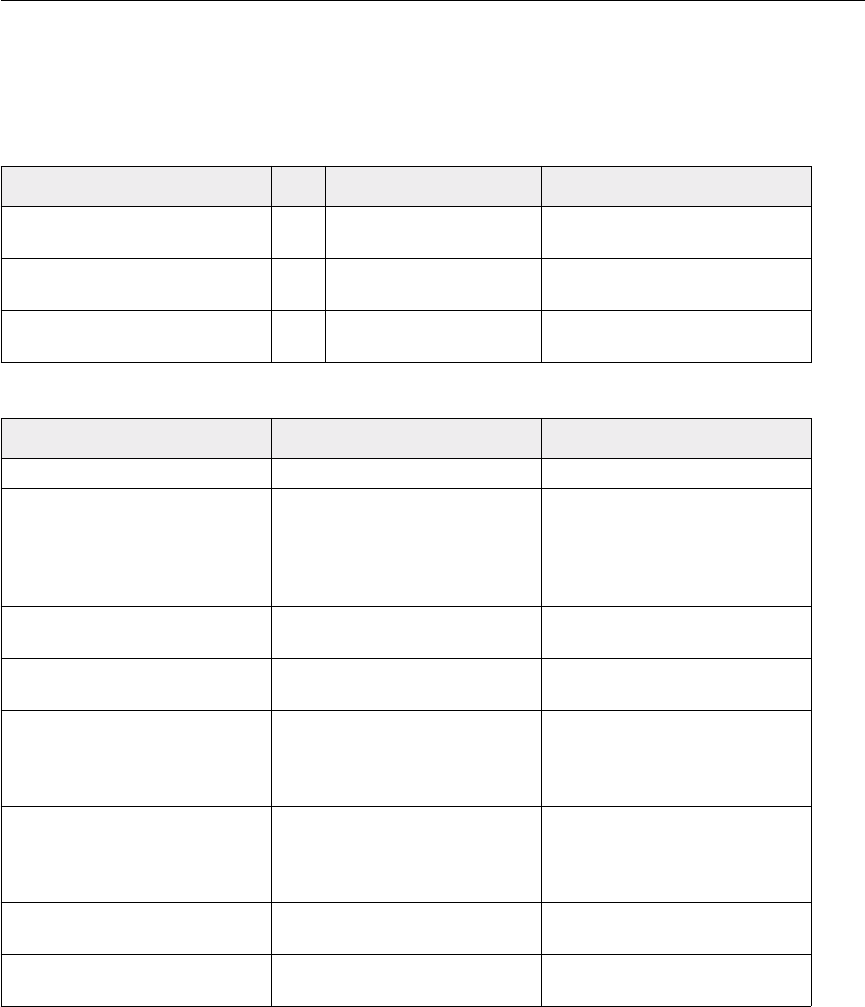
Adobe Illustrator 10 Scripting Guide PathItems 397
PathItems
A collection of paths.
Properties
Methods
Property: R/O Value type: What it is:
Application R/O Application object The Illustrator Application
object.
Count R/O Long The number of objects in the
collection.
Parent R/O Document object The document that contains this
PathItems object.
Method: Returns: What it does:
Add PathItem object Creates a new object.
Ellipse([top As Single], [left As
Single], [Width As Single],
[Height As Single], [reversed
As Boolean], [inscribed As
Boolean])
PathItem object Creates a new PathItem in the
shape of an ellipse using the
supplied parameters.
Index(item As PathItem) Long Returns the index position of
the object within the collection.
item(itemKey) PathItem object Returns an object reference to
the object identified by itemKey.
Polygon([centerX As Single],
[centerY As Single], [radius As
Single], [sides As Long],
[reversed As Boolean])
PathItem object Creates a new PathItem in the
shape of an polygon using the
supplied parameters.
Rectangle([top As Single], [left
As Single], [Width As Single],
[Height As Single], [reversed
As Boolean])
PathItem object Creates a new PathItem in the
shape of an polygon using the
supplied parameters.
Remove(item As PathItem) Nothing Deletes a PathItem from this
collection.
RemoveAll Nothing Deletes all objects in this
collection.

PathItems Visual Basic Reference398
Notes
The methods Ellipse, Polygon, Rectangle, RoundedRectangle, and Star
allow you to create complex PathItems using straightforward parameters. If you do not
provide any parameters when calling these methods, default values will be used.
Example 39.1
This script illustrates how to create a new rectangle in the first layer of the frontmost
document.
' Example of how to create a rectangle in layer 1 of document 1
Private Sub CreateRectangle_Click()
Dim appRef As New Illustrator.Application
Dim frontDocument As Illustrator.Document
Dim pathsInDocument As Illustrator.PathItems
Dim newRectangle As Illustrator.PathItem
Set frontDocument = appRef.ActiveDocument
Set pathsInDocument = frontDocument.PathItems
' create a new rectangle with
' top = 400, left side = 50, width = 150 and height = 100
Set newRectangle = pathsInDocument.Rectangle(400, 50, 150, 100)
End Sub
RoundedRectangle([top As
Single], [left As Single], [Width
As Single], [Height As Single],
[horizontalRadius As Single],
[verticalRadius As Single],
[reversed As Boolean])
PathItem object Creates a new PathItem in the
shape of a rectangle with
rounded corners using the
supplied parameters.
Star([centerX As Single],
[centerY As Single], [radius As
Single], [innerRadius As
Single], [points As Long],
[reversed As Boolean])
PathItem object Creates a new PathItem in the
shape of a star using the
supplied parameters.
Method: Returns: What it does:

Adobe Illustrator 10 Scripting Guide PathPoint 399
PathPoint
A point on a specific path. Each path point is made up of an anchor point (Anchor) and
a pair of handles (LeftDirection and RightDirection).
Properties
Notes
A PathPoint represents a point on a path, with its pair of control points, or handles.
Any point can considered a corner point. Setting the PointType property of a path
point to a corner forces the left and right direction points to be on a straight line when the
user attempts to modify them in the user interface.
Example 40.1
This script illustrates how to change the shape of a PathItem by modifying the left
direction and the right direction of the PathPoint.
' example of how to modify the LeftDirection and
' RightDirection of PathPoints to create a curve
Private Sub ChangePoints_Click()
Dim appRef As New Illustrator.Application
Dim frontDocument As Illustrator.Document
Dim firstPath As Illustrator.PathItem
Dim currentPoint As Illustrator.PathPoint
Property: R/O Value type: What it is:
Anchor Variant Array (of 2
Singles) The position of this point’s
anchor point.
Application R/O Application object The Illustrator Application
object.
LeftDirection Variant Array (of 2
Singles) The position of this path point’s
in control point.
Parent R/O Document object The document that contains this
PathPoint object.
PointType AiPointType enumeration The type of path point, either a
curve or a corner.
RightDirection Variant Array (of 2
Singles) The position of this path point’s
out control point.
Selected AiPathPointSelection
enumeration Are points of this path point
selected? If so, which one(s)?.

PathPoint Visual Basic Reference400
Dim nextPoint As Illustrator.PathPoint
Dim countOfPoints As Long
Dim index As Long
Dim deltax, deltay, length As Double
Set firstPath = appRef.ActiveDocument.PathItems(1)
countOfPoints = firstPath.PathPoints.Count
'Loop through all PathPoints except for the last one and set the
' left/right direction according to where the next point is
For index = 1 To (countOfPoints - 1)
Set currentPoint = firstPath.PathPoints(index)
Set nextPoint = firstPath.PathPoints(index + 1)
deltax = nextPoint.Anchor(0) - currentPoint.Anchor(0)
deltay = currentPoint.Anchor(1) - nextPoint.Anchor(1)
length = Math.Sqr(deltax ^ 2 + deltay ^ 2)
currentPoint.LeftDirection = Array(currentPoint.Anchor(0) - _
(50 * deltax / length), currentPoint.Anchor(1) - (50 * deltay
/ length))
currentPoint.RightDirection = Array(currentPoint.Anchor(0) + _
(50 * deltax / length), currentPoint.Anchor(1) + (50 * deltay
/ length))
Next
End Sub
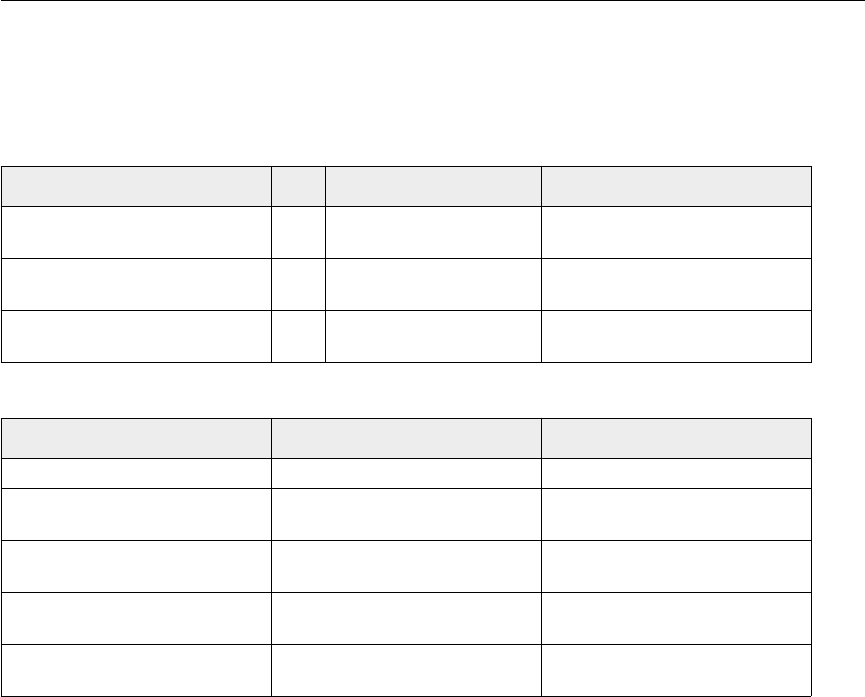
Adobe Illustrator 10 Scripting Guide PathPoints 401
PathPoints
A collection of path points in a specific path.
Properties
Methods
Example 41.1
This script illustrates how to add a new path point to an existing path.
' Example of how to add a new PathPoint to an existing path
Private Sub AddPathPoint_Click()
Dim appRef As New Illustrator.Application
Dim firstPath As Illustrator.PathItem
Dim newPoint As Illustrator.PathPoint
Set firstPath = appRef.ActiveDocument.PathItems(1)
Set newPoint = firstPath.PathPoints.Add
newPoint.Anchor = Array(75, 300)
newPoint.LeftDirection = Array(10, 280)
newPoint.RightDirection = Array(165, 330)
Property: R/O Value type: What it is:
Application R/O Application object The Illustrator Application
object.
Count R/O Long The number of objects in the
collection.
Parent R/O Document object The document that contains this
PathPoints object.
Method: Returns: What it does:
Add PathPoint object Creates a new object.
Index(item As PathPoint) Long Returns the index position of
the object within the collection.
item(itemKey) PathPoint object Returns an object reference to
the object identified by itemKey.
Remove(item As PathPoint) Nothing Deletes a path point from this
collection.
RemoveAll Nothing Deletes all objects in this
collection.

PathPoints Visual Basic Reference402
newPoint.PointType = aiCorner
End Sub

Adobe Illustrator 10 Scripting Guide Pattern 403
Pattern
A pattern definition contained in a document.
Properties
Notes
Illustrator’s Pattern object represents a pattern as defined in the Illustrator application.
Example 42.1
This script illustrates how to set the default fill color of document 1 to pattern 1.
Dim appRef As New Illustrator.Application
Dim frontDocument As Illustrator.Document
Set frontDocument = appRef.Documents(1)
frontDocument.DefaultFilled = True
Dim PatternName As String
PatternName = frontDocument.Patterns(1).Name
frontDocument.DefaultFillColor =
frontDocument.Swatches(PatternName).Color
Property: R/O Value type: What it is:
Application R/O Application object The Illustrator Application
object.
Name R/O String The pattern name.
Parent R/O Document object The document that contains this
pattern.
Patterns Visual Basic Reference404
Patterns
A collection of patterns in a document.
Properties
Methods
Example 43.1
This script illustrates how to remove a pattern. Note after removing Illustrator objects you
should set the variable that referenced the object you just removed to Nothing.
' Example of how to remove the second pattern in document 1
Private Sub RemovePattern_Click()
Dim appRef As New Illustrator.Application
Dim frontDocument As Illustrator.Document
Dim patternToRemove As Illustrator.Pattern
' Remove the second pattern. Then set the patternToRemove reference to
' nothing because it no longer references an existing Illustrator pattern
Set frontDocument = appRef.Documents(1)
Set patternToRemove = frontDocument.Patterns(2)
frontDocument.Patterns.Remove patternToRemove
Property: R/O Value type: What it is:
Application R/O Application object The Illustrator Application
object.
Count R/O Long The number of objects in the
collection.
Parent R/O Document The document that contains this
Patterns object.ß
Method: Returns: What it does:
Add Pattern object Creates a new object.
Index(item As Pattern) Long Returns the index position of
the object within the collection.
item(itemKey) Pattern object Returns an object reference to
the object identified by itemKey.
Remove(item As Pattern) Nothing Deletes a pattern from this
collection.
RemoveAll Nothing Deletes all objects in this
collection.

Adobe Illustrator 10 Scripting Guide Patterns 405
Set patternToRemove = Nothing
End Sub

PatternColor Visual Basic Reference406
PatternColor
A pattern color specification, used in conjunction with the Pattern property of the
Color specification.
Properties
Notes
Pattern colors are created using a reference to an existing pattern in the document. A
matrix may be specified to further transform the pattern color.
Property: R/O Value type: What it is:
Application R/O Application object The Illustrator Application
object.
Matrix Matrix object An additional transformation
matrix to manipulate the
prototype pattern,
Pattern Pattern object A reference to the pattern
object that defines the pattern
to use in this color definition.
Reflect Boolean Is the prototype reflected before
filling?
ReflectAngle Single The axis (in degrees) around
which to reflect.
Rotation Single The angle (in degrees) to rotate
the prototype pattern before
filling.
ScaleFactor Variant Array (of 2
Singles) The fraction to scale the
prototype pattern before filling,
represented as point containing
horizontal and vertical scaling
percentages.
ShearAngle Single The angle (in degrees) to slant
the shear by.
ShearAxis Single The axis (in degrees) to shear
with respect to.
ShiftAngle Single The angle (in degrees) to
translate the unscaled
prototype pattern before filling
ShiftDistance Single The distance to translate the
unscaled prototype pattern
before filling.

Adobe Illustrator 10 Scripting Guide PatternColor 407
Example 44.1
This script illustrates how to modify the first pattern in a document.
Dim appRef As New Illustrator.Application
Dim colorOfPattern As New Illustrator.PatternColor
Dim swatchRef As Illustrator.Swatch
Dim swatchColor As Illustrator.Color
Dim firsthPath As Illustrator.PathItem
For Each swatchRef In appRef.ActiveDocument.Swatches
' Get the generic color object of the swatch
Set swatchColor = swatchRef.Color
' Only operate on patterns
If (swatchColor.Color = aiColorPattern) Then
' Obtain the PatternColor from generic color object
colorOfPattern = swatchColor.Pattern
' Change the pattern properties
colorOfPattern.Rotation = 10
' Set the PatternColor of the original Color object
swatchColor.Pattern = colorOfPattern
' Apply the color to the frontmost path
Set firstPath = appRef.ActiveDocument.PathItems(1)
firstPath.Filled = True
firstPath.FillColor = swatchColor
' Change the definition of the pattern in the palette
swatchRef.Color = swatchColor
End If
Next

PDFOpenOptions Visual Basic Reference408
PDFOpenOptions
You can supply an option when opening a PDF file. See the open command in the
command reference for additional details.
Properties
Notes
This class is used to define a record containing properties used to specify options when
opening a document as a PDF file. OpenOptionsPDF can only be supplied in
conjunction with the Open method. It is not possible to get or create a
OpenOptionsPDF object.
It is not necessary to specify values for this properly; Illustrator will assign it a default
value.
Property: R/O Value type: What it is:
Application R/O Application object The Illustrator Application
object.
PageToOpen Long What page should be used
when opening a multipage
document (default: 1)

Adobe Illustrator 10 Scripting Guide PDFSaveOptions 409
PDFSaveOptions
Options which may be supplied when saving a document as an Acrobat PDF file. See the
Save method for additional details.
Properties
Property: R/O Value type: What it is:
Application R/O Application object The Illustrator Application
object.
ColorCompression AiCompressionQuality
enumeration The type of color bitmap
compression used.
ColorDownsampling Single The color downsampling
resolution in dots per inch (dpi).
If the value is 0, no
downsampling is performed.
Compatibility AiPDFCompatibility
enumeration Specifies the version of the
Acrobat file format to create.
CompressArt Boolean Is line art and text to be
compressed?
EmbedAllFonts Boolean Are all fonts to be embedded?
EmbedICCProfile Boolean Should a ICC profile be
embedded in the saved file?
FontSubsetThreshold Single Include a subset of fonts when
less than this percentage of
characters is used in the
document. Valid for Illustrator
10 file format.
GenerateThumbnails Boolean Should thumbnail images be
generated with the saved file?
GrayscaleCompression AiCompressionQuality
enumeration Quality of grayscale bitmap
compression.
GrayscaleDownsampling Single Downsampling resolution in
dots per inch (dpi). If the value
is 0, no downsampling is
performed.
MonochromeCompression AiMonochromeCompres
sion enumeration Specifies type of monochrome
bitmap compression used.
MonochromeDownsampling Single Downsampling resolution in
dots per inch (dpi). If the value
is 0, no downsampling is
performed.

PDFSaveOptions Visual Basic Reference410
Notes
PDF save options can only be supplied in conjunction with the SaveAs method.
It is not necessary to specify values for all properties. Default values will be provided for
any properties not specified.
Example 45.1
This script illustrates how to save the frontmost document as PDF.
' This script shows how to save the current document as PDF
Private Sub SaveAsPDF_Click()
Dim appRef As New Illustrator.Application
Dim saveOptions As New Illustrator.PDFSaveOptions
saveOptions.ColorCompression = aiJPEGHigh
saveOptions.Compatibility = aiAcrobat4
appRef.Documents(1).SaveAs "C:\temp\AipdfSample.pdf", saveOptions
End Sub
PreserveEditability Boolean Should Illustrator editing
capabilities be preserved when
saving the document?
Property: R/O Value type: What it is:

Adobe Illustrator 10 Scripting Guide PhotoshopFileOptions 411
PhotoshopFileOptions
You can supply options when opening a Photoshop file.
Properties
Property: R/O Value type: What it is:
Application R/O Application object The Illustrator Application
object.
PreserveImageMaps Boolean Should image maps be
preserved when the document
is converted? (default: true)
PreserveLayers Boolean Should layers be preserved
when the document is
converted? (default: true)
PreserveSlices Boolean Should slices be preserved
when the document is
converted? (default: true)
PlacedItem Visual Basic Reference412
PlacedItem
An artwork item (optionally stored in an external file) placed in a document. A PlacedItem
must correspond to a file containing vector-graphic data, such as a PICT, EPS or PDF file.
Properties
Property: R/O Value type: What it is:
Application R/O Application object The Illustrator Application
object.
ArtworkKnockout AiKnockoutState
enumeration Is this object used to create a
knockout? If so, what kind of
knockout?
BlendingMode AiBlendModes
enumeration The mode used when
compositing an object.
BoundingBox R/O Variant Array (of 4
Singles) Dimensions of PlacedItem
regardless of transformations.
ContentVariable Variable The Variable bound to this
PlacedItem.
ControlBounds R/O Variant Array (of 4
Singles) The bounds of the object
including stroke width and
controls.
Editable Boolean Is this PlacedItem editable?
File String The file containing the placed
object.
GraphItem GraphItem object The GraphItem contained in this
PlacedItem.
GroupItem R/O GroupItem object If the PlacedItem is a
GroupItem, a reference to
object as a GroupItem.
GeometricBounds R/O Variant Array (of 4
Singles) The bounds of the object
excluding stroke width.
Height Single The height of the PlacedItem,
based on GeometricBounds.
Hidden Boolean Is this PlacedItem hidden?
IsIsolated Boolean Is this object isolated?
Layer R/O Layer object The layer to which this
PlacedItem belongs.
Left single The left position of the
PlacedItem.
Locked Boolean Is this PlacedItem locked?
Adobe Illustrator 10 Scripting Guide PlacedItem 413
Matrix Matrix object The transformation matrix
applied to the PlacedItem.
MeshItem meshitem object The MeshItem contained in this
PlacedItem.
Name String The name of this PlacedItem.
Opacity Single The opacity of the object . The
value is between 0.0 and 100.0.
PageItem R/O PageItem object The PageItem object containing
the PlacedItem.
Parent R/O Document object The document that contains this
PlacedItem.
Position Variant Array (of 2
Singles) The position of the top left
corner of the PlacedItem.
RasterItem RasterItem object The RasterItem contained in
this PlacedItem.
Selected Boolean Is this PlacedItem selected?
Sliced boolean Is this PlacedItem sliced?
SymbolItems symbolitems object The SymbolItems collection
contained in this PlacedItem.
Tags R/O Tags collection object The tags contained in this
PlacedItem.
Top Single The top position of the
PlacedItem.
URL String The value of the Adobe URL tag
assigned to this PlacedItem.
VisibilityVariable Variable The Variable bound to this
PlacedItem.
VisibleBounds R/O Variant Array (of 4
Singles) The visible bounds of the
PlacedItem including stroke
width.
Width Single The width of the PlacedItem,
based on GeometricBounds.
ZOrderPosition R/O Long The position of this art object
within the stacking order of the
group or layer (Parent) that
contains the art object.
Property: R/O Value type: What it is:
PlacedItem Visual Basic Reference414
Methods
Method: Returns: What it does:
Copy Nothing Copies the art object to the
clipboard. The associated
document must be the
frontmost document.
Cut Nothing Cuts the art object onto the
clipboard. The associated
document must be the
frontmost document.
Duplicate PlacedItem Duplicate the PlacedItem.
MoveAfter Nothing Move the PlacedItem behind
another object.
MoveBefore Nothing Move the PlacedItem in front of
another object.
MoveToEnd(Document/Layer/
GroupItem) Nothing Move the PlacedItem to the end
of a container.
MoveToBeginning(Document/
Layer/GroupItem) Nothing Move the PlacedItem to the
front of a container.
Resize(scaleX As Single,
scaleY As Single,
[changePositions As Boolean],
[changeFillPatterns As
Boolean], [changeFillGradients
As Boolean],
[changeStrokePattern As
Boolean], [changeLineWidths
As Single], [scaleAbout As
AiTransformation])
Nothing Scales the art object where
scaleX is the horizontal scaling
factor and scaleY is the vertical
scaling factor; 100.0 = 100%.
Rotate(Angle As Single,
[changePositions As Boolean],
[changeFillPatterns As
Boolean], [changeFillGradients
As Boolean],
[changeStrokePattern As
Boolean], [rotateAbout As
AiTransformation])
Nothing Rotates the art object relative to
the current rotation. The object
is rotated counter-clockwise if
the Angle value is positive,
clockwise if the value is
negative.

Adobe Illustrator 10 Scripting Guide PlacedItem 415
Notes
When you create a PlacedItem, Illustrator may display a dialog. To avoid this dialog
check the box to turn the warning off the first time the dialog is displayed.
PlacedItems work only with embedded vector files: EPS, PDF, SVG and embedded AI.
Users can place vector art files, such as EPS and PDF files, with the File >
Place... command in Illustrator.
It is not necessary to set the type of the ContentVariable before binding. Illustrator
automatically sets the type to be the same as the PageItem to which it is bound.
Example 46.1
This script illustrates how to change the selection of PlacedItems.
' This example selects all PlacedItems
Transform(transformationMatrix
As Matrix, [changePositions As
Boolean], [changeFillPatterns
As Boolean],
[changeFillGradients As
Boolean],
[changeStrokePattern As
Boolean], [changeLineWidths
As Single], [transformAbout As
AiTransformation])
Nothing Transforms the art object by
applying a transformation
matrix.
Translate([deltaX As Single],
[deltaY As Single],
[transformObjects As Boolean],
[transformFillPatterns As
Boolean],
[transformFillGradients As
Boolean],
[transformStrokePatterns As
Boolean])
Nothing Repositions the art object
relative to the current position,
where deltaX is the horizontal
offset and deltaY is the vertical
offset.
ZOrder(zOrderCmd As
AiZOrderMethod)Nothing Arranges the art object’s
position in the stacking order of
the group or layer (Parent) of
this object.
Method: Returns: What it does:

PlacedItem Visual Basic Reference416
' that were not selected before this script was run
' and deselects all PlacedItems that were selected when the script was run
Private Sub PlacedItemSelection_Click()
Dim appRef As New Illustrator.Application
Dim placedArt As Illustrator.PlacedItem
For Each placedArt In appRef.ActiveDocument.PlacedItems
placedArt.Selected = Not (placedArt.Selected)
Next
End Sub
Adobe Illustrator 10 Scripting Guide PlacedItems 417
PlacedItems
A collection of placed art items.
Properties
Methods
See example 46.1 for sample script using PlacedItem.
Property: R/O Value type: What it is:
Application R/O Application object The Illustrator Application
object.
Count R/O Long The number of objects in the
collection.
Parent R/O Document object The document that contains this
PlacedItems object.
Method: Returns: What it does:
Add PlacedItem object Creates a new object.
Index(item As PlacedItem) Long Returns the index position of
the object within the collection.
item(itemKey) PlacedItem object Returns an object reference to
the object identified by itemKey.
Remove(item As PlacedItem) Nothing Deletes a PlacedItem from this
collection.
RemoveAll Nothing Deletes all objects in this
collection.

PluginItem Visual Basic Reference418
PluginItem
An art object created by an Illustrator plug-in.
Properties
Property: R/O Value type: What it is:
Application R/O Application object The Illustrator Application
object.
ArtworkKnockout AiKnockoutState
enumeration Is this object used to create a
knockout? If so, what kind of
knockout?
BlendingMode AiBlendModes
enumeration The mode used when
compositing an object.
ControlBounds R/O Variant Array (of 4
Singles) The bounds of the object
including stroke width and
controls.
Editable Boolean Is this PluginItem editable?
GeometricBounds R/O Variant Array (of 4
Singles) The bounds of the object
excluding stroke width.
GraphItem GraphItem object The GraphItem contained in this
PluginItem.
GroupItem R/O GroupItem object If the PluginItem is a
GroupItem, a reference to
object as a GroupItem.
Height Single The height of the PluginItem,
based on GeometricBounds.
Hidden Boolean Is this PluginItem hidden?
IsIsolated Boolean Is this object isolated?
Layer R/O Layer object The layer to which this
PluginItem belongs.
Left single The left position of the
PluginItem.
Locked Boolean Is this PluginItem locked?
MeshItem meshitem object The MeshItem contained in this
PluginItem.
Name String The name of this PluginItem.
Opacity Single The opacity of the object . The
value is between 0.0 and 100.0.
PageItem R/O PageItem object The PageItem object
corresponding to the
PluginItem.
Adobe Illustrator 10 Scripting Guide PluginItem 419
Parent R/O Document object The document that contains this
PluginItem.
PlacedItem placeditem object The PlacedItem contained in
this PluginItem.
Position Variant Array (of 2
Singles) The position of the top left
corner of the PluginItem.
RasterItem RasterItem object The RasterItem contained in
this PlacedItem.
Selected Boolean Is this PluginItem selected?
Sliced boolean Is this PluginItem sliced?
SymbolItems symbolitems collection
object The SymbolItems collection
contained in this PluginItem.
Tags R/O Tags collection object The tags contained in this
PluginItem.
Top Single The top position of the
PluginItem.
URL String The value of the Adobe URL tag
assigned to this PluginItem.
VisibilityVariable Variable The Variable bound to this
PluginItem.
VisibleBounds R/O Variant Array (of 4
Singles) The visible bounds of the
PluginItem including stroke
width.
Width Single The width of the PluginItem,
based on GeometricBounds.
ZOrderPosition R/O Long The position of this art object
within the stacking order of the
group or layer (Parent) that
contains the art object.
Property: R/O Value type: What it is:
PluginItem Visual Basic Reference420
Methods
Method: Returns: What it does:
Copy Nothing Copies the art object to the
clipboard. The associated
document must be the
frontmost document.
Cut Nothing Cuts the art object onto the
clipboard. The associated
document must be the
frontmost document.
Duplicate PlacedItem Duplicate the PluginItem.
MoveAfter Nothing Move the PluginItem behind
another object.
MoveBefore Nothing Move the PluginItem in front of
another object.
MoveToEnd(Document/Layer/
GroupItem) Nothing Move the PluginItem to the end
of a container.
MoveToBeginning(Document/
Layer/GroupItem) Nothing Move the PluginItem to the front
of a container.
Rotate(Angle As Single,
[changePositions As Boolean],
[changeFillPatterns As
Boolean], [changeFillGradients
As Boolean],
[changeStrokePattern As
Boolean], [rotateAbout As
AiTransformation])
Nothing Rotates the art object relative to
the current rotation. The object
is rotated counter-clockwise if
the Angle value is positive,
clockwise if the value is
negative.
Transform(transformationMatrix
As Matrix, [changePositions As
Boolean], [changeFillPatterns
As Boolean],
[changeFillGradients As
Boolean],
[changeStrokePattern As
Boolean], [changeLineWidths
As Single], [transformAbout As
AiTransformation])
Nothing Transforms the art object by
applying a transformation
matrix.

Adobe Illustrator 10 Scripting Guide PluginItem 421
Notes
Plug-in items cannot be created from a script, but can be copied and pasted.
Example 47.1
This example demonstrates how to create a new PluginItem by copying an existing
PluginItem.
' Example of how to create Plug-in art by copying existing plugin art items
Private Sub CopyPlugInArt_Click()
Dim appRef As New Illustrator.Application
Dim frontDocument As Illustrator.Document
Dim pluginArt As Illustrator.PluginItem
Set frontDocument = appRef.ActiveDocument
If (frontDocument.PluginItems.Count > 0) Then
Set pluginArt = frontDocument.PluginItems(1)
pluginArt.Copy
frontDocument.Paste
Else
MsgBox "There is no plug-in art in the front document"
End If
End Sub
Translate([deltaX As Single],
[deltaY As Single],
[transformObjects As Boolean],
[transformFillPatterns As
Boolean],
[transformFillGradients As
Boolean],
[transformStrokePatterns As
Boolean])
Nothing Repositions the art object
relative to the current position,
where deltaX is the horizontal
offset and deltaY is the vertical
offset.
ZOrder(zOrderCmd As
AiZOrderMethod)Nothing Arranges the art object’s
position in the stacking order of
the group or layer (Parent) of
this object.
Method: Returns: What it does:

PluginItems Visual Basic Reference422
PluginItems
A collection of PluginItems in a document.
Properties
Methods
Notes
Plugin items cannot be created from a script.
See example 47.1 for a script that uses PluginItem.
Property: R/O Value type: What it is:
Application R/O Application object The Illustrator Application
object.
Count R/O Long The number of objects in the
collection.
Parent R/O Document object The document that contains this
PluginItems object.
Method: Returns: What it does:
Index(item As PluginItem) Long Returns the index position of
the object within the collection.
item(itemKey) PluginItem object Returns an object reference to
the object identified by itemKey.
Remove(item As PluginItem) Nothing Deletes a PluginItem from this
collection.
RemoveAll Nothing Deletes all objects in this
collection.
Adobe Illustrator 10 Scripting Guide RasterItem 423
RasterItem
A bitmap art object in a document.
Properties
Property: R/O Value type: What it is:
Application R/O Application object The Illustrator Application
object.
ArtworkKnockout AiKnockoutState
enumeration Is this RasterItem used to
create a knockout? If so, what
kind of knockout?
BlendingMode AiBlendModes
enumeration The mode used when
compositing an object.
BoundingBox Variant Array (of 4
Singles) Dimensions of RasterItem
regardless of transformations.
ContentVariable Variable The Variable that is bound to
this RasterItem.
ControlBounds R/O Variant Array (of 4
Singles) The bounds of the RasterItem
including stroke width and
controls.
Editable Boolean Is this RasterItem editable?
Embedded Boolean Is the Raster art embedded
within the illustration?
File String The file containing the
RasterItem, if it is stored
externally.
GeometricBounds R/O Variant Array (of 4
Singles) The bounds of the object
excluding stroke width.
GraphItem GraphItem object The GraphItem contained in this
RasterItem.
GroupItem R/O GroupItem object If the RasterItem is a
GroupItem, a reference to
object as a GroupItem.
Height Single The height of the PluginItem,
based on GeometricBounds.
Hidden Boolean Is this RasterItem hidden?
ImageColorSpace AiColorSpace
enumeration The color space of the Raster
image.
IsIsolated Boolean Is this RasterItem isolated?
Layer R/O Layer object The layer to which this
RasterItem belongs.
RasterItem Visual Basic Reference424
Left single The left position of the
RasterItem.
Locked Boolean Is this RasterItem locked?
MeshItem meshitem object The MeshItem contained in this
RasterItem.
Matrix Matrix object The transformation matrix of the
RasterItem.
Name String The name of this RasterItem.
Opacity Single The opacity of the RasterItem,
between 0.0 -100.0
PageItem R/O PageItem object The PageItem object containing
to the RasterItem.
Parent R/O Document object. The document that contains this
RasterItem.
PathItem pathitem object The PathItem containing this
RasterItem.
PlacedItem placeditem object The PlacedItem contained in
this RasterItem.
PluginItem pluginitem object The PluginItem contained in
this RasterItem.
Position Variant Array (of 2
Singles) The position of the top left
corner of the RasterItem.
Selected Boolean Is this RasterItem selected?
Sliced boolean Is this RasterItem sliced?
Status AiRasterLinkState
enumeration The status of the linked image,
if the image is stored externally.
SymbolItems SymbolItems object The SymbolItems object
collection in this RasterItem.
Tags R/O Tags collection object The tags contained in this raster
art item.
Top Single The top position of the
RasterItem.
URL String The value of the Adobe URL tag
assigned to this RasterItem.
VisibilityVariable Variable The Variable that is bound to
this RasterItem.
VisibleBounds R/O Variant Array (of 4
Singles) The visible bounds of the
RasterItem including stroke
width.
Property: R/O Value type: What it is:

Adobe Illustrator 10 Scripting Guide RasterItem 425
Width Single The width of the RasterItem,
based on GeometricBounds.
ZOrderPosition R/O Long The position of this art object
within the stacking order of the
group or layer (Parent) that
contains the art object.
Property: R/O Value type: What it is:
RasterItem Visual Basic Reference426
Methods
Method: Returns: What it does:
Colorize color object Nothing Specifies color to color TIFF
image.
Copy Nothing Copies the art object to the
clipboard. The associated
document must be the
frontmost document.
Cut Nothing Cuts the art object onto the
clipboard. The associated
document must be the
frontmost document.
Duplicate RasterItem Duplicate the RasterItem.
MoveAfter Nothing Move the PluginItem behind
another object.
MoveBefore Nothing Move the PluginItem in front of
another object.
MoveToEnd(Document/Layer/
GroupItem) Nothing Move the PluginItem to the end
of a container.
MoveToBeginning(Document/
Layer/GroupItem) Nothing Move the PluginItem to the front
of a container.
Resize(scaleX As Single,
scaleY As Single,
[changePositions As Boolean],
[changeFillPatterns As
Boolean], [changeFillGradients
As Boolean],
[changeStrokePattern As
Boolean], [changeLineWidths
As Single], [scaleAbout As
AiTransformation])
Nothing Scales the art object where
scaleX is the horizontal scaling
factor and scaleY is the vertical
scaling factor; 100.0 = 100%.
Rotate(Angle As Single,
[changePositions As Boolean],
[changeFillPatterns As
Boolean], [changeFillGradients
As Boolean],
[changeStrokePattern As
Boolean], [rotateAbout As
AiTransformation])
Nothing Rotates the art object relative to
the current rotation. The object
is rotated counter-clockwise if
the Angle value is positive,
clockwise if the value is
negative.

Adobe Illustrator 10 Scripting Guide RasterItem 427
Notes
You can create RasterItems a script if you use an external file. You can also create
new RasterItems by copying and pasting an existing RasterItem.
Note that it is not necessary to set the type of the ContentVariable before binding.
Illustrator automatically sets the type to be the same as the PageItem to which it is
bound.
Example 48.1
This example illustrates how to create a new RasterItem in the frontmost document.
The script assumes that you have a file called “c:\temp\sample.jpg”.
' Example of how to create a new RasterItem in the frontmost document
Private Sub RasterItem_Click()
Dim appRef As New Illustrator.Application
Dim newRasterArt As Illustrator.RasterItem
Transform(transformationMatrix
As Matrix, [changePositions As
Boolean], [changeFillPatterns
As Boolean],
[changeFillGradients As
Boolean],
[changeStrokePattern As
Boolean], [changeLineWidths
As Single], [transformAbout As
AiTransformation])
Nothing Transforms the art object by
applying a transformation
matrix.
Translate([deltaX As Single],
[deltaY As Single],
[transformObjects As Boolean],
[transformFillPatterns As
Boolean],
[transformFillGradients As
Boolean],
[transformStrokePatterns As
Boolean])
Nothing Repositions the art object
relative to the current position,
where deltaX is the horizontal
offset and deltaY is the vertical
offset.
ZOrder(zOrderCmd As
AiZOrderMethod)Nothing Arranges the art object’s
position in the stacking order of
the group or layer (Parent) of
this object.
Method: Returns: What it does:

RasterItem Visual Basic Reference428
Set newRasterArt = appRef.ActiveDocument.RasterItems.Add
newRasterArt.File = "C:\temp\sample.jpg"
newRasterArt.Position = Array(100, 400)
End Sub
Adobe Illustrator 10 Scripting Guide RasterItems 429
RasterItems
A collection of raster art items.
Properties
Methods
Example 49.1
This script illustrates how to obtain the color space of a raster item.
' This script examines the color space of the first raster item in the document
Private Sub CheckRasterItems_Click()
Dim appRef As New Illustrator.Application
Dim rasterArt As Illustrator.RasterItem
Set rasterArt = appRef.ActiveDocument.RasterItems(1)
Select Case (rasterArt.ImageColorSpace)
Case Is = aiImageCMYK
MsgBox "The first raster item is a CMYK raster item"
Case Is = aiImageRGB
MsgBox "The first raster item is an RGB raster item"
Case Is = aiImageGrayScale
MsgBox "The first raster item is a Grayscale raster item"
Property: R/O Value type: What it is:
Application R/O Application object The Illustrator Application
object.
Count R/O Long The number of objects in the
collection.
Parent R/O Document object The document that contains this
RasterItems object.
Method: Returns: What it does:
Add RasterItem object Creates a new object.
Index(item As RasterItem) Long Returns the index position of
the object within the collection.
item(itemKey) RasterItem object Returns an object reference to
the object identified by itemKey.
Remove(item As RasterItem) Nothing Deletes a raster item from this
collection.
RemoveAll Nothing Deletes all objects in this
collection.

RasterItems Visual Basic Reference430
End Select
End Sub

Adobe Illustrator 10 Scripting Guide RGBColor 431
RGBColor
A RGB color specification, used in conjunction with the RGB property of the Color
specification.
Properties
Notes
If the DocumentColorSpace of a document is aiDocumentCMYKColor and you
specify the color value for a PageItem in that document using RGBColor, Illustrator will
translate the RGB color specification into a CMYK color specification. The same thing
happens if the document’s DocumentColorSpace is aiDocumentRGBColor and
you specify colors using CMYKColor. Since this translation can cause information loss
you should specify colors using the class that matches the document’s
DocumentColorSpace.
Example 50.1
This script sets the default fill color of the frontmost document to yellow using an RGB
object. If the color space of the frontmost document is CMYK, then Illustrator will regard
the RGB fill color as a CMYK color although it is specified using RGB.
' This script sets the default fill color to yellow. If the color space is CMYK
' then Illustrator automatically translates the RGB color to its CMYK equivalence
Private Sub SetDefaultFillColor_Click()
Dim appRef As New Illustrator.Application
Dim newRGBColor As New Illustrator.RGBColor
Dim newFillColor As New Illustrator.Color
' Define the new color
newRGBColor.Red = 255#
Property: R/O Value type: What it is:
Application R/O Application object The Illustrator Application
object.
Blue Single The blue color value as a value
in the range 0.0 - 255.0.
Green Single The green color value as a
value in the range 0.0 - 255.0.
Red Single The red color value as a value
in the range 0.0 - 255.0.

RGBColor Visual Basic Reference432
newRGBColor.Green = 255#
newRGBColor.Blue = 0
' Wrap the RGB color in a generic color object and set that as the default fill color
newFillColor.RGB = newRGBColor
appRef.ActiveDocument.DefaultFillColor = newFillColor
End Sub

Adobe Illustrator 10 Scripting Guide Spot 433
Spot
A spot color definition contained in the Illustrator document.
Properties
Notes
Illustrator’s Spot object represents a spot color as defined by Illustrator. All Illustrator
documents contain the spot color "[Registration]" which can be used to print to all plates
of a separation.
If no properties are specified when creating a new spot, default properties will be
provided. However, if specifying the color, you must use the same color space as the
document, either CMYK or RGB. Otherwise, an error will result. When created, the spot is
inserted into the swatch palette at the end.
Example 51.1
This script illustrates how to create a new spot in the frontmost document.
' Example of creating a new spot in the frontmost document
Private Sub NewSpotColor_Click()
Dim appRef As New Illustrator.Application
Dim frontDocument As Illustrator.Document
Dim newRGBColor As New Illustrator.RGBColor
Dim newColor As New Illustrator.Color
Dim newSpot As Illustrator.Spot
' Define the new color value
newRGBColor.Red = 255#
newRGBColor.Green = 0
Property: R/O Value type: What it is:
Application R/O Application object The Illustrator Application
object.
Color Color object The color information for this
spot color.
ColorType AiColorMode Color model of the spot.
Name R/O String The spot color’s name.
Parent R/O Document object The document that contains this
spot color.

Spot Visual Basic Reference434
newRGBColor.Blue = 0
' Create the new spot
Set frontDocument = appRef.ActiveDocument
Set newSpot = frontDocument.Spots.Add
' Define the new SpotColor as 80% of the specified RGB color
newSpot.Name = "Red spot color"
newColor.RGB = newRGBColor
newSpot.Color = newColor
End Sub
Adobe Illustrator 10 Scripting Guide Spots 435
Spots
A collection of spot colors in a document.
Properties
Methods
Example 52.1
This script illustrates how to remove all spots defined in the frontmost document.
' Example of how to remove all spots from the frontmost document
Private Sub RemoveSpot_Click()
Dim appRef As New Illustrator.Application
Dim documentSpots As Illustrator.Spots
Set documentSpots = appRef.ActiveDocument.Spots
documentSpots.RemoveAll
End Sub
Property: R/O Value type: What it is:
Application R/O Application object The Illustrator Application
object.
Count R/O Long The number of objects in the
collection.
Parent R/O Document object The document that contains this
Spots object.
Method: Returns: What it does:
Add Spot object Creates a new object.
Index(item As Spot) Long Returns the index position of
the object within the collection.
item(itemKey) Spot object Returns an object reference to
the object identified by itemKey.
Remove(item As Spot) Nothing Deletes a spot from this
collection.
RemoveAll Nothing Deletes all objects in this
collection.

SpotColor Visual Basic Reference436
SpotColor
A spot color specification, used in conjunction with the Spot property of the Color
specification.
Properties
Notes
Spot colors are specified using a Single value that ranges from 0.0 to 100.0 for the tint of
the color. The color property must be set to a reference to an existing spot color.
Example 53.1
This script shows how to create a new spot, and apply a tint of that spot to the fill of a
PathItem.Your frontmost document must already have a PathItem before you can run this
script.
' Example of how to define and apply a spot color
Private Sub ApplyNewSpotColor_Click()
Dim appRef As New Illustrator.Application
Dim frontDocument As Illustrator.Document
Dim newRGBColor As New Illustrator.RGBColor
Dim newColor As New Illustrator.Color
Dim newSpot As Illustrator.Spot
Dim frontPath As Illustrator.PathItem
' Define the new color value
newRGBColor.Red = 255#
newRGBColor.Green = 0
newRGBColor.Blue = 0
' Create the new spot
Set frontDocument = appRef.ActiveDocument
Set newSpot = frontDocument.Spots.Add
Property: R/O Value type: What it is:
Application R/O Application object The Illustrator Application
object.
Spot Spot object A reference to the spot color
object which defines the color.
Tint Single The tint of the color as a value
in the range 0.0 - 100.0.

Adobe Illustrator 10 Scripting Guide SpotColor 437
' Define the new SpotColor as 80% of the specified RGB color
newSpot.Name = "Red spot color"
newColor.RGB = newRGBColor
newSpot.Color = newColor
' Now apply a 50% of the spot color we just created to the frontmost PathItem.
' We do this by creating a spotcolor object and setting the specifications on that object.
' We then wrap the spot color object in a generic color object and use it to set the fill color for
' the first PathItem in the frontmost document
Dim newSpotColor As New Illustrator.SpotColor
Dim newPathColor As New Illustrator.Color
newSpotColor.Spot = newSpot
newSpotColor.Tint = 50#
newPathColor.Spot = newSpotColor
Set frontPath = frontDocument.PathItems(1)
frontPath.Filled = True
frontPath.FillColor = newPathColor
End Sub

Swatch Visual Basic Reference438
Swatch
A color swatch definition contained in a document.
Properties
Notes
The swatches correspond to the swatch palette in Illustrator’s user interface. Additional
swatches can be created either manually by a user or by a script. The swatch can hold all
types of color data (i.e., pattern, gradient, CMYK, RGB, gray, spot).
Example 54.1
This script illustrates how to change the name of the fifth swatch.
' Example of how to change the name of the fifth swatch
Private Sub SetSwatchName_Click()
Dim appRef As New Illustrator.Application
Dim firstSwatch As Illustrator.Swatch
Set firstSwatch = appRef.ActiveDocument.Swatches(5)
firstSwatch.Name = "New SwatchName"
End Sub
Property: R/O Value type: What it is:
Application R/O Application object The Illustrator Application
object.
Color Color object The color information for this
swatch.
Name String The swatch’s name.
Parent R/O Document object The document that contains this
swatch.
Adobe Illustrator 10 Scripting Guide Swatches 439
Swatches
A collection of swatches in a document.
Properties
Methods
Example 55.1
This script illustrates how to first obtain a Swatch by index and then how to delete that
Swatch.
' Example of how to remove the second Swatch in the frontmost document
Private Sub DeleteSwatch_Click()
Dim appRef As New Illustrator.Application
Dim swatchToDelete As Illustrator.Swatch
Dim documentSwatches As Illustrator.Swatches
Set documentSwatches = appRef.ActiveDocument.Swatches
Set swatchToDelete = documentSwatches(2)
documentSwatches.Remove swatchToDelete
End Sub
Property: R/O Value type: What it is:
Application R/O Application object The Illustrator Application
object.
Count R/O Long The number of objects in the
collection.
Parent R/O Document object The document that contains this
Swatches object.
Method: Returns: What it does:
Add Swatch object Creates a new object.
Index(item As Swatch) Long Returns the index position of
the object within the collection.
item(itemKey) Swatch object Returns an object reference to
the object identified by itemKey.
Remove(item As Swatch) Nothing Deletes a Swatch from this
collection.
RemoveAll Nothing Deletes all objects in this
collection.

Symbol Visual Basic Reference440
Symbol
A Symbol is an ArtObject that is stored in the Symbols Palette, and can be reused
one or more times in the document without duplicating the art data. Symbols are
contained in documents.
Properties
Methods
Property: R/O Value type: What it is:
Application R/O Application object The Illustrator Application
object.
Name R/W String The name of the Symbol.
Parent R/O Document object The document that contains this
Symbol.
Method: Returns: What it does:
Duplicate Symbol Duplicates the Symbol.
Adobe Illustrator 10 Scripting Guide Symbols 441
Symbols
A collection of symbols in a document.
Properties
Methods
Property: R/O Value type: What it is:
Application R/O Application object The Illustrator Application
object.
Count R/O Long The number of objects in the
collection.
Parent R/O Document object The document that contains this
Symbols object.
Method: Returns: What it does:
Add Swatch object Creates a new object.
Index(item As Symbol) Long Returns the index position of
the object within the collection.
item(itemKey) Swatch object Returns an object reference to
the object identified by itemKey.
Remove(item As Symbol) Nothing Deletes a Symbol from this
collection.
RemoveAll Nothing Deletes all objects in this
collection.
SymbolItem Visual Basic Reference442
SymbolItem
A SymbolItem is an instance of a Symbol in a Document. SymbolItems are linked
to the Symbol from which they were created and will change with any modification of
those Symbols.
Properties
Property: R/O Value type: What it is:
Application R/O Application object The Illustrator Application
object.
ArtworkKnockout AiKnockoutState
enumeration Is this SymbolItem used to
create a knockout? If so, what
kind of knockout?
BlendingMode AiBlendModes
enumeration The mode used when
compositing an object.
ControlBounds R/O Variant Array (of 4
Singles) The bounds of the SymbolItem
including stroke width and
controls.
Editable R/O Boolean Can the SymbolItem be
modified?
GeometricBounds R/O Variant Array (of 4
Singles) The bounds of the SymbolItem
excluding stroke width.
GraphItem GraphItem object The GraphItem contained in this
SymbolItem.
GroupItem R/O GroupItem object If the SymbolItem is a
GroupItem, a reference to
object as a GroupItem.
Height Single The height of the SymbolItem,
based on GeometricBounds.
Hidden Boolean Is this SymbolItem hidden?
Isolated Boolean Is this SymbolItem isolated?
Layer R/O Layer object The layer to which this
SymbolItem belongs.
Left single The left position of the
SymbolItem.
Locked Boolean Is this SymbolItem locked?
Name String The name of this SymbolItem.
MeshItem MeshItem object The MeshItem contained in this
SymbolItem.
Opacity Single (0.0 - 100.0) The opacity of the SymbolItem.
Adobe Illustrator 10 Scripting Guide SymbolItem 443
PageItem PageItem object The PageItem that contains this
SymbolItem.
Parent R/O Document object The document that contains this
SymbolItem.
PathItem pathitem object The PathItem containing this
SymbolItem.
PlacedItem placeditem object The SymbolItem contained in
this RasterItem.
PluginItem pluginitem object The SymbolItem contained in
this RasterItem.
Position Variant Array (of 2
Singles) The position of the top left
corner of the SymbolItem.
RasterItem RasterItem object The RasterItem contained in
this SymbolItem.
Selected Boolean Is this SymbolItem selected?
Sliced Boolean Is this SymbolItem sliced?
Default: false.
Symbol Symbol object The Symbol contained in this
SymbolItem.
Tags R/O Tags collection object The tags contained in this
SymbolItem.
Top Single The top position of the
SymbolItem.
URL String The value of the Adobe URL tag
assigned to this SymbolItem.
VisibilityVariable Variable The Variable bound to this
SymbolItem.
VisibleBounds R/O Variant Array (of 4
Singles) The visible bounds of the
SymbolItem including stroke
width.
Width Single The width of the SymbolItem,
based on GeometricBounds.
ZOrderPosition R/O Long The position of this SymbolItem
within the stacking order of the
group or layer (Parent) that
contains the SymbolItem.
Property: R/O Value type: What it is:

SymbolItem Visual Basic Reference444
Methods
Method: Returns: What it does:
Copy Nothing Copies the SymbolItem to the
clipboard. The associated
document must be the
frontmost document.
Cut Nothing Cuts the SymbolItem to the
clipboard. The associated
document must be the
frontmost document.
Duplicate SymbolItem Duplicate the SymbolItem.
Editable
MoveAfter Nothing Move the SymbolItem behind
another object.
MoveBefore Nothing Move the SymbolItem in front of
another object.
MoveToEnd(Document/Layer/
GroupItem) Nothing Move the SymbolItem to the
end of a container.
MoveToBeginning(Document/
Layer/GroupItem) Nothing Move the SymbolItem to the
front of a container.
Rotate(Angle As Single,
[changePositions As Boolean],
[changeFillPatterns As
Boolean], [changeFillGradients
As Boolean],
[changeStrokePattern As
Boolean], [rotateAbout As
AiTransformation])
Nothing Rotates the SymbolItem relative
to the current rotation. The
object is rotated counter-
clockwise if the Angle value is
positive, clockwise if the value is
negative.
Resize(scaleX As Single,
scaleY As Single,
[changePositions As Boolean],
[changeFillPatterns As
Boolean], [changeFillGradients
As Boolean],
[changeStrokePattern As
Boolean], [changeLineWidths
As Single], [scaleAbout As
AiTransformation])
Nothing Scales the SymbolItem where
scaleX is the horizontal scaling
factor and scaleY is the vertical
scaling factor; 100.0 = 100%.

Adobe Illustrator 10 Scripting Guide SymbolItem 445
Notes
The MoveAfter and MoveBefore methods do not change the position of the object
on the art board. They change the order in which Illustrator draws the objects, and the
containment hierarchy.
The MoveToBeginning and MoveToEnd methods place the object in the specified
container, behind all other such objects.
Transform(transformationMatrix
As Matrix, [changePositions As
Boolean], [changeFillPatterns
As Boolean],
[changeFillGradients As
Boolean],
[changeStrokePattern As
Boolean], [changeLineWidths
As Single], [transformAbout As
AiTransformation])
Nothing Transforms the SymbolItem by
applying a transformation
matrix.
Translate([deltaX As Single],
[deltaY As Single],
[transformObjects As Boolean],
[transformFillPatterns As
Boolean],
[transformFillGradients As
Boolean],
[transformStrokePatterns As
Boolean])
Nothing Repositions the SymbolItem
relative to the current position,
where deltaX is the horizontal
offset and deltaY is the vertical
offset.
ZSetOrder(zOrderCmd As
AiZOrderMethod)Nothing Arranges the SymbolItem’s
position in the stacking order of
the group or layer (Parent) of
this object.
Method: Returns: What it does:
SymbolItems Visual Basic Reference446
SymbolItems
A collection of swatches in a document.
Properties
Methods
Property: R/O Value type: What it is:
Application R/O Application object The Illustrator Application
object.
Count R/O Long The number of objects in the
collection.
Parent R/O Document object The document that contains this
SymbolItems object.
Method: Returns: What it does:
Add Swatch object Creates a new object.
Index(item As SymbolItem) Long Returns the index position of
the object within the collection.
item(itemKey) SymbolItem object Returns an object reference to
the object identified by itemKey.
Remove(item As SymbolItem)Nothing Deletes a SymbolItem from this
collection.
RemoveAll Nothing Deletes all objects in this
collection.

Adobe Illustrator 10 Scripting Guide Tag 447
Tag
A tag associated with a specific PageItem.
Properties
Notes
Tags allows you to assign an unlimited number of key-value pairs to any PageItem in a
document.
Example 56.1
This example illustrates how to list the tags associated with the first selected item. The
name and value of the tags are listed in a new document.
' The following example shows the tags of the selected art item
' the tags are shown in a separate document
Private Sub ShowAllTags_Click()
Dim appRef As New Illustrator.Application
Dim reportDocument As Illustrator.Document
Dim selection As Variant
Dim selectedArt As Illustrator.PageItem
Dim tagList As Illustrator.Tags
Dim tagItem As Illustrator.Tag
Dim top_offset As Single
selection = appRef.selection
If (Not IsEmpty(selection)) Then
' Get the selected item. We only need to access a property defined on the pageitem class,
' so we don't have to look at the type of the selected item. Instead we use the "PageItem"
' property, as every art item has one.
Set selectedArt = selection(0).PageItem
Set tagList = selectedArt.Tags
Property: R/O Value type: What it is:
Application R/O Application object The Illustrator Application
object.
Name String The Tag’s name.
Parent R/O Document object The document that contains this
Tag.
Value String The data stored in this Tag.

Tag Visual Basic Reference448
If (tagList.Count = 0) Then
MsgBox "The selected art has no tags"
Exit Sub
End If
' Create a document and add a line of text per tag
Set reportDocument = appRef.Documents.Add
top_offset = 400
For Each tagItem In tagList
Dim tagText As Illustrator.TextArtItem
Set tagText = reportDocument.TextArtItems.Add
tagText = "Tag: (" & tagItem.Name & " , " & tagItem.Value &
")"
tagText.Position = Array(100, top_offset)
top_offset = top_offset - 20
Next
End If
End Sub
Adobe Illustrator 10 Scripting Guide Tags 449
Tags
A collection of tags.
Properties
Methods
Example 57.1
This example illustrates how to mark all images in a document with a specific tag. If your
script creates temporary PageItems, you can then later look at the "MyInfo" tag. If it exist
for a particular PageItem and it's value is "OriginalItem" you know not to delete it.
Dim appRef As New Illustrator.Application
Dim frontDocument As Illustrator.Document
Dim imageArt As Illustrator.PageItem
Dim tagRef As Illustrator.Tag
Set frontDocument = appRef.ActiveDocument
For Each imageArt In frontDocument.PageItems
If ((imageArt.PageItemType = aiPlacedItem) Or _
(imageArt.PageItemType = aiRasterItem)) Then
' Create a new Tag with the name myInfo and the value originalItem
Set tagRef = imageArt.Tags.Add
Property: R/O Value type: What it is:
Application R/O Application object The Illustrator Application
object.
Count R/O Long The number of objects in the
collection.
Parent R/O Document object The document that contains this
Tags object.
Method: Returns: What it does:
Add Tag object Creates a new object.
Index(item As Tag) Long Returns the index position of
the object within the collection.
item(itemKey) Tag object Returns an object reference to
the object identified by itemKey.
Remove(item As Tag) Nothing Deletes a tag from this
collection.
RemoveAll Nothing Deletes all objects in this
collection.

Tags Visual Basic Reference450
tagRef.Name = "MyInfo"
tagRef.Value = "OriginalItem"
End If
Next
Adobe Illustrator 10 Scripting Guide TextArtItem 451
TextArtItem
A text art object or objects. From the user interface, this is text created with the Text tool.
Properties
Property: R/O Value type: What it is:
Application R/O Application object The Illustrator Application
object.
ArtworkKnockout AiKnockoutState
enumeration Is this object used to create a
knockout? If so, what kind of
knockout?
BlendingMode AiBlendModes
enumeration The mode used when
compositing an object.
Contents String (default property) The textual contents of the
TextArtItem.
ContentVariable Variable The Variable to which this
TextArtItem is bound.
ControlBounds R/O Variant Array (of 4
Singles) The bounds of the object
including stroke width and
controls.
GeometricBounds R/O Variant Array (of 4
Singles) The bounds of the object
excluding stroke width.
GraphItem GraphItem object The GraphItem contained in this
TextArtItem.
GroupItem R/O GroupItem object If the TextArtItem is a
GroupItem, a reference to
object as a GroupItem.
Editable Boolean Is this TextArtItem editable?
Height Single The height of the TextArtItem,
based on GeometricBounds.
You should only try to set the
height of a textartitem that
contains text.
Hidden Boolean Is this TextArtItem hidden?
IsIsolated Boolean Is this object isolated?
Kind AiTextType enumeration The type of text art displayed by
this object.
Layer R/O Layer object The Layer to which this
TextArtItem belongs.
Left single The left position of the
TextArtItem.
TextArtItem Visual Basic Reference452
Locked Boolean Is this TextArtItem locked?
MeshItem meshitem object The MeshItem contained in this
TextArtItem.
Name String The name of this TextArtItem.
Opacity Single The opacity of the object . The
value is between 0.0 and 100.0.
PageItem R/O PageItem object The PageItem object containing
the TextArtItem.
Parent R/O Document object The document that contains this
TextArtItem.
PathItem pathitem object The PathItem containing this
TextArtItem.
PlacedItem placeditem object The PlacedItem contained in
this TextArtItem.
PluginItem pluginitem object The PluginItem contained in
this TextArtItem.
Position Variant Array (of 2
Singles) The position of the top left
corner of the TextArtItem.
RasterItem RasterItem object The RasterItem contained in
this TextArtItem.
Selected Boolean Is this TextArtItem selected?
Selection TextRange collection
object The selected text in the
contents of this TextArtItem.
Sliced Boolean Is this TextArtItem sliced?
SymbolItems SymbolItems collection
object The SymbolItems contained in
this TextArtItem.
Tags R/O Tags collection object The tags contained in this
TextArtItem.
TextPath_PathItems R/O PathItems collection
object The PathItems associated with
in-path and on-path text.
TextPaths R/O TextPaths collection
object The text paths contained in this
TextArtItem,
Top Single The top position of the
TextArtItem.
URL String The value of the Adobe URL tag
assigned to this TextArtItem.
VisibilityVariable Variable The Variable to which this
TextArtItem is bound.
Property: R/O Value type: What it is:

Adobe Illustrator 10 Scripting Guide TextArtItem 453
VisibleBounds R/O Variant Array (of 4
Singles) The visible bounds of the
TextArtItem including stroke
width.
Width Single The width of the TextArtItem,
based on the
GeometricBounds. You should
only try to set the width of a
TextArtItem that contains text.
Wrapped Boolean Does the text wrap around other
objects (valid only for area
text)?
ZOrderPosition R/O Long The position of this art object
within the stacking order of the
group or layer (Parent) that
contains the art object.
Property: R/O Value type: What it is:
TextArtItem Visual Basic Reference454
Methods
Method: Returns: What it does:
Copy Nothing Copies the art object to the
clipboard. The associated
document must be the
frontmost document.
CreateOutline GroupItem object Converts a TextArtItem into a
GroupItem consisting of paths
and compound paths.
Cut Nothing Cuts the art object onto the
clipboard. The associated
document must be the
frontmost document.
Duplicate TextArtItem Duplicate the TextArtItem.
MoveAfter Nothing Move the TextArtItem behind
another object.
MoveBefore Nothing Move the TextArtItem in front of
another object.
MoveToEnd(Document/Layer/
GroupItem) Nothing Move the TextArtItem to the end
of a container.
MoveToBeginning(Document/
Layer/GroupItem) Nothing Move the TextArtItem to the
front of a container.
Resize(scaleX As Single,
scaleY As Single,
[changePositions As Boolean],
[changeFillPatterns As
Boolean], [changeFillGradients
As Boolean],
[changeStrokePattern As
Boolean], [changeLineWidths
As Single], [scaleAbout As
AiTransformation])
Nothing Scales the art object where
scaleX is the horizontal scaling
factor and scaleY is the vertical
scaling factor; 100.0 = 100%.
Rotate(Angle As Single,
[changePositions As Boolean],
[changeFillPatterns As
Boolean], [changeFillGradients
As Boolean],
[changeStrokePattern As
Boolean], [rotateAbout As
AiTransformation])
Nothing Rotates the art object relative to
the current rotation. The object
is rotated counter-clockwise if
the Angle value is positive,
clockwise if the value is
negative.

Adobe Illustrator 10 Scripting Guide TextArtItem 455
Notes
There are three types of text art in Illustrator, as specified by the TextArtItem’s Kind
property. See “Working with text art” on page 51 for more information on working with the
three kinds of TextArtItems.
TextRange([rangeStart As
Long], [rangeEnd As Long]) TextRange object Returns a text range object
referencing a substring of the
current text range, where
rangeStart is the beginning
character position and
rangeEnd is the ending
position. The first character
position is one. If omitted,
rangeStart defaults to 1. If
omitted, rangeEnd defaults to
the last character of the range.
Transform(transformationMatrix
As Matrix, [changePositions As
Boolean], [changeFillPatterns
As Boolean],
[changeFillGradients As
Boolean],
[changeStrokePattern As
Boolean], [changeLineWidths
As Single], [transformAbout As
AiTransformation])
Nothing Transforms the art object by
applying a transformation
matrix.
Translate([deltaX As Single],
[deltaY As Single],
[transformObjects As Boolean],
[transformFillPatterns As
Boolean],
[transformFillGradients As
Boolean],
[transformStrokePatterns As
Boolean])
Nothing Repositions the art object
relative to the current position,
where deltaX is the horizontal
offset and deltaY is the vertical
offset.
ZOrder(zOrderCmd As
AiZOrderMethod)Nothing Arranges the art object’s
position in the stacking order of
the group or layer (Parent) of
this object.
Method: Returns: What it does:

TextArtItem Visual Basic Reference456
Note that it is not necessary to set the type of the ContentVariable before binding.
Illustrator automatically sets the type to be aiTextual.
Example 58.1
This example illustrates how to create a series of rotated TextArtItems from a selected
TextArtItem. Before running this script you should create and select a TextArtItem in
Illustrator.

Adobe Illustrator 10 Scripting Guide TextArtItem 457
The example also illustrates how you can use the parent property of an objects to make
sure that new objects are put into the same layer or group as the original item belongs to.
Dim appRef As New Illustrator.Application
Dim selection As Variant
Dim frontDocument As Illustrator.Document
Dim sourceTextArt As Illustrator.TextArtItem
Dim newTextArt As Illustrator.TextArtItem
Dim textArtGroup As Illustrator.TextArtItems
' First check the selection of the application. It has to be a TextArtItem in order for this script to run.
selection = appRef.selection
If (IsEmpty(selection)) Then
MsgBox "Select a text item before running this script"
Exit Sub
End If
If (TypeName(selection) = "String") Then
MsgBox "Remove the insertion point from the text and select
the text item before running this script "
Exit Sub
End If
If (TypeName(selection) = "String" Or
TypeName(selection(0)) <> "TextArtItem") Then
MsgBox "Select a text item before running this script"
Exit Sub
End If
Set frontDocument = appRef.ActiveDocument
Set sourceTextArt = selection(0)
' Get the parent of the text art so new TextArtItems can be inserted in the same group or layer as
' the selected text art is in
Set textArtGroup = sourceTextArt.Parent.TextArtItems
' Create 5 new versions of the text art each rotated a bit
Dim i As Long
For i = 1 To 5
Set newTextArt = textArtGroup.Add
newTextArt.Position = sourceTextArt.Position
newTextArt.Contents = sourceTextArt.Contents
newTextArt.Rotate 180 * i / 6
Next
TextArtItems Visual Basic Reference458
TextArtItems
A collection of TextArtItems.
Properties
Methods
See example 58.1 for a script that uses TextArtItem.
Property: R/O Value type: What it is:
Application R/O Application object The Illustrator Application
object.
Count R/O Long The number of objects in the
collection.
Parent R/O Document object The document that contains this
TextArtItems object.
Method: Returns: What it does:
Add TextArtItem object Creates a new object.
Index(item As TextArtItem) Long Returns the index position of
the object within the collection.
item(itemKey) TextArtItem object Returns an object reference to
the object identified by itemKey.
Remove(item As TextArtItem) Nothing Deletes a TextArtItem from this
collection.
RemoveAll Nothing Deletes all objects in this
collection.

Adobe Illustrator 10 Scripting Guide TextFace 459
TextFace
A text face (currently available font) in the application.
Properties
Notes
Text faces provide access to the name of all fonts currently available to the Illustrator
application.
Example 59.1
The following script illustrates how to apply the first text face to all text art in the frontmost
document.
' Example of how to set the font of all the text in the document to the first
' text face
Private Sub SetTextFace_Click()
Dim appRef As New Illustrator.Application
Dim fontToApply As Illustrator.TextFace
Dim textArt As Illustrator.TextArtItem
Dim textArtRange As Illustrator.TextRange
' Get the first text face in the document
Set fontToApply = appRef.TextFaces(1)
' Iterate through all text art and apply the font
For Each textArt In appRef.ActiveDocument.TextArtItems
Set textArtRange = textArt.TextRange
textArtRange.Font = fontToApply.Name
Next
End Sub
Property: R/O Value type: What it is:
Application R/O Application object The Illustrator Application
object.
Name R/O String (default property) The text face’s name.
Parent R/O Document object The document that contains this
TextFace.

TextFaces Visual Basic Reference460
TextFaces
A collection of text faces (currently available font) in the application.
Properties
Methods
Example 60.1
This example illustrates how to check if the Symbol text face is installed on the current
machine.
' Example of how to check to see if
' a specific text face is installed on the current machine
Private Sub CheckForTimes_Click()
Dim appRef As New Illustrator.Application
Dim fontToTest As Illustrator.TextFace
Dim foundTextFace As Boolean
Dim fontName As String
fontName = "Symbol"
foundTextFace = False
For Each fontToTest In appRef.TextFaces
If (fontToTest.Name = fontName) Then
foundTextFace = True
Exit For
End If
Next
Property: R/O Value type: What it is:
Application R/O Application object The Illustrator Application
object.
Count R/O Long The number of objects in the
collection.
Parent R/O Document object The document that contains this
TextFaces object.
Method: Returns: What it does:
Index(item As TextFace) Long Returns the index position of
the object within the collection.
item(itemKey) TextFace object Returns an object reference to
the object identified by itemKey.

Adobe Illustrator 10 Scripting Guide TextFaces 461
If (foundTextFace) Then
MsgBox fontName & " is installed on this machine"
Else
MsgBox fontName & " is not installed on this machine"
End If
End Sub
TextLine Visual Basic Reference462
TextLine
A line of text in a specific text art object.
Properties
Property: R/O Value type: What it is:
Application R/O Application object The Illustrator Application
object.
AutoKerning Boolean Should a font’s built-in kerning
information be used?
Baseline Single The bottom position of
horizontally-oriented text or the
left position of vertically-
oriented text.
BaselineShift Single Baseline offset of text.
Characters R/O Characters collection
object The characters contained in this
text line.
Clipping R/O Boolean Is there a clipping path
associated with the TextArtItem
containing this text line?
Contents String (default property) The text contained in the text
range.
Direction AiCharDirection
enumeration The orientation of the
characters in a vertical text
block.
Evenodd Boolean Should the even-odd rule be
used to determine insideness?
FillColor Color Fill color of text
Filled Boolean Should the text be filled?
FillOverprint Boolean Should the art beneath the text
be overprinted?
Font String The text face of the text.
Leading Single The vertical leading of the text.
Length Long The number of character in the
text.
Note R/O String The note associated with this
text.
Offset R/O AiText Offset of selected text in text
range (in characters).
Adobe Illustrator 10 Scripting Guide TextLine 463
Orientation R/O AiOrientation
enumeration The orientation of the text. Use
the TextPath class to alter this
property.
Paragraph R/O Paragraph object The paragraph containing this
line of text.
Parent R/O Document object The document that contains this
TextLine.
Resolution R/O Single The resolution of the object (in
dots per inch).
Scaling Variant Array (of 2
Singles) The character scaling supplied
as a point with the first
coordinate as horizontal scale
and the second coordinate as
vertical scale, where 100.0 is
100%.
Size Single Font size of text.
StrokeCap AiStrokeCap
enumeration The type of line capping.
StrokeColor Color object The stroke color for the path.
Stroked Boolean Should the path be stroked?
StrokeDashes Variant Array Dash lengths. Set to an empty
array for a solid line.
StrokeDashOffset Single The default distance into the
dash pattern at which the
pattern should be started.
StrokeJoin AiStrokeJoin
enumeration Type of joints for the path.
StrokeMiterLimit Single Are joins mitered (pointed) or
beveled (squared-off)?
StrokeOverprint Boolean Will art beneath a stroked
object be overprinted?
StrokeWidth Single Width of stroke.
TextPath R/O TextPath object A reference to the text path
associated with the TextArtItem
containing this text.
Tracking Single The spacing between multiple
characters.
Property: R/O Value type: What it is:

TextLine Visual Basic Reference464
Methods
Notes
TextLine gives you complete access to the text contained in a line of text art objects in
Illustrator.
Lines of text cannot be created. When the Contents property of a TextArtItem is
modified, Illustrator will create text lines as it reflows the text within the TextArtItem.
Example 61.1
This example illustrates how to color lines of more than 80 characters red.
' Example of how to color lines of more than 80 characters red
Private Sub ColorLongTextLines_Click()
Dim appRef As New Illustrator.Application
Dim textArt As Illustrator.TextArtItem
Dim textArtRange As Illustrator.TextRange
Dim lineToExamine As Illustrator.TextLine
Dim redRGB As New Illustrator.RGBColor
Method: Returns: What it does:
Copy Nothing Copies the text range to the
clipboard. The associated
document must be the
frontmost document.
Cut Nothing Cuts the text range onto the
clipboard. The associated
document must be the
frontmost document.
Paste Nothing Replaces text range with the
contents of the clipboard.
TextRange([rangeStart As
Long], [rangeEnd As Long]) TextRange object Returns a text range object
referencing a substring of the
current text range, where
rangeStart is the beginning
character position and
rangeEnd is the ending
position. The first character
position is one. If omitted,
rangeStart defaults to 1. If
omitted, rangeEnd defaults to
the last character of the range.

Adobe Illustrator 10 Scripting Guide TextLine 465
Dim redColor As New Illustrator.Color
' Make a reference to a red door
redRGB.Red = 255
redRGB.Green = 0
redRGB.Blue = 0
redColor.RGB = redRGB
' Apply the red color to lines longer than 80 characters
For Each textArt In appRef.ActiveDocument.TextArtItems
Set textArtRange = textArt.TextRange
For Each lineToExamine In textArtRange.TextLines
If (Len(lineToExamine.Contents) > 80) Then
lineToExamine.Filled = True
lineToExamine.FillColor = redColor
End If
Next
Next
End Sub

TextLines Visual Basic Reference466
TextLines
A collection of lines of text.
Properties
Methods
Notes
Lines of text cannot be created. When the contents of a TextArtItem is modified, Illustrator
will create text lines as it reflows the text within the TextArtItem.
Example 62.1
This script displays the total number of lines of text contained in all of the TextArtItems in
the current document.
' This script counts all text lines in current document and returns the total
Private Sub CountLines_Click()
Dim appRef As New Illustrator.Application
Dim numLines As Long
Dim textArt As Illustrator.TextArtItem
Dim textArtRange As Illustrator.TextRange
Property: R/O Value type: What it is:
Application R/O Application object The Illustrator Application
object.
Count R/O Long The number of objects in the
collection.
Parent R/O Document object The document that contains this
TextLines object.
Method: Returns: What it does:
Index(item As TextLine) Long Returns the index position of
the object within the collection.
item(itemKey) TextLine object Returns an object reference to
the object identified by itemKey.
Remove(item As TextLine) Nothing Deletes a text line from this
collection.
RemoveAll Nothing Deletes all objects in this
collection.

Adobe Illustrator 10 Scripting Guide TextLines 467
If appRef.Documents.Count > 0 Then
numLines = 0
For Each textArt In appRef.ActiveDocument.TextArtItems
Set textArtRange = textArt.TextRange()
numLines = numLines + textArtRange.TextLines.Count
Next
MsgBox ("There are " & numLines & " lines of text in the
document.")
End If
End Sub

TextPath Visual Basic Reference468
TextPath
A text path. A TextArtItem always has at least one text path.
Properties
Notes
Text paths provide access to a number of special properties for TextArtItems. See
Chapter 3 for additional information on text paths.
Example 63.1
This example illustrates how to set all text paths in the frontmost document to vertical.
' Example of how to change the orientation of all textpaths to vertical
Private Sub TextPathOrientation_Click()
Dim appRef As New Illustrator.Application
Dim textArt As Illustrator.TextArtItem
Dim textArtPath As Illustrator.TextPath
For Each textArt In appRef.ActiveDocument.TextArtItems
For Each textArtPath In textArt.TextPaths
textArtPath.Orientation = aiVertical
Next
Property: R/O Value type: What it is:
Application R/O Application object The Illustrator Application
object.
Matrix Matrix object The transformation matrix for
the text path.
Name String The text path’s name.
Orientation AiOrientation
enumeration The orientation of the text.
Parent R/O Document object The document that contains this
TextPath.
TextPathObject R/O PathItem object Path associated with the text
path (only valid for path text and
area text).
TextPathOffset Single The offset position where
characters are anchored on the
text path (only valid for path
text).

Adobe Illustrator 10 Scripting Guide TextPath 469
Next
End Sub
TextPaths Visual Basic Reference470
TextPaths
A collection of text paths in a specific TextArtItem.
Properties
Methods
See Example 63.1 for a sample script that uses TextPath.
Property: R/O Value type: What it is:
Application R/O Application object The Illustrator Application
object.
Count R/O Long The number of objects in the
collection.
Parent R/O Document object The document that contains this
TextPaths object.
Method: Returns: What it does:
Add TextPath object Creates a new object.
Index(item As TextPath) Long Returns the index position of
the object within the collection.
item(itemKey) TextPath object Returns an object reference to
the object identified by itemKey.
Remove(item As TextPath) Nothing Deletes a text path from this
collection.
RemoveAll Nothing Deletes all objects in this
collection.

Adobe Illustrator 10 Scripting Guide TextPath_PathItems 471
TextPath_PathItems
A collection of PathItems associated with area text and path text.
Properties
Methods
Example 64.1
This example illustrates how to create new on-path text. On-path text uses the first path
specified in the TextPath_PathItems to shape the text.
' example of how to use the TextPath_PathItems collection
' to create an on-path text item
Private Sub OnPathText_Click()
Dim appRef As New Illustrator.Application
Dim newTextArt As Illustrator.TextArtItem
Dim newTextPath As Illustrator.PathItem
Set newTextArt = appRef.ActiveDocument.TextArtItems.Add
newTextArt.Position = Array(200, 200)
newTextArt.Contents = "My new on-path text art"
newTextArt.Kind = aiPathText
Set newTextPath = newTextArt.TextPath_PathItems(1)
newTextPath.SetEntirePath Array(Array(200, 200), Array(250, 250),
Array(300, 200))
End Sub
Property: R/O Value type: What it is:
Application R/O Application object The Illustrator Application
object.
Count R/O Long The number of objects in the
collection.
Parent R/O Document object The document that contains this
TextPath_PathItems object.
Method: Returns: What it does:
Index(item As PathItem) Long Returns the index position of
the object within the collection.
item(itemKey) PathItem object Returns an object reference to
the object identified by itemKey.
TextRange Visual Basic Reference472
TextRange
A range of text in a specific text art object.
Properties
Property: R/O Value type: What it is:
Application R/O Application object The Illustrator Application
object.
AutoKerning Boolean Should a font’s built-in kerning
information be used?
BaselineShift Single Baseline offset of text.
Characters R/O Characters collection
object The characters contained in this
text range.
Clipping R/O Boolean Is there a clipping path
associated with the TextArtItem
containing this text range?
Contents String (default property) The text contained in the text
range.
Direction AiCharDirection
enumeration The orientation of the
characters in a vertical text
block.
Evenodd Boolean Should the even-odd rule be
used to determine insideness?
FillColor Color Fill color of text
Filled Boolean Should the text be filled?
FillOverprint Boolean Should the art beneath the text
be overprinted?
Font String The text face of the text.
Leading Single The vertical leading of the text.
Length Long The number of character in the
text.
Note R/O String The note associated with this
text.
Offset R/O Long Offset of selected text in text
range (in characters).
Orientation R/O AiOrientation
enumeration The orientation of the text. Use
the TextPath class to alter this
property.
Paragraphs R/O Paragraphs collection
object The paragraphs contained in
this text range.
Adobe Illustrator 10 Scripting Guide TextRange 473
Parent R/O Document object The document that contains this
TextRange.
Resolution R/O Single The resolution of the object (in
dots per inch).
Scaling Variant Array (of 2
Singles) The character scaling supplied
as a point with the first
coordinate as horizontal scale
and the second coordinate as
vertical scale, where 100.0 is
100%.
Size Single Font size of text.
StrokeCap AiStrokeCap
enumeration The type of line capping.
StrokeColor Color object The stroke color for the path.
Stroked Boolean Should the path be stroked?
StrokeDashes Variant Array Dash lengths. Set to an empty
array for a solid line.
StrokeDashOffset Single The default distance into the
dash pattern at which the
pattern should be started.
StrokeJoin AiStrokeJoin
enumeration Type of joints for the path.
StrokeMiterLimit Single Are joins mitered (pointed) or
beveled (squared-off)?
StrokeOverprint Boolean Will art beneath a stroked
object be overprinted?
StrokeWidth Single Width of stroke.
TextLines R/O TextLines collection
object The lines of text contained in
this text range.
TextPath R/O TextPath object A reference to the text path
associated with the TextArtItem
containing this text.
Tracking Single The spacing between multiple
characters.
Words R/O Words collection object The words contained in this text
range.
Property: R/O Value type: What it is:

TextRange Visual Basic Reference474
Methods
Notes
TextRange gives you complete access to the text contained in text art objects in
Illustrator.
Example 65.1
This example illustrates how to resize the first part of every word in the frontmost
document. The example illustrates how to obtain a sub-range from a text object.
' Example of how to use ranges and sub ranges to change the size of the first two
' characters of each word
Private Sub ChangeSize_Click()
Dim appRef As New Illustrator.Application
Dim textArt As Illustrator.TextArtItem
Dim textArtRange As Illustrator.TextRange
Dim textWord As Illustrator.Word
Dim wordLen As Long
Method: Returns: What it does:
Copy Nothing Copies the text range to the
clipboard. The associated
document must be the
frontmost document.
Cut Nothing Cuts the text range onto the
clipboard. The associated
document must be the
frontmost document.
DeleteRange Nothing Deletes the text range.
Paste Nothing Replaces text range with the
contents of the clipboard.
TextRange([rangeStart As
Long], [rangeEnd As Long]) TextRange object Returns a text range object
referencing a substring of the
current text range, where
rangeStart is the beginning
character position and
rangeEnd is the ending
position. The first character
position is one. If omitted,
rangeStart defaults to 1. If
omitted, rangeEnd defaults to
the last character of the range.

Adobe Illustrator 10 Scripting Guide TextRange 475
Dim charsToChange As Long
Dim firstChars As Illustrator.TextRange
For Each textArt In appRef.ActiveDocument.TextArtItems
Set textArtRange = textArt.TextRange
For Each textWord In textArtRange.Words
' For each word we check to see if it is longer than 2 characters. If it is we'll resize
' the first 2 characters. If it is not, we'll resize the whole word.
wordLen = Len(textWord.Contents)
If (wordLen < 2) Then
charsToChange = wordLen
Else
charsToChange = 2
End If
If (charsToChange > 0) Then
' Here we are obtaining a sub range. By omitting the first argument, we say:
' From the beginning to character number charsToChange. Note the first
' character in a TextRange has an index of 0. We therefore have to subtract 1.
Set firstChars = textWord.TextRange(, charsToChange - 1)
firstChars.Size = firstChars.Size * 1.5
End If
Next
Next
End Sub
Variable Visual Basic Reference476
Variable
A class of document-level variables that can be imported and exported.
Elements
Properties
Valid Commands
• Add
• Remove/RemoveAll
Element: Refer to by:
Document By name, by numeric index, before/after another
element, as a range of elements, satisfying a test
Property: R/O Value type: What it is:
Application R/O Application object The Illustrator Application
object.
Kind Graph/Image/Textual/
UnknonwnKind/Visibility The kind of variable
Name String The name of the variable.
Parent R/O Document object The document that contains this
Variable.

Adobe Illustrator 10 Scripting Guide Variables 477
Variables
A collection of Variables in a document.
Properties
Methods
Property: R/O Value type: What it is:
Application R/O Application object The Illustrator Application
object.
Count R/O Long The number of objects in the
collection.
Parent R/O Document object The document that contains this
Variables object.
Method: Returns: What it does:
Index(item As Variable) Long Returns the index position of
the object within the collection.
item(itemKey) Variable object Returns an object reference to
the object identified by itemKey.

View Visual Basic Reference478
View
A document view in an Illustrator document.
Properties
Notes
Illustrator’s View object represents a window view onto a document. New views cannot
be created, but some properties of existing views can be modified, including the center
point, screen mode and zoom.
Example 66.1
This example illustrates how to set the first view of the frontmost document to full screen
mode.
' Example of how to set the first view of the frontmost document to full screen
Private Sub SetViewToFullScreen_Click()
Dim appRef As New Illustrator.Application
appRef.Documents(1).Views(1).ScreenMode = aiFullScreen
End Sub
Property: R/O Value type: What it is:
Application R/O Application object The Illustrator Application
object.
Bounds R/O Variant Array (of 4
Singles) The bounding rectangle of this
View relative to the current
document's bounds.
CenterPoint Variant Array (of 2
Singles) The center point of this View
relative to the current
document's bounds.
Parent R/O Document object The document that contains this
View.
ScreenMode AiScreenMode
enumeration The mode of display for this
View.
Zoom Single The zoom factor of this View,
where 100.0 is 100%.

Adobe Illustrator 10 Scripting Guide Views 479
Views
A collection of views in a document.
Properties
Methods
See Example 66.1 for a sample script that uses View.
Property: R/O Value type: What it is:
Application R/O Application object The Illustrator Application
object.
Count R/O Long The number of objects in the
collection.
Parent R/O Document object The document that contains this
Views object.
Method: Returns: What it does:
Index(item As View) Long Returns the index position of
the object within the collection.
item(itemKey) View object Returns an object reference to
the object identified by itemKey.
Word Visual Basic Reference480
Word
A string of text in a TextArtItem that is separated by whitespace.
Properties
Property: R/O Value type: What it is:
Application R/O Application object The Illustrator Application
object.
AutoKerning Boolean Should a font’s built-in kerning
information be used?
BaselineShift Single Baseline offset of text.
Characters R/O Characters collection
object The characters contained in this
word.
Clipping R/O Boolean Is there a clipping path
associated with the TextArtItem
containing this word?
Contents String (default property) The text contained in the text
range.
Direction AiCharacterDirection
enumeration The orientation of the
characters in a vertical text
block.
Evenodd Boolean Should the even-odd rule be
used to determine insideness?
FillColor Color Fill color of text
Filled Boolean Should the text be filled?
FillOverprint Boolean Should the art beneath the text
be overprinted?
Font String The text face of the text.
Leading Single The vertical leading of the text.
Length R/O Long The number of character in the
text.
Note R/O String The note associated with this
text.
Offset R/O Long Offset of selected text in text
range (in characters).
Orientation R/O AiTextOrientation
enumeration The orientation of the text. Use
the TextPath class to alter this
property.
Paragraph R/O Paragraph object The paragraph containing the
character.
Adobe Illustrator 10 Scripting Guide Word 481
Parent R/O Document object The document that contains this
Word.
Resolution R/O Single The resolution of the object (in
dots per inch).
Scaling Variant Array (of 2
Singles) The character scaling supplied
as a point with the first
coordinate as horizontal scale
and the second coordinate as
vertical scale, where 100.0 is
100%.
Size Single Font size of text.
StrokeCap AiStrokeCap
enumeration The type of line capping.
StrokeColor Color object The stroke color for the path.
Stroked Boolean Should the path be stroked?
StrokeDashes Variant Array Dash lengths. Set to an empty
array for a solid line.
StrokeDashOffset Single The default distance into the
dash pattern at which the
pattern should be started.
StrokeJoin AiStrokeJoin
enumeration Type of joints for the path.
StrokeMiterLimit Single Are joins mitered (pointed) or
beveled (squared-off)?
StrokeOverprint Boolean Will art beneath a stroked
object be overprinted?
StrokeWidth Single Width of stroke.
TextPath R/O TextPath object A reference to the text path
associated with the TextArtItem
containing this text.
Tracking Single The spacing between multiple
characters.
Property: R/O Value type: What it is:

Word Visual Basic Reference482
Methods
Notes
Word gives you complete access to the individual words contained in text art objects in
Illustrator.
Example 67.1
This example illustrates how to color every instance of the word “the.”
' Example of how to color certain words
Private Sub FindWord_Click()
Dim appRef As New Illustrator.Application
Dim textArt As Illustrator.TextArtItem
Dim textArtRange As Illustrator.TextRange
Dim textWord As Illustrator.Word
Dim searchWord As String
' Create the color to apply to the words
Dim wordColor As New Illustrator.RGBColor
Dim newColor As New Illustrator.Color
Method: Returns: What it does:
Copy Nothing Copies the text range to the
clipboard. The associated
document must be the
frontmost document.
Cut Nothing Cuts the text range onto the
clipboard. The associated
document must be the
frontmost document.
Paste Nothing Replaces text range with the
contents of the clipboard.
TextRange([rangeStart As
Long], [rangeEnd As Long]) TextRange object Returns a text range object
referencing a substring of the
current text range, where
rangeStart is the beginning
character position and
rangeEnd is the ending
position. The first character
position is one. If omitted,
rangeStart defaults to 1. If
omitted, rangeEnd defaults to
the last character of the range.

Adobe Illustrator 10 Scripting Guide Word 483
wordColor.Red = 255
wordColor.Green = 0
wordColor.Blue = 255
newColor.RGB = wordColor
' Set the value of the word to look for
searchWord = "the"
' Iterate through all words in the document and color the words that match searchWord
For Each textArt In appRef.ActiveDocument.TextArtItems
Set textArtRange = textArt.TextRange
For Each textWord In textArtRange.Words
If (textWord = searchWord) Then
textWord.Filled = True
textWord.FillColor = newColor
End If
Next
Next
End Sub

Words Visual Basic Reference484
Words
A collection of words.
Properties
Methods
Example 68.1
This script displays the total number of words contained in all of the TextArtItems in the
current document.
' This script counts all words in current document and returns the total
Private Sub CountWords_Click()
Dim appRef As New Illustrator.Application
Dim numWords As Long
Dim textArt As Illustrator.TextArtItem
Dim textArtRange As Illustrator.TextRange
If appRef.Documents.Count > 0 Then
Property: R/O Value type: What it is:
Application R/O Application object The Illustrator Application
object.
Count R/O Long The number of objects in the
collection.
Parent R/O Document object The document that contains this
Words object.
Method: Returns: What it does:
Add Word object Add a Word to the contents of a
TextArt object.
AddBefore Word object Add a Word to the beginning of
a TextArt object
Index(item As Word) Long Returns the index position of
the object within the collection.
item(itemKey) Word object Returns a reference to the
object identified by itemKey.
Remove(item As Word) Nothing Deletes a Word from this
collection.
RemoveAll Nothing Deletes all objects in this
collection.

Adobe Illustrator 10 Scripting Guide Words 485
numWords = 0
For Each textArt In appRef.ActiveDocument.TextArtItems
Set textArtRange = textArt.TextRange()
numWords = numWords + textArtRange.TextLines.Count
Next
MsgBox ("There are " & numWords & " words in the document.")
End If
End Sub

Enumerations reference Visual Basic Reference486
Enumerations reference
Enumeration type: Values: What it means:
AiBlendModes aiColorBlend The blend mode used when
compositing an object.
aiColorBurn
aiColorDodge
aiDarken
aiDifference
aiExclusion
aiHardLight
aiHue
aiLighten
aiLuminosity
aiMultiply
aiNormalBlend
aiNumeric
aiOverlay
aiSaturation
aiScreen
aiSoftLight
AiCharacterDirection aiKumiMoji The orientation of the
characters in a vertical text
block.
aiNormal
aiRotated
AiColor aiColorCMYK =1 The color specification for an
individual color.
aiColorGradient =6
aiColorGray = 2
aiColorNone = 0
aiColorPattern = 5
aiColorRGB =3
aiColorSpot =4
AiColorDitherMethod aiBlueNoise The method used to dither
colors in exported GIF and
PNG8 images.
aiDiffusion
aiNoReduction
aiPatternDither
aiWhiteNoise
Adobe Illustrator 10 Scripting Guide Enumerations reference 487
AiColorReductionMethod aiAdaptive The method used to reduce
the number of colors in
exported GIF and PNG8
images.
aiPerceptual
aiSelective
aiWeb
AiCompatibility aiIllustrator3 The version of the Illustrator
file format to create when
saving an EPS or Illustrator
file.
aiIllustrator4
aiIllustrator5
aiIllustrator6
aiIllustrator7
aiIllustrator8
aiIllustrator9
AiCompressionQuality aiAutomatic The quality of bitmap
compression used when
saving a PDF file.
aiJPEGHigh
aiJPEGLow
aiJPEGMaximum
aiJPEGMedium
aiJPEGMinimum
aiNoCompression
aiZIP4Bit
aiZIP8Bit
AiCropOptions aiCropJapanese The style of a document's
cropping box.
aiCropStandard
AiDocumentColorSpace aiDocumentCMYKColor The color space of a
document.
aiDocumentRGBColor
AiDocumentType aiEPS The file format used to save a
file.
aiIllustrator
aiPDF
AiEPSPreview aiBWMacintosh The preview image format
used when saving an EPS
file.
aiBWTIFF
aiColorMacintosh
aiColorTIFF
aiNoPreview
aiTransparentColorTIFF
Enumeration type: Values: What it means:

Enumerations reference Visual Basic Reference488
AiExportType aiGIF The file format used to export
a file.
aiJPEG
aiPhotoshop
aiPNG24
aiPNG8
aiSVG
AiGradientType aiLinearGradient The type of the gradient,
radial or linear.
aiRadialGradient
AiImageColorSpace aiImageCMYK The color space of a raster
item or an exported
Photoshop 5 file.
aiImageGrayScale
aiImageRGB
AiJustification aiAllLines The alignment or justification
for a paragraph of text.
aiCenter
aiFullLines
aiLeft
aiRight
aiUnknown
AiKnockoutState aiDisabled The type of knockout to use
on a PageItem.
aiEnabled
aiInherited
aiKnockoutUnknown
AiMonochromeCompressio
naiCCIT3 The type of monochrome
bitmap compression to use
when saving a PDF.
aiCCIT4
aiMonoZIP
aiNoMonoCompression
aiRunLength
AiOutputFlattening aiPreserveAppearance How should transparency be
flattened when saving EPS
and Illustrator file formats
with compatibility set to
versions of Illustrator less
than 9?
aiPreservePaths
Enumeration type: Values: What it means:
Adobe Illustrator 10 Scripting Guide Enumerations reference 489
AiPageItemType aiCompoundPathItem = 1 The type (class) of art object
that is represented by a
particular PageItem.
aiGraphItem = 2
aiGroupItem =3
aiMeshItem = 4
aiPathItem = 5
aiPlacedItem = 6
aiPluginItem =7
aiRasterItem =8
aiSymbolItem = 9
aiTextArtItem = 10
AiPathPointSelection aiAnchorPoint Which points, if any, of a path
point are selected?
aiLeftDirection
aiLeftRightPoint
aiNoSelection
aiRightDirection
AiPDFCompatibility aiAcrobat4 The version of the Acrobat
file format to create when
saving a PDF file.
aiAcrobat5
AiPointType aiCorner The type of path point, either
a curve or a corner.
aiSmooth
AiPostScriptLevel aiLevel1 Specifies the PostScript level
to use when saving an EPS
file.
aiLevel2
aiLevel3
AiRasterLinkState aiDataFromFile The status of a raster item’s
linked image, if the image is
stored externally.
aiDataModified
aiNoData
AiRulerUnits aiUnitsCM The default measurement
units for the rulers in a
document.
aiUnitsInches
aiUnitsMM
aiUnitsPicas
aiUnitsPoints
aiUnitsQ
aiUnitsUnknown
Enumeration type: Values: What it means:
Enumerations reference Visual Basic Reference490
AiSaveOptions aiDoNotSaveChanges Save options provided when
closing a document.
aiPromptToSaveChanges
aiSaveChanges
AiScreenMode aiDesktop The mode of display for a
view.
aiFullScreen
aiMultiWindow
AiStrokeCap aiButtEndCap The type of line capping for a
path stroke.
aiProjectingEndCap
aiRoundEndCap
AiStrokeJoin aiBevelEndJoin The type of joints for a path
stroke.
aiMiterEndJoin
aiRoundEndJoin
AiSVGCSSPropertyLocatio
naiEntities How should the CSS
properties of the document
be included in an exported
SVG file?
aiStyleAttributes
aiStyleElements
AiSVGDocumentEncoding aiASCII How should the text in the
document be encoded when
exporting an SVG file?
aiUTF16
aiUTF8
AiSVGFontSubsetting aiAllGlyphs What font glyphs should be
included in an exported SVG
file?
aiCommonEnglish
aiCommonRoman
aiGlyphsUsed
aiGlyphsUsedPlusEnglish
aiGlyphsUsedPlusRoman
aiNoFonts
AiTabStopAlignment aiCenterTab The alignment of a tab stop.
aiDecimalTab
aiLeftTab
aiRightTab
aiUnknownTab
AiTextOrientation aiHorizontal The orientation of text in a
TextArtItem.
aiVertical
AiTextType aiAreaText The type of text art displayed
by this object.
aiPathText
aiPointText
Enumeration type: Values: What it means:
Adobe Illustrator 10 Scripting Guide Enumerations reference 491
AiTransformation aiTransformBottom The point to use as the
anchor point about which an
object is rotated, resized or
transformed.
aiTransformBottomLeft
aiTransformBottomRight
aiTransformCenter
aiTransformDocumentOrigin
aiTransformLeft
aiTransformRight
aiTransformTop
aiTransformTopLeft
aiTransformTopRight
AiVariableKind aiGraph The enumerated type of the
kind of variable
aiImage
aiTextual
aiUnknown
aiVisibility
AiZOrderMethod aiBringForward The method used to arrange
an art object’s position in the
stacking order of its parent
group or layer, as specified
with the ZOrder method.
aiBringToFront
aiSendBackward
aiSendToBack
Enumeration type: Values: What it means:

Enumerations reference Visual Basic Reference492

493
Bibliography
AppleScript
“AppleScript for the Internet: Visual QuickStart Guide,” 1st ed., Ethan Wilde, Peachpit
Press, 1998. ISBN 0-201-35359-8.
“AppleScript Language Guide: English Dialect,” 1st ed., Apple Computer, Inc., Addison-
Wesley Publishing Co., 1993. ISBN 0-201-40735-3.
“Danny Goodman’s AppleScript Handbook,” 2nd ed., Danny Goodman, iUniverse, 1998.
ISBN 0-966-55141-9.
Visual Basic
“Learn to Program with Visual Basic 6,” 1st ed., John Smiley, Active Path, 1998. ISBN 1-
902-74500-0.
“Microsoft Visual Basic 6.0 Professional,” 1st ed., Michael Halvorson, Microsoft Press,
1998. ISBN 1-572-31809-0.
“VB & VBA in a Nutshell,” 1st ed., Paul Lomax, O’Reilly, 1998. ISBN 1-56592-358-8.
Internet resources
Adobe Systems, Inc.
Adobe Solutions Network website
partners.adobe.com/asn

