Apple Logic Pro 9 Control Surfaces Support
User Manual: apple Logic Pro - 9 - Control Surfaces Support Free User Guide for Apple Logic Software, Manual
Open the PDF directly: View PDF  .
.
Page Count: 292 [warning: Documents this large are best viewed by clicking the View PDF Link!]
- Logic Pro 9 Control Surfaces Support
- Contents
- An Introduction to Control Surfaces
- Basic Control Surface Setup
- Getting Started
- Connecting Control Surfaces
- Adding Control Surfaces to Logic Pro
- Creating Control Surface Groups
- Configuring Your Control Surface Setup
- Setting Control Surfaces Preferences
- Modal Dialog Display
- Control Surface Usage Tips
- Control Surfaces Supported by Logic Pro
- About Control Surface Plug-ins
- About Software and Firmware
- Customizing Controller Assignments
- Assigning Controllers to Logic Pro Parameters
- Controller Assignments: Working in Easy View
- Controller Assigments: Working in Expert View
- Controller Assignments Window Expert View Settings
- Assigning and Deleting Controllers in Expert View
- Getting to Know Zones and Modes
- Defining Zones and Modes
- Reassigning a Controller in Expert View
- Using the Control Name and Label Fields
- Setting the Flip Group and Exclusive Parameters
- Setting Class Pop-Up Menu Parameters
- Editing Input Message Parameters in Expert View
- Editing Value Parameters in Expert View
- Assigning Buttons to Key Commands
- Controller Assignments Storage
- Mackie Control
- Setting Up Your Mackie Control in Logic Pro
- Mackie Control: Display Zone
- Mackie Control: Channel Strip Controls
- Mackie Control: Assignment Zone
- Mackie Control: Fader Bank Zone
- Mackie Control: Function Key Zone
- Mackie Control: Global View Zone
- Mackie Control: Modifier Buttons
- Mackie Control: Automation Buttons
- Mackie Control: Utilities Buttons
- Mackie Control: Transport Zone
- Mackie Control: REWIND Button
- Mackie Control: FAST FWD Button
- Mackie Control: STOP Button
- Mackie Control: PLAY Button
- Mackie Control: RECORD Button
- Mackie Control: Marker Button
- Mackie Control: NUDGE Button
- Mackie Control: CYCLE Button
- Mackie Control: DROP Button
- Mackie Control: Replace, Click, and Solo Buttons
- Mackie Control: Cursor Key Zone
- Mackie Control: Jog/Scrub Wheel Zone
- Mackie Control: Programmable User Modes
- Mackie Control: Connecting Foot Switches
- Mackie Control: Assignment Overview
- Mackie Control: DISPLAY Buttons
- Mackie Control: Channel Strip Controls (1 Through 8)
- Mackie Control: ASSIGNMENT Buttons
- Mackie Control: Function Key Buttons
- Mackie Control: GLOBAL VIEW Buttons
- Mackie Control: MODIFIER Buttons (While Held Down)
- Mackie Control: AUTOMATION Buttons
- Mackie Control: UTILITIES Buttons
- Mackie Control: TRANSPORT Buttons
- Mackie Control: Cursor Keys
- Mackie Control: Jog/Scrub Wheel
- Mackie Control: External Inputs
- M-Audio iControl
- Setting Up Your M-Audio iControl
- Editing Plug-in Parameters Using the M-Audio iControl
- M-Audio iControl: Assignment Buttons
- M-Audio iControl: Arrow Up and Arrow Down Buttons
- M-Audio iControl: Channel Strip Controls
- M-Audio iControl: Mixer View and Channel View
- M-Audio iControl: Jog Wheel
- M-Audio iControl: Transport Controls
- M-Audio iControl: Using Locators and Cycle Mode
- M-Audio iControl: Master Fader
- M-Audio iControl: Assignment Overview
- Euphonix MC Pro, System 5-MC, MC Control, MC Mix, and MC Transport
- Setting Up Your Euphonix Device with Logic Pro
- Euphonix: Changing the Track Display
- Euphonix MC Professional: Setting Up Soft Key Assignments
- Euphonix: Choosing Automation Modes
- Euphonix: Understanding the Fader Strips
- Euphonix: Opening and Closing Plug-in Windows
- Euphonix: Getting to Know Knobsets
- Euphonix: Using the Inserts (Configuration) Knobset
- Euphonix: Using the Input (Configuration) Knobset
- Euphonix: Using the EQ Knobset
- Euphonix: Using the Aux or Sends (Configuration) Knobset
- Euphonix: Using the Pan/Surround Knobset
- Euphonix: Using the Group Knobset
- Euphonix: Using the Mix or Output Knobset
- Euphonix: Other Features Specific to Logic Pro
- CM Labs Motormix
- Setting Up Your CM Labs Motormix
- CM Labs Motormix: Assignment Overview
- CM Labs Motormix: Select Buttons
- CM Labs Motormix: Rotary Pots
- CM Labs Motormix: Multi Buttons
- CM Labs Motormix: Burn Buttons
- CM Labs Motormix: SOLO Buttons
- CM Labs Motormix: MUTE Buttons
- CM Labs Motormix: VIEW Section
- CM Labs Motormix: Left Function Buttons
- CM Labs Motormix: Faders
- CM Labs Motormix: Right Function Buttons
- Frontier Design TranzPort
- JLCooper CS-32 MiniDesk
- Setting Up Your JLCooper CS-32 MiniDesk
- JLCooper CS-32 MiniDesk: Assignment Overview
- JLCooper FaderMaster 4/100
- JLCooper MCS3
- Korg microKONTROL and KONTROL49
- Mackie Baby HUI
- Mackie HUI
- Setting Up Your Mackie HUI
- Mackie HUI: Assignment Overview
- Mackie HUI: ASSIGN Section
- Mackie HUI: Fader Bank Buttons
- Mackie HUI: WINDOW Section
- Mackie HUI: KEYBOARD SHORTCUTS Section
- Mackie HUI: Channel Strips
- Mackie HUI: DSP EDIT/ASSIGN Section
- Mackie HUI: Function Keys
- Mackie HUI: AUTO ENABLE Section
- Mackie HUI: AUTO MODE Section
- Mackie HUI: STATUS/GROUP Section
- Mackie HUI: EDIT Section
- Mackie HUI: Time Display
- Mackie HUI: LOCATE/NUMERICS Section
- Mackie HUI: Transport Section
- Mackie HUI: Cursor Buttons
- Mackie HUI: Jog Wheel
- Mackie HUI: Foot Switches
- Mackie C4
- Setting Up Your Mackie C4
- Mackie C4: Using V-Pots and V-Select Buttons
- Mackie C4: View Modes
- Mackie C4: Pan/Surround Mixer View Mode
- Mackie C4: Pan/Surround Channel View Mode
- Mackie C4: Channel Strip Mixer View Mode
- Mackie C4: EQ Mixer View Mode
- Mackie C4: EQ Channel View Mode
- Mackie C4: Send Mixer View Mode
- Mackie C4: Send Channel View Mode
- Mackie C4: Effect Assign Mixer View Mode
- Mackie C4: Effect Edit View Mode
- Mackie C4: Instrument Assign Mixer View Mode
- Mackie C4: Instrument Edit View Mode
- Mackie C4: Cycle View Mode
- Mackie C4: Punch View Mode
- Mackie C4: Function Buttons
- Mackie C4: Assignment Buttons
- Mackie C4: Modifier Buttons
- Mackie C4: Parameter, Track, and Slot Buttons
- Radikal Technologies SAC-2K
- Setting Up Your Radikal Technologies SAC-2K
- Radikal Technologies SAC-2K: Assignment Overview
- Radikal Technologies SAC-2K: LCDs and Encoders
- Radikal Technologies SAC-2K: Channel Strips
- Radikal Technologies SAC-2K: Mixer View Mode Section
- Radikal Technologies SAC-2K: Software Navigation Section
- Radikal Technologies SAC-2K: Locator Section
- Radikal Technologies SAC-2K: Marker Section
- Radikal Technologies SAC-2K: Transport Section
- Radikal Technologies SAC-2K: Channel Edit Mode
- Resolving Issues with Radikal Technologies SAC-2K
- Recording Light
- Roland SI-24
- Tascam FW-1884
- Setting Up Your Tascam FW-1884, FE-8, and FW-1082 with Logic Pro
- Tascam FW-1884: Assignment Overview
- ENCODERS Section (FW-1884, FE-8)
- SHORTCUTS Section (FW-1884 Only)
- Channel Strips (FW-1884, FE-8, FW-1082)
- EQ Section (FW-1884 Only)
- Encoders and Controls Section (FW-1082 Only)
- MASTER Fader (FW-1884, FE-8, FW-1082)
- Automation/Clock Rate Section (FW-1884 Only)
- Mode Controls Section (FW-1082 Only)
- Master Section (FW-1884, FE-8, FW-1082)
- Tascam US-2400
- Tascam US-428 and US-224
- Yamaha 01V96
- Setting Up Your Yamaha 01V96
- Yamaha 01V96: Assignment Overview
- Yamaha 01V96: DISPLAY ACCESS Section
- Yamaha 01V96: FADER MODE Section
- Yamaha 01V96: Basic LCD Functions
- Yamaha 01V96: LCD Modal Display Functions
- Yamaha 01V96: SELECTED CHANNEL Section
- Yamaha 01V96: Data Entry Section
- Yamaha 01V96: Channel Strips
- Yamaha 01V96: Stereo Channel Strip Section
- Yamaha 01V96: User-Defined Keys Section
- Yamaha 02R96
- Setting Up Your Yamaha 02R96
- Yamaha 02R96: Assignment Overview
- Yamaha 02R96: DISPLAY ACCESS Section
- Yamaha 02R96: AUX SELECT Section
- Yamaha 02R96: ENCODER MODE Section
- Yamaha 02R96: FADER MODE Section
- Yamaha 02R96: EFFECT/PLUG-IN Section
- Yamaha 02R96: LCD
- Yamaha 02R96: USER-DEFINED KEYS Section
- Yamaha 02R96: Channel Strips
- Yamaha 02R96: MACHINE CONTROL Section
- Yamaha 02R96: Data Entry Section
- Yamaha DM1000
- Setting Up Your Yamaha DM1000
- Yamaha DM1000: Assignment Overview
- Yamaha DM1000: DISPLAY ACCESS Section
- Yamaha DM1000: AUX SELECT Section
- Yamaha DM1000: ENCODER MODE Section
- Yamaha DM1000: FADER MODE Section
- Yamaha DM1000: Basic LCD Functions
- Yamaha DM1000: LCD Modal Display Functions
- Yamaha DM1000: Data Entry Section
- Yamaha DM1000: Channel Strips
- Yamaha DM1000: Stereo Channel Strip
- Yamaha DM1000: USER-DEFINED KEYS Section
- Yamaha DM2000
- Setting Up Your Yamaha DM2000
- Yamaha DM2000: Assignment Overview
- Yamaha DM2000: MATRIX SELECT Section
- Yamaha DM2000: AUX SELECT Section
- Yamaha DM2000: ENCODER MODE Section
- Yamaha DM2000: FADER MODE Section
- Yamaha DM2000: DISPLAY ACCESS Section
- Yamaha DM2000: EFFECT/PLUG-IN Section
- Yamaha DM2000: LCD
- Yamaha DM2000: TRACK ARMING Section
- Yamaha DM2000: AUTOMIX Section
- Yamaha DM2000: LOCATOR Section
- Yamaha DM2000: Transport/Cursor Section
- Yamaha DM2000: Channel Strips
- Yamaha DM2000: USER-DEFINED KEYS Section

Logic Pro 9
Control Surfaces Support
Copyright © 2009 Apple Inc. All rights reserved.
Your rights to the software are governed by the
accompanying software license agreement. The owner or
authorized user of a valid copy of Logic Studio software
may reproduce this publication for the purpose of learning
to use such software. No part of this publication may be
reproduced or transmitted for commercial purposes, such
as selling copies of this publication or for providing paid
for support services.
The Apple logo is a trademark of Apple Inc., registered in
the U.S. and other countries. Use of the “keyboard” Apple
logo (Shift-Option-K) for commercial purposes without
the prior written consent of Apple may constitute
trademark infringement and unfair competition in violation
of federal and state laws.
Every effort has been made to ensure that the information
in this manual is accurate. Apple is not responsible for
printing or clerical errors.
Note: Because Apple frequently releases new versions
and updates to its system software, applications, and
Internet sites, images shown in this manual may be slightly
different from what you see on your screen.
Apple
1 Infinite Loop
Cupertino, CA 95014
408-996-1010
www.apple.com
Apple, the Apple logo, Apple, FireWire, Logic, Logic Studio,
MainStage, and WaveBurner are trademarks of Apple Inc.,
registered in the U.S. and other countries.
Intel, Intel Core, and Xeon are trademarks of Intel Corp. in
the U.S. and other countries.
Other company and product names mentioned herein
are trademarks of their respective companies. Mention of
third-party products is for informational purposes only
and constitutes neither an endorsement nor a
recommendation. Apple assumes no responsibility with
regard to the performance or use of these products.

An Introduction to Control Surfaces7Preface
What Are Control Surfaces?7
About the Logic Pro Documentation8
Additional Resources8
Basic Control Surface Setup11Chapter 1
Getting Started11
Connecting Control Surfaces12
Adding Control Surfaces to Logic Pro15
Creating Control Surface Groups16
Configuring Your Control Surface Setup18
Setting Control Surfaces Preferences26
Modal Dialog Display31
Control Surface Usage Tips32
Control Surfaces Supported by Logic Pro32
About Control Surface Plug-ins35
About Software and Firmware35
Customizing Controller Assignments37Chapter 2
Assigning Controllers to Logic Pro Parameters37
Controller Assignments: Working in Easy View38
Controller Assigments: Working in Expert View41
Assigning Buttons to Key Commands59
Controller Assignments Storage61
Mackie Control63Chapter 3
Setting Up Your Mackie Control in Logic Pro64
Mackie Control: Display Zone64
Mackie Control: Channel Strip Controls67
Mackie Control: Assignment Zone70
Mackie Control: Fader Bank Zone84
Mackie Control: Function Key Zone87
Mackie Control: Global View Zone88
Mackie Control: Modifier Buttons89
3
Contents

Mackie Control: Automation Buttons89
Mackie Control: Utilities Buttons91
Mackie Control: Transport Zone92
Mackie Control: Cursor Key Zone99
Mackie Control: Jog/Scrub Wheel Zone100
Mackie Control: Programmable User Modes100
Mackie Control: Connecting Foot Switches101
Mackie Control: Assignment Overview101
M-Audio iControl115Chapter 4
Setting Up Your M-Audio iControl115
Editing Plug-in Parameters Using the M-Audio iControl116
M-Audio iControl: Assignment Buttons116
M-Audio iControl: Arrow Up and Arrow Down Buttons118
M-Audio iControl: Channel Strip Controls118
M-Audio iControl: Mixer View and Channel View120
M-Audio iControl: Jog Wheel120
M-Audio iControl: Transport Controls120
M-Audio iControl: Using Locators and Cycle Mode121
M-Audio iControl: Master Fader121
M-Audio iControl: Assignment Overview122
Euphonix MC Pro, System 5-MC, MC Control, MC Mix, and MC Transport125Chapter 5
Setting Up Your Euphonix Device with Logic Pro125
Euphonix: Changing the Track Display126
Euphonix MC Professional: Setting Up Soft Key Assignments127
Euphonix: Choosing Automation Modes128
Euphonix: Understanding the Fader Strips129
Euphonix: Opening and Closing Plug-in Windows129
Euphonix: Getting to Know Knobsets130
Euphonix: Other Features Specific to Logic Pro138
CM Labs Motormix139Chapter 6
Setting Up Your CM Labs Motormix139
CM Labs Motormix: Assignment Overview139
Frontier Design TranzPort149Chapter 7
Setting Up Your Frontier Design TranzPort149
Frontier Design TranzPort: LCD149
Frontier Design TranzPort: Assignment Overview150
JLCooper CS-32 MiniDesk153Chapter 8
Setting Up Your JLCooper CS-32 MiniDesk153
JLCooper CS-32 MiniDesk: Assignment Overview153
4Contents

JLCooper FaderMaster 4/100161Chapter 9
Setting Up Your JLCooper FaderMaster 4/100161
JLCooper FaderMaster 4/100: Assignment Overview162
JLCooper MCS3163Chapter 10
Setting Up Your JLCooper MCS3163
JLCooper MCS3: Assignment Overview163
Korg microKONTROL and KONTROL49167Chapter 11
Setting Up Your Korg microKONTROL and KONTROL49167
Korg microKONTROL and KONTROL49: Assignment Overview167
Mackie Baby HUI173Chapter 12
Setting Up Your Mackie Baby HUI173
Mackie Baby HUI: Assignment Overview173
Mackie HUI177Chapter 13
Setting Up Your Mackie HUI177
Mackie HUI: Assignment Overview178
Mackie C4191Chapter 14
Setting Up Your Mackie C4191
Mackie C4: Using V-Pots and V-Select Buttons191
Mackie C4: View Modes192
Mackie C4: Function Buttons199
Mackie C4: Assignment Buttons199
Mackie C4: Modifier Buttons203
Mackie C4: Parameter, Track, and Slot Buttons203
Radikal Technologies SAC-2K205Chapter 15
Setting Up Your Radikal Technologies SAC-2K205
Radikal Technologies SAC-2K: Assignment Overview205
Resolving Issues with Radikal Technologies SAC-2K211
Recording Light213Chapter 16
Setting Up the Recording Light213
Changing Recording Light Parameters213
Roland SI-24215Chapter 17
Setting Up Your Roland SI-24215
Roland SI-24: Assignment Overview216
Tascam FW-1884223Chapter 18
Setting Up Your Tascam FW-1884, FE-8, and FW-1082 with Logic Pro223
5Contents

Tascam FW-1884: Assignment Overview223
Tascam US-2400233Chapter 19
Setting Up Your Tascam US-2400233
Tascam US-2400: Assignment Overview234
Tascam US-428 and US-224243Chapter 20
Setting Up Your Tascam US-428 or US-224243
Tascam US-428 and US-224: Assignment Overview243
Yamaha 01V96249Chapter 21
Setting Up Your Yamaha 01V96249
Yamaha 01V96: Assignment Overview250
Yamaha 02R96259Chapter 22
Setting Up Your Yamaha 02R96259
Yamaha 02R96: Assignment Overview260
Yamaha DM1000267Chapter 23
Setting Up Your Yamaha DM1000267
Yamaha DM1000: Assignment Overview268
Yamaha DM2000279Chapter 24
Setting Up Your Yamaha DM2000279
Yamaha DM2000: Assignment Overview280
6Contents

You can use hardware control surfaces to control and automate transport, mixing,
recording, and other tasks in Logic Pro.
All Logic mixer controls, such as level and pan, can be adjusted onscreen—using your
mouse and computer keyboard. This is not, however, an ideal method for precise real-time
control. You can enhance your creative flow and achieve greater flexibility and precision
by connecting a hardware control surface to your computer.
Control surfaces are ideal for creating a dynamic live (on-stage) performance when used
with a portable computer, MIDI keyboard, and audio and MIDI interfaces. In the studio,
you can record control surface automation (even when Logic is not in record mode).
Track automation appears in Logic’s Arrange window and in the Piano Roll Editor.
When you move a fader on the control surface, the corresponding fader in Logic’s Mixer
moves with it. EQ or other parameters can be altered by turning rotary knobs on the
control surface, with assigned parameters updating instantly in Logic.
As communication between Logic and your control surface is bidirectional, adjustments
to parameters onscreen are immediately reflected by the corresponding control on the
control surface.
This preface covers the following:
•What Are Control Surfaces? (p. 7)
•About the Logic Pro Documentation (p. 8)
•Additional Resources (p. 8)
What Are Control Surfaces?
Control surfaces are hardware devices that feature a variety of controls, which can include
faders, rotary knobs, buttons, and displays. Control surfaces typically allow you to select
parameters for editing, or to select particular tracks/channel strips or banks (of channel
strips). Many also offer a Jog Wheel, which allows you to move the playhead precisely,
transport buttons, such as Play, Rewind, and so on, and other controls.
7
An Introduction to Control
Surfaces
Preface

Some simple control surfaces only provide (non-motorized) faders and knobs. More
sophisticated units include motorized faders, rotary encoders, LED rings, and
programmable displays. The additional feedback these control surfaces provide makes
them easier to use—without having to refer to your computer screen to know what mode
the device is in, or what current parameter values are.
Note: When you use a supported control surface with Logic Pro, some controls are
premapped to common functions. You can map unassigned controls to other Logic Pro
commands and functions (see Assigning Controllers to Logic Pro Parameters).
About the Logic Pro Documentation
Logic Studio comes with various documents that will help you get started as well as
provide detailed information about the included applications.
•Logic Pro User Manual: The onscreen user manual is a comprehensive document that
describes the Logic Pro interface, commands, and menus and gives step-by-step
instructions for creating Logic Pro projects and for accomplishing specific tasks. It is
written for users of all levels of experience. The user manual is available in Logic Pro
Help (in Logic Pro, choose Help > Logic Pro).
•Exploring Logic Pro: This booklet presents the basics of Logic Pro in an easy, approachable
way. Each chapter presents major features and guides you in trying things out. A PDF
version of the printed manual is available in Logic Pro Help. You can also open the PDF
directly in Logic Pro by choosing Help > Exploring Logic Pro.
•Logic Pro Control Surfaces Support: This onscreen manual describes the configuration
and use of control surfaces with Logic Pro.
•Logic Pro TDM Guide: This onscreen manual describes the essential aspects of using
TDM in Logic Pro.
•Logic Studio Instruments: This onscreen manual provides comprehensive instructions
for using the powerful collection of instruments included with Logic Pro and MainStage.
•Logic Studio Effects: This onscreen manual provides comprehensive instructions for
using the powerful collection of effects included with Logic Pro, MainStage, and
WaveBurner.
•Logic Studio Working with Apogee Hardware: This onscreen manual describes the use
of Apogee hardware with Logic Pro.
Additional Resources
Along with the documentation that comes with Logic Pro, there are a variety of other
resources you can use to find out more.
8 Preface An Introduction to Control Surfaces

Release Notes and New Features Documents
Each application offers detailed documentation that covers new or changed features and
functions. This documentation can be accessed in the following location:
• Click the Release Notes and New Features links in the application Help menu.
Logic Pro Website
For general information and updates, as well as the latest news on Logic Pro, go to:
•http://www.apple.com/logicstudio/logicpro
Apple Service and Support Websites
For software updates and answers to the most frequently asked questions for all Apple
products, go to the general Apple Support webpage. You’ll also have access to product
specifications, reference documentation, and Apple and third-party product technical
articles.
•http://www.apple.com/support
For software updates, documentation, discussion forums, and answers to the most
frequently asked questions for Logic Pro, go to:
•http://www.apple.com/support/logicpro/
For discussion forums for all Apple products from around the world, where you can search
for an answer, post your question, or answer other users’ questions, go to:
•http://discussions.info.apple.com
9Preface An Introduction to Control Surfaces

Regardless of the control surface being used, you first need to connect, add, and configure
your device for use with Logic Pro. This chapter describes the setup procedures and
preferences that are common to all control surfaces. Setup information for specific devices
is covered elsewhere in the documentation.
Note: Read this chapter first, and then read through the chapter that pertains to your
specific device.
This chapter covers the following:
•Getting Started (p. 11)
•Connecting Control Surfaces (p. 12)
•Adding Control Surfaces to Logic Pro (p. 15)
•Creating Control Surface Groups (p. 16)
•Configuring Your Control Surface Setup (p. 18)
•Setting Control Surfaces Preferences (p. 26)
•Modal Dialog Display (p. 31)
•Control Surface Usage Tips (p. 32)
•Control Surfaces Supported by Logic Pro (p. 32)
•About Control Surface Plug-ins (p. 35)
•About Software and Firmware (p. 35)
Getting Started
To use one or more control surfaces with Logic Pro, you will need:
• An installed, authorized copy of Logic Pro
• For USB- or FireWire-equipped devices (such as a Yamaha 01X), an available USB or
FireWire port. Ideally, this should be a direct USB/FireWire connection with the computer,
rather than via a USB/FireWire hub. Refer to the documentation provided by the
manufacturer of your control surface.
11
Basic Control Surface Setup 1

• For devices that are only equipped with MIDI ports (such as a Mackie Control), a MIDI
interface with free MIDI input and output ports for each device. For example, if you’re
using a MIDI interface with 8 MIDI input ports and 8 MIDI output ports—with one
Mackie Control and one Mackie Control XT unit—you will need to use two of the
interface’s MIDI In ports, and two of its MIDI Out ports.
•An installed driver (if required by your control surface) that is supported by the operating
system you are using on your computer
Important: Your MIDI interface must feature driver software that supports SysEx
communication. Consult the documentation that shipped with your MIDI interface (or
MIDI interface drivers).
The number of devices that can be used simultaneously depends on the number of free
ports of the appropriate type (USB, FireWire, or other) available on your system. In a
standard setup, you can use a single control surface, or one accompanied by one or more
expansion devices. You can also create control surface groups, as described in Creating
Control Surface Groups.
Using multiple control surfaces allows you to control more tracks and channels, effects,
and other parameters simultaneously. For example, the Mackie Control XT devices are
basically identical to the channel strip section (fader, V-Pot, and LCD) of the main
Mackie Control unit. The Mackie C4 features a number of V-Pots, but no faders. You can
add as many XT, C4, or other control surface devices as you wish to your system, provided
that enough free MIDI In and Out (or USB or other suitable) ports are available.
Connecting Control Surfaces
Logic Pro supports a variety of control surfaces that connect to your computer using
FireWire, USB, and other connection protocols. Be sure to check the type of connection
that your device features, and that it is supported by your computer. Before connecting
the device, read the installation instructions included with it, and install the latest version
of any appropriate firmware or driver software, if needed. For more information, refer to
the documentation that came with the device.
12 Chapter 1 Basic Control Surface Setup
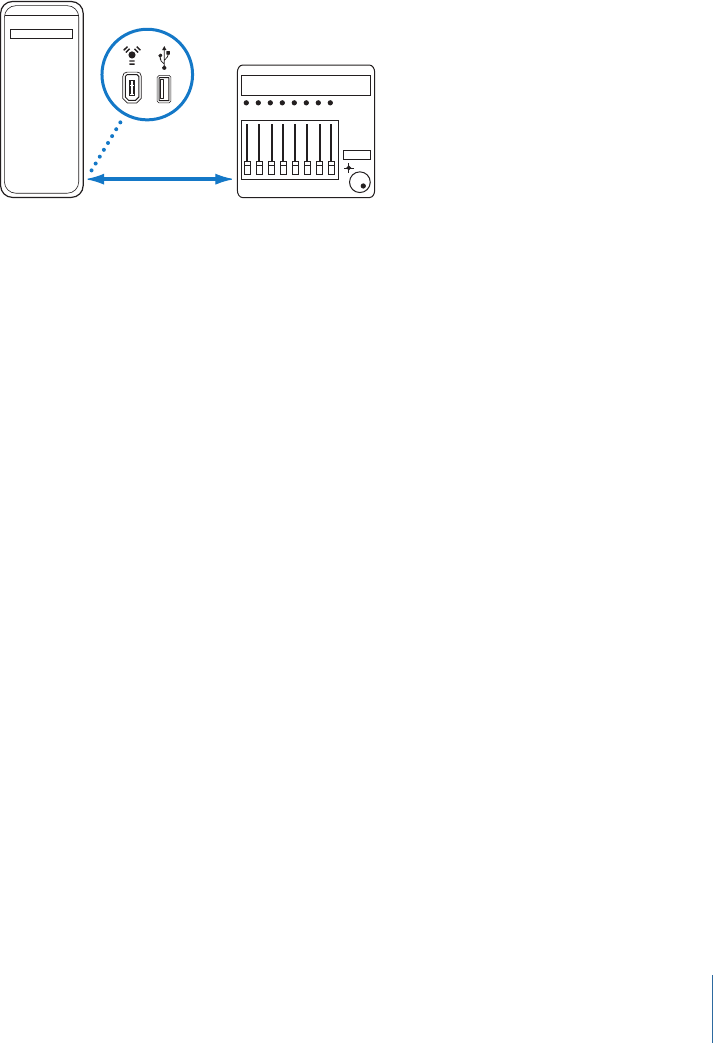
Connecting FireWire and USB Control Surfaces
If your control surface has a FireWire or USB port, you can connect it directly to your
computer, using a cable with the appropriate connectors. FireWire and USB devices
transmit and receive data through a single cable, if the device supports bidirectional
communication. The following diagram illustrates a typical setup using a FireWire or USB
cable:
Computer
FireWire/USB cable
Control surface
It is recommended that you connect FireWire and USB devices directly to your computer,
rather than through a hub. Daisy-chaining devices can result in errors and other problems,
due to the amount of data transmitted in real time.
Connecting Control Surfaces via Networking Ports
A handful of devices are connected via the network (LAN) ports of your Mac computer,
using a single, standard (CAT5) networking cable. Most devices connected in this way
also incorporate audio I/O and digital audio converters, plus built-in MIDI ports, making
the addition of these peripherals a simple, single cable (and driver) installation.
As with FireWire and USB, it is recommended that such devices are directly connected
to the computer, rather than through a network hub or switch.
13Chapter 1 Basic Control Surface Setup
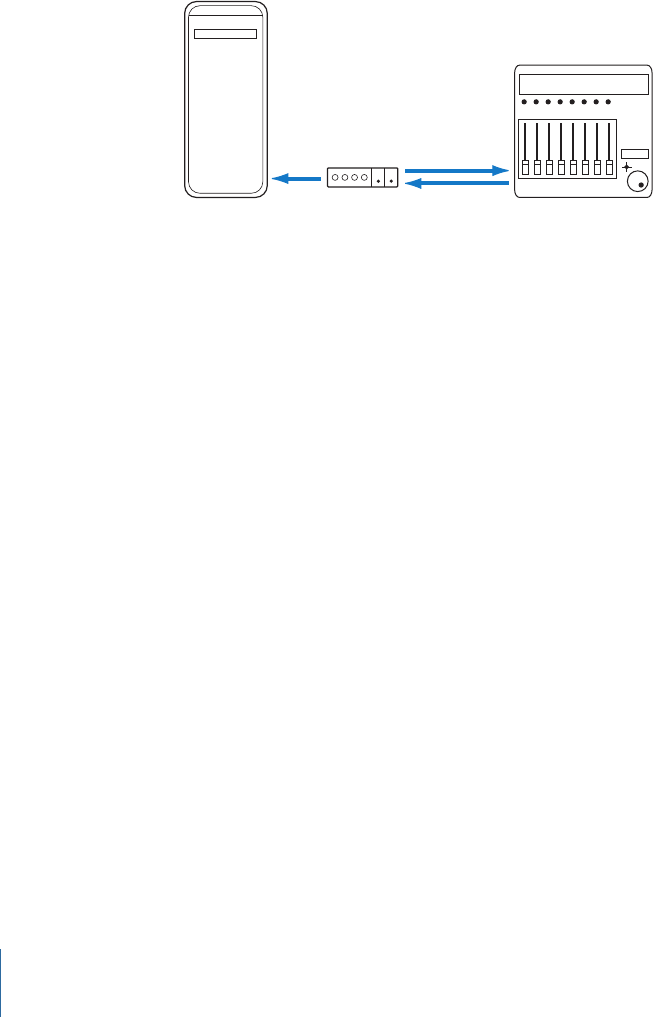
Connecting MIDI Control Surfaces
If your control surface has MIDI input and output ports, you can connect it to a MIDI
interface, and connect the MIDI interface to your computer. MIDI interfaces are typically
connected to your computer via the USB or FireWire connection protocols. MIDI uses
separate ports for input and output, and you must connect both the MIDI input and
output to use the device with Logic Pro. The following diagram illustrates a typical setup
using MIDI input and output:
Computer
MIDI
interface Out port In port
Out portIn port
Control surface
It is recommended that you do not daisy-chain other MIDI devices via MIDI through to
the MIDI In or Out ports used by control surfaces. Daisy-chaining can result in errors and
other problems, due to the amount of data transmitted in real time.
Optional Footswitches and Pedals
Some control surfaces allow you to connect footswitches or pedals as additional controllers.
If your control surface features suitable connectors, you can connect optional footswitches
to remotely control playback and other functions. This frees your hands for other controls,
and can also be helpful when using guitars or other instruments that require two-handed
playing.
Powering Up
Once everything is connected, press the power switch on your control surface. Once
powered, the displays (such as an LCD, if your device has one) or LEDs are lit. Some LCDs
display a welcome message, which includes the firmware version number. On most control
surfaces with motorized faders, each fader will slide to its top position, then back to its
bottom or center position. This self-diagnostic power-on procedure indicates that your
units are functioning correctly.
Generally, you can turn on your computer (and MIDI interface, if applicable) either before
or after you turn on the control surface, and open Logic Pro either before or after the
control surface is powered up. Some devices, however, may require the computer to be
turned on before or after the device has initialized. Check the device documentation, and
manufacturer website.
14 Chapter 1 Basic Control Surface Setup

Adding Control Surfaces to Logic Pro
Some control surfaces (such as the Mackie Control) are detected automatically when you
open Logic Pro. You can add other devices that are not detected automatically using the
Setup window. Installation is easy (and is covered in the setup section of the chapter for
your particular device). Some devices may require different or additional steps, but
generally, all you need to do is select the device that you want to use with Logic Pro, and
then add it either by scanning or manually.
To add a control surface by scanning
1Choose Logic Pro > Preferences > Control Surfaces > Setup to open the Control Surfaces
Setup window.
2In the Setup window, choose New > Install, and then select the device from the list. You
can select more than one model by Command-clicking multiple entries in the list. If you
select more than one model, Logic Pro performs the operation for each model, in turn.
Note: If you don’t want to select the models to be scanned, you can simply choose New
> Scan All in the Setup window: Logic Pro searches for all supported control surface units
on all MIDI ports. This process may take a while.
3Click the Scan button. You can also press Enter, or double-click the device name to initiate
the scan.
Logic Pro scans your system for connected devices, and automatically installs (and connects
to) those it finds.
4When you finish, close the window.
Some control surfaces don’t support automatic scanning. Such devices must be added
manually to your setup. When you add a device manually, you also need to assign the
appropriate MIDI In and Out port parameters.
Note: It is preferable to install devices by scanning, whenever possible. Logic Pro is able
to gather more information about devices through scanning, than via manual installation.
To add a control surface manually
1Choose Logic Pro > Preferences > Control Surfaces > Setup to open the Control Surfaces
Setup window.
2In the Setup window, choose New > Install, and select the device you want from the list.
3Click the Add button.
4Close the Install window when you finish.
If another control surface of the selected type already exists in your setup, a warning
dialog asks you to confirm the addition of the new device.
You need to manually alter the MIDI In and Out port values (in the Device Parameter area
of the Setup window) to match those of the connected unit.
15Chapter 1 Basic Control Surface Setup
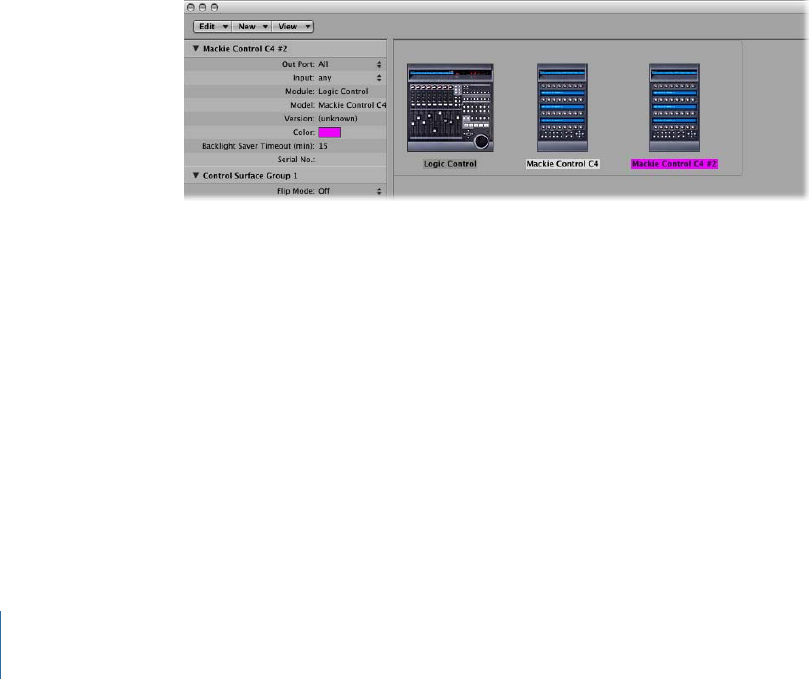
Note: You can reinitialize the support of all connected control surfaces by choosing
Logic Pro > Preferences > Control Surfaces > Rebuild Defaults.
Creating Control Surface Groups
If you have multiple control surface units in your system, you can define how they relate
to each other, and create control surface groups. A control surface group consists of
multiple devices that you combine to create a single, unified virtual control surface.
You can create up to 20 control surface groups. Each group can consist of any number
of physical devices. The only limiting factor is the number of available MIDI In and Out
ports (or USB/FireWire “MIDI” ports, if you are using a USB or FireWire control surface).
You can independently determine the default behavior of each device in a group. For
more information, see the Device Parameters section.
To create a control surface group
1Choose Logic Pro > Preferences > Control Surfaces > Setup to open the Control Surfaces
Setup window.
2In the Setup window, drag the icons of the control surfaces you want to group, so that
they form a single horizontal row.
The order of the icons from left to right defines the order in which tracks and parameters
are arranged and displayed on the devices.
To use two control surfaces independently
1Choose Logic Pro > Preferences > Control Surfaces > Setup to open the Control Surfaces
Setup window.
2In the Setup window, arrange the icons for the control surfaces in separate rows—that
is, one above the other.
16 Chapter 1 Basic Control Surface Setup
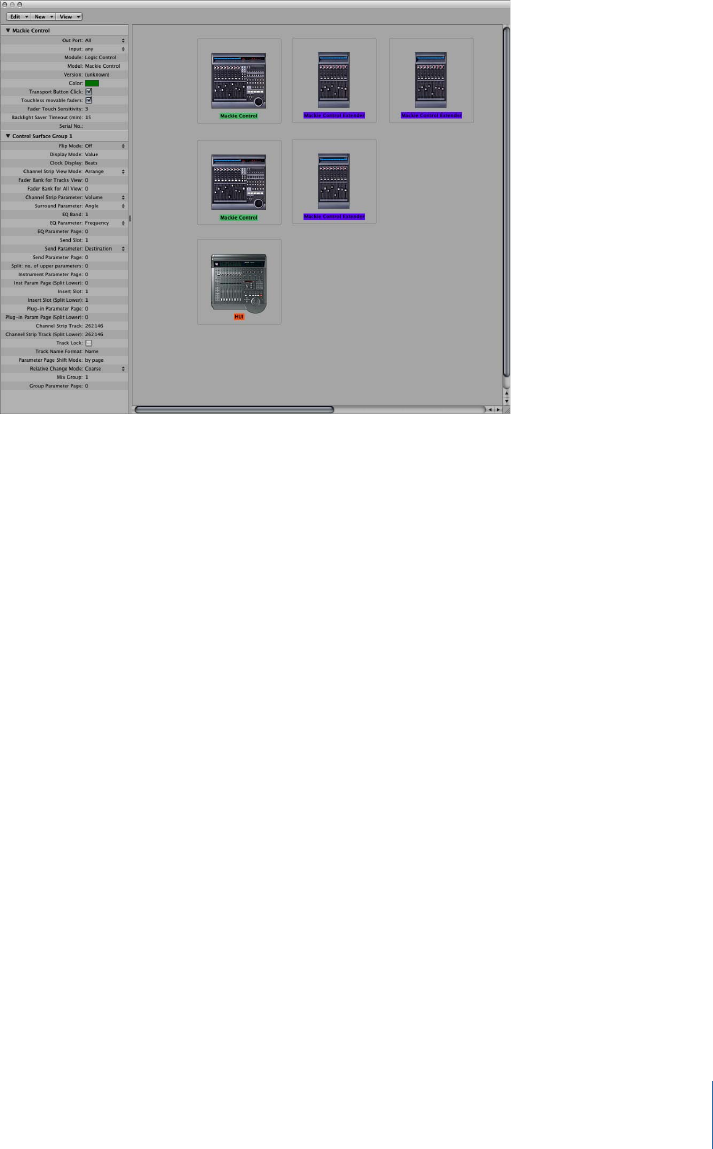
Pictured below is a multiple group example with two Mackie Controls, three
Mackie Control XTs, and one HUI:
The top row, consisting of the Mackie Control #1, Mackie Control XT #1, and
Mackie Control XT #2, forms a single control surface group with 24 channels. Mackie Control
#1 controls channels 1 to 8, XT #1 controls channels 9 to 16, and XT #2 handles channels
17 to 24.
In the second row, the Mackie Control #2 and Mackie Control XT #3 form a second control
surface group, controlling instruments (on channels 1 to 8) and auxes (on channels 9 to
16).
In the third row, the HUI forms a single unit control surface group.
Each group has individual settings, such as Flip mode, Display mode, Plug-in Parameter
Bank Offset, and others. This allows you to access, edit, and automate different sections
of the Logic Pro Mixer.
In the example above, the three units in the top row could be used to control audio and
MIDI channel strips. In the second row, Mackie Control #2 could be used to control
instrument channel strips 1 to 8, and XT #3 could be used to control aux channel strips
1 to 8. The HUI could be used to edit group definitions. The physical placement of units,
and the way you use them, is completely flexible.
Note: In most situations, the placement of your control surface units in relation to each
other should be the same onscreen as in the real world. Simply position the icons in your
control surface group accordingly.
17Chapter 1 Basic Control Surface Setup
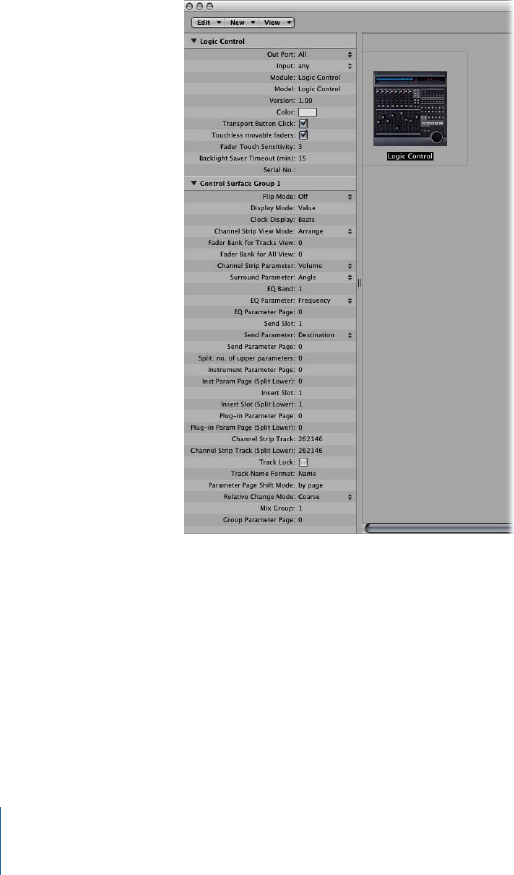
Once you have created a control surface group, you can configure it in the Setup window.
For more information, see Control Surface Group Parameters.
Configuring Your Control Surface Setup
The left side of the Setup window contains two or three parameter areas: Device
parameters, Special parameters (if your connected device supports them), and Control
Surface Group parameters. You can configure your control surface setup to meet your
needs by editing the parameters in these boxes.
Important: Any changes to settings (in the Setup window or from the device) are saved
in a preferences file, named “com.apple.logic.pro.cs,” located in ~/Library/Preferences.
This file is saved independently of the Logic Pro Preferences file.
18 Chapter 1 Basic Control Surface Setup
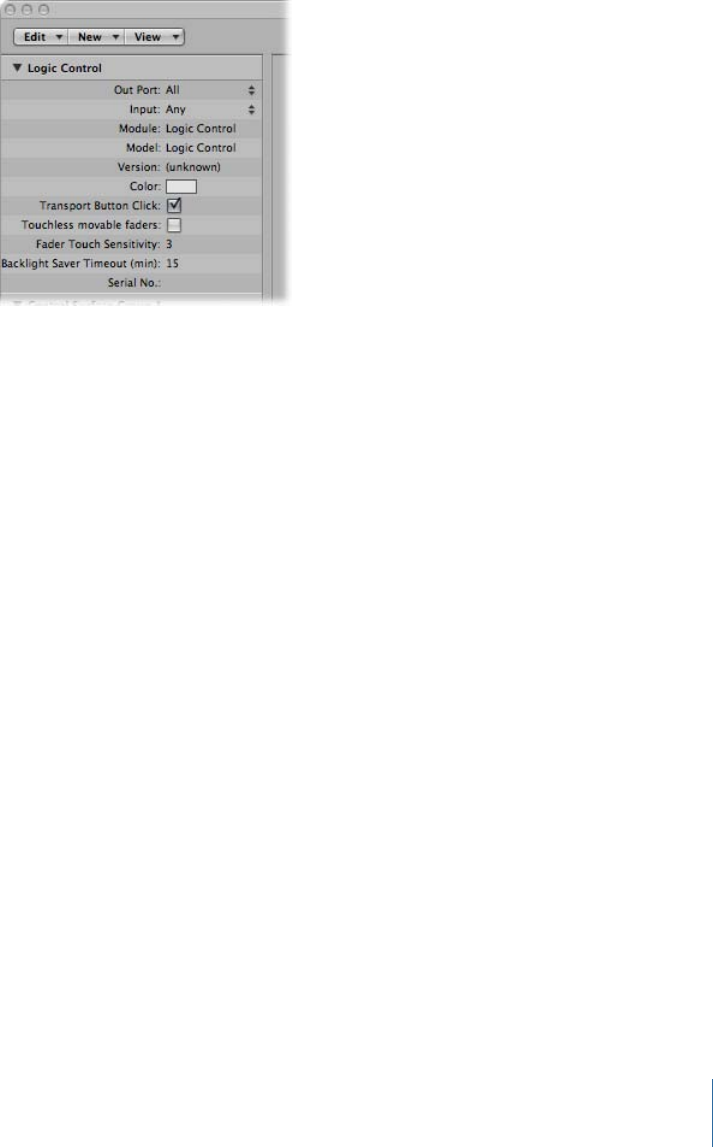
Device Parameters
The Device Parameters area contains the following items:
•Out Port: Choose the MIDI output port from the pop-up menu.
•Input: Choose the MIDI input port from the pop-up menu.
•Module: Shows the name of the control surface.
•Model: Shows the model name of the control surface.
•Version: Shows the firmware version for some control surfaces.
•Color: Click to choose the color that indicates which tracks are being controlled by this
control surface. In the Arrange window, the tracks controlled by this device are colored
along the left edge of the track list (if the track control bars are displayed).
Each control surface must be connected to an independent MIDI In and Out port (or
corresponding USB/FireWire port, designated as a MIDI port by the device driver). When
the device is added, the automatic setup or scan procedure sets the appropriate MIDI
input and output port settings for the device. If the MIDI port settings are incorrect, you
can manually choose them from the Input and Out Port pop-up menus.
Special Parameters
Some control surfaces (such as the Mackie Control) allow you to define “special” parameters
such as fader touch sensitivity. When a device that offers special parameters is connected,
the Special Parameters area appears on the left side of the Setup window. For more
information about supported special parameters, refer to the documentation for the
specific device.
19Chapter 1 Basic Control Surface Setup
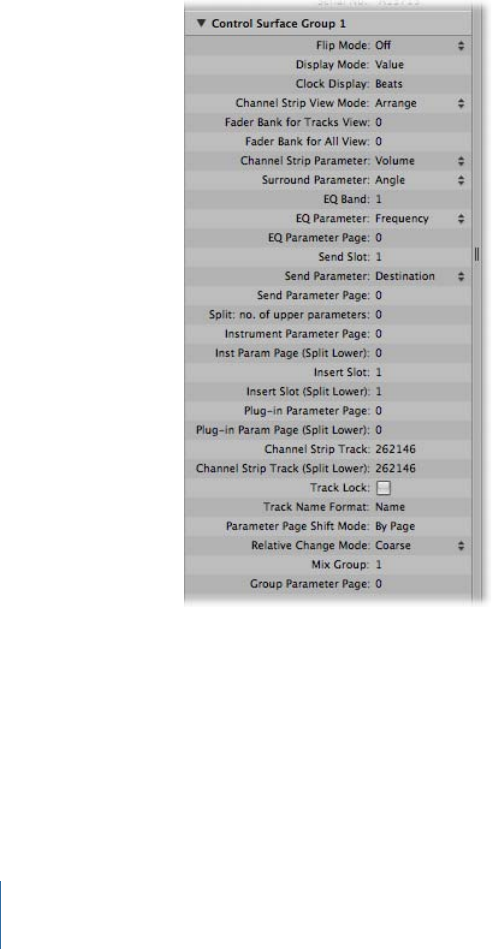
Control Surface Group Parameters
If you have created one or more control surface groups, you can configure group
parameters in the Control Surface Group Parameters area. These parameters apply to the
group associated with the selected device, and allow you to set up each group to meet
your needs. This is especially helpful when you have multiple control surface groups.
Many (if not all) control surface group parameters can also be changed directly from the
control surface, as well as from the Setup window.
If you have created multiple control surface groups, the Control Surface Group Parameters
area shows the settings for the group that is currently selected in the Setup window.
20 Chapter 1 Basic Control Surface Setup
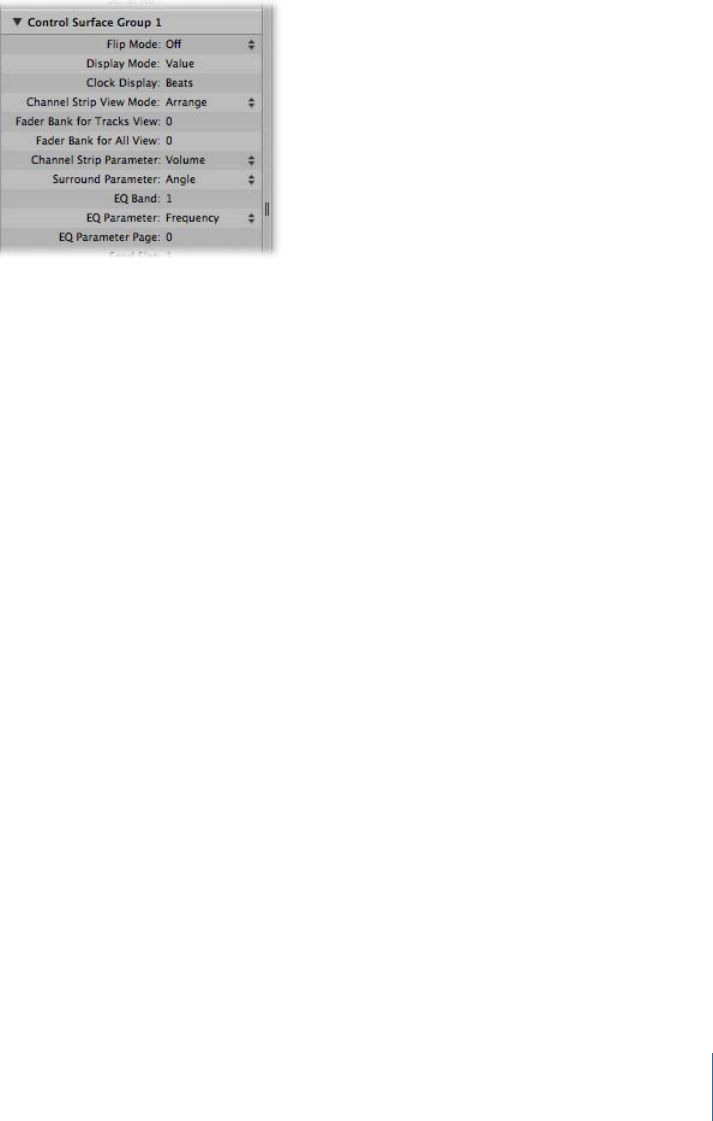
Control Surface Group Display Parameters
The parameters at the top of the Control Surface Group Parameters area give you control
over aspects of the device displays.
•Flip Mode: Choose the functions for the faders and rotary encoders of the channel strips
on the device. For control surfaces that contain a fader and a rotary encoder for each
channel strip, Flip mode allows you to assign both controls to the same parameter, or
swap their assignments. The choices are:
•Off: Standard mode, with the fader acting as a volume control.
•Duplicate: Assigns both the fader and encoder to the currently selected encoder
parameter.
•Swap: Switches the fader and encoder assignments, making the fader a pan control
and the encoder a channel volume control, for example.
•Mute: Disables the fader. This is useful when recording in the same room as the
control surface, and you want to avoid the mechanical noise of the faders. Any existing
automation still functions normally.
•Display Mode: Click to limit the device display to only the name or only the value of
the current parameter. This is helpful if there is insufficient space for the display of both
the parameter name and value.
•Clock Display: If your control surface features a position display, this parameter allows
you to determine how the playhead position is represented. Click to switch between
Beats (musical values) or SMPTE (absolute time values).
Note: The exact elements displayed, and thus their positions, depend on the selected
SMPTE or bar/beat display option defined in the Logic Pro Preferences.
21Chapter 1 Basic Control Surface Setup

•Channel Strip View Mode: Choose one of the following view modes:
•Arrange: The channel strips on the device correspond to Logic Pro channel strips as
they appear in the Mixer window. The layout of channel strips matches the way tracks
are laid out in the Arrange window. Channel strip 1 in the Mixer window is equivalent
to channel 1 on the control surface, channel strip 2 in the Mixer is equivalent to
channel 2, and so on. Instruments and channels used by multiple tracks are merged
into one channel. This is the default mode of most devices, including the
Mackie Control.
•All: The channel strips on the device correspond to Logic Pro channel strips of certain
types, such as MIDI or aux channels, independent of their use in tracks. Control
surfaces that support this view mode generally allow you to define which channel
types you want to display. The contents of Logic Pro’s Mixer window automatically
follow the state of the control surface, provided that the View > Link Control Surfaces
option is turned on.
•Tracks: This view mode is similar to Arrange view mode, but individual channel strips
are shown when multiple arrange tracks address the same channel. Typically, this
will be an instrument channel, with several tracks routed to it.
•Single: This mode shows a single channel (and its routing to auxes and so on). You
can determine which parameters the channel strip controllers (on the control surface)
will edit.
Note: Keep in mind that the View mode is a property of the control surface group, not
a global setting. One group can display busses, while the other shows tracks, for
example.
•Fader Bank for Tracks View: Drag vertically, or enter an integer value to offset which
tracks are controlled by the channel strips of the device in Tracks view. For example, if
your device has eight channel strips, these might normally be assigned to audio channel
strips 1–8 in Logic Pro. If you set this parameter to 2, the device channel strips would
control Logic Pro Mixer channel strips 3–10 (1 + 2 = 3).
•Fader Bank for All View: Drag vertically, or enter an integer value to offset which Logic Pro
channel strips are controlled by the device in All view. This parameter is only available
when multiple channel strip types are displayed in the Mixer. When single channel strip
types are displayed, there are separate fader bank parameters. (These aren’t displayed
in the parameter list.)
•Channel Strip Parameter: Choose which function is controlled by the channel strip
encoders on the device. The choices are:
•Volume: Encoders adjust channel volume.
•Pan: Encoders adjust channel panorama position.
•Format: Encoders adjust/select channel format.
•Input: Encoders adjust/select channel input source.
22 Chapter 1 Basic Control Surface Setup

•Output: Encoders adjust/select channel output (main outs/auxes/surround).
•Automation: Encoders adjust/select channel automation mode.
•Group: Encoders adjust group membership of the track. Editing the parameter allows
you to set either “no group” or a single group. Enabling membership of multiple
groups is not possible. (This can only be done directly in the Logic Pro Mixer.)
•Displayed Par.: Encoders adjust the automation parameter selected in the Arrange
window. This is especially useful if you set the control surface to Arrange View mode,
and your Arrange window shows multiple subtracks with various parameters.
•Surround Parameter: Choose the surround parameter that the rotary encoders will
control. The choices are:
•Angle: Encoders adjust surround angle.
•Diversity: Encoders adjust surround diversity (direction).
•LFE: Encoders adjust LFE level.
•Spread: Encoders adjust the Spread parameter of Stereo to Surround channel strips.
•X: Encoders adjust surround X position.
•Y: Encoders adjust surround Y position.
•Center: Encoders adjust the Center channel level.
Note: The X and Y parameters are a different representation of the Angle and Diversity
parameters, and thus are independent of them. The X and Y parameters support the
use of surround joysticks.
•EQ Band: Sets the current EQ band, so that you can edit a particular Channel EQ or
Linear Phase EQ parameter for all tracks in the EQ Multi Channel View.
•EQ Parameter: Choose which parameter of the selected EQ band is controlled by the
encoders in EQ Multi Channel View. The choices are:
•Frequency: Encoders adjust the frequency of the selected band.
•Gain: Encoders adjust the gain of the selected band. For the Low Cut (band 1) and
High Cut (band 8) bands of the Channel and Linear Phase EQ, this parameter controls
the slope.
•Q: Encoders adjust the Q factor of the selected band.
•On/Off: Encoders bypass the selected EQ band.
•EQ Parameter Page: Sets the EQ parameter displayed in EQ Channel Strip view.
The Channel and Linear Phase EQs feature eight bands per audio channel, with each
band offering four parameters. All of these parameters can be accessed with your
control surface.
23Chapter 1 Basic Control Surface Setup
If your control surface does not display all EQ parameters at once, you view them by
stepping through the parameter pages in sequence. For example, if your control surface
has eight channel strips, you can directly control parameters 1 to 8 with knobs or sliders
1 to 8 when you switch to EQ Channel Strip Edit view. You then need to switch by a
page to access parameters 9 to 16.
Control Surface Group Send and Plug-in Parameters
The parameters in the middle of the Control Surface Group Parameters area let you control
different operational aspects when working with Send and Plug-in parameters.
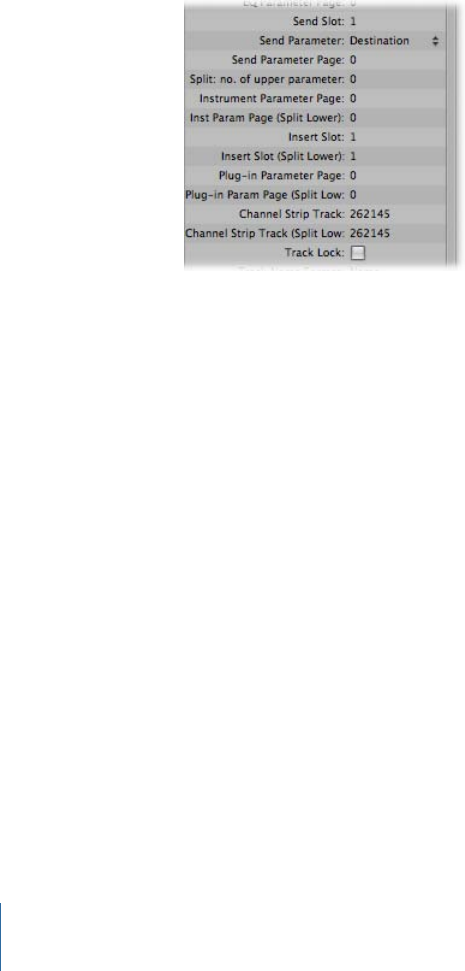
•Send Slot: Sets the currently selected Send slot. The default is 1, which sets the first
(top) Send on each channel as the Send slot. A value of 2 sets the second send as the
Send slot, a value of 3, the third Send slot, and so on.
•Send Parameter: Choose the Send parameter controlled by the encoders when in the
Send Multi Channel view. The choices are:
•Destination: Encoder is used to determine the bus channel number for the Send slot.
•Level: Encoder is used to adjust the Send level.
•Position: Encoders set Pre, Post, or Post Pan fader modes.
•Mute: Encoders mute/unmute the selected Send slot.
•Send Parameter Page: Sets the current page for the Send parameters. Up to 32
parameters are available in Send Channel Strip view for a given channel (eight Send
slots multiplied by the four parameters listed above).
•Split: no. of upper parameters: Sets the number of encoders that belong to Split Upper,
for control surfaces that support Split mode. The remaining encoders belong to Split
Lower. A value of 0 means that Split mode is off—all encoders are assigned to the Split
Upper area.
Control surfaces that support Split mode allow the display of two separate parameter
sections within one plug-in (or even different plug-ins). They are called Split Upper and
Split Lower.
24 Chapter 1 Basic Control Surface Setup

•Instrument Parameter Page: Determines which parameter is assigned to the leftmost
encoder when editing a software instrument. The next instrument parameter is assigned
to encoder 2, and so on. This applies to Split Upper when Split mode is turned on.
•Inst Parameter Page (Split Lower): Sets the parameter that is assigned to the leftmost
encoder of Split Lower when editing a software instrument (when Split mode is turned
on). The next instrument parameter is assigned to encoder 2, and so on.
•Insert Slot: Sets the current Insert slot number, both for selecting a plug-in (in Plug-in
Channel Strip view) and for editing its parameters. The default is 1, which sets the first
(top) plug-in slot on each channel as the Insert slot. A value of 2 sets the second plug-in
slot as the Insert slot, and so on. With Split mode turned on, this applies to Split Upper.
•Insert Slot (Split Lower): Sets the current Insert slot number for Split Lower when selecting
or editing a plug-in when Split mode is turned on.
•Plug-in Parameter Page: Defines which parameter is assigned to the leftmost encoder
when editing a plug-in. The next plug-in parameter is assigned to encoder 2, and so
on. This applies to Split Upper when Split mode is turned on.
Note: The plug-in and instrument page parameters are kept separate, as this allows you
to quickly switch between editing an instrument and an effect plug-in on a channel,
without having to adjust the parameter page every time.
•Plug-in Param Page (Split Lower): Defines which parameter is assigned to the leftmost
encoder of Split Lower when editing a plug-in (with Split mode turned on). The next
plug-in parameter is assigned to encoder 2, and so on.
•Track: Defines which track is displayed for Channel Strip views. When Split mode is
turned on, this applies to Split Upper.
•Track (Split Lower): Sets which track is displayed (in the Split Lower section of the control
surface) for Channel Strip views, when Split mode is turned on.
•Track Lock: Determines how the control surface responds when a track is selected in
Logic Pro—in essence, this remotely affects the Track and Track (Split Lower) parameters.
When set to “on,” the control surface group continues to display the same track,
independent of the currently selected track in Logic Pro. When set to Off, the control
surface group automatically switches to the selected track, whenever a track is selected
in Logic Pro.
25Chapter 1 Basic Control Surface Setup
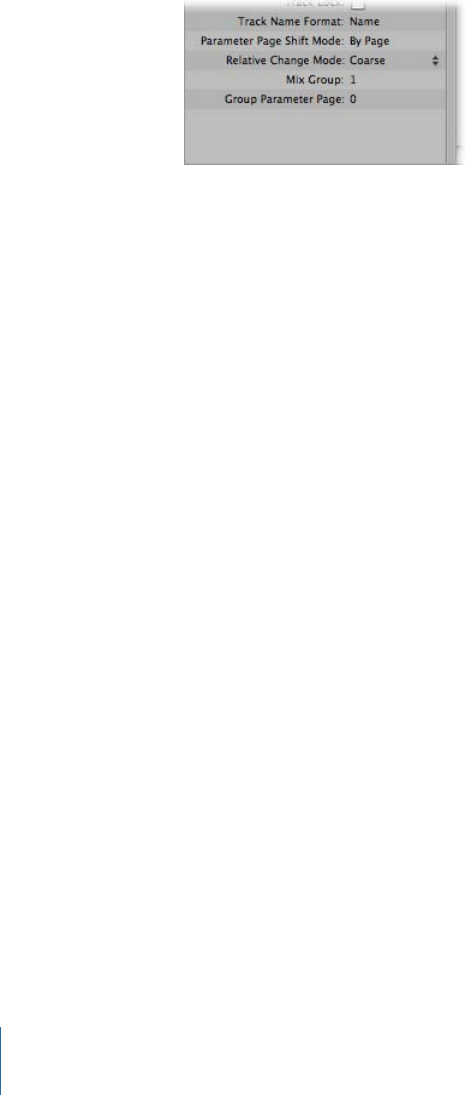
Control Surface Group Other Parameters
The parameters at the bottom of the Control Surface Group Parameters area let you set
the Track Name Format, Parameter Page Shift Mode, Relative Change Mode, Mix Group,
and Group Parameter Page parameters.
•Track Name Format: Determines whether the track name display shows only the track
name, or the track name and number.
•Parameter Page Shift Mode: Determines whether the parameter is shifted by one page
or by one parameter.
•Relative Change Mode: Choose the mode for controller assignments that support a
Relative Value Change mode (rotary encoders, for example). The choices are:
•Coarse: The parameter is adjusted in coarse steps.
•Full: Turning the encoder to the right sets the maximum value. Turning it to the left
sets the minimum value. The encoder also stops at its default value. For example,
when the Pan knob is left of center, turning the encoder to the right initially sets the
Pan parameter to center (its default value). A further turn to the right sets the Pan
to full right (its maximum value).
•Fine: The parameter is incremented or decremented in fine steps—by one tick or
other unit. In this mode, the highest possible resolution is used. For example, when
editing the Sample Delay plug-in’s Delay parameter, every encoder tick increases or
decreases the value by 1 sample, regardless of the resolution value.
•Mix Group: Determines which group is edited when in Group Edit mode.
•Group Parameter Page: Defines which parameter of the edited group is assigned to the
leftmost encoder.
Setting Control Surfaces Preferences
Various settings that affect the onscreen appearance and performance of control surfaces
can be made in the Logic Pro Control Surfaces preferences.
To open the Control Surfaces preferences
µChoose Logic Pro > Preferences > Control Surfaces > Preferences (or use the Open Control
Surfaces Preferences key command).
26 Chapter 1 Basic Control Surface Setup
To temporarily disable your control surfaces
µChoose Logic Pro > Preferences > Control Surfaces > Bypass all Control Surfaces.
This command is useful for silencing motorized control surface faders when recording in
the same room. It is also handy when troubleshooting MIDI data errors, or for reducing
MIDI bandwidth requirements.
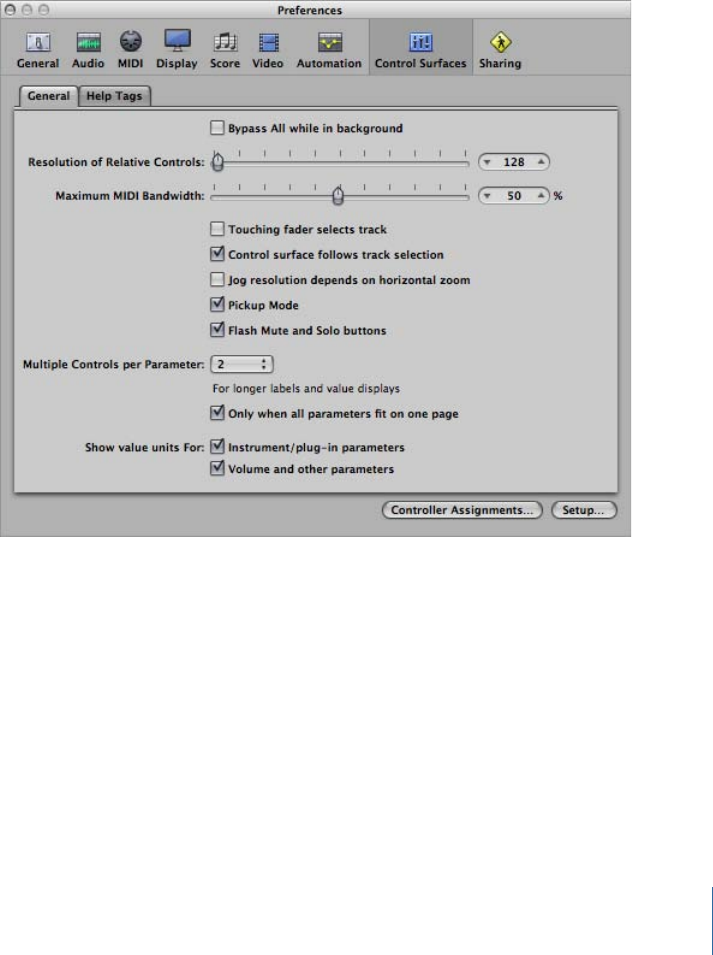
General Preferences
General control surface preferences include resolution of relative controls, maximum MIDI
bandwidth, and other functions.
•“Bypass All while in background” checkbox: Allows you to share your control surface with
other applications, when Logic Pro is not the active program.
•Resolution of Relative Controls slider: Sets the resolution of controls that change values
in a relative manner. The default resolution is 128 steps. Choose a higher resolution
value to divide the value range into finer increments.
•Maximum MIDI Band Width slider: Drag to set the maximum amount of MIDI bandwidth
that your control surface can use. This is set to a default of 50%, which should be suitable
for most situations. You can adjust the value if you find that your MIDI or automation
playback is being affected.
27Chapter 1 Basic Control Surface Setup

•“Touching fader selects track” checkbox: When this option is selected, touching a fader
on the control surface selects the track corresponding to the fader. For this to work,
the device must feature touch-sensitive faders.
•“Control surface follows track selection” checkbox: When this checkbox is selected,
selecting a track in the Arrange window automatically selects the corresponding track
or channel on the control surface.
•“Jog resolution depends on horizontal zoom” checkbox: When selected, the precision of
scrubbing (using the Jog/Shuttle Wheel of your control surface) is determined by the
horizontal zoom level of Logic Pro. Your control surface must feature a Jog/Shuttle
Wheel (or similar control) for this to have any effect. To retain a consistent resolution,
regardless of Logic Pro window zoom levels, deselect this checkbox.
•Pickup Mode checkbox: When selected, the control surface operates in Pickup mode (if
this mode is available). Some control surfaces, typically those without motorized faders
or knobs, do not show parameter changes—caused by playing back existing automation
data—on their interface. Such control surfaces usually offer a Pickup mode. In Pickup
mode, the controller must reach (“pick up”) the current value before the value starts
to change. This prevents sudden jumps of parameter values caused by playing back
automation. Your device may feature a display (usually a pair of arrow LEDs) that
indicates the direction or distance you need to move the controller, in order to match
the settings shown in Logic Pro (also known as NULL). Once you have matched the
onscreen values, deactivate Pickup mode and start automating.
When Pickup mode is turned off, adjusting a fader modifies the parameter immediately
(which can result in parameter value jumps).
•Flash Mute and Solo buttons checkbox: When selected, the Mute and Solo buttons on
the control surface will blink (flash) on and off when mute or solo modes are engaged.
•Multiple Controls per Parameter pop-up menu: Choose the maximum number of encoders
used for each parameter, when editing plug-ins or audio instruments. The choices are:
•1: Parameters are always displayed using one encoder per parameter, with the least
space available for parameter name and value in the LCD.
•2: On each unit, encoders 1 and 2 are used for the first parameter, encoders 3 and
4 for the second, and so on.
•4: On each unit, encoders 1 to 4 are used for the first parameter, encoders 5 to 8 for
the second, and so on.
•8: On each unit, encoders 1 to 8 are used for the first parameter, encoders 9 to 16
for the second, and so on.
When multiple encoders are used per parameter, the encoders are divided into groups
(1/2, 3/4, 5/6, 7/8, for example). The first encoder of each group controls the parameter
shown in the display. The remaining encoders are inactive.
28 Chapter 1 Basic Control Surface Setup

Using more than one encoder per parameter shows fewer parameters at any given
time, but you gain space on the LCD to cater to longer parameter names and values.
The more control surfaces you have within a control surface group, the more you benefit
from this feature.
•“Only when all parameters fit in one page” checkbox: When selected, the defined number
of encoders are only used when there are sufficient encoders available to show all
parameters, without changing pages. For example, if you have a Mackie Control and
two Mackie Control XTs (giving you at total of 24 encoders), a plug-in with 13 parameters
will be shown with one encoder per parameter. Eleven encoders will remain unused.
A plug-in with 11 parameters will be shown with two encoders per parameter. Two
encoders will remain unused (as will the inactive encoders of the subdivisions mentioned
above).
When deselected, multiple encoders are used for each parameter, which may require
scrolling. This would not be the case if only one encoder were used for each parameter.
•“Show value units for” checkboxes: The two checkboxes in this section allow you to
adjust whether parameter values are appended by the measurement unit, where
applicable—“Hz” or “%,” for example. You can set this option separately for instrument
and plug-in parameters, and for volume and other channel strip parameters. When
selected, applicable values are appended with the appropriate unit. Turn off this option
if viewing units makes the display too cluttered.
•Controller Assignments button: Click to open the Controller Assignments window.
•Setup button: Click to open the Control Surfaces Setup window.
29Chapter 1 Basic Control Surface Setup
Help Tags Preferences
For control surfaces that feature freely programmable displays with more than six
characters per line (or segment) of the display, you can change the way help tags are
shown. Control surface help tags are similar to Logic Pro help tags, showing additional
information during use.
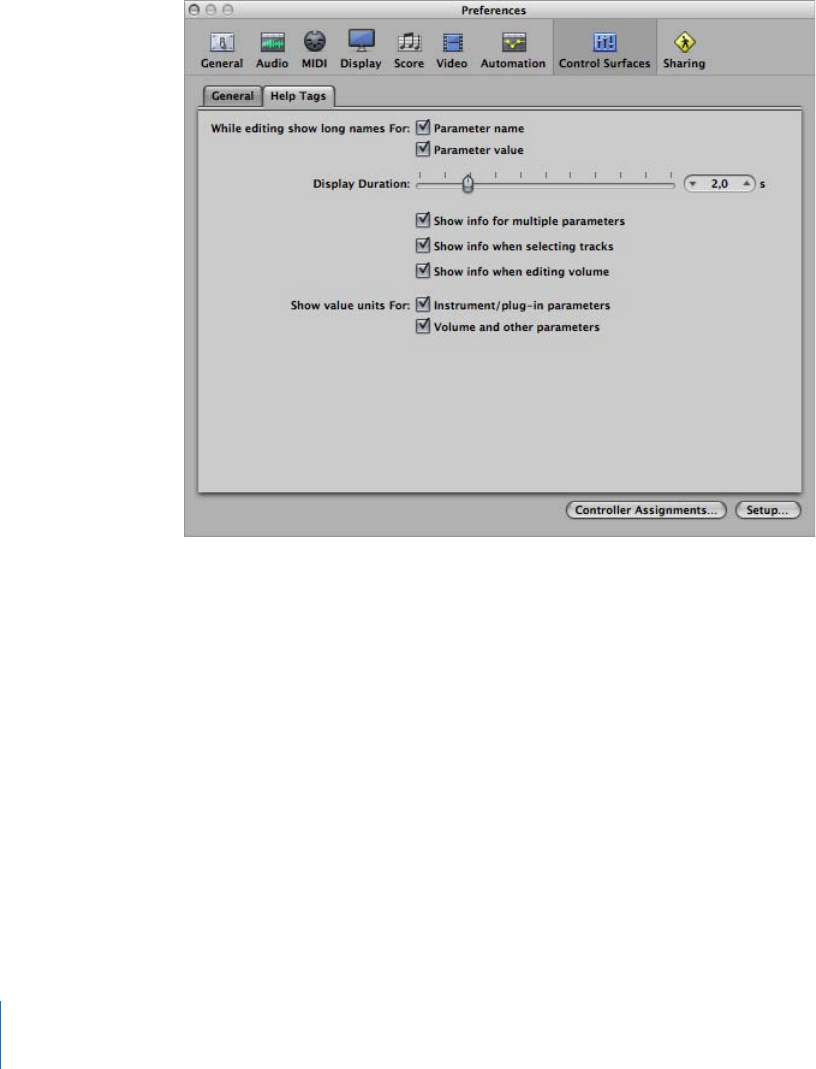
•“While editing show long names for” checkboxes: The two checkboxes in this section
allow you to set how the names and values of parameters are displayed on the LCD of
the control surface.
•“Parameter name” checkbox: When selected, the upper LCD line displays the full
parameter name, rather than an abbreviated form of it, when you edit a parameter.
•“Parameter value” checkbox: When selected, the lower LCD line displays the full
parameter value when you edit a parameter. If the “Show value units for parameter”
checkboxes (see below) are selected, it will be appended by the measurement unit,
where applicable (for example, “dB,” “Hz,” or “%”).
Note: The following options only have an effect if at least one of the two parameters
described above is active.
•Display Duration slider: Drag to adjust the time that parameter names and values remain
on the LCD display, following selection and adjustments.
30 Chapter 1 Basic Control Surface Setup

•“Show info for multiple parameters” checkbox: When selected, the long name information
appears in the display until the most recently edited parameter’s display times out.
This may cause overlapping text. When unselected, the long name display is only shown
for the most recently edited parameter, which can cause screen flicker.
•“Show info when selecting tracks” checkbox: When turned on, Selected appears in the
upper row of the LCD, and the selected track’s name is shown in the lower row, when
you select a track.
•“Show info when editing volume” checkbox: When selected, the word Volume appears
in the upper row of the LCD, and the edited value appears in the lower row, when you
edit a track’s volume.
•“Show value units for” checkboxes: When selected, parameter values are appended by
the appropriate measurement unit (“Hz” or “%,” for example). You can set this option
separately for “Instrument/plug-in parameters” and “Volume and other parameters.” If
you can do without value units, the display is less cluttered.
Note: This parameter only applies while you are editing the relevant values.
Modal Dialog Display
All modal dialogs (except File Open dialogs) appear on the LCD display of control surfaces
that feature text displays. Examples of modal dialogs include authorization warnings, edit
confirmations, or error messages. While a modal dialog is visible, you cannot perform
actions in any other window.
The modal dialog text appears in the upper row of the LCD. If the dialog text does not
fit in the LCD’s upper row, it starts scrolling after three seconds. You can scroll the dialog
text manually with the appropriate control. (See assignment tables in the appropriate
chapter.) Once you start scrolling the text manually, automatic scrolling is disabled.
• If the control surface has an Enter or OK button, pressing it triggers the dialog’s default
button, where applicable.
• If the control surface has a Cancel or Exit button, pressing it triggers the button labeled
Cancel or Abort, where applicable.
• All buttons in the modal dialog (push buttons, including Enter, Default, and Cancel, as
well as checkboxes and radio buttons, but not pop-up menus) appear in the display’s
lower row.
Pressing a control surface button below the display triggers the appropriate function in
the dialog, if applicable. Once you press an Enter or Cancel button on the control surface
or click it onscreen, the dialog disappears, and all controls and displays return to their
previous state.
When a File Open dialog appears onscreen, the “There is a file select dialog on the screen”
message appears on the LCD or other display (if your control surface has one).
31Chapter 1 Basic Control Surface Setup

Control Surface Usage Tips
You may find that using control surfaces changes the way you use Logic Pro. Slight
changes to your working methods can help you to use control surfaces more effectively.
The following hints may streamline your Logic Pro control surface workflow.
Customize Your Templates
• Set up screensets 1–7 as your most frequently used screensets. You can access these
directly on some control surfaces. On a Mackie Control, for example, you can access
them with function keys F1 to F7, while function key 8 (F8) closes the topmost window.
•It is recommended that you assign a full-screen Arrange window, with track automation
view set to On (for all tracks), as one of your screensets.
• A full-screen Mixer window is also recommended as another screenset.
Make Use of Markers
Markers allow you to quickly navigate from location to location in a project. Most control
surfaces feature a number of shortcuts that allow you to rapidly move between markers,
which is an extremely useful way of moving around in your projects.
Markers are also useful for creating or selecting cycle areas and a number of other tasks,
such as punch and replace recording.
If you tend to follow a particular song structure, or like to work with a particular number
of bars (4, 8, 16 bars, and so on) for verse and chorus sections, then set up a number of
markers at suitable locations in your templates.
Control Surfaces Supported by Logic Pro
Following is an alphabetical listing of control surfaces directly supported by Logic Pro.
The list contains cross-references to the relevant device-specific chapters.
Note: It is possible that your device may be directly supported in Logic Pro via one or
more downloadable support files. This is often a driver or plug-in supplied by the
manufacturer. (See About Control Surface Plug-ins.) Check the documentation and discs
that came with the device, and the manufacturer’s website. Follow any written instructions
supplied with the files, if available.
NotesManufacturerSupported devices
The Yamaha 01V96 emulates two HUI units, using
two virtual MIDI In and Out connections over its
USB cable. See Yamaha 01V96.
Yamaha01V96
32 Chapter 1 Basic Control Surface Setup

NotesManufacturerSupported devices
The Yamaha 01X emulates a Mackie Control. It
does not feature all controls available to the
Mackie units, however. Refer to the 01X
documentation for details. Logic Pro recognizes
the 01X as an 01X, and displays a custom icon, but
communication is as with a Mackie Control unit.
See Mackie Control.
Yamaha01X
The Yamaha 02R96 emulates three HUI units, using
three virtual MIDI In and Out connections over its
USB cable. See Yamaha 02R96.
Yamaha02R96
The Baby HUI is a stripped-down version of the
HUI. See Mackie Baby HUI.
MackieBaby HUI
The Mackie C4 is directly supported. See Mackie C4.MackieC4
See Euphonix MC Pro, System 5-MC, MC Control,
MC Mix, and MC Transport.
EuphonixCM408T (System 5-MC)
See JLCooper CS-32 MiniDesk.JLCooperCS-32 MiniDesk
The Yamaha DM1000 emulates two HUI units,
using two virtual MIDI In and Out connections
over its USB cable. See Yamaha DM1000.
YamahaDM1000
The Yamaha DM2000 emulates three HUI units,
using three virtual MIDI In and Out connections
over its USB cable. See Yamaha DM2000.
YamahaDM2000
See JLCooper FaderMaster 4/100.JLCooperFaderMaster 4/100
Extension unit for FW-1884. See Tascam FW-1884.TascamFE-8
A stripped-down version of the FW-1884. See
Tascam FW-1884.
TascamFW-1082
See Tascam FW-1884.TascamFW-1884
See Mackie HUI.MackieHUI
See M-Audio iControl.M-AudioiControl
A larger version of the microKONTROL. See Korg
microKONTROL and KONTROL49.
KorgKONTROL49
This is the extension unit for the Logic Control. It
only offers the channel strip section, making it less
useful without a Logic (or Mackie) Control. See
Mackie Control.
Mackie/EmagicLogic Control XT
See Mackie Control for more details.Mackie/EmagicLogic/Mackie Control
33Chapter 1 Basic Control Surface Setup

NotesManufacturerSupported devices
The original Mackie Control hardware is similar to
the Logic Control. The front panel legend is
different, however. You should request a
Logic Control Lexan Overlay from Mackie. As
Logic Pro also recognizes the Mackie Control
protocol, you may use any firmware version. If
your unit has firmware version 1.02 or later, you
can freely use either the Logic Control or
Mackie Control mode. See Mackie Control.
MackieMackie Control
Mackie-badged version of the Logic Control XT.
As Logic Pro also recognizes the Mackie Control
protocol, you may use any firmware version. If you
have firmware version 1.02 or later, you can freely
use either the Logic Control or Mackie Control
mode. See Mackie Control.
MackieMackie Control
Extender
A Mackie Control with Logic Control silk screening
(legend) and firmware version 2.0 or later
(including HUI emulation). As Logic Pro also
recognizes the Mackie Control protocol, you may
use any firmware version. If you have firmware
version 1.02 or later, you can freely use either the
Logic Control or Mackie Control mode. See
Mackie Control.
MackieMackie Control
Universal
See Euphonix MC Pro, System 5-MC, MC Control,
MC Mix, and MC Transport.
EuphonixMC
See JLCooper MCS3.JLCooperMCS3
See Korg microKONTROL and KONTROL49.KorgmicroKONTROL
See CM Labs Motormix.CM LabsMotormix
The SAC-2.2/2k’s native mode is directly supported,
but it can also emulate a Mackie Control. You
should use the native mode. See Radikal
Technologies SAC-2K.
SAC-2.2Radikal Technologies
See Radikal Technologies SAC-2K.SAC-2kRadikal Technologies
See Roland SI-24.RolandSI-24
See Frontier Design TranzPort.Frontier Design GroupTranzPort
A stripped-down version of the US-428. See
Tascam US-428 and US-224.
TascamUS-224
Logic Pro supports the US-2400’s native mode. In
contrast to its Mackie Control mode, all controls,
including the joystick, are supported. See
Tascam US-2400.
TascamUS-2400
See Tascam US-428 and US-224.TascamUS-428
34 Chapter 1 Basic Control Surface Setup

About Control Surface Plug-ins
Supported control surfaces communicate with Logic Pro via special plug-in files that are
installed along with Logic Pro. The plug-in files are located in the /Contents/MIDI Device
Plug-ins subfolder of the Logic Pro application bundle. To view the bundle contents,
Control-click the Logic Pro application icon, and choose Show Package Contents from
the shortcut menu. Logic Pro also checks for control surface plug-ins installed in the
(optional) /Library/Application Support/MIDI Device Plug-ins and ~/Library/Application
Support/MIDI Device Plug-ins (the “~” denotes your user home directory) folders.
When new control surface plug-ins are released independently of a Logic Pro update (or
supplied directly by the device manufacturer), place them in the folders described above
(or as advised in the documentation supplied with the plug-in).
About Software and Firmware
Most control surfaces depend on Logic Pro for their functionality, and cannot be operated
if Logic Pro is not running. They do not provide any additional functionality that is not
available in Logic Pro itself. One advantage of this approach is that as new functions are
added to Logic Pro, or as you create new assignments, your control surface will be able
to access and control them.
Most control surface units do include a form of software called firmware. Firmware is
similar to the low-level boot software found in your computer, mobile phone, iPod, and
so on.
New behaviors, such as improved control of motorized faders and changes to the display,
can be provided by firmware updates. You should periodically check the manufacturer’s
website for your device, to check for updates that may enhance use or performance.
The firmware is usually stored on an EEPROM (Electronically Erasable Programmable
Read-Only Memory) chip. It can often be updated via a simple MIDI dump procedure, in
the form of a MIDI file. Should new firmware become available, you can simply download
the appropriate MIDI file and play it (from Logic Pro) to your control surfaces, which will
be updated accordingly. The steps required to perform a firmware update will be outlined
in the documentation that accompanies the MIDI file. Read this before attempting any
update.
Note: Some control surfaces may require that you physically replace the chip for firmware
updates. Contact the manufacturer of your device for details.
35Chapter 1 Basic Control Surface Setup

You can assign controllers to Logic Pro parameters, and edit controller assignments to
fit your workflow.
This section explains how to assign controllers to Logic parameters, edit controller
assignments, and use zones and modes to switch between groups of assignments.
This chapter covers the following:
•Assigning Controllers to Logic Pro Parameters (p. 37)
•Controller Assignments: Working in Easy View (p. 38)
•Controller Assigments: Working in Expert View (p. 41)
•Assigning Buttons to Key Commands (p. 59)
•Controller Assignments Storage (p. 61)
Assigning Controllers to Logic Pro Parameters
You can assign any controller that is capable of generating a MIDI message to a parameter
in Logic Pro. Assigning controllers to Logic parameters lets you use faders, knobs, switches,
and other controllers to remotely control Logic functions. These can be used “as is,” or
in conjunction with modifier keys.
Most supported control surfaces include preset controller assignments that become active
when you add the device to your system. You can change existing assignments for
supported control surfaces, and create new assignments for both supported and
unsupported devices. For example, the default assignments of the F1 to F7 buttons on
the Mackie Control open screensets 1 to 7 in Logic Pro. You can reassign these control
surface buttons to other Logic commands—either alone or in conjunction with the
Command, Shift, Option, and Control modifier buttons (on the control surface)—in any
combination.
37
Customizing Controller
Assignments 2
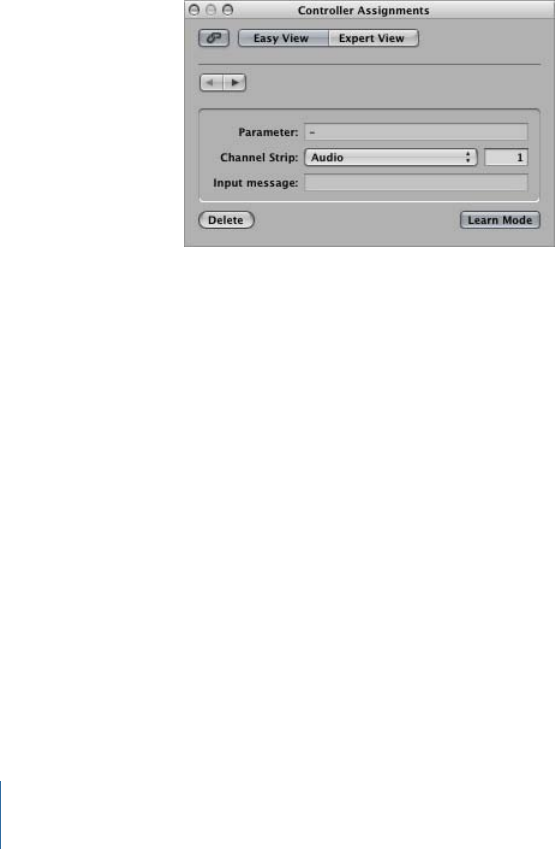
You can assign controllers to parameters in Logic’s Controller Assignments window, using
the Learn process. The Controller Assignments window has two views: a compact Easy
view, where you can assign channel strip and plug-in parameters; and the more extensive
Expert view, where you can create and edit any type of controller assignment, including
global, automation, and control surface group assignments.
Controller Assignments: Working in Easy View
Easy view allows you to see and assign controllers to channel strip and plug-in parameters,
and to change the track that assignments apply to.
To open the Easy view of the Controller Assignments window
µChoose Logic Pro > Preferences > Control Surfaces > Controller Assignments (or use
Command-K), and click the Easy View button.
The Easy view of the Controller Assignments window contains the following fields and
buttons:
•Expert View button: Click to open the editor in Expert view.
•Back/Forward buttons: Click to move back and forth between assignments.
•Link button: When active, the assignment that matches the most recently received MIDI
message is automatically selected.
•Parameter field: Displays the name of the selected parameter.
•Channel Strip pop-up menu: Choose whether the assignment applies to the selected
track, or matches the channel strip number entered in the field beside the pop-up
menu (as shown in the Mixer’s All view).
•“Input message” field: Displays the incoming MIDI message data of the controller being
assigned to a function.
38 Chapter 2 Customizing Controller Assignments

Assigning and Deleting Controllers in Easy View
Only one set of assignment parameters is visible at a time in Easy view. You use the Learn
process to assign controllers to channel strip and plug-in parameters. The Learn process
basically involves moving a controller on your control surface. This sends a MIDI message
to Logic Pro, thus “teaching” Logic Pro which controller you are assigning to the chosen
parameter.
To assign a controller in Easy view
1In the Mixer, or in any plug-in window, select the parameter that you want Logic Pro to
learn as a controller assignment.
2Choose Logic Pro > Preferences > Control Surfaces > Learn Assignment for [parameter
name]. (Alternately, you can use the Learn new Controller Assignment key command,
default: Command-L, to open the Controller Assignments window, and activate Learn
mode.)
The Controller Assignments window opens in Easy view, with the Learn Mode button
activated. In most cases, the name of the selected parameter is shown in the Parameter
field.
3Move the hardware controller you want to assign to the selected parameter.
Moving the controller sends a MIDI message to Logic Pro, which appears in the “Input
message” field. This memorizes the controller assignment, and you can click the Learn
Mode button to complete the Learn process.
If you do not click the Learn Mode button, Learn mode remains active, allowing you to
make further assignments.
4To make another assignment, select the parameter you want to assign in Logic Pro, then
move the controller on the control surface.
5When you finish, click the Learn Mode button (or press Command-L) to complete the
Learn process.
To assign a controller using a modifier key
1Choose Logic Pro > Preferences > Control Surfaces > Learn Assignment for [parameter
name] (or press Command-L) to open the Controller Assignments window.
2Hold down the modifier key you want to use (Command, for example) as you select the
parameter you want to assign, while moving the control.
3Click the Learn Mode button to complete the Learn process.
If Logic Pro receives a MIDI message from the device while you are holding down the
modifier key, the Learn Mode button is deactivated when you release the key, and the
Learn process is complete. If you release the modifier key before Logic Pro receives a MIDI
message, the Learn Mode button remains active, so you can still move a controller to
send a MIDI message. In this situation, be sure to click the Learn Mode button when you
are finished to end the Learn process.
39Chapter 2 Customizing Controller Assignments

To delete a controller assignment in Easy view
µSelect the assignment you want to remove in the Controller Assignments window (Easy
view), and click the Delete button.
Assigning a Series of Controllers in Easy View
Logic Pro includes a shortcut that makes it easy to assign a series of controllers to a series
of similar parameters. For example, you can use this shortcut to assign a series of faders
to volume; to assign a series of knobs to other channel strip parameters such as pan, solo,
or mute; or to assign a series of controllers to a set of plug-in parameters.
To assign a series of controllers to a series of parameters
1In the Mixer, or in any plug-in window, select the parameter that you want Logic Pro to
learn as a controller assignment.
2Choose Logic Pro > Preferences > Control Surfaces > Learn Assignment for [parameter
name]. (Alternately, you can use the Learn new Controller Assignment key command,
default: Command-L, to open the Controller Assignments window, and activate Learn
mode.)
The Controller Assignments window opens in Easy view, with the Learn Mode button
activated. In most cases, the name of the selected parameter is shown in the Parameter
field.
3Assign the first controller in the series to the first parameter (assign fader 1 to control
volume for channel strip 1, for example).
4Assign the last controller in the series to the last parameter (assign fader 16 to control
volume for channel strip 16, for example). The number of controllers between the first
and last in the series must match the number of parameters between the first and last
parameter. In the example, the distance between 1 and 16 would equal 15.
A “Do you want to fill up in between?” dialog appears.
5Click OK to automatically fill the controllers between the first and last with the
corresponding assignments.
Note: You can only use shortcuts for knobs that send a single channel message, where
the first data byte is the controller number and the second data byte is the value.
Alternatively, the controller number can be encoded in the MIDI channel, with a fixed
first data byte. Consult the documentation that came with your device for information
on its data structure.
40 Chapter 2 Customizing Controller Assignments
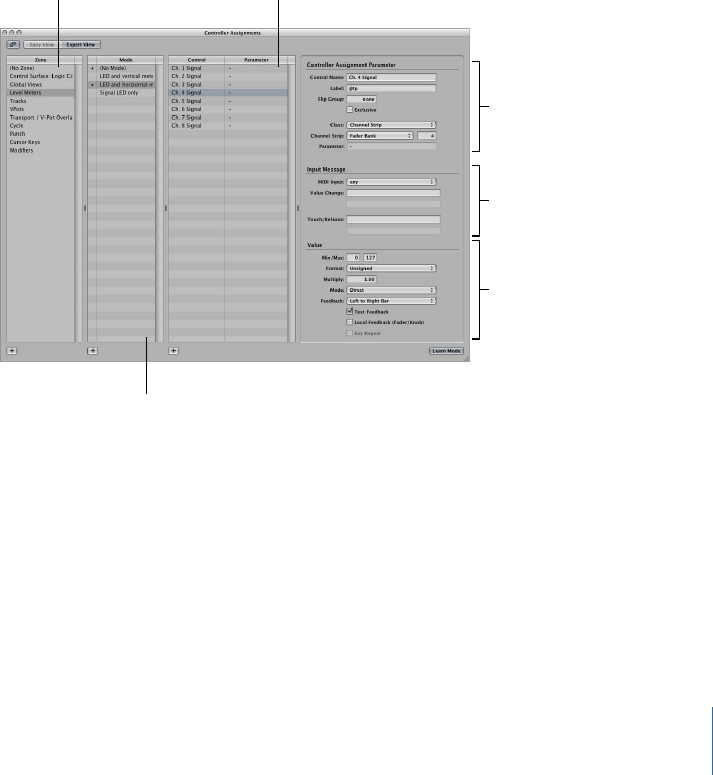
Controller Assigments: Working in Expert View
You can use Expert view to make advanced controller assignments. These include Logic Pro
parameters other than channel strip and plug-in parameters. For example, you can assign
controllers to global, automation, and control surface group parameters in Expert view.
You can also extensively edit controller assignments in Expert view, and define zones and
modes, which let you switch between groups of controllers.
The Learn process opens the Controller Assignments window in Easy view, which shows
the basic parameters for the current assignment. To make assignments other than channel
strip or plug-in assignments (or to edit other assignment parameters), you need to switch
to Expert view.
Tip: You can only switch back to Easy view if a track or plug-in parameter is selected.
To open the Expert view of the controller assignments window
µChoose Logic Pro > Preferences > Control Surfaces > Controller Assignments (or use
Command-K), and click the Expert View button.
Zone list Control/Parameter list
Mode list
Controller Assignment
Parameter area
Input Message area
Value area
In Expert view, the Controller Assignments window contains the following fields, menus,
and buttons that you use to edit assignment parameters and define zones and modes.
•Zone list: Displays the available zones for the device. The first entry “(No Zone)” is for
zoneless assignments—assignments that are always active, regardless of the active
zone. Select a zone in the list to see its modes (in the Mode list), and its current
assignments (in the Control/Parameter list). You can also double-click a zone to rename
it. See Getting to Know Zones and Modes.
41Chapter 2 Customizing Controller Assignments

•Mode list: Displays the modes for the currently selected zone. The first entry “(No Mode)”
is for modeless assignments. Select a mode in the list to see its assignments in the
Control/Parameter list, and make it the selected zone’s active mode. You can also
double-click a mode to rename it. See Getting to Know Zones and Modes.
•Control/Parameter list: Select the assignment you want to edit. The left column displays
the name of the control, and the right column displays the name of the parameter
being controlled (in an abbreviated form). The parameters of the selected assignment
appear in the fields to the right of the list. See Controller Assignments Window Expert
View Settings.
Note: You can select multiple assignments in the list, but only the parameters of the
first selected assignment are displayed. When multiple assignments are selected,
operations performed via the Edit menu can be applied to all selected assignments.
All other operations apply only to the first assignment.
•Controller Assignment Parameter area: All aspects of the selected controller assignment
parameter are shown, and can be changed, in this area. See Controller Assignment
Parameter Area.
•Input Message area: The port and MIDI input message can be altered directly. Some
fields in this section are merely displays, and cannot be changed. See Input Message
Area.
•Value area: The range of values, and response, of the controller assignment to incoming
messages is determined in this area. Feedback to the display of control surfaces can
also be determined here. See Value Area.
42 Chapter 2 Customizing Controller Assignments
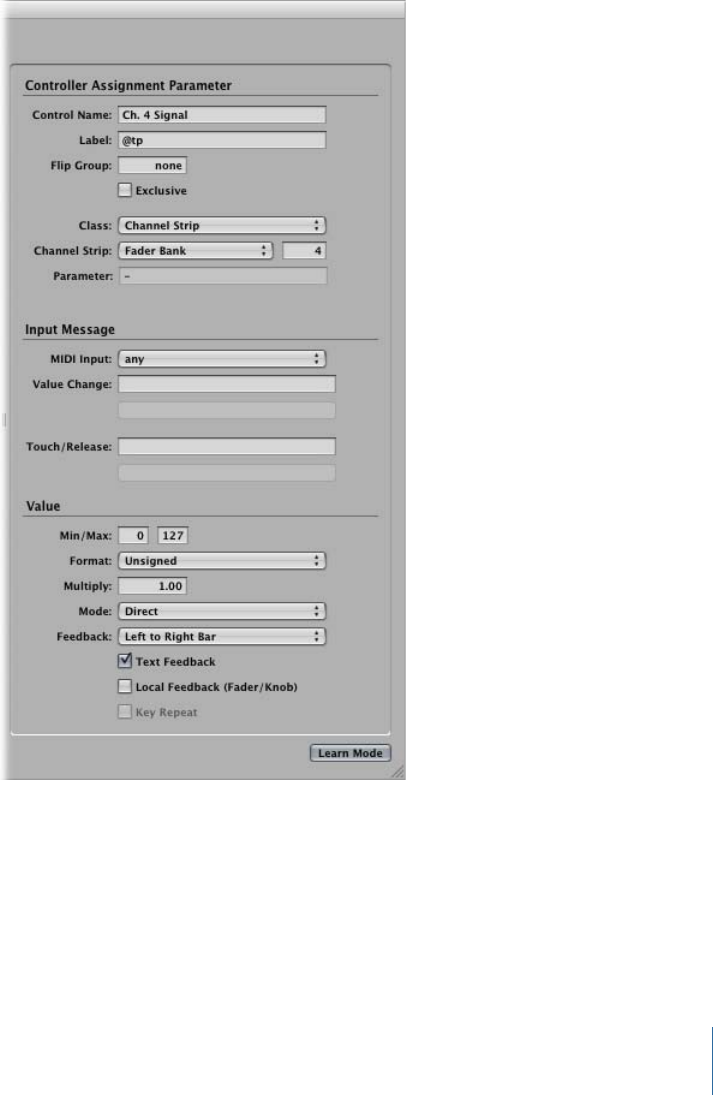
Controller Assignments Window Expert View Settings
This section outlines each parameter shown in the fields on the right side of the Controller
Assignments window when in Expert view. Detailed descriptions of each parameter can
be found in Using the Control Name and Label Fields.
Controller Assignment Parameter Area
The area at the top right shows the following parameters:
•Control Name field: Displays the name of the controller for supported devices. For
unsupported devices, Learned is displayed. See Using the Control Name and Label
Fields.
43Chapter 2 Customizing Controller Assignments

•Label field: Displays characters that represent the label for the assignment on the control
surface’s display. You can view this much like a scribble strip on a mixer. See Using the
Control Name and Label Fields.
•Flip Group field: Enter an integer to define a flip group for the assignment. See Setting
the Flip Group and Exclusive Parameters.
•Class pop-up menu: Choose the class of parameter (parameter type) you want to assign.
See Setting Class Pop-Up Menu Parameters.
Note: Depending on the chosen class, different fields and pop-up menus for that class
appear below the Class pop-up menu.
•Parameter/Mode pop-up menu and field: Depending on your choice in the Class pop-up
menu, you can choose from dozens of different parameters and modes. The options
available change as different classes are selected.
•Group/Track/Command/Key field pop-up menu: These options also change depending
on your choice in the Class pop-up menu.
•Bank Type pop-up menu: This pop-up menu determines the bank relationship of the
assigned parameter. This can be as per the Group setting, By One, or By Bank.
Input Message Area
The area at the center right shows the following parameters. See Editing Input Message
Parameters in Expert View for details.
•MIDI Input pop-up menu: Choose a MIDI input source (MIDI Port or Caps Lock Keyboard).
This can be changed by incoming MIDI messages, shown in the Value Change field.
•Value Change field: Displays incoming MIDI messages that cause a value change.
•Touch/Release field: Enter an integer value to force incoming MIDI messages to change
the touch/release status of the selected parameter. This only applies to control surfaces
that offer touch-sensitive controls (where touching or releasing a fader, for example,
enables or disables reception of data from the control surface).
Value Area
The area at the bottom right shows the following parameters. See Editing Value Parameters
in Expert View for details.
•Min and Max fields: Enter integer values to set the range of incoming MIDI values.
•Format pop-up menu: Choose the format used to encode negative values.
•Multiply field: Enter a value to scale incoming MIDI values.
•Mode pop-up menu: Choose the mode used by incoming values to modify the current
parameter value.
•Feedback pop-up menu and checkboxes: Choose the display format of the parameter
value (on the control surface display, if applicable).
44 Chapter 2 Customizing Controller Assignments

Assigning and Deleting Controllers in Expert View
You can use the Learn process to assign controllers when the Controller Assignments
window is in Expert view, just as you would in Easy view. You can also assign controllers
to classes of Logic Pro parameters that are not accessible in Easy view.
To learn a controller for a non-channel strip or plug-in parameter
1Choose Logic Pro > Preferences > Control Surfaces > Controller Assignments (or use
Command-K), and click the Expert View button.
2Choose a zone or mode (unless you want to make a modeless assignment), and click the
plus button in the lower-left corner of the Control/Parameter list.
A new, blank assignment appears in the Control/Parameter list.
3Click the Learn Mode button to start the Learn process.
4Move the controller (on your control surface) that you want to assign to the selected
parameter.
Moving the controller sends a MIDI message to Logic Pro, thus “teaching” Logic Pro which
controller you are assigning. The Learn Mode button remains active, allowing you to
make further assignments.
5The incoming MIDI message appears in the Input message field. Once Logic Pro has
received the message, choose the class of parameter you want to assign from the Class
pop-up menu.
6Assign the parameter by making appropriate choices in the pop-up menus and fields
that appear below the Class pop-up menu.
Note: A detailed explanation of classes and other assignment parameters can be found
in Using the Control Name and Label Fields.
7When you finish, click the Learn Mode button (or press Command-L) to complete the
Learn process.
Tip: You can use the shortcut described in Assigning a Series of Controllers in Easy View
to assign a series of controllers to a series of similar parameters.
Should you accidentally move the wrong controller in Learn mode, you can easily delete
an unwanted assignment.
To delete an assignment in Expert view
1Select the assignment that you want to delete in the Control/Parameter list.
2Choose Edit > Delete (or press the Delete key).
45Chapter 2 Customizing Controller Assignments

Getting to Know Zones and Modes
You can define a group of controllers as a zone in Expert view, and switch all controls in
a zone to different parameters, all in one operation. Using a Mackie Control, for example,
you can define the eight rotary encoders as a zone, and switch them between pan, send
level, and plug-in parameters. You can also define multiple zones for a control surface:
one for the encoders, and a second one that switches the function keys (F1 to F8) to
different functions.
Each set of zone parameters is called a mode. A zone can contain one or more modes,
but only one mode can be the active mode at any given time. A zone can also contain
assignments that are always active, regardless of the active mode. (These are known as
modeless assignments.)
The simultaneous use of modal and modeless assignments allows you to do things such
as:
•Define a zone that switches between two modes (or functions) by pressing and releasing
a control surface modifier button (such as Shift or Option) while using a particular
function button (on the control surface).
• Define a zone that allows you to use modeless assignments for things like updating
the display, Transport functions, and Save and Undo operations. The same zone could
contain a modal assignment for all Volume and Pan controls. Switching to another
mode would provide access to EQ parameters. In both modal situations, the display,
Transport, and Save and Undo functions would be available.
A mode can contain any number of assignments. Only the assignments for the active
mode are processed by Logic Pro. Assignments of inactive modes are ignored.
You can switch the active mode for a zone by making special assignments. See Defining
Zones and Modes.
Zones and modes can be defined across multiple control surfaces, to support the use of
control surface groups.
46 Chapter 2 Customizing Controller Assignments
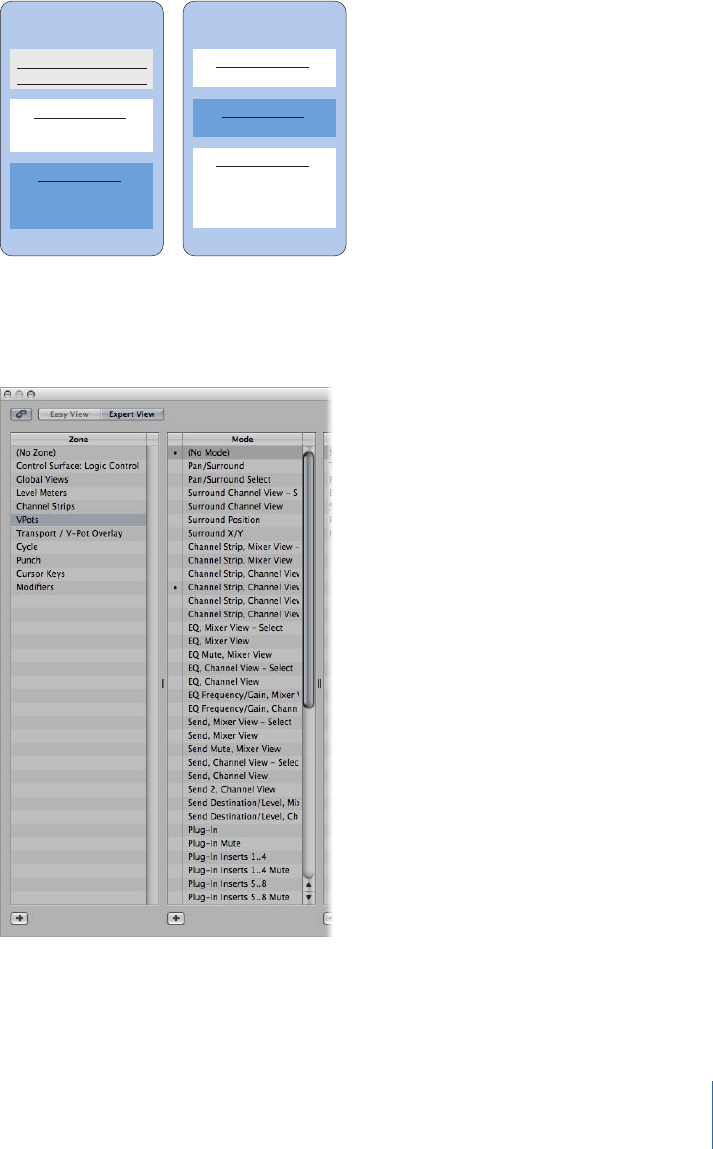
The following example illustrates one possible arrangement of zones and modes, and
shows how you can define them, hierarchically:
Modal Assignment A
Modal Assignment B
Mode 1 (inactive)
Mode 2 (active)
Modal Assignment A
Modal Assignment B
Modal Assignment C
Modal Assignment A
Mode 3 (inactive)
Modal Assignment A
Mode 4 (active)
Mode 5 (inactive)
Modal Assignment A
Modal Assignment B
Modal Assignment C
Modal Assignment D
Zone 1 Zone 2
Modeless Assignment A
Modeless Assignment B
Defining Zones and Modes
You can only define zones and modes in the Expert view of the Controller Assignments
window.
To define a zone
1Click the Add button in the lower-left corner of the Zone list.
47Chapter 2 Customizing Controller Assignments
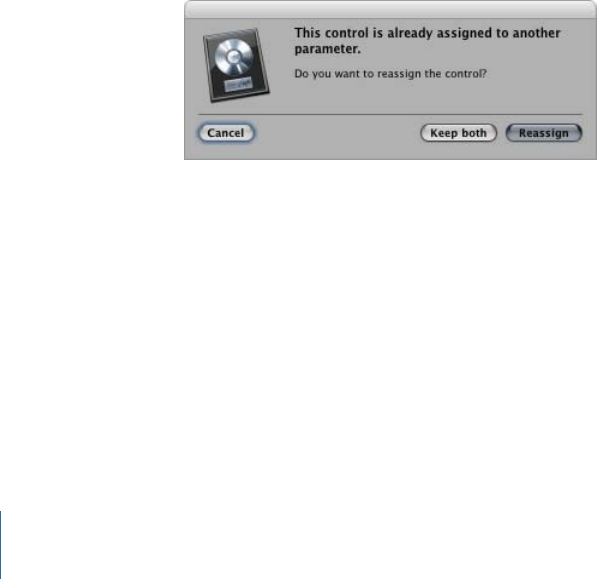
A new, blank zone appears in the Zone list. It is highlighted, allowing you to immediately
rename it.
2Enter a name for the zone.
If you want to add controllers to the zone, see Assigning and Deleting Controllers in
Expert View.
To define a mode
1Click the Add button in the lower-left corner of the Mode list.
A new, blank mode appears in the Mode list. It is highlighted, allowing you to immediately
rename it.
2Enter a name for the mode.
If you want to add controllers to a mode, see Assigning and Deleting Controllers in Expert
View.
Reassigning a Controller in Expert View
The procedure for reassigning an active controller (an assigned controller in the active
mode) is different from that of an inactive controller (one with an assignment in an inactive
mode).
To reassign an active controller
µUse the Learn process described in Assigning and Deleting Controllers in Expert View to
assign an active controller (one with an assignment in the active mode), and choose one
of the options shown in the dialog:
•Cancel: Deletes the new assignment, retaining the existing assignment.
•Keep Both: Retains the new and old assignments. Used typically when one knob controls
multiple parameters as a macro.
•Reassign: Deletes all existing active assignments for this parameter. Used to reassign a
function key (F1 to F8, for example) to a new key command.
To reassign an inactive controller
µUse the Learn process described in Assigning and Deleting Controllers in Expert View to
assign a controller in an inactive mode. Note that the new assignment becomes part of
the active mode in the same zone that contained the previous, inactive assignment.
48 Chapter 2 Customizing Controller Assignments
This is typically used as follows: Supported control surfaces generally have empty user
pages available, allowing for new encoder assignments. You would select a particular
user page mode (page 3, for example), and then learn an assignment for the encoder.
Using the Control Name and Label Fields
The following describes the use and options available for the Control Name and Label
fields in the Controller Assignment Parameter area at the top right of the Expert View
window.
Control Name Field
Shows the name of the control. For supported devices, the control surface name is used.
For assignments created with the Learn process on unsupported control surfaces, the
control name defaults to Learned. You can enter a new name in the field. The control
name is for display only, and has no effect on functionality.
Label Field
For supported control surfaces, shows characters that represent the label for the
assignment that appears on the control surface display. Unsupported control surfaces
can only send information, not receive it, and cannot display an assignment label.
If the field contains fixed text, it can contain any number of characters. When used as a
placeholder for dynamically created text, however, the field contains three characters
that represent the label. The first character is always @, followed by two additional
characters.
•Second Character: This character is used to define a type for the event label; for example,
track, Insert slot, Send slot, and so on.
•Third Character: This character is used to define a value for the chosen event label type,
such as the track number or name.
For example, “Send@s#” translates as “Send1,” “Send2,” and so on.
The following table shows the possible meaning for the second character.
MeaningSecond character
Trackt
Surroundr
Send slots
Number of sendsS
EQ bande
Number of EQsE
Insert slotp
Instrumenti
49Chapter 2 Customizing Controller Assignments

The following table shows the possible meaning for the third character.
MeaningThird character
Number of above (track number, Send slot, EQ band, Insert slot)#
Name of aboven
Name of parameter addressed by the assignmentp
Name of first parameterP
Parameter offset, counted from 1o
Maximum parameter offset, counted from 1O
Parameter bank (= parameter offset/bank size), counted from 1b
Total number of banks (= parameter offset/bank size), counted from
1
B
Setting the Flip Group and Exclusive Parameters
The following describes the use and options available for the Flip Group field and Exclusive
checkbox in the Controller Assignment Parameter area at the top right of the Expert View
window.
Flip Group Field
Enter the same integer value for two assignments, to define a counterpart for Flip mode
(for supported control surfaces that offer Flip mode). By setting a fader and an encoder
to the same flip group, for example, they are coupled. To set “none,” enter a value of 0.
For unsupported devices, you need to set up two active assignments, both of which use
the same flip group. One assignment needs to be absolute (using a fader, for example),
the other relative (encoder, for example).
Exclusive Checkbox
When selected, the assignment deactivates all other assignments that have Exclusive
turned off for the same control (on supported control surfaces). This limits the overwriting
of a modeless assignment to particular modes. For example, faders normally control
volume. To create a mode where faders control the send level, select Exclusive.
Setting Class Pop-Up Menu Parameters
Choose the class of assignment (the type of destination parameter controlled) from the
pop-up menu. Different options appear below the Class pop-up menu when you choose
a class. The following section describes the different classes, and the options available
for each.
50 Chapter 2 Customizing Controller Assignments
Mode Change
Choosing the Mode Change class lets you use an assignment to switch from one mode
to another. An additional Mode pop-up menu appears below the Class pop-up menu,
allowing you to choose between available modes. For example, the assignment buttons
on a Mackie Control can be used to choose different modes for the encoders.
Note: The mode chosen in the Mode pop-up menu is only activated when the Value
section: Mode menu is set to Direct.
If any of the other Value section: Mode menu options is chosen, the following applies:
•Toggle: The assignment toggles between the zone’s first mode and the chosen mode.
The mode change assignment must be located in the same zone.
•Relative: Useful for stepping up and down through modes in a zone (using two buttons)
or for choosing a mode with an encoder. The minimum destination parameter represents
this zone’s first mode, and the maximum represents the zone’s last mode. The mode
change assignment must be located in the same zone.
•Rotate: Useful for stepping through all available modes with a single button. Used with
a Jog Wheel, for example: Off > Scrub > Shuttle > Off. The minimum destination
parameter represents this zone’s first mode, and the maximum represents the zone’s
last mode. The mode change assignment must be located in the same zone.
Global
Choosing the Global class lets you use an assignment to control global parameters. A
Parameter pop-up menu appears below the Class pop-up menu, offering the parameters
listed in the following table.
Note: All options listed in the table below only work in relative mode, where changes
are relative to the starting value/position, and so on.
ExplanationGlobal options
This assignment controls the position of the playhead; feedback is
sent in the format chosen in the control surface group’s Clock
Display parameter.
Playhead
As above, but feedback is sent in beats format.Playhead (Beats)
As above, but feedback is sent in SMPTE time code format.Playhead (Time Code)
Moving the controller doesn’t set the playhead position, but initiates
scrubbing. The format is defined by the control surface group’s
Format parameter. The controller value defines the scrubbing speed.
Playhead (Beats, Scrubbing)
Moves left and right locators.Move Locators
Sets left locator.Left Locator
Sets right locator.Right Locator
Moves punch in and punch out locators.Move Punch Locators
51Chapter 2 Customizing Controller Assignments

ExplanationGlobal options
Sets punch in locator.Punch In Locator
Sets punch out locator.Punch Out Locators
Edits position of current marker.Marker Position
Edits length of current marker.Marker Length
ExplanationGlobal options
Nudges the selected regions or events by the chosen nudge value.
(See below.)
Nudge selected Regions/Events
Feedback only. On if any (track or region) Solo button is active.Any Solo
Controls the nudge value used for Nudge selected Regions/Events.
Switches between tick, division, beat, bar, frame, 1/2 frame.
Nudge Value
Sets the scrubbing status for the Playhead parameter (beats,
scrubbing). Possible values are set clock, audio scrubbing, shuttle.
Scrub Status
Switches the automation status of all tracks between the following
values: Off, Read, Touch, Latch, Write.
Automation of all tracks
Used by plug-ins to define special Alert mode. This is mainly of use
to control surface developers.
Alert Text, Alert Button, Alert
Icon
Used to temporarily disable a modeless assignment, by using the
Exclusive checkbox. See Control Name Field.
Dummy
Toggles the Cycle function on and off.Cycle
Toggles the Autopunch function on and off.Autopunch
Allows you to move the playhead to a marker number. An additional
number field below the Parameter pop-up menu is used to
determine the destination marker number.
Go to Marker
Sets the automation group clutch; automation groups are disabled
when the clutch is enabled. For buttons, sets the group clutch to 1
when the button is pressed, and sets it to 0 when the button is
released.
Group Clutch
Used by some control surfaces (such as the HUI) to process incoming
Active Sensing messages.
Active Sense
Sets the shuttle (forward and backward) speed directly. Use this for
controllers (usually knobs) that send an absolute, rather than relative,
value.
Shuttle Speed
Sets the waveform zoom level in the key focus Arrange area.Waveform Zoom
Sets the Quantize value in the key focus window (if this parameter
is available).
Quantize value
Sets the Division value in the key focus window (if this parameter
is available).
Division
Sets horizontal zoom in the key focus window (if this parameter is
available).
Horizontal Zoom
52 Chapter 2 Customizing Controller Assignments

ExplanationGlobal options
Sets vertical zoom in the key focus window (if this parameter is
available).
Vertical Zoom
Channel Strip
Choosing the Channel Strip class lets you use an assignment to set a channel strip
parameter. A Channel Strip pop-up menu appears below the Class pop-up menu, offering
the following parameters.
ExplanationChannel strip type
Normally corresponds to the selected Arrange track. Exception: If
the control surface group’s Track Lock parameter is active, the
“selected” track is the one that was chosen when Track Lock was
enabled.
Selected track
Addresses a channel strip in the control surface group’s current
View mode (Arrange, All, Tracks, Single). This is dependent on the
current Fader Bank value for this mode (see below). Example: The
View mode is All, the All view Fader Bank is five, and the number
next to this parameter is two. Thus, the eighth channel strip in the
All view is addressed (Fader Bank and No. are 0-based, so add 1).
Fader Bank
Same as the Fader Bank setting, but doesn’t depend on the current
Fader Bank value.
Index
An audio channel. The numerical value (No.) determines which
audio channel is addressed (again: 0-based; to address audio channel
2, use a value of 1).
Audio
Same as Audio setting, for software instrument channel strips.Software Instrument
Same as Audio setting, for bus channel strips.Bus
Same as Audio setting, for auxiliary channel strips.Auxiliary
Same as Audio setting, but for output channel strips.Output
The Master channel strip; if it does not exist in the project, the first
output channel strip is addressed.
Master
If you choose the Fader Bank, Index, Audio, Software Instrument, Bus, Auxiliary, Output,
or Master setting in the Channel Strip pop-up menu, the following two parameters become
available:
•Number field: A 0-based offset, which is added to the channel strip number. The typical
use for this field is for sequential controls: Fader 1 uses offset 0, Fader 2 uses offset 1,
and so on.
•Parameter field: Text description of the addressed parameter. Can only be set by
choosing the Logic Pro > Preferences > Learn Assignment for [parameter name] menu
item. Note that for plug-in and instrument parameters, Parameter Page offsets apply,
allowing you to shift the parameter addressing up and down by page.
53Chapter 2 Customizing Controller Assignments

Key
Choosing the Key class lets you use assignments to emulate keystrokes on your computer
keyboard. You can enter the key to emulate in the Key field, which appears below the
Class pop-up menu. This is not case-sensitive.
Key Command
Choosing the Key Command class lets you use an assignment to perform a key command.
You can enter the key command in the Command field, which appears below the Class
pop-up menu. Some key commands provide on/off or enabled/disabled feedback.
If you want your key command assignment to be executed repeatedly, select the Key
Repeat checkbox at the bottom of the Controller Assignments window. For further
information, see “Key Repeat Checkbox” in Editing Value Parameters in Expert View.
Click the Show button to open the Key Commands window. The key command shown
in the Command field is automatically selected and shown in the Key Commands window.
Control Surface Group
Choosing the Control Surface Group class allows you to set a property for the control
surface group (that the assignment belongs to). When you choose this class, a Parameter
pop-up menu appears below the Class pop-up menu. This pop-up menu allows you to
choose one of the options described in Control Surface Group Parameters, or one from
those listed in the following table.
Note that assignments for unsupported control surfaces always belong to the first control
surface group.
Additional infoParameter option
Maps to the fader bank for the currently used View mode. This way,
you need only one assignment per left/right button for all View
modes.
Fader Bank for Current View
When this parameter is selected, eight additional checkboxes (for
the eight channel strip types) are displayed, when the View mode
is All. Depending on the Value mode, these switches define which
channel strips are displayed (by using Direct mode) or which are
toggled (by using X-OR mode).
Filter for All View
These fader bank parameters are used in All View when only one
channel strip type is displayed. This allows you to switch between
several channel strip types, while retaining the current fader bank
for each type.
Fader Bank for: MIDI Channel
Strips, Input Channel Strips,
Audio Channel Strips, Instrument
Channel Strips, Aux Channel
Strips, Bus Channel Strips,
Output Channel Strips
If you choose one of the fader bank or parameter page settings in the Parameter pop-up
menu, the following Bank Type options appear below the pop-up menu.
•By One: The fader bank or parameter page is shifted by one channel strip or parameter.
54 Chapter 2 Customizing Controller Assignments

•By Bank: The fader bank or parameter page is shifted by the number of displayed
channel strips or parameters.
•CS Group Setting: The fader bank or parameter page is shifted by the value defined for
the Parameter Page Shift Mode control surface group parameter.
Automation Group
Choosing the Automation Group class allows you to use the assignment to set an
automation group parameter.
When this class is chosen, a Group field appears below the Class pop-up menu. You can
determine the edited group by entering a number in the field. Entering a “0” sets this
parameter to the group selected for the Automation Group parameter (in the control
surface group parameters).
A Parameter pop-up menu also appears below the Group field, allowing you to choose
the automation group parameter for the assignment. For further information, see the
Group Settings section of the Logic Pro User Manual.
Editing Input Message Parameters in Expert View
The parameters in this section let you control different aspects of MIDI input.
MIDI Input Pop-Up Menu
When you choose a MIDI input (port) from the pop-up menu, all assignments that use
the same input are changed accordingly. If the assignment belongs to a supported control
surface, the device’s MIDI input also changes in the Setup window.
This makes it easy for you to create default assignments for a new control surface. These
new assignments can be moved to other computers by copying your com.apple.Logic.cs
preferences file. Simply paste this preference file into the Preferences folder of another
computer, open the Controller Assignments window in Expert view, and change the MIDI
Input parameter of one assignment (as applicable to the MIDI setup on the other
computer).
Value Change Field
Shows incoming MIDI messages that cause a value change in the destination parameter,
and lets you edit these MIDI messages.
The Value Change field displays the message as a sequence of hexadecimal bytes. The
plain language meaning appears below the field. The placeholders for the variable part
of the message are:
•Lo7: Low 7 bits of the value (LSB or Least Significant Bits)
•Hi7: High 7 bits of the value (MSB or Most Significant Bits)
55Chapter 2 Customizing Controller Assignments

For messages containing only a Lo7 placeholder, the value is treated as 7 bit. For messages
containing both a Lo7 and Hi7 placeholder, the value is treated as 14 bit. The order of
Lo7 and Hi7 is honored, and there may be constant bytes in between. This allows you to
define Control Change LSB and MSB portions. For example, B0 08 Hi7 B0 28 Lo7 indicates
a 14-bit message.
Note: When you enter multiple MIDI messages, always enter each message completely,
being sure to repeat the status byte, even if it’s the same. It may help to write out the
message to ensure that the correct byte works, as you can’t know what status the
previously sent message had.
For messages containing neither Lo7 nor Hi7 placeholders, Logic Pro assumes an incoming
value of 1. This is typical for pressed or released buttons. Also see “Multiply Field” in
Editing Value Parameters in Expert View.
Touch/Release Field
Enter an integer value to use the incoming MIDI message for status changes of the
destination parameter from touched to released, or vice versa. A non-zero value means
touched; a value of 0 means released. The messages are shown and edited in the same
way as the Value Change field.
Note: The Touch/Release setting only applies to the Channel Strip assignment class, and
to parameters that can be automated.
Editing Value Parameters in Expert View
The parameters in this section let you control different aspects of the values for incoming
MIDI messages.
Min and Max Fields
Enter an integer value to set the minimum and maximum range for incoming values
represented by Lo7 and Hi7. Typically, the minimum defaults to 0, and the maximum
defaults to 127. Some control surfaces (such as the CM Labs Motor Mix) may use the same
message, with different value ranges, for different controls. For more specific information,
refer to the documentation that came with your device.
Format Pop-Up Menu
Choose the encoding format for negative values in the 7-bit portions sent over MIDI. The
choices are:
•Unsigned: No negative values are possible. The full 7- or 14-bit range is treated as a
positive number. The value range is 0 to 127 (7 bit) or 0 to 16383 (14 bit).
•2’s complement: If the most significant bit is set, the value is negative. To obtain the
absolute value, invert all bits and add 1. The value range is from –128 (7 bit) to 127 or
–8192 to 8191 (14 bit).
56 Chapter 2 Customizing Controller Assignments

•1’s complement: If the most significant bit is set, the value is negative. To set the absolute
value, invert all bits. Note that this allows two possible encoding values for zero. The
value range is –127 to 127 (7 bit) or –8191 to 8191 (14 bit).
•Sign Magnitude: If the most significant bit is set, the value is negative. To set the absolute
value, clear the most significant bit. Note that this allows two possible encoding values
for zero. This results in a value range of –127 to 127 (7 bit) or –8191 to 8191 (14 bit).
The appropriate format for a device is usually specified in its documentation. If unavailable,
check the control surface manufacturer’s website or contact them for more information.
Multiply Field
Enter a scaling value for incoming values. This is especially useful for button presses that
have a value of 1. For example:
• To set the automation mode to Write, set Multiply to 4.00, and Mode to Direct.
• To decrement a parameter by 1 with a button press, set Multiply to –1.00, and Mode
to Relative.
Mode Pop-Up Menu
Choose the mode used by incoming values to modify the current parameter value. The
choices are:
•Direct: The incoming value is used as the parameter value.
•Toggle: If the parameter’s current value is 0, it is set to the incoming value. All other
values set the parameter value to 0. This option is useful for buttons that toggle a value:
Mute, Solo, and so on.
•Scaled: The incoming value is scaled from its value range to the destination parameter’s
value range. This is useful for faders and rotary encoders.
•Relative: The incoming value is added to the parameter’s current value. Used by
encoders, but also for buttons that increment/decrement by a certain amount (set by
the Multiply parameter).
•Rotate: The incoming value is added to the parameter’s current value, cycling between
maximum and minimum values. This is useful for button presses that cycle between
modes: automation mode, for example.
•X-OR: The value defines a bit mask (a filter, in other words), which is applied to the
parameter’s current value with the “exclusive or” Boolean operation. Useful for
enabling/disabling single channel strip types in All view.
For On/Off parameters, Mode is set to Toggle by default. It is set to Scaled for absolute
controls (faders and knobs, for example), or to Relative for encoders.
57Chapter 2 Customizing Controller Assignments

Feedback Pop-Up Menu
Choose the display format for the parameter’s current value (on the control surface
display). The choices are:
•None: No feedback is sent.
•Single Dot/Line: LED rings: only one LED; LCDs: a single vertical line.
•Left to Right Bar: A bar from the minimum to the current value.
•Bar from Center: A bar from the center position to the current value.
•Right to Left Bar: A bar from the current value to the maximum.
•Q/Spread: Two equal bars from the center to the current value.
•Ascending Bar: A bar from the bottom to the current value.
•Descending Bar: A bar from the top to the current value.
•Text Only: LED rings: no feedback; LCDs: no feedback as a graphics element.
•Automatic: Dependent on the currently assigned parameter, the most suitable feedback
mode is used: Plug-in and Instrument parameters carry this information, Pan displays
a Single Dot/Line, and all other parameters display a bar that runs from left to right
(Left to Right Bar).
Note: Feedback only works for supported control surfaces, and not all settings are available
for all controls.
Text Feedback Checkbox
When selected, a text representation of the current value is sent to the control surface’s
display. The control surface display capabilities determine the display position and number
of characters that are used.
Local Feedback (Fader/Knob) Checkbox
When selected, no feedback is sent while the parameter is in Touch mode. This prevents
motorized faders from “fighting” against the user.
Key Repeat Checkbox
When selected, the assignment is repeatedly executed. The Key Repeat Rate slider—set
in the Mac OS X Keyboard & Mouse preferences—determines how quickly Logic Pro
repeats the assignment. The duration that the button/controller must be held for, before
the assignment is repeated, is set with the Delay Until Repeat slider in the Keyboard &
Mouse preferences.
Key Repeat is particularly useful for the zoom function. For example, if you assign a Key
Repeat command to the Mackie Control Zoom buttons, holding down the Zoom In button
will continuously zoom in the Logic Pro window until the button is released. This mirrors
the behavior of the Zoom key commands. The alternative is to repeatedly press the
(Mackie Control) Zoom buttons to zoom in or out more than one level.
58 Chapter 2 Customizing Controller Assignments

Note: The Key Repeat checkbox is only available for key commands, key presses, and
relative value changes. If any other assignment class is selected, the checkbox is dimmed.
The default key command assignments support the Key Repeat function (if useful or
applicable to the control surface or device), making changes unnecessary for use of this
functionality.
If you want to enable the Key Repeat function for your own assignments, you may need
to use the re-learn option for the assigned message. Key Repeat messages must include
the Lo7 byte, which provides information on the up (released) or down (pressed) state
of the assigned button.
Logic Pro guides you through the re-learning process. The current MIDI message is
automatically cleared, Learn mode is activated, and a help tag prompts you to send the
desired MIDI message.
Releasing the assigned button—after learning the MIDI message—automatically creates
the Lo7 byte, and assigns the Lo7 value (for the button release message) to the Min
parameter. The Lo7 value for the button pressed message is automatically assigned to
the Max parameter.
Typically, the value range of 1 to 127 is used for the button pressed message. The zero
(0) value is generally used for the button release message.
Note: Some control surfaces may use different value ranges (CM Labs Motormix, for
example). Assigning appropriate Min and Max values ensures that the Key Repeat function
will work with such devices. This, however, means that you need to take care when
manually changing the Min or Max value for a key command; in cases where the Min and
Max values do not match the button pressed (on) and button released (off) states, the
complete assignment will not work. Consult your control surface manual for further
information about the values it uses.
Assigning Buttons to Key Commands
In addition to assigning controllers to parameters, you can assign control surface
buttons—and button or key release messages—to key commands.
59Chapter 2 Customizing Controller Assignments
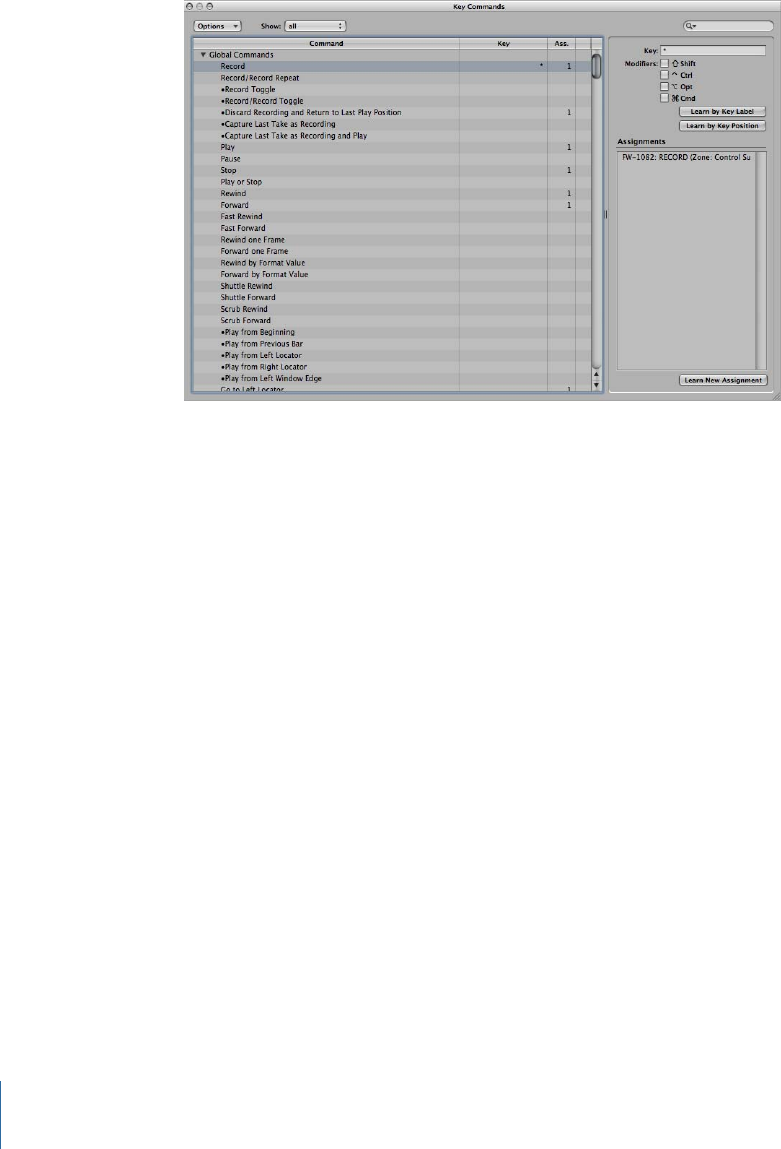
To assign a control surface button to a key command
1Choose Logic Pro > Preferences > Key Commands to open the Key Commands window.
2In the Command list, click the disclosure triangle next to the category whose commands
you want to reveal, then select the key command you want to assign. You can also search
for the key command in the Search field.
3Click the Learn New Assignment button.
4Press the (control surface) button that you want to assign to the key command. This sends
a MIDI message to Logic Pro.
The name of the controller appears in the Assignments field.
5You can repeat steps 2 to 4 to make additional assignments, if you like.
6When you finish, click the Close button to exit the window.
To assign a button or key release message to a key command
1Choose Logic Pro > Preferences > Key Commands to open the Key Commands window.
2In the Command list, click the disclosure triangle to reveal the commands for a category,
then select the key command you want to assign (or use the Search field).
3Press and hold down the (control surface) button or key that you want to assign to the
key command.
4Click the Learn New Assignment button.
5Release the button or key.
The name of the button or key appears in the Assignments field.
6When you finish, click the Close button to exit the window.
60 Chapter 2 Customizing Controller Assignments

To delete a key command assignment
1In the Key Commands window, select the key command (with an assignment that you
want to delete) in the Command list.
2Select the assignment for the key command in the Assignments field.
3Press the Delete key.
Controller Assignments Storage
The current controller assignments and all Control Surfaces preferences are stored in the
~/Library/Preferences/com.apple.logic.pro.cs file.
You do not need to explicitly save controller assignments or related preferences and
settings. These are automatically stored (in the location mentioned above) when you quit
Logic Pro.
61Chapter 2 Customizing Controller Assignments

You can fully control Logic Pro with a Mackie Control, and can extend its functionality
with several expansion devices, such as the XT and C4 units.
The information in this chapter applies to the Mackie Control Universal, the original
Mackie Control, the Logic Control, and the Mackie (or Logic) Control Extender (XT). The
term Mackie Control is used for all of these devices throughout the chapter.
The controls of the Mackie Control are physically grouped into different areas, called
zones. Each zone is clearly labeled, and distinguished by different shades of gray on the
device. The Mackie Control features and functions described in the following sections are
organized by these zones.
This chapter covers the following:
•Setting Up Your Mackie Control in Logic Pro (p. 64)
•Mackie Control: Display Zone (p. 64)
•Mackie Control: Channel Strip Controls (p. 67)
•Mackie Control: Assignment Zone (p. 70)
•Mackie Control: Fader Bank Zone (p. 84)
•Mackie Control: Function Key Zone (p. 87)
•Mackie Control: Global View Zone (p. 88)
•Mackie Control: Modifier Buttons (p. 89)
•Mackie Control: Automation Buttons (p. 89)
•Mackie Control: Utilities Buttons (p. 91)
•Mackie Control: Transport Zone (p. 92)
•Mackie Control: Cursor Key Zone (p. 99)
•Mackie Control: Jog/Scrub Wheel Zone (p. 100)
•Mackie Control: Programmable User Modes (p. 100)
•Mackie Control: Connecting Foot Switches (p. 101)
•Mackie Control: Assignment Overview (p. 101)
63
Mackie Control 3

Setting Up Your Mackie Control in Logic Pro
When you open Logic Pro, it automatically detects any powered Mackie Control unit that
is connected to your system. You can use the Mackie Control immediately—with the
default settings—or you can customize its settings, as described in Basic Control Surface
Setup, and Customizing Controller Assignments.
Once set up, you can use the Mackie Control to control Logic Pro in the following ways,
or perhaps take an alternate approach that best meets your working preferences.
• With your project open in the Arrange window, select the channel strips you want to
control by pressing the Fader Bank buttons on the Mackie Control.
See Mackie Control: Fader Bank Zone for more information.
•Select the parameters you want to edit, and whether you want to edit multiple channels
(Mixer view) or a single channel (Channel view), using the Assignment buttons.
See Mackie Control: Assignment Zone for more information.
• Start playback, and move the playhead to the position where you want to work, using
the Mackie Control transport buttons and Jog Wheel.
See Mackie Control: Transport Zone and Mackie Control: Jog/Scrub Wheel Zone for
more information.
• Edit the project with the channel strip controls.
See Mackie Control: Channel Strip Controls for more information.
Mackie Control: Display Zone
The display zone, located along the top of the Mackie Control, features four displays. Each
shows different information:
• Main Liquid Crystal Display (LCD)
• Assignment display
• Time display
• Solo LED
Mackie Control: Main Liquid Crystal Display (LCD)
The main LCD is divided into eight sections (or columns), each with two lines of text. Each
section displays information for the channel strip controls directly below it. Depending
on the parameters you are editing and whether Mixer view or Channel view is active, the
information displayed on the main LCD changes. In general, the upper row of each section
displays the (abbreviated) track (or channel) name, and the lower row displays the
(abbreviated) parameter name and its value.
64 Chapter 3 Mackie Control

In some modes, a long parameter name (or other text) appears briefly onscreen while
you are moving the corresponding control. You can set the display and duration of long
parameter names in the Control Surfaces preferences. For information on setting
preferences, see Basic Control Surface Setup.
Note: On the LCD, 8-bit ASCII characters such as curly quotes and umlauts are replaced
with the best-possible 7-bit ASCII equivalent.
Mackie Control: Assignment Display
The Assignment display (also referred to as the mode display), to the right of the main
LCD, shows a two-digit abbreviation for the current assignment status. A period (.) appears
at the bottom-right corner of the display when Channel view is active.
Mackie Control: Time Display
The Time display, to the right of the Assignment display, shows the current playhead
position, either in musical time divisions (BEATS) or in SMPTE time code format (SMPTE).
A small LED to the left of the display indicates the current display format.
• When the format is set to Beats, the four segments of the Time display show the current
playhead position as bars, beats, beat subdivisions, and ticks.
• When the format is set to SMPTE, the four segments of the Time display show the
current playhead position as hours, minutes, seconds, and frames.
You can switch between formats by pressing the SMPTE/BEATS button directly below
the display. You can also set the default format with the Clock Display parameter in the
Control Surfaces Setup window. Information on this (and other configuration options) is
found in Configuring Your Control Surface Setup.
Mackie Control: Solo LED
The Solo LED (labeled as Rude Solo on the Mackie Control), located at the right edge of
the display zone, is lit when a channel strip is set to solo, or when Solo mode is turned
on. It is a helpful reminder in situations where you have soloed a channel strip, and then
switched the fader bank, resulting in the Solo LED (of the soloed channel strip) being
hidden on the control surface.
Mackie Control: Display Buttons
These buttons, located just below the left edge of the Time display, affect what you see
in the main LCD and Time display.
NAME/VALUE
Press the NAME/VALUE button to switch between the two parameter display formats
(either the parameter name or value is shown) on the main LCD.
65Chapter 3 Mackie Control

Pressing the NAME/VALUE button while holding the SHIFT button cycles through three
level meter modes on the main LCD:
•Vertical: In this mode, the last character of each channel (in both LCD rows) is overlaid
by a vertical bar which shows the channel level. The text characters reappear when the
level meter is not visible.
•Horizontal with Peak Hold: In this mode, the lower row of the LCD is replaced by
horizontal channel level bars. Peak Hold appears as a hollow box, which disappears
after a few seconds. Signal overloads (clipping) are indicated by an asterisk, which
remains on the LCD display until cleared (see below).
•Off: In this mode, no level meter bars are displayed in the main LCD.
In all three modes, the SIGNAL LEDs of the channel strips function as per usual, indicating
the presence of a signal.
Pressing the NAME/VALUE button while holding down the CONTROL button clears any
overload (clipping) indicators in the Logic Pro Mixer, and in the LCD of the Mackie Control
(if the Horizontal with Peak Hold mode is active).
Pressing the NAME/VALUE button while holding down the CMD/ALT or OPTION button
activates Control Surface Group Settings mode. This mode lets you edit the following
control surface group settings, some of which are not accessible with a single button:
ActionControl
Sets the track name display format.
•Name: Displays the track name only.
•No: Name: Displays the track number and name.
V-POT 5
Switches Channel view to Lock mode.
•Off: The standard mode, where selecting a channel strip makes
it the active (currently being edited) channel strip.
•On: Locks the active channel strip. Selection of another channel
strip has no impact on the channel strip being edited.
When you switch from On to Off, the channel strip is also updated.
V-POT 6
Switches the LCD display format.
•Name: The upper line of the LCD displays global info, and the
lower line displays parameter names.
•Value: The upper line of the LCD displays parameter names, and
the lower line displays parameter values.
Functionally, this is identical to pressing the NAME/VALUE button.
V-POT 7
Switches the Clock display format.
•Beats: Clock is displayed in bars, beats, beat subdivisions, and
ticks.
•SMPTE: Clock is displayed in SMPTE format.
Functionally, this is identical to pressing the SMPTE/BEATS button.
V-POT 8
66 Chapter 3 Mackie Control

You can exit Control Surface Group Settings mode by pressing NAME/VALUE, or by
entering one of the Marker or Nudge modes.
SMPTE/BEATS
Press the SMPTE/BEATS button, located just below the SMPTE/BEATS LEDs, to switch
between the two time formats (SMPTE time or beats). For more information, see
Mackie Control: Time Display.
Mackie Control: Channel Strip Controls
Directly below the main LCD display are eight sets of channel strip controls. You can use
these to control Logic Pro channel strip parameters, plug-in parameters, and other
Logic Pro functions. Each channel strip of both the Mackie Control and XT units includes
the following controls, which are described in the following sections:
• V-Pot rotary encoder with button. See Mackie Control: V-Pot.
• REC/RDY button and LED. See Mackie Control: REC/RDY Button.
• Signal LED. See Mackie Control: Signal LED.
• SOLO button and LED. See Mackie Control: Solo LED.
• MUTE button and LED. See Mackie Control: MUTE Button.
• SELECT button and LED. See Mackie Control: SELECT Button.
•Touch-sensitive motorized fader. See Mackie Control: Touch-Sensitive Motorized Faders.
Mackie Control: V-Pot
The V-Pot is a rotary encoder, with an integrated button (accessed by pressing down on
the top of the encoder). You can use the V-Pot to adjust the channel’s send level and
pan/balance (in Channel view), or to adjust effect or instrument plug-in parameters. The
V-Pot can also be used to scroll through and choose items such as plug-ins, software
instruments, and more from menus, and to determine send destinations. The faster you
turn the V-Pot, the quicker it changes values, scrolls through menus, and so on.
The top of each V-Pot has an integrated push button, which typically sets a default
parameter value (if a parameter has more than two possible values) or switches between
two parameter values (on/off ). The button can also be used to activate a function you
have selected with the V-Pot. For example, you can turn the V-Pot to scroll through a list
of effect plug-ins for one of the channel Insert slots. Once the effect you want is displayed
in the main LCD, press the top of the V-Pot to select and insert the effect, and open the
plug-in window. The button is also sometimes used to switch to a special assignment
mode.
When a value or name (such as a plug-in) has been preselected, but not confirmed or
instantiated, the value (or name) flashes on the main LCD until you press the V-Pot button.
67Chapter 3 Mackie Control

The current value of the parameter you are adjusting with the V-Pot is displayed on the
main LCD (depending on the Name/Value setting), and is also indicated by the ring of
LEDs encircling the V-Pot. The way that parameter values are displayed on the LED ring
varies depending on the type of parameter being displayed.
Holding down the CMD/ALT button sets the V-Pots to high-resolution (fine) mode, for
parameters where this mode applies.
Holding down the OPTION button and turning the V-Pot switches between the minimum,
default, and maximum values for the parameter.
Mackie Control: REC/RDY Button
Pressing the REC/RDY button arms the channel strip for recording. If the channel is
currently armed, pressing the REC/RDY button disarms it. Each REC/RDY button features
a red LED, which is illuminated when the channel is armed for recording.
Holding down the OPTION button while pressing the REC/RDY button of any channel
disarms all channel strips.
Mackie Control: Signal LED
The Signal LED indicates the presence of an outgoing MIDI or audio signal. During
recording, it indicates the presence of an incoming signal.
Mackie Control: SOLO Button
Pressing the SOLO button solos the channel strip, which equates to muting all unsoloed
channels. Each SOLO button features an amber LED which is illuminated when the channel
strip is soloed. The Rude Solo LED (on the right edge of the display zone) is also lit
whenever any channel is soloed.
Holding down the OPTION button while pressing any channel SOLO button disables solo
for all channel strips.
In the Send Destination/Level view (see Mackie Control: SEND Button), the SOLO button
controls the Pre/Post mode selection for both Mixer view and Channel view.
Mackie Control: MUTE Button
Pressing the MUTE button silences the channel. Each MUTE button features a red LED
which is lit when the channel is muted.
Holding down the OPTION button while pressing any channel strip MUTE button unmutes
all muted channel strips.
In the EQ Frequency/Gain and Send Destination/Level views, the MUTE button controls
the EQ bypass or Send Mute function. This affects both Mixer and Channel views.
68 Chapter 3 Mackie Control

Mackie Control: SELECT Button
Pressing the SELECT button chooses (activates) the channel for channel-based editing or
assignment commands. Each SELECT button features a green LED which is lit when the
channel is selected.
Holding down the SHIFT button while pressing a channel’s SELECT button sets the channel
volume to unity level (0 dB).
Note: While holding down the SHIFT button, the SELECT button LED indicates if the
channel volume is set to 0 dB.
Holding down the OPTION button while pressing the SELECT button of any channel
creates a new track—assigned to the same channel strip as the selected track—and
switches to Arrange view.
Holding down the SHIFT and OPTION buttons while pressing a channel’s SELECT button
creates a new track with the next channel strip (the one following the selected track),
and switches to Arrange view.
Mackie Control: Touch-Sensitive Motorized Faders
The motorized fader of each channel strip is generally used to control the channel level,
just like a volume fader on a mixing console. You can, however, also assign the fader to
control other parameters by using “Flip” mode.
Flip mode is activated by pressing the FLIP button, just above the MASTER fader. When
Flip mode is activated, you can control the parameter which is currently assigned to the
channel’s V-Pot with the fader. This allows more precise control of pans, aux returns, MIDI
track parameters, EQs, effects, software instrument, or other channel parameters.
You can switch between channels being controlled with the eight faders, by pressing
one of the CHANNEL or FADER BANK buttons. See Mackie Control: CHANNEL LEFT and
CHANNEL RIGHT Buttons and Mackie Control: BANK LEFT and BANK RIGHT Buttons.
The behavior of the faders changes in different modes, as outlined below:
•In Flip mode: Duplicates or swaps parameters with the V-Pot on the same channel.
•In Surround Angle/Diversity view: Adjusts surround diversity.
•In EQ Frequency/Gain view: Adjusts the gain of the selected EQ band.
•In Send Destination/Level Mixer view: Adjusts the send level of the selected send.
•In Send Destination/Level Channel view: Adjusts the send level of the send on the selected
channel strip.
69Chapter 3 Mackie Control

Mackie Control: Master Fader
The Master fader controls the level of the primary master channel strip in the Logic Pro
Mixer. This raises or lowers the level of all output channel strips, without changing their
relative levels.
When no master channel strip exists in the project, the Mackie Control Master fader is
mapped to output channel strip 1–2.
If you use multiple audio systems simultaneously, the Master fader only controls the
master channel strip of the first device (matching the order shown in the Audio Preferences
window).
Mackie Control: Assignment Zone
Directly below the Assignment LED are six ASSIGNMENT buttons.
Press one of the ASSIGNMENT buttons to select the type of parameter that you want to
control or edit with the channel strip V-Pots, faders, and switches. The corresponding LED
is lit to indicate the currently active assignment, and the Assignment display shows a
two-digit abbreviation of the assignment type.
The ASSIGNMENT buttons work in both Single and All views. View modes are discussed
in Control Surface Group Parameters.
Mackie Control: Assignment Modes
Each ASSIGNMENT button has two views: Mixer view and Channel view. These views
provide two ways to edit parameters in your project.
•Mixer view: Displays, and allows you to edit, a single parameter in multiple channels.
•Channel view: Displays, and allows you to edit, multiple parameters for a single channel.
The mode display shows a period (.) in the lower-right corner when Channel view is
active.
Pressing an ASSIGNMENT button once selects it, and switches to the Mixer view, except
when switching between Instrument Edit view and Plug-in Edit view. In this case, the
mode remains in Channel view.
Note: For each of the ASSIGNMENT buttons, the parameters you can edit will change,
depending on the active view mode.
The NAME/VALUE button also affects what is shown on the main LCD when in the Mixer
and Channel views. For more information, see Mackie Control: Function Key Zone.
70 Chapter 3 Mackie Control
Mackie Control: TRACK Button
Pressing the TRACK button selects Channel view, and assigns the channel strip controls
to edit channel strip parameters.
• Press the TRACK button once to edit a single parameter in multiple channel strips, and
to activate Mixer view.
• Press the TRACK button again to edit multiple parameters for a single channel strip,
and switch to Channel view.
Mixer View
Mixer view allows you to edit a single parameter in multiple channel strips: volume, pan,
input format, input assignment, output assignment, or automation mode. When you
switch to Mixer view, the parameter being edited is briefly displayed on the right side of
the main LCD. The mode display shows “tr” (for track), and the upper row of the LCD
shows track names.
Press NAME/VALUE to display parameter values on the lower row of the LCD. These are
shown when you turn a V-Pot, or press its button.
You can manipulate the following controls for editing in Mixer view.
• Turning the V-Pots changes the associated channel strip parameter.
• Pressing the button on a V-Pot sets the parameter to its default value.
• The Cursor Left/Cursor Right buttons switch to the next or previous channel strip
parameter. The selected parameter is displayed briefly in the upper row of the LCD.
Note: Ensure that the ZOOM button isn’t active when using the cursor buttons.
Channel View
Channel view allows you to edit the most important channel strip parameters for a single
channel strip: volume, pan, instrument, Insert slot 1 assignment, Insert slot 2 assignment,
Send 1 level, Send 2 level, and Send 3 level. When you switch to Channel view, the mode
display shows “tr.”, and the upper row of the LCD shows the name of the channel strip.
Press NAME/VALUE to show parameter names in the upper row, and parameter values
in the lower row.
The following table lists what each V-Pot edits in Channel view mode:
ActionControl
Edits volume. The current value is shown in the lower row of the
LCD.
V-Pot 1
Edits pan. The current value appears in the lower row of the LCD.V-Pot 2
For software instrument tracks, turn to choose the instrument. Press
the V-Pot 3 button to confirm your choice, insert the instrument,
and open the plug-in window.
V-Pot 3
71Chapter 3 Mackie Control
ActionControl
For audio and software instrument tracks, turn to choose the plug-in
used on Insert slot 1. Press the V-Pot 4 button to confirm your
choice, insert the effect, and open the plug-in window.
V-Pot 4
For audio and software instrument tracks, turn to choose the plug-in
used on Insert slot 2. Press the V-Pot 4 button to confirm your
choice, insert the effect, and open the plug-in window.
V-Pot 5
Edits the send level of Send 1.V-Pot 6
Edits the send level of Send 2.V-Pot 7
Edits the send level of Send 3.V-Pot 8
Holding down SHIFT while pressing one of the MUTE or V-Pot buttons switches between
mute and bypass.
ActionControl
Mutes (or unmutes) the channel strip.V-Pot 1 or Mute 1
Mutes (or unmutes) the channel strip.V-Pot 2 or Mute 2
For software instrument tracks, mutes (or unmutes) the software
instrument used on the channel strip.
V-Pot 3 or Mute 3
For audio and software instrument tracks, bypasses the effect plug-in
used in Insert slot 1.
V-Pot 4 or Mute 4
For audio and software instrument tracks, bypasses the effect plug-in
used in Insert slot 2.
V-Pot 5 or Mute 5
Mutes (or unmutes) Send 1.V-Pot 6 or Mute 6
Mutes (or unmutes) Send 2.V-Pot 7 or Mute 7
Mutes (or unmutes) Send 3.V-Pot 8 or Mute 8
Track Shortcut Menu
Hold the TRACK button to display the Track shortcut menu on the LCD. When this menu
is active, the mode display shows “t_ “ (for Track shortcuts). Press one of the V-Pot or
Function buttons to make the following changes.
ActionControl
Switches to Mixer view, and selects volume as the parameter edited
by the V-Pot.
V-Pot 1 or F1
Switches to Mixer view, and selects pan as the parameter edited by
the V-Pot.
V-Pot 2 or F2
Switches to Mixer view, and selects input format as the parameter
edited by the V-Pot.
V-Pot 3 or F3
Switches to Mixer view, and selects the input assignment as the
parameter edited by the V-Pot.
V-Pot 4 or F4
72 Chapter 3 Mackie Control
ActionControl
Switches to Mixer view, and selects the output assignment as the
parameter edited by the V-Pot.
V-Pot 5 or F5
Switches to Mixer view, and selects the automation mode as the
parameter edited by the V-Pot.
V-Pot 6 or F6
Switches to Mixer view, switches Logic Pro to Arrange view, and
selects the automation parameter selected in the Arrange window.
V-Pot 7 or F7
Switches to Channel Strip Setup view.V-Pot 8 or F8
Channel Strip Setup View
Hold the TRACK button to display the Track shortcut menu on the LCD, and press V-Pot
8 or press F8 to enter Channel Strip Setup view. In this mode, you can edit the following
(less frequently used) parameters for the selected channel strip.
ActionControl
Edits the channel strip format (mono, stereo, left, right, surround).V-Pot 1
Edits the Spread parameter.V-Pot 2
Selects the channel strip input assignment. Confirm by pressing
V-Pot 6.
V-Pot 3
Selects the channel strip output assignment. Confirm by pressing
V-Pot 7.
V-Pot 4
Edits the automation mode.V-Pot 5
Edits group membership. You can only choose one group or Off.
To make a channel strip a member of multiple groups, use Group
Edit mode.
V-Pot 6
Mackie Control: PAN/SURROUND Button
Pressing the PAN/SURROUND button activates Pan/Surround Mixer view. Press the button
repeatedly to switch between Pan/Surround Mixer and Pan/Surround Channel views.
Pan/Surround Mixer View
Pan/Surround Mixer view allows you to edit one pan/surround parameter for all channel
strips: Angle or Pan (on non-surround channel strips), Diversity, LFE, Spread (on surround
channel strips). The parameter being edited is displayed briefly when switching to this
mode. Regardless of the selected (and active) surround parameter, non-surround channel
strips always display the standard Pan control.
In a project containing both surround and non-surround channel strips, you can edit a
specified surround parameter for surround channel strips, while the V-Pots of non-surround
channel strips edit pan position, as usual.
• The mode display shows “Pn” (for Pan).
• The upper row of the LCD shows channel strip names.
73Chapter 3 Mackie Control
• Turning the V-Pots changes the current pan/surround parameter.
• The Surround Angle parameter rotates between 0 and 359 degrees, avoiding any angle
limits.
• Pressing the button on a V-Pot sets the parameter to its default value.
• Cursor Left/Cursor Right switches to the next or previous surround parameter. The
selected parameter appears briefly in the upper row of the LCD.
Note: Ensure that the ZOOM button isn’t active when using the cursor buttons.
Pan/Surround Channel View
Pan/Surround Channel view allows you to edit all surround parameters for the selected
channel strip.
• The mode display shows “Pn” (for Pan).
• The upper LCD row shows the name of the channel strip and “Pan/Surround.”
ActionControl
Edits angle (or pan on non-surround channel strips).V-Pot 1
Edits diversity.V-Pot 2
Edits LFE level.V-Pot 3
Edits spread.V-Pot 4
Edits Surround X.V-Pot 5
Edits Surround Y.V-Pot 6
Note: The Angle/Diversity and X/Y pairs influence each other. Only the Angle/Diversity
parameters are automated and recorded.
Alternate Mode Options
Hold down the PAN/SURROUND button to display a submenu on the LCD. The V-Pots
and function keys allow you to make the following changes.
ActionControl
Switches to Pan/Surround Mixer view and selects Angle.V-Pot 1 or F1
Switches to Pan/Surround Mixer view and selects Diversity.V-Pot 2 or F2
Switches to Pan/Surround Mixer view and selects LFE level.V-Pot 3 or F3
Switches to Pan/Surround Mixer view and selects Spread.V-Pot 4 or F4
—V-Pot 5
Switches to Pan/Surround Channel view.V-Pot 6 or F5
74 Chapter 3 Mackie Control

ActionControl
Switches to Surround Angle/Diversity Mixer view.
• The mode display shows “Ad” (Angle/Diversity).
• The upper LCD row shows channel strip names.
• The lower LCD row shows the surround angle currently assigned
to each channel strip.
• Turning a V-Pot changes the surround angle (or adjusts pan
position on non-surround channel strips).
• Pressing a V-Pot sets the surround angle to its default value.
• The faders edit surround diversity.
V-Pot 7 or F6
Switches to Surround X/Y Mixer view.
• The mode display shows “XY”.
• The upper LCD row shows channel strip names.
•The lower LCD row shows the surround X value currently assigned
to each channel strip.
• Turning a V-Pot changes the surround X value (or adjusts pan
position on non-surround channel strips).
• Pressing a V-Pot sets surround X to its default value.
• The faders edit surround Y.
V-Pot 8 or F7
Note: X and Y have a value range of –1000 to +1000, but the resolution is not that high,
as surround positions are currently recorded as 7-bit data.
Note: The X and Y parameters are limited to a rectangular coordinate system. As such,
value pairs outside the surround circle are not possible. If you try to set a Y value that is
invalid, the X coordinate is automatically adjusted to a valid position, and vice versa. As
an example, moving Y to +1000 will result in an X coordinate value of 0.
When only one coordinate value is edited, the other coordinate value defaults to the
setting of the most recently selected channel strip. This helps you to create linear
movements.
Mackie Control: EQ Button
Pressing the EQ button activates EQ Mixer view. Pressing the button repeatedly switches
between EQ Mixer view and EQ Channel view.
Note: If no Channel or Linear Phase EQ is present on the selected channel strip, a Channel
EQ is inserted automatically when you enter EQ Channel view.
EQ Mixer View
EQ Mixer view allows you to edit one equalizer parameter for all channel strips: Frequency,
Gain, Q, or EQ bypass. The EQ band number, and parameter being edited, are displayed
briefly when you switch to this mode.
• The mode display shows E1 to E8, indicating the selected EQ band.
• The upper LCD row shows channel strip names.
75Chapter 3 Mackie Control
• Turning the V-Pots changes the current EQ parameter.
• Pressing a V-Pot button sets the parameter to its default value.
• Cursor Up/Cursor Down switches to the next or previous EQ band.
• Cursor Left/Cursor Right switches to the next or previous EQ parameter. The selected
parameter is displayed briefly in the upper LCD row.
• Pressing a MUTE button while holding down the SHIFT button switches the current EQ
band’s Bypass status.
• When Flip mode is turned on, the MUTE buttons display, and switch, the current EQ
band’s Bypass status.
Note: Ensure that the ZOOM button isn’t active when using the cursor buttons.
EQ Channel View
EQ Channel view allows you to edit all EQ parameters—in all bands—for the selected
channel strip.
• The mode display shows EQ (EQ channel strip).
• The upper row of the LCD shows the name of the channel strip, EQs, the page number,
and total number of pages (for example: “Page 1/2”).
ActionControl
Edits the frequency of odd-numbered EQ bands.V-Pot 1
Edits the gain of odd-numbered EQ bands.V-Pot 2
Edits the Q-factor of odd-numbered EQ bands.V-Pot 3
Switches the bypass status of odd-numbered EQ bands.V-Pot 4
Edits the frequency of even-numbered EQ bands.V-Pot 5
Edits the gain of even-numbered EQ bands.V-Pot 6
Edits the Q-factor of even-numbered EQ bands.V-Pot 7
Switches the bypass status of even-numbered EQ bands.V-Pot 8
The Cursor Left and Cursor Right buttons switch to the next or previous EQ band. The
LCD displays two EQ bands. If you have one or more connected Mackie Control (XT) units,
each XT can display two EQ bands—up to a total of eight bands.
Note: Ensure that the ZOOM button isn’t active when using the cursor buttons.
Alternate EQ Edit Mode Options
Holding down the EQ button gives you access to a further submenu in the LCD. The mode
display shows E_ or E_., depending on whether you are in EQ Mixer or EQ Channel View
mode.
76 Chapter 3 Mackie Control

ActionControl
Switches to EQ Mixer view and selects frequency.V-Pot 1 or F1
Switches to EQ Mixer view and selects gain.V-Pot 2 or F2
Switches to EQ Mixer view and selects Q.V-Pot 3 or F3
Switches to EQ Mixer view and selects bypass.V-Pot 4 or F4
Switches to EQ Channel view.V-Pot 6 or F6
Switches to Frequency/Gain Mixer view. In this mode, you can edit
the frequency and gain parameters of a specific EQ band (1 to 8)
for all channel strips.
• The mode display shows F1 to F8, indicating the selected EQ
band.
• The upper LCD row shows channel strip names.
• The lower LCD row shows the frequency of the selected EQ band.
• Turning a V-Pot changes EQ frequency.
• Pressing a V-Pot sets the EQ frequency to its default value.
• Use the Mute buttons to bypass the EQ.
• Use the faders to adjust the EQ gain.
V-Pot 7 or F7
Switches to Frequency/Gain Channel view. In this mode, you can
edit the frequency and gain parameters for all EQ bands of the
selected channel strip. Each pair of channel strips corresponds to
one EQ band.
• The mode display shows FG.
• V-Pots 1 to 8 control the frequency of EQ bands 1 to 8.
• Mute buttons 1 to 8 control the bypass of EQ bands 1 to 8.
• Faders 1 to 8 control the gain of EQ bands 1 to 8.
V-Pot 8 or F8
Note: The faders form a frequency response curve in this mode, if the EQ bands have
ascending frequency values.
Tip: You can edit another channel strip’s EQ without leaving this view by simply selecting
the channel strip in Logic Pro, or by pressing the appropriate SELECT button on the
Mackie Control.
Mackie Control: SEND Button
Pressing the SEND button activates Send Mixer view. Pressing the button repeatedly
switches between Send Mixer view and Send Channel view.
Send Mixer View
Send Mixer view allows you to edit one send parameter for all channel strips: Destination,
Level, Position, or Mute. The Send slot number, and the parameter being edited, are
displayed briefly on the LCD when switching to this mode.
• The mode display shows S1 to S8, indicating the selected Send slot.
• The upper LCD row shows channel strip names.
• Turning the V-Pots changes the current send parameter.
77Chapter 3 Mackie Control
• Pressing a V-Pot confirms the preselected send destination, and sets the other send
parameters to their defaults.
• Cursor Up/Cursor Down switches to the next or previous Send slot.
• Cursor Left/Cursor Right switches to the next or previous send parameter. The selected
parameter appears briefly in the upper LCD row.
• Pressing a MUTE button while holding down the SHIFT button switches the current
send’s mute status.
• When Flip mode is turned on, the MUTE buttons display, and edit, the current send’s
mute status.
Note: Ensure that the ZOOM button isn’t active when using the cursor buttons.
Send Channel View
Send Channel view allows you to edit all send parameters for the selected channel strip.
The mode display shows “SE.” (for send channel strip). The upper row of the LCD shows
the name of the channel strip, the text “Sends,” the page number, and total number of
pages—“Page 1/4,” for example.
ActionControl
Edits the destination of odd-numbered sends.V-Pot 1
Edits the level of odd-numbered sends.V-Pot 2
Edits the position (pre/post) of odd-numbered sends.V-Pot 3
Sets the mute status of odd-numbered sends.V-Pot 4
Edits the destination of even-numbered sends.V-Pot 5
Edits the level of even-numbered sends.V-Pot 6
Edits the position (pre/post) of even-numbered sends.V-Pot 7
Sets the mute status of even-numbered sends.V-Pot 8
The Cursor Left and Cursor Right buttons shift between pages. The number of sends that
can be displayed simultaneously depends on the number of Mackie Control XTs you have.
Note: Ensure that the ZOOM button isn’t active when using the cursor buttons.
Alternate Send Edit Mode Options
Holding down the SEND button gives you access to a further submenu in the LCD. The
mode display shows S_ or S_., depending on whether you are in Send Mixer view or Send
Channel view.
ActionControl
Switches to Send Mixer view and selects destination.V-Pot 1 or F1
Switches to Send Mixer view and selects send level.V-Pot 2 or F2
78 Chapter 3 Mackie Control

ActionControl
Switches to Send Mixer view and selects position.V-Pot 3 or F3
Switches to Send Mixer view and selects mute.V-Pot 4 or F4
Switches to Send Channel view.V-Pot 5 or F5
Switches to Send Channel Strip 2 view: This mode is similar to Send
Channel view, but parameters are arranged in a slightly different
way. You can control one parameter for all Send slots used in the
selected channel strip.
• The mode display shows “SE.” (Send channel strip).
• The upper LCD row shows the name of the channel strip, the
text “Sends,” the page number, and total number of pages.
• V-Pots 1 to 8 edit the displayed parameter.
• The horizontal cursor buttons shift between pages. The number
of parameters that can be displayed simultaneously depends on
the number of Mackie Control XTs you have.
V-Pot 6 or F6
Switches to Destination/Level Mixer view. In this mode, you can
control one Send slot for all channel strips. Each channel strip
corresponds to the channel strip name shown in the upper LCD
row.
• The mode display shows d1 to d8, indicating the selected send.
• The upper LCD row shows channel strip names.
• The lower LCD row shows the destination of the selected send.
• Turning a V-Pot preselects the send destination.
• Pressing a V-Pot confirms the preselected send destination.
• The SOLO buttons edit send position—a lit SOLO LED indicates
Pre Fader mode.
• The MUTE buttons set the send mute status.
• The faders edit the send level.
V-Pot 7 or F7
Switches to Destination/Level Channel view. You can control all
Send slots for the selected channel strip in this mode. Each channel
strip corresponds to the (embossed) send number shown below
the LCD.
• The mode display shows “dL.”
• Turning a V-Pot preselects the corresponding send destination.
• Pressing a V-Pot confirms a preselected send destination.
• The Solo buttons edit send position—a lit Solo LED indicates Pre
Fader mode.
• The MUTE buttons set the send mute status.
• The faders edit the send gain.
V-Pot 8 or F8
If one or more sends are activated on multiple channels, you can switch between them
while in the Channel View modes, by simply pressing the SELECT button of the desired
channel.
79Chapter 3 Mackie Control

Mackie Control: PLUG-IN Button
Pressing the PLUG-IN button activates Plug-in Mixer view. Pressing the button repeatedly
switches between Plug-in Mixer view and Plug-in Channel view.
Note: There is one exception to this behavior: If you are in Instrument Edit view, pressing
this button switches to Plug-in Edit view. For more information, see Instrument Edit View.
Plug-in Mixer View
In this mode, you can view and edit the plug-ins associated with a particular Insert slot
for all channels.
•The mode display shows P1 to P9, or 10 to 16, indicating the selected Insert slot number.
Note: If a software instrument channel is selected, the display shows P1 to P9 and 10 to
15.
• The upper row of the LCD shows channel strip names.
• The lower row of the LCD shows the currently selected plug-in for the active Insert slot.
Muted plug-ins are shown with an asterisk (*) that precedes the plug-in name.
• Turning the V-Pots preselects a new plug-in. The plug-in name flashes until confirmed
by pressing the V-Pot button.
•Turning another channel’s V-Pot cancels any earlier preselection, and starts preselection
on the newly selected channel strip.
• Pressing a V-Pot button:
• Confirms or activates the preselected plug-in (assuming that you’ve made your
preselection by turning the V-Pot).
• Opens a plug-in window, if none is opened. If a plug-in window is open, and Link
mode is turned on, the selection of another plug-in replaces the existing plug-in
window.
• Switches to Plug-in Edit view.
• The Cursor Up/Cursor Down buttons change the currently displayed plug-in Insert slot
(1 to 15).
•Pressing a V-Pot or MUTE button while the SHIFT button is held down mutes or unmutes
the plug-in.
Note: Ensure that the ZOOM button isn’t active when using the cursor buttons.
To remove a plug-in
µPreselect the “--” value (by turning the V-Pot fully counterclockwise), then press the V-Pot
button of the appropriate Insert slot.
The Mackie Control does not switch to Plug-in Edit view, and no plug-in window opens
when the “--” value is chosen. If a plug-in window is open, it closes (if Link mode is inactive).
80 Chapter 3 Mackie Control

Plug-in Channel View
This mode shows the plug-ins associated with all Insert slots for the selected channel.
• The mode display shows the text “PL.”
• The upper LCD row shows Ins1Pl through Ins8Pl.
•The lower LCD row shows the plug-in that is currently selected for this Insert slot. Muted
plug-ins are indicated by an asterisk (*), which precedes the plug-in name.
• Turning the V-Pots preselects a new plug-in. The plug-in name flashes until activated.
• Turning another channel’s V-Pot cancels any previous preselection and starts
preselection on the newly selected channel strip.
• Pressing a V-Pot button:
• Activates the preselected plug-in (assuming that you’ve made your preselection by
turning the V-Pot).
• Opens a plug-in window if none is opened. (If a plug-in window is open and Link
mode is turned on, the selection of another plug-in replaces the existing plug-in.)
• Switches to Plug-in Edit view.
• Pressing a V-Pot button while the SHIFT button is held down mutes/unmutes the
plug-in.
To remove a plug-in
µPreselect the “--” value (by turning the V-Pot fully counterclockwise), then press the V-Pot
linked to the appropriate Insert slot.
The Mackie Control does not switch to Plug-in Edit view, and no plug-in window opens.
If one was previously opened, it closes (if Link mode is inactive).
Plug-in Edit View
You can view and edit plug-in parameters in this mode.
• The mode display shows P1. to P8., indicating the number of the selected plug-in Insert
slot.
• Depending on the NAME/VALUE button, the LCD display changes between the two
modes in the following ways:
•Name: The upper LCD row shows the channel strip’s name, insert number, plug-in
name, current parameter page, and total number of parameter pages. The lower LCD
row shows the name of the parameter, which can be edited via the corresponding
V-Pot (the one below the parameter name).
•Value: The upper LCD row shows the name of the parameter which can be edited
via the corresponding V-Pot. The lower LCD row shows the current value of the
parameter. If there is sufficient onscreen space, the unit type will be added; for
example, Hz or dB.
81Chapter 3 Mackie Control

• Turning the V-Pots changes parameter values.
• Pressing a V-Pot button sets the parameter to its default value, except when the
parameter only has two values (on/off, for example). In this case, pressing the V-Pot
button switches between these values.
• The Cursor Left/Cursor Right buttons switch to the next or previous parameter page.
Note: Ensure that the ZOOM button isn’t active when using the cursor buttons.
When using the cursor buttons to switch between parameters, the parameters change
in groups of eight (unless the parameters on the last page do not make a complete group
of eight). For example, if a plug-in has 19 parameters, and the Mackie Control is controlling
parameters 1 to 8:
• Pressing the Cursor Right button shifts to parameters 9 to 16.
• Pressing the Cursor Right button again shifts to parameters 12 to 19.
• Pressing the Cursor Left button shifts back to parameters 9 to 16, not 4 to 11.
This way, you always revert to the page positions you expect to find, and are comfortable
with.
• To switch by a single parameter, rather than by page, hold down the CMD/ALT key
while pressing the Cursor Left or Cursor Right button.
• The Cursor Up/Cursor Down buttons change the currently displayed Insert slot (1 to
15).
If you have a control surface group consisting of several Mackie Control and XT units, the
parameters are distributed across their displays. The number of parameters shown depends
on the Multiple Controls per Parameter settings in the Logic Pro > Preferences > Control
Surfaces > Preferences. See Setting Control Surfaces Preferences for details.
Note: When you exit Plug-in Edit view, the plug-in window closes.
Compatibility
Mackie Control can edit all plug-ins that can be automated. The plug-in type (Logic Pro
native, TDM, Audio Units) is irrelevant.
Some third-party manufacturer plug-ins unfortunately don’t provide parameter names
or values as text. In such cases, parameters are named and enumerated as “Control #1,”
“Control #2,” and so on, with values displayed as numbers ranging between 0 and 1000.
Contact the plug-in manufacturer to obtain a version that supports this feature.
Mackie Control: INSTRUMENT Button
Pressing the INSTRUMENT button activates Instrument Mixer view, unless the
Mackie Control is currently in Plug-in Edit view. In this case, pressing the INSTRUMENT
button switches to Instrument Edit view.
82 Chapter 3 Mackie Control

If you can’t see the software instrument channel strips, use the BANK or CHANNEL buttons
in the Fader Bank zone, or switch to All view by pressing the INSTRUMENT button. (This
assumes that you have created at least one or more software instrument tracks.)
Instrument Mixer View
In this mode, you can view and edit the Instrument slots of all channels.
• The mode display shows “In” (for instrument).
• The upper LCD row shows channel strip names.
• The lower LCD row shows the currently selected instrument. Muted instrument names
are preceded by an asterisk (*).
• Turning the V-Pots preselects a new instrument. The preselected instrument name
flashes until activated.
• Turning another channel’s V-Pot cancels any previous preselection, and starts
preselection on the newly chosen channel strip.
• Pressing a V-Pot button:
• Activates the preselected instrument plug-in (assuming that you’ve made your
preselection by turning the V-Pot).
• Opens a plug-in window, if none is opened. If a plug-in window is open, and Link
mode is turned on, the selection of another instrument plug-in replaces the existing
one.
• Switches to Instrument Edit view.
• Pressing a V-Pot or MUTE button while holding down the SHIFT button mutes/unmutes
the instrument.
To remove an instrument
1Preselect the “--” value (by turning the V-Pot fully counterclockwise).
2Press the V-Pot button.
Mackie Control does not switch to Instrument Edit view, and no plug-in window opens.
If a plug-in window is open, it closes.
Instrument Edit View
You can view and edit instrument parameters in this mode.
• The mode display shows “In.”
• Depending on the state of the NAME/VALUE button, the LCD changes in the following
ways:
•Name: The upper LCD row shows the channel strip name, instrument name, current
parameter page, and total number of parameter pages. The lower LCD row shows
the name of the parameter that can be edited with the V-Pot directly below.
83Chapter 3 Mackie Control

•Value: The upper LCD row shows the name of the parameter that can be edited with
the V-Pot below. The lower LCD row shows the current value of the parameter being
edited. If there is sufficient space on the LCD row, the unit type is shown after the
value; for example, Hz or dB.
• Turning a V-Pot changes the corresponding parameter.
• Pressing a V-Pot button sets the parameter to its default value, except when the
parameter only has two values (on/off, for example). In this case, pressing the V-Pot
button switches between these values.
Compatibility
Mackie Control can edit all instruments that can be automated, regardless of the type of
plug-in you are using (Logic Pro native, TDM, Audio Units).
Some third-party manufacturer instruments do not provide parameter names or values
as text. In such cases, parameters are named and enumerated as “Control #1,” “Control
#2,” and so on, with values displayed as numbers ranging between 0 and 1000.
Contact the plug-in manufacturer to obtain a version that supports this feature.
Mackie Control: Fader Bank Zone
This Mackie Control zone contains two sets of left and right buttons (for switching between
individual or grouped channels) as well as the FLIP and GLOBAL VIEW buttons.
Mackie Control: BANK LEFT and BANK RIGHT Buttons
The Mackie Control provides eight sets of channel strip controls, allowing you to edit
eight corresponding channels. The BANK LEFT and BANK RIGHT buttons let you move
between “banks” of eight channel strips. For example, if you are editing channel strips
1–8, pressing the BANK RIGHT button moves to channel strips 9–16. Pressing BANK RIGHT
again moves to channel strips 17–24. Pressing BANK LEFT returns to channel strips 9–16,
then to 1–8 with one more button press.
If you are using a control surface group, the BANK LEFT and BANK RIGHT buttons shift
the active channel strips by the total number of channels in the control surface group.
For example, if you have a Mackie Control and two Mackie Control XT units, the view
shifts by 24 channels—the total number of channels in the control surface group.
The BANK buttons always change channel strips in groups of eight, unless the last channel
strips do not make a complete group of eight. For example, if a project has 19 channel
strips, and the Mackie Control is controlling channel strips 1 to 8:
• Pressing the BANK RIGHT button shifts to channel strips 9 to 16.
• Pressing the BANK RIGHT button again shifts to channel strips 12 to 19.
• Pressing the BANK LEFT button shifts back to channel strips 9 to 16, not 4 to 11.
84 Chapter 3 Mackie Control

This way, you always revert to the channel strips you expect to find, and are comfortable
with.
Notes on Using the FADER BANKS Buttons
When holding down the OPTION button, pressing the BANK or CHANNEL LEFT button
jumps to the first set of channel strips in the project. Pressing the BANK or CHANNEL
RIGHT button jumps to the last set of channel strips in the project. For example, if your
project has 64 channel strips, pressing BANK or CHANNEL LEFT jumps to channel strips
1 through 8, and pressing BANK or CHANNEL RIGHT jumps to channel strips 57 through
64.
For views where one type of channel strip is displayed (such as audio, instruments, or
busses), Logic Pro remembers the last group of eight channel strips shown in the view,
and returns to it when you switch back from another view. For example, if you start in
a view with audio channel strips 4 through 11 visible, switch to an instruments view,
scroll to instruments 6 through 13, and then switch back to the audio channel view,
you will return to audio channel strips 4 through 11 (not 6 through 13). Switching to
the Instrument Channel view displays instruments 6 through 13.
Mackie Control: CHANNEL LEFT and CHANNEL RIGHT Buttons
Using the CHANNEL LEFT and CHANNEL RIGHT buttons, you can move up or down by a
single channel strip. Pressing the CHANNEL RIGHT button shifts (the active channel strips)
up by a single channel strip, while pressing CHANNEL LEFT shifts them down by a single
channel strip. For example, if you are viewing channel strips 1 to 8 and press the CHANNEL
RIGHT button, channel strips 2 to 9 are displayed.
Notes on Using the FADER BANKS Buttons
When holding down the OPTION button, pressing the BANK or CHANNEL LEFT button
jumps to the first set of channel strips in the project. Pressing the BANK or CHANNEL
RIGHT button jumps to the last set of channel strips in the project. For example, if your
project has 64 channel strips, pressing BANK or CHANNEL LEFT jumps to channel strips
1 through 8, and pressing BANK or CHANNEL RIGHT jumps to channel strips 57 through
64.
For views where one type of channel strip is displayed (such as audio, instruments, or
busses), Logic Pro remembers the last group of eight channel strips shown in the view,
and returns to it when you switch back from another view. For example, if you start in
a view with audio channel strips 4 through 11 visible, switch to an instruments view,
scroll to instruments 6 through 13, and then switch back to the audio channel view,
you will return to audio channel strips 4 through 11 (not 6 through 13). Switching to
the Instrument Channel view displays instruments 6 through 13.
85Chapter 3 Mackie Control

Mackie Control: FLIP Button
Press the FLIP button (alone, or in combination with a modifier key) to activate or
deactivate one of the following modes: Flip, Swap, or Zero.
Flip Mode
Pressing the FLIP button activates Flip mode. In Flip mode, the current assignments of
the eight V-Pots are mirrored by the eight channel faders, so that both control the same
parameter. Turning one of the V-Pots causes the corresponding fader to move, and vice
versa. When you activate Flip mode, the LED next to the FLIP button illuminates. Pressing
the FLIP button again turns off Flip mode.
Flip mode offers the following advantages:
• You can edit any type of parameter with a fader, which allows more precise editing
control.
• Unlike the V-Pots, the faders are touch-sensitive. This allows you to overwrite existing
controller automation movements with a constant value.
Swap Mode
Holding down the SHIFT button while pressing the FLIP button activates Swap mode. In
Swap mode, the encoder assignments are swapped with the fader assignments, so that
the faders control the parameter previously assigned to the V-Pots, and vice versa. The
LED next to the FLIP button flashes when Swap mode is active.
When Swap mode is active, pressing FLIP again reverts to Flip mode. Holding down the
SHIFT button and pressing FLIP turns off Swap mode, and returns the V-Pot and fader
assignments to the state they were in before you activated Flip or Swap mode.
Zero Mode
Holding down the CONTROL button while pressing the FLIP button activates Zero mode.
In Zero mode, the faders are set to the zero position and do not move. This is useful in
situations where the Mackie Control is located close to microphones, and you want to
make sure that you don’t capture the mechanical noise of the faders moving.
When Zero mode is active, pressing FLIP again reverts to Flip mode. Holding down the
CONTROL button while pressing FLIP turns off Zero mode, and reactivates the faders.
Mackie Control: Global View Button
The GLOBAL VIEW button is used in conjunction with the buttons in the Global View
zone. These are discussed in Mackie Control: Global View Zone.
86 Chapter 3 Mackie Control
Mackie Control: Function Key Zone
The Function Key zone, located below the Time display and the display buttons, features
eight function key buttons, labeled F1 through F8. The eight function key buttons are
assigned as follows:
ActionFunction key
Recalls screensets 1 through 8.F1 to F8
Holding down the SHIFT button while pressing one of the function keys opens one of
the following windows (or closes it, if currently open):
ActionFunction key
Arrange windowF1
MixerF2
Event ListF3
Score EditorF4
Hyper EditorF5
Piano Roll EditorF6
Transport windowF7
Audio BinF8
Holding down the CMD/ALT button while pressing one of the function keys activates
one of the following common commands:
ActionFunction key
CutF1
CopyF2
PasteF3
ClearF4
Select AllF5
Select All FollowingF6
Select Similar Regions/EventsF7
Select Inside LocatorsF8
In modal dialogs, pressing one of the function keys is equivalent to using the computer
keyboard number keys:
ActionFunction key
1F1
2F2
87Chapter 3 Mackie Control

ActionFunction key
3F3
4F4
5F5
6F6
7F7
8F8
The buttons located directly
below the function keys
complete the numeric input
functions:
9MIDI Tracks button
0Inputs button
In some other modes, the function keys perform other actions, such as shortcuts to
markers. For more information, see Mackie Control: Marker Button. Also see the tables in
Mackie Control: Assignment Overview.
Mackie Control: Global View Zone
You can use the eight buttons in the Global View zone to display (and edit) specific types
of channel strips. Pressing any of the buttons in the Global View zone activates All View
mode; when this mode is active, the green LED to the right of the GLOBAL VIEW button
is illuminated.
When you press one of the buttons in the Global View zone, the corresponding type of
channel strip appears in the main LCD. You can edit each channel strip with the
corresponding channel strip controls. Pressing multiple buttons (Audio Tracks, Instruments,
and Aux, for example) displays all channels of the selected types.
To view (and edit) multiple All View channel strips
µWhile holding down any button in the Global View zone, press another button to add
this channel strip type to those currently displayed. If a channel strip type is already
displayed, pressing its button removes it from the display.
As an example, to display both the audio and output channel strips, hold down the AUDIO
TRACKS button, then press the OUTPUTS button.
88 Chapter 3 Mackie Control

Mackie Control: Modifier Buttons
The four Modifier buttons correspond to the modifier keys on your computer keyboard
(but function independently from them). You can use these buttons, along with the
appropriate key on your computer keyboard (or with the mouse), in place of using the
corresponding modifier key. This also applies to modified Mackie Control commands.
A generic description of each button follows:
•SHIFT: Provides an alternate function or meaning for a button.
•OPTION: The function applies to all channel strips. For relative value changes, sets the
value to its minimum, default, or maximum, depending on whether you’re increasing
or decreasing it.
•CONTROL: While held down, the group clutch is engaged, and channel strip groups
are temporarily disabled.
•CMD/ALT: Allows fine-tuning, or another variation, of the function.
Mackie Control: Automation Buttons
The Automation buttons activate the corresponding automation modes in Logic Pro:
Read/Off, Touch, Latch, and Write. You use the Automation buttons in conjunction with
the channel strip SELECT buttons, as follows:
To set the automation mode for a channel
1Press the SELECT button on the channel strip that you want to automate.
2Press the appropriate Automation mode button.
3Move the channel strip’s fader, turn the V-Pot, or use the Solo or Mute button.
The automation modes are outlined below:
•READ/OFF: If no automation mode is active, pressing the READ/OFF button switches
between Read mode and Off.
•Read: The fader reads (follows) any existing automation data, but does not record
any new automation data.
•Off: Automation is off. The fader neither sends nor receives automation data. Existing
automation data is not changed. The fader still adjusts the volume or pan position
as usual, when moved.
•TOUCH: Writes new data when the fader is touched or the V-Pot is turned during
playback. Any existing automation data (of the current fader type) is replaced with new
data, for as long as the control is active (while the fader is being touched or the V-Pot
is being turned).
89Chapter 3 Mackie Control

•LATCH: Similar to Touch mode, but the control remains active, even when the fader is
no longer being touched, or the V-Pot is not being turned. When you release the fader,
the current fader value replaces all existing automation data, for as long as the sequencer
is in playback (or record) mode. Press STOP to prevent existing automation data from
being overwritten.
•WRITE: Overwrites all existing automation data, or creates new automation data if none
exists. Only use this option if you want to destroy all existing automation data.
Pressing one of the Automation buttons while holding down the OPTION button assigns
the selected automation mode to all channels. When an automation mode has been
assigned to all channels, the corresponding automation mode button LED illuminates
whenever you hold down the OPTION button.
Important: This behavior is slightly different for the Off automation mode. When holding
down the OPTION button and pressing Read/Off, the LEDs for the other Automation
buttons are unlit, but this does not necessarily indicate that all channel strips are in Off
mode—they could still be set to other modes. To ensure that you have set all channel
strips to Off mode, press Read/Off twice while holding down the OPTION button. The
Read/Off button LED turns on, then off.
Mackie Control: GROUP Button
Pressing the GROUP button activates Group Edit mode, allowing you to edit various Mixer
group parameters.
In Group Edit mode:
• The upper row of the LCD displays channel strip names.
• The lower row of the LCD displays group parameters.
• The Assignment display shows the currently displayed group—G1, for example.
• The Time display shows the group name. (If the name is longer than ten characters,
the last ten characters are displayed.)
• You can switch between group parameters with the V-Pot buttons.
• The Cursor Up and Cursor Down buttons select the previous or next group.
• The Cursor Left and Cursor Right buttons shift the group parameter display.
• The SELECT buttons determine group membership. Pressing a SELECT button adds the
channel strip to the group (or removes it from the group, if already a member). An
illuminated SELECT button LED indicates active group membership.
• The LED next to the GROUP button is illuminated.
Note: Ensure that the ZOOM button isn’t active when using the cursor buttons.
90 Chapter 3 Mackie Control

If Group Edit mode is off, holding down the GROUP button and pressing one or more
SELECT buttons allows you to create a new group.
Pressing the GROUP button while holding down the SHIFT button creates a new group,
opens the Group window, and activates Group Edit mode.
Pressing the GROUP button while holding down the TRACK button switches to Mixer
view, with the channel strip group parameter shown. It displays the group that the selected
channel strip belongs to. Multiple group membership is displayed as in the Mixer window.
Turning a V-Pot changes group membership.
Note: You can only select one group (or Off) with this function.
Mackie Control: Utilities Buttons
The four Utilities buttons activate common Logic Pro functions: Save, Undo, Cancel, and
Enter.
SAVE Button
Press the SAVE button to save the current project file. The first time you save a project,
a Save dialog appears on your computer screen. Enter a name and location for the file,
then click the Save button in the dialog.
The main LCD displays this message: “There is a file select dialog on the screen.” The
Position/Time display shows “ALERT.” All LEDs are unlit. Once the Save operation has
been confirmed in Logic Pro, the Mackie Control returns all controls to their previous
state (before you pressed the SAVE button).
Once you have named a project and saved it, further presses of the SAVE button store
the current project state without presenting a Save dialog onscreen, or showing any alerts
on the LCD. This allows you to quickly save incremental changes you make as your project
develops.
The SAVE LED is illuminated as soon as you make (saveable) changes to your project.
Holding down the OPTION button while pressing SAVE opens the Save As dialog on the
computer screen. This allows you to rename a project, or save it in a different location.
UNDO Button
Pressing the UNDO button undoes the last undoable action. As Logic Pro supports a
nearly unlimited number of undo/redo steps, the green UNDO LED illuminates to indicate
that Redo is available, not to indicate an undoable step. The LCD provides a warning that
performing a reversible editing step will render all Redo steps unavailable.
Holding down the SHIFT button while pressing UNDO performs a Redo.
Holding down the OPTION button while pressing UNDO opens the Undo History window.
91Chapter 3 Mackie Control

CANCEL Button
When an alert appears on your computer screen, you can cancel (or abort) it by pressing
the CANCEL button. For information about alerts, see Modal Dialog Display.
Pressing the CANCEL button when no alert is visible onscreen does the following:
• Opens the Toolbox at the current onscreen position of the pointer.
• Alternately, it will perform any function currently assigned to the computer keyboard’s
Esc (Escape) key.
• If the Mackie Control is currently showing the contents of a folder track, pressing the
CANCEL button exits the folder.
• The CANCEL button also lets you invalidate a (blinking) parameter value preselection.
ENTER Button
When an alert appears on your computer screen, pressing the ENTER button activates
the default button in the alert. For information about alerts, see Modal Dialog Display.
If there is no alert onscreen, and the selected track is a folder track, pressing the ENTER
button opens the folder.
Mackie Control: Transport Zone
The Transport zone features five buttons for the standard transport functions (Rewind,
Fast Forward, Stop, Play, and Record).
The Transport zone also incorporates seven small, circular buttons for different recording
and playback modes.
You can use these buttons independently, or in conjunction with one another, to navigate
and edit your projects. Each button has a dedicated LED that indicates its current status.
Mackie Control: REWIND Button
The REWIND button lets you rewind through your project. Pressing the REWIND button
repeatedly while rewinding accelerates the rewind speed. Pressing the FAST FWD button
repeatedly while rewinding slows down, stops, and eventually reverses the shuttle
direction. Pressing the STOP button halts the rewind process at the current playhead
position. Turning the Jog/Scrub Wheel also exits rewind shuttle mode.
When one of the Marker modes is activated, pressing the REWIND button moves the
playhead to the previous marker.
When one of the Nudge modes is activated, the REWIND button moves the selected
regions or events backward by the value defined in Large Nudge mode.
92 Chapter 3 Mackie Control

Mackie Control: FAST FWD Button
The FAST FWD button lets you fast forward through your project. Pressing FAST FWD
repeatedly while fast forwarding accelerates the shuttle speed. Pressing the REWIND
button repeatedly while fast forwarding slows down, stops, and eventually reverses the
shuttle direction. Pressing the STOP button halts the fast forward process. Turning the
Jog/Scrub Wheel also exits forward shuttle mode.
When one of the Marker modes is active, pressing the FAST FWD button moves the
playhead to the next marker.
When one of the Nudge modes is active, pressing the FAST FWD button moves the
selected regions or events forward by the value defined in Large Nudge mode.
Tip: You can combine markers with cycle areas by pressing the respective buttons on
the Mackie Control. This, in conjunction with navigation between markers (using the
REWIND and FAST FWD buttons), moves the playhead, and automatically sets a cycle
area between adjacent markers. Try this, and other options, with various button
combinations.
Mackie Control: STOP Button
Pressing the STOP button stops project playback (or recording, if active), and stops all
other Transport functions. Pressing the STOP button a second time returns the playhead
to the project start point, or the beginning of the nearest cycle area, if Cycle mode is
active. Pressing STOP repeatedly switches between these two functions.
Mackie Control: PLAY Button
Pressing PLAY starts playback from the current playhead position. Pressing PLAY repeatedly
jumps to the beginning of the nearest cycle area, if Cycle mode is active.
Pressing SHIFT and PLAY simultaneously works as a Pause command.
Mackie Control: RECORD Button
Pressing RECORD activates recording on the selected MIDI, audio, or software instrument
channel strip (if it is armed for recording).
It is possible that the first time you arm an audio channel strip (by pressing the REC/RDY
button for the channel), a Save dialog will appear on your computer screen. Enter a
filename (and a save location) in the dialog, then press Save. The Mackie Control LCD
display shows “There is a file select dialog on the screen.” The Position/Time display shows
“ALERT.” All LEDs are unlit.
Once you enter the filename (and press Save), all controls on the Mackie Control return
to their previous state.
93Chapter 3 Mackie Control
After the default audio filename has been entered, you can freely select and arm any
audio channel strip, and then press the RECORD button. No alert messages and file save
dialogs will appear onscreen.
Tip: To minimize the appearance of the dialog, save your project with Assets before you
start recording. Saving your project this way bypasses the need to define filenames, and
makes handling faster and easier when using Logic Pro with the Mackie Control.
Mackie Control: Marker Button
Pressing the MARKER button activates one of the three marker modes: Small Marker
mode, Large Marker mode, and Temporary Marker mode. You can use these modes to
create or delete markers, and jump to markers in your project.
Note: The Marker and Nudge modes are mutually exclusive; activating one deactivates
the other.
Small Marker Mode
Pressing the MARKER button activates Small Marker mode. In this mode, pressing the
FAST FWD or REWIND button moves the playhead to the next or previous marker. Pressing
the MARKER button again reverts to the default behavior of the FAST FWD and REWIND
buttons. (See Mackie Control: REWIND Button and Mackie Control: FAST FWD Button.)
Small Marker mode is useful if you want to jump to markers while using the V-Pots for
other purposes.
Large Marker Mode
Pressing the MARKER button while holding down the SHIFT button displays three create
options on the LCD, assigned to the three rightmost V-Pot buttons.
Once markers have been created, press the V-Pot button listed below to create or delete
a marker at the current playhead position.
ActionControl
Displays the first five markers by name. Pressing a V-Pot button
moves the playhead to the corresponding marker. When the
playhead position is inside a marker, the lower line displays INSIDE,
and the V-Pot LED ring is lit.
V-Pot 1 to 5
Cr w/o—Creates a marker, without rounding to the nearest bar.V-Pot 6
Create—Creates a marker, rounded to the nearest bar.V-Pot 7
Delete—Deletes the marker above the current playhead position.V-Pot 8
A recommended workflow for creating or deleting markers is to use the Jog/Scrub Wheel.
Turn the wheel to move the playhead to the desired project position, and then press the
appropriate V-Pot to create or delete a marker.
• For coarse placement, use the wheel to move the playhead.
94 Chapter 3 Mackie Control

• For fine placement, press the SCRUB button, then use the wheel to precisely position
the playhead. (This technique is only appropriate if creating or deleting an unrounded
marker.)
For more information about using the Jog/Scrub Wheel, see Mackie Control: Jog/Scrub
Wheel Zone.
Large Marker mode is terminated by pressing the MARKER button again.
Temporary Marker Mode
If you want to enter Marker mode temporarily (to quickly perform a few marker functions),
hold down the MARKER button and press one (or more) of the V-Pot buttons. This action
executes the marker function and then leaves Marker mode as soon as you release the
MARKER button.
• When in this mode with the MARKER button held down, pressing the function keys F1
to F8 moves the playhead to the first eight markers (if created). For example, to navigate
to marker 3, press and hold down the MARKER button and press F3.
• To jump between markers, with (or without) the MARKER button held down, simply
press the FAST FWD or REWIND button.
Mackie Control: NUDGE Button
The NUDGE button allows you to move (nudge) selected audio or MIDI regions (or events)
in Small, Large, or Temporary Nudge mode.
Note: The Marker and Nudge modes are mutually exclusive; activating one deactivates
the other.
Small Nudge Mode
Pressing the NUDGE button reassigns the behavior of the FAST FWD and REWIND buttons;
pressing either FAST FWD or REWIND nudges the selected regions or events by the value
defined in Large Nudge mode. Pressing the NUDGE button a second time reverts to the
default behavior of the FAST FWD and REWIND buttons. (See Mackie Control: REWIND
Button and Mackie Control: FAST FWD Button.)
Small Nudge mode is useful if you want to nudge regions or events, but still use the
V-Pots for other purposes.
Large Nudge Mode
Pressing the NUDGE button while holding down the SHIFT button displays eight functions
on the LCD, and assigns them to the corresponding V-Pot buttons. These functions allow
you to move the selected region or events by various amounts, or to a specific position.
The position of the first selected region or event is displayed above V-Pots 3 and 4. If
nothing is displayed, either a window that does not allow the selection of regions or
events is open, or no regions or events are selected.
95Chapter 3 Mackie Control

The functions are as follows:
ActionLabelControl
Selects the nudge value used by the REWIND and
FAST FWD buttons. These buttons move the
selected objects backward/forward by the defined
value.
NudgeV-Pot 1
Moves to the current playhead position.PickupV-Pot 2
Moves by one bar.BarV-Pot 3
Moves by the current project denominator value
(beats).
BeatV-Pot 4
Moves by the current project division value.DivisionV-Pot 5
Moves by single ticks.TicksV-Pot 6
Moves by one SMPTE frame.FramesV-Pot 7
Moves by half a SMPTE frame.Fram/2V-Pot 8
The cursor buttons emulate the computer keyboard’s arrow keys, allowing easy selection
of a region or event.
Note: Ensure that the ZOOM button isn’t active when using the cursor buttons.
Pressing the NUDGE button a second time turns off Large Nudge mode.
Temporary Nudge Mode
To use Nudge temporarily (for one or two small moves), hold down the NUDGE button
and use one or more of the V-Pots. This action executes the selected function, and then
exits Temporary Nudge mode as soon as you release the NUDGE button.
In Temporary Nudge mode, the cursor buttons emulate the computer keyboard’s arrow
keys, allowing easy selection of a region or event.
The Nudge value for the REWIND and FAST FWD buttons can also be defined with the
function buttons:
ActionFunction button
Sets Ticks.F1
Sets Division.F2
Sets Beat.F3
Sets Bar.F4
Sets Frames.F5
Sets Half Frames.F6
96 Chapter 3 Mackie Control
Mackie Control: CYCLE Button
This button activates and deactivates Cycle mode. By default, the cycle area falls between
the first two markers.
Subsequent markers can act as left and right boundaries for further cycle areas.
To jump between cycle areas defined by the markers
1Press the MARKER button.
2Press the CYCLE button, and when active (as indicated by the LED), press the REWIND or
FAST FWD button.
To set the left or right locator to the current playhead position
µHold down the CYCLE button and press REWIND or FAST FWD. This also activates Cycle
mode.
To quickly define a new cycle area
1Navigate to the desired left locator position with the Jog/Scrub Wheel.
2Press the CYCLE and REWIND buttons.
3Navigate to the desired right locator position with the Jog/Scrub Wheel.
4Press the CYCLE and FAST FWD buttons.
Cycle View
Pressing the SHIFT and CYCLE buttons activates Cycle View mode. The mode display
shows “Cy.”
To return to a regular Assignment mode, press one of the Assignment buttons.
ActionControl
Shows and edits the current cycle status (off or on); you can also
use the CYCLE button.
Turning V-Pot 1
BySel—sets the current cycle area by the selection made in the
Arrange window (selected audio or MIDI region).
Turning V-Pot 2
Move—moves the current cycle by a bar with each click of the V-Pot.Turning V-Pot 3
Picks up the current playhead position for the left locator.Pressing V-Pot 5
Changes the left locator in bars.Turning V-Pot 5
Changes the left locator in beats (denominator steps).Turning V-Pot 6
Picks up the current playhead position for the right locator.Pressing V-Pot 7
Changes the right locator in bars.Turning V-Pot 7
Changes the right locator in beats (denominator steps).Turning V-Pot 8
Mackie Control: DROP Button
The DROP button lets you activate and deactivate Autopunch mode.
97Chapter 3 Mackie Control
To navigate between punch in areas
1Press the MARKER button.
2Press the DROP button, and when active (as indicated by the lit LED), press the FAST FWD
or REWIND button.
To set the punch in or punch out locator to the current playhead position
µHold down the DROP button and press FAST FWD or REWIND. This also activates
Autopunch mode.
To quickly define a new punch in area
1Navigate to the desired punch in locator position with the Jog/Scrub Wheel.
2Press the DROP and REWIND buttons.
3Navigate to the desired punch out locator position with the Jog/Scrub Wheel.
4Press the DROP and FAST FWD buttons.
Punch View
Pressing the SHIFT and DROP buttons activates Punch view. The mode display shows
“Pu.”
To return to a regular Assignment mode, press one of the Assignment buttons.
Note: Changing a punch locator value with the Mackie Control automatically activates
Autopunch mode in Logic.
ActionControl
Shows and edits the current Autopunch status (off or on); you can
also use the DROP button.
Turning V-Pot 1
Move—moves the current punch area by a bar with each click of
the V-Pot.
Turning V-Pot 3
Picks up the current playhead position for the punch in locator.Pressing V-Pot 5
Changes the punch in locator in bars.Turning V-Pot 5
Changes the punch in locator in beats (denominator steps).Turning V-Pot 6
Picks up the current playhead position for the punch out locator.Pressing V-Pot 7
Changes the punch out locator in bars.Turning V-Pot 7
Changes the punch out locator in beats (denominator steps).Turning V-Pot 8
Mackie Control: Replace, Click, and Solo Buttons
The REPLACE button activates or deactivates Replace mode.
The CLICK button activates or deactivates the (MIDI or Klopfgeist) metronome click. There
are independent click settings for play and record. To access the click settings, choose
File > Project Settings > Metronome.
98 Chapter 3 Mackie Control

Press the SHIFT and CLICK buttons to activate or deactivate both External Sync mode and
transmission of MMC.
The SOLO button behaves as per the Solo key command. Individual channels can be
soloed with the SOLO buttons on each channel strip. MIDI or audio regions can be selected,
and soloed, along with the selected channels. Each channel features an independent
SOLO LED, which is lit when a channel strip is soloed. The RUDE SOLO LED—just to the
right of the Position/Time display—is lit whenever any channel strip is soloed.
Press the SHIFT and SOLO buttons to activate Solo Lock mode.
Mackie Control: Cursor Key Zone
This zone contains five buttons, located to the left of the Jog/Shuttle Wheel, which serve
a number of purposes. The four cursor buttons—Up, Down, Left, and Right—encircle the
central ZOOM button.
Mackie Control: Normal Operation
When the ZOOM button is not active (its LED is unlit), the four cursor buttons select the
current parameter, shift the current parameter page or Send/EQ/Insert slot, depending
on the current V-Pot assignment.
When the OPTION button is held down, the Cursor Left and Cursor Right buttons scroll
to the first and last page, and the Cursor Up and Cursor Down buttons scroll to the first
and last slot.
When the CMD/ALT button is held down, the Cursor Left and Cursor Right buttons shift
the parameter display by one parameter, rather than one page.
In view modes that don’t require page or slot shifts, the cursor buttons emulate the
computer keyboard’s arrow keys. As an example, the left and right buttons select channel
strips when in Mixer view.
In Large and Temporary Nudge modes, the Cursor Left and Cursor Right buttons emulate
the computer keyboard’s arrow keys, allowing easy region or event selection.
Mackie Control: Zoom Mode
Pressing the ZOOM button activates Zoom mode. The cursor buttons are then used to
change the vertical or horizontal zoom factor of the window with key focus.
In the Arrange window:
• OPTION and Cursor Up or Cursor Down changes the zoom factor of the selected track.
• OPTION and Cursor Left resets the zoom factor of the selected track.
• OPTION and Cursor Right resets the zoom factor of all tracks of the same class (audio,
MIDI, and so on) as the selected track.
99Chapter 3 Mackie Control

Mackie Control: Computer Arrow Key Emulation
To use the cursor buttons as a replacement for the computer keyboard arrow keys, hold
down the SHIFT button.
When SHIFT and ZOOM are pressed, the cursor buttons enter Permanent Cursor Key
mode—they mimic the computer arrow keys without the need to hold down the SHIFT
button. The ZOOM button LED flashes when in this mode.
You can deactivate this mode by pressing the ZOOM button.
Mackie Control: Jog/Scrub Wheel Zone
The Jog/Scrub Wheel and SCRUB button can be used to navigate through the project,
which is useful for a number of transport tasks. Simply turn the dial to use it. The following
Scrub modes change the behavior of the Jog/Scrub Wheel.
•Scrub mode off: The Jog/Scrub Wheel moves the playhead.
•Scrub mode on: The Jog/Scrub Wheel performs scrubbing, which allows you to hear
the data of the selected (or soloed) tracks while scrolling or moving through the project.
Audio tracks are normally played back at their original speed. If you would rather hear
them at double speed, choose Logic Pro > Preferences > Audio > Drivers, and set
Maximum Scrub Speed to Double in the pop-up menu.
Note: You can also use the SCRUB button for Pause functionality.
•SHUTTLE mode: The Jog/Scrub Wheel shuttles the playhead—turning it increases or
decreases the speed at which the playhead moves. The SCRUB button LED flashes when
in Shuttle mode.
Mackie Control: Programmable User Modes
The Mackie Control provides six programmable user modes, which you can use for your
own assignments. You can activate each of these modes by holding down the SHIFT
button along with one of the Assignment buttons, as follows:
• TRACK + SHIFT = User mode 1.
• PAN/SURROUND + SHIFT = User mode 2.
• EQ + SHIFT = User mode 3.
• SEND + SHIFT = User mode 4.
• PLUG-IN + SHIFT = User mode 5.
• INSTRUMENT + SHIFT = User mode 6.
The Assignment displays shows the users modes as u1, u2, and so on.
100 Chapter 3 Mackie Control

To create an assignment in one of the user modes
1Activate the user mode you want to use by holding down the SHIFT button and pressing
one of the Assignment buttons, as listed above.
2In Logic Pro, use the Learn process to create one or more assignments, as described in
Assigning Controllers to Logic Pro Parameters.
Mackie Control: Connecting Foot Switches
You can connect a momentary foot pedal—with either positive or negative polarity—to
the foot switch sockets. By default, foot switches control the following functions:
• USER SWITCH A is assigned to Start/Stop.
• USER SWITCH B is assigned to Record. (Note that a track must be selected and armed
for recording to take place.)
• EXTERNAL CONTROL is assigned to the MASTER fader level. Only use an expression
pedal with this socket.
The polarity of the foot switches is determined by the Mackie Control when powered up.
You should first connect the foot switches, then turn on the Mackie Control.
Mackie Control: Assignment Overview
Each of the following sections outline how Mackie Control interface elements are assigned
to Logic functions.
•Mackie Control: Display Buttons
•Mackie Control: Channel Strip Controls (1 Through 8)
•Mackie Control: ASSIGNMENT Buttons
•Mackie Control: Function Key Buttons
•Mackie Control: GLOBAL VIEW Buttons
•Mackie Control: MODIFIER Buttons (While Held Down)
•Mackie Control: AUTOMATION Buttons
•Mackie Control: UTILITIES Buttons
•Mackie Control: TRANSPORT Buttons
•Mackie Control: Cursor Keys
•Mackie Control: Jog/Scrub Wheel
•Mackie Control: External Inputs
Mackie Control: DISPLAY Buttons
The following table outlines the display controls and their functions:
101Chapter 3 Mackie Control
Function/CommentsModifierButton
Switch between parameter name and parameter
value display.
—NAME/VALUE
Cycle through level meter displays: vertical,
horizontal, and off.
SHIFT
Switch between track name and track number:
name display.
OPTION
Clear clip/overload flags.CONTROL
Enter control surface group settings mode.CMD/ALT
Switch between SMPTE and beat format in clock
display.
—SMPTE/BEATS
Mackie Control: Channel Strip Controls (1 Through 8)
The following table outlines the channel strip controls and their functions:
Function/CommentsModifierControl
Modify parameter displayed in LCD.—Turning V-Pot
Set parameter to minimum, default, or maximum
value.
OPTION
Modify parameter at high resolution.CMD/ALT
Set parameter displayed on LCD to default value,
or switch between two possible values.
—Pressing V-Pot button
Flashing preselection:
Enter the preselected value.—
Menu options:
Enter whatever option is visible in display.—
If track is folder:
Enter folder.—
Activate/deactivate Record Enable button of track.—REC/RDY button
Disable Record Enable button for all tracks.OPTION
Activate/deactivate Solo button of track’s channel
strip.
—SOLO button
Disable Solo button for all channel strips.OPTION
In Send
Destination/Level Mixer
view:
Switch pre/post status of selected send.—
In Send
Destination/Level
Channel view:
102 Chapter 3 Mackie Control

Function/CommentsModifierControl
Switch between pre/post fader mode of send on
selected channel strip.
—
Activate/deactivate Mute button of track’s channel
strip.
—MUTE button
Disable Mute button for all channel strips.OPTION
In Mixer view:
Activate/deactivate mute/bypass of the shown
parameter.
SHIFT
In EQ Mixer view:
Activate/deactivate bypass of the current EQ band.SHIFT
In EQ Frequency/Gain
view:
Activate/deactivate bypass of selected EQ band.—
In Send Mixer view:
Activate/deactivate bypass of selected send.SHIFT
In Send
Destination/Level Mixer
view:
Activate/deactivate bypass of selected send.—
In Send
Destination/Level
Channel view:
Activate/deactivate mute of send on selected
channel strip.
—
In Plug-in Mixer view:
Activate/deactivate bypass of plug-in.SHIFT
In Instrument Mixer
view:
Activate/deactivate bypass of instrument.SHIFT
Select channel strip.—SELECT button
Set channel strip volume to unity level (0 dB).SHIFT
Creates a new track with the same assignment as
the selected track and switches to Arrange view.
OPTION
Create a new track with the next channel strip
(following the selected track) and switches to
Arrange view.
SHIFT+OPTION
Adjust volume.—Fader
In Flip mode
“Duplicate”:
103Chapter 3 Mackie Control
Function/CommentsModifierControl
Same function as V-Pot of same channel.—
In Flip mode “Swap”:
Swap function with V-Pot of same channel.—
In Surround
Angle/Diversity view:
Adjust surround diversity.—
In EQ Frequency/Gain
view:
Adjust gain of selected EQ band.—
In Send
Destination/Level Mixer
view:
Adjust send level of selected send.—
In Send
Destination/Level
Channel view:
Adjust send level of send on selected channel strip.—
Mackie Control: ASSIGNMENT Buttons
Hold down to show a shortcut menu on the LCD. Functions or commands are assigned
to V-Pots. Release the chosen Assignment button to switch V-Pots to Multi Channel or
Channel views. The table outlines both the standard use of Assignment buttons, and
when used in conjunction with a modifier button.
Function/CommentsModifierButton
Channel strip parameters—TRACK
User mode 1SHIFTTRACK
Pan/Surround parameters—PAN/SURROUND
User mode 2SHIFTPAN/SURROUND
EQ parameters—EQ
User mode 3SHIFTEQ
Send parameters—SEND
User mode 4SHIFTSEND
Plug-in selection or Plug-in Edit mode—PLUG-IN
User mode 5SHIFTPLUG-IN
Instrument selection or Instrument Edit mode—INSTRUMENT
User mode 6SHIFTINSTRUMENT
104 Chapter 3 Mackie Control

Function/CommentsModifierButton
Shift fader BANK LEFT/RIGHT by number of
channel strips.
—BANK <>
Shift fader bank to beginning or end.OPTION
Shift fader BANK LEFT/RIGHT by one channel.—CHANNEL<>
Shift fader bank to beginning or end.OPTION
Switch Flip mode between Off and Duplicate.—FLIP
Switch Flip mode between Off and Swap.SHIFT
Switch Flip mode between Off and Zero (turns
fader motors off).
CONTROL
Switch between Arrange view and All view.—GLOBAL VIEW
Switch between Arrange view and Tracks view.SHIFT
Mackie Control: Function Key Buttons
The following table outlines the function key controls and their functions:
Function/CommentsModifierButton
Recall screenset 1.—F1
Open or close Arrange window.SHIFT
CutCMD/ALT
Switch to Mixer view-Volume.TRACK
Switch to Mixer view-Pan/surround angle.PAN/SURROUND
Switch to Mixer view-Bypass.EQ
Switch to Mixer view-Destination.SEND
Create marker without rounding.MARKER
Nudge value: TickNUDGE
F1 key is equivalent to computer keyboard 1 key.In modal dialog:
Recall screenset 2.—F2
Open or close Mixer window.SHIFT
CopyCMD/ALT
Switch to Mixer view-Pan.TRACK
Switch to Mixer view-Pan/surround radius.PAN/SURROUND
Switch to Mixer view-EQ Type.EQ
Switch to Mixer view-Level.SEND
Create marker with rounding.MARKER
Nudge value: FormatNUDGE
F2 key is equivalent to computer keyboard 2 key.In modal dialog:
105Chapter 3 Mackie Control

Function/CommentsModifierButton
Recall screenset 3.—F3
Open or close Event Editor.SHIFT
PasteCMD/ALT
Switch to Mixer view-Channel Strip mode.TRACK
Switch to Mixer view-Pan/surround LFE.PAN/SURROUND
Switch to Mixer view-Frequency.EQ
Switch to Mixer view-Position.SEND
Delete marker.MARKER
Nudge value: BeatNUDGE
F3 key is equivalent to computer keyboard 3 key.In modal dialog:
Recall screenset 4.—F4
Open or close Score Editor.SHIFT
ClearCMD/ALT
Switch to Mixer view-Input.TRACK
Switch to Mixer view-Pan/surround mode.PAN/SURROUND
Switch to Mixer view-Gain.EQ
Switch to Mixer view-Mute.SEND
Nudge value: BarNUDGE
F4 key is equivalent to computer keyboard 4 key.In modal dialog:
Recall screenset 5.—F5
Open or close Hyper Editor.SHIFT
Select AllCMD/ALT
Switch to Mixer view-Output.TRACK
Switch to Channel view.PAN/SURROUND
Switch to Mixer view-Q Factor.EQ
Switch to Channel view.SEND
Nudge value: FrameNUDGE
F5 key is equivalent to computer keyboard 5 key.In modal dialog:
Recall screenset 6.—F6
Open or close Piano Roll Editor.SHIFT
Select All Following.CMD/ALT
Switch to Mixer view-Automation.TRACK
Switch to Angle/Diversity view.PAN/SURROUND
Switch to Channel view.EQ
106 Chapter 3 Mackie Control

Function/CommentsModifierButton
Switch to Channel Strip 2 view.SEND
Nudge value: 1/2 FrameNUDGE
F6 key is equivalent to computer keyboard 6 key.In modal dialog:
Recall screenset 7.—F7
Open/Close Transport window.SHIFT
Select Similar Regions/events.CMD/ALT
Switch to Mixer view-Displayed parameter.TRACK
Switch to Surround X/Y view.PAN/SURROUND
Switch to Frequency/Gain Mixer view.EQ
Switch to Destination/Level Mixer view.SEND
F7 key is equivalent to computer keyboard 7 key.In modal dialog:
Close topmost floating window.—F8
Open or close Audio Bin.SHIFT
Select Inside Locators.CMD/ALT
Switch to Channel Strip Setup view.TRACK
Switch to Frequency/Gain Channel view.EQ
Switch to Destination/Level Channel view.SEND
F8 key is equivalent to computer keyboard 8 key.In modal dialog:
Mackie Control: GLOBAL VIEW Buttons
The following table outlines the global view controls and their functions:
Function/CommentsModifierButton
Switch to All view and show MIDI tracks.—MIDI TRACKS
Set to fader bank no. 1 (channel strips 1 to 8, for
example).
SHIFT
MIDI TRACKS button is equivalent to computer
keyboard 9 key.
In modal dialog:
Switch to All view and show input channel strips.—INPUTS
Set to fader bank no. 2 (channel strips 9 to 16, for
example).
SHIFT
INPUTS button is equivalent to computer keyboard
0 key.
In modal dialog:
Switch to All view and show audio channel strips.—AUDIO TRACKS
Set to fader bank no. 3 (channel strips 17 to 24,
for example).
SHIFT
107Chapter 3 Mackie Control

Function/CommentsModifierButton
AUDIO TRACKS button is equivalent to computer
keyboard’s Period key.
In modal dialog:
Switch to All view and show software instrument
channel strips.
—AUDIO INSTRUMENTS
Set to fader bank no. 4 (channel strips 25 to 32,
for example).
SHIFT
AUDIO INSTRUMENTS button is equivalent to
computer keyboard / key.
In modal dialog:
Switch to All view and show aux channel strips.—AUX
Set to fader bank no. 5 (channel strips 33 to 40,
for example).
SHIFT
AUX button is equivalent to computer keyboard
* key.
In modal dialog:
Switch to All view and show bus channel strips.—BUSSES
Set to fader bank no. 6 (channel strips 41 to 48,
for example).
SHIFT
BUSSES button is equivalent to computer keyboard
- key.
In modal dialog:
Switch to All view and show output and master
channel strips.
—OUTPUTS
Set to fader bank no. 7 (channel strips 49 to 56,
for example).
SHIFT
OUTPUTS button is equivalent to computer
keyboard + key.
In modal dialog:
Currently unassigned—USER
Set to fader bank no. 8 (channel strips 57 to 64,
for example).
SHIFT
Mackie Control: MODIFIER Buttons (While Held Down)
The following table outlines the modifier buttons and their functions:
Function/CommentsButton
Switch to second function.SHIFT
Apply function to all channel strips or set parameter to minimum,
default, or maximum value.
OPTION
Disable Group functions while held down.CONTROL
Enable Fine mode; shift parameter page by one parameter instead
of page.
CMD/ALT
Mackie Control: AUTOMATION Buttons
The following table outlines the automation controls and their functions:
108 Chapter 3 Mackie Control
Function/CommentsModifierMackie Control
Set selected track’s automation to Read or Off.—READ/OFF
Set all tracks’ automation to Read or Off.OPTION
Set selected track’s automation to Touch.—TOUCH
Set all tracks’ automation to Touch.OPTION
Set selected track’s automation to Latch.—LATCH
Set all tracks’ automation to Latch.OPTION
Set selected track’s automation to Write.—WRITE
Set all tracks’ automation to Write.OPTION
Currently unassignedTRIM
Enter Group Edit mode.—GROUP
Create a new group, open the Group window and
enter Group Edit mode.
SHIFT
Switch to Mixer view, displaying group parameter.TRACK
Switch to Single view.OPTION
Mackie Control: UTILITIES Buttons
The following table outlines the utility controls and their functions:
Function/CommentsModifierButton
Save project.—SAVE
Save project as.OPTION
Undo—UNDO
RedoSHIFT
Open Undo History.OPTION
Leave folder.—CANCEL
Flashing preselection:
Cancel preselection.—
In alerts:
Execute Cancel button.—
Enter folder of selected track.—ENTER
In alerts:
Execute default button.—
Mackie Control: TRANSPORT Buttons
The following table outlines the transport controls and their functions:
109Chapter 3 Mackie Control

Function/CommentsModifierButton
Switch Small Marker mode on/off.—MARKER
Switch Large Marker mode on/off.SHIFT
Switch Small Nudge mode on/off.—NUDGE
Switch Large Nudge mode on/off.SHIFT
Create a marker. This allows you to create a marker
with one hand without entering Large Marker
mode.
MARKER
Activate/deactivate Cycle mode.—CYCLE
Switch to Cycle view.SHIFT
Activate/deactivate Autopunch mode.—DROP
Switch to Punch view.SHIFT
Activate/deactivate Replace mode.—REPLACE
Activate/deactivate metronome click (separately
for playback and record).
—CLICK
Activate/deactivate internal/external sync and
MMC.
SHIFT
Activate/deactivate Solo Lock function.—SOLO
Enable Solo Lock function.SHIFT
Shuttle rewind.—REWIND <<
Go to previous marker.MARKER
Nudge left by chosen value.NUDGE
Engage Cycle mode and set left locator to
playhead.
CYCLE
Engage Autopunch mode and set punch in locator.DROP
In Marker mode:
Go to previous marker.—
In Nudge mode:
Nudge left by chosen value.—
Shuttle forward.—F.FWD >>
Go to next marker.MARKER
Nudge right by chosen value.NUDGE
Engage Cycle mode and set right locator to
playhead.
CYCLE
Engage Autopunch and set punch out to locator.DROP
In Marker mode:
Go to previous marker.—
110 Chapter 3 Mackie Control

Function/CommentsModifierButton
In Nudge mode:
Nudge right by chosen value.—
Stop—STOP
Play—PLAY
PauseSHIFT
Record—RECORD
Mackie Control: Cursor Keys
The following table outlines the cursor controls and their functions:
Function/CommentsModifierMackie Control
If in Mixer view:Cursor Left/Right
Select previous/next parameter
of current view.
—
Scroll window horizontally by
page.
ZOOM
If in Channel Strip EQ, Send view,
or Plug-in/Instrument Edit view:
Shift current editor page by one
page.
—
Shift current editor page by one
parameter.
CMD/ALT
Scroll window horizontally by
page.
ZOOM
Otherwise (always in Nudge
mode):
Mimic computer keyboard
Left/Right Arrow keys.
—
Scroll window horizontally by
page.
ZOOM
In Zoom mode:
Change horizontal zoom level.—
Reset individual track zoom of
current track (Cursor Left) or all
tracks of same type (Cursor
Right).
SHIFT
In Channel Strip EQ, Send view,
or Plug-In/Instrument Editor
view:
Cursor Up/Down
111Chapter 3 Mackie Control
Function/CommentsModifierMackie Control
Select previous/next EQ band,
Send, or Insert slot.
—
Scroll window vertically by page.ZOOM
Otherwise (always in Nudge
mode):
Mimic computer keyboard
Up/Down Arrow keys.
—
Scroll window vertically by page.ZOOM
In Zoom mode:
Change vertical zoom level.—
Change individual track zoom of
current track.
SHIFT
Switch between default cursor
button behavior (see above) and
Zoom mode.
—ZOOM
Switch between default cursor
button behavior and
permanently mimicking
computer keyboard arrow keys.
SHIFT
Mackie Control: Jog/Scrub Wheel
The following table outlines the Jog/Scrub Wheel controls and their functions:
FunctionModifierControl
Move the playhead forward or back.—Jog Wheel
Set the left locator to the current playhead
position, advance the playhead as normal, then
set the right locator to the playhead position.
Further Jog Wheel turns while still holding down
CYCLE advances the playhead and sets the right
locator again. Tip: Rotating the Jog Wheel
counterclockwise while holding down CYCLE
defines a skip-cycle range.
CYCLE
Set the punch in locator to the current playhead
position, advance the playhead as normal, then
set the punch out locator to the playhead position.
Further Jog Wheel turns while still holding down
DROP advances the playhead and sets the punch
out locator again.
DROP
Activate/deactivate Scrub mode.—SCRUB button
Enable Shuttle mode on the Jog Wheel (SCRUB
button LED flashes).
SHIFT
112 Chapter 3 Mackie Control

Mackie Control: External Inputs
The following table outlines the external input controls and their functions:
FunctionModifierInput
Play/Stop—USER SWITCH A
Record—USER SWITCH B
Master Volume—EXTERNAL CONTROL
113Chapter 3 Mackie Control

This chapter introduces you to using the M-Audio iControl with Logic Pro.
Use of the iControl with Logic Pro simplifies work with GarageBand projects. When you
open a GarageBand project in Logic Pro, you can edit it (using the iControl) in exactly the
same manner as in GarageBand. You can also take full advantage of the greater control,
editing, and processing power afforded by Logic Pro.
Given the hugely expanded functionality of Logic Pro over GarageBand, some iControl
buttons may not be assigned as you might expect. You can, however, easily reassign
iControl buttons in the Controller Assignments window. For more information, see
Customizing Controller Assignments.
This chapter covers the following:
•Setting Up Your M-Audio iControl (p. 115)
•Editing Plug-in Parameters Using the M-Audio iControl (p. 116)
•M-Audio iControl: Assignment Buttons (p. 116)
•M-Audio iControl: Arrow Up and Arrow Down Buttons (p. 118)
•M-Audio iControl: Channel Strip Controls (p. 118)
•M-Audio iControl: Mixer View and Channel View (p. 120)
•M-Audio iControl: Jog Wheel (p. 120)
•M-Audio iControl: Transport Controls (p. 120)
•M-Audio iControl: Using Locators and Cycle Mode (p. 121)
•M-Audio iControl: Master Fader (p. 121)
•M-Audio iControl: Assignment Overview (p. 122)
Setting Up Your M-Audio iControl
When you connect the iControl to any of your computer’s USB ports, Logic Pro
automatically detects the device. If any channels are muted, soloed, or record-enabled
in the current project, the LED on the corresponding channel strip control is lit to reflect
the channel strip’s status. If Cycle mode is active, a lit LED also indicates this.
115
M-Audio iControl 4

Editing Plug-in Parameters Using the M-Audio iControl
In addition to editing volume, pan, and other channel strip functions, the iControl lets
you edit any plug-in that can be automated in Logic Pro. Many Logic Pro effect and
instrument plug-ins, and those of third-party manufacturers, feature dozens of parameters.
You can access each of these parameters with the iControl.
If a third-party plug-in that you’re using does not support remote editing, or other features
mentioned in this document, contact the plug-in manufacturer to obtain an updated
version.
M-Audio iControl: Assignment Buttons
You can use the buttons along the left side of the iControl, in the areas labeled All Tracks
and Selected Track, to select different functions for the rotary encoders located along the
right edge, in the channel strip area. In some cases, the channel strip area controls can
change the functionality of the Select buttons.
Volume Button
Pressing the Volume button assigns the rotary encoders (in the channel strip area) to
control volume for the eight active channels. The channel strip buttons—Select, Record
Enable, Mute, and Solo—work as described in M-Audio iControl: Channel Strip Controls.
Pan Button
Pressing the Pan button assigns the rotary encoders to control the pan/balance of the
eight active channels. The channel strip button functionality is as per their defaults.
Track Info Button
Pressing the Track Info button activates Channel Strip Channel view. In this mode, you
can use the Select (Sel) buttons and rotary encoders to edit global parameters of the
selected channel strip. The Record Enable, Mute, and Solo buttons retain their default
functions.
•Sel button 1 to 5: Switches the bypass status of the first five Insert slots.
•Sel button 6 and 7: Switches the bypass status of the first and second Send slots.
•Sel button 8: Not assigned
In Channel Strip Channel view, each of the Select buttons is lit when the respective
Insert or Send slot is enabled, and unlit when the slot is bypassed.
•Encoder 1: If the selected channel is an audio channel strip with a Noise Gate effect,
controls the Threshold parameter of the Noise Gate (if inserted in the selected channel
strip).
•Encoder 2: If the selected channel is an audio channel strip with a Compressor effect,
controls the Compressor’s Ratio.
116 Chapter 4 M-Audio iControl

Note: The assignments for Encoder 1 and 2 are optimized for GarageBand Real
Instrument tracks, which have a default Noise Gate and Compressor effect inserted.
•Encoder 3: Not assigned
•Encoder 4: Not assigned
•Encoder 5: Controls the Pan knob of the channel.
•Encoder 6: Controls the send level for the first send of the channel.
•Encoder 7: Controls the send level for the second send of the channel.
•Encoder 8: Controls the Volume fader of the channel.
Generator Button
If the selected channel strip is an instrument channel strip, pressing the Generator button
assigns the rotary encoders to edit the sound generation parameters of the instrument.
These assignments are in groups of eight parameters. The Arrow Up and Arrow Down
buttons switch to the previous or next page of eight parameters. Activation of the
Generator button has no effect if the selected channel strip is not a software instrument
channel strip.
Effect 1 and Effect 2 Buttons
Pressing Effect 1 assigns the rotary encoders to edit the parameters of the third Insert
slot of the selected channel strip. Pressing Effect 2 assigns the rotary encoders to edit the
parameters of the fourth Insert slot (if a fourth Insert slot exists). The Arrow Up and Arrow
Down buttons switch to the previous or next page of parameters.
Pressing the Effect 1 or Effect 2 button while holding down the Option button switches
the bypass status of Insert slots 3 and 4, respectively.
When using the Arrow buttons to switch between parameter pages—accessed through
use of the Generator, Effect 1, or Effect 2 button—the parameters change in groups of
eight (unless the parameters on the last page do not make a complete group of eight).
For example, if a plug-in has 19 parameters and the iControl is controlling parameters 1
to 8:
• Pressing the Arrow Up button shifts to parameters 9 to 16.
• Pressing the Arrow Up button again shifts to parameters 12 to 19.
• Pressing the Arrow Down button shifts back to parameters 9 to 16, not 4 to 11.
This way, you always revert to the page positions you expect to find, and are comfortable
with.
117Chapter 4 M-Audio iControl

EQ Button
Pressing the EQ button allows you to edit the EQ parameters of the selected channel
strip. If a Channel or Linear Phase EQ exists on the selected channel strip, pressing the
EQ button opens the EQ plug-in window. If no Channel or Linear Phase EQ exists on the
selected channel strip, a Channel EQ is inserted automatically. The Arrow Up and Arrow
Down buttons switch to the next or previous parameter page.
Each Assignment button has two modes—Mixer view and Channel view—that determine
whether the rotary encoders (and in some cases, the Select buttons) edit separate channels
or the same channel. For more information, see M-Audio iControl: Mixer View and Channel
View.
M-Audio iControl: Arrow Up and Arrow Down Buttons
The iControl has channel strip controls for eight channel strips, which default to channel
strips 1 to 8. To access further channel strips, press the Arrow Up button. This allows you
to control channel strips 9 through 16. Press the Arrow Up button again to control channel
strips 17 to 24, or press the Arrow Down button to control channel strips 1 to 8.
When using the Arrow buttons to switch between groups of channel strips, the channel
strips follow groupings of eight (starting from channel strip 1) unless the last group of
channel strips do not make a complete group of eight. For example, if a project has 19
channel strips, and the iControl is controlling channel strips 1 to 8:
• Pressing the Arrow Up button shifts to channel strips 9 to 16.
• Pressing the Arrow Up button again shifts to channel strips 12 to 19.
• Pressing the Arrow Down button shifts back to channel strips 9 to 16, not 4 to 11.
Pressing the Arrow Up button while holding down the Option button jumps to the first
eight channel strips in the project. Similarly, pressing the Option and Arrow Down buttons
jumps to the last eight channel strips in the project. For example, if a project has 64
channel strips, pressing Option–Arrow Up jumps to channel strips 57 to 64, and pressing
Option–Arrow Down jumps to channel strips 1 to 8.
Note: If the Generator, EQ, Effect 1, or Effect 2 button is lit, the functionality of the Arrow
Up and Arrow Down buttons are as described in the Generator, Effect 1, and Effect 2
sections. See M-Audio iControl: Assignment Buttons for details.
M-Audio iControl: Channel Strip Controls
The right side of the iControl features eight rows of controls that you can use to edit
channel strips. Each row includes Select, Record Enable, Mute, and Solo buttons plus a
rotary encoder.
118 Chapter 4 M-Audio iControl

Select Button
Pressing a channel Select button selects the channel for channel-based editing or
assignment commands. When a channel is selected, “Sel” is lit on the button.
Note: If the Track Info button is illuminated, the Select buttons behave differently. See
Track Info Button for details.
Record Enable Button
Pressing a channel Record Enable button (denoted by a centered white dot) arms the
associated channel strip for recording. When a channel is armed for recording, the dot is
lit. Pressing the Record Enable button a second time disables recording for the channel.
To disarm all channel strips, hold down the Option button while pressing the Record
Enable button of any channel.
Mute Button
Pressing a channel strip Mute button (denoted by a speaker icon) mutes the channel.
The speaker icon is lit when the channel strip is muted. Pressing the Mute button a second
time unmutes the channel strip.
To unmute all channel strips, hold down the Option button and press the Mute button
of any channel.
Solo Button
Pressing a channel strip Solo button (denoted by a headphone icon) solos the associated
channel strip in the application. The headphone icon is lit when the channel strip is soloed.
Pressing the Solo button a second time exits Solo mode for the channel strip.
To hear (unsolo) all channel strips, hold down the Option button and press the Solo
button of any channel.
Rotary Encoder
Each channel features a rotary encoder, located to the right of the Solo button. The
function assigned to the encoders changes when different Assignment buttons are
pressed. See M-Audio iControl: Assignment Buttons.
Pressing the Option button while turning a rotary encoder—regardless of the active
assignment mode—switches between the parameter’s minimum, default, and maximum
values.
119Chapter 4 M-Audio iControl

M-Audio iControl: Mixer View and Channel View
The rotary encoders operate in two views: Mixer view and Channel view. The view you’re
in determines whether the rotary encoders (and in some cases, the Select buttons) edit
multiple channels, or a single channel.
•Mixer view: Accesses the same parameter for eight channel strips, such as pan or volume
(normally a section of the Mixer window).
•Channel view: Accesses eight parameters of the selected channel strip.
To access Mixer or Channel view, press one of the Assignment buttons. For more
information about using the Assignment buttons, see M-Audio iControl: Assignment
Buttons Functions.
M-Audio iControl: Jog Wheel
You can navigate through projects with the Jog Wheel, located toward the lower-left
area of the iControl, just above the transport controls. Turning the wheel clockwise moves
the playhead forward. Turning it to the left moves the playhead backward.
M-Audio iControl: Transport Controls
The transport controls, at the bottom-left corner of the iControl, feature six large buttons:
Record, Return to Zero, Rewind, Play, Fast Forward, and Cycle. You can use these buttons
to navigate your projects, and to perform a number of recording and editing tasks.
Record Button
Press the Record button (denoted by a large white dot) to activate recording on channel
strips that are currently armed for recording. See Record Enable Button.
Return to Zero Button
Press the Return to Zero button (denoted by a vertical line and left arrow) to move the
playhead to the beginning of the project.
Rewind Button
Quickly press the Rewind button (denoted by two left arrows) to move the playhead
backward by one bar. Hold down the Rewind button to continuously move the playhead
backward in one-bar steps.
You can also press the Rewind and Cycle buttons simultaneously to activate Cycle mode,
and set the left cycle border (left locator) to the current playhead position.
Play/Stop Button
Press the Play button (denoted by a right arrow) to start playback from the current
playhead position, or to stop playback if the project is currently playing.
120 Chapter 4 M-Audio iControl

Fast Forward Button
Quickly press the Fast Forward button (denoted by two right arrows) to move the playhead
forward by one bar. Hold down the Fast Forward button to continuously move the
playhead forward in one-bar increments.
You can also press the Fast Forward and Cycle buttons simultaneously to activate Cycle
mode, and set the right cycle border (right locator) to the current playhead position.
Cycle Button
Press the Cycle button (denoted by two circular arrows) to activate Cycle mode. If Cycle
mode is active, pressing the Cycle button deactivates it.
You can activate Cycle mode—and set the left and right cycle locators, respectively—by
using the Rewind or Fast Forward and Cycle buttons together. See M-Audio iControl:
Using Locators and Cycle Mode.
M-Audio iControl: Using Locators and Cycle Mode
The left and right locators are used to mark a section of your project. These are often
used in conjunction with cycle facilities, which repeatedly play back the section of your
project between the locators.
To set the left and right locators, and activate Cycle mode
1Use the Jog Wheel to move the playhead to the desired left locator position, then press
both the Cycle and Rewind buttons.
2Do one of the following:
• Navigate to the position where you want to set the right locator with the Jog Wheel,
then press the Cycle and Fast Forward buttons simultaneously.
• Hold down the Cycle button, navigate to the position where you want to set the right
locator using the Jog Wheel, then release the Cycle button.
•Rotating the Jog Wheel counterclockwise (to the left) while holding down Cycle defines
a skip-cycle range.
M-Audio iControl: Master Fader
Moving the Master fader on the iControl sets the level of the Master fader in the Logic Pro
Mixer window. The Master fader changes the level of all output channels, but does not
affect the relative levels of channels that precede the Master fader in the signal path.
Move the fader left to decrease the master level, or to the right to increase the master
level.
121Chapter 4 M-Audio iControl
M-Audio iControl: Assignment Overview
The following assignment tables show all assignments for each control, both with and
without the Option button (for the Assignment buttons and channel strip controls), and
the Cycle button (for the Jog Wheel and transport buttons) being pressed.
•M-Audio iControl: Assignment Buttons Functions
•M-Audio iControl: Channel Strip Controls and Functions
•M-Audio iControl: Jog Wheel Controls and Functions
•M-Audio iControl: Transport Controls and Functions
M-Audio iControl: Assignment Buttons Functions
The Assignment buttons in the All Tracks and Selected Track areas define the behavior
of the channel strip controls.
Function/CommentsModifieriControl button
Encoders control channel’s Level fader.—Volume
Encoders control channel’s Pan/Balance control.—Pan
Encoders control software instrument parameters.—Generator
Encoders control channel strip parameters.—Track Info
Encoders control EQ parameters.—EQ
Encoders control Insert 3 parameters.—Effect 1
Encoders control Insert 4 parameter.—Effect 2
Modifier for other controls; while held down, the
modified control either applies the function to all
channel strips, or sets the parameter to its
minimum, default, or maximum value.
—Option
Shift fader bank left/right by number of channel
strips.
—Arrow Up/Arrow Down
Shift fader bank to first or last group of channels
in the project.
Option
M-Audio iControl: Channel Strip Controls and Functions
The following table outlines the channel strip controls and their functions:
Function/CommentsModifieriControl
Modifies currently selected parameter.—Encoder
Sets parameter to minimum, default, or maximum
value.
Option
Activates/deactivates Record Enable button of
channel strip.
—Record Enable
122 Chapter 4 M-Audio iControl
Function/CommentsModifieriControl
Disables Record Enable buttons of all channel
strips.
Option
Activates/deactivates Solo button of channel strip.—Solo
Disables Solo buttons of all channel strips.Option
Activates/deactivates Mute button of channel strip.—Mute
Disables Mute buttons of all channel strips.Option
Selects channel strip, except in Channel view.—Sel
M-Audio iControl: Jog Wheel Controls and Functions
The following table outlines the Jog Wheel controls and their functions:
Function/CommentsModifieriControl
Moves playhead.—Jog Wheel
Sets the left locator to the current playhead
position, advances the playhead as usual, then
sets the right locator to the new playhead position.
Further Jog Wheel turns (to the right) while
holding down the Cycle button advances the
playhead and resets the right locator position.
Cycle
M-Audio iControl: Transport Controls and Functions
The following table outlines the transport controls and their functions:
Function/CommentsModifieriControl
Record—Record
Go to beginning of project.—Return to Zero
Moves the playhead one bar backward. If held,
continue to scroll backward.
—Rewind
Engages Cycle function, and sets left locator to
playhead position.
Cycle
Play or Stop.—Play
Moves the playhead one bar forward. If held,
continue to scroll forward.
—Fast Forward
Engages Cycle function, and sets right locator to
playhead position.
Cycle
Switches Cycle mode on or off.—Cycle
123Chapter 4 M-Audio iControl

Logic Pro supports the EuCon protocol developed by Euphonix. This protocol allows
enhanced communication between the MC Pro, System 5-MC, MC Control, MC Mix, or
MC Transport and Logic Pro.
Keep in mind the following when reading through the chapter: The term Euphonix device
is used when describing all devices as a group. MC Professional device is used when
speaking about the MC Pro and System 5-MC. MC Artist device is used when speaking
about the MC Mix, MC Transport, and MC Control. For any exceptions to the above,
individual device names are used.
Note: This is an addendum to the Euphonix user documentation and is limited to
descriptions of features specific to Logic Pro. Refer to the Euphonix documentation for
more information about the individual control surfaces.
This chapter covers the following:
•Setting Up Your Euphonix Device with Logic Pro (p. 125)
•Euphonix: Changing the Track Display (p. 126)
•Euphonix MC Professional: Setting Up Soft Key Assignments (p. 127)
•Euphonix: Choosing Automation Modes (p. 128)
•Euphonix: Understanding the Fader Strips (p. 129)
•Euphonix: Opening and Closing Plug-in Windows (p. 129)
•Euphonix: Getting to Know Knobsets (p. 130)
•Euphonix: Other Features Specific to Logic Pro (p. 138)
Setting Up Your Euphonix Device with Logic Pro
Depending on the specific Euphonix device you have, the setup process varies. Follow
the steps below to use your Euphonix device with Logic Pro.
125
Euphonix MC Pro, System 5-MC,
MC Control, MC Mix, and MC
Transport 5

Note: EuCon support in Logic Pro works in a different way to the support of other control
surface devices. As a consequence, you cannot use the Controller Assignments window
to change assignments. See the documentation provided with your Euphonix device for
information on the use of parameters and device features. EuCon devices do not appear
in the Control Surfaces Setup window.
To set up your MC Professional device for use with Logic Pro
1Set up your device as described in the Euphonix user documentation.
2Install the latest EuCon software on your computer. (If necessary, go to the Euphonix
website to download the most recent version.)
Note: Installing EuCon software on the MC Professional device requires the installation
of two applications—one for the MC Pro device (EuConMC software), and a second for
the computer (EuConWS client). Full details are in the Euphonix user documentation.
3Open Logic Pro.
The startup screen lets you know that Logic Pro is starting EuCon.
4On the MC Pro, press the workstation button associated with your computer.
The MC Pro display shows an Attaching to Logic Pro progress bar.
To set up your MC Artist device for use with Logic Pro
1Set up your device as described in the Euphonix user documentation.
2Install the latest EuCon software on your computer. (If necessary, go to the Euphonix
website to download the most recent software version.)
3With the EuControl application running on your computer, open Logic Pro.
Your MC Artist device will automatically connect to the application.
Euphonix: Changing the Track Display
By default, tracks are shown in the Mixer and on the display of your Euphonix device
according to the Mixer’s Arrange View mode. This means that all channel strips with
corresponding Arrange window tracks are displayed in the same order as in the Arrange
area.
Note: Redundant tracks—where multiple tracks are routed to the same channel strip—are
not accessible.
Switching the Mixer view to another mode (using the view buttons or channel strip filter
buttons) does not update the Euphonix device display. You can, however, override the
default behavior.
To switch the view of channel strips on Euphonix devices
µOpen the Logic Pro > Preferences > Control Surfaces > Setup window, and change the
Channel Strip View mode in the Control Surface Group 1 menu.
126 Chapter 5 Euphonix MC Pro, System 5-MC, MC Control, MC Mix, and MC Transport

Euphonix MC Professional: Setting Up Soft Key Assignments
The “Logic Pro.xml” Application Set file—installed with the EuCon software on your
MC Professional device—features a number of useful Soft Key assignments. It is possible
to edit these assignments.
To change a Soft Key assignment on your MC Professional device
1Press the Setup button in the lower-right corner of the Soft Keys section on the device.
2Select the respective Soft Key by pressing it.
3Choose the desired EuCon command in the menu.
Logic Pro supports the following EuCon commands:
•Key Commands: All Logic Pro key commands (except the transport commands) are
found here. The touchscreen uses the same hierarchy as the Key Commands window.
Many of these key commands switch between states (on/off, for example) or set a
value. Most also provide feedback on the Soft Key; for example, a Soft Key assigned to
the Open/Close Score Editor command is illuminated when a Score Editor window is
open.
•Left Wheel/Right Wheel: The commands found here allow you to configure the left or
right wheel to perform a certain action when turned. This includes horizontal or vertical
zoom, waveform zoom, individual track zoom, move locators, adjust left locator, adjust
right locator, move punch locators, adjust punch in or punch out locator, move markers,
adjust marker lengths, nudge selected regions or events, left/right pan (surround X),
and front/back pan (surround Y).
•Project > Markers: All markers defined in the open project are shown as a list (which
only appears once you create the first marker in that project). Assigning a Soft Key to
a marker displays the marker title on the Soft Key, but only if the marker title consists
of six characters or fewer. A marker name with more than six characters is replaced on
the Soft Key by the marker number (1, for example). With this same limitation, renaming
a marker in Logic Pro also changes the associated Soft Key display. Pressing the Soft
Key moves the playhead to the marker start point. The Soft Key is illuminated while
the playhead is within the marker boundaries. Moving a marker disconnects the Soft
Key from the marker.
Note: Marker Soft Keys are a part of the Application Set, not the project. Don’t forget
to save the User Set after defining a Marker Soft Key.
•Transport: All transport-related key commands are found here.
127Chapter 5 Euphonix MC Pro, System 5-MC, MC Control, MC Mix, and MC Transport

Euphonix: Choosing Automation Modes
The Euphonix devices only support Read and Write automation modes. Logic Pro, however,
also features Touch and Latch automation modes. When you use the Euphonix devices
with Logic Pro, activating Read/Write mode activates Touch mode in Logic Pro. Latch
mode cannot be activated with these devices.
To choose an automation mode on the MC Pro
1Press the Wave and Select keys simultaneously.
2Select the automation mode you want from the pop-up menu displayed on the
touchscreen. You can choose between:
•Isolate: Automation mode is off.
•Read: Activates Read mode in Logic Pro.
•Write: Activates Write mode in Logic Pro.
•Read/Write: Activates Touch mode in Logic Pro.
You can also use the Select key to switch between automation modes in Logic Pro:
• When you set the automation mode to Off or Read, the Select key switches between
these two modes.
• When you set the automation mode to Read or Touch, the Select key switches between
these modes.
To choose an automation mode on a CM408T channel strip
1Press the Wave and Y keys simultaneously.
The available automation modes are displayed in a pop-up menu on the CM408T display.
2Use the fader of the channel strip to scroll through the following options:
•Isolate: Automation mode is Off.
•Read: Activates Read mode in Logic Pro.
•Write: Activates Write mode in Logic Pro.
•Read/Write: Activates Touch mode in Logic Pro.
3Use the Y key to confirm your selection, or the N key to cancel the operation.
Note: If a write automation mode (Touch, Latch, Write) is active (and an automation
parameter is enabled in the Logic Pro > Preferences > Automation > Touch/Latch/Write
Erase settings), the red “W” LED is lit. The green LED is lit when a read automation mode
is active. Both LEDs are lit when Touch or Latch mode is active.
To choose an automation mode on MC Artist devices
1Press and hold down the Shift key.
128 Chapter 5 Euphonix MC Pro, System 5-MC, MC Control, MC Mix, and MC Transport

2Press the AUTO key repeatedly until your chosen automation mode appears on the display
screen. You can choose between:
•Blank: Automation mode is Off.
•Read (r): Activates Read mode in Logic Pro.
•Write (w): Activates Write mode in Logic Pro.
•Read/Write (rw): Activates Touch mode in Logic Pro.
Euphonix: Understanding the Fader Strips
The number of fader strips differs across each of the Euphonix devices. The following
section outlines the behavior of some fader strip elements in Logic Pro.
Note: This section is limited to descriptions of features specific to Logic Pro. Refer to the
Euphonix user documentation for information about basic fader behavior.
•On key: The On key provides the same function as the Mute button in Logic Pro, but
behaves in a way that may not be expected.
• The track is unmuted when the On key is lit (the Logic Pro Mute button is unlit).
• The track is muted when the On key is unlit (the Logic Pro Mute button is lit).
•L LED: On MC Professional devices, when the Logic Pro channel strip being controlled
by the fader belongs to an automation group, the L LED of the channel strip is
illuminated.
•“Touching fader selects track”: The “Touching fader selects track” preference of Logic Pro
(Logic Pro > Preferences > Control Surfaces > Preferences) does not apply to the
Euphonix devices when they are used with the EuCon protocol. This function is offered
by the individual devices, using the device’s “Select channel by touching fader/joystick”
or “Select by Touch” General preference. This is the same as pressing the Select/Sel key.
Euphonix: Opening and Closing Plug-in Windows
Logic Pro supports the Euphonix “Open plug-ins on workstation when editing” and “Close
plug-ins on workstation when exiting” preferences.
If the Link button is enabled in an open plug-in window:
• “Open plug-ins on workstation when editing” does not open a new window when a
new plug-in is selected, but replaces the open window’s contents.
• “Close plug-ins on workstation when exiting” does nothing.
If the Link button is disabled in an open plug-in window:
• “Open plug-ins on workstation when editing” opens a new plug-in window.
129Chapter 5 Euphonix MC Pro, System 5-MC, MC Control, MC Mix, and MC Transport

• “Close plug-ins on workstation when exiting” closes the plug-in window.
Euphonix: Getting to Know Knobsets
When using the Euphonix devices with Logic Pro, the Mixer’s channel strip functions can
be accessed and edited using knobsets. A knobset contains pages, each comprised of
eight parameters. Knobsets are organized hierarchically.
The top-level knobset leads to the following knobsets:
•Inserts: Pressing the Inserts knob top displays all effect plug-ins inserted in the currently
selected channel strip. (See Euphonix: Using the Inserts (Configuration) Knobset.) If a
plug-in is enabled (and does not belong to the dynamic, EQ, or filter plug-in groups)
either the On key is lit (MC Pro and MC Mix) or the knob’s image shows a small green
LED on the lower left (MC Control). To switch the bypass state, press the respective On
key or knob image, or the Ins In key on the CM408T channel strip.
•Input: Pressing the Input knob top displays all possible channel input values for the
selected channel strip. (See Euphonix: Using the Input (Configuration) Knobset.)
•Dyn: The Dyn knob top is not currently used to display a list, or allow editing, of dynamic
plug-ins. If a dynamic plug-in is enabled, either the On key is lit (MC Pro and MC Mix)
or the knob’s image shows a small green LED on the lower left (MC Control). To switch
the bypass state, press the respective On key or knob image, or the Dyn In key on the
CM408T channel strip.
•EQ: Pressing the EQ knob top switches to EQ editing mode. (See Euphonix: Using the
EQ Knobset.) If an EQ plug-in is enabled, either the On key is lit (MC Pro and MC Mix)
or the knob’s image shows a small green LED on the lower left (MC Control). To switch
the bypass state, press the respective On key or knob image, or the EQ In key on the
CM408T channel strip.
•Aux or Sends: Pressing the Aux or Sends knob top switches to send editing mode. See
Euphonix: Using the Aux or Sends (Configuration) Knobset. If an Aux or Send is enabled,
either the On key is lit (MC Pro and MC Mix) or the knob’s image shows a small green
LED on the lower left (MC Control). Pressing the respective On key or knob image
switches the bypass state.
•Pan: Pressing the Pan knob top switches to pan/surround editing mode. (See Euphonix:
Using the Pan/Surround Knobset.)
•Group: Pressing the Group knob top switches to group editing mode. (See Euphonix:
Using the Group Knobset.)
•Mix or Output: Pressing the Mix or Output knob top switches to output editing mode.
(See Euphonix: Using the Mix or Output Knobset.)
130 Chapter 5 Euphonix MC Pro, System 5-MC, MC Control, MC Mix, and MC Transport

Euphonix: Using the Inserts (Configuration) Knobset
This knobset allows you to:
• Edit an effect plug-in (Inserts mode)
• Change or insert an effect plug-in (Inserts Configuration mode)
Note: This knobset only relates to insert effects, and not to instrument plug-ins.
Editing Effect Plug-ins
You edit effect plug-ins in Inserts mode, using the Inserts knobset.
To edit an effect plug-in
1Press the Inserts knob top, or key, to display all effect plug-ins inserted in the currently
selected channel strip. This key is labeled “*” (asterisk) on the CM408T channel strip.
Note: If using the MC Mix, press the CHAN key to enter Channel mode.
The effect plug-in names are displayed on the Soft Keys, the touchscreen, or the display,
depending on the system you are using.
If more than eight effect plug-ins are inserted, you can use the Page keys to display
ensuing plug-ins.
2Press the knob top that features the name of the effect plug-in you want to edit.
The parameters are displayed in the order shown in the Controls view of the effect.
3Turn the respective knob to change the value.
Depending on the system you are using, for parameters with only two values, you can
either press the On key, or turn the respective knob, to switch between the two values.
The On key is lit when the value is 1 (or on) and unlit when the value is 0 (or off).
Pressing a knob top sets the controlled parameter to its default value.
If there are more than eight parameters, use the Page keys to navigate between them.
4Press the Back key to return to the top-level knobset.
Changing or Inserting Effect Plug-ins
You change or insert effect plug-ins in Inserts Configuration mode, using the Inserts
Configuration knobset.
To change or insert an effect plug-in
1Press the Inserts knob top or key. The key is labeled “*” (asterisk) on the CM408T channel
strip.
Note: If using the MC Mix, press the CHAN key to enter Channel mode.
2Press both Page keys simultaneously to display the Inserts Configuration knobset.
The first eight Insert slots of the selected channel strip are displayed.
131Chapter 5 Euphonix MC Pro, System 5-MC, MC Control, MC Mix, and MC Transport

If an Insert slot already contains an effect plug-in, the On key is lit (on the MC Professional
and MC Mix devices). On the MC Control, it is indicated by a small green LED in the lower
left of the knob image.
3Select the Insert slot you want by pressing the respective knob top. Press the Page keys
to display Insert slots 9 to 15.
The Logic Pro Effect Plug-in menu appears. Press the Page keys to display ensuing plug-ins
and to move through the effect plug-in hierarchy.
4Choose the effect plug-in you want:
• Pressing the knob top enters a submenu or inserts a selected effect plug-in.
• Pressing the Back key navigates up one level in the menu hierarchy.
Euphonix: Using the Input (Configuration) Knobset
This knobset behaves differently, depending on the channel strip type you are working
with—audio or software instrument.
On audio channel strips, this knobset allows you to:
• Set a channel strip’s input value (Input mode)
• Set a channel strip’s input format (Input Configuration mode)
On instrument channel strips, this knobset allows you to:
• Edit an instrument plug-in (Input mode)
• Change or insert an instrument plug-in (Input Configuration mode)
Setting an Audio Channel Strip’s Input Value
You set an audio channel strip’s input value in Input mode, using the Input knobset.
To set a channel strip’s input value
1Press the Input knob top, or key, to display all possible channel input values for the
selected channel strip.
Note: If using the MC Mix, press the CHAN key to enter Channel mode.
The input values are displayed on the Soft Keys, the touchscreen, or the display, depending
on the system you are using.
You can use the Page keys to display ensuing input values.
2Press the knob top that features the name of the channel input value you want to set.
The currently active input value is indicated by a lit On key (on the MC Professional and
MC Mix devices). On the MC Control, it is indicated by a small green LED in the lower left
of the knob image.
132 Chapter 5 Euphonix MC Pro, System 5-MC, MC Control, MC Mix, and MC Transport

Setting an Audio Channel Strip’s Input Format
You set an audio channel strip’s input format in Input Configuration mode, using the
Input Configuration knobset.
To set a channel strip’s input format
1Press the Input knob top or key.
Note: If using the MC Mix, press the CHAN key to enter Channel mode.
2Press both Page keys simultaneously to switch to Input Configuration mode.
The selected channel strip’s input format values—Mono, Stereo, Left, Right, Surround—are
displayed.
The currently active format value is indicated by a lit On key (on the MC Professional and
MC Mix devices). On the MC Control, it is indicated by a small green LED in the lower left
of the knob image.
3Press the respective knob top to choose the input format you want.
Editing Instrument Plug-ins
You edit instrument plug-ins in Input mode, using the Input knobset.
To edit an instrument plug-in
1Press the Input knob top, or key, to display the software instrument plug-in inserted in
the currently selected channel strip.
The instrument plug-in name is displayed on the Soft Keys, the touchscreen, or the display,
depending on the system you are using.
2Press the knob top to display the instrument plug-in parameters in the order shown in
the Controls view of the instrument.
3Turn the respective knob to change the value.
Depending on the system you are using, for parameters with only two values, you can
either press the On key, or turn the respective knob, to switch between the two values.
The On key is lit when the value is 1 (or on) and unlit when the value is 0 (or off).
Pressing a knob top sets the controlled parameter to its default value.
If the instrument plug-in features more than eight parameters, use the Page keys to
navigate between pages of parameters.
4Press the Back key to return to the top-level knobset.
Changing or Inserting Instrument Plug-ins
You change or insert instrument plug-ins in Input Configuration mode, using the Input
Configuration knobset.
To change or insert an instrument
1Press the Input knob top, or key.
133Chapter 5 Euphonix MC Pro, System 5-MC, MC Control, MC Mix, and MC Transport

2Press both Page keys simultaneously to switch to Input Configuration mode.
The Logic Pro Instruments Plug-in menu appears. Press the Page keys to display ensuing
plug-ins.
If an instrument plug-in is already inserted, the On key is lit (on the MC Professional and
MC Mix devices). On the MC Control, it is indicated by a small green LED in the lower left
of the knob image.
3Choose the instrument you want:
• Pressing the knob top activates a submenu or inserts a selected instrument plug-in.
• Pressing the Back key navigates up one level in the menu hierarchy.
Euphonix: Using the EQ Knobset
This knobset allows you to edit the first Channel or Linear Phase EQ inserted in the selected
channel strip.
There are two pages, each showing four EQ bands on eight knobs:
• One page contains the parameters of EQ bands 1, 2, 7, and 8.
• One page contains the parameters of EQ bands 3, 4, 5, and 6.
When no Channel or Linear Phase EQ is present on the selected channel strip, pressing
the knob top labeled AddChEQ inserts a Channel EQ.
To edit an EQ plug-in
1Press the EQ knob top, or key, to display the EQ bands of the EQ plug-in inserted in the
currently selected channel strip.
Note: The MC Mix automatically switches to Channel mode.
The EQ band parameters are displayed on the Soft Keys, the touchscreen, or the display,
depending on the system you are using.
You can use the Page keys to display ensuing parameters.
2Turn the respective knob to change the parameter value.
Pressing a knob top sets the controlled parameter to its default value.
3Press the Back key to return to the top-level knobset.
134 Chapter 5 Euphonix MC Pro, System 5-MC, MC Control, MC Mix, and MC Transport

Euphonix: Understanding the Controls Available for Each EQ Band
This section outlines the addressing and control of EQ bands with the MC Professional
and MC Mix devices.
• The first knob of an EQ band (the upper or left knob of the pair) controls either
Frequency or Q. To switch between Frequency and Q, use the Select/SEL key if working
with the MC Professional devices or the MC Mix. If using the MC Control, press the Shift
key while touching the knob’s image on the touchscreen. (When active, a small yellow
LED lights on the upper left of the image.) Pressing the knob top sets the controlled
parameter to its default value.
• The second knob of an EQ band (the lower or right knob of the pair) controls Gain (or
Slope). Pressing the knob top sets the controlled parameter to its default value.
• If working with the MC Professional devices or the MC Mix, the On key switches the
bypass state of the band. On the MC Control, press the knob’s touchscreen image.
Euphonix: Using the Aux or Sends (Configuration) Knobset
The Aux or Sends (Configuration) knobset allows you to:
• Edit a send destination (Aux or Sends mode)
• Change or set a send destination (Aux or Sends Configuration mode)
The Select key (labeled SEL on the MC Mix) switches between Pre Fader (off—unlit) and
Post Fader (on—lit) modes.
Editing Send Destinations
You edit send destinations in Aux/Sends mode, using the Aux/Sends knobset.
To edit a send destination
1Press the Aux or Sends knob top, or key, to display all send options for the currently
selected channel strip.
Note: If using the MC Mix, press the CHAN key to enter Channel mode.
The send options are displayed on the Soft Keys, the touchscreen, or the display,
depending on the system you are using.
2Turn the respective knob to change the send level.
Pressing a knob top sets the controlled parameter to its default level.
3Press the Back key to return to the top-level knobset.
Changing or Setting Send Destinations
You change or set send destinations in Aux/Sends Configuration mode, using the
Aux/Sends Configuration knobset.
To change or set a send destination
1Press the Aux or Sends knob top, or key.
135Chapter 5 Euphonix MC Pro, System 5-MC, MC Control, MC Mix, and MC Transport

Note: If using the MC Mix, press the CHAN key to enter Channel mode.
2Press both Page keys simultaneously to switch to Send Configuration mode.
The eight Send slots of the currently selected channel strip are displayed.
3Select the Send slot you want by pressing the respective knob top.
The first eight send destinations are displayed. You can use the Page keys to display
further send destinations (busses).
4Choose the send destination:
• Pressing the knob top changes, or sets, a selected destination.
• Pressing the Back key navigates up one level in the menu hierarchy.
Euphonix: Using the Pan/Surround Knobset
This knobset allows you to adjust a channel strip’s Pan/Surround control. If the channel
strip’s input format is set to Surround, the knobset displays the following parameters:
• Surround Angle
• Surround Diversity
• LFE Level
• Surround X (left/right)
• Surround Y (front/back)
• Spread
• Center Level
To adjust the pan/surround control
1Press the Pan/Surround knob top, or key, to display the Pan/Surround parameters for the
currently selected channel strip.
Note: If using the MC Mix, press the CHAN key to enter Channel mode.
The parameter names are displayed on the Soft Keys, the touchscreen, or the display,
depending on the system you are using.
2Turn the respective knob to change the parameter value.
Pressing a knob top sets the controlled parameter to its default value.
3Press the Back key to return to the top-level knobset.
Euphonix: Using the Group Knobset
This knobset allows you to edit a channel strip’s group membership.
To add a channel strip to a group
1Press the Group knob top, or key, to display the list of groups that the currently selected
channel strip is assigned to. This key is labeled Grp on the CM408T channel strip.
136 Chapter 5 Euphonix MC Pro, System 5-MC, MC Control, MC Mix, and MC Transport

Note: If using the MC Mix, press the CHAN key to enter Channel mode.
The groups names are displayed on the Soft Keys, the touchscreen, or the display,
depending on the system you are using.
If a channel strip is associated with more than the first eight groups, you can use the Page
keys to display ensuing groups.
2Press the knob top that features the name of the group you want to associate the channel
strip with.
• When you choose an inactive group number, the Group Settings window opens
automatically, with the channel strip being added to the group.
• When you choose an active group number, the channel strip is added directly to the
group.
Tip: The On key can also be used to switch between active/inactive group membership
for the selected channel strip.
3Press the Back key to return to the top-level knobset.
To remove a channel strip from a group
1Press the Group knob top, or key, to display the list of groups that the currently selected
channel strip is assigned to. This key is labeled Grp on the CM408T channel strip.
Note: If using the MC Mix, press the CHAN key to enter Channel mode.
2Press the knob top that features the name of the Group you want to remove the channel
strip from.
That particular channel is removed from the group.
Tip: The On key can also be used to switch between active/inactive group membership
for the selected channel strip.
3Press the Back key to return to the top-level knobset.
Euphonix: Using the Mix or Output Knobset
This knobset allows you to change the mix or output destination of a channel strip.
To change the output destination of a channel strip
1Press the Mix or Output knob top, or key, to display all possible mix or output values for
the currently selected channel strip.
Note: If using the MC Mix, press the CHAN key to enter Channel mode.
The value names are displayed on the Soft Keys, the touchscreen, or the display, depending
on the system you are using.
2To select the output destination, do one of the following:
• Press the knob top that features the name of the mix or output value.
• Press the On key for the relevant mix or output value.
137Chapter 5 Euphonix MC Pro, System 5-MC, MC Control, MC Mix, and MC Transport

You can use the Page keys to display ensuing outputs.
The currently active output is indicated by a lit On key (on the MC Professional and MC Mix
devices). On the MC Control, it is indicated by a small green LED in the lower left of the
knob image.
3Press the Back key to return to the top-level knobset.
Euphonix: Other Features Specific to Logic Pro
This section describes other features specific to Logic Pro.
•Layouts: Tracks assigned to channel strips can be saved as a Layout. This Layout can
then be recalled at a later time. Any Layouts saved on Euphonix devices are automatically
saved with the Logic Pro project.
•Monitors and Control Room: Logic Pro does not support EuCon monitoring control. Use
the Studio Monitor Pro application.
•Track control bar: The track control bar of the Logic Pro Arrange area offers a special
feature on the Euphonix devices: it shows attentioned tracks in blue.
Note: The color of the track control bar cannot be changed in the Control Surfaces Setup
window.
138 Chapter 5 Euphonix MC Pro, System 5-MC, MC Control, MC Mix, and MC Transport

This chapter describes how to use your CM Labs Motormix with Logic Pro.
This chapter covers the following:
•Setting Up Your CM Labs Motormix (p. 139)
•CM Labs Motormix: Assignment Overview (p. 139)
Setting Up Your CM Labs Motormix
Follow the steps below to use your CM Labs Motormix control surface with Logic Pro.
To set up your CM Labs Motormix control surface in Logic Pro
1Ensure that your Motormix unit is connected bidirectionally with the MIDI interface.
2Choose Logic Pro > Preferences > Control Surfaces > Setup.
3Choose Install from the Setup window’s New menu.
4Select Motormix in the Install window, click Add, then set the appropriate MIDI In and
Out ports in the Setup window.
CM Labs Motormix: Assignment Overview
Assignments of CM Labs Motormix interface elements to Logic functions are covered in
the following sections:
•CM Labs Motormix: Select Buttons
•CM Labs Motormix: Rotary Pots
•CM Labs Motormix: Multi Buttons
•CM Labs Motormix: Burn Buttons
•CM Labs Motormix: SOLO Buttons
•CM Labs Motormix: MUTE Buttons
•CM Labs Motormix: VIEW Section
•CM Labs Motormix: Left Function Buttons
139
CM Labs Motormix 6

•CM Labs Motormix: Faders
•CM Labs Motormix: Right Function Buttons
CM Labs Motormix: Select Buttons
The Select buttons (buttons just below the LCD) have multiple uses, depending on the
current mode.
Note: If a modifier button, such as SHIFT, is shown below a button description, it indicates
that the control has an alternate use while the modifier is held down.
AssignmentMode
Selects channel displayed in upper LCD line. Channels can be shifted
to the left and right with the View left and right buttons.
Normal
Channel View mode: Select buttons switch between displayed
channel strips:
• 1: Switches to Single view.
• 2: Switches to Arrange view.
• 3: All view, MIDI channels
• 4: All view, input channels
• 5: All view, audio channels
• 6: All view, instrument channels
• 7: All view, aux and bus channels
• 8: All view, output and master channels
Bank button LED flashing
Window Select mode: Select buttons open, assign key focus, or
close a particular window type. LED off: If the window is not open,
the button opens it. LED on: If the window is open, but does not
have key focus, the button activates it. LED flashes: If the window
has key focus, the button closes it.
• 1: Arrange window
• 2: Mixer
• 3: Event List
• 4: Score Editor
• 5: Hyper Editor
• 6: Piano Roll Editor
• 7: Transport Bar window
• 8: Audio Bin
WINDOW/tool button LED on
Select Tool mode: Select buttons choose a tool.
• 1: Pointer
• 2: Pencil
• 3: Eraser
• 4: Text tool
• 5: Scissors
• 6: Glue tool
• 7: Solo tool
• 8: Mute tool
WINDOW/tool button flashes
140 Chapter 6 CM Labs Motormix
AssignmentMode
Transport section mode
• 1: Record
• 2: Pause
• 3: Stop
• 4: Play
• 5: Rewind
• 6: Fast Forward
• Upper LCD row displays current playhead position.
PLAY/transport button flashes
Locate mode
• 1: Goes to left locator.
• 2: Goes to right locator.
• 3: Enables or disables Cycle mode.
• 4: Enables or disables Autopunch mode.
• 5: Enters Marker mode (see below).
• 6: Opens Marker List.
• Upper LCD row displays current playhead position.
STOP/locate button flashes
• 1 to 6: Select markers 1 to 6. Marker names are displayed in the
upper LCD row.
• 7: Creates a new marker.
• 8: Deletes selected marker.
Marker mode
Switches between group parameters. Parameter display can be
shifted by the View left and right buttons when the SHIFT button
is held down.
Group Edit mode
Enters Effect Edit mode for the selected channel.Effect Assign mode
Enables/disables the selected parameter, or resets it to the default
value.
Effect Edit mode
Enters Instrument Edit mode for the selected (instrument) channel.Instrument Assign mode
Enables/disables the selected parameter, or resets it to the default
value.
Instrument Edit mode
Note: In modal dialogs, the Select buttons generate the computer keyboard character
shown on the button face.
CM Labs Motormix: Rotary Pots
The following table outlines the rotary pot controls and their assignments:
Note: If a modifier button, such as SHIFT, is shown below a button description, it indicates
that the control has an alternate use while the modifier is held down.
AssignmentModifierControl
Control parameter chosen with the Rotary Selector,
as displayed in the 7 segment display (see below).
Rotary pots 1 to 8
141Chapter 6 CM Labs Motormix

AssignmentModifierControl
Shows current selection for rotary pots:
Send/EQ editing (S-MUTE or PRE/PST LED is on):
• S1 to S8 = Send 1 to 8 level
• F1 to F8 = EQ band 1 to 8 frequency
• G1 to G8 = EQ band 1 to 8 gain
• q1 to q8 = EQ band 1 to 8 Q factor
Pan/Surround editing (select LED is on):
• Pn = Pan
• An = Surround Angle
• dv = Surround Diversity
• FE = Surround LFO
• Sp = Surround Spread
• X = Surround X
• Y = Surround Y
Channel parameter editing (eff-4 LED is on):
• VL = Volume
• Pn or An = Pan/Surround Angle
• FM = Channel input format
• In = Channel input assignment
• Ou = Channel output assignment
• Au = Automation mode
• Gr = Group membership
Assignment:
• d1 to d8 = Assign Send 1 to 8 destination.
Effect editing (DSP/compare LED is on):
• P1 to 15 = Assign Insert slot 1 to 15 to effect.
• P1. to 15. = Effect parameter editing
Instrument editing (DSP/compare LED is on):
• IA = Assign instrument to Instrument slot.
• IE. = Instrument parameter editing
Group property editing (group LED is on):
• G1 to 32 = group number
7 segment display
Selects a slot or parameter for rotary encoders,
depending on the parameter types being edited
with the rotary encoders:
• Send slot when editing send level or assigning
send destination.
• EQ band when editing an EQ parameter.
•Effect/Instrument slot when assigning an effect
or instrument.
• Pan/Surround parameter when editing a
Pan/Surround parameter.
• Channel parameter when editing a channel
parameter.
•Effect/instrument parameter page when editing
an effect or instrument plug-in.
Rotary Selector
142 Chapter 6 CM Labs Motormix

AssignmentModifierControl
Switches Flip mode between Off and Duplicate
(faders mirror the rotary encoder assignments).
Rotary Selector push
button
Switches the channel strip display mode between:
• Page info in upper line, parameter name in
lower line.
• Parameter name in upper line, parameter value
in lower line.
SHIFT
CM Labs Motormix: Multi Buttons
These buttons (labelled A to H) have multiple uses, depending on the current mode, as
indicated by the green and yellow LEDs to the right.
Note: If a modifier button, such as SHIFT, is shown below a button description, it indicates
that the control has an alternate use while the modifier is held down.
AssignmentModifierMode
Enables/disables bypass of currently selected insert
effect.
fx bypass
Enables/disables bypass of currently selected EQ
band, and switches rotary encoders to EQ
frequency editing.
SHIFT (eff-1)
Enables/disables bypass of currently edited send,
and switches rotary encoders to send level editing.
s-mute
Enables/disables bypass of currently selected EQ
band, and switches rotary encoders to EQ Gain
editing.
SHIFT (eff-2)
Switches between Pre and Post Fader modes of
currently edited send, and switches rotary
encoders to send level editing. Post mode is
indicated by a lit LED.
pre/post
Enables/disables bypass of currently selected EQ
band, and switches rotary encoders to (EQ) Q
factor editing.
SHIFT (eff-3)
Switches rotary encoders to Pan/Surround editing.
The parameter is chosen with the rotary selector.
select
Switches rotary encoders to channel parameter
editing.
SHIFT (eff-4)
Note: In modal dialogs, the Multi buttons generate the computer keyboard character
shown on the button face.
CM Labs Motormix: Burn Buttons
These buttons (labelled I to P) have multiple uses, depending on the current mode, as
indicated by the red LEDs to the left.
143Chapter 6 CM Labs Motormix

Note: If a modifier button, such as SHIFT, is shown below a button description, it indicates
that the control has an alternate use while the modifier is held down.
AssignmentModifierMode
Enables/disables Record Enable status of channel.record
Switches automation mode to Latch.SHIFT (fnctA)
Switches automation mode of all channels to
Latch.
ALL + SHIFT (fnctA)
Switches automation mode to Write.write
Switches automation mode of all channels to
Write.
ALL
Switches automation mode to Read.SHIFT (fnctB)
Switches automation mode of all channels to Read.ALL + SHIFT (fnctA)
Switches automation mode to Touch.burn
Switches automation mode of all channels to
Touch.
ALL
Switches automation mode to Off.SHIFT (fnctC)
Switches automation mode of all channels to Off.ALL + SHIFT (fnctA)
Note: In modal dialogs, the Burn buttons generate the computer keyboard character
shown on the button face.
CM Labs Motormix: SOLO Buttons
These buttons switch the Solo status of the displayed channel.
Note: In modal dialogs, the SOLO buttons generate the computer keyboard character
shown on the button face.
CM Labs Motormix: MUTE Buttons
These buttons switch the Mute status of the displayed channel.
Note: In modal dialogs, the MUTE buttons generate the computer keyboard character
shown on the button face.
CM Labs Motormix: VIEW Section
The following table outlines the view controls and their assignments:
Note: If a modifier button, such as SHIFT, is shown below a button description, it indicates
that the control has an alternate use while the modifier is held down.
144 Chapter 6 CM Labs Motormix
AssignmentModifierControl
In Effect and Instrument Plug-in Edit modes: shifts
the parameter bank. In other modes:
• If BANK LED is off: shifts the fader bank by one
channel.
• If BANK LED is on: shifts the fader bank by one
bank (a group of 8 channels).
Left/right buttons
In Effect and Instrument Plug-in Edit modes: shifts
the parameter bank by one parameter. In Group
Edit mode, the group parameter bank is shifted.
SHIFT
Switches mode of left/right buttons (see above).bank
Sets Select buttons to Channel View mode.SHIFT
Sets Select buttons, rotary encoders, and Multi
buttons to Group Edit mode.
group
Displays channels’ group assignments in the LCD.
The rotary encoders allow you to change
assignments.
SHIFT
CM Labs Motormix: Left Function Buttons
The following table outlines the left function button controls and their assignments:
Note: If a modifier button, such as SHIFT, is shown below a button description, it indicates
that the control has an alternate use while the modifier is held down.
AssignmentModifierControl
Currently unassignedAUTO ENBL/mode
Switches rotary encoders to Automation Enable
mode.
SHIFT
While held down, the groups are temporarily
disabled.
SUSPEND/create
Creates a new group, and enters Group Edit mode.SHIFT
Switches rotary encoders and Multi buttons to
Effect Assign mode. Use the Rotary Select knob to
choose the Insert slot you want to edit. In Effect
or Instrument Assign mode, it switches to Pan
mode. In Effect Edit mode, it switches to Effect
Assign mode. In Instrument Edit mode, it switches
to Instrument Assign mode.
PLUG-IN/compare
Switches rotary encoders and Multi buttons to
Instrument Assign mode.
SHIFT
Switches Select buttons to Window Select mode.WINDOW/tools
Switches Select buttons to Select Tool mode.SHIFT
145Chapter 6 CM Labs Motormix
AssignmentModifierControl
While ALL/ALT/FINE is held down, rotary encoders
are in Full mode: rotating counterclockwise sets
minimum, rotating clockwise sets maximum value.
ALL/ALT/FINE
While SHIFT and ALL/ALT/FINE are held down,
rotary encoders are in Fine mode. Parameter
changes are made in single unit (or smaller) values.
SHIFT
Currently unassignedDEFAULT/bypass
In Instrument Edit mode: switches bypass state of
the instrument. In Effect Edit mode: switches
bypass state of the effect being edited.
SHIFT
Performs an Undo step. The LED is lit if there is a
Redo step available.
UNDO/save
Saves the project. The LED is lit if the project
contains unsaved changes.
SHIFT
Switches to Shift mode, where the functions
indicated by the (inverted) labels below the
buttons apply.
SHIFT
CM Labs Motormix: Faders
The faders normally control volume. When in Flip mode, however, they duplicate the
rotary encoder assignments.
CM Labs Motormix: Right Function Buttons
The following table outlines the right function button controls and their assignments:
Note: If a modifier button, such as SHIFT, is shown below a button description, it indicates
that the control has an alternate use while the modifier is held down.
AssignmentModifierControl
Play key commandPLAY/transport
Switches Select buttons to Transport Section
mode.
SHIFT
Stop key commandSTOP/locate
Switches Select buttons to Locate mode.SHIFT
Shuttle Forward key commandFFWD/monitor
Shuttle Rewind key commandREWIND/status
Opens Project Settings Synchronization window.SHIFT
Moves playhead to next marker.NEXT/configure
When rotary encoders are displaying send
destinations, use of LAST/assign reverts to
displaying send levels. Otherwise, moves playhead
to previous marker.
LAST/assign
146 Chapter 6 CM Labs Motormix

AssignmentModifierControl
When rotary encoders are displaying send levels,
use of LAST/assign switches them to display send
destinations. When rotary encoders are in Effect
Edit mode, use of LAST/assign switches them to
Effect Assign mode. When rotary encoders are in
Instrument Edit mode, use of LAST/assign switches
them to Instrument Assign Mode.
SHIFT
Identical to Enter key on computer keyboard.ENTER/utility
Opens Project Settings Automation window.SHIFT
When LED is lit, escapes from “special” mode
(denoted by flashing LED). At all other times,
identical to Esc key on computer keyboard.
ESCAPE
147Chapter 6 CM Labs Motormix

This chapter describes how to use your Frontier Design TranzPort with Logic Pro.
Note: Support for the AlphaTrack control surface is available from Frontier Design.
This chapter covers the following:
•Setting Up Your Frontier Design TranzPort (p. 149)
•Frontier Design TranzPort: LCD (p. 149)
•Frontier Design TranzPort: Assignment Overview (p. 150)
Setting Up Your Frontier Design TranzPort
Follow the steps below to use your Frontier Design TranzPort control surface with
Logic Pro.
To set up your Frontier Design TranzPort device in Logic Pro
1Ensure that the software that shipped with the TranzPort is installed.
2Make sure that the Tranz Bridge (the wireless transmitter) is connected to the computer
via USB.
When Logic Pro is opened, it installs the TranzPort automatically, and sets it to Native
mode.
Frontier Design TranzPort: LCD
The LCD displays the following information:
•Top line left: Name of currently displayed channel
•Top line middle: Volume level of currently displayed channel
•Top line right: Pan position of currently displayed channel
•Bottom line left: Level meter of currently displayed channel
•Bottom line right: Current playhead position
149
Frontier Design TranzPort 7

Frontier Design TranzPort: Assignment Overview
The following sections outline the assignment of Frontier Design TranzPort interface
elements to Logic functions.
•Frontier Design TranzPort: Channel Strip
•Frontier Design TranzPort: Master Section
•Frontier Design TranzPort: External Input
Frontier Design TranzPort: Channel Strip
The following table outlines the channel strip controls and their assignments:
Note: A SHIFT (or other modifier) shown below a button description indicates that the
button has an alternate meaning, while the modifier is held down.
AssignmentModifierControl
Shifts the currently displayed channel to the left
by one channel.
<CHAN
Shifts the currently displayed channel left by eight
channels.
SHIFT
Shifts the currently displayed channel right by one
channel.
CHAN>
Shifts the currently displayed channel right by
eight channels.
SHIFT
Activates/deactivates the Record Enable button
of the currently displayed channel.
REC
Disables the Record Enable buttons of all channels.SHIFT
Enables/disables Solo for the currently displayed
channel.
SOLO
Disables Solo for all channels.SHIFT
Enables/disables Mute for the currently displayed
channel.
MUTE
Disables Mute for all channels.SHIFT
Lit if any tracks, channels, or regions are soloed.ANY SOLO
UndoUNDO
RedoSHIFT
Frontier Design TranzPort: Master Section
The following table outlines the master controls and their assignments:
Note: A SHIFT (or other modifier) shown below a button description indicates that the
button has an alternate meaning, while the modifier is held down.
150 Chapter 7 Frontier Design TranzPort

AssignmentModifierControl
Modifier that alters the function of other controls.SHIFT
Moves playhead to left cycle locator.IN
Engages Autopunch mode, and sets punch in
locator to playhead position.
PUNCH
Engages Cycle mode, and sets left cycle locator to
playhead position.
LOOP
Goes to right cycle locator.OUT
Engages Autopunch mode, and sets punch out
locator to playhead position.
PUNCH
Engages Cycle mode, and sets right cycle locator
to playhead position.
LOOP
Enables/disables Autopunch mode.PUNCH
Enables/disables Cycle mode.LOOP
Moves playhead to previous marker.PREV
Sets locators by previous marker.SHIFT
Creates marker at playhead position.ADD
Deletes marker at playhead position.SHIFT
Moves playhead to next marker.NEXT
Sets locators by next marker.SHIFT
Depending on current Jog Wheel mode:
• Moves playhead by bars.
• Controls audio (and MIDI) scrubbing.
• Shuttles forward or backward.
Jog Wheel
Adjusts volume of the currently displayed channel.SHIFT
Sets the left locator to the current playhead
position, advances the playhead as usual, then
sets the right locator to the playhead position.
Further Jog Wheel use—while holding down
LOOP—advances the playhead, and sets the right
locator.
Tip: Rotating the Jog Wheel counterclockwise,
while holding down LOOP, defines a skip cycle
range.
LOOP
Sets the punch in locator to the current playhead
position, advances the playhead as usual, then
sets the punch out locator to the playhead
position. Further Jog Wheel use—while holding
down DROP—advances the playhead, and sets
the punch out locator.
DROP
Shuttles backward.REW
151Chapter 7 Frontier Design TranzPort
AssignmentModifierControl
Goes to last play position.SHIFT
Engages Autopunch mode, and sets punch in
locator to playhead position.
PUNCH
Engages Cycle mode, and sets left locator to
playhead position.
LOOP
Shuttles forward.F FWD
Engages Autopunch mode, and sets punch out
locator to playhead position.
PUNCH
Engages Cycle mode, and sets right locator to
playhead position.
LOOP
StopSTOP
Switches Jog Wheel between Move Playhead (by
bars), Scrubbing, and Shuttle modes.
SHIFT
PlayPLAY
PauseSHIFT
RecordRECORD
SaveSHIFT
Frontier Design TranzPort: External Input
The following table outlines the foot switch input control and its assignment.
AssignmentControl
Punch In/OutFoot Switch
152 Chapter 7 Frontier Design TranzPort

This chapter describes how to use your JLCooper CS-32 MiniDesk with Logic Pro.
This chapter covers the following:
•Setting Up Your JLCooper CS-32 MiniDesk (p. 153)
•JLCooper CS-32 MiniDesk: Assignment Overview (p. 153)
Setting Up Your JLCooper CS-32 MiniDesk
Follow the steps below to use your JLCooper CS-32 MiniDesk control surface with Logic Pro.
To add JLCooper CS-32 control surfaces connected via USB
1Install the software that comes with the CS-32.
2Ensure that the CS-32 is in Host mode.
3Make sure that your CS-32 units are connected to the computer via USB.
USB units are installed automatically when you open Logic Pro.
To add JLCooper CS-32 control surfaces connected via MIDI
1Install the software that comes with the CS-32.
2Ensure that the CS-32 is in Host mode.
3Make sure that your CS-32 units are connected to the computer via MIDI.
4Choose Logic Pro > Preferences > Control Surfaces > Setup.
5Choose Install in the Setup window’s New menu.
6Select the CS-32 from the list in the Install window.
7Click the Scan button.
JLCooper CS-32 MiniDesk: Assignment Overview
Assignments of JLCooper CS-32 MiniDesk interface elements to Logic functions are covered
in the following sections:
•JLCooper CS-32 MiniDesk: Display
153
JLCooper CS-32 MiniDesk 8

•JLCooper CS-32 MiniDesk: Pots
•JLCooper CS-32 MiniDesk: Channel Strips
•JLCooper CS-32 MiniDesk: Bank Button
•JLCooper CS-32 MiniDesk: F Key Section
•JLCooper CS-32 MiniDesk: Cursor Section
•JLCooper CS-32 MiniDesk: Transport Section
•JLCooper CS-32 MiniDesk: Jog Wheel Section
JLCooper CS-32 MiniDesk: Display
The display shows information on the current mode, and parameters being edited.
MeaningDisplay text
A switching parameter (Solo, Mute, Rec/Rdy) has been disabled.--
Automation Enable setup: Mute buttons 1–6 display/set various
automation parameters.
AE
Pots (knobs) are in Pan/Send Assignment mode.AS
Pots are in Plug-in or Instrument Bank Select mode.b1—b9
Pots are in Instrument Edit mode.In
Mute buttons display/set Latch automation mode.Lt
Mute has been enabled.Mu
Pots are in Effect Edit mode.P1—P9
Pots are in Pan/Send mode.PA
Mute buttons display/set Read automation mode.rd
Rec/Rdy has been enabled.Re
Solo has been enabled.So
Mute buttons display/set Touch automation mode.Tc
Mute buttons display/set Write automation mode.Wr
When a channel is selected, the first two characters of its name are
briefly displayed.
Other text
While editing a numerical value with a fader or pot, the current
value is displayed. If there are more than two digits in the value,
the last two digits are shown. Plus/minus signs (+/–) are shown if
only one digit is displayed.
Numbers
JLCooper CS-32 MiniDesk: Pots
As the pots are not motorized, Pickup mode is used (if turned on in the Control Surfaces
preferences). In Pickup mode, the controller must reach (pick up) the current value before
the value starts to change. This prevents sudden jumps of parameter values caused by
playing back automation.
154 Chapter 8 JLCooper CS-32 MiniDesk
A pot’s current value is indicated by the NULL arrow LEDs.
• The Upper arrow is lit if the pot’s value is above the current value.
• The Lower arrow is lit if the pot’s value is below the current value.
• Both arrow LEDs are lit when the pot has reached the current value.
The pots can operate in one of three modes, with one sub-mode in each.
Note: If a modifier button, such as SHIFT, is shown below a description, it indicates that
the control has an alternate use while the modifier is held down.
Pan/Send Mode
Press F7 to enable Pan/Send mode (display shows “PA”). In this mode, the pots control
the following channel parameters:
AssignmentControl
Controls Send 1 level of selected channel.SEND A/P1
Controls Send 2 level of selected channel.SEND B/P2
Controls pan of selected channel.PAN/P3
Controls Send 3 level of selected channel.SEND C/P4
Controls Send 4 level of selected channel.SEND D/P5
Controls Send 5 level of selected channel.SEND E/P6
While SHIFT is held down (display shows “AS”), the pots allow you to perform the following
assignments:
AssignmentControl
Assigns Send 1 destination (bus) for selected channel.SEND A/P1
Assigns Send 2 destination for selected channel.SEND B/P2
Assigns input format of selected channel.PAN/P3
Assigns Send 3 destination for selected channel.SEND C/P4
Assigns Send 4 destination for selected channel.SEND D/P5
Assigns Send 5 destination for selected channel.SEND E/P6
Instrument Edit Mode
Press F8 to enter Instrument Edit mode (display shows “In”). The pots control (software)
instrument parameters.
Note: With SHIFT held down (display shows “b1”–“b9”), you can move between banks
(pages) of parameters. (See JLCooper CS-32 MiniDesk: Cursor Section.)
155Chapter 8 JLCooper CS-32 MiniDesk

Effect Edit Mode
Press F9 to enter Effect Edit mode (display shows “P1”–“P9”). The pots control the
parameters of the effect in the currently selected Insert slot.
Note: With SHIFT held down (display shows “b1”–“b9”), you can switch between Insert
slots, and move between banks (pages) of parameters. (See JLCooper CS-32 MiniDesk:
Cursor Section.)
JLCooper CS-32 MiniDesk: Channel Strips
The following table outlines the channel strip controls and their assignments:
Note: If a modifier button, such as SHIFT, is shown below a description, it indicates that
the control has an alternate use while the modifier is held down.
AssignmentModifierControl
Selects channel strip (destination for the selected
track).
PAN SELECT/TRACK
SELECT
Enables/disables Solo.SOLO
Moves playhead to markers 1 to 32.LOCATE
LOCATE 17: Creates a new marker.
LOCATE 18: Creates a new marker without
rounding.
LOCATE 19: Deletes the marker at the playhead
position.
LOCATE 25: Opens the Marker List.
LOCATE 26: Opens the Marker Text window.
LOCATE 28: Sets locators by previous marker.
LOCATE 29: Sets locators by current marker.
LOCATE 30: Sets locators by next marker.
LOCATE 31: Moves playhead to previous marker.
LOCATE 32: Moves playhead to next marker.
SHIFT
Enables/disables Mute.MUTE
Automation Enable setup (display shows “AE”).
MUTE 1: Enables/disables volume automation.
MUTE 2: Enables/disables pan automation.
MUTE 3: Enables/disables mute automation.
MUTE 4: Enables/disables automation of solo.
MUTE 5: Enables/disables send (level) automation.
MUTE 6: Enables/disables automation of plug-in
parameters.
F1
Switches automation mode between Read and
Off (display shows “Td”).
F2
Switches automation mode between Touch and
Off (display shows “Tc”).
F3
156 Chapter 8 JLCooper CS-32 MiniDesk
AssignmentModifierControl
Switches automation mode between Latch and
Off (display shows “Lt”).
F4
Switches automation mode between Write and
Off (display shows “Wr”).
F5
Activates/deactivates Record Enable button.ARM
Control volume. As the faders don’t offer feedback,
Pickup mode is used, as per the pots. See the
pickup information in JLCooper CS-32 MiniDesk:
Pots.
Faders
JLCooper CS-32 MiniDesk: Bank Button
The following table outlines the bank controls and their assignments:
AssignmentControl
LED off: Black labels of channel strip buttons apply (TRK/LOC/ARM).
LED on: White labels of channel strip buttons apply
(PAN/SOLO/MUTE).
Small red button with green LED
JLCooper CS-32 MiniDesk: F Key Section
The following table outlines the F key controls and their assignments:
Note: If a modifier button, such as SHIFT, is shown below a description, it indicates that
the control has an alternate use while the modifier is held down.
AssignmentModifierControl
Modifier for function of other controls. See SHIFT
entries in left column.
SHIFT
While held down, MUTE buttons 1–6
enable/disable automation of certain parameters
(see MUTE).
F1
Enables/disables Cycle mode.SHIFT
While held down, MUTE buttons set automation
mode to Read.
F2
Enables/disables Autopunch mode.SHIFT
While held down, MUTE buttons set automation
mode to Touch.
F3
Sets left locator by current playhead position.SHIFT
While held down, MUTE buttons set automation
mode to Latch.
F4
Sets right locator by current playhead position.SHIFT
While held down, MUTE buttons set automation
mode to Write.
F5
157Chapter 8 JLCooper CS-32 MiniDesk
AssignmentModifierControl
Sets punch in locator by current playhead position.SHIFT
F6
Sets punch out locator by current playhead
position.
SHIFT
Sets pots to Pan/Send mode (display shows “PA”).F7
Enables/disables metronome click.SHIFT
Sets pots to Instrument Edit mode (display shows
“In”).
F8
Sets pots to Effect Edit mode (display shows
“P1”–“P9”).
F9
JLCooper CS-32 MiniDesk: Cursor Section
The following table outlines the cursor controls and their assignments:
Note: If a modifier button, such as SHIFT, is shown below a description, it indicates that
the control has an alternate use while the modifier is held down.
AssignmentModifierControl
Zooms out vertically.Up
In Effect Edit mode: moves up one Insert slot
(unless top slot is selected).
SHIFT
Zooms in vertically.Down
In Effect Edit mode: moves down one Insert slot
(unless bottom slot).
SHIFT
Zooms out horizontally.Left
In Instrument and Effect Edit modes: decrements
current parameter bank (moves down one bank,
or page, of parameters).
SHIFT
Zooms in horizontally.Right
In Instrument and Effect Edit modes: increments
current parameter bank (moves up one bank, or
page, of parameters).
SHIFT
JLCooper CS-32 MiniDesk: Transport Section
The following table outlines the transport controls and their assignments:
AssignmentControl
RecordRECORD
StopSTOP
Moves playhead backward by one bar.REW
158 Chapter 8 JLCooper CS-32 MiniDesk

AssignmentControl
PlayPLAY
Moves playhead forward by one bar.F FWD
JLCooper CS-32 MiniDesk: Jog Wheel Section
The following table outlines the Jog Wheel controls and their assignments:
AssignmentControl
SCRUB off: Moves playhead (in bar increments).
SCRUB on: Scrubbing of audio (and MIDI) is possible.
SHUTTLE on: Shuttle mode
Jog Wheel
Switches Jog Wheel between Move Playhead (by bars), and
Scrubbing modes.
SCRUB
Switches Jog Wheel between Move Playhead (by bars) and Shuttle
modes.
SHUTTLE
159Chapter 8 JLCooper CS-32 MiniDesk

This chapter describes how to use your JLCooper FaderMaster 4/100 with Logic Pro.
This chapter covers the following:
•Setting Up Your JLCooper FaderMaster 4/100 (p. 161)
•JLCooper FaderMaster 4/100: Assignment Overview (p. 162)
Setting Up Your JLCooper FaderMaster 4/100
Follow these steps before using your FaderMaster 4/100 control surface with Logic Pro.
• Ensure that your FaderMaster 4/100 (MIDI or USB version) has firmware version 1.03 or
later installed.
Important: If you have older firmware (see the sticker on the back of the unit), contact
JLCooper.
• USB model only: Install the software that comes with the FaderMaster 4/100.
• Ensure that your FaderMaster 4/100 devices are connected to the computer via USB
or MIDI. If connected via USB, installation is automatic.
To install units connected via MIDI
1Choose Logic Pro > Preferences > Control Surfaces > Setup.
2Choose Install from the New menu.
3Select FaderMaster 4/100 from the list in the Install window.
4Click the Scan button.
Note: You can combine several FaderMaster 4/100 devices to form one large virtual
control surface. The meaning and functionality of the Track buttons, however, are
individually switched for each device.
161
JLCooper FaderMaster 4/100 9
JLCooper FaderMaster 4/100: Assignment Overview
The following sections outline the assignment of JLCooper FaderMaster 4/100 interface
elements to Logic functions.
•JLCooper FaderMaster 4/100: Global Buttons
•JLCooper FaderMaster 4/100: Channel Strip
JLCooper FaderMaster 4/100: Global Buttons
The following table outlines the global controls and their assignments:
AssignmentControl
Switches Track buttons to track selection duties.Select
Switches Track buttons to emulate Record Enable buttons.Aux
Switches Track buttons to emulate Solo buttons.Solo
Switches Track Buttons to emulate Mute buttons.Mute
Increases fader bank display to show next four channels.Inc
Decreases fader bank display to show previous four channels.Dec
JLCooper FaderMaster 4/100: Channel Strip
The following table outlines the channel strip controls and their assignments:
AssignmentControl
Performs currently selected function (Select, Record Enable, Solo,
Mute).
Track button
Controls volume (touch-sensitive and motorized).Fader
162 Chapter 9 JLCooper FaderMaster 4/100

This chapter describes how to use your JLCooper MCS3 MIDI or USB control surface with
Logic Pro.
This chapter covers the following:
•Setting Up Your JLCooper MCS3 (p. 163)
•JLCooper MCS3: Assignment Overview (p. 163)
Setting Up Your JLCooper MCS3
Logic Pro supports USB or MIDI versions of the JLCooper MCS3 control surface. Both USB
and MIDI versions are installed automatically when you open Logic Pro. If your MCS3 is
not recognized and installed correctly, follow the steps below.
To add JLCooper MCS3 control surfaces connected via USB
1Ensure that your MCS3 USB device is correctly connected to the computer with a USB
cable. Also ensure that the unit is powered.
2Open Logic Pro, and the MCS3 will be added to the Control Surfaces Setup window.
To add JLCooper MCS3 control surfaces connected via MIDI
1Make sure that your MCS3 units are connected to the computer via MIDI.
2Choose Logic Pro > Preferences > Control Surfaces > Setup.
3Choose Install in the Setup window’s New menu.
4Select the MCS3 from the list in the Install window.
5Click the Scan button.
JLCooper MCS3: Assignment Overview
Assignments of JLCooper MCS3 interface elements to Logic functions are covered in the
following sections:
•JLCooper MCS3: F1 to F6 Buttons
•JLCooper MCS3: W1 to W7 Buttons
163
JLCooper MCS3 10
•JLCooper MCS3: Cursor Controls
•JLCooper MCS3: Jog Wheel and Shuttle Ring
•JLCooper MCS3: Transport Controls
JLCooper MCS3: F1 to F6 Buttons
The following table outlines the F1 to F6 buttons and their assignments:
AssignmentControl
Switches to Layer 1.F1
Switches to Layer 2.F2
Switches to Layer 3.F3
Unassigned. Can be assigned to different key commands in Layers
1, 2, and 3.
F4
Unassigned. Can be assigned to different key commands in Layers
1, 2, and 3.
F5
Unassigned. Can be assigned to different key commands in Layers
1, 2, and 3.
F6
JLCooper MCS3: W1 to W7 Buttons
The following table outlines the W1 to W7 buttons and their assignments:
AssignmentControl
Unassigned. Can be assigned to different key commands in Layers
1, 2, and 3.
W1
Unassigned. Can be assigned to different key commands in Layers
1, 2, and 3.
W2
Unassigned. Can be assigned to different key commands in Layers
1, 2, and 3.
W3
Unassigned. Can be assigned to different key commands in Layers
1, 2, and 3.
W4
Unassigned. Can be assigned to different key commands in Layers
1, 2, and 3.
W5
Unassigned. Can be assigned to different key commands in Layers
1, 2, and 3.
W6
Unassigned. Can be assigned to different key commands in Layers
1, 2, and 3.
W7
JLCooper MCS3: Cursor Controls
The following table outlines the cursor controls and their assignments:
AssignmentControl
Mirrors the behavior of the computer keyboard Up Arrow key.Up Arrow
164 Chapter 10 JLCooper MCS3
AssignmentControl
Mirrors the behavior of the computer keyboard Down Arrow key.Down Arrow
Mirrors the behavior of the computer keyboard Left Arrow key.Left Arrow
Mirrors the behavior of the computer keyboard Right Arrow key.Right Arrow
JLCooper MCS3: Jog Wheel and Shuttle Ring
The following table outlines the Jog Wheel and Shuttle Ring controls and their
assignments:
AssignmentControl
Scrubs audio and MIDI.Jog Wheel
Shuttles the playhead backward when turned to the left. Shuttles
the playhead forward when turned to the right.
SHUTTLE RING
JLCooper MCS3: Transport Controls
The following table outlines the transport controls and their assignments:
AssignmentControl
Moves the playhead backward by one bar.REW
Moves the playhead forward by one bar.F FWD
StopSTOP
PlayPLAY
Record. LED is lit when active.RECORD
165Chapter 10 JLCooper MCS3

This chapter describes how to use your Korg microKontrol and Kontrol49 with Logic Pro.
This chapter covers the following:
•Setting Up Your Korg microKONTROL and KONTROL49 (p. 167)
•Korg microKONTROL and KONTROL49: Assignment Overview (p. 167)
Setting Up Your Korg microKONTROL and KONTROL49
Follow the steps below to use your control surface with Logic Pro.
To set up your control surface with Logic Pro
1Ensure that your control surfaces are connected to the computer via USB.
2Open Logic Pro.
The devices are scanned for, and installed automatically. The microKONTROL/KONTROL49
is automatically set to Native mode; internal Scene settings are ignored.
Note: If installation and identification fails, it may be possible that the
microKONTROL/KONTROL49 reaction time is too slow due to USB bus-power issues. In
this situation, connect the supplied power adapter, and set the power switch to the DC
position.
When you quit Logic Pro (or delete the control surface icon in the Control Surfaces Setup
window), the microKONTROL/KONTROL49 is reset to normal (not native) operation.
Korg microKONTROL and KONTROL49: Assignment Overview
The following sections outline the assignment of Korg microKONTROL and KONTROL49
interface elements to Logic functions.
•Korg microKONTROL and KONTROL49: Pads
•Korg microKONTROL and KONTROL49: Main Section
•Korg microKONTROL and KONTROL49: Channel Strips
•Korg microKONTROL and KONTROL49: External Input
167
Korg microKONTROL and
KONTROL49 11
Korg microKONTROL and KONTROL49: Pads
The Pads can operate in one of eight modes, and three overlays. While pressing SCENE,
you can select modes for the Pads and channel strips. Releasing SCENE without pressing
a Pad does not affect the currently selected Pad or channel views.
AssignmentPad
Switches Pads to Transport mode.1
Switches Pads to Solo/Mute mode.2
Switches Pads to Rec/Select mode.3
Switches Pads to User 4–8 mode.
These modes have unassigned Pads. You can assign them to key
commands with the Learn function.
4–8
Switches channel strips to Pan mode.9
Switches channel strips to Send mode.10
Switches channel strips to Automation mode.11
Switches channel strips to Instrument Edit mode.12
Switches channel strips to Effect Edit mode.13
Switches channel strips to User 6–8 mode.
These modes have unassigned encoders. You can assign them with
the Logic Pro Learn function.
14–16
Transport Mode
This mode is enabled by pressing SCENE and Pad 1.
AssignmentPad
Sets main encoder to Transport mode.1
Sets main encoder to Scrub mode.2
Sets main encoder to Shuttle mode.3
Switches sync between internal and external.7
Enables/disables metronome click (separately for Playback and
Record).
8
Enables/disables Cycle mode.9
Enables/disables Autopunch mode.10
Enables/disables Replace mode.11
Enables/disables Solo.12
Record13
Pause14
Play15
Stop16
168 Chapter 11 Korg microKONTROL and KONTROL49

Solo/Mute Mode
This mode is enabled by pressing SCENE and Pad 2.
AssignmentPad
Enables/disables Solo for the eight channels being controlled with
the eight channel strips.
1–8
Enables/disables Mute for the eight channels being controlled with
the eight channel strips.
9–16
Rec/Select Mode
This mode is enabled by pressing SCENE and Pad 3.
AssignmentPad
Activates/deactivates the Record Enable button of the eight channels
being controlled with the eight channel strips.
1–8
Selects one of the eight channels being controlled with the eight
channel strips.
9–16
User 4–8 Modes
These modes are enabled by pressing SCENE and Pad 4 to 8.
In these modes, the Pads are unassigned. Use the Learn function: Logic Pro > Preferences
> Control Surfaces > Learn Assignment for [function name] to assign them to key
commands, for example.
Note: When in Learn mode, if a pad is pressed and released immediately, the learned
assignment does not work as expected.
To successfully assign a key command
1Enable the Learn New Assignment button in the Key Commands window.
2Choose a key command, then press and hold down the pad, until the Learn New
Assignment button switches to the “up” state.
This slightly different approach is due to messages sent by the Korg devices: when the
pad is immediately released, a value range is learned. Holding the pad until Learn mode
disengages results in a fixed value being learned.
Send Mode
This mode is enabled by pressing SCENE and Pad 10. In Send mode, the channel strip
encoders control the send level of the selected send. The Pads remain in the currently
selected mode.
•Send Overlay: Pressing SETTING while the encoders are in Send mode changes the
operation of the Pads in Send mode.
169Chapter 11 Korg microKONTROL and KONTROL49
AssignmentPad
Switches the send bypass state (of the currently selected send) for
the eight channel strips.
1–8
Switches the send position (pre/post fader) of the currently selected
send, for the eight channel strips.
9–16
Effect Edit Mode
This mode is enabled by pressing SCENE and Pad 13. In Effect Edit mode, the channel
strip encoders control the parameters of the currently selected effect. The Pads remain
in the currently selected mode.
•Effect Edit Overlay: Pressing SETTING while the encoders are in Effect Edit mode changes
the operation of the Pads in Effect Edit mode.
AssignmentPad
Switches the effect bypass state (of the currently selected Insert
slot) for the eight channel strips.
1–8
Korg microKONTROL and KONTROL49: Main Section
The main LCD shows information on the current mode of the encoders.
MeaningDisplay text
Encoders edit instrument parameters.<Instrument name>
Encoders edit effect parameters (the currently selected Insert slot
number is indicated on the display).
<Plug-in name>
Encoders set the automation mode.Automatn
(SETTING held down) Main encoder chooses the Insert slot number.Ins. x
Displayed while SCENE button is held down.ModePad?
Encoders control pan.Pan
Encoders control send level of send x.Send x
Channel Strip User Mode 6. Encoders are initially unassigned.User 6
Channel Strip User Mode 7. Encoders are initially unassigned.User 7
Channel Strip User Mode 8. Encoders are initially unassigned.User 8
The LCD backlight is red while recording, and green at other times.
The controls in the main section have the following meaning:
AssignmentControl
Controls the playhead in one of three modes. (See Pads 1–3 in
Transport Mode.)
Main encoder
170 Chapter 11 Korg microKONTROL and KONTROL49
AssignmentControl
Held down in Send mode:
• Main encoder chooses the current send.
• Pads have special meaning—see Send Mode.
• LCDs display send destinations.
• Encoders choose send destinations.
Held down in Effect Edit mode:
• Main encoder chooses the current Insert slot.
• Pads have special meaning—see Effect Edit Mode.
• LCDs display effect names for all eight channels.
SETTING
Enables/disables Duplicate Flip mode. When enabled, both the
faders and encoders control the parameter displayed in the LCDs.
MESSAGE
While held down, Pads switch between Pad functions and channel
views. See Korg microKONTROL and KONTROL49: Pads.
SCENE
—EXIT
Shifts fader bank to the previous eight channels. (LED is on if
previous channels exist.) Shifts fader bank to the previous eight
parameters in Effect Edit or Instrument Edit view.
HEX LOCK
Shifts fader bank to the next eight channels. (LED is on if subsequent
channels exist.) Shifts fader bank to the next eight parameters in
Effect Edit or Instrument Edit view.
ENTER
Octave Shift Down<
Octave Shift Up>
Korg microKONTROL and KONTROL49: Channel Strips
There are several modes for the encoders, enabled with SCENE and Pad 9–16.
AssignmentControl
Shows the parameter controlled by the encoder. The current
name/value is displayed for a few seconds when you move an
encoder or fader. When the encoders are in a Mixer view (Pan, Send,
Send Setup), the background color indicates the channel automation
mode:
• Green: Off or Read
• Yellow: Touch or Latch
• Red: Write
LCD
Controls the parameter shown directly above the encoder in the
LCD.
Encoder
Controls volume. As the faders don’t offer feedback, Pickup mode
is used (if enabled in the Control Surfaces preferences). This means
that the fader must reach (“pick up”) the current parameter value
before the value starts to change.
Fader
171Chapter 11 Korg microKONTROL and KONTROL49

Korg microKONTROL and KONTROL49: External Input
The following table outlines the external input controls and their assignments:
AssignmentControl
Starts and stops playback.Foot Switch
Controls the master fader.Pedal
172 Chapter 11 Korg microKONTROL and KONTROL49

This chapter describes how to use your Mackie Baby HUI with Logic Pro.
This chapter covers the following:
•Setting Up Your Mackie Baby HUI (p. 173)
•Mackie Baby HUI: Assignment Overview (p. 173)
Setting Up Your Mackie Baby HUI
Baby HUI control surface units do not support automatic scanning. You need to manually
add these devices to your setup. When you add a device in this way, you need to specify
the MIDI In and Out port parameters.
To set up Mackie Baby HUI units
1Make sure that your Baby HUI units are connected bidirectionally with the computer,
using a MIDI interface.
2Choose Logic Pro > Preferences > Control Surfaces > Setup.
3Choose New > Install in the Setup window.
4Select the Baby HUI in the Install window.
5Click the Add button.
6Select the added device in the Setup window, then assign the MIDI Input and MIDI Out
parameters as appropriate.
Mackie Baby HUI: Assignment Overview
Assignments of Mackie Baby HUI interface elements to Logic functions are covered in the
following sections:
•Mackie Baby HUI: Channel Strips
•Mackie Baby HUI: Encoder Assignment Section
•Mackie Baby HUI: Automation Section
•Mackie Baby HUI: Display Section
173
Mackie Baby HUI 12
•Mackie Baby HUI: Utility Section
•Mackie Baby HUI: Navigation Section
•Mackie Baby HUI: Transport Section
Mackie Baby HUI: Channel Strips
The following table outlines the channel strip controls and their assignments:
Note: If SHIFT is shown below a button description, it indicates that the control has an
alternate use while the modifier is held down.
AssignmentModifierControl
Adjusts the parameter selected in the Encoder
Assignment section.
Rotary encoder
Selects a channel strip.Rotary encoder push
button
Turns Record Enable button of selected channel
on/off.
SHIFT
Illuminates when a signal is present in the channel.
It also indicates channel selection.
Signal indicator
Enables or disables Solo.SOLO
Enables or disables Mute.MUTE
Adjusts volume.Fader
Mackie Baby HUI: Encoder Assignment Section
The following table outlines the encoder assignment controls and their assignments:
AssignmentControl
Assigns pan to rotary encoders.PAN
Assigns Send 1 level to rotary encoders.SEND 1
Assigns Send 2 level to rotary encoders.SEND 2
Assigns Send 3 level to rotary encoders.SEND 3
Assigns Send 4 level to rotary encoders.SEND 4
Mackie Baby HUI: Automation Section
The following table outlines the automation controls and their assignments:
Note: If SHIFT is shown below a button description, it indicates that the control has an
alternate use while the modifier is held down.
AssignmentModifierControl
Sets selected channel to Off automation mode.BYPASS/OFF
174 Chapter 12 Mackie Baby HUI
AssignmentModifierControl
Enables or disables playback and recording of level
(volume) automation.
SHIFT
Sets selected channel to Read automation mode.READ
Enables or disables playback and recording of
mute automation.
SHIFT
Sets selected channel to Write automation mode.WRITE
Enables or disables playback and recording of pan
automation.
SHIFT
Sets selected channel to Touch automation mode.TOUCH
Enables or disables playback and recording of send
level automation.
SHIFT
Mackie Baby HUI: Display Section
The following table outlines the display controls and their assignments:
AssignmentControl
Opens or closes the Transport bar window.TRANSPORT
Opens or closes the Marker List.MEM–LOC
Opens or closes the Mixer.MIXER
Opens or closes the Arrange window.EDIT
Mackie Baby HUI: Utility Section
The following table outlines the utility controls and their assignments:
AssignmentControl
Undoes the last editing step.UNDO
Shifts to alternate use of some buttons.SHIFT
Mackie Baby HUI: Navigation Section
The following table outlines the navigation controls and their assignments:
Note: If SHIFT is shown below a button description, it indicates that the control has an
alternate use while the modifier is held down.
AssignmentModifierControl
Navigates to the left locator.RTZ
Sets the punch in locator (at current playhead
position).
SHIFT
Navigates to the right locator.END
Sets the punch out locator (at current playhead
position).
SHIFT
175Chapter 12 Mackie Baby HUI

AssignmentModifierControl
Shifts channel strips by one bank to the left.BANK SELECT Left
Shifts channel strips by one channel to the left.SHIFT
Shifts channel strips by one bank to the right.BANK SELECT Right
Shifts channel strips by one channel to the right.SHIFT
Mackie Baby HUI: Transport Section
The following table outlines the transport controls and their assignments:
AssignmentControl
Shuttles backward.REWIND
Shuttles forward.FAST FWD
StopSTOP
PlayPLAY
RecordRECORD
176 Chapter 12 Mackie Baby HUI

This chapter describes how to use your Mackie HUI with Logic Pro.
Important: There are a number of control surfaces—not mentioned in this guide—that
can emulate the HUI. Such devices are not supported by Apple, nor are they guaranteed
to work with Logic Pro in HUI emulation mode.
This chapter covers the following:
•Setting Up Your Mackie HUI (p. 177)
•Mackie HUI: Assignment Overview (p. 178)
Setting Up Your Mackie HUI
HUI control surface devices don’t support automatic scanning. You need to manually add
these devices to your setup. When you add a device in this way, you need to assign the
MIDI In and Out port parameters.
To set up Mackie HUI devices
1Make sure that your HUI devices are connected bidirectionally with the computer, using
a MIDI interface.
2Choose Logic Pro > Preferences > Control Surfaces > Setup.
3Choose New > Install in the Setup window.
4Select HUI in the Install window.
5Click the Add button.
6Select the added device in the Setup window, then set the MIDI In and MIDI Out
parameters as appropriate.
177
Mackie HUI 13

Tips for Setting Up Other HUI-Compatible Devices
If the unit emulates a single HUI device, proceed as if using a HUI.
If you experience problems in the DSP Edit display, install the unit as a DM2000. See
Yamaha DM2000.
If the unit emulates more than one HUI, add the required number of additional devices
in the Setup window. If the unit is limited to support of only one HUI DSP Edit section,
choose “HUI Channel Strips only” as the model name for these additional units. This
ensures that scrolling in the DSP Edit section is limited to four parameters.
If you want to know more about button assignments, refer to Mackie HUI: Assignment
Overview, and the user manual for the device.
Mackie HUI: Assignment Overview
The following sections outline the assignment of Mackie HUI interface elements to Logic
functions.
•Mackie HUI: ASSIGN Section
•Mackie HUI: Fader Bank Buttons
•Mackie HUI: WINDOW Section
•Mackie HUI: KEYBOARD SHORTCUTS Section
•Mackie HUI: Channel Strips
•Mackie HUI: DSP EDIT/ASSIGN Section
•Mackie HUI: Function Keys
•Mackie HUI: AUTO ENABLE Section
•Mackie HUI: AUTO MODE Section
•Mackie HUI: STATUS/GROUP Section
•Mackie HUI: EDIT Section
•Mackie HUI: Time Display
•Mackie HUI: LOCATE/NUMERICS Section
•Mackie HUI: Transport Section
•Mackie HUI: Cursor Buttons
•Mackie HUI: Jog Wheel
•Mackie HUI: Foot Switches
Mackie HUI: ASSIGN Section
The following table outlines the controls in the ASSIGN section and their assignments:
178 Chapter 13 Mackie HUI
Note: A modifier button, such as SHIFT, below a button description indicates that the
button has an alternate use while the modifier is held down.
AssignmentModifierControl
Assigns Send 1 level to V-Pots, and Send 1 to 4
levels to DSP V-Pots. While SEND A is held down,
the scribble strips show the current Send 1
destination (a bus number).
SEND A
As above, for Send 6SHIFT/ADD
As above, for Send 2SEND B
As above, for Send 7SHIFT/ADD
As above, for Send 3SEND C
As above, for Send 8SHIFT/ADD
As above, for Send 4SEND D
As above, for Send 5SEND E
Assigns Pan to V-Pots, and the selected (surround)
channel strip’s pan/surround parameters to
DSP V-Pots. You must confirm any changes made
with the DSP V-Pots by pressing the corresponding
V-Select button.
PAN
Assigns channel strip input to V-Pots. While held
down, the scribble strips show the current channel
strip input assignment. The four DSP V-Pots control
the following parameters of the selected channel
strip: format, input, output, and automation mode.
You must confirm any changes made with the
V-Pots or DSP V-Pots by pressing the
corresponding V-Select button.
INPUT
Assigns channel strip output to V-Pots. While held
down, the scribble strips show the current channel
strip output assignment. The four DSP V-Pots
control the following parameters of the selected
channel strip: format, input, output, and
automation mode. You must confirm any changes
made with the V-Pots or DSP V-Pots by pressing
the corresponding V-Select button.
OUTPUT
Disables Record Enable button of all channel strips.REC/RDY ALL
Switches the INSERT buttons between Insert Select
and Insert Bypass modes. See Insert entry in the
Mackie HUI: Channel Strips table.
BYPASS
Switches the V-Select buttons between Send
Position and Send Mute modes.
MUTE
Enables or disables Flip mode.SHIFT
179Chapter 13 Mackie HUI
AssignmentModifierControl
Displays the V-Pot assignment as follows: Pan,
Snd1 to Snd8, S1As to S8As, In, Out.
SELECT-ASSIGN
—SUSPEND
Hold this button down to switch the V-Select
buttons between standard operation and setting
default values.
DEFAULT
When V-Pots display a send level, the ASSIGN
button switches them to Send Destination
Assignment mode (choosing a bus, in other
words). Press the V-Select to confirm the
assignment. The DSP V-Pots display the
assignments of Send slots 1–4 or Send slots 5–8.
Confirm any changes by pressing the V-Select
button or all changes will be lost when you leave
Send Destination Assignment mode, or press the
Assign button a second time.
ASSIGN
Mackie HUI: Fader Bank Buttons
The following table outlines the fader bank controls and their assignments:
AssignmentControl
Shifts channel strips by one bank (a group of channel strips or
parameters) to the left.
Bank Left
Shifts channel strips by one bank to the right.Bank Right
Shifts channel strips by one channel (or parameter) to the left.Channel Left
Shifts channel strips by one channel to the right.Channel Right
Mackie HUI: WINDOW Section
The following table outlines the window controls and their assignments:
AssignmentControl
Opens or closes the Transport bar window.TRANSPORT
Opens or closes the Arrange window.EDIT
Opens or closes the Mixer.MIX
Opens or closes the Sample Editor.ALT
Opens or closes the Audio Bin.STATUS
Opens or closes the Marker List.MEM-LOC
Mackie HUI: KEYBOARD SHORTCUTS Section
The following table outlines the keyboard shortcut controls and their assignments:
180 Chapter 13 Mackie HUI
Note: A modifier button, such as SHIFT, below a button description indicates that the
button has an alternate use while the modifier is held down.
AssignmentModifierControl
Undoes last editing operation.UNDO
Redoes last editing operation.SHIFT/ADD
Opens Undo History window.OPTION/ALL
Saves the project.SAVE
Performs Save As function, allowing you to save
the project with a different name.
OPTION/ALL
—EDIT MODE
Selects the next tool. While held down, numerical
buttons select a specific tool.
EDIT TOOL
Shifts to alternate mode/use for some buttons.
See descriptions of other buttons.
SHIFT/ADD
While held down, value change mode is set to
relative. This switches between a minimum,
default, or maximum value for the edited
parameter. Also see description of other buttons.
OPTION/ALL
While held down, the Group Clutch is engaged.
(All groups are disabled.)
CTRL/CLUTCH
While held down, Value Change mode is set to
Fine. All value changes work at maximum
resolution. Also see descriptions of other buttons.
CMD/ALT/FINE
Mackie HUI: Channel Strips
The following table outlines the channel strip controls and their assignments:
Note: A modifier button, such as SHIFT, below a button description indicates that the
button has an alternate use while the modifier is held down.
AssignmentModifierControl
Displays momentary and peak levels.Level meters
Activates or deactivates the Record Enable button.REC/RDY
Disables the Record Enable buttons of all channel
strips.
OPTION/ALL
181Chapter 13 Mackie HUI

AssignmentModifierControl
• BYPASS button OFF (see Insert Select mode in
Mackie HUI: ASSIGN Section): selects channel
strip for plug-in selection.
• BYPASS button ON (see Insert Bypass mode in
Mackie HUI: ASSIGN Section): enables/disables
bypass of currently selected Insert slot.
INSERT
• PAN button ON: sets Pan parameter to center
position if DEFAULT button is on.
• Send 1 to 8 selected: edits Send Pre/Post,
activates/deactivates Send Mute, or sets Send
Level to default value.
•In Send Destination Assignment mode, Channel
Strip Input or Channel Strip Output Assignment
mode: the V-SEL buttons confirm your selection.
V-SEL
Adjusts parameter selected in the ASSIGN section.V-Pot
Cycles through automation modes. If you hold
down an automation mode button, pressing AUTO
sets this mode.
AUTO
Enables or disables the Solo button.SOLO
Disables the Solo buttons of all channel strips.OPTION/ALL
Enables or disables the Mute button.MUTE
Disables the Mute buttons of all channel strips.OPTION/ALL
Displays the channel strip name or send, input, or
output assignment.
Scribble strip
Selects the channel strip.SELECT
Sets volume to unity level.SHIFT/ADD
Sets volume to unity level.DEFAULT
Adjusts volume, or duplicates the V-Pot
assignment in Flip mode.
Fader
Mackie HUI: DSP EDIT/ASSIGN Section
The following table outlines the DSP controls and their assignments:
Note: A modifier button, such as SHIFT, below a button description indicates that the
button has an alternate use while the modifier is held down.
AssignmentModifierControl
—ASSIGN
Switches DSP display between “track
name/parameter name” and “parameter
name/parameter value” modes.
COMPARE
182 Chapter 13 Mackie HUI

AssignmentModifierControl
Switches the bypass state of the plug-in being
edited.
BYPASS
• Assignment Pan mode:
DSP Select 1 resets pan or surround angle.
DSP Select 2 resets surround diversity.
DSP Select 3 resets surround LFE (level).
DSP Select 4 resets the Spread parameter.
• Assignment Send mode:
Activates or deactivates Sends 1 to 4, or mutes
5 to 8.
• Effect Assign mode:
Confirms Insert 1 to 4 or 5 to 8 effect selection,
selects this Insert slot, and enters Effect Edit
mode, showing the parameters of the chosen
effect.
• Effect Edit mode:
Sets parameter to the default value, or turns
“switching” parameters on/off.
DSP Select 1 to 4
• Assignment Pan mode:
DSP V-Pot 1 controls pan or surround angle.
DSP V-Pot 2 controls surround diversity.
DSP V-Pot 3 controls surround LFE (level).
DSP V-Pot 4 controls the Spread parameter.
• Assignment Send mode:
Controls Send 1 to 4, or 5 to 8 Levels.
• Effect Assign mode:
Assigns effects to Insert slots 1 through 4, or 5
to 8.
• Effect Edit mode:
Controls the selected effect parameter.
DSP V-Pots
Switches between Effect Assign and Effect Edit
modes.
INSERT/PARAM
Effect Edit mode: Shifts parameter display by the
number of DSP V-Pots in the control surface group
(usually four).
SCROLL
Effect Edit mode: Shifts parameter display by one
(parameter).
CMD/ALT/FINE
Mackie HUI: Function Keys
The following table outlines the function keys and their assignments:
Note: A modifier button, such as SHIFT, below a button description indicates that the
button has an alternate use while the modifier is held down.
183Chapter 13 Mackie HUI

AssignmentModifierControl
Clears Overload LEDs.F1
Switches to Mixer view, and displays MIDI channel
strips.
SHIFT/ADD
Opens or closes Arrange window.CMD/ALT/FINE
Recalls screenset 2.F2
Switches to Mixer view, and displays input channel
strips.
SHIFT/ADD
Opens or closes Mixer.CMD/ALT/FINE
Recalls screenset 3.F3
Switches to Mixer view, and displays audio channel
strips.
SHIFT/ADD
Opens or closes Event List.SHIFT/ADD
Recalls screenset 4.F4
Switches to Mixer view, and displays instrument
channel strips.
SHIFT/ADD
Opens or closes Score Editor.CMD/ALT/FINE
Recalls screenset 5.F5
Switches to Mixer view, and displays aux channel
strips.
SHIFT/ADD
Opens or closes Hyper Editor.CMD/ALT/FINE
Recalls screenset 6.F6
Switches to Mixer view, and displays bus channel
strips.
SHIFT/ADD
Opens or closes Piano Roll Editor.CMD/ALT/FINE
Switches counter display format between SMPTE
and bars/beats/divisions/ticks.
F7
Switches to Mixer view, and displays the master
and output channel strips.
SHIFT/ADD
Opens or closes Transport bar window.CMD/ALT/FINE
Default: exits folder. Go to Marker mode: cancels
dialog.
F8/ESC
Opens or closes the Audio Bin.CMD/ALT/FINE
Mackie HUI: AUTO ENABLE Section
The following table outlines the global controls and their assignments:
AssignmentControl
Activates or deactivates the recording of volume automation.FADER
184 Chapter 13 Mackie HUI

AssignmentControl
Activates or deactivates the recording of pan automation.PAN
Activates or deactivates the recording of plug-in parameter
automation.
PLUG IN
Activates or deactivates the recording of mute automation.MUTE
Activates or deactivates the recording of send level automation.SEND
—SEND MUTE
Mackie HUI: AUTO MODE Section
The following table outlines the automation controls and their assignments:
Note: A modifier button, such as SHIFT, below a button description indicates that the
button has an alternate use while the modifier is held down.
AssignmentModifierControl
Sets selected channel to Read automation mode.
While held down, pressing the channel strip AUTO
button sets the automation mode to Read.
READ
Sets all channels to Read automation mode.OPTION/ALL
Sets selected channel to Latch automation mode.
While held down, press the channel strip AUTO
button to set automation mode to Latch.
LATCH
Sets all channels to Latch automation mode.OPTION/ALL
—TRIM
Sets selected channel to Touch automation mode.
While held down, press the channel strip AUTO
button to set automation mode to Touch.
TOUCH
Sets all channels to Touch automation mode.OPTION/ALL
Sets selected channel to Write automation mode.
While held down, press the channel strip AUTO
button to set automation mode to Write.
WRITE
Sets all channels to Write automation mode.OPTION/ALL
Sets selected channel to Off automation mode.
While held down, press the channel strip AUTO
button to set automation mode to Off.
OFF
Sets all channels to Off automation mode.OPTION/ALL
Mackie HUI: STATUS/GROUP Section
The following table outlines the status/group controls and their assignments:
Note: A modifier button, such as SHIFT, below a button description indicates that the
button has an alternate use while the modifier is held down.
185Chapter 13 Mackie HUI
AssignmentModifierControl
While held down, the scribble strips display the
automation mode of all channels.
AUTO
—MONITOR
Switches to Single view.PHASE—SHIFT
Enters Group Edit mode:
• The upper line (in the DSP Edit section) displays
the number and name of the group being
edited.
• DSP Select buttons 1 to 4 switch between the
properties of the group being edited. The group
name is shown in the lower line.
• When the INSERT/PARAM button is off, the
DSP Edit V-Pots scroll through the group
properties. If the INSERT/PARAM button is on,
the DSP EDIT V-Pots select the group that you
want to edit.
• The SELECT buttons enable/disable group
membership of the channel.
GROUP
Switches to Channel view.SHIFT/ADD
Creates a new group and enters Group Edit mode
(see above).
CREATE
Switches to Mixer view.SHIFT/ADD
Activates or deactivates the Group Clutch.SUSPEND
Switches to Tracks view.SHIFT/ADD
Mackie HUI: EDIT Section
The following table outlines the editing controls and their assignments:
AssignmentControl
—CAPTURE
—SEPARATE
Cuts the selection (of regions or events).CUT
Copies the selection.COPY
Pastes the Clipboard contents.PASTE
Deletes the selection.DELETE
Mackie HUI: Time Display
The following table outlines the time display controls and their assignments:
AssignmentControl
Lit if counter is displaying SMPTE time code.TIME CODE
186 Chapter 13 Mackie HUI
AssignmentControl
Not assignedFEET
Lit if counter is displaying bars/beats/divisions/ticks.BEATS
Switches between a SMPTE time code or bars/beats/divisions/ticks
display.
Time display
Flashes if any channel is soloed.RUDE SOLO LIGHT
Mackie HUI: LOCATE/NUMERICS Section
The following table outlines the numeric keypad controls and their assignments:
Note: A modifier button, such as SHIFT, below a button description indicates that the
button has an alternate use while the modifier is held down.
AssignmentModifierControl
Deletes current marker.CLR
Creates a marker at the current playhead position.=
Equivalent to (but independent of ) computer
keyboard / key.
/
Equivalent to (but independent of ) computer
keyboard * key.
*
Equivalent to (but independent of ) computer
keyboard – key.
–
Equivalent to (but independent of ) computer
keyboard + key.
+
• Normal: 1 to 9 recalls markers 1 to 9.
• If in Go to Marker dialog: equivalent to (but
independent of) computer keyboard keys 0 to 9.
0 to 9
Switches to Mixer view, and displays:
• 1: MIDI channel strips
• 2: Input channel strips
• 3: Audio channel strips
• 4: Instrument channel strips
• 5: Aux channel strips
• 6: Bus channel strips
• 7: Master and output channel strips
SHIFT/ADD
187Chapter 13 Mackie HUI
AssignmentModifierControl
Selects tool (if applicable to window with key
focus):
• 1: Pointer
• 2: Pencil
• 3: Eraser
• 4: Text tool
• 5: Scissors
• 6: Glue
• 7: Solo tool
• 8: Mute tool
• 9: Zoom tool
EDIT TOOL
If in Go to Marker dialog: equivalent to computer
keyboard 0 key.
0
• If not in Go to Marker dialog: enters Go to
Marker dialog.
• In in Go to Marker dialog: equivalent to
computer keyboard Period key.
.
• If not in Go to Marker dialog: enters folder of
selected track.
• If in Go to Marker dialog: confirms marker
number that you entered.
ENTER
Mackie HUI: Transport Section
The following table outlines the transport controls and their assignments:
Note: A modifier button, such as SHIFT, below a button description indicates that the
button has an alternate use while the modifier is held down.
AssignmentModifierControl
—AUDITION
Sets left locator (at current playhead position).PRE
Sets punch in locator (at current playhead
position).
IN
Sets punch out locator (at current playhead
position).
OUT
Sets right locator (at current playhead position).POST
Moves playhead to the left locator position.RTZ
Moves playhead to the right locator position.END
Switches between internal and external sync.ON LINE
Enables or disables Cycle mode.LOOP
Enables or disables Autopunch mode.QUICK PUNCH
Shuttles backward.REWIND
188 Chapter 13 Mackie HUI

AssignmentModifierControl
Shuttles forward.FAST FWD
Stops playback.STOP
Starts playback.PLAY
Pauses playback (or recording).SHIFT/ADD
RecordRECORD
Mackie HUI: Cursor Buttons
The following table outlines the cursor controls and their assignments:
Note: A modifier button, such as SHIFT, below a button description indicates that the
button has an alternate use while the modifier is held down.
AssignmentModifierControl
•Cursor mode: equivalent to computer keyboard
Up Arrow key.
•Zoom mode: zooms in vertically (in the window
with key focus).
Cursor Up
Zoom mode: individual track zoom (zooms in).SHIFT/ADD
Page up.CMD/ALT/FINE
Scroll to top.OPTION/ALL +
CMD/ALT/FINE
•Cursor mode: equivalent to computer keyboard
Down Arrow key.
• Zoom mode: zooms out vertically (in the
window with key focus).
Cursor Down
Zoom mode: individual track zoom (zooms out).SHIFT/ADD
Page down.CMD/ALT/FINE
Scroll to bottom (of window/list with key focus).OPTION/ALL +
CMD/ALT/FINE
•Cursor mode: equivalent to computer keyboard
Left Arrow key.
• Zoom mode: zooms out horizontally (in the
window with key focus).
Cursor Left
Zoom mode: individual track zoom reset (of tracks
of the same type).
SHIFT/ADD
Page left.CMD/ALT/FINE
Scroll to left border (of the window with key focus).OPTION/ALL +
CMD/ALT/FINE
189Chapter 13 Mackie HUI
AssignmentModifierControl
•Cursor mode: equivalent to computer keyboard
Right Arrow key.
• Zoom mode: zooms in horizontally (in the
window with key focus).
Cursor Right
Zoom mode: individual track zoom reset (of all
tracks, regardless of type).
SHIFT/ADD
Page right.CMD/ALT/FINE
Scroll to right border (of the window with key
focus).
OPTION/ALL +
CMD/ALT/FINE
Switches between Cursor and Zoom modes.MODE
Mackie HUI: Jog Wheel
The following table outlines the Jog Wheel controls and their assignments:
AssignmentControl
• Default: Move playhead by one bar.
• Scrub button lit: Scrub mode.
• Shuttle button lit: Shuttle mode.
Jog Wheel
Activates or deactivates Scrub mode.SCRUB
Activates or deactivates Shuttle mode.SHUTTLE
Mackie HUI: Foot Switches
The following table outlines the foot switch controls and their assignments:
AssignmentControl
Play or StopFoot Switch 1
Record On/OffFoot Switch 2
190 Chapter 13 Mackie HUI

This chapter describes how to use your Mackie C4 with Logic Pro.
This chapter covers the following:
•Setting Up Your Mackie C4 (p. 191)
•Mackie C4: Using V-Pots and V-Select Buttons (p. 191)
•Mackie C4: View Modes (p. 192)
•Mackie C4: Function Buttons (p. 199)
•Mackie C4: Assignment Buttons (p. 199)
•Mackie C4: Modifier Buttons (p. 203)
•Mackie C4: Parameter, Track, and Slot Buttons (p. 203)
Setting Up Your Mackie C4
A connected and powered Mackie C4 unit will be detected automatically when you open
Logic Pro. You can use the C4 in an independent control surface group (with other control
surface icons placed above or below the C4 icon), or combined in a group with one or
more control surfaces (such as the Mackie Control—place the icon to the right or left of
the existing icons).
Although the C4 can be used independently, it is most useful when combined with other
control surfaces, particularly the Mackie Control. In this scenario, the C4 adds eight channels
in Mixer view. Using the C4 in its own control surface group allows you to edit instruments
and effects independently, while performing mixing and other tasks on the Mackie Control
or other control surface.
Mackie C4: Using V-Pots and V-Select Buttons
The C4 provides 32 V-Pots, laid out in four horizontal rows.
• The top row (row 1) consists of V-Pots 1 to 8.
• Row 2 consists of V-Pots 9 to 16.
• Row 3 consists of V-Pots 17 to 24.
191
Mackie C4 14

• The bottom row (row 4) consists of V-Pots 25 to 32.
Each V-Pot features an integrated V-Select button, which is activated by pressing the
(V-Pot) knob top.
The function or parameter assigned to each V-Pot/V-Select button depends on the current
view mode (see Mackie C4: View Modes), and chosen overlay (see Mackie C4: Assignment
Buttons).
V-Pots and V-Selects 1 to 8
When no overlay is active, V-Pots 1 to 8 (the top row) normally perform in the same way
as their counterparts on a Mackie Control or Mackie Control XT. See Mackie Control:
Assignment Zone.
V-Pots and V-Selects 9 to 32
These V-Pots have additional functionality in different view modes.
In Mixer (multi-channel) views, the V-Pots in rows 2, 3, and 4 usually edit the parameter
that follows the parameter edited on row 1.For example, in Pan/Surround Mixer view,
row 1 edits the pan/surround angle, row 2 edits surround diversity, row 3 edits LFE level,
and row 4 edits spread.
In Channel view, all four rows represent a group of 32 editable parameters.
In Effect and Instrument Edit views, the C4 can be split into two groups (8/24, 16/16, or
24/8 parameters). See SPLIT Button.
Mackie C4: View Modes
The C4 provides a number of view modes that display a particular parameter type on the
V-Pots/V-Select buttons. See the following sections for details on each view mode:
•Mackie C4: Pan/Surround Mixer View Mode
•Mackie C4: Pan/Surround Channel View Mode
•Mackie C4: Channel Strip Mixer View Mode
•Mackie C4: EQ Mixer View Mode
•Mackie C4: EQ Channel View Mode
•Mackie C4: Send Mixer View Mode
•Mackie C4: Send Channel View Mode
•Mackie C4: Effect Assign Mixer View Mode
•Mackie C4: Effect Edit View Mode
•Mackie C4: Instrument Assign Mixer View Mode
•Mackie C4: Instrument Edit View Mode
192 Chapter 14 Mackie C4

•Mackie C4: Cycle View Mode
•Mackie C4: Punch View Mode
Mackie C4: Pan/Surround Mixer View Mode
In Pan/Surround Mixer view:
• Row 1 edits pan/surround parameter 1.
• Row 2 edits pan/surround parameter 2.
• Row 3 edits pan/surround parameter 3.
• Row 4 edits pan/surround parameter 4 (in this order: pan/angle, diversity, LFE, spread,
X, Y).
SINGLE Left/Right changes the parameter edited in row 1, thus affecting the parameters
shown (and edited) in rows 2 to 4.
To access Pan/Surround Mixer view
1Hold down the CHAN STRIP button.
The channel strip overlay labels appear on the C4 displays.
2Press V-Select 18 (labeled Surrnd Mixer).
Mackie C4: Pan/Surround Channel View Mode
In Pan/Surround Channel view, row 1 edits all eight surround parameters of a surround
channel. If a stereo or mono channel is selected, V-Pot 1 edits the Pan (or Balance)
parameter.
To access Pan/Surround Channel view
1Hold down the CHAN STRIP button.
The channel strip overlay labels appear on the C4 displays.
2Press V-Select 26 (labeled Surrnd).
Mackie C4: Channel Strip Mixer View Mode
In Channel Strip Mixer view, the row order is reversed, so that the lowest row edits
parameter 1.
V-Pot row 4 (bottom row) edits the currently chosen channel parameter. Row 3 edits
channel parameter 2, row 2 edits channel parameter 3, and row 1 (at the top) edits channel
parameter 4.
The V-Pots edit the following channel parameters in this order: volume, pan/angle, input
format, input assignment, output assignment, automation mode, group, displayed
automation parameter.
193Chapter 14 Mackie C4

To edit invisible parameters
µPress the BANK Left/BANK Right or SINGLE Left/SINGLE Right buttons to change the
parameter shown, and edited, in row 4.
The parameters shown in rows 1 to 3 are adjusted accordingly.
To access Channel Strip view
1Hold down the CHAN STRIP button.
The channel strip overlay labels appear on the C4 displays.
2Press V-Select 17.
Mackie C4: EQ Mixer View Mode
In EQ Mixer view:
• Row 1 sets the selected EQ band bypass state.
• Row 2 edits the selected EQ band frequency.
• Row 3 edits the selected EQ band gain/slope.
• Row 4 edits the selected EQ band Q factor.
• The SLOT UP and SLOT DOWN buttons select the EQ band (if a Channel or Linear Phase
EQ is inserted in the selected channel strip).
To access EQ Mixer view
1Hold down the CHAN STRIP button.
The channel strip overlay labels appear on the C4 displays.
2Press V-Select 19 (labeled EQ Mixer).
Mackie C4: EQ Channel View Mode
In EQ Channel view:
• Row 1 edits the frequency of all eight bands.
• Row 2 edits the gain/slope of all eight bands.
• Row 3 edits the Q factor of all eight bands.
• Row 4 sets the bypass state of all eight bands.
If no Channel or Linear Phase EQ is present on the selected channel, a Channel EQ is
automatically inserted when you enter the EQ Channel view. The TRACK Left and TRACK
Right buttons switch to the previous or next channel. If you switch to a channel with no
Channel or Linear Phase EQ inserted, the C4 displays show “–”, and the corresponding
V-Pots do nothing.
To access EQ Channel view
1Hold down the CHAN STRIP button.
The channel strip overlay labels appear on the C4 displays.
194 Chapter 14 Mackie C4

2Press V-Select 27 (labeled EQs).
Mackie C4: Send Mixer View Mode
In Send Mixer view:
• Row 1 edits the send destination of the selected Send slot (on the selected channel).
• Row 2 edits the send level.
• Row 3 edits the send position (pre/post fader).
• Row 4 mutes/unmutes the send.
• The SLOT UP/SLOT DOWN buttons select the Send slot.
• The TRACK L and TRACK R buttons shift the fader bank (to the left or right) by the
number of channel strips in the control surface group.
To access Send Mixer view
1Hold down the CHAN STRIP button.
The channel strip overlay labels appear on the C4 displays.
2Press V-Select 20 (labeled Sends Mixer).
Mackie C4: Send Channel View Mode
In Send Channel view:
• Row 1 edits the (first) eight send destinations of the selected channel strip.
• Row 2 edits the send level of sends 1 to 8.
• Row 3 edits send positions 1 to 8 (pre/post fader).
• Row 4 mutes/unmutes sends 1 to 8.
• TRACK L and TRACK R switch to the previous or next channel.
To access Send Channel view
1Hold down the CHAN STRIP button.
The channel strip overlay labels are shown on the C4 displays.
2Press V-Select 28 (labeled Sends).
Mackie C4: Effect Assign Mixer View Mode
In Effect Assign Mixer view, the C4 displays the first four Insert slots of the eight selected
channels.
• Turn a V-Pot to switch between effects. (This action lets you browse through the effects
listed in the Effect menu, shown in Logic Pro mixer channels.)
• Press the respective V-Select to insert the chosen effect. This activates Effect Edit view,
where you can directly edit effect parameters. See Mackie C4: Effect Edit View Mode
for more information.
195Chapter 14 Mackie C4

• The SLOT UP/SLOT DOWN buttons switch between Insert slots.
•TRACK L and TRACK R shift the fader bank by the number of channel strips in the control
surface group.
•Holding down SHIFT and pressing a V-Select switches the bypass state of the respective
Insert slot. Bypassed effects are denoted by an asterisk (*) that precedes the effect
name.
To access Effect Assign Mixer view
1Hold down the CHAN STRIP button.
The channel strip overlay labels are shown on the C4 displays.
2Press V-Select 21 (labeled PlugIn Mixer).
Mackie C4: Effect Edit View Mode
In Effect Edit view:
• V-Pots 1 to 32 constitute a group of 32 parameters. Splitting is possible (see SPLIT
Button).
• The SLOT UP/SLOT DOWN buttons select the Insert slot.
• BANK Left/BANK Right shifts the edited parameters by one page.
• In Split mode, the SLOT and BANK button behaviors apply to Split Upper.
•When holding down SHIFT, the SLOT and BANK button behaviors apply to Split Lower.
• SINGLE Left/SINGLE Right shifts the edited parameters by 1.
• In Split mode, the SINGLE button behaviors apply to Split Upper.
• When holding down SHIFT, the SINGLE button behaviors apply to Split Lower.
To access Effect Edit view
1Hold down the CHAN STRIP button.
The channel strip overlay labels are shown on the C4 displays.
2Press V-Select 21 (labeled PlugIn Mixer).
3Insert or select an effect, and the C4 will automatically switch to Effect Edit view.
Mackie C4: Instrument Assign Mixer View Mode
In Instrument Assign Mixer view, the C4 displays the Instrument slots of the selected
instrument channels.
• Turn a V-Pot to select an instrument. (This action lets you browse through the software
instruments listed in the Instrument Plug-in menu, shown in Logic Pro instrument
channels.)
196 Chapter 14 Mackie C4

• Press the respective V-Select to insert the chosen instrument. This enters Instrument
Edit view, where you can edit instrument parameters. See Mackie C4: Instrument Edit
View Mode for more information.
• The TRACK L and TRACK R buttons shift the fader bank by the number of channel strips
in the control surface group.
•Holding down SHIFT and pressing a V-Select switches the bypass state of the respective
Instrument slot. An asterisk (*) precedes the name of bypassed instruments.
To access Instrument Assign Mixer view
1Hold down the CHAN STRIP button.
The channel strip overlay labels are shown on the C4 displays.
2Press V-Select 22 (labeled Instru Mixer).
Mackie C4: Instrument Edit View Mode
In Instrument Edit View:
• V-Pots 1 to 32 constitute a group of 32 parameters. Splitting is possible (see SPLIT
Button).
• BANK Left/BANK Right shifts the edited parameters by one page.
• In Split mode, the BANK button behaviors apply to Split Upper.
• When holding down SHIFT, the BANK button behaviors apply to Split Lower.
• SINGLE Left/SINGLE Right shifts the edited parameters by 1.
• In Split mode, the SINGLE button behaviors apply to Split Upper.
• When holding down SHIFT, the SINGLE button behaviors apply to Split Lower.
To access Instrument Edit view
1Hold down the CHAN STRIP button.
The channel strip overlay labels are shown on the C4 displays.
2Press V-Select 22 (labeled Instru Mixer).
3Insert or select an instrument, which will automatically switch the C4 to Instrument Edit
view.
Mackie C4: Cycle View Mode
In Cycle View mode, the V-Pots/V-Selects behave as follows:
• V-Pot/V-Select 1 (labeled Cycle) shows and edits the current Cycle mode status (off or
on).
• V-Select 2 (labeled BySet) matches the cycle area to selections made in the Arrange
window (selected audio or MIDI regions).
197Chapter 14 Mackie C4

• V-Pot 3 (labeled Move) moves the current cycle area by a bar with each click of the
V-Pot, when turned.
•V-Pot 4 moves the current cycle area by a beat with each click of the V-Pot, when turned.
• The display shows the left and right locators above V-Pots 5 and 7.
• Pressing V-Select 5 picks up (uses) the current playhead position for the left locator.
• Turning V-Pot 5 changes the left locator position by bars.
• Turning V-Pot 6 changes the left locator position by beats (denominator steps).
• Pressing V-Select 7 picks up (uses) the current playhead position for the right locator.
• Turning V-Pot 7 changes the right locator position by bars.
• Turning V-Pot 8 changes the right locator position by beats (denominator steps).
To activate Cycle View mode
µHold down the CHAN STRIP button, and press V-Select 31.
Mackie C4: Punch View Mode
In Punch View mode, the V-Pots/V-Selects behave as follows:
• V-Pot/V-Select 1 shows and edits the current Autopunch status (off or on).
• V-Pot 3 (labeled Move) moves the current punch in locator by a bar with each click of
the V-Pot, when turned.
• V-Pot 4 moves the current punch in locator by a beat with each click of the V-Pot, when
turned.
• The display shows the punch in and punch out locators above V-Pots 5 and 7.
• Pressing V-Select 5 picks up (uses) the current playhead position for the punch in
locator.
• Turning V-Pot 5 changes the punch in locator position by bars.
• Turning V-Pot 6 changes the punch in locator position by beats (denominator steps).
• Pressing V-Select 7 picks up (uses) the current playhead position for the punch out
locator.
• Turning V-Pot 7 changes the punch out locator position by bars.
• Turning V-Pot 8 changes the punch out locator position by beats (denominator steps).
Note: Changing a punch locator position with the C4 automatically activates Autopunch
mode.
To activate Punch View mode
µHold down the CHAN STRIP button, and press V-Select 32.
198 Chapter 14 Mackie C4

Mackie C4: Function Buttons
This section outlines the FUNCTION buttons at the lower left of the C4 control surface.
SPLIT Button
Splits the C4 rows as follows: 4/0, 1/3, 2/2, and 3/1. This is known as a Split Edit, and allows
you to simultaneously edit two separate sections of a plug-in, or even two different
plug-ins.
Split Edit is also possible across multiple C4 units. For example, with two C4 devices,
pressing the SPLIT button offers the following split modes:
• 1/7 (Split Upper is top row of first C4 unit; Split Lower is bottom 3 rows of first unit and
all rows of second C4 unit. LED 1/3 is lit.)
• 2/6 (Split Upper is top two rows of first C4 unit; Split Lower is bottom two rows of first
unit and all rows of second C4 unit. LED 2/1 is on.)
• 3/5 (LED 3/1 is on.)
• 4/4 (All three LEDs are on.)
• 5/3 (All three LEDs are on.)
• 6/2 (All three LEDs are on.)
• 7/1 (All three LEDs are on.)
LOCK Button
Activates/deactivates Track Lock. When LOCK is enabled, selection of a different track in
the Arrange window does not switch the current track/channel selection on the C4.
SPOT ERASE Button
Unassigned
Mackie C4: Assignment Buttons
The Assignment buttons switch between “overlay” and normal view modes. The
parameters assigned to the V-Pots/V-Select buttons change accordingly when an overlay
mode is activated.
MARKER Button
Switches between Marker overlay (see Mackie C4: Marker Overlay Mode) and normal view
modes (see Mackie C4: View Modes).
TRACK Button
Switches between Track overlay (see Mackie C4: Track Overlay Mode) and normal view
modes (see Mackie C4: View Modes).
199Chapter 14 Mackie C4

You can access alternate Mixer View options by holding down the TRACK button. This
displays a further submenu in the lower LCD, allowing you to view particular channel
types:
• V-Select 25 switches to MIDI Channel view.
• V-Select 26 switches to Input Channel view.
• V-Select 27 switches to Audio Channel view.
• V-Select 28 switches to Software Instrument Channel view.
• V-Select 29 switches to Auxiliary Channel view.
• V-Select 30 switches to Bus Channel view.
• V-Select 31 switches to Output Channel view.
• V-Select 32 switches to Master Channel view.
Releasing the TRACK button without pressing a V-Select returns you to Mixer view.
CHAN STRIP Button
Switches between Channel Strip overlay (see Mackie C4: Channel Strip Overlay Mode)
and normal view modes (see Mackie C4: View Modes).
You can access alternate User View options by holding down the CHAN STRIP button,
which displays a further submenu in the lower LCD.
• V-Select 9 to 16 switches to one of eight user modes, where you can freely assign
parameters to V-Pots or V-Select buttons.
• V-Select 17 switches to Channel Strip Mixer view.
• V-Select 18 switches to Pan/Surround Mixer view.
• V-Select 19 switches to EQ Mixer view.
• V-Select 20 switches to Send Mixer view.
• V-Select 21 switches to Effect Assign Mixer view.
• V-Select 22 switches to Instrument Select Mixer view.
• V-Select 26 switches to Pan/Surround Channel view.
• V-Select 27 switches to EQ Channel view.
• V-Select 28 switches to Send Channel view.
• V-Select 31 activates the Cycle view.
• V-Select 32 activates the Drop view.
FUNCTION Button
Switches between “Function overlay” and normal view modes (see Mackie C4: View
Modes). See Mackie C4: Function Overlay Mode for details on this mode.
200 Chapter 14 Mackie C4

Mackie C4: Marker Overlay Mode
The Marker overlay is active when the MARKER button light is on.
• V-Selects 1 to 30 are assigned to markers 1 to 30. The upper LCD line shows the marker
name; the lower line displays INSIDE when the playhead falls within marker boundaries.
• V-Select 31 creates a new marker.
• V-Select 32 deletes the current marker.
Mackie C4: Track Overlay Mode
The Track overlay is active when the TRACK button light is on.
To select a track/channel for Split Upper
µPress V-Select 1 to 32. When a track/channel is selected for Split Upper, the bottom LCD
displays the word UPPER.
µBANK Left/BANK Right shifts the fader bank by the number of channels in the control
surface group.
µSINGLE Left/SINGLE Right shifts the fader bank by one channel.
To select a track/channel for Split Lower
µPress V-Select 1 to 32. If a track/channel is selected for Split Lower, the word LOWER is
shown in the bottom LCD.
µBANK Left/BANK Right shifts the fader bank by the number of channels in the control
surface group.
µSINGLE Left/SINGLE Right shifts the fader bank by one channel.
Mackie C4: Channel Strip Overlay Mode
The channel strip overlay is active when the CHAN STRIP button light is on.
• V-Pot/V-Select row 1 (V-Pots 1 to 8) edits the frequency and gain of EQ bands 3 to 6
(the parametric bands), provided an EQ effect is inserted in the current channel strip.
• V-Pot/V-Select row 2 (V-Pots 9 to 16) switches to Effect Edit mode for Inserts 1 to 8,
provided an effect is inserted in the respective Insert slot. If no effect is inserted, turn
the respective V-Pot to select an effect, then press the V-Select, to insert it.
• V-Pot/V-Select row 3 (V-Pots 17 to 24) edits Send 1 to 8 Level, provided the current
channel has active sends.
• V-Pot/V-Select 25 switches to Instrument Edit mode, provided the selected channel is
routed to an instrument channel, and an instrument plug-in is inserted.
• V-Pot/V-Select 26 edits the channel output destination.
• V-Pot/V-Select 27 sets the automation mode.
• V-Pot/V-Select 28 edits group membership.
• V-Pot/V-Select 29 edits volume.
201Chapter 14 Mackie C4

• V-Pot/V-Select 30 edits pan/surround angle (for surround channels).
• V-Pot/V-Select 31 edits surround diversity.
• V-Pot/V-Select 32 sets the channel input format.
Mackie C4: Function Overlay Mode
The Function overlay is active when the FUNCTION button light is on. The table below
outlines the assignment of C4 controls to Logic functions.
AssignmentControl
Enables/disables the Inspector of the window with key focus.1 (display: Inspct)
Enables/disables the Lists area display in the Arrange window.2 (Channel Strip)
Enables/disables the Media area display in the Arrange window.2 (Channel Strip)-Option
Activates/deactivates display of delays in milliseconds.3 (Delay in ms)
Activates/deactivates SMPTE display of ruler.4 (Ruler: SMPTE)
Activates/deactivates display of Global tracks.5 (Global Track)
Activates/deactivates display of the Arrange window grid.6 (Arrang Grid)
Activates/deactivates display of the Event List.7 (Event Float)
Switches the display mode between Name and Value (identical to
the NAME/VALUE button on the Mackie Control).
8 (Name/Value)
Enables/disables display of track automation in the Arrange window.9 (Track Autom.)
Performs Move Current Track Automation Data to Region key
command. With the OPTION button held down (display: Trk>Ob
Au All), the Move All Track Automation Data to Region key command
is executed.
10 (Trk>Rg Autom.)
Performs Move Current Region Data to Track Automation function.
With the OPTION button held down (display: Ob>Trk Au All), the
Move All Region Control Data to Track Automation key command
is executed.
11 (Rg>Trk Autom.)
Performs Delete Currently Visible Automation Data of Current Track
key command. With the OPTION button held down (display: Clear
Au All), the Delete All Automation Data of Current Track function
is performed.
12 (Clear Autom.)
Resets the Level Meter Overload displays.13 (ClrAll Overld)
Switches off Record Enable button of all channels.14 (ClrAll RecRdy)
Switches off Solo for all channels.15 (ClrAll Solo)
Switches off Mute for all channels.16 (ClrAll Mute)
Chooses the Pointer tool.17 (Tool: Pointr)
Chooses the Pencil tool.18 (Tool: Pencil)
Chooses the Scissors tool.19 (Tool: Scissr)
Chooses the Glue tool.20 (Tool: Glue)
202 Chapter 14 Mackie C4

AssignmentControl
Chooses the Text tool.21 (Tool: Text)
Chooses the Crossfade tool.22 (Tool: Xfade)
Chooses the Marquee tool.23 (Tool: Marque)
Chooses the Automation Select tool.24 (Tool: Autom.)
Edits the Arrange waveform zoom factor (if the Arrange window
has key focus).
V-Pot 25 (WfZoom)
Edits the vertical zoom factor of the window with key focus.V-Pot 26 (V.Zoom)
Edits the horizontal zoom factor of the window with key focus.V-Pot 27 (H.Zoom)
Moves the cycle locators.V-Pot 28 (Move Cycle)
Chooses the Quantize value. V-Select 29 performs Quantize Selected
Events for the selected regions or events.
V-Pot 29 (Quantz)
Chooses the division value for clock display.V-Pot 30 (Division)
Performs Next Plug-in Setting or EXS Instrument key command.V-Select 31 (Prev SetEXS)
Performs Previous Plug-in Setting or EXS Instrument key command.V-Select 32 (Next SetEXS)
Mackie C4: Modifier Buttons
The four buttons in this area are similar to those found on your computer keyboard (but
are independent of the keyboard modifiers). Many Logic Pro functions behave differently
when one or more modifier keys are pressed, in conjunction with another key or mouse
click. This also applies to the C4 control surface.
Here is a generic description of the modifier button functions:
• SHIFT: Switches other buttons to an alternate function.
• OPTION: While held down, parameters are set to the minimum, default, or maximum
value when edited with a V-Pot.
• CTRL: Disables the Group function.
•CMD/ALT: While held down, parameters are edited in Fine (high-resolution) mode when
a V-Pot is turned.
Mackie C4: Parameter, Track, and Slot Buttons
The buttons at the lower right of the C4 are used to access channel strips, channel strip
elements, and parameters.
BANK Left and BANK Right Buttons
Shifts the parameter display by one page (a group of parameters) in particular views.
203Chapter 14 Mackie C4

SINGLE Left and SINGLE Right Buttons
Shifts the parameter display by one parameter in particular views.
TRACK L and TRACK R Buttons
In Mixer view, TRACK L and TRACK R shifts the fader bank left or right by the number of
channel strips in the control surface group. For example, if you have two C4 units in a
control surface group, the view shifts by 16 channels.
Simultaneously pressing TRACK L or TRACK R and OPTION moves to the first or last group
of channels in the project (or parameter pages, if in an edit mode). For example, if you
are viewing the first 8 channels (of 64) in the fader bank, pressing OPTION and TRACK L
or TRACK R will show the last 8 channels in the fader bank (channels 57 to 64).
In Channel view, TRACK L and TRACK R select the previous or next channel.
In Channel view, simultaneously pressing TRACK L or TRACK R and SHIFT moves to the
first or last group of channels in the project (or parameter pages, if in an edit mode), but
only affects the Split Lower group if Split mode is active.
SLOT UP and SLOT DOWN Buttons
Selects the desired EQ, Send, or Insert slot.
204 Chapter 14 Mackie C4

This chapter describes how to use your Radikal Technologies SAC-2K with Logic Pro.
This chapter covers the following:
•Setting Up Your Radikal Technologies SAC-2K (p. 205)
•Radikal Technologies SAC-2K: Assignment Overview (p. 205)
•Resolving Issues with Radikal Technologies SAC-2K (p. 211)
Setting Up Your Radikal Technologies SAC-2K
Make sure that your control surface is connected bidirectionally with the computer, using
either a MIDI interface, or the unit’s USB connector. If the units are connected via USB,
ensure that the appropriate MIDI driver for the device is installed. Visit the manufacturer’s
website to download updated drivers, if necessary.
To set up SAC-2K units
1Choose Logic Pro > Preferences > Control Surfaces > Setup.
2Choose Install from the New menu.
3Select the SAC-2K in the Install window.
4Click the Scan button.
Radikal Technologies SAC-2K: Assignment Overview
This section outlines the assignment of the Radikal Technologies SAC-2K interface elements
to Logic functions.
•Radikal Technologies SAC-2K: LCDs and Encoders
•Radikal Technologies SAC-2K: Channel Strips
•Radikal Technologies SAC-2K: Mixer View Mode Section
•Radikal Technologies SAC-2K: Software Navigation Section
•Radikal Technologies SAC-2K: Locator Section
•Radikal Technologies SAC-2K: Marker Section
205
Radikal Technologies SAC-2K 15

•Radikal Technologies SAC-2K: Transport Section
•Radikal Technologies SAC-2K: Channel Edit Mode
Radikal Technologies SAC-2K: LCDs and Encoders
The following table outlines the LCDs and encoder controls, and their assignments:
AssignmentControl
Upper row displays the channel number when in a Mixer
(multichannel) view mode. The parameter name is shown when in
a (single) Channel view mode. Lower row shows the parameter
value of the corresponding encoder (the one directly below the
display). Level meters are shown to the right.
Left and middle LCDs
Upper row displays the name of the parameter being edited with
the corresponding encoder (the one below). Lower row displays
the parameter value (assigned to the encoder below the display).
The Master Output level meter is displayed at the far right.
Right LCD
Edit the corresponding parameter shown in the LCD.Encoders
Parameters with two values (On/Off): Switches between the two
values. Parameters that access items (plug-in selection, for example):
Confirms preselection. At other times, sets the parameter to its
default value.
Encoder push buttons
Radikal Technologies SAC-2K: Channel Strips
The following table outlines the channel strip controls and their assignments:
Note: A modifier button, such as SHIFT, below a button description indicates that the
button has an alternate function or use while the modifier is held down.
AssignmentModifierControl
Switches Mute/Solo 1 to 8 buttons between Mute
and Solo modes. LED off: Mute/Solo buttons
switch Mute state on/off. LED on: Mute/Solo
buttons switch Solo state on/off. LED flashes:
Mute/Solo buttons switch Record Enable state
on/off.
Mute/Solo
Sets Mute/Solo buttons to Record Enable mode.SHIFT
Mute/Solo LED off: Enables/disables Mute; LED
displays Mute status. Mute/Solo LED on:
Enables/disables Solo; LED displays Solo status.
Mute/Solo LED flashing: Enables/disables Record
Enable; LED displays Record Enable
(armed/disarmed) status.
Mute/Solo 1 to 8
Selects channel. Exception: In Group mode, these
buttons define group membership of the channel.
SELECT 1 to 8 buttons
Switches Flip mode between Off and Duplicate.Master Select button
206 Chapter 15 Radikal Technologies SAC-2K
AssignmentModifierControl
Controls volume, or duplicates the parameter
assigned to the encoder above (if Flip mode is
enabled).
Faders 1 to 8
Controls the Master Level fader if it exists; if not,
controls Output 1–2 level.
Master Fader
Inserts a Channel EQ in the channel if no Channel
or Linear Phase EQ is present.
EQ button
Radikal Technologies SAC-2K: Mixer View Mode Section
The following table outlines the Mixer view mode controls and their assignments:
Note: A modifier button, such as SHIFT, below a button description indicates that the
button has an alternate function or use while the modifier is held down.
AssignmentModifierControl
Switches to Mixer view (multichannel) pan
editing.Encoders 9 to 12 edit Pan/Angle, Diversity,
LFE, and Spread of selected channel (in Surround
mode).
Pan
Switches to Mixer view (multichannel) gain editing
of a certain EQ band. Encoders 9 to 12 edit
Frequency, Gain, Q factor, and On/Off for the
selected channel. Pressing and releasing the
button chooses a specific EQ band. While held
down, you can use Encoder 9 to choose the EQ
band that you want to edit (bands 1 to 8). The
button’s LED is lit when in Mixer view Gain Editing
mode (of the selected channel EQ band).
• Low: Band 3 (first parametric EQ band)
• LowMid: Band 4 (second parametric EQ band)
• HiMid: Band 5 (third parametric EQ band)
• High: Band 6 (fourth parametric EQ band)
High, HiMid, LowMid,
Low
Switches the four Snd/Ins (1 to 4) buttons between
Send and Insert modes.
• LED off: Send mode
• LED on: Insert mode
Snd/Ins
207Chapter 15 Radikal Technologies SAC-2K

AssignmentModifierControl
• If in Send mode, switches to Mixer view
(multichannel) send level editing of Sends 1 to
4. Encoders 9 to 12 edit Destination, Level,
Pre/Post, and Mute of the selected channel. You
must confirm the send destination by pushing
the Encoder 9 button. While held down, use
Encoder 9 to select the desired Send number
(1 to 8). The button’s LED is lit when in Mixer
view Send Level Editing mode (of the selected
channel Send slot).
•If in Insert mode, switches to Mixer view plug-in
selection for Inserts 1 to 4. Plug-in selection is
confirmed by pressing the encoder’s push
button. While held down, use Encoder 9 to
choose the desired Insert slot number (1 to 15).
The button’s LED is lit when in Plug-in Selection
mode (of the corresponding channel Insert slot).
Snd/Ins 1 to 4
Switches to Mixer view, and displays audio
channels.
Audio
Switches to Mixer view.SHIFT
Switches to Mixer view, and displays MIDI channel
strips.
MIDI
Switches to Arrange (Track) view, and displays the
channel strips of all tracks used in the Arrange
window.
SHIFT
Switches to Mixer view, and displays input
channels.
Input
Switches to Mixer view, and displays the master
and output channels.
SHIFT
Switches to Mixer view, and displays (software)
instrument channels.
Inst
Switches to Mixer view, and displays aux channels.SHIFT
Switches to Mixer view, and displays bus channels.Bus
Switches to Single view.SHIFT
Switches to Group editing mode:
• Encoder 1 to 10 push buttons edit a group
property. (The property is shown in the LCD’s
lower line.)
• Encoder 11 scrolls through group properties.
• Encoder 12 selects a group to edit. Its name is
displayed in the lower LCD line, above Encoder
12.
• Select buttons 1 to 8 activate/deactivate group
membership of the channel.
Group
208 Chapter 15 Radikal Technologies SAC-2K

AssignmentModifierControl
Shifts the fader bank (a group of channels or
parameters) to the left by one bank.
1 to 8
Shifts the fader bank to the right by one bank.9 to 16
Shifts the fader bank to the left by one channel.17 to 24
Shifts the fader bank to the right by one channel.25 to 32
Radikal Technologies SAC-2K: Software Navigation Section
The following table outlines the software navigation controls and their assignments:
AssignmentControl
Num LED off: —
Num LED on: Equivalent to 1 on computer keyboard.
1
Num LED off: Equivalent to Left Arrow key on computer keyboard.
Num LED on: Equivalent to 2 on computer keyboard.
2
Num LED off: Equivalent to Up Arrow key on computer keyboard.
Num LED on: Equivalent to 3 on computer keyboard.
3
Num LED off: Equivalent to Right Arrow key on computer keyboard.
Num LED on: Equivalent to 4 on computer keyboard.
4
Num LED off: Performs Undo (of most recent editing operation).
Num LED on: Equivalent to 5 on computer keyboard.
5
Num LED off: —
Num LED on: Equivalent to 6 on computer keyboard.
6
Num LED off: Copies the selection (of regions or events).
Num LED on: Equivalent to 7 on computer keyboard.
7
Num LED off: Equivalent to Down Arrow key on computer keyboard.
Num LED on: Equivalent to 8 on computer keyboard.
8
Num LED off: Pastes the Clipboard contents.
Num LED on: Equivalent to 9 on computer keyboard.
9
Num LED off: Saves the project.
Num LED on: Equivalent to 0 on computer keyboard.
0
Switches the numeric buttons between primary and secondary
function (see above).
Num
Equivalent to Enter key on the computer keyboard.Enter
Note: All buttons that are equivalents of computer keyboard keys are independent of
the computer keys. Either can be reassigned.
209Chapter 15 Radikal Technologies SAC-2K
Radikal Technologies SAC-2K: Locator Section
The locator displays the current playhead position in bars/beats format, as defined in the
project settings. A period separates display segments, as the bars/beats format uses (up
to) 14 characters in Logic Pro, and the SAC display is limited to 8 digits.
Radikal Technologies SAC-2K: Marker Section
The following table outlines the marker section controls and their assignments:
Note: A modifier button, such as SHIFT, below a button description indicates that the
button has an alternate function or use while the modifier is held down.
AssignmentModifierControl
Shifts to secondary function of other buttons.SHIFT
Switches between three Jog Wheel modes:
• LED off: Moves playhead by one bar.
• LED on: Activates Scrub mode.
• LED flashes: Activates Shuttle mode.
Scrub
Sets left locator at the current playhead position.From
Moves the playhead to the left locator position.SHIFT
Creates a marker at the current playhead position.Store Marker
Deletes the marker at the current playhead
position.
SHIFT
Sets right locator at the current playhead position.To
Moves the playhead to the right locator position.SHIFT
Opens the Go to Marker dialog.Recall Marker
Opens the Marker List.SHIFT
Moves the playhead in one of three modes,
depending on the state of the Scrub button (see
above).
Jog Wheel
Radikal Technologies SAC-2K: Transport Section
The following table outlines the transport controls and their assignments:
Note: A modifier button, such as SHIFT, below a button description indicates that the
button has an alternate function or use while the modifier is held down.
AssignmentModifierControl
Shuttles backward.<<
Shuttles forward.>>
Goes to next marker.SHIFT
Stops playback (or recording).STOP
210 Chapter 15 Radikal Technologies SAC-2K

AssignmentModifierControl
Starts playback.PLAY
Enables/disables Cycle mode.SHIFT
Starts recording (to record-enabled tracks).RECORD
Enables/disables Replace mode.SHIFT
Radikal Technologies SAC-2K: Channel Edit Mode
The following table outlines the channel strip controls and their assignments:
AssignmentControl
Enters Channel view EQ Edit mode. Pressing the button repeatedly
cycles through all available EQ parameter pages.
EQs
Enters Channel view Plug-in Edit mode and edits the effect plug-in
inserted into the currently chosen Insert slot (of the selected
channel). Pressing the button repeatedly cycles through all available
effect plug-in parameter pages.
Inserts/Sends
—Dynamics
—MIDI
Enters Channel view Instrument Edit mode and edits the instrument
plug-in inserted into the selected (Instrument) channel. Pressing
the button repeatedly cycles through all available instrument plug-in
parameter pages.
Instrument
Resolving Issues with Radikal Technologies SAC-2K
This section may help you to resolve a few common problems.
Track or channel names are shorter than necessary, and the assignments don’t work
correctly
The SAC-2K is in an Emulation mode (Logic Control or HUI, for example). To resolve this
issue, turn the SAC-2K power off, and then back on.
The faders don’t work, and the locator display shows “00000000”
You have manually switched the SAC-2K to SLAVE mode. This has the unfortunate side
effect of not initializing a number of settings required for proper communication. To
resolve this issue, turn the SAC-2K power off, and then back on.
211Chapter 15 Radikal Technologies SAC-2K

The Recording Light control surface plug-in enables you to control an external light or
sign, warning visitors not to enter the recording studio before or during recording.
Logic Pro sends a MIDI signal to switch on the external device when a track is
record-enabled or when recording starts. Logic Pro sends another MIDI signal to switch
off the device when tracks are made record-safe or when recording stops.
Note: This control surface plug-in requires additional hardware that is not included with
Logic Pro.
This chapter covers the following:
•Setting Up the Recording Light (p. 213)
•Changing Recording Light Parameters (p. 213)
Setting Up the Recording Light
The Recording Light needs to be manually added to your setup.
To set up the Recording Light
1Choose Logic Pro > Preferences > Control Surfaces > Setup.
2Choose Install from the New menu.
3Select the Recording Light from the list in the Install window.
4Click the Add button.
Note: While the Recording Light can be added anywhere, it is suggested that you use it
alone in a unique control surface group.
Changing Recording Light Parameters
As the Recording Light hardware is not actually a control surface, but rather a simple
MIDI-controlled display device, all changes to its behavior are made in the Device
Parameter area at the left of the Setup window. You can adjust most of the following
parameters, if necessary:
•Out Port: Choose the MIDI output port from the pop-up menu.
213
Recording Light 16

•Input: Choose the MIDI input port from the pop-up menu.
•Module: Shows the name of the control surface plug-in (Recording Light), which cannot
be changed.
•Model: Shows the model name of the control surface (Recording Light), which cannot
be changed.
•Version: Shows the firmware version for some control surfaces. Not applicable to
Recording Light.
•Color: Not applicable to Recording Light
•MIDI Status: Choose the type of MIDI message that is sent to the recording light device.
Generally, this will be a MIDI note on message, but other data types can be transmitted.
•MIDI Channel: Specify the MIDI channel that data is sent on.
•Data 1: Any Record Ready LED: This value determines how the Recording Light device
responds to a track being record-enabled in Logic Pro.
•Data 1: Recording: This value determines how the Recording Light device responds
when the Record button is engaged in Logic Pro.
•Data 2: On Value: Choose the value for the MIDI event that is sent to turn on the
Recording Light device. Typically this value is 127.
214 Chapter 16 Recording Light

This chapter describes how to use your Roland SI-24 with Logic Pro.
This chapter covers the following:
•Setting Up Your Roland SI-24 (p. 215)
•Roland SI-24: Assignment Overview (p. 216)
Setting Up Your Roland SI-24
Follow the steps below before using your control surface with Logic Pro.
To use both the audio and MIDI controller features of the SI-24
µEnsure that your SI-24 units are connected to the RPC card with the (included) cable. This
connector provides both digital audio and MIDI connections.
µMake sure that the appropriate driver software is installed, and functioning correctly.
Note: The RPC card is a PCI device, and is not compatible with (most) G5, and all Intel-based
Mac computers, which only offer PCIe interfacing.
To use the SI-24 as a control surface
µConnect the unit bidirectionally with two free (not used by other devices) MIDI interface
ports.
When used as a control surface, the SI-24 can be used with all Mac systems that are
capable of running Logic Pro. Obviously, you will require another device for audio input
and output.
To scan for your Roland SI-24 unit
1Choose Logic Pro > Preferences > Control Surfaces > Setup.
2Choose Install in the New menu.
3Select Roland SI-24 in the Install window.
4Click the Scan button.
Logic Pro scans for, and automatically installs, your control surface.
215
Roland SI-24 17
Roland SI-24: Assignment Overview
The following sections outline the assignment of Roland SI-24 interface elements to Logic
functions.
•Roland SI-24: Channel Strips
•Roland SI-24: STATUS MODE Section
•Roland SI-24: CH ASSIGN Controls
•Roland SI-24: MASTER Section
•Roland SI-24: SURROUND PAN Section
•Roland SI-24: Numeric Key Section
•Roland SI-24: Transport Section
Roland SI-24: Channel Strips
The following table outlines the channel strip controls and their assignments:
Note: A modifier button (such as SHIFT) shown below a button description indicates that
the button has an alternate function or use while the modifier is held down.
AssignmentModifierControl
In Pan mode:
• Switches the bypass state of EQ bands 1–4.
• Enters EQ/Send mode. If no Channel or Linear
Phase EQ is present on the selected channel, a
Channel EQ is automatically inserted.
In EQ/Send mode:
• Switches the bypass state of EQ bands 1–4. The
button LED is lit when the EQ is enabled.
In Plug-in mode:
• Switches between Inserts 1–4. A lit button LED
indicates the selected Insert slot.
• If a plug-in window is open, it will update to
reflect the plug-in parameters of the selected
Insert slot.
EQ ON/OFF 1 to 4
In EQ/Send mode: Enables/disables Send 1–4
Mute.
SHIFT
Switches Channel view modes between:
• EQ/Send Edit mode (LED on).
• Pan Edit mode (LED off ).
EQ/SEND
216 Chapter 17 Roland SI-24

AssignmentModifierControl
Switches Channel view modes between:
• Plug-in Edit mode (LED on). (Plug-in window
opens.)
• Pan Edit mode (LED off ).
Plug-in window closes when Plug-in Edit mode is
exited.
PLUG-IN
Switches Channel view modes between:
• Instrument Edit mode (LED on). (Instrument
window opens.)
• Pan Edit mode (LED off ).
Instrument plug-in window closes when
Instrument Edit mode is exited.
SHIFT
In Pan Edit mode:
• Controls channel strip Pan/Balance (surround
angle for channels in surround mode).
In EQ/Send mode:
• 1/3/5/7: Control the Gain parameter of EQ
bands 1–4.
• 2/4/6/8: Control the Frequency parameter of
EQ bands 1–4.
• 9–12: Control Send 1–4 levels.
In Plug-in Edit mode:
• 1–10: Edits plug-in parameter.
• 11: Bypasses the plug-in.
• 12: Shifts plug-in parameter page. (A page is a
collection of parameters.)
In Instrument mode:
• 1–10: Edits Instrument parameter.
• 11: Bypasses the instrument plug-in.
• 12: Shifts Instrument parameter page.
PAN 1 to 12
In EQ/Send mode:
• 2/4/6/8: Control the Q-Factor of EQ bands 1–4.
• 9–12: Determine Send 1–4 destinations.
SHIFT
Selects track/channel.CH SELECT 1 to 12
In Automation mode: Switches Automation mode
between:
• Off (LED off )
• Read (green)
• Latch (orange)
• Write (red)
In Record Ready mode: Activates/deactivates
Record Enable. In Solo mode: Enables/disables
Solo. In Mute mode: Enables/disables Mute.
STATUS 1 to 12
217Chapter 17 Roland SI-24
AssignmentModifierControl
Controls volume.Fader 1 to 12
Roland SI-24: STATUS MODE Section
The following table outlines the status mode controls and their assignments:
Note: A modifier button (such as SHIFT) shown below a button description indicates that
the button has an alternate function or use while the modifier is held down.
AssignmentModifierControl
Sets STATUS 1 to 12 buttons to Automation mode.AUTOMIX
Sets all tracks to Off, Read, Latch, or Write
automation mode. Repeatedly press this button
combination to cycle through automation modes.
SHIFT
Sets STATUS 1 to 12 buttons to Record Enable
mode.
REC/PLAY
Sets STATUS 1 to 12 buttons to Solo mode.SOLO
Sets STATUS 1 to 12 buttons to Mute mode.MUTE
Roland SI-24: CH ASSIGN Controls
The following table outlines the channel assign controls and their assignments:
Note: A modifier button (such as SHIFT) shown below a button description indicates that
the button has an alternate function or use while the modifier is held down.
AssignmentModifierControl
Shows the first 12 audio input channel strips.INPUT
Shows the first 12 MIDI channel strips.SHIFT
Shows the first 12 output channel strips:
• 1: Output 1–2 (default surround assignment:
front)
• 2: Output 3–4 (default surround assignment:
rear)
• 3: Output 5 (default surround assignment:
center)
• 4: Output 6 (default surround assignment: LFE)
• 5: Output 7–8 (digital out)
OUTPUT
Shows the first 12 audio channels.SHIFT
Shows the first 12 aux channels.BUS
Shows the first 12 instrument channels.SHIFT
Switches to Arrange view and shows the first 12
channels.
Tr 1 to 12
218 Chapter 17 Roland SI-24
AssignmentModifierControl
Switches to Arrange view and displays channel 13
to 24.
Tr 13 to 24
Roland SI-24: MASTER Section
The following table outlines the master fader control and its assignment:
AssignmentControl
Controls the master channel strip.Master fader
Roland SI-24: SURROUND PAN Section
The following table outlines the surround pan controls and their assignments:
AssignmentControl
Switches selected channel output between:
• Surround (LED on)
• Out 1–2 (LED off)
Also shows/hides the Surround Pan window.
ON/OFF
Surround X/Y of selected channelJoystick
Roland SI-24: Numeric Key Section
The following table outlines the numeric key controls and their assignments:
Note: A modifier button (such as SHIFT) shown below a button description indicates that
the button has an alternate function or use while the modifier is held down.
AssignmentModifierControl
Switches SI-24 to System mode. See SI-24 user
manual for details.
SYSTEM
Switches numeric keys to Locate mode.LOCATE
Switches numeric keys to Shortcut mode.SHORT CUT
Switches numeric keys to Screenset mode.SCREEN SET
219Chapter 17 Roland SI-24

AssignmentModifierControl
System mode: See SI-24 user manual.
Locate mode:
• 1 to 9: Moves playhead to marker 1 to 9
positions.
• 0: Creates marker at playhead position.
Shortcut mode:
•1: Saves project. LED is lit if project has changed
since last save.
• 2: Performs Undo (of last editing operation).
LED is on if a Redo is possible.
• 3: Copies the selection (of regions or events).
• 4: Pastes the Clipboard contents.
• 5: Deletes the selection.
• 6: Enables/disables Scrub mode. LED is on if
Scrub mode is enabled.
• 7: Enables/disables Cycle mode. LED is on if
Cycle mode is enabled.
•8: Enables/disables Autopunch mode. LED is on
if Autopunch mode is enabled.
• 9: Switches Arrange window to Hyper Draw
volume view.
•0: Switches Arrange window to Hyper Draw pan
view.
Screenset mode:
• 1 to 9: Recall screensets 1 to 9.
• 0: Enables/disables Lock Screenset command.
0 to 9
Locate mode:
• 1 to 9: Moves playhead to marker 10 to 18
positions.
• 0: Deletes marker at playhead position.
Shortcut mode:
• 1: Performs Save As.
•2: Performs Redo (reverses last Undo operation).
• 3: Cuts selection.
• 4: Pastes the Clipboard contents.
Screenset mode:
• 1: Opens/Closes Arrange window.
• 2: Opens/Closes Mixer.
• 3: Opens/Closes Event Editor.
• 4: Opens/Closes Score Editor.
• 5: Opens/Closes Hyper Editor.
• 6: Opens/Closes Piano Roll Editor.
• 7: Opens/Closes Transport window.
• 8: Opens/Closes Audio Bin window.
• 9: Opens/Closes Sample Editor.
SHIFT
220 Chapter 17 Roland SI-24

Roland SI-24: Transport Section
The following table outlines the transport controls and their assignments:
AssignmentControl
PausePAUSE
Rewinds playhead in one-bar increments.REW
Advances playhead by one bar.F FWD
Stops playback.STOP
Starts playback.PLAY
Starts recording.RECORD
Scrub mode off: Moves playhead in one-bar increments.
Scrub mode on: Scrubs (audio and MIDI).
Jog Wheel
221Chapter 17 Roland SI-24

This chapter describes how the Tascam FW-1884, the FE-8 extension, and the FW-1082
are used to control Logic Pro. The Tascam FE-8 extension can be used to expand the
FW-1884 with eight additional channel strips. Up to 15 FE-8 units can be added to the
FW-1884 system. The Tascam FW-1082 is a stripped-down version of the FW-1884.
Note: This is an addendum to the Tascam user documentation and is limited to
descriptions of features specific to Logic Pro. Refer to the Tascam documentation for
more information about the individual control surfaces.
This chapter covers the following:
•Setting Up Your Tascam FW-1884, FE-8, and FW-1082 with Logic Pro (p. 223)
•Tascam FW-1884: Assignment Overview (p. 223)
Setting Up Your Tascam FW-1884, FE-8, and FW-1082 with
Logic Pro
Follow the steps below to use your device with Logic Pro.
To set up your device with Logic Pro
1Set up your device as described in the Tascam user documentation.
2Install the latest Mac OS X driver software and firmware on your computer. Visit the Tascam
website to download the most recent versions, if necessary.
3Open Logic Pro.
Your control surface automatically connects to the application.
Tascam FW-1884: Assignment Overview
Assignments of Tascam FW-1884 interface elements to Logic functions are covered in
the following sections.
Note: The relevant devices are highlighted in the heading of each section.
•ENCODERS Section (FW-1884, FE-8)
223
Tascam FW-1884 18
•SHORTCUTS Section (FW-1884 Only)
•Channel Strips (FW-1884, FE-8, FW-1082)
•EQ Section (FW-1884 Only)
•Encoders and Controls Section (FW-1082 Only)
•MASTER Fader (FW-1884, FE-8, FW-1082)
•Automation/Clock Rate Section (FW-1884 Only)
•Mode Controls Section (FW-1082 Only)
•Master Section (FW-1884, FE-8, FW-1082)
ENCODERS Section (FW-1884, FE-8)
The following table outlines the encoder controls and their assignments:
AssignmentControl
Switches Flip mode between Off and Swap. In Swap mode, the
parameter controlled by the fader and encoder of each channel
strip is swapped.
FLIP
Assigns Pan to encoders.PAN
Assigns Send 1 level to encoders.AUX 1
Assigns Send 2 level to encoders.AUX 2
Assigns Send 3 level to encoders.AUX 3
Assigns Send 4 level to encoders.AUX 4
Assigns Send 5 level to encoders.AUX 5
Assigns Send 6 level to encoders.AUX 6
Assigns Send 7 level to encoders.AUX 7
Assigns Send 8 level to encoders.AUX 8
SHORTCUTS Section (FW-1884 Only)
The following table outlines the shortcut controls and their assignments:
Note: If a modifier button, such as SHIFT, is shown below a button description, it indicates
that the control has an alternate use while the modifier is held down.
AssignmentModifierControl
Saves the active project. The button LED is lit when
the project has been edited since the last Save
operation.
SAVE/F1
Reverts to the most recently saved version of the
project.
REVERT/F2
Disables the Record Enable buttons of all channel
strips.
ALL SAFE/F3
224 Chapter 18 Tascam FW-1884
AssignmentModifierControl
Switches Solo off for all channel strips.CLR SOLO/F4
Switches Mute off for all channel strips.SHIFT
Creates a new marker at the current playhead
position.
MARKERS/F5
Deletes the marker at the playhead position.SHIFT
Enables/disables Cycle mode.LOOP/F6
Cuts the current selection (of regions or events)
and places it on the Clipboard.
CUT
Deletes the current selection.DEL
Copies the current selection to the Clipboard.COPY
Pastes the Clipboard contents to the current
playhead position.
PASTE
Modifier for other buttons.ALT/CMD
Performs an Undo of the last editing operation.
The button LED is lit when a Redo is possible.
UNDO
Performs a Redo (reverses an Undo operation).SHIFT
Modifier for other buttons.SHIFT
Modifier for other buttons.CTRL
Channel Strips (FW-1884, FE-8, FW-1082)
The following table outlines the channel strip controls and their assignments:
Note: If a modifier button, such as SHIFT, is shown below a button description, it indicates
that the control has an alternate use while the modifier is held down.
AssignmentModifierControl
These LEDs are lit when the corresponding
channel strip is recording. The LEDs flash when
the channel strip is in Record Enable mode
(armed).
REC LEDs
Selects the channel strip.SEL
Enables/disables Send bypass, when encoders are
controlling a Send level.
SHIFT
Sets the track automation mode to Read.READ
Sets the track automation mode to Write.WRITE
Sets the track automation mode to Touch.TCH
Sets the track automation mode to Latch.LATCH
Enables/disables the Solo state of the channel
strip.
SOLO
225Chapter 18 Tascam FW-1884
AssignmentModifierControl
Disables the Solo state for all channel strips (driver
version 1.20 or later required).
SHIFT
Enables/disables the Mute state of the channel
strip.
MUTE
Disables the Mute state for all channel strips (driver
version 1.20 or later required).
SHIFT
Controls the parameter chosen with the
ENCODERS section.
Encoder
When encoders are controlling a Send level, this
combination allows you to set the send
destination.
SET
Controls the channel strip volume.Fader
EQ Section (FW-1884 Only)
The EQ controls apply to a certain EQ band of the selected channel. A Channel or Linear
Phase EQ is automatically inserted in the channel, if not already present.
Note: If a modifier button, such as SHIFT, is shown below a button description, it indicates
that the control has an alternate use while the modifier is held down.
AssignmentModifierMode
While REC is held down, the SEL buttons activate
or deactivate Record Enable for the corresponding
channel strip.
REC
Edits the Gain of the currently selected EQ band.GAIN
Selects the channel strip input.SET
Edits the Frequency parameter of the currently
selected EQ band.
FREQ
Selects the channel strip output.SET
Edits the Q Factor of the currently selected EQ
band.
Q
Selects the channel strip input format.SET
Selects EQ band 6.HIGH
Selects EQ band 8.SHIFT
Switches the bypass state of EQ band 6 (driver
version 1.20 or later required).
REC
Selects EQ band 5.HI-MID
Selects EQ band 7.SHIFT
Switches the bypass state of EQ band 5 (driver
version 1.20 or later required).
REC
226 Chapter 18 Tascam FW-1884
AssignmentModifierMode
Selects EQ band 4.LOW-MID
Selects EQ band 2.SHIFT
Switches the bypass state of EQ band 4 (driver
version 1.20 or later required).
REC
Selects EQ band 3.LOW
Selects EQ band 1.SHIFT
Switches the bypass state of EQ band 3 (driver
version 1.20 or later required).
REC
Encoders and Controls Section (FW-1082 Only)
The three buttons at the bottom of this control surface section determine the mode of
other controls:
• EQ/Pan mode: The controls apply to a certain EQ band of the selected channel.
• AUX 1–4 mode: The controls apply to Sends 1–4.
• AUX 5–8 mode: The controls apply to Sends 5–8.
Note: If a modifier button, such as SHIFT, is shown below a button description, it indicates
that the control has an alternate use while the modifier is held down.
AssignmentModifierMode
While REC is held down, the SEL buttons activate
or deactivate Record Enable for the channel strip.
REC
• EQ/PAN mode: edits the Gain of the currently
selected EQ band.
• AUX 1–4 mode: controls Send 1 level.
• AUX 5–8 mode: controls Send 5 level.
EQ GAIN–AUX 1/5
Selects the channel strip input.SET
• EQ/PAN mode: edits the Frequency of the
currently selected EQ band.
• AUX 1–4 mode: controls Send 2 level.
• AUX 5–8 mode: controls Send 6 level.
EQ FREQ–AUX 2/6
Selects the channel strip output.SET
• EQ/PAN mode: edits the Q Factor of the
currently selected EQ band.
• AUX 1–4 mode: controls Send 3 level.
• AUX 5–8 mode: controls Send 7 level.
EQ Q–AUX 3/7
Selects the channel strip input format.SET
227Chapter 18 Tascam FW-1884

AssignmentModifierMode
• EQ/PAN mode: edits Pan.
• AUX 1–4 mode: controls Send 4 level.
• AUX 5–8 mode: controls Send 8 level.
PAN–AUX 4/8
• EQ/PAN mode: selects EQ band 6.
• AUX 1–4 mode: switches Send 1 Mute on/off.
• AUX 5–8 mode: switches Send 5 Mute on/off.
EQ HI–AUX 1/5
• EQ/PAN mode: selects EQ band 8.
• AUX 1–4 mode: switches Send 1 Position
(pre/post).
• AUX 5–8 mode: switches Send 5 Position
(pre/post).
SHIFT
Switches bypass state of EQ band 6.REC
• EQ/PAN mode: selects EQ band 5.
• AUX 1–4 mode: switches Send 2 Mute on/off.
• AUX 5–8 mode: switches Send 6 Mute on/off.
EQ HI MID–AUX 2/6
• EQ/PAN mode: selects EQ band 7.
• AUX 1–4 mode: switches Send 2 Position
(pre/post).
• AUX 5–8 mode: switches Send 6 Position
(pre/post).
SHIFT
Switches bypass state of EQ band 5.REC
• EQ/PAN mode: selects EQ band 4.
• AUX 1–4 mode: switches Send 3 Mute on/off.
• AUX 5–8 mode: switches Send 7 Mute on/off.
EQ LO MID–AUX 3/7
• EQ/PAN mode: selects EQ band 2.
• AUX 1–4 mode: switches Send 3 Position
(pre/post).
• AUX 5–8 mode: switches Send 7 Position
(pre/post).
SHIFT
Switches bypass state of EQ band 4.REC
• EQ/PAN mode: selects EQ band 3.
• AUX 1–4 mode: switches Send 4 Mute on/off.
• AUX 5–8 mode: switches Send 8 Mute on/off.
EQ LOW–AUX 4/8
• EQ/PAN mode: selects EQ band 1.
• AUX 1–4 mode: switches Send 4 Position
(pre/post).
• AUX 5–8 mode: switches Send 8 Position
(pre/post).
SHIFT
Switches bypass state of EQ band 3.REC
Chooses EQ/PAN mode.EQ/PAN
Enables/disables Flip mode. With Flip mode
enabled, the faders control Pan.
SHIFT
228 Chapter 18 Tascam FW-1884

AssignmentModifierMode
Chooses AUX 1–4 mode.AUX 1–4
Chooses AUX 5–8 mode.AUX 5–8
MASTER Fader (FW-1884, FE-8, FW-1082)
This fader always controls the master volume. If no master channel exists, it controls
Output 1/2.
Automation/Clock Rate Section (FW-1884 Only)
The following table outlines the automation/clock rate controls and their assignments:
AssignmentControl
While READ is held down, SEL buttons are lit if a channel strip is in
Read automation mode. Pressing the SEL button sets Read mode.
Turning the encoder also edits the automation mode.
READ
While WRITE is held down, SEL buttons are lit if a channel strip is in
Write automation mode. Pressing the SEL button sets Write mode.
Turning the encoder also edits the automation mode.
WRITE
While TCH is held down, SEL buttons are lit if a channel strip is in
Touch automation mode. Pressing the SEL button sets Touch mode.
Turning the encoder also edits the automation mode.
TCH
While LATCH is held down, SEL buttons are lit if a channel strip is
in Latch automation mode. Pressing the SEL button sets Latch mode.
Turning the encoder also edits the automation mode.
LATCH
Switches encoders to editing of pan/surround parameters on
selected channel strip. Surround parameters are shown as follows:
angle, radius, LFE (level), Spread mode, X, Y, Center (level).
F7
Switches encoders to Channel view: EQ Edit mode for the selected
channel strip. In this mode, the encoders are used to edit the EQ
parameters, while the left/right cursors are used to shift the EQ
parameter bank (parameter group).
F8
Switches encoders to Channel view: Plug-in Edit mode for the
selected channel strip. In this mode, the left/right cursors are used
to shift the plug-in parameter bank. The up/down cursors are used
to choose the channel strip Insert slot for editing.
F9
Switches encoders to Channel view: Instrument Edit mode for the
selected channel strip. In this mode, the left/right cursors are used
to shift the instrument parameter bank.
F10
Mode Controls Section (FW-1082 Only)
The following table outlines the mode controls and their assignments:
Note: If a modifier button, such as SHIFT, is shown below a button description, it indicates
that the control has an alternate use while the modifier is held down.
229Chapter 18 Tascam FW-1884
AssignmentModifierControl
Saves the active project. The button LED is lit if
the project has been edited since the last Save
operation.
F1
Opens the Save As dialog.SHIFT
Performs an Undo of the last editing operation.
The button LED is lit when a Redo is possible.
F2
Performs a Redo.SHIFT
Copies the current selection (of regions or events)
to the Clipboard.
F3
Cuts the current selection and places it on the
Clipboard.
SHIFT
Pastes the Clipboard contents.F4
Clears the current selection.SHIFT
Master Section (FW-1884, FE-8, FW-1082)
The following table outlines the master controls and their assignments:
Note: If a modifier button, such as SHIFT, is shown below a button description, it indicates
that the control has an alternate use while the modifier is held down.
AssignmentModifierControl
Identical to (but independent of) the computer
keyboard arrow keys, except when encoders are
in EQ, Plug-in, or Instrument Edit mode.
Cursor buttons
Horizontally or vertically zoom in and out (of the
window with key focus).
SHIFT
Enables Shuttle mode for the wheel.SHTL
Shuttle mode off: moves playhead by one bar.
Shuttle mode on: shuttles playhead.
Wheel
Shows currently selected fader bank. If you only
have an FW-1884, a bank refers to eight channels.
If you have FE-8 extensions added, a bank
encompasses the total number of (physical)
channel strips: 16, 24, and so on. If no LED is lit,
bank 5 or higher is selected.
Bank LEDs
Shifts fader bank down by one bank.< BANK
Shifts fader bank down by one channel.SHIFT
Switches to Mixer (multichannel) view (driver
version 1.20 or later required).
SET
Shifts fader bank up by one bank.BANK >
Shifts fader bank up by one channel.SHIFT
230 Chapter 18 Tascam FW-1884

AssignmentModifierControl
Switches to Mixer view and shows all Aux and
Output channels (driver version 1.20 or later
required).
SET
Goes to previous marker.<< LOCATE
Deletes the current marker (driver version 1.20 or
later required).
SET
Goes to next marker.LOCATE >>
Creates a new marker at the playhead position
(driver version 1.20 or later required).
SET
Nudges the selected event/region left or right (by
the current nudge value).
NUDGE buttons
Chooses the current nudge value: tick, division,
denominator, bar, frame, 1/2 frame.
SET
Modifier for other buttons.SET
Moves playhead to left locator position.IN
Sets left locator at current playhead position.SET
Sets punch in locator at current playhead position.SHIFT
Moves playhead to right locator position.OUT
Sets right locator at current playhead position.SET
Sets punch out locator at current playhead
position.
SHIFT
As per Rewind key command.REW
As per Forward key command.FFWD
Stops playback.STOP
Starts playback.PLAY
As per Record key command.REC
231Chapter 18 Tascam FW-1884

This chapter describes how to use your Tascam US-2400 with Logic Pro.
This chapter covers the following:
•Setting Up Your Tascam US-2400 (p. 233)
•Tascam US-2400: Assignment Overview (p. 234)
Setting Up Your Tascam US-2400
Follow the steps below to use your Tascam US-2400 with Logic Pro.
To set up the Tascam US-2400 for use with Logic Pro
1Make sure that your US-2400 control surfaces are connected to the computer via USB.
2Ensure that the US-2400 is in Native mode. Consult your US-2400 manual for more
information on this setting.
3Open Logic Pro.
Your control surfaces are scanned for, and installed, automatically.
233
Tascam US-2400 19

Using the US-2400 in Native or Mackie Control Emulation Mode
The US-2400 is capable of running in both Native and Mackie Control emulation modes.
If the unit is set up in Mackie Control emulation mode, and the native support plug-in
is installed in the Logic Pro program bundle, Logic Pro will detect a US-2400 native
control surface and a Mackie Control, plus two Extender (XT) units.
If you want to run the US-2400 in Mackie Control mode, you should remove the US-2400
plug-in from the Logic Pro application bundle. Logic Pro will then detect a Mackie Control
plus two Extender (XT) units (the appropriate setup for the US-2400 in Mackie Control
emulation mode), when you scan for control surfaces.
The button layout of the Mackie Control differs from that of the Tascam US-2400. When
running the Tascam US-2400 in Mackie Control mode, certain controllers are not
accessible (the Joystick, for example). Given these restrictions, use of the Tascam US-2400
in Mackie Control mode is not recommended. If you choose to do so, refer to the
documentation supplied with the Tascam US-2400 for details.
Tascam US-2400: Assignment Overview
The following sections outline the assignment of Tascam US-2400 interface elements to
Logic functions.
•Tascam US-2400: Channel Strips
•Tascam US-2400: Encoder Details
•Tascam US-2400: Master Channel
•Tascam US-2400: Encoder Assignment Section
•Tascam US-2400: Master Section
Tascam US-2400: Channel Strips
The following table outlines the channel strip controls and their assignments:
Note: A modifier button, such as SHIFT, below a control description indicates that the
control has an alternate function or use while the modifier is held down.
234 Chapter 19 Tascam US-2400
AssignmentModifierControl
CHAN button on: see Tascam US-2400: Encoder
Details.
CHAN button flashing: encoders control
Instrument parameters. Also see Instrument Edit
View.
PAN button flashing: encoders control plug-in
parameters. Also see Plug-in Edit View.
Other modes: encoders control the parameters of
the active mode.
Encoders
•If you are in Instrument Edit view (CHAN button
flashing), pressing the F-Key enters the
Instrument Assignment view. The encoders are
used to choose an instrument plug-in from the
list (of available software instrument plug-ins).
• If you are in Plug-in Edit view (PAN button
flashing), pressing the F-Key enters the Plug-in
Assignment view. The encoders are used to
choose an effect plug-in from the list (of
available effect plug-ins).
•If you are in Send view (AUX button LED flashes)
and press the F-Key, the encoders are used to
assign the send destination.
F-KEY
Selects tracks/channels.SEL buttons
In Pan view: sets volume to Unity (0 dB).
In Send views: switches the Send mode (pre/post).
SHIFT
Activates/deactivates Record Enable button of
each channel.
F-KEY
Enables/disables Solo.SOLO buttons
Enables/disables Mute. In Send views with Flip
mode enabled: mutes/unmutes the selected Send.
MUTE buttons
In Send views: mutes/unmutes the selected Send.SHIFT
Controls the volume of each channel (unless
Duplicate or Swap Flip mode is active).
Faders
Tascam US-2400: Encoder Details
In CHAN mode (CHAN button on), the encoders control these parameters on the selected
channel:
AssignmentControl
Controls Send 1 level.Encoder 1 (AUX 1)
Controls Send 2 level.Encoder 2 (AUX 2)
Controls Send 3 level.Encoder 3 (AUX 3)
Controls Send 4 level.Encoder 4 (AUX 4)
235Chapter 19 Tascam US-2400

AssignmentControl
Controls Send 5 level.Encoder 5 (AUX 5)
Controls Send 6 level.Encoder 6 (AUX 6)
Controls Send 7 level.Encoder 7
Controls Send 8 level.Encoder 8
Controls the Gain parameter of band 3, if a Channel or Linear Phase
EQ is inserted.
Encoder 11 (GAIN 1)
Controls the Frequency parameter of band 3, if a Channel or Linear
Phase EQ is inserted.
Encoder 12 (FREQ 1)
Controls the Q factor of band 3, if a Channel or Linear Phase is
inserted.
Encoder 13 (Q 1)
Controls the Gain parameter of band 4, if a Channel or Linear Phase
is inserted.
Encoder 14 (GAIN 2)
Controls the Frequency parameter of band 4, if a Channel or Linear
Phase is inserted.
Encoder 15 (FREQ 2)
Controls the Q factor of band 4, if a Channel or Linear Phase EQ is
inserted.
Encoder 16 (Q 2)
Controls the Gain parameter of band 5, if a Channel or Linear Phase
EQ is inserted.
Encoder 17 (GAIN 3)
Controls the Frequency parameter of band 5, if a Channel or Linear
Phase EQ is inserted.
Encoder 18 (FREQ 3)
Controls the Q factor of band 5, if a Channel or Linear Phase EQ is
inserted.
Encoder 19 (Q 3)
Controls the Gain parameter of band 6, if a Channel or Linear Phase
EQ is inserted.
Encoder 20 (GAIN 4)
Controls the Frequency parameter of band 6, if a Channel or Linear
Phase EQ is inserted.
Encoder 21 (FREQ 4)
Controls the Q factor of band 6, if a Channel or Linear Phase EQ is
inserted.
Encoder 22 (Q 4)
Controls Panning.Encoder 24 (PAN)
In CHAN mode, with the SHIFT button held down, the encoders control the following
parameters on the selected channel:
AssignmentControl
Controls Pan/Surround Angle.Encoder 1 (AUX 1)
Controls Surround Radius.Encoder 2 (AUX 2)
Controls Surround LFE (level).Encoder 3 (AUX 3)
Controls Surround Spread.Encoder 4 (AUX 4)
Controls Surround X.Encoder 5 (AUX 5)
236 Chapter 19 Tascam US-2400

AssignmentControl
Controls Surround Y.Encoder 6 (AUX 6)
Controls the Slope parameter of band 1, if a Channel or Linear Phase
EQ is inserted.
Encoder 11 (GAIN 1)
Controls the Frequency parameter of band 1, if a Channel or Linear
Phase EQ is inserted.
Encoder 12 (FREQ 1)
Controls the Q factor of band 1, if a Channel or Linear Phase EQ is
inserted.
Encoder 13 (Q 1)
Controls the Gain parameter of band 2, if a Channel or Linear Phase
EQ is inserted.
Encoder 14 (GAIN 2)
Controls the Frequency parameter of band 2, if a Channel or Linear
Phase EQ is inserted.
Encoder 15 (FREQ 2)
Controls the Q factor of band 2, if a Channel or Linear Phase EQ is
inserted.
Encoder 16 (Q 2)
Controls the Gain parameter of band 7, if a Channel or Linear Phase
EQ is inserted.
Encoder 17 (GAIN 3)
Controls the Frequency parameter of band 7, if a Channel or Linear
Phase EQ is inserted.
Encoder 18 (FREQ 3)
Controls the Q factor of band 7, if a Channel or Linear Phase EQ is
inserted.
Encoder 19 (Q 3)
Controls the Slope parameter of band 8, if a Channel or Linear Phase
EQ is inserted.
Encoder 20 (GAIN 4)
Controls the Frequency parameter of band 8, if a Channel or Linear
Phase EQ is inserted.
Encoder 21 (FREQ 4)
Controls the Q factor of band 8, if a Channel or Linear Phase EQ is
inserted.
Encoder 22 (Q 4)
Controls Pan/Balance (of mono or stereo channels).Encoder 24 (PAN)
Tascam US-2400: Master Channel
The following table outlines the master channel strip controls and their assignments:
AssignmentControl
Selects Master Output channel strip if it exists; if
not, Output channel 1–2 is selected.
SEL
Disables Solo for all tracks/channels.CLR SOLO
Disables Mute for all tracks/channels.SHIFT
Disables the Record Enable buttons of all
tracks/channels.
F-KEY
Switches Flip mode between Off (LED off) and
Duplicate (LED on). In this mode, the fader of each
channel strip mirrors the encoder function.
FLIP
237Chapter 19 Tascam US-2400
AssignmentControl
Sets Flip mode to Swap (LED flashing). In this
mode, the parameters controlled by the fader and
encoder are swapped.
SHIFT
Sets Flip mode to Zero—fader motors are disabled
(LED flashing).
F-KEY
Tascam US-2400: Encoder Assignment Section
The table below outlines the standard assignment of these controls:
Note: A modifier button, such as SHIFT, below a control description indicates that the
control has an alternate function or use while the modifier is held down.
AssignmentModifierControl
Switches encoders to Channel view (see encoders’
legend); CHAN button LED is lit.
CHAN
Switches encoders to Instrument Edit view; CHAN
button LED flashes. See Instrument Edit View for
details.
F-KEY
Switches encoders to Mixer (multichannel) view
of pan controls; PAN button LED is lit.
PAN
Switches encoders to Plug-in Edit view; PAN
button LED flashes. See Plug-in Edit View for
details.
F-KEY
Switches encoders to Mixer view of Send 1 level
(for all channels).
AUX 1
Switches display of Arrange window:
• If Arrange window is open, it closes.
• If Arrange window is closed, it opens.
F-KEY
Switches encoders to Mixer view of Send 2 level.AUX 2
Switches display of Event List:
• If Event List is open, it closes.
• If Event List is closed, it opens.
F-KEY
Switches encoders to Mixer view of Send 3 level.AUX 3
Switches display of Score Editor:
• If Score Editor is open, it closes.
• If Score Editor is closed, it opens.
F-KEY
Switches encoders to Mixer view of Send 4 level.AUX 4
Switches display of Audio Bin window:
• If Audio Bin window is open, it closes.
• If Audio Bin window is closed, it opens.
F-KEY
Switches encoders to Mixer view of Send 5 level.AUX 5
238 Chapter 19 Tascam US-2400
AssignmentModifierControl
Switches display of Hyper Editor:
• If Hyper Editor is open, it closes.
• If Hyper Editor is closed, it opens.
F-KEY
Switches encoders to Mixer view of Send 6 level.AUX 6
Switches display of Piano Roll Editor:
• If Piano Roll Editor is open, it closes.
• If Piano Roll Editor is closed, it opens.
F-KEY
Instrument Edit View
In Instrument Edit view, the following AUX buttons have special assignments:
AssignmentControl
Scrolls parameter fader bank left by 24 parameters.AUX 1
Scrolls parameter fader bank right by 24 parameters.AUX 2
Enables/disables Bypass button of the instrument being edited.AUX 4
The AUX button LEDs show the currently selected parameter bank. AUX 2 LED is on if
parameters 25 to 48 are shown on the encoders.
Plug-in Edit View
In Plug-in Edit view, the following AUX buttons have special assignments:
AssignmentControl
Scrolls parameter fader bank left by 24 parameters.AUX 1
Scrolls parameter fader bank right by 24 parameters.AUX 2
Increments Insert slot (chooses higher-numbered slot).AUX 3
Enables/disables Bypass button of the plug-in being edited.AUX 4
Decrements Insert slot (chooses lower-numbered slot).AUX 6
The AUX button LEDs show the currently selected Insert slot. For example, AUX 2 LED is
on if Insert slot 2 is being edited.
Tascam US-2400: Master Section
The following table outlines the master section controls and their assignments:
Note: A modifier button, such as SHIFT, below a control description indicates that the
control has an alternate function or use while the modifier is held down.
239Chapter 19 Tascam US-2400

AssignmentModifierControl
Switches encoder LED ring display between two
modes:
• The value of the parameter (LED off)
• Level/peak hold meters (LED on)
In Level Meter mode, the LED below the encoder
displays signal overloads (clipping).
MTR
Modifier key, used to switch the function of other
controls (see “F-KEY” entries in left column).
F-KEY
Sets Surround x/y or Panning of selected channel
to center position; LED is on if Surround X (or
Panning) is centered.
NULL
Resets overload display for level meters.F-KEY
SCRUB off: moves playhead by bars.
SCRUB on: scrubbing (of audio and MIDI).
SCRUB flashing: Shuttle mode.
Jog Wheel
Edits Surround x/y or Panning of selected channel.Joystick
Switches Jog Wheel between “Move Playhead by
Bars” (LED off) and Scrubbing (LED on) modes.
SCRUB
Sets Jog Wheel to Shuttle mode (LED flashes).SHIFT
Shifts fader bank to the left by one bank; LED is lit
if the leftmost fader bank has not been reached.
BANK –
Shifts fader bank to the left by one channel.F-KEY
Shifts fader bank to the right by one bank; LED is
lit if the rightmost fader bank has not been
reached.
BANK +
Shifts fader bank to the right by one channel.F-KEY
Sets punch in locator at the current playhead
position.
IN
Moves playhead to left cycle locator position.SHIFT
Sets left cycle locator at the current playhead
position.
F-KEY
Sets punch out locator at the current playhead
position.
OUT
Moves playhead to right cycle locator position.SHIFT
Sets right cycle locator at the current playhead
position.
F-KEY
Modifier key, used to switch the function of other
controls (see “SHIFT” entries in left column).
SHIFT
Shuttles backward.REW
240 Chapter 19 Tascam US-2400

AssignmentModifierControl
Identical to (but independent of) Left Arrow key
on computer keyboard.
SHIFT
Shuttles forward.F FWD
Identical to (but independent of) Right Arrow key
on computer keyboard.
SHIFT
Stops playback.STOP
Identical to (but independent of) Down Arrow key
on computer keyboard.
SHIFT
Starts playback.PLAY
Identical to (but independent of) Up Arrow key
on computer keyboard.
SHIFT
Enables/disables recording.RECORD
241Chapter 19 Tascam US-2400

This chapter describes how to use your Tascam US-428 and Tascam US-224 with Logic Pro.
This chapter covers the following:
•Setting Up Your Tascam US-428 or US-224 (p. 243)
•Tascam US-428 and US-224: Assignment Overview (p. 243)
Setting Up Your Tascam US-428 or US-224
This section outlines the steps required to use your Tascam US-428 or US-224 control
surface with Logic Pro.
To set up your Tascam US-428 or US-224 device in Logic Pro
1Install the latest version of the driver software needed for the US-428 or US-224.
2Ensure that your US-428 or US-224 units are connected to the computer via USB.
3Open Logic Pro.
The unit is scanned for, and installed, automatically.
Tascam US-428 and US-224: Assignment Overview
The following sections outline the assignment of Tascam US-428 and US-224 interface
elements to Logic functions.
•Tascam US-428 and US-224: Channel Strips
•Tascam US-428 and US-224: EQ Section
•Tascam US-428 and US-224: Master Section Controls
•Tascam US-428 and US-224: LOCATE Section
•Tascam US-428 and US-224: BANK Section
•Tascam US-428 and US-224: Transport Section
243
Tascam US-428 and US-224 20

Note: The US-224 only offers four channel strips and transport controls, and lacks the EQ
and Master sections (excluding the NULL button and data wheel) of the US-428. Many
operations listed below are specific to the additional controls of the US-428, and cannot
be performed with the US-224.
Tascam US-428 and US-224: Channel Strips
The following table outlines the channel strip controls and their assignments:
Note: A modifier button (such as NULL) shown below a control description indicates that
the control has an alternate function or use while the modifier is held down.
AssignmentModifierControl
SOLO LED off: switches Mute on/off; LED displays
Mute status.
SOLO LED on: switches Solo on/off; LED displays
Solo status.
MUTE 1 to 8
Displays Record Enable status.REC 1 to 8 LEDs
On if fader is higher than actual channel volume
(in Logic Pro).
NULL
Displays select status (of channel).SELECT 1 to 8 LEDs
On if fader is lower than actual channel volume
(in Logic Pro).
NULL
Selects channel.SELECT 1 to 8 buttons
Activates/deactivates Record Enable status.REC
Controls channel volume.Fader 1 to 8
Allows you to update the fader position to match
the actual volume (in Logic Pro).
NULL
Controls Master volume fader (or Output 1 and 2,
if no Master fader channel exists in the project).
Master fader
Tascam US-428 and US-224: EQ Section
The following table outlines the EQ controls and their assignments:
Note: A modifier button (such as NULL) shown below a control description indicates that
the control has an alternate function or use while the modifier is held down.
AssignmentModifierControl
Controls the Gain of the currently selected EQ
band (of chosen channel).
Gain
Controls the Frequency of the currently selected
EQ band (of chosen channel).
Freq
Controls the Q Factor of the currently selected EQ
band (of chosen channel).
Q
244 Chapter 20 Tascam US-428 and US-224
AssignmentModifierControl
Selects EQ band 3 (allowing use of Gain, Freq, and
Q controls for this band).
HIGH
Switches EQ band 3 bypass state.ASGN
Selects EQ band 4 (allowing use of Gain, Freq, and
Q controls for this band).
HI-MID
Switches EQ band 4 bypass state.ASGN
Selects EQ band 5 (allowing use of Gain, Freq, and
Q controls for this band).
LO-MID
Switches EQ band 5 bypass state.ASGN
Selects EQ band 6 (allowing use of Gain, Freq, and
Q controls for this band).
LOW
Switches EQ band 6 bypass state.ASGN
Tascam US-428 and US-224: Master Section Controls
The following table outlines the master section controls and their assignments:
Note: A modifier button (such as NULL) shown below a control description indicates that
the control has an alternate function or use while the modifier is held down.
AssignmentModifierControl
Switches data wheel between Transport/Scrub
mode and Send 1 Level.
AUX 1
Switches Send 1 Mute state.ASGN
Switches data wheel between Transport/Scrub
mode and Send 2 Level.
AUX 2
Switches Send 2 Mute state.ASGN
Switches data wheel between Transport/Scrub
mode and Send 3 Level.
AUX 3
Switches Send 3 Mute state.ASGN
Switches data wheel between Transport/Scrub
mode and Send 4 Level.
AUX 4
Switches Send 4 Mute state.ASGN
Modifier for function of EQ controls, AUX 1 to 4
buttons, PAN knob, and data wheel.
ASGN
Enables/disables Cycle mode.F1
Enables/disables Autopunch mode.F2
Enables/disables Scrub mode.F3
Controls panning of selected channel.PAN
Sets currently selected channel’s input.ASGN
245Chapter 20 Tascam US-428 and US-224
AssignmentModifierControl
Modifier for NULL mode. NULL mode allows you
to update the fader positions to match the actual
volume (shown in Logic Pro).
NULL
AUX 1 LED on: controls the Send 1 Level of the
selected channel.
AUX 2 LED on: controls the Send 2 Level of the
selected channel.
AUX 3 LED on: controls the Send 3 Level of the
selected channel.
AUX 4 LED on: controls the Send 4 Level of the
selected channel.
F3 LED on: data wheel is in Scrub mode.
None of the above is lit: data wheel is in Transport
mode, and moves the playhead in one-bar
increments.
Data wheel
Sets currently selected channel’s output.ASGN
Tascam US-428 and US-224: LOCATE Section
The following table outlines the LOCATE controls and their assignments:
AssignmentControl
Moves playhead to previous marker position.<< LOCATE
Moves playhead to next marker position.LOCATE >>
Creates a new marker at the current playhead position.SET
Tascam US-428 and US-224: BANK Section
The following table outlines the BANK controls and their assignments:
AssignmentControl
Shifts fader bank left by one bank. (A bank is a group of channels.)
The LED is lit if the leftmost fader bank has not been reached.
< BANK
Shifts fader bank right by one bank. The LED is lit if the rightmost
fader bank has not been reached.
BANK >
Tascam US-428 and US-224: Transport Section
The following table outlines the transport controls and their assignments:
AssignmentControl
Moves the playhead backward by one bar.REW
Moves the playhead forward by one bar.F FWD
Stops playback.STOP
Starts playback.PLAY
246 Chapter 20 Tascam US-428 and US-224

AssignmentControl
Begins recording.RECORD
247Chapter 20 Tascam US-428 and US-224

This chapter describes how to use your Yamaha 01V96 with Logic Pro.
This chapter covers the following:
•Setting Up Your Yamaha 01V96 (p. 249)
•Yamaha 01V96: Assignment Overview (p. 250)
Setting Up Your Yamaha 01V96
Follow the steps below before using your 01V96 with Logic Pro.
• Make sure that your 01V96 device is connected to the computer via USB.
• Make sure that the latest USB MIDI driver for the device is installed. Visit the
manufacturer’s website to download the most recent driver version, if necessary.
To set up your system with Logic Pro
1On the 01V96 front panel:
aPress the DISPLAY ACCESS [DIO/SETUP] button repeatedly, until the Setup > MIDI/Host
page is visible.
bUse the cursor buttons to move the first DAW parameter box in the SPECIAL FUNCTIONS
section, and rotate the parameter wheel to select USB and 1–2.
cPress the DISPLAY ACCESS [REMOTE] button repeatedly, until the Setup > Remote page
is visible.
dRotate the parameter wheel to choose General DAW as the TARGET parameter.
ePress the LAYER [REMOTE] button.
2In Logic Pro:
When you open Logic Pro, the 01V96 device is installed automatically. You should see
two 01V96 icons in the Setup window, aligned horizontally.
249
Yamaha 01V96 21
Yamaha 01V96: Assignment Overview
The following sections outline the assignment of Yamaha 01V96 interface elements to
Logic functions.
•Yamaha 01V96: DISPLAY ACCESS Section
•Yamaha 01V96: FADER MODE Section
•Yamaha 01V96: Basic LCD Functions
•Yamaha 01V96: LCD Modal Display Functions
•Yamaha 01V96: SELECTED CHANNEL Section
•Yamaha 01V96: Data Entry Section
•Yamaha 01V96: Channel Strips
•Yamaha 01V96: Stereo Channel Strip Section
•Yamaha 01V96: User-Defined Keys Section
Yamaha 01V96: DISPLAY ACCESS Section
The following table outlines the DISPLAY ACCESS controls and their assignments:
Note: A modifier button (such as SHIFT/ADD) below a control description indicates that
the control has an alternate function or use while the modifier is held down. Modifier
buttons that need to be assigned manually by the user are shown with an asterisk (*)
that precedes the control name.
AssignmentModifierControl
While held down in Channel Display mode, the
display shows the automation mode of the 16
channel strips in the current bank selection.
*DAW AUTO STATUS
Enters Group Edit mode:
•When a channel strip group is selected, channel
strip membership is indicated by a lit SEL
button. Use this button to enable/disable the
channel strip’s group membership.
• Virtual encoders 1 to 4 display properties of the
currently selected group.
• Virtual encoder buttons 1 to 4 enable/disable
properties of the currently selected group.
• When INSERT/PARAM is set to PARAM, the left
and right Tab Scroll buttons scroll through the
group properties. When set to INSERT, the
buttons scroll through the groups for editing.
PAIR/GROUP
Switches the Mixer to the Arrange view, displaying
all channel strips that correspond to tracks used
in the Arrange area, along with their signal flow.
*DAW SHIFT/ADD
Opens or closes the Sample Editor.EFFECT
250 Chapter 21 Yamaha 01V96
Yamaha 01V96: FADER MODE Section
The following table outlines the FADER MODE controls and their assignments:
Note: A modifier button (such as SHIFT/ADD) below a control description indicates that
the control has an alternate function or use while the modifier is held down. Modifier
buttons that need to be assigned manually by the user are shown with an asterisk (*)
that precedes the control name.
AssignmentModifierControl
In Insert Display mode:
• Assigns Send 1 level of channel strips to
encoders.
• Assigns Send 1 level of the selected channel
strip to virtual encoders.
• Assigns Sends 1 to 4 of the selected channel
strip to virtual encoders. Use the ENTER button
to switch the bypass state of Sends 1 to 4.
In Channel Display mode:
• Assigns Send 1 level of channel strips to
encoders and virtual encoders.
• Shows current Send 1 destination assignment,
when button is held down.
AUX 1
Same as AUX 5, but for Send 6.*DAW SHIFT/ADD
Same as AUX 1, but for Send 2.AUX 2
Same as AUX 5, but for Send 7.*DAW SHIFT/ADD
Same as AUX 1, but for Send 3.AUX 3
Same as AUX 5, but for Send 8.*DAW SHIFT/ADD
Same as AUX 1, but for Send 4.AUX 4
In Insert Display mode:
• Assigns Send 5 level of channel strips to
encoders.
• Assigns Send 5 level of the selected channel
strip to virtual encoders.
• Assigns Sends 5 to 8 of the selected channel
strip to virtual encoders. Use the ENTER button
to switch the bypass state of Sends 5 to 8.
In Channel Display mode:
• Assigns Send 5 level of channel strips to
encoders and virtual encoders.
• Shows current Send 5 destination assignment,
when button is held down.
AUX 5
251Chapter 21 Yamaha 01V96
AssignmentModifierControl
Switches SEL buttons and encoder buttons
between normal behavior and setting a
parameter’s default value.
When the AUX 6 button is held down:
• Pressing a channel strip’s SEL button resets the
channel strip’s volume level.
•Pressing a channel strip’s encoder button resets
the channel strip’s pan/surround value (PAN
also needs to be selected in ENCODER MODE
section).
AUX 6
Assigns Pan to encoders; assigns selected channel
strip’s pan/surround parameters to virtual
encoders.
AUX 7
Determines mode of channel strip SEL buttons:
•AUX 8 indicator off: SEL button used for channel
strip selection.
• AUX 8 indicator on: SEL button used for Insert
selection.
AUX 8
Enables/disables Flip mode.HOME
Yamaha 01V96: Basic LCD Functions
The following table outlines the LCD controls and their assignments:
Note: A modifier button (such as SHIFT/ADD) below a control description indicates that
the control has an alternate function or use while the modifier is held down. Modifier
buttons that need to be assigned manually by the user are shown with an asterisk (*)
that precedes the control name.
AssignmentModifierControl
Plug-in Edit mode: Shifts the parameter display to
show the next/previous page of parameter
controls (usually four) for the selected plug-in.
Left/Right buttons
Plug-in Edit mode: Shifts the parameter display
up/down by one parameter for the selected
plug-in.
*DAW ALT/FINE
Clears overload LEDs.F1
Switches the Mixer to the All view, displaying all
channel strips that exist in your project.
*DAW SHIFT/ADD
Opens or closes a second Arrange window.*DAW ALT/FINE
Yamaha 01V96: LCD Modal Display Functions
The LCD displays different data, depending on the page selected with the F2, F3, and F4
buttons:
252 Chapter 21 Yamaha 01V96

Insert Display Mode
Press the F2 button to select Insert Display mode. In this mode, the LCD displays
parameters, allowing you to edit effects. This mode also allows you to switch between
different Insert slots, enabling each effect to be edited.
AssignmentDisplay
Active if counter is displaying SMPTE time code.TIME CODE
Active if counter is displaying bars/beats/divisions/ticks.BEATS
Displays either SMPTE time code or bars/beats/divisions/ticks.Counter
Displays the encoder assignment as follows: Pan, Snd1 to Snd8,
S1As to S8As, In, Out.
SELECT ASSIGN
Switches the display between “track name/parameter name” and
“parameter name/parameter value” modes.
COMPARE
Switches the bypass state of plug-in currently being edited.BYPASS
Switches between Plug-in Assign and Plug-in Edit modes.INSERT/PARAM
Pan Assignment mode:
• Parameter control 1 button centers pan or surround angle.
• Parameter control 2 button centers surround diversity.
• Parameter control 3 button centers surround LFE level.
• Parameter control 4 button resets spread.
Send Assignment mode:
• Enables/disables Sends 1 to 4 or 5 to 8.
Plug-in Assignment mode:
• Confirms the plug-in selection for Insert slots 1 to 4 or 5 to 8, and
enters Plug-in Edit mode for the selected Insert slot.
Plug-In Edit mode:
• Sets value to default, or switches buttons with two states.
Selecting virtual encoders 1 to 4
(Use cursor keys, and then press
ENTER button.)
Pan Assignment mode:
• Parameter control 1 edits pan or surround angle.
• Parameter control 2 edits surround diversity.
• Parameter control 3 edits surround LFE level.
• Parameter control 4 edits spread.
Send Assignment mode:
• Controls the Send level of Sends 1 to 4 or 5 to 8.
Plug-in Assignment mode:
• Chooses Insert slot 1 to 4 or 5 to 8.
Plug-in Edit mode:
• Sets value.
Moving virtual encoders 1 to 4
(Use cursor keys, and then rotate
parameter wheel.)
Channel Display Mode
Press the F3 button to select Channel Display mode.
253Chapter 21 Yamaha 01V96
AssignmentControl
Adjusts parameter selected in the ENCODER MODE and AUX SELECT
sections.
Moving virtual encoders 1 to 4
(Use cursor keys, and then rotate
parameter wheel.)
When Send 1 to 8 is selected: edits send pre/post fader position,
enables or disables send mute, or sets send level to default value.
Send, Input, or Output Assignment mode: confirms selection.
Selecting virtual encoders 1 to 4
(Use cursor keys, and then press
ENTER button.)
Meter Display Mode
Press the F4 button to select Meter Display mode.
AssignmentControl
Display momentary and peak level.Level Meters
Yamaha 01V96: SELECTED CHANNEL Section
The following table outlines the SELECTED CHANNEL controls and their assignments:
AssignmentControl
Adjusts the pan of the currently selected channel strip.Pan control
Yamaha 01V96: Data Entry Section
The following table outlines the data entry controls and their assignments:
Note: A modifier button (such as SHIFT/ADD) below a control description indicates that
the control has an alternate function or use while the modifier is held down. Modifier
buttons that need to be assigned manually by the user are shown with an asterisk (*)
that precedes the control name.
AssignmentModifierControl
Default: adjusts the value of the currently selected
parameter.
Parameter wheel
Switches the parameter wheel to Shuttle mode.*DAW SHUTTLE
Switches the parameter wheel to Scrub mode.*DAW SCRUB
Default: exits folder. In Go to Marker dialog: cancels
dialog.
[DEC] button
Opens or closes the Audio Bin tab in the Media
area.
*DAW ALT/FINE
Enters the selected folder.[INC] button
Yamaha 01V96: Channel Strips
The following table outlines the channel strip controls and their assignments:
254 Chapter 21 Yamaha 01V96
Note: A modifier button (such as SHIFT/ADD) below a control description indicates that
the control has an alternate function or use while the modifier is held down. Modifier
buttons that need to be assigned manually by the user are shown with an asterisk (*)
that precedes the control name.
AssignmentModifierControl
Using *DAW AUTO OFF:
• FADER MODE [AUX 8] off: selects channel.
• FADER MODE [AUX 8] on: selects channel for
insert assignment, allowing you to insert effects.
Using the *DAW AUTO automation modes (WRITE,
TOUCH, LATCH, READ):
• Cycles through automation modes. Sets the
selected mode when an automation mode
button is held down.
SEL
Resets the volume level.*DAW SHIFT/ADD
Enables/disables the Solo button.SOLO
Disables the Solo button of all channel strips.*DAW OPTION/ALL
Enables/disables the Mute button.ON
Unmutes all channel strips.*DAW OPTION/ALL
Adjusts volume, or duplicates encoder assignment
in Flip mode.
Fader
Yamaha 01V96: Stereo Channel Strip Section
The following table outlines the stereo channel strip control assignment:
AssignmentControl
Switches SEL buttons 1 to 16 between channel strip and automation
mode selection. Pressing the SEL button repeatedly, when in
automation mode, rotates all available automation modes.
SEL
Yamaha 01V96: User-Defined Keys Section
These keys can be assigned to the following functions:
Note: A modifier button (such as SHIFT/ADD) below a control description indicates that
the control has an alternate function or use while the modifier is held down. Modifier
buttons that need to be assigned manually by the user are shown with an asterisk (*)
that precedes the control name.
AssignmentModifierControl
Opens or closes the Audio Bin tab in the Media
area.
DAW WIN STATUS
255Chapter 21 Yamaha 01V96

AssignmentModifierControl
Enables/disables the Record Enable button of the
specified channel strip.
DAW REC/RDY 1 to 16
Opens or closes the Transport bar window.DAW WIN TRANSPORT
Shifts channel strips by one bank to the left.DAW BANK –
Shifts channel strips by one bank to the right.DAW BANK +
Enables a second function/use for some buttons.DAW SHIFT/ADD
While held down, Value Change mode is set to
Full. Turning the encoder to the right sets the
maximum value. Turning it to the left sets the
minimum value. The encoder also stops at its
default value. See description of other buttons.
DAW OPTION/ALL
Enters Group Edit mode:
•When a channel strip group is selected, channel
strip membership is indicated by a lit SEL
button. Use this button to enable/disable the
channel strip’s group membership.
• Virtual encoders 1 to 4 display properties of the
currently selected group.
• Virtual encoder buttons 1 to 4 enable/disable
properties of the currently selected group.
• When INSERT/PARAM is set to PARAM, the left
and right Tab Scroll buttons scroll through the
group properties. When set to INSERT, the
buttons scroll through the groups for editing.
DAW GROUP STATUS
Switches the Mixer to the Arrange view, displaying
all channel strips that correspond to tracks used
in the Arrange area, along with their signal flow.
The channel strips on your DM1000 device will
also reflect the ‘Arrange’ Channel Strip View Mode.
DAW SHIFT/ADD
Enables/disables the Group Clutch.DAW SUSPEND GROUP
Switches the Mixer to the Arrange view, displaying
all channel strips that correspond to tracks used
in the Arrange area, along with their signal flow.
The channel strips on your DM1000 device will
reflect the ‘Tracks’ Channel Strip View Mode, and
not the ‘Arrange.’
DAW SHIFT/ADD
Creates a new group and enters Group Edit mode
(see above).
DAW CREATE GROUP
Switches the Mixer to the All view, displaying all
channel strips that exist in your project.
The channel strips on your DM1000 device will
also reflect the ‘All’ Channel Strip View Mode.
DAW SHIFT/ADD
Switches between the Arrange window and the
Mixer.
DAW WIN MIX/EDIT
256 Chapter 21 Yamaha 01V96

AssignmentModifierControl
Shifts channel strips by one channel strip to the
left.
DAW CHANNEL –
Shifts channel strips by one channel strip to the
right.
DAW CHANNEL +
While held down, all groups are disabled.DAW CTRL/CLUTCH
While held down, Value Change mode is set to
Fine: value changes work at maximum resolution.
Also see description of other buttons.
DAW ALT/FINE
—DAW MONI STATUS
Performs an Undo of the last editing operation.DAW UNDO
Performs a Redo of the last Undo operation.DAW SHIFT/ADD
Opens the Undo History window.DAW OPTION/ALL
Saves the project.DAW SAVE
Performs a Save As operation, allowing you to save
the project with a different name.
DAW OPTION/ALL
Opens or closes the Marker tab in the Lists area.DAW WIN MEM-LOC
Selects the next tool. While held down, numerical
buttons select a specific tool.
DAW EDIT TOOL
Opens or closes the Sample Editor.DAW WIN INSERT
Disables the Record Enable buttons of all channel
strips.
DAW REC/RDY ALL
Enables/disables Scrub mode.DAW SCRUB
Enables/disables Shuttle mode.DAW SHUTTLE
Shuttles backward.DAW REW
Shuttles forward.DAW FF
StopDAW STOP
PlayDAW PLAY
PauseDAW SHIFT/ADD
RecordDAW REC
Sets the left locator at current playhead position.DAW PRE
Sets the punch in locator at current playhead
position.
DAW IN
Sets the punch out locator at current playhead
position.
DAW OUT
Sets the right locator at current playhead position.DAW POST
Moves the playhead to the left locator position.DAW RTZ
Moves the playhead to the right locator position.DAW END
257Chapter 21 Yamaha 01V96

AssignmentModifierControl
Activates or deactivates internal/external
synchronization.
DAW ONLINE
Enables/disables Autopunch mode.DAW QUICK PUNCH
Enables/disables volume automation playback
and recording.
DAW AUTO FADER
Enables/disables pan automation playback and
recording.
DAW AUTO PAN
Enables/disables plug-in parameter automation
playback and recording.
DAW AUTO PLUGIN
Enables/disables mute automation playback and
recording.
DAW AUTO MUTE
Enables/disables send level automation playback
and recording.
DAW AUTO SEND
Sets all channel strips to Write automation mode.DAW AUTO WRITE
Sets selected channel strip, or channel strip group,
to Touch automation mode. While held down, and
with the STEREO channel strip AUTO button
enabled, sets automation mode to “Touch.”
DAW OPTION/ALL
Sets all channel strips to Touch automation mode.DAW AUTO TOUCH
Sets selected channel strip, or channel strip group,
to Latch automation mode. While held down, and
with the STEREO channel strip AUTO button
enabled, sets automation mode to “Latch.”
DAW OPTION/ALL
Sets all channel strips to Latch automation mode.DAW AUTO LATCH
Sets selected channel strip, or channel strip group,
to Read automation mode. While held down, and
with the STEREO channel strip AUTO button
enabled, sets automation mode to “Read.”
DAW OPTION/ALL
Sets all channel strips to Read automation mode.DAW AUTO READ
Sets all channel strips to Write automation mode.DAW OPTION/ALL
Sets selected channel strip, or channel strip group,
to Off automation mode. While held down, and
with the STEREO channel strip AUTO button
enabled, sets automation mode to “Off.”
DAW AUTO OFF
Sets all channel strips to Off automation mode.DAW OPTION/ALL
While held down in Channel Display mode, the
display shows the automation mode of the 16
channel strips in the current bank selection.
DAW AUTO STATUS
258 Chapter 21 Yamaha 01V96

This chapter describes how to use your Yamaha 02R96 with Logic Pro.
This chapter covers the following:
•Setting Up Your Yamaha 02R96 (p. 259)
•Yamaha 02R96: Assignment Overview (p. 260)
Setting Up Your Yamaha 02R96
Follow the steps below before using your 02R96 with Logic Pro.
• Make sure that your 02R96 device is connected to the computer via USB.
• Make sure that the latest USB MIDI driver for the device is installed. Visit the
manufacturer’s website to download the most recent driver version, if necessary.
To set up your system with Logic Pro
1On the 02R96 device:
aPress the DISPLAY ACCESS [DIO/SETUP] button repeatedly, until the Setup > MIDI/Host
page is visible.
bUse the cursor buttons to move to the first DAW parameter box in the SPECIAL
FUNCTIONS section, and rotate the parameter wheel to select USB and 1–2.
cPress the DISPLAY ACCESS [DIO/SETUP] button repeatedly, until the Setup > Remote
page is visible.
dRotate the parameter wheel to choose General DAW as the TARGET parameter.
ePress the LAYER [REMOTE] button.
2In Logic Pro:
When you open Logic Pro, the 02R96 device is installed automatically. You should see
three 02R96 (USB 1–3) icons in the Setup window, aligned horizontally.
259
Yamaha 02R96 22
Yamaha 02R96: Assignment Overview
The following sections outline the assignment of Yamaha 02R96 interface elements to
Logic functions.
•Yamaha 02R96: DISPLAY ACCESS Section
•Yamaha 02R96: AUX SELECT Section
•Yamaha 02R96: ENCODER MODE Section
•Yamaha 02R96: FADER MODE Section
•Yamaha 02R96: EFFECT/PLUG-IN Section
•Yamaha 02R96: LCD
•Yamaha 02R96: USER-DEFINED KEYS Section
•Yamaha 02R96: Channel Strips
•Yamaha 02R96: MACHINE CONTROL Section
•Yamaha 02R96: Data Entry Section
Yamaha 02R96: DISPLAY ACCESS Section
The following table outlines the DISPLAY ACCESS control assignment:
AssignmentControl
Clears overload LEDs.METER
Yamaha 02R96: AUX SELECT Section
The following table outlines the AUX SELECT controls and their assignments:
AssignmentControl
Assigns Send 1 level to encoders, and Send 1 to 4 levels to virtual
encoders. While held down, the channel strip display shows the
current Send 1 destination assignment.
AUX 1
Assigns Send 2 level to encoders, and Send 1 to 4 levels to virtual
encoders. While held down, the channel strip display shows the
current Send 2 destination assignment.
AUX 2
Assigns Send 3 level to encoders, and Send 1 to 4 levels to virtual
encoders. While held down, the channel strip display shows the
current Send 3 destination assignment.
AUX 3
Assigns Send 4 level to encoders, and Send 1 to 4 levels to virtual
encoders. While held down, the channel strip display shows the
current Send 4 destination assignment.
AUX 4
Assigns Send 5 level to encoders, and Send 5 to 8 levels to virtual
encoders. While held down, the channel strip display shows the
current Send 5 destination assignment.
AUX 5
260 Chapter 22 Yamaha 02R96
Yamaha 02R96: ENCODER MODE Section
The following table outlines the ENCODER MODE controls and their assignments:
AssignmentControl
Assigns pan to encoders; assigns selected channel strip’s
pan/surround parameters to virtual encoders.
PAN
Assigns Send 1 level to encoders, and Send 1 to 4 levels to virtual
encoders. While held down, the channel strip display shows the
current Send 1 destination assignment.
AUX
Yamaha 02R96: FADER MODE Section
The following table outlines the FADER MODE controls and their assignments:
AssignmentControl
Enables/disables Flip mode.FADER
Enables/disables Flip mode.AUX/MTRX
Yamaha 02R96: EFFECT/PLUG-IN Section
The following table outlines the EFFECT/PLUG-IN controls and their assignments:
AssignmentControl
Opens or closes the Sample Editor.Display
Switches SEL buttons and encoder buttons between normal
behavior and setting a parameter’s default value.
PLUG-INS
Determines mode of channel strip SEL buttons:
• Indicator off: SEL button used for channel strip selection
• Indicator on: SEL button used for Insert selection
CHANNEL INSERTS
Switches the display between “track name/parameter name” and
“parameter name/parameter value” modes.
2
Switches the bypass state of plug-in currently being edited.3
Switches between Plug-in Assign and Plug-in Edit modes.4
Plug-in Edit mode: shifts the parameter display to show the
next/previous page of parameter controls (usually four) for the
selected plug-in.
Parameter Up & Parameter Down
261Chapter 22 Yamaha 02R96

AssignmentControl
Pan Assignment mode:
• Parameter control 1 button centers pan or surround angle.
• Parameter control 2 button centers surround diversity.
• Parameter control 3 button resets surround LFE level.
• Parameter control 4 button resets spread.
Send Assignment mode:
• Enables/disables Sends 1 to 4 or 5 to 8.
Plug-in Assignment mode:
• Confirms the plug-in selection for Insert slots 1 to 4 or 5 to 8, and
enters Plug-in Edit mode for the selected Insert slot.
Plug-in Edit mode:
• Sets value to default, or switches buttons with two states.
Selecting virtual encoders 1 to 4
(Use cursor keys, and then press
ENTER button.)
Pan Assignment mode:
• Parameter control 1 edits pan or surround angle.
• Parameter control 2 edits surround diversity.
• Parameter control 3 edits surround LFE.
• Parameter control 4 edits spread.
Send Assignment mode:
• Controls the Send level of Sends 1 to 4 or 5 to 8.
Plug-in Assignment mode:
• Chooses Insert slot 1 to 4 or 5 to 8.
Plug-in Edit mode:
• Sets value.
Moving virtual encoders 1 to 4
(Use cursor keys, and then rotate
parameter wheel.)
Yamaha 02R96: LCD
The LCD displays different data, depending on the page selected with the F2, F3, and F4
buttons:
• INSERT ASSIGN/EDIT Display mode: Parameter details, plug-in selection, or plug-in
parameters. Press F2 to select this mode.
• Channel view mode: Encoder values and channel strip display. Press F3 to select this
mode.
• Level meters view mode: Press F4 to select this mode.
The following assignments are available in all three modes:
AssignmentDisplay
Active if counter is displaying SMPTE time code.TIME CODE
Active if counter is displaying bars/beats/divisions/ticks.BEATS
Displays SMPTE time code or bars/beats/divisions/ticks.Counter
Displays the Encoder assignment as follows: Pan, Snd1 to Snd8,
S1As to S8As, In, Out.
SELECT ASSIGN
262 Chapter 22 Yamaha 02R96

Yamaha 02R96: USER-DEFINED KEYS Section
The following table outlines the USER-DEFINED KEY controls and their assignments:
AssignmentControl
While held down, the display shows the automation mode of the
channel strips in the current bank selection.
Display
Switches between the Arrange window and the Mixer.1
Enables/disables the Group Clutch.2
Sets selected channel strip, or channel strip group, to Write
automation mode.
3
Sets selected channel strip, or channel strip group, to Touch
automation mode.
4
Sets selected channel strip, or channel strip group, to Latch
automation mode.
5
Sets selected channel strip, or channel strip group, to Read
automation mode.
6
Sets selected channel strip, or channel strip group, to Off automation
mode.
8
Shifts channel strips by one bank to the left.9
Shifts channel strips by one bank to the right.10
Enables/disables volume automation playback and recording.11
Enables/disables mute automation playback and recording.12
Enables/disables pan automation playback and recording.13
Enables/disables send level automation playback and recording.14
Enables/disables plug-in parameter automation playback and
recording.
16
Yamaha 02R96: Channel Strips
The following table outlines the channel strip controls and their assignments:
AssignmentControl
Adjusts parameter selected in the AUX SELECT section.Encoder
Pan selected: sets pan to center position.
If EFFECTS/PLUG-INS [PLUG-INS] on Sends 1 to 8 is selected: edits
Send Pre/Post, switches Send Mute status, or sets Send Level to
default value.
Send Assign, Input, or Output: confirms selection.
Encoder Select button
Cycles through automation modes. When an automation mode
button is held down, sets this automation mode.
AUTO
263Chapter 22 Yamaha 02R96
AssignmentControl
If EFFECTS/PLUG-INS [CHANNEL INSERTS] off: selects channel.
If EFFECTS/PLUG-INS [CHANNEL INSERTS] on: chooses channel for
plug-in selection/insertion.
SEL
Enables/disables Solo button.SOLO
Enables/disables Mute button.ON
Adjusts volume, or duplicates Encoder in Flip mode.Fader
Yamaha 02R96: MACHINE CONTROL Section
The following table outlines the controls in the MACHINE CONTROL section and their
assignments:
AssignmentControl
Opens or closes the Marker tab in the Lists area.display
Recalls markers 1 to 8.1 to 8
Shuttles backward.REW
Shuttles forward.FF
StopSTOP
PlayPLAY
RecordREC
Yamaha 02R96: Data Entry Section
The following table outlines the data entry controls and their assignments:
AssignmentControl
Enables/disables Scrub mode.SCRUB
Enables/disables Shuttle mode.SHUTTLE
Default: adjusts the value of the currently selected parameter. Scrub:
Scrub mode. Shuttle: Shuttle mode.
Parameter Wheel
Enters selected folder.ENTER
Exits folder.DEC
Switches between Cursor and Zoom modes.INC
Cursor mode: equivalent to computer keyboard Up Arrow key.
Zoom mode: zooms out vertically.
Cursor Up
Cursor mode: equivalent to computer keyboard Down Arrow key.
Zoom mode: zooms out vertically.
Cursor Down
Cursor mode: equivalent to computer keyboard Left Arrow key.
Zoom mode: zooms out horizontally.
Cursor Left
264 Chapter 22 Yamaha 02R96

AssignmentControl
Cursor mode: equivalent to computer keyboard Right Arrow key.
Zoom mode: zooms in horizontally.
Cursor Right
265Chapter 22 Yamaha 02R96

This chapter describes how to use your Yamaha DM1000 with Logic Pro.
This chapter covers the following:
•Setting Up Your Yamaha DM1000 (p. 267)
•Yamaha DM1000: Assignment Overview (p. 268)
Setting Up Your Yamaha DM1000
Follow the steps below before using your DM1000 with Logic Pro.
• Make sure that your DM1000 device is connected to the computer via USB.
• Make sure that the latest USB MIDI driver for the device is installed. Visit the
manufacturer’s website to download the most recent driver version, if necessary.
To set up your system with Logic Pro
1On the DM1000 device:
aPress the DISPLAY ACCESS [SETUP] button repeatedly, until the Setup > MIDI/Host page
is visible.
bUse the cursor buttons to move to the DAW parameter box in the SPECIAL FUNCTIONS
section, and rotate the parameter wheel to select USB and 1–3.
cPress the DISPLAY ACCESS [REMOTE] button, and then press the [F1] button. The Remote
1 page is displayed.
dRotate the parameter wheel to choose General DAW as the TARGET parameter.
ePress the LAYER [REMOTE 1] button.
2In Logic Pro:
When you open Logic Pro, the DM1000 device is installed automatically. You should see
two DM1000 icons in the Setup window, aligned horizontally.
267
Yamaha DM1000 23

Yamaha DM1000: Assignment Overview
The following sections outline the assignment of Yamaha DM1000 interface elements to
Logic functions.
•Yamaha DM1000: DISPLAY ACCESS Section
•Yamaha DM1000: AUX SELECT Section
•Yamaha DM1000: ENCODER MODE Section
•Yamaha DM1000: FADER MODE Section
•Yamaha DM1000: Basic LCD Functions
•Yamaha DM1000: LCD Modal Display Functions
•Yamaha DM1000: Data Entry Section
•Yamaha DM1000: Channel Strips
•Yamaha DM1000: Stereo Channel Strip
•Yamaha DM1000: USER-DEFINED KEYS Section
Yamaha DM1000: DISPLAY ACCESS Section
The following table outlines the DISPLAY ACCESS controls and their assignments:
Note: A modifier button, such as SHIFT/ADD, shown below a control description indicates
that the control has an alternate function while the modifier is held down. Modifier
buttons that need to be assigned manually by the user are shown with an asterisk (*)
that precedes the button name.
AssignmentModifierControl
When AUTOMIX is held down in Channel Display
mode, the display shows the automation mode
of the 16 channel strips in the current bank
selection.
AUTOMIX
Enters Group Edit mode:
•When a channel strip group is selected, channel
strip membership is indicated by a lit SEL
button. Use this button to enable/disable the
channel strip’s group membership.
• Virtual encoders 1 to 4 display properties of the
currently selected group.
• Virtual encoder buttons 1 to 4 enable/disable
properties of the currently selected group.
• When INSERT/PARAM is set to PARAM, the left
and right Tab Scroll buttons scroll through the
group properties. When set to INSERT, the
buttons scroll through the groups for editing.
PAIR/GROUP
268 Chapter 23 Yamaha DM1000
AssignmentModifierControl
Switches the Mixer to the Arrange view, displaying
all channel strips that correspond to tracks used
in the Arrange area, along with their signal flow.
*DAW SHIFT/ADD
Clears overload LEDs.METER
Switches the Mixer to the All view, displaying all
channel strips that exist in your project.
*DAW SHIFT/ADD
Opens or closes a second Arrange window.*DAW ALT/FINE
Opens or closes the Sample Editor.EFFECT
Yamaha DM1000: AUX SELECT Section
The following table outlines the AUX SELECT controls and their assignments:
Note: A modifier button, such as SHIFT/ADD, shown below a control description indicates
that the control has an alternate function while the modifier is held down. Modifier
buttons that need to be assigned manually by the user are shown with an asterisk (*)
that precedes the button name.
AssignmentModifierControl
In Insert Display mode:
• Assigns Send 1 level of channel strips to
encoders.
• Assigns Send 1 level of the selected channel
strip to virtual encoders.
• Assigns Sends 1 to 4 of the selected channel
strip to virtual encoders. Use the ENTER button
to switch the bypass state of Sends 1 to 4.
In Channel Display mode:
• Assigns Send 1 level of channel strips to
encoders and virtual encoders.
• Shows current Send 1 destination assignment,
when button is held down.
AUX 1
Same as AUX 5, but for Send 6*DAW SHIFT/ADD
Same as AUX 1, but for Send 2AUX 2
Same as AUX 5, but for Send 7*DAW SHIFT/ADD
Same as AUX 1, but for Send 3.AUX 3
Same as AUX 5, but for Send 8*DAW SHIFT/ADD
Same as AUX 1, but for Send 4AUX 4
269Chapter 23 Yamaha DM1000

AssignmentModifierControl
In Insert Display mode:
• Assigns Send 5 level of channel strips to
encoders.
• Assigns Send 5 level of the selected channel
strip to virtual encoders.
• Assigns Sends 5 to 8 of the selected channel
strip to virtual encoders. Use the ENTER button
to switch the bypass state of Sends 5 to 8.
In Channel Display mode:
• Assigns Send 5 level of channel strips to
encoders and virtual encoders.
• Shows current Send 5 destination assignment,
when button is held down.
AUX 5
Switches SEL buttons and encoder buttons
between normal behavior and setting a
parameter’s default value. When the AUX 6 button
is held down:
• Pressing a channel strip’s SEL button resets the
channel strip’s volume level.
•Pressing a channel strip’s encoder button resets
the channel strip’s pan/surround value. (PAN
also needs to be selected in the ENCODER
MODE section.)
AUX 6
Determines mode of channel strip SEL buttons
when the STEREO section AUTO button is off:
•AUX 8 indicator off: SEL button used for channel
strip selection
• AUX 8 indicator on: SEL button used for Insert
selection
AUX 8
Yamaha DM1000: ENCODER MODE Section
The following table outlines the ENCODER MODE controls and their assignments:
270 Chapter 23 Yamaha DM1000
AssignmentControl
• Assigns pan/surround control to encoders.
• In Insert Display mode, assigns pan/surround parameters of the
selected channel strip to virtual encoders.
• In Channel Display mode, assigns pan/surround parameters of
the 16 channel strips in current bank selection to virtual encoders.
PAN
• Assigns Send level control to encoders.
• In Insert Display mode, assigns Send level parameter of the
selected channel strip to virtual encoders.
• In Channel Display mode, assigns Send level parameters of the
16 channel strips in current bank selection to virtual encoders.
AUX
Yamaha DM1000: FADER MODE Section
The following table outlines the FADER MODE control and its assignment:
AssignmentControl
Enables/disables Flip mode.FADER/AUX
Yamaha DM1000: Basic LCD Functions
The following table outlines the LCD controls and their assignments:
Note: A modifier button, such as SHIFT/ADD, shown below a control description indicates
that the control has an alternate function while the modifier is held down. Modifier
buttons that need to be assigned manually by the user are shown with an asterisk (*)
that precedes the button name.
AssignmentModifierControl
Plug-in Edit mode: shifts the parameter display to
show the next/previous page of parameter
controls (usually four) for the selected plug-in.
Left & Right Tab Scroll
buttons
Plug-in Edit mode: shifts the parameter display
up/down by one parameter for the selected
plug-in.
*DAW ALT/FINE
Yamaha DM1000: LCD Modal Display Functions
The LCD display contents reflect the page selected with the F2, F3, and F4 buttons.
LCD Top Section
The following elements are common across all pages in the LCD.
AssignmentDisplay
Active if counter is displaying SMPTE time codeTIME CODE
Active if counter is displaying bars/beats/divisions/ticksBEATS
Displays either SMPTE time code or bars/beats/divisions/ticks.Counter
271Chapter 23 Yamaha DM1000

AssignmentDisplay
Displays the encoder assignment as follows: Pan, Snd1 to Snd8,
S1As to S8As, In, Out.
SELECT ASSIGN
Insert Display Mode
Press the F2 button to select Insert Display mode. In this mode, the LCD displays
parameters, allowing you to edit effects. This mode also allows you to switch between
different Insert slots, enabling each effect to be edited.
AssignmentControl
Switches the display between “track name/parameter name” and
“parameter name/parameter value” modes.
COMPARE
Switches the bypass state of plug-in currently being edited.BYPASS
Switches between Plug-in Assign and Plug-in Edit modes.INSERT/PARAM
Pan Assignment mode:
• Parameter control 1 button centers pan or surround angle.
• Parameter control 2 button centers surround diversity.
• Parameter control 3 button resets surround LFE level.
• Parameter control 4 button resets spread.
Send Assignment mode:
• Enables/disables Sends 1 to 4 or 5 to 8.
Plug-in Assignment mode:
• Confirms the plug-in selection for Insert slots 1 to 4 or 5 to 8, and
enters Plug-in Edit mode for the selected Insert slot.
Plug-In Edit mode:
• Sets value to default, or switches buttons with two states.
Selecting virtual encoders 1 to 4
(Use cursor keys, and then press
ENTER button.)
Pan Assignment mode:
• Parameter control 1 edits pan or surround angle.
• Parameter control 2 edits surround diversity.
• Parameter control 3 edits surround LFE level.
• Parameter control 4 edits spread.
Send Assignment mode:
• Controls the Send level of Sends 1 to 4 or 5 to 8.
Plug-in Assignment mode:
• Chooses Insert slot 1 to 4 or 5 to 8.
Plug-in Edit mode:
• Sets value.
Moving virtual encoders 1 to 4
(Use cursor keys, and then rotate
parameter wheel.)
Channel Display Mode
Press the F3 button to select Channel Display mode. In this mode, the parameter controls,
such as pan and send level, for channel strips 1 to 16 are displayed.
272 Chapter 23 Yamaha DM1000
AssignmentControl
When Send 1 to 8 is selected: edits Send pre/post fader position,
enables or disables Send mute, or sets Send level to default value.
Send, Input, or Output Assignment mode: confirms selection.
Selecting virtual encoders 1 to 4
(Use cursor keys, and then press
ENTER button.)
Adjusts parameter selected in the ENCODER MODE and AUX SELECT
sections.
Moving virtual encoders 1 to 4
(Use cursor keys, and then rotate
parameter wheel.)
Meter Display Mode
Press the F4 button to select Meter Display mode. In this mode, the level meters for
channel strips 1 to 16 are displayed.
AssignmentControl
Display momentary and peak level.Level Meters
Yamaha DM1000: Data Entry Section
The following table outlines the data entry controls and their assignments:
Note: A modifier button, such as SHIFT/ADD, shown below a control description indicates
that the control has an alternate function while the modifier is held down. Modifier
buttons that need to be assigned manually by the user are shown with an asterisk (*)
that precedes the button name.
AssignmentModifierControl
Default: adjusts the value of the currently selected
parameter.
Parameter wheel
Switches the parameter wheel to Shuttle mode.* DAW SHUTTLE
Switches the parameter wheel to Scrub mode.* DAW SCRUB
Default: exits folder.
In Go to Marker dialog: cancels dialog.
[DEC] button
Opens or closes the Audio Bin tab in the Media
area.
* DAW ALT/FINE
Enters the selected folder.[INC] button
Yamaha DM1000: Channel Strips
The following table outlines the channel strip controls and their assignments:
Note: A modifier button, such as SHIFT/ADD, shown below a control description indicates
that the control has an alternate function while the modifier is held down. Modifier
buttons that need to be assigned manually by the user are shown with an asterisk (*)
that precedes the button name.
273Chapter 23 Yamaha DM1000
AssignmentModifierControl
Adjusts parameter selected in the ENCODER MODE
and AUX SELECT sections.
Encoder
Pan selected: sets pan to center position.
Send 1 to 8 selected: edits Send pre/post position,
activates/deactivates Send mute, or sets Send level
to default value.
Send Assign, Input, or Output selected: confirms
selection.
Encoder Select button
If AUTO off:
• AUX 8 off: selects channel strip.
• AUX 8 on: selects channel strip for insert
assignment.
If AUTO on:
• Cycles through automation modes. With an
automation mode button held down, sets this
automation mode.
SEL
Resets the volume level.*DAW SHIFT/ADD
Enables/disables the Solo button.SOLO
Disables Solo button of all channel strips.*DAW OPTION/ALL
Enables/disables the Mute button.ON
Unmutes all channel strips.*DAW OPTION/ALL
Adjusts volume, or duplicates encoder assignment
in Flip mode.
Fader
Yamaha DM1000: Stereo Channel Strip
The following table outlines the stereo channel strip control and its assignment:
AssignmentControl
Switches channel strip SEL buttons between channel and insert
selection duties.
AUTO
Yamaha DM1000: USER-DEFINED KEYS Section
These keys can be assigned to the following functions:
Note: A modifier button, such as SHIFT/ADD, shown below a control description indicates
that the control has an alternate function while the modifier is held down. Modifier
buttons that need to be assigned manually by the user are shown with an asterisk (*)
that precedes the button name.
AssignmentModifierControl
Opens or closes the Audio Bin tab in the Media
area.
DAW WIN STATUS
274 Chapter 23 Yamaha DM1000
AssignmentModifierControl
Enables/disables the Record Enable button of the
specified channel strip.
DAW REC/RDY 1 to 16
Opens or closes the Transport bar window.DAW WIN TRANSPORT
Shifts channel strips by one bank to the left.DAW BANK –
Shifts channel strips by one bank to the right.DAW BANK +
Enables a second function/use for some buttons.DAW SHIFT/ADD
While held down, Value Change mode is set to
Full. Turning the encoder to the right sets the
maximum value. Turning it to the left sets the
minimum value. The encoder also stops at its
default value. Also see description of other
buttons.
DAW OPTION/ALL
Enters Group Edit mode:
•When a channel strip group is selected, channel
strip membership is indicated by a lit SEL
button. Use this button to enable/disable the
channel strip’s group membership.
• Virtual encoders 1 to 4 display properties of the
currently selected group.
• Virtual encoder buttons 1 to 4 enable/disable
properties of the currently selected group.
• When INSERT/PARAM is set to PARAM, the left
and right Tab Scroll buttons scroll through the
group properties. When set to INSERT, the
buttons scroll through the groups for editing.
DAW GROUP STATUS
Switches the Mixer to the Arrange view, displaying
all channel strips that correspond to tracks used
in the Arrange area, along with their signal flow.
The channel strips on your DM1000 device will
also reflect the ‘Arrange’ Channel Strip View mode.
*DAW SHIFT/ADD
Enables/disables the Group Clutch.DAW SUSPEND GRP
Switches the Mixer to the Arrange view, displaying
all channel strips that correspond to tracks used
in the Arrange area, along with their signal flow.
The channel strips on your DM1000 device will
reflect the ‘Tracks’ Channel Strip View mode, and
not the ‘Arrange.’
*DAW SHIFT/ADD
Creates a new group and enters Group Edit mode
(see above).
DAW CREATE GROUP
Switches the Mixer to the All view, displaying all
channel strips that exist in your project.
The channel strips on your DM1000 device will
also reflect the ‘All’ Channel Strip View mode.
*DAW SHIFT/ADD
275Chapter 23 Yamaha DM1000

AssignmentModifierControl
Switches between the Arrange window and the
Mixer.
DAW WIN MIX/EDIT
Shifts channel strips by one channel strip to the
left.
DAW CHANNEL -
Shifts channel strips by one channel strip to the
right.
DAW CHANNEL+
While held down, all groups are disabled.DAW CTRL/CLUTCH
While held down, Value Change mode is set to
Fine: value changes work at maximum resolution.
Also see description of other buttons.
DAW ALT/FINE
—DAW MONI STATUS
Performs an Undo of the last editing operation.DAW UNDO
Performs a Redo of the last Undo operation.*DAW SHIFT/ADD
Opens the Undo History window.*DAW OPTION/ALL
Saves the project.DAW SAVE
Performs a Save As operation, allowing you to save
the project with a different name.
*DAW OPTION/ALL
Opens or closes the Marker tab in the Lists area.DAW WIN MEM-LOC
Selects the next tool. While held down, numerical
buttons select a specific tool.
DAW EDIT TOOL
Opens or closes the Sample Editor.DAW WIN INSERT
Disables the Record Enable buttons of all channel
strips.
DAW REC/RDY ALL
Enables/disables Scrub mode.DAW SCRUB
Enables/disables Shuttle mode.DAW SHUTTLE
Shuttles backward.DAW REW
Shuttles forward.DAW FF
StopDAW STOP
PlayDAW PLAY
Pause*DAW SHIFT/ADD
RecordDAW REC
Sets the left locator at current playhead position.DAW PRE
Sets the punch in locator at current playhead
position.
DAW IN
Sets the punch out locator at current playhead
position.
DAW OUT
Sets the right locator at current playhead position.DAW POST
276 Chapter 23 Yamaha DM1000

AssignmentModifierControl
Moves the playhead to the left locator position.DAW RTZ
Moves the playhead to the right locator position.DAW END
Activates or deactivates internal/external
synchronization.
DAW ONLINE
Enables/disables Autopunch mode.DAW QUICK PUNCH
Enables/disables volume automation playback
and recording.
DAW AUTO FADER
Enables/disables pan automation playback and
recording.
DAW AUTO PAN
Enables/disables plug-in parameter automation
playback and recording.
DAW AUTO PLUGIN
Enables/disables mute automation playback and
recording.
DAW AUTO MUTE
Enables/disables send level automation playback
and recording.
DAW AUTO SEND
Sets selected channel strip, or channel strip group,
to Write automation mode. While held down, and
with the STEREO channel strip AUTO button
enabled, sets automation mode to “Write.”
DAW AUTO WRITE
Sets all channel strips to Write automation mode.*DAW OPTION/ALL
Sets selected channel strip, or channel strip group,
to Touch automation mode. While held down, and
with the STEREO channel strip AUTO button
enabled, sets automation mode to “Touch.”
DAW AUTO TOUCH
Sets all channel strips to Touch automation mode.*DAW OPTION/ALL
Sets selected channel strip, or channel strip group,
to Latch automation mode. While held down, and
with the STEREO channel strip AUTO button
enabled, sets automation mode to “Latch.”
DAW AUTO LATCH
Sets all channel strips to Latch automation mode.*DAW OPTION/ALL
Sets selected channel strip, or channel strip group,
to Read automation mode. While held down, and
with the STEREO channel strip AUTO button
enabled, sets automation mode to “Read.”
DAW AUTO READ
Sets all channel strips to Read automation mode.*DAW OPTION/ALL
—DAW AUTO TRIM
Sets selected channel strip, or channel strip group,
to Off automation mode. While held down, and
with the STEREO channel strip AUTO button
enabled, sets automation mode to “Off.”
DAW AUTO OFF
Sets all channel strips to Off automation mode.*DAW OPTION/ALL
277Chapter 23 Yamaha DM1000

AssignmentModifierControl
While held down in Channel Display mode, the
display shows the automation mode of the 16
channel strips in the current bank selection.
DAW AUTO STATUS
278 Chapter 23 Yamaha DM1000

This chapter describes how to use your Yamaha DM2000 with Logic Pro.
This chapter covers the following:
•Setting Up Your Yamaha DM2000 (p. 279)
•Yamaha DM2000: Assignment Overview (p. 280)
Setting Up Your Yamaha DM2000
Follow the steps below before using your DM2000 with Logic Pro.
• Make sure that your DM2000 device is connected to the computer via USB.
• Make sure that the latest USB MIDI driver for the device is installed. Visit the
manufacturer’s website to download the most recent driver version, if necessary.
To set up your system with Logic Pro
1On the DM2000 device:
aPress the DISPLAY ACCESS [SETUP] button repeatedly, until the Setup > MIDI/Host page
is visible.
bUse the cursor buttons to move to the first DAW parameter box in the SPECIAL
FUNCTIONS section, and rotate the parameter wheel to select USB and 1–3.
cPress the DISPLAY ACCESS [REMOTE] button, and then press the [F1] button. The Remote
1 page is displayed.
dRotate the parameter wheel to choose General DAW as the TARGET parameter.
ePress the LAYER [REMOTE 1] button.
2In Logic Pro:
When you open Logic Pro, the DM2000 device is installed automatically. You should see
three DM2000 icons in the Setup window, aligned horizontally.
279
Yamaha DM2000 24
Yamaha DM2000: Assignment Overview
The following sections outline the assignment of Yamaha DM2000 interface elements to
Logic functions.
•Yamaha DM2000: MATRIX SELECT Section
•Yamaha DM2000: AUX SELECT Section
•Yamaha DM2000: ENCODER MODE Section
•Yamaha DM2000: FADER MODE Section
•Yamaha DM2000: DISPLAY ACCESS Section
•Yamaha DM2000: EFFECT/PLUG-IN Section
•Yamaha DM2000: LCD
•Yamaha DM2000: TRACK ARMING Section
•Yamaha DM2000: AUTOMIX Section
•Yamaha DM2000: LOCATOR Section
•Yamaha DM2000: Transport/Cursor Section
•Yamaha DM2000: Channel Strips
•Yamaha DM2000: USER-DEFINED KEYS Section
Yamaha DM2000: MATRIX SELECT Section
The following table outlines the MATRIX SELECT controls and their assignments:
AssignmentControl
Switches SEL buttons and encoder buttons between normal
behavior and setting a parameter’s default value. When the AUX 6
button is held down:
• Pressing a channel strip’s SEL button resets the channel strip’s
volume level.
• Pressing a channel strip’s encoder button resets the channel
strip’s pan/surround value. (PAN also needs to be selected in the
ENCODER MODE section.)
MATRIX 1
Switches the encoder buttons between Send Position and Send
Mute mode.
MATRIX 2
If ENCODER MODE [ASSIGN 4] is on, switches the channel strip SEL
buttons between Insert Select (indicator off) and Insert Bypass
(indicator on) modes.
MATRIX 4
Yamaha DM2000: AUX SELECT Section
The following table outlines the AUX SELECT controls and their assignments:
280 Chapter 24 Yamaha DM2000
Note: A modifier button (such as USER 4, preassigned to SHIFT/ADD) shown below a
control description indicates that the control has an alternate function while the modifier
is held down. Modifier buttons that need to be assigned manually by the user are shown
with an asterisk (*) that precedes the button name.
AssignmentModifierControl
In Insert Display mode:
• Assigns Send 1 level of channel strips to
encoders.
• Assigns Send 1 level of the selected channel
strip to virtual encoders.
• Assigns Sends 1 to 4 of the selected channel
strip to virtual encoders. Use the ENTER button
to switch the bypass state of Sends 1 to 4.
In Channel Display mode:
• Assigns Send 1 level of channel strips to
encoders and virtual encoders.
Shows current Send 1 destination assignment,
when button is held down.
AUX 1
Same as AUX 5, but for Send 6*USER 4
Same as AUX 1, but for Send 2AUX 2
Same as AUX 5, but for Send 7*USER 4
Same as AUX 1, but for Send 3AUX 3
Same as AUX 5, but for Send 8*USER 4
Same as AUX 1, but for Send 4AUX 4
In Insert Display mode:
• Assigns Send 5 level of channel strips to
encoders.
• Assigns Send 5 level of the selected channel
strip to virtual encoders.
• Assigns Sends 5 to 8 of the selected channel
strip to virtual encoders. Use the ENTER button
to switch the bypass state of Sends 5 to 8.
In Channel Display mode:
• Assigns Send 5 level of channel strips to
encoders and virtual encoders.
Shows current Send 5 destination assignment,
when button is held down.
ParaAUX 5
Yamaha DM2000: ENCODER MODE Section
The following table outlines the ENCODER MODE controls and their assignments:
281Chapter 24 Yamaha DM2000
AssignmentControl
• Assigns pan/surround control to encoders.
• In Insert Display mode, assigns pan/surround parameters of the
selected channel strip to virtual encoders.
• In Channel Display mode, assigns pan/surround parameters of
the 16 channel strips in current bank selection to virtual encoders.
PAN
• Assigns Send level control to encoders.
• In Insert Display mode, assigns Send level parameter of the
selected channel strip to virtual encoders.
• In Channel Display mode, assigns Send level parameters of the
16 channel strips in current bank selection to virtual encoders.
AUX/MTRX
Assigns channel strip input assignment to encoders. While held
down, the channel strip display shows the current channel strip
input assignment.
ASSIGN 1
Assigns channel strip output assignment to encoders. While held
down, the channel strip display shows the current channel strip
output assignment.
ASSIGN 2
When encoders display a Send level, switches them to Send
Destination assignment mode. Press the encoder button (or ASSIGN
3 again) to confirm the assignment.
ASSIGN 3
Determines mode of channel strip SEL buttons:
• Indicator off: SEL button used for channel strip selection
•Indicator on: SEL button used for insert selection or insert bypass,
depending on MATRIX SELECT [MATRIX 4]
ASSIGN 4
Yamaha DM2000: FADER MODE Section
The following table outlines the FADER MODE controls and their assignments:
AssignmentControl
Enables/disables Flip mode.FADER
Enables/disables Flip mode.AUX/MTRX
Yamaha DM2000: DISPLAY ACCESS Section
The following table outlines the DISPLAY ACCESS controls and their assignments:
Note: A modifier button (such as USER 4, preassigned to SHIFT/ADD) shown below a
control description indicates that the control has an alternate function while the modifier
is held down. Modifier buttons that need to be assigned manually by the user are shown
with an asterisk (*) that precedes the button name.
AssignmentModifierControl
Clears overload LEDs.METER
Switches the Mixer to the All view, displaying all
channel strips that exist in your project.
*USER 4
282 Chapter 24 Yamaha DM2000

AssignmentModifierControl
Opens or closes a second Arrange window.*USER 13
Yamaha DM2000: EFFECT/PLUG-IN Section
The following table outlines the EFFECT/PLUG-IN controls and their assignments:
Note: A modifier button (such as USER 4, preassigned to SHIFT/ADD) shown below a
control description indicates that the control has an alternate function while the modifier
is held down. Modifier buttons that need to be assigned manually by the user are shown
with an asterisk (*) that precedes the button name.
AssignmentModifierControl
Opens or closes the Sample
Editor.
Display
Switches display between “track
name/parameter name” and
“parameter name/parameter
value” modes.
6
Switches the bypass state of
Insert slot that is currently being
edited.
7
Switches between Plug-in
Assignment and Plug-in Edit
modes.
8
Plug-in Edit mode: shifts the
parameter display to show the
next/previous page of parameter
controls (usually four) for the
selected plug-in.
Parameter Up & Parameter Down
Plug-in Edit mode: shifts the
parameter display up/down by
one parameter for the selected
plug-in.
*USER 13
283Chapter 24 Yamaha DM2000

AssignmentModifierControl
Pan Assignment mode:
• Parameter control 1 button
centers pan or surround
angle.
• Parameter control 2 button
centers surround diversity.
• Parameter control 3 button
resets surround LFE level.
• Parameter control 4 button
resets spread.
Send Assignment mode:
• Enables/disables Sends 1 to 4
or 5 to 8.
Plug-in Assignment mode:
•Confirms the plug-in selection
for Insert slots 1 to 4 or 5 to 8,
and enters Plug-in Edit mode
for the selected Insert slot.
Plug-In Edit mode:
• Sets value to default, or
switches buttons with two
states.
Selecting virtual encoders 1 to 4
(Use cursor keys, and then press
ENTER button.)
Pan Assignment mode:
• Parameter control 1 edits pan
or surround angle.
• Parameter control 2 edits
surround diversity.
• Parameter control 3 edits
surround LFE level.
• Parameter control 4 edits
spread.
Send Assignment mode:
• Controls the Send level of
Sends 1 to 4 or 5 to 8.
Plug-in Assignment mode:
• Chooses Insert slot 1 to 4 or 5
to 8.
Plug-in Edit mode:
• Sets value.
Moving virtual encoders 1 to 4
(Use cursor keys, and then rotate
parameter wheel.)
Yamaha DM2000: LCD
The following table outlines the LCD assignments:
AssignmentDisplay
Active if counter is displaying SMPTE time code.TIME CODE
284 Chapter 24 Yamaha DM2000
AssignmentDisplay
Active if counter is displaying bars/beats/divisions/ticks.BEATS
Displays SMPTE time code or bars/beats/divisions/ticks.Counter
Displays the encoder assignment as follows: Pan, Snd1 to Snd8,
S1As to S8As, In, Out.
SELECT ASSIGN
Yamaha DM2000: TRACK ARMING Section
The following table outlines the TRACK ARMING controls and their assignments:
Note: A modifier button (such as USER 4, preassigned to SHIFT/ADD) shown below a
control description indicates that the control has an alternate function while the modifier
is held down. Modifier buttons that need to be assigned manually by the user are shown
with an asterisk (*) that precedes the button name.
AssignmentModifierControl
Enables/disables the Record Enable button of the
specified channel strip.
1 to 24
Disables the Record Enable buttons of all channel
strips.
*USER 5
Disables the Record Enable buttons of all channel
strips.
MASTER
Yamaha DM2000: AUTOMIX Section
The following table outlines the AUTOMIX controls and their assignments:
Note: A modifier button (such as USER 4, preassigned to SHIFT/ADD) shown below a
control description indicates that the control has an alternate function while the modifier
is held down. Modifier buttons that need to be assigned manually by the user are shown
with an asterisk (*) that precedes the button name.
AssignmentModifierControl
When DISPLAY is held down in Channel Display
mode, the display shows the automation mode
of the channel strips in the current bank selection.
DISPLAY
Sets selected channel strip, or channel strip group,
to Write automation mode. While held down, and
with the STEREO channel strip AUTO button
enabled, sets automation mode to “Write.”
REC
Sets all channel strips to Write automation mode.*USER 5
Sets selected channel strip, or channel strip group,
to Touch automation mode. While held down, and
with the STEREO channel strip AUTO button
enabled, sets automation mode to “Touch.”
ABORT/UNDO
Sets all channel strips to Touch automation mode.*USER 5
285Chapter 24 Yamaha DM2000

AssignmentModifierControl
Sets selected channel strip, or channel strip group,
to Latch automation mode. While held down, and
with the STEREO channel strip AUTO button
enabled, sets automation mode to “Latch.”
AUTOREC
Sets all channel strips to Latch automation mode.*USER 5
Sets selected channel strip, or channel strip group,
to Read automation mode. While held down, and
with the STEREO channel strip AUTO button
enabled, sets automation mode to “Read.”
RETURN
Sets all channel strips to Read automation mode.*USER 5
Sets selected channel strip, or channel strip group,
to Off automation mode. While held down, and
with the STEREO channel strip AUTO button
enabled, sets automation mode to “Off.”
TOUCH SENSE
Sets all channel strips to Off automation mode.*USER 5
Enables/disables volume automation playback
and recording.
OVERWRITE [FADER]
Enables/disables pan automation playback and
recording.
OVERWRITE [PAN]
Enables/disables plug-in parameter automation
playback and recording.
OVERWRITE [EQ]
Enables/disables mute automation playback and
recording.
OVERWRITE [ON]
Enables/disables send level automation playback
and recording.
OVERWRITE [AUX]
Yamaha DM2000: LOCATOR Section
The following table outlines the LOCATOR controls and their assignments:
Note: A modifier button (such as USER 4, preassigned to SHIFT/ADD) shown below a
control description indicates that the control has an alternate function while the modifier
is held down. Modifier buttons that need to be assigned manually by the user are shown
with an asterisk (*) that precedes the button name.
AssignmentModifierControl
Opens or closes the Marker tab in the Lists area.DISPLAY
Recalls markers 1 to 8.1 to 8
Switches the Mixer to the All view, displaying all
channel strips that exist in your project.
*USER 4
286 Chapter 24 Yamaha DM2000
AssignmentModifierControl
Selects tool:
1: Arrow
2: Pencil
3: Eraser
4: Text tool
5: Scissors
6: Glue tool
7: Solo tool
8: Mute tool
DISPLAY HISTORY
[FORWARD]
Sets the left locator at current playhead position.PRE
Sets the punch in locator at current playhead
position.
IN
Sets the punch out locator at current playhead
position.
OUT
Sets the right locator at current playhead position.POST
Moves the playhead to the left locator position.RETURN TO ZERO
Moves the playhead to the right locator position.END
Activates or deactivates internal/external
synchronization.
ONLINE
Enables/disables Autopunch mode.QUICK PUNCH
Yamaha DM2000: Transport/Cursor Section
The following table outlines the transport/cursor controls and their assignments:
Note: A modifier button (such as USER 4, preassigned to SHIFT/ADD) shown below a
control description indicates that the control has an alternate function while the modifier
is held down. Modifier buttons that need to be assigned manually by the user are shown
with an asterisk (*) that precedes the button name.
AssignmentModifierControl
Shuttles backward.REW
Shuttles forward.FF
StopSTOP
PlayPLAY
Pause*USER 4
RecordREC
Selects the next tool. While held down, numerical
buttons select a specific tool.
DISPLAYHISTORY
[FORWARD]
Enables/disables Scrub mode.SCRUB
287Chapter 24 Yamaha DM2000

AssignmentModifierControl
Enables/disables Shuttle mode.SHUTTLE
Default: adjusts the value of the currently selected
parameter.
Parameter wheel
Switches the parameter wheel to Shuttle mode.*DAW SHUTTLE
Switches the parameter wheel to Scrub mode.*DAW SCRUB
Default: exits folder. In Go to Marker dialog: cancels
dialog.
DEC button
Opens or closes the Audio Bin tab in the Media
area.
*USER 13
Switches between Cursor and Zoom mode.INC button
Cursor mode: equivalent to computer keyboard
Up Arrow key.
Zoom mode: zooms out vertically.
Cursor Up
Zoom mode: individual track zoom in.*USER 4
Page Up.*USER 13
Scroll to top.*USER 5 + *USER 13
Cursor mode: equivalent to computer keyboard
Down Arrow key.
Zoom mode: zooms out vertically.
Cursor Down
Zoom mode: individual track zoom out.*USER 4
Page Down.*USER 13
Scroll to bottom.*USER 5 + *USER 13
Cursor mode: equivalent to computer keyboard
Left Arrow key.
Zoom mode: zooms out horizontally.
Cursor Left
Zoom mode: individual track zoom reset for tracks
of the same type.
*USER 4
Page Left.*USER 13
Scroll to left border.*USER 5 + *USER 13
Cursor mode: equivalent to computer keyboard
Right Arrow key.
Zoom mode: zooms in horizontally.
Cursor Right
Zoom mode: individual track zoom reset of all
tracks.
*USER 4
Page Right.*USER 13
Scroll to right border (of window with key focus).*USER 5 + *USER 13
Enters the selected folder.ENTER
288 Chapter 24 Yamaha DM2000

Yamaha DM2000: Channel Strips
The following table outlines the channel strip controls and their assignments:
Note: A modifier button (such as USER 4, preassigned to SHIFT/ADD) shown below a
control description indicates that the control has an alternate function while the modifier
is held down. Modifier buttons that need to be assigned manually by the user are shown
with an asterisk (*) that precedes the button name.
AssignmentModifierControl
Adjusts parameter selected in the ENCODER MODE
and AUX SELECT sections.
Encoder
Pan selected: sets pan to center position.
If MATRIX 1 on Send 1 to 8 is selected: edits Send
pre/post position, activates/deactivates Send mute,
or sets Send level to default value.
Send Assign, Input, or Output selected: confirms
selection.
Encoder Select button
Cycles through automation modes.
With an automation mode button held down, sets
this automation mode.
AUTO
If ENCODER MODE [ASSIGN 4] off: selects channel
strip.
If ENCODER MODE [ASSIGN 4] on:
• BYPASS off: selects channel strip for plug-in
selection.
• BYPASS on: switches bypass state of currently
selected Insert slot.
SEL
Resets the volume level.*USER 4
Resets the volume level.MATRIX SELECT 1
Enables/disables the Solo button.SOLO
Disables Solo button of all channel strips.*USER 5
Enables/disables the Mute button.ON
Unmutes all channel strips.*USER 5
Displays channel strip name, or send, input, or
output assignment.
Channel strip display
Adjusts volume, or duplicates encoder assignment
in Flip mode.
Fader
Yamaha DM2000: USER-DEFINED KEYS Section
The following table outlines the USER-DEFINED KEY controls and their assignments:
289Chapter 24 Yamaha DM2000

Note: A modifier button (such as USER 4, preassigned to SHIFT/ADD) shown below a
control description indicates that the control has an alternate function while the modifier
is held down. Modifier buttons that need to be assigned manually by the user are shown
with an asterisk (*) that precedes the button name.
AssignmentModifierControl
Opens or closes the Audio Bin window.DISPLAY
Opens or closes the Transport bar window.1
Shifts channel strips by one bank to the left.2
Shifts channel strips by one bank to the right.3
Shifts to second function/use of some buttons.
(See descriptions of other buttons.)
4
While held down, Value Change mode is set to
Full. Turning the encoder to the right sets the
maximum value. Turning it to the left sets the
minimum value. The encoder also stops at its
default value. Also see description of other
buttons.
5
Enters Group Edit mode:
•When a channel strip group is selected, channel
strip membership is indicated by a lit SEL
button. Use this button to enable/disable
channel strip’s group membership.
• Virtual encoders 1 to 4 display properties of the
currently selected group.
• Virtual encoder buttons 1 to 4 enable/disable
properties of the currently selected group.
• When INSERT/PARAM is set to PARAM, the left
and right Tab Scroll buttons scroll through the
group properties. When set to INSERT, the
buttons scroll through the groups for editing.
6
Switches the Mixer to the Arrange view, displaying
all channel strips that correspond to tracks used
in the Arrange area, along with their signal flow.
The DM2000 channel strips will also reflect the
‘Arrange’ Channel Strip View mode.
*USER 4
Enables/disables the Group Clutch.7
Switches the Mixer to the Arrange view, displaying
all channel strips that correspond to tracks used
in the Arrange area, along with their signal flow.
The DM2000 channel strips will reflect the ‘Tracks’
Channel Strip View mode.
*USER 4
Creates a new group and enters Group Edit mode
(see above).
8
290 Chapter 24 Yamaha DM2000

AssignmentModifierControl
Switches Mixer to All view, displaying all channel
strips that exist in your project.
The DM2000 channel strips will also reflect the
‘All’ Channel Strip View mode.
*USER 4
Switches between the Arrange window and the
Mixer.
9
Shifts channel strips by one channel strip to the
left.
10
Shifts channel strips by one channel strip to the
right.
11
While held down, all groups are disabled.12
While held down, Value Change mode is set to
Fine: value changes work at maximum resolution.
Also see descriptions of other buttons.
13
—14
Performs an Undo of the last editing operation.15
Performs a Redo of the last Undo operation.*USER 4
Opens the Undo History window.*USER 5
Saves the project.16
Performs Save As operation, allowing you to save
the project with a different name.
*USER 5
291Chapter 24 Yamaha DM2000
