Avid Motion Graphics User's Guide V2.5 2.5 AMG UG EN
User Manual: avid Motion Graphics - 2.5 - User's Guide Free User Guide for Avid Motion Graphics Software, Manual
Open the PDF directly: View PDF  .
.
Page Count: 138 [warning: Documents this large are best viewed by clicking the View PDF Link!]
- Title Page
- Contents
- Using This Guide
- Avid Motion Graphics Overview
- Graphics Design Products
- Avid Motion Graphics Journalist
- Avid Motion Graphics Control
- Avid Motion Graphics News Control
- Avid Motion Graphics Tools
- Avid Motion Graphics Keyboard Shortcuts
- Avid Motion Graphics Glossary

Avid® Motion Graphics
User’s Guide
2
Legal Notices
Product specifications are subject to change without notice and do not represent a commitment on the part of Avid Technology, Inc.
This product is subject to the terms and conditions of a software license agreement provided with the software. The product may
only be used in accordance with the license agreement.
This document is protected under copyright law. An authorized licensee of Avid Motion Graphics may reproduce this publication for
the licensee’s own use in learning how to use the software. This document may not be reproduced or distributed, in whole or in part,
for commercial purposes, such as selling copies of this document or providing support or educational services to others. This
document is supplied as a guide for Avid Motion Graphics. Reasonable care has been taken in preparing the information it contains.
However, this document may contain omissions, technical inaccuracies, or typographical errors. Avid Technology, Inc. does not
accept responsibility of any kind for customers’ losses due to the use of this document. Product specifications are subject to change
without notice.
This product may be protected by one or more U.S. and non-U.S patents. Details are available at www.avid.com/patents.
Copyright © 2013 Avid Technology, Inc. and its licensors. All rights reserved.
The following disclaimer is required by Apple Computer, Inc.:
APPLE COMPUTER, INC. MAKES NO WARRANTIES WHATSOEVER, EITHER EXPRESS OR IMPLIED, REGARDING THIS
PRODUCT, INCLUDING WARRANTIES WITH RESPECT TO ITS MERCHANTABILITY OR ITS FITNESS FOR ANY PARTICULAR
PURPOSE. THE EXCLUSION OF IMPLIED WARRANTIES IS NOT PERMITTED BY SOME STATES. THE ABOVE EXCLUSION
MAY NOT APPLY TO YOU. THIS WARRANTY PROVIDES YOU WITH SPECIFIC LEGAL RIGHTS. THERE MAY BE OTHER
RIGHTS THAT YOU MAY HAVE WHICH VARY FROM STATE TO STATE.
The following disclaimer is required by Sam Leffler and Silicon Graphics, Inc. for the use of their TIFF library:
Copyright © 1988–1997 Sam Leffler
Copyright © 1991–1997 Silicon Graphics, Inc.
Permission to use, copy, modify, distribute, and sell this software [i.e., the TIFF library] and its documentation for any purpose is
hereby granted without fee, provided that (i) the above copyright notices and this permission notice appear in all copies of the
software and related documentation, and (ii) the names of Sam Leffler and Silicon Graphics may not be used in any advertising or
publicity relating to the software without the specific, prior written permission of Sam Leffler and Silicon Graphics.
THE SOFTWARE IS PROVIDED “AS-IS” AND WITHOUT WARRANTY OF ANY KIND, EXPRESS, IMPLIED OR OTHERWISE,
INCLUDING WITHOUT LIMITATION, ANY WARRANTY OF MERCHANTABILITY OR FITNESS FOR A PARTICULAR PURPOSE.
IN NO EVENT SHALL SAM LEFFLER OR SILICON GRAPHICS BE LIABLE FOR ANY SPECIAL, INCIDENTAL, INDIRECT OR
CONSEQUENTIAL DAMAGES OF ANY KIND, OR ANY DAMAGES WHATSOEVER RESULTING FROM LOSS OF USE, DATA OR
PROFITS, WHETHER OR NOT ADVISED OF THE POSSIBILITY OF DAMAGE, AND ON ANY THEORY OF LIABILITY, ARISING
OUT OF OR IN CONNECTION WITH THE USE OR PERFORMANCE OF THIS SOFTWARE.
The following disclaimer is required by the Independent JPEG Group:
This software is based in part on the work of the Independent JPEG Group.
This Software may contain components licensed under the following conditions:
Copyright (c) 1989 The Regents of the University of California. All rights reserved.
Redistribution and use in source and binary forms are permitted provided that the above copyright notice and this paragraph are
duplicated in all such forms and that any documentation, advertising materials, and other materials related to such distribution and
use acknowledge that the software was developed by the University of California, Berkeley. The name of the University may not be
used to endorse or promote products derived from this software without specific prior written permission. THIS SOFTWARE IS
PROVIDED ``AS IS'' AND WITHOUT ANY EXPRESS OR IMPLIED WARRANTIES, INCLUDING, WITHOUT LIMITATION, THE
IMPLIED WARRANTIES OF MERCHANTABILITY AND FITNESS FOR A PARTICULAR PURPOSE.
Copyright (C) 1989, 1991 by Jef Poskanzer.
Permission to use, copy, modify, and distribute this software and its documentation for any purpose and without fee is hereby
granted, provided that the above copyright notice appear in all copies and that both that copyright notice and this permission notice
appear in supporting documentation. This software is provided "as is" without express or implied warranty.
Copyright 1995, Trinity College Computing Center. Written by David Chappell.
Permission to use, copy, modify, and distribute this software and its documentation for any purpose and without fee is hereby
granted, provided that the above copyright notice appear in all copies and that both that copyright notice and this permission notice
appear in supporting documentation. This software is provided "as is" without express or implied warranty.
3
Copyright 1996 Daniel Dardailler.
Permission to use, copy, modify, distribute, and sell this software for any purpose is hereby granted without fee, provided that the
above copyright notice appear in all copies and that both that copyright notice and this permission notice appear in supporting
documentation, and that the name of Daniel Dardailler not be used in advertising or publicity pertaining to distribution of the software
without specific, written prior permission. Daniel Dardailler makes no representations about the suitability of this software for any
purpose. It is provided "as is" without express or implied warranty.
Modifications Copyright 1999 Matt Koss, under the same license as above.
Copyright (c) 1991 by AT&T.
Permission to use, copy, modify, and distribute this software for any purpose without fee is hereby granted, provided that this entire
notice is included in all copies of any software which is or includes a copy or modification of this software and in all copies of the
supporting documentation for such software.
THIS SOFTWARE IS BEING PROVIDED "AS IS", WITHOUT ANY EXPRESS OR IMPLIED WARRANTY. IN PARTICULAR,
NEITHER THE AUTHOR NOR AT&T MAKES ANY REPRESENTATION OR WARRANTY OF ANY KIND CONCERNING THE
MERCHANTABILITY OF THIS SOFTWARE OR ITS FITNESS FOR ANY PARTICULAR PURPOSE.
This product includes software developed by the University of California, Berkeley and its contributors.
The following disclaimer is required by Nexidia Inc.:
© 2010 Nexidia Inc. All rights reserved, worldwide. Nexidia and the Nexidia logo are trademarks of Nexidia Inc. All other
trademarks are the property of their respective owners. All Nexidia materials regardless of form, including without limitation,
software applications, documentation and any other information relating to Nexidia Inc., and its products and services are the
exclusive property of Nexidia Inc. or its licensors. The Nexidia products and services described in these materials may be covered
by Nexidia's United States patents: 7,231,351; 7,263,484; 7,313,521; 7,324,939; 7,406,415, 7,475,065; 7,487,086 and/or other
patents pending and may be manufactured under license from the Georgia Tech Research Corporation USA.
The following disclaimer is required by Paradigm Matrix:
Portions of this software licensed from Paradigm Matrix.
The following disclaimer is required by Ray Sauers Associates, Inc.:
“Install-It” is licensed from Ray Sauers Associates, Inc. End-User is prohibited from taking any action to derive a source code
equivalent of “Install-It,” including by reverse assembly or reverse compilation, Ray Sauers Associates, Inc. shall in no event be liable
for any damages resulting from reseller’s failure to perform reseller’s obligation; or any damages arising from use or operation of
reseller’s products or the software; or any other damages, including but not limited to, incidental, direct, indirect, special or
consequential Damages including lost profits, or damages resulting from loss of use or inability to use reseller’s products or the
software for any reason including copyright or patent infringement, or lost data, even if Ray Sauers Associates has been advised,
knew or should have known of the possibility of such damages.
The following disclaimer is required by Videomedia, Inc.:
“Videomedia, Inc. makes no warranties whatsoever, either express or implied, regarding this product, including warranties with
respect to its merchantability or its fitness for any particular purpose.”
“This software contains V-LAN ver. 3.0 Command Protocols which communicate with V-LAN ver. 3.0 products developed by
Videomedia, Inc. and V-LAN ver. 3.0 compatible products developed by third parties under license from Videomedia, Inc. Use of this
software will allow “frame accurate” editing control of applicable videotape recorder decks, videodisc recorders/players and the like.”
The following disclaimer is required by Altura Software, Inc. for the use of its Mac2Win software and Sample Source
Code:
©1993–1998 Altura Software, Inc.
The following disclaimer is required by Ultimatte Corporation:
Certain real-time compositing capabilities are provided under a license of such technology from Ultimatte Corporation and are
subject to copyright protection.
The following disclaimer is required by 3Prong.com Inc.:
Certain waveform and vector monitoring capabilities are provided under a license from 3Prong.com Inc.
The following disclaimer is required by Interplay Entertainment Corp.:
The “Interplay” name is used with the permission of Interplay Entertainment Corp., which bears no responsibility for Avid products.
This product includes portions of the Alloy Look & Feel software from Incors GmbH.
4
This product includes software developed by the Apache Software Foundation (http://www.apache.org/).
© DevelopMentor
This product may include the JCifs library, for which the following notice applies:
JCifs © Copyright 2004, The JCIFS Project, is licensed under LGPL (http://jcifs.samba.org/). See the LGPL.txt file in the Third Party
Software directory on the installation CD.
Avid Interplay contains components licensed from LavanTech. These components may only be used as part of and in connection
with Avid Interplay.
Attn. Government User(s). Restricted Rights Legend
U.S. GOVERNMENT RESTRICTED RIGHTS. This Software and its documentation are “commercial computer software” or
“commercial computer software documentation.” In the event that such Software or documentation is acquired by or on behalf of a
unit or agency of the U.S. Government, all rights with respect to this Software and documentation are subject to the terms of the
License Agreement, pursuant to FAR §12.212(a) and/or DFARS §227.7202-1(a), as applicable.
Trademarks
003, 192 Digital I/O, 192 I/O, 96 I/O, 96i I/O, Adrenaline, AirSpeed, ALEX, Alienbrain, AME, AniMatte, Archive, Archive II, Assistant
Station, AudioPages, AudioStation, AutoLoop, AutoSync, Avid, Avid Active, Avid Advanced Response, Avid DNA, Avid DNxcel, Avid
DNxHD, Avid DS Assist Station, Avid Ignite, Avid Liquid, Avid Media Engine, Avid Media Processor, Avid MEDIArray, Avid Mojo, Avid
Remote Response, Avid Unity, Avid Unity ISIS, Avid VideoRAID, AvidRAID, AvidShare, AVIDstripe, AVX, Beat Detective, Beauty
Without The Bandwidth, Beyond Reality, BF Essentials, Bomb Factory, Bruno, C|24, CaptureManager, ChromaCurve,
ChromaWheel, Cineractive Engine, Cineractive Player, Cineractive Viewer, Color Conductor, Command|24, Command|8,
Control|24, Cosmonaut Voice, CountDown, d2, d3, DAE, D-Command, D-Control, Deko, DekoCast, D-Fi, D-fx, Digi 002, Digi 003,
DigiBase, Digidesign, Digidesign Audio Engine, Digidesign Development Partners, Digidesign Intelligent Noise Reduction,
Digidesign TDM Bus, DigiLink, DigiMeter, DigiPanner, DigiProNet, DigiRack, DigiSerial, DigiSnake, DigiSystem, Digital
Choreography, Digital Nonlinear Accelerator, DigiTest, DigiTranslator, DigiWear, DINR, DNxchange, Do More, DPP-1, D-Show, DSP
Manager, DS-StorageCalc, DV Toolkit, DVD Complete, D-Verb, Eleven, EM, Euphonix, EUCON, EveryPhase, Expander,
ExpertRender, Fader Pack, Fairchild, FastBreak, Fast Track, Film Cutter, FilmScribe, Flexevent, FluidMotion, Frame Chase, FXDeko,
HD Core, HD Process, HDpack, Home-to-Hollywood, HYBRID, HyperSPACE, HyperSPACE HDCAM, iKnowledge, Image
Independence, Impact, Improv, iNEWS, iNEWS Assign, iNEWS ControlAir, InGame, Instantwrite, Instinct, Intelligent Content
Management, Intelligent Digital Actor Technology, IntelliRender, Intelli-Sat, Intelli-sat Broadcasting Recording Manager, InterFX,
Interplay, inTONE, Intraframe, iS Expander, iS9, iS18, iS23, iS36, ISIS, IsoSync, LaunchPad, LeaderPlus, LFX, Lightning, Link &
Sync, ListSync, LKT-200, Lo-Fi, MachineControl, Magic Mask, Make Anything Hollywood, make manage move | media, Marquee,
MassivePack, Massive Pack Pro, Maxim, Mbox, Media Composer, MediaFlow, MediaLog, MediaMix, Media Reader, Media
Recorder, MEDIArray, MediaServer, MediaShare, MetaFuze, MetaSync, MIDI I/O, Mix Rack, Moviestar, MultiShell, NaturalMatch,
NewsCutter, NewsView, NewsVision, Nitris, NL3D, NLP, NSDOS, NSWIN, OMF, OMF Interchange, OMM, OnDVD, Open Media
Framework, Open Media Management, Painterly Effects, Palladium, Personal Q, PET, Podcast Factory, PowerSwap, PRE,
ProControl, ProEncode, Profiler, Pro Tools, Pro Tools|HD, Pro Tools LE, Pro Tools M-Powered, Pro Transfer, QuickPunch,
QuietDrive, Realtime Motion Synthesis, Recti-Fi, Reel Tape Delay, Reel Tape Flanger, Reel Tape Saturation, Reprise, Res Rocket
Surfer, Reso, RetroLoop, Reverb One, ReVibe, Revolution, rS9, rS18, RTAS, Salesview, Sci-Fi, Scorch, ScriptSync,
SecureProductionEnvironment, Serv|GT, Serv|LT, Shape-to-Shape, ShuttleCase, Sibelius, SimulPlay, SimulRecord, Slightly Rude
Compressor, Smack!, Soft SampleCell, Soft-Clip Limiter, SoundReplacer, SPACE, SPACEShift, SpectraGraph, SpectraMatte,
SteadyGlide, Streamfactory, Streamgenie, StreamRAID, SubCap, Sundance, Sundance Digital, SurroundScope, Symphony, SYNC
HD, SYNC I/O, Synchronic, SynchroScope, Syntax, TDM FlexCable, TechFlix, Tel-Ray, Thunder, TimeLiner, Titansync, Titan, TL
Aggro, TL AutoPan, TL Drum Rehab, TL Everyphase, TL Fauxlder, TL In Tune, TL MasterMeter, TL Metro, TL Space, TL Utilities,
tools for storytellers, Transit, TransJammer, Trillium Lane Labs, TruTouch, UnityRAID, Vari-Fi, Video the Web Way, VideoRAID,
VideoSPACE, VTEM, Work-N-Play, Xdeck, X-Form, Xmon and XPAND! are either registered trademarks or trademarks of Avid
Technology, Inc. in the United States and/or other countries.
Avid Motion Graphics User’s Guide v2.5 • 9329-65242-00 Rev B • March 2013 • 3/27/13
5
Contents
Symbols and Conventions . . . . . . . . . . . . . . . . . . . . . . . . . . . . . . . . . . . . . . . . . . . . . . . . 9
If You Need Help. . . . . . . . . . . . . . . . . . . . . . . . . . . . . . . . . . . . . . . . . . . . . . . . . . . . . . . 10
Accessing the Online Documentation . . . . . . . . . . . . . . . . . . . . . . . . . . . . . . . . . . . . . . . 11
Avid Training Services . . . . . . . . . . . . . . . . . . . . . . . . . . . . . . . . . . . . . . . . . . . . . . . . . . 11
Chapter 1 Avid Motion Graphics Overview . . . . . . . . . . . . . . . . . . . . . . . . . . . . . . . . . . 12
Product Suite. . . . . . . . . . . . . . . . . . . . . . . . . . . . . . . . . . . . . . . . . . . . . . . . . . . . . . . . . . 13
Key Features. . . . . . . . . . . . . . . . . . . . . . . . . . . . . . . . . . . . . . . . . . . . . . . . . . . . . . . . . . 16
Chapter 2 Graphics Design Products . . . . . . . . . . . . . . . . . . . . . . . . . . . . . . . . . . . . . . 18
Design Products . . . . . . . . . . . . . . . . . . . . . . . . . . . . . . . . . . . . . . . . . . . . . . . . . . . . . . . 18
Understanding the Design User Interface. . . . . . . . . . . . . . . . . . . . . . . . . . . . . . . . . . . . 20
Assets Area . . . . . . . . . . . . . . . . . . . . . . . . . . . . . . . . . . . . . . . . . . . . . . . . . . . . . . . 21
Viewports Area . . . . . . . . . . . . . . . . . . . . . . . . . . . . . . . . . . . . . . . . . . . . . . . . . . . . . 31
Animation Area. . . . . . . . . . . . . . . . . . . . . . . . . . . . . . . . . . . . . . . . . . . . . . . . . . . . . 35
Model Area. . . . . . . . . . . . . . . . . . . . . . . . . . . . . . . . . . . . . . . . . . . . . . . . . . . . . . . . 37
Saving Presets . . . . . . . . . . . . . . . . . . . . . . . . . . . . . . . . . . . . . . . . . . . . . . . . . . . . . 55
Working with Layouts . . . . . . . . . . . . . . . . . . . . . . . . . . . . . . . . . . . . . . . . . . . . . . . . 55
Panes and Areas. . . . . . . . . . . . . . . . . . . . . . . . . . . . . . . . . . . . . . . . . . . . . . . . 57
Menus . . . . . . . . . . . . . . . . . . . . . . . . . . . . . . . . . . . . . . . . . . . . . . . . . . . . . . . . . . . . . . . 57
Creating a Composition. . . . . . . . . . . . . . . . . . . . . . . . . . . . . . . . . . . . . . . . . . . . . . . . . . 58
Saving Projects and Compositions . . . . . . . . . . . . . . . . . . . . . . . . . . . . . . . . . . . . . . . . . 59
Chapter 3 Avid Motion Graphics Journalist . . . . . . . . . . . . . . . . . . . . . . . . . . . . . . . . . . 60
Avid Motion Graphics Journalist Client Overview . . . . . . . . . . . . . . . . . . . . . . . . . . . . . . 60
Starting the Journalist Plug-in . . . . . . . . . . . . . . . . . . . . . . . . . . . . . . . . . . . . . . . . . 61
Avid Motion Graphics Journalist User Interface . . . . . . . . . . . . . . . . . . . . . . . . . . . . 62
Template Area. . . . . . . . . . . . . . . . . . . . . . . . . . . . . . . . . . . . . . . . . . . . . . . . . . 63
Graphics Database Area . . . . . . . . . . . . . . . . . . . . . . . . . . . . . . . . . . . . . . . . . . 63
Creating Graphics from Templates . . . . . . . . . . . . . . . . . . . . . . . . . . . . . . . . . . . . . . . . . 64
Working with Database Graphics . . . . . . . . . . . . . . . . . . . . . . . . . . . . . . . . . . . . . . . . . . 69
Filter Dialog Box . . . . . . . . . . . . . . . . . . . . . . . . . . . . . . . . . . . . . . . . . . . . . . . . . . . . 71
6
Setting the Ready/Not Ready Indicators . . . . . . . . . . . . . . . . . . . . . . . . . . . . . . . . . 73
Locking Graphics . . . . . . . . . . . . . . . . . . . . . . . . . . . . . . . . . . . . . . . . . . . . . . . . . . . 74
Library Graphics. . . . . . . . . . . . . . . . . . . . . . . . . . . . . . . . . . . . . . . . . . . . . . . . . . . . 75
Setting the Library Graphic Option . . . . . . . . . . . . . . . . . . . . . . . . . . . . . . . . . . 75
Changing the Name of a Library Graphic . . . . . . . . . . . . . . . . . . . . . . . . . . . . . 76
Using Avid Motion Graphics Journalist with iNEWS . . . . . . . . . . . . . . . . . . . . . . . . . . . . 77
Graphics Organization in Journalist for iNEWS . . . . . . . . . . . . . . . . . . . . . . . . . . . . 77
General Library Graphics . . . . . . . . . . . . . . . . . . . . . . . . . . . . . . . . . . . . . . . . . 77
Library Graphics with a Specific User Name . . . . . . . . . . . . . . . . . . . . . . . . . . . 78
Personal Library Graphics. . . . . . . . . . . . . . . . . . . . . . . . . . . . . . . . . . . . . . . . . 78
Page Numbers for Graphics . . . . . . . . . . . . . . . . . . . . . . . . . . . . . . . . . . . . . . . 78
Using Avid Motion Graphics Journalist with ENPS . . . . . . . . . . . . . . . . . . . . . . . . . . . . . 79
Chapter 4 Avid Motion Graphics Control . . . . . . . . . . . . . . . . . . . . . . . . . . . . . . . . . . . . 81
Playout Control . . . . . . . . . . . . . . . . . . . . . . . . . . . . . . . . . . . . . . . . . . . . . . . . . . . . . . . . 81
Template Control. . . . . . . . . . . . . . . . . . . . . . . . . . . . . . . . . . . . . . . . . . . . . . . . . . . . . . . 81
Motion Graphics Control User Interface . . . . . . . . . . . . . . . . . . . . . . . . . . . . . . . . . . . . . 82
Creating Keyboard Layouts . . . . . . . . . . . . . . . . . . . . . . . . . . . . . . . . . . . . . . . . . . . 86
Configuring Settings . . . . . . . . . . . . . . . . . . . . . . . . . . . . . . . . . . . . . . . . . . . . . . . . . 89
Chapter 5 Avid Motion Graphics News Control . . . . . . . . . . . . . . . . . . . . . . . . . . . . . . . 96
News Control User Interface . . . . . . . . . . . . . . . . . . . . . . . . . . . . . . . . . . . . . . . . . . . . . . 97
Control Area . . . . . . . . . . . . . . . . . . . . . . . . . . . . . . . . . . . . . . . . . . . . . . . . . . . . . . . 98
Rundown Area . . . . . . . . . . . . . . . . . . . . . . . . . . . . . . . . . . . . . . . . . . . . . . . . . . . . . 99
Message Area . . . . . . . . . . . . . . . . . . . . . . . . . . . . . . . . . . . . . . . . . . . . . . . . . . . . 100
Basic News Control Operations . . . . . . . . . . . . . . . . . . . . . . . . . . . . . . . . . . . . . . . . . . 100
Changing a Cued Graphic . . . . . . . . . . . . . . . . . . . . . . . . . . . . . . . . . . . . . . . . . . . 101
Modifying the Position of a Graphic in a Story . . . . . . . . . . . . . . . . . . . . . . . . . . . . 101
Template Editor . . . . . . . . . . . . . . . . . . . . . . . . . . . . . . . . . . . . . . . . . . . . . . . . . . . 101
Editing Graphics Content . . . . . . . . . . . . . . . . . . . . . . . . . . . . . . . . . . . . . . . . . . . . 102
Adding a New Graphic to a Rundown . . . . . . . . . . . . . . . . . . . . . . . . . . . . . . . . . . 103
Special News Control Operations . . . . . . . . . . . . . . . . . . . . . . . . . . . . . . . . . . . . . . . . 104
Checking Status . . . . . . . . . . . . . . . . . . . . . . . . . . . . . . . . . . . . . . . . . . . . . . . . . . . 105
Ready and Not Ready Status. . . . . . . . . . . . . . . . . . . . . . . . . . . . . . . . . . . . . . . . . 105
Clearing Renders . . . . . . . . . . . . . . . . . . . . . . . . . . . . . . . . . . . . . . . . . . . . . . . . . . 106
7
Advanced News Control Operations . . . . . . . . . . . . . . . . . . . . . . . . . . . . . . . . . . . . . . 106
Pauses . . . . . . . . . . . . . . . . . . . . . . . . . . . . . . . . . . . . . . . . . . . . . . . . . . . . . . . . . . 106
Searching for Rundown Graphics . . . . . . . . . . . . . . . . . . . . . . . . . . . . . . . . . . . . . 107
Using Page Numbers . . . . . . . . . . . . . . . . . . . . . . . . . . . . . . . . . . . . . . . . . . . . . . . 107
Transitions . . . . . . . . . . . . . . . . . . . . . . . . . . . . . . . . . . . . . . . . . . . . . . . . . . . . . . . 107
Playing Locked Graphics . . . . . . . . . . . . . . . . . . . . . . . . . . . . . . . . . . . . . . . . . . . . 108
Channels . . . . . . . . . . . . . . . . . . . . . . . . . . . . . . . . . . . . . . . . . . . . . . . . . . . . . . . . . . . . 108
Channel Auto-Activation. . . . . . . . . . . . . . . . . . . . . . . . . . . . . . . . . . . . . . . . . . . . . 109
Channel Assignment . . . . . . . . . . . . . . . . . . . . . . . . . . . . . . . . . . . . . . . . . . . . . . . 109
Chapter 6 Avid Motion Graphics Tools. . . . . . . . . . . . . . . . . . . . . . . . . . . . . . . . . . . . . 110
Avid License Control . . . . . . . . . . . . . . . . . . . . . . . . . . . . . . . . . . . . . . . . . . . . . . . . . . . 110
AMG Advanced Device Manager . . . . . . . . . . . . . . . . . . . . . . . . . . . . . . . . . . . . . . . . . 110
AMG Control . . . . . . . . . . . . . . . . . . . . . . . . . . . . . . . . . . . . . . . . . . . . . . . . . . . . . . . . . 110
Avid Motion Graphics Font Package. . . . . . . . . . . . . . . . . . . . . . . . . . . . . . . . . . . . . . . 111
AMG Transcode . . . . . . . . . . . . . . . . . . . . . . . . . . . . . . . . . . . . . . . . . . . . . . . . . . . . . . 111
Using AMG Transcode . . . . . . . . . . . . . . . . . . . . . . . . . . . . . . . . . . . . . . . . . . . . . . 112
Deko Translator. . . . . . . . . . . . . . . . . . . . . . . . . . . . . . . . . . . . . . . . . . . . . . . . . . . . . . . 115
Before You Begin... . . . . . . . . . . . . . . . . . . . . . . . . . . . . . . . . . . . . . . . . . . . . . . . . 115
Creating an AMG Project with Deko Translator . . . . . . . . . . . . . . . . . . . . . . . . . . . 116
Deko Chart Designer. . . . . . . . . . . . . . . . . . . . . . . . . . . . . . . . . . . . . . . . . . . . . . . . . . . 119
Deko Player. . . . . . . . . . . . . . . . . . . . . . . . . . . . . . . . . . . . . . . . . . . . . . . . . . . . . . . . . . 119
Before You Begin... . . . . . . . . . . . . . . . . . . . . . . . . . . . . . . . . . . . . . . . . . . . . . . . . 119
Playing Deko Graphics in AMG Compositions . . . . . . . . . . . . . . . . . . . . . . . . . . . . 120
Playing Deko Graphics in AMG Control or AMG News Control . . . . . . . . . . . . . . . 122
Motions with Pauses . . . . . . . . . . . . . . . . . . . . . . . . . . . . . . . . . . . . . . . . . . . . 123
Cancelling a Previewed Graphic . . . . . . . . . . . . . . . . . . . . . . . . . . . . . . . . . . . 123
Defining Replaceable Data Using AMG Control or AMG News Control. . . . . . . . . 124
Avid Motion Graphics Design UI Shortcuts . . . . . . . . . . . . . . . . . . . . . . . . . . . . . . . . . . 125
Avid Motion Graphics Control Shortcuts . . . . . . . . . . . . . . . . . . . . . . . . . . . . . . . . . . . . 128
Chapter 8 Avid Motion Graphics Glossary. . . . . . . . . . . . . . . . . . . . . . . . . . . . . . . . . . 132
A . . . . . . . . . . . . . . . . . . . . . . . . . . . . . . . . . . . . . . . . . . . . . . . . . . . . . . . . . . . . . . . . . . 132
B . . . . . . . . . . . . . . . . . . . . . . . . . . . . . . . . . . . . . . . . . . . . . . . . . . . . . . . . . . . . . . . . . . 132
C . . . . . . . . . . . . . . . . . . . . . . . . . . . . . . . . . . . . . . . . . . . . . . . . . . . . . . . . . . . . . . . . . . 133
8
E . . . . . . . . . . . . . . . . . . . . . . . . . . . . . . . . . . . . . . . . . . . . . . . . . . . . . . . . . . . . . . . . . . 133
F . . . . . . . . . . . . . . . . . . . . . . . . . . . . . . . . . . . . . . . . . . . . . . . . . . . . . . . . . . . . . . . . . . 133
G . . . . . . . . . . . . . . . . . . . . . . . . . . . . . . . . . . . . . . . . . . . . . . . . . . . . . . . . . . . . . . . . . . 134
I . . . . . . . . . . . . . . . . . . . . . . . . . . . . . . . . . . . . . . . . . . . . . . . . . . . . . . . . . . . . . . . . . . . 134
L . . . . . . . . . . . . . . . . . . . . . . . . . . . . . . . . . . . . . . . . . . . . . . . . . . . . . . . . . . . . . . . . . . 134
M . . . . . . . . . . . . . . . . . . . . . . . . . . . . . . . . . . . . . . . . . . . . . . . . . . . . . . . . . . . . . . . . . . 135
O . . . . . . . . . . . . . . . . . . . . . . . . . . . . . . . . . . . . . . . . . . . . . . . . . . . . . . . . . . . . . . . . . . 135
P . . . . . . . . . . . . . . . . . . . . . . . . . . . . . . . . . . . . . . . . . . . . . . . . . . . . . . . . . . . . . . . . . . 135
S . . . . . . . . . . . . . . . . . . . . . . . . . . . . . . . . . . . . . . . . . . . . . . . . . . . . . . . . . . . . . . . . . . 136
T . . . . . . . . . . . . . . . . . . . . . . . . . . . . . . . . . . . . . . . . . . . . . . . . . . . . . . . . . . . . . . . . . . 137
V . . . . . . . . . . . . . . . . . . . . . . . . . . . . . . . . . . . . . . . . . . . . . . . . . . . . . . . . . . . . . . . . . . 137

Symbols and Conventions
9
Using This Guide
Congratulations on your purchase of Avid Motion Graphics. Avid Motion Graphics is the
foundation for reliable, high-productivity media production. It is designed for media facilities
and broadcasters using the industry's most proven real-time storage software technology,
delivering stable operation, high performance media access, and class-leading value. From
character generation to full 3D animations, customers can create stunning imagery with a
complete next-generation creative toolset, featuring an advanced 2D/3D real-time rendering
engine accelerated by the latest GPU technology.
This guide contains all the task-oriented instructions, conceptual information, and reference
material you need to get started using your new graphics system. It is intended for use by those
responsible for using Avid Motion Graphics in your facility.
Unless noted otherwise, the material in this document applies to the Windows 7 operating
system.The screen shots in this document were captured on a Windows 7 system.
nThis document describes all the features available for the Avid Motion Graphics Server.
Depending on your particular configuration, your system might not contain certain features that
are covered in this documentation.
Symbols and Conventions
Avid documentation uses the following symbols and conventions:
Symbol or Convention Meaning or Action
nA note provides important related information, reminders,
recommendations, and strong suggestions.
cA caution means that a specific action you take could cause harm to
your computer or cause you to lose data.
wA warning describes an action that could cause you physical harm.
Follow the guidelines in this document or on the unit itself when
handling electrical equipment.
> This symbol indicates menu commands (and subcommands) in the
order you select them. For example, File > Import means to open the
File menu and then select the Import command.
If You Need Help
10
If You Need Help
If you are having trouble using your Avid product:
1. Retry the action, carefully following the instructions given for that task in this guide. It is
especially important to check each step of your workflow.
2. Check the latest information that might have become available after the documentation was
published.
New information would be found in the ReadMe file available online.
You should always check online for the most up-to-date release notes or ReadMe
because the online version is updated whenever new information becomes available. To
view the online versions, visit the Knowledge Base at www.avid.com/US/support.
3. Check the documentation that came with your Avid application or your hardware for
maintenance or hardware-related issues.
4. Visit the online Knowledge Base at www.avid.com/US/support. Online services are
available 24 hours per day, 7 days per week. Search this online Knowledge Base to find
answers, to view error messages, to access troubleshooting tips, to download updates, and to
read or join online message-board discussions.
This symbol indicates a single-step procedure. Multiple arrows in a list
indicate that you perform one of the actions listed.
(Windows), (Windows
only), (Macintosh), or
(Macintosh only)
This text indicates that the information applies only to the specified
operating system, either Windows or Macintosh OS X.
Bold font Bold font is primarily used in task instructions to identify user interface
items and keyboard sequences.
Italic font Italic font is used to emphasize certain words and to indicate variables.
Courier Bold font
Courier Bold font identifies text that you type.
Ctrl+key or mouse action Press and hold the first key while you press the last key or perform the
mouse action. For example, Command+Option+C or Ctrl+drag.
Symbol or Convention Meaning or Action
Accessing the Online Documentation
11
Accessing the Online Documentation
The Avid Motion Graphics online documentation contains all the product documentation in PDF
format. You can access the documentation in the Avid Motion Graphics Documentation folder
on the Avid Motion Graphics installer device.
nYou need to download and install Acrobat Reader on your Avid Motion Graphics Server before
you can access the PDF documentation.
To access the online documentation from the installer device:
1. Insert your Avid Motion Graphics USB flash drive (UFD) with the Avid Motion Graphics
software into the USB port.
2. Navigate to the Avid Motion Graphics Documentation folder, and double-click the PDF file
for the document you want to view.
Avid Training Services
Avid makes lifelong learning, career advancement, and personal development easy and
convenient. Avid understands that the knowledge you need to differentiate yourself is always
changing, and Avid continually updates course content and offers new training delivery methods
that accommodate your pressured and competitive work environment.
For information on courses/schedules, training centers, certifications, courseware, and books,
please visit www.avid.com/support and follow the Training links, or call Avid Sales at
800-949-AVID (800-949-2843).

1Avid Motion Graphics Overview
Avid Motion Graphics is a product suite geared for media producers in the media enterprise,
professional video, and education market segments who produce graphics for several
applications including news, sports, live events (concerts, houses of worship), post production,
channel branding, game shows, reality TV, corporate video, and educational purposes.
Avid Motion Graphics solutions can integrate industry-leading broadcast graphics systems and
live production servers with both the newsroom and broadcast production. The result is
facility-wide access to branded visual templates and elements—from traffic to the promotions
department to the journalists—and a more consistent and competitive channel identity in all
news, sports and entertainment programming.
This document describes the key features, product suite applications and their descriptions.
Depending on your configuration, your Avid Motion Graphics system might not contain certain
applications or features covered in this document. Information that applies to a specific
application is covered in that particular section.
The following main topics describe:
•Product Suite
•Key Features

Product Suite
13
Product Suite
The Avid Motion Graphics platform is built on a powerful rendering engine that lets everyone
involved in graphics development make the most of their media. The product suite provides a
foundation for a variety of applications, including news, sports, live events, post production, and
channel branding. The following table describes the different Avid Motion Graphics
applications.
Application Description
Avid Motion Graphics Avid Motion Graphics is one of three Avid Motion
Graphics design applications. It is geared towards
the high-end broadcast graphics designer who needs
to produce differentiated broadcast graphics with
the highest production value. This application has a
state-of-the-art feature set allowing for advanced,
real-time 2D/3D graphics creation and playout,
integrations with common workflows and
infrastructure, turn-key or distributed hardware and
control architecture. It also has support for Deko
graphics.
Avid Motion Graphics Production Avid Motion Graphics Production is one of three
Avid Motion Graphics design applications. It is for
broadcast graphics designers who need a
cost-effective, easy to use, graphics solution with a
w/ 2D/3D production capabilities. This application
allows simplified real-time 2D/3D creation, and
playout with basic effects, turn-key or distributed
hardware and control architecture, and including
support for Deko graphics.
Avid Motion Graphics Creation Avid Motion Graphics Creation is one of three Avid
Motion Graphics design applications. It is for
graphics departments where graphics designers
need separate graphics creation for later playout.
They can import and edit third-party graphics
objects using the full Avid Motion Graphics feature
set for creation in a software only package, which
can be installed on a laptop with a powerful
graphics card and plenty of memory. This
application includes the Clips and Stereoscopic
options and has support for Deko graphics.

Product Suite
14
Avid License Control Must be installed on any computer with a licensed
component. For instance, the servers pass licenses
to Journalist clients and News Control Clients.
Installed on the Avid Motion Graphics computer,
Avid Motion Graphics Journalist Server, Avid
Motion Graphics Preview Renderer, and any
Computers running 3DS, Photoshop, MAP or Avid
Motion Graphics Control.
AMG Advanced Device Manager Used for the iNEWS Command workflow or
Automation and is installed on the Avid Motion
Graphics Server.
Avid Motion Graphics Control Avid Motion Graphics Control is for non-newsroom
graphics and control room operators. For those who
need to control sequenced or non-sequenced
graphics, and need the ability to adjust graphics
on-the-fly. This application provides full graphics
control for playout flexibility. It is installed with
Avid Motion Graphics or on a separate 3rd party
system.
Avid Motion Graphics Font Package Allows use of graphics previously created in Deko
and users can create new graphics using fonts from
this package in Avid Motion Graphics too.Installed
on the Avid Motion Graphics Server.
AMG Transcode AMG Transcode is an application that allows you to
convert from multiple types of clips into a known
usable format, which allows playback in real-time
and has aligned audio.
Deko Translator The DekoTranslator is an application that allows
you to utilize your existing Deko Graphics assets
and convert them into native AMG Compositions.
DekoTranslator is a standalone application not
requiring AMG or Deko to be installed to work
correctly. However, to confirm that the all the assets
required to process the Deko Graphics are available,
you need some version of the Deko application. It is
recommended that you use a single computer that
has a version of both Deko and AMG installed.
Application Description

Product Suite
15
Deko Chart Designer Allows use of Deko graphics previously created
with Deko Chart Designer. Installed on the
computer running Avid Motion Graphics with Deko
Player or Deko Translator.
Deko Player Deko Player is a component of Avid Motion
Graphics that allows you to easily play your
existing Deko graphics to air.
Avid Motion Graphics Journalist Avid Motion Graphics Journalist is for the
journalists who need template graphics for easy
fulfillment of data.This application allows for use of
the NRCS Integrated MOS plug-in along with
flexibility in determining the level of functionality
that journalists are exposed to for fulfillment of
graphics data and adjustment of templates. Avid
Motion Graphics News Control is also part of this
installer.
Avid Motion Graphics News Control Avid Motion Graphics News Control is designed for
the news graphics operators who need graphics
rundown automation with manual control. This
application allows for automated graphics playout
connected to the NRCS rundown, on-the-fly
graphics adjustment, and third-party production
automation integration. This application is part of
the Avid Motion Graphics Journalist installer.
Application Description

Key Features
16
Key Features
The following table describes some of the key features of Avid Motion Graphics.
Feature Description
Real-time 2D/3D graphics processing and rendering Graphics creation from basic CG functions up to
highly advanced real-time compositions using
effects and shaders. Switch between 2D and 3D
without complexity.
Deko asset preservation Saves resources, time, and money by letting you use
all the same raw file assets. Includes a translator to
bring the basic components of your Deko files onto
the new platform.
Workflow integration Enables you to integrate graphics into the newsroom
and edit suite while transitioning to the new
platform. Empowers you to create powerful
newsroom graphics from advanced templates.
Object-based environment Allows each object to contain its own parameters
and animation properties, and to be combined in an
infinite variety of ways.
Local or distributed controller Enables you to bring graphics to air with all
products within the Avid Motion Graphics platform.
Includes full override capabilities and the fastest to
air workflows.
Text editing and effects Gets you to air quickly with all the standard text
entry and editing functionality, as well as dozens of
preset text effects and animations.
Primitives modeling and animation, environment
lighting and atmosphere tools
Available plug-ins provide export from industry
standard tools, such as Photoshop and 3D Studio
Max, letting you create 3D objects and animations
natively or from imported geometry with open
integrations.
Intuitive user interface with traditional 2D and
multiple 3D views on demand
Enables you to work more efficiently to create many
types of graphic assets, from character generation to
full 3D animations.
Enhanced materials with soft clipping planes,
specular effects, bumpmapping, advanced materials,
shaders and shadows
Provides a wide range of creative options to develop
a differentiated look and feel for any application.

Key Features
17
Group effects Lets you animate entire groups of objects, such as
multi-line scoreboards with a variety of preset
animations.
Clips and/or video input mapped to any object
including text
Enables you to map graphics clips or input video to
any object and play in combination with timeline
animations.
Control via automation, external machines, or
applications
Interfaces with automated graphics playout control
systems to automatically trigger playout in a variety
of workflows.
Data-driven graphics Lets you dynamically update graphics, such as
financial charts, sports scores, and election results
via integration with ODBC sources, RSS feeds,
XML files, and/or third-party data sources and
applications.
Advanced GPU technology support Supports the latest advances in GPU and I/O
technology, as well as formats from NTSC up to 2K,
including film resolutions and custom formats.
Feature Description

2 Graphics Design Products
The following describes the Avid Motion Graphics design products user interface created for
those users who produce graphics and compositions, which are used for news, sports, live events
(concerts, houses of worship), post production, channel branding, game shows, reality TV,
corporate video, and educational purposes.
The following main topics describe:
•Design Products
•Understanding the Design User Interface
Design Products
You can use the Avid Motion Graphics design products to create graphics you want to present
on-air, such as lower thirds, frames for text, clocks, leaderboards, full-screen bulleted lists,
templates for interfaced data, and pops, for quickly popping partial graphics onto a master
graphic. The graphics are saved as a composition. The composition contains all the objects and
all the properties of those objects, including the animation.
nAll graphics are built in 3-dimensional space, even if they are 2-dimensional objects. multiple
objects can be grouped together to create a new object.
In the Avid Motion Graphics product suite, there are three main design applications with which
graphics and compositions are created. With some feature differences, the user interface for each
of these design products is the same.
nFor this topic, starting your Avid Motion Graphics application means whichever Avid Motion
Graphics design application you are using.

Design Products
19
The following table describes the different Avid Motion Graphics design applications.
No matter which of the design applications you are using to create your graphics, many aspects
of the workflow are the same. You can import or create assets or movies in a project. Those
assets are then used to create layers and assembled in a composition. The properties of those
layers can be modified by adding effects, textures, fonts or even animation. You can preview the
rendered composition and export it for playout.
Design Application Description
Avid Motion Graphics Avid Motion Graphics is one of three graphics
design applications. It is geared towards the
high-end broadcast graphics designer who needs to
produce differentiated broadcast graphics with the
highest production value. This application has a
state-of-the-art feature set allowing for advanced,
real-time 2D/3D graphics creation and playout,
integrations with common workflows and
infrastructure, turn-key or distributed hardware and
control architecture. It also has support for Deko
graphics.
Avid Motion Graphics Production Avid Motion Graphics Production is one of three
graphics design applications. It is for broadcast
graphics designers who need a cost-effective, easy
to use, graphics solution with a w/ 2D/3D
production capabilities. This application allows
simplified real-time 2D/3D creation, and playout
with basic effects, turn-key or distributed hardware
and control architecture, and including support for
Deko graphics.
Avid Motion Graphics Creation Avid Motion Graphics Creation is one of three
graphics design applications. It is for graphics
departments where graphics designers need separate
graphics creation for later playout. They can import
and edit third-party graphics objects using the full
Avid Motion Graphics feature set for creation in a
software only package, which can be installed on a
laptop with a powerful graphics card and plenty of
memory. This application includes the Clips and
Stereoscopic options and has support for Deko
graphics.
Understanding the Design User Interface
20
Understanding the Design User Interface
The Avid Motion Graphics design user interface consists of a layout, which is a set of areas
containing panes and tools that are installed with the product. The size and location of the areas
and panes are set by default in each of the different basic layouts. Not all of the available panes
are displayed in each layout, but users can customize which panes are displayed, their sizes, and
where they are located in the window. You can name and save a customized layout so that it
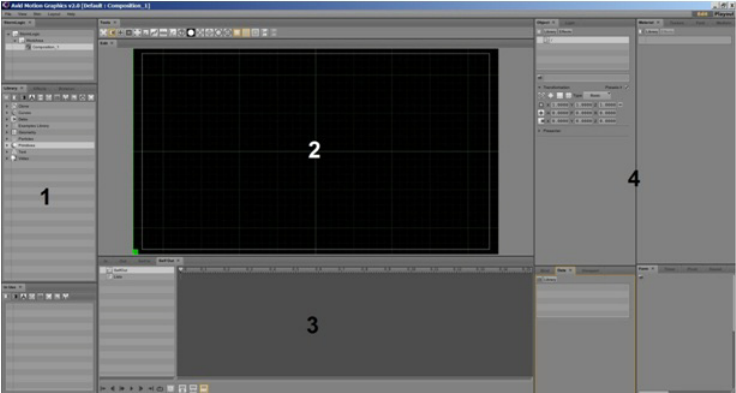
appears in the layout menu, and can be selected for use again. The following illustration shows
the default layout for the graphics design user interface.
nYour user interface may look slightly different from that in the following illustration based upon
your options and configuration. You are able to rearrange your personal user interface by
dragging a tab, with a left-mouse click, to a different area, and releasing the tab when the area in
which you want to place the tab is highlighted in white. You are also able to tear tabs off
completely and have those individual tabs open in separate windows. A placeholder with the tab
name will be held in the user interface, but no information will be held there until the external
window is closed.
In addition to the areas and panes, the application layouts feature menu bars and tools in the
panes that offer additional information and functionality. The following table describes the areas
and panes displayed when using the default layout.

Understanding the Design User Interface
21
By default, panes are grouped into different areas in the user interface for basic ease of access.
All panes can be moved to different areas, thereby creating custom layouts, depending on the
user’s preferences.
Assets Area
The Assets area contains the following panes by default:
•Library Pane
•Effects Pane
•Browser Pane
•StormLogic Pane
•In Use Pane
Area Description
1 - Assets The Assets area displays different types of asset panes. The asset
panes are tabbed libraries of graphic objects, materials, and effects,
which can all be used in composition creation. This area also
contains the Browser and StormLogic panes to help locate and
navigate different assets used in compositions, and the In Use
panes, which contains all of the assets that are in use in the current
composition. For more information, see “Assets Area” on page 21.
2 - Viewports The Viewport area contains the Tools, Playout, and Preview panes
and can contain more than one Viewport. This is the area where
you layout your design and create your compositions. For more
information, see “Viewports Area” on page 31.
3 - Animation The Animation area allows you to add timing or motion to a
composition. For more information, see “Animation Area” on
page 35.
4 - Model The Model area displays panes for used for modifying a selected
object. It allows you to change object and effect values for the
assets used in a composition. The object values are the sizes and
shapes of assets used in compositions. The effect values are the
colors, textures, reflectiveness, and so forth, on the surfaces of the
assets in compositions. For more information, see “Model Area” on
page 37.
Understanding the Design User Interface
22
Library Pane
The Library pane is comprised of preset library categories that contain different objects, shapes,
graphic images, materials, textures, and so on, which are the fundamental building blocks of
your compositions. You can also create custom images and add them to these different libraries.
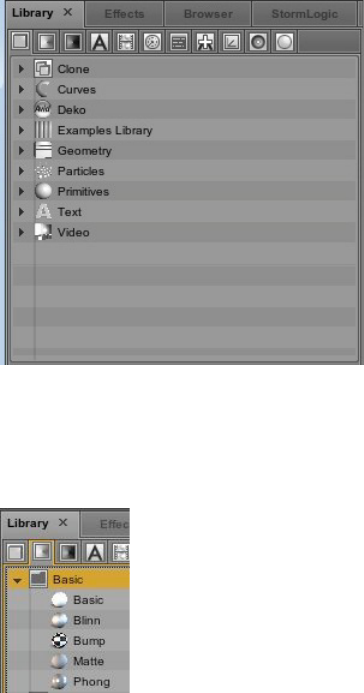
Each library category is represented by a different icon displayed at the top of the Library pane.
You can select an icon to display objects in that particular library. For instance, in the following
illustration the Object library icon is selected and a list of object categories is displayed.
To view the contents of a library category, click the disclosure arrow to the left of the category
name in the list. In the following illustration, the clicking the disclosure arrow next to the Basic
category in the Materials library displays the available basic materials.
Understanding the Design User Interface
23
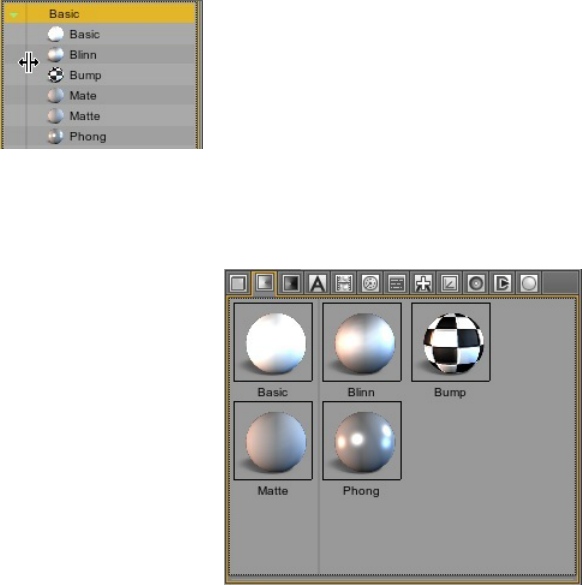
You can make these Icons larger by placing the pointer over the divider line between the
disclosure arrow and the name of the category. This works for any divider line in the user
interface.
The pointer becomes a cross hair, which allows you to drag the divider line to the right, enlarging
the items, and making them easier to identify.
Understanding the Design User Interface
24
The following table lists the icons for the different libraries and their descriptions.
Library Icon Description
Object library - this is a library of different predefined objects that can be used in
compositions. The objects categories, such as Curves, Primitives, Text and others are
listed here.
Material library - this is a library contains shader presets used to define the basic
surface properties, such as glass, metal, plastic They determine how the light in a
composition reacts on an object’s surface.Materials that can be applied to objects or
text, which are used in compositions.
Texture library - this is a library of different predefined textures that can be applied
to objects, fonts, and materials, which are used in compositions
MediaIn library - This is a library of different predefined media-type file objects
(
.wav
,
. mov
, and clips) that can be used in compositions.
Font library - this is a library of different predefined fonts objects that can be used in
compositions.
Timer library - this library contains different predefined timers that can be used with
objects in compositions.
Map library - this is a library of different predefined map objects that can be used in
compositions.
Font Fix library - this is a library of different predefined font fix objects that can be
used in compositions.
Pivot library - this is a library of different predefined pivot objects that can be used in
compositions.
Sound library - this is a library of different predefined sound objects to which a
particular sound can be assigned in compositions.
Light library - this is a library of different predefined light effect objects, such as that
can be applied to compositions.
Understanding the Design User Interface
25
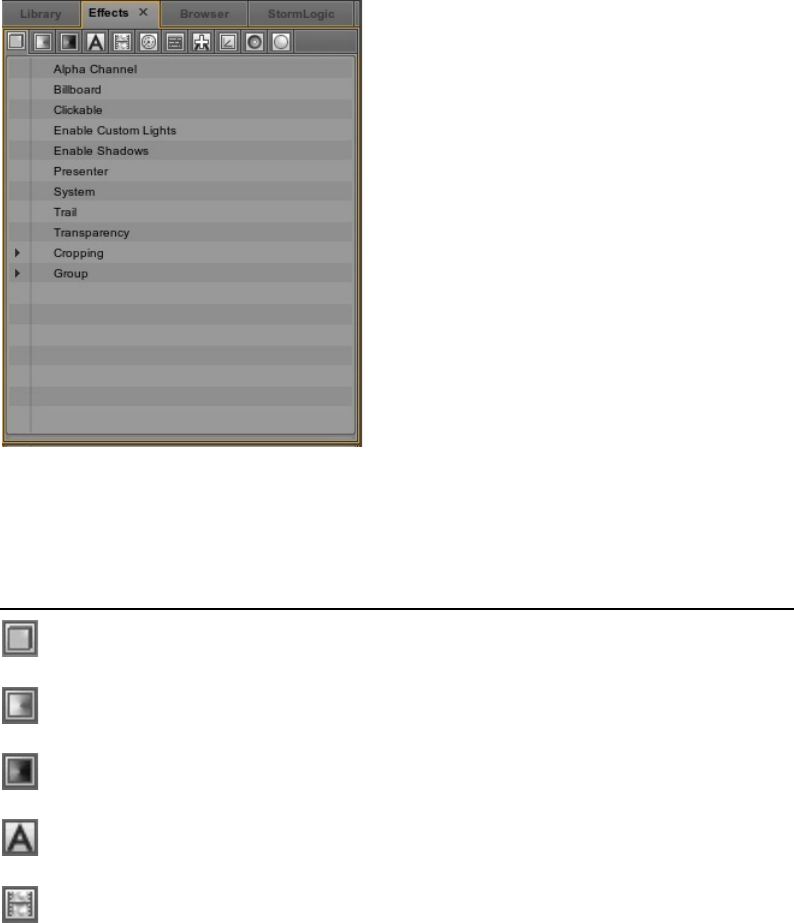
Effects Pane
The Effects pane is a collection of different preset effects that can be used in compositions. You
can also create custom effects and add them to these different collections. The different effects
are represented by a different icon displayed at the top of the Effects pane.
You can display the contents of each of the different effects collections by clicking on its icon.
The following table lists the icons for the different preset effects and their descriptions.
Effects Icon Description
Object Effects - this is a library of different predefined object effects, which can be
applied to objects and can be used in compositions.
Material Effects - this is a library of different predefined material effects, which can
be applied to objects and can be used in compositions.
Texture Effects - this is a library of different predefined texture effects, which can be
applied to objects and can be used in compositions.
Font Effects - this is a library of different predefined font effects, which can be
applied to fonts and can be used in compositions.
MediaIn Effects - this is a library of different predefined media effects, which can be
applied to objects and can be used in compositions.
Understanding the Design User Interface
26
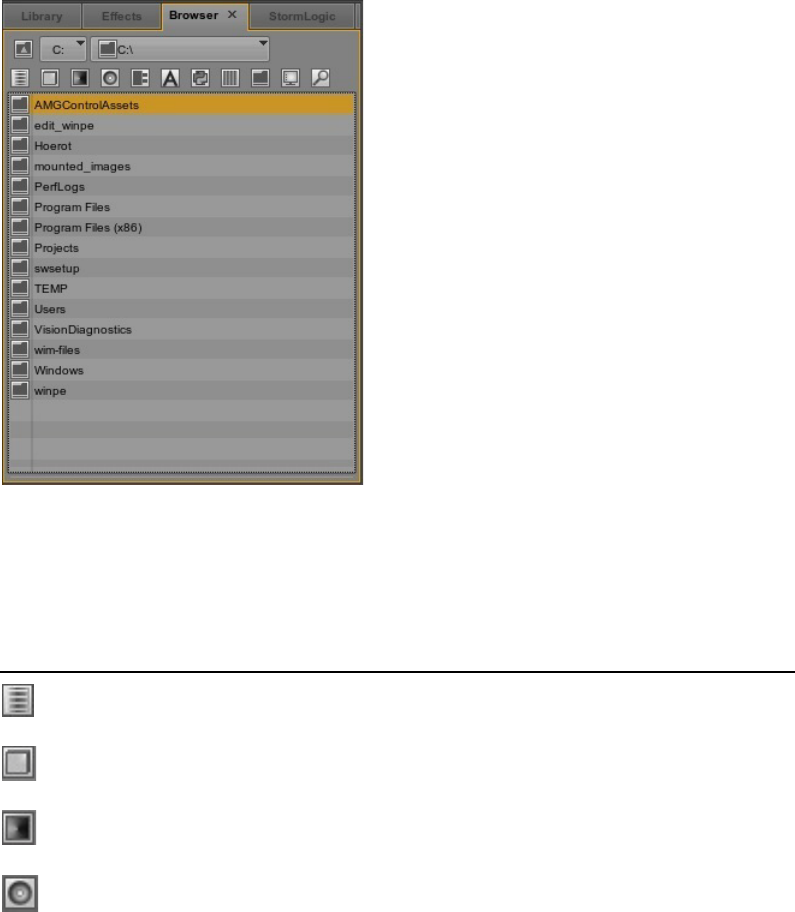
Browser Pane
The Browser pane displays a collection of different preset file locations and their respective
folder lists, containing assets, which can be used in compositions. You can navigate to different
locations using the convenient navigation tools at the top of the pane.
Timer Effects - this is a library of different predefined timer effects, which can be
applied to objects and can be used in compositions
Bind Effects - this is a library of different predefined bind effects, which can be
applied to objects and can be used in compositions
Pipe Effects - this is a library of different predefined pipe effects, which can be
applied to objects and can be used in compositions
Modes Effects - this is a Library of the system modes.
Light Effects - this is a library of different predefined light effects, which can be
applied to objects and can be used in compositions
Effects Icon Description
Navigation Tool Icon Description
Move up one drive
Select a Disk Drive
Select a Drive path
Understanding the Design User Interface
27
You can also use the quick navigational presets to display the list of folders in each predefined
location. Each predefined location is represented by a different icon, displayed at the top of the
Browser pane just under the navigation tools.
The following table lists the icons for the different default locations and their descriptions.
Currently all paths are
C:\users\<username>\Documents
except for the fonts path which is
C:\Windows\Fonts
.
Browser Pane Icon Description
\dbs - database path
\obs - object path
\imas - imas path
sounds path
Understanding the Design User Interface
28
\plg - plug-in path
fonts path
\python path
\sets path
\ipf path
\desktop path
Open Operative System Browser
Browser Pane Icon Description
Understanding the Design User Interface
29
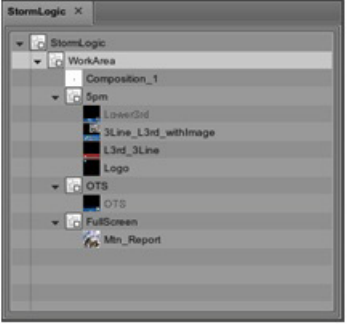
StormLogic Pane
The StormLogic pane displays all of the compositions in a project. A project can contain any
number of different compositions, which you might want to keep in the same locations for
convenience. For instance, It might be a good practice to keep all of the graphics used for a
particular program in the same project location.The StormLogic pane displays, in a tree-like
structure, the way a composition interacts with other compositions. It shows how objects act as
part of a composition. The logic is built as you create a composition. The StormLogic pane
allows you to quickly navigate to and open a composition so you can review it or make a change.
When you select a composition in the StormLogic pane, it opens and displays in the Viewport
area.
nYou can change the default name assigned to a composition on the StormLogic pane.
Double-click the name of the composition, type the new, more meaningful name, and press the
enter key on the keyboard. When naming projects, objects or compositions use only
alphanumeric characters and underscores (_). Do not use any special characters, such as
asterisks (*), at sign (@), dollar sign ($), percent (%) back slash (\)or forward slash (/) marks.
Understanding the Design User Interface
30
In Use Pane
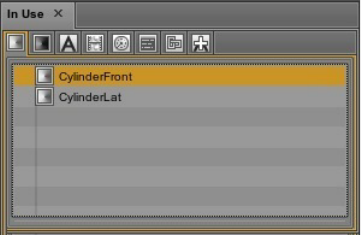
The In Use area contains the In Use pane, which ia a tree-like structure that displays the assets
that are being used in a particular composition.
In the previous example, the Materials in use icon is selected and displayed are all of the material
assets in use in this particular composition. Depending on the assets used in a composition,
different icons appear on this tab. Clicking on the icon displays a list of those particular types of
assets in use in your composition.
Understanding the Design User Interface
31
Viewports Area
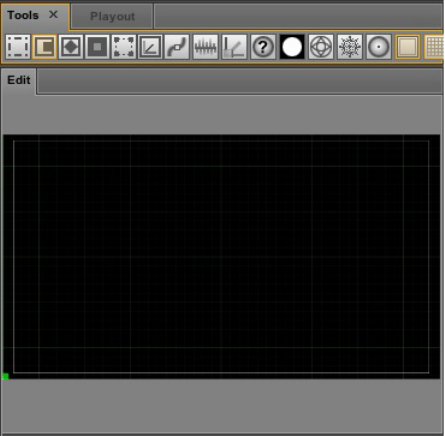
The Viewports area of the user interface is where you layout and design your compositions. The
default layout includes the Tools, Playout and Edit panes with the viewport appearing on the Edit
pane, as shown in the following illustration.
Understanding the Design User Interface
32
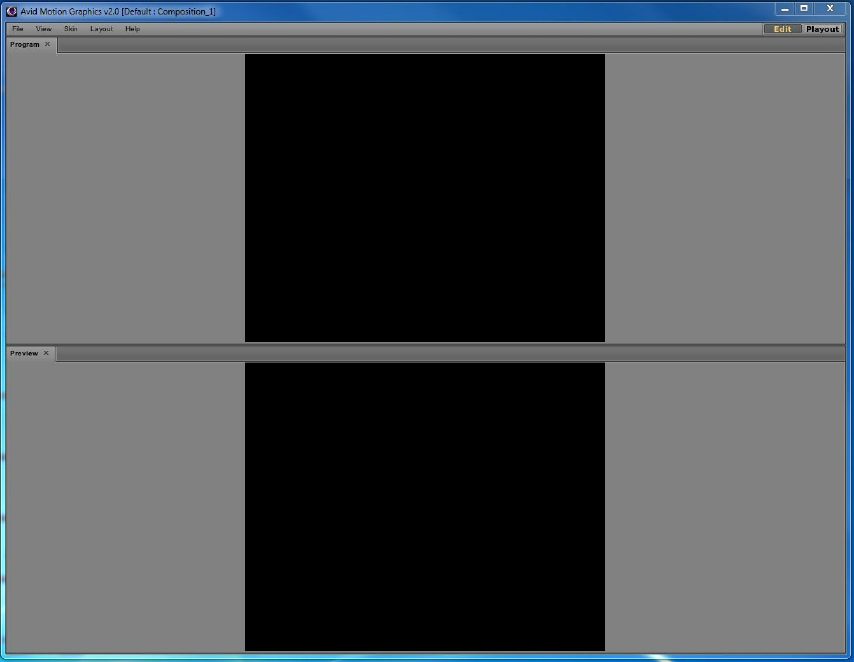
Depending the layout you select, there may be more than one viewport available. For instance,
you may opt to work with the Playout layout when you are controlling playout remotely using
Avid Motion Graphics Control or Avid Motion Graphics News Control. This layout affords you
different simultaneous views of your composition including the Program and Preview panes, as
shown in the following illustration.
Understanding the Design User Interface
33
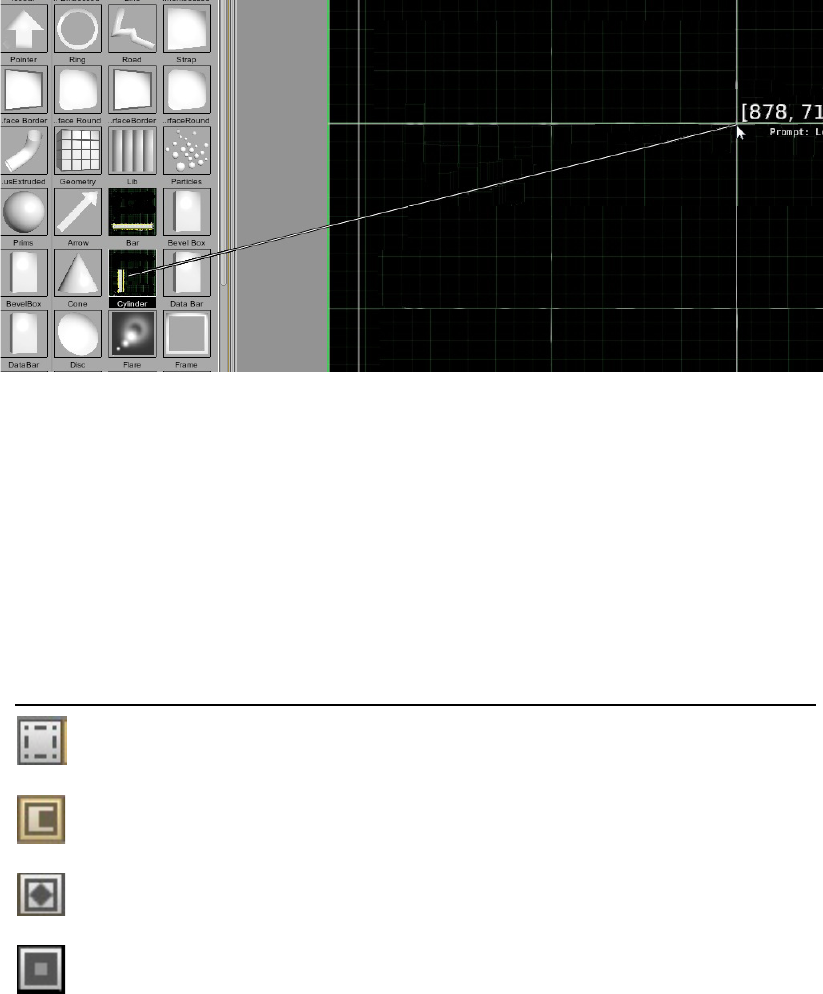
Generally, when creating graphics, you select your asset object from one of the categories in the
Library pane, and drag and drop it onto the Viewport area.
As shown in the previous illustration, when you drag an object from the Library pane to the
viewport on the Edit pane, a connection line clarifies which object you selected and where it will
be placed in the viewport. The horizontal and vertical pixel coordinates appear next to the mouse
pointer, providing the exact viewport location.
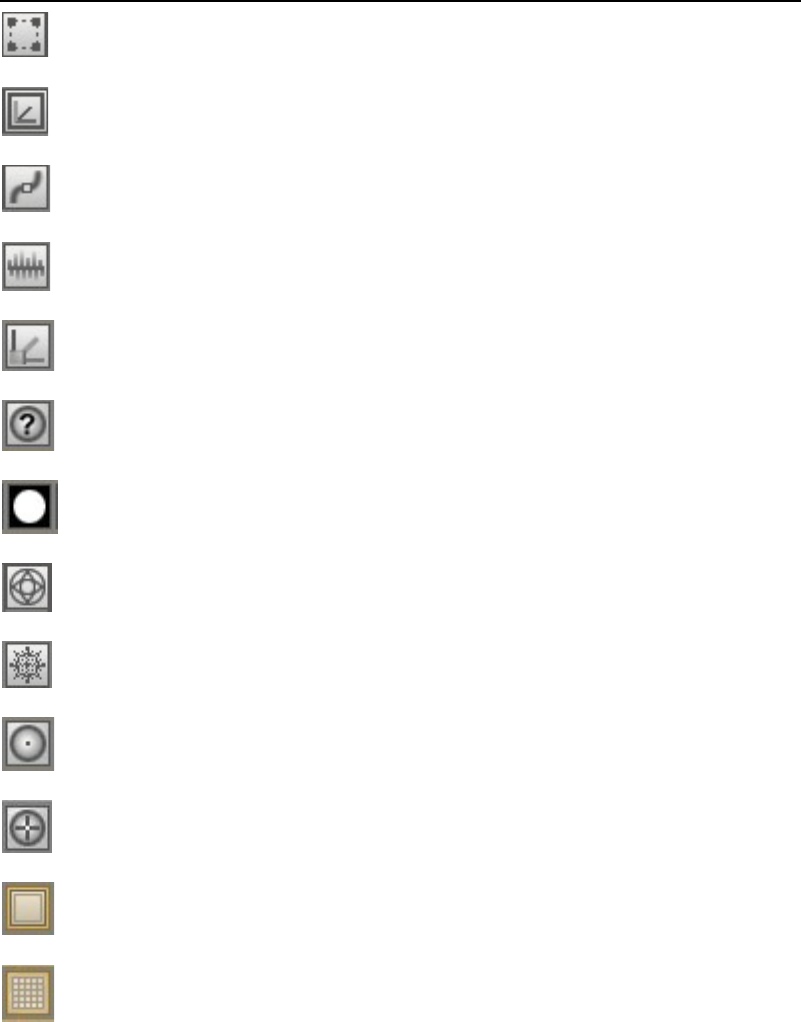
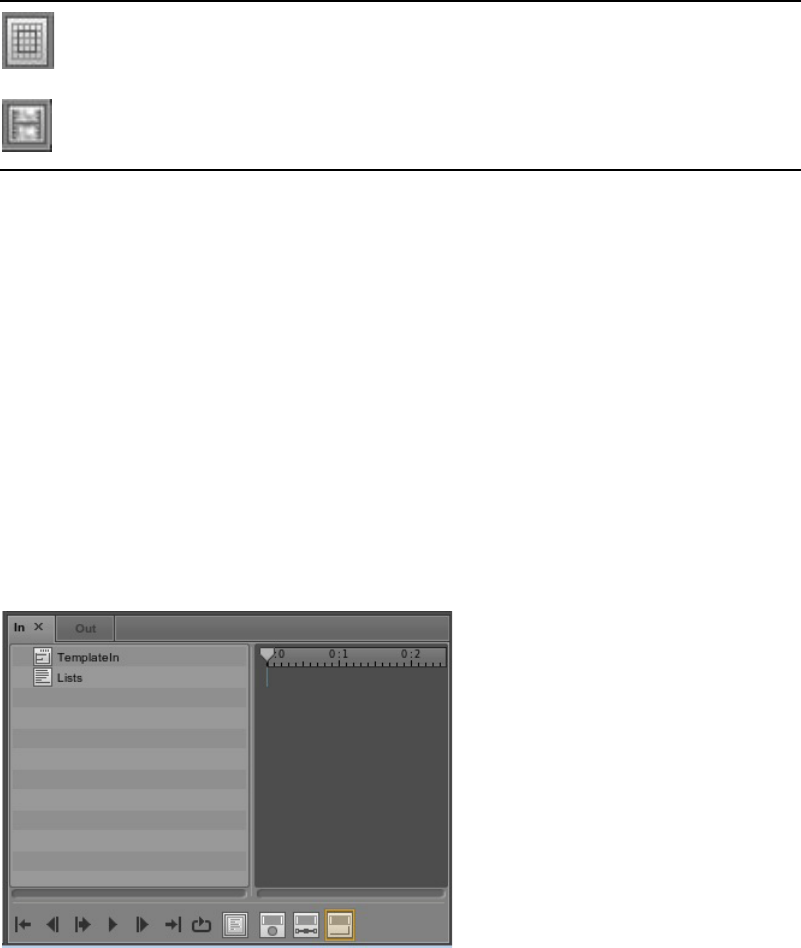
The Tool icons located at the top of the viewport on the Tools pane provide quick access to tools
referred to as gizmos. The gizmos are used to directly transform the objects in the viewport. As
you use the tools to transform an object in the viewport, the coordinates for the object are
displayed in the Transformation section of the Object pane.
Tools Pane Icon Gizmo Type
Deselect (q)
Move (w)
Rotate (e)
Scale (r)
Understanding the Design User Interface
34
Box (t)
Object Pivot (y)
Path <u>
Display Statistics <Alt+s>
Display Global Axis <Alt+e>
Display Camera Data <Alt+i>
Display Alpha Channel
Display Wireframe <Alt+u>
Freezes Interface <Alt+f> Snowflake
Reset Camera <Alt+r>
View camera point of interest <Alt+m>
Display Safety Frame
Grid <alt+g>
Tools Pane Icon Gizmo Type
Understanding the Design User Interface
35
Animation Area
Keyframe animation is one way to add motion to the objects in your compositions. This is the
process of setting at least two values for a parameter on an object at two or more points in time.
For instance, when at least two keyframes are assigned to an object for any given parameter,
Avid Motion Graphics creates a transition between the keyframes, generating a smooth change
between the two points in time.
The Animation area of the design user interface is used to add motion to your compositions. This
Area contains the In and Out tabbed panes along with a timeline, controls, and tools.
Objects can be dragged and dropped into the timeline using the center wheel on the mouse.
The timeline has two modes, the default Lists mode, which displays as a locked hierarchy of
actions and is automatically organized as Lists > Items > Editors; or the Actions mode which
allows for line by line editing of actions due to the delineation of the hierarchy.
GridSnap
Enable Video Input 1
Tools Pane Icon Gizmo Type
Understanding the Design User Interface
36
The following table describes the Animation area control icons.
The following table describes the Animation area tool icons.
Animation Controls Description
Go to Start
Go to previous Keyframe
Play Production
Pause/Resume
Go to next keyframe
Go to end
Loop mode
Animation Timeline Tool Icons Description
Frame window
Autokeyframe
Spline keyframing

Understanding the Design User Interface
37
Model Area
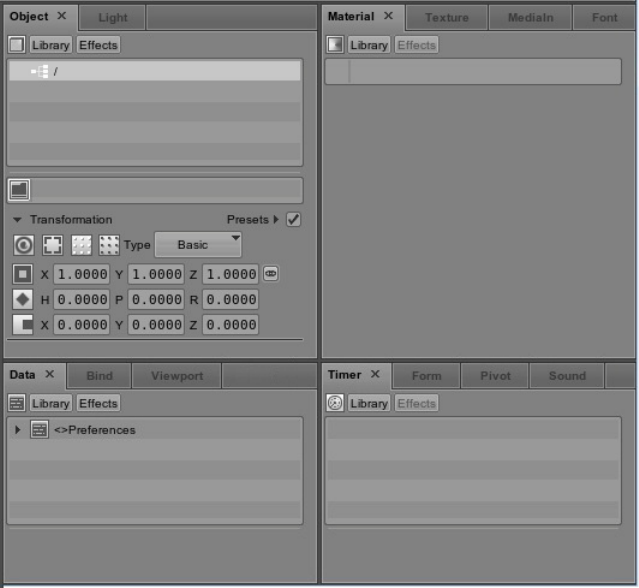
The Model Area contains various tabbed panes, which contain tools that appear as objects are
added to the composition. The tools that are used to modify the size and shape of a selected
object in your composition as well as the colors, materials, fonts, and textures used with that
object. There are also tools that allow you to add timers and lighting. The following panes appear
in the Model Area.
•Object Pane
•Light Pane
•Material Pane
•Texture Pane
•MediaIn Pane
•Font Pane
•Data Pane
•Bind Pane
•Viewport Pane
•Timer Pane
•Form Pane
•Pivot Pane
•Sound Pane
Autofit
Animation Timeline Tool Icons Description
Understanding the Design User Interface
38
Object Pane
As soon as you begin to create a composition and place an object in the viewport, you will notice
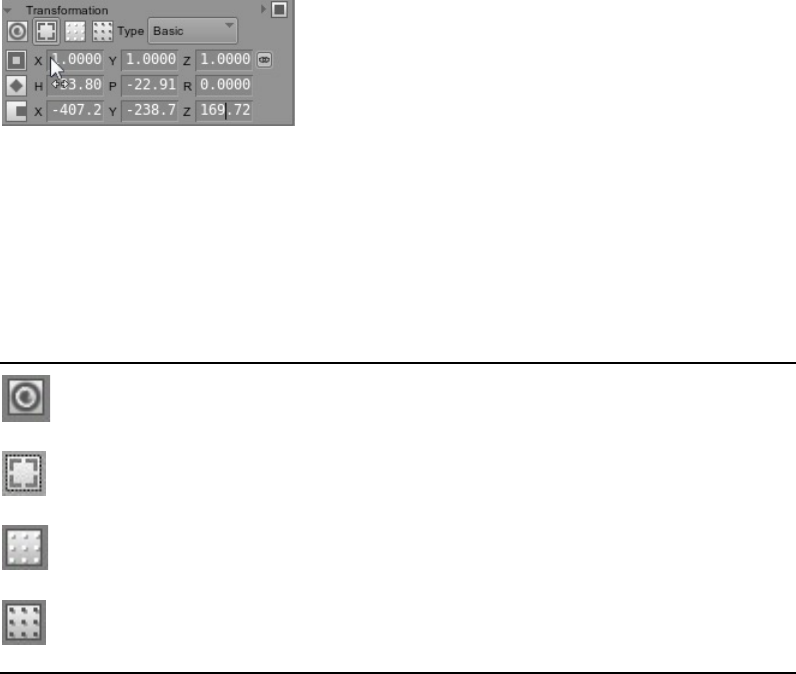
a Transformation section open in the Object pane, located in the Model area. The Transformation
section allows you to move an object around in the viewport. This section contains tools and
controls, which enable you to modify coordinates of an object, to change its size, shape or
position in your composition.
Understanding the Design User Interface
39
Within the Transformation section, coordinates of an object can be scaled with a left-mouse click
and dragging the mouse left-to-right. If you click on the hundreds-digit, the coordinate will move
to the order of one hundred, if you click on the ones, it will move in increments of one
accordingly. You can also enter numeric values by double-clicking in a field, typing a precise
digit and pressing the enter key. Lastly, you can copy a field value in the same manner as you
would bind two fields--in order to copy a field value, click on it with the center mouse wheel and
drag it into the field box which you want it copied into.
The four buttons at the top of the Transformation section affect the way an object appears in a
composition. Even though you might change many of the coordinates of an object in your
composition, you can simultaneously reset the values of your coordinates by right-clicking over
the word Transformation and selecting Reset value from the menu. The following table describes
the buttons found in the Transformation section.
Transformation Buttons Description
Cull button - allows you to remove a selected object within a
composition without deleting it.
Visible button - displays a bounding box around the selected object in a
composition.
Reset button - resets all of the matrix settings to the original
coordinates.
Matrix button - you can click this button and drag the current set of
matrix coordinates to the timeline creating in and out points for adding
animation to a composition.
Understanding the Design User Interface
40
You can select the type of preset coordinates that are available by using the Type selector down
arrow.
The Basic type displays the Scale, Rotate, and Displace preset coordinates. The Eccentric type
displays an additional set of preset coordinates for the Center presets of an object. The following
table lists the icons for the preset coordinates.
Located to the right of the Scale coordinates is a Uniform Scale button, as shown in the following
table.
Preset Coordinate Icons Description
Center coordinates
Scale coordinates
Rotate coordinates (H = Heading, P = Pitch, and R = Roll)
Displace coordinates
Uniform Scale Button Description
Pressing this button collapses the scale coordinate values so that you can
uniformly scale the entire object at one time rather than scaling each axis
coordinate individually.
Understanding the Design User Interface
41
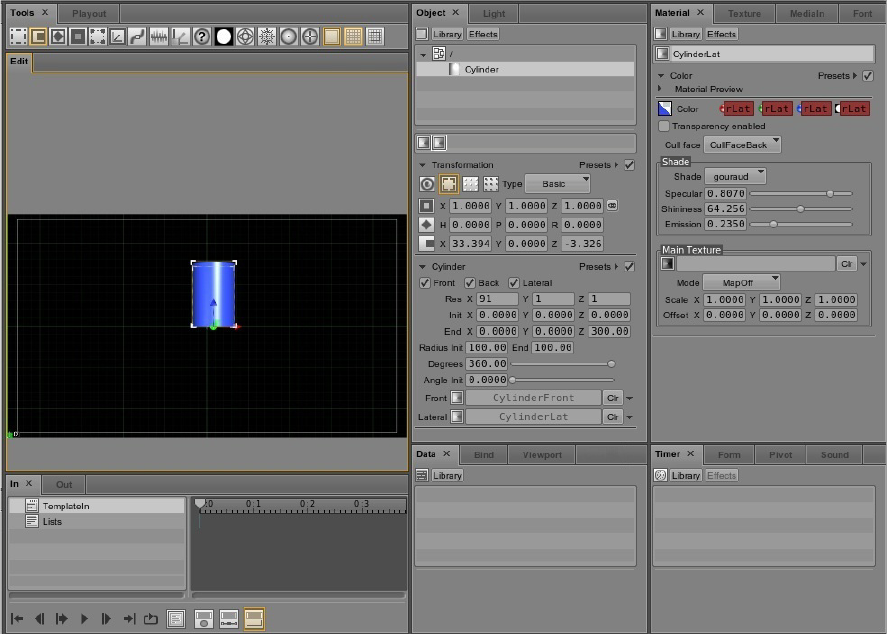
As you enhance and refine the graphics in your composition, more controls and tools become
available with which you can work. In the following illustration, the object selected is a cylinder
to which a color was added.
Notice that now there are tools and controls available on the Material pane with which you can
make adjustments to the color. All of the adjustments you make to your graphics can be saved as
presets so they can be reused in other graphics and compositions.
Understanding the Design User Interface
42
Light Pane
The Light pane contains the tools and controls that allow you to add different types of lighting to
objects and compositions. You can add lighting from the library pane when you select the Light
library icon and double-click or drag-and-drop on a type of lighting in the list.
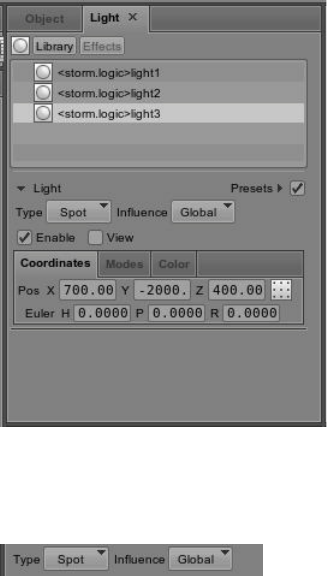
There are three global lights listed by default but you can also add a spotlight, local, and infinite
type-light by selecting them using the Type button, as shown in the following illustration.
The Influence button, shown in the previous illustration, is used to select whether light influences
all of the scenes, the scene to which the light belongs, or only to those objects which select the
light.
Understanding the Design User Interface
43
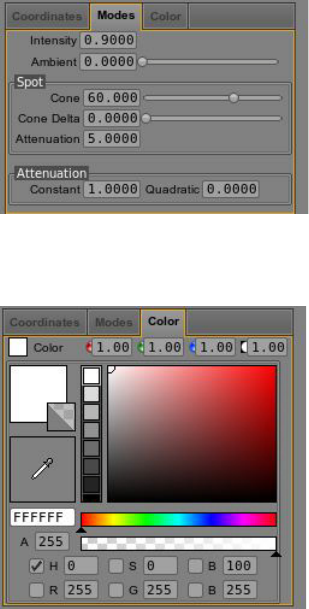
You can move the lights on the X (horizontal), Y (depth), and Z (vertical) axis, and when you are
using a spotlight, you can also adjust the euler coordinates with the tools located on the
Coordinates tab.You can adjust the intensity of the light on the Mode tab.
Color is added to the light from the Color tab.
Understanding the Design User Interface
44
Material Pane
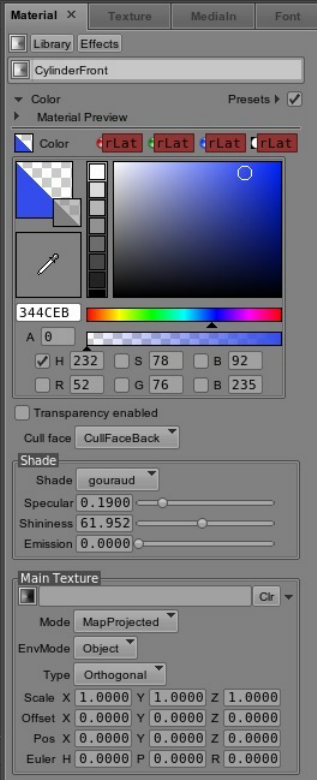
The Material pane contains the tools and controls that allow you to add color to, and modify
other surface attributes of the objects in your compositions. In the following illustration, the
Cylinderfront object is the focus of material work. A blue color has been applied to the object.
From this pane you can adjust the shade properties specular, shininess, and emission of the
material as well as the texture.
Understanding the Design User Interface
45
Texture Pane
Textures are usually bitmap images. You can use the bundled textures included with AMG, find
them from various Web sites or create them using a digital camera. Adding textures to the
material of your object gives them the most realistic look.The Texture pane displays the textures
applied to the material used on objects in a composition.
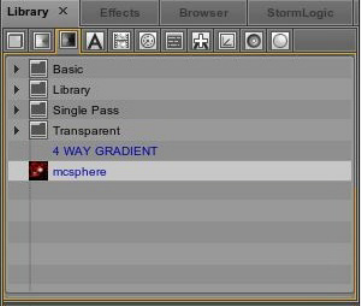
You can add a texture to material from the library pane. In the following illustration the Texture
category is selected in the Library pane of the Assets area, a list of texture objects are displayed,
and the mcsphere texture is selected.
Understanding the Design User Interface
46
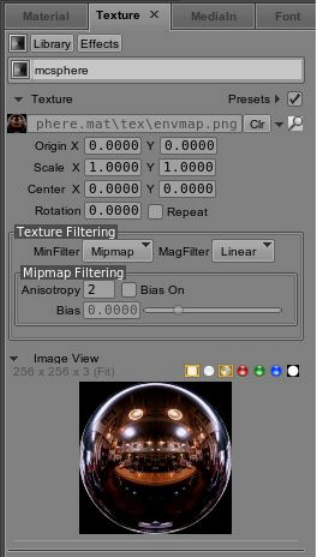
From the Texture library, drag the Texture file to the Main Texture selector at the bottom of the
Material pane. The word Texture is displayed in the selector where you can select the actual
image you want the map to use. After you have selected the texture, the Texture pane displays the
coordinates and controls with which you can adjust the look of the texture.
Understanding the Design User Interface
47
MediaIn Pane
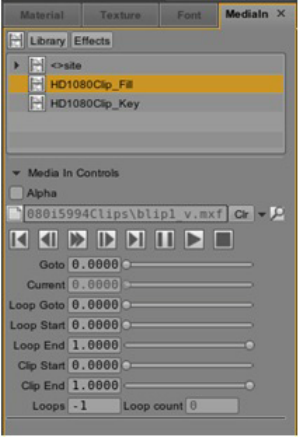
The MediaIn pane displays a list of Media objects (clips or audio) coming into a composition.
This pane contains controls you can use do direct the behavior of the media used in a
composition.
The control buttons allow you to; Start, Step Backward, Play Backwards, Play Forward, Step
Forward, To End, Pause, Resume, and Stop the media object’s action in the project. You can
click these controls and drag the values to the timeline to animate them when the composition is
played.
Font Pane
The Font Pane allows you to set a typeface for your text elements. After a text object has been
assigned a 2 or 3 dimensional shader, a typeface can be selected from your computers available
fonts.
Understanding the Design User Interface
48
Data Pane
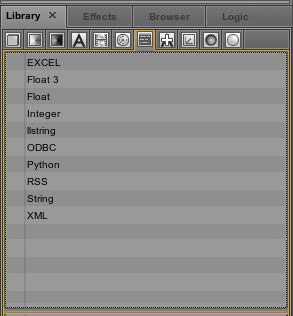
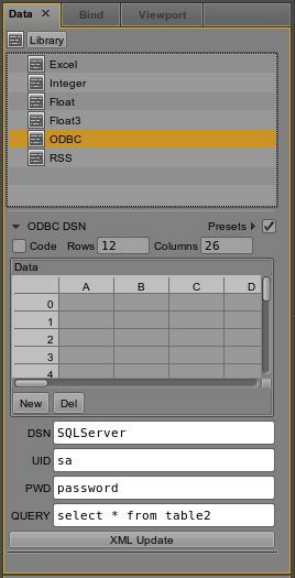
The Data pane contains the tools and controls that allow you to add different types of data
objects to compositions. You can add a data object from the library pane when you select the
Map library icon and double-click or drag-and-drop a type of data object from the list. Data
objects in the Maps library can include those in the following illustration.
Understanding the Design User Interface
49
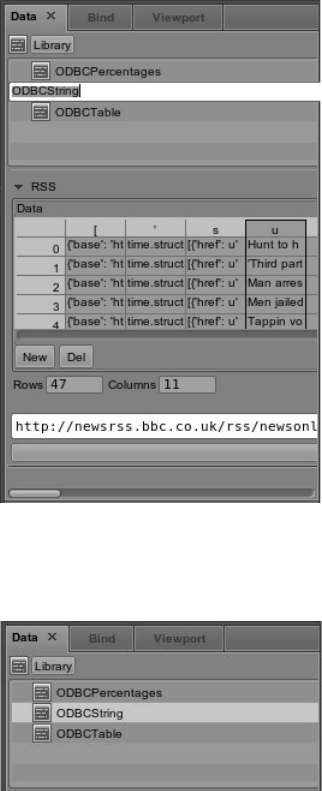
After adding a data map object to your composition, the object appears in the Data pane, where
you can adjust the values for the object so that it displays the data correctly in the composition.
The following illustration shows the focus on the ODBC data that was added to the composition.
Understanding the Design User Interface
50
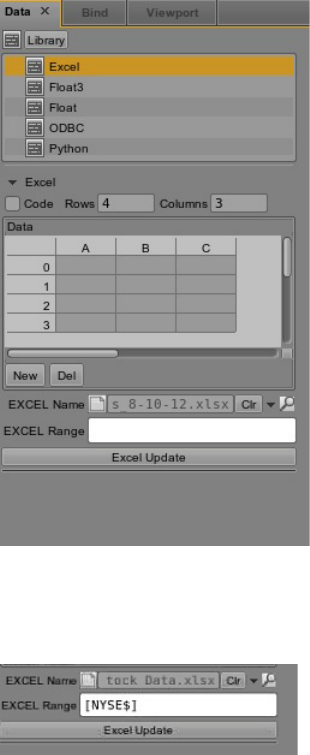
You can customize the name by which a data object appears in the list by double-clicking the
name and typing in a new, more meaningful name or description in the Text box, as shown in the
following illustration.
After typing in the new name for the data object and pressing the Enter key on your keyboard,
the name is changed, as shown in the following illustration.
Understanding the Design User Interface
51
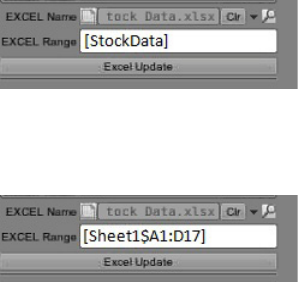
Another example of data selected for use may be an Excel spreadsheet.
In the previous example, Excel was chosen as the source for data. To import an entire worksheet
named NYSE, the Range format is
[NYSE$]
.
Understanding the Design User Interface
52
There are two formats that can be used to import a data range within a worksheet.
• Name the range in Excel. For instance, StockData. In Avid Motion Graphics the format used
to reference that range is
[StockData]
. In the following illustration, the format is the same
the same as the worksheet format except the
$
has been removed.)
• Another format that can be used is
[Sheet1$A1:D17]
, as shown in the following
illustration.
Bind Pane
The Bind pane allows you to bind two fields, such as x-displacement and pitch, or
y-displacement and time. This is a highly useful and very powerful tool. The bound parameters
will change directly with each other. In order to bind two fields, hold ALT, select the first field
with the center control wheel, and drag to the second field.
Viewport Pane
The Viewport pane of the Model area contains parameters that can set the x, y, z grids, visible
panels, fog and pipe colors of the Viewport area. The pipe color determines the background color
of your Viewport, and thus your animation; the default color is black. A fog color can be set as a
three dimensional layer (remember, all things in AMG are three dimensional!) that depending
upon its near/far location and the locations of the other objects in your viewport, may appear in
front of or behind your objects. A fog color will appear as a blurry natural emulation of fog.
Timer Pane
The Timer function allows you to create a timer on a single cycle, a loop, or an oscillating “loop
swing” that when bound to an object functions as an automated animation. Without being bound
to an object, the timer will simply count and not be a useful part of your animation.
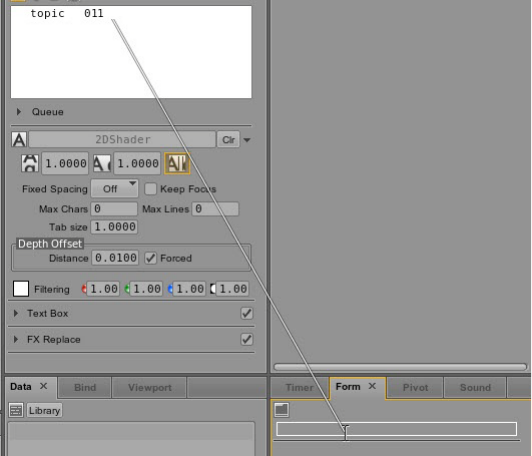
Understanding the Design User Interface
53
Form Pane
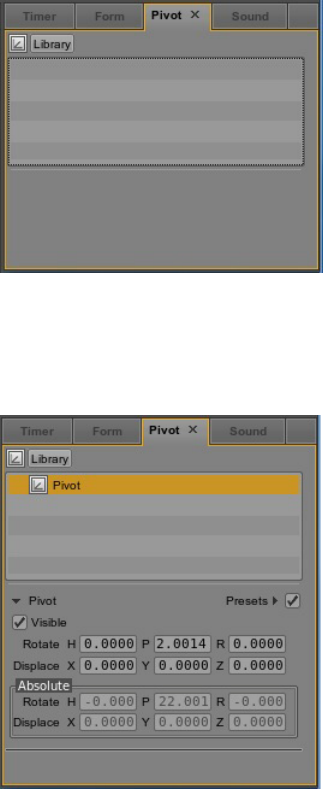
In the Motion Graphics design applications, the text you add here is a placeholder. It defines the
placement and style but the actual text is entered from a playout system just before this graphic
goes to air. This pane gives you a way to identify which text objects can be changed from the
Newsroom or playout system.
As shown in the following illustration, you select the text object from the Object hierarchy, press
the Alt key on the keyboard, drag using the middle mouse button from the text entry section to
the Form pane, and drop it in place.
The object name and the placeholder text appear in the Form pane. When this template is opened
in Avid Motion Graphics Control, the playout operator can modify the text for this text object.
Understanding the Design User Interface
54
Pivot Pane
The Pivot pane is located in the Model area of the user interface. The following illustration
shows the Pivot pane before a pivot is added to an object or composition.
You can apply a pivot to an object from the Library pane by clicking the Pivot icon, dragging and
dropping the pivot on to your object. After a Pivot is added to an object, the Pivot pane provides
the tools for controlling the pivot’s values, as shown in the following illustration.
Pivots are another control point for an object or a composition. For instance, if you want to move
an object when another object moves or reaches a certain point. You add a pivot, from the Pivot
library, to the second object and then animate that pivot from the first object's timeline. This way
you don't run the risk of inadvertently changing the original values for the second object.

Understanding the Design User Interface
55
Sound Pane
The Sound Pane allows you to control the sound and delays of .WAV files from the Model area
of the AMG User Interface.
Saving Presets
From the Materials pane you can name any material object that you have used in order to make it
distinct. After you have made an object distinct from an original preset, you can then drag and
drop it to the Material library to save it. You can also do this with shaders, texts, and most other
objects that appear in the Model pane.
Working with Layouts
The application is installed with some preset layouts. When you open the application the default
layout is displayed. You can select a layout from the Layout menu, located near the top left side
of the window.
The following table lists the preset layouts and their descriptions.
When you use a preset layout, the next time you open the application, the last preset layout that
was used is the layout that opens. You can start with a preset layout and customize it. You can
add other functionality by opening other panes and then save the layout that you have created.
Layout Type Description
Animation The Animation layout provides a larger viewport in the Edit pane providing a most
efficient workspace for those users working with motion and animated graphics.
Default The Default layout exposes the most panes, for the most functionality, for immediate
use.
Design The Design layout is similar to the default view with an extended timeline intended for
the most common design workflows. This layout puts the Logic pane at the top of the
Assets area so that a user can see the list of compositions they created, and can easily
navigate between them as they work.
Playout The Playout layout provides the user with the Preview pane to allow the user
confidence in the graphic being sent to air. Playout mode is reserved for external
control only.
Snap Renderer The Snap Renderer layout only lists the Program viewport. It is intended to run only on
the Snap Renderer computers in Avid Motion Graphics News workflow systems.
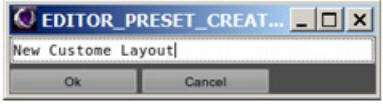
Understanding the Design User Interface
56
When you save a new layout, the name of the layout is added to the list of preset layouts from
which you can select the next time you open your application. Only the custom layouts that you
create can be deleted from the list of preset layouts.
To change to a different predefined layout:
tSelect a layout from the Layout > Select drop-down menu.
To close a pane:
tClick the X on the pane’s tab.
To open additional panes:
1. Select the View menu.
2. Select the menu option corresponding to the pane you want to open.
The pane you select opens in the active area.
To reset a layout to its original configuration:
tSelect Default from the Layout > Select drop-down menu.
To reset all layouts to their original default configurations:
tSelect Reset All Layouts from the Layout drop-down menu.
To save a custom layout:
1. Select the Save Now option from the Layout menu.
a dialog box opens.
2. Type the name for your custom layout.
3. Click the Ok button.
The new custom layout now appears in the Layout drop-down list of preset layouts from
which to choose.
Menus
57
Panes and Areas
The user interface is customizable because of the multiple areas in to which panes may be
moved. Any single area can contain one or more panes, and when multiple panes are positioned
into a single area, the panes appear in a tabular format with one pane on top of the others.
If the number of tabbed panes within an area exceeds the area’s space within the window, a scroll
bar appears, enabling you to scroll through all of the panes.
You can move panes around to save screen space and reconfigure panes in a way that best suits
your particular workflow. You can save your favorite layout and select it the next time you sign
into the application. For more information about layouts, see “Working with Layouts” on
page 55.
Each pane has its own unique tools, controls and shortcuts available to the user. For instance, if
you are working in the Edit pane, the keyboard stroke,
Alt+h
presents a list of keyboard
shortcuts that can be used.
Menus
The Avid Motion Graphics user interface has a menu bar located near the top of the window that
includes the following:
• File — this menu contains all of the actions you can perform with respect to projects and
compositions within the window. You also have a Preferences option that allows you to
configure properties for Viewports, text, paths, desktop shortcuts, and other miscellaneous
settings for the Avid Motion Graphics design products. For more information about
preferences, see the Avid Motion Graphics Setup and Configuration Guide.
• View — this menu has options to open or close the various panes in the window.
• Skin — this menu allows you to change the appearance of the user interface from the default
to a lighter or darker color scheme.
• Layout — this menu allows you to select your preferred work layout or create your own
custom layouts and save them to use over again. When you create a custom layout, it appears
as a selection in the Layout menu.
• Help — this menu displays product version information.
Creating a Composition
58
Creating a Composition
The graphics you create are saved as compositions and listed in the projects folder in your C:
drive. Each composition contains all the objects and all the properties of those objects. You can
create and save your composition before you actually add graphic objects to it.
To start the Avid Motion Graphics program:
1. Do one of the following:
tDouble click the Avid Motion Graphics desktop icon.
nIn this documentation, starting your Avid Motion Graphics application means whichever Avid
Motion Graphics application you are using.
tSelect the Avid Motion Graphics application from the Windows Start menu.
The Avid Motion Graphics workspace opens and displays an empty composition. A
composition is a template which contains graphic elements and object animations.
To create a composition:
1. In the Assets area, select the Library pane.
Twelve icons for the various asset libraries further divide the Library pane: (Objects,
Materials, Textures, Fonts, Media In, Timer Data Source, Font Fix, Pivot, Sound, and
Lights). You can click an icon to view its contents.
2. Select an asset from one of the Library categories, click and drag the object to the Viewport
area and drop it in the viewport on the Edit pane.
At any time you can save the composition. For more information, see “Saving Projects and
Compositions” on page 59. After the composition is saved you can continue to build your
graphic.
Now that you have an object to work with in your composition, you can move or modify it
changing the size and shape or by adding a material, texture, text or color to the object. You
can add, clone, duplicate and group objects in a composition.
Saving Projects and Compositions
59
Saving Projects and Compositions
It is important to develope a naming convention that is unique to your workflow so that recalling
projects and compositions can be done efficiently.
To save all the current compositions that are open in the StormLogic pane:
1. From the File menu select
File > Project
> Save.
The FileLoader dialog box opens allowing you to name the project and select a directory for
the project containing the compositions.
2. Type a name for the project in the Name Text box.
The default directory for saving projects and compositions is the same location entered as
the User Projects path in File > Preferences > Paths:
C:\Users\<usrname>\Documents\Avid\AMG\Projects.
3. Do one of the following:
tAccept the default drive location.
tAt the top of the FileLoader dialog box, you can change the drive location.
4. Click the OK button at the bottom of the dialog to save the project and compositions.

3Avid Motion Graphics Journalist
Avid Motion Graphics Journalist a solution for journalists and producers to add graphics to the
rundowns that they create. This application allows for use of the NRCS Integrated ActiveX
plug-in along with flexibility in determining the level of functionality that journalists are exposed
to for fulfillment of graphics data and adjustment of templates.
The following main topics describe:
•Avid Motion Graphics Journalist Client Overview
•Creating Graphics from Templates
•Working with Database Graphics
•Using Avid Motion Graphics Journalist with iNEWS
•Using Avid Motion Graphics Journalist with ENPS
Avid Motion Graphics Journalist Client Overview
Depending upon your newsroom computer system, the Avid Motion Graphics Journalist client
user interface (UI) my look slightly different from the UI described in this documentation. For
information about Avid Motion Graphics Journalist with ENPS, see “Using Avid Motion
Graphics Journalist with ENPS” on page 79.
The following describes starting the Avid Motion Graphics Journalist plug-in used with the Avid
iNEWS newsroom computer system, and basics of the user interface (UI).
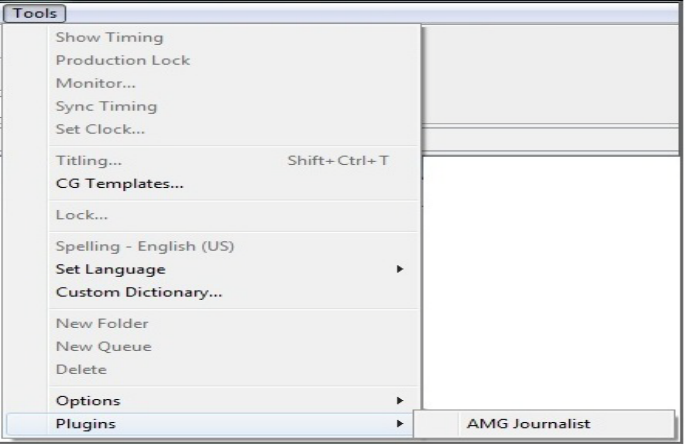
Avid Motion Graphics Journalist Client Overview
61
Starting the Journalist Plug-in
After you log in to an Avid iNEWS newsroom computer system, you can open the Avid Motion
Graphics Journalist plug-in.
To open the Avid Motion Graphics Journalist Plug-in from iNEWS:
1. Click the Tools menu and navigate to the Plug-ins option.
2. Select Plug-ins > AMG Journalist.
The Avid Motion Graphics Journalist plug-in opens in the iNEWS window.
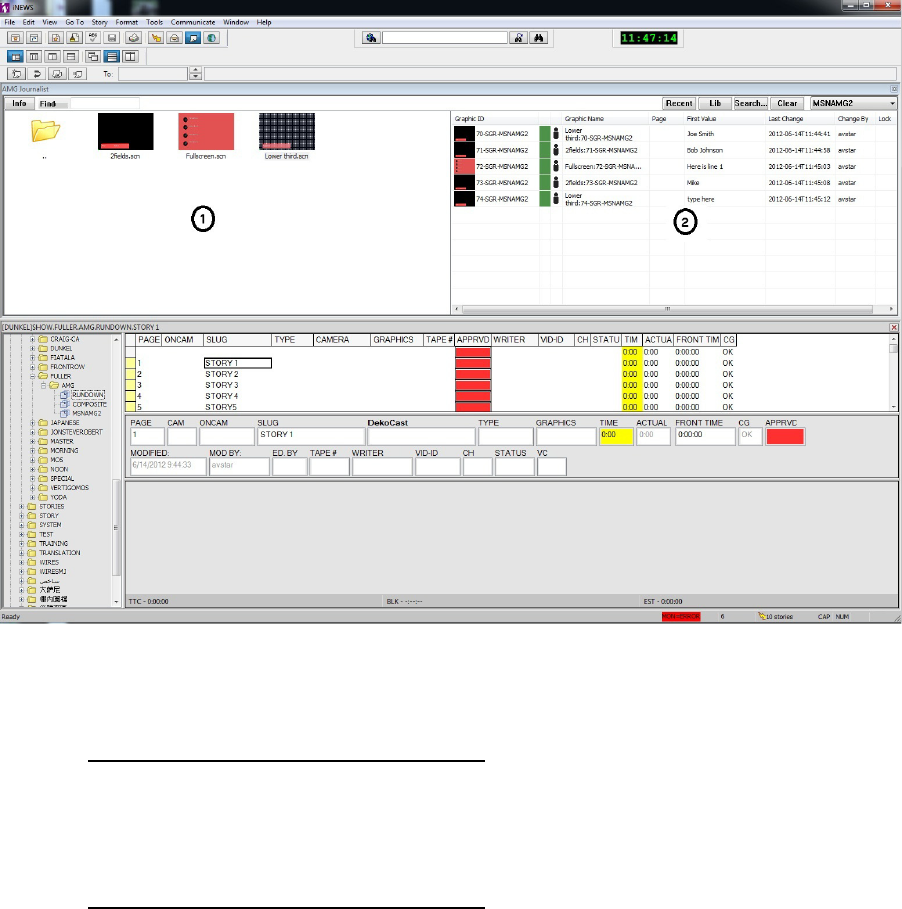
Avid Motion Graphics Journalist Client Overview
62
Avid Motion Graphics Journalist User Interface
The Avid Motion Graphics Journalist user interface (UI) is a window consisting of two main
areas, the Template and Graphic Database, along with controls that are installed as part of the
plug-in. The following illustration shows the Avid Motion Graphics Journalist plug-in opened in
the iNEWS user interface.
The following table lists descriptions for the areas of the Journalist plug-in.
Number Description
1 Template Area
2 Graphic Database Area
(Available for iNEWS only,
not used with an ENPS
system.)
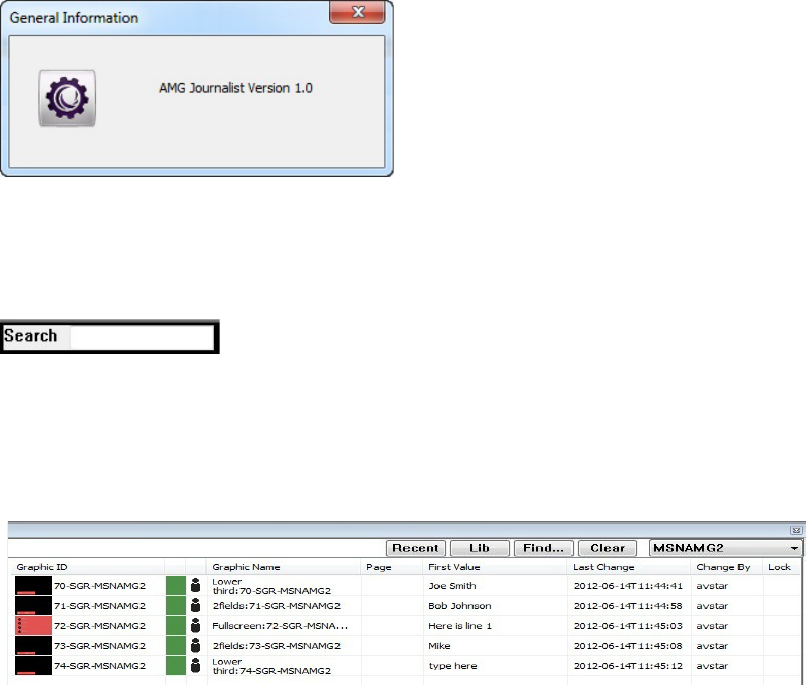
Avid Motion Graphics Journalist Client Overview
63
Template Area
The Template area is where project templates are displayed. This is where you can open a
template and fulfill any replaceable text or graphics. For more information about templates, see
“Creating Graphics from Templates” on page 64.
The Template area contains the Info button. The Info button displays the version number for the
plug-in, as shown in the following illustration.
The Template area also has a Search field, as shown in the following illustration, where you can
type in the name or part of the name, of a graphic, and quickly locate the template containing that
specific text.
Graphics Database Area
The Graphic Database area displays all graphics available in the database.The Graphics Database
area is shown in the following illustration.
nIn the Graphics Database area, graphics can be sorted by their column headings by clicking on
the column heading.
Creating Graphics from Templates
64
The Avid Motion Graphics Journalist displays a collection of templates that may be used to
create a desired graphic. When a new graphic is created, it is shown in the list. From this list, you
drag and drop the new graphic on to the iNEWS Story panel, where the appropriate production
line is then created.
Creating Graphics from Templates
A journalist uses templates to create graphics that are then stored in the Avid Motion Graphics
Journalist database. From the database, graphics can be dragged and dropped into the playlist for
use.Templates and graphics though visibly similar are different in their creation and purpose.
• Templates are unfulfilled graphics, meaning the values (replaceable data) have not yet been
entered and saved.
• A graphic is defined as a fulfilled template, meaning that the values (replaceable data) have
been entered and saved with a unique ID for the graphic, in a database.
After values are entered into a template, it can be saved, creating a new graphic. The template
can then be used again to create other graphics.
Templates are originally created in one of the three Avid Motion Graphics Design applications,
Avid Motion Graphics, Avid Motion Graphics Production, or Avid Motion Graphics Creation.
After creating a composition in one of the Design applications, and saving it to a project on the
X:\ drive on the Avid Motion Graphics Journalist Server, an Avid Motion Graphics Journalist
user can access the composition and use it as a template for creating unique graphics in the Avid
Motion Graphics Journalist database.
To create a graphic from a template with Journalist:
1. Open the Journalist plug-in.
2. In the Template area, navigate through the folders to find the template to use for the new
graphic.
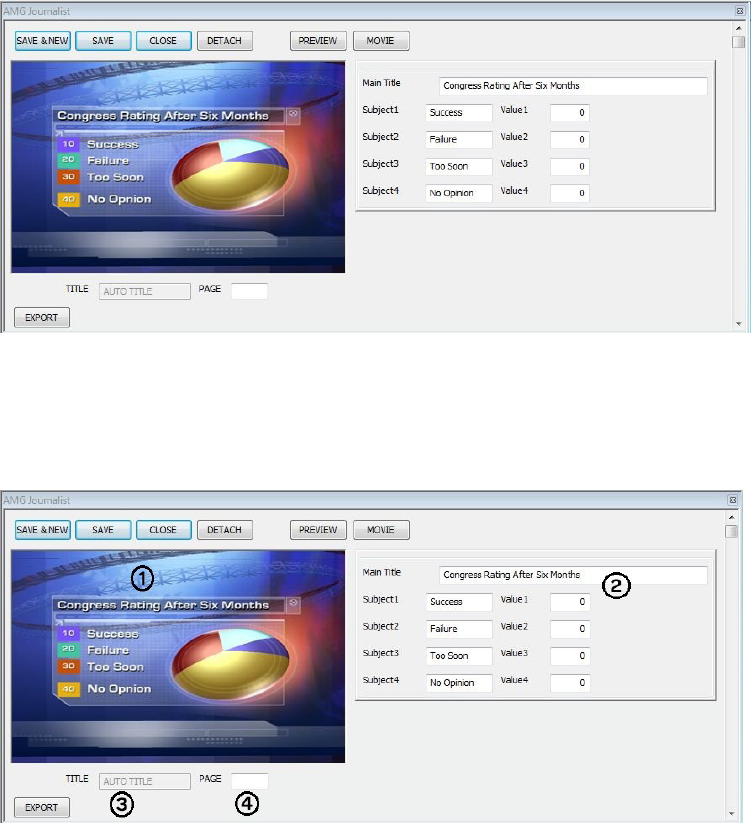
Creating Graphics from Templates
65
3. Double-click to select the template and open the template editor for this particular template.
The template editor opens, as shown in the following illustration.
The Template Editor is used to fill and preview the contents of a graphic template. It allows
you to enter certain information into the template. Each template has different fields
depending on how the template was designed. Text fields, Option selectors, Toggles, Tab,
File selectors, and other controls can appear as a part of a template dialog.
The Template Editor contains the areas described in the following table.
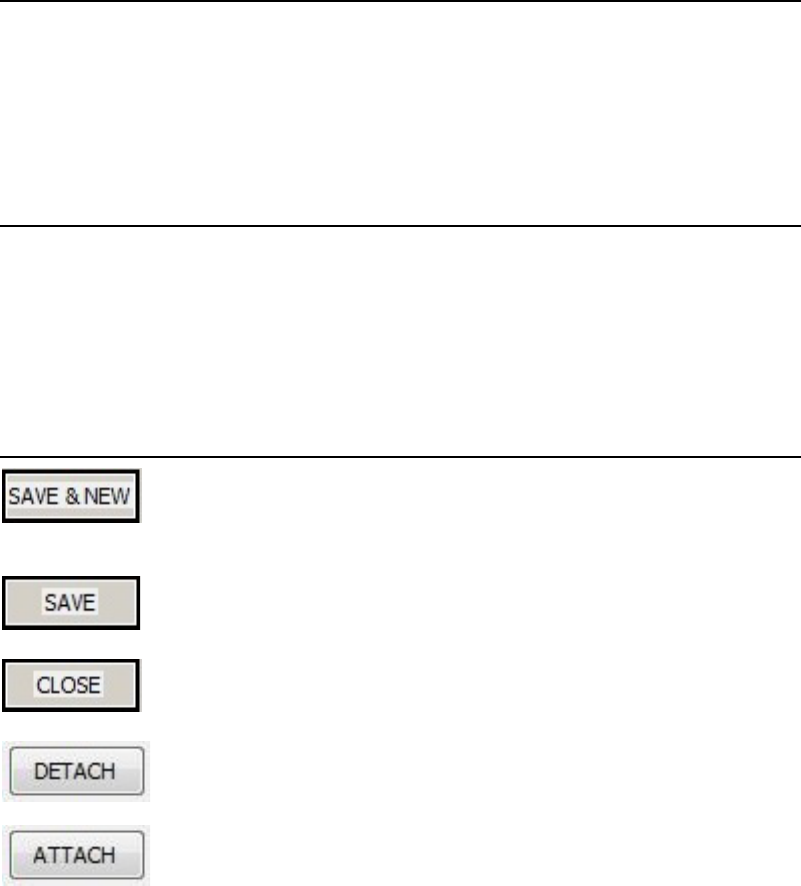
Creating Graphics from Templates
66
Graphic templates are designed using one of the Avid Motion Graphics Design applications.
When the graphic template is created, some fields are selected to be filled later by a
Journalist. Graphics, sometimes referred to as objects, can be defined as a template plus
some values introduced by the Journalist.
The Template Editor dialog box contains the buttons described in the following table.
Area Number Description
1 - Preview area The Preview area displays a preview image of the selected template
allowing you to see the graphic appearance of the image.
2 - Values area The Values area displays a series of editable fields, which the user fills,
to create the graphic.
3 - Title area The Title area displays the name of the selected graphic. .
4 - Page area The Page area is an optional field that allows the user to set a page
number for this graphic.
Button Description
The Save & New button creates a new graphic with the current values
and template but doesn't close the Template Editor dialog box. This
allows the user to continue creating more graphics using the current
template.
The Save button saves the graphic with the current values and closes
the Template Editor dialog box.
The Close button closes the Template Editor dialog box without saving
the graphic.
The Detach button Floats the template editor so that it can be moved to
another part of the UI or desktop. In the floating state the template
editor displays the name of the template in the title bar.
While the template editor is in the floating state, the Detach button
changes to an Attach button. Pressing the Attach button docks the
template editor to the Journalist UI.
If the Journalist application is closed, while the template editor is in
the floating state, the next time the Journalist plug-in is opened, the
template editor displays the previous template in a floating template
editor.
Creating Graphics from Templates
67
4. In the Values area, fulfill the replaceable fields to create the new graphic. Depending on how
the template was designed, the Values area displays a series of editable fields, which the user
fills, to create the graphic. Right-clicking on these fields displays a list of options from
which to select and fill values for the graphic.
5. (Optional) you can give the graphic a custom title by editing the Title field. By default, the
Title field value is set to AUTO TITLE, which cause a name to be assigned automatically by
the system. To change the AUTO TITLE, double-click the Title field, and enter the name of
your choice. The custom name you entered is displayed in the Graphics Name column in the
Graphics Database area. This field is non-editable if the system is configured to create auto
names. If the system is configured as MIXED, it will appear non-editable by default but the
user can override this by double-clicking in the Title area text box.
6. (Optional) you can assign a page number to the graphic so it is easier to find later. When a
page number is set, the number can be used by the Avid Motion Graphics Control
application when searching for this graphic.
Page numbers are helpful when searching for graphics or objects using the Avid Motion
Graphics News Control application. In Control, you can type a page number using the
numeric keypad and press the Preview key or Take key to put the graphic in the preview or
program output quickly, without having to locate the graphic by moving through the entire
rundown.
nThis search functionality only works in Avid Motion Graphics News Control when the focus is
not set in the Search text box area. If the focus is in the Search text box, the search is performed
on the graphics titles only.
The Preview button updates the Template Editor dialog box to show
the graphic appearance with the current values.
The Movie button expands s the Preview area of the Template Editor
dialog box to show the Destination, Preset format, PAD IN, Duration,
and PAD OUT values for the graphic. There is also a Record button
available.
Values are displayed and the Movie button changes to a Hide button.
Pressing the Hide button allows you to hide the values displayed for
the movie.
The Export button exports the graphic as a movie file, which can be
used in post-production programs.
Button Description
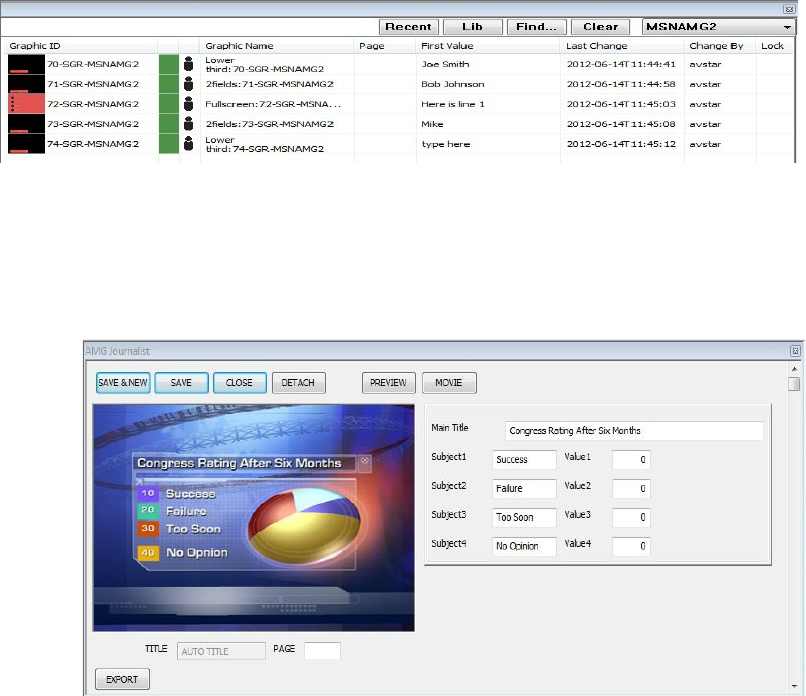
Creating Graphics from Templates
68
7. Do one of the following:
tClick the save button to save the new graphic and close the template editor.
tClick the Save & New button to save the new graphic and leave the template editor open
so that you can create another new graphic.
When you are finished, the new graphic appears in the Graphics Database area, as shown in
the following illustration.
nThe new graphic appears in the Graphics Database area only when using the iNEWS newsroom
computer system. The Graphics Database area is not available when using an ENPS system.
You can also edit existing graphics in Journalist.
To open an existing graphic to edit:
tDouble-click the graphic in the Graphic Database area list.
The template editor opens displaying the graphic, as shown in the following illustration.
Working with Database Graphics
69
Working with Database Graphics
When using an iNEWS newsroom computer system, all graphics available in the database are
displayed in the Graphics Database area.
nThe Graphics Database area is not available when using an ENPS system.
The following table shows the names and description of each field heading in the Graphics
Database area.
Field Heading Description
Graphic ID The Graphic ID is a unique ID assigned to each
graphic by the system. This ID is used in the
creation of the iNEWS production line and may not
be edited by the user.
Ready/Not Ready The Ready/Not Ready indicator displays following
the Graphic ID. It is a visual signal in the form of a
colored block. A green block might mean that the
journalist has finished creating the graphic and it is
ready for broadcasting or maybe that an editor has
reviewed and approved this graphic. A red block is
displayed if the Graphic is not ready. For more
information, see “Setting the Ready/Not Ready
Indicators” on page 73.
nThe Ready/Not Ready indicator status is cosmetic only, for the journalist, and
does not affect the playout.
User/Library Graphic The User/Library Graphic indicator displays next to
the Ready/Not Ready indicator. It is a visual signal
in the form of a user icon
or a set of books icon.
Users should create library graphics for graphics
that will be reused frequently. These types of
graphics can be specific to the user or graphics
commonly used by all journalists.

Working with Database Graphics
70
The Graphics Database area contains the following tools:
Graphic Name The graphic name is the name by which the graphic
can be identified. This name can be created by the
system or by the user, depending on the system
configuration.
Page The Page field is used to display any page number
assigned to this graphic. Page numbers are optional,
so this field might be left empty. Page numbers are
assigned by the user to a graphic. When a page
number is assigned, it can be used later to perform a
search.
First Value The first field value displays the characters or
information entered, using the template editor, in
the first replaceable field of the graphic.
Last Change The Last Change field displays the year, month,
date, and time when this graphic was last changed.
Changed By The Changed By field is the name of the last user
who made changes to this graphic.
Lock The Lock field tells you whether or not this graphic
is locked. Locking a graphic helps protect a graphic
from having changes made by mistake.
Field Heading Description
Tool Name Description
Recent button The Recent button allows you to retrieve all of the
graphics created by this user at any time during that
day. The graphics are viewed in the Graphics
Database area.
Lib button The Lib or Library button, retrieves the current
user’s library graphics from the database.
Find button The Find button allows you to search the graphics
database. Pressing this button opens a Filter dialog
box with various search parameters. The search is
case-sensitive. For more information, see “Filter
Dialog Box” on page 71.
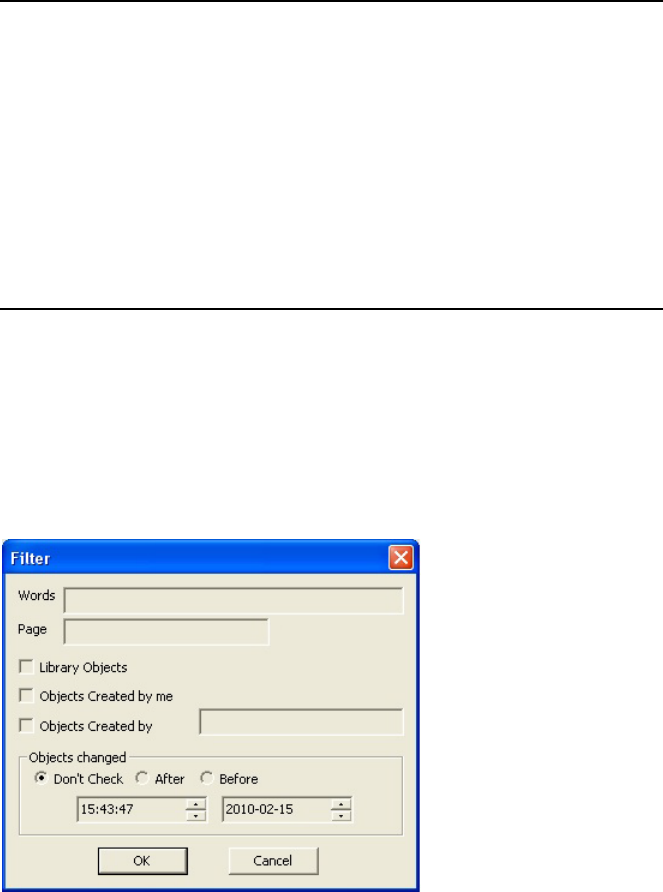
Working with Database Graphics
71
When you right-click on a graphic in the Graphic Database area, a menu displays options that
can be applied to the graphic.
Filter Dialog Box
When you press the Find button in the Journalist plug-in, a Filter dialog box opens, as shown in
the following illustration.
Clear button The Clear button removes all current graphics from
the list but does not delete the graphics from the
system.
Playout Device ID list The Playout Device ID list, located to the far right
of the buttons above the Graphic Database area,
displays a list of configured playout device IDs.
When using Avid Motion Graphics News Control
for playout, there is just one MOS playout device
selection that appears in the list. When using other
playout scenarios, such as with iNEWS Command,
there may be multiple playout devices appearing in
the list, depending on the configuration.
Tool Name Description

Working with Database Graphics
72
The Filter dialog box allows you to refine your search for graphics by entering words, page
numbers, Library objects, Objects Created by me, Objects created by others and objects that
have been changed. The following table describes the filters.
nAll entries in the Filter dialog box are case-sensitive.
Filter Description
Words The Word filter allows you to enter a word that is
present in the graphic title to be retrieved. This field
is case sensitive. The percent (%) symbol can be
used as a wildcard, but in most of the cases it is not
needed. For instance, the string F or F% will
retrieve, in both cases all the graphics whose titles
contain the character F.
Page The Page filter allows you to search for a graphic by
page number, providing a page number is assigned.
Library Objects When the Library Objects box is checked, the
search is only performed in this group of objects.
Objects Created by me When the Objects Created by me box is checked,
the search retrieves all of the objects created by this
user.
Objects Created by When the Objects Created by box is checked and a
name is entered in the text field, the search retrieves
all of the objects created by the user specified in the
text field.
Objects Changed The objects changed filter allows the user to specify
a time and date-type of criteria by which the results
produced by all the other options are filtered.
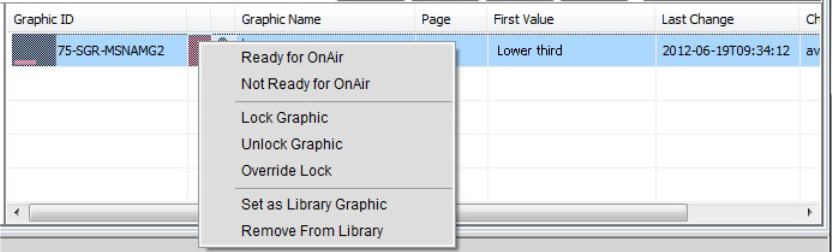
Working with Database Graphics
73
Setting the Ready/Not Ready Indicators
Setting the visual indicator for a new graphic allows the user to see whether or not the graphic is
ready to go on air.
To set the Ready/Not Ready indicator
1. Right-click on the Graphic in the Graphic Database area.
A menu opens.
2. Do one of the following:
tSelect Ready for OnAir if the graphic is ready to playout on air. When this selection is
made, a green colored box appears next to the Graphic ID in the Database Graphic area
to let the user know that this graphic is ready to playout on air.
tSelect Not Ready for OnAir if the Graphic is not ready to playout on-air. When this
selection is made, a red colored box appears next to the Graphic ID in the Database
Graphic area to let the user know that this graphic is not ready to playout on air.
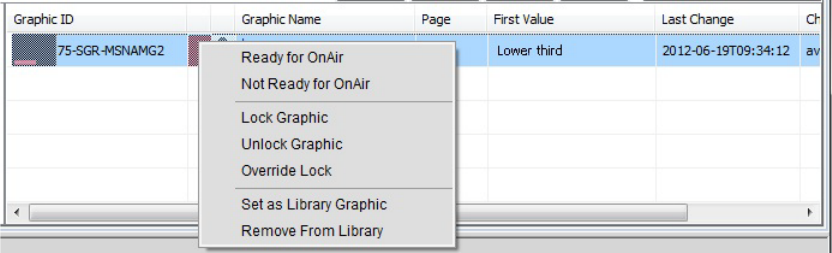
Working with Database Graphics
74
Locking Graphics
After creating and saving a new graphic from an existing template, you can lock the graphic so
that only the user who created the graphic can change the graphic’s values, thus making it a
Library Graphic.
To lock a graphic:
1. Right-click on the Graphic in the Graphic Database area.
A menu opens.
2. Select the Lock Graphic option from the menu.
3. Right-click on the Graphic in the Graphic Database area and when the Menu opens, select
Set as Library Graphic.
To unlock a graphic:
1. Right-click on the Graphic in the Graphic Database area.
A menu opens.
2. Select the Unlock Graphic option from the menu.
To override a lock:
1. Right-click on the Graphic in the Graphic Database area.
A menu opens.
2. Select the Override Lock option from the menu.
nThe override lock option is designed to be used when a graphic must be modified and it is not
possible to login with the appropriate user credentials and unlock the graphic. The override lock
automatically locks the graphic by the current user.
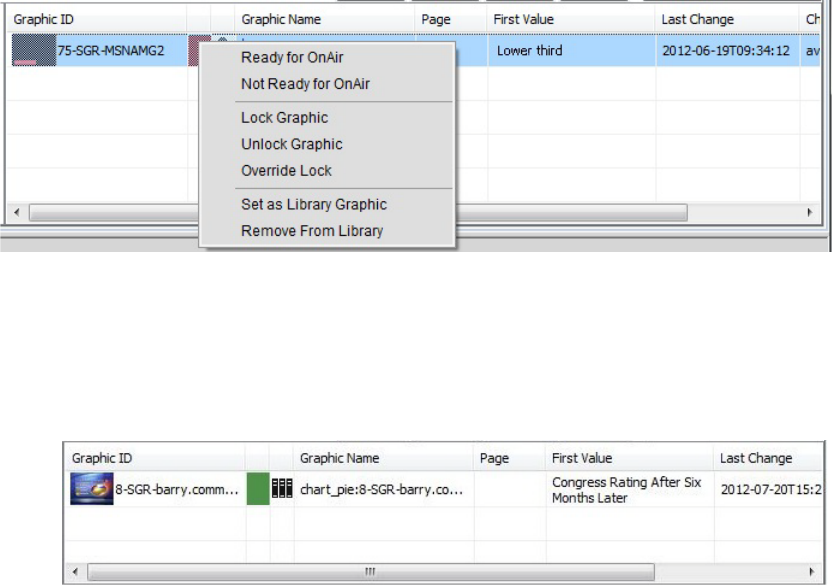
Working with Database Graphics
75
Library Graphics
Frequently used graphics can be marked as Library graphics. It is a good practice for users to
name their library graphics with a unique name so they may be easily identified.
Setting the Library Graphic Option
Marking a graphic as a Library graphic adds a library book icon to the graphic in the Graphic
Database area. This marker identifies this graphic as a Library Graphic and locks the graphic by
the user enabling the option. The Remove From Library option may only be selected if the user
is the one who initially marked this graphic as a Library Graphic.
To set the Library graphic option:
1. Right-click on the Graphic in the Graphic Database area.
A menu opens.
2. Select the Set as Library Graphic option.
The library book icon is added to the graphic in the Graphic Database area, as shown in the
following illustration.
nWhen an item is set as a Library graphic it also gets a locked status assigned to it.

Working with Database Graphics
76
To remove the graphic from the library:
1. Right-click on the Graphic in the Graphic Database area.
A menu opens.
2. Select the Remove From Library Option.
The library book icon is replaced with a user icon in the Graphic Database area, as shown in
the following illustration.
nWhen a graphic is removed from the library, the locked status is also remove from that graphic.
Changing the Name of a Library Graphic
Users can change the title of their library graphic, so that it is user friendly and easily identified.
To change the name of a library graphic:
1. Open the item in the template editor.
2. In the template editor, double-click the Tile field.
3. Enter a name for the graphic.
4. Click the Save button.
You can do this when you first create the graphic or if the graphic has already been created,
by double-clicking the graphic, which opens the template editor allowing you to make the
change.
Using Avid Motion Graphics Journalist with iNEWS
77
Using Avid Motion Graphics Journalist with iNEWS
The following information serves as a “how to” guide for using Avid Motion Graphics Journalist
with iNEWS. It is important to understand how graphics are created, how Journalist can be used
to create and use graphics, and how to avoid any pitfalls.
To add a graphic to a rundown:
tDrag and drop the graphic into the script area in iNEWS.
When you drop the graphic into the script area, iNEWS creates a production cue.
Because the production cue points to a unique item in the database, the cues need to be
treated differently than other products, such as with Deko Select. Remember the following:
- If you drag the same graphic into several rundowns, remember that those production
cues all point to the same graphic.
- When you update an item in the Template Editor (which updates it in the database), it
does not update the production cue – so the production cue will have out-of-date text.
You can avoid this problem by dragging the updated graphic into the production cue,
which will replace the cue with the up-to-date text.
nBecause of this link between the production cue and the graphic, Avid strongly recommends
against reusing graphics for any purpose.
- To alleviate any potential confusion, it would be a good idea to add any graphics that are
going to be used more than once to the Library, so that they are locked by the database.
nThough iNEWS does not have up-to-date production cues, Command always displays the
up-to-date information in the production cue.
Graphics Organization in Journalist for iNEWS
Because of the added functionality of the Lib and Find buttons, there is flexibility in how you can
build and use graphics. The following are some suggestions for organizing graphics in Avid
Motion Graphics Journalist.
General Library Graphics
Create library graphics that are to be used generally, such as the standard reporter-anchor lower
thirds. Journalists can easily find these commonly used graphics using the Find filter.
Using Avid Motion Graphics Journalist with iNEWS
78
Library Graphics with a Specific User Name
Create a specific user in iNEWS, and then use that account to create graphics for a specific use.
Doing this allows Journalists to use the Find filter to search for that set of graphics. For instance,
you can create a ‘5p’ user in iNEWS, and then create all the standard reporter-anchor lower
thirds for the evening shows with the 5p user. Journalists would then be able to search for all of
commonly used Library graphics for the evening shows by adding ‘5p’ to the Find filter. You can
also make a set of morning show graphics with a ‘6a’ user, and another for sports. The
possibilities are endless.
Personal Library Graphics
The Lib or Library button searches for library graphics created by the current user. Individual
journalists can assign any item that may be used repeatedly as a Library graphic, so that they can
be easily found using the Lib button. This allows the journalist to use the Lib button as like they
would a favorites option in their browser. This includes graphics that may only be used often for
a short period of time, but would be used repeatedly. They can be designated as Library graphics,
and when no longer being used, can be removed from the Library.
Page Numbers for Graphics
Graphics can also get assigned page numbers, so that the user can specifically search for a
particular page number. The Find filter does a partial word search, so a search for 100 displays
anything that begins with 100, so it also finds 1000, 105, and 10023.
n These page numbers only for the Find filter, and cannot be used in a hand-entered production
cue.
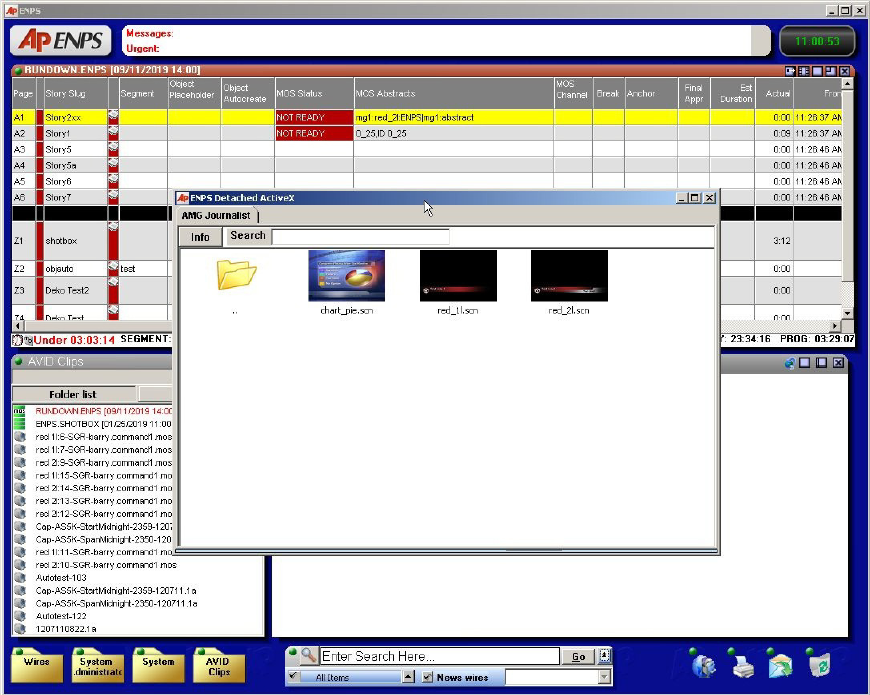
Using Avid Motion Graphics Journalist with ENPS
79
Using Avid Motion Graphics Journalist with ENPS
The Avid Motion Graphics Journalist client in iNEWS consists of the Template area and a
Template Editor, but unlike iNEWS, graphic items are not displayed in the plug-in, but rather
displayed in the ENPS item list. The following illustration shows the Avid Motion Graphics
Journalist client running in detached mode, with the ENPS item list displayed behind Avid
Motion Graphics Journalist.
Using Avid Motion Graphics Journalist with ENPS
80
To open the Avid Motion Graphics Journalist in ENPS:
1. In ENPS, click the following button:
An option menu displays, as shown in the following illustration.
2. Select the AMG Journalist option.
To create an item in ENPS:
1. Drag an item from the list to the Rundown.
2. Add information to the replaceable fields.
3. Click Save.
This returns you to the Template area view and the item appears in the ENPS item list.
4. To add the item to a rundown, drag and drop it from the list to the story script.
To add an item to an ENPS Rundown:
tDrag and drop an item from the list to the story script.

4Avid Motion Graphics Control
Avid Motion Graphics Control is for non-newsroom graphics and control room operators. For
those who need to control sequenced or non-sequenced graphics, and need the ability to adjust
graphics on-the-fly. This application provides full graphics control for playout flexibility. Its
different modes of operation keep playout simple in any situation, live sports, channel branding,
game shows, news, tickers, or election graphics.
The following main topics describe:
•Playout Control
•Template Control
•Motion Graphics Control User Interface
•Creating Keyboard Layouts
•Configuring Settings
Playout Control
There are many tools that can help the operator to control the playout of graphics in a manner
that best suits the needs of each individual type of production. Avid Motion Graphics Control is
able to playout graphics simultaneously, sequentially, in random order, and combine them as
needed.
Template Control
The Avid Motion Graphics Control playout application can automatically manage complex
interacting graphics without additional programming or the creation of complex tables or sheets.
A template can be called up by a name or a number. A numerical keyboard can be used for
operators who prefer calling up page numbers, or you can control templates by using a mouse.
Operators can search for a template or the content in a template, allowing you to quickly find the
graphic required and play it to air. Avid Motion Graphics Control has support for intelligent
templates. With each TAKE, the system knows which pages are live, which should be
maintained, and which new pages should be broadcast The system also knows how all the
graphical objects on the screen need to interact.
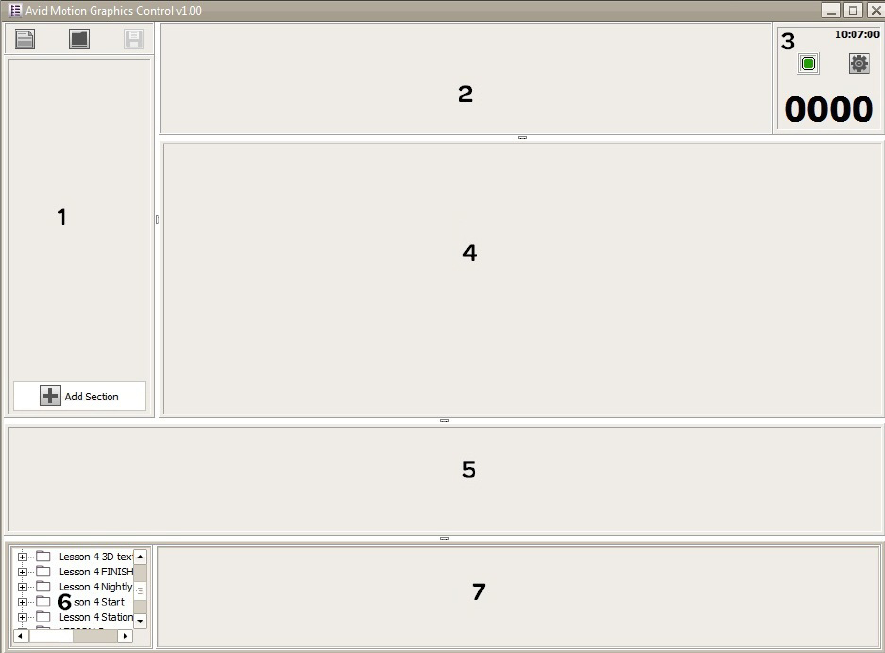
Motion Graphics Control User Interface
82
Motion Graphics Control User Interface
The Avid Motion Graphics Control user interface consists of different areas and controls that are
installed as part of the software.
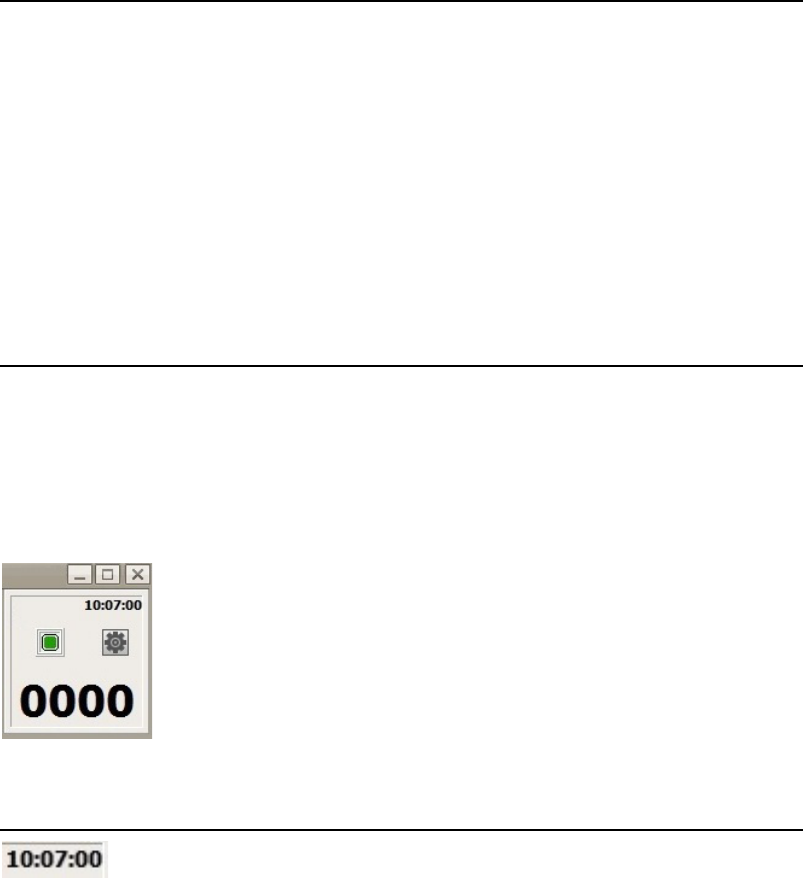
Motion Graphics Control User Interface
83
The following table describes the areas of the Avid Motion Graphics Control user interface.
Settings Area
The settings area of the user interface is located in the upper right-hand corner of the Avid
Motion Graphics Control user interface. This area contains a clock feature, a Render Engine
connection indicator, a Settings button, and a numerical indicator in which page numbers
belonging to specific templates can be entered.
Area Number Description
1 - Section area This area can contain different types of rundowns.
2 - Program Bar area This area contains a list of compositions.
3 - Settings area This area contains a clock feature, a Render Engine connection indicator,
a Settings button, and a numerical indicator in which page numbers
belonging to specific templates can be entered. For more information,
see“Settings Area” on page 83.
4 - Rundown area This area contains a list of compositions to be played out.
5 - Quick Template area Displays templates in use.
6 - Project Browser area This area allows you to navigate to a particular project containing
templates that can be displayed in the Template List area.
7 - Template List area This area displays the templates available in a selected project.
Settings Features Description
The clock feature is a convenient time-of-day display in hours, minutes,
and seconds.
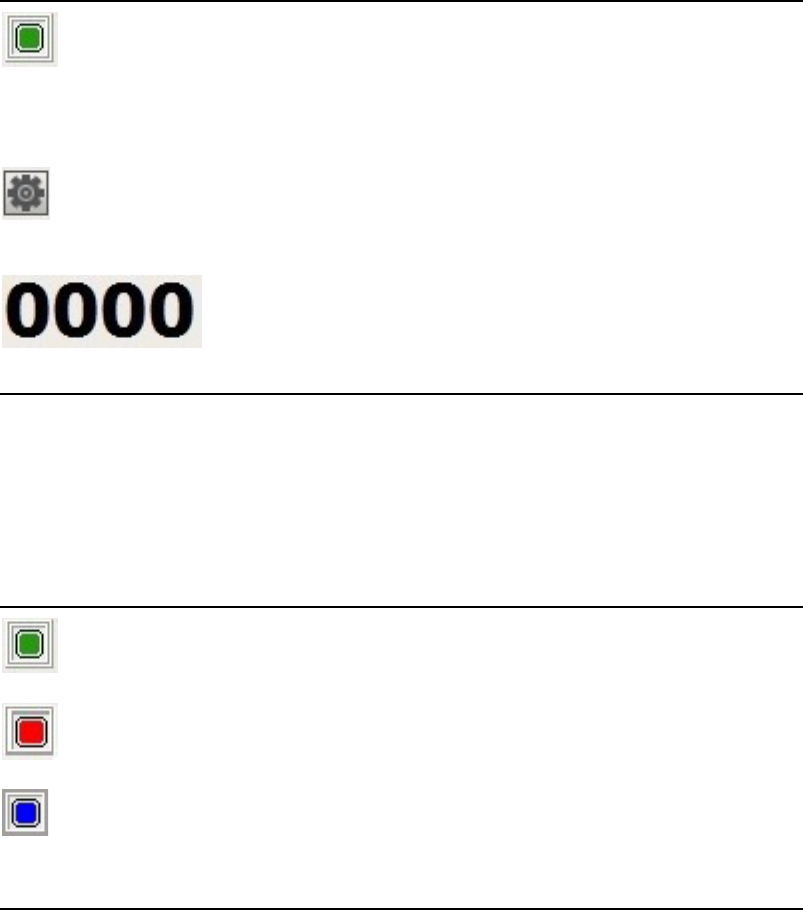
Motion Graphics Control User Interface
84
Render Engine Connection Status
The following table describes the colors displayed by the Render Engine connection status
indicator.
In the event that you have more than one Render Engine configured for your Avid Motion
Graphics Control system, multiple icons are displayed depicting the connection status for each
one.
The Render Engine connection indicator is a visual point of reference to
the connection status of the Render Engines available to the Avid Motion
Graphics Control system. A glance at the colored display informs you of
the connection status of the Render Engines configured for your system.
For more information about Render Engine connection status,
see“Render Engine Connection Status” on page 84.
The Settings button opens the Settings dialog box which allows for
configuration of the Avid Motion Graphics Control application. For more
information about configuring settings, see “Configuring Settings” on
page 89.
The Numerical Page Buffer is the area that displays the page number
assigned to a template, if one is assigned. You use the number pad on the
keyboard to enter the page number, which is displayed here. After you
enter the number, you can pres the Enter key on the keyboard and the
template is displayed, and ready for use.
Settings Features Description
Render Engine
Connection Status Icon Description
A green icon means there is a Render Engine configured to connect to
this Avid Motion Graphics Control system.
A red icon means there is no Render Engine configured to connect to this
Avid Motion Graphics Control system.
A blue icon means there is Render Engine configured to connect to this
Avid Motion Graphics Control system but there is a problem with the
connection. For instance, you might be connected to a different project
than the one specified on the computer on which the Render Engine is
running.
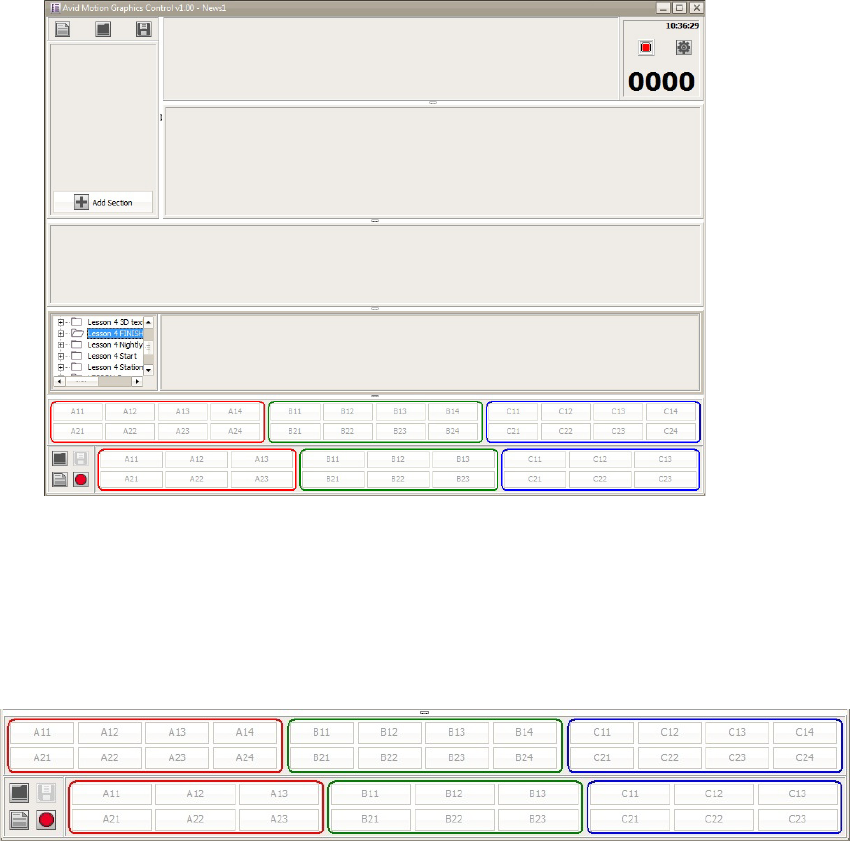
Motion Graphics Control User Interface
85
nAfter configuring Avid Motion Graphics Control to detect a Render Engine, it may be necessary
to click on the icon to refresh the status. For more information About configuring the Render
Engine connection, see “Configuring Settings” on page 89.
Virtual Keyboard
At the bottom of the Avid Motion Graphics Control user interface there ia a resize button.
Clicking this resize button opens a virtual keyboard, as shown in the following illustration.
The virtual keyboard allows a user to map certain actions, in the form of macros, to specific keys
on the virtual keyboard or to the keys on the Avid Motion Graphics Keyboard. The virtual
keyboard is also used with a mouse or a touch screen monitor.
The virtual keyboard uses colors (red, green, and blue), to group keys, as a customizable visual
reference point.
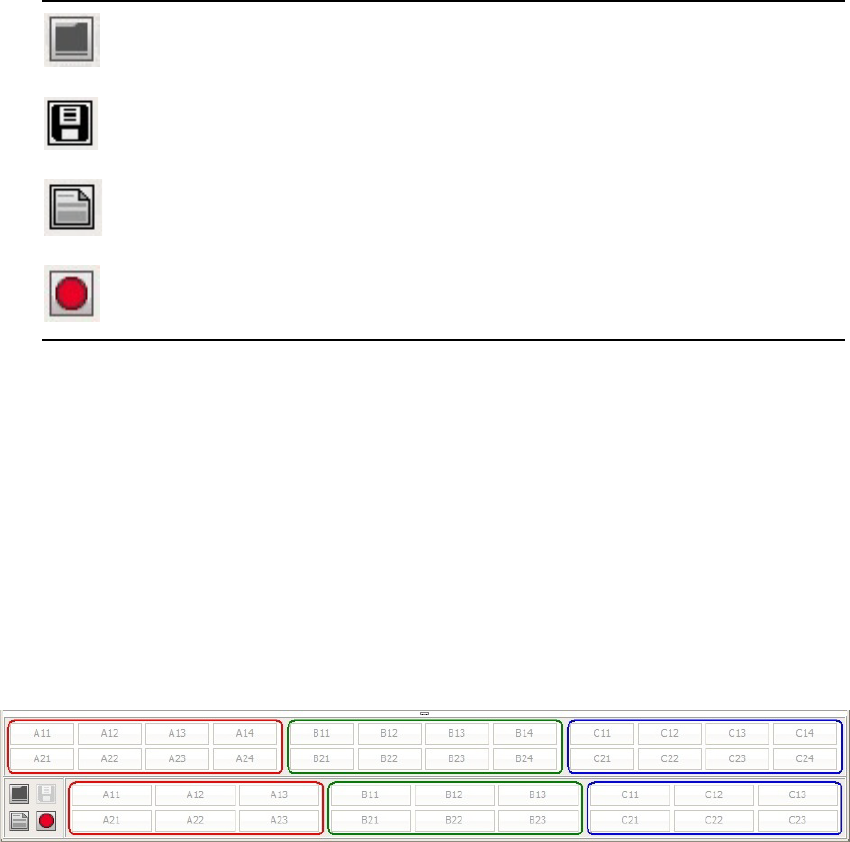
Motion Graphics Control User Interface
86
The virtual keyboard contains keys, grouped by colors, and four buttons that enable the user to
record macros, assigning them to a key on the keyboard, and then saving and naming that
particular group of macros as a keyboard layout. This saved keyboard layout can later be loaded,
for use or cleared completely. The buttons used to perform these actions are shown in the
following table.
Creating Keyboard Layouts
The virtual keyboard allows a user to map certain actions, in the form of macros, to specific keys
on the virtual keyboard. Macros are combinations of keystrokes that perform a defined action or
set of actions and assign that action to just one key. This saves time making the action more
efficient. Combinations of different macros can be saved and named as a specific keyboard
layout. Later, these keyboard layouts can be loaded and used again.
To create a macro:
1. Open the virtual keyboard by clicking the resize button at the bottom of the Avid Motion
Graphics Control user interface.
The virtual keyboard opens.
Button Icon Description
Load Keyboard Layout
Save Keyboard Layout
Clear Keyboard layout
Record Macro
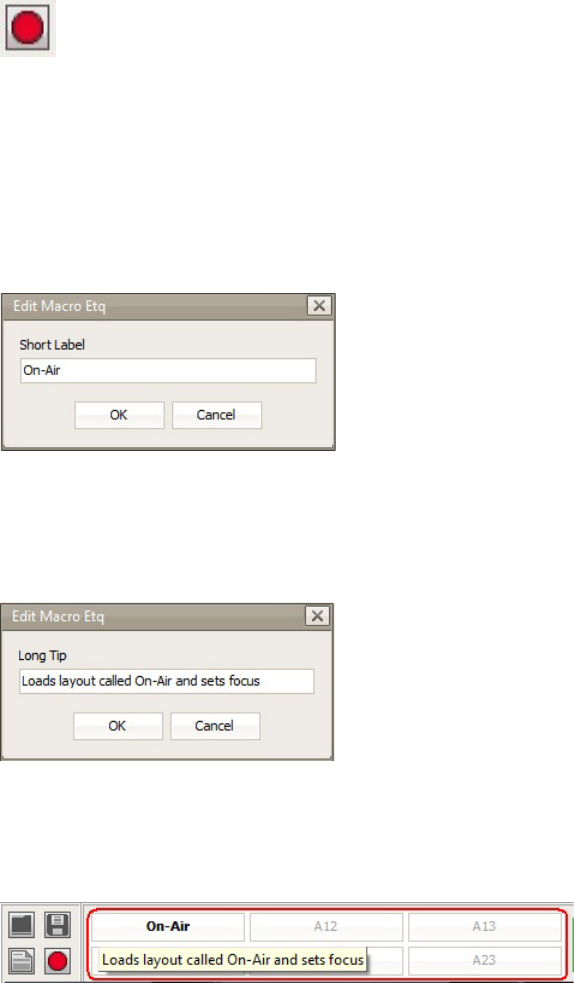
Motion Graphics Control User Interface
87
2. On the virtual keyboard, click the Record Macro button.
3. Hover the mouse pointer over the key (in this example, the A11 key on the bottom grouping
of keys was hovered over) on the virtual keyboard to which this macro will be assigned.
4. Perform the keystroke or combination of keystrokes that result in the desired action. For
instance, load the layout on air.
5. Click the key (the A11 key) on the virtual keyboard that you hovered over previously.
The Edit Macro Etq dialog box opens.
6. Type in the short label to replace A11 label on the key.
7. Click the OK button.
The Edit Macro Eqt Short Label changes allowing you to enter a Long Tip.
8. Enter a longer description of what action results from pressing this button.
This text displays as a descriptive tool tip when you hover over the key on the virtual
keyboard, as shown in the following illustration.
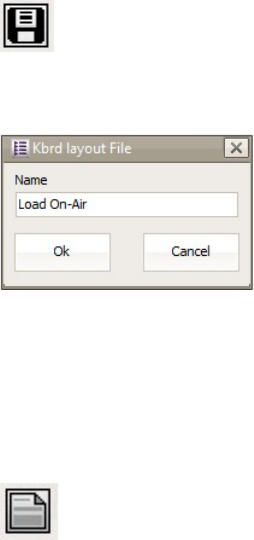
Motion Graphics Control User Interface
88
To save this macro as a keyboard layout:
1. Click the Save Keyboard Layout button.
The Keyboard Layout File dialog box opens.
2. Type a name for this keyboard layout. In the previous example, Load On-Air is the name.
3. Click the OK button.
To clear this macro:
tClick the Clear Keyboard Layout button.
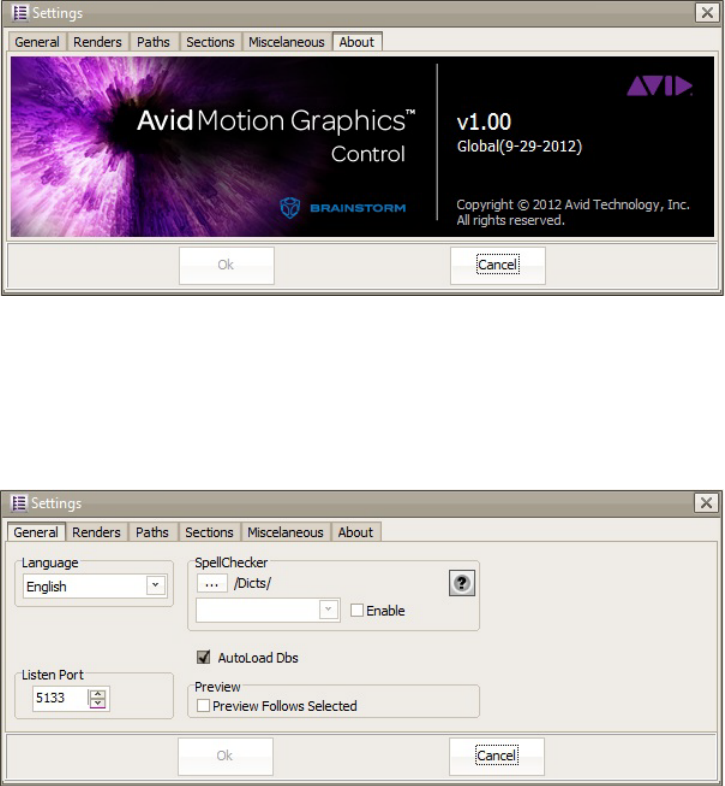
Motion Graphics Control User Interface
89
Configuring Settings
The Settings dialog box is used to configure the Avid Motion Graphics Control application.
To open the Settings dialog box:
tClick the Settings button.
The Settings dialog box opens and displays the information on the About tab.
To configure General settings:
1. Click the General tab.
The General tab opens.
2. Select your language using the Language drop-down arrow.
3. Set your spell check to the desired dictionary if not leaving at the default.
4. Leave all other options on their default.
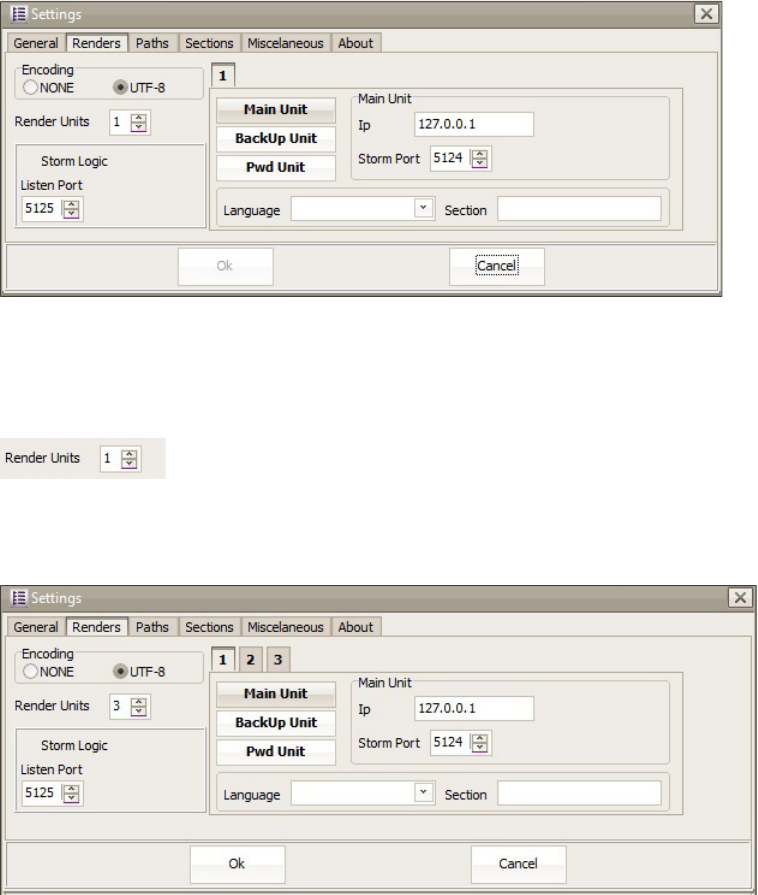
Motion Graphics Control User Interface
90
To configure Render settings:
1. Click the Renders tab.
The Render tab opens.
2. Set encoding.
3. Select the number of render units to which this Avid Motion Graphics Control system can
connect.
As you increase the number of render units, additional numbered tabs appear for each render
unit, which you must configure.
4. Set the StormLogic listen port.
Motion Graphics Control User Interface
91
Each render unit setup consists of the main unit, and if you have them, a backup, and
preview units. Neither a backup or preview unit is required as part of a render unit setup. The
Renders tab is used to configure the setup of the IP address, Storm port, language and
section for each render unit.
To configure settings for a main render unit:
1. In the Settings dialog box on the Renders tab, click the tab number that corresponds to the
render unit.
2. Click the Main Unit button.
3. Enter the IP address, Storm Port, Language, and section for the main unit.
4. Click the Ok button.
nA backup render unit is an option but not required as part of the render unit setup.
(Optional) To configure settings for a backup render unit:
1. In the Settings dialog box on the Renders tab, click the tab number that corresponds to the
render unit.
2. Click the BackUp Unit button.
3. Enter the IP address, Storm Port, Language, and section for the backup unit.
4. Click the Ok button.
nA preview render unit is an option but not required as part of the render unit setup.
(Optional) To configure settings for a preview render unit:
1. In the Settings dialog box on the Renders tab, click the tab number that corresponds to the
render unit.
2. Click the Pwd Unit button.
3. Enter the IP address, Storm Port, Language, and section for the preview unit.
4. Click the Ok button.
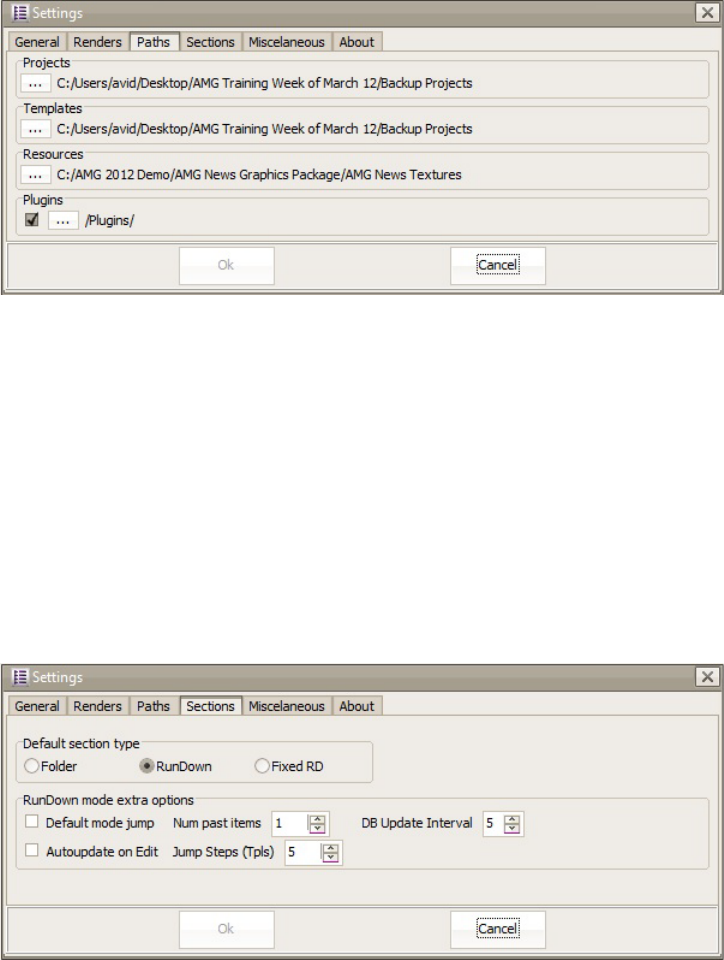
Motion Graphics Control User Interface
92
To configure Paths settings:
1. Click the Paths tab.
The Paths tab opens.
2. Click the ellipsis button in the Projects section to browse to the projects folder.
3. Click the ellipsis button in the Templates section to browse to the templates folder.
4. Click the ellipsis button in the Resources section to browse to the resources folder.
5. In the Plug-ins section, mark the check box to use plug-ins.
6. Click the ellipsis button in the Plug-ins section to browse to the plug-ins folder
7. Click the OK button.
To configure Sections settings:
1. Click the Sections tab.
The Sections tab opens.
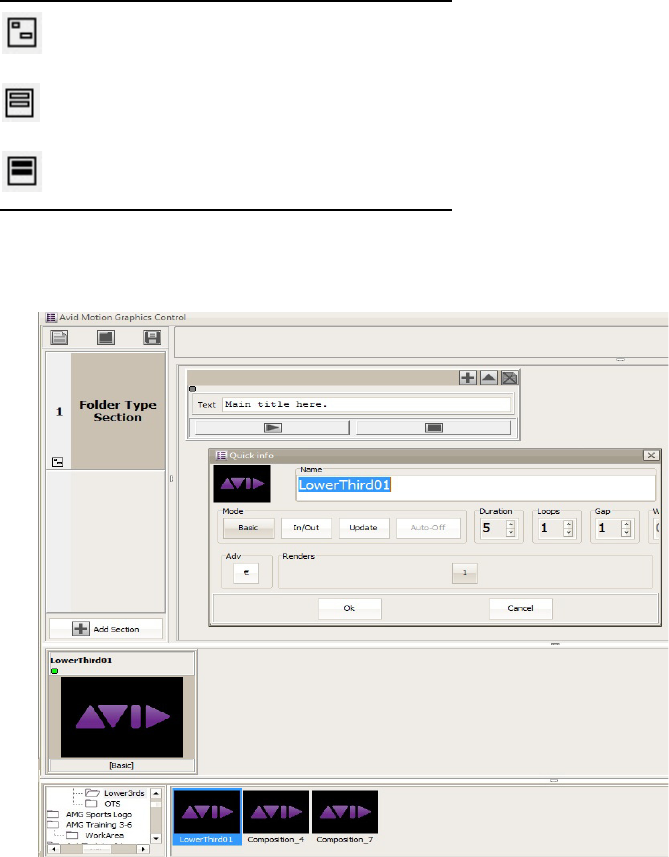
Motion Graphics Control User Interface
93
2. In the Default section type area of this tab, click the radio button that corresponds to the type
of sections you want to create each time you use Avid Motion Graphics Control. The default
is the RunDown type.
Later, when you create your sections, in the Section area of the user interface, an icon is
displayed so you can tell at a glance the type of section in which you are working.
When the Folder section type is defined as the default section type, and you place a template
in that section’s Rundown area of the user interface, two dialog boxes open.
Section Icon Description
Folder default section type
RunDown default section type
Fixed RD default section type
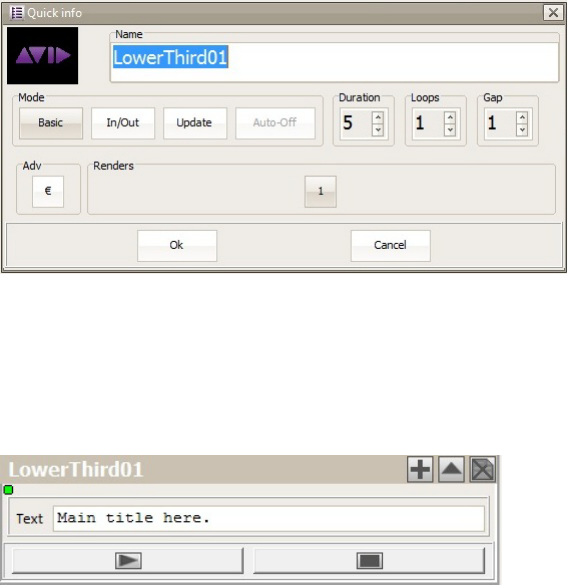
Motion Graphics Control User Interface
94
The Quick Info dialog box, shown in the following illustration, displays a thumbnail image
of the template and information about the template. It also lets you rename and change some
of the template’s attributes.
The Playout Control dialog box, shown in the following illustration, reflects the name of the
template in its title bar and may show other replaceable text fields, as defined in the
template’s original composition. It lets you duplicate a template or change certain text, as
defined within the template’s original composition. This is ideal for a workflow requiring
frequent, quick changes.
Motion Graphics Control User Interface
95
The Playout Control dialog box contains the buttons described in the following table.
To configure Miscellaneous settings:
1. Click the Miscellaneous tab.
Within the Miscellaneous tab, you can choose to log the commands performed by Avid
Motion Graphics Control, such as play and eject, and set the log path. You can also set the
number of maximum log files and maximum log file size, as well as direct the keyboard
layout to a different path.
Button Description
Duplicate - pressing this button
creates another instance of the
template, which can be edited,
played out, and saved.
Toggle - pressing this button
toggles between a thumbnail view
of the template and the edit view of
the Playout Control dialog box.
Play - pressing this button plays the
template on air. It changes the color
of the Playout Control dialog box
title bar to red, signifying the item is
on-air.
Stop - pressing this button while the
template is on air stops the playout.

5Avid Motion Graphics News Control
Avid Motion Graphics News Control is designed for the news graphics operators who need
graphics rundown automation with manual control. This application allows for automated
graphics playout connected to the NRCS rundown, on-the-fly graphics adjustment, and
third-party production automation integration.
The following main topics describe:
•News Control User Interface
•Basic News Control Operations
•Special News Control Operations
•Advanced News Control Operations
•Channels
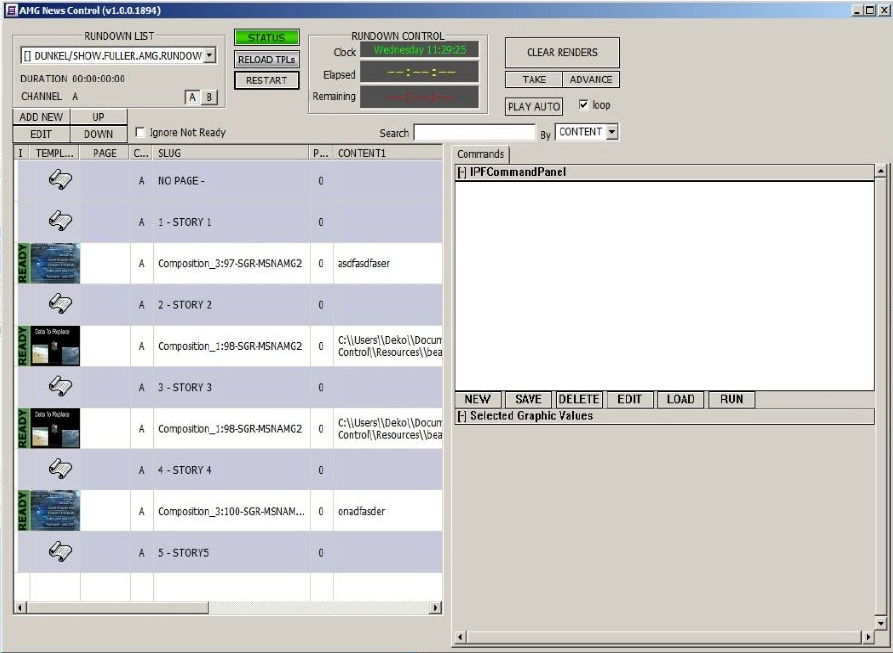
News Control User Interface
97
News Control User Interface
The Avid Motion Graphics News Control application is allows operators to broadcast graphics in
a MOS environment. Producers and journalists can mark rundowns as on air, and the operators
can load those rundowns and play out the graphics.
The user interface is divided into the following areas:
•Control Area
•Rundown Area
•Message Area
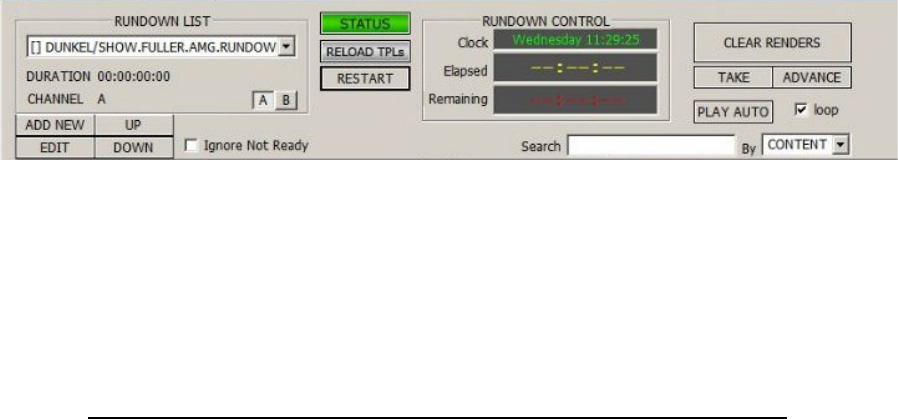
News Control User Interface
98
Control Area
The Control area is located across the top portion of the window.
This area contains all of the controls, which an operator can use to load rundowns, start playout,
add new graphics, edit graphics, and so forth. To use some of these controls, you must have a
rundown loaded or a graphic selected; otherwise, the controls are not enabled.
The most frequently used controls, their hot-key shortcuts (if any), and their descriptions are
listed in the following table:
Control Keyboard Shortcut Description
Rundown selector tool This tool allows you to select a
rundown to control from a list of
available rundowns.
ADD NEW button Numeric Keypad + The ADD NEW button allows you to
create a new graphic.
EDIT button Enter The EDIT button allows you to edit
the selected graphic.
UP button Page Up The UP button allows you to move the
selected graphic up.
DOWN button Page Down The DOWN button allows you to
move the selected graphic down.
RESTART button Backspace The RESTART button allows you to
restart the show and selected in cue is
the first graphic.
TAKE button space bar If there is a graphic on air, pressing the
TAKE button stops it. If there is no
graphic on air, pressing this button
plays the cued graphic.
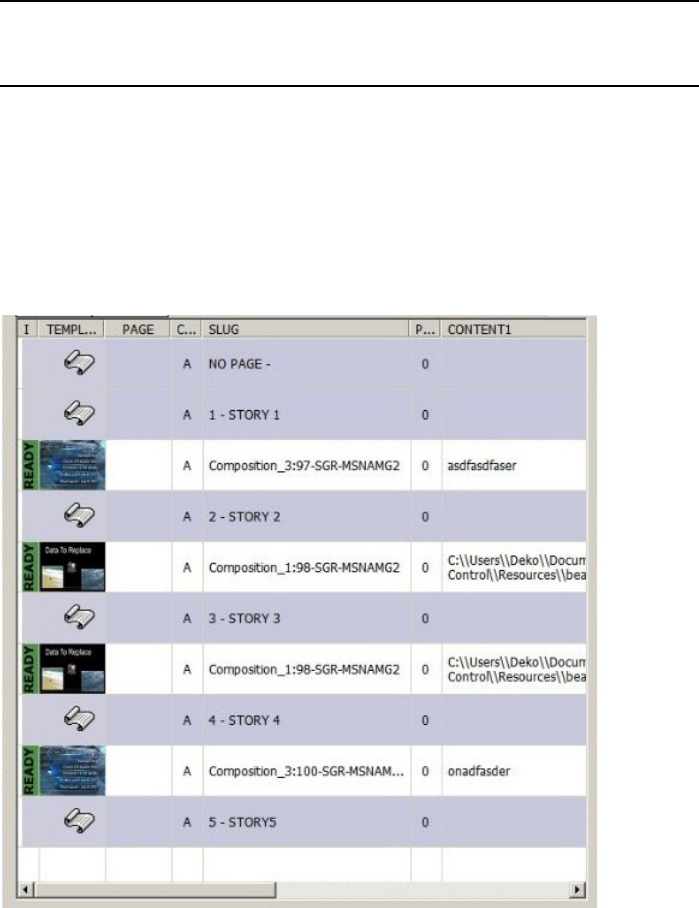
News Control User Interface
99
nHot-key assignments can be modified in the
controller.ini
configuration file.
Rundown Area
When a rundown is loaded, all of its stories and graphics compositions are shown in the
Rundown area. The Rundown area lets you view what is currently on air and also what goes to
air next.
ADVANCE button Ctrl Pressing this button replaces the
current played graphic by the next
cued graphic.
Control Keyboard Shortcut Description

Basic News Control Operations
100
In the Rundown area, an on air graphic row is highlighted in red, a cued graphic is highlighted in
yellow, while a selected graphic is highlighted in blue. Stories appearing in the Rundown area
are gray and depicted by a story icon, as shown in the following illustration.
Message Area
The message area is located below the Rundown area and remains blank unless a message is
generated by the application. Any messages for the operator are displayed in this area.
In Python scripts, when the command is activated, the CODE IN script is sent to the player and
when it is deactivated, the CODE OUT script is sent to the player. If a Python Script command
has no CODE OUT, it won't have two states. When the command is run, it sends the CODE IN
script, but remains deactivated. That means, every time this command hot-key is pressed, it sends
the same code.
Basic News Control Operations
The Avid Motion Graphics News Control application provides the following basic operations:
• Rundown selector—allows you to select a rundown.
• RESTART button —allows you to restart the show. When you do this, the first available
graphic is automatically cued.
• TAKE button —plays the cued graphic and automatically cues the next graphic.
n If you continue to press the TAKE button, you can sequentially play and stop each graphic in the
rundown
• RESTART button—pressing this button restarts from the beginning.
Basic News Control Operations
101
Changing a Cued Graphic
A graphic that has already been cued can be changed at any time while it is in the cued state.
To change a cued graphic:
1. Do one of the following:
tClick to select a cued graphic from the Rundown area.
tIn the Rundown area, move to the graphic you want to select using the up or down keys
on the keyboard.
2. Click the Left arrow key on the keyboard to change the preview.
Modifying the Position of a Graphic in a Story
Graphics that are part of a story can be moved between the limits of that story.
To modify the position of a graphic:
1. Do one of the following:
tClick to select a cued graphic from the Rundown area.
tIn the Rundown area, move to the graphic you want to select using the up or down keys
on the keyboard.
2. Do one of the following:
tPress the MOVE DOWN button in the Control area to move the graphic down or press
the Page Down key on the keyboard.
tPress the MOVE UP button in the Control area to move the graphic up or press the Page
Up key on the keyboard
Template Editor
The Template Editor is a dialog box used to edit the contents of a graphic. The template contains
data for a graphic. When the Template is designed, some of the template's fields, which contain
data about a graphic, are filled in later by a journalist. A Graphic (sometimes called an object)
can be a template plus the data values that are filled in by a journalist.
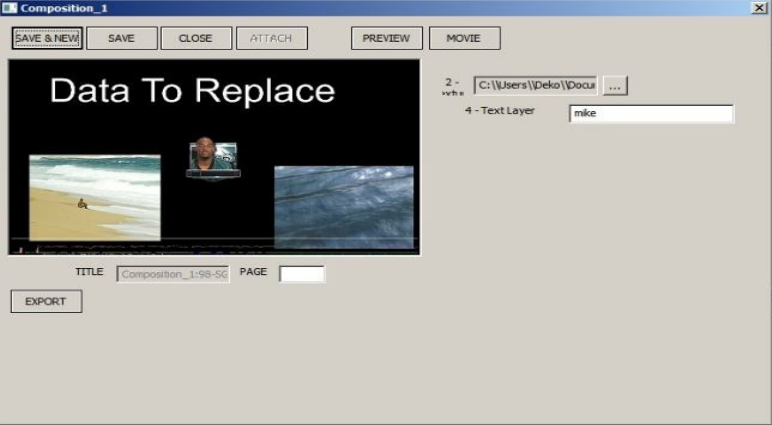
Basic News Control Operations
102
Editing Graphics Content
The Motion Graphics News Control application allows you to edit the contents of any graphic
that is not on air.
To edit a graphic:
1. Do one of the following:
tClick to select a graphic from the Rundown area.
tIn the Rundown area, move to the graphic you want to select using the up or down keys
on the keyboard.
nEnsure the graphic you have selected to edit is not currently on air.
2. Do one of the following:
tPress the EDIT button to open the Template Editor dialog box.
tPress the Enter key on the keyboard to open the Template Editor dialog box.
nThe Template editor dialog box opens displaying the name of the graphic of which you selected.

Basic News Control Operations
103
The Template Editor contains the following:
3. Edit the data values for the graphic.
4. Press the SAVE button to close the Template Editor dialog box.
Adding a New Graphic to a Rundown
The Motion Graphics News Control application allows you to add new graphics to a rundown.
However, the original rundown is not updated in the journalists software.
nWhile you can add new graphics to a rundown, the original rundown won't be updated in the
journalists software.
To add a new graphic to a rundown:
1. In the Rundown area, click an existing graphic to select the location in which to place the
new graphic.
When added, the new graphic will appear next to the graphic you have selected.
Name Description
SNAPSHOT This is the image of the selected template. This allows users to view the graphic.
TITLE This is the name of the graphic. Users can not edit this field if the system is
configured to create auto names. If the system is configured as mixed, this field
appears non-editable but users can double-click in the field, and then edit the name
of the graphic.
PAGE This is an optional field that allows the user to set a number for this graphic. This
number can be used later to search for this graphic. Page numbering is not supported
by RCG Lite.
Values Area These areas are filled in by the users to create the graphic. For instance, the name of
the person the character generator (CG) has to display.
SAVE & NEW
Button
Creates a new graphic with the current values and template but doesn't close the
dialog that allows the user to create more graphics using the current template.
SAVE Button Saves the graphic with the current values and closes the dialog.
CLOSE Button Closes the Template Editor without saving the graphics.
PREVIEW Button Updates the Snapshot area to show the graphic appearance with the current values.
MOVIE Button Creates pre-rendered graphics, a movie, that is displayed in the Snapshot area with
the IN and OUT transitions for that graphic using the current data.
EXPORT Exports the graphic as a movie file, which can be used in post production programs.
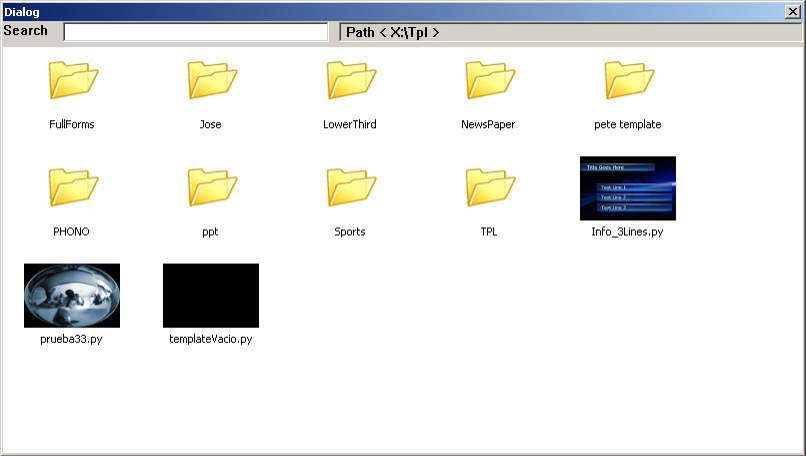
Special News Control Operations
104
2. Press the Add New button in the Control area.
3. Click to select a Template.
The Template Editor dialog box opens.
4. Fill in the data values for the graphic.
5. Press the SAVE button in the Control area.
Special News Control Operations
Beyond selecting and restarting rundowns, playing cued graphics, and stopping them, there are
some special operations that can be performed using Avid Motion Graphics News Control. You
can check the status of the system, synchronize templates, and clear render windows. For these
operations, you will use some of the other tools in the Control area.
• STATUS button—lets you check the system and identify any connection problems with any
of the required computers.
• RELOAD TPLs button—lets you synchronize the templates in the render machines with
current templates placed in the shared folder.
• CLEAR RENDERS button—lets you clear the render window.
• Ignore Not Ready—when this Check box is marked, the News Control application ignores
the Not Ready label associated with this graphic, which allows the user to play the graphic.
Special News Control Operations
105
Checking Status
The availability of the system to display a rundown depends on whether or not the players are
running and have the required templates loaded and also if the Avid Motion Graphics News
Control application has a connection to MOS Gateway so it can receive rundown related
messages.
To check the status of the system:
tPress the STATUS button.
This results in a message that reads, Checking System Status. This message is followed by
more system information.
If errors were detected during the check, the STATUS button turns red in color. When the
Avid Motion Graphics News Control application is started, the system does a first system
check. Following this initial check, every three minutes, the application automatically runs a
full system check in the background.
Each time that a play-out command is issued (play, cue, advance) if the command finishes
with an error, it is reported and the STATUS button changes to the red color. If any error is
reported the operator should press the STATUS button to retrieve message containing the
detailed information about the source of the errors.
Ready and Not Ready Status
Graphics are created in a READY status by default. However, it is possible to change that status
to NOT READY using Avid Motion Graphics News Control or Journalist. Changing the status
this way just means that the graphic is not available in News Control the status change is not
reflected in any other application.
The READY status depends on the user's workflow. It could mean that the graphic needs to be
reviewed, that it is not yet finished or some other meaning. The following are the general
considerations for the Ready or Not Ready status.
• Mark the Ignore Not Ready check box to allow the News Control application to assume all
the graphic is in a READY status.
• Press CHANGE READY STATUS to turn the selected NOT READY graphic into a READY
one.
• Press CHANGE READY STATUS to turn the selected READY graphic into a NOT READY
one.
nPressing CHANGE READY STATUS when a STORY is selected changes the whole story to NOT
READY (including all the graphics inside the story). This could be useful for floating stories.
Advanced News Control Operations
106
Clearing Renders
In some situations, a graphic might not stop when News Control sends the stop signal. For
instance, there might be an error in the template design, such as in the template animations. You
can fix this situation by pressing the CLEAR RENDERS button, which stops all graphics in all
players, and clears the output.
Advanced News Control Operations
The more advanced operations performed in Motion Graphics News Control involve searching
for a specific graphic, pausing the playout of a graphic or locking a graphic.
• Search—the Search box allows users to search for graphics using their title (SLUG), their
three columns of content, their page number or by all of these criteria. The user can select
the search content using the drop-down list next to the search field.
• Pauses—the number entered in this column indicates the number of additional takes that the
graphic requires due to pauses in its animation. The number of pauses could depend on the
contents of the graphic or be a fixed number.
• Locked Graphic—when a graphic is locked it cannot be stopped with the next TAKE, this
allows you to have more than one graphic on air.
• Page Number—each graphic can have a page number assigned to it, which can be used in
searches, cueing or to quickly go to air with a specific graphic.
Pauses
Graphics can be animated by various numbers of TAKEs. These graphics display their associated
number of TAKEs in the PAUSES column and highlighted in orange. What the graphic does
during a TAKE, depends on its template design. Often times the TAKEs are used to show rows in
a table, as the spokesperson speaks about them. Sometimes they are part of smart templates that
show more or less information depending on the graphic data.
When the TAKE button is pressed, the number in the PAUSES column decreases to zero. When
the number reaches zero, the graphic becomes a common graphic, and the number zero, in the
pauses column, is no longer highlighted in orange. The graphic is stopped during the next TAKE.
Advanced News Control Operations
107
Searching for Rundown Graphics
Users can search for a specific graphic by entering some text in the search box located in the
Control area. By default the system searches for the first graphic with matching content. The
starting position is the current selected graphic or the first graphic in the rundown if there is no
match found.
Users can also change the search criteria selecting a different search criteria from the drop-down
list located next to the search box. The drop-down list contains CONTENT, SLUG, PAGE or
ALL as search criteria.
Using Page Numbers
Graphics are sometimes called, pages. Each graphic can have an assigned page number. This
allows a user to operate those graphics faster without the need of selecting them. Page numbers
can be assigned during the graphics creation or later using the Template Editor. A graphic can be
played, Cued or Edited if you know its page number.
To find a graphic by its page number:
1. Ensure the cursor focus is not in the Search box.
nThis operation does not work if your cursor is located in the Search box.
2. Using the number pad on your keyboard, press the page number of the graphic.
The page number displays, briefly, in the Search box.
3. Do one of the following:
tPress the Take button to play the page on-air.
tPress the Cue button to cue the page.
tPress the Edit button to open the Template Editor.
Transitions
Transitions are sometimes referred to as animations. The StormLogic feature of Avid Motion
Graphics defines how one template relates to another. For instance, users can define which
templates can be displayed at the same time or which ones can not be played together. Templates
are usually generated as stand-alone graphics. Additional graphics can be generated that point to
that template and define what transition is used when the graphic is played IN or played OUT. It
can also define backgrounds that must be played before playing any of the other templates.
Channels
108
Pressing the ADVANCE button always plays the cued graphic. If there was a graphic already
on-air, pressing the ADVANCE button stops that graphic. If the cued graphic and the on-air
graphic use the same template, pressing the ADVANCE button makes a transition between the
two graphics, providing that both of the templates allow transitions.
Playing Locked Graphics
Locked Graphics are useful for combining several graphics at the same time. When a graphic is
locked, the controller won't stop it while it plays other graphics.
To play and lock a graphic:
1. Cue the graphic.
2. Do one of the following:
tPress the Take button.
tPress the Advance button.
3. Click to select the graphic.
4. Press the Lock Graphic button.
To stop a locked graphic
1. Select the graphic.
2. Press he Lock Graphic button.
3. Press the Take button.
Channels
Avid Motion Graphics News Control can operate more than one channel in a single rundown.
Each graphic has an assigned channel and each channel has an assigned player. In this way, when
a graphic is on-air, it is displayed by the player to which the channel is assigned.
Each channel has its own cue but both channels share the same rundown and the same actions
(Buttons and hot-keys). The active channel determines what channel is detected by an action.
The Channel buttons are located in the Control area. Clicking on the button changes the active
channel of a selected graphic. The channel to which a graphic belongs is displayed in the
Channel column in the Rundowns area.
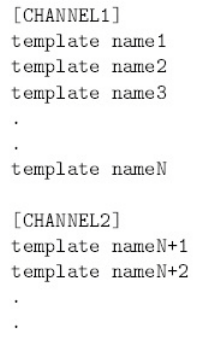
Channels
109
Channel Auto-Activation
There is always one active channel. The active channel can be changed. It also changes
automatically after each action to select the channel whose cued graphic is in the upper position.
This is done to maintain a coherence between the position of the graphics and the order they are
in which they are played.
As an example, before forcing a take action on channel A, no matter what channel is active, the
user must press Activate Channel A prior to pressing the Take button.
Channel Assignment
Each graphic can be assigned to any channel using the channel selection by editing the
channels.ini file to auto-assign the channel to each graphic based on its template name. The
channel.ini must contain one main channel per each support channel (usually two) and a list of
template names assigned to each channel, as shown in the following illustration.

6Avid Motion Graphics Tools
A variety of Avid Motion Graphics Tools are available for use with your Avid Motion Graphics
system.
The following main topics describe these tools:
•Avid License Control
•AMG Advanced Device Manager
•AMG Control
•Avid Motion Graphics Font Package
•AMG Transcode
•Deko Translator
•Deko Chart Designer
•Deko Player
Avid License Control
Avid License Control must be installed on any computer with a licensed component. For
instance, the servers pass licenses to Journalist clients and News Control clients.
For more information, see the Avid Motion Graphics Setup and Configuration Guide.
AMG Advanced Device Manager
This device manager is used for the iNEWS Command workflow or Intelligent Interface
Integration (III).
AMG Control
AMG Control is used to control playout of graphics in non-newsroom playout situations. For
more information, see “Avid Motion Graphics Control” on page 81.
Avid Motion Graphics Font Package
111
Avid Motion Graphics Font Package
This font package provides fonts to support graphics previously created in Deko. Users can
create new graphics using fonts from this package in Avid Motion Graphics too.
AMG Transcode
AMG Transcode lets you convert from multiple clip types into a format that allows real-time
playback with correct audio alignment. Use it to convert clips that suffer from real-time and
audio alignment issues.
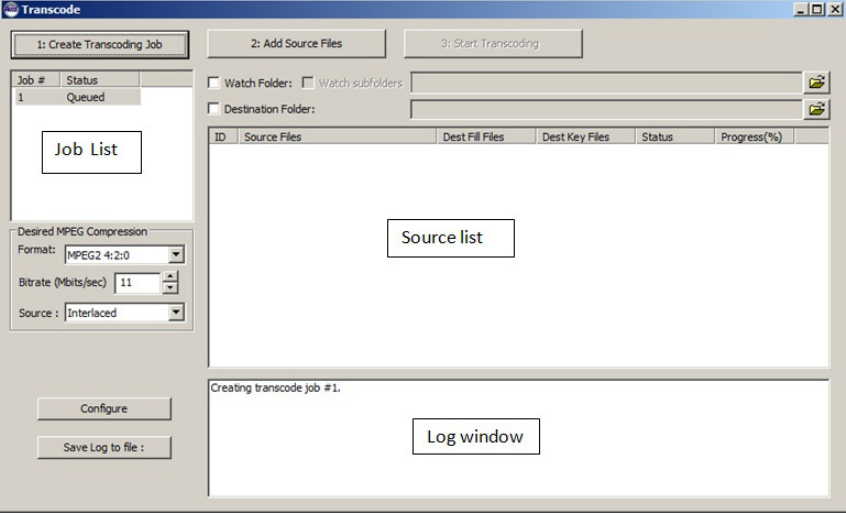
AMG Transcode
112
Using AMG Transcode
If your clips are contained in several different folders and you want to preserve the same folder
structure, you need to create different jobs in the Transcode application. The Transcode
application lets you process multiple jobs simultaneously. The application’s user interface has
three main sections:
• Job List - a list of defined jobs and their current statuses. You can select any job from the list
to add files or change settings at any time.
• Source List - a list of files to be transcoded for the selected job.
• Log window - the area of the application where you can view a list of log files for all jobs.
Use the Save Log to File button to enable logging of all entries to a text file; this might be
required for support purposes.
To perform a transcode:
1. Create a job by clicking the Create Transcoding Job button.
There is always a Job #1 created when you start the application.
AMG Transcode
113
Each job you create can contain different values for each transcode option. For instance, you
can set up one job to transcode selected files to one destination in 4:2:0 format and a second
job to a different destination with a 4:2:2 format.
2. Add source files to the selected job (in the Job List) by clicking the Add Source Files button.
A dialog appears letting you choose a file. You can make multiple selections from your disk.
Reclick the button to add more source files to your job.
nYou can right-click to add source files or drag and drop files from Windows Explorer to your
Source List. Files are validated as they are added, so you can also add more files to a job even
after the job started.
3. Set transcode options in the Desired MPEG Compression section. Those options are:
Format, Bitrate, and Source.
4. (Optional) Define a subfolder to watch, using the Browse button, and select the Watch
Folder check box if you want to automate the transcode process. When enabled, the
Transcode application will monitor the defined folder, and as soon as a file is placed into that
folder a transcode process will start, using all of the settings defined for the job.
nUsing this feature in conjunction with a destination folder and the Delete Job + Delete Source
configuration options means that the application will continuously monitor for files and
transcode them as they are received, effectively automating the process.
5. Set the destination folder.
By default, transcoded clips are put in the same location as the original clips. Use this option
if you want to place the transcoded clips in a different folder.
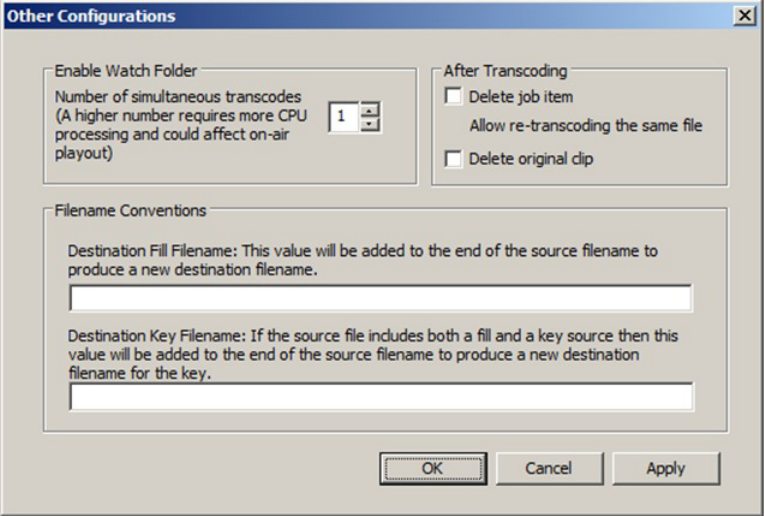
AMG Transcode
114
6. Start transcoding by clicking the Start Transcode button.
The process will take each clip in order and transcode it using the selected options. The job’s
status will update, and then each of the clips in the Source List will update with the status as
they are processed. More than one source file can be transcoded simultaneously by using the
option provided in the Configuration dialog.
Use the Configure button to access extra configuration values.
Deko Translator
115
Deko Translator
Deko Translator is an application that allows you to translate your existing Deko Graphic assets
into native AMG compositions. Because of differences in methodology between Deko and
AMG, other types of Deko assets (motions, effects, and macros) cannot be translated.
The compositions created by Deko Translator provide a basis for porting Deko Graphic assets to
AMG. Animations or other enhancements should be added using native AMG features. For
completely authentic playback of existing Deko assets (including motions, effects, and macros),
use the Deko Player instead.
Before You Begin...
Deko Translator is a stand-alone application, so neither AMG nor Deko is required; however, to
confirm that all of the assets needed to process each Deko Graphic asset are available, a version
of the Deko application is very useful. And the AMG projects and compositions created can only
be used from the AMG application. Therefore, we recommend that Deko Translator, Deko, and
AMG are installed on the same computer. For best results, use a full AMG chassis with a fully
configured version of AMG or AMG Production (such as AMG 2.0), and a fully configured
version of Deko (such as Deko 6.1) or a compatible version of PostDeko.
You should ensure that all elements used by your Deko Graphic(s) are available. This includes
texture files, clip files, the clip database file, fonts, and so forth. The easiest way to verify that the
necessary files are present is to open each Deko Graphic from within the Deko application. We
recommend using the preference called “Prompt if file components not found”, which provides
the opportunity to browse for any files that are not found.
To enable this preference:
tSelect Options > Preferences > Prompts.
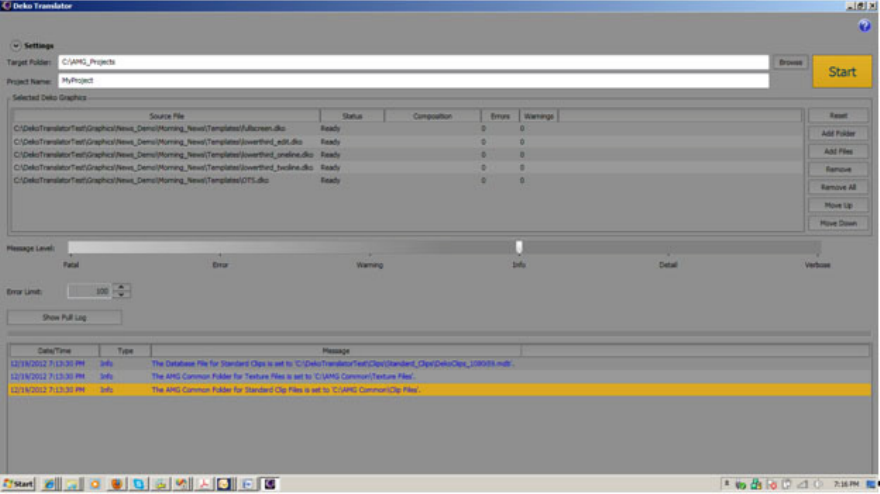
Deko Translator
116
Creating an AMG Project with Deko Translator
Although it is possible to convert a large group of Deko Graphics into a single AMG Project, this
will affect the project load time. We recommend grouping a smaller number of graphics into a
single project.
To create an AMG project with Deko Translator:
1. Use the Browse button to select a target folder in which to create the translated AMG
project. You might want to use the same folder that AMG uses for projects, as set in the
Users Projects preference in AMG. You may also type the target folder name; if it doesn't
exist, Deko Translator will create it.
2. Specify a name for the project. This name should be unique within the target folder. If that
project already exists, you will be prompted to delete it.
cUse of an existing project name will prevent the translation.
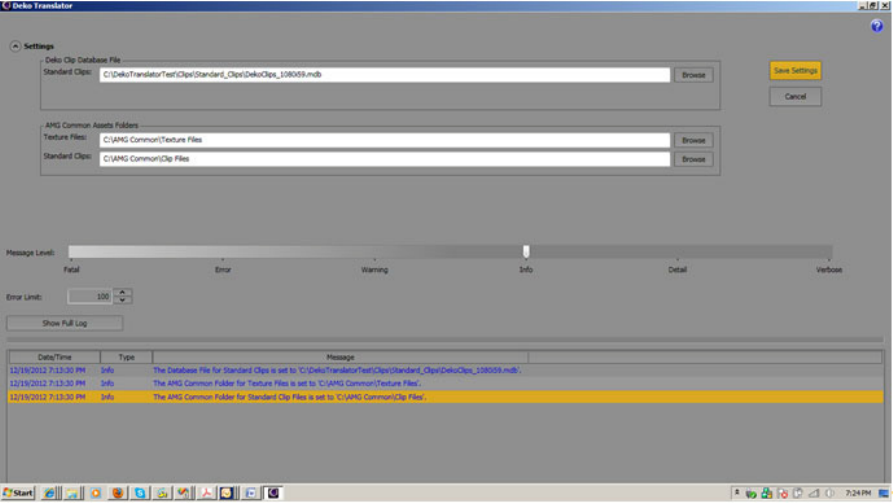
Deko Translator
117
3. Select the Deko Graphics. Specify and organize the .dko files you want to translate into an
AMG project. This project will consist of one composition for each of the Deko graphics.
The order of the Deko Graphics in the Source File List determines the order of the
compositions within the project. Use the buttons to the right of the Source File List to add to
and manipulate the list of Deko graphics.
- Reset - resets the status of all of the graphic files
- Add Folder - adds all graphic files from the selected folder
- Add File - adds a single graphic file
- Remove - removes the selected graphic file
- Remove All - removes all graphic files
- Move Up - moves the selected graphic up in the list
- Move Down - moves the selected graphic down in the list
Deko Translator
118
4. Click the Settings button to open the controls for the Clip Database File and the AMG
Common Assets Folders.
a. Use the Browse button to select the location of the Clip Database File (.mdb). This file
connects Deko Standard Clip names to the actual Fill and Key files that make up the
clip.
b. Use the Browse buttons to select the locations of the AMG Common Assets Folders for
Textures and Standard Clips. These folders specify the locations where Deko Translator
will copy Deko Texture files and Deko Standard Clip files.
nYou will need to set the Common Assets Folder in AMG Preferences accordingly, so that AMG
will share those files across the Project (for use by all Compositions).
c. (Optional) Set the Message Level to control the amount of detail displayed during the
translation process. Use "Info" for less information; "Detail" will provide additional
information.
d. (Optional) Error Limit can be used to limit the number errors that are acceptable in a
single graphic before that translation is abandoned.
e. When finished configuring the Settings, click the Save Settings button.
nAll message levels are logged in the log file. The log file for each session is saved in
C:\ProgramData\Avid\Support\Logs\DekoTranslator and organized by date and time.
5. Click the Start button to begin the translation process.
cClick only once to avoid inadvertently stopping the translation process.
Each Deko graphic in the list is translated to an AMG Composition, within the named AMG
project. Graphics are processed one at a time in the listed order. Each composition takes its name
from the original .dko filename.
As each graphic is translated, its status changes from Ready to In-process to Succeeded or
Failed. The number of errors and warnings for each graphic is shown to the right. The Message
window shows information for each translation, according to the Message Level setting.
Regardless of that setting, all messages are logged in the log file. The progress bar reflects the
translation progress within the list of source files.
You can halt the translation at any time by clicking the Stop button; however, the project will not
be complete and should not be used. After you have started the translation process using a
specific project name, you cannot use that same name again. Either use delete the complete
project folder (under the target folder), or use a different project name.
After the translation process has completed, Deko Translator is ready to create another AMG
project.
Deko Chart Designer
119
When the translation process is complete, an AMG project has been created with a composition
for each Deko graphic in the target folder. Use the AMG application to open the project.
Additions or modifications, such as animations, can be made to the project and any of its
compositions.
nLarger and more complicated projects will take longer to open and consume more memory.
Deko Chart Designer
This AMG tool allows use of Deko graphics previously created with Deko Chart Designer.
Deko Player
Deko Player is a component of AMG that lets you easily play your existing Deko graphics to air.
Each Deko graphic plays out exactly as it would on a Deko, including motions and effects. In its
simplest use, Deko Player lets you produce full screen output. Advanced users can utilize other
features of AMG to enhance that output. For instance, using the AMG Form pane and AMG
animations with Deko Player provides a very powerful workflow for incorporating existing Deko
assets into new AMG workflows.
Deko Player uses only a single instance of Deko to produce its output. That instance is shared
among all of the AMG compositions that use it. So, each time a Deko Player composition is
selected, the current Deko output from the previous composition is displayed, allowing a single
composition to perform a Deko transition effect/motion from the previous composition to the
next.
The Deko Player object is a surface primitive and can be manipulated within AMG, the same as
any other surface. You can use transformations and effects to manipulate the surface. This
feature lets you incorporate new AMG features with existing Deko assets.
Before You Begin...
You must install the Deko Player component to make it available in Avid Motion Graphics.
Using Deko Player in conjunction with AMG Control and AMG Newsroom, you can quickly
build up a very powerful workflow utilizing your existing Deko assets with all of the AMG
workflows.
Before using Deko Player, familiarize yourself with the Avid Motion Graphics and Deko
applications.
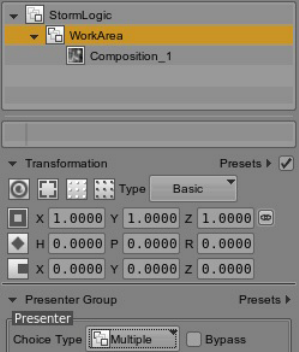
Deko Player
120
To ensure clean back-to-back playout of compositions that include Deko Player objects, set the
Presenter Group Choice Type in the WorkArea setting of the project.
Also, there are many other configuration settings—including Clip Databases, Paths, Preferences,
and so forth—that must be set to ensure Deko Player performs correctly. Use the Configure
button to modify any configuration settings and save your changes by clicking the Save Settings
Now button.
Playing Deko Graphics in AMG Compositions
Deko Player works by mapping the Deko output to a surface within an AMG composition, via
use of AMG material.
nAvid recommends you create a separate composition for each Deko graphic.
To play a Deko graphic in a composition:
1. Add a Deko Player object to the composition.
a. Navigate to the Deko category in the object library.
b. Double click the Deko Player object to create a full screen version for normal use. For
advanced users, drag the Deko Player object to the Edit Viewport.
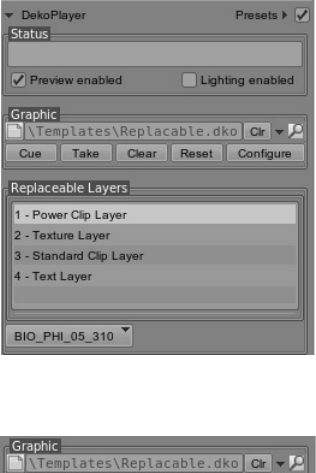
Deko Player
121
After a Deko Player object is added to the composition, the Deko Player user interface (in
the Object pane of the Model area) appears and lets you control all aspects of the Deko
Player.
2. Select a Deko graphic to be played.
3. Choose a replaceable layer and modify its value.
There are four different types of replaceable layers for the selected Deko graphic.
- Power Clip Layer - Choose a clip from the list of available power clips in the Deko Clip
database. Use Configure to modify the selected database. This type of layer is not
available through the AMG Form pane.
- Standard Clip Layer - Choose a clip from the list of available standard clips in the Deko
Clip database. Use Configure to modify the selected database. This type of layer is not
available through the AMG Form pane.
- Texture Layer - Use the File Selector to choose a file for use as a Deko texture.
- Text Layer - Use the edit box to type the text.
You can select one or more of these replaceable layers as editable data in the composition’s
form. The use of the AMG Form pane lets you access the replaceable layer data from other
AMG applications in the workflow.
Deko Player
122
4. Cue the Deko graphic.
The Cue button loads the selected graphic into the Deko Preview window and causes the
associated effect/motion to begin playing. Since a pause is automatically inserted at the start
of the effect/motion, the graphic is now fully cued and ready to be taken to air. If the graphic
has no associated effect/motion, a cut effect is used.
nThe cueing process might take several seconds.
5. Take the Deko graphic to air.
The Take button plays the cued graphic. Since the cued graphic is paused at the start of its
associated effect/motion, the Take button triggers the beginning of playback. If the
effect/motion contains additional pauses, use the Take button to trigger the release of each
pause, which lets the playback to continue.
6. Clear the Deko graphic.
The Clear button is used to clear the on-air graphic via a dissolve. The duration of the
dissolve is controlled by an advanced Deko preference called Motions: Default fade in/out.
Playing Deko Graphics in AMG Control or AMG News Control
Deko Player is designed to be controlled from AMG Control or AMG News Control. These
AMG applications work by triggering the TemplateIn and TemplateOut animations of a
composition. The TemplateIn animation is designed to do a cue operation followed by a take
operation. The TemplateOut animation is designed to do a clear operation. These Animations can
be triggered by the Take features of AMG Control or AMG News Control.
nBecause of the differing complexity of graphics and motions, the cue operation can take a
variable amount of time. For best results, Avid recommends using a multistage take operation in
AMG Control.
To set up the TemplateIn animation:
1. Drag the Cue to position 0.
2. Drag the Animation Pause to just after the Cue.
3. Drag the Take to just after the Pause.
4. (Optional) If you want to clear the graphic in between the takes operations, add Clear to
TemplateOut.
When accessed from AMG Control, the first take (using the Space Bar) will perform a cue. The
pause will then become active. At this point, the Cue to Preview option will provide a visual
reference that the graphic is cued and ready to be “taken” to air, as well provide confirmation that
the graphic and data are correct. Press the Space bar to perform a take operation, playing the
graphic on air. If you have added Clear to TemplateOut, you are now in a paused state and can
Deko Player
123
then use the Space bar to process the clear operation when you are ready. Otherwise for
back-to-back graphics, you must select the next template before playing off the current template;
playing off the current template without such a selection will result in cleared program output.
Motions with Pauses
If you have Deko Motions that contain multiple pauses, you need to take each pause in the
motion in order to step though each pause. Replicate this in the TemplateIn animation. For each
stage, add an AMG ‘Pause’ followed by a ‘Take’. Then in AMG Control, press the Space bar to
trigger each Pause.
Cancelling a Previewed Graphic
After a graphic has been cued to preview, it might become necessary to abort that graphic, such
as for spelling mistakes, incorrect graphic, etc. There are two workflows to abort a previewed
graphic.
To abort a previewed graphic:
tUse Abort. (Ctrl+Alt+Space bar)
This will cause the active graphic to unload from program output; it will go black. It will
also trigger the TemplateOut animation, if defined.
tUse the following steps for back-to-back workflows; this procedure will leave the active
graphic in the program output, as long as a multistage take operation is used in AMG
Control.
a. Select any other template in the section; this is just temporary.
b. Ensure that the template you want to abort is selected to unload, and then press the
corresponding F key; ensure it is solid red.
c. Press the Space bar to take the new graphic to the first Pause, temporarily; it will update
on Preview.
d. Make the Edit modification to the original graphic required.
e. Reselect the original template in the section.
f. Ensure that the temporary template you select earlier is now selected to unload, and then
press the corresponding F key; ensure it is solid red.
g. Press the Space bar to take the modified graphic. It should now be cued to preview,
ready to go to air.
Deko Player
124
Defining Replaceable Data Using AMG Control or AMG News Control
You can control the replaceable data of a Deko graphic from AMG Control or AMG News
Control. This powerful feature lets you populate the data of a Deko graphic from the main AMG
controlling application.
To define replaceable data:
1. In the Deko Player, select a replaceable layer’s field, the field not the entry in the list.
2. Drag it to the Form pane in AMG.
A field is created in the Form pane for that layer.
3. (Optional) By default, the Deko layer’s name is the label for the field, but you can modify it.
4. Repeat this procedure for each replaceable layer, as needed.
When using this composition in AMG Control or AMG News Control, the Editable Data section
of that application lets you override the default values in the Deko graphic with specific data
provided by the controlling application. This data will appear in the Deko graphic when it is cued
and taken to air.

AVID CONFIDENTIAL DRAFT VERSION 3/27/13
7Avid Motion Graphics Keyboard
Shortcuts
This appendix contains some keyboard shortcuts available when working in Avid Motion
Graphics:
•Avid Motion Graphics Design UI Shortcuts
•Avid Motion Graphics Control Shortcuts
Avid Motion Graphics Design UI Shortcuts
Keyboard shortcuts available when working in the design UI (Avid Motion Graphics, Avid
Motion Graphics Production and Avid Motion Graphics Creation) are listed in the following
table. When working in the user interface, a list of these commands can be viewed by using the
Alt+H
keystroke combination. In order to use these keystroke combinations, an object must first
be selected before executing the keystroke combination command.
Shortcut Description Focus
Q Select Transformation Tools
W Move Gizmo Transformation Tools
E Rotate Gizmo Transformation Tools
R Scale Gizmo Transformation Tools
T Frame Gizmo Transformation Tools
Y Center Gizmo Transformation Tools
U Curve Gizmo Transformation Tools
Middle Mouse Button Creates vectors in a curve. Right click to change from
bezier to smooth or corner.
Transformation Tools
ALT+E Displays global axis Transformation Tools
ALT_+I Displays the camera data Transformation Tools

Avid Motion Graphics Design UI Shortcuts
AVID CONFIDENTIAL DRAFT VERSION3/27/13 126
ALT+F Freezes interface Transformation Tools
ALT+R Freezes camera position to default Transformation Tools
ALT+G Displays/hides grid Transformation Tools
CTRL+Left Mouse
Button
Click and Drag zooms in the selected area 2D Navigation
CTRL+Middle Mouse
Button
Wheel zooms in/out progressively 5% each step 2D Navigation
CTRL+Middle Mouse
Button
Click Pan 2D Navigation
CTRL+Right Mouse
Button
Click and Drag smooth and fast zoom in/out 2D Navigation
ALT+Middle Mouse
Button
Click and Drag from one editor to another creates a
bind. The editor turns red.
Binding
Right Mouse Button Click>Freebind to unbind Binding
Middle Mouse Button Click and drag an editor to the timeline creates a
keyframe
Animation
Arrow left Select previous brother Navigating Hierarchy
Arrow right Select next brother Navigating Hierarchy
Arrow up Select parent Navigating Hierarchy
Arrow down Select first child Navigating Hierarchy
Shift+Left Mouse Button Select various/multiple object Navigating Hierarchy
CTRL+Left Mouse
Button
Select to add objects to selection Navigating Hierarchy
Delete Deletes in object and timers list Navigating Hierarchy
CTRL+D Duplicates object or timer Navigating Hierarchy
CTRL+G Group Navigating Hierarchy
ALT+Left Mouse Button Click and Drag to roll the camera about it’s center of
interest
3D Navigation
(Viewport)
ALT+Middle Mouse
Button
Click and Drag to track (pan) the camera 3D Navigation
(Viewport)
Shortcut Description Focus

Avid Motion Graphics Design UI Shortcuts
AVID CONFIDENTIAL DRAFT VERSION3/27/13 127
ALT+Right Mouse
Button
Click and Drag to dolly 3D Navigation
(Viewport)
F Frames the selected object 3D Navigation
(Viewport)
ALT+X Moves the camera to side and displays the x coordinates
grid (Red)
3D Navigation
(Viewport)
ALT+Y Moves the camera to the side and displays the y
coordinates grid (Greed) This is the default AMG view.
3D Navigation
(Viewport)
ALT+Z Moves the camera to the side and displays the z
coordinates grid (Blue)
3D Navigation
(Viewport)
Plus/Minus (+/- on
keypad only)
Modifies the size of the transformation gizmo. 3D Navigation
(Viewport)
Middle Mouse Button Wheel zooms in/out Texture Visor
Navigation
Left Mouse Button Click to pan Texture Visor
Navigation
Left Mouse Button Double click to fit image zoom Texture Visor
Navigation
C Displays RGB channels Texture Visor
Navigation
F Displays RGBA channels Texture Visor
Navigation
T Toggles the checkboard background style when in
RGBA display mode.
Texture Visor
Navigation
R Displays Red channel Texture Visor
Navigation
G Displays Green channel Texture Visor
Navigation
B Displays Blue channel Texture Visor
Navigation
A Displays Alpha channel Texture Visor
Navigation
Shortcut Description Focus

Avid Motion Graphics Control Shortcuts
AVID CONFIDENTIAL DRAFT VERSION3/27/13 128
Avid Motion Graphics Control Shortcuts
Keyboard shortcuts available when working in the Avid Motion Graphics Control application are
listed in the following table. Some keystroke combinations only work when the cursor is located
in a certain area of the user interface; the Focus column in the table specifies the area of the user
interface when that is the case. When the Focus column is listed as Global, the shortcut works in
all areas of the user interface.
Shortcut Description Focus
A Add a new section Global
Number (numeric
keypad)+A
Add a new section at the position indicated by the
number
Global
Q Focus to QuickTemplates Global
Shift+Q Show/Hide QuickTemplates Global
Number (numeric
keypad) +Q
Add a new item to the Rundown list using the
QuickTemplate indicated by the number
Global
S Focus to Selections Global
“.” (dot from numeric
keypad)
Clears the numeric buffer Global
T Focus to TemplatesList Global
Shift+T Show/Hide TemplatesList Global
K Focus to Virtual Keyboard Global
Shift+K Show/Hide Virtual Keyboard Global
Esc Focus to Rundown
Exit from any popup window without saving (cancel
edition)
Global
Ctrl+S Save Global
Ctrl + O Open Global
Ctrl+N New project Global
‘-’ or ‘+’ (numeric
keypad)
Selects previous/next section and the focus go to the
canvas
Global
Ctrl+‘-’ or Ctrl+‘+’
(numeric keypad)
Selects first/last selection and the focus go to the canvas Global

Avid Motion Graphics Control Shortcuts
AVID CONFIDENTIAL DRAFT VERSION3/27/13 129
Shift+‘-’ or Shift+‘+’
(numeric keypad)
Selects previous/next selection jumping N sections and
the focus go to the canvas
Global
Number+‘+’ (numeric
keypad)
Select the section indicated by the number and the focus
go to the canvas
Global
Number+S Select the section indicated by the number and keep the
focus at Sections
Global
Arrow Up/Arrow Down Focuses previous/next item in the Rundown list Rundown
Shift+Arrow
Up/Shift+Arrow Down
Focuses previous/next section jumping N items in the
Rundown list
Rundown
Ctrl+Arrow Up/Ctrl
+Arrow Down
Focuses first/last item in the Rundown list Rundown
Page Up/Page Down Moves the item 1 position Up/Down Rundown
Shift+Page
Up/Shift+Page Down
Moves the item N positions Up/Down Rundown
Ctrl+Page Up/Page
Down
Moves the item to the first/last position in the Rundown
list
Rundown
E Displays Edit window for the item on focus Rundown
Numeric Keypad+E Displays Edit window for the item with that number Rundown
Delete Deletes the Section on focus Rundown
space bar Item focused is taken on air
Items OnAir in RED (next take OUT): will be Off Air
Items OnAir in GREY (Remain): will continue On Air
All the Selected items (SEL): will NOT be taken On Air
Rundown
Ctrl+space bar Items OnAir in RED (next take OUT): will be Off Air
Items OnAir in GREY (Remain): will continue On Air
All the Selected items (SEL): will NOT be taken On Air
Rundown
Ctrl+Alt+space bar Every item OnAir will be taken Off Air Rundown
Ctrl+Alt+Shift+space
bar
Every item OnAir will be taken Off Air, even those that
were taken OnAir by a third-party application.
Rundown
Enter (numeric keypad) Send item on focus to PVW Rundown
Number+Enter (numeric
keypad)
The item with that number will be focused and taken to
PVW
Rundown
Shortcut Description Focus

Avid Motion Graphics Control Shortcuts
AVID CONFIDENTIAL DRAFT VERSION3/27/13 130
Backspace Focus returns to the last item taken OnAir. If several
items are taken OnAir, press Backspace again
Rundown
Arrow Left/Arrow Right Selects (SEL)/Deselects the item on focus Rundown
‘/’ (numeric keypad) Put a mark on the item in focus Rundown
Number+‘/’ (numeric
keypad)
Put a mark on the item with that number Rundown
Ctrl+Backspace Focus returns to the previous marked item, if several
items are marked, press Ctrl+Backspace again
Rundown
Arrow Up/Arrow Down Focuses previous/next section Sections
Shift+Arrow Up /Shift +
Arrow Down
Focuses previous/next section jumping N positions Sections
Ctrl+Arrow Up /Ctrl +
Arrow Down
Focuses first/last section Sections
Page Up/Page Down Moves the section 1 position Up/Down Sections
Shift+Page
Up/Shift+Page Down
Moves the section N positions Up/Down Sections
Ctrl+Page Up/Ctrl+Page
Down
Moves the section to first/last position in the Rundown
list
Sections
E Displays Edit window for the section on focus Sections
Numeric Keypad+E Displays Edit window for the section with that number Sections
Delete Deletes the section on focus Sections
Number+Delete Deletes the section with that number Sections
T Focus to Template List window Templates
Shift+T Hide/Show Template List window Templates
TAB Jumps from folder list to thumbnails Templates
In folders list: Arrow
Up/Arrow Down/Arrow
Left/Arrow Right
Move the focus through the folders Templates
In folders list: Enter Shows the thumbnails for that folder Templates
Shortcut Description Focus
Avid Motion Graphics Control Shortcuts
AVID CONFIDENTIAL DRAFT VERSION3/27/13 131
In Thumbnails: Arrow
Up/Arrow Down/Arrow
Left/Arrow Right
Focuses previous/next thumbnail Templates
In Thumbnails: Enter Validates template Templates
Q Focus to QuickTemplates list (Global) QuickTemplates
Number+Q (Global) Focuses the QuickTemplate with that number and
displays an edit window for creating a new item with
that QuickTemplate
QuickTemplates
Shift+Q Hide/Show QuickTemplate QuickTemplates
Arrow Up/Arrow
Down/Arrow Left/Arrow
Right
Focuses previous/next QuickTemplate QuickTemplates
Enter Displays an edit window for creating a new item with
that QuickTemplate
QuickTemplates
Shortcut Description Focus
A
132
8Avid Motion Graphics Glossary
A
Animation
Animation is the representation of all parameter adjustments for any single object and how those
change over time entered on the timeline. Each object has its own animation represented on the
timeline.
B
Bind
A bind attaches the value of one parameter to a different parameter, thereby creating a linking of
events.
Blending Mode
A Blending mode is a material effect, which provides different ways for displaying two or more
overlapping objects by working with an object’s color, alpha channel and/or transparency
parameter. The effect that each blend mode has on overlapping objects depends on the range of
color values and the alpha channel in each object. There are three choices in the Blending Mode
effect:
Blend Alpha does just that. It uses the alpha channel embedded in a material to composite one
object over another.
MsAlpha Blending does the same compositing operation as Blend Alpha but specifically for
premultiplied alpha channels. It’s important to remember that when an object is composited
within a group, it is essentially premultiplied, so MsAlpha Blending must be use to propagate
outside the group.
The Additive setting emphasizes the whites in each overlapping image and lightens all other
overlapping colors. The color values in every overlapping pixel are added together. The result is
that all overlapping midrange color values are lightened. Blacks from either image are
transparent, while whites in either image are preserved.
C
133
C
Code
Code refers to a Python script that affects the parameters of any object.
Composition
A composition the container that holds all objects and all properties of those objects, including
the animation for any specific purpose and that can be recalled for playback.
Composition Transition
A composition transition is a set of parameters and adjustments that dictate how a composition is
replaced by another composition.
E
Effect
An effect is a set of editors, parameters, and adjustments that change the appearance of any
object either statically or over time.
Event
An event is a set of triggers or commands that can adjust an object(s) in some way, similar to a
macro.
Event Transition
An event Transition is a set of parameters and adjustments that dictate how an event is replaced
by another event.
F
Flow
Flow is a term specific to particles that references how the particles are generated and evolve –
how they “flow”. Uniform, Source, Line, and such all refer to the origination method for the
particle systems.
G
134
Frame Rate
Frame rate is a function of the hardware, not of the composition. You can mix and match – use
clips with different frame rates from the hardware settings – the output abides by the frame rate
for the device in all cases..
G
Gizmo
A Gizmo is a tool or tool set that allows for the manipulation of objects in 3D space. For
instance, moving, rotating, scaling, framing, centering, curving, size incrementing and
de-incrementing of an object in a Viewport.
I
Imposter
Impostors are special effect filters used to modify the appearance of objects in a composition.
You can give objects an artistic look by using Impostors like blur or glow; or design stylized
looks using the Pencil or Mosaic Impostors.
Instance
An instance of a composition prepared for playout – recalled by number or name – many pages
can call to the same template.
Instance View
An instance view allows you to jump to a particular composition and make adjustments to
attributes above and beyond simply fulfilling a template.
L
Layout
A layout is the arrangement of tools within the user interface (UI). A user can save and recall
layout presets.
M
135
Leaderboard
A leaderboard is a graphic used for displaying a list of individuals, teams, candidates or
companies along with one or two statistics for each, such as a rank, score, votes, value,
hometown, and so on.
Lower Third
A lower third is a format typically used in news or sports broadcasting. Viewers see video of a
reporter or an event on the top two-thirds of their screen. Information such as the reporter's name,
broadcast location, network logo, date, event statistics, or other relevant text, appears on the
lower third of the screen.
M
Material
Material is all of the attributes that determine what an object looks like, such as texture maps. A
material can change over time.
MsAlpha
MsAlpha is Microsoft Alpha channel handling, a blending mode, A standard way of handling
images with alpha channel where the image is premultiplied.
O
Object
An object is any entity that is entered into a composition.
Object Transition
An object transition is a set of parameters and adjustments that dictate how an object is replaced
by another object.
P
Playout Controller
The Playout Controller controls playout on demand. There is no editing beyond fulfillment of
templates.
S
136
Preset
A preset is a default or user saved and recalled set of parameters and values that represent a font,
a primitive, a shader, an effect, an object, a transition or an animation. The user interface (UI) can
also have preset layouts.
Project
A project holds a list of compositions for any common purpose. It includes Master versions of
the compositions that only an administrator can modify.
Project View
A project view allows you to jump to a particular composition and make adjustments to attributes
above and beyond simply fulfilling a template. For instance, you can change the text color from
white to red on a one time basis. This is only for operators and administrators use, locally.
S
Sequence
A sequence is a prescribed list of events or animations that play out either automatically with set
timings or manually. This is for the playout controller.
Shader
A shader behaves much as a plug-in, to additionally adjust an object’s behavior or appearance.
Specularity
Specularity refers to the amount of highlight and shininess in the color of an object.
Spread Shape
Spread Shape refers to the shape from which particles are emitted.
StormLogic
StormLogic determines how a composition interacts with other compositions or determines how
objects act on a composition. The transitions are programmed in the Presenter mode.
T
137
T
Timeline
A timeline is the structure by which events are laid down and relate to each other in a
composition.
Timer
A timer acts independently and dictates how an object behaves, it’s local behavior.
V
Viewport
A viewport is a section in a section of the Avid Motion Graphics Layout a where you can view
and work with a composition design.

Avid
75 Network Drive
Burlington, MA 01803-2756 USA
Technical Support (USA)
Visit the Online Support Center at
www.avid.com/support
Product Information
For company and product information,
visit us on the web at www.avid.com
