Avid Interplay Access User’s Guide 3.2 UG V3 2 EN
User Manual: avid Interplay Access - 3.2 - User’s Guide Free User Guide for Avid Interplay Software, Manual
Open the PDF directly: View PDF  .
.
Page Count: 351 [warning: Documents this large are best viewed by clicking the View PDF Link!]
- Title Page
- Contents
- Using This Guide
- Getting Started with Interplay | Access
- Interplay | Access Overview
- Supported Platforms
- Starting Interplay | Access
- Connecting to a Database
- Changing Your Password
- Removing a Database from the Tree Structure
- Interplay | Access Views
- Keyboard Shortcuts
- Context Menus
- Opening Interplay Help
- Logging Out and Exiting
- Configuring Interplay | Access Options
- Working with Views
- Adding and Organizing Assets
- Interplay Database Default Folders
- Creating New Folders
- Using the Unchecked-In Avid Assets Folder
- Adding Assets to the Interplay Database
- Importing Files or Folders
- Resyncing Media Files with Avid Shared-Storage Workspaces (Administrators Only)
- Moving Assets into Folders
- Cutting, Copying, and Pasting Assets
- Duplicating Avid Assets
- Organizing Assets Using Categories
- Using Shortcuts for Browsing
- Renaming an Asset
- Changing Text Color (Administrators Only)
- Using Interplay | Access with an Avid Editing Application
- Transferring Avid Assets to Another Workgroup
- Copying Assets and Media to Another Workgroup
- Moving Media to Another Workspace
- Browsing the Database
- Browsing Databases and Folders
- Icons for Avid Assets
- Browsing AMA Clips
- Updating the Media Status
- Setting the Filters for the Display
- Referenced Assets and Referenced-Only Assets
- Using the Assets Pane
- Assets Pane Toolbar
- Default Assets Pane
- Obtaining File Size Information
- Media Status Indicators
- Identifying Assets Playable in the Monitor
- Navigating Through Assets
- Changing the Type of Assets Displayed
- Changing the Column Display
- Changing the Resolution Display
- Grouping and Sorting
- Undoing Assets Pane Changes
- Creating View Presets for the Content and Search Tabs
- Applying and Managing View Presets
- Changing to Storyboard or Frame View
- Using Extended View Mode
- Using the Object Inspector
- Showing a Preview of an Item
- Viewing the Status of Assets Across Workgroups (Asset Tracking)
- Preserving Ancillary Data in an Interplay Environment
- Working with Multichannel Audio Tracks in Interplay
- Emulated Rendered Effects
- Stereoscopic 3D Support in Interplay | Access
- Support for Group Clips in Interplay | Access
- Finding Assets
- Searching for Assets
- Performing a Text-Only Search
- Using the Search Root and Attributes to Speed Up a Search
- Simple Searching
- Simple Search Attribute Names and Values
- Extended Searching
- Extended Search Attribute Names, Operators, and Values
- Searching for Published Clips
- Search Option for Rendered Effects
- Example: Finding Assets By Using a Unique Identifier
- Performing a File-Based Workflow Search
- Searching for Migrated Workgroup 4 Archived Items
- Closing Extra Search Tabs
- Showing One Representation for Each Asset Found
- Saving Your Search
- Searching Across Remote Workgroups
- Finding Other Clips from the Same Source Tape
- Finding Shared Clips and Unshared Clips
- Using Third-Party Search Plug-Ins
- Searching for Assets
- Logging Events With Locators
- Working with Shotlists
- Working with File Assets
- Workflow for File Assets
- Icons and Indicators for File Assets
- Getting the Latest Version of a File Asset
- Viewing File Assets
- Checking Out File Assets
- Checking In File Assets
- Working with Bundled File Assets
- Updating the Database with Assets That Are Not Checked Out
- Using Final Cut Pro with Interplay
- Working with QuickTime Reference Movies in an Interplay Environment
- Deleting Assets
- Protecting Assets from Deletion
- Deleting Avid Assets
- Deleting Avid Assets and Media
- Deletion, Multiple Links, and Reservations
- Using the Orphan Clips Folder
- Restricted Deletion of Referenced Assets
- Deleting Orphan Clips Created by Resync
- Examples: Using Search with Delete
- Safely Deleting Media When Working with Consolidated Subclips
- Deleting Offline File Locations for Avid Assets
- Deleting File Assets
- Access Control and Delete Matrices
- Communicating Using the Messenger
- Version History and Archiving
- Screenshots and Printing
- Keyboard Shortcuts
- Interplay | Access Menus
- System Metadata Properties
- Valid and Invalid Characters in Interplay
- Index

Interplay®| Access
User’s Guide
Version 3.2
2
Legal Notices
Product specifications are subject to change without notice and do not represent a commitment on the part of Avid Technology, Inc.
This product is subject to the terms and conditions of a software license agreement provided with the software. The product may
only be used in accordance with the license agreement.
This product may be protected by one or more U.S. and non-U.S patents. Details are available at www.avid.com/patents.
This document is protected under copyright law. An authorized licensee of Avid Interplay may reproduce this publication for the
licensee’s own use in learning how to use the software. This document may not be reproduced or distributed, in whole or in part, for
commercial purposes, such as selling copies of this document or providing support or educational services to others. This document
is supplied as a guide for Avid Interplay. Reasonable care has been taken in preparing the information it contains. However, this
document may contain omissions, technical inaccuracies, or typographical errors. Avid Technology, Inc. does not accept
responsibility of any kind for customers’ losses due to the use of this document. Product specifications are subject to change without
notice.
Copyright © 2014 Avid Technology, Inc. and its licensors. All rights reserved. Printed in USA.
The following disclaimer is required by Apple Computer, Inc.:
APPLE COMPUTER, INC. MAKES NO WARRANTIES WHATSOEVER, EITHER EXPRESS OR IMPLIED, REGARDING THIS
PRODUCT, INCLUDING WARRANTIES WITH RESPECT TO ITS MERCHANTABILITY OR ITS FITNESS FOR ANY PARTICULAR
PURPOSE. THE EXCLUSION OF IMPLIED WARRANTIES IS NOT PERMITTED BY SOME STATES. THE ABOVE EXCLUSION
MAY NOT APPLY TO YOU. THIS WARRANTY PROVIDES YOU WITH SPECIFIC LEGAL RIGHTS. THERE MAY BE OTHER
RIGHTS THAT YOU MAY HAVE WHICH VARY FROM STATE TO STATE.
The following disclaimer is required by Sam Leffler and Silicon Graphics, Inc. for the use of their TIFF library:
Copyright © 1988–1997 Sam Leffler
Copyright © 1991–1997 Silicon Graphics, Inc.
Permission to use, copy, modify, distribute, and sell this software [i.e., the TIFF library] and its documentation for any purpose is
hereby granted without fee, provided that (i) the above copyright notices and this permission notice appear in all copies of the
software and related documentation, and (ii) the names of Sam Leffler and Silicon Graphics may not be used in any advertising or
publicity relating to the software without the specific, prior written permission of Sam Leffler and Silicon Graphics.
THE SOFTWARE IS PROVIDED “AS-IS” AND WITHOUT WARRANTY OF ANY KIND, EXPRESS, IMPLIED OR OTHERWISE,
INCLUDING WITHOUT LIMITATION, ANY WARRANTY OF MERCHANTABILITY OR FITNESS FOR A PARTICULAR PURPOSE.
IN NO EVENT SHALL SAM LEFFLER OR SILICON GRAPHICS BE LIABLE FOR ANY SPECIAL, INCIDENTAL, INDIRECT OR
CONSEQUENTIAL DAMAGES OF ANY KIND, OR ANY DAMAGES WHATSOEVER RESULTING FROM LOSS OF USE, DATA OR
PROFITS, WHETHER OR NOT ADVISED OF THE POSSIBILITY OF DAMAGE, AND ON ANY THEORY OF LIABILITY, ARISING
OUT OF OR IN CONNECTION WITH THE USE OR PERFORMANCE OF THIS SOFTWARE.
The following disclaimer is required by the Independent JPEG Group:
This software is based in part on the work of the Independent JPEG Group.
This Software may contain components licensed under the following conditions:
Copyright (c) 1989 The Regents of the University of California. All rights reserved.
Redistribution and use in source and binary forms are permitted provided that the above copyright notice and this paragraph are
duplicated in all such forms and that any documentation, advertising materials, and other materials related to such distribution and
use acknowledge that the software was developed by the University of California, Berkeley. The name of the University may not be
used to endorse or promote products derived from this software without specific prior written permission. THIS SOFTWARE IS
PROVIDED ``AS IS'' AND WITHOUT ANY EXPRESS OR IMPLIED WARRANTIES, INCLUDING, WITHOUT LIMITATION, THE
IMPLIED WARRANTIES OF MERCHANTABILITY AND FITNESS FOR A PARTICULAR PURPOSE.
Copyright (C) 1989, 1991 by Jef Poskanzer.
Permission to use, copy, modify, and distribute this software and its documentation for any purpose and without fee is hereby
granted, provided that the above copyright notice appear in all copies and that both that copyright notice and this permission notice
appear in supporting documentation. This software is provided "as is" without express or implied warranty.
Copyright 1995, Trinity College Computing Center. Written by David Chappell.
Permission to use, copy, modify, and distribute this software and its documentation for any purpose and without fee is hereby
granted, provided that the above copyright notice appear in all copies and that both that copyright notice and this permission notice
appear in supporting documentation. This software is provided "as is" without express or implied warranty.
3
Copyright 1996 Daniel Dardailler.
Permission to use, copy, modify, distribute, and sell this software for any purpose is hereby granted without fee, provided that the
above copyright notice appear in all copies and that both that copyright notice and this permission notice appear in supporting
documentation, and that the name of Daniel Dardailler not be used in advertising or publicity pertaining to distribution of the software
without specific, written prior permission. Daniel Dardailler makes no representations about the suitability of this software for any
purpose. It is provided "as is" without express or implied warranty.
Modifications Copyright 1999 Matt Koss, under the same license as above.
Copyright (c) 1991 by AT&T.
Permission to use, copy, modify, and distribute this software for any purpose without fee is hereby granted, provided that this entire
notice is included in all copies of any software which is or includes a copy or modification of this software and in all copies of the
supporting documentation for such software.
THIS SOFTWARE IS BEING PROVIDED "AS IS", WITHOUT ANY EXPRESS OR IMPLIED WARRANTY. IN PARTICULAR,
NEITHER THE AUTHOR NOR AT&T MAKES ANY REPRESENTATION OR WARRANTY OF ANY KIND CONCERNING THE
MERCHANTABILITY OF THIS SOFTWARE OR ITS FITNESS FOR ANY PARTICULAR PURPOSE.
This product includes software developed by the University of California, Berkeley and its contributors.
The following disclaimer is required by Nexidia Inc.:
© 2010 Nexidia Inc. All rights reserved, worldwide. Nexidia and the Nexidia logo are trademarks of Nexidia Inc. All other
trademarks are the property of their respective owners. All Nexidia materials regardless of form, including without limitation,
software applications, documentation and any other information relating to Nexidia Inc., and its products and services are the
exclusive property of Nexidia Inc. or its licensors. The Nexidia products and services described in these materials may be covered
by Nexidia's United States patents: 7,231,351; 7,263,484; 7,313,521; 7,324,939; 7,406,415, 7,475,065; 7,487,086 and/or other
patents pending and may be manufactured under license from the Georgia Tech Research Corporation USA.
The following disclaimer is required by Paradigm Matrix:
Portions of this software licensed from Paradigm Matrix.
The following disclaimer is required by Ray Sauers Associates, Inc.:
“Install-It” is licensed from Ray Sauers Associates, Inc. End-User is prohibited from taking any action to derive a source code
equivalent of “Install-It,” including by reverse assembly or reverse compilation, Ray Sauers Associates, Inc. shall in no event be liable
for any damages resulting from reseller’s failure to perform reseller’s obligation; or any damages arising from use or operation of
reseller’s products or the software; or any other damages, including but not limited to, incidental, direct, indirect, special or
consequential Damages including lost profits, or damages resulting from loss of use or inability to use reseller’s products or the
software for any reason including copyright or patent infringement, or lost data, even if Ray Sauers Associates has been advised,
knew or should have known of the possibility of such damages.
The following disclaimer is required by Videomedia, Inc.:
“Videomedia, Inc. makes no warranties whatsoever, either express or implied, regarding this product, including warranties with
respect to its merchantability or its fitness for any particular purpose.”
“This software contains V-LAN ver. 3.0 Command Protocols which communicate with V-LAN ver. 3.0 products developed by
Videomedia, Inc. and V-LAN ver. 3.0 compatible products developed by third parties under license from Videomedia, Inc. Use of this
software will allow “frame accurate” editing control of applicable videotape recorder decks, videodisc recorders/players and the like.”
The following disclaimer is required by Altura Software, Inc. for the use of its Mac2Win software and Sample Source
Code:
©1993–1998 Altura Software, Inc.
The following disclaimer is required by Ultimatte Corporation:
Certain real-time compositing capabilities are provided under a license of such technology from Ultimatte Corporation and are
subject to copyright protection.
The following disclaimer is required by 3Prong.com Inc.:
Certain waveform and vector monitoring capabilities are provided under a license from 3Prong.com Inc.
The following disclaimer is required by Interplay Entertainment Corp.:
The “Interplay” name is used with the permission of Interplay Entertainment Corp., which bears no responsibility for Avid products.
This product includes portions of the Alloy Look & Feel software from Incors GmbH.
4
This product includes software developed by the Apache Software Foundation (http://www.apache.org/).
© DevelopMentor
This product may include the JCifs library, for which the following notice applies:
JCifs © Copyright 2004, The JCIFS Project, is licensed under LGPL (http://jcifs.samba.org/). See the LGPL.txt file in the Third Party
Software directory on the installation CD.
Avid Interplay contains components licensed from LavanTech. These components may only be used as part of and in connection
with Avid Interplay.
Attn. Government User(s). Restricted Rights Legend
U.S. GOVERNMENT RESTRICTED RIGHTS. This Software and its documentation are “commercial computer software” or
“commercial computer software documentation.” In the event that such Software or documentation is acquired by or on behalf of a
unit or agency of the U.S. Government, all rights with respect to this Software and documentation are subject to the terms of the
License Agreement, pursuant to FAR §12.212(a) and/or DFARS §227.7202-1(a), as applicable.
Trademarks
003, 192 Digital I/O, 192 I/O, 96 I/O, 96i I/O, Adrenaline, AirSpeed, ALEX, Alienbrain, AME, AniMatte, Archive, Archive II, Assistant
Station, AudioPages, AudioStation, AutoLoop, AutoSync, Avid, Avid Active, Avid Advanced Response, Avid DNA, Avid DNxcel, Avid
DNxHD, Avid DS Assist Station, Avid Ignite, Avid Liquid, Avid Media Engine, Avid Media Processor, Avid MEDIArray, Avid Mojo, Avid
Remote Response, Avid Unity, Avid Unity ISIS, Avid VideoRAID, AvidRAID, AvidShare, AVIDstripe, AVX, Beat Detective, Beauty
Without The Bandwidth, Beyond Reality, BF Essentials, Bomb Factory, Bruno, C|24, CaptureManager, ChromaCurve,
ChromaWheel, Cineractive Engine, Cineractive Player, Cineractive Viewer, Color Conductor, Command|24, Command|8,
Control|24, Cosmonaut Voice, CountDown, d2, d3, DAE, D-Command, D-Control, Deko, DekoCast, D-Fi, D-fx, Digi 002, Digi 003,
DigiBase, Digidesign, Digidesign Audio Engine, Digidesign Development Partners, Digidesign Intelligent Noise Reduction,
Digidesign TDM Bus, DigiLink, DigiMeter, DigiPanner, DigiProNet, DigiRack, DigiSerial, DigiSnake, DigiSystem, Digital
Choreography, Digital Nonlinear Accelerator, DigiTest, DigiTranslator, DigiWear, DINR, DNxchange, Do More, DPP-1, D-Show, DSP
Manager, DS-StorageCalc, DV Toolkit, DVD Complete, D-Verb, Eleven, EM, Euphonix, EUCON, EveryPhase, Expander,
ExpertRender, Fader Pack, Fairchild, FastBreak, Fast Track, Film Cutter, FilmScribe, Flexevent, FluidMotion, Frame Chase, FXDeko,
HD Core, HD Process, HDpack, Home-to-Hollywood, HYBRID, HyperSPACE, HyperSPACE HDCAM, iKnowledge, Image
Independence, Impact, Improv, iNEWS, iNEWS Assign, iNEWS ControlAir, InGame, Instantwrite, Instinct, Intelligent Content
Management, Intelligent Digital Actor Technology, IntelliRender, Intelli-Sat, Intelli-sat Broadcasting Recording Manager, InterFX,
Interplay, inTONE, Intraframe, iS Expander, iS9, iS18, iS23, iS36, ISIS, IsoSync, LaunchPad, LeaderPlus, LFX, Lightning, Link &
Sync, ListSync, LKT-200, Lo-Fi, MachineControl, Magic Mask, Make Anything Hollywood, make manage move | media, Marquee,
MassivePack, Massive Pack Pro, Maxim, Mbox, Media Composer, MediaFlow, MediaLog, MediaMix, Media Reader, Media
Recorder, MEDIArray, MediaServer, MediaShare, MetaFuze, MetaSync, MIDI I/O, Mix Rack, Moviestar, MultiShell, NaturalMatch,
NewsCutter, NewsView, NewsVision, Nitris, NL3D, NLP, NSDOS, NSWIN, OMF, OMF Interchange, OMM, OnDVD, Open Media
Framework, Open Media Management, Painterly Effects, Palladium, Personal Q, PET, Podcast Factory, PowerSwap, PRE,
ProControl, ProEncode, Profiler, Pro Tools, Pro Tools|HD, Pro Tools LE, Pro Tools M-Powered, Pro Transfer, QuickPunch,
QuietDrive, Realtime Motion Synthesis, Recti-Fi, Reel Tape Delay, Reel Tape Flanger, Reel Tape Saturation, Reprise, Res Rocket
Surfer, Reso, RetroLoop, Reverb One, ReVibe, Revolution, rS9, rS18, RTAS, Salesview, Sci-Fi, Scorch, ScriptSync,
SecureProductionEnvironment, Serv|GT, Serv|LT, Shape-to-Shape, ShuttleCase, Sibelius, SimulPlay, SimulRecord, Slightly Rude
Compressor, Smack!, Soft SampleCell, Soft-Clip Limiter, SoundReplacer, SPACE, SPACEShift, SpectraGraph, SpectraMatte,
SteadyGlide, Streamfactory, Streamgenie, StreamRAID, SubCap, Sundance, Sundance Digital, SurroundScope, Symphony, SYNC
HD, SYNC I/O, Synchronic, SynchroScope, Syntax, TDM FlexCable, TechFlix, Tel-Ray, Thunder, TimeLiner, Titansync, Titan, TL
Aggro, TL AutoPan, TL Drum Rehab, TL Everyphase, TL Fauxlder, TL In Tune, TL MasterMeter, TL Metro, TL Space, TL Utilities,
tools for storytellers, Transit, TransJammer, Trillium Lane Labs, TruTouch, UnityRAID, Vari-Fi, Video the Web Way, VideoRAID,
VideoSPACE, VTEM, Work-N-Play, Xdeck, X-Form, Xmon and XPAND! are either registered trademarks or trademarks of Avid
Technology, Inc. in the United States and/or other countries.
Adobe and Photoshop are either registered trademarks or trademarks of Adobe Systems Incorporated in the United States and/or
other countries. Apple and Macintosh are trademarks of Apple Computer, Inc., registered in the U.S. and other countries. Windows
is either a registered trademark or trademark of Microsoft Corporation in the United States and/or other countries. All other
trademarks contained herein are the property of their respective owners.
Footage
Eco Challenge Morocco — Courtesy of Discovery Communications, Inc.
News material provided by WFTV Television Inc.
Ice Island — Courtesy of Kurtis Productions, Ltd.
Interplay | Access User’s Guide • 0130-07641-05 Rev I • December 2014 • Created 12/12/14 • This document is
distributed by Avid in online (electronic) form only, and is not available for purchase in printed form.
5
Contents
Using This Guide. . . . . . . . . . . . . . . . . . . . . . . . . . . . . . . . . . . . . . . . . . . . . . . 12
Symbols and Conventions . . . . . . . . . . . . . . . . . . . . . . . . . . . . . . . . . . . . . . . . . . . . . . . 12
If You Need Help. . . . . . . . . . . . . . . . . . . . . . . . . . . . . . . . . . . . . . . . . . . . . . . . . . . . . . . 13
Viewing Help and Documentation on the Interplay Production Portal. . . . . . . . . . . . . . . 14
Interplay Documentation . . . . . . . . . . . . . . . . . . . . . . . . . . . . . . . . . . . . . . . . . . . . . . . . . 15
Avid Training Services . . . . . . . . . . . . . . . . . . . . . . . . . . . . . . . . . . . . . . . . . . . . . . . . . . 16
Chapter 1 Getting Started with Interplay | Access. . . . . . . . . . . . . . . . . . . . . . . . . . . . . 17
Interplay | Access Overview . . . . . . . . . . . . . . . . . . . . . . . . . . . . . . . . . . . . . . . . . . . . . . 17
Supported Platforms . . . . . . . . . . . . . . . . . . . . . . . . . . . . . . . . . . . . . . . . . . . . . . . . . . . . 20
Starting Interplay | Access . . . . . . . . . . . . . . . . . . . . . . . . . . . . . . . . . . . . . . . . . . . . . . . 21
Setting the Default Working Folder . . . . . . . . . . . . . . . . . . . . . . . . . . . . . . . . . . . . . 23
Connecting to a Database. . . . . . . . . . . . . . . . . . . . . . . . . . . . . . . . . . . . . . . . . . . . . . . . 23
Changing Your Password . . . . . . . . . . . . . . . . . . . . . . . . . . . . . . . . . . . . . . . . . . . . . . . . 27
Removing a Database from the Tree Structure . . . . . . . . . . . . . . . . . . . . . . . . . . . . . . . 27
Interplay | Access Views . . . . . . . . . . . . . . . . . . . . . . . . . . . . . . . . . . . . . . . . . . . . . . . . . 27
Keyboard Shortcuts. . . . . . . . . . . . . . . . . . . . . . . . . . . . . . . . . . . . . . . . . . . . . . . . . . . . . 28
Context Menus . . . . . . . . . . . . . . . . . . . . . . . . . . . . . . . . . . . . . . . . . . . . . . . . . . . . . . . . 29
Opening Interplay Help . . . . . . . . . . . . . . . . . . . . . . . . . . . . . . . . . . . . . . . . . . . . . . . . . . 29
Logging Out and Exiting . . . . . . . . . . . . . . . . . . . . . . . . . . . . . . . . . . . . . . . . . . . . . . . . . 30
Configuring Interplay | Access Options . . . . . . . . . . . . . . . . . . . . . . . . . . . . . . . . . . . . . . 30
Configuring Interplay Access Globally (Administrators Only). . . . . . . . . . . . . . . . . . 30
Displaying the Full Menus . . . . . . . . . . . . . . . . . . . . . . . . . . . . . . . . . . . . . . . . . . . . 31
Showing All Hidden Dialog Boxes . . . . . . . . . . . . . . . . . . . . . . . . . . . . . . . . . . . . . . 31
Changing Font Settings . . . . . . . . . . . . . . . . . . . . . . . . . . . . . . . . . . . . . . . . . . . . . . 31
Configuring Asset Types, Commands, and Applications . . . . . . . . . . . . . . . . . . . . . 32
Setting the Working Path for a Folder . . . . . . . . . . . . . . . . . . . . . . . . . . . . . . . . . . . 36
6
Chapter 2 Working with Views. . . . . . . . . . . . . . . . . . . . . . . . . . . . . . . . . . . . . . . . . . . . . 37
Browsing View. . . . . . . . . . . . . . . . . . . . . . . . . . . . . . . . . . . . . . . . . . . . . . . . . . . . . . . . . 37
Logging View. . . . . . . . . . . . . . . . . . . . . . . . . . . . . . . . . . . . . . . . . . . . . . . . . . . . . . . . . . 39
Shotlist View . . . . . . . . . . . . . . . . . . . . . . . . . . . . . . . . . . . . . . . . . . . . . . . . . . . . . . . . . . 41
Changing Views . . . . . . . . . . . . . . . . . . . . . . . . . . . . . . . . . . . . . . . . . . . . . . . . . . . . . . . 42
Viewing and Playing Assets . . . . . . . . . . . . . . . . . . . . . . . . . . . . . . . . . . . . . . . . . . . . . . 42
Adjusting the Aspect Ratio and Size of the Monitor . . . . . . . . . . . . . . . . . . . . . . . . . 44
Showing and Hiding the Monitor . . . . . . . . . . . . . . . . . . . . . . . . . . . . . . . . . . . . . . . 44
Displaying the Full-Screen Monitor . . . . . . . . . . . . . . . . . . . . . . . . . . . . . . . . . . . . . 45
Playing Clips During Ingest . . . . . . . . . . . . . . . . . . . . . . . . . . . . . . . . . . . . . . . . . . . 45
Playing Back Offline Segments of Published Clips . . . . . . . . . . . . . . . . . . . . . . . . . 46
Monitor Controls . . . . . . . . . . . . . . . . . . . . . . . . . . . . . . . . . . . . . . . . . . . . . . . . . . . . . . . 47
Navigating by Timecode . . . . . . . . . . . . . . . . . . . . . . . . . . . . . . . . . . . . . . . . . . . . . . . . . 50
Monitoring Audio . . . . . . . . . . . . . . . . . . . . . . . . . . . . . . . . . . . . . . . . . . . . . . . . . . . . . . . 52
Marking and Cueing Footage . . . . . . . . . . . . . . . . . . . . . . . . . . . . . . . . . . . . . . . . . . . . . 54
Marking In and Out Points . . . . . . . . . . . . . . . . . . . . . . . . . . . . . . . . . . . . . . . . . . . . 54
Cueing the Footage . . . . . . . . . . . . . . . . . . . . . . . . . . . . . . . . . . . . . . . . . . . . . . . . . 55
Creating Subclips . . . . . . . . . . . . . . . . . . . . . . . . . . . . . . . . . . . . . . . . . . . . . . . . . . . . . . 56
Displaying Additional Panes . . . . . . . . . . . . . . . . . . . . . . . . . . . . . . . . . . . . . . . . . . . . . . 58
Resizing Panes . . . . . . . . . . . . . . . . . . . . . . . . . . . . . . . . . . . . . . . . . . . . . . . . . . . . . . . . 58
Opening an Avid Asset in Interplay | Assist . . . . . . . . . . . . . . . . . . . . . . . . . . . . . . . . . . 59
Chapter 3 Adding and Organizing Assets . . . . . . . . . . . . . . . . . . . . . . . . . . . . . . . . . . . 60
Interplay Database Default Folders. . . . . . . . . . . . . . . . . . . . . . . . . . . . . . . . . . . . . . . . . 60
Creating New Folders . . . . . . . . . . . . . . . . . . . . . . . . . . . . . . . . . . . . . . . . . . . . . . . . . . . 62
Renaming a Folder or Editing the Description . . . . . . . . . . . . . . . . . . . . . . . . . . . . . 65
Changing Ownership of Folders and Assets (Administrators Only) . . . . . . . . . . . . 66
Viewing and Changing Folder Options (Administrators Only) . . . . . . . . . . . . . . . . . 66
Using the Unchecked-In Avid Assets Folder. . . . . . . . . . . . . . . . . . . . . . . . . . . . . . . . . . 69
Adding Assets to the Interplay Database . . . . . . . . . . . . . . . . . . . . . . . . . . . . . . . . . . . . 69
Importing Files or Folders . . . . . . . . . . . . . . . . . . . . . . . . . . . . . . . . . . . . . . . . . . . . . . . . 69
Resyncing Media Files with Avid Shared-Storage Workspaces (Administrators Only). . 74
Moving Assets into Folders . . . . . . . . . . . . . . . . . . . . . . . . . . . . . . . . . . . . . . . . . . . . . . . 77
Cutting, Copying, and Pasting Assets. . . . . . . . . . . . . . . . . . . . . . . . . . . . . . . . . . . . . . . 78
7
Duplicating Avid Assets. . . . . . . . . . . . . . . . . . . . . . . . . . . . . . . . . . . . . . . . . . . . . . . . . . 79
Organizing Assets Using Categories . . . . . . . . . . . . . . . . . . . . . . . . . . . . . . . . . . . . . . . 79
Using Shortcuts for Browsing . . . . . . . . . . . . . . . . . . . . . . . . . . . . . . . . . . . . . . . . . . . . . 80
Making Private Shortcuts Public (Administrators Only) . . . . . . . . . . . . . . . . . . . . . . 82
Renaming an Asset. . . . . . . . . . . . . . . . . . . . . . . . . . . . . . . . . . . . . . . . . . . . . . . . . . . . . 83
Changing Text Color (Administrators Only) . . . . . . . . . . . . . . . . . . . . . . . . . . . . . . . . . . 83
Using Interplay | Access with an Avid Editing Application. . . . . . . . . . . . . . . . . . . . . . . . 84
Transferring Avid Assets to Another Workgroup . . . . . . . . . . . . . . . . . . . . . . . . . . . . . . 85
Copying Assets and Media to Another Workgroup . . . . . . . . . . . . . . . . . . . . . . . . . . . . . 86
Moving Media to Another Workspace . . . . . . . . . . . . . . . . . . . . . . . . . . . . . . . . . . . . . . . 86
Chapter 4 Browsing the Database. . . . . . . . . . . . . . . . . . . . . . . . . . . . . . . . . . . . . . . . . . 90
Browsing Databases and Folders . . . . . . . . . . . . . . . . . . . . . . . . . . . . . . . . . . . . . . . . . . 90
Icons for Avid Assets. . . . . . . . . . . . . . . . . . . . . . . . . . . . . . . . . . . . . . . . . . . . . . . . . . . . 92
Browsing AMA Clips . . . . . . . . . . . . . . . . . . . . . . . . . . . . . . . . . . . . . . . . . . . . . . . . . . . . 93
Updating the Media Status . . . . . . . . . . . . . . . . . . . . . . . . . . . . . . . . . . . . . . . . . . . . . . . 95
Setting the Filters for the Display . . . . . . . . . . . . . . . . . . . . . . . . . . . . . . . . . . . . . . . . . . 96
Referenced Assets and Referenced-Only Assets. . . . . . . . . . . . . . . . . . . . . . . . . . . . . . 97
Using the Assets Pane . . . . . . . . . . . . . . . . . . . . . . . . . . . . . . . . . . . . . . . . . . . . . . . . . 100
Assets Pane Toolbar . . . . . . . . . . . . . . . . . . . . . . . . . . . . . . . . . . . . . . . . . . . . . . . 101
Default Assets Pane. . . . . . . . . . . . . . . . . . . . . . . . . . . . . . . . . . . . . . . . . . . . . . . . 103
Obtaining File Size Information . . . . . . . . . . . . . . . . . . . . . . . . . . . . . . . . . . . . . . . 104
Media Status Indicators . . . . . . . . . . . . . . . . . . . . . . . . . . . . . . . . . . . . . . . . . . . . . 105
Identifying Assets Playable in the Monitor . . . . . . . . . . . . . . . . . . . . . . . . . . . . . . . 108
Navigating Through Assets . . . . . . . . . . . . . . . . . . . . . . . . . . . . . . . . . . . . . . . . . . 108
Changing the Type of Assets Displayed . . . . . . . . . . . . . . . . . . . . . . . . . . . . . . . . 109
Changing the Column Display . . . . . . . . . . . . . . . . . . . . . . . . . . . . . . . . . . . . . . . . 109
Changing the Resolution Display . . . . . . . . . . . . . . . . . . . . . . . . . . . . . . . . . . . . . . 111
Grouping and Sorting . . . . . . . . . . . . . . . . . . . . . . . . . . . . . . . . . . . . . . . . . . . . . . . 113
Undoing Assets Pane Changes . . . . . . . . . . . . . . . . . . . . . . . . . . . . . . . . . . . . . . . 117
Creating View Presets for the Content and Search Tabs. . . . . . . . . . . . . . . . . . . . 117
Applying and Managing View Presets . . . . . . . . . . . . . . . . . . . . . . . . . . . . . . . . . . 118
Changing to Storyboard or Frame View. . . . . . . . . . . . . . . . . . . . . . . . . . . . . . . . . 120
Using Extended View Mode . . . . . . . . . . . . . . . . . . . . . . . . . . . . . . . . . . . . . . . . . . 123
8
Using the Object Inspector . . . . . . . . . . . . . . . . . . . . . . . . . . . . . . . . . . . . . . . . . . . . . . 124
Default Tabs in the Object Inspector . . . . . . . . . . . . . . . . . . . . . . . . . . . . . . . . . . . 124
Adding Properties to the Object Inspector Display. . . . . . . . . . . . . . . . . . . . . . . . . 126
Viewing Media Relatives . . . . . . . . . . . . . . . . . . . . . . . . . . . . . . . . . . . . . . . . . . . . 127
Viewing Restrictions . . . . . . . . . . . . . . . . . . . . . . . . . . . . . . . . . . . . . . . . . . . . . . . . 129
Configuring the Frame Locators Display . . . . . . . . . . . . . . . . . . . . . . . . . . . . . . . . 130
Viewing the Location of Media in Avid Shared-Storage Workspaces . . . . . . . . . . 132
Refreshing Referenced Clips . . . . . . . . . . . . . . . . . . . . . . . . . . . . . . . . . . . . . . . . . 132
Showing a Preview of an Item. . . . . . . . . . . . . . . . . . . . . . . . . . . . . . . . . . . . . . . . . . . . 132
Viewing the Status of Assets Across Workgroups (Asset Tracking) . . . . . . . . . . . . . . . 133
Preserving Ancillary Data in an Interplay Environment . . . . . . . . . . . . . . . . . . . . . . . . . 143
Working with Multichannel Audio Tracks in Interplay . . . . . . . . . . . . . . . . . . . . . . . . . . 145
Emulated Rendered Effects . . . . . . . . . . . . . . . . . . . . . . . . . . . . . . . . . . . . . . . . . . . . . 148
Stereoscopic 3D Support in Interplay | Access . . . . . . . . . . . . . . . . . . . . . . . . . . . . . . . 150
Support for Group Clips in Interplay | Access . . . . . . . . . . . . . . . . . . . . . . . . . . . . . . . . 153
Chapter 5 Finding Assets. . . . . . . . . . . . . . . . . . . . . . . . . . . . . . . . . . . . . . . . . . . . . . . . 155
Searching for Assets . . . . . . . . . . . . . . . . . . . . . . . . . . . . . . . . . . . . . . . . . . . . . . . . . . . 155
Performing a Text-Only Search . . . . . . . . . . . . . . . . . . . . . . . . . . . . . . . . . . . . . . . 156
Using the Search Root and Attributes to Speed Up a Search . . . . . . . . . . . . . . . . 157
Simple Searching . . . . . . . . . . . . . . . . . . . . . . . . . . . . . . . . . . . . . . . . . . . . . . . . . . 158
Simple Search Attribute Names and Values . . . . . . . . . . . . . . . . . . . . . . . . . . . . . 160
Extended Searching . . . . . . . . . . . . . . . . . . . . . . . . . . . . . . . . . . . . . . . . . . . . . . . . 161
Extended Search Attribute Names, Operators, and Values. . . . . . . . . . . . . . . . . . 163
Searching for Published Clips . . . . . . . . . . . . . . . . . . . . . . . . . . . . . . . . . . . . . . . . 167
Search Option for Rendered Effects . . . . . . . . . . . . . . . . . . . . . . . . . . . . . . . . . . . 168
Example: Finding Assets By Using a Unique Identifier . . . . . . . . . . . . . . . . . . . . . 170
Performing a File-Based Workflow Search . . . . . . . . . . . . . . . . . . . . . . . . . . . . . . 175
Searching for Migrated Workgroup 4 Archived Items. . . . . . . . . . . . . . . . . . . . . . . 177
Closing Extra Search Tabs. . . . . . . . . . . . . . . . . . . . . . . . . . . . . . . . . . . . . . . . . . . 177
Showing One Representation for Each Asset Found. . . . . . . . . . . . . . . . . . . . . . . 177
Saving Your Search . . . . . . . . . . . . . . . . . . . . . . . . . . . . . . . . . . . . . . . . . . . . . . . . . . . 179
Viewing and Running a Saved Search. . . . . . . . . . . . . . . . . . . . . . . . . . . . . . . . . . 181
Searching Across Remote Workgroups . . . . . . . . . . . . . . . . . . . . . . . . . . . . . . . . . . . . 182
9
Finding Other Clips from the Same Source Tape . . . . . . . . . . . . . . . . . . . . . . . . . . . . . 184
Finding Shared Clips and Unshared Clips . . . . . . . . . . . . . . . . . . . . . . . . . . . . . . . . . . 184
Using Third-Party Search Plug-Ins . . . . . . . . . . . . . . . . . . . . . . . . . . . . . . . . . . . . . . . . 185
Installing Third-Party Search Plug-ins . . . . . . . . . . . . . . . . . . . . . . . . . . . . . . . . . . 185
Configuring a Third-Party Plug-In for Remote Search . . . . . . . . . . . . . . . . . . . . . . 186
Using a Third-Party Search Plug-in . . . . . . . . . . . . . . . . . . . . . . . . . . . . . . . . . . . . 186
Chapter 6 Logging Events With Locators . . . . . . . . . . . . . . . . . . . . . . . . . . . . . . . . . . 187
Understanding Locators . . . . . . . . . . . . . . . . . . . . . . . . . . . . . . . . . . . . . . . . . . . . . . . . 187
Adding Locators . . . . . . . . . . . . . . . . . . . . . . . . . . . . . . . . . . . . . . . . . . . . . . . . . . . . . . 189
Deleting Locators . . . . . . . . . . . . . . . . . . . . . . . . . . . . . . . . . . . . . . . . . . . . . . . . . . . . . 191
Setting Locator Color . . . . . . . . . . . . . . . . . . . . . . . . . . . . . . . . . . . . . . . . . . . . . . . . . . 191
Hiding Locator Indicators . . . . . . . . . . . . . . . . . . . . . . . . . . . . . . . . . . . . . . . . . . . . . . . 193
Moving to Locators . . . . . . . . . . . . . . . . . . . . . . . . . . . . . . . . . . . . . . . . . . . . . . . . . . . . 193
Exporting Locators . . . . . . . . . . . . . . . . . . . . . . . . . . . . . . . . . . . . . . . . . . . . . . . . . . . . 193
Working with Long Locator Text . . . . . . . . . . . . . . . . . . . . . . . . . . . . . . . . . . . . . . . . . . 194
Chapter 7 Working with Shotlists . . . . . . . . . . . . . . . . . . . . . . . . . . . . . . . . . . . . . . . . . 196
Creating a Shotlist. . . . . . . . . . . . . . . . . . . . . . . . . . . . . . . . . . . . . . . . . . . . . . . . . . . . . 196
Playing a Shotlist. . . . . . . . . . . . . . . . . . . . . . . . . . . . . . . . . . . . . . . . . . . . . . . . . . . . . . 204
Setting the Shotlist Start Timecode for Interplay | Access and Interplay | Assist . . . . . 205
Chapter 8 Working with File Assets . . . . . . . . . . . . . . . . . . . . . . . . . . . . . . . . . . . . . . . 206
Workflow for File Assets . . . . . . . . . . . . . . . . . . . . . . . . . . . . . . . . . . . . . . . . . . . . . . . . 206
Icons and Indicators for File Assets . . . . . . . . . . . . . . . . . . . . . . . . . . . . . . . . . . . . . . . 207
Getting the Latest Version of a File Asset. . . . . . . . . . . . . . . . . . . . . . . . . . . . . . . . . . . 209
Changing the Get Latest Behavior . . . . . . . . . . . . . . . . . . . . . . . . . . . . . . . . . . . . . 210
Viewing File Assets . . . . . . . . . . . . . . . . . . . . . . . . . . . . . . . . . . . . . . . . . . . . . . . . . . . . 212
Checking Out File Assets . . . . . . . . . . . . . . . . . . . . . . . . . . . . . . . . . . . . . . . . . . . . . . . 212
Opening a File for Editing in One Step. . . . . . . . . . . . . . . . . . . . . . . . . . . . . . . . . . 213
Undoing a Checkout. . . . . . . . . . . . . . . . . . . . . . . . . . . . . . . . . . . . . . . . . . . . . . . . 214
Changing the Undo Check Out Options . . . . . . . . . . . . . . . . . . . . . . . . . . . . . . . . . 215
Checking Out a Newer Local File After Undo Check Out. . . . . . . . . . . . . . . . . . . . 216
Checking In File Assets. . . . . . . . . . . . . . . . . . . . . . . . . . . . . . . . . . . . . . . . . . . . . . . . . 217
Performing a Checkin. . . . . . . . . . . . . . . . . . . . . . . . . . . . . . . . . . . . . . . . . . . . . . . 218
Checking In Files With Multiple Checkouts . . . . . . . . . . . . . . . . . . . . . . . . . . . . . . 219
10
Working with Bundled File Assets. . . . . . . . . . . . . . . . . . . . . . . . . . . . . . . . . . . . . . . . . 222
Updating the Database with Assets That Are Not Checked Out. . . . . . . . . . . . . . . . . . 225
Using Final Cut Pro with Interplay. . . . . . . . . . . . . . . . . . . . . . . . . . . . . . . . . . . . . . . . . 225
Checking in a Final Cut Pro Sequence to Interplay . . . . . . . . . . . . . . . . . . . . . . . . 226
Exporting an Avid Sequence to Final Cut Pro . . . . . . . . . . . . . . . . . . . . . . . . . . . . 230
Sharing a Final Cut Pro Project Between Final Cut Pro Systems . . . . . . . . . . . . . 232
Working with QuickTime Reference Movies in an Interplay Environment. . . . . . . . . . . 234
Chapter 9 Deleting Assets . . . . . . . . . . . . . . . . . . . . . . . . . . . . . . . . . . . . . . . . . . . . . . . 241
Protecting Assets from Deletion . . . . . . . . . . . . . . . . . . . . . . . . . . . . . . . . . . . . . . . . . . 241
Assigning User Roles . . . . . . . . . . . . . . . . . . . . . . . . . . . . . . . . . . . . . . . . . . . . . . . 241
Freezing Folders and Content . . . . . . . . . . . . . . . . . . . . . . . . . . . . . . . . . . . . . . . . 245
Setting Reservations . . . . . . . . . . . . . . . . . . . . . . . . . . . . . . . . . . . . . . . . . . . . . . . 248
Deleting Avid Assets . . . . . . . . . . . . . . . . . . . . . . . . . . . . . . . . . . . . . . . . . . . . . . . . . . . 252
Deleting Avid Assets and Media. . . . . . . . . . . . . . . . . . . . . . . . . . . . . . . . . . . . . . . 253
Deletion, Multiple Links, and Reservations . . . . . . . . . . . . . . . . . . . . . . . . . . . . . . 257
Using the Orphan Clips Folder. . . . . . . . . . . . . . . . . . . . . . . . . . . . . . . . . . . . . . . . 258
Restricted Deletion of Referenced Assets . . . . . . . . . . . . . . . . . . . . . . . . . . . . . . . 259
Deleting Orphan Clips Created by Resync. . . . . . . . . . . . . . . . . . . . . . . . . . . . . . . 261
Examples: Using Search with Delete . . . . . . . . . . . . . . . . . . . . . . . . . . . . . . . . . . . 261
Safely Deleting Media When Working with Consolidated Subclips . . . . . . . . . . . . 264
Deleting Offline File Locations for Avid Assets. . . . . . . . . . . . . . . . . . . . . . . . . . . . 272
Deleting File Assets . . . . . . . . . . . . . . . . . . . . . . . . . . . . . . . . . . . . . . . . . . . . . . . . . . . 273
Using the Deleted Items Folder . . . . . . . . . . . . . . . . . . . . . . . . . . . . . . . . . . . . . . . 275
Access Control and Delete Matrices . . . . . . . . . . . . . . . . . . . . . . . . . . . . . . . . . . . . . . . 277
Chapter 10 Communicating Using the Messenger . . . . . . . . . . . . . . . . . . . . . . . . . . . . 280
Opening the Message Browser and Reading Messages . . . . . . . . . . . . . . . . . . . . . . . 280
Writing New Messages . . . . . . . . . . . . . . . . . . . . . . . . . . . . . . . . . . . . . . . . . . . . . . . . . 282
Deleting Messages . . . . . . . . . . . . . . . . . . . . . . . . . . . . . . . . . . . . . . . . . . . . . . . . . . . . 284
Replying to a Message . . . . . . . . . . . . . . . . . . . . . . . . . . . . . . . . . . . . . . . . . . . . . . . . . 285
Forwarding a Message . . . . . . . . . . . . . . . . . . . . . . . . . . . . . . . . . . . . . . . . . . . . . . . . . 286
Chapter 11 Version History and Archiving. . . . . . . . . . . . . . . . . . . . . . . . . . . . . . . . . . . 287
Using Version History Features with Sequences . . . . . . . . . . . . . . . . . . . . . . . . . . . . . 287
Viewing the Version History . . . . . . . . . . . . . . . . . . . . . . . . . . . . . . . . . . . . . . . . . . . . . 288
11
History and Label Icons . . . . . . . . . . . . . . . . . . . . . . . . . . . . . . . . . . . . . . . . . . . . . 289
Viewing a File Version . . . . . . . . . . . . . . . . . . . . . . . . . . . . . . . . . . . . . . . . . . . . . . 290
Comparing Two Versions in the Version History . . . . . . . . . . . . . . . . . . . . . . . . . . 290
Comparing the Current Database File and the Local File . . . . . . . . . . . . . . . . . . . 291
Configuring Differencing. . . . . . . . . . . . . . . . . . . . . . . . . . . . . . . . . . . . . . . . . . . . . 291
Retrieving Older Versions Using Get Version . . . . . . . . . . . . . . . . . . . . . . . . . . . . . . . . 293
Getting a Version of a File . . . . . . . . . . . . . . . . . . . . . . . . . . . . . . . . . . . . . . . . . . . 293
Undoing Checked In Changes Through Rollback . . . . . . . . . . . . . . . . . . . . . . . . . . . . . 295
Identifying Milestones and Significant Versions by Setting Labels . . . . . . . . . . . . . . . . 296
Assigning a Label to an Item . . . . . . . . . . . . . . . . . . . . . . . . . . . . . . . . . . . . . . . . . 296
Modifying or Removing a Label . . . . . . . . . . . . . . . . . . . . . . . . . . . . . . . . . . . . . . . 298
Archiving from Interplay | Access . . . . . . . . . . . . . . . . . . . . . . . . . . . . . . . . . . . . . . . . . 299
Chapter 12 Screenshots and Printing. . . . . . . . . . . . . . . . . . . . . . . . . . . . . . . . . . . . . . . 300
Creating and Printing a Screenshot . . . . . . . . . . . . . . . . . . . . . . . . . . . . . . . . . . . . . . . 300
Creating and Printing a Print Area . . . . . . . . . . . . . . . . . . . . . . . . . . . . . . . . . . . . . . . . 302
Exporting a Screenshot or Print Area . . . . . . . . . . . . . . . . . . . . . . . . . . . . . . . . . . . . . . 303
Appendix A Keyboard Shortcuts . . . . . . . . . . . . . . . . . . . . . . . . . . . . . . . . . . . . . . . . . . . 305
Appendix B Interplay | Access Menus . . . . . . . . . . . . . . . . . . . . . . . . . . . . . . . . . . . . . . . 308
Interplay Access Menu (Macintosh Only) . . . . . . . . . . . . . . . . . . . . . . . . . . . . . . . . . . . 308
File Menu . . . . . . . . . . . . . . . . . . . . . . . . . . . . . . . . . . . . . . . . . . . . . . . . . . . . . . . . . . . 309
Edit Menu . . . . . . . . . . . . . . . . . . . . . . . . . . . . . . . . . . . . . . . . . . . . . . . . . . . . . . . . . . . 310
View Menu . . . . . . . . . . . . . . . . . . . . . . . . . . . . . . . . . . . . . . . . . . . . . . . . . . . . . . . . . . 312
Locators Menu . . . . . . . . . . . . . . . . . . . . . . . . . . . . . . . . . . . . . . . . . . . . . . . . . . . . . . . 316
Operations Menu. . . . . . . . . . . . . . . . . . . . . . . . . . . . . . . . . . . . . . . . . . . . . . . . . . . . . . 317
Tools Menu . . . . . . . . . . . . . . . . . . . . . . . . . . . . . . . . . . . . . . . . . . . . . . . . . . . . . . . . . . 321
Preferences Menu. . . . . . . . . . . . . . . . . . . . . . . . . . . . . . . . . . . . . . . . . . . . . . . . . . . . . 325
Debug Menu . . . . . . . . . . . . . . . . . . . . . . . . . . . . . . . . . . . . . . . . . . . . . . . . . . . . . . . . . 325
Help Menu. . . . . . . . . . . . . . . . . . . . . . . . . . . . . . . . . . . . . . . . . . . . . . . . . . . . . . . . . . . 326
Appendix C System Metadata Properties . . . . . . . . . . . . . . . . . . . . . . . . . . . . . . . . . . . . 327
Appendix D Valid and Invalid Characters in Interplay . . . . . . . . . . . . . . . . . . . . . . . . . . 342
Index . . . . . . . . . . . . . . . . . . . . . . . . . . . . . . . . . . . . . . . . . . . . . . . . . . . . . . . . 343
Symbols and Conventions
12
Using This Guide
Congratulations on your purchase of Interplay®| Production, a powerful system for managing
media in a shared storage environment. This guide describes how to use Interplay | Access, an
Interplay client application that provides access to the Interplay database.
This guide is intended for all Interplay end users who need to work with master clips, sequences,
and other assets in an Avid ISIS™ workgroup environment. Some tasks described in this guide
can be performed only by users with administrative privileges.
Interplay Access is supported on both the Microsoft® Windows® and the Mac OS®X platforms.
When necessary, the guide describes platform-specific differences.
nThe documentation describes the features and hardware of all models. Therefore, your system
might not contain certain features and hardware that are covered in the documentation.
nLimited number of client applications per user per machine: A user can run only one Interplay
Access session and one Interplay Administrator session on one machine. This software does not
support terminal/server sessions.
Symbols and Conventions
Avid documentation uses the following symbols and conventions:
Symbol or Convention Meaning or Action
nA note provides important related information, reminders,
recommendations, and strong suggestions.
cA caution means that a specific action you take could cause harm to
your computer or cause you to lose data.
wA warning describes an action that could cause you physical harm.
Follow the guidelines in this document or on the unit itself when
handling electrical equipment.
> This symbol indicates menu commands (and subcommands) in the
order you select them. For example, File > Import means to open the
File menu and then select the Import command.
This symbol indicates a single-step procedure. Multiple arrows in a list
indicate that you perform one of the actions listed.
If You Need Help
13
If You Need Help
If you are having trouble using your Avid product:
1. Retry the action, carefully following the instructions given for that task in this guide. It is
especially important to check each step of your workflow.
2. Check the latest information that might have become available after the documentation was
published. You should always check online for the most up-to-date release notes or ReadMe
because the online version is updated whenever new information becomes available. To view
these online versions, select ReadMe from the Help menu, or visit the Knowledge Base at
www.avid.com/support.
3. Check the documentation that came with your Avid application or your hardware for
maintenance or hardware-related issues.
4. Visit the online Knowledge Base at www.avid.com/support. Online services are available 24
hours per day, 7 days per week. Search this online Knowledge Base to find answers, to view
error messages, to access troubleshooting tips, to download updates, and to read or join
online message-board discussions.
(Windows), (Windows
only), (Macintosh), or
(Macintosh only)
This text indicates that the information applies only to the specified
operating system, either Windows or Macintosh OS X.
Bold font Bold font is primarily used in task instructions to identify user interface
items and keyboard sequences.
Italic font Italic font is used to emphasize certain words and to indicate variables.
Courier Bold font
Courier Bold font identifies text that you type.
Ctrl+key or mouse action Press and hold the first key while you press the last key or perform the
mouse action. For example, Command+Option+C or Ctrl+drag.
| (pipe character) The pipe character is used in some Avid product names, such as
Interplay | Production. In this document, the pipe is used in product
names when they are in headings or at their first use in text.
Symbol or Convention Meaning or Action
Viewing Help and Documentation on the Interplay Production Portal
14
Viewing Help and Documentation on the
Interplay Production Portal
You can quickly access the Interplay Production Help, links to the PDF versions of the
Interplay Production guides, and other useful links by viewing the Interplay Production User
Information Center on the Interplay Production Portal. The Interplay Production Portal is a Web
site that runs on the Interplay Production Engine.
You can access the Interplay Production User Information Center through a browser from any
system in the Interplay Production environment. You can also access it through the Help menu in
Interplay | Access and the Interplay | Administrator.
The Interplay Production Help combines information from all Interplay Production guides in one
Help system. It includes a combined index and a full-featured search. From the Interplay
Production Portal, you can run the Help in a browser or download a compiled (.chm) version for
use on other systems, such as a laptop.
To open the Interplay Production User Information Center through a browser:
1. Type the following line in a Web browser:
http://Interplay_Production_Engine_name
For Interplay_Production_Engine_name substitute the name of the computer running the
Interplay Production Engine software. For example, the following line opens the portal Web
page on a system named docwg:
http://docwg
2. Click the “Interplay Production User Information Center” link to access the Interplay
Production User Information Center Web page.
To open the Interplay Production User Information Center from Interplay Access or the
Interplay Administrator:
tSelect Help > Documentation Website on Server.
Interplay Documentation
15
Interplay Documentation
The following documents describe how to use Interplay Production:
•Interplay | Production Best Practices — provides an overview of the major Interplay
components, shows sample configuration diagrams, and describes several of the key
features, such as setting up a user database and using the Interplay Archive Engine.
•Interplay | Production Software Installation and Configuration Guide — describes how to
use the Interplay Production installation programs to install and configure software on the
various systems that make up a Interplay environment.
•Interplay | Engine Failover Guide — describes how to set up a cluster configuration for the
Interplay Engine and the Interplay Archive engine. There are two versions of this guide: one
for SR2500 systems and one for AS3000 systems.
•Interplay | Engine and Interplay | Archive Engine Administration Guide — describes how to
administer your Interplay Engine or Interplay Archive Engine and Avid Interplay database.
•Interplay | Access User’s Guide — describes how to use Interplay Access to browse, search,
and work with assets in the Avid Interplay database.
•Interplay | Assist User’s Guide — describes how to use Interplay Assist for logging,
archiving, and sending to Playback material in an Interplay environment.
•Avid Instinct User’s Guide — describes how to use the Avid Instinct application to write
iNEWS stories and put together simple audio and video sequences.
•Interplay | Media Services Setup and User’s Guide — Interplay Media Services lets you
control and automate Transcode, Archive, and other Interplay Media Services.
•Interplay | Transfer Setup and User’s Guide — describes how to use Interplay Transfer to
transfer media to and from another workgroup, send finished sequences to a configured
playback device, ingest media from a configured ingest device, and perform standalone
transfers between workstations.
•Avid Service Framework User’s Guide — describes how to use the logging, monitoring, and
management features of the Avid Service Framework applications.
•Interplay | Capture User’s Guide — describes how to use Interplay Capture, a newsroom
ingest tool that enables automated recordings.
•Interplay | Capture Administrator’s Guide — describes administrative concepts, tasks, and
reference material for Avid Interplay Capture.
All documents are available in PDF form on the Avid Knowledge Base at
www.avid.com/onlinesupport.
Avid Training Services
16
Avid Training Services
Avid makes lifelong learning, career advancement, and personal development easy and
convenient. Avid understands that the knowledge you need to differentiate yourself is always
changing, and Avid continually updates course content and offers new training delivery methods
that accommodate your pressured and competitive work environment.
For information on courses/schedules, training centers, certifications, courseware, and books,
please visit www.avid.com/support and follow the Training links, or call Avid Sales at
800-949-AVID (800-949-2843).

1Getting Started with Interplay | Access
The following topics provide basic information to help you get started using Avid Interplay
Access:
•Interplay | Access Overview
•Supported Platforms
•Starting Interplay | Access
•Connecting to a Database
•Changing Your Password
•Removing a Database from the Tree Structure
•Interplay | Access Views
•Keyboard Shortcuts
•Context Menus
•Opening Interplay Help
•Logging Out and Exiting
•Configuring Interplay | Access Options
Interplay | Access Overview
The Interplay system is the world's leading production asset management system, with hundreds
of system installations at the world’s leading broadcasters and content producers.
Interplay Access is an Interplay client application that provides access to the Interplay database,
as well as interaction with streaming media that is available in certain Interplay configurations.
Interplay Access is designed to run on any standard Windows or Mac OS X computer connected
to the Interplay system through either a local-area network (LAN) or a wide-area network
(WAN). WAN access requires a 1 megabit/second or higher connection through VPN security.
Interplay Access does not require ISIS client software, a particular video card, or connection to
Avid-certified network infrastructure.
Interplay | Access Overview
18
Producers and production staff can use Interplay Access to browse, view, log, and organize
assets, such as master clips and sequences, graphic files, and other project-related files such as
scripts or spreadsheets. For graphics files, sequences, and other files, Interplay Access provides a
powerful version control system, and all data can be archived into libraries for storage or later
use.
You can play Avid video and audio clips in the Interplay Access Monitor if the clips are
associated with MPEG-4/H.263 or H.264 proxy video media, MPEG1 Layer 2 audio media, or
both.
nIn Interplay v2.4, the Interplay Stream Server was re-engineered to directly play MPEG-4/H.263
and H.264 video media and MPEG1 Layer 2 audio media. There is no longer any need to use the
Publishing service or Workflow Engine to create QuickTime reference movies for streaming play.
Double-click a clip that uses supported proxy media and the clip plays in the Monitor.
You can also use Interplay Access to add locators and create subclips and shotlists. Locators are
editable markers that you can add to clips, sequences, and shotlists in Access. These locators can
be displayed in Avid editing applications, and locators that you add in Avid editing applications
and check in to Interplay are displayed in Access. Shotlists are essentially Avid sequences. You
can set In and Out marks on proxy-media clips, use them to create a shotlist, and then check the
shotlist into the Interplay database for further review or playback.
Interplay Access provides search tools that let you to easily find shots, clips, sequences, or other
elements defined for the project without knowing file names, and to quickly see the
dependencies and relatives involved. You can also use Interplay to manage sequences and other
Avid assets whose media is no longer online. You can then search for these assets, view
information about them such as the source tape name, obtain the source footage, and recapture it.
Interplay Access also provides an internal Messenger service that allows users to communicate
in near-realtime with other Access users, and send messages that embed links to Interplay assets
for easy reference.
For more information about Interplay concepts and components, see Interplay | Production Best
Practices Guide and the Interplay | Engine and Interplay | Archive Engine Administration
Guide.
Working with Assets
Assets are files that are stored as entries in an Interplay database. Assets include both the source
files (for example, graphics files or Avid media files) and the information about the source files,
known as metadata. The source files are usually stored on an Avid shared storage system, while
the metadata is stored as a record in the database.
Interplay | Access Overview
19
When you use Interplay Access or another Interplay application to work with assets, you are
usually working with links to the original asset. You can have multiple links to the same asset,
for example, by having the same link in two different folders. Multiple links affect the deletion
process. For more information, see “Deletion, Multiple Links, and Reservations” on page 257.
Avid Assets and File Assets
When you work with Interplay, it’s important to understand the differences between Avid assets
and file assets. Avid assets are assets that are created by Avid applications through capture,
ingest, import, or transfer. Avid assets include:
• Master clips
•Subclips
• Sequences
•Effects
• Motion effects
• Rendered effects
• Group clips
File assets are any assets that are not created by an Avid application. Any file you can create on
your workstation, through applications such as Adobe Photoshop® or Microsoft Word, can be
added to the Interplay database and managed by Interplay as a file asset.
Some differences are:
• File assets are added to the database through the Interplay Access Import feature. Avid
assets are added to the database through an Avid editing application.
• By default, only one user can modify a file asset at one time, through the controlled
check-in/check-out process. More than one user can modify an Avid asset at one time.
• Previous versions of file assets and Avid sequences are stored in the database, so you can
review or revert back to an older version if necessary. For other Avid assets, the last version
checked in becomes the only version stored in the database. For more information about the
version control system, see “Working with File Assets” on page 206 and “Version History
and Archiving” on page 287.
Other differences are noted throughout this guide.
Supported Platforms
20
Using Folders
Folders provide structure to an Interplay database, and managing folders is an important function
of Interplay Access. Folders can hold file assets, Avid assets, or both. The Interplay database
includes a default set of top-level folders, but you can create new folders that match the
requirements of your facility’s organization and workflow. The same folders are visible by other
Interplay client applications, such as the Interplay Window and Interplay Assist. For more
information, see “Adding and Organizing Assets” on page 60.
Finding Assets by Searching and Browsing
You can use Interplay Access to perform simple text-based or extended searches that can also
search across remote workgroups. You typically base a search for assets on their associated
attributes. For example, you can search for all assets that have the word “promo” in their names,
all assets from a particular source tape, or all assets from a particular tape that have the word
“promo” in their names.
After you have found assets that meet your search or browsing criteria, Interplay Access offers
multiple views of your results, with metadata columns that resemble those in Avid bins, and
provides detailed information about their attributes, including media relatives. For more
information, see “Browsing the Database” on page 90.
Supported Platforms
Interplay Access is supported on both Windows and Mac OS X. For more specific information
about supported platforms, see the Interplay | Production ReadMe.
On the Mac OSX platform, Interplay Access supports all operations relating to file assets and
most operations relating to Avid assets, except the following:
• Resyncing the Interplay database with Avid shared-storage workspaces
Operations that involve Avid editing applications on a Macintosh system (for example, checking
in and checking out) are supported in the Interplay environment for this release.
Specific notes regarding platform support are listed in “Interplay | Access Menus” on page 308
and throughout this document.

Starting Interplay | Access
21
Starting Interplay | Access
How you log in depends on how the administrator has configured Interplay user authentication.
To start Interplay Access:
1. Do one of the following:
tDouble-click the Interplay Access icon on your desktop.
t(Windows) Click Start and select Programs > Avid > Avid Interplay Access.
t(Macintosh) Click the icon and name in the Dock menu.
tIf you are logged on to the Interplay Administrator, select File > Open Interplay Access.
The Interplay Logon dialog box opens.
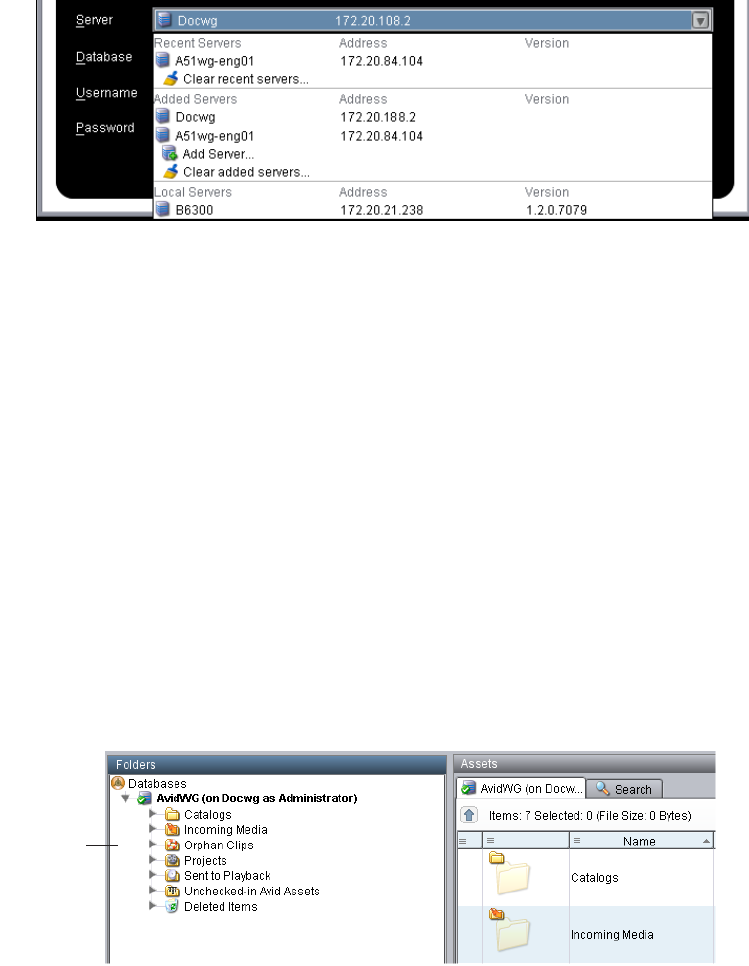
2. Select the server you want to work with by doing one of the following:
tAccept the server that is displayed (the last server connected).
tClick the arrow for the Server list and select the server name from the list.
Starting Interplay | Access
22
The first part of the list shows recent servers, the second part of the list shows servers
that were added manually (not on a local area network), and the third part shows servers
available on your local area network
tClick the arrow for the Server list and select Add Server. Type a new server name or IP
address.
If the server you select does not currently have an active database, a message that states this
information is displayed in the Database text box. An administrator might need to activate an
existing database or create a new one.
3. Select the database that you want to work with.
Databases available on the selected server are displayed in the Database list. In most cases
there will be only one database: AvidWG for an online database or AvidAM for an archive
database.
After you log in, the database you select becomes the primary database.
4. Type your username and password, as supplied by the administrator.
The Interplay Access window opens, with the primary database displayed in the Folders
pane.
For information about the Interplay Access window, see “Interplay | Access Views” on
page 27.
Primary
database in
the Folders
pane

Connecting to a Database
23
Setting the Default Working Folder
The first time you start Interplay Access, the Set Default Working Folder dialog box opens. This
is the folder where local copies of file assets (but not Avid assets) are stored when you check
them out for editing (see “Working with File Assets” on page 206). The working folder is
sometimes referred to as the local folder or the default working path.
You can change the working folder after you set it. You can also change the path for an
individual folder. For more information, see “Setting the Working Path for a Folder” on page 36.
To set the default working folder:
1. Do one of the following:
tKeep the default:
(Windows) C:\Documents and Settings\username\WorkgroupWork
(Macintosh) /Users/username/WorkgroupWork
tClick the Browse (...) button to select another folder.
2. Click OK.
To change the default working folder:
1. Select (Windows) Preferences > Options or (Macintosh) Interplay Access > Preferences.
2. Click the General tab.
3. Type a new path or click the Browse button and navigate to a new folder.
4. Click OK.
Connecting to a Database
To work with Interplay Access, you must connect to an existing database on an Interplay
workgroup. Each workgroup includes one of the following databases:
• AvidWG for online databases
• AvidAM for archive databases
Browse button
Connecting to a Database
24
An Interplay database always uses one of these names.
The primary database (the database that you logged into) is always listed in the tree structure in
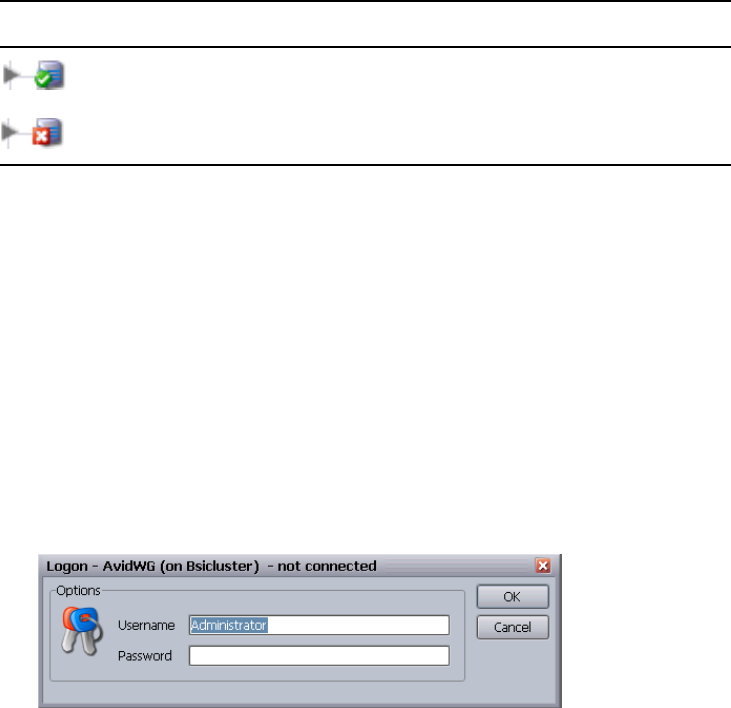
the Folders pane. An icon indicates whether or not you are connected to a database, as described
in the following table.
You can add other databases to the tree structure. The number of databases you can add is limited
only by the license your company has acquired.
To connect to a database listed in the tree structure:
1. Select the database name.
2. Do one of the following:
tClick the triangle next to the database name in the Interplay Access.
tSelect File > Logon.
tDouble-click the database name.
tSelect Logon from the context menu of the database.
The Logon dialog box opens.
3. Type your username and password, as supplied by the administrator.
4. Click OK.
You are now connected to that database. The database is listed in the tree structure with a
green circle and check mark.
Icon Meaning
(Green circle with check mark) Database you are connected to
(Red box with X) Database you are not connected to
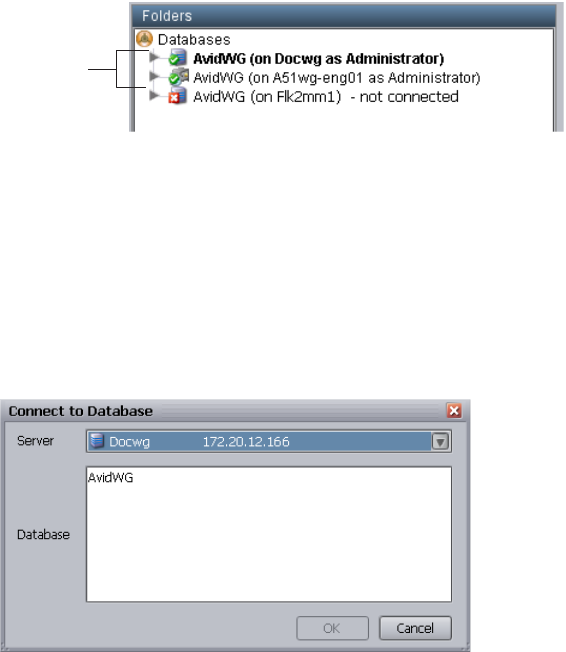
Connecting to a Database
25
To connect to a database not listed in the tree structure:
1. Select Databases in the tree structure.
2. Do one of the following:
tSelect File > Connect to Database.
tSelect Connect to Database from the context menu.
The Connect to Database dialog box opens.
3. Select the server and database you want to work with by doing one of the following:
tAccept the server that is displayed.
tType the name of the server that you want to log in to. You can also use an IP address.
tClick the arrow for the Server list and select the server name from the list.
Connected
databases

Connecting to a Database
26
The first part of the list shows recent servers, the second part of the list shows servers
that were added manually (not on a local area network), and the third part shows servers
available on your local area network
tClick the arrow for the Server list and select Add Server. Type a new server name.
The database for the selected server is displayed in the Connect to Database dialog box.
AvidWG is an online database and AvidAM is an archive database.
4. Select the name of the database you want to connect to.
5. Click OK.
The Logon dialog box opens.
6. Type the username and password for the database.
If necessary, contact the administrator for the correct username and password.
7. Click OK.
You are now connected to that database. The database is listed in the tree structure with a
green circle and check mark.
Changing Your Password
27
Changing Your Password
If your account is configured for internal authentication, you can change your password.
nIf you use Windows, LDAP, or Avid shared-storage authentication methods to log on to Interplay,
this section does not apply.
To change the password for your username:
1. Select the database for which you want to change the password.
2. Select File > Change Password.
The Change Password dialog box opens.
3. Type your current password in the Current Password text box and your new password in the
New password text box. Type the new password in the Verify text box.
4. Click OK.
Removing a Database from the Tree Structure
Removing a database from the tree structure does not delete or destroy the database. It only
removes the database from your view.
To remove a database from the tree structure:
1. Click the database name.
2. Do one of the following:
tSelect File > Remove Database(s).
tSelect the database and select Remove Database(s) from the context menu.
Interplay | Access Views
After you log in, the Interplay Access window opens and displays the view that was saved when
the last time you logged out. The Interplay Access window displays one of three views:
For information about these views, see “Working with Views” on page 37.
•Browsing view
• Logging view
• Shotlist view
For information about these views, see “Working with Views” on page 37.
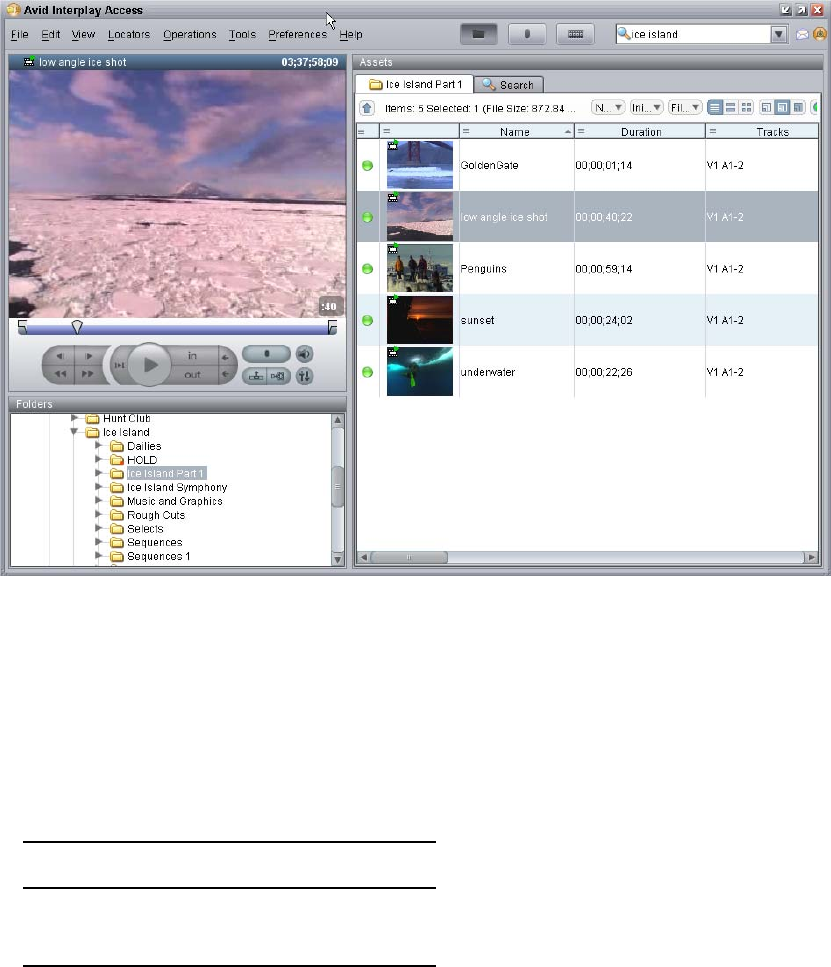
Keyboard Shortcuts
28
The following illustration shows the default Browsing view.
Keyboard Shortcuts
For some actions in Interplay Access, you can use keyboard shortcuts. How you type shortcuts
depends on your platform.
The following table shows which key you must press in combination with the shortcut key on
each platform.
Platform Shortcut Key
Windows Ctrl
Mac OS X Command (Apple)

Context Menus
29
For example, to display the search panel, do one of the following:
• (Windows) Press Ctrl+F.
• (Macintosh) Press Command+F.
Keyboard shortcuts are displayed in the menus and provided throughout this guide. For shortcuts
you can use to play and edit media, see “Keyboard Shortcuts” on page 305. For menu commands
and shortcuts, see “Interplay | Access Menus” on page 308.
Context Menus
For some actions in Interplay Access, you can use a context menu. How you open the context
menu depends on your platform. The following table shows the appropriate key and mouse
button combination on each platform:
Context menu commands are provided throughout this guide.
Opening Interplay Help
The Interplay Help system is installed when you install the Interplay Engine. The Interplay Help
system provides all user and administrator information that is contained in the Interplay manuals.
The Interplay Access Help menu provides five entry points: one for the Welcome screen and four
that correspond to four Interplay applications:
• Interplay Access Help
• Interplay Administration Help
• Interplay Media Services Help
• Interplay Transfer Help
You can access the entire Help system from any of those entry points by clicking the Show
Navigation button.
To access Interplay Help:
tSelect Help, and then select the desired entry point.
Platform
Button
Combinations
Windows Right-click
Mac OS X Ctrl+click or right-click
Logging Out and Exiting
30
tSelect Documentation Website on Server.
The Avid Interplay User Information Center page opens. You can open the Help, PDF
versions of the Interplay user guides, and other useful links. See “Viewing Help and
Documentation on the Interplay Production Portal” on page 14.
Logging Out and Exiting
When you are finished using Interplay | Access, you can log out of a database or exit the
application. Exiting the application logs you out automatically.
To log out, click the database and do one of the following:
tSelect File > Logout from Database.
tSelect Logout from Database from the context menu.
To exit and close the application:
tSelect File > Exit
The state of the tree structure is saved when you log out and is restored the next time you log
in to Interplay Access on the same machine.
Configuring Interplay | Access Options
The following topics describe various options you can configure in Interplay Access:
•“Configuring Interplay Access Globally (Administrators Only)” on page 30
•“Displaying the Full Menus” on page 31
•“Showing All Hidden Dialog Boxes” on page 31
•“Changing Font Settings” on page 31
•“Configuring Asset Types, Commands, and Applications” on page 32
•“Setting the Working Path for a Folder” on page 36
Configuring Interplay Access Globally (Administrators Only)
Users with administrator rights have the power to control what the Interplay Access user sees.
Administrators can set the access rights for folders, create categories, specify the property
layout, and control transfer presets.
Configuring Interplay | Access Options
31
This type of configuration is described in detail in the Avid Interplay Engine and Avid Archive
Engine Administration Guide. Additional information about user rights management along with
examples is provided in Avid Interplay Best Practices. Also refer to “Access Control and Delete
Matrices” on page 277.
Displaying the Full Menus
By default, Interplay Access displays menus that include the most commonly used tasks. You
can select the Full Menus setting to display all menus and commands.
The Operations menu is displayed only when you select Full Menus.
To display the all menus and commands or to display only basic menus and commands:
tSelect Preferences > Full Menus.
A check mark means all menus and commands are displayed. If a check mark is displayed,
click the check box to return to basic menus and commands.
Showing All Hidden Dialog Boxes
Some dialog boxes ask you if you want the dialog box displayed every time you perform an
action. If you select “No,” that dialog box becomes hidden. You can return all dialog boxes to the
default state of “shown.”
To show all dialogs that have been set to be hidden:
1. Select (Windows) Preferences > Options or (Macintosh) Interplay Access > Preferences.
2. Click the Operations tab.
3. Click the Reset Dialogs button.
4. Click OK.
nInformation about other options in this tab is provided in “Working with File Assets” on
page 206.
Changing Font Settings
To change the font settings:
1. Select (Windows) Preferences > Options or (Macintosh) Interplay Access > Preferences.
2. Click the View Settings tab.
3. Select a number from the Base Font Size list.
4. (Option) Click Revert to defaults to return the base fonts to the standard size (12).
5. Click OK.

Configuring Interplay | Access Options
32
The fonts are resized after you restart Interplay Access.
nInformation about the other option in the View Settings tab is provided in “Using Extended View
Mode” on page 123.
Configuring Asset Types, Commands, and Applications
For file assets, you can select the application that is used for viewing the file assets, editing the
file assets, and showing differences between file assets. For example, you can specify the graphic
application you want to use to view and edit particular types of graphics files.
If you do not set a specific application for an asset, Interplay Access uses the same application
that is used by the operating system. For example, on a Windows system, if you have set all .bmp
files to open in Paint, Interplay Access also opens a .bmp file in Paint.
You configure commands for asset types in the Asset Types tab of the Options dialog box. Asset
types are listed in the top table and commands are listed in the bottom table. Each asset type has
a default set of commands. In most cases, keep the default set of commands and do not add
commands.
cDo not add commands or change settings for Avid assets.
The following table describes the basic commands that you can configure for each asset type.
The settings (or command handlers) vary according to command. The Edit Command dialog box
provides descriptions and examples for all commands and command handlers, according to your
operating system (Windows or Mac OS X).
Application Settings for Commands
Command
Setting (Command
Handler) Description
Preview Internal Media Player Displays the headframe of an asset in the
Interplay Access Monitor. This command
(single-click) loads a video or audio asset,
and the View command (double-click) plays
the asset.
Internal Text Viewer Displays a text file in the internal text
viewer.
Node Viewer Displays the default icon or image for the
selected node in the Interplay Access
Monitor. This setting is used for assets that
are not video or audio assets.

Configuring Interplay | Access Options
33
To configure asset types, commands, and applications:
1. Select (Windows) Preferences > Options or (Macintosh) Interplay Access > Preferences.
2. Click the Asset Types tab.
View Start in Internal Media
Player
Plays an asset in the Interplay Access
Monitor. This command (double-click)
plays a video or audio asset, and the
Preview command (single-click) loads the
asset.
Internal Text Viewer Displays a text file in the internal text
viewer as a separate window.
External Application Plays a video or audio asset or opens any
other asset in an external application.
Edit External application Opens an asset in an external application for
editing.
Difference Internal Image Difference Displays two assets side-by-side in the
Interplay image difference component. See
“Configuring Differencing” on page 291
External Application Displays two assets in an external
application. See “Configuring Differencing”
on page 291.
Merge External Application Uses an external application for merging.
See “Checking In Files With Multiple
Checkouts” on page 219.
Explore External Application Opens the location with an external
application used as a file browser.
Application Settings for Commands (Continued)
Command
Setting (Command
Handler) Description
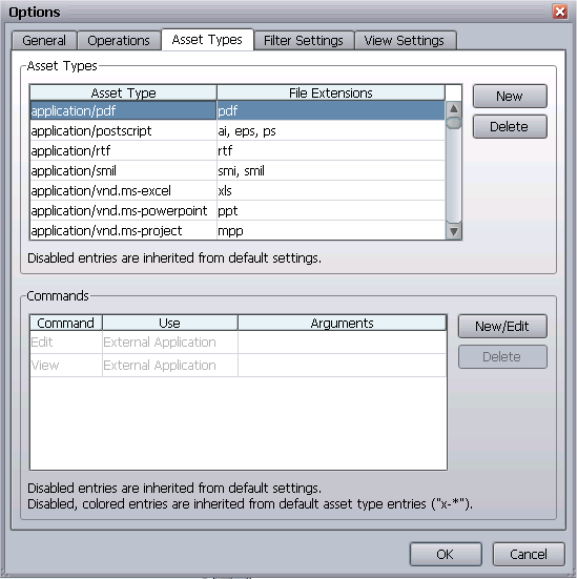
Configuring Interplay | Access Options
34
3. (Option) To add a file extensions for an asset type, click the File Extensions field in the
Asset Types table. For multiple file extensions, type the extensions separated by commas.
4. (Option) To configure the behavior for an asset type, first select the asset type to set
commands for in the Asset Type table. Then click New/Edit.
The Edit Command dialog box opens.
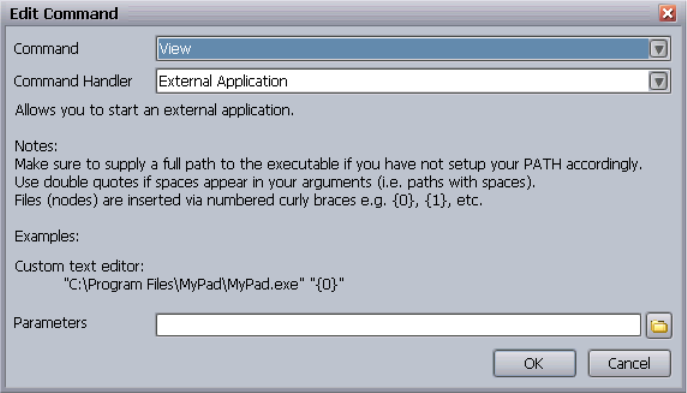
Configuring Interplay | Access Options
35
5. Select the command and command handler.
If an external application is used for a command, type the path to the application in the
adjacent field or use the Browse button with the folder symbol to browse to an application.
For advanced usage, the External Application command allows entering of a full command
line with an arbitrary number of parameters which must be escaped by quotes. The number
of parameters is one for viewing and editing, and two for differencing and merging, for
example, Difference - External Application - "/usr/bin/opendiff" "{0}” "{1}."
6. Click OK in the Edit Command dialog box.
7. Click OK in the Options dialog box.
Configuring Interplay | Access Options
36
Setting the Working Path for a Folder
When setting up a database, the administrator specifies the working path, or local folder (see
“Setting the Default Working Folder” on page 23). This dictates where local copies of file assets
are stored on each client. You might want to change the working path of an individual folder in
some cases, such as when the current location is running out of disk space.
nChanging the working path for a folder is recommended only for advanced users and only under
special circumstances. When changing working paths, remember that a tree structure on the
hard disk that matches the database is very helpful for users as well as administrators.
To change the working path of a folder:
1. Select a database folder.
2. Do one of the following:
tClick Operations > Advanced and Set Working Path.
tSelect Advanced > Set Working Path from the context menu.
The Set Working Path dialog box opens and you are asked to specify the new location.
3. Do one of the following:
tSelect “Inherit from parent folder” to reset the working path to the preset default.
tSelect “Set the working path to” and type the new path, or click the Browse button and
browse through the hard disk to a new location.
4. Click OK.

2Working with Views
Interplay Access provides you with three different views:
•Browsing View
• Logging View
• Shotlist View
The following topics describe these views, additional panes you can display, and related tasks:
•Browsing View
•Logging View
•Shotlist View
•Changing Views
•Viewing and Playing Assets
•Creating Subclips
•Displaying Additional Panes
•Resizing Panes
•Displaying the Full-Screen Monitor
•Opening an Avid Asset in Interplay | Assist
Browsing View
Use Browsing view when you want to search, display, and view assets from one or more
databases. You also use Browsing view to add and edit metadata by using the Object Inspector.
The Object Inspector is not displayed by default, but you can add it to the view by selecting View
> Show Object Inspector Pane.

Browsing View
38
Browsing View has three main sections:
• The Monitor, which displays headframes of assets and lets you play video
• The Folders pane, which displays the folder structure of any databases to which you are
connected.
• The Assets pane, which displays the assets for a selected folder in one tab, and search
criteria and results in another tab.
These three panes are included in all views.
The following illustration shows these three panes. In this illustration, the Monitor displays the
headframe of an asset selected in a folder named “Ice Island Part 1.”
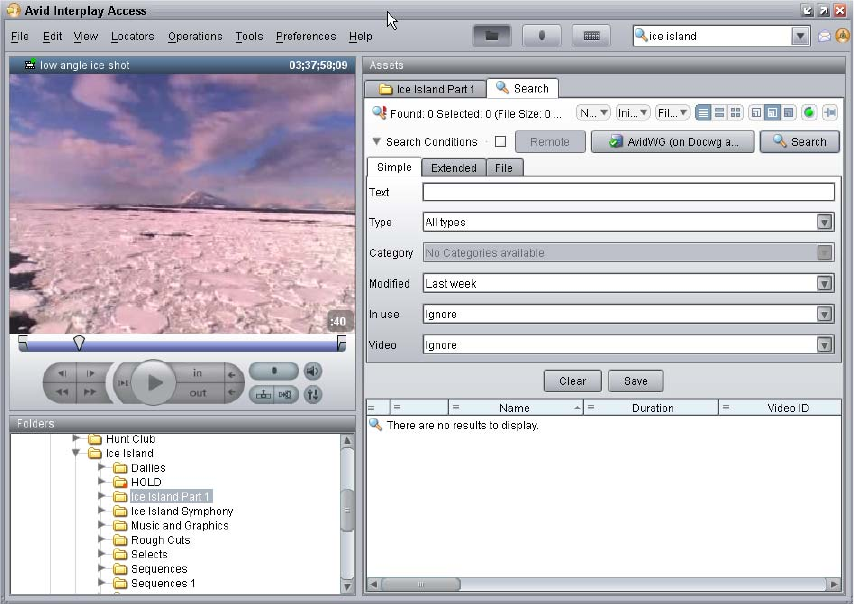
Logging View
39
The following illustration shows the Browsing view with the search tab displayed in the Assets
pane.
You can add other panes to this view (see “Displaying Additional Panes” on page 58).
Logging View
Use Logging view when you want to add locators to a clip or view existing locators.
Logging view includes the three panes that are displayed in Browsing view:
• The Monitor
• The Folders pane
• The Assets pane
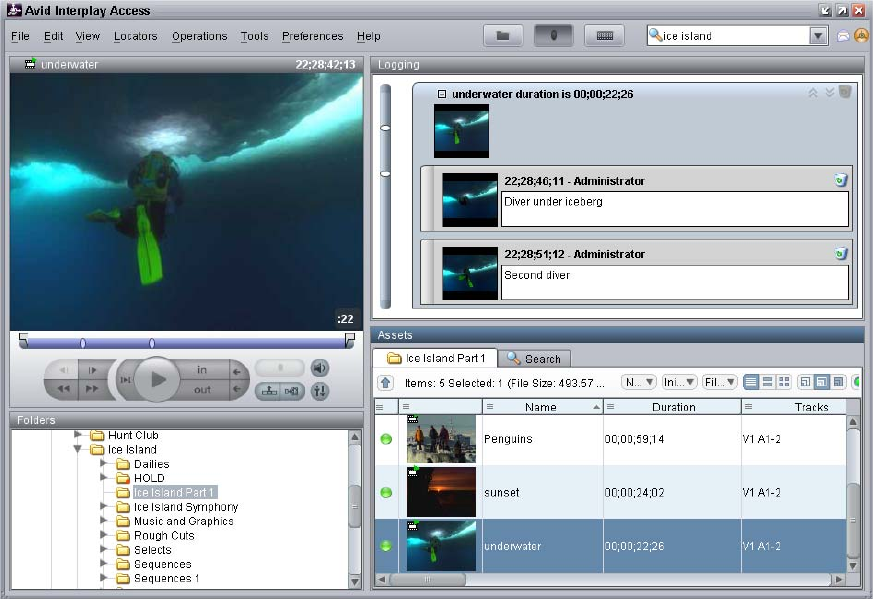
Logging View
40
It contains an additional pane:
• The Logging pane, which displays locators for the selected clip or shotlist.
The following illustration shows these four panes. The Logging pane displays the locators for the
selected asset.
You can add other panes to this view (see “Displaying Additional Panes” on page 58).
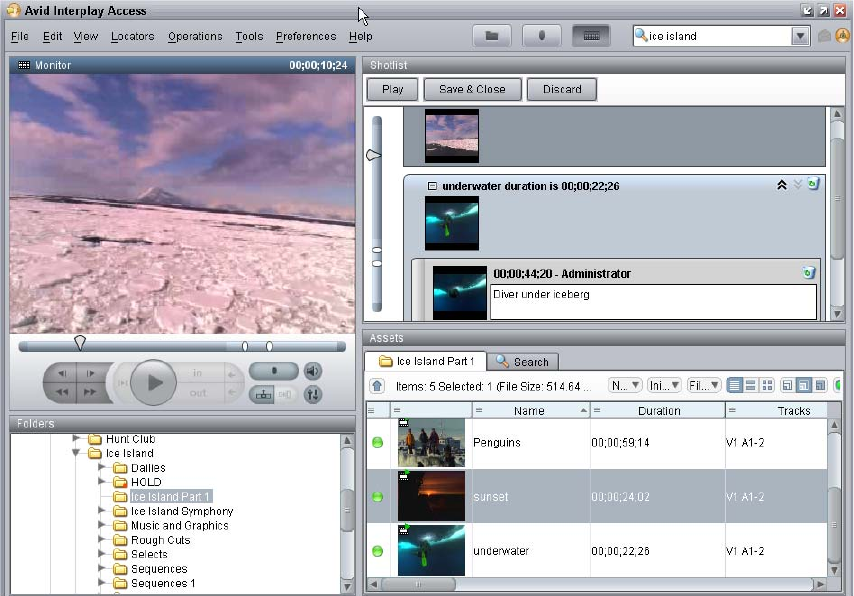
Shotlist View
41
Shotlist View
Use Shotlist view to create shotlists.
Shotlist view includes the three panes that are displayed in Browsing view:
• The Monitor
• The Folders pane
• The Assets pane
It contains an additional pane:
• The Shotlist pane, which displays the currently loaded shotlist.
The following illustration shows the two clips for a new shotlist in the Shotlist pane. The second
clip includes locators.
You can add other panes to this view (see “Displaying Additional Panes” on page 58).

Changing Views
42
Changing Views
To change views, do one of the following:
tClick the button for the view you want to see. The buttons are located on the right side of the
toolbar.
tSelect or type the command for the view you want to see.
-View > Browsing
- View > Logging
- View > Shotlist
tPress the keyboard shortcut for the view you want to see:
- For Browsing, press Ctrl+1 (Windows) or Command+1 (Macintosh)
- For Logging, press Ctrl+2 (Windows) or Command+2 (Macintosh)
- For Shotlist, press Ctrl+3 (Windows) or Command+3 (Macintosh)
Interplay Access maintains a separate layout for each view, so each view remains the same when
you switch from one view to another, or when you log out and log back in.
Viewing and Playing Assets
You can view and play assets in the Monitor in any of the three views (Browsing, Logging, and
Shotlist). The Monitor shows a headframe or icon for the asset, depending on the type of asset
you are viewing.
You can play Avid video and audio clips in the Interplay Access Monitor if the clips are
associated with MPEG-4/H.263 or H.264 video media, MPEG1 Layer 2 audio media, or both.
nIn Interplay v2.4, the Interplay Stream Server was re-engineered to directly play MPEG-4/H.263
and H.264 video media and MPEG1 Layer 2 audio media. There is no longer any need to use the
Publishing service or Workflow Engine to create QuickTime reference movies for streaming play.
Double-click a clip that uses proxy media supported for streaming and the clip plays in the
Monitor.
Browsing view Logging view Shotlist view
Viewing and Playing Assets
43
nAll checked-in Avid video assets display a headframe in the Monitor, but you can play only clips
associated with proxy media supported for streaming.
You can play video file assets (for example, QuickTime movies) or audio file assets (for example
WAV or AIFF files) in the Monitor. However, you must install QuickTime version 7 or later to
play these file assets in the Monitor. Interplay Access supports any video or audio formats
supported by QuickTime.
To play streaming media, the computer on which you are running Interplay Access must have an
audio device, such as an audio card or other audio hardware.
nInterplay v2.7 and later supports both H.264 800 Kbps and H.264 2 Mbps media. If a clip has
both 800 Kbps and 2Mbps proxies, Access plays the 800 Kbps version.
To load an asset in the Monitor:
tClick an asset that is displayed in the Assets pane (in either the Content tab or the Search
tab).
Assets can be displayed by opening a folder in the Content tab or by running a search in the
Search tab.
To play an Avid asset that is associated with proxy media supported for streaming, do one
of the following:
tDouble-click the asset.
tClick the asset to load it in the Monitor. then click the Play button or press the space bar.
To stop or pause playback, click the Play button or press the space bar again.
To play a video or audio file asset, do one of the following:
tDouble-click the asset.
The asset opens in both the Monitor and the external application that is configured for the
asset (for example, the QuickTime player for QuickTime movies). You can use either the
Monitor or the external player for playback.
tClick the asset to load it in the Monitor, then click the Play button or press the space bar.
To stop or pause playback, click the Play button or press the space bar again.
For information about the transport controls, see “Monitor Controls” on page 47. For additional
keyboard shortcuts, see “Keyboard Shortcuts” on page 305.
n Files of the following formats do not play correctly in the Interplay Access monitor: m3u, asf,
avi, and wmv.

Viewing and Playing Assets
44
Adjusting the Aspect Ratio and Size of the Monitor
Interplay Access supports streaming media in 4:3, 16:9, and other aspect ratios. You can specify
a default aspect ratio, and you can change the aspect ratio on-the-fly for streaming media that
you play in the Monitor.
You can also adjust the dimensions of the Monitor to your preference.
To set the default aspect ratio:
1. Select (Windows) Preferences > Options or (Macintosh) Interplay Access > Preferences.
2. Click the View Settings tab.
3. In the Monitor Aspect Ratio area, select the aspect ratio you want to use as the default. The
installed default setting is Automatic, which automatically adjusts the aspect ratio of the
Monitor to the aspect ratio of the selected clip.
4. Click OK.
To change the aspect ratio for media in the Monitor:
tRight-click in the Monitor, select Aspect Ratio, and select the aspect ratio you want to
switch to.
The aspect ratio changes immediately. You can also change the aspect ratio while the clip is
playing. The next clip you load will use the default aspect ratio again.
To change the dimensions of the Monitor:
1. Load a clip or image.
2. Do one of the following to change the dimensions of the Monitor:
tDrag the left or bottom border.
tDrag the sizing control in the lower right of the Monitor.
Showing and Hiding the Monitor
By default the Monitor is displayed in Browsing view, Logging view, and Shotlist view. If you do
not need to use the Monitor, you can hide it and use the extra space to expand other panes in the
Interplay Access window, such as the Folders pane.
Sizing control
Viewing and Playing Assets
45
Note the following:
• When you start Interplay Access, it uses the most recent setting. For example, if you hide the
Monitor and close Access, the Monitor will be hidden the next time you open Access.
• If the Monitor is not displayed, and you select (single-click) an asset, data needed to play
back the video is not loaded and locators are not shown in the Logging pane. If you then
show the Monitor, you need to select or double-click the asset again to load the video
resources and the locators.
• The Monitor is automatically displayed if you select View > Full-Screen Monitor. If you go
back to normal view, the Monitor remains displayed.
• The Monitor is automatically displayed if you double-click a playable asset or if you start
playback in the Shotlist pane.
To show or hide the Monitor:
tSelect View > Show Monitor Pane.
A check mark means the Monitor is displayed. To hide the Monitor, select the menu
command so that a check mark is not displayed. To show the Monitor again, select the menu
command again.
You can also use the keyboard shortcut Ctrl+Shift+F5 (Windows) or Shift+Command+F5
(Macintosh).
Displaying the Full-Screen Monitor
You can enlarge the Monitor so that it fills the current Interplay Access window. You can enlarge
the window to fill your computer monitor screen.
nEnlarging the Monitor can result in a less sharp, more blocky display.
To display the full-screen Monitor or return to a view, do one of the following:
tSelect View > Full-Screen Monitor.
A check mark means the full-screen Monitor is displayed. If a check mark is displayed, click
the check box to return to a view.
tPress Ctrl+4.
tDouble-click the Monitor title bar.
Playing Clips During Ingest
You can load and play a clip while it is being ingested (recorded) if the clip is associated with
MPEG-4/H.263 or H.264 proxy video media, MPEG1 Layer 2 audio media, or both. A clip that
is being ingested is indicated by a partial clip icon and an orange triangle on the clip’s thumbnail
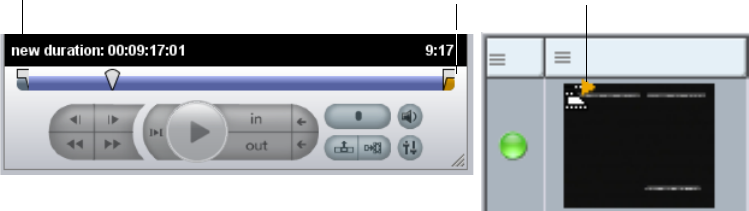
Viewing and Playing Assets
46
in the Interplay Access Assets pane and in the Monitor title bar. (Playable clips are indicated by
a green triangle.) When you load the clip, the portion of the clip currently ingested is displayed
in the timeline and the end of the timeline is colored orange.
As more material becomes available, the monitor is automatically updated. Periodically an
overlay displays the new duration and the timeline expands to include the new material.
When the ingest is completed, the end of the timeline returns to gray, the orange triangle changes
to green, and the partial clip icon is replaced by a clip icon.
Playing Back Offline Segments of Published Clips
The Monitor can play clips whose proxy (streamable) media is shorter than the clip length. This
could occur in a dual-ingest workflow if the high-resolution media is longer than the
low-resolution media. Parts of the clip that do not have proxy media on the server are marked in
red on the timeline. If you play these parts of the clip, the text “Proxy Media Offline” is
displayed in the Monitor. You can view and set locators in the offline areas, and include the
offline areas in subclips.
Overlay indicating new duration
and In and Out duration
Orange area indicating
clip is being ingested
Partial clip icon and orange triangle
indicating a clip being intested.
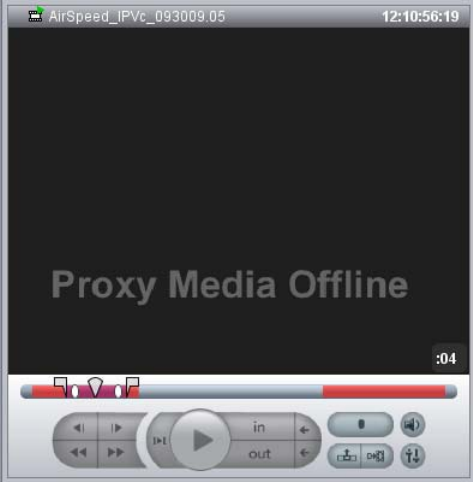
Monitor Controls
47
Monitor Controls
The Monitor includes the following:
• In the title bar, an icon for the asset, the name of the asset, and the timecode of the selected
frame.
• A timeline that includes a position indicator and any locator indicators included in the clip.
• Transport controls, mark clip controls, and buttons for logging, editing, and adjusting audio.
Monitor controls are active only when the currently loaded asset is playable. Some controls are
active only when you can use them with the currently loaded asset. If you load an unplayable
clip, all controls are grayed out. Playable clips are associated with MPEG-4/H.263 or H.264
proxy video media, MPEG1 Layer 2 audio media, or both.
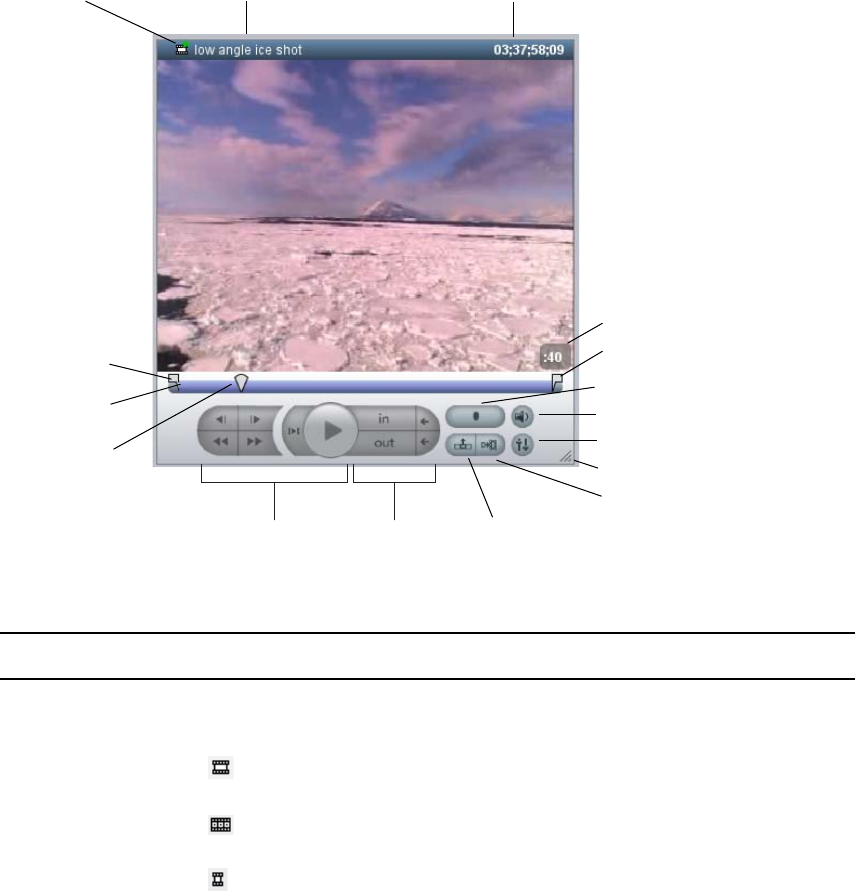
Monitor Controls
48
The following illustration and table describe the Monitor controls.
Asset icon Timecode display
Duration
Position
bar
Transport controls Mark clip controls
Add Locator button
Audio Level button
Audio Mix button
Create Subclip button
Add to Shotlist button
Mark In
Position
indicator
Clip name
Mark Out
Sizing control
Interplay Access Video Monitor Controls
Control Description
Asset icon An icon for the type of asset that is displayed in the Monitor. The following icons are
used most often:
Master clip
Sequence or shotlist
Subclip
Clip name The name of the asset that is displayed in the Monitor.
Timecode display The hour, minute, second, and frame number of the current frame.

Monitor Controls
49
Duration Displays the length (hours:minutes:seconds) of the material between the In and Out
points.
Position bar Displays a graphical representation of the clip or sequence length and contains the
position indicator. You can move the position indicator to a specific point in a clip or
drag it to scrub through a clip.
Mark In, Mark Out Indicates the In point and Out point. You can drag the handles to set an In point or
Out point.
Position indicator Determines the image that is displayed in the Monitor.
Transport controls Allows you to step or move through a clip or a sequence. Controls include:
• Step Backward 1 frame
• Step Forward 1 frame
• Fast Backward 300 frames
• Fast Forward 300 frames
• Play from In to Out
•Play
Mark Clip controls Allow you to mark In and Out points and move to those points.
Add Locator button Adds a locator.
Audio Level button Opens controls that let you adjust the volume of all audio in a clip, or to mute all
audio in a clip.For more information, see “Monitoring Audio” on page 52.
Audio Mix button Opens controls that let you enable or disable audio tracks, and to adjust the pan and
volume for each track of a clip. For more information, see “Monitoring Audio” on
page 52.
Sizing control Drag this control to change the size of monitor. See “Adjusting the Aspect Ratio and
Size of the Monitor” on page 44.
Add to Shotlist button Adds to a shotlist the region of the clip marked by In and Out points.
Create Subclip button Creates a subclip from the region of the clip marked by In and Out points. This
button is grayed out until you specify an In or Out point other than the default first
and last frames.
Interplay Access Video Monitor Controls (Continued)
Control Description
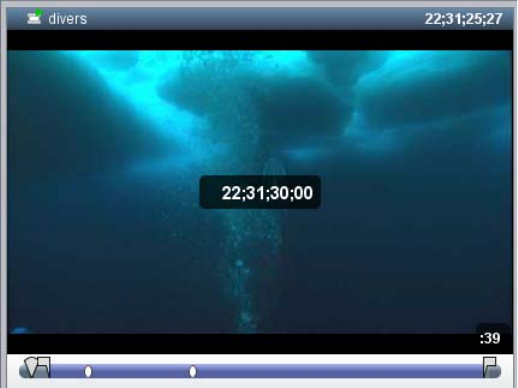
Navigating by Timecode
50
Navigating by Timecode
In Interplay Access v2.4, you can cue a loaded clip or sequence to a specific frame by typing a
timecode value. (The clip or sequence needs to be playable in the Monitor). You can also cue
backward or forward from the current location in the clip or sequence by a specified number of
hours, minutes, seconds, or frames by using positive or negative frame-offset values.
To cue to a frame based on a known timecode:
1. Using the standard number keys or the numeric keypad, type the timecode for the frame you
want to display. If you are using a numeric keypad, make sure the Num Lock key is on.
When you begin typing, the timecode overlay is displayed in the middle of the Monitor and
shows the current timecode. To find a timecode that starts at the same hour, minute, or
second as the current timecode, type only the last digits. For example, if the current
timecode is 22;31;25;27 and you type 3000, the system finds the frame at 22;31;30:00.
To clear the overlay without cueing, press the Esc key.
2. Press Enter (Windows) or Return (Macintosh).
The frame that corresponds to the timecode you typed is displayed in the Monitor.
If you type a timecode that is earlier than the beginning of a clip or sequence, the first frame
of the clip or sequence is displayed. If you type a timecode that is later than the end of the
clip or sequence, the last frame of the clip or sequence is displayed.
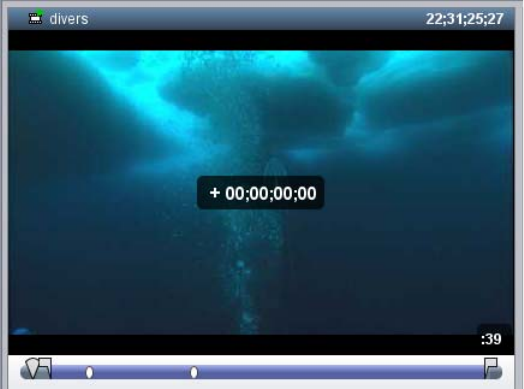
Navigating by Timecode
51
To cue to a frame based on a frame-offset value:
1. Using the standard number keys or the numeric keypad, type a plus sign (+) to move forward
or a minus sign (-) to move backward. If you are using a numeric keypad, make sure the
Num Lock key is on.
The timecode overlay is displayed in the middle of the Monitor.
To clear the overlay without cueing, press the Esc key.
2. Type the number of hours, minutes, seconds, or frames you want the position indicator to
move.
Use the following formats:
- Type 1 through 99 to specify a number of frames forward or backward. For example,
type –42 to move backward 42 frames.
- Type 100 or greater to move forward or backward a specified number of hours, minutes,
seconds, and frames. For example, type +500 to move forward five seconds.
3. Press Enter (Windows) or Return (Macintosh).
The frame that corresponds to the offset you typed is displayed in the Monitor.
If you type a number that is beyond the limit of the clip or sequence, the first or last frame of
the clip or sequence is displayed.
nYou can click the timecode display above the monitor to display the timecode overlay. The
display uses the format of your last action. If you typed a timecode, the current timecode is
displayed. If you typed a plus frame-offset value, a plus frame-offset value of 00:00:00:00 is
displayed.
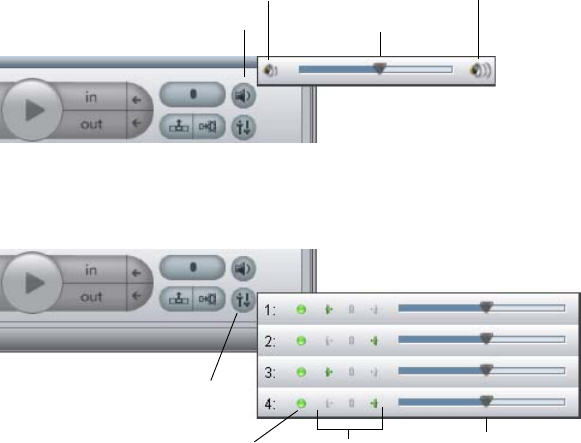
Monitoring Audio
52
nInterplay Access automatically uses drop or non-drop frame timecode, depending on the
timecode format of the clip or sequence.
Monitoring Audio
The Monitor controls include two controls for audio:
• Audio Level control. Use this control to adjust the volume of all audio in a clip, or to mute
all audio in a clip.
• Audio Mixer controls. Use these controls to enable or disable audio tracks, and to adjust the
pan and volume for each track of a clip.
These audio controls apply only when you are playing a clip in the Monitor. They are not saved
with a clip in the Interplay database.
An administrator can specify default settings for the Audio Mixer feature for a database in the
Application Database Settings in the Interplay Administrator. Individual users can use these
defaults or set their own defaults as a preference in Interplay Access. You can override these
defaults for a loaded clip, but the defaults will apply to the next clip you load.
Interplay Access can play up to 16 tracks of audio (16 mono tracks, 8 stereo tracks, or a
combination that totals 16 tracks).
Audio Level button Audio Level slider
Mute button Mute button
Audio Mixer button
Enable/Disable Track buttons Pan controls Volume sliders

Monitoring Audio
53
To set audio mixer defaults in Interplay Access:
1. Select (Windows) Preferences > Options or (Macintosh) Interplay Access > Preferences and
click the Audio Settings tab.
2. Select whether you want to use global audio mixing defaults (as set in the Interplay
Administrator) or local audio mixing defaults.
If you select “Use local audio mixing defaults” the controls become active. The default
setting is all tracks enabled and left-right alternating pan.
3. Click a track button to disable (mute) or enable a track. Enabled tracks have a green icon.
4. For each track, select Left, Center, or Right to assign the track to an output channel (pan
setting).
5. Click OK to save your settings as the default.
To adjust volume for all audio or to mute all audio:
1. Click the Audio Level button.
2. To increase the volume, drag the slider up. To decrease the volume, drag the slider down.
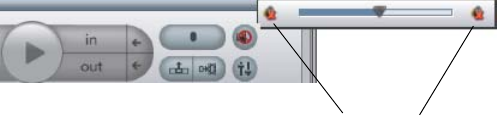
Marking and Cueing Footage
54
3. To mute the audio, click one of the Mute buttons, so that a red x is displayed.
A red x is also displayed on the Audio Level button. To enable audio, click one of the Mute
buttons again.
To adjust the audio mix:
1. Click the Audio Mixer button.
2. To enable or disable a track, click the Enable/Disable Track button. A green button indicates
an enabled track, and a gray button indicates a disabled track.
3. To adjust the pan for a track, click the left speaker, the center mark, or the right speaker. A
green icon indicates the selected pan.
4. To increase the volume, drag a slider to the right. To decrease the volume, drag the slider to
the left.
Marking and Cueing Footage
You can mark clips with In and Out points and cue the footage. See the following topics:
•“Marking In and Out Points” on page 54
•“Cueing the Footage” on page 55
Marking In and Out Points
You can mark In and Out points for your source clips, and then use the edited clips to build a
shotlist or to create subclips. You cannot mark In and Out points on clips in a shotlist; you must
mark them on source clips.
By default, an In point is set at the first frame of a clip and an Out point is set at the last frame of
a clip.
The In point frame and the Out point frame are included when you drag the clip into a shotlist or
create a subclip from the clip.
Mute buttons
showing audio muted

Marking and Cueing Footage
55
nIf you do not have write permissions for an asset, you can set In and Out marks to create a
subclip or shotlist, but they are temporarily set and are not saved in the database. You need to
save the subclip or shotlist in a folder for which you have write permissions.
To mark In points and Out points:
1. Load a source clip into the Monitor.
2. Play or scrub through the material.
3. When you find the appropriate frame, mark an In point by doing one of the following:
tClick the Mark In button under the Monitor.
tPress Ctrl+Shift+I (Windows) or Option+Command+I (Macintosh).
Both the In point and the Out point are placed on the frame. If the clip is playing, marking an
In point does not stop playback.
4. Continue playing or scrubbing through the video clip.
5. Mark an Out point by doing one of the following:
tClick the Mark Out button under the Monitor.
tPress Ctrl+Shift+O (Windows) or Option+Command+O (Macintosh)
If the clip is playing, marking an Out point does not stop playback.
6. (Option) Reposition the In point or Out point by dragging it to the desired frame. The
position indicator moves with the In point or Out point, and displays the appropriate frame
in the monitor.
To clear an In point or an Out point, do the following:
tUse the preceding procedure to set the In point to the beginning of the clip or the Out point
to the end of the clip.
Cueing the Footage
You can cue the footage in the Monitor to the marked edit points by using the Go to In and Go to
Out buttons. This allows you to move quickly to the In point and the Out point. You can use the
Play In to Out button to play the clip from the marked In point to the Out point.
To cue footage to an In point or an Out point:
1. Load a clip into the Monitor.
2. Set an In point or an Out point. For information on marking video clips, see “Marking In and
Out Points” on page 54.
3. Do one of the following:

Creating Subclips
56
tClick the Go to In button or press Ctrl+Shift+Q (Windows) or Option+Command+Q
(Macintosh).
tClick the Go to Out button or press Ctrl+Shift+W (Windows) or Option+Command+W
(Macintosh).
To play footage from an In point to an Out point:
1. Load a clip into the Monitor and set the In and Out points.
2. Click the Play from In to Out button or press Ctrl+Shift+P (Windows) or
Option+Command+P (Macintosh).
To stop playing footage:
tClick the Play In to Out button or the Play button.
Creating Subclips
You can create subclips from a master clip that is associated with proxy media supported for
streaming (MPEG-4/H.263 or H.264 proxy video media and MPEG1 Layer 2 audio media). You
can create subclips to break a long master clip into more manageable pieces. A subclip creates a
new asset, but it also contains metadata that associates it with the original master clip.
cInterplay Access allows you to save different subclips with the same name. It does not warn
you that a previous subclip exists with that name, and it does not overwrite the previous
subclip. Make sure the name you type is unique unless you want two different subclips that
have the same name.
To create a subclip:
1. Load a master clip associated with media supported for streaming in a monitor and mark In
and Out points.
2. Do one of the following:
tClick the Create Subclip button.
Go to In button
Go to Out button
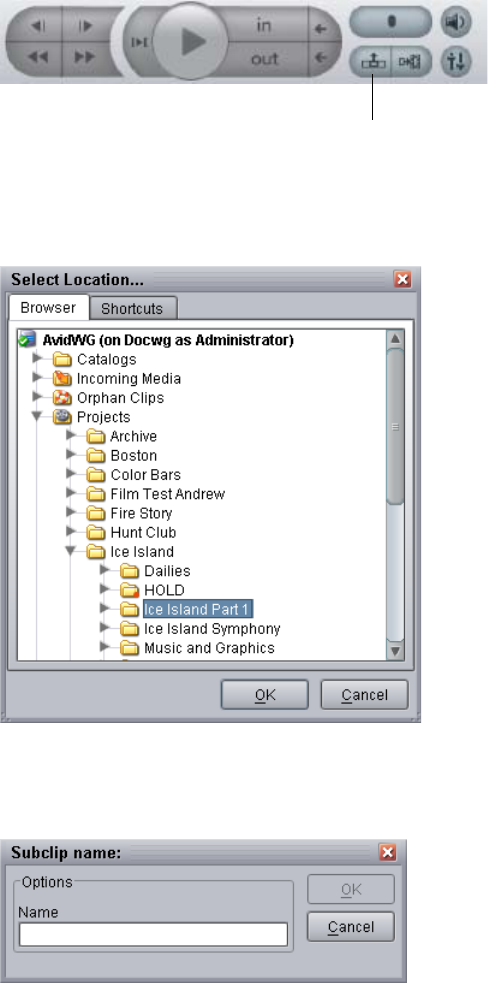
Creating Subclips
57
tPress Ctrl+Shift+S (Windows) or Option+Command+S (Macintosh)
The Select Location dialog box opens.
3. Select a folder and click OK.
The Subclip name dialog box opens.
4. Type a name for the subclip and click OK.
The subclip is saved and checked into the Interplay database.
Create subclip button
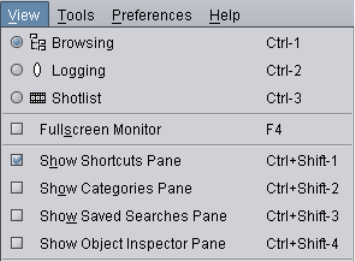
Displaying Additional Panes
58
Displaying Additional Panes
There are four additional panes you can display in a view:
• Shortcuts pane, which displays files and folders that you selected for quick access.
• Categories pane, which displays groups of assets assigned to categories that were created in
the Interplay Administrator.
• Saved Searches pane (available in Browsing view only), which displays the name of a set of
search criteria that you saved.
• Object Inspector pane (available in Browsing view only), which displays information about
any asset that you select.
Interplay Access maintains a separate layout for each view, so any panes that you display in a
view remain in a view when you switch from one view to another, or when you log out and log
back in.
To add or remove an additional pane:
tClick the View menu and select the name of the pane you want to add or remove.
A check mark means the pane is displayed. If a check mark is displayed, click the check box
to remove the pane from the display. The following illustration shows the Shortcuts pane
selected for display.
Resizing Panes
You can resize panes in a view by dragging the vertical border between the panes. In addition,
you can change the size of the Monitor by using a sizing control (see “Adjusting the Aspect Ratio
and Size of the Monitor” on page 44).
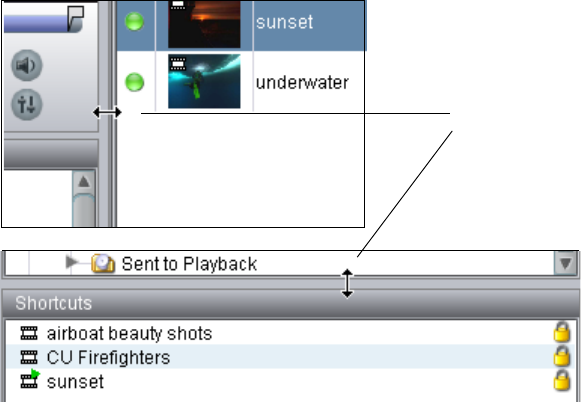
Opening an Avid Asset in Interplay | Assist
59
To resize panes in a view:
tMove the mouse to the border of a pane until you see a double-headed arrow. Then click the
border and drag it to the size you want.
Opening an Avid Asset in Interplay | Assist
If Interplay Assist and Interplay Access are installed on the same computer, you can open and
play an Avid asset (such as a clip, subclip, or sequence) in Interplay Assist. This could be useful
if you want to view a clip that is not associated with proxy media supported for streaming, or the
high-resolution version of a clip associated with proxy media.
To open an Avid asset in Interplay Assist, do one of the following:
tIn the Content tab, select an Avid asset and then select Tools > Open in Interplay Assist.
tIn the Content tab, right-click an Avid asset and Open in Interplay Assist.
tIn Extended View mode, select an Avid asset and then select Open in Interplay Assist from
the Actions menu.
Interplay Assist opens (if it is not already open) with the selected Avid asset loaded in the Video
monitor.
Double-headed arrow for
resizing panes
Interplay Database Default Folders
60
3Adding and Organizing Assets
The following topics explain how to add assets to the Interplay database and how to organize
assets so that users can easily locate and access them:
•Interplay Database Default Folders
•Creating New Folders
•Using the Unchecked-In Avid Assets Folder
•Adding Assets to the Interplay Database
•Importing Files or Folders
•Resyncing Media Files with Avid Shared-Storage Workspaces (Administrators Only)
•Moving Assets into Folders
•Cutting, Copying, and Pasting Assets
•Duplicating Avid Assets
•Organizing Assets Using Categories
•Using Shortcuts for Browsing
•Renaming an Asset
•Changing Text Color (Administrators Only)
•Using Interplay | Access with an Avid Editing Application
•Transferring Avid Assets to Another Workgroup
•Copying Assets and Media to Another Workgroup
•Moving Media to Another Workspace
Interplay Database Default Folders
The Interplay database structure usually has a default set of folders, depending on how the
administrator set up the database and what operations and transfers are typically necessary.
These folders have names appropriate for the type of work you are doing. They can be
configured to send the folder content to playback devices, to another workgroup, to archive, or to
another folder. A database that is set up well can make your workflow more efficient.
The Interplay Engine and the Interplay Archive Engine have different default folders, as shown
in the following illustrations. The folder icons are also different.
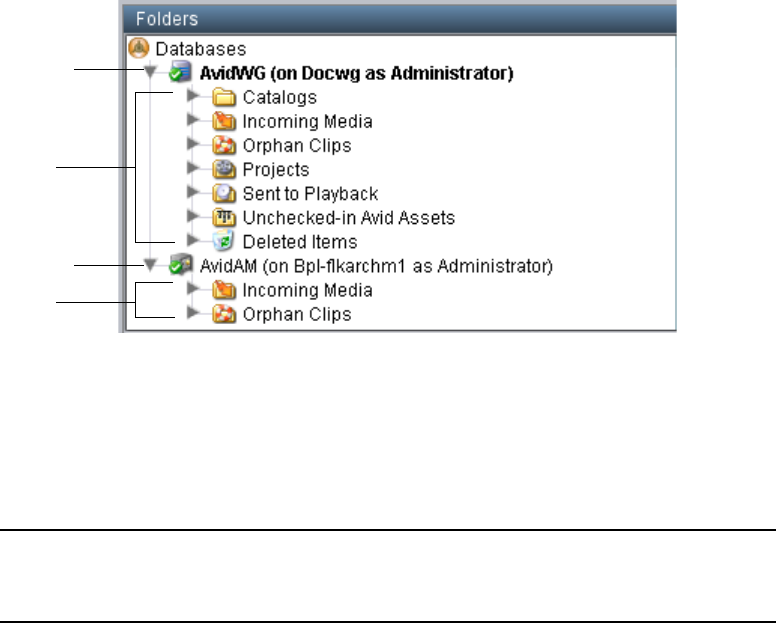
Interplay Database Default Folders
61
If the database has been set up using the default Interplay structure, you cannot delete or move
the top-level folders, and you cannot add other top level folders or assets unless an administrator
changes this setting. For more information, see “Freezing Folders and Content” on page 245.
The following table describes the folders created in the default database structure:
Database
name
Default
folders
Database
name
Default
folders
Folders in the Default Database Structure
Folder Possible Uses
Catalogs
(Interplay Engine only)
You can use catalogs for any purpose. For example, you can create
folders for media belonging to specified groups, such as “Presidential
visit” or “Hurricane damage.”
Incoming Media Incoming Media folders hold transferred and ingested materials,
organized by Avid shared-storage workspace names. The system
automatically creates folders in the Incoming Media folder that match
the names of the workspaces that you use for workgroup transfers and
ingests from AirSpeed®. The system does not create the workspace
folder until you perform the first transfer or ingest to that workspace.
You can then move assets from the Incoming Media folder to another
folder.
Orphan clips If an Avid asset is deleted from a folder (metadata only), and there are
no more references to that asset from any other folder, the last reference
is moved to this holding area until the asset and media are deleted. By
default, only administrators can view this folder. For more information,
see “Using the Orphan Clips Folder” on page 258.

Creating New Folders
62
Creating New Folders
If you have the appropriate rights, you can add folders to the database to help organize your
assets. You might set up a folder for a particular project or a folder that holds one type of
graphics. For more information about planning and managing a folder structure, see
Interplay | Production Best Practices.
Projects
(Interplay Engine only)
Project folders are used to structure and collect media that composes a
unit of work, for example, an episode in a series or an hourly news
show. The system does not automatically create folders within the
Projects folder. You can create the folders within Interplay Access and
then use them to organize your projects in the Avid editing applications.
Sent to Playback
(Interplay Engine only)
You can create a folder and associate it with a playback device. When
you are performing a send to playback, the folder fills with clips of the
media that was successfully transferred to the playback device. For
configuration information on associating a playback device with a
folder, see “Configuring an Ingest Device Catalog” in the
Interplay | Transfer Setup and User’s Guide.
Unchecked-in Avid Assets
(Interplay Engine only)
This folder holds assets that were created on shared storage but are not
yet checked in to the Interplay database. For example, if you capture to
a bin in an Avid editing application and your target drive is a shared
storage workspace, the system automatically creates a folder with your
username in the Unchecked-in Avid Assets folder. Interplay creates
assets for the clips you capture and places the assets in this folder. If
you then drag the clip from the bin to a different folder in the Interplay
Window (check in the clip), the system moves the asset to the specified
folder.
You can view your own assets in the Unchecked-in Avid Assets folder
but only an administrator can see all of the assets in the folder. For more
information, see “Using the Unchecked-In Avid Assets Folder” on
page 69.
Deleted Items This folder holds items that are pending deletion. Logged-on users see
only items they deleted. Administrators see all deleted items. The folder
is created the first time you delete an asset. For more information, see
“Using the Deleted Items Folder” on page 275.
Folders in the Default Database Structure (Continued)
Folder Possible Uses
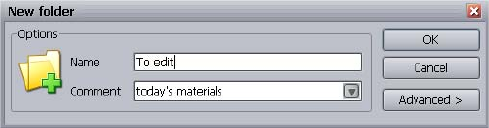
Creating New Folders
63
By default, a new folder has the following properties:
• Users (with appropriate rights) can move, rename, and delete this folder. The administrator
can deselect an option so that the folder cannot be moved, renamed, or deleted. See
“Renaming a Folder or Editing the Description” on page 65, and “Viewing and Changing
Folder Options (Administrators Only)” on page 66.
• The owner is the user who created it. An administrator or the owner can change the
ownership later. See “Changing Ownership of Folders and Assets (Administrators Only)” on
page 66. Administrators can also change the default behavior so that the owner of the new
folder is the owner of the parent folder. Administrators can change this behavior in the
Ownership Behavior view in the Interplay Administrator. For more information, see “Setting
the Ownership for New Database Folders” in the Interplay | Engine and Interplay | Archive
Engine Administration Guide.
• The folder is public (all others can see the folder).
• Users (with appropriate rights) can create subfolders.
• Users (with appropriate rights) can place reservations on the folder. See “Setting
Reservations” on page 248 for details on reservations.
• Users (with appropriate rights) can add and remove items from this folder. The administrator
can deselect an option so that no items can be added to the folder and the folder contents
cannot be deleted.
• There are special restrictions for deleting folders. See “Deleting Assets” on page 241.
nFolders that you create under the Catalogs heading in the tree are typically called catalogs.
To create a new folder in the database:
1. Select a parent folder in the tree structure in the Folders pane. This can be in the root
directory if you have the appropriate rights.
2. Do one of the following:
tSelect File > New Folder.
tSelect New Folder from the context menu.
tPress (Windows) Ctrl+N or (Macintosh) Shift+Command+N.
The New Folder dialog box opens.
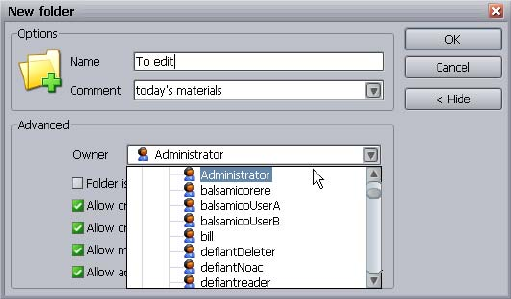
Creating New Folders
64
3. Type a name for your folder and add a comment. Make sure that this comment is meaningful
for later use.
Folder names and file names have a 255 character limit.
nAvid recommends adhering to a best practice of a 255 character limit for clip names. While it is
technically possible for clip names to be longer, folders and files are hard set at this 255
maximum and using it as guideline may be easier to enforce over time across staff or teams.
4. (All users) Do the following:
- The owner of the folder is by default the user logged on. To change the owner
assignment, click Advanced. Select an individual user from the Owner list. Only an
administrator can change the owner after the folder is created.
- To make the folder visible only to you, click Advanced and then select “Folder is
private” (default is public).
5. (Administrators only) Click Advanced and select or deselect the following options:
- Allow users to create reservations (default is allowed).
- Allow moving and renaming of this folder (default is allowed).
- Allow adding and removing of items directly in this folder (default is allowed).
- Allow users to create subfolders (default is allowed).
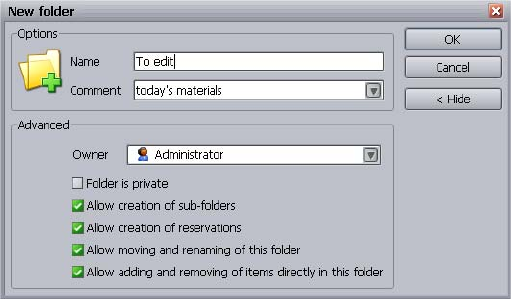
Creating New Folders
65
After a folder is created, only an administrator can change these options. See “Viewing and
Changing Folder Options (Administrators Only)” on page 66 and “Freezing Folders and
Content” on page 245
6. Click OK to create the folder.
Renaming a Folder or Editing the Description
Renaming a folder is allowed only if the setting “Allow moving and renaming of this folder” is
selected for the folder. Administrators can select or deselect this option when first creating a
folder (see “Creating New Folders” on page 62). After a folder is created, administrators can
change this setting through the Security dialog box.
To rename a folder:
1. Select the folder.
2. Do one of the following:
tSelect Rename from the context menu.
tSelect Edit > Rename.
tPress F2.
The Rename dialog box opens.
3. Change the name or description of the folder.
4. Click OK.
The folder is saved with the new name.
Creating New Folders
66
Changing Ownership of Folders and Assets (Administrators Only)
By default, the owner of a folder is the user who created it. The owner of an Avid asset is the user
who created it; the owner of a file asset is the user who imported it.
After an item is created, only the owner or an administrator can change the owner.
Administrators can change the default behavior so that the new folder is owned by the owner of
the parent folder. Administrators can change this behavior in the Ownership Behavior view in the
Interplay Administrator. For more information, see “Setting the Ownership for New Database
Folders” in the Interplay | Engine and Interplay | Archive Engine Administration Guide.
To change the owner of a folder or asset:
1. Do one of the following:
tSelect the folder in the tree structure, then select Operations > Security.
tSelect Security from the context menu.
The Security dialog box opens.
2. Click the down arrow button and select a different user from the Owner list.
3. Click Apply, and then click Exit.
Viewing and Changing Folder Options (Administrators Only)
By default, a new folder has the following properties:
• The owner is the user who created it.
• The folder is public (all others can see the folder).
• Users (with appropriate rights) can create subfolders.
• Users (with appropriate rights) can place reservations on the folder. See “Setting
Reservations” on page 248 for details on reservations.
• Users (with appropriate rights) can move, rename, and delete this folder. The administrator
can deselect an option so that the folder cannot be moved, renamed, or deleted.
• Users (with appropriate rights) can add and remove items from this folder. The administrator
can deselect an option so that no items can be added to the folder and the folder contents
cannot be deleted.
After a folder is created, only an administrator can change these folder options, as described in
the following procedure. See also “Freezing Folders and Content” on page 245.
For a summary of user rights and access control, see “Access Control and Delete Matrices” on
page 277.
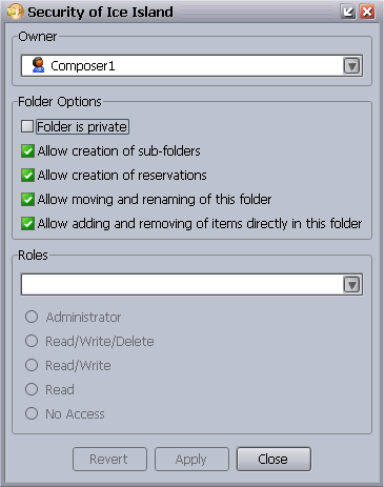
Creating New Folders
67
To change folder options:
1. Select the folder in the tree structure.
2. Do one of the following:
tClick Operations > Security.
tSelect Security from the context menu.
The Security dialog box opens.
3. Select or deselect the desired options.
4. Click Apply.
5. When you are finished, click Close.
Changing User Roles on Folders (Administrators Only)
The global user roles for each database are set in Interplay Administrator’s User Management
view, and can be fine-tuned to restrict (or allow) rights on specific folders in the Manage
Database Roles view. See the Interplay Engine and Avid Interplay Archive Engine
Administration Guide for details. Administrators can, however, also change user rights for an
item in Interplay Access.
After a folder is created, only an administrator can change the user roles.
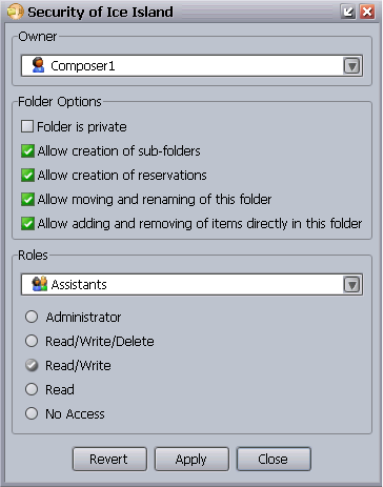
Creating New Folders
68
For a summary of user rights and access control, see “Access Control and Delete Matrices” on
page 277.
To change the rights for a folder:
1. Select the folder in the tree structure.
2. Do one of the following:
tSelect Operations > Security.
tSelect Security from the context menu.
The Security dialog box opens.
3. In the Roles section, click the down arrow and select the user for which you want to change
the user role for the selected item.
4. Select the role you want to grant the selected user for the selected item.
5. Click Apply.
cIt is important that you understand the way that user roles work, especially if security is
crucial. See the User Management section of the Interplay | Engine and Interplay | Archive
Engine Administration Guide for details.
Using the Unchecked-In Avid Assets Folder
69
Using the Unchecked-In Avid Assets Folder
By default the Interplay database includes an Unchecked-in Avid Assets folder. This folder
serves as a temporary folder for Avid assets that are automatically checked in by an Avid editing
application or by another application such as CaptureManager. For example, if you set your
Media Creation tool in an Avid editing application to shared storage and then capture media to a
bin or render effects, the Avid editing application automatically checks the newly created assets
into the Interplay database and places them in the Unchecked-in Avid Assets folder.
After you drag the asset from the bin to a folder in the Interplay window, Interplay automatically
moves the asset link from the Unchecked-in Avid Assets folder to your designated folder.
Administrators can view all of the assets in the Unchecked in Avid Assets folder. Users that
create media from local bins can only view their own assets in the Unchecked-in Avid Assets
folder.
To view the contents of the Unchecked-in Avid Assets folder:
tDouble-click the Unchecked-in Avid Assets folder in the tree structure in the Folders pane.
Adding Assets to the Interplay Database
There are different ways of adding assets to the Interplay database:
• To add Avid assets, you need to check them in through an Avid editing application or
through an Interplay application. Avid assets can be created by Avid applications through
capture, ingest, import, or transfer. Any media created on Avid shared-storage, such as
capturing or rendering, is automatically checked in (autocataloged) to the Interplay database.
For information about checking in Avid assets from an editing application, see the
documentation for the editing application. For information about automatic check-in
through an Interplay application, see Interplay | Production Best Practices Guide.
• To add file assets, you need to import them though Interplay Access. For more information,
see “Importing Files or Folders” on page 69.
Importing Files or Folders
File assets can include any file type, including graphics files, Microsoft Office documents, and
desktop movies such as QuickTime files. Importing files adds them as file assets to the Interplay
database and makes them accessible to other users of Interplay.

Importing Files or Folders
70
It’s most efficient to work with file assets that are created on your working path (see “Setting the
Default Working Folder” on page 23). You can import files from any location, but when you
check out a file, the latest version is copied to the corresponding folder in your working path.
Thus, to avoid having duplicate files on your local system, it’s a good idea to create new files in a
folder in your working path and then import the files or folder. You can use the following
methods to import one file, multiple files, one folder, or multiple folders:
• Select an item and drag it to a folder in Interplay Access
• Use the Import dialog box, which offers three different tabs for accessing files:
- Unimported Files: This tab displays any unimported files in your working path. For
information about the working path, see “Setting the Working Path for a Folder” on
page 36.
- My Computer: This tab displays a tree that corresponds to the folder structure on your
computer.
- Home Directory: This tab displays the home folder for the user that is currently logged
in.
To import files or folders by dragging and dropping:
1. On your system desktop, select a file, multiple files, a folder, or multiple folders.
2. Drag the selection to a folder in Interplay Access.
The Import dialog box opens.
3. Type a comment.
4. (Option) If you don’t want a copy of the files in your local working directory, select
Advanced and select “Don’t get local copy.”
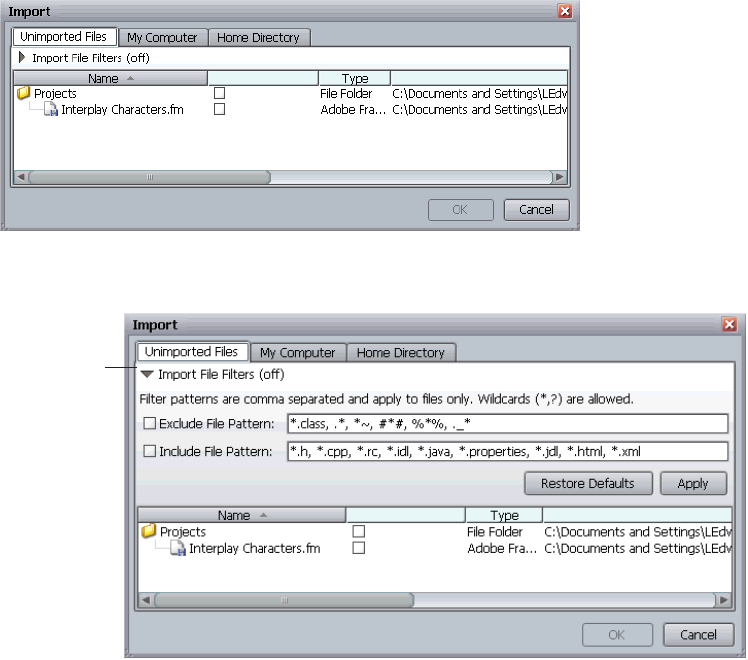
Importing Files or Folders
71
5. Click OK.
The selected files and folders are imported.
To import files or folders from the working path:
1. Select a folder in the tree structure in the Folders pane.
2. Open the Import dialog box by doing one of the following:
tSelect Import from the context menu
tSelect Operations > Import.
tPress (Windows) Ctrl+M or (Macintosh) Shift+Command+M.
3. Click the Unimported Files Tab to browse through your data in the working path of the
folder selected.
4. (Option) Click the arrow to display the file filter options.
5. Make your filter selections.
Click arrow to
expand filters
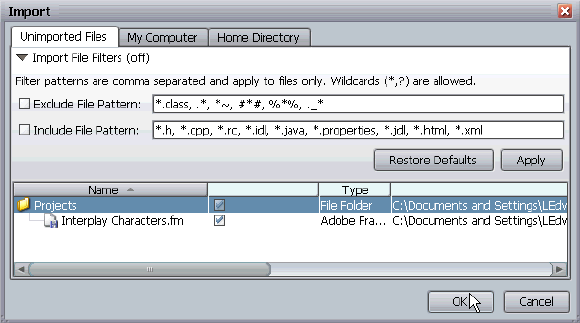
Importing Files or Folders
72
6. (Option) Restore Defaults clears the filters you have selected and makes all files and folders
you originally chose available for import.
7. To mark files or folders for import, select them and do one of the following:
tPress the space bar.
tClick the check box.
If you click a folder, all files and subfolders are automatically marked for import.
8. Click OK.
The Import dialog box opens.
9. Type a comment.
10. (Option) If you don’t want a copy of the files in your local working directory, select
Advanced and select “Don’t get local copy.”
11. Click OK.
The selected files and folders are imported. If you selected files and folders in other tabs in
the Import dialog box, those files and folders are also imported.
To import files or folders from other locations on your disk:
1. In the tree structure in the Folders pane, select a folder into which you want to import the
files or folders.
2. Open the Import dialog box by doing one of the following:
tSelect Import from the context menu.
tSelect Operations > Import.
tPress (Windows) Ctrl+M or (Macintosh) Shift+Command+M.
3. Click the My Computer tab.
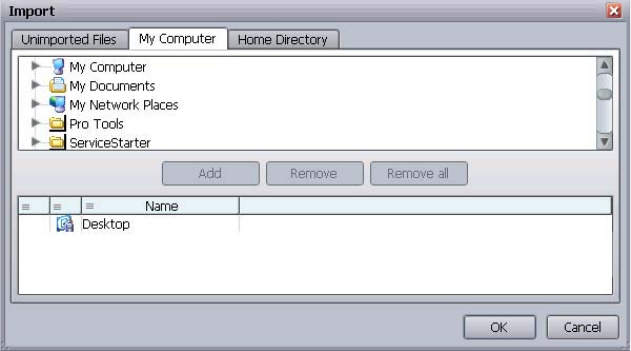
Importing Files or Folders
73
4. Add files or folders to the import list by selecting them in the top view and clicking Add.
5. (Option) Remove added files or folders from the import list by selecting them in the bottom
view and selecting Remove or Remove All.
6. Click OK.
The Import dialog box opens.
7. Type a comment.
8. (Option) If you don’t want a copy of the files in your local working directory, click
Advanced and select “Don’t get local copy.”
9. Click OK.
The selected files and folders are imported. If you selected files and folders in other tabs in
the Import dialog box, those files and folders are also imported.
To import files or folders from your Home Directory:
1. In the tree structure in the Folders pane, select a folder into which you want to import the
files or folders.
2. Open the Import dialog box doing one of the following:
tSelect Import from the context menu.
tClick Operations > Import.
tPress (Windows) Ctrl+M or (Macintosh) Shift+Command +M.
3. Click the Home Directory tab.
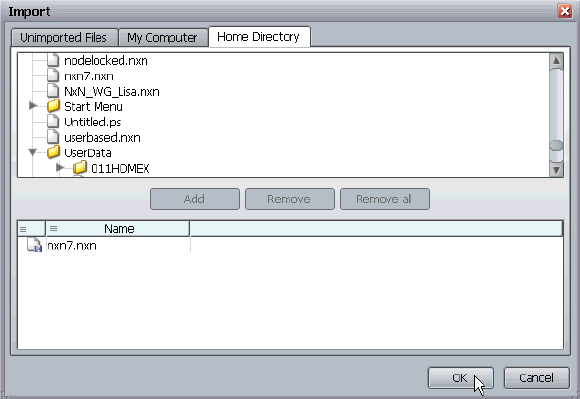
Resyncing Media Files with Avid Shared-Storage Workspaces (Administrators Only)
74
4. Add files or folders to the import list by selecting them in the top view and clicking Add.
5. (Option). Remove added files or folders from the import list by selecting them in the bottom
view and selecting Remove or Remove All.
6. Click OK.
The Import dialog box opens.
7. Type a comment.
8. (Option) If you don’t want a copy of the files in your local working directory, click
Advanced and select “Don’t get local copy.”
9. Click OK.
The selected files and folders are imported. If you selected files and folders in other tabs in
the Import dialog box, those files and folders are also imported.
Resyncing Media Files with Avid Shared-Storage
Workspaces (Administrators Only)
Resyncing is a feature that administrators use to resynchronize the Interplay database with media
stored on Avid shared-storage workspaces. Resyncing ensures that all the media on Avid shared
storage is checked into the Interplay database. The resync process works with the Media Indexer
service to review all Avid media files on Avid shared-storage workspaces and check if a
corresponding Avid asset exists in the Interplay database. If not, the resync process creates
metadata for the media, checks the asset into the database, and displays the asset in the Resync
catalog.
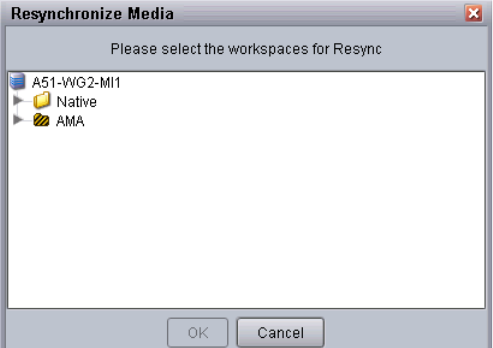
Resyncing Media Files with Avid Shared-Storage Workspaces (Administrators Only)
75
Only media clips such as master clips and rendered effects are checked in by the resync process.
Sequences and subclips must be checked in again from the editing application.
If the resync process cannot locate the complete set of media files for a clip (video files, audio
files, or both), the media cannot be resynced.
You should resync the Interplay database with Avid shared storage:
• When media files are copied into a shared storage environment manually and resyncing is
necessary to make the compositional metadata (the clips associated with those media files)
appear in Interplay.
• When the Interplay Engine is offline, such as for maintenance or a system crash, and media
files are added to or created on Avid shared storage.
cResyncing should not be used more than necessary as it effects the performance of the
entire database.
nThis functionality is not available on Mac OS X.
Beginning with Interplay v3.2, the Resync process includes resync of AMA (Avid Media
Access) media files. Resync works with Media Indexer and checks if the AMA media files
indexed in the MI (through their associated .spaaf files) are managed in the Interplay
database.For more information, see the AMA chapter in the Interplay Production Best Practices
Guide.
To resync the Interplay database with Avid shared-storage workspaces (native media):
1. Select the Resync option from the database’s context menu.
The Resynchronize Media dialog box opens and lists two folders: one for native media, and
one for AMA media.
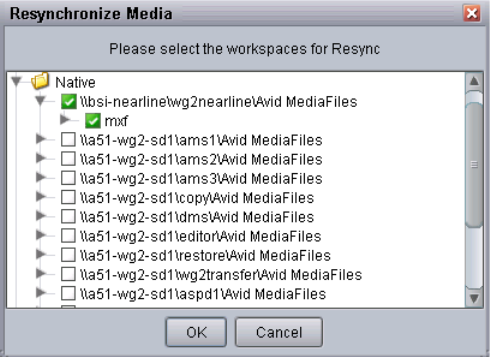
Resyncing Media Files with Avid Shared-Storage Workspaces (Administrators Only)
76
2. Click the triangle next to the Native folder.
3. Select the workspaces with which you want to resync.
Selecting a workspace resyncs all folders in that workspace. You can open a workspace and
select a particular folder.
4. Click OK.
A dialog box displays the progress.
5. When the resync is complete, click OK.
New Avid assets created during resync are checked in and added to the Resync catalog.
6. (Option) Move the assets to a different folder.
nNot all attributes are created. The Name, Tape name, Creation date, Audio, Audio format,
Tracks, Drive, End, and Start attributes are created. All other attributes are left blank.
To purge unwanted Avid assets from the Resync catalog:
1. Select the items in the catalog that you want to delete.
2. Press the Delete key.
The Delete dialog box opens.
3. Select the asset and the associated media files.
4. Click OK.
The selected Avid assets are permanently deleted from the Interplay database, and the media
files are deleted from Avid ISIS shared storage. For more information about deleting, see
“Deleting Assets” on page 241.
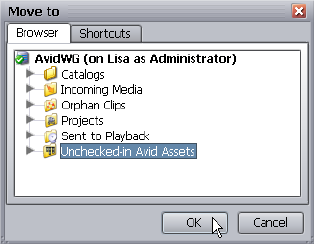
Moving Assets into Folders
77
Moving Assets into Folders
Folders are useful for organizing your assets (both file assets and Avid assets). Folders can also
make searches faster by limiting the number of records through which the database has to search.
You can organize your assets by moving them from one folder into another. You can also cut,
copy, or paste assets (see “Cutting, Copying, and Pasting Assets” on page 78). File assets and
sequences keep their version histories when you move them.
Moving assets into folders is allowed only if the Security setting “Adding and removing of items
directly in this folder” is checked for the folder. Only Administrators can change this setting
through the Security dialog, available through the context menu of the folder. If the database has
been set up using the default Interplay structure, you cannot delete or move the top-level folders,
and you cannot add other top-level folders or assets unless an administrator changes this setting.
When you move a sequence, any referenced assets are also moved.
nIf you move a sequence or subclip to another folder, right-click the original folder and select
Refresh Referenced Clips. This ensures that any referenced clips associated with the moved link
are removed. See “Refreshing Referenced Clips” on page 132. Some clips might remain because
a clip can be both referenced and non-referenced. See “Setting the Filters for the Display” on
page 96.
To move assets into a folder:
1. Perform a search or browse operation that returns the assets that you want to add to a folder.
See “Browsing Databases and Folders” on page 90 and “Finding Assets” on page 155.
2. Select the desired items.
3. Do one of the following:
tDrag the items into the target folder in the tree view. The items are moved.
tFrom the context menu of the items, select Move to.
The Move to dialog box opens.
Cutting, Copying, and Pasting Assets
78
tSelect Edit menu > Move to.
The Move to dialog box opens.
4. Select the folder to which you want to move the items. Click the Browser tab to select a
folder. Click the Shortcuts tab to move the item into the folder the shortcut points to.
5. Click OK.
The items are moved to the selected folder.
Cutting, Copying, and Pasting Assets
Cutting removes the link to an asset in a folder. No assets are actually deleted.
Cutting and pasting moves the link to an asset from one folder to another. No assets are actually
deleted. All of the metadata for the asset is preserved.
Copying and pasting adds another link to the asset without consuming extra space. All of the
metadata for the asset is preserved.
To cut and paste an asset from one folder to another:
1. Select the item you want to copy.
2. Do one of the following:
tSelect Edit > Cut.
tSelect Cut from the context menu.
tPress (Windows) Ctrl+X or (Macintosh) Shift+Command+X.
3. Click the location where you want to copy the asset to
4. Do one of the following:
tSelect Edit > Paste.
tSelect Paste from the context menu.
tPress (Windows) Ctrl+V or (Macintosh) Shift+Command+V.
To copy and paste an asset from one folder to another:
1. Select the item you want to copy.
2. Do one of the following:
tSelect Edit > Copy.
tSelect Copy from the context menu.
tPress (Windows) Ctrl+C or (Macintosh) Shift+Command+C.
Duplicating Avid Assets
79
3. Click the location where you want to copy the asset to.
4. Do one of the following:
tSelect Edit > Paste.
tSelect Paste from the context menu.
tPress (Windows) Ctrl+V or (Macintosh) Shift+Command+V.
Duplicating Avid Assets
Duplicating a clip, subclip, or sequence makes a copy of the Avid asset with all of the same
metadata (relatives, properties, and so on). The duplicated asset is a new asset. _Dup_ and an ID
are added as a suffix to the original name.
To duplicate a clip, subclip, or sequence, do one of the following:
tSelect the item and select Duplicate from the context menu.
tSelect the item and select Tools > Duplicate.
The media status of the duplicated asset is the same as that of the original asset, but you
might need to select Tools > Update Status from Media Indexer to refresh the icon.
Organizing Assets Using Categories
Categories are a way to organize or sort your assets. Categories provide a grouping mechanism
or description for the data that is stored in a database. You can assign these categories to database
items and use them in an Extended Search.
The categories available are configured by an administrator through the Interplay Administrator.
They are visible in the Categories pane and the Categories tab in the Object Inspector. Use the
Categories pane to perform a simple search. Use the Categories tab to assign an asset to a
category.
The Categories pane and the Object Inspector are not displayed in the default views. You can
display them by choosing Views > Categories Pane or Views > Object Inspector.
To assign an asset to one or more categories:
1. If the Categories pane is not displayed, select View > Show Categories Pane.
2. Select the asset.
3. Select the Categories tab in the Object Inspector.
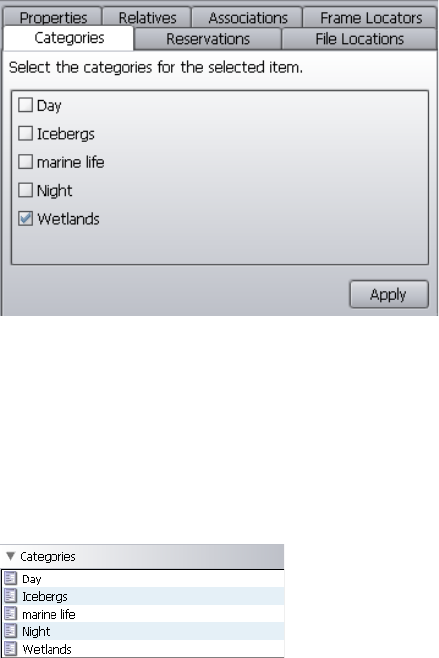
Using Shortcuts for Browsing
80
4. Select the appropriate category or categories.
5. Click Apply.
To search for items belonging to a specified category:
1. If the Object Inspector is not displayed, select View > Show Object Inspector Pane.
2. In the Categories pane, double-click the desired category.
The items assigned to the category are displayed in the Search Results pane.
Using Shortcuts for Browsing
To avoid having to click through the tree structure of the Folders pane for an item that you work
with frequently, you can create a shortcut and then just click the shortcut to open the item in the
Content tab. Shortcuts are stored per database, meaning you do not see the same shortcuts if you
switch to another database, and they are private by default, meaning other users do not see your
shortcuts. Administrators can create shortcuts as public, meaning other users can see them. For
more information, see “Making Private Shortcuts Public (Administrators Only)” on page 82.
The Shortcuts pane is not displayed in the default views.
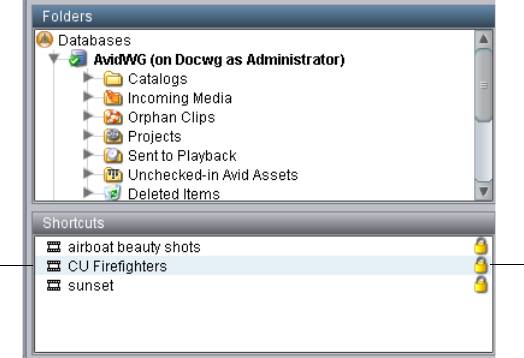
Using Shortcuts for Browsing
81
To create a shortcut:
1. If the Shortcuts pane is not displayed, select View > Show Shortcuts Pane.
2. Do one of the following:
tClick the item and drag it to the Shortcuts pane. The shortcut is created as private, or
local-only.
tSelect Edit > Create Shortcut.
tSelect Create Shortcut from the context menu of the item.
The Create Shortcut dialog box opens.
3. (Option) Change the name of the shortcut by typing new text in the text box.
4. (Administrators only) To create the shortcut for public use, double-click the lock icon (see
“Making Private Shortcuts Public (Administrators Only)” on page 82.
5. Click OK.
The shortcut appears in the Shortcuts pane.
A closed lock icon indicates that the shortcut is private, meaning not visible on other users’
workstations. An open lock indicates a public shortcut. Private is the default, and is the only
option available to non-Administrators.
To change the name of a shortcut:
1. Select Edit from the context menu of the shortcut.
2. Type new text in the text box.
3. Click OK.
Shortcuts
pane Lock icons
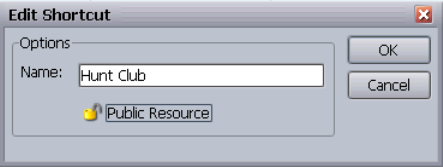
Using Shortcuts for Browsing
82
To delete a shortcut you have created:
1. Select the shortcut.
2. Do one of the following:
tSelect Delete from the context menu.
tPress the Delete key.
Making Private Shortcuts Public (Administrators Only)
To make a shortcut visible to other database users:
1. In the Shortcuts pane, do one of the following:
tDouble-click the closed lock icon of the shortcut.
tSelect Edit from the context menu of the shortcut.
The Create Shortcut dialog box opens.
2. Click the lock icon or the label “Private Resource.”
The icon changes to an open lock and the label changes to “Public Resource.”
3. Click OK.
The lock icon changes to an open lock in the Shortcuts pane.
To make a public shortcut private:
1. In the Shortcuts pane, do one of the following:
tDouble-click the open lock icon of the shortcut.
tSelect Edit from the context menu of the shortcut.
The Create Shortcut dialog box opens.
2. Click the label “Public Resource.”
The icon change to a lock icon and the label changes to “Private Resource.”
3. Click OK.
Renaming an Asset
83
Renaming an Asset
Users with write access on an asset can rename the asset. Each asset needs to have a name. No
empty names are allowed. If an empty name is entered for a file asset, the Rename dialog does
not allow you to continue. For an Avid asset, if an empty name is entered, the internally used file
name appears as the name instead (a long string of numbers and letters).
To rename an asset:
1. Select the asset.
2. Do one of the following:
tPress F2.
tSelect Rename from the context menu.
tSelect Edit > Rename.
3. Type the new name.
4. (Option) Press ESC to cancel the rename.
5. Press Enter to apply the changes.
Changing Text Color (Administrators Only)
Changing the text color of the metadata display of a file or folder color is a global change,
meaning all other users can see the change right after it is performed. Only Administrators can
change the text color. The Change Color command affects only the folder name and the asset
name.
nAll users can change the font size. See “Changing Font Settings” on page 31.
To change the text color:
1. Select the item for which you want to change the color.
2. Do one of the following:
tSelect Operations > Advanced > Change Asset Color.
tSelect Advanced > Change Asset Color from the context menu.
3. Select the color you want to display.
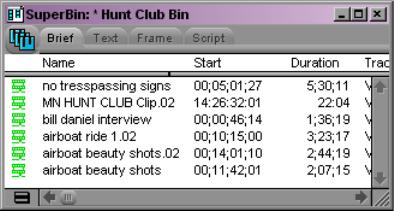
Using Interplay | Access with an Avid Editing Application
84
Using Interplay | Access with an Avid Editing
Application
In the Interplay environment, Avid assets include Avid files such as master clips, subclips,
effects, and sequences. If you are working with an Avid editing application, you might want to
use the advanced search in Interplay Access to look for particular Avid assets. After finding the
assets, you can drag them from Interplay Access into a bin, which creates local copies of the
assets (but not the media). This process of copying assets is called checking out.
If you then modify the asset and want to save the changes in the database, you must use the Avid
editing application to check the asset back in to the database. The process of adding Avid files to
an Interplay database is known as checking in. Users can check files in manually through an Avid
editing application or automatically through one of several Interplay configurations. For
information about checking in through an Avid editing application, see your editing application
documentation.
Avid assets on the database are sometimes referred to as remote assets.
nYou use the Interplay Access Import feature for file assets only.
nInterplay Access maintains version control for sequences (see “Version History and Archiving”
on page 287).
To check Avid assets out of the Interplay database:
1. Start the Avid editing application, and either create a new project or open a bin in an existing
project.
2. Log on to the Interplay database, as described in the editing application documentation.
3. Open Interplay Access and browse or search for the assets you want.
4. Select the assets you want to use and drag them to a bin.
The Avid assets are checked out from the Interplay database. A link is created to the asset,
and the bin displays the assets you checked out.
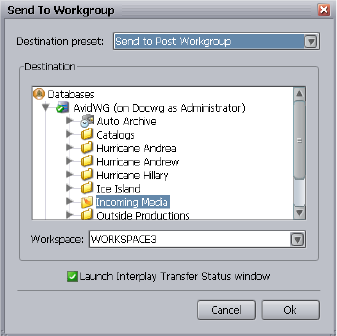
Transferring Avid Assets to Another Workgroup
85
Transferring Avid Assets to Another Workgroup
If you are working in a facility that includes more than one Avid workgroup, you can transfer
Avid assets (both metadata and media) from one workgroup to another. Workgroup transfers
require the Interplay Transfer application. In a workgroup transfer, the metadata and media is
copied to the remote workgroup while the original metadata and media remains in the local
workgroup.
For information about workgroup transfers and creating destination presets, see the
Interplay | Transfer Setup and User’s Guide.
nYou can also use the Copy service to copy assets and media to another workgroup. See “Copying
Assets and Media to Another Workgroup” on page 86.
To send the media and metadata to another workgroup:
1. In the Content view, right-click an Avid asset.
2. Select Send to Workgroup.
The Send to Workgroup dialog box opens.
3. Select a location that is preconfigured by the database administrator.
Users with administrative rights can change the location.
4. (Option) If you want to monitor the transfer, select “Launch Interplay Transfer Status
window”.
5. Click OK.
Copying Assets and Media to Another Workgroup
86
Copying Assets and Media to Another Workgroup
You can use the Interplay Copy service to copy assets (metadata) and their media files from one
workgroup to another. For example, if your facility uses a specified workgroup for
low-resolution media, you might need to copy clips and their low-resolution media files to the
low-resolution workgroup and copy them back again.
Before you copy assets and media files to another workgroup, make sure that your installation
meets the requirements described in the Interplay | Media Services Setup and User’s Guide.
Moving Media to Another Workspace
You can use the Interplay Move service to move media files from one Avid ISIS workspace to
another. For example, if one of your workspaces is getting close to capacity, you can use the
Move service to move selected media files to a workspace that has more free space.
Before you move media files, make sure your workgroup meets the requirements described in
the Interplay | Media Services Setup and User’s Guide.
To move media files to another workspace using Interplay Access:
1. In Interplay Access, select the assets whose media files you want to move.
You can select one asset, multiple assets, a subfolder, or multiple subfolders. The following
illustration shows the clip “divers” selected. The File Locations tab in the Object Inspector
shows that the clip is associated with two video media files and four audio media files (two
different sets of resolutions), all on workspace1.
nWhen selecting a folder, do not select a top-level folder, such as AvidWG/Catalogs or
AvidWG/Projects. You can only select subfolders, such as AvidWG/Catalogs/subfolder. All media
files contained in the selected subfolder and its subfolders are moved to the destination
workspace.
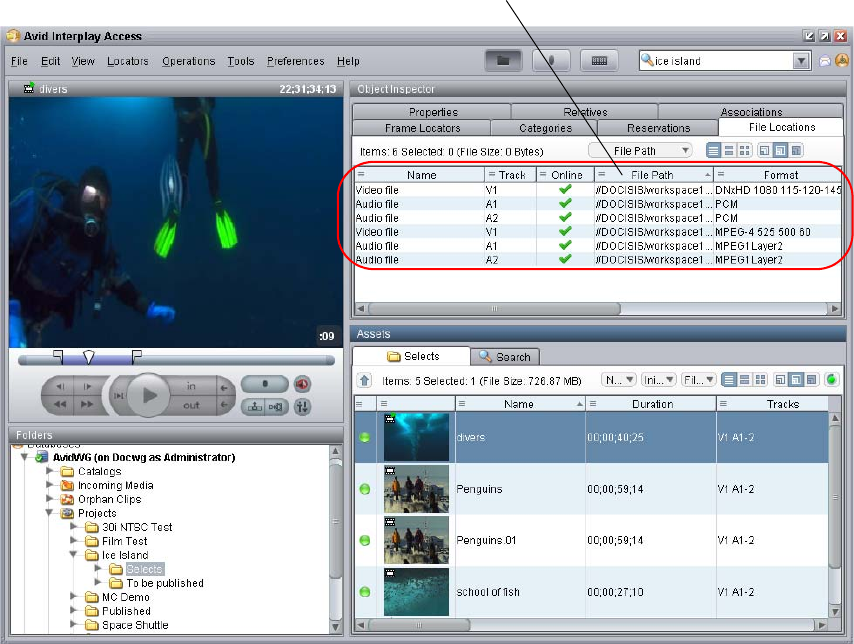
Moving Media to Another Workspace
87
2. Do one of the following:
tSelect Tools > Move...
tRight-click and select Move...(Do not select Move to, which moves metadata from one
folder to another.)
The Move dialog box opens.
The selected clip has two video files
and four audio files on workspace1.
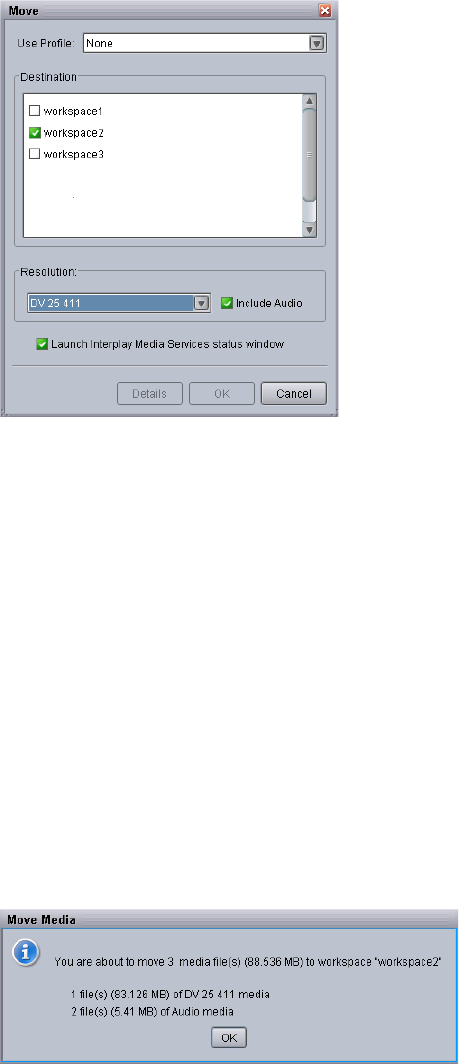
Moving Media to Another Workspace
88
3. Select a profile from the Use Profile menu. If there are no profiles available, or you do not
want to use a profile, select the following options:
a. Use Profile: None.
b. Destination: Select the workspace to which you want to move the media.
c. Resolution: Select which video resolution you want to move. You can select All,
Highest, Lowest, or a specific resolution. If you select All, the media for all associated
resolutions must be online. If any media is offline, the job will fail. You can override the
default failure reporting setting using the Avid Service Configuration tool.
d. Include Audio: Select this option if you want to move audio that is associated with the
clips whose video media you are moving. Selecting this option also moves any
audio-only clips.
4. (Option) Select “Launch Interplay Media Services status window” to view the status of the
operation after it begins.
5. (Option) Click the Details button to view the number of files and their size. Their size
indicates how much disk space will be freed up after the move.
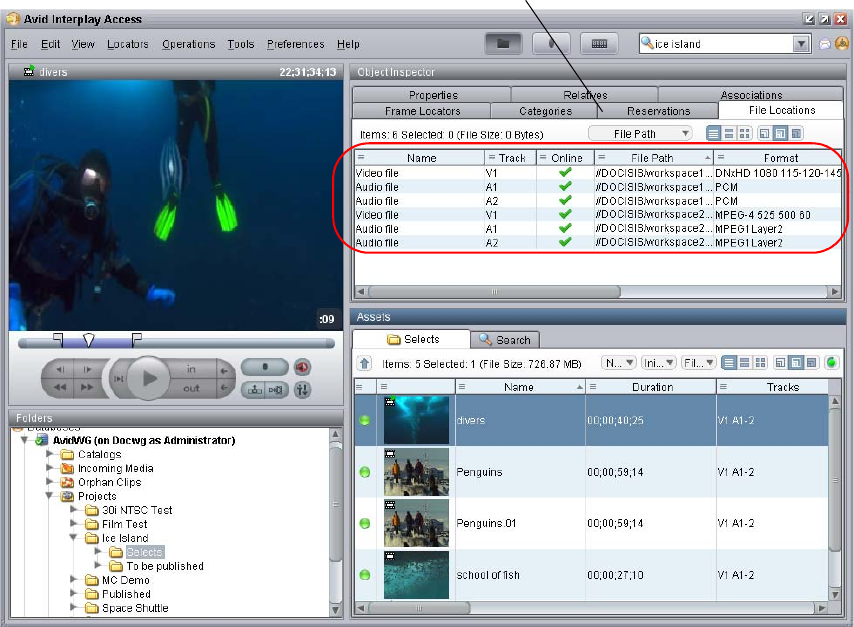
Moving Media to Another Workspace
89
6. Click OK.
The system starts the Move operation. If you selected the option “Launch Interplay Media
Services status window,” the window opens and shows you the progress of the job, as well as
other information about it. For information about the status window, click the Help button.
7. (Option) When the operation is complete, select the clip and click the File Locations tab in
the Object Inspector to view the new workspace location.
The following illustration shows one video file and two audio files are now stored on
workspace2, while one video file and two audio files remain on workspace1.
One video file and two audio files remain on
workspace1. One video file and two audio files
were moved to workspace2.

4Browsing the Database
You can use Interplay Access to find assets by browsing the database. The following topics
describe how to use Interplay Access to find and display assets:
•Browsing Databases and Folders
•Icons for Avid Assets
•Updating the Media Status
•Browsing AMA Clips
•Setting the Filters for the Display
•Using the Assets Pane
•Using the Object Inspector
•Showing a Preview of an Item
•Viewing the Status of Assets Across Workgroups (Asset Tracking)
•Preserving Ancillary Data in an Interplay Environment
•Working with Multichannel Audio Tracks in Interplay
•Emulated Rendered Effects
•Stereoscopic 3D Support in Interplay | Access
•Support for Group Clips in Interplay | Access
Browsing Databases and Folders
When you are connected to a database, the folders in the database are displayed in a tree view in
the Folders pane. The item you select in the tree view is displayed in the Content tab in the
Assets pane. The tab is labeled with the name of the folder.
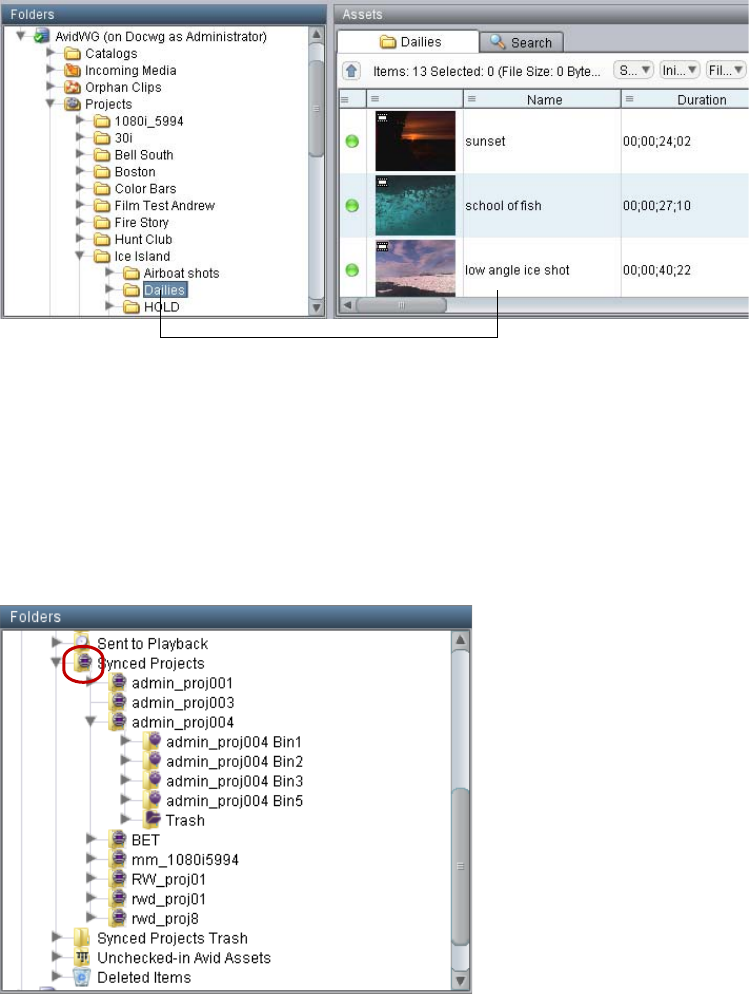
Browsing Databases and Folders
91
A downward arrow-shaped pointer indicates that the sub-tree is open and a pointer towards the
folder shows that the sub-tree is closed. Clicking a pointer opens or closes the respective level of
the structure.
Folders for Interplay Synced Projects are indicated by a synced project icon. Media assets in
these folders update as users modify the projects in Media Composer and NewsCutter. For more
information, see “Interplay Synced Projects” in the Help for your Avid editing application.
Synced project asset folders in Avid Access, with the synced project icon
Selected item displayed in Content tab.

Icons for Avid Assets
92
To browse databases and folders:
1. In the Folders pane, click the arrow-shaped pointer next to a database name.
The top-level folders for the database are displayed.
2. Do one of the following:
tClick a folder to select it.
tType the first letter of the folder name. The navigation starts from where the focus is in
the tree.
tClick a pointer to open a folder until you can select the folder you want to view.
The Content tab displays the assets for the folder you selected.
Icons for Avid Assets
Avid assets have their own set of icons, as shown in the following table. These icons are
displayed in the second column of the Content tab and in the title bar of the Monitor.
nFor information about icons for file assets, see “Icons and Indicators for File Assets” on
page 207.
Avid Asset Icons
Master clip
Stereoscopic clip
Stereoscopic subclip
Sequence
Subclip
Group
Motion effect
Effect
Rendered effect
Reserved asset (normal asset icon with red dot)

Browsing AMA Clips
93
Gray Icons for Referenced-Only Assets
Assets are considered referenced assets when they are displayed in the same Interplay folder as
the asset that references them. For example, master clips and rendered effects that are contained
in a sequence are referenced assets when they are displayed in the same folder as the sequence.
In Interplay Access, icons for referenced assets are displayed in two different ways:
• Icons for assets that are explicitly checked in or copied to an Interplay folder are indicated
by standard black icons.
• Starting with Interplay v2.3, icons for assets that are not explicitly checked in or copied to an
Interplay folder are indicated by gray icons. These assets are referred to as “referenced-only
assets.”
For more information, see “Referenced Assets and Referenced-Only Assets” on page 97
Links to rendered effects are not included in the Interplay database but are still visible in client
applications as simulated or emulated links with gray versions of the corresponding icons. See
“Emulated Rendered Effects” on page 148.
Browsing AMA Clips
Interplay v3.0 and later supports checkin and dynamic relink of AMA (Avid Media Access)
material. The following information describes how AMA material is displayed in Interplay
Access.
• There is a metadata property named AMA Media Status that is displayed as a column in the
Assets view and in other locations. The column displays one of the values described in the
following table.
Value Description
has AMA media linked The clip is linked to both AMA media and native Avid media
has only AMA media linked The clip is linked to AMA media, but is not linked to native Avid
media.
no AMA media linked The clip is not linked to AMA media.
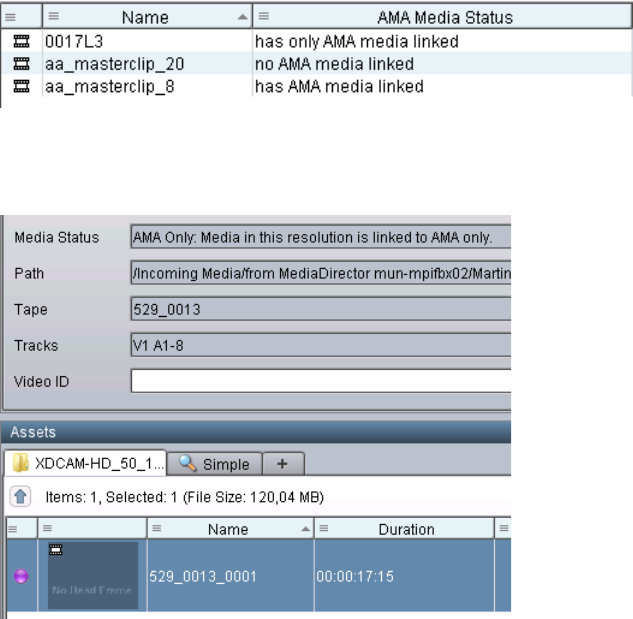
Browsing AMA Clips
94
The following illustration shows an example of each value.
• In the Media Status column, an asset that has only AMA material is shown with a purple
circle, as shown in the following illustration.
• There are several search criteria you can use for an extended search, as described in the
following table.

Updating the Media Status
95
• For clips that have only AMA media, there are no entries in the File Locations for the Object
Inspector.
For information about deleting AMA material, and additional AMA information, see “Using
AMA Material in Interplay” in the Interplay | Production Best Practices Guide.
Updating the Media Status
To make sure that your view reflects the most recent changes to the database, you can update (or
refresh) the media status of Avid assets. Updating the media status uses information from the
Media Indexer, an Interplay service. For more information about the Media Indexer, see Avid
Interplay | Production Best Practices Guide and the Avid Service Framework User’s Guide.
cDo not update the media status too often as it can take a long time, especially for a large
database with many users.
nYou can update the media status on an Avid editing system by right-clicking a clip in a bin and
selecting Reset Offline Info.
To update the media status for an Avid asset or for every Avid asset in a folder:
1. Select the item (an asset or a folder).
2. Do one of the following:
tSelect Update Status from Media Indexer from the context menu.
tSelect Tools > Update Status from Media Indexer.
tClick the Media Status Update button on the Content tab.
Criterion Description
has AMA media linked Search for clips linked to AMA media. These clips can include only
AMA media or both AMA media and native Avid media.
has native media linked Search for clips linked to native Avid media or both native Avid
media and AMA media.
has only AMA media linked Search for clips that are linked to AMA media but not to native Avid
media.
has native and AMA media linked Search for clips that are linked to both AMA media and native Avid
media.
does not have AMA media linked Search for clips that are not linked to AMA media.

Setting the Filters for the Display
96
While the view is fetching content, the Media Status Update button is disabled. The
processing is indicated by the animated spinning icon in the button. If you repeat this step
again while processing, the operation ends. Selecting another tab, such as Search, also ends
the processing.
Setting the Filters for the Display
Interplay allows you to set filtering options for what types of Avid assets should be displayed in
your folders. All asset types are displayed by default.If you are only concerned with certain asset
types, you can use the filters to make the display results less cluttered.
Referenced assets are displayed by default. Referenced assets are assets that are referenced by
another asset in the same Interplay folder. If a referenced asset is not explicitly checked in or
copied to the folder that holds the sequence, the asset is considered a referenced-only asset.
Referenced-only assets are displayed with gray versions of the corresponding icons for
non-referenced assets. For more information, see “Referenced Assets and Referenced-Only
Assets” on page 97.
The Filter Settings tab also includes the Search Results Filter. This option filters the results of a
search to show only one representation for each asset found. For more information, see
“Showing One Representation for Each Asset Found” on page 177.
To change the filter settings:
1. Select (Windows) Preferences > Options or (Macintosh) Interplay Access > Preferences.
The Options dialog box opens.
Media Status
Update button
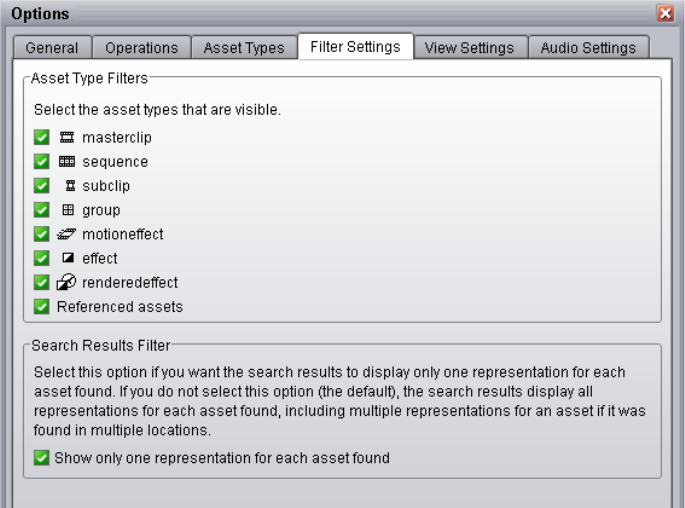
Referenced Assets and Referenced-Only Assets
97
2. Click the Filter Settings tab.
3. Select the additional options you want to be displayed in the folder, or deselect the boxes for
asset types you want filtered out.
4. Click OK.
The next time you access a folder, the display reflects your changes.
Referenced Assets and Referenced-Only Assets
This topic presents definitions for the following terms:
This information is important when planning a deletion workflow.
•Referenced Assets
•Referenced-Only Assets
•Explicit Checkin
•Emulated Rendered Effects
Referenced Assets and Referenced-Only Assets
98
Referenced Assets
In simplest terms, referenced assets are assets that are used by another asset. For example, master
clips and rendered effects that are contained in a sequence are referenced assets. However, for
database management purposes, links are considered referenced assets when they are displayed
in the same Interplay folder as the asset that references them.
nTo display referenced assets in Interplay Access, select Preferences > Options > Filter Settings
and select the Referenced Assets check box.
Referenced-Only Assets
The Interplay Engine makes a distinction between referenced assets and referenced-only assets.
Referenced-only assets are assets that are displayed in the same folder as the asset that references
them, but were not explicitly checked in to or copied to that folder. For example, referenced-only
assets can be created when a sequence is checked in but its clips are not in the same editing
application bin, and are not explicitly checked in to the same folder as the sequence. In this case,
the clips are displayed in the sequence’s folder as referenced-only assets. If you deselect the filter
setting for referenced assets, the referenced-only assets are not displayed in the folder.
Starting with Interplay v2.3, referenced-only assets are displayed with gray icons.
In the following illustration, the master clip “divers” and the rendered effects are objects in the
sequence, but because they are not objects in the editing application bin they were not explicitly
checked in to the Interplay folder. They are displayed with gray icons.
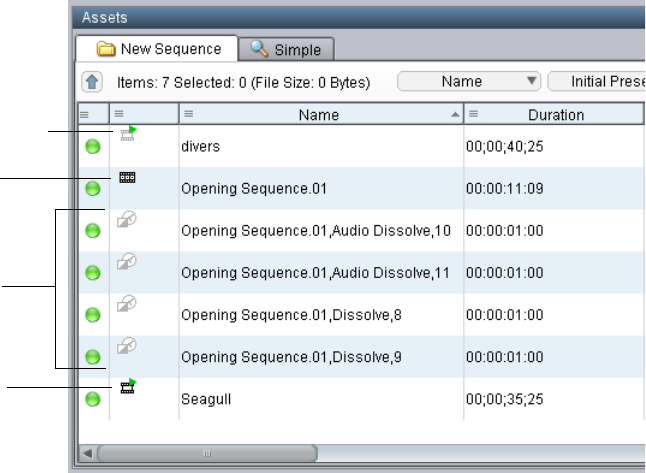
Referenced Assets and Referenced-Only Assets
99
Explicit Checkin
An explicit checkin occurs when an object in a bin or the bin that holds the object is checked in to
the Interplay database.
nThere are several methods for checking in Avid assets, with some differences in the ways they
operate. For more information, see “Checking Avid Assets In to the Interplay Database” in the
Interplay Help or the Media Composer documentation.
In the following illustration, the sequence “Opening Sequence” and the master clip “Seagull” are
objects in the bin and were checked in as assets when the bin was checked in (an explicit
checkin). They are displayed with black icons.
Sequence in bin
Master clip
(Referenced-only asset)
Rendered effects
(Referenced-only
assets)
Master clip
(Referenced asset)
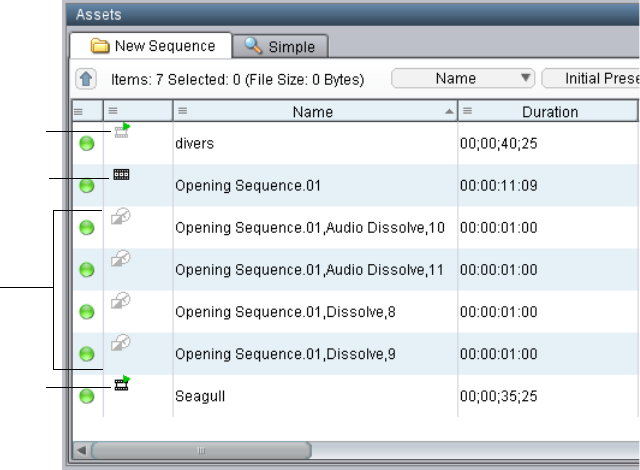
Using the Assets Pane
100
Emulated Rendered Effects
Starting with Interplay version 2.3, links for rendered effects are no longer included in the
Interplay database. These links are simulated or “emulated” in Interplay Access and other client
applications. To the end user, these emulated rendered effects are displayed like referenced-only
assets, marked by gray icons. In some cases rendered effects are stored in the database and are
displayed as actual links, with black icons, in the Unchecked-In Avid Assets folder or the Orphan
Clips folder. See “Emulated Rendered Effects” on page 148.
In the previous illustration, the rendered effects in the folder are emulated rendered effects.
Using the Assets Pane
The Assets pane displays the assets returned by your search and browse operations in various
manners. It is a composite view that displays information about an item you have selected. The
following illustration shows the default Assets pane, with the Content tab for the Morocco folder
in front and the Search tab behind it.
Sequence in bin
(Explicitly checked-in)
Master clip
(Referenced-only asset)
Rendered effects
(Referenced-only
assets)
Master clip
(Explicitly checked-in)

Using the Assets Pane
101
The following topics describe the Assets pane and how you can customize it:
•“Assets Pane Toolbar” on page 101
•“Default Assets Pane” on page 103
•“Obtaining File Size Information” on page 104
•“Media Status Indicators” on page 105
•“Identifying Assets Playable in the Monitor” on page 108
•“Navigating Through Assets” on page 108
•“Changing the Type of Assets Displayed” on page 109
•“Changing the Column Display” on page 109
•“Changing the Resolution Display” on page 111
•“Grouping and Sorting” on page 113
•“Undoing Assets Pane Changes” on page 117
•“Creating View Presets for the Content and Search Tabs” on page 117
•“Applying and Managing View Presets” on page 118
•“Changing to Storyboard or Frame View” on page 120
•“Using Extended View Mode” on page 123
Assets Pane Toolbar
The Assets pane toolbar displays information about the selected assets and provides controls for
how the contents are displayed.
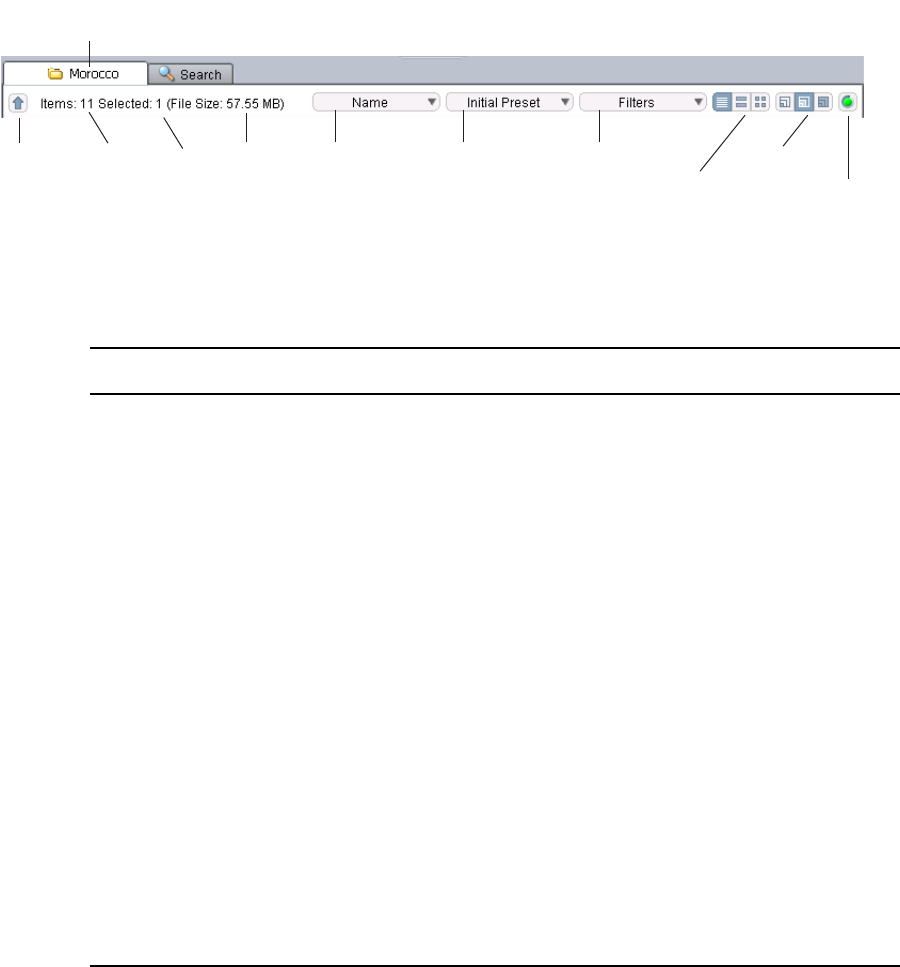
Using the Assets Pane
102
The following table describes the controls in the Assets pane toolbar.
Selected
folder name
Navigation
arrow Items in
folder Sort by list View Presets list Filters list
Items
selected
in view
Size of
selected
items View buttons Media Status
Update button
Size buttons
Assets Pane Toolbar Controls
Field Description
Navigation arrow Lets you navigate up to the parent of the current
display in the Content tab (see “Navigating Through
Assets” on page 108).
Sort by List Controls how the contents are sorted (see “Sorting
Items in the Assets Pane” on page 113).
View Presets list Controls how the contents are displayed and lets
you managed custom views. The default view is
named Initial Preset (see “Creating View Presets for
the Content and Search Tabs” on page 117).
Filters list Controls which assets are displayed: Avid assets,
file assets, or both (see “Changing the Type of
Assets Displayed” on page 109).
Size buttons Controls the size of the thumbnails (see “Changing
Thumbnail Size in the Storyboard and Frame
Views” on page 122).
View buttons Controls the view: Text, Storyboard, or Frame (see
“Changing to Storyboard or Frame View” on
page 120).
Media Status Update button Starts or ends a Media Status update (see “Updating
the Media Status” on page 95).
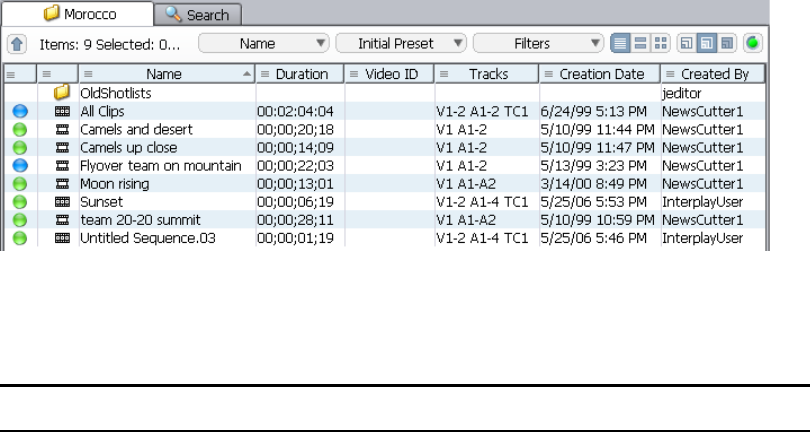
Using the Assets Pane
103
Default Assets Pane
By default, the Assets pane is set to the Content tab and is displayed in Text view. The Content
tab displays the contents of the selected folder in sortable columns with information for each file
in the folder. The Text view columns shown by default vary according to how they are set in the
Interplay Administrator, and whether you work in a broadcast, post or film environment. See
“System Metadata Properties” on page 327 for the full list of properties that are available in
Interplay. You can also show and hide columns (see “Changing the Column Display” on
page 109) and save your customized view as a preset (see “Creating View Presets for the Content
and Search Tabs” on page 117).
These columns are also displayed in the Search Results pane of the Search tab (see “Searching
for Assets” on page 155).
The Content tab name reflects the name of the selected folder. The following illustration shows
the Content tab for a project folder named “Morocco.”
The following table describes the default columns in Text view mode.
Default Text View Columns
Field Description
Untitled. Displays a media status circle icon if the
item is an Avid asset.
Represents the media status. Though assets are
tracked by a single clip object, they often exist in
multiple resolutions. A colored icon shows the
availability of ANY resolutions within the
workgroup. See “Media Status Indicators” on
page 105 for information.

Using the Assets Pane
104
Obtaining File Size Information
The File Size field displays the total file size of the file or files selected in the Content tab. For
Avid assets, the size of the actual media is shown (the media size). For file assets, the file size is
shown.
To obtain the file size information:
tIn the Content tab, click the asset for which you want to obtain size information.
Untitled. Contains an asset icon or headframe. Represents the asset type. Might be paired with the
red icon indicating a reservation. See “Icons for
Avid Assets” on page 92 and “Icons and Indicators
for File Assets” on page 207 for explanations of all
variations.
nTo view the corresponding headframe or a
larger version of the file icon, drag and
expand the right border of this column.
Name Name of the asset.
Comments For Avid assets, a comment entered in a bin. For file
assets, the version comment for the last version
checked in, or a check out comment if the asset is
checked out.
Created By For Avid assets, the user who created the clip. For
file assets, the last user of the asset if it is checked
in, or the last user of the asset if it is checked out.
Creation Date Creation date for Avid assets, set by the editing
applications.
Duration The length of the Avid asset in hours, minutes,
seconds, and frames.
Tracks All tracks that are used by the Avid asset
Resolutions such as 1:1, DV 25 411, DV 25 420,
MPEG 40
Though Avid assets are tracked by a single clip
object, they often exist in multiple resolutions. A
black and white icon shows the availability of these
resolutions individually within the Workgroup. See
“Media Status Indicators” on page 105 for
information.
Default Text View Columns (Continued)
Field Description

Using the Assets Pane
105
The File Size field displays the size of the selected file.
nIf you cannot see the File Size field, drag the right edge of your Interplay Access client out so
that it is bigger or drag the left edge of the Assets pane.
To obtain the total file size information for multiple files:
tIn the Assets pane, Ctrl+click (Windows) or Shift+click (Macintosh) the files for which you
want to obtain size information.
The File Size field displays the total size of the selected files.
nThe total file size is a rounded-off estimate.
Media Status Indicators
Although Avid assets are tracked by a single asset, assets might exist in multiple resolutions, or
on a remote workgroup or archive. Each Avid asset has associated Media Status indicators. The
indicators represent the status of the resolution of the media.
• In the Media Status column, the indicator represents the “highest” (most highly available)
status of any of the possible resolutions. These indicators use different colors to represent the
status. The ToolTip for the indicator describes the status of the resolution.
• In the individually-labeled resolution columns, the indicator represents the status of the
named resolution. These indicators use black and white patterns to represent the status.
The overall media status is also listed in the Properties tab of the Object Inspector.
File size
for
selected
asset
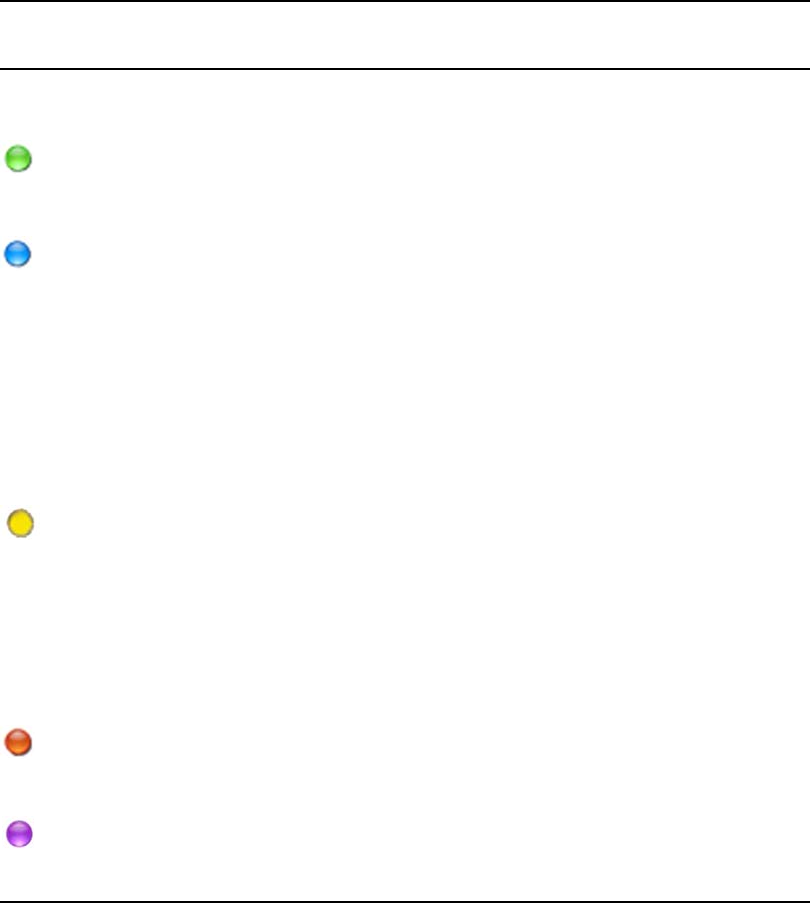
Using the Assets Pane
106
The following tables describe both types of indicators.
Media Status Indicators (Media Status Column)
Indicator Description
Video
Status
Audio
Status
Overall
Status
No icon No status, or status has never been present. Also, no icon
is shown for file assets.
Green circle
Online: Media is available in at least one required
resolution on each track of the clip.
If a clip includes both video and audio, both are online.
Online Online Online
Blue circle
Partially online: Part of the media is available in at least
one required resolution. A clip is shown as partially
online as soon as one track of the clip is not completely
available in at least one resolution.
If a clip includes video and audio, the status is mixed, as
listed in the columns to the right.
Online
Online
Online
Partial
Partial
Partial
Partial
Nearline
Nearline
Offline
Offline
Partial
Nearline
Offline
Online
Partial
Nearline
Offline
Online
Partial
Online
Partial
Partial
Yellow circle
Near online (Nearline): Media is offline (not available)
in all required resolutions but is possibly fully or
partially available on a remote workgroup or archive.
If a clip includes audio and video, at least one is
nearline.
Media located on an ISIS 2000 or third-party storage
might be shown as online in the Interplay Access Object
Insepctor and as nearline in the Assets field.
Nearline
Nearline
Offline
Online
Nearline
Offline
Nearline
Online
Nearline
Nearline
Nearline
Online
Red circle
Offline: Media is not available in any required
resolutions.
Offline Offline Offline
Purple circle
AMA only: The clip is linked to AMA media, but is not
linked to native Avid media.
Online Online Online
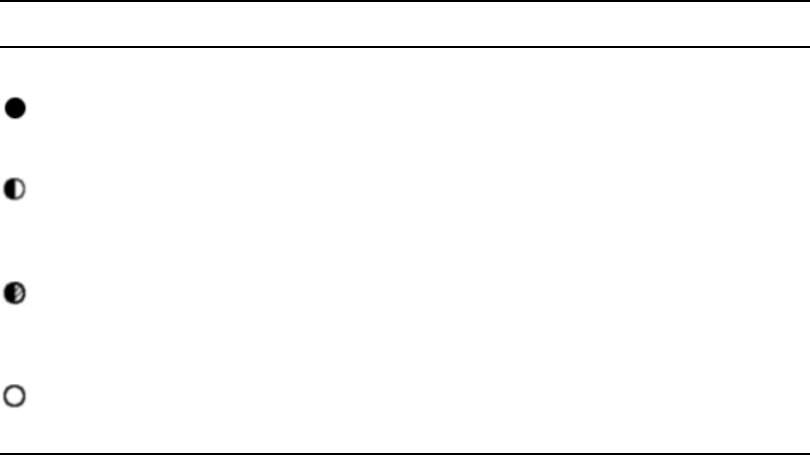
Using the Assets Pane
107
Media Status Indicators (Individually Labeled Resolution Columns)
Indicator Description
No icon Not set, never been present.
Black circle
Online: Media in this resolution is online, fully available.
If a clip includes both video and audio, both are online.
Half-black, half-white
circle
Partially online: Part of the media in this resolution is available.
If a clip includes video and audio, the status is mixed, as listed in the previous
table.
Half black, half
cross-hatched circle
Near online (Nearline): Media in this resolution is offline (not available) but is
possibly partially available on a remote workgroup or archive.
If a clip includes audio and video, at least one is nearline.
White circle
Offline: Media is not available in this resolution.
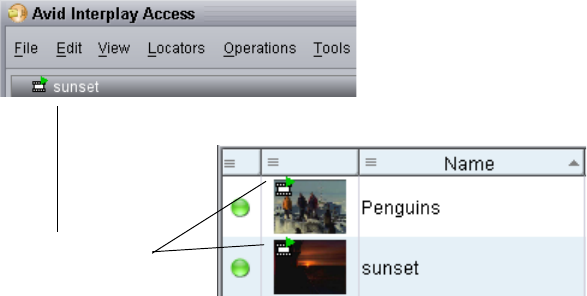
Using the Assets Pane
108
Identifying Assets Playable in the Monitor
You can play Avid video or audio clips in the Monitor only if they are associated with proxy
media supported for streaming (MPEG-4/H.263 and H.264 video media and MPEG-2 Layer 1
audio media). You can also play subclips, and shotlists created from this media.You can identify
these Avid assets in two ways:
• A small green triangle that appears on a headframe in the Assets pane and in the Monitor
title bar.
• A column heading titled “Directly Playable in Access.” Playable assets are marked by a
green triangle in the column. An administrator can enable this column for display or add it as
a default column. See the Interplay | Engine and Interplay | Archive Engine Administration
Guide.
nThe column heading “Playable in Access” applies only to Interplay Streaming Server v2.3 and
earlier.
Navigating Through Assets
When you click on a folder in the tree view of the Folders pane, the contents are displayed in the
Content tab. The Content tab displays both subfolders and assets and the parent folder is
highlighted in the tree.
To navigate down through the Content tab:
tDouble-click a folder name to see the contents.
To navigate up to the parent of the current display in the Content tab, do one of the
following:
tClick the navigation arrow.
Green triangle
indicating a playable
Avid asset.
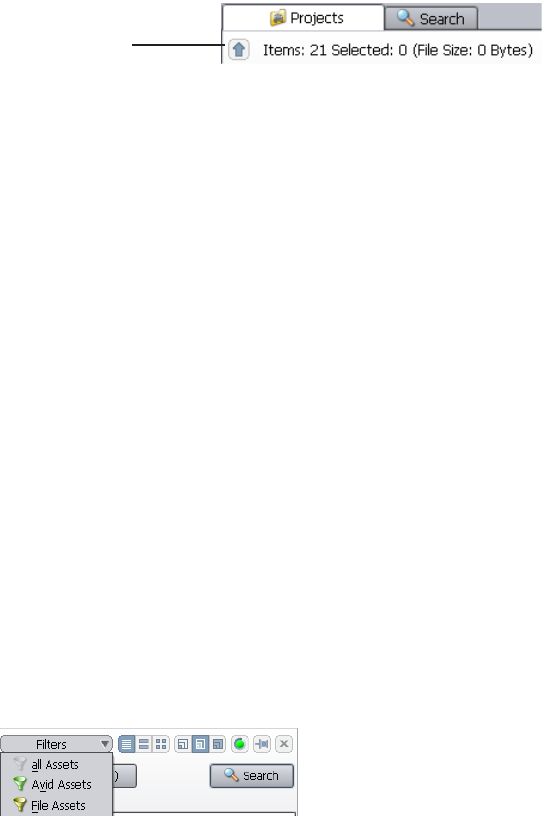
Using the Assets Pane
109
tPress the Backspace key.
tType the first letter of a folder to navigate to it. The navigation starts from where the focus is
in the tree or table.
The tree does not change its highlight if you select items from a different folder, for
example, if you select an item in the Search Results pane.
To change the selected folder in the tree view to the folder that contains a selected asset
or folder, do one of the following:
tSelect Go to from the item’s context menu.
tSelect View > Go to.
tPress (Windows) Ctrl+T.
tDouble-click a folder in the Search Results pane.
Changing the Type of Assets Displayed
By default, the Assets pane displays both Avid assets and file assets. You can change the view to
display only Avid assets or only file assets. You can save the new view as a preset (see “Creating
View Presets for the Content and Search Tabs” on page 117).
To change the type of assets displayed:
tIn the Content tab or the Search tab, click Filters and select All Assets, Avid Assets, or File
Assets from the Filters list.
The filter you selected is displayed instead of the default heading Filters.
Changing the Column Display
You can change the way columns are displayed in Assets pane (Content tab and Search tab). You
can save the new view as a preset (see “Creating View Presets for the Content and Search Tabs”
on page 117).
Navigation arrow
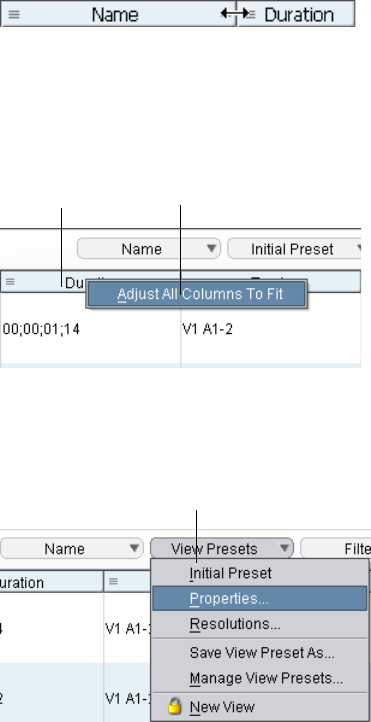
Using the Assets Pane
110
To control which resolution columns are displayed, use the Resolutions dialog box. See
“Changing the Resolution Display” on page 111.
nSettings made using View Presets apply to all views, for example, the same fields show up in the
search results pane as well as Text, Storyboard, Frame, and Object Inspector views.
To change the order of the columns displayed:
1. Select the column you want to move.
2. Keep the mouse button down and drag the column into the desired position.
To change the size of a column:
1. Move the pointer over the left side divider of the column you want to resize until the cursor
turns into a double-headed arrow.
2. Hold the mouse button down and drag the divider until the size is as desired.
To adjust all columns to the maximum length of the text of each column:
tSelect Adjust All Columns to Fit from a column header’s context menu.
To show or hide columns:
1. Click the View Presets list and select Properties.
Column header Context menu
View Presets list
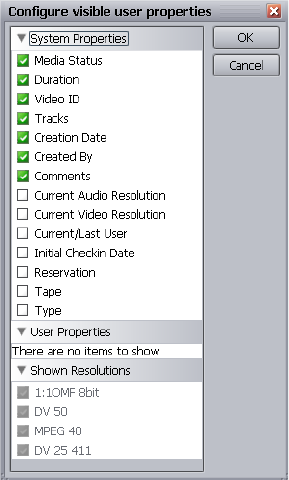
Using the Assets Pane
111
The Configure visible user properties dialog box opens.
2. Select the columns you want to display and deselect the columns you want to hide.
User Properties (custom columns) can be added in applications such as Interplay editing
applications or the Interplay Administrator and can be displayed in Interplay Access, but
they are not displayed by default.
To select which resolutions are shown, see “Changing the Resolution Display” on page 111.
3. Click OK.
Changing the Resolution Display
Although assets are tracked by a single clip object, they often exist in multiple resolutions. Only
some of these resolutions might be relevant to your work. You can select which resolutions
should be displayed as columns. You can save the new view as a preset (see “Creating View
Presets for the Content and Search Tabs” on page 117).
nSettings made using View Presets apply to all views, for example, the same fields show up in the
search results pane as well as the Text, Storyboard, Frame, and Object Inspector views.
The column head is by default named for the resolution. You can rename the column head, for
example, according to the source or destination of the media.
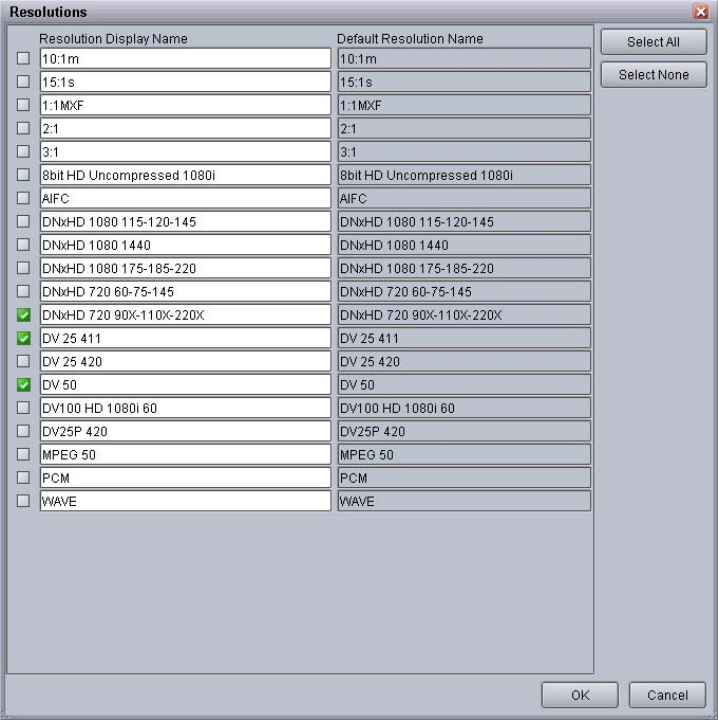
Using the Assets Pane
112
nBy default, only resolutions for media included in the local Interplay database are listed in the
Resolutions dialog box. An administrator can add other resolutions. For more information, see
the Interplay | Engine and Interplay | Archive Engine Administration Guide or the Interplay
Help.
To display resolution columns in the Content tab:
1. Click the View Presets list and select Resolutions.
The Resolutions dialog box opens.
2. Select the check box in the first column for each resolution that you want to show as a
column.
3. (Option) To select all resolutions, click Select All.
Using the Assets Pane
113
4. (Option) To deselect all resolutions, click Select None.
5. Click OK.
The new resolution columns appear in your Content tab.
To hide resolution columns:
1. Click the View Presets list and select Resolutions.
The Resolutions dialog box appears.
2. Deselect the resolutions that you want to hide.
3. (Option) To deselect all resolutions, click Select None.
4. Click OK.
To rename the resolution column headers:
1. Select View Presets > Resolutions.
The Resolutions dialog box opens.
2. Type the new name for the field to display for the selected resolution.
3. Click OK.
Grouping and Sorting
You can sort and group items displayed in the Assets pane (both the Content tab and the Search
tab) in various ways. You can save the new view as a preset (see “Creating View Presets for the
Content and Search Tabs” on page 117).
Sorting Items in the Assets Pane
By default, the Assets pane is sorted alphabetically by name, with folders listed first, and
additional files listed last. As a result, the Name column initially shows an upward pointing
arrow. This arrow indicates both the column used for sorting and the sort order.
To sort the Assets pane by a property, do one of the following:
tClick the column header displaying the property you want to sort by (you can click
anywhere other than on the grouping icon). This arranges the view contents alphabetically or
into ascending order. An upward pointing arrow appears.
If a column header already shows a sort arrow, and you click it, the sort order reverses.
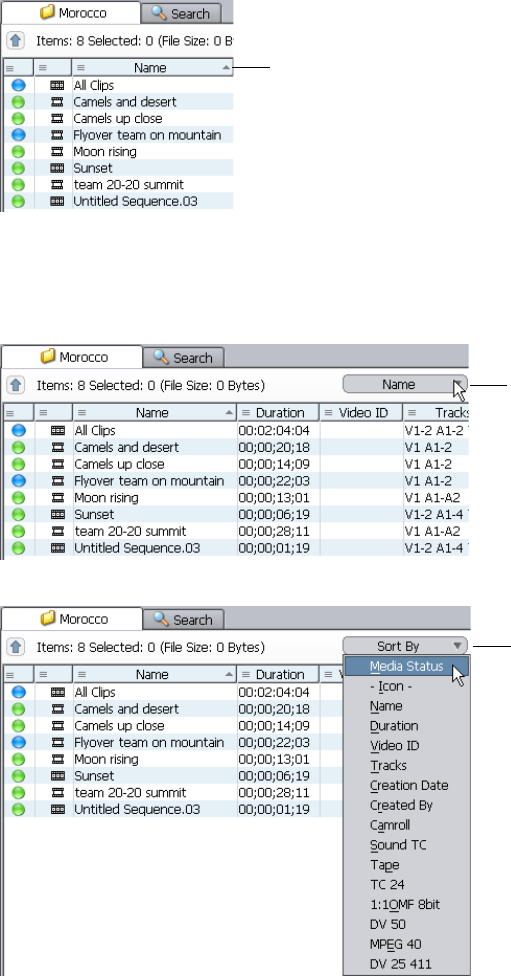
Using the Assets Pane
114
tClick the Sort By list and select the column header title to sort by. The Sort By list is shown
as “Name” initially since items are sorted by Name by default. When you click on “Name”,
“Sort By” appears in the list.
After the sort, the Sort By list shows the name of the column selected as the primary sort
column.
Upward pointing sort arrow
Sort By llist
(“Name” by default)
Click and Sort By
appears
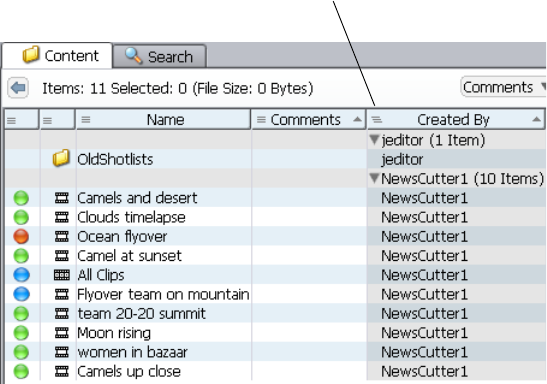
Using the Assets Pane
115
To reverse the sort order of a column:
tClick anywhere in the column header other than on the grouping icon.
Grouping Items in the Assets Pane
You can divide items in the Assets pane (Content tab or Search tab) into groups that are defined
by the value of a metadata property. You can also group by additional metadata properties, such
as tape name and then creation date.
To divide items in the Assets pane into groups:
1. Click the grouping icon in the column header of the property you want to group by.
The items are grouped by the value of the property. A group title with the number of items in
the group is displayed, along with a downward pointing arrow. The grouping icon is slanted.
In the following example, the contents are grouped by user in the Created By column.
2. (Option) To group by an additional property, click the grouping icon in the column header of
the additional property.
In the following example, the contents are grouped by values in the Created By and Creation
Date columns.
Grouped by user in the Created By column.
Grouping icon is slanted.
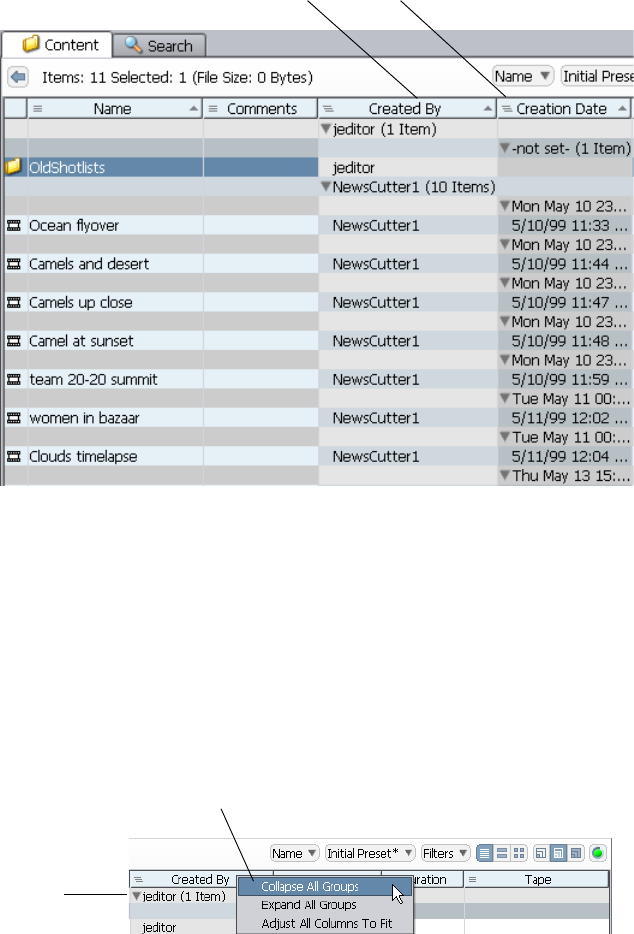
Using the Assets Pane
116
3. (Option) Save the grouped view as a view preset. See “Creating View Presets for the Content
and Search Tabs” on page 117.
To collapse a single group:
tClick the downward pointing arrow.
To collapse all groups:
tFrom the context menu of any column header, select Collapse All Groups.
To expand a single group:
tClick the sideways pointing arrow.
Grouped by Created By and Creation Date
Click the down
arrow to
collapse one
group.
Select from the
context menu to
collapse all groups.
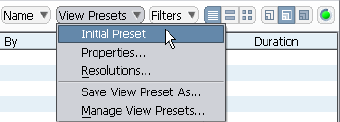
Using the Assets Pane
117
To expand all groups:
tFrom the context menu of any column header, select Expand All Groups.
To remove grouping:
tClick the slanted grouping icon in the property’s column header.
Undoing Assets Pane Changes
To revert the Assets pane to the original display:
1. Click the View Presets list.
2. Select Initial Preset.
nThe Initial preset does not show columns that have been hidden. See “Changing the Column
Display” on page 109.
Creating View Presets for the Content and Search Tabs
If you have set up your Content tab or Search tab in a useful way, with your columns in a
particular order and your sorting and grouping preferences as you want them, you can save the
changes so that you can use the same settings again.
Settings saved as View Presets apply to all views that include those settings. For example, the
same fields, in the same order, are displayed in the Text, Storyboard, and Frame views. The same
sorting rules apply to the Text, Storyboard and Frame views.
View Presets are always saved to the database you are working in. View Presets generated in the
Search are saved to the database selected as the search root.
By default, all View Presets are created as private, meaning local-only. Administrators can make
View Presets public to all database users.
To save a view as a preset:
1. Click the View Presets list.
2. Select Save View Preset As.
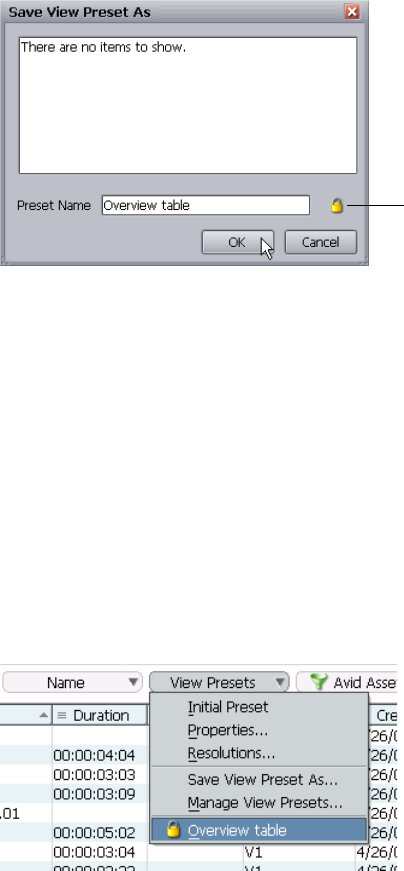
Using the Assets Pane
118
By default, the view is private or local-only, meaning this preset view is only available to
you.
3. Type a name for your preset.
4. (Option for Administrators only) To make a preset available to other database users, click
the lock so that it is open. Users who are logged in to Interplay will see the new preset the
next time they log in.
5. Click OK.
Applying and Managing View Presets
To apply a View Preset, do one of the following:
tSelect the view name from the View Presets list.
The view automatically updates.
tSelect View Presets > Manage View Presets.
The Manage View Presets dialog box opens.
Lock icon, meaning private or
local-only
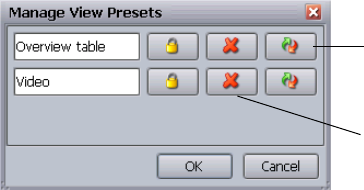
Using the Assets Pane
119
a. Click the Apply button for the preset you want to use.
b. Click OK.
To delete a View Preset:
1. Select View Presets > Manage View Presets.
2. Click the red X button.
3. Click OK.
If you delete a View Preset and the view preset is currently active, the View Presets list
displays View Changed instead.
To rename a preset:
1. Select View Presets > Manage View Presets.
2. Type the new text in the text box.
3. Click the Apply button.
4. Click OK.
nOnly Administrators can rename public presets.
To make a preset public (Administrators only):
1. Select View Presets > Manage View Presets.
2. Click the lock icon button so that it appears unlocked.
3. Click the Apply button.
4. Click OK.
Red X button
Apply button
Using the Assets Pane
120
Changing to Storyboard or Frame View
You can display enlarged thumbnails and additional information for selected files using the
Storyboard and Frame views.
To toggle the display of Text, Storyboard, and Frame views, do one of the following:
tSelect View > Toggle View Mode.
tPress F7.
Additional Metadata in the Storyboard and Frame Views
In the Storyboard and Frame views, the border around the thumbnail is colored to show the asset
type as follows:
• Black: database, folder, or file asset
• Red: sequence
• Green: master clip or subclip
• Blue: effect or rendered effect
The User role is indicated by an icon. For an explanation of these icons, see “Assigning User
Roles” on page 241.
You can view additional information in Extended view mode. See “Using Extended View Mode”
on page 123.
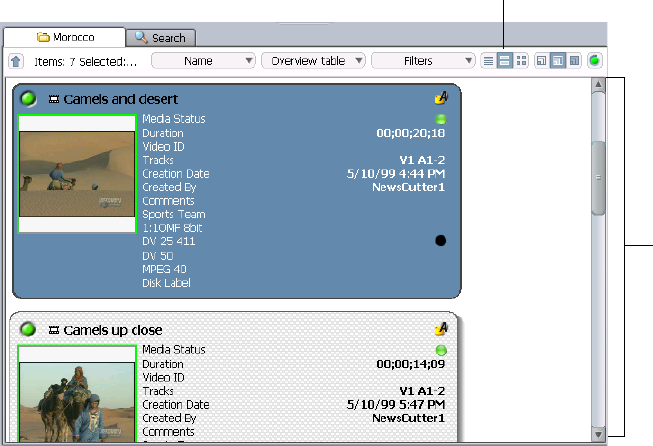
Using the Assets Pane
121
Switching to Storyboard View
The Storyboard view displays a thumbnail along with the same information available in the Text
view.
By default, the Storyboard view always shows the latest server version, unless the file is checked
out and the local version is available (file assets only). Therefore if you “get” an older version of
an image, the thumbnail still shows the latest one, unless you check out that version.
To switch to Storyboard view:
tClick the Storyboard view button.
Storyboard
view
Storyboard
view button

Using the Assets Pane
122
Switching to Frame View
Frame view displays a thumbnail for each item along with variations of the same information
available in the Text view.
To switch to Frame view:
tClick the Frame view button.
Changing Thumbnail Size in the Storyboard and Frame Views
Thumbnails can be displayed as:
•64 bit (small)
• 128 bit (medium)
• 256 bit (large)
Frame view
Frame view
button

Using the Assets Pane
123
To change the size of all the thumbnails displayed, do one of the following:
tClick one of the size buttons in the Content tab or Search tab.
tPress F8 to toggle between small, medium, and large.
Using Extended View Mode
The Extended View Mode offers the following additional functionality to the Storyboard and
Frame views:
• A Play button for Avid assets or a View button for file assets. Click the Play button to play an
Avid asset in Interplay Assist. Click the View button to view the file asset in its associated
application (see “Configuring Asset Types, Commands, and Applications” on page 32).
• An list of selected operations for Avid assets. For information on Transcode, Archive, and
Restore, see the Interplay | Media Services Setup and User’s Guide. For information on
Send to Workgroup, see “Transferring Avid Assets to Another Workgroup” on page 85.
To access the Extended View, do one of the following:
tSelect View > Toggle Extended Mode.
tPress (Windows) Ctrl+F7 or (Macintosh) Shift+Command+F7.
tSelect (Windows) Preferences > Options or (Macintosh) Interplay Access > Preferences,
click the View Settings tab, and select “Enabled by default” in the Extended Mode section.
This sets the Extended View Mode as the default.
The Storyboard or Frame view changes to Extended View Mode.
Small Medium Large
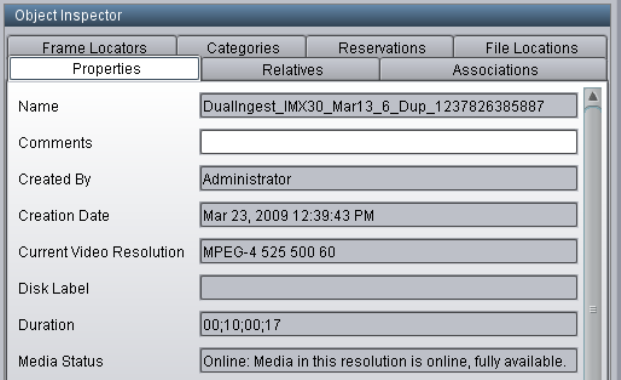
Using the Object Inspector
124
Using the Object Inspector
The Object Inspector is an optional pane that you can display in Browsing view. It provides
information about any item you select in the Folders pane or in the Assets pane through a series
of tabs. The tabs that are displayed and the information in the tabs depends on the item selected.
You can add it to the Browsing view by selecting View > Show Object Inspector Pane.
The following topics provide more information about using the Object Inspector:
•“Default Tabs in the Object Inspector” on page 124
•“Adding Properties to the Object Inspector Display” on page 126
•“Configuring the Frame Locators Display” on page 130
•“Viewing Media Relatives” on page 127
•“Viewing Restrictions” on page 129
•“Viewing the Location of Media in Avid Shared-Storage Workspaces” on page 132
•“Refreshing Referenced Clips” on page 132
Default Tabs in the Object Inspector
For file assets, only Properties, Categories, and Reservations tabs are shown. For Avid assets,
additional attribute information is available based on the type of Avid asset and the source of the
asset The default tabs are described in the following table.

Using the Object Inspector
125
Default Tabs in the Object Inspector
Tab Contents
Properties The available properties vary depending on the layout settings
determined by the administrator. See “Adding Properties to the
Object Inspector Display” on page 126.
Categories Displays optional labels for describing the media content or topic.
The available choices of categories are configured by the
administrator. See “Organizing Assets Using Categories” on page 79.
Reservations Displays reservations (deletion protection) set on the item: who
reserved the item and until when. This tab is only displayed for a
single selection. When a file is selected, the parent folder’s
reservation status is shown. An additional icon (small red dot in the
bottom right corner) on the normal file or folder icon indicates the
reservation. See “Setting Reservations” on page 248.
Relatives (or a variation of
relatives)
(Avid assets only)
Assets can be associated with each other, that is, they can be
codependent or reference each other. The Object Inspector quickly
shows the relatives: which assets compose other assets and which
other assets reference the specified asset. See “Viewing Media
Relatives” on page 127.
Associations
(Avid assets only)
The Associations tab shows where a file is in the database, meaning it
provides a list of locations where it is stored.
Frame Locators
(Avid assets only)
The Frame Locators tab displays information about the locators
associated with the Avid asset. The following attributes are always
displayed:
• Timecode
• Comment
Other attributes can be configured to be hidden or shown (see
“Configuring the Frame Locators Display” on page 130). All
attributes are read-only.
File Locations
(Avid assets only)
Shows file path and other information for each media file stored on
Avid shared-storage workspaces. See “Viewing the Location of
Media in Avid Shared-Storage Workspaces” on page 132.
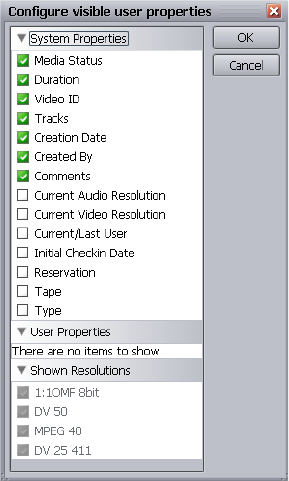
Using the Object Inspector
126
Adding Properties to the Object Inspector Display
The Object Inspector’s Properties tab shows a predefined set of properties for each asset.
Depending on where the asset came from (for example, an Avid editing application), there might
be some additional custom or system properties that were imported but that are not automatically
displayed. The Interplay Administrator selects which properties are available for display in the
Property Layout view. An Access user can select which of the available properties to display.
Most of the listed properties are specific to Avid assets, but if you select a property, a column for
the property is displayed for any asset.
See “System Metadata Properties” on page 327 for a complete list of properties in Interplay and
the default properties displayed.
To display additional or imported properties in the Object Inspector:
1. In the Object Inspector, click the Properties tab and scroll down until the Configure button is
visible.
2. Click Configure.
The Configure Visible User Properties dialog box opens. This dialog box contains System
Properties and User Properties.
Using the Object Inspector
127
3. Click the arrows to expand or collapse the property lists. Then select the properties you want
displayed in the Object Inspector. Deselect properties you do not want displayed.
4. Click OK.
System properties are displayed in the top part of the Properties tab and User properties are
shown on the bottom part of the Properties tab.
Viewing Media Relatives
You can find an asset’s media relatives (clips that are referenced by a sequence or sequences that
reference a clip) through the Object Inspector’s Relatives tabs.
Interplay recognizes that elements such as subclips, master clips, and sequences can be
associated with each other. That is, they can be codependent or reference each other. Using the
Object Inspector, you can quickly see which elements or assets compose another element and
which elements reference the specified element. In this way the relationship between elements is
bidirectional: click on a sequence and you see its clips; click on a clip and you see the sequences
in which it is used.
For example, the following illustration shows how you can use the Relatives tab in Interplay
Access to see which master clips make up a sequence.
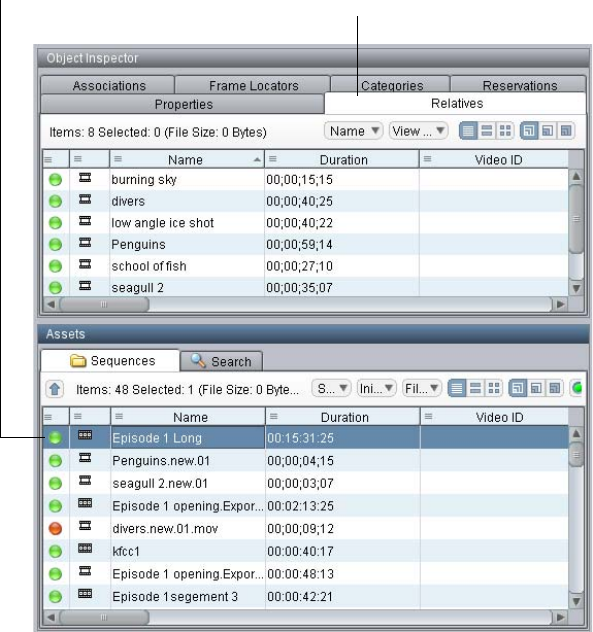
Using the Object Inspector
128
This listing of relatives makes it easy for someone who is not involved with the project on a file
level to find shots, sequences, and so on. In addition, if dependencies are changed, they are
updated in all relevant places automatically.
To view the media relatives of an asset:
1. Click the sequence or clip.
2. Click the Relatives tab in the Object Inspector.
The media relatives are displayed in a list, in a format similar to text view in the Content tab.
Relatives tab with clips that
compose the sequence.
Selected sequence
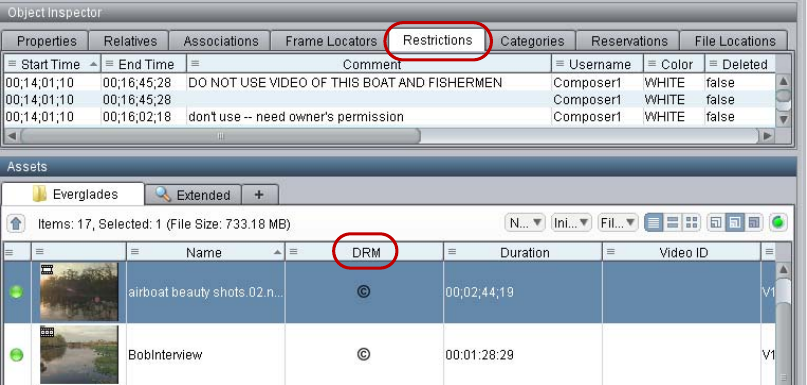
Using the Object Inspector
129
Viewing Restrictions
A restriction is a type of locator that Interplay Assist and MediaCentral users can add to a clip to
indicate that use of the clip is restricted in some way, such as a requirement to pay for its use.
Restrictions often refer to digital rights management (DRM). In Interplay Access, there are two
ways to identify an asset that includes a restriction:
• Display the DRM property in a column.
• Display the Restrictions tab in the Object Inspector (Interplay Access v3.0 and later).
The following illustration shows the Restrictions tab for a selected clip that is highlighted in the
Assets pane. Columns in the Restrictions tab always display Start Time, End Time, and
Comment. An administrator or user can configure other columns. In the Assets pane, the DRM
column shows a copyright symbol that indicates the clip includes a restriction.
The Restrictions tab is shown for master clips and stereoscopic clips. Sequences and subclips do
not contain restrictions but they can reference master clips that include restrictions. These
sequences and subclips are indicated in the DRM column, but the Restrictions tab is not
displayed.
nAn Interplay administrator might need to enable display of the DRM column in the Property
Layout view. For more information, see the Interplay | Engine and Interplay | Archive Engine
Administration Guide.
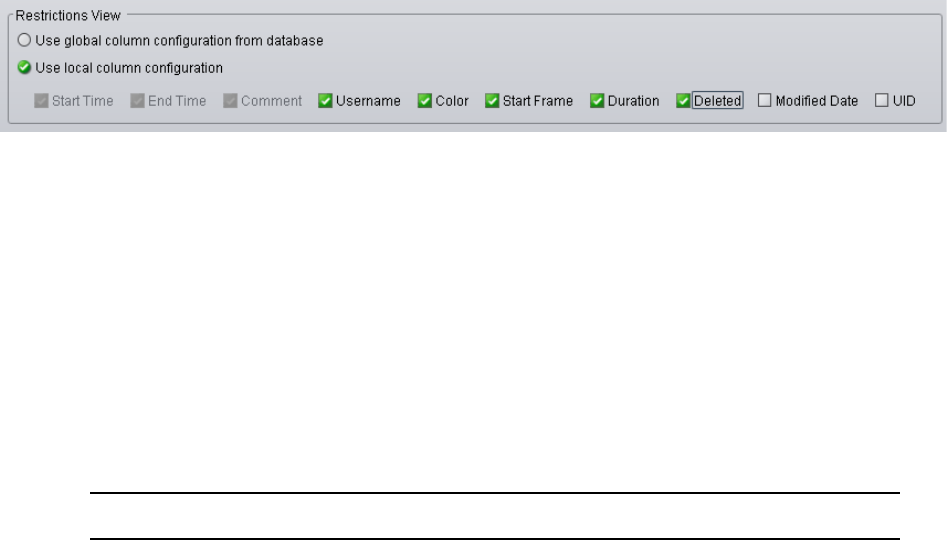
Using the Object Inspector
130
To view restrictions for an asset:
1. Click a master clip or a stereoscopic clip.
2. Click the Restrictions tab in the Object Inspector.
If the assets has restrictions, information about the restrictions is displayed.
An Interplay administrator can set a global column configuration for the Restrictions tab in
the Application Database Settings view in the Interplay Administrator. For more
information, see the Interplay | Engine and Interplay | Archive Engine Administration
Guide. You can override these global settings.
To override the default column display:
1. Open Interplay Access and log in to a database.
2. Preferences > Options (Windows) or Interplay Access > Preferences (Macintosh).
3. Click the View Settings tab.
4. In the Restrictions View section, select “Use local column configuration.”
5. Select the columns you want to display, or deselect the columns you do not want to display,
then click OK.
6. Refresh Interplay Access (select View > Refresh or perform an action).
Configuring the Frame Locators Display
The Frame Locators tab in the Object Inspector displays information about locators associated
with an Avid asset. Administrators and users can configure which attributes (as columns) are
displayed in the Frame Locators tab. Administrators can select a default set of columns in the
Interplay Administrator, and users can change the default settings in Interplay Access.
You can display the following columns:
Frame Locators Column Default Setting in Interplay Administrator
Timecode Always selected
Comment Always selected

Using the Object Inspector
131
The ability to configure which columns you display can be useful if you use locator information
in another application. You can export locator information in various formats or you can copy
rows of information and paste them into another application by using your desktop copy and
paste commands.
To configure the default display in the Interplay Administrator:
1. Open the Interplay Administrator and log in to the database for which you want to set the
default display.
2. In the Application Settings section, click Application Database Settings.
3. Click the Application Defaults tab.
4. In the Access Frame Locators View section, select the columns that you want to display in
the Frame Locators tab.
The Timecode and Comment columns are always displayed.
5. Click Apply.
To override the default display in Interplay Access:
1. Open Interplay Access and log in to a database.
2. Select Preferences > Options
3. Click the View Settings tab.
4. In the Frame Locators View section, select “Use local column configuration.”
5. Select the columns you want to display, or deselect the columns you do not want to display,
then click OK.
6. Refresh Interplay Access (select View > Refresh or perform an action).
Track Selected by default
User Selected by default
Color Selected by default
UID (Unique Identifier) Selected by default
Frame Locators Column Default Setting in Interplay Administrator
Showing a Preview of an Item
132
Viewing the Location of Media in Avid Shared-Storage Workspaces
You can view the file names and location of an Avid asset’s media on an Avid shared-storage
workspace. Other related information is also displayed.
To view the location of media in Avid shared-storage workspaces:
tClick the File Locations tab in the Object Inspector window.
Refreshing Referenced Clips
Referenced assets are Avid assets that are referenced by another asset in the same Interplay
folder. For example, master clips and rendered effects that are contained in a sequence are
referenced assets when they are displayed in the same folder as the sequence. After working with
Avid assets, you might need to update a folder to remove referenced clips for a sequence that has
been updated through checkin of a new version of the sequence or rollback to an earlier version.
For information on displaying referenced assets, see “Setting the Filters for the Display” on
page 96.
To update referenced assets after working with Avid assets:
tSelect a folder and then select Operations > Refresh Referenced Clips.
Showing a Preview of an Item
A preview provides a larger, more detailed representation of an asset than a thumbnail, so
previews can be helpful to use when browsing. Some file types use the Monitor as their preview.
To show a preview:
1. Select an asset in the Content tab or Search tab.
2. Do one of the following:
tSelect View > Preview
tPress (Windows) Ctrl+R or (Macintosh) Shift+Command+R
By default, the local copy of a file is shown in the floating preview window, if the file is
checked out and a local version is available. Otherwise the server version is shown.
For items that reference media, the headframe is shown, if it exists. Other file types are
shown in the Monitor.
Viewing the Status of Assets Across Workgroups (Asset Tracking)
133
Viewing the Status of Assets Across Workgroups
(Asset Tracking)
If your facility includes more than one workgroup, you can use Interplay Access to display
information for assets that are shared by different workgroups. For example, you can determine
if assets stored in one workgroup are correctly archived in an archive workgroup.
The status is displayed in the Tracking column of the Interplay Access Assets pane through
colored icons. Each column represents a workgroup to which Interplay Access is connected. The
following illustration shows a group of assets and their status in three different workgroups:
Workgroup A, Workgroup B, and Archive.
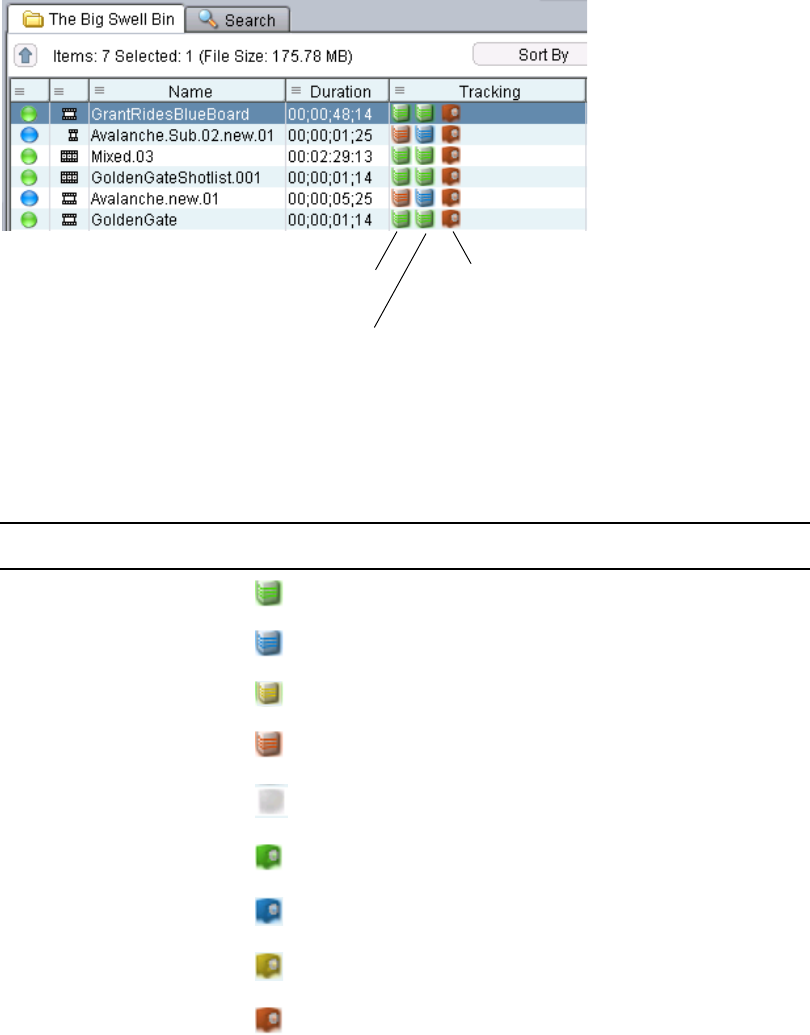
Viewing the Status of Assets Across Workgroups (Asset Tracking)
134
The status icons and their colors match the icons and colors used in other parts of Interplay
Access, as described in the following table. For a more complete description of each status, see
“Media Status Indicators” on page 105.
Workgroup A:
Some assets are online (green)
and some are offline (red)
Workgroup B:
Some assets are online (green)
and some are partially online (blue)
Archive:
All assets are offline.
Engine Type Icon Color Status
Interplay Engine Green Online
Blue Partially online
Yellow Near online
Red Offline
Blurred gray Not connected
Archive Engine Green Online
Blue Partially online
Yellow Near online
Red Offline
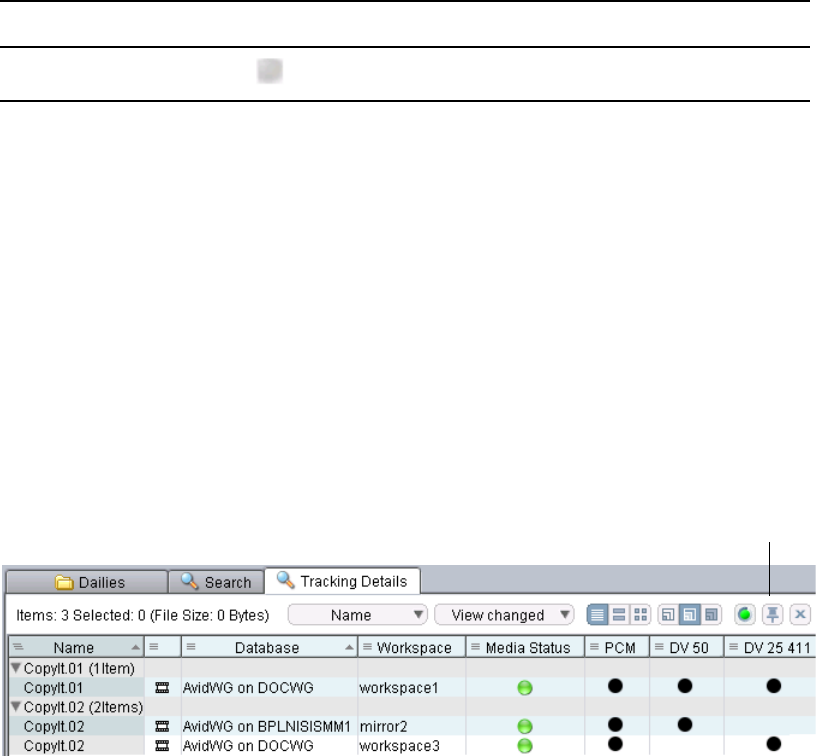
Viewing the Status of Assets Across Workgroups (Asset Tracking)
135
To view status information for each icon, move the mouse pointer to the icon and read the
ToolTip. For example, a ToolTip might read “Status for Online Server DOCWG is: ONLINE.”
This means that the server DOCWG is online and the associated asset is also online.
To get more information about the assets, such as which resolutions are available on which
server, select one or more assets, right-click, and select Tracking Details. If you want to open a
new Tracking Details tab without losing the current tab, click the Pin button in the upper right of
the current tab.
The following illustration shows tracking details for two clips.
• CopyIt.01 is available only on DOCWG, in both DV 50 and DV 25 411.
• CopyIt.02 is available on both BPLNISISMM1 and DOCWG. The version on BPLNISIS is
DV 50, and the version on DOCWG is DV 25 411.
• PCM audio is available in both workgroups.
Keep in mind the following:
• Asset tracking is available only for servers that share a local area network (LAN).
• You can only delete assets from the database that you are logged into. You cannot delete
assets that are stored on other databases. If you want to conveniently delete assets from the
database that you are logged into, you can sort by the Database column.
• Consider configuring each server that you are tracking so that it displays the same set of
servers. Then you can view the same asset information from any of the servers.
Blurred gray Not connected
Engine Type Icon Color Status
Pin button
Viewing the Status of Assets Across Workgroups (Asset Tracking)
136
To set up and view asset tracking, you need to do the following:
1. In the Avid Interplay Workgroup Properties, add a remote workgroup and a Lookup Locator
for the remote workgroup.
2. In the Interplay Administrator:
- Specify the Interplay Engine server for the remote workgroup.
- Add the Tracking column to the Interplay Access Content tab.
3. In Interplay Access:
- Connect to the servers you want to view.
- Select assets and update their status (“Update asset tracking” command).
4. Display Tracking Details.
These tasks are described in the following procedures.
To add a remote workgroup and Lookup Locator to the Avid Interplay Workgroup
Properties:
1. On the server that is running the Lookup Service, select Programs > Avid > Interplay
Framework > Avid Interplay Workgroup Properties.
The Avid Interplay Workgroup Properties dialog box opens.
2. Click the Lookup tab.
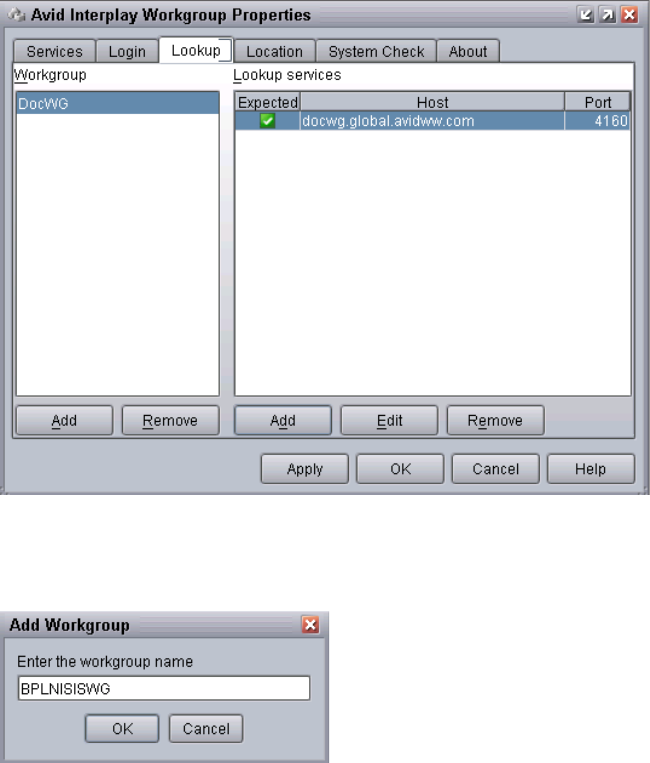
Viewing the Status of Assets Across Workgroups (Asset Tracking)
137
3. Click the Add button located below the Workgroup section.
The Add Workgroup dialog box opens.
4. Type the name of the workgroup that you want to add.
5. Click OK.
The new workgroup name appears in the Workgroup section.
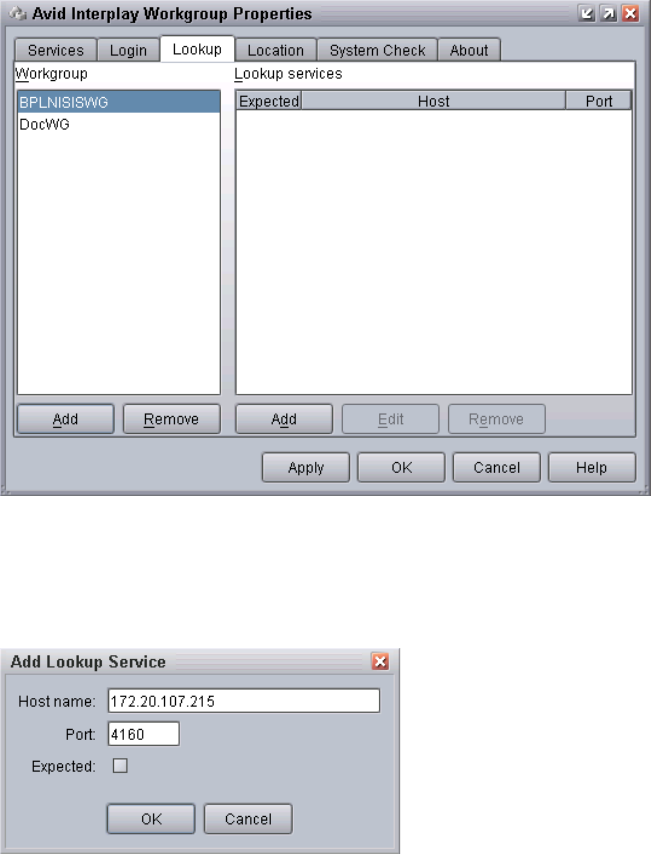
Viewing the Status of Assets Across Workgroups (Asset Tracking)
138
6. Select the workgroup you added.
7. Click the Add button located below the Lookup services section.
The Add Lookup Service dialog box opens.
8. Type the fully qualified hostname or the IP address of the computer running a lookup service
for the remote workgroup.
nA fully qualified hostname is a globally unique name that includes the domain name for the
computer, for example: MyComputer.global.mycompany.com.
9. Ensure the port number is 4160.
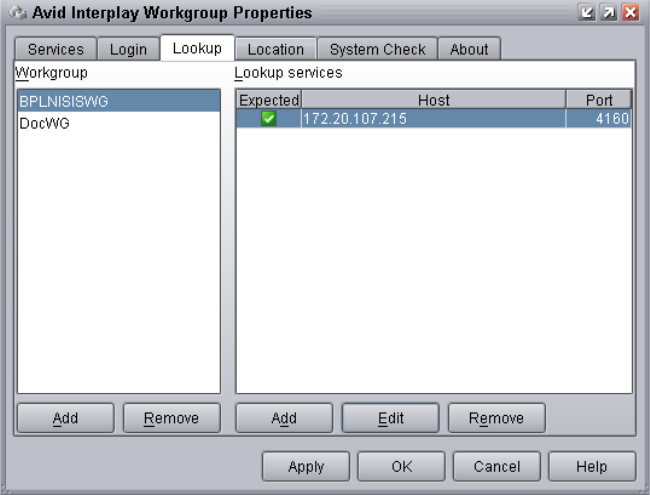
Viewing the Status of Assets Across Workgroups (Asset Tracking)
139
10. (Option) Select Expected if you want to be notified (in the Interplay Health Monitor) when
this host is not running.
11. Click OK.
The hostname or IP number is displayed in the Lookup services section as a Lookup
Locator.
12. Click Apply.
A message tells you that changes are effective only after restarting Interplay services.
13. Click Yes.
Interplay Framework stops the services and then starts them again.
14. Click OK to close the Avid Interplay Workgroup Properties dialog box.
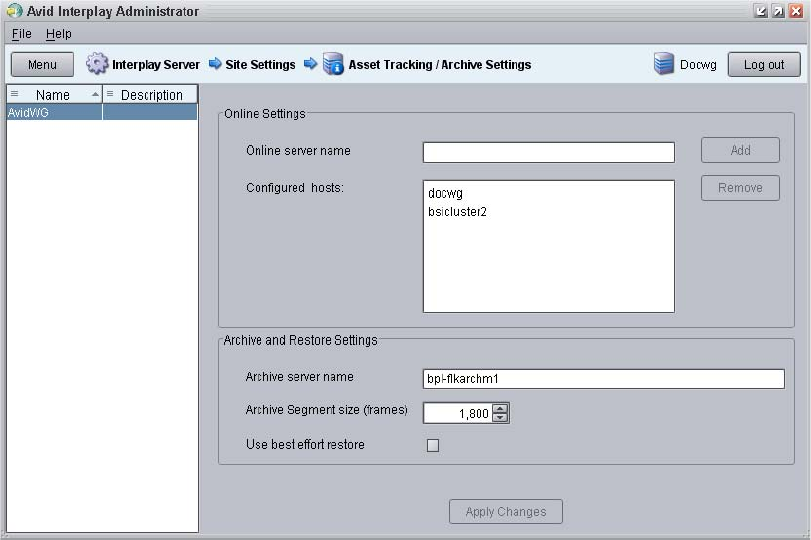
Viewing the Status of Assets Across Workgroups (Asset Tracking)
140
To specify servers for the remote workgroup in the Interplay Administrator:
1. In the Site Settings section of the Interplay Administrator window, click the Asset
Tracking/Archive Settings icon.
2. In the Online server name text box, type the computer name of the Interplay Engines for
which you want to track assets and click Add.
The server name is added to the list of configured hosts.
3. In the Archive Server name text box, type the computer name of the Interplay Archive
Engine.
4. Click Apply Changes.
To add the Tracking column to the Assets pane:
1. In the Site Sections section of the Interplay Administrator window, click the Property Layout
icon.
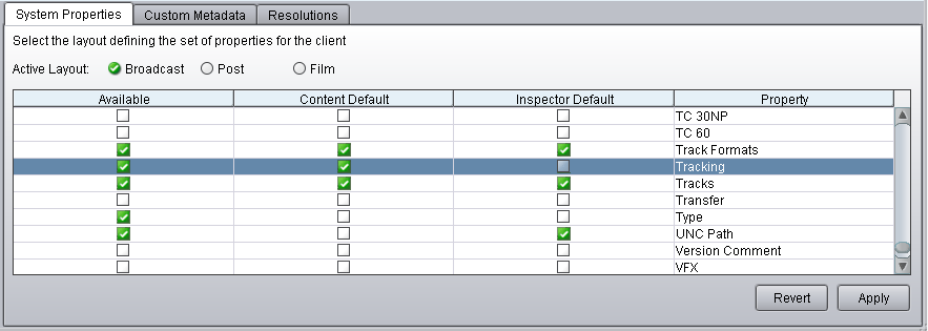
Viewing the Status of Assets Across Workgroups (Asset Tracking)
141
2. From the Active Layout options, select one of the following layouts:
- Broadcast
-Post
-Film
This option determines which set of properties is displayed in the client applications.
3. Locate the Tracking Property and select the following:
- Available: Select this option to make the property available for users to add into
Interplay Access displays on their own, and to use these fields in an Extended Search.
- Content Default: Select this option to display the property by default in the Content tab.
Do not select Inspector Default, because the Tracking display is not designed to display this
information.
4. Click Apply to save the settings.
The next time you log in to Interplay Access, the Tracking column is displayed. Each server
is represented by a column. Icons for remote servers might be grayed out, indicating that the
server might not be currently available or that the status needs to be updated. You should
always update the status of the assets you want to view.
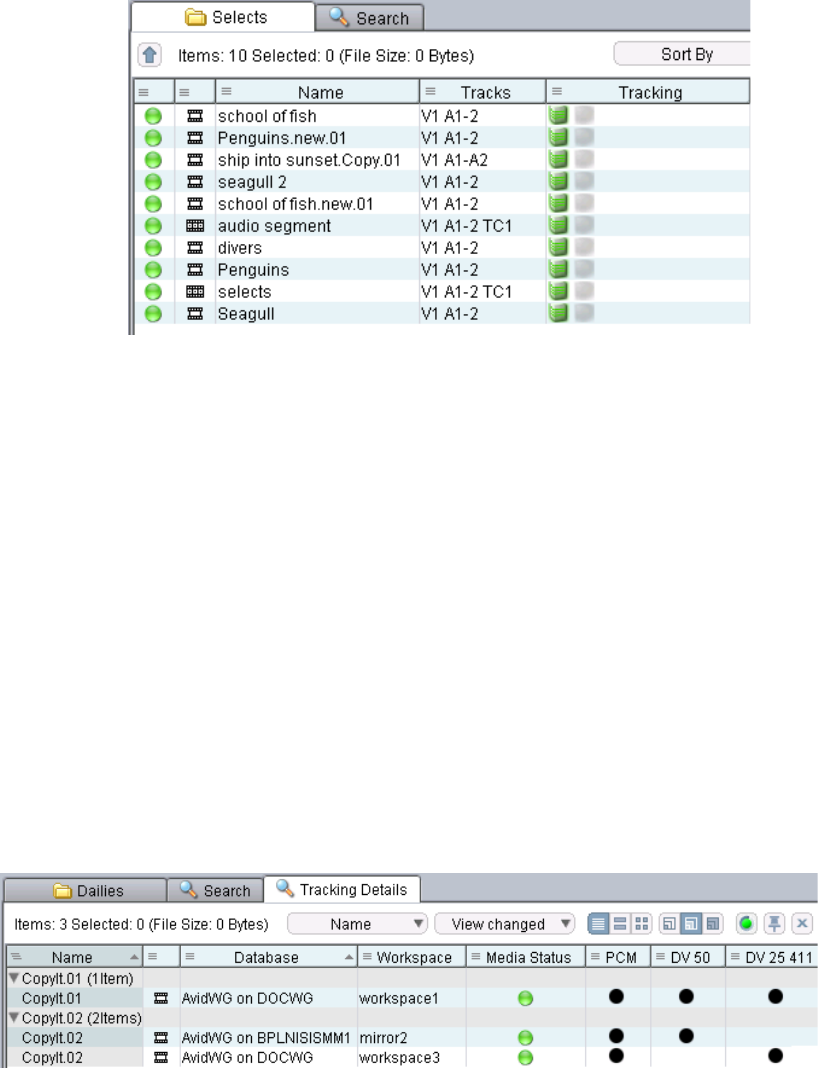
Viewing the Status of Assets Across Workgroups (Asset Tracking)
142
To update the status of selected assets:
1. In Interplay Access, connect to the servers for which you want to view assets.
2. Select an asset, a folder, or multiple assets and folders
3. Select Tools > Update Asset Tracking.
The status of the selected assets is updated.
To display tracking details:
1. In Interplay Access, select an asset, a folder, or multiple assets and folders.
2. Do one of the following:
tRight-click and select “Tracking Details.”
tSelect View > Tracking Details.
The Tracking Details tab is displayed. As shown in the following illustration:
- CopyIt.01 is available only on DOCWG, in both DV 50 and DV 25 411.
- CopyIt.02 is available on both BPLNISISMM1 and DOCWG. The version on
BPLNISIS is DV 50, and the version on DOCWG is DV 25 411.
Preserving Ancillary Data in an Interplay Environment
143
You can then modify the display in the same way you do for the Content tab or the Search
tab.
Preserving Ancillary Data in an Interplay
Environment
High-definition clips with ancillary data can be added to an Interplay database from different
sources:
• From an Avid editing system. Ancillary data can be embedded in a DNxHD video file, or it
can be included in a clip as a separate data track (D track) and stored as a separate MXF file.
• From an Airspeed Multi Stream server. AirSpeed Multi Stream supports ancillary data as a
data track in all HD formats for both ingest and playout.
In an Interplay environment, ancillary data is preserved for check in, storage, and check out.
nRefer to “Ingest and Playout of Ancillary Data” in the Interplay Best Practices Guide and the
Interplay | Production ReadMe for additional information about support for ancillary data and
limitations.
Ancillary data is supported as embedded data or as separate data tracks for ingest and Send to
Playback in the following resolutions:
• DNxHD
• XDCAM HD (Long GOP). For supported operating points, see the Avid Interplay ReadMe.
• AVC-Intra. For supported resolutions, see the Interplay | Media Services Setup and User’s
Guide or the Interplay Help.
Ancillary data is also supported for Interplay Media Services.
nYou cannot partially restore media that includes ancillary data. Media for the data track is fully
restored.
cDo not send jobs that include ancillary data tracks to versions of Interplay Transcode
earlier than 2.2. If the job ends with an error, the ancillary .mxf file will be deleted during
cleanup.
Ancillary data tracks are listed with video and audio tracks in Interplay Access: in the Tracks
column, in the Tracks property of the Object Inspector, and in the File Locations tab of the
Object Inspector. Ancillary data tracks are labeled D, as shown in the following illustration.
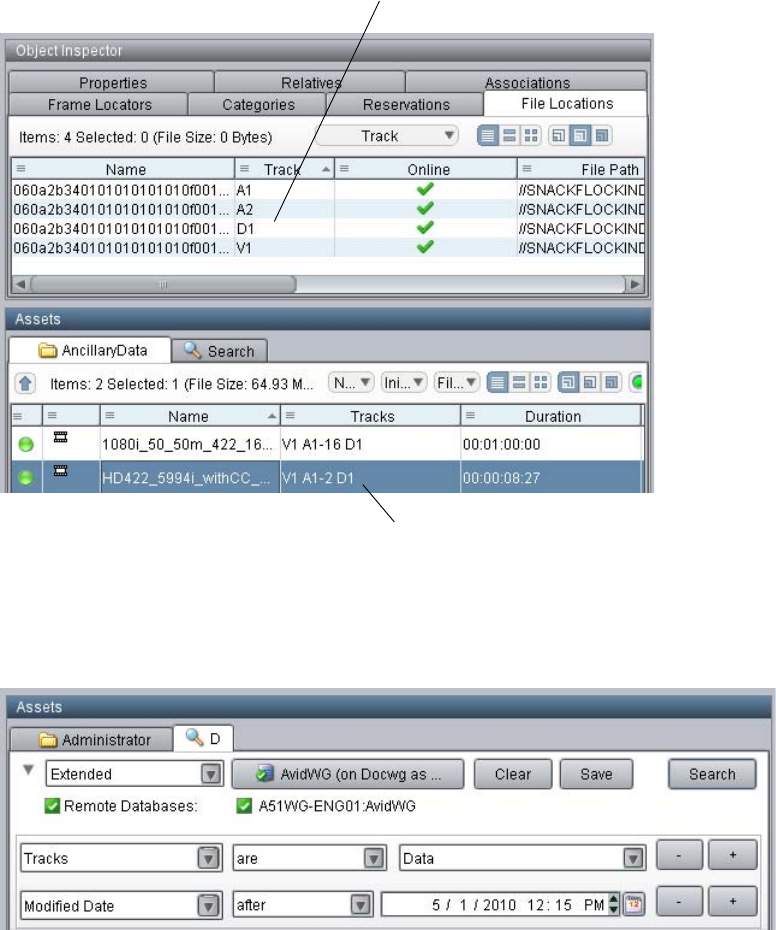
Preserving Ancillary Data in an Interplay Environment
144
In Interplay Access, you can search for clips that include ancillary data tracks by running an
extended search that uses the Tracks attribute with Data as the value, as shown in the following
illustration.
The media status of Data tracks is shown in the Data column, which is available as a resolution in
the Interplay Administrator and can be configured for display in Access, the Interplay window,
Interplay Assist, and Avid Instinct.
Ancillary data track D1 listed
in the File Locations tab.
Ancillary data track D1
listed in the Tracks column.
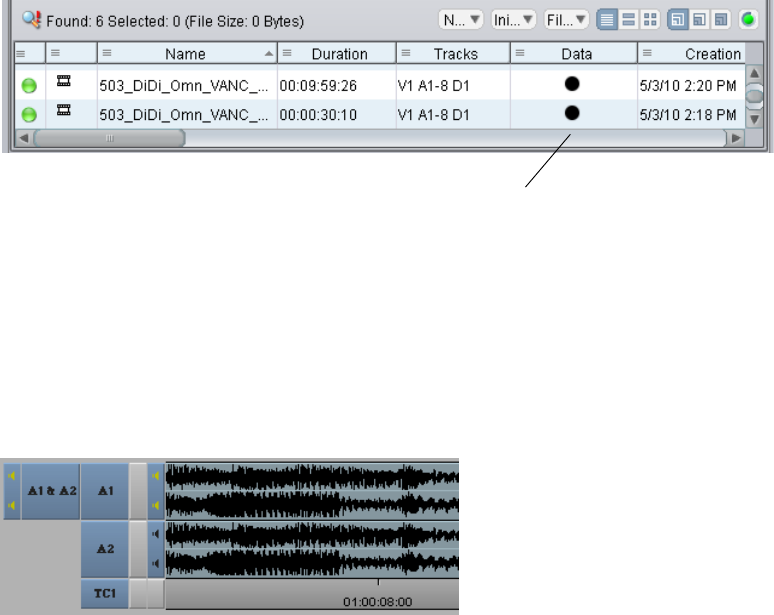
Working with Multichannel Audio Tracks in Interplay
145
Working with Multichannel Audio Tracks in Interplay
Avid editing applications let users create and work with multichannel audio tracks. For example,
for a clip, you can combine audio tracks A1 and A2 into a single stereo track. You can then edit
the clip into a sequence as a single stereo track. The following illustration shows a sequence with
two stereo tracks.
If you check in a clip with a stereo track, or a sequence that contains clips with stereo tracks,
Interplay preserves the stereo track. It also preserves the individual tracks that are combined in
the stereo track (as displayed in the Object Inspector: Relatives for a sequence, and File
Locations for a clip).
The following illustration shows an audio clip with two stereo tracks (A1 and A2) in Interplay
Access. Stereo tracks are listed in a new database property, labeled Track Formats.
Ancillary data track online
in the Data column.

Working with Multichannel Audio Tracks in Interplay
146
Interplay Media Services also preserve the stereo track and the individual tracks.
Mapping Multichannel Audio Tracks in Transcode Mixdown
The Interplay Transcode Mixdown option lets you specify how source audio tracks map to target
audio tracks.
For example, you might want to transcode and mixdown a sequence that includes two tracks (A1
and A2), each of which is a stereo pair.
If you are using the Transcode Mixdown option, and you want to preserve the two tracks as
stereo pairs, use the following mapping:
S1 = 1;S3 = 2;
This mapping specifies that:
For stereo mode, the target track must be an odd number, because it represents two stereo tracks.
• For stereo output track 1 (S1), use source track 1
• For stereo output track 3 (S3), use source track 2
V1
A1
A2
Clip 1 Clip 2
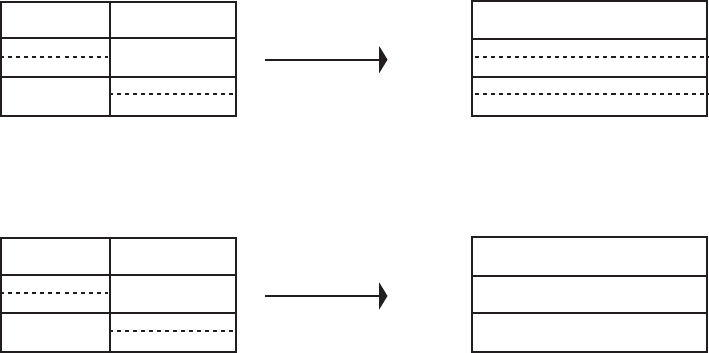
Working with Multichannel Audio Tracks in Interplay
147
The transcoded, mixed-down sequence preserves the two tracks as stereo pairs, as shown in the
following illustration:
Other mappings will combine the stereo pair to a single track. For example, A0 = 0 will create
two mono tracks, as shown in the following illustration.
cIf you are using the Transcode Mixdown option with stereo tracks, make sure that your
audio track mapping is correct for the output that you want. The Transcode Mixdown
service uses the track information as labeled in the sequence, not as labeled in the original
master clips.
For complete information, see “Mapping of Audio Tracks in MIXDOWN and
DUALMIXDOWN Modes” in the Interplay Help or in the Interplay | Media Services Setup and
User’s Guide.
Send to Playback with Multichannel Audio Tracks
This section describes a best practice for sending a sequence containing multichannel audio
tracks to playback when using Direct Out mode.
When using Direct Out mode, keep the multichannel audio tracks at the bottom of your audio
tracks. When you send to playback in Direct Out mode the system expands the stereo tracks to
separate mono tracks. If there are single tracks at the bottom of the track list you may get
unexpected results after the top tracks expand. For example, a single track that was on track 5
may now be on a different track. If you keep the single tracks at the top you can avoid this kind
of problem. See the editing application Help for additional information on multichannel audio.
V1
A1
A2
A1 & A2
A3 & A4
V1Clip 1 Clip 2 Clip 1.new
Transcode
Mixdown
V1
A1
A2
A1
A2
V1
Clip 1 Clip 2 Clip 1.new
Transcode
Mixdown
Emulated Rendered Effects
148
Emulated Rendered Effects
Starting with Interplay version 2.3, links for rendered effects are no longer included in the
Interplay database. These links are still displayed in Interplay Access and other client
applications. However, because the links are not included in the database, they are displayed by
client applications as emulated rendered effects and always have gray icons, except as described
in “Exception: Unchecked-in Avid Assets Folder and the Orphan Clips Folder” on page 149.
nOnly client applications that are based on Interplay v2.3 or later display these emulated
rendered effects. If you use an earlier client application with an Interplay v2.3 database, and you
select to display referenced assets, rendered effects are not displayed.
Not including these links as objects in the Interplay database results in a significant reduction in
the number of objects in the database (up to 20 percent for a large database).
Behavior of Emulated Rendered Effects
Emulated rendered effects behave differently from database objects in the following ways:
• You cannot search for emulated rendered effects.
• You cannot create shortcuts to emulated rendered effects in Access.
• You cannot remove emulated rendered effects from a folder without removing the
referencing asset. For example, you cannot drag and drop them to another folder.
• You cannot change the owner of emulated rendered effects in Access.
• You cannot set a direct property for emulated rendered effects in Access (administrators
only).
You can delete emulated rendered effects and their media. However, beginning with Interplay
version 2.3, you cannot delete a referenced asset unless you delete the asset that references it (see
“Restricted Deletion of Referenced Assets” on page 259).
Any rendered effect that becomes unused and has unique media associated with it (media not
referenced by other objects) is automatically moved to the Orphan Clips folder (see the next
section). For example, if you update a sequence, the previously rendered effects become unused
(or unreferenced) and are moved to the Orphan Clips folder.
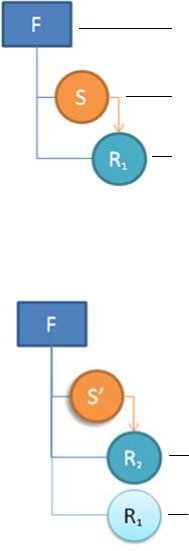
Emulated Rendered Effects
149
Exception: Unchecked-in Avid Assets Folder and the Orphan Clips Folder
Links for rendered effects in the Unchecked-in Avid Assets folder or the Orphan Clips folder
remain as database objects (with a black icon).
• Unchecked-in Avid Assets folder: This folder holds assets that were created on shared
storage but are not yet checked in to the Interplay database. Any rendered effects created by
an Avid editing system and not checked in are stored here as links. After checkin, rendered
effects are removed from the Unchecked-in Avid Assets folder and displayed as emulated
rendered effects in the appropriate database folder.
• Orphan Clips folder: This folder holds assets for which the last link has been deleted but the
media remains. Links to rendered effects are stored here as database objects that are eligible
for deletion.
In Interplay version 2.3, rendered effects are automatically moved to the Orphan Clips folder
more often. For example, the following illustration shows a sequence S with a rendered
effect R1 (a referenced asset) checked into folder F.
If you check in sequence S again, it creates a new version of the sequence (S’) that
references rendered effect R2 instead of R1.
Referenced asset
Sequence
Folder
Referenced asset
Unused asset
Stereoscopic 3D Support in Interplay | Access
150
In versions prior to Interplay v2.3, R1 was an unused (“stale”) asset that a media manager
needed to manually identify and delete. In version 2.3 and later, R1 is moved to the Orphan
Clips folder as soon as S’ is checked in and can then be deleted as part of a regular deletion
workflow.
Upgrading to Interplay Engine Version 2.3
The change to emulated rendered effects affects the upgrade to Interplay Engine version 2.3 in
the following ways:
• The first time you open the database after the upgrade, the Interplay Engine automatically
removes links for rendered effects (they are replaced as emulated rendered effects by the
client application). No media is deleted.
This process significantly reduces the size of the database. For a very large database, this
process can take up to three hours.
Because the process of removing the links can take a long time, it is important to follow the
upgrade procedure in the Interplay | Production ReadMe. If you follow the procedure, the
database upgrade occurs while you are logged into the Interplay Administrator. During the
process, the Interplay Administrator displays a progress bar. Messages are also displayed in
the Interplay Engine log file.
If you do not follow the procedure, the upgrade might take place at an inopportune time,
such as when a user logs on to Interplay Access or Interplay Assist for the first time after the
upgrade. In this case the system could appear to hang at the “Connecting” message while the
Interplay Engine removes the links from the database.
• During this process, the Interplay Engine also determines if there are rendered effects that
are not currently in use and moves these rendered effects to the Orphan Clips folder. You can
delete these rendered effects and their associated media.
If the number of unused rendered effects in the Orphan Clips folder exceeds 5,000, the
excess items are moved to subfolders of 2,000 rendered effects each.
Stereoscopic 3D Support in Interplay | Access
Interplay Access v2.6 and later includes the following features that support workflows for
stereoscopic media and clips:
• Stereoscopic icons
• Stereoscopic properties
• Stereoscopic search criteria
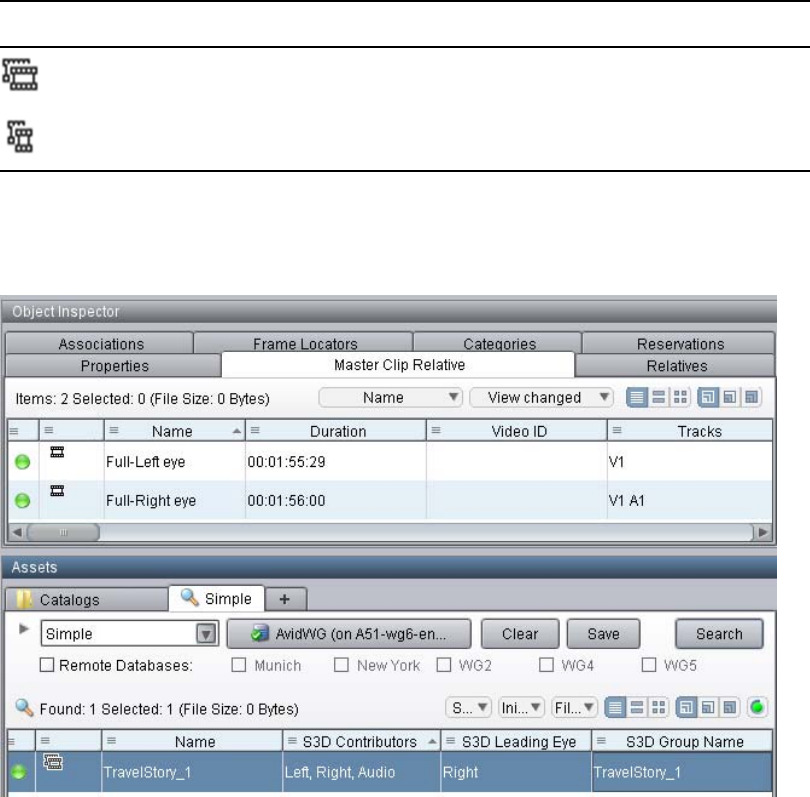
Stereoscopic 3D Support in Interplay | Access
151
Stereoscopic Icons and Properties
Interplay Access uses the same icons for stereoscopic clips as Avid editing systems, as described
in the following table.
The following illustration shows a stereoscopic clip in the Assets window and the related master
clips (full left and full right) in the Master Clip Relative tab of the Object Inspector. The Assets
window shows some of the stereoscopic property columns.
The following illustration shows a sequence in the Assets window and its referenced
stereoscopic clip in the Relatives tab of the Object Inspector.
Icon Description
Stereoscopic clip
Stereoscopic subclip
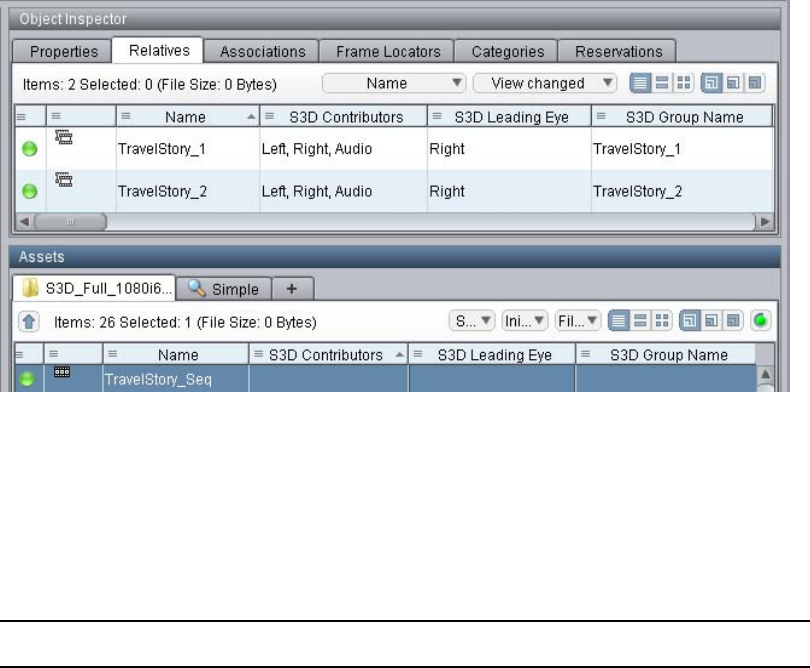
Stereoscopic 3D Support in Interplay | Access
152
For a list of all stereoscopic properties available for display, see S3D properties in “System
Metadata Properties” on page 327.
Stereoscopic Search Criteria
Interplay Access Search now includes the following criteria. To display the extended criteria,
you need to enable them for display in the Property Layout view in the Interplay Administrator.
Type of Search Criteria
Simple (Type field) All stereoscopic clips
Stereoscopic master clips
Stereoscopic subclips
Extended S3D Alignment
S3D Channel
S3D Clip Name
S3D Contributors
S3D Eye Ordering
S3D Group Name
S3D Inversion

Support for Group Clips in Interplay | Access
153
Support for Group Clips in Interplay | Access
Group clips are created in Media Composer and other Avid editing applications by using
MultiCam features to sync a group of clips based on common source timecode, auxiliary
timecode, or marks placed in the footage. A user working in an Avid editing application can
check group clips in to and out from an Interplay Production database. Interplay Access users
can view information about group clips, including master clip relatives. Group clips are also
supported by Interplay Media Services and Interplay Transfer.
Prior to Interplay Access v3.0, if you selected a sequence that contained a group clip, the
Relatives tab in the Object Inspector displayed the master clips that composed the group clip, but
did not display the group clip itself. Beginning with Interplay Access v3.0, the Relatives tab
shows the group clip. The following illustration shows a selected sequence that contains one
group clip. The group clip icon is grayed out because it is a referenced-only asset (see
“Referenced Assets and Referenced-Only Assets” on page 97).
S3D InversionR
S3D Leading Eye
Type of Search Criteria
Group clip
Sequence that
includes group clip
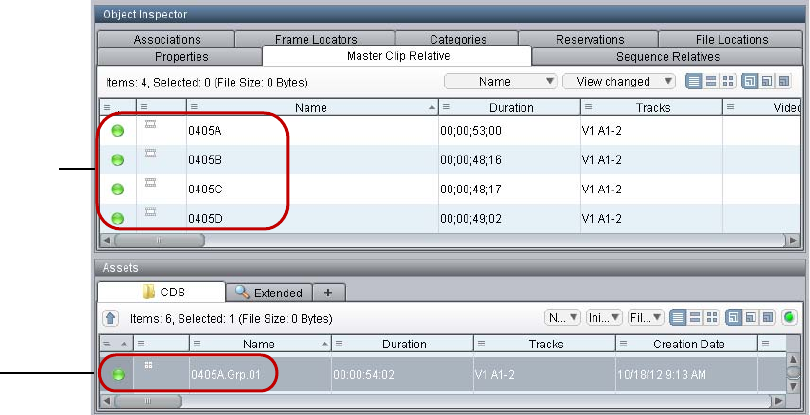
Support for Group Clips in Interplay | Access
154
You can double-click a group clip in the Relatives tab to display the master clips that compose
the group clip in the Master Clip Relative tab.
Master clips that
compose group clip
Group clip

5Finding Assets
The following topics describe how to use Interplay Access to search for assets in the Interplay
database:
•Searching for Assets
•Saving Your Search
•Searching Across Remote Workgroups
•Finding Other Clips from the Same Source Tape
•Finding Shared Clips and Unshared Clips
•Using Third-Party Search Plug-Ins
Searching for Assets
There are two ways to search for assets in Interplay Access:
• Running a text-based search on the database
• Running an attributes-based search on the database or a selected folder
An attributes-based search provides you with more options and the ability to refine your search
criteria.
Interplay stores information about the asset in a set of attributes, which are similar to column
entries associated with assets in Avid folders. Attributes can define fundamental statistical
information (clip duration, creation date, and so on) or descriptive information (comments, asset
name, and so on). Attributes are displayed as properties in the Content view and the Object
Inspector.
You can perform the following types of attributes-based searches:
•Simple searches let you specify a limited number of attributes. For example, you can search
for assets with a particular name that were recorded within the last 24 hours.
•Extended searches let you specify any combination of attributes and values. For example,
you can search for assets that were recorded within a range of dates, with a particular name,
and at a particular resolution.
•File searches let you specify attributes related to the file-based workflow.

Searching for Assets
156
The database returns the results of any search in the Search tab, which offers customizable views
and access to more detailed information about displayed assets.
The following topics provide more specific information about searching for assets:
•“Performing a Text-Only Search” on page 156
•“Using the Search Root and Attributes to Speed Up a Search” on page 157
•“Simple Searching” on page 158
•“Simple Search Attribute Names and Values” on page 160
•“Extended Searching” on page 161
•“Extended Search Attribute Names, Operators, and Values” on page 163
•“Searching for Published Clips” on page 167
•“Example: Finding Assets By Using a Unique Identifier” on page 170
•“Performing a File-Based Workflow Search” on page 175
•“Searching for Migrated Workgroup 4 Archived Items” on page 177
•“Closing Extra Search Tabs” on page 177
•“Showing One Representation for Each Asset Found” on page 177
Performing a Text-Only Search
You can run a text-only search that runs on the entire selected database and searches for the
specified text criteria. Text is the only criteria for the search. If you enter more than one word, the
search will search for the words as a single entity. For more information, see the description of
the values for Text in “Simple Search Attribute Names and Values” on page 160.
Because this text-only search runs on an entire database, it could take too much time to search a
large database. To speed your search, specify a search root and use attributes, as described in
“Using the Search Root and Attributes to Speed Up a Search” on page 157, “Simple Searching”
on page 158, and “Extended Searching” on page 161.
To run a text-only search:
1. Type the text you want to search for in the Search text box, which is located in the upper
right of the Interplay Access window.
2. (Option) If you are reusing a previously run search, use the down arrow and click the text
instead.
Search text
box
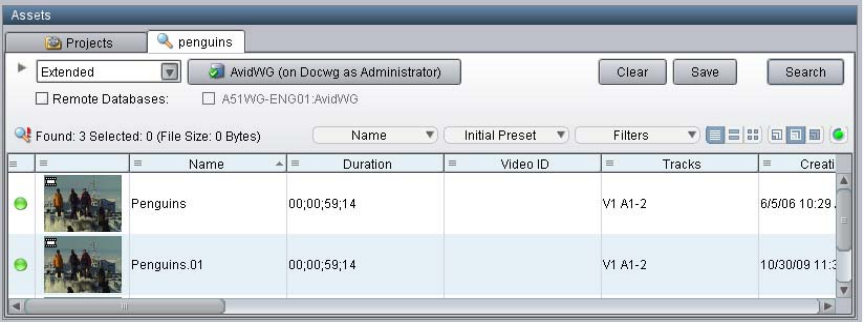
Searching for Assets
157
3. Press Enter.
The results are shown in the Search Results pane in the Search tab.
For information about customizing the Search Results pane, see “Using the Assets Pane” on
page 100.
Using the Search Root and Attributes to Speed Up a Search
To speed up your search, make your search as specific as possible. The more specific you can
make your search, the faster you can get the results you want. Two ways to make your search
more specific are:
• Specifying a search root
• Using attributes
Keep in mind that even if you only change the search root, or search by a single attribute, you can
dramatically improve the response time.
Specifying a Search Root
By specifying a particular folder as the search root, you are instructing the search engine to limit
the set of assets that it searches to that particular folder and any folders included in that folder’s
subtree. By default, the search root is the entire database. If you know the folder subtree in which
the asset you are searching for is stored, you can select that folder to speed your search. For
example, in Interplay Access, you can select the Project folder, or a particular project within that
folder.
Searching for Assets
158
Using Attributes
By specifying one or more attributes, you are also instructing the search engine to limit the set of
assets that it searches. Simply searching for text, without restricting the search root, is the most
time-consuming search, because the search engine searches the entire database. However, if you
specify a particular attribute (such as the Time attribute), the search engine can quickly limit the
database to a small subset and search for text within that subset.
For example, if you wanted to find a clip about the Nobel Peace Prize acceptance speech, you
could search for the text “Nobel Peace Prize.” In this case, the search engine will search through
the entire database of clips, which could take twenty-five seconds for a large database. However,
if you know that the speech took place within the past week, you can select the Time attribute
and then the option “Last week.” The search engine creates a subset of clips that were modified
in the past seven days, and searches for the text within that set. Setting this attribute can reduce
the time for a search from twenty-five seconds to one second.
Simple Searching
Simple searches allow you to quickly specify one or several of the most frequently used
attributes. You can combine two or more attributes to produce more targeted results.
When you open Interplay Access, or open a new Search tab after performing a search, the Search
tab defaults to search the entire database. Selecting a folder will improve the response time for
the search (see “Using the Search Root and Attributes to Speed Up a Search” on page 157).
n If a search is returning too many results, you can stop it by clicking the Stop button in the Search
tab. (The Search button changes to the Stop button when a search is in progress.)
To perform a simple search:
1. Do one of the following:
tClick the Search tab. One Search tab is displayed by default, with Simple as the search
type and the entire database as the search root.
tSelect Edit > Search to open a new search tab. You can also press F3 or Ctrl+F
(Windows) or Command+F (Macintosh). If you select a folder before you open a new
search tab, the folder you selected is selected as the search root. Then select Simple
from the Search Type list.
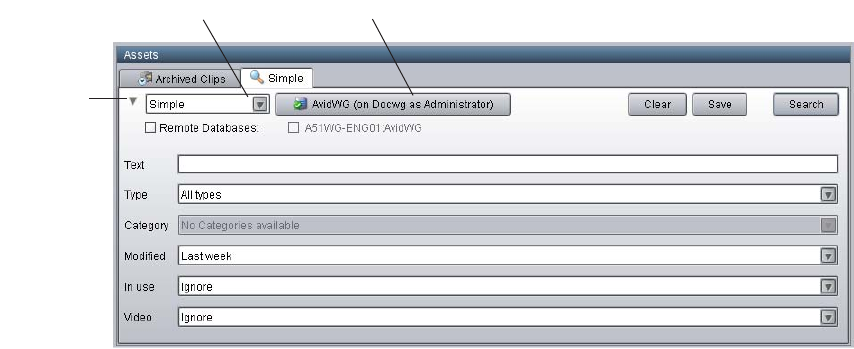
Searching for Assets
159
2. To change the search root, click the Search Root button, navigate to the folder you want to
search, and click OK.
3. (Option) Select a Remote database to search. See “Searching Across Remote Workgroups”
on page 182.
4. If necessary, click the Search Conditions arrow to show the search criteria.
5. Type the text or select the attributes and values you want to use for the search. For a list of
attributes and values, see “Simple Search Attribute Names and Values” on page 160.
nIf you don’t select any criteria, the search returns all the records in the database.
6. Do one of the following:
tPress Enter.
tClick the Search button.
The Search button changes to a Stop button, which you can click if you want to stop the
search. The results are displayed in the Search Results pane. They are visible until you close
Interplay Access or until you perform a new search.
To erase all values you entered in the search fields:
tClick Clear.
For information about saving your search, see “Saving Your Search” on page 179.
Search Root button
Search
Conditions
arrow
Search Type list

Searching for Assets
160
Simple Search Attribute Names and Values
The following table lists the attribute names and search values you can use in a Simple search.
Simple Search Attribute Names and Values
Attribute
Name Description Search Values
Text Searches for text in multiple
attributes, such as Name,
Tape, User Attributes,
Comments, and Annotations.
nUse the File search to
search for a version
comment or label.
A text string of one or more words. If you enter more than
one word, the search will search for the words as a single
entity. Text is not case sensitive and spaces are permitted.
Wild cards are not supported.
nIf you search for text that contains certain special
characters, the results will include assets for which the
characters are not visible in the text fields. This is
because assets contain XML-type properties that
always contain special characters and keywords, and
the search includes these properties. These special
characters include the following:
" < > $ & ^
For example, if you search for " (double quotes), any
assets that include frame locators or restrictions will
be displayed in the search results. This behavior also
applies to the following words: UID, FrameNumber,
Timecode, Track, TrackType, Color, and Comment.
Type Media type • All types
• Effect
• Folder
• Group
• Masterclip
• Motioneffect
• Renderedeffect
• Sequence
• Subclip
Category The search looks through the
database for the specified
category type and the
criteria specified.
The categories available are defined by the Administrator.
nYou might need to click Clear in the Simple Search
pane to see categories that were added very recently by
the administrator.

Searching for Assets
161
Extended Searching
Extended searches allow you to specify complex search criteria to find exactly the assets you
need.
The elements of an extended Interplay search are:
•The attribute names in which you are interested.
•The operator that specifies how the values you specify match the values of the assets for
which you are looking.
• The attribute values you want to match.
When you open Interplay Access, or open a new Search tab after performing a search, the Search
tab defaults to search the entire database. Selecting a folder will improve the response time for
the search (see “Using the Search Root and Attributes to Speed Up a Search” on page 157).
nIf a search is returning too many results, you can stop it by clicking the Stop button in the Search
tab. (The Search button changes to the Stop button when a search is in progress.)
Modified Search for items checked in,
checked out, imported, or
modified in the specified time
frame.
• Last 10 minutes (default)
• Last hour
• Last 24 hours
• Last 48 hours
• Last 72 hours
•Last week
• Last month
• Last year
• All dates and times
In use If an item is in use, it is
referenced by a sequence also
in the database (Avid assets
only)
• Ignore: Reports results regardless of whether the item is
in use or not (default).
• Is in use: Reports only items in use.
• Is not in use: Reports only items not in use.
Video Searches for items with the
given resolution.
• Ignore: Reports results regardless of resolution
• Choose a resolution.
Simple Search Attribute Names and Values (Continued)
Attribute
Name Description Search Values
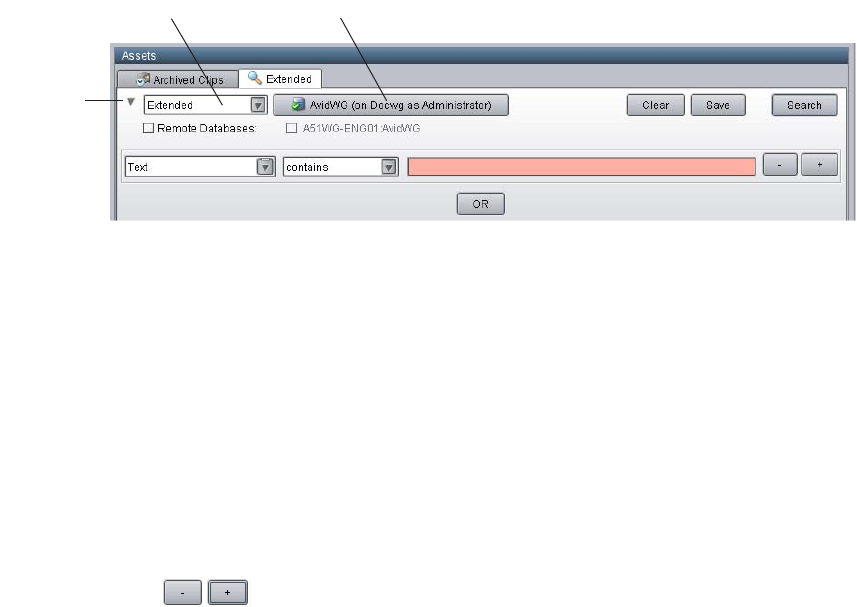
Searching for Assets
162
To perform an extended search:
1. Do one of the following:
tClick the Search tab and select Extended from the Search Type list. One Search tab is
displayed by default, with Simple as the search type and the entire database as the
search root.
tSelect Edit > Search to open a new search tab. You can also press F3 or Ctrl+F
(Windows) or Command+F (Macintosh). If you select a folder before you open a new
search tab, the folder you selected is selected as the search root. Then select Extended
from the Search Type list.
2. To change the search root, click the Search Root button, navigate to the folder you want to
search, and click OK.
3. (Option) Select a Remote database to search. See “Searching Across Remote Workgroups”
on page 182.
4. If necessary, click the Search Conditions arrow to show the search criteria.
5. Specify an initial set of criteria (see “Extended Search Attribute Names, Operators, and
Values” on page 163).
6. Select additional criteria by doing one of the following:
tFor an AND search, click the + button as many times as the number of criteria you want
to add.
tFor an OR search, click the OR button.
tTo delete unwanted criteria, click the - button.
Select the combination of criteria that makes a “sentence” that is true for the assets you want
to find. For example, the following illustration shows criteria that will be used to search for
any assets whose the text contains the word “penguins” or the word “fish.”
Search Root button
Search
Conditions
arrow
Search Type list
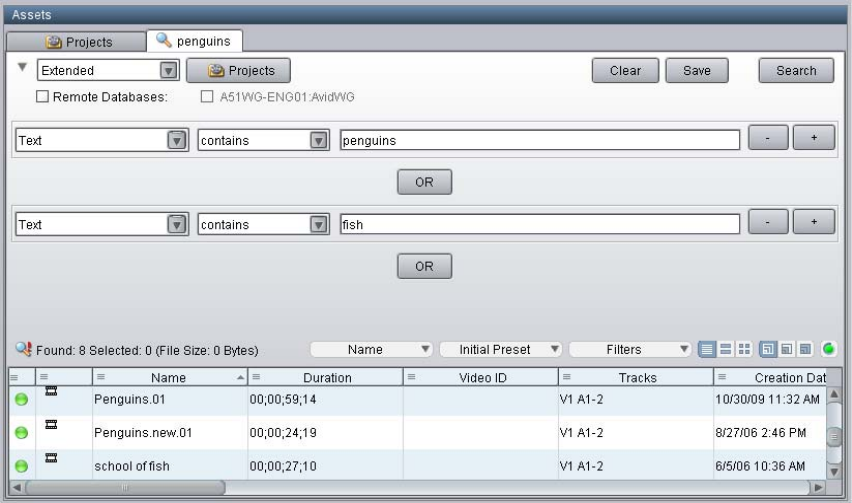
Searching for Assets
163
7. Do one of the following:
tPress Enter.
tClick the Search button.
The Search button changes to a Stop button, which you can click if you want to stop the
search. The results are displayed in the Search Results pane. They are visible until you close
Interplay Access or until you perform a new search.
To erase all values you entered in the search fields:
tClick Clear.
For information about saving your search, see “Saving Your Search” on page 179.
Extended Search Attribute Names, Operators, and Values
The following table shows the range of valid operators and values for the Interplay extended
search attributes.
Many of the properties available for use in the Extended Search are predefined by the
administrator, so your choices vary. For the list of standard Interplay attribute names, their
meanings, and the values you can enter for them when specifying a search, see “System
Metadata Properties” on page 327. You can also search for custom properties.

Searching for Assets
164
Additional properties can also be pulled in from the Avid editing applications.
The following table describes the basic categories of search attributes.
Search Attributes
Field Possible Value
Attribute
Name
Any attribute (standard or custom) defined in the Property
Layout view of the Interplay Administrator. For example,
Name, Project, or Tape. See also
Operator Varies depending on the attribute selected. Operators include:
• Contains
• Does not contain
•Is
• Is not
• Starts with
• Does not start with
• Ends with
• Does not end with
• Before
•After
• Within
• Not within
• Less than
• Greater than
Value Varies depending on the attribute selected. Values include:
•Text
• Numeric value
• Time
• Duration
•Date
•Yes or No

Searching for Assets
165
The following table describes several special extended search attributes.
Special Extended Search Attribute Names and Values
Attribute Name Description Search Values
Text Searches for text in multiple attributes,
such as Name, Tape, User Attributes,
Comments, and Annotations.
A text string of one or more words. If you
enter more than one word, the search will
search for the words as a single entity. You
can open additional Text criteria fields to
search for AND or OR combinations of
words.
Text is not case sensitive and spaces are
permitted.
Wild cards are not supported.
nIf you search for text that contains
certain special characters, the results
will include assets for which the
characters are not visible in the text
fields. This is because assets contain
XML-type properties that always
contain special characters and
keywords, and the search includes
these properties. These special
characters include the following:
" < > $ & ^
For example, if you search for "
(double quotes), any assets that
include frame locators or restrictions
will be displayed in the search results.
This behavior also applies to the
following words: UID,
FrameNumber, Timecode, Track,
TrackType, Color, and Comment.
Find Clips Filters search results to show shared or
unshared clips only, similar to the View
option Find Shared/Unshared Clips. See
“Finding Shared Clips and Unshared
Clips” on page 184.
Shared or Unshared.

Searching for Assets
166
nSee “Setting Reservations” on page 248 for information on using the Extended Search to find
reserved items.
Reserved Searches for assets that are currently
reserved or have been reserved in the
past, depending on search criteria.
• Is expired: item was reserved before and
the reservation has now expired.
• Is reserved: item is currently reserved.
• Ends after: reservation ends after the
date you specify.
• Ends before: reservation ends before the
date you specify.
Streamable Masterclips Searches for master clips that include
media that is capable of being streamed
and played in the Monitor. See
“Searching for Published Clips” on
page 167.
nIn Interplay v2.4, the Interplay
Streaming Server was
re-engineered to directly play
MPEG-4/H.263 and H.264 video
media and MPEG1 Layer 2 audio
media. There is no longer any need
to use the Publishing service or
Workflow Engine to create
QuickTime reference movies for
streaming play.
• are published: clips with streamable
media that are published for streaming
• are not published: clips with streamable
media that are not published for
streaming.
Workspace Determines which workspaces are
searched.
When you select “Workspace is,” all unique
workspaces found in the database are listed,
regardless of whether a workspace is present
on the shared-storage system or not. This
allows users to search for assets whose
workspace is outdated and delete the assets
or fix them by applying the Update Media
Status button.
nIn previous versions of Interplay, only
currently active workspaces were
listed.
Special Extended Search Attribute Names and Values (Continued)
Attribute Name Description Search Values
Searching for Assets
167
Searching for Published Clips
In Interplay v2.3 and earlier, video and audio clips could be played in the Monitor only if they
were published by the Interplay Stream Publish service. This service created QuickTime
reference movies that refer to MPEG-4/H.263 or H.264 video files and MPEG1 Level 2 audio
files. Published QuickTime reference movies were considered streamable media because they
are capable of being streamed for playing in the Monitor.
In Interplay v2.4, the Interplay Streaming Server was re-engineered to directly play
MPEG-4/H.263 and H.264 video media and MPEG1 Layer 2 audio media. There is no longer
any need to use the Publishing service or Workflow Engine to create QuickTime reference
movies for streaming play.
However, you can still use the Extended Search to find master clips that were published for
streaming (published clips). You can also use the Extended Search to find master clips that have
media files that can be published (MPEG-4/H.263 or H.264 video files and MPEG1 Level 2
audio files), but are not yet published (unpublished clips).
To search for published clips or unpublished master clips:
1. In the Assets pane (available in any view), click a Search tab or open a new Search tab.
2. Select Extended from the Search Type list.
For more information, see “Extended Searching” on page 161.
3. Click the down arrow in the first text box and select Streamable Masterclips.
4. Click the down arrow in the second text box and select one of the following:
tare published (searches for published clips)
tare not published (searches for unpublished clips)
5. Add other criteria to the search.
6. Click the Search button.
The Search button changes to a Stop button, which you can click if you want to stop the
search. Clips that match your criteria are displayed in the Search Results pane.
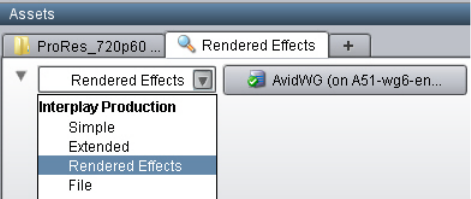
Searching for Assets
168
Search Option for Rendered Effects
Interplay Access v2.6 and later includes a search type that lets you search for and view rendered
effects. The purpose of this feature is deletion of media files for rendered effects.
To use this search type, select Rendered Effects from the Search Type list, as shown in the
following illustration:
Perform this search in the same way you perform an extended search. See “Extended Searching”
on page 161.
The Rendered Effects search can be used with one or more of the following five criteria:
• Initial Checkin Date
• Workspace
• In use
•Media Status
•Text
You can select one or more criteria in the same way you select criteria for other search types. The
following illustration shows a search that uses four criteria, the list of files found, and the folder
that is associated with the selected rendered effect. Note that the rendered effects in the search
results list are grayed out because their links are emulated.
nThe grayed-out appearance of the rendered effects has a different meaning from the grayed-out
appearance of referenced assets.
Rendered effects with links (for example, in the Kept Media or Unchecked-In Avid Assets
folders) are displayed as solid black. Rendered effects without links (like all emulated rendered
effects) are displayed grayed out.
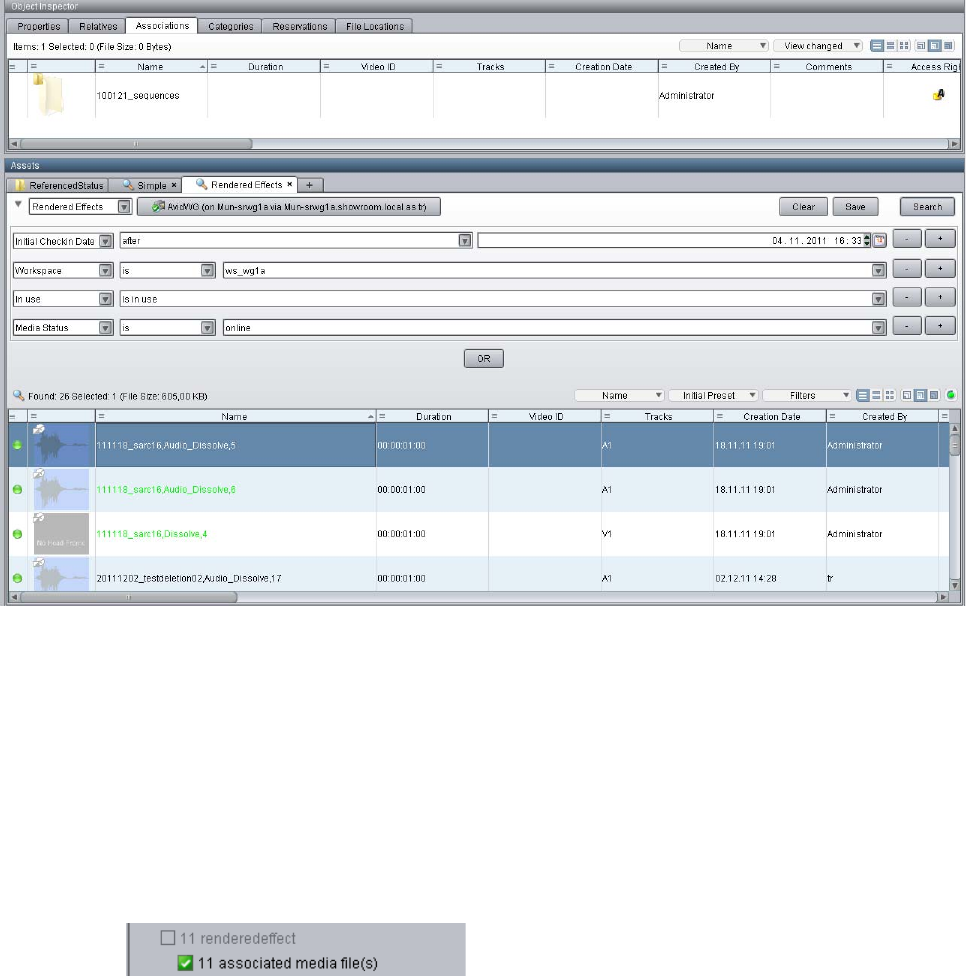
Searching for Assets
169
The Associations tab for used rendered effects shows the folders in which they are used (and
where they would be emulated if you browse to the folder).
Limitations
Note the following limitations:
• The Rendered Effect search is a media management tool for deleting media only. You can
delete media for the rendered effects listed in the search results, but you cannot delete the
metadata. In the Delete dialog box the option for “renderedeffect” is inactive (grayed out),
while the option for “associated media file(s)” is active.
Searching for Assets
170
You can delete this metadata through other deletion workflows.
• Because of the specific purpose of this search type, the actions you can perform on the
search results are limited: for example, you cannot copy and move object in the search
results list or use the Go To option.
Example: Finding Assets By Using a Unique Identifier
This topic illustrates a workflow in which you assign a unique identifier (numbers, letters, or a
combination) to an asset and use that identifier to find and display the asset. For example, you
could choose to associate a unique number with each sequence in an Interplay database so that
you can quickly find a particular sequence later using that number, even if someone has changed
the name of the sequence. This workflow uses a custom property and a custom search for the
most efficient and reliable way of finding the asset.
There are alternative methods for associating a unique identifier to the one described in this
topic. However, they do not make optimal use of the Interplay search engine. For example, one
workflow might be to append an identifier to the end of an asset name so that it can be tracked
with the asset. A disadvantage to this approach is that you need to use the full-text search
mechanism to find the asset. Another disadvantage is that renaming the asset will remove the
identifier unless you add it to the new name.
A more efficient approach is to create a custom property (or metadata field) that is used
exclusively to hold the identifier. You can then search for the asset by using an exact match rather
than a full-text search, and you can rename the asset without needing to add the identifier. You
use the Interplay Administrator to create a custom property, and then use Interplay Access to set
and search for the identifier.
nAdding an identifier to the name of an asset and using full-text search to locate the asset by name
causes unnecessary extra load on the Interplay Server, because it searches through much more
data than it would if searching on a single custom property. You should always define a custom
property if your workflow uses a unique identifier.
The following procedures describe
• How to add and display a custom property
• How to add the identifier
• How to search for the identifier
Prerequisite: A user must have write permission on an asset to add an identifier to an asset.

Searching for Assets
171
To add a custom property:
1. In the Site Settings section of the Interplay Administrator window, click the Property Layout
icon.
2. In the Property Layout view, select the database for which you want to set properties.
3. Click the Custom Meta Data tab.
4. In the Add Custom Meta Data Field text box, type a name for the custom property. In this
case, type the name “Identifier.”
5. Click the green plus sign (+).
The custom property appears in the list.
6. Select the Available option, which makes the custom property available for users to add into
Interplay Access displays and to use in an Extended search.
7. Select the options to include the property in the Content tab and the Object Inspector’s
Properties tab. Users can then add or edit a value for Identifier in Interplay Access.
8. Click Apply to save the added custom property and new layout.
The next time a user logs in to Interplay Access, the Identifier property will be displayed.
nDeselect the property in the Available column to turn off custom properties that you do not want
displayed in the Interplay Access properties lists. You cannot delete custom properties for this
release but you can turn off their display. For more information about working with custom
properties, see “Creating Custom Properties” in the Interplay | Engine and Interplay | Archive
Engine Administration Guide.
To set an identifier for an asset:
1. In Interplay Access, select the asset for which you want to set the identifier. In this case,
select a sequence.
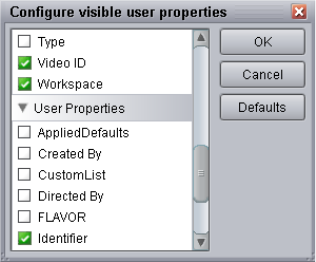
Searching for Assets
172
2. The first time you want to set an identifier, do the following:
a. Click the Properties tab, scroll down and click the Configure button.
The “Configure visible user properties” dialog box opens.
b. In the User Properties section, select “Identifier” to display the property in the Object
Inspector, and click OK.
3. In the Object Inspector, scroll down until you see the new custom property Identifier.
4. Click the text box and type the identifier.
You need write permissions on the asset to add the identifier. An orange box highlights the
controls for adding a property value.
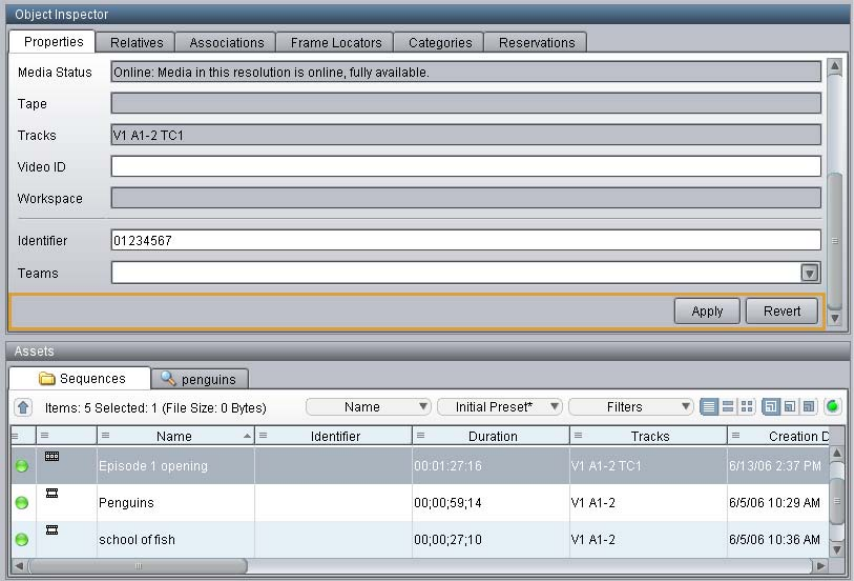
Searching for Assets
173
5. Click Apply.
The identifier is displayed in the Identifier column in the Contents tab.
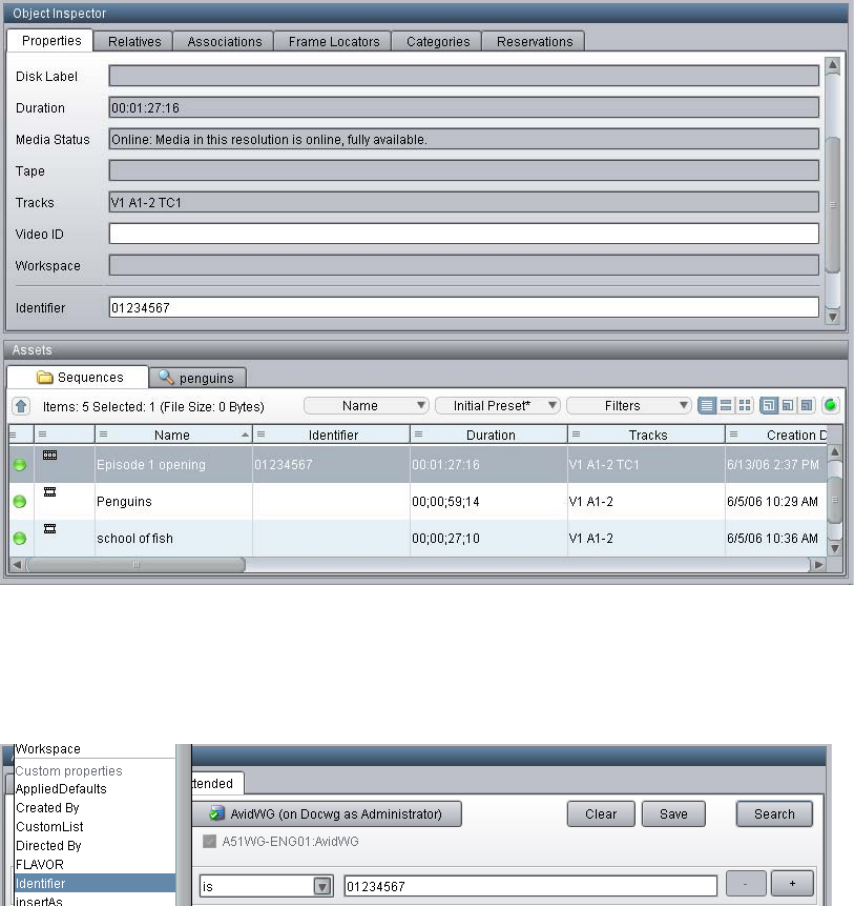
Searching for Assets
174
To search for an asset using the unique identifier:
1. In Interplay Access, click the Search tab, then select Extended from the Search type list.
2. Click the Attribute Name field, scroll down the list, and select Identifier.
3. In the Operator field, select “is.”
4. In the Value field, type the identifier, and click Search.
The asset is displayed in the Search results list.

Searching for Assets
175
If you know only part of an identifier, select “contains” from Operator field and type part of
the identifier. This is less efficient than an exact match, but is much more efficient than a
full-text search on the name.
Performing a File-Based Workflow Search
In the File Search dialog box you can select from various search options concerning the
file-based workflow. File-based workflow refers to the process of importing file assets, checking
them out, modifying them, and checking them in.
Click a parameter to include it in your search definition. Selecting each one expands it and
allows you to set your variables. For some variables, the wildcard options and regular
expressions are allowed.
File searches are AND searches, meaning that all of the selected conditions must be met in order
for the item to be returned by the search.

Searching for Assets
176
To perform a file-based search:
1. Do one of the following:
tClick the Search tab and select File from the Search Type list. One Search tab is
displayed by default, with Simple as the search type and the entire database as the
search root.
tSelect Edit > Search to open a new search tab. You can also press F3 or Ctrl+F
(Windows) or Command+F (Macintosh). If you select a folder before you open a new
search tab, the folder you selected is selected as the search root. Then select File from
the Search Type list.
2. To change the search root, click the Search Root button, navigate to the folder you want to
search, and click OK.
3. (Option) Select a Remote database to search. See “Searching Across Remote Workgroups”
on page 182.
4. If necessary, click the Search Conditions arrow to show the search criteria.
5. Select a search root folder by doing one of the following:
tUse the Search Root button to select another database or subfolder.
tSelect a folder in the Tree view and open a new Search tab.
The Search root button displays the database or folder you selected to search. This search
root is used when you open a new Search tab.
6. Select one or more of the following criteria to include it in the search:
- Name: Type text that is part of the name, or is the entire name, of folders and files.
- Checked in/Checked out/Imported/Modified, as described in the following table:
- Checkout Comment/Comment/Keywords/Version Comment: Type text that is part of the
check out comment, description, keyword, or version comment (including labels) that
anyone has entered for a file.
- My checked out items: Finds assets currently checked out by you.
Action By User Time Time Value
Checked in
Checked out
Imported
Modified
Click the drop-down
arrow and select a
database user. Default is
Anyone.
Before
Anytime (default)
Today
Between
After
Click the up or down
arrows or the calendar
icon to adjust the time
value for the time
evaluation.
Searching for Assets
177
7. Do one of the following:
tPress Enter.
tClick the Search button.
The Search button changes to a Stop button, which you can click if you want to stop the
search. The results are displayed in the Search Results pane. They are visible until you close
Interplay Access or until you perform a new search.
To erase all values you entered in the search fields:
tClick Clear.
For information about saving your search, see “Saving Your Search” on page 179.
Searching for Migrated Workgroup 4 Archived Items
You can search for Workgroup 4 archived clips that were migrated to an Interplay Archive
system. There are two special attributes: “WG4 Archived Date” and “WG4 Tape Group” that
apply only to Workgroup 4 clips. These two items are available as Archive Manager search
values. For more information, see the Interplay | Production Best Practices Guide.
nFor information about the Workgroup 4 archive migration process, see your Avid Sales
Representative, Sales Engineering, or Professional Services for assistance.
Closing Extra Search Tabs
If you opened additional Search tabs, you can close them after you have finished the search.
To close a Search tab:
1. Click the Search tab.
2. Click the X at the top of the Search tab.
The additional Search tab closes.
Showing One Representation for Each Asset Found
If your Interplay database includes multiple links for the same asset (for example, a clip that is
located in a catalog and one or more project folders), and you search for the asset, all links for
that asset are shown in the search results.
In some circumstances, you might want to limit the search results to display one representation
of the asset. This can make it easier to manage large databases, especially for media librarians.
You can select an option in the Filter Settings tab that filters out multiple links and shows only
one link for each asset found. The link displayed is the first link that is found, and serves as a
representation for any other links.

Searching for Assets
178
You should enable this filter only if you fully understand the consequences of displaying one
representation of an asset. This option might not be suitable for all users. Keep the following in
mind when using this option:
• Deleting metadata for a single representation deletes only that link, which is the first link
that is found by the engine. Deleting media for a single representation deletes media for all
links. This option might not be suitable as part of a delete workflow.
• Reservations and permissions are displayed only for the representation. This could be
misleading, because other links might have different reservations or permissions.
• Copying or moving the representation copies or moves only the link for the representation.
This could also be misleading, because other links are not copied or moved.
• Editing custom metadata is not possible if the representation is read-only. This could be
confusing if custom metadata is editable for other links.
To show only one representation for each asset found in a search:
1. Select (Windows) Preferences > Options or (Macintosh) Interplay Access > Preferences.
2. Click the Filter Settings tab.
3. In the Search Results Filter section, select the option “Show only one representation for each
asset found.”
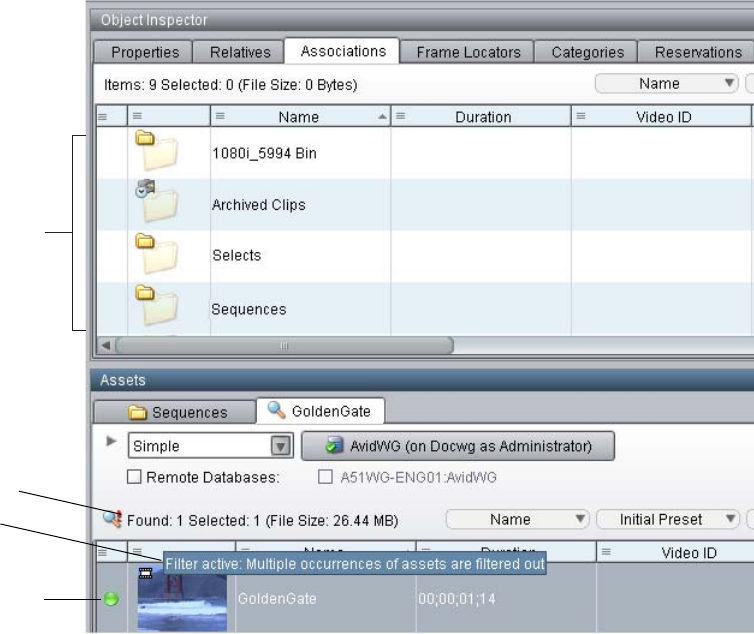
Saving Your Search
179
4. Click OK.
The next time you run a search, only one representation for each asset is displayed in the search
results. The following illustration shows a single asset, with four associations (four folders
displayed in the Associations tab). The illustration also shows an exclamation point icon, which
indicates that the filter to shows only one representation is active, and a ToolTip that describes
the filter.
Saving Your Search
You might need to routinely use the same search criteria to find particular assets. To save time
and effort, you can save criteria from both simple and extended searches so that you or others can
use them.
Selected
representation
Exclamation
point icon
Selected
representation
is located in
four folders
Tool tip
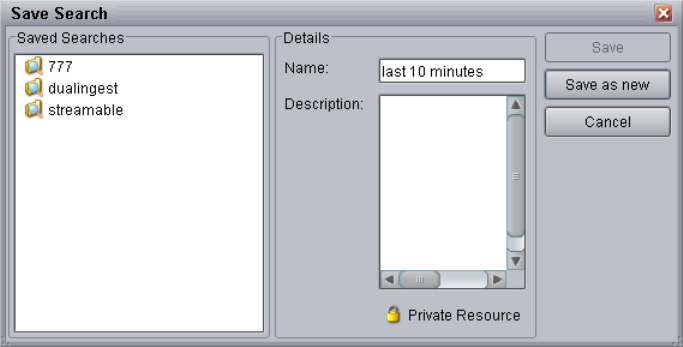
Saving Your Search
180
Saved searches are stored by database, meaning they are only available for the database in which
you set them up, and are by default private, or local-only. Administrators can make saved
searches public, or available to all database users.
To save your search for re-use:
1. Specify all the search criteria for the search in the Search window. Make sure you have the
correct search root selected, as the search is saved in the following manner:
- It is saved for the database specified in the Search Root, which might not be the database
you last clicked in (the global selection).
- It saves the exact folder specified in the Search Root, so that every time you run the
search, it searches this folder.
2. Click Save.
The Save Search window opens.
3. Type a name for the search you want to save and, optionally, a description of the search.
4. (Administrators only) To make this saved search available to all Interplay users, select
Public Resource. To keep the saved search private, make sure the lock icon is closed (click
Public Resource again if it is not).
5. Click Save as new.
The search is saved and added to the list of saved searches displayed in the Saved Searches
pane, from where you can run it (see “Viewing and Running a Saved Search” on page 181).
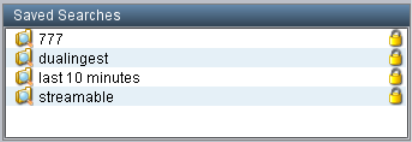
Saving Your Search
181
Viewing and Running a Saved Search
After you have specified and saved the search criteria, you can run the search again by opening
the Saved Searches pane.
You can display the Saved Searches pane in Browsing view, but not in Logging view or Shotlist
view.
To view and run a saved search, do one of the following:
1. Select View > Show Saved Searches pane to display the Saved Searches pane.
2. To run a saved search, do one of the following:
tDouble-click the saved search name in the Saved Search window.
tSelect Start Search from the context menu of the saved search name in the Saved Search
window.
Any assets that match the criteria are displayed in the Search tab.
To make a private Saved Search visible to other database users (Administrators only):
tIn the Saved Searches pane, double-click the closed lock symbol of the saved search.
The lock icon changes to open.
To make a public Saved Search private:
tIn the Saved Searches pane, double-click the open lock symbol of the saved search.
The lock icon changes to closed.
To delete a private saved search, or a public saved search you created:
1. In the Saved Searches pane, select the saved search.
2. Do one of the following:
tPress the Delete key.
tSelect Delete from the context menu.

Searching Across Remote Workgroups
182
To rename, edit, or duplicate a private saved search, or a public saved search you created:
1. Run the saved search.
2. (Option) In the Search tab, change the Saved Search criteria.
3. Click Save.
4. In the Save Search dialog box, edit the name, the comment, or both.
5. Do one of the following:
tTo replace the saved search, click Save.
tTo save the modified search as a separate search, click Save as new.
Searching Across Remote Workgroups
You can perform a simple search or an extended search across remote workgroups, including an
Interplay archive. Before you can search a remote workgroup (sometimes referred to as
federated search), an administrator must configure the workgroup in the Interplay Administrator.
For information on setting up access to remote workgroups, see the Interplay | Engine and
Interplay | Archive Engine Administration Guide.
If you want to distinguish search results by workgroup, an administrator can add the Database
property to the default property layout (through the Property Layout view in the Interplay
Administrator) and you can then sort the results of a search by the Database property.
You can use this feature to include an Interplay Archive Engine in your search.
nWhen you search a remote workgroup, a license is used on the remote Interplay Engine.
nWhen saving a search criteria for remote workgroups, you must select the workgroups you want
to search before you enter the search criteria and save the search.
nYou can view information about assets shared across workgroups by using the Asset Tracking
feature. See “Viewing the Status of Assets Across Workgroups (Asset Tracking)” on page 133.
To search across remote workgroups:
1. Click a Search tab.
2. Select the Remote database check box.
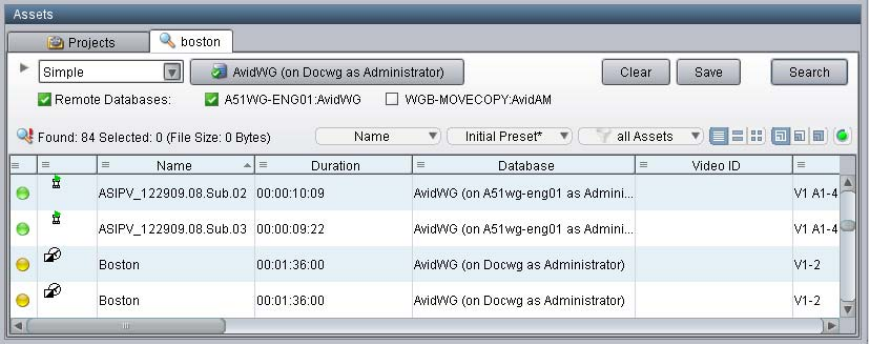
Searching Across Remote Workgroups
183
3. Select the check boxes for the remote workgroups you want to search for assets.
The workgroups you select remain selected until you modify the selection or you log out of
Interplay.
nYou can select a total of 10 remote workgroups to search at one time.
4. Perform the search. See “Simple Searching” on page 158 or “Extended Searching” on
page 161.
5. If you have different logon credentials for one or more of the remote workgroups (a
workgroup that uses a different Central Configuration Server), a dialog box opens.
a. Type your username and password for each specified server.
If you do not want to log on to a specified server, but you want to perform the search,
deselect the check box for the server.
b. Click OK to start the search, or click Cancel to close the window without starting the
search.
The following illustration shows the results of a search that includes two workgroups, as
listed under the Database property.
6. (Option) You can use the Search Results to perform workgroup-to-workgroup transfers by
dragging and dropping assets to the folders. See “Transferring Avid Assets to Another
Workgroup” on page 85.
Finding Other Clips from the Same Source Tape
184
Finding Other Clips from the Same Source Tape
To view all other clips from the same source tape as a particular Avid asset:
1. Determine the source tape name from the information displayed in the Object Inspector or
Content view for the item. Look at the field named Tape.
2. Click a Search tab and select Extended from the Search Type list.
3. Make sure the database name or folder you want to search is selected.
4. Select the criteria “Tape” and the operator “is.” Then type the tape name you are searching
for.
5. Click Search.
Interplay searches the entire database (or another folder you selected) and finds and displays
all checked-in clips recorded or captured from the specified source tape.
Finding Shared Clips and Unshared Clips
You can list the clips in a folder that are shared in other locations in the database. The list of
shared clips includes clips that originate in the selected folder and clips that originate from other
locations in the database. Identifying the clips that are shared with other folders assists you when
deleting items from a database. For more information about delete settings and delete rules, see
“Deleting Assets” on page 241.
You can also list the clips that are not shared in any other locations in the database.
To identify clips in a folder that are shared in other locations in the database:
1. Select a folder in the tree view.
2. Select View > Show Shared/Unshared Clips.
The Shared/unshared clips in folder dialog box opens.
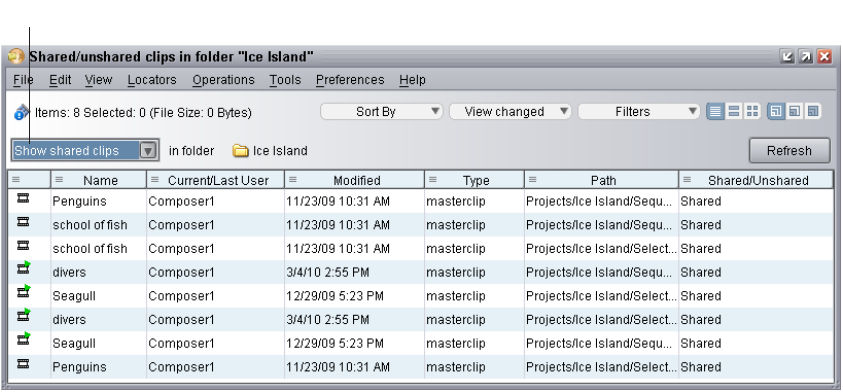
Using Third-Party Search Plug-Ins
185
3. Select “Show shared clips” from the filter list in the Shared/unshared dialog box.
The Content view lists any clips in the selected folder that are used in other parts of the
database. It also lists any clips in the folder that are shared from other parts of the database.
You can apply view presets, filters, and other functionality available in Content view.
4. To identify where the shared clips are used:
a. Select a clip and select Go To from the context menu.
The contents of the folder are displayed in the Content tab with the clip selected.
b. Click the Associations tab or the Relatives tab to view where the clip is shared.
To identify clips in a folder that are not shared in other parts of the database:
tSelect Show unshared clips from the filter list in the Shared/unshared dialog box.
Using Third-Party Search Plug-Ins
Interplay Access supports third-party plug-ins that allow you to extend the Remote Search
features of Interplay Access (sometimes referred to as federated search). For example, a
third-party plug-in can allow you to expand a search to include an SQL database.
Installing Third-Party Search Plug-ins
See your third-party documentation for details on installation. The installation adds the
third-party plug-in to the Interplay Access client plug-ins folder.
Show clips filter list
Using Third-Party Search Plug-Ins
186
Configuring a Third-Party Plug-In for Remote Search
Use the Interplay Administration tool to configure the third-party search for each database.
To configure a third-party search for a database:
1. Start the Interplay Administration tool.
2. In the Site Settings view, select Configure Remote Workgroups.
3. Select your Interplay database.
4. In the New Server Area, do the following:
a. Choose “3rd party search” from the Host type list.
b. Select the third-party plug-in from the Plugin list.
c. Type the name of the server (to run the third-party search against). Make sure the name
is correct, otherwise the third-party search will inform you that the server cannot be
found or contacted.
d. Type a nickname for the server. This name will appear in the Interplay Access Search
tab.
e. Click Add.
The system registers the third-party search in the database.
5. Repeat Step 4 for each third-party database that you want to search.
Using a Third-Party Search Plug-in
To use a search plug-in:
1. Click a Search tab.
2. Select the Remote database check box.
3. Select the check boxes for the remote workgroup you want to search for assets.
4. Perform the search. See “Simple Searching” on page 158 or “Extended Searching” on
page 161.
The search runs simultaneously on the Interplay database and the remote database.
By default, the third-party search displays the results in a separate user interface window, one per
database searched. The third-party developer may also choose to display search results from
multiple third-party databases in one window. For more information, see your third-party
documentation.

6Logging Events With Locators
You can log events by adding markers called locators to master clips, subclips, or shotlists. The
following topics describe how to work with locators:
•Understanding Locators
•Adding Locators
•Deleting Locators
•Setting Locator Color
•Hiding Locator Indicators
•Moving to Locators
•Exporting Locators
•Working with Long Locator Text
Understanding Locators
A locator functions as an electronic bookmark that you use to identify specific frames. It is an
important tool for logging your clips. After you add a locator you can add notes that describe the
video or add other information important to your workflow.
Locator indicators are displayed in the Monitor timeline. When you are in Logging view, the
locator indicators and locator information boxes are displayed in the Logging pane, as shown in
the following illustration.
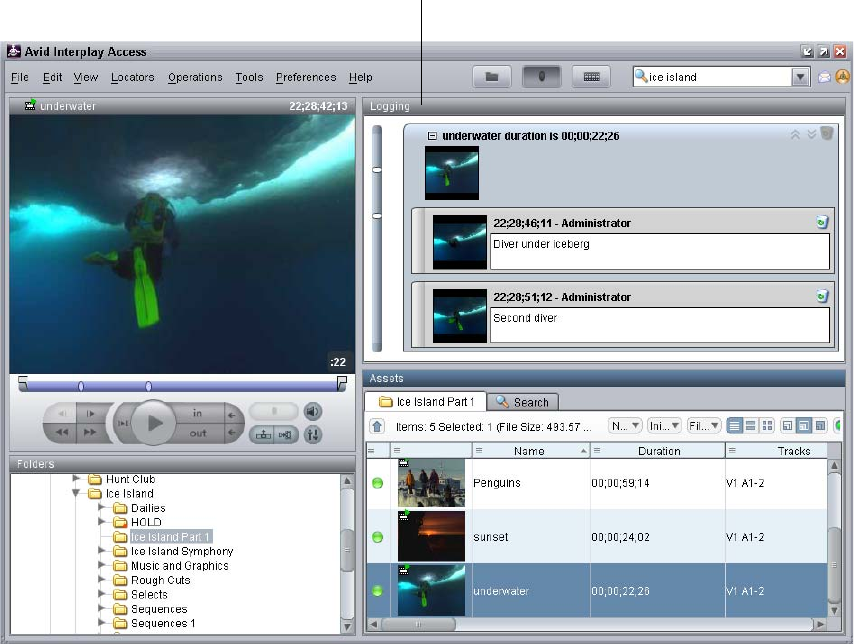
Understanding Locators
188
Locators that you add to clips, sequences, and shotlists in Access are displayed when these assets
are played in Interplay Assist or an Avid editing applications. Locators that you add in Interplay
Assist or an Avid editing application and check in to Interplay are displayed in Access. Similarly,
you can edit locator text in one application, and the edited text will be displayed in Interplay
Assist or Avid editing applications.
An administrator needs to set your user privileges in the Interplay Administrator so you can add
and modify locators. If you are having problems adding or modifying locators, see your Interplay
administrator.
Logging pane
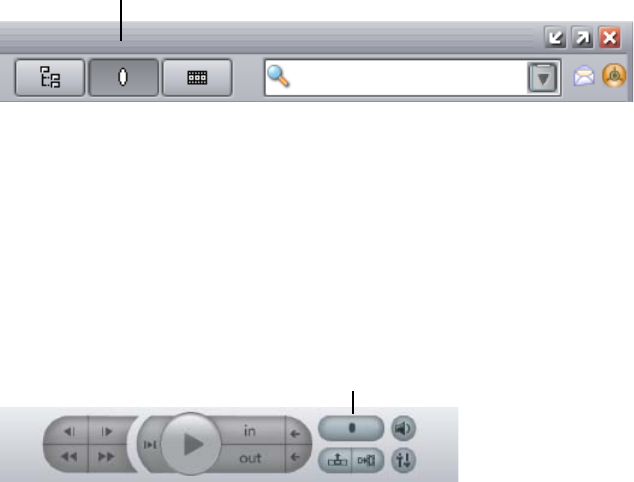
Adding Locators
189
Adding Locators
You can add locators to source clips, subclips, and shotlists. You can add locators while video is
playing or paused.
Locators that you add to shotlists are added only to the shotlist. They are not added to the source
clips.
To add a locator to a source clip or subclip:
1. Click the Logging View button or press Ctrl+2.
If you are in Browsing view and add a locator, the view automatically changes to Logging
view.
2. Load a source clip or a subclip into the Monitor.
3. Move through the material by dragging the position indicator or using the Transport
controls.
4. When you want to add a locator, do one of the following:
tClick the Add Locator button, located below the Monitor.
tSelect Locators > Add Locator.
tPress Ctrl+Shift+Enter (Windows) or Shift+Command+Enter (Macintosh).
tClick in the Logging pane (outside of a locator text box) or the Monitor and press the
Enter key.
A locator is added to the clip, and a locator information box is added in the Logging pane.
The locator information box includes the timecode location, the name of the logged-in
Interplay user, a headframe, and a Comment text box. A locator indicator is displayed in the
monitor timeline and the Logging pane timeline.
Logging View button
Logging View button
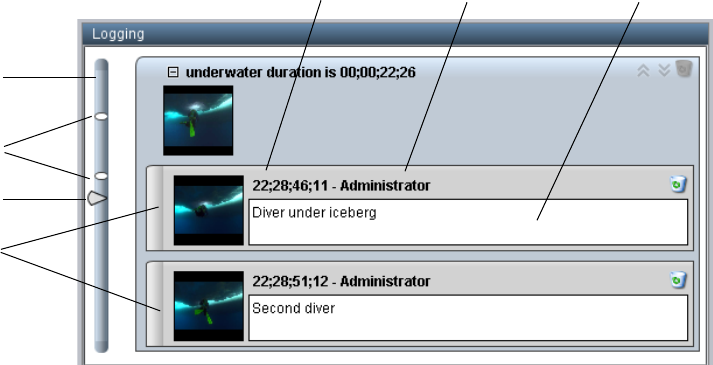
Adding Locators
190
5. Type information about the clip in the Comment text box.
You can enter text up to 32,000 characters. However, Avid editing systems limit the length of
locator text. See “Working with Long Locator Text” on page 194.
Pressing the Enter key creates a new line.
6. To move the focus from the Comment text box, press Ctrl+Enter (Windows) or
Command+Enter (Macintosh). You can then add a new locator. To return focus to the
Comment text box, press Ctrl+Enter or Command+Enter again.
7. To save the locators and their text to the database, load another clip or close Interplay
Access.
nAfter you add locators to a clip in Interplay Access, the locators are not displayed in an Avid
editing application, Interplay Assist, or Avid Instinct until they are saved to the database. After
saving the locators to the database, load the original clip again in the Avid editing application,
Assist, or Instinct. (Refreshing the clip, pressing F5, or restarting the application does not
display the locators).
To add a locators to a shotlist:
1. In Shotlist view, add one or more clips to a shotlist.
2. Add a locator by doing one of the following:
tClick the Add Locator button, located below the Monitor.
tSelect Locators > Add Locator.
Logging pane
timeline
TImecode location Logged in Interplay user
Locator
headframes
Comment text box
Locator
indicators
Position
indicator
Deleting Locators
191
tPress Ctrl+Shift+Enter (Windows) or Shift+Command+Enter (Macintosh).
tClick in the Logging pane (outside of a locator text box) or the Monitor and press the
Enter key.
3. Type information about the clip in the Comment text box.
You can enter text up to 32,000 characters. However, Avid editing systems limit the length of
locator text. See “Working with Long Locator Text” on page 194.
Pressing the Enter key creates a new line.
4. To save the locators and their text to the database, save the shotlist.
Locators that you added to the shotlist are saved with the shotlist, but are not saved with the
clip that contains the locator.
Deleting Locators
An administrator needs to set your user privileges in the Interplay Administrator so you can
delete locators. If you are having problems deleting locators, see your Interplay administrator.
To delete a locator, do one of the following:
tIn the Logging pane, select one or more locators and press the Delete key.
tIn the Logging pane, select one or more locators and select Locators > Remove Locator.
tIn the Locator, click the wastebasket icon.
Setting Locator Color
You can set the default color for all locators you create, and you can set the color for a specific
locator.
To set a default color for locators:
tSelect Locators > Set Default Color > color.
All new locators are created with the color you select.
To change the color for a specific locator:
1. Select a locator and do one of the following:
tClick the left side of the locator information box.
tSelect Locators > Edit Color
tPress Ctrl+Shift+C (Windows) or Shift+Command+C (Macintosh)
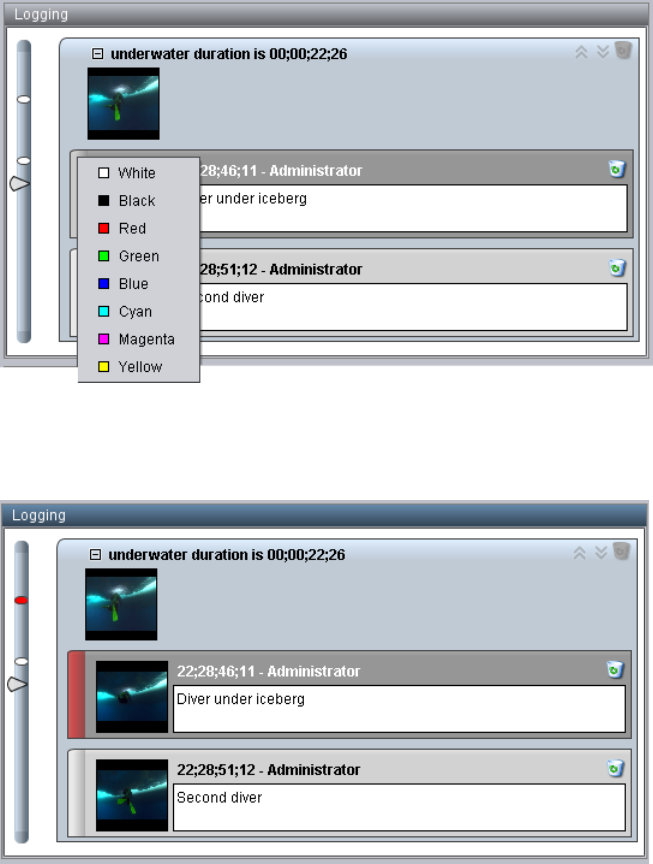
Setting Locator Color
192
A list of colors is displayed.
2. Select the color you want for the locator.
The color is set for the locator indicator and the left side of the locator information box.
Hiding Locator Indicators
193
Hiding Locator Indicators
You have the option of hiding locator indicators in the Monitor timeline.
To hide locator indicators:
tSelect Preferences > Hide Locators in Monitor.
A check mark means the locator indicators are not shown in the Monitor timeline.
To show locator indicators:
tSelect Preferences > Hide Locators in Monitor again, so that the check mark is not
displayed.
Moving to Locators
You can move the position indicator to a locator and display the corresponding frame in the
Monitor.
To move to a locator, do one of the following:
tIn the Logging pane, double-click anywhere in the locator except the text box and the color
tab.
tClick a locator indicator in the Monitor timeline or in the Logging pane timeline.
tTo go to the next locator, press Ctrl+Shift+N (Windows) or Shift+Command+N
(Macintosh). The insertion bar is enabled in the locator text box.
tTo go back to the previous locator, press Ctrl+Shift+B (Windows) or Shift+Command+B
(Macintosh). The insertion bar is enabled in the locator text box.
tWith the focus in the monitor:
- To go to the next locator, press the N key or the up arrow key.
- To go to the previous locator, press the B key or the down arrow key.
The insertion bar is not enabled in the locator text box.
Exporting Locators
You can export a list of locators in one of the following formats:
• XML file for use in other applications.
• Plain text file (.txt) that lists the timecode and text for each locator.
• CSV (comma-separated value) file that you can open as a Microsoft Excel spreadsheet.
Working with Long Locator Text
194
• A tab-delimited text file (.txt) that you can import into Media Composer or another Avid
editing application. For more information, see the documentation for the Avid editing
application.
• Plain text that is copied to the operating system clipboard (Macintosh or Windows). You can
then paste the text in another application, such as Avid iNEWS. The exported text has the
same format as that used for Export Locators > as Plain Text.
To export locators as a file:
1. Load a clip that includes locators in the Monitor.
2. Select Locators > Export and select the type of file you want to export: XML, Plain Text,
CSV, or Media Composer Text.
The Save dialog box opens.
3. Navigate to the location where you want to save the file.
4. Type a name for the file. You do not need to add the extension.
5. Click Save.
To export locator text to the clipboard:
1. Load a clip that includes locators in the Monitor.
2. Select Locators > Export Locators > to Clipboard.
Working with Long Locator Text
Interplay Access v2.1 and Interplay Assist v2.1 let you enter locator text that contains up to
32,000 characters. However, locator text in Avid editing applications is limited to 1,024
characters (in versions earlier than Media Composer v4.0.5) or approximately 10,000 characters
(Media Composer v4.0.5 or later). If a user on an Avid editing system checks out a clip with
locator text longer than can be displayed on the Avid editing system, the text beyond the limit is
cut off (truncated).
• If the user does not modify the locator or the text, and checks in the clip, the complete
locator text remains in the database. If the user modifies the locator or the text, and checks in
the clip, the truncated locator text is checked into the database.
• If a user checks out a sequence that includes a locator with text longer than can be displayed,
or creates a sequence from clips with long locator text, and checks in the sequence, the
truncated locator text is checked into the database (even if the user did not modify the
locator). However, the locator text for the clips is not affected.

Working with Long Locator Text
195
To avoid problems when sharing locators with an Avid editing application, if an Interplay Access
user types locator text that exceeds 1,024 characters, a blue information icon is displayed next to
the Delete Locator button. This icon indicates that the text will be truncated in the Avid editing
application.
Information button displayed when the
locator text exceeds 1,024 characters

7Working with Shotlists
Shotlists are collections of clips or subclips that you assemble into a single piece. Shotlists are
essentially the same entities as sequences in Avid editing applications. Shotlists can be used as
rough cuts for producers, production assistants, and editors. They can also be used as unordered
collections of clips from which, for example, the best clip could be selected.
See the following topics:
•Creating a Shotlist
•Playing a Shotlist
•Setting the Shotlist Start Timecode for Interplay | Access and Interplay | Assist
Creating a Shotlist
You create a shotlist by switching to Shotlist view and then adding clips to the shotlist. You can
add clips to a shotlist from any view, but you can add clips, remove clips, and reorder clips only
in Shotlist view.
You can create a shotlist only from clips associated with proxy media supported for streaming
(MPEG-4/H.263 or H.264 video files and MPEG1 Level 2 audio files), or subclips created from
these clips.
nAfter you save a shotlist, the shotlist pane is cleared, and you cannot continue to add clips to the
shotlist. You can load a saved shotlist in the Monitor, add it to a new shotlist, add new clips, and
save it as a new shotlist.
To create a shotlist:
1. Click the Shotlist view button.
If a shotlist is currently loaded, select File > New Shotlist. A message asks if you want to
save your changes.
An empty shotlist is displayed in the Shotlist pane.
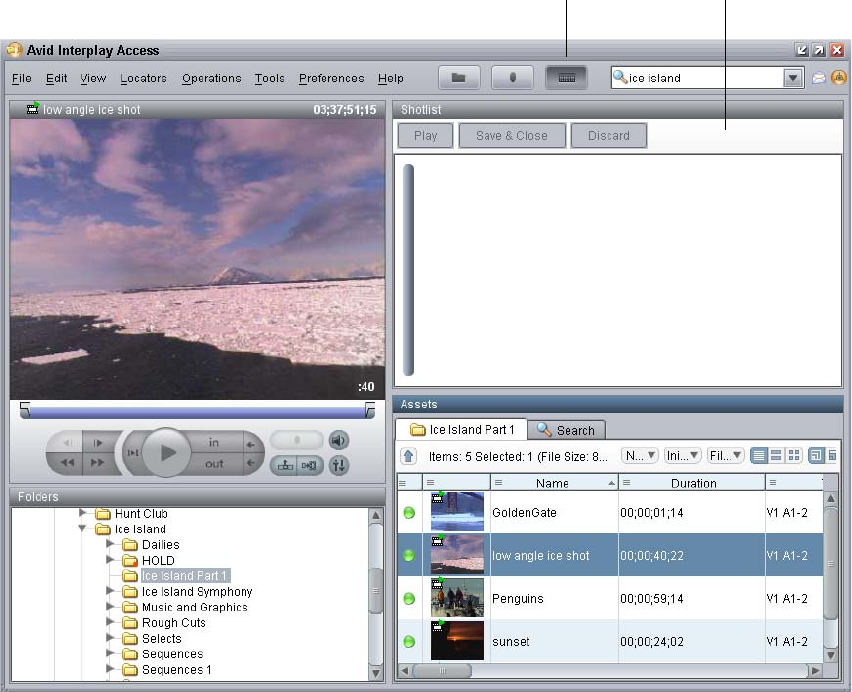
Creating a Shotlist
197
2. Load a clip into the monitor.
3. (Option) Set In and Out points.
By default, the In point is the first frame of the clip and the Out point is the last frame of the
clip. For information about setting In and Out points, see “Marking In and Out Points” on
page 54.
Shotlist View button Shotlist pane
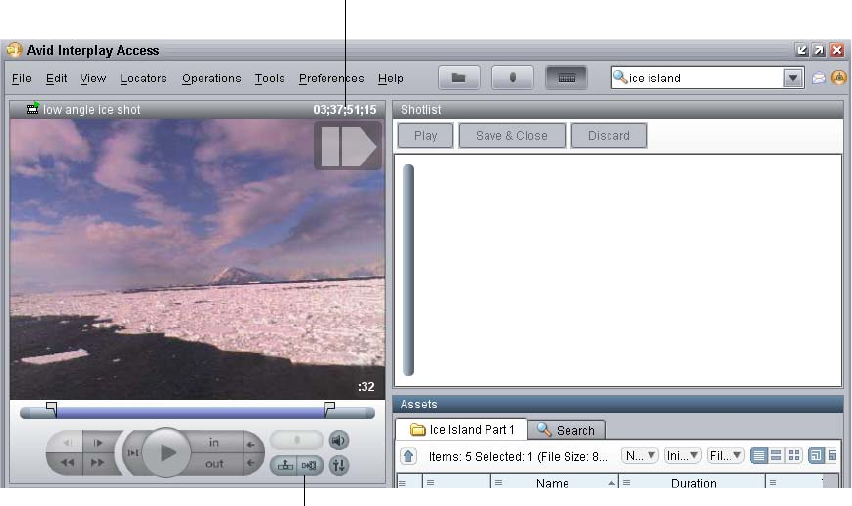
Creating a Shotlist
198
4. Do one of the following:
tMove the mouse over the upper right corner of the Monitor until the arrow overlay
appears, then click the arrow and drag it to the Shotlist pane.
tClick the Add to Shotlist button.
tPress Ctrl+Shift+A.
A headframe for the clip is displayed as the first shot in the shotlist.
Arrow overlay
Add to Shotlist button
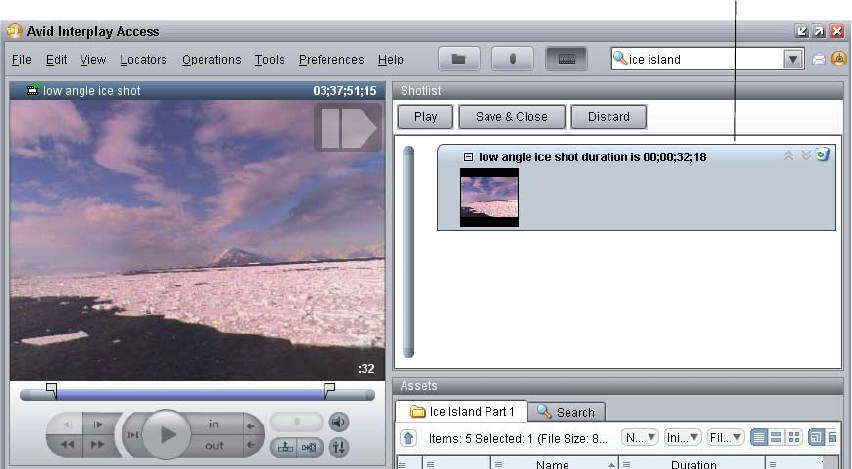
Creating a Shotlist
199
nYou can also drag a clip from a tab in the Assets pane to the Shotlist pane.
5. Repeat these steps to add additional clips to the shotlist.
First clip in the shotlist
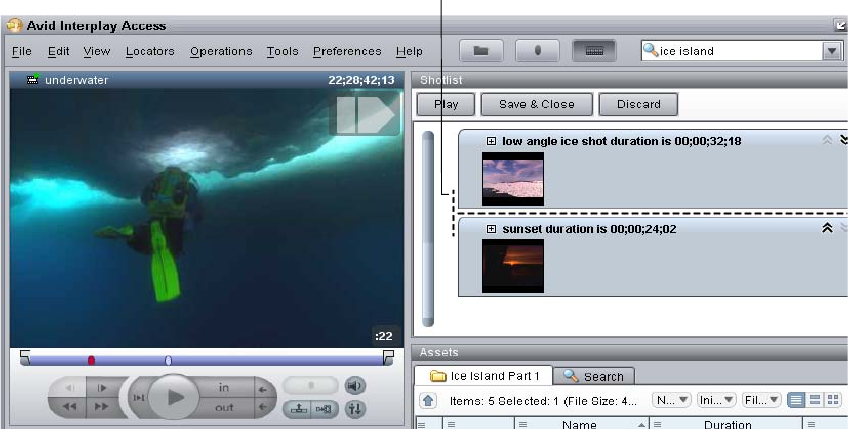
Creating a Shotlist
200
If you use the Add Shotlist button or keyboard shortcut, the clip is added to the end of the
shotlist. If you drag a clip to the shotlist, you can select where to insert it. A dashed line
indicates where a clip will be inserted.
Dashed lines indicate
where the clip is inserted
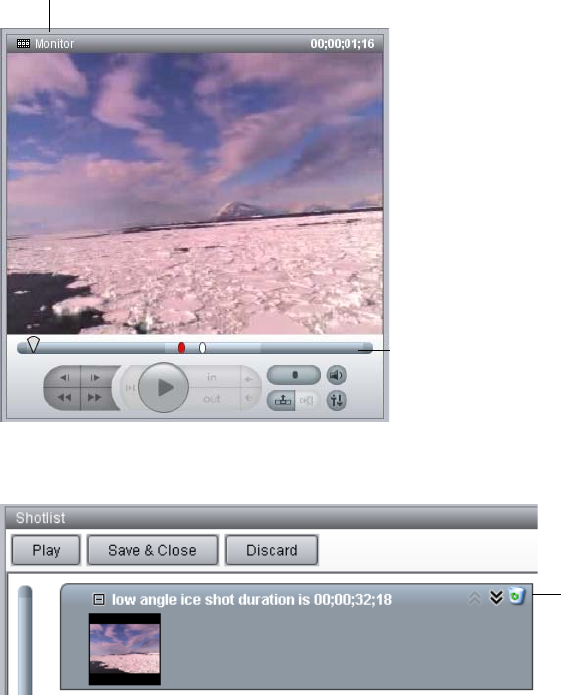
Creating a Shotlist
201
6. To play a shotlist, click anywhere in the shotlist to load the shotlist into the Monitor. Use the
transport controls to play the shotlist, or press the Play button in the Shotlist pane.
After a shotlist is loaded in the monitor, the title bar includes a sequence/shotlist icon. If you
have not yet saved the shotlist, the title bar displays the word Monitor.
The timeline includes different shadings to represent the clips that compose the shotlist. If a
clip contains locators, the locators are included in the shotlist and shown in the timeline.
7. To delete clips, click the wastebasket icon or press Delete.
Sequence/Shotlist icon and
Shotlist name (not saved)
Timeline with different
shadings to represent
different clips and locator
indicators
Wastebasket
icon
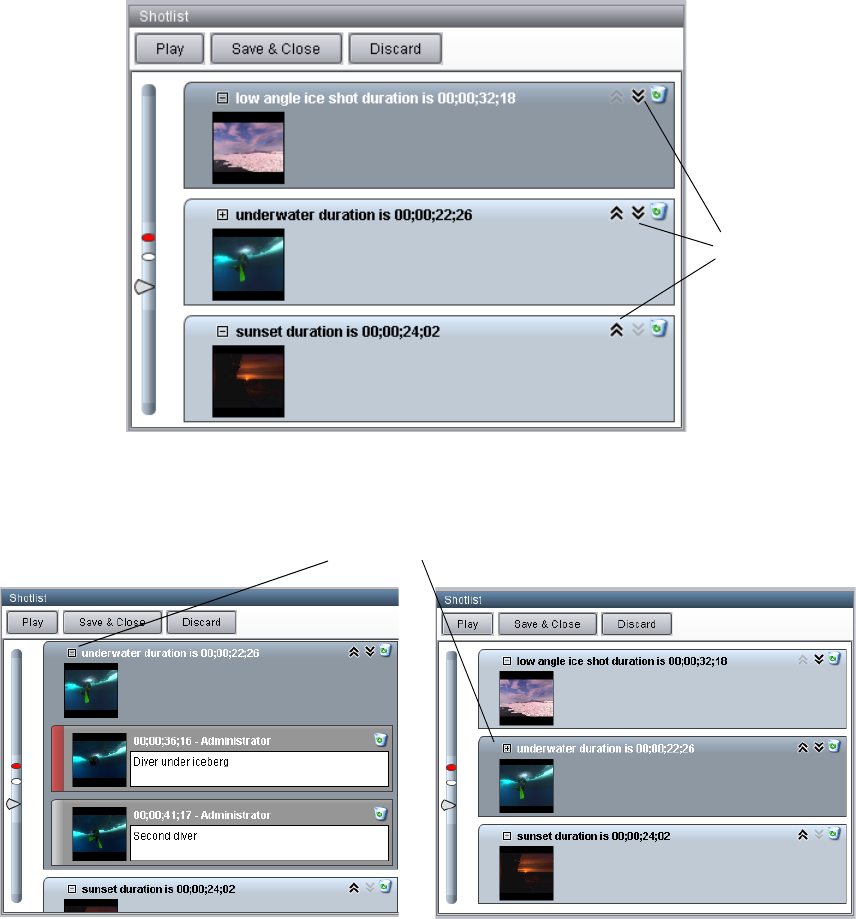
Creating a Shotlist
202
8. To reorder clips, select a clip and drag it to a different position, or use the arrow icons to
move a clip up or down.
9. If a clip contains locators, they are displayed in the shotlist. To show or hide locators, click
the expand/collapse icon.
You can add a locator to the shotlist that is saved with the shotlist, but is not saved with the
clip. For more information, see “Adding Locators” on page 189.
Arrow icons
Expand/Collapse button
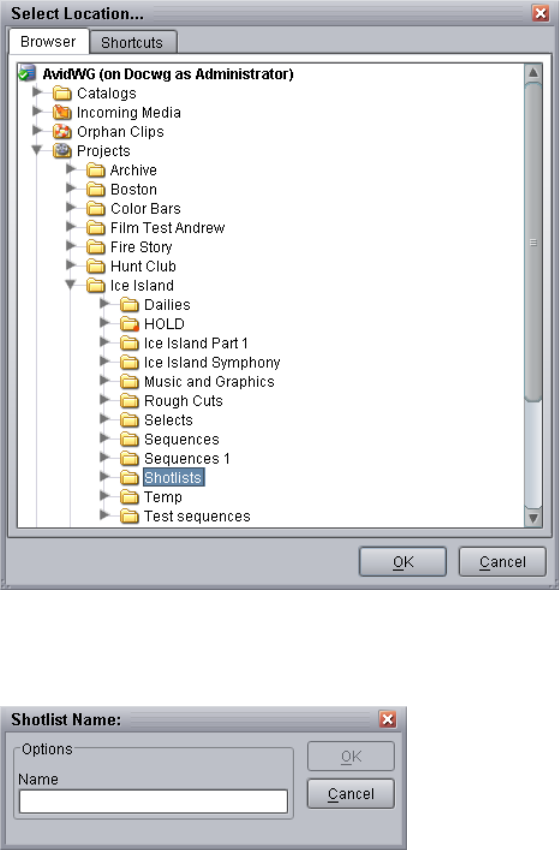
Creating a Shotlist
203
10. To save a shotlist, click the Save & Close button or select File > Save & Close Shotlist.
The Select Location dialog box opens.
11. Select a folder and click OK.
The Shotlist Name dialog box opens.
12. Type a name for the shotlist and click OK.
The shotlist is saved and checked into the Interplay database.
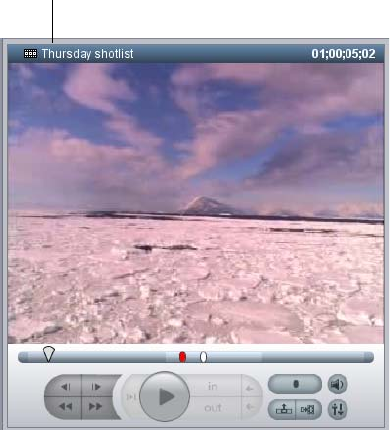
Playing a Shotlist
204
After you save a shotlist, the shotlist pane is cleared, and you cannot continue to add clips to
the shotlist. You can load a saved shotlist in the Monitor, add it to a new shotlist, add new
clips, and save the new shotlist.
To discard a shotlist without saving it, do one of the following:
tClick the Discard button in the Shotlist pane.
tSelect File > Discard Shotlist.
Playing a Shotlist
While you are creating a shotlist in the Shotlist view, you can play the shotlist in the Monitor by
clicking in the shotlist (to give the Shotlist pane keyboard focus) and using the transport controls
or the Play button in the Shotlist pane.
After you save a shotlist, you can load and play it in the Monitor like any other clip, if it consists
of playable clips. The monitor title bar shows a sequence/shotlist icon and the name of the
Shotlist. You can add a saved shotlist to a new shotlist.
Sequence/Shotlist icon
and Shotlist name
Setting the Shotlist Start Timecode for Interplay | Access and Interplay | Assist
205
Setting the Shotlist Start Timecode for
Interplay | Access and Interplay | Assist
An administrator can set the default starting timecode for shotlists that are created in Interplay
Access. The default starting timecode for shotlists is 01;00;00;00 (drop frame) or 01:00:00:00
(non-drop frame). For example, you can use this setting to change the starting timecode hour
from 01 to 00. For more information, see the Interplay | Engine and Interplay | Archive Engine
Administration Guide.
For Interplay Access, the timecode format is determined by the first clip in the shotlist. You
cannot mix drop-frame and non-drop-frame clips in the same shotlist.

8Working with File Assets
The Interplay Engine lets you add any type of file to the database, including graphic files, movie
files, and text files. These files are called file assets, and the Interplay Engine manages them
differently than it manages Avid assets. The following topics describe how to work with file
assets:
•Workflow for File Assets
•Icons and Indicators for File Assets
•Getting the Latest Version of a File Asset
•Viewing File Assets
•Checking Out File Assets
•Checking In File Assets
•Working with Bundled File Assets
•Updating the Database with Assets That Are Not Checked Out
•Using Final Cut Pro with Interplay
•Working with QuickTime Reference Movies in an Interplay Environment
For information about setting the location for local copies of file assets, see “Setting the Default
Working Folder” on page 23. For information about importing file assets into the Interplay
database, see “Importing Files or Folders” on page 69.
Workflow for File Assets
The following is a basic workflow for a graphic artist or other contributor who is working with
file assets:
1. Create a file on your local system.
2. Import the file into the database using Interplay Access.
3. When you want to edit the file, check the file out from the database using Interplay Access.
4. When you are finished editing the file, check the file back in to the database using Interplay
Access.
Icons and Indicators for File Assets
207
There are some differences between the way you work with file assets and the way you work
with Avid assets:
• To add file assets to the database, you use the Import feature. To add Avid assets, you check
them in from an Avid editing application or through an Interplay application.
• When you check out a file asset, the latest version (both metadata and source file) is copied
to the corresponding folder in the working path of your local system. When you check out an
Avid asset by dragging it to a bin, the latest version of the metadata is copied to the bin while
the media remains on shared storage.
• It’s most efficient to work with file assets that are stored on your working path (see “Setting
the Default Working Folder” on page 23). You can import files from any location, but when
you check out a file, the Interplay Engine by default copies the latest file to a folder in your
working path. Thus, to avoid having duplicate files on your local system, it’s a good idea to
create new files in a folder in your working path and then import the files or folder.
• For file assets, the Interplay Engine provides exclusive editing rights by default (only one
user can check out and edit a file) and version control. For Avid assets, multiple users can
check out and edit files, and only sequences have version control.
Icons and Indicators for File Assets
Special icons and indicators represent the status of file assets that you see throughout
Interplay Access. These apply only to file assets. For an explanation of Avid asset icons, see
“Icons for Avid Assets” on page 92.
If the operating system uses an icon for a file type, that icon is shown in Interplay Access. There
is a small icon that is always displayed, and a larger icon that is displayed if you enlarge the Type
column. For example, the following illustrations show a text file (top) and an MP3 audio file
(bottom).
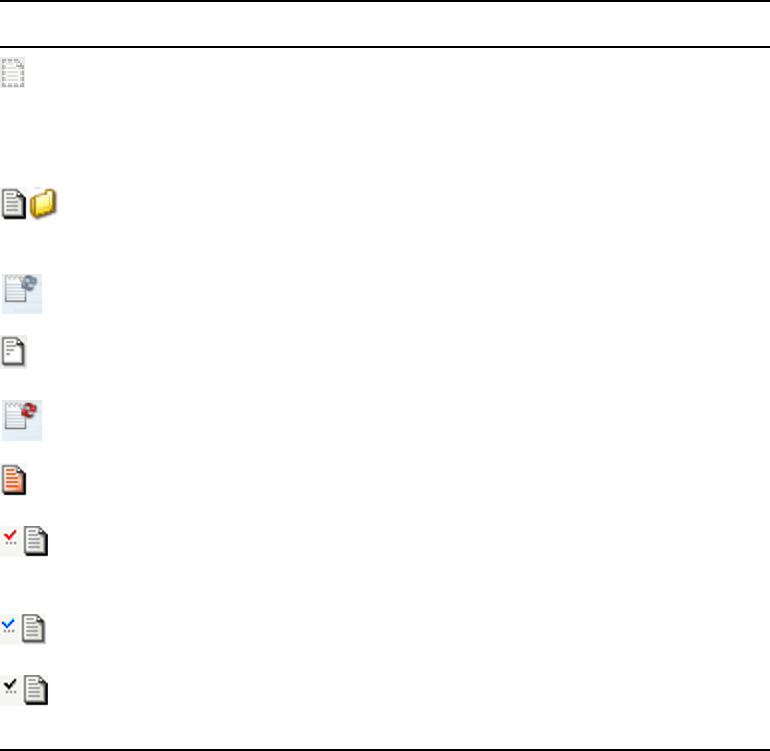
Icons and Indicators for File Assets
208
The following table shows the icons and indicators used for file assets. A generic icon represents
application-specific icons.
File Asset Icons and Indicators
Icon Description
Interplay Engine-only files: An icon with a broken border means that the item exists
only on the Interplay Engine. As yet there is no copy of that folder or file on your
local workstation. You get a copy of the file by performing a Get Latest Version. The
latest version of the file is retrieved from the Interplay Engine and copied to the
working path on your local workstation.
Database files and folders: These files and folders are stored inside your database and
exist on the Interplay Engine as well as on your local disk. The local copy of the file
is read-only. To change the read-only flag, check the file out.
A blue overlay icon tells you that the version on the Interplay Engine is newer than
the version you have locally. Do a Get Latest Version to copy the latest version from
the Interplay Engine to the working path on your local workstation.
Earlier versions used a file icon with lines displayed only in the upper diagonal.
A red overlay icon tells you that your local version is newer than the one on the
Interplay Engine.
Earlier versions used a file icon with red lines inside of it
A red check mark indicates that you have a file checked out. This usually also means
that you have exclusive editing rights. Other users are not able to make changes to the
file until it is checked in again.
A blue check mark has the same meaning as the red check mark, but the working path
has been changed since you checked out the file.
A black check means the file is locked (checked out) by another user. Although you
can get the latest version from the Interplay Engine to view, you cannot check the file
out to edit it until the current user has checked it back in.

Getting the Latest Version of a File Asset
209
Getting the Latest Version of a File Asset
Get Latest is a feature that lets you copy the latest version of a file asset to the working path on
your local workstation. After the file asset is copied to your working path, the icons in Interplay
Access change to the normal file and folder icons to show that the Interplay Engine and local
versions are identical. See “Icons and Indicators for File Assets” on page 207. The copied files
have read-only access on the local drive.
The Get Latest behavior depends on your settings in the Options dialog box. For information
about changing options, see “Changing the Get Latest Behavior” on page 210.
To get a copy of a file or all the files in a folder:
1. Select the file or folder name.
2. Do one of the following:
tPress (Windows) Ctrl+G or (Macintosh) Shift+Command+G.
tSelect Get Latest from the context menu.
tSelect Operations > Get Latest.
The Get Latest dialog box opens and displays the local (working) path:
3. (Option) Click the Advanced button.
The dialog box expands.
4. (Option) Select Force file update. This option overrides any default settings for the Get
Latest Version operation (see “Changing the Get Latest Behavior” on page 210).
5. Click OK.
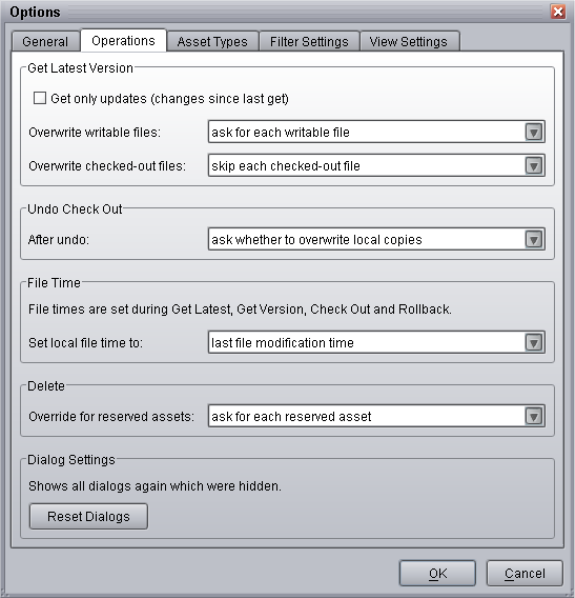
Getting the Latest Version of a File Asset
210
The Interplay Engine copies the latest version from the Interplay database to your working
path.
Changing the Get Latest Behavior
To change the way the Get Latest Version is performed on file assets:
1. Select (Windows) Preferences > Options or (Macintosh) Interplay Access > Preferences.
2. Click the Operations tab.
3. Select the options you want and click OK.
The following table describes options that govern how file and folder content is chosen for a
Get Latest action.

Getting the Latest Version of a File Asset
211
Get Latest Options in the Options Dialog Box
Action Description Option
Get only updates
(changes since last get)
Specifies if the action should only
get updates (items changed on the
Interplay Engine) since the last Get.
If selected, Get Latest operations
are significantly faster because
process time is saved.
Overwrite writeable files
(files not checked out)
You could have a writable but not
checked out file on your local
system if, for example, you have
changed the read-only flag
manually.
nAvid does not recommend
changing items locally
without checking them out
from the database. A file
changed locally is not
automatically updated in the
database and could be
overwritten if an older
version is checked out. See
“Updating the Database
with Assets That Are Not
Checked Out” on page 225.
• Ask for each writeable file
(default): A message is
displayed, asking if you want to
to overwrite the writable file on
your local drive with the current
Interplay Engine copy.
• Skip each writable file: Do not
overwrite the local file and
leave it writable. The current
Interplay Engine copy is not
retrieved.
• Replace: Overwrite the local
file and make it read-only. The
local file is replaced by the
current Interplay Engine copy.
Overwrite checked-out
files
When performing a Get Latest on a
checked out file, you can define
what action the system should do.
• Ask for each checked-out file:
Ask for each modified
checked-out file. Ask whether
to retrieve the current version
and replace the old one.
• Skip each checked-out file:
Keep local changes (default);
skip each modified checked-out
file. Does not retrieve the file.
• Replace each checked-out file:
Lose local changes; replace
each modified checked-out file.
The checked out Interplay
Engine copy replaces the local
copy.

Viewing File Assets
212
Viewing File Assets
When you view a file asset, it is copied to your local drive and opened for viewing in a
preconfigured application. If you do not set a specific application for an asset, Interplay Access
uses the same application that is used by the operating system. See “Configuring Asset Types,
Commands, and Applications” on page 32 for details.
You can play video file assets (for example, QuickTime movies) or audio file assets (for example
WAV or AIFF files) in a preconfigured application or in the Interplay Access Monitor. To play
these assets in the Monitor, you must install QuickTime version 7 or later. Interplay Access
supports any video or audio formats supported by QuickTime.
To open a file asset for viewing, do one of the following:
tSelect a file asset and select View from the context menu.
tDouble-click the file asset.
The file is copied to your local drive. The file is also opened for viewing in the preconfigured
application. For video or audio file assets, if QuickTime is installed, the file is loaded in both
the preconfigured application and the Interplay Access Monitor.
nFiles of the following formats do not play correctly in the Interplay Access Monitor: m3u, asf,
avi, and wmv.
Checking Out File Assets
Before you can edit an asset, it has to be checked out from the Interplay Engine. After checking
out an item, you can edit its contents.
If someone else checks out a file, you might not be able to check it out if it is locked on the
Interplay Engine for exclusive editing. Items that are checked out by other users appear with a
black check on the local machine.
You can check out individual file assets, multiple file assets, or folders. Checking out a folder is
recursive: that is, all of its contents and the contents of its subfolders are checked out. You can
check out folders from the folder tree or from the Content view.
nThe check out process is different for Avid assets (see “Adding Assets to the Interplay Database”
on page 69). However, like file assets, Avid sequences are tracked by version control. For more
information, see “Version History and Archiving” on page 287.

Checking Out File Assets
213
To check out file assets:
1. Select a file asset, multiple file assets, a folder, or multiple folders.
2. Do one of the following:
tSelect Operations > Check Out.
tSelect Check Out from the context menu.
tPress (Windows) Ctrl+O or (Macintosh) Shift+Command+O.
The Check Out dialog box is displayed.
3. Type a checkout comment in the box. Be specific to help you track your changes later.
4. (Option) Click Advanced and change the settings for the check out protocol by selecting one
of the following:
- Don’t get local copy: The database file or folder is locked for other users, but you do not
retrieve the latest version if, for example, you want to continue working with your local
copy. This is generally not recommended unless you have a specific purpose for doing
this.
- Exclusive checkout: Only one user can work on a file concurrently if this option is
checked. If this option is left deselected, and multiple users edit it, upon later check in,
the last version to be checked in will be the last Interplay Engine version in the history.
Multiple checkout is valid only in special cases, such as for text files. Only one version
of the file can be selected for check in. Interplay does not offer a merge tool, but does
provide a Merge Dialog to assist in making your choice of which version Interplay
should keep. See “Checking In Files With Multiple Checkouts” on page 219 for details.
5. Click OK.
The files are copied to your local disk. A red check, your username, and the comment beside
the item show you have that file checked out.
Opening a File for Editing in One Step
After checking out a file asset, you can edit it using an external application, but you have to open
the file in the application first. The Edit operation lets you save a step by combining the check
out and opening of the file into one step.
To open a file for editing:
1. Select a file asset.
2. Do one of the following:
tSelect Edit from the context menu.
tSelect Edit > Edit
tHold down the Shift key and double-click the selected file asset.
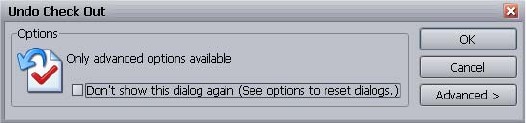
Checking Out File Assets
214
The Edit dialog box is displayed.
3. Type a checkout comment in the box. Be specific to help you track your changes later.
4. (Option) Click Advanced and change the settings for the checkout protocol:
- Don’t get local copy: The database file or folder is locked for other users, but you do not
retrieve the latest version if, for example, you want to continue working with your local
copy. This is generally not recommended unless you have a specific purpose for doing
this.
- Exclusive checkout: Only one user can work on a file concurrently if this option is
checked. If this option is left deselected, and multiple users edit it, upon later check in,
the last version to be checked in will be the last Interplay Engine version in the history.
Multiple checkout is valid only in special cases, such as for text files. Only one version
of the file can be selected for check in. Interplay does not offer a merge tool, but does
provide a Merge Dialog to assist in making your choice of which version Interplay
should keep. See “Checking In Files With Multiple Checkouts” on page 219 for details.
Undoing a Checkout
The command Undo Check Out cancels any changes made to the file while it was checked out.
This means the checkout flag is removed from the database file in the Interplay Engine database
and the version in the database remains at the point just before you checked out the file. This
could be necessary if you destroy or corrupt a file, or simply want to discard any changes you
have made after a checkout.
nYou cannot use the Undo Check Out action after the file has been checked in. You must use the
rollback feature instead (see “Undoing Checked In Changes Through Rollback” on page 295).
To undo a checkout:
1. Select one or more file assets that are checked out.
2. Do one of the following:
tSelect Undo Check Out from the context menu.
tSelect Operations > Undo Check Out.
tPress (Windows) Ctrl+U or (Macintosh) Shift+Command+U.
The Undo Check Out dialog box opens.
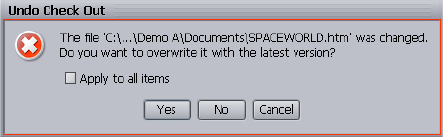
Checking Out File Assets
215
3. (Option for users with Administrator rights on at least one item in the selection) Click
Advanced. The “Undo changes from all users” option appears. Select this option to discard
changes from any and all users that have the item checked out.
nUse this option with care.
4. Click OK.
Depending on your settings, if the file has been changed since you checked it out, an
additional Undo Check Out dialog appears, asking you if you want to overwrite your local
version with the latest Interplay Engine version.
5. Click one of the following:
tYes: The checkout is undone and your local changes are lost. The local file returns to the
status of the Interplay Engine copy.
tNo: The local copy remains as it is but the file is not checked out to you anymore.
tCancel: Cancels the Undo Check Out action.
t(Option) Apply to all items: Applies the Yes or No choice to each item the Undo Check
Out action was selected for. If you do not select Apply to all items, in a multiselection
case, the dialog appears for each item.
6. Click OK.
The checkout check mark is now removed, along with your checkout comment. If you saved
your changes to your local machine, the icon still appears red, depending on the the Undo
Check Out setting (see “Changing the Undo Check Out Options” on page 215). If you try to
check out the file later, you see a warning that you have a copy on your local machine that is
different than the one on the Interplay Engine.
Changing the Undo Check Out Options
Undo Check Out options are used to set the default handling of the local file after undoing the
checkout on the Interplay Engine.
cThe Undo Check Out dialog box has an advanced option for administrators for overwriting
the changes of any user. Use caution when selecting this option.
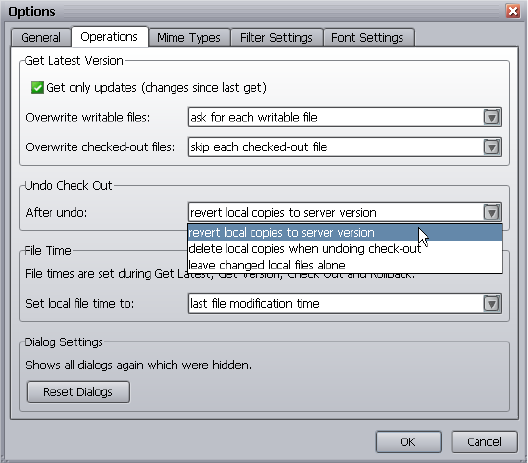
Checking Out File Assets
216
To change the global Undo Check Out options for file assets:
1. Select (Windows) Preferences > Options or (Macintosh) Interplay Access > Preferences and
select the Operations tab.
2. Select one of the following Undo Check Out “After undo” options:
tRevert local copies to latest version on server (default): This copies the latest version
from the Interplay Engine on the local system and makes it read-only again
tDelete local copies when undoing check-out: This deletes the local copy.
tLeave changed local files alone: The local file is not changed. This is useful if you do
not want to lose your changes even though they should not be copied to the Interplay
Engine.
3. Click OK.
Checking Out a Newer Local File After Undo Check Out
If you selected the option “Leave changed local files alone” for Undo Check Out (see “Changing
the Undo Check Out Options” on page 215), the changes in the local file are preserved when you
undo a checkout. If you check out the file later, the Interplay Engine version overwrites the local
version by default. You can change this behavior when you check out the file asset.
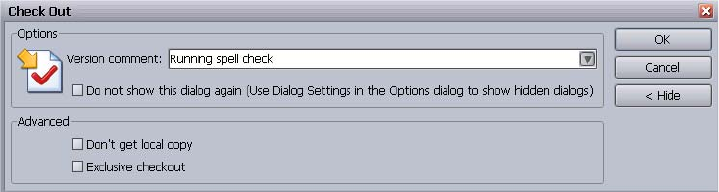
Checking In File Assets
217
To keep the local version of a file asset and use it as your working version for a checkout:
1. Select the file asset you want to check out.
2. Do one of the following:
tSelect Operations > Check Out.
tSelect Check Out from the context menu.
tPress (Windows) Ctrl+O or (Macintosh) Shift+Command+O
The Check Out dialog box is displayed.
3. Type a check out comment in the box. Be specific to help you track your changes later.
4. Click Advanced and select “Don’t get local copy.”
5. Click OK.
Your local copy is not overwritten and you can check in your changes to the Interplay
Engine when you are done editing.
Checking In File Assets
After you are finished editing an file asset, you need to check it in again in order to make the
latest version available to other team members. Checking a file asset in creates a new version in
the version control history. Your check-in comment should give other users useful information
about recent changes, and help you track your changes.
nThe check in process is different for Avid assets (see “Adding Assets to the Interplay Database”
on page 69), but Avid sequences are tracked by version control. For more information, see
“Version History and Archiving” on page 287.
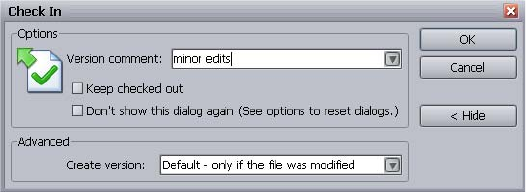
Checking In File Assets
218
Performing a Checkin
In most cases, only one user has checked out a file and the check in procedure is straightforward.
You can check in individual files assets, multiple file assets, or folders. Checking in a folder is
recursive: that is, all of its contents and the contents of its subfolders are checked out. You can
check out folders from the folder tree or from the Content view.
To check in file assets:
1. Select a file asset, multiple file assets, a folder, or multiple folders.
2. Do one of the following:
tSelect Check In from the context menu.
tPress (Windows) Ctrl+I or (Macintosh) Shift+Command+I.
tClick Operations > Check In.
The Check In dialog box appears.
3. Add a comment that explains what edits were done for later reference.
4. (Option) To keep working on the asset but save the version to the Interplay Engine, select
Keep Checked Out. Using this option, the new version of this file is saved on the Interplay
Engine and recorded in the asset’s history so you can later go back to this version.
5. (Option) To change the version policy settings, select Advanced. In the Create Version field,
select one of the following:
tDefault - only if the file was modified: Generates an entry in the Version History only if
the file has changed since the last version on the Interplay Engine.
tYes - even if the file was not modified: Always generates an entry in the Version History
even if the file has not changed.
tNo - even if the file was modified: Does not generate an entry in the Version History of
the file. Other users can still get this version from the Interplay Engine, but you cannot
roll back to this version later. This option is useful for large temporary files because it
saves disk space on the Interplay Engine.
Checking In File Assets
219
6. Click OK.
The files are copied to the Interplay database. The red check mark is then removed and the
comment is displayed in the comment column.
If you selected Keep checked out, the red check mark indicating you have the file locked
remains next to the file icon after check in.
If instead the Merge Dialog opens, a multiple checkout was performed; refer to “Checking
In Files With Multiple Checkouts” on page 219 for details on how to proceed.
Checking In Files With Multiple Checkouts
If a file was checked out by more that one person at the same time, and changes were checked
into Interplay by one user before the next user tries to perform a checkin, Interplay recognizes
the conflict and offers a Merge Dialog so that the work of one user is not simply overwritten
without review. Interplay does not have a line-by-line comparison merge tool included. Multiple
checkouts are allowed for text files only.
The Merge dialog can also appear in a situation where a folder or file with the same name has
been created at the exact same time by different users.
To check in file assets with multiple checkouts:
1. Perform a standard checkin (see “Performing a Checkin” on page 218).
The Merge Dialog opens.

Checking In File Assets
220
The top part of the window shows the version that was checked in during the time you had
the file checked out, your version in the middle, and the common ancestor (earlier version)
of the file on the right. The bottom part of the window shows details about the versions. If
the bottom window is empty, click the file icon or file name in the top part of the window.
2. To view the content of any version, select View from the context menu of the version name
or thumbnail.
Merge result
(none yet)
Interplay
Engine version,
already
checked in to
Interplay
Your version, not
yet checked in
Common Ancestor,
version the checked
in version and your
version came from
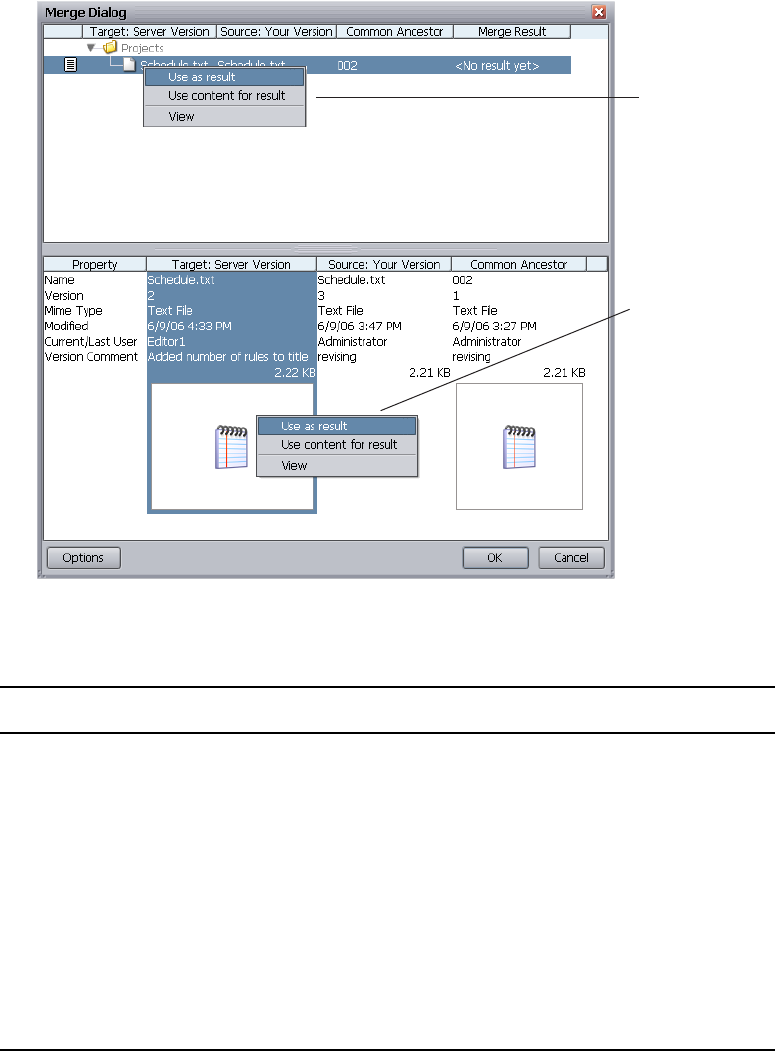
Checking In File Assets
221
3. Select which version you would like to keep and select one of the following from the context
menu:
Context menu
from version
name
Context menu
from thumbnail
Command Context Menu Location Description
Use as result Version name or thumbnail Uses the exact version as the merge
result
Use content as result Version name or thumbnail Uses the contents of the folder as the
merge result.
Perform auto-content
merge
Version name in Merge Result
column
Uses the exact version or contents of the
folder as the merge result.
Perform visual content
merge
Version name in Merge Result
column
Opens an external application for
comparing and merging versions. Set
this application by clicking the Options
button. See “Configuring
Interplay | Access Options” on page 30.
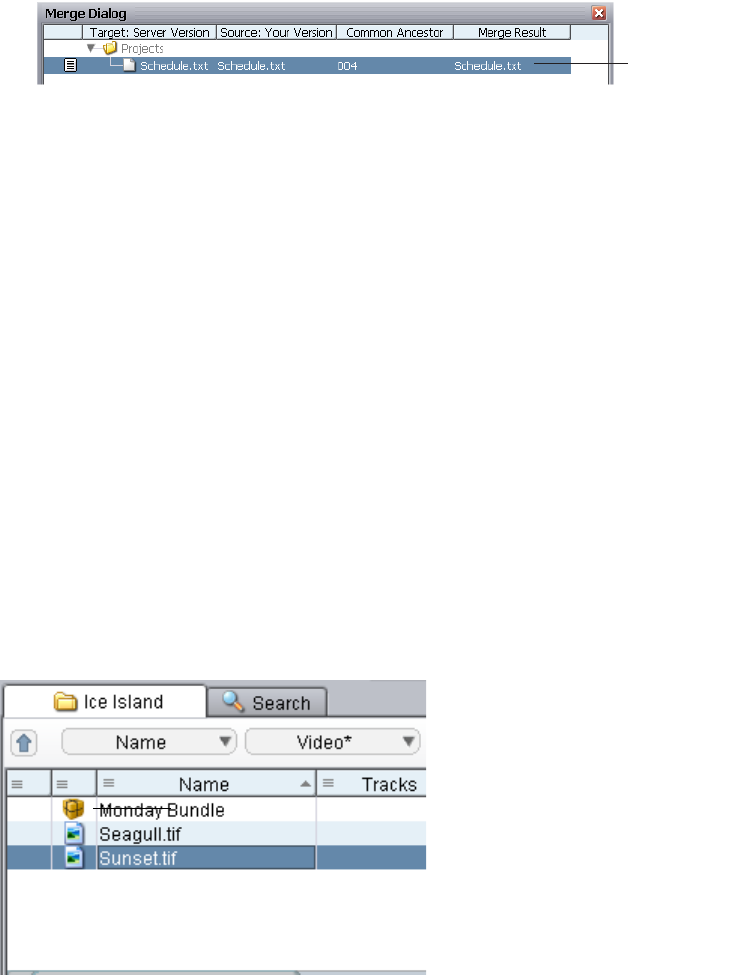
Working with Bundled File Assets
222
The result of your choice is updated in the display.
4. (Option) To cancel your choice but remain in the Merge Dialog, select the Merge Result file
name and select Clear from the context menu.
5. (Option) To cancel your choice and close the Merge Dialog, click the Cancel button.
The item still has to be merged. You can perform an Undo Check Out on the item to resolve
the conflict. See “Undoing a Checkout” on page 214 for details.
6. To perform the merge, click OK.
The version you selected is saved in the Interplay database.
Working with Bundled File Assets
Interplay Access let you add a folder to the Interplay database and manage it as a single file asset
called a bundle. This feature is useful if your workflow involves working with a set of graphics
that you store in a single folder. It is also useful for managing a folder that contains different
types of files in a complex structure, for example, project directories of third-party vendors.
When you drag a folder from your desktop to a folder in Interplay Access, the Interplay Engine
creates a compressed folder that is saved to storage and added to the database as a single asset.
This compressed folder is displayed in Interplay Access as a bundle, and is represented by a
special icon.
Updated merge
result
Bundle icon

Working with Bundled File Assets
223
Bundles are a convenient way to work with a set of files, because you can manage multiple files
in any kind of folder structure as a single file asset (check in, check out, version history, and so
on).
Note the following:
• A bundle preserves the original file structure. You can import a folder and its subfolders as a
single bundle.
• Interplay Access does not display the contents of the bundle as individual file assets. You
can view the contents of the bundle on your desktop by selecting Tools > Explore.
• If the folder contains image files that are in a format recognized by Interplay Access, the first
image in alphabetical order is displayed as preview image.
• When you check out a bundle onto a local machine, the bundle is uncompressed and
individual file assets are copied to a folder in your local path.
• If you check out a bundle, any changes in the desktop folder structure are included in the
updated bundle when you check it in.
• Currently there is no special search capability for bundle files or within bundles.
• On a Macintosh system, you can import an .app bundle in the same way that you import any
other folder as a bundle. You can then share applications between Macintosh systems. The
application icon is automatically loaded as the preview image.
To import a folder of file assets as a bundle:
1. Open Interplay Access and log on to a database.
2. On your desktop, select the folder of file assets that you want to import.
3. Drag the folder to a folder in Interplay Access. You can drag to a folder in the folder tree or
in the Content view.
nCurrently you can create a bundle only by dragging a folder onto a folder in Interplay Access.
You cannot use the Import command from the menu bar or context menu to create a bundle.
Interplay Access displays the Import Options dialog box.
4. Click the Advanced button.
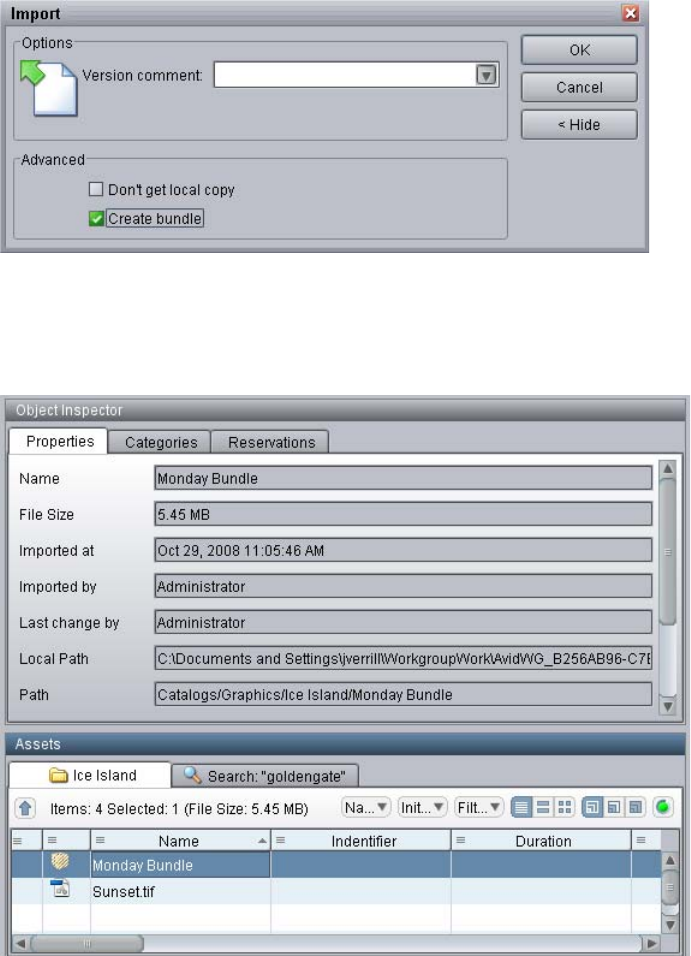
Working with Bundled File Assets
224
Additional options are displayed.
5. Select “Create bundle.”
Interplay Access creates the bundle and displays it in the Content View. Information about
the bundle is displayed in the Property Inspector.
Updating the Database with Assets That Are Not Checked Out
225
Updating the Database with Assets That Are Not
Checked Out
You might start to check in your asset and realize that you forgot to check your file asset out
before you started working.
nAvid recommends that you check out assets prior to changing them. Only use the method
described here in exceptional cases. Avoid removing the write protection of items manually.
To update the file asset in the database with your local version:
1. Select a file asset, multiple file assets, a folder, or multiple folders.
2. Open the Check Out dialog box by doing one of the following:
tSelect Check Out from the context menu.
tPress (Windows) Ctrl+O or (Macintosh) Shift+Command+O.
tClick Operations > Check Out.
3. Click the Advanced button in the dialog box.
4. Select Don’t get local copy.
5. Type a comment.
6. Click OK to check the file out.
Check the file back in using the check in procedure.
Using Final Cut Pro with Interplay
You can use Interplay to share sequences between Apple® Final Cut Pro® and Avid editing
applications, such as Media Composer. There are three supported workflows:
• Sharing a sequence created in Final Cut Pro with an Avid editing application
• Sharing a sequence created in an Avid editing application with Final Cut Pro
• Sharing a Final Cut Pro project between Final Cut Pro systems
The following table summarizes these workflows:

Using Final Cut Pro with Interplay
226
These workflows are described in the following topics:
• “Checking in a Final Cut Pro Sequence to Interplay” on page 226
• “Exporting an Avid Sequence to Final Cut Pro” on page 230
• “Sharing a Final Cut Pro Project Between Final Cut Pro Systems” on page 232 and
“Working with QuickTime Reference Movies in an Interplay Environment” on page 234.
nThe procedures described in these topics refer to sequences created in Final Cut Pro, but the
procedures can be adapted for use with any sequences that are saved as AAF files.
Checking in a Final Cut Pro Sequence to Interplay
In this workflow, a Final Cut Pro user can add a Final Cut Pro sequence to the Interplay database
so that it can be checked out and edited by an Avid editing application user.
Requirements:
• Final Cut Pro v6.x and Automatic Duck Pro Export FCP v4.03 or later.
cEarlier versions of Automatic Duck Pro Export FCP are not supported.
Workflow From... To...
Final Cut Pro > Avid Automatic Duck™ Pro Export™ FCP
• Converts XML to AAF
• Converts QuickTime to MXF
Interplay Access (plug-in)
• Checks in metadata and media
Avid > Final Cut Pro Interplay Access
• Exports as AAF
Automatic Duck Pro Import™ FCP
• Converts AAF to XML
• Converts MXF to QuickTime or
creates a QuickTime reference
movie
Final Cut Pro > Final
Cut Pro
Interplay Access
• Checks in a project as a file asset
• Media is accessible on Avid shared
storage
Interplay Access
• Checks out a project to Final Cut
Pro
• The Project links to media on Avid
shared storage.
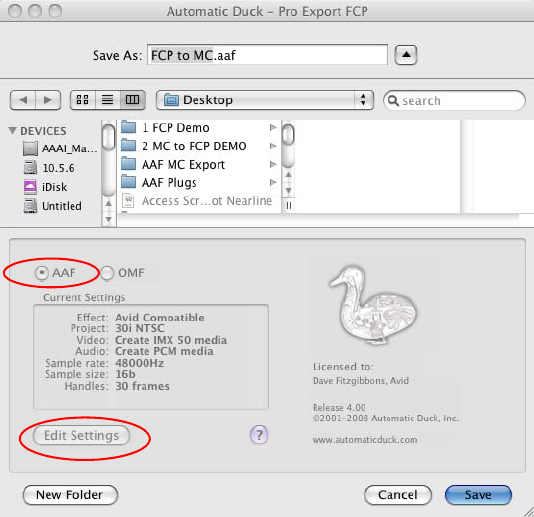
Using Final Cut Pro with Interplay
227
• Interplay Access v2.0.1 or later. The system running Interplay Access requires Avid
shared-storage client software, with write access to at least one mounted workspace. You can
use Access from a Macintosh system or a Windows system.
• The Avid editing system must be an Interplay client and an Avid shared-storage client.
To check in a Final Cut Pro sequence to Interplay:
1. On a Final Cut Pro system, use Automatic Duck Pro Export FCP to export a sequence to a
local or shared location.
a. In the Automatic Duck - Pro Export FCP dialog box, select AAF.
b. Click Edit Settings
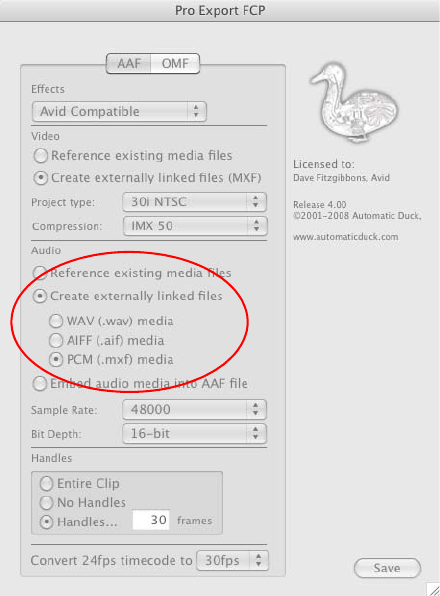
Using Final Cut Pro with Interplay
228
c. In the Audio area, select “Create externally linked files” and select PCM (.mxf) media.
d. Specify any other settings that you require.
e. Click Save.
The export process converts the FCP XML file to an AAF file, and converts QuickTime
media to MXF media. It creates a folder that holds the .aaf file, a folder with media, and an
.html file with information about the export.
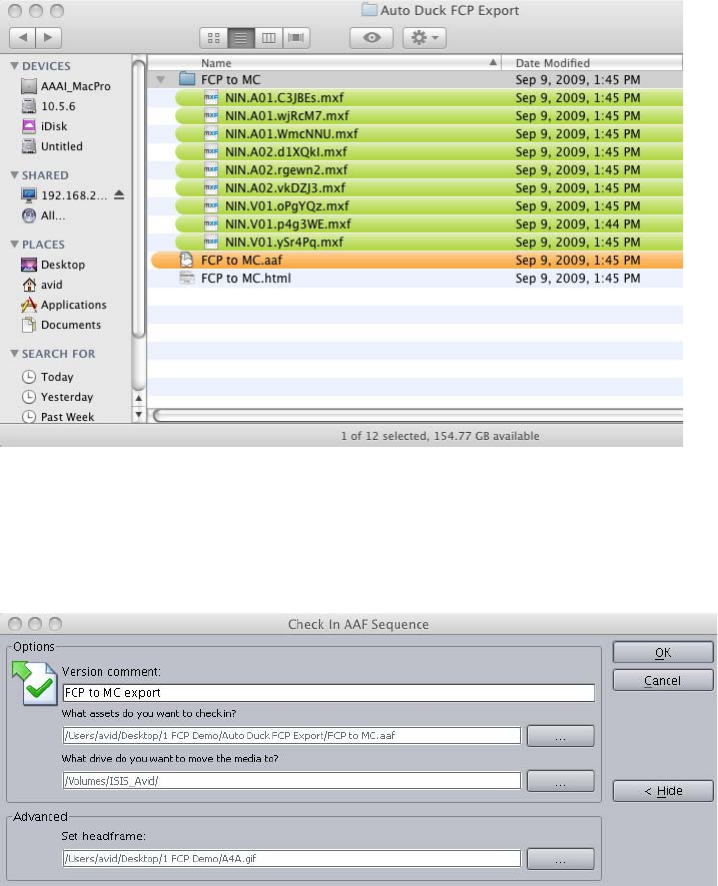
Using Final Cut Pro with Interplay
229
2. On the system running Interplay Access (Macintosh or Windows), make sure the
shared-storage workspace on which you want to store the media is mounted.
3. In the Interplay Access folder tree, right-click the folder into which you want to store the
Final Cut Pro sequence and select Check In AAF Sequence.
4. In the Check In AAF Sequence dialog box, do the following:
a. (Option) Add a comment that will appear in Interplay Access for this version of the
sequence. Interplay maintains a version history of sequences.
b. Navigate to the exported folder and select the .aaf file you want to check in.
Using Final Cut Pro with Interplay
230
c. Select the drive (workspace) on which you want to store the media. You do not have to
specify a particular folder.
d. (Option) To set a headframe, click Advanced, then select a graphic file that you created.
5. Click OK.
The sequence and its related clips are checked into the Interplay database, and the media is
copied to the appropriate Avid MediaFiles folder on the selected shared-storage workspace.
An Avid editing application user can now check out and edit the sequence.
nHow effects in a sequence appear in an Avid editing application depends on how they are
processed during the export by Automatic Duck Pro Export FCP.
Exporting an Avid Sequence to Final Cut Pro
In this workflow, an Interplay Access user can export a sequence created by an Avid editing
application so that it can be imported into a Final Cut Pro system.
Requirements:
• Interplay Access (v1.5 or later)
• Final Cut Pro v6.x and Automatic Duck Pro Import FCP v2.07 or later.
nAutomatic Duck Pro Import FCP v2.06 cannot find media on Avid shared storage.
• The Final Cut Pro system must be a client in an ISIS environment, with access to the
shared-storage workspace where the media is stored.
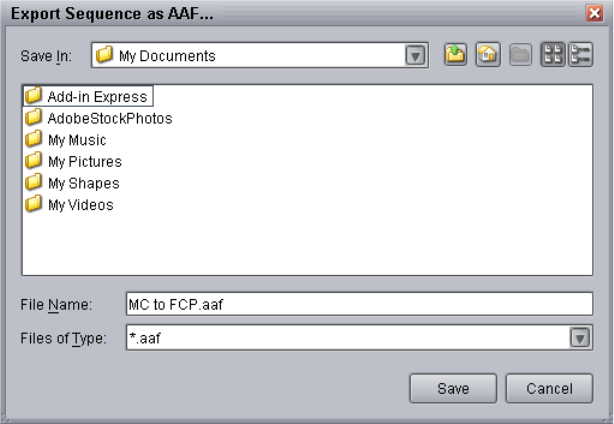
Using Final Cut Pro with Interplay
231
To export an Avid sequence to Final Cut Pro:
1. In Interplay Access, right-click the sequence that you want to export and select Export as
AAF.
2. In the Export as AAF dialog box, select the location where you want to store the sequence
and click Save.
3. On a Final Cut Pro system, use Automatic Duck Pro Import FCP to import the AAF file.
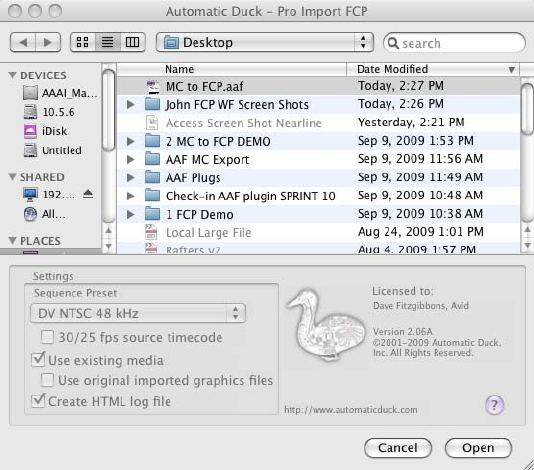
Using Final Cut Pro with Interplay
232
a. Navigate and select the .aaf file you exported.
b. (Option) In the Settings area, select “Use existing media.”
If you select “Use existing media,” the import process creates small QuickTime
reference movies that point to the media on the Avid shared storage system. This is a
quick way to import the project if you are connected to shared storage.
If you want to create QuickTime media on your Final Cut Pro system, do not select “Use
existing media.”
c. Click Open.
The sequence is imported into Final Cut Pro and a user can now edit the sequence.
nHow effects in a sequence appear in Final Cut Pro depends on how they are processed during the
import by Automatic Duck Pro Import FCP.
Sharing a Final Cut Pro Project Between Final Cut Pro Systems
In this workflow, Final Cut Pro users can import, check in, and check out projects as file assets
(non-Avid assets). Projects are treated like any other file assets.

Using Final Cut Pro with Interplay
233
Requirements:
• Each Final Cut Pro system must be a client in an Avid ISIS environment.
• Each Final Cut Pro system must be running Interplay Access
These procedures are based on importing and checking out complete QuickTime movies. You
can save time and disk space by working with QuickTime reference movies. Avid recommends
using QuickTime reference movies. For more information, see “Working with QuickTime
Reference Movies in an Interplay Environment” on page 234.
To import a Final Cut Pro project by dragging and dropping:
1. Open Interplay Access.
2. On your system desktop, select the Final Cut Pro project folder.
3. Drag the selection to a folder in Interplay Access.
The Import dialog box opens.
4. Type a comment.
5. Click OK.
The selected files and folders are imported.
To check out a project:
1. Open Interplay Access.
2. Right-click the Final Cut Pro project folder and select Check Out.
The Check Out dialog box is displayed.
3. Type a checkout comment in the box.
4. Click OK.
The files are copied to your local disk. A red check, your username, and the comment beside
the item show you have that file checked out.
To check in a project:
1. Open Interplay Access.
2. Right-click the Final Cut Pro project folder and select Check In.
The Check In dialog box appears.
3. Add a comment that explains what edits were done for later reference.
4. Click OK.
The files are copied to the Interplay database. The red check mark is then removed and the
comment is displayed in the comment column.
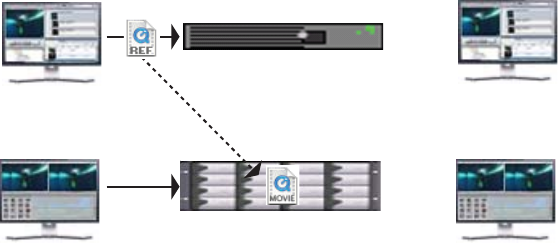
Working with QuickTime Reference Movies in an Interplay Environment
234
Working with QuickTime Reference Movies in an
Interplay Environment
If you work with QuickTime movies in an Interplay environment, you can save time and disk
space by working with QuickTime reference movies. QuickTime reference movies are small
files that point to the original QuickTime movies. Working with QuickTime reference movies
saves time and disk space because you do not need to import large QuickTime movies into the
Interplay database and check them out to a local drive. This feature is especially useful for Final
Cut Pro users and Avid Pro Tools users who use QuickTime as video.
For example, you can use Final Cut Pro to capture footage as a QuickTime movie and store it on
playable shared storage (such as an Avid ISIS workspace). You can then use Interplay Access to
create a QuickTime reference movie and import it into the Interplay Engine database. The import
is fast, because the reference movie is pointing to the original movie. The following illustration
shows these steps in the workflow.
When you or another Final Cut Pro user wants to work with the QuickTime file, use Interplay
Access to export the QuickTime reference movie to a location accessible to Final Cut Pro. The
export is fast, because Interplay Access is exporting a reference movie. The following illustration
shows this step in the workflow.
Interplay Access
Final Cut Pro
Playable Shared Storage
Interplay Engine
Final Cut Pro
Interplay Access
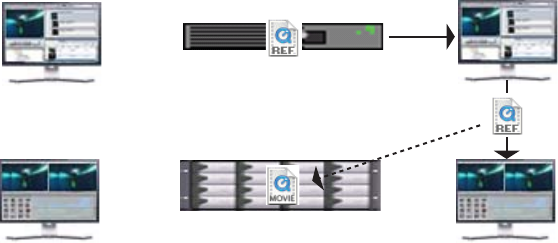
Working with QuickTime Reference Movies in an Interplay Environment
235
From Interplay Access, you can export a folder (and any subfolders) that contain QuickTime
reference movies, which lets you maintain the same project organization in the Interplay
database and on your local system. Only QuickTime reference movies are copied when you use
this command. If a subfolder does not include any QuickTime reference movies, the folder is not
copied.
Prerequisites
• The original QuickTime movies must be stored on playable shared storage, for example, a
workspace on an Avid shared-storage system.
• The workspace that contains the original QuickTime movies must be available to the user
who is importing or exporting the QuickTime reference movies.
To create a QuickTime reference movie and import it into the Interplay database:
1. Log in to Interplay Access and connect to the database in which you want to create the
QuickTime reference movie.
2. Select the folder in which you want to create the QuickTime reference movie.
Interplay Access
Final Cut Pro
Playable Shared Storage
Interplay Engine
Final Cut Pro
Interplay Access
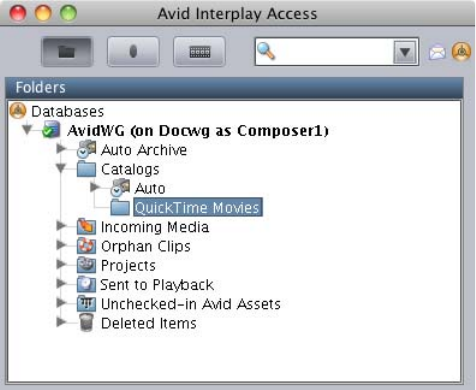
Working with QuickTime Reference Movies in an Interplay Environment
236
3. Do one of the following:
tRight-click and select Import QuickTime as Reference.
tSelect Tools > Import QuickTime as Reference
The Import QuickTime as Reference dialog box opens.
4. Navigate to the location where the QuickTime files are stored and select one or more files.
The QuickTime files must be located on playable shared storage, such as an Avid ISIS
workspace.
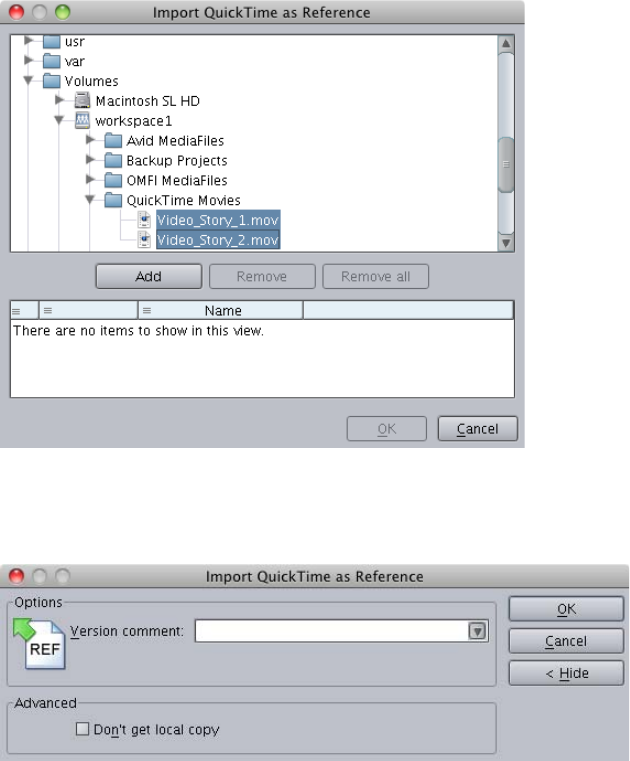
Working with QuickTime Reference Movies in an Interplay Environment
237
5. Click Add, then click OK.
The Import QuickTime as Reference options dialog box opens.
6. (Option) Add a version comment.
7. (Option) By default a copy of the Quick Time Reference file is copied to your working path,
which is set in Interplay Access. If you do not want a local copy, click the Advanced button,
select the check box “Don’t get local copy.”
8. Click OK.
One or more QuickTime reference movies are created and imported as file assets. Each
reference movie points to the original QuickTime movie that is stored on playable shared
storage.
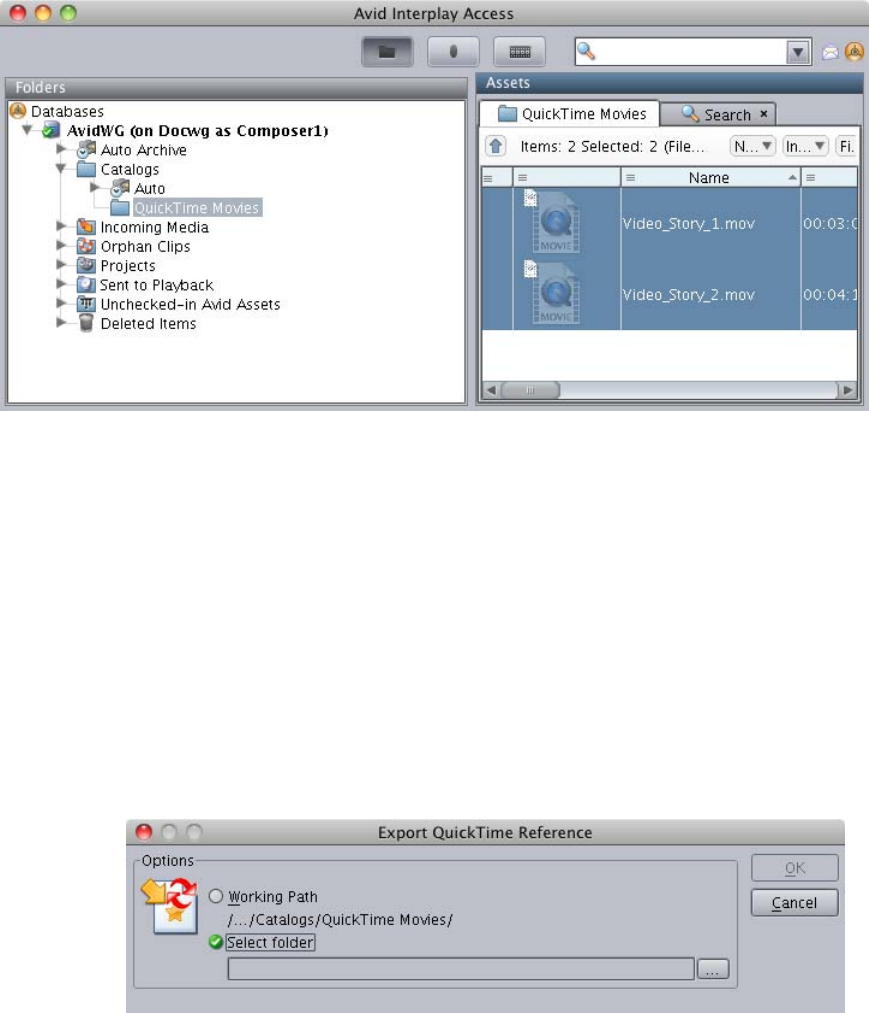
Working with QuickTime Reference Movies in an Interplay Environment
238
To export a QuickTime reference movie and copy it to a folder:
1. Log in to Interplay Access and connect to the database that contains the QuickTime
reference movies.
2. Do one of the following:
tIn the folder tree, select a folder that contains QuickTime movies.
tOpen a folder, and in the Content tab, select one or more QuickTime movies.
You can export a folder of movies or individual movies. If you select a folder, all subfolders
are also copied. Only QuickTime reference movies are copied. Other files are ignored.
3. Right-click and select Export QuickTime Reference or select Tools > Export QuickTime
Reference.
The Export QuickTime Reference options dialog box opens.
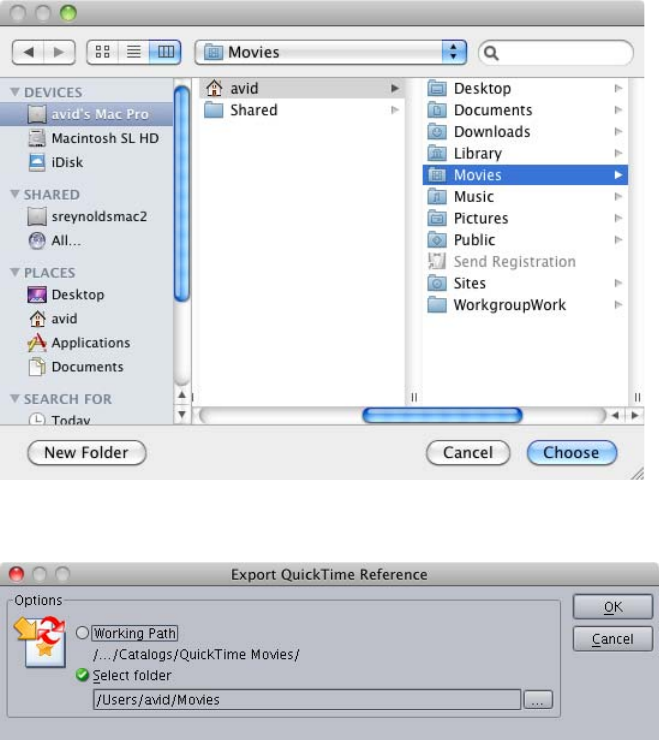
Working with QuickTime Reference Movies in an Interplay Environment
239
4. Select whether to copy the files to your default working path, as set in Interplay Access, or to
another location. If you want to copy the files to another location, click Browse and navigate
to the location to which you want to copy the files. Select the folder and click Choose
(Macintosh) or OK (Windows)..
The selected path is displayed in the Export QuickTime Reference dialog box.
5. Click OK.
The QuickTime reference movies are copied to the location you selected.
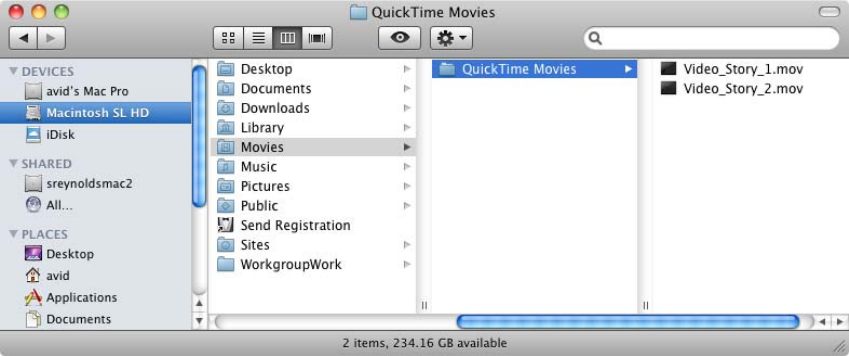
Working with QuickTime Reference Movies in an Interplay Environment
240
You can then import the QuickTime reference movie into your application (Final Cut Pro or
another application) and work with them the same way as you work with QuickTime movies.
nYou can check out QuickTime reference movies in the same way as you check out and manage
other file assets, but for most workflows it is more efficient to use the Export QuickTime
Reference command.

9Deleting Assets
The following topics describe the mechanisms and rules that you use to delete assets (both
metadata and media) from the Interplay Engine:
•Protecting Assets from Deletion
•Deleting Avid Assets
•Deleting File Assets
•Access Control and Delete Matrices
For information on developing a workflow for deleting material from your Interplay system, see
“Developing an Interplay Delete Strategy” in Interplay | Production Best Practices Guide.
cAvid strongly recommends that you do not delete files directly from the file system because
the relationships between the clip metadata and the specific files that make up the clip are
not obvious from the file system. These relationships are managed by the Avid editing
application and Interplay.
nDelete operations are available only if you have selected Preferences > Full Menus.
Protecting Assets from Deletion
There are three methods you can use to protect assets in the Interplay environment. These
methods are described in the following topics:
•“Assigning User Roles” on page 241
•“Freezing Folders and Content” on page 245
•“Setting Reservations” on page 248
Assigning User Roles
The system administrator uses the Interplay Administrator to assign user roles to groups and to
particular folders. The administrator can also use the Security dialog box in Interplay Access.
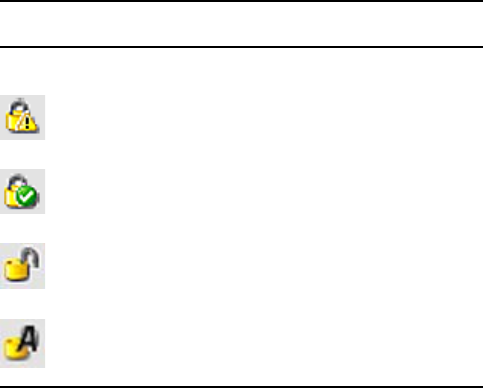
Protecting Assets from Deletion
242
User Roles
The following table shows the access levels or user roles that are available. The icon displayed
(Interplay Access only) indicates the user rights the logged-in user has on each item.
Users without delete rights cannot delete assets (Avid assets or file assets) or perform any tasks
that require delete rights. The following tasks require delete rights:
• Deleting Avid assets and media
• Deleting file assets and files
• Deleting folders
• Deleting metadata
• Moving assets from one folder to another
For a summary of user rights and access control, see “Access Control and Delete Matrices” on
page 277
Setting User Roles in the Interplay Administrator
User roles are global settings that apply to the entire database. An administrator assigns user
roles in the User Management window of the Interplay Administrator, and has the option of
assigning roles on a folder-by-folder basis in the Manage Database Roles window.
For example, a user or a group of users might initially have No Access to the database. The
administrator can then add the Read/Write/Delete role for users on a particular folder, so that
these users can delete assets only in that folder.
Icon User Role
No icon No access
Read rights
Read/Write rights
Read/Write/Delete rights
Administrator rights
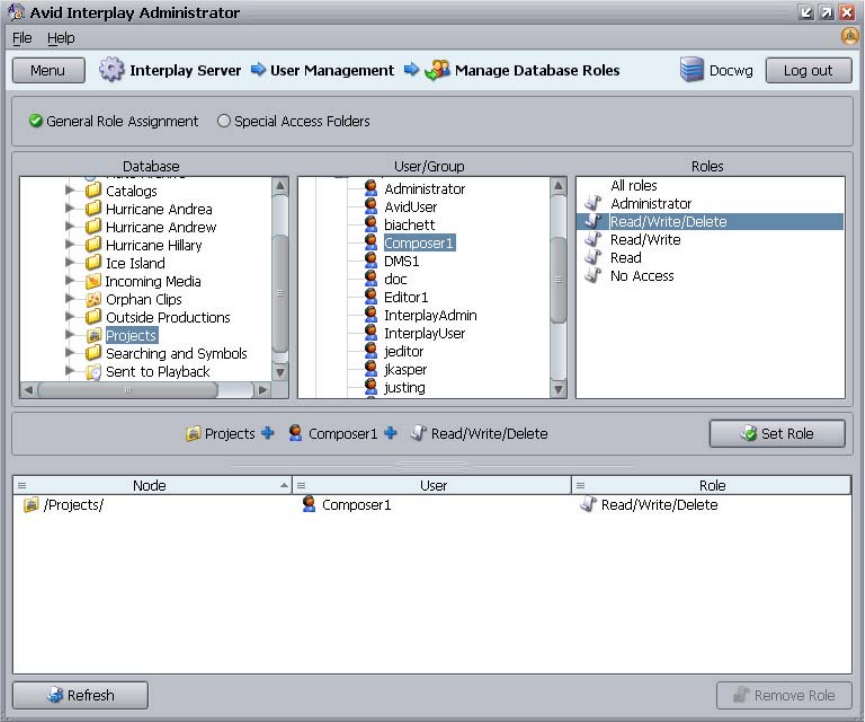
Protecting Assets from Deletion
243
Permissions are inherited within a folder hierarchy unless set explicitly. For example, users that
are granted Delete access on a folder have Delete access on all of that folder’s subfolders unless
different permissions are explicitly set on one of the subfolders.
Users with Write access in Interplay and on Avid shared-storage workspaces can create assets.
When you create an asset you are the owner of the asset. An administrator can decide whether
users who create media have permission to delete the media they own. In other words, just
because you create an asset does not mean that you can delete it.
The following illustration shows the Manage Database Roles dialog box of the
Interplay Administrator. In this example, the Composer1 user has the Read/Write/Delete role for
the Projects folder.
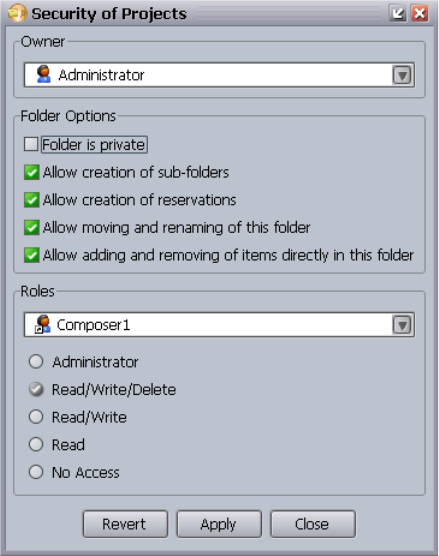
Protecting Assets from Deletion
244
For more information, see “User Management” in the Interplay | Engine and Interplay | Archive
Engine Administration Guide and “Setting Up a User Database” in the Interplay | Production
Best Practices Guide.
Setting User Roles in the Security Dialog Box.
The following illustration shows the Security dialog box of Interplay Access. It shows the same
information as the preceding illustration: Composer1 has the Read/Write/Delete role for the
Projects folder.
For more information about using the Security dialog box, see “Viewing and Changing Folder
Options (Administrators Only)” on page 66 and “Changing User Roles on Folders
(Administrators Only)” on page 67.
nBy default the creator of the folder is the owner of the folder. Administrators can change the
default behavior so that the owner of the new folder is the owner of the parent folder. This can
help prevent unintentional deletion. You can change this behavior in the Ownership Behavior
view in the Interplay Administrator. For more information, see “Setting the Ownership for New
Database Folders” in the Interplay | Engine and Interplay | Archive Engine Administration
Guide.
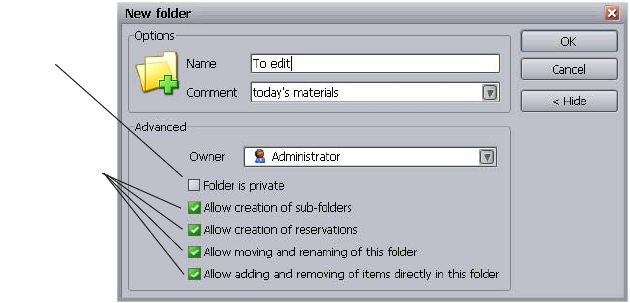
Protecting Assets from Deletion
245
Freezing Folders and Content
You can protect assets from deletion by setting options for the folder that holds the assets. You
can prevent users from moving and renaming a folder. You can also prevent users from adding
items to a folder and removing items from a folder. Protecting a folder in this way is called
“freezing” a folder.
If you have administrative rights, you can set these options when you create a new folder. To
change these options for an existing folder, you need to use the Security dialog box.
When a folder is created, by default users are allowed the following actions:
• Creation of subfolders
• Creation of reservations
• Moving and renaming a folder
• Adding items to a folder and removing items from a folder.
An administrator can view these options by clicking the Advanced button in the New Folder
dialog box. The following illustration shows the New folder dialog box as it appears to an
administrator.
The following settings are checked by default in the New Folder dialog:
Available to
all users
Available to
administrators
only
Protecting Assets from Deletion
246
The following options can protect assets from deletion:
• “Allow creation of reservations.” This option allows a user to place a reservation on a folder.
For more information, see “Setting Reservations” on page 248.
• “Allow moving and renaming of this folder.” If deselected, the folder cannot be moved or
renamed, and it also implies that the folder cannot be deleted. If this option is deselected, the
folder is said to be frozen (the location is frozen).
• “Allow adding and removing of items directly in this folder.” If deselected, no items can be
added to the folder and the folder contents cannot be deleted. The folder contents are said to
be frozen (the content of the folder is frozen).
If an administrator deselected the second or third option when creating the folder, deletion of the
folder or contents is not possible. The administrator must change the setting in the Security
dialog before a deletion is possible for any user, including the administrator.
nBy default the creator of the folder is the owner of the folder. Administrators can change the
default behavior so that the owner of the new folder is the same as the owner of the parent folder.
This can help prevent unintentional deletion. You can change this behavior in the Ownership
Behavior view in the Interplay Administrator. For more information, see “Setting the Ownership
for New Database Folders” in the Interplay | Engine and Interplay | Archive Engine
Administration Guide.
To freeze an existing folder or its contents (administrators only):
1. Do one of the following:
tSelect Operations > Security.
tSelect Security from the context menu of the folder.
The Security dialog box opens.
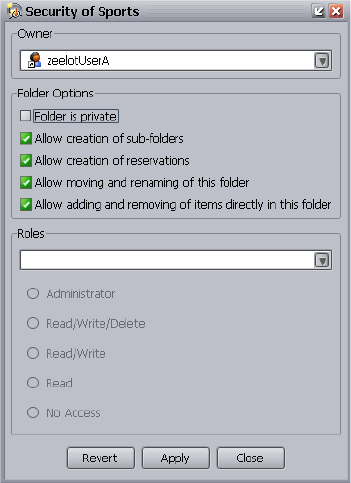
Protecting Assets from Deletion
247
2. Deselect “Allow moving and renaming of this folder” to freeze the folder location and
prevent deletion.
3. Deselect “Allow adding and removing of items directly in this folder” to freeze the folder
contents and prevent items from being added or deleted.
4. Click Apply.
5. Click Close.
To change the frozen folder settings to allow deletion (administrators only):
1. Do one of the following:
tSelect Operations > Security.
tSelect Security from the context menu of the folder.
The Security dialog box opens.
2. Select “Allow moving and renaming of this folder” to unfreeze the folder location and allow
deletion.
3. Select “Allow adding and removing of items directly in this folder” to unfreeze the folder
contents and allow items to be added and deleted.
4. Click Apply.
5. Click Close.
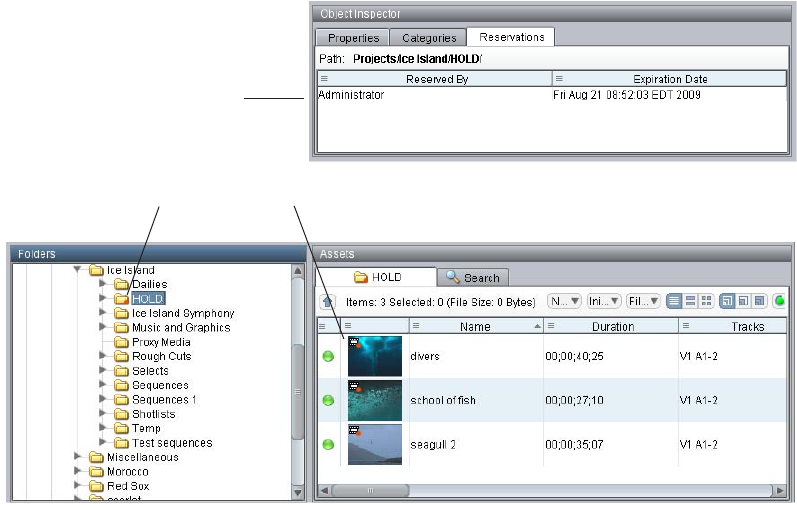
Protecting Assets from Deletion
248
Setting Reservations
A reservation is a time-based protection that a user or an Avid editing application can apply to a
folder. A reservation prevents non-administrators from deleting or moving assets from the folder.
It provides an additional layer of protection to help ensure that all of the files and metadata
associated with an asset can be protected against accidental deletion. Reservations can only be
applied to folders.
Understanding Reservations
There are two kinds of reservations:
• Manual reservations set by a user on a folder using Interplay Access. See “Creating and
Removing Reservations” on page 249.
• Auto Reservations automatically set by the Avid editing application. See “Working with
Automatic Reservations” on page 252.
In Interplay Access, reservations are indicated by red dots. Information about a reservation is
displayed in the Reservations tab in the Object Inspector.
Red dots indicate reservations
Reservations tab
Protecting Assets from Deletion
249
When a reservation is applied to a folder, the assets in that folder are protected from deletion and
moving. These assets include sequences, master clips, and all the media files and metadata files
that are associated with any Avid assets in the folder.
nAn administrator can move or delete assets even when they are reserved. See “Deleting Avid
Assets and Media” on page 253 and “Deleting File Assets” on page 273.
The following rules apply to reservations:
• By default, there are no reservations on any folders.
• Read/Write permission on a folder protects the Avid asset links (metadata) in the folder but
does not protect the associated media files. You must apply a reservation to a folder to
protect the associated media files.
• Only the owner of a reservation or the administrator can remove the reservation or delete or
move the contents of a reserved folder.
• If you move an asset from a reserved folder (administrators only), it is no longer reserved
and loses its protection. To protect it in its new location, place a reservation on the new
folder. An exception is that sequences and subclips in reserved folders protect the media files
of referenced master clips, even if the master clips are in a non-reserved folder. For example,
Sequence A uses Clip 1, and both are in a reserved folder. If you move Clip 1 to a
non-reserved folder, and try to delete both the master clip (metadata) and media for Clip 1,
you can delete the master clip, but the media remains protected. If the master clip is the last
link to the media, the link is moved to the Orphan Clips folder and the master clip and media
remain protected (see “Deletion, Multiple Links, and Reservations” on page 257).
• Reservations are inherited from the folder to the asset. So an asset might be protected by a
reservation added to a folder several levels above it in the folder hierarchy as well as by the
folder where the asset resides.
• Folders can have reservations set by multiple users with multiple end dates.
• If two users share an asset in a folder and both have a reservation on this folder, neither user
can delete or move the asset. Unless one of the reservations expires or is revoked by the user
who created it, only the administrator can move or delete the asset. However, either user can
copy the asset to another folder if the user has Read/Write rights.
nIf you move a sequence or subclip to another folder, right-click the original folder and select
Refresh Referenced Clips. This ensures that any referenced clips associated with the moved link
are removed. See “Refreshing Referenced Clips” on page 132.
Creating and Removing Reservations
To create a reservation:
1. Select a folder in Interplay Access.
2. Do one of the following:
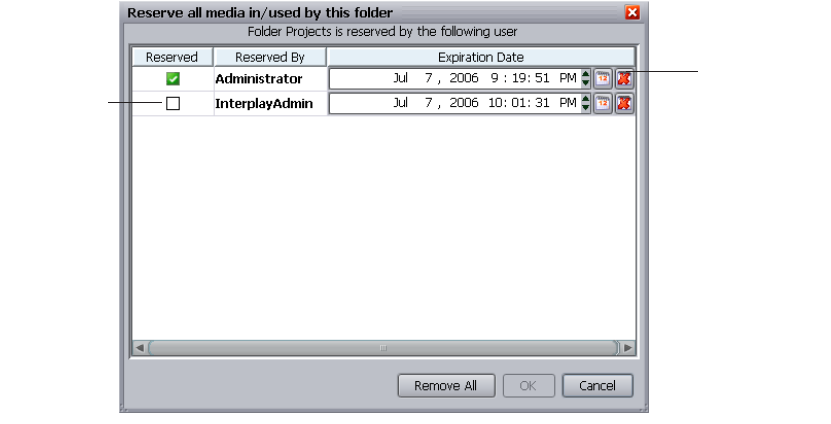
Protecting Assets from Deletion
250
tSelect Reservation from the context menu.
tSelect Tools > Reservation.
The “Reserve all media in/used by this folder” dialog box opens.
3. In the Reserved column, click the check box to create a reservation.
The box turns green and shows a check mark.
4. Use the arrows or click the calendar to set the date for the reservation to end.
5. Click OK.
Interplay adds a red dot to the folder icon and to all of the assets in the folder, indicating that
they are reserved.
To remove a reservation:
1. Select a folder in Interplay Access.
2. Do one of the following:
tSelect Reservation from the context menu.
tSelect Tools > Reservation.
The “Reserve all media in/used by this folder” dialog box opens.
3. In the Reserved column, click the check box to remove the check mark.
4. Click OK.
Set the duration of
the reservation
Click to create
a reservation.
Protecting Assets from Deletion
251
An Interplay Administrator can click the Remove All button to remove all reservations on
the folder.
To show reservation information:
1. Select a folder or asset.
2. Select the Reservation tab in the Object Inspector.
3. Right-click a reserved folder and select Reservations.
To search for reserved items:
1. Click the Search tab and then click the Extended tab.
2. Select Reserved from the Attribute Name list.
3. (Option) Select a user other than anyone as the user who made the reservation from the User
list.
4. Do one of the following:
tSelect “is reserved” from the value menu.
tSelect “ends after” or “ends before.” In the time box to the right, click the up and down
arrows or calendar to adjust the reservation time frame.
To search for items which were previously reserved, select “is expired” instead.
5. Click Search.
To enable reservations on a folder (Administrators only):
1. Do one of the following:
tSelect Security from the context menu of the folder.
tSelect Operations > Security.
The Security dialog box opens.
2. Select “Allow creation of reservations.”
3. Click Apply.
4. Click Close.
To remove all reservations on a folder (Administrators only):
1. Select the folder that includes the reservation.
2. Do one of the following:
tSelect Remove Reservations from the context menu.
tSelect Tools > Remove Reservations.
A confirmation box asks if you want to remove all reservations on the selected folder.
Deleting Avid Assets
252
3. Click Yes.
Working with Automatic Reservations
An Avid editing application can automatically reserve a folder for a specific amount of time.
There are two situations that trigger an automatic reservation:
• Capturing a master clip to the Interplay Window
• Checking in a new or modified asset from a bin
The administrator can specify the Auto Reservation time in the Application Database Settings
window in the Interplay Administrator application. The default duration is 24 hours.This setting
applies to all Avid editing applications. For more information, see the Interplay | Engine and
Interplay | Archive Engine Administration Guide.
nAfter the automatic reservation expires, the assets in the folder are no longer protected.
Deleting Avid Assets
The most efficient and safest way of deleting Avid assets is through Interplay Access. One
advantage of using Interplay Access is that you can use the Search feature to find and display the
assets you want to delete.
The following topics provide more information about deleting Avid assets:
•“Deleting Avid Assets and Media” on page 253
•“Deletion, Multiple Links, and Reservations” on page 257
•“Using the Orphan Clips Folder” on page 258
•“Restricted Deletion of Referenced Assets” on page 259
•“Deleting Orphan Clips Created by Resync” on page 261
•“Examples: Using Search with Delete” on page 261
•“Safely Deleting Media When Working with Consolidated Subclips” on page 264
•“Deleting Offline File Locations for Avid Assets” on page 272
For information on deleting file assets, see “Deleting File Assets” on page 273.
Tables summarizing options for deleting are listed in “Access Control and Delete Matrices” on
page 277.
For information on developing a workflow for deleting material from your Interplay system, see
“Developing an Interplay Delete Strategy” in the Interplay | Production Best Practices Guide.
Deleting Avid Assets
253
cAvid strongly recommends that you do not delete files directly from the file system because
the relationships between the clip metadata and the specific files that make up the clip are
not obvious from the file system. Those relationships are managed by the Avid editing
application and Interplay.
Deleting Avid Assets and Media
You use the Delete dialog box to select Avid assets for deletion. You have the option of deleting
the assets only, the media only, or both assets and media. For example, if you want to delete a set
of clips, but you know that the media files are referenced by other clips, you have the option of
deleting only the clips (one set of metadata for the media). If you want to delete media but keep
the associated clips (for example to recapture the media), you can delete only the media.
nIf you delete all master clips (metadata) that reference a set of media files, the media files
become unreferenced, and the Interplay Engine moves the last link to the Orphan Clips folder.
See “Using the Orphan Clips Folder” on page 258.
If you select a sequence for deletion, the Delete dialog box displays referenced-only assets, that
is, assets referenced by the sequence that are not explicitly checked-in or copied to the same
Interplay folder as the sequence (see “Referenced Assets and Referenced-Only Assets” on
page 97). You can delete the sequence and all its referenced assets, but you cannot delete
referenced assets unless you also delete the sequence that references them (see “Restricted
Deletion of Referenced Assets” on page 259).
nReferenced assets that are explicitly checked in or copied to a folder are not included when you
select a sequence for deletion. You need to individually select these assets for deletion.
If your facility works with the Dynamic Relink feature, a clip can be associated with multiple
media files. This situation occurs when you are working in a MultiRez environment or working
with consolidated subclips (see “Safely Deleting Media When Working with Consolidated
Subclips” on page 264). The Delete dialog box includes an option that lets you delete only the
media created with a clip while preserving the media associated through Dynamic Relink (this is
the default setting). For more information, see “Deleting Only Media Created with a Clip” on
page 267.
To delete Avid assets:
1. In the Content view, select the assets you want to delete.
You can select multiple folders or clips for deletion. You can also delete folders by selecting
them in the tree structure in the Folders pane.
2. Do one of the following:
tRight-click and select Delete.
tPress the Delete key.
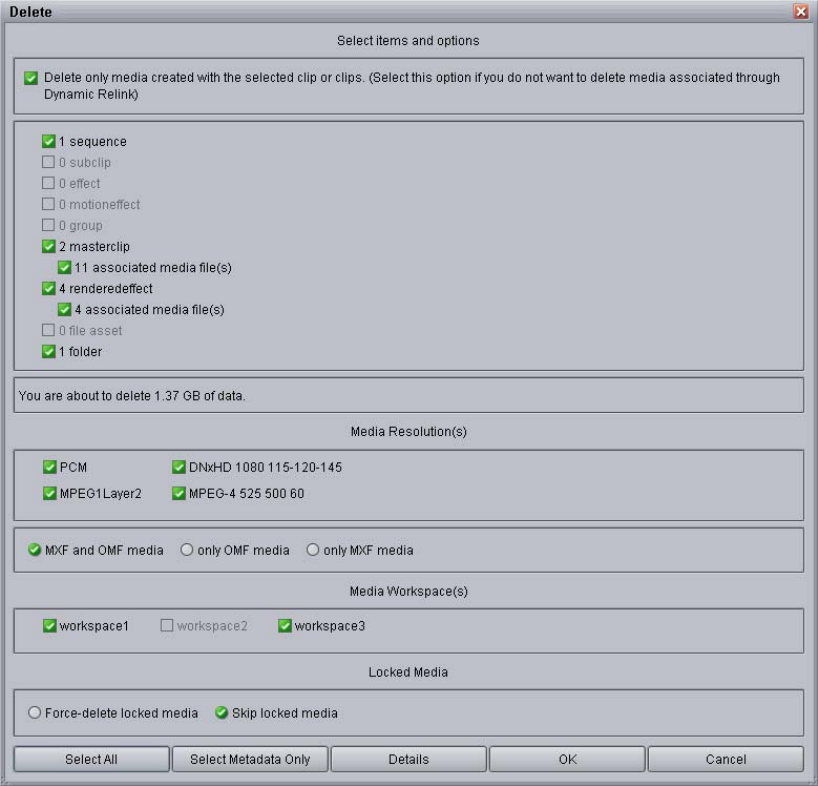
Deleting Avid Assets
254
The Delete dialog box opens, displaying the items that you selected, including referenced
assets. It also displays the amount of disk space that would be freed if you delete the media
files. No items are selected for deletion until you select them in the Delete dialog box.
nDelete operations are available only if you have selected Preferences > Full Menus.
The following illustration shows the results of selecting a folder for deletion. The folder
contains one sequence, two master clips, four rendered effects, and their media files. The
master clips and rendered effects are referenced-only assets.
3. Select the items you want to delete.
Deleting Avid Assets
255
tYou can select clips or other Avid assets, associated media files or both clips and media.
If you select media files for deletion, the amount of data that will be deleted is listed.
nThe number of media files and the amount of data that will be deleted are only affected by the
option “Delete only media created with the selected clip or clips.” This information is not
affected by your selections in the Media Resolutions or Media Workspace sections of the dialog
box.
tIf you select a folder that contains one or more file assets, you can select file assets for
deletion. For more information about deleting file assets, see “Deleting File Assets” on
page 273.
tYou can select a folder for deletion or keep it for further use.
tTo select all items, including metadata and media, click Select All.
tTo select only metadata, click Select Metadata Only.
4. If you selected media for deletion, specify the media that you want to delete.
a. (Option) If you are working with clips that have two or more sets of media files
associated through Dynamic Relink, and you want to delete all associated files, deselect
“Delete only media created with the selected clip or clips.”
See “Safely Deleting Media When Working with Consolidated Subclips” on page 264.
b. Select the resolutions you want to delete.
The Media Resolutions section of the dialog box lists all video resolutions and audio
formats for the clips you selected, including media associated through the Dynamic
Relink feature. All resolutions are selected by default. Deselect the resolutions you want
to keep. If a clip has separate media files for audio and video, you can select only audio
media or only video media for deletion.
c. Select the media format for the media files you want to delete: both MXF and OMF,
only MXF, or only OMF.
These options are displayed only if they are enabled by an administrator, and both MXF
and OMF are selected by default. See “Setting Options for Deletion” in the
Interplay | Engine and Interplay | Archive Engine Administration Guide.
d. Select which workspaces you want to delete media from.
All workspaces that contain the selected media are listed and are selected by default.
e. Select whether to force the deletion of media files locked by an editor or to skip deletion
of locked files.
These options are available only if the user has administrative rights or if they are
enabled by an administrator. “Skip locked media” is the default. See “Setting Options
for Deletion” in the Interplay | Engine and Interplay | Archive Engine Administration
Guide.
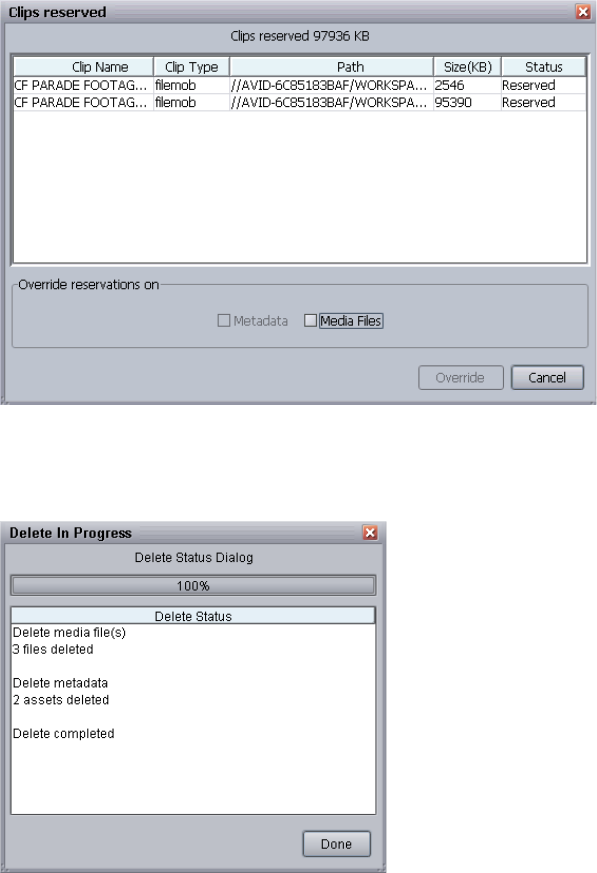
Deleting Avid Assets
256
5. (Option) Click Details to determine if any clips are reserved.
The Assets Reserved dialog box opens. Any assets with reservations are listed, along with
information about the assets. If you have the proper privileges, you can override the
reservations. Otherwise, click Cancel.
6. When you are ready to delete the files, click OK in the Delete dialog box.
The Delete in Progress dialog box displays the status of the deletion.
7. When the delete operation is completed, click Done.
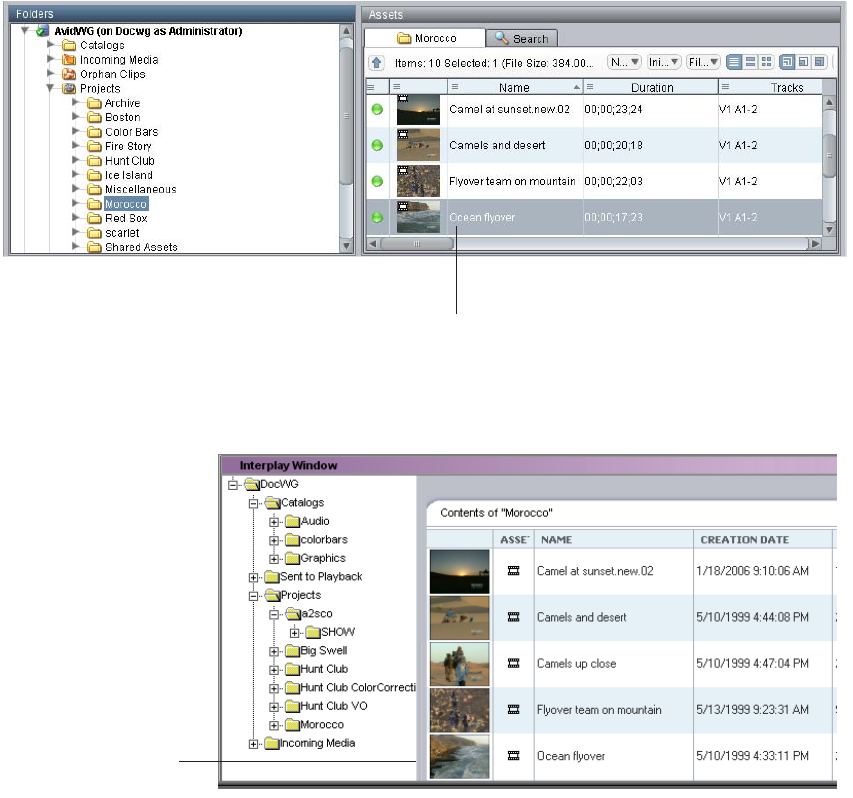
Deleting Avid Assets
257
Deletion, Multiple Links, and Reservations
If you have more than one link to an Avid asset, you need to delete each link, along with the
media, to completely delete the asset.
When you check a master clip (or other Avid asset) in to Interplay, Interplay stores the original
asset in the database and creates a visible link to the original asset. This link is displayed in the
Interplay Access window.
This same link is displayed in the Interplay window.
Link to the
masterclip
The same link viewed in
the Interplay window
Deleting Avid Assets
258
When you create a copy of a master clip (for example, by copying the clip to another folder), the
system creates a copy of the link. If you want to delete this master clip, you need to delete each
link.
Each individual link to an asset has its own access control or permissions. This means that it is
possible to have Read/Write/Delete rights for an asset in folder A, but only Read rights for
another instance of the same asset in folder B. It is also possible to have one instance of an asset
in a reserved folder and one in a non-reserved folder. For example, assume that a master clip is
visible in two folders, one with a reservation and one without. If you delete the master clip in the
non-reserved folder, the master clip in the reserved folder (and the related media) is not deleted.
nIf a master clip is used in a reserved sequence, the master clip’s media is protected from deletion,
even if the master clip is in a non-reserved folder. This protection also applies to subclips that
are used in a sequence.
When the last visible link to an asset is deleted, the asset itself is deleted. The only exception to
this is if the media for the asset still exists. In that case the link to the asset is moved to the
Orphan Clips folder.
Using the Orphan Clips Folder
Interplay Access maintains a special folder called Orphan Clips. This folder contains Avid assets
that have online media, but do not have any visible links in other folders. If you delete all master
clips that reference a set of media files, but do not delete the media files, the media files become
unreferenced (or “orphaned”). Interplay then moves the last link to the media files to the Orphan
Clips folder, to a subfolder named Kept Media.
When a clip is deleted from the Orphan Clips folder, the media is deleted automatically. If the
media cannot be deleted, the metadata remains in the Orphan Clip folder, in a subfolder named
Failed to Delete.
By default, only an administrator can view the contents of the Orphan Clips folder. The
administrator can change the permissions for this folder.
Beginning with Interplay Access v2.4, the Orphan Clips folder contains links for assets deleted
from Interplay folders whose media files were also deleted. This change enables an Interplay
administrator to schedule the most load-demanding part of deletion operations during times of
low activity. For more information, see the Interplay | Engine and Interplay | Archive Engine
Administration Guide.
The Kept Media folder and Failed to Delete folder were also introduced in Interplay Access v2.4.
These folders make it easier to browse and search ia large Orphan Clips folder.
Deleting Avid Assets
259
The Orphan Clips folder might also include a subfolder named Resync\workspace_name. For
more information, see “Deleting Orphan Clips Created by Resync” on page 261.
For information on including the orphan clips folder in a workflow for deleting material from
your Interplay system, see “Developing an Interplay Delete Strategy” in the
Interplay | Production Best Practices Guide.
To view the contents of the Orphan Clips folder:
tDouble-click the Orphan Clips folder in the tree structure in the Folders pane.
Restricted Deletion of Referenced Assets
Interplay Engine version 2.3 and later prevents you from deleting referenced assets unless you
first delete the asset that references it.
In previous versions, it was possible to delete a referenced asset without deleting the sequence
(or subclip) that referenced the asset. This behavior was a problem because if the deleted asset
was moved to the Orphan Clips folder, the asset and its media could have been deleted as part of
a deletion workflow while it was still in use by a sequence, resulting in offline media.
nThis restriction also applies to referenced assets that have been explicitly checked in or copied to
the same folder as the asset that references them. When you try to delete the metadata for these
assets, their explicitly checked in or copied status is removed, but the assets remain in the folder
as referenced-only assets. See ““Is Referenced” and “Is Explicitly Checked In” Flags” on
page 260.
If you attempt to delete a referenced asset in Interplay Access without deleting the asset that
references it, a message is displayed in the summary dialog: “n assets are referenced” and the
referenced clips are not marked for deletion. This behavior also applies to emulated rendered
effects (see “Emulated Rendered Effects” on page 148).
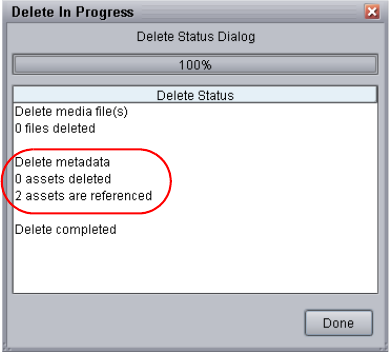
Deleting Avid Assets
260
cAn administrator or a user with the proper rights can always delete media, even for
referenced clips that are still in use. You should use reservations and access rights to
protect media. See “Protecting Assets from Deletion” on page 241.
nAn administrator can use a configuration file to activate an option to allow deletion of
referenced assets. See “Activating the Option to Delete Referenced Assets” in the
Interplay | Engine and Interplay | Archive Engine Administration Guide.
“Is Referenced” and “Is Explicitly Checked In” Flags
In the Interplay database, an asset can have one or both of the following flags:
• Is referenced
• Is explicitly checked in
Note the following
• When determining if an icon is displayed as gray, Interplay Access gives the “is explicitly
checked in” flag higher priority than the “is referenced” flag. If the asset has both flags, it
uses a standard black icon.
• The “is referenced” flag always protects the asset from metadata deletion.
• The “is explicitly checked in” flag can be deleted (by deleting the asset), but if the “is
referenced flag” is still applied, the metadata itself is protected. In this case, the assets
remain in the folder as grayed out referenced assets.
The following table summarizes these options.

Deleting Avid Assets
261
Deleting Orphan Clips Created by Resync
Under some circumstances, clips might be missing their video or audio tracks. When the Resync
process identifies a clip with a missing audio or video track, it creates a special master clip and
stores it in the Orphan Clips folder. This master clip has the following characteristics:
• The clip is stored in the Orphan Clips folder, in a subfolder named
“resync/workspace_name.” Only administrators logged into Interplay Access can view this
folder and its contents.
• The clip name begins with the prefix “_Orphan_Media_Do_Not_Use_” This indicates that
the clips are not useful master clips.
• The clip has limited information, such as the clip name, media size, and workspace
properties. It does not contain AAF information and cannot be checked out or used for
editing or playout.
cThese clips do not contain valid metadata. Their sole purpose is to represent media files
that should be deleted. If a user attempts to use them in a Media Services or Transfer
operation, the operation will fail.
Examples: Using Search with Delete
You can use an Extended search to create a list of assets that match your criteria for deleting.
This topic provides several examples.
Example 1
This first example uses the following criteria:
• Find clips without an active reservation. The Search syntax is:
Reserved : by anyone : is expired
• Find clips that are not shared (only one instance, no links in other folders). The Search
syntax is:
Is Referenced
Is Explicitly
Checked In Grayed Out What Gets Deleted
No Yes No Asset
Yes No Yes Nothing
Yes Yes No “Is Explicitly Checked In” flag
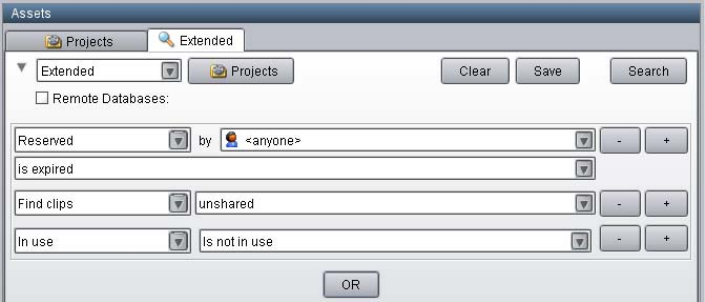
Deleting Avid Assets
262
Find clips : unshared
• Find clips that have no relatives. The Search syntax is:
In use : Is not in use
The following illustration shows these criteria in the Extended search tab.
After you run this search, you can delete the results from the Search Results list.
Example 2
You can associate the criteria used in Example 1 with specific folders to include or exclude
specific locations in the search. This example adds the following criteria:
• Find clips that are located in a folder whose name contains the word “archived.” The Search
syntax is:
Path : contains : archived
• Or find clips that are located in the folder named “To be deleted.” The Search syntax is:
Path : is : To be deleted
You need to create two different groups in the Extended tab: one that combines the criteria in
Example 1 with the first path and one that combines the criteria in Example 1 with the second
path. These groups are separated by OR, as in the following illustration.
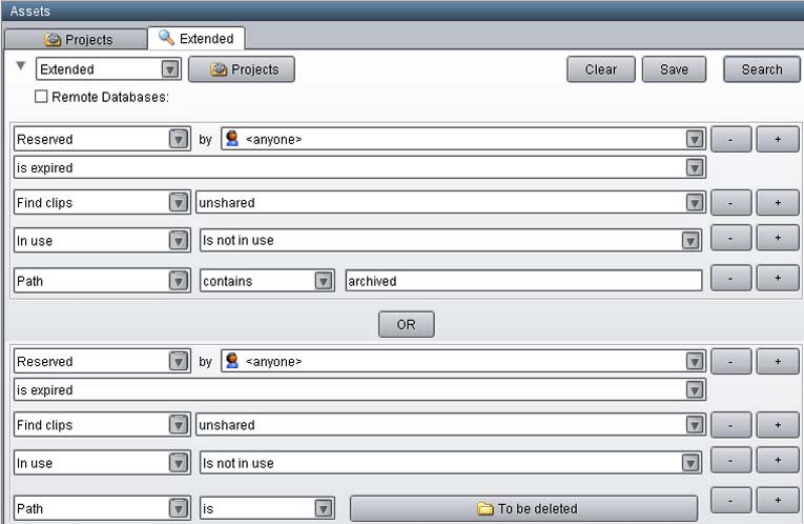
Deleting Avid Assets
263
The results of this search are clips that are stored either in one of the Archived folders or in the
“To be deleted” folder. You see the contents of both folders in the Search Results list.
Example 3
This example is similar to Example 2. However, instead of searching for clips stored either in
one of the Archived folder or in the “To be deleted” folder, these criteria search for clips stored
both in an Archived folder and in the “To be deleted” folder. The following illustration shows
these criteria in the Extended tab.
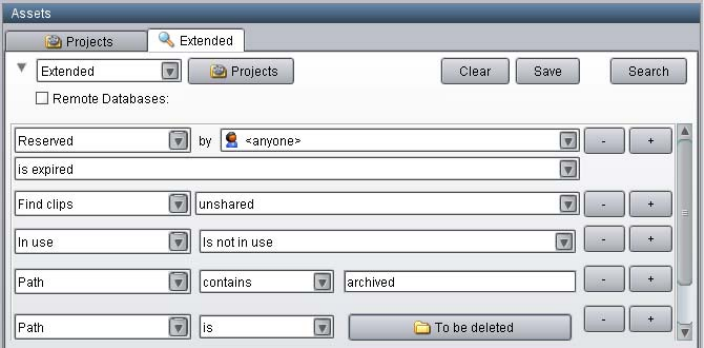
Deleting Avid Assets
264
Example 4
Another search might include the following criteria:
•
Creation date : Not within : Last week
•
Path : contains : archived
•
Path : is : To be deleted
•
In use: Is not in use
•
OR
•
Creation Date: Not within : last 72 hours
•
Path : is : Aired stories
•
Path : is : Incoming feed from Washington
The first group of criteria searches for all clips older than a week located in the Archived and “To
be deleted” folders that have no relatives. The second group searches for clips older than 72
hours located in the “Aired stories” folder and in the “Incoming feed from Washington” folder.
The results are a combination of these searches.
Safely Deleting Media When Working with Consolidated Subclips
You can use the Avid editing Consolidate feature to create a short clip from a longer one. For
example, if there is a one-hour clip and you only want to use 30 seconds of that clip, you can
create a subclip for the material you want and consolidate that subclip to create a new clip and
new media. Then, when you no longer need the original one-hour clip, you can delete the
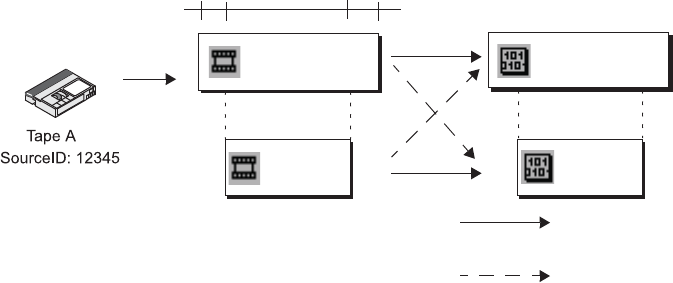
Deleting Avid Assets
265
original clip and media and free up storage space. However, in an Interplay environment, you
need to select an option to delete only the media that was created when the original clip was
created. Otherwise you might also delete the media created with the consolidated subclip.
The following topics describe how to manage deletion of original clips and media and
consolidated clips and media:
•“Original Clips, Consolidated Subclips, and Dynamic Relink” on page 265
•“Deleting Only Media Created with a Clip” on page 267
•“Limitation: Media Files Displayed as Online but Not Available for Deletion” on page 271
Original Clips, Consolidated Subclips, and Dynamic Relink
The Interplay Engine recognizes a special association between a clip and the media created with
the clip. This original association is sometimes referred to as an affinity association, and the
media created with the clip is referred to as affinity media. This association is important to be
aware of when you are working with multiple resolutions (MultiRez). It can also apply to
consolidated clips.
The following illustration shows two clips that share a source ID, a timecode span, and the same
resolution. Clip 1.new was created as a subclip of Clip 1, and was then consolidated to create a
new master clip with new media. The solid lines indicate the original (affinity) associations and
the dashed lines indicate the additional associations, which were created through the Dynamic
Relink feature.
Dynamic Relink can create associations from a clip to any media created from the same source
and sharing the clip’s timecode. These associations are created according to the Dynamic Relink
method that is selected and which media is available at the time of the relink.
D
V
01;00;00;00 01;00;10;00
Clip 1
Source ID: 12345
DV25
Source ID: 12345
Clip 1.new DV25
Source ID:
12345
Source ID:
12345
Consolidated
subclip
Original clip
Original (affinity) association
Additional association
(through Dynamic Relink)
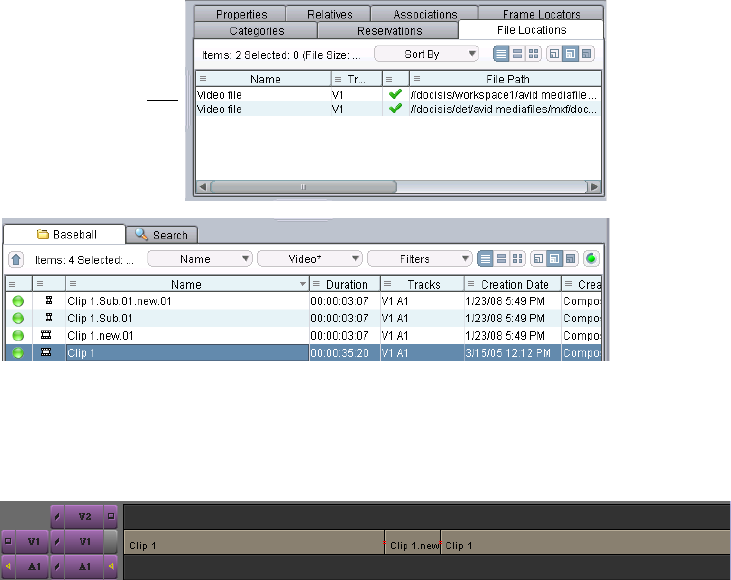
Deleting Avid Assets
266
A problem can arise if you select either the original clip or the consolidated subclip for deletion
in Access. In the Delete dialog box, two sets of media might be selected and displayed: the
media created with the original clip and the media created when the subclip was consolidated.
An option in the Delete dialog box lets you delete only the media created with the selected clip.
One way to check if a clip has multiple associations is through the File Locations tab of Interplay
Access. The following illustration shows that the Interplay database includes two video files
associated with Clip 1.
You can also see if there are associations in the Avid Timeline. If a sequence includes the original
clip, and Clip Names are enabled, you can see where Dynamic Relink substitutes the
consolidated subclip.
If you are not sure which media files are displayed in the Delete check box, the safer approach is
to keep the default setting “Delete only the media that was created with the selected clip or
clips.”
Two video files
displayed in the
File Locations tab
of the Object
Inspector
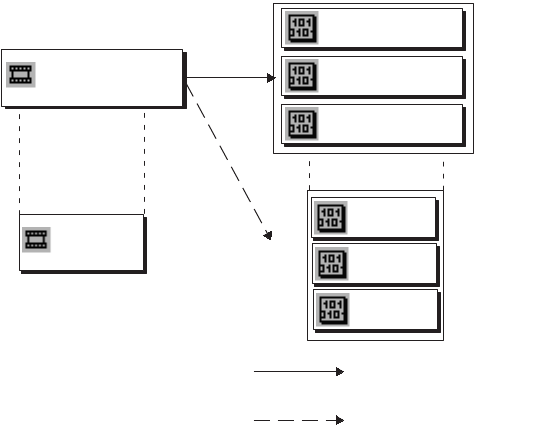
Deleting Avid Assets
267
Deleting Only Media Created with a Clip
If you created a consolidated subclip from an original clip, the Interplay Engine recognizes
associations between
• The original clip and both sets of media
• The consolidated subclip and both sets of media
See “Original Clips, Consolidated Subclips, and Dynamic Relink” on page 265 for more
information. If you select either the original clip or the consolidated subclip for deletion in
Access, both sets of media might be listed in the Delete dialog box.
If you want to delete the original clip and its directly associated media, select the option labeled
“Delete only the media that was created with the selected clip or clips” (the default setting). If
you select this option, dynamically associated media (in this case, the media from the
consolidated subclip) is preserved.
The option also applies if you select the consolidated subclip. In this case, media for the
consolidated subclip is deleted and media for the original clip is preserved.
The following procedure includes an example in which you want to delete a master clip and its
directly associated media files. The original clip (Clip 1) had one video and two audio tracks, as
does a shorter clip (Clip 1.new) consolidated from the original clip, for a total of six media files.
The following illustration shows the associations for the original clip.
Clip 1
DV25
Clip 1.new
DV25
Additional association
(through Dynamic Relink)
PCM
PCM
PCM
PCM
Consolidated
subclip
Original clip
selected
Original (affinity) association
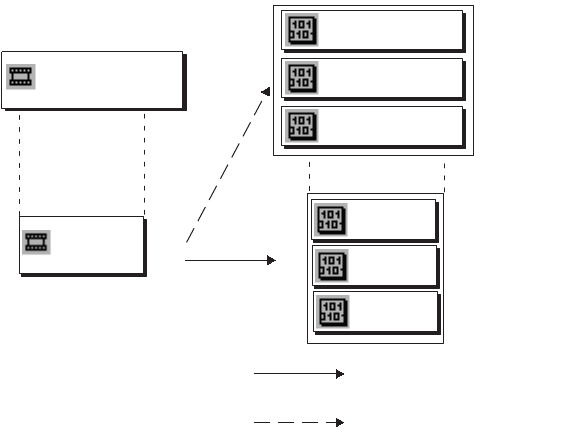
Deleting Avid Assets
268
Keep in mind that if you select the consolidated subclip, it will also display six media files in the
Delete dialog box. But in this case, the directly associated media is the media created when you
created the consolidated subclip.
The option to delete directly associated media exists only in Interplay Access.
If you are not sure which media files are displayed in the Delete check box, the safer approach is
to keep the default setting “Delete only the media that was created with the selected clip or
clips.”
To delete only media directly associated with a clip:
1. Select the clip that you want to delete.
2. Right-click and select Delete.
The Delete dialog box opens.
Clip 1
DV25
Clip 1.new
DV25
PCM
PCM
PCM
PCM
Consolidated
subclip selected
Original clip
Additional association
(through Dynamic Relink)
Original (affinity) association
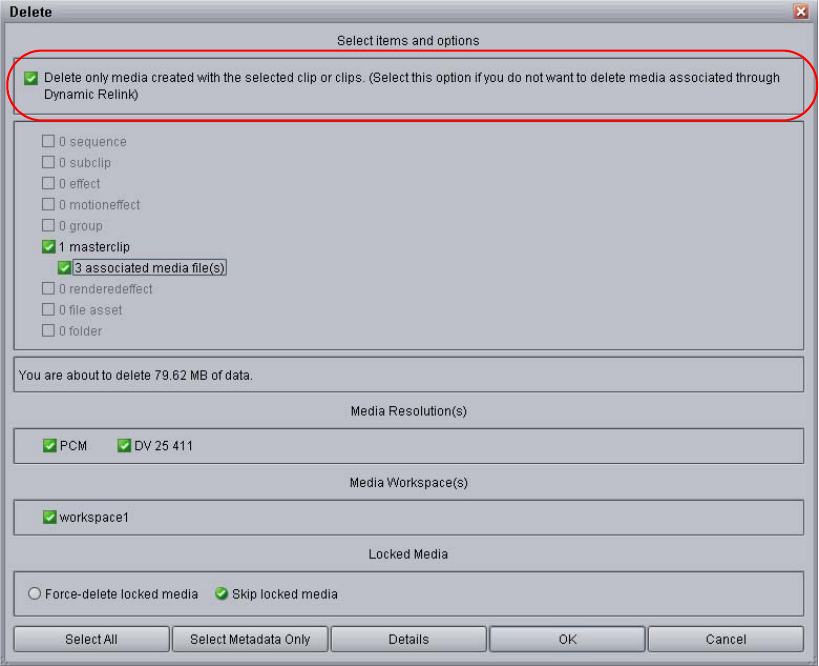
Deleting Avid Assets
269
In this example, the option “Delete only media created with the selected clip or clips” is
selected, and the dialog box shows that the clip you selected has three media files that
resulted from the original media creation.
The following illustration shows the result if you deselect the option “Delete only media
created with the selected clip or clips.” The dialog box shows that six associated media files
will be deleted:
- Three that are directly associated with the clip and result from the original media
creation
- Three that are dynamically linked to the clip and result from consolidation of the subclip
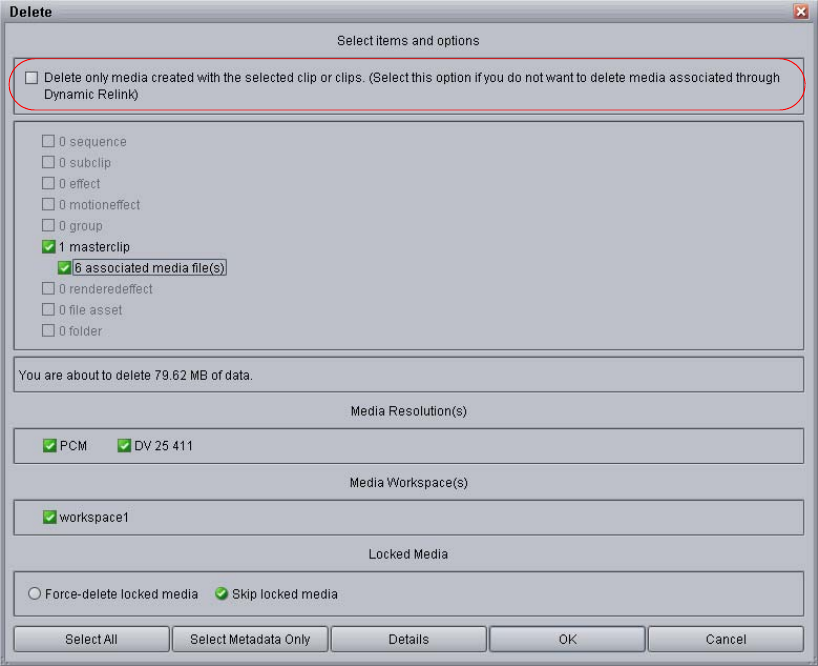
Deleting Avid Assets
270
Only one video and one audio resolution is displayed, because both sets of media use the
same resolutions.
3. In the Delete dialog box, select the master clip, its associated media files, the media
resolutions, and the option “Delete only media created with the clip or clips.”
4. Click OK.
The selected clip and its directly associated media are deleted. The dynamically linked
media is preserved.
nThe number of media files and the amount of data that will be deleted are affected only by the
option “Delete only media created with the selected clip or clips.” This information is not
affected by your selections in the Media Resolutions or Media Workspace sections of the dialog
box.
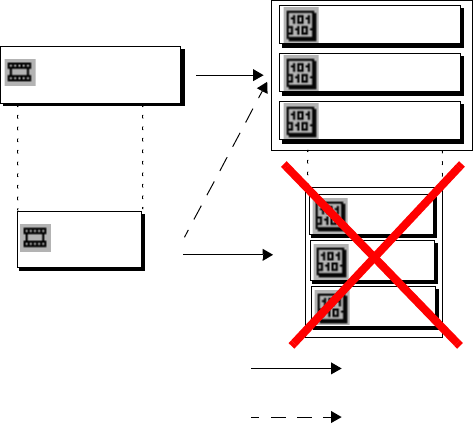
Deleting Avid Assets
271
Limitation: Media Files Displayed as Online but Not Available for Deletion
If you are working with consolidated subclips or consolidated sequences, you might have a
situation in which Access shows that the media files are online, but you cannot delete the media
because it is not displayed in the Delete dialog box.
nSome workflows might regularly show media as online, while media files are shown as offline in
Interplay Access. This situation is a problem only if you want to delete the media files or view
them in Interplay Access for some reason.
This situation can occur in the following way:
1. Ingest Clip1, composed of media files V1, A1, A2.
2. Create a subclip from Clip 1, and then consolidate the subclip. This results in a new subclip
and new master clip (Clip1.new) with media files V2, A3, and A4. (See “Original Clips,
Consolidated Subclips, and Dynamic Relink” on page 265.)
Consolidating a sequence also results in new master clips.
3. Delete the media files for the consolidated clip (V2, A3, and A4) but do not delete the clip
itself. Media files V2, A3, and A4 are offline.
The original clip and media files (Clip1, V1, A1, A2) are still online. Because of Dynamic
Relink, Clip1.new is associated with these original media files. The following illustration
shows media files V2, A3, and A4 as offline.
Clip 1
V1 (DV25)
Clip 1.new
V2 (DV25)
A1 (PCM)
A2 (PCM)
A3 (PCM)
A4 (PCM)
New clip
Original clip
Additional association
(through Dynamic Relink)
Original (affinity) association
Deleting Avid Assets
272
4. Update the status from Media Indexer. The status of Clip1.new is displayed as online (green
dot), even though the original media files were deleted, because Media Indexer recognizes
the association of the consolidated subclip with the original media files.
5. Select Clip1.new, right-click, and select Delete.
The Delete dialog box does not display any media files that can be deleted. No media files
are displayed as online in the File Location tab of the Object Inspector.
To display and delete the media files:
1. In the Avid editing system, use Dynamic Relink to link the consolidated subclip (Clip1.new)
with the original media files. For example, for the option “If no match is found” select “Use
closest media.”
2. Check in Clip1.new to the Interplay database.
3. In Access, select Clip1.new, right-click, and select Delete.
The Delete dialog box shows the media files as available for deletion.
4. Deselect the option “Delete only media created with the selected clip or clips,” select the
media files for deletion, and click OK.
Additional Information
The Delete functionality in Interplay Access can delete only media files that are listed in the File
Locations tab of the Object Inspector. The File Locations tab shows only files that were checked
in through a checkin operation. This checkin can be performed from any Interplay component
(such as an Avid editing system, DMS service, or Interplay Transfer).
In a workflow that includes Dynamic Relink and consolidated subclips, Media Indexer keeps
track of a clip and its associated media files. Interplay Access, however, does not automatically
associate a consolidated subclip with the original media files. To create the association, you need
to check in the consolidated subclip when it is linked to the original media files.
Deleting Offline File Locations for Avid Assets
You might want to delete unneeded offline file locations for Avid assets. These offline file
locations could be created if you use archiving and partial restore in a multi-res workflow.
You can delete the unneeded offline file locations in the File Locations tab of the Object
Inspector.This action deletes only metadata for a selected Avid asset. It does not delete media.
This action deletes only metadata for a selected Avid asset. It does not delete media.
cDeleting an offline file location through this method is immediate and irreversible. If you
deleted file locations by mistake (for example, media files for the asset were only
temporarily offline), you can restore the asset by checking it in again.

Deleting File Assets
273
To delete offline file locations for Avid assets:
1. In the Assets pane, select an Avid asset.
2. If the Object Inspector is not displayed, select View > Show Object Inspector Pane.
3. Click the File Locations tab.
4. Select one or more file locations that are displayed as offline (a red X in the Online column),
right-click, and select Delete Offline File Location.
This option is available only from the context menu.
Deleting File Assets
When you delete a file asset, you have the choice of deleting the local copy, the server copy, or
both.
See the tables in “Access Control and Delete Matrices” on page 277 for a summary of deletion
rights on file assets. Your local version of a file asset can always be deleted regardless of
assigned user rights.
nDelete operations are available only if you have selected Preferences > Full Menus.
To delete the local copy of a file asset:
1. Select one or more file assets.
2. Do one of the following:
tPress (Windows) Ctrl+L or (Macintosh) Shift+Command+L.
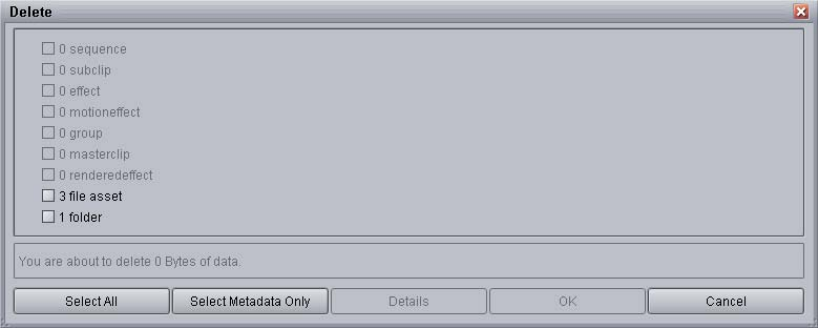
Deleting File Assets
274
tSelect Delete Local Copy from the context menu (if this is not shown, you do not have a
local copy).
tSelect Operations > Delete Local Copy (if this grayed out, you do not have a local
copy).
The local copy is deleted.
To delete the Interplay Engine copy (server copy) of a file asset:
1. Select one or more file assets.
You can select a folder of file assets. If the folder contains an Avid asset, additional options
are displayed in the Delete dialog box. See “Deleting Avid Assets and Media” on page 253.
2. Do one of the following:
tPress the Delete key.
tSelect Delete from the context menu.
tSelect Operations > Delete.
The Delete dialog box opens. The following illustration shows the result of selecting a folder
that contains three file assets. (The size of the data to be deleted is listed only for Avid
assets).
3. Select the items that you want to delete.
You can select a folder for deletion or keep it for further use.
4. (Option) Click Details to determine if any assets are reserved.
The Clips Reserved dialog box opens. Any assets with reservations are listed, along with
information about the assets. If you have the proper privileges, you can override the
reservations. Otherwise, click Cancel.
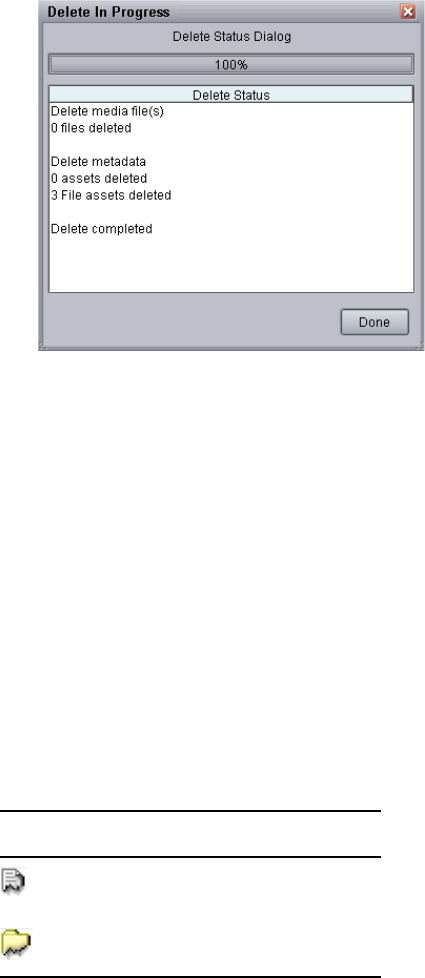
Deleting File Assets
275
5. When you are ready to delete the files, click OK in the Delete dialog box.
The Delete in Progress dialog box displays the status of the deletion.
6. When the delete operation is completed, click Done.
The asset is moved to the Deleted Items folder. From here, you can restore it or it can be
permanently deleted by an administrator. See “Using the Deleted Items Folder” on page 275.
Using the Deleted Items Folder
The Deleted Items folder serves as a recycle bin for file assets, so a user can restore deleted items
from this folder. Only an administrator can permanently delete (destroy) files from the Deleted
Items folder. The folder is created the first time you delete non-Avid assets from the Interplay
database.
Users without administrator rights see only the items that they deleted. An administrator sees all
items deleted by all users.
Special icons are used in the Deleted Items folder and the My Deleted Items in Database dialog
box.
Icon Meaning
Deleted file (pending destruction
Deleted folder (pending destruction)
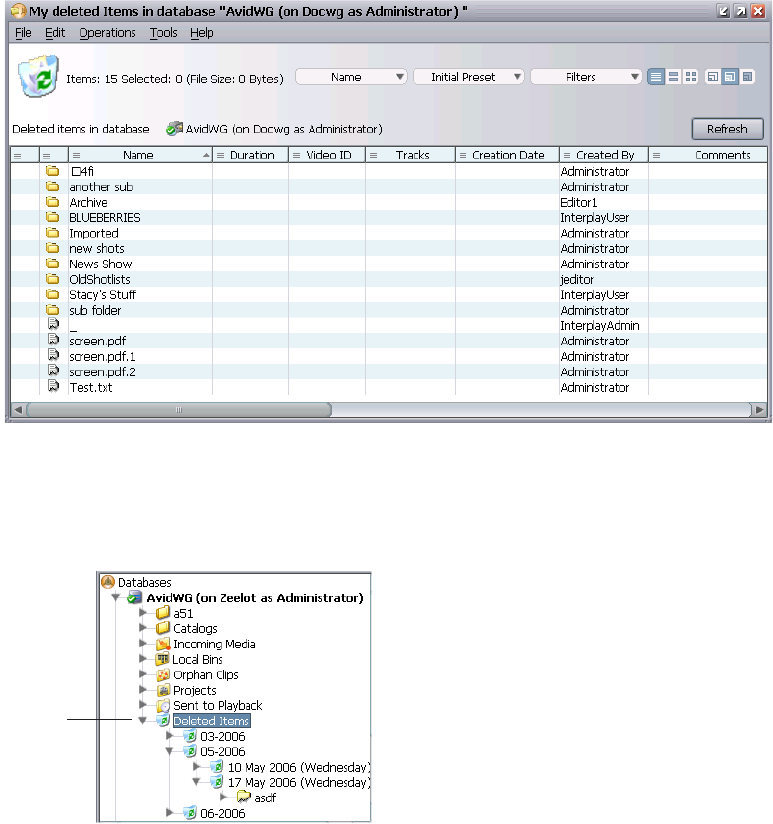
Deleting File Assets
276
To view your deleted items, do one of the following:
t(All users) Select View > Show My Deleted Items.
The My Deleted Items in Database dialog box opens, showing all the items deleted by the
user who is logged in.
t(Non-administrators) Click the Deleted Items folder in the tree view.
The Deleted Items folder shows items deleted by the user who is logged in. The results are
organized by the date they were deleted.
To view all deleted items (administrators only):
tClick the Deleted Items folder in the tree view.
Deleted
Items
folder
Access Control and Delete Matrices
277
Administrators see the deleted items for all users. The results are organized by the date they
were deleted.
To restore a deleted item, do one of the following:
tExpand the tree structure of Deleted Items until the item is displayed. Then select the item
and select Undelete from the context menu.
tIf the item was deleted by you, Select View > Show My Deleted Items. Then select the item
and select Undelete from the context menu.
The deleted file is restored to its previous location.
To empty the Deleted Items folder and destroy all items (administrators only):
1. Click the Deleted Items folder in the tree.
2. Select Empty Deleted Items Folder from the context menu.
The Empty Deleted Items dialog box is displayed to confirm the deletion.
3. Select Yes to confirm the permanent removal of the items.
4. (Option) Select Apply to all items.
5. Click OK.
The next time you log in to Interplay Access, the Deleted Items folder will be gone.
To destroy an individual item (administrators only):
tIn the Deleted Items folder or in the My Deleted Items dialog box, select the item and
choose Destroy from the context menu.
Access Control and Delete Matrices
Whether or not you can delete a file in Interplay depends on the following:
• What type of assets you have access to (Avid assets versus File assets)
• What user rights or access control you have
• Whether you are the owner of the file
• Whether there is a reservation on the file and whether you are the owner of the reservation
• Whether the folder and its contents are frozen
nA frozen folder or frozen folder contents are always protected from deletion, even by the
administrator, until the security setting is changed. After the item is unfrozen, the following
tables apply.
The following tables show the actions that users with different roles can perform on assets.

Access Control and Delete Matrices
278
Access Control for Assets without Reservations
User Roles Read Copy/link Move
Modify
Metadata
Delete asset
and media
Read only Yes Yes No No No
RW YesYesNo YesNo
RWD Yes Yes Yesab
a. If role on parent is RWD, Owner or Administrator.
b. If role on target is RW, RWD, Owner or Administrator.
Yes Yesa
Owner Yes Yes Yesab Yes Yesa
Administrator Yes Yes Yesab Yes Yesa
Access Control for Assets with Reservations Set by User
User Roles Read Copy/link Move
Modify
Metadata
Delete asset
and media
Read only Yes Yes No No No
RW Yes Yes No Yes No
RWD Yes Yes Yesab
a. If role on parent is RWD, Owner or Administrator.
b. If role on target is RW, RWD, Owner or Administrator.
Yes Yesac
c. As the owner of the media, you can delete the asset and media if you click Yes on the
Override Reservation button.
Owner Yes Yes Yesab Yes Yesac
Administrator Yes Yes Yesab Yes Ye sac

Access Control and Delete Matrices
279
Access Control for Assets with Reservations Set by Different User
User Roles Read Copy/link Move
Modify
Metadata
Delete asset
and media
Read only Yes Yes No No No
RW Yes Yes No Yes No
RWD Yes Yes No Yes No
Owner Yes Yes No Yes No
Administrator Yes Yes Yesab
a. If role on parent is RWD, Owner or Administrator.
b. If role on target is RW, RWD, Owner or Administrator.
Yes Yesac
c. As the owner of the media, you can delete the asset and media if you click Yes on the
Override Reservation button.

10 Communicating Using the Messenger
With the Messenger mail browser in Interplay Access, you can send messages to other users
listed on your MediaCentral Configuration Server, and receive messages from those users as
well.
The following topics describe how to use the Messenger:
•Opening the Message Browser and Reading Messages
•Writing New Messages
•Deleting Messages
•Replying to a Message
•Forwarding a Message
Opening the Message Browser and Reading
Messages
To open the Message Browser and read messages:
1. Select a database in the tree view.
2. Do one of the following:
tDouble-click the Show Messages icon in the upper right corner of Interplay Access.
tSelect View > Show Messages.
tPress (Windows) Ctrl+B or (Macintosh) Shift+Command+B.
The Message Browser opens.
Show Messages icon
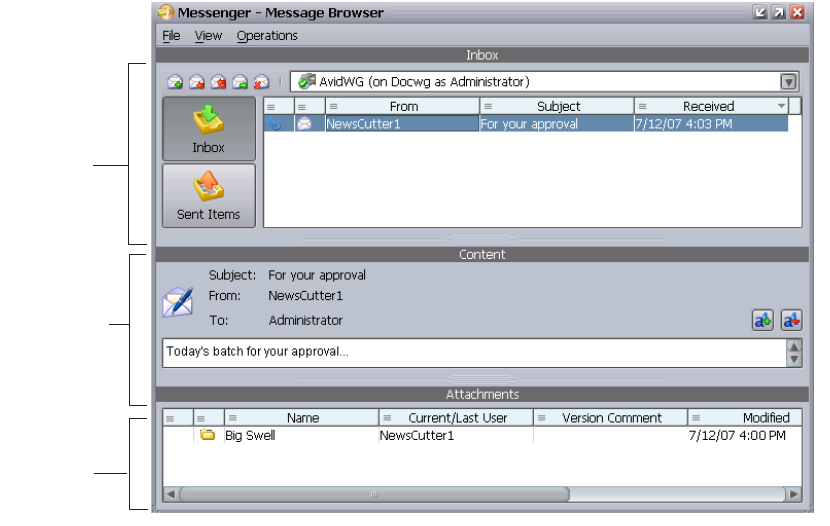
Opening the Message Browser and Reading Messages
281
By default, the Inbox is selected and displays messages you have received for the selected
database.
3. Select a message.
The contents are displayed in Content pane and any attached links are displayed in the
Attachments pane.
You can toggle between Text view, Storyboard view, and Frame view in the Attachments
pane by pressing F7. You can also sort and customize your view in the same way that you
customize the Content tab display. For more information, see “Using the Assets Pane” on
page 100.
4. If the message includes an attachment, double-click the attachment to view it or select
another action from the context menu.
Inbox pane
Content pane
Attachments
pane
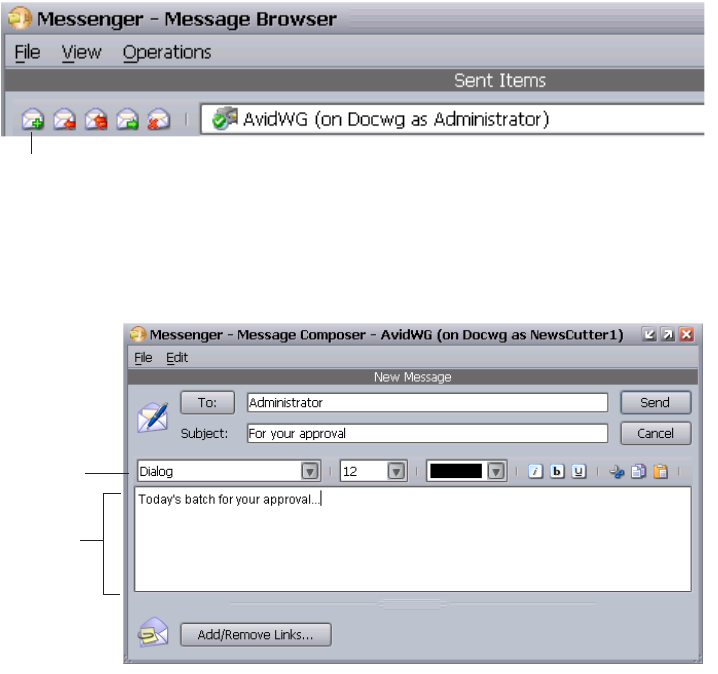
Writing New Messages
282
Writing New Messages
You can open the Message Browser and write a new message, or you can start by attaching a link
and then writing the message.
To write a new message:
1. Open the Message Browser.
2. Do one of the following:
tSelect Operations > New Message.
tPress (Windows) Ctrl+N or (Macintosh) Shift+Command+N.
tClick the New Message button.
3. Click the To button to open a dialog box showing all the users and user groups listed in your
Central Configuration Server. Select a user or user group and click OK.
4. Type a subject in the Subject text box and then type the text below.
New Message button
Text area
Formatting
tools

Writing New Messages
283
5. (Option) Format the text of the message using the formatting tools. You can also cut, copy,
and paste text.
6. (Option) Include a link to a database item, shortcut, or saved search by doing one of the
following
tClick the item and drag it to the text area.
tClick Add/Remove Links, which opens the Attach Links to Message dialog box.
Select the link to the database item (file or folder), shortcut, or saved search that you
want to attach, click Add, and click OK.
7. (Option) To remove attached items, selecting one or more items in the Attachments pane in
the Message Composer and click Remove or Remove all.
8. When you have finished editing your message, click Send.
If the recipient’s Interplay Access is open, the Show Messages icon in the upper right corner
of Interplay Access blinks red and a new mail notification message slides in and out in the
lower-right of the screen.
9. (Option) To view messages you sent, click Sent Items.

Deleting Messages
284
To attach a link and create a new message:
1. Click the item you want to attach.
2. Do one of the following:
tRight-click and select Messenger > Send Link to.
tPress (Windows) Ctrl+S or (Macintosh) Shift+Command+S.
A New message window opens.
3. Complete the message and click Send.
Deleting Messages
To delete a message:
1. Open the Message Browser.
2. Click the Inbox icon or the Sent items icon.
3. Select one or more messages that you want to delete in the Inbox or Sent Items pane.
4. Do one of the following:
tSelect Delete Selected Messages from the context menu.
tSelect Operations > Delete Selected Messages.
tClick the Delete Selected Messages button.

Replying to a Message
285
Replying to a Message
To write a reply to one or more users:
1. Open the Message Browser.
2. Click the Inbox icon or the Sent items icon.
3. Select the message you want to reply to in the Inbox or Sent Items pane.
4. Do one of the following:
tSelect Reply or Reply All from the context menu.
tClick the Reply or Reply All button.
The Message Composer opens.
5. Type your reply directly under the incoming text.
6. (Option) You can also remove or attach links as described in “Writing New Messages” on
page 282.
7. Click Send.
If the recipient’s Interplay Access is open, the Show Messages icon in the upper right corner
of Interplay Access changes and blinks red and a new mail notification appears. The
message also appears in the Sent Items pane.
Delete Selected Messages button
Reply and Reply All buttons
Forwarding a Message
286
Forwarding a Message
To forward a message:
1. Open the Message Browser.
2. Click the Inbox icon or the Sent items icon.
3. Select the message you want to forward in the Inbox or Sent Items pane.
4. Do one of the following:
tSelect Operations > Forward.
tSelect Forward from the context menu.
tClick the Forward button in the Mailbox window.
5. (Option) You can remove or attach links as described in “Writing New Messages” on
page 282.
6. When you have finished editing your message, click Send.
If the recipient’s Interplay Access is open, the Show Messages icon in the upper right corner
of Interplay Access changes and blinks red and a new mail notification appears. The
message also appears in the Sent Items pane.
Forward button

11 Version History and Archiving
The Interplay Engine keeps a history of versions of file assets and sequences in the database.
These versions can be accessed easily while they are part of an online database. Versions of
assets that do not need to be at-hand can be archived on an Interplay Archive Engine.
The following topics describe how to use Interplay version control and archiving:
•Using Version History Features with Sequences
•Viewing the Version History
•Retrieving Older Versions Using Get Version
•Undoing Checked In Changes Through Rollback
•Identifying Milestones and Significant Versions by Setting Labels
•Archiving from Interplay | Access
nBeginning with Interplay Access v3.0, folders are no longer version controlled.
Using Version History Features with Sequences
All file assets are versioned and have a logged history. Sequences created by Avid editing
applications are also versioned with a logged history. Other Avid assets are not versioned.
Most of the history options apply to sequences, with the following exceptions:
• There is no differencing (comparison) tool for sequences.
• To add a label to a sequence, use the Version History dialog box. This is the only way to add
a label to a sequence for this release.
• When you add a label to a sequence, the system also sets the label on copies of the sequence.
This does not happen when you apply a label to a file asset.
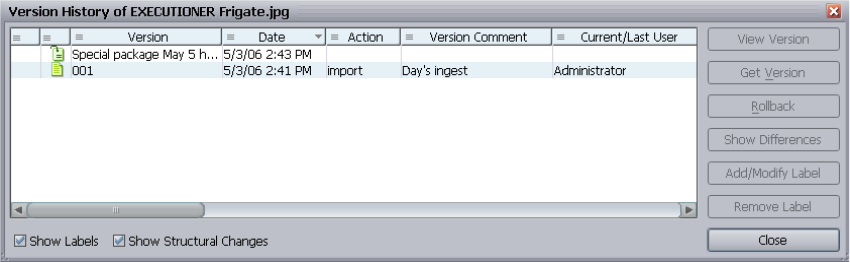
Viewing the Version History
288
Viewing the Version History
The Version History dialog box lists all versions of a file asset or sequence with additional
information like user name, action, date of the action, and type of action, such as import or check
out.
To view the history of an item:
1. Select the item.
2. Do one of the following:
tSelect Operations > History.
tPress (Windows) Ctrl+H or (Macintosh) Shift+Command+H.
tSelect Version Control > History from the context menu.
The Version History dialog box opens.
3. (Option) To view labels, select Show Labels.
4. (Option) To view structural changes, select Show Structural Changes.
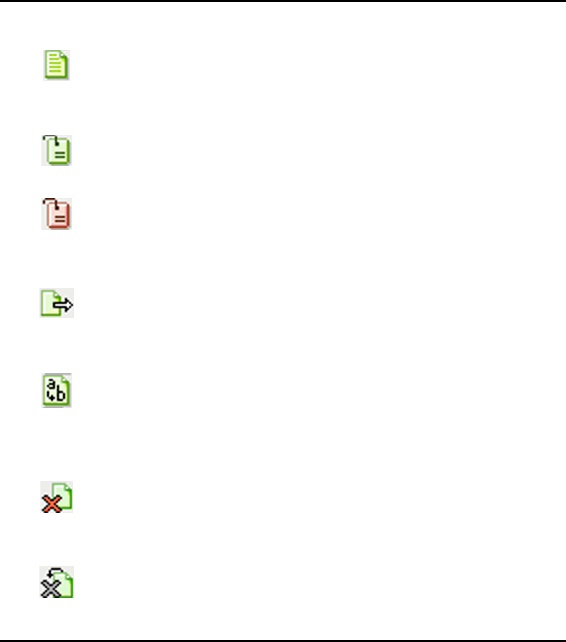
Viewing the Version History
289
History and Label Icons
The Version History dialog box contains icons that indicate file versions, structural changes, and
labels.
History and Label Icons
For File Assets and Sequences
File Version: Appears when you import a file, create a new
file, and each time you check in a file after a change. The
versions are sequentially numbered, starting with 001.
Labels: Shown only if the Show Labels option is checked.
A green tag icon indicates that a label was set on a parent
item and the label is inherited. A pink tag icon indicates
that the label was set directly on the item.
For Files Assets Only
Move: This icon indicates that a file or folder was moved.
Shown only if the Show Structural Changes option is
checked.
Rename: This icon indicates that the file or folder was
renamed. The comment shows both the old and the new
name. Shown only if the Show Structural Changes option
is checked.
Delete: This icon shows the time when a file or folder was
deleted. Note: the Delete icon appears only if the item was
later undeleted.
Undelete: This icons shows the time when a file or folder
was undeleted. Shown only if the Show Structural
Changes option is checked.
Viewing the Version History
290
Viewing a File Version
nFor this release, View Version works only for file assets.
To view a file version:
1. Select an item.
2. Do one of the following:
tSelect Operations > History.
tPress (Windows) Ctrl+H or (Macintosh) Shift+Command+H.
tSelect Version Control > History from the context menu.
The Version History dialog box opens.
3. Select the file version in the Version History dialog box.
4. Do one of the following:
tSelect Version Control > View Version from the context menu.
tClick the View Version button.
The associated application opens and displays the file.
Comparing Two Versions in the Version History
The Show Differences feature lets you view two versions of an asset.
nShow Differences works only for graphics files unless you set an external differencing tool. For
more information, see “Configuring Differencing” on page 291.
To show the differences between two versions of a file:
1. Select the asset.
2. Do one of the following:
tSelect Operations > History.
tPress (Windows) Ctrl+H or (Macintosh) Shift+Command+H.
tSelect Version Control > History from the context menu.
The Version History dialog box opens.
3. Do one of the following:
tSelect a version you want to compare with the current version.
tSelect two versions in the version list that you want to compare.
4. Click the Show Differences button.
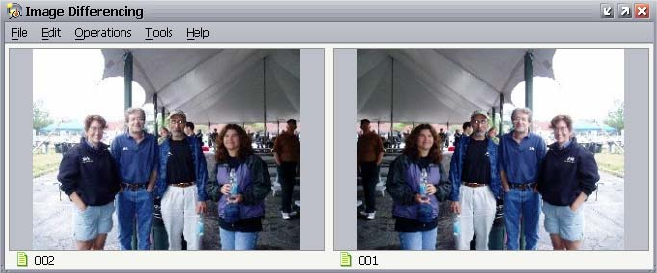
Viewing the Version History
291
The Image Differencing window opens so you can compare the two versions in detail.
Comparing the Current Database File and the Local File
You can view the differences between the version of a file on your local system and the version
stored in the Interplay database. This allows you to see the changes you made to a file since you
checked it out, or differences between your local version and the database version in the case of
multiple check outs on the same file.
nShow Differences works only for graphics files unless you set an external differencing tool. For
more information, see “Configuring Differencing” on page 291.
To show the differences between the database file and the local file:
1. Select the asset.
2. Do one of the following:
tOpen the context menu and select Version Control > Show Differences.
tPress Ctrl+D.
tSelect Operations > Show Differences.
The Image Differencing window is displayed so you can compare the two versions in detail.
Configuring Differencing
For the Differencing feature, you have the choice between using the built-in Image Differencing
and using External Differencing. With the built-in Image Differencing, the two versions of an
image are shown next to each other in a window. With External Differencing, the two versions of
an image are shown in an external application.
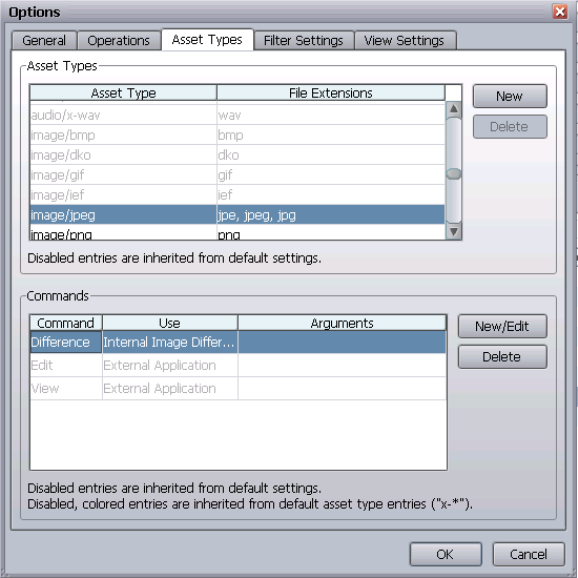
Viewing the Version History
292
To use External Differencing:
1. Select (Windows) Preferences > Options or (Macintosh) Interplay Access > Preferences.
The Options dialog opens.
2. Click the Asset Types tab and select the Asset Type for which you want to configure an
external application (for example, image/jpeg).
3. In the Commands section, select Difference and click New/Edit.
The Edit Command dialog box opens.
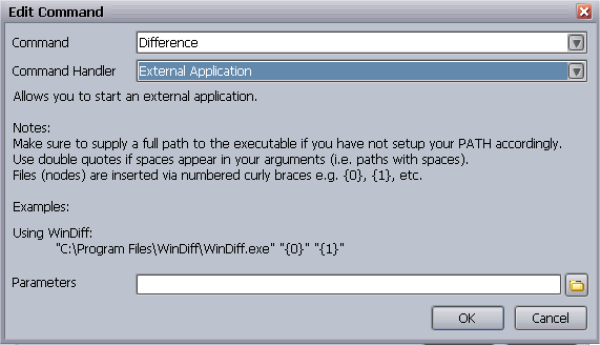
Retrieving Older Versions Using Get Version
293
4. From the Command Handler list, select External Application.
5. Specify a path to the external application by typing it in the Parameters text box or clicking
the File button and navigating to the application executable file.
6. Click OK.
7. In the Options dialog box, click OK.
For more information about configuring asset types, see “Configuring Interplay | Access
Options” on page 30.
Retrieving Older Versions Using Get Version
You can retrieve older versions of files and folders from the Interplay database and add them to
your database using the Get Version function.
nFor this release, Get Version only works for file assets.
Getting a Version of a File
To get an older version of a file:
1. Select the item.
2. Do one of the following:
tSelect Operations > History.
tPress (Windows) Ctrl+H or (Macintosh) Shift+Command+H
tSelect Version Control > History from the context menu.
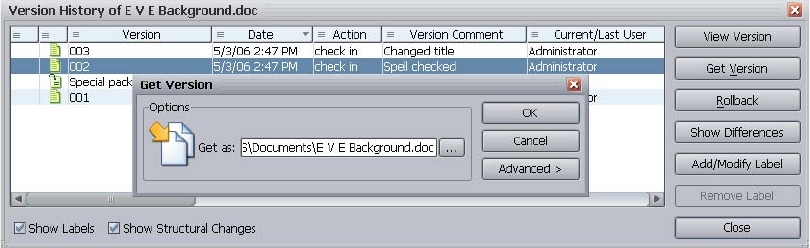
Retrieving Older Versions Using Get Version
294
The Version History dialog box opens.
3. Select the older file version you want to retrieve and do one of the following:
tClick the Get Version button in the Version History dialog box.
tSelect Version Control > Get Version from the context menu.
The Get Version dialog box opens.
4. Do one of the following:
tKeep the original file name by leaving the name as is in the Get as box. This option
replaces the current version of the file with the older one. The item then appears with the
“server copy newer” icon because the local copy (a copy of an older version) is older
than the newest version on the Interplay Engine. To work with the file again and make it
the latest version, do a check out with the Advanced option “don’t update local copy”
checked, and then perform a check in.
tType a new file name in the Get as box, or use the Browse (...) button, to copy the older
version into another location in the workspace as a private or local-only item. You can
then import it back into your database.
5. (Option) Click Advanced and select one of the following:
- Ask before overwriting: You should be asked before overwriting writable files.
- Overwrite writable files: Writable files should be replaced automatically.
- Never overwrite: Writable files should never be overwritten.
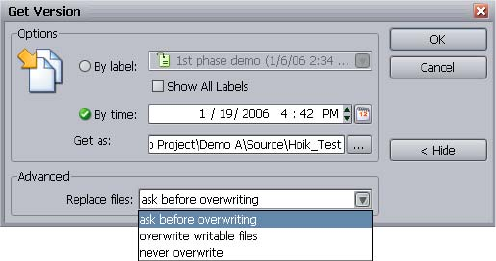
Undoing Checked In Changes Through Rollback
295
6. Click OK.
The file or folder is copied to the location you chose and you can now work on it and import
it back into your database, if necessary.
Undoing Checked In Changes Through Rollback
You can also retrieve an older version of a file and make it the current version through an action
called rollback. This undoes the changes made since the point you roll back to and restores the
original version. Rollback is an easy way to retrieve the old version from the database and make
it the current file version you are working with.
nRollback is a not a “structural” rollback. That means, for example, if a file was renamed or
deleted between the selected time or label and the current time, the old content is not retrieved.
The same holds true for rollback on sequences, but additionally, the clips and other referenced
assets are in their current state, and not the state at the time specified for the rollback.
To roll back a file:
1. Select the item.
2. Do one of the following:
tSelect Operations > History.
tPress (Windows) Ctrl+H or (Macintosh) Shift+Command+H.
tSelect Version Control > History from the context menu.
The Version History dialog box opens.
3. Select the file version to be rolled back to and do one of the following:
tSelect Version Control > Rollback from the context menu.
tClick the Rollback button.
The Rollback dialog box opens.
Identifying Milestones and Significant Versions by Setting Labels
296
4. Type a comment.
It is important to do this as it helps you track the changes.
5. (Option) To change the default settings, click the Advanced button.
An extended dialog box appears with the option “Get local version after rollback.” By
default this option is selected. Deselect this option if you do not want to copy a version to
your local workstation.
6. Click OK.
The desired version becomes the current file. By default, this version is copied from the
Interplay Engine to your local workstation.
Identifying Milestones and Significant Versions by
Setting Labels
When you check items in, a regular comment usually is sufficient to note the work done on the
files for later reference. However, when you reach important milestones in a project or want to
denote file versions for a specific use, you might want to set a label on an entire database, folder,
or file for easier tracking. Labels are displayed in the Version History dialog box if you select the
Show Labels option.
nLabels placed on individual files or folders rather than an entire database are sometimes
referred to as pins in other software packages.
Assigning a Label to an Item
A label defines the database state at a specific time, such as Beta, or Master. Labels can be set for
assets, files, or folders, or globally for a complete database. You can use the Get or Rollback
commands at a later date to return an item to that state.
nYou must have write permissions to assign labels.
To add a label:
1. Select the folder or file.
2. Do one of the following:
tSelect Operations > Add Label.
tFrom the context menu select Version Control > Add Label.
tFrom the context menu select Version Control > History. Select a version and click
Add/Modify Label.
The Add Label dialog box opens.
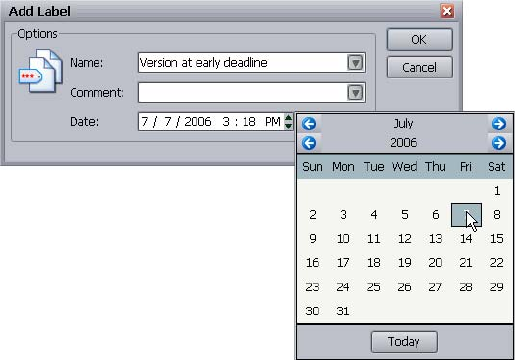
Identifying Milestones and Significant Versions by Setting Labels
297
3. Type a name for the label and a comment.
4. (Option) To set the date of the label other than the current date, click the calendar icon next
to the date field. This opens a calendar dialog box, from which you can select another date
for the label.
nIf you are just marking the files or folder for later reference or possible retrieval, you normally
use the current date and time for the label. In special cases, however, you might want to alter the
label time to affect how Interplay Get functions work on the labeled items. See “Getting the
Latest Version of a File Asset” on page 209 and “Retrieving Older Versions Using Get Version”
on page 293 for details.
5. Click OK.
The label is assigned as shown in the Version History dialog box, and a label icon (pink tag)
appears next to the item. If you set a label on a folder or the database root, all items below
inherit the label from their parent asset (green tag).
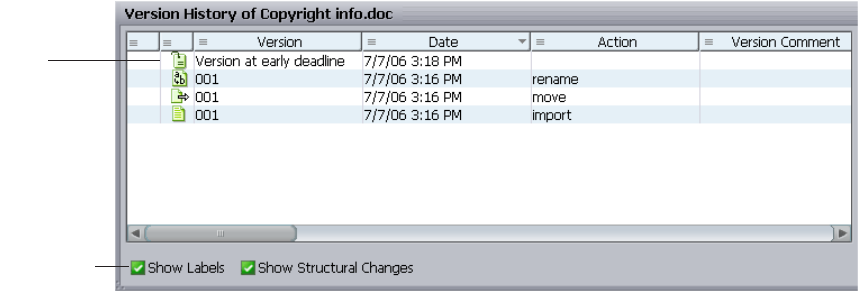
Identifying Milestones and Significant Versions by Setting Labels
298
nIf the label icon and label are not showing, make sure that Show Labels is selected.
Modifying or Removing a Label
You can change or delete a label by using the Add/Modify Label button, the Remove Label
button, or context menu entries in the Version History dialog box. Before modifying the label
time, see references to labels in “Getting the Latest Version of a File Asset” on page 209 and
“Retrieving Older Versions Using Get Version” on page 293.
To modify a label:
1. Select a folder or file.
2. From the context menu, select Version Control > History.
The Version History dialog box opens.
3. Select the label and click Add/Modify Label.
4. Change the label information and click OK.
To delete a label:
1. In the Version History dialog box, select the label.
2. Click Remove Label.
3. (Option) Select Remove Globally to remove the label from all assets.
4. Click OK.
Label
icon
Show Labels
option
Archiving from Interplay | Access
299
Archiving from Interplay | Access
You can archive assets from Interplay Access by using the Interplay Archive service. For
information about creating profiles and archiving from Interplay Access, see the
Interplay | Media Services Setup and User’s Guide. For information about the Interplay Archive
Engine setup, configuration, and workflow, see Interplay Best Practices.

12 Screenshots and Printing
You can print a snapshot of your entire screen or just one area of Interplay Access. You can also
export a screenshot or print area. The following topics describe printing and exporting from
Interplay Access:
•Creating and Printing a Screenshot
•Creating and Printing a Print Area
•Exporting a Screenshot or Print Area
Creating and Printing a Screenshot
You can print a picture of the entire screen currently displayed on your desktop monitor, for
example, a maximized Interplay Access window. You can also export the picture as a PDF file
(see “Exporting a Screenshot or Print Area” on page 303).
To create and print a screenshot:
1. Select File > Screenshot.
The Print Preview window opens and displays the entire screen of the monitor.
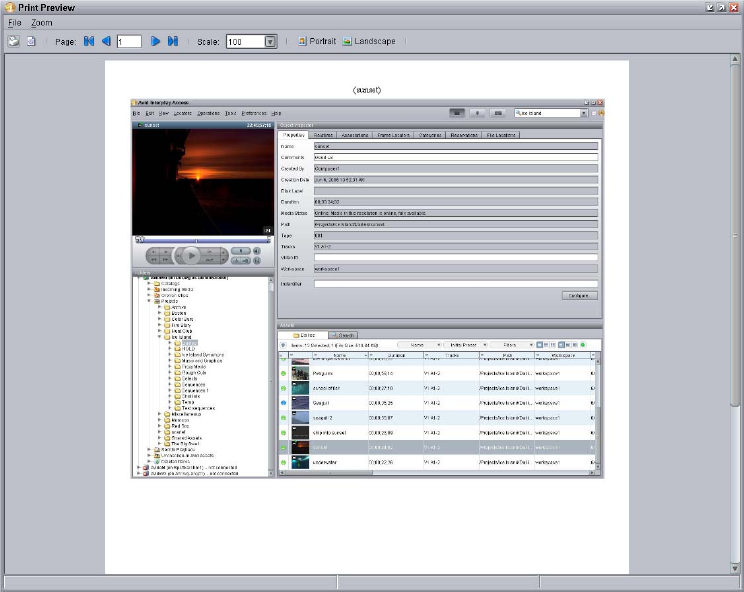
Creating and Printing a Screenshot
301
Before the window opens, you might see two messages, informing you that the screenshot
cannot be saved as HTML or TXT.
2. (Option) Select File > Page Setup and select any desired options.
3. Select File > Print.
The Print dialog box is displayed.
4. Select any desired options and click OK.
For information about saving the screenshot, see “Exporting a Screenshot or Print Area” on
page 303.
Creating and Printing a Print Area
302
Creating and Printing a Print Area
You can use the Print command or the Print Preview command to print an area of the Interplay
Access window.
To select and print an area:
1. Set up the page for printing:
a. Select File > Page Setup.
b. Click the Export tab and select Printer as the default export type.
c. Select any other desired options.
d. Click OK.
2. Select File > Print or File > Print Preview.
A dialog box opens with instructions on how to select an area for printing.
3. (Option) To avoid seeing the instructions dialog in the future, select the “Don’t show this
dialog again” option.
4. Click OK.
5. Hold the mouse over the area you want to print.
If the area is supported for printing, it is highlighted in orange.
6. Click the selected area.
If you selected Print, the Print dialog box opens.
If you selected Print Preview, the Print Preview window opens. Select any desired options
and click the Print button. The Print dialog box opens.
7. Select any desired options and click OK.
Press ESC to cancel printing.
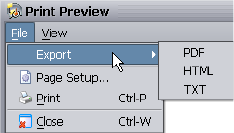
Exporting a Screenshot or Print Area
303
Exporting a Screenshot or Print Area
You can export a screenshot or print area as a file. Interplay Access lets you select the PDF,
HTML, or TXT format. Only tables selected as print areas (for example, assets listed in the
Content tab or Search tab) can be exported in HTML or TXT format.
nTo export data for frame locators, select Locators > Explort Locators. For more information, see
“Exporting Locators” on page 193.
There are two ways to export a screenshot or print area:
• For screenshots, export from the Print Preview window
• For print areas, export from the Print Preview window or by setting an export format for the
Print command
To export a screenshot or print area from the Print Preview window:
1. Do one of the following:
tSelect File > Screenshot.
tSelect File > Print Preview and select the area for printing.
The Print Preview window opens.
2. Select File > Export.
3. Click one of following file types:
-PDF
-HTML
-TXT
If a format is grayed out, it is not supported for the selected area. The Save As dialog box
opens.
4. Navigate to the destination location and type the file name.
5. Click Save.
Exporting a Screenshot or Print Area
304
To export a print area by using the Print command:
1. Select File > Page Setup.
2. Click the Export tab, select a default export type, and click OK.
3. Select File > Print and select the area for printing.
The Save As dialog box opens.
4. Navigate to the destination folder and type the file name.
5. Click Save.

AKeyboard Shortcuts
The following tables list keyboard shortcuts that you can use to play media, edit media, and
navigate through the panes of the main window.
• The first table lists keyboard shortcuts that you can use when the keyboard focus is
anywhere in the Interplay Access application (or for two commands, when a locator is
selected in the Locators pane).
• The second table lists keyboard shortcuts that you can use if the focus is on the Monitor. For
example, if you click in the Monitor you can set an In point by pressing the I key and an Out
point by pressing the O key.
Shortcuts for Monitor controls are shown as tooltips. Shortcuts for menu commands are shown
next to the menu command in the application.
Keyboard Shortcuts: Focus in Application
Action Focus
Keyboard Shortcut
(Windows)
Keyboard Shortcut
(Macintosh)
Play/Pause Any Ctrl+Shift+5
Space bar
Option+Command+5
Space bar
Play from Mark In to Mark Out Any Ctrl+Shift+P Option+Command+P
Stop play Any Ctrl+Shift+5
Space bar
Option+Command+5
Space bar
Step backward one frame Any Ctrl+Shift+Comma Option+Command+Comma
Step forward one frame Any Ctrl+Shift+Period Option+Command+Period
Fast backward 300 frames Any Ctrl+Shift+J Option+Command+J
Fast forward 300 frames Any Ctrl+Shift+L Option+Command+L
Set Mark In Any Ctrl+Shift+I
Ctrl+Shift+E
Option+Command+I
Option+Command+E
Set Mark Out Any Ctrl+Shift+O
Ctrl+Shift+R
Option+Command+O
Option+Command+R

306
Go to Mark In Any Ctrl+Shift+Q None
Go to Mark Out Any Ctrl+Shift+W Option+Command+W
Add locator
(Locators > Add Locator command)
Any Ctrl+Shift+Enter Shift+Command+Enter
Switches to or from the Comments
text box for the selected locator
Locator selected
in Locators pane
Ctrl+Enter Command+Enter
Go to next locator and display the
insertion bar for editing locator text
(Locators > Next Locator
command)
Any Ctrl+Shift+N None
Go to previous locator and display
the insertion bar for editing locator
text
(Locators > Previous Locator
command)
Any Ctrl+Shift+B None
Set locator color
(Locators > Edit Color command)
Locator selected
in Logging pane
Ctrl+Shift+C Shift+Command+C
Create subclip Any Ctrl+Shift+S Option+Command+S
Add to shotlist Any Ctrl+Shift+A Option+Command+A
Select next pane (from the top to the
bottom of a column)
Any Ctrl+Tab Ctrl+Tab
Select previous pane (from the
bottom to the top of a column)
Any Ctrl+Shift+Tab Ctrl+Shift+Tab
Keyboard Shortcuts: Focus in Application (Continued)
Action Focus
Keyboard Shortcut
(Windows)
Keyboard Shortcut
(Macintosh)

307
Keyboard Shortcuts: Focus in Monitor
Action Focus
Keyboard Shortcut
(Windows)
Keyboard Shortcut
(Macintosh)
Play/Pause Monitor Space bar Space bar
Play from beginning Monitor Enter Enter
Play from Mark In to Mark Out Monitor P P
Step backward 1 frame Monitor Comma
Left arrow key
Comma
Left arrow key
Step forward 1 frame Monitor Period
Right arrow key
Period
Right arrow key
Fast backward 300 frames Monitor J J
Fast forward 300 frames Monitor L L
Set Mark In Monitor E
I
E
I
Set Mark Out Monitor R
O
R
O
Set All (Mark In at first frame and
Mark Out at last frame)
Monitor Ctrl+A Command+A
Go to Mark In Monitor Q Q
Go to Mark Out Monitor W W
Go to next locator (Do not display
the insertion bar for editing
locator text)
Monitor N
Down arrow
N
Down arrow
Go to previous locator (Do not
display the insertion bar for
editing locator text)
Monitor B
Up arrow
B
Up arrow
Add to shotlist Monitor A A

BInterplay | Access Menus
The following topics provide information about the commands on the Interplay Access menus:
•File Menu
•Edit Menu
•View Menu
•Locators Menu
•Operations Menu
•Tools Menu
•Preferences Menu
•Debug Menu
•Help Menu
nSome menu items are not available or are grayed out when you are logged on as a user who does
not have administrative rights. Which menu items are available also depends on the object that
you selected.
Interplay Access Menu (Macintosh Only)
The Interplay Access menu contains standard Macintosh commands. The following commands
specifically relate to the Interplay Access application. Commands in this menu are always
displayed.
Interplay Access Menu
Command Description Shortcut
About Interplay Access Opens a dialog box showing the
Interplay version number and the
copyright information.
Mnemonic: A

File Menu
309
File Menu
The File menu contains the commands listed in the following table. Bold face commands are
available in the simple menu. To show all commands, select Preferences > Full Menus.
Options Opens the Options dialog box.
Options for each operation are
explained in the section about the
operation.
Mnemonic: O
Interplay Access Menu (Continued)
Command Description Shortcut
File Menu Commands
Command Description More Information Shortcut
New Folder Adds a new empty folder
in the database structure.
See “Creating New
Folders” on page 62.
Mnemonic: N
(Windows) Ctrl+N
(Macintosh)
Shift+Command+N
New Shotlist From Browsing view or
Logging view, opens a
new shotlist in Shotlist
view. From Shotlist view,
opens a new shotlist, after
you save or discard the
current shotlist.
See “Creating a Shotlist”
on page 196.
Mnemonic: W
(Windows) Ctrl+W
(Macintosh)
Shift+Command+W
Save & Close Shotlist In Shotlist view, first asks
for a folder, then opens
the Input dialog box for
you to enter a shotlist
name.
See “Creating a Shotlist”
on page 196.
Mnemonic: S
Discard Shotlist Closes the current shotlist
without saving it.
“Creating a Shotlist” on
page 196.
Mnemonic: D
Connect to Database Connects you to the
Interplay database.
See “Connecting to a
Database” on page 23.
Mnemonic: C

Edit Menu
310
Edit Menu
The Edit menu contains the commands listed in the following table. Commands in this menu are
always displayed.
Remove Database(s) Removes the database
from the list shown in the
tree structure.
See “Removing a
Database from the Tree
Structure” on page 27.
Mnemonic: R
Logon Logs you on to the
Interplay database.
See “Starting
Interplay | Access” on
page 21 and “Changing
Your Password” on
page 27.
Mnemonic: L
Logout from Database Logs you out of the
database.
See “Logging Out and
Exiting” on page 30.
Mnemonic: O
Change Password Opens a dialog box for
changing your password.
See “Changing Your
Password” on page 27.
Mnemonic: H
Page Setup Allows you to configure
the page setup for
printing.
See “Screenshots and
Printing” on page 300.
Mnemonic: U
Print Preview Shows a preview of the
input to be printed.
See “Screenshots and
Printing” on page 300.
Mnemonic: V
Print Prints a UI component
that you select after
selecting Print.
See “Screenshots and
Printing” on page 300.
Mnemonic: P
Screenshot Creates a screenshot of
the whole screen.
See “Screenshots and
Printing” on page 300.
Mnemonic: E
Exit Closes Interplay Access. Mnemonic: X
(Windows only) Ctrl+Q
File Menu Commands (Continued)
Command Description More Information Shortcut

Edit Menu
311
Edit Menu
Command Description More Information Shortcut
Cut Removes the reference to
the asset in the folder.
See “Cutting, Copying,
and Pasting Assets” on
page 78.
Mnemonic: T
(Windows) Ctrl+X
(Macintosh)
Command+X
Copy Copies the reference to
the asset to another
folder.
See “Cutting, Copying,
and Pasting Assets” on
page 78.
Mnemonic: C
(Windows) Ctrl+C
(Macintosh)
Command+C
Paste Moves or duplicates the
reference to the asset in
another folder.
See “Cutting, Copying,
and Pasting Assets” on
page 78.
Mnemonic: P
(Windows) Ctrl +V
(Macintosh)
Command+V
Move to Opens a dialog in which
you can select where to
move the item to.
See “Moving Assets into
Folders” on page 77.
Mnemonic: M
Rename Changes the name of the
asset.
See “Renaming an Asset”
on page 83.
Mnemonic: N
(Windows and
Macintosh) F2
Create Shortcut Creates a shortcut for the
current database. You do
not see the shortcut if you
switch to another
database.
See “Using Shortcuts for
Browsing” on page 80.
Mnemonic: S
Edit For file assets, opens the
dialog box to check files
or folders out from the
Interplay database and
opens the associated
application.
See “Opening a File for
Editing in One Step” on
page 213.
Mnemonic: E
View For file assets, opens the
asset in an associated
application.
See “Viewing File
Assets” on page 212.
Mnemonic: V

View Menu
312
View Menu
The View menu contains the commands listed in the following table. Bold face commands
appear in the simple menu. To show all commands, select Preferences > Full Menus.
Search Activates the Search
panel to search the entire
database.
See “Simple Searching”
on page 158.
Mnemonic: A
(Windows) Ctrl+F
(Macintosh)
Command+F
Edit Menu (Continued)
Command Description More Information Shortcut
View Menu
Command Function More Information Shortcut
Reload Monitor Reloads the asset
displayed in the Monitor.
Mnemonic: R
(Windows) Ctrl+R
(Macintosh)
Command+R
Refresh Refreshes current view to
reflect recent actions and
changes.
Mnemonic: E
(Windows) F5
Browsing Displays Browsing view. See “Browsing View” on
page 37.
(Windows) Ctrl+1
(Macintosh) Command+1
Logging Displays Logging view. See “Logging View” on
page 39.
(Windows) Ctrl+2
(Macintosh) Command+2
Shotlist Displays Shotlist view. See “Shotlist View” on
page 41.
(Windows) Ctrl+3
(Macintosh) Command+3
Full-Screen Monitor Enlarges the Monitor so
that it fills the window.
See “Displaying the
Full-Screen Monitor” on
page 45.
(Windows) Ctrl+4
(Macintosh) Command+4

View Menu
313
Show Shortcuts Pane Displays the Shortcuts
pane in the current view.
See “Using Shortcuts for
Browsing” on page 80
Mnemonic: P
(Windows) Ctrl+Shift+F1
(Macintosh)
Shift+Command+F1
Show Categories Pane Displays the Categories
pane in the current view.
See “Organizing Assets
Using Categories” on
page 79.
(Windows) Ctrl+Shift+F2
(Macintosh)
Shift+Command+F2
Show Saved Searches
Pane
Displays the Saved
Searches pane in
Browsing view only.
See “Saving Your
Search” on page 179.
Mnemonic: R
(Windows) Ctrl+Shift+F3
(Macintosh)
Shift+Command+F3
Show Object
Inspector Pane
Displays the Object
Inspector pane in
Browsing view only.
See “Using the Object
Inspector” on page 124.
Mnemonic: S
(Windows) Ctrl+Shift+F4
(Macintosh)
Shift+Command+F4
Show Monitor Pane Shows or hides the
Monitor in any view.
See “Showing and Hiding
the Monitor” on page 44.
Mnemonic: T
(Windows) Ctrl+Shift+F5
(Macintosh)
Shift+Command+F5
Toggle Extended Mode Switches between regular
mode and extended
mode.
See “Using Extended
View Mode” on
page 123.
Mnemonic: E
(Windows) Ctrl+F7
(Macintosh)
Shift+Command+F7
Toggle View Mode Switches the views
between Text,
Storyboard, and Frame.
See “Changing to
Storyboard or Frame
View” on page 120.
Mnemonic: V
(Windows) F7
Toggle Thumbnail Size Switches the thumbnail
size between small,
medium, and large
(64x64, 128x128,
256x256).
See “Changing
Thumbnail Size in the
Storyboard and Frame
Views” on page 122.
Mnemonic: T
(Windows) F8
View Menu (Continued)
Command Function More Information Shortcut

View Menu
314
Close View Closes the selected view. (Windows) Ctrl+F4
(Macintosh)
Shift+Command+F4
Show Messages Displays the Messenger
Mail Browser.
See “Opening the
Message Browser and
Reading Messages” on
page 280.
(Windows) Ctrl+B
(Macintosh)
Shift+Command+B
Send Link to Opens the Messenger
Mail Composer with an
automatically created link
to the file that was
selected when Send Link
to User was selected.
See “Writing New
Messages” on page 282.
Mnemonic: N
(Windows) Ctrl+Y
(Macintosh)
Shift+Command+Y
Avid Workgroup
Properties
Displays the Avid Service
Framework application
Workgroup Properties.
This is especially useful
on an Avid editing
application running on a
Macintosh system,
because you cannot
install the Avid Service
Framework on a
Macintosh system.
See the Avid Service
Framework User’s Guide.
Mnemonic: A
Avid Service
Configuration
Displays the Avid Service
Framework application
Service Configuration.
This is especially useful
on an Avid editing
application running on a
Macintosh system,
because you cannot
install the Avid Service
Framework on a
Macintosh system.
See the Avid Service
Framework User’s Guide.
Mnemonic: V
View Menu (Continued)
Command Function More Information Shortcut

View Menu
315
Interplay Transfer
Status
Displays the Interplay
Transfer window
showing progress and
providing management
tools.
See the
Interplay | Transfer Setup
and User's Guide for
details.
Mnemonic: F
Interplay Media
Services Status
Opens a tool for
monitoring the Media
Services status.
See the Interplay | Media
Services Setup and User's
Guide for details.
Mnemonic: M
Go to Changes the global
selection and forces the
tree to navigate to the
asset (or parent folder if a
file is selected and the
view filter for files is on).
See “Navigating Through
Assets” on page 108.
Mnemonic: G
(Windows) Ctrl+T
(Macintosh)
Shift+Command+T
Show Shared/Unshared
Clips
Lists any clips in the
selected folder that are
used at least twice in the
database, or conversely,
can show clips that are
not referenced.
See “Finding Shared
Clips and Unshared
Clips” on page 184.
Mnemonic: C
Tracking Details Displays a tab that shows
the status of assets across
workgroups.
Mnemonic: A
Preview Opens a floating Preview
window displaying your
local version of the
selected file if checked
out and a local version is
available. If not, the
Interplay Engine version
is used.
See “Showing a Preview
of an Item” on page 132.
Mnemonic: I
(Windows) Ctrl+R
(Macintosh)
Shift+Command+R
Show My Deleted
Items
Shows the Deleted Items
folder for the
currently-logged on user.
See “Using the Deleted
Items Folder” on
page 275.
Mnemonic: D
View Menu (Continued)
Command Function More Information Shortcut

Locators Menu
316
Locators Menu
The Locators menu contains the commands listed in the following table. Commands in this menu
are always displayed.
Locators Menu
Command Description More Information Shortcut
Add Locator Adds a locator to a clip at
the frame selected by the
position indicator.
See “Adding Locators”
on page 189.
(Windows)
Ctrl+Shift+Enter
(Macintosh)
Shift+Command+Enter
Next Locator Moves the position
indicator to the next
locator, displays the
corresponding frame in
the Monitor, and displays
the insertion bar for
editing locator text.
See “Moving to
Locators” on page 193.
Mnemonic: N
(Windows) Ctrl+Shift+N
(Macintosh)
Shift+Command+N
Previous Locator Moves the position
indicator to the previous
locator, displays the
corresponding frame in
the Monitor, and displays
the insertion bar for
editing locator text.
See “Moving to
Locators” on page 193.
(Windows) Ctrl+Shift+B
(Macintosh)
Shift+Command+B
Edit Color Opens a menu that lets
you change the color of a
selected locator
“Setting Locator Color”
on page 191
Mnemonic: C
(Windows) Ctrl+Shift+C
(Macintosh)
Shift+Command+C
Remove Locator Deletes the selected
locator.
“Deleting Locators” on
page 191
(Windows)
Ctrl+Shift+Delete
(Macintosh)
Shift+Command+Delete
Export Locators Exports the locators in a
format for use in another
application.
“Exporting Locators” on
page 193

Operations Menu
317
Operations Menu
The Operations menu contains the commands listed in the following table. The Operations menu
and commands appear only if you select Preferences > Full Menus.
nMost of the operational commands are available only for file assets.
Set Default Color Sets which color is used
for the locator when you
add a locator. You can
change the color after
you add the locator.
See “Setting Locator
Color” on page 191
Mnemonic: S
Locators Menu (Continued)
Command Description More Information Shortcut
Operations Menu
Command Description More Information Shortcut
Check Out Loads the asset from the
Interplay Engine to your
local workstation and
allows editing. The asset
is locked for other users
while it is checked out.
See “Checking Out File
Assets” on page 212.
Mnemonic: O
(Windows) Ctrl+O
(Macintosh)
Shift+Command+O
Check In When you have finished
editing a file, uploads the
new version onto the
Interplay Engine and
release the edit lock.
See “Checking In File
Assets” on page 217.
Mnemonic: I
(Windows) Ctrl +I
(Macintosh)
Shift+Command+I
Undo Check Out Allows you to check a
file back in to the
database and release the
lock without transferring
any changes to the
Interplay Engine.
See “Undoing a
Checkout” on page 214.
Mnemonic: U
(Windows) Ctrl+U
(Macintosh)
Shift+Command+U

Operations Menu
318
Get Latest Updates your local file
with the master version
stored in the database. It
copies the latest checked
in version to your local
workstation. It also can
be used to update a folder
if someone has imported
a new file into the
database system. It does
not place a lock on the
Interplay Engine-side
files.
See “Getting the Latest
Version of a File Asset”
on page 209.
Mnemonic: G
(Windows) Ctrl+G
(Macintosh)
Shift+Command+G
Import Adds new files to the
database if you have the
rights assigned to your
user identity.
See “Importing Files or
Folders” on page 69.
Mnemonic: M
(Windows) Ctrl+M
(Macintosh)
Shift+Command+M
History Opens the History dialog
box, which displays
information regarding the
various versions of the
selected item (file assets
and sequences only).
See “Viewing the Version
History” on page 288.
Mnemonic: H
(Windows) Ctrl+H
(Macintosh)
Shift+Command+H
Get Version Opens the Get Version
dialog box, which
displays information
regarding the available
various versions of the
selected item (file assets
and sequences only) you
can copy to your local
workstation.
See “Retrieving Older
Versions Using Get
Version” on page 293.
Mnemonic: V
Operations Menu (Continued)
Command Description More Information Shortcut

Operations Menu
319
Rollback Opens the Rollback
dialog box, which
displays information
regarding the available
various versions of the
selected item (file assets
and sequences only) you
can replace the current
version with.
See “Undoing Checked
In Changes Through
Rollback” on page 295.
Mnemonic: R
Add Label Opens the Add Label
dialog box (file assets
and sequences only) in
which you can tag a
significant milestone.
See “Assigning a Label to
an Item” on page 296.
Mnemonic: B
Show Differences When executed on a file,
creates side-by-side
thumbnails of the local
and Interplay Engine
versions of selected
graphics file.
See “Comparing Two
Versions in the Version
History” on page 290.
Mnemonic: D
(Windows) Ctrl+D
(Macintosh)
Shift+Command+D
Refresh Referenced
Clips
Update the display after
you work with Avid
assets.
See “Refreshing
Referenced Clips” on
page 132 and
“Understanding
Reservations” on
page 248.
Mnemonic: E
Delete Deletes the selected asset
unless there are
reservations or
dependencies, or the user
does not have appropriate
rights.
See “Deleting File
Assets” on page 273.
Mnemonic: D
(Windows) Delete key
(Macintosh)
Command+Delete key
Delete Local Copy Deletes the local copy of
a file asset.
See “Deleting File
Assets” on page 273.
Mnemonic: L
(Windows) Ctrl+L
(Macintosh)
Shift+Command+L
Operations Menu (Continued)
Command Description More Information Shortcut

Operations Menu
320
Advanced > Set
Working Path
Changes the location
where the local copies of
database files are stored
for the selected folder
and the logged-in user.
See “Setting the Working
Path for a Folder” on
page 36.
Mnemonic: A > W
Advanced > Get/Set
Property
Administrators only. Gets
or sets a property for the
selected item.
Use only as instructed by
Avid support.
Mnemonic: A > G
Advanced > Change
Asset Color
Administrators only.
Changes the text display
color for metadata of the
selected item in all
Interplay Access
displays.
See “Changing Text
Color (Administrators
Only)” on page 83.
Mnemonic: A > C
Set AutoArchive Administrators only. See Interplay | Media
Services Setup and
User’s Guide for details.
Mnemonic: S
Set AutoCopyMedia Administrators only. See Interplay | Media
Services Setup and
User’s Guide for details.
Set AutoTranscode Administrators only. See Interplay | Media
Services Setup and
User’s Guides for details.
Mnemonic: C
Set AutoTransfer Administrators only. See Interplay | Transfer
Setup and User’s Guide
for details.
Mnemonic: T
Metadata Override Administrators only. See Interplay Best
Practices and
Interplay | Engine and
Interplay | Archive
Engine Administration
Guide for details.
Operations Menu (Continued)
Command Description More Information Shortcut

Tools Menu
321
Tools Menu
The Tools menu contains the commands listed in the following table. Bold face commands
appear in the simple menu. To show all commands, select Preferences > Full Menus.
Send to Workgroup Sends the media
metadata to another
(local or remote)
workgroup location
specified by the
Administrator in the
Interplay Transfer
Settings (Site Settings)
section of the Interplay
Administrator.
See the
Interplay Transfer Setup
and User's Guide for
details.
Mnemonic: W
Resync Administrators only.
Resyncs the workgroup
with the Avid shared
storage. This should not
be used too often as it
effects the performance
of the entire database.
See “Resyncing Media
Files with Avid
Shared-Storage
Workspaces
(Administrators Only)”
on page 74. Functionality
not available in the Mac
OS X client.
Mnemonic: Y
Security Administrators only.
Displays a dialog box
which displays the owner
of the item, the private
and public availability,
subfolder and reservation
allowances, renaming
and moving allowances
for the folder, adding and
removing allowances for
items in the folder, and
the roles. Administrators
can alter these options.
See “Changing
Ownership of Folders
and Assets
(Administrators Only)”
on page 66, “Viewing
and Changing Folder
Options (Administrators
Only)” on page 66, and
“Changing User Roles on
Folders (Administrators
Only)” on page 67.
Operations Menu (Continued)
Command Description More Information Shortcut

Tools Menu
322
Tools Menu
Command Description More Information Shortcut
Explore (Windows)
Show in Finder
(Macintosh)
Administrators only.
Opens Windows Explorer
or the Finder at the
selected location for
viewing your private file
structure.
Mnemonic: E
(Windows) Ctrl+E or
Shift+double-click
(Macintosh)
Shift+Command+E
Update Status from
Media Indexer
Starts the status update
from the Media Indexer.
See “Updating the Media
Status” on page 95.
Mnemonic: U
Update Status from
Archive
Updates the status of
assets in an archive.
See the Avid Interplay
Media Services Setup and
User's Guide for details.
Mnemonic: P
Update Asset
Tracking
Updates the status of
assets across workgroups.
See “Viewing the Status
of Assets Across
Workgroups (Asset
Tracking)” on page 133.
Mnemonic: D
Stream Publish Creates QuickTime
Reference movies for the
selected assets so that you
can play them in the
Monitor.
nIn Interplay v2.4,
the Interplay
Stream Server was
re-engineered to
directly play
MPEG-4/H.263
and H.264 video
media and MPEG1
Layer 2 audio
media. There is no
longer any need to
use the Publishing
service or
Workflow Engine
to create
QuickTime
reference movies
for streaming play.

Tools Menu
323
Delivery Opens a dialog box that
lets you transfer a clip
and its media files or only
the portion that is used in
a subclip or a sequence.
See the Interplay | Media
Services Setup and
User’s Guide for details.
Mnemonic: L
Check In AAF
Sequence
Checks in an AAF
sequence, such as one
created in Final Cut Pro.
See “Checking in a Final
Cut Pro Sequence to
Interplay” on page 226.
Mnemonic: I
(Windows): Ctrl+Shift+I
(Macintosh)
Command+Shift+I
Export QuickTime
Reference
Copies a QuickTime
reference movie to your
working path or a folder
you select.
See “Working with
QuickTime Reference
Movies in an Interplay
Environment” on
page 234.
(Windows): Ctrl+Shift+G
(Macintosh)
Command+Shift+G
Import QuickTime as
Reference
Creates a QuickTime
reference movie and
imports it into the
Interplay database.
See “Working with
QuickTime Reference
Movies in an Interplay
Environment” on
page 234.
Mnemonic: M
(Windows):
Ctrl+Shift+M
(Macintosh)
Command+Shift+M
Transcode Performs a transcode
operation.
See the Interplay | Media
Services Setup and
User’s Guide for details. .
Mnemonic: T
Move Opens a dialog box to
move media to another
workspace.
See “Moving Media to
Another Workspace” on
page 86for more details.
Mnemonic: O
Copy Opens a dialog box to
copy assets and media to
another workgroup.
See “Copying Assets and
Media to Another
Workgroup” on page 86
for details.
Mnemonic: C
Archive Sends the selected item to
the pre-configured
archive location.
See the Interplay | Media
Services Setup and User's
Guide for details.
Mnemonic: V
Restore Restores the selected item
from an archive.
See the Interplay | Media
Services Setup and User's
Guide for details.
Mnemonic: S
Tools Menu (Continued)
Command Description More Information Shortcut

Tools Menu
324
Reservation Sets a reservation on the
selected folder.
See “Setting
Reservations” on
page 248 for details.
Mnemonic: R
Remove Reservations (Administrator only)
Removes all reservations
from the selected folder.
See “Creating and
Removing Reservations”
on page 249.
Mnemonic: M
Duplicate Makes a copy of the asset
with all of the same
metadata (relatives,
properties, and so on), but
which is independent
from the original asset.
“Duplicating Avid
Assets” on page 79.
Mnemonic: I
Open Interplay
Administrator
Opens
Interplay Administrator.
See the
Interplay | Engine and
Interplay | Archive
Engine Administration
Guide for details.
Mnemonic: A
Open in Interplay
Assist
Opens the selected clip in
Interplay Assist
See “Opening an Avid
Asset in
Interplay | Assist” on
page 59.
Mnemonic: N
Import to Pro Tools®Lets you import a
sequence into a
Digidesign Pro Tools
session.
See the
Interplay | Production
Best Practices Guide for
details.
Mnemonic: G
(Windows) Ctrl+Shift+P
(Macintosh)
Command+Shift+P
Export Sequence as
AAF...
Opens a dialog box that
lets you export the
selected sequence as an
AAF file.
See “Using Final Cut Pro
with Interplay” on
page 225 for details.
Mnemonic: X
Send to Interplay
Production
For future use.
Add to Order Basket For future use.
Tools Menu (Continued)
Command Description More Information Shortcut
Preferences Menu
325
Preferences Menu
The Preferences menu contains the commands listed in the following table. Commands in this
menu are always displayed.
Debug Menu
The Debug menu contains the commands that are used by Avid development and support. To
display this menu, select Preferences > Options (Windows) or Interplay Access > Preferences
(Macintosh), click the View Settings tab, and in the Debug Menu section select Enabled.
Preferences Menu
Command Description Shortcut
Full Menus Displays all menu commands,
including the Operations commands
Mnemonic: M
Hide Locators in Monitor Hides the locator icons in the
timeline of the Monitor.
Mnemonic: H
Options (Windows only) Opens the Options dialog box.
Options for each operation are
explained in the section about the
operation.
On Macintosh systems, select
Interplay Access > Preferences.
Mnemonic: O

Help Menu
326
Help Menu
The Help menu contains the commands listed in the following table. All commands appear in the
simple menu and the full menu.
Help Menu
Command Description Shortcut
Documentation Website on
Server
Opens the User Information Center, a
collection of PDF manuals and web
links.
Mnemonic: D
Interplay Access Help
Interplay Administration Help
Interplay Media Services Help
Interplay Transfer Help
Opens the help module for the
selected Interplay component.
Mnemonic: I
Mnemonic: N
Mnemonic: T
Mnemonic: E
About (Windows only) Opens a dialog box showing the
Interplay version number and the
copyright information.
On Macintosh systems, select
Interplay Access > About Interplay
Access.
Mnemonic: A

CSystem Metadata Properties
Metadata is textual data you can use to identify and describe the creation, contents, and
disposition of the clip or shotlist you are logging. Interplay comes with an extensive list of
system metadata.
The administrator determines some of the metadata properties that can be viewed in
Interplay Access as headings in the Content View and Object Inspector, and also used in
Interplay searches. Some metadata properties are always available and cannot be disabled.
By default, the Interplay Engine includes default sets of properties for Broadcast, Post and Film
layouts, as described in the following table.
The following table lists all system metadata properties.
Broadcast Post Film
Content
Default
Inspector
Default
Content
Default
Inspector
Default
Content
Default
Inspector
Default
Comments
Created By
Creation Date
DRM
Duration
Format
Media Status
Modified Date
Name
Tape ID
Tracks
Comments
Duration
Media File
Format
Name
Tape ID
Tracks
Comments
Created By
Creation Date
DRM
Duration
Format
Media Status
Modified Date
Name
Tape
Tracks
Comments
Created By
Creation Date
Duration
Media File
Format
Name
Tape
Tracks
Camroll
Comments
Duration
End
KN Dur
KN End
KN Start
Name
Pullin
Pullout
Start
Camroll
Comments
Duration
End
KN Dur
KN End
KN Start
Name
Pullin
Pullout
Start

328
Heading Description
Search Values and Hints on
Searching in Interplay
All Custom All custom properties defined in the
Property Layout of the Interplay
Administrator.
Searches for all the custom properties that
are set.
Access Rights The access level or user role assigned to a
particular folder or asset. The column
displays an icon that represents the type
of access.
AFD Value for Active Format Description
(AFD) in an ancillary data track. Media
Composer v6.1 and later allows the
creation of AFD values, which are
supported in Interplay v2.7 and later.
AMA Media Status Indicates if an asset is linked to AMA
media. Values are:
• has AMA media linked
• has only AMA media linked
• no AMA media linked
Values are:
• has AMA media linked
• has only AMA media linked
• has native media linked
AudioBitDepth Audio bit depth used when you work with
audio files: 16 bit or 24 bit.
Type a value or use the arrows to select a
value.
AudioFormat Audio format of master clips (AIFF-C,
SDII, or WAVE).
AudioSR Audio resolution (sample rate).
Auto Transcode Status Shows if an auto-transcode job is
complete or not.
Auto Transfer Status Shows if an auto-transfer job is complete
or not.
AuxTC24 Original HDTV sources (1080p/24) or
audio DATs created for PAL feature film
productions that use in-camera timecode.
Type numbers only in the four
colon-separated entry fields displayed.

329
Auxiliary Ink Auxiliary ink format settings allow you to
display an additional type of ink number.
This lets you track additional types of
film information for different film gauges.
Used for 24p projects, 25p projects, and
matchback projects only. Auxiliary Ink is
the starting frame for the clip.
AuxiliaryTC1 through
TC5
You can type an auxiliary timecode or
another timecode for editing film or audio
timecode for film.
Type numbers only in the four
colon-separated entry fields displayed.
AuxInkDur Length of the clip, expressed in the
auxiliary ink number.
Type numbers only in the four
colon-separated entry fields displayed.
AuxInkEdge Type of edgecode used in the auxiliary
ink number.
AuxInkEnd Ending auxiliary ink number for the clip. Type numbers only in the four
colon-separated entry fields displayed.
AuxInkFilm Film gauge for the auxiliary ink number.
Cadence Type of pulldown present on the source
NTSC tapes when in a 23.976 or 24p
project.
Camera Camera used to film this clip. This feature
is used in multicamera shoots.
Camroll Camera roll containing this clip. Used for
24p projects, 25p projects, and matchback
projects only.
Category Assigned category. Categories are defined
by the administrator in the Configure
Categories view of the Interplay
Administrator.
Set to Ignore by default, change to a
category name to search only for items
assigned to that category.
CFPS Captured frames per second. Type a value or use the arrows to select a
value.
Color The text display color for metadata of the
selected item in all Interplay Access
displays.
Returns items of selected color found.
The search does not find items colored
only by inheritance (only the parent is
returned).
Heading Description
Search Values and Hints on
Searching in Interplay

330
Comments Displays any comments added as
metadata to the media file when it was
originally ingested or captured. You can
edit this field in Interplay Access.
Type text.
Created by Displays the name of the user who
created the shotlist.
Creation Date When the asset was created. The format
of the date and time depends on the local
language and regional options of the
operating system and the Java software.
Select a time range and a particular date
(for example, 12/4/04 or 12/4/2004) or a
time period from the pop-up menu. Click
the calendar to get clickable calendar.
Current Video Resolution Last resolution checked in with the asset.
Current/Last User Last user that checked the asset in or out.
Data Format Data format AAF or OMF. Select Is and then either AAF or OMF.
Database The Interplay database that contains the
asset.
Date Deleted (Orphan Clips folder only) Displays the
date and time the last links was deleted.
Deleted By (Orphan Clips folder only) displays the
user name of the person who deleted the
last link.
Directly Playable in
Access
(Interplay Streaming Server v2.4 and
later) A green triangle in this column
indicates that a clip can be played in the
Interplay Access Monitor. Also applies to
subclips or shotlists created from playable
clips.
Disk Label Displays the XDCAM disk label created
when you import XDCAM media. (This
value is not currently displayed in
Interplay Access.)
Heading Description
Search Values and Hints on
Searching in Interplay

331
DPX Frame-counting field for Digital Picture
Exchange, a SMPTE standard describing
frames scanned from film. The format is
the following: a descriptor of up to 32
alphanumeric characters, followed by a
hyphen (-), followed by a six-digit frame
count, for example,
DPXChildDocu-023657.
DRM Digital Rights Management property. Has
the special operators Has DRM and Does
not have DRM.
Depending on the search flags, this search
can retrieve links to the assets, assets or
links and assets which have at least one
DRM protected media somewhere in the
structure. Searches for DRM should
return all of the sequences, subclips,
rendered effects, and so on that use a
restricted master clip. DRM is referred to
as “restrictions” in Interplay Assist, Avid
Instinct, and Avid editing systems.
Duration The length of the asset in hours, minutes,
seconds, and frames.
Type numbers only in the four
colon-separated entry fields displayed.
End Timecode of the clip’s tail frame. Type numbers only in the four
colon-separated entry fields displayed.
FilmTC Timecode used on film. Used for 24p and
25p projects only.
Type numbers only in the four
colon-separated entry fields displayed.
Format The format of a clip or sequence as
determined by the project type, such as
30i NTSC or 1080i/59.94. This is
especially useful if you have both SD and
HD clips in the same bin.
FPS Play rate: the number of frames to be
displayed each second. The default is
29.97 for NTSC and 25 for PAL for
video. The play rate can also be 24 or
23.98.
Type a value or use the arrows to select a
value.
Frame Chase Expected
Duration
Expected length of a clip captured by the
Frame Chase Editing method.
Type numbers only in the four
colon-separated entry fields displayed.
Frame Chase Known
Duration
Current length of a clip being captured by
the Frame Chase Editing method.
Type numbers only in the four
colon-separated entry fields displayed.
Heading Description
Search Values and Hints on
Searching in Interplay

332
In Use (Search only) If Is in use, asset is
referenced by a sequence also in the
database.
Select Is in use or Is not in use.
IN-OUT The length of the marked segment of a
clip, if any.
Select an operator and then type numbers
only in the four colon-separated entry
fields displayed.
Initial Checkin Date Date that the asset was first checked in. Select a time range and a particular date
(for example, 12/4/04 or 12/4/2004) or a
time period from the pop-up menu. Click
the calendar to get clickable calendar.
InkDur Length of the clip, expressed in ink
number. Used for 24p projects, 25p
projects, and matchback projects only.
You cannot modify this number.
Select an operator and then type numbers
only in the four colon-separated entry
fields displayed.
InkEdge Type of edgecode used in the ink number.
InkEnd Ending ink number for the clip. You
cannot modify this number.
Select an operator and then type numbers
only in the four colon-separated entry
fields displayed.
InkFilm Film gauge for the ink number.
InkNumber Ink number for the clip. Used for 24p
projects, 25p projects, and matchback
projects only.
KNDur Length of the clip, expressed in feet and
frames. Used for 24p projects, 25p
projects, and matchback projects only.
Select an operator and then type numbers
only in the four colon-separated entry
fields displayed.
KNEnd Ending key number for the clip. Used for
24p projects, 25p projects, and matchback
projects only.
Select an operator and then type numbers
only in the four colon-separated entry
fields displayed.
KNFilm Key number film gauge.
KNIN-OUT Mark IN and Mark OUT key number for
the clip. Used for 24p projects, 25p
projects, and matchback projects only.
Heading Description
Search Values and Hints on
Searching in Interplay

333
KNMarkIN Key number for the IN point, if you set
one for the clip. Used for 24p projects,
25p projects, and matchback projects
only.
Select an operator and then type numbers
only in the four colon-separated entry
fields displayed.
KNMarkOUT Key number for the OUT point, if you set
one for the clip. Used for 24p projects,
25p projects, and matchback projects
only.
Select an operator and then type numbers
only in the four colon-separated entry
fields displayed.
KNStart Starting key number for the clip. Used for
24p projects, 25p projects, and matchback
projects only.
Select an operator and then type numbers
only in the four colon-separated entry
fields displayed.
Labroll Labroll containing the clip.
Last Checkin Date Date when the asset was last checked in. Select a time range and a particular date
(for example, 12/4/04 or 12/4/2004) or a
time period from the pop-up menu. Click
the calendar to get clickable calendar.
LUT File name of the color look-up table used
for the series of clips or frames.
Mark IN Timecode for the IN point, if you set one
for the clip.
Select an operator and then type numbers
only in the four colon-separated entry
fields displayed.
Mark OUT Timecode for the OUT point, if you set
one for the clip.
Select an operator and then type numbers
only in the four colon-separated entry
fields displayed.
Master Dur Length of the final master sequence,
expressed in feet and frames. You cannot
modify this number.
Select an operator and then type numbers
only in the four colon-separated entry
fields displayed.
Master Edge Type of edgecode used in the final master
sequence.
Master End Ending key number for the final master
sequence. You cannot modify this
number.
Select an operator and then type numbers
only in the four colon-separated entry
fields displayed.
Master Film Gauge of the final master sequence.
Heading Description
Search Values and Hints on
Searching in Interplay

334
Master Start Starting key number of the final master
sequence. Used for 24p projects, 25p
projects, and matchback projects only.
Select an operator and then type numbers
only in the four colon-separated entry
fields displayed.
Media File Format Clip media format. MXF or OMF.
Media Size Media file size. Specify KB, MB, GB and type a number.
Note that this specification cannot be
saved in a Saved Search.
Media Status Online, offline, or partially offline status,
or exists on another workgroup.
Select is/is not, and then online, offline,
partial, or nearonline.
Modified Date When the asset was last modified (from
the bin).
Select a time range and a particular date
(for example, 12/4/04 or 12/4/2004) or a
time period from the pop-up menu. Click
the calendar to get clickable calendar.
Name The name of the asset. Type text (not case sensitive; spaces
permitted).
Original Bin Name of the bin where the media for this
asset was originally captured.
Original Machine Name Name of the computer where the media
for this asset was originally captured.
Original Path (Orphan Clips folder only) Displays the
folder path for an asset whose last link
was deleted.
Original Project Name of the project under which the
media for this asset was originally
captured.
Project name (dropdown list).
Offline Track names for any media files that are
offline.
Heading Description
Search Values and Hints on
Searching in Interplay

335
Path Path to assets in the Interplay database. Meant to be used in conjuction with other
search conditions to narrow the area
where the results are coming from: for
example, combine a search for all
masterclips that have been updated in the
last 10 minutes and that are in path
"/Projects/MyName/MyBin2.”
Select is or is not, then click the Select
button and choose a path from the tree.
Alternately, select contains or does not
contain and type text.
Perf Film edge perforations format used for
3-perf projects. Used for projects brought
forward from earlier releases only; now
superseded by the film size and perf
options available in Ink Film, AuxInk
Film, KN Film, and Master Film.
Playable in Access (Interplay Stream Server v2.3 and earlier)
A green triangle in this column indicates
that a clip is can be played in the Interplay
Access Monitor. Also applies to subclips
or shotlists created from playable clips.
Pullin Telecine pulldown of the first frame of the
clip (pulldown phase). Pullin can have the
values A, B, X (matchback only), C, or D.
Used for NTSC 24p projects and
matchback projects only.
Pullout Telecine pulldown of the last frame of the
clip. Pullout can have the values A, B, X
(matchback only), C, or D. Used for 24p
projects and matchback projects only.
(NTSC only)
Record Complete Indicates whether the capture operation is
finished for this asset.
Reel # Source reel number. Used for 24p and 25p
projects only.
Reservation Indicates whether there is a reservation
applied to this asset.
Heading Description
Search Values and Hints on
Searching in Interplay

336
Reserved (Search only) Indicated item is reserved
for specified timeframe by specified user.
Select a user and then select a time frame.
S3D Alignment Displays whether or not the media has
already been aligned by a third-party
application. Presently, this is just an
indicator for the editor. There are no
software functions associated with this
field.
• None (Default)
• Full: Indicates that media has been
pre-aligned by an external
application.
Criterion for Extended Search in Access
S3D Channel Displays which channel this master clip
will deliver into the stereoscopic clip.
(Left eye, right eye and monoscopic are
full frame channels, while Side by Side
and Over/Under are frame compatible
channels.)
Left Eye: Indicates that the contents of
this clip are to be used as the Left eye.
Right Eye: Indicates that the contents of
this clip are to be used as the Right eye.
Over/Under: Indicates that this is frame
compatible media in an over/under
format.
Side by side: Indicates that this is frame
compatible media in a side by side
format.
Monoscopic: Indicates that this is a
standard 2D clip (not stereoscopic).
Criterion for Extended Search in Access
S3D Clip name Displays the name that was used to name
the stereoscopic clip when it is created.
The name only needs to be set for one of
the contributing master clips. If no name
is entered for any of the contributing
clips, then the S3D Group name will be
used instead.
Criterion for Extended Search in Access
Heading Description
Search Values and Hints on
Searching in Interplay

337
S3D Contributors
(master clip only)
Lists the S3D Channels (master clips) that
feed into the stereoscopic clip.
Criterion for Extended Search in Access
S3D Eye Ordering Only available if the media is in a frame
compatible format with the S3D Channel
set to either Over/Under or Side by Side.
Specifies which half of the image the eye
is displayed.
Left-Right:
• For Side by Side format, the Left eye
is on the left, the Right eye is on the
right.
• For Over/Under format, the Left eye
is in the top half of the image, Right
eye is in the bottom.
Right-Left:
• For Side by Side format, the Right eye
is on the left, Left eye is on the right.
• For Over/Under format, the Right eye
is in the top half of the image, Left
eye is in the bottom.
Criterion for Extended Search in Access
Heading Description
Search Values and Hints on
Searching in Interplay

338
S3D Group name A common name used to identify all
master clips originating from the same
stereoscopic footage. The group name is
used by the application to create a single
stereoscopic clip that references these
master clips. Therefore, this name must
be exactly the same for all clips that need
to be grouped into a stereoscopic clip.
When material is captured from tape, this
field is automatically populated for all the
left and right eye master clips.
When material is imported/linked from
file, this data may not be present. If so,
you can select the clips in the bin and
request for auto-population of the group
name.
If an S3D Clip name is not specified, then
the group name is used to name the
stereoscopic clip when it is created.
Criterion for Extended Search in Access
S3D Inversion Displays if and how the contents of this
clip should be inverted before being used.
This is useful when beam-splitter rigs are
used during filming, and a mirror is used
to create the image for one of the eyes. In
this case, one of the eyes will be inverted
so it needs to be corrected
None: Leaves the image as is.
Horizontal: Inverts the image
horizontally.
Vertical: Inverts the image vertically.
Horizontal/Vertical: Inverts the image
horizontally and vertically.
Criterion for Extended Search in Access
Heading Description
Search Values and Hints on
Searching in Interplay

339
S3D InversionR Only available if the media is in a frame
compatible format with the S3D Channel
set to either Over/Under or Side by Side.
Displays how the part of the image that
provides the right eye should be inverted
before being used.
None: Leaves the image as is.
Horizontal: Inverts the right eye image
horizontally.
Vertical: Inverts the right eye image
vertically.
Horizontal/Vertical: Inverts the right eye
image horizontally and vertically.
Criterion for Extended Search in Access
S3D Leading Eye
(master clip only)
Displays which eye image should be used
when editing with the leading eye.
This is useful in scenarios where a
beam-splitter rig was used during filming.
In such a case, the leading eye is typically
the non-reflected image.
Left: (Default) Indicates that the left eye
image is the leading eye.
Right: Indicates that the right eye image
is the leading eye.
Criterion for Extended Search in Access
Scene Scene number of the clip. Type text.
ShootDate Date the footage was shot.
Slip Number and direction of perfs for
subclips (audio clips only).
SoundTC Timecode for audio. Select an operator and then type numbers
only in the four colon-separated entry
fields displayed.
Soundroll Sound roll this clip came from. Used for
24p projects, 25p projects, and matchback
projects only.
Heading Description
Search Values and Hints on
Searching in Interplay

340
Start Timecode of the clip’s head frame. Select an operator and then type numbers
only in the four colon-separated entry
fields displayed.
Streamable Masterclips (Search only) Finds master clips that were
published for streaming (Interplay V2.3
and earlier). Can also be used to search
for clips with directly playable proxy
media.
are published, are not published. For
Interplay v2.4 and later, add criteria
“Media Status is online”
Take Take number of the scene. Type a number.
Tape Source tape name (from the bin). Type text (not case sensitive; spaces
permitted).
TC24 24-fps timecode. Select an operator and then type numbers
only in the four colon-separated entry
fields displayed.
TC25 25-fps timecode, no pulldown. Used for
24p and 25p projects only.
Select an operator and then type numbers
only in the four colon-separated entry
fields displayed.
TC25P 25-fps timecode with PAL pulldown.
Used for 24p and 25p projects only.
Select an operator and then type numbers
only in the four colon-separated entry
fields displayed.
TC30 30-fps timecode with 2:3 pulldown. Used
for 24p and 25p projects only.
Select an operator and then type numbers
only in the four colon-separated entry
fields displayed.
TC30NP 30-fps timecode with no pulldown
(frames 00 through 29).
Select an operator and then type numbers
only in the four colon-separated entry
fields displayed.
TC60 60-fps timecode. Used for HD projects. Select an operator and then type numbers
only in the four colon-separated entry
fields displayed.
Text Search only Combination of Name, Tape, User
Attributes, Comments, and Annotations
attributes. Allows you to search for text in
all attributes at once. Type text (not case
sensitive; spaces permitted).
Track Formats Multichannel audio tracks for master
clips and audio clips.
Heading Description
Search Values and Hints on
Searching in Interplay

341
Tracking Displays colored icons that indicate the
status of shared assets across workgroups.
For more information, see “Viewing the
Status Assets Across Workgroups (Asset
Tracking).”
Tracks All tracks used by the asset (from the bin) Select Video, Audio, or Both.
Transfer Frame-counting field for sources that
have been prepped for transfer. The
format is the following: a descriptor of up
to 32 alphanumeric characters, followed
by a hyphen (-), followed by a six-digit
frame count, for example,
TransferChildDocu-023657.
Type Type of asset. Select an operator and then an asset type
from the dropdown list.
UNC Path Universal Naming Convention that
specifies the location of resources on a
server. The location you type becomes a
hyperlink to that location. Ctrl+click the
cell, and then type the location.
Version Comment
VFX Frame-counting field for visual effects.
The format is the following: a descriptor
of up to 32 alphanumeric characters,
followed by a hyphen (-), followed by a
six-digit frame count, for example,
FXChildDocu-023657.
VFX Reel Source reel identification for the FX shot.
Video ID Lists the identification number created to
track a clip in a broadcast environment.
This ID is equivalent to the Tape ID in
Avid editors. You can edit this field in
Interplay Access.
VITC Vertical interval timecode.
Workspace Name of an Avid shared-storage
workspace
Type the name of the workspace.
Heading Description
Search Values and Hints on
Searching in Interplay

DValid and Invalid Characters in Interplay
The following table lists the valid and invalid characters (also known as special characters) for
Interplay.
Although the following characters are valid for users and user groups in Interplay, they are not
supported when naming projects, bins, and users on Avid editing systems:
: * ? < >
Do not use these characters in Interplay user names or group names.
For information on International Character Support (ICS), see the Interplay Help.
nWhen you name a Mac OS X computer, use single-byte ASCII characters without spaces.
Allowed Not Allowed
Avid asset names Characters: / \ |
File asset names and
Interplay database
folder names
All characters allowed
for files in Windows
Characters: * ? : / \ " < > |
Names ending with a dot
Names used as DOS devices (LPT1, com1, .., .,, for
example)
Property names
(metadata field
names)
Characters: / \ |
Video ID metadata
field
Spaces, or characters / \ : * ? " < > |
Users and user
groups
Characters: / \ |" '

A B C D E F G H I J K L M N O P Q R S T U V W X Y Z
A
Access control
matrices 277
Add Locator command 189
Adding
locators 189
Adobe Photoshop
plug-in for 206
Affinity association
with consolidated subclips 265
AMA (Avid Media Access) material
browsing in Access 93
Ancillary data
support in Interplay 143
Applications
configuring for assets and commands 32
Archiving
from Interplay Access 299
Aspect ratio
adjusting in the Monitor 44
Asset tracking 133
Asset types
configuring 32
Assets
adding to database 69
changing ownership 66
cutting, copying, pasting 78
defined 18
moving into folders 77
navigating through 108
protecting from deletion 241
renaming 83
searching for 155
viewing and playing in the Monitor 42
viewing status across workgroups 133
Assist
opening from Access 59
Attributes
defined 155
specifying 163
Audio
monitoring 52
AutoCatalog 69
Automatic reservations 252
Avid
online support 13
training services 16
Avid assets
adding 69
checking in and checking out 84
checking out from Interplay database 84
defined 19
deleting 253
deleting multiple links 257
displaying only 109
filtering display 96
finding shared 184
icons 92
transferring to another workgroup 85
viewing from same source tape 184
Avid Interplay integrations 206
setting working path for folders 36
Avid shared-storage workspaces
finding location of files on 132
resyncing to 74
B
Black check mark
checkout status 207
Black circle
media status 105
Index

Index A B C D E F G H I J K L M N O P Q R S T U V W X Y Z
344
Blue check mark
checkout status 207
Blue circle
media status 105
Browsing view
described 37
Bundled file assets
manage as a single asset 222
C
Catalogs folder 60
Categories
using 79
Categories pane
displaying 58
Changing locator color 191
Checking in
Avid assets 84
file assets 218
file assets, overview 217
multiple checkouts 219
Checking out
Avid assets 84
exclusive 212
file assets 212
newer local file 216
undoing for file assets 214
Clips
marking In and Out points 54
viewing and playing in the Monitor 42
Color, setting for locators 191
Columns
changing display in Content view 109
Commands
configuring for assets 32
Compressed folders
manage as a single file asset 222
Configuring
access to database 30
asset types 32
Interplay Access options 30
Consolidate feature
creating subclips 265
Content view
changing column display 109
changing resolution display 111
creating presets 117
default 103
described 100
grouping items in 115
sorting items in 113
toolbar 101
undoing changes 117
Context menus 29
Copying
assets 78
changes back to the server 225
to another workgroup 86
Creating
new shotlist 196
Cueing footage 55
Custom properties
example of search 170
Cutting
assets 78
D
Databases
browsing 90
checking in file assets 218
checking out Avid assets 84
checking out file assets 212
connecting to 23
default folders 60
removing 27
Default working folder
setting 23
Default working path
setting 23
Deleted Items folder
using 275
Deleting
access control matrices 277
Avid assets and media 253
examples with search 261
file assets 273
labels 298
media created with a clip 264, 267
messages 284
multiple links 257
referenced assets 259

A B C D E F G H I J K L M N O P Q R S T U V W X Y Z Index
345
Dialog boxes
hiding and showing 31
Differences
local file and database file 291
two versions 291
viewing 290
Don’t update local copy 293
DRM (restrictions) 331
Duplicating
sequences 79
Duration attribute 331
Dynamic relink
with consolidated subclips 265
E
Edit menu commands 310
Emulated rendered effects 148
Exclusive check out 212
Exporting
locator text 193
screenshot or print area 303
Extended search
attributes, operators, values 163
described 155
performing 161
Extended view mode
showing 123
External Differencing. 291
F
File assets
adding 69
defined 19
deleting 273
displaying only 109
getting latest version 209
importing files for 69
opening 213
rolling back 295
updating in database 225
viewing 212
viewing and playing 42
viewing file version 290
workflow for 206
File icons 207
File locations
in the Object Inspector 132
File menu commands 309
File search
described 155
File size
obtaining 104
File-based workflow
described 175
searches 175
Filtering
display of Avid assets 96
files for import 69
to show one representative asset 177
type of assets displayed 109
Folders
browsing 90
changing options 66
changing ownership 66
changing roles 67
creating 62
default 60
freezing 245
importing 69
manage as a single file asset 222
moving assets into 77
renaming 65
setting working path for 36
using 20
Font settings
changing 31
Footage
cueing 55
marking and subcataloging 54
Frame Locators tab
configuring display 130
Frame view
additional metadata 120
changing to 120
described 122
Freezing folders and content 245
Full Menus
displaying 31
Full-screen monitor
displaying 45

Index A B C D E F G H I J K L M N O P Q R S T U V W X Y Z
346
G
Get
at current path 293
Get Latest
changing behavior 210
file assets 209
options 210
Go to
folder 108
Green circle
media status 105
Green circle with check mark
connected database 23
Green tag
with labels 289
Group clips
support in Interplay Access 153
Grouping
items in Content view 115
H
Half-black circle
media status 105
Help
opening 29
Help menu commands 308, 325, 325, 326
History
See Version history
I
Icons
Avid assets 92
file and folder history 289
file assets 207
media status 105
Image Differencing 291
Importing
files 69
In points
marking 54
Incoming media folder 60
IN-OUT attribute 332
Interplay Access
configuring options 30
logging in 21
logging out 30
menus 308
overview 17
supported platforms 20
Interplay Access Help
opening 29
Interplay Access window
layout 27
Interplay Assist
opening from Access 59
Interplay Help
opening 29
Interplay Portal
viewing 14
K
Key mappings
predefined 305
Keyboard shortcuts 28, 305
L
Labels
and sequences 287
assigning to an item 296
deleting 298
green and pink tags 289
modifying 298
overview 296
Local folder
setting 23
Locators
adding 189
color, setting 191
deleting 191
described 187
exporting text 193
limiting the amount of text 194
moving to 193
Logging in
to Interplay Access 21
Logging out
from Interplay Access 30
Logging view
described 39

A B C D E F G H I J K L M N O P Q R S T U V W X Y Z Index
347
M
Mac OS X
context menus 29
shortcut key 28
support on Interplay Access 20
Mapping keys
predefined 305
Marking
events during ingest 189
In and Out points 54
Media files
deleting 253
locating on Avid shared storage 132
Media Indexer
updating status 95
Media relatives
viewing 127
Media status
updating 95
viewing 105
Merging
multiple checkouts 219
Messages
attaching links 282
deleting 284
forwarding 286
reading 280
replying to 285
writing 282
Messenger
described 280
opening 280
Metadata
defined 18
system, list 327
Microsoft Office
plug-in for 206
Milestones
setting with labels 296
Monitor
adjusting aspect ratio and size 44
controls 47
displaying full-screen. 45
showing and hiding 44
viewing and playing in 42
Moving
media to another workspace 86
Multichannel audio
support in Interplay 145
Multiple checkouts
checking in 219
N
Navigating
by timecode 50
New Shotlist command 196
O
Object Inspector
adding properties 126
configuring Frame Locators 130
default tabs 124
using 124
Object Inspector pane
displaying 58
Online support 13
Operations menu commands 316, 317
Orphan Clips folder
clips with missing tracks 261
using 258
Out points
marking 54
Ownership
changing for folders and assets 66
P
Panes
resizing in a view 58
Password
changing 27
Pasting
assets 78
Permissions
assigning 241
Pink tab
with labels 289
Playable assets
identifying 108

Index A B C D E F G H I J K L M N O P Q R S T U V W X Y Z
348
Playing
assets in the Monitor 42
Plug-ins
third-party search 185
Predefined key mappings list 305
Preview
viewing 132
Primary database
defined 23
Print area
creating and printing 302
exporting 303
Printing
area 302
screenshot 300
Proxy Media Offline 46
Published clips
searching for 167
R
Red box with X
unconnected database 23
Red check mark
checkout status 207
Red circle
media status 105
Referenced assets
displayed as gray 92
filtering out 96
refreshing 132
restricted deletion 259
Referenced clips
refreshing 132
Refresh Referenced Clips 132
Remote assets
checking out from Interplay database 84
Remote workgroups
searching 182
Renaming
assets 83
Rendered effects
emulated 148
Reservations
automatic 252
creating and removing 249
described 248
overview 248
Resizing
Monitor 44
panes in a view 58
Resolutions
changing display in Content view 111
Restrictions
DRM property 331
viewing 129
Resyncing
media files to Avid shared-storage 74
Rights
assigning 241
for folders 67
Roles
assigning 241
changing for folders 67
Rollback
described 295
file 295
S
Save Shotlist As dialog box 196
Saved Searches pane
displaying 58
Saving
searches 179
Saving shotlists 196
Screenshot
creating and printing 300
exporting 303
Searches
closing search windows 177
configuring third party plug-ins 186
custom properties,example 170
deleting saved 181
editing a saved search 181
examples with deletion 261
extended 161
file-based workflow. 175
filtering to show one representative asset 177
making public 181
performing simple 158
published clips 167
remote workgroups 182
rendered effects 168

A B C D E F G H I J K L M N O P Q R S T U V W X Y Z Index
349
running a saved search 181
saving 179
speeding up 157
Streamable Masterclips 167
text-only search 156
types of 155
using third party plug-ins 186
viewing saved 181
Searching
using third-party plug-ins 185
Security dialog box
changing folder options 66
roles 67
Sent to Playback folder 60
Sequences
duplicating 79
Shortcut keys 305
Shortcuts
creating 80
keyboard 28
making public 82
Shortcuts pane
displaying 58
Shotlist
creating new 196
Shotlist view
described 41
Simple search
attribute names and values 160
described 155
performing 158
Sorting
items in Content view 113
items in Save As destination 196
Source tape
viewing clips from same 184
Stereoscopic 3D support
in Interplay Access 150
Storyboard view
additional metadata 120
changing to 120
described 121
Streamable Masterclips
searching for 167
Streaming
playing in the Monitor 42
Subclips
consolidated 265
creating from playable clips 56
System metadata
list 327
T
Text color
changing 83
Text view
described 103
Text-only search
performing 156
Third-party search plug-ins
configuring 186
described 185
using 186
Thumbnails
changing thumbnail size 122
timecode
navigating by 50
Tools menu commands 321
Tracks attribute 341
Training services 16
Troubleshooting 13
U
Unchecked-in Avid Assets folder
using 69
Undo Check Out command
options 215
using 214
Undoing changes
in Content view 117
Unique identifier
custom property for 170
Unity
See Avid shared-storage
Update Status from Media Indexer 95
Updating
media status 95
User roles
See Roles

Index A B C D E F G H I J K L M N O P Q R S T U V W X Y Z
350
V
Version control
overview 287
Version history
adding labels 296
comparing versions 290
retrieving older versions 293
rollback 295
sequences 287
Show Differences 290
Show Labels 296
viewing 288
Video monitor
See Monitor
View menu commands 312
View presets
creating 117
managing 118
Viewing
assets in the Monitor 42
clips from same source tape 184
databases and folders 90
differences 290
file assets 212
file version 290
media relatives 127
media status 105
preview 132
saved searches 181
version history 288
Views
Browsing 37
changing 42
Logging 39
Shotlist view 41
VITC (Vertical Interval Timecode)
in a bin 341
W
White circle
media status 105
Windows
context menus 29
shortcut key 28
support on Interplay Access 20
Workflow
for file assets 206
Workgroup 4
searching for migrated items 177
Workgroups
connecting to 23
copying between workgroups 86
searching remote 182
transferring Avid assets 85
Working folder
setting 23
Working path
setting 23
setting for folder 36
Workspaces
moving media to another workspace 86
Y
Yellow circle
media status 105

Avid
75 Network Drive
Burlington, MA 01803-2756 USA
Technical Support (USA)
Visit the Online Support Center at
www.avid.com/support
Product Information
For company and product information,
visit us on the web at www.avid.com
