Avid Interplay Media Services Setup And User’s Guide 2.2 UG V2 2
User Manual: avid Interplay Media Services - 2.2 - Setup and User’s Guide Free User Guide for Avid Interplay Software, Manual
Open the PDF directly: View PDF  .
.
Page Count: 390 [warning: Documents this large are best viewed by clicking the View PDF Link!]
- Title Page
- Contents
- Working with the Avid Interplay Media Services System
- Interplay Media Services Engine Installation and Configuration
- Using the Media Services and Transfer Status Tool
- Installing Services and Registering Providers
- Working with Media Services Profiles
- Working with the Transcode Service
- Understanding the Transcode Service
- Check List for Transcoding Assets
- Installing and Registering the Transcode Service Provider
- Starting the Transcode Provider
- Creating a Interplay Transcode Service Profile
- Understanding the Transcode Services Modes
- Transcoding an Asset from Avid Interplay Access
- Transcoding an Asset from an Avid Editing Application
- Working with an Auto Transcode Folder
- Working with the Archive and Restore Services
- Understanding Archive and Restore Services
- Check List for Archiving and Restoring Assets
- Archive Configuration and Setup
- Installing and Registering the Archive Service Provider and Restore Service Provider
- Starting the Archive Provider or the Restore Provider
- Configuring the Archive Service
- Connecting to the Archive Database and Creating Folders in Interplay Access
- Working with Interplay Archive and Interplay Restore Profiles
- Archiving Assets from an Avid Editing Application
- Archiving Assets Using Avid Interplay Access
- Working with an Auto Archive Folder
- Searching the Archive Database
- Restoring a Clip from the Archive Database
- Working with Partial Restore
- Working with the Stream Publish Service
- Understanding the Stream Publish Service
- Workflow for Creating Streaming Media
- Check List for Stream Publish Workflow
- Installing and Registering the Stream Publish Service Provider
- Starting the Stream Publish Provider
- Creating a Stream Publish Service Profile
- Manually Creating QuickTime Reference Movies
- Deleting QuickTime Reference Movies
- Stream Publishing Media During Ingest
- Automatically Publishing QuickTime Reference Movies
- Working with the Copy Service
- Understanding the Copy Service
- Workflow for Copying Metadata and Media Files
- Check List for Copying Assets to Another Workgroup
- Installing and Registering the Copy Service Provider
- Starting the Copy Provider
- Using an Interplay Copy Service Profile
- Copying Assets and Media to Another Workgroup Using Interplay Access
- Copying Assets and Media to Another Workgroup Using an Avid Editing Application
- Copying Assets During Ingest
- Automatically Copying Assets to Another Workgroup
- Working with the Move Service
- Understanding the Move Service
- Workflow for Moving Media to Another Workspace
- Check List for Moving Assets to Another Workspace
- Installing and Registering the Move Service Provider
- Starting the Move Provider
- Creating a Avid Interplay Move Service Profile
- Moving Media to Another Workspace Using Interplay Access
- Working with the Delivery Service
- Understanding the Delivery Service
- Check List for the Delivery Service
- Registering the Delivery Receiver in an Avid Interplay Workgroup
- Installing and Registering the Delivery Service Provider
- Starting the Delivery Provider
- Creating an Avid Interplay Delivery Profile
- Transferring Assets through Interplay Access
- Transferring Assets through an Avid Editing System
- Viewing the Transfer Status
- Verifying the Delivery Receiver Service is Running Using Avid Service Framework
- Monitoring the Health of the Interplay Delivery Receiver Service
- Exporting and Transferring Long GOP OP1a Media in the Background
- Understanding Long GOP OP1a Transfer
- Workflow for Background Processing of Long GOP Splicing and Transferring of Long GOP OP1a Media
- Check List for Transferring Long GOP OP1a Media in the Background
- Installing and Registering the STP Encode Service Provider
- Starting the STP Encode Provider
- Connecting to the Media Services Engine From Interplay Assist and an Avid Editing Application
- Performing a Send to Playback as a Background Process from Interplay Assist
- Performing a Send-to-Playback as a Background Process from an Avid Editing Application
- Working with the ProEncode Service
- Installing Encoding Applications
- Installing Microsoft SQL Server 2005 Express
- Troubleshooting
- Media Supported by Partial Restore and Interplay Delivery
- AVC-Intra Resolutions Supported by the Interplay Media Services
- Index

Avid® Interplay® Media Services
Setup and User’s Guide
Version 2.2
2
Legal Notices
Product specifications are subject to change without notice and do not represent a commitment on the part of Avid Technology,
Inc.
This product is subject to the terms and conditions of a software license agreement provided with the software. The product
may only be used in accordance with the license agreement.
Avid products or portions thereof are protected by one or more of the following United States Patents: 5,267,351; 5,309,528;
5,355,450; 5,396,594; 5,440,348; 5,467,288; 5,513,375; 5,528,310; 5,557,423; 5,577,190; 5,584,006; 5,640,601; 5,644,364;
5,654,737; 5,724,605; 5,726,717; 5,745,637; 5,752,029; 5,754,851; 5,799,150; 5,812,216; 5,828,678; 5,842,014; 5,852,435;
5,986,584; 5,999,406; 6,038,573; 6,141,007; 6,211,869; 6,532,043; 6,546,190; 6,596,031; 6,747,705; 6,763,523; 6,766,357;
6,847,373; 7,081,900; 7,403,561; 7,433,519; 7,555,557; 7,562,099; D352,278; D372,478; D373,778; D392,267; D392,268;
D392,269; D395,291; D396,853; D398,912. Other patents are pending.
Avid products or portions thereof are protected by one or more of the following European Patents: 0506870; 0635188;
0674414; 0752174; 1111910; 1629675. Other patents are pending.
Avid products or portions thereof are protected by one or more of the following United States Patents: 5,267,351; 5,309,528;
5,355,450; 5,396,594; 5,440,348; 5,467,288; 5,513,375; 5,528,310; 5,557,423; 5,577,190; 5,584,006; 5,640,601; 5,644,364;
5,654,737; 5,715,018; 5,724,605; 5,726,717; 5,745,637; 5,752,029; 5,754,851; 5,799,150; 5,812,216; 5,828,678; 5,842,014;
5,852,435; 5,987,501; 6,223,211; 6,532,043; 6,546,190; 6,747,705; 6,763,523. Other patents are pending.
Avid products or portions thereof are protected by one or more of the following European Patents: 0506870; 0635188;
0674414; 0752184; 1111910. Other patents are pending.
This document is protected under copyright law. An authorized licensee of Avid Interplay Media Services may reproduce this
publication for the licensee’s own use in learning how to use the software. This document may not be reproduced or
distributed, in whole or in part, for commercial purposes, such as selling copies of this document or providing support or
educational services to others. This document is supplied as a guide for Avid Interplay Media Services. Reasonable care has
been taken in preparing the information it contains. However, this document may contain omissions, technical inaccuracies, or
typographical errors. Avid Technology, Inc. does not accept responsibility of any kind for customers’ losses due to the use of
this document. Product specifications are subject to change without notice.
Copyright © 2010 Avid Technology, Inc. and its licensors. All rights reserved.
The following disclaimer is required by Sam Leffler and Silicon Graphics, Inc. for the use of their TIFF library:
Copyright © 1988–1997 Sam Leffler
Copyright © 1991–1997 Silicon Graphics, Inc.
Permission to use, copy, modify, distribute, and sell this software [i.e., the TIFF library] and its documentation for any purpose
is hereby granted without fee, provided that (i) the above copyright notices and this permission notice appear in all copies of
the software and related documentation, and (ii) the names of Sam Leffler and Silicon Graphics may not be used in any
advertising or publicity relating to the software without the specific, prior written permission of Sam Leffler and Silicon
Graphics.
THE SOFTWARE IS PROVIDED “AS-IS” AND WITHOUT WARRANTY OF ANY KIND, EXPRESS, IMPLIED OR
OTHERWISE, INCLUDING WITHOUT LIMITATION, ANY WARRANTY OF MERCHANTABILITY OR FITNESS FOR A
PARTICULAR PURPOSE.
IN NO EVENT SHALL SAM LEFFLER OR SILICON GRAPHICS BE LIABLE FOR ANY SPECIAL, INCIDENTAL, INDIRECT
OR CONSEQUENTIAL DAMAGES OF ANY KIND, OR ANY DAMAGES WHATSOEVER RESULTING FROM LOSS OF USE,
DATA OR PROFITS, WHETHER OR NOT ADVISED OF THE POSSIBILITY OF DAMAGE, AND ON ANY THEORY OF
LIABILITY, ARISING OUT OF OR IN CONNECTION WITH THE USE OR PERFORMANCE OF THIS SOFTWARE.
The following disclaimer is required by the Independent JPEG Group:
This software is based in part on the work of the Independent JPEG Group.
This Software may contain components licensed under the following conditions:
Copyright (c) 1989 The Regents of the University of California. All rights reserved.
Redistribution and use in source and binary forms are permitted provided that the above copyright notice and this paragraph
are duplicated in all such forms and that any documentation, advertising materials, and other materials related to such
distribution and use acknowledge that the software was developed by the University of California, Berkeley. The name of the
University may not be used to endorse or promote products derived from this software without specific prior written
permission. THIS SOFTWARE IS PROVIDED ``AS IS'' AND WITHOUT ANY EXPRESS OR IMPLIED WARRANTIES,
INCLUDING, WITHOUT LIMITATION, THE IMPLIED WARRANTIES OF MERCHANTABILITY AND FITNESS FOR A
PARTICULAR PURPOSE.
3
Copyright (C) 1989, 1991 by Jef Poskanzer.
Permission to use, copy, modify, and distribute this software and its documentation for any purpose and without fee is hereby
granted, provided that the above copyright notice appear in all copies and that both that copyright notice and this permission
notice appear in supporting documentation. This software is provided "as is" without express or implied warranty.
Copyright 1995, Trinity College Computing Center. Written by David Chappell.
Permission to use, copy, modify, and distribute this software and its documentation for any purpose and without fee is hereby
granted, provided that the above copyright notice appear in all copies and that both that copyright notice and this permission
notice appear in supporting documentation. This software is provided "as is" without express or implied warranty.
Copyright 1996 Daniel Dardailler.
Permission to use, copy, modify, distribute, and sell this software for any purpose is hereby granted without fee, provided that
the above copyright notice appear in all copies and that both that copyright notice and this permission notice appear in
supporting documentation, and that the name of Daniel Dardailler not be used in advertising or publicity pertaining to
distribution of the software without specific, written prior permission. Daniel Dardailler makes no representations about the
suitability of this software for any purpose. It is provided "as is" without express or implied warranty.
Modifications Copyright 1999 Matt Koss, under the same license as above.
Copyright (c) 1991 by AT&T.
Permission to use, copy, modify, and distribute this software for any purpose without fee is hereby granted, provided that this
entire notice is included in all copies of any software which is or includes a copy or modification of this software and in all
copies of the supporting documentation for such software.
THIS SOFTWARE IS BEING PROVIDED "AS IS", WITHOUT ANY EXPRESS OR IMPLIED WARRANTY. IN PARTICULAR,
NEITHER THE AUTHOR NOR AT&T MAKES ANY REPRESENTATION OR WARRANTY OF ANY KIND CONCERNING THE
MERCHANTABILITY OF THIS SOFTWARE OR ITS FITNESS FOR ANY PARTICULAR PURPOSE.
This product includes software developed by the University of California, Berkeley and its contributors.
The following disclaimer is required by Nexidia Inc.:
© 2006 Nexidia. All rights reserved.
Manufactured under license from the Georgia Tech Research Corporation, U.S.A. Patent Pending.
The following disclaimer is required by Paradigm Matrix:
Portions of this software licensed from Paradigm Matrix.
The following disclaimer is required by Ray Sauers Associates, Inc.:
“Install-It” is licensed from Ray Sauers Associates, Inc. End-User is prohibited from taking any action to derive a source code
equivalent of “Install-It,” including by reverse assembly or reverse compilation, Ray Sauers Associates, Inc. shall in no event be
liable for any damages resulting from reseller’s failure to perform reseller’s obligation; or any damages arising from use or
operation of reseller’s products or the software; or any other damages, including but not limited to, incidental, direct, indirect,
special or consequential Damages including lost profits, or damages resulting from loss of use or inability to use reseller’s
products or the software for any reason including copyright or patent infringement, or lost data, even if Ray Sauers Associates
has been advised, knew or should have known of the possibility of such damages.
The following disclaimer is required by Videomedia, Inc.:
“Videomedia, Inc. makes no warranties whatsoever, either express or implied, regarding this product, including warranties with
respect to its merchantability or its fitness for any particular purpose.”
“This software contains V-LAN ver. 3.0 Command Protocols which communicate with V-LAN ver. 3.0 products developed by
Videomedia, Inc. and V-LAN ver. 3.0 compatible products developed by third parties under license from Videomedia, Inc. Use
of this software will allow “frame accurate” editing control of applicable videotape recorder decks, videodisc recorders/players
and the like.”
The following disclaimer is required by Altura Software, Inc. for the use of its Mac2Win software and Sample
Source Code:
©1993–1998 Altura Software, Inc.
4
The following disclaimer is required by Ultimatte Corporation:
Certain real-time compositing capabilities are provided under a license of such technology from Ultimatte Corporation and are
subject to copyright protection.
The following disclaimer is required by 3Prong.com Inc.:
Certain waveform and vector monitoring capabilities are provided under a license from 3Prong.com Inc.
The following disclaimer is required by Interplay Entertainment Corp.:
The “Interplay” name is used with the permission of Interplay Entertainment Corp., which bears no responsibility for Avid
products.
This product includes portions of the Alloy Look & Feel software from Incors GmbH.
This product includes software developed by the Apache Software Foundation (http://www.apache.org/).
© DevelopMentor
This product may include the JCifs library, for which the following notice applies:
JCifs © Copyright 2004, The JCIFS Project, is licensed under LGPL (http://jcifs.samba.org/). See the LGPL.txt file in the Third
Party Software directory on the installation CD.
Avid Interplay contains components licensed from LavanTech. These components may only be used as part of and in
connection with Avid Interplay.
Portions © Copyright 2003-2007 of MOG Solutions.
Attn. Government User(s). Restricted Rights Legend
U.S. GOVERNMENT RESTRICTED RIGHTS. This Software and its documentation are “commercial computer software” or
“commercial computer software documentation.” In the event that such Software or documentation is acquired by or on behalf
of a unit or agency of the U.S. Government, all rights with respect to this Software and documentation are subject to the terms
of the License Agreement, pursuant to FAR §12.212(a) and/or DFARS §227.7202-1(a), as applicable.
Trademarks
003, 192 Digital I/O, 192 I/O, 96 I/O, 96i I/O, Adrenaline, AirSpeed, ALEX, Alienbrain, AME, AniMatte, Archive, Archive II,
Assistant Station, AudioPages, AudioStation, AutoLoop, AutoSync, Avid, Avid Active, Avid Advanced Response, Avid DNA,
Avid DNxcel, Avid DNxHD, Avid DS Assist Station, Avid Liquid, Avid Media Engine, Avid Media Processor, Avid MEDIArray,
Avid Mojo, Avid Remote Response, Avid Unity, Avid Unity ISIS, Avid VideoRAID, AvidRAID, AvidShare, AVIDstripe, AVX,
Axiom, Beat Detective, Beauty Without The Bandwidth, Beyond Reality, BF Essentials, Bomb Factory, Boom, Bruno, C|24,
CaptureManager, ChromaCurve, ChromaWheel, Cineractive Engine, Cineractive Player, Cineractive Viewer, Color Conductor,
Command|24, Command|8, Conectiv, Control|24, Cosmonaut Voice, CountDown, d2, d3, DAE, Dazzle,
Dazzle Digital Video Creator, D-Command, D-Control, Deko, DekoCast, D-Fi, D-fx, Digi 003, DigiBase, DigiDelivery,
Digidesign, Digidesign Audio Engine, Digidesign Development Partners, Digidesign Intelligent Noise Reduction,
Digidesign TDM Bus, DigiLink, DigiMeter, DigiPanner, DigiProNet, DigiRack, DigiSerial, DigiSnake, DigiSystem,
Digital Choreography, Digital Nonlinear Accelerator, DigiTest, DigiTranslator, DigiWear, DINR, DNxchange, DPP-1, D-Show,
DSP Manager, DS-StorageCalc, DV Toolkit, DVD Complete, D-Verb, Eleven, EM, EveryPhase, Expander, ExpertRender,
Fader Pack, Fairchild, Fastbreak, Fast Track, Film Cutter, FilmScribe, Flexevent, FluidMotion, Frame Chase, FXDeko,
HD Core, HD Process, HDPack, Home-to-Hollywood, HYBRID, HyperControl, HyperSPACE, HyperSPACE HDCAM,
iKnowledge, Image Independence, Impact, Improv, iNEWS, iNEWS Assign, iNEWS ControlAir, Instantwrite, Instinct,
Intelligent Content Management, Intelligent Digital Actor Technology, IntelliRender, Intelli-Sat,
Intelli-sat Broadcasting Recording Manager, InterFX, Interplay, inTONE, Intraframe, iS Expander, ISIS, IsoSync, iS9, iS18,
iS23, iS36, ISIS, IsoSync, KeyRig, KeyStudio, LaunchPad, LeaderPlus, LFX, Lightning, Link & Sync, ListSync, LKT-200, Lo-Fi,
Luna, MachineControl, Magic Mask, Make Anything Hollywood, make manage move | media, Marquee, MassivePack,
Massive Pack Pro, M-Audio, M-Audio Micro, Maxim, Mbox, Media Composer, MediaDock, MediaDock Shuttle, MediaFlow,
MediaLog, MediaMatch, MediaMix, Media Reader, Media Recorder, MEDIArray, MediaServer, MediaShare, MetaFuze,
MetaSync, MicroTrack, MIDI I/O, Midiman, Mix Rack, MixLab, Moviebox, Moviestar, MultiShell, NaturalMatch, NewsCutter,
NewsView, Nitris, NL3D, NLP, Nova, NRV-10 interFX, NSDOS, NSWIN, Octane, OMF, OMF Interchange, OMM, OnDVD,
Open Media Framework, Open Media Management, Ozone, Ozonic, Painterly Effects, Palladium, Personal Q, PET, Pinnacle,
Pinnacle DistanTV, Pinnacle GenieBox, Pinnacle HomeMusic, Pinnacle MediaSuite, Pinnacle Mobile Media,
Pinnacle Scorefitter, Pinnacle Studio, Pinnacle Studio MovieBoard, Pinnacle Systems, Pinnacle VideoSpin, Podcast Factory,
PowerSwap, PRE, ProControl, ProEncode, Profiler, Pro Tools|HD, Pro Tools LE, Pro Tools M-Powered, Pro Transfer, Pro Tools,
QuickPunch, QuietDrive, Realtime Motion Synthesis, Recti-Fi, Reel Tape Delay, Reel Tape Flanger, Reel Tape Saturation,
Reprise, Res Rocket Surfer, Reso, RetroLoop, Reverb One, ReVibe, Revolution, rS9, rS18, RTAS, Salesview, Sci-Fi, Scorch,
Scorefitter, ScriptSync, SecureProductionEnvironment, Serv|LT, Serv|GT, Session, Shape-to-Shape, ShuttleCase, Sibelius,
SIDON, SimulPlay, SimulRecord, Slightly Rude Compressor, Smack!, Soft SampleCell, Soft-Clip Limiter, Solaris,
SoundReplacer, SPACE, SPACEShift, SpectraGraph, SpectraMatte, SteadyGlide, Streamfactory, Streamgenie, StreamRAID,
5
Strike, Structure, Studiophile, SubCap, Sundance Digital, Sundance, SurroundScope, Symphony, SYNC HD, Synchronic,
SynchroScope, SYNC I/O, Syntax, TDM FlexCable, TechFlix, Tel-Ray, Thunder, Titansync, Titan, TL Aggro, TL AutoPan,
TL Drum Rehab, TL Everyphase, TL Fauxlder, TL In Tune, TL MasterMeter, TL Metro, TL Space, TL Utilities,
tools for storytellers, Torq, Torq Xponent, Transfuser, Transit, TransJammer, Trigger Finger, Trillium Lane Labs, TruTouch,
UnityRAID, Vari-Fi, Velvet, Video the Web Way, VideoRAID, VideoSPACE, VideoSpin, VTEM, Work-N-Play, Xdeck, X-Form,
Xmon, XPAND!, Xponent, X-Session, and X-Session Pro are either registered trademarks or trademarks of Avid Technology,
Inc. in the United States and/or other countries.
Adobe and Photoshop are either registered trademarks or trademarks of Adobe Systems Incorporated in the United States
and/or other countries. Apple and Macintosh are trademarks of Apple Computer, Inc., registered in the U.S. and other
countries. Windows is either a registered trademark or trademark of Microsoft Corporation in the United States and/or other
countries. All other trademarks contained herein are the property of their respective owners.
Avid Interplay Media Services Setup and User’s Guide • 0130-07633-05 Rev B • May 2010 • This document is distributed by
Avid in online (electronic) form only, and is not available for purchase in printed form.
6
7
Contents
Using This Guide . . . . . . . . . . . . . . . . . . . . . . . . . . . . . . . . . . . . . . . . . . . . 17
Symbols and Conventions . . . . . . . . . . . . . . . . . . . . . . . . . . . . . . . . . . . . . . . . . . . . 18
If You Need Help. . . . . . . . . . . . . . . . . . . . . . . . . . . . . . . . . . . . . . . . . . . . . . . . . . . . 19
Viewing User Guides on the Interplay Portal . . . . . . . . . . . . . . . . . . . . . . . . . . . . . . 19
Avid Training Services . . . . . . . . . . . . . . . . . . . . . . . . . . . . . . . . . . . . . . . . . . . . . . . 20
Chapter 1 Working with the Avid Interplay Media Services System. . . . . . . . . . . . 21
Understanding the Interplay Media Services System . . . . . . . . . . . . . . . . . . . . . . . . 21
Media Services Engine Components . . . . . . . . . . . . . . . . . . . . . . . . . . . . . . . . . . . . 21
Understanding the Media Services Engine . . . . . . . . . . . . . . . . . . . . . . . . . . . . 22
Understanding the Avid Interplay Media Services and Transfer Status Tool . . . 23
Understanding the Various Media Services . . . . . . . . . . . . . . . . . . . . . . . . . . . . . . . 24
Check Lists for Setting Up and Using Service Providers . . . . . . . . . . . . . . . . . . . . . 27
Configuration Requirements . . . . . . . . . . . . . . . . . . . . . . . . . . . . . . . . . . . . . . . . . . . 27
Chapter 2 Interplay Media Services Engine Installation and Configuration . . . . . 29
Check List for Setting Up the Media Services Engine. . . . . . . . . . . . . . . . . . . . . . . . 29
Registering the Media Services Engine in an Avid Interplay Workgroup . . . . . . . . . 30
Configuring the Media Services Engine . . . . . . . . . . . . . . . . . . . . . . . . . . . . . . . . . . 33
Starting the Interplay Media Services Engine . . . . . . . . . . . . . . . . . . . . . . . . . . . . . . 36
Chapter 3 Using the Media Services and Transfer Status Tool . . . . . . . . . . . . . . . 37
Opening the Media Services and Transfer Status Tool . . . . . . . . . . . . . . . . . . . . . . 37
Media Services and Transfer Status Tool User Interface . . . . . . . . . . . . . . . . . . . . . 39
Using the Jobs Page . . . . . . . . . . . . . . . . . . . . . . . . . . . . . . . . . . . . . . . . . . . . . . . . . 40
Jobs Page Information . . . . . . . . . . . . . . . . . . . . . . . . . . . . . . . . . . . . . . . . . . . . 41
Customizing the Reporting of Service Job Status . . . . . . . . . . . . . . . . . . . . . . . 42
Customizing the Jobs Page Columns . . . . . . . . . . . . . . . . . . . . . . . . . . . . . . . . 44
Filtering the Jobs List . . . . . . . . . . . . . . . . . . . . . . . . . . . . . . . . . . . . . . . . . . . . . 45
Viewing Details About a Job. . . . . . . . . . . . . . . . . . . . . . . . . . . . . . . . . . . . . . . . 46
Job Details Window . . . . . . . . . . . . . . . . . . . . . . . . . . . . . . . . . . . . . . . . . . . . . . 47
Purging the Jobs List . . . . . . . . . . . . . . . . . . . . . . . . . . . . . . . . . . . . . . . . . . . . . 48
8
Prioritizing a Job . . . . . . . . . . . . . . . . . . . . . . . . . . . . . . . . . . . . . . . . . . . . . . . . 49
Canceling a Job. . . . . . . . . . . . . . . . . . . . . . . . . . . . . . . . . . . . . . . . . . . . . . . . . 49
Deleting a Job . . . . . . . . . . . . . . . . . . . . . . . . . . . . . . . . . . . . . . . . . . . . . . . . . . 50
Retrying a Job . . . . . . . . . . . . . . . . . . . . . . . . . . . . . . . . . . . . . . . . . . . . . . . . . . 50
Exporting the Jobs List . . . . . . . . . . . . . . . . . . . . . . . . . . . . . . . . . . . . . . . . . . . 51
Using the Providers Page. . . . . . . . . . . . . . . . . . . . . . . . . . . . . . . . . . . . . . . . . . . . . 51
Opening the Providers Page . . . . . . . . . . . . . . . . . . . . . . . . . . . . . . . . . . . . . . . 51
Customizing the Providers Display . . . . . . . . . . . . . . . . . . . . . . . . . . . . . . . . . . 52
Viewing Details About a Provider . . . . . . . . . . . . . . . . . . . . . . . . . . . . . . . . . . . 53
Deleting Providers . . . . . . . . . . . . . . . . . . . . . . . . . . . . . . . . . . . . . . . . . . . . . . . 53
Using the Services Page . . . . . . . . . . . . . . . . . . . . . . . . . . . . . . . . . . . . . . . . . . . . . 54
Opening the Services Page. . . . . . . . . . . . . . . . . . . . . . . . . . . . . . . . . . . . . . . . 54
Displaying Details About a Service . . . . . . . . . . . . . . . . . . . . . . . . . . . . . . . . . . 55
Deleting a Media Services Service . . . . . . . . . . . . . . . . . . . . . . . . . . . . . . . . . . 56
Using the Users Page . . . . . . . . . . . . . . . . . . . . . . . . . . . . . . . . . . . . . . . . . . . . . . . 57
Opening the Users Page . . . . . . . . . . . . . . . . . . . . . . . . . . . . . . . . . . . . . . . . . . 58
Setting Up User Accounts . . . . . . . . . . . . . . . . . . . . . . . . . . . . . . . . . . . . . . . . . 59
Reassigning Passwords . . . . . . . . . . . . . . . . . . . . . . . . . . . . . . . . . . . . . . . . . . 59
Deleting User Accounts. . . . . . . . . . . . . . . . . . . . . . . . . . . . . . . . . . . . . . . . . . . 60
Chapter 4 Installing Services and Registering Providers . . . . . . . . . . . . . . . . . . . . 61
Understanding Service Descriptions and Service Packages . . . . . . . . . . . . . . . . . . 61
Installing a Service Description . . . . . . . . . . . . . . . . . . . . . . . . . . . . . . . . . . . . . . . . 62
Registering the Provider. . . . . . . . . . . . . . . . . . . . . . . . . . . . . . . . . . . . . . . . . . . . . . 65
Connecting a Provider to the Media Services Engine . . . . . . . . . . . . . . . . . . . . . . . 67
Starting the Service Provider . . . . . . . . . . . . . . . . . . . . . . . . . . . . . . . . . . . . . . . . . . 70
Verifying That a Service Provider Is Connected. . . . . . . . . . . . . . . . . . . . . . . . . . . . 71
Rules for Upgrading a Service and Preserving Profiles . . . . . . . . . . . . . . . . . . . . . . 72
Chapter 5 Working with Media Services Profiles . . . . . . . . . . . . . . . . . . . . . . . . . . . 75
Understanding Media Services Profiles . . . . . . . . . . . . . . . . . . . . . . . . . . . . . . . . . . 75
Creating a Service Provider Profile . . . . . . . . . . . . . . . . . . . . . . . . . . . . . . . . . . . . . 76
Modifying Multiple Profiles . . . . . . . . . . . . . . . . . . . . . . . . . . . . . . . . . . . . . . . . . . . . 78
9
Chapter 6 Working with the Transcode Service . . . . . . . . . . . . . . . . . . . . . . . . . . . . 81
Understanding the Transcode Service . . . . . . . . . . . . . . . . . . . . . . . . . . . . . . . . . . . 81
Check List for Transcoding Assets . . . . . . . . . . . . . . . . . . . . . . . . . . . . . . . . . . . . . . 82
Installing and Registering the Transcode Service Provider . . . . . . . . . . . . . . . . . . . 83
Installing the Transcode Service Description . . . . . . . . . . . . . . . . . . . . . . . . . . . 83
Registering the Transcode Provider. . . . . . . . . . . . . . . . . . . . . . . . . . . . . . . . . . 86
Connecting the Transcode Provider to the Media Services Engine . . . . . . . . . . 88
Starting the Transcode Provider . . . . . . . . . . . . . . . . . . . . . . . . . . . . . . . . . . . . . . . . 91
Creating a Interplay Transcode Service Profile. . . . . . . . . . . . . . . . . . . . . . . . . . . . . 92
Transcode Profile Parameters . . . . . . . . . . . . . . . . . . . . . . . . . . . . . . . . . . . . . . 94
WHOLE Mode - Transcode Profile Settings . . . . . . . . . . . . . . . . . . . . . . . . 95
CONSOLIDATE Mode - Transcode Profile Settings . . . . . . . . . . . . . . . . . . 96
MIXDOWN Mode - Transcode Profile Settings . . . . . . . . . . . . . . . . . . . . . . 97
DUALMIXDOWN Mode - Transcode Profile Settings . . . . . . . . . . . . . . . . . 98
Mapping of Audio Tracks in MIXDOWN and DUALMIXDOWN Modes . . . . . . 100
Mapping Multichannel Audio Tracks in Transcode Mixdown . . . . . . . . . . . . . . 103
Understanding the Transcode Services Modes . . . . . . . . . . . . . . . . . . . . . . . . . . . 104
Understanding MIXDOWN Mode During the Transcode Process . . . . . . . . . . 105
Understanding the DUALMIXDOWN Mode During the Transcode Process . . 106
Transcoding an Asset from Avid Interplay Access . . . . . . . . . . . . . . . . . . . . . . . . . 107
Transcoding an Asset from an Avid Editing Application . . . . . . . . . . . . . . . . . . . . . 109
Working with an Auto Transcode Folder . . . . . . . . . . . . . . . . . . . . . . . . . . . . . . . . . 110
Preparing the Workgroup for Auto Transcode . . . . . . . . . . . . . . . . . . . . . . . . . 110
Configuring the Auto Transcode Service. . . . . . . . . . . . . . . . . . . . . . . . . . 111
Verifying that the Auto Transcode Service is Running . . . . . . . . . . . . . . . 113
Identifying an Auto Transcode Folder . . . . . . . . . . . . . . . . . . . . . . . . . . . . . . . 114
Transcoding Avid Assets Using an Auto Transcode Folder . . . . . . . . . . . . . . . 115
Location of Automatically Transcoded Files. . . . . . . . . . . . . . . . . . . . . . . . . . . 115
Chapter 7 Working with the Archive and Restore Services . . . . . . . . . . . . . . . . . 117
Understanding Archive and Restore Services . . . . . . . . . . . . . . . . . . . . . . . . . . . . 117
Check List for Archiving and Restoring Assets . . . . . . . . . . . . . . . . . . . . . . . . . . . . 119
Archive Configuration and Setup . . . . . . . . . . . . . . . . . . . . . . . . . . . . . . . . . . . . . . 121
10
Installing and Registering the Archive Service Provider and
Restore Service Provider . . . . . . . . . . . . . . . . . . . . . . . . . . . . . . . . . . . . . . . . . . 122
Installing the Archive and Restore Service Descriptions. . . . . . . . . . . . . . . . . 123
Registering the Archive Provider or the Restore Provider. . . . . . . . . . . . . . . . 126
Connecting the Archive Provider or Restore Provider to the
Media Services Engine . . . . . . . . . . . . . . . . . . . . . . . . . . . . . . . . . . . . . . . . 128
Starting the Archive Provider or the Restore Provider . . . . . . . . . . . . . . . . . . . . . . 131
Configuring the Archive Service . . . . . . . . . . . . . . . . . . . . . . . . . . . . . . . . . . . . . . . 132
Specifying the Archive Server, Segment Size, and Restore Process . . . . . . . 132
Archiving Duplicate Versions of Media . . . . . . . . . . . . . . . . . . . . . . . . . . . . . . 133
Adding AAF Metadata to an Archive . . . . . . . . . . . . . . . . . . . . . . . . . . . . . . . . 135
Defining the Maximum Number of Simultaneous Jobs . . . . . . . . . . . . . . . . . . 135
Overriding Metadata When You Archive an Asset . . . . . . . . . . . . . . . . . . . . . 136
Connecting to the Archive Database and Creating Folders in Interplay Access . . 137
Working with Interplay Archive and Interplay Restore Profiles. . . . . . . . . . . . . . . . 140
Creating an Interplay Archive or Interplay Restore Profile . . . . . . . . . . . . . . . 141
Interplay Archive Profile and Interplay Restore Profile Options. . . . . . . . . . . . 142
Locating the Partition Value for an Archive Profile . . . . . . . . . . . . . . . . . . . . . 143
Archiving Assets from an Avid Editing Application . . . . . . . . . . . . . . . . . . . . . . . . . 145
Consolidating Clips and Sequences Before an Archive Operation . . . . . . . . . 147
Deleting Online Media After an Archive Operation . . . . . . . . . . . . . . . . . . . . . 148
Archiving Assets Using Avid Interplay Access . . . . . . . . . . . . . . . . . . . . . . . . . . . . 148
Working with an Auto Archive Folder . . . . . . . . . . . . . . . . . . . . . . . . . . . . . . . . . . . 152
Preparing the Workgroup for Auto Archive . . . . . . . . . . . . . . . . . . . . . . . . . . . 153
Configuring Auto Archive Using the Avid Service Configuration . . . . . . . . . . . 153
Verifying That the Auto Archive Service is Running . . . . . . . . . . . . . . . . . . . . 156
Setting Up an Auto Archive Folder . . . . . . . . . . . . . . . . . . . . . . . . . . . . . . . . . 158
Archiving Assets Using an Auto Archive Folder . . . . . . . . . . . . . . . . . . . . . . . 159
Location of Automatically Archived Files. . . . . . . . . . . . . . . . . . . . . . . . . . . . . 160
Searching the Archive Database . . . . . . . . . . . . . . . . . . . . . . . . . . . . . . . . . . . . . . 161
Restoring a Clip from the Archive Database . . . . . . . . . . . . . . . . . . . . . . . . . . . . . 163
11
Working with Partial Restore. . . . . . . . . . . . . . . . . . . . . . . . . . . . . . . . . . . . . . . . . . 165
Performing a Partial Restore . . . . . . . . . . . . . . . . . . . . . . . . . . . . . . . . . . . . . . 166
Viewing Partially Restored Reference Tracks in Interplay Access. . . . . . . . . . 167
How the System Defines the Size of a Partially Restored File. . . . . . . . . . . . . 168
Chapter 8 Working with the Stream Publish Service . . . . . . . . . . . . . . . . . . . . . . . 171
Understanding the Stream Publish Service . . . . . . . . . . . . . . . . . . . . . . . . . . . . . . 172
Workflow for Creating Streaming Media . . . . . . . . . . . . . . . . . . . . . . . . . . . . . . . . . 172
Check List for Stream Publish Workflow . . . . . . . . . . . . . . . . . . . . . . . . . . . . . . . . . 175
Installing and Registering the Stream Publish Service Provider . . . . . . . . . . . . . . . 177
Installing the Stream Publish Service Description . . . . . . . . . . . . . . . . . . . . . . 177
Registering the Stream Publish Provider . . . . . . . . . . . . . . . . . . . . . . . . . . . . . 180
Connecting the Stream Publish Provider to the Media Services Engine . . . . . 182
Starting the Stream Publish Provider . . . . . . . . . . . . . . . . . . . . . . . . . . . . . . . . . . . 184
Creating a Stream Publish Service Profile . . . . . . . . . . . . . . . . . . . . . . . . . . . . . . . 185
Manually Creating QuickTime Reference Movies . . . . . . . . . . . . . . . . . . . . . . . . . . 188
Deleting QuickTime Reference Movies. . . . . . . . . . . . . . . . . . . . . . . . . . . . . . . . . . 188
Stream Publishing Media During Ingest . . . . . . . . . . . . . . . . . . . . . . . . . . . . . . . . . 189
Profile Settings for SWC Automatic Scan . . . . . . . . . . . . . . . . . . . . . . . . . . . . 189
Profile Settings for SWC Manual Scan. . . . . . . . . . . . . . . . . . . . . . . . . . . . . . . 190
Chapter 9 Automatically Publishing QuickTime Reference Movies . . . . . . . . . . . 191
Understanding the Auto Publish Workflow . . . . . . . . . . . . . . . . . . . . . . . . . . . . . . . 191
Check List for Auto Publish Workflow . . . . . . . . . . . . . . . . . . . . . . . . . . . . . . . . . . . 192
Verifying the Workflow Engine Database . . . . . . . . . . . . . . . . . . . . . . . . . . . . . . . . 192
Allowing Internet Explorer to Access the Avid Interplay Workflow Engine Server .
195
Importing Auto-Publish Flow Charts . . . . . . . . . . . . . . . . . . . . . . . . . . . . . . . . . . . . 196
Modifying the Flow Chart Settings . . . . . . . . . . . . . . . . . . . . . . . . . . . . . . . . . . . . . 200
Chapter 10 Working with the Copy Service . . . . . . . . . . . . . . . . . . . . . . . . . . . . . . . 205
Understanding the Copy Service . . . . . . . . . . . . . . . . . . . . . . . . . . . . . . . . . . . . . . 205
Workflow for Copying Metadata and Media Files . . . . . . . . . . . . . . . . . . . . . . . . . . 205
Check List for Copying Assets to Another Workgroup . . . . . . . . . . . . . . . . . . . . . . 209
Installing and Registering the Copy Service Provider . . . . . . . . . . . . . . . . . . . . . . . 211
Installing the Copy Service Description . . . . . . . . . . . . . . . . . . . . . . . . . . . . . . 211
12
Registering the Copy Provider. . . . . . . . . . . . . . . . . . . . . . . . . . . . . . . . . . . . . 214
Connecting the Copy Provider to the Media Services Engine. . . . . . . . . . . . . 216
Starting the Copy Provider . . . . . . . . . . . . . . . . . . . . . . . . . . . . . . . . . . . . . . . . . . . 219
Using an Interplay Copy Service Profile. . . . . . . . . . . . . . . . . . . . . . . . . . . . . . . . . 220
Creating an Interplay Copy Service Profile . . . . . . . . . . . . . . . . . . . . . . . . . . . 220
Interplay Copy Service Profile Definitions . . . . . . . . . . . . . . . . . . . . . . . . . . . . 222
Copying Assets and Media to Another Workgroup Using Interplay Access. . . . . . 223
Copying Assets and Media to Another Workgroup Using an Avid Editing Application. .
226
Copying Assets During Ingest . . . . . . . . . . . . . . . . . . . . . . . . . . . . . . . . . . . . . . . . 227
Setting Registry Keys for the Copy Service. . . . . . . . . . . . . . . . . . . . . . . . . . . 231
Chapter 11 Automatically Copying Assets to Another Workgroup . . . . . . . . . . . . 233
Understanding the Auto-Copy Service. . . . . . . . . . . . . . . . . . . . . . . . . . . . . . . . . . 233
Check List for the Auto-Copy Process . . . . . . . . . . . . . . . . . . . . . . . . . . . . . . . . . . 234
Installing the Avid Interplay Auto-Copy Service . . . . . . . . . . . . . . . . . . . . . . . . . . . 236
Configuring the Auto-Copy Service . . . . . . . . . . . . . . . . . . . . . . . . . . . . . . . . . 236
Verifying the Auto-Copy Service is Running . . . . . . . . . . . . . . . . . . . . . . . . . . 239
Understanding the Auto-Copy Folder Process. . . . . . . . . . . . . . . . . . . . . . . . . . . . 240
Rules of Auto-Copy Service . . . . . . . . . . . . . . . . . . . . . . . . . . . . . . . . . . . . . . 241
Identifying an Auto-Copy Folder . . . . . . . . . . . . . . . . . . . . . . . . . . . . . . . . . . . 241
Automatically Copying Assets To Another Workgroup Using an Auto-Copy Folder 243
Automatically Backing Up the Complete Database and Media . . . . . . . . . . . . . . . 244
Changing the Number of Auto-Copy Replication Jobs Submitted. . . . . . . . . . 246
Resetting the Auto-Copy Replication Scan . . . . . . . . . . . . . . . . . . . . . . . . . . . 246
Chapter 12 Working with the Move Service . . . . . . . . . . . . . . . . . . . . . . . . . . . . . . . 249
Understanding the Move Service . . . . . . . . . . . . . . . . . . . . . . . . . . . . . . . . . . . . . . 249
Workflow for Moving Media to Another Workspace . . . . . . . . . . . . . . . . . . . . . . . . 250
Check List for Moving Assets to Another Workspace . . . . . . . . . . . . . . . . . . . . . . 252
Installing and Registering the Move Service Provider . . . . . . . . . . . . . . . . . . . . . . 253
Installing the Avid Interplay Move Service Description . . . . . . . . . . . . . . . . . . 253
Registering the Move Provider . . . . . . . . . . . . . . . . . . . . . . . . . . . . . . . . . . . . 256
Connecting the Move Provider to the Media Services Engine . . . . . . . . . . . . 258
Starting the Move Provider. . . . . . . . . . . . . . . . . . . . . . . . . . . . . . . . . . . . . . . . . . . 260
13
Creating a Avid Interplay Move Service Profile. . . . . . . . . . . . . . . . . . . . . . . . . . . . 262
Moving Media to Another Workspace Using Interplay Access . . . . . . . . . . . . . . . . 265
Chapter 13 Working with the Delivery Service . . . . . . . . . . . . . . . . . . . . . . . . . . . . . 269
Understanding the Delivery Service . . . . . . . . . . . . . . . . . . . . . . . . . . . . . . . . . . . . 269
Check List for the Delivery Service . . . . . . . . . . . . . . . . . . . . . . . . . . . . . . . . . . . . . 270
Registering the Delivery Receiver in an Avid Interplay Workgroup. . . . . . . . . . . . . 272
Installing and Registering the Delivery Service Provider . . . . . . . . . . . . . . . . . . . . 273
Installing the Delivery Service Description . . . . . . . . . . . . . . . . . . . . . . . . . . . . 273
Registering the Delivery Provider. . . . . . . . . . . . . . . . . . . . . . . . . . . . . . . . . . . 276
Connecting the Delivery Provider to the Media Services Engine . . . . . . . . . . . 278
Starting the Delivery Provider . . . . . . . . . . . . . . . . . . . . . . . . . . . . . . . . . . . . . . . . . 281
Creating an Avid Interplay Delivery Profile . . . . . . . . . . . . . . . . . . . . . . . . . . . . . . . 282
Transferring Assets through Interplay Access . . . . . . . . . . . . . . . . . . . . . . . . . . . . 285
Transferring Assets through an Avid Editing System . . . . . . . . . . . . . . . . . . . . . . . 285
Viewing the Transfer Status . . . . . . . . . . . . . . . . . . . . . . . . . . . . . . . . . . . . . . . . . . 286
Verifying the Delivery Receiver Service is Running Using Avid Service Framework . .
288
Monitoring the Health of the Interplay Delivery Receiver Service . . . . . . . . . . . . . . 289
Chapter 14 Exporting and Transferring Long GOP OP1a Media in the Background .
291
Understanding Long GOP OP1a Transfer . . . . . . . . . . . . . . . . . . . . . . . . . . . . . . . 291
Workflow for Background Processing of Long GOP Splicing and Transferring of Long
GOP OP1a Media . . . . . . . . . . . . . . . . . . . . . . . . . . . . . . . . . . . . . . . . . . . . . . . . 292
Check List for Transferring Long GOP OP1a Media in the Background. . . . . . . . . 295
Installing and Registering the STP Encode Service Provider . . . . . . . . . . . . . . . . . 297
Installing the Interplay STP Encode Service Package . . . . . . . . . . . . . . . . . . . 297
Registering the Interplay STP Encode Provider. . . . . . . . . . . . . . . . . . . . . . . . 300
Connecting the STP Encode Provider to the Media Services Engine . . . . . . . 302
Starting the STP Encode Provider . . . . . . . . . . . . . . . . . . . . . . . . . . . . . . . . . . . . . 304
Connecting to the Media Services Engine From Interplay Assist and an Avid Editing Ap-
plication . . . . . . . . . . . . . . . . . . . . . . . . . . . . . . . . . . . . . . . . . . . . . . . . . . . . . . . . 305
Connecting to the Media Services Engine from Interplay Assist . . . . . . . . . . . 305
Connecting to the Media Services Engine from an Avid Editing Application . . 306
Performing a Send to Playback as a Background Process from Interplay Assist . . 307
14
Performing a Send-to-Playback as a Background Process from an Avid Editing Appli-
cation . . . . . . . . . . . . . . . . . . . . . . . . . . . . . . . . . . . . . . . . . . . . . . . . . . . . . . . . . 309
Chapter 15 Working with the ProEncode Service. . . . . . . . . . . . . . . . . . . . . . . . . . . 311
Understanding ProEncode . . . . . . . . . . . . . . . . . . . . . . . . . . . . . . . . . . . . . . . . . . . 311
Check List for Using ProEncode . . . . . . . . . . . . . . . . . . . . . . . . . . . . . . . . . . . . . . 312
Setting Up ProEncode Client and Providers . . . . . . . . . . . . . . . . . . . . . . . . . . . . . 314
Configuring the ProEncode Provider . . . . . . . . . . . . . . . . . . . . . . . . . . . . . . . . . . . 314
ProEncode Provider Settings . . . . . . . . . . . . . . . . . . . . . . . . . . . . . . . . . . . . . 316
Creating an Interplay ProEncode Provider Profile . . . . . . . . . . . . . . . . . . . . . . . . . 316
Setting Up a ProEncode Client. . . . . . . . . . . . . . . . . . . . . . . . . . . . . . . . . . . . . . . . 318
Installing the ProEncode Client Software . . . . . . . . . . . . . . . . . . . . . . . . . . . . 318
Configuring a ProEncode Client on an Avid Editing Application . . . . . . . . . . . 318
Setting up a Standalone ProEncode Client . . . . . . . . . . . . . . . . . . . . . . . . . . . 320
Encoding a Clip or a Sequence . . . . . . . . . . . . . . . . . . . . . . . . . . . . . . . . . . . . . . . 320
Sharing Folders in an Avid Unity Environment . . . . . . . . . . . . . . . . . . . . . . . . 321
Sending a Clip or Sequence to ProEncode from an Avid Editing
Application . . . . . . . . . . . . . . . . . . . . . . . . . . . . . . . . . . . . . . . . . . . . . . . . . . 321
Adding a File to ProEncode. . . . . . . . . . . . . . . . . . . . . . . . . . . . . . . . . . . . . . . 326
Monitoring the Encoding. . . . . . . . . . . . . . . . . . . . . . . . . . . . . . . . . . . . . . . . . . . . . 328
ProEncode Provider Post-to-Web . . . . . . . . . . . . . . . . . . . . . . . . . . . . . . . . . . . . . 328
Check List for ProEncode Provider Post-to-Web . . . . . . . . . . . . . . . . . . . . . . 329
Configuring Telestream FlipFactory . . . . . . . . . . . . . . . . . . . . . . . . . . . . . . . . 332
Creating a FlipFactory Administrator Account for ProEncode. . . . . . . . . . . . . 332
Creating a Factory for the ProEncode Account. . . . . . . . . . . . . . . . . . . . . . . . 333
Preparing Java for Avid NewsPoller . . . . . . . . . . . . . . . . . . . . . . . . . . . . . . . . 338
Appendix A Installing Encoding Applications . . . . . . . . . . . . . . . . . . . . . . . . . . . . . . 339
Anystream Agility Workgroup . . . . . . . . . . . . . . . . . . . . . . . . . . . . . . . . . . . . . . . . . 339
Check List for Installing Anystream Agility Workgroup . . . . . . . . . . . . . . . . . . 340
Installing the Anystream Agility Workgroup Software . . . . . . . . . . . . . . . . . . . 341
Uninstalling the GLOBEtrotter FlexID and Sentinel Drivers . . . . . . . . . . . . . . 341
Telestream FlipFactory. . . . . . . . . . . . . . . . . . . . . . . . . . . . . . . . . . . . . . . . . . . . . . 342
Installing Telestream FlipFactory. . . . . . . . . . . . . . . . . . . . . . . . . . . . . . . . . . . 342
Configuring Telestream FlipFactory for Avid Unity . . . . . . . . . . . . . . . . . . . . . 343
15
Appendix B Installing Microsoft SQL Server 2005 Express . . . . . . . . . . . . . . . . . . . 345
Verify That Microsoft SQL Server 2005 Express is Installed . . . . . . . . . . . . . . . . . 346
Remove SQL Server Desktop Engine. . . . . . . . . . . . . . . . . . . . . . . . . . . . . . . . . . . 346
Installing Microsoft .NET Framework 2.0 . . . . . . . . . . . . . . . . . . . . . . . . . . . . . . . . 347
Installing Microsoft SQL Server 2005 Express Toolkit . . . . . . . . . . . . . . . . . . . . . . 348
Installing Microsoft SQL Server 2005 Express . . . . . . . . . . . . . . . . . . . . . . . . . . . . 351
Configure Microsoft SQL Server 2005 . . . . . . . . . . . . . . . . . . . . . . . . . . . . . . . . . . 359
Appendix C Troubleshooting. . . . . . . . . . . . . . . . . . . . . . . . . . . . . . . . . . . . . . . . . . . . 363
Finding Solutions for Specific Problems . . . . . . . . . . . . . . . . . . . . . . . . . . . . . . . . . 364
General ProEncode Troubleshooting Procedure . . . . . . . . . . . . . . . . . . . . . . . . . . 367
Checking Media Services Jobs Using Avid Diagnostics . . . . . . . . . . . . . . . . . . . . . 368
Troubleshooting the Progress of Jobs . . . . . . . . . . . . . . . . . . . . . . . . . . . . . . . 368
Additional Installation and Configuration Information . . . . . . . . . . . . . . . . . . . . . . . 370
Name Resolution . . . . . . . . . . . . . . . . . . . . . . . . . . . . . . . . . . . . . . . . . . . . . . . 370
Updating the HOSTS File (Windows). . . . . . . . . . . . . . . . . . . . . . . . . . . . . . . . 371
Archive and Restore Error Messages . . . . . . . . . . . . . . . . . . . . . . . . . . . . . . . . . . . 372
Appendix D Media Supported by Partial Restore and Interplay Delivery . . . . . . . . 377
Appendix E AVC-Intra Resolutions Supported by the Interplay Media Services . . 379
Index . . . . . . . . . . . . . . . . . . . . . . . . . . . . . . . . . . . . . . . . . . . . . . . . . . . . . 381
16
Using This Guide
Congratulations on your purchase of the Avid® Interplay® Media Services system consisting
of the Interplay Media Services Engine, the Interplay Media Services and Transfer Status
Tool, and the media services.
The Media Services Engine lets you take advantage of a network environment and pass
compute-intensive tasks to other workstations on your network. This allows video editors to
stay focused on their editing tasks.
For example, today’s production houses face a rising demand for translating media into
formats suitable for distribution via the Web, DVD, or CD-ROM — often at the same time.
The encoding operation is a critical part of this work. By moving or distributing this
operation to lower cost, dedicated workstations, editing workstations are free to perform
other tasks allowing you to generate two streams of revenue-producing work in parallel.
The Interplay Media Services Engine and its Media Services and Transfer Status Tool are
the keys to managing these resource-intensive process. This software infrastructure manages
all of the Interplay Media Services. As Avid develops new Media Services services, the
Media Services Engine will manage those services as well.
This guide is intended for all Interplay Media Services users, from beginning to advanced.
Unless noted otherwise, the material in this document applies to the Windows® and
Mac OS® X operating systems. The majority of screen shots in this document were captured
on a Windows system, but the information applies to both Windows and Mac OS X systems.
Where differences exist, both Windows and Mac OS X screen shots are shown.
nThe documentation describes the features and hardware of all models. Therefore, your
system might not contain certain features and hardware that are covered in the
documentation.

18
Symbols and Conventions
Avid documentation uses the following symbols and conventions:
Symbol or Convention Meaning or Action
nA note provides important related information, reminders,
recommendations, and strong suggestions.
cA caution means that a specific action you take could cause harm to
your computer or cause you to lose data.
wA warning describes an action that could cause you physical harm.
Follow the guidelines in this document or on the unit itself when
handling electrical equipment.
> This symbol indicates menu commands (and subcommands) in the
order you select them. For example, File > Import means to open the
File menu and then select the Import command.
This symbol indicates a single-step procedure. Multiple arrows in a list
indicate that you perform one of the actions listed.
(Windows), (Windows
only), (Macintosh), or
(Macintosh only)
This text indicates that the information applies only to the specified
operating system, either Windows or Macintosh OS X.
Bold font Bold font is primarily used in task instructions to identify user interface
items and keyboard sequences.
Italic font Italic font is used to emphasize certain words and to indicate variables.
Courier Bold font
Courier Bold font identifies text that you type.
Ctrl+key or mouse action Press and hold the first key while you press the last key or perform the
mouse action. For example, Command+Option+C or Ctrl+drag.
If You Need Help
19
If You Need Help
If you are having trouble using your Avid product:
1. Retry the action, carefully following the instructions given for that task in this guide. It
is especially important to check each step of your workflow.
2. Check the latest information that might have become available after the documentation
was published:
- If the latest information for your Avid product is provided as printed release notes,
they are shipped with your application and are also available online.
- If the latest information for your Avid product is provided as a ReadMe file, it is
supplied on your Avid installation CD or DVD as a PDF document
(README_product.pdf) and is also available online.
You should always check online for the most up-to-date release notes or ReadMe
because the online version is updated whenever new information becomes
available. To view these online versions, select ReadMe from the Help menu, or visit
the Knowledge Base at www.avid.com/readme.
3. Check the documentation that came with your Avid application or your hardware for
maintenance or hardware-related issues.
4. Visit the online Knowledge Base at www.avid.com/onlinesupport. Online services are
available 24 hours per day, 7 days per week. Search this online Knowledge Base to find
answers, to view error messages, to access troubleshooting tips, to download updates,
and to read or join online message-board discussions.
Viewing User Guides on the Interplay Portal
You can quickly access the Interplay user guides from any system in the Interplay
environment.
To open the Interplay Portal web page:
1. Type the following line in your web browser:
http://Interplay_Engine_name
For Interplay_Engine_name substitute the name of the computer running the Interplay
Engine software. For example, the following line opens the portal web page on a system
named docwg:
http://docwg
2. Click the “Avid Interplay Documentation” link to access the User Information
Center page.
20
Avid Training Services
Avid makes lifelong learning, career advancement, and personal development easy and
convenient. Avid understands that the knowledge you need to differentiate yourself is always
changing, and Avid continually updates course content and offers new training delivery
methods that accommodate your pressured and competitive work environment.
For information on courses/schedules, training centers, certifications, courseware, and
books, please visit www.avid.com/support and follow the Training links, or call Avid Sales
at 800-949-AVID (800-949-2843).

1Working with the Avid Interplay Media
Services System
The following topics provide an overview of the Interplay Media Services system:
•Understanding the Interplay Media Services System
•Media Services Engine Components
•Understanding the Various Media Services
•Check Lists for Setting Up and Using Service Providers
•Configuration Requirements
Understanding the Interplay Media Services
System
The Interplay Media Services system is a software infrastructure on which media services
are layered. Interplay Media Services uses the concept of service providers. A service
provider (or provider) is a software program that can perform a particular service, such as
transcoding media or archiving assets. The Interplay Media Services Engine serves as a
broker for services in an Interplay workgroup.
nAvid editing applications allow you to work with clips of any frame rate or field motion type
(interlaced or progressive) in a project. Clips that do not match the frame rate or field
motion type of the project are known as mixed-rate clips. Avid Interplay supports working
with mixed-rate clips and sequences with mixed-rate clips.
Media Services Engine Components
The software used to manage service providers is composed of two major components: the
Media Services Engine and the Media Services and Transfer Status tool.
The following topics describe these components:
•Understanding the Media Services Engine
•Understanding the Avid Interplay Media Services and Transfer Status Tool
1 Working with the Avid Interplay Media Services System
22
Understanding the Media Services Engine
The Media Services Engine matches jobs and their corresponding settings with suitable
providers. The Media Services Engine is a repository of job and provider information.
Individual providers select jobs that they are able to process according to the service they
provide.
For example, a Media Composer system (a client) needs a clip transcoded. It sends a request
to the Media Services Engine (the server) with information about the job. The Media
Services Engine places the information in a queue. When a Transcode provider is available
to do the transcoding, it selects the job, gets the information from the Media Services
Engine, and transcodes the media. The Media Services Engine provides status on the job
through the Media Services and Transfer Status tool.
The Media Services Engine should not reside on the same computer as an Avid editing
application. A provider can be installed on the same computer as the Media Services Engine,
depending on the individual provider and the workload and memory usage of the particular
computer.For specific information on configuration requirements, see the Avid Interplay
Software Installation and Configuration Guide.
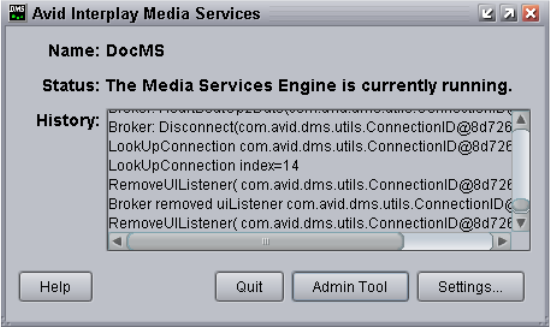
The Avid Interplay Media Services window opens when you start the Media Services
Engine. The window displays current information about the status of the Media Services
Engine, including the host name for the system on which the Media Services Engine resides.
The Media Services Engine uses the host name to identify itself on the network.
The following illustration of the Avid Media Services window shows the host name DocMS,
which is the host name of the computer on which the Interplay Media Services Engine is
installed.
Media Services Engine Components
23
The Avid Interplay Media Services window provides access to the Media Services and
Transfer Status tool through the Admin Tool button. See “Understanding the Avid Interplay
Media Services and Transfer Status Tool” on page 23.
The Avid Interplay Media Services window also provides access to Interplay Media Services
settings through the Settings button. See “Configuring the Media Services Engine” on
page 33.
For information on starting the Interplay Media Services Engine, see “Starting the Interplay
Media Services Engine” on page 36.
Understanding the Avid Interplay Media Services and Transfer
Status Tool
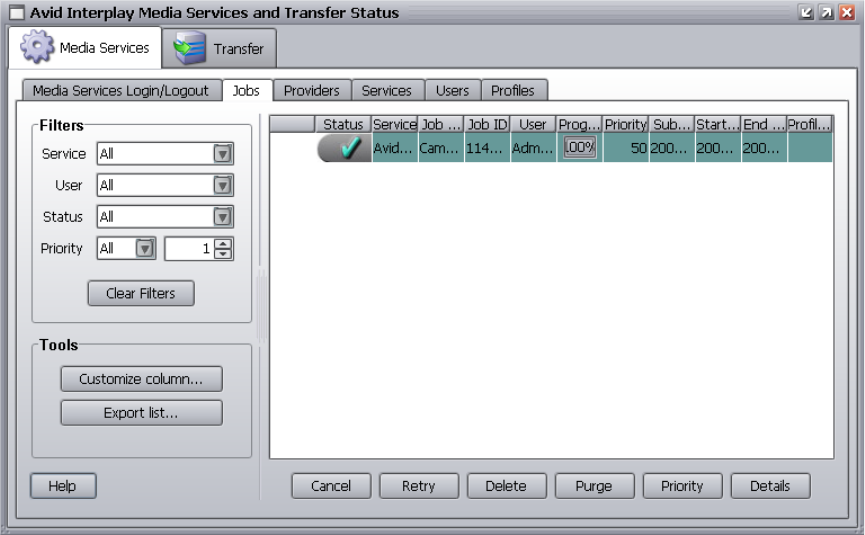
The Avid Interplay Media Services and Transfer Status tool communicates with the Avid
Interplay Media Services Engine to let you manage media services. The Media Services and
Transfer Status tool is installed with the Interplay Media Services Engine software.
The Media Services and Transfer Status tool also includes a tab for monitoring transfers that
use Interplay Transfer. For more information, see the Avid Interplay Transfer Setup and
User’s Guide.
1 Working with the Avid Interplay Media Services System
24
The Media Services and Transfer Status tool is installed with the Media Services Engine.
You can install it on another computer from the Individual Optional Installers page of the
Interplay Installation DVD, so that you can manage Interplay Media Services from that
computer. The tool is also installed with Interplay Access, but you need to open the Media
Services Status tab and the Transfer Status tab as separate windows.
The Media Services and Transfer Status tool performs three types of functions:
• Provides detailed information about Media Services, based on lists of jobs, encoders,
profiles, and users.
• Provides controls for managing services and registering providers.
• Provides controls for managing Media Services such as canceling jobs, deleting
provider software, creating or deleting profiles, and creating or deleting users.
The functions you can perform depends on your user rights (see “Using the Users Page” on
page 57). Administrators can perform the following tasks:
• Register and delete providers
• View details on any job
• Delete jobs submitted by any user
• Purge the jobs list
Regular users can perform administrative tasks only on their own jobs.
For more information, see “Using the Media Services and Transfer Status Tool” on page 37.
Understanding the Various Media Services
Interplay Media Services can be distributed to dedicated workstations in a networked
environment, thereby freeing computer resources to perform other tasks.
When you install a Media Services service on a computer, the installation program installs
provider software for that service. You can install the same service on more than one
computer in an Interplay workgroup, and as a result have multiple providers for the same
service.
After you install a service, you use the Media Services and Transfer Status tool to register
the provider of the service. In a workgroup with multiple providers, you need to register
each provider.
The following table lists the services managed by the Media Services Engine.

Understanding the Various Media Services
25
nThe services managed by the Media Services Engine are not limited to the services listed in
this table.
Interplay Media Services Service Providers
Service Description
Avid Interplay Transcode service Lets you transcode Avid assets from one Avid-supported resolution
to another. For example, you can use the Avid Interplay Transcode
service to create a low-resolution version of a sequence or master
clip. For more information, see “Working with the Transcode
Service” on page 81.
Avid Interplay Archive service
Avid Interplay Restore service
Provides access to archive and restore features. The Avid Interplay
Archive and Restore services manage the process of moving data,
instead of using the Avid Interplay Transfer Engine. For more
information, see “Working with the Archive and Restore Services”
on page 117.
Avid Interplay Stream Publish service Lets you create QuickTime reference movies that refer to MPEG-4
video files and MPEG1 Level 2 audio files. The files are checked into
the Interplay database so you can play the assets in the Interplay
Access. For more information, see “Working with the Stream Publish
Service” on page 171 and “Automatically Publishing QuickTime
Reference Movies” on page 191.
Avid Interplay Copy service Lets you copy assets (metadata) and their media files from one
workgroup to another. For more information, see “Working with the
Copy Service” on page 205.
Avid Interplay Move service Lets you move media files from one Avid Unity ISIS workspace to
another. For more information, see “Working with the Move Service”
on page 249.
Avid Interplay Delivery service Lets you transfer a clip and its media files or only the portion that is
used in a subclip or a sequence. For more information, see “Working
with the Delivery Service” on page 269.

1 Working with the Avid Interplay Media Services System
26
Avid Interplay Auto Media Service
• Auto Archive
• Auto Transcode
• Auto Transfer
• Auto Copy
Lets you configure folders and subfolders to perform tasks
automatically. You can use the Avid Service Configuration settings to
configure the various auto media services.
nAn auto archive and auto transcode operation includes
subfolders. An auto transfer operation does not include
subfolders. An auto copy operation maintains the same folder
structure as the source workgroup.
For installation instructions, see the Avid Interplay Software
Installation and Configuration Guide.
Avid Interplay STP Encode service Lets you offload time-consuming processing involved in exporting
and transferring of Long GOP OP1a media, during a
send-to-playback request from the Avid editing application or Avid
Interplay Assist. For more information, see “Exporting and
Transferring Long GOP OP1a Media in the Background” on
page 291.
Avid Interplay ProEncode™ service Provides integration to AnyStream™ and Telestream for non-Avid
format transcode services (for example, transcoding from an Avid
resolution to Windows Media File format). For more information, see
“Working with the ProEncode Service” on page 311.
Interplay Media Services Service Providers (Continued)
Service Description

Check Lists for Setting Up and Using Service Providers
27
Check Lists for Setting Up and Using Service
Providers
The following table provides a list of the various Media Services service providers with a
reference to the specific check list for each service. These check lists provide a list of the
steps to set up and use the various services.
For a check list for setting up the Interplay Media Services Engine, see “Check List for
Setting Up the Media Services Engine” on page 29.
Configuration Requirements
An Interplay workgroup enables collaborative workflows by allowing multiple editors to
share media. For diagrams showing typical shared-storage workgroup configurations, see
Avid Interplay Best Practices.
For specific information on configuration requirements, see the Avid Interplay Software
Installation and Configuration Guide.
nFor any configuration issues that are not included in the published documents, see the Avid
Interplay Media Services ReadMe or the Avid Interplay ReadMe.
Media Services Service
Provider Documentation
Interplay Transcode service “Check List for Transcoding Assets” on page 82
Interplay Archive service
Interplay Restore service
“Check List for Archiving and Restoring Assets” on page 119
Interplay Stream Publish service “Check List for Stream Publish Workflow” on page 175 and
“Check List for Auto Publish Workflow” on page 192.
Interplay Copy service “Check List for Copying Assets to Another Workgroup” on
page 209
Interplay Move service “Check List for Moving Assets to Another Workspace” on
page 252
Interplay Delivery service “Check List for the Delivery Service” on page 270
Interplay STP Encode service “Check List for Transferring Long GOP OP1a Media in the
Background” on page 295
Interplay ProEncode Provider “Check List for Using ProEncode” on page 312
1 Working with the Avid Interplay Media Services System
28

2Interplay Media Services Engine
Installation and Configuration
The following topics describe installation and configuration of the Media Service Engine:
•Check List for Setting Up the Media Services Engine
•Registering the Media Services Engine in an Avid Interplay Workgroup‘
•Configuring the Media Services Engine
•Starting the Interplay Media Services Engine
For details on setting up the Media Services system in an Interplay workgroup environment,
see the Avid Interplay Software Installation and Configuration Guide.
Check List for Setting Up the Media Services
Engine
The following table provides a list of steps to perform when setting up the Media Services
Engine in an Interplay workgroup.
Setting up the Media Services Engine Check List
Task Section Reference
Add the Interplay Media Services server to
the Interplay workgroup.
See the Avid Interplay Software Installation
and Configuration Guide.
Make sure an Interplay Media Services
administrator account is set up on Avid
Unity.
See the Avid Interplay Software Installation
and Configuration Guide.
Make sure the Interplay Media Services
application key is connected to the server.

2 Interplay Media Services Engine Installation and Configuration
30
After you set up the Media Services Engine, install and configure the Media Services service
providers. See “Check Lists for Setting Up and Using Service Providers” on page 27.
Registering the Media Services Engine in an Avid
Interplay Workgroup
Before you can use any Media Services Engine services, you must register the Media
Services Engine in an Interplay workgroup by opening the Avid Interplay Administrator and
identifying the system that runs the Media Services Engine. After you register the Media
Services Engine, the Media Services and Transfer Status tool automatically connects to the
Media Services Engine.
nIf you are performing an upgrade, you do not have to register existing Media Services
Engines.
Install the Interplay Media Services Engine
software and the supporting software.
• Avid Service Framework for Client
• Avid Interplay Access
• Avid Interplay Media Services
See the Avid Interplay Software Installation
and Configuration Guide.
Configure the SQL Server. See “Configure Microsoft SQL Server 2005”
on page 359
Register the Media Services Engine in the
Interplay workgroup.
See “Registering the Media Services Engine in
an Avid Interplay Workgroup” on page 30.
Configure the Media Service Engine.
• Setup e-mail notifications
• Identify the workgroup’s Interplay
Engine system
• Setup auto-purging of jobs
See “Configuring the Media Services Engine”
on page 33.
Start the Avid Interplay Media Services
Engine software.
See “Starting the Interplay Media Services
Engine” on page 36.
Install and configure any Media Services
service providers.
See “Check Lists for Setting Up and Using
Service Providers” on page 27.
Setting up the Media Services Engine Check List (Continued)
Task Section Reference
Registering the Media Services Engine in an Avid Interplay Workgroup
31
To register the Media Services Engine in an Interplay workgroup:
1. Click Start and select Programs > Avid > Avid Interplay Access Utilities > Avid
Interplay Administrator.
The Avid Interplay Administrator opens.
2. Log in to the server for the workgroup in which you want to register the Media Services
Engine.
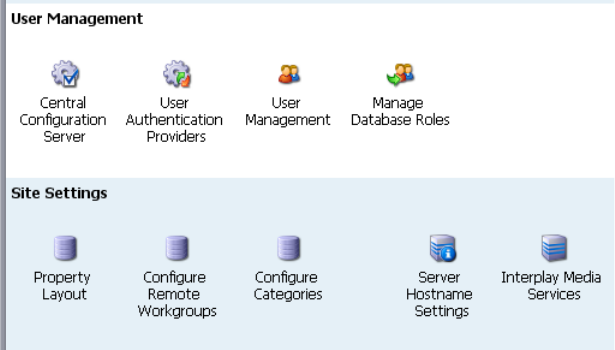
3. Click Server Hostname Settings in the Site Settings area.
The following illustration shows the Site Settings area of the Avid Interplay
Administrator.
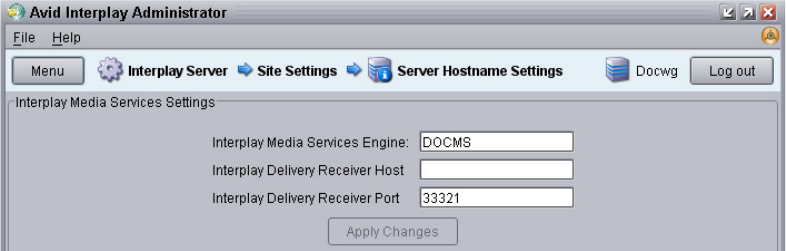
The Server Hostname Settings window opens.
4. In the Interplay Media Services Settings area, type the name of the system that runs the
Media Services Engine and click Apply Changes.
nIf your Interplay environment includes the Interplay Delivery workflow, to receive transfers
you must add the hostname and the port number of the system where the Delivery Receiving
service is installed. For more information, see “Registering the Delivery Receiver in an Avid
Interplay Workgroup” on page 272.
2 Interplay Media Services Engine Installation and Configuration
32
5. (Option) While you have the Server Hostname Settings window open, it is a good time
to check whether you have entered the name of the workgroup in the Workgroup and
MediaIndexer Settings area of the window. The Avid Instinct and Avid Interplay Assist
applications use this setting to locate the Media Indexer that is used to monitor shared
storage.
a. Near the center of the Server Hostname Settings window, make sure your
Workgroup name is in the Workgroup Name field. Type the workgroup name if
necessary. This field is case sensitive.
b. Click Check MediaIndexer to check whether the Media Indexer that monitors
shared storage is running.
If the Media Indexer is running, the system displays the message “Connected to
Media Indexer successfully.”
6. Click Log out and close the Avid Interplay Administrator.
Configuring the Media Services Engine
33
Configuring the Media Services Engine
After installing the Media Services Engine software, you can configure the Media Services
Engine for the following optional settings:
• Send e-mail notifications about the status of jobs.
• Identify the workgroup’s Avid Interplay Engine system.
By identifying the Avid Interplay Engine system, when you log in to the Media Services
Engine, the Media Services user information is updated with the user information in the
Avid Interplay Administrator. As a result, you do not need to manage a separate user
database for Media Services. See “Using the Users Page” on page 57.
• Automatically purge Media Services jobs to improve the performance of the Avid
Interplay Media Services and Transfer Status tool. The auto-purge settings take effect
immediately, you do not have to restart the Interplay Media Services Engine.
- You can set a start time for the auto purge to begin within 15 minute intervals.
If you want to cancel a scheduled auto-purge process, you must cancel the process
before it starts. After an auto-purge process begins you cannot cancel the process.
- You can choose to purge pending jobs, cancelled jobs, completed jobs, and error
jobs. For the chosen jobs type, all jobs for all services for all users are purged.
cWhen scheduling the auto-purge process, you should choose a low activity time. The
auto-purge process might impact the server’s performance and the ability to connect.
nThe History area on the Avid Interplay Media Services Engine window provides information
about the auto purge settings, such as any changes made to the settings.
To configure the Interplay Media Services Engine settings:
1. Click Start and select Programs > Avid > Avid Interplay Media Services.
The Avid Interplay Media Services window opens.
2. Click the Settings button.
The Avid Interplay Media Services Engine Settings dialog box opens.
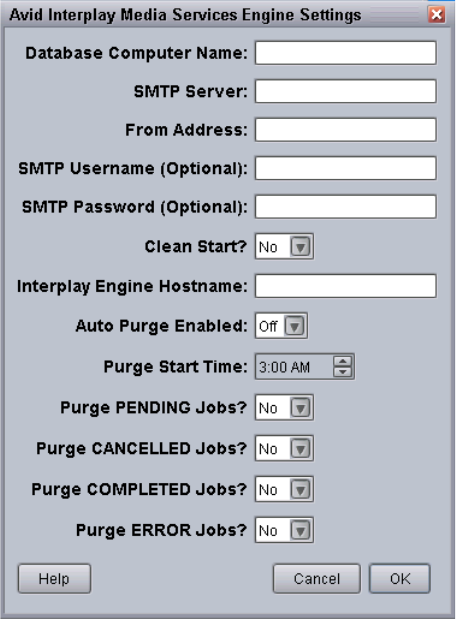
2 Interplay Media Services Engine Installation and Configuration
34
3. Type localhost in the Database Computer Name text box.
4. In the SMTP (Simple Mail Transfer Protocol) Server text box, type the name of your
local mail server (for example, mail.mycompany.com). If you don’t know the name of
your local mail server, ask your network administrator.
5. In the From Address text box, type an e-mail address for the Media Services Engine. For
example, broker@mycompany.com.
6. (Option) You can configure an SMTP Username and SMTP Password if your network
supports secure e-mail. These settings give the Media Services Engine a name and
password so that is can successfully send e-mail notification. If a network does not use
secure e-mail, the settings do not apply and are disregarded.
nThe Clean Start option is reserved for future use. Make sure it is set to No.
Configuring the Media Services Engine
35
7. In the Interplay Engine Hostname text box, type the host name of the Avid Interplay
Engine system.
If this text box is left blank, the Media Services user information in the Avid Interplay
Administrator is not used for authentication during login.
8. (Option) From the Auto Purge Enabled menu, select On.
nFor the chosen job type, all jobs for all service providers, and for all users are purged.
Therefore, you cannot purge jobs for a specific service provider, such as Interplay
Transcode.
Jobs are automatically purged depending on the following settings:
- Purge Start Time—Select a time to start the auto purge (15 minute intervals).
- Purge PENDING Jobs?—Yes, purges all pending jobs for all service providers.
- Purge CANCELLED Jobs?—Yes, purges all cancelled jobs for all service
providers.
- Purge COMPLETED Jobs?—Yes, purges all completed jobs including jobs with the
Warning status (question mark icon) for all service providers.
- Purge ERROR Jobs?—Yes, purges all error jobs for all service providers.
9. Click OK.
The Avid Interplay Media Services Engine Settings dialog box closes.
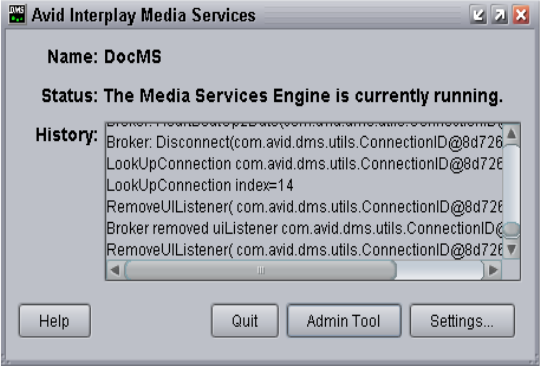
2 Interplay Media Services Engine Installation and Configuration
36
Starting the Interplay Media Services Engine
To start the Interplay Media Services Engine:
tClick Start and select Programs > Avid > Avid Interplay Media Services.
The Avid Interplay Media Services window opens.

3Using the Media Services and Transfer
Status Tool
The following topics explain how to use the Media Services and Transfer Status tool:
•Opening the Media Services and Transfer Status Tool
•Media Services and Transfer Status Tool User Interface
•Using the Jobs Page
•Using the Providers Page
•Using the Services Page
•Using the Users Page
For an overview of the Media Services and Transfer Status tool, see “Understanding the
Avid Interplay Media Services and Transfer Status Tool” on page 23.
Opening the Media Services and Transfer
Status Tool
The Media Services and Transfer Status tool can be used on any computer that has an
internet connection to a computer running the Media Services Engine.
The Media Services and Transfer Status tool is installed with the Media Services Engine.
You can install it on another computer from the Individual Optional Installers page of the
Interplay Installation DVD. The tool is also installed with Interplay Access, but you need to
open the Media Services Status tab and the Transfer Status tab as separate windows.
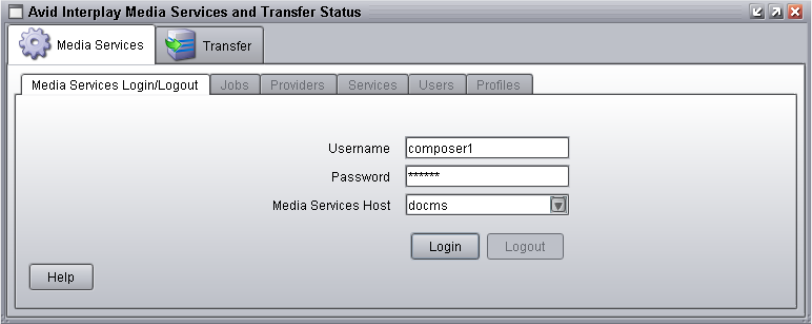
3 Using the Media Services and Transfer Status Tool
38
To open the Media Services and Transfer Status tool:
1. Do one of the following:
tFrom the Avid Interplay Media Services window, click Admin Tool.
tFor a standalone application, click Start and select Programs > Avid > Avid Media
Services and Transfer Status.
tFrom Avid Interplay Access, select View > Interplay Media Services Status.
tFrom the Avid Interplay Administrator, in the Site Settings area, click the Interplay
Media Services icon.
2. Type your username and password. See “Using the Users Page” on page 57.
If you opened Media Services Status from Interplay Access or the Interplay
Administrator, access is controlled by the information you used when you logged into
Interplay Access or the Interplay Administrator.
3. Type the host name of the system on which the Media Services Engine resides in the
Media Services Host text box.
The Media Services host name is the name of the computer that the Media Services
Engine runs on. You can find the host name in the Name field of the Avid Interplay
Media Services window. Previously typed host names are available from the Media
Services Host menu.
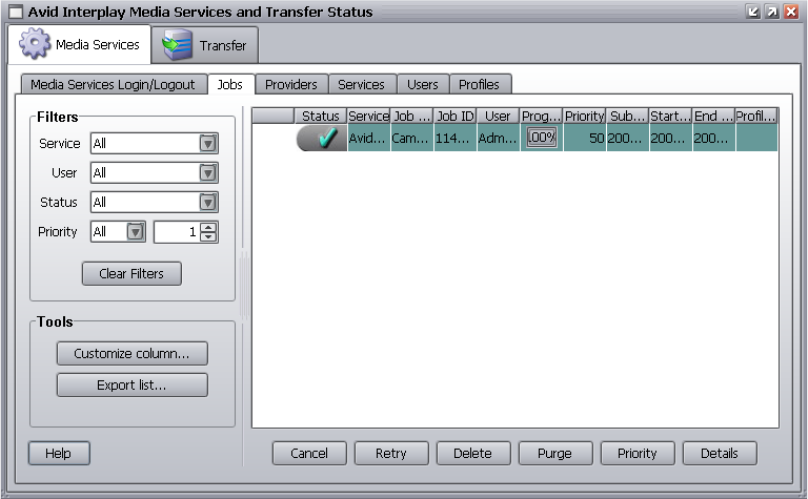
Media Services and Transfer Status Tool User Interface
39
4. Click the Login button.
If the username and password are accepted, the Jobs page opens.
Media Services and Transfer Status Tool User
Interface
The Media Services and Transfer Status tool user interface is made up of five pages. The tab
selected determines which page of the Media Services and Transfer Status tool is displayed.
The page displayed determines the Media Services and Transfer Status tool’s functional
mode and which of the mode-related controls — also referred to as pages — are displayed.
The pages are described in the following table:

3 Using the Media Services and Transfer Status Tool
40
Using the Jobs Page
The Jobs page displays information about Media Services jobs and lets you cancel, delete,
and retry jobs. The Jobs page opens by default after you log in to the Media Services and
Transfer Status tool.
The following topics describe the options available from the Jobs page:
•Jobs Page Information
•Customizing the Reporting of Service Job Status
•Customizing the Jobs Page Columns
•Filtering the Jobs List
•Viewing Details About a Job
•Purging the Jobs List
•Prioritizing a Job
•Canceling a Job
•Deleting a Job
Media Services Status Administration Tool Pages
Page Description Section Reference
Jobs Displays the status and other information about jobs
submitted to the Media Services Engine. Lets you
cancel or retry jobs, depending on your level of
privilege.
See “Using the Jobs Page” on
page 40.
Providers Displays information about systems that are running
Media Services provider software. Lets you register
and delete providers, depending on your level of
privilege.
See “Using the Providers Page”
on page 51.
Services Displays a list of services and service information.
Lets you install and delete services.
See “Using the Services Page”
on page 54.
Users Displays a list of user accounts. Lets you create and
delete accounts, depending on your level of
privilege.
See “Using the Users Page” on
page 57.
Profiles Lets you create templates to use when performing
an operation.
See “Working with Media
Services Profiles” on page 75.

Using the Jobs Page
41
•Retrying a Job
•Exporting the Jobs List
Jobs Page Information
The Jobs page displays information about jobs submitted to the Media Services Engine. You
can specify how the status of the various service jobs are reported, see “Customizing the
Reporting of Service Job Status” on page 42.
The following table describes the information displayed on the Jobs page.
Jobs Page
Column Description
Status The colors and icons in the display indicate the status of the job:
• Yellow bar with no icon = Job is processing.
• Green bar with Check Mark icon = Job is completed.
• Gray bar with Stop icon = Job has been canceled.
• Caution icon = Job has failed with an error.
• Gray bar with no icon = Job is pending or is in a queue.
For information on changing the status reporting of jobs, see “Customizing the
Reporting of Service Job Status” on page 42.
Service The name of the service to which the job was sent.
Job Name The file name submitted by the client to the Media Services Engine. This might
have a suffix — determined by the particular service — appended to it.
nAdministrators can view information about all jobs. Users without
administrator privileges can view all jobs, but can see only the user name
and job name of their own jobs.
Job ID A number automatically generated by the Media Services Engine.
User The name of the user who submitted the job.
nAdministrators can view information about all jobs. Users without
administrator privileges can view all jobs, but can see only the user name
and job name of their own jobs.
Progress (%) The percentage of the job completed.
Priority The priority of the job, as submitted by the client.
Submit Time The date and time the job was submitted by the client to the Media Services
Engine.

3 Using the Media Services and Transfer Status Tool
42
Customizing the Reporting of Service Job Status
You can customize the status reporting for the following Media Services services:
• Archive service
• Restore service
• Copy service
• Move service
•Delivery service
For example, during an archive operation, if one of the media files cannot be found, you can
set the reporting to the Jobs tab of the Media Services and Transfer Status Tool to display
one of the following status indicators:
This section describes how to use the Avid Service Configuration tool to set which reporting
status displays with the various conditions of service jobs.
Avid Service Configuration is an application that is included with the Avid Service
Framework services. It lets you set and change parameters for each of the different Avid
services and applications in your workgroup environment. For more information about Avid
Service Framework, see the Avid Service Framework User’s Guide.
To customize the job status displays for various Media Services services:
1. On any system running the Avid Service Framework services, click Start and select
Programs > Avid > Avid Service Framework > Avid Service Configuration.
The Select Workgroup dialog box opens.
Start Time The date and time that the provider started the job.
End Time The date and time that the provider reports the job is complete.
Profile Name Indicates if a profile was used and displays the profile’s name.
Jobs Page
Column Description
Job Status Display Description
Green with check mark icon Job completed
Green with question mark icon Job completed with a warning
Caution icon Job failed with an error
Using the Jobs Page
43
nThe Select Workgroup dialog box does not open if the check box specifying to always select
and use this workgroup option was previously selected. When you select this option, the
Select Workgroup dialog box no longer opens when you start the application. The default
workgroup is selected, and the Avid Service Configuration window opens. To change this
option and display the Select Workgroup dialog box, click the Login tab of the Avid
Framework Workgroup Properties application and clear the checkbox for the option.
2. (Option) If the Select Workgroup dialog box opens, select the workgroup you want to
connect to and click Select.
The Avid Service Configuration window opens.
3. In the Directory pane, click the Processes tab and verify that the service is running.
nIf the service does not appear in the Avid Service Configuration window, the service is not
running or the system it runs on is not properly connected to the workgroup. Click the Hosts
tab and make sure that the Avid Service Framework services displays the name of the system
that the service is running on.
4. On the Processes tab, expand the service entry, such as Archive Service.
The system displays the name of the computer running the service.
5. Click the computer name.
The Administrator Password Needed dialog box opens.
6. Type the Avid Service Framework Administrator password and click OK.
nBy default, Avid Service Framework does not require a password. When a password is used,
it is set through the System Configuration Service. Check with your system administrator for
the correct password.
The system displays the setting tab for the service.
nDepending on the service you selected, different conditions are available for you to
customize.
The following example shows the Archive Service settings.
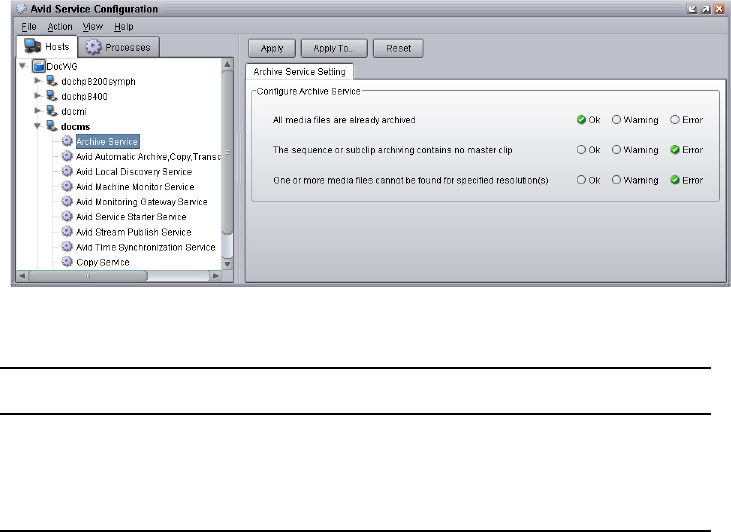
3 Using the Media Services and Transfer Status Tool
44
7. Select the type of status you want to display for each job condition.
8. Click Apply.
Customizing the Jobs Page Columns
The Media Services and Transfer Status tool provides options to customize the columns
displayed on the Jobs page.
To customize which columns display on the Jobs page:
1. Open the Media Services and Transfer Status tool. For more information, see “Opening
the Media Services and Transfer Status Tool” on page 37.
The Jobs page opens by default after you log in to the Media Services and Transfer
Status tool.
2. In the Tools area, click Customize columns.
The Choose Columns dialog box opens.
3. Select the name of the columns you want to display.
4. Click OK.
The columns change to show the selections.
5. (Option) Click a column heading and drag it to a new location.
Option Job Status Display / Description
OK Green with check mark icon / Job completed
Warning Green with question mark icon / Job completed with a warning
Error Caution icon / Job failed with an error
Using the Jobs Page
45
Filtering the Jobs List
By default, the Jobs list displays all jobs that the Media Services Engine is currently
monitoring. You can customize your view to show only your jobs, to show jobs for a specific
service, or to show only jobs in a selected state.
nUsers with Administrator privileges are allowed to cancel or delete any job. Users without
administrator privileges can only cancel or delete jobs submitted by that user.
To customize the Jobs list:
1. Open the Media Services and Transfer Status tool. For more information, see “Opening
the Media Services and Transfer Status Tool” on page 37.
The Jobs page opens by default after you log in to the Media Services and Transfer
Status tool.
2. In the Filters area, click the Service menu, and select a service.
3. In the Filters area, click the User menu, and select All Users or a specific user name.
4. In the Filters area, click the Status menu, and select one of the following:
- All — Displays all jobs with their current status.
- Processing — Displays only jobs that are currently being processed.
- Completed — Displays only jobs that have been successfully processed.
- Canceled — Displays only jobs that have been canceled by a user with
administrator privileges.
- Error — Displays only jobs that have stopped with an error.
- Pending — Displays only jobs that are waiting to be processed.
5. In the Filters area, click the Priority and select one of the following:
- ALL — Displays all priority jobs.
- > — Displays all priority jobs greater than the number indicated.
- < — Displays all priority jobs fewer than the number indicated.
- = — Displays all priority jobs equal to the number indicated.
The Jobs page displays jobs that meet the criteria you selected.
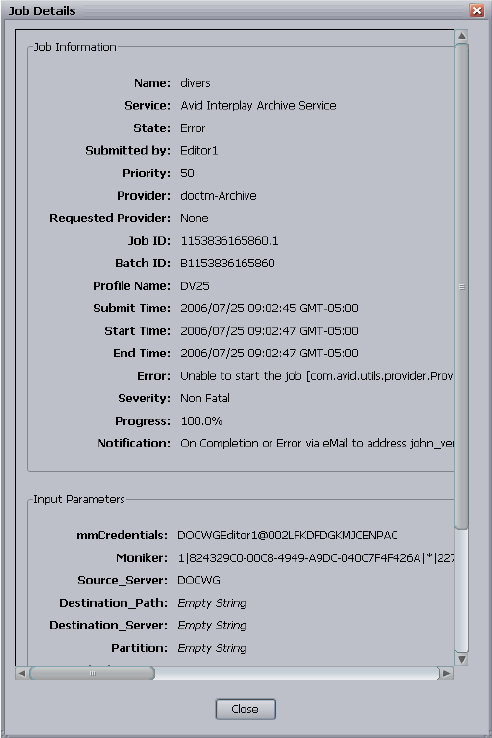
3 Using the Media Services and Transfer Status Tool
46
Viewing Details About a Job
You must be logged in as the job owner or as an administrator to view a job’s details.
To view details about a job:
1. Open the Media Services and Transfer Status tool. For more information, see “Opening
the Media Services and Transfer Status Tool” on page 37.
2. On the Jobs page, select the job that you want details about.
3. Click the Details button.
The Job Details window opens.
Using the Jobs Page
47
Job Details Window
The following table provides descriptions of the type of job information displayed in the Job
Details window.
Entry Description
Job Information
Name The name of the file submitted by a client to Media Services Engine. It might
include information appended to the file name, depending on the service
requirements.
Service The Media Services service for which the job was submitted; for example, Avid
Interplay Archive Service.
State The current state of the job.
Submitted By: The user name associated with the job, as submitted by the client.
Priority The priority of the job, as submitted by the client.
Provider The name of the provider, as registered with the Media Services Engine.
Requested Provider The name of the provider requested, if one was specified.
Job ID A number automatically generated by the Media Services Engine.
Batch ID The number of the batch containing the job.
Profile Name The name of the profile used for the job, if a profile is used.
Submit Time The date and time the job was submitted by the client to the Media Services
Engine.
Start Time The date and time the provider picked up the job.
End Time The date and time the job was reported as complete by the provider.
Progress The percentage of the job that has been processed.
Notification Displays whether notification of job completed or job error is enabled or
disabled.
Input Parameters The list of Input parameters varies for each service.
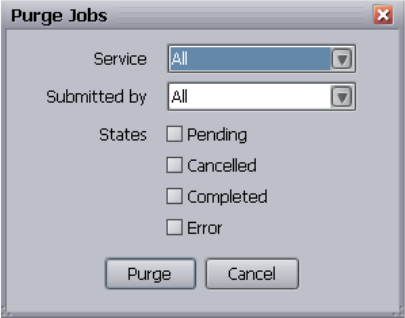
3 Using the Media Services and Transfer Status Tool
48
Purging the Jobs List
The purge function is available only to users with administrator privileges.
nYou can set the Media Services settings to allow for auto-purging of jobs. See “Configuring
the Media Services Engine” on page 33.
To purge the Jobs list:
1. Open the Media Services and Transfer Status tool and log in as a user with administrator
privileges. For more information, see “Opening the Media Services and Transfer
Status Tool” on page 37.
2. On the Jobs page, click the Purge button.
The Purge Jobs dialog box opens.
3. Click the Service menu, and select the applicable service.
4. Click the Submitted By menu, and select a particular user or All, depending on the jobs
you want to purge.
5. Select which states of jobs you want to purge.
6. Click the Purge button.
The Jobs list no longer contains the jobs you selected. If a purge fails, a dialog box
opens with a list of the jobs that failed to delete and a reason for the failure.
Using the Jobs Page
49
Prioritizing a Job
You can prioritize the order of the pending jobs. The priority number assigned to a job
indicates the job’s position in the queue for a specific provider. This setting lets you order
jobs in a desired sequence and also move a job to the top of the queue. Priority numbers
range from 1 (highest priority) through 100 (lowest priority). The default priority number
assigned to each job is 50.
When you assign a priority number to a job, the actual order in the queue depends on the
following:
• Priority numbers are relative only to jobs within a given service. For example, a
transcode job set with priority 1 might not execute before an archive job with
priority 100.
• If the same priority number is assigned to several jobs of a specific provider, then all
these jobs have an equal chance of executing.
To prioritize a job:
1. Open the Media Services and Transfer Status tool as described in “Opening the
Media Services and Transfer Status Tool” on page 37.
2. On the Jobs page, select the job you want to prioritize.
3. Click the Priority button.
The Set Job Priority dialog box opens.
4. Click the arrow button to select a priority number.
The default is 50. The priority range is 1 (highest priority) through 100 (lowest priority).
5. Click OK.
The Priority column displays the new priority for the job.
Canceling a Job
Jobs can be canceled during the Pending or the Processing state. A user can cancel only jobs
that have been submitted under his or her Media Services user name. An administrator can
cancel any job.
Providers periodically check the Media Services Engine for jobs that might need to be
canceled. When a job is canceled, it might take a short time for the job to actually stop and
the status change to be reflected. It is also possible that a job might finish before it can be
canceled. In this case, a dialog box might open stating that the Media Services Engine was
unable to cancel the job.
3 Using the Media Services and Transfer Status Tool
50
To cancel a job:
1. Open the Media Services and Transfer Status tool as described in “Opening the
Media Services and Transfer Status Tool” on page 37.
2. On the Jobs page, select the job that you want to cancel.
3. Click the Cancel button. A dialog box opens and asks if you are sure you want to cancel
the job.
4. Click OK to cancel the job.
The job remains in the Jobs list, but the state changes to canceled.
Deleting a Job
To delete a specific job or all jobs on the Jobs page:
1. Open the Media Services and Transfer Status tool as described in “Opening the
Media Services and Transfer Status Tool” on page 37.
2. On the Jobs page, select the specific job you want to delete.
3. Click the Delete button. A dialog box opens and asks if you are sure you want to delete
the job.
4. Click OK to delete the job.
Retrying a Job
You can retry a job that is in the canceled state or error state.
To retry a job:
1. Open the Media Services and Transfer Status tool as described in “Opening the
Media Services and Transfer Status Tool” on page 37.
2. On the Jobs page, select the job you want to retry.
3. Click the Retry button.
The Media Services Engine changes the state to Pending and places the job in the queue
for the next available provider.
Using the Providers Page
51
Exporting the Jobs List
You can export the current Jobs list from the Media Services and Transfer Status tool.
To export the Jobs list:
1. Open the Media Services and Transfer Status tool. For more information, see “Opening
the Media Services and Transfer Status Tool” on page 37.
The Jobs page opens by default after you log in to the Media Services and Transfer
Status tool.
2. In the Tools area, click Export list.
A Save dialog box opens.
3. Select a location for the Jobs list file.
4. Type a name for the Jobs list file.
5. Click Save.
Using the Providers Page
The Providers page displays information about computers that are running provider software
and are registered with the Media Services Engine. You can also view specific provider
details and capabilities.
The following topics provide information about using the Providers page:
•Opening the Providers Page
•Customizing the Providers Display
•Viewing Details About a Provider
•Deleting Providers
For information about using the Providers page to register a provider, see “Registering the
Provider” on page 65.
Opening the Providers Page
To open the Providers page:
1. Open the Media Services and Transfer Status tool as described in “Opening the
Media Services and Transfer Status Tool” on page 37.
2. Click the Providers tab.
The Providers page opens.
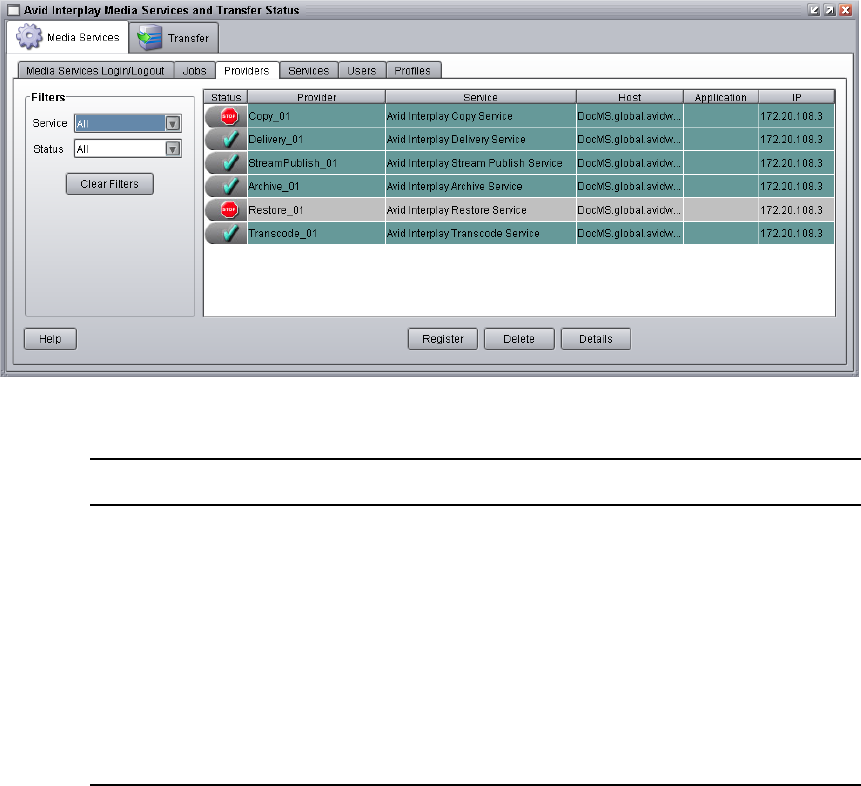
3 Using the Media Services and Transfer Status Tool
52
The following table describes the information displayed on the Providers page.
Customizing the Providers Display
By default, the Providers page displays all providers that are registered with the Media
Services Engine. You can customize your view to show only the connected providers or
providers of a particular service.
To customize the Providers display:
1. Open the Media Services and Transfer Status tool as described in “Opening the
Media Services and Transfer Status Tool” on page 37.
2. Click the Providers tab. The Providers page opens.
Providers Page Description
Status Indicates whether or not the provider is connected to the Media Services
Engine.
Provider The name of the service provider, as registered with the Media Services
Engine.
Service The Media Services service for which the provider has been registered.
Host The computer name of the provider.
Application The name of the service provider application.
IP The IP address of the computer of the provider.

Using the Providers Page
53
3. In the Filters area, click the Service menu, and select the applicable service.
4. In the Filters area, click the Status menu, and select the applicable condition.
The Providers page displays providers that match your selections.
Viewing Details About a Provider
To view details about a provider:
1. Open the Media Services and Transfer Status tool as described in “Opening the
Media Services and Transfer Status Tool” on page 37.
2. On the Providers page, select the provider that you want details about.
3. Click the Details button.
The Provider Details window opens.
The following table provides descriptions of the type of provider information displayed
in the Provider Details window.
Deleting Providers
If a provider is connected to the Media Services Engine, the provider cannot be deleted until
it has been disconnected and all processing jobs are stopped. You must be logged in as an
administrator to delete any providers.
To delete a service, see “Deleting a Media Services Service” on page 56.To delete the
provider software, use the Add/Remove Programs in the Windows Control Panel on the
provider system.
Providers Page Description
Name The name of the service provider, as registered with the Media Services
Engine.
Service The Media Services service for which the provider has been registered.
Host Name The computer name of the provider.
Application The name of the service provider application.
IP Address The IP address of the computer of the provider.
Connected Indicates whether or not the provider is connected to the Media Services
Engine.
3 Using the Media Services and Transfer Status Tool
54
To delete a provider:
1. Open the Media Services and Transfer Status tool as described in “Opening the
Media Services and Transfer Status Tool” on page 37.
2. Click the Providers tab. The Providers page opens.
3. Select the provider, and click Delete.
A dialog box opens and asks if you are sure you want to delete the provider.
4. Click OK.
The provider is no longer registered with the Media Services Engine. To register it
again, see “Registering the Provider” on page 65.
Using the Services Page
The Services page displays information about the services that are installed and lets the user
install new services, upgrade existing services, or delete services that were previously
installed.
For information about installing a service, see “Installing a Service Description” on page 62.
The following topics provide information about the Servers page:
•Opening the Services Page
•Displaying Details About a Service
•Deleting a Media Services Service
Opening the Services Page
To open the Services page:
1. Open the Media Services and Transfer Status tool as described in “Opening the
Media Services and Transfer Status Tool” on page 37.
2. Click the Services tab.
The Services page opens.
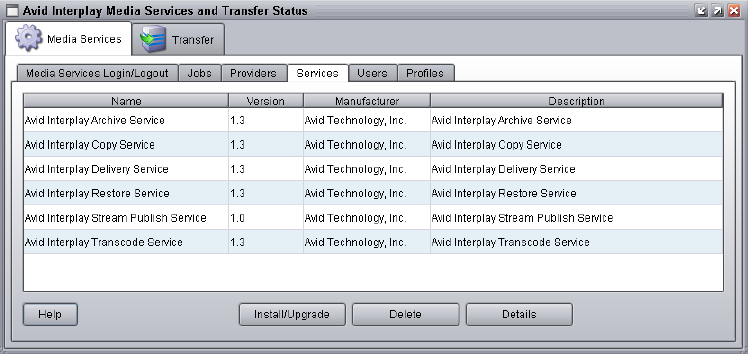
Using the Services Page
55
Displaying Details About a Service
To display information about a specific service:
1. Open the Media Services and Transfer Status tool as described in “Opening the
Media Services and Transfer Status Tool” on page 37.
2. Click the Services tab. The Services page opens.
3. Select the service about which you want information.
4. Click Details.
The Service Details page opens.
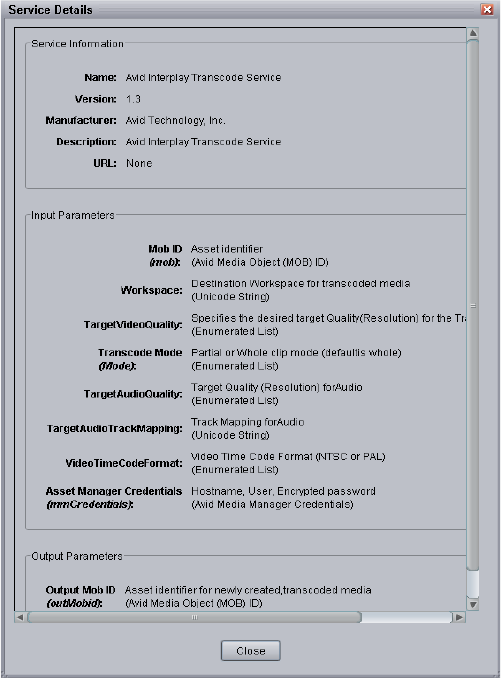
3 Using the Media Services and Transfer Status Tool
56
The specific information displayed on the Service Details page differs for each
installed service.
Deleting a Media Services Service
Deleting a Media Services service from the Services page deletes the information required
for the service to operate. If one or more providers have been registered for the service on
the Providers page, you must first delete the providers for the service. For more information,
see “Deleting Providers” on page 53.
To delete the provider software, use the Add/Remove Programs in the Windows Control
Panel on the provider system.
Using the Users Page
57
To delete a service:
1. Open the Media Services and Transfer Status tool and log in as a user with administrator
privileges. For more information, see “Opening the Media Services and Transfer
Status Tool” on page 37.
2. Make sure all providers for the services that you are deleting have been deleted prior to
deleting the services themselves. See “Deleting Providers” on page 53.
3. Click the Services tab. The Services page opens.
4. Select the service you want to delete.
5. Click Delete.
The service is removed. To add the service again, see “Installing a Service Description”
on page 62.
Using the Users Page
The Users page lets you create and manage user accounts. The default login for the
Media Services and Transfer Status tool is the user name Administrator, without a password.
Avid recommends assigning a password to this account after installing the Media Services
Engine. For more information, see “Reassigning Passwords” on page 59.
The Users page displays information based on the user’s login profile. A user logged in as an
Administrator can view information about all jobs, whereas users without administrator
privileges can view all jobs, but can only see the username and clip names of their own jobs.
There are two methods for managing Media Services users:
• Using Avid Interplay authentication
If you set a host name in the Avid Interplay Media Services Engine Settings dialog box,
the Media Services Engine authenticates user names and passwords with the Avid
Interplay Engine (see “Configuring the Media Services Engine” on page 33). As a
result, you do not need to manage a separate user database for Media Services. If a host
name is set, when you attempt to log in to the Interplay Media Services Engine, and the
login is successful, the user name and password are added to or updated in the Media
Services database user’s table. The user name and password appear on the Users page.
Adding or changing users on the Users page has no effect if a host name is set in the
Interplay Engine Hostname setting in the Avid Interplay Media Services Engine
Settings dialog box.
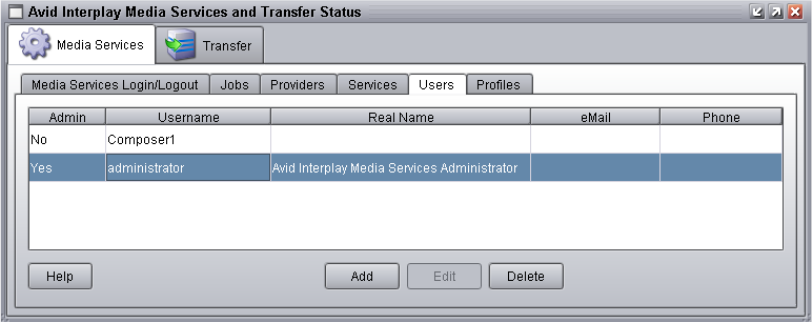
3 Using the Media Services and Transfer Status Tool
58
• Managing a separate user database
Managing Media Services users through a separate database can be useful if you want to
give administrator privileges to users who do not have administrator privileges in the
Interplay database. However, if you do not use Avid Interplay authentication, make sure
any user name and password exactly matches a user name and password in the Interplay
database, because Media Services operations usually require login by a valid Interplay
user.
The following topics describe the Users page:
•Opening the Users Page
•Setting Up User Accounts
•Reassigning Passwords
•Deleting User Accounts
Opening the Users Page
To open the Media Services Users page:
1. Open the Media Services and Transfer Status tool as described in “Opening the
Media Services and Transfer Status Tool” on page 37.
2. Click the Users tab.
The Users page opens with user accounts listed in the User name column.
Using the Users Page
59
Setting Up User Accounts
To set up a user account:
1. Open the Media Services and Transfer Status tool as described in “Opening the
Media Services and Transfer Status Tool” on page 37.
2. Click the Users tab. The Users page opens.
3. Click the Add button. A dialog box opens.
4. Type a user name in the Username text box.
User names and passwords are case sensitive and can contain only letters, numbers, and
underscores. They can be up to 255 characters.
5. (Option) You can assign a password by typing a password in the Password text box, then
typing it again in the Retype Password text box. Passwords are not required.
6. Type the applicable information about the user in the other text boxes.
7. (Option) If this user is an administrator, select the “is Administrator” option.
8. Click Save.
Reassigning Passwords
If a user forgets his or her password, a new one must be assigned. If you forget the
Administration password, it must be reset. Contact Avid Customer Support.
To reassign a user password:
1. Open the Media Services and Transfer Status tool and log in as a user with administrator
privileges. For more information, see “Opening the Media Services and Transfer
Status Tool” on page 37.
2. Click the Users tab. The Users page opens.
3. Select the user that you want to change the password.
4. Click the Edit button. A dialog box opens.
5. Type a new password in the Password text box, then type it again in the Retype
Password text box.
6. Click Save.
3 Using the Media Services and Transfer Status Tool
60
Deleting User Accounts
You must be logged in as an administrator to delete user accounts.
nThe user “Administrator” cannot be deleted. If you try to delete Administrator, you receive
an error message.
To delete a user account:
1. Open the Media Services and Transfer Status tool and log in as a user with administrator
privileges. For more information, see “Opening the Media Services and Transfer
Status Tool” on page 37.
2. Click the Users tab. The Users page opens.
3. Select the User Name for each account you want to delete.
4. Click the Delete button.
A dialog box opens and asks if you are sure you want to delete the user account.
5. Click OK.
The user account is deleted.
To re-create user accounts, see “Setting Up User Accounts” on page 59.

4Installing Services and Registering
Providers
This chapter provides general procedures for installing a service, registering a provider, and
connecting it to the Media Services Engine. For specific information about each service, see
“Understanding the Various Media Services” on page 24 and the chapter that provides
information about the service.
The following topics provide information about the required tasks:
•Understanding Service Descriptions and Service Packages
•Installing a Service Description
•Registering the Provider
•Connecting a Provider to the Media Services Engine
•Starting the Service Provider
•Verifying That a Service Provider Is Connected
•Rules for Upgrading a Service and Preserving Profiles
Understanding Service Descriptions and Service
Packages
Before you can use a service or register a provider, you must install the service description.
When you install the provider software on a provider system, a .zip file is also installed. This
.zip file (or service package) contains a service description file, which tells the Media
Services Engine the parameters for a given service and allows providers to be configured. In
some cases it may also contain other supporting files for the service.
You only need to install the service description once for each service, even if you are
configuring multiple providers.

4 Installing Services and Registering Providers
62
The following table provides a list of Media Services services and the name of each service
package.
nYou do not use the Media Services Engine to configure the Auto Archive, Auto Transcode,
and Auto Copy services. Instead, use the Avid Interplay Administrator and the Avid Service
Framework services. For more information, see “Configuring Auto Archive Using the Avid
Service Configuration” on page 153.
Installing a Service Description
You use the Media Services and Transfer Status tool to install the service description (see
“Understanding Service Descriptions and Service Packages” on page 61).
You only need to install a service description once, even if you configure multiple providers.
nBefore you upgrade a service, see “Rules for Upgrading a Service and Preserving Profiles”
on page 72
nFor the Avid Interplay ProEncode service installation, you must install the service
description using the Media Services and Transfer Status tool on the Interplay Media
Services server. You cannot use a remote system. This allows the appropriate files that are
needed for communication through port 8080 and http to be placed on the Interplay Media
Services server. You can install the Interplay ProEncode provider software on a server other
than the Media Services server. You must, however, have access to the location of the
Service File Name of Service Package
Avid Interplay Transcode TranscodeService.zip
Avid Interplay Archive Archive.zip
Avid Interplay Restore Restore.zip
Avid Interplay Stream Publish Publishing.zip
Avid Interplay Copy CopyMedia.zip
Avid Interplay Move MoveMedia.zip
Avid Interplay Delivery PTFService.zip
Avid Interplay ProEncode ProEncode.zip
Avid Interplay STP Encode LongGOPExport.zip
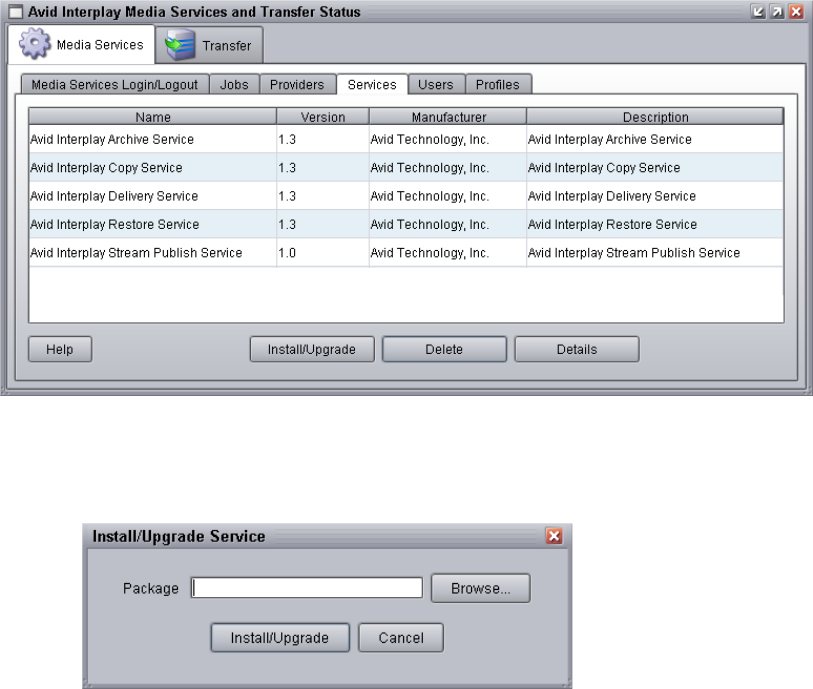
Installing a Service Description
63
ProEncode.zip file, which is installed with the provider software. You can also copy the
ProEncode.zip file from the provider system to the Interplay Media Services server before
you install the ProEncode service.
To install a Media Services service description:
1. Open the Media Services and Transfer Status tool and log in as administrator, as
described in “Opening the Media Services and Transfer Status Tool” on page 37.
2. Click the Services tab.
The Services page displays the currently configured services.
3. Click Install/Upgrade.
The Install/Upgrade Service dialog box opens.
4. Click the Browse button and navigate to the folder containing the service package (.zip
file). Make sure you have access to the folder.
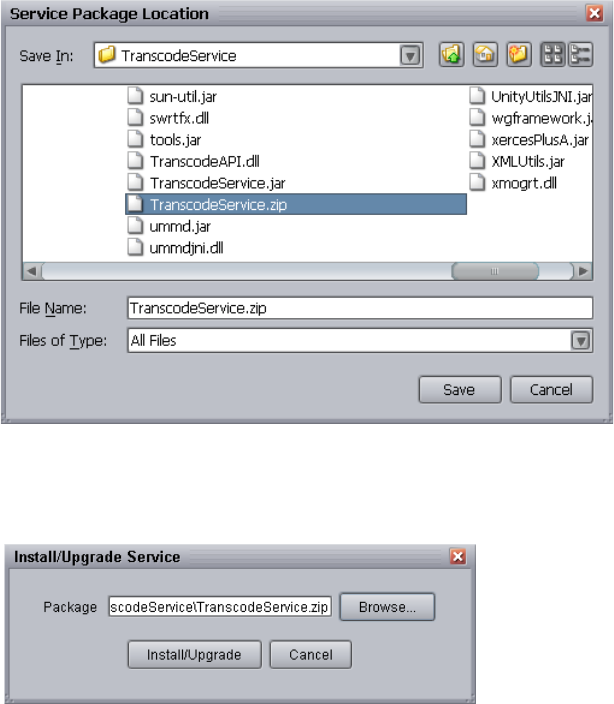
4 Installing Services and Registering Providers
64
The following is an example of the location of a service package. In this case, the
service package is for the Transcode service.
- C:\Program Files\Avid\Avid Interplay Transcode\TranscodeService
You can use the Microsoft Windows Search tool to help you locate the folder that
contains the service package. For a list of package file names, see “Understanding
Service Descriptions and Service Packages” on page 61.
5. In the folder, select the service.zip file.
The following illustration shows the TranscodeService.zip file selected.
6. Click Save.
The path to the file appears in the Install/Upgrade Service dialog box.
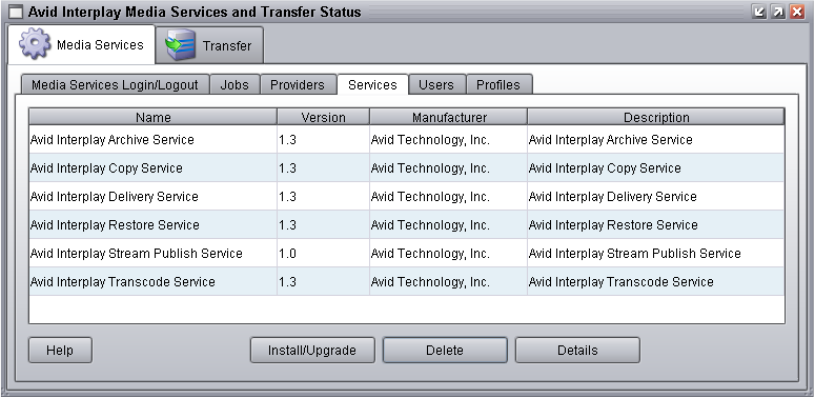
Registering the Provider
65
7. Click Install/Upgrade.
The service and its description appear on the Services page. The following illustration
shows the Transcode Service added to the Services page.
Registering the Provider
After you install a service description, you need to register the provider.
The Provider page on the Media Services and Transfer Status tool is used to register a
provider for a particular service. The provider receives information about jobs and supplies
the Media Services Engine with information about the provider, job status, and other
information depending on the service. In some cases it passes the information to other
applications.
To register the provider with the Media Services Engine:
1. Open the Media Services and Transfer Status tool and log in as administrator, as
described in “Opening the Media Services and Transfer Status Tool” on page 37.
2. Click the Providers tab.
The Providers page displays all of the currently registered providers.
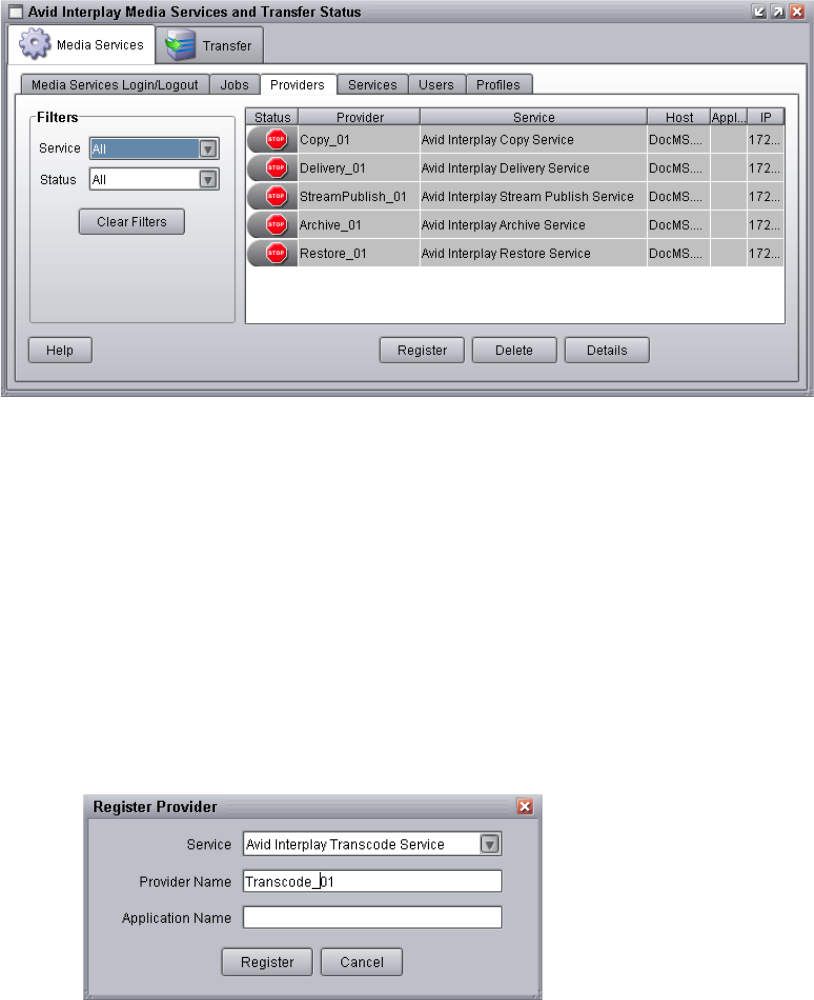
4 Installing Services and Registering Providers
66
3. Click Register.
The Register Provider dialog box opens.
4. Do the following:
a. Service menu — Select a service. For a list of services, see “Understanding Service
Descriptions and Service Packages” on page 61.
b. Provider Name — Type the name that you want to use to identify this particular
provider. You can have several providers on your workgroup for the same service,
so you should use a meaningful name.
c. Application Name — For future use. Leave this text box blank.
As an example, the following illustration shows the Register Provider dialog box with
the values filled in for a Transcode Service.
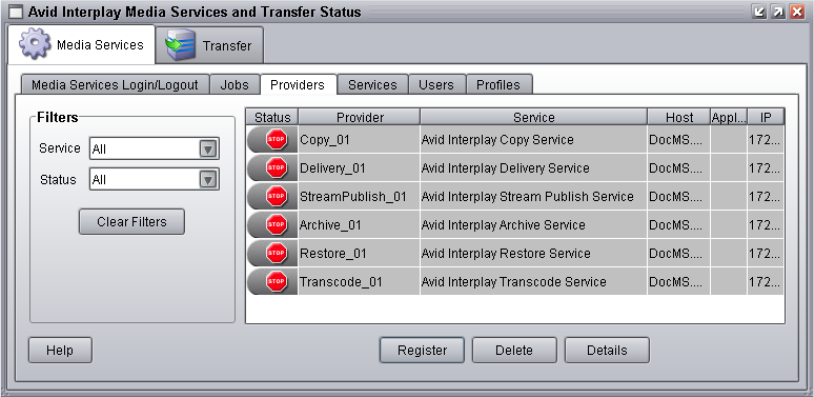
Connecting a Provider to the Media Services Engine
67
5. Click Register.
The provider appears on the Providers page. If the service is not connected to the Media
Services Engine, a Stop icon is displayed in the Status column. In this case, you must
connect the provider to the Media Services Engine. See “Connecting a Provider to the
Media Services Engine” on page 67.
Connecting a Provider to the Media Services
Engine
After you install a service description and register the provider, you need to connect the
provider to the Media Services Engine. You can use the following procedure as an example.
For specific procedures for the various services, see “Understanding the Various Media
Services” on page 24.
The following procedure uses the Transcode service as an example.
To connect a provider to the Media Services Engine:
1. Depending on the service, click Start and select Programs > Avid > Avid Interplay
Service, for example, Avid Interplay Transcode.
The service dialog box opens.
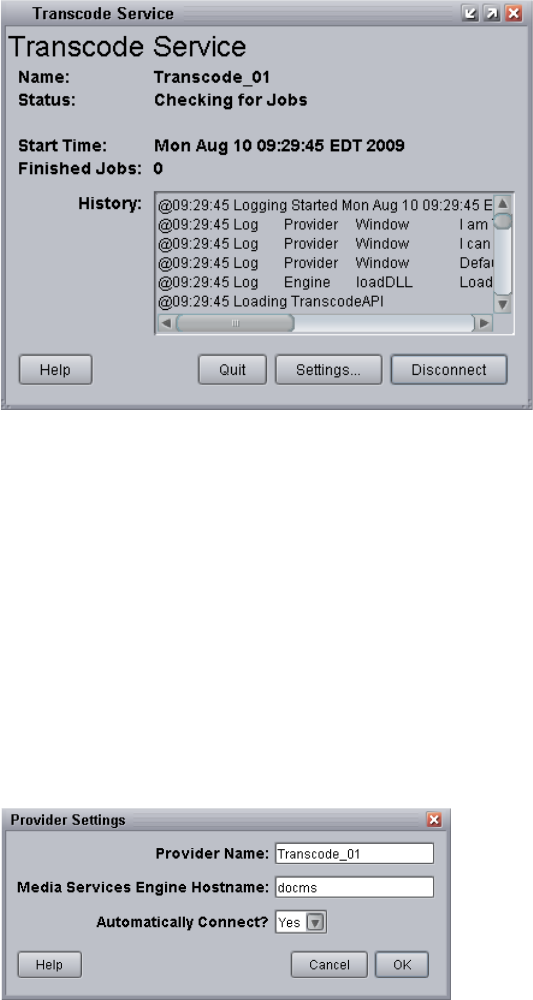
4 Installing Services and Registering Providers
68
The following example shows the Transcode Service dialog box.
2. Click Settings.
The Provider Settings dialog box opens.
3. Do the following:
a. Provider Name — Type the name of the provider you specified in “Registering the
Provider” on page 65. In this example, the name is Transcode_01.
b. Media Services Engine Host Name — Type the name of the system running the
Media Services Engine application.
c. Automatically Connect — Select either Yes or No (default) to automatically
connect to the Media Services Engine when the application starts.
The following illustration shows the Provider Settings dialog box with the values filled
in for a Transcode Service.
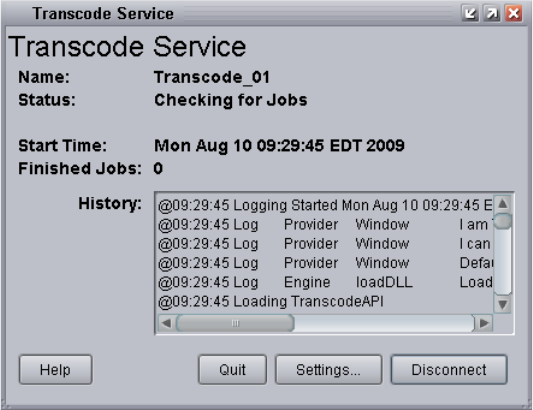
Connecting a Provider to the Media Services Engine
69
4. Click OK.
5. Click Connect in the service dialog box.
The following example shows the Transcode Service.
The Transcode Service dialog box now shows that the service is connected and shows
the provider you selected to connect to. This example shows Transcode_01 as the
provider.
The Provider page in the Media Services and Transfer Status tool now shows that the
service is connected, indicated by a check mark in the Status column.
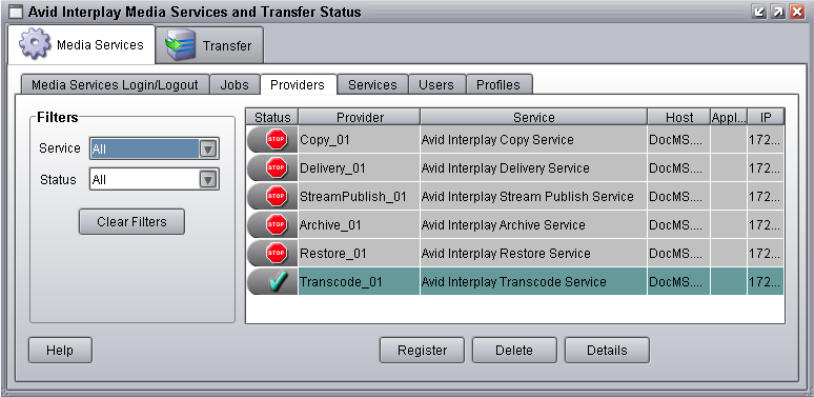
4 Installing Services and Registering Providers
70
Starting the Service Provider
To start the service, you need to start the service provider.
nAuto services, such as Auto Archive, start automatically.
To start the service provider:
tClick Start and select Programs > Avid > Avid Interplay service.
Depending on the service settings, one of the following happens:
- Automatically Connect—Yes, the service dialog box opens for the service you
selected and is connected to the service.
- Automatically Connect—No, the service dialog box opens for the service you
selected and displays Idle. Click the Connect button to connect to the service.
nThe service provider dialog box displays the start date and start time of the providers based
on the Microsoft® Windows® time.
After the connection is made, the Status line in the service dialog box reads “Checking
for Jobs,” and the History window displays the message “Connection Established.” The
Connect button changes to a Disconnect button.
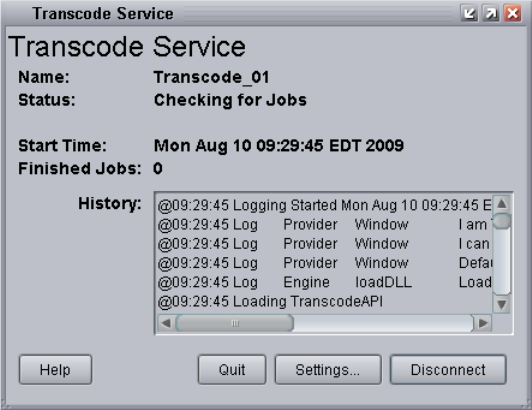
Verifying That a Service Provider Is Connected
71
The following example shows the Transcode Service dialog box as connected.
nIf the provider cannot connect to the Media Services Engine, the Status line reads
“Connection Error.” Ensure the Media Services Engine is running, the service is installed,
the provider is properly registered, and then click Connect again.
Verifying That a Service Provider Is Connected
To verify that a service provider is running and connected:
1. Open the Media Services and Transfer Status tool. See “Opening the Media Services
and Transfer Status Tool” on page 37.
2. Click the Providers tab.
The system displays the status of the Media Services providers. In the following
illustration, the Transcode service is connected, indicated by a check mark in the Status
column. If the provider is not connected (indicated by a stop sign), see “Starting the
Service Provider” on page 70.
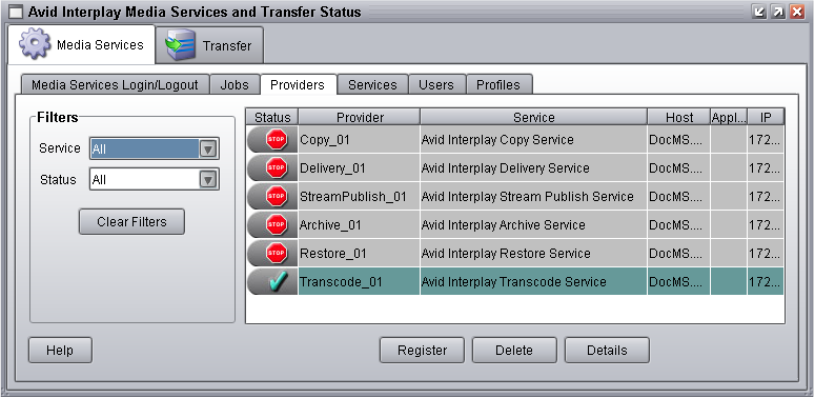
4 Installing Services and Registering Providers
72
nAuto services, such as Auto Archive, do not appear in this list. Use the Avid Service
Framework Configuration window to verify that an Auto service is running. See “Verifying
That the Auto Archive Service is Running” on page 156.
Rules for Upgrading a Service and Preserving
Profiles
When you are upgrading a Media Services service you need to perform the same procedures
as a new installation, such as installing the service description, registering the service
provider and connecting the provider to the Media Services Engine. However, before and
after you upgrade a service you need to follow a few rules:
• You need to log in with a user account that has administrator privileges.
• You should perform the upgrade of the service during a low usage time or when the
Media Services engine is offline.
• You can only install a newer version of an existing service.
• The Media Service Engine only supports one version of a service at a time.
• When upgrading a the ProEncode service, you must install the service using the Media
Services and Transfer Status tool on the Interplay Media Services server. For other
services, you can use the tool remotely. See “Installing a Service Description” on
page 62.

Rules for Upgrading a Service and Preserving Profiles
73
• Make sure the service providers are disconnected, by verifying the Interplay Media
Services and Transfer Status tool’s Providers page shows Stop in the Status column.
nYou do not need to delete the service profiles or unregister the service before performing the
upgrade, as was required in versions prior to v2.0. However, if you want to delete a service
completely, you need to first delete all the profiles and providers, and then delete the service.
• During the service upgrade, you cannot cancel the upgrade, however you can continue
to work.
• When upgrading any of the Media Services services, all existing profiles are saved.
However, because the new version of the service might contain new or modified profile
settings, you must review your profiles after the upgrade. New and modified settings are
marked with a caution icon in the Parameters area of the profile. These marked settings
require you to either set a valid value or leave the text box blank, depending on the
requirements for the new or modified profile setting.
For information about the various profile settings, see “Working with Media Services
Profiles” on page 75.
nYou can modify multiple profile setting values using the Profiles page. For information, see
“Modifying Multiple Profiles” on page 78.
• On the Profiles page, after the service is upgraded, a caution icon displays next to any
profile settings that were removed in the new version of the service. You need to check
each existing profile to make sure it meets your needs. The existing profile retains the
older profile settings to provide backward compatibility, however these older settings
are not used with the new version of the service.
• On the Profiles page, after the service is upgraded, a caution icon displays next to any
profile settings that the values were modified by the new version of the service. You
need to check each existing profile to make sure it meets your needs. The existing
profile retains the older profile setting values to provide backward compatibility,
however these older setting values are not used with the new version of the service.
4 Installing Services and Registering Providers
74

5Working with Media Services Profiles
The following topics provide information about working with Media Services profiles:
•Understanding Media Services Profiles
•Creating a Service Provider Profile
•Modifying Multiple Profiles
Understanding Media Services Profiles
Profiles let you set up templates to use when performing an operation. For example, you can
create a profile to use with the Interplay Transcode service. When you select the profile, the
Transcode service automatically performs the transcode operation using the specified target
resolution, stores the new media on the specified workspace, and stores the new asset in the
designated target folder, as defined in the profile.
Profiles are required if you request a service from an Avid editing application. If you request
a service from Interplay Access, some services require a profile, and others provide the
option of using a profile or setting the parameters for the current operation.
You can update the values set in multiple profiles at the same time by using the Multiple
Profile Select mode. To use this mode, the profiles must be of the same type. For example,
you can select multiple Transcode service profiles and then change the Workspace value to
update the values in all the selected Transcode service profiles. For more information, see
“Modifying Multiple Profiles” on page 78.
Before you upgrade a service you can preserve existing profiles by following the rules listed
in “Rules for Upgrading a Service and Preserving Profiles” on page 72.

5 Working with Media Services Profiles
76
This chapter provides an example of how to create a profile. For specific procedures to
create profiles for the various services, see the references in the following table.
Creating a Service Provider Profile
This section gives an example of how to create a service provider profile. It uses the
Transcode service as an example.
To create a profile:
1. Open the Media Services and Transfer Status tool. For more information, see “Opening
the Media Services and Transfer Status Tool” on page 37.
2. Click the Profiles tab.
3. In the Service menu, select a service, for example, Avid Interplay Transcode Service.
Service name Documentation
Interplay Transcode Service “Creating a Interplay Transcode Service Profile” on page 92
Interplay Archive Service
Interplay Restore Service
“Creating an Interplay Archive or Interplay Restore Profile” on
page 141
Interplay Copy Service “Using an Interplay Copy Service Profile” on page 220
Interplay Move Service “Creating a Avid Interplay Move Service Profile” on page 262
Interplay Stream Publish Provider “Creating a Stream Publish Service Profile” on page 185
Interplay Delivery Provider “Creating an Avid Interplay Delivery Profile” on page 282
Interplay ProEncode Provider “Creating an Interplay ProEncode Provider Profile” on
page 316
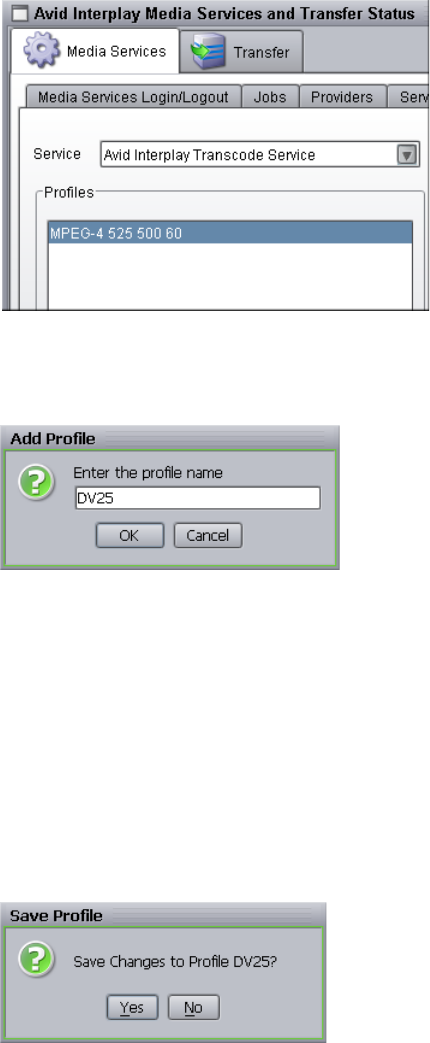
Creating a Service Provider Profile
77
4. Click Add in the Profiles area.
The Add Profile dialog box opens.
5. Type a descriptive name for the new profile in the Add Profile dialog box. This is the
name that users see when they right-click an asset and select a service, for example
Transcode.
6. Click OK.
The name appears in the Profiles list and an empty template appears in the
Parameters area.
7. In the Parameters area, set a value for each option as needed.
8. Click Save in the Parameters area.
The Save Profile dialog box opens.

5 Working with Media Services Profiles
78
9. Click Yes to save your changes.
You can define several operations under one main profile name. For example, you can
add subjobs to transcode several resolutions using one profile. The system processes
each subjob in turn.
To add subjobs:
tClick Add in the Sub Jobs area.
Modifying Multiple Profiles
From the Profiles page of the Avid Interplay Media Services and Transfer Status tool, you
can select multiple profiles to batch modify option values at the same time. When you select
more than one profile in the Profiles list, the Parameters area changes to multi-select mode
with the title “Parameters for All Selected Profiles.”
For example, you can select several Transcode profiles, and then change the Workspace
value once in the parameters area for all the selected profiles.
This feature is useful after you upgrade a service provider and you need to modify your
existing profiles to correct any values that are not supported with the new version of the
service provider. In the Parameters area of the profile, a caution icon indicates which profile
settings require attention. This feature is also useful for setting the parameters of multiple
profiles after installing a new Media Services service.
To modify multiple profiles at the same time:
1. Open and log in to the Media Services and Transfer Status tool:
tFrom the Avid Interplay Media Services window, click Admin Tool.
tFrom the Avid Interplay Administrator, in the Site Settings area, click the Interplay
Media Services icon.
nWhen you open the Media Services and Transfer Status tool from the Avid Interplay
Administrator, the name is “Interplay Media Services.”
2. Click the Profiles tab.
3. In the Service menu, select a service. For example, Avid Interplay Transcode Service.
4. In the Profiles list, select all the profiles you want to batch modify the setting values.
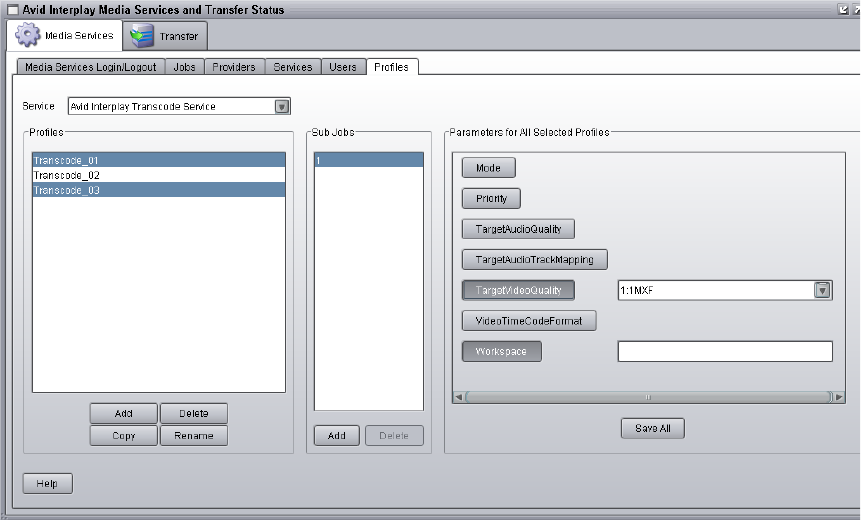
Modifying Multiple Profiles
79
The Parameters for All Selected Profiles displays in the parameters area.
5. In the Parameters for All Selected Profiles area, click the option with the value you want
to change.
The option’s value field displays.
6. Type or select a new value for the option.
7. Click Save All.
Only the options displaying their value field are updated for all of the selected profiles.
5 Working with Media Services Profiles
80

6Working with the Transcode Service
The following topics provide information about working with the Transcode service:
•Understanding the Transcode Service
•Check List for Transcoding Assets
•Installing and Registering the Transcode Service Provider
•Starting the Transcode Provider
•Creating a Interplay Transcode Service Profile
•Understanding the Transcode Services Modes
•Transcoding an Asset from Avid Interplay Access
•Transcoding an Asset from an Avid Editing Application
•Working with an Auto Transcode Folder
Understanding the Transcode Service
Transcoding Avid assets from one resolution to another resolution is available with the Avid
Interplay Transcode service and Avid Interplay Auto Transcode service. For example, you
can use the Avid Interplay Transcode service to create a low-resolution version of a
sequence or master clip. You can also use the Interplay Transcode process to mix down the
video and audio tracks during the transcode.
Before you can use the Transcode service, you need to check that the Transcode service is
installed and connected. For a list of the steps to prepare for transcoding, see “Check List for
Transcoding Assets” on page 82.
nTo transcode non-Avid assets, use the Avid Interplay ProEncode provider. For more
information, see “Working with the ProEncode Service” on page 311.
nWhen accessing an Interplay Transcode system remotely, you should use the Microsoft
Windows Remote Desktop Connect command instead of VNC. The Remote Desktop Connect
feature requires setup on the Interplay Transcode system. For information, see the Microsoft
Windows documentation.

6 Working with the Transcode Service
82
Check List for Transcoding Assets
For the transcode process, the following table provides a check list of steps for installing and
configuring the Interplay Media Services system in an Avid Unity™ environment, and
configuring an Avid editing system. The check list also provides references where to find
more information about each step.
Transcoding Assets Check List
Task Section Reference
Check your configuration. See “Configuration Requirements” on page 27.
Make sure the Interplay Media Services application
key is connected to a USB port. If a Transcode
provider is not running on the Interplay Media
Services server, you must also connect an application
key to a USB port on the server running the Transcode
provider.
Make sure the Interplay Media Services Engine
software and the supporting software are installed and
configured in the workgroup.
• Avid Service Framework for Client
• Avid Interplay Access
• Avid Interplay Media Services
• Avid Interplay Transcode service (install this on
each server used as a provider)
See Avid Interplay Software Installation and
Configuration Guide and “Interplay Media
Services Engine Installation and Configuration”
on page 29.
(Option) Install the Interplay Auto Media Services
service, which includes the Interplay Auto Transcode
software.
See “Preparing the Workgroup for Auto
Transcode” on page 110.
Install and register the Interplay Transcode service
provider.
See “Installing and Registering the Transcode
Service Provider” on page 83.
Connect the Interplay Transcode service provider to
the Media Service Engine.
See “Connecting the Transcode Provider to the
Media Services Engine” on page 88.
Start the Interplay Transcode service provider. See “Starting the Transcode Provider” on
page 91.
Verify the Interplay Transcode service is connected. See “Verifying That a Service Provider Is
Connected” on page 71.

Installing and Registering the Transcode Service Provider
83
Installing and Registering the Transcode Service
Provider
Before you can use the Transcode service provider, you must install the provider software
needed by the service from the Avid Interplay installation DVD. Then install the service
description in the Media Services Engine, register the provider, and start and connect the
service.
These tasks are explained in the following topics:
•Installing the Transcode Service Description
•Registering the Transcode Provider
•Connecting the Transcode Provider to the Media Services Engine
nYou do not use the Media Services Engine to configure the Auto Archive, Auto Transcode,
and Auto Copy services. Instead, use the Avid Interplay Administrator and the Avid Service
Framework services. For more information, see “Configuring the Auto Transcode Service”
on page 111.
Installing the Transcode Service Description
You use the Media Services and Transfer Status tool to install the Transcode service
description. For more information, see “Understanding Service Descriptions and Service
Packages” on page 61.
You only need to install a service description once, even if you configure multiple providers.
(Option) Create a Interplay Transcode profile. See “Creating a Interplay Transcode Service
Profile” on page 92.
Perform a transcode using Interplay Access. See “Transcoding an Asset from Avid Interplay
Access” on page 107.
Perform a transcode using an Avid editing system. See “Transcoding an Asset from an Avid
Editing Application” on page 109.
Transcoding Assets Check List (Continued)
Task Section Reference
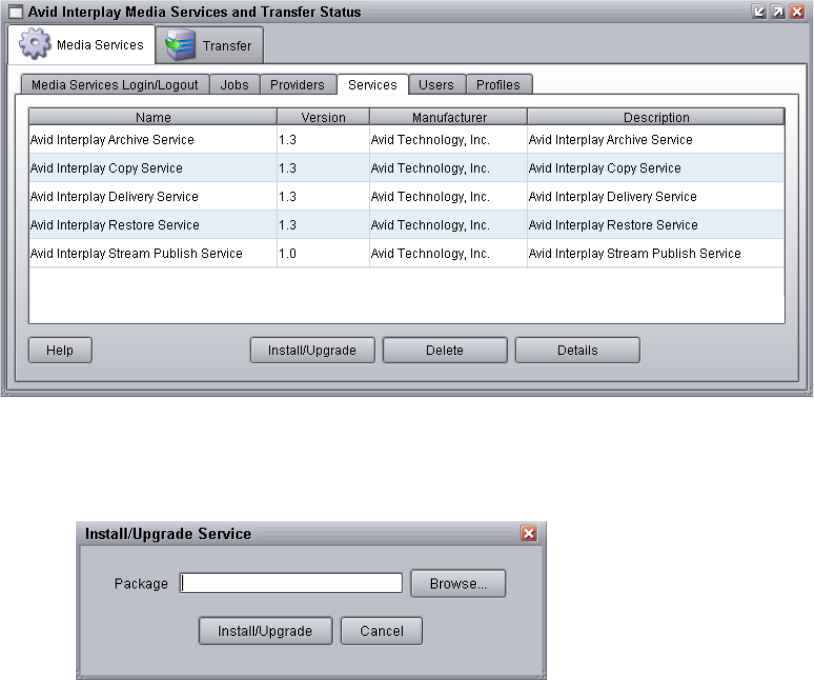
6 Working with the Transcode Service
84
To install the Transcode service description:
1. Make sure the Interplay Transcode provider software is installed.
2. Open the Media Services and Transfer Status tool and log in as an administrator, as
described in “Opening the Media Services and Transfer Status Tool” on page 37.
3. Click the Services tab.
The Services page displays the currently configured services.
4. Click Install/Upgrade.
The Install/Upgrade Service dialog box opens.
5. Click the Browse button and navigate to the folder containing the Transcode service
package (TranscodeService.zip file). Make sure you have access to the folder. By
default the service package is installed in the following folder:
C:\Program Files\Avid\Avid Interplay Transcode\TranscodeService
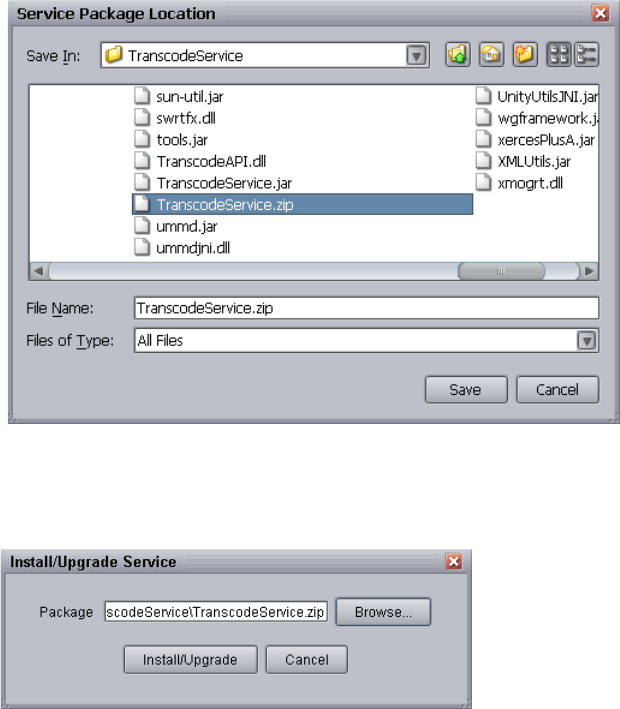
Installing and Registering the Transcode Service Provider
85
You can use the Microsoft Windows Search tool to help you locate the folder that
contains the TranscodeService.zip file. Make sure you have access to the folders.
6. In the folder, select the TranscodeService.zip file.
The following illustration shows the TranscodeService.zip file selected.
7. Click Save.
The path to the file appears in the Install/Upgrade Service dialog box.
8. Click Install/Upgrade.
The Avid Interplay Transcode Service appears on the Services page.
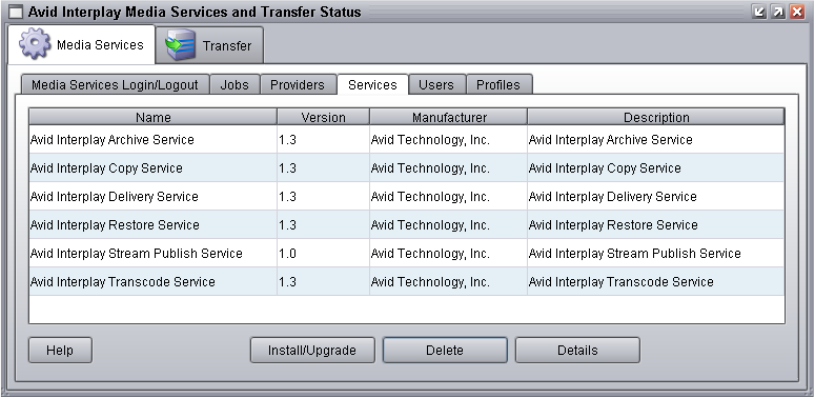
6 Working with the Transcode Service
86
Registering the Transcode Provider
After you install the Transcode service description, you need to register the Transcode
provider with the Media Services Engine. If you are configuring multiple providers, you
need to register each provider.
The Provider page on the Media Services and Transfer Status tool is used to register the
Transcode provider for the Transcode service. The provider receives information about jobs
and supplies the Media Services Engine with information about the provider, job status, and
other information depending on the service. In some cases it passes the information to other
applications.
To register the Transcode provider with the Media Services Engine:
1. Open the Media Services and Transfer Status tool and log on as an administrator, as
described in “Opening the Media Services and Transfer Status Tool” on page 37.
2. Click the Providers tab.
The Providers page displays all of the currently registered providers.
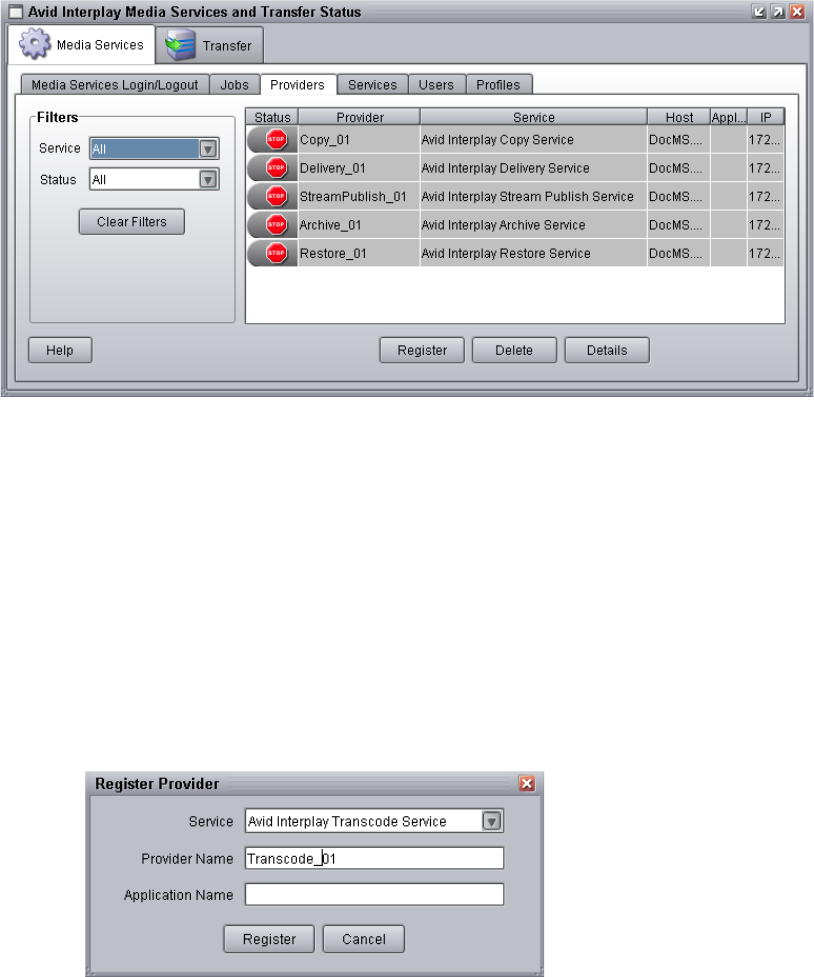
Installing and Registering the Transcode Service Provider
87
3. Click the Register button.
The Register Provider dialog box opens.
4. Do the following:
a. Service menu — Select Avid Interplay Transcode Service
b. Provider Name — Type the name that you want to use to identify this particular
provider. You can have multiple providers on your workgroup for the same service,
so you should use a meaningful name.
c. Application Name — For future use. Leave this text box blank.
The following illustration shows the Register Provider dialog box with the values filled
in for a Transcode service.
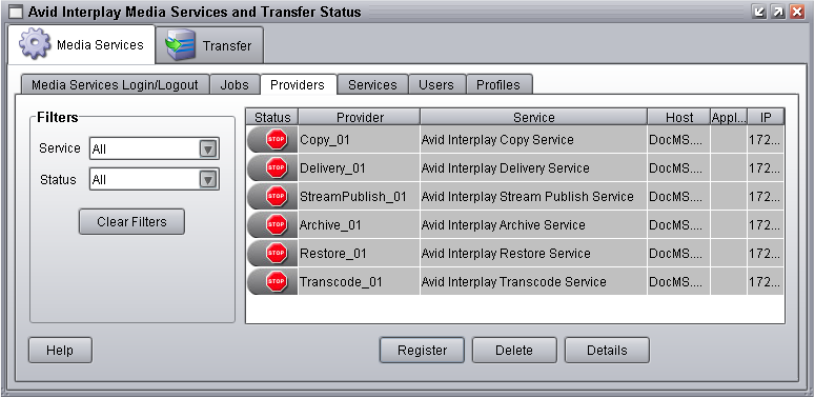
6 Working with the Transcode Service
88
5. Click Register.
The Transcode provider appears in the Providers page. If the service is not connected to
the Media Services Engine, a Stop icon is displayed in the Status column. In this case,
you must connect the Transcode provider to the Media Services Engine software. See
“Connecting the Transcode Provider to the Media Services Engine” on page 88.
Connecting the Transcode Provider to the Media Services Engine
After you install the Transcode service description and register the Transcode provider, you
need to connect the Transcode provider to the Media Services Engine software.
To connect the Transcode provider to the Media Services Engine:
1. Click Start and select Programs > Avid > Avid Interplay Transcode.
The Transcode Service dialog box opens.
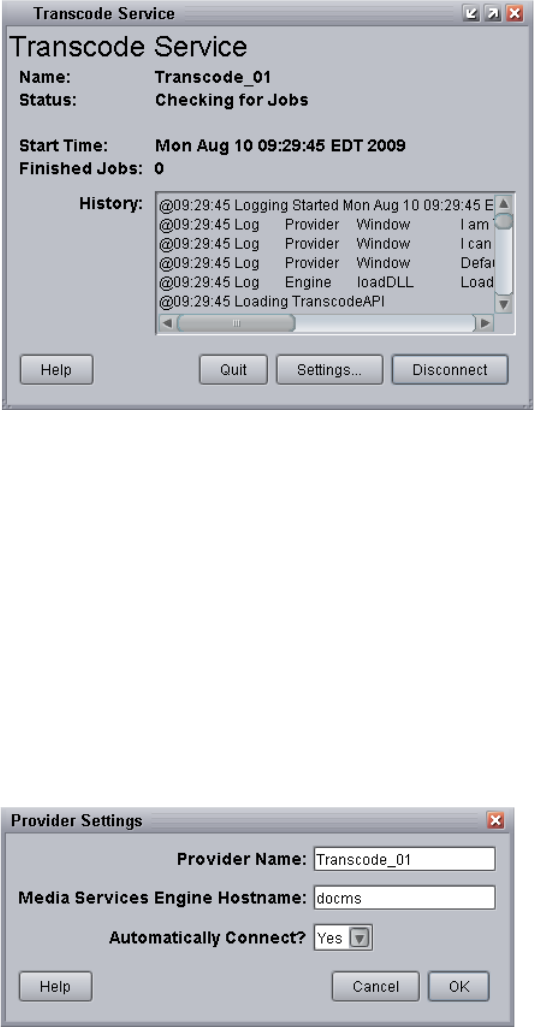
Installing and Registering the Transcode Service Provider
89
2. Click Settings.
The Provider Settings dialog box opens.
3. Do the following:
a. Provider Name — Type the name of the provider you specified in “Registering the
Transcode Provider” on page 86. In this example, the name is Transcode_01.
b. Media Services Engine Host Name — Type the name of the system running the
Media Services Engine application.
c. Automatically Connect — Select either Yes or No (default) to automatically
connect to the Media Services Engine when the application starts.
The following illustration shows the Provider Settings dialog box with the values filled
in for the Transcode provider.
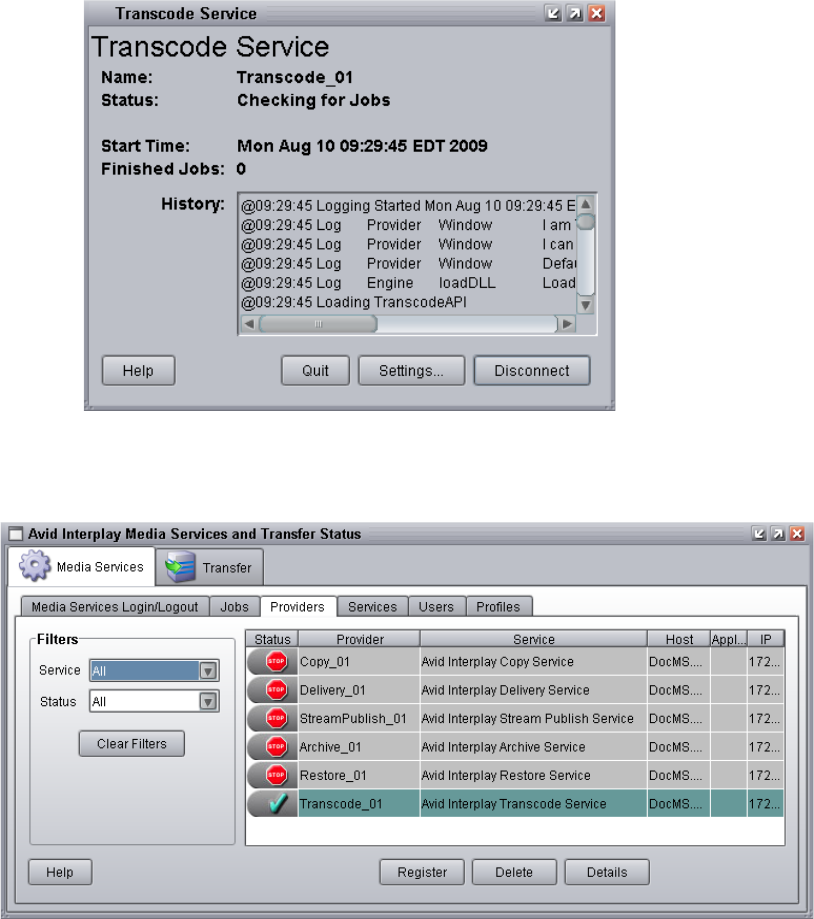
6 Working with the Transcode Service
90
4. Click OK.
5. Click Connect in the Service window.
The Transcode Service dialog box now shows that the service is connected and shows
the name of the provider you connected.
The Provider page in the Media Services and Transfer Status tool now shows that the
service is connected, indicated by a check mark in the Status column.
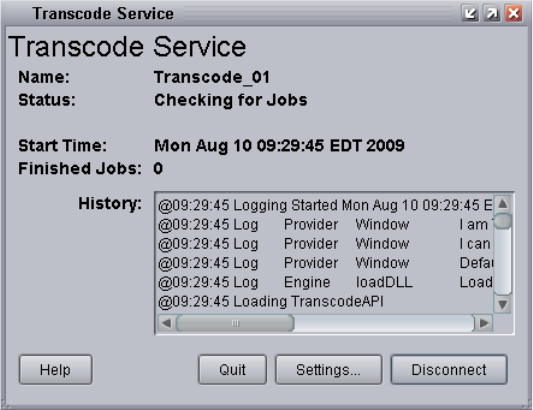
Starting the Transcode Provider
91
Starting the Transcode Provider
To start the Transcode provider:
1. Click Start and select Programs > Avid > Avid Interplay Transcode.
Depending on the service settings, one of the following happens:
- Automatically Connect—Yes, the service dialog box opens for the service you
selected and is connected to the service.
- Automatically Connect—No, the service dialog box opens for the service you
selected and displays Idle. Click the Connect button to connect to the service.
nThe service provider dialog box displays the start date and start time of the providers based
on the Microsoft Windows time.
After the connection is made, the Status line in the service dialog box reads “Checking
for Jobs,” and the History window displays the message “Connection Established.” The
Connect button changes to a Disconnect button.
The following example shows the Transcode Service dialog box as connected.
nIf the provider cannot connect to the Media Services Engine, the Status line reads
“Connection Error.” Ensure the Media Services Engine is running, the service description is
installed, the provider is properly registered, and then click Connect again.
6 Working with the Transcode Service
92
Creating a Interplay Transcode Service Profile
You must create a profile to use when performing a Transcode or an Auto Transcode
operation. You select a Transcode profile after selecting an asset in Interplay Access or in an
Avid editing application.
Transcode profiles let you define the following:
• The portion of the Avid asset that is transcoded
• Job priority
• Resolution and format
• Workspace for the media files
nFor information on transcoding MultiRez clips, see the “Using MultiRez and Dynamic
Relink” chapter in the Interplay Help or the Help for your Avid editing application.
To create a transcode profile:
1. Open and log in to the Media Services and Transfer Status tool as described in “Opening
the Media Services and Transfer Status Tool” on page 37.
2. Click the Profiles tab.
3. In the Service menu, select Avid Interplay Transcode Service.
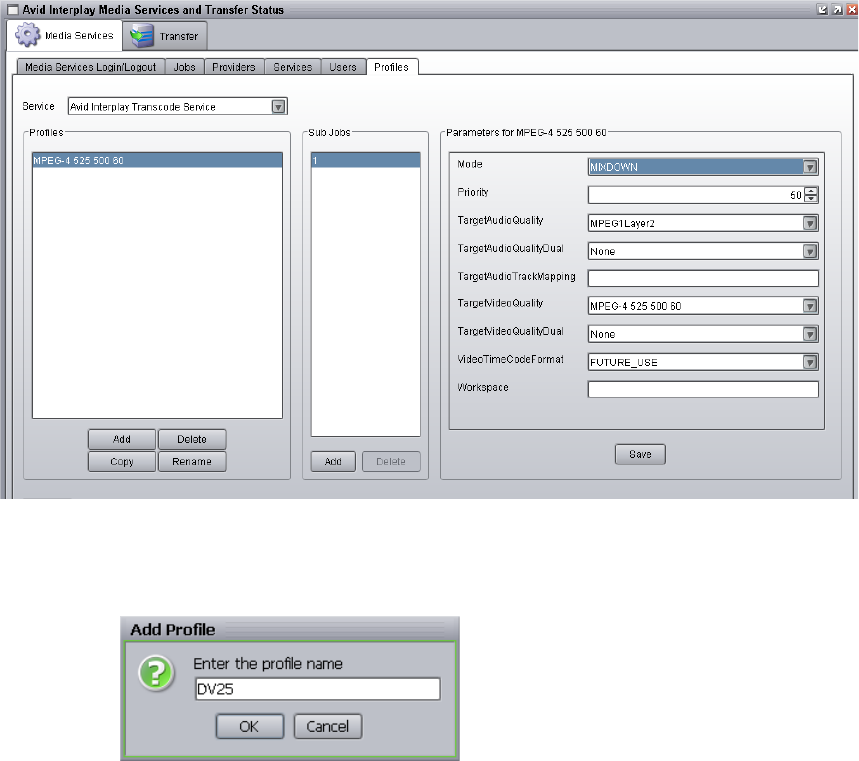
Creating a Interplay Transcode Service Profile
93
4. Click Add in the Profiles area.
The Add Profile dialog box opens.
5. Type a descriptive name for the new profile in the Add Profile dialog box. This is the
name that users see when they right-click an asset and select Transcode.
6. Click OK.
The name appears in the Profiles list and an empty template appears in the
Parameters area.
7. In the Parameters area, select a Mode as follows:
- WHOLE — Transcodes the entire clip. For sequences, the full source clips that
make up the sequence are transcoded. For subclips, the full source clip that makes
up the subclip is transcoded.
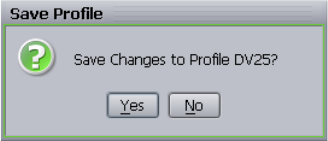
6 Working with the Transcode Service
94
- CONSOLIDATE — For subclips, transcodes only the portion of the clip that makes
up the subclip. For sequences, transcodes only the portion of the clips that are
contained in the sequence. This creates partially online media for the related clips.
- MIXDOWN — During the transcode, the video and audio are mixed down, as
specified in the profile, to create one master clip. See “Understanding MIXDOWN
Mode During the Transcode Process” on page 105.
- DUALMIXDOWN — Performs two transcodes of the selected asset, to create a
single master clip with two resolutions associated with it. See “Understanding the
DUALMIXDOWN Mode During the Transcode Process” on page 106.
8. In the Parameters area, define the other values you want in the profile for the selected
mode.
See “Transcode Profile Parameters” on page 94.
9. Click Save in the Parameters area.
The Save Profile dialog box opens.
10. Click Yes to save your changes.
You can define several transcode operations under one main profile name. For example,
you can add subjobs to transcode several resolutions using one profile. The system
processes each subjob in turn.
To add subjobs:
tClick Add in the Sub Jobs area.
Transcode Profile Parameters
The parameters available in a transcode profile depends on the Mode setting.
• WHOLE—see “WHOLE Mode - Transcode Profile Settings” on page 95
• CONSOLIDATE—see “CONSOLIDATE Mode - Transcode Profile Settings” on
page 96
• MIXDOWN—see “MIXDOWN Mode - Transcode Profile Settings” on page 97
•DUALMIXDOWN—see “DUALMIXDOWN Mode - Transcode Profile Settings” on
page 98

Creating a Interplay Transcode Service Profile
95
nAvid Interplay Access v1.6 or higher is required to use some XDCAM HD resolutions in the
TargetVideoQuality menu.
WHOLE Mode - Transcode Profile Settings
WHOLE Mode Transcode Profile Settings
Parameter Description
Mode Select WHOLE
The WHOLE mode transcodes the entire clip. For
sequences, the full source clips that make up the sequence
are transcoded. For subclips, the full source clip that makes
up the subclip is transcoded.
Priority Select a priority. This value allows you to assign job
priorities to different profiles. Priority numbers range from
1 (highest priority) through 100 (lowest priority). The
default priority number assigned to each job is 50.
TargetAudioQuality Select an audio resolution for the transcode or select None.
TargetAudioQualityDual Not used in WHOLE mode, only available with
DUALMIXDOWN mode.
TargetAudioTrackMapping Not used in WHOLE mode, only available with
MIXDOWN and DUALMIXDOWN mode.
TargetVideoQuality Select a video resolution for the transcode or select None.
TargetVideoQualityDual Not used in WHOLE mode, only available with
DUALMIXDOWN mode.
VideoTimeCodeFormat Not used - for future use.
Workspace Type the name of the Avid Unity workspace that will hold
the new media files.

6 Working with the Transcode Service
96
CONSOLIDATE Mode - Transcode Profile Settings
CONSOLIDATE Mode Transcode Profile Settings
Parameter Description
Mode Select CONSOLIDATE
For subclips, transcodes only the portion of the clip that
makes up the subclip. For sequences, transcodes just the
portion of the clips that are contained in the sequence. This
creates partially online media for the related clips.
Priority Select a priority. This value allows you to assign job
priorities to different profiles. Priority numbers range from
1 (highest priority) through 100 (lowest priority). The
default priority number assigned to each job is 50.
TargetAudioQuality Select an audio resolution for the transcode.
TargetAudioQualityDual Not used in CONSOLIDATE mode, only available with
DUALMIXDOWN mode.
TargetAudioTrackMapping Not used in CONSOLIDATE mode, only available with
MIXDOWN mode and DUALMIXDOWN mode.
TargetVideoQuality Select a video resolution for the transcode.
TargetVideoQualityDual Not used in CONSOLIDATE mode, only available with
DUALMIXDOWN mode.
VideoTimeCodeFormat Not used - for future use.
Workspace Type the name of the Avid Unity workspace that will hold
the new media files.

Creating a Interplay Transcode Service Profile
97
MIXDOWN Mode - Transcode Profile Settings
See also “Understanding MIXDOWN Mode During the Transcode Process” on page 105
MIXDOWN Mode Transcode Profile Settings
Parameter Description
Mode Select MIXDOWN
The MIXDOWN mode sets the transcode process to mix
down the audio and video. You can control whether the
audio or video is included in the mixdown by using the
TargetAudioQuality and TargetVideoQuality settings.
Priority Select a priority. This value allows you to assign job
priorities to different profiles. Priority numbers range from
1 (highest priority) through 100 (lowest priority). The
default priority number assigned to each job is 50.
TargetAudioQuality Select an audio resolution for the transcode.
• None - the mixed-down clip does not include the audio
tracks.
For example, if you select None from the
TargetAudioQuality menu, then the audio tracks are not
mixed down during the Interplay Transcode operation.
• MPEG1 Layer 2 - digital audio compressed to the
MPEG1 Layer 2 specification at 96 Kb/s.
• Uncompressed PCM - uncompressed digital audio
(standard Avid audio).
TargetAudioQualityDual Not used in MIXDOWN mode, only available with
DUALMIXDOWN mode.
TargetAudioTrackMapping This text box lets you identify the mapping of source audio
tracks to the output (target) audio tracks. See “Mapping of
Audio Tracks in MIXDOWN and DUALMIXDOWN
Modes” on page 100.

6 Working with the Transcode Service
98
DUALMIXDOWN Mode - Transcode Profile Settings
See also “Understanding the DUALMIXDOWN Mode During the Transcode Process” on
page 106.
TargetVideoQuality Select a video resolution for the transcode.
• None - the mixed-down clip does not include the video
tracks.
For example, if you select None from the
TargetVideoQuality menu, then the video tracks are not
mixed down during the Interplay Transcode operation.
• Select the video resolution for the mix down.
TargetVideoQualityDual Not used in MIXDOWN mode, only available with
DUALMIXDOWN mode.
VideoTimeCodeFormat Not used - for future use.
Workspace Type the name of the Avid Unity workspace that will hold
the new media files.
MIXDOWN Mode Transcode Profile Settings (Continued)
Parameter Description
DUALMIXDOWN Mode Transcode Profile Settings
Parameter Description
Mode Select DUALMIXDOWN
The DUALMIXDOWN mode sets the transcode process to
mix down the two sets of video and audio tracks to
different resolutions. A single master clip is created with
both resolutions. You can control whether the audio or
video are included in each mixdown by using the
TargetAudioQuality. TargetAudioQualityDual,
TargetVideoQuality and TargetVideoQualityDual settings.
Priority Select a priority. This value allows you to assign job
priorities to different profiles. Priority numbers range from
1 (highest priority) through 100 (lowest priority). The
default priority number assigned to each job is 50.

Creating a Interplay Transcode Service Profile
99
TargetAudioQuality Select an audio resolution for the first (primary) transcode.
• None - the mixed-down clip does not include the audio
tracks.
For example, if you select None from the
TargetAudioQuality menu, then the audio tracks are not
mixed down during the Interplay Transcode operation.
• MPEG1 Layer 2 - digital audio compressed to the
MPEG1 Layer 2 specification at 96 Kb/s.
• Uncompressed PCM - uncompressed digital audio
(standard Avid audio).
TargetAudioQualityDual Select an audio resolution for the second transcode.
• None - the mixed-down clip does not include the audio
tracks.
For example, if you select None from the
TargetAudioQualityDual menu, then the audio tracks
are not mixed down during the Interplay Transcode
operation.
• MPEG1 Layer 2 - digital audio compressed to the
MPEG1 Layer 2 specification at 96 Kb/s.
• Uncompressed PCM - uncompressed digital audio
(standard Avid audio).
nIf you select a dual target, you should also select a
primary target.
TargetAudioTrackMapping This text box lets you identify the mapping of source audio
tracks to the output (target) audio tracks. See “Mapping of
Audio Tracks in MIXDOWN and DUALMIXDOWN
Modes” on page 100.
TargetVideoQuality Select a video resolution for the first (primary) transcode.
• None - the mixed-down clip does not include the video
tracks.
For example, if you select None from the
TargetVideoQuality menu, then the video tracks are not
mixed down during the Interplay Transcode operation.
• Select the video resolution for the mix down.
DUALMIXDOWN Mode Transcode Profile Settings (Continued)
Parameter Description

6 Working with the Transcode Service
100
Mapping of Audio Tracks in MIXDOWN and DUALMIXDOWN Modes
When you create a Avid Interplay Transcode profile for mixing down the source audio, you
can also specify how the source audio tracks map to the target audio tracks. The
TargetAudioTrackMapping text box lets you identify the source audio tracks and how you
want them mapped to the target audio tracks.
Use the following rules in the TargetAudioTrackMapping text box:
AudioMode[S or A]TargetAudioTrack=SourceAudioTrack+SourceAudioTrack;
For example, S1=1+2; performs a stereo mapping of the source audio track 1 to the target
audio track 1 and the source audio track 2 to the target audio track 2.
If you leave the TargetAudioTrackMapping text box blank, then the default audio track
mapping is used: S1=0; which is stereo mode with all source audio tracks mapping to target
audio tracks 1 and 2.
You can enter a series of output (target) track mapping specifications. The following table
explains the specifications:
TargetVideoQualityDual Select a video resolution for the second transcode.
• None - the mixed-down clip does not include the video
tracks.
For example, if you select None from the
TargetVideoQualityDual menu, then the video tracks
are not mixed down during the Interplay Transcode
operation.
• Select the video resolution for the mixdown.
nIf you select a dual target, you should also select a
primary target.
VideoTimeCodeFormat Not used - for future use.
Workspace Type the name of the Avid Unity workspace that will hold
the new media files.
DUALMIXDOWN Mode Transcode Profile Settings (Continued)
Parameter Description

Creating a Interplay Transcode Service Profile
101
TargetAudioTrackMapping
Text Box Rule
AudioMode Type S for stereo mode that uses two target audio tracks and
applies balancing.
Type A for mono mode that uses one target audio track and does
not include balancing.
nThe S and A are not case sensitive.
TargetAudioTrack Type the target audio track number.
• For stereo mode the target audio track must be an odd
number. The second stereo target audio track is automatically
set using the number you type +1. For example, if you type S1
then the target audio tracks are audio track 1 and audio
track 2.
=You must type an equal sign after the Target Audio Track before
specifying the source audio tracks.
SourceAudioTrack Type a source audio track number.
• Type a specific source audio track number or a series of track
numbers separated by a + (plus sign).
• Type 0 to include all available source audio tracks.
• Type -1 to include all odd numbered source audio tracks.
• Type -2 to include all even numbered source audio tracks.
;You must type a ; (semicolon) as a terminator after the source
audio track numbers.

6 Working with the Transcode Service
102
The following table provides some common uses of the audio track mapping process.
The following table provides an example of using audio track mapping with multi-language
source clips.
TargetAudioTrackMapping
Text Box Explanation
A0=0; Mono mode, all available source audio tracks are mapped to
equal number of target audio tracks, such as source audio track 1
maps to target audio track 1, source audio track 2 maps to target
audio track 2, and so on.
A1=0; Mono mode, all available source audio tracks are mapped to
target audio track 1.
A1=-1; Mono mode, all available odd numbered source audio tracks are
mapped to target audio track 1.
A2=-2; Mono mode, all available even numbered source audio tracks are
mapped to target audio track 2.
S1=0; Stereo mode, all available source audio tracks are mapped to
target audio track 1 and target audio track 2. This is the default
result if the text box is left blank.
Source Audio Tracks
TargetAudioTrackMapping
text box Results
Track 1 and 2 - music
Track 3 and 4 - English
voice over
Track 5 and 6 - French
voice over
S1=1+2+3+4; Stereo mode
• source audio track 1 is mapped to target
audio tracks 1 (music odd track)
• source audio track 2 is mapped to target
audio tracks 2 (music even track)
• source audio track 3 is mapped to target
audio target track 1 (English odd track)
• source audio track 4 is mapped to target
audio track 2 (English even track)
Creating a Interplay Transcode Service Profile
103
Mapping Multichannel Audio Tracks in Transcode Mixdown
Avid editing applications let users create and work with multichannel audio tracks. For
example, for a clip, you can combine audio tracks A1 and A2 into a single stereo track.The
Interplay Transcode Mixdown option lets you specify how stereo tracks map to target audio
tracks.
For example, you might want to transcode and mixdown a sequence that includes two tracks
(A1 and A2), each of which is a stereo pair.
If you are using the Transcode Mixdown option, and you want to preserve the two tracks as
stereo pairs, use the following mapping:
S1 = 1;S3 = 2;
This mapping specifies that:
• For stereo output track 1 (S1), use source track 1
• For stereo output track 3 (S3), use source track 2
For stereo mode, the target track must be an odd number, because it represents two stereo
tracks.
S3=1+2+5+6; Stereo mode
• source audio track 1 is mapped to target
audio track 3 (music odd track)
• source audio track 2 is mapped to target
audio track 4 (music even track)
• source audio track 5 is mapped to target
audio track 3 (French odd track)
• source audio track 6 is mapped to target
audio track 4 (French even track)
Source Audio Tracks
TargetAudioTrackMapping
text box Results
V1
A1
A2
Clip 1 Clip 2

6 Working with the Transcode Service
104
The transcoded, mixed-down sequence preserves the two tracks as stereo pairs, as shown in
the following illustration:
Other mappings will combine the stereo pair to a single track. For example, A0 = 0 will
create two mono tracks, as shown in the following illustration.
cIf you are using the Transcode Mixdown option with stereo tracks, make sure that your
audio track mapping is correct for the output that you want. The Transcode Mixdown
service uses the track information as labeled in the sequence, not as labeled in the
original master clips.
Understanding the Transcode Services Modes
The Transcode profile lets you select various modes to perform different types of transcodes.
• WHOLE — Transcodes the entire clip. For sequences, the full source clips that make up
the sequence are transcoded.
• CONSOLIDATE — For subclips, only the portion of the clip that makes up the subclip
is transcoded. For sequences, only the portion of the clips that are contained in the
sequence are transcoded. This creates partially online media for the related clips.
• MIXDOWN — The transcode process mixes down the audio and video. Profile settings
let you control if the audio and video are included in the mixed-down master clip. See
“Understanding MIXDOWN Mode During the Transcode Process” on page 105.
• DUALMIXDOWN — The transcode process creates one master clip with two
resolutions. Profile settings let you control if audio and video are included during each
of the mixed-down processes. See “Understanding the DUALMIXDOWN Mode During
the Transcode Process” on page 106.
V1
A1
A2
A1 & A2
A3 & A4
V1Clip 1 Clip 2 Clip 1.new
Transcode
Mixdown
V1
A1
A2
A1
A2
V1
Clip 1 Clip 2 Clip 1.new
Transcode
Mixdown
Understanding the Transcode Services Modes
105
Understanding MIXDOWN Mode During the Transcode Process
The Interplay Transcode service can mix down the audio and video during the transcode
process of sequences. You can set up an Interplay Transcode profile in the Avid Interplay
Media Services and Transfer Status window for the type of mixdown you want to perform.
Then you can use Interplay Access or an Avid editing system to select the items to transcode
and select the profile to use for the transcode and mixdown.
When performing a mixdown the following items are preserved in the mixed-down master
clips, if they are available in the original sequence:
• Locators and column property values
• Restrictions on any portion of the sequence
• Headframes are generated if the source sequence contained them
The metadata of the newly created mixed-down master clip contains a reference to the
original sequence.
Video mixdown supports all target resolutions and all Avid effects. Audio mixdown supports
target formats MPEG1 Layer 2 and Uncompressed PCM audio. Audio plug-in effects are not
supported.
You can set up the Interplay Transcode profile to map the source audio tracks to various
target audio tracks. For information about mapping the audio tracks, see “Mapping of Audio
Tracks in MIXDOWN and DUALMIXDOWN Modes” on page 100.
nAn Interplay Transcode profile that is set up for audio mixdown can be used with sequences
or clips that do not contain audio. Therefore, you do not need a specific profile for video
only mixdowns. This is also true for video mixdowns: a profile set for video mixdown can be
used with sequences that do not contain video. In both cases, the mixdown finishes as
expected.
For information about the Interplay Transcode profile settings used for mixing down the
audio and video, see “MIXDOWN Mode - Transcode Profile Settings” on page 97.
If you are going to send a sequence to the Media Services Transcode Mixdown service,
render any non-real-time effects (blue-dot effects), third-party 3D effects, or Pro Tools
effects in your Avid editing application before starting the mixdown. If you revise the
sequence, you might need to render the effects again.
The mixdown mode in the Interplay Transcode service functions differently from the Avid
editing application’s mixdown features. The following table lists the differences between the
Interplay Transcode Mixdown mode and an Avid editing application’s mixdown feature.

6 Working with the Transcode Service
106
nWhen selecting the target audio quality in the profile, Uncompressed PCM is for 16
bits/sample rate.
Understanding the DUALMIXDOWN Mode During the Transcode
Process
The Interplay Transcode service uses the DUALMIXDOWN mode to create one master clip
with two resolutions. For example, you can use DUALMIXDOWN mode to create a master
clip that contains both low-resolution and high-resolution media files of a selected asset. The
low-resolution proxy files are available for use while the high-resolution is being generated.
You can use profile settings to determine if the video and audio are included in the
mixed-down master clip.
nFor information about the Interplay Transcode profile settings used for mixing down the
audio and video in DUALMIXDOWN mode, see “DUALMIXDOWN Mode - Transcode
Profile Settings” on page 98.
Transcoding with DUALMIXDOWN mode is useful in workflows that include streaming
playback of assets in Interplay Access.
Interplay Transcode
Mixdown mode
Avid editing application Mixdown
feature
Mixdown type Mixes down a sequence to audio
only, video only, or can include both
audio and video in the mixdown.
Mixes down a sequence to audio only or
video only. Cannot mix down both audio
and video in the sequence.
Effects Limited effect support:
Video effects—All Avid video
effects are supported, including 3-D
video effects.
Audio plug-in effects are not
supported.
Mixdown supports full effects.
Video support Additional target resolutions are
available, including proxy
resolutions.
Limited target resolutions, cannot create
proxy resolutions.
Audio support MP2 audio support. You can select
48 kHz sample rate and 16 bits.
PCM audio support. You can select
48 kHz sample rate and 16 or 24 bits.
MP2 audio not supported.
PCM audio support. You can select
sample rates (32, 44.1 or 48 kHz) and 16
or 24 bits.
Transcoding an Asset from Avid Interplay Access
107
When performing a dual mixdown the following items are preserved in the mixed-down
master clip, if they are available in the original sequence:
• Locators and column property values
• Restrictions on any portion of the sequence
• Headframes are generated if the source sequence contained them
The metadata of the newly created mixed-down master clip contains a reference to the
original sequence.
Video mixdown supports all target video resolutions and all Avid effects. Audio mixdown
supports target formats MPEG1 Layer 2 and Uncompressed PCM audio. Audio plug-in
effects are not supported.
You can set up the Interplay Transcode profile to map the source audio tracks to various
target audio tracks. For information about mapping the audio tracks, see “Mapping of Audio
Tracks in MIXDOWN and DUALMIXDOWN Modes” on page 100.
nAn Interplay Transcode profile that is set up for audio mixdown can be used with sequences
or clips that do not contain audio. Therefore, you do not need a specific profile for video
only mixdowns. This is also true for video mixdowns: a profile set for video mixdown can be
used with sequences that do not contain video. In both cases, the mixdown finishes as
expected.
Transcoding an Asset from Avid Interplay Access
This section describes how to manually transcode an asset. For information on automatically
transcoding an asset, see “Working with an Auto Transcode Folder” on page 110.
To transcode an asset from the Avid Interplay Access:
1. Make sure the Media Services Engine and Avid Interplay Transcode service are
running.
2. Click Start and select All Programs > Avid > Avid Interplay Access.
3. Locate the asset that you want to transcode.
4. Right-click the asset and select Transcode.
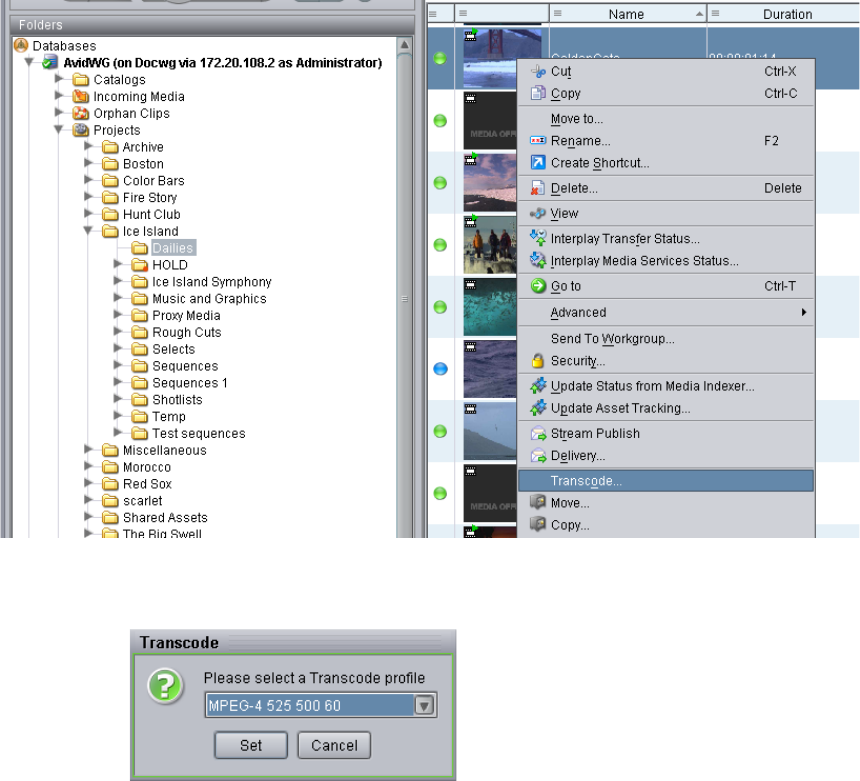
6 Working with the Transcode Service
108
The Transcode dialog box opens.
5. Select a profile from the menu and click Set.
The system performs the transcode operation.
6. (Option) To view the progress of the Transcode job, select View > Interplay Media
Services Status.
After the transcode is complete, the new resolution comes online on the asset selected for
transcoding.
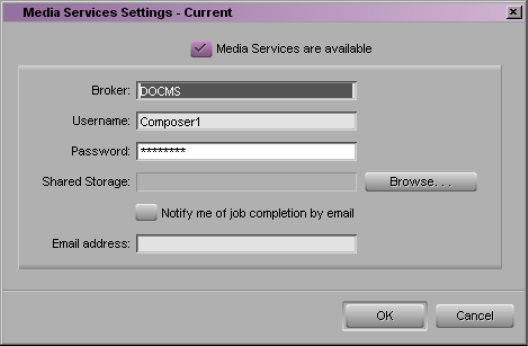
Transcoding an Asset from an Avid Editing Application
109
Transcoding an Asset from an Avid Editing
Application
To transcode an asset from an Avid editing application, first connect to the Media Services
Engine, then perform the transcode.
To connect to the Media Services Engine:
1. In the Avid editing application, select Media Services from the Settings list.
The Media Services Settings dialog box opens.
2. Fill in the following sections:
- Select the “Media Services are Available” option.
- Broker — Type the computer name of the system running the Media Services
Engine.
- Type your user name and password. This user name can be one set up explicitly in
Media Services Engine by the Media Services administrator. It can also be any valid
Avid Interplay user name. For example, you can use the same user name and
password that you use to connect to the Interplay Window.
- Shared Storage — Leave this field blank. This setting is only used for setting up
Avid Interplay ProEncode.
- Email address — You can use this option if your Media Services Engine is set up
for e-mail notification. See “Configuring the Media Services Engine” on page 33
3. Click OK.
6 Working with the Transcode Service
110
To transcode a clip or sequence:
1. Make sure the Media Services Engine and Avid Interplay Transcode service are
running.
2. Select the clip or sequence in the bin or select the asset in the Interplay Window.
3. Select File > Avid Interplay Media Services > Transcode Services > profile name, where
profile name is a profile set up on the Media Services Engine Transcode service.
The system performs the transcode operation according to the rules in the profile that
you select. See “Creating a Interplay Transcode Service Profile” on page 92.
4. (Option) If you have the Avid Interplay Access application installed on your system,
start the application and select View > Avid Interplay Media Services Status to view the
job progress. If you have the standalone Media Services and Transfer Status tool
installed, click Start and select Programs > Avid > Avid Media Services and Transfer
Status.
Working with an Auto Transcode Folder
You can identify a folder or subfolder as an Auto Transcode folder. When you move a clip or
sequence asset to the Auto Transcode folder, the Avid Interplay Auto Transcode Service
automatically submits the clip to the Interplay Transcode service for transcoding.
nThe system does not create a new asset when you perform the transcode. You have one asset
with two resolutions associated with the asset. You can view the resolutions in Avid Interplay
Access or the Interplay window.
The Auto Transcode service processes files according to the date and time, using a first-in,
first-out (FIFO) rule. The date and time used depends on when an asset was copied to the
auto folder.
•Preparing the Workgroup for Auto Transcode
•Identifying an Auto Transcode Folder
•Transcoding Avid Assets Using an Auto Transcode Folder
•Location of Automatically Transcoded Files
Preparing the Workgroup for Auto Transcode
For information on setting up your workgroup for transcoding, see “Check List for
Transcoding Assets” on page 82.
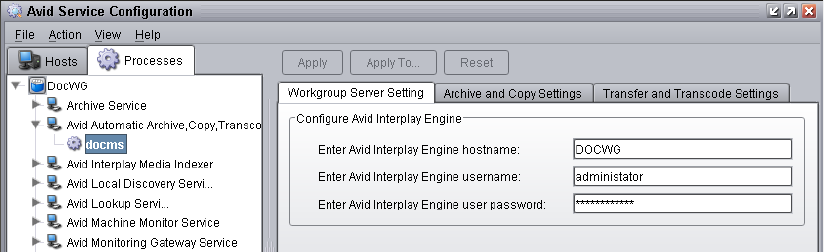
Working with an Auto Transcode Folder
111
In addition to the Transcode Service application, you must also install the Avid Interplay
Auto Media Services, which includes the Auto Transcode service. These services are
installed with the Auto Archive installation. For details on installing the software, see the
Avid Interplay Software Installation and Configuration Guide.
For details on configuring the Avid Interplay Auto Transcode service, see “Configuring the
Auto Transcode Service” on page 111.
To verify that the Auto Transcode service is running, see “Verifying that the Auto Transcode
Service is Running” on page 113.
Configuring the Auto Transcode Service
You use the Avid Service Configuration tool (a component of Avid Service Framework) to
configure the Auto Transcode service. The Avid Service Configuration tool is an application
that lets you set and change parameters for each of the different Avid services and
applications in your workgroup environment. For more information about using Avid
Service Framework, see the Avid Service Framework User’s Guide.
To configure the Avid Auto Transcode service using Avid Service Configuration tool:
1. Click the Start button, and select All Programs > Avid > Avid Service Framework >
Avid Service Configuration.
The system displays the Workgroup Server Setting tab for the Avid Automatic Archive,
Transcode, Transfer, and Copy services.
2. Type the Interplay Engine hostname, user name, and password.
3. Click the Transfer and Transcode Settings tab.
The system displays the settings for the AutoTransfer and AutoTranscode.
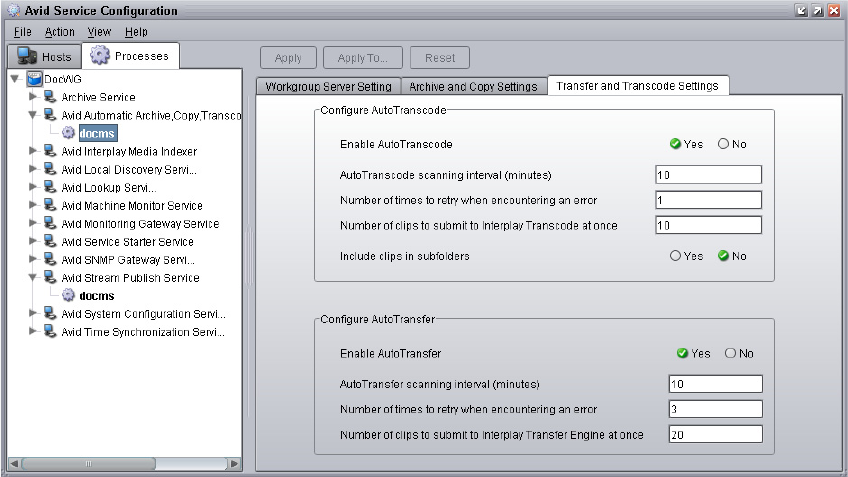
6 Working with the Transcode Service
112
4. In the Configure AutoTranscode area, do the following:
a. Enable AutoTranscode—Select Yes.
b. AutoTranscode scanning interval—Type the number of minutes between scans,
minimum allowed is 5 minutes.
c. Number of times to retry when encountering an error—Type the number of times
you want the system to retry after an error occurs.
d. Number of clips to submit to Interplay Transcode at once—Type the number of
clips you want sent for transcode at one time.
The system can better manage the job-processing task when the jobs are processed
in small batches. The default number is 10 clips submitted for processing at one
time. For example, when the system is transcoding 1,000 clips to the Auto
Transcode folder, the first 10 clips are transcoded, then the next 10 clips are
transcoded, and so on until all 1,000 clips are transcoded.
You can verify that the Auto Transcode service is running. See “Verifying that the
Auto Transcode Service is Running” on page 113.
e. Include clips in subfolders—Select Yes if you want to transcode the clips in
subfolders.
5. Click Apply.
6. Close the Avid Service Configuration window.
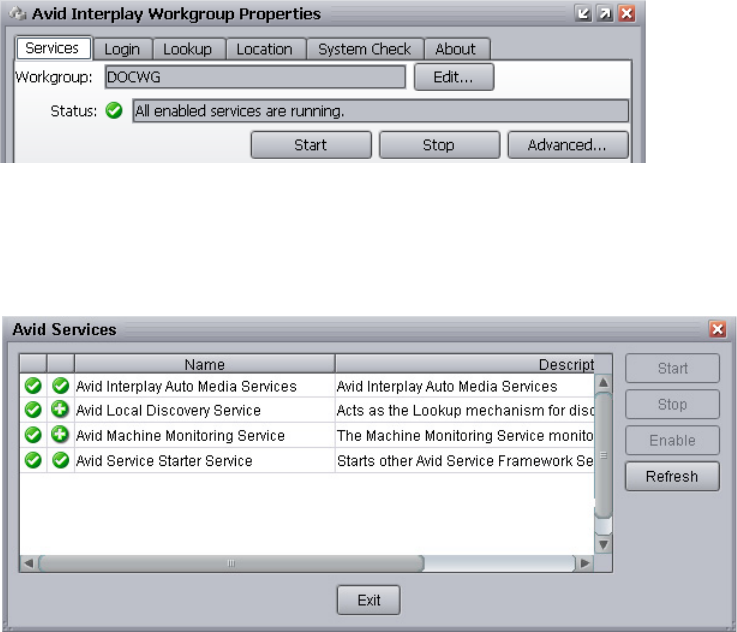
Working with an Auto Transcode Folder
113
Verifying that the Auto Transcode Service is Running
You use the Avid Interplay Workgroup Properties (a component of Avid Service
Framework) to verify that an Auto service is running. For more information about using
Avid Service Framework, see the Avid Service Framework User’s Guide.
To verify that the Auto Transcode service is running:
1. Click the Start button, and then select All Programs > Avid > Avid Service Framework >
Avid Workgroup Properties.
The Avid Workgroup Properties window opens.
If there is a green check mark next to the “Status” field, all services are running.
2. To view the services, click the Advanced button.
The Avid Services dialog box opens.
This dialog box lets you view all services that are monitored by the Service Framework.
The Auto Transcode service is managed by the Avid Interplay Auto Media Services
service.
3. If necessary, select a service and click Start.
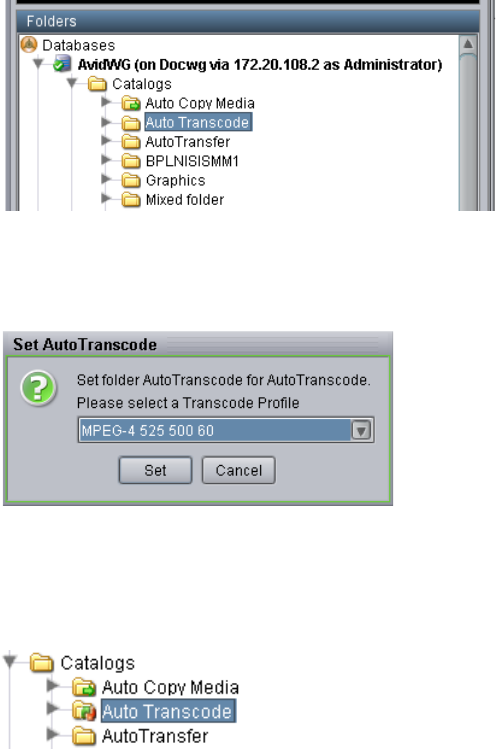
6 Working with the Transcode Service
114
Identifying an Auto Transcode Folder
You must be logged in as an Administrator on the Avid Interplay Access to create an
Auto Transcode folder in the Avid Interplay database.
To set up an Auto Transcode folder:
1. Create a folder (or select an existing folder) in the Avid Interplay database, using Avid
Interplay Access.
The following illustration shows a folder named Auto Transcode. You can use any name
that fits your workflow.
2. Right-click the folder and select Set AutoTranscode.
The Set AutoTranscode dialog box opens.
3. Select a Transcode profile for the folder and click Set. For information about profiles,
see “Creating a Interplay Transcode Service Profile” on page 92.
The system adds an Auto Transcode icon to the folder.
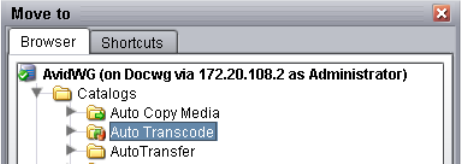
Working with an Auto Transcode Folder
115
Transcoding Avid Assets Using an Auto Transcode Folder
To transcode Avid assets using an Auto Transcode folder:
1. Make sure a folder is configured for Auto Transcoding. See “Identifying an Auto
Transcode Folder” on page 114.
2. (Option) Ensure that the Media Services Engine and the Avid Interplay Transcode
Service are connected. See “Verifying That a Service Provider Is Connected” on
page 71.
3. Open Interplay Access and log in.
4. Locate a clip that you want to transcode, right-click the file, and select Move To.
The Move To dialog box opens.
5. Navigate to your Auto Transcode folder and click OK.
The system starts the Transcode job as a background task.
6. (Option) To view the progress of the Transcode job, select View > Interplay Media
Services Status.
Location of Automatically Transcoded Files
The workspace for the new media files associated with the asset is specified by the profile
associated with the Auto Transcode folder. See “Identifying an Auto Transcode Folder” on
page 114.
The system does not create a new asset in the Avid Interplay database when you perform an
Auto Transcode operation. The asset that you selected for transcode now has an additional
resolution associated with it. You can view the associated resolutions in Avid Interplay
Access or in the Interplay Window.
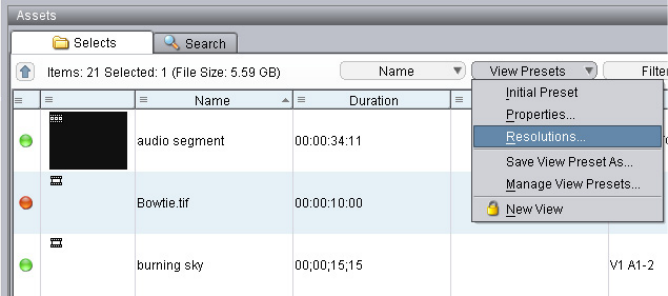
6 Working with the Transcode Service
116
To view the new resolution in the Avid Interplay Access:
1. Open Interplay Access and log in.
2. From the View Presets menu, select Resolutions.
The Resolutions window opens.
3. Select a new resolution for displaying in the Content area.
4. Click OK.
Columns appear for each resolution you selected.

7Working with the Archive and Restore
Services
The following topics explain how to set up and use the Avid Interplay Archive service and
Avid Interplay Restore service to archive and restore assets:
•Understanding Archive and Restore Services
•Check List for Archiving and Restoring Assets
•Archive Configuration and Setup
•Installing and Registering the Archive Service Provider and Restore Service Provider
•Starting the Archive Provider or the Restore Provider
•Configuring the Archive Service
•Connecting to the Archive Database and Creating Folders in Interplay Access
•Working with Interplay Archive and Interplay Restore Profiles
•Archiving Assets from an Avid Editing Application
•Archiving Assets Using Avid Interplay Access
•Working with an Auto Archive Folder
•Searching the Archive Database
•Restoring a Clip from the Archive Database
•Working with Partial Restore
Understanding Archive and Restore Services
Avid Interplay supports two types of databases:
• An online database maintained by the Interplay Engine. The name of the database must
be AvidWG.
• An offline database maintained the Interplay Archive Engine. The name of the database
must be AvidAM. The Interplay Archive Engine requires its own server.
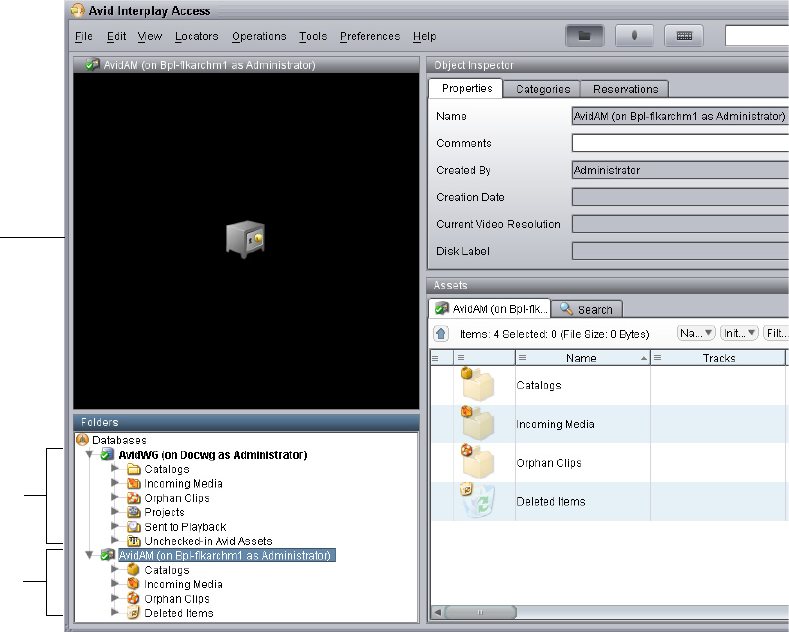
7 Working with the Archive and Restore Services
118
The following illustration shows an Interplay (online) database and an Interplay Archive
(offline) database in Interplay Access. When the Interplay Archive is selected in the
database tree view, the Monitor displays a the icon of a safe.
Archiving allows permanent archiving of important material and also allows you to locate
and restore archived material.
The Avid Interplay Archive solution integrates the Interplay Archive Engine with FlashNet™
from Software Generation Limited (SGL) to perform archival and retrieval operations.
Archiving is performed from a central Windows server to mass storage devices for
subsequent retrieval back to disk. FlashNet provides the interface between the Archive
Engine and the storage devices. For more information on SGL software and to download
copies of the latest FlashNet documentation, see the SGL Web page at www.sgluk.com.
The Archive database keeps track of the files that you store on the external storage device
and lets you restore the files to your online system when they are needed. For example, you
might have high resolution and low resolution versions of a clip. To save disk space, you can
Interplay
database
Interplay
Archive
database
Safe icon

Check List for Archiving and Restoring Assets
119
archive the high resolution version and edit with the low resolution version. When your
sequence is finished, you can restore the high resolution version from the archive and relink
your sequence to the high resolution version.
The Avid Interplay Auto Archive service lets you create Auto Archive folders. Any assets
placed in an Auto Archive folder are archived according to the Archive settings. For
example, you can create an Auto Archive folder for a media server (such as an AirSpeed®).
Any assets ingested by the media server are placed in the associated Auto Archive folder and
are automatically archived after the capture is complete.
Check List for Archiving and Restoring Assets
For the archiving process, the following table provides a check list of steps for installing and
configuring the Interplay Media Services system in an Avid Unity environment and on an
Avid editing system. The check list also provides references for where to find more
information about each step.
Archiving and Restoring Assets Check List
Task Section Reference
Set up and configure an Avid Interplay
Archive Engine and associated external
storage library for archiving.
See “Archive Configuration and Setup” on
page 121.
Make sure the Interplay Media Services
application key is connected to a USB port. If
an Archive provider or Restore provider is
not running on the Interplay Media Services
server, you must also connect an application
key to a USB port on the server running the
provider.
Make sure the Interplay Media Services
Engine software and the supporting software
are installed and configured in the
workgroup.
See the Avid Interplay Software Installation and
Configuration Guide and “Interplay Media
Services Engine Installation and Configuration”
on page 29.
Check your Interplay Media Services
configuration.
See “Configuration Requirements” on page 27.

7 Working with the Archive and Restore Services
120
Install the Interplay Archive provider
software, which includes the Archive service
and Restore service. If needed, install the
Auto Archive service.
n You typically install the Interplay
Archive Provider software on a
separate server for performance
reasons. However, you can install the
Archive provider on the same system
as the Interplay Media Services
Engine, because the SQL 2005
software is used.
See the Avid Interplay Software Installation and
Configuration Guide and “Interplay Media
Services Engine Installation and Configuration”
on page 29.
Install Avid Unity client software. See the Avid Unity client documentation.
Install and register the Interplay Archive
service provider and Interplay Restore
service provider.
See “Installing and Registering the Archive
Service Provider and Restore Service Provider”
on page 122.
Start the Archive provider and the Restore
provider and connect them to the Media
Services Engine.
See “Connecting the Archive Provider or
Restore Provider to the Media Services Engine”
on page 128.
Verify that the services are connected. See “Verifying That a Service Provider Is
Connected” on page 71.
Connect the Avid Unity client to the Avid
Unity system and mount the required
workspaces.
See the Avid Unity client documentation.
Configure the Interplay Archive services See “Configuring the Archive Service” on
page 132.
Create Archive and Restore profiles. See “Working with Interplay Archive and
Interplay Restore Profiles” on page 140.
Connect to the Interplay Archive database
and create folders.
See “Connecting to the Archive Database and
Creating Folders in Interplay Access” on
page 137.
Configure the Avid editing system. See “Archiving Assets from an Avid Editing
Application” on page 145.
Archiving and Restoring Assets Check List (Continued)
Task Section Reference

Archive Configuration and Setup
121
Archive Configuration and Setup
You typically set up four servers for archiving:
• The Archive Engine server (includes the FlashNet client software)
• The SGL FlashNet server
• The Avid Interplay Media Services Engine server
• The Archive Provider server (includes the FlashNet client software)
You can also set up a Cluster configuration for your Archive Engine. See the configuration
diagrams in Avid Interplay Best Practices for sample configurations.
For information about servers for the Archive Engine and the Media Services Engine, such
as slot locations, see the Avid Interplay Software Installation and Configuration Guide.
Interplay Archive Engine
The Archive Engine installation is very similar to the Interplay Engine installation. The
following are the main differences:
• It is not necessary to split the database because it is not possible to archive file assets.
• The database is called AvidAM.
• There is no temporary license key. On the Interplay Engine it is possible to connect one
Access client to the engine when no permanent license is loaded. This is not possible on
the Archive Engine. It is necessary to load a license before you are able to connect with
Access. It is also necessary to load the license before you create the database.
• The AvidAM database has fewer pre-defined folders than the AvidWG database.
For information on installing the Interplay Archive Engine and Interplay Access, see the
Avid Interplay Software Installation and Configuration Guide and the Avid Interplay
ReadMe for the current release.
Perform an archive or restore of assets. See “Archiving Assets from an Avid Editing
Application” on page 145, “Archiving Assets
Using Avid Interplay Access” on page 148 and
“Working with an Auto Archive Folder” on
page 152.
Archiving and Restoring Assets Check List (Continued)
Task Section Reference
7 Working with the Archive and Restore Services
122
You use the Avid Interplay Administrator and Avid Interplay Access to configure, manage,
and communicate with the Archive Engine. See the following documents:
•Avid Interplay Engine and Avid Archive Engine Administration Guide describes how to
configure and administer the database. You use the same techniques to administer the
Avid Interplay Archive Engine database and the Avid Interplay Engine database.
•Avid Interplay Access User’s Guide describes how to use Interplay Access to work with
assets in the database.
SGL FlashNet
Your SGL representative installs and configures the FlashNet client software on the Archive
Engine server and the Archive Provider. The FlashNet software provides the interface
between the Archive Provider and the archival hardware. Your SGL representative also sets
up and configures the FlashNet server.
Typically, your SGL representative installs and configures the FlashNet client software when
he or she configures the archiving system. For information on using the FlashNet client, see
the documentation provided by your SGL representative.
Interplay Media Services Engine
For installation and configuration information, see “Interplay Media Services Engine
Installation and Configuration” on page 29.
Archive and Restore Providers
For installation and configuration information, see “Check List for Archiving and Restoring
Assets” on page 119.
Installing and Registering the Archive Service
Provider and Restore Service Provider
Before you can use the Archive service provider, you must install the provider software
needed by the service from the Avid Interplay installation DVD. Then install the service
description in the Media Services Engine, register the provider, and start and connect the
service. You must install the service description before you can set up the Archive provider
or the Restore provider.
Installing and Registering the Archive Service Provider and Restore Service Provider
123
These tasks are explained in the following topics:
•Installing the Archive and Restore Service Descriptions
•Registering the Archive Provider or the Restore Provider
•Connecting the Archive Provider or Restore Provider to the Media Services Engine
nYou do not use the Media Services Engine to configure the Auto Archive, Auto Transcode,
and Auto Copy services. Instead, use the Avid Service Framework services. For more
information, see “Configuring Auto Archive Using the Avid Service Configuration” on
page 153.
Installing the Archive and Restore Service Descriptions
You use the Media Services and Transfer Status tool to install the Archive service
description and the Restore service description. For more information, see “Understanding
Service Descriptions and Service Packages” on page 61.
You only need to install a service description once, even if you configure multiple providers.
To install the Archive or Restore service description:
1. Make sure the Interplay Archive provider software is installed from the Avid installation
DVD.
The Archive installation includes software for the Restore service.
2. Open the Media Services and Transfer Status tool and log in as an administrator, as
described in “Opening the Media Services and Transfer Status Tool” on page 37.
3. Click the Services tab.
The Services page displays the currently configured services.
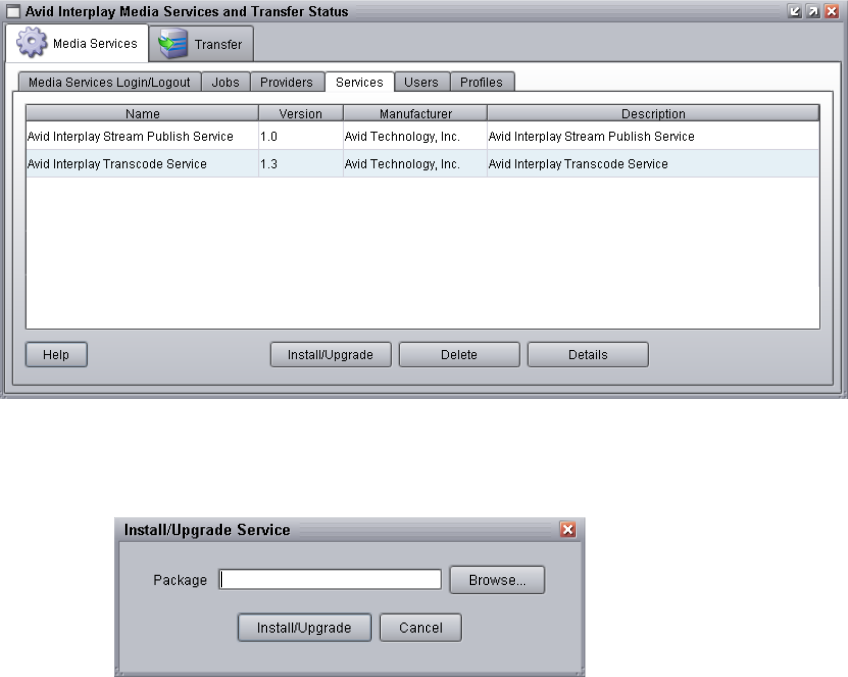
7 Working with the Archive and Restore Services
124
4. Click the Install/Upgrade button.
The Install/Upgrade Service dialog box opens.
5. Click the Browse button and navigate to the folder containing the Archive service
package (Archive.zip file) or the Restore service package (Restore.zip file).
By default the service packages are installed in the following folders:
- C:\Program Files\Avid\Avid Interplay Archive Provider\ArchiveService
- C:\Program Files\Avid\Avid Interplay Archive Provider\RestoreService
You can use the Microsoft Windows Search tool to help you locate the folder that
contains the Archive.zip file or the Restore.zip file. Make sure you have access to the
folders.
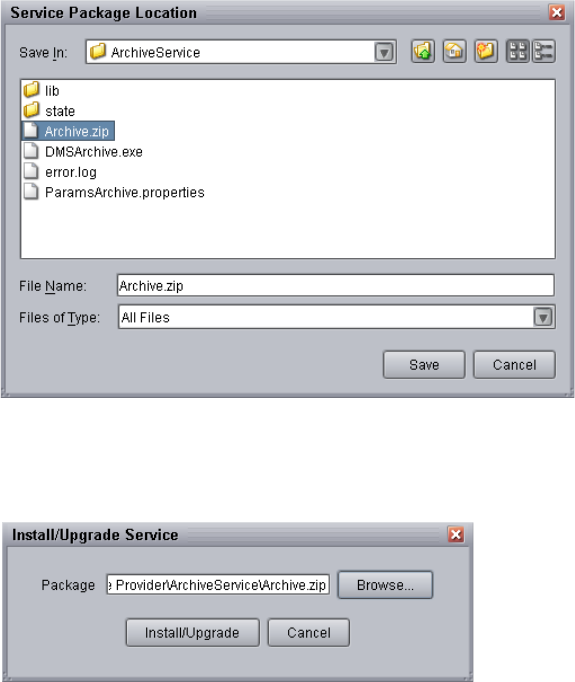
Installing and Registering the Archive Service Provider and Restore Service Provider
125
6. In the folder, select the Archive.zip or the Restore.zip file.
The following illustration shows the Archive.zip file selected.
7. Click Save.
The path to the file appears in the Install/Upgrade Service dialog box.
8. Click Install/Upgrade.
The service appears on the Services page.
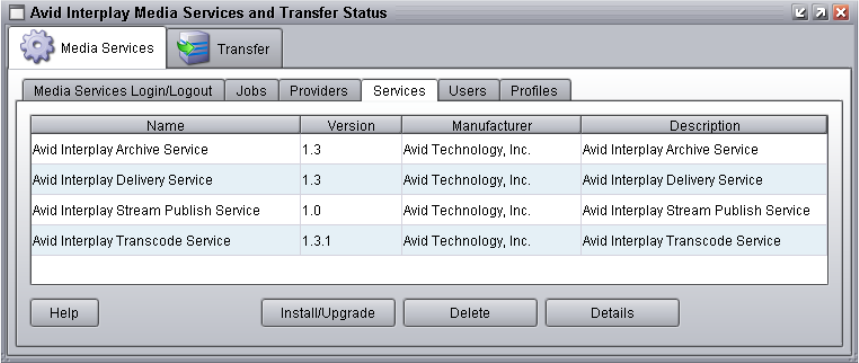
7 Working with the Archive and Restore Services
126
Registering the Archive Provider or the Restore Provider
After you install the Archive service description and the Restore service description, you
need to register the Archive provider and the Restore provider with the Restore service. If
you are configuring multiple providers, you need to register each provider.
Use the Provider page on the Media Services and Transfer Status tool to register the provider
with the service.
To register the Archive or Restore provider with the Media Services engine:
1. Open the Media Services and Transfer Status tool and log in as an administrator, as
described in “Opening the Media Services and Transfer Status Tool” on page 37.
2. Click the Providers tab.
The Providers page displays all of the currently registered providers.
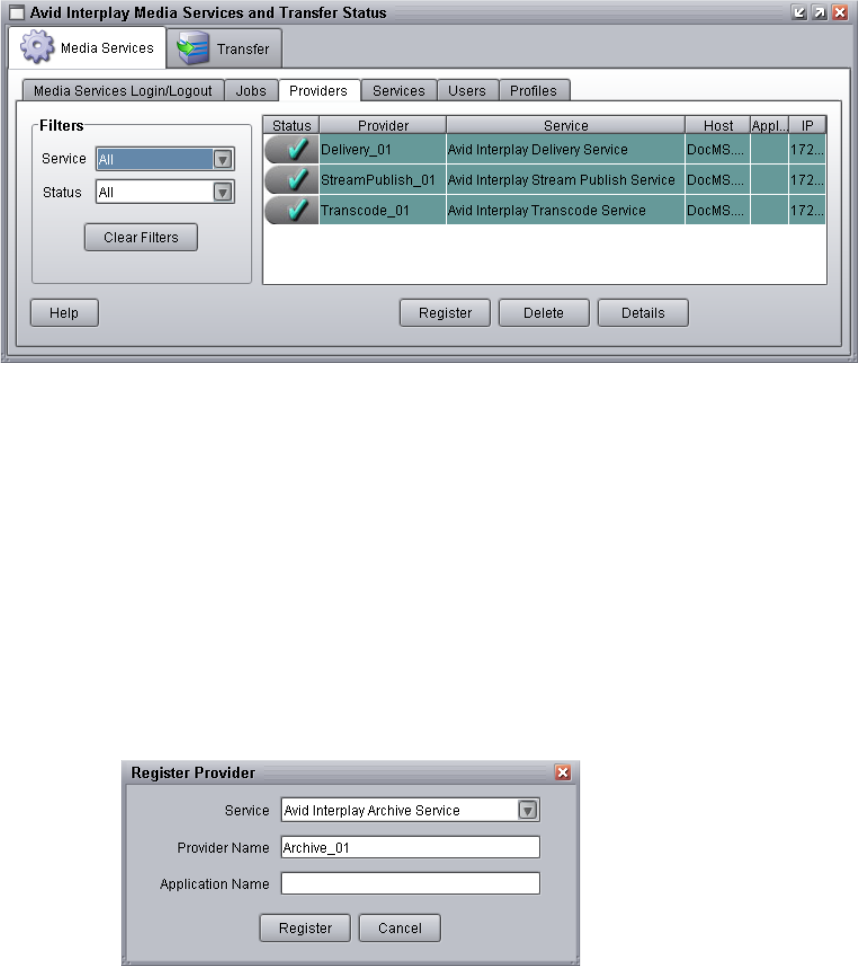
Installing and Registering the Archive Service Provider and Restore Service Provider
127
3. Click the Register button.
The Register Provider dialog box opens.
4. Do the following:
a. Service menu — Select Avid Interplay Archive Service or Avid Interplay Restore
Service.
b. Provider Name — Type the name that you want to use to identify this particular
provider. You can have multiple providers on your workgroup for the same service,
so you should use a meaningful name, for example, Archive_01.
c. Application Name — For future use. Leave this text box blank.
The following illustration shows the Register Provider dialog box with the values filled
in for a Archive service.
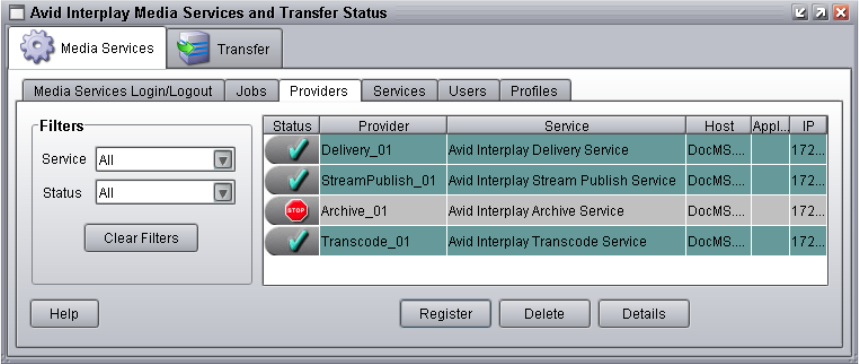
7 Working with the Archive and Restore Services
128
5. Click Register.
The name of the provider appears in the Providers page. If the service is not connected
to the Media Services Engine, a Stop icon is displayed in the Status column. In this case,
you must connect the provider to the Media Services Engine software. See “Connecting
the Archive Provider or Restore Provider to the Media Services Engine” on page 128.
Connecting the Archive Provider or Restore Provider to the Media
Services Engine
After you install the service description and register the provider, you need to connect the
provider to the Media Services Engine.
To connect the Archive provider to the Media Services Engine:
1. Click Start and select Programs > Avid > Avid Interplay Archive.
The Archive Service dialog box opens.
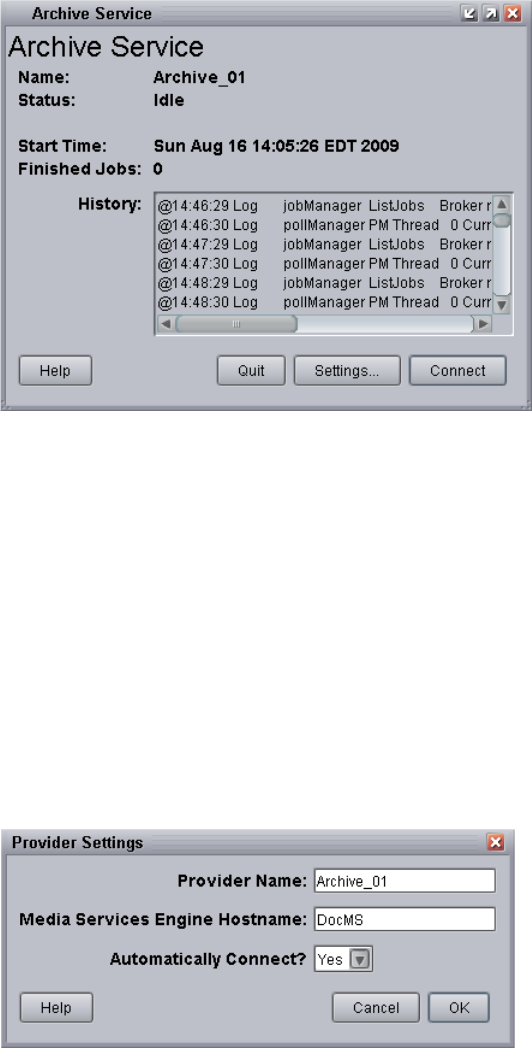
Installing and Registering the Archive Service Provider and Restore Service Provider
129
2. Click Settings.
The Provider Settings dialog box opens.
3. Do the following:
a. Provider Name — Type the name of the provider you specified in “Registering the
Archive Provider or the Restore Provider” on page 126. In this example, the name is
Archive_01.
b. Media Services Engine Host Name — Type the name of the system running the
Media Services Engine application.
c. Automatically Connect — Select either Yes or No (default) to automatically
connect to the Media Services Engine when the application starts.
The following illustration shows the Provider Settings dialog box with the values filled
in for the Archive provider.
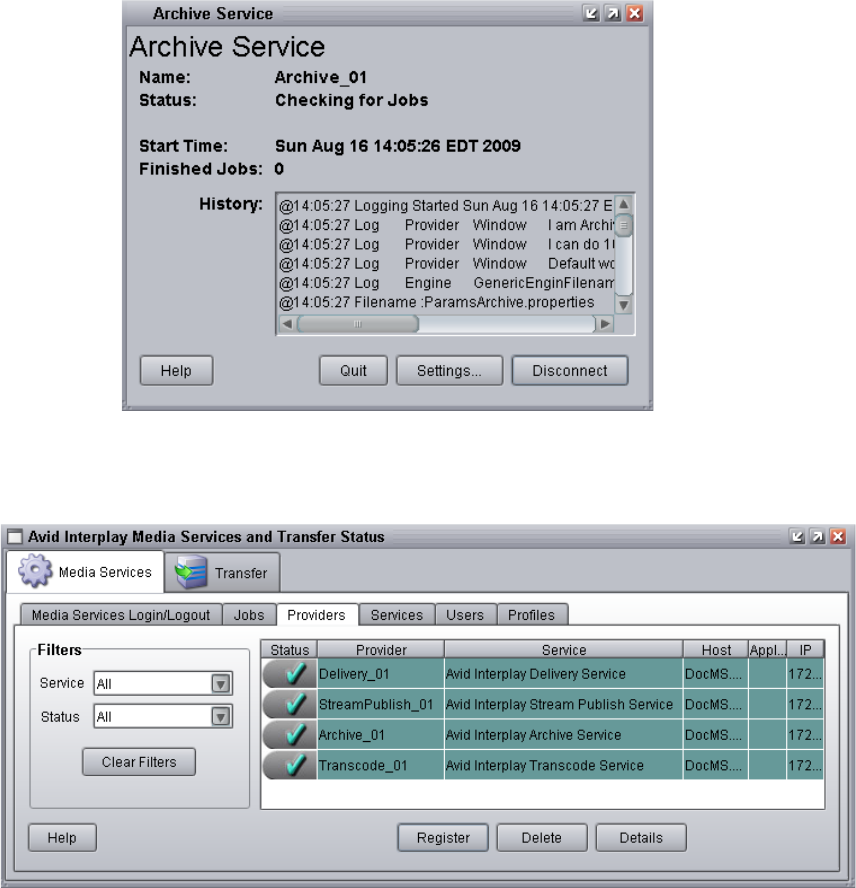
7 Working with the Archive and Restore Services
130
4. Click OK.
5. Click Connect in the Archive Service dialog box.
The Archive Service dialog box now shows that the service is connected and shows the
name of the provider you connected.
The Provider page in the Media Services and Transfer Status tool now shows that the
service is connected, indicated by a check mark in the Status column.
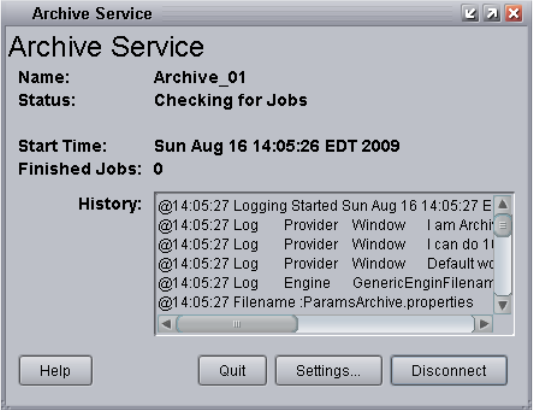
Starting the Archive Provider or the Restore Provider
131
6. Repeat the process for the Restore provider.
Starting the Archive Provider or the Restore
Provider
To start the Archive provider or Restore provider:
tClick Start and select Programs > Avid > Avid Interplay Archive
For Restore provider, click Start and select Programs > Avid > Avid Interplay Restore.
Depending on the service settings, one of the following happens:
- Automatically Connect—Yes, the service dialog box opens for the service you
selected and is connected to the service.
- Automatically Connect—No, the service dialog box opens for the service you
selected and displays Idle. Click the Connect button to connect to the service.
nThe service provider dialog box displays the start date and start time of the providers based
on the Microsoft Windows time.
After the connection is made, the Status line in the service dialog box reads “Checking
for Jobs,” and the History window displays the message “Connection Established.” The
Connect button changes to a Disconnect button.
The following example shows the Archive Service dialog box as connected.
7 Working with the Archive and Restore Services
132
nIf the provider cannot connect to the Media Services Engine, the Status line reads
“Connection Error.” Ensure the Media Services Engine is running, the service is installed,
the provider is properly registered, and then click Connect again.
Configuring the Archive Service
Before you can create and manage an offline copies of assets, you must configure the
Archive service in the Avid Interplay Administrator.
When you log in to an Interplay Engine database (AvidWG) and open the Asset
Tracking/Archive Settings view, the system displays a different set of options than when you
are logged into an Archive Engine database (AvidAM). The following topic refers to options
that you set on the Interplay Engine:
•Specifying the Archive Server, Segment Size, and Restore Process
The following topics refer to options that you set on the Archive Engine:
•Specifying the Archive Server, Segment Size, and Restore Process
•Archiving Duplicate Versions of Media
•Adding AAF Metadata to an Archive
The following topic refers to an option you set on the Archive or Restore provider:
•Defining the Maximum Number of Simultaneous Jobs
The following topic refers to an option you set on Interplay Access:
•Overriding Metadata When You Archive an Asset
Specifying the Archive Server, Segment Size, and Restore Process
These settings appear when you log in to an Interplay Engine online database (AvidWG).
You must set the name of the Archive Engine server. You might need to set the other options,
depending on your workflow.
To specify Archive settings for an online database:
1. Open the Avid Interplay Administrator and log into the system running the Interplay
Engine.
2. In the Site Settings section of the Interplay Administrator window, click the
Asset Tracking/Archive Settings icon.
The Asset Tracking/Archive Settings view opens.

Configuring the Archive Service
133
3. Select the AvidWG database from the database list.
The Archive Settings area displays these options.
4. In the Archive Settings area, do the following:
tIn the Archive server name text box, type the name of the computer running the
Avid Interplay Archive Engine.
tIn the Archive Segment size (frames) text box, type the segment size used for partial
restore operations, in frames. The default and minimum value is 1800 frames. See
“Working with Partial Restore” on page 165.
nIf you later change the Archive Segment size, the new size applies only to new archives.
Partial restores of media that is already archived use the original segment size.
tUse best effort restore - if you select this option, a restore process restores as many
files as it can without returning errors. This option requires special implementation
by supported third-party vendors to ignore any missing files that are no longer in the
archive storage. If you do not select this option, then the restore process fails when
there are any missing files (the default).
cThe “Use best effort restore” option is not supported by all third-party archive
vendors. If you select this option and your archive vendor supports it, then a restore
process restores as many files as it can without returning errors.
5. Click Apply Changes at the bottom of the window.
Archiving Duplicate Versions of Media
By default, the Archive Provider does not archive duplicate versions of media, however, you
can choose to have it do so.
When you archive a master clip, subclip, or sequence for the first time, the Archive Provider
automatically archives all the associated media. If you are archiving another subclip or
sequence that refers to the original master clip, the Archive Provider does not automatically
archive a duplicate version of the associated media. The Archive Provider archives all of the
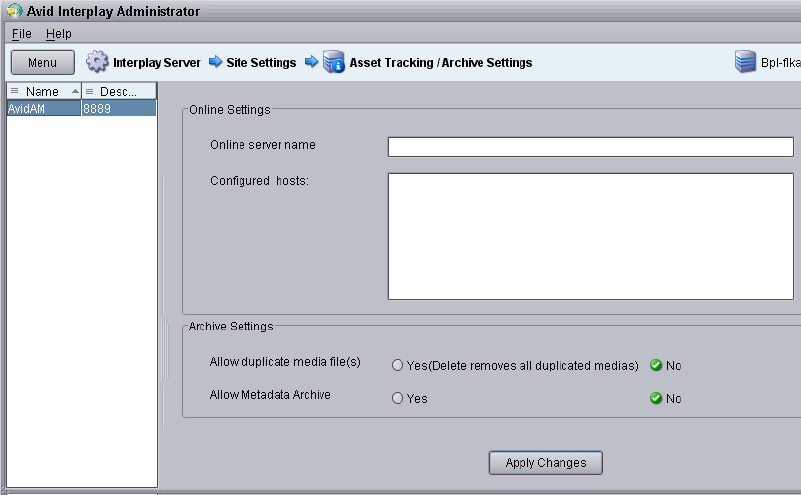
7 Working with the Archive and Restore Services
134
metadata associated with the new subclip or sequence but it does not archive duplicate
versions of the media. Selecting “Allow duplicate media file(s)” tells the Archive Provider to
create multiple versions of the media files.
The Interplay Archive Engine avoids duplication by default. If you prefer to have the
Archive Engine archive duplicate media files, you can use the Interplay Administrator to
change the setting.
This setting appears only when you log in to an Archive Engine database.
To change whether archive operations create duplicate media:
1. Open the Interplay Administrator and log into the system running the Archive Engine.
2. In the Site Settings section of the Interplay Administrator window, click the Asset
Tracking/Archive Settings icon.
The Asset Tracking/Archive Settings view opens.
3. Select the Archive database AvidAM from the database list.
The system displays the Asset Tracking/Archive Settings window for the Interplay
Archive Engine.
Configuring the Archive Service
135
4. Select one of the following settings for “Allow duplicated media files” option:
- No — When you archive an Avid asset the first time, the Archive Provider archives
all associated media. If you archive other assets that reference the same media, the
Archive Provider archives the metadata but does not archive duplicate versions of
the associated media (default setting).
- Yes — The Archive Provider archives the associated media each time you archive
an asset. If you delete an asset that references the duplicated media, the system asks
if you want to delete the associated media files. If you choose the delete the media,
the system deletes all copies of the media.
5. Click Apply Changes.
Adding AAF Metadata to an Archive
The Asset Tracking/Archive Settings view on the Interplay Archive Engine includes an
option labeled “Allow Metadata Archive.” If you select Yes, AAF metadata for Avid assets is
sent to the tape archive along with the media. This option requires special implementation by
the tape archive vendor. If you select No, only media is sent to tape (the default). For the
SGL FlashNet™ solution, keep the default selection No.
This setting appears only when you log in to an Archive Engine database.
Defining the Maximum Number of Simultaneous Jobs
The maximum number of simultaneous archive and restore jobs running on an SGL
FlashNet server should not exceed 20. More than 20 simultaneous jobs can affect system
performance. The default value for one archive or restore provider is 10.
For example, if you have one archive provider and one restore provider, then you can use the
default values of 10 each. If there are two archive providers and two restore providers, then
you should change the values to 5 each. If there are four archive providers and four restore
provider, then change each value to 2. These are the maximum values. You can use lower
values for other considerations.
To change the values you need to edit two files.
To change the maximum value for the Archive provider:
1. Open the following file in an application such as Notepad:
C:\Documents and Settings\username\Avid Archive Service\DMSArchive.ini
2. Change the Maxjobs value.
3. Save and close the file.
7 Working with the Archive and Restore Services
136
To change the maximum value for the Restore provider:
1. Open the following file in an application such as Notepad:
C:\Documents and Settings\username\Avid Restore Service\DMSRestore.ini
2. Change the Maxjobs value.
3. Save and close the file.
To apply the changes:
tQuit and restart the Archive and Restore services.
Overriding Metadata When You Archive an Asset
By default, the Archive provider overrides the metadata for an Avid asset each time you
archive the asset. You can use the Metadata Override feature to change the behavior for the
assets in a particular folder.Whatever you set for a folder is inherited by any subfolders.
nThere is currently no way in Interplay Access to display the metadata override status for a
folder. You can view the status in the Metadata Override Settings view in the Interplay
Administrator. For more information, see the Interplay Engine and Interplay Archive Engine
Administration Guide. If you change the status on a folder in the archive database, you
might want to change the name of the folder to reflect the status.
To change whether the Archive Provider automatically overrides metadata during an
archive operation:
1. Open Interplay Access and log on to the Archive database.
2. Right click a folder and choose Metadata Override.
Interplay Access displays a dialog box that allows you to select the Metadata Override
option for the folder. The options presented depend on the current status of the folder.
- If the folder is enabled for metadata override (the default), the dialog box asks if
you want to disable metadata override.
- If metadata override is disabled for the folder, the dialog box asks if you want to
enable metadata override.
3. Select Yes or No in the dialog box.
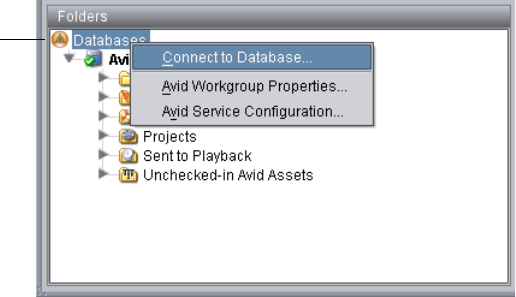
Connecting to the Archive Database and Creating Folders in Interplay Access
137
Connecting to the Archive Database and Creating
Folders in Interplay Access
After you connect to the Archive database, you can create folders in an Interplay Archive
database to match your workflow. For example, you can create folders that match those in
your Interplay online database.
You do not have to create folders before you archive assets, because the profile that you use
will create a folder if it does not exist in the Archive database.
To connect to an existing Archive database and create folders:
1. Open Interplay Access and log in as an administrator to the Archive database.
2. If you are already logged into Interplay Access, and the Archive database is already
listed in the database tree view, double-click it and log in as an administrator.
3. If you are already logged into Interplay Access, and the Archive database is not listed in
the database tree view:
a. In the database tree, right-click the Databases icon and select Connect to Database.
The Connect to Database dialog box opens.
Databases
icon
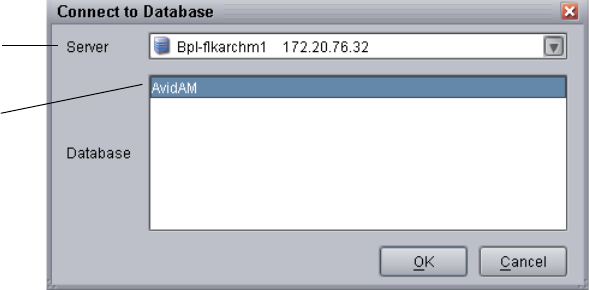
7 Working with the Archive and Restore Services
138
b. Select the Interplay Archive server from the Server menu and then select the
Archive database.
The name of the Archive database is always AvidAM.
c. Click OK.
Interplay Archive
server name
Interplay Archive
database
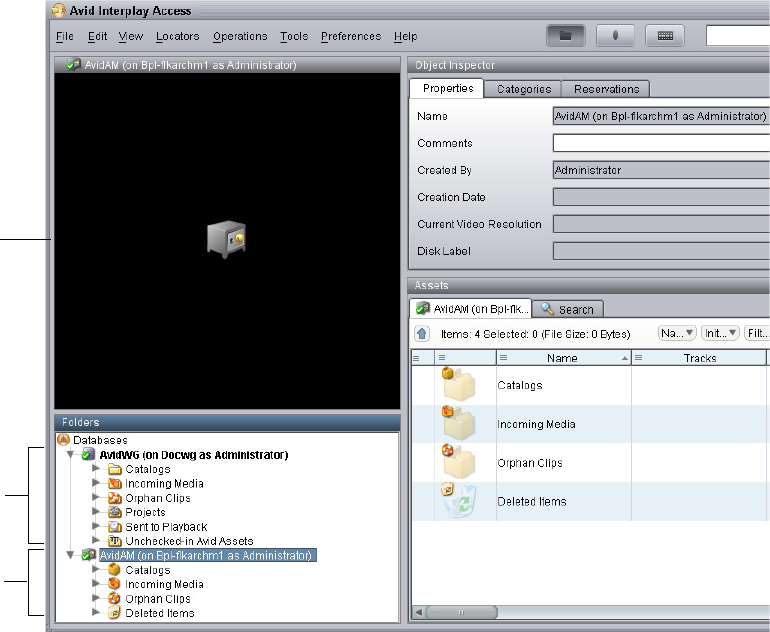
Connecting to the Archive Database and Creating Folders in Interplay Access
139
d. Log in to the Archive database as an administrator.
The Archive database appears in the Tree view. The following illustration shows
both databases connected.
If you click the database name, an icon of a safe is displayed in the Monitor. Folder
icons are displayed as brown boxes to indicate that they are part of the Archive
database, and icons for assets are colored brown.
Avid Interplay
database
Avid Interplay
Archive
database
Safe icon
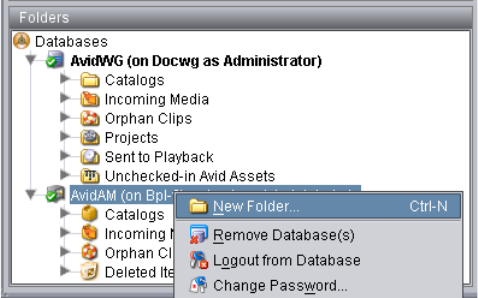
7 Working with the Archive and Restore Services
140
4. Create folders in the Archive database to match the needs of your archive workflow. To
create a folder, in the database tree, right-click the Archive database icon or a folder and
select New Folder.
You can also create a folder by using a profile. See “Working with Interplay Archive and
Interplay Restore Profiles” on page 140.
Working with Interplay Archive and Interplay
Restore Profiles
Profiles let you define settings for archive and restore operations. The following topics
provide information creating profiles:
•“Creating an Interplay Archive or Interplay Restore Profile” on page 141
•“Interplay Archive Profile and Interplay Restore Profile Options” on page 142
•“Locating the Partition Value for an Archive Profile” on page 143
You use the Media Services Engine interface to create profiles. If an Avid editing application
is open when you create a profile, you must restart the editing application before the profiles
are available in the editor. A restart is not needed for Interplay Access and Interplay Assist.
Profiles are required when archiving or restoring from an Avid editing application.
cAvid recommends that you use profiles for archiving, because profiles define many key
settings such as target folders and archive partitions. For example, if you do not use a
profile with a SGL archive implementation, the system uses the default SGL archive
volume name. If this volume is not defined on the SGL system, the archive operation
will fail.
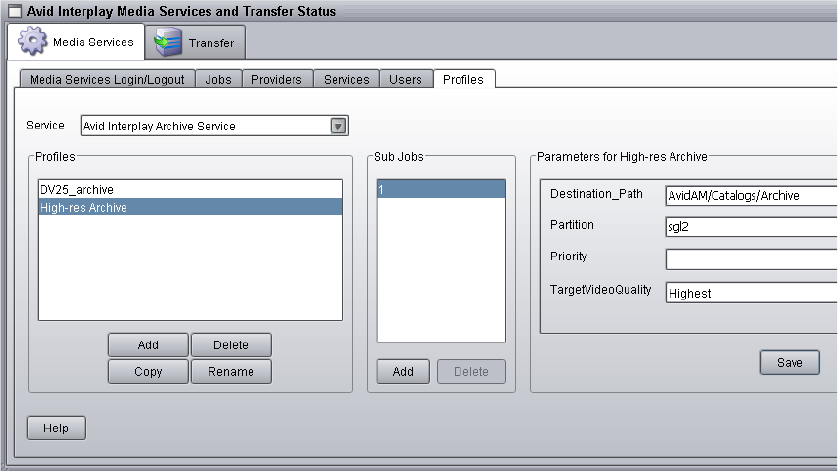
Working with Interplay Archive and Interplay Restore Profiles
141
Creating an Interplay Archive or Interplay Restore Profile
To create an Interplay Archive or Interplay Restore profile:
1. Open and log in to the Media Services and Transfer Status tool, as described in
“Opening the Media Services and Transfer Status Tool” on page 37.
2. Click the Profiles tab.
3. In the Service menu, select one of the following:
- Avid Interplay Archive Service to create an archive profile
- Avid Interplay Restore Service to create a restore profile
4. Click Add in the Profiles area.
The Add Profiles dialog box opens.
5. Type a name for the profile and click OK.
The name appears in the Profiles list and an empty template appears in the
Parameters area.
6. In the Parameters area, define the values you want for the profile.
See “Interplay Archive Profile and Interplay Restore Profile Options” on page 142.
7. Click Save in the Parameters area.

7 Working with the Archive and Restore Services
142
The next time you archive or restore an asset, you can select the profile.
nAvid Interplay Archive and Avid Interplay Restore support only one subjob.
Interplay Archive Profile and Interplay Restore Profile Options
Option Description
Destination_Path Archive profile — Indicates the folder in the Archive database that will contain the
archived media. This folder is created automatically when archive operation is
executed. The path must include the Archive database: AvidAM/
Restore profile — Indicates the folder in the asset database that will contain the
restored asset. The path must include the Interplay database and a subfolder, for
example: AvidWG/Catalogs/Project1.
nWhen you set the destination path, select a subfolder, not a top-level folder, and
use forward slashes (/), for example, AvidWG/Catalogs/Project1 or
AvidWG/Projects/Project1.
Destination_Server Restore profile only — Specifies the name of the Interplay Engine server to restore to.
Destination_Workspace Restore profile only — Specifies the Avid Unity workspace where you want to place
the restored asset.
Partial Restore profile only — Indicates a partial restore is performed. See “Working with
Partial Restore” on page 165.
Partition Archive profile only — Specifies the group for the archive. The group is set by the
SGL FlashNet software. See “Locating the Partition Value for an Archive Profile” on
page 143.
Priority Sets the priority for the job submitted by this profile. Priority numbers range from
1 (highest priority) through 100 (lowest priority). The default priority number
assigned to each job is 50.
TargetVideoQuality Indicates the video resolution for the archive or restore. You can select All, Highest,
Lowest, or a specific resolution. If you select All, media for all associated resolutions
must be online. By default, if any media is offline the job will fail. You can override
the default failure reporting setting using the Avid Service Configuration tool. See
“Customizing the Reporting of Service Job Status” on page 42.
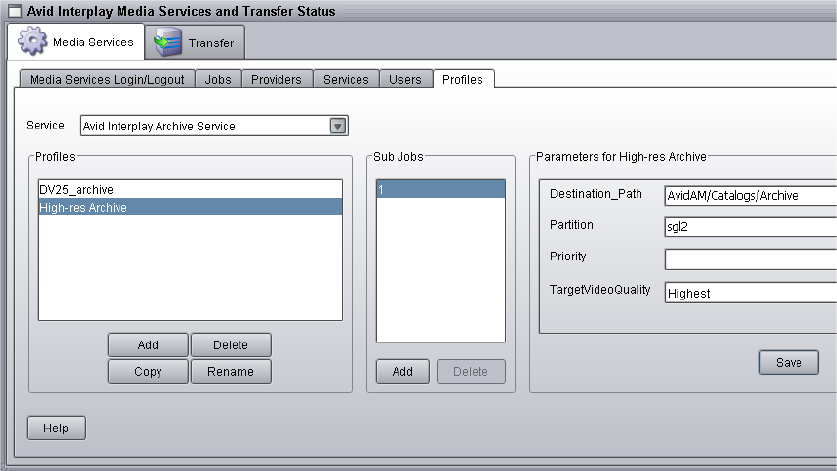
Working with Interplay Archive and Interplay Restore Profiles
143
Locating the Partition Value for an Archive Profile
The Partition value in the Archive profile corresponds to a group name in the SGL FlashNet
software. The Avid Interplay Archive Engine uses FlashNet as the interface between the
Archive provider and the archive hardware.
In SGL terminology for tapes and groups, a group refers to a set of volumes. Each group has
a number of associated tapes and each tape is referred to as a Volume.
The Archive administrator typically sets up and maintains the SGL server and the associated
hardware. For information on setting up the system, see the SGL documentation.
When you create an archive profile in the Media Services Engine interface, you specify a
group name in the Partition field. For example, the following illustration shows a group
named sgl2.
You can log on to the FlashNet server to determine the group names that you should use in
the partition field in your Media Services archive profile.
To determine the available FlashNet group names:
1. Log on to the FlashNet server and double-click the FlashNet Administration icon on the
desktop.
The FlashNet Administration tool opens.
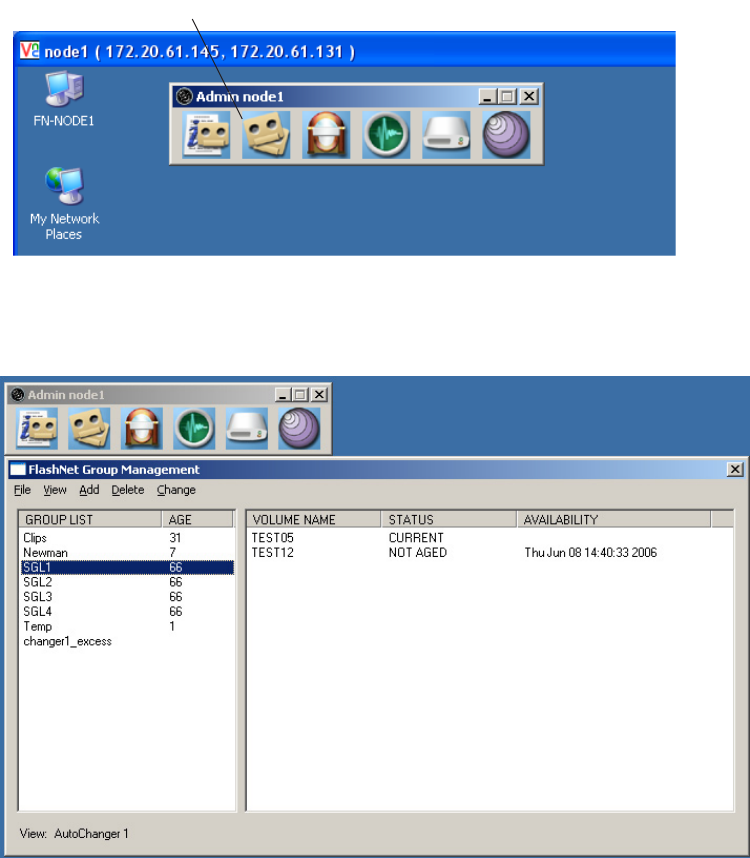
7 Working with the Archive and Restore Services
144
2. Click the Group button.
The FlashNet Group Management window opens.
The names in the GroupList column are the names you use when you define an Archive
profile in the Media Services Engine. For information on creating groups, see the SGL
FlashNet documentation.
Group button
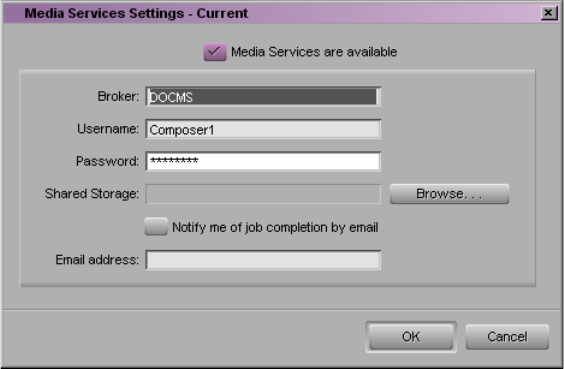
Archiving Assets from an Avid Editing Application
145
Archiving Assets from an Avid Editing Application
To archive assets from an Avid editing application, first make sure the Media Services
Engine is configured in the Media Services setting. Then perform the archive operation. The
clips or sequences you select for archiving are automatically checked into the Interplay
database during the archive operation.
You can archive assets in a similar way from Avid Interplay Assist. For more details, see the
Avid Interplay Assist User’s Guide.
Consolidating clips before archiving can conserve space in the archive database. See
“Consolidating Clips and Sequences Before an Archive Operation” on page 147.
After you archive media files, you can delete the online media from the Interplay Engine.
See “Deleting Online Media After an Archive Operation” on page 148.
To configure the Avid editing application for Media Services:
1. In the Avid editing application, log in to Interplay.
2. Select Media Services from the Settings list.
The Media Services Settings dialog box opens.
3. Select the options as follows:
- Select the “Media Services are available” option.
- Type the name of the system running the Media Services Engine in the Broker text
box.
7 Working with the Archive and Restore Services
146
- Type your user name and password. If Interplay validation has been configured for
the Media Services Engine, the user name must be a valid Interplay user name. For
example, you can use the same user name and password that you use to log in to
Interplay. If Interplay validation has not been configured, the user name must match
a valid Interplay user name. See “Using the Users Page” on page 57. Make sure the
user has access to the Archive engine.
- Shared Storage — Leave this field blank. This setting is only used for setting up
Avid Interplay ProEncode.
- Email address — You can use this option if your Media Services Engine is set up
for e-mail notification. See “Configuring the Media Services Engine” on page 33.
4. Click OK.
After you configure this setting, connection to the Media Services Engine is automatic.
To archive a clip or sequence:
1. Make sure that the Avid Interplay Archive provider is connected to the Media Services
Engine. See “Verifying That a Service Provider Is Connected” on page 71.
2. Select the clip or sequence in the bin or select the asset in the Interplay Window.
3. Select File > Avid Interplay Media Services > Avid Interplay Archive Services > profile
name, where profile name is a profile set up on the Media Services Engine Archive
service.
The system performs the archive operation according to the rules in the profile that you
select. See “Working with Media Services Profiles” on page 75.
4. (Option) If you have the Avid Interplay Access application installed on your system you
can run the application and select Tools > Avid Interplay Media Services Status to view
the job progress. If you have the standalone Media Services and Transfer Status tool
installed, click Start and select Programs > Avid > Avid Media Services and Transfer
Status. For more information, see “Using the Jobs Page” on page 40.
To troubleshoot the progress of the job, you can use the Avid Diagnostics applications.
For more information, see “Checking Media Services Jobs Using Avid Diagnostics” on
page 368.
5. (Option) Delete the archived media from the Interplay online database. You can restore
it when needed. See “Deleting Online Media After an Archive Operation” on page 148
and “Restoring a Clip from the Archive Database” on page 163.
Archiving Assets from an Avid Editing Application
147
Consolidating Clips and Sequences Before an Archive Operation
Consolidating can conserve space in the archive database. Consolidating creates new media
from an existing master clip. The new media is a new master clip that does not have a link to
the original master clip.
nIf you do not consolidate before archiving, you can perform partial restores and only restore
the portions of the material that you need. See “Working with Partial Restore” on page 165.
You have two basic choices for consolidating before you archive:
• If you have a sequence that references long master clips, you can consolidate the
sequence before you archive it. This creates new media files for each clip in the
sequence. Then, when you archive the new consolidated sequence, the system only
archives the new, shorter master clips. Archiving is relatively fast using this method
because you only archive the media that is used in the sequence.
The main drawback to this method is that you cannott specify handles on an individual
clip basis. You only have the option of setting one handle length for all the clips in the
sequence. So you might not archive enough of the original clips to perform edits at a
later time.
• You can consolidate before you edit. This is a more efficient method because you can
determine the length of each clip as you work with it. In this workflow, you would use
the following general procedure:
1. Create subclips from the original long master clip.
2. Consolidate the subclips. This operation creates new subclips and new master clips.
3. Store the consolidated subclips or master clips on a predetermined folder in the
Interplay database.
4. Work with the consolidated subclips or master clips.
If you use this method, any archiving operations that the editors perform is relatively
fast because they are archiving only the material that is directly associated with the
sequence or master clip.
7 Working with the Archive and Restore Services
148
Deleting Online Media After an Archive Operation
After you archive media files, you can delete the online media. Use the following guidelines
to ensure that you do not delete the online material before the archive operation is complete.
• Place a reservation on material that you are going to archive to make sure you don’t
delete your online media before it is archived:
• Do not delete the material until the archival process has finished completely. You can
use the Media Services and Transfer Status tool to check the progress of an archive
operation (see“Using the Jobs Page” on page 40).
• If you are deleting media from online storage and want to follow up immediately with a
restore operation, wait until the Media Indexer finishes indexing the storage before you
perform the restore. This ensures that Media Indexer knows that the files are offline. If
Media Indexer assumes the files are already online, it will not restore them.
You can also use Avid Interplay Access to check the archive database to make sure the
archive operation has completed
• Consider creating a folder in the Interplay database with a name such as “7 Day Hold
and then Delete,” “Delete in 48 hours,” “Delete after Archive,” or “Aired Stories.” The
media in that folder can be deleted either on a regular basis or after a particular archive
operation is completed.
Archiving Assets Using Avid Interplay Access
You can manually archive assets from Interplay Access. For information on automatically
archiving assets, see “Working with an Auto Archive Folder” on page 152.
To archive an asset:
1. Make sure that the Avid Interplay Archive provider is connected to the Media Services
Engine. See “Verifying That a Service Provider Is Connected” on page 71.
2. Start Avid Interplay Access and log in to the database that includes the assets you want
to archive.
Make sure that the account that you use is a valid Media Services account and has
access to the Archive Engine database. See “Using the Users Page” on page 57.
You do not need to connect to and log in to the Archive database.
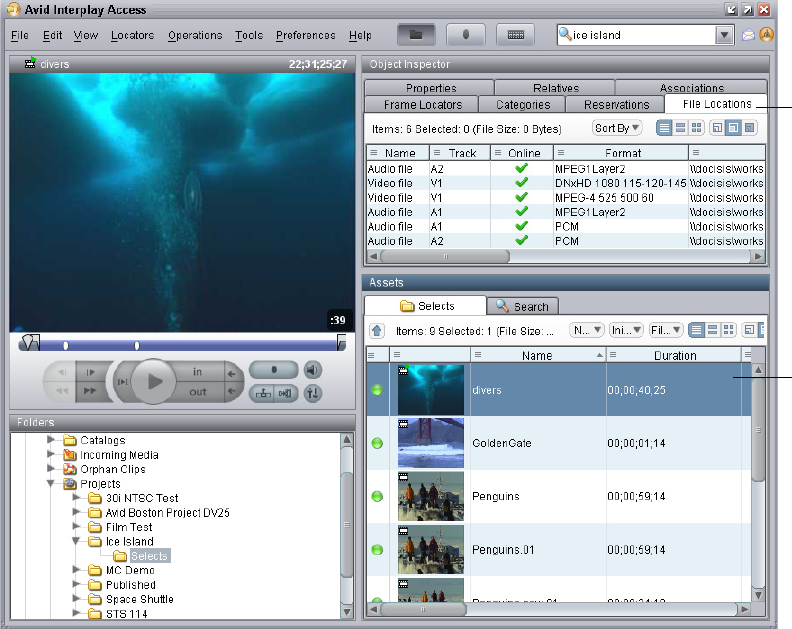
Archiving Assets Using Avid Interplay Access
149
3. Select the asset in the Avid Interplay database that you want to archive.
The following illustration shows the clip named “divers” selected. The File Locations
tab shows that there are two resolutions for this clip: a high resolution (DNxHD 1080
and PCM audio) and a low resolution (MPEG-4 and MPEG1 audio).
You can also archive a clip that uses a single resolution.
4. Select Tools > Archive or right-click and select Archive.
The Archive dialog box opens.
Selected
asset
File
Locations
tab
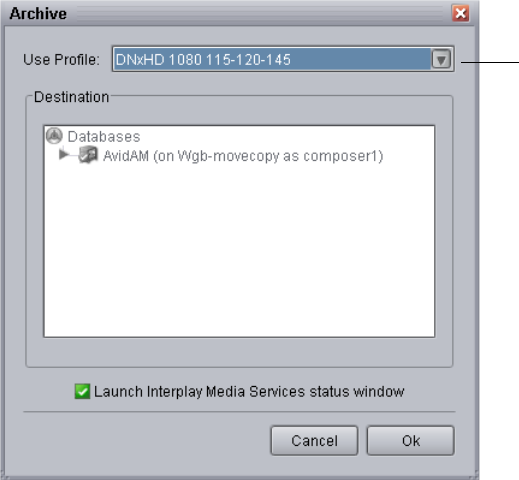
7 Working with the Archive and Restore Services
150
5. Do one of the following:
tSelect a profile from the Use Profile menu.
In this example, a profile for archiving high-resolution media is selected. For
information about profiles, see “Working with Media Services Profiles” on page 75.
The Destination area is not available when you are using a profile.
tSelect None from the Use Profile menu, then use the Destination area to select a
destination folder in the Archive database.
If you do not use a profile, and a clip includes more than one resolution, the version
with the highest resolution is archived.
cAvid recommends that you use profiles for archiving, because profiles define many key
settings such as target folders and archive partitions. For example, if you do not use a
profile with a SGL archive implementation, the system uses the default SGL archive
volume name. If this volume is not defined on the SGL system, the archive operation
will fail.
6. (Option) Select “Launch Interplay Media Services Status window.”
Selected profile
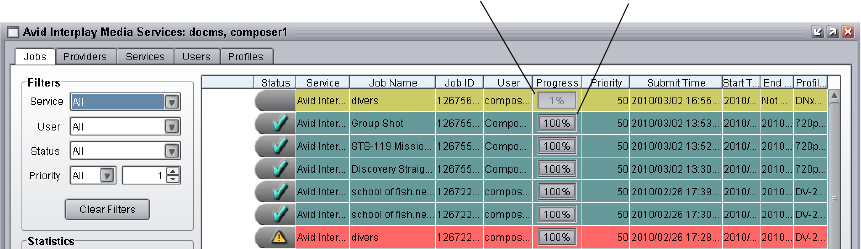
Archiving Assets Using Avid Interplay Access
151
7. Click OK.
The system starts the Archive operation. The following illustration shows the Media
Services and Transfer Status tool with the archive operation in progress.
A check mark indicates a successfully completed job. The metadata is copied to the
Archive database and the media is copied to the archive storage.
8. (Option) For details about the job, select the job and click the Details button, or
right-click and select Details.
9. (Option) Navigate to the destination folder in the Archive database and verify that your
file has been archived.
The following illustration shows the “divers clip” in the Archive database, with the
high-resolution media files listed in the File Locations tab.
Archive job in process Archive job completed
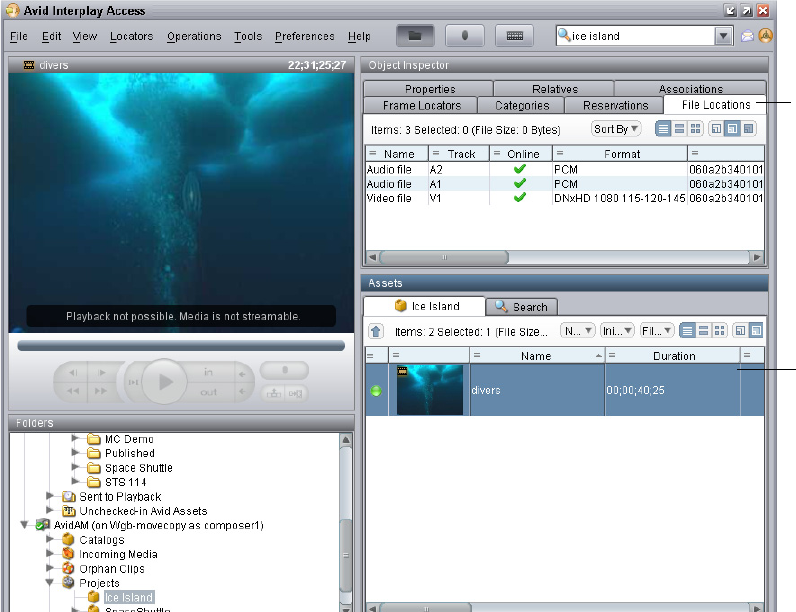
7 Working with the Archive and Restore Services
152
10. (Option) Delete the archived media from the Interplay online database. You can restore
it when needed. See “Restoring a Clip from the Archive Database” on page 163.
Working with an Auto Archive Folder
You can identify a folder as an Auto Archive folder and create a profile for the type of
archive you want to perform through the Auto Archive folder. When you move a clip or
sequence to an Auto Archive folder, the system automatically uses the Avid Interplay
Archive service to archive the asset. For example, you can create an Auto Archive folder for
a media server (such as an AirSpeed®). Any assets ingested by the media server are placed in
the associated Auto Archive folder and are automatically archived after the ingest is
complete.
nYou do not have to connect to the Archive database before you perform an Auto Archive
operation. The Media Services Engine uses its own connection to the database.
Archived
asset
File
Locations
tab
Working with an Auto Archive Folder
153
The Auto Archive service processes files according to the date and time, using a first-in,
first-out (FIFO) rule. The date and time used depends on when an asset was copied to the
auto folder.
For details on Auto Archiving, see the following topics:
•Preparing the Workgroup for Auto Archive
•Configuring Auto Archive Using the Avid Service Configuration
•Verifying That the Auto Archive Service is Running
•Setting Up an Auto Archive Folder
•Archiving Assets Using an Auto Archive Folder
•Location of Automatically Archived Files
Preparing the Workgroup for Auto Archive
For information on setting up your workgroup for auto archiving, see “Interplay Media
Services Engine Installation and Configuration” on page 29, and “Configuring the Archive
Service” on page 132.
Configuring Auto Archive Using the Avid Service Configuration
You use the Avid Service Configuration tool (a component of Avid Service Framework) to
configure Auto Archive. Avid Service Configuration is an application that lets you set and
change parameters for each of the different Avid services and applications in your
workgroup environment.
For more information about Avid Service Framework, see the Avid Service Framework
User’s Guide.
To configure the Avid Interplay Auto Archive service using the Avid Service
Framework:
1. Click the Start button, and select Programs > Avid > Avid Service Framework > Avid
Service Configuration.
The Select Workgroup dialog box opens.
nThe Select Workgroup dialog box does not open if the check box specifying to always select
and use this workgroup option was previously selected. When you select this option, the
Select Workgroup dialog box no longer opens when you start the application. The default
workgroup is selected, and the Avid Service Configuration window opens. To change this
option and display the Select Workgroup dialog box, click the Login tab of the Avid
Framework Workgroup Properties application and clear the checkbox for the option.
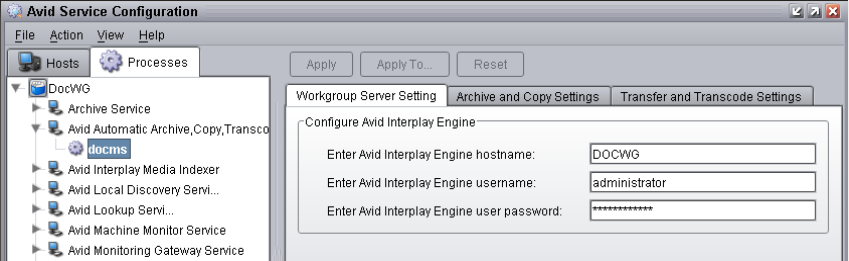
7 Working with the Archive and Restore Services
154
2. (Option) If the Select Workgroup dialog box opens, select the workgroup you want to
connect to and click Select.
The Avid Service Configuration window opens.
3. In the Directory pane, click the Processes tab and verify that the Avid Automatic
Archive, Transcode, Transfer, and Copy service is running.
nIf the Avid Automatic Archive, Transcode, Transfer, and Copy service does not appear in the
Avid Service Configuration window, the service is not running or the system it runs on is not
properly connected to the workgroup. Click the Hosts tab and make sure that the Avid
Service Configuration displays the name of the system that the Avid Automatic Archive,
Copy, Transcode, and Transfer service is running on.
4. Expand the Avid Automatic Archive, Transcode, Transfer, and Copy service entry on
the Processes tab of the Directory pane.
The system displays the name of the computer running the Avid Automatic Archive,
Copy, Transcode, and Transfer service.
5. Click the computer name.
The Administrator Password Needed dialog box opens.
6. Type the Avid Service Framework Administrator password and click OK.
nBy default, Avid Service Framework does not require a password. When a password is used,
it is set through the System Configuration Service. Check with your system administrator for
the correct password.
The system displays the Workgroup Server Setting tab for the Avid Automatic Archive,
Transcode, and Transfer service.
7. Type the Interplay Engine hostname, user name, and password.
Use an Interplay account with administration privileges.
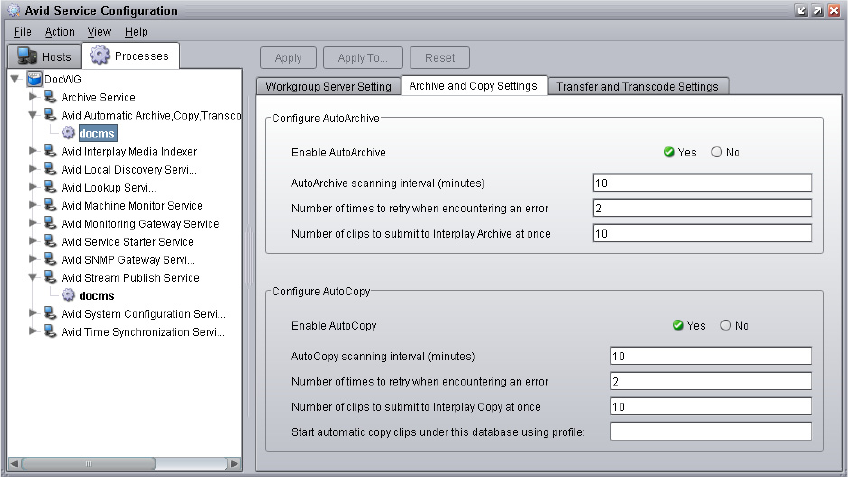
Working with an Auto Archive Folder
155
8. Click the Archive and Copy Settings tab.
The system displays the configuration settings for the AutoArchive and AutoCopy.
9. In the Configure AutoArchive area, do the following:
- Enable AutoArchive — Select Yes.
- AutoArchive scanning interval — Type the number of minutes between scans,
minimum allowed is 5 minutes.
- Number of times to retry when encountering an error — type the number of times
you want the system to retry after an error occurs.
- Number of clips to submit to Interplay Archive at once — type the number of clips
you want sent for archive at one time. The system can better manage the job
processing task when the jobs are processed in small batches. The default number is
10 clips submitted for processing at one time. For example, when you are moving
1,000 clips to the AutoArchive folder, the first 10 clips are archived, then the next
10 clips are archived, and so on until all 1,000 clips are archived.
10. Click Apply.
11. Close the Avid Service Configuration window.
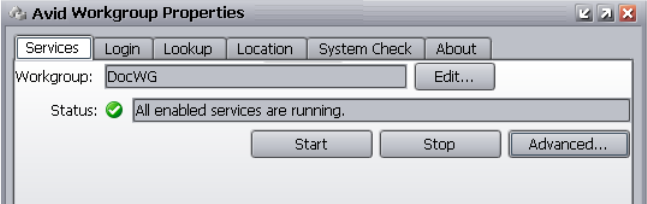
7 Working with the Archive and Restore Services
156
nWhen you make configuration changes and you do not click the Apply button or the Reset
button prior to changing a selection or closing the window, a dialog box opens reminding
you to Apply or Reset the configuration.
Verifying That the Auto Archive Service is Running
The Services page in the Avid Interplay Media Services and Transfer Status tool shows
whether the Archive and Restore services are running. The Avid Interplay Auto Archive
service is not monitored on the Services page. You can use the Avid Service Framework
services or the Microsoft Windows Computer Management tool to check whether the Avid
Interplay Auto Archive service is running.
nSoftware for the Auto Transcode, Auto Transfer, and Auto Copy services is also installed
during the installation of the Avid Interplay Auto Archive service. These services are all
included in the service named Avid Interplay Auto Media Services.
For more information about Avid Service Framework, see the Avid Service Framework
User’s Guide.
To verify that the Avid Interplay Auto Archive service is running using Avid Service
Framework:
1. On the system running the Media Services Engine, click Start and select Programs >
Avid > Avid Service Framework > Avid Workgroup Properties.
The Avid Workgroup Properties dialog box opens. The Status area indicates whether all
the Avid Service Framework services are running.
2. Click Advanced.
The Avid Services dialog box opens.
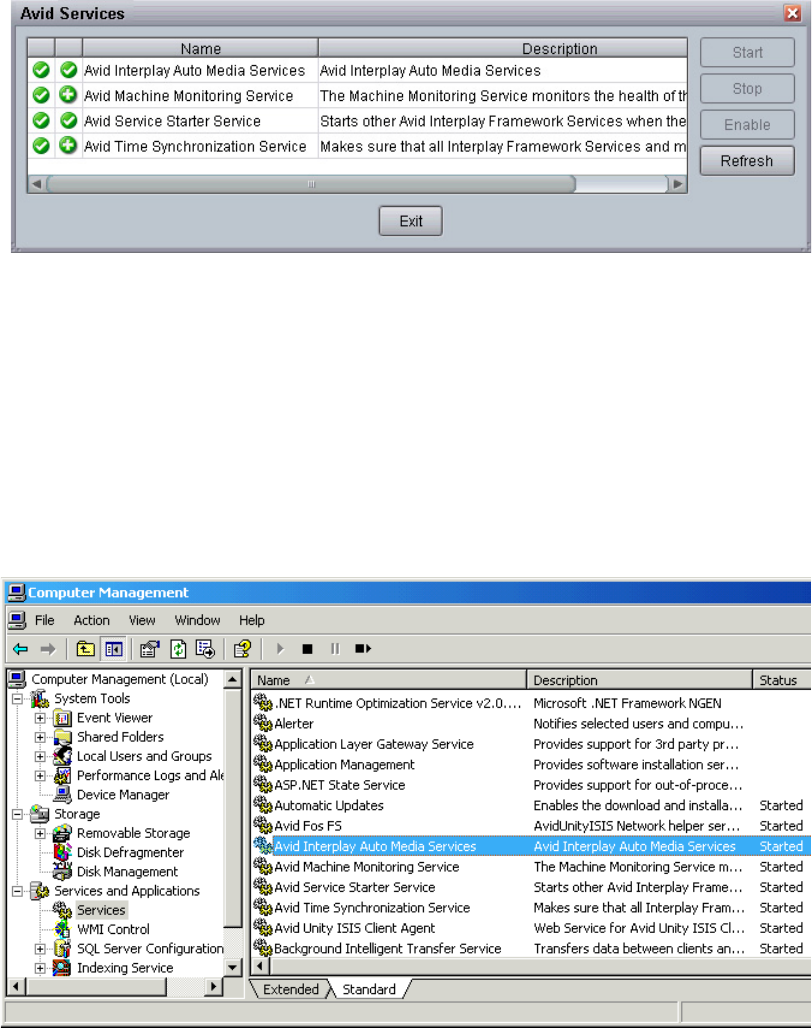
Working with an Auto Archive Folder
157
3. If necessary, select the Avid Interplay Auto Media Services service and click Start.
nIf the Avid Interplay Auto Media Services does not appear, check the Media Services Engine
to make sure that the Archive service is running. Auto Archive requires the Archive service.
To verify that the Avid Interplay Auto Archive service is running using the Computer
Management window:
1. On the system running the Media Services Engine software, right-click the My
Computer icon and select Manage.
2. Double-click the Services and Applications icon, then double-click Services.
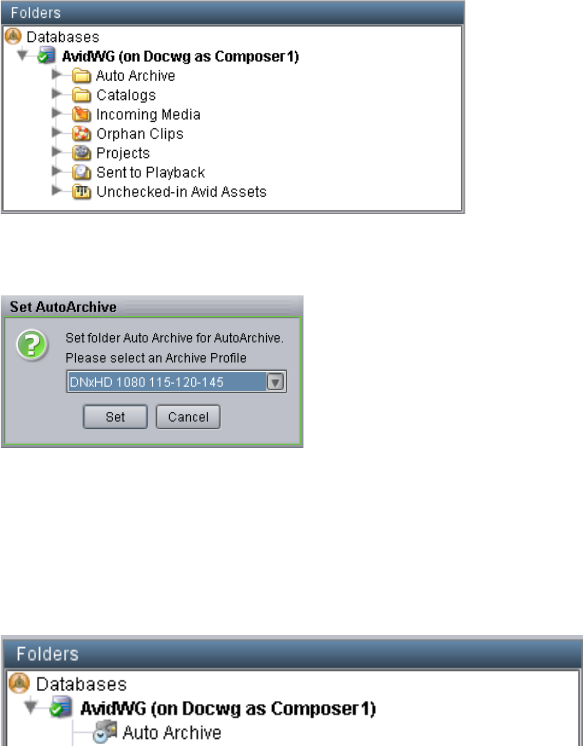
7 Working with the Archive and Restore Services
158
3. In the Status column, verify the Avid Interplay Auto Media Services are running.
Setting Up an Auto Archive Folder
To set up an Auto Archive folder:
1. Log into Interplay Access as an administrator and create a folder.
The following illustration shows a folder named Auto Archive in the database tree. You
can use any name that fits your workflow.
2. Right-click the folder and select Set AutoArchive.
3. Select an Archive Profile from the Set Auto Archive dialog box.
For information about profiles, see “Working with Media Services Profiles” on page 75.
4. Click Set.
The system adds an Auto Archive icon to the folder.
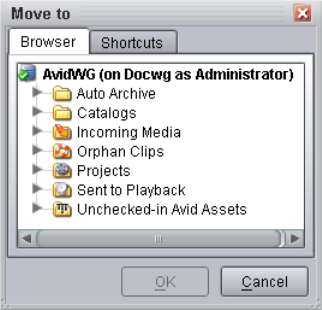
Working with an Auto Archive Folder
159
Archiving Assets Using an Auto Archive Folder
To archive assets using an Auto Archive folder:
1. Make sure a folder is configured for Auto Archiving. See “Setting Up an Auto Archive
Folder” on page 158.
2. Make sure that the Media Services Engine and the Avid Interplay Archive service are
connected. See “Verifying That a Service Provider Is Connected” on page 71. Make sure
the Auto Archive service is running. See “Verifying That the Auto Archive Service is
Running” on page 156.
3. Start Avid Interplay Access and log in to the database that includes the assets you want
to archive.
When the Auto Archive service performs an archive operation, it uses the account that
you set in the Avid Service Configuration tool, not the account you used to log in to
Interplay Access. See “Configuring Auto Archive Using the Avid Service
Configuration” on page 153.
4. Locate an asset that you want to archive and do one of the following:
tDrag the asset to the Auto Archive folder.
tRight-click the file, and select Move To.
The Move To dialog box opens.
Navigate to your Auto Archive folder and click OK.
A copy of the clip is moved to the Auto Archive folder. The Auto Archive job might
not start for several minutes, depending on your Auto Archive settings. See
“Configuring the Archive Service” on page 132
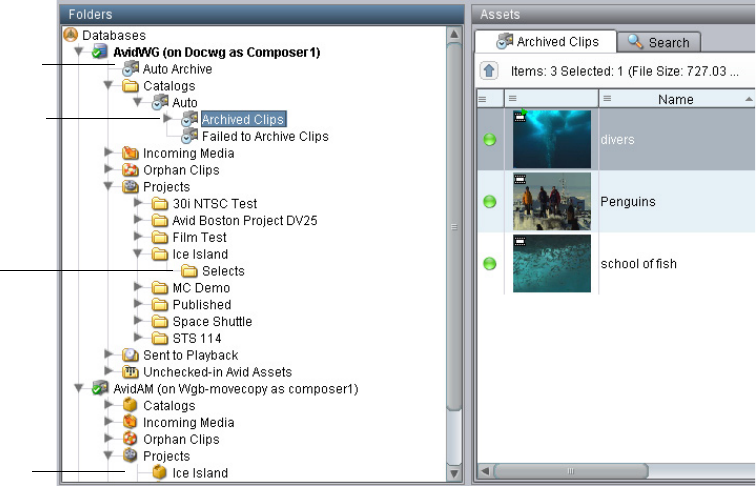
7 Working with the Archive and Restore Services
160
5. (Option) To view the Interplay Media Services Status window while the Auto Archive
operation is in process, select Tools > Interplay Media Services Status.
The system displays the job status during the archive operation. After the operation is
complete, the status entry is deleted. The system deletes the line to avoid collecting too
many entries in the status window.
nYou can also use Avid Diagnostics to troubleshoot jobs. For information, see “Checking
Media Services Jobs Using Avid Diagnostics” on page 368.
Location of Automatically Archived Files
When working with Auto Archive, the system creates a folder named Auto in the Catalogs
folder, that contains two folders:
•Archived Clips
• Failed to Archive Clips
The system moves a copy of your original clip to one of these folders, depending on the
result of the job.
A separate copy of the archived file exists in the Archive database in a destination folder
specified in the profile. The following illustration shows the folders and the archived file.
Auto Archive folder
Archived Clips folder
Destination folder
Source folder
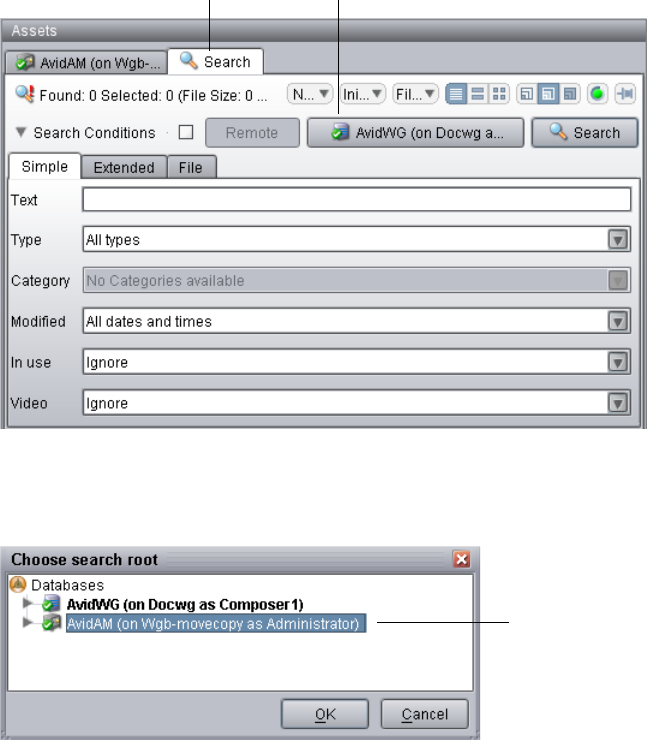
Searching the Archive Database
161
Searching the Archive Database
You use the Search tab in Interplay Access to locate assets in a database. You can select only
the Archive database, or you can search across multiple databases. This topic describes how
to locate a clip in the Archive database. For complete information on searching, see the Avid
Interplay Access User’s Guide.
To search for a clip in the Archive database:
1. Open Interplay Access and connect to the Archive database. See “Connecting to the
Archive Database and Creating Folders in Interplay Access” on page 137.
2. Click the Search tab in Assets pane.
3. Click the Search Root button
The Choose Search Root dialog box opens.
Search tab Search Root button
Archive database
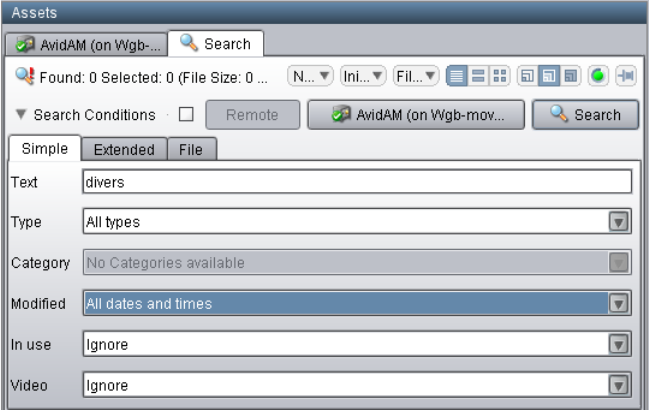
7 Working with the Archive and Restore Services
162
4. Select the Archive database and click OK.
In a large database, you can speed up your search by selecting a folder within the
database as the root.
5. Type the name (or a portion of the name) of the clip you want to search for and select the
appropriate search criteria.
The following example uses the text “divers” and the All Dates and Times option in
order to locate all versions of the file.
6. Click the Search button.
The system displays the search results in the Search Results area. (If necessary, expand
the bottom of the window to display the Search Results area.) In this example, one clip
in the Archive database has the text “divers” in its name.
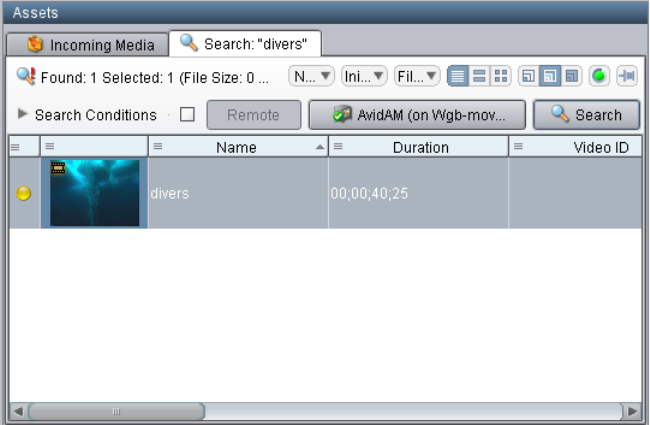
Restoring a Clip from the Archive Database
163
Restoring a Clip from the Archive Database
When you restore a clip, you use the Restore service to copy archived metadata to an
Interplay online database and copy media to workgroup shared storage. You can use the
Restore service from the Archive database. If metadata for an asset is still stored in the
Interplay online database but the media is archived (offline in the database), you can use the
Restore service from the Interplay online database.
This example uses the results of a search to select a clip to restore. You can also use the Tree
view to locate the clip you want to restore. You can also restore from an Avid editing
application.
To restore a clip from the Archive database:
1. Make sure the Media Services Engine application and the Restore service are
connected. See “Verifying That a Service Provider Is Connected” on page 71.
2. Open Interplay Access and log in to the Archive database.
Make sure that the account that you use is a valid Media Services account and has
access to the Interplay Engine database. See “Using the Users Page” on page 57.
3. Locate the clip you want to restore, by browsing or performing a search (see “Searching
the Archive Database” on page 161).
4. Select the clip or clips in the Search Results area.
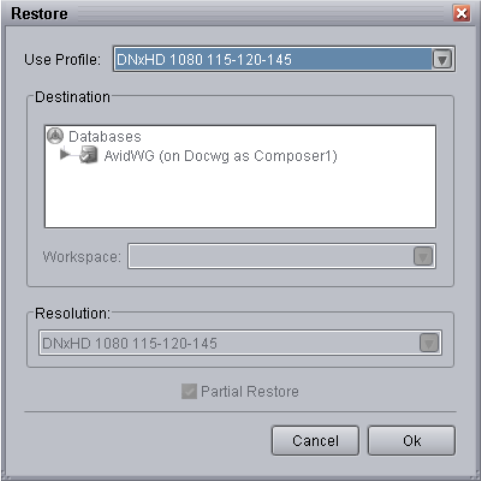
7 Working with the Archive and Restore Services
164
5. Select Tools > Restore.
The Restore dialog box opens.
6. Do one of the following:
tSelect a profile from the Use Profile menu. For information about profiles, see
“Working with Media Services Profiles” on page 75.
nThe Destination area, Resolutions, and Partial Restore are not available when using a
profile, because the profile provides these settings. When you perform a restore from an Avid
editing application you must select a profile.
tSelect None from the Use Profile menu, and do the following:
- In the Destination area, select a destination folder where you want to place the
restored asset. See “Interplay Archive Profile and Interplay Restore Profile
Options” on page 142.
- In the Workspace area, select the Avid Unity workspace where you want to
place the restored media.
- Select a resolution from the Resolution menu.
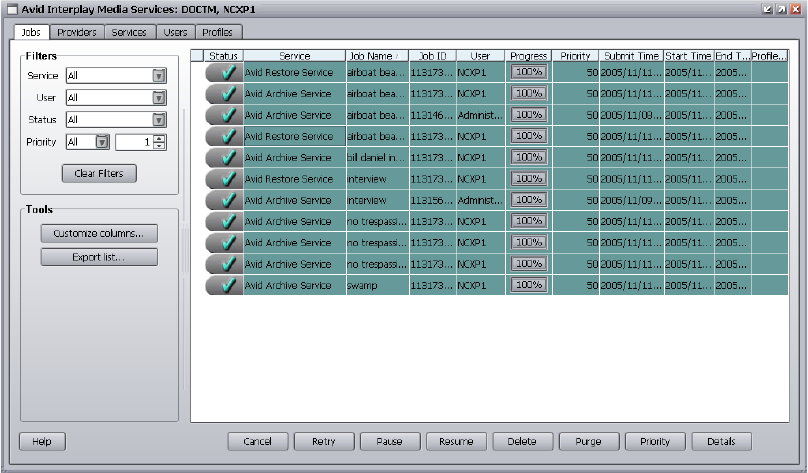
Working with Partial Restore
165
- (Option) Select Partial Restore. For more information, see “Working with
Partial Restore” on page 165.
- (Option) Select “Launch Interplay Media Services Status window.”
7. Click OK.
The system performs the restore operation. The following illustration shows the Media
Services Status window after the job is complete.
8. (Option) Navigate to the destination folder in the Avid Interplay Access window and
verify that the clip was restored.
Working with Partial Restore
Using partial restore can save time and disk space when restoring files from the archive. The
concept of partial restore refers to the ability to restore just the necessary portion of a large
master clip. The following are two examples:
• Restoring a subclip — If you perform a partial restore, you restore only the media that
makes up the subclip. Otherwise you restore the entire masterclip associated with the
subclip.
• Restoring a sequence — You can restore only the portions of the clips that are used by
the sequence.
7 Working with the Archive and Restore Services
166
When creating a Restore profile, select the Partial Restore option. When you perform a
restore operation using that Restore profile, a partial restore is performed.
For details on performing a partial restore, see the following topics:
•Performing a Partial Restore
•Viewing Partially Restored Reference Tracks in Interplay Access
•How the System Defines the Size of a Partially Restored File
nFor information about Archive settings that set the segment size used for partial restore
operations, see “Configuring the Archive Service” on page 132.
Performing a Partial Restore
This topic describes the basic workflow when you perform a partial restore operation from
an Avid editing application when using multiple resolutions. For a more detailed workflow,
see Avid Interplay Best Practices.
You can also perform a partial restore as described in “Restoring a Clip from the Archive
Database” on page 163. Use a profile with the Partial Restore option selected, or select
Partial Restore in the Restore dialog box.
To perform a partial restore from the Archive:
1. On an Avid editing system, assume you have a 10-minute master clip and you have both
15:1s and DV 25 versions of the media.
2. Archive the DV 25 version of the media, as described in “Archiving Assets from an Avid
Editing Application” on page 145.
3. Delete the online DV 25 media and keep the low-resolution, 15:1s media online.
4. Edit one minute of the low-resolution version of the clip into a sequence.
5. Select the sequence in the bin and use Avid Interplay Restore to restore the DV 25
version of the clip from the archive. Use a profile that is set up to perform partial
restores. The application restores only the portion of the clip that is in the sequence,
along with extra media that you can use for handles (see “How the System Defines the
Size of a Partially Restored File” on page 168).
6. Make sure that options for Dynamic Relink are selected so that you can view the clip
with the restored media.
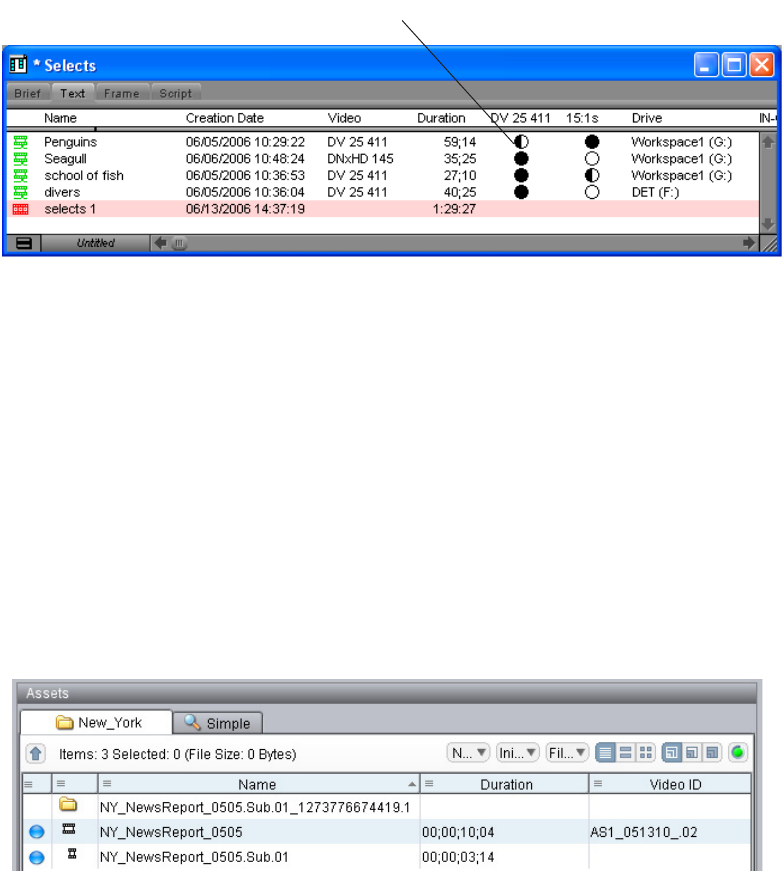
Working with Partial Restore
167
The following illustration shows an example of a bin containing a clip with
high-resolution media that has been partially restored. The Penguins clip is partially
online for DV 25 (half-circle) and completely online for 15:1s (full circle).
Viewing Partially Restored Reference Tracks in Interplay Access
When you perform a partial restore, the restore process creates new media files for the
restored clip or subclip. These media files are displayed as reference tracks in a separate
subfolder within the target folder.
cDo not use the partially restored reference tracks for editing. Use the restored clip or
subclip instead.
The following illustration shows a subclip named NY_NewsReport_0505.Sub.01, which
was restored to the folder named New_York. (The master clip from which the subclip was
created was also partially restored.) Both the subclip and master clip are shown as partially
online (blue icon). (The icons could also be yellow, indicating that the media is also
available on a remote workgroup or archive.)
Partially online for DV 25
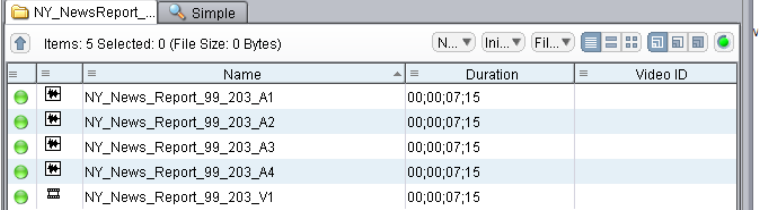
7 Working with the Archive and Restore Services
168
The New_York folder includes a subfolder that contains the reference tracks for the new
media. (The name of this subfolder includes the Media Services job number.) If you open
this folder, you can view the reference tracks. In this example, there are four audio files and
one video file. All the media files are fully online (green icon).
The restore process adds the following information to the end of the reference file name:
clipname_segment-start-frame_segment- duration_media-type
where segment-duration is a multiple of the segment size. The system restores the media in
segments so you always restore slightly more than you requested. For a description of the
segment size and how to define it, see “Specifying the Archive Server, Segment Size, and
Restore Process” on page 132.
Reference tracks are also included when you perform a partial delivery. See “Understanding
the Delivery Service” on page 269.
How the System Defines the Size of a Partially Restored File
When the Media Services system restores a clip, it restores it in segments (also known as
chunks) and then combines the segments into a single media file. As a result, slightly more
media is restored than is used in the clip. You can configure the size of this segment in the
Interplay Administrator (see “Specifying the Archive Server, Segment Size, and Restore
Process” on page 132).
If the portion you want to restore is within a segment boundary, the system restores the
entire segment rather than breaking up the segment. If the portion you want to restore spans
two or more segments, all segments are restored.
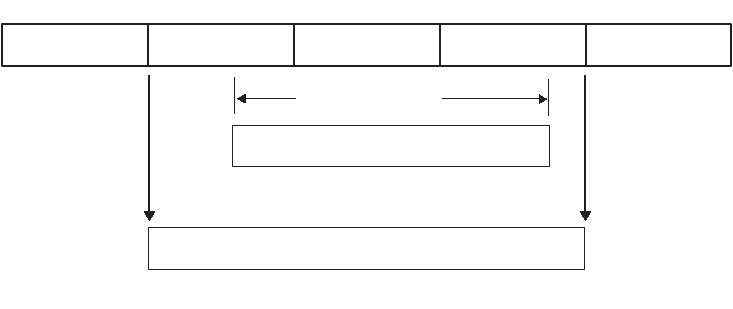
Working with Partial Restore
169
The following illustration shows a subclip used for a partial restore. The boundaries of the
subclip lie within two segments, so both segments are restored. This means that slightly
more media is restored than was requested.
System restores media in segments.
Subclip used for restore operation
Restored media is longer than requested
Requested media
Media file
7 Working with the Archive and Restore Services
170

8Working with the Stream Publish
Service
The following topics explain how to set up and use the Stream Publish service:
•Understanding the Stream Publish Service
•Workflow for Creating Streaming Media
•Check List for Stream Publish Workflow
•Installing and Registering the Stream Publish Service Provider
•Starting the Stream Publish Provider
•Creating a Stream Publish Service Profile
•Manually Creating QuickTime Reference Movies
•Deleting QuickTime Reference Movies
•Stream Publishing Media During Ingest
For information about automating the publication of QuickTime reference movies, see
“Automatically Publishing QuickTime Reference Movies” on page 191.
8 Working with the Stream Publish Service
172
Understanding the Stream Publish Service
The Avid Interplay Stream Publish service provider is an Interplay Media Services service
that creates QuickTime reference movies that refer to MPEG-4 video files and MPEG1
Level 2 audio files. After the service creates a QuickTime reference movie for a selected
asset, it checks the file into the Interplay database as part of the selected asset’s metadata.
You can then play the asset in the Interplay Access 2.0.
You install and access the Stream Publish service provider like other services available with
Interplay Media Services. You must create a profile to use this service.
nYou need to create proxy media (MPEG-4 video and MPEG1 Layer 2 audio files) before you
can use the Stream Publish service. For information, see “Part One: Creating Proxy Media”
on page 173.
The Avid Service Configuration tool provides a setting that lets the Stream Publish service
use the Media Indexer to look up the file path. By default, the setting is enabled allowing the
use of the Media Indexer. Disabling this setting is useful when the Media Indexer is down or
if it is very busy. In the Avid Service Configuration tool, select the Avid Stream Publish
Service process. The Stream Publish Service Settings tab displays the “Use MediaIndexer to
lookup filepath” settings. Uncheck this setting to not use the Media Indexer for looking up
the file path.
Workflow for Creating Streaming Media
To play clips in Interplay Access, the clips you want to play must be associated with
low-bandwidth media that can be viewed over the wide-area network, and QuickTime
reference movies that point to the media. The MPEG-4 video format and the MPEG1 Layer
2 audio format are currently the required formats for this low-bandwidth media.
In a dual-ingest workflow, this low-bandwidth media serves as proxy media for
high-bandwidth media that is captured at the same time as the low-bandwidth media.
Creating master clips that can be played in Interplay Access is a two-part process:
1. Create assets with proxy media and check them into the Interplay database.
2. Use the Stream Publish service to create QuickTime reference movies.
After the Stream Publish service creates the QuickTime reference movies, you can play
clips and mixed-down sequences in Interplay Access.
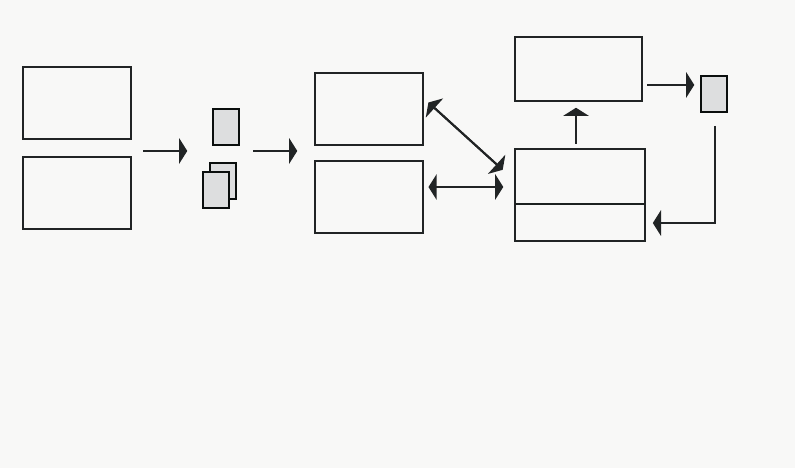
Workflow for Creating Streaming Media
173
The following diagram shows the basic process of creating proxy media files and
automatically creating QuickTime reference movies that can be streamed from the Interplay
Stream Server.
Part One: Creating Proxy Media
There are two ways to create proxy media (MPEG-4 video and MPEG1 Layer 2 audio):
• Through the Avid Interplay Low-Res Encoder: You use the Low Res Encoder when
capturing low-bandwidth media as part of a dual-ingest workflow (capturing
low-bandwidth media and high-resolution media at the same time). A CaptureManager
system controls the operation. For more information, see the Avid Low Res Encode
Setup and Configuration Guide and the Avid CaptureManager Installation and
Configuration Guide.
nMPEG-4 video capture requires an updated software bootset on the Avid Low Res Encoder.
For more information, see the Interplay v2.0 Readme.
MPEG-4
video
Stream Server
Stream Publish
provider
Avid
Low-Res
Encoder
Transcode
provider
MPEG1
Layer 2
audio
QuickTime
reference movie
1. The Avid Low-Res Encoder or
the Transcode provider
creates MPEG-4 video media
and MPEG1 Layer 2 audio media
and checks the files into the
Interplay database.
The Stream Publish provider creates the
QuickTime reference movie and stores it on the
Interplay Stream Server.
2. The Workflow Engine uses the Auto-Publish
workflow to scan the database and listen for
Media Indexer creation notifications. If it finds
media that requires a QuickTime reference movie,
it prompts the Stream Publish provider to create one.
Interplay
Engine
Media
Indexer
Workflow Engine
with Auto-Publish
workflow
8 Working with the Stream Publish Service
174
• Through the Interplay Transcode Service: You need to create a Transcode profile in the
Avid Interplay Media Services and Transfer Status window. Then you can use Interplay
Access or an Avid editing application to select the items to transcode and the profile to
use.
- To transcode media for an entire clip, create a profile in which you select WHOLE
mode, a target video quality (MPEG-4), and a target audio quality
(MPEG1 Layer 2).
- To transcode only media used in a sequence, create a profile in which you select
MIXDOWN mode, a target video quality (MPEG-4), and a target audio quality
(MPEG1 Layer 2).
For more information about transcoding and using mixdown mode, see
“Understanding MIXDOWN Mode During the Transcode Process” on page 105.
- To transcode a sequence to a single master clip with two resolutions, create a profile
in which you select DUALMIXDOWN mode, a target video quality (MPEG-4), and
a target audio quality (MPEG1 Layer 2). Select a high resolution for the target
video quality dual and target audio quality dual settings.
For more information about transcoding and using dualmixdown mode, see
“Understanding the DUALMIXDOWN Mode During the Transcode Process” on
page 106.
There are two ways to transcode media:
- From Interplay Access, right-click an asset, select Transcode, then select the desired
profile.
- From an Avid editing system, select an asset and then select File > Media Services
> Avid Interplay Transcode Service > profile_name.
For more information on creating Transcode profiles, see the “Creating a Interplay
Transcode Service Profile” on page 92.
nIf you are going to send a sequence to the Media Services Transcode Mixdown service,
render any non-real-time effects (blue-dot effects), third-party 3D effects, or Pro Tools
effects in your Avid editing application before starting the mixdown. If you revise the
sequence, you might need to render the effects again.

Check List for Stream Publish Workflow
175
Part Two: Creating QuickTime Reference Movies
To create QuickTime reference movies, you need to publish them through the Stream
Publish service. You can publish them in two ways:
• Automatically, through the Workflow Engine using the Auto Publish flow charts.
• Manually, through Interplay Access or an Avid editing system.
For more information, see “Working with the Stream Publish Service” on page 171 and
“Automatically Publishing QuickTime Reference Movies” on page 191.
nWhen you delete the MPEG proxy media, the corresponding QuickTime reference movie is
also deleted.
Resolutions for MPEG Proxy Media
The following table lists the currently supported resolutions for MPEG-4 video and MPEG1
audio. This proxy media can be played in Avid editing applications, Interplay
Assist, and iNEWS Instinct, and can be published for streaming play in Interplay Access.
Four channels of compressed MPEG1 Layer 2 audio media (96k per channel) are supported.
Check List for Stream Publish Workflow
For the stream publish workflow, the following table provides a check list of steps for
installing and configuring the Interplay Stream server and the Interplay Stream Publish
provider service in an Avid Unity™ environment. The check list assumes the Interplay Media
Services Engine and the supporting software are setup and configured in the workgroup. The
check list provides references where to find more information about each step.
You can also setup the workgroup to automatically publish assets. For more information, see
“Automatically Publishing QuickTime Reference Movies” on page 191.
Media Resolution
Media Services
and Access
Display Editor Bin Display
NTSC video MPEG-4 525 500 kbps 60 fps
(H.263, progressive)
MPEG-4 525 500 60 MPEG-4 525 500 60
PAL video MPEG-4 625 500 kbps 50 fps
(H.263, progressive)
MPEG-4 625 500 50 MPEG-4 625 500 50
Audio MPEG1Layer 2 (compressed audio) MPEG1Layer2 MP2 (MxF)

8 Working with the Stream Publish Service
176
Stream Publishing Assets Check List
Task Section Reference
Make sure the Interplay Stream Server
software and supporting software are
installed on the streaming server.
• Avid Service Framework for Client
• Avid Interplay Stream Server
• Avid Interplay Access
• (Option) Auto Publish Support software
that includes the Workflow Engine and
auto-publish flow charts
Make sure the Interplay Stream Server
application key is connected to the server.
See the Avid Interplay Software Installation
and Configuration Guide.
Make sure the Interplay Media Services
Engine software and all the supporting
software installed and configured on the
Interplay Media Services server or in the
workgroup.
• Avid Service Framework for Client
• Avid Interplay Access
• Avid Interplay Media Services
• Avid Interplay Transcode service
• Avid Interplay Stream Publish service
nMake sure QuickTime 7.x is installed
on the system with Interplay Stream
Publish service.
Make sure the Interplay Media Services
application key is connected to the server.
See Avid Interplay Software Installation and
Configuration Guide and “Interplay Media
Services Engine Installation and
Configuration” on page 29.
Install and register the Avid Interplay
Stream Publish service provider.
See “Installing and Registering the Stream
Publish Service Provider” on page 177.
Connect the Stream Publish provider to the
Media Services Engine.
See “Connecting the Stream Publish Provider
to the Media Services Engine” on page 182.
Start the Interplay Stream Publish service
provider.
See “Starting the Stream Publish Provider” on
page 184.

Installing and Registering the Stream Publish Service Provider
177
Installing and Registering the Stream Publish
Service Provider
Before you can use the Stream Publish service provider, you must install the provider
software needed by the service from the Avid Interplay installation DVD. Then install the
service description in the Media Services Engine, register the provider, and start and connect
the service.
These tasks are explained in the following topics:
•Installing the Stream Publish Service Description
•Registering the Stream Publish Provider
•Connecting the Stream Publish Provider to the Media Services Engine
Installing the Stream Publish Service Description
You use the Media Services and Transfer Status tool to install the Stream Publish service
description. For more information, see “Understanding Service Descriptions and Service
Packages” on page 61.
You only need to install a service description once, even if you configure multiple providers.
To install the Stream Publish service description:
1. Make sure the Stream Publish provider software is installed.
2. Open the Media Services and Transfer Status tool and log in as administrator, as
described in “Opening the Media Services and Transfer Status Tool” on page 37.
Create a Stream Publish profile. See “Creating a Stream Publish Service
Profile” on page 185.
Publish assets. See “Manually Creating QuickTime Reference
Movies” on page 188.
Stream Publishing Assets Check List (Continued)
Task Section Reference
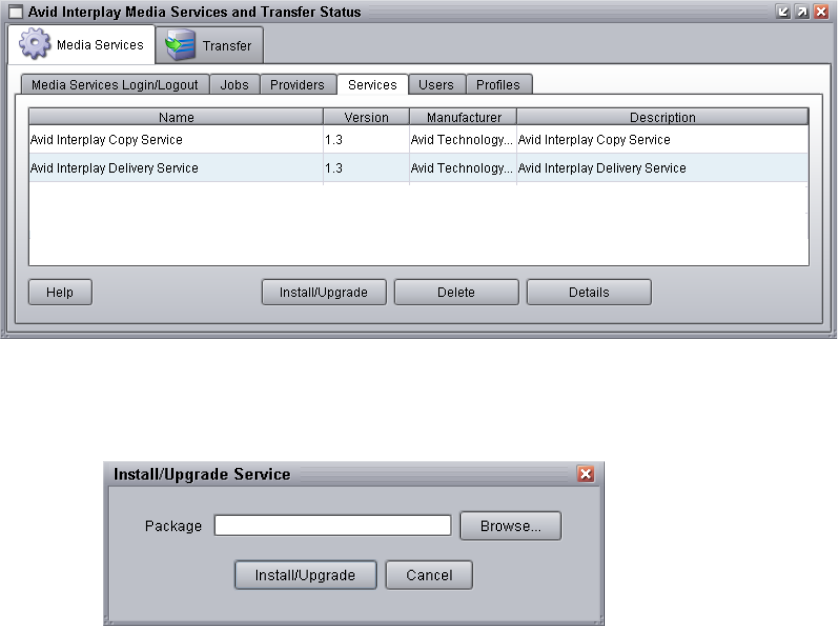
8 Working with the Stream Publish Service
178
3. Click the Services tab.
The Services page displays the currently configured services.
4. Click Install/Upgrade.
The Install/Upgrade Service dialog box opens.
5. Click Browse and navigate to the folder containing the Stream Publish service package
(Publishing.zip file).Make sure you have access to the folder. By default the service
package is installed in the following folder:
C:\Program Files\Avid\Avid Interplay Stream Publish
You can use the Microsoft Windows Search tool to help you locate the folder that
contains the Publishing.zip file.
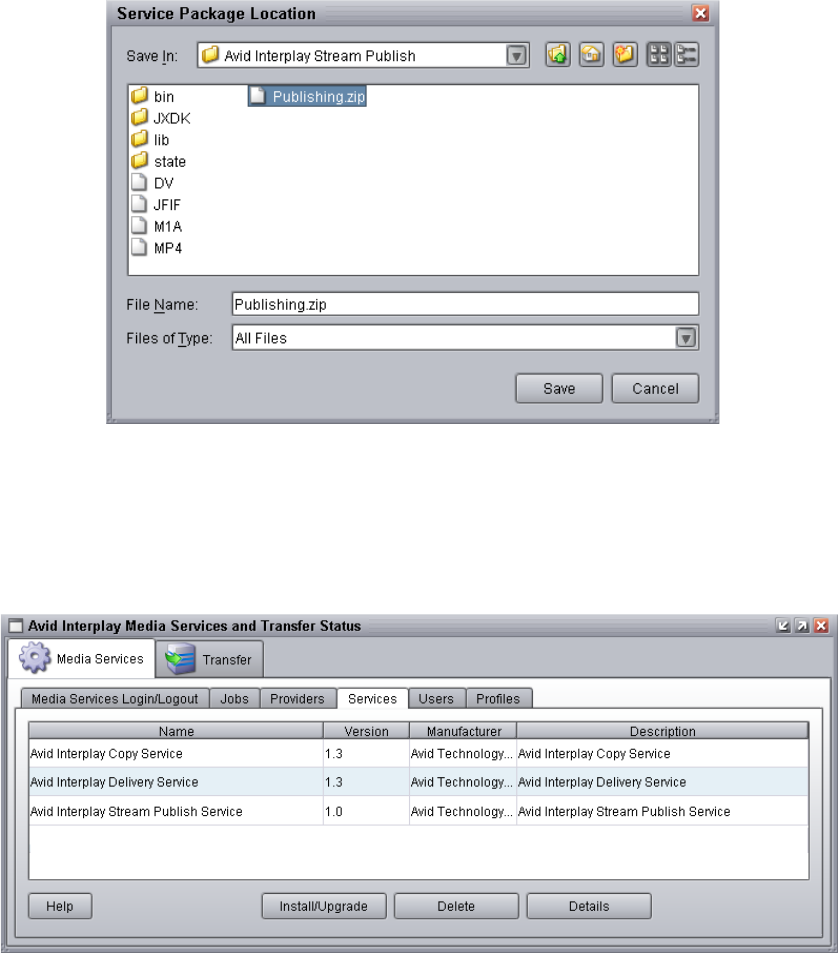
Installing and Registering the Stream Publish Service Provider
179
6. Click Save.
The path to the file appears in the Install/Upgrade Service dialog box.
7. Click Install/Upgrade.
The Interplay Stream Publish service appears on the Services page.
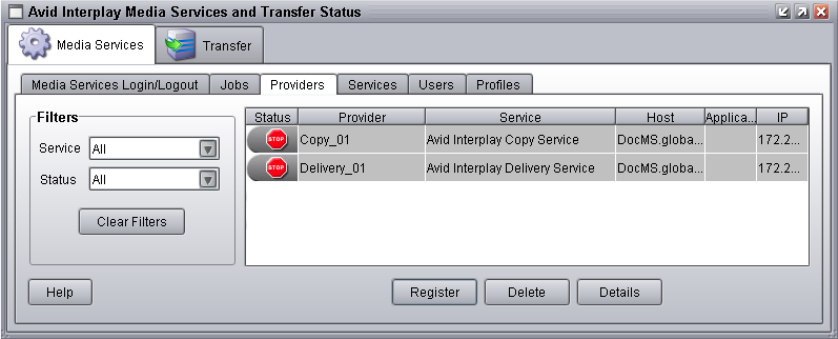
8 Working with the Stream Publish Service
180
Registering the Stream Publish Provider
After you install Stream Publish service provider, you need to register the provider with the
Media Services Engine.
The Provider page on the Media Services and Transfer Status tool is used to register the
provider with service. The provider receives information about jobs and supplies the Media
Services Engine with information about the provider, job status, and other information
depending on the service. In some cases it passes the information to other applications.
To register the provider with the Stream Publish service:
1. Open and log in to the Media Services and Transfer Status tool. See “Opening the
Media Services and Transfer Status Tool” on page 37.
2. Click the Providers tab.
The Providers page displays all of the currently registered providers.
3. Click Register.
The Register Provider dialog box opens.
4. Do the following:
a. Service menu — select Avid Interplay Stream Publish Service
b. Provider Name — Type the name that you want to use to identify this particular
provider. You can have several providers on your workgroup for the same service,
so you should use a meaningful name.
c. Application Name — For future use. Leave this text box blank.
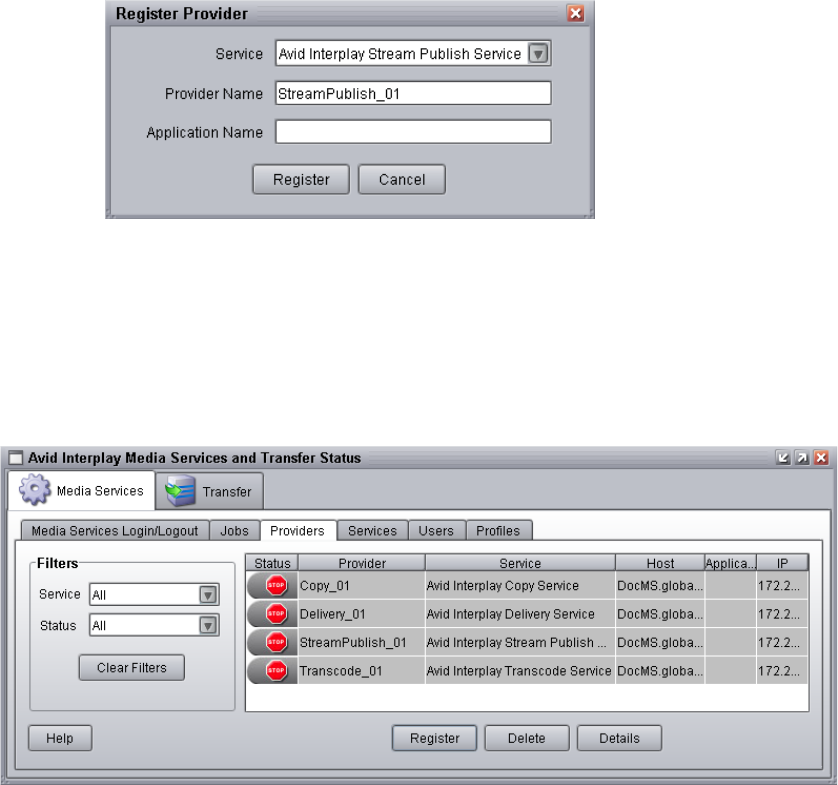
Installing and Registering the Stream Publish Service Provider
181
The following illustration shows the Register Provider dialog box with the values filled
in for a Stream Publish Service.
5. Click Register.
The Stream Publish provider appears in the Providers page. If the service is not
connected to the Media Services Engine, a Stop icon is displayed in the Status column.
In this case, you must connect the Stream Publish provider to the Media Services
Engine software. See “Connecting the Stream Publish Provider to the Media Services
Engine” on page 182.
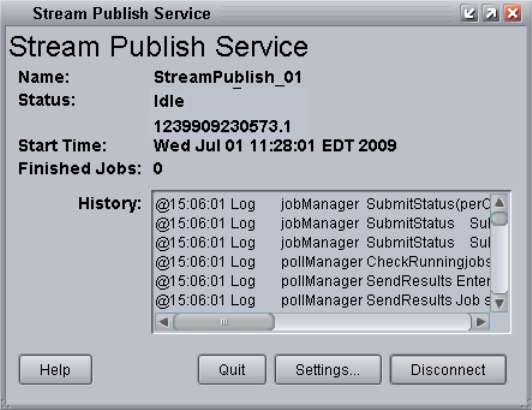
8 Working with the Stream Publish Service
182
Connecting the Stream Publish Provider to the Media Services Engine
After you install Stream Publish service description and register the Stream Publish
provider, you need to connect the provider to the Media Services Engine.
To connect the Stream Publish provider to the Media Services Engine:
1. Click Start and select Programs > Avid > Avid Interplay Stream Publish Service.
The Stream Publish Service dialog box opens.
2. Click Settings.
The Provider Settings dialog box opens.
3. Do the following:
a. Provider Name — Type the name of the provider you specified in “Registering the
Stream Publish Provider” on page 180. In this example, the name is
StreamPublish_01.
b. Media Services Engine Host Name — Type the name of the system running the
Media Services Engine application.
c. Automatically Connect — Select either Yes or No (default) to automatically
connect to the Media Services Engine when the application starts.
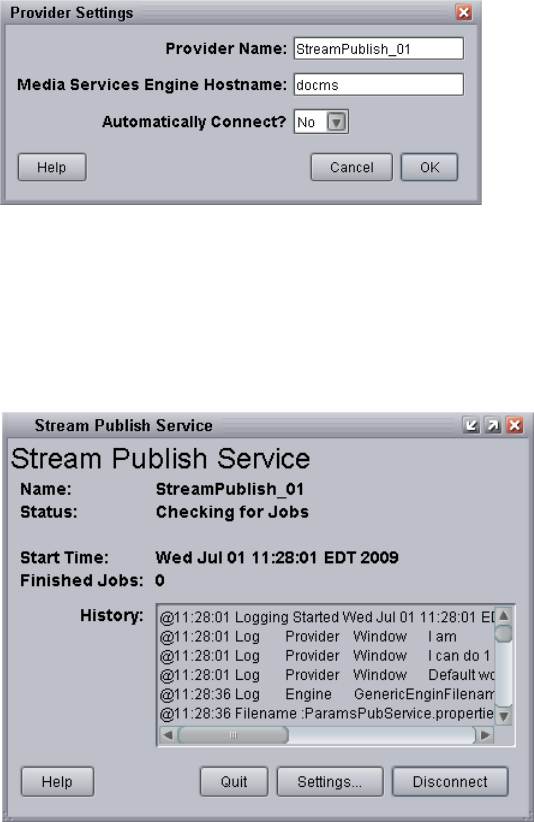
Installing and Registering the Stream Publish Service Provider
183
The following illustration shows an example of the Provider Settings dialog box with
the values filled in for the Stream Publish Service.
4. Click OK.
5. Click Connect in the Stream Publish Service window.
The Stream Publish Service window now shows that the service is connected and shows
the provider you selected to connect to. This example shows StreamPublish_01 as the
provider.
The Provider page in the Media Services and Transfer Status tool now shows that the
provider is connected, indicated by a check mark in the Status column.
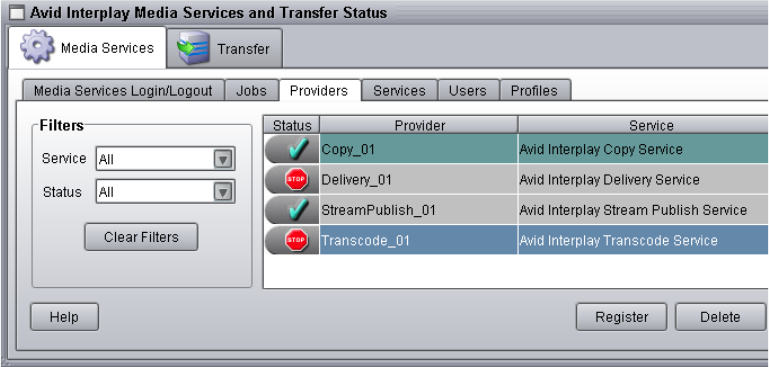
8 Working with the Stream Publish Service
184
Starting the Stream Publish Provider
To start the Stream Publish service provider:
1. Click Start and select Programs > Avid > Avid Interplay Stream Publish.
Depending on the service settings, one of the following happens:
- Automatically Connect—Yes, the service dialog box opens for the service you
selected and is connected to the service.
- Automatically Connect—No, the service dialog box opens for the service you
selected and displays Idle. Click the Connect button to connect to the service.
nThe service provider dialog box displays the start date and start time of the providers based
on the Microsoft® Windows® time.
After the connection is made, the Status line in the service dialog box reads “Checking
for Jobs,” and the History window displays the message “Connection Established.” The
Connect button changes to a Disconnect button.
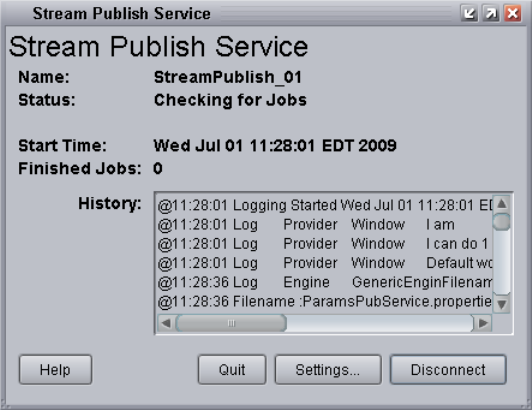
Creating a Stream Publish Service Profile
185
The following example shows the Stream Publish Service dialog box as connected.
nIf the provider cannot connect to the Media Services Engine, the Status line reads
“Connection Error.” Ensure the Media Services Engine is running, the service is installed,
the provider is properly registered, and then click Connect again.
Creating a Stream Publish Service Profile
Profiles let you set up templates to use when performing an operation.
To create a Stream Publish profile:
1. Open and log in to the Media Services and Transfer Status tool as described in “Opening
the Media Services and Transfer Status Tool” on page 37.
2. Click the Profiles tab.
3. From the Service menu, select Avid Interplay Stream Publish Service.
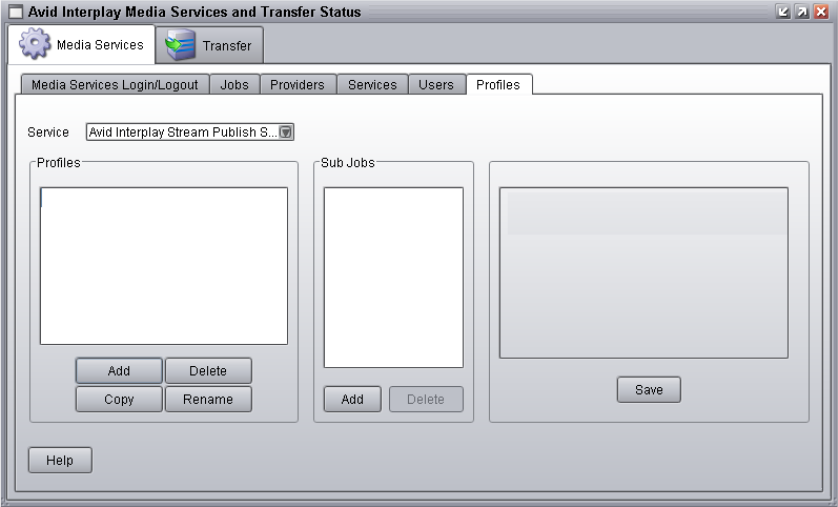
8 Working with the Stream Publish Service
186
4. Click Add in the Profiles area.
The Add Profile dialog box opens.
5. Type a descriptive name for the new profile in the Add Profile dialog box, for example,
Stream_Publish_01.
The name you assign to the profile is the name that displays in Interplay Access or in an
Avid editing application, when you select an option to create a QuickTime reference
movie.
6. Click OK.
The name appears in the Profiles list and an empty template appears in the Parameters
area.
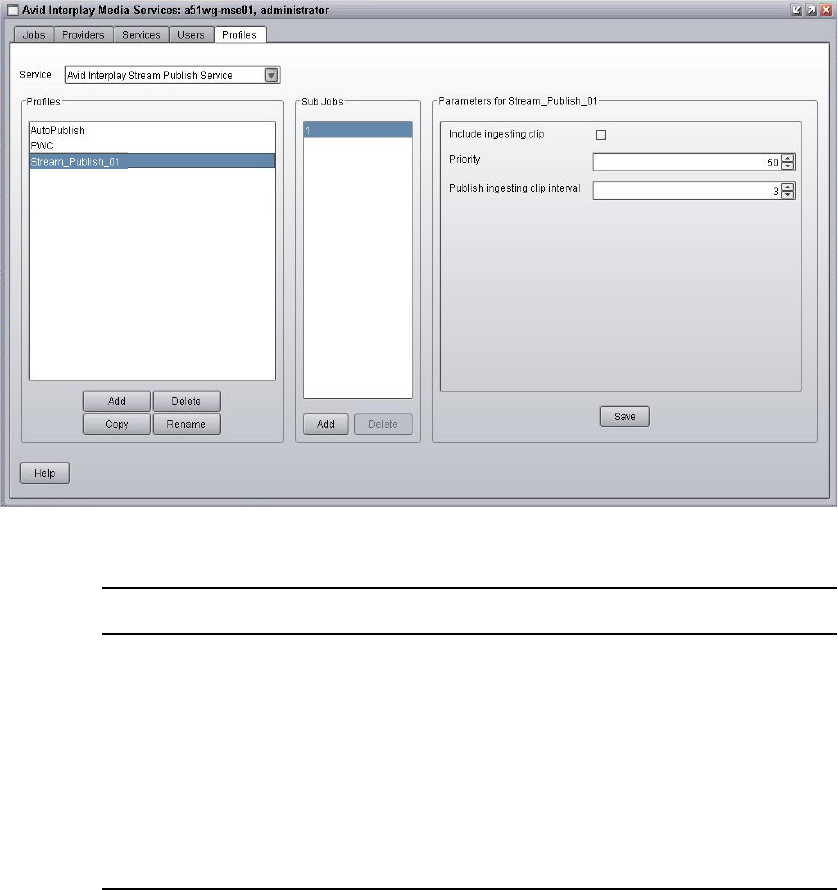
Creating a Stream Publish Service Profile
187
7. In the Parameters area, set the desired options.
8. Click Save in the Parameters area.
The Save Profile dialog box opens.
Option Description
Include ingesting clip Select this option to publish media during the ingest process.
See “Stream Publishing Media During Ingest” on page 189.
Priority Specify the job’s priority. Priority numbers range from 1
(highest priority) through 100 (lowest priority). The default
priority number assigned to each job is 50.
Publish ingesting clip interval Set a value for the number of minutes between the publishing
process during Stream while Capture. The minimum value is
3 minutes. This option requires the “Include ingesting clip”
option to be set.
8 Working with the Stream Publish Service
188
9. Click Yes to save your changes.
You can define several stream publishing operations under one main profile name. For
example, you can add subjobs to transfer several resolutions using one profile. The
system processes each subjob in turn.
To add subjobs:
tClick Add in the Sub Jobs area.
Manually Creating QuickTime Reference Movies
After you create a Stream Publish profile, you can use the procedure in this section to
manually create QuickTime Reference movies.
nFor information about automating the publication of QuickTime reference movies, see
“Automatically Publishing QuickTime Reference Movies” on page 191.
To manually create QuickTime Reference movies, do one of the following:
tFrom Interplay Access, right-click an asset, select Stream Publish, then select the
desired profile.
tFrom an Avid editing application, select an asset and then select File > Media Services >
Avid Interplay Stream Publish Service > profile_name.
Deleting QuickTime Reference Movies
If you no longer need the QuickTime reference movies that are stored on the Interplay
Stream Server, delete them by deleting the corresponding MPEG-4 proxy media from
Interplay Access. The Interplay Engine automatically deletes the MPEG-4 media from
shared storage and the corresponding QuickTime reference movies from the Stream Server.
Any empty folders remain on the Stream Server and are reused as needed.
cDo not delete files or folders directly from the Stream Server unless you are completely
removing the Stream Server from a workgroup. For more information, see the Avid
Interplay Software Installation and Configuration Guide.
Stream Publishing Media During Ingest
189
Stream Publishing Media During Ingest
From within Avid Access, you can publish media during the ingest process to allow for
streaming of the media before the completion of the ingest. This process is referred to as
Stream while Capture (SWC).
There are two different setup configurations for SWC:
• Automatically scan for material to publish during the ingest requires the Workflow
Engine and the Auto Publish software.
• Manually scan the ingesting clip for the ingested portion of material to publish. This
workflow does not require the Workflow Engine or the Auto Publish software.
nFor information about installing and configuring the Workflow Engine and the Auto Publish
software, see “Automatically Publishing QuickTime Reference Movies” on page 191.
The Avid Interplay Stream Publish Service profile provides settings for using SWC. After
setting up the profile, you can right-click an ingesting clip in Avid Access and select Stream
Publish > profile. The media is streamed into the Monitor as it becomes available for
publishing, as defined by the profile. However, when auto-publish picks up the same clip and
sends it to publish the auto-publish profile settings are used.
Profile Settings for SWC Automatic Scan
The Avid Interplay Stream Publish Service profile settings let you configure how often the
media is scanned for new material to publish during the ingest. For example, you can set the
publishing intervals to 5 minutes, in which case during the ingest, the ingested media is
published approximately every 5 minutes.
Two settings are available on the Avid Interplay Stream Publish Service profile to allow for
automatic publishing during the ingest process:
• Include ingesting clip—Select this option to publish media during the ingest process.
• Publish ingesting clip interval—Select a value for the number of minutes between the
publishing process. The minimum value is 3 minutes. You must select the “Include
ingesting clip” option to use this setting.
8 Working with the Stream Publish Service
190
Profile Settings for SWC Manual Scan
When “Include ingesting clip” is not selected in the Avid Interplay Stream Publish Service
profile, you can use the profile to manually SWC ingesting media. In this case, only the
media that has been ingested so far is published. If you want to publish more of the ingesting
media when it becomes available, you need to use the Stream Publish command and select
the profile again. The manual publishing of Stream While Capture does not require a
Workflow Engine or the Auto Publish software.

9Automatically Publishing QuickTime
Reference Movies
The following topics describe how to set up and use the auto publish workflow:
•Understanding the Auto Publish Workflow
•Check List for Auto Publish Workflow
•Verifying the Workflow Engine Database
•Importing Auto-Publish Flow Charts
•Modifying the Flow Chart Settings
Understanding the Auto Publish Workflow
The Auto Publish workflow is supported by three flow charts in the Avid Interplay
Workflow Engine. The Workflow Engine provides a tool for automating the stream publish
workflows, using Auto Publish with the Interplay Stream Publish service. The automation
process creates or publishes QuickTime reference movies. The Workflow Engine uses flow
charts with defined tasks that execute appropriate actions. Avid provides pre-configured
flow charts that consist of triggers, actions, and flows to complete a particular job.
The Avid Service Configuration in the Avid Service Framework tool lets you set up the
pre-configured flow charts using the Workflow Engine.
nTo use the Auto Publish workflow you need to create a Avid Interplay Stream Publish profile,
see “Creating a Stream Publish Service Profile” on page 185.
nIf the hostname of the Workflow Engine system is changed, then the Avid Service
Configuration tool will fail to connect to the Workflow Engine. You need to remove the
following files, and then restart the Avid Service Configuration tool to allow it to connect to
the Workflow Engine.
C:\Documents and Settings\username\.fluxwebapp.properties
C:\Windows\System32\config\systemprofile\.fluxwebapp.properties

9 Automatically Publishing QuickTime Reference Movies
192
Check List for Auto Publish Workflow
The following table provides a check list for installing and configuring the Interplay
Workflow Engine service in an Avid Unity™ environment for performing the auto publish
process. The check list provides references where to find more information about each step.
nDo not install the Interplay Workflow Engine on the same system as the Avid Interplay
Media Services Engine, because each engine requires its own Microsoft SQL Server 2005
Express database.
Verifying the Workflow Engine Database
Before you can use the Workflow Engine you need to verify the SQL database settings. The
Avid Service Configuration in the Avid Service Framework tool provides settings for
configuring the database.
Automatically Publishing QuickTime Reference Movies Check List
Task Section Reference
Make sure the Interplay workgroup is setup
for Avid Interplay Stream Publish service
and Avid Interplay Auto Publish support
software.
See the Avid Interplay Software Installation
and Configuration Guide and “Check List for
Stream Publish Workflow” on page 175.
Configure the Workflow Engine database. See “Verifying the Workflow Engine
Database” on page 192.
Import the Auto-Publish flow charts using
the Workflow Engine Repository.
See “Importing Auto-Publish Flow Charts” on
page 196.
Set the Action properties for the
Auto-Publish flow charts.
See “Modifying the Flow Chart Settings” on
page 200.
(Option) Monitor the workflow using the
Avid Service Diagnostic tool.
For more information about Avid Service
Framework, see the Avid Service Framework
User’s Guide.
Verifying the Workflow Engine Database
193
To verify the Workflow Engine database settings:
1. Open the Avid Service Configuration tool.
tClick Start and select Programs > Avid > Avid Service Framework > Avid Service
Configuration.
The Select Workgroup dialog box opens.
nThe Select Workgroup dialog box does not open if you previously selected the option to
“Always select and use this workgroup.” When you select this option, the Select Workgroup
dialog box no longer opens when you start the application. The default workgroup is
selected, and the Avid Diagnostics window opens. To change this option and display the
Select Workgroup dialog box, click the Login tab of the Avid Framework Workgroup
Properties application and clear the checkbox for the option.
2. (Option) If the Select Workgroup dialog box opens, select the workgroup you want to
connect to and click Select.
The Avid Service Configuration window opens.
3. From the Directory pane, click the Hosts tab and click workflowsystem > Avid Interplay
Workflow Engine.
The Administrator Password Needed dialog box opens.
4. Type the Avid Service Framework Administrator password and click OK.
nBy default, Avid Service Framework does not require a password. When a password is used,
it is set through the System Configuration Service. Check with your system administrator for
the correct password.
The following illustration shows the Workflow Engine with the default window.
nIf an Internet Explorer message box opens instead of the Workflow Engines default window,
see “Allowing Internet Explorer to Access the Avid Interplay Workflow Engine Server” on
page 195.
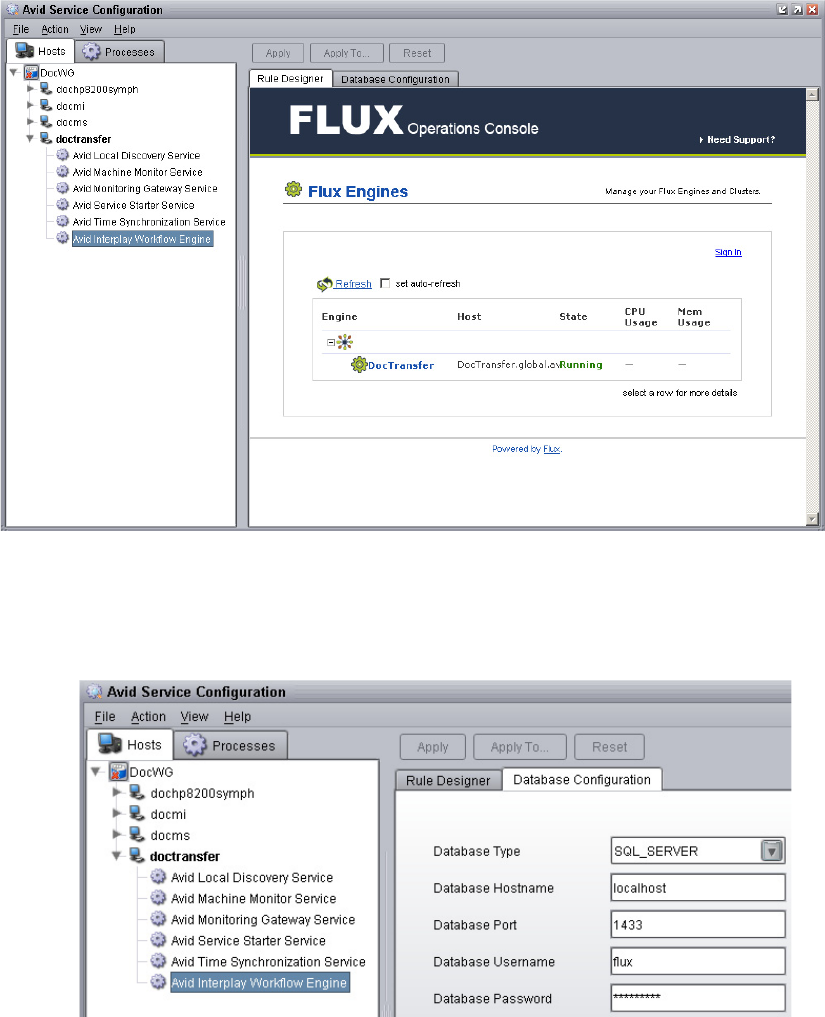
9 Automatically Publishing QuickTime Reference Movies
194
5. Click the Database Configuration tab in the Configuration pane.
The SQL database settings display. This graphic shows the default settings. You should
not have to change these settings.
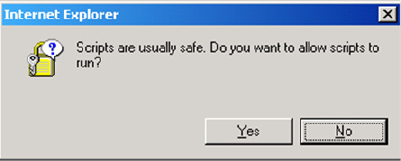
Verifying the Workflow Engine Database
195
Allowing Internet Explorer to Access the Avid Interplay Workflow
Engine Server
When configuring the Avid Interplay Workflow Engine from a system running the Microsoft
Windows 2003 Server operating system, you need to change the Internet Explorer security
settings to allow access to the system with the Avid Interplay Workflow Engine.
By default, this Internet Explorer message displays when you try to access the Avid
Interplay Workflow Engine from the Avid Service Configuration tool. You can use the
procedure in this section to change the Internet Explorer security level to allow access to the
Avid Interplay Workflow Engine server.
To allow access to the Avid Interplay Workflow Engine server:
1. Click Start and select Settings > Control Panel > Internet Options.
2. Click the Security tab and click Trusted Sites.
3. Click Sites.
4. In the Trusted Sites dialog box, do the following:
a. In the Add this Web site to the zone text box, type the hostname of the Avid
Interplay Workflow Engine server using a url format, http:\\hostname.
b. Click Add.
c. Deselect “Require server verification (https:) for all sites in this zone.”
d. Click OK.
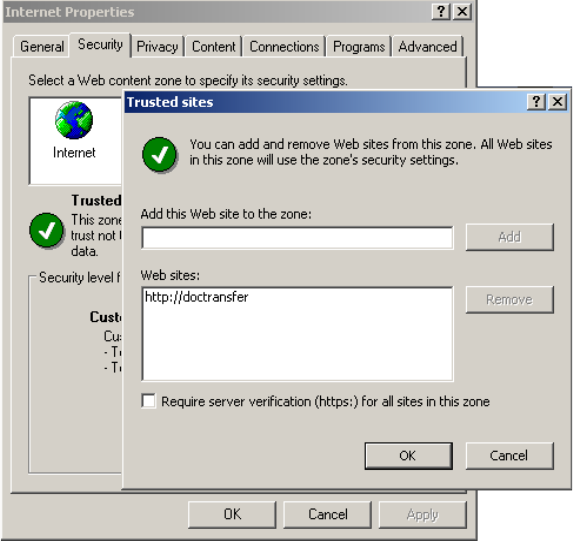
9 Automatically Publishing QuickTime Reference Movies
196
Importing Auto-Publish Flow Charts
Avid provides pre-configured flow charts that are required for automating the Stream
Publish workflow process. You use the Repository of the Workflow Engine to import the
Auto-Publishing flow charts.
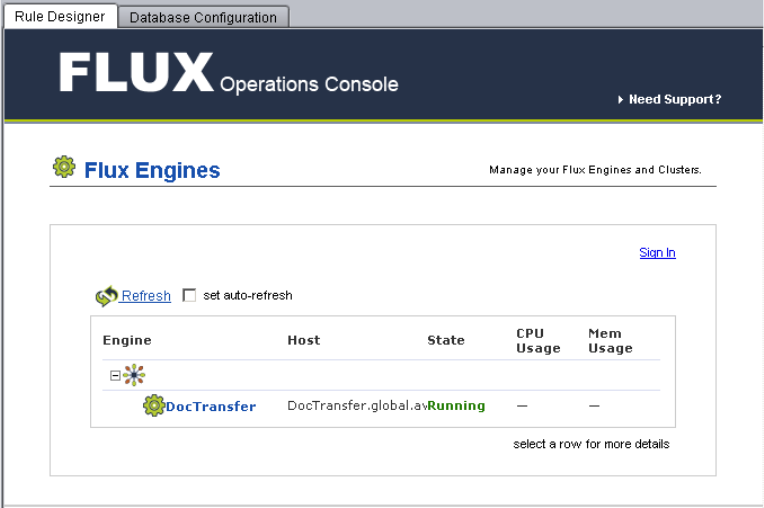
Importing Auto-Publish Flow Charts
197
There are three flow charts needed for the Auto-Publishing workflow:
• MIMediaAdded flow chart— This flow chart listens to the Interplay Media Indexer’s
media creation notification and forwards media that is appropriate for WAN Publishing
to the AutoPublishing flow chart.
• ScanClipsForPublishing—This flow chart scans the Interplay database for clips that are
appropriate for WAN Publishing and forwards the results to the AutoPublishing flow
chart.
• AutoPublishing—This flow chart accepts media files and clips from the MIMediaAdded
and the ScanClipsForPublishing flow charts. The media and clips received are sent to
the Interplay Publishing service for processing. After the request is completed the
request is removed from the Media Services Status window. Failed requests remain in
the Media Services status window.
To import Auto-Publishing flow charts:
1. Open the Avid Service Configuration window and select the Avid Interplay Workflow
Engine.
2. Click the Rule Designer tab.
The default Avid Interplay Workflow Engine page opens displaying the name of the
system running the Avid Interplay Workflow Engine and its status.
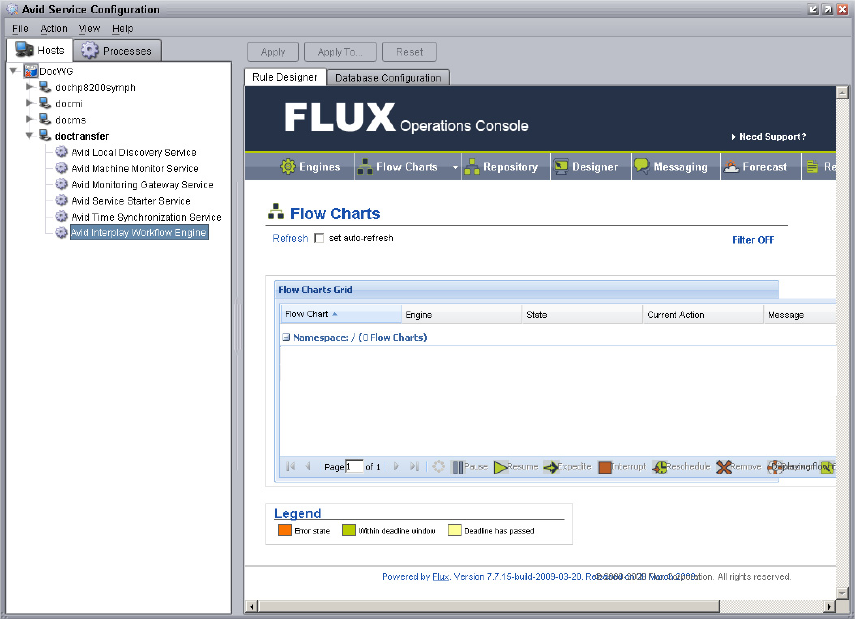
9 Automatically Publishing QuickTime Reference Movies
198
3. Click the Interplay Workflow Engine computer name. In this example the computer
name is DocTransfer.
The Flow Charts page opens.
4. Click Repository.
The Repository page opens.
5. Click Add to Repository and browse for the flow chart you need to import:
- MIMediaAdded.ffc
- ScanClipsForPublishing.ffc
- AutoPublishing.ffc
The default location for the flow charts is:
C:\Program Files\Avid\InterplayWorkflowEngine\WorkflowEngineService\
state\plugins\flowcarts\AutoPublishing
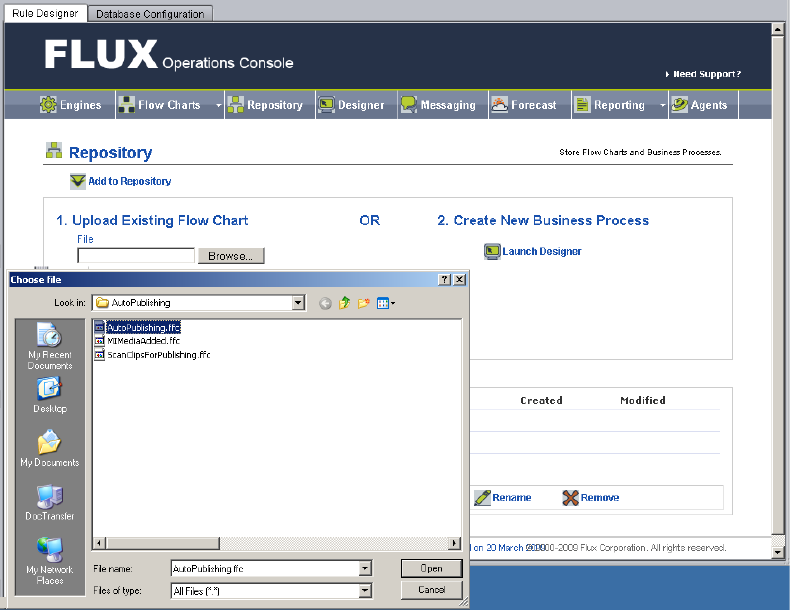
Importing Auto-Publish Flow Charts
199
This example shows the Auto-Publishing flow chart selected.
nThe flow chart files use the .ffc file extension.
6. Click Open.
7. Click Upload.
This example shows the AutoPublishing flow chart is now available in the Repository.
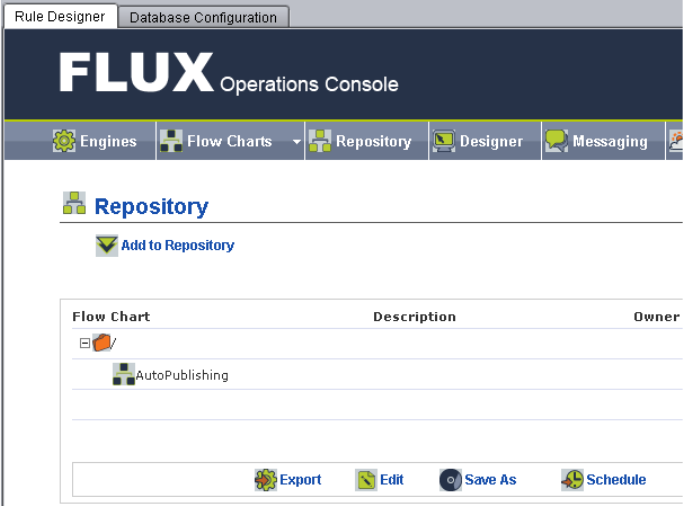
9 Automatically Publishing QuickTime Reference Movies
200
8. Repeat this procedure until all three Auto-Publishing flow charts are imported.
Modifying the Flow Chart Settings
The Auto-Publishing flow charts have their actions, flows and executions configured.
However, you need to configure the first action of the ScanClipsForPublishing and
AutoPublishing flow charts with specific information about your workgroup environment.
After you modify the first action’s settings, the other actions and triggers in the flow chart
update automatically with the setting values from the first action.
nAvid recommends not changing settings in any actions or triggers, other than the first action.
To modify settings in the Auto-Publishing flow charts:
1. On the Workflow Engine Repository page, select a flow chart from the Flow Chart list.
tScanClipsForPublishing flow chart
tAutoPublishing flow chart
The MIMediaAdded flow chart does not require any changes to its configuration.
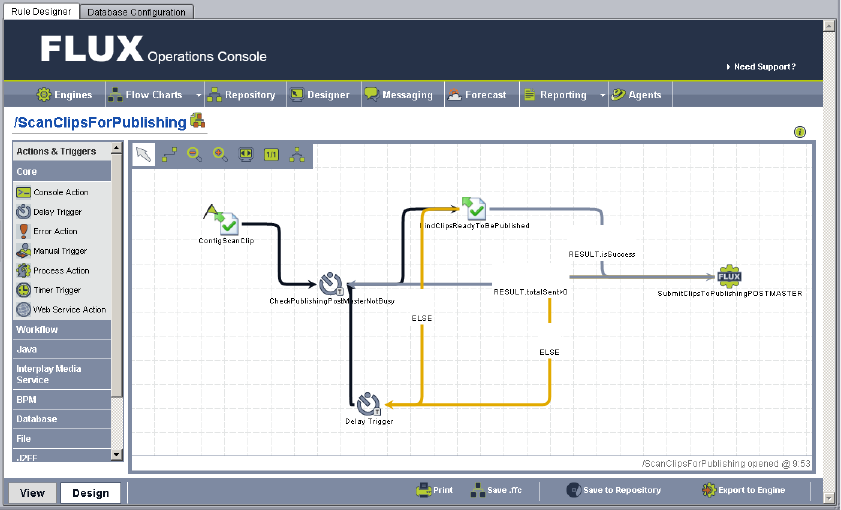
Modifying the Flow Chart Settings
201
2. Click Edit.
The Repository page changes to display the flow chart. This example shows the
ScanClipsForPublishing flow chart.
3. Right-click the first action in the flow chart and select Action Properties. In this
example, the first action is named ConfigScanClip.
The Action Properties dialog box opens.
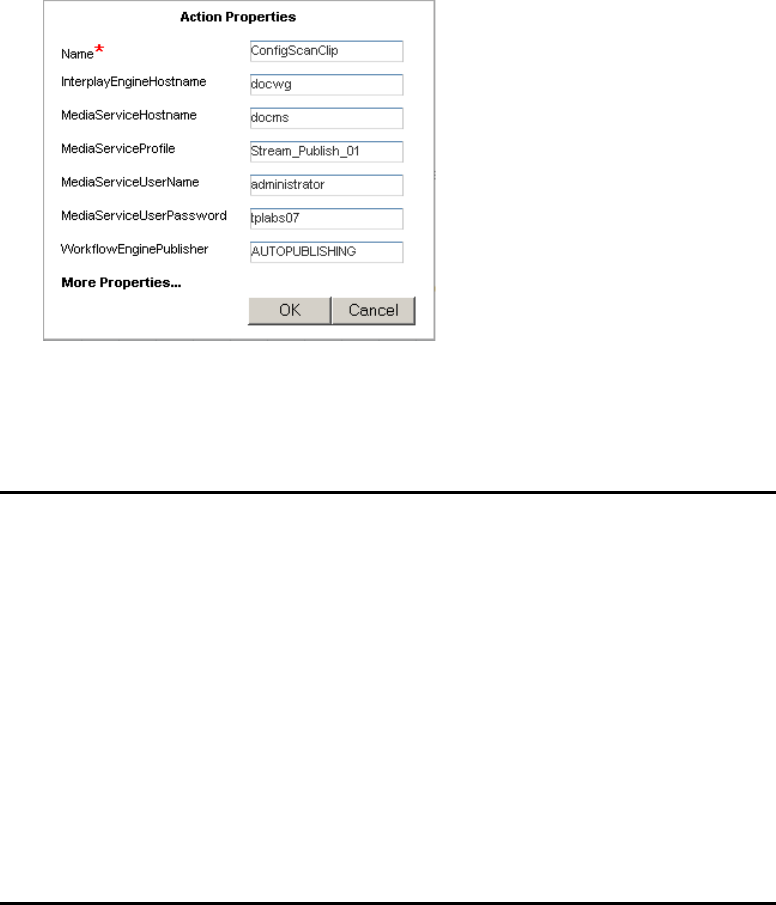
9 Automatically Publishing QuickTime Reference Movies
202
4. Type the information for your workgroup environment in the various properties text
boxes.
5. Click OK.
6. Click “Save to Repository” to save the Repository to the database.
7. Repeat this procedure for the other flow chart for the Auto-Publishing workflow.
8. Click Repository to open the Repository page.
Properties Name Description
Name Do not change the default setting.
InterplayEngineHostname Type the host name of the Interplay Engine server.
MediaServiceHostname Type the host name of the Interplay Media Services server.
MediaServiceProfile Type the name of the Interplay Media Services Stream Publish
profile for this action. See “Creating a Stream Publish Service
Profile” on page 185.
MediaServiceUserName Type the user name of the account you use to log into the Interplay
Administration tool.
MediaServiceUserPassword Type the password for the user name of the account you use to log
into the Interplay Administration tool.
WorkflowEnginePublisher Do not change the default setting. Displays the name of the
postmaster. This value is the location where the Workflow Engine
looks for new jobs.
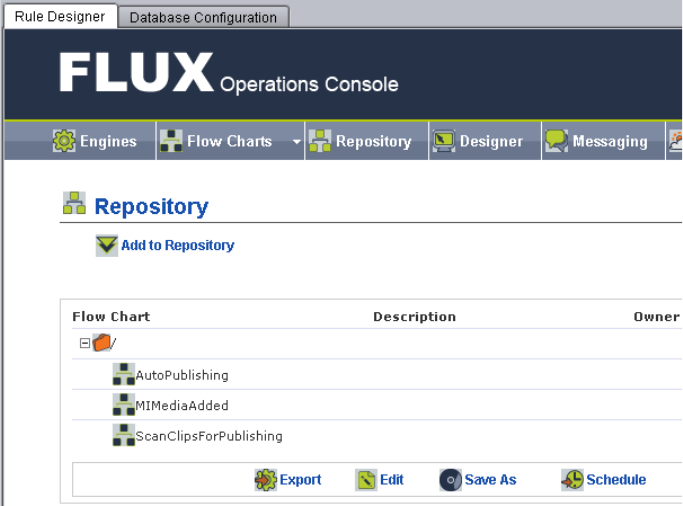
Modifying the Flow Chart Settings
203
9. To export the flow chart to the Workflow Engine, do the following for each flow chart:
tSelect a flow chart and click Export.
10. Click Flow Charts to open the Flow Charts page and verify the three flow charts are
running.
11. (Option) To see the interactions of the flow charts use the Avid Service Diagnostic tool.
9 Automatically Publishing QuickTime Reference Movies
204

10 Working with the Copy Service
The following topics explain how to the set up and use the Copy feature:
•Understanding the Copy Service
•Workflow for Copying Metadata and Media Files
•Check List for Copying Assets to Another Workgroup
•Installing and Registering the Copy Service Provider
•Starting the Copy Provider
•Using an Interplay Copy Service Profile
•Copying Assets and Media to Another Workgroup Using Interplay Access
•Copying Assets and Media to Another Workgroup Using an Avid Editing Application
•Copying Assets During Ingest
Understanding the Copy Service
You can use the Copy feature to copy assets (metadata) and their media files from one
workgroup to another. For example, if your facility uses a specified workgroup for
low-resolution media, you might need to copy clips and their low-resolution media files to
the low-resolution workgroup and copy them back again.
nThe Copy service system requires an application key for any Copy services that are not run
on the Interplay Media Services Engine server.
The Copy feature is available from Interplay Access and from an Avid editing application.
Workflow for Copying Metadata and Media Files
Copying to a workgroup uses an Avid Interplay Media Services service (the Copy service)
and its related provider. As with other services, you can create a profile for automating
workflows. You can also use the auto-copy feature and profiles to set a folder for
automatically copying the assets placed in it or to replicate an entire database for backup.
For more information about the auto-copy features, see “Automatically Copying Assets to
Another Workgroup” on page 233.
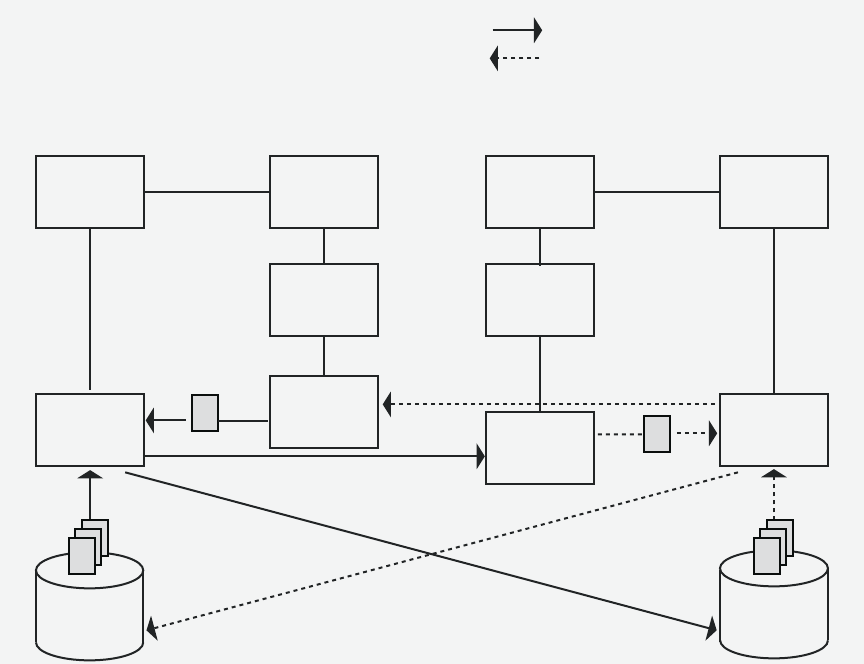
10 Working with the Copy Service
206
The following illustration shows the basic workflow for copying metadata and media files
from one workgroup to another workgroup. The Copy Provider copies metadata from one
Interplay Engine to another, and copies media files from one ISIS shared storage system to
another. This example shows a configuration that is used for copying media in either
direction (from Workgroup 1 to Workgroup 2, or from Workgroup 2 to Workgroup 1). An
Interplay Media Services Engine and Copy Provider are required in each workgroup.
The Avid Interplay Engine and Avid Interplay Media Service Engine support multiple
Interplay Copy providers in a workgroup. When you copy two different assets that point to
the same media, the media is copied twice, once for each asset. However, the media is
copied to the same location, so the end result is that only one copy of the media file exists in
the destination workgroup database. This process eliminates an issue with the simultaneous
manipulation of media files.
When you use Interplay Copy to copy a sequence with rendered effects, the rendered effect’s
metadata is copied but not the media files.
Avid
Editing
System
Interplay
Access
Interplay
Engine
Avid
Editing
System
Interplay
Access
Interplay
Engine
Media
Services
Engine
Copy
Provider
ISIS
Storage
Interplay Workgroup 1 Interplay Workgroup 2
Media
Metadata
The Copy Provider copies
metadata to the Interplay Engine
and media files to ISIS storage.
Media
Services
Engine
Copy
Provider
ISIS
Storage
From Workgroup 1 to Workgroup 2
From Workgroup 2 to Workgroup 1
Metadata
Media

Workflow for Copying Metadata and Media Files
207
You can also copy metadata and media files during the ingest process, so that assets are
accessible in the destination workgroup as they become available during the ingest process.
See “Copying Assets During Ingest” on page 227.
Copy Requirements
The workgroups must share the following configuration:
• Both ISIS systems must be running Avid Unity ISIS v2.0.1 or later.
• At least one Media Services Engine and one Copy Provider, with the Copy service
correctly configured. You can configure your environment in two different ways:
- One Media Services Engine and one Copy Provider: required to copy media in only
one direction (for example, copying media from Workgroup 1 to Workgroup 2). In
this case, Workgroup 1 requires a Media Services Engine and a Copy Provider.
- Two Media Services Engines and two Copy Providers: required to copy media in
two directions (for example, from Workgroup 1 to Workgroup 2 or from
Workgroup 2 to Workgroup 1). In this case, both workgroups require a Media
Services Engine and a Copy Provider.
The following table provides more information about these configurations:
• Avid recommends that you install the Copy Provider on a separate server. For more
information, see the Avid Interplay Software Installation and Configuration Guide.
• Each Copy Provider must be directly connected to both ISIS systems, using a 10 Gb
Ethernet connection or the onboard network interface cards (NIC). For more
information, see the Avid Interplay Software Installation and Configuration Guide.
Configuration Workgroup Required Components
One direction Workgroup 1 Interplay Engine, Media Indexer, Media Services
Engine, Copy Provider, ISIS
Workgroup 2 Interplay Engine, Media Indexer, ISIS
Two directions Workgroup 1
requirements
Interplay Engine, Media Indexer, Media Services
Engine, Copy Provider, ISIS
Workgroup 2
requirements
Interplay Engine, Media Indexer, Media Services
Engine, Copy Provider, ISIS

10 Working with the Copy Service
208
• Both ISIS systems and both Interplay workgroups must include matching user accounts.
The username and password for these accounts must match exactly. You must connect
the Copy Provider to both ISIS systems through the same account. The workspaces must
be mounted using UNC (letterless) drive mappings.
For more information, see the Avid Interplay Software Installation and Configuration
Guide.
• You can use the Media Services Copy Provider to copy to an equal or higher version of
ISIS, but you cannot copy to a lower version of ISIS. For example, you can copy from
an Interplay environment running ISIS v1.6 to an environment running ISIS v2.1 but
you cannot copy from the ISIS v2.1 system to ISIS v1.6.
Copy Options
• You can specify which resolutions you want to copy: all, lowest, highest, or a specific
resolution. If you select All, media for all associated resolutions must be online. If any
media is offline, the job will fail. Multiple resolutions are supported as subjobs within a
Media Services profile.
• You can copy assets and media for one asset, multiple assets, a folder, or multiple
folders. If you are copying one or more folders, the Copy process preserves the
complete folder structure on the destination workgroup.
• You can copy metadata and media for file assets, either alone or with metadata and
media for Avid assets.
• You can specify whether to include audio media. Audio files are copied only with their
accompanying video, except in the case of audio-only clips. The following table
explains how the Copy feature works with the selected video resolution and the selected
Include Audio option.
Clip Type
Resolution
Selected
Include Audio
Option Result
DV 25 with two audio files DV 50 Selected No media is copied to the destination.
Audio remains with the video media.
DV 25 with two audio files DV 25 Selected DV 25 media and accompanying
audio is copied to the destination.
DV 25 with two audio files DV 25 Not selected DV 25 media is copied to the
destination. The audio files are not
copied.
Audio-only clip DV 25 Selected Audio-only media is copied to the
destination.

Check List for Copying Assets to Another Workgroup
209
Check List for Copying Assets to Another
Workgroup
For the copy process, the following table provides a check list of steps for installing and
configuring the Interplay Copy service provider in an Avid Unity™ environment. The check
list assumes the Interplay Media Services Engine and the supporting software are set up and
configured in the workgroup. The check list provides references where to find more
information about each step.
You can also setup an auto-copy folder to automatically transfer assets to a pre-defined
location. For more information, see “Automatically Copying Assets to Another Workgroup”
on page 233.
nIf the Copy provider is not running on the Interplay Media Services system, you must attach
an application key to a USB port on the Copy provider system.
Copying Assets to Another Workgroup Check List
Task Section Reference
Add two 10 Gb adapter boards to the Copy
provider and configure it to communicate
with both Interplay workgroups.
See Avid Interplay Software Installation and
Configuration Guide.
Make sure an Interplay Media Services
administrator account is set up on Avid
Unity.
See the Avid Interplay Software Installation
and Configuration Guide.
Mount workspaces. See Avid Interplay Best Practices.
Make sure the Interplay Media Services
application key is connected. If the Copy
provider is not running on the Interplay
Media Services system, you must also
connect an application key to the Copy
provider system.

10 Working with the Copy Service
210
Make sure the Interplay Media Services
Engine software and the supporting
software are installed and configured in the
workgroup.
• Avid Service Framework for Client
• Avid Interplay Access
• Avid Interplay Media Services
• Avid Interplay Copy service
See Avid Interplay Software Installation and
Configuration Guide and “Interplay Media
Services Engine Installation and
Configuration” on page 29.
(Option) Install the Interplay Auto Media
Services service, which includes the
Interplay Auto Copy service software.
See “Installing the Avid Interplay Auto-Copy
Service” on page 236.
Install and register the Copy service
provider.
See “Installing and Registering the Copy
Service Provider” on page 211.
Connect the Copy service provider to the
Media Services Engine.
See “Connecting the Copy Provider to the
Media Services Engine” on page 216.
Start the Copy service provider and verify it
is connected.
See “Starting the Copy Provider” on page 219.
(Option) Create a Copy profile. See “Creating an Interplay Copy Service
Profile” on page 220.
(Option) Configure how errors are handled
and reported in the Media Services Status
tool using the Avid Services Configuration
tool.
See “Customizing the Reporting of Service Job
Status” on page 42.
(Option) Configure an Auto Copy folder. See “Automatically Copying Assets To
Another Workgroup Using an Auto-Copy
Folder” on page 243.
Configure the Avid editing system. See “Starting the Interplay Media Services
Engine” on page 36.
Perform a Copy process. • See “Copying Assets and Media to Another
Workgroup Using Interplay Access” on
page 223.
• See “Copying Assets and Media to Another
Workgroup Using an Avid Editing
Application” on page 226.
Copying Assets to Another Workgroup Check List (Continued)
Task Section Reference
Installing and Registering the Copy Service Provider
211
Installing and Registering the Copy Service
Provider
Before you can use the Copy service provider, you must install the provider software needed
by the service from the Avid Interplay installation DVD. Then install the service description
in the Media Services Engine, register the provider, and start and connect the service.
These tasks are explained in the following topics:
•Installing the Copy Service Description
•Registering the Copy Provider
•Connecting the Copy Provider to the Media Services Engine
nYou do not use the Media Services Engine to configure the Auto Archive, Auto Transcode,
and Auto Copy services. Instead, use the Avid Interplay Administrator and the Avid Service
Framework services. For more information, see “Configuring the Auto-Copy Service” on
page 236.
Installing the Copy Service Description
You use the Media Services and Transfer Status tool to install the Copy service description.
For more information, see “Understanding Service Descriptions and Service Packages” on
page 61.
You only need to install a service description once, even if you configure muliple providers.
To install the Copy service description:
1. Make sure the Interplay Transcode provider software is installed.
2. Open the Media Services and Transfer Status tool and log in as administrator, as
described in “Opening the Media Services and Transfer Status Tool” on page 37.
3. Click the Services tab.
The Services page displays the currently configured services.
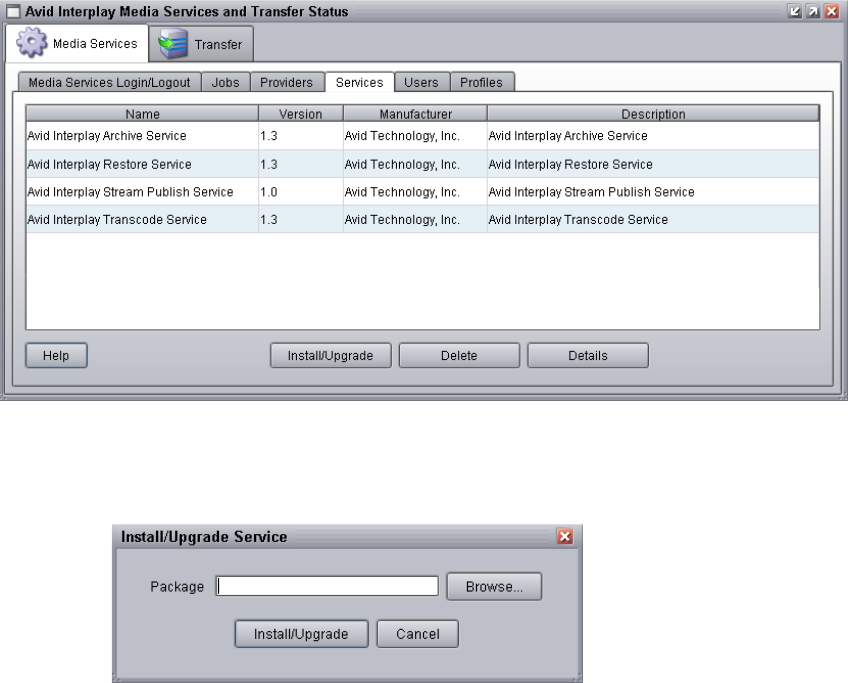
10 Working with the Copy Service
212
4. Click the Install/Upgrade button.
The Install/Upgrade Service dialog box opens.
5. Click the Browse button and navigate to the folder containing the Copy service package
(CopyMedia.zip file). Make sure you have access to the folder. By default the service
package is installed in the following folder:
C:\Program Files\Avid\Avid Interplay Copy\CopyService
You can use the Microsoft Windows Search tool to help you locate the folder that
contains the CopyMedia.zip file.
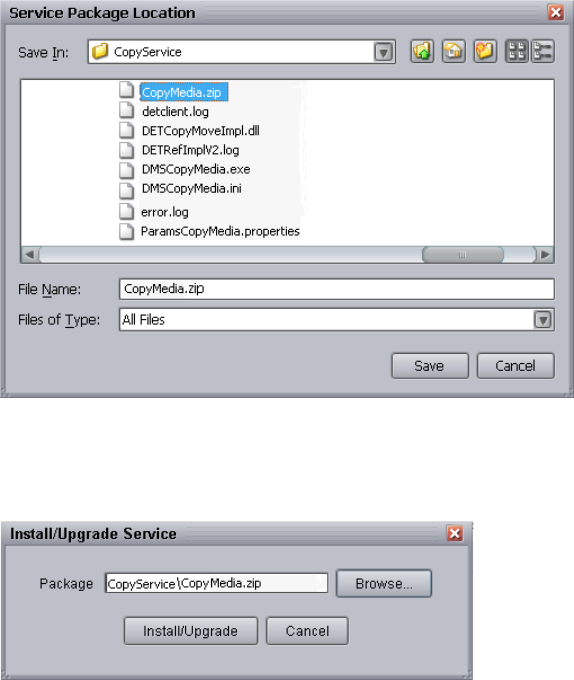
Installing and Registering the Copy Service Provider
213
6. In the folder, select the CopyMedia.zip file.
The following illustration shows the CopyMedia.zip file selected.
7. Click Save.
The path to the file appears in the Install/Upgrade Service dialog box.
8. Click Install/Upgrade.
The Avid Interplay Copy Service appears on the Services page.
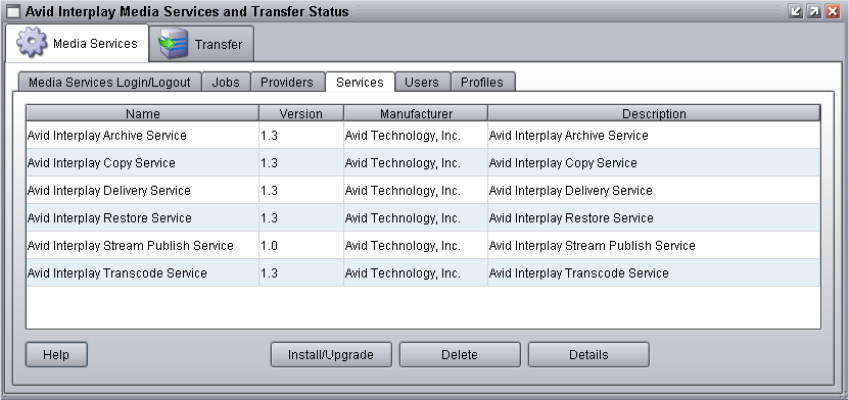
10 Working with the Copy Service
214
Registering the Copy Provider
After you install the Copy service provider, you need to register the Copy provider with the
Media Services Engine. If you are configuring multiple providers, you need to register each
provider.
The Provider page on the Media Services and Transfer Status tool is used to register the
Copy provider for the Copy service. The provider receives information about jobs and
supplies the Media Services Engine with information about the provider, job status, and
other information depending on the service. In some cases it passes the information to other
applications.
To register the Copy provider with the Media Services Engine:
1. Open and log in to the Media Services and Transfer Status tool. See “Opening the
Media Services and Transfer Status Tool” on page 37.
2. Click the Providers tab.
The Providers page displays all of the currently registered providers.
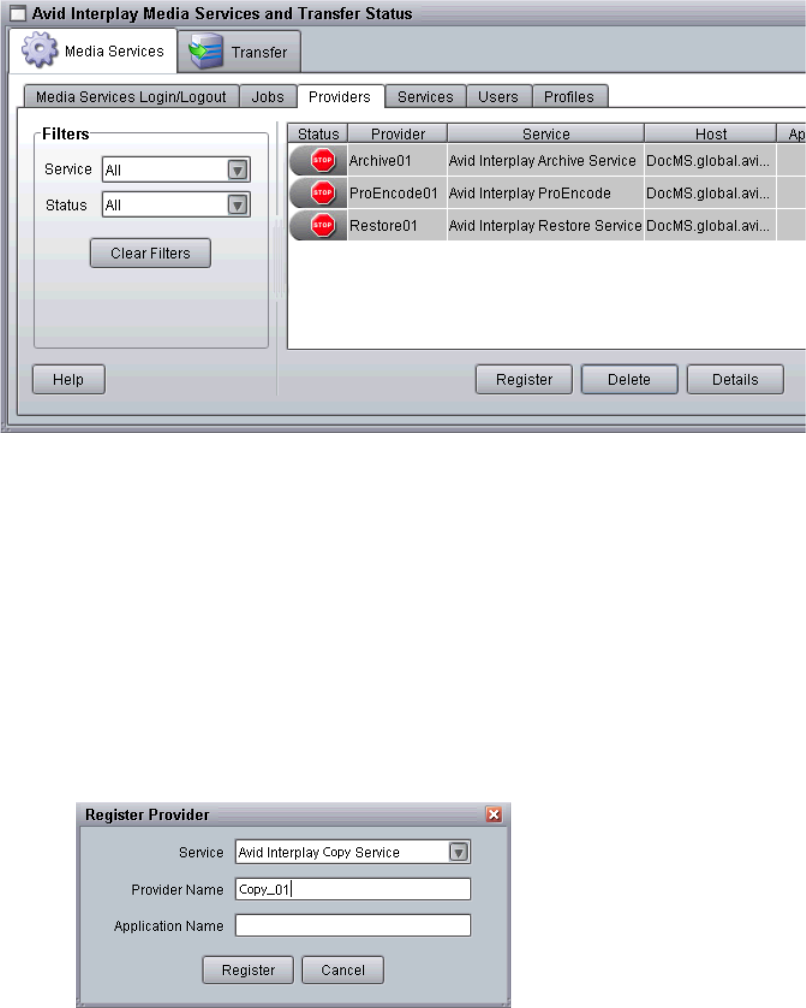
Installing and Registering the Copy Service Provider
215
3. Click the Register button.
The Register Provider dialog box opens.
4. Do the following:
a. Service menu — Select Avid Interplay Copy Service
b. Provider Name — Type the name that you want to use to identify this particular
provider. You can have several providers on your workgroup for the same service,
so you should use a meaningful name.
c. Application Name — For future use. Leave this text box blank.
The following illustration shows the Register Provider dialog box with the values filled
in for a Copy service.
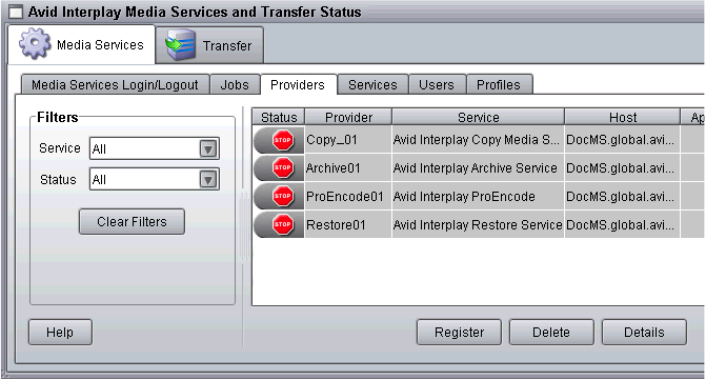
10 Working with the Copy Service
216
5. Click Register.
The Copy provider appears in the Providers page. If the service is not connected to the
Media Services Engine, a Stop icon is displayed in the Status column. In this case, you
must connect the Transcode provider to the Media Services Engine software. See
“Connecting the Copy Provider to the Media Services Engine” on page 216.
Connecting the Copy Provider to the Media Services Engine
After you install the Copy service description and register the Copy provider, you need to
connect the Copy provider to the Media Services Engine software.
To connect the Copy provider to the Media Services Engine:
1. Click Start and select Programs > Avid > Avid Interplay Copy.
The Copy Service provider dialog box opens.
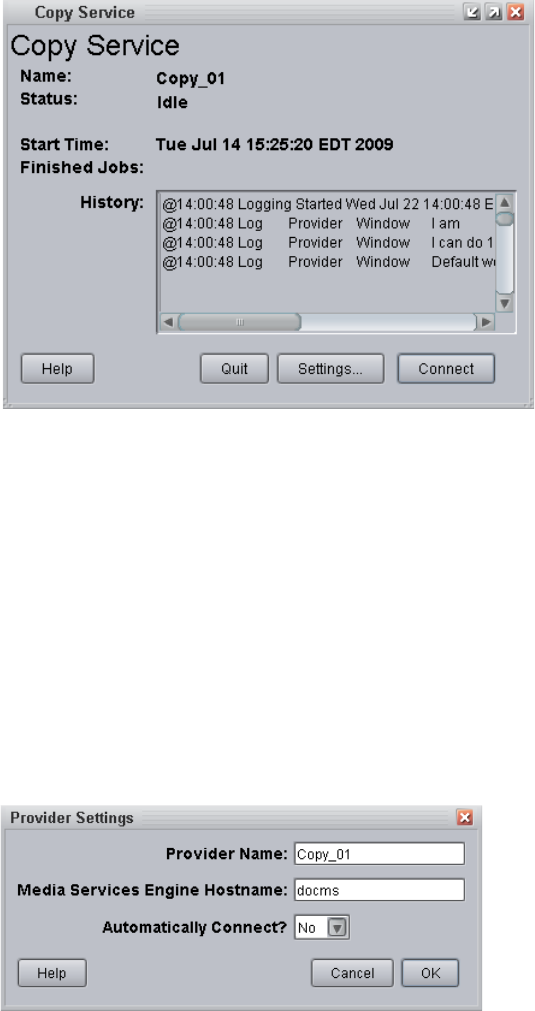
Installing and Registering the Copy Service Provider
217
2. Click Settings.
The Provider Settings dialog box opens.
3. Do the following:
a. Provider Name — Type the name of the provider you specified in “Registering the
Copy Provider” on page 214. In this example, the name is Copy_01.
b. Media Services Engine Host Name — Type the name of the system running the
Media Services Engine application.
c. Automatically Connect — Select either Yes or No (default) to automatically
connect to the Media Services Engine when the application starts.
The following illustration shows the Provider Settings dialog box with the values filled
in for the Copy provider.
4. Click OK.
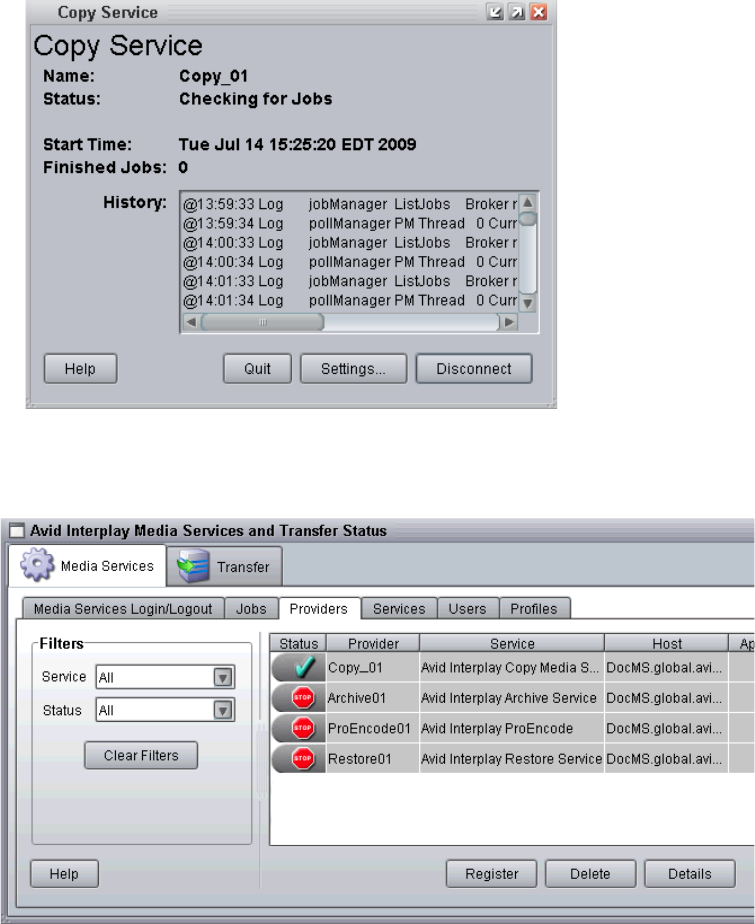
10 Working with the Copy Service
218
5. Click Connect in the Service window.
The Copy Service provider dialog box now shows that the service is connected and
shows the provider you selected to connect to.
The Provider page in the Media Services and Transfer Status tool now shows that the
service is connected, indicated by a check mark in the Status column.
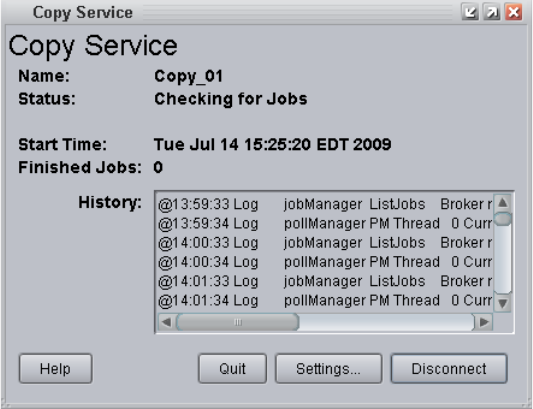
Starting the Copy Provider
219
Starting the Copy Provider
To start the Copy service provider:
1. Click Start and select Programs > Avid > Avid Interplay Copy.
Depending on the service settings, one of the following happens:
- Automatically Connect—Yes, the service dialog box opens for the service you
selected and is connected to the service.
- Automatically Connect—No, the service dialog box opens for the service you
selected and displays Idle. Click the Connect button to connect to the service.
nThe service provider dialog box displays the start date and start time of the providers based
on the Microsoft® Windows® time.
After the connection is made, the Status line in the service dialog box reads “Checking
for Jobs,” and the History window displays the message “Connection Established.” The
Connect button changes to a Disconnect button.
The following example shows the Copy Service dialog box as connected.
nIf the provider cannot connect to the Media Services Engine, the Status line reads
“Connection Error.” Ensure the Media Services Engine is running, the service description is
installed, the provider is properly registered, and then click Connect again.
10 Working with the Copy Service
220
Using an Interplay Copy Service Profile
You can create a profile to use when performing an Interplay Copy or an auto-copy
operation. However, the function of the profile’s Destination_Path setting varies depending
on the operation.
• For an Interplay Copy operation the Destination_Path value defines the folder location
in the destination database for the copied metadata.
• For an auto-copy operation, the Destination_Path value only defines the destination
database. The source folder path is automatically duplicated in the destination database.
Interplay Copy Service profiles let you define the following:
• Destination folder (Interplay Copy only), database, server, and workspace for the copied
media
• Whether to include file assets (metadata)
• Whether to include audio when copying the media files
• A priority for the job
• Video resolution and format of the copied media
• Whether to use a source workspace name in the destination workgroup (auto-copy only)
Creating an Interplay Copy Service Profile
To create an Interplay Copy Service profile:
1. Open and log in to the Media Services and Transfer Status tool as described in “Opening
the Media Services and Transfer Status Tool” on page 37.
2. Click the Profiles tab.
3. In the Service menu, select Avid Interplay Copy Service.
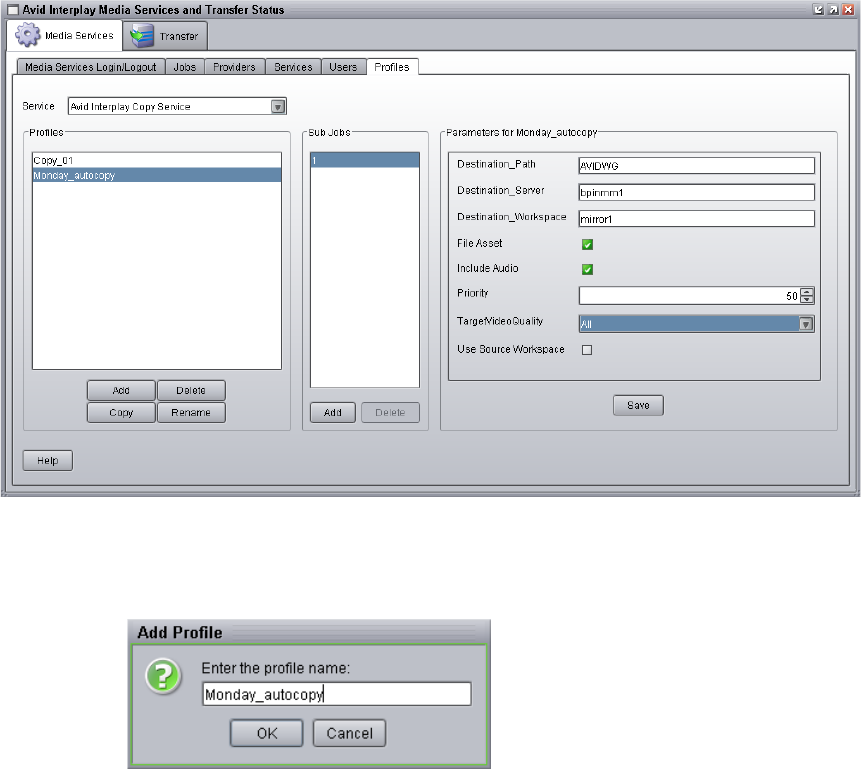
Using an Interplay Copy Service Profile
221
4. Click Add in the Profiles area.
The Add Profiles dialog box opens.
5. Type a descriptive name for the new profile in the Add Profile dialog box. This is the
name that you will see when you right-click an asset and select Copy or when you setup
an auto-copy operation.
cDepending on whether the profile is used with Interplay Copy or auto-copy, the
function of the profile’s Destination Path setting varies. If you plan to use this profile
with the auto-copy operation, you should name the profile to identify its use with
auto-copy. For information about the Interplay Copy and auto-copy functions, see
“Automatically Copying Assets to Another Workgroup” on page 233.

10 Working with the Copy Service
222
6. Click OK.
The name appears in the Profiles list and an empty template appears in the
Parameters area.
7. In the Parameters area, define the values you want for the Interplay Copy profile.
See “Interplay Copy Service Profile Definitions” on page 222.
8. Click Save in the Parameters area.
The next time you use the Interplay Copy service or setup an auto-copy folder, you can
select the profile.
9. (Option) Click Add in the Sub Jobs area, to define several copy media operations under
one main profile name. For example, you can add subjobs to copy several resolutions
using one profile. The system processes each subjob in turn.
Interplay Copy Service Profile Definitions
Copy Service Profile Definitions
Option Description
Destination_Path The function of the Destination_Path setting varies depending on whether the profile is
used with Interplay Copy or auto-copy.
For Interplay Copy - This setting identifies the folder in the destination database that
will contain the copied metadata. This folder is created automatically when Interplay
Copy is executed.
nWhen you set the destination path, select a subfolder, not a top-level folder, and
use forward slashes (/). For example, AvidWG/Catalogs or AvidWG/Projects.
For auto-copy - This setting identifies the destination database, AvidWG, that will
contain the copied metadata. The folder path is not needed when using auto-copy,
because the auto-copy operation uses the same folder path as the source database. A
duplicate folder structure is automatically created in the destination database.
nFor auto-copy replication only, make sure the target (destination) database
allows for the adding and removing of items. See “Automatically Backing Up
the Complete Database and Media” on page 244.
Destination_Server Specifies the name of the Interplay Engine computer of the workgroup to which you
will copy the metadata to.
Destination_Workspace Type the name of the Avid Unity workspace where you want to place the copied media
files. During an auto-copy operation the Use Source Workspace setting overrides the
Destination_Workspace setting.
File Asset Select this option if you want to include file assets in the copy process.

Copying Assets and Media to Another Workgroup Using Interplay Access
223
Copying Assets and Media to Another Workgroup
Using Interplay Access
Before you copy assets and media files to another workgroup, make sure that your
installation meets the requirements described in “Working with the Copy Service” on
page 205.
To copy assets and media files to another workgroup using Interplay Access:
1. Start Interplay Access and log in to a workgroup and database (for example, AvidWG
on Docwg as Composer1).
Include Audio Select this option if you want to copy audio that is associated with the clips whose
video media you are copying. Selecting this option also copies any audio-only clips.
Priority Sets the priority for the job submitted by this profile. Priority numbers range from
1 (highest priority) through 100 (lowest priority). The default priority number assigned
to each job is 50.
TargetVideoQuality Indicates the video resolution for the copied media. You can select All, Highest,
Lowest, or a specific resolution. If you select All, media for all associated resolutions
must be online. By default, if any media is offline the job will fail. You can override the
default failure reporting setting using the Avid Service Configuration too. See
“Customizing the Reporting of Service Job Status” on page 42.
Use Source Workspace (auto-copy only) This option causes the auto-copy operation to copy media from a
source workspace to a target workspace that has the same name in the destination
workgroup. It overrides the Destination_Workspace setting. The auto-copy operation
uses the same folder path as the source assets.
Copy Service Profile Definitions (Continued)
Option Description
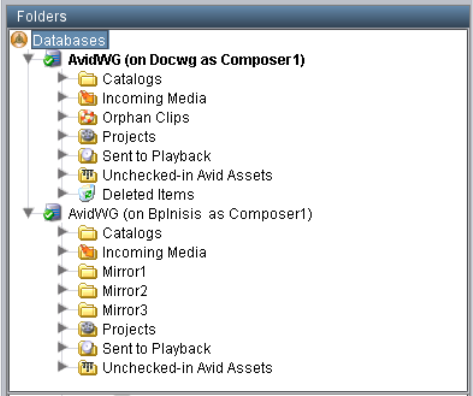
10 Working with the Copy Service
224
2. Connect to another workgroup and database, using the same user name and password
(for example, AvidWG on Bplnisis as Composer1).
The following illustration shows these two databases in the directory tree.
3. Select the assets whose files you want to copy.
You can copy assets from any workgroup to which you are connected (for example,
from either Docwg or Bplnisis). Any workgroup that you copy from must include a
Media Services Engine and Copy Provider in its Interplay environment).
You can select one asset, multiple assets, a folder, or multiple folders.
4. Do one of the following:
tSelect Tools > Copy...
tRight-click and select Copy... from the sixth group of commands. (Do not select
Copy from the second group of commands, which copies metadata to the
clipboard.)
The Copy dialog box opens and displays the workgroups to which you can copy assets
and media.
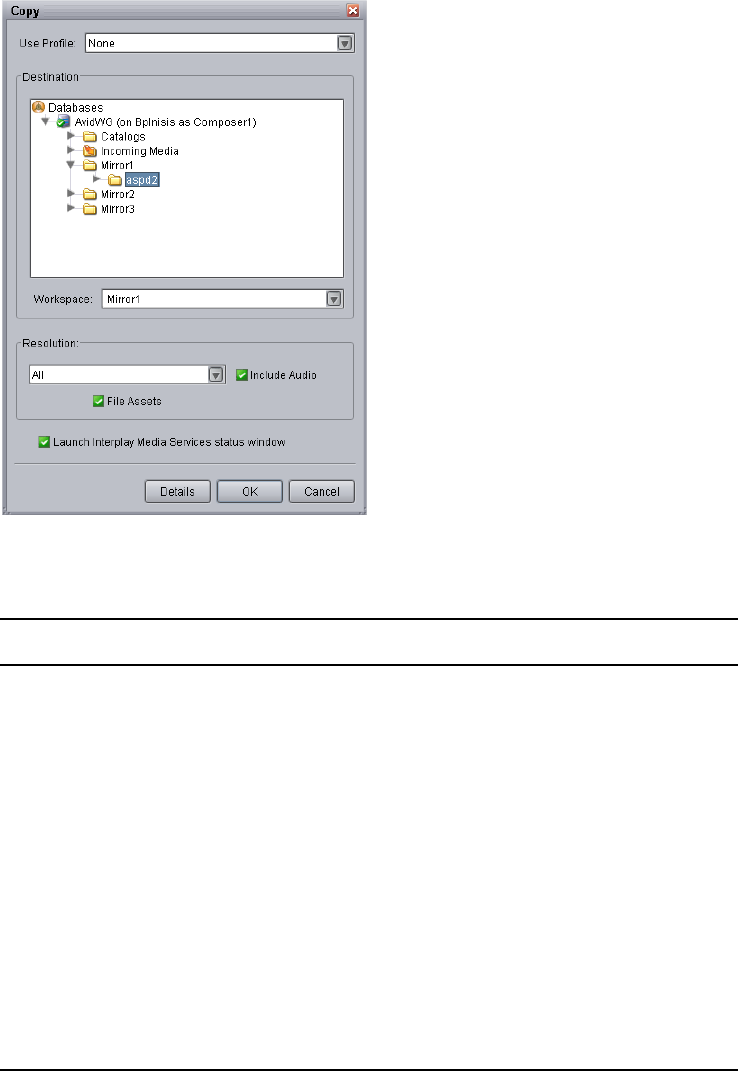
Copying Assets and Media to Another Workgroup Using Interplay Access
225
5. Select a profile from the Use Profile menu. If there are no profiles available, or you do
not want to use a profile, select the following options:
Option Description
Use Profile None
Destination Select the folder into which you want to copy the metadata.
nMake sure you select a folder and not just the database. If a
folder is not selected, the job is submitted but fails.
Workspace Select the workspace into which you want to copy the media.
Resolution Select which video resolution you want to copy. You can select All,
Highest, Lowest, or a specific resolution. If you select All, media for all
associated resolutions must be online. If any media is offline, the job
will fail.
Include Audio Select this option if you want to copy audio that is associated with the
clips whose video media you are copying. Selecting this option also
copies any audio-only clips.
File Assets Select this option if you want to include files assets in the copy process.
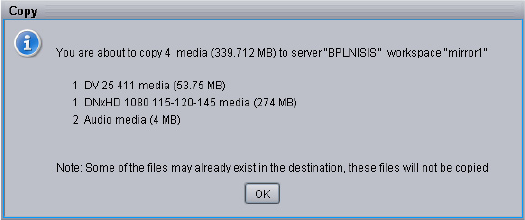
10 Working with the Copy Service
226
6. (Option) Select “Launch Interplay Media Services status window” to view the status of
the operation after it begins.
7. (Option) Click the Details button to view the number of files and their size. Their size
indicates the size of the media that will be copied.
8. Click OK.
The system starts the Copy operation. If you selected the option “Launch Interplay
Media Services status window” the window opens and shows you the progress of the
job, as well as other information about it. For information about the status window, click
the Help button.
9. (Option) When the operation is complete, check if the asset was correctly copied by
opening the destination in the remote workgroup.
Copying Assets and Media to Another Workgroup
Using an Avid Editing Application
Copying media using an Avid editing application requires a Copy Provider profile. If a
profile is renamed, deleted, or added while the editor is open, you might not see the profile.
In this case, you need to disconnect and then reconnect to the Interplay Media Services
Engine, using the Media Services project setting in the Avid editing application. For
information on creating a profile, see “Using an Interplay Copy Service Profile” on
page 220.
Before you copy assets and media files to another workgroup, make sure that your
installation meets the requirements described in “Working with the Copy Service” on
page 205.
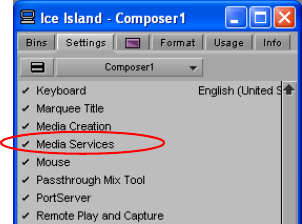
Copying Assets During Ingest
227
To copy assets and media files to another workgroup using an Avid editing
application:
1. Ensure that you are connected to the workgroup’s Media Services Engine through the
Media Services setting in the editor’s Settings list.
2. In the Avid editing application bin, select the asset or assets whose media files you want
to copy.
3. Do one of the following:
tSelect File > Media Services > Avid Interplay Copy Service > profile name.
tRight-click and select Media Services > Avid Interplay Copy Service > profile
name.
The system immediately starts the Copy operation. If Interplay Access is installed on
the editing system, you can track the status of the job by opening Interplay Access,
selecting Tools > Interplay Media Services Status, and clicking the Jobs tab.
4. (Option) When the operation is complete, check if the asset was correctly copied in
Interplay Access by connecting to the remote workgroup.
Copying Assets During Ingest
You can use the Interplay Copy feature to copy metadata and media files during the ingest
process, so that assets are accessible in the destination workgroup as they become available
during the ingest process.
Note that when copying between workgroups, the Interplay Media Services Status window
(Jobs tab), displays the status of the copy process, not the status of the ingest process. As the
amount of ingested media grows, the status percentage will fluctuate up and down. When the
ingest is complete the clip’s thumbnail in the Interplay Access Assets pane (both
workgroups) changes from a blue dot (partially online) to a green dot (online).
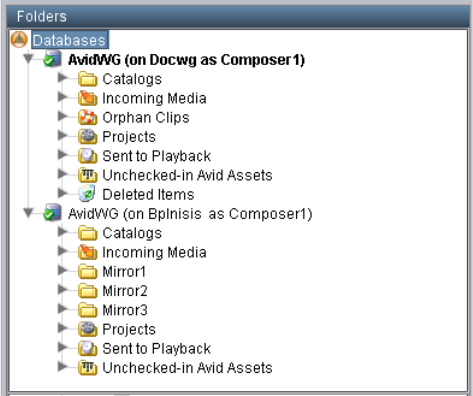
10 Working with the Copy Service
228
To copy assets and media files to another workgroup during ingest:
1. Start Interplay Access and log in to a workgroup and database (for example, AvidWG
on Docwg as Composer1).
2. Connect to another workgroup and database, using the same user name and password
(for example, AvidWG on Bplnisis as Composer1).
The following illustration shows these two databases in the directory tree.
3. Select the ingesting assets whose files you want to copy.
You can copy assets from any workgroup to which you are connected (for example,
from either Docwg or Bplnisis). Any workgroup that you copy from must include a
Media Services Engine and Copy Provider in its Interplay environment.
4. Do one of the following:
tSelect Tools > Copy...
tRight-click and select Copy... from the sixth group of commands. (Do not select
Copy from the second group of commands, which copies metadata to the
clipboard.)
The Copy dialog box opens and displays the workgroups to which you can copy assets
and media.
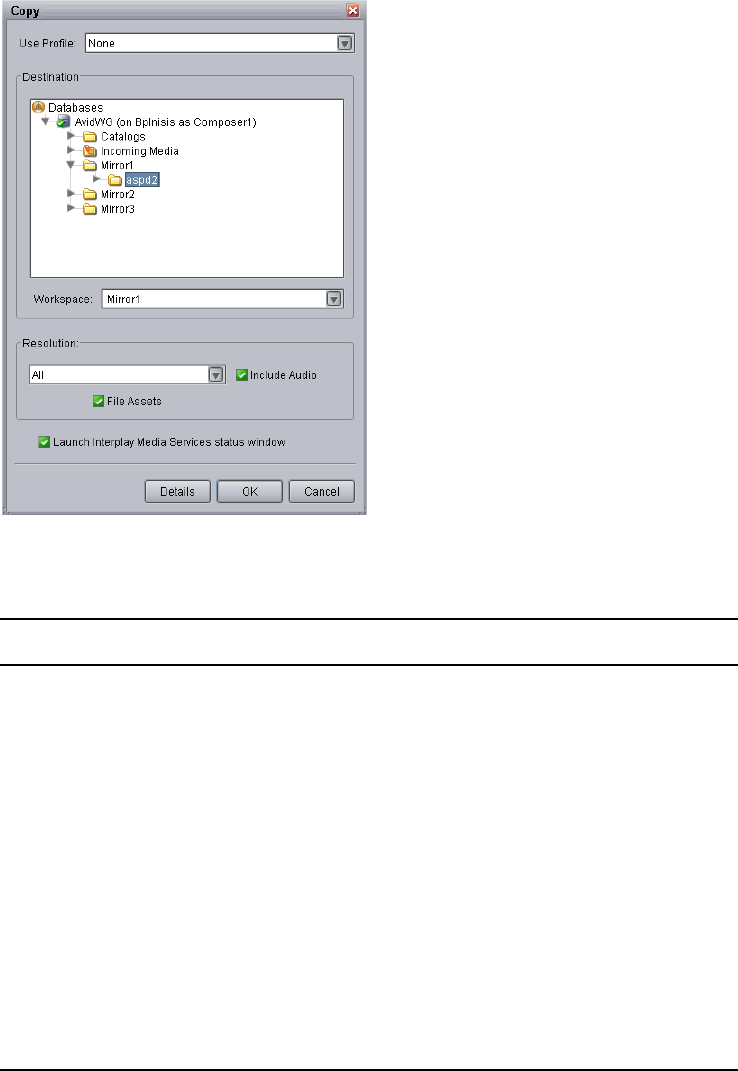
Copying Assets During Ingest
229
5. Select a profile from the Use Profile menu. If there are no profiles available, or you do
not want to use a profile, select the following options:
Option Description
Use Profile None
Destination Select the folder into which you want to copy the metadata.
nMake sure you select a folder and not just the database. If a
folder is not selected, the job is submitted but fails.
Workspace Select the workspace into which you want to copy the media.
Resolution Select which video resolution you want to copy. You can select All,
Highest, Lowest, or a specific resolution. If you select All, media for all
associated resolutions must be online. If any media is offline, the job
will fail.
Include Audio Select this option if you want to copy audio that is associated with the
clips whose video media you are copying. Selecting this option also
copies any audio-only clips.
File Assets Select this option if you want to include files assets in the copy process.
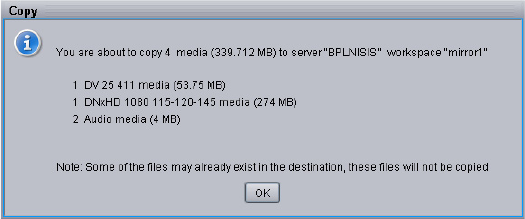
10 Working with the Copy Service
230
6. (Option) Select “Launch Interplay Media Services status window” to view the status of
the operation after it begins.
7. (Option) Click the Details button to view the number of files and their size. The size
value is an estimate based on the source’s default clip length and the specified audio and
video resolutions. The size value is usually not accurate unless the clip length matches
the source’s default clip length.
8. Click OK.
The system starts the Copy operation. If you selected the option “Launch Interplay
Media Services status window” the window opens and shows you the progress of the
copy job. For information about the status window, click the Help button.
9. (Option) You can open the masterclip on the remote workgroup and begin working with
it as portions of the file become available during the copy operation.
10. (Option) When the operation is complete, check if the asset was correctly copied by
right-clicking the asset in Interplay Access in the remote workgroup and selecting
Update Status from Media Indexer.
nBecause this is an “edit while copy” process, you may also open the masterclip in the remote
workgroup’s editor during the copy process.
Copying Assets During Ingest
231
Setting Registry Keys for the Copy Service
If necessary, you can add a registry key to configure the Copy service for the following
parameters:
• Copy Timeout Period: The Copy Timeout Period is the amount of time, in seconds, the
service should wait when watching the ingesting material to determine if the ingest is
done. The default value used if this registry value is not configured is 300 seconds.
• Checking interval: The Checking Interval is the time in seconds between checking the
ingesting material for additional material to copy. The default value for this is 2
seconds.
To make these parameters configurable, you need to add a registry key with two new string
values.
If the key or either value is not present, the DLL uses default values of 300 seconds for
timeout and 2 seconds for interval.
Name of new key:
•EwcCopyTimeout
Location of new key:
• HKEY_LOCAL_MACHINE\SOFTWARE\Avid Technology\EwcCopyTimeout
Val u e n a m e s :
• Timeout (string)
• Interval (string)
To use this functionality, create the new key using regedit, then add the two name/value pairs
with the desired values. Both values are in seconds.
There is a new log in the CopyService folder (DETRefImplV2.log) that will indicate the
values to be used after looking in the registry:
• DETControlEWC::GetRegistryTimeout Timeout: <registry timeout value / default>
Interval: < registry interval value / default>
This log file is not visible to the customer through the LogViewer application.
10 Working with the Copy Service
232

11 Automatically Copying Assets to
Another Workgroup
The following topics describe how to set up and use the auto-copy service:
•Understanding the Auto-Copy Service
•Check List for the Auto-Copy Process
•Installing the Avid Interplay Auto-Copy Service
•Understanding the Auto-Copy Folder Process
•Automatically Copying Assets To Another Workgroup Using an Auto-Copy Folder
•Automatically Backing Up the Complete Database and Media
Understanding the Auto-Copy Service
The Interplay Media Services auto-copy service provides two workflows for automatically
copying assets to another workgroup:
• You can place assets in an auto-copy folder to automatically copy the assets (metadata)
and their media files to another workgroup. See “Understanding the Auto-Copy Folder
Process” on page 240.
• You can automatically replicate a complete database and its media files to another
workgroup to create a backup using the auto-copy replication process. See
“Automatically Backing Up the Complete Database and Media” on page 244.
The auto-copy process keeps the source folder path when copying the assets to the
destination workgroup. Therefore, when a clip is copied to the destination workgroup it has
the same folder path as the source workgroup. After the auto-copy process is complete, the
assets remain in their source folders. The assets are not move to a success or fail folder like
the auto archive service.
To use an auto-copy folder or the auto-copy replication process, the workgroups must be
located in the same building, because of cable length limitations. The requirements for the
auto-copy feature are the same as for the Interplay Copy service. For more information on
requirements, see “Working with the Copy Service” on page 205.
11 Automatically Copying Assets to Another Workgroup
234
nIf you want to copy media to another workgroup that is located beyond the maximum cable
length, you must use Avid Interplay Transfer Engine.
The auto-copy service processes files according to the date and time, using a first-in,
first-out (FIFO) rule. The date and time used depends on when an asset was copied to the
auto-copy folder.
The Avid Service Framework provides the following tools for the auto-copy service:
• Avid Workgroup Properties tool starts and stops the service. The auto-copy service is
included in the installation of the Avid Interplay Auto Archive service. The Avid Service
Framework displays these services as Avid Interplay Auto Media Services, includes the
auto-archive, auto-transcode, auto-transfer, and auto-copy services.
• Avid Service Configuration tool:
- Requires initial setup for setting the source Interplay Engine server and setting a
user name for the service and a password for the login user name.
- Lets you set and change parameters for each of the different Avid services and
applications in your workgroup environment.
- Lets you set a profile for the auto-copy replication operation.
• Avid Health Viewer tool monitors the status of the service.
• Avid Diagnostic Log Viewer checks details about errors of the service.
For more information about Avid Service Framework, see the Avid Service Framework
User’s Guide.
Check List for the Auto-Copy Process
The following table provides a check list for the auto-copy process, when used either with an
an auto-copy folder or to automatically replicate the complete database to another
workgroup.

Check List for the Auto-Copy Process
235
Auto Copying Assets to Another Workgroup Check List
Task Section Reference
Make sure the Interplay Copy
service provider is installed and
configured and a Copy service
profile is created.
See “Check List for Copying Assets to Another
Workgroup” on page 209.
Install the auto-copy service, that
is included in the installation of
the Avid Interplay Auto Media
Services.
See the Avid Interplay Software Installation and
Configuration Guide.
Configure the auto-copy service
settings.
See “Configuring the Auto-Copy Service” on page 236.
Verify the service is running. See “Verifying the Auto-Copy Service is Running” on
page 239.
Create an Avid Interplay Copy
Service profile.
See “Using an Interplay Copy Service Profile” on
page 220.
(auto-copy folder only) Identify
a folder as an auto-copy folder.
See “Identifying an Auto-Copy Folder” on page 241.
(auto-copy folder only) Copy
assets using an auto-copy folder.
See “Automatically Copying Assets To Another
Workgroup Using an Auto-Copy Folder” on page 243.
(auto-copy replication only)
Make sure you add a profile to
the Avid Service Configuration
tool.
See “Configuring the Auto-Copy Service” on page 236.
(auto-copy replication only)
Make sure the security setting
for the target (destination)
database allows the adding and
moving of items.
See “Automatically Backing Up the Complete Database
and Media” on page 244.
(auto-copy replication only)
Continuously copy all assets
(metadata and media) from one
workgroup to another for
backing up the files.
See “Automatically Backing Up the Complete Database
and Media” on page 244.
11 Automatically Copying Assets to Another Workgroup
236
Installing the Avid Interplay Auto-Copy Service
If your workflow requires the auto copying of assets, you need to install the Avid Interplay
Auto Media Services that includes the auto-copy service. You can install the Avid Interplay
Auto Archive service on any system in the workgroup. However, it is usually installed on the
system with the Avid Interplay Media Services Engine. The Avid Interplay Auto Copy
service automatically runs in the background.
For details on installing the software, see the Avid Interplay Software Installation and
Configuration Guide.
After you install the auto-copy service, see the following:
• For information about configuration settings for the auto-copy service, see “Configuring
the Auto-Copy Service” on page 236.
• For a procedure to verify the service is running, see “Verifying the Auto-Copy Service is
Running” on page 239.
Configuring the Auto-Copy Service
You need to use the Avid Service Configuration tool to configure the auto-copy service. For
more information about Avid Service Framework, see the Avid Service Framework User’s
Guide.
To configure the auto-copy service:
1. On any system running the Avid Service Framework services, click Start and select
Programs > Avid > Avid Service Framework > Avid Service Configuration.
The Select Workgroup dialog box opens.
nThe Select Workgroup dialog box does not open if the check box specifying to always select
and use this workgroup option was previously selected. When you select this option, the
Select Workgroup dialog box no longer opens when you start the application. The default
workgroup is selected, and the Avid Service Configuration window opens. To change this
option and display the Select Workgroup dialog box, click the Login tab of the Avid
Framework Workgroup Properties application and clear the checkbox for the option.
2. (Option) If the Select Workgroup dialog box opens, select the workgroup you want to
connect to and click Select.
The Avid Service Configuration window opens.
3. In the Directory pane, click the Processes tab and verify that the Avid Automatic
Archive, Copy, Transcode, and Transfer service is running.
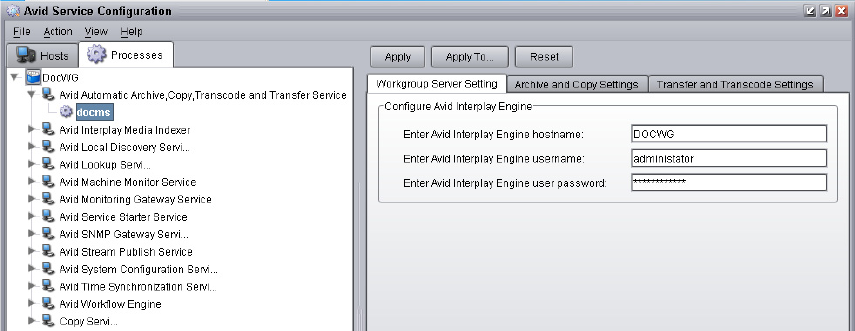
Installing the Avid Interplay Auto-Copy Service
237
nIf the Avid Automatic Archive, Copy, Transcode, and Transfer service does not appear in the
Avid Service Configuration window, the service is not running or the system it runs on is not
properly connected to the workgroup. Click the Hosts tab and make sure that the Avid
Service Framework services displays the name of the system that the Avid Automatic
Archive, Copy, Transcode, and Transfer service is running on.
4. Expand the Avid Automatic Archive, Copy, Transcode, and Transfer service entry on
the Processes tab of the Directory pane.
The system displays the name of the computer running the Avid Automatic Archive,
Copy, Transcode, and Transfer service.
5. Click the computer name.
The Administrator Password Needed dialog box opens.
6. Type the Avid Service Framework Administrator password and click OK.
nBy default, Avid Service Framework does not require a password. When a password is used,
it is set through the System Configuration Service. Check with your system administrator for
the correct password.
The system displays the Workgroup Server Setting tab for the Avid Automatic Archive,
Copy, Transcode, and Transfer service.
7. Type the Interplay Engine hostname, user name, and password.
If the Administrator user is not used, then the user name must exist as an Interplay user.
The Administrator account is not a requirement You can use any user name with Admin
privileges.
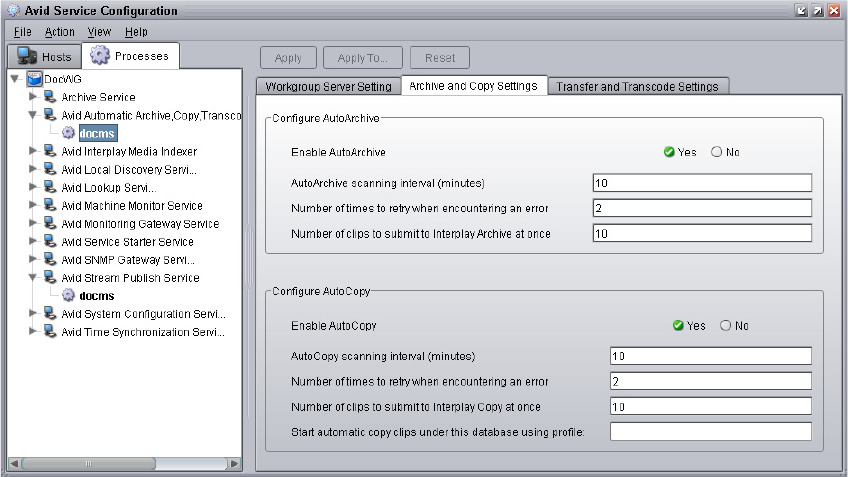
11 Automatically Copying Assets to Another Workgroup
238
8. Click the Archive and Copy Settings tab.
The system displays the configuration settings for AutoArchive and AutoCopy.
9. In the Configure AutoCopy area, do the following:
- Enable AutoCopy — Select Yes.
- AutoCopy scanning interval — Type the number of minutes between scans,
minimum allowed is 5 minutes.
- Number of times to retry when encountering an error — type the number of times
you want the system to retry after an error occurs.
- Number of clips to submit to Interplay Copy at once — type the number of clips
you want sent for copying at one time. The system can better manage the job
processing task when the jobs are processed in small batches. The default number is
10 clips submitted for processing at one time. For example, when you are copying
1,000 clips to an auto-copy folder, the first 10 clips are copied, then the next 10 clips
are copied, and so on until all 1,000 clips are copied.
- (auto-copy replication only) Start automatic copy clips under this database using
profile — Type the name of the Avid Interplay Copy Service profile that you want
to use during the automatic database and media replication process. See
“Automatically Backing Up the Complete Database and Media” on page 244.
10. Click Apply.
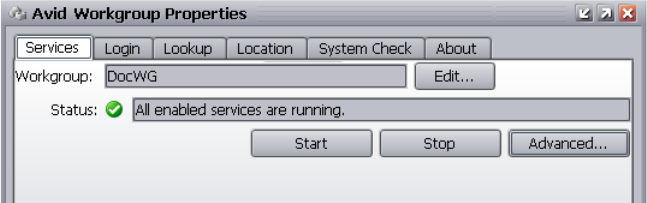
Installing the Avid Interplay Auto-Copy Service
239
11. Close the Avid Service Configuration window.
Verifying the Auto-Copy Service is Running
The Avid Interplay Auto Media Services are not monitored in the Services page in the Avid
Interplay Media Services and Transfer Status tool. You can use the Avid Service Framework
services or the Microsoft Windows Computer Management tool to check whether the Avid
Interplay Auto Media Services are running.
The Auto Copy, Auto Archive, Auto Transcode, and Auto Transfer services are all installed
during the installation of the Avid Interplay Auto Archive. These services are all included in
the service named Avid Interplay Auto Media Services.
nThe Avid Interplay Auto Media Services is named Avid Automatic Archive, Copy, Transcode,
and Transfer Service in the Avid Service Configuration tool.
To verify that the Avid Interplay Auto Media Services are running:
1. On the system running the Interplay Media Services Engine, click Start and select
Programs > Avid > Avid Service Framework > Avid Workgroup Properties.
The Avid Workgroup Properties dialog box opens. The Status area indicates whether all
the Avid Service Framework services are running.
2. Click Advanced.
The Avid Services dialog box opens.
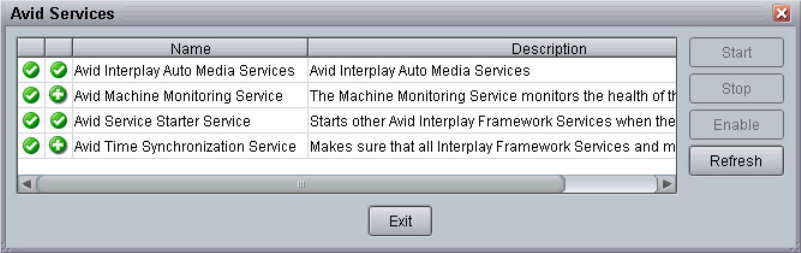
11 Automatically Copying Assets to Another Workgroup
240
3. If necessary, select the Avid Interplay Auto Media Services service and click Start.
nIf the Avid Interplay Auto Media Services does not appear, check the Media Services Engine
to make sure that the Interplay Media Services Engine is running.
Understanding the Auto-Copy Folder Process
The auto-copy service lets an administrator or user with administrator privileges identify a
folder as an auto-copy folder, in Interplay Access. The auto-copy service automatically
submits assets placed in an auto-copy folder to another workgroup. When setting up an
auto-copy folder, you select an Avid Interplay Copy Service profile that defines the
destination workgroup, a destination Interplay database for the metadata, and a workspace
for the media files.
For a list of steps you need to perform to use the auto-copy service, see “Check List for the
Auto-Copy Process” on page 234.
For details on the auto-copy folder feature, see the following topics:
•“Rules of Auto-Copy Service” on page 241
•“Identifying an Auto-Copy Folder” on page 241
•“Automatically Copying Assets To Another Workgroup Using an Auto-Copy Folder” on
page 243
Understanding the Auto-Copy Folder Process
241
Rules of Auto-Copy Service
To determine if the clips are ready for copy, a set of rules is applied to each clip found in an
auto-copy folder.
The following rules apply after the auto-copy service starts:
• Verifies that clips are inside an auto-copy folder.
• Verifies that clips are not in Frame Chase Editing (Edit While Capture) mode.
• Verifies that clips are not already pending for a copy in Avid Interplay Media Services
Engine.
• Verifies that clips have not already been successfully copied.
• Verifies that clips have been modified since the last successful auto-copy operation—if
the clips were modified after a successful auto-copy operation, the clips will be
automatically copied again.
Identifying an Auto-Copy Folder
Before you can set up an auto-copy folder, an Avid Interplay Copy Service profile must
already exist. For information on creating an Avid Interplay Copy Service profile, see
“Using an Interplay Copy Service Profile” on page 220.
To set up an auto-copy folder:
1. Log on to Interplay Access as an administrator or as a user with administrator privileges.
2. Create a folder (or select an existing folder) in the Avid Interplay database using Avid
Interplay Access.
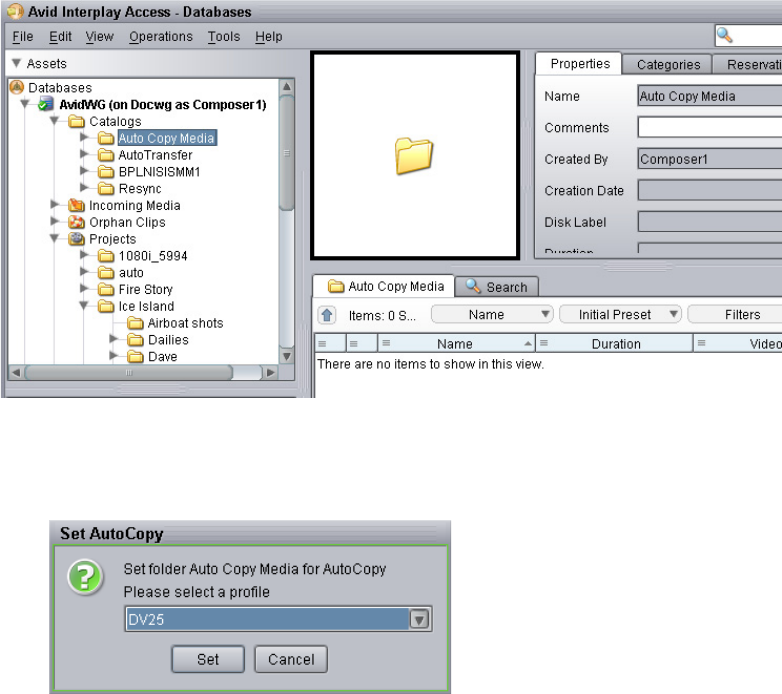
11 Automatically Copying Assets to Another Workgroup
242
The following illustration shows a folder named Auto Copy Media. You can use any
name that fits your workflow.
3. Right-click the folder and select Set AutoCopy.
4. Select an Avid Interplay Copy Service profile from the Set AutoCopy dialog box.
For information about profiles, see “Understanding an Interplay Copy Service Profile”
in the Avid Interplay Media Services Setup and User’s Guide..
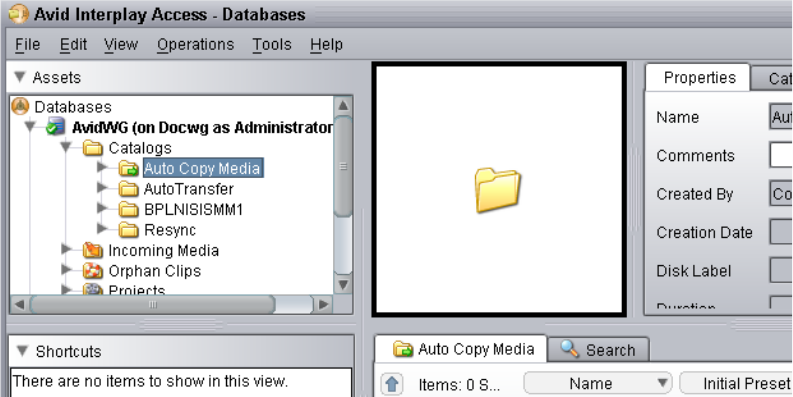
Automatically Copying Assets To Another Workgroup Using an Auto-Copy Folder
243
5. Click Set.
The system adds an Auto-Copy icon to the folder.
Automatically Copying Assets To Another
Workgroup Using an Auto-Copy Folder
To copy assets using an auto-copy folder:
1. Make sure a folder is configured for automatically copying media. See “Identifying an
Auto-Copy Folder” on page 241.
2. Ensure that the Media Services Engine and the Copy Service are connected and running.
3. In Interplay Access, locate one or more assets that you want to copy, and drag them to
an auto-copy folder.
The system starts copying the assets to the destinations set in the Avid Interplay Copy
Service profile, as a background task.
nThe auto-copy job might not start for several minutes, depending on your auto-copy settings.
See “Configuring the Auto-Copy Service” on page 236.
4. (Option) You can set the Access user property “AutoCopyStatus” to view the results of
the auto copy process in the Content view (Text view).
11 Automatically Copying Assets to Another Workgroup
244
5. (Option) You can view the Interplay Media Services Status window while the auto-copy
operation is in process. The system displays the job status during the copy. After the
copy completes the status entry is deleted. The system deletes the line to avoid
collecting too many entries in the status window.
tSelect Tools > Interplay Media Services Status.
nYou can also use Avid Diagnostics to troubleshoot jobs. For information, see “Checking
Media Services Jobs Using Avid Diagnostics” on page 368.
Automatically Backing Up the Complete Database
and Media
You can use the auto-copy replication operation to automatically and continuously copy all
clips (both metadata and media) from one workgroup to another. This is useful if you have
two workgroups, one of which serves as a backup for the other.
You use the Avid Service Configuration tool to specify a profile to use for the auto-copy
replication operation. When the auto-copy starts, the provider begins to copy all clips in a
specified database, starting with the file with the earliest check-in date. As clips are added to
the specified database, they are copied to the backup workgroup.
The auto-copy replication feature has the following limitations:
• Rendered effects are not included
• Files deleted in the source database are not automatically deleted in the target database.
For a list of steps you need to perform to use the auto-copy replication operation, see “Check
List for the Auto-Copy Process” on page 234.
nYou can reset when you want the auto-copy replication process to begin scanning for assets.
See “Resetting the Auto-Copy Replication Scan” on page 246.
Automatically Backing Up the Complete Database and Media
245
To configure the auto-copy service for copying all clips from one workgroup to
another (replication operation):
1. Make sure that the names of the workspaces in the target (destination) workgroup match
the names of the workspaces in the source workgroup.
2. Make sure the workspaces have enough space for the assets.
3. Make sure the security for the target (destination) database is set to allow for adding and
removing of items.
a. Right-click the target (destination) database and select Security.
b. In the Security of AvidWG dialog box, select “Allow adding and removing of items
directly in this folder.”
c. Click Apply.
4. Create a profile, as described in “Using an Interplay Copy Service Profile” on page 220.
Make sure that the Use Source Workspace option is selected.
This option causes the auto-copy replication process to copy media from a source
workspace to a target workspace that has the same name. It overrides the
Destination_Workspace setting. The auto-copy process duplicates the source folder
structure on the target workgroup database for the copying metadata. You only include
the database name in the Destination_Path setting, for example, AvidWG.
5. Open the Avid Service Configuration window, as described in “Configuring the
Auto-Copy Service” on page 236.
6. In the Archive and Copy Settings tab, type the name of the profile you created in the
“Start automatic copy clips under this database using profile:” option. Click Apply, then
close the window.
To stop the auto-copy replication process from copying all clips from one workgroup
to another:
1. Open the Avid Service Configuration window.
2. In the Archive and Copy Settings tab, delete the profile name from the “Start automatic
copy clips under this database using profile:” text box.
3. Click Apply, then close the window.
11 Automatically Copying Assets to Another Workgroup
246
Changing the Number of Auto-Copy Replication Jobs Submitted
You can change the default setting for the number of auto-copy replication jobs submitted
within a specified period of time. The default is 30 jobs in 3 minutes.
To change the default setting, do the following:
tOn the machine with the Avid Interplay Auto Media Services service (includes the
auto-copy service), edit the registry keys to change the setting.
For example, to set the number of jobs to 60, use the following text:
[HKEY_LOCAL_MACHINE\SOFTWARE\JavaSoft\Prefs\avid\workgroups\
avid technology incorporated\autoarchive\default\autoarchivesettings\
replicationmumberofjobs]
"name"="replication/Number/Of/Jobs"
"type"="string"
"value"="60"
Resetting the Auto-Copy Replication Scan
By default, the auto-copy replication process begins to scan for assets from the creation of
the database. The process continues to periodically scan for changes to the database. Your
workflow might require you to rescan from a prior time other than the creation date of the
database. For example, you might want to start a rescan a set number of hours or days prior
to the current time. You can set a scan time that will start to scan when you restart the Avid
Interplay Auto Media Service service.
To reset the start time of the auto-copy replication scan:
1. In Interplay Access, right-click the database name and select Advanced > Get/Set
Property.
The Get/Set Property for “AvidWG” dialog box opens.
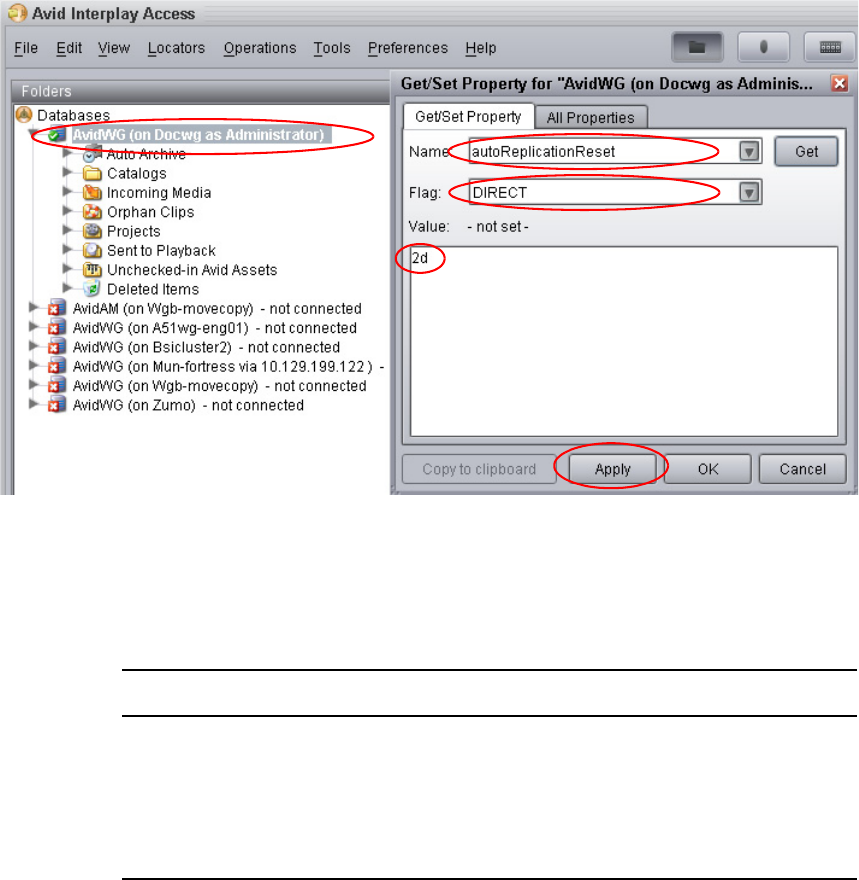
Automatically Backing Up the Complete Database and Media
247
2. In the Name text box, type autoReplicationReset.
3. From the Flag menu, select DIRECT.
4. In the Value text box, type a prior time period for the rescan to begin. You can specify
the number of hours, number of days, or when the database was created.
5. Click Apply.
6. Restart the Avid Interplay Auto Media Services service.
The scan begins at the period in time defined in the Value text box.
Value Description
xh Scan begins the x number of hours prior to the current time. For example, if you
type 2h, then the scan begins 2 hours prior to the current time.
xd Scan begins the x number of days prior to the current time. For example, if you
type 5d, then the scan begins 5 days prior to the current time.
all Scan begins at the creation time of the database.
11 Automatically Copying Assets to Another Workgroup
248

12 Working with the Move Service
The following topics explain the setup and how to use the Move feature.
•Understanding the Move Service
•Workflow for Moving Media to Another Workspace
•Check List for Moving Assets to Another Workspace
•Installing and Registering the Move Service Provider
•Starting the Move Provider
•Creating a Avid Interplay Move Service Profile
•Moving Media to Another Workspace Using Interplay Access
Understanding the Move Service
You can use the Move feature to move media files from one Avid Unity™ ISIS® workspace to
another. For example, if one of your workspaces is getting close to capacity, you can use the
Move feature to move selected media files to a workspace that has more free space. You can
also move low res media from a mirrored workspace to a RAID workspace that requires less
bandwidth.
The Move feature can move media for Avid assets (both .mxf and .omf files).
To use the Move feature to move media to another workspace requires an Avid Interplay
Media Services service (the Move service) and the Avid Interplay Media Services Engine.
As with other Avid Interplay Media Services services, you can create a profile for
streamlining workflows. For example, if you want to regularly move low-resolution media
files to a specific workspace, you can use Interplay Media Services to create a profile
especially for that workflow.
nThe Move service requires an application key.
The Move feature is available from Interplay Access. It is not available on Avid editing
systems, Interplay Assist, or Interplay Instinct.
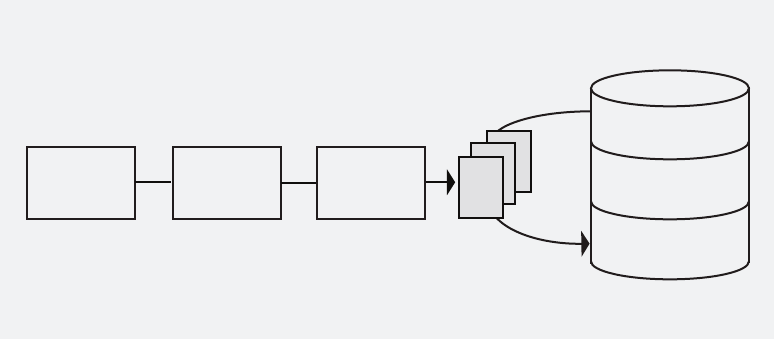
12 Working with the Move Service
250
Workflow for Moving Media to Another Workspace
The following illustration shows the basic workflow for moving media files, in this case
from “workspace 1” to “workspace 3.”
Move Requirements
For hardware configuration procedures, see the Avid Interplay Software Configuration and
Installation Guide.
• The ISIS system must be running Avid Unity ISIS v2.0.1 or greater.
Starting at ISIS v2.1.1, workspaces can use either mirrored or RAID protection, and you
can move files from one type of workspace to any other (mirrored-to-mirrored,
mirrored-to-RAID, RAID-to-RAID, RAID-to-mirrored).
nYou must name the workspaces appropriately to guarantee that you select the correct
protection type for the Move operation. The Move provider does not have an automatic
method for differentiating between RAID or mirrored drives.
• The Media Services Engine and the Move service provider must both be running.
• The provider must be connected to the ISIS system through an account with read/write
privileges on the workspaces you want to move from and move to. The workspaces must
be mounted using UNC (letterless) drive mapping.
nThe Move feature works only within a single workgroup with a single ISIS System Director.
To copy assets and media to a different workgroup, use the Copy service (see “Working with
the Copy Service” on page 205).
Avid Unity ISIS
Shared Storage
Use the Move Service
feature to move media files
from one workspace to another.
workspace 1
workspace 2
workspace 3
Interplay
Access
Media
Services
Engine
Media
Files
Move Service
Provider

Workflow for Moving Media to Another Workspace
251
Move Options
• You can specify which resolutions you want to move: all, highest, lowest, or a specific
resolution. If you select All, only the associated resolutions that have online media are
moved as requested. In a Avid Interplay Move Service profile, you can specify multiple
resolutions as subjobs.
• You can specify whether to include audio media. Audio files are moved only with their
accompanying video files, except in the case of audio-only clips. The following table
explains how the Move feature works with the selected video resolution and the selected
Include Audio option.
Moving Between Workspaces with RAID or Mirrored Protection
Staring with ISIS v2.1.1, workspaces can use either mirrored or RAID protection, and you
can move files from one type of workspace to any other (mirrored-to-mirrored,
mirrored-to-RAID, RAID-to-RAID, RAID-to-mirrored.
The Move service does not have an automatic way to differentiate between RAID or
mirrored storage. In order to guarantee that you move to the correct protection type you
should name workspaces appropriately in the ISIS Administrator.
Clip Type
Resolution
Selected
Include Audio
Option Result
DV 25 with two audio files DV 50 Selected No media is moved to the destination.
Audio remains with the video media.
DV 25 with two audio files DV 25 Selected DV 25 media and accompanying
audio is moved to the destination.
DV 25 with two audio files DV 25 Not selected DV 25 media is moved to the
destination. The audio files are not
moved.
Audio-only clip DV 25 Selected Audio-only files are moved to the
destination.
Audio-only clip DV 25 Not selected The audio files are not moved.

12 Working with the Move Service
252
Check List for Moving Assets to Another
Workspace
For the move process, the following table provides a check list of steps for installing and
configuring the Interplay Move service provider in an Avid Unity™ environment. The check
list assumes the Interplay Media Services Engine and the supporting software are setup and
configured in the workgroup. The check list provides references where to find more
information about each step.
nIf the Move service provider is not running on the Interplay Media Services Engine system,
you must connect an application key to a USB port on the Move provider system.
Moving Assets to Another Workspace Check List
Task Section Reference
Check the Move feature requirements to make
sure your workgroup supports the Move
feature.
See “Move Requirements” on page 250.
Configure the Move provider server. See the Avid Interplay Software Installation and
Configuration Guide.
Make sure an Interplay Media Services
administrator account is setup on Avid Unity.
See the Avid Interplay Software Installation and
Configuration Guide.
Mount workspaces. See Avid Interplay Best Practices.
Make sure the Interplay Media Services
application key is connected.
n If the Move provider is not running on
the Interplay Media Services Engine
system, you must also connect an
application key to the Move provider
system.
See the Avid Interplay Software Installation and
Configuration Guide.
Make sure the Interplay Media Services
Engine software and all the supporting
software are setup and configured.
• Avid Service Framework for Client
• Avid Interplay Access
• Avid Interplay Media Services
• Avid Interplay Move Service
See Avid Interplay Software Installation and
Configuration Guide and “Interplay Media
Services Engine Installation and Configuration”
on page 29.

Installing and Registering the Move Service Provider
253
Installing and Registering the Move Service
Provider
Before you can use the Move service provider, you must install the software needed by the
service from the Avid Interplay installation DVD. Then install the service description in the
Media Services Engine, register the provider, and start and connect the service.
These tasks are explained in the following topics:
•Installing the Avid Interplay Move Service Description
•Registering the Move Provider
•Connecting the Move Provider to the Media Services Engine
Installing the Avid Interplay Move Service Description
You use the Media Services and Transfer Status tool to install the Move service description.
For more information, see “Understanding Service Descriptions and Service Packages” on
page 61.
You only need to install a service description once, even if you configure multiple providers.
Install and register the Avid Interplay Move
service provider.
See “Installing and Registering the Move
Service Provider” on page 253.
Connect the Move Provider to the Media
Services Engine.
See “Connecting the Move Provider to the
Media Services Engine” on page 258.
Start the Interplay Move service provider and
verify it is connected.
See “Starting the Move Provider” on page 260.
(Option) Create a profile. See “Creating a Avid Interplay Move Service
Profile” on page 262.
Perform a move operation using Interplay
Access.
See “Moving Media to Another Workspace
Using Interplay Access” on page 265.
Moving Assets to Another Workspace Check List (Continued)
Task Section Reference
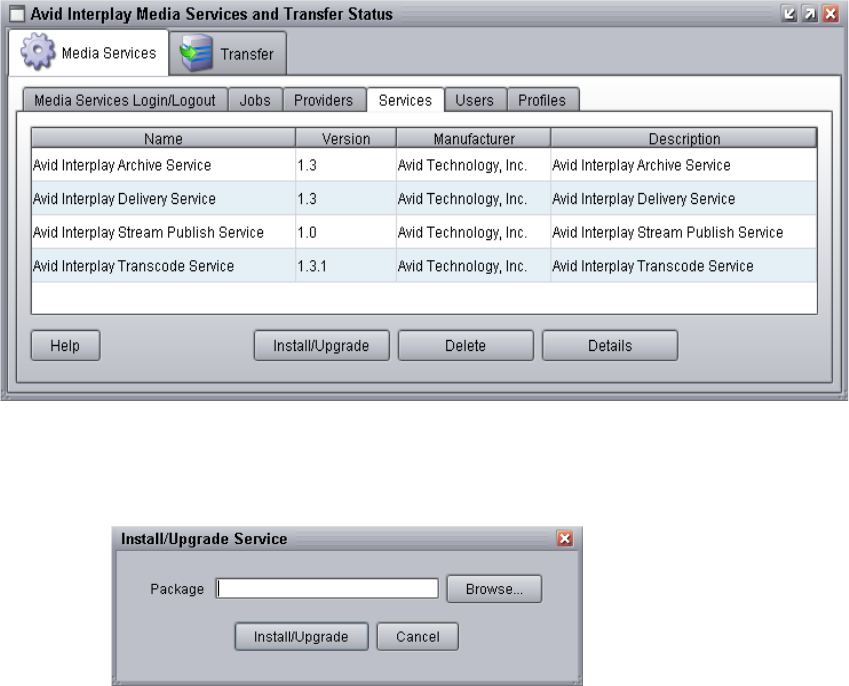
12 Working with the Move Service
254
To install the Move service description:
1. Make sure the Move service provider software is installed.
2. Open the Media Services and Transfer Status tool and log in as administrator, as
described in “Opening the Media Services and Transfer Status Tool” on page 37.
3. Click the Services tab.
The Services page displays the currently configured services.
4. Click the Install/Upgrade button.
The Install/Upgrade Service dialog box opens.
5. Click the Browse button and navigate to the folder containing the Move service package
(MoveMedia.zip file). Make sure you have access to the folder. By default the service
package is installed in the following folder:
C:\Program Files\Avid\Avid Interplay Move\MoveService
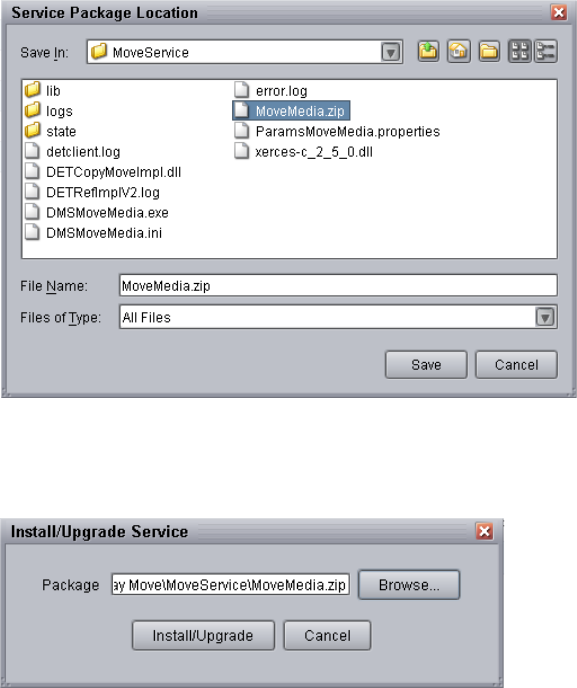
Installing and Registering the Move Service Provider
255
You can use the Microsoft Windows Search tool to help you locate the folder that
contains the MoveMedia.zip file.
6. In the folder, select the MoveMedia.zip file.
The following illustration shows the MoveService.zip file selected.
7. Click Save.
The path to the file appears in the Install/Upgrade Service dialog box.
8. Click Install/Upgrade.
The Avid Interplay Move Service appears on the Services page.
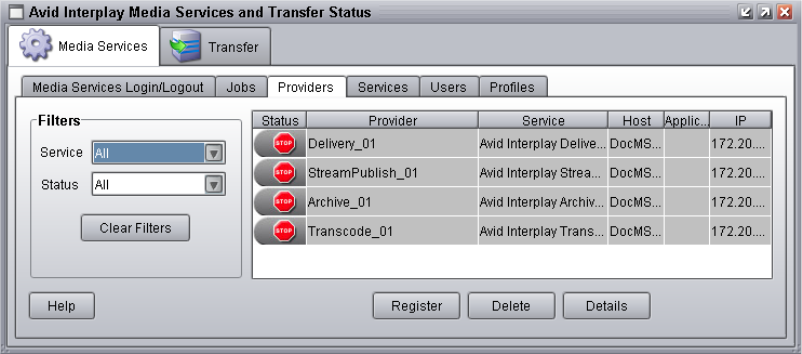
12 Working with the Move Service
256
Registering the Move Provider
After you install the Move service provider, you need to register the Move provider with the
Media Services Engine. If you are configuring multiple providers, you need to register each
provider.
The Provider page on the Media Services and Transfer Status tool is used to register the
Move provider for the Move service. The provider receives information about jobs and
supplies the Media Services Engine with information about the provider, job status, and
other information depending on the service. In some cases it passes the information to other
applications
To register the Move provider with the Media Services Engine:
1. Open and log in to the Media Services and Transfer Status tool. See “Opening the
Media Services and Transfer Status Tool” on page 37.
2. Click the Providers tab.
The Providers page displays all of the currently registered providers.
3. Click the Register button.
The Register Provider dialog box opens.
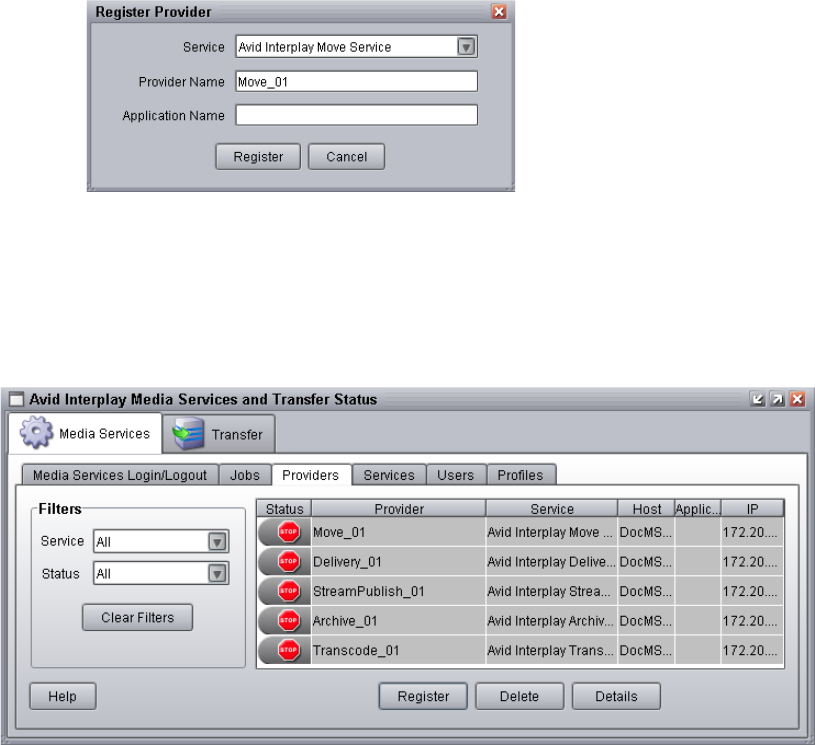
Installing and Registering the Move Service Provider
257
4. Do the following:
a. Service menu — Select Avid Interplay Move Service
b. Provider Name — Type the name that you want to use to identify this particular
provider. You can have several providers on your workgroup for the same service,
so you should use a meaningful name.
c. (Option) Application Name — This option is for a future use.
The following illustration shows the Register Provider dialog box with the values filled
in for a Move service.
5. Click Register.
The Move provider appears in the Providers page. If the service is not connected to the
Media Services Engine, a Stop icon is displayed in the Status column. In this case, you
must connect the Move provider to the Media Services Engine software. See
“Connecting the Move Provider to the Media Services Engine” on page 258.
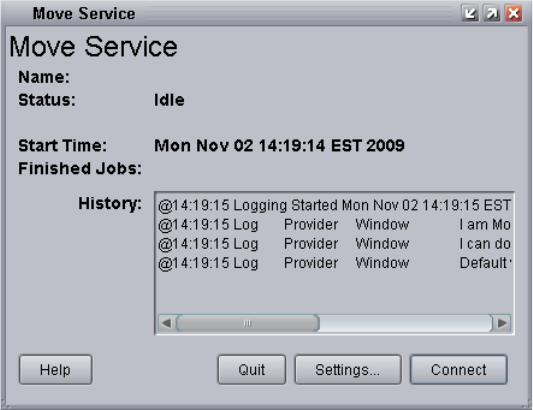
12 Working with the Move Service
258
Connecting the Move Provider to the Media Services Engine
After you install the Move service and register the Move provider, you need to connect the
Move provider to the Media Services Engine software.
To connect the Move provider to the Media Services Engine:
1. Click Start and select Programs > Avid > Avid Interplay Move.
The Move Service provider dialog box opens.
2. Click Settings.
The Provider Settings dialog box opens.
3. Do the following:
a. Provider Name — Type the name of the provider you specified in “Registering the
Move Provider” on page 256. In this example, the name is Move_01.
b. Media Services Engine Host Name — Type the name of the system running the
Media Services Engine application.
c. Automatically Connect — Select either Yes or No (default) to automatically
connect to the Media Services Engine when the application starts.
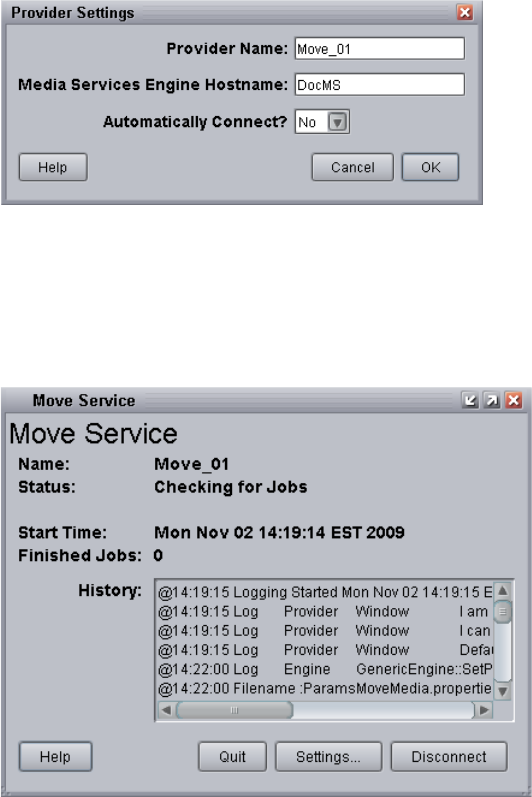
Installing and Registering the Move Service Provider
259
The following illustration shows the Provider Settings dialog box with the values filled
in for the Move provider.
4. Click OK.
5. Click Connect in the Service window.
The Move Service provider dialog box now shows that the service is connected and
shows the provider you selected to connect to.
The Provider page in the Media Services and Transfer Status tool now shows that the
service is connected, indicated by a check mark in the Status column.
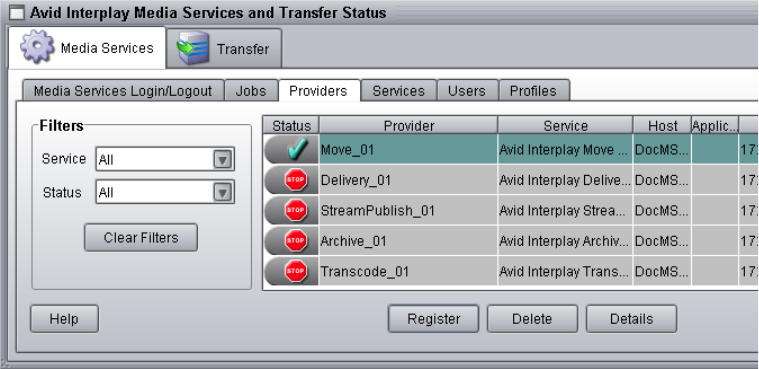
12 Working with the Move Service
260
Starting the Move Provider
To start the Move service provider:
1. Click Start and select Programs > Avid > Avid Interplay Move.
The Move Service provider dialog box opens with the Status as Idle.
nIf the Automatically Connect setting in the Provider Settings dialog box is set to Yes, then the
Status line displays “Checking for Jobs” indicating the provider is connected.
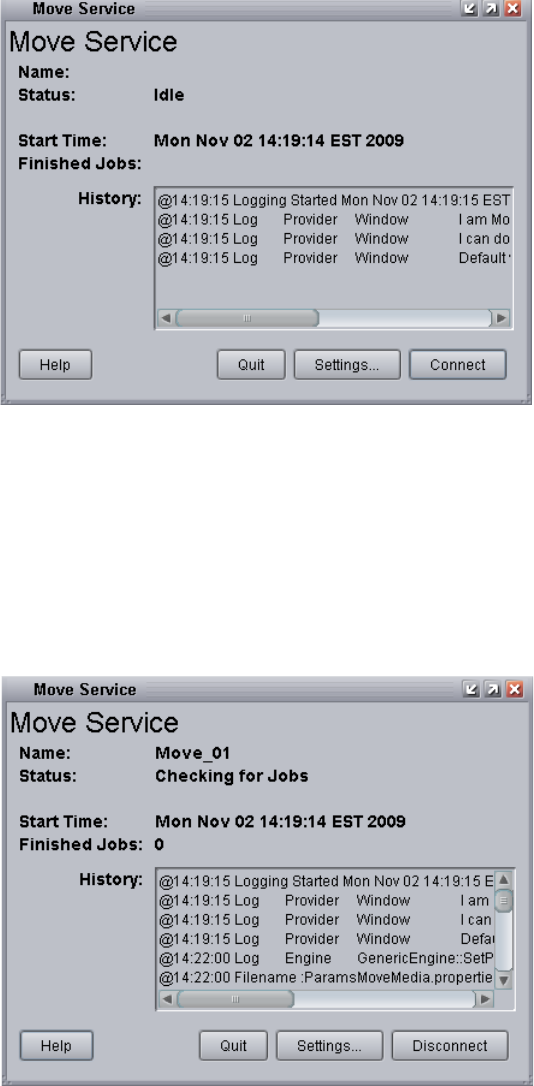
Starting the Move Provider
261
2. Click Connect and leave the window open.
After the connection is made, the Status line in the Service dialog box reads “Checking
for Jobs,” and the History window displays the message “Connection Established.” The
Connect button changes to a Disconnect button. The following illustration shows that
the Move Service software is connected.
nThe service provider dialog box displays the start date and start time of the providers based
on the Microsoft® Windows® time.
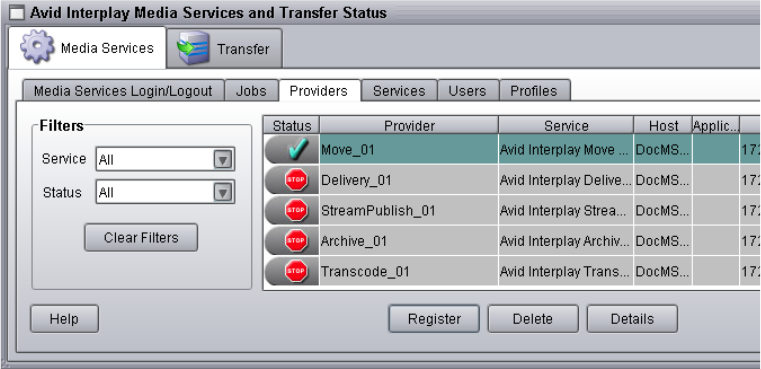
12 Working with the Move Service
262
nIf the provider cannot connect to the Media Services Engine, the Status line reads
“Connection Error.” Ensure the Media Services Engine is running, the service is installed,
the provider is properly registered, and then click Connect again.
The Providers page in the Media Services and Transfer Status tool now shows that the
Move service is connected, indicated by a check mark in the Status column.
Creating a Avid Interplay Move Service Profile
You can create a profile to use when performing a Move operation.
Interplay Move service profiles let you define the following:
• Destination workspace for the moved media files
• Whether to include audio when moving the media file
• A priority for the job
• Resolution of the moved media
To create an Interplay Move profile:
1. Open and log in to the Media Services and Transfer Status tool as described in “Opening
the Media Services and Transfer Status Tool” on page 37.
2. Click the Profiles tab.
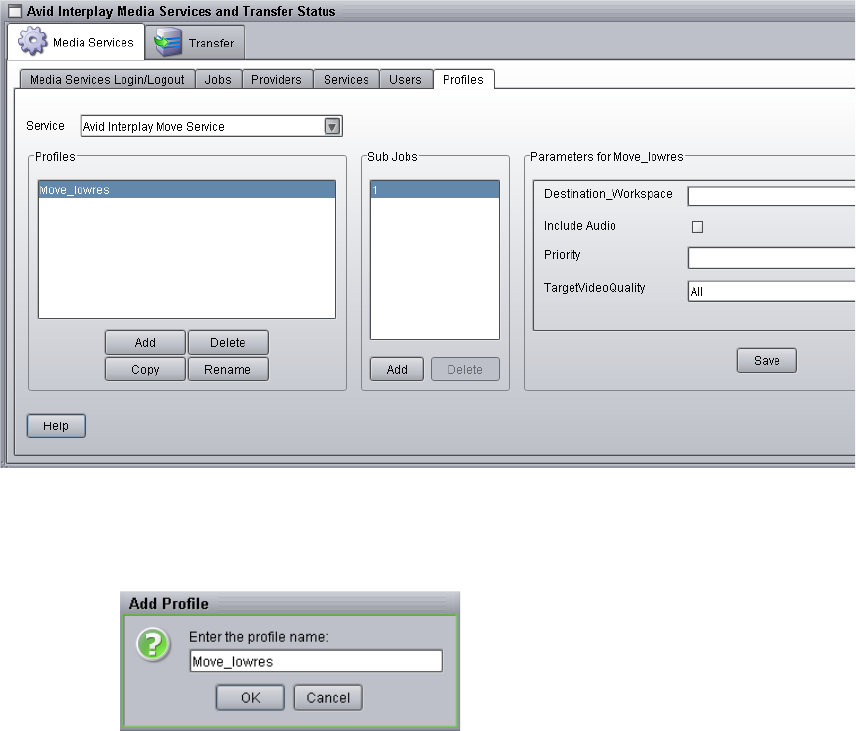
Creating a Avid Interplay Move Service Profile
263
3. In the Service menu, select Avid Interplay Move Service.
4. Click Add in the Profiles area.
The Add Profiles dialog box opens.
5. Type a descriptive name for the new profile in the Add Profile dialog box. This is the
name that you see when you right-click an asset and select Move.
6. Click OK.
The name appears in the Profiles list and an empty template appears in the
Parameters area.
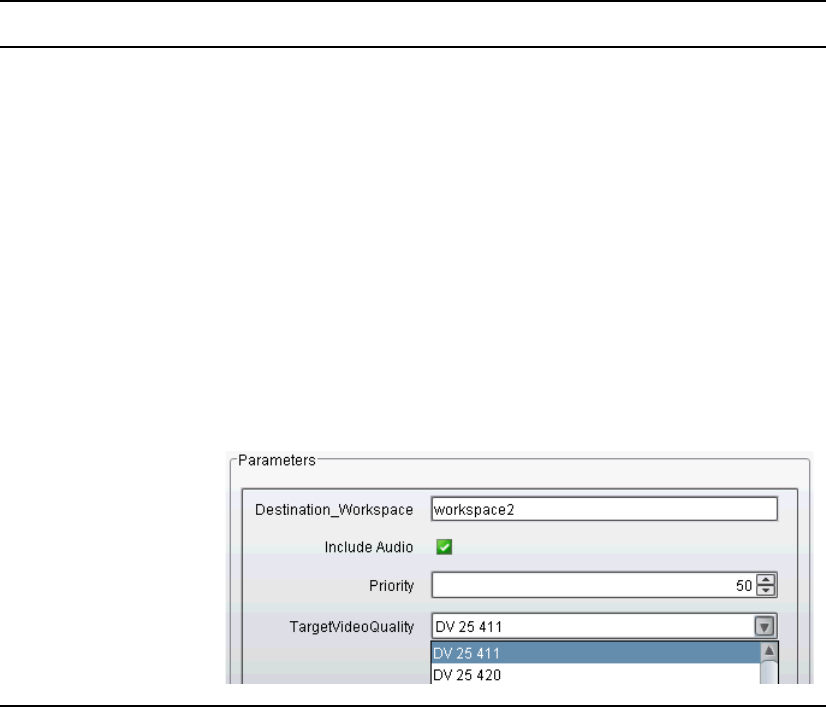
12 Working with the Move Service
264
7. In the Parameters area, set the values you want for the profile:
8. Click Save in the Parameters area.
The Save Profiles dialog box opens.
9. Click Yes to save your changes.
The next time you use Move, you can select the profile.
10. (Option) Click Add in the Sub Jobs area, to define several move media operations under
one main profile name. For example, you can add subjobs to move several resolutions
using one profile. The system processes each subjob in turn.
Option Description
Destination_Workspace Type the name of the Avid Unity workspace where you want to move the
media files.
Include Audio Select this option if you want to move audio that is associated with the clips
whose video media you are moving. Selecting this option also moves any
audio-only clips.
Priority This value lets you assign job priorities to different profiles. Priority numbers
range from 1 (highest priority) through 100 (lowest priority). The default
priority number assigned to each job is 50.
TargetVideoQuality Select the video resolution you want to move.
You can select All, Highest, Lowest, or a specific resolution. If you select All,
only the associated resolutions that have online media are moved as requested.
By default, if any media is offline the job will fail. You can override the default
failure reporting setting using the Avid Service Configuration tool. See
“Customizing the Reporting of Service Job Status” on page 42.
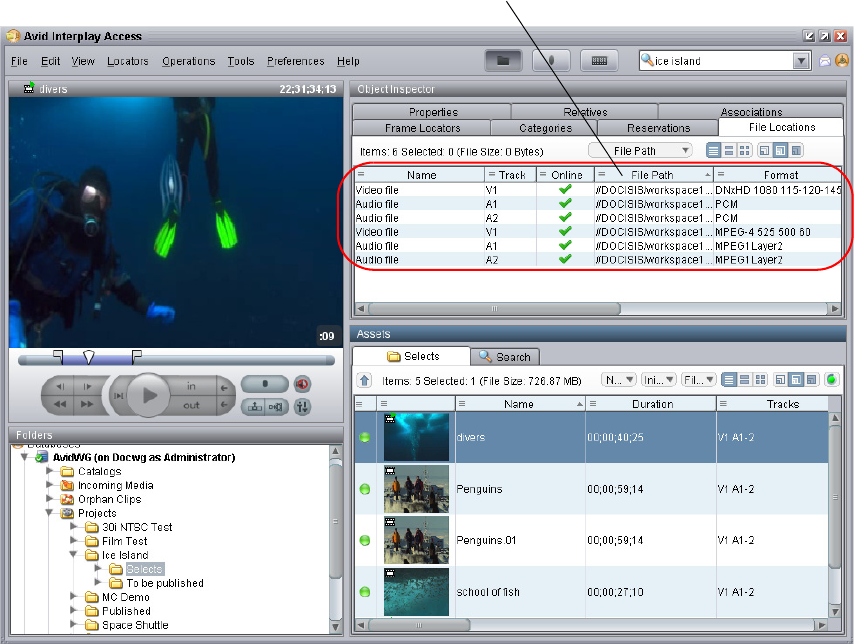
Moving Media to Another Workspace Using Interplay Access
265
Moving Media to Another Workspace Using
Interplay Access
To move media files to another workspace using Interplay Access:
1. Make sure your workgroup meets the requirements described in “Workflow for Moving
Media to Another Workspace” on page 250.
2. In Interplay Access, select the assets whose media files you want to move.
You can select one asset, multiple assets, a subfolder, or multiple subfolders. The
following illustration shows the clip “divers” selected. The File Locations tab in the
Object Inspector shows that the clip is associated with two video media files and four
audio media files (two different sets of resolutions), all on workspace1.
The selected clip has two video files
and four audio files on workspace1.
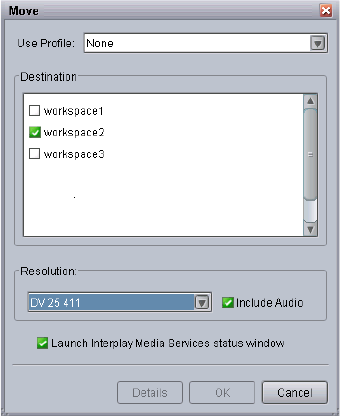
12 Working with the Move Service
266
nWhen selecting a folder, do not select a top-level folder, such as AvidWG/Catalogs or
AvidWG/Projects, you can only select subfolders, such as AvidWG/Catalogs/subfolder. All
media files contained in the selected subfolder and its subfolders are moved to the
destination workspace.
3. Do one of the following:
tSelect Tools > Move...
tRight-click and select Move...(Do not select Move to, which moves metadata from
one folder to another.)
The Move dialog box opens.
4. Select a profile from the Use Profile menu. If there are no profiles available, or you do
not want to use a profile, select the following options:
a. Use Profile: None.
b. Destination: Select the workspace to which you want to move the media.
c. Resolution: Select which video resolution you want to move. You can select All,
Highest, Lowest, or a specific resolution. If you select All, only the associated
resolutions that have online media are moved as requested. You can override the
default failure reporting setting using the Avid Service Configuration tool. See
“Customizing the Reporting of Service Job Status” on page 42
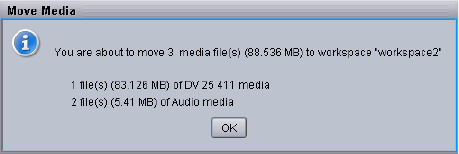
Moving Media to Another Workspace Using Interplay Access
267
d. Include Audio: Select this option if you want to move audio that is associated with
the clips whose video media you are moving. Selecting this option also moves any
audio-only clips. For more information, see the table in “Workflow for Moving
Media to Another Workspace” on page 250.
5. (Option) Select “Launch Interplay Media Services status window” to view the status of
the operation after it begins.
6. (Option) Click the Details button to view the number of files and their size. Their size
indicates how much disk space will be freed up after the move.
7. Click OK.
The system starts the Move operation. If you selected the option “Launch Interplay
Media Services status window,” the window opens and shows you the progress of the
job, as well as other information about it. For information about the status window, click
the Help button.
8. (Option) When the operation is complete, select the clip and click the File Locations tab
in the Object Inspector to view the new workspace location.
The following illustration shows one video file and two audio files are now stored on
workspace2, while one video file and two audio files remain on workspace1.
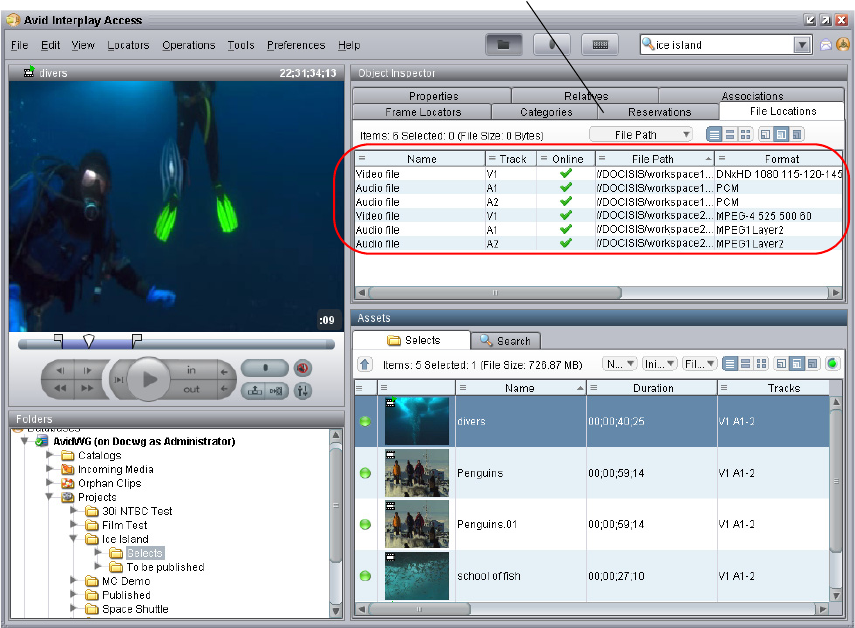
12 Working with the Move Service
268
One video file and two audio files remain on
workspace1. One video file and two audio files
were moved to workspace2.

13 Working with the Delivery Service
These tasks are explained in the following topics:
•Understanding the Delivery Service
•Check List for the Delivery Service
•Registering the Delivery Receiver in an Avid Interplay Workgroup
•Installing and Registering the Delivery Service Provider
•Starting the Delivery Provider
•Creating an Avid Interplay Delivery Profile
•Transferring Assets through Interplay Access
•Transferring Assets through an Avid Editing System
•Viewing the Transfer Status
•Verifying the Delivery Receiver Service is Running Using Avid Service Framework
•Monitoring the Health of the Interplay Delivery Receiver Service
Understanding the Delivery Service
Avid Interplay Delivery is a service that is part of Interplay Media Services. The Delivery
service lets you perform workgroup-to-workgroup transfers of shotlist, subclips, master
clips, cut only sequences, and their media files. You can use a Delivery profile to transfer
only the portion of the media that is used in a subclip, sequence, and shotlist.
Interplay Delivery only supports Avid assets, therefore, non-avid assets are not supported.
Interplay Delivery supports one job for every Delivery provider on the sending system. The
receiving system has a limit of 1000 jobs running simultaneously. However, the actual
number of jobs allowed depends on the system’s hardware.
nInterplay Delivery uses FTP, which has a separation of the command port and data port.
There is one command port, that defaults to 33321, and up to 1000 data ports (you can
configure the number of data ports). There are no in/out ports. The sending side only uses
the ‘out’ ports and receiving side uses the ‘in’ ports.

13 Working with the Delivery Service
270
Interplay Delivery has two modes: partial and full
• Partial Delivery—requires a temporary workspace for the partial media files. These
partial media files are removed when the job ends or when the service is stopped and
restarted. However, certain conditions, such as a power outage, cause the temporary
folder to remain. You can manually delete this folder if it is over a day old.
Temporary folder location:
\\<SharedStorageServer>\<TempWorkspace>\Avid MediaFiles\MXF\
<DeliveryServiceHostname>.1\Creating\<jobid>
• Full Delivery—does not create temporary files.
Check List for the Delivery Service
For the delivery process, the following table provides a check list of steps for installing and
configuring the Interplay Media Services system in an Avid Unity™ environment, and
configuring an Avid editing system. The check list also provides references where to find
more information about each step.
Delivery Service Check List
Task Section Reference
Check your configuration. See “Configuration Requirements” on page 27.
Make sure the Interplay Media Services
application key is connected.
See the Avid Interplay Software Installation and
Configuration Guide.
Make sure the Interplay Media Services
Engine software and the supporting software
are installed and configured in the
workgroup.
• Avid Service Framework for Client
• Avid Interplay Access
• Avid Interplay Media Services
• Avid Interplay Delivery service
See the Avid Interplay Software Installation and
Configuration Guide and “Interplay Media
Services Engine Installation and Configuration”
on page 29.
Make sure the Avid Interplay Delivery
Receiver service is installed on a system in
the receiving workgroup, usually the Media
Services Engine system.
See the Avid Interplay Software Installation and
Configuration Guide.

Check List for the Delivery Service
271
Make sure the Interplay Delivery Receiver
system is registered with the Interplay
Engine.
See “Registering the Delivery Receiver in an
Avid Interplay Workgroup” on page 272.
Install and register the Interplay Delivery
service provider.
See “Installing and Registering the Delivery
Service Provider” on page 273.
Connect the Interplay Delivery service
provider to the Media Service Engine.
See “Connecting the Delivery Provider to the
Media Services Engine” on page 278.
Start the Interplay Delivery service provider. See “Starting the Delivery Provider” on
page 281.
Verify the Interplay Delivery service is
connected.
See “Verifying That a Service Provider Is
Connected” on page 71.
Create an Interplay Delivery profile. See “Creating an Avid Interplay Delivery
Profile” on page 282.
Transferring assets through Interplay Access. See “Transferring Assets through Interplay
Access” on page 285.
Transferring assets through an Avid editing
system.
See “Transferring Assets through an Avid
Editing System” on page 285.
View the status of the transfers. See “Viewing the Transfer Status” on page 286.
Verify the Delivery Receiver service is
running.
See “Verifying the Delivery Receiver Service is
Running Using Avid Service Framework” on
page 288.
Monitor the health of the Avid system. See “Monitoring the Health of the Interplay
Delivery Receiver Service” on page 289.
Delivery Service Check List (Continued)
Task Section Reference
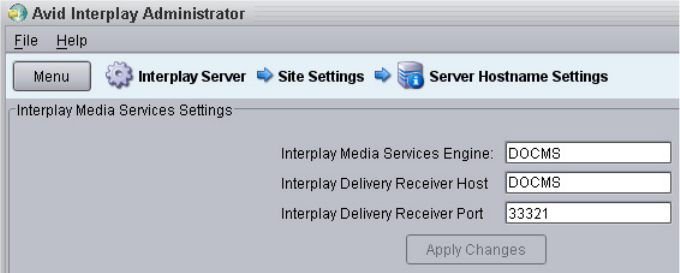
13 Working with the Delivery Service
272
Registering the Delivery Receiver in an Avid
Interplay Workgroup
The Delivery workflow requires you to register the Delivery Receiver service system with
the receiving Interplay workgroup. The Avid Interplay Administrator site setting, Server
Hostname Settings contains the settings for registering the Delivery Receiver service system.
You need to enter the hostname and port number of the system where the Delivery Receiver
service is installed.
By default, the port number is 33321. If you change the default port number you need to
update the configuration file
ftpd.xml
on the Delivery Receiver service system.
To change the Delivery Receiver port number in the receiving Interplay workgroup:
1. Open the following folder on the system where you installed the Avid Interplay Delivery
Receiver service software.
C:\Program Files\Avid\Avid Interplay Delivery Receiver\res\conf
2. Open the
ftpd.xml
file in Notepad.
3. Search for 33321.
4. Replace 33321 with the new port number.
5. Save the file and close Notepad.
6. Restart the services using the Avid Services dialog box in the Avid Workgroup
Properties, see “Verifying the Delivery Receiver Service is Running Using Avid Service
Framework” on page 288.
Installing and Registering the Delivery Service Provider
273
Installing and Registering the Delivery Service
Provider
Before you can use the Delivery service provider, you must install the software needed by
the service from the Avid Interplay installation DVD. Then install the service description in
the Media Services Engine, register the provider, and start and connect the service.
These tasks are explained in the following topics:
•Installing the Delivery Service Description
•Registering the Delivery Provider
•Connecting the Delivery Provider to the Media Services Engine
Installing the Delivery Service Description
You use the Media Services and Transfer Status tool to install the Copy service description.
For more information, see “Understanding Service Descriptions and Service Packages” on
page 61.
To install the Delivery service description:
1. Make sure the Media Services Engine and the Interplay Delivery service software is
installed.
2. Open the Media Services and Transfer Status tool and log in as administrator, as
described in “Opening the Media Services and Transfer Status Tool” on page 37.
3. Click the Services tab.
The Services page displays the currently configured services.
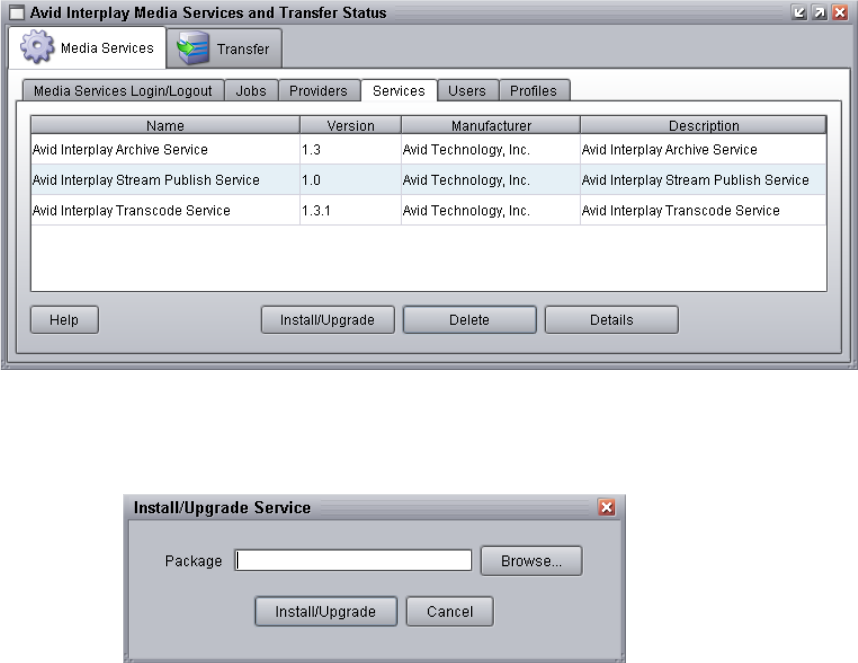
13 Working with the Delivery Service
274
4. Click Install/Upgrade.
The Install/Upgrade Service dialog box opens.
5. Click the Browse button and navigate to the folder containing the Delivery Service
package (PTFService.zip file). Make sure you have access to the folder. By default the
service package is installed in the following folder:
C:\Program Files\Avid\Avid Interplay Delivery\
You can use the Microsoft Windows Search tool to help you locate the folder that
contains the PTFService.zip file.
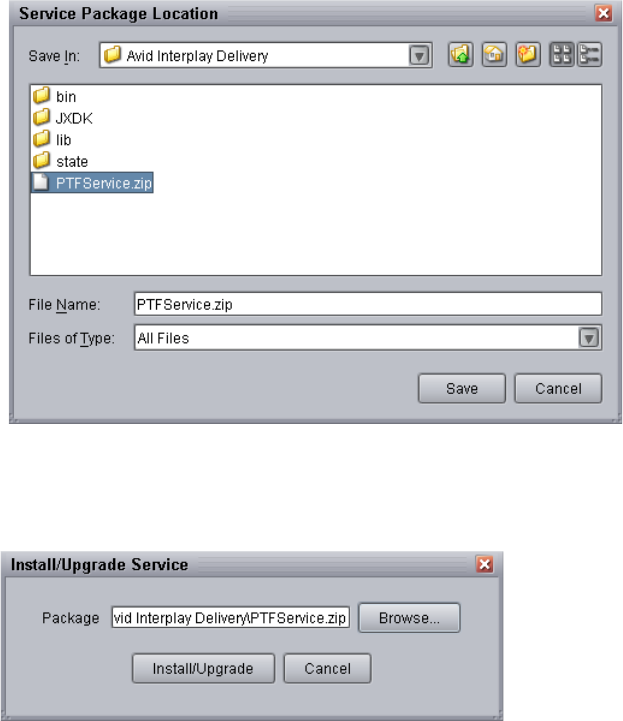
Installing and Registering the Delivery Service Provider
275
6. In the folder, select the PTFService.zip file.
The following illustration shows the PTFService.zip file selected.
7. Click Save.
The path to the file appears in the Install/Upgrade Service dialog box.
8. Click Install/Upgrade.
The Avid Interplay Delivery Service appears on the Services page.
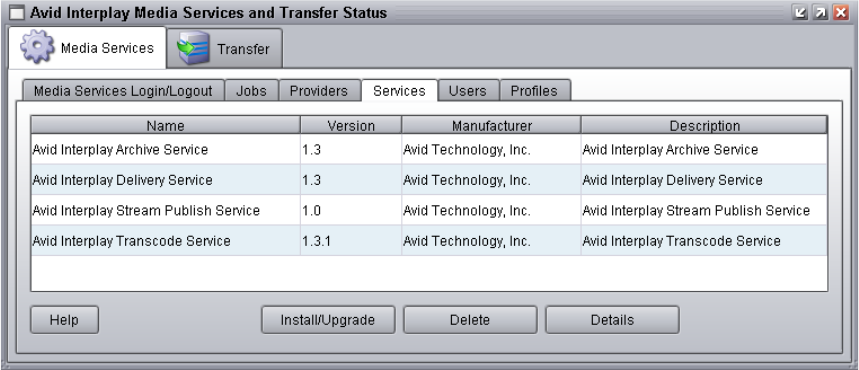
13 Working with the Delivery Service
276
Registering the Delivery Provider
After you install the Delivery service provider, you need to register the Delivery provider
with the Media Services Engine. If you are configuring multiple providers, you need to
register each provider.
The Provider page on the Media Services and Transfer Status tool is used to register the
Delivery provider for the Delivery service. The provider receives information about jobs and
supplies the Media Services Engine with information about the provider, job status, and
other information depending on the service. In some cases it passes the information to other
applications.
To register the Delivery provider with the Media Services Engine:
1. Open and log in to the Media Services and Transfer Status tool. See “Opening the
Media Services and Transfer Status Tool” on page 37.
2. Click the Providers tab.
The Providers page displays all of the currently registered providers.
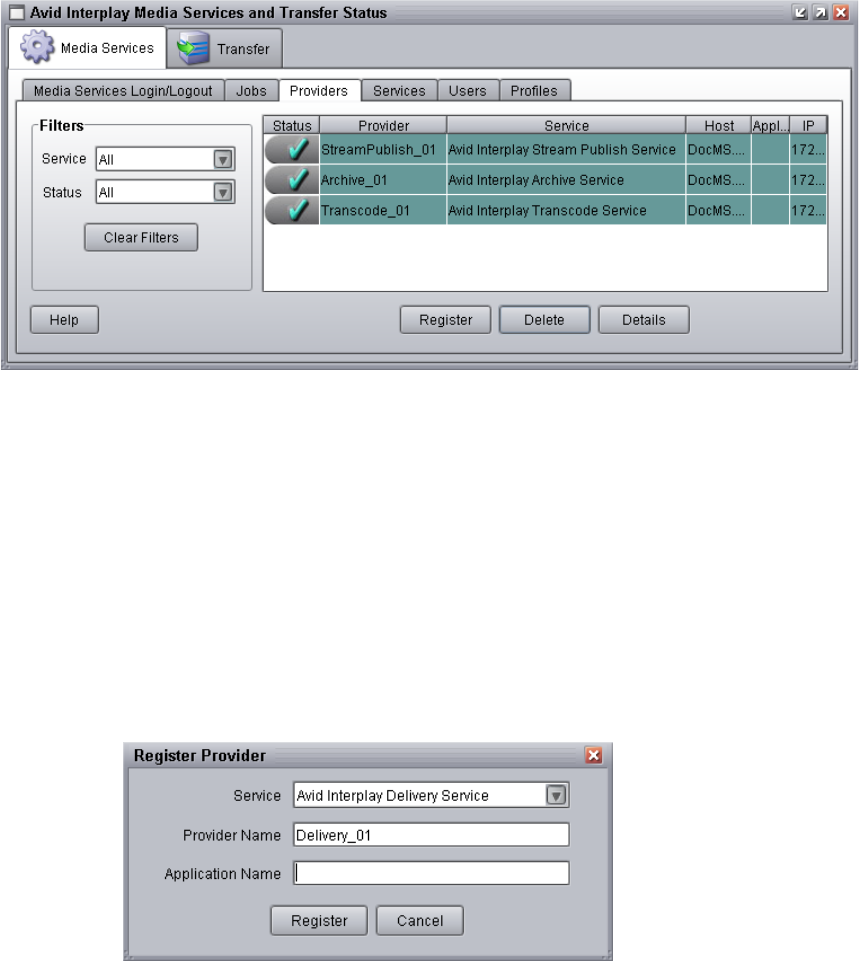
Installing and Registering the Delivery Service Provider
277
3. Click the Register button.
The Register Provider dialog box opens.
4. Do the following:
a. Service menu — Select Avid Interplay Delivery Service
b. Provider Name — Type the name that you want to use to identify this particular
provider. You can have several providers on your workgroup for the same service,
so you should use a meaningful name.
c. Application Name — For future use. Leave this text box blank.
The following illustration shows the Register Provider dialog box with the values filled
in for a Delivery service.
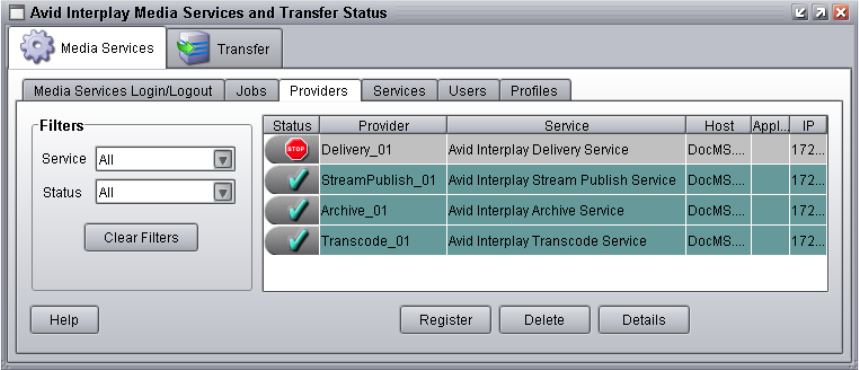
13 Working with the Delivery Service
278
5. Click Register.
The Delivery provider appears in the Providers page. If the service is not connected to
the Media Services Engine, a Stop icon is displayed in the Status column. In this case,
you must connect the Delivery provider to the Media Services Engine software. See
“Connecting the Delivery Provider to the Media Services Engine” on page 278.
Connecting the Delivery Provider to the Media Services Engine
After you install the Delivery service description and register the Delivery provider, you
need to connect the Delivery provider to the Media Services Engine software.
To connect Delivery provider to the Media Services Engine:
1. Click Start and select Programs > Avid > Avid Interplay Delivery.
The Delivery Service dialog box opens.
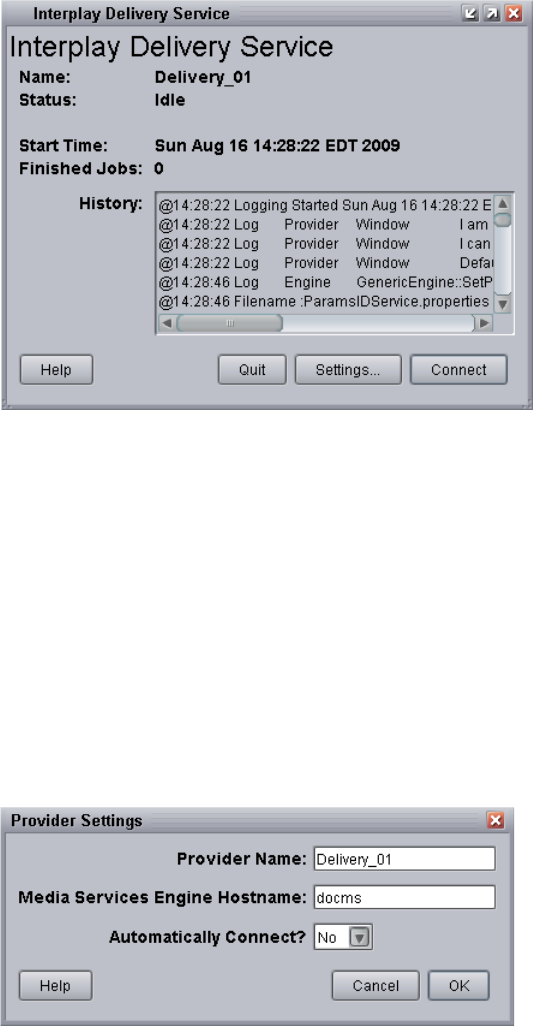
Installing and Registering the Delivery Service Provider
279
2. Click Settings.
The Provider Settings dialog box opens.
3. Do the following:
a. Provider Name — Type the name of the provider you specified in “Registering the
Delivery Provider” on page 276. In this example, the name is Delivery_01.
b. Media Services Engine Host Name — Type the name of the system running the
Media Services Engine application.
c. Automatically Connect — Select either Yes or No (default) to automatically
connect to the Media Services Engine when the application starts.
The following illustration shows the Provider Settings dialog box with the values filled
in for the Delivery provider.
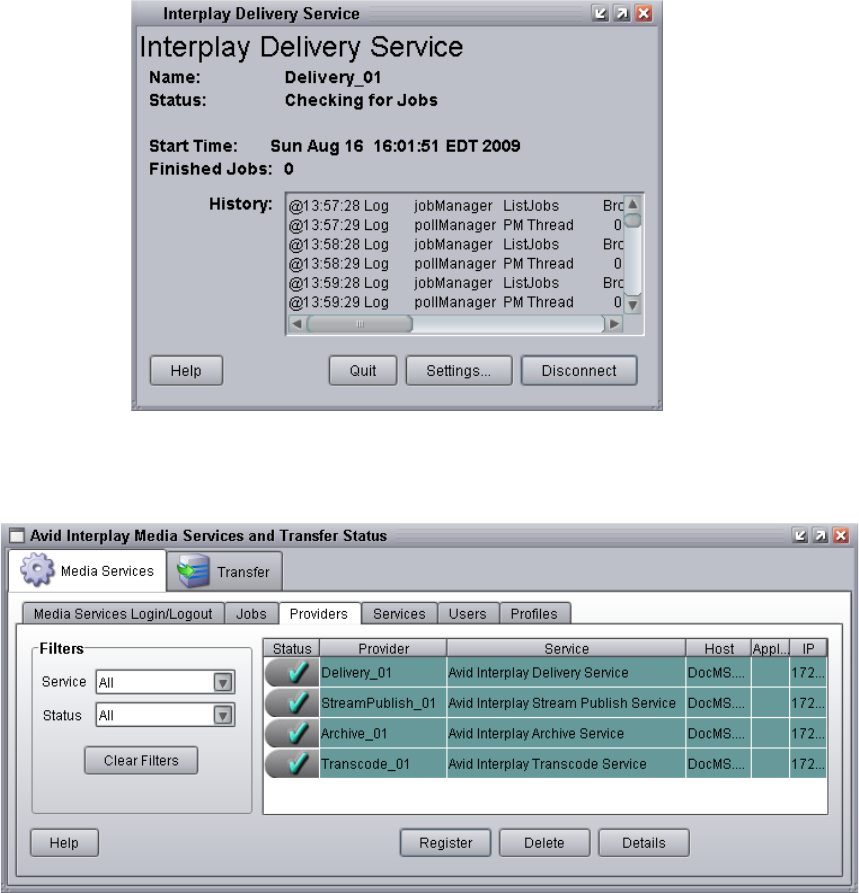
13 Working with the Delivery Service
280
4. Click OK.
5. Click Connect in the Service window.
The Delivery Service dialog box now shows that the service is connected and shows the
provider you selected to connect to.
The Provider page in the Media Services and Transfer Status tool now shows that the
service is connected, indicated by a check mark in the Status column.
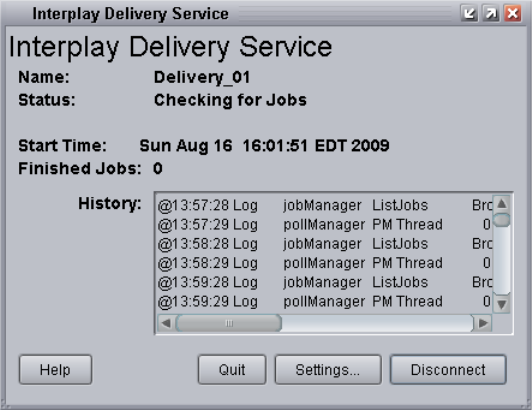
Starting the Delivery Provider
281
Starting the Delivery Provider
To start the Delivery service provider:
1. Click Start and select Programs > Avid > Avid Interplay Delivery.
Depending on the service settings, one of the following happens:
- Automatically Connect—Yes, the service dialog box opens for the service you
selected and is connected to the service.
- Automatically Connect—No, the service dialog box opens for the service you
selected and displays Idle. Click the Connect button to connect to the service.
nThe service provider dialog box displays the start date and start time of the providers based
on the Microsoft® Windows® time.
After the connection is made, the Status line in the service dialog box reads “Checking
for Jobs,” and the History window displays the message “Connection Established.” The
Connect button changes to a Disconnect button.
The following example shows the Delivery Service dialog box as connected.
nIf the provider cannot connect to the Media Services Engine, the Status line reads
“Connection Error.” Ensure the Media Services Engine is running, the service description is
installed, the provider is properly registered, and then click Connect again.
13 Working with the Delivery Service
282
Creating an Avid Interplay Delivery Profile
You must create a profile to perform a transfer operation that uses the Delivery service. You
select a profile after you select a master clip, subclip, or sequence in Avid Interplay Access
or in an Avid editing application.
To create a Delivery profile:
1. Open and log in to the Media Services and Transfer Status tool as described in “Opening
the Media Services and Transfer Status Tool” on page 37.
2. Click the Profiles tab.
3. Select Service > Avid Interplay Delivery Service.
4. Click Add in the Profiles area.
The Add Profile dialog box opens.
5. Type a descriptive name for the new profile in the Add Profile dialog box. This is the
name that users see when they right-click an asset and select Delivery Service.
For example,
- If you want to create a profile to transfer all media for IMX 30 clips, name the
profile “Full IMX 30.”
- If you want to create a profile to transfer partial media for IMX 30 clips, name the
profile “Partial IMX 30.”
6. Click OK.
The name appears in the Profiles list and an empty template appears in the
Parameters area.
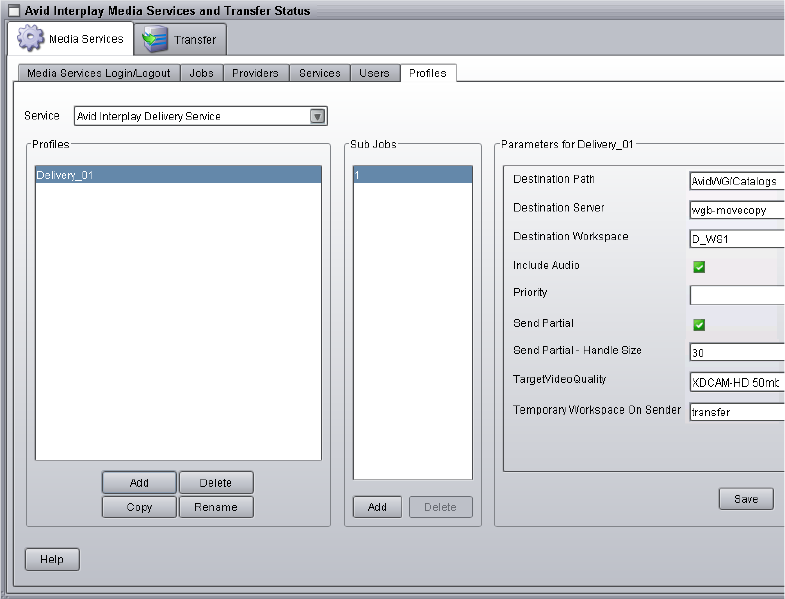
Creating an Avid Interplay Delivery Profile
283
7. In the Parameters area, specify the following:
- Destination Path: Type the name of the Interplay database folder in the target
workgroup that will hold the transferred files, for example,
AvidWG/Catalogs/A51/Partial2.
- Destination Server: Type the server name of the Interplay Engine in the target
workgroup.
- Destination Workspace: Type the name of the Avid Unity workspace on the target
workgroup that will hold the transferred files.
- (Option) Include Audio: Click the check box if you want to include audio files as
part of the transfer.
- (Option) Priority: Select a value to assign job priorities to different profiles. Priority
numbers range from 1 (highest priority) through 100 (lowest priority). The default
priority number assigned to each job is 50.
13 Working with the Delivery Service
284
- (Option) Send Partial: Select this check box to send a partial transfer. For subclips,
the provider transfers only the portion of the clip that makes up the subclip. For
sequences, the provider transfers just the portion of the clips that are contained in
the sequence. The setting applies only to subclips and sequences. It does not affect
clips.
- (Option) Send Partial - Handle Size: Type the number of additional frames you want
to include on both ends of a subclip or a cut within a sequence. If the handle length
exceeds either end of the master clip, then the handle is truncated to the end of the
master clip.
- TargetVideoQuality: Select a resolution for the transfer. You can select All, Highest,
Lowest, or a specific resolution. If you select All, media for all associated
resolutions must be online. By default, if any media is offline the job will fail. You
can override the default failure reporting setting using the Avid Service
Configuration tool. See “Customizing the Reporting of Service Job Status” on
page 42.
- Temporary Workspace On Sender: Type the name of the Avid Unity workspace on
the source workgroup that will hold the temporary media files that are created
during the transfer process. The Delivery provider deletes the temporary files after
the transfer is complete.
8. Click Save in the Profiles area.
The Save Profile dialog box opens.
9. Click Yes to save your changes.
You can define several transfer operations under one main profile name. For example,
you can add subjobs to transfer several resolutions using one profile. The system
processes each subjob in turn.
To add subjobs:
tClick Add in the Sub Jobs area.
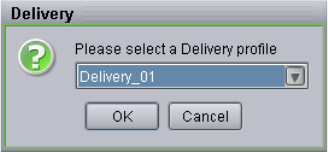
Transferring Assets through Interplay Access
285
Transferring Assets through Interplay Access
You can transfer assets from one workgroup to another by using the Delivery service
through Interplay Access. The supported assets that you can transfer are shotlist, subclips,
and master clips.
To transfer one or more assets through Avid Interplay Access:
1. Click Start and select All Programs > Avid > Avid Interplay Access.
2. Select the asset or assets that you want to transfer.
3. Right-click the selected assets and select Delivery.
The Delivery dialog box opens.
4. Select a profile from the menu and click OK.
The system performs the transfer operation.
5. (Option) To view the progress of the transfer job, select Tools > Interplay Media
Services Status.
Transferring Assets through an Avid Editing
System
You can transfer assets from one workgroup to another by using the Delivery service
through an Avid editing system. The supported assets that you can transfer are cut only
sequences, subclips, and master clips.
To transfer one or more assets through an Avid editing system:
1. In a bin, select a clip, subclip, or sequence.
2. Right-click the selected items and select Media Services > Avid Interplay Delivery
Service > profile_name.
The system performs the transfer operation.
13 Working with the Delivery Service
286
3. (Option) If Interplay Access is installed on the editing system, you can track the status
of the job by opening Interplay Access and selecting Interplay Media Services Status.
After the Interplay Media Services window opens, click the Jobs tab. See “Using the
Media Services and Transfer Status Tool” on page 37.
Viewing the Transfer Status
You can view the status of a transfer job in the Media Services and Transfer Status tool. You
can access it through Avid Interplay Media Services, Interplay Access, or the Interplay
Administrator. For complete information, see “Using the Media Services and Transfer Status
Tool” on page 37.
nYou can also monitor job status from any system on the network, by using the standalone
Media Services and Transfer Status tool. For information, see the Avid Interplay Transfer
Setup and User’s Guide.
To view the transfer status in the Media Services and Transfer Status tool:
1. Do one of the following:
tFrom the Avid Interplay Media Services window, click Admin Tool. The
Media Services and Transfer Status tool login window opens.
tFrom the Avid Interplay Access application, select Interplay Media Services Status.
tFrom the Avid Interplay Administrator, in the Site Settings area, click the Interplay
Media Services icon. When you open the Media Services and Transfer Status tool
from the Avid Interplay Administrator, the name is “Interplay Media Services.”
The Media Services and Transfer Status tool opens with Jobs page displayed.
2. Type your username and password.
3. In the Media Services Host text box, type the host name of the system on which the
Interplay Media Services Engine resides.
You can find the host name in the Name field of the Avid Interplay Media Services
window. Previously typed host names are available from the Media Services Host menu.
4. Click the Login button.
If the username and password are accepted, the Jobs page opens.
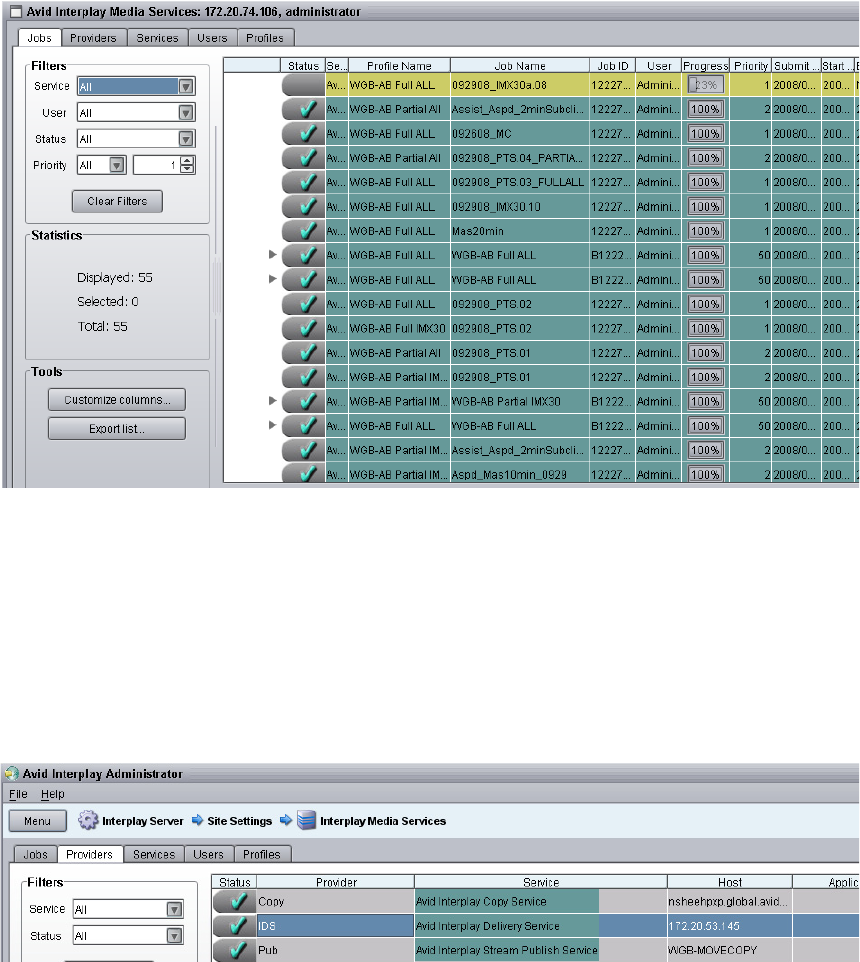
Viewing the Transfer Status
287
The illustration shows a transfer job in progress. The Jobs page displays the status and
other information about jobs submitted to the Media Services Engine. The dialog box
also lets you cancel or retry jobs, depending on your level of privilege.
5. (Option) Click the Providers tab.
The Providers tab displays information about systems that are running Media Services
provider software. It also lets you register and delete providers, depending on your level
of privilege. The following illustration shows an Avid Interplay Delivery provider that is
registered on the system.
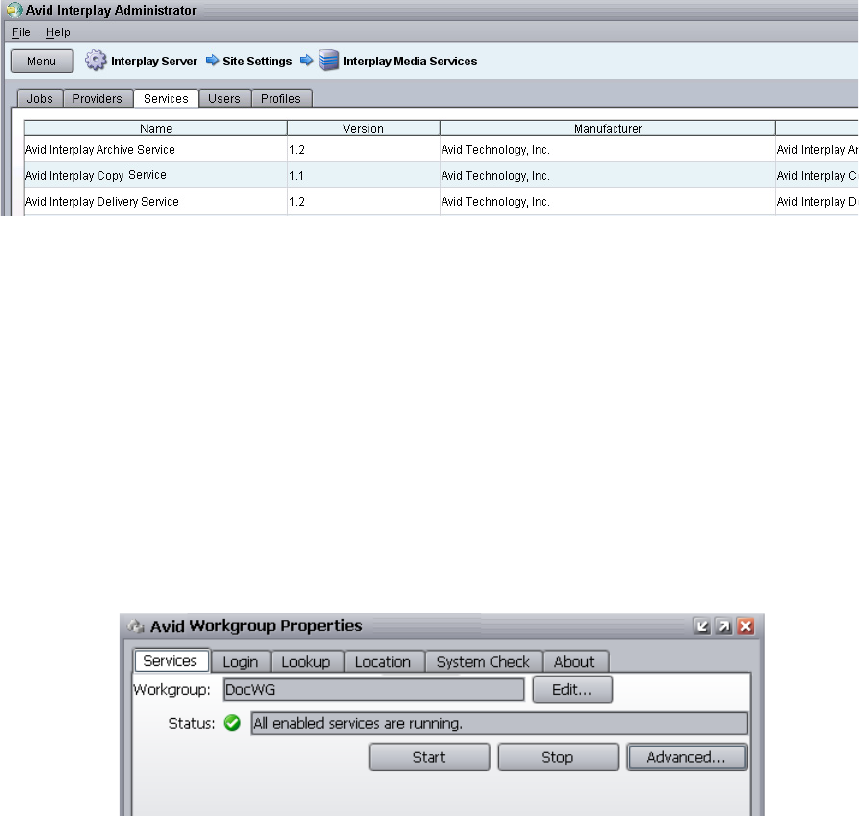
13 Working with the Delivery Service
288
6. (Option) Click the Services tab.
The Services tab displays a list of services and service information. It also lets you
install and delete services. The following illustration shows an Avid Interplay Delivery
service that is registered on the system.
Verifying the Delivery Receiver Service is Running
Using Avid Service Framework
You can use the Avid Service Framework services to check whether the Delivery Receiver
service is running and the health of the service.
To verify that the Delivery Receiver service is running:
1. Click Start and select Programs > Avid > Avid Service Framework > Avid
Workgroup Properties.
The Avid Workgroup Properties dialog box opens. The Status area indicates whether all
the Avid Service Framework services are running.
2. Click Advanced.
The Avid Services dialog box opens.
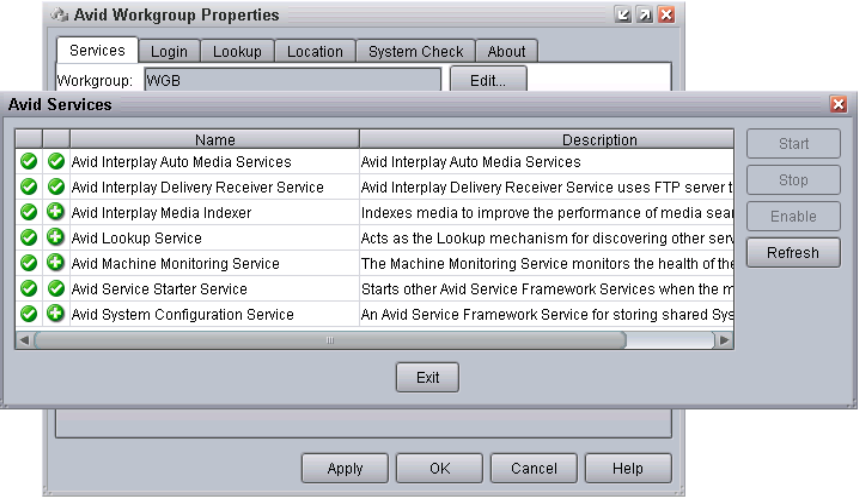
Monitoring the Health of the Interplay Delivery Receiver Service
289
3. If necessary, select Avid Interplay Delivery Receiver Service and click Start.
Monitoring the Health of the Interplay Delivery
Receiver Service
The Avid Health Monitor is an application that lets you view the health of your Avid system
at a glance. Health Monitor displays a variety of information provided by each of the
registered Avid components on your network and notifies you with a warning or critical
indication if a component goes beyond its normal operating range. Different Avid services
can supply custom health information tailored to their specific functions. For information
about the Avid Health Monitor, see the Avid Services Framework User’s Guide.
To monitor the Delivery Receiver service:
1. Click the Start button and select All Programs > Avid > Avid Service Framework > Avid
Health Monitor.
The Select Workgroup dialog box opens.
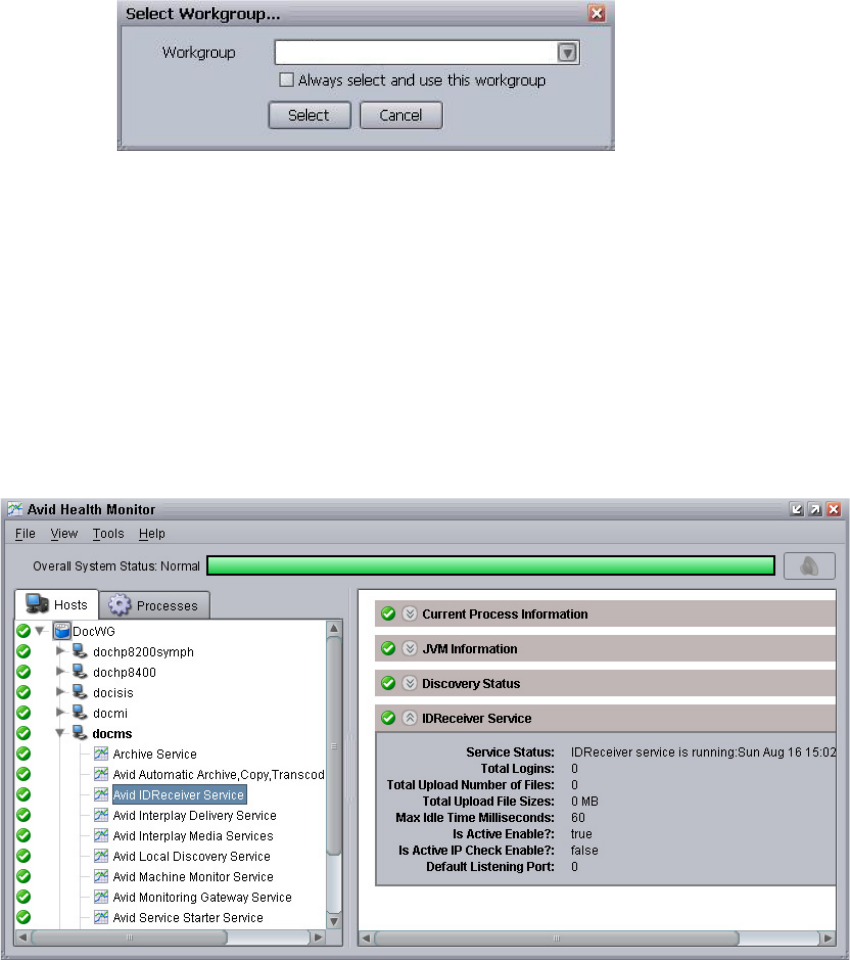
13 Working with the Delivery Service
290
2. Select a workgroup.
3. (Option) Select “Always select and use this workgroup.”
From now on, the Select Workgroup dialog box no longer opens when the application
starts.
4. Click Select.
The Avid Health Monitor window opens.
5. In the Directory pane, click Avid IDReceiver Service.
The Health View pane displays the system and health information for the selected Avid
IDReceiver Service.

14 Exporting and Transferring Long GOP
OP1a Media in the Background
The following topics describe how to set up and use the Interplay STP Encode service to
export and transfer Long GOP OP1a media:
•Understanding Long GOP OP1a Transfer
•Workflow for Background Processing of Long GOP Splicing and Transferring of Long
GOP OP1a Media
•Check List for Transferring Long GOP OP1a Media in the Background
•Installing and Registering the STP Encode Service Provider
•Starting the STP Encode Provider
•Connecting to the Media Services Engine From Interplay Assist and an Avid Editing
Application
•Performing a Send to Playback as a Background Process from Interplay Assist
•Performing a Send-to-Playback as a Background Process from an Avid Editing
Application
Understanding Long GOP OP1a Transfer
To perform background Long GOP splicing and transfers of Long GOP OP1a media, you
need the Interplay Transfer Engine and the Interplay Media Services applications. This
document provides a workflow and check list to help you set up your workgroup for
transferring Long GOP OP1a media as a background process.
The Avid Interplay STP Encode service lets you off load time-consuming processing
involved in exporting and transferring of Long GOP OP1a media, during a send-to-playback
request from the Avid editing application or Avid Interplay Assist.
The Interplay STP Encode service is only available in a workgroup environment.
You install and access the Interplay STP Encode service the same as you do with other
services available with the Interplay Media Services Engine.
14 Exporting and Transferring Long GOP OP1a Media in the Background
292
Workflow for Background Processing of Long
GOP Splicing and Transferring of Long GOP OP1a
Media
The Avid Interplay Best Practices document provides the Sony XDCAM HD and XDCAM
EX End-to-End workflow. This section explains the portion of that workflow that can be
handled by the Avid Interplay STP Encode service instead of the Avid editing application.
The STP Encode service provides background processing that off loads the time-consuming
processes involved in Long GOP OP1a exporting and transferring from an Avid editing
application. Before you can use the STP Encode service, the workgroup needs an FTP
Server profile and the STP Encode provider must be registered with the Interplay Media
Services Engine. For a list of setup requirements, see “Check List for Transferring Long
GOP OP1a Media in the Background” on page 295.
nIf an STP Encode service is not available, a send to playback request is handled in the
foreground by the Avid editing application.
Best practices for when to use the STP Encode service:
• Use foreground send to playback processing (no STP Encode service)—when sending
short or urgent sequences to a playback device
• Use STP Encode service for background processing—when sending long or non-urgent
sequences to a playback device
nPerforming the Long GOP splicing in the background might not improve on the time it takes
to run the process in the foreground. However, by using the background process, you can
continue to work with the Avid editing application for other tasks.
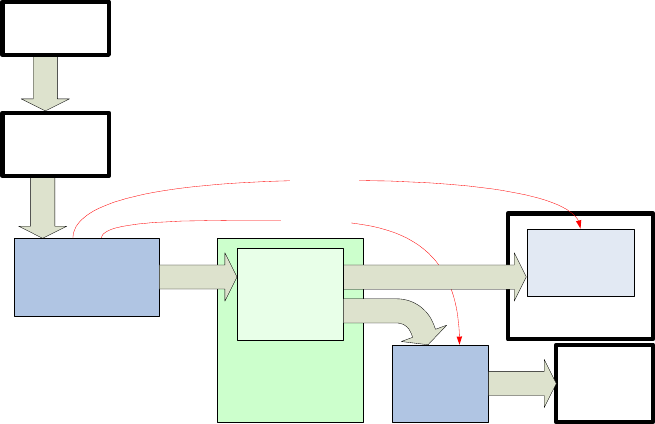
Workflow for Background Processing of Long GOP Splicing and Transferring of Long GOP OP1a Media
293
The following steps describe the workflow for playout through AirSpeed Multi Stream or a
supported third-party server:
• The editor selects a sequence in a bin and chooses the Send To Playback command.
• The editing application performs the following operations:
- If necessary, performs an audio mixdown.
- If the sequence contains any mixed resolutions, performs a transcode operation.
- Exports the metadata for the sequence composition as AAF file to shared storage in
a Temp folder.
- Submits an STP Encode service job for the sequence composition. The STP Encode
service exports the MXF OP1a media and sends the appropirate system request to
transfer it to the target playback device.
- All audio effects are pre-rendered by the Avid editing application before the
sequence is exported and transferred using the STP Encode service. The Interplay
STP Encode service can render real-time video effects. However, you have to
pre-render any static video effects before exporting the sequence as an STP Encode
job.
Editor or
Assist
XML metadata
Interplay STP Encode
Provider
ISIS
shared storage
AirSpeed
Multi Stream
Interplay
Transfer
Engine
third-party
server
MXF OP1A
MXF OP1A
MXF OP1A
XML metadata
FTP
Temporary
storage folder
Interplay
Transfer
Engine
MXF OP1A
Interplay
Media Services
Engine
Send to playback request
14 Exporting and Transferring Long GOP OP1a Media in the Background
294
• The Interplay STP Encode provider performs the following operations:
- Generates a temporary MXF OP1A clip and writes it to a Temp folder on shared
storage. The application automatically selects a Temp folder on the top level of the
workspace with the most free space.
- Sends an XML file describing the clip to an Interplay Transfer Engine. The XML
file contains the shared storage location and the target location.
• The Interplay Transfer Engine performs the following operations:
- Initiates an FTP transfer of the clip to the target location.
- Deletes the temporary clip from the shared storage system after the transfer is
complete.
For AirSpeed Multi Stream transfers, the Transfer Engine runs as a separate process on
the AirSpeed Multi Stream server. For third-party servers, a separate Transfer Engine
server is required.
The STP Encode provider writes the temporary file to a Temp folder at the top level of
the workspace with the most free storage space. Since the Interplay Administrator
typically configures Media Indexers to monitor only the Avid MediaFiles folder on a
workspace, the Media Indexer is not aware of the files in the Temp folder.
nIn general, you should make sure that your Media Indexers do not monitor entire
workspaces. They should point to the specific Avid MediaFiles folders that you want to
monitor.
After the Transfer Engine has finished the transfer, it deletes the clip from the Temp
folder on shared storage. In an AirSpeed Multi Stream Studio configuration, several
servers might need to transfer the same clip. In this case, the deletion of clips from the
temporary folder is coordinated between the servers in the configuration.
If the export operation fails, the applications delete the file from the Temp folder as
follows:
- If the operation fails during the export from the STP Encode provider, the STP
Encode provider deletes the file from the Temp folder.
- If the operation fails during the FTP transfer, the Interplay Transfer application
deletes the file from the Temp folder and displays the status in the Interplay
Transfer Status window.
For additional information, see the Avid Interplay Transfer Setup and User’s Guide.

Check List for Transferring Long GOP OP1a Media in the Background
295
Check List for Transferring Long GOP OP1a Media
in the Background
The following table provides a check list of steps for setting up a workgroup to perform
background processing of Long GOP OP1a media during a send to playback operation. The
check list provides references where to find more information about each step.
nYou must connect an application key to a USB port on the system where you install the Avid
Interplay STP Encode service.
Transferring Long GOP OP1a Media in the Background Check List
Task Section Reference
Check your workgroup configuration. See the Avid Interplay Best Practices
document.
Make sure the workgroup is configured with an Avid
Unity account with write access to at least one
shared-storage workspace.
See the Avid Interplay Software Installation
and Configuration Guide.
Make sure the Avid Interplay Transfer Engine
software is installed and configured to support the
transfer of Long GOP OP1a media.
See the Avid Interplay Transfer Setup and
User’s Guide.
Create an Avid Interplay Transfer Engine Long GOP
OP1a media profile using Server Type
OP1A_EXPORT or OP1A_EXPORT_K2.
See the Avid Interplay Transfer Setup and
User’s Guide.
Make sure the Interplay Media Services application
key is connected. If the Interplay STP Encode
provider is not running on the Interplay Media
Services Engine system, you must also connect an
application key to the Interplay STP Encode
provider system.
See the Avid Interplay Software Installation
and Configuration Guide.
Make sure the Interplay Media Services Engine
software and the supporting software are installed
and configured in the workgroup.
• Avid Service Framework for Client
• Avid Interplay Access
• Avid Interplay Media Services
• Avid Interplay STP Encode service
See the Avid Interplay Software Installation
and Configuration Guide and “Installing the
Interplay STP Encode Service Package” on
page 297.

14 Exporting and Transferring Long GOP OP1a Media in the Background
296
Make sure the supported client software is installed
on the Interplay STP Encode provider server.
• Avid Service Framework for Client
• Avid Interplay Access
• Avid Interplay Media Indexer
• Avid Interplay Transfer Client
See the Avid Interplay Software Installation
and Configuration Guide.
Install and register the Avid Interplay STP Encode
service provider.
See “Installing and Registering the STP
Encode Service Provider” on page 297.
Connect the Avid Interplay STP Encode provider to
the Media Services Engine.
See “Connecting the STP Encode Provider to
the Media Services Engine” on page 302.
Start the Interplay STP Encode service software and
verify it is connected.
See “Starting the STP Encode Provider” on
page 304.
Enable the Media Services Engine in Interplay
Assist and in the Avid editing application.
See “Connecting to the Media Services
Engine From Interplay Assist and an Avid
Editing Application” on page 305.
Perform a send to playback from an Avid Interplay
Assist.
See “Performing a Send to Playback as a
Background Process from Interplay Assist”
on page 307.
Perform a send to playback from an Avid editing
application.
See “Performing a Send-to-Playback as a
Background Process from an Avid Editing
Application” on page 309.
Transferring Long GOP OP1a Media in the Background Check List (Continued)
Task Section Reference
Installing and Registering the STP Encode Service Provider
297
Installing and Registering the STP Encode Service
Provider
Before you can use the STP Encode service provider, you must install the software needed
by the service from the Avid Interplay installation DVD. Then install the service description
in the Media Services Engine, register the provider, and start and connect the service.
These tasks are explained in the following topics:
•Installing the Interplay STP Encode Service Package
•Registering the Interplay STP Encode Provider
•Connecting the STP Encode Provider to the Media Services Engine
Installing the Interplay STP Encode Service Package
You use the Media Services and Transfer Status tool to install the STP Encode service
description. For more information, see “Understanding Service Descriptions and Service
Packages” on page 61.
You only need to install a service description once, even if you configure muliple providers.
To install the Interplay STP Encode service description:
1. Make sure the STP Encode service provider software is installed.
2. Open the Media Services and Transfer Status tool and log in as administrator, as
described in “Opening the Media Services and Transfer Status Tool” on page 37.
3. Click the Services tab.
The Services page displays the currently configured services.
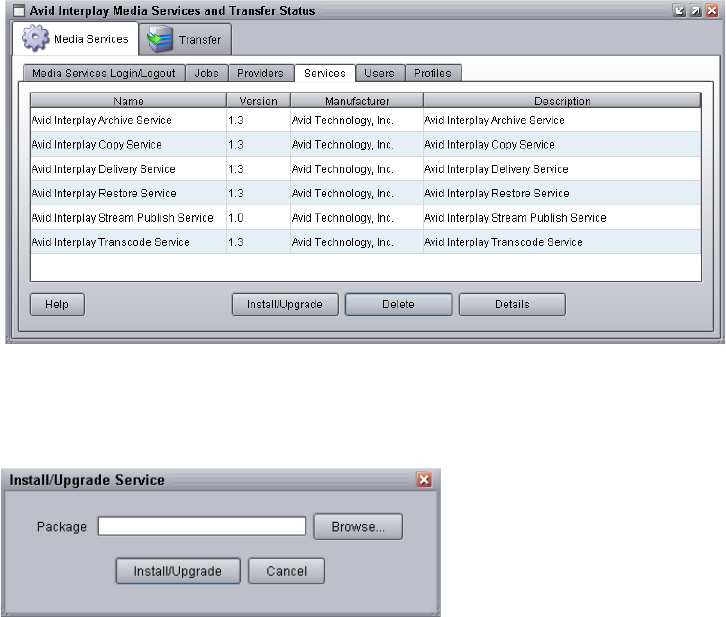
14 Exporting and Transferring Long GOP OP1a Media in the Background
298
4. Click the Install/Upgrade button.
The Install/Upgrade Service dialog box opens.
5. Click the Browse button and navigate to the folder containing the STP Encode service
package (LongGOPExport.zip). Make sure you have access to the folder. By default the
service package is installed in the following folder:
C:\Program Files\Avid\Avid Interplay STP Encode folder.
You can use the Microsoft Windows Search tool to help you locate the folder that
contains the LongGOPExport.zip file.
6. In the folder, select the LongGOPExport.zip file.
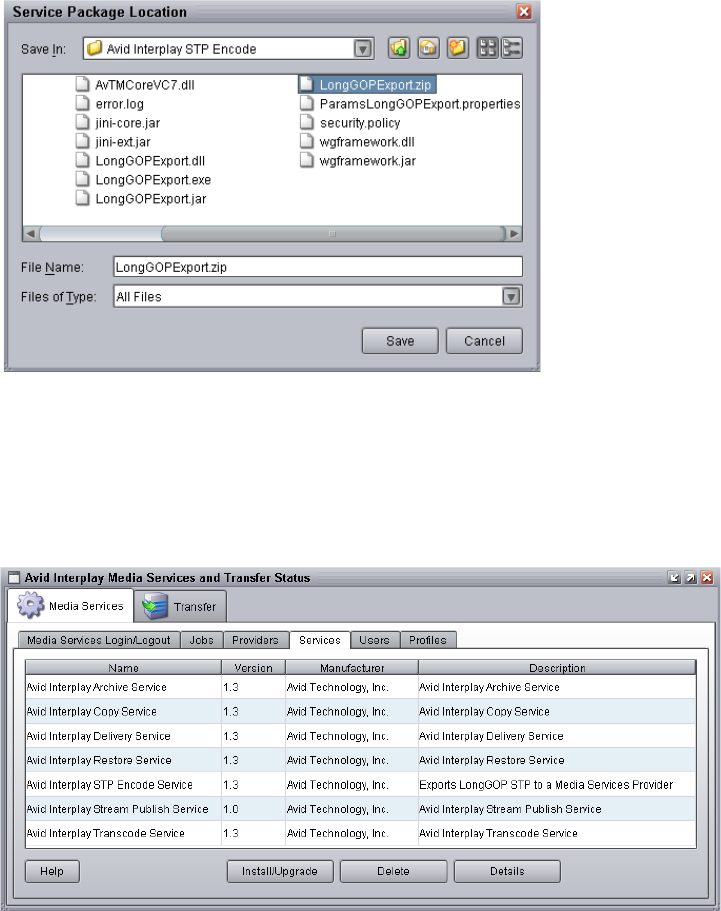
Installing and Registering the STP Encode Service Provider
299
7. Click Save.
The path to the file appears in the Install/Upgrade Service dialog box.
8. Click Install/Upgrade.
The Avid Interplay STP Encode Service appears on the Services page.
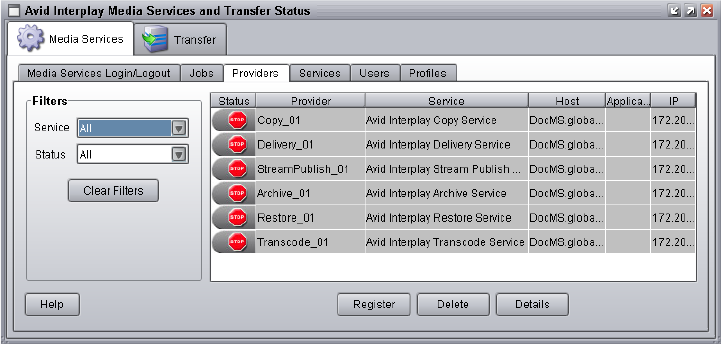
14 Exporting and Transferring Long GOP OP1a Media in the Background
300
Registering the Interplay STP Encode Provider
After you install the Interplay STP Encode service provider, you need to register the STP
Encode provider with the Media Services Engine. If you are configuring multiple providers,
you need to register each provider.
The Provider page on the Media Services and Transfer Status tool is used to register a
provider for a particular service. The provider receives information about jobs and supplies
the Media Services Engine with information about the provider, job status, and other
information depending on the service. In some cases it passes the information to other
applications..
To register the STP Encode provider with the Media Services Engine:
1. Open and log in to the Media Services and Transfer Status tool. See “Opening the
Media Services and Transfer Status Tool” on page 37.
2. Click the Providers tab.
The Providers page displays all of the currently registered providers.
3. Click Register.
The Register Provider dialog box opens.
4. Do the following:
a. Service menu — select Avid Interplay STP Encode Service
b. Provider Name — Type the name that you want to use to identify this particular
provider. You can have several providers on your workgroup for the same service,
so you should use a meaningful name.
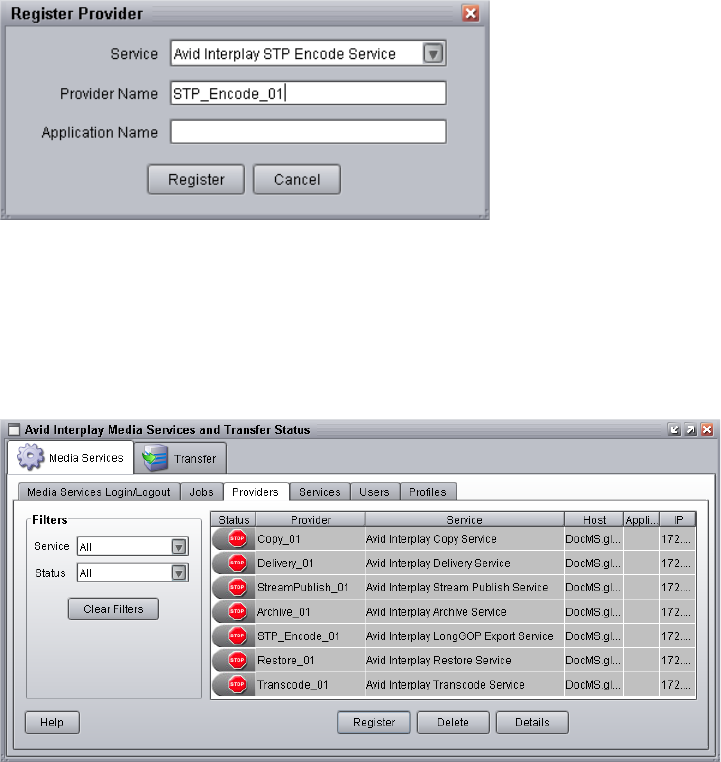
Installing and Registering the STP Encode Service Provider
301
c. Application Name — For future use. Leave this text box blank.
The following illustration shows the Register Provider dialog box with the values filled
in for a Interplay STP Encode Service.
5. Click Register.
The STP Encode provider appears in the Providers page. If the service is not connected
to the Media Services Engine, a Stop icon is displayed in the Status column. In this case,
you must connect the provider to the Media Services Engine software. See “Connecting
the STP Encode Provider to the Media Services Engine” on page 302.
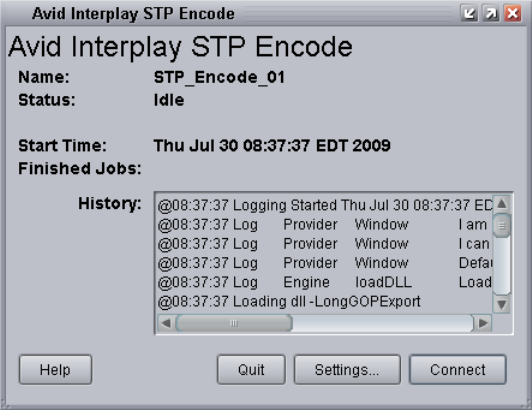
14 Exporting and Transferring Long GOP OP1a Media in the Background
302
Connecting the STP Encode Provider to the Media Services Engine
After you install the STP Encode service and register the STP Encodeprovider, you need to
connect the provider to the Interplay Media Services Engine software.
To connect the STP Encode Provider to the Media Services Engine:
1. Click Start and select Programs > Avid > Avid Interplay STP Encode.
The Avid Interplay STP Encode service provider dialog box opens.
2. Click Settings.
The Provider Settings dialog box opens.
3. Do the following:
a. Provider Name — Type the name of the provider you specified in “Registering the
Interplay STP Encode Provider” on page 300. In this example, the name is
STP_Encode_01.
b. Media Services Engine Host Name — Type the name of the system running the
Media Services Engine application.
c. Automatically Connect — Select either Yes or No (default) to automatically
connect to the Media Services Engine when the application starts.
The following illustration shows an example of the Provider Settings dialog box with
the values filled in for the STP Encode provider service.
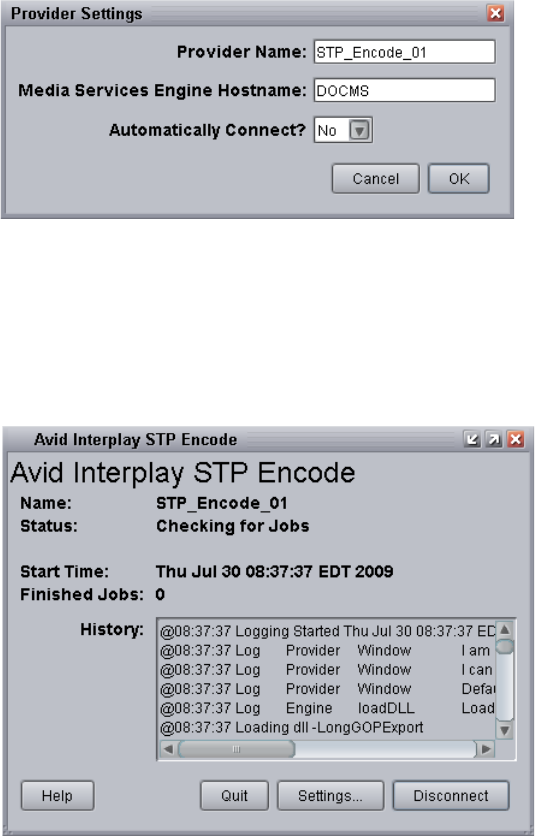
Installing and Registering the STP Encode Service Provider
303
4. Click OK.
5. Click Connect in the Avid Interplay STP Encode dialog box.
The Avid Interplay STP Encode dialog box now shows that the service is connected and
shows the provider you selected to connect to. This example shows STP_ Encode_01 as
the provider.
The Provider page in the Media Services and Transfer Status tool now shows that the
service is connected, indicated by a check mark in the Status column.
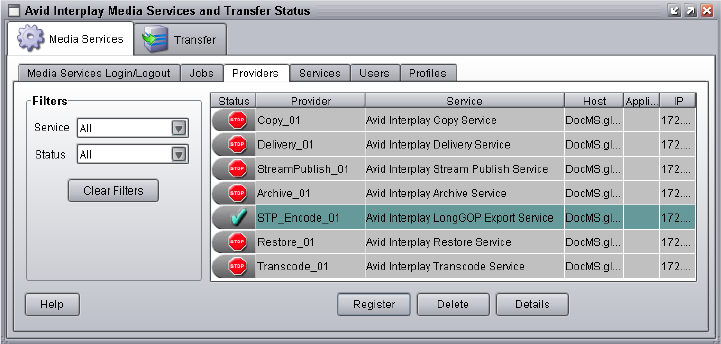
14 Exporting and Transferring Long GOP OP1a Media in the Background
304
Starting the STP Encode Provider
To start the STP Encode service provider:
1. Click Start and select Programs > Avid > Avid Interplay STP Encode.
Depending on the service settings, one of the following happens:
- Automatically Connect—Yes, the service dialog box opens for the service you
selected and is connected to the service.
- Automatically Connect—No, the service dialog box opens for the service you
selected and displays Idle. Click the Connect button to connect to the service.
nThe service provider dialog box displays the start date and start time of the providers based
on the Microsoft® Windows® time.
After the connection is made, the Status line in the service dialog box reads “Checking
for Jobs,” and the History window displays the message “Connection Established.” The
Connect button changes to a Disconnect button.
The following example shows the Avid Interplay STP Encode provider dialog box as
connected.
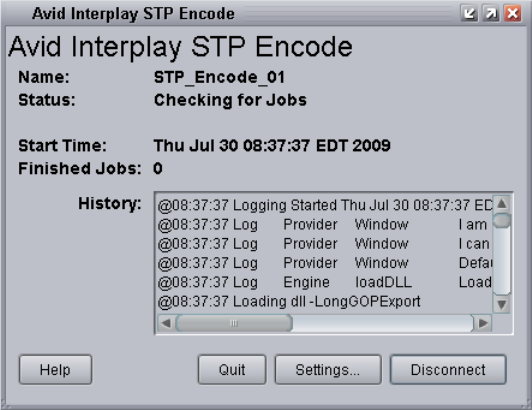
Connecting to the Media Services Engine From Interplay Assist and an Avid Editing Application
305
nIf the provider cannot connect to the Media Services Engine, the Status line reads
“Connection Error.” Ensure the Media Services Engine is running, the service description is
installed, the provider is properly registered, and then click Connect again.
Connecting to the Media Services Engine From
Interplay Assist and an Avid Editing Application
You can enable and specify your Interplay Media Services settings and whether you want to
send a confirmation e-mail message after the clip is successfully sent to the playback device.
•Connecting to the Media Services Engine from Interplay Assist
•Connecting to the Media Services Engine from an Avid Editing Application
Connecting to the Media Services Engine from Interplay Assist
To enable Media Services in Interplay Assist:
1. In the Interplay Assist, click File > Media Services Settings.
The Media Services Settings dialog box opens.
2. Select Enable Media Services.
3. In the Broker text box, type the host name of the Media Services engine server.
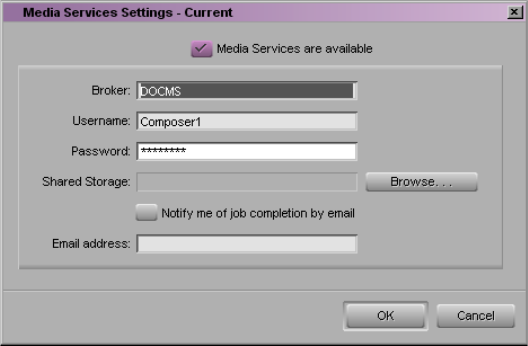
14 Exporting and Transferring Long GOP OP1a Media in the Background
306
4. To receive a confirmation e-mail, select Email Notification, and then type your complete
e-mail address.
You can specify only one e-mail address.
5. Click OK.
Connecting to the Media Services Engine from an Avid Editing
Application
To connect to the Media Services Engine:
1. In the Avid editing application, select Media Services from the Settings list.
The Media Services Settings dialog box opens.
2. Fill in the following sections:
- Select the “Media Services are Available” option.
- Broker — Type the name of the system running the Media Services Engine.
- Type your user name and password. This user name can be one set up explicitly in
Media Services Engine by the Media Services administrator. It can also be any valid
Avid Interplay user name. For example, you can use the same user name and
password that you use to connect to the Interplay Window.
- Shared Storage — Leave this field blank. This setting is only used for setting up
Avid Interplay ProEncode.
- Email address — You can use this option if your Media Services Engine is set up
for e-mail notification.
3. Click OK.
Performing a Send to Playback as a Background Process from Interplay Assist
307
Performing a Send to Playback as a Background
Process from Interplay Assist
Workgroups configured with the Avid Interplay STP Encode provider can use the provider
to perform send to playback operations of Long GOP OP1a media in the background. The
procedure in this section covers performing a send to playback from Avid Interplay Assist.
Before you start the send to playback operation, make sure that your installation meets the
requirements described in “Check List for Transferring Long GOP OP1a Media in the
Background” on page 295.
To send assets and media files for playback using Interplay Assist:
1. Make sure the Media Services engine is running.
2. Make sure Interplay Assist is configured with the Media Services engine. See
“Connecting to the Media Services Engine from Interplay Assist” on page 305.
3. Select the asset or assets whose media files you want to send to the playback server.
4. Do one of the following:
tSelect File > Interplay Transfer > Send Shotlist to Playback > profile name
tSelect File > Interplay Transfer > Send Source to Playback > profile name
The Send to Playback dialog box opens.
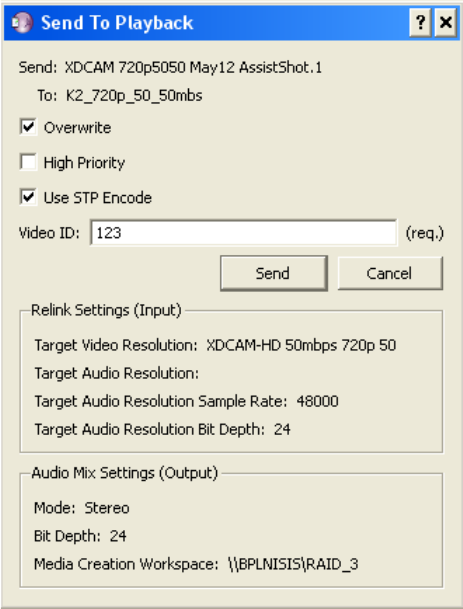
14 Exporting and Transferring Long GOP OP1a Media in the Background
308
5. Do the following:
t(Option) Select Overwrite, to overwrite the videoID name in the Interplay Transfer
if the same name exists.
t(Option) Select High Priority, if you want to send the sequence as a high-priority.
tSelect Use STP Encode to use the STP Encode provider for processing the send to
playback operation.
nFor the Background Export option to display in the Send to Playback dialog box, you must
select a LongGOP OP1A profile, the Media Services engine must be running, and the Media
Services configuration set in Assist.
tType a Video ID name.
6. Click Send.
The system immediately starts the send to playback operation. If Interplay Access is
installed on the editing system, you can track the status of the job by opening Interplay
Access, selecting Tools > Interplay Media Services Status, and clicking the Jobs tab.
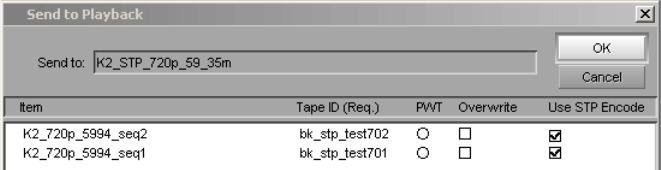
Performing a Send-to-Playback as a Background Process from an Avid Editing Application
309
Performing a Send-to-Playback as a Background
Process from an Avid Editing Application
Depending on your workgroup configuration, the send to playback operation of Long GOP
OP1a media can run in the background allowing the Avid editing system to perform other
tasks. The workgroup must have an Avid Interplay STP Encode service installed. For
information about setting up a workgroup for background processing of send-to-playback
requests, see “Check List for Transferring Long GOP OP1a Media in the Background” on
page 295.
To send assets and media files for playback using an Avid editing application:
1. Make sure the Media Services Engine and Avid Interplay STP Encode service are
running. See “Connecting to the Media Services Engine from an Avid Editing
Application” on page 306.
2. In the Avid editing application bin, select the asset or assets whose media files you want
to send to the playback server.
3. Select Transfer > Send To Playback, and select the profile for the server to which you
want to send the sequence.
The Send to Playback dialog box opens.
14 Exporting and Transferring Long GOP OP1a Media in the Background
310
4. Do the following:
tType a tape ID name.
t(Option) Select PWT (Play While Transferring), if you want to send the sequence as
a high-priority.
t(Option) Select Overwrite, to overwrite the tape ID name in the Interplay Transfer if
the same name exists.
tSelect Use STP Encode to use the STP Encode provider for processing the
send-to-playback operation.
The system immediately starts the send to playback operation. If Interplay Access is
installed on the Avid editing system, you can track the status of the job by opening
Interplay Access, selecting Tools > Interplay Media Services Status, and clicking the
Jobs tab.
5. Click OK.

15 Working with the ProEncode Service
The following topics explain how to set up and use the Avid Interplay ProEncode provider
and how to use encoding applications to automate media encoding and transcoding of
streaming, broadcast, and production formats:
•Understanding ProEncode
•Check List for Using ProEncode
•Setting Up ProEncode Client and Providers
•Configuring the ProEncode Provider
•Creating an Interplay ProEncode Provider Profile
•Setting Up a ProEncode Client
•Encoding a Clip or a Sequence
•Monitoring the Encoding
•ProEncode Provider Post-to-Web
Understanding ProEncode
Today’s production houses face an increasing demand for translating media into formats
suitable for distribution via the Web, DVD, and CD-ROM — often at the same time.
ProEncode software automates this computing-intensive process and lets you move the
encoding operation to dedicated workstations. These workstations, connected in a network
and working simultaneously, serve as your “encoding farm.” Distributing the encoding frees
the editing workstations to perform other tasks.
You can use Interplay Media Services and Interplay ProEncode to send a sequence from
your video editing system to multiple encoding workstations, which then simultaneously
create a QuickTime movie, an MPEG-2 movie, and any other formats available from the
encoding application. While these workstations are encoding, you can work on your next
video editing sequence.
The Avid Interplay ProEncode provider accepts the job from the Media Services Engine and
passes the information about the sequence to the encoding software. The provider monitors
the progress of the encoding operation and reports the progress to the Media Services

15 Working with the ProEncode Service
312
Engine. When the job is complete, the Interplay ProEncode provider copies the new files to
the proper location and notifies the Media Services Engine that the job is complete. You can
monitor the job using the Media Services and Transfer Status tool.
For example, an Avid Interplay ProEncode provider runs on a system containing encoding
software such as Anystream™Agility™ Workgroup™. ProEncode uses the encoding software
to transform media into different formats that are suitable for delivery on the Web, DVD, or
CD-ROM.
In a typical scenario, an Avid editor would send a sequence to the Media Services Engine
using the File > Send to > Encoding > Avid Interplay ProEncode command. This tells the
Media Services Engine that the editor wants to send the selected sequence to ProEncode for
processing.
Check List for Using ProEncode
For the encoding process, the following table provides a check list of steps for installing and
configuring the Interplay Media Services system in an Avid Unity environment. The check
list also provides references where to find more information about each step. For additional
information about installing encoding software, see “Installing Encoding Applications” on
page 339.
ProEncode Check List
Task Section Reference
Check your configuration. See “Configuration Requirements” on page 27 and
the Avid Interplay Best Practices.
Make sure the Interplay Media Services
application key is connected to the Media
Services server.
.
Install the Avid Service Framework for Client
software.
See the Avid Interplay Software Installation and
Configuration Guide.
Install the Avid Interplay Access software. See the Avid Interplay Software Installation and
Configuration Guide.
Install the encoding software. See “Installing Encoding Applications” on
page 339.
Install the Interplay Media Services Engine
software.
See “Interplay Media Services Engine Installation
and Configuration” on page 29.

Check List for Using ProEncode
313
Install the ProEncode provider software. See “Interplay Media Services Engine Installation
and Configuration” on page 29.
Make sure an Interplay Media Services
administrator account is setup on Avid Unity.
See the Avid Interplay Software Installation and
Configuration Guide.
Mount workspaces. See Avid Interplay Best Practices.
Register the Interplay Media Services Engine
in a workgroup.
See “Registering the Media Services Engine in an
Avid Interplay Workgroup” on page 30.
Set e-mail notification for the Media Services
Engine and let the Avid Interplay
Administrator authenticate users during login.
See “Configuring the Media Services Engine” on
page 33.
Install the ProEncode service description. See “Installing a Service Description” on page 62.
Register the ProEncode provider. See “Registering the Provider” on page 65.
Connect the Provider to the Service. See “Connecting a Provider to the Media Services
Engine” on page 67.
Start the ProEncode Service software. See “Starting the Service Provider” on page 70.
Verify the ProEncode service is connected. See “Verifying That a Service Provider Is
Connected” on page 71.
Create a profile. See “Creating an Interplay ProEncode Provider
Profile” on page 316.
Install Avid Interplay ProEncode Client. See “Setting Up a ProEncode Client” on page 318.
Perform an encode. See “Working with the ProEncode Service” on
page 311.
ProEncode Check List (Continued)
Task Section Reference
15 Working with the ProEncode Service
314
Setting Up ProEncode Client and Providers
You need to install and configure ProEncode as follows:
• Install the ProEncode provider software on the encoding system. You must install the
encoding software before you install the ProEncode provider. See “Installing Encoding
Applications” on page 339.
• Install the ProEncode service and register the ProEncode provider. See “Installing
Services and Registering Providers” on page 61.
nYou must install the service from the Interplay Media Services server, and not from a remote
system. This allows the appropriate files that are needed for communication through port
8080 and http to be placed on the Interplay Media Services server.
• Configure the ProEncode provider. See “Configuring the ProEncode Provider” on
page 314.
• Set up the ProEncode client on the Avid editing system as described in “Setting Up a
ProEncode Client” on page 318.
Configuring the ProEncode Provider
After you register the ProEncode provider software, you must configure the ProEncode
provider.
ProEncode requires the following:
• The ProEncode provider must be installed on each system that runs the encoding
software.
• The ProEncode Client must be installed on each system that sends jobs to the
ProEncode provider.
To configure the ProEncode provider:
1. Ensure the Interplay Media Services Engine is running as described in “Starting the
Interplay Media Services Engine” on page 36.
2. Ensure the Interplay Media Services Engine is running.
3. Click the Start button, and select Programs > Avid > Avid Interplay ProEncode Provider.
If this is the first time the ProEncode provider has been opened, the Welcome to the
ProEncode Provider message appears.
4. Click OK.
The Provider Settings dialog box opens.
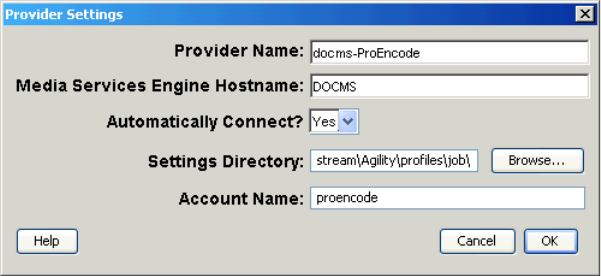
Configuring the ProEncode Provider
315
5. Specify the settings for the provider.
See “ProEncode Provider Settings” on page 316.
6. Click OK to apply the settings and close the Provider Settings dialog box.
7. In the ProEncode Provider window, click Connect to connect the provider to the Media
Services. If you selected Yes for Automatically Connect in the Provider Settings dialog
box, the provider connects automatically to the Media Services.
8. Leave the ProEncode Provider window open.
After the connection is made, the Status line in the ProEncode Provider window reads
“Checking for Jobs,” and the History window displays the message “Connection
Established.” The Connect button changes to a Disconnect button.
nIf the provider cannot connect to the Media Services, the Status line reads “Connection
Error.” Ensure the Media Services Engine is running, the service is installed, the provider is
properly registered, and then click Connect again.
To set up other encoders, see “Registering the Provider” on page 65.

15 Working with the ProEncode Service
316
ProEncode Provider Settings
The following table describes the options in the Provider Settings dialog box.
Creating an Interplay ProEncode Provider Profile
You can create a profile to use when performing a ProEncode operation. The ProEncode
profile is available from the Transcode menu when you right-click an Avid asset.
nCurrently, there are no profile settings available for ProEncode operations. The settings
displayed in the Parameters area are not used. However, you must create a ProEncode
profile to use when accessing the ProEncode from a client.
Setting Description
Provider Name Type the provider name that you supplied when you registered the provider. If you need
to change the provider name, you can type the new name here, but you also need to
change it and reregister the provider. For more information, see “Registering the
Provider” on page 65.
Media Services Engine
Hostname
Type the name of the Media Services computer as shown in the Avid Interplay Media
Services window.
Automatically Connect Select Yes to connect to the Interplay Media Services whenever the provider software is
started. If you select No, you need to connect the provider before you can use
ProEncode.
Settings Directory Type the correct encoding application settings folder. This location is different for every
encoding application.
For Anystream Agility Workgroup:
<install path>\Program Files\Anystream\Agility Workgroup\Profiles\job
For Telestream FlipFactory™:
<Flip Server>:1099
You can also use the following because the FlipFactory application is installed on the
same system as the ProEncode provider:
localhost:1099
Account Name By default this is “proencode.” Do not change this value. This notifies the encoding
application that it is a system enabled for ProEncode.
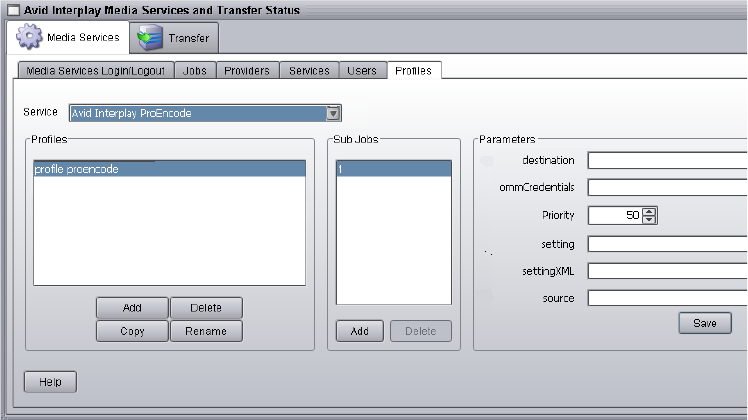
Creating an Interplay ProEncode Provider Profile
317
To create a ProEncode profile:
1. Open and log in to the Media Services and Transfer Status tool:
tFrom the Avid Interplay Media Services window, click Admin Tool.
tFrom the Avid Interplay Administrator, in the Site Settings area, click the Interplay
Media Services icon.
nWhen you open the Media Services and Transfer Status tool from the Avid Interplay
Administrator, the name is “Interplay Media Services.”
2. Click the Profiles tab.
3. In the Service menu, select Avid Interplay ProEncode Service.
4. Click Add in the Profiles area.
The Add Profile dialog box opens.
5. Type a name for the profile and click OK.
The name appears in the Profiles list and an empty template appears in the
Parameters area.
6. Click Save in the Parameters area.
15 Working with the ProEncode Service
318
Setting Up a ProEncode Client
You typically set up a ProEncode client on an Avid editing system. However, you can set up
a standalone client as well. For information, see “Setting up a Standalone ProEncode Client”
on page 320.
Setting up a ProEncode Client on an Avid editing system requires the following procedures:
•Installing the ProEncode Client Software
•Configuring a ProEncode Client on an Avid Editing Application
Installing the ProEncode Client Software
If you need information on setting up Domain names (DNS names) on your system, see
“Additional Installation and Configuration Information” on page 370.
To install the ProEncode client software:
1. On the Avid editing system, insert the Avid Interplay Installation DVD into the DVD
drive.
The Main Menu window opens.
2. Click Clients and then click Avid Editor Support.
The Avid Editor Support window opens.
3. Click Avid Interplay ProEncode Client.
4. Follow the instructions in the installation program.
5. When the installation is complete, click Exit.
Configuring a ProEncode Client on an Avid Editing Application
The ProEncode Client installation program enables access to a ProEncode Client applet that
is hosted by the Media Services Engine. An applet is a Java™ application that only runs in a
browser window. The ProEncode Client applet uses the settings from the Media Services
Settings dialog box in your Avid editing application Settings list. The applet can run
independently from the Avid editing system.
ProEncode Client software includes optional settings that you can specify according to your
work needs. If necessary, you can override these optional settings in the Add Jobs dialog box
(see “Sending a Clip or Sequence to ProEncode from an Avid Editing Application” on
page 321).
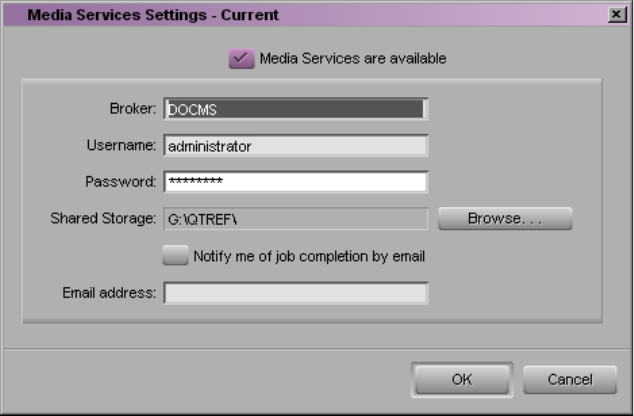
Setting Up a ProEncode Client
319
To configure a ProEncode Client on an Avid editing system:
1. In the Avid editing application, select Media Services from the Settings list.
nIf you are working with an older project, select DMS to open the Media Services Settings
dialog box.
The Media Services Settings dialog box opens.
2. Select the options as follows:
tSelect the “Media Services are available” option to make sure you are connected to
the Media Services Engine. You can deselect this option to disconnect without
losing your setting information.
tType the name of the system running the Interplay Media Services Engine in the
Broker text box. The system name appears in the Avid Interplay Media Services
window.
tType your user name and password. This user name can be one set up explicitly in
Media Services Engine by the Media Services administrator. It can also be any valid
Avid Interplay user name. For example, you can use the same user name and
password that you use to connect to the Interplay Window. You must be a registered
Media Services user to submit jobs.
15 Working with the ProEncode Service
320
tNavigate to a Shared Storage location where you intend to save the QuickTime
reference movie files that are created during a Send to ProEncode. You can click the
Browse button to locate the directory.
In an Avid Unity environment, this folder needs to be in a workspace that the
encoders can access. This is also the default location for the encoded output file
from the encoding application, if you do not define a different destination path from
within the ProEncode Client.
nYou might find it convenient to create a separate folder for each ProEncode client. Separate
folders will make it easy for each Avid editor to locate their processed movies.
nYou might want to create a dedicated workspace on your Avid Unity shared storage system
for these QuickTime Reference movies. This makes it easier to delete the files when
necessary.
tType your e-mail address if your Media Services Engine is set up for e-mail
notification. See “Configuring the Media Services Engine” on page 33.
3. Click OK.
Setting up a Standalone ProEncode Client
You usually configure a ProEncode client to be used from within an Avid editing
application. However, you can configure a standalone client as well. In this scenario, you
would export QuickTime Reference movies from your Avid editing application and then use
the standalone client to process them at a later time. To set up a standalone client, install the
software on the client system and use the procedure described in “Adding a File to
ProEncode” on page 326.
Encoding a Clip or a Sequence
There are two methods for encoding a clip or sequence:
• Select the clip or sequence within an Avid editing application, and send it to ProEncode.
See “Sending a Clip or Sequence to ProEncode from an Avid Editing Application” on
page 321.
• Export a QuickTime Reference movie or any other file that the encoding application can
process, and add it to ProEncode. See “Adding a File to ProEncode” on page 326.
Encoding a Clip or a Sequence
321
Sharing Folders in an Avid Unity Environment
When you are working in an Avid Unity environment, the media for the clip or sequence that
you are encoding needs to be on a mounted workspace. This workspace needs to be shared
by the client and the encoder. Media that is on a local drive cannot be used.
Sending a Clip or Sequence to ProEncode from an Avid Editing
Application
To send a clip or sequence to ProEncode:
1. Check the following:
tMake sure the Media Services Engine is running. See “Starting the Interplay Media
Services Engine” on page 36.
tMake sure the ProEncode provider software is running on the encoders system that
you want to use. See “Verifying That a Service Provider Is Connected” on page 71.
nYou can submit jobs to the Media Services Engine even if no encoders are available. The
Media Services Engine assigns the jobs when one or more encoders become available.
However, you cannot select a specific provider.
2. In your Avid editing application, select the clip or sequence in one of the following
ways:
tClick the clip or sequence in a bin.
tClick in the Timeline.
tClick the monitor that displays the clip or sequence you want to export.
nProEncode export does not recognize IN and OUT points in the sequence.
3. Select File > Media Services > ProEncode.
The Add Jobs dialog box opens.
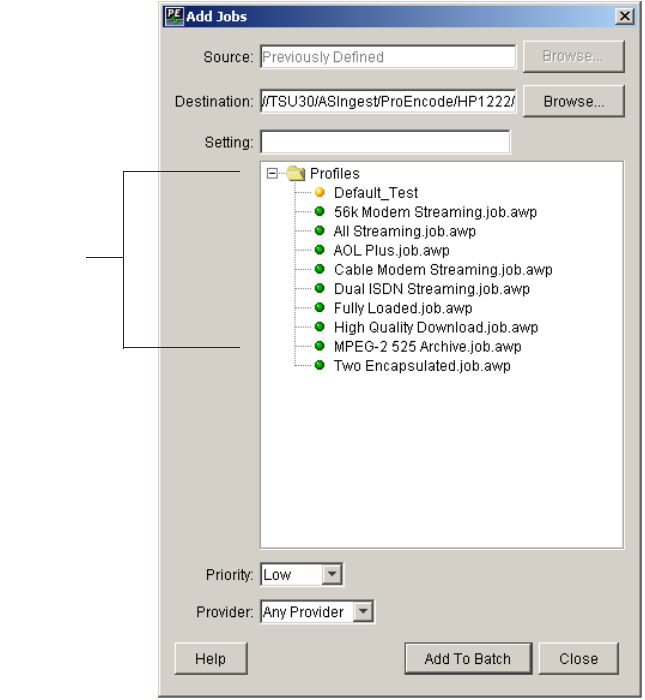
15 Working with the ProEncode Service
322
nWhen you send a job from an Avid editing application through Media Services, the Source
field is not available because the Media Services Engine takes the clip or sequence name
and the path from the source area you specify in the Media Services Settings dialog box and
from the Export dialog box. (The Export dialog box appears at the end of this procedure.)
The Destination text box contains the shared storage location that you specified in the
Media Services Settings dialog box. This identifies the folder that will hold the encoded
movie.
nYou might find it useful to create a separate folder for each ProEncode client to make it
easier to keep track of the movies each editor creates.
Profiles list
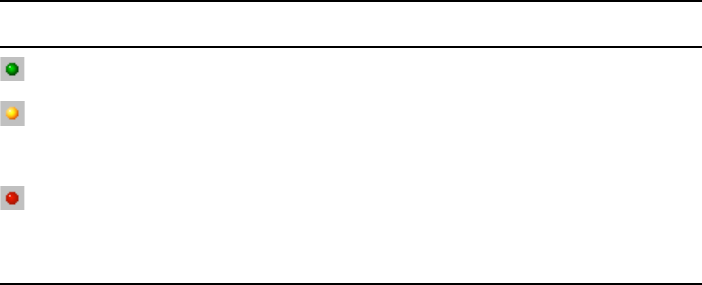
Encoding a Clip or a Sequence
323
4. Select the following parameters for the job:
a. Select a setting from the Settings list.
This list includes all encoding application settings that have been registered with the
Engine, organized by folder. Double-click the Folder icon to view the individual
settings within the folder.
Each setting is preceded by a colored Signal icon as described in the following
table.
Click Browse if you want to find and select a setting that is not currently registered
with the Media Services Engine. For example, if you created a custom setting by
using Anystream Agility Workgroup on the client, you can send that setting file
along with the job to a particular encoder.
nFor a description of the settings that are available with your system, see the Anystream
Agility Workgroup or Telestream FlipFactory documentation.
b. Click the Priority menu, and select a priority for this job.
If there are multiple jobs, the priority determines which jobs are processed first.
c. (Option) Click the Provider menu, and select a specific ProEncode provider for this
job.
Selecting a provider might be necessary if you are sending a custom setting with the
job. You can also use this setting to override whatever assignment the Media
Services Engine would have made.
5. After you have selected the parameters, click Add To Batch.
The job is added to the current batch. You can now add another job to the batch. In most
cases, you would use the same QuickTime reference movie with different profile
parameters.
Color Meaning
Green A provider that can use this setting is online.
Amber At least one provider can use this setting, but it is not online. You
can submit a job, which will be processed when a provider that can
use the setting becomes available.
Red No registered provider can use this setting. This situation might
occur if you create a custom setting on a provider and then delete
the provider. You can use the Media Services and Transfer Status
tool to delete the setting.
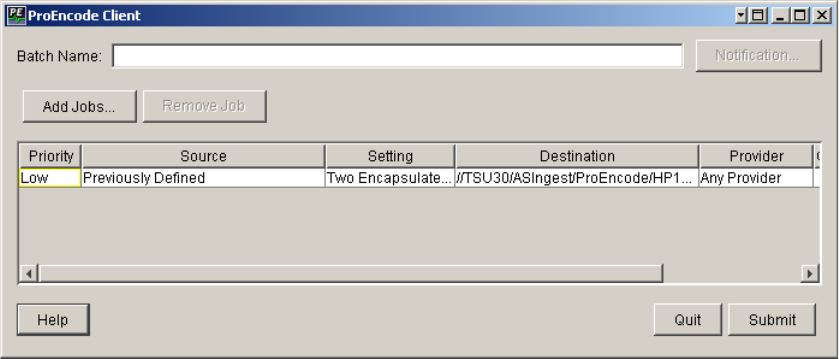
15 Working with the ProEncode Service
324
6. After you have added all jobs to your batch, click Close.
The Add Jobs dialog box closes, and the jobs are shown in the ProEncode Client
window, along with information about each job.
nWhen you send a job from an Avid editing application through Media Services, the Batch
name is not available and the Notification button is grayed out. The Media Services Engine
uses any notification information that you entered in the Media Services setting dialog box.
7. (Option) If you want to delete or change a job, do the following:
a. Select the job.
b. Click Remove Job.
c. You can then add the job again, using new parameters.
d. Click OK.
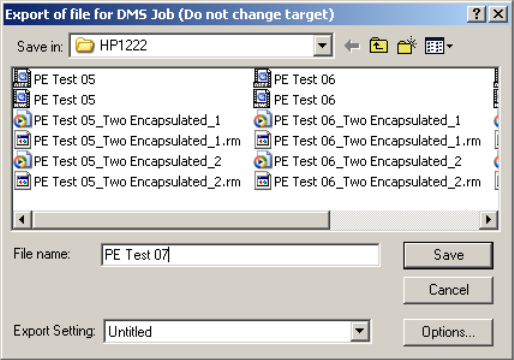
Encoding a Clip or a Sequence
325
8. Click Submit.
The Export of file for Media Services Job window dialog box opens.
This dialog box is provided solely to give you the opportunity to change the file name
before you submit the job. The Option button works but the options are disabled at this
point.
cDo not change the pathname in the Export dialog box. Use this dialog box only to
change the file name.
9. (Option) Change the name of the file if necessary.
10. Click Save.
The Avid editing system processes the sequence by rendering any unrendered effects,
creating files for audio media, and creating a QuickTime reference movie that points to
video and audio media.
The Client sends information about all jobs in the batch to the Media Services Engine,
which in turn assigns each job to a provider. The provider starts the encoding
application, which processes the job. The provider then sends information about the job
to the Media Services Engine. If you have chosen to receive a notification in the Media
Services Settings dialog box, the Media Services Engine sends a message to the Client.
15 Working with the ProEncode Service
326
Adding a File to ProEncode
You can use ProEncode to manage the encoding of any video or audio format that the
encoding application can process, such as QuickTime, AVI, or AIFF-C.
To create a QuickTime Reference movie:
1. In your Avid editing session, select the clip or sequence in one of the following ways:
tClick the clip or sequence in a bin.
tClick in the Timeline.
tClick the monitor that displays the clip or sequence you want to export.
2. Select File > Export.
3. Export your sequence as a QuickTime Reference movie. For information on creating a
QuickTime movie, see the Help in your Avid editing application. You can press F1 in
the Export As dialog box to open the appropriate Help topic.
To add a QuickTime Reference movie to ProEncode:
1. Make sure the QuickTime Reference movie and the associated media files are in a folder
that can be accessed by an encoder. For more information, see “Sharing Folders in an
Avid Unity Environment” on page 321.
2. You use the Media Services Engine to process the encoding request. Enter the following
text in your browser window, using the Media Services Engine name that you are
connected to:
http://<MediaServicesEngineName>:8080/ProEncodeApplet.html
nThe URL is case sensitive.
For example, if the Media Services Engine’s name is bpdms, use the following URL:
http://bpdms:8080/ProEncodeApplet.html
The Add Jobs dialog box opens.
nAfter you successfully connect to the ProEncode applet, you can create a shortcut by
dragging the Address icon in the browser window to your desktop.
3. Type the path of the source file in the Source text box, or click Browse and navigate to
the file.
4. Type the path of the Destination folder in the Destination text box, or click Browse and
navigate to the file.
5. Enter the remainder of the options for the Add Jobs dialog box as described in “Sending
a Clip or Sequence to ProEncode from an Avid Editing Application” on page 321.
Encoding a Clip or a Sequence
327
6. After you select the parameters, click Add to Batch. You can now add another job to the
batch. In most cases you would use the same QuickTime Reference movie with different
profile settings.
7. After you add all the jobs to your batch, click Close.
The Add Jobs dialog box closes, and the jobs are shown in the ProEncode Client
window. All the options for the ProEncode Client window are described in “Sending a
Clip or Sequence to ProEncode from an Avid Editing Application” on page 321, with
the exception of the following options:
a. Type a name in the Batch Name text box.
A batch name identifies the group of jobs for notification. The batch name appears
in any notification message sent by the Media Services Engine. Jobs are not
identified by batch in the Media Services and Transfer Status tool.
You can set a default batch name in the Client Settings dialog box (see “Configuring
a ProEncode Client on an Avid Editing Application” on page 318). If you don’t
name the batch, the Media Services and Transfer Status tool monitors the batch by
using an internally generated job ID.
b. (Option) If you want to be notified about the failure or completion of the jobs in this
batch, click Notification.
The Notification Settings dialog box opens.
Select the notification options you want. If you do not want to receive notification,
do not select either option.
8. Click OK.
9. Click Submit.
The ProEncode Client window closes and the Connect to Media Services Engine dialog
box opens.
10. Type your Media Services Engine user name and password, and click OK.
The Client sends information about all jobs in the batch to the Media Services Engine,
which in turn assigns each job to a provider. The provider starts the encoding
application, which processes the job. The provider then sends information about the job
to the Media Services Engine. If you chose to receive a notification, the Media Services
Engine sends a message to the Client.
15 Working with the ProEncode Service
328
Monitoring the Encoding
After you submit the batch to be encoded, you can monitor the jobs by using the following:
•Media Services and Transfer Status tool: The Media Services and Transfer Status tool
gives you the most information for monitoring and managing jobs. For complete
information, see “Using the Media Services and Transfer Status Tool” on page 37.
•Avid Interplay Media Services and ProEncode provider windows: Each window
includes a Status line and a History window. The History window includes information
that you can use for troubleshooting.
•Avid Interplay Access application: If you have the Interplay Access installed on your
system you can run the application and select Tools > Avid Interplay Media Services
Status to view the job progress.
nFor troubleshooting information, see “Troubleshooting” on page 363.
ProEncode Provider Post-to-Web
This section explains the requirements and configuration for using the ProEncode Provider
Post-to-Web feature. A check list is provided to help with the configuration and setup.
The following components are needed:
• Interplay Media Services Engine
• Interplay ProEncode Provider
• Interplay ProEncode Client
• Telestream FlipFactory
• Avid NewsCutter®
• NewsPoller
• Avid Active™ ContentManager
• Avid Unity ISIS®

ProEncode Provider Post-to-Web
329
Check List for ProEncode Provider Post-to-Web
The following table provides a check list of steps used to configure and perform ProEncode
Provider Post-to-Web.
Check List for ProEncode Post-to-Web
Task Document Reference
All systems — Install Avid Unity ISIS Client Manager and
activate the required workspace for reading and writing.
See the Avid Unity ISIS Client
Manager User’s Guide.
Set up Unity ISIS workspace folders:
• Create a workspace folder for holding NewsCutter exports.
• Create a workspace folder for holding Post-to-Web files.
nMake sure these folders are outside the range of Media
Indexer configured storage.
For example, Avid Media Indexer has storage configured
for \\ISIS\workspace1\Avid Mediafiles. The new folders
cannot be children of the Avid Mediafiles folder.
See the Avid NewsCutter products
documentation.
Install and set up Interplay Media Services Engine. See the Avid Interplay Media
Services help.
See “Interplay Media Services
Engine Installation and
Configuration” on page 29.
Install the Interplay ProEncode provider software on the Media
Services server.
See the Avid Interplay Media
Services help.
See “Interplay Media Services
Engine Installation and
Configuration” on page 29.
Install ProEncode Provider using the Avid Interplay Media
Services and Transfer Status tool.
nYou must access the Avid Interplay Media Services and
Transfer Status tool from the Interplay Media Services
server, and not from a remote system.
See the Avid Interplay Media
Services help.
See “Installing a Service
Description” on page 62.
Configure the ProEncode provider.
Set the Setting Directory setting as follows:
localhost:1099
See “Configuring the ProEncode
Provider” on page 314.
Install and set up the Telestream FlipFactory application. See “Installing Telestream
FlipFactory” on page 342.

15 Working with the ProEncode Service
330
Create a FlipFactory user account for ProEncode. See “Creating a FlipFactory
Administrator Account for
ProEncode” on page 332.
Log in to FlipFactory using the ProEncode account and create a
new Factory.
For Post-to-Web to recognize a Factory, the Factory name must
include double-underscores surrounding the proposed extension.
For example, WindowsMediaFactory__WMV__.
See “Creating a Factory for the
ProEncode Account” on page 333.
Install and set up the FTP server.
• Create a local folder to hold the FTP notifications from the
Interplay Media Services.
For example, C:\Notifications.
• Create an FTP user using the following example:
Name:
imsname
Password:
imspass
Home directory:
C:\Notifications
Read-Write-Delete access to
C:\Notifications
Install and configure Avid NewsPoller.
When configuring the poller.properties file, use these values:
•
Poll.directory=c:\\Notifications
•
Poll.interval=60
•
StoryDirectory.deleteOnCleanup=FALSE
•
FTP.location=<
IP address of the Avid Active
ContentManager
>
•
FTP.port=21
•
FTP.username=amcuser
•
FTP.password=amcpass
•
FTP.destinationDirectory=/ACMUser/newspoller
See the Avid NewsPoller Installation
and Operations Manual and
“Preparing Java for Avid
NewsPoller” on page 338.
Before using Avid NewsPoller:
• Make sure Java is installed.
• Create a JAVA_HOME environment variable.
See “Preparing Java for Avid
NewsPoller” on page 338.
Check List for ProEncode Post-to-Web (Continued)
Task Document Reference

ProEncode Provider Post-to-Web
331
Set up the Avid Active ContentManager server.
Create a folder to accept Post-to-Web media from NewsPoller,
for example C:\ACMUser\newspoller.
Create an FTP user:
- Name =
acmuser
- Password =
acmpass
- Read-Write-Delete access to C:\ACMUser\newspoller.
Set Active ContentManager to monitor
C:\ACMUser\newspoller.
See the Avid Active ContentManager
Operations Manual.
Install the ProEncode client software on the Avid NewsCutter. See “Setting Up a ProEncode
Client” on page 318.
Set up Avid NewsCutter. See the Avid NewsCutter Products
ReadMe.
Set up Avid NewsCutter Settings for Media Services:
• Select “Media Services are available”
• Username: <Interplay user name>
• Password: <Interplay password>
• Shared Storage: Z:\Media
• Select “Notify me of job completion by email”
• Email address: ftp://imsname:imspass@imsserver/
Start order of systems:
1. FTP server
2. Interplay Media Services
3. NewsPoller
4. Avid Active ContentManager
5. FlipFactory Engine
6. Interplay ProEncode Provider - connect
7. NewsCutter
Using Post-to-Web:
Web Server Server Path =
Z:\Post
Check List for ProEncode Post-to-Web (Continued)
Task Document Reference
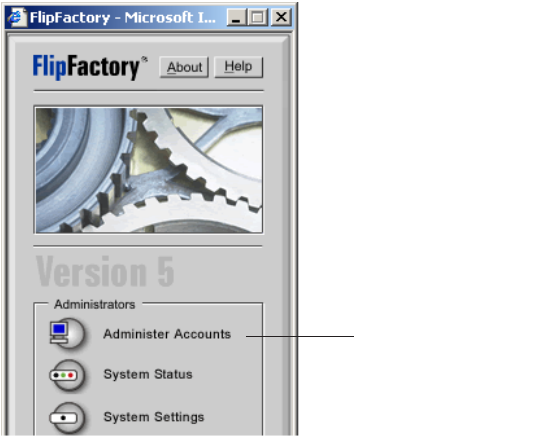
15 Working with the ProEncode Service
332
Configuring Telestream FlipFactory
To use Interplay ProEncode with Telestream FlipFactory, you need to create a FlipFactory
administrator account for ProEncode and create a Factory for this ProEncode account.
nTo configure Telestream FlipFactory and ProEncode, use these procedures with any
Telestream FlipFactory documentation. To install Interplay ProEncode and Telestream, see
“Interplay Media Services Engine Installation and Configuration” on page 29 and
“Telestream FlipFactory” on page 342.
These procedures are based on an installation where the ProEncode provider and the
Telestream FlipFactory Encoder are installed on the same system.
Creating a FlipFactory Administrator Account for ProEncode
After you install the ProEncode and FlipFactory software, you need to create an
administrator account for ProEncode.
To create a FlipFactory administrator account for ProEncode:
1. Start the Telestream FlipFactory application.
The FlipFactory application window opens.
2. Click Administer Accounts.
Click Administer Accounts.
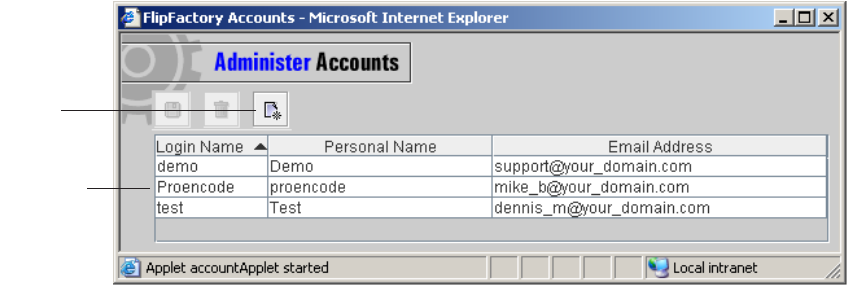
ProEncode Provider Post-to-Web
333
3. In the Administer Accounts window, click the Create button and create the ProEncode
account using the following values:
- Login Name: Proencode
- Personal Name: proencode
4. Save the ProEncode account and close the Administer Accounts window.
Creating a Factory for the ProEncode Account
After you create the ProEncode account, you need to create a Factory for it.
ProEncode
account
Create
button
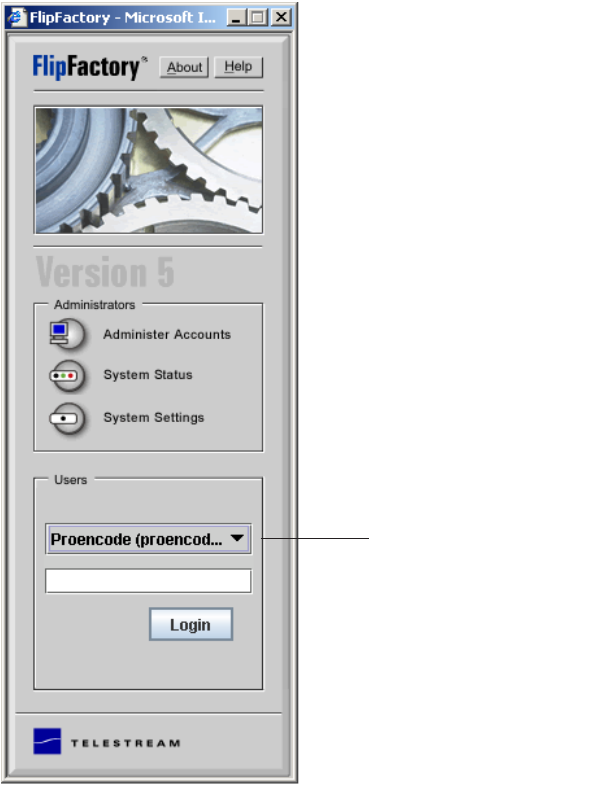
15 Working with the ProEncode Service
334
To create a Factory for the ProEncode account:
1. Log in to FlipFactory using the ProEncode account you created.
Select ProEncode account.
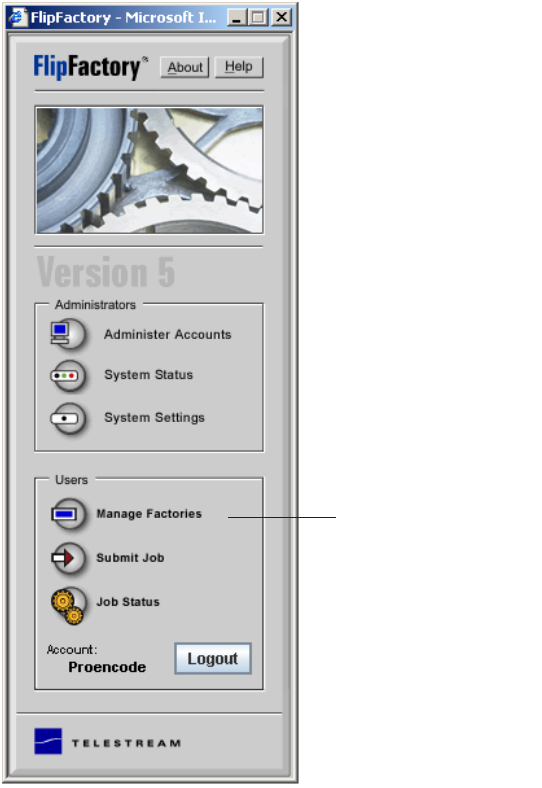
ProEncode Provider Post-to-Web
335
2. Click Manage Factories.
Click Manage Factories.
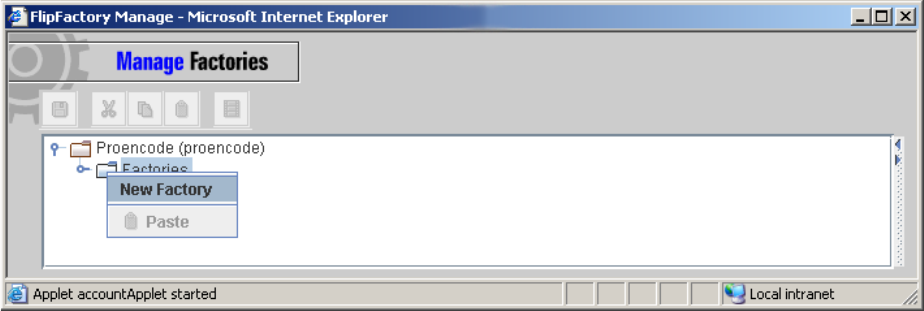
15 Working with the ProEncode Service
336
3. In the Manage Factories window, right-click the Factories folder and select New
Factory.
4. Create a Factory for the ProEncode and select options.
For Post-to-Web to recognize a Factory, the Factory name must include
double-underscores surrounding the proposed extension. For example:
- WindowsMediaFactory__WMV__
- RealMediaFactory__RM__
5. In the Product options area, if you are setting up multiple bit rates of the same format,
do the following:
tUse multiple products; do not use a single Product that produces multiple bit rates.
tEnd each product Nickname in _bitrate. For example:
100kbps Encoding = _100
256kbps Encoding = _256
nAdding a bit rate to the end of the nickname distinguishes the media files of the same format.
You can choose something other than bit rate, such as frame rate, to distinguish media files
of the same format. Whatever follows the underscore of the file nickname is used to ensure
uniqueness of final file names. For example, if frame rate is used as the distinguishing factor,
type _framerate at the end of the file nickname.
6. Save the new Factory.
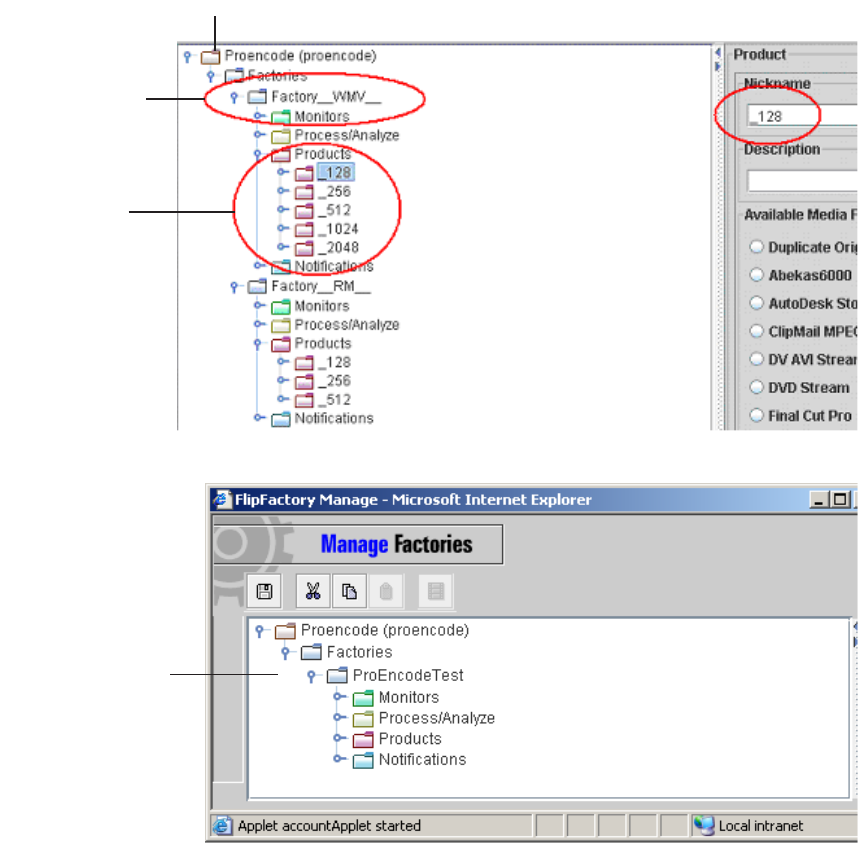
ProEncode Provider Post-to-Web
337
bit rates
Factory for Windows
Media files
Created ProEncode Factory
Created ProEncode
Factory
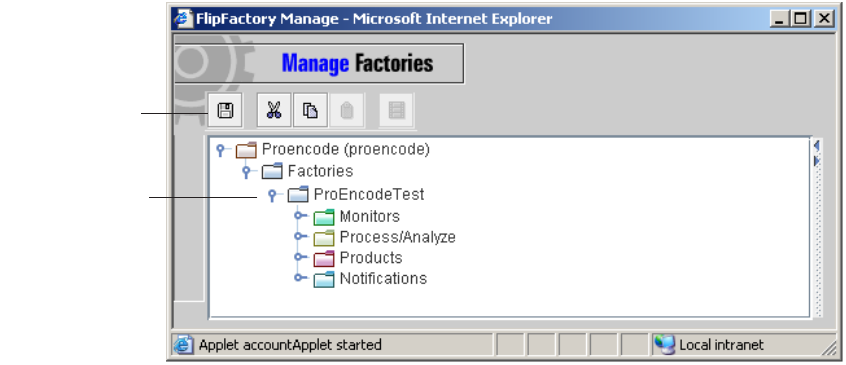
15 Working with the ProEncode Service
338
You can now start ProEncode and connect to both the Encoder and the Interplay Media
Services Engine. For information on ProEncode provider configuration settings, see
“Configuring the ProEncode Provider” on page 314.
Preparing Java for Avid NewsPoller
Before using Avid NewsPoller, you need to do the following:
• Make sure Java is installed
• Create a JAVA_HOME environment variable
To create a JAVA_HOME environment variable:
1. Right-click My Computer.
2. Select Properties.
3. On the Advanced tab, click Environment Variables.
4. Below the System variables area, click New System variables.
The New System Variable dialog box opens.
5. Select the following options:
- Variable name = JAVA_HOME
- Variable value = <location of the Java JRE>
For example, C:\Program Files\Java\jre1.5.0_06.
Save button
Created ProEncode
Factory

AInstalling Encoding Applications
Anystream Agility and Telestream FlipFactory software are examples of encoding
applications. They allow you to automate media encoding and transcoding of streaming,
broadcast, and production formats.
You must install the ProEncode provider software on the same system as the encoding
software. You can also install the Interplay Media Services Engine on the same system as the
provider system, depending on the individual provider and the workload of the particular
computer.
nYou must install the encoding software before you install the ProEncode provider software.
These topics describe the following encoding applications:
•Anystream Agility Workgroup
•Telestream FlipFactory
Anystream Agility Workgroup
Anystream Agility Workgroup lets users and service providers automate media encoding
and transcoding of streaming, broadcast, and production formats. When the Interplay Media
Services Engine sends a job to an encoder, the ProEncode provider contacts Anystream
Agility Workgroup, monitors the encoding, and sends information about the job to the
Interplay Media Services Engine. Anystream Agility Workgroup creates the output movies
in the destination folder.
With Anystream Agility Workgroup, you can run up to three jobs simultaneously. However,
Agility Workgroup can only preprocess one job at a time, so the preprocessing graphic
display can be misleading.
You must install Anystream Agility Workgroup on each encoder system. Each encoder
needs its own registered copy of Anystream Agility Workgroup. The Anystream Agility
Workgroup software and ProEncode software must be installed on the same system. You can
also install the Interplay Media Services Engine software on the same system as the Agility
software.

A Installing Encoding Applications
340
nFor information about the supported version of Anystream Agility Workgroup, see the Avid
Interplay ReadMe.
For more specific requirements, see the Anystream Web site:
www.anystream.com
Check List for Installing Anystream Agility Workgroup
The check list in this section provides a list of steps for installing Anystream Agility
software.
For a complete check list for installing ProEncode, registering and configuring providers,
see “Check List for Using ProEncode” on page 312.
When you configure the ProEncode provider for using Anystream Agility, the proper entry
in the Settings Directory in the Provider Settings dialog box, is as follows:
<install path>\Program Files\Anystream\Agility Workgroup\Profiles\job
For more information, see “Configuring the ProEncode Provider” on page 314.
Anystream Agility Workgroup does not install support for ProEncode by default. You must
install the Agility ProEncode software using the ProEncode Support installer provided by
Anystream.
cIf you reinstall the ProEncode provider software you must also reinstall the Agility
ProEncode software used to communicate with Anystream Agility.
Check List for Installing Anystream Agility Workgroup
Task Section Reference
Install the Agility software. See “Installing the Anystream Agility
Workgroup Software” on page 341.
Uninstall the Sentinel™ drivers installed by Anystream. See “Uninstalling the GLOBEtrotter
FlexID and Sentinel Drivers” on page 341.
Install Interplay Media Services Engine from the Avid
Interplay Installation DVD.
nYou can install the Interplay Media Services Engine
on the same system as the Agility software or on a
separate system.
See the Avid Interplay Media Services
Setup and User’s Guide.
See “Interplay Media Services Engine
Installation and Configuration” on
page 29.

Anystream Agility Workgroup
341
Installing the Anystream Agility Workgroup Software
To install and configure Anystream Agility Workgroup software:
1. Insert the Anystream Agility Workgroup installation CD-ROM into the CD-ROM drive.
2. Navigate to the Setup.exe file and double-click the file.
3. Follow the on-screen or printed instructions provided by Anystream.
4. Click Finish when the installation is completed and then restart the system.
5. Continue with the check list in “Check List for Installing Anystream Agility
Workgroup” on page 340.
Uninstalling the GLOBEtrotter FlexID and Sentinel Drivers
You must install Anystream Agility Workgroup on your system before you install
ProEncode. If you install Agility Workgroup after installing ProEncode, the ProEncode
dongle driver stops functioning.
If the ProEncode dongle driver stops functioning, you must remove the GLOBEtrotter®
FlexID and the Sentinel Protection Installer selections and reinstall the ProEncode dongle
driver (or all of ProEncode).
nYou must also remove the drivers if you install Anystream, Media Services Engine, and the
ProEncode provider on the same system.
To remove Globetrotter FlexID and the Sentinel Driver:
1. Click the Start button, and select Settings > Control Panel > Add Remove Software.
2. Select the Globetrotter FlexID and the Sentinel Protection Installer, and click Remove.
3. Reinstall the ProEncode dongle driver or all of ProEncode.
Install the ProEncode provider software from the Avid
Interplay Installation DVD.
See the Avid Interplay Media Services
Setup and User’s Guide.
See “Interplay Media Services Engine
Installation and Configuration” on
page 29.
Install the Agility ProEncode software using the
ProEncode Support installer provided by Anystream. This
installs the correct Encoder.jar Provider file for ProEncode.
See the Anystream Agility documentation.
Check List for Installing Anystream Agility Workgroup (Continued)
Task Section Reference
A Installing Encoding Applications
342
See “Installing Services and Registering Providers” on page 61.
Telestream FlipFactory
Telestream FlipFactory works as an encoder in a similar way to Anystream Agility
Workgroup. FlipFactory allows users and service providers to automate media encoding and
transcoding of streaming, broadcast, and production formats.
For more information on FlipFactory, see the Telestream Web site: www.telestream.net.
When the Interplay Media Services Engine sends a job to an encoder, the ProEncode
provider contacts Telestream FlipFactory, monitors the encoding, and sends information
about the job to the Interplay Media Services Engine. Telestream FlipFactory creates the
output movies in the destination folder.
You must install TeleStream FlipFactory on each encoder system. Each encoder needs its
own registered copy of TeleStream FlipFactory.
nFor information about the supported version of TeleStream FlipFactory, see the Avid
Interplay Media Services ReadMe.
Installing Telestream FlipFactory
To install Telestream FlipFactory and ProEncode:
1. Install the ProEncode provider software from the Avid Interplay Installation DVD.
2. Install FlipFactory as described in the Telestream documentation.
3. Browse to the FlipFactory directory and locate the ProEncode.jar file.
4. Copy the ProEncode.jar file to the ProEncode/Provider folder.
5. Rename the Encoder.jar file. For example, rename it to Encoder.null.
6. Rename the ProEncode.jar file to Encoder.jar
7. Register the ProEncode provider.
See “Installing Services and Registering Providers” on page 61.
When setting the Setting Directory in the Provider Settings dialog box, type the
following:
localhost:1099
Telestream FlipFactory
343
Configuring Telestream FlipFactory for Avid Unity
FlipFactory must be configured to run as a user with Avid Unity access to the necessary
workspaces. If it is not configured correctly, you receive the following error message from
FlipFactory: “Unable to decode input file.”
This error message can occur even if the QuickTime Reference movie source files play back
and all permissions appear acceptable with Avid Unity and the ProEncode and Flip
applications.
If FlipFactory is using the local user account, it cannot access media referenced by the input
source file. Use the following procedure to configure FlipFactory.
To configure FlipFactory for Avid Unity:
1. Right-click My Computer and select Manage.
2. Select services.
3. Select Flip Service and Select Properties.
4. Select the login Tab.
5. Change the login type from local account to “login as user with Avid Unity read/write
access to workspaces.”
nYou must use the correct password to change permissions.
6. Select OK.
7. Restart the service.
FlipFactory service should now be able to access media on the Avid Unity.
A Installing Encoding Applications
344

BInstalling Microsoft SQL Server 2005
Express
When you install the Interplay Media Services Engine, the following software is
automatically installed. Therefore, you do not need to manually install them:
• Microsoft .NET Framework 2.0
• SQL Server 2005 Express Toolkit
• SQL Server 2005 Express
nThe automatic installation of the SQL Server 2005 Express sets the default password to
AvidInterplay-01, that is a zero. You can change the default password.
cAfter the installation of SQL Server 2005 Express, you need to configure it. See
“Configure Microsoft SQL Server 2005” on page 359
In case you need to manually install these software products, this appendix provides an
installation check list and procedures.
Installing SQL Server 2005 Express Check List
Task Section Reference
Remove SQL Server Desktop Engine. See “Remove SQL Server Desktop Engine” on
page 346.
Install Microsoft .NET Framework 2.0. See “Installing Microsoft .NET Framework
2.0” on page 347.
Install SQL Server 2005 Express Toolkit. See “Installing Microsoft SQL Server 2005
Express Toolkit” on page 348.
Install SQL Server 2005 Express. See “Installing Microsoft SQL Server 2005
Express” on page 351.
Configure SQL Server 2005 Express. See “Configure Microsoft SQL Server 2005” on
page 359.
Restart the system.
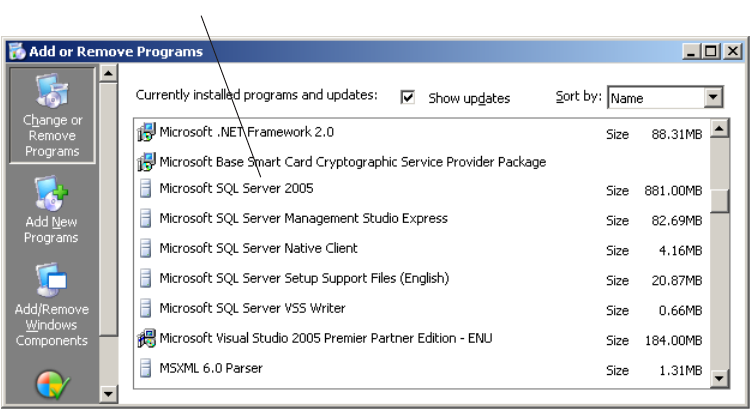
B Installing Microsoft SQL Server 2005 Express
346
Verify That Microsoft SQL Server 2005 Express
is Installed
You can use the procedure in this section to check whether the SQL Server 2005 Express is
installed.
If you need to install SQL Server 2005 Express, see the check list in “Installing Microsoft
SQL Server 2005 Express” on page 351.
To verify that SQL Server 2005 Express is installed:
1. Open Add or Remove Programs in the Microsoft Control Panel.
2. Verify that Microsoft SQL Server 2005 is listed.
3. Close the Add or Remove Programs window.
Remove SQL Server Desktop Engine
Before you can install SQL Server 2005 Express, you must remove the SQL Server Desktop
Engine from the Media Services server, if it is installed on the server.
To remove SQL Server Desktop Engine:
1. Open Add or Remove Programs in the Microsoft Control Panel.
2. Select Microsoft SQL Server Desktop Engine.
SQL Server 2005
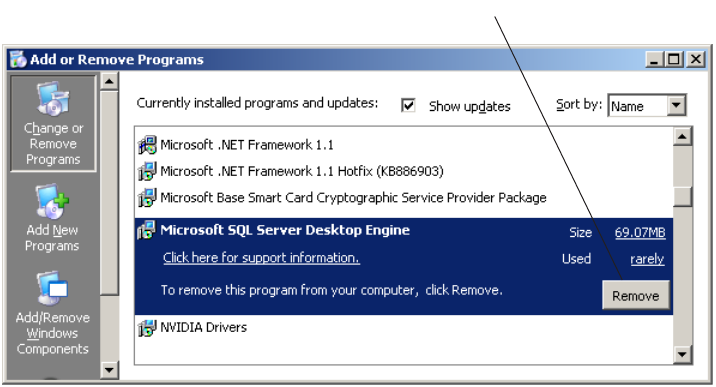
Installing Microsoft .NET Framework 2.0
347
3. Click Remove.
4. Close the Add or Remove Programs window.
Installing Microsoft .NET Framework 2.0
Before you install the SQL Server 2005 Express, you must install Microsoft .NET
Framework 2.0. The installation of Microsoft .NET Framework 2.0 takes several minutes.
To install Microsoft .NET Framework 2.0:
1. Insert the Avid Interplay Installation DVD into the DVD drive on the Media Services
server.
2. In the Installers\SQL2005Express folder on the DVD, double-click dotnetfx.exe.
The Microsoft .NET Framework 2.0 Setup Welcome window opens.
3. Click Next.
The End-User License Agreement page opens.
4. Read the license agreement, select “I accept the terms of the License Agreement,” and
click Install.
The installation begins. This takes a few minutes to install.
5. Click Finish in the Setup Complete window.
Click Remove
B Installing Microsoft SQL Server 2005 Express
348
Installing Microsoft SQL Server 2005 Express
Toolkit
The installation of Microsoft SQL Server 2005 Express Toolkit takes approximately 15
minutes.
To install Microsoft SQL Server 2005 Toolkit:
1. Insert the Avid Interplay Installation DVD into the DVD drive on the Media Services
server.
2. In the Installers\SQL2005Express folder on the DVD, double-click
SQLEXPR_TOOLKIT.exe.
3. In the End-User License Agreement dialog box, read the license agreement, select “I
accept the licensing terms and conditions,” and click Next.
The Installing Prerequisites dialog box opens.
4. Click Install.
5. Click Next when the statement “The required components were installed successfully”
displays.
6. In the Welcome Server Installation Wizard dialog box, click Next.
7. In the System Configuration Check dialog box, click Next.
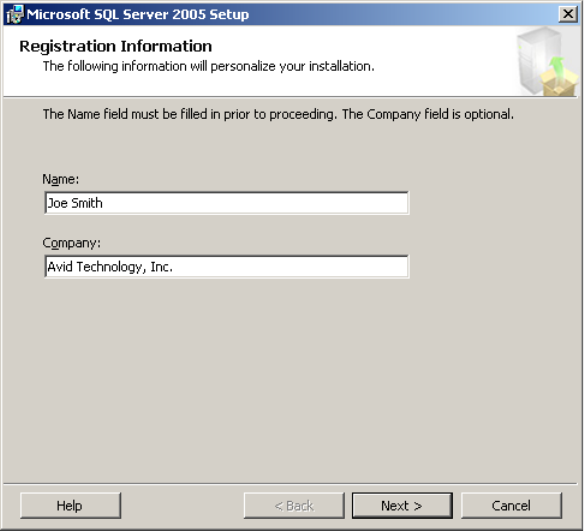
Installing Microsoft SQL Server 2005 Express Toolkit
349
8. In the Registration Information dialog box, do the following:
a. Type the name and company you want to use to register the software.
b. Click Next.
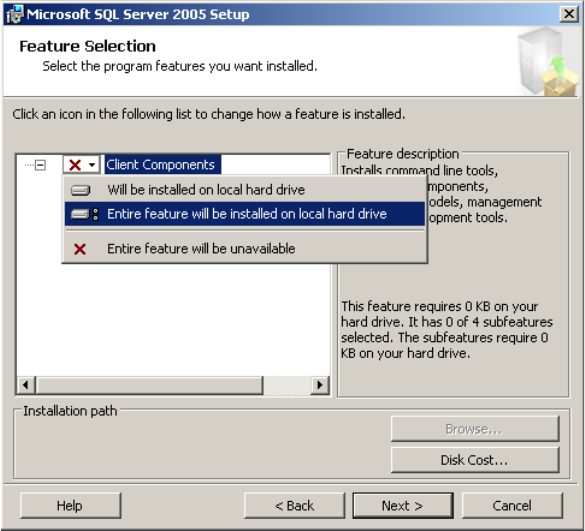
B Installing Microsoft SQL Server 2005 Express
350
9. In the Feature Selection dialog box, click Client Components and select “Entire feature
will be installed on local hard drive.”
10. Click Next.
11. In the Error and Usage Report Settings dialog box, click Next.
12. In the Ready to Install dialog box, click Install to begin the installation.
The Setup Progress dialog box opens and displays setup status. The installation takes
approximately 10 minutes.
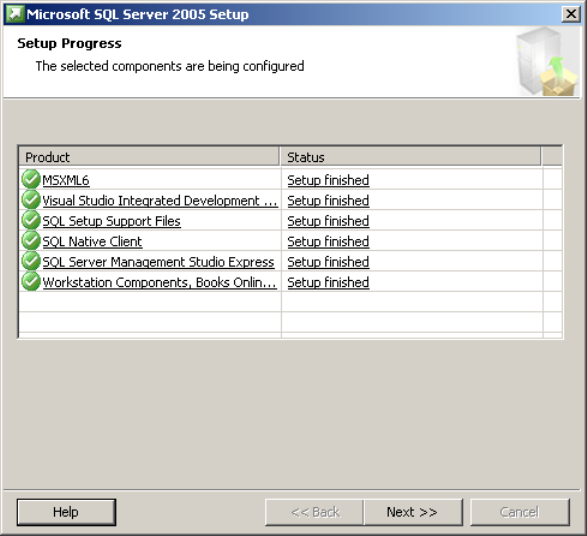
Installing Microsoft SQL Server 2005 Express
351
13. After “Setup finished” displays next to each product, click Next.
The “Completing Microsoft SQL Server 2005 Setup” dialog box opens.
14. Click Finish.
Installing Microsoft SQL Server 2005 Express
The installation of Microsoft SQL Server 2005 Express takes approximately 15 minutes.
To install Microsoft SQL Server 2005 Express:
1. Insert the Avid Interplay Installation DVD into the DVD drive on the Media Services
server.
2. In the Installers\SQL2005Express folder on the DVD, double-click SQLEXPR.exe.
The End-User License Agreement page opens.
3. Read the license agreement, select “I accept the licensing terms and conditions, and
click Next.
The Installing Prerequisites dialog box opens.
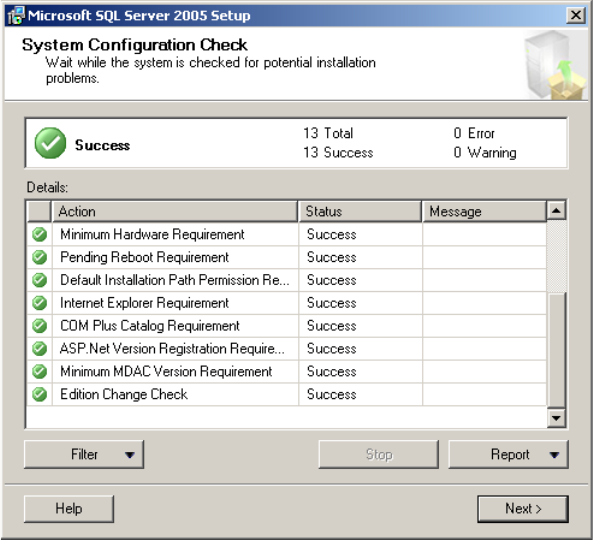
B Installing Microsoft SQL Server 2005 Express
352
4. Click Install.
The Microsoft SQL Native Client and SQL Server 2005 Setup Support files are
installed.
5. Click Next.
6. In the Welcome Server Installation Wizard dialog box, click Next.
7. In the System Configuration Check dialog box, click Next.
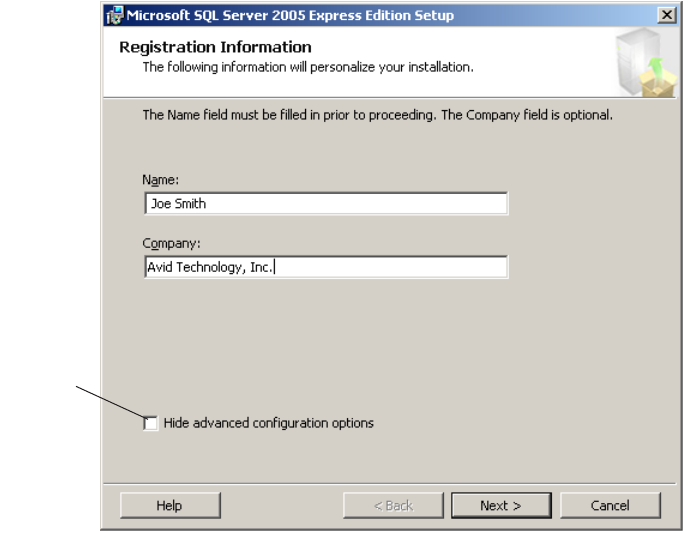
Installing Microsoft SQL Server 2005 Express
353
8. In the Registration Information dialog box, do the following:
a. Type the name and company you want use to register the software.
b. Deselect “Hide advanced configuration options.”
c. Click Next.
Deselect
this option
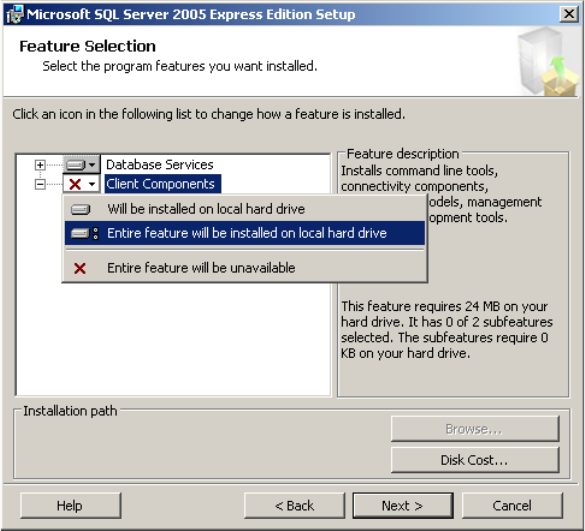
B Installing Microsoft SQL Server 2005 Express
354
9. In the Feature Selection dialog box, click Client Components and select “Entire feature
will be installed on local hard drive.”
10. Click Next.
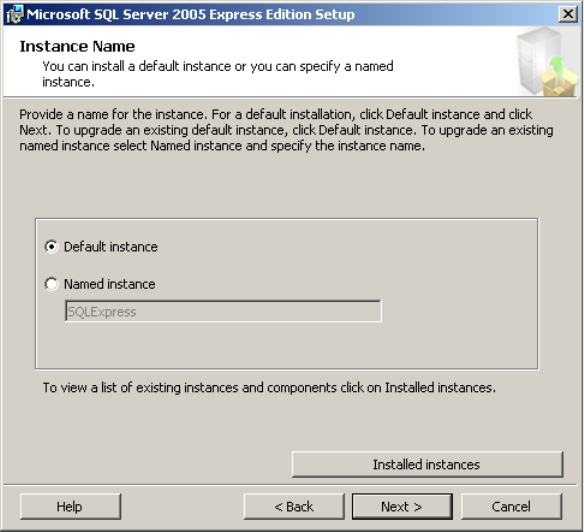
Installing Microsoft SQL Server 2005 Express
355
11. In the Instance Name dialog box, select Default instance and click Next.
12. In the Existing components dialog box, click Next.
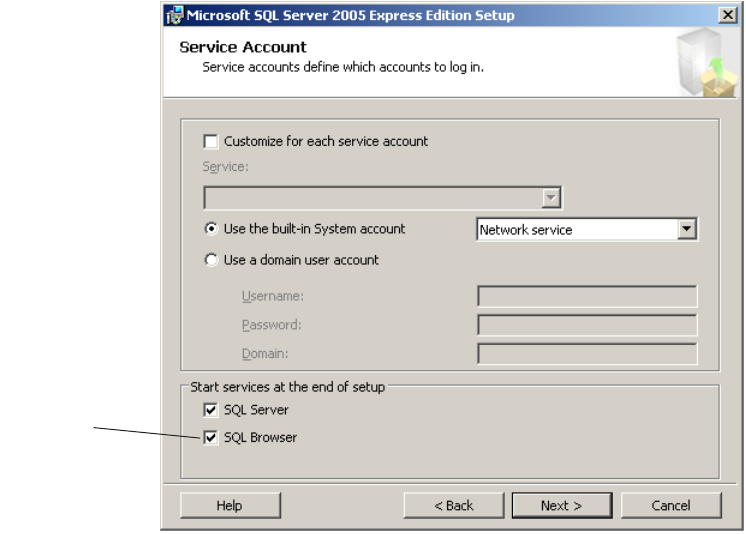
B Installing Microsoft SQL Server 2005 Express
356
13. In the Service Account dialog box, select SQL Browser and click Next.
Select SQL
Browser
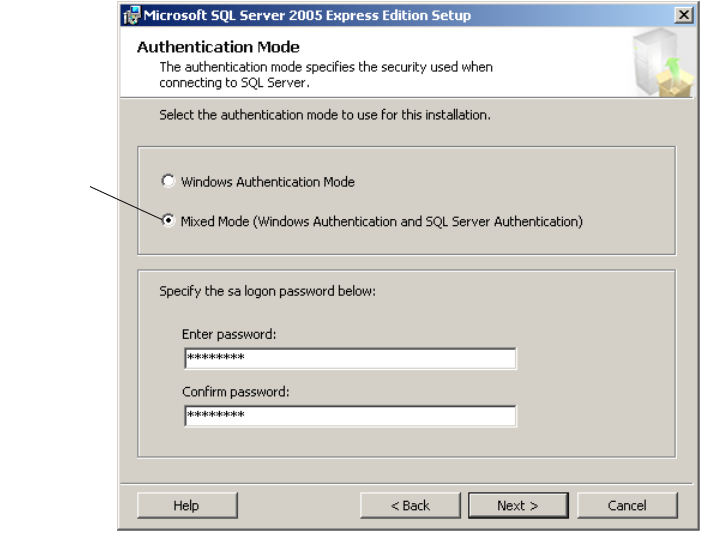
Installing Microsoft SQL Server 2005 Express
357
14. In the Authentication Mode dialog box, do the following:
a. Select “Mixed Mode (Windows Authentication and SQL Server Authentication).”
b. Type a password and confirm the password.
c. Click Next.
15. In the Collation Settings dialog box, click Next.
16. In the User Instances dialog box, click Next.
17. In the Error and Usage Report Settings dialog box, click Next.
Mixed Mode
option
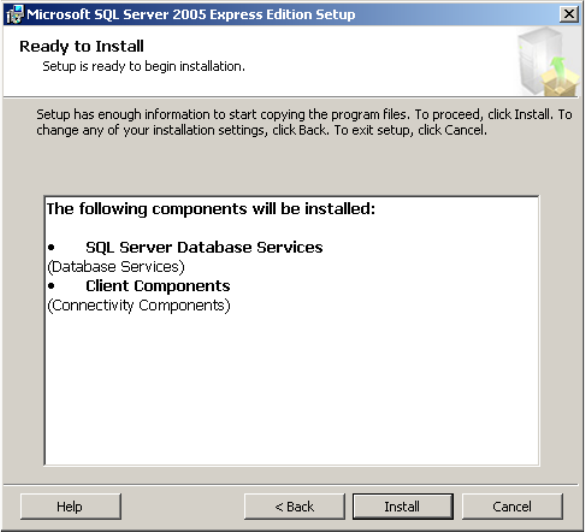
B Installing Microsoft SQL Server 2005 Express
358
18. In the Ready to Install dialog box, click Install to begin the installation.
The Setup Progress dialog box opens and displays setup status. The installation takes
approximately 5 minutes.
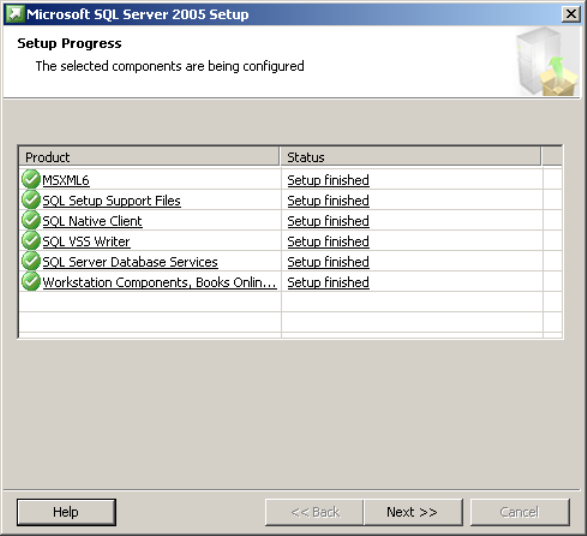
Configure Microsoft SQL Server 2005
359
19. After “Setup finished” displays next to each product, click Next.
The “Completing Microsoft SQL Server 2005 Setup” dialog box opens.
20. Click Finish.
Configure Microsoft SQL Server 2005
After you install Microsoft SQL Server 2005, you need to configure it.
To configure Microsoft SQL Server 2005:
1. Click Start and select Programs > Microsoft SQL Server 2005 > Configuration Tools >
SQL Server Configuration Manager.
The SQL Server Configuration Manager window opens.
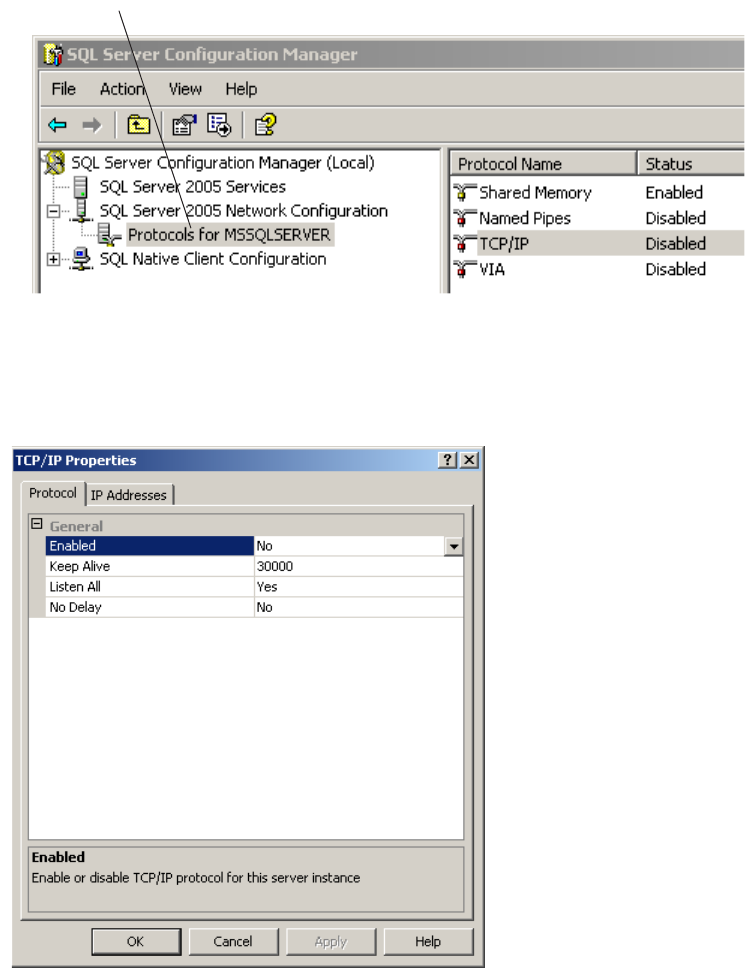
B Installing Microsoft SQL Server 2005 Express
360
2. Select Protocols for MSSQLSERVER in the left pane.
3. Right-click TCP/IP in the right pane and select Properties.
The TCP/IP Properties dialog box opens.
4. On the Protocol tab in the General area, change Enabled from No to Yes.
Select this item
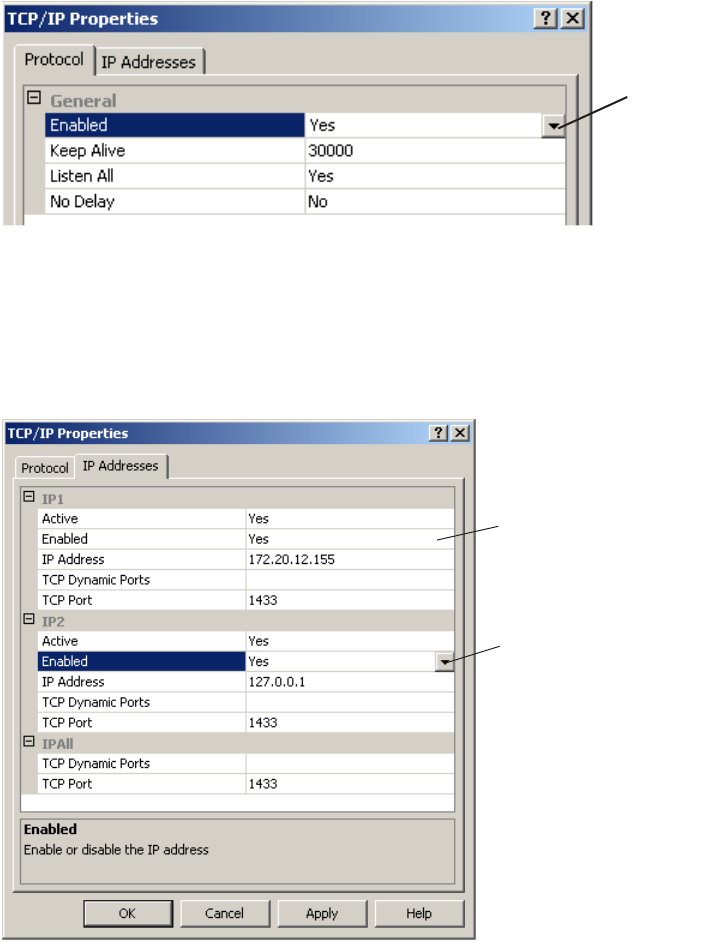
Configure Microsoft SQL Server 2005
361
5. Click the IP Addresses tab.
6. Do the following:
a. In the IP1 list, select Enabled and change from No to Yes.
b. In the IP2 list, select Enabled and change from No to Yes.
7. Click Apply and click OK in the message box.
8. Click OK to close the TCP/IP Properties dialog box.
Change to
Ye s .
Select Yes for Enabled
Select Yes for Enabled
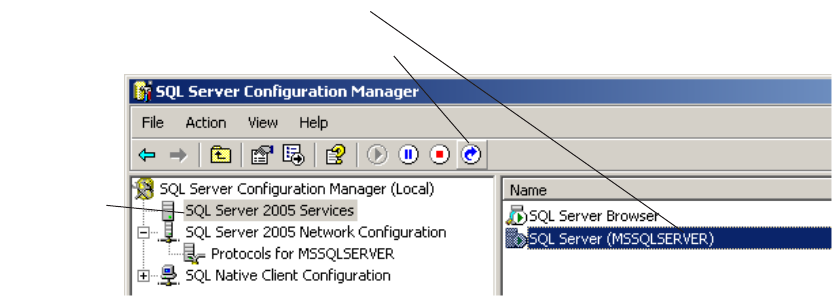
B Installing Microsoft SQL Server 2005 Express
362
9. Do the following:
a. Select SQL Server 2005 Services in the left pane.
b. Select SQL Server (MSSQLSERVER) in the right pane.
c. Click the Restart Service button.
10. Restart the system.
c. Restart Service button
b. Select item.
a. Select item.

CTroubleshooting
This appendix covers some common problems you might find when using the Media
Services Engine.
Log files might help when troubleshooting problems. The location of the log files depends
on the location chosen during the software installation. The default location is:
C:\Documents and Settings\windowslogin\media service service
For example, the Interplay Archive service default location for log files is:
C:\Documents and Settings\windowslogin\Archive Service
As regular maintenance of Media Services Engine, do not let the number of jobs exceed the
3000 jobs. If the jobs exceed the limit, you should purge the jobs list of completed, failed, or
canceled jobs, and restart the Interplay Transcode provider.
The following topics provide troubleshooting information:
•Finding Solutions for Specific Problems
•General ProEncode Troubleshooting Procedure
•Checking Media Services Jobs Using Avid Diagnostics
•Additional Installation and Configuration Information
•Archive and Restore Error Messages

C Troubleshooting
364
Finding Solutions for Specific Problems
The following table lists problems, probable causes, and solutions.
Troubleshooting Media Services Engine Services
Problem Probable Cause Solution
Media Services Engine
The Media Services Engine
does not start and displays an
application key error.
There is no application key or the
application key (dongle) is not working
properly.
Make sure the application key is
properly connected (see the Avid
Interplay Software Installation
document). Then, reinstall the
Media Services Engine software
(see “Interplay Media Services
Engine Installation and
Configuration” on page 29).
Provider Problems
The provider cannot contact
the Media Services Engine.
The error message
“Connection Error - Unknown
Provider” appears.
The provider has not been registered. Register the provider (see
“Registering the Provider” on
page 65).
The Media Services Engine is not
running.
Start the Media Services Engine.
See “Starting the Interplay
Media Services Engine” on
page 36.
The provider settings have an incorrect
name for provider, Media Services
Engine, or both.
Change the settings for the
provider (see “Registering the
Provider” on page 65 or
“Configuring the ProEncode
Provider” on page 314.
The provider fails to contact
the encoding application. The
error is “NULL_ENCODER”
or “Unable to Connect to
Encoding Engine”.
Rge encoding engine support
(Encoder.jar) is not installed.
Reinstall the ProEncode Support
software provided by Anystream
or copy Encoder.jar from the
Flip directory.

Finding Solutions for Specific Problems
365
Processed jobs are output to
an incorrect or unknown
location.
The folder specified in the ProEncode
Client Add Jobs dialog box is incorrect
or does not exist.
Make sure the output folder
exists (see “Sending a Clip or
Sequence to ProEncode from an
Avid Editing Application” on
page 321).
“SETTINGS ERROR”
message appears in the
encoding application, and no
jobs encode.
The drive or workspace specified for
output is not available.
Make sure the drive or
workspace is online and shared
correctly. See “Sharing Folders
in an Avid Unity Environment”
on page 321.
On a Macintosh client, the Avid Unity
Server name is incorrect.
Specify the correct Avid Unity
Server name (see “Configuring a
ProEncode Client on an Avid
Editing Application” on
page 318).
“CAN’T ADD” error message
appears in the encoding
application, and no jobs
encode.
The Shared Storage directory for the
Avid editing application or the
ProEncode Client’s source setting is
either offline or not on a shared volume.
In an Avid Unity configuration,
make sure the workspace that
contains the media is online. See
“Sharing Folders in an Avid
Unity Environment” on
page 321.
The provider is not correctly registered
with the Media Services Engine.
Register the provider (see
“Registering the Provider” on
page 65).
Client Problems
When using Telestream
FlipFactory, the following
error message occurs:
“Unable to decode input file”
FlipFactory must be configured to run as
a user with Avid Unity access to the
necessary workspaces.
See “Configuring Telestream
FlipFactory for Avid Unity” on
page 343.
In the Add Jobs dialog box, a
provider does not appear.
The provider is not running or not
available.
Start the provider.
The provider is not registered. On the encoder, register
ProEncode (see “Registering the
Provider” on page 65).
Troubleshooting Media Services Engine Services (Continued)
Problem Probable Cause Solution

C Troubleshooting
366
In the Add Jobs dialog box,
no settings appear.
Settings failed to register with the Media
Services Engine.
On the encoder, register
ProEncode (see “Registering the
Provider” on page 65).
In the Add Jobs dialog box, a
custom setting does not
appear.
The setting is not stored in the path
defined in the Provider Settings.
On the encoder, register
ProEncode (see “Registering the
Provider” on page 65).
A user has submitted a job
with a name containing
non-ASCII characters and the
job did not process.
The encoder might not support the
characters contained in the file name or
path name to the file.
If the pathname to the file contains
non-ASCII characters the job still might
not process.
Rename the file with ASCII
characters and send the job
again. See “International
Character Support” in the
Interplay Help.
Media Services and
Transfer Status Tool
ProEncode client does not
show settings and loads
slowly.
Java 1.31_01 INT (international) was not
installed or not defined as the default
runtime environment.
Reinstall the ProEncode client.
The ProEncode provider is
unable to login to FlipFactory.
The user “proencode” does not exist, or
has no factories.
Create a user named
“proencode” with no password
and create factories for this user.
You can’t see newly
submitted jobs on the Media
Services and Transfer Status
Tool Jobs page.
You need to refresh the view. In the Media Services and
Transfer Status Tool, click the
Refresh button.
The Media Services and
Transfer Status Tool shows a
job as complete, but no output
file exists.
The destination folder specified in the
ProEncode Client Add Jobs dialog box is
incorrect or does not exist.
The destination folder or workspace in
the Media Services profile might be
incorrect.
Make sure the output folder
exists (see “Configuring a
ProEncode Client on an Avid
Editing Application” on
page 318 or “Sending a Clip or
Sequence to ProEncode from an
Avid Editing Application” on
page 321).
Troubleshooting Media Services Engine Services (Continued)
Problem Probable Cause Solution

General ProEncode Troubleshooting Procedure
367
General ProEncode Troubleshooting Procedure
If you have checked “Finding Solutions for Specific Problems” on page 364 and cannot
solve your problem, use the following procedure to isolate the problem.
To isolate a ProEncode problem:
1. On a provider system, open the QuickTime reference file created by the Avid editing
system.
tIf you can view the movie, go to step 2.
tIf you cannot view the movie, go to step 3.
2. Submit the job through the ProEncode Client applet using the procedure described in
“Adding a File to ProEncode” on page 326.
If the job encodes correctly, submit another job by selecting
File > Avid Interplay Media Services > ProEncode in the Avid editing application.
Occasionally, problems involving network updating are corrected after a short time.
3. Make sure all media drives are correctly shared by doing the following:
a. Start your Avid editing application.
b. In the Project window, click the Settings tab.
The Settings list opens.
c. Double-click Media Services.
The Media Services Settings dialog box opens.
You have forgotten the
Administrator account
password.
Uninstall Interplay Media
Services software and delete the
SQL database, then reinstall
Interplay Media Services
software.
If the Interplay Media Services
is configured with the Avid
Interplay Engine then Interplay
Media Services is authenticating
with the Avid Interplay Engine.
See “Using the Users Page” on
page 57.
Troubleshooting Media Services Engine Services (Continued)
Problem Probable Cause Solution
C Troubleshooting
368
d. In the Shared Storage text box, make sure the path includes a shared folder.
In an Avid Unity environment, this folder needs to be in a workspace that the
encoders can access.
e. Click OK.
f. If this setting is correct, check that all files referenced by the QuickTime reference
movie are on shared directories.
4. If a problem still exists, it might be network-related. Have your network administrator
verify the TCP/IP addresses, DNS tables, and other network functions. For information
on DNS, see “Name Resolution” on page 370.
Checking Media Services Jobs Using Avid
Diagnostics
The Avid Diagnostics is an application that lets you view log information stored on either a
local or remote computer. You can view log information streaming in real time, open logs
stored on a remote computer, package remote logs and specify a storage location for them,
filter logs by severity, and override the logging levels of remote services. For more
information, see the the Avid Service Framework User’s Guide.
Troubleshooting the Progress of Jobs
You can use the Avid Diagnostics application to troubleshoot the progress of jobs.
To troubleshoot the progress of jobs using Avid Diagnostics:
1. Click Start and select Programs > Avid > Avid Service Framework > Avid Diagnostics.
The Select Workgroup dialog box opens.
nThe Select Workgroup dialog box does not open if you previously selected the option to
“Always select and use this workgroup.” When you select this option, the Select Workgroup
dialog box no longer opens when you start the application. The default workgroup is
selected, and the Avid Diagnostics window opens. To change this option and display the
Select Workgroup dialog box, click the Login tab of the Avid Framework Workgroup
Properties application and clear the checkbox for the option.
2. (Option) If the Select Workgroup dialog box opens, select the workgroup you want to
connect to and click Select.
The Avid Diagnostics window opens.
3. Click the Processes tab.
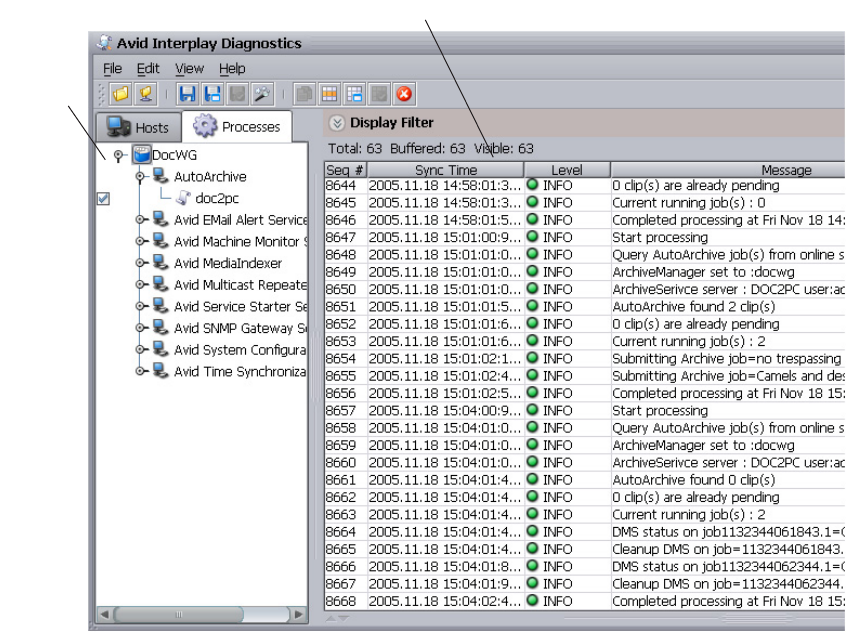
Checking Media Services Jobs Using Avid Diagnostics
369
4. From the Tree view pane, open the process you want to view, and select the computer
running the service. A logging listener is added to the process and the details about the
process are logged in the Log View pane in real-time.
The following illustration shows the Avid Diagnostics with a completed archive job.
Log View pane
Tree view
pane
C Troubleshooting
370
Additional Installation and Configuration
Information
The following sections supply additional installation and configuration information.
Name Resolution
A Domain Name System (DNS) maps machine names to Internet addresses. Use the HOSTS
file or create a HOSTS file if there is no DNS on your network. It is also convenient to place
frequently used name-to-address mappings in this file.
nEach host on your network that uses HOSTS file services must have the file resident on the
disk. Each client and server should be added to the HOSTS file so that every computer can
see every other computer by name.
The syntax of the HOSTS file is:
<name> <type> <data> [<comment>]
•name is the name assigned to a host or domain on the Internet.
nIf you do not have a valid domain name, type a fake domain name.
•type is A (address) or CNAME (canonical name).
•data is determined by the type specified:
-If type = A, the data field contains an Internet address.
-If type = CNAME, the data field contains the alias name for an Internet address.
•comment lets you add a comment to the entry.
nAny combination of tabs and spaces can be used as a delimiter between each item in a line.
Lines end with the return and linefeed characters.
CNAME entries are not required. They might make it easier to access an Internet address by
using more common names.
Example Entries in a HOSTS File (Windows)
<IP Address> <name1> <name2> <nameN> [# <comment>]
The IP Address is in the period-delimited format, and spaces separate the name fields as in
the following example:
192.102.73.6 mycomputer1.xco.com mycomputer1 fred #system in the front
office
Additional Installation and Configuration Information
371
Updating the HOSTS File (Windows)
Microsoft TCP/IP can be configured to search the local host table file, HOSTS, for
mappings of remote host names to IP addresses. For example, the entry for a computer with
an address of 192.102.73.6 and a host name of mycomputer1.xco.com looks similar to this:
192.102.73.6 mycomputer1.xco.com
You can edit the sample HOSTS file that is created when you install TCP/IP to include
remote host names and their IP addresses for each computer with which you will
communicate. This sample file also explains the syntax of the HOSTS file.
A host name always corresponds to an IP address that is stored in a HOSTS file or a name
service such as Media Services. A host name can be used in place of an IP address when
using ping or other TCP/IP utilities.
A single entry consists of an IP address corresponding to one or more host names.
nYou should perform this procedure only if you do not have a DNS on your network.
To access the HOSTS file:
1. Double-click the WINNT folder.
2. Double-click the SYSTEM32 folder.
3. Double-click the DRIVERS folder.
4. Double-click the ETC folder.
5. Double-click the HOSTS file.
6. Make the necessary changes to the HOSTS file.
For example, to connect to the mycomputer1.xco.com at the IP address 192.102.73.6,
make the entry in the HOSTS file:
192.102.73.6 mycomputer1.xco.com
nYou can edit the HOSTS file with any word processor as long as you save it as Text Only
without formatting commands. Make sure the HOSTS file does not have a file name
extension (such as .txt). The HOSTS file will not work if there is a file name extension.

C Troubleshooting
372
Archive and Restore Error Messages
The following table provides descriptions and solutions for archive and restore error
messages.
Archive and Restore Error Messages
Error Name Explanation Recommended Solution
Error: Third party software
returns File read error
An error from third party software Refer to the third party software company.
Error: Third party software
returns error: object already
exists
An error from third party software Refer to the third party software company.
Error: Third party software
returns DET pull status: Bad
Request
An error from third party software Refer to the third party software company.
Error: Third party software
returns DET push status: Bad
Request
An error from third party software Refer to the third party software company.
Error: Third party software
returns Failed to connect to
AM Communicator
An error from third party software Refer to the third party software company.
Error: Third party software
returns error: object in use
An error from third party software Refer to the third party software company.
Error: Media files cannot be
found. ClipName: clip.psd:
clean
Not all media files exist on shared
storage.
Re-digitize the clip to make all media files
available at the time of archival. Or make
sure you perform an archive before any
deletions.
One non-error: A restore
hanging at 99% for more than
a day.
Partial restore shows 99% when it
is re-creating MXF media files
from the raw video frames
retrieved from third party
software. Performance
improvements are planned for
future releases of the Restore
provider.
1. Partial restore only the parts of media
files that are required. The longer the
requested portions of the media files
are the longer it takes to perform a
partial restore.
2. The Interplay Engine might be busy
which increases the time for the clip
and sequence to check in.

Archive and Restore Error Messages
373
Error: Unable to start the job
[com.avid.utils.ProviderExcep
tion: -8:third party software
returns Failed to connect to
AM Communicator]
An error from third party software Refer to the third party software company.
Error: Provider archive 4 files,
including\\TOR-DTV\Archive
s\Avid MediaFiles\MXF\
TORNTDTVAP01.1\Creating\
122504163570\in032a047466
17f4.mxf
The specified media file needs to
be archived; however, it cannot be
found on shared storage.
Re-digitize the clip to make all media files
available at the time of archival. Or make
sure you perform an archive before any
deletions.
Error: Unable to start job
[com.avid.utils.ProviderExcep
tion: -1:Provider Error:
net.nxn.JXDK.CommandFaile
dException: Archiving an
empty subclip, sequence or
shotlist is not allowed at
com.avid.dms.archivemgr.arch
ive.ArchiveAvidAssetlmpl.B
(Unknown Source) at
com.avid.dms.arcive.ArchiveA
vidAssetlmpl.execute(Unkown
source) at
com.avid.dms.archivemgr.arch
ive.Archivelmpl..]
The asset that is being archived is
a subclip, sequence, or a shotlist
and it does not contain any clips.
Ensure there is at least one clip inside the
subclip, sequence, or shotlist.
Archive and Restore Error Messages (Continued)
Error Name Explanation Recommended Solution

C Troubleshooting
374
Error: unable to start the job
[com.avid.utils.provider.Provi
derException:-1:Provider
Error:net.nxn.JXDK.Comman
dFailedException:The selected
node is null at
com.avid.dms.archivemgr.A
(Known Source) at
com.avid.dms.archivelmpl.Sta
rt(Uknown source) at
com.avid.dms.providerlib.Gen
ericEngine.Startjob(Unkown
Source) at
com.avid.dms.providerlib.job.
Processor.Runjob(Uknown
source) at
com.avid.dms.providerlib.poll
Manager.run(UN...]
When the archive provider picks
up the job, the selected asset (clip
or sequence) is no longer in the
folder where the archive was
requested. The asset might have
been moved or deleted.
Do not delete or move the asset after
sending the asset to archive. Wait until the
archive is finished. Depending on the
volume of archival, it might take awhile
before the archive provider starts
processing the job.
Restore Error: Unable to start
the job
[com.avid.utils.ProviderExcep
tion:
-3:net.nxn.JXDK.CommandFa
iledException: No Items on
archive manager at
com.avid.dms.archivemgr.rest
ore.RestoreAvidassetlmpl.B(u
nkown Source) at
comm.avid.dms.archivemgr.re
store.RestoreAvidAssetlmpl.A
(Unkown source) at
com.avid.dms.archivemgr.rest
ore.RestoreAvidAssetlmpl.exe
cute(Unkown Source) at
com.avid.dms.archivemgr.rest
ore.Restorelmpl.E(Unkown
Source) at
com.avid.dms.archivemgr...]
You are trying to restore an asset
that is not in the Archive Engine.
Only restore the assets that were archived.
Archive and Restore Error Messages (Continued)
Error Name Explanation Recommended Solution

Archive and Restore Error Messages
375
No resolution was archived This particular resolution was not
archived. When restoring from
Interplay Engine, the clip is
matched in the Archive Engine
using the mob id. Therefore, even
though the name of the clip is the
same in both Interplay Engine and
Archive Engine, you might get this
error if the clip was duplicated.
1. This error might occur when the
version of the Archive Engine is not
compatible with the version of
Interplay Access. You must
immediately apply the current
Interplay Engine and Archive Engine
patch for the release, to avoid wrong
information being written back to
Archive Engine.
2. Check if this particular resolution for
the desired clip is online in Archive
Engine. If so, restore it from the
AvidAM database.
Failed to find master clip
ProviderException: Failed to
find master clip inside aaf file
in c:/temp/xxxx
1. When multiple jobs are
running for restore, some jobs
might fail with this error.
2. An archive appears to
complete successfully,
however the restore fails.
Retry the job. If the error continues,
upgrade the software to a version higher
than v1.5.
Failed to Create Folder The destination folder for this
particular profile is specified
incorrectly.
Check the destination folder for this profile
and make sure it is set to the correct value.
To view an example of the destination
folder values, move the mouse pointer to
the entry and read the ToolTip.
Error:
net.nxn.JXDK.CommandFaile
dException: Destination
Folder is not selected and is
empty
The destination folder is not
selected and typically it is left at
the root level, for example,
AvidWG.
When not using a profile, make sure you
select a destination folder that is writable
by the currently logged in user, such as
AvidWG/Catalogs/xxx.
Archive and Restore Error Messages (Continued)
Error Name Explanation Recommended Solution

C Troubleshooting
376
"No resolutions were found for
selected asset from server {0}"
This particular resolution was not
archived. When restoring from
Interplay Engine, the clip is
matched in the Archive Engine
using the mob id. Therefore, even
though the name of the clip is the
same in both Interplay Engine and
Archive Engine, you might get this
error if the clip was duplicated.
1. This error might occur when the
version of the Archive Engine is not
compatible with the version of
Interplay Access. You must
immediately apply the current
Interplay Engine and Archive Engine
patch for the release, to avoid wrong
information being written back to
Archive Engine.
2. Check if this particular resolution for
the desired clip is online in Archive
Engine. If so, restore it from the
AvidAM database.
net.nxn.JKDX.ServerComman
dFailedException: Error
message from server: ‘Failed
to open the database (The
database is not active). Contact
your administrator.’
(0x89990028).
Restore provider failed to find the
Interplay Engine Database.
The name of the database is retrieved from
the profile, in particular, this property:
“DestinationPath”
AvidWG/Catalogs/Restore
Make sure the “AvidWG” exists.
Archive and Restore Error Messages (Continued)
Error Name Explanation Recommended Solution

DMedia Supported by Partial Restore
and Interplay Delivery
Partial Restore and Delivery supports the following media:
•All Avid DNxHD
®
• Avid JFIF
• IMX 30, 40, 50
• Uncompressed SD and HD
• DV 25, DV 50, DV 100
•P2
• XDCAM, XDCAM HD
Partial Restore and Delivery does not support the following media:
• MPEG 2 (IPV)
• MPEG-1 Layer 2 audio
•HDV
• All LongGOP resolutions (except the resolutions listed in the above supported list)
• AVCIBP-BLL (AVCI proxy)
•NL Tek
• All media that includes ancillary data
• All rendered effects
• All imported files
• All master clips with chunked media files
•All OMF media
nPartial restoring or delivery of unsupported media should produce a full restore or delivery.
D Media Supported by Partial Restore and Interplay Delivery
378

EAVC-Intra Resolutions Supported by
the Interplay Media Services
AVC-Intra is a compression format that is created by the Panasonic P2 AVC-Intra codec.
The following table lists the resolutions supported by Interplay Media Services and Avid
editing systems.
The following resolutions are supported for standalone editing systems, but are not
supported by Media Services because they are not supported by Media Indexer in an
Interplay environment:
• AVC-Intra 50 720p 23.976
• AVC-Intra 100 720p 23.976
Project Edit Rate Resolution Name MBit/Sec Raster Size
720p 25 AVC-Intra 50 720p 25 50 MBit 960x720
25 AVC-Intra 100 720p 25 100 MBit 1280x720
29.97 AVC-Intra 100 720p 29.97 100 MBit 1280x720
50 AVC-Intra 50 720p 50 50 MBit 960x720
50 AVC-Intra 100 720p 50 100MBit 1280x720
59.94 AVC-Intra 50 720p 60 50 MBit 960x720
59.94 AVC-Intra 100 720p 60 100 MBit 1280x720
1080i 50 AVC-Intra 50 1080i 50 50 MBit 1440x1080
50 AVC-Intra 100 1080i 50 100 MBit 1920x1080
59.94 AVC-Intra 50 1080i 60 50 MBit 1440x1080
59.94 AVC-Intra 100 1080i 60 100 MBit 1920x1080
1080p 25 AVC-Intra 100 1080p 25 100 MBit 1920x1080
29.97 AVC-Intra 100 1080p 29.97 100 MBit 1920x1080
E AVC-Intra Resolutions Supported by the Interplay Media Services
380
• AVC-Intra 50 1080p 23.976
• AVC-Intra 100 1080p 23.976
nPerformance is limited when you transcode or mix down a sequence to an AVC-Intra
resolution. These operations can take up to four times real time to complete (up to four
minutes for a one-minute sequence).

A B C D E F G H I J K L M N O P Q R S T U V W X Y Z
A
AAF metadata
adding to tape archive 135
Accessing
documentation 19
Account
creating FlipFactory 332
Add Jobs dialog box
using 326
Adding
files to ProEncode 326
Administration tools
Media Services and Transfer Status 23
overview 23
Agility Workgroup
installing and configuring 339
Amber Signal icon 321
Anystream Agility
encoding software 311
ProEncode provider setting 316
Anystream Agility Workgroup software
installing 341
Applet
definition 318
Archive database
connecting to 137
creating folders 137
searching 161
Archive Engine
described 121
setting computer name 132
Archive profile
creating 141
options 142
Archive service
configuration 132
configuration settings 132
connecting provider 128
described 117
error messages 372
installing the service 123
registering the provider 126
starting 131
status reporting 42
Archive settings
adding AAF metadata 135
allow duplicate media files 132
allow metadata archive 132
archive segment 132
archive server name 132
best effort restore 132
configuration 132
duplicate versions 133
maximum numbers jobs 135
online database 132
overriding metadata 136
segment size 132
server name 132
use best effort 132
Archiving
check list 119
configuration 121
consolidating before archive 147
deleting after 148
overview 117
partial restore 165
profile partition value 143
restoring a clip 163
servers 121
using an Auto Archive folder 159
using an Avid editing system 145
using Interplay Access 148
Index

Index A B C D E F G H I J K L M N O P Q R S T U V W X Y Z
382
Auto Archive folder
setting up 158
working with 152
Auto Archiving
configuration 153
described 117
enabling 153
limit clips submitted 153
location of files 160
preparing workgroup 153
scan interval setting 153
verify service is running 156
Auto Copy
checklist 234
configuration 236
copying complete database and media 244
limit clips submitted 236
replication jobs 246
replication scan 246
rules 241
scan interval setting 236
verify running 239
Auto Copy folder
copying assets 243
identifying 241
overview 233
Auto Copy Media
transferring assets 243, 244
Auto Copy service
enable 236
installing 236
overview 233
requirements 233
Auto Media Services
overview 24
Auto Media Services service
installing 236
Auto Publish
check list 192
flow chart settings 200
flow charts 196
overview 191
workflow check list 192
Auto purge jobs
settings 33
Auto Transcode 110
creating a folder 114
enable setting 110
identify folder 114
limit setting 110
location of files 115
preparing workgroup 110
set retry time 110
set scan interval 110
transcoding assets 115
AutoTransfer service
configuration 111
AVC-Intra resolutions
supported by Media Services 379
Avid
online support 19
training services 20
Avid Diagnostics
described 368
troubleshooting progress of jobs 368
Avid editing application
archive process 145
settings 145
Avid Interplay Workgroup
registering Media Services Engine 30
Avid NewsPoller
Java variable 338
Avid Service Configuration
Auto Copy service 233
configure Auto Archive 153
configure Auto Copy 236
Avid Service Framework
Auto Copy service 233, 239
configure Auto Archive 153
configure Auto Copy 236
B
Batch names
using 326
Best effort restore
setting 132
C
Cancel
jobs 49
Clips or sequences
sending, to ProEncode 321

A B C D E F G H I J K L M N O P Q R S T U V W X Y Z Index
383
Configuring
ProEncode client on Avid editing system 318
Copy
check list 209
Copy Media service
status reporting 42
Copy service 211
connecting provider 216
installing the service 211
overview 205
registering the provider 214
required for Copy operation 205
starting 219
Copy service profile
creating 220
Copying
to another workgroup using Access 223
to another workgroup using an editor 226
to another workgroup, requirements 205
Copying assets
complete database and media 244
using an Auto Copy folder 243
D
Database
Workflow Engine 192
Delete
jobs 50
providers 53
services 56
user accounts 60
Delivery Receiver
register hostname 30
registering receiver 272
Delivery service 273
check list 270
connecting provider 278
creating a profile 282
from Access 285
from Avid editing system 285
installing the service 273
registering the provider 276
starting 281
verify if running 288
DNS (Domain Name System)
and machine names 370
Documentation
accessing 19
E
Encoding
a clip or sequence 320
monitoring 328
monitoring options 328
Encoding applications
installing 339
overview 339
F
Factory
creating 333
File folders
Avid Unity environment 321
Files
adding to ProEncode 326
FlashNet
partition value 143
software 117
FlipFactory
configuring 332
creating a Factory 333
creating account 332
installing and configuring 342
ProEncode provider setting 316
Flow charts
auto publish actions 200
auto publishing 196
Framework
monitoring jobs 328
G
GlobeTrotter FlexID
uninstalling for ProEncode 341
Green Signal icon 321
H
Help
accessing documentation 19

Index A B C D E F G H I J K L M N O P Q R S T U V W X Y Z
384
Hostname
registering 30
HOSTS file
updating 371
I
Icons
Amber Signal 321
for Agility Workgroup settings 321
Green Signal 321
Red Signal 321
Installing software
encoding applications 339
Microsoft SQL server 345
ProEncode client 318
ProEncode provider 340
Interplay Access
archiving from 148
Interplay Administrator
Archive settings 132
Interplay Assist
archiving from 145
Interplay Framework
Delivery service 288
J
Java
Avid NewsPoller 338
Job Details window 47
Job information 47
Job status
display definitions 42
reporting 42
Jobs
archive maximum jobs 135
canceling 49
monitoring 328
Jobs page
canceling a job 49
customizing the display 45
deleting a job 50
information table 41
opening 40
purging the jobs list 48
retrying a job 50
viewing details 46
L
Long GOP OP1a Transfer
understanding 291
M
Media
moving to another workspace 249
Media Services and Transfer Status Tool
functional modes table 39
Jobs page overview 40
opening 37, 286
overview 23
pages 39
user interface 39
Media Services Engine
Archive services 122
archiving from the Avid editing application 145
Auto Transcode 110
connecting from Assist 305
connecting from the Avid editing application 306
connecting in the Avid editing application 109,
145, 318
Copy services 211
creating profiles 75, 185
Delivery services 273
identify in the Avid Interplay Engine 30
installing the Archive service 123
installing the Copy service 211
installing the Delivery service 273
installing the Move service 253
installing the Transcode service 62
major components 21
Move services 253
opening 36
overview 22
registering 30
settings 33
Transcode from within the Avid editing
application 109
Transcode services 61, 83
using a profile to transcode 107, 107

A B C D E F G H I J K L M N O P Q R S T U V W X Y Z Index
385
Media Services providers
check lists for setting up 27
Media Services service
deleting a registered service 56
installing 62, 253
installing Archive 123
installing Copy 211
installing Delivery 273
installing Restore 123
starting 184, 219, 260, 281
starting Archive 131
starting overview 70
starting Transcode 91
Media Services settings
Avid editing application 145
Media Services system
configuration requirements. 27
services overview 24
MediaIndexer
workgroup name 32
Microsoft .NET Framework 2.0
installation 347
Microsoft SQL Server 2005
configuration 359
installation 345, 351
Microsoft SQL Server 2005 Express Toolkit
installation 348
Monitoring jobs
options for 328
Move service 253
check list 252
connecting provider 258
creating a profile 262
installing the service 253
moving media using Access 265
overview 249
registering the provider 256
starting 260
status reporting 42
MultiRez
partially online clips, restoring 166
N
Notification Settings dialog box
using 326
O
Online support 19
Overview
Interplay Media Services system 21
Media Services and Transfer Status Tool 23
Media Services Engine 22
Media Services service providers 24
ProEncode 311
P
Partial Restore
performing 166
performing from archive 165
segment size 168
supported media 377
viewing media files 167
Partially online clips
restoring from an archive 166
Partition
SGL FlashNet 143
Password
reassigning 59
Port number
Delivery Receiver setting 272
Post-to-Web
check list 329
Procedures
configuring Avid services 111
starting Health Monitor 289
ProEncode
adding files 326
applet 318
check list 312, 329
creating profile 316
encoding software 339
overview 311
Post-to-Web 328
provider settings and descriptions table 316
setting up a client 318
shared folder 318
ProEncode Client
setting up 318
Profile
creating Archive or Restore 141
creating Copy service 220

Index A B C D E F G H I J K L M N O P Q R S T U V W X Y Z
386
creating ProEncode 316
creating provider 76
for Publishing services 185
modifying multiple profiles 78
partition value 143
Transcode creating 92
Transcode modes 94
using to transcode 107, 107
Profiles
multi-select mode 78
Profiles page
information 75, 233
Provider
described 21
ProEncode, post-to-web 328
registering overview 65
Providers page
customizing the display 52
deleting a provider 53
opening 51
overview 51
viewing details 53
Q
QuickTime reference
auto publish 191
QuickTime Reference movie
ProEncode 326
R
Red Signal icon 321
Register
Delivery Receiver hostname 30
Registering
Archive provider 126
Copy provider 214
Delivery provider 276
Media Services Engine 30
Move provider 256
provider overview 65
STP Encode provider 300
Stream Publish provider 180
Transcode provider 86
Restore profile
creating 141
options 142
Restore service
error messages 372
status reporting 42
Restoring
from the Archive database 163
S
Sending to Playback
from Access 307
from an Avid editing system 309
Sentinel drivers
uninstalling for ProEncode 341
Sequences or clips
sending to ProEncode 321
Server hostname
settings 30
Server Hostname Settings
MediaIndexer 32
Service
connecting provider overview 67
Service Framework
verify services are running 113
Service provider
described 21
Services
connecting Archive provider 128
connecting providers 67, 216, 258, 278
connecting Transcode provider 88
installing and registering 61, 211, 253
installing and registering Archive 122
installing and registering Delivery 273
installing and registering Transcode 83
status definitions 42
verify connection 71
Services Job status
settings 42
Services page
display information 55
opening 54
overview 54
SGL FlashNet
partition value 143
server configuration 121
software 117
Shared Storage folder for ProEncode 318

A B C D E F G H I J K L M N O P Q R S T U V W X Y Z Index
387
SQL Server 2005 Express
configuration 359
install check list 345
install Microsoft .NET Framework 2.0 347
installation 351
verify installation 346
SQL Server 2005 Express Toolkit
installation 348
SQL Server Desktop Engine
remove 346
Starting
Avid Health Viewer 289
STP Encode service
check list 295
connecting the provider 302
overview 291
registering the provider 300
starting 304
workflow 292
Stream Publish service
check list 175
connecting the provider 182
creating profiles 185
installing service description 177
registering the provider 180
starting 184
understanding 172
workflow 172
Support
accessing documentation 19
System
overview 17
T
Telestream FlipFactory
configuring 332, 343
creating a Factory 333
creating account 332
installing 342
installing and configuring 342
ProEncode provider setting 316
Training services 20
Transcode
check list 82
location of files 115
overview 81
profile CONSOLIDATE mode 96
profile DUALMIXDOWN mode 98
profile MIXDOWN mode 97
profile WHOLE mode 95
Transcode service 61, 83
Auto Transcode folder 110
connecting provider 88
installing the service 62
profile creating 92
registering the provider 86
starting 91
using a profile 107, 107
Transcoding assets
Auto Transcode 115
with Avid editing application 109
Transferring files
Auto Copy checklist 234
using Auto Copy 244
using Auto Copy folder 243
Troubleshooting 19
procedure 367
table 364
U
User accounts
administrator tasks 23
managing 57, 60
rights 23
User page
creating and managing user accounts 57
deleting a user account
60
deleting and re-creating all accounts 60
opening 58
reassigning a user password 59
setting up a user accounts 59
W
Web
check list post-to-web 329
Post-to-Web 328
Workflow Engine
auto publishing 191
configuration database 192
Internet Explorer access 195


Avid
75 Network Drive
Burlington, MA 01803-2756 USA
Technical Support (USA)
Visit the Online Support Center at
www.avid.com/support
Product Information
For company and product information,
visit us on the web at www.avid.com
