Avid MediaCentral Platform Services Concepts And Clustering Guide Media Central MCS EN
User Manual: avid MediaCentral Platform Services - Concepts and Clustering Guide Free User Guide for Avid MediaCentral Software, Manual
Open the PDF directly: View PDF  .
.
Page Count: 123 [warning: Documents this large are best viewed by clicking the View PDF Link!]
- Title Page
- Contents
- Using This Guide
- Overview
- System Architecture
- Services and Resources
- Validating the Cluster
- Cluster Resource Monitor
- Cluster Maintenance and Administration
- General Maintenance Guidelines
- Adding Nodes to a Cluster
- Permanently Removing a Node
- Reviewing the Cluster Configuration File
- Changing the Administrator E-mail Address
- Changing IP Address in a Cluster
- Taking Nodes Offline and Forcing a Failover
- Shutting Down or Rebooting a Single Cluster Node
- Shutting Down the Cluster
- Starting the Cluster
- Performing a Rolling Reboot
- User Management
- MCS Troubleshooting and System Logs

MediaCentral Platform Services
Concepts and Clustering Guide
2
Legal Notices
Product specifications are subject to change without notice and do not represent a commitment on the part of Avid Technology, Inc.
This product is subject to the terms and conditions of a software license agreement provided with the software. The product may
only be used in accordance with the license agreement.
This product may be protected by one or more U.S. and non-U.S patents. Details are available at www.avid.com/patents.
This document is protected under copyright law. An authorized licensee of Interplay Central may reproduce this publication for the
licensee’s own use in learning how to use the software. This document may not be reproduced or distributed, in whole or in part, for
commercial purposes, such as selling copies of this document or providing support or educational services to others. This document
is supplied as a guide for Interplay Central. Reasonable care has been taken in preparing the information it contains. However, this
document may contain omissions, technical inaccuracies, or typographical errors. Avid Technology, Inc. does not accept
responsibility of any kind for customers’ losses due to the use of this document. Product specifications are subject to change without
notice.
Copyright © 2014 Avid Technology, Inc. and its licensors. All rights reserved.
The following disclaimer is required by Apple Computer, Inc.:
APPLE COMPUTER, INC. MAKES NO WARRANTIES WHATSOEVER, EITHER EXPRESS OR IMPLIED, REGARDING THIS
PRODUCT, INCLUDING WARRANTIES WITH RESPECT TO ITS MERCHANTABILITY OR ITS FITNESS FOR ANY PARTICULAR
PURPOSE. THE EXCLUSION OF IMPLIED WARRANTIES IS NOT PERMITTED BY SOME STATES. THE ABOVE EXCLUSION
MAY NOT APPLY TO YOU. THIS WARRANTY PROVIDES YOU WITH SPECIFIC LEGAL RIGHTS. THERE MAY BE OTHER
RIGHTS THAT YOU MAY HAVE WHICH VARY FROM STATE TO STATE.
The following disclaimer is required by Sam Leffler and Silicon Graphics, Inc. for the use of their TIFF library:
Copyright © 1988–1997 Sam Leffler
Copyright © 1991–1997 Silicon Graphics, Inc.
Permission to use, copy, modify, distribute, and sell this software [i.e., the TIFF library] and its documentation for any purpose is
hereby granted without fee, provided that (i) the above copyright notices and this permission notice appear in all copies of the
software and related documentation, and (ii) the names of Sam Leffler and Silicon Graphics may not be used in any advertising or
publicity relating to the software without the specific, prior written permission of Sam Leffler and Silicon Graphics.
THE SOFTWARE IS PROVIDED “AS-IS” AND WITHOUT WARRANTY OF ANY KIND, EXPRESS, IMPLIED OR OTHERWISE,
INCLUDING WITHOUT LIMITATION, ANY WARRANTY OF MERCHANTABILITY OR FITNESS FOR A PARTICULAR PURPOSE.
IN NO EVENT SHALL SAM LEFFLER OR SILICON GRAPHICS BE LIABLE FOR ANY SPECIAL, INCIDENTAL, INDIRECT OR
CONSEQUENTIAL DAMAGES OF ANY KIND, OR ANY DAMAGES WHATSOEVER RESULTING FROM LOSS OF USE, DATA OR
PROFITS, WHETHER OR NOT ADVISED OF THE POSSIBILITY OF DAMAGE, AND ON ANY THEORY OF LIABILITY, ARISING
OUT OF OR IN CONNECTION WITH THE USE OR PERFORMANCE OF THIS SOFTWARE.
The following disclaimer is required by the Independent JPEG Group:
This software is based in part on the work of the Independent JPEG Group.
This Software may contain components licensed under the following conditions:
Copyright (c) 1989 The Regents of the University of California. All rights reserved.
Redistribution and use in source and binary forms are permitted provided that the above copyright notice and this paragraph are
duplicated in all such forms and that any documentation, advertising materials, and other materials related to such distribution and
use acknowledge that the software was developed by the University of California, Berkeley. The name of the University may not be
used to endorse or promote products derived from this software without specific prior written permission. THIS SOFTWARE IS
PROVIDED ``AS IS'' AND WITHOUT ANY EXPRESS OR IMPLIED WARRANTIES, INCLUDING, WITHOUT LIMITATION, THE
IMPLIED WARRANTIES OF MERCHANTABILITY AND FITNESS FOR A PARTICULAR PURPOSE.
Copyright (C) 1989, 1991 by Jef Poskanzer.
Permission to use, copy, modify, and distribute this software and its documentation for any purpose and without fee is hereby
granted, provided that the above copyright notice appear in all copies and that both that copyright notice and this permission notice
appear in supporting documentation. This software is provided "as is" without express or implied warranty.
Copyright 1995, Trinity College Computing Center. Written by David Chappell.
3
Permission to use, copy, modify, and distribute this software and its documentation for any purpose and without fee is hereby
granted, provided that the above copyright notice appear in all copies and that both that copyright notice and this permission notice
appear in supporting documentation. This software is provided "as is" without express or implied warranty.
Copyright 1996 Daniel Dardailler.
Permission to use, copy, modify, distribute, and sell this software for any purpose is hereby granted without fee, provided that the
above copyright notice appear in all copies and that both that copyright notice and this permission notice appear in supporting
documentation, and that the name of Daniel Dardailler not be used in advertising or publicity pertaining to distribution of the software
without specific, written prior permission. Daniel Dardailler makes no representations about the suitability of this software for any
purpose. It is provided "as is" without express or implied warranty.
Modifications Copyright 1999 Matt Koss, under the same license as above.
Copyright (c) 1991 by AT&T.
Permission to use, copy, modify, and distribute this software for any purpose without fee is hereby granted, provided that this entire
notice is included in all copies of any software which is or includes a copy or modification of this software and in all copies of the
supporting documentation for such software.
THIS SOFTWARE IS BEING PROVIDED "AS IS", WITHOUT ANY EXPRESS OR IMPLIED WARRANTY. IN PARTICULAR,
NEITHER THE AUTHOR NOR AT&T MAKES ANY REPRESENTATION OR WARRANTY OF ANY KIND CONCERNING THE
MERCHANTABILITY OF THIS SOFTWARE OR ITS FITNESS FOR ANY PARTICULAR PURPOSE.
This product includes software developed by the University of California, Berkeley and its contributors.
The following disclaimer is required by Paradigm Matrix:
Portions of this software licensed from Paradigm Matrix.
The following disclaimer is required by Ray Sauers Associates, Inc.:
“Install-It” is licensed from Ray Sauers Associates, Inc. End-User is prohibited from taking any action to derive a source code
equivalent of “Install-It,” including by reverse assembly or reverse compilation, Ray Sauers Associates, Inc. shall in no event be liable
for any damages resulting from reseller’s failure to perform reseller’s obligation; or any damages arising from use or operation of
reseller’s products or the software; or any other damages, including but not limited to, incidental, direct, indirect, special or
consequential Damages including lost profits, or damages resulting from loss of use or inability to use reseller’s products or the
software for any reason including copyright or patent infringement, or lost data, even if Ray Sauers Associates has been advised,
knew or should have known of the possibility of such damages.
The following disclaimer is required by Videomedia, Inc.:
“Videomedia, Inc. makes no warranties whatsoever, either express or implied, regarding this product, including warranties with
respect to its merchantability or its fitness for any particular purpose.”
“This software contains V-LAN ver. 3.0 Command Protocols which communicate with V-LAN ver. 3.0 products developed by
Videomedia, Inc. and V-LAN ver. 3.0 compatible products developed by third parties under license from Videomedia, Inc. Use of this
software will allow “frame accurate” editing control of applicable videotape recorder decks, videodisc recorders/players and the like.”
The following disclaimer is required by Altura Software, Inc. for the use of its Mac2Win software and Sample Source
Code:
©1993–1998 Altura Software, Inc.
The following disclaimer is required by 3Prong.com Inc.:
Certain waveform and vector monitoring capabilities are provided under a license from 3Prong.com Inc.
The following disclaimer is required by Interplay Entertainment Corp.:
The “Interplay” name is used with the permission of Interplay Entertainment Corp., which bears no responsibility for Avid products.
This product includes portions of the Alloy Look & Feel software from Incors GmbH.
This product includes software developed by the Apache Software Foundation (http://www.apache.org/).
© DevelopMentor
This product may include the JCifs library, for which the following notice applies:
JCifs © Copyright 2004, The JCIFS Project, is licensed under LGPL (http://jcifs.samba.org/). See the LGPL.txt file in the Third Party
Software directory on the installation CD.
4
Avid Interplay contains components licensed from LavanTech. These components may only be used as part of and in connection
with Avid Interplay.
This product includes FFmpeg, which is covered by the GNU Lesser General Public License.
This product includes software that is based in part of the work of the FreeType Team.
This software is based in part on the work of the Independent JPEG Group.
This product includes libjpeg-turbo, which is covered by the wxWindows Library License, Version 3.1.
Portions copyright 1994, 1995, 1996, 1997, 1998, 1999, 2000, 2001, 2002 by Cold Spring Harbor Laboratory. Funded under Grant
P41-RR02188 by the National Institutes of Health.
Portions copyright 1996, 1997, 1998, 1999, 2000, 2001, 2002 by Boutell.Com, Inc.
Portions relating to GD2 format copyright 1999, 2000, 2001, 2002 Philip Warner.
Portions relating to PNG copyright 1999, 2000, 2001, 2002 Greg Roelofs.
Portions relating to gdttf.c copyright 1999, 2000, 2001, 2002 John Ellson (ellson@lucent.com).
Portions relating to gdft.c copyright 2001, 2002 John Ellson (ellson@lucent.com).
Portions relating to JPEG and to color quantization copyright 2000, 2001, 2002, Doug Becker and copyright (C) 1994, 1995, 1996,
1997, 1998, 1999, 2000, 2001, 2002, Thomas G. Lane. This software is based in part on the work of the Independent JPEG Group.
See the file README-JPEG.TXT for more information. Portions relating to WBMP copyright 2000, 2001, 2002 Maurice Szmurlo and
Johan Van den Brande.
Permission has been granted to copy, distribute and modify gd in any context without fee, including a commercial application,
provided that this notice is present in user-accessible supporting documentation.
This does not affect your ownership of the derived work itself, and the intent is to assure proper credit for the authors of gd, not to
interfere with your productive use of gd. If you have questions, ask. "Derived works" includes all programs that utilize the library.
Credit must be given in user-accessible documentation.
This software is provided "AS IS." The copyright holders disclaim all warranties, either express or implied, including but not limited to
implied warranties of merchantability and fitness for a particular purpose, with respect to this code and accompanying
documentation.
Although their code does not appear in gd, the authors wish to thank David Koblas, David Rowley, and Hutchison Avenue Software
Corporation for their prior contributions.
This product includes software developed by the OpenSSL Project for use in the OpenSSL Toolkit (http://www.openssl.org/)
Interplay Central may use OpenLDAP. Copyright 1999-2003 The OpenLDAP Foundation, Redwood City, California, USA. All Rights
Reserved. OpenLDAP is a registered trademark of the OpenLDAP Foundation.
Avid Interplay Pulse enables its users to access certain YouTube functionality, as a result of Avid's licensed use of YouTube's API.
The charges levied by Avid for use of Avid Interplay Pulse are imposed by Avid, not YouTube. YouTube does not charge users for
accessing YouTube site functionality through the YouTube APIs.
Avid Interplay Pulse uses the bitly API, but is neither developed nor endorsed by bitly.
Attn. Government User(s). Restricted Rights Legend
U.S. GOVERNMENT RESTRICTED RIGHTS. This Software and its documentation are “commercial computer software” or
“commercial computer software documentation.” In the event that such Software or documentation is acquired by or on behalf of a
unit or agency of the U.S. Government, all rights with respect to this Software and documentation are subject to the terms of the
License Agreement, pursuant to FAR §12.212(a) and/or DFARS §227.7202-1(a), as applicable.
5
Trademarks
003, 192 Digital I/O, 192 I/O, 96 I/O, 96i I/O, Adrenaline, AirSpeed, ALEX, Alienbrain, AME, AniMatte, Archive, Archive II, Assistant
Station, AudioPages, AudioStation, AutoLoop, AutoSync, Avid, Avid Active, Avid Advanced Response, Avid DNA, Avid DNxcel, Avid
DNxHD, Avid DS Assist Station, Avid Ignite, Avid Liquid, Avid Media Engine, Avid Media Processor, Avid MEDIArray, Avid Mojo, Avid
Remote Response, Avid Unity, Avid Unity ISIS, Avid VideoRAID, AvidRAID, AvidShare, AVIDstripe, AVX, Beat Detective, Beauty
Without The Bandwidth, Beyond Reality, BF Essentials, Bomb Factory, Bruno, C|24, CaptureManager, ChromaCurve,
ChromaWheel, Cineractive Engine, Cineractive Player, Cineractive Viewer, Color Conductor, Command|24, Command|8,
Control|24, Cosmonaut Voice, CountDown, d2, d3, DAE, D-Command, D-Control, Deko, DekoCast, D-Fi, D-fx, Digi 002, Digi 003,
DigiBase, Digidesign, Digidesign Audio Engine, Digidesign Development Partners, Digidesign Intelligent Noise Reduction,
Digidesign TDM Bus, DigiLink, DigiMeter, DigiPanner, DigiProNet, DigiRack, DigiSerial, DigiSnake, DigiSystem, Digital
Choreography, Digital Nonlinear Accelerator, DigiTest, DigiTranslator, DigiWear, DINR, DNxchange, Do More, DPP-1, D-Show, DSP
Manager, DS-StorageCalc, DV Toolkit, DVD Complete, D-Verb, Eleven, EM, Euphonix, EUCON, EveryPhase, Expander,
ExpertRender, Fader Pack, Fairchild, FastBreak, Fast Track, Film Cutter, FilmScribe, Flexevent, FluidMotion, Frame Chase, FXDeko,
HD Core, HD Process, HDpack, Home-to-Hollywood, HYBRID, HyperSPACE, HyperSPACE HDCAM, iKnowledge, Image
Independence, Impact, Improv, iNEWS, iNEWS Assign, iNEWS ControlAir, InGame, Instantwrite, Instinct, Intelligent Content
Management, Intelligent Digital Actor Technology, IntelliRender, Intelli-Sat, Intelli-sat Broadcasting Recording Manager, InterFX,
Interplay, inTONE, Intraframe, iS Expander, iS9, iS18, iS23, iS36, ISIS, IsoSync, LaunchPad, LeaderPlus, LFX, Lightning, Link &
Sync, ListSync, LKT-200, Lo-Fi, MachineControl, Magic Mask, Make Anything Hollywood, make manage move | media, Marquee,
MassivePack, Massive Pack Pro, Maxim, Mbox, Media Composer, MediaFlow, MediaLog, MediaMix, Media Reader, Media
Recorder, MEDIArray, MediaServer, MediaShare, MetaFuze, MetaSync, MIDI I/O, Mix Rack, Moviestar, MultiShell, NaturalMatch,
NewsCutter, NewsView, NewsVision, Nitris, NL3D, NLP, NSDOS, NSWIN, OMF, OMF Interchange, OMM, OnDVD, Open Media
Framework, Open Media Management, Painterly Effects, Palladium, Personal Q, PET, Podcast Factory, PowerSwap, PRE,
ProControl, ProEncode, Profiler, Pro Tools, Pro Tools|HD, Pro Tools LE, Pro Tools M-Powered, Pro Transfer, QuickPunch,
QuietDrive, Realtime Motion Synthesis, Recti-Fi, Reel Tape Delay, Reel Tape Flanger, Reel Tape Saturation, Reprise, Res Rocket
Surfer, Reso, RetroLoop, Reverb One, ReVibe, Revolution, rS9, rS18, RTAS, Salesview, Sci-Fi, Scorch, ScriptSync,
SecureProductionEnvironment, Serv|GT, Serv|LT, Shape-to-Shape, ShuttleCase, Sibelius, SimulPlay, SimulRecord, Slightly Rude
Compressor, Smack!, Soft SampleCell, Soft-Clip Limiter, SoundReplacer, SPACE, SPACEShift, SpectraGraph, SpectraMatte,
SteadyGlide, Streamfactory, Streamgenie, StreamRAID, SubCap, Sundance, Sundance Digital, SurroundScope, Symphony, SYNC
HD, SYNC I/O, Synchronic, SynchroScope, Syntax, TDM FlexCable, TechFlix, Tel-Ray, Thunder, TimeLiner, Titansync, Titan, TL
Aggro, TL AutoPan, TL Drum Rehab, TL Everyphase, TL Fauxlder, TL In Tune, TL MasterMeter, TL Metro, TL Space, TL Utilities,
tools for storytellers, Transit, TransJammer, Trillium Lane Labs, TruTouch, UnityRAID, Vari-Fi, Video the Web Way, VideoRAID,
VideoSPACE, VTEM, Work-N-Play, Xdeck, X-Form, Xmon and XPAND! are either registered trademarks or trademarks of Avid
Technology, Inc. in the United States and/or other countries.
Adobe and Photoshop are either registered trademarks or trademarks of Adobe Systems Incorporated in the United States and/or
other countries. Apple and Macintosh are trademarks of Apple Computer, Inc., registered in the U.S. and other countries. Windows
is either a registered trademark or trademark of Microsoft Corporation in the United States and/or other countries. All other
trademarks contained herein are the property of their respective owners.
Avid MediaCentral Platform Services — Concepts and Clustering Guide • Created 11/16/15 • This document is
distributed by Avid in online (electronic) form only, and is not available for purchase in printed form.
Contents
Using This Guide. . . . . . . . . . . . . . . . . . . . . . . . . . . . . . . . . . . . . . . . . . . . . . . . 9
Chapter 1 Overview . . . . . . . . . . . . . . . . . . . . . . . . . . . . . . . . . . . . . . . . . . . . . . . . . . . . . 10
Single Server Deployments. . . . . . . . . . . . . . . . . . . . . . . . . . . . . . . . . . . . . . . . . . . . . . . 11
Multi-Server Deployments. . . . . . . . . . . . . . . . . . . . . . . . . . . . . . . . . . . . . . . . . . . . . . . . 12
How Failover Works . . . . . . . . . . . . . . . . . . . . . . . . . . . . . . . . . . . . . . . . . . . . . . . . . 13
How Load-Balancing Works . . . . . . . . . . . . . . . . . . . . . . . . . . . . . . . . . . . . . . . . . . . 14
Working with Linux . . . . . . . . . . . . . . . . . . . . . . . . . . . . . . . . . . . . . . . . . . . . . . . . . . . . . 16
Chapter 2 System Architecture . . . . . . . . . . . . . . . . . . . . . . . . . . . . . . . . . . . . . . . . . . . . 23
Cluster Networking . . . . . . . . . . . . . . . . . . . . . . . . . . . . . . . . . . . . . . . . . . . . . . . . . . . . . 26
MCS Services, Resources and Cluster Databases. . . . . . . . . . . . . . . . . . . . . . . . . . . . . 29
Clustering Infrastructure Services . . . . . . . . . . . . . . . . . . . . . . . . . . . . . . . . . . . . . . . . . . 31
RabbitMQ . . . . . . . . . . . . . . . . . . . . . . . . . . . . . . . . . . . . . . . . . . . . . . . . . . . . . . . . . . . . 32
DRBD and Database Replication . . . . . . . . . . . . . . . . . . . . . . . . . . . . . . . . . . . . . . . . . . 33
Corosync and Pacemaker. . . . . . . . . . . . . . . . . . . . . . . . . . . . . . . . . . . . . . . . . . . . . . . . 34
Disk and File System Layout. . . . . . . . . . . . . . . . . . . . . . . . . . . . . . . . . . . . . . . . . . . . . . 35
Gluster and Cache Replication . . . . . . . . . . . . . . . . . . . . . . . . . . . . . . . . . . . . . . . . . . . . 36
Chapter 3 Services and Resources. . . . . . . . . . . . . . . . . . . . . . . . . . . . . . . . . . . . . . . . . 38
Services vs Resources . . . . . . . . . . . . . . . . . . . . . . . . . . . . . . . . . . . . . . . . . . . . . . . . . . 38
Tables of Services and Resources . . . . . . . . . . . . . . . . . . . . . . . . . . . . . . . . . . . . . . . . . 39
Single Server . . . . . . . . . . . . . . . . . . . . . . . . . . . . . . . . . . . . . . . . . . . . . . . . . . . . . . 39
Cluster - Master Node Only . . . . . . . . . . . . . . . . . . . . . . . . . . . . . . . . . . . . . . . . . . . 42
Cluster - All Nodes . . . . . . . . . . . . . . . . . . . . . . . . . . . . . . . . . . . . . . . . . . . . . . . . . . 43
Cluster - Pacemaker Resources . . . . . . . . . . . . . . . . . . . . . . . . . . . . . . . . . . . . . . . 45
Interacting with Services . . . . . . . . . . . . . . . . . . . . . . . . . . . . . . . . . . . . . . . . . . . . . . . . . 47
Interacting with Resources . . . . . . . . . . . . . . . . . . . . . . . . . . . . . . . . . . . . . . . . . . . . . . . 47
Directly Stopping Managed Services . . . . . . . . . . . . . . . . . . . . . . . . . . . . . . . . . . . . . . . 48
Using the avid-ics Utility Script . . . . . . . . . . . . . . . . . . . . . . . . . . . . . . . . . . . . . . . . . . . . 49
7
Verifying the Startup Configuration for Avid Services . . . . . . . . . . . . . . . . . . . . . . . . . . . 49
Services Start Order and Dependencies. . . . . . . . . . . . . . . . . . . . . . . . . . . . . . . . . . . . . 50
Chapter 4 Validating the Cluster . . . . . . . . . . . . . . . . . . . . . . . . . . . . . . . . . . . . . . . . . . . 53
Verifying Node Connectivity . . . . . . . . . . . . . . . . . . . . . . . . . . . . . . . . . . . . . . . . . . . . . . 53
Verifying the “Always-On” IP Address . . . . . . . . . . . . . . . . . . . . . . . . . . . . . . . . . . . 54
Verifying Network Connectivity. . . . . . . . . . . . . . . . . . . . . . . . . . . . . . . . . . . . . . . . . 54
Verify Network Routing. . . . . . . . . . . . . . . . . . . . . . . . . . . . . . . . . . . . . . . . . . . . . . . 55
Verifying DNS Host Name Resolution . . . . . . . . . . . . . . . . . . . . . . . . . . . . . . . . . . . 56
Validating the FQDN for External Access . . . . . . . . . . . . . . . . . . . . . . . . . . . . . . . . . . . . 58
Verifying External Access. . . . . . . . . . . . . . . . . . . . . . . . . . . . . . . . . . . . . . . . . . . . . 58
Troubleshooting . . . . . . . . . . . . . . . . . . . . . . . . . . . . . . . . . . . . . . . . . . . . . . . . . . . . 59
Verifying Time Synchronization. . . . . . . . . . . . . . . . . . . . . . . . . . . . . . . . . . . . . . . . . . . . 61
Verifying the Pacemaker / Corosync Cluster Status . . . . . . . . . . . . . . . . . . . . . . . . . . . . 62
Verifying the Status of RabbitMQ . . . . . . . . . . . . . . . . . . . . . . . . . . . . . . . . . . . . . . . . . . 62
Verifying the DRBD Status . . . . . . . . . . . . . . . . . . . . . . . . . . . . . . . . . . . . . . . . . . . . . . . 63
Verifying ACS Bus Functionality . . . . . . . . . . . . . . . . . . . . . . . . . . . . . . . . . . . . . . . . . . . 65
Verifying the AAF Generator Service . . . . . . . . . . . . . . . . . . . . . . . . . . . . . . . . . . . . . . . 65
Chapter 5 Cluster Resource Monitor . . . . . . . . . . . . . . . . . . . . . . . . . . . . . . . . . . . . . . . 67
Accessing the Cluster Resource Monitor . . . . . . . . . . . . . . . . . . . . . . . . . . . . . . . . . . . . 67
Interpreting the Output of CRM . . . . . . . . . . . . . . . . . . . . . . . . . . . . . . . . . . . . . . . . . . . . 67
Identifying Failures in CRM . . . . . . . . . . . . . . . . . . . . . . . . . . . . . . . . . . . . . . . . . . . . . . . 71
Interpreting Failures in the Cluster . . . . . . . . . . . . . . . . . . . . . . . . . . . . . . . . . . . . . . . . . 74
Chapter 6 Cluster Maintenance and Administration . . . . . . . . . . . . . . . . . . . . . . . . . . . 75
General Maintenance Guidelines . . . . . . . . . . . . . . . . . . . . . . . . . . . . . . . . . . . . . . . . . . 75
Adding Nodes to a Cluster . . . . . . . . . . . . . . . . . . . . . . . . . . . . . . . . . . . . . . . . . . . . . . . 76
Permanently Removing a Node . . . . . . . . . . . . . . . . . . . . . . . . . . . . . . . . . . . . . . . . . . . 78
Reviewing the Cluster Configuration File . . . . . . . . . . . . . . . . . . . . . . . . . . . . . . . . . . . . 82
Changing the Administrator E-mail Address . . . . . . . . . . . . . . . . . . . . . . . . . . . . . . . . . . 82
Changing IP Address in a Cluster . . . . . . . . . . . . . . . . . . . . . . . . . . . . . . . . . . . . . . . . . . 84
Taking Nodes Offline and Forcing a Failover . . . . . . . . . . . . . . . . . . . . . . . . . . . . . . . . . 88
Shutting Down or Rebooting a Single Cluster Node . . . . . . . . . . . . . . . . . . . . . . . . . . . . 90
Shutting Down the Cluster . . . . . . . . . . . . . . . . . . . . . . . . . . . . . . . . . . . . . . . . . . . . . . . 92
Starting the Cluster . . . . . . . . . . . . . . . . . . . . . . . . . . . . . . . . . . . . . . . . . . . . . . . . . . . . . 93
8
Performing a Rolling Reboot . . . . . . . . . . . . . . . . . . . . . . . . . . . . . . . . . . . . . . . . . . . . . . 94
Chapter 7 User Management . . . . . . . . . . . . . . . . . . . . . . . . . . . . . . . . . . . . . . . . . . . . . . 95
Identifying Connected Users and Sessions . . . . . . . . . . . . . . . . . . . . . . . . . . . . . . . . . . 95
Backing Up the UMS Database . . . . . . . . . . . . . . . . . . . . . . . . . . . . . . . . . . . . . . . . 98
Chapter 8 MCS Troubleshooting and System Logs . . . . . . . . . . . . . . . . . . . . . . . . . . 101
Common Troubleshooting Commands . . . . . . . . . . . . . . . . . . . . . . . . . . . . . . . . . . . . . 101
Responding to Automated Cluster E-mail . . . . . . . . . . . . . . . . . . . . . . . . . . . . . . . . . . . 103
Troubleshooting RabbitMQ . . . . . . . . . . . . . . . . . . . . . . . . . . . . . . . . . . . . . . . . . . . . . . 104
Troubleshooting DRBD . . . . . . . . . . . . . . . . . . . . . . . . . . . . . . . . . . . . . . . . . . . . . . . . . 105
Manually Connecting the DRBD Slave to the Master . . . . . . . . . . . . . . . . . . . . . . . . . . 109
Correcting a DRBD Split Brain . . . . . . . . . . . . . . . . . . . . . . . . . . . . . . . . . . . . . . . . . . . 109
Working with Cluster Logs . . . . . . . . . . . . . . . . . . . . . . . . . . . . . . . . . . . . . . . . . . . . . . 111
Understanding Log Rotation and Compression . . . . . . . . . . . . . . . . . . . . . . . . . . . 112
Viewing the Content of Log Files . . . . . . . . . . . . . . . . . . . . . . . . . . . . . . . . . . . . . . 112
Retrieving Log Files . . . . . . . . . . . . . . . . . . . . . . . . . . . . . . . . . . . . . . . . . . . . . . . . 113
Important Log Files at a Glance . . . . . . . . . . . . . . . . . . . . . . . . . . . . . . . . . . . . . . . . . . 115
RHEL Logs in /var/log . . . . . . . . . . . . . . . . . . . . . . . . . . . . . . . . . . . . . . . . . . . . . . 115
RHEL Subdirectories in /var/log . . . . . . . . . . . . . . . . . . . . . . . . . . . . . . . . . . . . . . . 116
Avid Logs in /var/log. . . . . . . . . . . . . . . . . . . . . . . . . . . . . . . . . . . . . . . . . . . . . . . . 117
Media Distribute Logs. . . . . . . . . . . . . . . . . . . . . . . . . . . . . . . . . . . . . . . . . . . . . . . 120
MediaCentral Distribution Service Logs . . . . . . . . . . . . . . . . . . . . . . . . . . . . . . . . . 121
Browser Logs . . . . . . . . . . . . . . . . . . . . . . . . . . . . . . . . . . . . . . . . . . . . . . . . . . . . . 121
Mobile Device Logs . . . . . . . . . . . . . . . . . . . . . . . . . . . . . . . . . . . . . . . . . . . . . . . . 122
Using This Guide
This guide is intended for the individuals responsible for installing, maintaining or performing
administrative tasks on an Avid MediaCentral Platform Services (MCS) system. This document
serves as an educational tool; providing background and technical information on MCS.
Additionally, it explains the specifics of an MCS cluster, how each service operates in a cluster,
and provides guidance on best practices for cluster administration.
For instructions on the proper installation and configuration of MediaCentral Platform Services,
including the configuration of a cluster, see the Avid MediaCentral Platform Services
Installation and Configuration Guide. For administrative information for MediaCentral UX, see
the Avid MediaCentral UX Administration Guide.

1Overview
MediaCentral Platform Services (MCS) is a collection of services running on one or more
servers, providing a base infrastructure for solutions including MediaCentral UX, Media
Composer Cloud, and Interplay MAM. Multiple MCS servers can be grouped together in a
cluster configuration to provide high-availability and increased scale. Every server in a cluster is
identified as a “node”. The first two nodes in a cluster are known as the primary (master) and
secondary (slave). Any additional server in the cluster is known as a load-balancing node.
All MCS services run on the primary and secondary nodes; while a limited number of services
run on the load-balancing nodes. Select services on the secondary node will wait in standby and
only become active in the event of a failure of the primary node. If a failure occurs, the services
automatically start on the secondary node, without the need for human intervention which
greatly reduces system down-time.
When increased client and stream-counts are required, load-balancing servers can be added to
the cluster. Load-balancing nodes add scale to the system, but they do not participate in failover.
If both the primary and secondary nodes are offline, the MCS system will be down until one of
these servers becomes available. A load-balanced cluster provides better performance for
deployments supporting multiple, simultaneous users or connections.
An additional benefit of a load-balanced cluster is cache replication, in which media transcoded
by one server is immediately distributed to all the other nodes in the cluster. If another node
receives the same playback request, the material is available on the local node without the need
for re-transcoding. Cache replication is achieved through an open source, distributed file system
called GlusterFS.
In summary, an MCS cluster provides the following:
•Redundancy/High-Availability. Services are mirrored on the primary and secondary nodes
which provide redundancy of the database, system settings and key services. If any node in
the cluster fails, connections to that node are automatically redirected to another node.
•Scale/Load-Balancing. All incoming playback connections are routed to a single cluster IP
address, and are subsequently distributed evenly across the nodes in the cluster.
11
•Replicated Cache. The media transcoded by one node in the cluster is automatically
replicated on the other nodes. If another node receives the same playback request, the media
is available without the need to re-transcode.
•Cluster Monitoring. A cluster resource monitor lets you actively monitor the status of the
cluster. In addition, if a node fails or a serious problem is detected, designated system
administrators are alerted to the issue through an automatically generated an e-mail.
Single Server Deployments
In a single server deployment, all MCS services (including the playback service) run on the same
server. This server also hosts the MCS database and a file cache which contains the transcoded
media files used in playback requests. The MCS server has a standard host name and IP address
which is used, for example, by MediaCentral UX users to connect directly to it using a web
browser or the MediaCentral UX Desktop application.
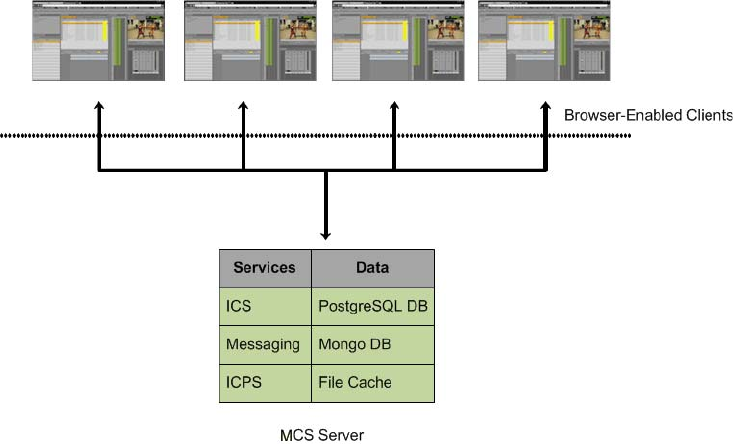
The following diagram illustrates a typical single-server deployment:
12
Multi-Server Deployments
Two or more MCS servers connect to each other through clustering software installed and
configured on each server. In a basic deployment, a cluster consists of a master/slave pair of
nodes configured for high-availability. All MCS traffic is routed through the master node which
is running all MCS services. Select MCS services and databases are replicated to the slave node.
Some of these services are actively running while others are in “standby” mode; ready to assume
the role of master at any time. Although not required, additional nodes are often present in a
cluster configuration to support load-balanced transcoding, playback and increased scale.
Playback requests, handled by the ICPS playback service, are distributed by the master to
available nodes. The load-balancing nodes perform transcoding, but do not participate in
failover. Unless reconfigured by a system administrator, the load-balancing nodes can never take
on the role of master or slave.
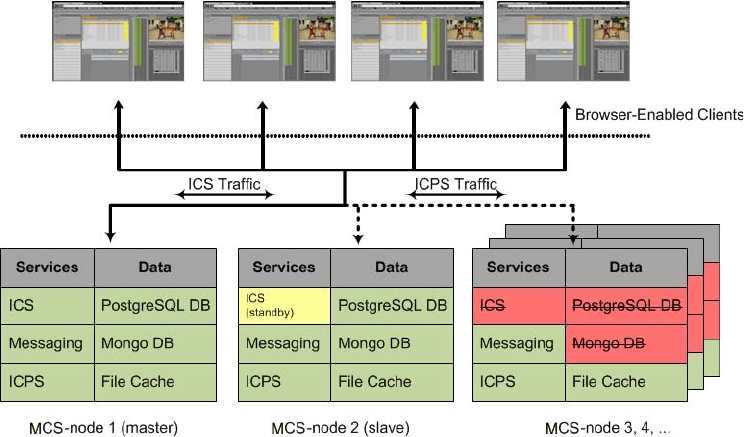
An interesting difference in a cluster deployment is at the network level. In a single server
deployment, the MCS server owns its host name and IP address. Clients connect directly to this
host name or IP to access the MCS system. In a cluster configuration, while each server
maintains its own host name and IP address, a virtual host name and IP address is also
configured for the cluster group. MediaCentral UX users connect to the cluster’s IP address or
host name, and not to the name of an individual server. Connecting to the cluster and not to an
individual node ensures that the client request is always serviced regardless of which nodes may
be available at the time.
The following diagram illustrates a typical cluster deployment:
13
How Failover Works
Failover in MCS operates at two distinct levels: service, and node - both of which are manged by
a cluster monitoring system. If a service fails, it is quickly restarted by the cluster monitor, which
also tracks the service's fail count. If the service fails too often (or cannot be restarted), the
cluster monitor gives responsibility for the service to the standby node in the cluster, in a process
referred to as a failover. A service restart in itself is not enough to trigger a failover. A failover
occurs when the fail count for the service reaches a specified threshold value.
The node on which the service failed remains in the cluster, but no longer performs the duties
that have failed. Until the fail count is manually reset, the failed service will not be restarted.
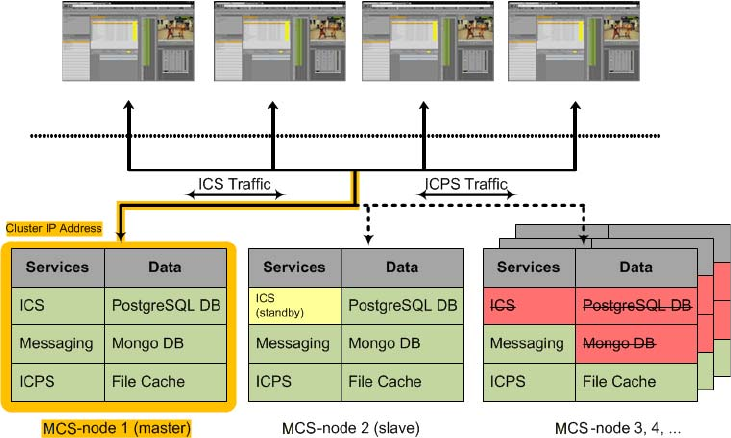
In order to achieve this state of high-availability, one node in the cluster is assigned the role of
master. It runs all the key MCS services. The master node also owns the cluster IP address. Thus
all incoming requests come directly to this node and are serviced by it. This is shown in the
following illustration:
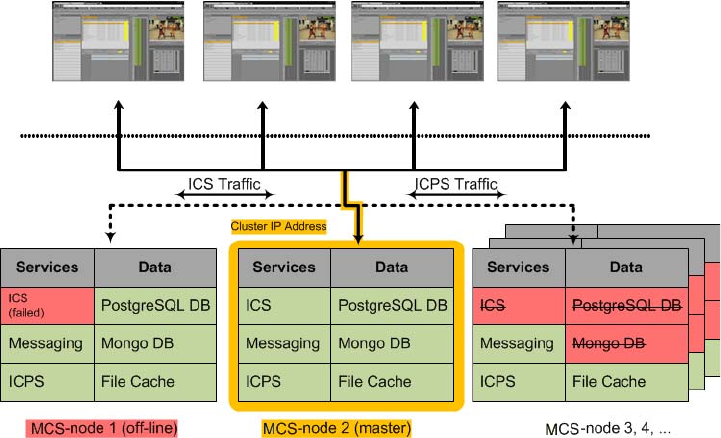
Should any of the key MCS services running on the master node fail without recovery (or reach
the failure threshold) a failover is initiated and the secondary node takes on the role of master
node. The node that becomes master inherits the cluster IP address, and its own MCS services
(that were previously in standby) become fully active. From this point, the new master receives
all incoming requests. Manual intervention must be undertaken to determine the cause of the
fault on the failed node and to restore it to service.
14
nIn a correctly sized cluster, a single node can fail and the cluster will properly service its users.
However, if two nodes fail, the remaining servers are likely under-provisioned for expected use
and will be oversubscribed. Users should expect reduced performance in this scenario. If the
primary and secondary nodes both fail, the system will be unavailable until the situation is
resolved.
The failover from master to slave is shown in the following illustration:
How Load-Balancing Works
In MCS video playback is load-balanced, meaning that incoming video playback requests are
distributed across all nodes in the cluster. Playback is made possible through the Interplay
Central Playback Service (ICPS) which actively runs on all nodes in the cluster concurrently.
When a client generates a playback request, the task is received by the master node. A load-
balancing algorithm controlled by the master node monitors the clustered nodes, and distributes
the request to a playback node. The playback node reads the source media from a shared storage
system and performs a quick lower-resolution transcode to stream to the client.
The node that has the least amount of system load receives the playback request. Subsequent
playback requests continue in a “round-robin” style where the next most available node receives
the following playback request.
15
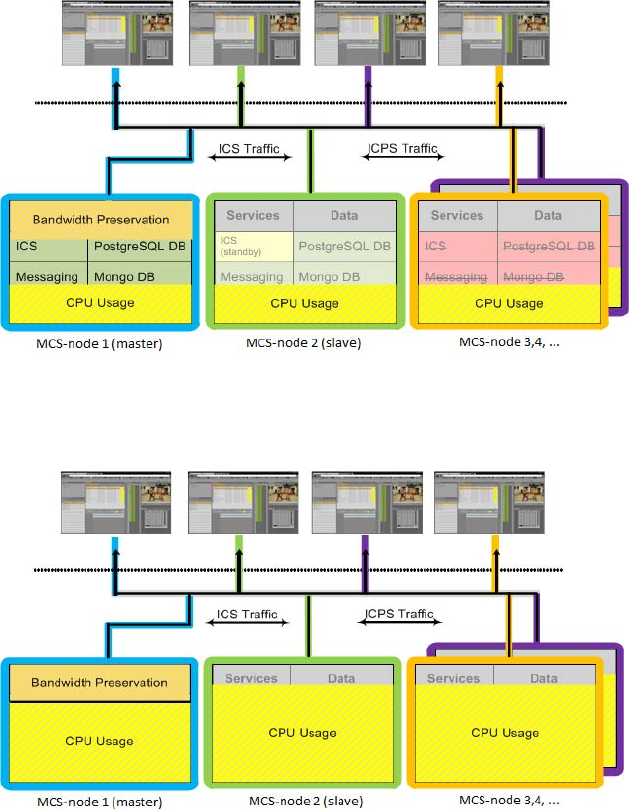
The master node is treated differently in that 30% of its CPU capacity is always reserved for the
duties performed by the master node alone, which include serving the UI, handling logins and
user session information, and so on. When the system is under heavy usage, the master node will
not take on additional playback jobs. All other nodes can reach 100% CPU saturation to service
playback requests.
The following illustration shows a typical load-balanced cluster. The colored lines indicate that
playback jobs are sent to different nodes in the cluster. They are not meant to indicate a particular
client is bound to a particular node for its entire session, which may not be the case. Notice the
master node’s bandwidth preservation.
The next illustration shows a cluster under heavy usage. As illustrated, CPU usage on the master
node will not exceed a certain amount, even when the other nodes approach saturation.
16
Working with Linux
Red Hat Enterprise Linux (RHEL) is a commercially supported, open source version of the
Linux operating system. If you have run DOS commands in Windows or have used the Mac
terminal window, the Linux environment will be familiar to you. While many aspects of the
MCS installation are automated, much of it requires entering commands and editing files using
the Linux command-line.
nRHEL is not free, and Avid does not redistribute it or include it as part of the MCS installation.
RHEL licensing and support options are covered in the MediaCentral Platform Services
Hardware Guide.
Installing Linux
Installations on Avid qualified HP and Dell servers can use an express process involving a USB
key and the Avid-supplied kickstart (ks.cfg) file. Kickstart files are commonly used in Linux
installs to automate the OS installation. A kickstart file automatically answers questions posed
by the Linux installer, for hardware known in advance.
To further assist in the deployment of the Linux server, the MCS installation package includes a
Windows-based tool called “ISO2USB”. This application is used to create a bootable USB drive
from a RHEL installation DVD or image (.iso) file. When a user boots from this USB drive,
RHEL and the MCS software packages are installed simultaneously with limited involvement
from the user.
nIf you are installing MediaCentral Platform Services on hardware that has not been qualified by
Avid, see “Appendix A: Installing MCS on Non-HP / Dell Hardware for Interplay MAM” in the
MCS Installation Guide.
Linux Concepts
Once RHEL is installed you can begin the work of configuring the server for MCS. This involves
simple actions such as verifying the system time. It also involves more complex actions, such as
verifying and modifying hardware settings related to networking, and editing files. Depending
on the deployment, you may also be required to create logical volumes, configure port bonding,
and perform other advanced actions.
Advance knowledge of the following Linux concepts is helpful:
• root user: The root user (sometimes called the “super” user) is the Linux user with highest
privileges. All steps in the installation are performed as root.
• mounting: Linux does not recognize hard drives or removable devices such as USB keys
unless they are formally mounted.
• files and directories: In Linux, everything is a file or a directory.

17
Key Linux Directories
Like other file systems, the Linux filesystem is represented as a hierarchical tree. In Linux
directories are reserved for particular purposes. The following table presents some of the key
Linux directories encountered during the MCS installation and configuration:
Directory Description
/ The root of the filesystem.
/dev Contains device files, including those identifying HD partitions, USB
and CD drives, and so on. For example, sda1 represents the first partition
(1) of the first hard disk (a).
/etc Contains Linux system configuration files, including the filesystem table,
fstab, which tells the operating system what volumes to mount at mount
at boot-time.
/etc/udev/rules.d Contains rules used by the Linux device manager, including network
script files where persistent names are assigned to network interfaces.
In Linux, every network interface has a unique name. If a NIC card has
four connection “ports”, for example, they might be named eth0 through
eth3.
/etc/sysconfig/network-scripts Contains, amongst other things, files providing Linux with boot-time
network configuration information, including which NIC interfaces to
bring up.
/media Contains the mount points for detachable storage, such as USB keys. In
Linux, volumes and removable storage must be mounted before they can
be accessed.
/opt Contains add-on application packages that are not a native part of Linux,
including the MCS components.
/usr Contains user binaries, including some MCS components.
/tmp The directory for temporary files.
/var Contains data files that change in size (variable data), including the MCS
server log files.

18
Linux Command Line
The Linux command line is a powerful tool that lets you perform simple and powerful actions
alike with equal speed and ease. For example, entering the Linux list command, ls, at the root
directory produces results similar to the following:
# ls
/bin /boot /dev /etc
/lib /media /mnt /opt
/sbin /srv /tmp /usr
/var
In the above command note the following
• The pound sign (#) indicates the presence of the Linux command prompt for a user with root
level privileges (the highest privilege level). You do not type a pound sign.
• A non-root level user would see a dollar sign ($) prompt instead.
• Linux commands, paths, and file names are case-sensitive.
The following table presents a few of the more commonly used Linux commands:
Command Description
ls Lists directory contents. Use the –l option (hyphen lower-case L) for a detailed
listing.
cd Changes directories.
cat <filename> Prints the contents of the named file to the screen.
clear Clears screen.
cp Copies files and directories.
<tab> Auto-completes the command based on contents of the command line and directory
contents.
For example, typing cd and the beginning of a directory name, then pressing the tab
key fills in the remaining letters in the name.
| “Pipes” the output from one command to the input of another.
For example, to view the output of a command one screen at a time, pipe into the
more command, as in:
ls | more

19
dmesg Displays messages from the Linux kernel buffer. Useful to see if a device (such as
USB key) mounted correctly.
find Searches for files.
For example, the following use of the find command searches for <filename> on all
local filesystems (avoiding network mounts):
find / -mount -name <filename>
grep Searches for the named regular expression. Often used in conjunction with the pipe
command, as in:
ps | grep avid
This example would display all running processes that contain the word “avid”.
less Similar to the cat command, but automatically breaks up the output in to screen-sized
chunks, with navigation. Useful for navigating large amounts of text on screen at a
time.
For example:
less <filename>
lvdisplay Displays information about logical volumes.
man Presents help (the “manual page”) for the named command.
mkdir Creates a new directory.
| more Piping (“|”) the output of a command through the more command breaks up the
output into screen-sized chunks.
For example to view the contents of a large directory one screen at a time, type the
following:
ls | more
mount
umount
Mounts and unmounts an external device to a directory. A device must be mounted
before its contents can be accessed.
ps Lists the running processes.
passwd Changes the password for the logged-in user.
scp Securely copies files between machines (across an ssh connection).
Command Description

20
Linux Text Editor (vi)
Linux features a powerful text editor called vi. To invoke vi, type the vi command followed by
the target file at the command prompt.
# vi <filename>
vi operates in one of two modes, insert mode and command mode. Insert mode lets you perform
text edits – insertion, deletion, etc. Command mode acts upon the file as a whole – for example,
to save it or to quit without saving.
• Press the “i” (as in Indigo) key to switch to insert mode.
• Press the colon (“:”) key to switch to command mode.
The following table presents a few of the more useful vi command mode commands:
tail Shows you the last 10 (or n) lines in a file.
tail <filename>
tail -50 <filename>
tail –f <filename>
The “-f” option keeps the tail command outputting appended data as the file grows.
Useful for monitoring log files.
udevadm Requests device events from the Linux kernel. Can be used to replay device events
and create/update the
70-persistent-net.rules file.
e.g. udevadm trigger --action=add
vi Starts a vi editing session.
Command Description
Key Press Description
: Prefix to commands in command mode
:wq Write file and quit vi (in command mode)
:q! Quit without writing (in command mode)

21
The following table presents a few of the more useful vi insert mode commands:
For two short and helpful vi tutorials, more complete reference information, and a vi FAQ, see:
http://www.unix-manuals.com/tutorials/vi/vi-in-10-1.html
Linux Usage Tips
The following table presents tips that will make it easier to work in RHEL:
Key Press Description
i Insert text before the cursor, until you press <Esc>
I Insert text at beginning of current line
a Insert text after the cursor
A Insert text at end of current line
wNext word
b Previous word
Shift-g Move cursor to last line of the file
D Delete remainder of line
x Delete character under the cursor
dd Delete current line
yy “Yank” (copy) a whole line in command mode.
p Paste the yanked line in command mode.
<Esc> Turn off Insert mode and switch to command mode.
Tip Description
Getting Help For help with Linux commands, the Linux System Manual (“man” pages)
are easily available by typing the man command followed by the item of
interest.
For example, for help with the ls command, type:
man ls
Searching within a man page To search for a string within a Linux man page, type the forward slash (“/
”) followed by the string of interest. This can be helpful for finding a
parameter of interest in a long man entry.

22
“command not found” error A common experience for users new to the Linux command line is to
receive a “command not found” after invoking a command or script that is
definitely in the current directory.
Linux has a PATH variable, but for reasons of security, the current
directory — “.” in Linux — is not included in it by default.
Thus, to execute a command or script in a directory that is unknown to the
PATH variable you must enter the full path to the script from the root
directory (“/”) or from the directory containing the script using dot-slash
(“./”) notation, which tells Linux the command you are looking for is in
the current directory.
Tip Description
2System Architecture
MediaCentral Platform Services is comprised of multiple systems such as: messaging systems,
user management services, cluster management infrastructure, and so on. While many of these
systems are independent, they are required to work together to create a cohesive environment.
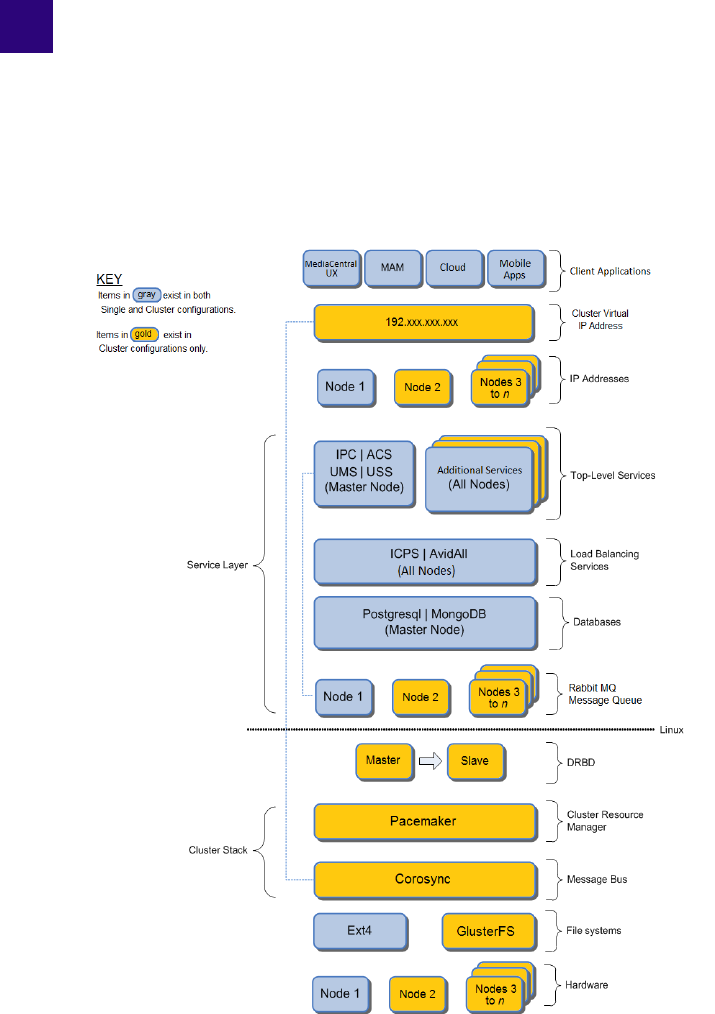
The following diagram shows how these systems operate at distinct layers of the architecture.

24
The following table explains the role of each layer:
System Architecture Layer Description
Client Applications MCS clients are defined as any system that takes advantage of the
MCS platform. Clients can range in complexity from a single
MediaCentral UX session on a web browser to a complex system such
as Interplay MAM. Additional client examples include Media
Composer Cloud, and MediaCentral UX on a mobile device.
Cluster Virtual IP Address In a cluster, clients gain access to MCS via the cluster’s virtual IP
address.
The dotted line in the illustration indicates that Corosync manages
ownership of the Cluster IP address.
Node IP Addresses In a single server configuration, clients gain access to MCS via the
server’s IP address or host name.
In a cluster configuration, each server maintains its own IP address
and host name. However, the cluster is seen from the outside as a
single machine with one IP address and host name.
Top-Level Services At the top level of the service layer are the MCS services running on a
single server or cluster master node only. These include:
• IPC - Interplay Central core services (aka “middleware”)
• UMS - User Management Services
• USS - User Setting Service
• ACS - Avid Common Service bus (aka “the bus”) (configuration &
messaging uses RabbitMQ.
The dotted line in the illustration indicates the top level services
communicate with one another via ACS, which, in turn, uses
RabbitMQ.
Additional Services - These services might not be active on all
systems as they require additional software or configuration.
• Media Distribute services
• Media Index services
• Closed Captioning service

25
Load-Balancing Services The mid-level service layer includes the services that run on all
servers, regardless of a single server or cluster configuration. In a
cluster, these services are load-balanced.
• AvidConnectivityMon - Verifies that the “always on” cluster IP is
reachable.
• AvidAll - Encapsulates all other ICPS back-end services.
• AvidICPS - Interplay Central Playback Services: Transcodes and
serves transcoded media.
Databases The mid-level service layer also includes two databases:
• PostgreSQL: Stores data for several MCS services (UMS, ACS,
ICPS).
• MongoDB: Stores data related to MCS messaging.
In a cluster configuration, these databases are synchronized between
the master and slave nodes for failover readiness.
RabbitMQ Message Queue RabbitMQ is the message broker (“task queue”) used by the MCS top
level services.
In a cluster, RabbitMQ maintains its own independent clustering
system. That is, RabbitMQ is not managed by Pacemaker. This allows
RabbitMQ to continue delivering service requests to underlying
services in the event of a failure.
DRBD Distributed Replicated Block Device (DRBD) is responsible for
volume mirroring.
DRBD replicates and synchronizes the system disk's logical volume
containing the PostgreSQL and MongoDB databases across the master
and slave, for failover readiness. DRBD carries out replication at the
block level.
Pacemaker The cluster resource manager. A resource represents a service or a
group of services that are monitored by Pacemaker. Pacemakers sees
and manages resources, not individual services.
Corosync Corosync is the clustering infrastructure. By default, corosync uses a
multicast address to communicate with the other nodes in the cluster.
However, configurations can be modified to use unicast addresses for
networks that do not support multicast protocols.
System Architecture Layer Description

Cluster Networking
26
The following sections of this chapter provide additional detail on the system architecture layers.
Cluster Networking
Network communication in a cluster generally occurs over a single network interface, using
multiple messaging protocols (unicast and multicast). Unicast messaging involves one host
(node-1) sending a network packet to another specific host (node-2). If node-1 needed to send the
same packet to additional hosts (node-3, node-4), multiple messages must be sent individually.
With multicast messaging, a single packet can be sent to a group of hosts simultaneously. This
can have advantages in some situations, but it lacks the precision of a point-to-point unicast
message. The following IP addresses are required for an MCS cluster:
Required IP Addresses for an MCS Cluster:
• Node IP Address (unicast)
Every node in an MCS system is assigned a static IP. This is true of both single-server and
cluster configurations. While single-server MCS systems support assigning the node IP
address through DHCP, clusters require static IP addresses for each node. Network level
firewalls and switches must allow the nodes to communicate with one another.
File systems The standard Linux file system.
This layer also conceptually includes GlusterFS, the Gluster “network
file system” used for cache replication. GlusterFS performs its
replication at the file level.
Unlike the Linux file system, GlusterFS operates in the “user space” -
the advantage being any GlusterFS malfunction does not bring down
the system.
Hardware At the lowest layer is the server hardware. This includes network
adapters, disk drives, BIOS settings and more.
The system disk is established in a RAID 1 (mirrored) configuration.
This mirroring is distinct from the replication of a particular volume
by DRBD. The RAID 1 mirror protects against disk failure. The
DRBD mirror protects against node failure.
Many systems will also include multiple disks in a RAID 5
configuration. These disks are configured as a cache for the low
resolution transcoded media that is streamed to the clients.
System Architecture Layer Description
Cluster Networking
27
• Virtual IP Address (unicast)
During the configuration process, a unicast IP address is assigned to the cluster. This IP is
associated with a virtual hostname in the site’s DNS system. Clients use these virtual
identifiers to communicate with the cluster. If a cluster node is offline, clients are still able to
communicate with the cluster using the virtual host name or IP.
The virtual IP address is managed by the cluster in the form of the AvidClusterIP resource. It
is owned by the master node and moves to the slave node in the event of a failover.
• Cluster IP Address (multicast by default)
During the configuration process, a multicast IP address is also assigned to the cluster. The
multicast address is used for inter-cluster communication. If cluster nodes are spread across
multiple network switches, the switches must be configured to allow this multicast traffic.
During the cluster configuration, a default multicast IP of 239.192.1.1 can be used as long as
no other multicast traffic exists on the network. Alternatively, your IT department can assign
a specific multicast address to avoid cross-communication between multicast groups. If your
site is not configured to use multicast, a static IP address can be used. However, this requires
additional configuration.
Reviewing the IP Addresses:
Once the cluster is configured, you can use the ifconfig command to review the network
configuration on each node. The following is an example from a master node on HP hardware:
[root@wavd-mcs01 ~]# ifconfig
eth0 Link encap:Ethernet HWaddr 00:60:DD:45:15:21
inet addr:192.168.10.51 Bcast:192.168.10.255 Mask:255.255.255.0
inet6 addr: fe40::222:dddd:ff13:1210/64 Scope:Link
UP BROADCAST RUNNING MULTICAST MTU:1500 Metric:1
RX packets:586964290 errors:0 dropped:0 overruns:0 frame:0
TX packets:627585183 errors:0 dropped:0 overruns:0 carrier:0
collisions:0 txqueuelen:1000
RX bytes:101260694799 (94.3 GiB) TX bytes:174678891394 (162.6 GiB)
Interrupt:103
eth0:cl0 Link encap:Ethernet HWaddr 00:60:DD:45:15:21
inet addr:192.168.10.50 Bcast:192.168.10.255 Mask:255.255.255.0
UP BROADCAST RUNNING MULTICAST MTU:1500 Metric:1
Interrupt:103
lo Link encap:Local Loopback
inet addr:127.0.0.1 Mask:255.0.0.0
inet6 addr: ::1/128 Scope:Host
UP LOOPBACK RUNNING MTU:16436 Metric:1
RX packets:139012986 errors:0 dropped:0 overruns:0 frame:0
TX packets:139012986 errors:0 dropped:0 overruns:0 carrier:0
collisions:0 txqueuelen:0
RX bytes:101973025015 (94.9 GiB) TX bytes:101973025015 (94.9 GiB)
Cluster Networking
28
nHP servers identify network adapters with an “eth” prefix whereas Dell servers identify the
adapters with an “em1”, “p1p1”or “p2p1”.
The following is true for the example above:
• “eth0” is the node IP address. This is the IP address of the server. Each node will have a
listing for this. In this example, “192.168.10.51” is the unicast IP address for this node. This
physical adapter has a state of “UP” which means the adapter is available and active.
• “eth:cl0” (or “cluster 0”) is the virtual IP address of the cluster. This will only appear on the
master node that owns the AvidClusterIP resource. In this example “192.168.10.50” is the
virtual unicast IP address for the cluster. This virtual adapter has a state of “UP”.
• “lo” is the loopback adapter. Each node will have a listing for this. If external network
cable(s) are disconnected, the loopback adapter is used by the system to communicate with
itself. Without this virtual adapter, some basic system functions would be unable to
communicate internally. This virtual adapter has a state of “UP”.
The multicast address used for inter-cluster communication does not appear within ifconfig. That
address can be verified in the cluster configuration file (corosync.conf) located at:
/etc/corosync/
.
MCS Services, Resources and Cluster Databases
29
MCS Services, Resources and Cluster Databases
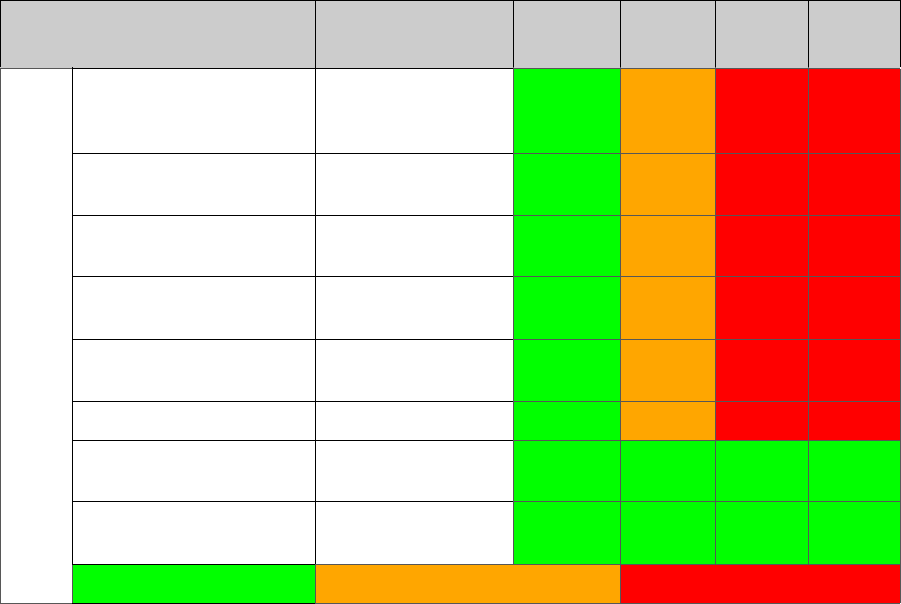
The following table lists the main MCS services and resources managed by Pacemaker, and
where they run:
Note the following:
• All MCS services run on the Master node in the cluster.
• Some MCS services are run on the Slave node in standby only. These services are started
automatically during a failover.
• Other services spawned by the Avid Common Service bus run on all nodes. The Playback
Service (ICPS) is an example of such a service. It runs on all nodes for scalability
(load-balancing supports many concurrent clients and/or large media requests) and high
availability (service is always available).
Service Resource Name
Node 1
(Master)
Node 2
(Slave) Node 3 Node n
IPC Core Services
(“the middleware”)
(avid-interplay-central)
AvidIPC ON OFF OFF OFF
User Management Service
(avid-ums)
AvidUMS ON OFF OFF OFF
UMS session cache service
(redis)
Redis ON OFF OFF OFF
MCS User Setting Service
(avid-uss)
AvidUSS ON OFF OFF OFF
Avid Common Services bus
(“the bus”) (acs-ctrl-core)
AvidACS ON OFF OFF OFF
Avid Monitor (avid-monitor) AvidClusterMon ON OFF OFF OFF
Playback Service
(avid-icps-manager)
AvidICPSEverywhere ON ON ON ON
Load-Balancing Services
(“the back-end”) (avid-all)
AvidAllEverywhere ON ON ON ON
= ON (RUNNING) = OFF (STANDBY) = OFF (DOES NOT RUN)
MCS Services, Resources and Cluster Databases
30
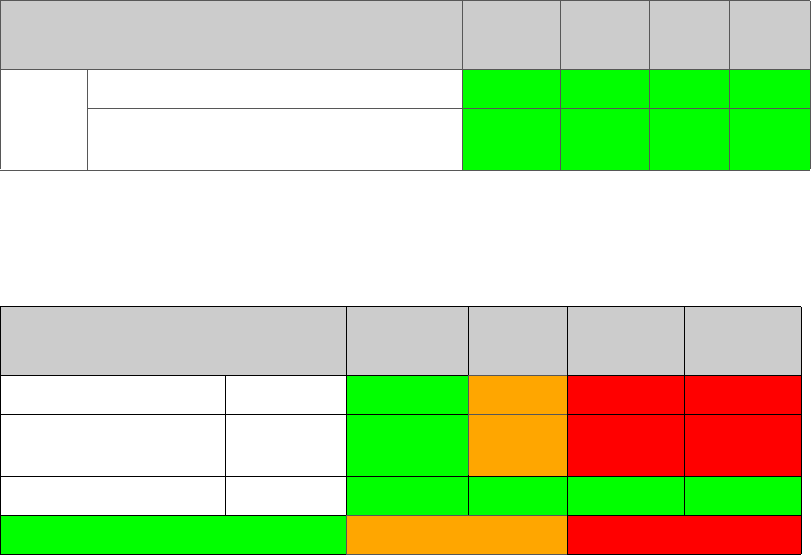
The following table lists the bus-dependent services:
The following table lists the MCS databases, and where they run:
Services and Resources
Node 1
(master)
Node 2
(slave) Node 3 Node n
AAF Generator* (avid-aaf-gen) ON ON ON ON
MCS MCS Messaging
(avid-acs-messenger & avid-acs-mail)
ON ON ON ON
* The AAF Generator runs on all nodes. However, since it is used by the MCS Core Service (“the
middleware”), it is only in operation on the master and slave nodes.
MCS Databases Node 1
(Master)
Node 2
(Slave) Node 3 Node n
ICS Database PostgreSQL ON OFF OFF OFF
Service Bus Messaging
Database
MongoDB ON OFF OFF OFF
RabbitMQ database Mnesia ON ON ON ON
= ON (RUNNING) = OFF (STANDBY) = OFF (DOES NOT RUN)

Clustering Infrastructure Services
31
Clustering Infrastructure Services
The MCS services and databases presented in the previous section depend on a functioning
clustered infrastructure. The infrastructure is supported by a small number of open-source
software components designed specifically (or very well suited) for clustering. For example,
Pacemaker and Corosync work in tandem to restart failed services, maintain a fail count, and
failover from the master node to the slave node, when failover criteria are met.
The following table presents the services pertaining to the infrastructure of the cluster:
Note the following:
• RabbitMQ, the message broker/queue used by ACS, maintains its own clustering system. It
is not managed by Pacemaker.
• DRBD mirrors the MCS databases across the two servers that are in a master-slave
configuration. This provides redundancy in case of a server failure.
• Pacemaker: The cluster resource manager. Resources are collections of services
participating in high-availability and failover.
• Corosync: The fundamental clustering infrastructure.
• Corosync and Pacemaker work in tandem to detect server and application failures, and
allocate resources for failover scenarios.
• GlusterFS mirrors media cached on a RAID 5 volume to all nodes in the cluster; each with
their own RAID 5 volume.
Software Function
Node 1
(Master)
Node 2
(Slave) Node 3 Node n
RabbitMQ Cluster Message
Broker/Queue
ON ON ON ON
DRBD Database Volume
Mirroring
ON ON OFF OFF
Pacemaker Cluster Management &
Service Failover
ON ON ON ON
Corosync Cluster Engine Data Bus ON ON ON ON
GlusterFS File Cache Mirroring ON ON ON ON
= ON (RUNNING) = OFF (STANDBY) = OFF (DOES NOT RUN)
RabbitMQ
32
RabbitMQ
RabbitMQ is the message broker (“task queue”) used by the MCS top level services. MCS makes
use of RabbitMQ in an active/active configuration, with all queues mirrored to exactly two
nodes, and partition handling set to ignore. The RabbitMQ cluster operates independently of the
MCS master/slave corosync cluster, but is often co-located on the same two nodes. The MCS
installation scripts create the RabbbitMQ cluster without the need for human intervention.
Note the following:
• All RabbitMQ servers in the cluster are active and can accept connections.
• Any client can connect to any RabbitMQ server in the cluster and access all data.
• Each queue and its data exists on the master and slave nodes in the cluster (for failover &
redundancy).
• In the event of a failover, clients should automatically reconnect to another node.
• If a network partition / split brain occurs (very rare), manual intervention will be required.
The RabbitMQ Cookie
A notable aspect of the RabbitMQ cluster is the special cookie it requires, which allows
RabbitMQ on the different nodes to communicate with each other. The RabbitMQ cookie must
be identical on each machine, and is set, by default, to a predetermined hard-coded string.
Powering Down and Rebooting
With regards to RabbitMQ and powering down and rebooting nodes:
• If you take down the entire cluster, the last node down must always be the first node up. For
example, if “wavd-mcs01” is the last node you stop, it must be the first node you start.
• Because of the guideline above, it is not advised to power down all nodes at exactly the same
time. There must always be one node that was clearly powered down last.
For details, see “Cluster Maintenance and Administration” on page 75.
Handling Network Disruptions
• RabbitMQ does not handle network partitions well. If the network is disrupted on only some
of the machines and then it is restored, you should shutdown the machines that lost the
network and then power them back on. This ensures they re-join the cluster correctly. This
happens rarely, and mainly if the cluster is split between two different switches and only one
of them fails.
• On the other hand, if the network is disrupted to all nodes in the cluster simultaneously (as in
a single-switch setup), no special handling should be required.
DRBD and Database Replication
33
Suggestions for Further Reading
•Clustering: http://www.rabbitmq.com/clustering.html
• Mirrored queues: http://www.rabbitmq.com/ha.html
• Network Partitions: http://www.rabbitmq.com/partitions.html
DRBD and Database Replication
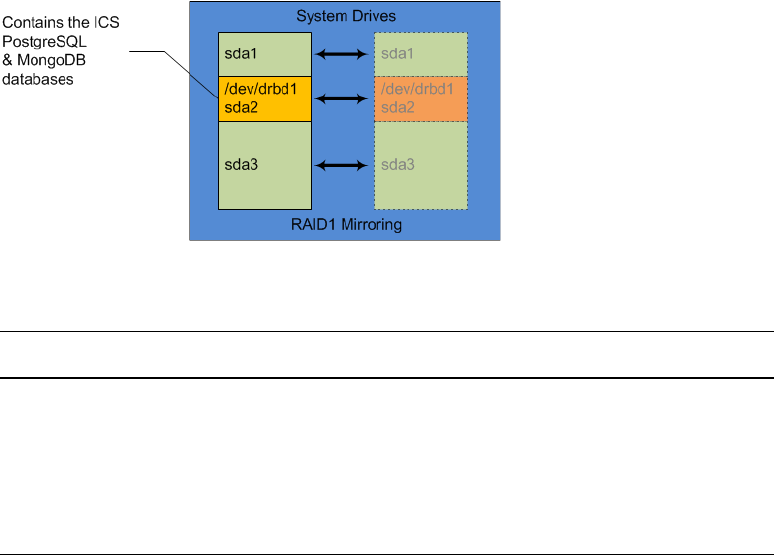
Recall the file system layout of a typical node. The system drive (in RAID1) consists of three
partitions: sda1, sda2 and sda3. As noted earlier, sda2 is the partition used for storing the MCS
databases, stored as PostgreSQL databases.
The following table details the contents of the databases stored on the sda2 partition:
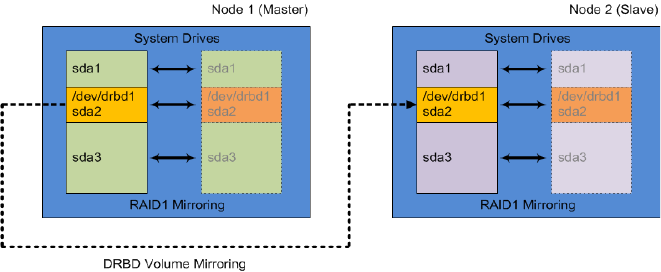
In a clustered configuration, MCS uses the open source Distributed Replicated Block Device
(DRBD) storage system software to replicate the sda2 partition across the Master/Slave cluster
node pair. DRBD runs on the master node and slave node only, even in a cluster with more than
two nodes. PostgreSQL maintains the databases on sda2. DRBD mirrors them.
Database Directory Contents
PostgreSQL /mnt/drbd/postgres_data UMS - User Management Services
ACS - Avid Common Service bus
ICPS - Interplay Central Playback Services.
MPD - Media Distribute
MongoDB /mnt/drbd/mongo_data ICS Messaging
Corosync and Pacemaker
34
The following illustration shows DRBD volume mirroring of the sda2 partition across the master
and slave.
Corosync and Pacemaker
Corosync and Pacemaker are independent systems which operate closely together to create the
core cluster monitoring and failover capabilities.
Corosync is the messaging layer used by the cluster. Its primary purpose is to maintain
awareness of node membership - nodes joining or leaving the cluster. It also provides a quorum
system to assist in deciding who takes ownership of a resource if a node is lost.
Pacemaker is a resource manager. A resource represents a service or a group of services that can
be manged by the cluster. Pacemaker maintains a configuration file (cib.xml) which defines all
resources within the cluster and governs how the resources react to a failure. Examples of these
governing rules are: failure counts, actions to take upon a failure, timeout values and so forth.
During a standard boot process, corosync starts before pacemaker to help identify which nodes
are available. Pacemaker then identifies which resources need to be started based on the
information provided by corosync. Example: If “node-1” is the first node to be started and it is
one of the drbd nodes which hosts the database, the node becomes the master node and
pacemaker starts the appropriate resources.
If a resource fails, pacemaker will attempt to restart the resource based on the rules configured
for that resource within the configuration file. If the resource fails enough times to reach the
fail-count threshold, it will no longer attempt to restart it. When a failed resource is operating on
the master node of the cluster, a failover to the slave node might occur (depending on the
resource).
For more information, see “Interacting with Resources” on page 47 and “Cluster Resource
Monitor” on page 67.
Disk and File System Layout
35
Disk and File System Layout
It is helpful to have an understanding of a system’s disk and file system layout. The following
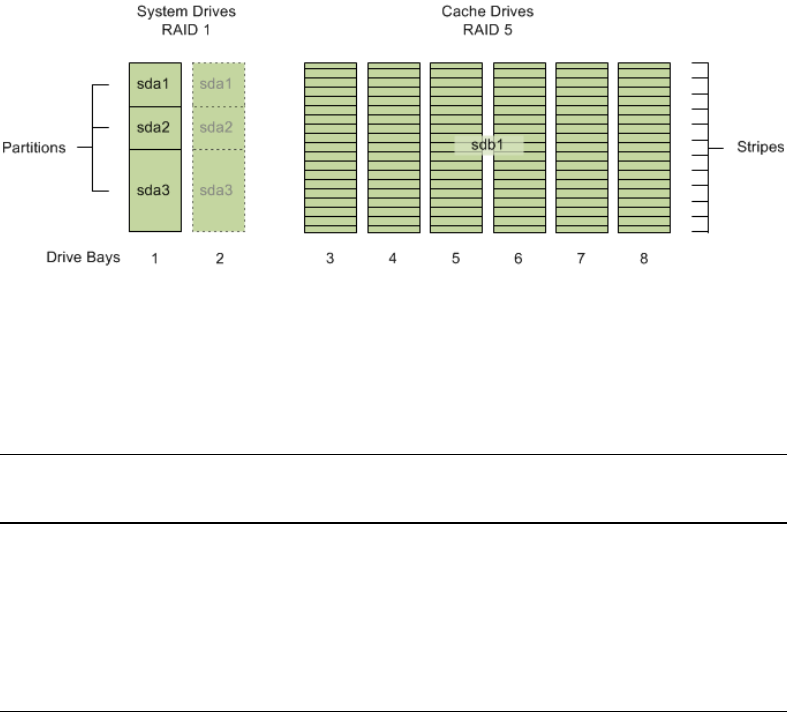
illustration represents the layout of a typical MCS server:
The above illustration shows a set of two drives in bays 1 and 2 in a RAID 1 configuration. These
drives house the operating system and MCS software. The drives in bays 3 - 8 are configured in a
RAID 5 group for the purpose of storing and streaming the transcoded media in the /cache folder.
The following table presents contents of each volume:
Note the following:
• sda1 is a standard Linux partition created by RHEL during installation of the operating
system.
• sda2 is a dedicated volume created for the PostgreSQL (UMS, ACS, ICS) and MongoDB
(ICS messaging) databases. The sda2 partition is replicated and synchronized between
master and slave by DRBD.
Physical
Volumes (pv)
Volume
Groups (vg)
Logical
Volumes (lv) Directory Content
sda1 /boot RHEL boot partition
sda2 /dev/drbd1 MCS databases
sda3 icps swap
root
/dev/dm-0
/
swap space
RHEL system partition
sdb1 ics cache /cache MCS file cache
Gluster and Cache Replication
36
• sda3 contains the system swap disk and the root partition.
• sdb1 is the RAID 5 cache volume used to store transcoded media and various other
temporary files.
The following configurations require a RAID 5 volume as a temporary file cache:
• MediaCentral UX installations that intend to stream media to iOS or Android mobile
devices. In this case, the media on ISIS is transcoded to MPEG-TS (MPEG-2 transport
stream) and stored locally in the MCS server’s /cache folder.
• Any installation that includes a multicam workflow. This includes Media Composer Cloud
installations that use multicam.
• Interplay | MAM deployments require a RAID 5 cache volume when registered browse
proxies include formats that cannot be natively loaded by the Adobe Flash-based player.
That is, for non MP4 h.264 browse proxies (such MPEG-1, Sony XDCAM, MXF, and
WMV), media on proxy storage is transcoded to FLV and stored.
The following configurations require a cache volume, but do not require RAID 5:
• Media Composer Cloud installations cache media locally on the client systems and do not
generally require a RAID 5. The exception to this rule are Cloud configurations that use
multicam media. The multicam media is converted to a single stream on the MCS server
prior to delivery to the client.
• Media Distribute installations.
nIn Interplay Central v1.5 a RAID 5 cache was required for multi-cam, iOS, and MAM non-h264
systems only. As of Interplay Central v1.6, a separate cache is required for all deployment types,
but it does not always need to be RAID 5.
Gluster and Cache Replication
Recall that MCS transcodes media from the format in which it is stored on the ISIS (or standard
file system storage) into an alternate delivery format, such as FLV, MPEG-2 Transport Stream, or
JPEG image files. In a deployment with a single MCS server, the MCS server maintains a cache
where it keeps recently-transcoded media. In the event that the same media is requested again,
the MCS server can deliver the cached media, without the need to re-transcode it.
In an MCS cluster, caching is taken one step farther. In a cluster, the contents of the cache
volumes are replicated across all the nodes, giving each server access to all the transcoded
media. The result is that each MCS server has access to the media transcoded by every other
node. When one MCS server transcodes media, the other MCS servers can also make use of it,
without re-transcoding.
Gluster and Cache Replication
37
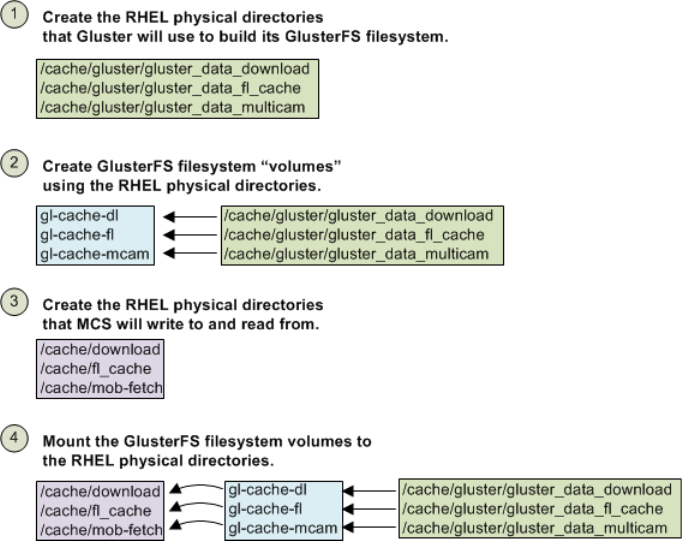
The replication process is controlled by Gluster, an open source software solution for creating
shared file systems. In MCS, Gluster manages data replication using its own highly efficient
network protocol. In this respect, it can be helpful to think of Gluster as a “network file system”
or even a “network RAID” system.
Gluster operates independently of other clustering services. You do not have to worry about
starting or stopping Gluster when interacting with MCS services or cluster management utilities.
For example, if you remove a node from the cluster, Gluster itself continues to run and continues
to replicate its cache against other nodes in the Gluster group. If you power down the node for
maintenance reasons, it will re-synchronize and 'catch up' with cache replication when it is
rebooted.
nThe correct functioning of the cluster cache requires that the clocks on each server in the cluster
are set to the same time. See “Configure Date and Time Settings” in the MediaCentral Platform
Services Installation and Configuration Guide for details on configuring time sync.
The following illustration summarizes the file system operations as configuring during the
installation process:

3Services and Resources
Services are highly important to the operation and health of an MCS system. As noted in
“System Architecture” on page 23, services are responsible for all aspects of MCS activity, from
the ACS bus, to end-user management and transcoding. Additional services supply the clustering
infrastructure. In a cluster, some MCS services are managed by Pacemaker, for the purposes of
high-availability and failover readiness. Services overseen by Pacemaker are called resources.
Services vs Resources
A typical cluster features both Linux services and Pacemaker cluster resources. Thus, it is
important to understand the difference between the two. In the context of clustering, a resource is
simply a Linux service or a group of services managed by Pacemaker. Managing services in this
way allows Pacemaker to monitor the services and automatically restart them when they fail.
Additionally, Pacemaker can shut down resources on one node and start them on another when a
fail-count threshold has been reached. This prevents failing services from restarting infinitely.
It can be helpful to regard a cluster resource as Linux service inside a Pacemaker “wrapper”. The
wrapper includes the actions defined for it (start, stop, restart, etc.), timeout values, failover
conditions and instructions, and so on. In short, Pacemaker manages resources, not services.
For example, “avid-interplay-central” is the core MediaCentral service. Since the platform
cannot function without it, this service is overseen and managed by Pacemaker as the AvidIPC
resource.
The status of a Linux service can be verified by entering a command of the following form at the
command line:
service <servicename> status
In contrast, the status of a cluster resource is verified through the Pacemaker Cluster Resource
Manager, crm, as follows:
crm status <resource>

Tables of Services and Resources
39
Tables of Services and Resources
The tables in this section provide lists of essential services that need to be running on
single-node and clustered configurations. It includes four tables:
•Single Server: The services that must be running in a single server deployment.
•Cluster - Master Node Only: The services that must be running on the master node only.
Although some of these services may be available in standby on the slave node, they should
not be actively running on any other node.
•Cluster - All Nodes: The services that must be running on all nodes.
•Cluster - Pacemaker Resources: The services managed by Pacemaker.
These tables are not exhaustive. They are meant to highlight essential services that operate on a
MediaCentral Platform server.
Single Server
The following table presents the services that must be running on the server, in an MCS
deployment with only one server.
Service Description
avid-acs-ctrl-core Avid Common Service bus (“the bus”)
Includes essential bus services needed for the overall platform to work:
• “boot” service (provides registry services to bus services)
• “attributes” services (provides system configuration of IPC)
• “federation” service (initializes multi-zone configurations)
The avid-acs-ctrl-core service is a critical service. The following services will
not start or function correctly if avid-acs-ctrl-core is not running.
• avid-icps-manager
• avid-ums
• avid-interplay-central
• avid-all
• avid-acs-messenger
• avid-mpd

Tables of Services and Resources
40
avid-acs-messenger The services related to the IPC end-user messaging feature:
• “messenger” service (handles delivery of user messages)
• “mail” service (handles mail-forwarding feature)
This service registers itself on the ACS bus. All instances are available for
handling requests, which are received by way of the bus via a round-robin-type
distribution system.
avid-all Encapsulates all ICPS back-end services:
• avid-config
• avid-isis
• avid-fps
• avid-jips
• avid-spooler
• avid-edit
avid-aaf-gen AAF Generator service, the service responsible for saving sequences.
To reduce bottlenecks when the system is under heavy load, five instances of this
service run concurrently, by default.
avid-interplay-central IPC Core services (“the middleware”)
avid-ums User Management Service
avid-uss User Setting Service - enables custom user data such as saved searches, layouts,
opened panes and more to be retained between sessions.
postgresql-9.1 PostgreSQL database for user management and attributes data.
mongod MongoDB database for data from the following services:
• ICS Messaging (avid-acs-messenger) data
• ACS bus (acs-ctrl-core) registry
rabbitmq-server Messaging broker/queue for the ACS bus.
redis Redis is a key-value data store used to store user session data. This allows MCS
to cache active session data and not continuously make calls to the postgresql
database to retrieve user information.
Service Description

Tables of Services and Resources
41
avid-mpd
(if installed)
Services related to Media Distribute include:
• avid-media-central-mpd
• avid-mpd
• servicemix
Operates similarly to the avid-acs-messenger service described above.
This service is only available when Media Distribute (separate installer) is
installed on the system.
avid-ccc
(if installed)
Closed Captioning service (requires separate installation)
“Media Index services”
(if configured)
Services related to the Media Index service include:
• avid-acs-search
• avid-acs-autocomplete
• avid-acs-media-index-configuration
• avid-acs-search-import
• avid-acs-media-index-feed
• avid-acs-media-index-status-provider
• avid-acs-media-index-permission
• avid-acs-media-index-thesaurus (added in MCS v2.4)
• elasticsearch
• elasticsearch-tribe
These services are only running when Media Index has been enabled.
“Multi-Zone services”
(if configured)
Services related to Multi-Zone configurations include:
• pgpool
• pgpoolchecker
These services are only running if Multi-Zone configuration has been enabled.
Service Description

Tables of Services and Resources
42
Cluster - Master Node Only
The following table presents the services that must be running on a cluster master node.
Service Description
avid-acs-ctrl-core Avid Common Service bus (“the bus”)
Includes essential bus services needed for the overall platform to work:
• “boot” service (provides registry services to bus services)
• “attributes” services (provides system configuration of IPC)
• “federation” service (initializes multi-zone configurations)
The avid-acs-ctrl-core service is a critical service. The following services will
not start or function correctly if avid-acs-ctrl-core is not running.
• avid-all
• avid-acs-messenger
• avid-icps-manager
• avid-interplay-central
• avid-ums
avid-interplay-central IPC Core services (“the middleware”)
avid-monitor This service monitors the nodes in the cluster.If a node goes down (network
outage, etc.), this service reports the node status to Pacemaker.
avid-ums User Management Service
avid-uss User Setting Service - enables custom user data such as saved searches, layouts,
opened panes and more to be retained between sessions.
drbd DRBD (Distributed Replicated Block Device) is used to mirror the system disk
partition containing the two databases from master to slave, for failover
readiness:
• PostGreSQL
• MongoDB
DRBD is fully functional on both master and slave. It is included in this table for
convenience.
mongod MongoDB database for data from the following services:
• ICS Messaging (avid-acs-messenger) data
• ACS bus (acs-ctrl-core) registry
postgresql-9.1 PostgreSQL database for user management and attributes data.

Tables of Services and Resources
43
Cluster - All Nodes
The following table presents the services that must be running on all nodes in a cluster.
redis Redis is a key-value data store used to store user session data. This allows MCS
to cache active session data and not continuously make calls to the postgresql
database to retrieve user information.
avid-ccc
(if installed)
Closed Captioning service (requires separate installation)
“Multi-Zone services”
(if configured)
Services related to Multi-Zone configurations include:
• pgpool
• pgpoolchecker
These services are only running if Multi-Zone configuration has been enabled.
Service Description
Service Description
avid-acs-messenger The services related to the IPC end-user messaging feature:
• “messenger” service (handles delivery of user messages)
• “mail” service (handles mail-forwarding feature)
This service registers itself on the ACS bus. All instances are available for
handling requests, which are received by way of the bus via a round-robin-type
distribution system.
This service operates independently, and is not managed by Pacemaker.
avid-all Encapsulates all ICPS back-end services:
• avid-config
• avid-isis
• avid-fps
• avid-jips
• avid-spooler
• avid-edit
avid-icps-manager Manages ICPS connections and load-balancing services.

Tables of Services and Resources
44
avid-aaf-gen AAF Generator service, the service responsible for saving sequences.
To reduce bottlenecks when the system is under heavy load, five instances of
this service run concurrently, by default.
Installed on all nodes but only used on the master or slave node, depending on
where the IPC Core service (avid-interplay-central) is running.
This service is not managed by Pacemaker, therefore you should check its
status regularly, and restart it if any instance has failed. See “Verifying the
AAF Generator Service” on page 65.
corosync Cluster Engine Data Bus
pacemaker Cluster Management and Service Failover Management
rabbitmq-server Messaging broker/queue for the ACS bus.
Maintains its own cluster functionality to deliver high-availability.
glusterd GlusterFS daemon responsible for cache replication.
avid-mpd
(if installed)
Media Distribute services.
Operates similarly to the avid-acs-messenger service described above.
This service is only available when Media Distribute (separate installer) is
installed on the system.
“Media Index
services”
(if configured)
Services related to the Media Index service include:
• avid-acs-search
• avid-acs-autocomplete
• avid-acs-media-index-configuration
• avid-acs-search-import (although only active on one node)
• avid-acs-media-index-feed
• avid-acs-media-index-status-provider
• avid-acs-media-index-permission
• avid-acs-media-index-thesaurus (added in MCS v2.4)
• elasticsearch
• elasticsearch-tribe
These services are only running when Media Index has been enabled.
Service Description

Tables of Services and Resources
45
Cluster - Pacemaker Resources
The following table lists the cluster resources overseen and managed by Pacemaker. For
additional details, query the Cluster Resource Manager using the following command:
crm configure show
In the output that appears, “primitive” is the token that defines a cluster resource.
Resource Description
AvidAll Encapsulates:
• avid-all
AvidACS Encapsulates:
• acs-ctrl-core
AvidClusterMon Encapsulates:
• avid-monitor
AvidConnectivityMon Encapsulates:
• The pingable IP address used when creating the cluster.
AvidICPS Encapsulates:
• avid-icps-manager
AvidIPC Encapsulates:
• avid-interplay-central
AvidUMS Encapsulates:
• avid-ums
AvidUSS Encapsulates:
• avid-uss
drbd_postgres Encapsulates:
•drbd
• postgresql-9.1
MongoDB Encapsulates:
• mongod
Redis Encapsulates:
•redis

Tables of Services and Resources
46
AvidCCC Encapsulates:
• avid-ccc
“Multi-Zone
resources”
The following resources (and related services) are used in Multi-Zone
configurations:
• pgpool (pgpool)
• pgpoolchecker (pgpoolchecker)
“Media Index
resources”
The following resources (and related services) are used in Media Index
configurations:
• AvidSearch (avid-acs-search)
• AvidSearchAutoComplete (avid-acs-autocomplete)
• AvidSearchConfig (avid-acs-media-index-configuration)
• AvidSearchImport (avid-acs-search-import)
• AvidSearchIndexFeed (avid-acs-media-index-feed)
• AvidSearchIndexStatus (avid-acs-media-index-status-provider)
• AvidSearchPermission (avid-acs-media-index-permission)
• AvidSearchThesaurus (avid-acs-media-index-thesaurus)
• elasticsearch (elasticsearch)
• elasticsearchTribe (elasticsearch-tribe)
These resources are only active after Media Index has been configured.
Resource Description

Interacting with Services
47
Interacting with Services
MCS services are standard Linux applications and/or daemons, and you interact with them
following the standard Linux protocols.
To interact with services, use the standard Linux command format:
t
service <servicename> <action>
Standard actions include the following (some services may permit other actions):
For example, if you needed to restart the avid-ums service, the following command would be
used:
service avid-ums restart
Interacting with Resources
A resource is a service or a group of services that is managed by Pacemaker. Actions described
in the previous section are generally not used in conjunction with managed resources. You must
interact with cluster resources using the Pacemaker Cluster Resource Manager, crm.
nUnder special circumstances (such as during troubleshooting), you can shut down Pacemaker
and Corosync, then directly stop, start and re-start the underlying services managed by
Pacemaker. The simplest way to gain direct access to a node’s managed services is by taking the
node offline. See “Directly Stopping Managed Services” on page 48.
To interact with resources, use the custom CRM command format:
t
crm resource <action> <resourcename>
For example:
crm resource status AvidIPC
Returns information similar to the following:
resource AvidIPC is running on: wavd-mcs01
Action Result
status returns the current status of the service
stop stops the service
start starts the service
restart stops then restarts the service
Directly Stopping Managed Services
48
Issuing the
crm resource status
command without specifying a resource returns the
status of all cluster resources (similar to what you would see in the crm_mon tool).
For more information see the discussion of the Cluster Resource Monitor tool, crm_mon, in
“Cluster Resource Monitor” on page 67.
Directly Stopping Managed Services
If you stop a resource's underlying service without going through the cluster resource manager,
Pacemaker will attempt to restart it immediately. This process increases the failure count of the
corresponding resource which can result in an unexpected failover. The cluster resource manager
should be used in most cases when interacting with managed services.
At times, you might need to interact directly with a managed service. Examples include new
installations, system upgrades or troubleshooting. If direct interaction is required, the node
should be temporarily removed from the cluster to avoid introducing service failures. This can be
accomplished by either removing the node from the cluster or stopping the clustering services.
nTaking the master node offline using either of the following two processes will initiate a failover.
To Remove a Cluster Node:
A node can be temporarily removed from the cluster using the cluster resource manager:
t
crm node standby <node>
Putting a node into standby shuts down Pacemaker and Corosync, freeing the services from
the associated managed resources.
To bring the node back online, issue the following command (which restarts Pacemaker and
puts its services back under management):
t
crm node online <node>
To Stop the Clustering Services:
Alternatively, stopping Pacemaker and Corosync will take the node offline:
t
service pacemaker stop && service corosync stop
To bring the node back online, start the two services in the reverse order.
t
service corosync start && service pacemaker start
Using the avid-ics Utility Script
49
Using the avid-ics Utility Script
“avid-ics” is a utility script (not a service) that can be used to verify the status of all the major
MCS services.
The script verifies the status of the following services:
• avid-all
• avid-interplay-central
• avid-acs-messenger
• acs-ctrl-core
• avid-ums
The utility script enables you to stop, start and view the status of all the services it encapsulates
at once. Note that the utility script cannot be invoked like a true service. The form “service
avid-ics status” will not work.
To interact with the script, use the following commands:
t
avid-ics status
t
avid-ics stop
t
avid-ics start
nAn example output of the script will not be provided here as the results can be lengthy.
Verifying the Startup Configuration for Avid Services
Linux includes a utility called chkconfig which enables a user to check the runlevels of various
services. Runlevels determine the state of the service upon boot. The MCS installation process
includes steps to verify or alter the runlevels of some services such as glusterd and postfix.
To run the chkconfig utility:
t
chkconfig --list
If desired, you can limit the output of the utility to list only services that include “avid” in
the name of the service:
t
chkconfig --list | grep avid
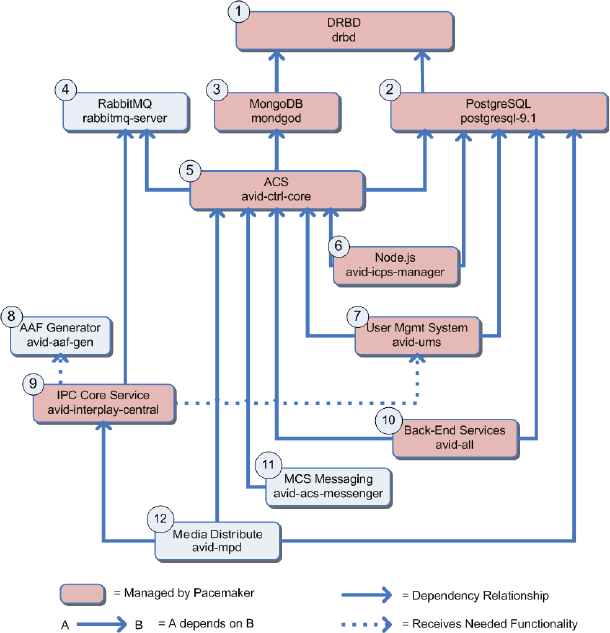
Services Start Order and Dependencies
50
Services Start Order and Dependencies
When direct intervention with a service is required, take special care with regards to stopping,
starting, or restarting. The services on a node operate within a framework of dependencies.
Services must be stopped and started in a specific order. This order is particularly important
when you have to restart an individual service (in comparison to rebooting the entire server).
Before doing anything, identify and shut down the services that depend on the target service.
nIf you are running a clustered configuration, make sure to take the node offline prior to stopping
any services. If you do not, Pacemaker will attempt to restart services which can result in
unexpected failovers. See “Directly Stopping Managed Services” on page 48 for additional
detail.
The start order and dependencies relationships of the main cluster services are summarized in the
following illustration.

Services Start Order and Dependencies
51
The following table summarizes the order in which services can be safely started.
Example: Restarting the User Management Services
The following example will attempt to demystify the illustration and table. Suppose you need to
restart the User Management Services (avid-ums).
1. Identify its position in the dependency table (#7).
2. Identify all the services that are directly or indirectly dependent on it (service #8, #9 & #12).
3. Since the avid-ums and avid-interplay-central are managed by Pacemaker, stop Pacemaker
and Corosync by putting the node into standby mode.
4. Stop the dependent services first in order from most dependencies to least dependencies
That is, stop service #12 first, then #9, #8, and #7.
Start
Order Service Name Process Name Notes
1 DRBD drbd Only applies to cluster
configurations.
2 PostgreSQL postgresql-9.1
3 MongoDB mongod
4 RabbitMQ rabbitmq-server
5 Avid Common Service bus
(ACS: “the bus”)
acs-ctrl-core
6 Node.js avid-icps-manager
7 User Management Services
(UMS)
avid-ums
8 AAF Generator avid-aaf-gen Five instances of this service
should always be running. See
“Verifying the AAF Generator
Service” on page 65.
9 IPC Core Services avid-interplay-central
10 ICPS Backend Services avid-all
11 ICS Messaging avid-acs-messenger
12 Media Distribute avid-mpd Only found on systems with
Media Distribute installed.
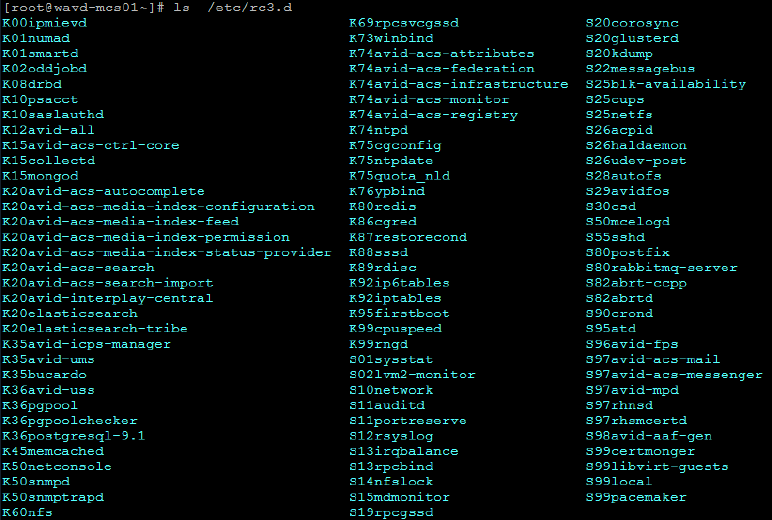
Services Start Order and Dependencies
52
5. Restart UMS (#7).
6. Restart services #8, #9 and, #12, in that order.
For a closer look at the start orders assigned to Linux services, see the content of the /etc/rc3.d
directory. The files in this directory are prefixed Sxx or Kxx (e.g. S24, S26, K02). The prefix Sxx
indicates the start order. Kxx indicates the shutdown order.
The content of a typical /etc/rc3.d directory is shown below:
nThe Linux start order as reflected in the /etc/rc3.d and the other run-level (“/etc/rcX.d”)
directories reflect the boot order and shut-down order for the server. They do not always reflect
dependencies within MCS itself.

4Validating the Cluster
This chapter includes a series of tests for determining if the underlying systems upon which the
MCS cluster is built are operating as expected. Many of the procedures in this chapter only
needed to be completed once, after the initial configuration of the cluster. However, if a new
node has been added to the cluster or if conditions on the network have changed (for example, a
network switch has been altered or replaced), cluster verification tests should be repeated.
For information and procedures directed towards regular maintenance activities, see “Cluster
Maintenance and Administration” on page 75.
Verifying Node Connectivity
Recall that all nodes appear to systems outside of the cluster as a single machine with one host
name and IP address. However, inter-node communication is completed using the node’s
individual host names and IP addresses. Additionally, in most cases, inter-cluster communication
occurs over a multicast broadcast using a cluster defined multicast address. In all cases, MCS
depends on reliable network connectivity for its success.
First, it is important to determine that the nodes are visible to one another over the network. It is
also important to determine how packets are routed through the network — you do not want too
many “hops” involved (ideally, there should be just one hop). The Linux ping command is the
simplest way to verify basic network connectivity. Routing information is revealed by the Linux
traceroute command.
nDuring the creation of the cluster, a “pingable IP” address is assigned through the
setup-corosync command. Before running the testes in this section, verify that you know the
“pingable IP” address as well as the hostnames and IP addresses of the cluster nodes and
support systems such as iNEWS and Interplay Production servers.
In this section you will:
• Verify the “Always On” IP Address
• Verify Network Connectivity
• Verify Network Routing
• Verify DNS Host Name Resolution
Verifying Node Connectivity
54
Verifying the “Always-On” IP Address
The “pingable IP” or “always-on” IP address is used by the Avid Connectivity Monitor cluster
components to determine if a particular node is still in the cluster. For example, if the
Connectivity Monitor on a slave node can no longer communicate with the master node, it
“pings” the always-on IP address (in practice, usually a router). If the always-on address
responds, the node concludes that the master node that has gone off-line, and it takes on the role
of master itself. If the always-on address does not respond, the slave node concludes there is a
network connectivity problem and it does not attempt to take on the master role.
To obtain the pingable IP address:
On any node in the cluster type the following command:
crm configure show
This displays the contents of the Cluster Information Base in human-readable form. The
pingable IP address is held by the AvidConnectivityMon primitive (192.168.10.1 in the
example below).
primitive AvidConnectivityMon ocf:pacemaker:ping \
params host_list="192.168.10.1" multiplier="100" \
op start interval="0" timeout="20s" \
op stop interval="0" timeout="20s" \
op monitor interval="10s" timeout="30s"
Verifying Network Connectivity
Verifying basic network connectivity between cluster nodes by manually pinging the nodes of
interest is a quick way to ensure the nodes can communicate with each other.
To verify network connectivity:
On any network connected machine (preferably one of the cluster nodes), use the Linux ping
command to reach the host in question:
ping -c # <hostname or ip address>
In this example
ping
is used with the
-c
switch which tells Linux to attempt the ping at a count
of
#
times.
<hostname or ip address>
indicates that a host name or IP address can be used.
For example:
ping -c 4 wavd-mcs02
Verifying Node Connectivity
55
The system responds by outputting its efforts to reach the specified host, and the results. For
example, output similar to the following indicates success:
PING wavd-mcs02.wavd.com (192.168.10.52) 56(84) bytes of data.
64 bytes from wavd-mcs02.wavd.com (192.168.10.52): icmp_seq=1 ttl=64 time=0.086 ms
64 bytes from wavd-mcs02.wavd.com (192.168.10.52): icmp_seq=2 ttl=64 time=0.139 ms
64 bytes from wavd-mcs02.wavd.com (192.168.10.52): icmp_seq=3 ttl=64 time=0.132 ms
64 bytes from wavd-mcs02.wavd.com (192.168.10.52): icmp_seq=4 ttl=64 time=0.175 ms
Complete additional tests, verifying you can ping the following:
• Each cluster node
• The “always on” IP address specified during the cluster configuration
• Host systems such as the ISIS System Director, Interplay Production Engine, iNEWS server,
MAM server, etc.
Verify Network Routing
In this step, you will verify the number of “hops” between MCS nodes. Network “hops” refer to
the number of routers or network switches that data must pass through on the way from the
source node to its destination. For efficiency, it is important that there are as few network hops as
possible between the clustered nodes. Ideally, there should be at most one hop.
nBe sure to run traceroute on the pingable IP address to verify it is within easy reach and is
unlikely to be made unreachable, for example, by inadvertent changes to network topology.
To view the route packets take between nodes:
On one of the cluster nodes, use the Linux traceroute command to reach another node:
traceroute <hostname>
For example, issuing a traceroute on “localhost” (always your current machine) will result in
output similar to the following, representing a single “hop”:
traceroute to localhost (127.0.0.1), 30 hops max, 60 byte packets
1 localhost (127.0.0.1) 0.020 ms 0.003 ms 0.003 ms
For a machine that is three network hops away, the results will resemble the following:
traceroute to wavd-nc11 (192.168.32.11), 30 hops max, 60 byte packets
1 192.169.18.1 (192.168.18.1) 0.431 ms 0.423 ms 0.416 ms
2 gw.wavd.com (192.168.32.7) 0.275ms 0.428 ms 0.619 ms
3 192.168.48.40 (192.168.48.40) 0.215 ms 0.228 ms 0.225 ms
Verifying Node Connectivity
56
Repeat the traceroute tests to verify the routing to each node. Each node should have the same
number of “hops”. If one or more nodes has a different number of hops than the others, this
should be investigated and optimized if possible.
Verifying DNS Host Name Resolution
It is important that the Domain Name System (DNS) servers correctly identify the nodes in the
cluster. This is true of all physical nodes and the virtual cluster IP and hostname. The Linux dig
(domain information groper) and nslookup commands perform similar name lookup functions.
Enter the following commands as the root user.
Using “dig” to verify DNS:
dig +search <host>
The +search option forces dig to use the DNS servers defined in the /etc/resolve.conf file, in the
order they are listed in the file.
The dig command as presented above returns information on the “A” record for the host name
submitted with the query, for example:
dig +search wavd-mcs01
Returns output similar to the following:
[root@wavd-mcs01 ~]# dig +search wavd-mcs01
; <<>> DiG 9.8.2rc1-RedHat-9.8.2-0.17.rc1.el6_4.6 <<>> +search wavd-mcs01
;; global options: +cmd
;; Got answer:
;; ->>HEADER<<- opcode: QUERY, status: NOERROR, id: 63418
;; flags: qr aa rd ra; QUERY: 1, ANSWER: 1, AUTHORITY: 0, ADDITIONAL: 0
;; QUESTION SECTION:
;wavd-mcs01.wavd.com. IN A
;; ANSWER SECTION:
wavd-mcs01.wavd.com. 3600 IN A 192.168.10.51
;; Query time: 0 msec
;; SERVER: 192.168.10.10#53(192.168.10.10)
;; WHEN: Tue Jul 4 15:57:25 2015
;; MSG SIZE rcvd: 56
Even though the command specified the short hostname, the “ANSWER SECTION” provides
the Fully Qualified Domain Name (FQDN) as well as the IP address of 192.168.10.51.

Verifying Node Connectivity
57
Additionally, the “>>HEADER<<” section indicated a status of NOERROR. This verifies that
the DNS server (192.168.10.10 in this example) has a valid entry for the host in question. The
following table presents other possible return codes:
Using “nslookup” to verify DNS:
nslookup <host> or <ip>
nslookup polls the primary DNS server configured in the resolv.conf file for the hostname or IP
address you specify. For example:
nslookup wavd-mcs01
Returns output similar to the following:
Server: 192.168.10.10
Address: 192.168.10.10#53
Name: wavd-mcs01.wavd.com
Address: 192.168.10.51
Note that DNS servers contain both forward and reverse zones. By entering a hostname in the
nslookup command, only the forward zone information was verified. Repeat the command using
the IP address to verify the reverse zone.
Return Code Description
NOERROR DNS Query completed successfully
FORMERR DNS Query Format Error
SERVFAIL Server failed to complete the DNS request
NXDOMAIN Domain name does not exist
NOTIMP Function not implemented
REFUSED The server refused to answer for the query
YXDOMAIN Name that should not exist, does exist
XRRSET RRset that should not exist, does exist
NOTAUTH Server not authoritative for the zone
NOTZONE Name not in zone

Validating the FQDN for External Access
58
Validating the FQDN for External Access
It is vital that the fully qualified domain name (FQDN) for each MCS server is resolvable by the
domain name server (DNS) tasked with doing so. This is particularly important when
MediaCentral will be accessed from the MediaCentral mobile application (iPad, iPhone or
Android device) or when connecting from outside the corporate firewall through Network
Address Translation (NAT). In such cases, review the FQDN returned by the XLB load-balancer.
Ensure that the network administrator has assigned the FQDN a unique public IP address.
nCurrently, connecting to MediaCentral through NAT is only supported for single-server
configurations and not MCS cluster configurations.
Verifying External Access
1. Launch a web browser on your client(s) of interest. This could be:
tAn iPad, iPhone or Android device
tA client outside of the corporate firewall through a VPN or NAT connection
tA client within the corporate firewall
2. Enter the following URL into the address bar:
http://<FQDN>/api/xlb/nodes/less/?service=xmd
Where <FQDN> is the fully qualified domain name of the MCS server. In a cluster
configuration, enter the FQDN of the cluster (virtual cluster hostname). For example:
http://wavd-mcs.wavd.com/api/xlb/nodes/less/?service=xmd
The system returns a string similar to the following (line breaks added for clarity):
{"status":"ok","data":
{"xlb_service_ip":"10.XXX.XXX.XX",
"xlb_service_port":5000,
"xlb_node_ip":"10.XXX.XXX.XX/32",
"xlb_node_name":"wavd-mcs01",
"xlb_node_full_name":"wavd-mcs01.subdomain.domain.net"}}
Note the following data of interest:
Item Description
xlb_node_ip The IP address of the node assigned to you for the current session.
In a cluster configuration, this will be one of the cluster nodes.
xlb_node_name The host name of the node assigned to you for the current session.
In a cluster configuration, this will be one of the cluster nodes.

Validating the FQDN for External Access
59
nAn example of a failed connection from the Safari browser on an iOS device appears as follows:
“Safari cannot open the page because the server cannot be found.”
3. Verify the output of the command.
For a Single Server:
In a single server configuration, the “xlb_node_full_name” should match the FQDN name
entered in the Server field of the MediaCentral System Setting (System
Settings>IPCS>Player>server).
For a Cluster:
In a cluster configuration, the domain extension (e.g. wavd.com) displayed in
“xlb_node_full_name” should match the domain extension used in the Server field of the
MediaCentral System Setting (System Settings>ICPS>Player>Server).
In this case you are only matching the domain extension because the Server field in the
MediaCentral System Settings specified the cluster name and not an individual node.
The “xlb_node_full_name” will not return the cluster FQDN, but will instead return one of
the cluster’s individual node names. The returned node name is based on whichever node is
most available to respond for the current session.
nRefreshing the web page may return a different node name. This is normal.
If the output does not match, you may be able to log into MediaCentral on a remote client,
but playback may not function.
If MediaCentral will be accessed from outside the corporate firewall through NAT, ensure
that this server is accessible. In particular, ensure the FQDN returned by the query is
associated with a public address.
Troubleshooting
If you are not getting the results you expect, work with your on-site IT Department to verify that
your DNS includes forward and reverse entries for each MCS server and an entry for the virtual
cluster hostname and IP. Make sure there are no duplicate entries that contain incorrect
information (e.g. an invalid IP address).
xlb_node_full_name The FQDN of the assigned node. If connecting to MediaCentral
from outside the corporate firewall through NAT, this domain
name must resolve to an external (public) IP address.
Item Description
Validating the FQDN for External Access
60
If you are still unsuccessful and you are not using NAT, an alternative option exists. MCS v2.0.2
added a feature for altering the “application.properties” file to instruct the MCS servers to return
an IP address during the load-balancing handshake instead of a hostname.
nThis process is not supported for single-server systems using NAT.
To adjust the application.preperties file:
1. Log in to the MCS server as the ‘root’ user. If you have a clustered configuration, log into
the master node.
2. Navigate to the following directory:
cd /opt/avid/etc/avid/avid-interplay-central/config
3. This directory contains an “application.properties.example” file. The example file includes
information on some features that can be adjusted. Use the following command to rename
this file to exclude the “.example” extension:
mv application.properties.example application.properties
4. Edit the file using a text editor (such as vi):
vi application.properties
5. Add the following text to the end of the file:
system.com.avid.central.services.morpheus.media.UseIpForPreferredHost=t
rue
6. Save and exit the vi session. Press <ESC> and type:
:wq
7. Repeat steps 1 – 6 on the slave node.
8. Once complete, the AvidIPC resource must be restarted.
nThis step will disconnect any users currently working on the system.
a. If running a single server configuration, issue the following command:
service avid-interplay-central restart
b. If running a clustered configuration, issue the following command on any node in the
cluster:
crm resource restart AvidIPC
9. Once this process is complete, repeat the process for validating the FQDN of the MCS
Servers.
Verifying Time Synchronization
61
Verifying Time Synchronization
Verifying time synchronization across multiple networked servers in Linux is a challenge, and
there is no simple way to do it that provides entirely satisfactory results. The major impediment
is the nature of the Linux Network Time Protocol (NTP) itself. Time synchronization is
particularly important in a cluster, since Pacemaker and Corosync rely on time stamps for
accuracy in communication.
During MCS installation, a cron job was created to synchronize each MCS server to an NTP time
server. Note that the time adjustment is not instantaneous — it can take some time for the NTPD
daemon to adjust the local system time to the value retrieved from the NTP time server.
Furthermore, network congestion can result in unpredictable delays between each server seeking
accurate time, and accurate time being returned to it.
For all of these the reasons, it can be understood that even with NTP, there is no guarantee all
systems see the same time at the same moment. Nevertheless, some basic verification can be
performed:
• Verify the NTP configuration file (
/etc/ntp.conf
) contains the address of an in-house
NTP server
• Ensure any out-of-house servers (e.g. “
0.rhel.pool.ntp.org
”) are commented out or
removed from
ntp.conf
(for security)
• Verify the NTP server in the NTP configuration file is reachable from each server in the
cluster:
ntpdate -q <server_address>
• Verify a cron job (
/etc/cron.d/ntpd
) has been created
• Open a shell on each server in the cluster and visually verify the system date, time and
timezone:
date
• If needed, use NTP to adjust the time and date:
/usr/sbin/ntpd -q -u ntp:ntp
nSome industry literatures suggests a server's time can take some time to “settle down” after a
reboot, or after requesting a clock synchronization using NTP. It is not unusual for there to be
delays of up to an hour or two before clock accuracy is established.
For more information see “Configure Date and Time Settings” in the MediaCentral Platform
Services Installation and Configuration Guide.
Verifying the Pacemaker / Corosync Cluster Status
62
Verifying the Pacemaker / Corosync Cluster Status
For all important events, such as a master node failover, the cluster sends automated e-mails to
cluster administrator e-mail address(es). It is nevertheless important to regularly check up on the
cluster manually. Recall that cluster resources are Linux services under management by
Pacemaker. By regularly checking the fail counts of cluster resources, for example, you can
identify issues before a failover actually takes place.
For more information on the Cluster Resource Monitor, reference “Cluster Resource Monitor”
on page 67.
Verifying the Status of RabbitMQ
RabbitMQ is a messaging bus used by the top-level MCS services on each node to communicate
with each other. It maintains its own cluster functionality independent of the Corosync cluster,
but is always co-located on the same Master and Slave nodes.
To verify that RabbitMQ is functioning properly:
Request the status of the messaging bus using the “rabbitmqctl” command:
rabbitmqctl cluster_status
Example output for a two node cluster:
[root@wavd-mcs01 ~]# rabbitmqctl cluster_status
Cluster status of node 'rabbit@wavd-mcs01' ...
[{nodes,[{disc,['rabbit@wavd-mcs01','rabbit@wavd-mcs02']}]},
{running_nodes,['rabbit@wavd-mcs01','rabbit@wavd-mcs02']},
{cluster_name,<<"rabbit@wavd-mcs01.wavd.com">>},
{partitions,[]}]
...done.
If you do not see similar results or need additional information on RabbitMQ, including
troubleshooting assistance, see:
http://avid.force.com/pkb/articles/en_US/troubleshooting/RabbitMQ-cluster-troubleshooting

Verifying the DRBD Status
63
Verifying the DRBD Status
Recall that DRBD is responsible for mirroring the MCS database on the two servers in the
master/slave configuration. It does not run on any other nodes. In this section you run the DRDB
drdb-overview utility to ensure there is connectivity between the two DRBD nodes, and to verify
database replication is taking place.
To view the status of DRBD, log in to the node of interest and issue the following command:
drbd-overview
A healthy master node will produce output similar to the following:
1:r0/0 Connected Primary/Secondary UpToDate/UpToDate C r----- /mnt/drbd
ext4 20G 907M 18G 5%
A healthy slave node will return the following:
1:r0/0 Connected Secondary/Primary UpToDate/UpToDate C r-----
nIf the master and slave nodes do not resemble the above output, see “Troubleshooting DRBD”
on page 105.
The following table explains the meaning of the output:
Element Description
1:r0/0
The DRBD device number (“1”) and name (“r0/0”).
Connected The connection state. Possible states include:
• Connected - Connection established and data mirroring is
active.
• Standalone - No DRBD network connection (i.e., not yet
connected, explicitly disconnected, or connection
dropped). In MCS this usually indicates a “split brain” has
occurred.
• WFConnection - The node is waiting for the peer node to
become visible on the network.

Verifying the DRBD Status
64
Primary/Secondary
The roles for the local and peer (remote) DRBD resources.
The local role is always presented first (i.e. local/peer).
• Primary - The active resource.
• Secondary - The resource that receives updates from its
peer (the primary).
• Unknown - The resource’s role is currently not known.
This status is only ever displayed for the peer resource (i.e.
Primary/Unknown).
UptoDate/UptoDate
The resource’s disk state. The local disk state is presented first
(i.e. local/peer). Possible states include:
• UptoDate - Consistent and up to date. The normal state.
• Consistent - Data is consistent, but the node is not
connected to its peer.
• Inconsistent - Data is not consistent. This occurs on both
nodes prior to first (full) sync, and on the synchronization
target during synchronization.
• Unknown - No connection to peer. This status is only ever
displayed for the peer resource (i.e. UptoDate/Unknown).
C
The replication protocol. Should be “C” (synchronous).
r-----
I/O flags. The first entry should be “r” (running).
/mnt/drbd ext4 20G 907M 18G 5%
The DRBD partition mount point and other standard Linux
file system information. This indicates the DRBD partition is
mounted on this node. This should be the case on the master
node only.
Element Description
Verifying ACS Bus Functionality
65
Verifying ACS Bus Functionality
The Avid Common Services bus (“the bus”) provides essential bus services needed for the
overall platform to work. Numerous services depend upon it, and will not start — or will throw
serious errors — if the bus is not running. You can easily verify ACS bus functionality using the
acs-query command. On a master node, this tests the ACS bus directly. Although the ACS bus
operates on the master and slave nodes only, by running acs-query on a non-master node you can
validate network and node-to-node bus connectivity
To verify the ACS bus is functioning correctly:
Query the ACS bus database using the acs-query command with using the --path option:
acs-query --path=serviceType
Output similar to the following ought to be presented:
"avid.acs.registy"
The above output indicates RabbitMQ, MongoDB and PostgreSQL are all running and reachable
by the ACS bus (since no errors are present). It also indicates the “avid.acs.registry” bus service
is available.
Verifying the AAF Generator Service
The AAF Generator service (avid-aaf-gen) is responsible for saving sequences. To reduce the
possibility of bottlenecks when many users attempt to save sequences at the same time, multiple
instances of the service run simultaneously (by default, five). As a result, MediaCentral has the
ability to save multiple sequences concurrently, significantly reducing overall wait-times under
heavy load.
In a cluster deployment, this service is installed and running on all nodes. However, it is only
involved in saving sequences on the node where the IPC core service (avid-interplay-central) is
currently running.
The service is not managed by Pacemaker. It is therefore important to regularly verify its status.
If one or more instances of it have failed, restart the service. An instance can fail, for example, if
an invalid AAF is used within a sequence. If all instances of the avid-aaf-gen service fail, the IPC
core service (avid-interplay-central), assumes the responsibility for saving transfers and
bottlenecks can arise.
Service logs are stored in
/var/log/avid/avid-aaf-gen/log_xxx
.
Verifying the AAF Generator Service
66
To verify the status and/or stop the AAF Generator service:
1. Log in to both the master and slave nodes as root.
Though the AAF Generator service is active in saving sequences only on the master node,
you should verify its status on the slave node too, to prepare for any failover.
2. Verify the status of the AAF Generator service:
service avid-aaf-gen status
The system outputs the status of each instance, similar to the following:
avid-aaf-gen_1 process is running [ OK ]
avid-aaf-gen_2 process is running [ OK ]
avid-aaf-gen_3 process is running [ OK ]
avid-aaf-gen_4 process is running [ OK ]
avid-aaf-gen_5 process is running [ OK ]
An error would look like this:
avid-aaf-gen_1 process is not running [WARNING]
3. In the event of an error, restart the service as follows:
service avid-aaf-gen restart
Output similar to the following indicates the service has restarted correctly:
Starting process avid-aaf-gen_1 - Stat: 0 [ OK ]
Starting process avid-aaf-gen_2 - Stat: 0 [ OK ]
Starting process avid-aaf-gen_3 - Stat: 0 [ OK ]
Starting process avid-aaf-gen_4 - Stat: 0 [ OK ]
Starting process avid-aaf-gen_5 - Stat: 0 [ OK ]
4. If you need to stop the service this must be done in two steps:
a. Configure 0 instances of the service (there are 5 by default):
echo 0 > /opt/avid/avid-aaf-gen/DEFAULT_NUM_PROCESSES
b. With zero instances configured, you can stop the service normally:
service avid-aaf-gen-stop
5. To restart the service, reset the number of instances to the default (5) then restart it in the
usual way.

5Cluster Resource Monitor
The easiest way to verify that all nodes are participating in the cluster and that all resources are
up is through the Pacemaker Cluster Resource Monitor, crm_mon. This utility provides a
real-time view of the cluster status including information on failures and failure counts. This
section provides information to assist in interpreting the output of the Cluster Resource Monitor.
Accessing the Cluster Resource Monitor
To monitor the status of the cluster, log in to any node in the cluster as root and enter the
following command.
crm_mon [-f]
The output of this command presents the status of the main resources (and underlying services)
controlled by Pacemaker, and the nodes on which they are running. The optional
-f
switch adds
fail count information to the output.
Press CTRL-C on a Windows keyboard or CMD-C on a Mac keyboard to exit the crm_mon
utility.
Interpreting the Output of CRM
Line-by-Line Breakdown
The following is an example of a four-node cluster. This section provides a line-by-line
explanation of typical
crm_mon
output (line numbers have been added, for reference).
nThe “lsb” prefix shown in the Cluster Resource Monitor indicates the named service conforms to
the Linux Standard Base (LSB) project, meaning these services support standard Linux
commands for scripts (e.g. start, stop, restart, force-reload, status).
The “ocf” prefix indicates the named entity is a cluster resource, compliant with the Open
Cluster Framework (OCF). OCF can be understood as an extension of LSB for the purposes of
clustering.

Interpreting the Output of CRM
68
1) ============
2) Last updated: Thu Jul 16 16:20:01 2015
3) Last change: Mon Jul 13 10:06:51 2015 via crm_attribute on wavd-mcs02
4) Stack: classic openais (with plugin)
5) Current DC: wavd-mcs04 - partition with quorum
6) Version: 1.1.11-97629de
7) 4 Nodes configured, 4 expected votes
8) 24 Resources configured
9) ============
10) Online: [ wavd-mcs01 wavd-mcs02 wavd-mcs03 wavd-mcs04 ]
11) Clone Set: AvidConnectivityMonEverywhere [AvidConnectivityMon]
12) Started: [ wavd-mcs01 wavd-mcs02 wavd-mcs03 wavd-mcs04 ]
13) AvidClusterMon (lsb:avid-monitor): Started wavd-mcs01
14) MongoDB (lsb:mongod): Started wavd-mcs01
15) Redis (ocf::avid:redis): Started wavd-mcs01
16) Resource Group: postgres
17) postgres_fs (ocf::heartbeat:Filesystem): Started wavd-mcs01
18) AvidClusterIP (ocf::heartbeat:IPaddr2): Started wavd-mcs01
19) pgsqlDB (ocf::avid:pgsql_Avid): Started wavd-mcs01
20) Master/Slave Set: ms_drbd_postgres [drbd_postgres]
21) Masters: [ wavd-mcs01 ]
22) Slaves: [ wavd-mcs02 ]
23) Clone Set: AvidAllEverywhere [AvidAll]
24) Started: [ wavd-mcs01 wavd-mcs02 wavd-mcs03 wavd-mcs04 ]
25) AvidIPC (lsb:avid-interplay-central): Started wavd-mcs01
26) AvidUMS (lsb:avid-ums): Started wavd-mcs01
27) AvidUSS (lsb:avid-uss): Started wavd-mcs01
28) AvidACS (lsb:avid-acs-ctrl-core): Started wavd-mcs01
29) Clone Set: AvidICPSEverywhere [AvidICPS]
30) Started: [ wavd-mcs01 wavd-mcs02 wavd-mcs03 wavd-mcs04 ]
Line(s) Description
1-9 Header information
2 Last time something changed in the cluster status (for example, a service stopped, was
restarted, and so on).
3 Last time the cluster configuration was changed, and from where it was changed.
4 Name of the Corosync stack (includes Pacemaker and Corosync). Always named “openais”.
5 Displays the current holder of the configuration. If you change something on a machine, the
change must be “approved” by the Current DC.
6 Version number of the Corosync stack.
7 The number of nodes configured. Expected votes relates to quorums (unused).
8 The total number of Pacemaker managed resources (services and groups of services).

Interpreting the Output of CRM
69
Notice that while all services are running on one node — wavd-mcs01, in the sample output —
only some of the services are running on the others. This is because wavd-mcs01 is the master
node. The wavd-mcs02 node is the slave node, and runs database replication and video playback
services only. The wavd-mcs03 and wavd-mcs04 nodes run video playback services only.
Identifying the Master, Slave and Load-Balancing Nodes
The header information at the beginning of the crm_mon tool lists the total number of nodes
configured. Four nodes are listed in the example above. The “Online” section just below the
header information lists which nodes are in the cluster and online. If any nodes are powered-on,
but not active, they will be listed in the same section as “standby”. If any nodes are known
powered-off, they will be listed as “offline”.
10 Lists the cluster nodes including their current status (online, offline, standby).
11-12 The AvidConnectivityMon resource monitors the pingable IP address specified during the
cluster setup.
13 The resource that sends the automated e-mails.
14 The MongoDB resource.
15 The Redis resource.
16-19 The PostgreSQL resource group.
· postgres_fs: Responsible for mounting the drbd device as a file system.
· AvidClusterIP: The virtual cluster IP address.
· pgsqlDB: The PostgreSQL database.
20-22 The master/slave set for DRBD.
23-24 The playback services. “Clone Set” indicates it is running on all nodes in the cluster.
25 The Interplay Central resource.
26 The User Management Service resource.
27 The User Setting Service resource.
28 The Avid Common Services bus (“the bus”).
29-30 The Avid Interplay Central Playback Services (the “back end” services).
Line(s) Description
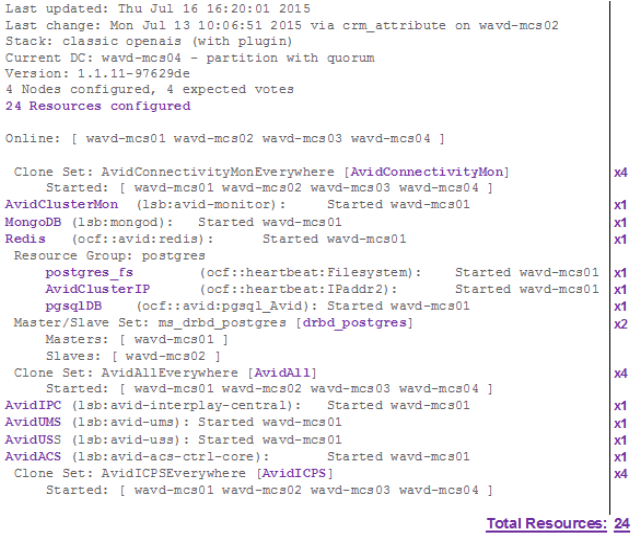
Interpreting the Output of CRM
70
The master node can be identified in a number of ways:
• It is always the owner of the AvidClusterIP resource.
• It is listed as “master” under the drbd_postgres resource.
• It will be the owner of multiple other resources such as: MongoDB, AvidIPC, AvidUMS and
more.
The slave node can be identified as “slave” under the drbd_postgres resource. It will also run
additional load-balancing resources such as AvidICPS and AvidAll.
The load-balancing nodes will only run load-balancing resources such as AvidICPS and AvidAll.
Identifying the Cluster Resources
The following image identifies the Pacemaker resources within the cluster. Your cluster may
have additional resources based on how the system has been configured. For instance, Media
Index configurations will have many more resources. Older versions of MediaCentral may have
fewer resources configured.
Identifying Failures in CRM
71
Note the total number of “Resources configured” at the top of the tool. There are 24 resources in
the example image. The resources are identified in bold text and a count has been added on the
right. Some resources run on the master node only while other resources, such as AvidICPS, run
on multiple nodes. The counts listed on the right equal the total number of configured resources.
If you are using an SSH client (PuTTY) to monitor the cluster and you do not see all the
resources in the Cluster Resource Monitor, you may need to expend the size of your SSH
window to see all resources on screen.
Identifying Failures in CRM
When using the
-f
switch with the
crm_mon
command, additional information regarding failures
and fail-counts will appear at the bottom of the tool. During operation of the Cluster, services
may fail. In some cases this is normal and expected behavior. Pacemaker will automatically
restart the service and users will have no indication that a failure occurred. In other cases, a
failure could represent a problem and further investigation is required. In either case, failures
should not be allowed to continue unchecked as too many failures could eventually initiate a
failover event. The following example uses the
crm_mon -f
command to display additional
information on failures in this four-node cluster.
Last updated: Thu Jul 16 16:20:01 2015
Last change: Mon Jul 13 10:06:51 2015 via crm_attribute on wavd-mcs02
Stack: classic openais (with plugin)
Current DC: wavd-mcs04 - partition with quorum
Version: 1.1.11-97629de
4 Nodes configured, 4 expected votes
24 Resources configured
Online: [ wavd-mcs01 wavd-mcs02 wavd-mcs03 wavd-mcs04 ]
Clone Set: AvidConnectivityMonEverywhere [AvidConnectivityMon]
Started: [ wavd-mcs01 wavd-mcs02 wavd-mcs03 wavd-mcs04 ]
AvidClusterMon (lsb:avid-monitor): Started wavd-mcs01
MongoDB (lsb:mongod): Started wavd-mcs01
Redis (ocf::avid:redis): Started wavd-mcs01
Resource Group: postgres
postgres_fs (ocf::heartbeat:Filesystem): Started wavd-mcs01
AvidClusterIP (ocf::heartbeat:IPaddr2): Started wavd-mcs01
pgsqlDB (ocf::avid:pgsql_Avid): Started wavd-mcs01
Master/Slave Set: ms_drbd_postgres [drbd_postgres]
Masters: [ wavd-mcs01 ]
Slaves: [ wavd-mcs02 ]
Clone Set: AvidAllEverywhere [AvidAll]
Started: [ wavd-mcs01 wavd-mcs02 wavd-mcs03 wavd-mcs04 ]
AvidIPC (lsb:avid-interplay-central): Started wavd-mcs01
AvidUMS (lsb:avid-ums): Started wavd-mcs01
AvidUSS (lsb:avid-uss): Started wavd-mcs01
AvidACS (lsb:avid-acs-ctrl-core): Started wavd-mcs01
Clone Set: AvidICPSEverywhere [AvidICPS]
Identifying Failures in CRM
72
Started: [ wavd-mcs01 wavd-mcs02 wavd-mcs03 wavd-mcs04 ]
Migration summary:
* Node wavd-mcs01:
Redis: migration-threshold=20 fail-count=5 last-failure='Wed Jul 15 16:46:45 2015'
AvidUMS: migration-threshold=20 fail-count=3 last-failure='Wed Jul 15 15:26:30
2015'
AvidACS: migration-threshold=20 fail-count=1 last-failure='Wed Jul 15 18:30:08
2015'
* Node wavd-mcs02:
AvidConnectivityMon: migration-threshold=1000000 fail-count=1 last-failure='Wed Jul
15 18:30:49 2015'
* Node wavd-mcs03:
AvidConnectivityMon: migration-threshold=1000000 fail-count=1 last-failure='Wed Jul
15 18:30:08 2015'
* Node wavd-mcs04:
Failed actions:
Redis_monitor_15000 on wavd-mcs01 'not running' (7): call=5381, status=complete,
last-rc-change='Wed Jul 15 16:46:45 2015', queued=0ms, exec=0ms
AvidUMS_monitor_25000 on wavd-mcs01 'unknown error' (1): call=5317, status=Timed
Out, last-rc-change='Wed Jul 15 15:26:30 2015', queued=0ms, exec=0ms
AvidACS_monitor_25000 on wavd-mcs01 'unknown error' (1): call=5405, status=Timed
Out, last-rc-change='Wed Jul 15 18:30:48 2015', queued=0ms, exec=0ms
AvidConnectivityMon_monitor_10000 on wavd-mcs02 'unknown error' (1): call=325,
status=Timed Out, last-rc-change='Wed Jul 15 18:30:49 2015', queued=0ms, exec=0ms
AvidConnectivityMon_monitor_10000 on wavd-mcs03 'unknown error' (1): call=3216,
status=Timed Out, last-rc-change='Wed Jul 15 18:30:48 2015', queued=0ms, exec=0ms
The “Failed actions” area will be present in the
crm_mon
tool with or without the
-f
option. This
information has not been present in previous examples as this is the first example with failures.
In this example, failures occurred on wavd-mcs01, wavd-mcs02 and wavd-mcs03, but no errors
occurred on wavd-mcs04. Additionally, all services have recovered and are now running
normally. A failure in the middle of the tool represents a hard failure - the resource failed and has
not recovered. Failures at the end of the tool, are historical counts and do not necessarily
represent a current condition.
The “Migration summary” area has been added with the use of the
-f
switch. It lists similar
information to the “Failed actions” area: which node(s) encountered a failure, the name of the
failed resource and the date/time stamp of the last failure. Additionally, this area lists the failure
count. This is important information as it may not only indicate the severity of the issue, but also
indicate how close the count is to the “migration-threshold” (failover).
Recall that some failures are considered normal and high failure counts may not be a concern. As
an example, the migration-threshold of the AvidConnectivityMon is 1,000,000 which is the
equivalent to “infinite”. Other resources have a migration-threshold as low as 2. A failure
indicates that the verification of the resource was unavailable at the requested time. This could
happen for a number of reasons and may not indicate a true failure, only that the resource could
not be contacted.
Identifying Failures in CRM
73
Failures at the bottom of the tool can be cleared using the following command in a second
terminal window (a terminal window other than the one showing crm_mon):
crm resource cleanup <rsc> [<node>]
• <rsc> is the resource name of interest: AvidIPC, AvidUMS, AvidACS, etc.
• <node> (optional) is the node of interest. Omitting the node cleans up the resource on all
nodes.
nIf you receive an “object/attribute does not exist” error message, it indicates the resource is
active on more than one node. Repeat the command using the group name for the resource (the
“everywhere” form). For example, for the AvidAll resource, use AvidAllEverywhere. For
AvidConnectivityMon, use AvidConnectivityMonEverywhere. Services contained in the postgres
resource group (postgres_fs, AvidClusterIP and pgsqlDB) can be addressed individually, or as a
group.
It is important to clear the failures as this also clears the failure counts. Should a resource fail
enough times on the master node to reach the migration-threshold, Pacemaker will remove the
node from the cluster and failover to the slave node. If the cluster remains unsupervised, failure
counts could eventually lead to an unexpected failover and a temporary loss of client
communication.
When troubleshooting, it may be necessary to stop, start or restart a resource. This can be
accomplished with the following commands:
crm resource stop [resource-name]
crm resource start [resource name]
crm resource restart [resource-name]
Interpreting Failures in the Cluster
74
Interpreting Failures in the Cluster
The following section provide additional details on what users should expect from service,
resource or node failures.
What impact does a failover have upon users?
Most service failures result in an immediate service restart on the same node in the cluster. In
such cases, users generally do not notice the failure. At worst, their attempts to interact with the
service in question may return errors for a few seconds but full functionality is quickly restored
with no data loss.
If a service fails enough times to reach the failure threshold, the node is removed from the
cluster. During this 20-30 second period, users will experience errors until the new master node
takes over. If a user loses patience and leaves the page or closes the browser they may lose
unsaved changes.
Do I need to investigate every time I see a fail count?
No. Most service failures are due to temporary software issues. Services are quickly restarted by
the cluster and users may not ever experience an interruption of service. If the fail count appears
to be the result of a benign service failure, simply reset the service's failure-count. Monitoring
the failure counts ensures that future failures will not trigger a failover. If a service or resource
continually fails, the issue should be investigated further.
How important are failovers?
In most cases service failures are benign, and the automated restart is sufficient. You may want to
monitor cluster status regularly. If services on some nodes are occasionally reporting a fail-count
of 1, take some initiative to verify that server hardware is OK, and that disk space is not
compromised. You can even look at the time of the failure and retrieve logs.
However, a node may have failed because of a lack of disk space or a hardware failure, in which
cases it should only be added back to the cluster only after it has been repaired.

6Cluster Maintenance and Administration
MCS is based on the Linux operating system which is generally considered to be a very reliable
platform and therefore suggestions for regular maintenance are limited. Avid does not
recommend regular reboots of the MCS servers as are often recommended for Windows-based
systems. Server reboots should only be completed as part of troubleshooting efforts if the
situation arises. This chapter contains information related to the processes used for shutdown,
startup and reboot of an MCS cluster if these procedures become necessary. Additional
administrative tasks such as adding nodes to the cluster and removing nodes from the cluster are
also covered here.
General Maintenance Guidelines
The following checks could be considered for regular maintenance:
• Check the crm_mon tool to ensure all nodes are active and service failure counts are
investigated and cleared. See “Cluster Resource Monitor” on page 67 for more information.
• Verify the cluster nodes are in time synchronization with the house NTP server. See
“Verifying Time Synchronization” on page 61 for more information.
• Verify the AAF Generator Service. See “Verifying the AAF Generator Service” on page 65
for more information.
76
Adding Nodes to a Cluster
Additional nodes are often added to existing MCS clusters to add horizontal scale which
accommodates increased client capacity and system load. The process for adding a new node or
nodes is similar to that of a new cluster installation.
If the GlusterFS volume replication system has been configured on the existing nodes, Gluster
needs to be installed and configured on the new node(s) as well. In the following process, “MCS
Install Guide” refers to the v2.4 MediaCentral Platform Services Installation and Configuration
Guide.
To Add Node(s) to the Corosync Cluster
1. Build the new node according to “Part I” through “Part III” of the MCS Install Guide.
nWhen updating the hosts file, make sure to duplicate the changes on all cluster nodes.
2. Proceed to “Part V - Clustering” of the MCS Install Guide. Review the “Cluster Overview”
section and verify that the prerequisites have been met.
3. From the master node only, run the
cluster setup-cluster
script to specify the new non-
drbd node(s):
/opt/avid/cluster/bin/cluster setup-cluster --cluster_ip="cluster IP
address" --pingable_ip="router IP address" --cluster_ip_iface="eth0" --
admin_email="comma separated e-mail list" --drbd_exclude="comma
separated list of non-DRBD nodes"
Review the MCS Install Guide for details on the exact usage of this command. The syntax of
the command is very important, but the primary reason for running the command at this time
is to exclude the new node(s) from DRBD replication.
4. From the master node only, restart the following services so that they register correctly on
the message bus:
service avid-acs-messenger restart
service avid-aaf-gen restart
5. Open a separate terminal window and run the Cluster Resource Monitor:
crm_mon
6. Follow the instructions in the MCS Install Guide for “Adding Nodes to the Cluster”. This
only needs to be completed on the new node(s).
Monitor the CRM utility as the new node is added to the cluster. Wait for all resources to
start and cluster activity to settle.
The new node is now part of the cluster and is able to service playback requests from the
clients.
77
To Add Node(s) to GlusterFS
1. Complete “Starting GlusterFS” in the MCS Install Guide.
2. Complete “Creating the Trusted Storage Pool” in the MCS Install Guide. Only the new node
or nodes need to be probed.
3. Similar to the
gluster volume create
command used in the “Configuring the GlusterFS
Volumes” process found in the MCS Install Guide you will use the
add-brick
command to
add the new node to Gluster. Complete this step on a node other than the one you are adding.
gluster volume add-brick gl-cache-dl replica N hostname:/cache/gluster/
gluster_data_download
gluster volume add-brick gl-cache-fl replica N hostname:/cache/gluster/
gluster_data_fl_cache
gluster volume add-brick gl-cache-mcam replica N hostname:/cache/
gluster/gluster_data_multicam
In the above command:
-“N” is the total number of nodes (including the new node).
-“hostname” is the short host name of the new cluster node.
nIf needed, this command can be used to add multiple nodes to Gluster at the same time by
specifying additional host names.
4. Complete the following sections in the MCS Install Guide for configuring Gluster:
- “Setting Gluster Volume Ownership”
- “Making the RHEL Cache Directories”
- “Changing Ownership and Mounting the GlusterFS Volumes”
- “Testing the Cache”
- “Ensuring Gluster is On at Boot”
78
Permanently Removing a Node
As discussed, a node can be temporarily removed from the cluster by putting it into standby.
Permanently removing a node involves a reconfiguration of the Corosync / Pacemaker cluster
and the GlusterFS shares. The following is an overview of the steps required to remove a node.
In the following process, “MCS Install Guide” refers to the v2.4 MediaCentral Platform Services
Installation and Configuration Guide.
nThe following process applies to the removal of a load-balancing node. If you need to remove the
slave node from the cluster, Avid recommends backing-up all system settings, re-imaging the
nodes, and re-creating the cluster.
To Remove a Node from the Corosync Cluster
1. The cluster should appear healthy (no failures / all resources available) prior to beginning
this process. Open the Cluster Resource Monitor to verify the status of your cluster:
crm_mon -f
Press CTRL-C on the keyboard to exit the Cluster Resource Monitor.
2. Bring the cluster into maintenance mode by putting each node into standby with the
following command:
crm node standby <node name>
Start with the load-balancing nodes, then the slave node and finally the master node.
3. Stop the cluster services on the node you need to remove:
service pacemaker stop
service corosync stop
4. From any cluster node other than the one you are removing, delete the node that you want to
remove:
crm node delete <node name>
The system will respond with the following:
INFO: node <node name> deleted
5. Prior to bringing the corosync cluster back online, the node must also be removed from the
rabbitmq cluster.
a. Check the current status of the rabbitmq cluster:
rabbitmqctl cluster_status
79
All cluster nodes, including the one you want to remove should be listed. Example:
[root@wavd-mcs02 etc]# rabbitmqctl cluster_status
Cluster status of node 'rabbit@wavd-mcs02' ...
[{nodes,[{disc,['rabbit@wavd-mcs01','rabbit@wavd-mcs02',
'rabbit@wavd-mcs03']}]},
{running_nodes,['rabbit@wavd-mcs01','rabbit@wavd-mcs02']},
{cluster_name,<<"rabbit@wavd-mcs01">>},
{partitions,[]}]
...done.
b. Stop the rabbitmq service on the node to be removed:
service rabbitmq-server stop
c. From any cluster node other than the one you are removing, remove the node from
rabbitmq:
rabbitmqctl forget_cluster_node rabbit@<node name>
d. Check the status of the rabbitmq cluster again:
rabbitmqctl cluster_status
Rabbitmq should no longer list the removed node. Example:
[root@wavd-mcs02 etc]# rabbitmqctl cluster_status
Cluster status of node 'rabbit@wavd-mcs02' ...
[{nodes,[{disc,['rabbit@wavd-mcs01','rabbit@wavd-mcs02']}]},
{running_nodes,['rabbit@wavd-mcs01','rabbit@wavd-mcs02']},
{cluster_name,<<"rabbit@wavd-mcs01">>},
{partitions,[]}]
...done.
6. Update the hosts file on all nodes to eliminate the deleted node.
See “Verifying the hosts File Contents” in the MCS Install Guide for instructions on altering
the hosts file.
nYou may also want to take this opportunity to remove the deleted node information from your
site’s DNS server.
7. Run the
cluster setup-cluster
command on the master node. This is required to update
the cluster with the list of nodes to be excluded for drbd.
See “Starting the Cluster Services on the Master Node” in the MCS Install Guide for details
on this command.
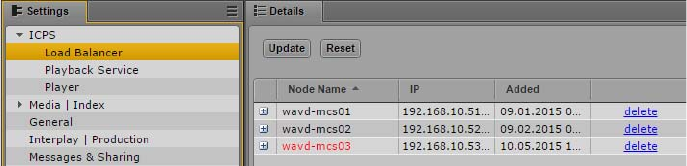
80
This command will bring the cluster back online.
8. Open the Cluster Resource Monitor to verify the status of the cluster.
crm_mon -f
The number of “Nodes configured” and the number of “expected votes” should match the
number of actual nodes in your cluster (one less than before).
9. The node is now removed from the cluster. However, a residual reference to the node might
still exist in the “Load Balancer” section of MediaCentral UX. If this reference exists, it
should be removed.
a. Log into MediaCentral UX as a user with administrative privileges.
b. Select “System Settings” from the Layout selector.
c. Select “Load Balancer” under ICPS from the left side of the interface.
d. Click the delete button next to the node you have removed from the cluster. In the
example below, “wavd-mcs03” has been removed:
e. You will be asked to confirm you want to delete the node.
Click the Yes button.
nAfter performing the above steps, a “node offline” message may reappear in the cluster
monitoring tool (crm_mon) after the first reboot of the cluster following the removal process. To
eliminate the “ghost” node, delete node from the cluster by repeating the
crm node delete
<node>
command.
To Remove a Node from GlusterFS
1. Unmount the Gluster volumes on the node that you want to remove:
umount /cache/download
umount /cache/fl_cache
umount /cache/render
81
2. Similar to the
gluster volume create
command used in the “Configuring the GlusterFS
Volumes” process found in the MCS Install Guide you will use the
remove-brick
command to remove the node from Gluster. Complete this step on a node other than the one
you are removing:
gluster volume remove-brick gl-cache-dl replica N hostname:/cache/
gluster/gluster_data_download force
gluster volume aremove-brick gl-cache-fl replica N hostname:/cache/
gluster/gluster_data_fl_cache force
gluster volume remove-brick gl-cache-mcam replica N hostname:/cache/
gluster/gluster_data_multicam force
In the above command:
-“N” is the total number of nodes (minus the node you are removing). If you have 4
nodes and you are removing one, the command would include:
replica 3
.
-“hostname” is the short host name of the cluster node you want to remove.
After each of these commands, you will receive the following message:
Removing brick(s) can result in data loss. Do you want to Continue? (y/
n)
Enter “
y
” (without the quotes) to confirm. Through this command, you are telling Gluster
that you want one less copy of the replicated data. Gluster wants you to confirm that you
understand that the data will be lost on the removed node.
You can monitor the progress of the removal process with the following command:
watch gluster volume remove-brick <volume> replica N hostname:/<share>
3. Once the remove-brick process is complete for all three volumes, verify the number of
Gluster peers.
gluster peer status
At this time, all Gluster peers should still be listed.
4. Remove the node from Gluster with the following command:
gluster peer detach <node name>
5. Repeat the
gluster peer status
command and verify the removed node is no longer
present.
nThe removed node will contain many lingering components of the MCS installation including
manually edited system files, network information and more. Depending on what you intend to
do with the removed node, you may want to consider re-imaging the server to avoid any conflicts
in the event that it is placed back into production.
82
Reviewing the Cluster Configuration File
During the cluster installation, a configuration file was created which contains information about
the cluster and the resources managed by Pacemaker. You can review the contents of the
configuration file at any time by typing:
crm configure show
For example, the AvidClusterIP primitive contains the cluster IP address and the network
interface being used (e.g. eth0).
If necessary, press Q to get back to the Linux command line prompt.
The name and location of the cluster configuration file is:
/etc/crm/crm.conf
However, when running the “show” command, the output sent to the screen is actually contained
in the Pacemaker configuration file:
/var/lib/pacemaker/cib/cib.xml
Changing the Administrator E-mail Address
When you set up the cluster, you provided an administrator e-mail address where the system
sends e-mails related to cluster performance. You can change the e-mail address (or add others)
at any time using the Corosync-Pacemaker command-line interface for configuration and
management, crm.
nBe careful when editing the cluster configuration settings. Incorrect settings will break the
cluster.
To change the cluster administrator e-mail address:
1. The e-mail address information is stored in the crm configuration file. Edit the file with the
following command:
crm configure edit
nDue to a bug in the Cluster Resource Manager, “crm configure edit” must be entered on one
line. Do not enter the Cluster Resource Manager in steps (that is crm -> configure -> edit). If
you do, the changes are not saved.
2. Scroll to the end of the file or press “Shift-g” to jump to the end of the file.
83
3. Find the line containing the cluster administrator e-mail address. Example:
rsc_defaults rsc_defaults-options: \
admin-email="admin@wavd.com"
4. Alter the existing e-mail address or add additional e-mail addresses by separating each
contact with a comma. Example:
rsc_defaults rsc_defaults-options: \
admin-email="admin@wavd.com,engineering@wavd.com"
5. Save the changes using the same command as you would use in a “vi” edit session.
Press <ESC> and type: :
wq
Alternatively, if you do not want to save your changes, press <ESC> and type
:q!
6. The system responds by writing the updated configuration file to a temporary location and
outputting an error message similar to the following:
"/tmp/tmpjve4D9" 72L, 3258C written
ERROR: rsc-options: attribute admin-email does not exist
Do you still want to commit?
7. Type
yes
(the entire word) to commit your changes.
8. Verify the changes have been made by displaying the Cluster Resource Manager
configuration information:
crm configure show
Press
q
to exit.
9. The new e-mail address(es) are now active.
84
Changing IP Address in a Cluster
In the event that you need to alter the IP address of a node or an entire cluster, follow the
procedures below as they apply to your network change requirements.
Recall that a cluster has multiple IP addresses:
• Node IP addresses. Each node is a assigned a standard unicast address.
• Cluster IP address. This address is used by the nodes to communicate with each other within
the cluster. By default, this is a multicast address. However, additional steps can be taken to
alter the configuration with a unicast address.
• Virtual IP address. This is a unicast address that systems outside of the cluster use to identify
the MCS system.
Once all changes have been made, remember to update any external systems that may have used
an IP address to locate MediaCentral Platform Services. Examples include:
• MediaCentral UX clients and Media Composer Cloud clients
• IP address information contained in SSL certificates used with web browsers
• Configuration file for the MediaCentral UX Desktop application
• Interplay Administrator settings
• Settings configured during a Media Distribute installation
Also remember to update any DNS servers which contain forward and reverse entries for the
MCS systems.
nThe procedures below may disconnect your server from the network. It may be necessary to
complete these steps from a direct KVM connection to the MCS servers.
Changing the IP Addresses within a Cluster
1. Stop the cluster services on all nodes. Start with the load-balancing nodes, then the slave
node and finally the master node:
service pacemaker stop
service corosync stop
2. Proceed to one or more of the following sections:
tIf you need to alter the node IP address(es), see Changing the Node IP Address(s)
below.
tIf you need to alter the multicast address assigned to the cluster, see Changing the
Cluster IP Address below.
85
tIf you need to alter the virtual cluster IP address, see Changing the Virtual IP Address
below.
Once all required changes have been made, continue with step 3 of this process.
3. Bring the cluster back online on the master node:
service pacemaker start
service corosync start
4. Open the Cluster Resource Monitor to verify the status of the cluster:
crm_mon -f
Wait for the master node to start all resources.
5. Bring the slave and load-balancing nodes back online:
service pacemaker start
service corosync start
Watch the Cluster Resource Monitor to ensure that all resources start normally.
6. If your changes are complete, verify your changes by testing basic functionality of the MCS
system.
Changing the Node IP Address(s)
1. Review and update the contents of the hosts file.
See “Verifying the hosts File Contents” in the MediaCentral Platform Services Installation
and Configuration Guide for instructions on altering the hosts file.
2. Update the network interface configuration file:
vi /etc/sysconfig/network-scripts/ifcfg-eth0
nIn the example above “eth0” represents the primary network adapter. On a Dell server, “eth0”
would be replaced with “em1”, p2p1”, or “p2p1”.
3. Edit the lines containing the site-specific network information. Example:
IPADDR=192.168.10.51
NETMASK=255.255.255.0
DNS2=192.168.10.20
GATEWAY=192.168.10.1
DNS1=192.168.10.10
4. Save and exit the vi session. Press <ESC> and type:
:wq
5. Restart the network service:
service network restart
86
6. If you are changing the IP address of the master and / or slave nodes, you must edit the drbd
configuration file.
a. Open the file for editing:
vi /etc/drbd.d/r0.res
b. Find and change the IP address(es) associated with the altered node(s):
on wavd-mcs02 {
device /dev/drbd1;
disk /dev/sda2;
address 192.168.10.52:7789;
meta-disk internal;
}
on wavd-mcs01 {
device /dev/drbd1;
disk /dev/sda2;
address 192.168.10.51:7789;
meta-disk internal;
}
}
c. Save and exit the vi session. Press <ESC> and type:
:wq
7. Return to step 2 of the “Changing the IP Addresses within a Cluster” process.
Changing the Cluster IP Address
1. Update the corosync configuration file to include your updated IP information:
vi /etc/corosync/corosync.conf
Important fields include:
- bindnetaddr (“pingable_ip” address used in multicast and unicast configurations)
- mcastaddr (multicast IP used in multicast configurations)
- memberaddr (unicast IP addresses used in unicast configurations)
See “Unicast Support in Clustering” the MediaCentral Platform Services Installation and
Configuration Guide for an example of a
corosync.conf
file configured for multicast and
unicast.
2. Save and exit the vi session. Press <ESC> and type:
:wq
3. Return to step 2 of the “Changing the IP Addresses within a Cluster” process.
87
Changing the Virtual IP Address
1. On the Master node, run the
cluster setup-cluster
command with your updated IP
address information to update the cluster configuration file.
See “Starting the Cluster Services on the Master Node” the MediaCentral Platform Services
Installation and Configuration Guide for details.
This command will start the cluster services on the master node.
2. Restart the following services so they register correctly on the newly created instance of the
message bus:
service avid-acs-messenger restart
service avid-aaf-gen restart
3. Open the Cluster Resource Monitor and wait for the resources to start on the master node.
crm_mon -f
It may be useful to keep the crm_mon tool open as additional nodes join the cluster.
4. On the slave and load-balancing nodes, follow the process for “Adding Nodes to the Cluster”
in the MediaCentral Platform Services Installation and Configuration Guide.
5. Return to step 6 of the “Changing the IP Addresses within a Cluster” process.
88
Taking Nodes Offline and Forcing a Failover
At times it might be required to take a node offline for troubleshooting. Pacemaker offers an easy
way to temporarily remove and reactivate a node in the cluster. The same commands can be used
to force a failover of the cluster which is useful when testing a fully functional system.
nBe aware that since the playback service is load-balanced across all cluster nodes, taking a node
offline can result in an interruption in playback. If this happens, the client will automatically be
redirected to another node to service the playback request.
To temporarily remove and reactivate a cluster node:
The
standby
command can be used to temporarily remove a node from the cluster:
crm node standby <node name>
If you are watching the CRM utility, the cluster will update and the status of the node will appear
near the beginning of the monitor window. As seen in the following example, the node’s status
will change from “online” to “standby”:
Node wavd-mcs02: standby
Online: [ wavd-mcs01 ]
Since the node can still be contacted by the cluster, it does not appear as “offline”.
The
online
command is used to rejoin the node to the cluster:
crm node online <node name>
This will bring the node back online. As with the standby process, the CRM utility will update
the status of the node to “online” and the appropriate services will be started.
To force a failover in the cluster:
Using the “standby” command on master node of the cluster will result in a failover event. This
is an effective way to verify that the cluster is working as expected. Follow the process below to
force a failover to the slave node, and if desired, to reverse the process.
nForcing a failover will disconnect all MediaCentral UX clients currently logged into the system.
Ensure that all users are made aware that a failover will take place and that they should save all
work. Any active MediaCentral UX client sessions will be logged out and users will receive a
message indicating that they need to log back in.
89
1. Log in to any node in the cluster as root and open the Cluster Resource Monitor utility:
crm_mon -f
This returns the status of all cluster-related services on all nodes. Ensure all nodes are active
and operating normally prior to the test. Any failures should be cleared or investigated and
cleared so as not to initiate additional unexpected failovers.
2. Note the line identifying the master node:
AvidClusterIP (ocf::heartbeat:IPaddr2): Started wavd-mcs01
3. In a separate terminal session log in to any non-master node as root and put the master node
into standby mode:
crm node standby <hostname>
In the above command, replace
<hostname>
with the host name of the master node (e.g.
wavd-mcs01).
4. Observe the failover in the crm_mon utility as the former slave node is reassigned as the new
master.
5. Once all resources have started on the new master node, bring the standby node back online:
crm node online <original master hostname>
6. Observe in the crm_mon window as the node is brought back up and rejoins the cluster as
the slave node.
nWhen the master node (e.g. node-1) is taken offline and brought back online again in Interplay
Central v1.x, an additional failover occurs and the original master node (e.g. node-1) becomes
the master again. This behavior changed in MCS 2.x to allow the new master node (e.g. node-2)
to remain the new master node. This behavior is reliable in two node clusters, but failiver back to
the master node could still occur in clusters with three or more nodes.
7. If you want to restore the original node to the role of master, temporarily put the current
master into standby mode, so control fails over again, back to the original master node.
90
Shutting Down or Rebooting a Single Cluster Node
The Linux reboot process is thorough and robust, and automatically shuts down and restarts all
the MCS and clustering infrastructure services on a server in the correct order. However, when
the server is a node in an MCS cluster, care must be taken to remove the node from the cluster —
that is, stop all clustering activity first — before shutting down or rebooting the individual node.
Failing to observe the correct procedures can have unexpected consequences including
unexpected failover events, loss of node connectivity to the cluster or complete loss of client
connectivity to MCS.
nBefore taking any cluster nodes offline, alert users of the event. If applicable, users should save
all work prior to the shutdown or reboot procedure.
Verify the RabbitMQ cluster
1. Verify if the RabbitMQ cluster is active and lists all nodes:
rabbitmqctl cluster_status
The following is an example of how a 2-node cluster should appear. The two nodes names
appear on both the “
nodes
” and “
running_nodes
” lines.
Cluster status of node 'rabbit@wavd-mcs01' ...
[{nodes,[{disc,['rabbit@wavd-mcs01','rabbit@wavd-mcs02']}]},
{running_nodes,['rabbit@wavd-mcs02','rabbit@wavd-mcs01']},
{partitions,[]}]
...done.
2. A normal response from the previous command is a good indicator that the rabbitmq cluster
is healthy, but to verify the status, a second command is required:
acs-query
tA normal output should display a long list of configuration parameters. If you see this,
continue with the shutdown process.
tIf instead you receive a “request timeout”, “bus is not running”, “node is down” or
equivalent error, it indicates that the RabbitMQ cluster is problematic. If an error occurs,
see the RabbitMQ cluster troubleshooting article on the Avid Knowledge Base for
guidance:
http://avid.force.com/pkb/articles/en_US/troubleshooting/RabbitMQ-cluster-
troubleshooting
91
Shut down or reboot the cluster node:
1. Log into the node as the Linux root user.
2. Stop the Pacemaker and Corosync services:
service pacemaker stop && service corosync stop
The services should stop with a green [OK] status.
nYou can safely stop these cluster services without putting the nodes in Standby. If you are
stopping pacemaker and corosync on the master node, the cluster will fail over to the slave node
and it will become the cluster master. That is expected and normal behavior.
3. Once the pacemaker and corosync services have stopped, stop the rabbitmq service:
service rabbitmq-server stop
Again, the service should stop normally with a green [OK] status.
4. Once the rabbitmq service has stopped, you can proceed with the node reboot or shutdown.
tTo reboot the cluster node:
reboot
tTo shut down the cluster node:
shutdown -h now
When you power the node back up, it will automatically start the appropriate services and
join the cluster. After a reboot, inspect the cluster with
crm_mon -f
and the RabbitMQ
cluster to confirm that all services have started normally. If you must reboot multiple servers,
proceed one server at a time so to avoid problems when the node rejoins the cluster and then
reboot the next server until they are all restarted.
nIf you had put the node into standby through the “crm node standby” command, and shut down
or rebooted, the node would start the rabbitmq service upon power-up, but the node would not
rejoin the cluster. In that event, you would need to manually start the node with the “crm node
online” command.
92
Shutting Down the Cluster
When shutting down an entire cluster, the nodes must be shut down and restarted in a specific
order. Rebooting nodes in the incorrect order can cause DRBD to become confused about which
node is master, resulting in a “split brain” condition. Rebooting in the incorrect order can also
cause RabbitMQ to enter into a state of disarray, and hang. Both DRBD and RabbitMQ
malfunctions can present misleading symptoms and can be difficult to resolve. For these reasons,
a strict shutdown and reboot order and methodology is advised.
nWhen shutting down and restarting an entire cluster, allow each node to power down completely
before shutting down the next node.
Shutting down the cluster:
1. Use the Cluster Resource Monitor,
crm_mon
, to verify the current master, slave and load-
balancing nodes.
2. Log into each node as the Linux root user.
3. Stop the pacemaker and corosync services on the load-balancing nodes. In this case, the
node order is unimportant.
service pacemaker stop && service corosync stop
4. Stop the pacemaker and corosync services on the cluster slave node.
5. Stop the pacemaker and corosync services on the cluster master node.
6. Stop the rabbitmq-server service on one load-balancing node.
service rabbitmq-server stop
7. Shut down the server on which you just stopped the rabbitmq service
8. If you have additional load-balancing nodes, wait for the first node to be completely down,
then stop the rabbitmq service and shut down the server (one at a time).
9. Once the last load-balancing node is powered-down, stop the rabbitmq service on the cluster
slave node and shut down the server.
10. Once the slave node is powered-down, stop the rabbitmq service on the cluster master node
and shut down the server.
nMake sure you note which node was the master when you shut down the cluster. You will need
this information when bringing the cluster back up.
93
Starting the Cluster
When bringing the cluster online, it is important to bring up the original master first. This was
the last node down, and must be the first back up. This is primarily for the sake of RabbitMQ,
which runs on all nodes and maintains its own “master” (called a “disc node” in RabbitMQ
parlance). The non-master RabbitMQ nodes (called “ram nodes”) look to the last known disc
node for their configuration information. If the disc node is not available, the RabbitMQ cluster
will hang and services that depend on it — such as the ACS bus — will report errors.
To restart all cluster nodes:
1. Power-on the server that was last running as the cluster’s master node.
2. Within five minutes, power-on the server that was running as the cluster slave node.
Generally waiting about one minute after booting the master node is recommended.
3. If applicable, power-on the load-balancing nodes.
nIt is important to start all cluster nodes within five minutes of the master node. The rabbitmq
service will eventually stop looking for known nodes which can result in failures of the cluster.
4. Once you can log into Linux on the master node, launch the Cluster Resource Monitor so
that you can view progress as additional nodes join the cluster.
crm_mon -f
5. Once all servers are up, review the Cluster Resource Monitor.
tConfirm that the master node is running the required services.
tConfirm all nodes are running the AvidAll and AvidICPS services.
tIf any services have failed and recovered, clear the fail counts.
crm resource cleanup <rsc> [<node>]
6. Using the processes outlined in “Shutting Down or Rebooting a Single Cluster Node” on
page 90, verify the rabbitmq cluster is operating normally.
94
Performing a Rolling Reboot
A rolling reboot is a process in which one or more cluster nodes are rebooted in sequence and
only one machine at a time is off-line. A rolling reboot allows the entire cluster to be restarted
with minimal disruption of service to the clients.
The following list shows the correct order for a rolling reboot:
1. Power-cycle the load-balancing nodes.
2. Power-cycle the slave node.
3. Power-cycle the master node.
nWhile a rolling reboot is minimally impactful to client operations, clients should be informed the
process is taking place. Since all nodes take part in playback operations, clients will experience
brief interruptions in service. When the master node is rebooted, all clients will be temporarily
disconnected from MCS.
To perform a rolling shutdown / reboot:
1. From the master node, launch the Cluster Resource Monitor:
crm_mon
2. Identify the current master and slave nodes by locating the “Master/Slave Set” information:
Master/Slave Set: ms_drbd_postgres [drbd_postgres]
Masters: [ wavd-mcs01 ]
Slaves: [ wavd-mcs02 ]
3. If you have one or more load-balancing nodes, reboot one of the load-balancing nodes using
the processes located in “Shutting Down or Rebooting a Single Cluster Node” on page 90.
4. Watch the CRM utility on the master node and wait for the node to rejoin the cluster and
start the appropriate services.
5. If you have additional load-balancing nodes, reboot each node one at a time, allowing each
node to rejoin the cluster and start services before moving on to the next node.
6. Once all load-balancing nodes have been rebooted, reboot the slave node.
7. Wait for the slave node to rejoin the cluster and start all services.
8. Close the CRM utility on the master node and open it on the slave node.
9. Reboot the master node. Watch the CRM utility as a failover to the slave node takes place.
10. Watch the CRM utility and wait for the former master node to rejoin the cluster and start all
services. If any resource failures have occurred, clear them.
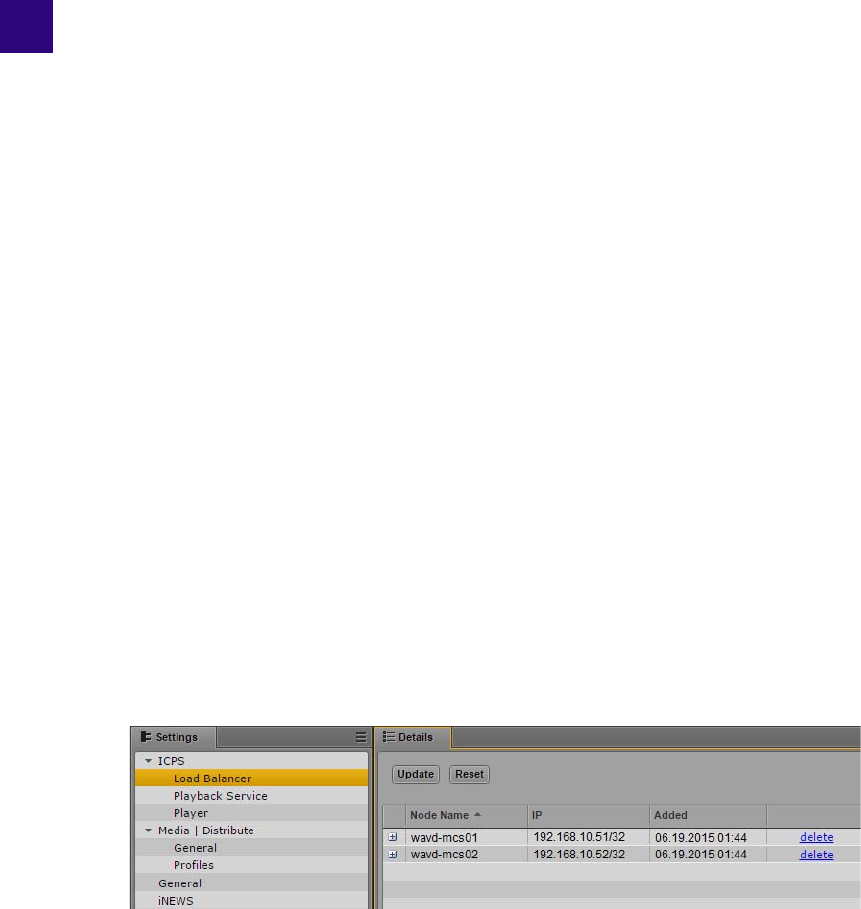
7User Management
The MediaCentral | UX Administration Guide provides details on user creation and general user
management. Appendix A of the Administration Guide provides additional information
regarding commands that can be used with the avid-ums service.
This chapter includes information on determining what users are connected to the MCS system
and a process for manually backing up and restoring the MCS user database.
Identifying Connected Users and Sessions
There are multiple ways to determine which users logged into MediaCentral UX, however each
of the four methods below provides slightly different detail. Review each of the following
options and determine which best meets your needs.
To Identify Sessions Through the MediaCentral UX System Settings Layout
MediaCentral UX provides a built-in view of connected Hosts and Session Start times based on
the connected client’s IP address.
1. Log into MediaCentral UX as a user with administrator privileges.
2. Select System Settings from the Layout menu.
3. Select ICPS>Load Balancer on the left side of the page.
A list of all known nodes appears on the right side of the page:
If you are running a single server configuration, only the one server will appear.
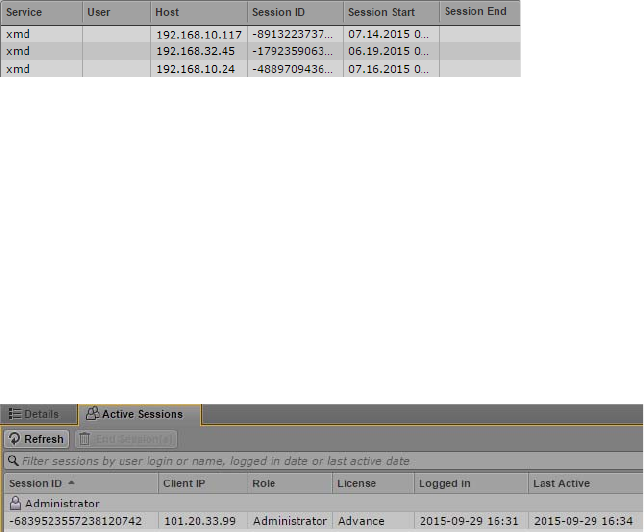
Identifying Connected Users and Sessions
96
4. Click the plus sign (+) to the left of one of the nodes.
Information regarding client connections to this node appears. Example:
The Host column indicates the IP address of the system that is making the connection to
MediaCentral UX.
To Identify Users Through the MediaCentral UX Users Layout
The MediaCentral UX Users layout includes an Active Sessions tab which details which users
are logged into the system at the current time as well as their role, license type and more.
1. Log into MediaCentral UX as a user with administrator privileges.
2. Select Users from the Layout menu.
3. Select the Active Sessions tab on the right-side of the interface.
To Identify Users and Sessions Through Logging
The session.log file contains much of the same information found in the Active Sessions tab of
the Users layout. The benefit of the log file is that it contains a historical record of this data. The
log file is located at: /var/log/avid/avid-ums/.
The following excerpt from the session.log file shows two separate logins:
2015-07-29 14:28:07.074 -0400 INFO
com.avid.uls.bl.session.impl.SessionHolder - Logging in:
logon=Administrator, role=Administrator, userId=1,
isAvidAdministrator=true, clientIp=192.168.10.101
2015-07-29 14:28:07.075 -0400 INFO
com.avid.uls.bl.session.impl.SessionHolder - Session created,
SID=-8440723131642335013, logon=ADMINISTRATOR
Identifying Connected Users and Sessions
97
2015-07-29 15:25:43.324 -0400 INFO
com.avid.uls.bl.session.impl.SessionHolder - Logging in: logon=MessierTest,
role=Journalist, userId=249, isAvidAdministrator=false,
clientIp=192.168.10.117
2015-07-29 15:25:43.326 -0400 INFO
com.avid.uls.bl.session.impl.SessionHolder - Session created,
SID=-8917047212884686433, logon=TESTJOURN
nFor best results for viewing the log file, use an application such as Notepad+ which will
correctly interpret carriage returns.
To Identify Users and Sessions Through the UMS Service
The “avid-ums-statistics” command provides information about the current number of open
sessions to MediaCentral UX. It also provides additional information about the total numbers of
users and groups in the user database.
Example output of the
avid-ums-statistics
command:
[root@wavd-mcs01 ~]# avid-ums-statistics
Product info:
Name: Avid User Management Service
Version: 2.3.0.4
Statistics:
Amount of open sessions : 3
Amount of users in DB : 50
Amount of groups in DB : 23
Amount of records in DB : 784
Identifying Connected Users and Sessions
98
Backing Up the UMS Database
The MediaCentral Platform Services Upgrade Guide includes a process for backing up the MCS
databases and system settings through the use of the system-backup.sh script. That process
includes a backup of the UMS user database. However, in some situations you might need to
backup only the UMS data. For example, you may want to update the MCS database of a test
system with user names and passwords, roles, and so on, from a MCS system in a production
setting. This section provides the procedures for doing so.
Depending on your version of MCS, there are two different processes used to backup the user
database:
•Migrating the 1.6.x (or later) UMS Database
•Migrating the 1.4.x / 1.5.x UMS Database
Migrating the 1.6.x (or later) UMS Database
To extract the UMS database from an ICS 1.6.x (or later) system, you use the avid-ums-backup
and avid-ums-restore utilities located in: /opt/avid/bin
To extract the UMS database:
1. Log in to the MCS server as the root user.
In a clustered configuration, log in to the master node.
2. Navigate to a location where the user database file can be created. For example:
cd /media
3. Run the backup script to extract the UMS database:
avid-ums-backup <backup-filename> [-pp <postgres password>] [-pu
<postgres user>]
For example:
avid-ums-backup mydatabase -pp Avid123 -pu postgres
The system responds with an indication of success:
UMS database was backed up successfully.
A new file will be created in the location where the script was run. In the example above, a
single file called “mydatabase” was created in the /media folder.
4. Copy the backup file to an external location in preparation for restoring it to the destination
MCS system.
Identifying Connected Users and Sessions
99
To restore the UMS database:
1. Log in to the MCS server as the root user.
In a clustered configuration, log in to the master node.
2. Stop the UMS service:
- For a single server:
service avid-ums stop
- For a cluster:
crm resource stop AvidUMS
3. Copy the backup of the UMS databse to your destination MCS server.
4. Restore the UMS database:
avid-ums-restore <backup-filename> [-pp <postgres password>] [-pu
<postgres user>]
For example:
avid-ums-restore mydatabase -pp Avid123 -pu postgres
5. The restore script will ask you to confirm that you want to restore the database:
Are you sure you want to perform a restore? This operation will replace
the entire user database and remove all current users. Make sure that
you have stopped all User Management Service instances. [Y/N]
Once you confirm the restore request, the operation begins. Be patient as this process can
take a minute or two.
The system responds with an indication of success:
UMS database was restore successfully.
You may also see the following message which is normal and can be ignored:
************ WARNING ************
ALTER ROLE
6. Once the user database has been restored, restart the UMS service.
- For a single server:
service avid-ums start
- For a cluster:
crm resource start AvidUMS
7. Log into MediaCentral UX and verify that user accounts are present and that users can log in
normally.
Identifying Connected Users and Sessions
100
Migrating the 1.4.x / 1.5.x UMS Database
To extract the UMS database from an ICS 1.4.x/1.5.x system and load it into an MCS 2.x system,
you must use PostgreSQL tools directly, at both ends.
To extract the UMS database from an ICS 1.4.x/1.5.x system:
1. Log in to the master node as root and dump the UMS database
pg_dump –U postgres uls > uls_backup.sql
2. Move the file to a safe location (off the server) in preparation for restoring it to the MCS 2.x
system.
To restore the ICS 1.4.x/1.5.x UMS database to the MCS 2.x system:
1. Log in to the master node as root.
2. Stop the UMS service:
- For a single server:
service avid-ums stop
- For a cluster:
crm resource stop AvidUMS
3. Drop the current UMS database from the ICS database:
psql –U postgres –c "drop database uls;"
4. Create a new UMS database:
psql –U ulsuser postgres –c "create database uls;"
5. Import the ICS 1.5 UMS database:
psql –U ulsuser uls < uls_backup.sql
6. Start the UMS service:
- For a single server:
service avid-ums start
- For a cluster:
crm resource start AvidUMS

8MCS Troubleshooting and System Logs
This chapter presents troubleshooting tips and procedures as well as the location and description
of the log files produced by MCS systems.
Common Troubleshooting Commands
The following table lists some helpful commands for general troubleshooting:
Command Description
ics_version Prints MCS version information to the screen.
drbd-overview
(cluster only)
Prints DRBD status information to the screen. This information can
also be obtained through the following command: service drbd status
crm_mon [-f]
(cluster only)
Opens the Pacemaker Cluster Resource Monitor.
The -f option displays the failover count for all services under
management by Pacemaker.
crm
(cluster only)
Launches the Pacemaker Cluster Resource Manager in a shell mode.
Once in the crm shell, tab twice for a list of options at each level
(including help).
cluster [rcs-start | rcs-cleanup]
(cluster only)
Various cluster troubleshooting functions, found in the following
directory (version 1.5+):
/opt/avid/cluster/
To start all services on a cluster:
cluster rcs-start
To clean up resource errors found in crm_mon:
cluster rcs-cleanup

Common Troubleshooting Commands
102
gluster
(cluster only)
Queries GlusterFS peers. e.g.
gluster peer [command]
gluster peer probe
acs-query Tests the RabbitMQ message bus.
watch service rabbitmq-server
status
Provides a live status of the rabbitmq-server. This command can be
used for troubleshooting, but do not leave it running for long periods
of time to ensure system performance is not affected.
corosync-cfgtool -s
(cluster only)
Returns the IP and other stats for the machine on which you issue the
command:
corosync-cfgtool -s
corosync-objctl |grep member
(cluster only)
Returns the IP addresses of all nodes in the cluster:
corosync-objctl |grep member
ps -ae|grep intern This command polls the max-edit player and returns a value for the
number of connections to the player on the current server. Example:
[root@wavd-mcs01]# ps -ae|grep intern
105036 pts/0 00:00:49 max-edit-intern
avid-db dumpall Backs up the MCS database
system-backup [-b | -r] Backs up the system settings and MCS database (useful before an
upgrade:
system-backup.sh -b
Restores from the backup:
system-backup.sh -r
Command Description

Responding to Automated Cluster E-mail
103
Responding to Automated Cluster E-mail
By default Pacemaker is configured to send automated e-mails to notify the cluster
administrators of important events. The following table presents the e-mail types that can be sent
and the remedial action needed.
E-mail Type Description Action Needed
Node Up /Joined Cluster • A node that was put into
standby has added back into
the cluster
• During installation, a new
node has successfully joined
the cluster.
None.
Node Down/ Removed from
Cluster
• A failover has taken place and
the offending node has been
removed from the cluster.
• A node has been put into
standby mode
In the case of a failed node, the
cluster requires immediate
attention. Getting it operational
and back in the cluster is a
priority.
Be sure to reset the failover count
on the failed node, once the
situation has been corrected. See
“Identifying Failures in CRM” on
page 71.
DRBD Split Brain • DRBD is operating
independently on the two
nodes where it is running
The cluster requires immediate
attention to remedy the situation.
To remedy, wipe out the DRBD
database on one of the nodes, then
rejoin that node to the DRBD
primary node.
See “Correcting a DRBD Split
Brain” on page 109.
DRBD Split Brain Recovery • DRBD has been successfully
reconfigured.
None.
Troubleshooting RabbitMQ
104
Troubleshooting RabbitMQ
The Avid Knowledge Base includes a page that provides detailed instructions on reviewing the
status of RabbitMQ and troubleshooting any related errors. See the following link for details:
http://avid.force.com/pkb/articles/en_US/troubleshooting/RabbitMQ-cluster-troubleshooting
Verifying the RabbitMQ Status
In addition to the information provided on the Avid Knowledge Base, the acs-broker-status
command can be used to quickly return the status of rabbitmq’s related components.
To check the status of rabbitmq, enter the following on any of the cluster nodes:
acs-broker-status
You should see an output similar to the following:
[root@wavd-mcs01 ~]# acs-broker-status
Checking Broker Configuration...
Querying data from rabbitmqctl...
High Watermarks:
memory [ OK ]
disk [ OK ]
Cluster:
network partion [ OK ]
VHosts:
acs present [ OK ]
Users:
acs_admin present [ OK ]
acs_admin is an administrator [ OK ]
acs_admin permissions correct [ OK ]
acs_user present [ OK ]
acs_user is an administrator [ OK ]
acs_user permissions correct [ OK ]
guest is not present [ OK ]
Exchanges:
Local.Requests present [ OK ]
Local.Broadcasts present [ OK ]
Local.Channels present [ OK ]
Zone.Requests present [ OK ]
Zone.Broadcasts present [ OK ]
Zone.Channels present [ OK ]
Zone.Replies present [ OK ]
MultiZone.Channels present [ OK ]
MultiZone.Broadcasts present [ OK ]
Fanout.Channels present [ OK ]
Troubleshooting DRBD
105
Fanout.Broadcasts present [ OK ]
Bindings:
Fanout.Broadcasts -> Local.Broadcasts [ OK ]
Fanout.Broadcasts -> MultiZone.Broadcasts [ OK ]
Fanout.Channels -> Local.Channels [ OK ]
Fanout.Channels -> MultiZone.Channels [ OK ]
An “OK” response indicates that the acs-broker and rabbitmq communication is normal.
Troubleshooting DRBD
Recall that DRBD runs on the master and slave nodes only, and is responsible for mirroring the
contents of a partition between master and slave. The partition it mirrors is used by MCS to store
the MCS database and the database used by MongoDB, For details, see “DRBD and Database
Replication” on page 33.
This section presents common DRBD problems and solutions. Typical problems in DRBD
include:
• A lack of primary-secondary connectivity
• The secondary operating in standalone mode
• Both nodes reporting connectivity but neither one in the role of master
• Both nodes reporting themselves in the role of master
Verify the DRBD Status
The following command is used to verify that DRBD is operating normally on the master and
slave nodes:
drbd-overview
When run on the master node, the output should look like the following:
1:r0/0 Connected Primary/Secondary UpToDate/UpToDate C r----- /mnt/drbd ...
When run on the slave node, the output should look like the following:
1:r0/0 Connected Secondary/Primary UpToDate/UpToDate C r-----
The following sections are examples of issues found with DRBD and how to resolve them.
Troubleshooting DRBD
106
Master Node: WFConnection
1:r0/0 WFConnection Primary/Unknown UpToDate/DUnknown C r----- /mnt/drbd
ext4 20G 397M 18G 3%
Summary: The DRBD master node cannot connect to the DRBD slave node:
Action Required: Make the connection manually. Refer to the instructions in “Manually
Connecting the DRBD Slave to the Master” on page 109.
nIf the master node reports WFConnection while the slave node reports StandAlone, it indicates a
DRBD split brain. See “Correcting a DRBD Split Brain” on page 109 for additional details.
Slave Node: Standalone
1:r0/0 StandAlone Secondary/Unknown UpToDate/DUnknown r-----
Summary: The slave cannot connect to the master.
Action Required: Make the connection manually. Refer to the instructions in “Manually
Connecting the DRBD Slave to the Master” on page 109.
nIf the master node reports WFConnection while the slave node reports StandAlone — it indicates
a DRBD split brain. See “Correcting a DRBD Split Brain” on page 109 for addtional details.
WFConnection
The master node is waiting for a connection from the slave node (i.e. the slave
node cannot be found on the network).
Primary/Unknown
This node is the master, but the slave node cannot be reached.
UpToDate/DUnknown
The database on the master is up to date, but the state of the database on the
slave node is not known.
StandAlone
The slave node is operating in on its own. (StandAlone)
Secondary/Unknown
The slave node is the secondary, but the primary cannot be found
(Secondary/Unknown)
UpToDate/DUnknown
The database on the slave node is up to date, but the state of the database on
the master is unknown (UpToDate/DUnknown)
Troubleshooting DRBD
107
Both Nodes: Secondary/Secondary
1:r0/0 Connected Secondary/Secondary UpToDate/UpToDate C r-----
Summary: The nodes are connected, but neither is master.
Details:
Action needed: This usually indicates a failure within the Pacemaker PostgreSQL resource
group. For example, if Pacemaker cannot mount the DRBD device as a file system, DRBD will
start successfully, but writing data to disk and database replication cannot take place.
To investigate the issue further:
1. Use the Pacemaker Cluster Resource Monitor to verify if all services are running.
crm_mon -f
For details, see “Cluster Resource Monitor” on page 67.
2. Reset fail counts.
For details, see “Identifying Failures in CRM” on page 71.
3. Restart failed Pacemaker resources or the underlying Linux services.
4. If all services in the PostgreSQL resource group are operating as expected, the problem may
lie at a deeper level of the Linux operating system.
For details, see “Working with Cluster Logs” on page 111.
Solving this issue can be complex. If the above suggestions do not resolve the problem,
consult your Avid representative for further troubleshooting.
Connected
A connection is established.
Secondary/Secondary
Both nodes are operating as the slave node. That is, each is acting as the peer
that receives updates.
UpToDate/Unknown
The database on the master is up to date, but the state of the database on the
slave node is not known.
Troubleshooting DRBD
108
Both Nodes: Standalone and Primary
1:r0/0 StandAlone Primary/Unknown UpToDate/Unknown C r----- /mnt/drbd ext4
20G 397M 18G 3%
1:r0/0 StandAlone Primary/Unknown UpToDate/Unknown C r-----
Summary: A DRBD “split brain” has occurred. Both nodes are operating independently,
reporting themselves as the master node, and claiming their database is up to date.
Action Needed: Discard the data on the slave node and reconnect it to the DRBD resource on the
master node. Refer to the instructions in DRBD “Correcting a DRBD Split Brain” on page 109.
StandAlone
The master node is waiting for a connection from the slave node (i.e. the slave
node cannot be found on the network).
Primary/Unknown
This node is the master, but the slave node cannot be reached.
nThe key indicator of this type of DRBD split brain is both nodes reporting
themselves as the Primary.
UpToDate/Unknown
The database on the master is up to date, but the state of the database on the
slave node is not known.
Manually Connecting the DRBD Slave to the Master
109
Manually Connecting the DRBD Slave to the Master
When the master and slave nodes are not connecting automatically, you will have to make the
connection manually. You do so by telling the slave node to connect to the resource owned by the
master.
To manually connect the DRBD slave to the master:
1. Log in to any node in the cluster as root and start the Pacemaker Cluster Resource Monitor
utility:
crm_mon
2. To identify the slave, look for the line containing “Master/Slave Set”. For example:
Master/Slave Set: ms_drbd_postgres [drbd_postgres]
Masters: [ wavd-mcs01 ]
Slaves: [ wavd-mcs02 ]
3. On the slave node run the following command
drbdadm connect r0
4. Verify the reconnection was successful:
drbd-overview
5. The output on the master node should resemble the following:
1:r0/0 Connected Primary/Secondary UpToDate/UpToDate C r----- /mnt/drbd
ext4 20G 397M 18G 3%
6. The output on the slave node should resemble the following:
1:r0/0 Connected Secondary/Primary UpToDate/UpToDate C r-----
Correcting a DRBD Split Brain
A DRBD split brain describes the situation in which both DRBD nodes are operating completely
independently. Further, there is no connection between them, hence data replication is not taking
place. A DRBD split brain must be remedied as soon as possible, since each node is updating its
own database, but, since database synchronization is not taking place, data can easily be lost.
To recover from a split brain, you must force the MCS cluster master node to take on the role of
DRBD master. You then discard the database associated with the DRBD slave node, and
reconnect it to the established master.
Correcting a DRBD Split Brain
110
nDiscarding the database on the slave node does not result in a full re-synchronization from
master to slave. The slave node has its local modifications rolled back, and modifications made
to the master are propagated to the slave.
To recover from a DRBD split brain:
1. Log in to any node in the cluster as root and start the Pacemaker Cluster Resource Monitor:
crm_mon
2. Identify the master node.
To identify the master, look for the line containing “Master/Slave Set”. For example:
Master/Slave Set: ms_drbd_postgres [drbd_postgres]
Masters: [ wavd-mcs01 ]
Slaves: [ wavd-mcs02 ]
3. On the master run the following command:
drbdadm connect r0
This ensures the master node is connected to the r0 resource. This is the DRBD resource
holding the databases, and was given the name r0 when you installed MCS.
4. On the slave run the following command
drbdadm connect --discard-my-data r0
After issuing the above command, you may receive the following error message on the slave
node:
Failure: (102) Local address (port) already in use.
The above error is due to the Linux kernel retaining an active connection to the r0 resource.
If that is the case, explicitly disconnect the slave node from the resource using the following
command, then try Step 4 again:
drbdadm disconnect r0
5. Verify the recovery was successful:
drbd-overview
6. The output on the master node should resemble the following:
1:r0/0 Connected Primary/Secondary UpToDate/UpToDate C r----- /mnt/drbd
ext4 20G 397M 18G 3%
7. The output on the slave node should resemble the following:
1:r0/0 Connected Secondary/Primary UpToDate/UpToDate C r-----
Working with Cluster Logs
111
Working with Cluster Logs
MCS and its supporting services — such as Pacemaker, Corosync, and RabbitMQ — produce
numerous logs. These are stored in the standard RHEL directory and subdirectories:
/var/log
Typically, log files have a name of the following form:
<process>.log
For example:
spooler.log
spooler.log-201310.25.gz
spooler.log.old20131024_141055
Note the following:
• *.log are current log files, for the active process.
• *.gz are “rotated out” log files, compressed and with a date appended.
• *.old are backlogs.
Log files are rotated (replaced), compressed and eventually deleted automatically by the Linux
logrotate log management utility. In addition, most MCS logs have the following characteristics,
determined by the logrotate configuration file (
/etc/logrotate.conf
):
• Fresh logs are begun with each reboot
• New log files are uncompressed text files (some are binaries)
• Older logs are rotated (replaced) weekly
• Older logs are stored in the gzip format
• Four weeks worth of backlogs are kept
• A new empty log file is created after rotating out the old one
• Date is appended as suffix on the rotated file
nSpecific processes can override the logrotate configuration file settings by supplying their own
configuration file in the
/etc/logrotate.d
directory. If a log file is not behaving as expected,
check there.
Working with Cluster Logs
112
Understanding Log Rotation and Compression
The Linux logrotate utility runs and compresses the old logs daily. Although it is invoked by the
Linux cron daemon, the exact runtime for logrotate cannot be stated with accuracy. It varies, for
example, depending on when the system was most recently rebooted, but it does not run at a
fixed time after the reboot. This is by design, in order to vary and minimize the impact on other
system resources. By default, rotated logs files are store as gzip (.gz) compressed files.
The production of logs is controlled by the following files:
•/etc/cron.daily/logrotate specifies the job to be run and the file containing configuration
parameters
•/usr/sbin/logrotate is the job that is run
•/etc/logrotate.conf is the file containing configuration parameters
•/etc/logrotate.d is a directory containing additional configuration information that might
override the default instructions
Further details on the log rotation configuration files are beyond the scope of this document. For
more information, see the Linux man page for logrotate by typing the following at the Linux
command line:
man logrotate
Viewing the Content of Log Files
From within RHEL
You can search and examine the contents of logs from the Linux command line using the usual
Linux tools and commands:
•vi - Opens the log file for editing.
•tail - Displays the last few lines of a log file, in real-time. An excellent tool for monitoring
“growing” files (such as log files.)
To view the content of multiple log files in real time, use the “-f” option:
tail -f <file1> -f <file2>
For example the following command displays the last few lines of both the edit.log and
isis.log files in the same shell:
tail -f /var/log/avid/edit.log /var/log/avid/isis.log
•more - Outputs the content of a file one screen at time.
•less - Like more, but permitting forwards and backwards movement through the file.
Working with Cluster Logs
113
•grep - Use the grep command to search for regular expressions within a log file from the
command line.
For example the following command searches all log files in the current directory for the
term “fail-count”:
grep fail-count *.log
Adding a
-r
option to the same command recursively searches the log files in the current
directory and all subdirectories for the specified
<searchterm>
:
grep -r <searchterm> *.log
•gzip - Use the gzip command to unzip rotated log files for viewing. Rotated log files are
stored as compressed gzip files by default.
The general form of the gzip command for uncompressing .gz files is as follows:
gzip -d <logfile>.log.gz
From a Windows System
Logs can be retrieved from the Linux system and reviewed from an external location such as a
Windows machine. There are multiple tools that can be used to review the logs. Once such
application is called: Notepad++. This fee source code editor displays logs through an organized
line-item display and enables users to search RHEL logs to quickly find the data they need.
Notepad++ can be downloaded from: https://notepad-plus-plus.org/
Retrieving Log Files
Logs can be retrieved from the Linux server through the use of a secure shell (SSH) file transfer
protocol (FTP) client — commonly abbreviated SFTP. WinSCP (Windows) and muCommander
(Mac) are free, open-source clients that can securely copy files from a Linux server to a system
running Windows or Mac OS.
WinSCP can be downloaded at the following location: http://winscp.net
muCommander can be downloaded at the following location: http://www.mucommander.com/
To copy files using WinSCP:
1. Download and install the WinSCP software on a Windows system that has network access to
the MCS server.
2. Launch WinSCP.
3. Enter the Host name (or IP address) of your server, User name (root), and Password.
The root user has the necessary permission levels to establish the connection.
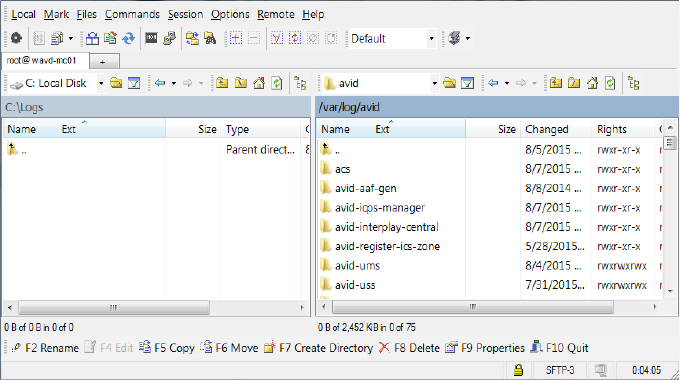
Working with Cluster Logs
114
nWinSCP uses the standard TCP port 22 for its SSH connection. If you can establish an SSH
connection to the server outside of WinSCP, you can use WinSCP.
4. Click Login.
The following message is displayed: “Continue connecting and add host key to the cache?”
5. Click Yes.
The WinSCP interface is displayed. The left pane represents your source Windows system.
The right pane represents your MCS server.
nWinSCP automatically opens in the home directory of the logged in user. Since you logged in as
the root user, this is /root on the RHEL machine. This should not be confused with the Linux root
directory itself (/).
6. Navigate to the directory on the Windows machine where you want to put log files.
7. Navigate to the directory on the Linux server containing the logs of interest (for example,
/var/log/avid
).
8. Click on the log file of interest to select it or shift-click to select multiple files.
9. Drag and drop the files to the Windows side of the WinSCP interface. Alternately, press the
Copy button for more options.
WinSCP copies the files from the Linux server to the Windows machine.

Important Log Files at a Glance
115
Important Log Files at a Glance
The following tables detail the name, location and purpose of the logs found on an MCS server.
RHEL Logs in /var/log
The following table presents the standard RHEL logs found in the /var/log directory:
Log File Description
/var/log/anaconda.log Linux installation messages.
/var/log/boot.log Information pertaining to boot time.
/var/log/btmp.log Failed login attempts.
/var/log/cron Information logged by the Linux cron daemon.
/var/log/dmesg Information about hardware detected by the kernel at boot time. The Linux
dmesg command shows the contents of this log.
/var/log/dracut.log Log file of the Linux initramfs image creation process.
/var/log/lastlog Most recent log-in for all system users. Use Linux lastlog command to view the
contents of this log.
/var/log/maillog Mail server log.
/var/log/mcelog The machine check events (memory and CPU error) log.
/var/log/messages Global system messages, including startup messages, logins, packet logging.
/var/log/secure Authentication and authorization messages.
/var/log/spooler Usenet and uucp log.
/var/log/tallylog Failed login attempts.
/var/log/wtmp Current login records. Use the Linux who command to display the contents.
/var/log/yum.log Information about packages installed using Linux yum utility.

Important Log Files at a Glance
116
RHEL Subdirectories in /var/log
The following table presents the standard RHEL subdirectories found in the /var/log directory:
Log File Description
/var/log/audit Logs stored by the RHEL audit daemon.
/var/log/ConsoleKit Logs stored related to user sessions. Deprecated.
/var/log/cups Logs related to printing.
/var/log/httpd The Apache web server access and error logs. As of ICS 1.8 Apache is no longer
used.
/var/log/ntpstats Logs relating to the NTP daemon.
To enable NTP logging, add lines similar to the following to /etc/ntp.conf:
statistics clockstats cryptostats loopstats peerstats
logconfig =all
logfile /var/log/ntp
statsdir /var/log/ntpstats/
/var/log/prelink Information related to the Linux prelink program that speeds up the startup
process.
/var/log/rhsm Logs related to the Red Hat Subscription Manager.
/var/log/sa Information collected and stored by the Linux sar performance monitoring
utility (CPU, memory, I/O, network statistics, and so on). The sar utility is part
of the larger Linux sysstat package. It reports local information only (i.e. it is not
cluster-ready).
/var/log/samba Logs related to the Samba programs.
/var/log/sssd Information stored by the Linux system security services daemon responsible for
access to remote directories and authentication.

Important Log Files at a Glance
117
Avid Logs in /var/log
The following table presents logs specifically related to MCS and related systems found in
/var/log and its associated subdirectories:
Log File Description
/var/log • MediaCentral_Services_<version>Build<number>_Linux.log - Logs
any errors encountered during the an MCS software installation.
•ICS_installer_<version>_<build>.log - Logs related primarily to the
Linux phase of the installation.
•fuse_avidfos.log - Logs related to the Linux fuse interface, used by the
avid-isis back-end service to mount the ISIS.
•ICS_install.log - Logs related primarily to the installation of MCS
services.
•pacemaker.log - Information related to the Cluster Resource Manager.
This log file is only available in clustered MCS configurations.
/var/log/avid • avid-db.log - Log file of the avid-db database management tool.
All of the following ICPS (playback service) logs are overseen by the
avid-all service:
•config.log - MCS UX configuration information, as found in the System
Settings panels. Produced by avid-config service.
•edit.log - Logs related to the back-end systems, including host and log-in
information, timeline warnings, and so on. Helpful when troubleshooting
ISIS and Interplay Production login issues. Produced by avid-edit
service.
•fps.log - Flash Player Security (FPS) information, relating to the player
appearing in MCS UX. Produced by avid-fps service.
•isis.log - Information pertaining to ISIS mounting and connections.
Produced by avid-isis service.
•jips.log - Java Interplay Production service. Contains information
pertaining to low-level connections between the MCS back-end services
and the Interplay Production services used to obtain AAF metadata.
Produced by avid-jips service.
•reconfigure.log - Activity associated with running “service avid-all
reconfigure”, which runs during setup.
•spooler.log - Information relating to playback. Produced by avid-spooler
service.

Important Log Files at a Glance
118
/var/log/avid/acs • avid-acs-attributes.log - Log file for the avid-acs-attributes service which
stores service configuration attributes.
• avid-acs-federation.log - Log file for the avid-acs-federation service
which stores bus configuration information for multi-zone.
• avid-acs-infrastructure.log - Log file for the avid-acs-infrastructure
service which is used to track bus server connection information used by
the Bus Access Layer component.
• avid-acs-mail.log - Log file for the avid-acs-mail service.
• avid-acs-messenger.log - Log file for the avid-acs-messenger service.
• avid-acs-monitor.log - Log file for the avid-acs-monitor service which
logs information about the app used to view Service Status for a system.
• avid-acs-registry.log - Log file for the avid-acs-registry service which
manages a registry of service instances that are present on the Bus.
• busaccess_cpp.log - Log file for C++ Bus Access Layer.
/var/log/avid/acs/acs-query Directory for logs generated by acs-query tool. Log files will named:
acs-query.<user name>.<date>.log
/var/log/avid/avid-aaf-gen AAF Generator logs. This is the service responsible for saving sequences.
/var/log/avid/avid-ccc Logs related to the Closed Captioning Service (if installed).
/var/log/avid/avid-icps-manager The icps-manager is a web service that relays data between the flash player
and the MCS player services.
Log File Description

Important Log Files at a Glance
119
/var/log/avid/avid-interplay-central • YYYY_MM_DD.request.log - Daily request logs
•acs-bal-YYYY-MM-DD.0.log -
•interplay_central_#.log - MediaCentral server log. Helpful for
troubleshooting a variety of problems including login issues and failed
searches.
•osgi.log
•osgi-framework.log
•service_startup.log
•uls.log
This directory also contains the following sub-folders:
• client
• health check - Health monitoring logs
•icps
• interplay - Contains Interplay production connection logs
• performance - Contains Interplay performance logs. This logging is
disabled by default.
/var/log/avid/avid-register-ics-zone Reserved for future use.
/var/log/avid/avid-register-workgroup Reserved for future use.
/var/log/avid/avid-ums • importer.log - Domain user login import issues
•service.log - General log for the User Management Service
•session.log - User session information. Contains information on what
user logged in at what time. It also logs the IP address used to make the
connection.
/var/log/avid/avid-uss Logs related to the User Setting Service.
/var/log/avid/media-index Logs related to Media Index. These logs are only available if Media Index
has been configured.
/var/log/avid/pam-agent-service No description.
/var/log/avid/qm Quality Manager (relink) logs.
/var/log/avid-syslog • edit.log - deprecated
•spooler.log - deprecated
Log File Description

Important Log Files at a Glance
120
Media Distribute Logs
The following table presents log information specific to Media Distribute. Media Distribute is a
separate install package which will not be found on all systems.
/var/log/cluster Corosync log files. These log files are only available in clustered MCS
configurations.
/var/log/elasticsearch Logs related to the elasticsearch component of Media Index. Logs are only
available if Media Index has been configured.
•<hostname>.log - hostname is the hostname of the single node or virtual
cluster name of the MCS system.
/var/log/elasticsearch-tribe Logs related to the elasticsearch component of Media Index. These logs are
only available if Media Index has been configured.
elasticsearch.log - Log for the elasticsearch-tribe service.
/var/log/glusterfs Logs for the GlusterFS file replication software. These log files are only
available in clustered MCS configurations.
/var/log/mongodb MongoDB log files.
/var/log/rabbitmq RabbitMQ log files.
Log File Description
Log File Description
/var/lib/apche-servicemix/data/logs/servicemix No description
/usr/share/apache-servicemix/data/log/service
mix.log
No description

Important Log Files at a Glance
121
MediaCentral Distribution Service Logs
The following table presents log information for the MediaCentral Distribution Service
(MCDS); supported by Interplay Production send-to-playback workflows. MCDS is generally
installed on a Windows server hosting other Interplay Production services.
Browser Logs
The following table presents log information for the web browsers supported by MediaCentral
UX.
Log File Description
C:\ProgramData\Avid\Interplay Central
Distribution Service
• STPService_nn.log - Messages from the MediaCentral
Distribution Service
• STPTimerTask_nn.log - Messages for the job status automatic
clean-up
Log File Description
Chrome Select “More tools” from the Chrome menu and select “JavaScript console”
Safari Safari crash logs: /Applications/Safari.app/Contents/MacOS/Safari
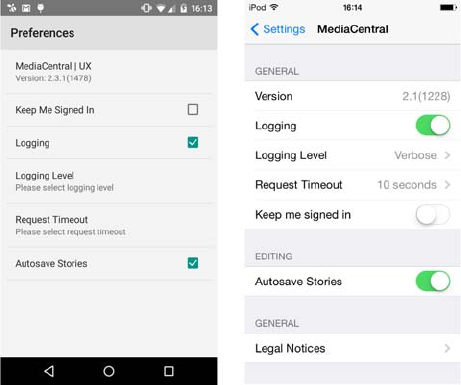
Important Log Files at a Glance
122
Mobile Device Logs
Logs are available for both iOS and Android devices. However, logging is not enabled by default
and must be manually selected per device. To ensure best performance of the device, logging
should only be enabled temporarily to create a log for a specific issue.
Enable logging for iOS and Android Devices:
1. Sign in to your mobile client.
2. Select the application menu to access the Preferences or Settings.
3. Select the option to enable logging. In the example below, the Android app is pictured on the
left and the iOS app is pictured on the right.
4. If directed by Avid support, adjust the Logging Level.
tVerbose
tInfo
tWarn
tError
5. Perform any operations related to the issue you would like to reproduce.
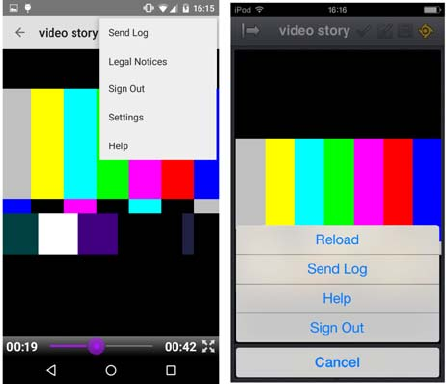
Important Log Files at a Glance
123
6. Once you have reproduced the issue, select “Send Log” from the application menu. In the
example below, the Android app is pictured on the left and the iOS app is pictured on the
right.
7. Send an e-mail with the log to yourself or an Avid representative for analysis.
