Avid INEWS | Command Administration Guide I News 3.2 NEWSCommand V32 AG EN
User Manual: avid iNews Command - 3.2 - Administration Guide Free User Guide for Avid iNews Software, Manual
Open the PDF directly: View PDF  .
.
Page Count: 100
- Avid iNEWS | Command Administration Guide
- Contents
- Using This Guide
- Introduction to iNEWS | Command
- iNEWS | Command Services
- System Settings
- Troubleshooting
- Index

Avid® iNEWS® | Command
Administration Guide
2
Legal Notices
Product specifications are subject to change without notice and do not represent a commitment on the part of Avid
Technology, Inc.
This product is subject to the terms and conditions of a software license agreement provided with the software. The product
may only be used in accordance with the license agreement.
This product may be protected by one or more U.S. and non-U.S patents. Details are available at www.avid.com/patents.
This document is protected under copyright law. An authorized licensee of Avid iNEWS Command may reproduce this
publication for the licensee’s own use in learning how to use the software. This document may not be reproduced or
distributed, in whole or in part, for commercial purposes, such as selling copies of this document or providing support or
educational services to others. This document is supplied as a guide for Avid iNEWS Command. Reasonable care has been
taken in preparing the information it contains. However, this document may contain omissions, technical inaccuracies, or
typographical errors. Avid Technology, Inc. does not accept responsibility of any kind for customers’ losses due to the use of
this document. Product specifications are subject to change without notice.
Copyright © 2014 Avid Technology, Inc. and its licensors. All rights reserved.
The following disclaimer is required by Apple Computer, Inc.:
APPLE COMPUTER, INC. MAKES NO WARRANTIES WHATSOEVER, EITHER EXPRESS OR IMPLIED, REGARDING
THIS PRODUCT, INCLUDING WARRANTIES WITH RESPECT TO ITS MERCHANTABILITY OR ITS FITNESS FOR ANY
PARTICULAR PURPOSE. THE EXCLUSION OF IMPLIED WARRANTIES IS NOT PERMITTED BY SOME STATES. THE
ABOVE EXCLUSION MAY NOT APPLY TO YOU. THIS WARRANTY PROVIDES YOU WITH SPECIFIC LEGAL RIGHTS.
THERE MAY BE OTHER RIGHTS THAT YOU MAY HAVE WHICH VARY FROM STATE TO STATE.
The following disclaimer is required by Sam Leffler and Silicon Graphics, Inc. for the use of their TIFF library:
Copyright © 1988–1997 Sam Leffler
Copyright © 1991–1997 Silicon Graphics, Inc.
Permission to use, copy, modify, distribute, and sell this software [i.e., the TIFF library] and its documentation for any purpose
is hereby granted without fee, provided that (i) the above copyright notices and this permission notice appear in all copies of
the software and related documentation, and (ii) the names of Sam Leffler and Silicon Graphics may not be used in any
advertising or publicity relating to the software without the specific, prior written permission of Sam Leffler and Silicon
Graphics.
THE SOFTWARE IS PROVIDED “AS-IS” AND WITHOUT WARRANTY OF ANY KIND, EXPRESS, IMPLIED OR
OTHERWISE, INCLUDING WITHOUT LIMITATION, ANY WARRANTY OF MERCHANTABILITY OR FITNESS FOR A
PARTICULAR PURPOSE.
IN NO EVENT SHALL SAM LEFFLER OR SILICON GRAPHICS BE LIABLE FOR ANY SPECIAL, INCIDENTAL, INDIRECT
OR CONSEQUENTIAL DAMAGES OF ANY KIND, OR ANY DAMAGES WHATSOEVER RESULTING FROM LOSS OF USE,
DATA OR PROFITS, WHETHER OR NOT ADVISED OF THE POSSIBILITY OF DAMAGE, AND ON ANY THEORY OF
LIABILITY, ARISING OUT OF OR IN CONNECTION WITH THE USE OR PERFORMANCE OF THIS SOFTWARE.
The following disclaimer is required by the Independent JPEG Group:
This software is based in part on the work of the Independent JPEG Group.
This Software may contain components licensed under the following conditions:
Copyright (c) 1989 The Regents of the University of California. All rights reserved.
Redistribution and use in source and binary forms are permitted provided that the above copyright notice and this paragraph
are duplicated in all such forms and that any documentation, advertising materials, and other materials related to such
distribution and use acknowledge that the software was developed by the University of California, Berkeley. The name of the
University may not be used to endorse or promote products derived from this software without specific prior written
permission. THIS SOFTWARE IS PROVIDED ``AS IS'' AND WITHOUT ANY EXPRESS OR IMPLIED WARRANTIES,
INCLUDING, WITHOUT LIMITATION, THE IMPLIED WARRANTIES OF MERCHANTABILITY AND FITNESS FOR A
PARTICULAR PURPOSE.
Copyright (C) 1989, 1991 by Jef Poskanzer.
Permission to use, copy, modify, and distribute this software and its documentation for any purpose and without fee is hereby
granted, provided that the above copyright notice appear in all copies and that both that copyright notice and this permission
notice appear in supporting documentation. This software is provided "as is" without express or implied warranty.
3
Copyright 1995, Trinity College Computing Center. Written by David Chappell.
Permission to use, copy, modify, and distribute this software and its documentation for any purpose and without fee is hereby
granted, provided that the above copyright notice appear in all copies and that both that copyright notice and this permission
notice appear in supporting documentation. This software is provided "as is" without express or implied warranty.
Copyright 1996 Daniel Dardailler.
Permission to use, copy, modify, distribute, and sell this software for any purpose is hereby granted without fee, provided that
the above copyright notice appear in all copies and that both that copyright notice and this permission notice appear in
supporting documentation, and that the name of Daniel Dardailler not be used in advertising or publicity pertaining to
distribution of the software without specific, written prior permission. Daniel Dardailler makes no representations about the
suitability of this software for any purpose. It is provided "as is" without express or implied warranty.
Modifications Copyright 1999 Matt Koss, under the same license as above.
Copyright (c) 1991 by AT&T.
Permission to use, copy, modify, and distribute this software for any purpose without fee is hereby granted, provided that this
entire notice is included in all copies of any software which is or includes a copy or modification of this software and in all
copies of the supporting documentation for such software.
THIS SOFTWARE IS BEING PROVIDED "AS IS", WITHOUT ANY EXPRESS OR IMPLIED WARRANTY. IN PARTICULAR,
NEITHER THE AUTHOR NOR AT&T MAKES ANY REPRESENTATION OR WARRANTY OF ANY KIND CONCERNING THE
MERCHANTABILITY OF THIS SOFTWARE OR ITS FITNESS FOR ANY PARTICULAR PURPOSE.
This product includes software developed by the University of California, Berkeley and its contributors.
The following disclaimer is required by Nexidia Inc.:
© 2010 Nexidia Inc. All rights reserved, worldwide. Nexidia and the Nexidia logo are trademarks of Nexidia Inc. All other
trademarks are the property of their respective owners. All Nexidia materials regardless of form, including without limitation,
software applications, documentation and any other information relating to Nexidia Inc., and its products and services are the
exclusive property of Nexidia Inc. or its licensors. The Nexidia products and services described in these materials may be
covered by Nexidia's United States patents: 7,231,351; 7,263,484; 7,313,521; 7,324,939; 7,406,415, 7,475,065; 7,487,086
and/or other patents pending and may be manufactured under license from the Georgia Tech Research Corporation USA.
The following disclaimer is required by Paradigm Matrix:
Portions of this software licensed from Paradigm Matrix.
The following disclaimer is required by Ray Sauers Associates, Inc.:
“Install-It” is licensed from Ray Sauers Associates, Inc. End-User is prohibited from taking any action to derive a source code
equivalent of “Install-It,” including by reverse assembly or reverse compilation, Ray Sauers Associates, Inc. shall in no event be
liable for any damages resulting from reseller’s failure to perform reseller’s obligation; or any damages arising from use or
operation of reseller’s products or the software; or any other damages, including but not limited to, incidental, direct, indirect,
special or consequential Damages including lost profits, or damages resulting from loss of use or inability to use reseller’s
products or the software for any reason including copyright or patent infringement, or lost data, even if Ray Sauers Associates
has been advised, knew or should have known of the possibility of such damages.
The following disclaimer is required by Videomedia, Inc.:
“Videomedia, Inc. makes no warranties whatsoever, either express or implied, regarding this product, including warranties with
respect to its merchantability or its fitness for any particular purpose.”
“This software contains V-LAN ver. 3.0 Command Protocols which communicate with V-LAN ver. 3.0 products developed by
Videomedia, Inc. and V-LAN ver. 3.0 compatible products developed by third parties under license from Videomedia, Inc. Use
of this software will allow “frame accurate” editing control of applicable videotape recorder decks, videodisc recorders/players
and the like.”
The following disclaimer is required by Altura Software, Inc. for the use of its Mac2Win software and Sample
Source Code:
©1993–1998 Altura Software, Inc.
The following disclaimer is required by Ultimatte Corporation:
Certain real-time compositing capabilities are provided under a license of such technology from Ultimatte Corporation and are
subject to copyright protection.
4
The following disclaimer is required by 3Prong.com Inc.:
Certain waveform and vector monitoring capabilities are provided under a license from 3Prong.com Inc.
The following disclaimer is required by Interplay Entertainment Corp.:
The “Interplay” name is used with the permission of Interplay Entertainment Corp., which bears no responsibility for Avid
products.
This product includes portions of the Alloy Look & Feel software from Incors GmbH.
This product includes software developed by the Apache Software Foundation (http://www.apache.org/).
© DevelopMentor
This product may include the JCifs library, for which the following notice applies:
JCifs © Copyright 2004, The JCIFS Project, is licensed under LGPL (http://jcifs.samba.org/). See the LGPL.txt file in the Third
Party Software directory on the installation CD.
Avid Interplay contains components licensed from LavanTech. These components may only be used as part of and in
connection with Avid Interplay.
Attn. Government User(s). Restricted Rights Legend
U.S. GOVERNMENT RESTRICTED RIGHTS. This Software and its documentation are “commercial computer software” or
“commercial computer software documentation.” In the event that such Software or documentation is acquired by or on behalf
of a unit or agency of the U.S. Government, all rights with respect to this Software and documentation are subject to the terms
of the License Agreement, pursuant to FAR §12.212(a) and/or DFARS §227.7202-1(a), as applicable.
Trademarks
003, 192 Digital I/O, 192 I/O, 96 I/O, 96i I/O, Adrenaline, AirSpeed, ALEX, Alienbrain, AME, AniMatte, Archive, Archive II,
Assistant Station, AudioPages, AudioStation, AutoLoop, AutoSync, Avid, Avid Active, Avid Advanced Response, Avid DNA,
Avid DNxcel, Avid DNxHD, Avid DS Assist Station, Avid Ignite, Avid Liquid, Avid Media Engine, Avid Media Processor, Avid
MEDIArray, Avid Mojo, Avid Remote Response, Avid Unity, Avid Unity ISIS, Avid VideoRAID, AvidRAID, AvidShare, AVIDstripe,
AVX, Beat Detective, Beauty Without The Bandwidth, Beyond Reality, BF Essentials, Bomb Factory, Bruno, C|24,
CaptureManager, ChromaCurve, ChromaWheel, Cineractive Engine, Cineractive Player, Cineractive Viewer, Color Conductor,
Command|24, Command|8, Control|24, Cosmonaut Voice, CountDown, d2, d3, DAE, D-Command, D-Control, Deko,
DekoCast, D-Fi, D-fx, Digi 002, Digi 003, DigiBase, Digidesign, Digidesign Audio Engine, Digidesign Development Partners,
Digidesign Intelligent Noise Reduction, Digidesign TDM Bus, DigiLink, DigiMeter, DigiPanner, DigiProNet, DigiRack,
DigiSerial, DigiSnake, DigiSystem, Digital Choreography, Digital Nonlinear Accelerator, DigiTest, DigiTranslator, DigiWear,
DINR, DNxchange, Do More, DPP-1, D-Show, DSP Manager, DS-StorageCalc, DV Toolkit, DVD Complete, D-Verb, Eleven,
EM, Euphonix, EUCON, EveryPhase, Expander, ExpertRender, Fader Pack, Fairchild, FastBreak, Fast Track, Film Cutter,
FilmScribe, Flexevent, FluidMotion, Frame Chase, FXDeko, HD Core, HD Process, HDpack, Home-to-Hollywood, HYBRID,
HyperSPACE, HyperSPACE HDCAM, iKnowledge, Image Independence, Impact, Improv, iNEWS, iNEWS Assign, iNEWS
ControlAir, InGame, Instantwrite, Instinct, Intelligent Content Management, Intelligent Digital Actor Technology, IntelliRender,
Intelli-Sat, Intelli-sat Broadcasting Recording Manager, InterFX, Interplay, inTONE, Intraframe, iS Expander, iS9, iS18, iS23,
iS36, ISIS, IsoSync, LaunchPad, LeaderPlus, LFX, Lightning, Link & Sync, ListSync, LKT-200, Lo-Fi, MachineControl, Magic
Mask, Make Anything Hollywood, make manage move | media, Marquee, MassivePack, Massive Pack Pro, Maxim, Mbox,
Media Composer, MediaFlow, MediaLog, MediaMix, Media Reader, Media Recorder, MEDIArray, MediaServer, MediaShare,
MetaFuze, MetaSync, MIDI I/O, Mix Rack, Moviestar, MultiShell, NaturalMatch, NewsCutter, NewsView, NewsVision, Nitris,
NL3D, NLP, NSDOS, NSWIN, OMF, OMF Interchange, OMM, OnDVD, Open Media Framework, Open Media Management,
Painterly Effects, Palladium, Personal Q, PET, Podcast Factory, PowerSwap, PRE, ProControl, ProEncode, Profiler, Pro Tools,
Pro Tools|HD, Pro Tools LE, Pro Tools M-Powered, Pro Transfer, QuickPunch, QuietDrive, Realtime Motion Synthesis, Recti-Fi,
Reel Tape Delay, Reel Tape Flanger, Reel Tape Saturation, Reprise, Res Rocket Surfer, Reso, RetroLoop, Reverb One,
ReVibe, Revolution, rS9, rS18, RTAS, Salesview, Sci-Fi, Scorch, ScriptSync, SecureProductionEnvironment, Serv|GT,
Serv|LT, Shape-to-Shape, ShuttleCase, Sibelius, SimulPlay, SimulRecord, Slightly Rude Compressor, Smack!, Soft
SampleCell, Soft-Clip Limiter, SoundReplacer, SPACE, SPACEShift, SpectraGraph, SpectraMatte, SteadyGlide,
Streamfactory, Streamgenie, StreamRAID, SubCap, Sundance, Sundance Digital, SurroundScope, Symphony, SYNC HD,
SYNC I/O, Synchronic, SynchroScope, Syntax, TDM FlexCable, TechFlix, Tel-Ray, Thunder, TimeLiner, Titansync, Titan, TL
Aggro, TL AutoPan, TL Drum Rehab, TL Everyphase, TL Fauxlder, TL In Tune, TL MasterMeter, TL Metro, TL Space, TL
Utilities, tools for storytellers, Transit, TransJammer, Trillium Lane Labs, TruTouch, UnityRAID, Vari-Fi, Video the Web Way,
VideoRAID, VideoSPACE, VTEM, Work-N-Play, Xdeck, X-Form, Xmon and XPAND! are either registered trademarks or
trademarks of Avid Technology, Inc. in the United States and/or other countries.
5
Footage
Arri — Courtesy of Arri/Fauer — John Fauer, Inc.
Bell South “Anticipation” — Courtesy of Two Headed Monster — Tucker/Wayne Atlanta/GMS.
Canyonlands — Courtesy of the National Park Service/Department of the Interior.
Eco Challenge British Columbia — Courtesy of Eco Challenge Lifestyles, Inc., All Rights Reserved.
Eco Challenge Morocco — Courtesy of Discovery Communications, Inc.
It’s Shuttletime — Courtesy of BCP & Canadian Airlines.
Nestlé Coffee Crisp — Courtesy of MacLaren McCann Canada.
Saturn “Calvin Egg” — Courtesy of Cossette Communications.
“Tigers: Tracking a Legend” — Courtesy of www.wildlifeworlds.com, Carol Amore, Executive Producer.
"The Big Swell" — Courtesy of Swell Pictures, Inc.
Windhorse — Courtesy of Paul Wagner Productions.
Arizona Images — KNTV Production — Courtesy of Granite Broadcasting, Inc.,
Editor/Producer Bryan Foote.
Canyonlands — Courtesy of the National Park Service/Department of the Interior.
Ice Island — Courtesy of Kurtis Productions, Ltd.
Tornados + Belle Isle footage — Courtesy of KWTV News 9.
WCAU Fire Story — Courtesy of NBC-10, Philadelphia, PA.
Women in Sports – Paragliding — Courtesy of Legendary Entertainment, Inc.
News material provided by WFTV Television Inc.
GOT FOOTAGE?
Editors — Filmmakers — Special Effects Artists — Game Developers — Animators — Educators — Broadcasters — Content
creators of every genre — Just finished an incredible project and want to share it with the world?
Send us your reels and we may use your footage in our show reel or demo!*
For a copy of our release and Avid’s mailing address, go to www.avid.com/footage.
*Note: Avid cannot guarantee the use of materials submitted.
Avid iNEWS | Command v3.2 Administrator’s Guide • 9329-65263-00 Rev B • Created 9/9/14 • This document
is distributed by Avid in online (electronic) form only, and is not available for purchase in printed form.
6
7
Contents
Using This Guide. . . . . . . . . . . . . . . . . . . . . . . . . . . . . . . . . . . . . . . . . . . . . . . . 9
Symbols and Conventions . . . . . . . . . . . . . . . . . . . . . . . . . . . . . . . . . . . . . . . . . . . . . . . . 9
If You Need Help. . . . . . . . . . . . . . . . . . . . . . . . . . . . . . . . . . . . . . . . . . . . . . . . . . . . . . . 10
How to Order Documentation . . . . . . . . . . . . . . . . . . . . . . . . . . . . . . . . . . . . . . . . . . . . . 10
Avid Training Services . . . . . . . . . . . . . . . . . . . . . . . . . . . . . . . . . . . . . . . . . . . . . . . . . . 11
Chapter 1 Introduction to iNEWS Command . . . . . . . . . . . . . . . . . . . . . . . . . . . . . . . . . 13
Overview of the System Architecture . . . . . . . . . . . . . . . . . . . . . . . . . . . . . . . . . . . . . . . 13
Architecture and Workflow . . . . . . . . . . . . . . . . . . . . . . . . . . . . . . . . . . . . . . . . . . . . 14
Command with Avid Deko Overview . . . . . . . . . . . . . . . . . . . . . . . . . . . . . . . . . . . . 15
Features . . . . . . . . . . . . . . . . . . . . . . . . . . . . . . . . . . . . . . . . . . . . . . . . . . . . . . . . . . 16
Security via Administrator Password. . . . . . . . . . . . . . . . . . . . . . . . . . . . . . . . . . . . . . . . 17
Starting Command at a Workstation . . . . . . . . . . . . . . . . . . . . . . . . . . . . . . . . . . . . . . . . 18
Overview of the User Interface . . . . . . . . . . . . . . . . . . . . . . . . . . . . . . . . . . . . . . . . . . . . 19
Playlist Viewer . . . . . . . . . . . . . . . . . . . . . . . . . . . . . . . . . . . . . . . . . . . . . . . . . . . . . 19
Panels . . . . . . . . . . . . . . . . . . . . . . . . . . . . . . . . . . . . . . . . . . . . . . . . . . . . . . . . . . . 19
Menu Bar. . . . . . . . . . . . . . . . . . . . . . . . . . . . . . . . . . . . . . . . . . . . . . . . . . . . . . 19
Disabling a Command Workstation’s Keyboard . . . . . . . . . . . . . . . . . . . . . . . . . . . . 24
Chapter 2 iNEWS Command Services . . . . . . . . . . . . . . . . . . . . . . . . . . . . . . . . . . . . . . 26
Main Services . . . . . . . . . . . . . . . . . . . . . . . . . . . . . . . . . . . . . . . . . . . . . . . . . . . . . . . . . 26
Device Services . . . . . . . . . . . . . . . . . . . . . . . . . . . . . . . . . . . . . . . . . . . . . . . . . . . . . . . 28
Framework Services . . . . . . . . . . . . . . . . . . . . . . . . . . . . . . . . . . . . . . . . . . . . . . . . . . . . 29
Redundancy/Failover . . . . . . . . . . . . . . . . . . . . . . . . . . . . . . . . . . . . . . . . . . . . . . . . . . . 29
Non-redundant services . . . . . . . . . . . . . . . . . . . . . . . . . . . . . . . . . . . . . . . . . . . . . . 30
Viewing Status of Services . . . . . . . . . . . . . . . . . . . . . . . . . . . . . . . . . . . . . . . . . . . . . . . 31
Starting and Stopping Services. . . . . . . . . . . . . . . . . . . . . . . . . . . . . . . . . . . . . . . . . . . . 33
Chapter 3 System Settings . . . . . . . . . . . . . . . . . . . . . . . . . . . . . . . . . . . . . . . . . . . . . . . 36
Viewing System Settings. . . . . . . . . . . . . . . . . . . . . . . . . . . . . . . . . . . . . . . . . . . . . . . . . 36
Channel Settings. . . . . . . . . . . . . . . . . . . . . . . . . . . . . . . . . . . . . . . . . . . . . . . . . . . . . . . 37
Device Channels . . . . . . . . . . . . . . . . . . . . . . . . . . . . . . . . . . . . . . . . . . . . . . . . . . . 38
8
Groups . . . . . . . . . . . . . . . . . . . . . . . . . . . . . . . . . . . . . . . . . . . . . . . . . . . . . . . . . . . 41
Creating Channel Groups . . . . . . . . . . . . . . . . . . . . . . . . . . . . . . . . . . . . . . . . . 43
Editing Channel Groups . . . . . . . . . . . . . . . . . . . . . . . . . . . . . . . . . . . . . . . . . . 47
Deleting Channel Groups . . . . . . . . . . . . . . . . . . . . . . . . . . . . . . . . . . . . . . . . . 50
Ripple Groups . . . . . . . . . . . . . . . . . . . . . . . . . . . . . . . . . . . . . . . . . . . . . . . . . . 51
Indices . . . . . . . . . . . . . . . . . . . . . . . . . . . . . . . . . . . . . . . . . . . . . . . . . . . . . . . . . . . 52
Programming the X-keys . . . . . . . . . . . . . . . . . . . . . . . . . . . . . . . . . . . . . . . . . . 56
MOS Settings . . . . . . . . . . . . . . . . . . . . . . . . . . . . . . . . . . . . . . . . . . . . . . . . . . . . . . . . . 58
Configuring Command for MOS Redirection . . . . . . . . . . . . . . . . . . . . . . . . . . . . . . 63
Playlist Settings. . . . . . . . . . . . . . . . . . . . . . . . . . . . . . . . . . . . . . . . . . . . . . . . . . . . . . . . 63
Graphics Styles . . . . . . . . . . . . . . . . . . . . . . . . . . . . . . . . . . . . . . . . . . . . . . . . . . . . 65
Graphic Title Format. . . . . . . . . . . . . . . . . . . . . . . . . . . . . . . . . . . . . . . . . . . . . . . . . 66
Loading a Shotbox from iNEWS or NRCS . . . . . . . . . . . . . . . . . . . . . . . . . . . . . . . . . . . 67
Playout Settings . . . . . . . . . . . . . . . . . . . . . . . . . . . . . . . . . . . . . . . . . . . . . . . . . . . . . . . 68
As-run Log . . . . . . . . . . . . . . . . . . . . . . . . . . . . . . . . . . . . . . . . . . . . . . . . . . . . . . . . 69
Behavior . . . . . . . . . . . . . . . . . . . . . . . . . . . . . . . . . . . . . . . . . . . . . . . . . . . . . . . . . . 70
Recue Control . . . . . . . . . . . . . . . . . . . . . . . . . . . . . . . . . . . . . . . . . . . . . . . . . . . . . 71
Cue Fail Control . . . . . . . . . . . . . . . . . . . . . . . . . . . . . . . . . . . . . . . . . . . . . . . . . . . . 72
Autocue . . . . . . . . . . . . . . . . . . . . . . . . . . . . . . . . . . . . . . . . . . . . . . . . . . . . . . . . . . 72
Inventory Settings . . . . . . . . . . . . . . . . . . . . . . . . . . . . . . . . . . . . . . . . . . . . . . . . . . . . . . 75
Enabling Mark In Points from Avid iNEWS. . . . . . . . . . . . . . . . . . . . . . . . . . . . . . . . 77
Enabling Loop Count from Avid iNEWS . . . . . . . . . . . . . . . . . . . . . . . . . . . . . . . . . . 78
GPI Settings . . . . . . . . . . . . . . . . . . . . . . . . . . . . . . . . . . . . . . . . . . . . . . . . . . . . . . . . . . 79
Mapping Events to Actions for a GPI Panel . . . . . . . . . . . . . . . . . . . . . . . . . . . . . . . 79
Enabling the GPI Panel. . . . . . . . . . . . . . . . . . . . . . . . . . . . . . . . . . . . . . . . . . . . . . . . . . 84
Tally Settings. . . . . . . . . . . . . . . . . . . . . . . . . . . . . . . . . . . . . . . . . . . . . . . . . . . . . . . . . . 85
Privileges. . . . . . . . . . . . . . . . . . . . . . . . . . . . . . . . . . . . . . . . . . . . . . . . . . . . . . . . . . . . . 86
System Alias . . . . . . . . . . . . . . . . . . . . . . . . . . . . . . . . . . . . . . . . . . . . . . . . . . . . . . . . . . 87
Importing and Exporting System Settings . . . . . . . . . . . . . . . . . . . . . . . . . . . . . . . . . . . . 88
Chapter 4 Troubleshooting . . . . . . . . . . . . . . . . . . . . . . . . . . . . . . . . . . . . . . . . . . . . . . . 91
Support Dialog Box . . . . . . . . . . . . . . . . . . . . . . . . . . . . . . . . . . . . . . . . . . . . . . . . . . . . . 91
Standard Information to Include Regardless of Issue . . . . . . . . . . . . . . . . . . . . . . . 92
Configuring the Avid Deko Renderer Service . . . . . . . . . . . . . . . . . . . . . . . . . . . . . . . . . 93
Using This Guide
Congratulations on your purchase of your Avid iNEWS® | Command system.
The Command system offers a considerable amount of functionality for the state-of-the-art
newsroom, including newsroom system integration and playout control. With Command,
newsroom personnel can easily create and manage playlists.
This publication provides information on how to administer the Command system.
nThe documentation describes the standard features of a basic system configuration.
Therefore, your system might contain certain features and hardware that are not covered in
the documentation.
Symbols and Conventions
Avid documentation uses the following symbols and conventions:
Symbol or Convention Meaning or Action
nA note provides important related information, reminders,
recommendations, and strong suggestions.
cA caution means that a specific action you take could cause harm to
your computer or cause you to lose data.
wA warning describes an action that could cause you physical harm.
Follow the guidelines in this document or on the unit itself when
handling electrical equipment.
> This symbol indicates menu commands (and subcommands) in the
order you select them. For example, File > Import means to open the
File menu and then select the Import command.
This symbol indicates a single-step procedure. Multiple arrows in a list
indicate that you perform one of the actions listed.
(Windows), (Windows
only), (Macintosh), or
(Macintosh only)
This text indicates that the information applies only to the specified
operating system, either Windows or Macintosh OS X.
10
If You Need Help
If you are having trouble using your Avid product:
1. Retry the action, carefully following the instructions given for that task in this guide. It
is especially important to check each step of your workflow.
2. Check the latest information that might have become available after the documentation
was published. You should always check online for the most up-to-date release notes or
ReadMe because the online version is updated whenever new information becomes
available. To view these online versions, visit the Knowledge Base at
www.avid.com/support.
3. Check the documentation that came with your Avid application or your hardware for
maintenance or hardware-related issues.
4. Visit the online Knowledge Base at www.avid.com/support. Online services are
available 24 hours per day, 7 days per week. Search this online Knowledge Base to find
answers, view error messages, access troubleshooting tips, download updates, and to
read or join online message-board discussions.
How to Order Documentation
To order additional copies of this documentation from within the United States, call Avid
Sales at 800-949-AVID (800-949-2843). If you are placing an order from outside the United
States, contact your local Avid representative.
Bold font Bold font is primarily used in task instructions to identify user interface
items and keyboard sequences.
Italic font Italic font is used to emphasize certain words and to indicate variables.
Courier Bold font
Courier Bold font identifies text that you type.
Ctrl+key or mouse action Press and hold the first key while you press the last key or perform the
mouse action. For example, Command+Option+C or Ctrl+drag.
| (pipe character) The pipe character is used in some Avid product names, such as
Interplay | Production. In this document, the pipe is used in product
names when they are in headings or at their first use in text.
Symbol or Convention Meaning or Action
Avid Training Services
11
Avid Training Services
Avid makes lifelong learning, career advancement, and personal development easy and
convenient. Avid understands that the knowledge you need to differentiate yourself is always
changing, and Avid continually updates course content and offers new training delivery
methods that accommodate your pressured and competitive work environment.
To learn about Avid's new online learning environment, Avid Learning Excellerator™
(ALEX), visit http://learn.avid.com.
For information on courses/schedules, training centers, certifications, courseware, and
books, please visit www.avid.com/training or call Avid Sales at 800-949-AVID
(800-949-2843).
12

1Introduction to iNEWS | Command
Command is a device automation system that integrates with any iNEWS or MOS-enabled
newsroom computer system (NRCS) and provides broadcasters precise control over a range of
playout devices, including video servers, still stores, and character generators in a broadcast
news environment. Backup services and mirrored playout make this system reliable while the
user interface allows you to control multiple production devices. Command also works with
Avid Service Framework applications and services to ensure you always have the best
system performance.
This chapter contains the following main sections:
•Overview of the System Architecture
-Architecture and Workflow
-Features
•Security via Administrator Password
•Starting Command at a Workstation
•Overview of the User Interface
Overview of the System Architecture
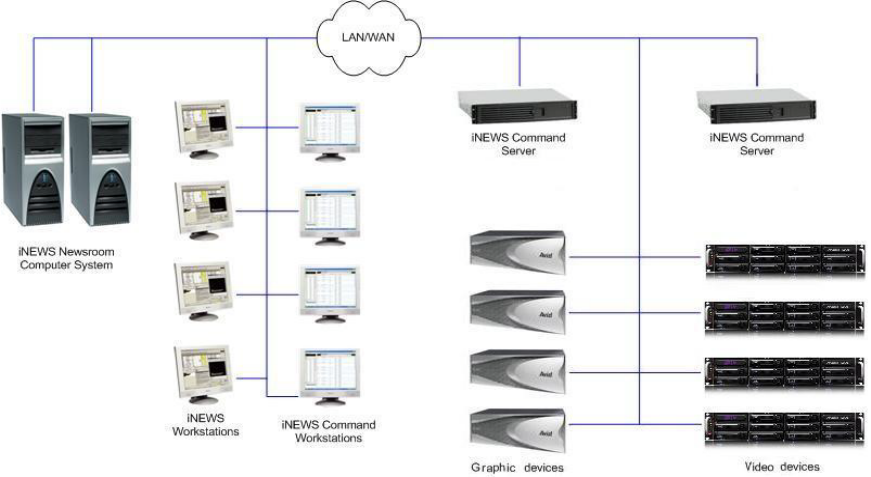
The basic iNEWS Command system is comprised of iNEWS Command Servers, workstations
that run the client software, and devices, such as Avid AirSpeed video servers, Thunder
production servers and Deko character generators. The system is designed to be an extension of
your current Avid system. It allows you to receive playlists from Avid iNEWS while controlling
your video and graphics devices. The iNEWS Command system supports industry standard
protocols making it compatible with many other products.
For newscast control your iNEWS Command system provides automated playlists, tracks script
changes, and automates control of production and playback devices including video servers, still
stores, and character generators. It integrates with the iNEWS rundown—or any other
MOS-enabled newsroom computer system—allowing a producer to change a show while it is on
air, and reflecting those changes in their iNEWS Command system. MOS commands are
supported so that journalists can use MOS plug-ins within the newsroom computer system script.
Production playout devices, including Avid Deko and Avid Thunder on-air graphics solutions
and AirSpeed video servers, are triggered based on the events in the rundown.
Overview of the System Architecture
14
News graphic and text templates for news elements can include logos and station IDs,
lower-third captions or superimposed graphics, and full-screen backgrounds with text.
Journalists, using iNEWS newsroom computer system, fill in the templates and insert them into
their stories either manually, by using a macro, or by using the iNEWS Title Entry tool. They
may also include clips and stills in their script by entering the ID of the of the graphic in the story
as a production cue. At air time an iNEWS Command operator triggers the graphics playlist,
which is synchronized with the iNEWS rundown.
Architecture and Workflow
Avid iNEWS Command is scalable and can adapt to work in traditional newsroom-based playlist
creation to production-centric workflows where running orders are created inside the Command
Workstation. All of the components can run on a single computer, or they can be spread out
across multiple computers with redundant services configured to take control if the primary
services should become unavailable.
An example of a basic Command system architecture is shown in the following illustration:
In the most common news workflow, playlists are created using the iNEWS newsroom computer
system and the video and graphic assets are referenced in stories using their IDs or by dragging
and dropping them from an Active-X plugin.
Overview of the System Architecture
15
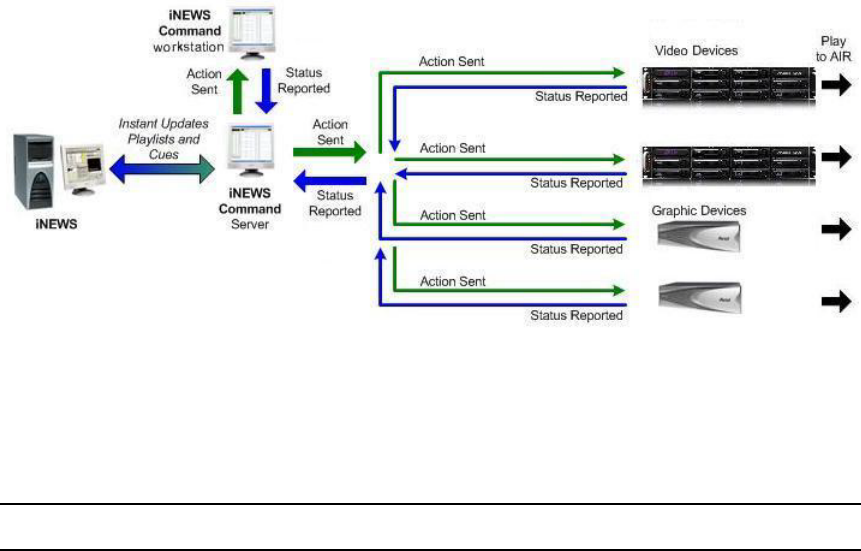
Standalone playlists can be created and saved for later use. Multiple playlists can be embedded
in a single running order. You can set assets within a playlist to playback at a specified time, or
you can set groups of assets to play in follow-on mode.
A basic workflow is shown in the following illustration:
Command with Avid Deko Overview
This section contains an overview of each component involved in a Command/Deko workflow
and the main purpose each serves.
Component Description
DekoMOS Gateway • Defines Deko styles
• Equates channel number (1-9) with a MOS ID
• Provides inventory to the Avid Deko Select plugin in iNEWS
Avid iNEWS •
SYSTEM.MOS-MAP
equates the MOS ID with the channel group in
Command
•
SYSTEM.MAP
associates the newsroom rundown with the channel group
and assigns a style if it’s a Deko channel group
Avid Deko Select Used to choose the channel number and style for an item that is dragged into
the newsroom rundown.
Avid iNEWS Command • Creates channel groups
• Configure styles to match those in an Avid Deko.
• Sends playout control commands to the Avid Deko device

Overview of the System Architecture
16
Features
The Avid iNEWS Command system provides the features described in the following table.
Avid Deko • Inventory is copied from this device to the DekoMOS Gateway.
• Deko software provides graphics for on-air playout.
DekoMOS Macro Server • Gets style list from DekoMOS Gateway
• Sets style paths for replaceable, static graphics, motions, and so forth
• Sends inventory to the Inventory Manager in Command
Component (Continued) Description (Continued)
Feature Description
Playlist Functionality You can load a playlist from the newsroom computer system, or create the
playlist manually within Avid iNEWS Command. This provides the
flexibility to control event playout locally, at the desktop, or from a
rundown. You can also embed playlists within other playlists, which allows
for seamless transitions between shows or segments produced by separate
editorial teams.
Manual and Automated
Triggering
Items can be played back manually by the operator, via keyboard, X-keys, or
GPI. Items can also be played automatically, using the follow-on or looping
playout setting. And a playlist can be set to start at a specified time of day.
This provides total integration with the facility, its systems, processes,
and staff.
Mirrored Playout This allows a single Play command to initiate playback on two channels
simultaneously. This functionality is essential for redundancy/failover
operations.
Advanced Playback Features These features include: autocue, play while record, and play while transfer.
Flexible Integration You can configure the Avid iNEWS Command system to control any
combination of supported video or graphics devices that are operating in an
Avid iNEWS, ENPS, or other MOS environment.
User Interface The intuitive user interface provides visual tools, including clocks that show
time elapsed and time remaining, channel assignments for easy
identification of transmission paths, and color-coded status indicators that
illustrate the inventory of assets based on availability and playability on all
devices. This improves operation, reduces training time, and ensures
complete synchronization of devices with the playlist
Security via Administrator Password
17
Security via Administrator Password
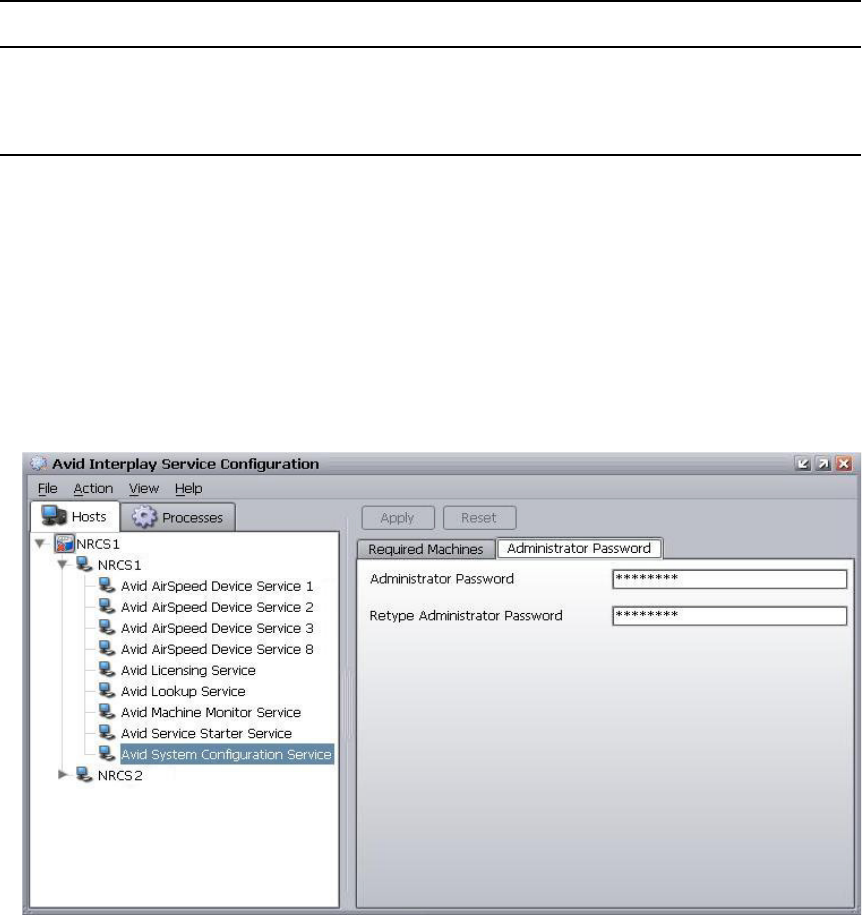
Modifying system settings in Avid iNEWS Command requires an administrator password (if
set), which is configured through the Service Configuration application of Avid Service
Framework.
To set up or change the system administration password:
1. Click the Start button and select Programs > Avid > Service Framework > Avid Service
Configuration.
2. On the Hosts tab, navigate to and select the Avid System Configuration Service.
3. Select the Administrator Password tab.
4. Type in an alpha-numeric password and retype it.
5. Click Apply.
Status Updates Reflects playability status of inventory assets; display of playout and
channel group lock status; and status-based colors and fonts for stories and
items at a glance. These status updates speed up decision-making saving
time, while maintaining accuracy.
Feature (Continued) Description (Continued)

Starting Command at a Workstation
18
nShould you ever need to restore the default “blank” password, click the Reset button to do so.
Starting Command at a Workstation
While some administration tasks require a password—if the administrator password is set
up—the Avid iNEWS Command client application at a workstation requires no password to log
in and is easy to start.
Command supports the ability to log into different workgroups from a single workstation. This
can be accomplished by adding the respective workgroups to the Lookup tab in the Workgroup
Properties application. Once added, Command will present a dialog box when opened, giving
users the option to log into the desired workgroup.
To start iNEWS Command at a workstation:
1. Do one of the following:
tDouble click the iNEWS Command icon on the desktop.
tClick the Start button and select Programs > Avid > Avid iNEWS Command.
The iNEWS Command window opens to a default configuration showing Playlists, Alerts,
Inventory, and the Playlist Viewer.

Overview of the User Interface
19
Overview of the User Interface
The Avid iNEWS Command window is the graphical user interface that contains , the Playlist
Viewer, panels, a menu bar, status bar, and a workspace area.
Playlist Viewer
The Playlist Viewer is a customizable area of the window used to view and manage playlists for
on-air playout. The window can also have different playlists open simultaneously. All are
accessible through tabs located at the top of the Playlist Viewer.
For more information about the Playlist Viewer used in iNEWS Command, see the Avid iNEWS
Command User’s Guide.
Panels
Panels are components that provide information in various ways.The iNEWS Command window
contains panels that you can dock, undock, move, resize, or even hide from view. Each panel is
easily identified by the name appearing in its title bar.
For more information about the panels, including the Inventory panel and Playlist Explorer, used
in iNEWS Command, see Avid iNEWS Command User’s Guide.
Menu Bar
The menu bar for iNEWS Command contains the following:
•File
•Edit
•View
•Playlist
• Shotbox
•Media
•Tools
•Help
Each menu, its options and descriptions are described in the following tables:
Menu Submenu Menu Option Shortcut Keys Description
File New Playlist Ctrl+Shift+N Opens the Create New Playlist dialog box.

Overview of the User Interface
20
Shotbox Ctrl+Alt+N Opens the Create New Shotbox dialog box.
File Import Playlist Imports a playlist to Command.
Shotbox Imports a shotbox to Command.
Export Playlist Exports a playlist from Command.
Shotbox Exports a shotbox from Command.
Exit Closes the Command program.
Edit Cut Ctrl+X Cut selection.
Copy Ctrl+C Copy selection.
Paste Ctrl+V Paste selection.
Delete Delete selection.
View Playlist Explorer Ctrl+Shift+E Displays or closes the Playlist Explorer.
Inventory Ctrl+Shift+I Displays or closes the Inventory panel.
Shotbox Displays or closes the Shotbox Viewer.
Clock Displays or closes the Clock.
Playout Displays or closes the Playout panel.
Media Viewer Ctrl+Shift+M Displays or closes the Media Viewer.
Alerts Ctrl+Shift+A Displays or closes the Alerts.
Playlist View Next Ctrl+Tab Displays next playlist
Previous Ctrl+Shift+Tab Displays previous playlist
Set Focus Ctrl+F Sets the keyboard focus to the active view.
Close Ctrl+W Closes the current playlist.
Close All Ctrl+Shift+W Closes all playlists.
Maximize Maximizes the Playlist Viewer.
Playlist Select Next item Ctrl+Down Select next item in current playlist.
Previous Item Ctrl+Up Select previous item in current playlist.
Next Row Alt+Down Select next item in current playlist.
Menu Submenu Menu Option Shortcut Keys Description (Continued)

Overview of the User Interface
21
Previous Row Alt+Up Select previous item in current playlist.
Item In
Following Story
Ctrl+Page Down Select next item after story.
Playlist Edit Properties Opens Playlist Properties dialog box.
Edit Selection Ctrl+E Edit current selection in playlist.
Edit Channel Ctrl+* (asterisk) Sets focus to current playlist item’s
Channel column so the user can manually
assign a channel.
Edit Trigger Ctrl+/ (slash) Sets focus to current playlist item’s Trigger
column so the user can select manual or
follow-on playout.
Edit Media ID Sets focus to the current playlist item’s ID
column so the user can alter the ID.
Cut Cut selection.
Copy Copy selection.
Paste Paste selection.
Delete Delete selection.
Playlist Show Inventory Ctrl+I Opens the Inventory panel.
Playlist Insert New Story Ctrl+N Insert new story.
New Break Insert new break.
New Item Insert new item.
Playlist Channels Assign Ctrl+R Assign channel.
Lock All Ctrl+L Lock all channels.
Unlock All Alt+L Unlock all channels.
Add Existing... Add an existing channel group.
Add New... Add a new channel group.
Menu Submenu Menu Option Shortcut Keys Description (Continued)

Overview of the User Interface
22
Playlist Playout Cue . (period) Cue Selection. Additional submenu options
include: Selection Cue All Channels
(Shift+hyphen), Last Played (Ctrl+hyphen),
and Home, Select and Cue All
(Alt+Home). The last submenu option
moves the cursor to the first available item
in the playlist and cues all channels.
nThe Alt+Home keystroke combination works only when the Home key on the keyboard is used, not the
Home (7) key on the numerical keypad.
Play Enter Play media.
Pause + (plus) Pause media that is playing. Submenu
options include: Selection and Last Played.
Stop 0 (zero) Stops media from playing. Submenu
options include: Selection and Last Played.
Shotbox View Next Ctrl+Alt+Tab Displays next shotbox
Previous Displays previous shotbox
Set Focus Ctrl+Alt+F Sets the keyboard focus to the active view.
Maximize Maximizes the Shotbox Viewer panel.
Close Ctrl+Alt+W Closes the current shotbox.
Close All Closes all shotboxes.
Shotbox Edit Selection Ctrl+Alt+E Edit current selection in shotbox.
Edit Channel Ctrl+Alt+*
(asterisk on
numeric keypad)
Sets focus to current shotbox item’s
Channel list so the user can manually
assign a channel. This “pins” the channel to
that item.
Unpin Channel Alt+Shift+*
(asterisk on
numeric keypad)
Removes pinned channel assignment from
all selected items in shotbox.
Cut Cut selection.
Copy Copy selection.
Paste Paste selection.
Delete Delete selection.
Menu Submenu Menu Option Shortcut Keys Description (Continued)

Overview of the User Interface
23
Shotbox Show Inventory Ctrl+Alt+I Opens the Inventory panel.
Shotbox Insert Item Alt+Shift+Insert Inserts a new item in a shotbox.
Shotbox Playout Cue Cue media. Submenu options include:
Selection, Last played, or Items 01-12.
Play Play media. Submenu options include:
Selection or Items 01-12.
Pause Pause media that is playing. Submenu
options include: Selection and Last Played.
Stop Stops media from playing. Submenu
options include: Selection and Last Played.
Media Play Ctrl+Space Play media.
Go To Mark In Alt+Q Go to the marked In point.
Go To Mark Out Alt+W Go to marked Out point.
Set Mark In Alt+I Mark the In point.
Set Mark Out Alt+O Mark the Out point.
Forward One Frame Alt+. Move forward one frame.
Forward One
Second
Ctrl+. Move forward one second.
Forward ten
Seconds
Ctrl+Alt+. Move forward ten seconds.
Backward One
Frame
Alt+, Move backward one frame.
Backward One
Second
Ctrl+, Move backward one second.
Backward Ten
Seconds
Ctrl+Alt+, Move backward ten seconds.
Restart Alt+6 Restart media.
Eject Alt+J Eject media.
Tools Options Opens the Options dialog box.
Menu Submenu Menu Option Shortcut Keys Description (Continued)
Overview of the User Interface
24
Disabling a Command Workstation’s Keyboard
Some sites use alternative devices to control playout from Command, such as a GPI device or an
X-keys USB keypad, and therefore do not want the computer keyboard at the workstation
enabled.
nX-keys is third-party hardware. Command natively supports a variety of X-keys devices, which
are configured through the Command Workstation application. Native support gives users an
added level of functionality that is not available through the X-keys Macro Works software. See
the Avid iNEWS Command ReadMe for the specific X-keys devices that are supported.
You can also use the Macro Works software, a keyboard emulator, with any X-keys device. For
more information on X-keys USB keypads, see that manufacturer’s documentation on
www.xkeys.com.
System Settings Opens the System Settings dialog box.
These options apply to the workstation only
and are not system-wide settings.
Enable GPI playout Ctrl+G If selected, it enables the use of a GPI
keypad for playout control.
Help Command Help Displays help information for users.
Support Opens the Support dialog box.
About Display information about iNEWS
Command.
Menu Submenu Menu Option Shortcut Keys Description (Continued)
Overview of the User Interface
25
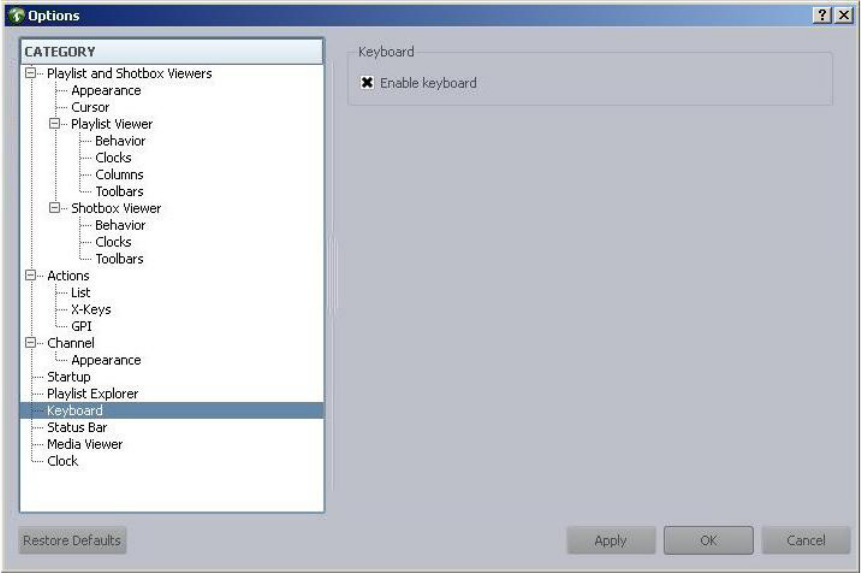
To enable or disable the computer keyboard:
1. Select Tools > Options.
2. In Category, select Keyboard.
3. Do one of the following:
tSelect Enable keyboard.
tDeselect Enable keyboard.
4. Click Apply.
5. Click OK.
nIf the keyboard is disabled, the numeric keypad cannot be used to control playout from the
Command Workstation. Disabling the keyboard does not affect the use of the keyboard for
software on the workstation PC unrelated to the Command client software.

2iNEWS | Command Services
The services for Command enable it to interface with newsroom computer systems as well as
providing for playlist control. Some of the services can be defined as Main services—those
responsible for communicating with newsroom computer systems and for playlist control. Other
services are known as Device services—those responsible for controlling other devices, such as
video servers, still stores, and character generators in a broadcast news environment.
nCommand uses Avid Service Framework applications and services to monitor and manage
Command services.
•Main Services
•Device Services
•Framework Services
•Redundancy/Failover
•Viewing Status of Services
•Starting and Stopping Services
Main Services
The main services are vital components that enable interfacing with a newsroom system, as well
as playlist control.
nIt is best to dedicate a computer to be a Command Server. Avid does not recommend running the
main services on a workstation, Thunder, or Deko. See “Redundancy/Failover” on page 29 for
more information.
The two Command services that pertain to newsroom computer system interfacing are:
•Avid iNEWS Communication Service—An iNEWS Command system uses this service as
the communication portal to load and unload iNEWS rundowns from an iNEWS
workstation. The service receives playlist messages from the iNEWS monitor server (a
utility program), distributes them to the appropriate Command components, and reports item
status and inventory messages back to iNEWS. A single iNEWS Command system can have
multiple Communication services for redundancy.
Main Services
27
•Avid MOS Communication Service—An iNEWS Command system uses this service to
load and unload rundowns from a MOS-compliant newsroom system, such as ENPS. The
service receives MOS playlist messages from the newsroom computer system, distributes
them to the appropriate Command components, and reports item status and inventory
messages back to newsroom computer system. A single iNEWS Command system can have
multiple MOS services. This service is server specific, meaning that services on different
computers act independently. In a failover scenario, if the Command playlist becomes
disconnected, users can continue playout functions. To get an updated playlist, the user must
perform a MOS redirection in the MOS-based newsroom computer system to the Command
Server running the now primary MOS Communication service.
The Command services related to playout are:
•Avid Playlist Controller—The playlist controller drives playout of the media on a locked
channel group from the playlist it controls. When one or more channel groups are locked, a
playlist controller is allocated by the Playlist Manager. A single iNEWS Command system
can have multiple primary playlist controllers and several backups. One playlist controller is
necessary for each concurrently loaded playlist. Separate controllers are not needed to
control embedded playlists.
•Avid Playlist Manager—This service assigns a playlist controller (and its backup, if any) to
a playlist when the first channel group is locked. It also manages the locks on channel
groups. Playlists that have locked channel groups are prevented from being deleted. An
iNEWS Command system can only have one primary Playlist Manager, but might have
others as backups.
•Avi d Play li st Store—This service is the data store or respository for all loaded (newsroom)
playlists and standalone playlists. It communicates playlist changes to other Command
components. An iNEWS Command system can only have one primary Playlist Store, but
might have others as backups.
The Command services related to inventory are:
•Avid Inventory Manager—This service maintains an inventory of media metadata for all
physical devices connected to any channel group in an iNEWS Command system. This
inventory is sent to the Inventory Manager via the individual device services. An iNEWS
Command system can only have one active Inventory Manager, but might have backups.
The Command services related to thumbnail images are:
•Avi d Interplay Ag ent—This service connects and logs in to the Interplay engine to retrieve
thumbnail images for video assets on AirSpeed (classic) video servers and
thumbnails/metadata for third-party video servers, such as Omneon. It runs on the iNEWS
Command servers.
Device Services
28
•Avid Deko Renderer—This service connects to the DekoMOS Gateway to retrieve
thumbnail images for graphics on Avid Deko character generators. To avoid playout
interference, it runs on the iNEWS Command servers, not on the Deko device.
Device Services
The Device services are those services responsible for controlling other devices, such as video
servers, still stores, and character generators in a broadcast news environment.
•Avid AirSpeed Multi Stream device service—This service provides control of a single
AirSpeed Multi Stream or AirSpeed 5000 video server. One is required for each device, but
a site can also have multiple backups. It runs on the AirSpeed Multi Stream or AirSpeed
5000 video server.
•Avid Video device service—This service provides control of supported third-party video
devices. Control can be via TCP/API, such as for Omneon or Nexio, or via VDCP. One is
required for each device. It runs on the iNEWS Command servers.
For monitoring transfer status, the Video device service must be configured to connect to
Transfer Manager and therefore can report status based on the actual progress of the transfer.
The service can connect to two transfer engines.
•Avid AirSpeed device service—This service provides control of a single AirSpeed (classic)
video server. One is required for each device, but a site can also have multiple backups. It
runs on the iNEWS Command servers, not on the device like other device services.
•Avid Deko device service—This service provides control of a single Deko device. One is
required for each Deko device. It runs on the device (Deko Server).
•Avid Graphic device service—This service provides control of supported third-party
graphics devices, such as Chyron, Vizrt, or Ross Xpressions.
•Avid Thunder device service—This service provides control of a single Thunder device.
One is required for each Thunder device. It runs on the device (Thunder Server).
•Avid UMD device service—This service interfaces with Under Monitor Display (UMD) or
In Monitor Display (IMD) devices.
•Avid GPI device service—This service interfaces to a GPI input card on the server.
Framework Services
Avid Service Framework consists of applications and services which provide dynamic discovery
and lookup mechanisms, a scalable notification system, a centralized configuration tool,
diagnostic logging for workgroup-enabled applications and services, system health monitoring,
and so on. Some of the services are known collectively as Support services. The Support services
are viewed, monitored, and configured using the Service Framework applications.
Redundancy/Failover
29
Those most vital to iNEWS Command are:
•Avid Lookup service—This service enables communication between all Command and
other Avid services running in the workgroup. Without it, there is no communication
between services. Only two should be installed in a workgroup.
•Avid System Configuration service— This service is a shared repository for data that is
used across services within a workgroup. Only two should be installed in a workgroup. You
can configure a list of machines for Health Monitor and change the administration password
using the System Configuration service's configuration settings. Service settings are
available for configuring services, such as AutoArchive, AutoTranscode, and AutoTransfer.
•Avid License service—This service manages the site licenses for Command Workstations
as well as CG and video devices that interface with the Command system. It must be
installed on the computer running the Command Server software, but is not necessary on any
other computer; however, two instances of this service can be installed for redundancy.
nAvid Service Framework also comes with management applications: Work Group Properties,
Health Monitor, Service Configuration, and Diagnostics. Avid strongly recommends the
installation of these applications.
•Workgroup Properties (installed by default)—This application is used to start and stop
services and enables basic configuration.
•Health Monitor—This application shows current status of all services within the
workgroup.
•Service Configuration—This application lists any services that require configuration.
•Diagnostics—This application is primarily used to gather logs for the Command
workgroup, but can also be used to monitor current or past workgroup activity.
Redundancy/Failover
Avid iNEWS Command services operate on a primary/backup basis. There can be only one
primary service, but there can be several backup services. It is best to have a dedicated computer
be a Command Server and, for additional system integrity, use multiple Command Servers—one
running all of the primary services while the backup services run on other backup servers.
Command determines primary and backup based on the length of time the service has been
running. The server that has been running longer is the primary. Therefore, to get all primary
services on one server, it is necessary to start the primary server first; when all services have
started, start the backup servers. This is the only way to ensure all services on the primary server
take on the primary role, which allows for more consistent behavior during times when
redundancy is needed, and it helps simplify any necessary troubleshooting efforts.
Redundancy/Failover
30
When a primary service goes down, Command conducts an election, and changes the backup
service to primary. The new primary service will remain primary until it is stopped. When the old
primary service comes back up, it becomes the backup service. If the primary Command Server
were to go down, all of the services on the backup server would become primary.
If you were to lose network connectivity to the primary Command Server, the services do not
actually go down, and so their duration remains longer than the backup. After the network
connection is restored, those services become primary again.
nIf you have an on-air failover on the primary Command Server due to a loss of network
connectivity, you must stop the services on the primary server. Otherwise, those services will
once again become primary when the connection is restored, which will interrupt on-air
playability. After the connection is restored, and at a non-crucial time, you should start those
services again.
Non-redundant services
There are some services that are not redundant:
•Lookup service — This Avid Service Framework service acts independently. If a second
one is running, it is doing the same work; they basically work as two primary services. In a
failover scenario, the second lookup service is already working, and services would continue
seamlessly.
•iNEWS Communicationservice— This Command service is server specific, meaning that
services on different computers act independently. In a failover scenario, the Command
playlist will become disconnected, users can continue playout functions. To get an updated
playlist, the user can reload the iNEWS rundown to the second Command Server and
continue.
•AMS, GDS, Deko & Thunder device services— These Command services must run on the
device respectively, and do not support a primary/backup configuration.
•Service Starter service, Machine Monitor service, Time Synchronization— These Avid
Service Framework services are computer specific, so redundancy does not apply.
•Deko Renderer & Avid Interplay Agent services— These Command services should run
on the Command Server. Used for thumbnail generation, the service load share, so
redundancy does not apply.
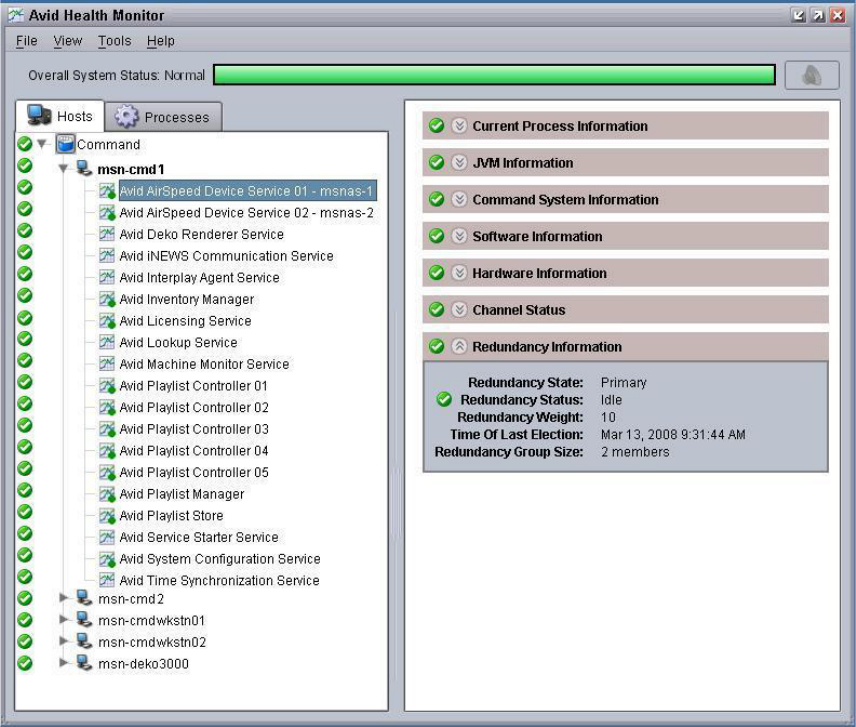
The following graphic shows an example of what a redundant system might look like from the
Health Monitor application. The primary Command Server is selected.
Viewing Status of Services
31
nThe small green dot over the bottom right corner of any service’s icon indicates that the service
is running in primary mode. Services running in backup mode will appear with a yellow dot. If
there are no backup services, the primary ones will still appear with green dots—as shown in the
previous graphic.
Viewing Status of Services
Avid Command uses Avid Service Framework as its structure for discovering and
communicating with services.
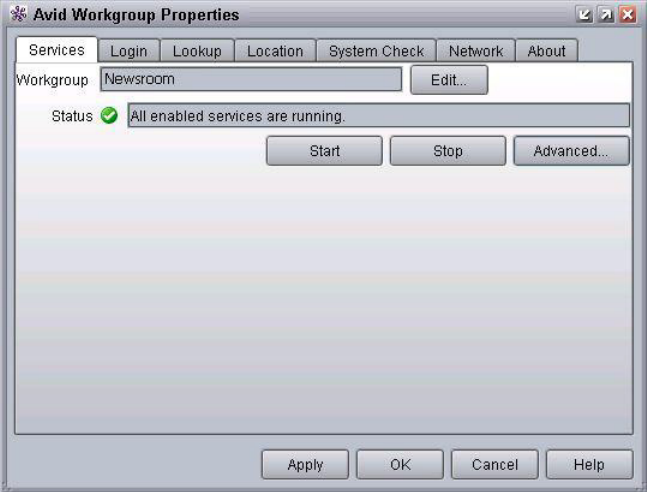
The Avid Workgroup Properties is the primary application through which you can:
Viewing Status of Services
32
• Configure the workgroup.
• Start, stop, and disable services.
• Set a workgroup login.
• Configure lookup locators, which help with workgroup connectivity.
• Use the Lookup tab to enable you to log into different workgroups from a single
workstation. This can be accomplished by adding the respective workgroups to the Lookup
tab in the Workgroup Properties application. Once added, Command will present a dialog
box when opened, giving users the option to log into the desired workgroup.
• Specify the physical location of the server.
• Perform any system checks and do network diagnostics.
To start Workgroup Properties:
tClick the Start button and select > All Programs > Avid > Service Framework > Avid
Workgroup Properties.
The Avid Workgroup Properties window opens.
Starting and Stopping Services
33
When you start the Workgroup Properties application, the Services tab appears by default
displaying the name of the workgroup, to which this computer belongs, in the Workgroup
text box. Also shown, in the Status text box, is the status of all Avid services running on the
local computer.
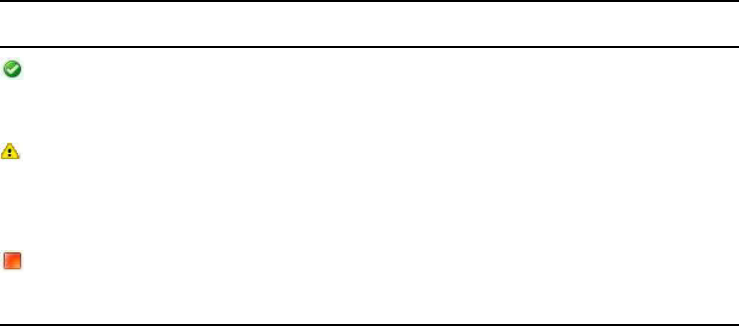
The Workgroup Properties application uses colored icons—in combination with text—on
the Services tab to show the status (started and/or enabled) of all Avid services. A user can
click the Advanced button to see more information about individual services. The icons
displayed provide fast, easy identification of the current status of an Avid service.
For more information on viewing Avid services using the Workgroup Properties application,
see the Avid Service Framework User’s Guide.
Starting and Stopping Services
The Services tab allows you to edit the workgroup to which the computer belongs. You can also
view the status of all the Avid services running on the local computer, or start, stop, and restart
the local Avid services.
To simultaneously stop or start all Avid services in a workgroup:
tFrom the Services tab in the Avid Workgroup Properties window, click the Start or Stop
button.
Icon Description
When all of the enabled Avid components are running on the local machine a green
circle with a check mark in the center is shown next to the Status text box and the
sentence—All enabled services are running—is displayed.
When some of the enabled Avid components are running on the local machine a caution
symbol (yellow triangle with an exclamation mark in the center) is shown next to the
Status text box and the sentence—Some services are enabled but not
running—is displayed.
When none of the enabled Avid components are running on the local machine a red
square is shown next to the Status text box and the sentence—No services are
running—is displayed.
Starting and Stopping Services
34
To stop, start, or enable specific Avid services:
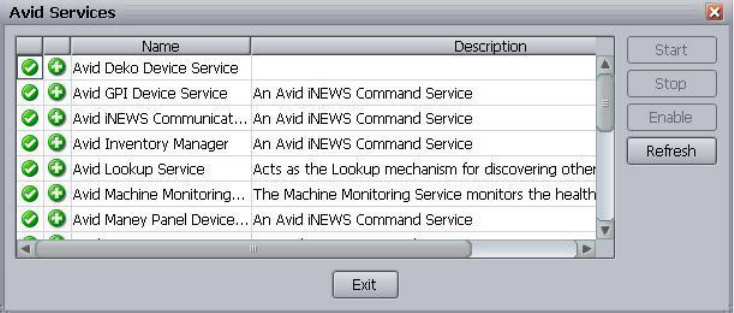
1. From the Services tab in the Avid Workgroup Properties window, click the Advanced button.
The Advanced button on the Services tab opens the Avid Services dialog box. This dialog
box allows you to stop, start, or enable individual or multiple Avid services running on the
local computer.
2. Select a service to stop, start or enable.
nMultiple rows can be selected.The Start button changes to Restart if the services are already
running. The Enable button changes to Disable if the services are already enabled.
3. Do one of the following:
tClick Start to start the selected services(s).
tClick Stop to stop the selected service(s).
tClick Enable to enable the selected service(s).
4. Click Exit to close the dialog box.
5. Click OK to close the Avid Workgroup Properties window.
For more information on starting and stopping services using the Workgroup Properties
application, see the Avid Service Framework User’s Guide.
To disable a service:
1. From the Services tab in the Avid Workgroup Properties window, click the Advanced button.
The Avid Services dialog box opens.
2. Select the service you want to disable and click Stop first.
3. After the service stops, click the Disable button to disable the service.
4. Click Exit to close the dialog box.
Starting and Stopping Services
35
5. Click OK to close the Avid Workgroup Properties window.
For more information on enabling and disabling services using the Workgroup Properties
application, see the Avid Service Framework User’s Guide.

3System Settings
System settings can be accessed through the Command user interface at any Command
Workstation. System settings are used to configure channel groups, GPI keypads, MOS
integration with third-party newsroom systems such as ENPS, and so forth.
nModifying system settings in Avid iNEWS Command requires an administrator password (if set).
For more information, see “Security via Administrator Password” on page 17.
This chapter contains the following main sections:
•Viewing System Settings
•Channel Settings
•MOS Settings
•Playlist Settings
•Playout Settings
•Inventory Settings
•GPI Settings
•Tally Settings
•Privileges
•System Alias
•Importing and Exporting System Settings
Viewing System Settings
The system settings for Command can be accessed at any Command Workstation.
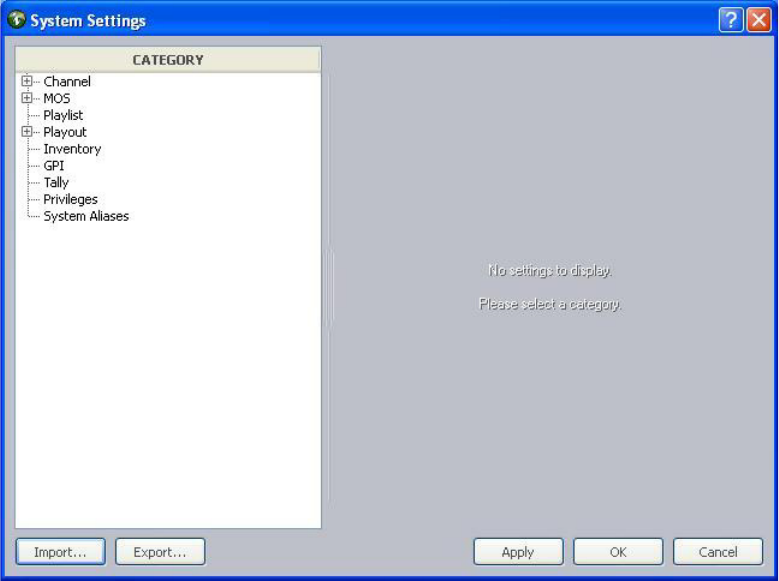
To view system settings:
1. Select Tools > System Settings.
The System Settings dialog box appears.
Channel Settings
37
2. Click any category to access the settings related to that part of the Command system.
3. When finished, click the X button to close the dialog box.
Channel Settings
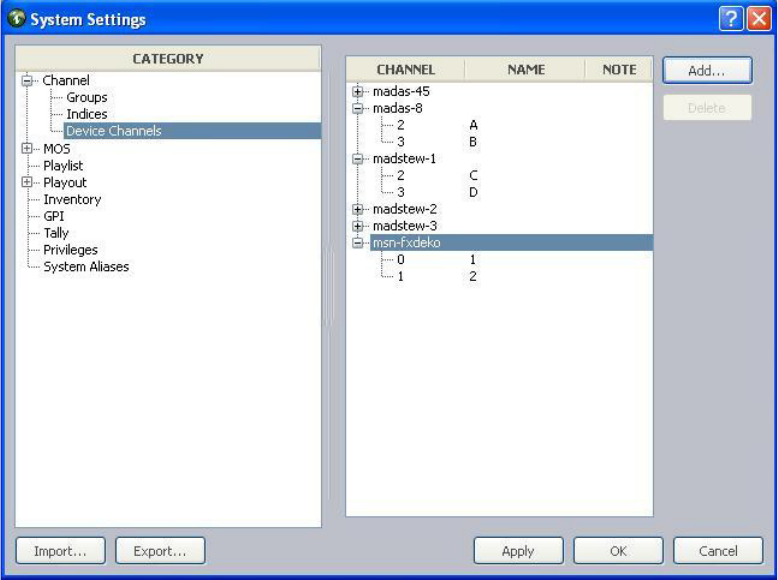
The first category in the System Settings dialog box pertains to channels. It is used to map device
channels to channel names, as well as configuring indices and channel groups.
This section covers the three sub-categories, listed below in the order they appear within the
software:
•Groups
•Indices
• Device Channels
Channel Settings
38
Before you assign groups, the actual device channels should be mapped to a channel name. You
must also map device channels before you set up indices. Therefore, information on device
channels is provided first in this section, followed by groups and indices.
Device Channels
The Device Channels section of the System Settings dialog box lets system administrators map
actual channels from a device, such as an Avid Deko or AirSpeed video server, to a name of your
chosing. This name can then be used to create channel groups or assign channel-specific actions
to keys on a USB keypad at the Command Workstation.
For more information on channel groups, see “Groups” on page 41.
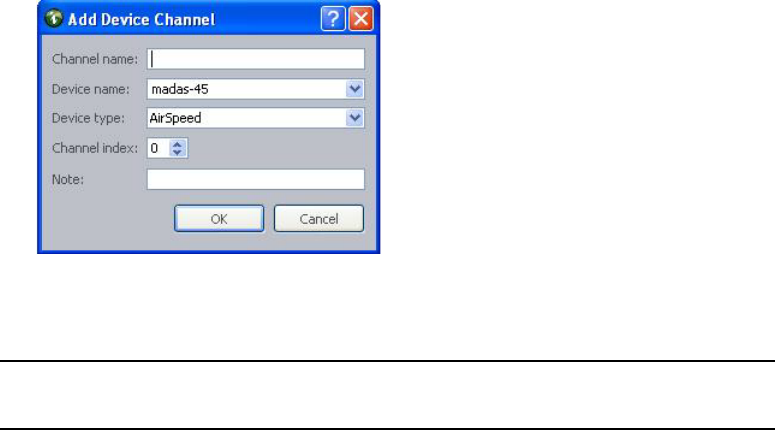
To map device channels to names:
1. Open the Command Workstation application.
2. Select Tools > System Settings.
The System Settings dialog box appears.
Channel Settings
39
3. Expand Channel.
4. Select Device Channels.
5. Click Add.
6. Enter the channel’s name, which can be any alpha-numeric character(s), based on the
following guidelines:
Device Type
Channel
Index
Channel
Name Description
nAll channel names within a single device type must be unique.
Multi Stream 1 A AirSpeed Multi Stream video servers begin channel
designations at one (1). The channel names can be
anything, but a typical example is alphabetic names
from A through F.
An AirSpeed 5000 can be configured in the same way
as the Multi Stream video server.
Multi Stream 2 B
Multi Stream 3 C
AirSpeed 2 A AirSpeed (classic) video servers begin channel
designations at one (1); however, the first channel is
reserved for video ingest. So the first available channel
for playout or browse purposes would be channel 2.
AirSpeed 3 B
Video device
service
1 A All supported third-party video devices begin channel
designations at one (1). The channel index values here
must match the channel index values set for the Avid
Video device service in Avid Service Configuration.
Video device
service
2B
Channel Settings
40
7. Select the name and type of the device from the lists. The device name is the host name for
the device, such as deko3000. If it does not appear in the list, you must enter it.
nFor third-party video devices controlled via VDCP, the device name must match the device name
set for the Avid Video device service in Avid Service Configuration.
8. Select the channel, using the Channel index spinbox.
9. Enter any notes you want, which can help identify the device should future alterations be
necessary.
10. Click OK.
11. Repeat steps 5 through 10 for each device channel, as needed.
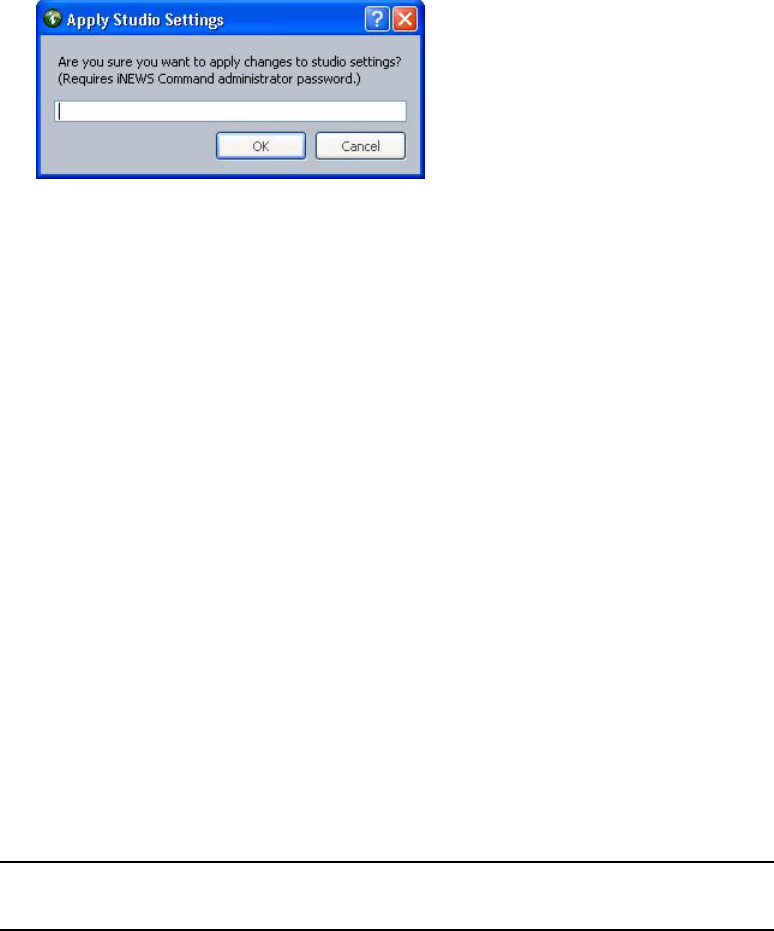
12. Click Apply (if you want the System Settings dialog box to remain open after settings are
applied) or OK.
The system will prompt you for the administrator password.
Graphic device
service
0 1 All devices using the Avid Graphic device service
begin channel designations at zero (0).
Graphic device
service
12
Deko 0 1 Avid Deko devices begin channel designations at zero
(0); however, the name of the first channel can be one.
Deko 1 2
nBoth channel names for a Deko must be numeric to match the channel selection available
through the Deko Select plug-in inside of the iNEWS newsroom computer system.
Thunder 1 aPlay Avid Thunder begins channel designations at one (1).
The channel names must be in the following format:
aPlay, bPlay, cPlay, 1, 2...8, or pgm (for program).
Thunder 2 bPlay
nAvid recommends against using numeric names for the Thunder to avoid confusion with
channel names for any Avid Deko device.
Device Type
Channel
Index
Channel
Name Description
Channel Settings
41
13. Enter the administrator password and click OK.
Until this procedure is completed, device channels cannot be added to a channel group.
nBefore you can delete a device channel, you must first delete that channel from that channel from
any channel groups or delete the channel group(s) that use the channel.
Groups
A channel group is a cluster configured with one or more device channels composed from
compatible video servers or character generators. Many channel groups can be created from the
same pool of resources, and different groups can use the same resources to serve different
operational needs.
nEach channel group must contain a single “type” of device. For instance, a channel group called
AS is a grouping of channels from two or more AirSpeed video servers, while a different channel
group named CG is a grouping of channels on a Deko character generator. All channel names
within a single device type must be unique.
AirSpeed channels provide one of the best examples of the way in which channel groups provide
control configurations; they do not guarantee media availability, which is the role of the
AirSpeed studio configuration. For example, a station has two AirSpeed video servers, each with
two channels that are numbered 2 and 3. (With AirSpeed video servers, the first channel is
reserved for ingest.) Let’s call the first AirSpeed AS1 and the second one AS2. With channel
groups on Command, the station’s system administrator can set up numerous different channel
groups and call them anything, such as:
Channel Group
Channel
Names Actual Device Channels Purpose
AS-Noon A
B
C
AS1 - channel 2
AS1 - channel 3
AS2 - channel 2
Playout
Playout
Browse
Channel Settings
42
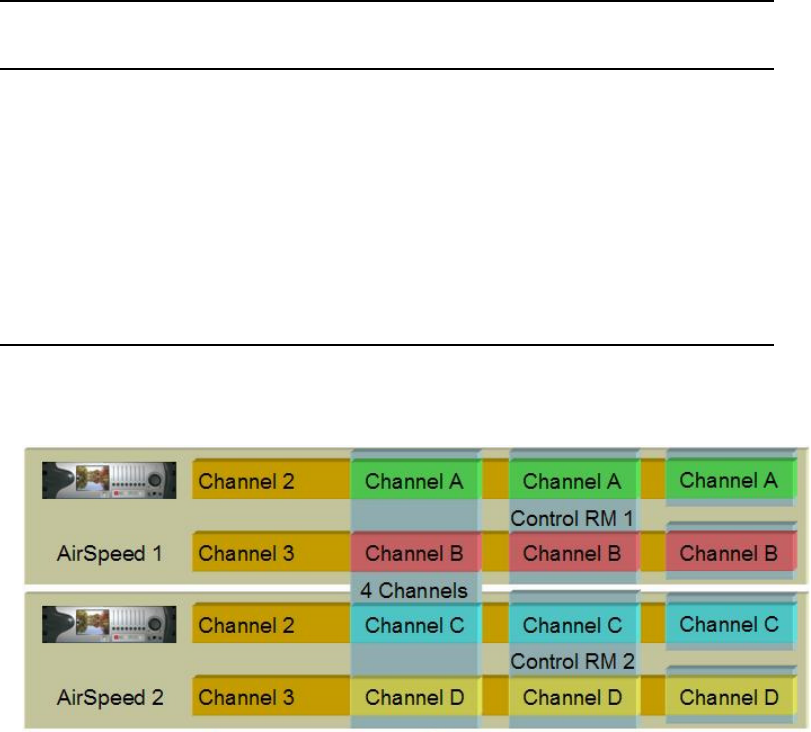
The following graphic shows a more visual example of how multiple channel groups can be
created from the same four AirSpeed video server channels.
The first group shows a single channel group configured to create four playback channels called
A, B, C, and D. The next set shows two groups, representing control rooms, with two playback
channels each. Alternatively, the groups can be created from any combination of channels and
used to support simultaneous two-channel playout from two control rooms sharing the same
resources. The last set shows four channel groups, each controlling a single channel.
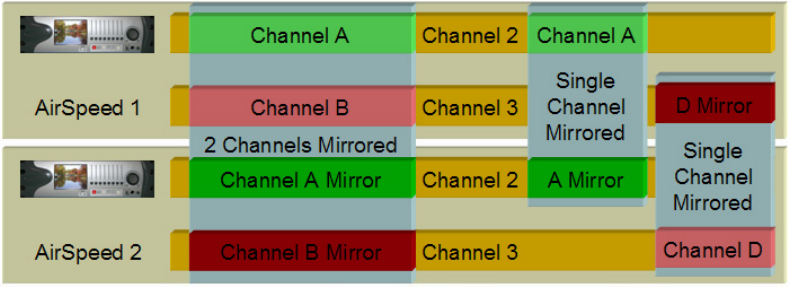
The following graphic shows a more visual example of how channel groups are used to mirror
playout for redundancy.
AS-5PM A
B
C
D
AS1 - channel 2
AS1 - channel 3
AS2 - channel 2
AS2 - channel 3
Playout
Playout
Playout
Playout
AS-10PM A
C
B
D
AS1 - channel 2
AS2 - channel 2
AS1 - channel 3
AS2 - channel 3
Playout
Mirrored
Playout
Mirrored
Channel Group
Channel
Names Actual Device Channels Purpose
Channel Settings
43
The first group creates a two channel playout solution with both channels mirrored on a
secondary video server for maximum reliability. Whenever a video clip is cued and played on
either of the primary channels, the same clip is also cued and played on the corresponding
secondary channels. The other two groups depict single channel solutions with redundancy.
All of these channel groups can exist at the same time, although they cannot necessarily all be
used simultaneously.
Creating Channel Groups
Channels must be created before they can be assigned to channel groups. For more information
on how to create channels, see “Device Channels” on page 38.
nThe first eight (8) characters of a channel group’s name must be unique to match the
eight-character device name in the iNEWS newsroom computer system. For instance, a channel
group name in Command that is ASNoonMirrored will appear as ASNoonMi in iNEWS.
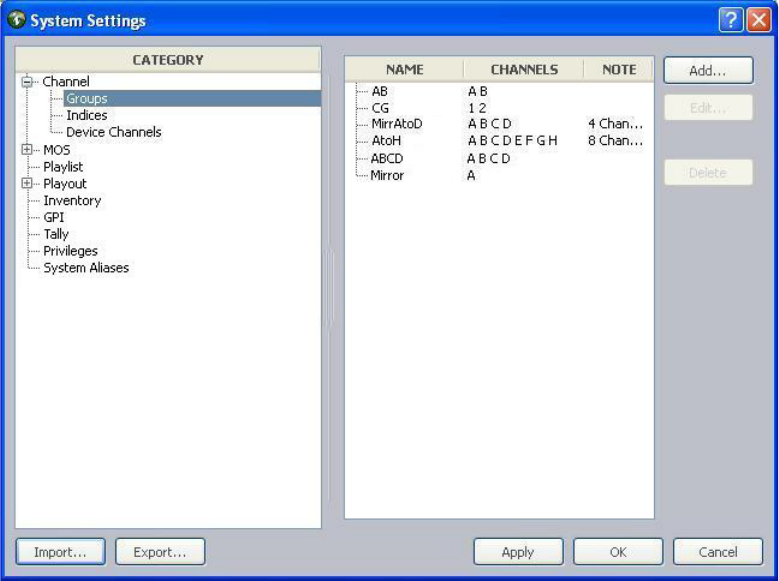
System administrators can create channel groups via the System Settings dialog box.
Channel Settings
44
To create channel groups:
1. Select Tools > System Settings. The System Settings dialog box appears.
2. Expand Channel.
3. Select Groups.
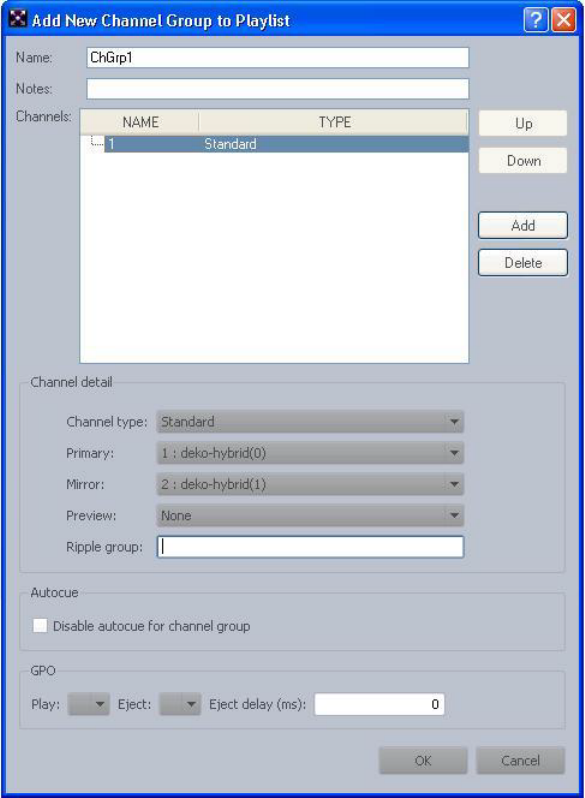
4. Click Add.
The Add New Channel Group to Playlist dialog box opens.
Channel Settings
45
5. Enter the name of the new channel group and any notes you want. Names of channel groups
can be upper or lowercased and contain any alpha-numeric character. Avoid using spaces
before or after the name.
6. Click Add to add a channel to the group.
nIf channels have not been created, they cannot be assigned to channel groups; therefore, the Add
button will be disabled if no channels exist in the system. For more information on how to create
channels, see “Device Channels” on page 38.
7. In the Channel Detail section, select the following:
Channel Settings
46
8. Repeat steps 6 and 7 as needed. You can use the Up and Down buttons to rearrange the order
of channels in the group.
9. Click OK. This will close the Add New Channel Group to Playlist dialog box. The new
channel group will appear in the System Settings dialog box.
10. Click Apply (if you want the System Settings dialog box to remain open after settings are
applied) or OK.
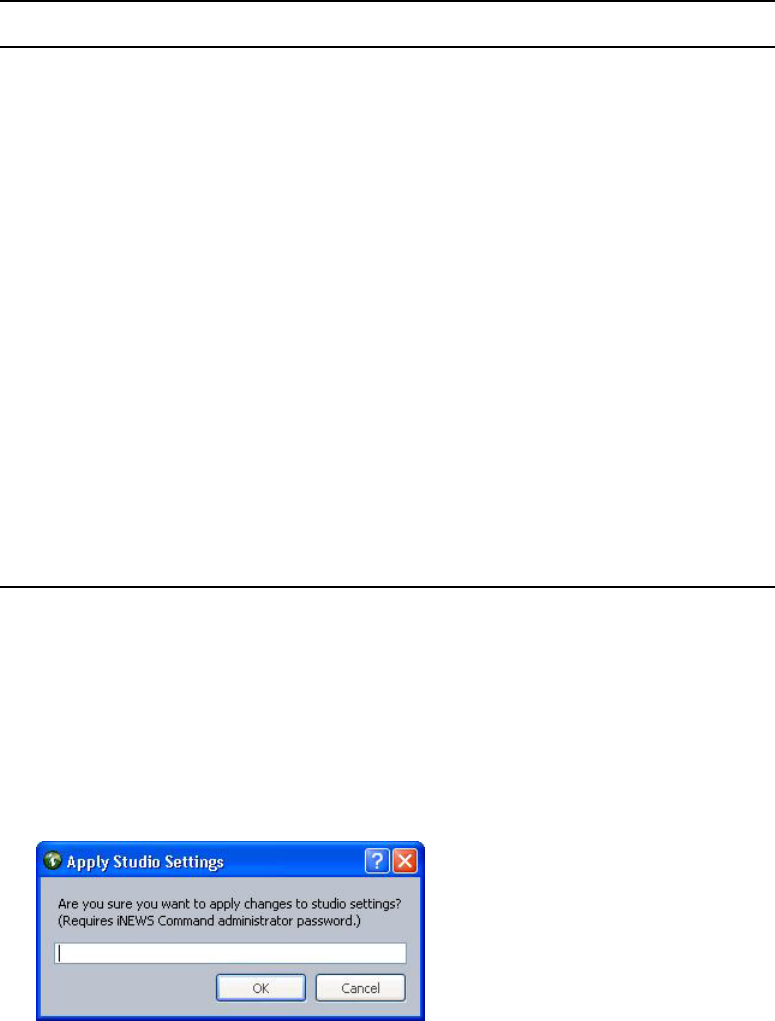
The system will prompt you for the administrator password.
Channel Detail Description
Channel type Select the appropriate channel type, based on:
Standard - This is the channel type selected for playout.
Browse - This is the channel type selected for changing In and Out points
of pre-existing clips for preview or editing purposes only. This does not
apply to playout operations.
Hotswap - This is the channel type selected for emergency backup
channel assignment.
Primary Select the channel designated as the primary playout channel for the
device.
Mirrored (Optional) If mirrored playout is necessary, select the device’s channel
designated for mirrored playout.
Preview (Optional) Select which device channel to use for displaying the
headframe of the next media event in the playlist.
Ripple group (Optional) Define the ripple group by entering a numerical value or any
text string in the text field. Channels that are part of the same ripple group
must have the same numerical value or text string.
nDo not disable autocue if using ripple groups or looping. For more information, see “Ripple
Groups” on page 51 and “Enabling Loop Count from Avid iNEWS” on page 78.
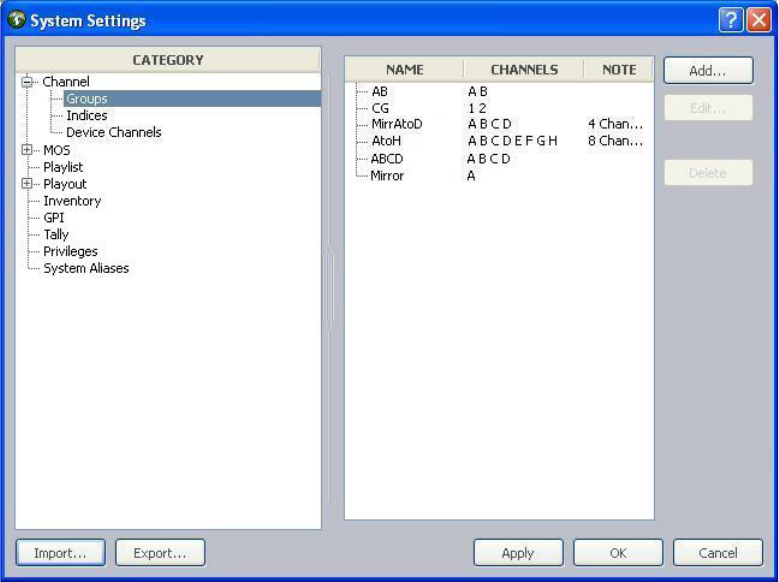
Channel Settings
47
11. Enter the administrator password and click OK.
cUntil the Apply or OK button is clicked and administrator password supplied, the channel
group(s) are not created.
12. Close all workstation sessions and restart all Command and Avid Service Framework
services throughout the environment.
Editing Channel Groups
Should it become necessary to modify a channel group, you can do so from any Command
Workstation via the System Settings dialog box.
To edit a channel group:
1. Select Tools > System Settings.
The System Settings dialog box appears.
2. Expand Channel.
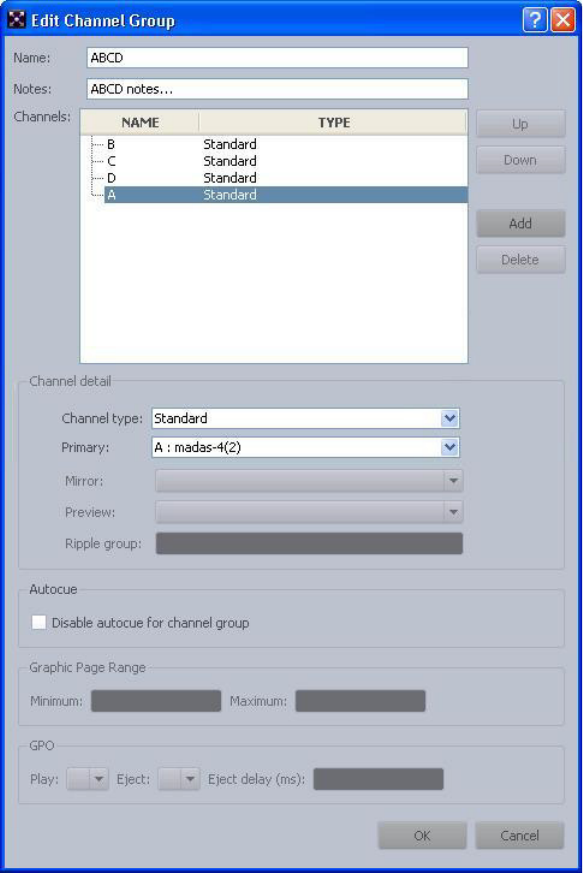
Channel Settings
48
3. Select Groups.
4. Select the channel group from the list on the right.
5. Click Edit. The Edit Channel Group dialog box appears.
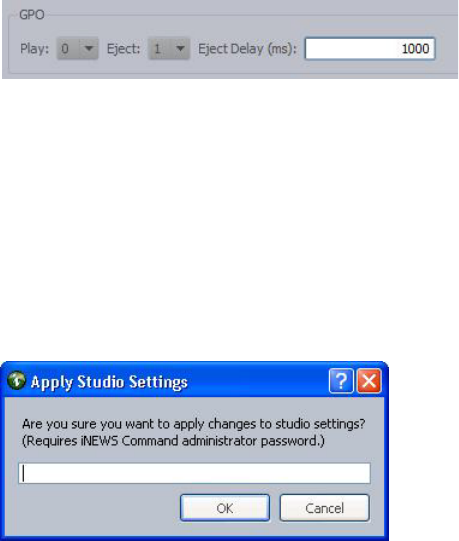
Channel Settings
49
6. You can rename the channel group, add notes, rearrange the order of channels by using the
Up and Down buttons, add or delete channels, or alter the channel details for each channel in
the group. For more information on ripple groups, see “Ripple Groups” on page 51.
7. (Optional) If you want to disable the autocue feature for your channel group, click the
checkbox in the Autocue section.
nDo not disable autocue if using ripple groups or looping. For more information, see “Ripple
Groups” on page 51 and “Enabling Loop Count from Avid iNEWS” on page 78.
8. (Optional) For graphics integration, set the minimum and maximum numerical values for
page ranges.
9. (Optional) If your Command system is integrated with a graphics device and the GPI device
service is set up to do GPI out (also known as GPO) commands, then you can set the GPO
for both playing and ejecting graphics, and if necessary, also add any delay in milliseconds.
nFor more information on setting up the GPI device service for GPO commands, see the
procedure for configuring the GPI card in the Avid iNEWS Command Installation and
Configuration Guide.
10. After editing the channel group, click OK.
11. Click Apply (if you want the System Settings dialog box to remain open after settings are
applied) or OK.
The system will prompt you for the administrator password.
12. Enter the administrator password and click OK.
cUntil the Apply or OK button is clicked and administrator password supplied, the changes
in the system settings are not saved.
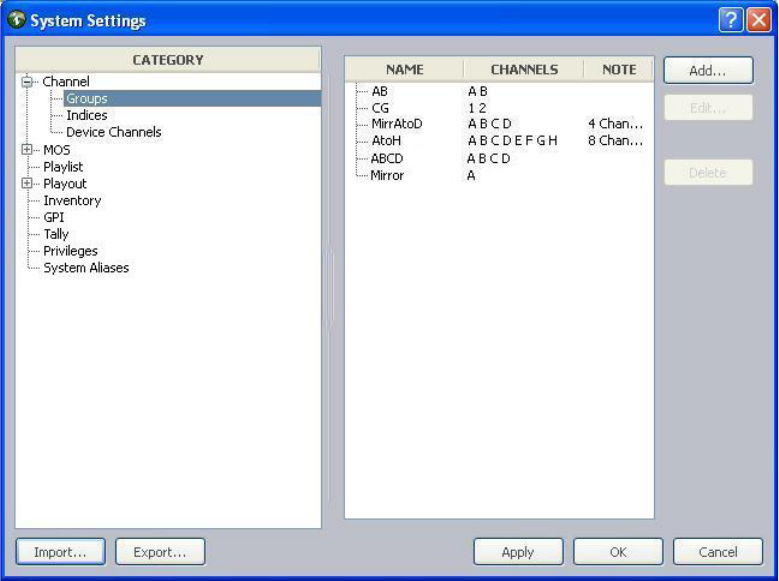
Channel Settings
50
Deleting Channel Groups
Should it become necessary to delete a channel group, you can do so from any Command
Workstation via the System Settings dialog box.
To delete a channel group:
1. Open the Command Workstation application.
2. Select Tools > System Settings.
The System Settings dialog box appears.
3. Expand Channel.
4. Select Groups.
5. Select the channel group from the list on the right.
6. Click Delete.
7. Click Apply (if you want the System Settings dialog box to remain open after settings are
applied) or OK.
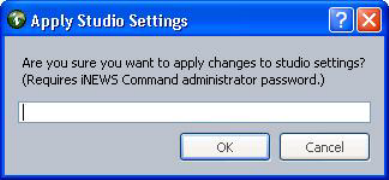
Channel Settings
51
The system will prompt you for the administrator password.
8. Enter the administrator password and click OK.
cUntil the Apply or OK button is clicked and administrator password supplied, the channel
group(s) are not deleted from the system settings.
Ripple Groups
Command assigns the channel of a playable item based on its availability on the device. So, if an
item is playable only on channel C, Command will assign the item to that channel. Ripple groups
is a feature that takes this concept one step further by letting users create a subgroup for channel
assignments. Ripple groups let users have more than one channel or type of device in a single
channel group.
• Users can add multiple devices that have different assets to a single channel group.
• Users can separate SD from HD channels.
nRipple groups require that Strong channel assignment be turned on. This setting is located in the
System Settings dialog box in the Playout > Autocue category. For more information, see
“Playout Settings” on page 68.
If an item is unplayable, Command will assign the default channel specified in iNEWS or, for
standalone playlists, the first channel in the channel group. After the item becomes playable,
Command automatically assigns the channel based on its playability on the device.
Ripple groups let users add all video channels to a single channel group, rather than using a
second channel group and adding a production cue with the video item. With all items in the
iNEWS story form, users can see ONLINE/OFFLINE and transport status in the story form for
all items.
To use ripple groups:
1. Open the Command Workstation application.
2. Select Tools > System Settings.
The System Settings dialog box appears.
Channel Settings
52
3. Expand Playout and select the Autocue sub-category.
4. Select the Strong channel assignment system setting.
5. Click OK.
6. Expand Channel and select the Groups sub-category.
7. Do one of the following:
tClick Add to create a new channel group.
tSelect a group and click Edit to edit the existing channel group.
8. Define the ripple group in the Channel Detail section of the dialog box.
You can enter a numerical value or any text string in the Ripple group text field. Channels
that are part of the same ripple group must have the same numerical value or text string.
9. Click OK.
10. Click Apply then OK in the System Settings dialog box.
After ripple groups are set up, Command users can view and sort by ripple group in the
Inventory panel.
Indices
Channel indices are a configuration feature used to map an index integer (1-16) to a channel
name, which can be alpha or numeric, to enable assignment of channel-specific actions to certain
keys on a keypad.
This pre-configuration can be done before assigning the channel-specific actions to any keys on
playout control keypads, such as the X-keys® USB keypad.
The X-keys USB keypads connect to the USB port the Command Workstation and offer up to
fifty-eight user-reprogrammable keys for one-button access to playout functionality.
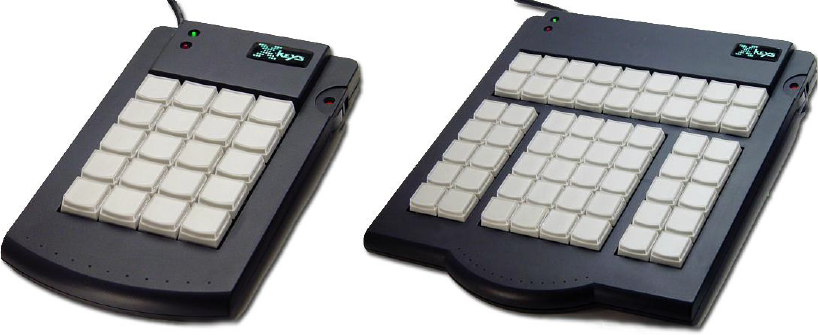
Channel Settings
53
Some improvements to the X-Keys functionality has been added. To see the new options, go to
Tools > Options > Actions > X-Keys. The Choose Action dialog box opens.
• Main Window, Keyboard - Up and Down: These options emulate the keyboard up/down
arrows, and support a press-and-hold functionality, where the cursor continues to scroll
when the key is pressed and held. These keys also function in other panels, such as Playlist
Explorer and Inventory.
• Playlist, Selection – NextRow, NextItem, PreviousRow, and PreviousItem: These key
functions now support press-and-hold functionality, so that you can scroll through your
playlist by pressing and holding the respective keys.
• Playlist Explorer – TakeFocus: This key moves the focus to the Playlist Explorer panel, so
that users can use the up/down arrow keys (via keyboard or X-Keys) to navigate to a
particular playlist.
• Playlist Explorer - OpenSelected: This key will open the selected playlist.
nX-keys is third-party hardware. Command natively supports a variety of X-keys devices, which
are configured through the Command Workstation application. Native support gives users an
added level of functionality that is not available through the X-keys Macro Works software. See
the Avid iNEWS Command ReadMe for the specific X-keys devices that are supported.
You can also use the Macro Works software, a keyboard emulator, with any X-keys device. For
more information on X-keys USB keypads, see that manufacturer’s documentation on
www.xkeys.com.
Ensuring the successful integration of an X-keys keypad to control playout through Command
requires the completion of the following tasks:
Channel Settings
54
nAnother alternative keypad is one that connects to a GPI card. For more information on GPI
integration, see “GPI Settings” on page 79.
To map an index to a channel name:
1. Open the Command Workstation application.
2. Select Tools > System Settings.
The System Settings dialog box appears.
Tasks Refer to...
(Optional) Disable the keyboard at the Command
Workstation.
“Disabling a Command Workstation’s Keyboard”
on page 24
Verify installation of the keypad on the Command
Workstation.
See the Avid iNEWS Command Installation and
Configuration Guide.
Map Indices to Channel Names. See procedure on page 54.
Program the keypad. “Programming the X-keys” on page 56
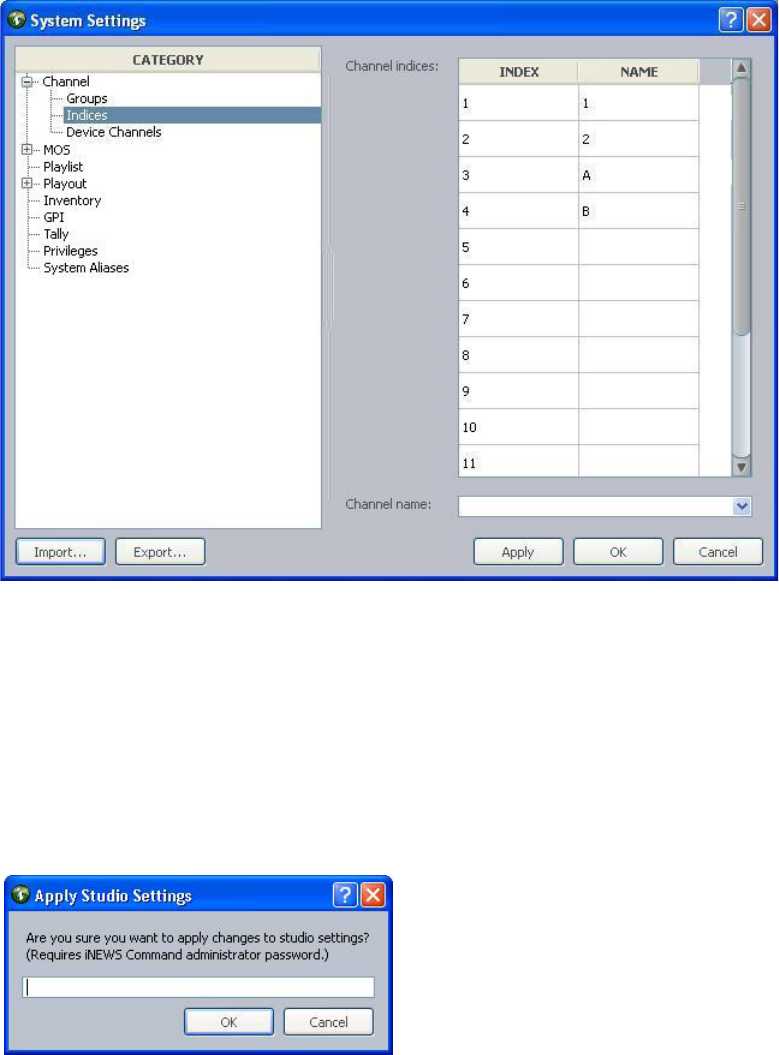
Channel Settings
55
3. Expand Channel.
4. Select Indices.
5. Enter the channel’s name in the Name column next to the appropriate index.
nAvid recommends that if a channel name must be numeric, such as is the case whenever the
ActiveX plug-in Avid Deko Select is used, assign it to the same Index number to avoid confusion.
6. Click Apply (if you want the System Settings dialog box to remain open after settings are
applied) or OK. The system will prompt you for the administrator password.
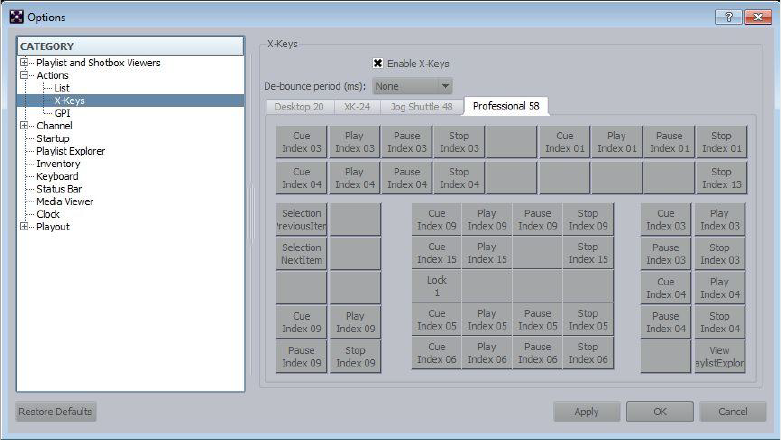
Channel Settings
56
7. Enter the administrator password and click OK.
Programming the X-keys
The following procedure should be conducted at the Command Workstation to which the
X-keys USB keypad is installed.
To program the X-keys from the Command Workstation:
1. Select Tools > Options.
2. In Category, expand Actions and select X-keys.
3. Select Enable X-keys.
4. Set the de-bounce period. Designed to avoid inadvertent repetition, this is the span of time
(in milliseconds) during which the system should ignore duplicated signals.
nIf you find that you are having problems with “double-hits” when you press a key, increase the
de-bounce period.
5. Select the tab corresponding to the type of keypad you have.
6. Click on a gray box that represents (or corresponds to) the key on the keypad.
nSome sites might use key caps that cover 2 or 4 buttons on the keypad, turning a set of buttons
into a single key. If that is the case, select the left box to set the “2-button” key. For 4-button keys,
select the upper left box.
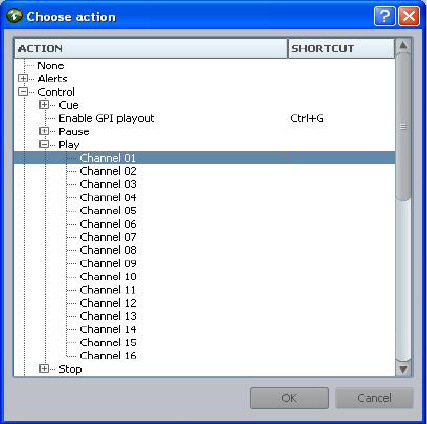
Channel Settings
57
7. Assign an action to the key by selecting it from the list of those available in the Choose
Action dialog box. The most commonly used actions will appear open for your selection
already.
- The Playlist > Channel Group actions refer to channel group commands, such as lock,
unlock, and assign channel.
- The Playlist > Selection actions refer to selected items on the playlist, such as play
selection, cue selection, stop selection, and move up/down.
- The Control actions refer to channel-specific actions that correspond to a particular
index as configured when mapping indices to channel names. An example of this would
be for a key to initiate a play command on a single channel. Assigning the
channel-specific actions affects only the keypad attached to the workstation at which the
assignments are programmed.
nChannel 01 actually refers to Index value 01.
8. Click OK.
9. Repeat steps 5-7 as needed.
10. Click Apply.
11. Click OK.
The following graphic shows a closeup of the first row of keys after they were assigned to the
four playout control options of play, cue, pause, and stop.
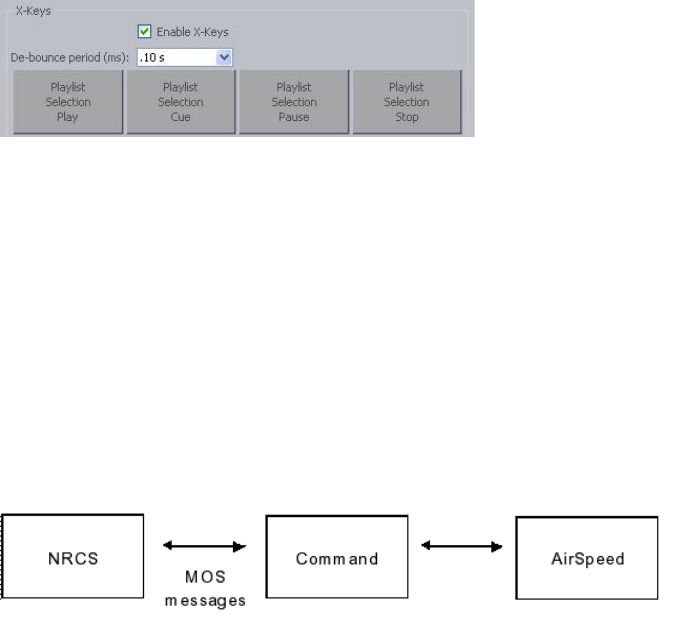
MOS Settings
58
MOS Settings
The MOS category in the System Settings dialog box allows system administrators to configure
the Command system to integrate with a MOS-enabled newsroom computer system, such as
ENPS. A MOS-enabled newsroom computer system can send playlists to Command.
MOS (Media Object Server) is an industry-standard, XML-based protocol that is primarily used
by a newsroom computer system (NRCS) to maintain running orders on a video server. MOS
also enables servers to update the newsroom computer system with changes to the server’s media
inventory. Command’s MOS support enables communication between the newsroom computer
system and AirSpeed video servers, as shown in the following illustration.
MOS does not provide a means of controlling playout from a video server. Command supplies
this function.
Under the MOS category are three subcategories:
• General - used to configure MOS and graphics style settings.
• Channel Groups - used to create channel groups for integration with MOS-based newsroom
computer systems.
• Advanced - used for advanced MOS feature configuration.
nAvid strongly recommends contacting Customer Support before altering any of the advanced
settings.
To configure Command for a MOS-based newsroom computer system:
1. Open the Command Workstation application.
2. Select Tools > System Settings.
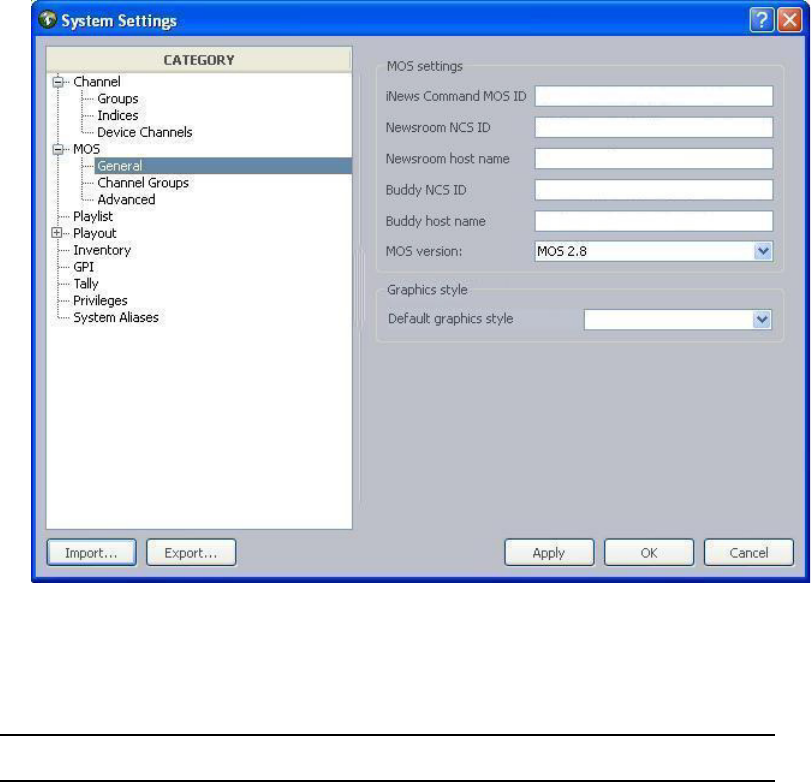
MOS Settings
59
The System Settings dialog box appears.
3. Expand the MOS category.
4. Select General.
5. Edit the MOS settings accordingly:
MOS Setting Description
iNEWS Command MOS
ID
The ID that enables enables bidirectional communications between a
MOS-based newsroom computer system and Command. The ID is case
sensitive and cannot contain spaces.
Newsroom NCS ID Usually, this is set to the host name of the newsroom computer system’s
server. It is case sensitive.
Newsroom Host Name Host name of the newsroom computer system’s server. The name entered
in this field must be resolvable via the Domain Name Service (DNS);
otherwise, an IP address can be used instead.
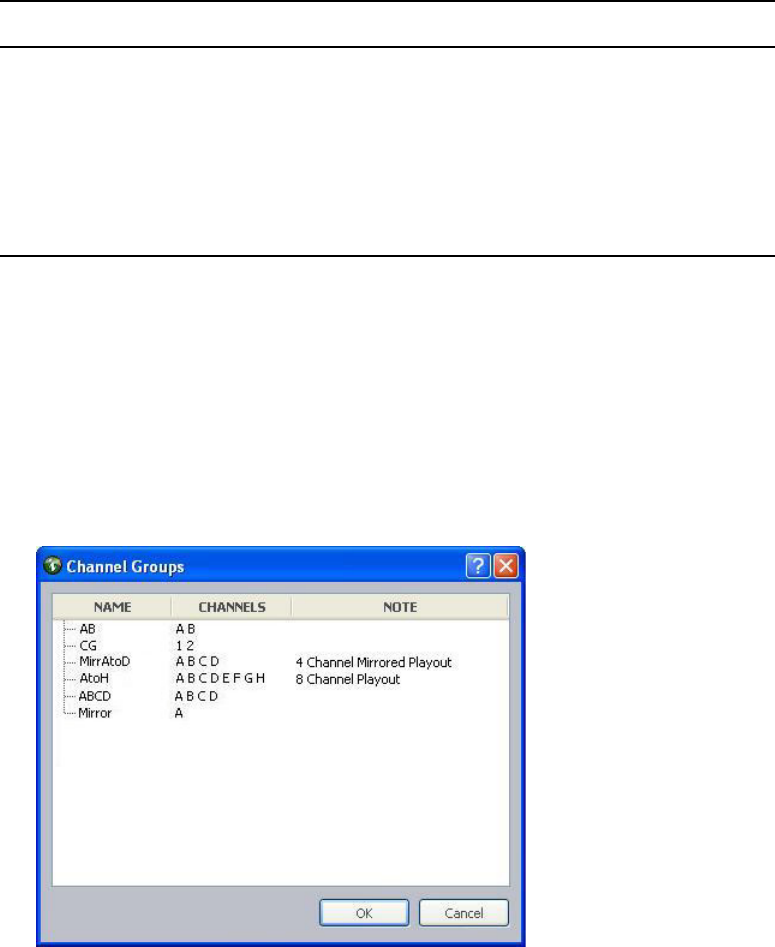
MOS Settings
60
6. Set the default graphics style for playlists loaded from a MOS-based newsroom computer
system, if necessary.
Graphics styles are added via the Playlist category in the System Settings dialog box. If none
are added, then the list in the MOS > General category will appear blank.For more
information, see “Playlist Settings” on page 63.
7. Select Channel Groups.
8. Click Add.
The Channel Groups dialog box appears.
9. Select a channel group. The order is important. The primary video channel group should be
first, then any graphics channel groups, followed by any secondary video channel groups.
Newsroom BuddyID Usually, this is set to host name of the newsroom computer system’s
“buddy” or backup server. The name entered in this field must be
resolvable via the Domain Name Service (DNS); otherwise, an IP address
can be used instead.
Newsroom Buddy Host
Name
Host name of the newsroom computer system’s “buddy” or backup
server.
MOS version Determines which version of MOS protocol Command will use.
MOS Setting Description
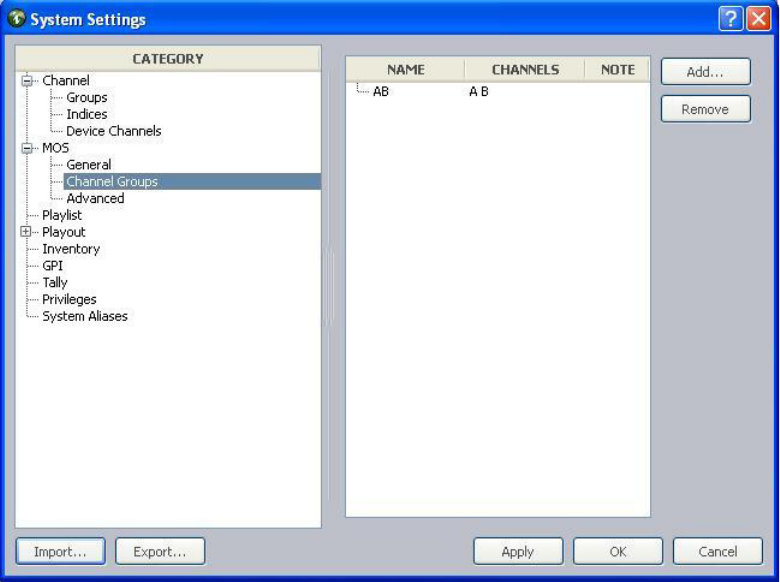
MOS Settings
61
nYou can override the Command channel group by setting the MOS channel in the ENPS rundown
properties.
10. Click OK.
The chosen channel group will appear in the list on the right side of the System Settings
dialog box.
nUnless the channel is specified in ENPS, Command will assign channels based on the channel
group listed first. Specifically, Command will only assign the first channel of the first channel
group by default.
11. Click Apply (if you want the System Settings dialog box to remain open after settings are
applied) or OK.
The system will prompt you for the administrator password.
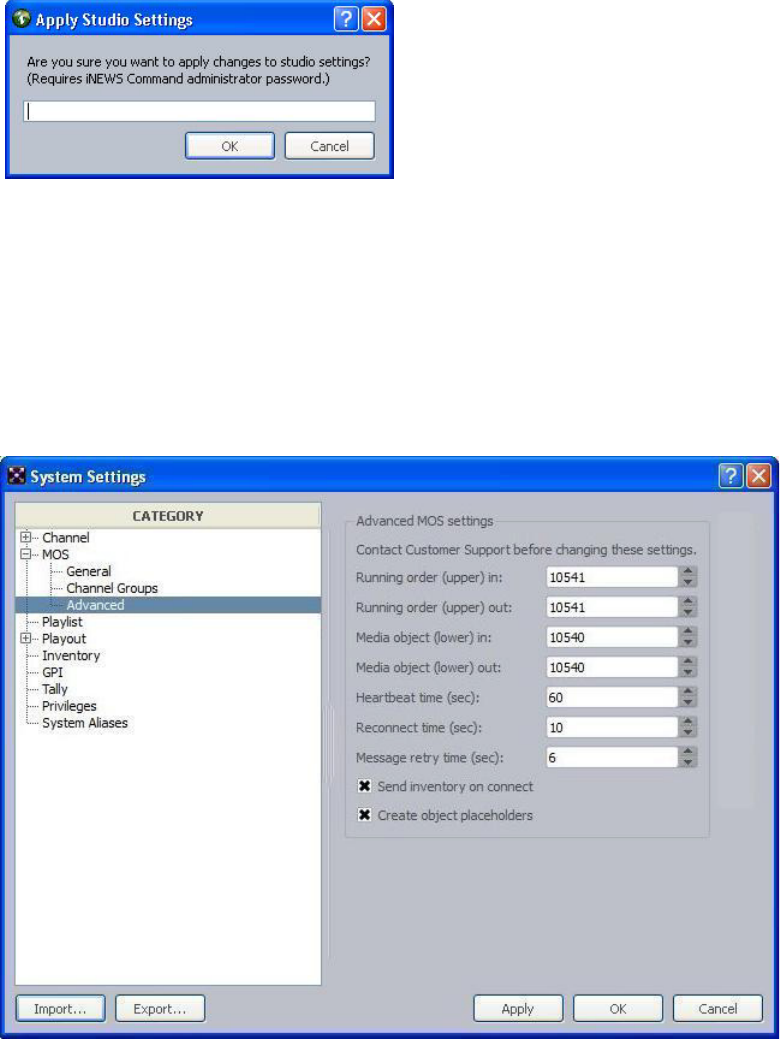
MOS Settings
62
12. Enter the administrator password and click OK.
nAfter changing any MOS system settings, you must restart the MOS Communication service.
To view advanced MOS settings:
1. Open the Command Workstation application.
2. Select Tools > System Settings.
The System Settings dialog box appears.
Playlist Settings
63
3. Expand the MOS category.
4. Select Advanced.
While a newsroom computer system can use non-standard ports for the incoming and
outgoing sockets and the advanced settings can be customized, Avid recommends that the
default settings be used.
The first four settings specify the port numbers for the sockets used to communicate with the
MOS-based newsroom computer system. The defaults, as defined in the MOS protocol
specifications, are: 10541 (upper) and 10540 (lower).
5. If you want to send inventory when connected, check the Send inventory on connect box.
6. If using object placeholders, check the Create object placeholders box.
7. Click Apply.
Configuring Command for MOS Redirection
Command sites that interface with the ENPS newsroom computer system can run two MOS
Communication services and set the second one to have a different MOSID so that MOS
redirection can be used to send playlists to the backup server.
To configure Command for MOS redirection:
1. Click the Start button and select Programs > Avid > Service Framework > Avid Service
Configuration.
2. On the Hosts tab, navigate to and select the Avid MOS Communication Service running on
the backup server.
3. Enter the MOSID for the backup server.
4. Click Apply.
When you need to direct MOS traffic to the backup server, disconnect from the primary server
and connect to the backup server via MOS redirection in ENPS. For more information, see
documentation that came with your third-party ENPS system.
Playlist Settings
Playout of items in a playlist can be set to either to manual playout or to automatically occur
immediately following the completion of the previous item. This latter functionality is called
follow-on playout and is indicated by an icon that looks like a bent blue arrow in the playlist at a
Command Workstation.
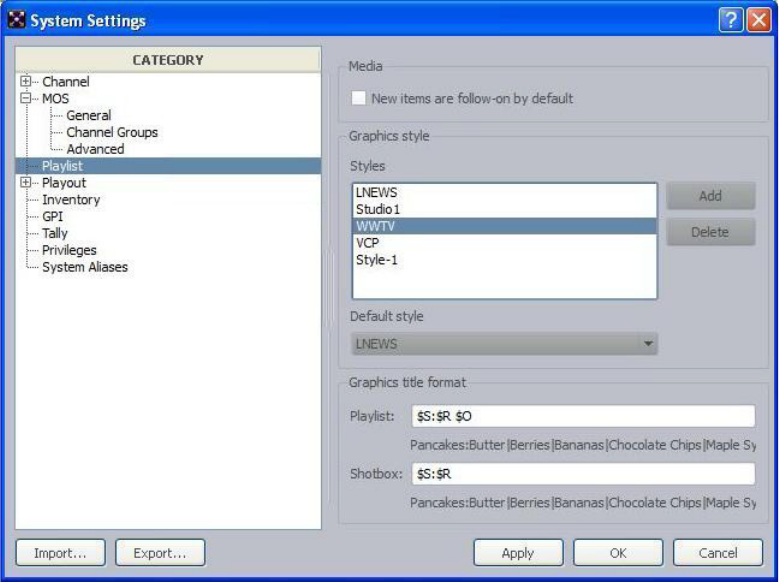
Playlist Settings
64
While a user at a Command Workstation can change individual items in a playlist from one
playout type to another, the system administrator can set the default condition for items added to
playlists in the System Settings dialog box. This default applies to both standalone and
newsroom playlists.
To set the playout default for new items:
1. Open the Command Workstation application.
2. Select Tools > System Settings.
The System Settings dialog box appears.
3. Select Playlist.
4. In the Media section, ensure the checkbox called New items are follow-on by default is
selected if you want the default for new items to be follow-on playout. If you want them to
be set for manual playout, ensure this checkbox is not selected.
5. Click Apply (if you want the System Settings dialog box to remain open after settings are
applied) or OK.
The system will prompt you for the administrator password.
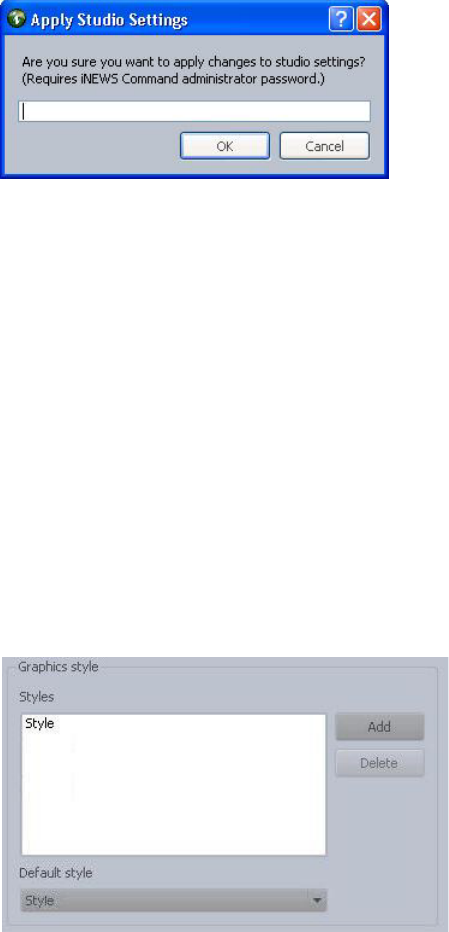
Playlist Settings
65
6. Enter the administrator password and click OK.
Graphics Styles
Graphics styles are added to the system via the Playlist category in the System Settings dialog
box. This category lets you specify the set of graphics styles that will appear as options in
various parts of the user interface, such as: the Default style list (shown in following graphic), in
the MOS category of the System Settings dialog box, and in the Playlist Properties dialog box .
To add a style:
1. Open the Command Workstation application.
2. Select Tools > System Settings.
3. Select Playlist.
4. Click the Add button.
A style will appear in the list as shown:
5. By default, the name of any added style is
Style
, but that can be changed. To do so,
double-click on the name in the Styles list and retype the new name.
6. After multiple styles are added, use the drop-down list to select which one the system should
use as a default.
Playlist Settings
66
7. Click Apply (if you want the System Settings dialog box to remain open after settings are
applied) or OK.
The system will prompt you for the administrator password.
8. Enter the administrator password and click OK.
For more information on styles, see the Avid Deko Select User’s Guide.
Graphic Title Format
Because Command users have the ability to edit graphics at a Command Workstation, they can
also set the format for the Title column at the workstation. Formatting of graphic titles for
playlists and shotboxes is accomplished via system settings.
To customize graphic title formats for playlists and shotboxes:
1. Open the Command Workstation application.
2. Select Tools > System Settings.
3. Select Playlist.
4. In the Graphics title format section, fill in the format you want for playlists in the Playlist
field.
5. In the Graphics title format section, fill in the format you want for shotboxes in the Shotbox
field.
You can use the following terms to define the Title column format for both playlists and
shotboxes. The corresponding XML field, if any, is shown in parenthesis.
Format Description
$S Slug (objSlug)
$A Abstract (mosAbstract)
$B Object ID (objID)
Loading a Shotbox from iNEWS or NRCS
67
6. Click Apply (if you want the System Settings dialog box to remain open after settings are
applied) or OK.
The system will prompt you for the administrator password.
7. Enter the administrator password and click OK.
Loading a Shotbox from iNEWS or NRCS
You have the ability to load a shotbox from iNEWS or ENPS.
To load a shotbox from iNEWS or NRCS:
tMake sure the playlist has the word “shotbox” in its name.
For example, if you had an iNEWS rundown called SHOW.SHOTBOX.6P, the rundown
would appear as a shotbox when loaded to Command, with new icons differentiating
between a normal rundown and a shotbox.
$R Replacement data—You can also enter a number after the $R to represent the
limit to the number of fields that are shown. For example, entering $R4 will
limit the display to the first four replacement fields.
$O Mark out (itemEdStart and itemEdDuration)—Command will display the In
and Out times in the title field. Use this when the iNEWS Active-X plug-in
uses In/Out times, such as for Avid Deko Select.
Adding F after the $O, such as $OF, will show the frames.
$D Duration (itemEdStart) and itemEdDuration)—Command will display the In
and Duration times in the title field. Use this when the iNEWS Active-X
plug-in uses In/Duration times, such as plug-ins for Chyron LUCI and the
Viz VDCP Template Filler.
Adding F after the $D, such as $DF, will show the frames.
Format Description
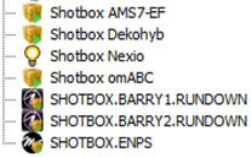
Playout Settings
68
nThe Command shotbox still only supports a single channel group. The iNEWS/ENPS rundown
can only have one story, and all items (video or graphic) must be added to that story.
Playout Settings
The Playout category of the System Settings dialog box provides a variety of settings related to
autocueing of items, channel assignment, playout behaviors, and the as-run log.
To access the playout settings:
1. Open the Command Workstation application.
2. Select Tools > System Settings.
The System Settings dialog box appears.
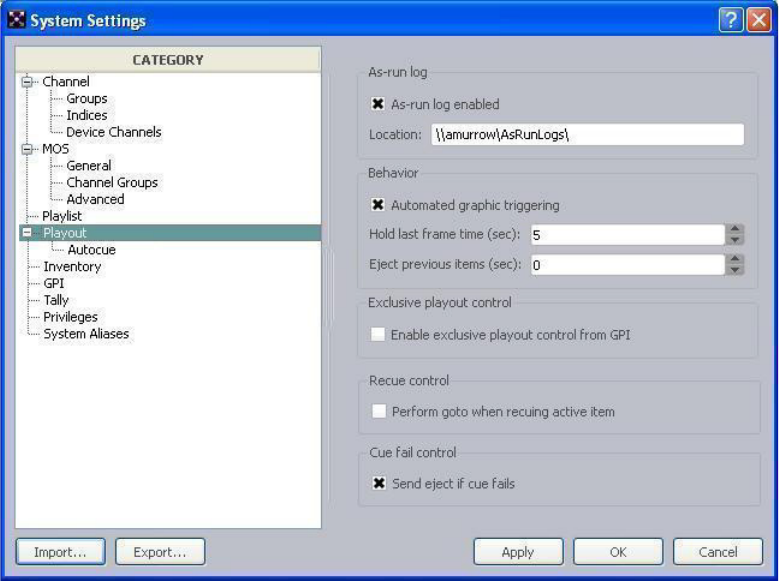
Playout Settings
69
3. Select Playout. The Playout category contains settings in several distinct sections:
-As-run Log—For more information, see page 69.
-Behavior—For more information, see page 70.
- Exclusive playout control—When this checkbox is selected, playout control is handled
solely from a GPI keypad.
-Recue Control—For more information, see page 71.
-Cue Fail Control—For more information, see page 72.
4. Select the Autocue sub-category for additional settings related to playout. For more
information, see “Autocue” on page 72.
5. Click Apply.
As-run Log
The As-run log is used to keep records of playout data for traffic-related purposes.
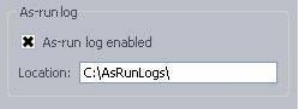
Playout Settings
70
To enable the As-run log:
1. Open the Command Workstation application.
2. Select Tools > System Settings.
3. Select Playout.
4. Select the As-run log enabled checkbox.
5. Enter either a drive path local to the Command Server or a network-shared location
accessible to the Command Servers running the Avid Playlist Controller services.
If, for example, you enter
C:\AsRunLogs\
, then logs will be stored at that location on the
Command Server that is running the Playlist Controller in a primary role. The drive path
entry is not the C drive of the workstation on which you are enabling the As-run log. To store
logs at the workstation, you must enter the network pathname to that location, such as
\\cmd-wkstn\AsRunLogs\
, and you must also ensure that the location is shared over the
network.
Behavior
The Playout category’s Behavior section supplies configuration options for integration between
Command and playback devices, such as the automated graphic triggering functionality
available through the Avid Deko Select plug-in that opens inside the iNEWS newsroom
computer system. With the plug-in, a user can set a character-generated graphic to automatically
go on-air based on the video’s elapsed time and for a specific duration during a video event.
Timecode information specified in the plug-in is forwarded to the Command Workstation and
appears in the playlist so that the operator knows when this automatic event will occur.
Administrators at sites that want to take such events to air manually can turn off the automatic
functionality by modifying the system setting in Avid iNEWS Command. This does not disable
the ability of a user to enter an start time or duration in the Deko Select plug-in. If entered, the
times would still appear as information only for the Command operator.
To turn on or off automatic graphic triggering:
1. Open the Command Workstation application.
2. Select Tools > System Settings.
3. Select Playout.
4. Do one of the following:
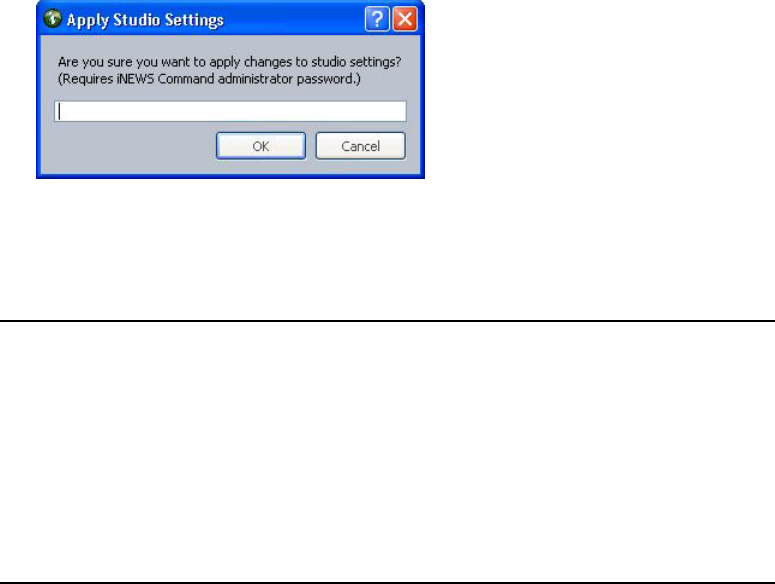
Playout Settings
71
tEnsure the Automatic Graphic Triggering checkbox is selected to turn it on.
tUncheck the Automatic Graphic Triggering checkbox to turn it off.
5. Set the time in seconds that the system should hold the last frame.
6. Set the time in seconds that the system should wait before ejecting .
7. Click Apply (if you want the System Settings dialog box to remain open after settings are
applied) or OK.
The system will prompt you for the administrator password.
8. Enter the administrator password and click OK.
The other settings available in the Behavior section of the System Settings dialog box are
explained in the following table:
Recue Control
Command can send a Goto command when you recue a playing or done item, rather than
ejecting the item and cueing it again. The advantage of using a Goto command is that it is faster
than ejecting and cuing the same video item on the channel. It also prevents the precued item
from briefly displaying on the output.
Hold last frame time Sets a delay that determines how long the last frame of a clip is held on the
channel before it is ejected. When using clips that are less than 10 seconds in
duration, specify a value that is less than the duration of the events in the
playlist. For example, when using clips that are five seconds in duration,
specify the value to any positive integer less than five.
Eject previous items Sets the time for an item to get ejected after the next item starts playing. For
example, if set to three (3) and a two-minute clip is playing on channel A,
playing the next item on channel B will cause the clip on channel A to get
ejected three seconds after the item on channel B starts, regardless of whether
the first item has finished playing its full two-minute duration.

Playout Settings
72
To enable the Goto command:
1. Select Tools > System Settings > Playout.
2. Select the checkbox named Perform goto when recuing active item.
Once enabled, a recue will cause a playing item to pause at the first frame of video as shown,
and the time elapsed clock will show 0:00:00.
If the item has finished playing, a recue command will cause the item to recue rather than
pause.
nThis feature requires that the Avid Multi Stream Device service be upgraded to at least version
3.5.0.
3. Click Apply (if you want the System Settings dialog box to remain open after settings are
applied) or OK.
Cue Fail Control
Command supports ejecting precued and autocued items that are unplayable with most devices,
such as Avid Multi Stream, Omneon, and VDCP-controlled devices.
nThis feature requires the system setting called Skip items that are not playable be turned off; the
setting is located in the Playout > Autocue subcategory of the System Settings dialog box.
When the precue or autocue of an unplayable item fails, Command sends an Eject command to
the channel. Command can also send an Eject command to a channel after the cue fails, but this
feature does require a change to the Playout system settings.
To enable cue fail control:
1. Select Tools > System Settings > Playout.
2. In the Cue fail over section, select the Send eject if cue fails checkbox.
3. Click Apply (if you want the System Settings dialog box to remain open after settings are
applied) or OK.
Autocue
The Autocue settings is a sub-category of the Playout system settings.
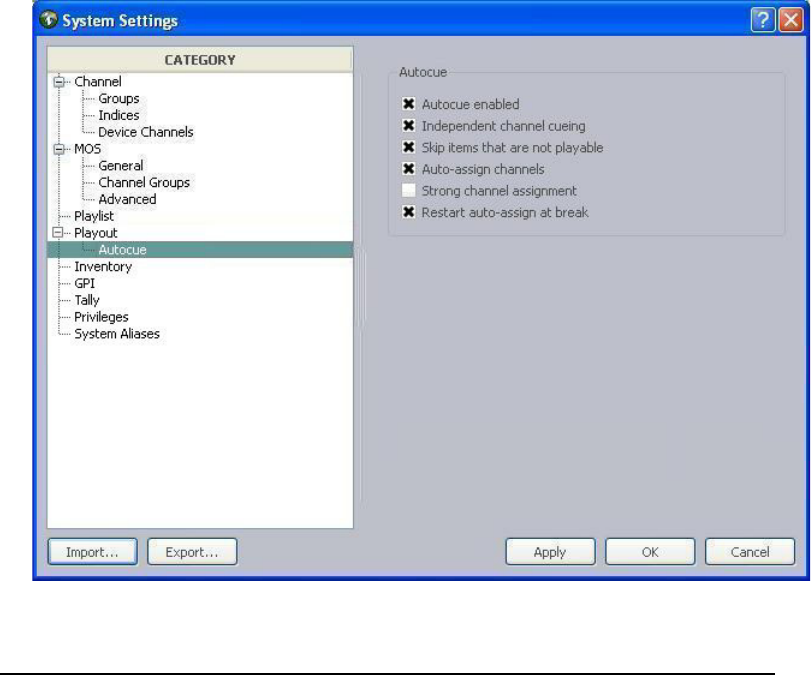
Playout Settings
73
Options for the Autocue feature are described as follows:
Autocue enabled When autocue is enabled, items are cued automatically
whenever the playlist’s channel groups are locked and
when the preceding item is played. If this checkbox is not
selected, events must be cued manually.
When the Autocue enabled checkbox is selected, the other
options in the Autocue section are enabled for selection as
well; when it’s not, the rest appear grayed out.

Playout Settings
74
Independent channel cueing Applies autocue to single channels only.
For example, the first three items (1, 2, and 3) in a playlist
are cued in order on channels A, B, and C, respectively
when the playlist’s channel group is locked. The next four
items (4, 5, 6, and 7) are assigned to A, B, C, and A. If
this setting is enabled, then should a user manually play
item 4 on channel A, item 7 instead of item 1 would then
be cued on A, while items 2 and 3 would remain cued on
B and C.
If this setting is not enabled, then when item 4 is played
on channel A, items 5, 6, and 7 would be cued on
channels B, C, and A respectively, while items 1, 2, and 3
would no longer be cued for playout.
Skip items that are not playable If selected, the system will skip over any items that are
unavailable for playout.
Auto-assign channels If selected, channels are assigned automatically whenever
the channel groups are locked.
Strong channel assignment If selected, channels are re-assigned automatically when a
playlist is altered to maintain their sequence, such as
ABAB, etc. Assignment only applies to unplayed items in
the playlist or below any manually cued item. This
checkbox should also be selected if ripple groups are used
for automatic channel assignment based on item
playability on devices.
You also have the ability to override a channel assignment
when Strong Channel Assignment is turned on. Previous
versions of Command did not support this functionality,
and would change the channel back to the assigned value.
Here are the expected behaviors.
• Once the channel has been manually assigned, it will
keep that assigned channel until the channel group is
unlocked, and be shown with < and > around it (e.g.
<A>).
• To add the item back into the ripple sequence (and
have the channel be assigned automatically), change
the channel to default.
• Once the channel group is unlocked, all manually
assigned channels are erased.
For more information, see “Ripple Groups” on page 51.

Inventory Settings
75
Inventory Settings
Avid iNEWS Command provides a system setting that allows administrators to decide whether
to allow deletion of inventory from a Command Workstation via the Inventory panel and delete
protection of media items.
Avid iNEWS Command supports placeholders that can be used to associate media with a
newsroom story before the media is actually available. The iNEWS newsroom computer system
can request placeholders from the Command system. Placeholder creation is also a feature of
MOS-based ENPS systems and is invoked as part of the AutoCreate feature.
Each placeholder must have a unique ID to avoid playback of the wrong media. In Avid iNEWS
Command, the prefix for such placeholders can be configured.
Avid iNEWS Command also supports the ability to set the mark-in or loop status from an
iNEWS newsroom computer system.
cThe system administrator can also decide whether to use short IDs. However, redundancy
is no longer supported if this optional feature is enabled.
To configure placeholder defaults:
1. Open the Command Workstation application.
2. Select Tools > System Settings.
The System Settings dialog box appears.
nWhen strong channel assignment is enabled, any channel assignment made by the newsroom
computer system is ignored. Also, changes to the autocue settings do not take affect for
pre-existing playlists immediately upon clicking OK. Give the system about 15 seconds or so
to reflect such changes.
Restart auto-assign at break If selected, channels assignment begins again as opposed
to continuing the sequence from prior to the break. For
example, if the sequence involves four channels: A, B, C,
and D, and the first segment ends on an item assigned to
channel B, the first item in the next segment after the
break will be assigned to A and not C.
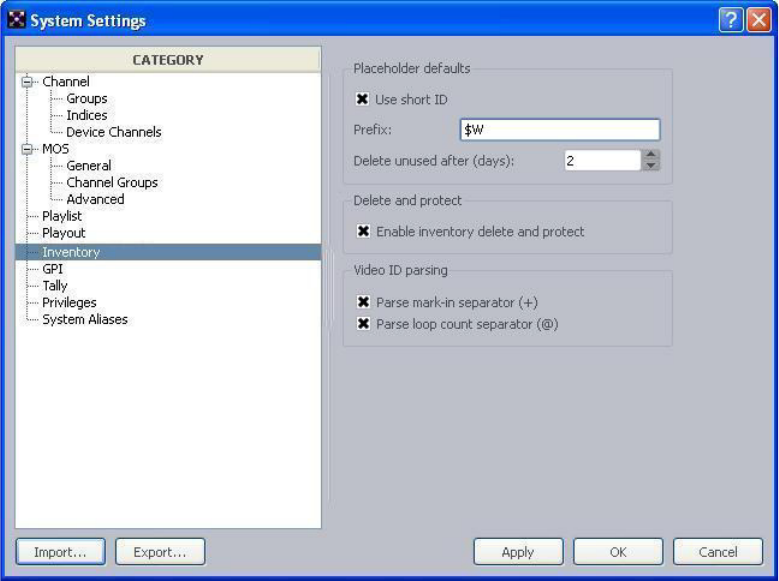
Inventory Settings
76
3. Select Inventory.
4. Select whether short IDs are used. Short IDs are the prefix followed by the date in the format
MMDDYY
—representing the month, day, and year—followed by three randomly generated,
uppercased alpha-numeric digits:
<prefix>MMDDYY<3digits>
Short IDs are only unique on a single Command system. If long IDs are used, the prefix and
date are followed by a hyphen (-) and 8 randomly generated, uppercased alpha-numeric
digits. Long IDs are unique across multiple Command systems or if a new installation
occurs.
nRedundancy is not supported with the use of short IDs, although a unique prefix can ensure the
possibility of generating about ten-thousand IDs without overlap in one day.
5. Set the prefix. By default, the format for placeholders uses the long ID, which is:
<prefix>MMDDYY-<8digits>
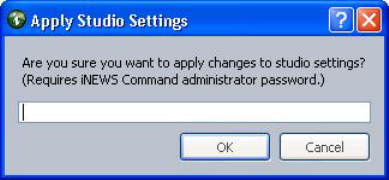
Inventory Settings
77
The prefix can be set by a system administrator to any alpha-numeric sequence of digits,
such as a station’s call letters. If set to
$W
, a three letter, all-cap representation of the day of
the week is used based on the day when the placeholder was created, such as
MON
,
TUE
,
WED
,
THU
,
FRI
,
SAT
, or
SUN
. If set to
$w
, a single digit is used to represent the day. Prefixes are
truncated to keep the ID under 31 bytes.
6. Set the number of days after which any unused placeholders are deleted from the system. To
disable this feature, set the number to zero (0).
7. Click Apply (if you want the System Settings dialog box to remain open after settings are
applied) or OK.
The system will prompt you for the administrator password.
8. Enter the administrator password and click OK.
To enable inventory delete and protect:
1. Open the Command Workstation application.
2. Select Tools > System Settings.
3. Select Inventory.
4. Select Enable inventory delete and protect.
5. Click OK.
6. Enter the administrator password when prompted and click OK.
This enables a right-click menu option in the Inventory panel of the Command user
interface, allowing users to delete media from the inventory or protect media from deletion.
Disabling this feature also prevents users from being able to rename an item’s video ID. For
more information, see the Avid iNEWS Command User’s Guide.
Enabling Mark In Points from Avid iNEWS
Mark in points may be set or changed at a Command Workstation from the Media Viewer.
However, Command also supports allowing users to set mark in points from an iNEWS
Workstation.
Inventory Settings
78
If you want to let users set mark in points from an iNEWS Workstation, you must configure the
system settings in Command to allow it.
To configure Command to enable setting mark in points from iNEWS:
1. Open the Command Workstation application.
2. Select Tools > System Settings.
3. Select Inventory.
4. Check the Parse mark-in separator (+) box.
5. Click OK.
To set a mark in point from iNEWS:
1. At an iNEWS Workstation, navigate to the story containing the media’s video ID.
2. Add a plus sign (+) to the end of the video ID in the story form field, followed by the
numerical value for the mark in point.
The format for the mark in value is:
- XX — The mark in point will be set to seconds.
- XX:YY — The mark in point will be set to seconds and frames (ss:ff).
- XX:YY:ZZ — The mark in point will be set to minutes, seconds, and frames (mm:ss:ff).
nAfter the mark in point is set from an iNEWS Workstation, it cannot be changed at a Command
Workstation from the Media Viewer.
Also, for HD frames, they are parsed correctly, but display in the UI is divided by 2. So, if you set
a mark in point to 02:10 in iNEWS, Command displays the mark in at 2 seconds and 5 frames;
although, the HD video will start at 2 seconds and 10 frames.
Enabling Loop Count from Avid iNEWS
Looping is the repeated playing of a media event for either a specified number of times or
indefinitely, which is continuous until manually stopped. Avid iNEWS Command provides users
with a way to loop a specific item within a playlist or an entire playlist. Loop count can be set
from an Avid iNEWS or Command Workstation. If you want to let users set loop count for items
in a Command playlist from an iNEWS Workstation, you must configure the system settings in
Command to allow it.
nThe looping only feature requires Autocue be turned on in Command. For more information, see
“Autocue” on page 72.
GPI Settings
79
To enable loop count from iNEWS:
1. Select Tools > System Settings.
2. Select Inventory.
3. Check the Parse loop count separator (@) box.
Actual procedures for setting items in a playlist to loop are provided in the “Playout
Control” chapter of the Avid iNEWS Command User’s Guide.
GPI Settings
A GPI panel is another alternative keypad device that can be used to control playout through
Command. The GPI panel connects to a GPI card installed in the Command Server. Command
supports redundant GPI configurations, so a second computer with a GPI card can be used as a
backup to control playout. The GPI panel allows a user to select up to four channels, with each
channel having its own set of Control buttons for play, cue, pause, and stop functionality.
Configuring the system to work with a GPI panel requires defining certain parameters through
the system settings in Command. For more information on the complete installation and
configuration procedures for GPI integration, see the Avid iNEWS Command Installation and
Configuration Guide.
This section contains procedures related to the GPI settings in System Settings dialog box.
Mapping Events to Actions for a GPI Panel
Mapping events to playout actions is done at a Command Workstation in the System Settings
dialog box. In most cases, GPI events are mapped directly to channel-specific actions because
these actions are communicated directly to the Playlist Controller, bypassing the user interface;
the procedure for this type of mapping is provided below.
nThe procedure on mapping GPI events for selection-based playout is provided later in this
section.
To map GPI events to channel-specific actions:
1. Log in to a Command Workstation.
2. Select Tools > System Settings. The System Settings dialog box appears.
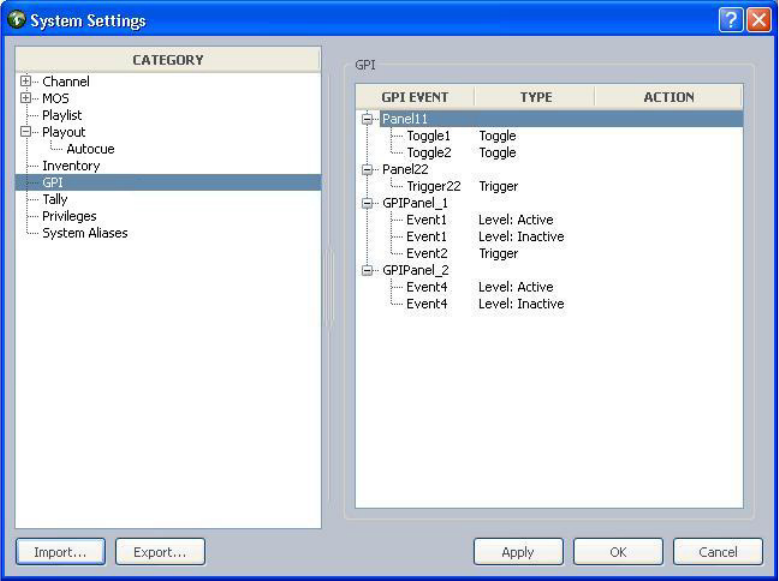
GPI Settings
80
3. Select GPI.
4. Expand the panels to view each panel’s events.
5. Double-click on an event to map it to an action.
The Choose Action dialog box appears with the GPI > Control options expanded by default.
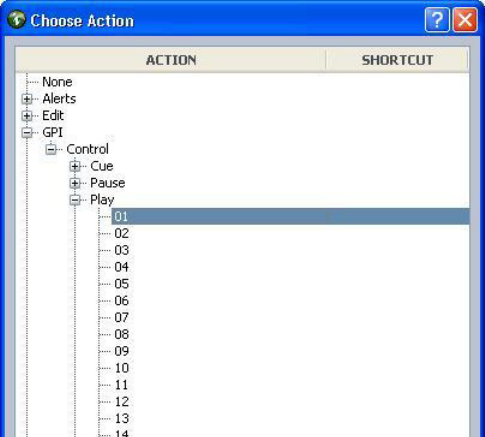
GPI Settings
81
6. Expand the action, such as Play, and select the index value that corresponds to the
appropriate channel.
Here are some of the most commonly used commands for channel-specific playout:
- Play a specific channel - Choose GPI > Control > Play > index value
- Stop a specific channel - Choose GPI > Control > Stop > index value
nIf doing level-based playback, set the Level:Active to Play a specific channel and the
Level:Inactive to stop that same channel.
- Cue a specific channel - Choose GPI > Control > Cue > index value
nThe Cue channel action only recues the item that is playing. Cueing a different item in the
playlist must be done manually—via mouse, keyboard, or X-keys—or a GPI button must be
mapped and enabled for selection-based playout.
7. Click OK.
8. Repeat steps 5 through 7 as needed.
9. Click Apply (if you want the System Settings dialog box to remain open after settings are
applied) or OK.
The system will prompt you for the administrator password.
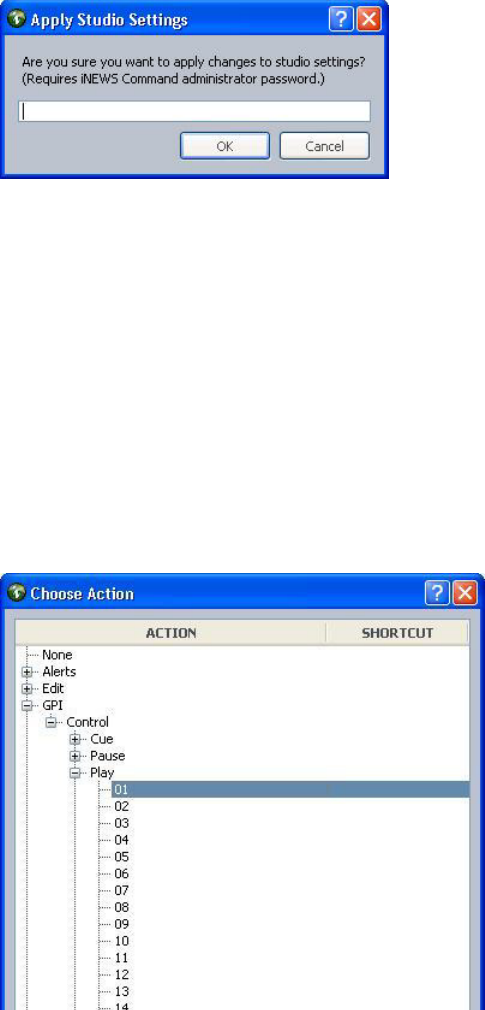
GPI Settings
82
10. Enter the administrator password and click OK. If there is no administrator password, leave
the field blank and click OK.
11. Confirm functionality by playing items in a playlist.
To map GPI events for selection-based playout:
1. Log in to a Command Workstation.
2. Select Tools > System Settings.
3. Select GPI.
4. Expand the panels to view each panel’s events.
5. Double-click on an event to map it to an action.
The Choose Action dialog box appears with the GPI > Control options expanded by default.
6. Navigate to the Playlist action and expand it.
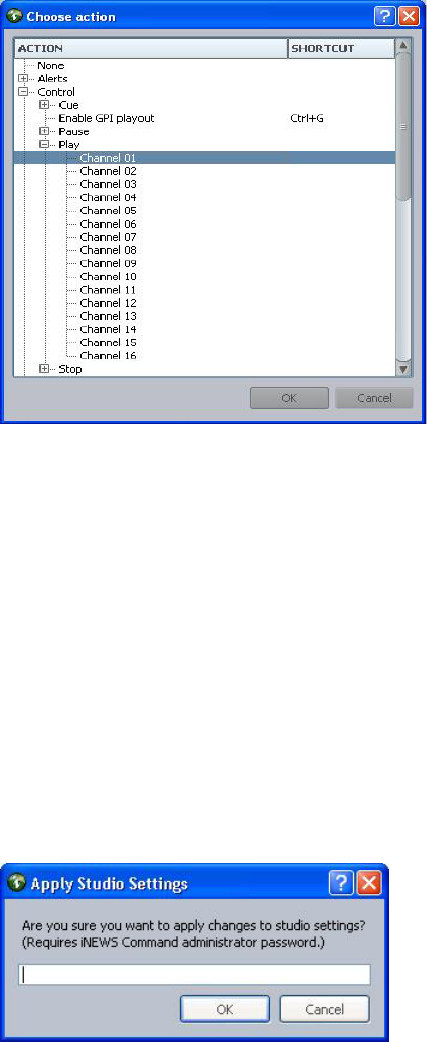
GPI Settings
83
Here are some of the most commonly used commands for selection-based playout:
- Play selection - Choose Playlist > Control > Play > Selection
- Stop selection - Choose Playlist > Control > Stop > Selection
- Cue selection - Choose Playlist > Control > Cue > Selection
nIf you program the GPI panel for these selection-based actions, you must enable the GPI panel
at the workstation.
7. Click OK.
8. Repeat steps 5 through 7 as needed.
9. Click Apply (if you want the System Settings dialog box to remain open after settings are
applied) or OK.
The system will prompt you for the administrator password.
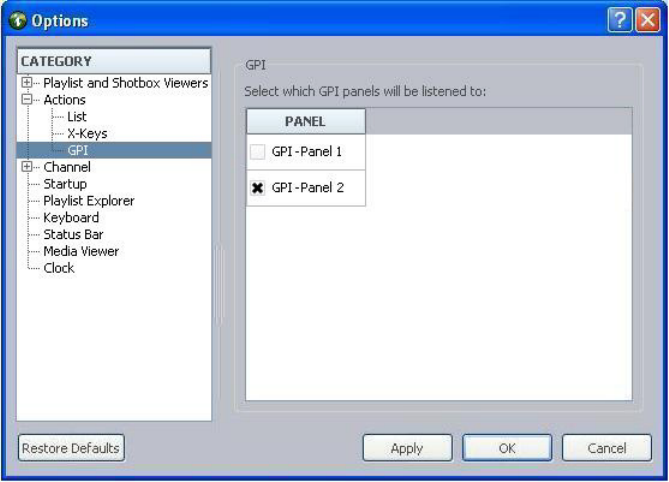
Enabling the GPI Panel
84
10. Enter the administrator password and click OK. If there is no administrator password, leave
the field blank and click OK.
11. Confirm functionality by playing items in a playlist.
Enabling the GPI Panel
The GPI panel must be enabled to control a playlist if used for non-channel-specific,
selection-based actions that go through the Command user interface.
nThis procedure does not apply to GPI panels (or Maney panels) with events mapped only to
actions chosen in GPI > Control—such as Cue, Pause, Play, or Stop—because those are sent
directly to the Playlist Controller and do not go through the user interface.
A user can enable a panel at any Command Workstation.
To enable a GPI panel to control a playlist:
1. At the Command Workstation, select Tools > Options.
2. In Category, expand Actions and select GPI.
3. Select a GPI panel from the list.
4. Click Apply.
Tally Settings
85
5. Click OK.
System administrators must configure system settings to provide a list of GPI panels in the
Options dialog box. You can confirm mapping by playing items from the GPI panel; test all of
the commands.
Tally Settings
The Tally setting is one the system administrator can use to enable tally reflection and restriction.
Tally restriction, when enabled, is used for on-air protection of a playing clip. When tally is
active (or high), users can pause a playing clip or continue playing a paused clip, but they cannot
recue or eject the clip.
Tally reflection is a feature that allows users to alter the appearance of the Channel bar when
tally is active on a certain channel.
To enable tally reflection and restriction:
1. Open the Command Workstation application.
2. Select Tools > System Settings.
The System Settings dialog box opens.
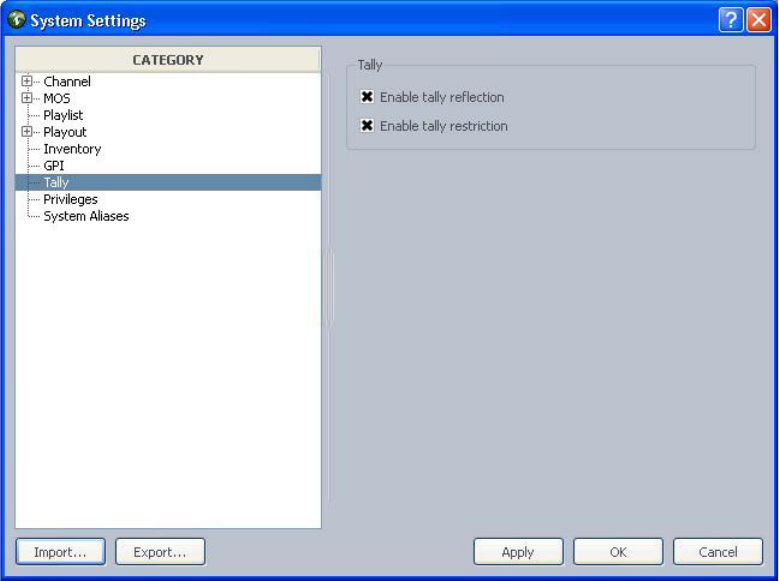
Privileges
86
3. Select Tally.
4. Do the following:
tSelect Enable tally reflection to enable this feature.
tSelect Enable tally restriction to enable this feature.
5. Click OK.
Privileges
The Privileges setting is one the system administrator can use to limit access to the Options
dialog box at a Command Workstation.
To configure privileges:
1. Open the Command Workstation application.
2. Select Tools > System Settings.
The System Settings dialog box opens.
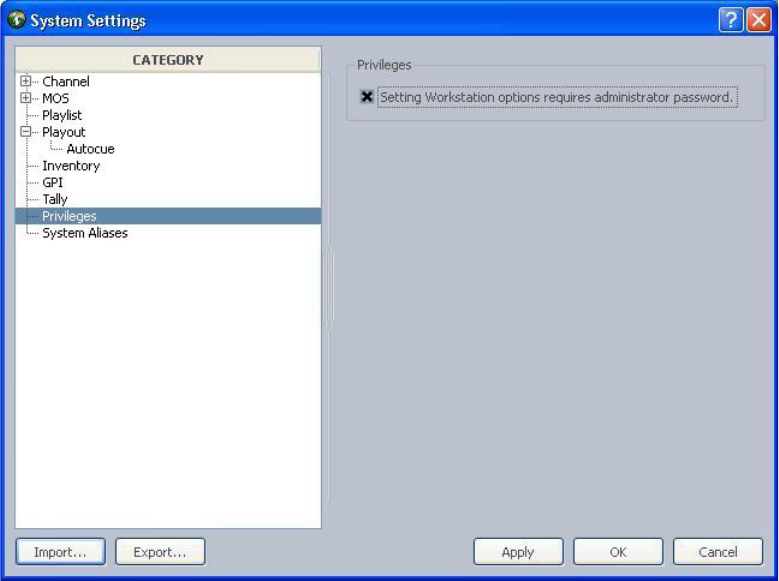
System Alias
87
3. Select Privileges.
4. Select Setting Workstation options requires administrator password to limit access to the
Options dialog box to users who know the system administrator password.
5. Click OK.
System Alias
The default system alias is the numeral one (
1
). However, the system administrator can configure
the alias to be something more meaningful. The alias will appear in the status bar of the
Command user interface at a Command Workstation. If you have multiple command systems,
name them so that it is easy for users to distinguish between the systems.
To configure the system alias:
1. Open the Command Workstation application.
2. Select Tools > System Settings.
3. Select System Aliases.
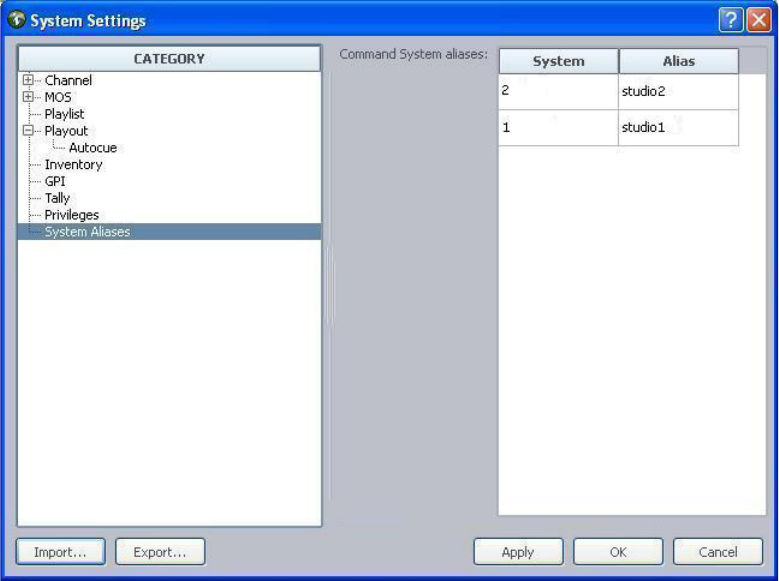
Importing and Exporting System Settings
88
4. Double click on the alias and rename it.
5. Click Apply.
6. Click OK.
Importing and Exporting System Settings
Should it become necessary to change computers, Command offers a way to export system
settings from one PC to another. It’s located on the System Settings dialog box in Command.
To import or export system settings:
1. Open the Command Workstation application.
2. Select Tools > System Settings.
The System Settings dialog box appears.
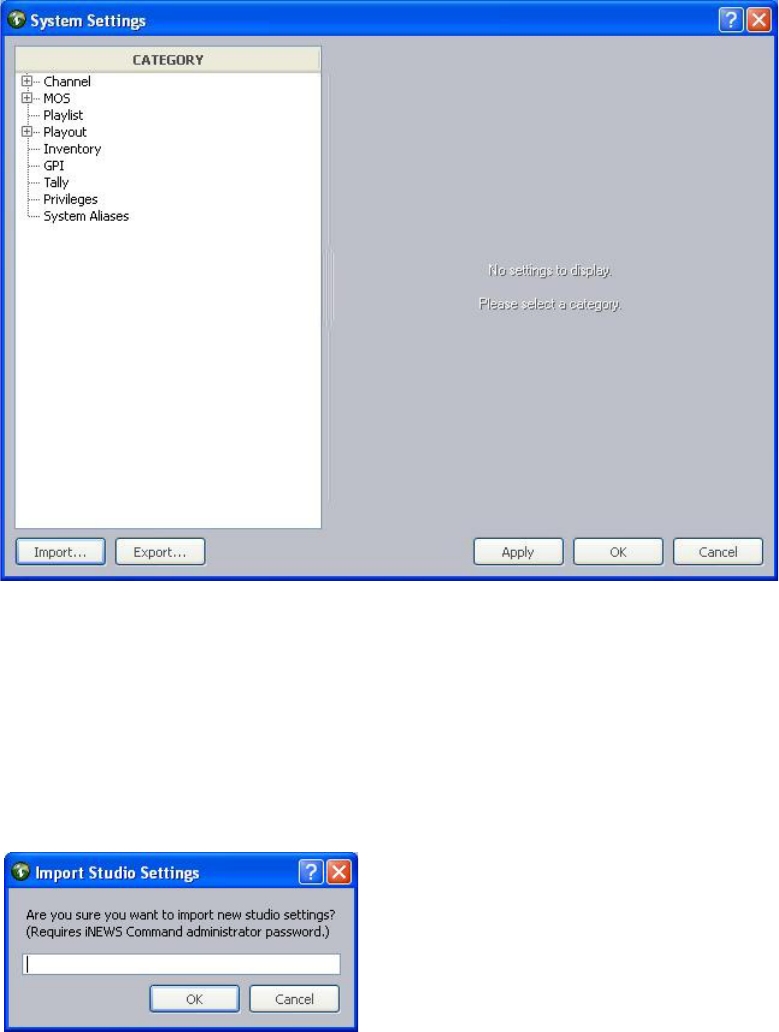
Importing and Exporting System Settings
89
3. Do one of the following:
tClick Export to export the current system settings as an XML file. Go to step 4.
tClick Import to import system settings. Go to step 4.
4. When the Export Studio Settings dialog box appears (as shown below), type a name for the
XML file and select a directory where you want the file to be saved. Then click Save. You
can disregard the rest of this procedure, which applies to importing settings.
The system will prompt you for the administrator password.
5. Enter the administrator password and click OK.
Importing and Exporting System Settings
90
6. Navigate to and select the XML file you want to import. Then click OK.

4Troubleshooting
Avid iNEWS Command is a system that offers redundancy in case of failover and a method for
system administrators or users to keep track of issues for troubleshooting purposes.
When attempting to troubleshoot any problem, it is best to have the latest version of release notes
available, which are available as free downloads on Avid’s Knowledge Base at:
http://support.avid.com
nFor the latest information pertaining to failover and hotswap functionality, including failover
scenarios, symptoms, and recommended recovery procedures, see the Avid iNEWS Command
Best Practices document, which is also available as a free download in PDF format on Avid’s
Knowledge Base.
This chapter contains the following main sections:
•Support Dialog Box
-Standard Information to Include Regardless of Issue
•Configuring the Avid Deko Renderer Service
Support Dialog Box
The Support dialog box is provided for Command users to log information about any issues
encountered that might require contacting Avid.
To log support information at a Command Workstation:
1. Select Help > Support.
2. Enter a description of the issue in the Support dialog box.
For instance, the following example shows a sentence regarding a GPI device:
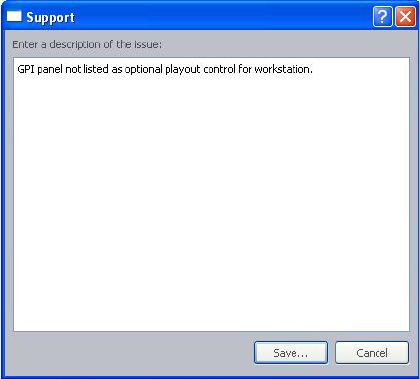
Support Dialog Box
92
3. Click Save.
4. Select the location where you want the zipped file to be saved.
5. Click OK.
The system saves your comments inside a zipped file that also contains other vital information,
such as system settings and event logs, which enable support personnel to troubleshoot the issue.
This file can then be sent to Avid. For more information, see “If You Need Help” on page 10.
Standard Information to Include Regardless of Issue
The following is a list of information you should have when contacting Avid, regardless of the
type of issue your system is experiencing:
• The version of Avid iNEWS Command
• The version of Avid Service Framework
• The Command system name
• How many and what type of devices are being controlled by Command
• Detailed summary of the problem.
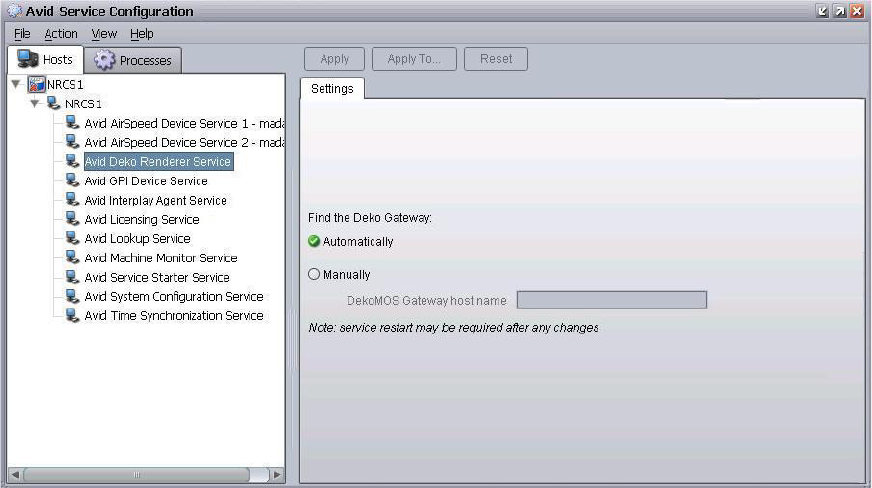
Configuring the Avid Deko Renderer Service
93
Configuring the Avid Deko Renderer Service
The Avid Deko Renderer service is installed at sites that want to integrate with an Avid Deko and
utilize thumbnail images. After the service is installed on the Command Server, additional
configuration should not be necessary. By default, this service is pre-configured to automatically
locate the DekoMOS Gateway on the network.
However, if the service was installed and cannot locate the DekoMOS Gateway, you can
manually configure it to do so via the Avid Service Configuration application—the process for
which is provided in this section.
nThe Deko Renderer service does not take up a HASP license seat.
To configure Deko Renderer services:
1. Click the Start button, and then select All Programs > Avid > Service Framework > Avid
Service Configuration.
2. On the Hosts tab, navigate to and select the Avid Deko Renderer Service.
3. When prompted, enter the system administrator password and click OK. If you have not yet
created one, leave the space blank and click OK.
4. If the Allow Unrestricted Security dialog box appears, click Yes.
On the Settings tab, you’ll see the service set to Automatically.
Configuring the Avid Deko Renderer Service
94
5. Select Manually.
6. Enter the host name or IP address for the DekoMOS Gateway computer.
7. Click Apply. You can then close the Avid Service Configuration application.
nYou might need to restart the service after applying any changes. For redundant systems, ensure
that all Deko Renderer services on every Command Server are set the same.
Index
95
A
Administrator password 17
AirSpeed 13
channel groups 41
device service, defined 28
service for thumbnail generation 28
AirSpeed Multi Stream
channel designations 39
device service, defined 28
Apply Studio Settings dialog box 83
As-run log 69
Auto-assign channels 74
Autocue 73
Automated graphic triggering 70
Avid
how to order documentation 10
online support 10
training services 11
Avid Deko
channel designations 40
device service, defined 28
Avid Deko Renderer 28
Avid GPI device service 28
Avid iNEWS Command
administrator password 17
features of 16
introduction 13
overview of user interface 19
system architecture 13
Avid iNEWS Communication service 26
Avid Interplay Agent 28
Avid Inventory Manager 27
Avid MOS Communication service 26
Avid Playlist Controller 27
Avid Playlist Manager 27
Avid Playlist Store 27
Avid Service Framework 29
nonredundant services 30
System Configuration 29
Workgroup Properties 31
Avid services 33
Avid Thunder device service 28
B
Backup server 60
Behavior, configuring 70
C
Channel groups
creating 43, 44
defined 41
deleting 50
examples of 41
redundancy 42
Channel settings 37
Channel-specific actions 57
assigning 57
Choose Action dialog box 81, 82, 83
Command
configuring MOS redirection 63
features of 16
introduction 13
overview of user interface 19
security 17
system architecture 13
with Avid Deko 15
workflow illustration 15
Command Server
GPI card 79
services for 26
Command Workstation
alternative keypad device 79
disabling keyboard 24
menus explained 19
starting application 18
Index
Index
96
using X-keys 52
Customer Support
logging support issues 91
D
Deko 30
Command overview 15
device service, defined 28
service for thumbnail generation 28
Deko Renderer 30
configuring the service 93
Deko Select, tagged events 70
Delete protection 77
Device services
configuring Deko Renderer service 93
types of 28
Dialog boxes
Apply Studio Settings 83
Avid Services 33
Choose Action 57, 81, 82, 83
System Settings 43, 79
E
Eject previous items 71
ENPS
MOS settings 58
placeholders 75
Exclusive playout control 69
F
Failover 29
G
GPI card 79
GPI device
enabling the panel 84
GPI device service 28
GPI events, mapping 79
GPI panel, enabling 84
GPI settings 79
Graphics styles 65
setting default 60
H
Hold last frame time 71
I
Icons
iNEWS Command 18
iNEWS Command
administrator password 17
defined 13
features of 16
MOS ID 59
MOS support 58
overview of system 13
overview of user interface 19
services 26
starting software 18
system architecture illustrated 14
workflow 14
workflow illustration 15
iNEWS Communication service 26, 30
Interplay Agent service 30
Inventory Manager 27
Inventory, protect from deletion or renaming 77
K
Keyboard
alternative 79
disabling 24
Keypad, GPI device 79
L
License service, defined 29
Lookup service 30
Lookup service, defined 29
M
Machine Monitor service 30
Maney panel service 28
Mapping GPI events to actions 79
Menu bar 19
Mirrored playout 16, 46
channel groups 42
Index
97
MOS Communication service 26
MOS protocol
described 58
version 60
MOS redirection 63
MOS settings 62
editing 59
MOS version 60
MOS, defined 58
Multi Stream
channel designations 39
device service, defined 28
N
Newsroom buddy host name 60
Newsroom buddyID 60
Newsroom host name 59
Newsroom NCS ID 59
Non-redundant services 30
O
Online support 10
P
Panels, defined 19
Password security 17
Placeholders 75
Playlist Controller 27
Playlist Manager 27
Playlist settings 63
Playlist Store 27
Playlist Viewer, defined 19
Playout settings 68
Procedures
access the playout settings 68
add a graphics style 65
configure Deko Renderer service 93
configure placeholder defaults 75
configuring Command for MOS-based NRCS 58
configuring MOS redirection 63
create channel groups 44
delete a channel group 50
edit a channel group 47
enable a GPI panel to control a playlist 84
enable inventory delete and protect 77
enable or disable Avid services 33
enable or disable the keyboard 25
enable the as-run log 70
import or export system settings 88
log support information 91
map an index to a channel name 54
map GPI events to actions 79
programming X-keys 56
set or change administrator password 17
set the playout default for new items 64
start iNEWS Command at a workstation 18
start Workgroup Properties 31
stop or start Avid services 33
turn on or off automatic graphic triggering 70
view advanced MOS settings 62
view system settings 36
R
Redundancy 29
caution regarding short IDs 75
channel groups 42
S
Service Framework 29
Service Starter service 30
Services
defined 26
license service 29
lookup service 29
Service Framework 29
starting and stopping 33
types of 26
viewing status 31
Short IDs, caution regarding redundancy 75
Shortcut keys 19
Starting
services 33
Workgroup Properties 31
Strong channel assignment 74
System Configuration service, defined 29
System settings 36
device channels 38
GPI 79
import and export 88
Index
98
System Settings dialog box 43, 79
T
Thumbnails
Deko Renderer service 28
Interplay Agent service 28
Thunder 30
device service, defined 28
Time Synchronization service 30
Training services 11
Troubleshooting 10, 91
information to send Avid 92
logging support issues 91
U
USB keypad 52
User interface, overview 19
V
Video server
channel designations 39
channel groups 41
W
Workflow, illustration 15
Workgroup Properties 31
X
X-keys 52
channel-specific actions 57
integration checklist 53
XML-based protocol 58

Avid
75 Network Drive
Burlington, MA 01803-2756 USA
Technical Support (USA)
Visit the Online Support Center at
www.avid.com/support
Product Information
For company and product information,
visit us on the web at www.avid.com
