Casio Qt6600 Reference Manual User Ece449c9 5cfd 43d1 89db 9344cd5d0bd8
User Manual: casio qt6600 Casio Car Video System QT-6600 User Guide |
Open the PDF directly: View PDF  .
.
Page Count: 240 [warning: Documents this large are best viewed by clicking the View PDF Link!]

QT-6600
Touch Screen Smart Terminal
———————————————————————
Reference Manual
Version 1.0 November 2008
c
C
C

R-2
Preface
This manual is intended to be used as a reference to the QT-6600 system. It provides details
to allow whole understanding of the system capabilities, its operation, and how it can be used
to solve many problems within the retail outlet. This manual does not describe actual
programming, which is covered in the QT-6600 programming manual.
This manual consists of the following chapters:
1. Introduction
This chapter describes the concepts of development of the QT-6600 system.
2. Hardware configuration
This chapter outlines the hardware, optional devices and configurations of QT-6600
system.
3. Application systems
This chapter outlines the application system and overviews the function provided for the
QT-6600 system.
4. Manager operation
This chapter explains the manager operations to use QT-6600 system.
5. Registrations
This chapter explains actual registration operations with example.
6. Refund mode operation
This chapter explains registrations in the RF or REG– mode.
7. Read and reset
This chapter explains detail of the read and reset operations and reports.
8. Appendices
These chapters show the record format and descriptions of individual files, total
calculation method, meaning of error messages, etc.
• System down and recovery (in the Installation and Down Recovery manual)
This chapter explains actions to take and recovery methods when the system goes down.
Note: Casio reserves the right to change equipment and specifications without obligation
and notification. The terms used in this manual may be different from those used in
other manuals of Casio’s product.
Printing history
Manual version Software version
Version 1.0 : November, 2008 First Edition: November, 2008 Version 1.0
Revised points

R-3
QT-6600 Reference Manual
Introduction
The QT-6600 is a versatile intelligent terminal developed in accordance with the following concepts.
1) System concept
Developing a high performance economical system by adopting the restaurant, bar, fast
food system.
– Shared check tracking
The QT-6600 system has the capability of check tracking system.
– Shared printer system
All terminals in the cluster can share remote printer(s).
– Collection, consolidation, and auto-program functions
The QT-6600 system is equipped with these functions by utilizing high-speed in-line data
transfer system.
– Versatile terminal
With the QT-6600 system, any terminal has the same function, and can be designated as
the master terminal by programming.
2) Software concept
A flexible application system for development, adopting the following methods:
– Function classified application system
3) Terminal hardware concept
Color LCD with touch panel
In addition to the above, the QT-6600 is also a terminal following characteristics:
– Expandability
The QT-6600 system can be connected to various peripheral devices (slip printer, modem,
a personal computer, etc.)
– Reliability
The QT-6600 is provided with a self-diagnosis program so that the terminal can check the
hardware. When a malfunction occurs during processing, an error report is logged into the
system memory so that the error can quickly be corrected.

Contents
R-4
To prevent malfunctions caused by the weak batteries, charge the memory
protection batteries for over 12-hours before installation or after a longtime vacation
(over 30 days).
• Before installation, initialize the terminal and leave it power on over 12-hours.
• After a longtime vacation, initialize the terminal and restore the program data if the
terminal is in malfunction, and leave it power on over 12-hours.
• QT-6600 consumes batteries for saving data during 2 minutes after turning off the
terminal.
• Do NOT power off the terminal over 10 times while a short term. (Except INIT or FC
operation) Otherwise, it makes weak batteries.

R-5
QT-6600 Reference Manual
1. Hardware configuration ..................................................................... R-10
1-1. General configuration ............................................................................................ R-10
1-2. Hardware diagram ................................................................................................. R-11
1-3. Keyboard ............................................................................................................... R-12
1-4. Display................................................................................................................... R-13
1-5. Cash drawer .......................................................................................................... R-14
1-6. Input/output connectors......................................................................................... R-15
1-7. Optional peripherals .............................................................................................. R-16
1-8. System configuration............................................................................................. R-17
2. Application systems........................................................................... R-23
2-1. General description of application system ...................................... R-23
2-1-1. File concept ........................................................................................................... R-23
2-1-2. Linkage of totalizers .............................................................................................. R-24
2-1-3. Function keys ........................................................................................................ R-25
2-1-4. Keyboard layout..................................................................................................... R-25
2-1-5. Mode control ......................................................................................................... R-26
2-1-6. Operation prompt and error messages ................................................................. R-26
2-1-7. Printing control system .......................................................................................... R-26
2-2. General description of individual function keys ............................. R-29
2-2-1. System keys .......................................................................................................... R-29
2-2-2. Finalize keys.......................................................................................................... R-30
2-2-3. Transaction keys .................................................................................................... R-30
2-3. Remote printer control ....................................................................... R-39
2-3-1. Remote printer system configuration .................................................................... R-39
2-3-2. Remote printer control setting ............................................................................... R-40
2-3-3. Remote printer output control................................................................................ R-41
2-3-4. Remote printer backup processes ........................................................................ R-41
2-4. Check tracking system....................................................................... R-44
2-4-1. Shared check tracking system .............................................................................. R-44
2-4-2. Shared check tracking requirement....................................................................... R-45
2-4-3. Data backup when the master goes down ............................................................ R-45
2-5. Other check tracking system control ............................................... R-46
2-5-1. The timing to clear check detail and index file after finalization ............................ R-46
2-5-2. Table transfer......................................................................................................... R-46
2-5-3. Store and recall ..................................................................................................... R-46
2-6. Clerk control function ........................................................................ R-48
2-6-1. Clerk interrupt ....................................................................................................... R-48
2-6-2. Clerk detail memory .............................................................................................. R-49
2-6-3. Clerk training ......................................................................................................... R-49
2-6-4. Manager mode control .......................................................................................... R-49
2-7. Arrangement key function and scheduler ........................................ R-51

Contents
R-6
2-7-1. Arrangement key function ..................................................................................... R-51
2-7-2. Arrangement program example............................................................................. R-55
2-7-3. Scheduled execution of arrangement function ...................................................... R-55
2-8. Making graphic logo........................................................................... R-56
2-8-1. About graphic logo ................................................................................................ R-56
2-8-2. Making graphic logo procedure ............................................................................. R-56
2-9. Hourly item .......................................................................................... R-57
2-9-1. Programming necessary files before using hourly item function. .......................... R-57
2-10. Time and attendance .......................................................................... R-58
2-10-1. Corresponding relations of the file ........................................................................ R-59
2-10-2. Clock-in operation ................................................................................................. R-62
2-10-3. Clock-out operation ............................................................................................... R-65
2-11. Sign on control ................................................................................... R-68
2-11-1. Sign on ..................................................................................................................R-68
2-11-2. Solution to abnormality of master terminal............................................................ R-69
2-11-3. Solution to abnormality of satellite terminal .......................................................... R-69
2-11-4. Sign on compulsory .............................................................................................. R-69
2-12. IDC (Item Data Capture) ..................................................................... R-70
2-12-1. Available capturing items ...................................................................................... R-70
2-12-2. Set up the IDC start / end ..................................................................................... R-73
2-12-3. How to memorize the captured items.................................................................... R-74
2-12-4. IDC data file structure ........................................................................................... R-75
2-12-5. IDC data type ........................................................................................................ R-81
2-12-6. Transferring IDC .................................................................................................... R-82
2-13. Electronic journal ............................................................................... R-83
2-13-1. Storing electronic journal ...................................................................................... R-83
2-13-2. Issuing electronic journal report ............................................................................ R-83
2-13-3. Displaying normal electronic journal and producing guest receipts after sales..... R-83
2-13-4. Transferring electronic journal memory ................................................................. R-84
2-14. Simple time and attendance .............................................................. R-85
2-14-1. Clock-in operation ................................................................................................. R-85
2-14-2. Clock-out operation ............................................................................................... R-86
2-14-3. Worktime display ................................................................................................... R-86
2-14-4. Report ...................................................................................................................R-86
2-15. Magnetic card reading ....................................................................... R-87
3. Manager operation ............................................................................. R-88
3-1. Machine initialization ......................................................................... R-88
3-1-1. INIT ....................................................................................................................... R-88
3-1-2. Flag clear .............................................................................................................. R-88

R-7
QT-6600 Reference Manual
3-1-3. INIT 2 .................................................................................................................... R-89
3-1-4. INIT code............................................................................................................... R-89
3-2. IPL (Initial Program Loading) ............................................................ R-89
3-2-1. IPL ......................................................................................................................... R-89
3-2-2. System configuration before IPL operation ........................................................... R-90
3-3. Manager function................................................................................ R-91
3-3-1. System connection check ..................................................................................... R-92
3-3-2. Remote on............................................................................................................. R-93
3-3-3. Remote off............................................................................................................. R-93
3-3-4. Busy reset ............................................................................................................. R-94
3-3-5. Stock maintenance ................................................................................................ R-95
3-3-6. Drawer for clerk ..................................................................................................... R-96
3-3-7. CHK# (Clerk interrupt)........................................................................................... R-96
3-3-8. Order ID change.................................................................................................... R-97
3-3-9. Error log print ........................................................................................................ R-98
3-3-10. System re-configuration ........................................................................................ R-99
3-3-11. Item Data Capture ............................................................................................... R-100
3-3-12. Euro change over ................................................................................................ R-101
3-3-13. Clerk window ....................................................................................................... R-102
3-3-14. Customer............................................................................................................. R-103
3-3-15. Customer busy reset ........................................................................................... R-104
3-3-16. Sound .................................................................................................................. R-104
3-3-17. Print batch maintenance file ................................................................................ R-105
3-3-18. Execute batch maintenance file .......................................................................... R-106
3-3-19. Re-index the scanning PLU file ........................................................................... R-107
3-3-21. FTP client ............................................................................................................ R-108
3-3-20. Licence code entry .............................................................................................. R-108
3-3-22. Maintenance data................................................................................................ R-109
3-3-23. Printer logo send ................................................................................................. R-110
3-3-24. Clerk number ....................................................................................................... R-111
3-3-25. Operation monitor ............................................................................................... R-111
3-4. System command execution ........................................................... R-112
3-4-1. X/Z reporting ....................................................................................................... R-112
3-4-2. X/Z collection / consolidation............................................................................... R-114
3-4-3. Remote power control ......................................................................................... R-114
3-5. Data communication system ........................................................... R-115
3-5-1. Inline / online connectors .................................................................................... R-115
3-5-2. Hardware interface .............................................................................................. R-116
3-5-3. Inline / online functions........................................................................................ R-118
3-6. Collection / Consolidation system .................................................. R-119
3-6-1. X/Z collection....................................................................................................... R-121
3-6-2. X/Z consolidation................................................................................................. R-123
3-6-3. X/Z collection / consolidation............................................................................... R-126
3-7. Auto-programming function ............................................................ R-129

Contents
R-8
3-7-1. Auto-programming functions ............................................................................... R-129
3-7-2. Auto-program operation and CF card utilities ...................................................... R-130
4. Registrations..................................................................................... R-136
4-1. Clerk sign on / off operation ................................................................................ R-136
4-2. Voiding the last registered item (<VOID> key operation) .................................... R-137
4-3. Voiding the previous registered item (<VOID> key operation)............................. R-138
4-4. Cancelling of all data registered during the transaction ...................................... R-138
4-5. Using the list function .......................................................................................... R-140
4-6. Using the set menu function and pulldown group function .................................. R-141
4-7. Post entry ............................................................................................................ R-144
4-8. Separate check ................................................................................................... R-145
4-9. Open check ......................................................................................................... R-146
4-9. Split payment (Dutch account) ............................................................................ R-146
4-10. Media change...................................................................................................... R-147
4-11. Eat-in / Takeout ................................................................................................... R-148
4-12. Scanning PLU ..................................................................................................... R-148
4-13. Shift PLU ............................................................................................................. R-151
4-14. Printing barcode on receipts (UP-400 and UP-360)............................................ R-151
4-15. Round repeat function ......................................................................................... R-152
4-16. Mix & match / coupon.......................................................................................... R-153
4-17. Customer............................................................................................................. R-154
4-18. Table sharing ....................................................................................................... R-155
4-19. Order character change ...................................................................................... R-155
4-20. Item search ......................................................................................................... R-155
4-21. Scan Mix & match ............................................................................................... R-156
4-22. Time calculation .................................................................................................. R-157
4-23. Additional PLU character .................................................................................... R-158
5. Refund mode operation ................................................................... R-160
5-1. Selecting REF or REG– mode ............................................................................ R-160
6. Read and reset operations .............................................................. R-162
6-1. The procedures of reading or resetting ............................................................... R-162
6-2. Report sample ..................................................................................................... R-164
A-1. Function key list ................................................................................... R-180
A-2. File format ............................................................................................. R-185
A-3. Counter and Totalizer calculation method ......................................... R-222
A-4. Error messages .................................................................................... R-226
Index ...............................................................................................................R-233

R-9
QT-6600 Reference Manual
1. Hardware configuration ......................................................................... R-10
1-1. General configuration.................................................................................... R-10
1-2. Hardware diagram ........................................................................................ R-11
1-3. Keyboard ....................................................................................................... R-12
1-4. Display .......................................................................................................... R-13
1-5. Cash drawer .................................................................................................. R-14
1-6. Input/output connectors ................................................................................ R-15
1-7. Optional peripherals ...................................................................................... R-16
1-8. System configuration .................................................................................... R-17
R-10
Hardware Configuration
1. Hardware configuration
This section outlines the hardware, optional devices, and configurations of the QT-6600
system.
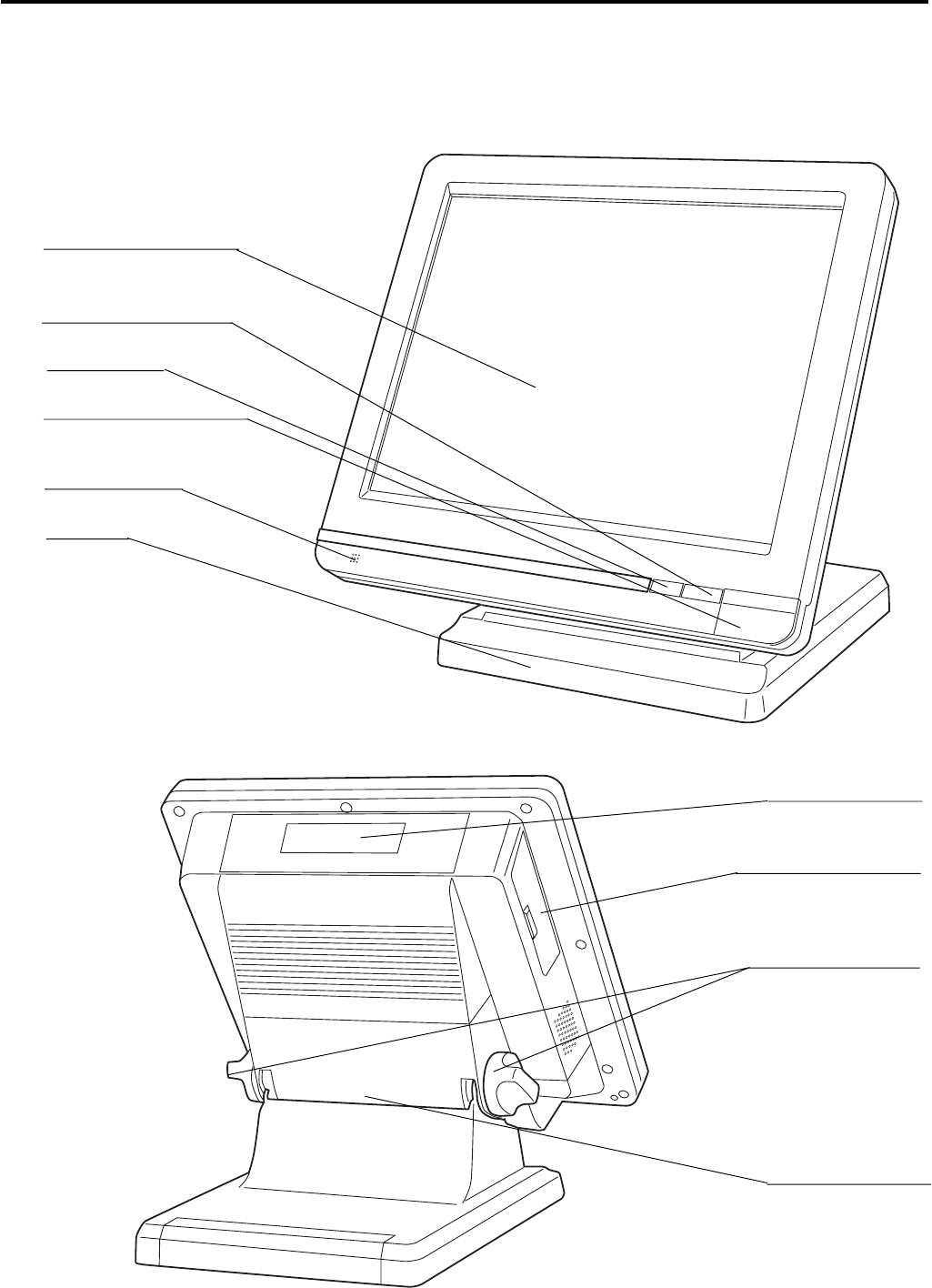
1-1. General configuration
C
C
C
Touch screen panel
Display on/off key
Pilot lamp
i-Button key receiver
(only for QT-6600-DLS)
Microphone
Stand
Customer display
Power switch cover
Panel fixing screw
Connector cover
Front view
Rear view
R-11
QT-6600 Reference Manual
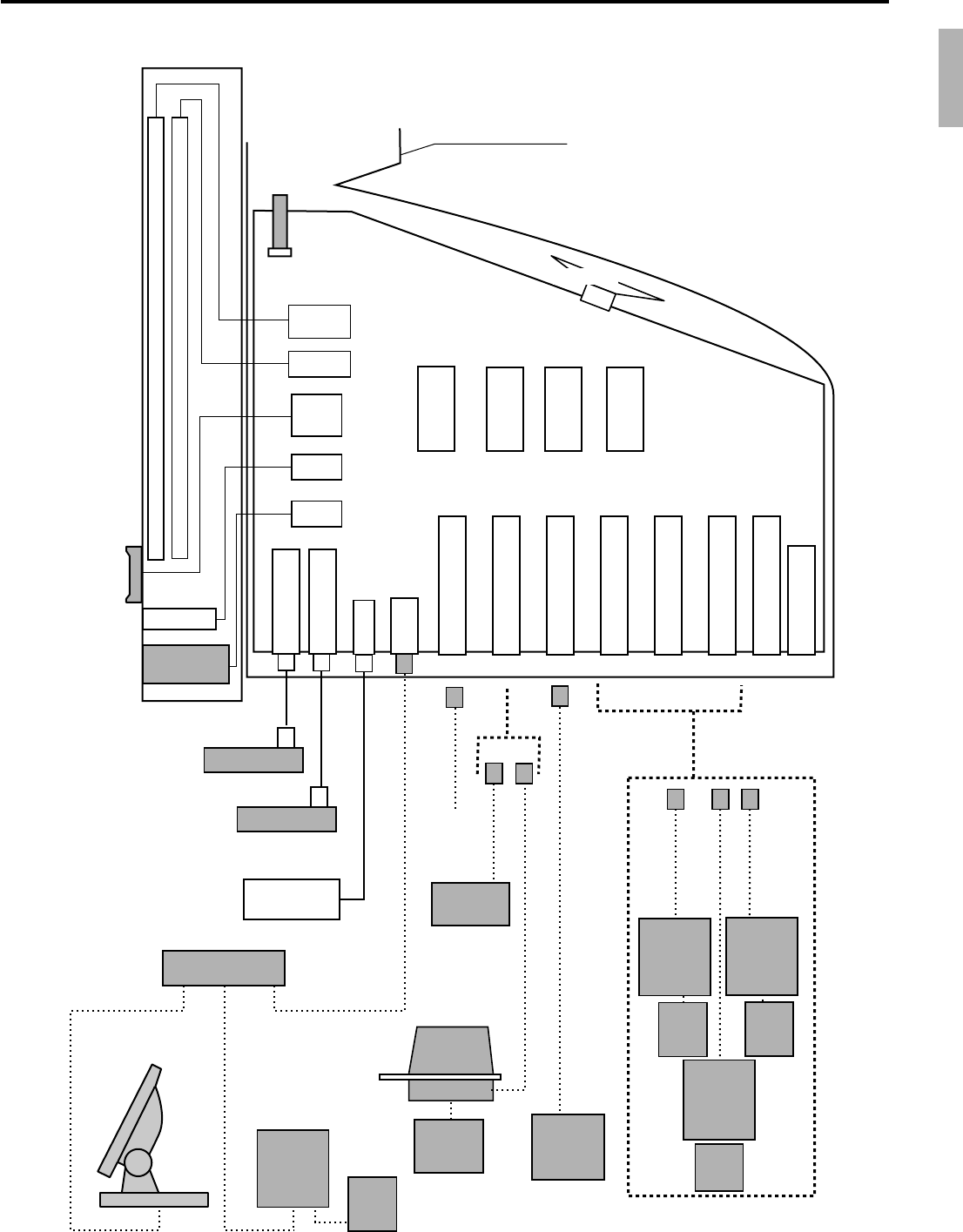
Scanner
Drawer
Drawer
Remote
display
QT-6060D
Slip
printer
SP-1300
MODEM
or
PC
CPU
RAMFlash
Memory
32MB 64MB
NOR
FROM
64MB
Note: Shadowed device and dot line indicate option devices.
QT-6061CB or QT-6062CB
PRT-CB-8A/-8B
PRT-CB-8C
PRL-CB-2
CAT5 UTP cable
Remote
printer
UP-400
Remote
printer
UP-400
Power
supply
PRT-CB-8A/-8B
Power
Power
supply
supply
PRT-CB-8A/-8B
Power
supply
Remote
printer
UP-360
Microphone
Speaker
i-Button
key i/f
CF card
Power switch cover
1024 x 768 dot color LCD
Max. 126 key touch screen
HUB
Other terminals
PC or LAN printer
MCR
QT-6046MCR
AC Adptor
Drawer 2 i/f
Drawer 1 i/f
Inline
RS-232C COM1
RS-232C COM2
RS-232C COM3
RS-232C COM4
RS-232C COM5
RS-232C COM6
Ext. microphone
Ext. speaker
QT-6011DLS
(except for
QT-6600-DLS)
Remote
printer
UP-400
Power
supply
1-2. Hardware diagram
R-12
Hardware Configuration
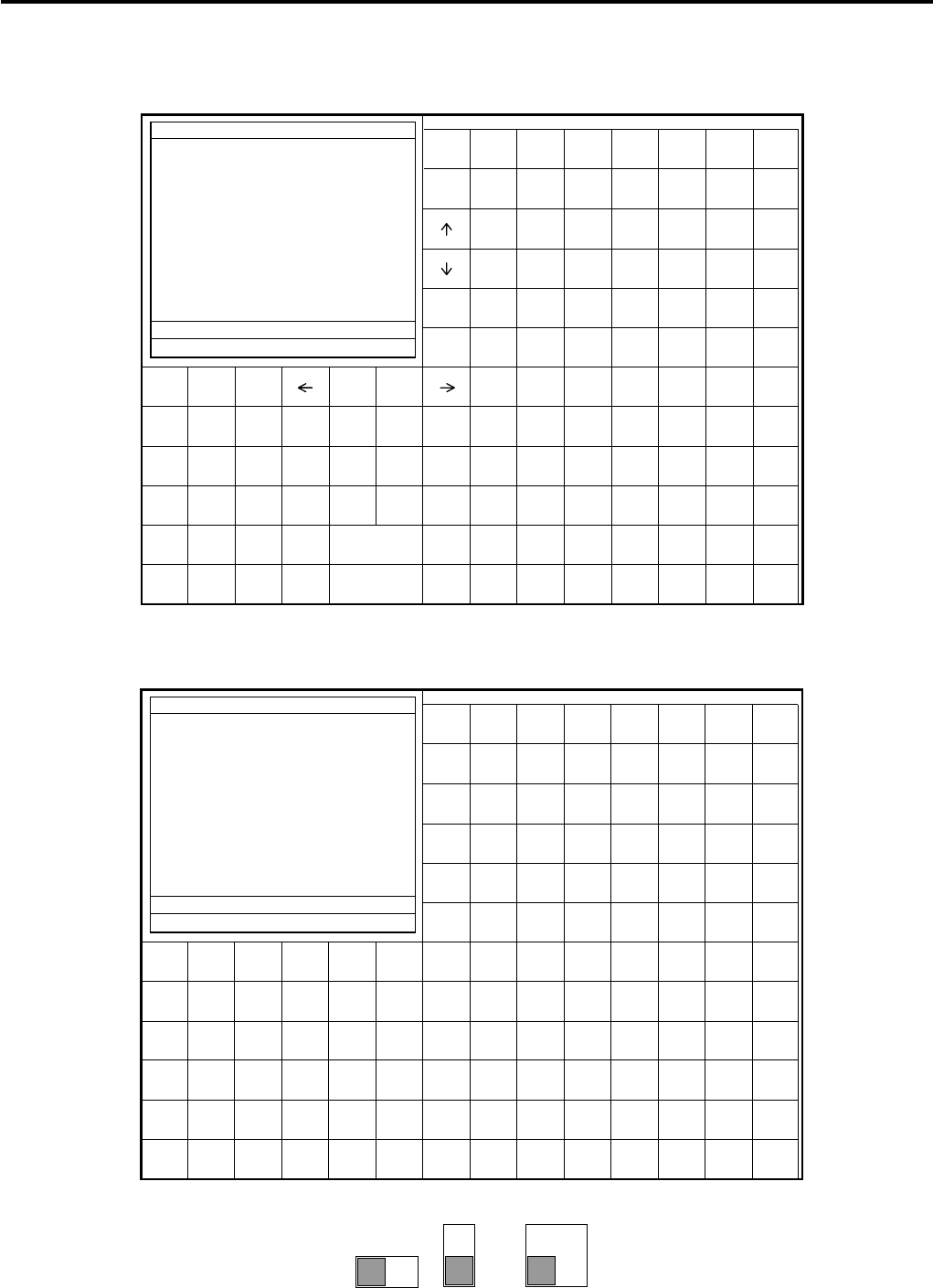
1-3-2. Hard key code of keyboard
1-3. Keyboard
1-3-1. Standard keyboard
PLU010 PLU020 PLU030 PLU040 PLU050 PLU060 PLU070
PLU009 PLU019 PLU029 PLU039 PLU049 PLU059 PLU069
PLU008 PLU018 PLU028 PLU038 PLU048 PLU058 PLU068
PLU007 PLU017 PLU027 PLU037 PLU047 PLU057 PLU067
PLU006 PLU016 PLU026 PLU036 PLU046 PLU056 PLU066
PLU005 PLU015 PLU025 PLU035 PLU045 PLU055 PLU065
PLU004 PLU014 PLU024 PLU034 PLU044 PLU054 PLU064
PLU003 PLU013 PLU023 PLU033 PLU043 PLU053 PLU063
PLU002 PLU012 PLU022 PLU032 PLU042 PLU052 PLU062
PLU001 PLU011 PLU021 PLU031 PLU041 PLU051 PLU061
LIST LIST LIST LIST LIST LIST LIST
1234567
MENU MENU MENU MENU MENU MENU MENU
1234567
MODE
SEARCH
CLEAR X VOID
789
456
123
000•
CLK#
RECEIPT
PLU#
REPORTS
ESC/
SKIP
PAGE
DOWN
POST
ENTRY
FUNC
LIST
FIN.
LIST
CASH/AMT
/TEND
SEP
CHK
NEW/OLD
CHK
TBL
TRANS
TABLE
RECEIPT
PAGE
UP
HOME
END
YES NO
#/NS COVERS MENU
SEAT#
SUBTOTAL NB
REG
C
01 31-10-08 12:34 PM 001234
•0.00
12345678901234567890
048 060 072 084 096 108 120 132
047 059 071 083 095 107 119 131
046 058 070 082 094 106 118 130
045 057 069 081 093 105 117 129
044 056 068 080 092 104 116 128
043 055 067 079 091 103 115 127
042 054 066 078 090 102 114 126
041 053 065 077 089 101 113 125
040 052 064 076 088 100 112 124
039 051 063 075 087 099 111 123
038 050 062 074 086 098 110 122
037 049 061 073 085 097 109 121
006 012 018 024 030 036
005 011 017 023 029 035
004 010 016 022 028 034
003 009 015 021 027 033
002 008 014 020 026 032
001 007 013 019 025 031
C
789
456
123
000•
REG
C
01 31-10-08 12:34 PM 001234
•0.00
12345678901234567890
•In case of assigning a double or quadruple key, the key code of the key is shadowed part
of the key.
R-13
QT-6600 Reference Manual
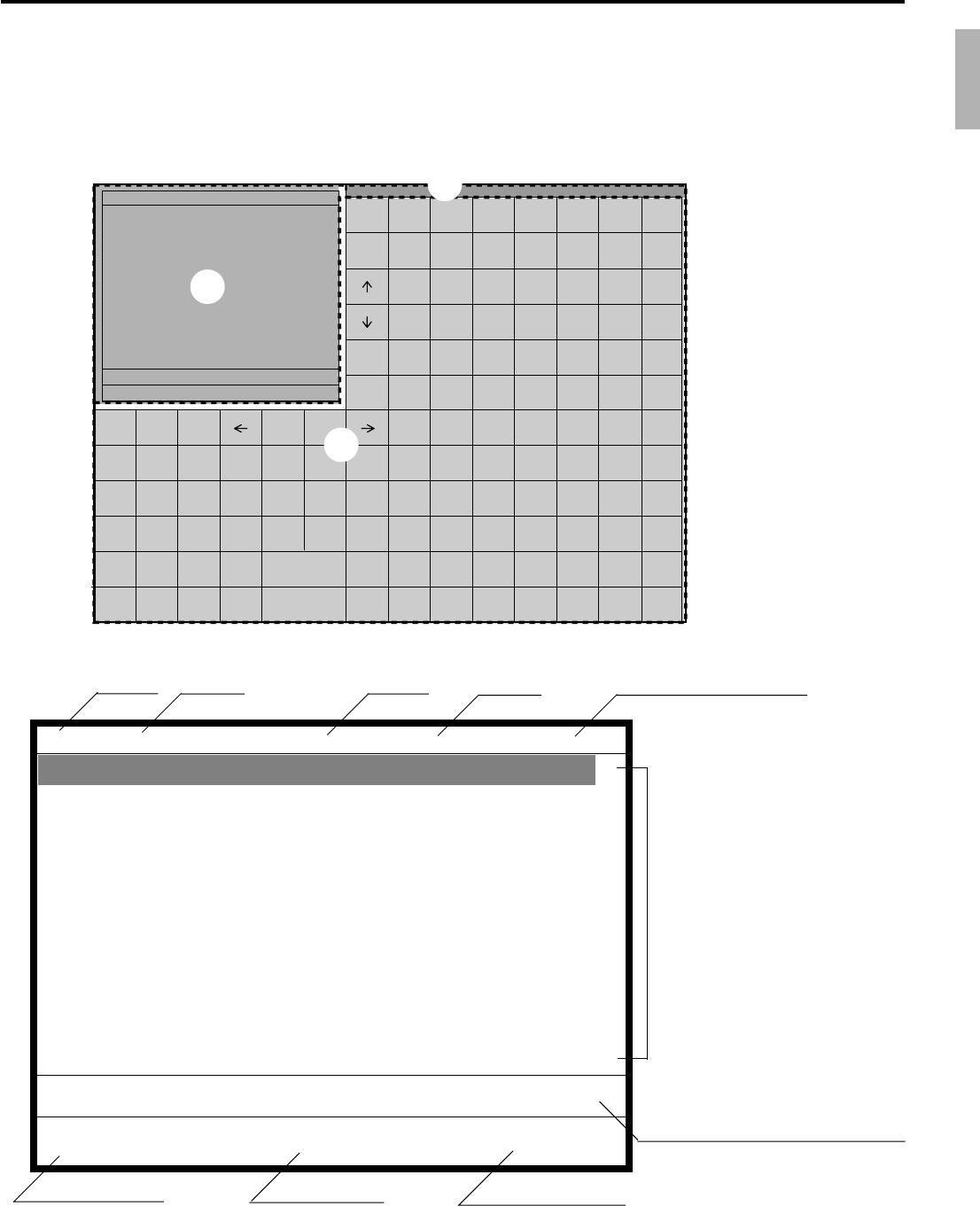
1-4. Display
1-4-1. Main display part
1Main display part: Used for displaying numeric entries, registration, subtotal amount, etc.
2
Menu level display part: Used for displaying the current shift PLU, menu sheet and 2nd unit price level.
3Keyboard part: Mainly used for keyboard (sometimes it is used for pop-up window)
REG
C
01 01-01-01 12:34 001234
1 Spagetti •20.00 T1↑
1 Spagetti •20.00 T1
7.5%
%- -1.75 T1
1 Coffee •8.00
1 Hamburger •2.00 T1
15%
%- -0.30 T1
1 Milk •2.00
2 Apple Juice •5.00
1 Coffee •8.00 ↓
Spagetti •20.00
§ ©ª 12 •76.50
Status Icons
• Communication: §• Receipt on: ©
• Master/BM error: ¶• Character shift:
• Cut off Master or BM: ßDouble size: ª
Standard size: π
Items sold Total amount
Current transaction amount/change
Scroll area
Mode Clerk Date Time Consecutive number
PLU010 PLU020 PLU030 PLU040 PLU050 PLU060 PLU070
PLU009 PLU019 PLU029 PLU039 PLU049 PLU059 PLU069
PLU008 PLU018 PLU028 PLU038 PLU048 PLU058 PLU068
PLU007 PLU017 PLU027 PLU037 PLU047 PLU057 PLU067
PLU006 PLU016 PLU026 PLU036 PLU046 PLU056 PLU066
PLU005 PLU015 PLU025 PLU035 PLU045 PLU055 PLU065
PLU004 PLU014 PLU024 PLU034 PLU044 PLU054 PLU064
PLU003 PLU013 PLU023 PLU033 PLU043 PLU053 PLU063
PLU002 PLU012 PLU022 PLU032 PLU042 PLU052 PLU062
PLU001 PLU011 PLU021 PLU031 PLU041 PLU051 PLU061
LIST LIST LIST LIST LIST LIST LIST
1234567
MENU MENU MENU MENU MENU MENU MENU
1234567
MODE SEARCH
CLEAR X VOID
789
456
123
000•
CLK#
RECEIPT
PLU#
REPORTS
ESC/
SKIP
PAGE
DOWN
POST
ENTRY
FUNC
LIST
FIN.
LIST
CASH/AMT
/TEND
SEP
CHK
NEW/OLD
CHK
TBL
TRANS
TABLE
RECEIPT
PAGE
UP
HOME
END
YES NO
#/NS COVERS MENU
SEAT#
SUBTOTAL NB
REG
C
01 31-10-08 12:34 PM 001234
•0.00
1
3
2
1-4-2. Main display part contents
R-14
Hardware Configuration
1-5. Cash drawer
In case of connecting drawer, follow the procedure below.
Connect the drawer.
1. Connect drawer connector (three color lead on drawer) to the terminal.
2. Connect frame drawer connector (green lead on drawer) to the terminal.
Mount the cash register.
1. Screw in 2 fixing screws bottom side of the terminal.
2. Mount the terminal on the top of the drawer, ensuring that the feet on the bottom of the
terminal go into the holes on the drawer.
DISPLAY
SCANNER
PC/MODEM
COM3
COM6
COM2
COM5
COM1
COM4
LAN
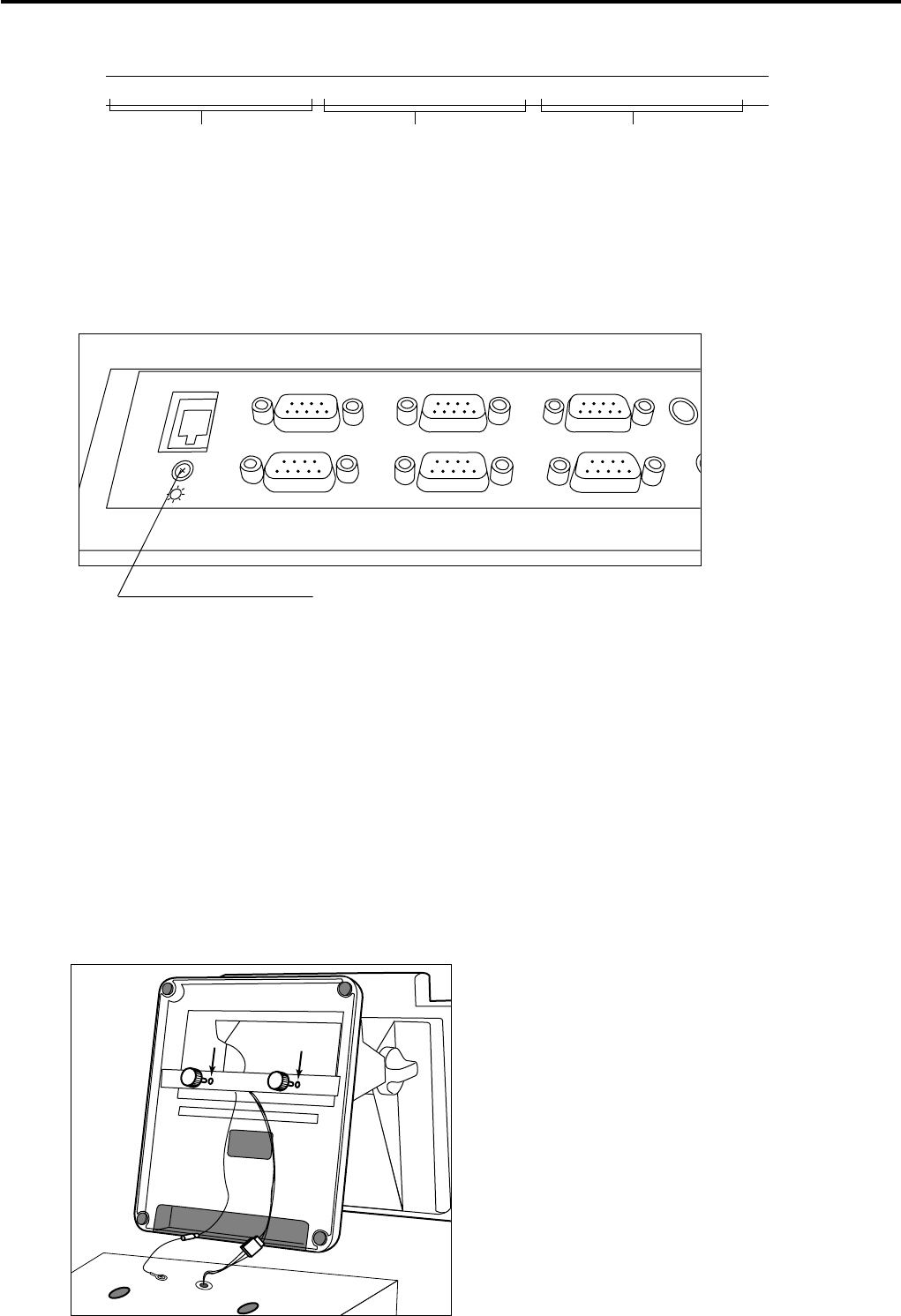
1-4-4. Main display brightness control
1-4-3. Menu level display part contents
SHIFT PLU 1 Menu shift 1 2nd@
Shift PLU level (1 ~ 8) Menu shift (1 ~ 15) 2nd unit Price level (1 ~ 2)
Brightness control
R-15
QT-6600 Reference Manual
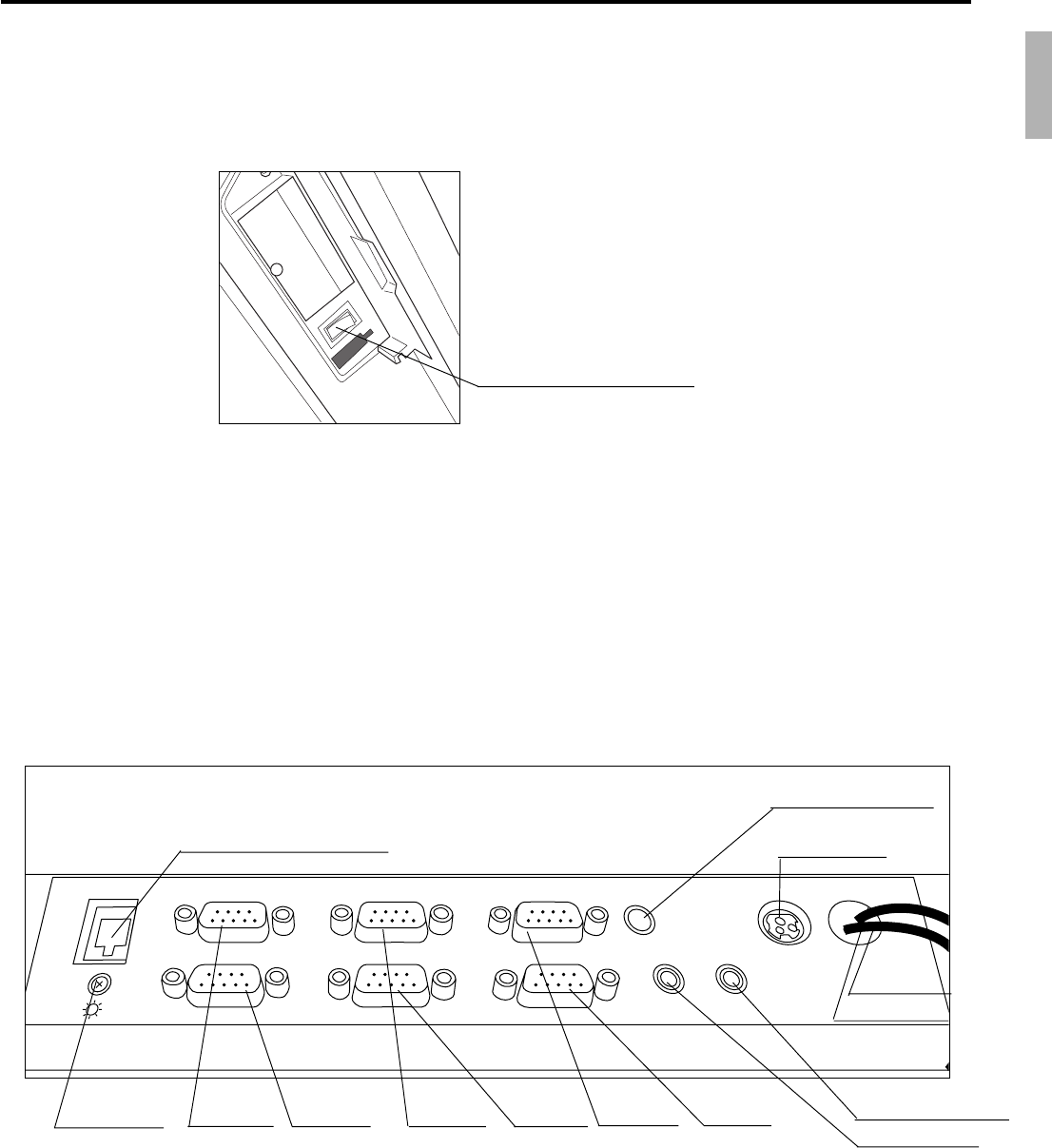
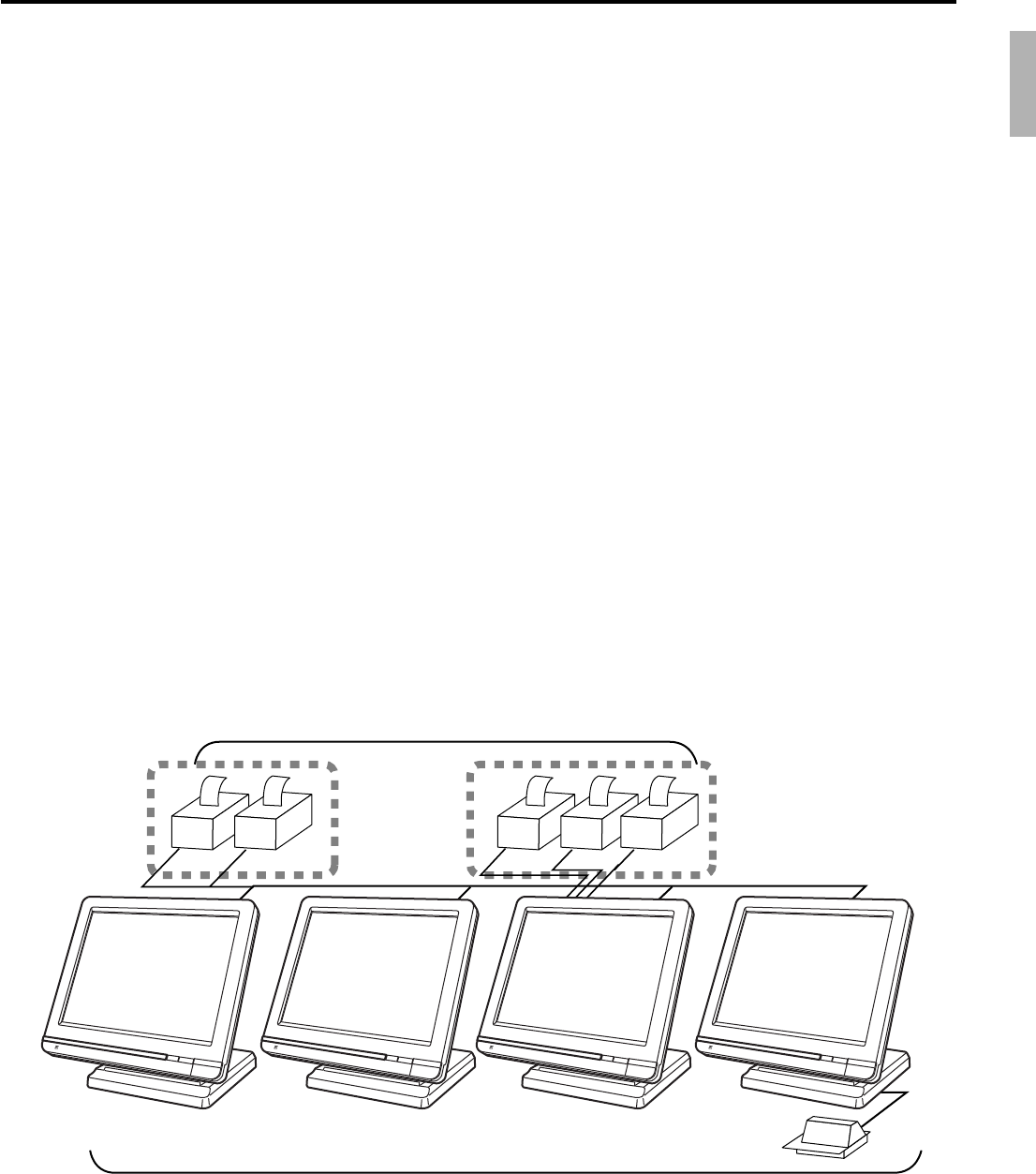
1-6. Input/output connectors
Power switch
Main power switch is located in the power switch cover.
Input /output connectors
Inline connector, COM port, and drawer cable are located in the backside connector cover.
DISPLAY
SCANNER
PC/MODEM
COM3
COM6
COM2
COM5
COM1
COM4
SPK
PS/2
KEYBOARD
MIC
LAN
Brightness COM3 COM6 COM2 COM5 COM1 COM4
Inline (10/100Base-T)
PS/2 Keyboard
AC Adaptor
Drawer 2
Drawer 1
Ext. microphone
Ext. speaker
Bottom side of the terminal
Power switch

R-16
Hardware Configuration
1-7. Optional peripherals
The following optional peripherals can be used by plugging them into the appropriate port.
1) Personal computer / MODEM: RS-232C COM 1 port
2) Scanner: RS-232C COM 2 port
Hand-held scanner, Fixed scanner
3) Slip printer: RS-232C COM 2 port
SP-1300
In case of installing both scanner and slip printer, connect slip to COM 4, 5 port.
If you connect the slip printer to COM 4 , the automatic detection during INIT does not
performed. You muse program the I/O parameter manually.
4) Remote display: RS-232C COM 3 port
QT-6060D
5) Remote printer (UP-400/360): RS-232C COM 4 ~ 6 port
The remote printer is used for reports/kitchen orders/receipts.
6) Inline: Inline port
You can use CAT5 UTP cable.
7 Drawer: drawer port
8) CF card: CF card slot (in the card slot cover)
9) PS-2 keyboard (Microsoft Wired Keyboard RT2300): PS-2 keyboard port
R-17
QT-6600 Reference Manual
1-8. System configuration
This section represents the system configuration of the QT-6600. The QT-6600 have four
different system configurations, such as 1. Shared check tracking/ floating clerk interrupt
system, 2. Inline collection/ consolidation system, 3. Online collection/ consolidation
system, and 4. Online collection/ consolidation system (use FTP feature).
Before detail explanation, we should define the words:
1) Check master:
Check master is the master server of shared check tracking system and floating clerk
interrupt system. This terminal has check index and detail files and controls them.
2) Check backup master:
Check backup master is the backup server of shared check tracking system and floating
clerk interrupt system. This terminal also has check index and detail files and update
them at the same timing of master.
When the check master goes down, the backup master plays the role of check master.
3) Check self master:
Check self master has its check tracking system files and clerk interrupt files for itself.
4) Satellite:
The terminal which is not assigned to 1) ~ 3) above.
5) Remote printer (via RS-232C or LAN):
Remote printer prints data sent from both its own terminal and other terminal of the
system.
6) Local printer:
Local printer prints data sent from its own terminal.
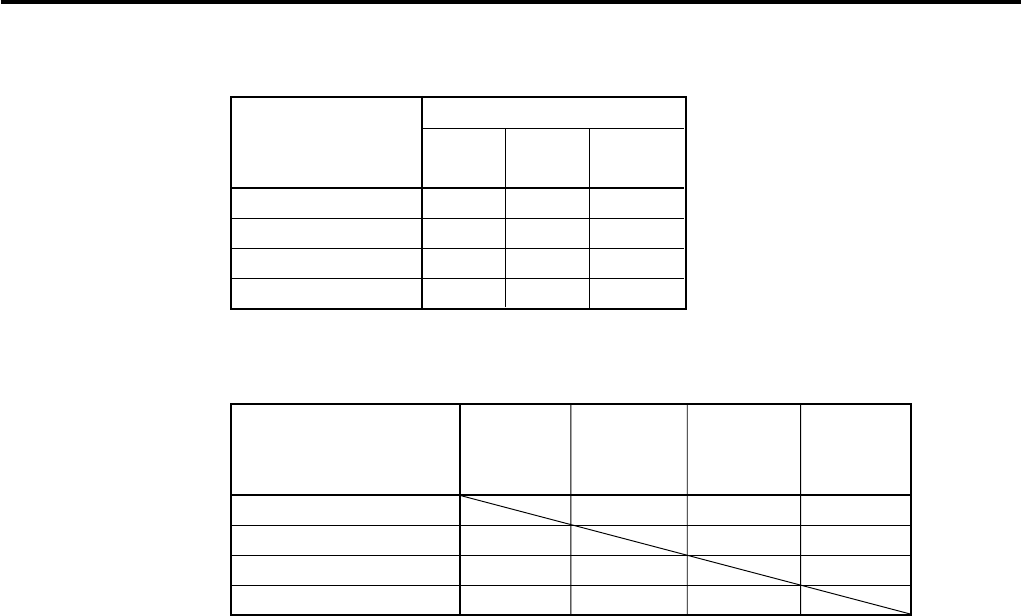
1-9-1. Shared check tracking system/floating clerk interrupt system
System Recommendation
OrderOrder
Up to 12 QT-6600 terminals
CHK/M
CHK/BM
PRN (1) PRN (2)
LAN Printer RS-232C Printer
Order OrderOrder
PRN (1) PRN (2) PRN(3)
Up to 16 remote printers
Slip
inline
C
C
C
C
C
C
C
C
R-18
Hardware Configuration
Available peripherals versus ECR definition
✓: Available
Available combinations ECR definition
✓: Available
Note:
1) Please follow the system recommendation above. Otherwise the system performance
may be slow down.
Peripherals
ECR definition Remote Slip PC/
printer printer
MODEM
Check master ✔✔✔
Check backup master ✔✔✔
Self master ✔✔✔
Satellite ✔✔✔
Check Check Self Terminal
ECR definition master backup master w/ remote
master printer
Check master ××✔
Check backup master ××✔
Self master ×× ✔
Terminal w/ remote printer ✔✔✔
R-19
QT-6600 Reference Manual
PC
Via COM 1 port of the master terminal
or Inline (wire or wireless)
Maximum 32 terminals
C
C
C
C
C
C
C
C
C
C
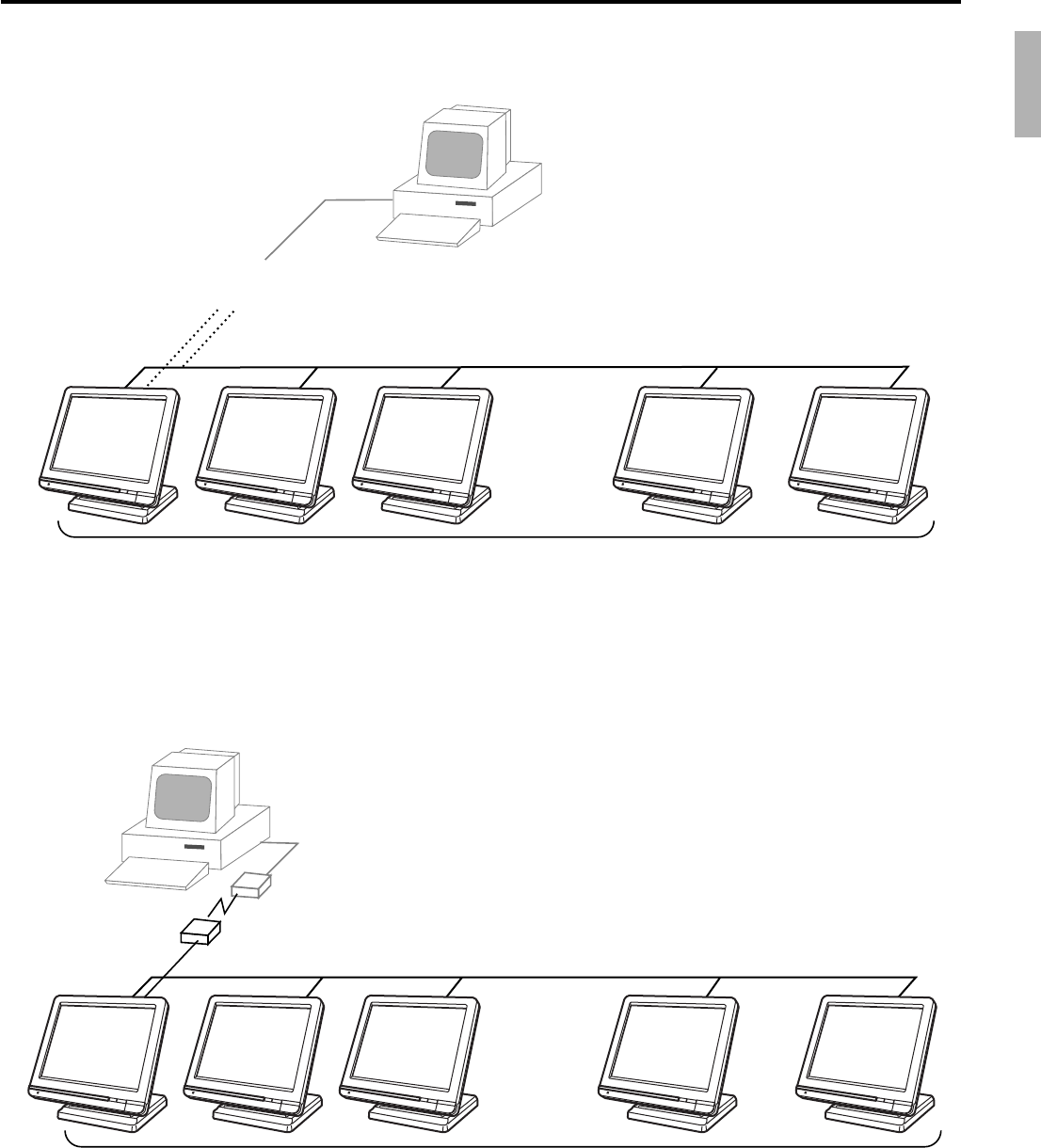
1-8-2. Inline collection/consolidation system
•Inline collection/consolidation and auto-programming for up to 32 terminals.
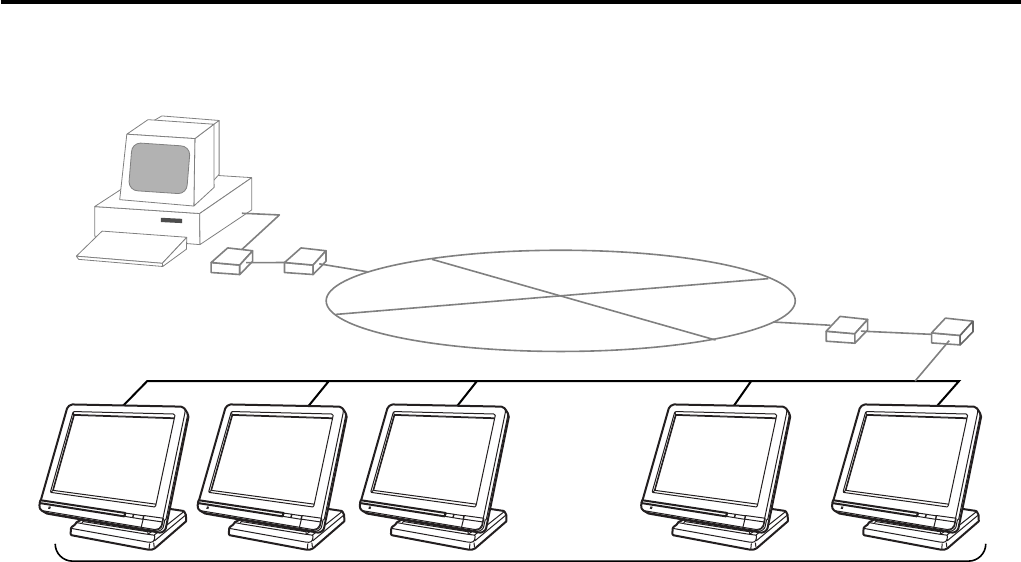
1-8-3. Online collection / consolidation system
•Online collection / consolidation and auto-programming for up to 32 terminals.
PC
on-line (Public / Private Telephone line)
Maximum 32 terminals
C
C
C
C
C
C
C
C
C
C
R-20
Hardware Configuration
PC
Maximum 32 terminals
ADSL/FTTH
MODEM
ADSL/FTTH
MODEM
VPN rooter
VPN rooter Internet
C
C
C
C
C
C
C
C
C
C
1-8-4. Online collection / consolidation system (use FTP feature)
•Online collection / consolidation and auto-programming for up to 32 terminals.

R-21
QT-6600 Reference Manual
2. Application systems ............................................................................ R-23
2-1. General description of application system ....................................... R-23
2-1-1. File concept................................................................................................... R-23
2-1-2. Linkage of totalizers ...................................................................................... R-24
2-1-3. Function keys ................................................................................................ R-25
2-1-4. Keyboard layout ............................................................................................ R-25
2-1-5. Mode control ................................................................................................. R-26
2-1-6. Operation prompt and error messages ......................................................... R-26
2-1-7. Printing control system.................................................................................. R-26
2-2. General description of individual function keys............................... R-29
2-2-1. System keys .................................................................................................. R-29
2-2-2. Finalize keys ................................................................................................. R-30
2-2-3. Transaction keys ........................................................................................... R-30
2-3. Remote printer control ........................................................................ R-39
2-3-1. Remote printer system configuration ............................................................ R-39
2-3-2. Remote printer control setting ....................................................................... R-40
2-3-3. Remote printer output control ....................................................................... R-41
2-3-4. Remote printer backup processes ................................................................ R-41
2-4. Check tracking system........................................................................ R-44
2-4-1. Shared check tracking system ...................................................................... R-44
2-4-2. Shared check tracking requirement .............................................................. R-45
2-4-3. Data backup when the master goes down .................................................... R-45
2-5. Other check tracking system control ................................................. R-46
2-5-1. The timing to clear check detail and index file after finalization .................... R-46
2-5-2. Table transfer ................................................................................................ R-46
2-5-3. Store and recall ............................................................................................. R-46
2-6. Clerk control function ......................................................................... R-48
2-6-1. Clerk interrupt ............................................................................................... R-48
2-6-2. Clerk detail memory ...................................................................................... R-49
2-6-3. Clerk training ................................................................................................. R-49
2-6-4. Manager mode control .................................................................................. R-49
2-7. Arrangement key function and scheduler ......................................... R-51
2-7-1. Arrangement key function ............................................................................. R-51
2-7-2. Arrangement program example .................................................................... R-55
2-7-3. Scheduled execution of arrangement function .............................................. R-55
2-8. Making graphic logo ............................................................................ R-56
2-8-1. About graphic logo ........................................................................................ R-56
2-8-2. Making graphic logo procedure..................................................................... R-56
2-9. Hourly item ........................................................................................... R-57
2-9-1. Programming necessary files before using hourly item function................... R-57
2-10. Time and attendance ........................................................................... R-58
2-10-1. Corresponding relations of the file ................................................................ R-59
2-10-2. Clock-in operation ......................................................................................... R-62
2-10-3. Clock-out operation ....................................................................................... R-65

R-22
Application System
2-11. Sign on control .................................................................................... R-68
2-11-1. Sign on .......................................................................................................... R-68
2-11-2. Solution to abnormality of master terminal ................................................... R-69
2-11-3. Solution to abnormality of satellite terminal .................................................. R-69
2-11-4. Sign on compulsory ...................................................................................... R-69
2-12. IDC (Item Data Capture) ...................................................................... R-70
2-12-1. Available capturing items .............................................................................. R-70
2-12-2. Set up the IDC start / end ............................................................................. R-73
2-12-3. How to memorize the captured items ........................................................... R-74
2-12-4. IDC data file structure ................................................................................... R-75
2-12-5. IDC data type ................................................................................................ R-81
2-12-6. Transferring IDC ............................................................................................ R-82
2-13. Electronic journal ................................................................................ R-83
2-13-1. Storing electronic journal .............................................................................. R-83
2-13-2. Issuing electronic journal report .................................................................... R-83
2-13-3. Displaying normal electronic journal and producing guest receipts after salesR-83
2-13-4. Transferring electronic journal memory ......................................................... R-84
2-14. Simple time and attendance ............................................................... R-85
2-14-1. Clock-in operation ......................................................................................... R-85
2-14-2. Clock-out operation ....................................................................................... R-86
2-14-3. Worktime display ........................................................................................... R-86
2-14-4. Report ........................................................................................................... R-86
2-15. Magnetic card reading......................................................................... R-87

R-23
QT-6600 Reference Manual
2. Application systems
This section describes the configuration of application system and their related setting with
the QT-6600. Reading this section provides a general understanding of the overall system
of the terminal.
2-1. General description of application system
2-1-1. File concept
Programming data for each function, as well as registration data, are assigned and handled
in the RAM of the terminal in data blocks called files. Each files identified by a 3-digit file
number consists of multiple records.
Memory management on a file basis allows flexibility memory allocation in accordance
with the application of a specific terminal. The number of records per file can be
programmed, and a file can even be programmed for zero records.
There are three types of files:
–Terminal files:
Terminal files include system work files, daily total files, periodic total 1, periodic total
2 files, buffer files, and program files. Periodic total files have only totalizer field, and
totalize the same data which is accumulated to terminal files at the same time. The
periodic total 1 files have 100 order file numbers, and the periodic total 2 files have 200
order file numbers.
These files can be reset individually and separately from the terminal files. This
provides access to weekly and monthly total data. The periodic total 1 files and 2 files
have the same functions, and can accumulate data with different periods. The same
number of records as the corresponding terminal file must be reserved for each periodic
total files.
–Consolidation files:
Consolidation files are work files for consolidation of daily total, periodic 1 total and
periodic 2 total data from each terminal, and have 300, 400 and 500 order file numbers,
respectively. The same number of records as the corresponding terminal files must be
reserved for each file, on the master terminal.
–Consolidation work files:
Consolidation work files are work files for collection/consolidation of daily, periodic
1/2 data from each terminal. The files have 600 order file numbers.
The file number of records as the corresponding terminal file must be reserved for each
consolidation file.
Each file requires an internal work area, so calculation of actual file size can be performed
using the following formula:
Record length × Number of records + Work area = Actual file size
The table on the page 18 ~ 22 of the programming manual shows all the files available for
the terminal. See the Appendix A-2 of this manual for detail formats of individual files.
R-24
Application System
Calculation
Fixed totalizer
Scanning PLU file
PLU file Subdept. file Dept. file Group file Clerk detail file Other file
Function key
totalizer
Registration
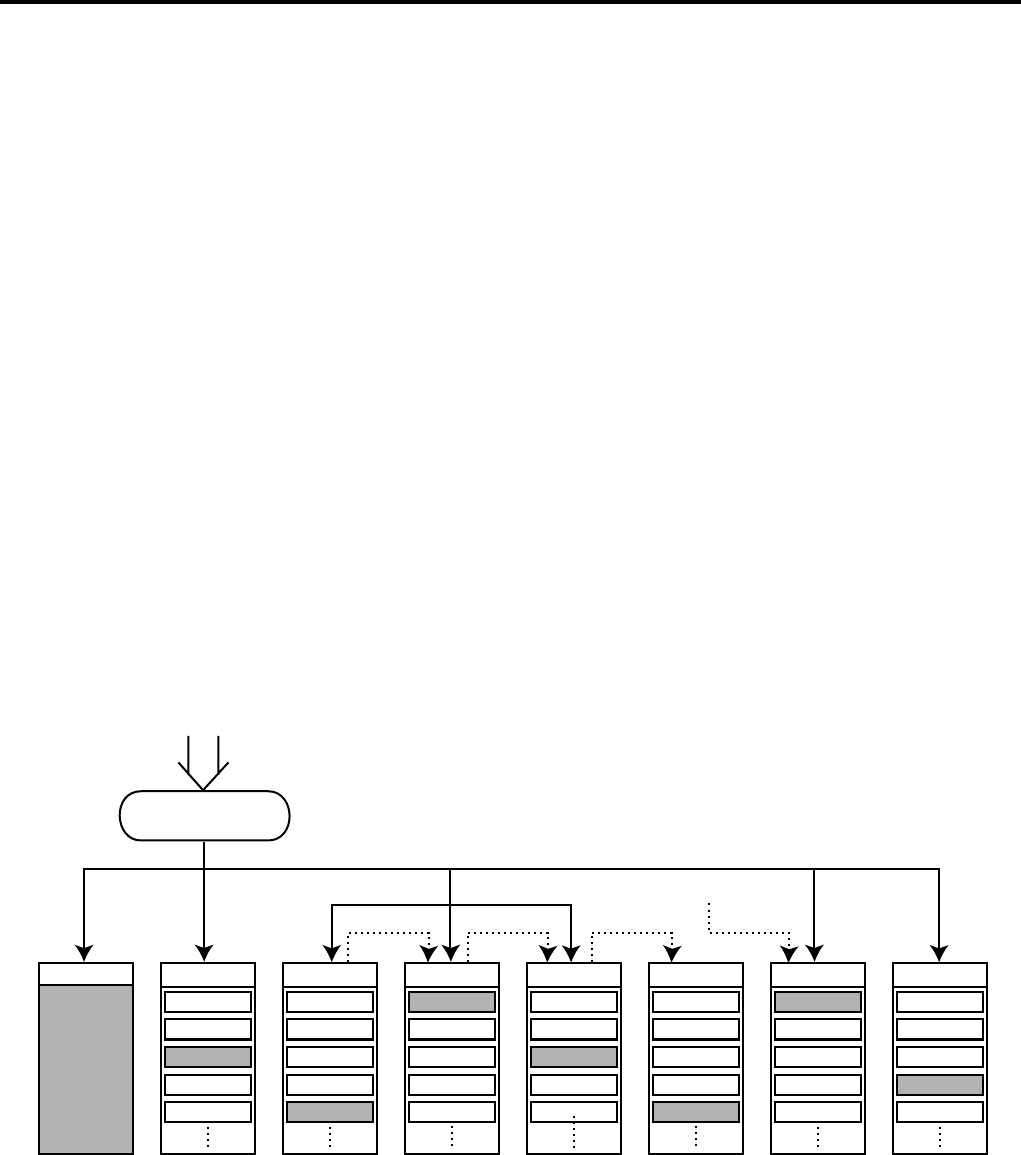
*1 *1 *1
*2
Registration data flow
*1 Linking between PLUs/ scanning PLUs, subdepartments, departments and groups can
be programmed to meet the needs of the retail environment.
PLUs/ scanning PLUs can be programmed to link with subdepartments, departments
or group, while subdepartment can be programmed to link with department or group,
and department can be programmed to link with group.
When a PLU is programmed to link with a department, data registered for the PLU is
also accumulated to the department. In addition, when the department is programmed
to link with a group, data registered for the PLU is simultaneously reflected the
department totalizer and group totalizer.
*2 When data is registered to a totalizer which is preset in the clerk detail link table, the
data is also accumulated to the clerk detail totalizer reserved for each relevant clerk.
2-1-2. Linkage of totalizers
Registered data is accumulated to totalizers which are reserved for each functions.
The QT-6600 has the following types of totalizers:
1) Fixed totalizers
Registration data is accumulated for individual terminals.
2) Function key totalizers
Data input by finalize or transaction keys is accumulated in totalizers for each key.
Operation types, as well as data used in operation differ depending on the key.
3) Subdepartment totalizers
Registration data is accumulated in totalizers for each subdepartment.
4) Department totalizers
Registration data is accumulated in totalizers for each department.
5) Group totalizers
Registration data is accumulated in totalizers for each group.
6) PLU/ scanning PLU totalizers
Registration data is accumulated in totalizers for each PLU/ scanning PLU.
7) Clerk totalizers
Registration data is accumulated for each relevant clerk. A clerk detail totalizer can be
linked to a fix totalizer, finalize key, transaction key, or item totalizer (department /
PLU / subdepartment / group), and accumulate data registered for the destination
totalizer of each relevant clerk.
8) Other totalizer
Functions for hourly sales, monthly sales void reason, table analysis, time attendance
and hourly item etc. also have totalizers.

R-25
QT-6600 Reference Manual
2-1-3. Function keys
The keys on the keyboard can be assigned various functions that are used for registration
as required for the terminal. For convenience sake, these functions are called by function
keys.
There are two types of function keys:
1) System keys
Numeric keys, clear key, home position key, end key, left / right / up / down arrow keys,
yes key, no key, mode selection keys, ESC/SKIP key, page up / down key are system
keys.
2) Function keys
These function keys are used for finalize a transaction, to specify the functions for a
registration or to specify the meaning of a entry. These function keys have program-
mable functions, which are set to the transaction key / department / subdepartment /
PLU file.
Function keys include finalize key, transaction key, department key, subdepartment
key and flat PLU key.
The list of all function keys is shown in the Program 4 chapter of the programming manual.
General descriptions of individual function keys are found in the chapter 2-2.
2-1-4. Keyboard layout
Normally, the keyboard is assigned functions which are required for registration of
transactions. The keyboard is also used for character input when entering descriptors or
names during programming.
The QT-6600 automatically switches the keyboard to its character input function when it
determines that character input is required for the operation sequence you are performing.
This means that you can input characters without having to worry about manually changing
the keyboard input mode.
The function key (except system keys) allocation is fully programmable to meet the
specific needs of each terminal. The actual programming of key layouts can be performed
in the PGM4 mode, and programmed data is written onto the key table (file 074/174).
The allocation can also be programmed when programming each function file for
programming function keys such as finalize keys, transaction keys, department keys,
subdepartment keys, and flat PLU keys.
Standard function key layout
Refer to the page 16 of the user’s manual.
Character key layout
Refer to the page 126, 127 of the programming manual.

R-26
Application System
2-1-5. Mode control
With the QT-6600, each clerk can be programmed to enable or disable operations in the
following modes:
–REF mode
–REG– mode
–REG mode
–X/Z mode
–Program 1 ~ 6 mode
–Manager mode
–Inline X/Z mode
–Inline auto program
–CF backup / restore mode
Also, each clerk can be programmed to enable or disable operations of every function key.
Though the terminal has no actual REG 2 mode, on the page 49 in the Clerk Control
function chapter of this manual, the manager control procedure is described.
Arrangement execution mode programmed in the arrangement key ignores the mode
control program by the clerk.
Please note that if a clerk want to operate an arrangement, he / she should allow to operate
arrangement function.
2-1-6. Operation prompt and error messages
The QT-6600 displays messages to indicate the status of the terminal being operated or
programmed. These messages help to determine the status of the terminal or the required
subsequent action.
2-1-6-1. Operation prompt
Refer to the page 227 of this manual for details. These messages cannot be added, modified
or deleted.
2-1-6-2. Error messages
Refer to the page 224 ~ 227 of this manual for details. Error messages are displayed to
indicate that an error has occurred and a compulsory operation must be performed. All error
messages cannot be added, modified or deleted.
2-1-7. Printing control system
The following describes the control system for printing of receipts, the journal, validation,
slips and X/Z reports.
2-1-7-1. Receipt print control during normal registration
Normally, the receipt is printed to reflect the details of a registration as it is performed, with
the receipt being issued with the finalize operation. By using the <RECEIPT ON/OFF>
key, the receipt issuance status can be turned off to suspend printing and issuance of
receipts when so desired. Pressing the <RECEIPT ON/OFF> key turns the receipt
issuance status on or off, and when the receipt issuance status is On, the icon “RECEIPT
ON” appears.
The following programming can be performed for receipt printing:

R-27
QT-6600 Reference Manual
2-1-7-2. Validation print control
The QT-6600 allows use of the slip printer (SP-1300) for validation printing of item
registrations, function registrations and sales totals. To perform validation printing, insert
the validation paper into the slip printer, and then press the <VALIDATION> key
(function code 037).
The following desctription shows the print format for validation performed using the slip
printer.
There are three general types of validation printing:
1) Finalization validation
2) Transaction validation
3) Item validation
Finalization validation is performed following finalization operations with finalize keys.
When a validation is performed following receipt issuance, the sales total or tendered
amount is printed, while partial tendering, the tendered amount for the specified medium
is printed.
Transaction validation is valid for the following function keys:
–Received on account, Paid out, finalization of Pick up or Loan, Check cashing, Minus,
Plus, Discount, Premium, Void, Coupon, Coupon2, Tip, Deposit, Subtotal, Merchan-
dise subtotal keys
You can program the allowable number of validation printings or multiple validation
printing status for the above listed keys.
Also some of these keys can be programmed as validation compulsory, this means that
registration is not permitted until the validation of the former registration has been
performed.
Item validation is performed directly following an item registration listed below.
–Departments
–Subdepartments
–PLUs/ scanning PLUs
You can program the multiple validation printing status for above items.
Description Program location
Receipt “Item consolidation”PGM3; Machine Control3 in General Feature
Receipt “Sort by group, department”PGM3; Machine Control3 in General Feature
Print consecutive number on the receipt PGM3; Machine Control3 in General Feature
Print date / time on the receipt PGM3; Machine Control3 in General Feature
Vertical double character PGM3; Machine Control3 in General Feature
Set menu detail on guest / slip PGM3; Print Control in General Feature
Print PLU number PGM3; Print Control in General Feature
Print finalized total PGM3; Print Control in General Feature
Print taxable amount PGM3; Print Control in General Feature
Print taxable status PGM3; Print Control in General Feature
Print total number of item sold PGM3; Print Control in General Feature
Print customer number (number of covers) PGM3; Print Control in General Feature
One line feed after finalization PGM3; Print Control in General Feature
Time format (24H / 12H) PGM3; Print Control in General Feature

R-28
Application System
Description Program location
Items on the fixed totalizer report PGM3; Report Control1 in General Feature
Items zero skip PGM3; Report Control2 in General Feature
Average spend/item on monthly report PGM3; Report Control2 in General Feature
PLU order (memory / random code) PGM3; Report Control2 in General Feature
Print / Non print PLU No. on PLU report PGM3; Report Control2 in General Feature
Print / Non print Sales ratio PGM3; Report Control2 in General Feature
Print / Non print Z counter PGM3; Report Control2 in General Feature
Print / Non print Item discount totalizer PGM3; Report Control2 in General Feature
Print GT PGM3; Report Control2 in General Feature
2-1-7-3. Slip print control
Connection of an optional slip printer (SP-1300) to the QT-6600 makes it possible to print
transaction details on a slip.
To print a slip, insert a slip paper into the printer, and adjust paper position by entering the
number of printed lines and pressing the <SLIP FEED/RELEASE> key (function code
056) or the <SLIP BACK FEED/RELEASE> key (function code 054) and then press the
<SLIP PRINT> key (function code 055). Or it is possible to find the appropriate slip
printing start line automatically.
After printing a slip, the paper is automatically released.
If the paper is not released for some reasons, press <SLIP FEED/RELEASE> or <SLIP
BACK FEED/RELEASE> to release the paper.
Before using slip printer, you should program the maximum lines of slip.
The following two sections are other features to control slip printing format:
2-1-7-4. Endorsement message print control
The QT-6600 allows printing of endorsement messages on the slip printer (SP-1300) for
check registrations. To perform endorsement message printing, insert the paper into the
slip printer following finalization using the <CHECK> key or check cashing transaction
using the <CHECK> key, and press the following key:
–Endorsement key (function code 039)
Check key and check cashing key can be programmed for compulsory endorsement print.
The endorsement message contents should be programmed into the endorsement message
file (file 033).
2-1-7-5. Check printing print control
The QT-6600 allows printing check tendered amount on a check inserted into the slip
printer. To perform check printing, insert the paper into the slip printer following check
finalization using the <CHECK> key, and press the following key:
–Check print key (function code 012)
Check key can be programmed for compulsory check print. The check printing format is
controlled by the check print file (file 041).
2-1-7-6. X/Z report print control
The QT-6600 can output a report in the read (X) or reset (Z) mode. The following shows
the programming for X/Z print controls:

R-29
QT-6600 Reference Manual
2-2. General description of individual function keys
This section describes individual function key that can be assigned to the keys on the
keyboard of QT-6600.
2-2-1. System keys
The system key consist on a non-programmable function key.
The following system keys are available.
1) Numeric keys (0, 1 ~ 9, 00, decimal point*)
These keys are used for inputting numerical data such as PLU codes, amounts, quantities,
etc. These keys must be allocated on the keyboard.
2) Clear key
This key is used for clearing numerical values after they have been input, and after incorrect
function keys have been pressed. This key also can be used to clear errors. This key must
be allocated on the keyboard.
3) Home position key*
This key is used for returning cursor to the home position.
4) End key*
This key is used for moving cursor to the bottom position.
5) Left, right, up, down arrow keys
These keys are used for moving the cursor.
6) Yes key
This key is used for consenting the selection and proceeding steps.
7) No key
This key is used for cancelling the selection and proceeding steps.
8) Mode key
This key is used for changing modes of the terminal. This key shows the allowable mode
keys in the mode pop-up window.
9) ESC/SKIP key
This key is used for terminating a programming sequence, X/Z sequence, and returning the
former window. This key is also used for terminating a report being issued in PGM, X, and
Z mode.
10) Display on/off key
This key is used for turning on / off the terminal.
11) Page up key*
This key is used for turning the window forwards.
12) Page down key*
This key is used for turning the window backwards.
* Allocatable key

R-30
Application System
2-2-2. Finalize keys
This section covers the general description of each finalize key, with its respective options.
Finalize keys have programmable functions which may be used as required.
1) Tender key
This key is used for finalizing transactions. Up to six media in drawer totalizers are
reserved in the fixed totalizer file, and cash key is linked to cash in drawer, charge key to
charge in drawer, check key to check in drawer and credit key to credit in drawer, food
stamp tender key to food stamp in drawer, EBT tender key to EBT in drawer.
When this key is pressed, the total amount of the transaction is calculated. Normally, a
receipt is issued and the drawer opens at the same time. The total amount is added to the
appropriate totalizers and counters, with consecutive numbers being increased by one.
When an amount exceeding the sales amount is received, the change is calculated,
displayed and printed on the receipt.
This key can also be used in combination with other finalize keys for partial tender and can
also be used to specify the type of media during loan, pick up or media change operation.
Programmability: Refer to page 94, 96 of the programming manual.
2) New balance key
This key is used for adding the latest registered total amount to the previous balance to
obtain a new balance.
When this key is pressed, the total amount of the transaction is calculated. Normally, a
receipt is issued.
Programmability: Refer to page 95 of the programming manual.
2-2-3. Transaction keys
Each of the transaction keys have programmable functions which may be used as required.
The general description of each transaction key, with individual options, is outlined on the
following sections.
1) Price inquiry key (Function code 008)
This key is used to confirm the price and descriptors of PLU without registering.
2) Stock inquiry key (Function code 009)
This key is used to confirm the stock quantity and descriptors of PLU without registering.
3) Text recall key (Function code 010)
This key is used to recall characters.
Programmability: Refer to page 97 of the programming manual.
4) Text print key (Function code 011)
This key is used to print the entered characters.
Programmability: Refer to page 97 of the programming manual.
5) Check print key (Function code 012)
This key is used to print the check on the slip printer (SP-1300). Pressing this key allows
the selection from the following list to print on a check.
1. Check amount in Arabic numerals (normal size / double size)
2. Date (normal size / double size)
3. Check print message in the check endorsement message file
This item noted above can be arranged into a check print format according to the needs
of the store. Check printing using this key is valid only for the following operation of the
check key.
Programmability: Refer to page 98 of the programming manual.
6) Clerk transfer key (Function code 013)
This key is used to transfer opened checks to another clerk.
Programmability: Refer to page 98 of the programming manual.

R-31
QT-6600 Reference Manual
7) Table transfer key (Function code 014)
This key is used to transfer the contents of a receipt to another check.
Programmability: Refer to page 98 of the programming manual.
8) Tip key (Function code 015)
This key is used to register tips.
Programmability: Refer to page 99 of the programming manual.
9) Normal receipt key (Function code 016)
This key is used to change the order status from Bon to normal and from single item sales
to normal.
10) Loan key (Function code 019)
This key inputs the amount of money provided for making change. This operation affects
media totals, rather than sales totals.
Loans are made for all types of money which can be specified by finalize keys.
Programmability: Refer to page 99 of the programming manual.
11) Received on account key (Function code 020)
This key is used to register amounts received for purposes other than sales transactions.
This transaction affects media totals, rather than sales totals.
Programmability: Refer to page 99 of the programming manual.
12) Paid out/Euro key (Function code 021)
This key is used to register amounts of paid outs from the terminal. This transaction affects
media totals, rather than sales totals. If the terminal has the file 099 (Euro program file),
this key also works as “Euro” key. Euro key has the following features: (1) Converting the
main currency to the sub currency, when registering a subtotal amount. (2) Specifying sub
currency while entering an amount for payment.
Programmability: Refer to page 99 of the programming manual.
13) Pick up key (Function code 022)
When sales receipts are removed from the drawer or when the amount in-drawer exceeds
the limit value (sentinel function), the manager performs a pick up operation. This key is
used for this function. This operation affects media totals, rather than sales totals.
Pick ups are made for all types of money which can be specified by finalize keys.
Programmability: Refer to page 99 of the programming manual.
14) Coupon key (Function code 023)
This key is used for registering coupons. This operation affects the coupon amount in the
coupon totalizers. The registered coupon amounts is not deducted from the department,
PLU or gross totalizers, but from the net totalizers only. (selecting GROSS specification)
Programmability: Refer to page 100 of the programming manual.
15) Deposit key (Function code 025)
This key is used to register deposits.
Programmability: Refer to page 101 of the programming manual.
16) Minus key (Function code 027)
This key is used to register subtraction. This operation affects the subtraction amount in
the minus key totalizers. The registered amounts is not deducted from the department, PLU
or gross totalizers, but from the net totalizers only. (selecting GROSS specification)
Programmability: Refer to page 100 of the programming manual.
17) Discount key (Function code 028)
This key applies a preset % or manual input % to obtain the discount amount for the last
registered item or subtotal. The registered amount is not deducted from the department,
PLU or gross totalizers but from the net totalizers only. (Selecting GROSS specification)
Programmability: Refer to page 102 of the programming manual.

R-32
Application System
18) Plus key (Function code 029)
This key is used for registering surcharge. This operation affects the surcharge amount in
the plus key totalizers. The registered amounts is not added to the department, PLU or gross
totalizers, but from the net totalizers only. (selecting GROSS specification)
Programmability: Refer to page 100 of the programming manual.
19) Premium key (Function code 030)
This key applies a preset % or manual input % to obtain the premium amount for the last
registered item or subtotal.The registered amounts is not added to the department, PLU or
gross totalizers, but from the net totalizers only. (selecting GROSS specification)
Programmability: Refer to page 102 of the programming manual.
20) Refund key (Function code 033)
This key declares next input for a return money.
Programmability: Refer to page 113 of the programming manual.
21) Error correct/Void key (Function code 034)
This key is used to correct the last registered item, discount, premium, partial tendered, etc.
This key also invalidates proceeding data registered for departments subdepartments,
PLUs or set menus only.
Programmability: Refer to page 101 of the programming manual.
22) Coupon 2 key (Function code 036)
This key is used to register coupons. The registered coupon amounts is deducted from the
department, subdepartment, PLU or gross totalizers and the net totalizers.
Programmability: Refer to page 113 of the programming manual.
23) Validation key (Function code 037)
This key validates item or transaction amounts on slips. Validation can be made compulsory
for certain function keys. Multiple validation can be prohibited for certain function keys.
24) Receipt key (Function code 038)
This key issues a receipt for the last transaction (post-finalization receipt) when the original
receipt is not issued. This key also issues a guest receipt. The guest receipt can be
designated by seat number.
Programmability: Refer to page 103 of the programming manual.
25) Check endorsement key (Function code 039)
This key is used to print a preset check endorsement using the slip printer.
Programmability: Refer to page 101 of the programming manual.
26) Non-add key (Function code 040)
This key prints reference numbers (personal check number, card number etc.)
Programmability: Refer to page 104 of the programming manual.
27) Non-add / No sale key (Function code 041)
This key prints reference numbers (personal check number, card number etc.)
This key also opens the drawer between transaction.
Programmability: Refer to page 104 of the programming manual.
28) No sale key (Function code 042)
This key opens the drawer between transaction.
29) Number of customer key (Function code 043)
This key registers the number of customers.
Programmability: Refer to page 105 of the programming manual.

R-33
QT-6600 Reference Manual
30) Arrangement key (Function code 044)
This key is used to activate an arrangement program programmed in the arrangement
file. Any operation that can be performed from the keyboard, as well as mode, can be
programmed in an arrangement program, and can be performed merely by pressing this
key.
The mode control function of this key can be programmed for all modes.
Programmability: Refer to page 105 of the programming manual.
31) Currency exchange key (Function code 045)
This key converts foreign currency to local currency or vice versa using the exchange rate
preset for the key and displays the result.
This key is used for conversions of a home currency subtotal or merchandise subtotal to
equivalent of another country's currency.
This key is also used for conversion of another country's currency payment to the equivalent
of the home currency.
Programmability: Refer to page 106 of the programming manual.
32) VAT key (Function code 046)
This key is used to print VAT breakdowns.
33) Bill copy key (Function code 047)
This key is used to issue bill copy.
34) PLU number key (Function code 048)
This key is used to enter PLU numbers.
35) Price key (Function code 049)
This key is used in the following transactions to enter a unit price.
–Open department registration
–Subdepartment registration using the subdepartment number key
–Open PLU registration
In case of the registration mentioned above, the Price key is pressed after entering the unit
price to override a unit price preset to the department, subdepartment or PLU. If the preset
price is to be registered as it is, simply press the Price key.
36) Department key (Function code 051)
This key is used to register items for a department.
Programmability: Refer to page 91 of the programming manual.
37) Slip back feed / Release key (Function code 054)
This key is used to back feed slips inserted into the slip printer. This is done by specifying
the number of feed lines. This key is also used to release the slip paper holder if numbers
are not entered.
38) Slip print key (Function code 055)
This key is used to execute a slip printing on the slip printer. Pressing this key prints the sales
details. Actual printing is performed following receipt issuance.
Programmability: Refer to page 106 of the programming manual.
39) Slip feed / Release key (Function code 056)
This key is used to feed slips inserted into the slip printer. This is done by specifying the
number of feed lines. This key is also used to release the slip paper holder if numbers are
not entered.
40) Tax status shift key (Function code 057)
This key activates tax table which is specified by the tax status programmed for this key.
The tax status is programmed for the departments, subdepartments, PLUs, scanning PLU,
minus, plus, discount and premium keys. Pressing this key during registration converts
taxable item to non taxable, and non taxable item to taxable.
Programmability: Refer to page 106 of the programming manual.

R-34
Application System
41) Table number key (Function code 058)
This key is used to input table numbers.
42) Food stamp status shift key (Function code 059)
The food stamp status is programmed for the departments, subdepartments, PLUs, minus,
plus, discount and premium keys. Pressing this key during registration converts food
stampable item to non stampable, and non stampable item to stampable.
43) Declaration key (Function code 061)
This key is used to declare cash, check in drawer amount by media. After pressing this key,
input the in drawer amount by media, and press media key. Press this key to terminate the
procedure. The declared amount, in drawer amount and the difference are printed on the
fixed total report.
Programmability: Refer to page 115 of the programming manual.
44) Tax exempt key (Function code 062)
This key is used to change taxable amounts to nontaxable amounts.
Programmability: Refer to page 110 of the programming manual.
45) Flat PLU key (Function code 063)
This key is used to register items to flat PLU.
Programmability: Refer to page 88 of the programming manual.
46) Menu shift key (Function code 064)
This key is used to shift PLU key to the n-th (n = 1 ~ 15) menu.
Programmability: Refer to page 113 of the programming manual.
47) Shift PLU key (Function code 065)
This key is used to shift a Flat PLU key to the n-th (n = 1 ~ 8) level.
Programmability: Refer to page 112 of the programming manual.
48) Open key (Function code 067)
This key is used to release the maximum amount limit or low digit limit (programmable)
for an amount which exceeds the limit.
Programmability: Refer to page 107 of the programming manual.
49) Open 2 key (Function code 068)
This key is used to suspend the compulsory specifications.
Programmability: Refer to page 107 of the programming manual.
50) First unit price key (Function code 069)
This key is used to register a specific PLU at the first unit price.
51) Second unit price key (Function code 070)
This key is used to register a specific PLU at the second unit price.
52) Clerk number key (Function code 072)
This key is used to assign a clerk’s secret number.
Programmability: Refer to page 108 of the programming manual.
53) Operator read / reset key (Function code 073)
This key is used to issue a clerk’s individual X/Z report.
Programmability: Refer to page 108 of the programming manual.
54) Tray total key (Function code 074)
This key is used to obtain the sectional subtotal amount.
Programmability: Refer to page 113 of the programming manual.
55) Subtotal key (Function code 075)
This key is used to obtain subtotal amount with add-on tax and previous balance.
Programmability: Refer to page 108 of the programming manual.

R-35
QT-6600 Reference Manual
56) Receipt On / Off key (Function code 076)
This key is used to change the status “Receipt issue” or “No receipt.”
57) Taxable amount subtotal key (Function code 077)
This key is used to obtain taxable amount subtotal.
Programmability: Refer to page 106 of the programming manual.
58) Operator number key (Function code 078)
This key is used to enter a clerk number during clerk transfer.
59) Merchandise subtotal key (Function code 080)
This key is used to obtain subtotal excluding the add-on tax amount and the previous
balance.
Programmability: Refer to page 108 of the programming manual.
60) Food stamp subtotal key (Function code 081)
This key is used to obtain food stamp subtotal. This key should be pressed just before
<FOOD STAMP> or <EBT> finalization.
61) Multiplication key (Function code 082)
This key is used for inputting a quantity of items for a multiplication operation. The
maximum quantity that can be registered with this key is 4 integer and 3 decimals. An error
occurs if the result exceeds 8 digits, including the minus sign.
Programmability: Refer to page 109 of the programming manual.
62) Quantity / For key (Function code 083)
This key provides the same functions as the multiplication key. In addition, this key also
has a split pricing function. The function is used to calculate the price per unit for particular
items, which are sold in bulk in order to obtain the total amount for the number of units
purchased.
Programmability: Refer to page 109 of the programming manual.
63) Square key (Function code 084)
This key provides the same functions as the multiplication key. In addition, this key also
has a square multiplication function.
Programmability: Refer to page 109 of the programming manual.
64) Selective item subtotal key (Function code 085)
This key is used to obtain the selective item 1 / 2 subtotal amount.
In addition to the common programming, this key has the following option:
–Selective item status 1 / 2
65) Tare key (Function code 087)
This key is used to input tare value for scale registration.
66) Scale key (Function code 088)
This key is used to read weight from the electronic scale or enter weighing value manually.
67) Cube key (Function code 090)
This key provides the same functions as the multiplication key. In addition, this key also
has a cube multiplication function.
Programmability: Refer to page 109 of the programming manual.
68) New check key (Function code 091)
This key is used in a check tracking system to input a new check number in order to open
a new check under that number.
Programmability: Refer to page 112 of the programming manual.

R-36
Application System
69) Old check key (Function code 092)
This key is used in a check tracking system to input the number of an existing check
(previously created by the New check key) whose details are stored in the check tracking
memory. Existing checks are reopened to perform further registration or to finalize them.
Programmability: Refer to page 112 of the programming manual.
70) New / Old check key (Function code 093)
This key is used in a check tracking system to input check numbers in order to open new
checks and to reopen existing checks. When the clerk inputs a check number, the terminal
checks to see if that number already exists in the check tracking memory. If there is no
matching number in the memory, a new check is opened under the input number. If the
check number input matches a number already stored in the memory, that check is
reopened for further registration or finalization.
Programmability: Refer to page 112 of the programming manual.
71) Add check key (Function code 094)
This key is used in a check tracking system to combine the details of more than one check
into a single check.
72) Separate check key (Function code 095)
This key is used in a check tracking system to separate selected items or to separate by seat
number from one check to another check.
73) Room number key (Function code 100)
This key is used to recall the customer’s information from the hotel server by room
number..
74) Room message key (Function code 101)
This key is used to display/ print the message for the designated customer.
75) OBR (Optical Barcode Reader) key (Function code 103)
This key is used to enter scanning PLU code manually.
76) Price change key (Function code 104)
This key is used to change the item price of scanning PLU in registering.
Programmability: Refer to page 115 of the programming manual.
77) Clock-in/out key (Function code 108)
This key is used to register the time when employees start/finish their job.
Programmability: Refer to page 110 of the programming manual.
78) Break-in / out key (Function code 109)
This key is used to register the starting / finishing time when employees have a recess.
Programmability: Refer to page 110 of the programming manual.
79) Coupon number key (Function code 110)
This key is used to enter coupon number for registering mix and match discount.
Programmability: Refer to page 114 of the programming manual.
80) Substitution key (Function code 111)
Replaces group PLU with a PLU not preset in the pulldown menu.
81) Ketten Bon key (Function code 113)
This key is used to enter quantities for multiplication. Multiplication by this key issues
singular order prints.
Programmability: Refer to page 109 of the programming manual.
82) House Bon key (Function code 114)
This key is used to register items for in-store use.

R-37
QT-6600 Reference Manual
83) Post entry key (Function code 115)
This key is used in a check tracking or clerk interrupt system to indicate the reserved item
of set menu and register it as a fixed item later on.
–Enter post entry
Press this key while the window is opened, the key descriptor appears on the screen and
it is registered as a reserved item.
–Fix post entry
After finishing the set menu registration, move the cursor on to the reserved item, press
this key again, then the appropriate window will be opened to fix it.
84) Round repeat key (Function code 116)
This key is used to register the same items which were ordered just before.
Programmability: Refer to page 112 of the programming manual.
85) Open check key (Function code 117)
This key is used to issue an open check report of an assigned clerk.
Programmability: Refer to page 109 of the programming manual.
86) Media change key (Function code 118)
This key is used to change media in drawer amounts. Pressing this key enters media change
operation.
87) Seat number key (Function code 119)
This key is used to enter and print seat number.
88) Eat-in key (Function code 128)
This key is used to specify if the customer eats in the restaurant. Before closing a
transaction, press this key.
Programmability: Refer to page 111 of the programming manual.
89) Takeout key (Function code 129)
This key is used to specify if the customer takes out items. Before closing a transaction,
press this key for the tax exemption.
Programmability: Refer to page 111 of the programming manual.
90) Store key (Function code 130)
This key is used for storing the check number of the registered items. Allocate this key to
the terminal at the drive-through entrance. When this key is pressed, registered item data
will be stored, and then these data will transfer to the youngest check number.
Programmability: Refer to page 111 of the programming manual.
91) Recall key (Function code 131)
This key is used for recalling the transferred check number by the store key. When you
press this key, the check number will appear in order of the oldest record.
Programmability: Refer to page 113 of the programming manual.
92) Subdepartment key (Function code 133)
This key is used to register items for the subdepartment.
Programmability: Refer to page 90 of the programming manual.
93) Subdepartment number key (Function code 134)
This key is used to enter subdepartment numbers.
94) Department number key (Function code 135)
This key is used to enter department numbers.
95) List key (Function code 136)
This key is used to display menu lists.
Programmability: Refer to page 109 of the programming manual.
96) List number key (Function code 137)
This key is used to designate list number.

R-38
Application System
97) Number look up key (Function code 138)
This key is used to register a scanning PLU item whose scanning code is set to this key.
98) Split payment (Dutch account) key (Function code 140)
This key is used to share the total payment by customer.
Programmability: Refer to page 113 of the programming manual.
99) Not found PLU key (Function code 142)
This key is used to declare an item which has not been set in the scanning PLU file yet as
not found PLU item. After occuring “Error 028”, press this key and perform linked
department registration.
100)Customer number key (Function code 148)
This key is used to enter customer ID number.
Programmability: Refer to page 115 of the programming manual.
101)Payment key (Function code 149)
This key is used to declare the following transactions as payment.
102)Swipe key (Function code 172)
This key is used to enter before swiping a magnetic card/ scanning a barcode.
Programmability: Refer to page 116 of the programming manual.
103)Electronic journal display key (Function code 207)
This key is used to display the stored journal.
104)Display mode key (Function code 219)
This key is used to change display modes (normal mode/item consolidation mode).
105)Cancel key (Function code 236)
Invalidates all preceding data registered for departments, PLUs and set menus within a
transaction. This key must be pressed before the transaction involving the data to be
invalidated is finalized. It is also effective even after calculation of subtotal amount.
Programmability: Refer to page 109 of the programming manual.
106)Worktime key (Function code 237)
This key is used to clock-in/ out in simple time and attendance operation.
Programmability: Refer to page 116 of the programming manual.
107)Item search key (Function code 246)
Use this key to search an item by its name, pulldown group or flat-PLU.
Programmability: Refer to page 114 of the programming manual.
108)Order character change key (Function code 252)
This key is used to change the order character temporarily. The order characters not only
of the item but in the order character table can be printed.
Programmability: Refer to page 114 of the programming manual.
109)Function list key (Function code 253)
This key is used to display function list. After displaying a function list, you can input the
keys in the list.
Programmability: Refer to page 117 of the programming manual.
110)Location change key (Function code 260)
Use this key to select the pop-up window which shows the table layout of each floor/part
of the restaurant.
Programmability: Refer to page 114 of the programming manual.
111)Table sharing key (Function code 261)
Use this key to assign one table to two or more customer groups.
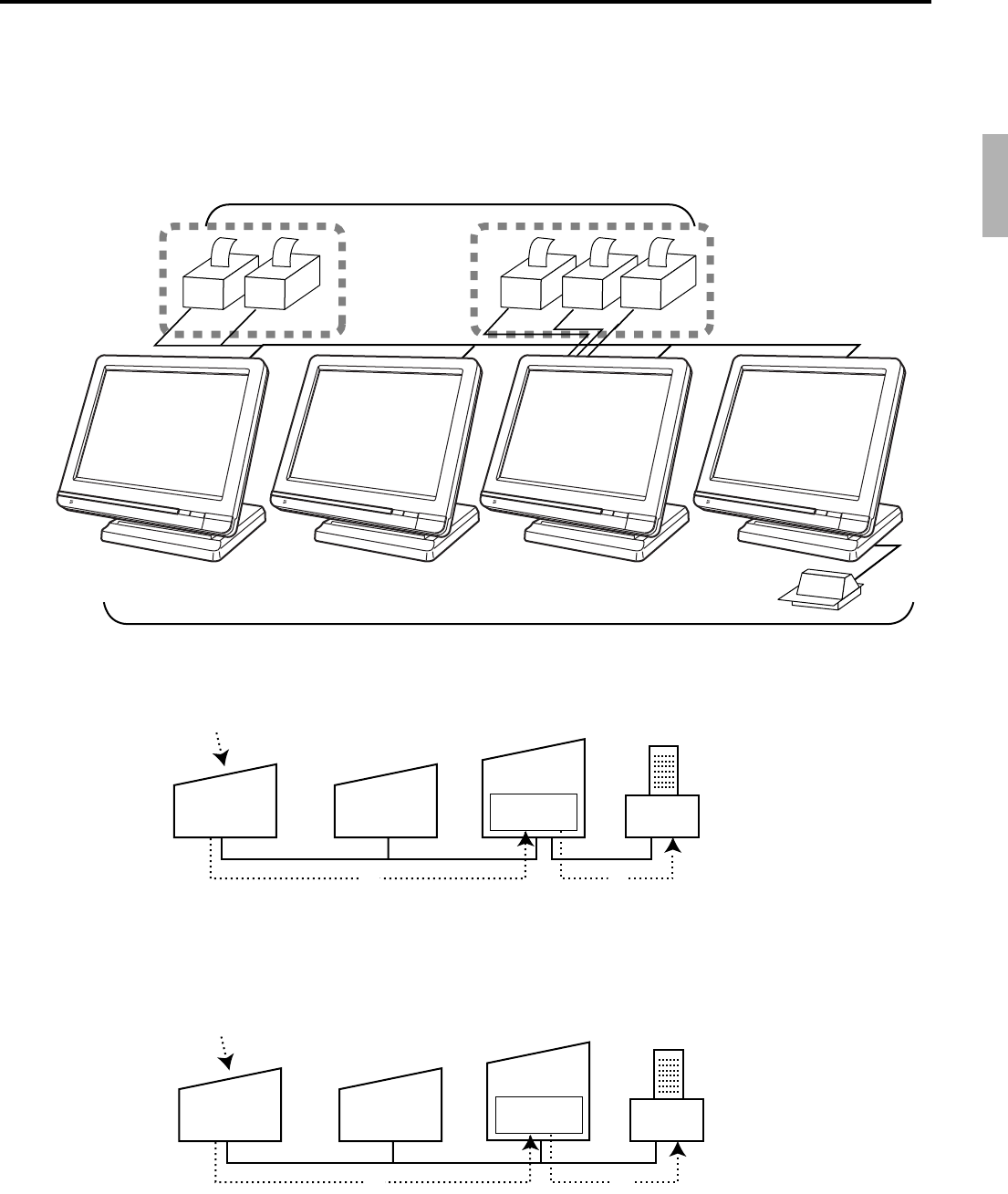
R-39
QT-6600 Reference Manual
OrderOrder
Up to 12 QT-6600 terminals
CHK/M
CHK/BM
PRN (1) PRN (2)
LAN Printer RS-232C Printer
Order OrderOrder
PRN (1) PRN (2) PRN(3)
Up to 16 remote printers
Slip
inline
C
C
C
C
C
C
C
C
QT-6600 QT-6600
QT-6600
Print
buffer
1
Remote
Printer
23
2-3. Remote printer control
Up to 16 printers for printing kitchen orders etc.
2-3-1. Remote printer system configuration
Please refer to page 17 for the system configuration.
The printing processing of the remote printer is performed as shown in the figure below.
1A transaction is made at a terminal.
2The terminal sends printing data to the terminal with remote printer.
3The terminal with remote printer sends data to the remote printer.
QT-6600 QT-6600
QT-6600
Print
buffer
1
Remote
Printer
23
RS-232C printer
LAN printer
1A transaction is made at a terminal.
2The terminal sends printing data to the terminal which controls the remote printer.
3The terminal which controls the remote printer sends data to the remote printer.
Note: Please do not define more than two terminals controlling one LAN printer.
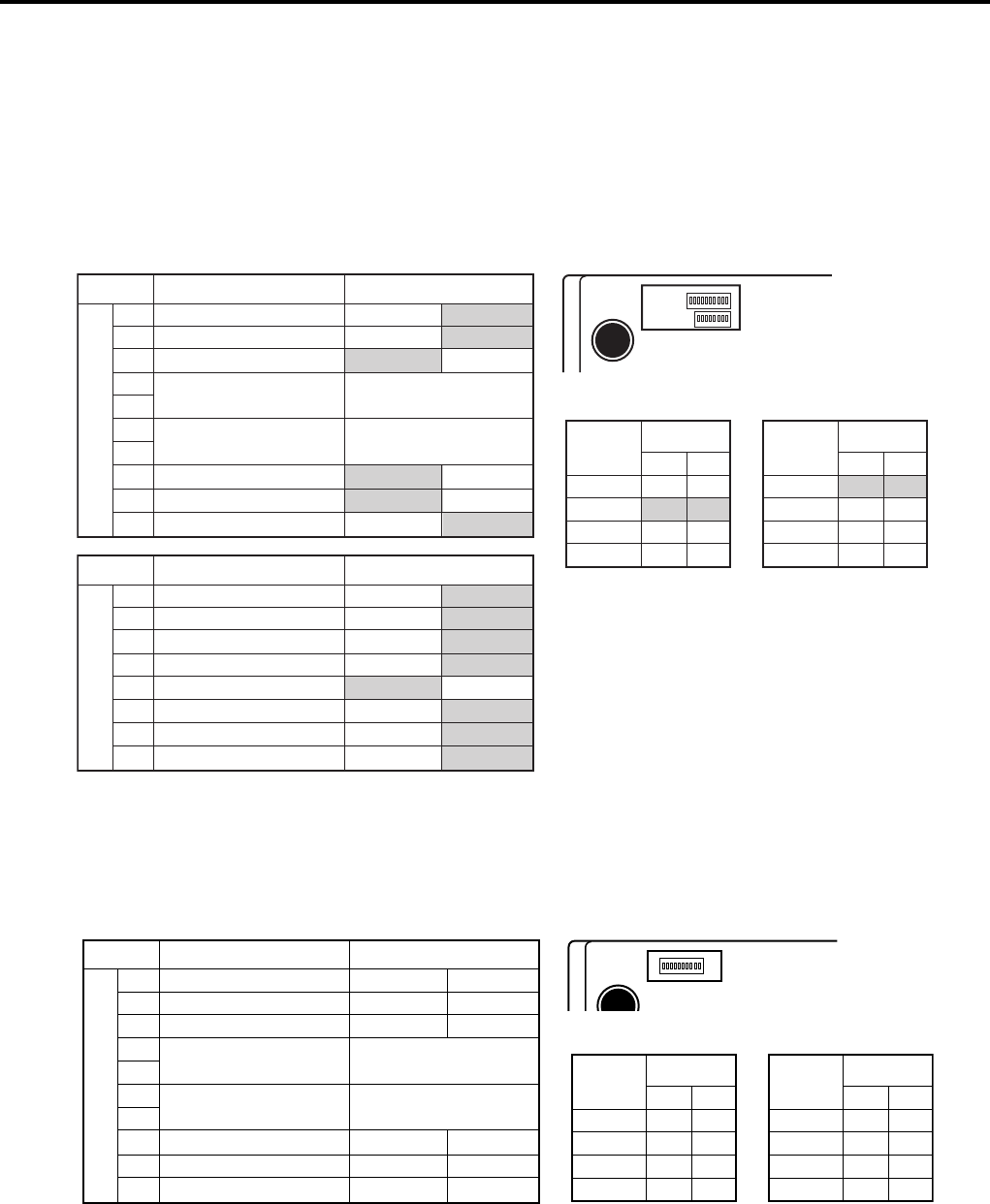
R-40
Application System
2-3-2. Remote printer control setting
Remote printer settings:
After changing the DIP switch configuration, remote printer initialization (power on by
pressing the <FEED> key) is necessary.
UP-400
Dip switch is located at the bottom of the printer.
SW No. Function
Reset by DTR
reserved
Protocol
Transmision speed
Parity
undifined
Low power comsumption
undifined
ON OFF
Ye s N o
--- fixed
DTR/DSR XON/XOFF
See transmission
speed setting
See paritysetting
--- ---
Ye s N o
--- ---
SW No.
7
OFF
ON
OFF
ON
UP-360 Bottom view
1
2
3
4
5
6
7
8
9
10
1Parity setting
Non
Even
Odd
Non
6
OFF
OFF
ON
ON
Transmission
speed setting
bps
4800
9600
19200
38400
SW No.
4
OFF
OFF
ON
ON
5
OFF
ON
OFF
ON
UP-360
Dip switch is located at the bottom of the printer.
SW No. Function
Reset by DTR
reserved
Protocol
Transmision speed
Parity
Busy status
Low power comsumption
3mm feed after auto-cut
ON OFF
Yes N o
--- fixed
DTR/DSR XON/XOFF
See transmission
speed setting
See paritysetting
BF full + offline
BF full
Yes No
Invalid Valid
SW No.
7
OFF
ON
OFF
ON
UP-400 Bottom view
1
2
3
4
5
6
7
8
9
10
1
SW No. Function
Data reception error
Bit length
Reception buffer full
Set ID/ set IP
Use DHCP server
Set default value
Undefined
Undefined
ON OFF
Ignore Print “?”
7 bit 8 bit
*1 *2
Set IP Set ID
Enable Disable
Yes No
1
2
3
4
5
6
7
8
2
Parity setting
Non
Even
Odd
Non
6
OFF
OFF
ON
ON
Transmission
speed setting
bps
4800
9600
19200
38400
SW No.
4
OFF
OFF
ON
ON
5
OFF
ON
OFF
ON
Switch 1
Switch 2
*1 Until the non-processing data in the reception buffer
decreases from 31 bytes to 21 bytes
*2 Until the room of the reception buffer increases from
1k bytes to 2k bytes
Shadowed parts indicate defaults.

R-41
QT-6600 Reference Manual
Memory allocation of files required when remote printers are connected
•Printer buffer (file 035)
(Reallocate these files, if the file sizes are not enough.)
Other setting
•General machine features
2-3-3. Remote printer output control
The following print items are controlled by programming.
•0 to 9 line feed above and below printing (only for “order”)
•Dashed line print control (only for “order”)
•Paper auto cut
•Data communication speed (only for RS-232C printer)
•Backup remote printer specification
•Print color (normal / reverse or black / red) control: included in the item programming
(only for “order”)
•Output remote logical order number: included in the item programming
(only for “order”)
•Remote printer output in training mode (only for “order”)
•Item amount printing (only for “order”)
•Alert when remote printer is down
2-3-4. Remote printer backup processes
Remote printer error or terminal with remote printer error
In case of the backup printer is assigned, when the terminal which sends printing data to
remote printer detects the remote printer or the terminal with remote printer abnormality,
the remote printer cross backup (see the next section) is made. In case of no backup printer
is assigned or the backup printer is also downed, the data will be able to display on the
screen.
Remote printer cross backup
When there is more than one remote printer in the system, a setting can be made to enable
remote printer cross backup.
Cross backup (example):
Remote printer 1 backup → Remote printer 2
Remote printer 2 backup → Remote printer 1
or
Remote printer 1 with terminal 1 backup → Remote printer 2 with terminal 2
Remote printer 2 with terminal 2 backup → Remote printer 3 with terminal 1
Note that remote printer backup extends a single level only. If remote printer 1 goes down
in the above example, remote printer 2 performs backup printing. If remote printer 2 now
goes down, remote printer 3 does not take over backup printing.
R-42
Application System
Remote printer print sample
1) Order printing (Normal receipt printing with amount)
Check No.
123456
MC #01 —Check number / Machine ID
REG
C
01 15-12-2003 12:34 001230 —Mode / Clerk / Date / Time / Consecutive No.
1
Lemon Tea
•1.00 —Order with amount
*Soft Drinks*
—Order character
2
Coffee
•2.00
—Cut
2) Order printing (Single bon/double bon)
Check No.
123456
MC #01
REG
C
01 15-12-2003 12:34 001234
*Soft Drinks*
—Single Bon
1 Lemon Tea
—Cut
Check No.
123456
MC #01
REG
C
01 15-12-2003 12:34 001234
*Soft Drinks*
—Double Bon
2 Coffee
*STUB*
—Double Bon message
Check No.
123456
MC #01 —Check number/Machine ID
REG
C
01 15-12-2003 12:34 001234 —Mode / Clerk / Date / Time / Consecutive No.
*Soft Drinks*
—Order character
2 Coffee
3) Order printing (Normal receipt printing without amount)
Check No.
123456
MC #01
REG
C
01 15-12-2003 12:34 001256
*Soft Drinks*
1 Lemon Tea
2 Coffee
2 Coffee

R-43
QT-6600 Reference Manual
4) Order printing (Set menu/preparation/condiment)
Check No.
123456
MC #01
REG
C
01 15-12-2003 12:34 001267
2 Steak Set
—Set menu
2
Medium
—Detail item
2
Salad
1 Pizza
—Main item
1
Soft
—Preparation
1
Cheese
—Condiment
1
Tomato
1 Pizza
—Main item
#123456 —Main item PLU No.
1
Soft
—Preparation (with quantity / PLU No.)
#000001
1
Cheese
—Condiment (with quantity / PLU No.)
#000002
1
Tomato
#000003
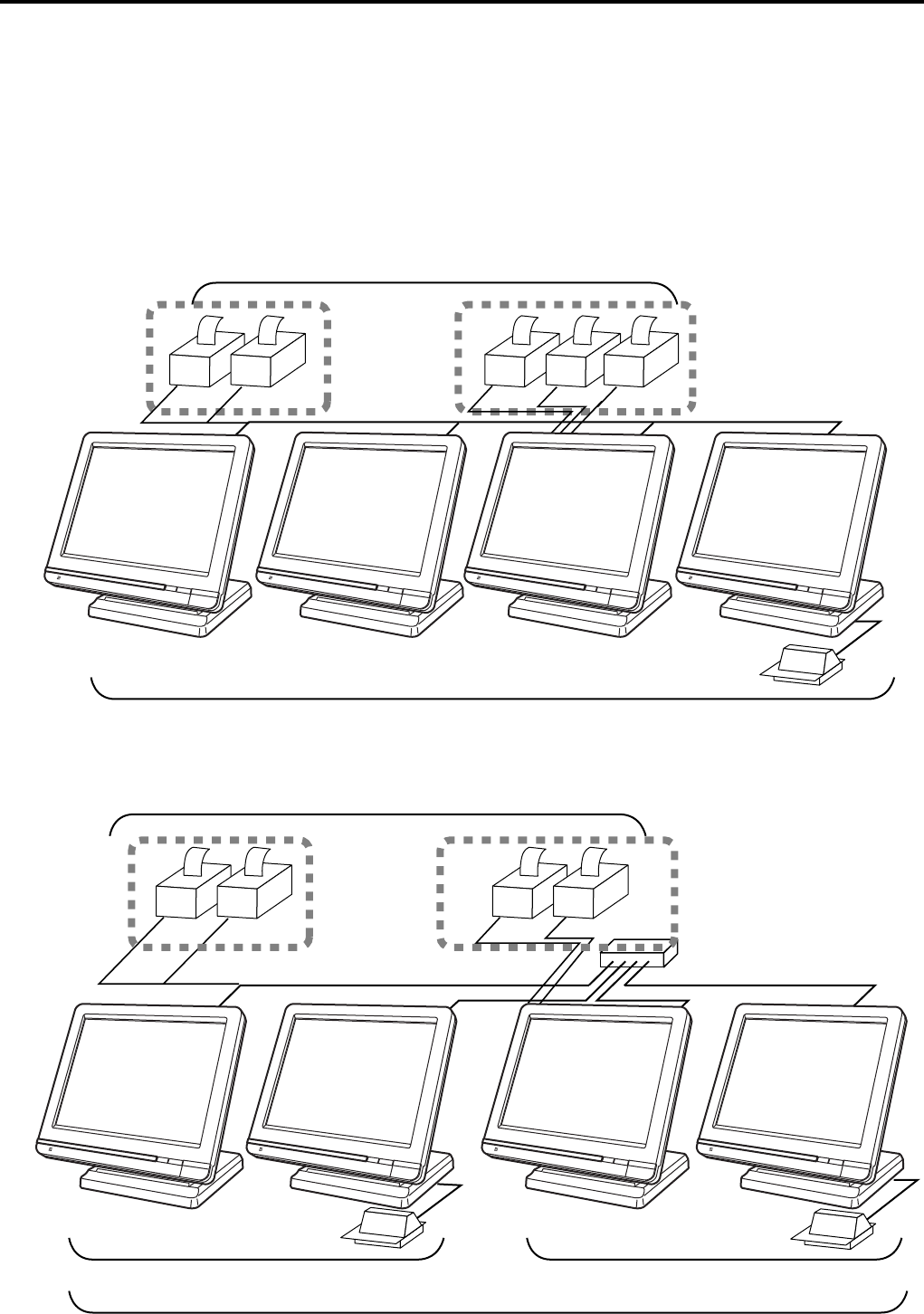
R-44
Application System
OrderOrder
Up to 12 QT-6600 terminals
CHK/M
CHK/BM
PRN (1) PRN (2)
LAN Printer RS-232C Printer
Order OrderOrder
PRN (1) PRN (2) PRN(3)
Up to 16 remote printers
Slip
inline
C
C
C
C
C
C
C
C
2-4. Check tracking system
2-4-1. Shared check tracking system
Up to 12 terminals can be included in the cluster and check tracking can be performed for
multiple terminals connected to inline. This means that any terminal can be used to recall
a temporary closed check of one’s cluster for additional registration or finalization.
System configuration (1 cluster system)
System configuration (multi cluster system)
OrderOrder
Up to 12 QT-6600 terminals/cluster Up to 12 QT-6600 terminals/cluster
CHK/MCHK/BMCHK/M
CHK/BM
PRN (1) PRN (2)
OrderOrder
PRN (1) PRN (2)
Up to 8 remote printers/system (in all cluster)
Up to 32 QT-6600 terminals/system (all cluster total)
Slip Slip
LAN Printer RS-232C Printer
C
C
C
C
C
C
C
C

R-45
QT-6600 Reference Manual
Shared check tracking processing in one cluster is performed as shown in the figure shown
above.
1A shared check operation (such as “new check” or “old check” etc.) is made at a
terminal.
2The terminal sends the check number to the check tracking master and the backup
master. The master and backup master turn on the busy status.
3The master sends back the check data (if the check number exists) or opens a new check
number.
4A shared check transaction is finalized (by “new balance” or other finalize key).
5The terminal sends the check data to the master and the backup master. And the master/
backup master clears the busy status of the check number.
2-4-2. Shared check tracking requirement
The following definition of memory allocation is required in each terminal before you can
perform shared check tracking.
•Number of check tracking tables:
For satellite, minimum one, for master, more than the number of estimated open checks
should be defined.*
*In case of using the next block **, one more check tracking table is consumed.
•Number of items/tables (per one item block **):
This is not the maximum number of items or functions but the number ordinarily
registered items or functions per one table. If the number of items or functions exceeds
this value during registration, the next block is used automatically for the following
transactions.
** Number of item blocks:
Ordinarily, the registration requires one item blocks—but in a party for example—more
items are registered per one table. So it is necessary to define how many item blocks can
be used.
The maximum number of items or functions per one check is defined by the formula:
= (Number of items / tables) × (Number of item blocks (1 ~ 10))
When memory near end and memory end happens during registration, an error occurs.
See section A-5. Error messages of this manual.
2-4-3. Data backup when the master goes down
When the system has the backup master for the check tracking system, registered check
tracking data are stored both master and backup master automatically.
As soon as the system detects master down, the backup master roles as master for the check
tracking system.
(It is necessary to switch to backup master manually. See the “System down & Recovery”
chapter on page 9 of the installation & down recovery manual.)
When the system has no backup master for the check tracking system or both master and
backup master become down, no more check tracking operation and clerk interrupt
operation can be made.
Satellite
Master
Backup
master
Check
tracking
Check
tracking
14
3
25

R-46
Application System
2-5. Other check tracking system control
2-5-1. The timing to clear check detail and index file after finalization
There are two timings to clear detail and index files.
1. The check is cleared after printing finalized data on slip or guest check receipt, or the
check is also cleared when the new or old check operation is made on the terminal
finalized the transaction.
2. The check is cleared after printing finalized data on slip or guest check receipt, or the
check is also cleared when the same finalized check number is assigned in new check
operation.
This option is set on the page 46 of the programming manual.
2-5-2. Table transfer
This function is used for transferring the contents of a receipt to another check.
The detail data can be excluded from the transferring check by programming (ST transfer).
There are two cases depends on the status of the transferring check.
1. If the transfer check is not used.
The entered check number is written.
2. The check number is already used.
Add the contents to the existing contents.
This option is set on the page 98 of the programming manual.
2-5-3. Store and recall
These functions are used for the driving through purchase.
The check number used in store operation is defined by check No. range programming.
2-5-3-1 Store
This function is used for storing the check No. of the registered items. The Detail / Index
at the drive-through entrance record the registered items and store it’s check No., and then
print out the temporary receipt. A customer receives this temporary receipt, and drives up
to the exit with this to receive the ordered item. The stored data transfer to the check
tracking master/backup master.
2-5-3-1 Recall
This function is used for recalling the transferred check No. to total the sum. The terminal
at the drive-through exit recalls transferring check No. in order of the oldest record. A
customer can receive the ordered items, and pay for them.
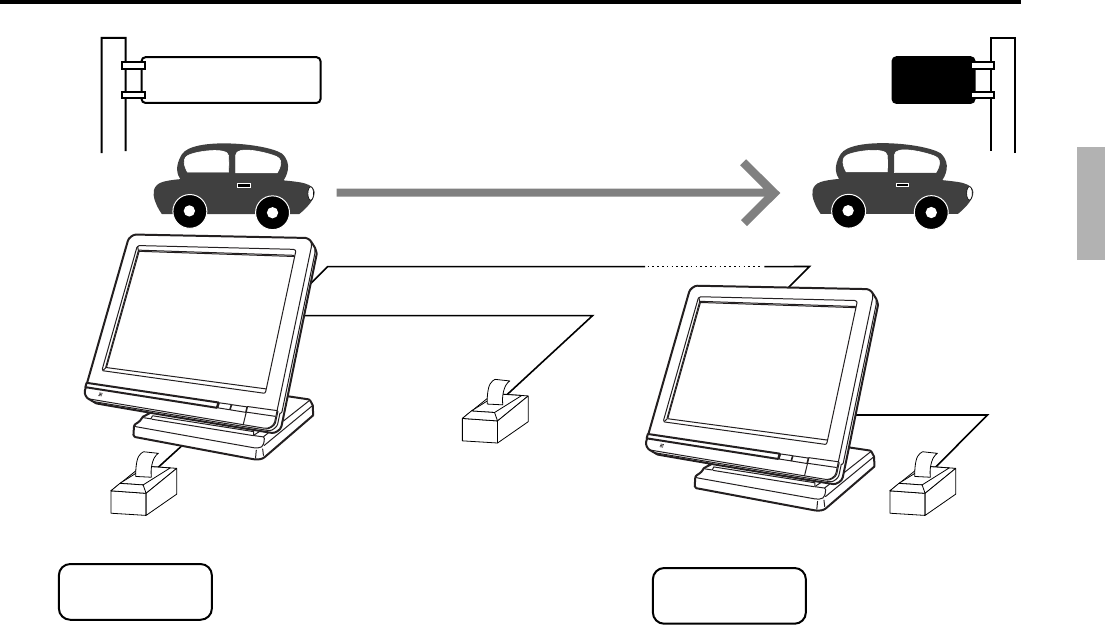
R-47
QT-6600 Reference Manual
1. Without entering new check No., register items. After all ordered item have been
registered, press the <STORE> key at the entrance to summarize the registered items.
The check No. is issued automatically. The contents of these check No. transfer to the
check tracking master / backup Master.
2. Press the <RECALL> key to recall the check at the exit.
Important
•A four-digit check No. should be used.
•When Open Check Z (All) report is printed out, the check No. range will be reset. After
this operation, the next check No. by using Store function will be the range start.
•This function works with the option “Clearing CHK/TBL No. by using the same number
again” to “Check number” only. (Refer to page 46 of the programming manual)
R/J
Entrance Exit
Temporary receipt
Order receipt
Receipt
KITCHEN
Store Recall
Hamburger
French Fries
Hot Coffee
CHK No.100
Cheese Burger
Orange Juice
CHK No.101
Press the <STORE> key →
Press the <STORE> key →
CHK No.100
Hamburger
French Fries
Hot Coffee
CHK No.101
Cheese Burger
Orange Juice
Press the <RECALL> key →
Press the <RECALL> key →
PRN (2)
R/J
PRN (1)
Order
C
C
C
C

R-48
Application System
Clerk 1 Clerk 2 Clerk 3
Registration
Registration
Registration
Registration
Registration
Registration
Finalization
Finalization
Finalization
Guest
receipt issuance
Guest
receipt issuance
Guest
receipt issuance
Sign on clerk 2 (clerk 1 registration put on hold)
Sign on clerk 3 (clerk 2 registration put on hold)
Sign on clerk 1
Sign on clerk 2
Sign on clerk 3
Sign on clerk 1.
Displays subtotal amount without add-on tax for clerk 1.
Sign on clerk 2.
Displays subtotal amount without add-on tax for clerk 2.
Sign on clerk 3.
Displays subtotal amount without add-on tax for clerk 3.
2-6. Clerk control function
2-6-1. Clerk interrupt
The terminal can be programmed to allow the clerk interrupt function, which makes it
possible for multiple clerk to simultaneously use the same register. If a clerk starts
registration of a transaction, another can be interrupt the original registration and begin a
new one. The original clerk can later resume the interrupted original registration. You can
use the clerk interrupt function with the check tracking function.
Notes
1) Error correct operation
The error correct operation cannot be performed for registrations made before a clerk
change. The error correct operation should be performed before clerk change.
2) Guest receipt
A guest receipt can be issued following clerk change, and receipts can be issued
separately for each clerk.
3) Cancel operation
The cancel operation can affect the entire transaction (multiple receipts: complete
cancellation) or only the same transaction (one receipt) by programming the <CAN-
CEL> key.
R-49
QT-6600 Reference Manual
2-6-2. Clerk detail memory
The terminal can summarize any daily / periodic total memory (such as fixed totalizer,
department, PLU, etc.) clerk by clerk.
After initialization, clerks have 10 detail memories which are assigned to gross, net, and
4 media in drawers. If you want to set more detail memories to clerks, allocate clerk detail
memory and detail link memory at the same time.
Clerk detail memory: File 011 / 111 / 211 / 311 / 411 / 511 / 611
Clerk detail link: File 030
2-6-3. Clerk training
Clerk training can be performed when employing new clerks or retraining clerks.
Training is normally performed during working hours, and the QT-6600 has the following
training functions.
1) It is not necessary to remove one terminal from the system for training purpose during
working hours.
2) Programming options, etc., are controlled exactly the same way as a working clerk.
3) Receipts are different from those normally used. The training receipts are filled with
training filler (“*” default.)
2-6-4. Manager mode control
There is no actual REG 2 mode on the terminal, but you can control some functions (you
want) under manager control.
Preparation for this function:
1) Set “NO” to any functions you want to disable for CLERKS in the Allowed function 1
~ 5 list in the clerk programming. (See page 76 ~ 78 of the programming manual.)
2) Set the type of operator to “Manager” for the manager. (See page 74 of the programming
manual.)
Operation for this function:
1. When the transaction is prohibited, the terminal displays
error message and the clerk calls the manager.
2. The manager press <MODE> and enters “2”, press the <REG
> key.
REG
C
01 10-10-01 12:34 000001
1 PLU0001 •10.00
1 PLU0002 •20.00
1 PLU0003 •30.00
Operator mistake
3 •60.00
REG
C
01 10-10-01 12:34 000001
1 PLU0001 •10.00
1 PLU0002 •20.00
1 PLU0003 •30.00
Operation Code ?
-----
3 •60.00
R-50
Application System
3. The manager enters his/her secret code and press the <YES>
key. After this operation, the prohibited transaction can be
registered.
4. Perform manager operation (in this example; void opera-
tion).
5. Pressing the <MODE> and <REG> key is required, when the
manager returns his/ her office.
Note: Another manager’s intervention:
1. Manager signs on.
2. Open clerk window.
3. Designate appropriate clerk.
4. Perform manager operation.
5. Manager signs off.
REG
C
01 10-10-01 12:34 000001
1 PLU0001 •10.00
1 PLU0002 •20.00
PLU0003 -30.00
2 •30.00
REG
C
01 10-10-01 12:34 000001
1 PLU0001 •10.00
1 PLU0002 •20.00
1 PLU0003 •30.00
REG2 Mode
0.00
3 •60.00
REG
C
01 10-10-01 12:34 000001
1 PLU0001 •10.00
1 PLU0002 •20.00
REG Mode
0.00
2 •30.00

R-51
QT-6600 Reference Manual
2-7. Arrangement key function and scheduler
The arrangement key function provides a macro command function for the QT-6600
system. Any operation that can be performed using the keyboard of the QT-6600 can be
programmed to the arrangement file (file 038 ~ 438). Any operation programmed to the
arrangement file can be performed by pressing the arrangement key (function code 044).
Multi operations can be programmed into one arrangement program, and also entry of a
numeric parameter can be included anywhere in the arrangement program.
For example, when an arrangement program is programmed for executing fixed totalizer
Z consolidation for all terminal and the program is linked to an arrangement key, that
operation can be executed simply by pressing the arrangement key or attaching the i-
Button key to the receiver.
The scheduler function is provided for scheduled execution of arrangement key operation.
Execution of every specified time, as well as scheduled execution, can be performed using
this function.
The scheduler file (file 062) must be reserved to use the scheduler function.
2-7-1. Arrangement key function
The arrangement file and arrangement keys must be reserved for the QT-6600 to use the
arrangement key function.
The arrangement file is used to store the arrangement programs. An arrangement file
record is 24 bytes long, and a maximum of 9999 records can be reserved. Arrangement
programs are programmed using character data, and multiple arrangement programs can
be programmed in the arrangement file.
Multiple arrangement keys can be preset on the keyboard, and each key can be linked to
an arrangement program. The linked arrangement program is then called and executed by
pressing the arrangement key.
The following table shows the command parameters of the arrangement key function that
can be interpreted and executed by the QT-6600.
Command parameters can only be separated by spaces.
Note that spaces cannot be included within the command parameter.
Details of command parameters and their functions are explained next.
1) Number input
There are two methods to enter a number in an arrangement program.
–Constant number input
Preset a fixed number (constant value) enclosed in parentheses in the arrangement
program.
Example: To enter “1234” → preset (1234)
–Input of a single number when the arrangement program is executed.
A single number can be entered using the arrangement key. The number entered can be
used at any position and any time in the arrangement program.
Generally, an input number is temporarily stored in the work area (number entry buffer)
reserved for data processing, and is cleared after the processing is performed. With the
arrangement key function, a parameter save buffer is provided for saving the contents
of the number entry buffer. When a “%GET” command is encountered in an
arrangement program during processing, the data in the number entry buffer is saved
to the parameter save buffer. Set “%PUT” command to use the data saved in the
parameter buffer. The “%PUT” command can be used to load the data saved in the
parameter save buffer into the numeric entry buffer. These commands may be included
as often as necessary. The data in the parameter save buffer is changed only when a
“%GET” command is processed.

R-52
Application System
Note:
•Set a “%GET” command, first, to use the number entered by the arrangement key later.
•When the “%GET” is programmed following constant number input, the constant
number is saved to the parameter save buffer.
•Numbers input using a “%PUT” command or by “([number])” are entered to the
number entry buffer in the same way as numbers input using the 10-key pad.
2) Key function specification
Any function key can be specified for an arrangement key function. :
[function code]:[record number] →Used for ordinary function keys
The numbers can be specified for zero suppression.
Note:
The arrangement key itself, cannot be programmed for in an arrangement program.
3) Mode setting
Any mode key can be specified for an arrangement key function. :
[function code]:[mode definition]→Used for mode keys
Note:
121:01 : REG mode
121:02 : REF mode
121:03 : REG– mode
122:01 : X/Z mode:
122:02 : MGR mode:
122:03 : Collection/Consolidation mode:
122:04 : Auto-program mode:
122:05 : CF card:
123:01 : PGM1 mode:
123:02 : PGM2 mode:
123:03 : PGM3 mode:
123:04 : PGM4 mode:
123:05 : PGM5 mode:
123:06 : PGM6 mode:
4) Print control
There are two commands for controlling the printer:
PON : Output printout data.
POFF : Not output printout data.

R-53
QT-6600 Reference Manual
5) Controlling the flow of arrangement command execution
There are 32 commands for controlling the flow of arrangement command execution:
:Snnnn : This is a start mark of an arrangement. “nnnn” (4-digits code) are used for
arrangement table number set to each arrangement key.
(nnnn) :“nnnn (no digit limitation)” means numeric entry.
NN:nnnn :“NN” is a function code which is executed in this arrangement, “nnnn” is the
record No. of the function.
:[label] : Preset the label (name of specific position) to specify the jump destination
point in the arrangement file. The actual data for labels can be freely
designated.
Example: To specify “LABEL-1” as label → :LABEL-1
G:[label] : This is an absolute jump command. If the system encounters this command,
command execution flow unconditionally jumps and continues from the
point preset by the label.
I > ([number]):[label] : This is a conditional jump command. If the system
encounters this commands, the value in the number
entry buffer is compared with the specific number. If the
value in the buffer is larger than the specified number,
the command execution flow jumps and continues from
the point preset by the label. If the condition is not match
with the above-mentioned condition, the step advances
to the next command.
I < ([number]):[label] : This is a conditional jump command. If the value in the
number entry buffer is less than the specified number,
the command execution flow jumps to the point preset
by the label. If the condition is not match with the above-
mentioned condition, the step advances to the next
command.
I – ([number]):[label] : This is a conditional jump command. If the system
encounters this command, the value in the numeric
entry buffer is compared with the specific number. If the
value in the buffer is equal to the specific number, the
command execution flow jumps and continues from the
point preset by the label. If the condition is not match
with the above-mentioned condition, the step advances
the next command.
KNO1 : This is a command to enter the <#-1> key.
KNO2 : This is a command to enter the <#-2> key.
NE : This is a command to wait for numeric entry. After entering numerics,
press the <ARRANGEMENT> key to continue the arrangement
program.
B:nn : This is a command to sound buzzer for nn (nn = 01 ~ 99) seconds.

R-54
Application System
?: Force to execute the arrangement even if an error occurred during the
arrangement.
ANO : Disable clerk auto sign-off.
AYES : Enable clerk auto sign-off.
CFFMT :Format CF card.
CFSVnnn’mmmm’ :Backup to CF card (nnn: command code, mmmm: file name).
CFLDnnn’mmmm’ :Restore from CF card (nnn: command code, mmmm: file name).
JCL : Clear electronic journal older half data
JCLA : Clear all electronic journal data
CLPn:m : Set the default @ menu shift number to “n” (n = 0 ~ 2) and Status/ stay
down @ menu shift assignment to “m” (m = 0 ~ 2) of all clerk.
CLMn:m : Set the default menu shift number to “n” (n = 0 ~ 15) and Status/ stay
down menu shift assignment to “m” (m = 0 ~ 2) of all clerk.
CLSn : Set the default shift PLU level number to “n” (n = 0 ~ 8).
211:nnnn : Press the “ESC” key. (nnnn: record No.)
212:nnnn : Press the “YES” key. (nnnn: record No.)
213:nnnn : Press the “NO” key. (nnnn: record No.)
%GET : Read from key buffer. (incl. decimal point)
%PUT : Write to key buffer. (incl. decimal point)
CLL0n : Set the default clerk pop-up window number to “n” (n = 0 ~ 9).
PLY:nn : Play the 7nn (nn: 01 ~ 10) sound file.
!:sss : Wait the next step for “sss” (ss = 001 ~ 327) sec.
F:m:nn : Sending data (designated by “nn”) to the terminal (designated by “m”)
via FTP.
“m” means the rec-# of file-912, “nn” means the rec-# of file-913
6) End of the arrangement programs
The end command “E” must be included at the end (exit) point of an arrangement program.

R-55
QT-6600 Reference Manual
2-7-2. Arrangement program example
This section shows examples of arrangement programs.
The following example shows an arrangement program that executes X consolidation of
the file set in the batch 1 ~ 9 files for all terminals.
Example:
Programming the following operation for the arrangement table 12
–Set the mode to Inline X/Z.
–Enter operation code “1111100000000”.
–Wait for the numeric entries (batch number).
–Enter the <#-2> key.
–Enter the <ESC> key.
:S0012 ; Designate the table number (mandatory)
122:03 ; Set the mode to Inline X/Z.
NE ; Wait for the batch number
I<(0):ERR1 ; If the input number is less than 0, the process jumps to the ERR1.
I>(9):ERR1 ; If the input number is larger than 9, the process jumps to the ERR1.
%GET ; Save the entered number to the parameter save area.
202:0031 ; Press “Clear” button.
(1111100000000) ; Input the operation code for system command
%PUT ; Pick up the entered number from the parameter save area.
KNO2 ; Specify the <#-2> key for entering the operation code.
211:0045 ; Specify the <ESC> key to execute this operation.
:ERR1 ; When the input number is not 1 to 9, the following commands are
processed.
E; End the program (mandatory).
2-7-3. Scheduled execution of arrangement function
An arrangement key function can be executed on a scheduled basis. In order to execute an
arrangement key function on a scheduled basis, it is necessary to make appropriate settings
in the scheduler file (file 062).
There are two functions for execution on a scheduled basis:
1) Execute an arrangement key function at the specified time.
2) Interval execution of an arrangement key function by setting start time, ending time,
and the interval.
See the page 48 of the programming manual for programming details.

R-56
Application System
2-8. Making graphic logo
A graphic logo can be printed on UP-400 / UP-360 receipt. This graphic logo is stored in
the graphic logo file ( file 047 for UP-400 / UP-360), and printed at the top of the receipt
instead of a normal logo message.
This graphic logo data cannot be made by the terminal program, it can be made only by PC
and downloaded from PC.
2-8-1. About graphic logo
Graphic logo size: 432 × 104 or 432 × 208 pixels
Printing sample:
**************************************
* QT-6600 TERMINAL *
* GRAPHIC LOGO AREA *
**************************************
*******COMMERCIAL MESSAGE LINE 1*******
*******COMMERCIAL MESSAGE LINE 2*******
*******COMMERCIAL MESSAGE LINE 3*******
*******COMMERCIAL MESSAGE LINE 4*******
2-8-2. Making graphic logo procedure
Before following this procedure please allocate “Graphic logo” file (file 047) on the terminal.
1. Making a bit-map image file:
(432 × 104 or 432 × 208 pixels; 1-bit color for UP-400 / UP-360).
2. Convert this bit-map file to the internal file by executing the PC tool.
PC sends the converted data to the terminal via online automatically.
3. Select “Print Graphic” option in the message control of the general feature in the PGM
3 mode.
4. Send the graphic logo to the printer by executing “Printer Logo Send” in the MGR mode.
R-57
QT-6600 Reference Manual
2-9. Hourly item
This function enables to memorize the detailed data of quantity and amount / price of each
item dealt hourly.
It is possible to calculate the proceeds and record the hourly item in any totalizer, and also
it is possible to print out as an hourly item report.
2-9-1. Programming necessary files before using hourly item function.
Hourly item function requires the following files to function properly, so they must be
programmed before using it. See the programming manual for the details on format of
individual files.
– Time zone file
This file is used to specify the time zone for the detail items individually. You can enter
the starting time and the ending time of the time zone, moreover specify the cycle time that
indicates an unit of the appropriate intervals.
– Hourly item link file
This file is used to record the Hourly item which links with the appropriate time zone. You
can also specify the particular totalizer for each time zone.
– Hourly item
This file is used to store the contents of the quantity and amount of each registered item.
The following seven files enable to link the data for hourly item link file: fixed totalizer,
function, subdepartment, PLU, department, group, void reason.
A maximum of 20 records
corresponds to each time
zone.
08:00->09:00
Hamburger 2 $2.00
French Fries 3 $1.50
----------------------------------------
$3.50
09:00->10:00
Cheese Burger 2 $3.00
Hot Coffee 2 $0.50
----------------------------------------
$3.50
:
13:00->13:15
Apple Pie 1 $1.00
Hot Milk 1 $1.00
----------------------------------------
Hourly item report example
Start End Cycle
Time Time
08:00 12:00 01:00
13:00 14:00 00:15
• • •
• • •
• • •
Time zone file
REC No. File No.
0001 004
0011 001
• •
• •
• •
• •
• •
0005 012
0008 012
• •
• •
• •
• •
Hourly item link
Zone
20 items
20 items

R-58
Application System
2-10. Time and attendance
This function allows shop owners to control his / her employees’ working condition. Time
& attendance require the following files.
– Employee file
This file is used to regulate the labor conditions.
You can program the type of job, the maximum work hours in a week or shift schedule
of a day per employee.
– Job code file
This file is used to classify the types of job. You can program the general work pay and
the overtime pay ratio per job file.
If some employees have a common job, you can divide the job code individually in case
their pay ratio is different.
– Schedule file
This file is used to administrate the employees’ schedule. You can assign a starting and
an ending time, a grace period, break minutes allowed, and the default job code for the
shift. It is possible to record maximum 21 shifts (3 shifts × 7 days) per employee for the
schedule file.
Grace period – this is a period of time in minutes which allows an employee to clock-in /
out before / after their scheduled times. Grace period works in conjunction with the
schedule. If the scheduler is not being utilized then the grace period inputs indicated
below become inactive.
Grace period before start time – this input indicates how many minutes an employee may
clock-in before the scheduled clock-in time.
Grace period after start time – this input indicates how many minutes an employee may
clock-in after the scheduled clock-in time.
Grace period before end time – this input indicates how many minutes an employee may
clock-out before the scheduled clock-out time.
Grace period after end time – this input indicates how many minutes an employee may
clock-out after the scheduled clock-out time.
(See “4-1-15. Programming time & attendance” for the programming manual.)
Start
Time
End
Time
Break
Time
Grace Before
Start
Grace After
Start
Grace Before
End
Grace After
End
1
5
2
3
2
4
9:00
13:00
16:00
9:00
13:00
16:00
12:00
15:00
18:00
12:00
15:00
18:00
00:15
00:15
00:15
00:15
00:15
00:15
10
10
10
10
10
10
10
10
10
10
10
10
5
5
5
5
5
5
15
15
15
15
15
15
Job
Code
Shift
Shift
Shift
Shift
Shift
Shift
Mon
day
Tuesday
•
•
•
•
•
•
•
•
•
•
•
•
•
•
•
•
•
•
•
•
•
•
•
•
•
•
•
•
•
•
•
•
Each employee can have 3 shifts per day. The schedule file can hold 7 days schedule.
So, totally 21 files can be registered in this file.
•
•
•
•
Sunday
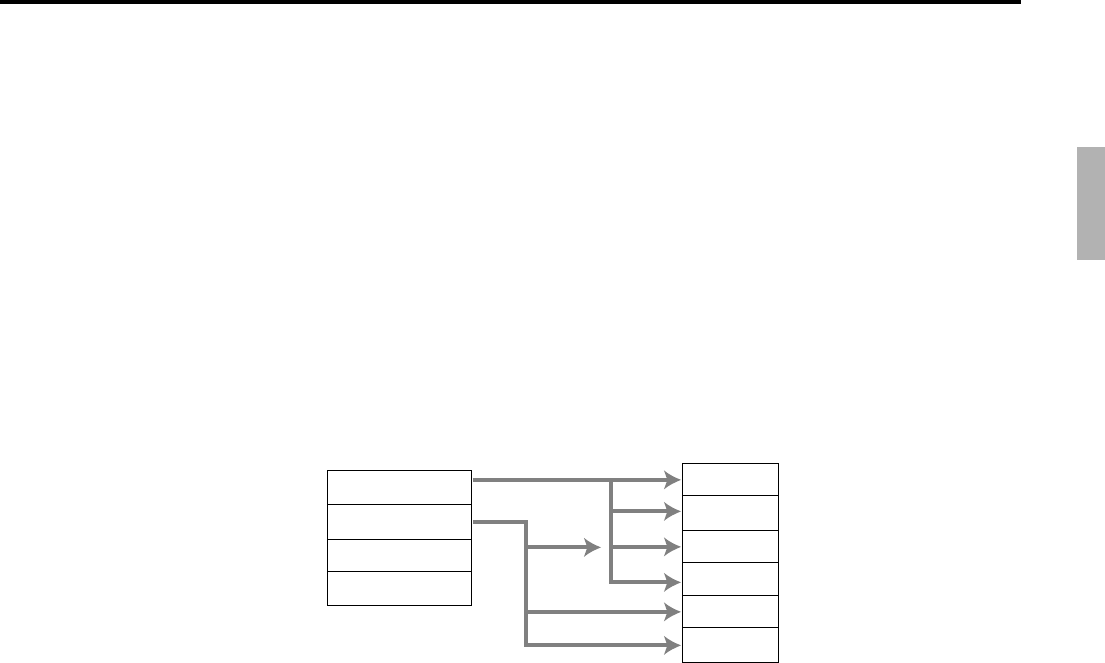
R-59
QT-6600 Reference Manual
– Work time file
This file is used to administrate each employees’ weekly hourly wages, work hours.
– Time zone file
This file is used to administrate the cycle time. You can specify the length of time zone.
2-10-1. Corresponding relations of the file
Employees’ job assign
This function is used to assign a job to each employee. Before assigning the job, be sure
to program the details of the jobs. Every employee file can link to some job code files
(maximum 4 jobs), so some employees may link to the same job code file. But be sure to
make individual job files if the employees work under different hourly wages.
Job 1
Job 2
Job 3
Job 4
Job 5
Job 6
Employee 1
Employee 2
Employee 3
Employee 4
Job code
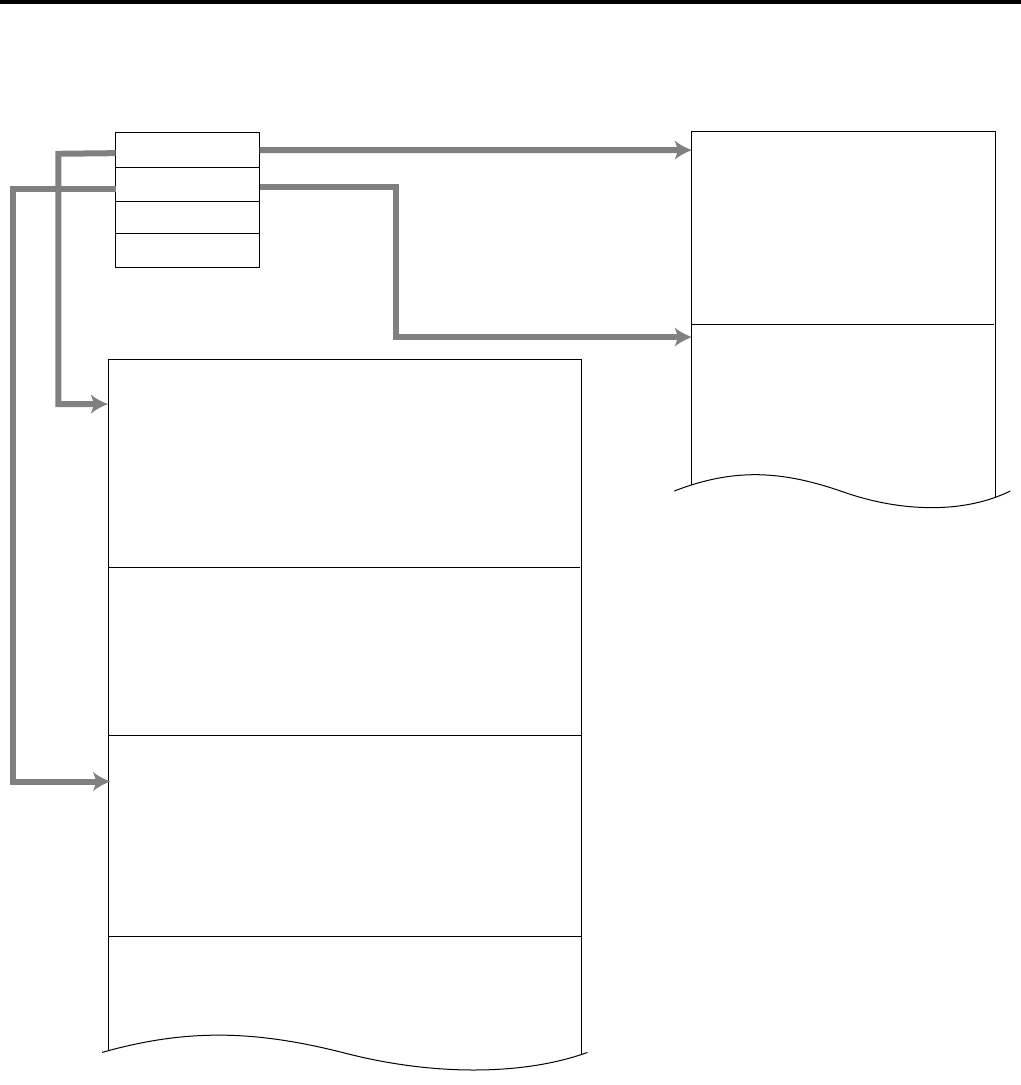
R-60
Application System
Employee’s Schedule and total business results per week
•
•
•
•
•
•
•
•
•
•
•
•
•
•
•
Employee 1
Employee 1
Employee 1
Employee 1
Employee 1
Employee 1
Employee 1
Employee 1
Employee 1
Employee 2
Employee 2
Employee 2
Employee 2
Employee 2
Employee 2
Employee 2
Employee 2
First week
First week
First week
First week
First week
Second week
Second week
Second week
Second week
First week
First week
First week
First week
First week
Second week
Second week
Second week
Monday
Monday
Monday
Tuesday
Sunday
Monday
Monday
Monday
Sunday
Monday
Monday
Monday
Tuesday
Sunday
Monday
Monday
Monday
Shift 1
Shift 2
Shift 3
Shift 1
Shift 3
Shift 1
Shift 2
Shift 3
Shift 3
Shift 1
Shift 2
Shift 3
Shift 1
Shift 3
Shift 1
Shift 2
Shift 3
Employee 1
Employee 2
Employee 3
Employee 4
Employee 1
Employee 1
Employee 1
Employee 1
Employee 1
Employee 2
Employee 2
Employee 2
Monday
Monday
Monday
Tuesday
Sunday
Monday
Monday
Monday
Shift 1
Shift 2
Shift 3
Shift 1
Shift 3
Shift 1
Shift 2
Shift 3
Schedule
Work time
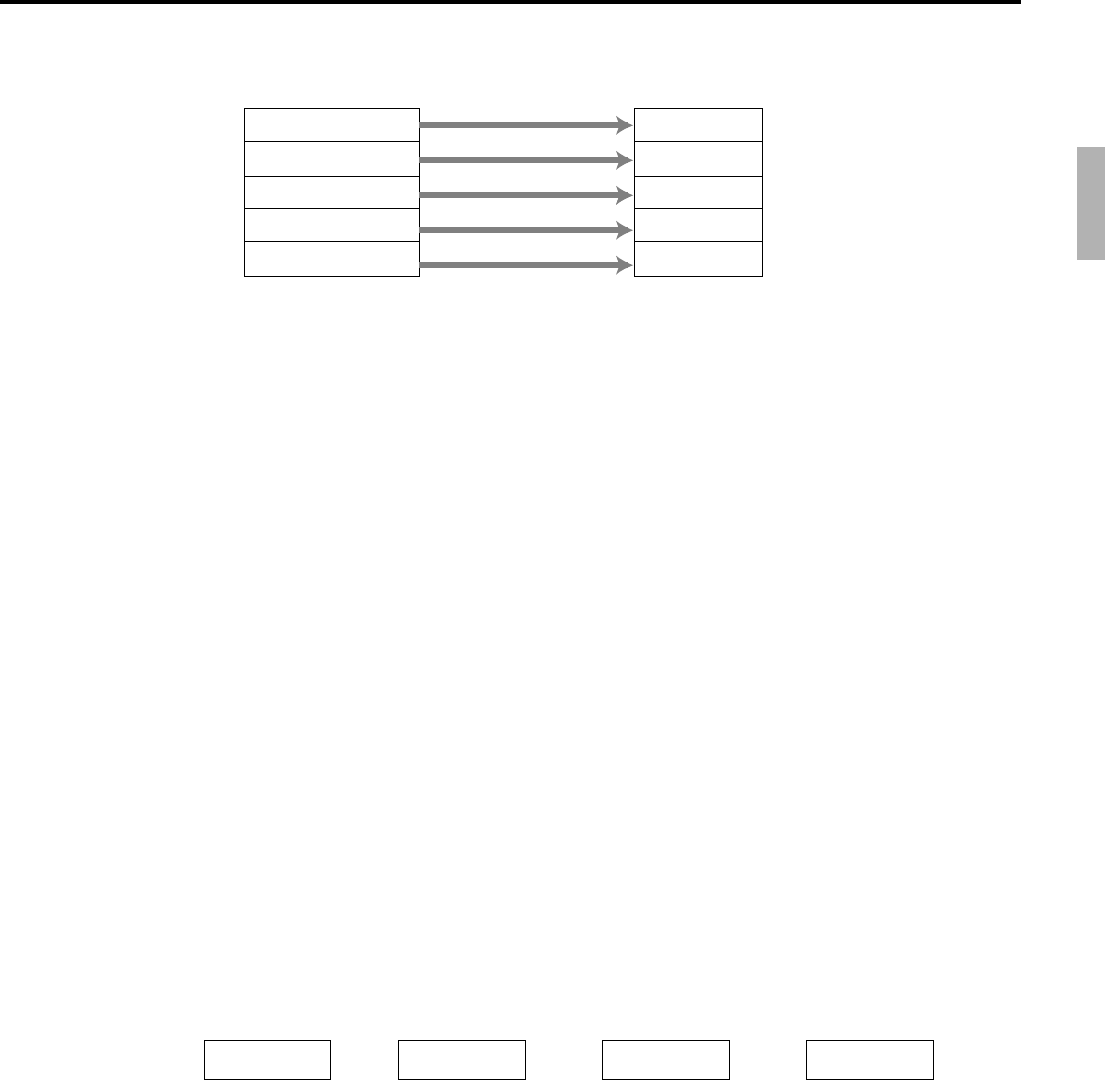
R-61
QT-6600 Reference Manual
Calculating the total wages of the employees per hour
Calculating the total wages of the employees per week
Weekly wages per employee
= Total of daily wages *1 (Worktime < Programmed weekly worktime value)
or
= Total of weekly wages *2 (Worktime Programmed weekly worktime value)
*1 Daily wages
= Regular time cost + Overtime cost
= (Pay rate / job) * (Daily regular time) + (Pay rate / job) * (Daily overtime ratio) * (Daily
over time 1) + (Pay rate / job)* (Daily 2nd overtime ratio) * (Daily overtime 2)
cf. Daily overtime 1: Programmed daily work time ~ Programmed daily overtime
Daily overtime 2: Programmed daily overtime ~
*2 Weekly wages
= Total of daily wages + Overtime cost 1 + Overtime cost 2
=
Total of daily wages + (Pay rate / job) * (Weekly overtime pay ratio) * (Weekly overtime 1)
+ (Pay rate / job) * (Pay rate / job) * (Weekly 2nd overtime ratio) * (Weekly overtime 2)
cf. Weeky overtime 1: Programmed weekly work time ~ Programmed weekly overtime
Weekly overtime 2: Programmed weekly overtime ~
Flow of Time & Attendance operation
The following flow shows the order of Time & Attendance function by pressing the
specified keys: It is possible to specify one key as both <CLOCK-IN> and <CLOCK-
OUT> function, or specify two keys separately. ( Refer to “4-3-7-33 Worksheet for clock-
in/clock-out” in the programming manual for details.)
CLOCK-IN →
(
BREAK-IN →BREAK-OUT
)
→CLOCK-OUT
Time zone
Zone 1 Cycle 1
Zone 1 Cycle 2
Zone 1 Cycle 3
Zone 2 Cycle 1
Zone 2 Cycle 2
Hourly/Labor
Totalizer 1
Totalizer 2
Totalizer 3
Totalizer 4
Totalizer 5
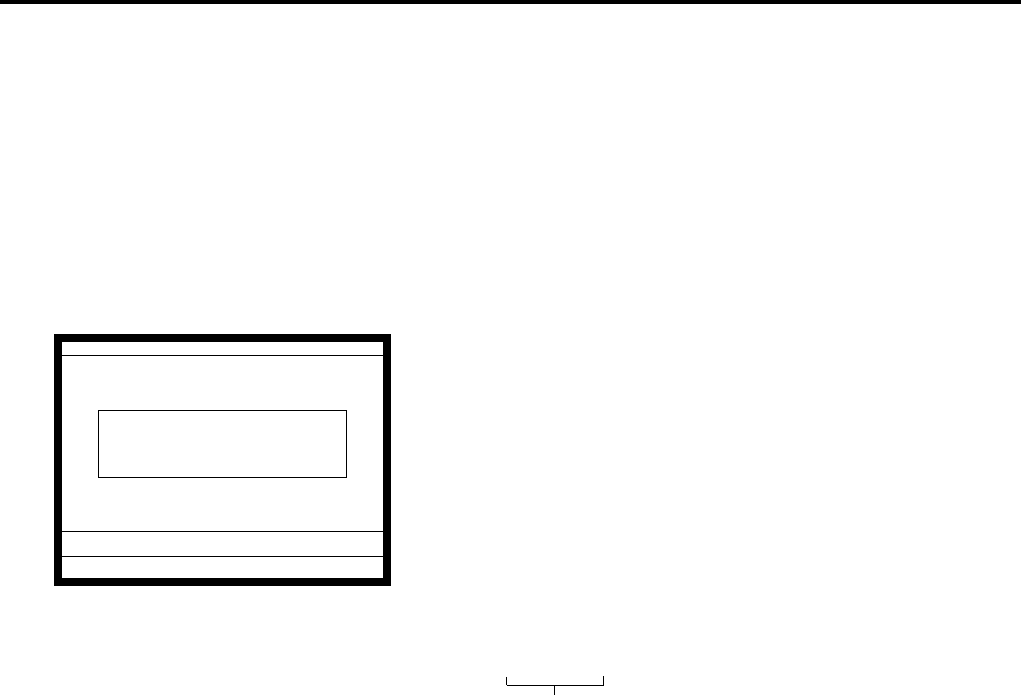
R-62
Application System
2-10-2. Clock-in operation
This function is used to register the Starting work time. If the total worktime is greater than the daily/ weekly
programmed time, minor employee cannot be clocked in. (Error 169 occurs) In this case, clock-in by manager.
2-10-2-1. Clock-in operation (1)
Program: Not using the window and impossible to specify job code.
Allow to specify job code = NO, Display job code window = NO
(Refer to the page 62 of the programming manual.)
Operation
1. XXXXXX <CLOCK-IN>
When this message appears, press the <YES> key to register
the start of working hours.
XXXXXX
REG 10-10-01 11:59 AM 001234
GLENN DEAL 11:59 AM
Clock-in OK?
0.00
Employee No.
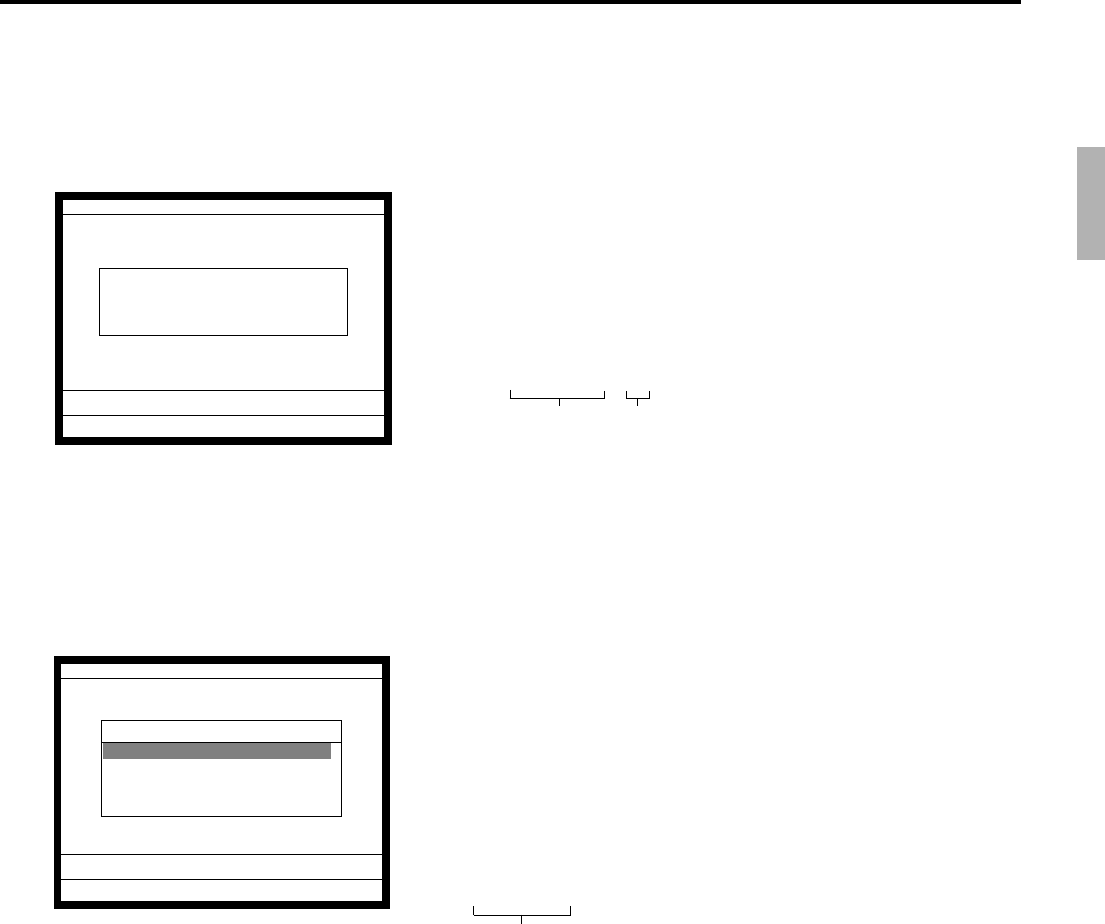
R-63
QT-6600 Reference Manual
2-10-2-2. Clock-in operation (2)
Program: Allow to specify job code = YES, Display job code window = NO
(Refer to the page 62 of the programming manual.)
Operation
1. XXXXXX . YY <CLOCK-IN>
When this message appears, press the <YES> key to register
the start of working hours.
Enter the employee No. (within 6 digits), “.”(decimal point),
and the job code (2 digits).
XXXXXX . YY
2-10-2-3. Clock-in operation (3)
Program: Display job code window = YES
Allow to clock-in with non-preset job-code = NO
(Refer to the page 62 of the programming manual.)
Operation
1. XXXXXX <CLOCK-IN>
2. Choose the appropriate Job Code from the CLOCK-IN menu,
and press the <YES> key to register the start of working
hours.
→Job codes that are programmed in Employee file are displayed.
XXXXXX
REG 10-10-01 11:59 AM 001234
GLENN DEAL 11:59 AM
Clock-in OK?
0.00
REG 10-10-01 11:59 AM 001234
CLOCK-IN
1.Cashier
2.Cook
3.Dish Washer
4.Cleaning
0.00
Employee No. Job code
Employee No.
R-64
Application System
2-10-2-4. Clock-in operation (4)
Program: Display job code window = YES
Allow to clock-in with non-preset job code = YES
(Refer to the page 62 of the programming manual.)
Operation
1. XXXXXX <CLOCK-IN>
2. Choose the appropriate Job Code from the CLOCK-IN menu,
and press the <YES> key to register the start of working
hours.
→All job codes that are programmed in job code file are displayed.
XXXXXX
Receipt sample
MC #01
—Header
REG
C
01 12-31-2005 11:59 AM 001234
Harrison
—Employee character (16 digits)
CLOCK-IN 11:59 AM
—Special character (REC #29), time
JOB Dish Washier
—Special character (REC #33), job character
If you want to change these special characters, refer to the page 134 of the programming
manual.
REG 10-10-01 11:59 AM 001234
CLOCK-IN
1.Cashier
2.Cook
3.Dish Washer
4.Cleaning
5.JOB A
6.JOB B
7.JOB C
8.JOB D
0.00
Employee No.
R-65
QT-6600 Reference Manual
2-10-3. Clock-out operation
This function is used to register the ending work time.
2-10-3-1. Clock-out operation (1)
Operation
1. XXXXXX <CLOCK-OUT>.
2. When this message appears, press the <YES> key to register
the end of working hours.
2-10-3-2. Clock-out operation (2)
Program: Tip declaration compulsory (refer to the page 61 of the programming manual.)
Operation
1. XXXXXX <CLOCK-OUT>.
2. When this message appears, the employee should enter the
cash tip amount, if not, it is impossible to close the accounts
Receipt sample
MC #01
—Header
REG
C
01 12-31-2005 11:59 AM 001234
Harrison
—Employee character (16 digits)
CLOCK-IN 11:59 AM
—Special character (REC #29), time
JOB Dish Washier
—Special character (REC #33), job character
CLOCK-OUT 01:59 PM
—Special character (REC #30), time
WORK TIME 02:45
—Special character (REC #34), working hours
BREAK TIME 00:45
—Special character (REC #35), recess
CASH TIP $12.34
—Special character (REC #36), cash tip amount
If you want to change these special characters, refer to the page 134 of the programming
manual.
REG 10-10-01 11:59 AM 001234
GLENN DEAL 11:59 AM
Clock-out OK?
0.00
REG 10-10-01 11:59 AM 001234
Enter cash tip amount and
press <YES> key.
0.00
R-66
Application System
2-10-3-3. Break-in operation
This function is used for the employees to register a recess.
Operation
1. XXXXXX <BREAK-IN>.
2. When this message appears, press the <YES> key to register
the start of a recess.
The receipt is not printed out, except electronic journal.
2-10-3-4. Break-out operation
This function is used for the employees to register the end of a recess.
Operation
1. XXXXXX <BREAK-OUT>.
2. When this message appears, press the <YES> key to register
the end of a recess.
The receipt is not printed out, except electronic journal.
2-10-3-5. Manager operation
When the manager operate CLOCK-IN after signing on, the manager can operate and
modify any employee’s record despite of corresponding employee number.
Following operations are possible to operate by the manager:
Specify the job code / CLOCK-IN / CLOCK-OUT / BREAK-IN / BREAK-OUT
Operating Flow
Manager sign on →CLOCK-IN/OUT operation, BREAK-IN/OUT operation →Sign off
REG 10-10-01 11:59 AM 001234
GLENN DEAL 11:59 AM
Break-in OK?
0.00
REG 10-10-01 11:59 AM 001234
GLENN DEAL 11:59 AM
Break-out OK?
0.00

R-67
QT-6600 Reference Manual
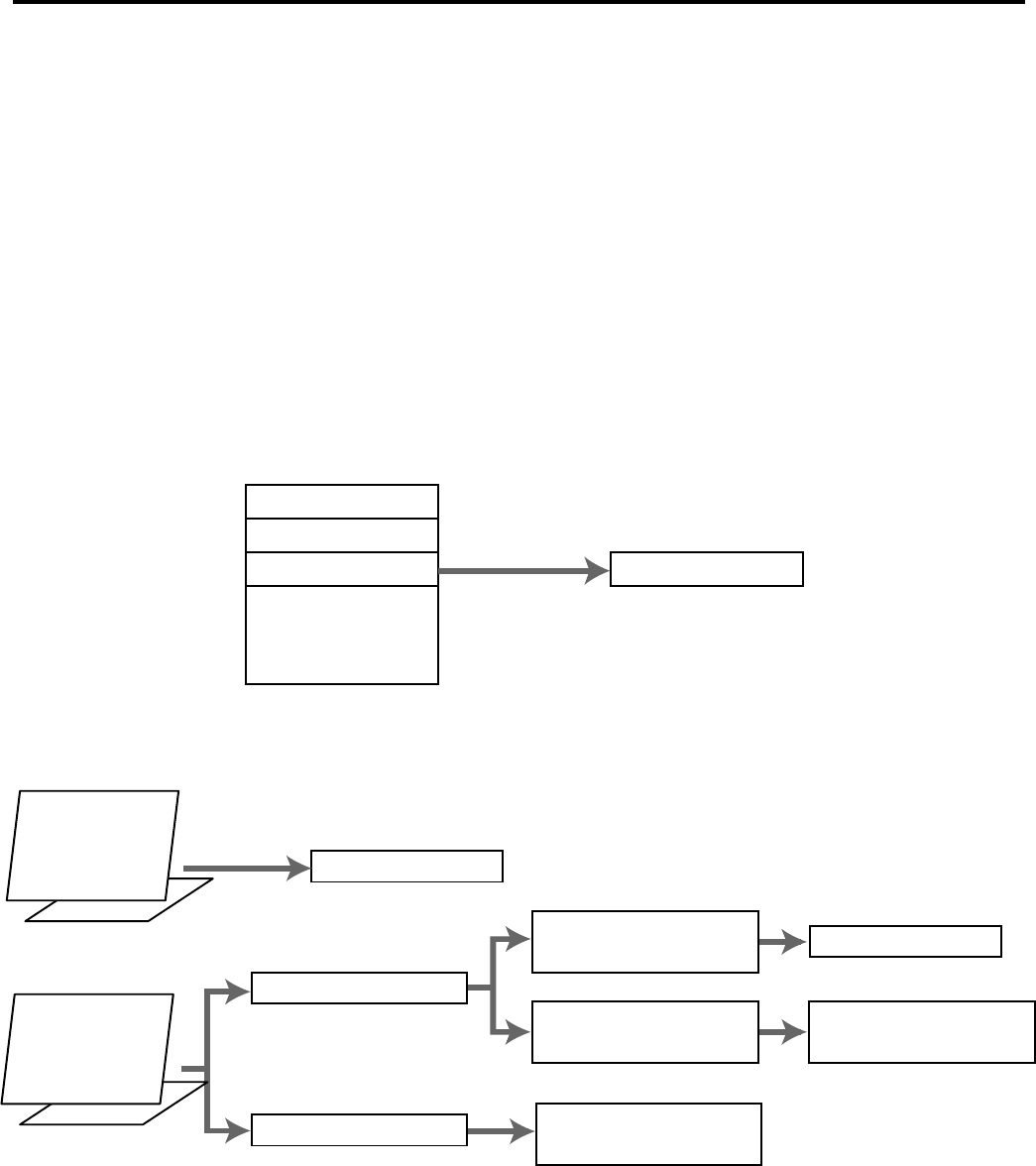
R-68
Application System
2-11. Sign on control
This function is used to prohibit the sign-on operation by an employee who has not
CLOCK-IN. The following conditions should be fixed.
•Use only one terminal (master terminal) for the CLOCK-IN/OUT operation. This
terminal should be connected inline to the satellite terminals. But the time and
attendance work file (file 806) should be allocated to all terminals.
•The clerk file’s information should be common among all the terminals.
•Be sure there is a clerk who is specified as “Manager” in the clerk file. If no manager,
it may be locked to operate.
2-11-1. Sign on
1. When an employee normally operate CLOCK-IN/OUT, BREAK-IN/OUT, the
employee’s attendance information is sent from the main terminal to the satellite
terminals.
Flow of sign on
Sign on OK
CLOCK-IN
CLOCK-IN unfinished Unable to Sign on
(E175 Error message appears)
He/she is NOT in the
middle of BREAK-IN
He/she is in the
middle of BREAK-IN
Sign on OK
Unable to Sign on
(E175 Error message appears)
Sign on by
Manager
Sign on by
Clerk
CLK# information
CLK#1 information
CLK#2 information
CLK#3 information
•
•
CLK#99 information

R-69
QT-6600 Reference Manual
2-11-2. Solution to abnormality of master terminal
When the satellite terminals cannot receive any information from the master terminal, the
master terminal shows the error message on the window and prints out the receipt with
terminal IDs that failed to communicate the data.
Receipt image
MC #01
—Header
REG
C
01 12-31-2005 11:59 AM 001234
Communication Error
—Fixed message
MC #01 XXXX
—Machine ID, Error code
MC #03 XXXX
—Machine ID, Error code
•The error message and receipt will appear whenever the sign-on is failed. If you cannot
solve the inline data communication problem, program the system connection again,
and remove the uncommunicative terminal.
2-11-3. Solution to abnormality of satellite terminal
•When the satellite terminal cannot receive any information from the master terminal,
the default CLOCK-IN/OUT information remain.
In this case, only manager can sign on.
•When the satellite terminal could receive the CLOCK-IN/OUT information from the
master terminal only once, but failed to receive after then, the CLOCK-IN/OUT
information in each satellite terminal has left in the last received condition. In such case,
the last received information control employees’ sign on/off. (Manager can always sign
on.)
2-11-4. Sign on compulsory
When the satellite terminal cannot receive the information in spite of normal CLOCK-IN
operation on the master terminal, an employee may not sign on for some reason.
In such case, the manager needs the following operation.
1. Sign on by the manager (normal sign on operation.)
2. 99 xxxx <CLK#> (xxxx: the secret code of the corresponding employee, 4-digit.)
3. Sign off by the manager and the corresponding employee can sign on.
Note:
When the error message appeared under the employee’s CLOCK-IN operation, manager
should operate above steps.
REG 10-10-01 11:59 AM 001234
Harrison
CLOCK-IN 11:59 AM
JOB Dish Washier
E177 Time&Attendance Data
Communication Error.
Please Call Manager.
0.00
Please sign on.
R-70
Application System
2-12. IDC (Item Data Capture)
This function is used for capturing all the registered item data by the REG / REF / REG–
modes. IDC file stores these captured items. If there is no record to capture item data, the
new data are not captured to the IDC file.
2-12-1. Available capturing items
Select the appropriate items that should be captured, and program these items into the IDC
link file. The available items and their contents are indicated below.
Items Contents File No.
PLU
Subdepartment
Department
Function
Pulldown group
Mix & match
Clerk
004
003
005
002
026
051
007
•The header of the transaction.
•The report of all the detailed statements.
•The header of the transaction.
•The report of the items/functions, or all the
detailed statements.
R-71
QT-6600 Reference Manual
IDC function file
●: Available items to be programmed as target for IDC.
O
: IDC target
–: Out of target
House Bon *1 114
O
Post entry 115
–
Round repeat 116
–
Open check 117
–
●Media change 118
O
Seat number 119
–
Display On/Off 120
–
Mode 124
–
●Eat-in 128
O
●Takeout 129
O
●Store 130
O
Recall 131
–
●Subdepartment 133
O
Subdepartment number
*6 134
–
Department number
*6 135
–
List *6 136
–
List number *6 137
–
NLU 138
–
Split payment 140
–
NFP 142
–
Customer No. *4 148
O
Payment *4 149
O
Swipe 172
–
Numerics (0 ~ 9) 201
–
Clear 202
–
Reverse display 206
–
Electronic journal display
207
–
Escape 211
–
Yes 212
–
No 213
–
Left arrow (←) 214
–
Right arrow (→) 215
–
Up arrow (↑) 216
–
Down arrow (↓) 217
–
Home 218
–
Display mode 219
–
Page down 220
–
Page up 221
–
●Cancel 236
O
Work time 237
–
Item search 248
–
Order character change
252
–
Function list 253
–
Location change 260
–
Table sharing 261
–
Function Code
Slip feed/Release 056
–
Tax status shift *1 057
O
Table number 058
–
Food stamp shift *1 059
O
Declaration 061
–
●Tax exempt 062
O
●Flat PLU 063
O
Menu shift 064
–
Shift PLU *1 065
O
Open 067
–
Open 2 068
–
First unit price *1 069
O
Second unit price *1 070
O
Clerk number *4 072
O
Operator read/reset
073
–
●Tray total *12 074
O
●Subtotal *7 075
O
Receipt On/Off 076
–
Taxable amount subtotal
077
–
Operator number 078
–
Merchandise subtotal
*7 080
O
Food stamp subtotal
081
–
Multiplication *1 082
O
Quantity/For *1 083
O
Square *1 084
O
Selective item subtotal
*2 085
O
Tare 087
–
Scale 088
–
Cube *1 090
O
New check 091
–
Old check 092
–
New/Old check 093
–
Add check *8 094
–
Separate check *8 095
–
Two zero (00) 096
–
Three zero (000) 097
–
Decimal point 098
–
Room number 100
O
Room message 101
–
OBR 103
–
Price change 104
–
Clock-in/out 108
–
Break-in/out 109
–
Coupon number 110
–
Substitution 111
–
Ketten Bon *1 113
O
Function Code
Function Code
NOP 000 –
●
Cash amount tendered
001
O
●Charge 002
O
●Check 003
O
●Credit 004
O
●
Food stamp tender
005
O
●New balance *11 006
O
●EBT tender 007
O
Price inquiry 008
–
Stock inquiry 009
–
●Text recall *10 010
O
●Text print *10 011
O
Check print 012
–
Clerk transfer 013
–
●Table transfer *9 014
O
●Tip 015
O
Normal receipt 016
–
●Loan 019
O
●
Received on account
020
O
●Paid out 021
O
●Pick up 022
O
●Coupon 023
O
●Deposit 025
O
●Minus 027
O
●Discount 028
O
●Plus 029
O
●Premium 030
O
Refund *1 033
O
Error correct/Void
*3 034
O
Coupon 2 *1 036
O
Validation 037
–
Receipt 038
–
Check endorsement
039
–
●Non-add *10 040
O
●Non-add/No sale *10 041
O
●No sale 042
O
No. of customer 043
–
Arrangement *5 044
O
Currency exchange
*1 045
O
VAT 046
–
Bill 047
–
PLU *6 048
–
Price 049
–
●Department 051
O
Slip back feed/Release
054
–
Slip 055
–

R-72
Application System
*1 This function itself is not captured. But it is captured with the captured items or
functions.
*2 Selective item subtotal is captured with selective item discount or premium.
*3 1. Error correct is not captured.
2.
This function itself is not captured. But it is captured with voided items.
3. Void reason is also captured.
*4 These functions (items) are captured in header record.
*5 This function itself is not captured. But the functions that are executed by this
function are captured.
*6 This function is not captured. But item itself might be an IDC target.
*7 When the option (printed when the key is pressed) is selected, it is captured.
*8 Transferred items by the add check and the separate check are not captured.
*9 ST transfer is not captured.
*10 This function is captured only in the sales registration.
*11 This function is captured only in the check tracking registration.
During clerk interrupt operation, this is not captured.
*12 Tray total is captured when it is pressed twice.

R-73
QT-6600 Reference Manual
2-12-2. Set up the IDC start / end
Specify IDC Start or IDC End in manager mode. IDC does not start if you not allocate
necessary files for IDC.
•When IDC function is stopped, you can restart IDC by performing FC or INIT 2
(Refer to the page 11 of the programming manual.)
Operation
Note:
1. If you stop the IDC when the IDC file is full of items, you can stop the error sound
without clearing any registered data.
2. The necessary files for IDC
• File 036 (Registration buffer)
• File 063 (IDC buffer)
• File 057~ 059 (IDC file)
• File 804 (IDC link file)
Item Data Capture
Item Data Capture YES
0.00
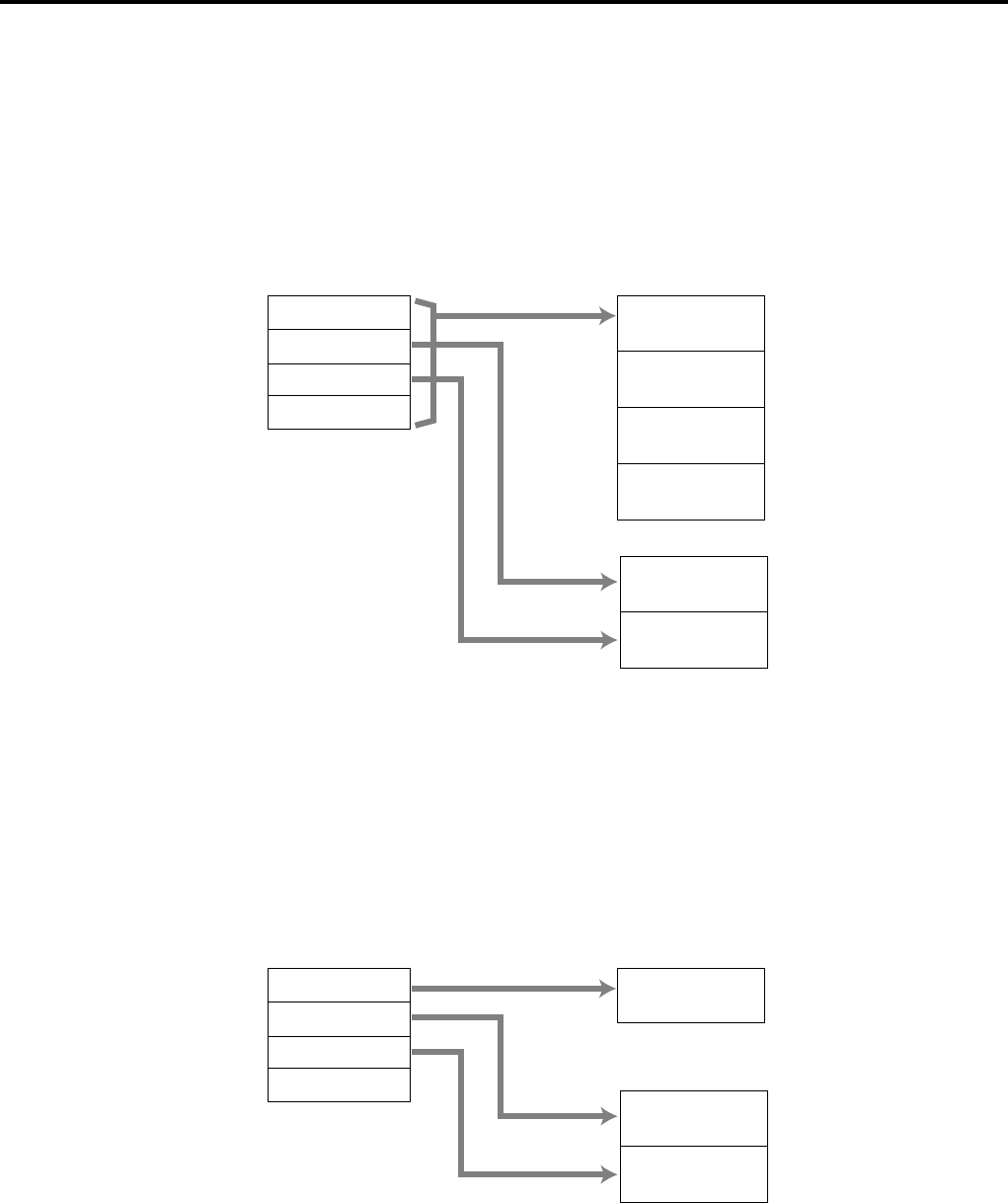
R-74
Application System
2-12-3. How to memorize the captured items
Flow of the transferring data
1. Program: “Store data = Whole transaction for IDC (1)” and “Item only for IDC (2)”
(refer to the page 64 of the programming manual.)
Example
PLU 0001———> Memorized all the transaction into the IDC file (1)
PLU 0002———> Memorized into IDC file (2)
PLU 0003———> Memorized into IDC file (2)
Header
PLU 0001
Header
PLU 0002
Header
PLU 0003
Header
Total
PLU 0001
PLU 0002
PLU 0003
Total
IDC Buffer IDC file (1)
Header
PLU 0002
Header
PLU 0003
IDC file (2)
2. Program: “Store data = Item only” (refer to the page 74 of the programming manual.)
When an appropriate item is selected, this item and the header will be captured (see the
illustration below).
Example
PLU 0001———> Memorized into IDC file (1)
PLU 0002———> Memorized into IDC file (2)
PLU 0003———> Memorized into IDC file (2)
Header
PLU 0001
PLU 0001
PLU 0002
PLU 0003
Total
IDC Buffer IDC file (1)
Header
PLU 0002
Header
PLU 0003
IDC file (2)
R-75
QT-6600 Reference Manual
File-# *1
Void reason
Unit price
Item status *4
Amount
Quantity
Descriptor
Dept link
Random
code
035 1113 15 20 25
Type *2
Mc ID
1
03
6030
Rec-# *1
92
Tax status *3
32 33
Group link
34
Shift price level
38
not used
not used
39
37
2-12-4. IDC data file structure
Top record (Top record of each IDC file)
Header
0 6 12
Allocated record number Used record number
60
0811 13 16 19 21
Customer-#
Payment
Invoice-#
1
01
26
Consecutive
No.
Mc ID
Mode
Clerk-#
Check-#
Time
Number of
purchsed item
Not Used
31 36 41 48 5147 602
Net total
Subtotal
without tax
Subtotal
with tax
Date
Mode
D4: 01 = REG, 02 = REF, 03 = REG—
D3:
D2: 00 = Normal, 01 = Training
D1:
Clerk-#
D6: Clerk #; newly created this check
D5:
D4: Clerk #; last opened this check
D3:
D2: Clerk #; opening this check
D1:
Payment
D2: 00: Non-payment, 01: Payment
D1:
Item
Item (PLU / Subdepartment / Department)
Function
Cash, Charge, Check, Credit
Rec-# *1
CE key
Rec-#
03 119 16 21 26 31 4032
Type *2
Tendering
amount in
local
currency
1
03
60
Tendering
amount in
foreign
currency
Mc ID
Total Amount
Change
Amount
Room-#
Totaling Type
41 57
Room guest-#
Descriptor
Not Used
5
File-# *1
2
Totaling Type
0: Total operation, 1: Change operation, 2: Partial tender operation, 3: Single item w/o total line
*1 ~ *4: Refer to the last page of this section.
Trailier (End record)
0571
09
records
No. of
Mc ID
not used
Not Used
602
Type *2
3
No. of records
used records for current registration without end record.
R-76
Application System
New balance fee
File-# *1
New balance
fee
Descriptor
05912 30 60
Type *2
1
03
Mc ID
Not Used
Rec-# *1
32
Cashing a check
File-# *1
059 16 26 31 41 5721 60
Type *2
1
03
Amount
tendered
Change
amount
Cashing
a check fee
Mc ID
Not Used
Not Used
Not Used
Descriptor
Rec-# *1
32
Text print, Text recall
035 50
File-# *1
1
03
Mc ID
60
Character
Not Used
Type *2
9
Rec-# *1
2
Table transfer
03
Mc ID
Not used
Deccriptor
ST
Original
check-#
Rec-# *1
Type *2
New
check-#
05914 6013
File-# *1
20 26 422
*1 ~ *4: Refer to the last page of this section.
File-# *1
Gross
quantity
05914 19 60
Type *2
1
03
Gross
amount
35
Descriptor
Mc ID
Not Used
Rec-# *1
32
New balance
Rec-# *1
03 9 14 19 24 29 30
Type *2
Tendering
amount
1
03
60
Food stamp
change amount
(only for FS/TD)
Mc ID
Food stamp
subtotal
amount
Cash change
Amount
46
Descriptor
Totaling Type
Not Used
5
File-# *1
2
Totaling Type
0: Total operation, 1: Change operation, 2: Partial tender operation, 3: Single item w/o total line
Food stamp tender, EBT tender
R-77
QT-6600 Reference Manual
+ / - / Coupon
0
03
Mc ID
Amount
Item status *4
Rec-# *1
Type *2
No.
Unit Price
Decsriptor
Not Used
35 1113 18 231 6028 449
File-# *1
2
Tax status *3
%+ / %-
Amount
Item status *4
Not Used
Not Used
Rate
not used
Rate decimal position
13 18 23 28 33 34 35 51
0
03
Mc ID
Rec-# *1
Type *2
Not Used
Descriptor
25 111 609
File-# *1
Tax status *3
3
%+ / %- after selective item subtotal
Selective item
status-#
Not Used
Rate
0
03
Mc ID
Selective item
ST amount
Rec-# *1
Type *2
Not Used
Descriptor
Rate decimal position
25 11 18 23 281 609
FIile-# *1
Discount
amount
33 34 503
Selective item status-#
01: Selective item 1
02: Selective item 2
*1 ~ *4: Refer to the last page of this section.
Tip
03
Mc ID
Not used
Amount
Descriptor
Rec-# *1
Type *2
05914 30 6013
File-# *1
2
05914 6013
03
Mc ID
Not used
Amount
30
Descriptor
Rec-# *1
Type *2
File-# *1
2
Received on account / Paid out / Deposit
Loan / Pickup
05914 6013
03
Mc ID
Not used
Amount
30
Descriptor
Rec-# *1
Type *2
File-# *1
2
R-78
Application System
Media change / Tray total
Store
Eat-in / Takeout
Not Used
Not Used
03
Mc ID
Rec-# *1
Type *2
05 3014
Descriptor
9 6013
File-# *1
2
Not Used
Check-#
Rec-# *1
Type *2
File-# *1
Not Used
03
Mc ID
05914 6013
Subtotal
amount
20 26
Descriptor
422
Rec-# *1
Type *2
File-# *1
Amount
Not Used
03
Mc ID
05914
VAT exempt
amount
19
Descriptor
35 60132
ST / MDST
03
CE key
rec-#
Subtotal
amount
Printed
subtotal
amount
Subtotal
amount
after CE
03
Mc ID
Rec-# *1
Type *2
Descriptor
Not Used
51419 24 26 421 609
File-# *1
2
Tax exempt
Taxable
amount 4
Taxble
amount 1
Taxable
amount 2
Taxable
amount 3
Taxable
amount 5
Taxable
amount 6
TAxable
amount 7
VAT exempt
amount
0
03
Mc ID
Rec-# *1
Type *2
Not Used
35 11 16 21 26 311 60369
File-# *1
412
Tax status *3
46 51
Field name Taxable Taxable Taxable Taxable Taxable Taxable Taxable
Tax system amount 1 amount 2 amount 3 amount 4 amount 5 amount 6 amount 7
VAT TA1 TA2 TA3 TA4 TA5 TA6 TA7
U.S. TA1 TA2 TA3 -- -- -- --
Canada TA1 TA2 TA3 TA4 TA1 & 2 TA1 & 3 TA1 & 4
Singapore TA1 TA2 TA1 & 2 TA 3 TA1 & 3 TA2 & 3 TA1 & 2 & 3
# print (# or #/NS)
Number
Digit
Descriptor
03
Mc ID
Not used
Rec-# *1
Type *2
05914 6013
File-# *1
17 322
*1 ~ *4: Refer to the last page of this section.
R-79
QT-6600 Reference Manual
Cancel
Rec-# *1
Type *2
File-# *1
Amount
Not Used
03
Mc ID
05914
Descriptor
30 50132
Loyalty discount
Selective item
status-#
Not Used
Record-#
Not Used
Rate
0
03
Mc ID
Amount
Rate decimal position
Type *2
Not Used
2916 21 26
Descriptor
481 6075
Discount
amount
31 323
Selective item status-#
00: ST %-
01: Selective item 1 %-
02: Selective item 2 %-
Scanning
Mix and match
Scan mix and match
No sale (NS or #/NS)
*1 ~ *4: Refer to the last page of this section.
File-# *1
Unit price
Item status *4
Amount
Quantity
Not used
035 15 1917 24
Type *2
Mc ID
1
03
60
29
Rec-# *1
OBR code
92
Tax status *3
34
Shift price level
35
Descriptor
51
File-# *1
Target
rec-#
Target
file-#
not used
Amount
No.
Descriptor
035 1113 18 23
Type *2
Mc ID
1
03
6025
Rec-# *1
92
Tax status *3
30
not used
46
File-# *1
MM
rec-#
MM type
MM discount
Amount
No.
Descriptor
035 10 11 16 21
Type *2
Mc ID
1
03
6023
not used
not used
92
Tax status *3
2925
not used
45
MM type: Minus = 00, %- = 01, Free = 20 MM discount: Cyclic = 00, Only once = 01, Contunious = 02
Descriptor
03
Mc ID
Not used
Rec-# *1
Type *2
059 6013
File-# *1
252

R-80
Application System
*1 File-#, Rec-#:
These are stored in Hexa-decimal. If the data is “ABCD”, it means “CDAB”.
*2 Type:
It means record type, refer to 2-12-5 IDC data type section of this manual.
*3 Tax status:
• Single tax/VAT
b1: T/S1, b2: T/S2, b3: T/S3, b4: T/S4, b5: T/S5, b6: T/S6, b7: T/S7, b8: T/S8, b9: T/S9, b10: T/S10
• U.S. or Singapore
b1: T/S1, b2: T/S2, b3: T/S3, b4: F/S
• Canada
b1: T/S1, b2: T/S2, b3: T/S3, b4: T/S4, b9: Donuts tax, b10: always “1”
*4 Item status:
b6~: not used, b5: 2nd@registration, b4: house Bon registration,
b3: <COUPON2> registration, b2: <REFUND> registration, b1: <VOID> registration

R-81
QT-6600 Reference Manual
Type of data Type Capture item
DTLTYPE_SCAN 05 Scan item
DTLTYPE_SDEPT 0A Main item : Subdepartment
DTLTYPE_DEPT 0F Main item : Department
DTLTYPE_PLU 14 Main item : PLU
DTLTYPE_SET_FIX 19 Dependent item : Set-menu/child (fixed)
DTLTYPE_SET_SEL 1E Dependent item : Set-menu/child (option)
DTLTYPE_COND 23 Dependent item : Condiment *
DTLTYPE_PREP 28 Dependent item : Preparation
DTLTYPE_ITEM_PLUS 3C Dependent item (discount) : item +
DTLTYPE_ITEM_MINUS 3D Dependent item (discount) : item -
DTLTYPE_ITEM_CPN 3E Dependent item (discount) : item CPN
DTLTYPE_ITEM_P_PLUS 3F Dependent item (discount) : item %+
DTLTYPE_ITEM_P_MINUS 40 Dependent item (discount) : item %-
DTLTYPE_CASH 47 Finalize : Cash
DTLTYPE_CHARGE 48 Finalize : Charge
DTLTYPE_CHECK 49 Finalize : Check
DTLTYPE_CREDIT 4A Finalize : Credit
DTLTYPE_FSTD 4B Finalize : FSTD / EBTTD
DTLTYPE_NBCHKTRC 50 NB (check tracking) operation
DTLTYPE_CANCEL 55 Cancel
DTLTYPE_TBLTR 56 Table transfer
DTLTYPE_NBFEE 57 NB fee
DTLTYPE_STORE 58 Store
DTLTYPE_ST_PLUS 64 ST +
DTLTYPE_ST_MINUS 65 ST -
DTLTYPE_ST_CPN 66 ST CPN
DTLTYPE_ST_P_PLUS 67 ST %+
DTLTYPE_ST_P_MINUS 68 ST %-
DTLTYPE_SIST_PERCENT_PLUS 69 SIST %+
DTLTYPE_SIST_PERCENT_MINUS 6A SIST %-
DTLTYPE_ST 6F ST
DTLTYPE_MDST 70 MDST
DTLTYPE_PRT_CHAR 71 PRINT CHAR
DTLTYPE_SHARP 73 # Print
DTLTYPE_TIP 74 Tip
DTLTYPE_DEPO 75 Deposit
DTLTYPE_TXEX 76 Tax exempt
DTLTYPE_EATIN 77 Eat-in
DTLTYPE_TAKEOUT 78 Takeout
DTLTYPE_TRAYTTL 79 Tray total
DTLTYPE_RC 96 RC
DTLTYPE_PD 97 PD
DTLTYPE_MEDIA_CHG 98 Medial change
DTLTYPE_GET_MONEY 99 Media change (get)
DTLTYPE_PUT_MONEY 9A Media change (put)
DTLTYPE_LOAN 9B Loan
DTLTYPE_PICKUP 9C Pick up
DTLTYPE_FIN_LOANPICKUP 9D Finalize loan/pick up
DTLTYPE_AMOUNT_EXCHANGE 9E Currency exchange
DTLTYPE_CASH_IN_CHECK 9F Cashing a check
DTLTYPE_MIX&MATCH A0 Mix & match
DTLTYPE_SCAN_MM A3 Scan mix & match
DTLTYPE_NOSALE B4 No sales
DTLTYPE_END FF End IDC Record
* Includes the item registered as a child PLU
2-12-5. IDC data type
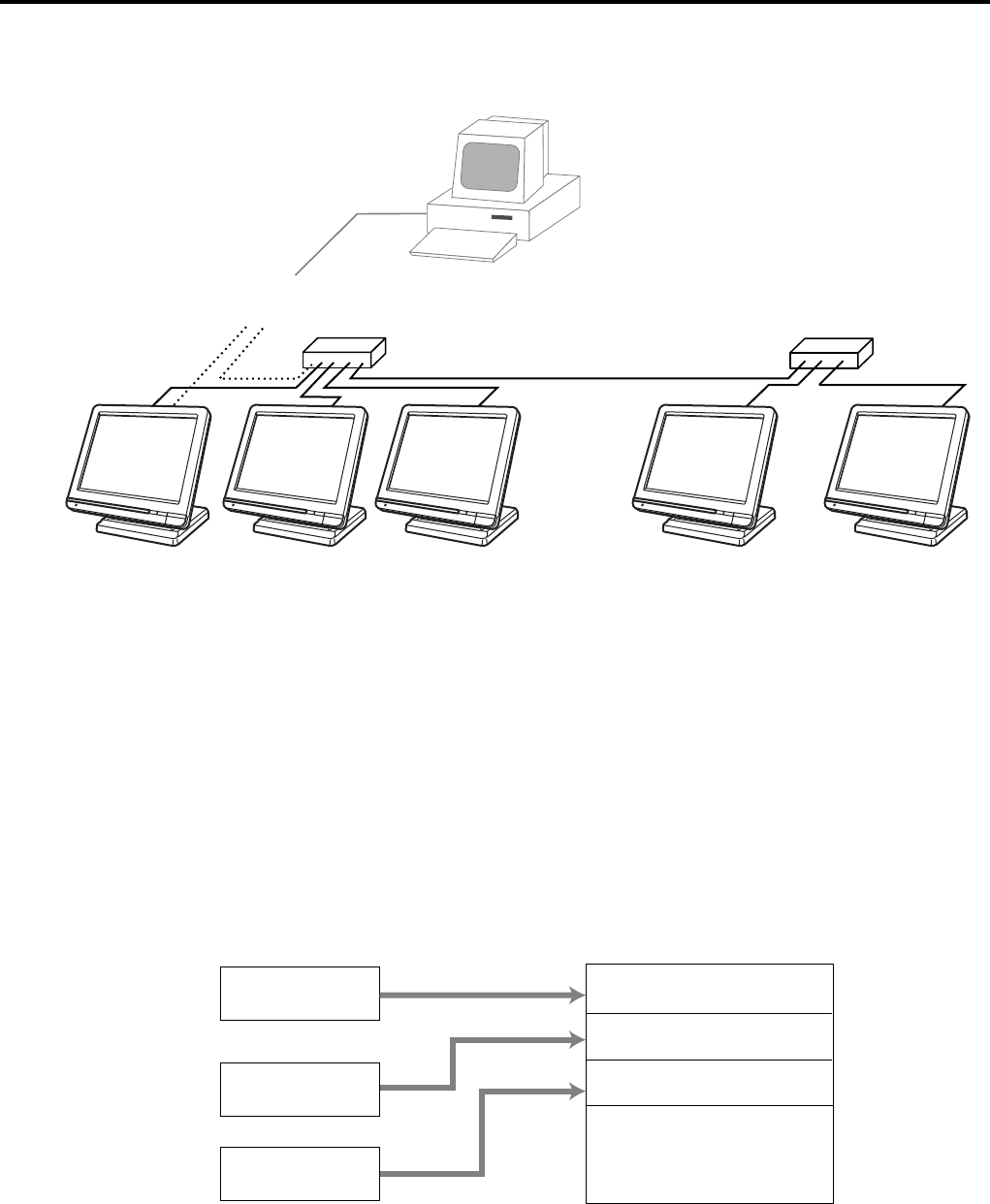
R-82
Application System
2-12-6. Transferring IDC
It is possible to do collection of IDC files through inline system. Refer to the terminal
structure as below.
Flow of the transferring IDC
1. PC sends Z-lock command by using job command to collection master.
PC enables to check the Z-lock confirmation.
2. PC sends the consolidation command by using Job command to collect IDC files from
all satellite terminals.
3. Collection master receives the IDC data from each satellite in order.
PC enables to check whether the collection master has finished the job.
4. PC sends the Z-command or X-command to the collection master.
5. PC receives the collection data from consolidation file. If the Z-command has issued
at step 4, consolidation file in the collection master are all reset.
Data transferring flow
IDC data in each terminal totalizer is appended to the consolidation file individually.
Notes:
•Just after IDC starts, the consolidation file in the collectionmaster is cleared to receive
new data.
•Just after the receiving is over, the data is remained in the consolidation file. To clear
this data, send the Z-command or the file-clear command to the collection master from
the PC. (Set “No”, to “Reset consolidation total after inline consolidation” in the
programming the communication in the machine feature programming.
•In case of collection Z, all of the IDC files in the satellite terminals are cleared.
Collection Master Satellite Satellite Satellite Satellite
PC
Via COM 1 port of the master terminal (direct/Modem)
C
C
C
C
C
C
C
C
C
C
Master file
Satellite (1) file
Satellite (2) file
Data from Master Totalizer
Data from Satellite (1)
Data from Satelite (2)
•
•
•
Copy
Append
Append
Consolidation file (in Collection Master)

R-83
QT-6600 Reference Manual
2-13. Electronic journal
There are two types of electronic journal. One is “normal” electronic journal, the other is
“intelligent” electronic journal. The “normal” electronic journal stores all operations such
as registration, report issuing and programming, but the “intelligent” electronic journal
stores only registration. And the “intelligent” electronic journal stores one receipt when the
transaction is finalized (not stored at new balance). You can use the “normal” and the
“intelligent” electronic journal at the same time.
Electronic journal is stored in the terminal memory, so it is possible to print journal
(electronic journal report) by date or by consecutive number.
And since the journal data is stored in the memory, you can collect journal data from all
terminals in the system. Also, you can issue receipt and guest receipt from electronic
journal.
2-13-1. Storing electronic journal
The normal electronic journal starts automatically and it ends if the journal memory
becomes full. When the memory becomes full, the terminal alerts end error which you can
select to alert or not to alert by programming. Refer to the page 42 of the programming
manual.
The intelligent electronic journal starts automatically and it returns to the top of the
memory if the journal memory becomes full.
Notes:
Even if the electronic journal memory is full, registrations are not disturbed.
2-13-2. Issuing electronic journal report
You can issue both type of the electronic journal read or reset report by date or by
consecutive number.
Refer to the page 156 of this manual.
2-13-3. Displaying normal electronic journal and producing guest receipts after sales
Pressing the <EJ DISP> key shows the most recent transactions. You can go to older
transactions by pressing the <PAGE UP> key while newer transactions by the <PAGE
DOWN> key. And also you can move lines in a transaction by the <↑> or <↓> key.
During displaying an transaction, you can issue the post receipt of this transaction by
pressing the <RECEIPT> key. If the guest receipt in the original transaction was issued
you can get the copy of the guest receipt by pressing the <RECEIPT> key.
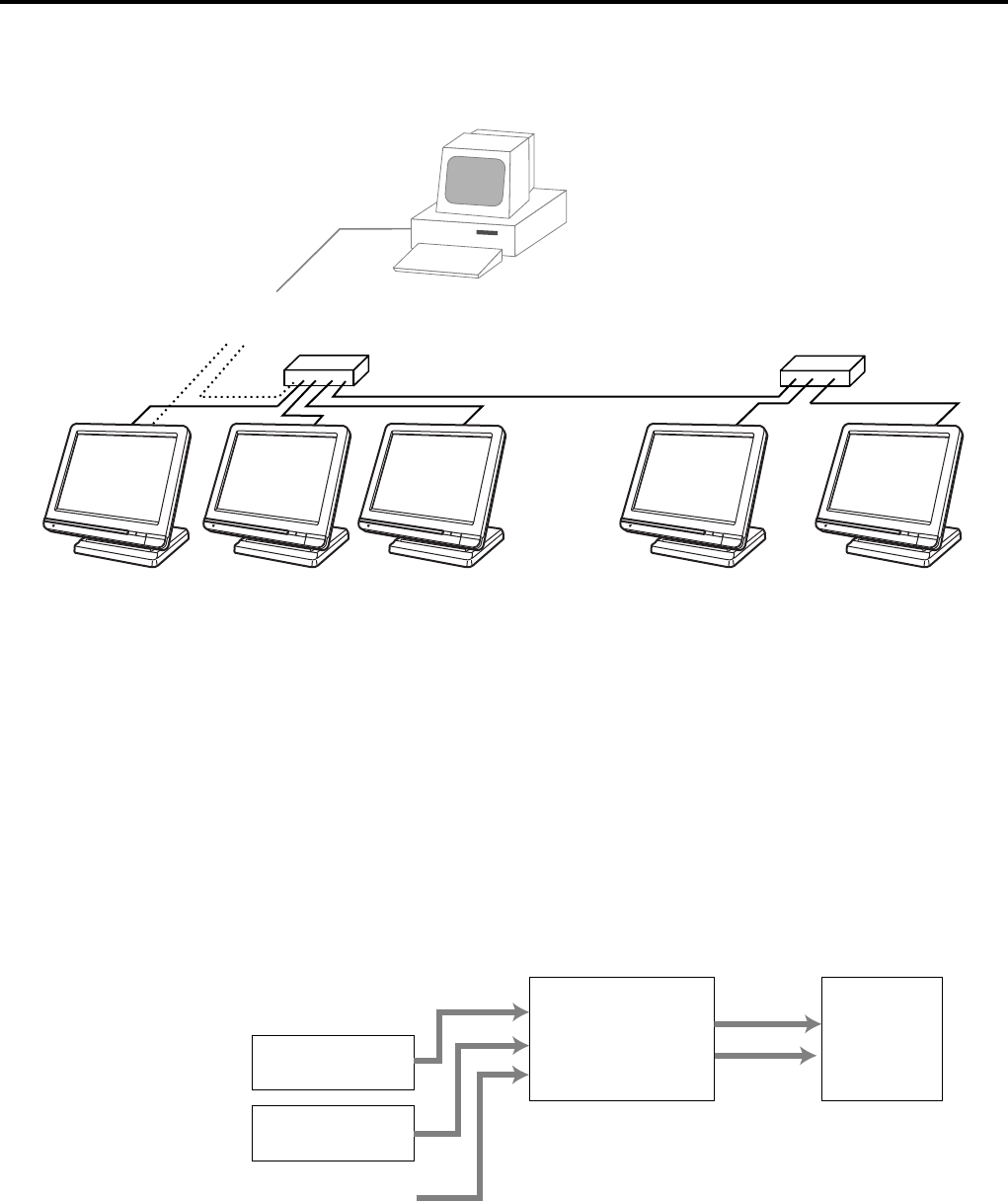
R-84
Application System
2-13-4. Transferring electronic journal memory
It is possible to do collection of electronic journal files through inline system.
Refer to the terminal structure illustrated below.
Flow of the transferring electronic journal
1. PC sends the collection command by using Job command to collect electronic journal
file from a satellite terminal.
2. Collection master receives the electronic journal data from a satellite.
PC enables to check whether the collection master has finished the job.
3. PC sends the data send command to the collection master for the collected electronic
journal data.
4. PC receives the collection data from the master.
5. Repeat step 1 ~ 4 for all satellites.
Data transferring flow
Electronic journal data in each terminal is collected file individually.
Satellite (1) file
Satellite (2) file
•
•
•
•
•
•
Copy
Copy
Copy Consolidation file
(in Collection
Master)
PC
Satellite (1)
Satellite (2)
File 048 and 648 for “normal” electronic journal.
File 050 and 650 for “intelligent” electrionic journal.
Collection Master Satellite Satellite Satellite Satellite
PC
Via COM 1 port of the master terminal (direct/Modem)
C
C
C
C
C
C
C
C
C
C

R-85
QT-6600 Reference Manual
2-14. Simple time and attendance
This function allows shop owners to control his / her employees’ working time and clock-
out reason.
– Simple time & attendance file
This file is used to log the clock-in time, clock-out time and clock-out reason.
– Clock-out reasen file
In this file, clock-out reasons stored in this file. You can choose the clock-out reason
everytime when you clock-out. The clock-out reason is logged in the simple time &
attendance file.
Flow of Simple Time & Attendance operation
The following flow shows the order of simple time & attendance function by pressing the
specified keys: It is possible to specify one <WORKTIME> key as both clock-in and
clock-out function, or specify two keys separately. ( Refer to “4-3-7-33 Worksheet for
clock-in/clock-out” in the programming manual for details.)
CLOCK-IN →CLOCK-OUT
2-14-1. Clock-in operation
This function is used to register the Starting work time.
Operation
1. <WORKTIME> XXXXXX (C/D) <WORKTIME>
XXXXXX: Employee’s number
C/D: Check digit for employee number
(modulas 10, weight 13)
Receipt sample
MC #01
—Header
REG
12-31-2005 11:59 AM 001234
Simple Time/Atten Records
—Title
EMPLOYEE No. 001234
—Employee number
SIGN ON
—Clock-in sign
12-31-2005 11:59
—Clock-in time
REG 10-10-01 11:59 AM 001234
PERSONALNO.: ---*****
R-86
Application System
2-14-2. Clock-out operation
This function is used to register the Ending work time.
Operation
1. <WORKTIME> XXXXXX (C/D) <WORKTIME>
XXXXXX: Employee’s number
C/D: Check digit for employee number
2. Select clock-out reasen.
Receipt sample
MC #01
—Header
REG
12-31-2005 11:59 AM 001234
Simple Time/Atten Records
—Title
EMPLOYEE No. 001234
—Employee number
SIGN OFF
—Clock-in sign
12-31-2005 11:59
—Clock-in time
2-14-3. Worktime display
This function shows the employee’s worktime.
Operation
1. XXXXXX (C/D) <WORKTIME>
XXXXXX: Employee’s number
C/D: Check digit for employee number
2-14-4. Report
Clock-in/ clock-out time and clock-out reason are printed on the simple time and attendance report.
Refer to the Read/ Reset chapter.
REG 10-10-01 11:59 AM 001234
PERSONALNO.: ---*****
REG 10-10-01 11:59 AM 001234
Sign off Reasons
1.END OF SHIFT
2.UNWELL
3.FAMILY EMERGENCY
4.OTHER
0.00
REG 10-10-01 11:59 AM 001234
SIMPLE TIME IN ACCOUNT
TODAY : 4:58
TOTAL : 16:07
STATUS : SIGNED OFF
0.00

R-87
QT-6600 Reference Manual
2-15. Magnetic card reading
QT-6600 has the following capability by swiping magnetic card.
1. Customer number entry *1
You can enter customer number, by swiping magnetic card.
<CUST-#> key →Card swipe
•Customer number should be programmed in the customer file.
•Site No. in the mag stripe equals to the programmed value.
•Use Track-1
2. Create dummy check *1
Card swiping activates table transfer.
•Read the customer name from the magnetic card and store it to the check index memory.
•In case of using this feature, program “transfer table by card swiping” (D10 of the
address 26 of the general control program)
•Use Track-1
3. Clerk sign on *1
Card swiping activates clerk sign on. (effective during signing off only)
•In case of using this feature, the lower 4 digit in the mag stripe should be set to the clerk
number.
•Use Track-2 (If track-2 cannot read, use track-1.)
4. Enter REG 2 mode *1
Cashier/ clerk can enter the REG 2 mode, by swiping card.
<MODE> key →<2> <REG MODE> key →Card swipe
•In case of using this feature, the lower 4 digit in the mag stripe is treated as manager’s
secret number.
•Use Track-2 (If track-2 cannot read, use track-1.)
5. Loyalty card
This function is used to register the key strings such as customer discount etc., by swiping
magnetic card (and scanning OBR code). After swiping a card (track-2)/ scanning a code, the
designated function in the transaction key file is executed.
Procedure
• Using swiping:
<SWIPE> key →Card swipe *1 *2
<SWIPE> key should be allocated in the transaction key file.
If there is no <SWIPE> key on the keyboard, program D7 and D6
of the address 24 of the genreral control program to designate the
default <SWIPE> key.
Card swipe *2
• Using scanning:
<SWIPE> key →Code scanning *1*2 Pressing <SWIPE> key is mandatory.
After swiping/ scanning card, the following subjects are performed.
1. Check card expiry (In case of programming check to <SWIPE> key.)
2. Card data check (Checked by D10 ~ D8 of <SWIPE> key program and unit price field of
<SWIPE> key.
3. Transfer card data (D7 and D6 of <SWIPE> key program)
4. Activate function (D5 ~ D1 of <SWIPE> key program)
*1 In case of setting “Swipe has NOT precedence.” (D1 of the address 24 of the general control program)
*2 In case of setting “Swipe has precedence.” (D1 of the address 24 of the general control program)

R-88
Application System
Magenetic card specification
Track-1, Format B:
Start sentinel - one character (generally ‘%’)
Format code = “B” - one character (alpha only)
Primary account number (PAN) - up to 19 characters
Usually, but not always, matches the credit card number
printed on the front of the card.
Field separator - one character (generally ‘^’)
Name - two to 26 characters
Field separator - one character (generally ‘^’)
Expiration date - four characters in the form MMYY
Service code - three characters
Discretinary data - may include Pin Verification Key Indicator (PVKI, one character),
Pin Verification Value (PVV, 4 characters)
Card Verification Value or Card Verification Code (CVV or CVK, 3
characters)
End sentinel - one character (generally ‘?’)
Longitudinal redundancy check (LRC) - one character
Track-2:
Start sentinel - one character (generally ‘:’)
Track number - 1, 2, 3
Primary Account Number (PAN) - up to 19 characters
Usually, but not always, matches the credit card number
printed on the front of the card
Separator - one character (generally ‘=’)
Expiration date - four characters in the form MMYY
Service code - three characters
Discretionary data - as in track one
End sentinel - one character (generally ‘?’)
LRC - one character

R-87
QT-6600 Reference Manual
3. Manager operation ................................................................................. R-88
3-1. Machine initialization ............................................................................. R-88
3-1-1. INIT ............................................................................................................... R-88
3-1-2. Flag clear ...................................................................................................... R-88
3-1-3. INIT 2 ............................................................................................................ R-89
3-1-4. INIT code ...................................................................................................... R-89
3-2. IPL (Initial Program Loading) ................................................................ R-89
3-2-1. IPL................................................................................................................. R-89
IPL via CF card .......................................................................................................... R-89
3-2-2. System configuration before IPL operation ................................................... R-90
IPL via LAN port......................................................................................................... R-90
3-3. Manager function ................................................................................... R-91
3-3-1. System connection check ............................................................................. R-92
3-3-2. Remote on .................................................................................................... R-93
3-3-3. Remote off .................................................................................................... R-93
3-3-4. Busy reset ..................................................................................................... R-94
3-3-5. Stock maintenance ....................................................................................... R-95
3-3-6. Drawer for clerk ............................................................................................. R-96
3-3-7. CHK# (Clerk interrupt) .................................................................................. R-96
3-3-8. Order ID change ........................................................................................... R-97
3-3-9. Error log print ................................................................................................ R-98
3-3-10. System re-configuration ................................................................................ R-99
3-3-11. Item Data Capture....................................................................................... R-100
3-3-12. Euro change over........................................................................................ R-101
3-3-13. Clerk window............................................................................................... R-102
3-3-14. Customer .................................................................................................... R-103
3-3-15. Customer busy reset ................................................................................... R-104
3-3-16. Sound.......................................................................................................... R-104
3-3-17. Print batch maintenance file ....................................................................... R-105
3-3-18. Execute batch maintenance file .................................................................. R-106
3-3-19. Re-index the scanning PLU file ................................................................... R-107
3-3-21. FTP client .................................................................................................... R-108
3-3-20. Licence code entry...................................................................................... R-108
3-3-22. Maintenance data ....................................................................................... R-109
3-3-23. Printer logo send ......................................................................................... R-110
3-3-24. Clerk number .............................................................................................. R-111
3-3-25. Operation monitor ....................................................................................... R-111
3-4. System command execution............................................................... R-112
3-4-1. X/Z reporting ............................................................................................... R-112
3-4-2. X/Z collection / consolidation ...................................................................... R-114
3-4-3. Remote power control ................................................................................. R-114
3-5. Data communication system .............................................................. R-115
3-5-1. Inline / online connectors ............................................................................ R-115
3-5-2. Hardware interface ...................................................................................... R-116
3-5-3. Inline / online functions ............................................................................... R-118
3-6. Collection / Consolidation system ..................................................... R-119
3-6-1. X/Z collection .............................................................................................. R-121
3-6-2. X/Z consolidation ........................................................................................ R-123
3-6-3. X/Z collection / consolidation ...................................................................... R-126
3-7. Auto-programming function ............................................................... R-129
3-7-1. Auto-programming functions ....................................................................... R-129
3-7-2. Auto-program operation and CF card utilities ............................................. R-130
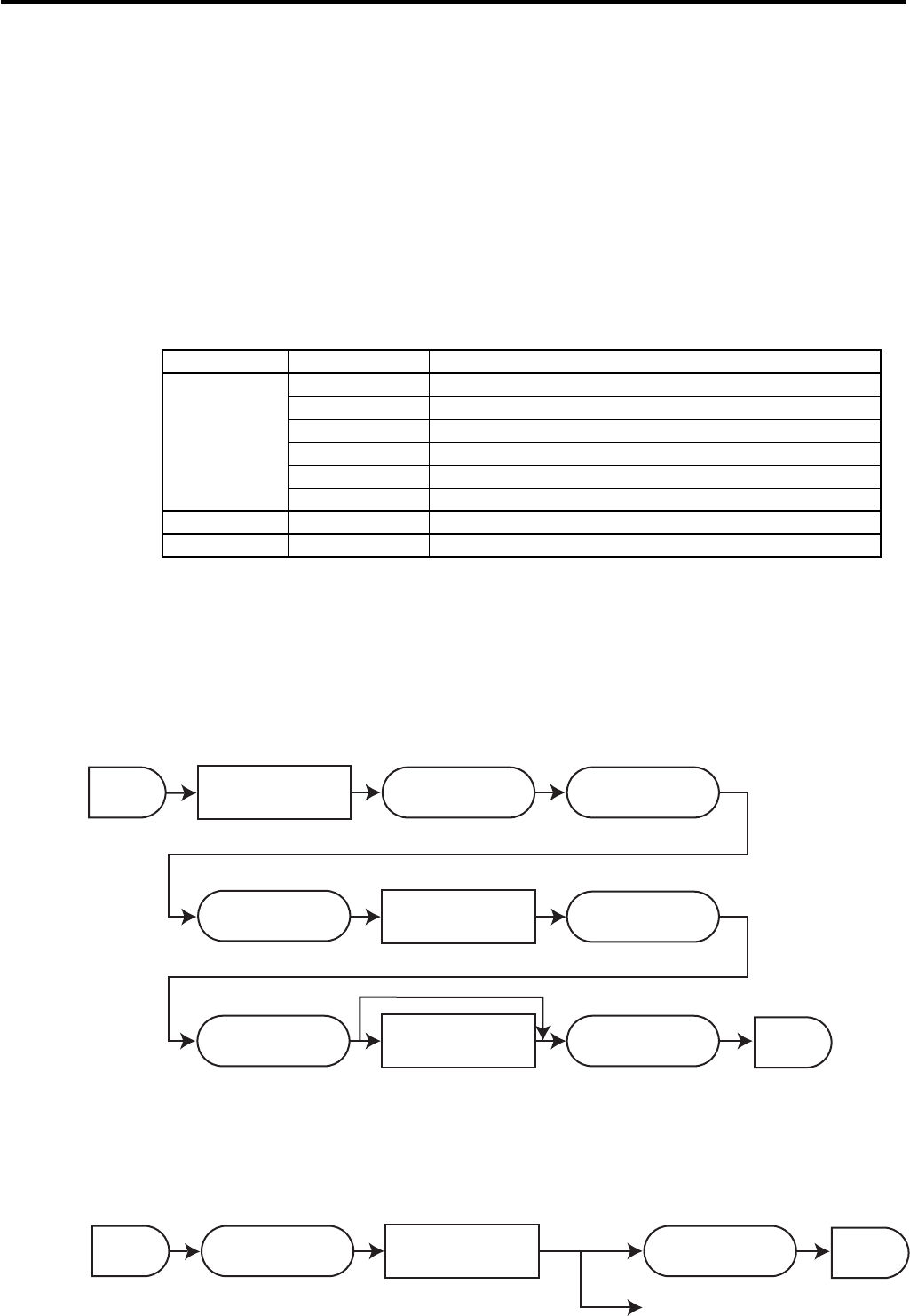
R-88
Manager Operation
3. Manager operation
This section describes manager operations (such as machine initialization, IPL, manager
functions etc.) of QT-6600.
3-1. Machine initialization
There are three different types of initialization such as INIT, FC, and INIT2.
INIT; Machine initialization, all program and total data are reset.
FC; Flag clear, all program and total data are remained, only the current transaction data
are reset.
INIT2; Machine initialization 2, all program data are remained, only total data are reset.
The procedures of machine initialization are described in the chapter 1 of the programming
manual. The required init code are listed below.
3-1-2. Flag clear
Flag clear process is as follows:
3-1-1. INIT
Initialization process is as follows:
Start
End
Hardware reset
All RAM reset
Inline ID definition
File creation 1 File creation 2
Initialization result
to E-journal
Revise terminal
connection table
Input Init code
(see above)
Initialization operation
Input date/time, ID etc.
Receiving program
f
rom other terminal or
CF card
Start Hardware reset
Initialize work area/
buffers/flags
Initialization result
to E-journal End
Menu selection
FC/Init2
Init 2
Operation Init code Meaning
00020000 for the U.S.
00010000 for other area (default descriptors are initialized in English)
Init 00040000 for other area (default descriptors are initialized in German)
00050000 for other area (default descriptors are initialized in French)
00060000 for other area (default descriptors are initialized in Spanish)
00080000 Arabic (default descriptors are initialized in English)
Flag clear No need
Init2 8888888888
* See the “INIT code” section to notice the detail information.
R-89
QT-6600 Reference Manual
3-1-3. INIT 2
Initialization 2 process is as follows:
Start
Hardware reset
Initialize work area/
buffers/flags
All totoalizer reset
including E-journal
End
Menu selection
FC/Init2
Flag clear
Description Choice Program code
Set the default condition of receipt on/ off.
Area code:
U.S. : 2
Other area (default descriptor in English) : 1
(default descriptor in German) : 4
(default descriptor in French) : 5
(default descriptor in Spanish) : 6
(using Arabic character table) : 8
Always “0”
COM3
Use remote printer-2 : 0
Use remote display : 3
Always “0”
Always “0”
:
D6
:
D5
;
D4
:
D3
;
D2
;
D1
Set off = 0
Set on = 1
Significant
number
Significant
number
3-2. IPL (Initial Program Loading)
IPL should be made before initializing when the application software has been modified.
3-2-1. IPL
IPL via CF card
Start
Continue
to INIT
ROM check
Store the receiving
data to Flash
3-1-4. INIT code
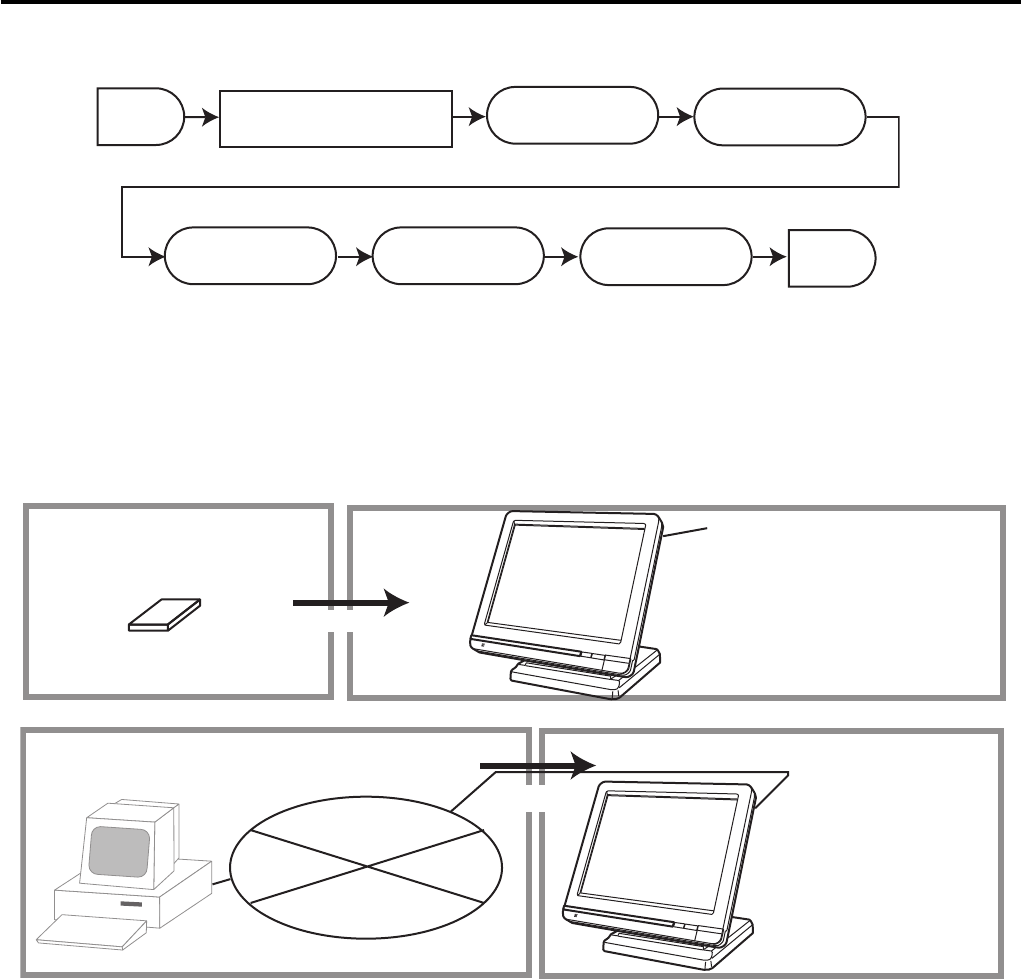
R-90
Manager Operation
IPL via LAN port
CF card
IPL source IPL target
IPL Data
CF card slot is located
on the leftside of the terminal.
C
C
IPL source
LAN port
defined as FTP server
IPL target
IPL Data
PC
C
C
3-2-2. System configuration before IPL operation
Insert the IPL CF card to the terminal or connect PC and target terminal.
Start
END
Restore
all data
IPL from
CF card
Store IPL data
to CF card Backup all data
to CF card
Clear IPL data
in the CF card
Insert CF card
(more than128MB vacant)

R-91
QT-6600 Reference Manual
3-3. Manager function
Using the manager function makes it possible to control the terminal conditions. The
contents of the manager function are as follows:
1. System connection check
2. Remote on
3. Remote off
4. Busy reset
5. Stock maintenance
6. Drawer for clerk
7. CHK# (Clerk interrupt)
8. Order ID change
9. Error log print
10. System re-configuration
11. Item Data Capture
12. EURO Change over.
13. Clerk window
14. Customer
15. Customer Busy Reset
16. Recording
17. Print batch maintenance file
18. Execute batch maintenance
19. Re-index scanning PLU file
20. Licence code entry
21. FTP client
22. Maintenance data
23. Printer logo send
24. Clerk number
25. Operation monitor
R-92
Manager Operation
MGR C01 10-10-01 12:34 000000
Manager Mode
1.System Connection Check
2.Remote On
3.Remote Off
4.Busy Reset
5.Stock Maintenance
6.Drawer for Clerk
7.CHK#(CLK Interrupt)
8.Order ID Change ↓
0.00
3-3-1. System connection check
This command shows the connection status of terminals, and printers.
1. Sign on a clerk (if necessary).
2. Press <MODE> and <Manager> to assign manager mode.
3. Select “1. System Connection Check” and press the <YES>
key.
4. After checking the system connection, press the <ESC> key
to return the previous menu.
Note:
If there is unrecognized terminal there it shows “*” as below.
example) #04 ************
System Connection Check
INLINE 10/100Mbps
#01 MC#01
RS-232C Printer 1 2 4
#02 MC#02
RS-232C Printer 1
#03 MC#03
RS-232C Printer *
:
01 LAN Printer 192168000060
02 ************ 192168000061
0.00
Physical ID, Logical ID
RS-232C printer recognition (1: printer (1), 2: printer (2), 4: slip printer
Un recognized RS-232C printer
LAN printer ID, IP address
Unrecognized LAN printer
R-93
QT-6600 Reference Manual
3-3-2. Remote on
This command is used to power on the terminals connected with the same inline.
1. Sign on a clerk (if necessary).
2. Press <MODE> and <Manager> to assign manager mode.
3. Select “2. Remote On” and press the <YES> key.
4. Select all terminals or individual terminal, select “YES” to
execute this command.
3-3-3. Remote off
This command is used to power off the terminals connected with the same inline.
1. Sign on a clerk (if necessary).
2. Press <MODE> and <Manager> to assign manager mode.
3. Select “3. Remote Off” and press the <YES> key.
4. Select all terminals or individual terminal, select “YES” to
execute this command.
MGR
C
01 10-10-01 12:34 000000
Manager Mode
1.System Connection Check
2.Remote On
3.Remote Off
4.Busy Reset
5.Stock Maintenance
6.Drawer for Clerk
7.CHK#(CLK Interrupt)
8.Order ID Change ↓
0.00
MGR
C
01 10-10-01 12:34 000000
Manager Mode
1.System Connection Check
2.Remote On
3.Remote Off
4.Busy Reset
5.Stock Maintenance
6.Drawer for Clerk
7.CHK#(CLK Interrupt)
8.Order ID Change ↓
0.00
Remote On
Terminal All
OK? YES
0.00
Remote Off
Terminal All
OK? YES
0.00
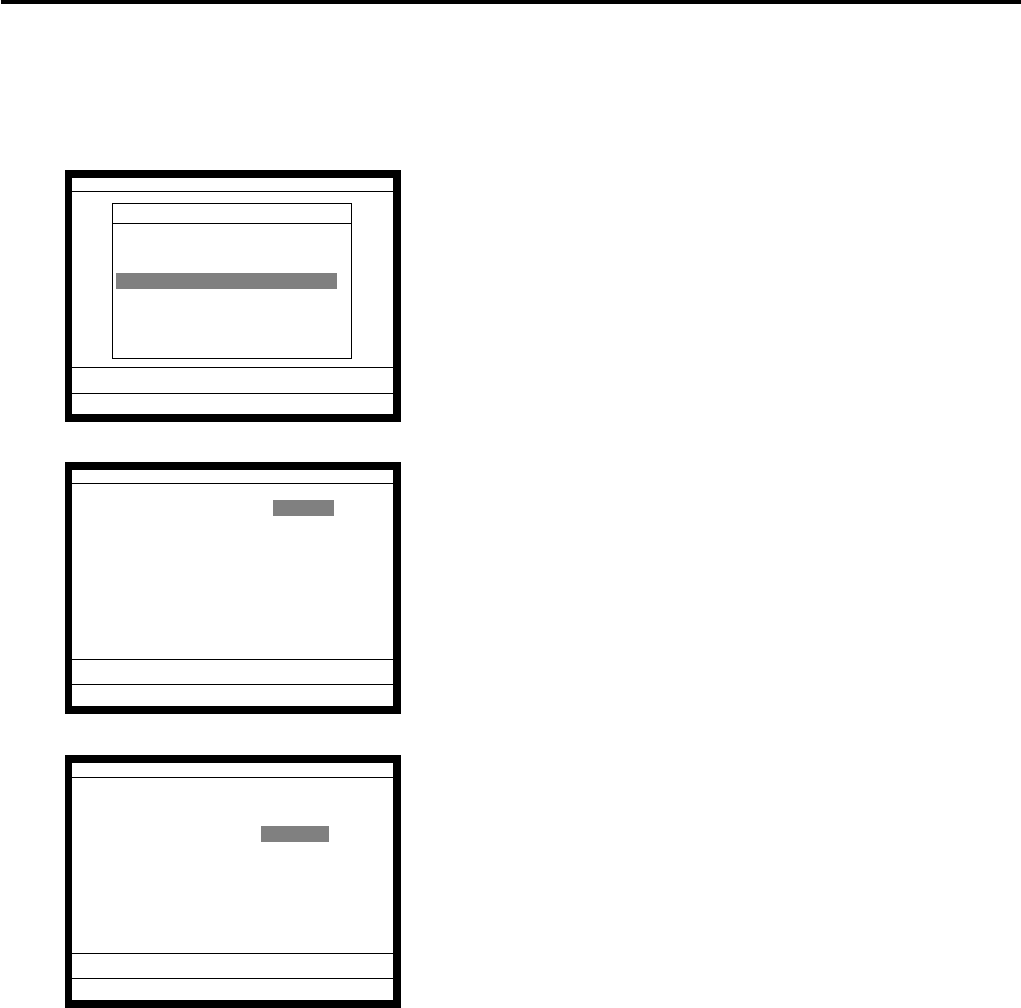
R-94
Manager Operation
3-3-4. Busy reset
This command is used to release the busy flag of the check used by other dead terminal.
Executing this command always releases this flag, so please be careful to perform this
operation.
1. Sign on a clerk (if necessary).
2. Press <MODE> and <Manager> to assign manager mode.
3. Select “4. Busy Reset” and press the <YES> key.
4. Enter the appropriate check number, and then select “YES”
to execute this command.
MGR
C
01 10-10-01 12:34 000000
Manager Mode
1.System Connection Check
2.Remote On
3.Remote Off
4.Busy Reset
5.Stock Maintenance
6.Drawer for Clerk
7.CHK#(CLK Interrupt)
8.Order ID Change ↓
0.00
Busy Reset
Check No. 12
OK? YES
0.00
Busy Reset
Check No. 12
OK? YES
Normal End
0.00
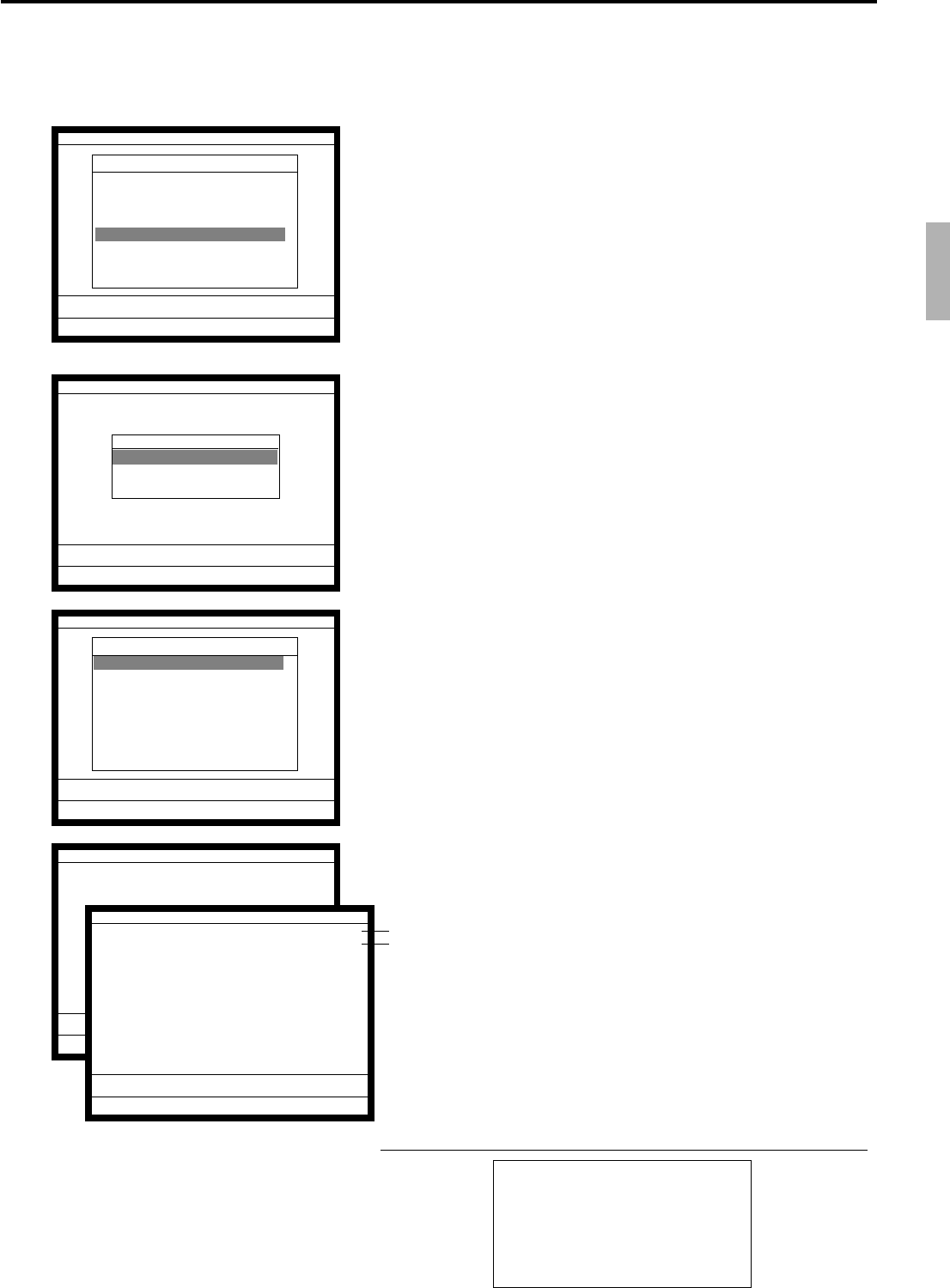
R-95
QT-6600 Reference Manual
3-3-5. Stock maintenance
This command is used to update PLU, scanning PLU, department stock quantities brought
by purchasing or inventory processing.
1. Sign on a clerk (if necessary).
2. Press <MODE> and <Manager> to assign manager mode.
3. Select “5. Stock Maintenance” and press the <YES> key.
4. Select “PLU/ Scan PLU/ Department” and press the <YES>
key.
5. Select the appropriate PLU and press the <YES> key.
6. Enter adjustment (adding) stock value and press the <YES>
key. If you want to decrease stock value, press the <RF> key
before entering the stock value.
The next PLU appears on the screen.
7. Press the <ESC> key to terminate this sequence.
8. Press the <ESC> key to issue receipt.
MGR
C
01 10-10-01 12:34 000000
Manager Mode
1.System Connection Check
2.Remote On
3.Remote Off
4.Busy Reset
5.Stock Maintenance
6.Drawer for Clerk
7.CHK#(CLK Interrupt)
8.Order ID Change ↓
0.00
No. Descriptor Stock
1 PLU0001 0.000
0.000
0.00
No. Descriptor Stock
1 PLU0001 +100.000
100.000
2 PLU0002 0.000
0.000
PLU0001 +100.000
Stock Maintenance
PLU
1.PLU0001
2.PLU0002
3.PLU0003
4.PLU0004
5.PLU0005
6.PLU0006
7.PLU0007
8.PLU0008 ↓
0.00
Entered stock quantity
Total stock quantity
Stock Maintenance
No. Descriptor Stock
----------------------------------------
1 PLU0001 +100.000
100.000
2 PLU0002 0.000
0.000
RECEIPT
Manager Mode
Stock Maintenance
1.PLU Stock
2.Scan PLU
3.Department
0.00
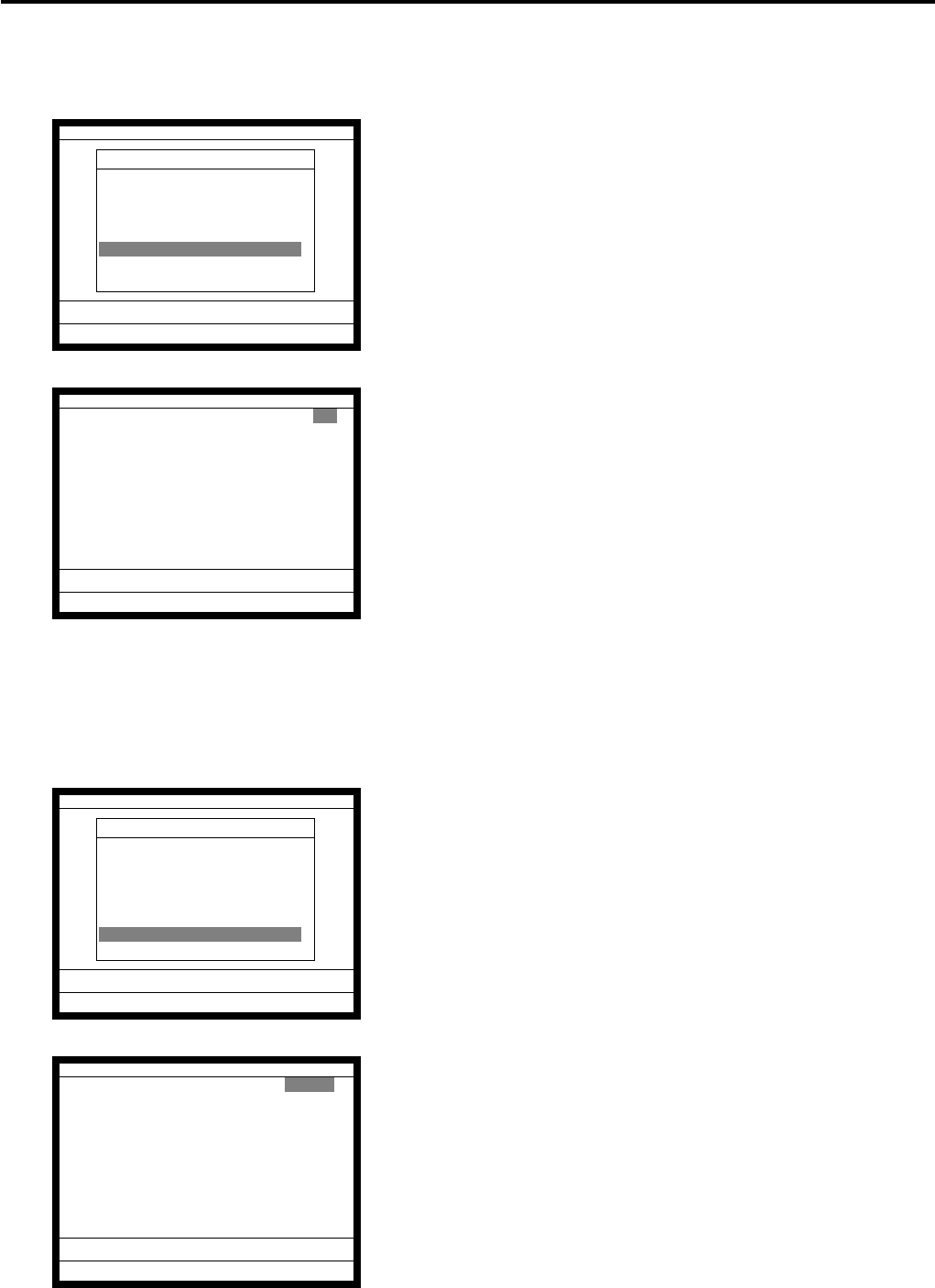
R-96
Manager Operation
3-3-6. Drawer for clerk
This command is used to designate the drawer 1 ~ 2.
1. Sign on a clerk (if necessary).
2. Press <MODE> and <Manager> to assign manager mode.
3. Select “6. Drawer for Clerk” and press the <YES> key.
The display shows “Clerk name/Drawer No.” list.
4. Select the drawer No. field of the appropriate clerk, enter the
drawer number (1 or 2, “0” means drawer 1), and press the
<YES> key.
5. Press the <ESC> key to return to the previous menu.
3-3-7. CHK# (Clerk interrupt)
This command is used to designate the check number for clerk interrupt to each clerk.
1. Sign on a clerk (if necessary).
2. Press <MODE> and <Manager> to assign manager mode.
3. Select “7. CHK# (CLK Interrupt)” and press the <YES> key.
The display shows “Clerk name / Check No.” list.
4. Select the check No. field of the appropriate clerk, enter the
check number (within 6-digits), and press the <YES> key.
5. Press the <ESC> key to return the previous menu.
MGR
C
01 10-10-01 12:34 000000
Manager Mode
1.System Connection Check
2.Remote On
3.Remote Off
4.Busy Reset
5.Stock Maintenance
6.Drawer for Clerk
7.CHK#(CLK Interrupt)
8.Order ID Change ↓
0.00
Drawer for Clerk
C
01 0
C
02 0
C
03 0
C
04 0
C
05 0
C
06 0
0.00
MGR
C
01 10-10-01 12:34 000000
Manager Mode
1.System Connection Check
2.Remote On
3.Remote Off
4.Busy Reset
5.Stock Maintenance
6.Drawer for Clerk
7.CHK#(CLK Interrupt)
8.Order ID Change ↓
0.00
CHK#(CLK Interrupt)
C
01 011111
C
02 022222
C
03 033333
C
04 044444
C
05 055555
C
06 066666
0.00
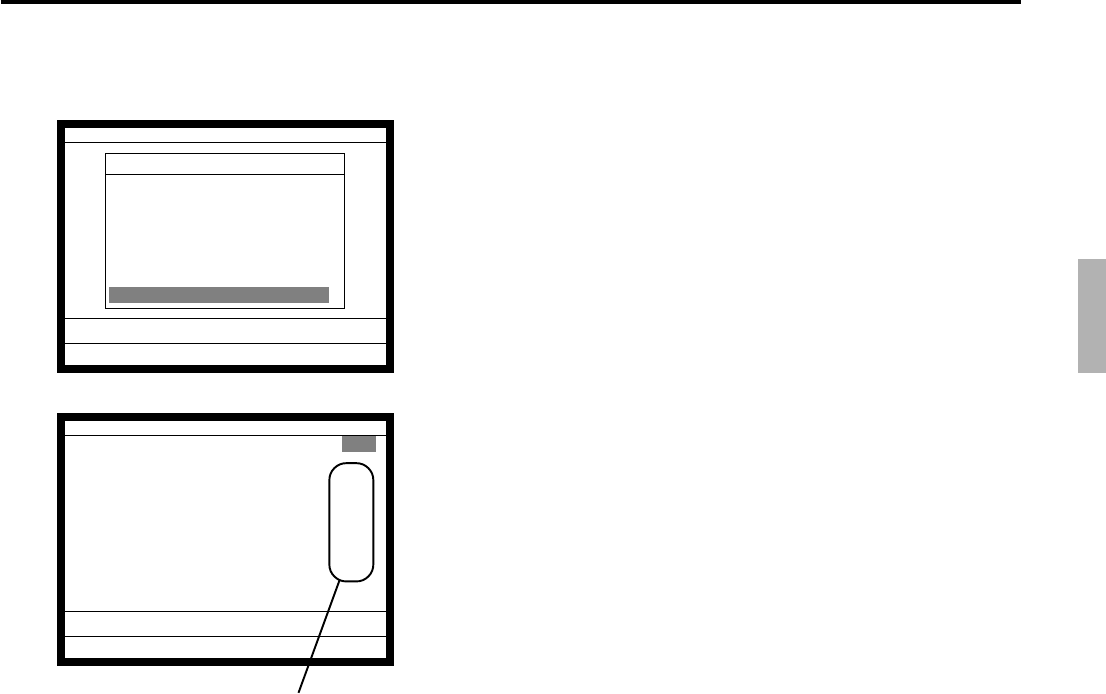
R-97
QT-6600 Reference Manual
3-3-8. Order ID change
This command is used to change the target printer of order temporarily.
1. Sign on a clerk (if necessary).
2. Press <MODE> and <Manager> to assign manager mode.
3. Select “8. Order ID Change” and press the <YES> key.
4. Select “YES” of the Definition Enable field, and enter an
appropriate ID number of each order printer and press the
<YES> key. Select “YES” of the last line to execute this
command.
Note: D4 D3 D2 D1
In case of RS-232C printer,
D4D3: Terminal ID number which connects with the printer.
D2D1: 01 = Printer 1, 02 = Printer 2, 03 = Printer 3
In case of LAN printer,
D4D3: Terminal ID number which sends data to the printer.
D2D1: 11 ~ 26 = Printer 1 ~ 16
MGR
C
01 10-10-01 12:34 000000
Manager Mode
1.System Connection Check
2.Remote On
3.Remote Off
4.Busy Reset
5.Stock Maintenance
6.Drawer for Clerk
7.CHK#(CLK Interrupt)
8.Order ID Change ↓
0.00
Order ID Change
Definition Enable YES
1.Order1 0103
2.Order2 0202
3.Order3 0203
4.Order4 0104
:
15.Order15 0000
16.Order16 0000
OK? YES
0.00
D
4
D
3D
2
D
1
R-98
Manager Operation
3-3-9. Error log print
This command is used to display / print out the error log file.
1. Sign on a clerk (if necessary).
2. Press <MODE> and <Manager> to assign manager mode.
3. Select “9. Error Log Print” and press the <YES> key.
4. The display shows current error log.
Then press the <ESC> key.
5. Press the <YES> key if you want to print error log.
If you do not want to print error log, press the <ESC> key.
MGR
C
01 10-10-01 12:34 000000
Manager Mode
3.Remote off ↑
4.Busy Reset
5.Stock Maintenance
6.Drawer for Clerk
7.CHK#(CLK Interrupt)
8.Order ID Change
9.Error Log Print
10.System Re-configuration ↓
0.00
ID Date Time OPE ERR JOB
#01 MC #01 0603 1535 1 51 38
#03 MC #03 0603 1535 22 235 22
0.00
Error Log Print
Do you want to printout? YES
0.00
Error Log Print
ID Date Time OPE ERR JOB
----------------------------------------
#01 MC #01 0603 1535 1 51 38
#03 MC #03 0603 1535 22 235 22
#00 0000 0000 0 0 0
RECEIPT
R-99
QT-6600 Reference Manual
3-3-10. System re-configuration
This command is one procedure of down recovery. It backs the contents of the system
connection table to the original value.
It should be executed under these conditions:
1) After issuing “Open check report”.
2) All terminals are connected and work without any trouble. (Check by system connection
check)
3) No terminal is in registration, collection, consolidation, sending/receiving programs.
4) Activate “System re-configuration” command at the terminal on which the “Cut-off”
icon is lit.
1. Sign on a clerk (if necessary).
2. Press <MODE> and <Manager> to assign manager mode.
3. Select “10. System Re-configuration” and press the <YES>
key.
4. Choose the option “YES (Perform system re-configuration)
/ NO (Abort this procedure)” and press the <YES> key.
* Perform “System Recofiguration” operation at the terminal that
shows system error icon ¶.
System Re-configuration
System Re-configuration NO
OK? YES
0.00
ß
MGR
C
01 10-10-01 12:34 000000
Manager Mode
3.Remote off ↑
4.Busy Reset
5.Stock Maintenance
6.Drawer for Clerk
7.CHK#(CLK Interrupt)
8.Order ID Change
9.Error Log Print
10.System Re-configuration ↓
0.00
ß
Cut-off Master or Backup master icon
R-100
Manager Operation
3-3-11. Item Data Capture
You can change the IDC status (capture transaction data or not) by the operation described
below.
1. Sign on a clerk (if necessary).
2. Press <MODE> and <Manager> to assign manager mode.
3. Select “11. Item Data Capture” and press the <YES> key.
4. Choose the option “YES (capture item data) / NO (not capture
item data)” and press the <ESC> key.
Item Data Capture
Item Data Capture YES
0.00
MGR
C
01 10-10-01 12:34 000000
Manager Mode
9.Error Log Print ↑
10.System Re-configuration
11.Item Data Capture
12.EURO Change over
13.Clerk Window
14.Customer
15.Customer Busy Reset
16.Recording ↓
0.00
R-101
QT-6600 Reference Manual
3-3-12. Euro change over
After this operation, the following subjects are made:
(1) The Euro is defined as main currency and the local is defined as sub currency.
(2) All totals and counts are reset.
(3) Unit prices (department, subdepartment, PLU, 2nd @, shift PLU) are converted
in Euro.
Before “change over operation”,
(1) Issue all reset report including open check report, if necessary.
(2) Sign off all cashier/clerk and stop all operations of all terminals of the system.
1. Sign on a clerk (if necessary).
2. Press <MODE> and <Manager> to assign manager mode.
3. Select “12. EURO Change over” and press the <YES> key.
4. If you want to proceed this step, press the <YES> key. To
abort this step, press the <NO> or <ESC> key.
5. If you want to proceed this step, enter “8888888888” and
press the <YES> key. (It takes a few minutes.)
To abort this step, press the <NO> or <ESC> key.
Perform the same operation of all the terminals of the system.
MGR
C
01 10-10-01 12:34 000000
Manager Mode
9.Error Log Print ↑
10.System Re-configuration
11.Item Data Capture
12.EURO Change over
13.Clerk Window
14.Customer
15.Customer Busy Reset
16.Recording ↓
0.00
EURO Change over
Operation Code ?
0.00
EURO Change over
Done update EURO rate and
symbols.
Please check unit price and
fix totalizer euro-in-drawer
title character.
RECEIPT
EURO Change over
This operation will clear all
of totalizer and change over
EURO/LOCAL system.
Are you sure want to execute
these job? YES
0.00
R-102
Manager Operation
3-3-13. Clerk window
You can program clerk window contents in the MGR mode.
1. Sign on a clerk (if necessary).
2. Press <MODE> and <Manager> to assign manager mode.
3. Select “13.Clerk Window” and press the <YES> key.
4. Press the <YES> key to continue.
5. Select the clerk window. If you don’t use clerk window,
select “1.(Disable)”.
6. Select the clerk to allocate the clerk window. After this
operation, select the appropriate key in the clerk window.
7. Press the <YES> key to set this program.
MGR
C
01 10-10-01 12:34 000000
Manager Mode
9.Error Log Print ↑
10.System Re-configuration
11.Item Data Capture
12.EURO Change over
13.Clerk Window
14.Customer
15.Customer Busy Reset
16.Recording ↓
0.00
Clerk Window
Clerk Window (Disable)
0.00
Clerk Window 1
Use this MENU Sign on
OK? YES
0.00
Clerk Window
Clerk Window
1.(Disable)
2.Clerk window 1
3.Clerk window 2
4.Clerk window 3
5.Clerk window 4
6.Clerk window 5
7.Clerk window 6
8.Clerk window 7 ↓
0.00
Clerk Window 1
Clerk window 1
1.(CLERK RESET)
2.
C
01
3.
C
02
4.
C
03
5.
C
04
6.
C
05
7.
C
06
8.
C
07 ↓
0.00
R-103
QT-6600 Reference Manual
3-3-14. Customer
You can program (add / modify / delete) the customer (name, address etc.) in the MGR
mode.
1. Sign on a clerk (if necessary).
2. Press <MODE> and <Manager> to assign manager mode.
3. Select “14.Customer” and press the <YES> key.
4. Add customer: Select (New customer) and press the <YES>.
Then (input the customer No. and) press the <YES> in the
next screen.
Modify customer: Select the appropriate customer and press
the <YES>.
Delete customer: Select the appropriate customer and press
the <NO>.
•If you swipe a card at this timing, “add customer (new card)”
or “modify customer (already programmed card) is per-
formed.
—— Customer name (up to 24 characters)
—— Customer title (select from sub menu)
—— Customer address 1 (up to 24 characters)
—— Customer address 2 (up to 24 characters)
—— Customer address 3 (up to 24 characters)
—— Customer address 4 (up to 24 characters)
—— Customer phone No. (up to 12 digits)
—— Customer group (select from sub menu)
5. Press the <ESC> to set and continue to program other
customer.
MGR
C
01 10-10-01 12:34 000000
Manager Mode
9.Error Log Print ↑
10.System Re-configuration
11.Item Data Capture
12.EURO Change over
13.Clerk Window
14.Customer
15.Customer Busy Reset
16.Recording ↓
0.00
Cust No. Name
0 (New customer)
11111 Mr. John SMITH
22222 Mrs. Jane Parker
33333 Ms. Janet Lynn
0.00
Cust No. 123456
Name
Title
Address(1)
Address(2)
Address(3)
Address(4)
Phone No.
Customer GP Group01
New customer YES
0.00
R-104
Manager Operation
3-3-15. Customer busy reset
This command is used to release the busy flag of the customer used by other dead terminal.
Executing this command always releases this flag, so please be careful to perform this
operation.
1. Sign on a clerk (if necessary).
2. Press <MODE> and <Manager> to assign manager mode.
3. Select “15. Customer Busy Reset” and press the <YES> key.
4. Enter the appropriate customer number, and then select
“YES” to execute this command.
Customer Busy Reset
Cust No.
OK? YES
0.00
MGR
C
01 10-10-01 12:34 000000
Manager Mode
9.Error Log Print ↑
10.System Re-configuration
11.Item Data Capture
12.EURO Change over
13.Clerk Window
14.Customer
15.Customer Busy Reset
16.Recording
0.00
Busy Reset
CUST No.
123456
Dr.
Big Scientist
BALANCE
$45.90
DISCOUNT $3.23
RECEIPT
3-3-16. Sound
This command is used to play the programmed sound file or to record to the sound file.
1. Sign on a clerk (if necessary).
2. Press <MODE> and <Manager> to assign manager mode.
3. Select “16. Recording” and press the <YES> key.
4. Enter the appropriate sound file, press <YES> to play, press
<NO> to record.
MGR
C
01 10-10-01 12:34 000000
Manager Mode
9.Error Log Print ↑
10.System Re-configuration
11.Item Data Capture
12.EURO Change over
13.Clerk Window
14.Customer
15.Customer Busy Reset
16.Recording ↓
0.00
Recording
WAV File
1.Sound (1)
2.Sound (2)
3.Sound (3)
4.Sound (4)
5.Sound (5)
6.Sound (6)
7.Sound (7)
8.Sound (8) ↓
0.00
R-105
QT-6600 Reference Manual
3-3-17. Print batch maintenance file
This command is used to print batch maintenance file.
1. Sign on a clerk (if necessary).
2. Press <MODE> and <Manager> to assign manager mode.
3. Select “17. Print Batch Mainte” and press the <YES> key.
MGR
C
01 10-10-01 12:34 000000
Manager Mode
10.System Re-configuration ↑
11.Item Data Capture
12.EURO Change over
13.Clerk Window
14.Customer
15.Customer Busy Reset
16.Recording
17.Print Batch Mainte ↓
0.00
RECEIPT
MGR
C
01 10-10-01 12:34 000000
Manager Mode
10.System Re-configuration ↑
11.Item Data Capture
12.EURO Change over
13.Clerk Window
14.Customer
15.Customer Busy Reset
16.Recording
17.Print Batch Mainte ↓
0.00
Print Batvh Maint File
Print Batch Maint File
Delete/Change Change
#4917770088>>>>>
Scan PLU0001 $12.34
Group Link --------
Dept Link DEPT01
Sub-Dept Link --------
Taxable status Non Tax
Scan Mix&Match --------
Negative Price NO
Zero Unit Price NO
Open PLU NO
Item Follows Department NO
Compulsory Multiply NO
Not Allowed Multiplication NO
491077008
:
R-106
Manager Operation
3-3-18. Execute batch maintenance file
This command is used to execute batch maintenance file.
1. Sign on a clerk (if necessary).
2. Press <MODE> and <Manager> to assign manager mode.
3. Select “18. Execute Batch Mainte” and press the <YES> key.
4. Press the <YES> key if Scan item Z report has already issued.
5. Select “YES” and press the <YES> key.
6. Display “Batch Maintenance Finished” and return the root
screen automatically.
MGR
C
01 10-10-01 12:34 000000
Manager Mode
11.Item Data Capture ↑
12.EURO Change over
13.Clerk Window
14.Customer
15.Customer Busy Reset
16.Recording
17.Print Batch Mainte
18.Execute Batch Maint ↓
0.00
RECEIPT
MGR
C
01 10-10-01 12:34 000000
Manager Mode
11.Item Data Capture ↑
12.EURO Change over
13.Clerk Window
14.Customer
15.Customer Busy Reset
16.Recording
17.Print Batch Mainte
18.Execute Batch Maint ↓
0.00
Z-report for Scan item done ?
Execute Batch Maintenance
Execute Batch Maintenance NO
OK? YES
0.00
Execute Batch Maintenance
Execute Batch Maintenance YES
OK? YES
0.00
Batch Maintenance Finish !
Scan PLU001 NG
Scan PLU023 NG
:
(Normal end)
(Error end)
Print error item.
Batch Maintenance Finish !
R-107
QT-6600 Reference Manual
3-3-19. Re-index the scanning PLU file
This command is used to re-index the scanning PLU file.
After this command, send the scanning PLU file to all terminals of the cluster.
1. Sign on a clerk (if necessary).
2. Press <MODE> and <Manager> to assign manager mode.
3. Select “19. Re-index Scan File” and press the <YES> key.
4. Press the <YES> key if Scan item Z report has already issued.
5. Select “YES” and press the <YES> key.
6. Display “Re-index Scan File” and return the root screen
automatically.
MGR
C
01 10-10-01 12:34 000000
Manager Mode
12.EURO Change over ↑
13.Clerk Window
14.Customer
15.Customer Busy Reset
16.Recording
17.Print Batch Mainte
18.EXECUTE BATCH MAINT
19.Re-Index Scan file ↓
0.00
MGR
C
01 10-10-01 12:34 000000
Manager Mode
12.EURO Change over ↑
13.Clerk Window
14.Customer
15.Customer Busy Reset
16.Recording
17.Print Batch Mainte
18.EXECUTE BATCH MAINT
19.Re-Index Scan file ↓
0.00
Z-report for Scan item done ?
Re-Index Scan File
Re-index Scan File NO
OK? YES
0.00
Re-Index Scan File
Re-index Scan File YES
OK? YES
0.00
Re-index Scan File !
R-108
Manager Operation
3-3-20. Licence code entry
This command is used to enter the software licence code.
1. Sign on a clerk (if necessary).
2. Press <MODE> and <Manager> to assign manager mode.
3. Select “20. Licence code entry” and press the <YES> key.
4. Enter the licence code and press the <YES> key and select
“YES” and press the <YES> key.
MGR
C
01 10-10-01 12:34 000000
Manager Mode
13.Clerk Window ↑
14.Customer
15.Customer Busy Reset
16.Recording
17.Print Batch Mainte
18.EXECUTE BATCH MAINT
19.Re-Index Scan file
20.Licence Code Entry ↓
0.00
Licence Code Entry
Licence Code Entry
OK? YES
0.00
3-3-21. FTP client
You can execute FTP client processing by the operation below.
1. Sign on a clerk (if necessary).
2. Press <MODE> and <Manager> to assign manager mode.
3. Select “21. FTP Client” and press the <YES> key.
4. Select the appropriate FTP server in the list, and press
<YES>.
MGR
C
01 10-10-01 12:34 000000
Manager Mode
14.Customer ↑
15.Customer Busy Reset
16.Recording
17.Print Batch Mainte
18.EXECUTE BATCH MAINT
19.Re-Index Scan file
20.Licence Code Entry
21.FTP Clint ↓
0.00
FTP Client
FTP SERVER
1.HEAD OFFICE
2.FTP SERVER 2
3.FTP SERVER 3
4.FTP SERVER 4
5.FTP SERVER 5
6.FTP SERVER 6
7.FTP SERVER 7
8.FTP SERVER 8 ↓
0.00
R-109
QT-6600 Reference Manual
3-3-22. Maintenance data
This command is used to backup the maintenance data to the CF card or clear the data in
the internal flash memory.
1. Sign on a clerk (if necessary).
2. Press <MODE> and <Manager> to assign manager mode.
3. Select “22. Maintenance Data” and press the <YES> key.
4. Select “Data backup to CF” and press the <YES> key.
MGR
C
01 10-10-01 12:34 000000
Manager Mode
15.Customer Busy Reset ↑
16.Recording
17.Print Batch Mainte
18.EXECUTE BATCH MAINT
19.Re-Index Scan file
20.Licence Code Entry
21.FTP Client
22.Maintenance Data ↓
0.00
Maintenance Data
Maintenance Data
1.Data Backup to CF
2.Maintenance Data Clear
0.00
5. Select the appropriate FTP file in the list, and press <YES>.
The process programmed in the file 912 / 913 is executed.
6. Check the execution result and press <ESC> to exit.
FTP Client
FTP FILE
1.FTP FILE 1
2.FTP FILE 2
3.FTP FILE 3
4.FTP FILE 4
5.FTP FILE 5
6.FTP FILE 6
7.FTP FILE 7
8.FTP FILE 8 ↓
0.00
FTP Client
FTP SERVER HEAD OFFICE
FTP FILE Daily PLU
Normal End
0.00
R-110
Manager Operation
5. You can enter file prefix, if you want to change. And select
“YES” and press the <YES> key.
The log file contains;
•System error log: LOGFILE.148 (file-148, 149)
•Operation log: LOGFILE.248 (file-248, 249)
•Packet log: LOGFILE.348 (file-348, 349)
6. Insert the CF card and press the <YES> key.
•In case of selecting “Maintenance Data Clear”, the terminal clears file-148, 248, 348, 149, 249 and
349.
3-3-23. Printer logo send
This command is used to send the edited printer logo to the external (RS-232C/ LAN)
printer(s).
1. Sign on a clerk (if necessary).
2. Press <MODE> and <Manager> to assign manager mode.
3. Select “23. Printer Logo Send” and press the <YES> key.
4. Select appropriate pritnter “RS-232C printer / LAN printer”
and press the <YES> key.
MGR
C
01 10-10-01 12:34 000000
Manager Mode
16.Recording ↑
17.Print Batch Mainte
18.EXECUTE BATCH MAINT
19.Re-Index Scan file
20.Licence Code Entry
21.FTP Client
22.Maintenance Data
23.Printer Logo Send ↓
0.00
Printer Logo Send
Printer Logo Send
1.RS-232C Printer
2.LAN Printer
0.00
Maintenance Data
File name LOGFILE.???
OK? YES
0.00
Maintenance Data
LOG FILE.???
Are you sure to backup?
0.00
R-111
QT-6600 Reference Manual
3-3-24. Clerk number
You can program clerk number directly to the <CLK#> key in the MGR mode.
1. Sign on a clerk (if necessary).
2. Press <MODE> and <Manager> to assign manager mode.
3. Enter “00” and the clerk number you want to set and press the
appropriate <CLK#> key.
(Entering “000000” clears the clerk number program.)
4. To terminate this step, press the <ST> key.
MGR
C
01 10-10-01 12:34 000000
Start... 0.00
MGR
C
01 10-10-01 12:34 000000
001111
C
01 097
002222
C
02 098
003333
C
03 099
004444
C
04 100
C
04 0
Hard key code
3-3-25. Operation monitor
You can monitor a clerk’s operation by monitoring display.
1. Sign on a clerk (if necessary).
2. Press <Manager> to assign manager mode.
3. Enter “99990000nn (nn: terminal ID No. to monitor)” and
press the <ST> to start operation monitor.
Note: Do not designate the monitored or monitoring terminal.
The display shows the screen of the monitored terminal.
4. Press <ESC> twice break the monitoring.
(RS-232C printer)
normal end
error end (error code)
5. Execute this command at the terminal which is connected
with RS-232C printer(s).
(LAN printer)
normal end
error end (error code)
5. Execute this command at a terminal in the cluster.
RS-232C Printer
/1 Normal End
/2 Error End xxxx
0.00
LAN Printer
L1 Normal End
L2 Error End xxxx
0.00
R-112
Manager Operation
3-4. System command execution
System command functions are provided to perform nonregistration operations, such as
collection / consolidation system control, backup / restore operation of files in the
terminals, and remote power on / off control.
This chaptershows the X/Z code system for your reference.
3-4-1. X/Z reporting
X/Z command execution
1. Issuing flash report
X/Z mode → <X> or <X/FOR>, <XX>, <XXX>, <X/KETTEN>
2. Issuing other reports
X/Z mode → D7D6D5D4D3D2D1 <#-1>
Meaning of the command data (Scanning/ not found PLU)
Digit Value Meaning
D70 Always
D60 Always
0 Scanning PLU or Not found PLU report
1 Scanning PLU or Not found PLU sales by group/ department/ subdepartment report
2 Scanning PLU or Not found PLU stock by group/ department/ subdepartment report
D53
Scanning PLU or Not found PLUout of stock by group/ department/ subdepartment report
4
Scanning PLU or Not found PLUbest 50 amount by group/ department/ subdepartment report
5
Scanning PLU or Not found PLUbest 50quantity by group/ department/ subdepartment report
6 Scanning PLU or Not found PLU 0 sales by group/ department/ subdepartment report
7 Scanning PLU or Not found PLU inactive by group/ department/ subdepartment report
0 Execution in X mode
D41 Execution in Z mode
2 Edit employee data
D30 Always
26 Scanning PLU
D2D127 Not found PLU
R-113
QT-6600 Reference Manual
Meaning of the command data (Other report)
Digit Value Meaning
0 No edition
1 Editing by group
D72 Editing by department
3 Editing by subdepartment
4 Editing by order character
0 No extraction
D61 Inactive (Zero sales)
0 No extraction
D51 By Range
3 Clerk individual
0 Execution in X mode
D41 Execution in Z mode
2 Edit employee data
0 Issuing daily area
1 Issuing periodic 1 area
D3
2 Issuing periodic 2 area
3 Issuing daily consolidation area
4 Issuing periodic 1 consolidation area
5 Issuing periodic 2 consolidation area
71 Flash
00 ~ 09 Batch report 1 ~ 10
11 Fixed totalizer
12 Transaction
14 PLU
64 PLU stock
13 Subdepartment
15 Department
16 Group
17 Clerk
19 Time zone
20 Monthly
23 Simple Time & attendance
D2D125 Open check
28 Table analysis
58 Electronic Journal
91 Electronic journal (search by date and consecutive number)
22 Void reason
24 Hourly / Labor
29 Employee
29 Employee activity
31 Hourly item
52 Customer group
58 Electronic journal
60 Intelligent electronic journal
61 Mix & matce
66 Scan mix & match
67 IDC (1) clear
68 IDC (2) clear
69 IDC (3) clear

R-114
Manager Operation
3-4-2. X/Z collection / consolidation
X/Z collection / consolidation execution
Inline X/Z mode → D14D13D12D11D10D9D8D7D6D5D4D3D2D1 <#-2> → <ESC>
Meaning of the command data
Digit Value Meaning
D4D3
00 All terminal
01 ~ 32 Terminal ID of individual terminal
D2D1
10 Remote power on
11 Remote power off
3-4-3. Remote power control
Remote power control execution
Manager mode → D4D3D2D1 <#-2>
Meaning of the command data
Digit Value Meaning
11110 Collection
D14~D10 11111 Consolidation
11112 Collection and Consolidation
D9D800 Fixed
0 No edition
1 Editing by group
D72 Editing by department
3 Editing by subdepartment
4 Editing by order character
0 No extraction
D61 Inactive (Zero sales)
0 No extraction
D51 By Range
D4
0 Execution in X mode
1 Execution in Z mode
0 Issuing daily area
D31 Issuing periodic 1 area
2 Issuing periodic 2 area
00 ~ 09 Batch report 1 ~ 10
11 Fixed totalizer
12 Transaction
14 PLU
64 PLU stock
13 Subdepartment
15 Department
16 Group
D2D1
17 Clerk
19 Time zone
20 Monthly
22 Void reason
24 Hourly labor
26 Scanning PLU
28 Table analysis
31 Hourly item
58 Electronic Journal
61 Mix & match
66 Scan mix & match
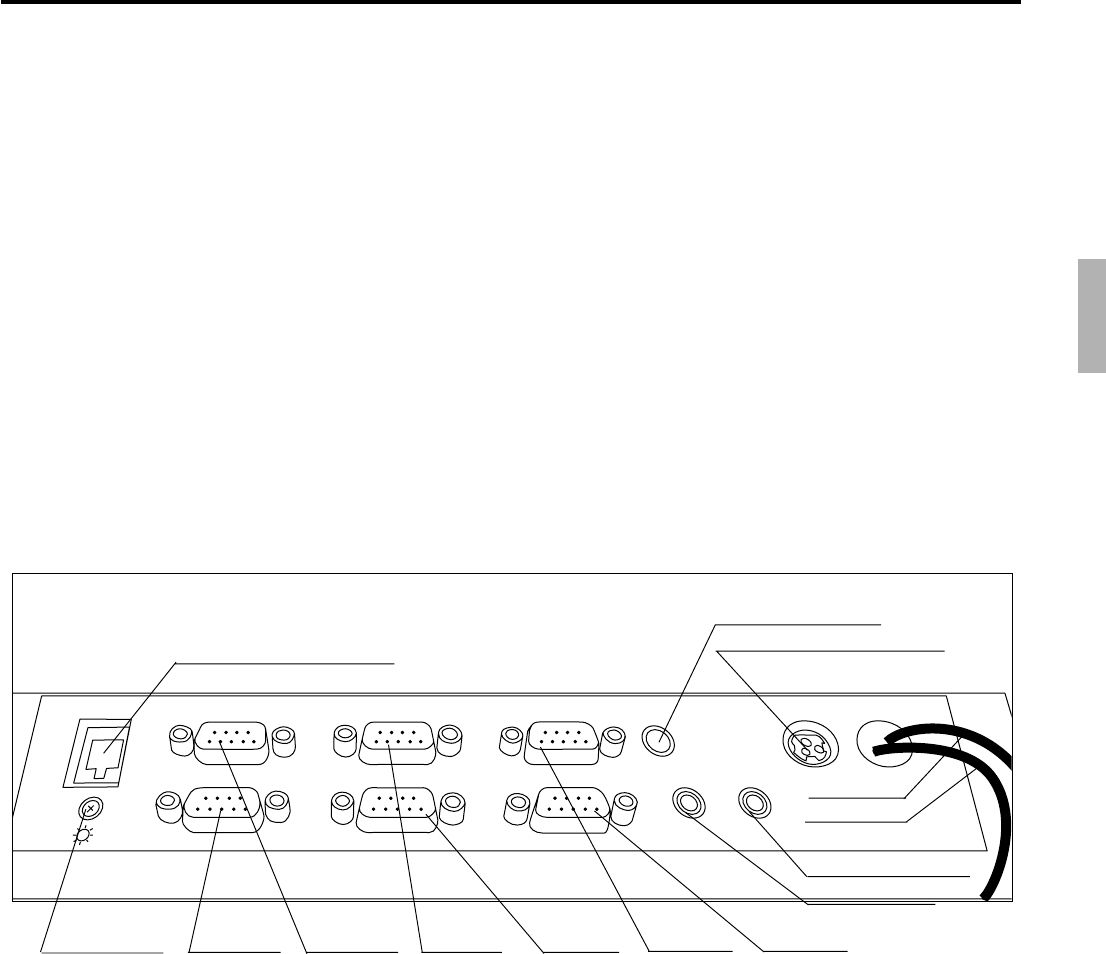
R-115
QT-6600 Reference Manual
3-5. Data communication system
The following details the inline and online data communication functions available with
the QT-6600 system.
3-5-1. Inline / online connectors
With the QT-6600, there are the following inline / online connectors in the rear side of the
body.
Inline (Standard) Ethernet
RS-232C COM1 (Standard) For MODEM, or PC
RS-232C COM2 (Standard) For Hand held scanner, Slip printer or Scale
RS-232C COM3 (Standard) For Remote customer display
RS-232C COM4 (Standard) For Remote printer, or Slip printer
RS-232C COM5 (Standard) For Remote printer
RS-232C COM6 (Standard) For Remote printer
DISPLAY
SCANNER
PC/MODEM
COM3
COM6
COM2
COM5
COM1
COM4
SPK
PS/2
KEYBOARD
MIC
LAN
Brightness COM6 COM3 COM2 COM5 COM1 COM4
Inline (10/100Base-T)
PS/2 keyboard
From the AC adaptor
Drawer 2
Drawer 1
Ext. microphone
Ext. speaker
Bottom side of the terminal
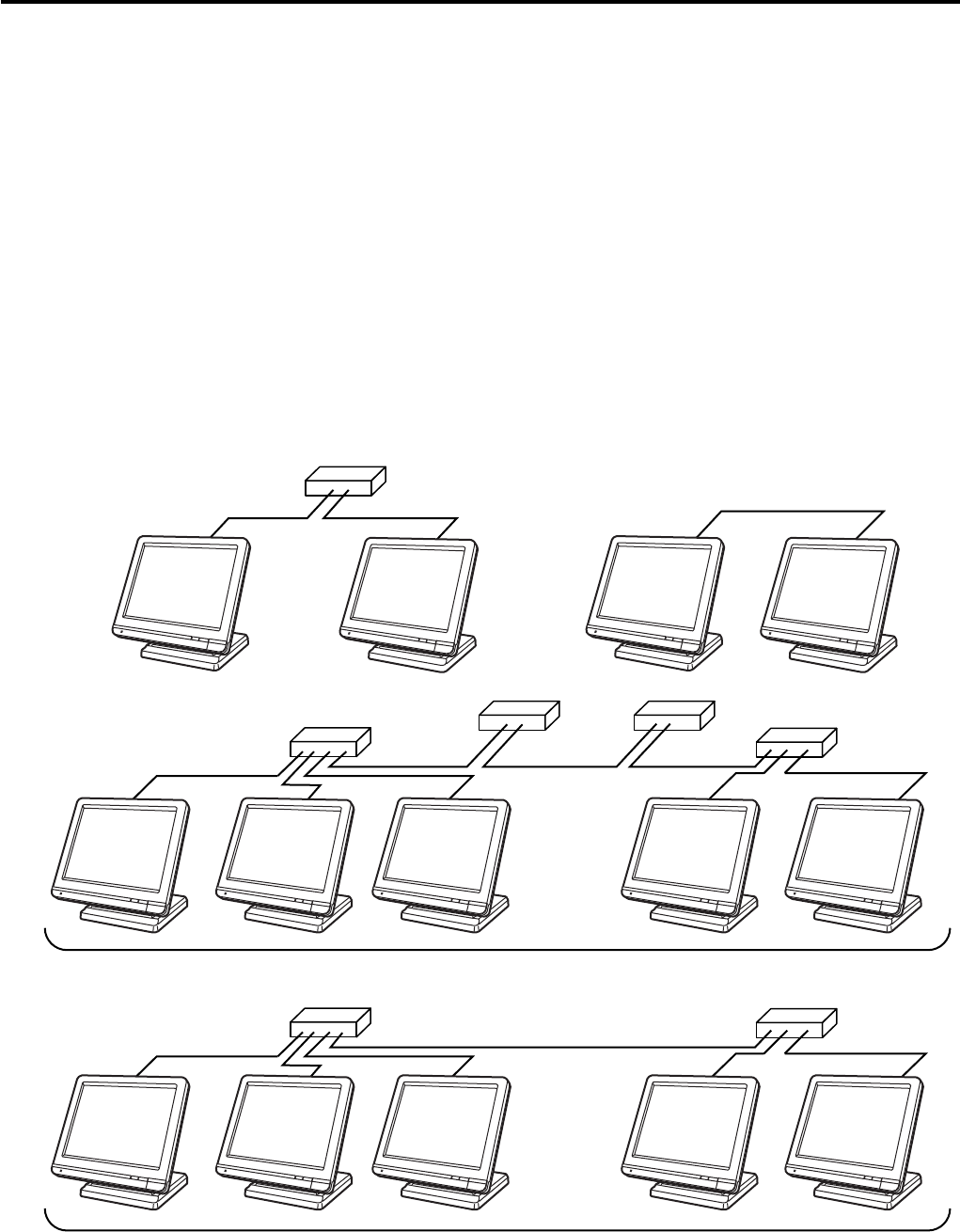
R-116
Manager Operation
3-5-2. Hardware interface
3-5-2-1. Inline interface
The maximum inline cable length and the maximum connection unit will be varied by
the inline communication speed as shown below figure.
•Using 10BASE-T
Cable length: 100m (hub to terminal, hub to hub)
Maximum 4 hubs in one cluster.
Maximum cable length between terminal and terminal via hubs is 500m.
•Using 100Base-TX
Cable length: 100m (hub to terminal, hub to hub)
Maximum 2 hubs in one cluster.
Maximum cable length between terminal and terminal via hubs is 300m.
Max.100m
Max.500m
Max.100m
Max.100m Max.100m
Max.100m Max.100m Max.100m
Max.100m cross cable
Max.100m
Max.300m
Max.100m Max.100m
Configuration with Hub
¥ 10BASE-T
¥ 100BASE-TX
Terminal to terminal
¥ 10BASE-T
¥ 100BASE-TX
C
C
C
C
C
C
C
C
C
C
C
C
C
C
C
C
C
C
C
C
C
C
C
C
C
C
C
C

R-117
QT-6600 Reference Manual
3-5-2-2. Online interface
Only the RS-232C COM 1 port can be connected with a modem or a personal computer.
1) Specification of RS-232C COM 1 port
Communication method: Half duplex communication
Configuration of connection: Point-to point
Line type: Public lines / exclusive lines
Starting method: Center (host computer) based start up
Protocol: Async.
Communication speed: 2400 / 4800 / 9600 / 19200 / 38400 / 57600 / 115200 bps
Error control: CRC-128 or CRC-1024
Text length: 128 or 1024 bytes
2) The cable diagram between the terminal and MODEM
3) The cable diagram between the terminal and PC
Terminal (COM 1) MODEM
Pin Signal Signal Pin
No. name name No.
3 SD/TDX SD 2
2 RD/RXD RD 3
7 RS/RTS RS 4
8 CS/CTS CS 5
1 CD/DCD CD 8
4 ER/DTR ER 20
6 DR/DSR DR 6
9 CI/RI CI 22
5 GND GND 7
(DSUB25)
Terminal (COM 1) PC
Pin Signal Signal Pin Pin
No. name name No. No.
3 SD/TDX SD 3 2
2 RD/RXD RD 2 3
7 RS/RTS RS 7 4
8 CS/CTS CS 8 5
1 CD/DCD CD 1 8
4 ER/DTR ER 4 20
6 DR/DSR DR 6 6
9 CI/RI CI 22
5 GND GND 5 7
(DSUB25)
(DSUB9)

R-118
Manager Operation
3-5-3. Inline / online functions
3-5-3-1. Inline functions
The list below shows the main functions available with the QT-6600 system.
In case of these functions below are executed, the satellite terminal can receive these
commands even if the satellite terminal is in OFF mode.
1) X/Z data collection for each terminal
2) X/Z data consolidation for each terminal
3) X/Z data collection / consolidation for each terminal
4) Program data copy and upload between terminals (auto-program function)
Functions 1), 2) and 3) can only be performed from a terminal that is programmed as master
in which consolidation files are allocated or PC.
3-5-3-2. Online functions
The QT-6600 can be controlled from the personal computer by connecting it to RS-232C
port 1 (COM1).
In case of sending a command from PC, the terminal can receive this command even if the
terminal is in OFF mode.

R-119
QT-6600 Reference Manual
3-6. Collection / Consolidation system
This section provides the general description of the data collection / consolidation system
of the QT-6600. The collection / consolidation system is managed by the master/satellite
system using inline network. Installation of any special hardware devices is not required
for collection / consolidation as inline interfaces are standard feature. Communication is
possible with the connection of inline cable.
In this section, the term “master” means a terminal which collects or consolidates data
registered on each terminal (called “satellite”) connected the inline.
The differences between collection and consolidation are as follows.
– Collection
Outputs the data of the master and individual satellite terminals from the master terminal.
– Consolidation
Totals data from the master and satellites, and then output it to a specific device.
– Collection / Consolidation
Collection and consolidation are performed at the same time.
Types of totalizer files
There are following seven types of totalizer files:
– Daily total files
Daily total files accumulate registered data.
– Periodic total 1 files
These files accumulate registered data at the point of sale, and can be reset independently
from the daily total files. Therefore, the total data within specific period can be accessed
by using these files.
– Periodic total 2 files
These files have same functions as the periodic total 1 files, but can reset independently
for getting the different periodic total data within different period.
– Daily consolidation files
These are files to consolidate the daily data.
– Periodic total 1 consolidation files
These are files to consolidate the periodic 1 data.
– Periodic total 2 consolidation files
These are files to consolidate the periodic 2 data.
– Consolidation work files
These files are work files to collect or consolidate the data of daily total, periodic total 1
or periodic total 2 files.
The daily consolidation files, periodic total 1 consolidation files, periodic total 2 consoli-
dation files and consolidation work files must be reserved as work files at the master
terminal during collection / consolidation operations.
NOTE:
Only a file with the same number of records as the records of corresponding daily total files
need to be reserved. For example, if the number of department is 50, then the same number,
50 records, should be reserved for department of other types.
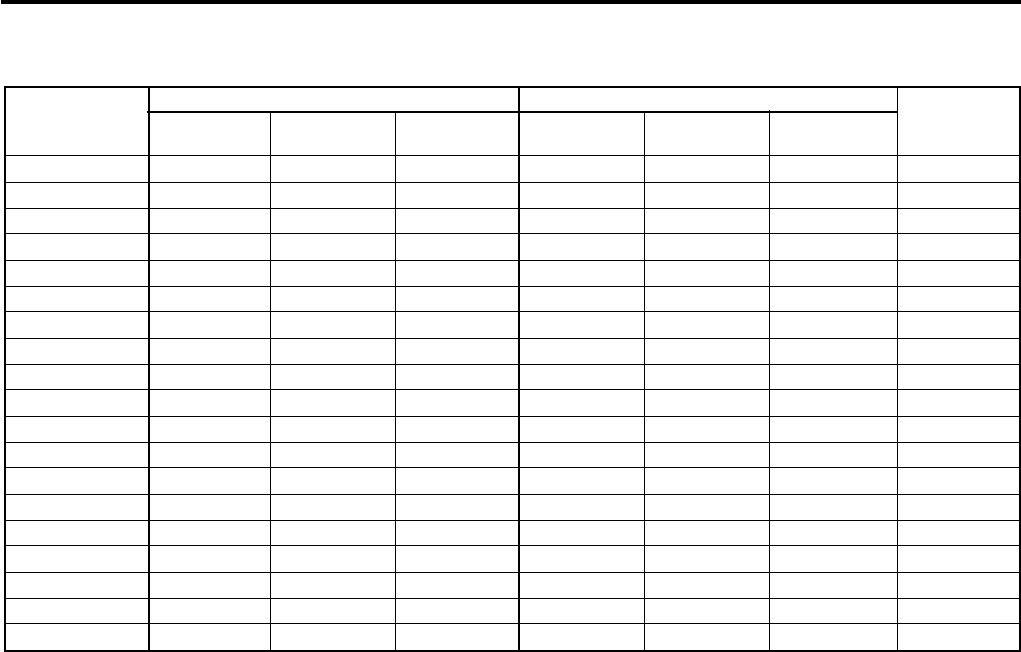
R-120
Manager Operation
File description and number list
Terminal files Consolidation files
File Daily Periodic 1 Periodic 2 Daily Periodic 1 Periodic 2 Consolidation
description total total total consolidation consolidation consolidation work
Fixed totalizer 001 101 201 301 401 501 601
Transaction key 002 102 202 302 402 502 602
Subdepartment 003 103 203 303 403 503 603
PLU 004 104 204 304 404 504 604
Department 005 105 205 305 405 505 605
Group 006 106 206 306 406 506 606
Clerk detail 011 111 211 311 411 511 611
Hourly sales 009 109 209 309 409 509 609
Monthly sales 010 110 210 310 410 510 610
Void table 012 112 212 312 412 512 612
Table analysis 018 118 218 318 418 518 618
Grand total 020 120 220 320 420 520 620
Hourly item 021 121 221 321 421 521 621
Hourly labor 014 114 214 314 414 514 614
Mix & match 051 151 251 351 451 551 651
Scan Mix & match
056 156 256 356 456 556 656
Customer group 042 142 242 342 442 542 642
Shift PLU 055 155 255 355 455 555 655
Scanning PLU 016 --- --- --- --- --- ---
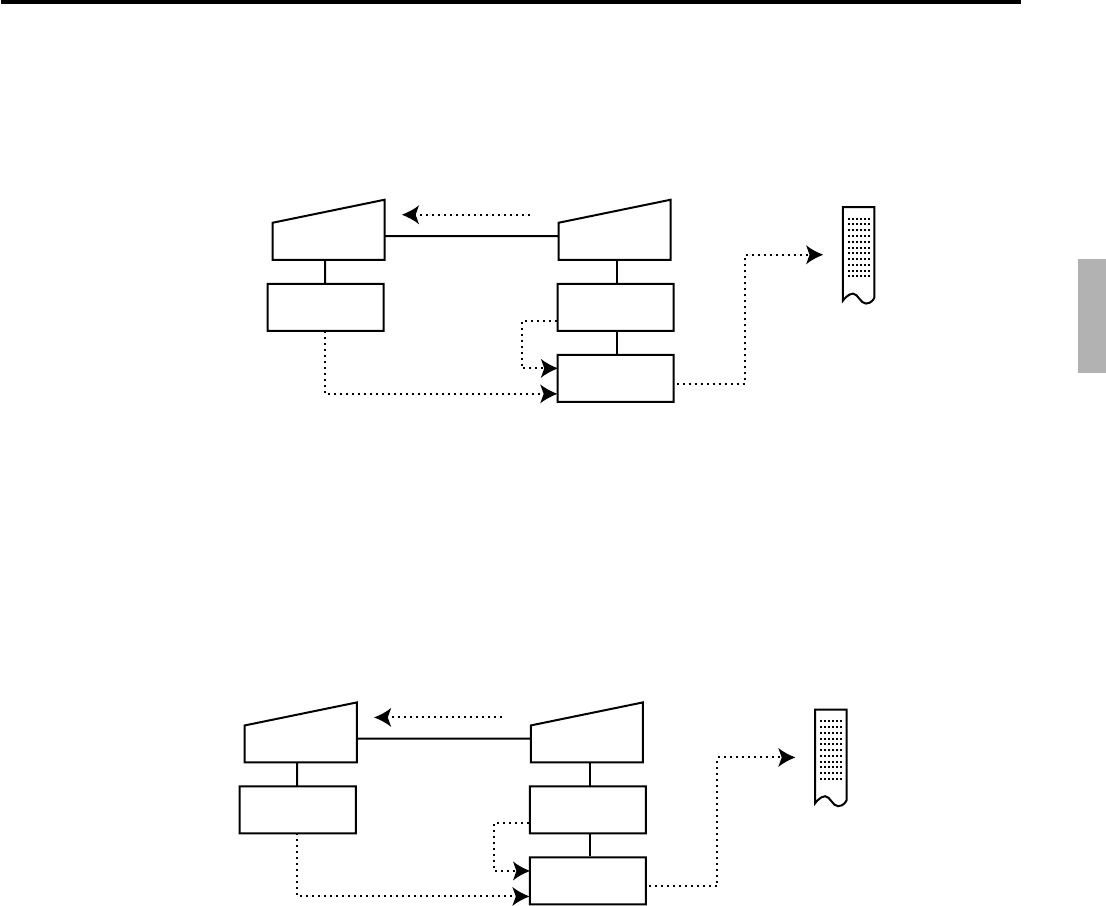
R-121
QT-6600 Reference Manual
Satellite Master
Terminal
files
Terminal
files
Consolidation
work
1
2
3
2
Satellite Master
Terminal
files
Terminal
files
Consolidation
work
1, 4
2
3
2
3-6-1. X/Z collection
This function is used to obtain the counters and totals of the individual terminals.
3-6-1-1. X collection processing
X collection processing is performed as the figure shown below.
1An X collection command is started up from the master terminal.
2One objected terminal sends its report data to the consolidation work file of the master.
3Report data from the objected terminal file are printed out on the master's printer.
4After processing of the master terminal completes, the same processes described in the
item 1 to 3 are executed for the other terminals. Data will be sent without the clerk
noticing, even when the satellite in the process of registering.
3-6-1-2. Z collection processing
Z collection processing is performed as the figure shown below.
1When a Z collection command is started up from the master terminal, the master first
locks one objected terminal. (Z lock)
2The objected terminal sends its report data to the consolidation work file of the master
terminal.
3Report data from the satellite terminal file are printed out on the master’s printer.
4The same processes described in the item 1 to 3 are executed for the other terminals.
5After the processing of the master terminal completes, the data of objected terminal file
are cleared, and then the Z lock of the objected terminal is released.
NOTE:
•When a Z collection is performed, the consolidation data cannot be output. If output of
consolidation data is desired, perform “collection/consolidation” processing described
later.
•Even if an error is occurred, or if the processing is terminated, the data to be collected
remains as they are, and Z lock statuses are automatically released.
R-122
Manager Operation
3-6-1-3. X/Z collection command execution
1. Sign on a clerk (if necessary).
2. Press <MODE> and <Inline>.
3. Select “1. Collection” and press the <YES> key.
4. Select the types and kinds you want to collect.
(Please refer to the X/Z report chapter about the report types
and kinds.)
5. Select the target terminal(s) and press <YES> key.
In case of selecting individual terminal(s), press the <ESC>
key when you finish to designate terminal(s).
6. Press the <ESC> key twice to terminate or to cancelthis
process.
NOTE:
•If money declaration compulsory is set, enter in drawer amount and press <#> (or <#/
NS>) before issuing report.
X/Z
C
01 10-10-01 12:34 000000
Inline X/Z
1.Collection
2.Consolidation
3.Collection & Consolidation
C
01 0.00
Collection
Collection
1.Daily X
2.Periodic(1) X
3.Periodic(2) X
4.Daily Z
5.Periodic(1) Z
6.Periodic(2) Z
C
01 0.00
Collection
Daily X
1.Batch
2.Cashier/Clerk
3.Customer Account
4.Others
C
01 0.00
Collection
Target ECR
1.All
2.Terminal A #01
3.Terminal B #02
4.Terminal C ---
5.Terminal D #04
6.Terminal E #05
7.Terminal F #06
8.Terminal G #07
C
01 0.00
←
Selected terminal
Collection
Inline 11110
Collection 0
MC #01 12:30 0021
MC #02 12:32 0022
MC #03 Error End 0001
MC #04 12:40 0020
C
01 0.00
←
Reset counter
←
Error code
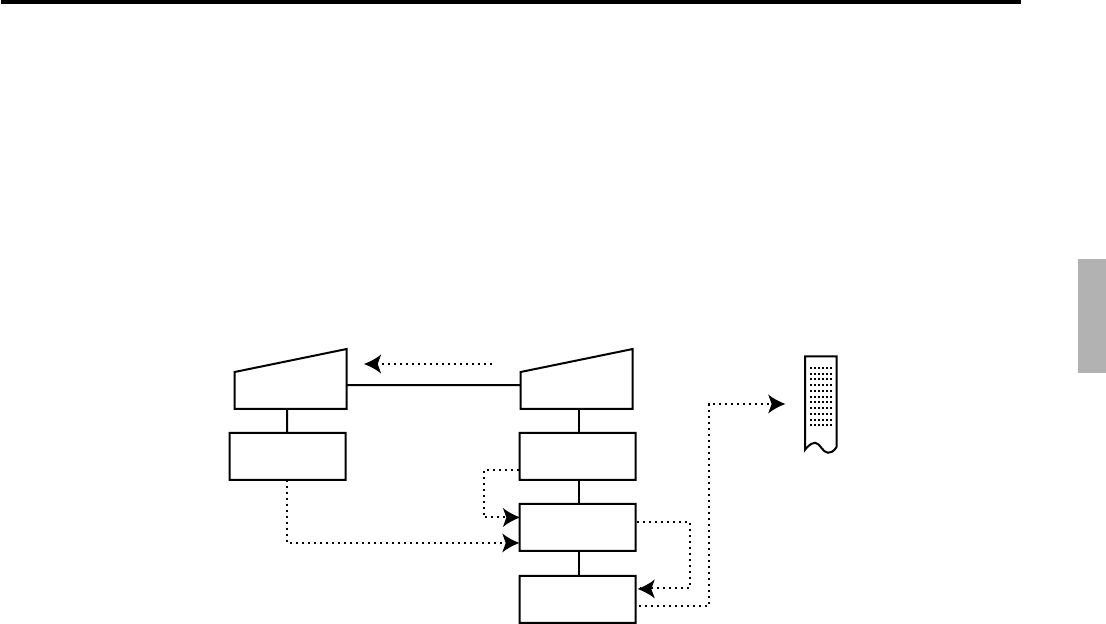
R-123
QT-6600 Reference Manual
Satellite Master
Terminal
files
Terminal
files
Consolidation
files
Consolidation
work
1
2
3
2
5
3-6-2. X/Z consolidation
This function is used to obtain the sum of counters and totals of all objected terminals in
the store.
After consolidating data from all objected terminals, the master prints the details on the
printer.
Regardless of whether they are in the process of registration, the satellite terminals send
data and do not print out the reports, when X consolidation is performed. But, during the
Z consolidation, satellites are locked from registrations.
3-6-2-1. X consolidation processing
X consolidation processing is performed as the figure shown below.
1An X consolidation command is started up from the master terminal.
2Data of the objected terminal file are sent to the master terminal, and are copied to the
consolidation work file.
3The data in the consolidation work file is added to the consolidation file.
4The same process described in item 1 to 3 is executed for other terminals.
5After the above collection processing is completed for all objected terminals, the data
accumulated in the consolidation work file are reported on the master's printer.
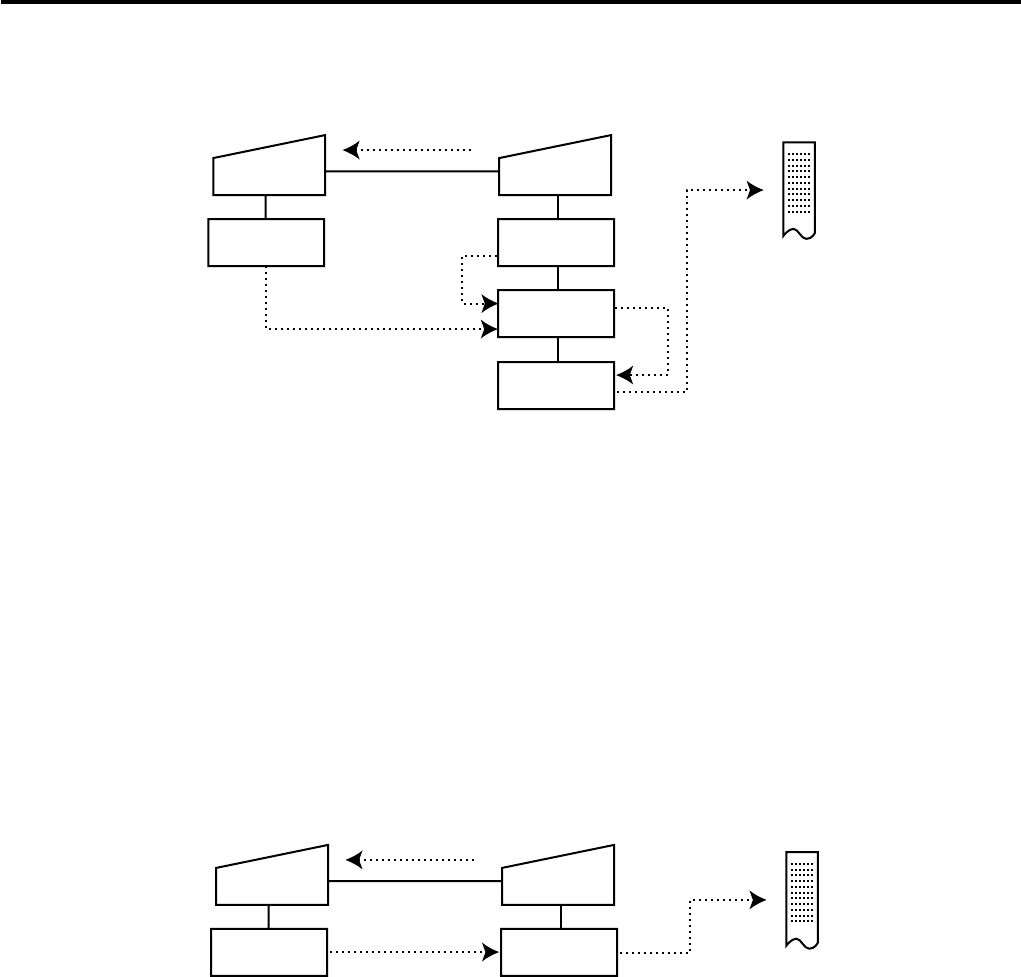
R-124
Manager Operation
Satellite Master
Terminal
files
Terminal
files
Consolidation
files
Consolidation
work
1, 6
2
3
2
5
3-6-2-2. Z consolidation processing (except scanning PLU)
Z consolidation processing is performed as the figure shown below.
1A Z consolidation command is started up from the master terminal.
The master first locks an objected terminal. (Z lock)
2Data of the objected terminal files are sent to the master terminal, and are copied to the
consolidation work file.
3The data in the consolidation work file is added to the consolidation file.
4After the processing of the master terminal completes, the same processes described in
item 1 to 3 are executed for all other terminals.
5The data accumulated in the consolidation file are reported on the master's printer.
6After the above collection processing completes for all objected terminals, the files of
all objected terminals are cleared, and then satellite's Z lock statuses are released.
3-6-2-3. Z consolidation processing (scanning PLU)
Z consolidation processing is performed as the figure shown below.
Satellite Master
Terminal
files
Terminal
files
1, 5
2, 34
1A Z consolidation command is started up from the master terminal.
The master first locks an objected terminal. (Z lock)
2Data of the objected terminal files are sent to the master terminal, and are added to the
master terminal file.
3Step 2 are executed for all other teminals.
4The data accumulated in the master terminal file are reported on the master's printer.
6After the above processing completes for all objected terminals, the files of all objected
terminals are cleared, and then satellite's Z lock statuses are released.
NOTE:
•Even if an error is occurred, or if the processing is terminated, the data to be collected
remains as they are, and Z lock statuses are automatically released. Therefore, retrying
the same operation can be performed.
R-125
QT-6600 Reference Manual
3-6-2-4. X/Z consolidation command execution
1. Sign on a clerk (if necessary).
2. Press <MODE> and <Inline> to assign Inline X/Z.
3. Select “2. Consolidation” and press the <YES> key.
4. Select the types and kinds you want to collect.
(Please refer to the X/Z report chapter about the report types
and kinds.)
5. Select the target terminals and press the <YES> key.
In case of selecting individual terminal(s), press the <ESC>
key when you finish to designate terminal(s).
6. Press the <ESC> key twice to terminate or to cancel this
process.
NOTE:
•If money declaration compulsory is set, enter in drawer amount and press <#> (or <#/
NS>) before issuing report.
X/Z
C
01 10-10-01 12:34 000000
Inline X/Z
1.Collection
2.Consolidation
3.Collection & Consolidation
C
01 0.00
Consolidation
Consolidation
1.Daily X
2.Periodic(1) X
3.Periodic(2) X
4.Daily Z
5.Periodic(1) Z
6.Periodic(2) Z
C
01 0.00
Consolidation
Daily X
1.Batch
2.Cashier/Clerk
3.Customer Account
4.Others
C
01 0.00
Consolidation
Target ECR
1.All
2.Terminal A #01
3.Terminal B #02
4.Terminal C ---
5.Terminal D #04
6.Terminal E #05
7.Terminal F #06
8.Terminal G #07
C
01 0.00
←
Selected terminal
Consolidation
Inline 11111
Consolidation 0
MC #01 12:30 0021
MC #02 12:32 0022
MC #03 Error End 0001
MC #04 12:40 0020
C
01 0.00
←
Reset counter
←
Error code
R-126
Manager Operation
Satellite Master
Terminal
files
Terminal
files
Consolidation
files
Consolidation
work
1
2
4
2
3
6
3-6-3. X/Z collection / consolidation
This function is used to obtain the counters and totals of the individual terminals
(collection) and of all objected terminals in the store (consolidation) by one procedure.
After printing collection report on the master's printer, the master prints the consolidation
report. Regardless whether they are in the process of registration, the satellite terminals
send data and do not print out the reports, when X collection / consolidation is performed.
But, during the Z collection / consolidation, satellites are locked from registrations.
After consolidating data from all objected terminals, the master prints the details on the
printer.
3-6-2-1. X collection/consolidation processing
X collection/consolidation processing is performed as the figure shown below.
1An X collection / consolidation command is started up from the master terminal.
2Data of the objected terminal file are sent to the master terminal, and are copied to the
consolidation work file.
3The data in the consolidation work file is reported on the master's R/J printer.
4The data in the consolidation work file is added to the consolidation file.
5The same process described in item 1 to 4 is executed for other terminals.
6After the above collection processing is completed for all terminals, the data accumu-
lated in the consolidation file are reported on the master's R/J printer.
R-127
QT-6600 Reference Manual
Satellite Master
Terminal
files
Terminal
files
Consolidation
files
Consolidation
work
1, 7
2
4
2
3
6
3-6-3-2. Z collection / consolidation processing
Z collection/consolidation processing is performed as the figure shown below.
1A Z collection / consolidation command is started up from the master terminal.
The master first locks an objected terminal. (Z lock)
2Data of the objected terminal file are sent to the master terminal, and are copied to the
consolidation work file.
3The data in the consolidation work file are reported on the master's printer.
4The data in the consolidation work file is added to the consolidation file.
5After the master terminal's processing completes, the same processes described in item
1 to 4 are executed for all other terminals.
6The data accumulated in the consolidation file are reported on the master's printer.
7After the above collection processing completes for all terminals, the files of all satellite
terminals are cleared, and then satellite's Z lock statuses are released.
NOTE:
•Even if an error is occurred, or if the processing is terminated, the data to be collected
remains as they are, and Z lock statuses are automatically released. Therefore, retrying
the same operation can be performed.
R-128
Manager Operation
3-6-2-3. X/Z collection / consolidation command execution
1. Sign on a clerk (if necessary).
2. Press the <MODE> and <Inline> key to assign Inline X/Z.
3. Select “3. Collection & Consolidation” and press the <YES>
key.
4. Select the types and kinds you want to collect.
(Please refer to the X/Z report chapter about the report types
and kinds.)
5. Select the target terminals and press the <YES> key.
In case of selecting individual terminal(s), press the <ESC>
key when you finish to designate terminal(s).
6. Press the <ESC> key twice to terminate or to cancel this
process.
NOTE:
•If money declaration compulsory is set, enter in drawer amount and press <#> (or <#/
NS>) before issuing report.
X/Z
C
01 10-10-01 12:34 000000
Inline X/Z
1.Collection
2.Consolidation
3.Collection & Consolidation
C
01 0.00
Collection&Consolidation
Collection&Consolidation
1.Daily X
2.Periodic(1) X
3.Periodic(2) X
4.Daily Z
5.Periodic(1) Z
6.Periodic(2) Z
C
01 0.00
Collection&Consolidation
Daily X
1.Batch
2.Cashier/Clerk
3.Customer Acoount
4.Others
C
01 0.00
Collection&Consolidation
Target ECR
1.All
2.Terminal A #01
3.Terminal B #02
4.Terminal C ---
5.Terminal D #04
6.Terminal E #05
7.Terminal F #06
8.Terminal G #07
C
01 0.00
←
Selected terminal
Collection&Consolidation
Inline 11112
Collection&Conso 0
MC #01 12:30 0021
MC #02 12:32 0022
MC #03 Error End 0001
MC #04 12:40 0020
C
01 0.00
←
Reset counter
←
Error code

R-129
QT-6600 Reference Manual
3-7. Auto-programming function
Using the auto programming function makes it possible to save and load the terminal
program files. Methods available for saving the terminal program are as follows:
1) Saving onto another terminal connected through inline.
2) Saving onto a personal computer connected through inline/ online.
3) Saving onto a CF card inserted in the CF card slot.
To ensure quick recovery from a corrupted file resulting from user error or system failure,
it is recommended that you maintain back up copies of current terminal programs on a file
basis.
Terminal program files can be loaded using procedures opposite to those used for saving.
Note:
Data except for program data, such as data in totalizers, counters, and work area, cannot
be saved by the auto programming function. (except for copying all data)
Caution:
Do not remove a CF card during sending / receiving data from/to it.
3-7-1. Auto-programming functions
The QT-6600 terminal is capable of saving and loading terminal program files. The
terminal program file has the following transfer functions:
1) Copy all terminal files (send / receive)
(send: activation by source terminal / receive: activation by target terminal)
This function copies all terminal files with counters and totalizers. When a file is not
reserved on the target terminal, that file is created automatically.
2) Copy all terminal program files (send / receive)
This function copies all terminal files without counters and totalizers. When a file is not
reserved on the target terminal, the processing for that file is skipped.
3) Copy individual terminal program files (send / receive)
This function copies the specific terminal program file (except system work files)
without counters and totalizers.
4) Copy unit price field of particular files (send / receive)
This function copies the unit price field of specific files (i.e. PLU, PLU 2nd@).
R-130
Manager Operation
3-7-2. Auto-program operation and CF card utilities
The procedures of auto program function
1. Sign on a clerk (if necessary)
2. Press the <MODE> and <AUTO PGM> key to assign “AUTO
PGM.”
3. Select the appropriate menu you want by following the
guidance. The hierarchy of the AUTO PGM menus are
described below.
Auto-program menu hierarchy
Send / Receive Copy All
Unit Price only
Range
(Send only)
Individual Files
All Data
All PGM
PLU
PLU 2nd@
PLU
PLU 2nd@
Fixed Totalizer
Free Function
Sub Department
PLU
Department
Group Character
Cashier / Clerk
Void
Scanning PLU
Multi EAN file
Batch Maintenance
NLU File
Non PLU table
Scan Mix & Match
Table Analysis
GT Character
General Feature
Special Character
Report Header
Tax Tabl e
Pulldown Group
Set Menu Table
Clerk key ID
Batch X / Z
Clerk Detail
Receipt / SLIP Msg
Endorse Message
ARG GP1
ARG GP2
ARG GP3
ARG GP4
ARG GP5
Text Recall
Check Print
Graphic Logo
PLU 2nd@
Shift PLU
Scheduler
Order Char Link
Keyboard
Character Keyboard
System Connection
I / O Parameter
Printer Connection
Hourly/Item Link
Mix & match
Time Zone
Employee
Job Code
Schedule
IDC Link
Euro (Sub Currency) Pres
e
Auto Pgm control
Screen Color
Customer
Customer GP
Customer Title
Menu Title
CF X/Z Conv
Check Window
Clerk Window
Sound (1)
Sound (2)
:
Sound (10)
Color Definition
Color Theme
BMP Picture
Additional BMP Picture
FTP Login Password
FTP Server Name
FTP Trans File
User logo
Check Window 21
Check Window 22
Check Window 23
Keys for Check Window
Free Function List
Tare Table
Additional PLU Character
Additional Item Program
Additional Order Control
Sign Off Reason
PC Keyboard
TCP/IP
X/Z
C
01 10-10-01 12:34 000000
AUTO PGM
1.Send
2.Receive
0.00
R-131
QT-6600 Reference Manual
The procedure of Data Backup to the CF card
1. Sign on a clerk (if necessary)
2. Press the <CF CARD> key to assign “CF card.”
3. Select the appropriate menu you want by following the
guidance. Insert the CF card to the slot securely.
The hierarchy of the Data Backup is described below.
Data Backup menu hierarchy
Backup Copy All
Individual Files
All Data
All PGM
Fixed Totalizer
Free Function
Sub Department
PLU
Department
Group Character
Cashier / Clerk
Void
Scanning PLU
Multi EAN file
Batch Maintenance
NLU File
Non PLU table
Scan Mix & Match
Table Analysis
GT Character
General Feature
Special Character
Report Header
Tax Tabl e
Pulldown Group
Set Menu Table
Clerk key ID
Batch X / Z
Clerk Detail
Receipt / SLIP Msg
Endorse Message
ARG GP1
ARG GP2
ARG GP3
ARG GP4
ARG GP5
Text Recall
Check Print
Graphic Logo
PLU 2nd@
Shift PLU
Scheduler
Order Char Link
Keyboard
Character Keyboard
System Connection
I / O Parameter
Printer Connection
Hourly/Item Link
Mix & match
Time Zone
Employee
Job Code
Schedule
IDC Link
Euro (Sub Currency) Preset
Auto Pgm control
Screen Color
Customer
Customer GP
Customer Title
Menu Title
CF X/Z Conv
Check Window
Clerk Window
Sound (1)
Sound (2)
:
Sound (10)
Color Definition
Color Theme
BMP Picture
Additional BMP Picture
FTP Login Password
FTP Server Name
FTP Trans File
User logo
Check Window 21
Check Window 22
Check Window 23
Keys for Check Window
Free Function List
Tare Table
TCP/IP
X/Z
C
01 10-10-01 12:34 000000
CF Card
1.Data Backup
2.Data Restore
3.Backup File List
4.CF Card Format
0.00

R-132
Manager Operation
The procedure of Data Restore from the CF card
1. Sign on a clerk (if necessary)
2. Press the <MODE> and <CF CARD> key to assign “CF
card.”
3. Insert the CF card to the slot securely.
Select “2. Data Restore” and press the <YES> key.
4. Select the appropriate file you want to restore.
X/Z
C
01 10-10-01 12:34 000000
CF Card
1.Data Backup
2.Data Restore
3.Backup File List
4.CF Card Format
0.00
X/Z
C
01 10-10-01 12:34 000000
Data Restore
1.FILE004P.004
2.FILE090P.090
3.FILE028P.028
0.00
R-133
QT-6600 Reference Manual
The procedures of taking the file list of the CF card and deleting the file
1. Sign on a clerk (if necessary)
2. Press the <MODE> and <CF CARD> key to assign “CF
card.”
3. Insert the CF card to the slot securely.
Select “3. Backup File List” and press the <YES> key.
4. In case of deleting a file, select the appropriate file and press
the <YES> key.
The procedures of formatting the CF card
1. Sign on a clerk (if necessary)
2. Press the <MODE> and <CF CARD> key to assign “CF
card.”
3. Insert the CF card to the slot securely.
Select “4. CF Card Format” and press the <YES> key.
4. Press the <YES> key to continue formatting, <NO> means
abortion.
Backup File List
FILE001P.001 10-10-01 10:00
FILE002P.002 10-10-01 10:01
FILE003P.003 10-10-01 10:02
0.00
X/Z
C
01 10-10-01 12:34 000000
This procedure deletes all
data in the CF Card.
Are you sure to format?
0.00
X/Z
C
01 10-10-01 12:34 000000
CF Card
1.Data Backup
2.Data Restore
3.Backup File List
4.CF Card Format
0.00
X/Z
C
01 10-10-01 12:34 000000
CF Card
1.Data Backup
2.Data Restore
3.Backup File List
4.CF Card Format
0.00

R-134
Manager Operation

R-135
QT-6600 Reference Manual
4. Registrations ........................................................................................ R-134
4-1. Clerk sign on / off operation ............................................................................ R-134
4-2. Voiding the last registered item (<VOID> key operation) ................................ R-135
4-3. Voiding the previous registered item (<VOID> key operation)......................... R-136
4-4. Cancelling of all data registered during the transaction .................................. R-136
4-5. Using the list function ...................................................................................... R-138
4-6. Using the set menu function and pulldown group function .............................. R-139
4-7. Post entry ........................................................................................................ R-142
4-8. Separate check ............................................................................................... R-143
4-9. Open check ..................................................................................................... R-144
4-9. Split payment (Dutch account) ........................................................................ R-144
4-10. Media change.................................................................................................. R-145
4-11. Eat-in / Takeout ............................................................................................... R-146
4-12. Scanning PLU ................................................................................................. R-146
4-13. Shift PLU ......................................................................................................... R-149
4-14. Printing barcode on receipts (UP-400 and UP-360)........................................ R-149
4-15. Round repeat function ..................................................................................... R-150
4-16. Mix & match / coupon...................................................................................... R-151
4-17. Customer......................................................................................................... R-152
4-18. Table sharing ................................................................................................... R-153
4-19. Order character change .................................................................................. R-153
4-20. Item search ..................................................................................................... R-153
4-21. Scan Mix & match ........................................................................................... R-154
4-22. Time calculation .............................................................................................. R-155
4-23. Additional PLU character ................................................................................ R-156
R-136
Registration
4. Registrations
This section describes characteristic registrations of the QT-6600.
Key catch tone, error tone volume can be controlled by the <LEFT/RIGHT ARROW> key.
4-1. Clerk sign on / off operation
The following examples illustrate the clerk sign on / off operation.
•When an i-Button key is used, sign on operation can be performed by attaching the clerk
key to the receiver by the appropriate i-Button key.
Note: After initialization, i-Button key ID should be set.
• When a clerk ID number is programmed for the clerk key, sign on operation can be
performed by merely pressing the clerk key on the keyboard or in the clerk pop-up
window.
It is the same procedure that even clerks are assigned as “clerk”, “cashier” or “manager.”
1) Clerk sign on operation (Clerk key has the clerk number setting.)
1. Just press the appropriate <CLERK> key in the keyboard or
in the clerk pop-up window.
2) Clerk sign on operation (Clerk key has no clerk number setting.)
In case of the store has many clerks to control, you need not allocate all clerk keys on the
keyboard but allocate a few clerk key and program no clerk number one of the clerk key.
1. Press the <CLERK> key, if you want to display no clerk
number entries.
REG 10-10-01 12:34 000001
CLK# ----
Please sign on.
REG
C
01 10-10-01 12:34 000001
REG Mode
Please sign on.
Clerk window 1
C01 C02
C03 C04
C05 C06
C07 C08
C09 C10
NEXT PREV
(clerk pop-up window)
R-137
QT-6600 Reference Manual
2. Enter the appropriate clerk number and press the <CLERK>
key.
3) Clerk sign off operation
1. Enter “0” and press the <CLERK> key.
4-2. Voiding the last registered item (<VOID> key operation)
Use the <VOID> key to cancel a data that has just been registered using a function key. The
<VOID> key can be used to cancel data registered using departments, subdepartments,
PLUs, scan PLUs, partial tenders, or the <PRICE>, <+>, <–>, <%+>, <%–>, <LOAN> or
<PICKUP> key. You can only use the <VOID> key to cancel a registration if you have not
yet started registration of the next item.
1. Wrong registration is made.
2. Press the <VOID> key to cancel the data and reregister the
transaction.
REG 10-10-01 12:34 000001
CLK# --**
Please sign on.
REG
C
01 10-10-01 12:34 000001
0.00
Please sign on.
REG
C
01 10-10-01 12:34 000001
1 PLU0001 •1.00
10%
%- -0.10
%- -0.10
1 ST •0.90
REG
C
01 10-10-01 12:34 000001
1 PLU0001 •1.00
VOID •0.10
1 ST •1.00
R-138
Registration
4-3. Voiding the previous registered item (<VOID> key operation)
If data has been registered using a function key and registration of the next item has begun,
use the <VOID> key to cancel previous registered data. Entries using departments,
subdepartments, PLUs or scan PLUs can be cancelled using the <VOID> key.
1. Wrong registration is made.
2. Press the <UP ARROW> or <DOWN ARROW> key to
designate the item registration.
3. Press the <VOID> key to cancel the item and reregister the
transaction.
4-4. Cancelling of all data registered during the transaction
Press the <CANCEL> key to cancel all data registered (except partial tendering) during
the transaction. This operation lets you clear registered data and restart from the beginning.
The cancel operation must be performed before the transaction is finalized.
1. Wrong registration is made.
REG
C
01 10-10-01 12:34 000001
1 PLU0001 •1.00
1 PLU0002 •2.00
3 PLU0003 •9.00
1 PLU0004 •4.00
PLU0004 •4.00
6 •16.00
REG
C
01 10-10-01 12:34 000001
1 PLU0001 •1.00
1 PLU0002 •2.00
3 PLU0003 •9.00
1 PLU0004 •4.00
PLU0004 •4.00
6 •16.00
REG
C
01 10-10-01 12:34 000001
1 PLU0001 •1.00
1 PLU0002 •2.00
3 PLU0003 •9.00
1 PLU0004 •4.00
PLU0004 •4.00
6 •16.00
REG
C
01 10-10-01 12:34 000001
1 PLU0001 •1.00
1 PLU0002 •2.00
1 PLU0004 •4.00
PLU0003 -9.00
3 ST •7.00

R-139
QT-6600 Reference Manual
2. Press the <CANCEL> key.
3. Press the <YES> key to cancel the transaction.
REG
C
01 10-10-01 12:34 000001
1 PLU0001 •1.00
1 PLU0002 •2.00
3 PLU0003 •9.00
1
Cancel OK?
PLU0004 •4.00
6 •16.00
REG
C
01 10-10-01 12:34 000001
1 PLU0001 •1.00
1 PLU0002 •2.00
3 PLU0003 •9.00
1 PLU0004 •4.00
CANCEL •••••••••••••
CANCEL 0.00
Please sign on.
R-140
Registration
4-5. Using the list function
Before using the LIST function, the following programs are necessary to use this function.
1) Allocating the <LIST> key or the <LIST-#> key (page 26 of the programming manual)
In case of using the <LIST> key, <LIST> key(s) should be allocated on the keyboard
before step 2.
2) Programming pulldown group (page 32 of the programming manual)
3) Programming item price (page 140 of the programming manual)
Normal registration by using the <LIST> and <LIST-#> key
(List pop-up window)
1. Press the <LIST> key or enter the list No. and press the
<LIST-#> key. Then the List pop-up window is opened on the
keyboard.
2. Select the appropriate item.
Direct selection by using the <LIST> key
1. Press the appropriate record number and press the <LIST>
key brings direct selection of the item.
REG
C
01 10-10-01 12:34 000001
1 PLU0001 •10.00
PLU0001 •10.00
1 •10.00
REG
C
01 10-10-01 12:34 000001
1 PLU0001 •10.00
PLU0001 •10.00
1 •10.00
<LIST> or No. <LIST-#>
↓
PLU 1
PLU 2
PLU 3
← Select one of these.
←
←
LIST01 0/1-1
PLU001 PLU002
PLU003 PLU004
PLU005 PLU006
PLU007 PLU008
PLU009 PLU010
R-141
QT-6600 Reference Manual
Before using the pulldown group function, the following programs are necessary to use this
function.
1) Programming pulldown group (page 32 of the programming manual)
2) Programming PLU “List Link No.” (page 88 of the programming manual)
3) Programming item prices (page 140 of the programming manual)
1. Register the parent (main) PLU. The list linked appears.
2. Select the appropriate (child/grandchild) PLU.
4-6. Using the set menu function and pulldown group function
4-6-1. Using the Set Menu function
Before using the set menu function, the following programs are necessary to use this
function.
1) Programming set menu table (page 33 of the programming manual)
2) Programming PLU “Set menu table linking” (page 88 of the programming manual)
3) Programming item prices (page 140 of the programming manual)
1. Registering a PLU linked to a set menu.
4-6-2. Using the Pulldown group function
PLU (Parent) registration
↓
Child PLU 1
Child PLU 2
Child PLU 3
← Select one of these.
←
←
REG
C
01 10-10-01 12:34 000001
1 PLU0001 •10.00
PLU0001 •10.00
1 •10.00
REG
C
01 10-10-01 12:34 000001
1 PLU0001 •10.00
1 PLU0012 •1.00
PLU0001 •10.00
2 •11.00
REG
C
01 10-10-01 12:34 000001
1 PLU0001 •10.00
1 PLU0012 •1.00
1 PLU0015
PLU0001 •10.00
2 •11.00
REG
C
01 10-10-01 12:34 000001
1 PLU0001 •10.00
PLU0002
PLU0003
PLU0004
PLU0001 •10.00
1 •10.00
}
Set Menu linked to PLU0001
(select “set menu breakdown printing”
LIST02 0/1-1
PLU010 PLU011
PLU012 PLU013
LIST10 0/1-1
PLU014 PLU015
PLU016 PLU017
(List pop-up window) (List pop-up window)
R-142
Registration
4-6-3. Using the set menu and pulldown group function
Before using the set menu and pulldown group function, the following programs are
necessary to use this function.
1) Programming set menu table (page 33 of the programming manual)
2) Programming pulldown group (page 32 of the programming manual)
3) Programming PLU “Set menu table linking” and “List Link No.” (page 88 of the
programming manual)
4) Programming item prices (page 140 of the programming manual)
1.Registering a PLU linked to a set menu and pulldown group.
2. Select the appropriate item.
If there are more pulldown groups linked to the PLU, next
pulldown group appears on the screen.
4-6-4. Using the substitution key
Normally, you can select item(s) in a pulldown group. If the customer requires to take an
item from another set menu/pulldown group, the <SUBSTITUTION> key should be used.
1. A PLU linked to a pulldown group is registered, but no items
in the list can be selected.
REG
C
01 10-10-01 12:34 000001
1 PLU0001 •10.00
PLU0002
PLU0003
PLU0004
PLU0001 •10.00
1 •10.00
REG
C
01 10-10-01 12:34 000001
1 PLU0001 •10.00
PLU0002
PLU0003
PLU0004
1 PLU0010
PLU0001 •10.00
2 •11.00
}
Set Menu linked to PLU0001
← Selected in the LIST01
REG
C
01 10-10-01 12:34 000001
1 PLU0020 •10.00
1 PLU0021 •20.00
PLU0021 •10.00
2 •30.00
PLU0001
PLU0002, PLU0003, PLU0004
LIST01
↓
PLU0010
PLU0011
PLU0012
PLU0013
← Select one of these.
←
←
←
LIST01 0/1-1
PLU010 PLU011
PLU012 PLU013
LIST01 0/1-1
PLU001 PLU002
PLU003 PLU004
(List pop-up window)
(List pop-up window)
}
Set Menu linked to PLU0001
R-143
QT-6600 Reference Manual
2. Press the <SUBSTITUTION> key.
3. Register the appropriate item.
4-6-5. Inner multiplication
Normally, the quantity of list linked PLU or set menu child PLU follows the same quantity
as main PLU. But it is possible to register a different number of list linked PLU or child
PLU from the number of main PLU.
Before using the inner multiplication, the following program is necessary in addition to the
Pulldown Group or Set Menu Table to use this function.
Note) Program”Fast food” in the “Set Menu / Condiment” program (page 45 of the
programming manual)
1. An multiplication of a PLU is made.
2. Enter appropriate quantity and press the <X> key.
REG
C
01 10-10-01 12:34 000001
1 PLU0020 •10.00
1 PLU0021 •20.00
1 PLU0050 •50.00
PLU0050 •50.00
3 •80.00
REG
C
01 10-10-01 12:34 000001
3 PLU0001 •30.00
PLU0001 •30.00
3 •30.00
REG
C
01 10-10-01 12:34 000001
3 PLU0001 •30.00
X 2
3 •30.00
REG
C
01 10-10-01 12:34 000001
1 PLU0020 •10.00
1 PLU0021 •20.00
SUBST. 0.00
2 •30.00
LIST01 0/1-1
PLU001 PLU002
PLU003 PLU004
LIST01 00
PLU010 PLU011
PLU012 PLU013
LIST01 00
PLU010 PLU011
PLU012 PLU013
(List pop-up window)
(List pop-up window)
(List pop-up window)
R-144
Registration
3. Select the appropriate PLU (in case of pulldown group.)
4-7. Post entry
Post entry is used to suspend the selectable item in the pulldown window of a set menu and
register the selected item. For example, it is used to register dessert which is included in
a set menu. (This function is only effective in check tracking operation.)
4-7-1. To suspend the selection
1. Enter the <POST ENTRY> key to suspend the selection.
2. The key descriptor shows the suspended item.
4-7-2. To register the suspended item
1. Open the check and designate “POST ENTRY” by ?, >.
Pressing the <POST ENTRY> key recalls the pulldown
menu screen to select items.
REG
C
01 10-10-01 12:34 000001
3 PLU0001 •30.00
2 PLU0010 •2.00
PLU0010 •2.00
5 •32.00
REG
C
01 10-10-01 12:34 000001
1 Lunch menu •12.00
Soup
Chicken
with pepper
Sirloin
Rare
French
Pea
0.00
1 •12.00
REG
C
01 10-10-01 12:34 000001
1 Lunch menu •12.00
Soup
Chicken
with pepper
Sirloin
Rare
French
Pea
POST ENTRY
0.00
1 •12.00
← the suspended item
REG
C
01 10-10-01 12:34 000001
1 Lunch menu •12.00
Soup
Chicken
with pepper
Sirloin
Rare
French
Pea
POST ENTRY
0.00
1 •12.00
LIST01 02
PLU010 PLU011
PLU012 PLU013
Dessert 02
Of the day Cheese cake
A la carte Beverage
(List pop-up window)
(List pop-up window)
R-145
QT-6600 Reference Manual
4-8. Separate check
Separate check is used to transfer the registered items in the original check to the other
check or pick up the registered items in the original check to finalize them.
1. Enter the check number to which the registered items are
transferred and press the <NEW/OLD CHK> key.
2. Enter 123456 and press the <SEPARATE
CHECK> key. Then the separate check win-
dow is opened.
3. Select the transferring items in the original
check column (it is transferred to the other
check column). If you want to separate item
line, press <KEYPAD> key and enter the
quantity you want to separate.
4. After selecting items, press the <OK> key in the separate
check window to terminate. The selected items are trans-
ferred to other check.
REG
C
01 10-10-01 12:34 000001
CHECK No.
222222
NEW/OLD 222222
REG
C
01 10-10-01 12:34 000001
CHECK No.
222222
1 PLU0002 •2.00
1 PLU0004 •4.00
ST •6.00
0.00
2 ST •6.00
#123456 1
1 PLU0001 •1.00
1 PLU0002 •2.00
1 PLU0003 •3.00
1 PLU0004 •4.00
1 PLU0005 •5.00
•15.00 •0.00
KEYPAD OK CANCEL
PAGE
UP
↑
↓
PAGE
DOWN
#123456 1
1 PLU0001 •1.00
1 PLU0002 •2.00
1 PLU0003 •3.00
1 PLU0004 •4.00
1 PLU0005 •5.00
•9.00 •6.00
KEYPAD OK CANCEL
PAGE
UP
↑
↓
PAGE
DOWN
R-146
Registration
4-9. Open check
To display or print out the opened check report of the signed on operator.
1. Enter the record number of the signed on clerk.
2. Press the <OPEN CHK> key.
3. The open check report is issued or displayed (depends on the
program).
4-9. Split payment (Dutch account)
This key is used to share the total payment by customer.
1. After finalizing a receipt, enter the number of customer
(within 2-digits) and press the <SPLIT PAYMENT > key.
2. Issue shared total receipts per customer.
Receipt for the last customer Receipt for other customers
Note: The fractions are included in the last customer.
REG
C
01 10-10-01 12:34 000001
0.01
REG
C
01 15-12-03 12:34 000001
X 0000025 OPEN CHK
MC #01
REG
C
01 15-12-03 12:50 001190
CHECK No.
1328
•100.35
MC #01
REG
C
01 15-12-03 12:55 001195
CHECK No.
1330
MC #01
REG
C
01 15-12-03 12:58 001205
CHECK No.
1363
0.01
REG
C
01 10-10-01 12:34 000001
1 PLU0001 •12.00
1 PLU0002 •15.00
2 PLU0003 •10.00
TL
•37.00
CASH •37.00
SPLIT PAYMENT 3
MC #01
REG
C
01 12-31-2003 12:34 000123
SPLIT PAYMENT •12.34
TL
•12.34
CASH •12.34
MC #01
REG
C
01 12-31-2003 12:34 000123
SPLIT PAYMENT •12.33
TL
•12.33
CASH •12.33
R-147
QT-6600 Reference Manual
4-10. Media change
This key is used to change media in drawer amounts. Pressing this key begins media change
operation.
1. First press the <MEDIA CHANGE> key.
2. Enter the in drawer amount to be changed and press the media
key to be changed.
3. Enter the amount to change and press the media to change,
until the change amount equals to the changed amount.
REG
C
01 10-10-01 12:34 000001
MEDIA CHG
REG
C
01 10-10-01 12:34 000001
MEDIA CHG •••••••••••••
CASH -10.00
CASH -10.00
•10.00
REG
C
01 10-10-01 12:34 000001
MEDIA CHG •••••••••••••
CASH -10.00
CHECK •2.00
CHECK •2.00
•8.00
REG
C
01 10-10-01 12:34 000001
MEDIA CHG •••••••••••••
CASH -10.00
CHECK •2.00
CREDIT •8.00
CREDIT •8.00
R-148
Registration
4-11. Eat-in / Takeout
This function is used for specifying if the customer eat in the restaurant or takeout.
1. When the <EAT-IN> or <TAKEOUT> key is pressed before finalization, tax exemption
will be applied.
After registering one of these keys, it is impossible to register items except void, cancel,
subtotal, finalize and partial payment (including subtotal according to the currency
conversion.) If you want to release the compulsory, press the <OPEN 2> key.
2. When the <EAT-IN> or <TAKEOUT> key is pressed, tax status change will be applied.
Be sure to program before using this function.
Example of receipt image
1 Hamburger •2.00
1 French fries •1.50
1 Coffee •1.00
TAKE-OUT
4-12. Scanning PLU
This function is used for registering PLU items by scanner or OBR code <OBR>.
Before using this function, you should allocate the scanning PLU file (file no. 16), connect
a scanner and allocate <OBR> key (function code = 103). Applicable OBR codes are EAN-
13, EAN-8 and UPC-A.
To register a scanning PLU item
1. Just scan the item PLU0100.
2. Enter the OBR code on the label and press the <OBR> key.
Not found PLU registration
When you scan an item which is not set in the scanning PLU file, not found error (E028)
occurs. In this case, press <NFP> key and perform a department registration. After this
procedure, this not found item is registered by department and is set to the scanning PLU
file.
<NFP> key : function code = 142
REG
C
01 10-10-01 12:34 000001
1 PLU0100 •1.00
PLU0100 •1.00
1 ST •1.00
REG
C
01 10-10-01 12:34 000001
1 PLU0100 •1.00
1 PLU0101 •2.00
PLU0101 •2.00
2 ST •3.00

R-149
QT-6600 Reference Manual
1. Scan an not found item.
2. Press the <NFP> key, enter unit price and press the appropriate
department key.
Non PLU
QT-6600 accepts both PLU type and non PLU type barcode. Non PLU type barcode
includes item price/ weight. In case of registering non PLU type barcode, you should
program Non PLU table file before you use (program or register) scanning PLU items.
Refer to 4-4-5 Programming Non PLU table in the programming manual.
Non PLU table file : file no. 976
Scanning PLU maintenance
There are two ways to maintenance scanning PLU file. One is the direct maintenance and
the other is the batch maintenance. By the direct maintenance, you can add or modify
scanning PLU items directly.
By batch maintenance, you can add, modify or delete scanning PLU items to/ from the
scanning PLU file. The procedure to perform batch maintenance, program to the batch
maintenance file first, and execute batch maintenance file.
Refer to 4-4-1 Programming direct maintenance in the programming manual.
Refer to 4-4-2 Programming batch maintenance in the programming manual.
Refer to 3-3-18 Execute batch maintenance file in this manual.
Batch maintenance file : file no. 070
Price change
You can register a scanning PLU item not by the preset price in the scanning PLU file but
a new price. The method to register by a new price is as follows:
1. Enter new price and press the <PRICE CHANGE> key.
2. Perform scanning PLU registration. (This item should be programmed as an open PLU.)
<PRICE CHANGE> key : function code = 104
Mix & match
For scanning PLU, refer to 4-21 Scan Mix and match section.
REG
C
01 10-10-01 12:34 000001
1 DEPT01 •1.00
DEPT01 •1.00
2 ST •2.00
REG
C
01 10-10-01 12:34 000001
E028 Not found PLU or
C/D is mismatch.
•1.00
1 ST •1.00

R-150
Registration
Add on code
QT-6600 has a capavility to log the supplemental (add-on) barcode data with main
barcode.
The add-on code is logged to the Add on/ VMP file (file-040) with main barcode, shop
code, consecutive number, date, time and item quantity.
The barcode data of the main item should be programmed to the Non PLU table.
Shop code is programmed to the 48-th record of the general control file.
Multi EAN link
If you want to register an item as the item with different barcode data, program the barcode
data of the linked item and the parent item to the multi EAN link file (file no. = 075).
Refer to 4-4-3 Programming multi EAN link of the programming manual.
R-151
QT-6600 Reference Manual
4-13. Shift PLU
This key is used to shift a flat PLU key to the n-th (n = 1 ~ 8) level or a scanning PLU to
the m-th (m = 1 ~ 7).Before using this function, you should allocate the shift PLU file (file-
055), or scanning PLU shift (2) ~ (7) (file-116 ~ 616), and allocate the <SHIFT PLU> key
s(function code = 065), and program the shift level (1 ~ 8) to each <SHIFT PLU> key. Since
each shift PLU/ scanning PLU shift file has its own unit prices, counters and totalizers, you
can see the sales quantity / amount of an item by size (S, M, L), quantity etc.
Shift PLU and 2nd @ are incompatible.
Registration example
Flat PLU:
1. Register <PLU0001> <PLU0001>
level-2 200 <PLU0001> <SHIFT PLU (level2)>
200 <PLU0001>
level-3 <PLU0001> <SHIFT PLU (level3)>
<PLU0001>
<CASH>
Scanning PLU:
1. Register <PLU0001> <Scan PLU0001>
level-2 <PLU0001> <SHIFT PLU (level2)>
<Scan PLU0001>
level-3 <PLU0001> <SHIFT PLU (level3)>
<Scan PLU0001>
<CASH>
4-14. Printing barcode on receipts (UP-400 and UP-360)
This function is used for registering old check by scanning the barcode on the new balance
receipt or issuing guest receipt by scanning the barcode on the finalizing receipt.
(This function is available without allocating scanning PLU file.)
Example of receipt image
1 Hamburger $2.00
1 French fries $1.50
1 Coffee $1.00
NB $4.50
— Barcode
2800000012342 — Numeric code
Check number (within 4-digits)
Flag code: After <NEW BALANCE> = 28
After Finalization = 29
REG
C
01 10-10-01 12:34 000001
1 PLU0001 •1.00
1 PLU0001 •2.00
1 PLU0001 •3.00
CASH •6.00
R-152
Registration
4-15. Round repeat function
This function is used for repeating registered items of the last receipt finalized by <NEW
BALANCE> key in check tracking system or clerk interrupt operation.
1. To issue the original receipt.
1111 <NEW/OLD>
<PLU0001>
<PLU0002>
<PLU0003>
<NEW BALANCE>
2. Enter the check number of this receipt and press the <NEW/
OLD> key.
3. Press <ROUND REPEAT> to recall the last receipt.
REG
C
01 10-10-01 12:34 000001
CHECK No.
1111
1 PLU0001 •1.00
1 PLU0002 •2.00
1 PLU0003 •3.00
---------------------------------------
NEW/OLD 1111
3 ST •6.00
REG
C
01 10-10-01 12:34 000001
CHECK No.
1111
1 PLU0001 •1.00
1 PLU0002 •2.00
1 PLU0003 •3.00
SRVC TL
•6.00
SRVC TL •6.00
REG
C
01 10-10-01 12:34 000001
CHECK No.
1111
1 PLU0001 •1.00
1 PLU0002 •2.00
1 PLU0003 •3.00
---------------------------------------
1 PLU0001 •1.00
1 PLU0002 •2.00
1 PLU0003 •3.00
SRVC TL
•12.00
SRVC TL •12.00

R-153
QT-6600 Reference Manual
4-16. Mix & match / coupon
Please note, that the target item of this type of mix & match is PLU, Flat-PLU, Department,
Subdepartment.
Before using the mix & match / coupon function, the following programs are necessary to
use this function.
1) Programming mix & match table (page 63 of the programming manual)
•Discount type (mix & match discount/amount reduction or coupon)
•Minus or discount (%-)
•Discount amount or rate
•Coupon random code (if coupon type is selected)
•Target item (PLU, Flat-PLU, Department, Subdepartment), bundle quantity
2) Allocate coupon number key,if necessaty. (Function code = 110).
Mix and match type
1. Item registration:
<PLU0001>
<PLU0002>
<PLU0003> (Discount is performed automatically.)
Coupon type
1. Item registration:
<PLU0011>
<PLU0012>
<PLU0013>
<1234> <CPN#> (Discount is performed automatically.)
REG
C
01 10-10-01 12:34 000001
1 PLU0011 •1.00
1 PLU0012 •2.00
1 PLU0013 •3.00
DISCOUNT02 -0.12
1234
3 ST •5.88
REG
C
01 10-10-01 12:34 000001
1 PLU0001 •1.00
1 PLU0002 •2.00
1 PLU0003 •3.00
DISCOUNT01 -0.12
PLU0003 •3.00
3 ST •5.88
R-154
Registration
4-17. Customer
Before using the customer function, the following programs are necessary to use this
function.
1) Allocating customer file (File-037), customer group file (File-042)
Check index file and check detail file are also necessary.
2) Allocating customer ID number key (148), payment key (149), table transfer key (014).
3) Program “Customer Control”, and “Customer Group”, refer to the page 69 of the
programming manual.
4) Program customer No., name, title, address, etc to the customer file, refer to the page 101
of the reference manual.
Item registration
1. Enter customer No. and press the <CUST# > (customer ID
No.) key.
2. Perform item registration.
(You can re-enter the customer ID No.)
<PLU0001>
<PLU0002>
<PLU0003>
3. Press the <TABLE TRANSFER> key to finalize the transac-
tion.
Payment (by <PAYMENT> key)
1. Press the <PAYMENT> key.
2. Enter customer No. and press the <CUST#> (customer ID
No.) key.
3. Perform a finalize operation.
Note:
Pressing the <CUST#> directly shows customer No. and name window to specify the
customer. Also you can enter a new customer data here in case of allowing to create a new
customer.
REG
C
01 10-10-01 12:34 000001
1 PLU0001 •1.00
1 PLU0002 •2.00
1 PLU0003 •3.00
DISC -0.60
TBL TRANS
•5.40
TBL TRANS 1
REG
C
01 10-10-01 12:34 000001
CUST0001
1CT
1 PLU0001 •1.00
1 PLU0002 •2.00
1 PLU0003 •3.00
DISC -0.60
---------------------------------------
TL
•5.40
CASH •6.00
CG •0.60
CG •0.60

R-155
QT-6600 Reference Manual
4-18. Table sharing
Before using the table sharing function, the following programs are necessary to use this
function.
1) Allocating table sharing key (261).
2) Program to enable table sharing function (refer to the page 46 of the programming
manual.)
1. In case of designating the same table (check) No. which has
already been occupied, the terminal add the branch No. to the
table No. and open this check as a new check.
(The branch No. (1 ~ 9) is added to prefix to the original table
No.)
1: branch No.
123456: original table (check) No.
4-19. Order character change
Before using this function, the following programs are necessary.
1) Allocating order character file (File-065).
2) Allocating order character change key (252).
3) Linking order character record No.: if necessary
1. By pressing <ORDER CHARACTER CHANGE> key, the
order character window appears in the screen.
You can select the appropriate order character in the window.
(If the linking order character record No. is set, the order
character is changed to the linking character automatically.)
4-20. Item search
Before using this function, the following programs are necessary.
1) Allocating item search key (246).
2) Searching range: By group / subdepartment / department and its record No.
A1.By pressing <ITEM SEARCH> key, the character program
keyboard appears on the screen.
A2.You can search the item by entering the item descriptor.
B1. By pressing <ITEM SEARCH> key, the pulldown group like
window appears on the screen.
B2. You can select the item in the window.
C1. By pressing <ITEM SEARCH> key, the flat-PLU like key-
board appears on the screen.
C2. You can select the item in the keyboard.
REG
C
01 10-10-01 12:34 000001
CHECK No.
123456.1
NEW CHK 123456.1
ORDER CHAR
1.ORDER CHAR01
2.ORDER CHAR02
3.ORDER CHAR03
4.ORDER CHAR04
5.ORDER CHAR05
6.ORDER CHAR06
7.ORDER CHAR07
8.ORDER CHAR08 ↓
REG
C
01 10-10-01 12:34 000001
Found Items
1.PLU001
2.PLU002
3.PLU003
4.PLU004
5.PLU005
6.PLU006
7.PLU007
8.PLU008 ↓
0.00
R-156
Registration
4-21. Scan Mix & match
Please note, that the target item of this type of mix & match is scanning PLU.
Before using the scan mix & matchfunction, the following programs are necessary to use
this function.
1) Programming scan mix & match table (page 124 of the programming manual)
•Discount type (mix & match discount, amount reduction type or free item type)
•Minus or discount (%-)
•Discount amount or rate
•Free item barcode (if free item type is selected)
2) Programming scanning PLU
•Scan mix & match link.
Mix and match type
1. Item registration:
<Scanning PLU0001>
<Scanning PLU0002>
<Scanning PLU0003>
Free item type
1. Item registration:
<Scanning PLU0011>
<Scanning PLU0012>
<Scanning PLU0013>
(Free item is registered automatically.)
REG
C
01 10-10-01 12:34 000001
1 PLU0011 •1.00
1 PLU0012 •2.00
1 PLU0013 •3.00
Free item
Free item •0.00
4 ST •6.00
REG
C
01 10-10-01 12:34 000001
1 PLU0001 •1.00
1 PLU0002 •2.00
1 PLU0003 •3.00
DISCOUNT01 •0.12
PLU0003 •3.00
3 ST •5.88

R-157
QT-6600 Reference Manual
4-22. Time calculation
This function is used for time calculation (such as parking fee). Only PLU has this
capability. You should allocate the additional PLU program file (file-814).
And this function is only effective in the check tracking system.
Time calculation requires the following files:
PLU file
This file is used for registering item.
Unit price of this file is used for the first unit price.
Additional PLU program file
This file is used for time calculation. This file contains,
unit interval time “Interval (minutes)”, second time frame unit price “upper New Interval
Price”, number of unit interval time “upper Change Price After”,
third time frame unit price “lower New Interval Price”, number of unit interval time “lower
Change Price After”
and calculation method “Use Last Interval Price”.
Time calculation
There are two calculation methods.
• In case of setting “No” to “Use Last Interval Price”,
Total fee (case A) = @1 * TA/ Interval time
Total fee (case B) = @1 * TF/ Interval time +@2 * (TB - TF)/ Interval time
Total fee (case C)
= @1 * TF/ Interval time +@2 * TS - TF/ Interval time + @3 * (TC - TS - TF)/ Interval time
• In case of setting “Yes” to “Use Last Interval Price”,
Total fee (case A) = @1 * TA/ Interval time
Total fee (case B) = @2 * TB/ Interval time
Total fee (case C) = @3 * TC/ Interval time
Case A
Case B
Case C
TFTS
Unit price = @1Unit price = @2Unit price = @3
In
In
In
Out 1
Out 2
Out 3
TA
TB
TC
Example of receipt image
CHECK No.1
2 PLU0001 •25.00
12:00 -> 13:50 —Time frame

R-158
Registration
4-23. Additional PLU character
This function replaces PLU descriptor or adds other descriptor for customer/ employee
convenience.
PLU file
This file is used for registering item.
Additional PLU character file
This file stores additional PLU character. This file contains,
random PLU code or PLU record number,
character to replace or add-on (maximum 10 kinds of add-on),
replace/ add-on selection program, additional character target device.
In case of replacing PLU character:
PLU file character: “Beef Steak”
Additional PLU character: “Bifteck du boeuf”
“Bifteck du boeuf” is printed.
In case of adding on PLU character:
PLU file character: “Beef Steak”
Additional PLU character 1: “Bifteck du boeuf”, character 2: “Rindfleischsteak”
Beef Steak
Bifteck du boeuf
Rindfleischsteak
are printed.

R-159
QT-6600 Reference Manual
5. Refund mode operation ....................................................................... R-158
5-1. Selecting REF or REG– mode .................................................................... R-158
R-160
Refund Mode
5. Refund mode operation
The general procedure for entering the REF or REG– mode is as follows.
5-1. Selecting REF or REG– mode
After sign on operation, press the <MODE> key and select the <RF> or <REG-> key to
turn that mode.
Refund registration or register minus (REG–) registration starts with this operation.
Note: Key operations are similar to that in the register mode.
To avoid miss-registration in the REF or REG– mode, return the mode to the former
one immediately.
REG
C
01 10-10-01 12:34 000001
REG Mode
C
01
RF
C
01 10-10-01 12:34 000001
REFUND Mode
C
01
R-
C
01 10-10-01 12:34 000001
REG- Mode
C
01

R-161
QT-6600 Reference Manual
6. Read and reset operations .................................................................. R-160
6-1. The procedures of reading or resetting ....................................................... R-160
6-2. Report sample ............................................................................................ R-162

R-162
Read and Reset
6. Read and reset operations
By setting the mode to the X or Z, the contents of totalizers and counters are enabled to read.
The X mode allows report at any time during business hours. The Z mode is only performed
at the end of the business day, since it clears the data stored to the totalizers and counters.
6-1. The procedures of reading or resetting
1. Sign on a clerk (if necessary).
2. Press <MODE> and <X/Z> to assign X/Z report.
3. Select the appropriate menu you want by following the
guidances. The hierarchy of the X/Z menus are described
below.
Refer to page 110 of this manual for X/Z command.
X/Z
C
01 15-12-96 12:34 000000
X/Z Report
1.Daily X
2.Periodic(1) X
3.Periodic(2) X
4.Daily Z
5.Periodic(1) Z
6.Periodic(2) Z
7.Time&Attendance
0.00

R-163
QT-6600 Reference Manual
X/Z Report Daily X Batch Batch 1 ~ n: n = 1 ~ 10
Cashier/Clerk Individual
All clerk
Open Check Individual
Clerk
All
Only total (X only)
All Information (X only)
E-Journal E-Journal All
Date & Consecutive number (X only)
Reset only (Z only)
R-Journal All
Date & Consecutive number (X only)
Customer Account Customer (Daily X/Z only)
Customer Group
Scanning System Scan PLU All (Daily X/Z only)
Sales Report (Daily X only)
Stock Report (Daily X only)
Reorder Report (Daily X only)
Top 50 Amount (Daily X only)
Top 50 Quantity (Daily X only)
Zero Sales (Daily X only)
NFP scan PLU (Daily Z only)
Inactive Days Report (Daily X/Z only)
Scan Mix & Match (Daily X/Z only)
Others Individual key (Daily X/Z only)
Flash (Daily X only)
Fixed totalizer
Free Function
PLU
PLU stock (Daily X/Z only)
Sub Department
Department
Group
Hourly sales
Monthly sales
Table analysis
Void
Hourly product
Mix & Match
Simple Time & Attendance (Daily X/Z only)
IDC IDC (n) clear (Z only): n = 1 ~ 3
Periodic 1 X Batch Same as Daily X
Cashier/Clerk Same as Daily X
Customer Account Same as Daily X
Others Same as Daily X
Periodic 2 X Same as Periodic 1 X
Daily Z Same as Daily X
Periodic 1 Z Same as Periodic 1 X
Periodic 2 Z Same as Periodic 2 X
Time & Attendance Employee activity
Employee
Employee edit
Hourly Labor

R-164
Read and Reset
6-2. Report sample
Cashier / clerk report
Z 0001017 CASHIER/CLERK 123
—Mode / Report code / Report title / Z No. (Z only)
C
01 ••••••••••••••••••••••••1
—Clerk name / Drawer No.
GROSS 35 •38.00
—Gross title / Counter / Totalizer
NET No 10 •38.00
—Net title / totalizer
CAID •35.00
—Cash in drawer title / Cash in drawer —Manager report
CHID •3.00
—Charge in drawer title / Charge in drawer
CKID •0.00
—Check in drawer title / Check in drawer
CRID •0.00
—Credit in drawer title / Credit in drawer
CASH No 10 •35.00
—Cash key title / Counter / Totalizer
---------------------------------------
C
03 ••••••••••••••••••••••••1
GROSS 21 •45.00
NET No 5 •40.00
CAID •35.00
—Cashier report
CHID •3.00
CKID •0.00
CRID •0.00
CASH No 10 •35.00
---------------------------------------
C
10 ••••••••••••••••••••••••1
GROSS 10 •18.00
NET No 8 •18.00
CAID •15.00
—Clerk report
CHID •3.00
CKID •0.00
CRID •0.00
CASH No 5 •15.00
Individual key
Z 0001095
—Mode / Report code
CASH No 11 •38.00
—Function key descriptor / Counter / Totalizer
CHECK No 0 •0.00
CREDIT No 1 •12.00
ADD CHK No 0
----------------------------------------
TL 12 •50.00
—TL descriptor / Counter / Totalizer
Flash
X 0000071 FLASH
—Mode / Report code / Report title
NET No 11 •38.00
—Net sales title / Counter /Totalizer
CAID •35.00
—Cash in drawer title / Cash in drawer
CHID •0.00
—Charge in drawer title / Charge in drawer
CKID •0.00
—Check in drawer title / Check in drawer
CRID •0.00
—Credit in drawer title / Credit in drawer
R-165
QT-6600 Reference Manual
Fixed totalizer
Z 0001011 FIXED TTL 123
—Mode / Report code / Report title / Z No. (Z only)
GROSS 35 •38.00
—Gross sales title / Counter / Totalizer
NET No 11 •38.00
—Net sales title / Counter / Totalizer
CAID •35.00
—
Cash in drawer title / Cash in drawer
CHID •0.00
—Charge in drawer title / Charge in drawer
CKID •0.00
—Check in drawer title / Check in drawer
CRID •0.00
—Credit in drawer title / Credit in drawer
RF No 2 •8.00 —
Refund mode descriptor / Counter / Totalizer
COVER CT 2
—Customer count descriptor / Counter
TA1 •0.00
—Taxable amount 1 descriptor / Taxable amount 1
TX1 •0.00
—Tax 1 descriptor / Tax 1 amount
EX1 •0.00
—Tax exempt 1 descriptor / Tax exempt amount 1
TA2 •0.00
EX9 •0.00
TA10 •0.00
—Taxable amount 10 descriptor / Taxable amount 10
TX10 •0.00
—Tax 10 descriptor / Tax 10 amount
EX10 •0.00
—Tax exempt 10 descriptor / Tax exempt amount 10
GT1 •1236901437.04
—Grand total 1 descriptor / Grand total 1
GT2 •1569567830.40
—Grand total 2 descriptor / Grand total 2
GT3 •1325670420.24
—Grand total 3 descriptor / Grand total 3
000001--->001279
—Consecutive No. range
Free function
Z 0001012 FREE FUNCTION 123
—Mode / Report code / Report title / Z No. (Z only)
CASH No 11 •38.00
—Transaction key descriptor / Counter / Amount
RC No 2 •8.00
PD No 1 •1.00
PLU
Z 0001014 PLU 123
—Mode / Report code / Report title / Z No. (Z only)
PLU0001 11.2 50 •682.55
—PLU descriptor / Weight * / Counter / Amount
DISCOUNT -1.00
—Discount total (can be skipped)
HOUSE BON QTY 12
—House Bon quantity (always “0” skipped)
#0001 68.25%
—PLU No. (can be skipped) / Sales ratio (can be skipped)
PLU0002 25 •32.00
HOUSE BON -5.00
* If weight is “0”, no weight field is printed.
#0100 3.2%
---------------------------------------
TL 11.2 75 •714.55
DISCOUNT -6.00
HOUSE BON QTY 12
71.45%
PLU (with shift PLU)
Z 0001014 PLU 123
—Mode / Report code / Report title / Z No. (Z only)
PLU0001 50 •682.55
—PLU descriptor / Weight / Counter / Amount
DISCOUNT •1.00
—Discount total (can be skipped)
HOUSE BON QTY 12
—House Bon quantity (can be skipped)
#0001 68.25%
—PLU No. (can be skipped) / Sales ratio (can be skipped)
@1 1 •1.23
—1st unit price descriptor / Counter / Amount
@2 2 •2.50
@8
•6.37
PLU0002 25 •32.00
DISCOUNT •5.00

R-166
Read and Reset
PLU (by range)
X 0010074 PLU
—Mode / Report code / Report title / Z No. (Z only)
#0001-#0002
—PLU range
PLU0001 50 •682.55
—PLU descriptor / Weight / Counter / Amount
DISCOUNT -1.00
—Discount total (can be skipped)
HOUSE BON QTY 12
—House Bon quantity (can be skipped)
#0001 68.25%
—PLU No. (can be skipped) / Sales ratio (can be skipped)
PLU0002 25
•32.00
DISCOUNT -5.00
HOUSE BON QTY 10
#0002 3.2%
----------------------------------------
TL 75 •714.55
DISCOUNT -6.00
HOUSE BON QTY 22
71.45%
PLU (by group / dept / subdept)
X 1000014 PLU
—Mode / Report code / Report title / Z No. (Z only)
GROUP01 •••••••••••••••••01
—Group (dept / subdept) title
PLU0001 50 •682.55
—PLU descriptor / Weight / Counter / Amount
DISCOUNT -1.00
—Discount total (can be skipped)
#0001 68.25%
—PLU No. (can be skipped) / Sales ratio (can be skipped)
PLU0002 25 •32.00
DISCOUNT -5.00
#0002 3.2%
----------------------------------------
TL 75 •714.55
—Total by group (dept / subdept) / Counter / Amount
DISCOUNT -6.00
71.45%
GROUP02 •••••••••••••••02
•••••••••••••••••••••••••••00
PLU0005 1 •2.00
—Non Group (dept / subdept) link items
DISCOUNT •0.00
#0005 0.2%
---------------------------------------
TL 1 •2.00
DISCOUNT •0.00
0.2%
PLU (by order character)
X 4000014 PLU
—Mode / Report code / Report title / Z No. (Z only)
ORDER01 •••••••••••••••••01
—Order title
PLU0001 50 •682.55
—PLU descriptor / Weight / Counter / Amount
DISCOUNT -1.00
—Discount total (can be skipped)
#0001 68.25%
—PLU No. (can be skipped) / Sales ratio (can be skipped)
PLU0002 25 •32.00
DISCOUNT -5.00
#0002 3.2%
----------------------------------------
TL 75 •714.55
—Total by order / Counter / Amount
DISCOUNT -6.00
71.45%
ORDER02 •••••••••••••••••02
PLU0005 1 •2.00
—Non order character link item
DISCOUNT •0.00
#0005 0.2%
----------------------------------------
TL 1
•2.00
DISCOUNT •0.00
0.2%

R-167
QT-6600 Reference Manual
PLU zero sales
X 0100014 PLU
—Mode / Report code / Report title
PLU0001 0 •0.00
—PLU descriptor / Weight / Counter / Amount
DISCOUNT •0.00
#0001
—PLU No. (can be skipped)
PLU0002 0 •0.00
---------------------------------------
TL 0 •0.00
DISCOUNT •0.00
PLU zero sales (by group / dept / subdept / order)
X 1100014 PLU
—Mode / Report code / Report title
GROUP01 ••••••••••••••••01
—Group (dept / subdept / order character) title
PLU0001 0 •0.00
—PLU descriptor / Counter / Amount
DISCOUNT •0.00
#0001
—PLU No. (can be skipped)
PLU0002 0 •0.00
GROUP02 ••••••••••••••••02
----------------------------------------
TL 0 •0.00
DISCOUNT •0.00
----------------------------------------
TL 0 •0.00
DISCOUNT •0.00
PLU stock / PLU less stock
X 0000064 PLU STOCK
—Mode / Report code / Report title / Z No. (Z only)
PLU0001 10 123.45
—PLU descriptor / Minimum stock level / Current stock
#0001
—PLU No. (can be skipped)
PLU0002 25 * 20
—* short stock
#0002
:
PLU stock (by range)
X 0010064 PLU STOCK
—Mode / Report code / Report title / Z No. (Z only)
#0001-#0002
—Range
PLU0001 10 123.45
—PLU descriptor / Minimum stock level / Current stock
#0001
—PLU No. (can be skipped)
PLU0002 25 * 20
—* short stock
#0002
:

R-168
Read and Reset
PLU stock (by group / dept / subdept / order)
X 1000064 PLU STOCK
—Mode / Report code / Report title / Z No. (Z only)
GROUP01 •••••••••••••••••01
—Link group (dept / subdept / order) title
PLU0001 10 123.45
—PLU descriptor / Minimum stock level / Current stock
#0001
—PLU No. (can be skipped)
PLU0002 25 * 20
—* short stock
#0002
:
Subdepartment (all)
Z 0001013 SUB DEPT 123
—Mode / Report code / Report title / Z No. (Z only)
SUBDEPT01 24 •82.55
—Subdepartment descriptor / Counter / Amount
DISCOUNT -1.00
—Discount total (can be skipped)
70.82%
—Sales ratio (can be skipped)
SUBDEPT02 25 •32.00
DISCOUNT -2.00
27.45%
----------------------------------------
TL 151 •156.55
DISCOUNT -3.00
100.00%
Subdepartment (by range)
X 0010013 SUB DEPT
—Mode / Report code / Report title / Z No. (Z only)
#0001-#0002
—Range
SUBDEPT01 24 •82.55
—Subdepartment descriptor / Counter / Amount
DISCOUNT -1.00
—Discount total (can be skipped)
70.82%
—Sales ratio (can be skipped)
SUBDEPT02 25 •32.00
DISCOUNT -2.00
27.45%
----------------------------------------
TL 49 •114.55
DISCOUNT -3.00
98.27%
Subdepartment (by group / dept)
X 100013 SUB DEPT
—Mode / Report code / Report title / Z No. (Z only)
GROUP01 •••••••••••••••••01
—Group title
SUBDEPT01 24 •82.55
—Subdepartment descriptor / Counter / Amount
DISCOUNT •1.00
—Discount total (can be skipped)
70.82%
—Sales ratio (can be skipped)
SUBDEPT02 25 •32.00
DISCOUNT •2.00
27.45%
----------------------------------------
TL 49 •114.55
DISCOUNT •3.00
98.27%
SUBDEPT04 1 •1.00
—No group link items
DISCOUNT •0.00
0.87%
----------------------------------------
TL 1 •1.00
DISCOUNT •0.00
0.87%

R-169
QT-6600 Reference Manual
Department (all)
X 0000015 DEPT
—Mode / Report code / Report title / Z No. (Z only)
DEPT01 24 •82.55
—Department descriptor / Counter / Amount
DISCOUNT -1.00
—Discount total (can be skipped)
70.82%
—Sales ratio (can be skipped)
DEPT02 25 •32.00
DISCOUNT -2.00
27.45%
----------------------------------------
TL 151 •156.55
DISCOUNT -3.00
100.00%
Department (by range)
X 0010015 DEPT
—Mode / Report code / Report title / Z No. (Z only)
#0001-#0002
—Range
DEPT01 24 •82.55
—Department descriptor / Counter / Amount
DISCOUNT -1.00
—Discount total (can be skipped)
70.82%
—Sales ratio (can be skipped)
DEPT02 25 •32.00
DISCOUNT -2.00
27.45%
----------------------------------------
TL 49 •114.55
DISCOUNT -3.00
98.27%
Department (by group)
X 1000015 DEPT
—Mode / Report code / Report title / Z No. (Z only)
GROUP01 •••••••••••••••••01
—Group title
DEPT01 24 •82.55
—Department descriptor / Counter / Amount
DISCOUNT -1.00
—Discount total (can be skipped)
70.82%
—Sales ratio (can be skipped)
DEPT02 25 •32.00
DISCOUNT -2.00
27.45%
----------------------------------------
TL 49 •114.55
DISCOUNT -3.00
98.27%
DEPT04 1 •1.00
—No group link items
DISCOUNT -0.00
0.87%
----------------------------------------
TL 1 •1.00
DISCOUNT -0.00
0.87%
Department (stock)
X 0000015 DEPT
—Mode / Report code / Report title
DEPT01 6 •163.54
—Department descriptor / Counter / Amount
Stock -10
—Stock title / Actual stock
DEPT02 2 •2.55
Stock -12.234
----------------------------------------
TL 8 •166.09
In case of the discount field treats as stock field.
Stock -22.234

R-170
Read and Reset
Group
X 0000016 GROUP
—Mode / Report code / Report title / Z No. (Z only)
GROUP01 6 •163.54
—Group descriptor / Counter / Amount
1.63%
—Sales ratio (can be skipped)
GROUP02 2 •2.55
0.02%
----------------------------------------
TL 8 •166.09
1.65%
Hourly sales
Z 0001019 HOURLY 123
—Mode / Report code / Report title / Z No. (Z only)
09:00->10:00 1 •63.54
—Time frame / Net counter / Net amount
1.63% CT 1 •63.54
—Sales ratio (can be skipped) / Customer counter / MDST amount
10:00->11:00 2 •122.55
3.52%
CT 2 •122.55
Monthly sales
Z 0001020 MONTHLY 123
—Mode / Report code / Report title / Z No. (Z only)
7
......
—Day of the month
GROSS 52 •680.57
—Gross counter / Gross amount
NET No 12 •680.50
—Net counter / Net amount
8
......
GROSS 78 •1,034.59
NET No 37 •1,034.57
----------------------------------------
TL
GROSS 130 •1,715.16
•13.19
—Average gross sales
NET 49 •1,715.07
•35.00
—Average net sales
Table analysis
Z 0001028 TABLE ANALYSIS 123
—Mode / Report code / Report title / Z No. (Z only)
TBL0001 CT 12 •680.57
—Table No. / Customer count / Net amount
AVRG •56.71
—Average sales per customer
50.12%
—Sales ratio (can be skipped)
TBL0002 CT 5 •279.56
AVRG •55.91
10.04%
----------------------------------------
TL CT 28 •1,267.97
AVRG •45.28
60.16%
Void reason
Z 0001022 VOID REASON 123
—Mode / Report code / Report title / Z No. (Z only)
OPE ERR No 12 •80.50
—Void reason / Counter / Amount
OUT OF DATE No 10 •40.42
No 0 •0.00

R-171
QT-6600 Reference Manual
Open check
X 0050025 OPEN CHK
—Mode / Report code / Report title
MC #01
—Machine No.
REG
C
01 07-01-2005 12:34 001029
—Mode / Clerk / Date / Time / Consecutive No.
CHECK No.
001245
12CT #000121
—Check No. / Cover No. / Table No.
•100.35
—Subtotal amount (temporary closed by NB)
MC #02
REG
C
04 07-01-2005 14:31 001186
CHECK No.
001328
2CT #000226
BUSY
•130.45
—Busy status
MC #01
REG
C
04 07-01-2005 14:35 001686
CHECK NO.
002222
2CT #000226
FINALIZED
•1.00
—Finalized status
MC #01
REG
C
04 07-01-2005 14:45 001886
CHECK No.
1
1CT #000326
CUSTOMER MR.DEAL,GLEN
—Customer descriptor / entered customer name
•1.00
—Dummy check
CHECK No.
003333
NEW OPEN
•0.00
—Newly opened status
----------------------------------------
TL No 4 •360.80
Electronic journal (E-journal)
Z 0001058 JOURNAL
—Mode / Report code / Report title
MC #03
REG
C
01 07-11-2005 16:34 001029
1 PLU0055 •100.00
0.12%
%- -0.12
—Registrations
TL
•99.88
CASH •99.88
MC #03
P1
C
01 07-11-2005 16:35 001030
—Some program are made in Program 1 mode.
MC #03
X/Z
C
01 07-11-2005 16:37 001031
X 0100015 DEPT
—Report issued
Electronic journal (R-journal)
Z 0001060 JOURNAL
—Mode / Report code / Report title
(Same format as E-Journal)
Employee activity
X 0000029 EMPLOYEE
— Mode / Report title / Report code
#000001 HARRISON 1111111111
— Employee No. / Employee character / Social Security No.
#000002 BAKER 2222222222
#000003 PEABODY 3333333333
#000004 JOHNSON 4444444444

R-172
Read and Reset
Employee report (daily)
X 000029 EMPLOYEE
—
Mode / Report code / Report title / Z counter (Z only)
#123456 HARRISON 123456789
— Employee No. / Employee character / Social Security No.
Monday 12-20-03
— Day of the week / Date
IN OUT BRK JOB# TIP WORK
08:00-10:00 00:15 12 •12.34 01:45
— Shift 1: Clock-in / Clock-out / Break / Job code / Tip / Work time
12:00-**:** 00:10 01 •0.00 **:**
— Shift 2: Clock-out shift *1
**:**-**:**
— Shift 3: Clock-in shift *2
----------------------------------------
TL 00:25 •12.34 **:**
— Break total / Tip total / Work time total *3
JOB# 12 01:45
—
Job summary / Job code / Work time *4
JOB# 1 **:**
— Job summary *5
REGULAR TIME 00:45
— Regular work hours *6
OVER TIME 00:17
— Overtime work hours *6
TL 01:12 •5.45
— Total of work hours *6 / Pay
*1 If employee is not clocked-out the shift, then “**:**” is printed on OUT & WORK.
*2 If employee is not clocked-in the shift, then “**:**-**:**” is printed on IN&OUT.
*3 If employee is not clocked-out the shift yet, then “**:**” is printed on WORK.
*4 JOB summary is printed in order to clock-in the shift.
If there is the same JOB code, then it will add to the JOB that was found before.
*5 If employee is not clocked-out the shift, then “**:**” is printed. No JOB # is printed, if
employee is not clocked-in the shift.
*6 You can select HH:MM format or HH.mm (print minutes in fraction) format.
Employee report (weekly / bi-weekly)
X 000129 EMPLOYEE
—
Mode / Report code / Report title / Z counter (Z only)
#123456 HARRISON 123456789
Monday 12-21-03
— Day of the week / Date
IN OUT BRK JOB# TIP WORK
08:00-10:00 00:10 12 •12.34 01:45
— Shift 1
12:00-15:00 00:10 01 •0.00 02:50
— Shift 2
**:**-**:**
—Shift 3
----------------------------------------
TL 00:25 •12.34 04:35
Tuesday 12-22-03
IN OUT BRK JOB# TIP WORK
08:00-10:00 00:10 12 •12.34 01:45
12:00-15:00 00:10 01 •0.00 02:50
**:**-**:**
----------------------------------------
TL 00:25 •12.34 04:35
Sunday
IN OUT BRK JOB# TIP WORK
----------------------------------------
TL 00:00 •0.00 00:00
JOB# 12 01:45
— Job summary
JOB# 01 02:00
JOB# 05 02:00
JOB# 10 02:08
REGULAR TIME 00:45
— Regular work hours
OVER TIME 00:17
— Overtime work hours
TL 01:55 •2.04
— Total of work hours/ Pay
*1 If all shift in one day of the week is zero (no data), then that day of the week is not printed on
the report.

R-173
QT-6600 Reference Manual
Hourly item
Z 0001031 HOURLY PRODUCT 1234
—Mode / Report code / Report title / Z counter (Z only)
09:00->09:30
— Time frame
GROSS 1357.956 •2,469.06
— Totalizer character / Counter / Amount
40%
NET No 12 •2,469.06
40%
— Sales ratio (Amount / Total amount of each time frame) (can be skipped)
PLU0001 1234.5 •1,234.50
20%
••••••••••••••••••••••••••••••••••••••••
9.89% •6,172.62
— Sales ratio (Amount /Total amount of all time frame)/Total
09:30->10:00
Amount of this time frame
GROSS 1357.956 •2,469.06
40%
NET No 12 •2,469.06
40%
PLU0001 1234.5 •1,234.50
20%
••••••••••••••••••••••••••••••••••••••••
19:30->20:00
GROSS 1357.956 •2,469.06
40%
NET No 12 •2,469.06
40%
PLU0001 1234.5 •1,234.50
20%
••••••••••••••••••••••••••••••••••••••••
9.89% •6,172.62
TL •62,395.07
— Total Amount of all Time frame
Hourly labor report
Z 0001024 HOURLY LABOR 1234
—Mode / Report code / Report title / Z counter (Z only)
09:00->09:30 No 2 •2,469.06
— Time frame / NET counter / NET Amount
82.62%
— NET ratio (can be skipped)
COST 00:05 •0.08
— Work time / Pay
0%
— Pay ratio
NET SALES/HOUR •29,628.72
— Proceeds per work time
COST/TRANSACTION •0.04
— Wages per transaction
09:30->10:00 No 10
16:00->16:45 No 0
•0.00
0%
COST 00:01 •0.00
0%
NET SALES/HOUR •0.00
COST/TRANSACTION •0.00
IDC clear
Z 0001067 IDC(1) Clear 1
—Mode / Report code / Report title / Z counter (Z only)
Normal End
—Result print
Customer group
X 0000052 CUSTOMER GP
—Mode / Report code / Report title / Z counter
CUST GP01 No 1 •12.34
—Customer group 01 descriptor / Counter / Totalizer
CUST GP02 No 0 •0.00

R-174
Read and Reset
Customer open check (individual)
X 0020047 CUSTOMER
—Mode / Report code / Report title / Z counter (Z only)
CUST No.
111111
*
—Customer number / * New customer
Mr.
—Customer title (Skip if nothing is set.)
John SMITH
—Customer’s name
BALANCE
•10.23
—Customer’s balance
DISCOUNT •1.23
—Discount total
FINALIZED GT
•316.36
—Finalized grand total
DISCOUNT GT •41.23
—Discount grand total
1-2-3 Hon-machi
—Address (1) (Skip if nothing is set.)
Shibuya-ku
—Address (2) (Skip if nothing is set.)
Tokyo JAPAN
—Address (3) (Skip if nothing is set.)
ZIP-123-4567
—Address (4) (Skip if nothing is set.)
PHONE No.012345678
—Telephone No. (Skip if nothing is set.)
Customer open check (all)
X 0000047 CUSTOMER
—Mode / Report code / Report title / Z counter (Z only)
CUST No.
000001
*
—Customer number / * New customer
Mr.
—Customer title (Skip if nothing is set.)
Joseph McAfee
—Customer’s name
BALANCE
•10.23
—Customer’s balance
DISCOUNT •1.23
—Discount total
FINALIZED GT
•316.36
—Finalized grand total
DISCOUNT GT •41.23
—Discount grand total
--------------------------------------
BUSY
—Busy (Occupied) flag
CUST No.
000022
BALANCE
•110.23
DISCOUNT •1.23
FINALIZED GT
•616.36
DISCOUNT GT •41.23
--------------------------------------
TL No 2
—No. of customer
BALANCE •120.46
—Customer balance total
DISCOUNT •2.46
—Customer discount total
Customer open check (total only)
X 0040047 CUSTOMER
—Mode / Report code / Report title / Z counter (Z only)
TL No 2
—No. of customer
BALANCE •120.46
—Customer balance total
DISCOUNT •2.46
—Customer discount total
Customer open check (all information)
X 0050047 CUSTOMER
—Mode / Report code / Report title / Z counter (Z only)
CUST No.
000001
*
—Customer number / * New customer
Mr.
—Customer title (Skip if nothing is set.)
Joseph McAfee
—Customer’s name
BALANCE
•10.23
—Customer’s balance
DISCOUNT •1.23
—Discount total
FINALIZED GT
•316.36
—Finalized grand total
DISCOUNT GT •41.23
—Discount grand total
1-2-3 Hon-machi
—Address (1) (Skip if nothing is set.)
Shibuya-ku
—Address (2) (Skip if nothing is set.)
Tokyo JAPAN
—Address (3) (Skip if nothing is set.)
ZIP-123-4567
—Address (4) (Skip if nothing is set.)
PHONE No.012345678
—Telephone No. (Skip if nothing is set.)
--------------------------------------
BUSY
—Busy (Occupied) flag
CUST No.
000022
PHONE No.012345678
--------------------------------------
TL No 2
—No. of customer
BALANCE •120.46
—Customer balance total
DISCOUNT •2.46
—Customer discount total

R-175
QT-6600 Reference Manual
Mix and match
X 0000061 MIX&MATCH
—Mode / Report code / Report title / Z counter (Z only)
Bundle A No 2 •10.46
—Discount total
#01234
—Coupon No.
Bundle B No 23 •120.46
#0111
---------------------------------------
TL No 25 •130.92
Scan Mix and match
X 0001066 MIX&MATCH
—Mode / Report code / Report title / Z counter (Z only)
DISCOUNT No 2 •10.46
—Discount total
FREE ORDER No 23 •120.46
---------------------------------------
TL No 25 •130.92
Simple time and attendance
X 0001023 TIME ATTENDANCE
—Mode / Report code / Report title / Z counter (Z only)
EMPLOYEE NO. 000123
—Emplyee number
15.01-15.01 11:59-14:29 END OF SHIFT
—Day, Time (Clock-in to clock-out) / Clock-out reason
15.02-15.02 18:00-20:05 UNWEL
---------------------------------------
WHOLE TIME 04:35
EMPLOYEE NO. 000999
---------------------------------------
WHOLE TIME 00:00
Scanning PLU (with shift file)
Z 0001026 SCANNING PLU 123
—Mode / Report code / Report title / Z No. (Z only)
#49177008
—OBR code
ERASER 1 •1.00
—Item decriptor / Counter / Amount
#4901351036723
—OBR code
CANDY 123.012 •123.45
—Item decriptor / Counter / Amount
2nd Price 12 •12.00
—2nd price decriptor / Counter / Amount
:
7th Price 1 •5.00
—7th price decriptor / Counter / Amount
DISCOUNT -2.50
—Discount amount
:
NFP Scan PLU
—NFP title (In case of registering Not found PLU)
C
01
—Clerk who register NFP
#4902102037549
—OBR code
DEPT01 2 •2.00
—Link department decriptor / Counter / Amount
DISCOUNT -0.20
:
---------------------------------------
TL 1234.563 •130.92
—Total (counter / totalizer)
DISCOUNT -10.98
—Total (discount)
@1 22 •20.93
—Total (counter / totalizer for 1st shift item)
@2
:
@7 •19.29
TOTAL ITEMS: 0001234/ 100000
—Items / Allocated records

R-176
Read and Reset
Scanning PLU sales (by group / department / subdepartment)
X 0010026 SALES REPORT
—Mode / Report code / Report title
#0001-0010
—Range (group / department / subdepartment)
DEPT01
—Group / department / subdepartment descriptor
#4911177008
—OBR code
ERASER 1 •1.00
—Item decriptor / Counter / Amount
#4901351036723
—OBR code (for 2nd shift)
CANDY 123.012 •123.45
—Item decriptor / Counter / Amount
DISCOUNT -2.50
—Discount amount
---------------------------------------
TL 1234.563 •130.92
—Department 1 total (counter / totalizer)
DISCOUNT -10.98
—Total (discount)
@1 22 •20.93
—Total (counter / totalizer for 1st shift item)
@2
:
@7 •19.29
DEPT02
#4902102037549
OOLONG TEA 5 •5.00
DISCOUNT -1.00
---------------------------------------
TL 34 •13.92
—Department 2 total
DISCOUNT -1.00
@1 2 •2.93
@2
:
@7 •1.40
:
---------------------------------------
TL 34 •13.92
—Total
DISCOUNT -1.00
@1 2 •2.93
@2
:
@7 •1.40
TOTAL ITEMS: 0001234/ 100000
—Items / Allocated records
Scanning PLU stock (by group / department / subdepartment)
X 0020026 STOCK REPORT
—Mode / Report code / Report title
#0001-0010
—Range (group / department / subdepartment)
DEPT01
—Group / department / subdepartment descriptor
#4911177008
—OBR code
ERASER 100
—Item decriptor / Actual stock
#4901351036723
—OBR code (for 2nd shift)
CANDY -3.452
—Item decriptor / Actual stock
DEPT02
#4902102037549
OOLONG TEA 50
Scanning PLU out of stock (by group / department / subdepartment)
X 0030026 REORDER REPORT
—Mode / Report code / Report title
#0001-0010
—Range (group / department / subdepartment)
DEPT01
—Group / department / subdepartment descriptor
#4911177008
—OBR code
ERASER 0
—Item decriptor / Actual stock
#4901351036723
—OBR code (for 2nd shift)
CANDY -3.452
—Item decriptor / Actual stock
DEPT02
#4902102037549
Print items, if the stock value is less than or equal to the actual stock level which is entered before
OOLONG TEA 10
issuing this report.

R-177
QT-6600 Reference Manual
Scanning PLU Top 50 amount
X 0040026 TOP 50 AMOUNT
—Mode / Report code / Report title
#4901351036723
—OBR code
CANDY 123.012 •123.45
—Item decriptor / Counter / Amount
DISCOUNT -2.50
—Discount amount
#4911177008
ERASER 1 •1.00
:
---------------------------------------
TL 1234.563 •130.92
—Total
DISCOUNT -10.98
@1 22 •20.93
@2
:
@7 •19.29
Scanning PLU Top 50 quantity
X 0050026 TOP 50 QUANTITY
—Mode / Report code / Report title
#4901351036723
—OBR code
CANDY 123.012 •123.45
—Item decriptor / Counter / Amount
DISCOUNT -2.50
—Discount amount
#4911177008
ERASER 1 •1.00
:
---------------------------------------
TL 1234.563 •130.92
—Total
DISCOUNT -10.98
@1 22 •20.93
@2
:
@7 •19.29
Scanning PLU zero sales (by group / department / subdepartment)
X 0060026 ZERO SALES
—Mode / Report code / Report title
#0001-0010
—Range (group / department / subdepartment)
DEPT01
—Group / department / subdepartment descriptor
#4911177008
—OBR code
ERASER 28-02-2008
—Item decriptor / Last update date
#4901351036723
CANDY 01-03-2008
DEPT02
#4902102037549
OOLONG TEA 12-03-2008
Scanning PLU inactive (by group / department / subdepartment)
X 0070026 INACTIVE DAYS REPORT
—Mode / Report code / Report title
#0001-0010
—Range (group / department / subdepartment)
DEPT01
—Group / department / subdepartment descriptor
#4911177008
—OBR code
ERASER 28-02-2008
—Item decriptor / Last update date
#4901351036723
CANDY 01-03-2008
DEPT02
#4902102037549
OOLONG TEA 12-03-2008

R-178
Read and Reset
Not found PLU
X 0010027 NOT FOUND PLU
—Mode / Report code / Report title
C01
—Clerk
#4911177008
—OBR code
DEPT01 5 •5.00
—Link department decriptor / Counter / Amount
DISCOUNT -1.98
—Discount total
—Barcode
4911177008
#4901351036723
DEPT01 5 •10.00
DISCOUNT -1.77
4901351036723

R-179
QT-6600 Reference Manual
A-1. Function key list .................................................................................. R-178

R-180
Function key list
A-1. Function key list
Function Code Initial character
Add check 094
Arrangement 044
Bill copy 047
Break-in / out 109
Cancel 236
Cash amount tendered 001
Charge 002
Check endorsement 039
Check print 012
Check tender 003
Clerk number 072
Clerk transfer 013
Clock-in / out 108
Coupon 023
Coupon 2 036
Coupon number 110
Credit 004
Cube 090
Currency exchange 045
Customer number 148
Declaration 061
Department 051
Department number 135
Deposit 025
Discount 028
Display mode 219
Eat-in 128
EBT tender 007
Electronic journal display 207
Error correct / Void 034
First unit price 069
Flat PLU 063
Food stamp status shift 059
Food stamp subtotal 081
Food stamp tender 005
Function list 253
House Bon 114
Item search 246
Ketten Bon 113
List 136
List number 137
Loan 019
Location change 260
Lock out unused key 000
Media change 118
Menu shift 064
Merchandise subtotal 080
Minus 027
Multiplication 082
New balance 006
New check 091
New / Old check 093
NLU (number look up) 138
Normal receipt 016
No sale 042
Non-add 040
Non-add / No sale 041
Not found PLU 142
Number of customer 043
OBR 103
Old check 092
Open 067
Open2 068
Open check 117
Operator number 078
Operator read / reset 073
Order character change 252
Paid out 021
ADD CHK
ARG
BILL
BREAK-IN/OUT
CANCEL
CASH
CHARGE
CK.E
CHKP
CHECK
CLK#
CLK TRANS
CLOCK-IN/OUT
COUPON
CPN2
COUPON#
CREDIT
XXX
CE
CUST#
DECLA
DEPT nn
DEPT#
DEPOSIT
%–
DISP MODE
EAT-IN
EBTTD
EJ DISP
VOID
1st@
PLU nnn
F/S
FSST
FSTD
FUNCLIST
HOUSE BON
SEARCH
X/KETTEN
LIST
LIST#
LOAN
LOCATION
NOP
MEDIA CHG
MENU
MDST
–
X
NB
NEW CHK
NEW/OLD
NLU
NRMRCT
NS
#
#/NS
NFP
CT
OBR
OLD CHK
OPEN
OPEN2
OPEN CHK
OPE#
OPE X/Z
ORDER CHAR
PD
Function Code Initial character
Payment 149
Pick up 022
Plus 029
PLU 048
Post entry 115
Premium 030
Price 049
Price change 104
Price inquiry 008
Quantity / for 083
Recall 131
Receipt 038
Receipt on / off 076
Received on account 020
Refund 033
Room number 100
Room message 101
Round repeat 116
Scale 088
Seat number 119
Second unit price 070
Selective item subtotal 085
Separate check 095
Shift PLU 065
Slip back feed / release 054
Slip feed / release 056
Slip print 055
Split payment 140
Square 084
Stock inquiry 009
Store 130
Subdepartment 133
Subdepartment number 134
Substitution 111
Subtotal 075
Swipe 172
Table number 058
Table sharing 261
Table transfer 014
Takeout 129
Tare 087
Tax status shift 057
Taxable amount subtotal 077
Tax exempt 062
Text print 011
Text recall 010
Tray total 074
Tip 015
Validation 037
VAT 046
Worktime 237
System keys
Numeric key 000n201
Clear 202
Decimal point 098
Escape / Skip 211
Home position 218
Page down 220
Page up 221
Mode 124
Two zero 096
Yes 212
No 213
Left arrow 214
Right arrow 215
Up arrow 216
Down arrow 217
End 222
PAYMENT
P.UP
+
PLU#
POST ENTRY
%+
PRC
PRICE CHANGE
PRCINQ
QT
RECALL
RCT
RCT ON/OFF
RC
RF
ROOM#
ROOM MSG
ROUND REPEAT
SCALE
SEAT#
2nd@
SIST
SEP CHK
SFT PLU
SB/R
SF/R
SLIP
SPLIT PAYMENT
XX
STKINQ
STORE
SUBDEPT nn
SDPT#
SUBST.
SUBTOTAL
SWIPE
TBL#
TBL SHARE
TBL TRANS
TAKE-OUT
TARE
T/S
TAST
EXEMPT
PRT
CHAR
TRAY TTL
TIP
VLD
VAT
WORKTIME
n=1~9, “0”=10
.
HOME
PAGE DOWN
PAGE UP
MODE
00

R-181
QT-6600 Reference Manual
A-2. File format .................................................................................. R-183
A-2-1. Fixed totalizer file...................................................................... R-183
A-2-1-1 Fixed totalizer (daily) ................................................................................ R-183
A-2-1-2 Fixed totalizer (periodic/consolidation) ..................................................... R-183
A-2-2. Transaction key file ................................................................... R-184
A-2-2-1 Transaction key (daily) .............................................................................. R-184
A-2-2-2 Transaction key (periodic/consolidation)................................................... R-184
A-2-3. Subdepartment file ................................................................... R-184
A-2-3-1 Subdepartment (daily) .............................................................................. R-184
A-2-3-2 Subdepartment (periodic/consolidation) ................................................... R-184
A-2-4. PLU file....................................................................................... R-185
A-2-4-1 PLU (daily)................................................................................................ R-185
A-2-4-2 PLU (periodic/consolidation) .................................................................... R-185
A-2-4-3 PLU 2nd@ ................................................................................................ R-185
A-2-4-4 Shift PLU (daily) ....................................................................................... R-186
A-2-4-5 Shift PLU (periodic/consolidation) ............................................................ R-186
A-2-5. Scanning PLU file ..................................................................... R-187
A-2-5-1 Scanning PLU .......................................................................................... R-187
A-2-5-2 Scanning PLU shift ................................................................................... R-187
A-2-5-3 Scan Mix & match (daily).......................................................................... R-187
A-2-5-4 Scan Mix & match (periodic/consolidation) .............................................. R-187
A-2-5-5 Batch maintenance................................................................................... R-188
A-2-5-6 Multi EAN link ........................................................................................... R-188
A-2-5-7 Non PLU table .......................................................................................... R-188
A-2-5-8 NLU table ................................................................................................. R-188
A-2-6. Department file .......................................................................... R-189
A-2-6-1 Department (daily) .................................................................................... R-189
A-2-6-2 Department (periodic/consolidation) ........................................................ R-189
A-2-7. Group file ................................................................................... R-190
A-2-7-1 Group (daily)............................................................................................. R-190
A-2-7-2 Group (periodic/consolidation) ................................................................. R-190
A-2-8. Clerk file ..................................................................................... R-191
A-2-8-1 Clerk (programming) ................................................................................ R-191
A-2-8-2 Clerk detail (daily, periodic / consolidation) .............................................. R-192
A-2-8-3 Clerk detail link ......................................................................................... R-192
A-2-8-4 Clerk (i-Button) key ID .............................................................................. R-192
A-2-9. Hourly sales file ........................................................................ R-193
A-2-9-1 Hourly sales (daily, periodic/consolidation) .............................................. R-193
A-2-10. Monthly sales file ...................................................................... R-193
A-2-10-1 Monthly sales (daily, periodic/consolidation) ............................................ R-193
A-2-11. Hourly item file .......................................................................... R-194
A-2-11-1 Hourly item ............................................................................................... R-194
A-2-11-2 Hourly item link (Hourly production link) ................................................... R-194
A-2-12. Mix and match file ..................................................................... R-195
A-2-12-1 Mix and match (daily) ............................................................................... R-195
A-2-12-2 Mix and match (periodic/consolidation) .................................................... R-195
A-2-13. IDC file........................................................................................ R-196
A-2-13-1 IDC file (1) ................................................................................................ R-196

R-182
File Format
A-2-13-2 IDC file (2) ................................................................................................ R-196
A-2-13-3 IDC file (3) ................................................................................................ R-196
A-2-13-4 IDC link ..................................................................................................... R-196
A-2-14. Time & Attendance file ............................................................. R-197
A-2-14-1 Hourly / Labor ........................................................................................... R-197
A-2-14-2. Work time file ............................................................................................ R-197
A-2-14-3. Time zone file ........................................................................................... R-198
A-2-14-4. Employee file ............................................................................................ R-198
A-2-14-5. Job code file ............................................................................................. R-198
A-2-14-6. Schedule file ............................................................................................. R-199
A-2-14-7. Simple time and attendance file ............................................................... R-199
A-2-14-8. Clock-out reason file................................................................................. R-199
A-2-15. Void table file ............................................................................. R-200
A-2-15-1 Void table (daily) ....................................................................................... R-200
A-2-15-2 Void table (periodic/consolidation) ............................................................ R-200
A-2-16. Table analysis file...................................................................... R-200
A-2-16-1 Table analysis (daily) ................................................................................ R-200
A-2-16-2 Table analysis (periodic/consolidation) ..................................................... R-200
A-2-17. Grand total file........................................................................... R-201
A-2-17-1 Grand total (daily) ..................................................................................... R-201
A-2-17-2 Grand total (periodic/consolidation).......................................................... R-201
A-2-18. Customer file ............................................................................. R-202
A-2-18-1 Customer file ............................................................................................ R-202
A-2-18-2 Customer group file (daily) ....................................................................... R-202
A-2-18-3 Customer group (periodic/consolidation).................................................. R-202
A-2-18-3 Customer title ........................................................................................... R-202
A-2-19. General control file ................................................................... R-203
A-2-19-1 General control ......................................................................................... R-203
A-2-20. Special character file ................................................................ R-204
A-2-20-1 Special character...................................................................................... R-204
A-2-21. Report header file ..................................................................... R-204
A-2-20-1 Report header .......................................................................................... R-204
A-2-22. Tax table file............................................................................... R-204
A-2-19-1 Tax table ................................................................................................... R-204
A-2-23. Pulldown group file ................................................................... R-205
A-2-23-1 Pulldown group ......................................................................................... R-205
A-2-24. Set menu table file .................................................................... R-205
A-2-24-1 Set menu table ......................................................................................... R-205
A-2-25. Batch X/Z file ............................................................................. R-206
A-2-25-1 Batch X/Z.................................................................................................. R-206
A-2-26. Receipt / Slip message file ....................................................... R-206
A-2-26-1 Receipt / Slip message............................................................................. R-206
A-2-27. Check endorsement message file ........................................... R-206
A-2-27-1 Check endorsement message .................................................................. R-206
A-2-28. Arrangement file ....................................................................... R-207
A-2-28-1 Arrangement group (1) ~ (5)..................................................................... R-207
A-2-29. Character recall file................................................................... R-207
A-2-29-1 Character recall ........................................................................................ R-207

R-183
QT-6600 Reference Manual
A-2-30. Check print file .......................................................................... R-207
A-2-30-1 Check print ............................................................................................... R-207
A-2-31. Graphic logo file........................................................................ R-207
A-2-31-1 Graphic logo (external printer) .................................................................. R-207
A-2-32. Scheduler file ............................................................................ R-208
A-2-32-1 Scheduler ................................................................................................. R-208
A-2-33. Order character file ................................................................... R-208
A-2-33-1 Order character ........................................................................................ R-208
A-2-34. Euro program file ...................................................................... R-208
A-2-34-1 Euro program file ...................................................................................... R-208
A-2-35. Character conversion for CF file.............................................. R-208
A-2-35-1 Character conversion for CF file ............................................................... R-208
A-2-36. Check# pop-up window definition file..................................... R-209
A-2-36-1 Check# pop-up window definition file ....................................................... R-209
A-2-37. Clerk pop-up window definition file ........................................ R-209
A-2-37-1 Clerk pop-up window definition file ........................................................... R-209
A-2-38. Sound file................................................................................... R-209
A-2-38-1 Sound (1) ~ (10) file.................................................................................. R-209
A-2-39. Add on VMP file ......................................................................... R-210
A-2-39-1 Add on VMP file ........................................................................................ R-210
A-2-40. Intelligent EJ file ....................................................................... R-210
A-2-40-1 Intelligent EJ file ....................................................................................... R-210
A-2-41. Menu title character file ............................................................ R-210
A-2-41-1 Menu title character file ............................................................................ R-210
A-2-42. Tare table file ............................................................................. R-210
A-2-42-1 Tare table file ............................................................................................ R-210
A-2-43. Screen logo file ......................................................................... R-211
A-2-43-1 Screen logo file ......................................................................................... R-211
A-2-45. Additional PLU program file..................................................... R-211
A-2-45-1 Additional PLU program file ...................................................................... R-211
A-2-46. External device serial number file ........................................... R-211
A-2-46-1 External device serial number file ............................................................ R-211
A-2-44. Full screen check window (1) ~ (3) file .................................... R-211
A-2-44-1 Full screen check window (1) ~ (3) file ..................................................... R-211
A-2-48. Free function list file ................................................................. R-212
A-2-48-1 Free function list file.................................................................................. R-212
A-2-47. Additional PLU character file ................................................... R-212
A-2-47-1 Additional PLU character file .................................................................... R-212
A-2-49. System files ............................................................................... R-213
A-2-49-1 Key table ................................................................................................... R-213
A-2-49-2 Touch screen key table ............................................................................. R-213
A-2-49-3 System connection table .......................................................................... R-213
A-2-49-4 I/O parameter table................................................................................... R-214
A-2-49-5 Printer connection table............................................................................ R-214
A-2-49-6 System error log ....................................................................................... R-214
A-2-49-7 Auto program control ................................................................................ R-214
A-2-49-8 LCD color control ...................................................................................... R-214

R-184
File Format
A-2-49-9 Keyboard color definition .......................................................................... R-215
A-2-49-10 Keyboard color theme .............................................................................. R-215
A-2-49-11 Keyboard bitmap image............................................................................ R-215
A-2-49-12 TCP/IP control .......................................................................................... R-216
A-2-49-14 FTP Login Name ...................................................................................... R-216
A-2-49-15 FTP Server Name .................................................................................... R-216
A-2-49-16 FTP Trans file ........................................................................................... R-216
A-2-49-17 Character key table file ............................................................................. R-216
A-2-49-18 PS2 key table file ...................................................................................... R-217
A-2-49-19 Key table (full screen) file ......................................................................... R-217
R-185
QT-6600 Reference Manual
A-2. File format
A-2-1. Fixed totalizer file
A-2-1-1 Fixed totalizer (daily)
File name: Fixed totalizer (daily) File No.: 001 Max. allocatable records: 85 (fixed)
A-2-1-2 Fixed totalizer (periodic/consolidation)
File name: Fixed totalizer (periodic 1) File No.: 101 Max. allocatable records: 85 (fixed)
File name: Fixed totalizer (periodic 2) File No.: 201 Max. allocatable records: 85 (fixed)
File name: Fixed totalizer (daily consolidation) File No.: 301 Max. allocatable records: 85 (fixed)
File name: Fixed totalizer (periodic 1 consolidation) File No.: 401 Max. allocatable records: 85 (fixed)
File name: Fixed totalizer (periodic 2 consolidation) File No.: 501 Max. allocatable records: 85 (fixed)
File name: Fixed totalizer (consolidation work) File No.: 601 Max. allocatable records: 85 (fixed)
Character Counter Totalizer
0162126
Counter Totalizer
0510
Rec No. Contents
001 Gross sales total
002 Net sales total
003 Cash in drawer
004 Cash declared amount
005 Declared short cash amount
006 Declared over cash amount
007 Charge in drawer
008 Charge declared amount
009 Declared short charge amount
010 Declared over charge amount
011 Check in drawer
012 Check declared amount
013 Declared short check amount
014 Declared over check amount
015 Credit in drawer
016 Credit declared amount
017 Declared short credit amount
018 Declared over credit amount
019 Food stamp in drawer
020 Food stamp cash change
021 EBT in drawer
022 EBT cash change
023 Refund mode total
024 Customer count
025 Average sales per customer
026 Check cashing service fee
027 New balance fee
028 future use
029 Clerk commission 1 total
030 Clerk commission 2 total
Rec No. Contents
031 Foreign currency cash in drawer 1
032 Foreign currency check in drawer 1
033 Foreign currency cash in drawer 2
034 Foreign currency check in drawer 2
035 Foreign currency cash in drawer 3
036 Foreign currency check in drawer 3
037 Reduction
038 Item return
039 Clear count
040 future use
041 Rounding
042 ST transfer void
043 Consecutive No. start (Philippine)
044 Consecutive No. end (Philippine)
045 Last GT 1 (Philippine)
046 Last GT 2 (Philippine)
047 Last GT 3 (Philippine)
048 future use
049 future use
050 Taxable amount 1
051 Tax 1
052 Tax exempt 1
053 Taxable amount 2
054 Tax 2
055 Tax exempt 2
056 Taxable amount 3
057 Tax 3
058 Tax exempt 3
059 Taxable amount 4
060 Tax 4
Rec No. Contents
061 Tax exempt 4
062 Taxable amount 5
063 Tax 5
064 Tax exempt 5
065 Taxable amount 6
066 Tax 6
067 Tax exempt 6
068 Taxable amount 7
069 Tax 7
070 Tax exempt 7
071 Taxable amount 8
072 Tax 8
073 Tax exempt 8
074 Taxable amount 9
075 Tax 9
076 Tax exempt 9
077 Taxable amount 10
078 Tax 10
079 Tax exempt 10
080 Euro cash in drawer
081 Euro charge in drawer
082 Euro check in drawer
083 Euro credit in drawer
084 Coupon total
085 Money declaration count
R-186
File Format
A-2-2. Transaction key file
A-2-2-1 Transaction key (daily)
File name: Transaction key (daily) File No.: 002 Max. allocatable records: 999
A-2-2-2 Transaction key (periodic/consolidation)
File name: Transaction key (periodic 1) File No.: 102 Max. allocatable records: 999
File name: Transaction key (periodic 2) File No.: 202 Max. allocatable records: 999
File name: Transaction key (daily consolidation) File No.: 302 Max. allocatable records: 999
File name: Transaction key (periodic 1 consolidation)
File No.: 402 Max. allocatable records: 999
File name: Transaction key (periodic 2 consolidation)
File No.: 502 Max. allocatable records: 999
File name: Transaction key (consolidation work) File No.: 602 Max. allocatable records: 999
A-2-3. Subdepartment file
A-2-3-1 Subdepartment (daily)
File name: Subdepartment (daily) File No.: 003 Max. allocatable records: 99
A-2-3-2 Subdepartment (periodic/consolidation)
File name: Subdepartment (periodic 1) File No.: 103 Max. allocatable records: 99
File name: Subdepartment (periodic 2) File No.: 203 Max. allocatable records: 99
File name: Subdepartment (daily consolidation) File No.: 303 Max. allocatable records: 99
File name: Subdepartment (periodic 1 consolidation) File No.: 403 Max. allocatable records: 99
File name: Subdepartment (periodic 2 consolidation) File No.: 503 Max. allocatable records: 99
File name: Subdepartment (consolidation work) File No.: 603 Max. allocatable records: 99
Counter Totalizer
0510
Character Counter Totalizer
0182832
Function code
Program @/Rate
2 37 42
Character Counter Totalizer
0162629
Double Bon
Color link
Program @
36
48
HALO
32
Link
35
Order char. link
37
Order
41
Pull-
down
Group
link
47
Discount
totalizer
53 58 63
Counter Totalizer
05
10 15
Discount
totalizer
R-187
QT-6600 Reference Manual
A-2-4. PLU file
A-2-4-1 PLU (daily)
File name: PLU File No.: 004 Max. allocatable records: 9999
A-2-4-2 PLU (periodic/consolidation)
File name: PLU (periodic 1) File No.: 104 Max. allocatable records: 9999
File name: PLU (periodic 2) File No.: 204 Max. allocatable records: 9999
File name: PLU (daily consolidation) File No.: 304 Max. allocatable records: 9999
File name: PLU (periodic 1 consolidation) File No.: 404 Max. allocatable records: 9999
File name: PLU (periodic 2 consolidation) File No.: 504 Max. allocatable records: 9999
File name: PLU (consolidation work) File No.: 604 Max. allocatable records: 9999
Counter Totalizer
05
10 15
Discount
totalizer Weight
20 25
House
Bon
quantity
30
Stock
quantity
Character
02434
37
Program 2nd@ 2nd
Q'ty
Not
used
Not used
40
Link
46 4943
Unit
stock
50
A-2-4-3 PLU 2nd@
File name: PLU 2nd@ File No.: 054 Max. allocatable records: 9999
Character
HALO
0243437
Program
@
51
Random
code
Unit stock
Minimum
stock
Set menu
link
40
Link
43 46
49
54
Counter Totalizer
Double Bon
55
6660
Order char. link
56
Order
60
Discount
totalizer
80 85
Stock
quantity Weight
House
Bon
quantity
Not
used
90 95
7570 100
Pull-
down
Group
link
R-188
File Format
A-2-4-4 Shift PLU (daily)
File name: Shift PLU File No.: 055 Max. allocatable records: 9999
A-2-4-5 Shift PLU (periodic/consolidation)
File name: Shift PLU (periodic 1) File No.: 155 Max. allocatable records: 9999
File name: Shift PLU (periodic 2) File No.: 255 Max. allocatable records: 9999
File name: Shift PLU (daily consolidation) File No.: 355 Max. allocatable records: 9999
File name: Shift PLU (periodic 1 consolidation) File No.: 455 Max. allocatable records: 9999
File name: Shift PLU (periodic 2 consolidation) File No.: 555 Max. allocatable records: 9999
File name: Shift PLU (consolidation work) File No.: 655 Max. allocatable records: 9999
Unit price
shift 2
Unit price
shift 3
Unit price
shift 4
Unit price
shift 5
Unit price
shift 6
Unit price
shift 7
Unit price
shift 8
Link 2 ~ 8 PGM2 ~ 8 Counter
shift 2
Totalizer
shift 2
069
3151812 21 42 49 54 59
Counter
shift 3
Totalizer
shift 3
64 119
69
Counter
shift 4
Totalizer
shift 4
74 79
Counter
shift 5
Totalizer
shift 5
84 89
Counter
shift 6
Totalizer
shift 6
94 99
Counter
shift 7
Totalizer
shift 7
104
Totalizer
shift 8
114
109
Counter
shift 8
Counter
shift 2
Totalizer
shift 2
0105152025
30
Counter
shift 3
Totalizer
shift 3
35
70
40
Counter
shift 4
Totalizer
shift 4
45 50 55
Counter
shift 5
Totalizer
shift 5
Counter
shift 6
Totalizer
shift 6
Counter
shift 7
Totalizer
shift 7
55
Totalizer
shift 8
65
60
Counter
shift 8
R-189
QT-6600 Reference Manual
A-2-5. Scanning PLU file
A-2-5-1 Scanning PLU
File name: Scanning PLU File No.: 016 Max. allocatable records: 100000
OBR code
06
Link @
not used
Mix & match
Clerk
Character PGM Counter Totalizer Discount
total
22 25 30 42 47 52 5333 36 37
A-2-5-2 Scanning PLU shift
File name: Scanning PLU shift file (1) ~ (6)
File No.: 116, 216, 316, 416, 516, 616 Max. allocatable records: 100000
PGM Link
08
3
@
not used
Mix & match
Counter Totalizer Discount
total
11 14 15 20 25 30
A-2-5-3 Scan Mix & match (daily)
File name: Scan Mix & match (daily) File No.: 056 Max. allocatable records: 99
A-2-5-4 Scan Mix & match (periodic/consolidation)
File name: Scan Mix & match (periodic 1) File No.: 156 Max. allocatable records: 99
File name: Scan Mix & match (periodic 2) File No.: 256 Max. allocatable records: 99
File name: Scan Mix & match (daily consolidation) File No.: 356 Max. allocatable records: 99
File name: Scan Mix & match (periodic 1 consolidation)
File No.: 456 Max. allocatable records: 99
File name: Scan Mix & match (periodic 2 consolidation)
File No.: 556 Max. allocatable records: 99
File name: Scan Mix & match (consolidation work) File No.: 656 Max. allocatable records: 99
0
Free item
OBR code
Amount/ rate
Work
Character PGM Counter Totalizer
1916 23 29 44 4939
Counter Totalizer
0510
R-190
File Format
A-2-5-5 Batch maintenance
File name: Batch maintenance file File No.: 070 Max. allocatable records: 1000
OBR code
07
1
Link @
not used
Price level
Mix & match
Status
Character PGM
23 26 31 3934 37 38
A-2-5-7 Non PLU table
File name: Non PLU table file File No.: 976 Max. allocatable records: 999
0
Program
5
A-2-5-8 NLU table
File name: NLU table file File No.: 077 Max. allocatable records: 999
0
OBR code
File-076
rec-#
126
A-2-5-6 Multi EAN link
File name: Multi EAN link file File No.: 075 Max. allocatable records: 100000
0
OBR code
OBR code
Parent
Link item
item
126
R-191
QT-6600 Reference Manual
A-2-6. Department file
A-2-6-1 Department (daily)
File name: Department (daily) File No.: 005 Max. allocatable records: 99
A-2-6-2 Department (periodic/consolidation)
File name: Department (periodic 1) File No.: 105 Max. allocatable records: 99
File name: Department (periodic 2) File No.: 205 Max. allocatable records: 99
File name: Department (daily consolidation) File No.: 305 Max. allocatable records: 99
File name: Department (periodic 1 consolidation) File No.: 405 Max. allocatable records: 99
File name: Department (periodic 2 consolidation) File No.: 505 Max. allocatable records: 99
File name: Department (consolidation work) File No.: 605 Max. allocatable records: 99
Character CounterTotalizer Discount
totalizer
0162629
Double Bon
Random code
Color link
Program @
39
51
HALO
32 35
Link
38
Order char. link
40
Order
44
Pull-
down
Group
link
50 56 61 66
Counter Totalizer
05
10 15
Discount
totalizer
The contents of each field for PLU, department, subdepartment and PLU 2nd@
Program field for PLU, department, subdepartment, PLU 2nd@
Refer to the “Elementary program” on page 199 of the programming manual.
Link field (for PLU, subdepartment, department, PLU 2nd@)
Refer to the “Field 11-066” on page 200 of the programming manual.
Random code field (for PLU, department)
Refer to the “Field 12-066” on page 200 of the programming manual.
Set menu link field (for PLU)
Refer to the “Field 13-066” on page 200 of the programming manual.
Unit/minimum stock field (for PLU, PLU 2nd@)
Refer to the “Field 14-066-1/-2” on page 201 of the programming manual.
HALO field (for PLU, subdepartment, department)
Refer to the “Field 15-066” on page 201 of the programming manual.
Order character link field (for PLU, subdepartment, department)
Refer to the “Field 16-066” on page 201 of the programming manual.
Double Bon field (for PLU, subdepartment, department)
Refer to the “Field 17-066” on page 201 of the programming manual.
Order character link field (for PLU, subdepartment, department)
Refer to the “Field 20-066” on page 202 of the programming manual.
Pulldown group field (for PLU, subdepartment, department)
Refer to the “Field 21-066” on page 203 of the programming manual.
Color link field (for subdepartment, department)
Refer to the “Field 22-066” on page 203 of the programming manual.
R-192
File Format
Counter Totalizer
0510
A-2-7. Group file
A-2-7-1 Group (daily)
File name: Group (daily) File No.: 006 Max. allocatable records: 99
A-2-7-2 Group (periodic/consolidation)
File name: Group (periodic 1) File No.: 106 Max. allocatable records: 99
File name: Group (periodic 2) File No.: 206 Max. allocatable records: 99
File name: Group (daily consolidation) File No.: 306 Max. allocatable records: 99
File name: Group (periodic 1 consolidation) File No.: 406 Max. allocatable records: 99
File name: Group (periodic 2 consolidation) File No.: 506 Max. allocatable records: 99
File name: Group (consolidation work) File No.: 606 Max. allocatable records: 99
Character Counter Totalizer
0162126
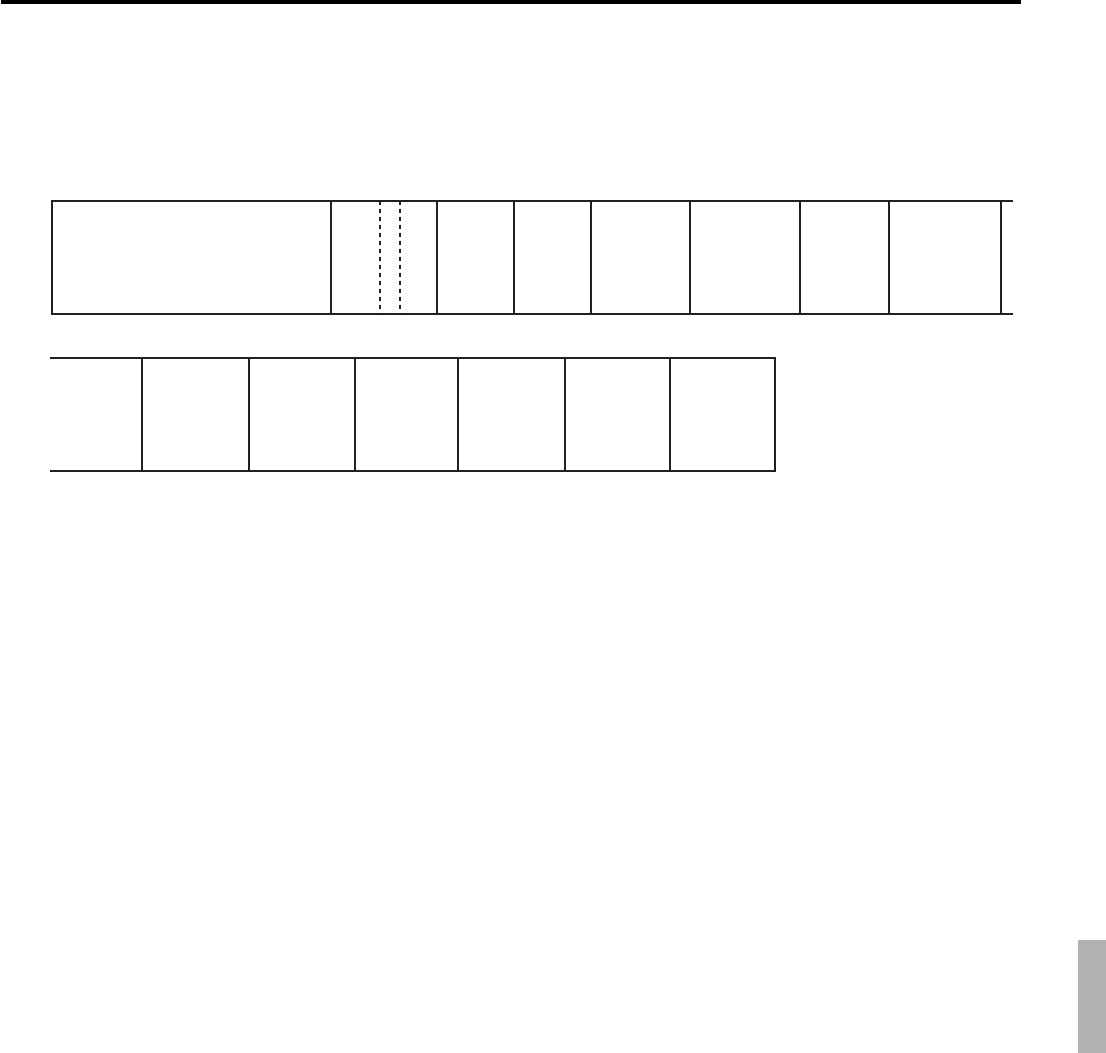
R-193
QT-6600 Reference Manual
A-2-8. Clerk file
A-2-8-1 Clerk (programming)
File name: Clerk (programming) File No.: 007 Max. allocatable records: 99
Commission rate
Refer to the “Commission rate” on page 185 of the programming manual.
Table range
Refer to the “Table range” on page 185 of the programming manual.
Clerk control
Refer to the “Record 01-067” on page 186 of the programming manual.
Menu/@ control
Refer to the “Record 02-067” on page 187 of the programming manual.
Mode control
Refer to the “Record 03-067” on page 188 of the programming manual.
Function control 1
Refer to the “Record 04-067” on page 189 of the programming manual.
Function control 2
Refer to the “Record 05-067” on page 190 of the programming manual.
Function control 3
Refer to the “Record 06-067” on page 191 of the programming manual.
Function control 4
Refer to the “Record 07-067” on page 192 of the programming manual.
Function control 5
Refer to the “Record 08-067” on page 193 of the programming manual.
Arrangement control
Refer to the “Record 09-067” on page 194 of the programming manual.
Report control
Refer to the “Record 10-067” on page 195 of the programming manual.
Character
016
19 20
Clerk interrupt
check #
44
Commission
rate
27
Clerk
control
31
Table #
range
Menu/@
control
Mode
control
Function
control (1)
37 55
Drawer #
22
Clerk #
61
49
73 79 918567 97
Function
control (2)
Function
control (3)
Function
control (4)
Function
control (5)
Arrangement
control
Report
control not used
R-194
File Format
Record No.
File No.
024
A-2-8-2 Clerk detail (daily, periodic / consolidation)
File name: Clerk detail (daily) File No.: 011 Max. allocatable records: 9801
File name: Clerk detail (periodic 1) File No.: 111 Max. allocatable records: 9801
File name: Clerk detail (periodic 2) File No.: 211 Max. allocatable records: 9801
File name: Clerk detail (daily consolidation) File No.: 311 Max. allocatable records: 9801
File name: Clerk detail (periodic 1 consolidation) File No.: 411 Max. allocatable records: 9801
File name: Clerk detail (periodic 2 consolidation) File No.: 511 Max. allocatable records: 9801
File name: Clerk detail (consolidation work) File No.: 611 Max. allocatable records: 9801
A-2-8-3 Clerk detail link
File name: Clerk detail link File No.: 030 Max. allocatable records: 99
Counter Totalizer
0510
A-2-8-4 Clerk (i-Button) key ID
File name: Clerk (i-Button) key ID File No.: 027 Max. allocatable records: 300
Program
i-Button key ID
character
01217
R-195
QT-6600 Reference Manual
A-2-9. Hourly sales file
A-2-9-1 Hourly sales (daily, periodic/consolidation)
File name: Hourly sales (daily) File No.: 009 Max. allocatable records: 96
File name: Hourly sales (periodic 1) File No.: 109 Max. allocatable records: 96
File name: Hourly sales (periodic 2) File No.: 209 Max. allocatable records: 96
File name: Hourly sales (daily consolidation) File No.: 309 Max. allocatable records: 96
File name: Hourly sales (periodic 1 consolidation) File No.: 409 Max. allocatable records: 96
File name: Hourly sales (periodic 2 consolidation) File No.: 509 Max. allocatable records: 96
File name: Hourly sales (consolidation work) File No.: 609 Max. allocatable records: 96
A-2-10. Monthly sales file
A-2-10-1 Monthly sales (daily, periodic/consolidation)
File name: Monthly sales (daily) File No.: 010 Max. allocatable records: 32 (fixed)
File name: Monthly sales (periodic 1) File No.: 110 Max. allocatable records: 32 (fixed)
File name: Monthly sales (periodic 2) File No.: 210 Max. allocatable records: 32 (fixed)
File name: Monthly sales (daily consolidation) File No.: 310 Max. allocatable records: 32 (fixed)
File name: Monthly sales (periodic 1 consolidation) File No.: 410 Max. allocatable records: 32 (fixed)
File name: Monthly sales (periodic 2 consolidation) File No.: 510 Max. allocatable records: 32 (fixed)
File name: Monthly sales (consolidation work) File No.: 610 Max. allocatable records: 32 (fixed)
Counter
(Net)
Totalizer
(Net)
05
10 15
No. of
customer
Merchandise
subtotal
20
Counter
(Gross)
Totalizer
(Gross)
Counter
(Net)
Totalizer
(Net)
05
10 15 20
R-196
File Format
A-2-11. Hourly item file
A-2-11-1 Hourly item
File name: Hourly Item (daily) File No.: 021 Max. allocatable records: 1920
File name: Hourly Item (periodic 1) File No.: 121 Max. allocatable records: 1920
File name: Hourly Item (periodic 2) File No.: 221 Max. allocatable records: 1920
File name: Hourly Item (daily consolidation) File No.: 321 Max. allocatable records: 1920
File name: Hourly Item (periodic 1 consolidation) File No.: 421 Max. allocatable records: 1920
File name: Hourly Item (periodic 2 consolidation) File No.: 521 Max. allocatable records: 1920
File name: Hourly Item (consolidation work) File No.: 621 Max. allocatable records: 1920
A-2-11-2 Hourly item link (Hourly production link)
File name: Hourly item link File No.: 031 Max. allocatable records: 480
Totalizer
05
Counter
10
File No.
024
Record No.
Description Choice Program code
Link record No.
Always “0”
Link file No.
::::
D8 D7 D6 D5
;
D4
:::
D3 D2 D1
Significant
number
Significant
number
R-197
QT-6600 Reference Manual
A-2-12. Mix and match file
A-2-12-1 Mix and match (daily)
File name: Mix and match (daily) File No.: 051 Max. allocatable records: 99
A-2-12-2 Mix and match (periodic/consolidation)
File name: Mix and match (periodic 1) File No.: 151 Max. allocatable records: 99
File name: Mix and match (periodic 2) File No.: 251 Max. allocatable records: 99
File name: Mix and match (daily consolidation) File No.: 351 Max. allocatable records: 99
File name: Mix and match (periodic 1 consolidation) File No.: 451 Max. allocatable records: 99
File name: Mix and match (periodic 2 consolidation) File No.: 551 Max. allocatable records: 99
File name: Mix and match (consolidation work) File No.: 651 Max. allocatable records: 99
Character
0161922
Discount
amount
or
rate
Random
code
Rec. No.
File No.
Quantity
Comb 1
item
414038
Rec. No.
File No.
Quantity
Comb 2
item
464543
Rec. No.
File No.
Quantity
Comb 3
item
515048
Rec. No.
File No.
Quantity
Comb 4
item
565553
Rec. No.
File No.
Quantity
Comb 5
item
616058
Rec. No.
File No.
Quantity
Target
item
6563
Work
30
Work
36
Program
24
66
Counter Totalizer
71 76
66
Totalizer
05
Counter
10
R-198
File Format
A-2-13. IDC file
A-2-13-1 IDC file (1)
File name: IDC (1) File No.: 057 Max. allocatable records: 100000
File name: IDC (1) (daily consolidation) File No.: 357 Max. allocatable records: 100000
File name: IDC (1) (consolidation work) File No.: 657 Max. allocatable records: 100000
A-2-13-2 IDC file (2)
File name: IDC (2) File No.: 058 Max. allocatable records: 100000
File name: IDC (2) (daily consolidation) File No.: 358 Max. allocatable records: 100000
File name: IDC (2) (consolidation work) File No.: 658 Max. allocatable records: 100000
File structure is same as IDC file (1)
A-2-13-3 IDC file (3)
File name: IDC (3) File No.: 059 Max. allocatable records: 100000
File name: IDC (3) (daily consolidation) File No.: 359 Max. allocatable records: 100000
File name: IDC (3) (consolidation work) File No.: 659 Max. allocatable records: 100000
File structure is same as IDC file (1)
Refer to the page 75 ~ 81 of this manual for each IDC data in detail.
A-2-13-4 IDC link
File name: IDC link File No.: 804 Max. allocatable records: 999
Refer to page 64 of the programming manual for details.
060
IDC Data
PGM
01
Link
2
File No.
Record No.
46
R-199
QT-6600 Reference Manual
A-2-14. Time & Attendance file
A-2-14-1 Hourly / Labor
File name: Hourly / Labor File No.: 014 Max. allocatable records: 96
A-2-14-2. Work time file
File name: Work Time File No.: 019 Max. allocatable records: 4158
File name: Work Time (daily consolidation) File No.: 319 Max. allocatable records: 4158
Min. number of files to fix the work time:
The number of employee × 7 (days) × 3 (shift) × 2 (weeks)
Max. allocatable records:
99 × 7 × 3 × 2 = 4158
Rec#001~#003: Correspond to 1st day of the week of Employee Rec#001 (First week)
Rec#004~#006: Correspond to 2nd day of the week of Employee Rec#001 (First week)
Rec#007~#009: Correspond to 3rd day of the week of Employee Rec#001 (First week)
Rec#010~#012: Correspond to 4th day of the week of Employee Rec#001 (First week)
Rec#013~#015: Correspond to 5th day of the week of Employee Rec#001 (First week)
Rec#016~#018: Correspond to 6th day of the week of Employee Rec#001 (First week)
Rec#019~#021: Correspond to 7th day of the week of Employee Rec#001 (First week)
Rec#020~#024: Correspond to 1st day of the week of Employee Rec#001 (Second week)
Rec#025~#027: Correspond to 2nd day of the week of Employee Rec#001 (Second week)
Rec#028~#030: Correspond to 3rd day of the week of Employee Rec#001 (Second week)
Rec#031~#033: Correspond to 4th day of the week of Employee Rec#001 (Second week)
Rec#034~#036: Correspond to 5th day of the week of Employee Rec#001 (Second week)
Rec#037~#039: Correspond to 6th day of the week of Employee Rec#001 (Second week)
Rec#040~#042: Correspond to 7th day of the week of Employee Rec#001 (Second week)
Rec#043~#045: Correspond to 1st day of the week of Employee Rec#002 (First week)
•
•
•
CLOCK-IN
date
WORK time
EDIT flag
01 4 6 8 13 17 18
BREAK time
Job code
CLOCK-IN
time
CLOCK-OUT
time
Cash tip
declare
15
Totalizer
(Net)
Total labor
hours (Fixed)
0 5 10 13 18 21 26
Counter
(Net)
Total
labor
cost
(Fixed)
Total labor
hours (Not fixed)
Total
labor
cost
(Not fixed)
R-200
File Format
A-2-14-3. Time zone file
File name: Time zone File No.: 800 Max. allocatable records: 24
Divide one day into some time zones, and assign the length of one cycle per zone.
Refer to page 60 of the programming manual for details.
A-2-14-4. Employee file
File name: Employee File No.: 801 Max. allocatable records: 99
Refer to page 62 of the programming manual for details.
A-2-14-5. Job code file
File name: Job code File No.: 802 Max. allocatable records: 50
Refer to page 61 of the programming manual for details.
03
Employee No.
19
Social
Security
No.
Job code (1)
PGM
24 25 2627
Job code (2)
Job code (3)
Job code (4)
Clerk No.
Work
(1)
Work
(2)
Work
(3)
282930
32 34 36
Character
End time
02
Start time
4
Cycle
6
Pay
rate
016
PGM
17
not used
20 22
Character

R-201
QT-6600 Reference Manual
Start time
01
Job code
3
Break time
End time
Grace before start
5 7 8 9 1011
Grace after start
Grace before end
Grace after end
A-2-14-6. Schedule file
File name: Schedule File No.: 803 Max. allocatable records: 2079
Min. number of files to fix the work time: The number of employee × 7 days × 3 shift
Max. allocatable records: 99 × 7 × 3 = 2079
Rec#001: Correspond to 1st day of the week Shift 1 of Employee Rec#001
Rec#002: Correspond to 1st day of the week Shift 2 of Employee Rec#001
Rec#003: Correspond to 1st day of the week Shift 3 of Employee Rec#001
Rec#004: Correspond to 2nd day of the week Shift 1 of Employee Rec#001
Rec#005: Correspond to 2nd day of the week Shift 2 of Employee Rec#001
Rec#006: Correspond to 2nd day of the week Shift 3 of Employee Rec#001
•
•
Rec#021: Correspond to 7th day of the week Shift 3 of Employee Rec#001
Rec#022: Correspond to 1st day of the week Shift 1 of Employee Rec#002
Rec#023: Correspond to 1st day of the week Shift 2 of Employee Rec#002
Rec#024: Correspond to 1st day of the week Shift 3 of Employee Rec#002
Rec#025: Correspond to 2nd day of the week Shift 1 of Employee Rec#002
Rec#026: Correspond to 2nd day of the week Shift 2 of Employee Rec#002
Rec#027: Correspond to 2nd day of the week Shift 3 of Employee Rec#002
•
•
Work
Work
Personal No.
Clock-in time
Clock-out time
Clock-out reason
Not used
015 16 1724 7 11
A-2-14-7. Simple time and attendance file
File name: Simple time and attendance File No.: 013 Max. allocatable records: 9999
A-2-14-8. Clock-out reason file
File name: Clock-out reason File No.: 944 Max. allocatable records: 10
Character
016
R-202
File Format
A-2-15. Void table file
A-2-15-1 Void table (daily)
File name: Void table (daily) File No.: 012 Max. allocatable records: 99
Refer to page 54 of the programming manual for details.
A-2-15-2 Void table (periodic/consolidation)
File name: Void table (periodic 1) File No.: 112 Max. allocatable records: 99
File name: Void table (periodic 2) File No.: 212 Max. allocatable records: 99
File name: Void table (daily consolidation) File No.: 312 Max. allocatable records: 99
File name: Void table (periodic 1 consolidation) File No.: 412 Max. allocatable records: 99
File name: Void table (periodic 2 consolidation) File No.: 512 Max. allocatable records: 99
File name: Void table (consolidation work) File No.: 612 Max. allocatable records: 99
A-2-16. Table analysis file
A-2-16-1 Table analysis (daily)
File name: Table analysis (daily) File No.: 018 Max. allocatable records: 99
A-2-16-2 Table analysis (periodic/consolidation)
File name: Table analysis (periodic 1) File No.: 118 Max. allocatable records: 99
File name: Table analysis (periodic 2) File No.: 218 Max. allocatable records: 99
File name: Table analysis (daily consolidation) File No.: 318 Max. allocatable records: 99
File name: Table analysis (periodic 1 consolidation) File No.: 418 Max. allocatable records: 99
File name: Table analysis (periodic 2 consolidation) File No.: 518 Max. allocatable records: 99
File name: Table analysis (consolidation work) File No.: 618 Max. allocatable records: 99
Character Counter
Program
Totalizer
016
19 24 29
Counter Totalizer
0510
Character
Min. check #
Max. check #
not used
No. of
customer Totalizer
016
19 2223 28 33
Counter Totalizer
0510

R-203
QT-6600 Reference Manual
A-2-17. Grand total file
A-2-17-1 Grand total (daily)
File name: Grand total (daily) File No.: 020 Max. allocatable records:3 (fixed)
A-2-17-2 Grand total (periodic/consolidation)
File name: Grand total (periodic 1) File No.: 120 Max. allocatable records: 3 (fixed)
File name: Grand total (periodic 2) File No.: 220 Max. allocatable records: 3 (fixed)
File name: Grand total (daily consolidation) File No.: 320 Max. allocatable records: 3 (fixed)
File name: Grand total (periodic 1 consolidation) File No.: 420 Max. allocatable records: 3 (fixed)
File name: Grand total (periodic 2 consolidation) File No.: 520 Max. allocatable records: 3 (fixed)
File name: Grand total (consolidation work) File No.: 620 Max. allocatable records: 3 (fixed)
Character Totalizer
01624
Totalizer
08
R-204
File Format
A-2-18. Customer file
A-2-18-1 Customer file
File name: Customer file File No.: 037 Max. allocatable records: 4000
A-2-18-2 Customer group file (daily)
File name: Customer group (daily) File No.: 042 Max. allocatable records: 20
A-2-18-3 Customer group (periodic/consolidation)
File name: Customer group (periodic 1) File No.: 142 Max. allocatable records: 20
File name: Customer group (periodic 2) File No.: 242 Max. allocatable records: 20
File name: Customer group (daily consolidation) File No.: 342 Max. allocatable records: 20
File name: Customer group (periodic 1 consolidation) File No.: 442 Max. allocatable records: 20
File name: Customer group (periodic 2 consolidation) File No.: 542 Max. allocatable records: 20
File name: Customer group (consolidation work) File No.: 642 Max. allocatable records: 20
A-2-18-3 Customer title
File name: Customer title File No.: 123 Max. allocatable records: 9
Customer
number
Customer
name
Customer
address 1
055
Customer
address 2
79
Customer
address 3
103
Customer
address 4
127 1336317
Title link
Customer
phone No.
134
Customer
group link
135
Status
140
not used
145
Finalized GT
Discount GT
Not used
170150
Customer
group
name
Credit
limit
0 38 4222
Discount 1
16 2117
Type
Print control
Character
Program
Program
Program
Program
117112107
Spent total
Not used
Not used
Counter
12258 62
Discount 2
Character
78 82
Discount 3
Character
98 102
Discount 4
Character
Counter
05
Spent
total Not
used
10 15
Character
08
R-205
QT-6600 Reference Manual
Program
06
A-2-19. General control file
A-2-19-1 General control
File name: General control File No.: 022 Max. allocatable records: 50(fixed)
Rec No. Contents Reference page
(PGM manual)
001 Date order, Monetary mode 129
002 (not used) ---
003 Consecutive number 130
004 Rounding, Tax system 130
005 Receipt control (1) 131
006 Calculation, Operation control (1) 132
007 Calculation, Operation control (2) ---
008 Report control (1) 133
009 Report control (2) 134
010 Receipt control (2), Till timer 135
011 Scale ---
012 Report control (3) 136
013 Communication control 136
014 Report control (4) 137
015 Report control (5) 138
016 Time frame 139
017 Receipt control (3), Calculation method 140
018 Slip / Guest receipt control 141
019 Journal control (Electronic journal) 142
020 Message print control 142
021 Order control (1) 143
022 Hotel server 143
023 Australian GST control (1) 143
024 Australian GST control (2), Loyalty card 144
025 Set menu, Condiment 144
026 Check tracking 145
027 Clerk interrupt 146
028 Display control 146
029 (not used) ---
030 Order control (2) ---
031 Touch screen 146
032 (not used) ---
033 (not used) ---
034 (not used) ---
035 Time & Attendance 147
036 Store / Recall range 147
037 Auto check No. range 147
038 (not used) ---
039 Automatic creating customer No. range ---
040 (not used) ---
041 (not used) ---
042 Customer control (1) 148
043 Customer control (2) 148
044 Sound control 149
045 Work time
046 Pay ratio
047 Order control (3)
048 VMP stop code
049 External device
050 Commission threshold

R-206
File Format
A-2-21. Report header file
A-2-20-1 Report header
File name: Report header File No.: 024 Max. allocatable records: 55(fixed)
Character
016
A-2-20. Special character file
A-2-20-1 Special character
File name: Special character File No.: 023 Max. allocatable records: 99(fixed)
Character
016
Refer to page 134 of the programming manual for details.
Refer to page 135 of the programming manual for details.
A-2-22. Tax table file
A-2-19-1 Tax table
File name: Tax table File No.: 025 Max. allocatable records: 10
Actual
value
Rate
Max. Table
amount
Rounding
074467
Singapore
rounding
8
Cal. type
Cyclic pattern
Cyclic value
Non cyclic value
10 12 14
R-207
QT-6600 Reference Manual
A-2-23. Pulldown group file
A-2-23-1 Pulldown group
File name: Pulldown group File No.: 026 Max. allocatable records: 999
A-2-24. Set menu table file
A-2-24-1 Set menu table
File name: Set menu table File No.: 028 Max. allocatable records: 999
Record No. 1
Record No. 2
Record No. 3
Record No. 4
Record No. 5
Record No. 6
Record No. 7
Record No. 8
Record No. 9
File No. 1
File No. 2
File No. 3
File No. 4
File No. 5
File No. 6
File No. 7
File No. 8
File No. 9
Record No.10
0246 8 10 12 14 16 18 20 22 24 26 28 30 32 34 36 38
Record No.11
Record No.12
Record No.13
Record No.14
Record No.15
Record No.16
Record No.17
Record No.18
File No.11
File No.12
File No.13
File No.15
File No.16
File No.17
File No.18
Record No.19
40 42 44 46 48 50 52 54
56 58 60 62 64 66 68 70 72 74
Record No.20
File No.19
File No.20
76 78 80
File No.10
File No.14
Character
Record No. 1
File No. 1
Key color link 1
016 19 2320 26
not used
29
Keytop
text 1
not used
not used
893 917 921
Keytop
text 28
5325
Record No. 2
File No. 2
Key color link 2
54 5655
Program
Win color link
21
Key type
Record No. 28
File No. 28
Key color link 28
887885 889 890
R-208
File Format
A-2-25. Batch X/Z file
A-2-25-1 Batch X/Z
File name: Batch X/Z File No.: 029 Max. allocatable records: 10
Mode
Program
X/Z code (1)
X/Z code (2)
X/Z code (3)
X/Z code (4)
X/Z code (5)
X/Z code (6)
X/Z code (7)
012345678910
X/Z code (8)
A-2-26. Receipt / Slip message file
A-2-26-1 Receipt / Slip message
File name: Receipt / Slip message File No.: 032 Max. allocatable records: 96
A-2-27. Check endorsement message file
A-2-27-1 Check endorsement message
File name: Check endorsement message File No.: 033 Max. allocatable records: 4
Character
0 40
Character
0 40
Refer to page 132 of the programming manual for details.
R-209
QT-6600 Reference Manual
A-2-28. Arrangement file
A-2-28-1 Arrangement group (1) ~ (5)
File name: Arrangement group (1) File No.: 038 Max. allocatable records: 9999
File name: Arrangement group (2) File No.: 138 Max. allocatable records: 9999
File name: Arrangement group (3) File No.: 238 Max. allocatable records: 9999
File name: Arrangement group (4) File No.: 338 Max. allocatable records: 9999
File name: Arrangement group (5) File No.: 438 Max. allocatable records: 9999
Arrange
(character)
024
A-2-29. Character recall file
A-2-29-1 Character recall
File name: Character recall File No.: 039 Max. allocatable records: 9999
A-2-30. Check print file
A-2-30-1 Check print
File name: Check print File No.: 041 Max. allocatable records: 9
A-2-31. Graphic logo file
A-2-31-1 Graphic logo (external printer)
File name: Graphic logo (external printer) File No.: 047 Max. allocatable records: 432 (fixed)
or 864 (fixed)
Character
040
Control
data
03
Graphic data
013
R-210
File Format
Order character
016
A-2-32. Scheduler file
A-2-32-1 Scheduler
File name: Scheduler File No.: 062 Max. allocatable records: 99
Start time
End time
Interval 1
Not used
Interval 2
Arrange tbl No.
file No.
0142458 12
Refer to page 48 of the programming manual for details.
A-2-33. Order character file
A-2-33-1 Order character
File name: Order character File No.: 065 Max. allocatable records: 99
A-2-34. Euro program file
A-2-34-1 Euro program file
File name: Euro program File No.: 099 Max. allocatable records: 3 (fixed)
Program
04
Refer to page 181 of the programming manual for details.
A-2-35. Character conversion for CF file
A-2-35-1 Character conversion for CF file
File name: Character conversion for CF File No.: 087 Max. allocatable records: 1000
Program
Program
06
R-211
QT-6600 Reference Manual
A-2-36. Check# pop-up window definition file
A-2-36-1 Check# pop-up window definition file
File name: Check# pop-up window definition File No.: 115 Max. allocatable records: 700(fixed)
Check number
Key type
not used
Bitmap link
0673 4
Refer to page 182 of the programming manual for details.
A-2-37. Clerk pop-up window definition file
A-2-37-1 Clerk pop-up window definition file
File name: Clerk pop-up window definition File No.: 117 Max. allocatable records: 315
Clerk rec. No.
Key type
not used
Bitmap link
Key color link
0561 2 3
Refer to page 197 of the programming manual for details.
A-2-38. Sound file
A-2-38-1 Sound (1) ~ (10) file
File name: Sound (1) File No.: 701 Max. allocatable records: 65000
File name: Sound (2) File No.: 702 Max. allocatable records: 65000
File name: Sound (3) File No.: 703 Max. allocatable records: 65000
File name: Sound (4) File No.: 704 Max. allocatable records: 65000
File name: Sound (5) File No.: 705 Max. allocatable records: 65000
File name: Sound (6) File No.: 706 Max. allocatable records: 65000
File name: Sound (7) File No.: 707 Max. allocatable records: 65000
File name: Sound (8) File No.: 708 Max. allocatable records: 65000
File name: Sound (9) File No.: 709 Max. allocatable records: 65000
File name: Sound (10) File No.: 710 Max. allocatable records: 65000
0128
Data
Sound file: (in case of creating by PC)
1. .wav file
2. PCM recording
3. Sampling frequency; 11.025 / 22.050 / 44.100 kHz
4. 16 bit monaural

R-212
File Format
A-2-39. Add on VMP file
A-2-39-1 Add on VMP file
File name: Add on VMP File No.: 040 Max. allocatable records: 999
Data
051
A-2-40. Intelligent EJ file
A-2-40-1 Intelligent EJ file
File name: Intelligent EJ File No.: 050 Max. allocatable records: 100000
Data
0 101
Character
040
A-2-41. Menu title character file
A-2-41-1 Menu title character file
File name: Menu title character File No.: 085 Max. allocatable records: 60
A-2-42. Tare table file
A-2-42-1 Tare table file
File name: Tare table File No.: 127 Max. allocatable records: 9
Character PGM
01622
R-213
QT-6600 Reference Manual
A-2-43. Screen logo file
A-2-43-1 Screen logo file
File name: Screen logo File No.: 796 Max. allocatable records: 9833 (fixed)
Bipmap
0 160
A-2-44. Full screen check window (1) ~ (3) file
A-2-44-1 Full screen check window (1) ~ (3) file
File name: Full screen check window
File No.: 797, 798, 799 Max. allocatable records: 9833 (fixed)
Bipmap
0 160
A-2-45. Additional PLU program file
A-2-45-1 Additional PLU program file
File name: Additional PLU program File No.: 814 Max. allocatable records: 9999
Program not used
Color Link
Price 2
Price 3
Work
079 12 15 44 46
A-2-46. External device serial number file
A-2-46-1 External device serial number file
File name: External device serial number File No.: 920 Max. allocatable records: 4
PGM
03
R-214
File Format
A-2-47. Additional PLU character file
A-2-47-1 Additional PLU character file
File name: Additional PLU character File No.: 941 Max. allocatable records: 9999
PLU code Character PGM
07 31 32
A-2-48. Free function list file
A-2-48-1 Free function list file
File name: Free function list File No.: 946 Max. allocatable records: 99
Rec-No.
02
R-215
QT-6600 Reference Manual
A-2-49. System files
A-2-49-1 Key table
File name: Key table File No.: 074 Max. allocatable records: 2 (fixed)
Func code
Rec No.
not used
024 48
Logical ID IP address
Distinct M/BM
CHK PGM
not used
not used
Check cluster No.
CHK PGM Status
012 14 16 18 24
A-2-49-2 Touch screen key table
File name: Touch screen key table File No.: 174 Max. allocatable records: 2280(fixed)
Description Choice Program code
Logical ID characters (within 12 characters)
Terminal:
Oneself = 02, Others = 01
Check tracking master/backup master (program value):
Master = 01, Backup master = 02, Self master = 03, Satellite = 00
Check tracking master/backup master (current value):
Master = 01, Backup master = 02, Self master = 03, Satellite = 00
Always “00000”
Check tracking cluster number (0 ~ 9)
(“0” means no designation.)
IP address: 192.168.0.0. ~ 192.168.255.255
Significant
characters
Significant
numbers
Significant
numbers
Significant
numbers
Significant
number
::::::
D24 D23 D22 D21 D20 D19
::::::
D18 D17 D16 D15 D14 D13
::
D12 D11
::
D10 D9
::
D8 D7
;;;;;
D6 D5 D4 D3 D2
:
D1
Key table Hard key
record No. code
001 not used
002 for Disp on/off
Func code
Key type
not used
Rec No.
Color link
Bitmap link
Keytop text
02456 89 33
A-2-49-3 System connection table
File name: System connection table File No.: 901 Max. allocatable records: 33
R-216
File Format
Terminal No.
Time
Date
Operation
Error function
Error code
02469711
A-2-49-6 System error log
File name: System error log File No.: 999 Max. allocatable records: 999
Program
08
Main ECR ID Backup ECR ID
Type
Main printer No.
Backup printer No.
0113252627
A-2-49-4 I/O parameter table
File name: I/O parameter table File No.: 902 Max. allocatable records: 20
A-2-49-5 Printer connection table
File name: Printer connection table File No.: 903 Max. allocatable records: 99
A-2-49-7 Auto program control
File name: Auto program control File No.: 905 Max. allocatable records: 20
File No.
Program
023
Refer to page 65 of the programming manual for details.
A-2-49-8 LCD color control
File name: LCD color control File No.: 906 Max. allocatable records: 99
Refer to page 66 of the programming manual for details.
Program
08
Refer to page 55 ~ 58 of the programming manual for details.
Refer to page 176 of the programming manual for details.
Refer to page 96, 228, 229 of this manual for details.
R-217
QT-6600 Reference Manual
A-2-49-9 Keyboard color definition
File name: Keyboard color definition File No.: 907 Max. allocatable records: 100
Refer to page 71 of the programming manual for details.
A-2-49-10 Keyboard color theme
File name: Keyboard color theme File No.: 908 Max. allocatable records: 100
Refer to page 70 of the programming manual for details.
A-2-49-11 Keyboard bitmap image
File name: Keyboard bitmap image (for single key) File No.: 909 Max. allocatable records: 29400
File name: Keyboard bitmap image File No.: 910 Max. allocatable records: 93600
Program
09
Program
09
Data
0200
Bitmap file: (in case of creating by PC)
1. Windows bitmap file
2. Max. 16.77 million color
3. No. of single key + 2 x No. of double key + 4 x No. of quadruple key is less than
or eqaul to 300. (only for file-910)
4. Key size
Key area Check/ clerk window
File-909 Single key available not available
Single key available available
File-910 Horizontal double key
available available
Vertical double key available available
Quadruple key available available
R-218
File Format
A-2-49-12 TCP/IP control
File name: TCP/IP control File No.: 900 Max. allocatable records: 26 (fixed)
Refer to page 71 of the programming manual for details.
A-2-49-14 FTP Login Name
File name: FTP login name File No.: 911 Max. allocatable records: 10
A-2-49-15 FTP Server Name
File name: FTP server name File No.: 912 Max. allocatable records: 9
Refer to page 73 of the programming manual for details.
A-2-49-16 FTP Trans file
File name: FTP trans file File No.: 913 Max. allocatable records: 99
Refer to page 73 of the programming manual for details.
A-2-49-17 Character key table file
File name: Character key table File No.: 274 Max. allocatable records: 152 (fixed)
Program
06
PasswordLogin -ID
010 20
IP address Login-ID
Server title not
used
020 46
26 62
Password Login
folder name
78 98
File-No.
File name
Program
Title
020 44
22 24
0
1st Chara code
897645321
2nd Chara code
3rd Chara code
4th Chara code
5th Chara code
6th Chara code
7th Chara code
8th Chara code
Color link
R-219
QT-6600 Reference Manual
A-2-49-18 PS2 key table file
File name: PS2 key table File No.: 374 Max. allocatable records: 811 (fixed)
0
4562
Function code
Record-#
Chara code
CAPS Lock
A-2-49-19 Key table (full screen) file
File name: Key table (full screen) File No.: 795 Max. allocatable records: 240
0
42
Function code
Location (X1)
Location (Y1)
Location (X2)
Location (Y2)
Location (X1, Y1)
Key
Location (X2, Y2)
Key type
(binary)
Key
Keytop text 1 Keytop text 2
color
(RGB)
6 8 10 11
not used
2114
Text
color
(RGB)
17
Check/
rec-#
20
not used
42 6241
Rec-001 ~ 080: Full screen check window 1
Rec-081 ~ 160: Full screen check window 2
Rec-161 ~ 240: Full screen check window 3
Key type
• No key: 00
• Rectangular key: 01
• Circular key: 02

R-220
File Format

R-221
QT-6600 Reference Manual
A-3.Counter and Totalizer calculation method ......................................... R-220
A-3-1 Fixed totalizer file ........................................................................................ R-220

R-222
Calculation method
A-3. Counter and Totalizer calculation method
The following calculation methods of fixed totalizer memories are explained in this
chapter.
All formulas in these explanations are calculated in the registration mode.
In the REF mode, the values in totalizers are calculated using the opposite sign.
In the REG– mode, the values in totalizers and counters are calculated using the opposite
sign.
A-3-1 Fixed totalizer file
Total or counter Increments or Decrements by
Gross sales quantity
Gross sales amount
Net sales quantity
Net sales amount
Medium in drawer
(Cash, charge, check, credit)
Number of products registered for Departments + Subdepartments + PLUs (non hash)
{For Department, Subdepartment, PLUs and Scan PLUs
Single items
Multiplication
Split price
Square
Cube
– Last item void – Return item – Previous item void – Cancel
Amount of products registered for Departments + Subdepartments + PLUs (non hash)
{For Department, Subdepartment, PLUs and Scan PLUs
Single items
Multiplication
Split price
Square
Cube
– Last item void – Return item – Previous item void – Cancel
+1 (When a transaction is finalized for sale. For REG– mode –1 is affected.)
Amount at the finalization (exclude tip):
{Department + Subdepartment + PLU +Scan PLU product registration amounts (non full hash)
– Last item void amounts for the above
– Item return amounts for the above
– Previous item void amounts for the above
– Cancel amounts for the above}
+ {Plus (+ key)
+ Premium (%+ key)
– Error correction amounts
– Cancel amounts}
– {Minus (– key)
+ Discount(%– key)
+ Coupon
– Error correction amounts
– Cancel amounts}
+ Results of tax table calculations (add-on tax)
Sales total or tendered total by specified medium
+ Received on account total (Cash in drawer only)
– Paid out (Cash in drawer only)
+ Check cashing (Check in drawer only)
+ Loan totals by selected medium
– Pick up totals by selected medium
– Change amounts generated with the specific medium (Cash in drawer only)
– Total of check cashing transaction (Cash in drawer only)
– corrected amount by <MEDIA CHANGE> key
+ correcting amount by <MEDIA CHANGE> key
: +1
: Input quantity
: Input quantity
: Input quantity × Input quantity
: Input quantity × Input quantity × Input quantity}
: Preset or manually input prices
: Preset or manually input prices × Input quantity
: (Preset or manually input prices / Input unit quantity)
× Input quantity
: Preset or manually input prices × Input quantity
× Input quantity
: Preset or manually input prices × Input quantity
× Input quantity × Input quantity}
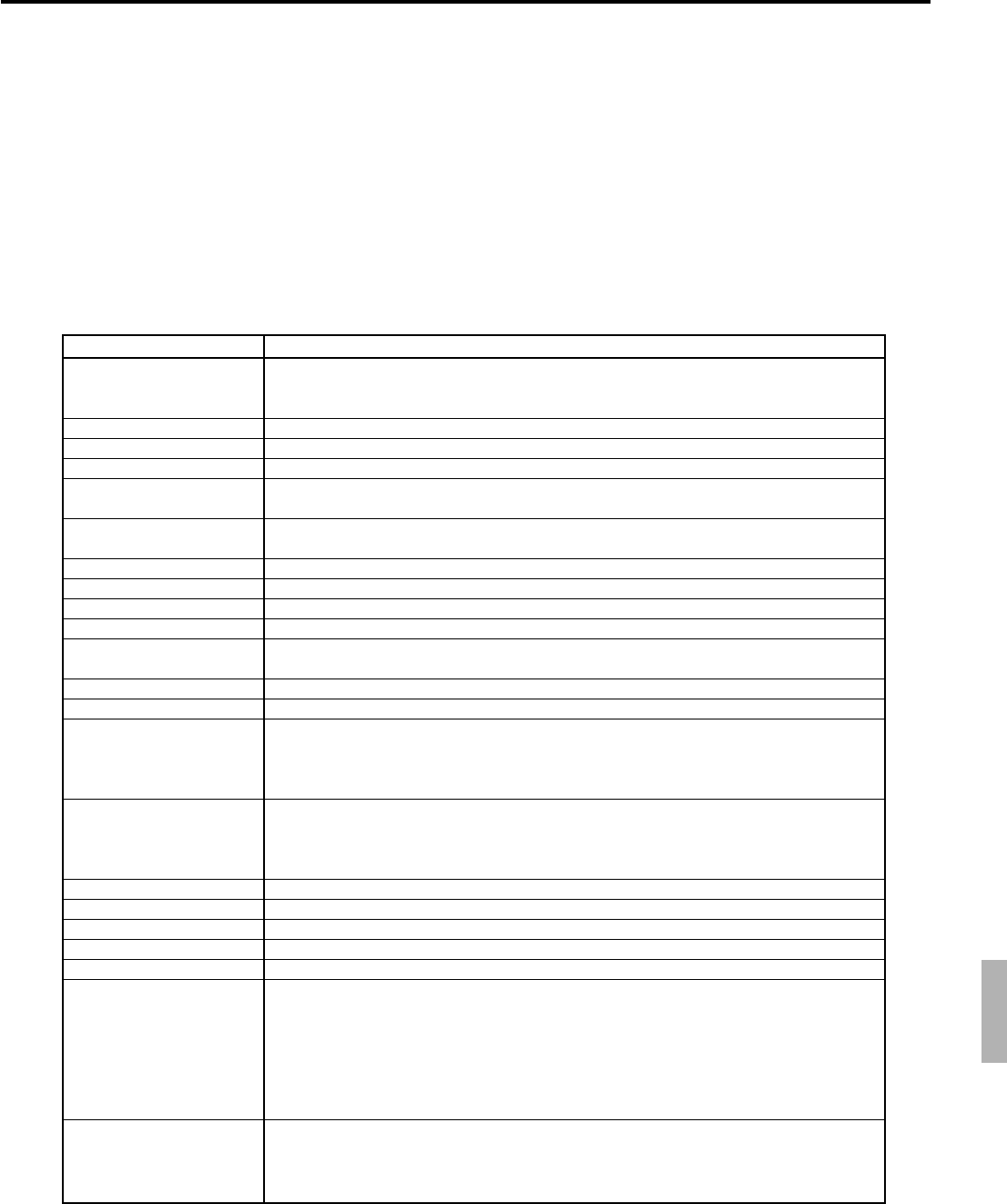
R-223
QT-6600 Reference Manual
Total or counter Increments or Decrements by
Number of Refund mode
Refund mode amount
Customer count
Average sales per customer
Check cashing service fee
New balance fee
Clerk commission total
Foreign currency in drawer
Reduction
Item return amount
Clear count
Rounding
ST transfer void
Taxable amount
Tax amount
Tax exempt
Euro in drawer
Coupon
Money declaration
GT 1
GT 2
GT 3
+1
(When cash sales, charge sales, credit sales, and check sales transaction are finalized in the
REF/REG– mode.)
Absolute value of total sales amount for REF/REG– mode registrations.
Entered number of covers or +1
Net sales amount / Customer count
+ Check amount × Service ratio or
+ Service fee amount
+ MD/ST amount × Service charge ratio or
+ Service charge fee amount
Item sales (commissionable) × Clerk commission rate or flat fee
Entered amount in foreign currency.
+ Registered amount of Minus, %- key
+ Registered item amount by RF, Void key
+ 1 (REG, REF, REG– mode)
(When the <CLEAR> key is pressed.)
+ Fraction amount by country roundings
+ Void total of ST transfer
Subtotal of taxable amount at finalization of sale
(in case of add-on tax)
Subtotal of taxable amount / (1 + VAT rate) at finalization of sale
(in case of add-in tax)
Result of calculation using tax table for taxable amount at finalization of sales
(in case of add-on tax)
Subtotal of taxable amount - Taxable amount calculated above
(in case of add-in tax)
Exempted taxable subtotal amount
Sales total or tendered total by specified medium in Euro
Coupon total
+1 (when money declaration is performed.)
Grand total of net sales total
Registrations absolute value:
{Registration amount (Department, Subdepartment, PLU, Scan PLU)
+ Last item void amount
+ Previous item void amount
+ Refund amount}
+ {Plus, Minus, Premium, Discount, Coupon
+ Last item void amount}
Net sales total
– add-on tax
– add-in tax
– commission

R-224
Calculation method

R-225
QT-6600 Reference Manual
A-4. Error messages ................................................................................... R-224
A-4-1 Error messages........................................................................................... R-224
A-4-2 Operation prompt ........................................................................................ R-227
A-4-3 System error code....................................................................................... R-228

R-226
Error messages
A-4. Error messages
A-4-1 Error messages
When an error occurs on a QT-6600 terminal, a buzzer sounds and the appropriate error
message appears on the main display, indicating what action to take.
The following table lists the error messages and describes the action to take.
Prompt message Meaning Action
Operator mistake.
E001 Wrong mode.
E003 Wrong operator.
E005 Insufficient memory.
E011 Close the drawer.
E016 Change back to REG mode.
E017 Enter Check/TBL number.
E018 Enter Table number.
E019 Enter Number of covers.
E020 Enter Seat number.
E021 No dept link.
E023 Stock running short.
E024 No stock is available.
E025 Scale Read Error
E028 Not found PLU or C/D is
mismatch.
E029 No registration is possible
while you are in the tender
operation.
E031 Press ST key before Finalization.
E032 Press FSST key before Finalization.
E033 Enter tendered amount.
E035 Change amount exceeds the limit.
E036 Remove money from the drawer.
E037 Digit or Amount Limitation Over.
E038 Perform Money Declaration
E040 Issue Guest Receipt.
E041 Print Validation.
E044 Print Cheque.
E045 Print Check-Endorsement.
E046 REG Buffer Full. Please
Finalize or NB.
E047 Print bill.
E048 Insert Slip paper and retry.
E049 CHECK memory Full.
E050 Detail memory full.
E051 CHK/TBL No. is occupied.
E052 CHK/TBL No. is Busy.
E053 CHK/TBL No. is not opened.
E054 Out of CHK/TBL No. Range.
E056 Store range full.
E057 No item exists in detail.
E058 Enter post entry item.
E059 Press Eat-in or Take-out key.
**********
E060 Printer offline.
**********
E061 Printer error.
Operation error
Check tracking (Open mode error)
Error clerk/Error clerk in check tracking
Memory allocation over
Drawer compulsory
Prohibit plural operation in REF/REG– mode
Check number compulsory
Table number compulsory
Cover compulsory
Seat number compulsory
Scanning PLU item w/o department link is
registered.
Alarm when any item drops below its programmed
minimum stock quantity during registration.
Error when actual stock value for a registration
items is a negative value.
Scale read error
Scanning PLU is not found or OBR code is
mismatched.
Attempted registration whilst partial tender
operation is being done.
ST compulsory
FSST compulsory
Amount tender compulsory
Change amount exceeds the limit.
Contents of the drawer exceed the programmed
limit — Sentinel function.
H.D.L., H.A.L., L.D.L. error
Money declaration compulsory
Guest receipt compulsory
Validation compulsory
Check print compulsory
Check endorsement compulsory
Registration buffer full
Slip compulsory
Alarm when no paper is inserted in the Slip.
Check tracking index full/near end
Check tracking memory full/near end
Attempt is made to use the <NEW CHECK> key to
open a new check using a number that is already
used for an existing check tracking memory.
Attempt to use the same check number whilst the
specified number is being used in the other terminal.
Check number not found
Check number range over
All check number are occupied in range.
Round repeat cannot be found in detail.
Post entry item has not been registered yet.
Eat-in, Takeout compulsory
Printer offline. “****” means ECR logical ID
and printer number.
Printer downed. “****” means ECR logical ID
and printer number.
Perform proper operation.
Return the mode to its original setting.
Input correct check number or assign the proper
clerk.
Reallocate memory.
Close cash drawer.
Switch to another mode and then back to the
REF/REG– mode again.
Input a check number.
Input a table number.
Enter the number of customers.
Input a seat number.
Link the item to a department.
Perform stock maintenance.
Perform stock maintenance.
Retry weighing the item.
Re-enter the PLU code.
Finalize the transaction.
Press ST key.
Press FSST key.
Enter tendered amount.
Enter amount tendered again.
Perform pickup operation.
Enter correct unit price/amount.
Perform money declaration.
Issue a guest receipt.
Perform validation operation.
Perform check print operation.
Perform check endorsement operation.
Finalize the transaction.
Allocate sufficient buffer.
Perform slip printing operation.
Insert new slip paper.
Finalize and close the check number currently
used.
Finalize and close the check number currently
used.
Finalize and close the check that is currently
under the number that you want to use or use a
different check number.
Use another check number or close the check at
that terminal.
Use the correct check number (if you want to
reopen a check that already exists in the check
tracking memory) or use <NEW CHECK> to
open a new check.
Enter correct number.
Recall the stored data.
Enter Post entry item.
Press Eat-in or Takeout key.
The contents are printed on the backup printer.

R-227
QT-6600 Reference Manual
Prompt message Meaning Action
**********
E061 Printer error.
YES:Retry to print.
NO :Show on the screen.
ESC:Discard data.
**********
E062 Printer paper end.
**********
E062 Printer paper end.
YES:Retry to print.
NO :Show on the screen.
ESC:Discard data.
E064 Printer buffer full.
YES:Retry to print.
NO :Show on the screen.
ESC:Discard data.
**********
E070 Terminal out of action.
Cannot print.
**********
E071 Target terminal printer
BF full.
YES:Retry to print.
NO :Show on the screen.
ESC:Discard data.
**********
E072 Target printer terminal
is busy.
**********
E073 Your receipt/order may not be
issued.
YES:Retry to print.
NO :Show on the screen.
ESC:Discard data.
E075 Negative Balance,
Cannot be Finalized.
E080 Electronic Journal Full
Please clear E-Journal.
E082 ***** Illegal Data *****
E083 Cannot create E-Journal.
Check Flash memory.
**********
E105 Check/TBL tracking Master
down. Please call Manager!!
YES:Retry for connection.
NO :Remove it from system.
**********
E106 Check/TBL tracking Backup
master down. Please call
Manager!!
YES:Retry for connection.
NO :Remove it from system.
**********
E107 Both Master&Backup master
down. CHK/TBL tracking or
Clerk interrupt is not
available.
**********
E108 CHK/TBL Master is removed
from system.
**********
E109 CHK/TBL Backup master is
removed from system.
E110 CHK data mismatch between
Master and Backup master.
E130 Middle of Pick up or Loan
Press Cancel Key.
E131 Middle of <Bill Copy>
Press Cancel Key.
E133 Middle of <Media Change>
Press Cancel Key.
E134 Middle of Clerk Transfer
Press ESC Key.
Printer downed. “****” means ECR logical ID
and printer number.
Paper near-end/end “****” means ECR logical
ID and printer number.
Paper near-end/end “****” means ECR logical
ID and printer number.
Print buffer full at sender side
Down at target ECR which has printer
“****” means ECR logical ID and printer
number.
Printer buffer full at target ECR which has
printer
“****” means ECR logical ID and printer
number.
Busy at target ECR which has printer
“****” means ECR logical ID and printer
number.
Time out at ECR which has printer
“****” means ECR logical ID and printer
number.
Attempted finalization when balance is less than
zero.
Electronic journal full
Illegal Electronic journal data
Electronic journal file cannot be created.
CHK master down
“****” means ECR logical ID.
CHK BM down
“****” means ECR logical ID.
CHK M/BM down
“****” means ECR logical ID.
Master down then take it off from system
“****” means ECR logical ID.
Backup master down then take it off from
system
“****” means ECR logical ID.
Data mismatch has occurred.
During picking up
During bill copy
During media change
During clerk transfer
Follow the prompt message.
Set new paper.
The contents are printed on the backup printer.
Follow the prompt message.
Follow the prompt message.
Please check the terminal
Follow the prompt message.
Follow the prompt message.
Register item(s) until the balance becomes
positive amount.
Reset the electronic journal memory.
Check flash memory.
Follow the prompt message.
Follow the prompt message.
Follow the prompt message.
Follow the prompt message.
Follow the prompt message.
Follow the prompt message.

R-228
Error messages
Prompt message Meaning Action
E139 Not allowed to be negative
by Minus/Coupon key.
E140 Wrong menu.
E141 Press <TRAY TTL> twice before
finalization.
E145 Arrangement syntax error.
E150 Incorrect value entry.
E151 Incorrect Key Pressed.
E152 PGM File or Memory number
does not Exist.
E164 Employee No. is not Found
in the Employee File.
E165 Employee No. is not Clocking-in.
E166 Employee No. is Occupied.
E167 Incorrect Job code.
E168 Your Operation is out of
Schedule.
Please Call Manager.
E169 Work Hours Exceeded.
Please Call Manager.
E170 No Shift Remains in the
Schedule.
You cannot Clock-in.
E171 Please Break-out and Retry.
E172 Break Hours Exceeded.
Please Call Manager.
E173 This employee is at work now.
E174 This employee is taking a break
now.
E175 Please Clock-in/Break-out
before you sign on.
or Please Call Manager.
E176 You cannot Clock-in.
Please reset Employee Report.
E177 Time&Attendance Data
Communication Error.
Please Call Manager.
E180 IDC FILE (1) memory full.
Please clear IDC data.
E181 IDC FILE (2) memory full.
Please clear IDC data.
E182 IDC FILE (3) memory full.
Please clear IDC data.
E184 OPEN CHK/TBL data exist.
E185 Item is not active.
E200 Insert CF Card.
E201 Format error.
E203 Insufficient memory.
E205 The file already exists.
Do you replace?
YES:Replace the file.
NO :Input new name.
E210 Mag Card Reader Error.
E211 Wrong Card Prefix Code.
E212 Card Expired.
E213 Card Validation Failed.
E215 Card Format Error.
E240 Customer No. is occupied.
E241 Customer memory full.
E242 Customer not found.
E243 Illegal Site ID.
E244 Credit limit over.
E251 Magnetic card error.
E252 Enter customer name.
E253 Enter address.
Credit balance error
This menu is prohibited by program.
<TRAY TOTAL> key is not pressed twice
before finalization.
Arrangement syntax error
Incorrect entry for PGM
Linking is incorrect.
No such file, no such record
Employee No. is not set in the Employee File.
Employee has not done CLOCK-IN operation
yet.
Employee who has done CLOCK-IN operation
attempts to operate CLOCK-IN again.
Employee attempts to operate CLOCK-IN with
incorrect JOB code.
Employees operate CLOCK-IN/OUT in not
allowance time.
Overtime work.
There is no available shift left.
Employee attempts to operate CLOCK-OUT
whilst he/she is in a break time.
Break hours are exceeded.
Employee is at work without break.
Employee who has not done BREAK-OUT
operation attempts to operate BREAK-IN.
Sign on after you clock-in or break out.
Employee Report has not been reset.
Time & Attendance Data communication error.
IDC FILE (1) memory is full of items.
IDC FILE (2) memory is full of items.
IDC FILE (3) memory is full of items.
Open check/ table data exist while resetting
fixed total.
Register non active item.
CF card is not inserted to the slot.
CF card data or formats illegal.
Insufficient memory is remained in CF card.
File name duplication error
Magnetic card read error.
Card prefix code error
Card is expired.
Card validation is failed.
Card format error
Attempt is made to set a customer that already
exists in the customer file.
Customer file becomes full.
This customer does not exist.
The site No. of the file does not coincide with
the No. of the card.
Attempt to transfer when the balance is over
than the credit limit
This card cannot be read.
This card format is illegal.
Enter proper minus/coupon amount.
Set correct menu.
Follow the prompt message.
Program the arrangement again.
Enter proper value again.
Enter proper key again.
Enter file/record number again.
Enter employee number again.
Perform CLOCK-IN operation.
Enter the proper employee number again.
Enter proper job code.
Follow the prompt message.
Follow the prompt message.
Follow the prompt message.
Follow the prompt message.
Follow the prompt message.
Follow the prompt message.
Follow the prompt message.
Follow the prompt message.
Follow the prompt message.
Follow the prompt message.
Close the opend check/ table data first.
Register active item.
Insert CF card.
Check the CF card.
Format or use a new CF card.
Follow the prompt message.
Swipe the card again.
This card cannot be used.
This card cannot be used.
This card cannot be used.
This card cannot be used.
Enter proper customer No.
Delete unnecessary customer No.
Enter proper customer No.
Swipe the proper magnetic card.
Release credit limit by OPEN2.
Make minus, void, or refund operation to
decrease the balance under the credit limit.
Perform finalization or cancellation.
Swipe the magnetic card again.
Swipe the proper magnetic card.
Follow the prompt message.
Follow the prompt message.
R-229
QT-6600 Reference Manual
A-4-2 Operation prompt
All prompt messages, together with descriptors and symbol characters for displaying /
printing are contained in the list below. These messages cannot be added, modified or
deleted.
Prompt message Meaning
Data cannot be printed out.
Do you want to display?
Do you want to clear data?
Cancel OK?
Please wait.
Item Consolidation Mode
Non Consolidation Mode
REG Mode
REFUND Mode
REG- Mode
Training
REG2 Mode
Please Sign on.
Enter Check/Table Number.
Enter Table Number.
Enter Number of covers.
Enter Seat Number.
Perform Slip Printing.
Issue Guest Receipt.
Perform Validation Printing.
Perform Check Printing.
Perform Check Endorsement.
Operation Code?
Re_configuration...
Re_configuration end
Clock-in OK?
Clock-out OK?
Break-in OK?
Break-out OK?
Enter cash tip amount and press
<YES> key.
Communication Error
This procedure stops system
maximum 60 sec.
OK ?
Enter #
Enter Alphacode!
Items not found!
Request to check the X / Z report data which
cannot be printed out.
Confirmation to reset displayed report.
Confirmation of all void operation.
Please wait. ECR now processing.
In the item consolidation mode.
Not in the item consolidation mode.
Mode change : REG mode
Mode change : REF mode
Mode change : REG– mode
Signing on a training operator
Mode change : REG2 mode
The terminal is in signed off.
CHK# compulsory
TBL# compulsory
Covers compulsory
Seat# compulsory
Slip compulsory
GUEST RCT compulsory
VLD compulsory
CHK-PRT compulsory
CHK-END compulsory
Enter secret number for REG 2 mode.
During system reconfiguration
System reconfugiration ends
Time and attendance clock-in operation
Time and attendance clock-out operation
Time and attendance break-in operation
Time and attendance break-out operation
Time and attendance tip declaration compulsory
Communication error during clock-in
Alert before flash memory clear.
Registering Non-add after RC / PD.
To search the appropriate item, enter goods name.
Items cannot be found by item searching.
E254 Enter phone number.
**********
E259 Terminal out of order
YES:Retry
NO: Skip
Follow the prompt message.
Follow the prompt message.
Prompt message Meaning Action
Comminication error to the machine ** during
auto updating scanning PLU.

R-230
Error messages
A-4-3 System error code
All error codes are contained in the list below. These error codes are displayed or printed
on error log report.
Error code Meaning
0010 Handler access error (software)
0011 Cannot execute handler (system configuration)
0012 Break by PC
0013 Break by ECR
0014 DSR off before receiving command packet
0015 Receive illegal command number of command packet
0016 Receive illegal character
0017 Send error (hardware)
0018 Receive error (hardware)
0019 Receive illegal data packet
0020 No response error
0021 Receive illegal command phase
0022 Received illegal packet
0023 CNET receive error
0024 Illegal termination by sender
0025 Received illegal packet during receiving data packets
0026 Not enough data packets received
0040 No “H” information
0041 No “I” information
0042 No “F” information
0044 Illegal packet format
0045 No file exists
0046 Illegal block
0047 Illegal command packet
0048 Illegal command No. (Not CMD)
0049 Illegal command No. (Not DATA)
0050 Sequence error
0051 Turn off DSR signal
0052 Received cancellation
0053 Retry over while waiting command
0054 Retry over while waiting EOT
0055 Retry over while waiting data
0056 Received EOT
0057 Retry over while waiting ACK
0058 Retry over while sending data
0059 Retry over while waiting “C”
0060 Retry over while sending response
0061 Retry over while excluding
0064 Break end
0065 Error during printing report header
0066 Error during printing report data
0067 Error during printing report data in work file
0068 Error during printing report data in consolidation file
0069 Work file clear error
0070 Consolidation file clear error
0071 Z lock error
0072 Z clear error
0073 Z lock release error
0074 Error during accumulating to consolidation file
0075 Error during copying report data from terminal memory to work
0076 Error during copying stock data to terminal memory
0077 Z lock error on satellite terminal
0078 No appropriate file is exist on satellite terminal during collection/consolidation
0079 Z lock release error on satellite terminal
0081 Check tracking master is removed from system.

R-231
QT-6600 Reference Manual
Error code Meaning
0082 Check tracking backup master is removed from system.
0112 Wrong NB/Purge access for INDEX
0128 Parameter error / Maximum length of send error
0130 Error drive
0134 Network parameter error
0138 Detect error in core system
0140 Parameter error (record length exceeds work buffer)
0141 EOF over
0144 Calculation overflow
0145 Undefined value of n_open () mode
0146 Mismatch of type when closing network
0147 Parameter error
0152 Defined NCB is not network resource
0153 Retry over by the target busy
0155 Sequence error
0156 No port exists
0158 Target port in use
0160 Error while getting priority
0161 Fail to change temporary priority
0162 Error semaphore operation to keep resource
0163 Fail to get new sled
0164 Error while getting semaphore
0165 Error to operate semaphore
0166 Error during delay
0167 Error during termination
0168 Error when resource return
0170 Error during getting task ID
0171 No code is found while search/pick up
0172 Cannot get work buffer
0173 File opened/fail to activate task
0174 No file exists
0175 ITRON service error
0176 Cannot create file
0177 Record number error
0178 Detect error while memory area opening
0179 Detect error while returning mail box / double create error
0180 Detect error while handling memory
0190 RCB is not mail box resource
0192 Error send message ID
0194 Send message length over
0197 Ending response
0198 Time out while waiting for ending response / no receive message
0202 No free FCB
0204 Memory capacity shortage
0205 Fail to create mail box
0209 Cannot find the coincide PCB resource
0210 Cannot find the coincide RCB resource
0232 ID collision when network starts
0233 Cannot find the target ID
0235 Protocol error
0247 Stop token
0248 FTP client can’t open data connection.
0249 FTP client requested file action not taken.
0250 FTP client local error in processing
0251 FTP client syntax error

R-232
Error messages

R-233
QT-6600 Reference Manual
Index
Index.............................................................................................................. R-233

R-234
Index
A
add check R-36, R-180, P-25
add mode P-35
alphabet key P-126
amount symbol P-134
arrangement R-33, R-51, R-180, R-209, P-21, P-25, P-
33, P-79, P-151
arrangement control P-85
arrow key R-29
Australian GST control P-67
auto program control R-216, P-18, P-65, P-182
B
backspace key P-127
backup master R-17
barcode R-151
batch X/Z R-208, P-21, P-33, P-151
bill copy R-33, R-180, P-25
break-in / out R-36, R-66, R-180, P-25
brightness control R-14
C
Canadian tax P-35
cancel R-38, R-138, R-180, P-25
cash amount tendered R-30, R-180, P-25
cash drawer R-14
CF X/Z conversion table P-184
character conversion for CF R-210, P-22
character conversion table P-70
character key R-25
character key table P-18
character programming keyboard P-126
character recall R-209, P-21
charge R-30, R-180, P-25
check detail P-20
check endorsement R-32, R-180, R-208, P-25
check index P-20
check print R-28, R-30, R-180, R-209, P-21, P-25, P-
49, P-175
check tender R-30, R-180, P-25
check tracking R-17, R-44, P-46
check window P-68, P-182
check# pop-up window definition R-211
check# popup window definition P-22
circular key P-26
clear key R-29, R-180
clerk R-12, R-164, R-193, P-20
clerk control P-75, P-81
clerk detail R-49, R-194, P-86, P-197
clerk detail link R-194
clerk feature P-185
clerk interrupt R-17, R-48, P-46
clerk key ID R-194, P-87, P-197
clerk number R-34, R-180, P-25
clerk pop-up window definition R-211, R-212, P-22
clerk totalizer R-24
clerk training R-49
clerk transfer R-30, R-180, P-25
clerk window P-87, P-197
clock-in R-62, R-85, R-86
clock-in / out R-36, R-180, P-25
clock-out R-65
collection/consolidation system R-19
COM port R-15, R-16
commission rate P-80, P-86, P-185
communication control P-41
condiment P-45, P-88
connector R-15
connector cover R-10
consecutive number R-12, P-18
consolidation file R-23
consolidation work file R-23
coupon R-31, R-180, P-25
coupon2 R-32, R-180, P-25
covers P-25
credit R-30, R-180, P-25
cube R-35, R-180, P-25
currency exchange R-33, R-180, P-25
customer R-154, R-174, R-204, P-21
customer control P-69
customer count P-134
customer group R-173, R-204, P-21, P-69, P-183
customer ID number R-38, R-180, P-25
customer title R-204, P-21, P-136, P-149, P-150
D
decimal point R-180
declaration R-180, P-25
delete key P-126
department R-33, R-169, R-180, R-191, P-18, P-25, P-
130, P-141, P-142, P-147, P-148, P-198
department number R-37, R-180, P-25
department totalizer R-24
deposit R-31, R-180, P-25
discount R-31, R-180, P-25
display R-13
display area color definition P-18
display buffer P-21
display control P-47
display mode R-38, R-180, P-25
display on/off key R-10, R-29
double key P-26
double size letter key P-126
down arrow R-180
drawer R-15
Dutch account R-38, R-146, P-25
E
eat-in R-37, R-148, R-180, P-25
EBT tender R-30, R-180, P-25
electronic journal R-38, R-83, R-85, R-87, R-171, P-21
electronic journal display R-180, P-25
employee R-58, R-85, R-171, R-200, P-20, P-62, P-177
end R-29
endorsement R-28, P-21, P-135, P-149
enter key P-127
error correct R-32, R-180, P-25
error message R-226
ESC/SKIP key R-29, R-180, P-127

R-235
QT-6600 Reference Manual
Euro R-31, R-210, P-22, P-64, P-181
F
file concept R-23
finalize key R-30
first unit price R-34, R-180, P-25
fixed totalizer R-24, R-165, R-185, R-222, P-18, P-
39, P-133, P-149
flag clear P-11
flash R-164
flat PLU R-34, R-180, P-25
food stamp status shift R-34, R-180, P-25
food stamp subtotal R-35, R-180, P-25
food stamp system P-35
food stamp tender R-30, R-180, P-25
foreign currency P-134
free function R-165
ftp R-20, R-54, R-108, R-218, P-18, P-34, P-71, P-
72, P-184
function control P-77, P-78, P-79, P-82, P-83, P-84
function key R-25, P-130, P-142, P-147, P-148, P-203
function key totalizer R-24
G
general control R-205, P-21
grace time R-58
grand total R-203, P-19
graphic logo R-56, R-209, P-21
group R-170, R-192, P-19, P-133, P-149
group totalizer R-24
GT P-136, P-149
guest receipt message P-132
H
hand-held scanner R-16
hard key code R-12
hardware configuration R-10
home position key R-29, R-180
hourly / labor R-199
hourly item R-57, R-173, R-196, P-20
hourly item link R-196, P-63, P-180
hourly labor R-173, P-20
hourly sales R-170, R-195, P-19, P-41
house Bon R-36, R-180, P-25
I
i-Button key receiver R-10
I/O parameter R-216, P-18, P-55, P-176
IDC R-70, R-75, R-173, R-198, P-21
IDC link R-198, P-64, P-180
individual key R-164
INIT2 P-11
initialization P-8
inline R-15, P-55
inner multiplication R-143
insert key P-126
install system I-6
intelligent electronic journal R-83, P-21
IPL I-4
item descriptors by range P-130
item search R-38, R-155, R-180, P-25
J
job code R-58, R-85, R-200, P-20, P-61, P-178
journal control P-42
K
Ketten Bon R-36, R-180, P-25
key allocation P-24
key table R-215
keyboard R-12, P-204
keyboard bitmap image R-217
keyboard color definition R-217, P-18, P-71, P-184
keyboard color theme R-217, P-18, P-70, P-184
L
LCD color control R-216
left arrow key R-180
left cursor key P-126
linkage of totalizers R-24
list R-37, R-140, R-180, P-25, P-32
list link P-90
list number R-37, R-38, R-180, P-25
loan R-31, R-180, P-25
local printer R-17
location change R-38, R-180, P-25
lock out unused key P-25
M
magnetic card reader P-57
master R-17
media change R-37, R-147, R-180, P-25
memory allocation P-14, P-204
menu level character P-22
menu level display R-14
menu shift R-34, R-180, P-25, P-47
menu shift / 2nd@ P-76, P-81
menu title P-136, P-138, P-149
merchandise subtotal R-35, R-180, P-25
message control P-43
microphone R-10, R-15
minus R-31, R-180, P-25
mode R-12, R-26
mode control R-49, P-76, P-82
mode key R-29, R-180, P-25
money declaration P-36, P-37
monthly sales R-170, R-195, P-19
multiplication R-180, P-25, P-134
N
new / old check R-36, R-180, P-25
new balance R-30, R-180, P-25
new check R-35, R-180, P-25
no key R-29, R-180
no sale R-32, R-180, P-25
non-add R-32, R-180, P-25
non-add / no sale R-32, R-180, P-25
normal receipt R-31, R-180, P-25

R-236
Index
number of customer R-32, R-180, P-25
numeric key R-29, R-180
O
OBR R-36, R-180, P-25
old check R-36, R-180, P-25
online P-55
open R-34, R-180, P-25
open check R-37, R-146, R-171, R-180, P-25
open2 R-34, R-180, P-25
operation prompt R-229
operator number R-35, R-180, P-25
operator read / reset R-34, R-180, P-25
order character R-210, P-21, P-148
order character change R-38, R-155, R-180, P-25
order character link P-132
order control P-44
order of date P-35
order print P-88, P-90
P
page down key R-29, R-180
page up key R-29, R-180
paid out R-31, R-180, P-25
panel fixing screw R-10
payment R-38, R-180, P-25
physical key table P-18
pick up R-31, R-180, P-25
PLU R-33, R-165, R-180, R-187, P-18, P-25, P-129, P-
140, P-142, P-147, P-148, P-198
PLU 2nd@ R-187, P-21, P-129, P-140, P-142, P-147, P-
148, P-198
PLU 2nd@ feature P-89
PLU feature P-88
PLU totalizer R-24
plus R-32, R-180, P-25
post entry R-37, R-144, R-180, P-25
power switch R-15
power switch cover R-10
premium R-32, R-180, P-25
preparation P-88
presetting date P-140
presetting time P-140
price R-33, R-180, P-25
price inquiry R-30, R-180, P-25
print buffer P-21
print control P-38
printer connection table R-216, P-18, P-59, P-176
pulldown group R-141, R-207, P-21, P-32, P-131, P-
143, P-150
Q
QT-6060D R-16
quadruple key P-26
quantity / for R-35, R-180, P-25
R
random code P-40
random PLU P-36
recall R-37, R-46, R-180, P-25
receipt R-26, R-32, R-180, P-25
receipt / slip message R-208, P-21
receipt message P-132, P-148
receipt on / off R-35, R-180, P-25
received on account R-31, R-180, P-25
recovery I-9
rectangular key P-26
refund R-32, R-160, R-180, P-25
register minus R-160
registration buffer P-21
remote display R-16, P-56
remote IPL I-5
remote printer R-16, R-17, R-39, P-55
report control P-39, P-40
report header R-206, P-21, P-135, P-149
right arrow key R-180
right cursor key P-126
round repeat R-37, R-152, R-180, P-25
rounding P-35, P-36, P-37, P-39, P-50, P-61, P-64, P-
133
S
satellite R-17
scanner P-56
scanning PLU R-148
scanning PLU link P-203
schedule R-58, R-201, P-20, P-62, P-178
scheduler R-210, P-21, P-48, P-175
scroll area R-12
seat number R-37, R-180, P-25
second unit price R-34, R-180, P-25
selective item subtotal R-35, R-180, P-25
self master R-17
separate check R-36, R-145, R-180, P-25
set menu R-141, R-207, P-21, P-33, P-45, P-151
shared check tracking R-44
shift key P-126
shift PLU R-34, R-151, R-165, R-175, R-180, R-188, P-
20, P-25, P-143
sign on R-68
sign on / off R-136
Singaporian tax P-35
single item P-88, P-90
slip R-28
slip back feed / release R-33, R-180, P-25
slip control P-42
slip feed / release R-33, R-180, P-25
slip message P-132
slip print R-33, R-180, P-25
slip printer R-16, P-57
sound R-211, P-22
sound control P-47
sound volume control R-136
SP-1300 R-16
space key P-126
special character R-206, P-21, P-134, P-149
split payment R-146
split pricing P-134
square R-35, R-180, P-25
stand R-10

R-237
QT-6600 Reference Manual
status icons R-12
stock R-168
stock inquiry R-30, R-180, P-25
store R-37, R-46, R-180, P-25
subdepartment R-37, R-168, R-180, R-186, P-18, P-
25, P-129, P-141, P-142, P-147, P-148, P-198
subdepartment feature P-90
subdepartment number R-37, R-180, P-25
subdepartment totalizer R-24
substitution R-36, R-142, R-180, P-25
subtotal R-34, R-180, P-25
suspend R-144
system configuration R-17
system connection R-215, P-18, P-54, P-176
system down I-9
system error code R-230
system error log R-216, P-18
system key R-25, R-29
T
table analysis R-170, R-202, P-19, P-20, P-50, P-175
table number R-34, R-180, P-25
table range P-80, P-86, P-185
table sharing R-38, R-155, R-180, P-25
table transfer R-31, R-46, R-180, P-25
takeout R-37, R-148, R-180, P-25
tax exempt R-34, R-180, P-25
tax status shift R-33, R-180, P-25
tax system P-35
tax table R-206, P-21, P-50, P-176
taxable amount subtotal R-35, R-180, P-25
taxable status P-89
taxable symbol P-134
TCP/IP R-218, P-18, P-71, P-72, P-184
terminal file R-23
text print R-30, R-180, P-25
text recall R-30, R-180, P-25, P-132, P-148
time & attendance R-58, P-20, P-61
time zone R-200, P-20, P-60, P-177
tip R-31, R-180, P-25
touch screen key table R-215, P-18
touch screen panel R-10
transaction key R-186, R-189, P-18
tray total R-34, R-180, P-25
two zero R-180
U
U.S. tax P-35
up arrow R-180
UP-350 R-16, R-40
UP-360 R-16, R-40
V
validation R-27, R-32, R-180, P-25
VAT R-33, R-180, P-25, P-35, P-40
VAT & VAT P-52, P-53
void R-32, R-137, R-180, P-25
void reason R-170, P-19
void table R-202, P-54, P-176
W
work time R-199, P-20
X
X/Z report R-28
X/Z report control P-85
Y
yes key R-29, R-180
CASIO COMPUTER CO., LTD.
6-2, Hon-machi 1-chome
Shibuya-ku, Tokyo 151-8543, Japan
MA0811-A
Printed in Japan
QT-6600REF*E
c
