Corel DESIGNER 2017 User Guide CDESIGNER UG EN
User Manual: corel Corel Designer - 2017 - User Guide Free User Guide for Corel Designer Software, Manual
Open the PDF directly: View PDF  .
.
Page Count: 770 [warning: Documents this large are best viewed by clicking the View PDF Link!]
- Cover
- Legal
- Contents
- Getting started
- Installing CorelDRAW Technical Suite
- Corel accounts and services
- What’s new in Corel DESIGNER 2017?
- Learning resources
- Corel DESIGNER workspace tour
- Starting and setting up
- Corel DESIGNER basics
- Understanding vector graphics and bitmaps
- Starting and opening drawings
- Scanning images
- Working with multiple drawings
- Undoing, redoing, and repeating actions
- Zooming, panning, and scrolling
- Previewing drawings
- Choosing viewing modes
- Working with views
- Saving drawings
- Working with locked files
- Backing up and recovering files
- Adding and accessing drawing information
- Closing drawings
- Finding and managing creative tools and content
- Working with precision
- Touch and Surface Dial
- Lines, shapes, and outlines
- Working with lines, outlines, and brushstrokes
- Setting the default property values
- Drawing lines
- Parallel drawing
- Closing multiple line segments
- Drawing callouts
- Drawing connector lines
- Drawing dimension lines
- Formatting lines and outlines
- Adding arrowheads to lines and curves
- Drawing calligraphic and preset lines
- Applying linear-pattern brushstrokes
- Applying brushstrokes that respond to pen pressure, tilt, and bearing
- Sketching naturally with intelligent stroke adjustment
- Spraying linear patterns along a line
- Using pressure-sensitive pens and devices
- Support for Real-Time Stylus (RTS) pen tablets and devices
- Drawing shapes
- Shaping objects
- Using curve objects
- Selecting and moving nodes
- Manipulating segments
- Joining curves
- Copying and cutting segments
- Adding, removing, joining, and aligning nodes
- Using node types
- Transforming nodes
- Breaking the path of curve objects
- Mirroring changes in curve objects
- Smudging and smearing objects
- Roughening objects
- Shaping objects by attracting or pushing away nodes
- Applying distortion effects
- Adding twirl effects
- Shaping objects by using envelopes
- Cropping and erasing objects
- Splitting objects
- Trimming objects
- Filleting, scalloping, and chamfering corners
- Welding and intersecting objects
- Creating PowerClip objects
- Setting options for nodes, handles, and previews
- Projecting objects
- Working with lines, outlines, and brushstrokes
- Objects, symbols, and layers
- Working with objects
- Selecting objects
- Changing object properties
- Copying, duplicating, and deleting objects
- Copying object properties, transformations, and effects
- Creating new objects from boundaries
- Cloning objects
- Moving objects
- Sizing and scaling objects
- Rotating objects
- Mirroring objects
- Skewing objects
- Aligning and distributing objects
- Applying object hinting
- Changing the order of objects
- Grouping objects
- Combining objects
- Locking objects
- Finding and replacing objects
- Hiding and displaying objects
- Accessing and displaying geometric information about objects
- Inserting bar codes
- Inserting and editing QR codes
- Working with symbols
- Creating objects for the web
- Working with layers
- Object linking and embedding
- Working with object data
- Working with objects
- Color and fills
- Working with color
- Filling objects
- Managing and sharing fills and transparencies
- Using color management
- Understanding color management
- Getting started with color management in Corel DESIGNER
- Installing, loading, and embedding color profiles
- Assigning color profiles
- Converting colors to other color profiles
- Choosing color-conversion settings
- Soft proofing
- Working with color management presets
- Working with color management policies
- Managing colors when opening documents
- Managing colors when importing and pasting files
- Managing colors for print
- Using a safe CMYK workflow
- Managing colors for online viewing
- Special effects
- Text
- Adding and manipulating text
- Importing and pasting text
- Adding artistic text
- Adding paragraph text
- Adding columns to text frames
- Combining and linking paragraph text frames
- Aligning text by using the baseline grid
- Selecting text
- Finding, editing, and converting text
- Shifting, rotating, mirroring, and flipping text
- Moving text
- Wrapping text
- Fitting text to a path
- Inserting special characters, symbols, and glyphs
- Embedding graphics
- Working with legacy text
- Formatting text
- Choosing typefaces and fonts
- Formatting characters
- Changing text color
- Kerning a range of characters
- Changing text case
- Working with OpenType features
- Adjusting character and word spacing
- Adjusting line and paragraph spacing
- Adding bullets to text
- Inserting drop caps
- Changing character position and angle
- Aligning text
- Adding tabs and indents
- Working with text styles
- Hyphenating text
- Inserting formatting codes
- Displaying nonprinting characters
- Adding equations
- Working with text in different languages
- Managing fonts
- Using writing tools
- Adding and manipulating text
- Templates and styles
- Working with templates
- Working with styles and style sets
- Creating styles and style sets
- Applying styles and style sets
- Editing styles and style sets
- Managing default object properties
- Exporting and importing style sheets
- Assigning keyboard shortcuts to styles or style sets
- Finding objects that use a specific style or style set
- Breaking the link between objects and styles or style sets
- Working with color styles
- Pages and layout
- Working with pages and layout tools
- Working with tables
- Adding tables to drawings
- Selecting, moving, and navigating table components
- Inserting and deleting table rows and columns
- Resizing table cells, rows, and columns
- Formatting tables and cells
- Working with text in tables
- Converting tables to text
- Merging and splitting tables and cells
- Manipulating tables as objects
- Adding images, graphics, and backgrounds to tables
- Importing tables in a drawing
- Bitmaps
- Working with bitmaps
- Converting vector graphics to bitmaps
- Importing bitmaps
- Cropping bitmaps
- Changing the dimensions and resolution of bitmaps
- Straightening bitmaps
- Correcting perspective distortions
- Using Digimarc watermarks to identify bitmaps
- Removing dust and scratch marks from bitmaps
- Applying special effects in bitmaps
- Working with colors in bitmaps
- Using the Image Adjustment Lab
- Adjusting color and tone
- Using the Tone Curve filter
- Transforming color and tone
- Editing bitmaps with Corel PHOTO-PAINT
- Working with bitmap color modes
- Tracing bitmaps and editing traced results
- Working with RAW camera files
- Working with bitmaps
- Printing
- File formats
- Importing and exporting files
- Working with 3D models
- Exporting to PDF
- Exporting documents as PDF files
- Including hyperlinks, bookmarks, and thumbnails in PDF files
- Reducing the size of PDF files
- Working with text and fonts in PDF files
- Specifying an encoding format for PDF files
- Specifying a viewing option for EPS files
- Specifying color management options for exporting PDF files
- Setting security options for PDF files
- Optimizing PDF files
- Viewing preflight summaries for PDF files
- Preparing PDF files for a print provider
- Working with office productivity applications
- Exporting to HTML
- Supported file formats
- 3D file formats
- Adobe Illustrator (AI)
- Adobe Type 1 Font (PFB)
- Windows Bitmap (BMP)
- OS/2 Bitmap (BMP)
- Computer Graphics Metafile (CGM)
- CorelDRAW (CDR)
- Corel Presentation Exchange (CMX)
- Corel PHOTO-PAINT (CPT)
- Corel Symbol Library (CSL)
- Cursor Resource (CUR)
- Microsoft Word (DOC, DOCX, or RTF)
- Microsoft Publisher (PUB)
- Corel DESIGNER (DES, DSF, DS4, or DRW)
- AutoCAD Drawing Database (DWG) and AutoCAD Drawing Interchange Format (DXF)
- Encapsulated PostScript (EPS)
- PostScript (PS or PRN)
- GIF
- HTML
- JPEG (JPG)
- JPEG 2000 (JP2)
- Kodak Photo CD Image (PCD)
- PICT (PCT)
- PaintBrush (PCX)
- Adobe Portable Document Format (PDF)
- HPGL Plotter File (PLT)
- Portable Network Graphics (PNG)
- Adobe Photoshop (PSD)
- Corel Painter (RIF)
- Scalable Vector Graphics (SVG)
- Adobe Flash (SWF)
- TARGA (TGA)
- TIFF
- TrueType Font (TTF)
- Visio (VSD)
- WordPerfect Document (WPD)
- WordPerfect Graphic (WPG)
- RAW camera file formats
- Wavelet Compressed Bitmap (WI)
- Windows Metafile Format (WMF)
- XML Localization Interchange (XLIFF)
- Additional file formats
- Recommended formats for importing graphics
- Recommended formats for exporting graphics
- General notes on importing text files
- Customizing and automating
- Setting basic preferences
- Customizing Corel DESIGNER
- Saving and restoring defaults
- Creating workspaces
- Importing and exporting workspaces
- Customizing workspace appearance
- Customizing keyboard shortcuts
- Customizing menus
- Customizing toolbars
- Customizing the toolbox
- Customizing the property bar
- Customizing the status bar
- Customizing filters
- Customizing file associations
- Using macros to automate tasks
- Reference
Copyright © 2017 Corel Corporation. All rights reserved.
Corel DESIGNER® 2017 User Guide
Product specifications, pricing, packaging, technical support and information (“specifications”) refer to the retail English version only. The
specifications for all other versions (including other language versions) may vary.
Information is provided by Corel on an “as is” basis, without any other warranties or conditions, express or implied, including, but not
limited to, warranties of merchantable quality, satisfactory quality, merchantability or fitness for a particular purpose, or those arising by law,
statute, usage of trade, course of dealing or otherwise. The entire risk as to the results of the information provided or its use is assumed
by you. Corel shall have no liability to you or any other person or entity for any indirect, incidental, special, or consequential damages
whatsoever, including, but not limited to, loss of revenue or profit, lost or damaged data or other commercial or economic loss, even if Corel
has been advised of the possibility of such damages, or they are foreseeable. Corel is also not liable for any claims made by any third party.
Corel's maximum aggregate liability to you shall not exceed the costs paid by you to purchase the materials. Some states/countries do not
allow exclusions or limitations of liability for consequential or incidental damages, so the above limitations may not apply to you.
Corel, the Corel logo, the Corel balloon logo, Corel DESIGNER, CorelDRAW, the CorelDRAW balloon logo, Corel Font Manager, CAPTURE,
CONNECT, LiveSketch, PaintShop, PaintShop Pro, Painter, PerfectShapes, PHOTO-PAINT, PowerClip, PowerTRACE, Presentations, Quattro,
Quattro Pro, VideoStudio and WordPerfect are trademarks or registered trademarks of Corel Corporation and/or its subsidiaries in Canada,
the U.S. and/or other countries. Other product, font and company names and logos may be trademarks or registered trademarks of their
respective companies.
Patents: www.corel.com/patent
218047
Contents | 1
Contents
Getting started.................................................................................................................................................................................... 19
Installing CorelDRAWTechnicalSuite.................................................................................................................................................... 21
System requirements.......................................................................................................................................................................21
Preparing for installation................................................................................................................................................................ 22
Installing CorelDRAWTechnicalSuite applications........................................................................................................................... 22
Installation options......................................................................................................................................................................... 22
Modifying and repairing installations..............................................................................................................................................25
Uninstalling CorelDRAWTechnicalSuite.......................................................................................................................................... 25
Frequently Asked Questions............................................................................................................................................................ 25
Corel accounts and services..................................................................................................................................................................27
Authenticating CorelDRAWTechnicalSuite......................................................................................................................................27
Checking account settings and product details...............................................................................................................................28
Updating Corel products................................................................................................................................................................ 28
Upgrade Program........................................................................................................................................................................... 28
Changing user credentials...............................................................................................................................................................28
Corel Support Services.................................................................................................................................................................... 29
About Corel....................................................................................................................................................................................29
What’s new in Corel DESIGNER 2017?.................................................................................................................................................31
Compatibility.................................................................................................................................................................................. 31
Precision......................................................................................................................................................................................... 32
Productivity.....................................................................................................................................................................................37
Learning resources................................................................................................................................................................................45
Getting help................................................................................................................................................................................... 45
Using the Help and tooltips........................................................................................................................................................... 46
Welcome screen............................................................................................................................................................................. 47
Accessing eBooks............................................................................................................................................................................48
Community website for developers.................................................................................................................................................48
Network deployment guide............................................................................................................................................................ 48
Web-based resources......................................................................................................................................................................48
CorelDESIGNER workspace tour........................................................................................................................................................... 51
2 | Corel DESIGNER 2017 User Guide
CorelDESIGNER terms and concepts.............................................................................................................................................. 51
CorelDESIGNER application window.............................................................................................................................................. 52
Standard toolbar............................................................................................................................................................................ 54
More about toolbars...................................................................................................................................................................... 55
Exploring the toolbox..................................................................................................................................................................... 56
Property bar....................................................................................................................................................................................70
Dockers...........................................................................................................................................................................................71
Status bar.......................................................................................................................................................................................73
Choosing a workspace....................................................................................................................................................................73
Starting and setting up........................................................................................................................................................................ 75
Starting and quitting CorelDESIGNER............................................................................................................................................ 75
Changing the language.................................................................................................................................................................. 75
Changing startup settings...............................................................................................................................................................76
CorelDESIGNER basics..........................................................................................................................................................................77
Understanding vector graphics and bitmaps...................................................................................................................................77
Starting and opening drawings...................................................................................................................................................... 78
Scanning images............................................................................................................................................................................ 81
Working with multiple drawings.................................................................................................................................................... 82
Undoing, redoing, and repeating actions....................................................................................................................................... 83
Zooming, panning, and scrolling....................................................................................................................................................84
Previewing drawings.......................................................................................................................................................................86
Choosing viewing modes................................................................................................................................................................88
Working with views........................................................................................................................................................................89
Saving drawings............................................................................................................................................................................. 90
Working with locked files............................................................................................................................................................... 92
Backing up and recovering files......................................................................................................................................................92
Adding and accessing drawing information....................................................................................................................................93
Closing drawings............................................................................................................................................................................ 94
Finding and managing creative tools and content................................................................................................................................95
Acquiring applications, plug-ins, and extensions.............................................................................................................................95
Finding content with the Get More docker.................................................................................................................................... 97
Contents | 3
Accessing content.........................................................................................................................................................................100
Browsing and searching for content.............................................................................................................................................102
Viewing content........................................................................................................................................................................... 104
Using content...............................................................................................................................................................................105
Installing fonts..............................................................................................................................................................................107
Managing content........................................................................................................................................................................107
Syncing trays with OneDrive......................................................................................................................................................... 109
Content types............................................................................................................................................................................... 111
Working with precision...................................................................................................................................................................... 113
Using gravity snapping................................................................................................................................................................. 113
Using dynamic guides.................................................................................................................................................................. 116
Using alignment guides................................................................................................................................................................122
Using constrain keys.....................................................................................................................................................................126
Using object coordinates.............................................................................................................................................................. 126
Touch and Surface Dial.......................................................................................................................................................................135
Using touch..................................................................................................................................................................................135
Using Microsoft Surface Dial........................................................................................................................................................ 137
Lines, shapes, and outlines................................................................................................................................................................139
Working with lines, outlines, and brushstrokes...................................................................................................................................141
Setting the default property values...............................................................................................................................................141
Drawing lines................................................................................................................................................................................142
Parallel drawing............................................................................................................................................................................ 147
Closing multiple line segments..................................................................................................................................................... 149
Drawing callouts...........................................................................................................................................................................149
Drawing connector lines...............................................................................................................................................................153
Drawing dimension lines.............................................................................................................................................................. 157
Formatting lines and outlines....................................................................................................................................................... 161
Adding arrowheads to lines and curves........................................................................................................................................166
Drawing calligraphic and preset lines........................................................................................................................................... 168
Applying linear-pattern brushstrokes.............................................................................................................................................170
Applying brushstrokes that respond to pen pressure, tilt, and bearing......................................................................................... 171
4 | Corel DESIGNER 2017 User Guide
Sketching naturally with intelligent stroke adjustment.................................................................................................................. 172
Spraying linear patterns along a line............................................................................................................................................ 177
Using pressure-sensitive pens and devices.................................................................................................................................... 179
Support for Real-Time Stylus (RTS) pen tablets and devices...........................................................................................................180
Drawing shapes.................................................................................................................................................................................. 183
Drawing rectangles and squares...................................................................................................................................................183
Drawing ellipses, circles, arcs, and wedges...................................................................................................................................186
Drawing polygons and stars......................................................................................................................................................... 187
Drawing grids...............................................................................................................................................................................189
Drawing predefined shapes.......................................................................................................................................................... 189
Drawing projected shapes............................................................................................................................................................ 190
Drawing by using shape recognition............................................................................................................................................ 192
Shaping objects.................................................................................................................................................................................. 195
Using curve objects...................................................................................................................................................................... 195
Selecting and moving nodes........................................................................................................................................................ 196
Manipulating segments................................................................................................................................................................ 198
Joining curves............................................................................................................................................................................... 199
Copying and cutting segments..................................................................................................................................................... 200
Adding, removing, joining, and aligning nodes............................................................................................................................ 201
Using node types..........................................................................................................................................................................202
Transforming nodes...................................................................................................................................................................... 203
Breaking the path of curve objects...............................................................................................................................................204
Mirroring changes in curve objects...............................................................................................................................................205
Smudging and smearing objects.................................................................................................................................................. 206
Roughening objects...................................................................................................................................................................... 208
Shaping objects by attracting or pushing away nodes..................................................................................................................210
Applying distortion effects............................................................................................................................................................211
Adding twirl effects...................................................................................................................................................................... 213
Shaping objects by using envelopes............................................................................................................................................. 214
Cropping and erasing objects.......................................................................................................................................................216
Splitting objects............................................................................................................................................................................220
Contents | 5
Trimming objects.......................................................................................................................................................................... 222
Filleting, scalloping, and chamfering corners................................................................................................................................ 224
Welding and intersecting objects..................................................................................................................................................226
Creating PowerClip objects........................................................................................................................................................... 227
Setting options for nodes, handles, and previews........................................................................................................................ 232
Projecting objects............................................................................................................................................................................... 235
Understanding projected drawing modes..................................................................................................................................... 235
Using projected drawing modes...................................................................................................................................................236
Customizing drawing profiles....................................................................................................................................................... 238
Objects, symbols, and layers............................................................................................................................................................. 241
Working with objects......................................................................................................................................................................... 243
Selecting objects...........................................................................................................................................................................243
Changing object properties...........................................................................................................................................................246
Copying, duplicating, and deleting objects................................................................................................................................... 246
Copying object properties, transformations, and effects............................................................................................................... 248
Creating new objects from boundaries.........................................................................................................................................250
Cloning objects.............................................................................................................................................................................250
Moving objects.............................................................................................................................................................................251
Sizing and scaling objects............................................................................................................................................................ 253
Rotating objects........................................................................................................................................................................... 255
Mirroring objects.......................................................................................................................................................................... 256
Skewing objects............................................................................................................................................................................256
Aligning and distributing objects..................................................................................................................................................257
Applying object hinting................................................................................................................................................................ 260
Changing the order of objects......................................................................................................................................................260
Grouping objects.......................................................................................................................................................................... 261
Combining objects........................................................................................................................................................................262
Locking objects.............................................................................................................................................................................264
Finding and replacing objects.......................................................................................................................................................264
Hiding and displaying objects.......................................................................................................................................................265
Accessing and displaying geometric information about objects.................................................................................................... 266
6 | Corel DESIGNER 2017 User Guide
Inserting bar codes.......................................................................................................................................................................266
Inserting and editing QR codes.......................................................................................................................................................... 269
Inserting QR codes....................................................................................................................................................................... 269
Editing QR codes..........................................................................................................................................................................270
Validating QR codes..................................................................................................................................................................... 272
Working with symbols........................................................................................................................................................................275
Using symbols in drawings...........................................................................................................................................................275
Managing collections and libraries............................................................................................................................................... 278
Creating, editing, and deleting symbols........................................................................................................................................279
Sharing symbols between drawings..............................................................................................................................................282
Reference: Working with symbols.................................................................................................................................................283
Creating objects for the web..............................................................................................................................................................285
Exporting bitmaps for the web.....................................................................................................................................................285
Saving and applying web presets................................................................................................................................................. 292
Exporting objects with transparent colors and backgrounds......................................................................................................... 292
Creating rollovers..........................................................................................................................................................................293
Adding bookmarks and hyperlinks to documents......................................................................................................................... 294
Adding hotspots and alternate text to objects..............................................................................................................................296
Working with layers............................................................................................................................................................................297
Creating layers..............................................................................................................................................................................297
Changing layer properties.............................................................................................................................................................301
Moving and copying layers and objects........................................................................................................................................303
Object linking and embedding........................................................................................................................................................... 305
Inserting linked or embedded objects...........................................................................................................................................305
Editing linked or embedded objects............................................................................................................................................. 306
Working with object data...................................................................................................................................................................307
Setting up the project database................................................................................................................................................... 307
Managing object data.................................................................................................................................................................. 309
Applying CGM data to objects..................................................................................................................................................... 310
Color and fills.................................................................................................................................................................................... 317
Working with color............................................................................................................................................................................ 319
Contents | 7
Understanding color models.........................................................................................................................................................319
Understanding color depth...........................................................................................................................................................321
Choosing colors............................................................................................................................................................................322
Using the Document palette.........................................................................................................................................................328
Creating and editing custom color palettes.................................................................................................................................. 330
Organizing and displaying color palettes...................................................................................................................................... 333
Displaying or hiding color palettes in the Palette libraries............................................................................................................. 335
Setting the properties of color palettes........................................................................................................................................ 336
Filling objects......................................................................................................................................................................................339
Applying uniform fills................................................................................................................................................................... 339
Applying fountain fills.................................................................................................................................................................. 340
Applying hatch fills.......................................................................................................................................................................343
Applying pattern fills.................................................................................................................................................................... 347
Applying texture fills.....................................................................................................................................................................350
Applying PostScript fills................................................................................................................................................................ 352
Applying mesh fills....................................................................................................................................................................... 352
Applying fills to areas...................................................................................................................................................................354
Working with fills......................................................................................................................................................................... 355
Managing and sharing fills and transparencies...................................................................................................................................357
Managing fills and transparencies................................................................................................................................................ 357
Saving and sharing fills and transparencies.................................................................................................................................. 359
Using color management................................................................................................................................................................... 361
Understanding color management............................................................................................................................................... 361
Getting started with color management in CorelDESIGNER......................................................................................................... 365
Installing, loading, and embedding color profiles......................................................................................................................... 368
Assigning color profiles................................................................................................................................................................ 369
Converting colors to other color profiles...................................................................................................................................... 370
Choosing color-conversion settings............................................................................................................................................... 370
Soft proofing................................................................................................................................................................................371
Working with color management presets..................................................................................................................................... 372
Working with color management policies.....................................................................................................................................373
8 | Corel DESIGNER 2017 User Guide
Managing colors when opening documents.................................................................................................................................374
Managing colors when importing and pasting files......................................................................................................................375
Managing colors for print............................................................................................................................................................ 376
Using a safe CMYK workflow....................................................................................................................................................... 376
Managing colors for online viewing............................................................................................................................................. 376
Special effects.................................................................................................................................................................................... 377
Adding 3D effects to objects..............................................................................................................................................................379
Contouring objects....................................................................................................................................................................... 379
Applying perspective to objects.................................................................................................................................................... 382
Creating extrusions....................................................................................................................................................................... 383
Creating bevel effects................................................................................................................................................................... 387
Creating drop shadows................................................................................................................................................................ 389
Blending objects........................................................................................................................................................................... 392
Changing the transparency of objects................................................................................................................................................ 397
Applying uniform transparency.....................................................................................................................................................397
Applying fountain transparency.................................................................................................................................................... 398
Applying pattern transparency......................................................................................................................................................400
Applying texture transparency...................................................................................................................................................... 403
Copying, freezing, and removing transparencies...........................................................................................................................403
Applying merge modes................................................................................................................................................................ 404
Using lenses with objects................................................................................................................................................................... 407
Applying lenses.............................................................................................................................................................................407
Editing lenses............................................................................................................................................................................... 409
Text.....................................................................................................................................................................................................411
Adding and manipulating text............................................................................................................................................................413
Importing and pasting text...........................................................................................................................................................413
Adding artistic text....................................................................................................................................................................... 415
Adding paragraph text................................................................................................................................................................. 415
Adding columns to text frames.................................................................................................................................................... 419
Combining and linking paragraph text frames..............................................................................................................................420
Contents | 9
Aligning text by using the baseline grid....................................................................................................................................... 423
Selecting text................................................................................................................................................................................424
Finding, editing, and converting text............................................................................................................................................424
Shifting, rotating, mirroring, and flipping text..............................................................................................................................426
Moving text.................................................................................................................................................................................. 427
Wrapping text.............................................................................................................................................................................. 428
Fitting text to a path....................................................................................................................................................................429
Inserting special characters, symbols, and glyphs..........................................................................................................................431
Embedding graphics..................................................................................................................................................................... 434
Working with legacy text..............................................................................................................................................................434
Formatting text...................................................................................................................................................................................437
Choosing typefaces and fonts.......................................................................................................................................................437
Formatting characters................................................................................................................................................................... 440
Changing text color...................................................................................................................................................................... 441
Kerning a range of characters...................................................................................................................................................... 443
Changing text case....................................................................................................................................................................... 444
Working with OpenType features..................................................................................................................................................445
Adjusting character and word spacing......................................................................................................................................... 449
Adjusting line and paragraph spacing.......................................................................................................................................... 451
Adding bullets to text.................................................................................................................................................................. 452
Inserting drop caps.......................................................................................................................................................................454
Changing character position and angle........................................................................................................................................ 455
Aligning text.................................................................................................................................................................................456
Adding tabs and indents.............................................................................................................................................................. 458
Working with text styles............................................................................................................................................................... 459
Hyphenating text.......................................................................................................................................................................... 459
Inserting formatting codes........................................................................................................................................................... 462
Displaying nonprinting characters.................................................................................................................................................463
Adding equations............................................................................................................................................................................... 465
Working with text in different languages........................................................................................................................................... 467
Formatting Asian text................................................................................................................................................................... 467
10 | Corel DESIGNER 2017 User Guide
Using line-breaking rules for Asian text........................................................................................................................................ 468
OpenType support for Asian text.................................................................................................................................................. 469
Formatting multilingual text......................................................................................................................................................... 469
Displaying text correctly in any language......................................................................................................................................471
Working with translated text........................................................................................................................................................ 471
Managing fonts..................................................................................................................................................................................473
Changing the default font............................................................................................................................................................473
Substituting fonts......................................................................................................................................................................... 474
Embedding fonts.......................................................................................................................................................................... 475
Viewing fonts............................................................................................................................................................................... 475
Filtering fonts............................................................................................................................................................................... 477
Searching for fonts.......................................................................................................................................................................478
Acquiring more fonts................................................................................................................................................................... 479
Identifying fonts........................................................................................................................................................................... 481
Choosing fonts with Font Playground...........................................................................................................................................481
Using Corel Font Manager............................................................................................................................................................483
Using writing tools.............................................................................................................................................................................485
Using QuickCorrect....................................................................................................................................................................... 485
Using the spelling checker and Grammatik...................................................................................................................................487
Using the thesaurus......................................................................................................................................................................489
Working with languages...............................................................................................................................................................490
Customizing the writing tools...................................................................................................................................................... 490
Using checking styles....................................................................................................................................................................491
Using rule classes......................................................................................................................................................................... 494
Analyzing a drawing.....................................................................................................................................................................495
Using word lists............................................................................................................................................................................496
Checking statistics........................................................................................................................................................................ 499
Reference: Using writing tools......................................................................................................................................................499
Templates and styles..........................................................................................................................................................................505
Working with templates..................................................................................................................................................................... 507
Searching for templates................................................................................................................................................................507
Contents | 11
Using templates............................................................................................................................................................................509
Creating templates....................................................................................................................................................................... 509
Editing templates..........................................................................................................................................................................510
Working with styles and style sets......................................................................................................................................................511
Creating styles and style sets........................................................................................................................................................ 512
Applying styles and style sets....................................................................................................................................................... 514
Editing styles and style sets.......................................................................................................................................................... 515
Managing default object properties..............................................................................................................................................516
Exporting and importing style sheets............................................................................................................................................517
Assigning keyboard shortcuts to styles or style sets...................................................................................................................... 518
Finding objects that use a specific style or style set...................................................................................................................... 518
Breaking the link between objects and styles or style sets.............................................................................................................518
Working with color styles................................................................................................................................................................... 521
Creating and applying color styles................................................................................................................................................ 521
Editing color styles....................................................................................................................................................................... 524
Viewing color styles......................................................................................................................................................................528
Exporting and importing color styles............................................................................................................................................ 530
Breaking the link between a color style and an object..................................................................................................................530
Pages and layout............................................................................................................................................................................... 531
Working with pages and layout tools.................................................................................................................................................533
Specifying the page layout........................................................................................................................................................... 533
Choosing a page background.......................................................................................................................................................536
Adding, duplicating, renaming, and deleting pages..................................................................................................................... 537
Inserting page numbers................................................................................................................................................................539
Using the rulers............................................................................................................................................................................541
Calibrating the rulers.................................................................................................................................................................... 542
Setting up the document grid......................................................................................................................................................542
Setting up the baseline grid......................................................................................................................................................... 544
Setting up guidelines....................................................................................................................................................................544
Modifying guidelines.................................................................................................................................................................... 546
Setting the drawing scale............................................................................................................................................................. 547
12 | Corel DESIGNER 2017 User Guide
Working with tables........................................................................................................................................................................... 549
Adding tables to drawings........................................................................................................................................................... 549
Selecting, moving, and navigating table components................................................................................................................... 550
Inserting and deleting table rows and columns............................................................................................................................ 553
Resizing table cells, rows, and columns........................................................................................................................................554
Formatting tables and cells...........................................................................................................................................................555
Working with text in tables.......................................................................................................................................................... 556
Converting tables to text.............................................................................................................................................................. 557
Merging and splitting tables and cells..........................................................................................................................................558
Manipulating tables as objects..................................................................................................................................................... 559
Adding images, graphics, and backgrounds to tables...................................................................................................................559
Importing tables in a drawing......................................................................................................................................................560
Bitmaps.............................................................................................................................................................................................. 563
Working with bitmaps........................................................................................................................................................................565
Converting vector graphics to bitmaps......................................................................................................................................... 565
Importing bitmaps........................................................................................................................................................................567
Cropping bitmaps.........................................................................................................................................................................567
Changing the dimensions and resolution of bitmaps....................................................................................................................567
Straightening bitmaps.................................................................................................................................................................. 569
Correcting perspective distortions................................................................................................................................................. 570
Using Digimarc watermarks to identify bitmaps........................................................................................................................... 571
Removing dust and scratch marks from bitmaps.......................................................................................................................... 573
Applying special effects in bitmaps...............................................................................................................................................573
Working with colors in bitmaps................................................................................................................................................... 575
Using the Image Adjustment Lab................................................................................................................................................. 576
Adjusting color and tone..............................................................................................................................................................581
Using the Tone Curve filter........................................................................................................................................................... 583
Transforming color and tone........................................................................................................................................................ 584
Editing bitmaps with Corel PHOTO-PAINT.....................................................................................................................................584
Working with bitmap color modes.....................................................................................................................................................587
Changing the color mode of bitmaps...........................................................................................................................................587
Contents | 13
Changing bitmaps to black-and-white images..............................................................................................................................588
Changing bitmaps to duotones.................................................................................................................................................... 589
Changing bitmaps to the paletted color mode.............................................................................................................................590
Tracing bitmaps and editing traced results......................................................................................................................................... 593
Tracing bitmaps............................................................................................................................................................................ 593
PowerTRACE controls....................................................................................................................................................................596
Previewing traced results.............................................................................................................................................................. 598
Fine-tuning traced results............................................................................................................................................................. 598
Adjusting colors in traced results..................................................................................................................................................600
Setting default tracing options..................................................................................................................................................... 602
Tips for tracing bitmaps and editing traced results.......................................................................................................................603
Working with RAW camera files.........................................................................................................................................................605
Using RAW camera files............................................................................................................................................................... 605
Bringing RAW camera files into CorelDESIGNER.......................................................................................................................... 606
Adjusting the color and tone of RAW camera files.......................................................................................................................609
Sharpening and reducing noise in RAW camera files....................................................................................................................611
Previewing RAW camera files and obtaining image information................................................................................................... 611
Printing.............................................................................................................................................................................................. 613
Printing basics.................................................................................................................................................................................... 615
Printing your work........................................................................................................................................................................615
Laying out print jobs.................................................................................................................................................................... 616
Previewing print jobs.................................................................................................................................................................... 617
Applying print styles..................................................................................................................................................................... 618
Fine-tuning print jobs................................................................................................................................................................... 619
Printing colors accurately..............................................................................................................................................................620
Printing to a PostScript printer..................................................................................................................................................... 622
Using print merge........................................................................................................................................................................ 624
Viewing preflight summaries........................................................................................................................................................ 627
Preparing files for print service providers............................................................................................................................................ 629
Preparing a print job for a print service provider.......................................................................................................................... 629
Working with imposition layouts.................................................................................................................................................. 630
14 | Corel DESIGNER 2017 User Guide
Printing printers’ marks................................................................................................................................................................ 632
Maintaining OPI links................................................................................................................................................................... 634
Printing color separations............................................................................................................................................................. 635
Working with color trapping and overprinting............................................................................................................................. 636
Specifying In-RIP trapping settings................................................................................................................................................639
Printing to film............................................................................................................................................................................. 641
Working with a print service provider...........................................................................................................................................641
File formats........................................................................................................................................................................................643
Importing and exporting files............................................................................................................................................................. 645
Importing files.............................................................................................................................................................................. 645
Exporting files...............................................................................................................................................................................648
Working with 3D models................................................................................................................................................................... 651
Installing Lattice3D Studio Corel Edition....................................................................................................................................... 651
Importing 3D models................................................................................................................................................................... 652
Inserting and adjusting 3D models...............................................................................................................................................653
Exporting to PDF................................................................................................................................................................................ 655
Exporting documents as PDF files................................................................................................................................................. 655
Including hyperlinks, bookmarks, and thumbnails in PDF files.......................................................................................................658
Reducing the size of PDF files...................................................................................................................................................... 658
Working with text and fonts in PDF files...................................................................................................................................... 659
Specifying an encoding format for PDF files................................................................................................................................. 661
Specifying a viewing option for EPS files...................................................................................................................................... 661
Specifying color management options for exporting PDF files.......................................................................................................662
Setting security options for PDF files............................................................................................................................................ 662
Optimizing PDF files..................................................................................................................................................................... 664
Viewing preflight summaries for PDF files.................................................................................................................................... 665
Preparing PDF files for a print provider.........................................................................................................................................665
Working with office productivity applications..................................................................................................................................... 667
Importing files from office productivity applications..................................................................................................................... 667
Exporting files to office productivity applications..........................................................................................................................667
Adding objects to documents...................................................................................................................................................... 667
Contents | 15
Exporting to HTML............................................................................................................................................................................. 669
Setting preferences for exporting images to HTML....................................................................................................................... 669
Creating web-compatible text.......................................................................................................................................................670
Previewing and verifying files before exporting to HTML...............................................................................................................670
Exporting to HTML....................................................................................................................................................................... 671
Supported file formats........................................................................................................................................................................673
3D file formats............................................................................................................................................................................. 674
Adobe Illustrator (AI).................................................................................................................................................................... 674
Adobe Type 1 Font (PFB).............................................................................................................................................................. 677
Windows Bitmap (BMP)................................................................................................................................................................677
OS/2 Bitmap (BMP).......................................................................................................................................................................678
Computer Graphics Metafile (CGM)..............................................................................................................................................678
CorelDRAW (CDR)......................................................................................................................................................................... 680
Corel Presentation Exchange (CMX).............................................................................................................................................. 681
Corel PHOTO-PAINT (CPT)............................................................................................................................................................. 681
Corel Symbol Library (CSL)............................................................................................................................................................682
Cursor Resource (CUR)..................................................................................................................................................................682
Microsoft Word (DOC, DOCX, or RTF).......................................................................................................................................... 682
Microsoft Publisher (PUB)............................................................................................................................................................. 684
CorelDESIGNER (DES, DSF, DS4, or DRW).................................................................................................................................... 684
AutoCAD Drawing Database (DWG) and AutoCAD Drawing Interchange Format (DXF).................................................................685
Encapsulated PostScript (EPS)....................................................................................................................................................... 687
PostScript (PS or PRN)...................................................................................................................................................................691
GIF................................................................................................................................................................................................692
HTML............................................................................................................................................................................................693
JPEG (JPG).................................................................................................................................................................................... 693
JPEG 2000 (JP2)........................................................................................................................................................................... 694
Kodak Photo CD Image (PCD).......................................................................................................................................................695
PICT (PCT)..................................................................................................................................................................................... 696
PaintBrush (PCX)........................................................................................................................................................................... 697
Adobe Portable Document Format (PDF)...................................................................................................................................... 698
16 | Corel DESIGNER 2017 User Guide
HPGL Plotter File (PLT).................................................................................................................................................................. 700
Portable Network Graphics (PNG)................................................................................................................................................. 701
Adobe Photoshop (PSD)............................................................................................................................................................... 702
Corel Painter (RIF)......................................................................................................................................................................... 703
Scalable Vector Graphics (SVG).....................................................................................................................................................703
Adobe Flash (SWF)....................................................................................................................................................................... 707
TARGA (TGA)................................................................................................................................................................................ 708
TIFF...............................................................................................................................................................................................709
TrueType Font (TTF).......................................................................................................................................................................709
Visio (VSD)....................................................................................................................................................................................710
WordPerfect Document (WPD)......................................................................................................................................................710
WordPerfect Graphic (WPG)..........................................................................................................................................................711
RAW camera file formats..............................................................................................................................................................711
Wavelet Compressed Bitmap (WI).................................................................................................................................................712
Windows Metafile Format (WMF).................................................................................................................................................712
XML Localization Interchange (XLIFF)............................................................................................................................................712
Additional file formats..................................................................................................................................................................712
Recommended formats for importing graphics.............................................................................................................................713
Recommended formats for exporting graphics............................................................................................................................. 714
General notes on importing text files........................................................................................................................................... 714
Customizing and automating............................................................................................................................................................ 717
Setting basic preferences.................................................................................................................................................................... 719
Disabling warning messages.........................................................................................................................................................719
Viewing system information......................................................................................................................................................... 719
Customizing CorelDESIGNER..............................................................................................................................................................721
Saving and restoring defaults....................................................................................................................................................... 721
Creating workspaces.....................................................................................................................................................................722
Importing and exporting workspaces............................................................................................................................................722
Customizing workspace appearance............................................................................................................................................. 723
Customizing keyboard shortcuts................................................................................................................................................... 725
Customizing menus...................................................................................................................................................................... 727
Contents | 17
Customizing toolbars....................................................................................................................................................................728
Customizing the toolbox.............................................................................................................................................................. 731
Customizing the property bar.......................................................................................................................................................731
Customizing the status bar...........................................................................................................................................................733
Customizing filters........................................................................................................................................................................ 734
Customizing file associations........................................................................................................................................................ 734
Using macros to automate tasks........................................................................................................................................................ 737
Working with macros................................................................................................................................................................... 737
Reference........................................................................................................................................................................................... 745
Comparing features............................................................................................................................................................................ 747
Glossary.............................................................................................................................................................................................. 751
18 | Corel DESIGNER 2017 User Guide
Getting started | 19
Getting started
Installing CorelDRAWTechnical Suite......................................................................................................................................................21
Corel accounts and services................................................................................................................................................................... 27
What’s new in Corel DESIGNER 2017?..................................................................................................................................................31
Learning resources................................................................................................................................................................................. 45
CorelDESIGNER workspace tour............................................................................................................................................................ 51
Starting and setting up......................................................................................................................................................................... 75
CorelDESIGNER basics........................................................................................................................................................................... 77
Finding and managing creative tools and content.................................................................................................................................95
Working with precision........................................................................................................................................................................113
Touch and Surface Dial........................................................................................................................................................................135
20 | Corel DESIGNER 2017 User Guide

Installing CorelDRAWTechnicalSuite | 21
Installing CorelDRAWTechnicalSuite
This section contains the following topics:
•“System requirements” (page 21)
•“Preparing for installation” (page 22)
•“Installing CorelDRAWTechnicalSuite applications” (page 22)
•“Installation options” (page 22)
•“Modifying and repairing installations” (page 25)
•“Uninstalling CorelDRAWTechnicalSuite” (page 25)
•“Frequently Asked Questions” (page 25)
System requirements
The following list includes the minimum system requirements. Note that for optimum performance, you need more RAM and hard disk
space than indicated in the list.
• Windows 7 SP1, Windows 8.1 or Windows 10, in 32-bit or 64-bit, with the latest updates and service pack
• Intel Core i3/5/7 or AMD Athlon 64
• 2 GB RAM
• 1 GB hard disk space
Electronic software downloads require more space to allow for the download, the uncompressed setup files, and the actual installation,
which includes copies of the source files as well.
• Mouse, tablet, or multi-touch screen
• Display resolution
• 1280 x 720 screen resolution at 100% (96 dpi)
• 1920 x 1080 at 150%
• 2560 x 1440 at 200%
• DVD drive (required for installing the box version of the software)
• Microsoft .NET Framework 4.6
• Microsoft Internet Explorer 11 or later
• Internet connection is required to sign in to authenticate CorelDRAW® Technical Suite, receive performance and stability updates, access
online content, and use some features, such as QR Codes or the Content Exchange.

22 | Corel DESIGNER 2017 User Guide
If the Microsoft .NET Framework is not available on your computer, it will be installed during product installation.
Preparing for installation
• Make sure that your system’s date and time are set correctly.
• Make sure that your system has the latest updates installed.
• Close all applications, including all virus detection programs and applications that are open in the system tray or on the Windows
taskbar. Not doing so may increase the installation time and interfere with the installation.
• Log in as a user with administrative privileges.
• Make sure that you have enough free disk space available on the drive where you want to install the application.
• Delete the contents of the system’s TEMP folders to avoid file and memory conflicts. To navigate to the Temp folders, type %temp% in
the Search box on the Windows 7 SP1 or Windows 10 Start menu, or the Windows 8.1 desktop.
• Install CorelDRAW® Technical Suite in its own directory to avoid conflicts with previous versions.
Installing CorelDRAWTechnicalSuite applications
The installation wizard makes it easy to install CorelDRAWTechnicalSuite applications and components. You can choose a typical installation
to quickly install the suite, or you can customize the installation by choosing different options.
To install CorelDRAWTechnicalSuite applications
1Close all applications, including all virus detection programs.
For smooth installation, we recommend that you restart Windows. This action will ensure that no restart is required by the latest system
updates, and there are no memory issues.
2Do one of the following:
• Insert the DVD in the DVD drive.
If the installation wizard does not start automatically, browse to the root of the DVD, you must locate setup.exe on the DVD, and
double-click the file. Be sure to navigate to the folder that corresponds to the version of your operating system: x64 for 64-Bit or x86 for
32-Bit.
• Download the product.
3In the installation wizard, review the End User License Agreement and the Terms of Service by clicking the corresponding links.
4Enable the I agree to the End User License Agreement and the Terms of Service check box, and click Accept.
5Type your name in the Full name text box.
6Type your serial number in the Serial number text box.
The serial number is not case-sensitive.
7Click Next.
8Follow the instructions for installing the software.
Installation options
You can choose between the following types of installations:
•Typicalinstallation — automatically installs the main programs and utilities of the suite to a default location in the Program Files folder.
If later you need a component that is not installed, you can modify your installation.
•Custominstallation — lets you choose additional features, exclude components that you don’t need, and specify where to install the
suite.
•Deployment — available only for multiseat purchases. This option lets you create a server image for installing the software to individual
workstations. For more information, see the CorelDRAWTechnicalSuite2017 Deployment Guide.

Installing CorelDRAWTechnicalSuite | 23
Programs
The following table lists the programs that are installed by default. To exclude a program from the installation, you must choose Custom
installation.
Program Description
CorelDESIGNER®A full-featured vector graphics application with dedicated technical
illustration tools and industry-standard output support
CorelDRAW®An intuitive and versatile graphics application for creating high-
quality vector illustrations, logo designs, and page layouts
Corel® PHOTO-PAINT®A complete image-editing application that lets you retouch and
enhance photos as well as create original bitmap illustrations and
paintings
Corel® CONNECT™An application that provides easy access to content such as clipart,
photos, and fonts
Corel® CAPTURE™An easy-to-use application for capturing images from your
computer screen
Corel Font Manager™An application for finding, organizing, and managing fonts
Lattice3D Studio Corel Edition A 3D-authoring application for creating high-quality illustrations
and renderings from DWG, 3DS and other 3D file formats
Lattice3D Player An application for viewing 3D files
Program features and utilities
The following table lists the program features that you can install. Not all components are available in all versions of the software.
Feature or utility Description Notes
Writing Tools Include Spell Checker, Thesaurus, and
Grammatik in various languages to help you
proofread and edit documents
Writing tools in the language of the
operating system are required and installed
by default. For example, the English writing
tools are installed by default on an English
operating system.
To install additional languages, you must
choose Custom installation, or modify your
installation later.
Duplexing Wizard Lets you configure a printer for two-sided
printing
Included with the Typical installation

24 | Corel DESIGNER 2017 User Guide
Feature or utility Description Notes
Microsoft Visual Basic for Applications 7.1 A subset of the Microsoft Visual Basic
(VB) programming environment, which is
suitable for beginners.
You can use VBA to create basic macros
for personal use, but you can also use it to
create more advanced macro projects.
Microsoft Visual Studio Tools for
Applications (VSTA)
A built-in program environment that allows
developers and other programming experts
to use VSTA for creating the most advanced
macro projects
To use VSTA with CorelDRAW Technical
Suite, you must have your own copy of
Microsoft Visual Studio 2015 installed.
If you install Microsoft Visual Studio
after installing CorelDRAW Technical
Suite, you must re-install the VSTA
feature by modifying your CorelDRAW
Technical Suite installation. For more
information, see “To modify or repair a
CorelDRAWTechnicalSuite installation” on
page 25.
Windows Shell Extension Lets you view thumbnails of native Corel
files such as CorelDRAW (CDR), Corel
PHOTO-PAINT (CPT), pattern fill (FILL), and
other native file.
If you have installed CorelDRAW Graphics
Suite or CorelDRAWTechnicalSuite
before, this option does not appear in the
installation wizard.
GPL Ghostscript Highly recommended if you import EPS
and PDF files in your documents. This
feature lets you isolate and use individual
elements of imported EPS files rather than
only header images. It also improves the
import of PDF files generated by third-party
applications.
Included with the Typical installation
Additional options
The following table lists additional installation options.
Option Description Notes
Language packs Let you use the programs and Help in two
or more languages
This option is included only with
multilingual versions of the software and
requires Custom installation.
Install desktop shortcuts Adds product icons to your desktop for easy
access
Included with the Typical installation
Copy installation files Lets you maintain and update the software
without using the installation disc
Included with the Typical installation

Installing CorelDRAWTechnicalSuite | 25
Modifying and repairing installations
You can also use the installation wizard to do the following:
• modify the current installation by adding or deleting components
• repair the current installation by fixing errors such as missing or corrupt files as well as inaccurate shortcuts and registry entries
Repairing an installation is helpful when you encounter problems in using the application, or when you suspect that the installation is
corrupt.
Before repairing an installation, try resetting the current workspace to the default settings by holding down F8 while starting the
application. Note that when you reset the workspace, all workspace preferences are reset.
To modify or repair a CorelDRAWTechnicalSuite installation
1Close all applications.
2On the Windows Control Panel, click Uninstall a program.
3Double-click the suite’s name on the Uninstall or change a program page.
4Enable the Modify option or the Repair option in the wizard that appears, and follow the instructions.
Program features and utilities that are already installed may not appear in the wizard, or their check boxes appear disabled.
Certain features, such as Copy installation files and Install desktop shortcuts, cannot be added by modifying your installation.
Uninstalling CorelDRAWTechnicalSuite
You can uninstall CorelDRAWTechnicalSuite from the Control Panel. If you want to uninstall the product and then reinstall it with the same
serial number on another computer, make sure to uninstall while being connected to the Internet. This will restore by one the number of
computers on which you can legitimately install the product.
To uninstall CorelDRAWTechnicalSuite
1On the Windows Control Panel, click Uninstall a program.
2Double-click the suite’s name on the Uninstall or change a program page.
3Enable the Remove option in the wizard that appears, and follow the instructions.
To completely uninstall the product by removing user files, such as presets, user-created fills, and customized files, enable the Remove
user files check box.
Any additional applications and components that you installed with the suite such as Lattice3D Studio Corel Edition, Corel Graphics -
Windows Shell Extension, or Microsoft Visual Studio Tools for Applications (VSTA) must be uninstalled separately.
Frequently Asked Questions
If your question is not included in the list below, visit Corel® Support Services, and search the Corel® Knowledge Base.
•“I am upgrading my version of the software. Do I need to uninstall the previous version?” (page 26)
•“What is the difference between an upgrade and an update?” (page 26)
•“What if I lost my serial number and need to reinstall the software?” (page 26)
26 | Corel DESIGNER 2017 User Guide
•“What is the difference between Typical and Custom installation? Which type of installation is suitable for me?” (page 26)
•“Why do you ask me to update my operating system with the latest service packs and critical updates?” (page 26)
•“How do I deploy CorelDRAWTechnicalSuite to my organization’s network?” (page 26)
I am upgrading my version of the software. Do I need to uninstall the previous version?
No, you don’t need to uninstall the previous version. By default, the new version is installed to a separate folder, which ensures that you
can work with both versions. Do not change the installation folder to install the upgrade and the previous version to the same folder.
What is the difference between an upgrade and an update?
An upgrade lets you install the latest major version of the software. After a major version is released, updates usually follow to offer
defect fixes, and performance and stability improvements. Updates have the name of the major version with a number appended — for
example, .1. Usually, the application notifies you when a product update is available, but you can also check for updates by clicking Help
Updates.
What if I lost my serial number and need to reinstall the software?
For download versions, check the email you received from Corel when you purchased the product.
Sign in on corel.com to access Your Account page.
If you purchased a box, check the cover of the installation disk.
What is the difference between Typical and Custom installation? Which type of installation is suitable for me?
See “Installation options” on page 22.
Why do you ask me to update my operating system with the latest service packs and critical updates?
We ask you to install the latest service packs and critical updates in order to:
• protect your computer from malicious software
• resolve Windows issues and defects
• ensure smooth operation of the operating system and your Corel software
• help meet the minimum system requirements
• help speed up the installation process, sometimes bypassing prerequisites such as .NET Framework 4.6 and Microsoft Visual C++
2015
• reduce the likelihood of needing to restart your operating system
• ensure that system drivers are up-to-date and optimized for the suite.
How do I deploy CorelDRAWTechnicalSuite to my organization’s network?
If you purchased multiple licenses of CorelDRAWTechnicalSuite, you have the option of deploying the applications to your
organization’s network. The CorelDRAWTechnicalSuite2017 Deployment Guide provides more information about network installations.
To purchase a volume license of the software, please contact Corel Support Services.

Corel accounts and services | 27
Corel accounts and services
This section contains the following topics:
•“Authenticating CorelDRAWTechnicalSuite” (page 27)
•“Checking account settings and product details” (page 28)
•“Updating Corel products” (page 28)
•“Upgrade Program” (page 28)
•“Changing user credentials” (page 28)
•“Corel Support Services” (page 29)
•“About Corel” (page 29)
Authenticating CorelDRAWTechnicalSuite
Authentication lets you access online features and content that are included with your software. You can authenticate
CorelDRAWTechnicalSuite after the suite installation, before starting an application, or while using an application.
To authenticate CorelDRAWTechnicalSuite, you must sign in with your Corel.com account. This action associates your product with your
account. If you don’t have a Corel.com account or you want to associate your product with a new account, you need to create an account
before signing in.
After you install and authenticate CorelDRAWTechnicalSuite, the product appears in Your Account page on corel.com. If you want
to associate the product with a different account, you must change your user credentials. For more information, see “Changing user
credentials” on page 28.
To authenticate CorelDRAWTechnicalSuite
1Click Help Product Details.
The Welcome screen appears open at the Product Details page.
2On the Account tile, click Sign in to Authenticate.
3In the dialog box that appears, do one of the following:
• Follow the instructions to create an account, and sign in.
• Sign in by entering the email address and the password associated with your Corel.com account.
You can now access online features and content provided you have Internet connection.

28 | Corel DESIGNER 2017 User Guide
Checking account settings and product details
You can check your account settings by accessing Your Account page from within the application. On Your Account page, you can find out
more about the products associated with your account, access support, and set your communication preferences.
From the Product Details page of the Welcome screen, you can access detailed information about your product status, available updates and
upgrade plans, your account, and more. For example, if you have purchased a subscription, you can quickly find out how many days you
have until your subscriptions expires.
To check your corel.com account
•In CorelDRAW, CorelDESIGNER, or Corel PHOTO-PAINT, click Help Account Settings.
To access detailed product information
•In CorelDRAW, CorelDESIGNER, or Corel PHOTO-PAINT, click Help Product Details.
Updating Corel products
Product updates, formerly known as service packs, include performance and stability improvements that enhance your product experience.
By default, you are automatically notified when product updates and news become available.
To view information about product updates and change update preferences, click Help Updates, and then view the Updates tile
on the Product Details page of the Welcome screen.
Upgrade Program
With the Upgrade Program, you always stay up-to-date by receiving the next major product version as soon as it becomes available. The
Upgrade Program replaces the Premium Membership, offered with versions X6 and X7 of CorelDRAWTechnicalSuite.
You can access former premium content from version X6 or X7 in CorelDRAWTechnicalSuite2017 while your Premium Membership is
active. If you want to maintain access to former premium content after your membership expires, you need to purchase the Upgrade
Program.
To purchase the Upgrade program, click Help Product Details, and click the Upgrade Program tile on the Product Details page of
the Welcome screen.
Changing user credentials
As a user and owner of CorelDRAWTechnicalSuite, you must know your user credentials:
• your product serial number — lets you install and reinstall your product. The serial number is the unique identifier of your product
license.
• the email address associated with your Corel.com account. For each Corel.com account, a unique email address and password are
required. When you authenticate your product to access online features and content, you sign in with a specific Corel.com account,
associating the product with that account and its email address.
Corel accounts and services | 29
This topic describes two typical cases in which you need to change your account settings and then update your user credentials in the
installed product to match the new account settings. Updating your user credentials ensures that you don’t need to uninstall and reinstall
the product.
You want to merge two product subscriptions that you purchased with the same Corel.com account at a different time so that the
subscriptions have the same renewal date.
In this case, each subscription is associated with a different serial number. You must first go to Your Account page, and then associate both
subscriptions with one of the serial numbers. Second, you must edit the user credentials in the product that now has an obsolete serial
number.
Step 1: Go to Your Account page by signing in on corel.com, and then click Merge in the Product Status area. On the Subscriptions page,
select the subscriptions that you want to merge. Proceed to the Confirm selection page, and choose the serial number that you want to
keep.
Step 2: Start the version of CorelDRAW, CorelDESIGNER, or Corel PHOTO-PAINT that now has an obsolete serial number. Click Tools
Options, and in the Global list of categories, click User Credentials. Next, click Edit Credentials, and in the dialog box, type the serial
number that you chose in step 1.
You have two Corel.com accounts associated with different email addresses, and you want to merge the two accounts.
First, you must call Corel Support Services to merge the accounts for you, and then you must update your email address through the
product.
Step 1: Contact Corel Support Services with a request to merge the two accounts for you. You will be asked to provide an active email
address for your merged account. If you have subscriptions or Upgrade Programs in each account, they are associated with different serial
numbers so you need to choose one of the serial numbers.
Step 2: Start the version of CorelDRAW, CorelDESIGNER, or Corel PHOTO-PAINT that is now associated with an obsolete account and email
address. Click Tools Options, and in the Global list of categories, click User Credentials. Click Edit Credentials, and in the dialog box that
appears, type the email address that you chose for your merged account. Type your password. If necessary, type the serial number that you
chose in step 1.
Corel Support Services
Corel Support Services can provide you with prompt and accurate information about product features, specifications, pricing, availability,
services, and technical support. For the most current information on support services available for your Corel product, please visit
www.corel.com/support.
About Corel
Corel is one of the world’s top software companies providing some of the industry’s best-known graphics, productivity and digital media
products. Boasting the most comprehensive portfolio of innovative software, we’ve built a reputation for delivering solutions that are easy
to learn and use, helping people achieve new levels of creativity and productivity. The industry has responded with hundreds of awards for
innovation, design and value.
Used by millions of people around the world, our product lines include CorelDRAW Graphics Suite, CorelDRAW Technical Suite, Corel®
Painter®, Corel® PaintShop® Pro, Corel® VideoStudio® and Corel® WordPerfect® Office. For more information on Corel, please visit
www.corel.com.
30 | Corel DESIGNER 2017 User Guide

What’s new in Corel DESIGNER 2017? | 31
What’s new in Corel DESIGNER 2017?
The new and enhanced features of CorelDESIGNER2017 are described in the following topics:
•“Compatibility” (page 31)
•“Precision” (page 32)
•“Productivity” (page 37)
Compatibility
Export to over 100 file formats, including 3D PDF, to easily exchange files with colleagues and clients worldwide.
Enhanced! CGM support
CorelDESIGNER delivers increased support for CGM files, an industry-standard format critical to a range of sectors, including aerospace,
defense and automotive. A redesigned CGM Export dialog box gives technical illustrators complete control when outputting a drawing to
a CGM file. More CGM V4 profiles are supported, including S1000D (2.3, 3.0, 4.1) and ATA GREXCHANGE (2.8-2.12). Metadata support is
improved, including enhanced Application Structure (APS) attribute handling. You can also now include Information Control Number (ICN)
when using the S1000D profile and Graphic Number (GNBR) when using ATA GREXCHANGE. CorelDESIGNER also offers better CGM file
importing, with improved handling of bitmap elements in CGM files.
Enhanced! 3D authoring
Lattice3D Studio Corel Edition has been enhanced for CorelDRAWTechnicalSuite 2017. This 3D-authoring application lets you open, edit,
and modify 3D models and import 3D views into your technical illustrations You can now create vector illustrations and photo-realistic
renderings from 3D views and send them to CorelDESIGNER or CorelDRAW, where you can import 3D models as 2D vector graphics to your
drawings. You can also import IGES files, a 3D CAD exchange format that supports solid geometries. Lattice3D Studio Corel Edition also
offers enhanced search-and-select functionality, a more streamlined UI, and improved display options for selections.
Enhanced! 3D CAD file options
Lattice3D Studio CAD Corel Edition is an optional add-on to CorelDRAWTechnicalSuite 2017 that offers additional 3D editing capabilities
and direct access to 3D CAD assembly files without the steep learning curve of 3D CAD software. For this release, you can send multiple
3D views to CorelDESIGNER as vector illustrations in one go. What’s more, you can resend newer versions of views stored as snapshots
to update existing illustrations in a DES file. In addition, illustrations sent to CorelDESIGNER no longer include a background rectangle, so
objects behind the imported illustration aren’t hidden by a rectangular frame. 3D CAD file format support has been updated, including
improved STEP file importing. You can take advantage of enhanced annotation features, display options, and more. You also have the
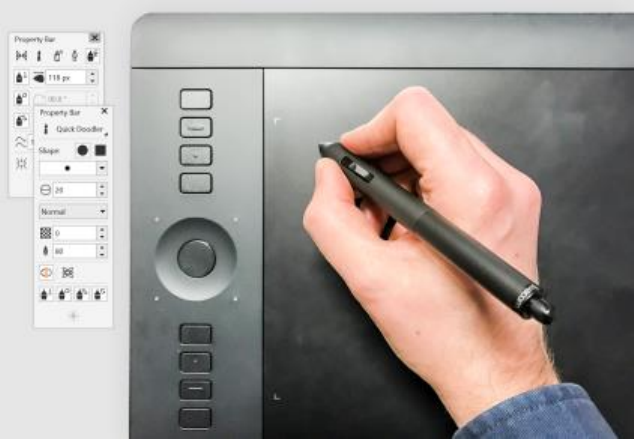
32 | Corel DESIGNER 2017 User Guide
flexibility of adding specific options from the standalone version of Lattice3D Studio, such as the Process PDF Template option, to a Lattice3D
Studio CAD Corel Edition license.
Enhanced! File format compatibility
CorelDESIGNER has enhanced support for the latest versions of two formats widely used in technical publications, WebCGM and
SVG, ensuring that you can easily exchange files with colleagues and clients worldwide and produce a range of downstream outputs.
CorelDESIGNER also offers a range of PDF options, including publishing your document as a 3D PDF or to the ISO compliant PDF/A archiving
format. In addition, if a PDF that you’re importing contains objects that fall outside the drawing page, you can now leave them intact or
crop them to the drawing page. You can import from and export to more than 100 file formats, including EPS, DWG, TIFF, PNG, JPEG.
What's more, files saved in the AI or PSD file format can be easily imported to Corel's ecosystem where work can continue without missing a
beat.
New! Stylus tilt, bearing, and rotation
Increased support for a number of real-time input factors let you get more out of your stylus. In CorelDESIGNER, the new Expression tool
lets you use pressure, tilt, and bearing to vary brushstrokes, and the improved Eraser tool is now responsive to your pen or stylus. Plus,
stylus support has been enhanced in Corel PHOTO-PAINT for the Eraser tool, the Paint tool, and other brush tools. For more information, see
“Using pressure-sensitive pens and devices” on page 179.
Increased support real-time input factors lets you get more out of your stylus.
Enhanced! Windows Real-Time Stylus Support
You can now take full advantage of the pressure and tilt of your RTS-compatible pen tablet or device to control your brushstrokes in
CorelDRAW Technical Suite 2017. For more information, see “Support for Real-Time Stylus (RTS) pen tablets and devices” on page 180.
New! Microsoft Surface Dial support
If a Microsoft Surface Dial is part of your workflow, CorelDESIGNER offers native support on Windows 10 to give you a greater range of
ways to create and interact with technology.
Precision
Create high-quality, technical communication projects using dedicated technical illustration tools, graphic design and layout features, and
professional image editing.
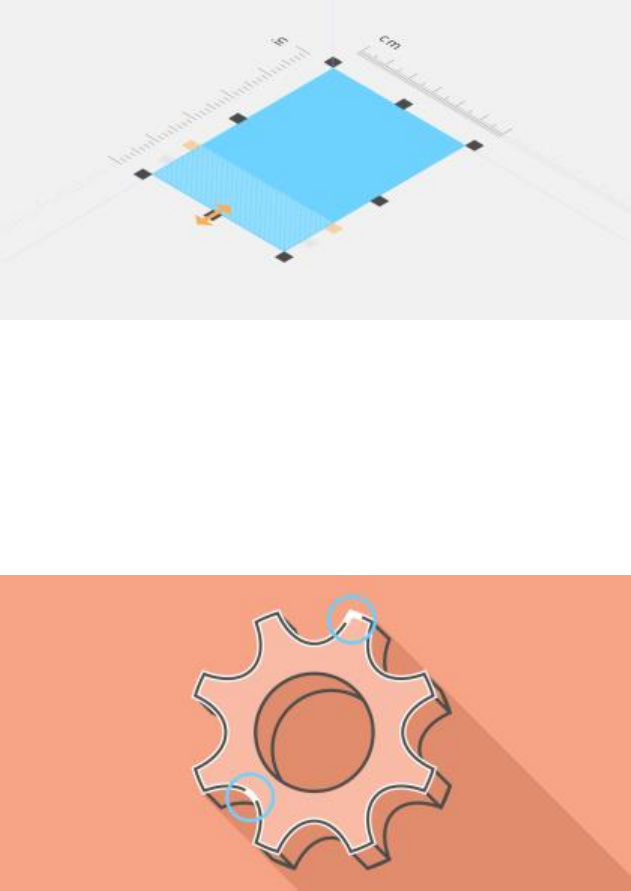
What’s new in Corel DESIGNER 2017? | 33
Enhanced! Projected Drawing
In response to user feedback, projected drawing in CorelDESIGNER is more intuitive. Now you can create new objects and edit existing ones
using the dimensions and coordinates of the active projected plane. The UI displays the projected-plane values that you’d expect, so you can
accurately draw, move, copy, stretch, and scale objects, giving you increased precision and productivity. For more information, see “Using
projected drawing modes” on page 236.
Dimensions and coordinates are displayed in the UI according to the active projected plane.
Enhanced! Boundary options
When 2D CAD files or previously converted line drawings are used as the source for technical illustrations, sometimes there are gaps in
lines that were supposed to form a closed shape. This can lead to time-consuming manual reworking of the illustration. To that end,
CorelDESIGNER offers more flexibility when using a boundary around multiple shapes to create a single closed curve object. You can now
include open lines in the object being created with the Boundary effect. A new gap tolerance control lets you specify a distance between
the end points of open lines. End points within that tolerance are temporarily repositioned to close the gap between objects and allow a
boundary to be created. For more information, see “Creating new objects from boundaries” on page 250.
Include open lines when using the Boundary effect to create a single
object from multiple lines or using the Smart Fill tool to apply a fill.
Enhanced! Vector previews, nodes, and handles
CorelDRAWTechnicalSuite2017 simplifies shaping curves and objects with redesigned nodes and handles that are easier to see and
manipulate. Enhanced vector previews help you edit more efficiently by ensuring nodes and curves stand out against background colors in
your design.
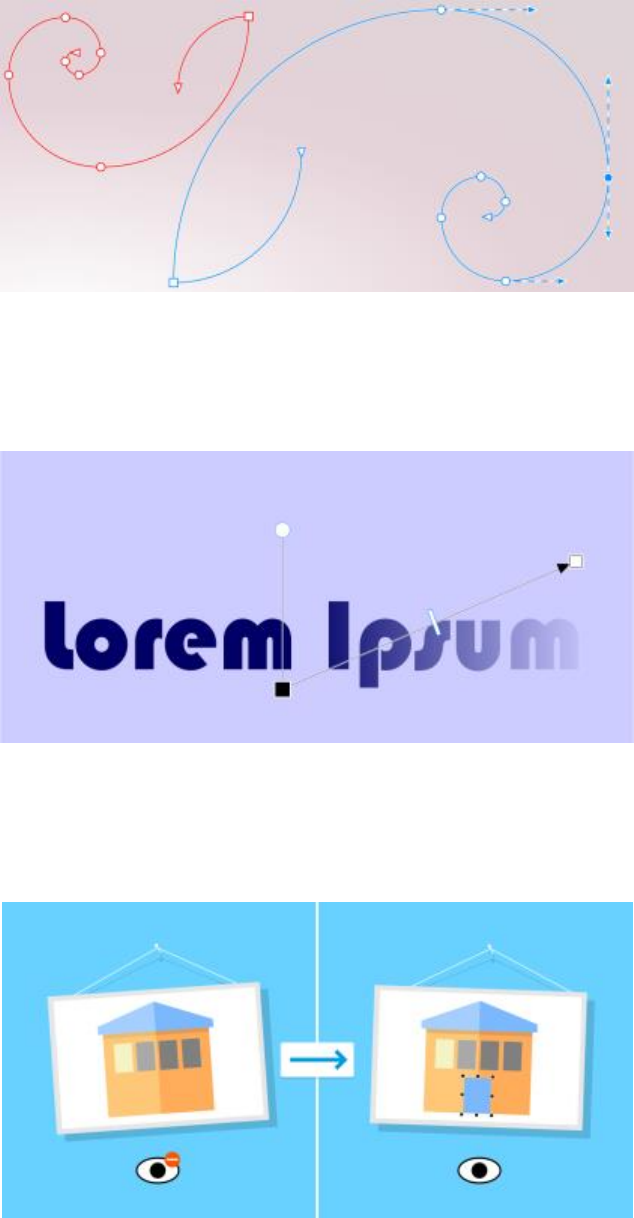
34 | Corel DESIGNER 2017 User Guide
Enhanced previews, nodes, and handles don't get lost in background colors.
New! Prominent interactive sliders
It's easier than ever to work with object fills, transparencies, blends, extrusions, drop shadows and more thanks to enhanced interactive
sliders that are more visible.
Prominent interactive sliders simplify working with object fills, transparencies, and more.
Hiding and displaying objects
CorelDESIGNER allows you to hide objects and groups of objects, helping you edit objects in complex projects and experiment with your
designs more easily. For more information, see “Hiding and displaying objects” on page 265.
You can hide and display objects.

What’s new in Corel DESIGNER 2017? | 35
Enhanced! Knife tool
With the enhanced Knife tool, you can split vector objects, text and bitmaps along straight, freehand or Bézier lines. You can create a gap
between the split objects or have them overlap. You can also choose whether to convert outlines into curve objects that can be manipulated
or keep them as outlines. And if you’re unsure, CorelDESIGNER can eliminate any guesswork by automatically choosing the option that best
preserves outline appearance. For more information, see “Splitting objects” on page 220.
Splitting objects with the enhanced Knife tool
Font list box
With the Font list box in CorelDRAWTechnicalSuite2017, you can view, filter, and find fonts easily. In addition to the font filters available
before, you can filter fonts based on weight, width, supported scripts, and more. You can also use keywords to search for fonts.
Selecting adjacent nodes
CorelDESIGNER lets you select adjacent nodes on curves by using the Shape tool while holding down Shift. For more information, see “To
select a node” on page 197.
Copying curve segments
CorelDESIGNER lets you copy and cut curve segments, and then paste them as objects, making it easy to extract subpaths or create adjacent
shapes with similar contours. For more information, see “To copy or cut a curve segment” on page 201.
New! Custom node shapes
CorelDESIGNER simplifies shaping curves and objects by assigning each node type a unique shape, making it easy to identify smooth, cusp,
and symmetrical nodes. You can tailor the look of nodes to best suit your workflow or project with new options for customizing their shape,
size, and color. You can also accelerate modifying elements in your designs by choosing to show the direction of curves and using a range of
drawing tools to edit nodes. For more information, see “Setting options for nodes, handles, and previews” on page 232.
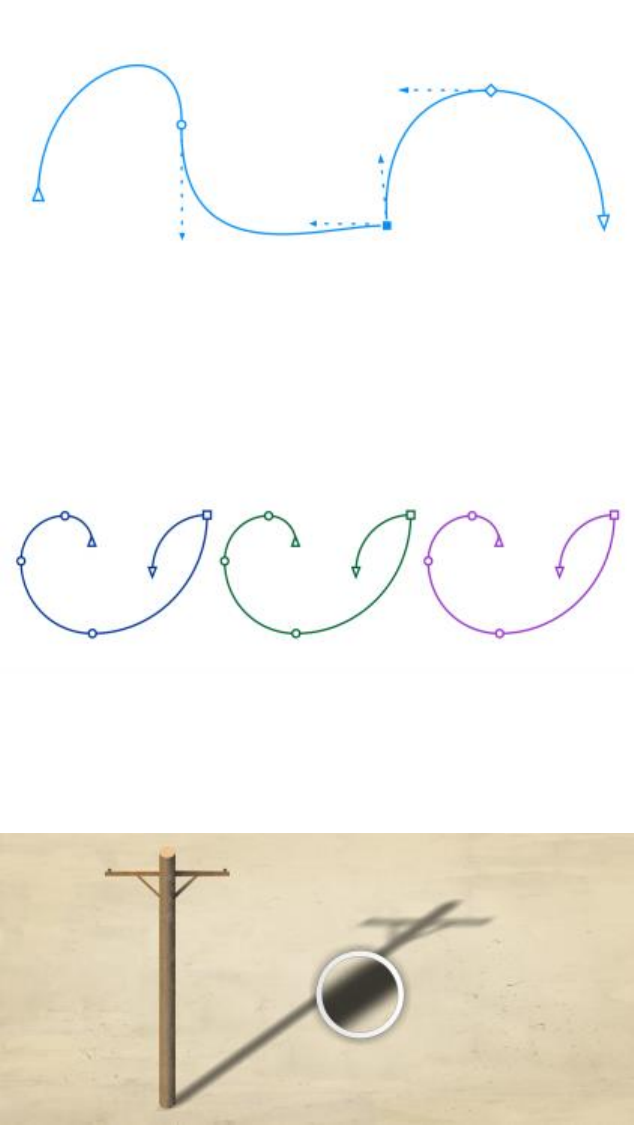
36 | Corel DESIGNER 2017 User Guide
Each node type is assigned a unique shape, making it easy to identify smooth, cusp, and symmetrical nodes.
New! Custom colors for previews and curve editing
New color personalization options help you edit objects more efficiently by letting you choose the colors for nodes, handles and previews
that will stand out against underlying colors, making them easier to see. For more information, see “Setting options for nodes, handles, and
previews” on page 232.
You can choose custom colors for nodes, handles, and previews.
Drop shadows with Gaussian Blur feathering
Drop shadows in CorelDESIGNER look more realistic because they use Gaussian Blur feathering. You can change the feathering of drop
shadows from the Feathering direction button on the property bar. For more information, see “Creating drop shadows” on page 389.
A drop shadow with Gaussian Blur feathering
Correct perspective distortions
With the Straighten Image dialog box in CorelDRAWTechnicalSuite2017, you can now correct perspective distortions in photos that have
straight lines and flat surfaces such as architectural photos and photos of buildings. For more information, see “Correcting perspective
distortions” on page 570.
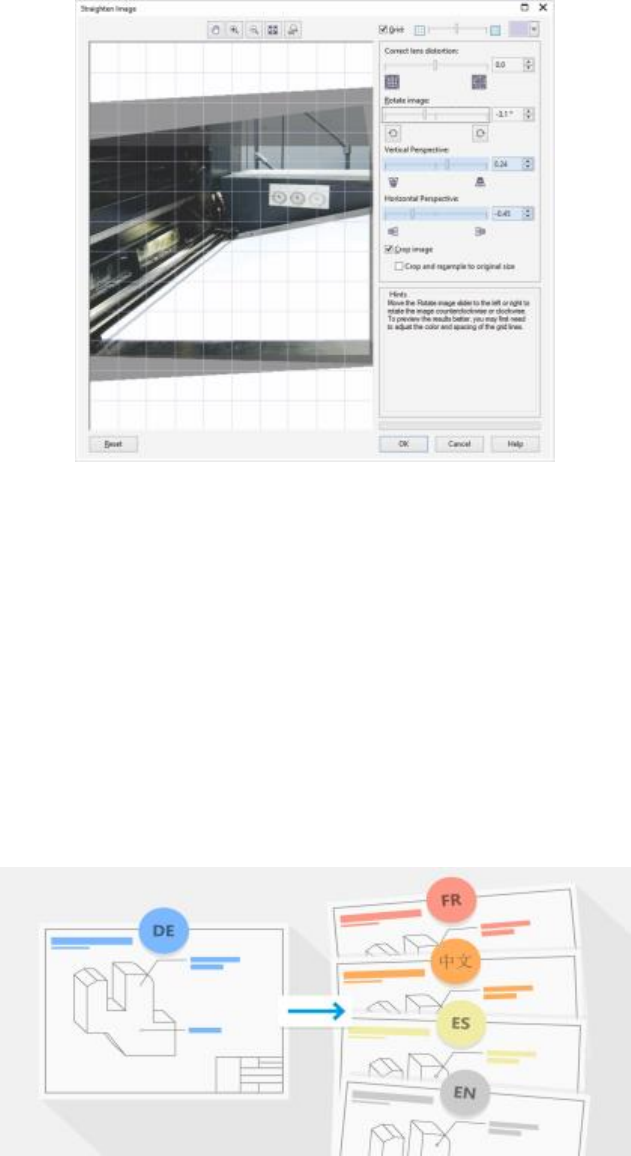
What’s new in Corel DESIGNER 2017? | 37
Straighten images that were scanned or photographed at an angle.
Productivity
Share your technical designs and documentation using a diverse set of cross-media publishing and distribution capabilities, and create
illustrations with localized text for a global market.
Enhanced! TMS support
The creation of technical documentation for a global market and the reduction localization costs offered by a Translation Memory System
(TMS) has been enhanced. Now when exporting text in a drawing to the XML Localization Interchange file format (XLIFF) — the industry-
standard format for sharing translatable text between a TMS and software — recognition of the source language has been improved in
Corel DESIGNER 2017. You can now export text with Trados-compatible language codes to the XML Localization Interchange file format
(XLIFF), the industry-standard format for sharing translatable text between a TMS and software. In addition, the translated text you receive
back now maintains the original formatting. This allows you to create a language-specific file with identical content and formatting, except
the translated text strings. For more information, see “Working with translated text” on page 471.
Corel DESIGNER simplifies the creation of technical documentation for a global market.
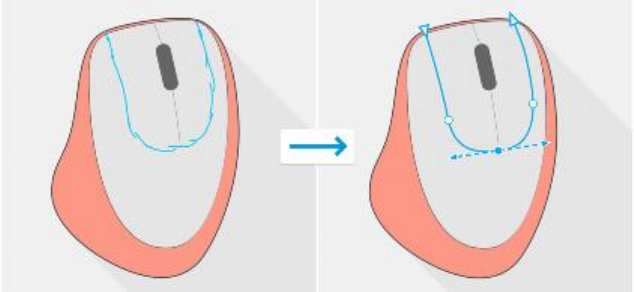
38 | Corel DESIGNER 2017 User Guide
New! Support for UltraHD 4K displays
Updated interface aspects and support for 4K monitors means that you will be able to comfortably view CorelDRAWTechnicalSuite2017 on
even the most high-definition monitors.
Enhanced! Support for Windows 10
Thanks to our relentless pursuit of delivering the highest quality user experience, CorelDRAWTechnicalSuite 2017 is fully compliant with and
certified for Windows 10. Corel delivers the same reliability and performance that users have come to expect when working on world’s most
popular operating system.
New! Advanced multi-monitor support
Per-Monitor UI scaling and improvements to multi-monitor support allow graphics professionals to take advantage of the sharpness and
fidelity of new High-DPI monitors and laptops while still using lower-DPI monitors to maximize design space (requires supported hardware
and Windows 8.1 or later). This ensures that UI elements scale properly and appear crisp and legible on screens of all resolutions. For
example, you can drag a document out of the application window and place it within a second screen, dedicating one monitor to a drawing
or image and the other to frequently used dockers and toolbars.
New! Learn about the product and your account in the updated Welcome Screen
The new Product Details tab within the Welcome Screen in CorelDRAWTechnicalSuite2017 provides important information about the
product, user account details, and authentication status. Users can also find useful information about product updates. Links to upgrade to
the next release or a trial version to a full license, and even renew a subscription can all be found here.
New! LiveSketch™ tool
The LiveSketch™ tool is perfect for kick-starting a project. Great when working with a stylus or on a touch-enabled device, it combines the
speed of sketching with flexible stroke-adjustment controls so you can begin your design concepts using hand-drawn vector curves right
from the get-go.
If you've ever used a scanned sketch as the basis for a project, you'll quickly see the creative and time-saving possibilities that the LiveSketch
tool offers. Not only does it eliminate the need to scan and trace a drawing, but it also gives you total control over how your strokes are
adjusted and converted to curves. Intuitive settings let you easily fine-tune how CorelDESIGNER meshes with your sketching cadence.
Strokes created with the LiveSketch tool are adjusted and added to existing curves based on the time and distance between them. You can
set the time it takes to activate stroke adjustment after you've stopped drawing and the distance at which strokes are automatically added to
existing curves. You also have the option of combining all strokes drawn within the specified time frame into a single curve, regardless of the
distance between them. If you want to extend an existing curve, simply hover over it until turns red and continue to sketch. The subsequent
stroke is seamlessly added to the existing curve, allowing you to sketch, adjust and edit on the fly. For more information, see “Sketching
naturally with intelligent stroke adjustment ” on page 172.
The LiveSketch tool lets you capture design concepts using hand-drawn vector curves.
What’s new in Corel DESIGNER 2017? | 39
New! Touch-friendly UI
Tablet Mode support makes it easy to sketch on the fly and make quick adjustments using touch or a stylus. The new Touch workspace
streamlines the UI to maximize the size of the drawing window by displaying only the tools and commands that you're most likely to use in
the field on a tablet. All other features are still accessible in a couple of taps. And if you prefer working with one of the desktop workspaces
when you're in Tablet mode, you can choose whatever UI configuration works best for you. You can now also save time and work faster by
panning and zooming in a single gesture. For more information, see “Using touch” on page 135.
The Touch workspace offers a touch-friendly environment with access to all the essentials.
New! Corel Font Manager
Corel Font Manager lets you easily handle, organize, and explore your typeface and font collections. It gives you the tools to control every
aspect of your typography workflow whether you are browsing collections, installing a typeface for a job, previewing font glyph sets, or
creating groups of fonts. For more information about Corel Font Manager, see the Help.
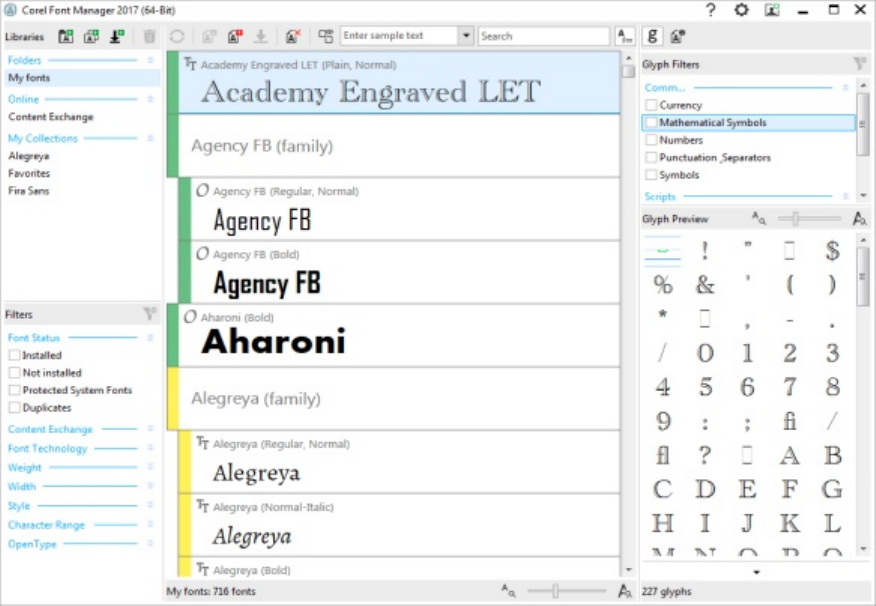
40 | Corel DESIGNER 2017 User Guide
Corel Font Manager
New! Import legacy workspaces
CorelDRAWTechnicalSuite2017 lets you reuse CorelDESIGNER workspaces that were created in versions X6 and X7. You can also import
CorelDRAW and Corel PHOTO-PAINT workspaces that were created in versions X6, X7, and X8. You have the flexibility of importing some
workspace elements and excluding others. You also have the option of adding them to your current workspace or creating a totally new UI
configuration. And choosing which workspace elements to import or export is faster than ever. For more information, see “Importing and
exporting workspaces” on page 722.
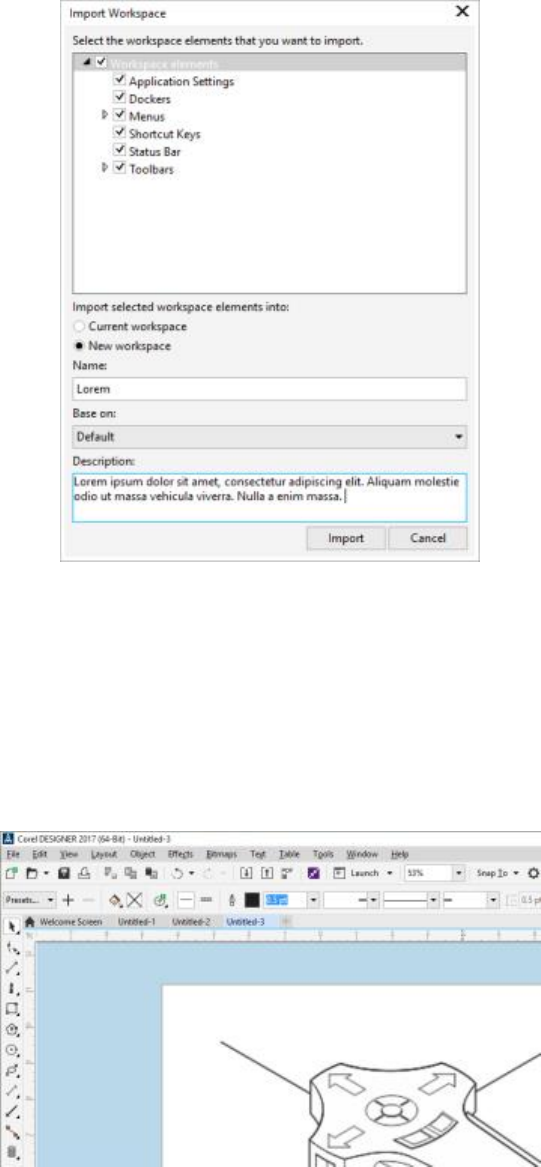
What’s new in Corel DESIGNER 2017? | 41
You can import Corel DESIGNER workspaces that were created in versions X6 and X7.
New! Customize the applications to your liking
CorelDRAWTechnicalSuite2017 offers more UI customization options than ever before, allowing you to tailor your design space to create a
unique work environment. Newly redesigned icons permit scaling up to 250%, and you can lighten or darken the application background by
choosing a theme.
CorelDRAWTechnicalSuite2017 offers flexible desktop color scheme options. You can change the color of the area surrounding the
drawing page in CorelDESIGNER to set up the optimal environment for each project, reduce the overall workspace contrast, or increase the
legibility of design elements.
Custom desktop color in Corel DESIGNER
42 | Corel DESIGNER 2017 User Guide
You can customize the color of window borders in CorelDRAWTechnicalSuite2017 to match your personal preference. If you use more
than one of the suite’s applications simultaneously, you can set different border colors for each, which lets you quickly identify them when
switching programs.
For more information, see “Customizing workspace appearance” on page 723.
Custom window border color in Corel DESIGNER
Expand your collection of tools
Expand your collection of tools by downloading for free or purchasing applications, plug-ins, and extensions directly from within
CorelDRAWTechnicalSuite2017. You can download your free license of Corel Website Creator, purchase AfterShot Pro for the ultimate RAW
workflow, experience Corel ParticleShop for amazing bitmap effects, and more. In order to access this collection of tools, you need to be
connected to the Internet. For more information, see “Finding content with the Get More docker” on page 97.
Expand your collection of tools with the Get More docker.

What’s new in Corel DESIGNER 2017? | 43
Accessing eBooks
The CorelDESIGNER2017UserGuide is now available as an eBook. Published to the EPUB and MOBI file format, the eBook brings the most
comprehensive and up-to-date information about product features to your eBook reader.
The Corel DESIGNER 2017 User Guide is now available in EPUB and MOBI file format.
Community website for developers
With support from the Developer Community site, you can create your own automation tools. There's a variety of useful resources, including
in-depth programming articles and code samples, which can help you automate tasks with macros and create custom features. And when
you have questions, you can turn to a community forum, knowledge base, or the FAQ page.
Visit http://community.coreldraw.com/sdk/ to get started.
44 | Corel DESIGNER 2017 User Guide
Learning resources | 45
Learning resources
You can learn to use the product in various ways: by accessing the Help and tooltips, by completing tutorials, and by exploring the resources
on the Corel website (www.corel.com). You can also check the Readme file (readme.html), which is installed with the software.
This section contains the following topics:
•“Getting help” (page 45)
•“Using the Help and tooltips” (page 46)
•“Welcome screen” (page 47)
•“Community website for developers” (page 48)
•“Network deployment guide” (page 48)
•“Web-based resources” (page 48)
Getting help
Various learning resources are available. The following table can help you decide what learning resources to consult when you need
assistance. You can access more information about some resources by clicking the corresponding links.
To See
Obtain additional information about product tools and features “Using the Help and tooltips ” on page 46
“Web-based resources ” on page 48
“Welcome screen ” on page 47
“Accessing eBooks ” on page 48
Learn to automate tasks by using macros Community website for developers
Find information about deploying the suite on a network “Network deployment guide ” on page 48

46 | Corel DESIGNER 2017 User Guide
To See
Find specific information about the latest version of the suite Readme file, which is installed with the software. To find it, go the
folder where the product is installed, open the Languages folder,
and open the language folder you want.
Using the Help and tooltips
The Help provides comprehensive information about product features from within the application. If you are connected to the Internet, the
application displays the web-based Help, which contains the latest updates. If no Internet connection is available, the application displays
the local Help, which was copied to your computer during product installation.
You can browse through the entire list of topics, look up tools and topics in the index, or search for specific words. You can also access the
Corel Knowledge Base on the Corel website and other online resources from the Help window.
The Help is also available online in PDF format.
Tooltips provide helpful information about application controls when you position the pointer over icons, buttons, and other user interface
elements.
Documentation conventions
The following table describes important conventions used in the documentation.
Convention Description Examples
Menu Menu command A menu item and menu command that you
need to click in sequence
Click File Open.
A note contains important information
that is relevant to the preceding steps. It
may describe conditions under which the
procedure can be performed.
A compound blend cannot be copied or
cloned.
If you click the Equal margins button, you
must specify values in the Top/left margin
boxes.
A tip contains suggestions for performing
the preceding steps. It may present
alternatives to the steps, or other benefits or
uses of the procedure.
Trimming an object can reduce the drawing
file size.
You can change the number of swatches in
the color grid by dragging the Size slider.
To use the Help
1Click Help Product Help.
2Click one of the following tabs:
•Contents — lets you browse through topics in the Help. To open a topic, click the topic heading in the left pane.
•Index — lets you use the index to find a topic
•Search — lets you search the full text of the Help for a particular word or phrase

Learning resources | 47
You can also
View context-sensitive Help from within a dialog box Click the Help button in the dialog box.
Print a specific Help topic Open a Help topic, click the page that you want to print, and click
Print at the top of the Help window.
You can also access the Help by pressing F1.
You can also access the Help from the Welcome screen.
To search the Help
1Click Help Product Help.
2Click the Search tab, and type a word or phrase in the search box.
For example, if you are looking for information about the RGB color mode, you can type “RGB” to display a list of relevant topics. To
search for a phrase, type the phrase, and enclose it in quotation marks (for example, type “dynamic guides” or “color mode”).
3Choose a topic from the list that appears.
If your search results do not include any relevant topics, check whether you spelled the search word or phrase correctly. Note that
the English Help uses American spelling (for example, “color,” “favorite,” “center,” and “rasterize”), so searching for British spellings
(“colour,” “favourite,” “centre,” and “rasterise”) produces no results.
Welcome screen
The Welcome screen gives you easy access to learning resources, including the Discovery Center, and lets you quickly complete common
tasks, such as opening files and starting files from templates. You can find out about the new features in CorelDRAWTechnicalSuite2017,
access learning resources, and learn about membership and subscription options.
In addition, the following online resources are accessible from the Need Help? page to help you get the most out of CorelDESIGNER:
• Tutorials — show you how to draw with precision, add dimension lines and callouts, create a wiring diagram, add a 3D look to a
drawing, and more
• Case studies and white papers — show you how CorelDESIGNER helps many different industries deliver high-quality technical
documentation, and help you overcome challenges in creating technical documentation
• Tips and tricks — highlight useful tools and shortcuts, and give you a starting point for exploring some of the
CorelDRAWTechnicalSuite2017 features
To access the Welcome screen
•Click Help Welcome screen.
To view and access the available resources, click the links on the left side of the Welcome screen.

48 | Corel DESIGNER 2017 User Guide
You can also access the Welcome screen by clicking the Welcome screen button on the tab bar. If you want to hide the Welcome
screen button from the tab bar, click Tools Options, click General in the Workspace list of categories, and disable the Show
Welcome Screen button on tab bar check box.
To stop displaying the Welcome screen each time you start the application, disable the Always show the Welcome screen at launch
check box in the lower-left corner.
Accessing eBooks
The CorelDRAW 2017 User Guide, CorelDESIGNER2017 User Guide, and CorelPHOTO-PAINT2017 User Guide are available as eBooks.
Published to the EPUB and MOBI file format, the eBooks bring the most comprehensive information about product features to your eBook
reader.
The user guides are now available in EPUB and MOBI file format.
To access an eBook
1Sign in to your corel.com account.
2On Your Account page, click Downloads, and proceed to download the eBook you want.
Community website for developers
Whether you are automating tasks by using macros, creating custom tools, or developing commercial solutions that integrate with
CorelDRAW Technical Suite; the developer community website can help you with its wealth of useful resources: a programming guide,
detailed Object Model reference documentation with code samples, and in-depth programming articles.
You can use either Microsoft Visual Basic for Applications (VBA) or Microsoft Visual Studio Tools for Applications (VSTA) to create macros
that automate tasks and provide customized solutions for CorelDESIGNER, CorelDRAW, and Corel PHOTO-PAINT.
Network deployment guide
The CorelDRAW Technical Suite 2017 Deployment Guide is a step-by-step resource for deploying CorelDRAWTechnicalSuite2017 to a
network. This guide is provided to customers who purchase a volume (“multi-seat”) license of CorelDRAWTechnicalSuite2017 for their
organization. To purchase a volume license of the software and obtain its deployment guide, please contact Corel Support Services.
Web-based resources
The following web-based resources can help you get the most out of CorelDRAWTechnicalSuite:
•Corel Knowledge Base — articles written by the Corel Technical Support Services Team in response to questions by users
•Community.CorelDRAW.com — an online environment to share your experience with the product, ask questions, and receive help and
suggestions from other users
•Tutorials on the Corel website — show you how to use basic tools and provide tips for streamlining your workflow and improving your
designs
Learning resources | 49
An active Internet connection is required to access web-based resources.
50 | Corel DESIGNER 2017 User Guide

CorelDESIGNER workspace tour | 51
CorelDESIGNER workspace tour
Becoming familiar with the terminology and workspace of CorelDESIGNER will help you easily follow the concepts and procedures in this
user guide.
This section contains the following topics:
•“CorelDESIGNER terms and concepts” (page 51)
•“CorelDESIGNER application window” (page 52)
•“Standard toolbar” (page 54)
•“More about toolbars” (page 55)
•“Exploring the toolbox” (page 56)
•“Dockers” (page 71)
•“Status bar” (page 73)
•“Choosing a workspace” (page 73)
CorelDESIGNER terms and concepts
Before you get started with CorelDESIGNER, you should be familiar with the following terms.
Term Description
object An element in a drawing, such as an image, shape, line, text, curve,
or symbol
drawing The work you create in CorelDESIGNER: for example, technical
drawings, schematics, and diagrams
vector graphic An image generated from mathematical descriptions that
determine the position, length, and direction in which lines are
drawn
bitmap An image composed of grids of pixels or dots
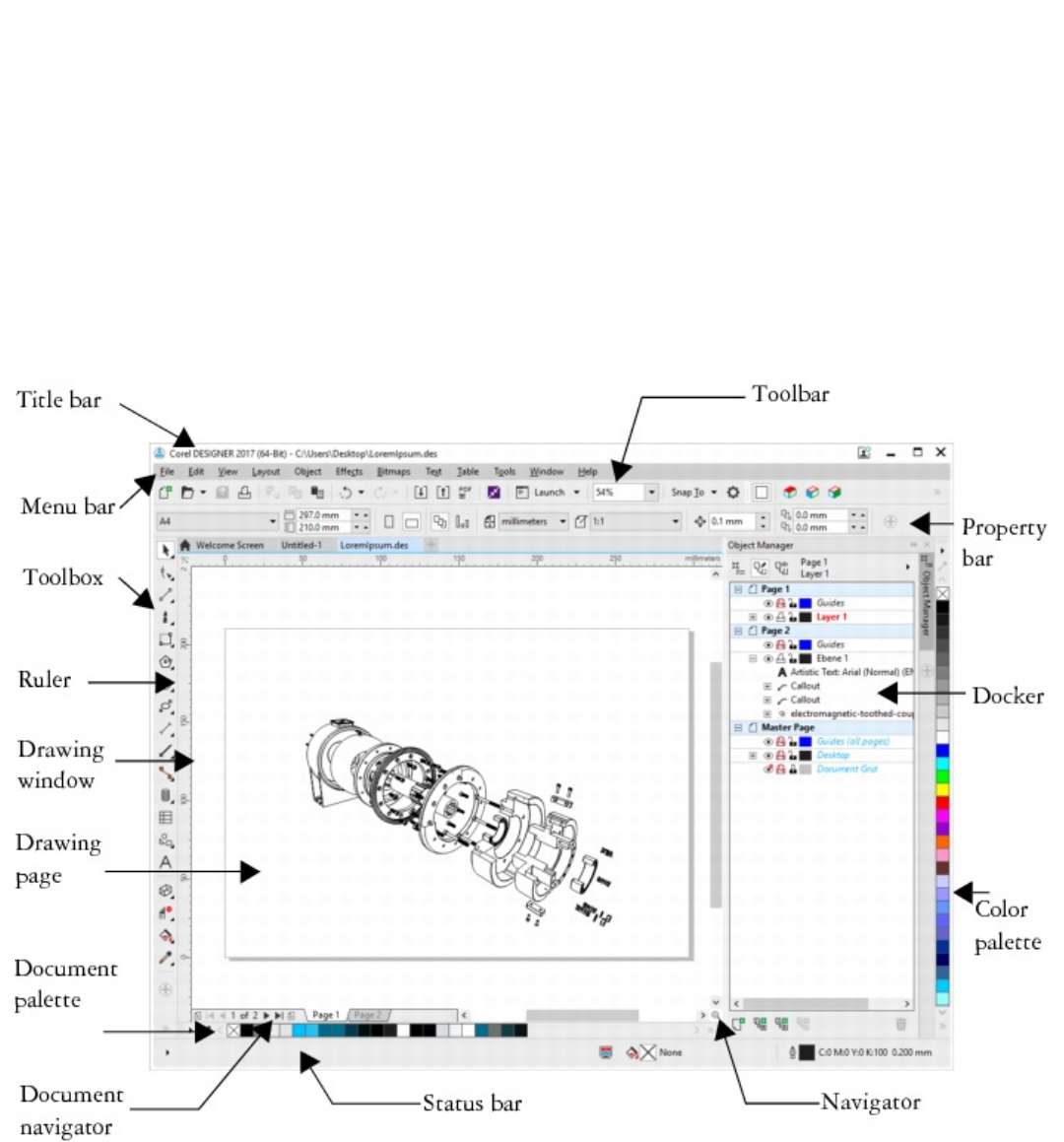
52 | Corel DESIGNER 2017 User Guide
Term Description
artistic text A type of text to which you can apply special effects, such as
shadows
paragraph text A type of text to which you can apply formatting options, and
which can be edited in large blocks
CorelDESIGNER application window
When you launch CorelDESIGNER, the application window opens, containing a drawing window. The rectangle in the center of the drawing
window is the drawing page where you create your drawing. Although more than one drawing window can be opened, you can apply
commands to the active drawing window only.
The CorelDESIGNER application window appears below. A description of its parts follows.

CorelDESIGNER workspace tour | 53
Part Description
Menu bar The area containing pull-down menu options
Property bar A detachable bar that contains properties of the active tool or
object. For example, when the text tool is active, the text property
bar displays commands that create and edit text.
Toolbar A detachable bar that contains shortcuts to menu and other
commands
Title bar The area displaying the title of the currently open drawing
Rulers Horizontal and vertical borders that are used to determine the size
and position of objects in a drawing
Toolbox A bar with tools for creating and modifying objects in the drawing
Drawing window The area outside the drawing page bordered by the scroll bars and
application controls
Drawing page The rectangular area inside the drawing window. It is the printable
area of your work area.
Docker A window containing available commands and settings relevant to
a specific tool or task
Color palette A dockable bar that contains color swatches
Document palette A color palette that helps you keep track of the colors that you use
in your document and store them for future use.
Status bar An area at the bottom of the application window that contains
information about object properties such as type, size, and
resolution. The status bar also shows the current mouse position.
Document navigator The area at the bottom left of the drawing window that contains
controls for moving between pages and adding pages
Navigator A button at the lower-right corner of the drawing window that
opens a smaller display to help you move around a drawing
To toggle between displaying and hiding the status bar, click View Toolbars Status bar.
For information about displaying and hiding the rulers, see “To hide or display the rulers” on page 541.
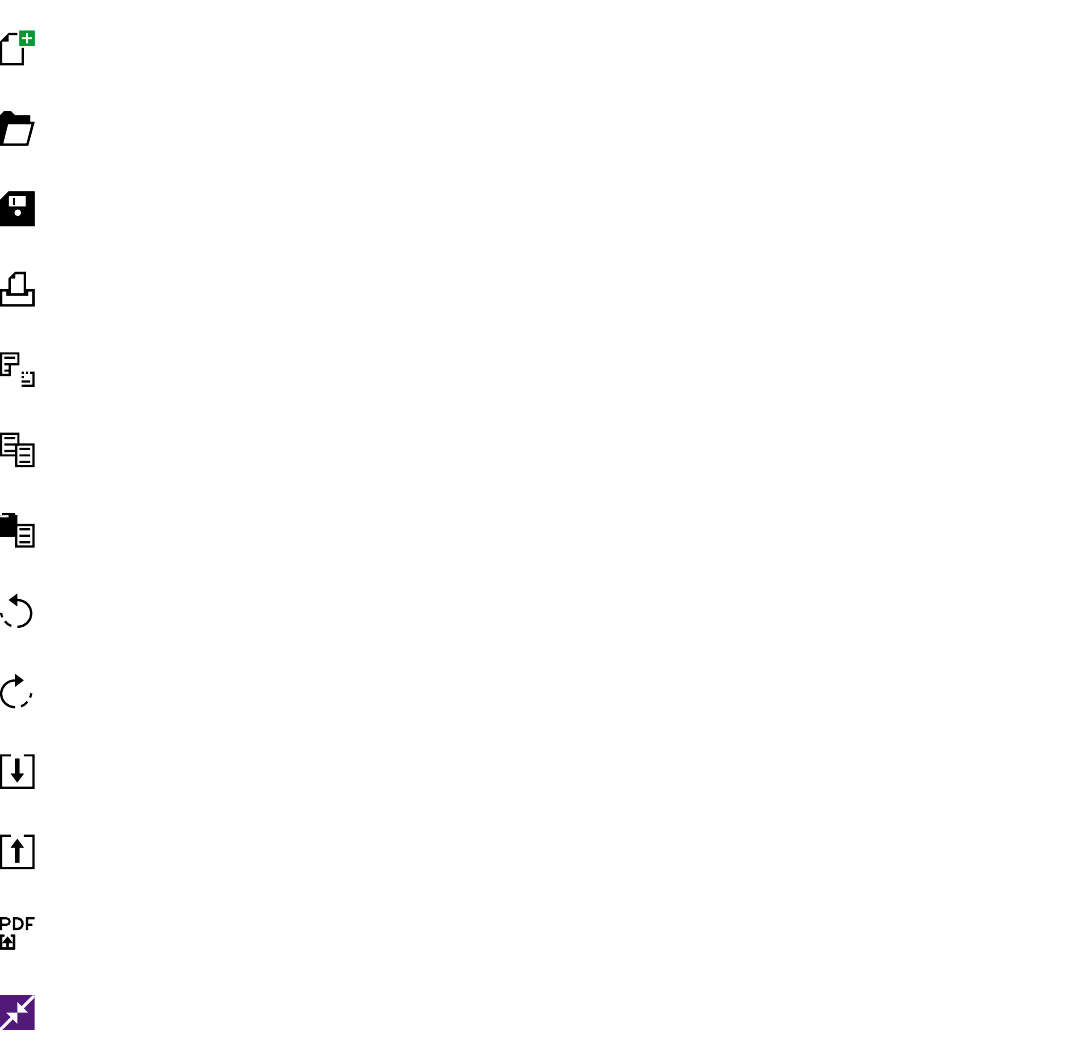
54 | Corel DESIGNER 2017 User Guide
Standard toolbar
The standard toolbar contains buttons that are shortcuts to many of the menu commands.
The standard toolbar is displayed by default. For information about customizing the position, contents, and appearance of toolbars, see
“Customizing toolbars” on page 728.
Click this button To
Start a new drawing
Open a drawing
Save a drawing
Print a drawing
Cut selected objects to the Clipboard
Copy selected objects to the Clipboard
Paste the Clipboard contents into a drawing
Undo an action
Restore an action that was undone
Import a drawing
Export a drawing
Publish to PDF
Display the Get More docker and search for content such as clipart,
photos, fonts, and more
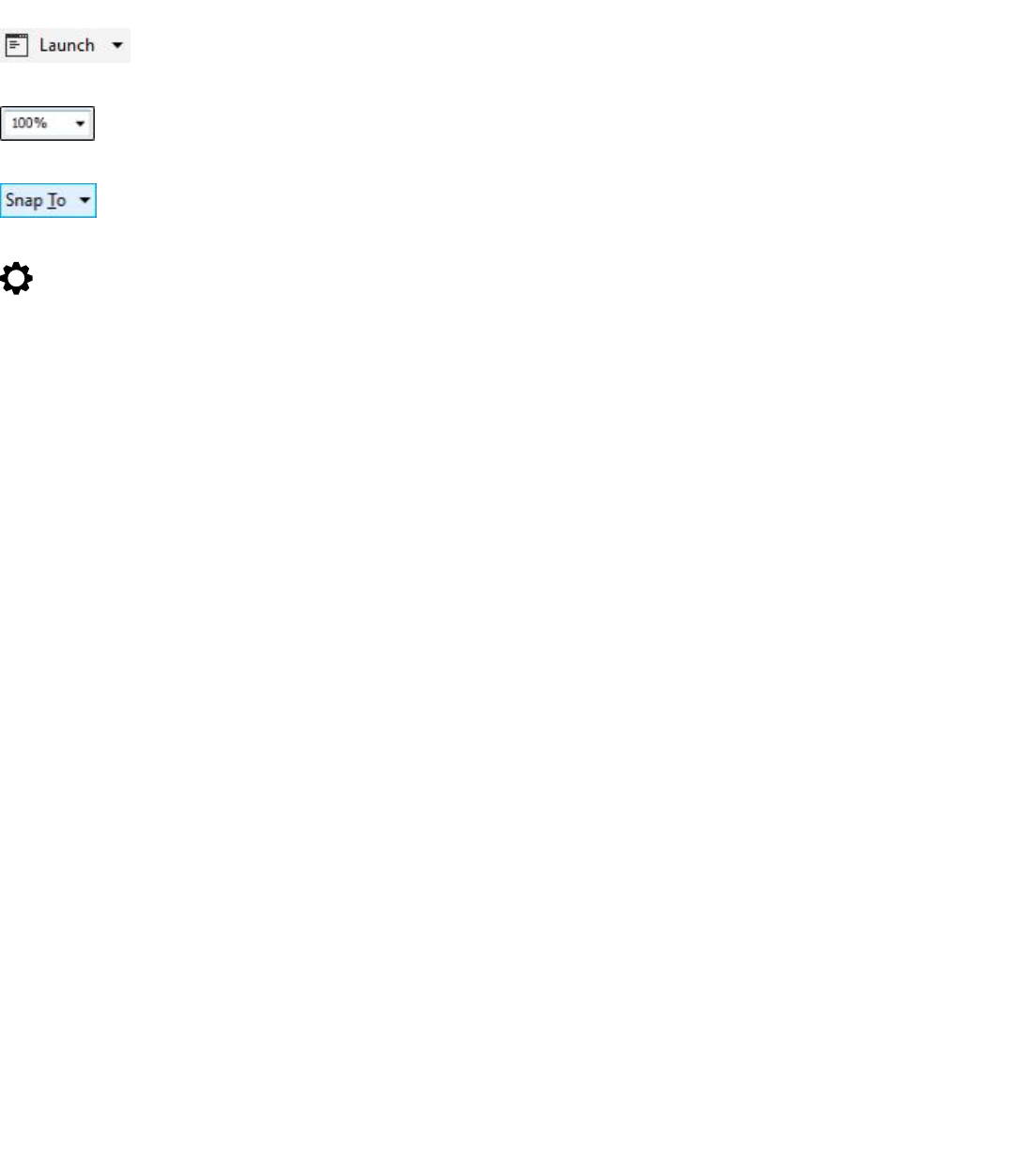
CorelDESIGNER workspace tour | 55
Click this button To
Start Corel applications, plug-ins, and extensions; or access the Get
More dialog box to download other creative tools
Set a zoom level
Enable or disable automatic alignment for the grid, guidelines,
objects, and dynamic guides
Open the Options dialog box
The Drawing plane toolbar appears to the right of the standard toolbar. For more information, see “Drawing plane” on page 55.
More about toolbars
In addition to the standard toolbar, CorelDESIGNER has toolbars for specific kinds of tasks. For example, the Text toolbar contains
commands relevant to using the Text tool. If you use a toolbar frequently, you can display it in the workspace at all times.
The table below describes toolbars other than the standard toolbar.
Toolbar Description
Text Contains commands for formatting and aligning text
Zoom Contains commands for zooming in and out of a drawing page
Internet Contains commands for Web-related tools for creating rollovers
and publishing to the Internet
Print Merge Contains commands for print merge items that combine text with
a drawing, such as creating and loading data files, using data fields
for variable text, and inserting print merge fields
Transform Contains commands for skewing, rotating, and mirroring objects
Macros Contains commands for editing, testing, and running macros
Layout Contains commands related to the layout of your document,
including PowerClip frames, text frames, columns, and alignment
guides.
Drawing plane Contains commands for choosing a drawing plane and a drawing
profile, and lets you access the Projected axes docker. This toolbar
is displayed by default.
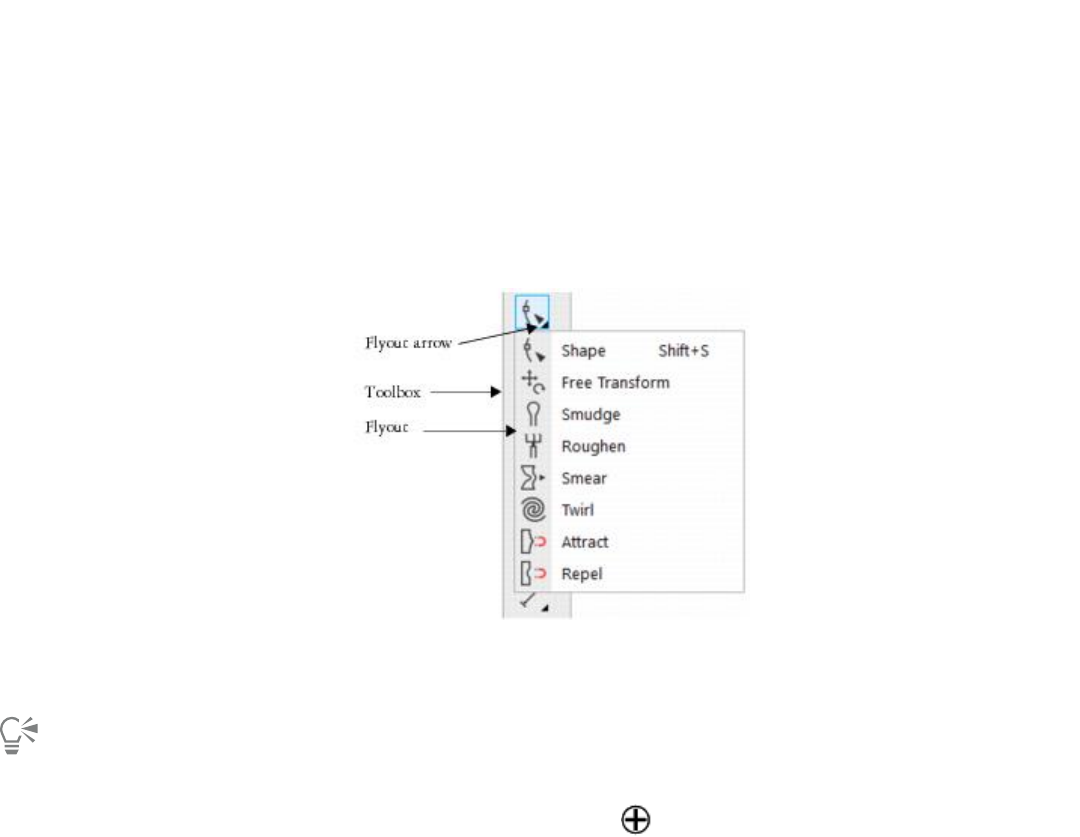
56 | Corel DESIGNER 2017 User Guide
Toolbar Description
Parallel drawing Contains commands for drawing parallel curves
Exploring the toolbox
The toolbox contains tools for drawing and editing images. Some of the tools are visible by default, while others are grouped in flyouts.
Flyouts open to display a set of related CorelDESIGNER tools. A small flyout arrow in the lower-right corner of a toolbox button indicates
a flyout. You can access the tools in a flyout by clicking the flyout arrow. After you open a flyout, you can easily scan the contents of other
flyouts by hovering over any of the toolbox buttons which have flyout arrows. Flyouts function like toolbars when you drag them away from
the toolbox. This lets you view all the related tools while you work.
In the default workspace, clicking the flyout arrow on the Shape tool opens the Shape edit flyout.
Some tools in the toolbox are not visible by default. You can choose which tools to display in the toolbox.
To toggle between displaying and hiding the toolbox, click Window Toolbars Toolbox.
To hide or display tools in the toolbox, click the Quick customize button , and enable or disable the corresponding check boxes.
Locating tools in the toolbox
The following illustration shows the other flyouts in the default CorelDESIGNER toolbox and can help you locate tools more easily.
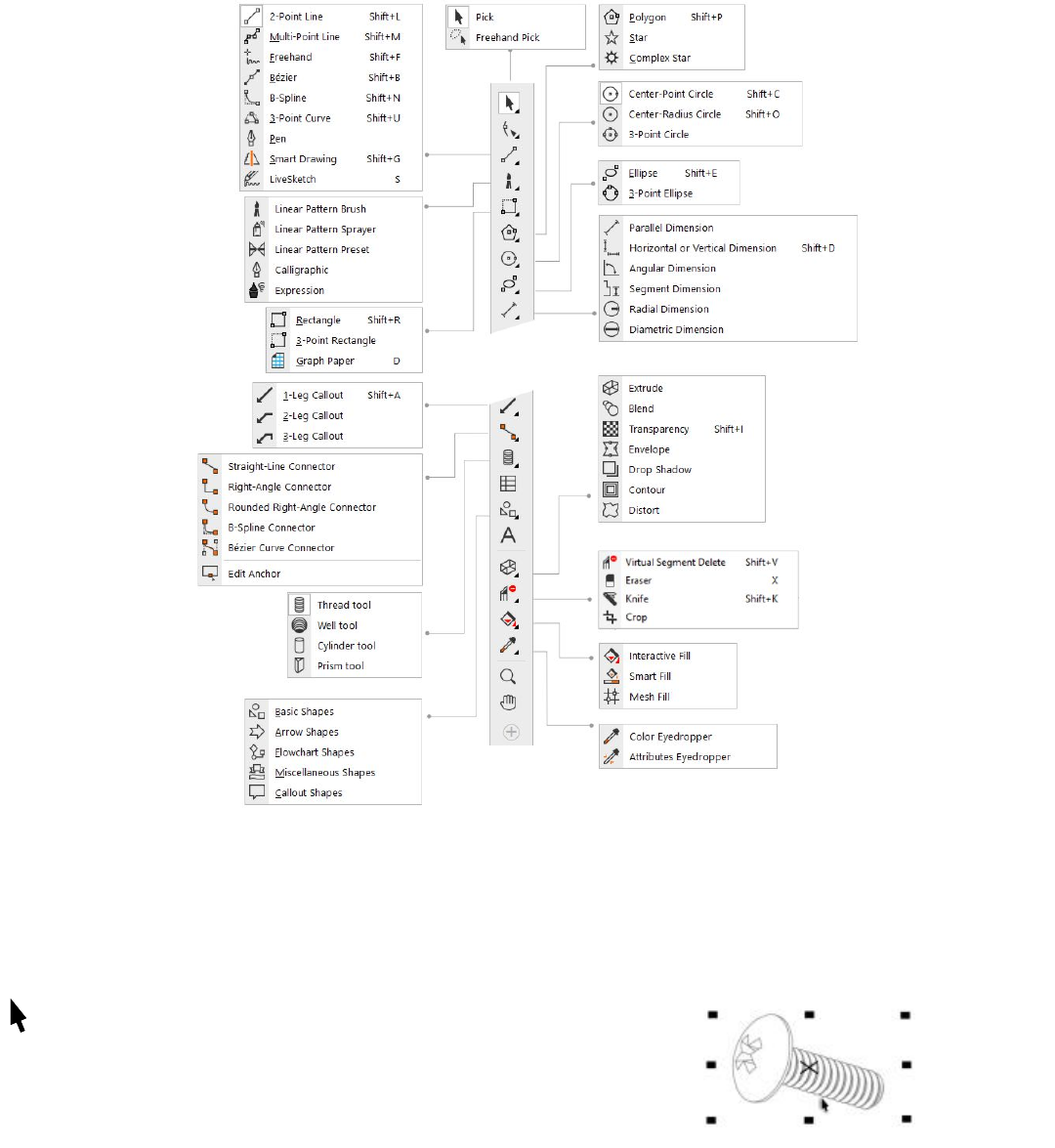
CorelDESIGNER workspace tour | 57
Tools
The following table provides descriptions of the tools in the CorelDESIGNER toolbox.
Pick tools
The Pick tool lets you select, size, skew, and
rotate objects.
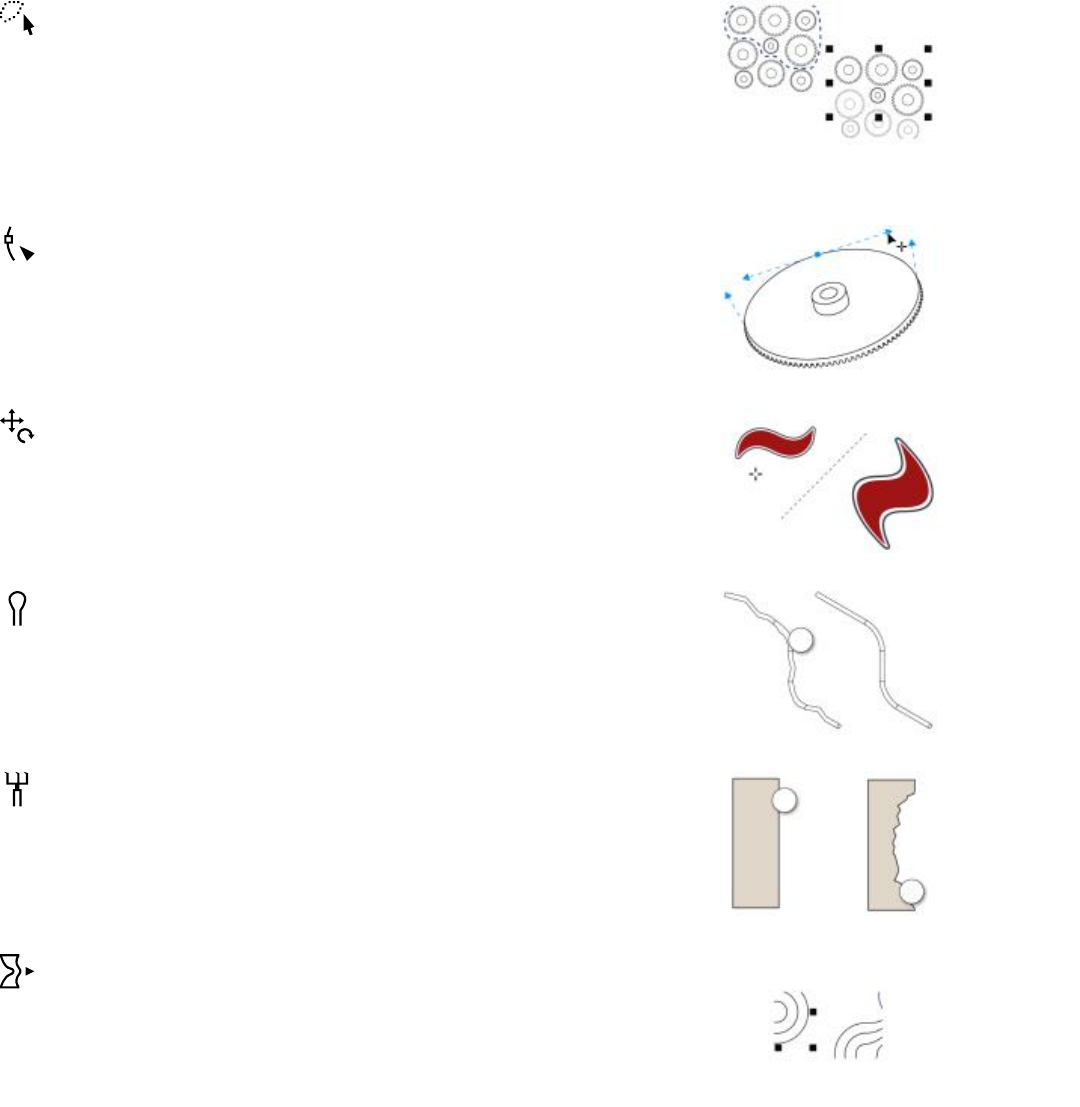
58 | Corel DESIGNER 2017 User Guide
The Freehand pick tool lets you select
objects by using a freehand selection
marquee.
Shape tools
The Shape tool lets you edit a curve object
or text character by manipulating nodes.
The Free transform tool lets you transform
an object by using the Free rotation, Free
angle reflection, Free scale, and Free skew
controls on the property bar.
The Smudge tool lets you distort a vector
object by dragging along its outline.
The Roughen tool lets you distort the edge
of a vector object by dragging along its
outline.
The Smear tool lets you shape an object by
pulling extensions or making indents along
its outline.
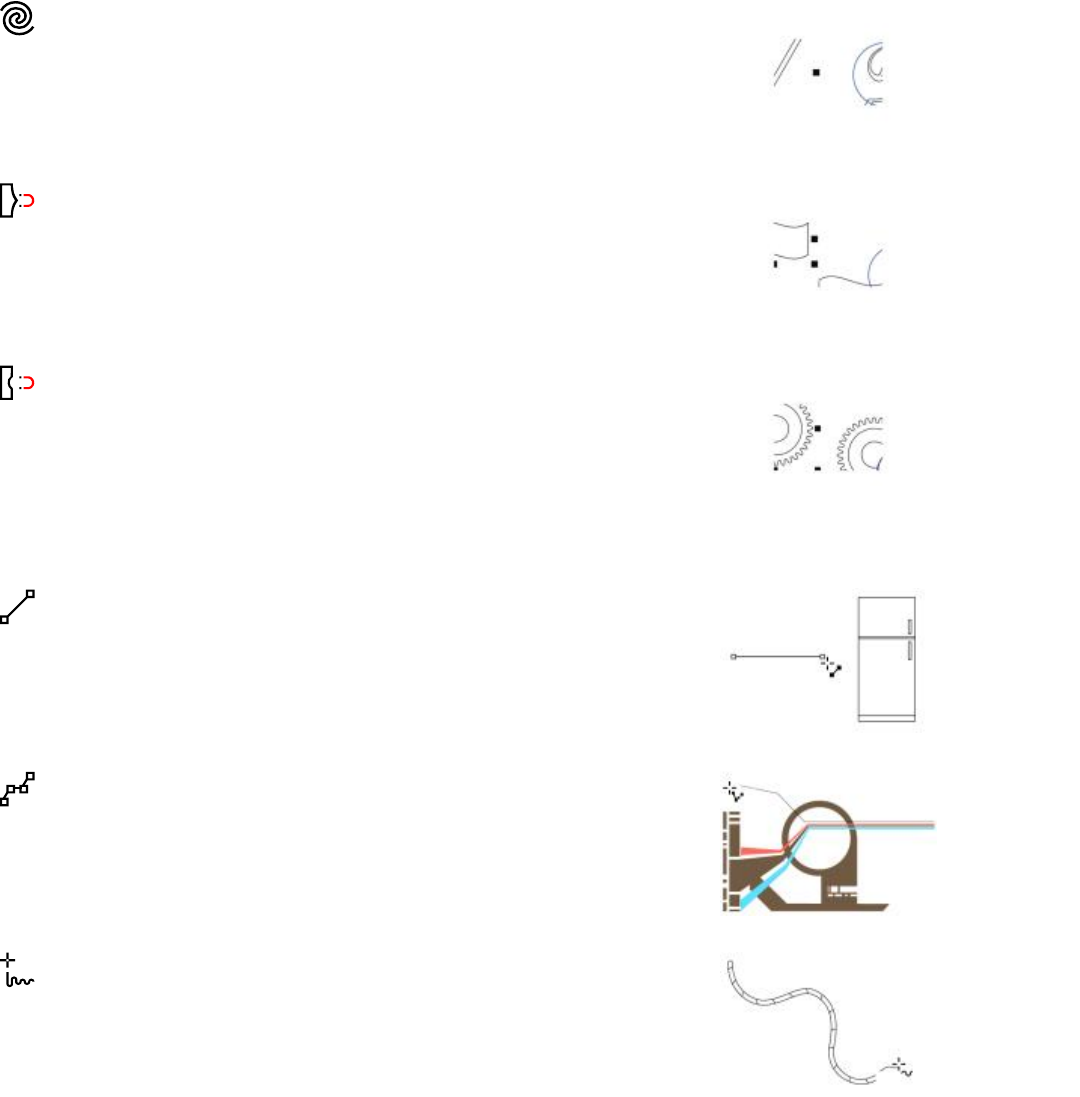
CorelDESIGNER workspace tour | 59
The Twirl tool lets you create swirl effects by
dragging along the edge of objects.
The Attract tool lets you shape objects by
attracting nodes to the cursor.
The Repel tool lets you shape objects by
pushing nodes away from the cursor.
Curve tools
The 2-point line tool lets you draw a
straight two-point line segment.
The Multi-point line tool lets you draw
lines and curves one segment at a time, in
preview mode.
The Freehand tool lets you draw single line
segments and curves.
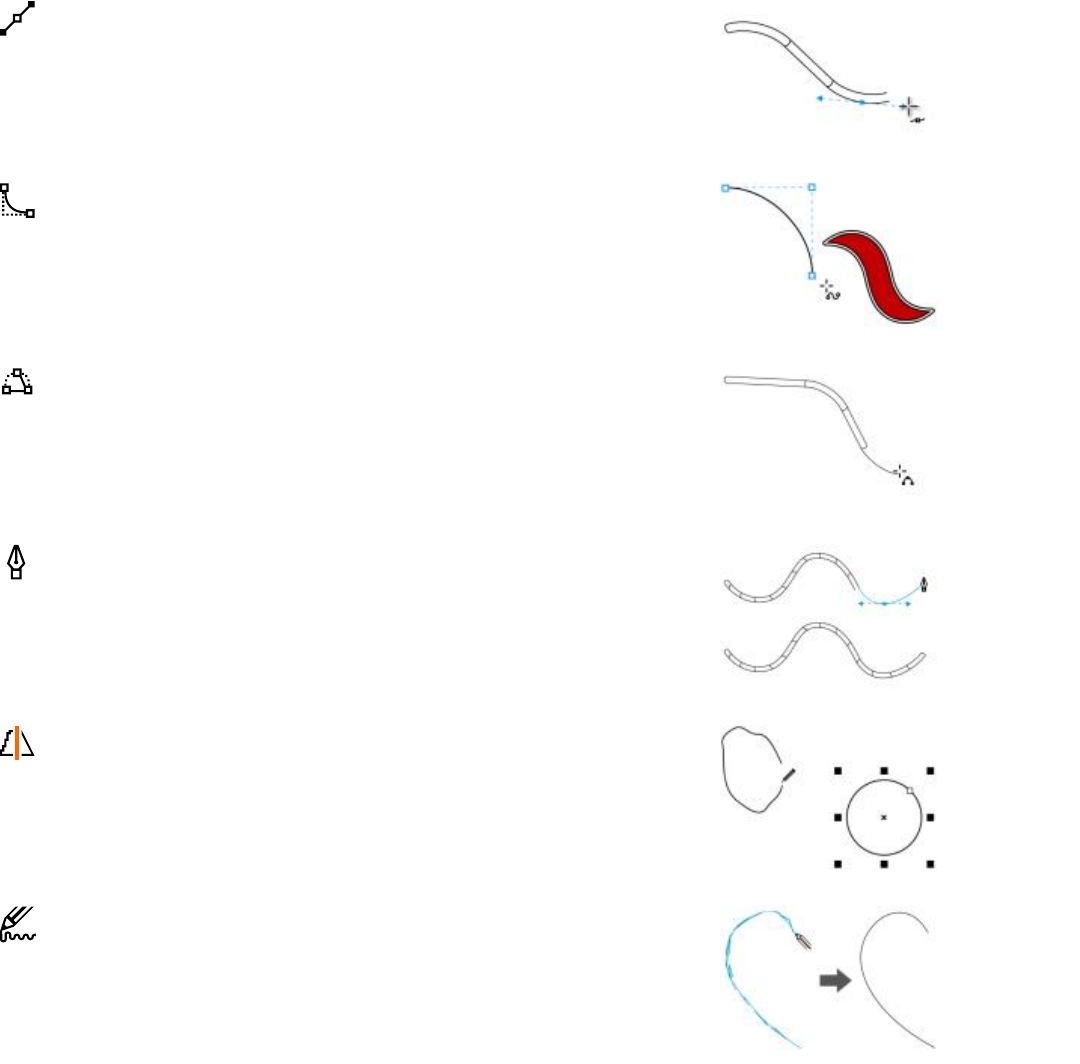
60 | Corel DESIGNER 2017 User Guide
The Bézier tool lets you draw curves one
segment at a time.
The B-spline tool lets you draw curved lines
by setting control points that shape the
curve without breaking it into segments.
The 3-point curve tool lets you draw
a curve by defining the starting point,
endpoint, and center point.
The Pen tool lets you draw curves in
segments and preview each segment as you
draw.
The Smart drawing tool converts your
freehand strokes to basic shapes and
smoothed curves.
The LiveSketch tool lets you sketch naturally
with intelligent stroke adjustment.
Linear pattern tools
CorelDESIGNER workspace tour | 61
The Linear pattern brush tool lets you
apply brush strokes to a curve and create
sweep arrows and similar objects.
The Linear pattern sprayer tool lets you
draw chains, hoses, pipes, and similar
objects.
The Linear pattern preset tool lets you
draw curves by using preset strokes.
The Calligraphic tool lets you draw lines
that vary in thickness according to the
direction of the line and the angle of the
pen nib.
The Expression tool lets you draw lines that
vary in response to the pressure, tilt, and
bearing of the stylus.
Rectangle tools
The Rectangle tool lets you draw a
rectangle by dragging diagonally.
62 | Corel DESIGNER 2017 User Guide
The 3-point rectangle tool lets you draw
rectangles at an angle.
The Graph paper tool lets you draw a grid
to simulate graph paper.
Center-point polygon tools
The Polygon tool lets you draw a polygon
by dragging from the center to a point
(vertex) on the polygon.
The Star tool lets you draw perfect stars.
The Complex star tool lets you draw
complex stars that have intersecting sides.
Circle tools
The Center-point circle tool lets you draw
a circle by specifying the center point and a
point on the circumference.
CorelDESIGNER workspace tour | 63
The Center-radius circle tool lets you draw
a circle by specifying a value for the radius
and then clicking where you want the
center to be.
The 3-point circle tool lets you draw a
circle by specifying three points on the
circumference.
Ellipse tools
The Ellipse tool lets you draw an ellipse by
dragging diagonally.
The 3-point ellipse tool lets you draw
ellipses at an angle.
Dimension tools
The Parallel dimension tool lets you draw
slanted dimension lines.
The Horizontal or vertical dimension
tool lets you draw horizontal or vertical
dimension lines.
64 | Corel DESIGNER 2017 User Guide
The Angular dimension tool lets you draw
angular dimension lines.
The Segment dimension tool lets you
display the distance between end nodes in
single or multiple segments.
The Radial dimension tool lets you display
the radius of a circle or circular arc.
The Diametric dimension tool lets you
display the diameter of a circle or a circular
arc.
Callout tools
The 1-leg callout tool lets you draw a
callout with one leading line.
The 2-leg callout tool lets you draw a
callout with a two-segment leading line.
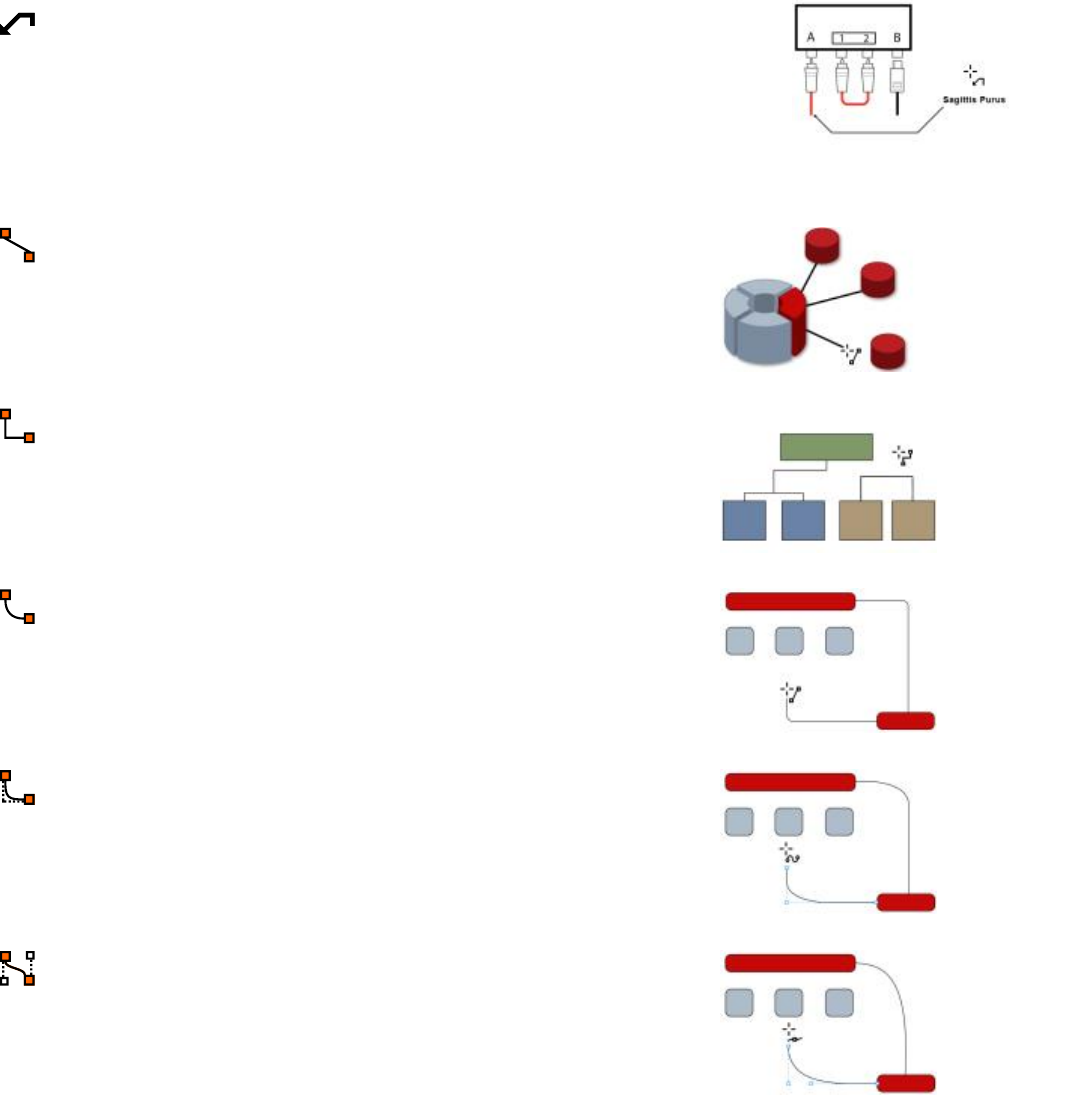
CorelDESIGNER workspace tour | 65
The 3-leg callout tool lets you draw a
callout with a three-segment leading line.
Connector tools
The Straight-line connector tool lets you
draw a straight connector line.
The Right-angle connector tool lets you
draw a right-angle connector line.
The Rounded right-angle connector tool
lets you draw a right-angle connector line
with curved corners.
The B-spline connector tool lets you draw
a curved connector line by using control
points.
The Bézier curve connector tool lets you
draw a curved connector line one segment
at a time.
66 | Corel DESIGNER 2017 User Guide
The Edit anchor tool lets you modify
connector line anchor points.
Projected Shapes tools
The Thread tool lets you draw threaded
shapes in projected view.
The Well tool lets you draw threaded well
shapes in projected view.
The Cylinder tool lets you draw cylinders in
projected view.
The Prism tool lets you draw prism shapes
in projected view.
Table tool
The Table tool lets you draw and edit tables.
Perfect Shapes™ tools
CorelDESIGNER workspace tour | 67
The Basic shapes tool lets you choose from
a full set of shapes, including a hexagram, a
smiley, and a right-angle triangle.
The Arrow shapes tool lets you draw
arrows while choosing the shape, direction,
and number of heads.
The Flowchart shapes tool lets you draw
flowchart symbols. These controls are
available on the property bar.
The Miscellaneous shapes tool lets you
draw ribbon objects and explosion shapes.
These controls are available on the property
bar.
The Callout shapes tool lets you draw
callouts and labels. These controls are
available on the property bar.
Text tool
The Text tool lets you add text, create a
paragraph text frame and type within it, or
type text along a path if a curve is selected.
Interactive tools
68 | Corel DESIGNER 2017 User Guide
The Extrude tool lets you apply 3D effects
to objects to create the illusion of depth.
The Blend tool lets you transform one
object into another through a series of
intermediate shapes and colors.
The Transparency tool lets you apply a
transparency to an object to partially reveal
image areas underneath.
The Envelope tool lets you distort the shape
of an object by applying an envelope to it
and dragging the nodes of the envelope.
The Drop shadow tool lets you create the
illusion of lighting in a two-dimensional
drawing by adding a shadow to an
object. You can adjust properties such as
feathering, opacity, edge style, and color.
The Contour tool lets you create a series of
concentric shapes that radiate into or out of
an object.
The Distort tool lets you transform objects
by applying Push and Pull, Zipper, or Twister
effects.
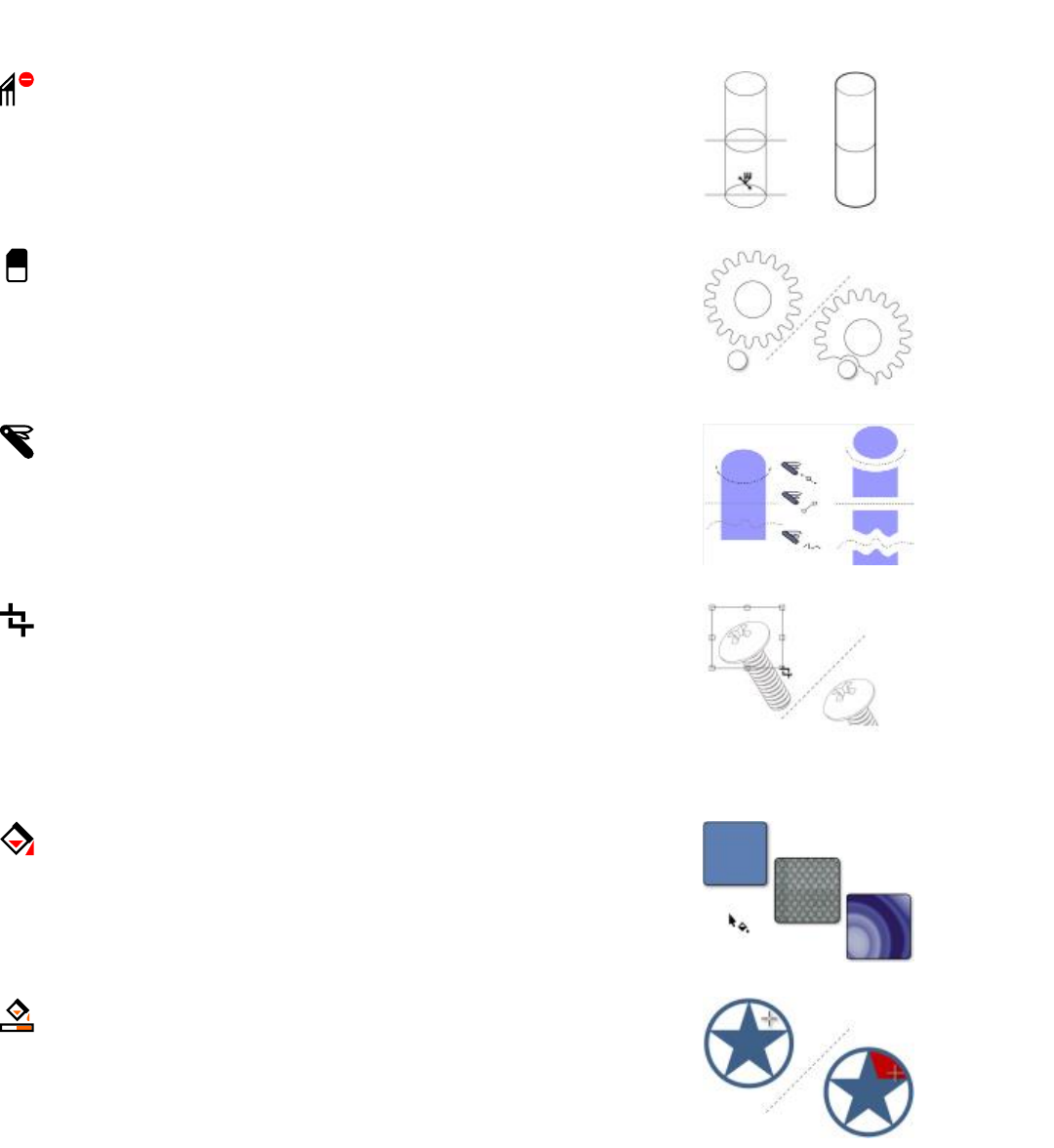
CorelDESIGNER workspace tour | 69
Deletion tools
The Virtual segment delete tool lets
you delete portions of objects between
intersecting lines.
The Eraser tool lets you remove unwanted
areas in a drawing.
The Knife tool lets you split vector objects,
text, and bitmaps along straight, freehand,
or Bézier lines.
The Crop tool lets you remove the areas
outside a selection.
Interactive fill tools
The Interactive fill tool lets you fill an
object with a gradient of colors or shades.
The Smart fill tool lets you create objects
from enclosed areas and then apply a fill to
those objects.
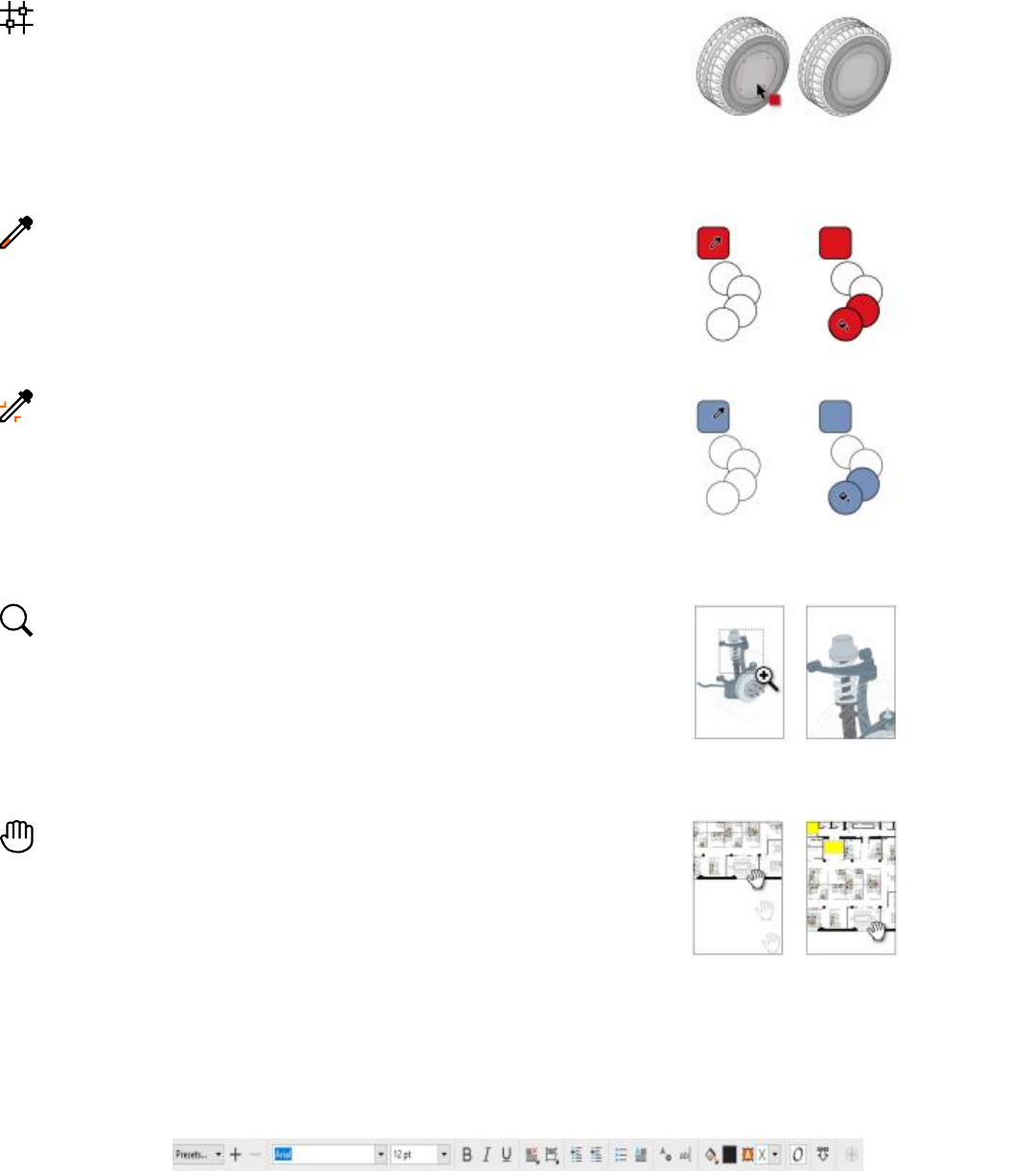
70 | Corel DESIGNER 2017 User Guide
The Mesh fill tool lets you fill an object by
blending multiple colors or shades arranged
over a mesh grid.
Eyedropper tools
The Color eyedropper tool lets you sample
a color from an object in the drawing
window or on the desktop and apply it to
other objects.
The Attributes eyedropper tool lets
you copy object properties, such as line
thickness, size, and effects, from an object
in the drawing window and apply them to
other objects.
Zoom tool
The Zoom tool lets you change the
magnification level in the drawing window.
Pan tool
The Pan tool lets you drag hidden areas of
a drawing into view without changing the
zoom level.
Property bar
The property bar displays the most commonly used functions that are relevant to the active tool or to the task you’re performing. The
property bar content changes depending on the tool or task. For example, when you click the Text tool in the toolbox, the property bar
displays only text-related commands, such as text, formatting, alignment, and editing tools.
CorelDESIGNER workspace tour | 71
You can customize the contents and position of the property bar to suit your needs, and add controls. For more information, see
“Customizing the property bar” on page 731.
Common property bar buttons
The Add preset button lets you save the current settings for reuse.
The Delete preset button lets you delete user-created presets from
the Preset list box.
The Fill button lets you open a dialog box where you set up a fill to
apply to an object.
The Outline pen button opens a dialog box where you set line
properties.
The Geometric properties button opens the Property Manager
docker and lets you set coordinates for the selected object.
The Keep settings button lets you use the current settings as the
defaults for new objects.
Dockers
Dockers display the same type of controls as a dialog box, such as command buttons, options, and list boxes. Unlike most dialog boxes, you
can keep dockers open while working on a document, so you can readily access the commands to experiment with different effects.
An example is the Property Manager docker. When this docker is open, you can click an object in the drawing window and view formatting,
dimensions, and other properties of the object.
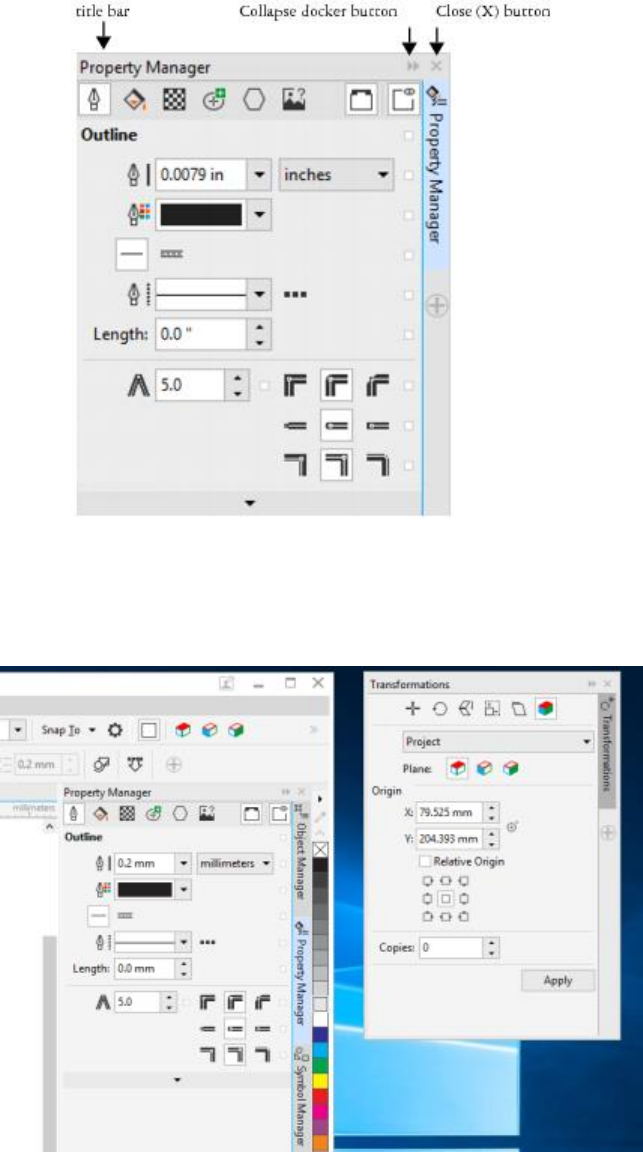
72 | Corel DESIGNER 2017 User Guide
The Property Manager docker
Dockers can be either docked or floating. A docked docker is attached to the edge of the application window, a toolbar, or a palette. A
floating docker is not attached to a workspace element. If you open several dockers, they usually appear nested, with only one docker fully
displayed. You can quickly display a docker hidden from view by clicking the docker’s tab.
Left: Docked and nested dockers. Right: Floating docker. To dock a floating docker, click the title
bar, and drag until the pointer is at the edge of the drawing window. To close a docker, click
the X button in the upper-right corner. To collapse or expand a docker, click the docker’s tab.
You can move dockers, and you can collapse dockers to save screen space.
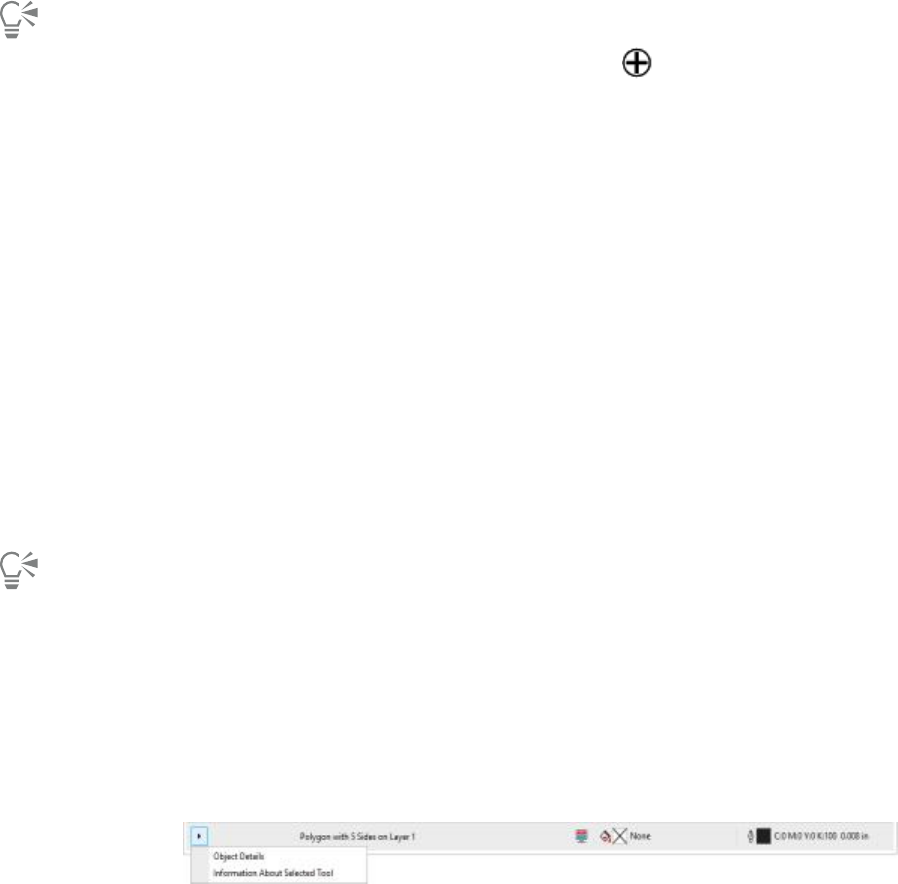
CorelDESIGNER workspace tour | 73
To open a docker
• Click Window, and click a docker name.
To open or close dockers, you can also click the Quick customize button on the right side of a docker, and enable or disable the
corresponding check boxes.
You can also close a docker by clicking the X button on its title bar. Clicking the X button on the title bar closes all nested dockers in a
group. To close only a specific docker, click the X button on the docker’s tab.
To move a docker
• Drag the docker’s tab to a new location.
To move multiple nested dockers
• Drag the title bar of the active docker to a new location.
To dock a floating docker
• Drag the docker’s title bar or tab to an edge of the drawing window and position the pointer along the edge. When a gray preview of
the docker’s position appears, release the mouse button.
To collapse a docker
• Click the docker’s tab.
To expand a collapsed docker, click its tab.
Status bar
The status bar displays information about selected objects or the active tool. While you are drawing a non-freehand line or curve, the
segment length and total length for all segments are displayed. It also displays color information and color proofing status.
See “Customizing the status bar ” on page 733 for information about customizing the contents and appearance of the status bar.
The status bar displays information about the selected object.
Choosing a workspace
CorelDESIGNER includes a collection of specialized workspaces that are designed to help you increase your productivity. A workspace
is a configuration of settings that specifies how the various command bars, commands, and buttons are arranged when you open the
application. You can choose a workspace from the Welcome Screen or from the Window Workspace menu.
The specialized workspaces in CorelDESIGNER are configured according to specific workflows or tasks, such as page layout work or
illustrating. Their purpose is to make more accessible the tools that you use most often.
The following table describes the available workspaces.

74 | Corel DESIGNER 2017 User Guide
Workspace Description
Default The default workspace has been redesigned to provide a more
intuitive placement of tools and controls. This workspace is ideal for
users who have experience with other vector graphics software, as
well as users who are familiar with CorelDESIGNER.
Help topics are based on the Default workspace.
Lite This workspace makes CorelDESIGNER’s most commonly
used tools and features more accessible. If you are new to
CorelDESIGNER, use the Lite workspace to get started.
Micrografx Designer 9 The Micrografx Designer 9 workspace is ideal for users who prefer
the look and feel of Micrografx Designer 9.
Touch Optimized for touch-enabled devices, the Touch workspace is ideal
for field work and sketching. Complete your tasks by using touch,
dial, or a stylus, without needing a mouse or keyboard.
Technical Illustration The Technical Illustration workspace is optimized for users who
create technical manuals and catalogs of interactive parts.
Diagramming The Diagramming workspace features tools and a layout that are
essential for creating diagrams.
CorelDRAW The CorelDRAW workspace can help you transition easily from
CorelDRAW to CorelDESIGNER.
Adobe Illustrator Simulates the Adobe Illustrator workspace by positioning the
CorelDESIGNER features where you would find the equivalent
feature in Adobe Illustrator. This workspace is useful if you recently
switched from Adobe Illustrator to CorelDESIGNER and you are not
familiar with the CorelDESIGNER workspace.
If you have a unique workflow, you can create a custom workspace that is optimized for your specific needs. For more information, see
“Creating workspaces” on page 722.
To choose a workspace
•Click Window Workspace, and choose one of the available workspaces.
You can also choose a workspace from the Welcome Screen or by clicking Tools Customization, clicking Workspace in the list of
categories, and then enabling the check box beside a workspace in the Workspace list.
Starting and setting up | 75
Starting and setting up
This section contains the following topics:
•“Starting and quitting CorelDESIGNER” (page 75)
•“Changing the language” (page 75)
•“Changing startup settings” (page 76)
Starting and quitting CorelDESIGNER
You can start CorelDESIGNER from the Windows taskbar and end a CorelDESIGNER session from the application window.
To start and quit CorelDESIGNER
To Do the following
Start CorelDESIGNER Do one of the following:
• (Windows 7 and Windows 10) From the Windows
taskbar, click Start Programs CorelDRAW Technical
Suite 2017 Corel DESIGNER 2017.
• (Windows 8) Click the CorelDESIGNER 2017 tile on your
desktop.
Quit CorelDESIGNER Click File Exit.
Changing the language
If an application has been installed in more than one language, you can change the language of the user interface and Help at any time.
If you did not install a specific Writing Tools language when you first installed the product, you can do so now.
To change the language of the user interface and Help
1Click Tools Options.

76 | Corel DESIGNER 2017 User Guide
2In the list of categories, click Global.
3Choose a language from the Select the language for the user interface list box.
If you want to change the language of the user interface and Help when you start the application, enable the Ask me the next time the
software starts check box.
4Restart the application.
If there is only one language available in the Select the language for the user interface list box, you must first install the additional
languages that you want.
To add a language for Writing Tools
1Close any open applications.
2On the Windows taskbar, click Start Control Panel.
3Click Uninstall a program.
4Double-click CorelDRAW Technical Suite 2017 on the Uninstall or change a program page.
5Enable the Modify option in the installation wizard, and click Next.
6In the Writing tools area on the Program features page, open the list box, and enable the check box next to the language that you
want to install.
7Follow the instructions in the installation wizard.
Changing startup settings
You can specify the startup settings for CorelDESIGNER, which control how the application appears when it’s opened. For example, you can
start the application with the Welcome screen open or a new blank document.
To change startup settings
1Click Tools Options.
2In the Workspace list of categories, click General.
3In the Getting started area, choose an option from the On Corel DESIGNER 2017 start-up list box.
If you want to hide the Create a new document dialog box when starting documents, disable the Show New Document dialog box
check box.

CorelDESIGNER basics | 77
CorelDESIGNER basics
CorelDESIGNER lets you create and edit drawings. In this section, you can find information about commonly performed tasks.
This section contains the following topics:
•“Understanding vector graphics and bitmaps” (page 77)
•“Starting and opening drawings” (page 78)
•“Scanning images” (page 81)
•“Working with multiple drawings” (page 82)
•“Undoing, redoing, and repeating actions” (page 83)
•“Zooming, panning, and scrolling” (page 84)
•“Previewing drawings” (page 86)
•“Choosing viewing modes” (page 88)
•“Working with views” (page 89)
•“Saving drawings” (page 90)
•“Working with locked files” (page 92)
•“Backing up and recovering files” (page 92)
•“Adding and accessing drawing information” (page 93)
•“Closing drawings” (page 94)
Understanding vector graphics and bitmaps
The two main types of computer graphics are vector graphics and bitmaps. Vector graphics are made of lines and curves, and they are
generated from mathematical descriptions that determine the position, length, and direction in which lines are drawn. Bitmaps, also known
as raster images, are composed of small squares called pixels; each pixel is mapped to a location in an image and has numerical color values.
Vector graphics are ideal for logos and illustrations because they are resolution-independent and can be scaled to any size, or printed and
displayed at any resolution, without losing detail and quality. In addition, you can produce sharp and crisp outlines with vector graphics.
Bitmaps are excellent for photographs and digital paintings because they reproduce color gradations well. Bitmaps are resolution-dependent
— that is, they represent a fixed number of pixels. They look good at their actual size, but they can appear jagged or lose image quality
when scaled, or when displayed or printed at a resolution higher than their original resolution.
You can create vector graphics in CorelDESIGNER. You can also import bitmaps (such as JPEG and TIFF files) into CorelDESIGNER and add
them to your drawings. For information about working with bitmaps, see “Working with bitmaps” on page 565.
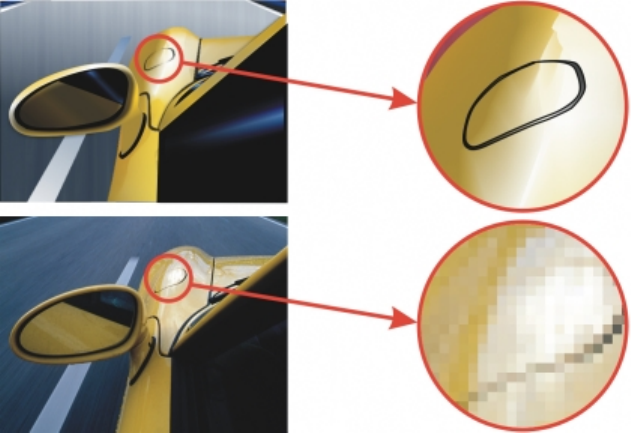
78 | Corel DESIGNER 2017 User Guide
Top: A vector graphic consists of lines and fills. Bottom: A bitmap is made up of pixels.
Starting and opening drawings
When you start CorelDESIGNER, you can choose the workspace with which you feel the most comfortable. For example, you can choose a
workspace that has the look and feel of CorelDRAW. If you are new to CorelDESIGNER, it is best to choose the default workspace, on which
all procedures in the Help and user guide are based.
CorelDESIGNER lets you start a new drawing from a blank page, a template, or an existing drawing. A blank page gives you the freedom
to specify every aspect of a drawing. A template provides you with a starting point and leaves the amount of customization up to you. The
templates included with the application are available under the following categories:
•ANSI (American National Standards Institute)
•Architectural
•DIN (Deutsches Institut für Normung)
•Engineering
•ISO (International Organization for Standardization)
For information about starting a drawing from a template, see “To start a document from a template” on page 509. For more information
about creating and using templates, see “Working with templates” on page 507.
Notes for starting new drawings
When starting a new drawing, CorelDESIGNER lets you specify page, document, and color management settings. You can choose from a list
of preset settings, which are based on how you intend to use the drawing. For example, you can choose the Web option if you are creating
a drawing for the Internet, or the Default CMYK option if you are creating a document destined for commercial printing. However, if the
preset settings are not suitable for the drawing that you want to create, you can also customize the settings and save them for future use.
Notes for opening existing drawings
Basing a new drawing on an existing drawing lets you reuse objects and page settings. CorelDESIGNER lets you open existing drawings
saved to the CorelDESIGNER (DSF or DES) format as well as drawings and projects saved to various other file formats, such as CorelDRAW
(CDR), Adobe Illustrator (AI), Adobe Portable Document Format (PDF), Encapsulated PostScript (EPS), and Computer Graphics Metafile
(CGM). However, you may not be able to open certain files, depending on their file type and contents. In such cases, you can try importing
the files as objects in an open drawing. For information about the file formats that you can import into CorelDESIGNER, see “Supported file
formats” on page 673.

CorelDESIGNER basics | 79
If the drawing you are opening is from an earlier version of CorelDESIGNER and contains text in a language different from the language
of your operating system, you can choose code page settings to ensure that text is properly converted according to the Unicode Standard.
Code page settings help you correctly display text such as keywords, file names, and text entries outside the drawing window — for
example, in the Object manager and Object data manager dockers. To display text correctly in the drawing window, you must use
encoding settings. For more information, see “Displaying text correctly in any language” on page 471.
If the drawing you are opening contains an embedded International Color Consortium (ICC) profile, the embedded color profile remains the
document’s color profile. For more information, see “Understanding color management” on page 361.
You can search for drawings by different criteria, such as filename, title, subject, author, keyword, comment, text within the file, and other
properties attached to the file. For more information about searching for files, see the Windows Help. For more information about browsing
and searching for content, see “Browsing and searching for content ” on page 102.
You can also display previous versions of a drawing.
To start a drawing
1Do one of the following:
•On the Welcome screen, click Get started New document.
•In the application window, click File New.
2Type a filename in the Name text box.
3From the Preset destination list box, choose an output destination for the drawing:
•Corel DESIGNER default — applies the CorelDESIGNER default settings for creating graphics that are destined for printing
•Default CMYK — applies settings for creating graphics that are destined for commercial printing
•Default RGB — applies settings for creating graphics that are destined for printing to a high-fidelity printer
•Web — applies settings for creating graphics that are destined for the Internet
•Custom — lets you customize destination settings for a document
You can also
Change the unit of measurement for the page Choose a unit of measurement from the Drawing units list box.
Change the page size Choose a page size for the drawing from the Size list box or type
values in the Width and Height boxes.
Change the page orientation Click one of the following page orientation buttons:
•Portrait
•Landscape
Set the number of pages Type a value in the Number of pages box.
Set the default color mode for the document to RGB or CMYK Choose a color mode from the Primary color mode list box.
Set the resolution for effects that will likely be rasterized, such as
transparency, drop shadow, and bevel effects
Choose a rendering resolution from the Rendering resolution list
box.
Choose the preview mode for the drawing Choose a preview mode from the Preview mode list box.
80 | Corel DESIGNER 2017 User Guide
You can also
Choose an RGB profile for the drawing In the Color settings area, choose a default RGB profile from the
RGB profile list box.
Choose a CMYK profile for the drawing Choose a default CMYK profile from the CMYK profile list box.
Choose a Grayscale profile for the drawing Choose a default Grayscale profile from the Grayscale profile list
box.
Choose a default method for out-of-gamut colors to be mapped
into gamut
Choose an option from the Rendering intent list box.
When you choose a color mode from the Primary color mode list box, it becomes the default color mode for the document. The
default color mode affects how colors work together in effects such as blends and transparencies. It does not restrict the type of
colors that you can apply to a drawing. For example, if you set the color mode to RGB, you can still apply colors from a CMYK color
palette to the document.
The primary color mode also specifies the default color mode for exporting documents. For example, if you choose the RGB color
mode and export a document as a JPEG, the color mode is automatically set to RGB.
The settings that are displayed in the Color settings area of the Create a new document dialog box are based on the settings that
are specified in the Default color management settings dialog box.
If you do not want to show the Create a new document dialog box and prefer to use the last used settings to create new
documents, enable the Do not show this dialog again check box.
You can restore the Create a new document dialog box when starting drawings by clicking Tools Options, clicking General in the
Workspace list of categories, and enabling the Show new document dialog box check box.
To create a custom preset
1In the application window, click File New.
2In the Create a new document dialog box, choose the settings that you want to save as a preset destination.
3Click the Add preset button .
4In the Add preset dialog box, type a name for the new destination preset.
You can delete a destination preset by choosing the preset name from the Preset destination list box and clicking the Remove preset
button.
To open a drawing
1Click File Open.
2Locate the folder where the drawing is stored.
3Click a filename.
4Click Open.

CorelDESIGNER basics | 81
You can also
Extract an embedded International Color Consortium (ICC) profile
to the color folder in which the application is installed
Enable the Extract embedded ICC profile check box.
This option is not available for all file formats.
Maintain layers and pages when you open files Enable the Maintain layers and pages check box.
If you disable the check box, all layers are combined in a single
layer.
This option is not available for all file formats.
View thumbnail of a drawing Click the arrow button next to the Views button, and click Extra
large icons, Large icons, Medium icons, or Small icons.
Choose a code page Choose a code page from the Select code page list box. This
option is not available for all file formats.
Search for a drawing Type a word or phrase in the search box.
The search box looks for files only in the current folder and
subfolders. To search for a drawing in another location, you must
first navigate to the folder where the drawing is stored.
Access a previous version of a file Right-click a file, and click Restore previous versions.
You can access a previous version of a file only if System Protection
is turned on.
For detailed information about accessing previous versions of files,
see the Windows Help.
To open a file you have recently worked on, click File Open Recent, and click the filename.
If you have multiple files open, you can navigate between them by clicking Window Document, and then clicking the name of the
file that you want to display in the drawing window.
Scanning images
You can scan images in CorelDESIGNER. CorelDESIGNER supports scanners that use Microsoft Windows Image Acquisition (WIA), which
provides a standard interface for scanning images.
If your scanner does not support WIA, but has a compatible TWAIN driver, you may be able to use this driver for scanning images in
CorelDESIGNER. TWAIN is supported by both the 32-bit and 64-bit versions of CorelDESIGNER. However, note that there are very few 64-bit
TWAIN drivers available.
The software interfaces and options vary. For information about using the software associated with your scanner, see the manufacturer’s
documentation.

82 | Corel DESIGNER 2017 User Guide
To scan images
1Click File Acquire image, and click one of the following commands:
•Select WIA source — for a scanner that uses a WIA driver
•Select TWAIN source — for a scanner that uses a TWAIN driver
A command appears disabled if a compatible WIA or TWAIN scanner driver is not installed.
2Choose a scanner from the dialog box that appears.
3Click Select.
4Click File Acquire image Acquire.
5Preview the image, and select the area that you want to scan.
WIA, in combination with some scanners, supports scanning of multiple areas to separate files.
6Click Scan.
On your scanner’s interface, this button may have a different name, such as OK or Send.
To scan additional images during the same session, click File Acquire image Acquire.
Working with multiple drawings
Multiple drawings can be opened in a single drawing window, making it easy to handle many drawings simultaneously. You can access each
open drawing from its tab at the top of the drawing window, and you can start new drawings.
Open drawings appear docked, but you can undock any drawing you want and drag it inside or outside the application window.
You can also arrange drawings in overlapping (cascading) windows, side by side, or stacked vertically.
To work with multiple drawings
To Do the following
Switch to another open drawing At the top of the drawing window, click the tab that has the
filename you want.
Start another drawing Click the New button to the left of the last tab in the drawing
window.
Undock a drawing Drag the tab to a new position inside or outside the application
window.
To arrange multiple drawing windows
• Click Window, and click one of the following commands:
•Cascade— arranges drawings so that they overlap and the title bars are visible
•Tile Horizontally — arranges drawings side by side
•Tile Vertically — stacks drawings vertically

CorelDESIGNER basics | 83
Undoing, redoing, and repeating actions
You can undo the actions that you perform in a drawing, starting with the most recent action. If you don’t like the result of undoing an
action, you can redo it. Reverting to the last saved version of a drawing also lets you remove one or more actions. Certain actions applied to
objects, such as stretching, filling, moving, and rotating, can be repeated to create a stronger visual effect.
Customizing the Undo settings lets you increase or decrease the number of actions that you can undo or redo.
To undo, redo, and repeat actions
To Do the following
Undo an action Click Edit Undo manager.
Redo an action Click Edit Redo.
Undo or redo a series of actions Click Window Undo manager. In the Undo manager docker,
click the action that precedes all the actions that you want to undo,
or click the last undone action that you want to redo.
Revert to the last saved version of a drawing Click File Revert.
Repeat an action Click Edit Repeat.
When you undo a series of actions in the Undo manager docker, all actions listed below the action that you click are undone.
When you redo a series of actions in the Undo manager docker, the action that you click and all preceding undone actions are
redone.
You can repeat an action on another object or group of objects by selecting the object or objects and clicking Edit Repeat.
You can also undo or redo a series of actions by clicking the arrow button next to the Undo button or Redo button on the
Standard toolbar and choosing an action from the list.
To specify the Undo settings
1Click Tools Options.
2In the Workspace list of categories, click General.
3In the Undo levels area, type a value in one or both of the following boxes:
•Regular — specifies the number of actions that can be reversed when you use the Undo command with vector objects
•Bitmap effects — specifies the number of actions that can be reversed when you work with bitmap effects
The value that you specify is limited only by your computer’s memory resources. The higher the value you specify, the greater the
demand on memory resources.
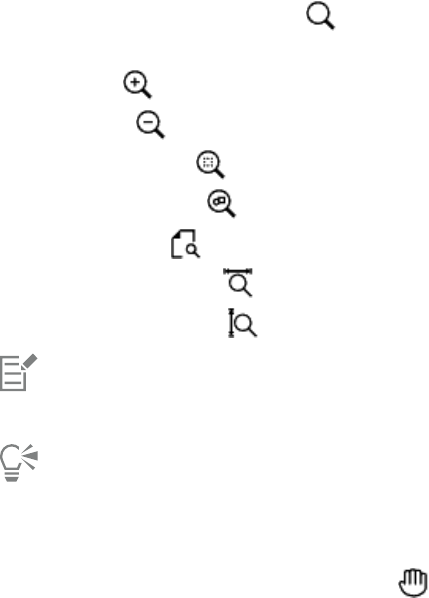
84 | Corel DESIGNER 2017 User Guide
Zooming, panning, and scrolling
You can change the view of a drawing by zooming in to get a closer look or by zooming out to see more of the drawing. You can
experiment with a variety of zoom options to determine the amount of detail you want.
Panning and scrolling are two additional ways to view specific areas of a drawing. When you work at high magnification levels or with large
drawings, you may not be able to see the whole drawing. Panning and scrolling let you move the page around in the drawing window to
view previously hidden areas.
You can zoom in and out while you are panning, and you can pan while you are zooming. In this way, you can avoid having to alternate
between the two tools.
You can also use the Quick Pan mode to switch from any active tool to the Pan tool. This feature lets you pan without having to change
tools.
If you use a mouse wheel, the wheel zooms in and zooms out by default. You can also use the mouse wheel to scroll.
You can specify default zooming and panning settings.
To zoom
1In the toolbox, click the Zoom tool .
2On the property bar, click one of the following:
•Zoom in
•Zoom out
•Zoom to selected
•Zoom to all objects
•Zoom to page
•Zoom to page width
•Zoom to page height
The Zoom to selected button is available only if one or more objects are selected before you click the Zoom tool.
When you are not editing text, you can also access the Zoom tool by pressing Shift + Z.
Using the Zoom tool, you can also zoom in by clicking anywhere in the drawing window or dragging to select a specific area to
magnify. To zoom out, right-click in the drawing window, or drag with the right mouse button to select a specific area.
You can also zoom in by using the Pan tool and double-clicking in the drawing window. To zoom out, right-click in the drawing
window.
Use the following keyboard shortcuts to zoom during any task, such as when you are drawing an object:
•F2 — zoom in around the pointer
•F3 — zoom out around the pointer
•F4 — zoom to all objects
•F5 — refresh the drawing window
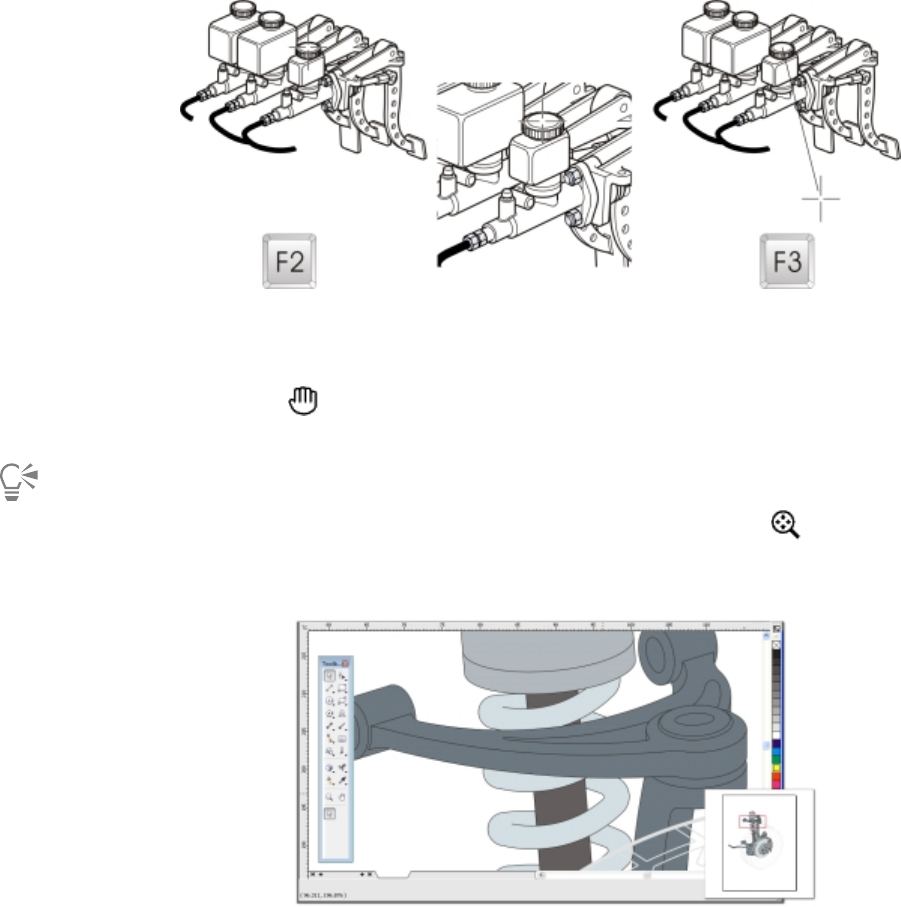
CorelDESIGNER basics | 85
•F6 — zoom to selected objects
•F7 — zoom to the page
The F2 and F3 shortcut keys let you zoom in and out around the pointer.
To pan in the drawing window
1In the toolbox, click the Pan tool .
2Drag in the drawing window until the area you want to view appears.
To pan in the drawing window while zoomed in on the drawing, click the Navigator button in the lower-right corner of the
drawing window.
You can quickly center the page in the drawing window by double-clicking the Pan tool in the toolbox.
Using the Navigator (lower-right), you can display any part of a drawing without having to zoom out.
To switch to the Quick Pan mode
1Click any selection, drawing, or shaping tool, and start using it.
2Hold down the middle mouse button or wheel, and drag in the drawing window.
To scroll by using a mouse wheel
• Do one of the following:
• To scroll vertically, press Alt while you move the wheel.
• To scroll horizontally, press Ctrl while you move the wheel.

86 | Corel DESIGNER 2017 User Guide
The mouse wheel can be used for scrolling only if the Scroll option for the mouse is enabled. For more information, see “To establish
default setting for the mouse wheel” on page 86.
To specify default zoom settings
1Click Tools Options.
2In the Workspace list of categories, double-click Toolbox, and click Zoom, Pan tool.
3To specify the action of the Zoom or Pan tool when you right-click in the drawing window, enable one of the following options:
•Zoom out — zooms out by a factor of 2
•Context menu — displays a menu of commands that let you zoom to a specific level
4To specify how the page appears when the zoom is set to 100%, enable or disable the Zoom relative to 1:1 check box.
• When the option is enabled, a 100% zoom displays real-world dimensions.
• When the option is disabled, a 100% zoom displays the full page, regardless of real-world dimensions.
5To specify how the page appears when you zoom in and out using the mouse wheel, enable or disable the Center mouse when
zooming with the mouse wheel check box.
• When the option is enabled, the area where the mouse pointer is located moves to the center of the screen as you zoom in and out
using the mouse wheel.
• When the option is disabled, the area where the mouse pointer is located stays in the same position as you zoom in and out using the
mouse wheel.
You can click Calibrate rulers to ensure that one inch on your screen equals one inch of real-world distance. For more information,
see “Calibrating the rulers” on page 542.
To establish default setting for the mouse wheel
1Click Tools Options.
2In the Workspace list of categories, click Display.
3To specify the default action of the mouse wheel, choose Zoom or Scroll from the Default action for mouse wheel list box.
Previewing drawings
You can preview a drawing to see how it will look when printed or exported. When you preview a drawing, only the objects on the drawing
page and in the immediate area of the drawing window are displayed, and you can see all layers that are set to print in the Object manager
docker. If you want a closer look at specific objects in a drawing, you can select and preview them. When you preview selected objects, the
rest of the drawing is hidden.
Before you preview a drawing, you can specify the preview mode. The preview mode affects the speed with which your preview appears as
well as the amount of detail displayed in the drawing window.
By default, the borders of a page are displayed in the drawing window, but you can hide them at any time. If a drawing is intended for print,
you can display the area that will actually print as well as the bleed, the part of the drawing that extends beyond the page border. Bleeds are
useful when a drawing contains a color page background or objects that are positioned on the page border. Bleeds ensure that no white
space appears between the edges of a drawing and the edge of the paper after the printer cuts, binds, and trims the document.
To preview a drawing
•Click View Full-screen preview.
Click anywhere on the screen, or press any key, to return to the application window.

CorelDESIGNER basics | 87
You can press Page up and Page down to preview pages in a multipage drawing.
To preview selected objects
1Select the objects.
2Click View Preview selected only.
Click anywhere on the screen, or press any key, to return to the application window.
If Preview selected only mode is enabled and no objects are selected, Full-screen preview displays a blank screen.
After you return to the application window, you can disable Preview selected only mode by clicking View Preview selected only.
To choose a full-screen preview mode
1Click Tools Options.
2In the Workspace list of categories, click Display.
3In the Full-screen preview area, enable one of the following options:
•Use draft view — Drawings appear without PostScript fills or high‑resolution bitmaps, and no anti-aliasing is used.
•Use enhanced view — Drawings appear with or without PostScript fills, and anti-aliasing is used to sharpen the display of the
drawings.
You can display PostScript fills when you preview a drawing in Enhanced mode by enabling the Show PostScript fills in enhanced
view check box.
To set the page display
1Click Tools Options.
2In the Document list of categories, click Page size.
3Enable one of the following options:
•Show page border — displays page borders
•Show bleed area — displays the area of the drawing extending beyond the page border. To change the bleed area, type a value in the
Bleed box.
When preparing a drawing for commercial printing, you may also need to set a bleed limit. For more information, see “To set a bleed
limit” on page 633.
You can also click View Page Page border, or View Page Bleed.
You can display the printable area of a drawing by clicking View Page Printable area. The printable area is usually indicated by
two dotted lines inside or around the page, depending on the current printer settings. One outline indicates the area that can be
printed on the current printer; the other outline indicates the paper size that your printer is set to use.
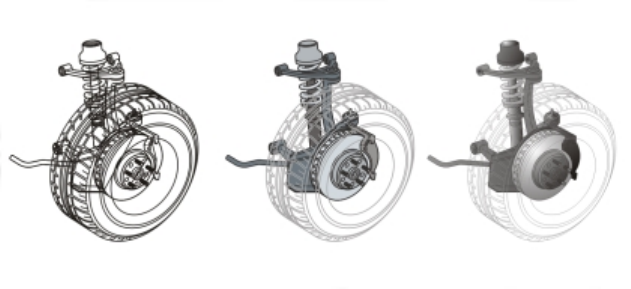
88 | Corel DESIGNER 2017 User Guide
Choosing viewing modes
As you work, CorelDESIGNER lets you display a drawing in any of the following modes:
•Simple wireframe — displays an outline of the drawing by hiding fills, extrusions, contours, drop shadows, and intermediate blend
shapes; also displays the bitmaps in monochrome. This mode lets you quickly preview basic elements in a drawing.
•Wireframe — displays a drawing in simple wireframe mode plus intermediate blend shapes
•Draft — displays fills and bitmaps with a low resolution. This mode eliminates some detail to allow you to focus on the color balances in
a drawing.
•Normal — displays a drawing without PostScript fills or high-resolution bitmaps. This mode refreshes and opens slightly faster than the
Enhanced mode.
•Enhanced — displays a drawing with PostScript fills, high-resolution bitmaps, and anti-aliased vector graphics.
•Pixels — displays a pixel-based rendition of the drawing, which allows you to zoom in on an area of an object, and then position and
size the object more precisely. This view also lets you see what the drawing will look like when it is exported to a bitmap file format.
•Simulate overprints — simulates the color of areas where overlapping objects were set to overprint and displays PostScript fills, high-
resolution bitmaps, and anti-aliased vector graphics. For information about overprinting objects, see “To overprint selected color
separations” on page 637.
•Rasterize complex effects — rasterizes the display of complex effects, such as transparencies, bevels, and drop shadows when in
Enhanced view. This option is useful for previewing how the complex effects will be printed. To ensure the successful printing of complex
effects, most printers require complex effects to be rasterized.
The viewing mode you choose affects the amount of time it takes for a drawing to open or be displayed on the monitor. For example, a
drawing displayed in Simple Wireframe view takes less time to refresh or open than does a drawing displayed in Simulate Overprints view.
Left to right: Simple wireframe, Draft, and Enhanced views
To choose a viewing mode
• Click View, and click one of the following modes:
•Simple wireframe
•Wireframe
•Draft
•Normal
•Enhanced
•Pixels
•Simulate overprints
•Rasterize complex effects

CorelDESIGNER basics | 89
If you are overprinting, it is important to preview the objects in the Simulate overprints mode before printing. The type of objects
you are overprinting and the type of colors you are mixing determine how overprinted colors are combined. For more information
about overprinting, see “Working with color trapping and overprinting” on page 636.
You can set the default viewing mode by clicking Tools Options, clicking General in the Document list of categories, and choosing
an option from the View mode list box.
You can quickly switch between the selected viewing mode and the previous viewing mode by pressing Shift + F9.
Working with views
You can save a view of any part of a drawing. For example, you can save a view of an object at 230% magnification and then return to this
specific view at any time.
If a document contains multiple pages, you can view them all at once by using the Page Sorter view. You can also display consecutive left-
hand and right-hand pages on the screen at the same time (facing pages) and create objects that span two pages.
To save a view
1Click Window View manager.
2Use the Zoom tools in the View manager docker to set up a view.
3Click the Add current view button .
You can also
Rename a view Double-click a view name, and type a new name.
Delete a saved view Click a view, and click the Delete current view button .
If you disable the page icon next to a saved view in the docker, CorelDESIGNER switches to the magnification level only, not the
page, when you switch to that view. Similarly, if you disable the magnifying glass icon , CorelDESIGNER switches to the page
only, not the magnification level.
You can also save the current view by clicking the Zoom or Pan tool in the toolbox, clicking in the Zoom levels list box on the
standard toolbar, typing a name, and pressing Enter.
To switch to a saved view
1Click Window View manager.
2Click a view in the View manager docker.

90 | Corel DESIGNER 2017 User Guide
You can also switch to a saved view by selecting it from the Zoom levels list box on the standard toolbar.
To view all pages in a multipage document
•Click View Page sorter view.
To return to the default page view, click the Page sorter view button on the property bar.
To view facing pages
1Click Layout Page setup.
2In the Document list of categories, click Layout.
3Enable the Facing pages check box.
4Choose one of the following settings from the Start on list box:
•Left side — starts the document on a left-hand page
•Right side — starts the document on a right-hand page
You cannot view facing pages if the document uses a Tent Card or Top-fold Card layout style, or if it contains multiple page
orientations. The Leftside option is available only for the Full Page and Book layout styles.
When you enable the Facing pages check box, the content on the facing pages is merged on one page. The layer structure for
the merged page is based on the left-hand page. The layers from the right-hand page are inserted above the layers on the left-
hand page. This rule also applies if you reorder the pages. If you disable the Facing pages check box, the layers and content are
redistributed across separate pages. Objects that cross both pages are assigned to a page according to where the center of the object
is found.
It is recommended that you avoid switching back and forth between individual pages and facing pages within the same document.
Saving drawings
By default, drawings are saved to the CorelDESIGNER file format (DES). You can save a drawing to other vector file formats as well. If you
want to use a drawing in another application, you must save it to a file format that is supported by that application. For information about
saving files to other formats, see “Exporting files” on page 648.
When saving a drawing, you can embed the used fonts to facilitate file sharing. By default, CorelDESIGNER embeds all used fonts, with the
exception of Asian fonts and fonts that do not have embedding permissions. For more information, see “Embedding fonts” on page 475.
When you save a drawing, CorelDESIGNER lets you add reference information so that you can easily find and organize drawings later on.
You can attach tags (also known as properties) such as title, subject, and rating.
You can also save selected objects in a drawing. For large drawings, saving only the selected objects reduces the file size, which can decrease
the time it takes to load the drawing.
When saving a file, you can use advanced options to control how bitmaps, textures, and vector effects, such as blends and extrusions, are
saved with the drawing.
You can also save a drawing as a template, which lets you create other drawings with the same properties. For information about saving a
drawing as a template, see “Working with templates” on page 507.
To save a drawing
1Click File Save as.
2Type a filename in the File name box.

CorelDESIGNER basics | 91
3Locate the folder where you want to save the file.
If you want to save the drawing to a vector file format other than DES - CorelDESIGNER, choose a file format from the Save as type list
box.
You can also
Save only selected objects Enable the Selected only check box.
This option is available only if there are selected objects in the
drawing.
Embed fonts Enable the Embed fonts check box.
This check box is unavailable when you save a drawing to an earlier
version of CorelDRAW.
Add reference information Do any of the following:
•Type a title and subject in the corresponding box.
•Assign a rating to the file.
If you are using an expired trial version of CorelDESIGNER, you will not be able to save drawings.
Saving a drawing to a previous version of CorelDESIGNER may result in loss of certain effects that were not available in the previous
version of the application.
You can also save a drawing by clicking File Save.
You can also save a drawing by clicking the Save button on the Standard toolbar.
To use advanced options when saving
1Click File Save as.
2Click Advanced.
3Enable any of the following check boxes:
•Save presentation exchange (CMX) — saves a drawing as a Corel® Presentations™ Exchange (CMX) file so that you can open and
edit it in other Corel applications, such as WordPerfect
•Use bitmap compression — reduces the file size by compressing bitmap effects, such as bitmap extrusions, transparencies, and drop
shadows
•Use graphic object compression — reduces the file size by compressing vector objects, such as polygons, rectangles, ellipses, and
perfect shapes
Using compression increases the time required for opening and saving a drawing.
4If a drawing contains texture fills, enable one of the following options:
•Save textures with the file — saves custom texture fills with the file
•Rebuild textures when opening the file — re-creates texture fills when you open the saved drawing
5If a drawing contains blends and extrusions, enable one of the following options:
•Save blends and extrudes with the file — saves all blends and extrusions included in a drawing
•Rebuild blends and extrudes when opening the file — re-creates blends and extrusions when you open the saved drawing

92 | Corel DESIGNER 2017 User Guide
Choosing to save textures, blends, and extrusions with the file increases the file size but lets you open and save a drawing more
quickly. Conversely, choosing to rebuild textures, blends, and extrusions when a saved drawing is opened decreases the file size but
increases the time required for saving or opening a drawing.
To save a drawing that is compatible with an older version of Corel DESIGNER
1Click File Save as.
2Type a filename in the File name box.
3Locate the folder where you want to save the file.
4Choose a version from the Version list box.
5Click Save.
If the drawing includes new features; enable one of the following options in the Save to a previous version dialog box:
•Keep appearance — preserves the appearance of text, fills, outlines and transparencies when the file is opened in a previous version
of CorelDESIGNER. However, this option may limit editing.
•Keep editable — preserves the file editable. However, this option may change the appearance of text, outlines, fills, and
transparencies when the file is opened in a previous version of CorelDESIGNER.
You can also
Specify save settings Click Tool Options. In the Workspace list of categories, click
Save, and enable one of the following options:
•Keep appearance (suitable for limited edits)
•Keep editable (may change appearance)
Disable the prompt that appears when saving to an earlier version Click Tool Options. In the Workspace list of categories, click
Save, and disable the Ask when saving check box.
Working with locked files
In a corporate environment you may open a locked file that is already being edited by another user. You can save changes that you make to
a locked file in one of the following ways:
•If the other user has modified the file or still has the file open, you must save the file with a new name by clicking File Save As.
•If the other user has closed the file without modifying it, you can save the changes by clicking File Save.
Backing up and recovering files
CorelDESIGNER can automatically save backup copies of drawings and prompt you to recover them in the event of a system error.
The auto-backup feature saves drawings that you have opened and modified. During any working session with CorelDESIGNER, you can set
the time interval for automatically backing up files and specify whether you want the files to be saved in your temporary folder (the default
location) or in a specified folder.
You can recover the backup files from the temporary or specified folder when you restart CorelDESIGNER after a system error. If you choose
not to recover the backup file, it is automatically erased when you quit the application.
To specify auto-backup settings
1Click Tools Options.

CorelDESIGNER basics | 93
2In the Workspace list of categories, click Save.
3Enable the Back up every check box, and choose a value from the Minutes list box.
4In the Always back up to area, enable one of the following options:
•Temporary folder — lets you save auto-backup files in the temporary folder
•Specific folder — lets you specify the folder for auto-backup files
You can also
Create a backup file before saving Enable the Back up original file before saving check box.
Disable the auto-backup feature Choose Never from the Minutes list box.
Auto-backup files are named auto_backup_of_filename and can be saved in any folder you specify. Backup files are created when
you save a drawing. They are named backup_of_filename and are always stored in the same folder as the original drawing.
All open or modified files that are not in the Corel DESIGNER (DES) file format are backed up as Corel DESIGNER files.
You can cancel the creation of an auto-backup file by pressing Esc while a file is being saved.
To recover a backup file
1Restart CorelDESIGNER.
2Click OK in the file recovery dialog box that appears.
The file recovery dialog box appears upon startup after a system error.
3Save and rename the file in the specified folder.
If you click Cancel, CorelDESIGNER ignores the backup file and deletes it when you quit the application.
Adding and accessing drawing information
CorelDESIGNER lets you add reference information, such as language, title, author, subject, keywords, rating, and other notes to a drawing.
Although adding document information is optional, doing so makes it easier to organize and locate drawings later on.
The application also lets you access other important document information, such as the number of pages and layers, fonts, object and text
statistics, and the types of objects the drawing contains. You can also view color information such as the color profiles that are used to
define document colors as well as the primary color mode and rendering intent.
To add drawing information
1Click File Document properties.
2In the Document properties dialog box, type text in any of the following boxes:
•Language
•Title
•Subject
•Author
•Copyright

94 | Corel DESIGNER 2017 User Guide
•Keywords
•Notes
3To specify a rating, choose a rating from the Rating list box.
4Click OK.
You can modify the drawing information at any time.
To access drawing information
•Click File Document properties.
Closing drawings
You can close one drawing, or multiple drawings, at any time before quitting CorelDESIGNER.
To close drawings
To Do the following
Close one drawing Click File Close.
Close all drawings Click File Close all.
If you are unable to close a document, you may have a task, such as printing or saving, in progress or a task that has failed. Please
refer to the status bar to view the status of a task.
You can also close a drawing by clicking Window Close window.
You can also close all drawings by clicking Window Close all.

Finding and managing creative tools and content | 95
Finding and managing creative tools and content
With the Get More docker in CorelDESIGNER, you can expand your collection of creative tools by purchasing apps, plug-ins, and extensions
as well as downloading free tools and content.
The Get More docker replaces the Connect docker, offering the same content search and content management capabilities that were
available in earlier product versions. You can access, search and browse the Content Exchange, an online collection of clipart, photos, fonts,
symbols, frames, fills, and image lists. In addition, you can find content located on your computer, local network, or the website of an online
content provider. When you find the content that you need, you can import it into your document, open it in its associated application, or
collect it in a tray for future reference.
CorelDESIGNER is fully integrated with the search capabilities that are offered by Windows. By default, the application searches all locations
that Windows Search is configured to index. For information about modifying indexing options in Windows Search, see the Windows Help.
This section contains the following topics:
•“Acquiring applications, plug-ins, and extensions” (page 95)
•“Finding content with the Get More docker” (page 97)
•“Accessing content” (page 100)
•“Browsing and searching for content” (page 102)
•“Viewing content” (page 104)
•“Using content” (page 105)
•“Installing fonts” (page 107)
•“Managing content” (page 107)
•“Syncing trays with OneDrive” (page 109)
•“Content types” (page 111)
Acquiring applications, plug-ins, and extensions
You can purchase apps, plug-ins, and extensions as well as download free creative tools from within CorelDESIGNER. The available selection
is updated with new offerings as they become available.
Applications, plug-ins, and upgrade options
Choose from a selection of applications and plug-ins to complement your creative tool set or purchase the Upgrade Program to make sure
you are always using the latest version of the suite. For example, Corel Website Creator can help you design and manage websites, and
AfterShot Pro provides professional RAW photo-editing tools. Corel ParticleShop, a powerful brush plug-in, lets you add unique bitmap
effects and brushstrokes to your projects.

96 | Corel DESIGNER 2017 User Guide
Both applications and plug-ins require installation.
Extensions
Extensions extend the capabilities of CorelDRAW and Corel PHOTO-PAINT, allowing you to complete complex tasks with ease. They may
add a new tool to the application toolbox or a new UI (user interface) element such as a menu, toolbar, docker, or dialog box. Extensions
available through the Get More docker and the Get More dialog box include the Calendar Wizard, File Converter, Prep and Stretch, and
Border and Grommet.
Extensions do not require installation and can be deleted through the Get More docker.
Restore purchases
After you purchase creative tools, check marks appear beside their names. If you reinstall the CorelDRAWGraphicsSuite or install the suite
on another computer, you can restore your purchases. This will ensure that the Get More docker shows the items that you have already
purchased so that you can download them and reinstall them.
To acquire an application or a plug-in
1Click Window Get More.
2In the Get More docker, click Tools, and then click Apps & Plug-ins.
3Click the application or plug-in that you want.
4Do one of the following:
• Click Buy, and follow the onscreen instructions to purchase the item.
• Click Download if the item is included in your product or subscription.
You can also access creative tools or extensions that are relevant to the task you are working on from within the Camera RAW Lab
and the Brush picker.
To uninstall an application or a plug-in, go to the Control Panel of the operating system.
To acquire an extension
1Click Window Get More.
2In the Get More docker, click Tools, and then click Extensions.
3Click an extension.
4Do one of the following:
• Click Buy, and follow the onscreen instructions to purchase the item.
• Click Download if the item is included in your product or subscription.
Extensions can appear in the application workspace. For example, the Border and Grommet extension that allows you to prepare
banners for printing appears under the Tools menu in CorelDRAW.
Downloaded macro extensions appear in the Macro Manager docker.
To delete an extension, click Remove beside the extension name in the Get More docker.
To access an application, a plug-in, or an extension
• Click the Application launcher button on the standard toolbar, and click the application, plug-in, or extension that you want to use.
Finding and managing creative tools and content | 97
To restore your purchases
1In the Get More docker, click Restore purchases.
2In the dialog box that appears, type the email address that was used to make the purchases, and click Continue.
A list of your purchases is displayed.
3Click Close.
The list of offerings in the Get More docker is updated to show which items you have already purchased.
4Download the purchased items you want.
Finding content with the Get More docker
You can browse and search for content by using the CONNECT page of the Get More docker. You can use the Tray docker to store content
for later use.
The CONNECT page of the Get More docker has two viewing modes: single pane and full view. In full view, all panes are displayed. In
single-pane view, either the viewing pane or the Libraries, Favorite folders, and Folders panes are displayed. You can resize the docker to
display all panes or toggle between the viewing pane and the Libraries, Favorite folders, and Folders panes.
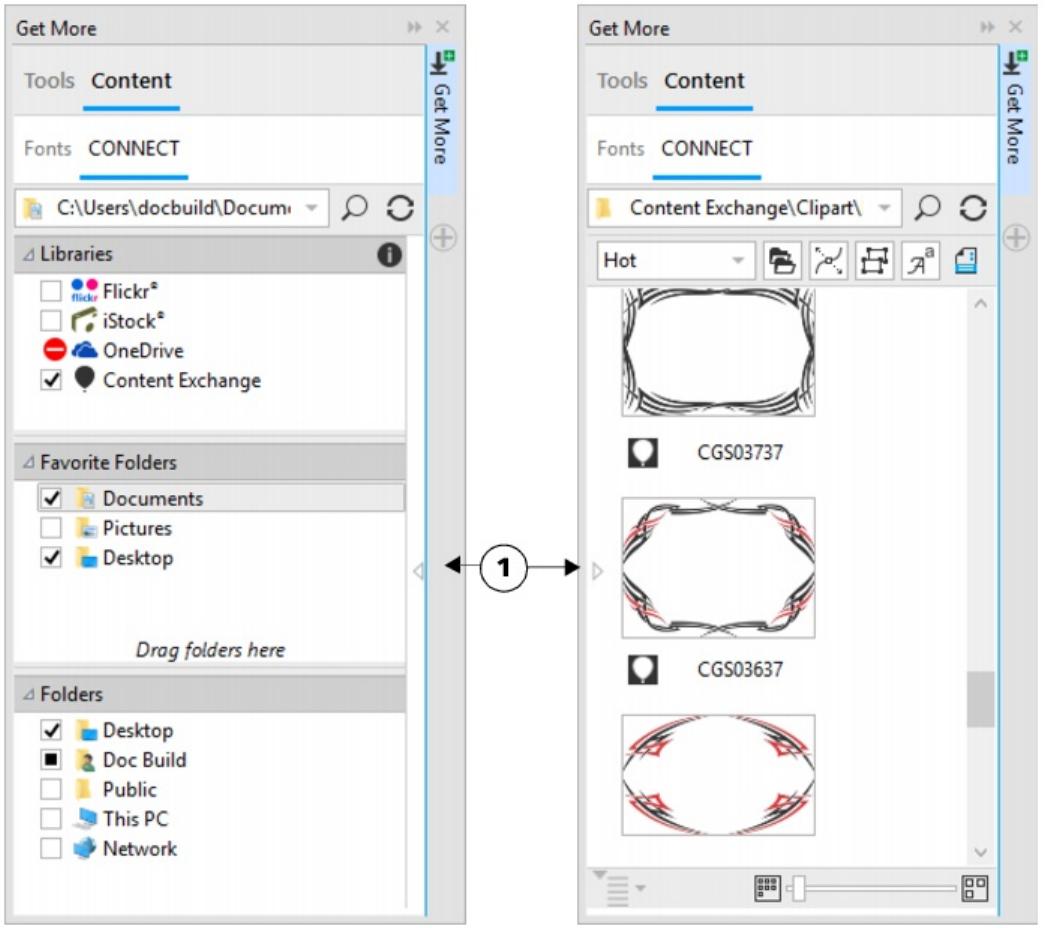
98 | Corel DESIGNER 2017 User Guide
The CONNECT page of the Get More docker with the viewing pane hidden (left) and the navigation pane
hidden (right). Click the toggle arrow (1) to display or hide panes. Resize the docker to display both panes.
You can customize the size and display of individual panes.
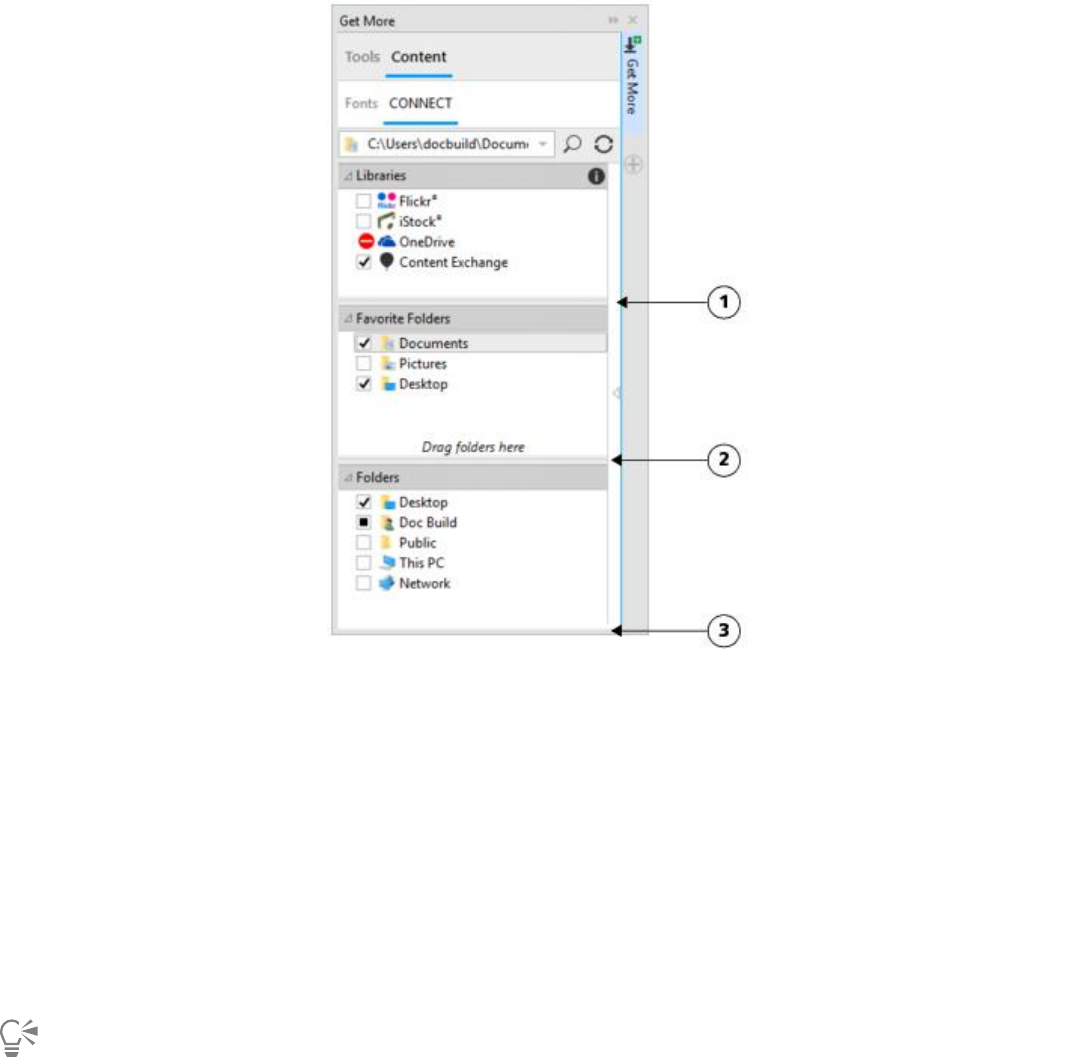
Finding and managing creative tools and content | 99
The grab area (1, 2, 3) lets you resize a pane.
You can use the Favorite folders pane to create shortcuts to folders that you visit frequently. You can add locations to and remove locations
from the Favorite folders pane.
To display or hide the Get More and Tray dockers
To Do the following
Display or hide the Get More docker Click Window Dockers Get More.
Display or hide the Tray docker Click Window Dockers Tray.
You can also access the Get More docker from the standard toolbar and the File Search Content menu command.
To resize a pane
• Point to the pane’s grab area, and when the cursor changes to a two-directional arrow, drag the edge of the pane.
To display or hide a pane
• Click the arrow to toggle between displaying and hiding the pane.

100 | Corel DESIGNER 2017 User Guide
To add a location to the Favorite Folders pane
• Drag a folder from the Libraries, Folders, or viewing pane to the Favorite folders pane.
You can also add locations to the Favorite folders pane by right-clicking a folder in the Libraries or Folders pane, and clicking Add
to Favorites.
To remove a location from the Favorite Folders pane
• Right-click a location in the Favorite folders pane, and click Remove from Favorites.
Accessing content
You can access content available on the Content Exchange or on the websites of online content providers. You can also access content from
previous versions of the software that is stored on a CD, DVD, or in a folder.
Using the Content Exchange
The Content Exchange provides a collection of clipart, photos, fonts, symbols, frames, vector and bitmap patterns, and image lists that you
can access. You can browse the available content, or you can search by keywords, mark your favorites, vote for content that you like, or copy
content from the Content Exchange to your personal folder.
You must sign in to your corel.com account to use content from the Content Exchange.
Using content from online content providers
You can find content on the websites of online content providers such as Flickr® and iStock®. The images that you find online are often
subject to usage restrictions and may be watermarked or low-resolution. For information about using such images, see “Using content” on
page 105.
Note that online content is unavailable in workplaces with restricted Internet access.
Using content stored on a CD or DVD
To access clipart and other content included on a CD or DVD from a previous version of the software, you must insert the CD or DVD, or
browse to the folder to which you have copied the content.
To use the Content Exchange
1Click File Search Content to open the Get More docker, and click CONNECT.
2In the Libraries pane, click Content Exchange.
The available folders appear in the viewing pane.
3Double-click a folder to access its content.
Thumbnail versions of the files appear in the viewing pane.
4Point to a thumbnail to view more information about a file.
5Click a thumbnail.
A pop-up window appears.
6In the pop-up window, perform an action from the following table.
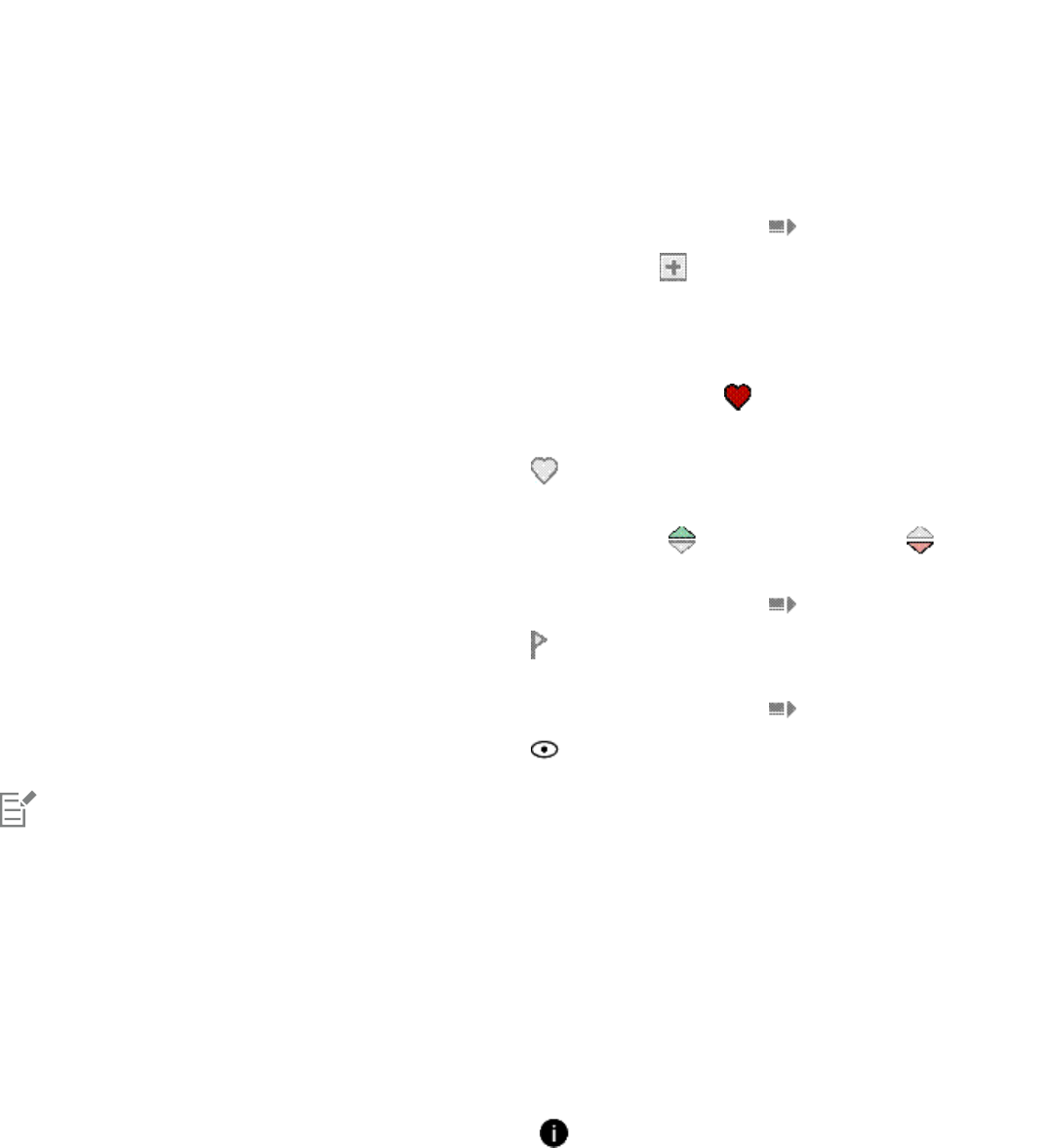
Finding and managing creative tools and content | 101
To Do the following
Search content by keyword Click one of the keywords associated with a file to perform a search
based on that keyword.
Search results include all types of content in the Content Exchange
that is tagged with this keyword. To narrow down search results to
specific types of content (such as bitmaps, vectors, or fonts), click
the corresponding button on the Filter toolbar.
Copy fills, pattern, image lists, and photo frames from the Content
Exchange to your personal folder
Click the More options button , and click the Copy to
personal button .
The content is copied in the respective folder in the My Documents
\Corel\Corel Content folder.
Mark as a favorite Click the Favorite button .
To remove content from your favorites, click the Unfavorite button
.
Vote to rank content higher or lower Click the Vote up or the Vote down button .
Report inappropriate content Click the More options button , and click the Flag button
.
Prevent a file from appearing in future searches Click the More options button , and click the Hide button
.
You must sign in to your corel.com account to use content from the Content Exchange.
To access a content library stored on a CD or DVD
1Click File Search Content to open the Get More docker, and click CONNECT.
2Insert the content CD or DVD.
The content library appears in the Libraries pane.
To access a CD or DVD content library that was copied to your computer
1Click File Search Content to open the Get More docker, and click CONNECT.
2In the Libraries pane, click the Configure content libraries button .
A warning sign next to a content library shows that it needs to be configured.

102 | Corel DESIGNER 2017 User Guide
3Click a content library, click Locate, and browse to the folder where the library is stored.
The content library appears in the Libraries pane.
Browsing and searching for content
With the Get More docker, you can browse for content, or you can search for content by using keywords.
You can browse and search for content in one or multiple locations on your computer or local network as well as online. You can also
navigate to previously viewed content.
Searching for content
You can search by the name, category (for example, clipart, photo images, or fonts), or reference information (for example, tags or notes)
associated with a file. When you type a term in the Search and address box and initiate a search, all matching files are displayed as
thumbnail images in the viewing pane. For example, if you type flower, the application automatically filters out all files that do not match
and displays only the files that have the word flower in the filename, category, or tags assigned to the file. You can also type phrases and
multiple words, and you can fine-tune your search by using Boolean operators such as AND, NOT, and OR. For example, you can find
content that contains both flower and sun images by typing flowers AND sun.
To increase the search speed for local content and improve results, you can adjust the Windows Search options by adding more locations to
the index.
You can also find all images on a webpage by typing the web address. For example, typing www.corel.com displays all the images that
appear on the Corel website.
Refining your search
By default, your search results include all relevant content such as vector graphics, bitmaps, and fonts. You can narrow down the search
results by excluding content. For example, if you are searching for graphics, you can display only vector graphics or only bitmaps. If you want
to choose a font for your project, you can display only fonts.
You can widen the scope of a search, and you can cancel a search at any time.
To browse for content
1Click File Search Content to open the Get More docker, and click CONNECT.
2Click a location in one of the following panes:
•Libraries — lets you browse online and local content
•Favorite folders — lets you browse your favorite locations
•Folders — lets you browse the folder structure available on your computer
You can browse the contents of only one folder at a time.
To specify the location where you want to browse for content, type or paste a path in the Search and address box, and press Enter.
The Search and address bar keeps track only of the locations that you enter manually. To delete all locations, click the drop-down
arrow, and click Clear list.
To search for content
1Click File Search Content to open the Get More docker, and click CONNECT.
2Click a location in any of the following panes:
•Libraries — lets you search for online and local content as well as content on a CD or DVD
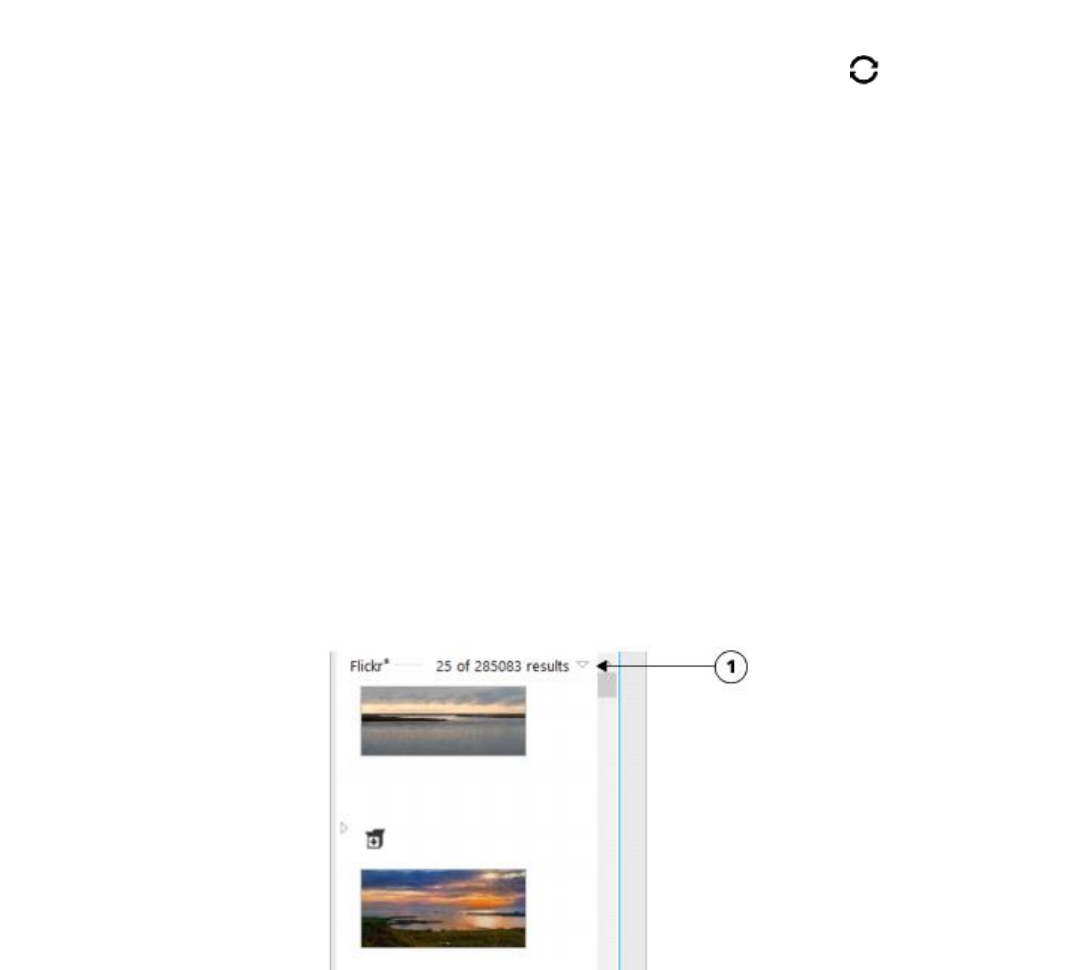
Finding and managing creative tools and content | 103
•Favorite folders — lets you search for content in your favorite locations
•Folders — lets you search for content in the folder structure available on your computer
3Type a word or multiple words in the Search and address box, and press Enter.
Files that match the search terms appear in the viewing pane.
If you want to search for a phrase, enclose the phrase with quotation marks.
You can also
Search for content in multiple locations Enable the check boxes for the libraries and folders that you want
to search, and click the Refresh button .
Show or hide search results for a location In the viewing pane, click the Show/Hide arrow to the right of the
location.
Specify how many online search results to display Click an online content provider in the Libraries pane, and choose
a number from the Search results list box. This number determines
the initial number of search results that are displayed in the viewing
pane, as well as the additional results that are displayed each time
you click More from.
Fine-tune a search by using Boolean operators Type one of the following Boolean operators between the search
terms:
AND — lets you find content that contains all search terms in the
Search and address box. Instead of AND, you can also use the plus
sign (+).
NOT — lets you exclude content that contains the search term after
NOT. Instead of NOT, you can also use the minus sign (-).
OR — lets you find content that contains at least one of the search
terms
Clicking a Show/Hide arrow (1) lets you show or hide the search results for a specific location.
104 | Corel DESIGNER 2017 User Guide
When you search for online content, only vector files and bitmaps are included in the search results.
If you want to browse the folder where a file is stored or access the source webpage of an image, right-click the file, and click Open
source location.
To find all images on a webpage
1Click File Search Content to open the Get More docker, and click CONNECT.
2Type a web address (for example, www.corel.com) in the Search and address box.
To refine your search
• On the Filter toolbar, click one of the following buttons:
•Folders — to hide or display folders in selected folders
•Vector drawing files — to hide or display vector graphics that are supported by the suite
•Bitmap files — to hide or display bitmaps that are supported by the suite
•Font files — to hide or display TrueType (TTF), OpenType (OTF), and PostScript fonts (PFB and PFM)
•Other files — to hide or display file formats that are not supported by the suite
A category is included in the search results if the button appears pressed.
To navigate to previously viewed content
•Click the Navigate back or Navigate forward button.
You can also go back to the previous search results by pressing Backspace.
You can also navigate to previously viewed content by clicking the Search and address bar drop-down arrow and choosing a
location from the list. The Search and address bar keeps track only of the locations that you enter manually.
To stop a search
•Click the Cancel search button .
Viewing content
Clipart, photos, and fonts appear in the viewing pane as thumbnail images. You can select individual, multiple, or all thumbnails.
By positioning your pointer over a thumbnail, you can display a larger preview. You can also display file information such as filename, file
size, image resolution, and color mode for content that was not provided by an online content provider. You can also preview the fonts that
you find. Thumbnail zooming makes recognizing a particular file easier and faster.

Finding and managing creative tools and content | 105
To select a thumbnail
1Search or browse for content on the CONNECT page of the Get More docker.
2Click a thumbnail.
You can also
Select multiple thumbnails Do one of the following:
•Drag around the thumbnails that you want to select.
•Hold down Ctrl, and in the viewing pane click the thumbnails
that you want to select.
•Click a thumbnail, and holding down Shift, click the last
thumbnail in the range that you want to select.
Select all thumbnails Press Ctrl + A.
To view file information
• Hover over a thumbnail.
To preview a font
• Double-click a font thumbnail.
You can also preview a font by right-clicking a font thumbnail and clicking Open.
To adjust the size of thumbnails
• Drag the Zoom slider to the left to decrease the size of the thumbnails, or to the right to increase the size of the thumbnails.
Using content
If you want to view or edit a file before you incorporate it into your project, you can open it in CorelDRAW, CorelDESIGNER, Corel PHOTO-
PAINT, or its associated application.
You can insert and place content in your document. Images that are obtained from online sources, such as iStock, may be subject to
copyright and usage restrictions. Such images, also referred to as “comp images,” are often low-resolution or watermarked. To use comp
images, you must first check with the owner if you have rights to use them and purchase them if necessary. Then, you can replace the comp
images in your document with the purchased images. You can view a list of all comp images in a document.
To open a file
1Click File Search Content to open the Get More docker, and click CONNECT.
2Search or browse for content.
3Select a thumbnail, and perform an action from the following table.
To Do the following
Open a file by using the Get More docker Do one of the following:
•In full view, click the Open button .
106 | Corel DESIGNER 2017 User Guide
To Do the following
•In single pane view, click the File commands button , and
click Open.
Open a file by using the Tray docker Click the Open button .
You can also open a file by right-clicking it and choosing the option that you want.
You can also open multiple selected files.
To insert a file into an active document
To Do the following
Insert a file into an active document by using the Get More docker Do one of the following:
•Drag a file from the viewing pane of the Get More docker to the
active document.
•In single-pane view, select a file in the viewing pane, click the
File commands button , click Import, and click in your
document.
•In full view, select a file in the viewing pane, click the Import
button , and click in your document.
Insert a file into an active document by using the Tray docker Select the file, and click one of the following buttons in the Tray
docker:
•Import — lets you insert a file as an embedded object
•Import and link — lets you insert a file as a linked object
•Import at original position — lets you import and place a vector
graphic at the original position where it was created relative to
the page
Note that the Import buttons are not available in the standalone
utility.
Insert and place a vector graphic in a document Click the Import or Import and link button and do one of the
following:
•Drag to place and resize the graphic.
•Press Enter to center the graphic on page.
•Press Spacebar to place the vector graphic at the original
position where it was created relative to the page.
You can also insert a file into an active document by dragging the file from the viewing pane or the Tray docker to the active
document.
You can also insert a file into an active document by right-clicking the file in the viewing pane and choosing an import command.
You can also insert multiple selected files.

Finding and managing creative tools and content | 107
To check, purchase, and replace a comp image
1In your document, click a comp image, and click the Open comp source button on the toolbar that appears below the comp image.
2On the website of the online content provider, check the copyright and usage restrictions for the image, and purchase it if necessary.
3In your document, select the comp image, and click the Replace comp button on the toolbar that appears below the comp image.
4Navigate to the purchased image, and click Import.
Transformations, such as scaling, rotating, and resizing, that were applied to the comp image are preserved in the final image.
To view a list of all comp images in a document
• Open a document, and do one of the following:
•Click File Print, click the Preflight (Issues) tab, and click Some images may be subject to copyright and usage restrictions.
•Click File Document properties.
When you export a document to the Adobe Illustrator (AI), Scalable Vector Graphics (SVG), HTML, or PDF file format, you can view a
list of all comp images in the preflight summaries.
Installing fonts
You can install the fonts that you find, and you can install font families.
For information about finding fonts, see “To browse for content ” on page 102 and “To search for content” on page 102.
To install fonts
1Click File Search Content to open the Get More docker, and click CONNECT.
2Find the font that you want to install.
3Do one of the following:
• In the viewing pane, right-click the font thumbnail, and click Install.
A check mark appears in the lower-right corner of the font thumbnail to show that the font is installed.
• To install a font family, right-click the font thumbnail, and click Install font family.
To install a font from the Content Exchange collection, you must sign in with your Corel.com account to authenticate your product.
To uninstall a font, right-click the font thumbnail, and click Uninstall.
You can also use Corel Font Manager to install or download online fonts. Installed fonts become available to all applications on your
computer. Downloaded fonts can be used only in CorelDRAWGraphicsSuite.
Managing content
You can organize your content by using trays or by adding content files to specific folders on your computer.
108 | Corel DESIGNER 2017 User Guide
A tray is useful for gathering content from various folders. While the files are referenced in the tray, they actually remain in their original
location. You can add and remove content from the tray. The tray is shared between CorelDRAW, CorelDESIGNER, Corel PHOTO-PAINT, and
Corel CONNECT. You can also open files from the tray to preview them more easily.
You can rename trays to give them meaningful names. When working with multiple trays, you can close some trays temporarily to avoid
clutter. You can easily reopen a tray when you need it. In addition, you can load a tray file that is not listed among the available trays. You
can delete a tray at any time.
To add content to a tray
1Click File Search Content to open the Get More docker, and click CONNECT.
2Search or browse for content.
3Select one or more thumbnails in the viewing pane, and drag them to the tray.
If you want to open a file from the tray, double-click its thumbnail.
You can also drag content from a folder on your computer to the tray.
To add content to a folder
• Select one or more thumbnails in the viewing area, and drag them to a folder in the Favorite folders or Folders pane, or any other
folder on your computer.
You can drag content from the tray to a folder.
To remove content from a tray
•Select one or more thumbnails in the tray, and click the Remove from tray button .
To create a tray
•Click the Add new tray button in the lower-right corner of the tray pane.
By default, trays are saved to the My Documents\Corel\Corel Content\Trays folder.
You can email trays that contain only online content.
To work with trays
To Do the following
Select a tray Click the tray tab.
Rename a tray Right-click the tray tab, click Rename, and type a new name.
Open a tray Click the All trays arrow, and click a tray.
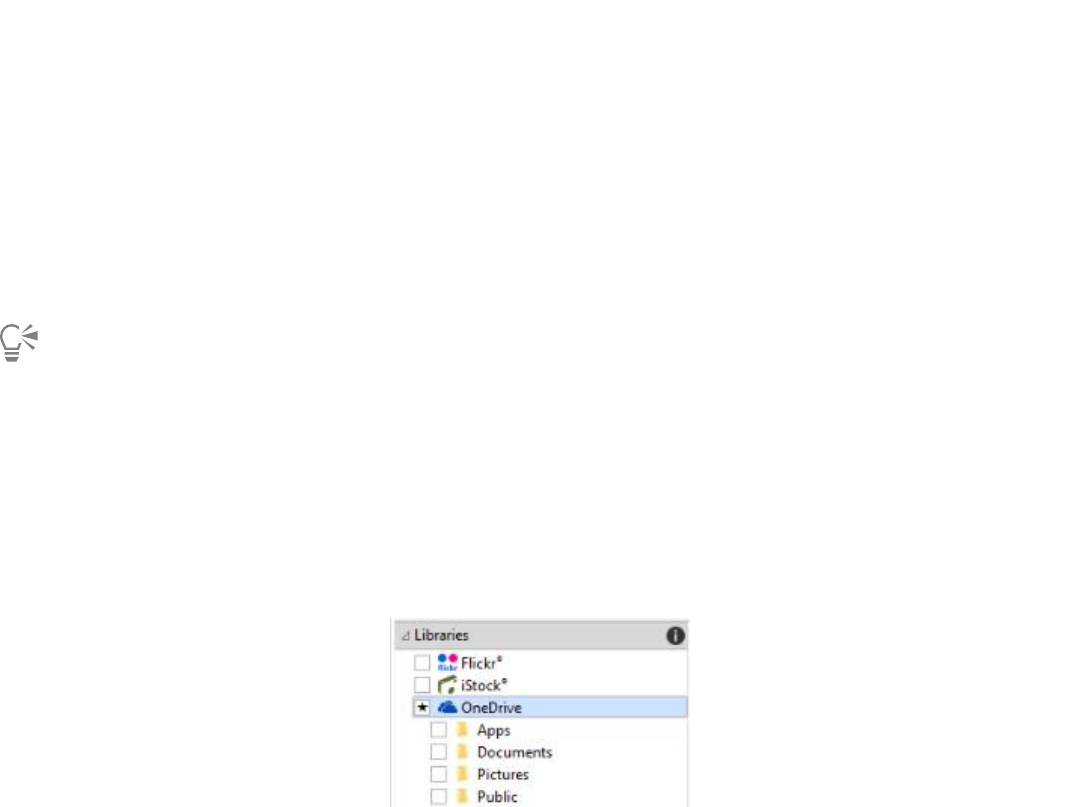
Finding and managing creative tools and content | 109
To Do the following
An open tray has a check mark beside its name.
Close a tray Right-click the tray tab, and click Close.
Load a tray file Click the All trays arrow, click Open tray file, and navigate to the
tray file.
Navigate through multiple trays Holding down Ctrl, press Tab.
Delete a tray Right-click the tray tab, and click Delete.
You can also close and delete a selected tray from the All trays menu.
Syncing trays with OneDrive
You can sync your trays with OneDrive and have access to your content from other computers or mobile devices. You must have a OneDrive
account to use this feature. After you sign in, you can see all your OneDrive folders in the Libraries pane in the Get More docker and view
their content in the viewing pane.
When you delete files from the trays, the files are also deleted from OneDrive when the trays are synced.
After you sign in, your OneDrive folders appear in the Libraries pane.
Trays are stored in My Documents\Corel\Corel Content\Trays. Each tray is stored as a separate folder. If the trays have never been synced
with OneDrive, each tray folder contains shortcuts to the files that have been added to the tray, while the actual files remain in their original
location. However, when you sync the trays with OneDrive, all files added to the trays are copied from their original location to the respective
tray folder.
When you sync trays with OneDrive, the synced files appear in the following OneDrive folder: OneDrive\Apps\Corel\Trays.
To sync trays with OneDrive
1Click File Search Content to open the Get More docker, and click CONNECT.
2Click OneDrive in the Libraries pane.
3Sign in when prompted.
The first time you sign in, you are asked to grant Corel Cloud Service access to your account. You can always change this setting by
logging into OneDrive online and specifying which applications have access to your account.
4When asked whether you want to enable Tray Sync, click Yes.
110 | Corel DESIGNER 2017 User Guide
5Make sure that the Enable Tray Sync with OneDrive on this computer check box is enabled, and choose an option from the Sync
frequency list box.
Your OneDrive folders and content appear in the viewing pane.
You can also
Upload files to OneDrive Drag the files from the viewing pane or from the desktop to a
OneDrive folder.
You can also drag files to a tray. If the trays are synced, the files in
the tray are automatically uploaded to OneDrive.
Import files from OneDrive into your document Select the file in the viewing pane, and click the Import button
, or drag the file to an open CorelDRAW or Corel PHOTO-PAINT
document.
Remove files from a synced OneDrive folder Select the file in the tray, and click the Remove from tray button
.
When the tray is synced, the file is removed from the synced
location in OneDrive.
If you delete a file from a synced OneDrive folder, the file from the
local tray folder is moved to the Recycle Bin when the trays are
synced.
Access OneDrive online In the viewing pane, right-click a OneDrive file or folder, and
choose Open source location from the context menu.
OneDrive opens in a browser, where you can manage your
OneDrive files and folders.
View the properties of a file in a OneDrive folder Right-click the file, and then click Properties.
View the properties of a OneDrive folder Right-click an empty space in the viewing pane, and then click
Properties.
Sign out of OneDrive In the Libraries pane, click the Configure content libraries button
, and click Sign out in the OneDrive area.
If trays are syncing and there is a conflict between two files with the same name, both files are kept, and a number is appended to
the name of the second file.
If you do not enable Tray Sync, you can still see your OneDrive folders in Corel CONNECT and upload or download files.

Finding and managing creative tools and content | 111
The tray tab icons indicate the sync status of the tray: offline , error , syncing , or synced .
You can enable and disable Tray Sync directly from the Tray docker by clicking the All trays arrow in the lower-left corner and then
clicking Synchronize with OneDrive.
Content types
Content types include fonts, clipart, photos, interactive frames, vector patterns, bitmap patterns, photo frames, image lists, and others.
112 | Corel DESIGNER 2017 User Guide

Working with precision | 113
Working with precision
Precision is essential when you work with technical graphics. With CorelDESIGNER, you can create precise objects and position them
accurately by using gravity snapping, constrain keys, dynamic guides, and object coordinates.
When you draw or modify objects, gravity snapping lets you specify the exact placement of a point. If you want to constrain an object to a
particular shape as you draw, or control the angle of lines, you can use constrain keys. For example, when drawing a rectangle, you can use
constrain keys so that the rectangle is drawn as a square.
You can use these features for all drawing and editing operations. For example, before rotating an object, you can snap the center point to
the corner of another object and then rotate the object around that point.
Dynamic guides, which are temporary guidelines that you can display from eligible snap points in objects, help you draw and position
objects with precision. In addition, you can draw and modify objects by specifying object coordinates.
This section contains the following topics:
•“Using gravity snapping” (page 113)
•“Using dynamic guides” (page 116)
•“Using alignment guides” (page 122)
•“Using constrain keys” (page 126)
•“Using object coordinates” (page 126)
Using gravity snapping
Gravity snapping is the attraction of the pointer to a snap point. Snap points are precise mathematical drawing coordinates. When the
pointer approaches a snap point, the gravity source of the snap point is highlighted. The highlighting identifies the snap point as the target
that the pointer will snap to. Snap points are also known as “gravity-snapping candidates.”
The gravity field of each snap point has a radius of 10 screen pixels (not document pixels) by default. When the pointer enters a gravity
field, a gravity source indicator appears around the point, and the name of the gravity source appears on the screen. You can turn gravity
snapping on and off.
Gravity shortcut keys let you activate a single type of gravity snap. By default, gravity shortcut keys are the first letters in the names of gravity-
snapping candidates. When you hold down a gravity shortcut key, all other gravity snap points become inactive. For example, if you hold
down the M key, only the Midpoint gravity snap point is active.
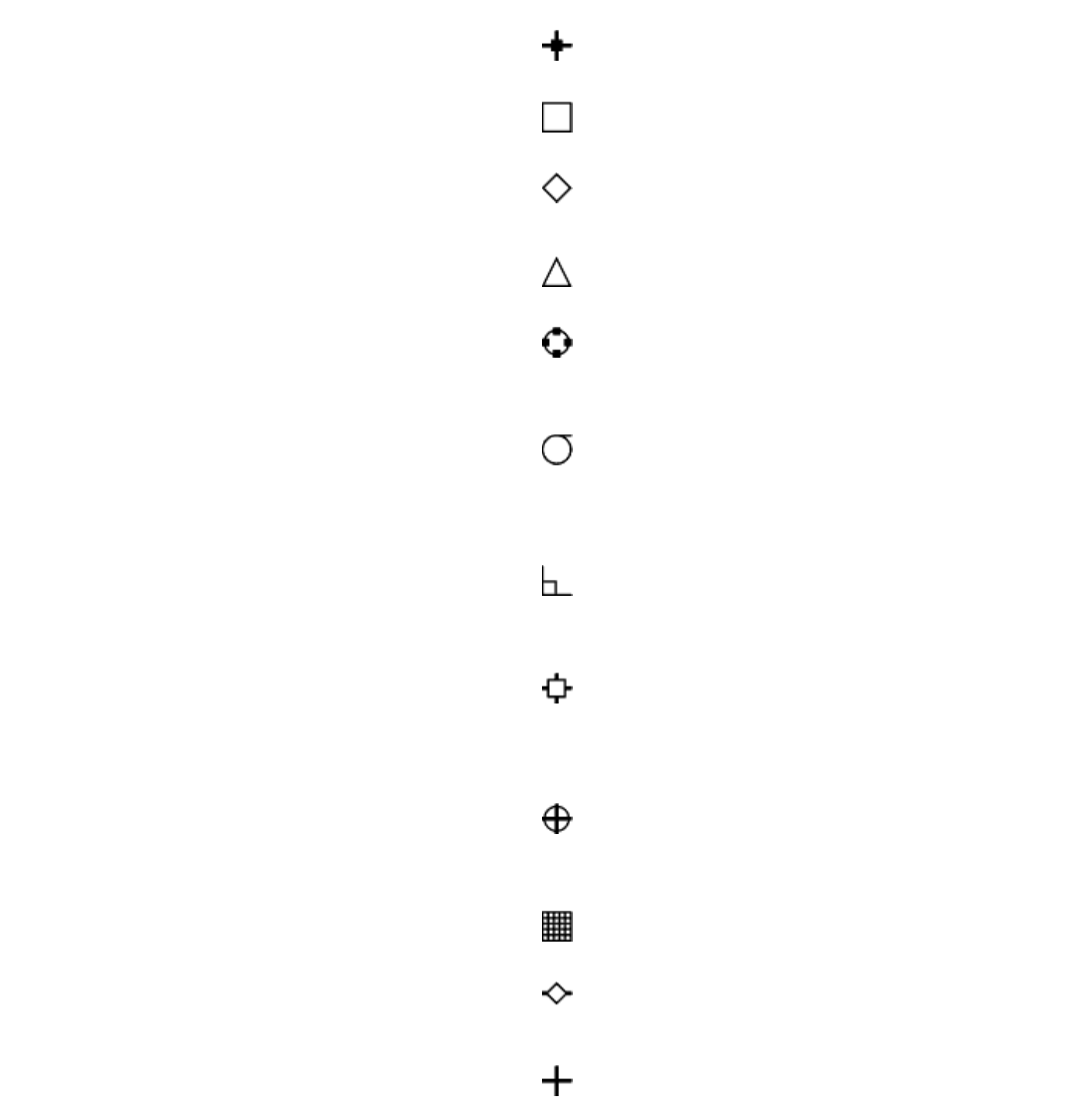
114 | Corel DESIGNER 2017 User Guide
If the pointer is within the gravity fields of two or more gravity-snapping candidates, the gravity-snapping candidate closest to the pointer
has priority. If the gravity-snapping candidates are the same distance from the pointer, the pointer snaps to the gravity-snapping candidate
with the higher priority, as listed in the following table.
Gravity-snapping candidate Description Gravity
source indicator
Gravity shortcut key
Pixel Point on the pixel grid S
Node Node on an object N
Intersection Geometric intersection of line
segments, arcs, or guidelines
I
Midpoint Midpoint of line segment M
Quadrant Points that are at 0°, 90°, 180°,
and 270° on a circle, ellipse, or
arc
Q
Tangent Point on the outside edge of an
arc, circle, or ellipse where a line
will touch but not intersect the
object
T
Perpendicular Point on the outside edge of a
segment where a line will be
perpendicular to the object
P
Edge Point that touches the nearest
perpendicular edge (shortest
perpendicular distance from the
pointer to the edge)
E
Center Center of the closest object
(arc, regular polygon, or curve
centroid)
C
Grid Visible or invisible grid point G
Text baseline Point in the baseline of artistic
or paragraph text
B
Absolute Pointer location; temporarily
suspends all gravity snaps
A
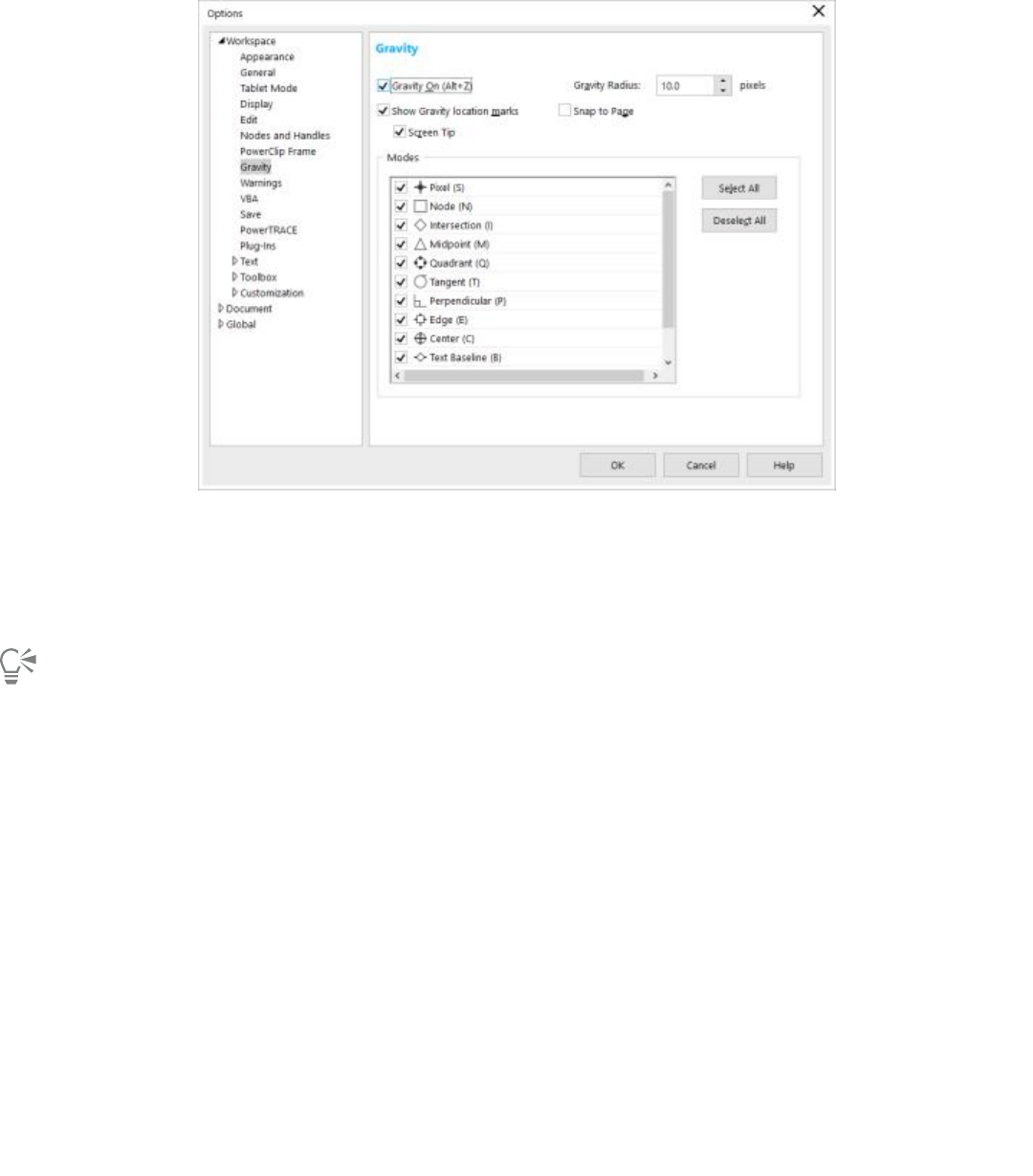
Working with precision | 115
You can make gravity-snapping candidates active or inactive and set other options to customize snapping.
CorelDESIGNER lets you control how gravity snapping works.
To turn gravity snapping on or off
1Click Tools Gravity.
2Enable or disable the Gravity on check box.
You can also toggle gravity snapping on and off by pressing Alt + Z.
To use gravity snapping
1Move the pointer close to where you want to snap.
2Click when the gravity source becomes highlighted.
If you are dragging to draw a line or select an object, release the mouse button.
You can also
Snap an object to another object Drag an object close to where you want to snap. When the gravity
source becomes highlighted, release the mouse button.
Snap to guidelines Move the pointer to the edge of a guideline or to the intersection
of two guidelines.
To turn off snapping to guidelines, click Tools Gravity, and
disable the Edge mode on the Gravity page of the Options dialog
box.
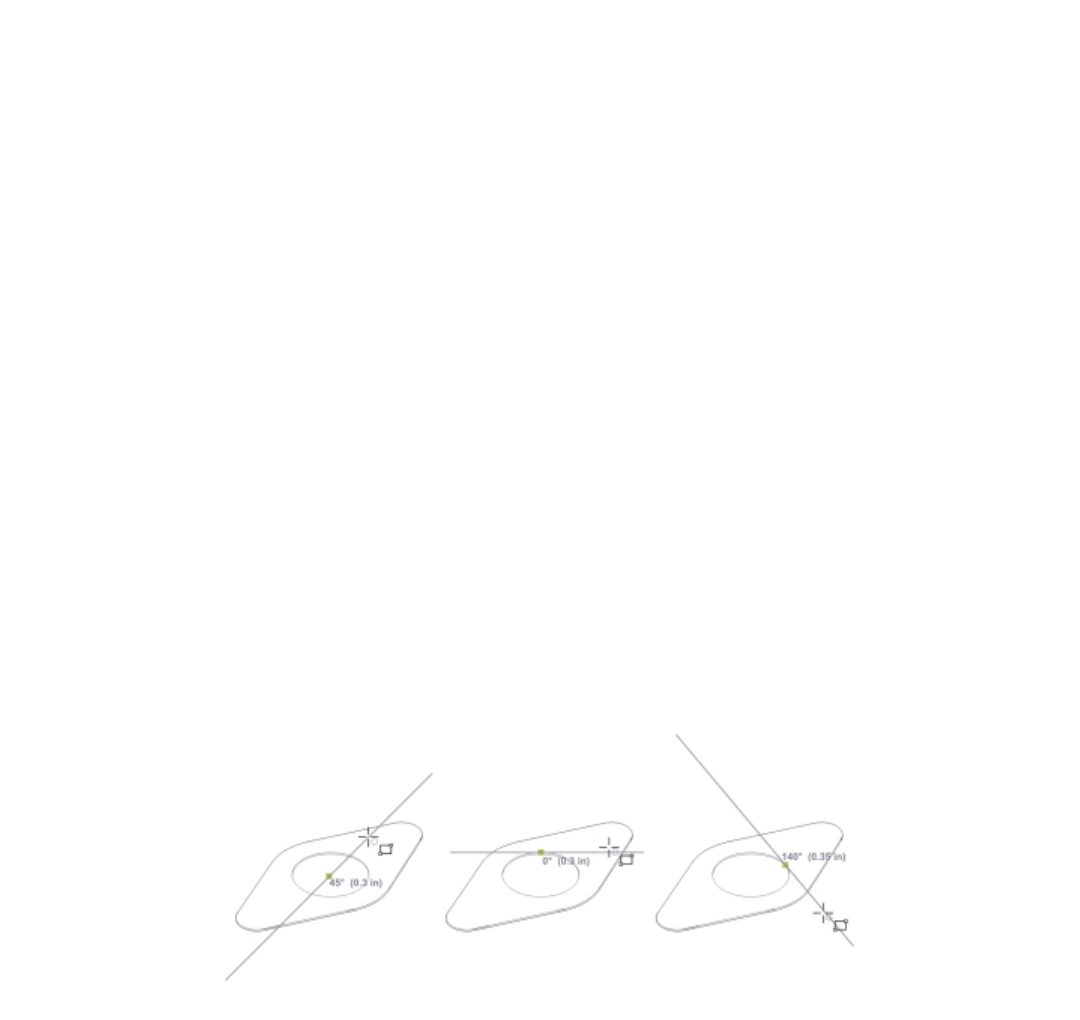
116 | Corel DESIGNER 2017 User Guide
To set gravity options
1Click Tools Gravity.
2Perform one or more tasks from the following table.
To Do the following
Activate snapping objects to page elements (edges, edge
midpoints, and page center)
Enable the Snap to page check box.
Activate a gravity-snapping candidate In the Modes area, enable the corresponding check box.
Activate all gravity-snapping candidates Click Select all.
Disable all gravity-snapping candidates without turning off gravity
snapping
Click Deselect all.
Display gravity source indicators Enable the Show gravity location marks check box.
Display the name of the gravity source Enable the Screen tip check box.
Change the size of the gravity field around gravity-snapping
candidates
Type a value in the Gravity radius box.
Using dynamic guides
You can display dynamic guides to help you move, align, and draw objects in precise relation to other objects. Dynamic guides are temporary
guidelines that you can display from the following snap points in objects: center, node, quadrant, and text-baseline end nodes. For more
information about snap points and snapping modes, see “Using gravity snapping” on page 113.
You can also display dynamic guides that are tangent, perpendicular, or parallel to objects, as well as dynamic guides that are extensions of
line segments.
Left to right: The 2-point rectangle tool is used to display dynamic guides
from a center snap point, a quadrant snap point, and a tangent snap point.
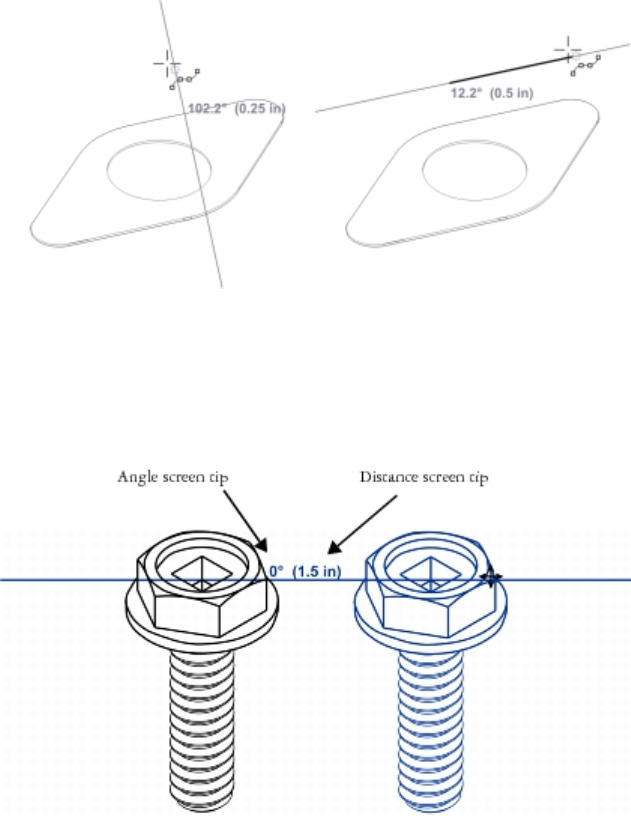
Working with precision | 117
Perpendicular dynamic guide (left) and parallel dynamic guide (right)
As you drag an object along a dynamic guide, you can view the distance between the object and the snap point that was used to create the
dynamic guide. You can then position the object precisely. Dynamic guides can also help you draw parallel lines and draw objects in relation
to other objects. In addition, you can display intersecting dynamic guides and place an object at the intersection point.
A dynamic guide was displayed from a node in the bolt on the left. The screen tip next to the node displays the angle of the
dynamic guide(0º) and the distance between the node and the pointer (1.5 inches). The bolt on the right was dragged along
the dynamic guide and positioned precisely 1.5 inches away from the node that was used to generate the dynamic guide.
Dynamic guides contain invisible divisions, called ticks, to which your pointer gravitates. Ticks let you move objects along a dynamic guide
with precision. You can adjust tick spacing to suit your needs, and you can disable snapping to ticks. You can set other options for dynamic
guides. For example, you can choose to display dynamic guides at one or more preset angles or at custom angles that you specify. You can
preview the angle settings. You can also customize the color and line style of dynamic guides. When you no longer need a dynamic guide at
a certain angle, you can delete the angle settings. You can also display dynamic guides that are extensions of line segments.
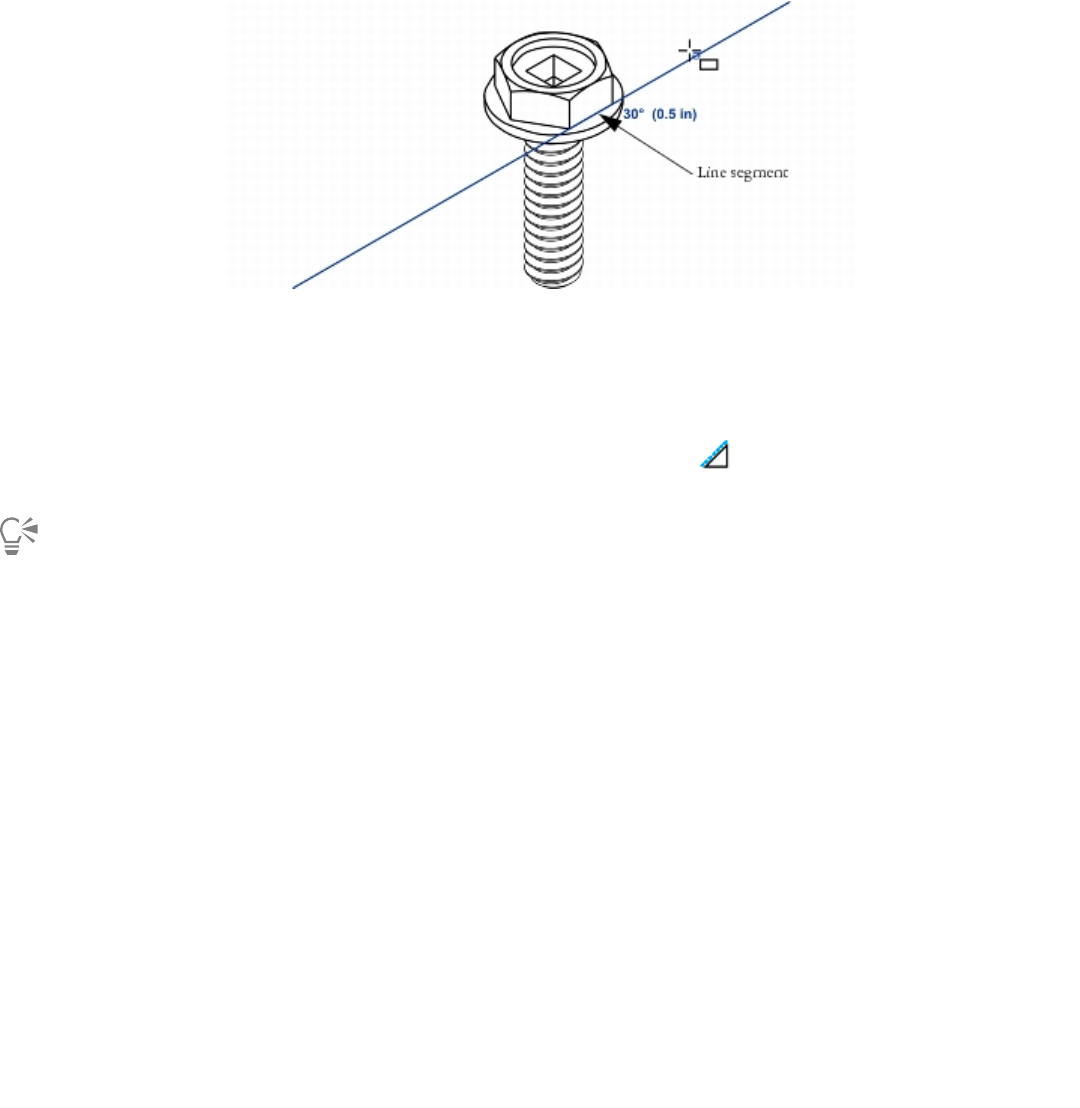
118 | Corel DESIGNER 2017 User Guide
This dynamic guide is an extension of a line segment.
You can turn off dynamic guides at any time.
To enable or disable dynamic guides
1Click Tools Alignment and dynamic guides, and click the Dynamic guides button .
2In the Alignment and dynamic guides docker, enable or disable the check box in upper-right corner of the Dynamic guides section.
You can toggle dynamic guides on and off by pressing Shift + Alt +D.
To display dynamic guides
1With dynamic guides enabled, click a drawing tool.
2Move the pointer over and then off a node, center, quadrant, or text-baseline snap point of an object.
3Repeat step 2 with other objects to display other dynamic guides.
The snap points you point to are registered in a queue and used to create dynamic guides.
You can also Do the following
Display a dynamic guide that is a tangent to the edge of an object Move the pointer over the edge of an object. When an edge snap
point becomes highlighted, press H. Then, display the dynamic
guide by moving the pointer off the snap point as if to draw a
tangent.
Display a dynamic guide that is perpendicular to an object Move the pointer over the edge of an object. When a snap point
becomes highlighted, press U. Then, display the dynamic guide by
moving the pointer off the snap point as if to draw a perpendicular
line.
Display a dynamic guide that is parallel to a line segment Click Tools Alignment and dynamic guides, click the Dynamic
guides button, and ensure that the Generate parallel guides
button is enabled. Start to draw a straight line, and then move the
pointer over the edge of an existing line segment to register the
angle. Then, display the dynamic guide by moving the pointer back
as if to draw a line parallel to the line segment you just pointed to.
Working with precision | 119
You can also Do the following
You can use the 2-point line tool , Multi-point line tool ,
or 3-point rectangle tool to display parallel dynamic guides.
Display a dynamic guide that is an extension of a line segment Click Tools Alignment and dynamic guides, click the Dynamic
guides button, and click the Extend along segment button. Move
the pointer over an end node in the line segment until the snap
point becomes highlighted. Then, display the dynamic guide by
moving the pointer as if to extend the line segment.
The node, center, quadrant, and text-baseline snap points appear only when the corresponding gravity modes are activated. For more
information about snap points and gravity modes, see “Using gravity snapping” on page 113.
You can avoid displaying too many dynamic guides by clicking in the drawing window or by pressing Esc. Either of these actions
clears the queue of points.
You can use the snap points you registered to display intersecting dynamic guides. First, display a dynamic guide, and then move the
pointer along it to where an intersecting dynamic guide would be displayed from a registered snap point.
To position an object in relation to another object
1With dynamic guides enabled, select an object.
2Drag the object to a node, center, quadrant, or text-baseline snap point of the target object.
3When the snap point of the target object becomes highlighted, drag the object along the dynamic guide to position it.
The node, center, quadrant, and text-baseline snap points are displayed only when the corresponding gravity modes are activated. For
more information about snap points and gravity modes, see “Using gravity snapping” on page 113.
To draw an object in relation to another object
1With dynamic guides enabled, click a drawing tool.
2Move the pointer over a node, center, quadrant, or text-baseline end-node snap point of an object.
3When the snap point becomes highlighted, move the pointer to display a dynamic guide.
4Move the pointer along the dynamic guide to the point where you want to draw, and drag to draw an object.
To draw parallel lines
1Click Tools Alignment and dynamic guides, and click the Dynamic guides button .
2Ensure that the Generate parallel guides button is enabled.
3Draw a straight line or an object that contains straight line segments.
4Using the 2-point line tool or Multi-point line tool , start to draw another straight line, and then move the pointer over the
edge of an existing straight line segment.
5Move the pointer back to where you want to draw the parallel line.
6When a parallel dynamic guide appears, continue to drag along the guide until the line is the length you want.
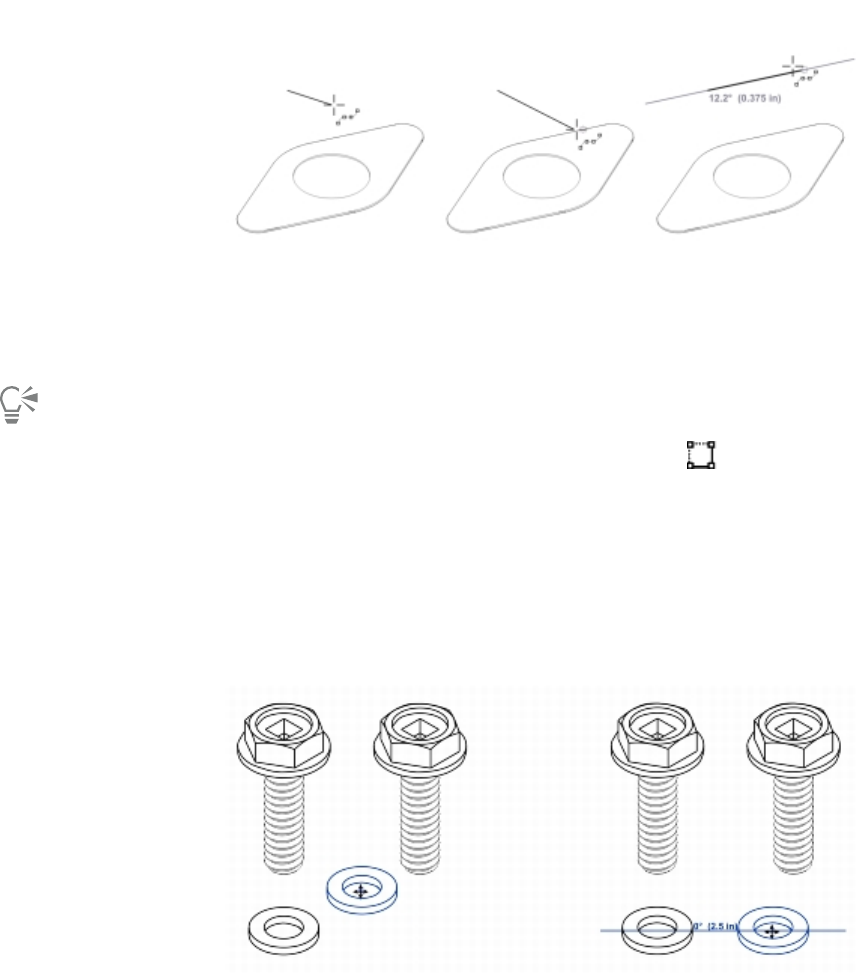
120 | Corel DESIGNER 2017 User Guide
To draw a parallel line, start drawing a straight line (left). Next, move the pointer over the
edge of a straight line segment (middle). Finally, move the pointer back until a parallel dynamic
guide appears, and drag along the guide until the parallel line is the length you want (right).
With the help of parallel dynamic guides, you can use the 3-point rectangle tool to draw rectangles that are parallel to straight
line segments.
To position an object at the intersection of dynamic guides
1With dynamic guides enabled, select an object.
If you want to move the object by a specific snap point, move the pointer over the snap point until the point becomes highlighted.
2Drag the object to an eligible snap point on another object, and continue to drag until a dynamic guide appears.
Don’t release the mouse button.
3Drag the object to another eligible snap point, and don’t release the mouse button.
4When the snap point becomes highlighted, continue to drag until another dynamic guide appears where the two dynamic guides would
intersect.
5When the intersection point appears, release the mouse button.
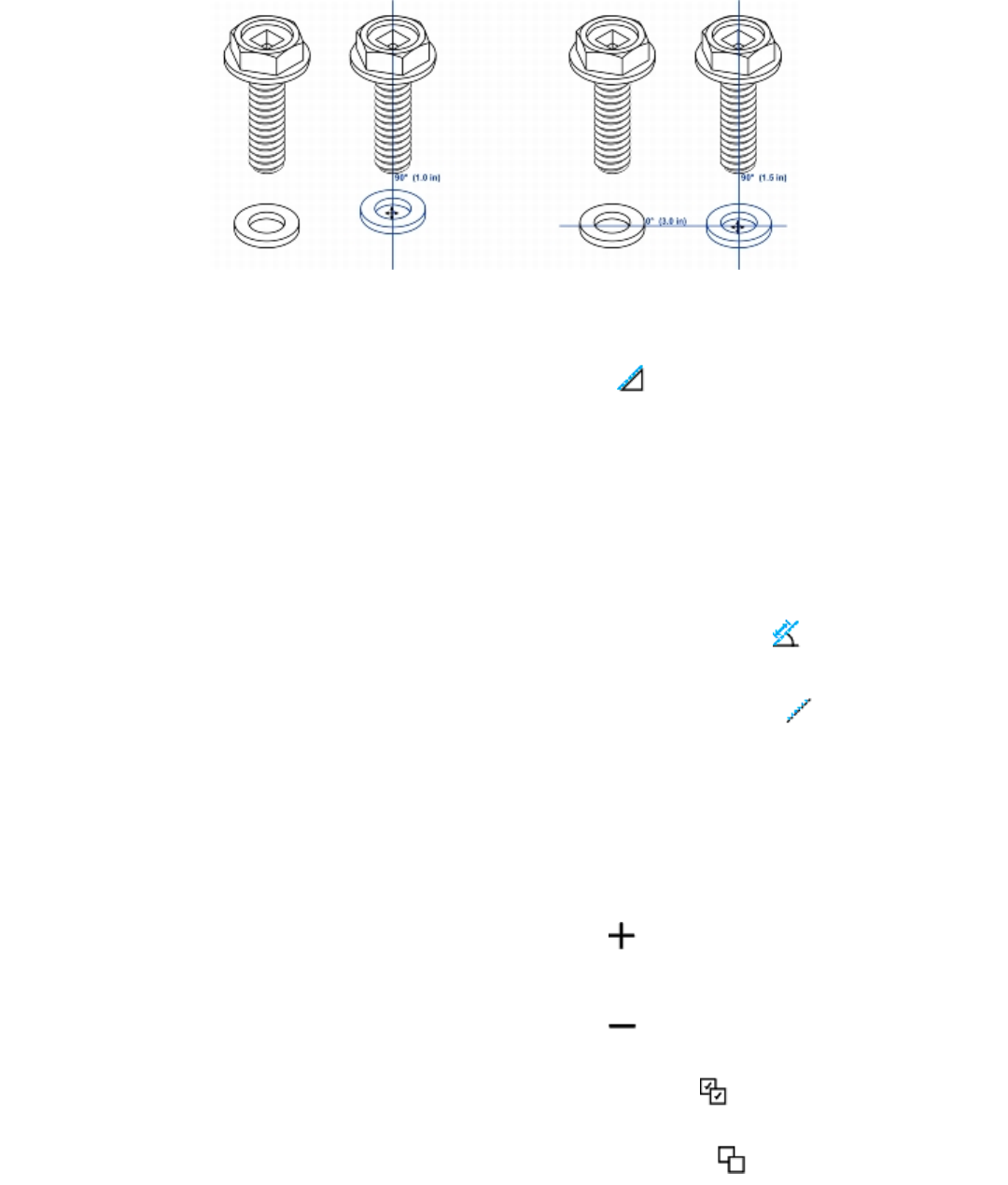
Working with precision | 121
To set options for dynamic guides
1Click Tools Alignment and dynamic guides.
2In the Alignment and dynamic guides docker, click the Dynamic guides button .
3Perform one or more tasks from the following table.
To Do the following
Change the line style of dynamic guides Open the Line style picker, and choose a line style.
Change the color of dynamic guides Open the Line color picker, and choose a color.
Display or hide the angle of dynamic guides and the distance from
the snap point that was used to create the dynamic guide
Click the Display screen tips button .
Snap to specified invisible divisions along the dynamic guide Click the Snap to tick spacing button , and type a value in the
Tick spacing box.
Choose the angles at which to display the dynamic guides Enable or disable the angle check boxes.
When you enable an angle check box, a preview of the dynamic
guide appears in the Guides preview window.
Add a custom dynamic guide angle Type a value in the Custom angle box, and click the Add custom
angle button .
Delete a custom dynamic guide angle Select a dynamic guide in the list, and click the Delete custom
angle button .
Display dynamic guides at all available angles Click the Select all button .
Disable dynamic guides at all available angles Click the Deselect all button .
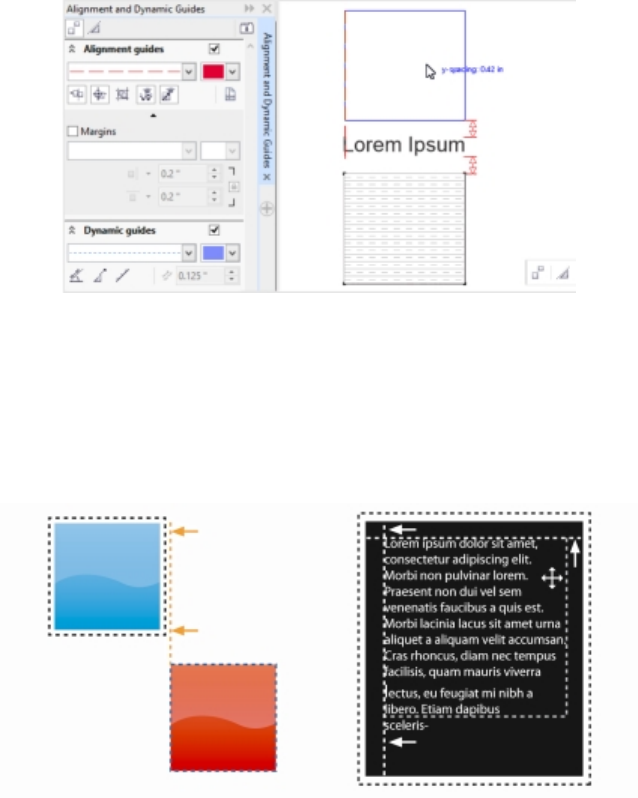
122 | Corel DESIGNER 2017 User Guide
Using alignment guides
You can align objects interactively on the drawing page by using alignment guides. Alignment guides are temporary guidelines that appear
when you create, resize, or move objects in relation to nearby objects. While dynamic guides provide precise measurements for creating
technical illustrations, alignment guides are useful in page layout to align text or graphic elements quickly and accurately.
Alignment guides appear as an object is moved.
Alignment guides help you align the centers and edges of objects. If you want to align an object at a set distance from the edge of another
object, you can set margins for the alignment guides. You can display the margin alignment guides in addition to other alignment guides, or
disable all other alignment guides and show only the margin alignment guides.
Margin alignment guides let you use offset margins, inset margins, or both. There are separate controls for horizontal and vertical margin
alignment guides, so you can modify settings for one without affecting the other.
You can offset (left) and inset (right) margin alignment guides.
Alignment guides are turned off by default. You can easily enable or disable alignment guides, or modify their default settings, including
the color and line style. You can choose whether alignment guides appear for individual objects in a group, or for the bounding box of the
group as a whole.
The Intelligent Spacing feature lets you precisely arrange and position an object in relation to other onscreen objects, and the Intelligent
Dimensioning feature lets you intuitively scale and rotate an object in relation to other onscreen objects.
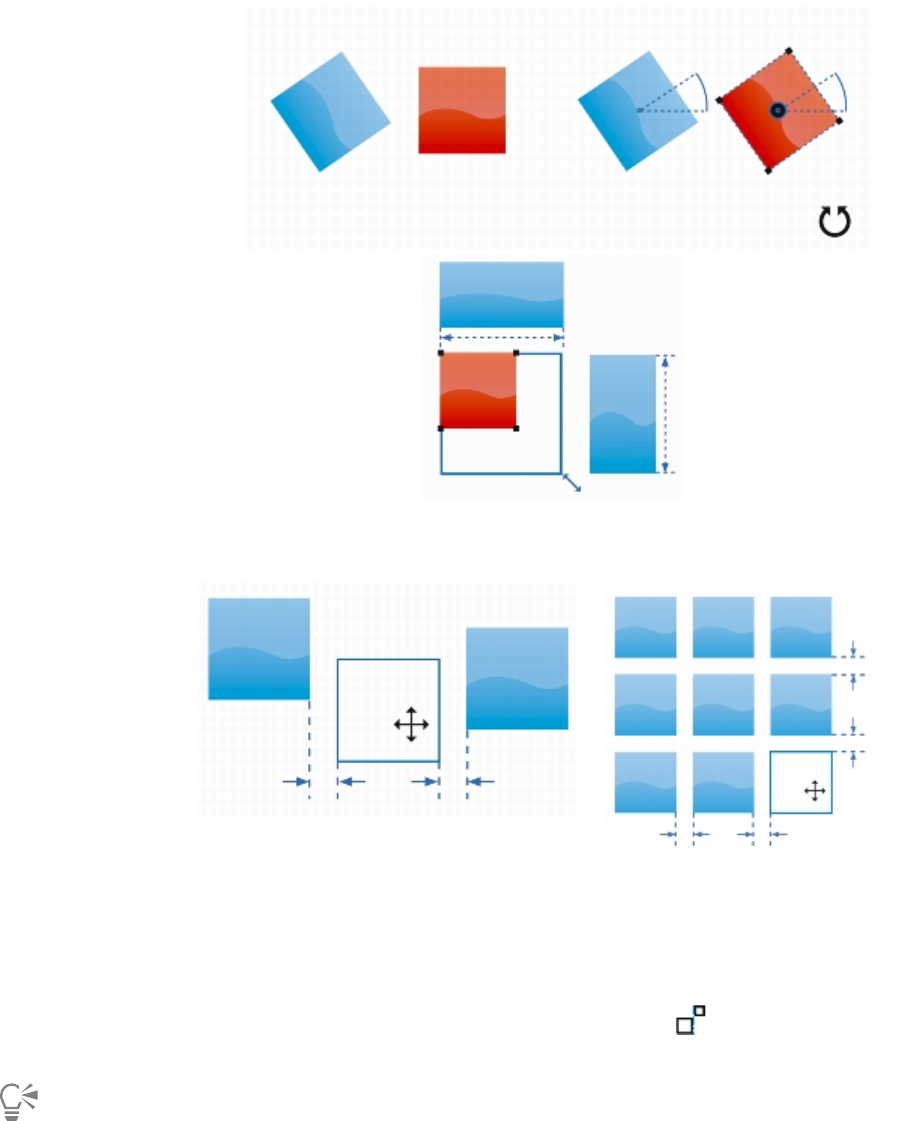
Working with precision | 123
Intelligent Dimensioning displays indicators when an object is rotated to
the same angle (top) or scaled to same size (bottom) as the closest object.
Intelligent Spacing displays indicators when an object is equidistant from two
other objects (left) or has the same spacing as the closest onscreen objects (right).
To enable or disable alignment guides
1Click Tools Alignment and dynamic guides.
2In the Alignment and dynamic guides docker, click the Alignment guides button .
3Enable or disable the check box in the upper-right corner of the Alignment guides section.
You can also enable or disable alignment guides by clicking the Alignment guides button on the Layout toolbar. To open the Layout
toolbar, click Layout Layout toolbar or View Toolbars Layout.
You can also enable alignment guides by pressing Shift + Alt + A.
124 | Corel DESIGNER 2017 User Guide
To modify alignment guide settings
1Click Tools Alignment and dynamic guides.
2In the Alignment and dynamic guides docker, click the Alignment guides button .
3Perform any of the following tasks.
To Do the following
Change the color of alignment guides Open the Line color picker, and choose a color.
Change the line style of alignment guides Open the Line style picker, and choose a line style.
Set guides to align the edge of an object with the edge of another
object
Click the Object edges button .
Set guides to align the edge of an object with the center of another
object
Click the Object centers button .
Set guides to align to individual objects in a group Click the Individual objects in a group button .
Distribute objects using the same spacing as the closest onscreen
objects
Ensure that the Intelligent spacing button is enabled, and
drag the object until indicator arrows appear.
Position an object equidistantly between two other objects Ensure that the Intelligent spacing button is enabled, and drag the
object between two other objects until indicator arrows appear.
Scale objects to the same dimensions as other onscreen objects Ensure that the Intelligent dimensioning button is enabled,
and scale the object until indicator arrows appear.
Rotate objects to the same angle as other rotated onscreen objects Ensure that the Intelligent dimensioning button is enabled, and
rotate the object until rotation indicators appear.
You can access some alignment guide controls on the Layout toolbar by clicking the Layout toolbar button .
To add margin alignment guides
1Click Tools Alignment and dynamic guides.
2In the Alignment and dynamic guides docker, click the Alignment guides button .
3Perform any of the following tasks.
Working with precision | 125
To Do the following
Add margin alignment guides Enable the Margins check box. If the Margins check box is not
displayed, click the arrow button located at the bottom of the
Alignment guides section.
Change the line color of margins Open the Margin line color picker, and choose a color.
Change the line style of margins Open the Margin line style picker, and choose a line style.
Set horizontal margins Type a value in the Horizontal margin box, click the Horizontal
margin button, and choose one of the following options:
•Offset horizontally — creates a margin of the specified
distance around an object
•Inset horizontally — creates a margin of the specified
distance within an object
•Offset and inset horizontally — creates margins of the
specified distance around and within an object
Set vertical margins Type a value in the Vertical margin box, click the Vertical margin
button, and choose one of the following options:
•Offset vertically — creates a margin of the specified
distance around an object
•Inset vertically — creates a margin of the specified distance
within an object
•Offset and inset vertically — creates a margin of the
specified distance around and within an object
Lock the ratio between vertical and horizontal margins Click the Lock ratio button .
View only margin alignment guides Disable the Object edges button , the Object centers button
, the Intelligent spacing button , and the Intelligent
dimensioning button .
Disable horizontal margins Click the Horizontal margin button, and choose No horizontal
margin .
Disable vertical margins Click the Vertical margin button, and choose No vertical margin
.

126 | Corel DESIGNER 2017 User Guide
Using constrain keys
Constrain keys let you restrict how objects are drawn or edited. For example, when drawing a line, you can constrain it to be perfectly
horizontal or vertical. You can also change which key is used as the constrain key. You can change the constrain key from Ctrl to Shift, which
is the Windows standard.
To constrain an object while drawing or editing
• Start drawing or editing, and hold down the Ctrl key.
If you are drawing or editing a line, the pointer movement is restricted to the specified constrain angle. If you are drawing or editing an
object, the shape of the object is restricted.
A rectangle is constrained to a square, an ellipse to a circle, and a polygon to a shape that has sides of equal length.
To change the direction of a line that you’re drawing, release Ctrl, and move the pointer in the direction you want. Then, hold down
Ctrl again to restrict movement of the pointer to the constrain angle.
To change the constrain angle, click Tools Options. In the Workspace list of categories, click Edit, and type a value in the
Constrain angle box.
To change the constrain key
1Click Tools Options.
2In the Workspace, Toolbox list of categories, click Pick tool.
3Enable one of the following options:
•Traditional CorelDESIGNER: Ctrl = Constrain, Shift = Transform from center — sets the Ctrl key as the constrain key
•Windows standard: Ctrl = Duplicate/Leave original, Shift = Constrain — sets the Shift key as the constrain key
Using object coordinates
You can use the Object coordinates docker to draw and modify shapes and lines with precision. The live preview in the drawing window
lets you see the effects of your adjustments.
You can type coordinate values to specify the exact position, dimensions, and angle of rotation of an object. You can also set object
attributes interactively by dragging in the drawing window.
Drawing rectangles and squares
To draw a rectangle with precision, you can specify an origin point, which is one of nine points in the rectangle (four corner points, four
midpoints, and one center point). If you rotate the rectangle, the origin point is used as the center of rotation. You can also specify the angle
of rotation, and the width and height of a rectangle.
If the angle of rotation is 0, you can specify the position of the lower-left and upper-right corners of the rectangle.
To draw a square, you can specify the origin point, the length of a side, and an angle of rotation.
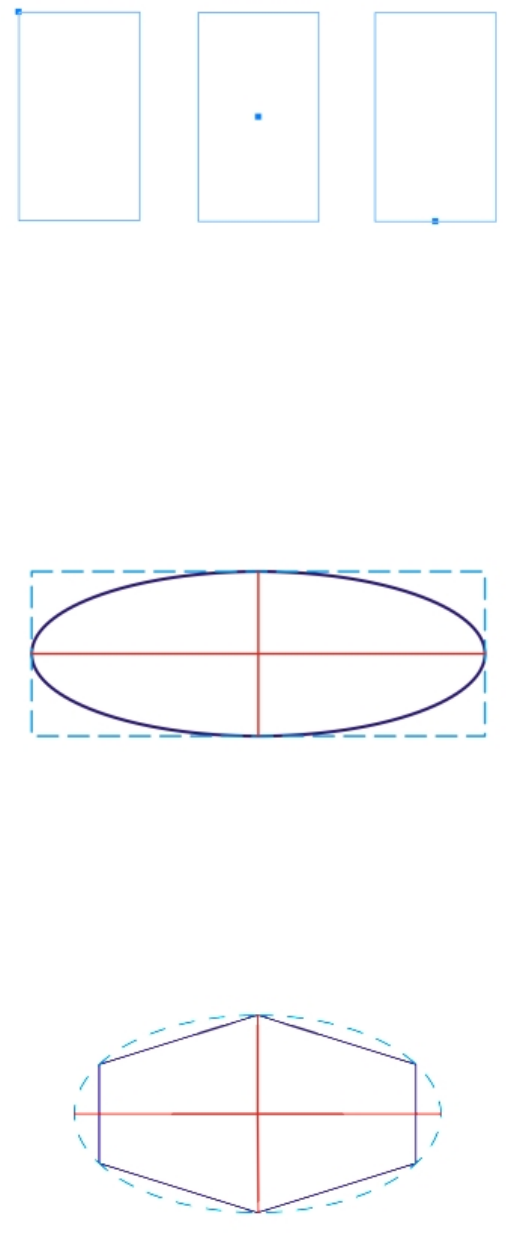
Working with precision | 127
Left: The origin point of a rectangle appears as a blue node in the live preview.
You can select the center point, or any corner or midpoint, as the origin point.
Drawing ellipses and circles
To draw an ellipse with precision, you can specify an origin point, which is one of nine points in the bounding box that can be drawn around
the ellipse. The origin point is used as the center of rotation.
You can also specify the ellipse diameters, which are the width and height of the bounding box around the ellipse, and the angle of rotation.
If the angle of rotation is 0, you can specify the exact position of the lower-left and upper-right corners of the bounding box around the
ellipse.
To draw a circle, you can specify the origin point, diameter, and angle of rotation.
You can specify the width and height of the bounding box that can be drawn around an ellipse.
Drawing polygons
To draw a polygon, you can specify the number of sides, the angle of rotation, or the center and diameters of the bounding ellipse that can
be drawn around the polygon. The center of the bounding ellipse, also known as the “polygon center,” is used as the center of rotation.
You can also draw regular polygons with precision. All sides of a regular polygon are of equal length. You can specify the side length and
angle of rotation, or the center and diameter of the bounding circle that can be drawn around the regular polygon.
You can specify the diameters of the bounding ellipse that can be drawn around the polygon.
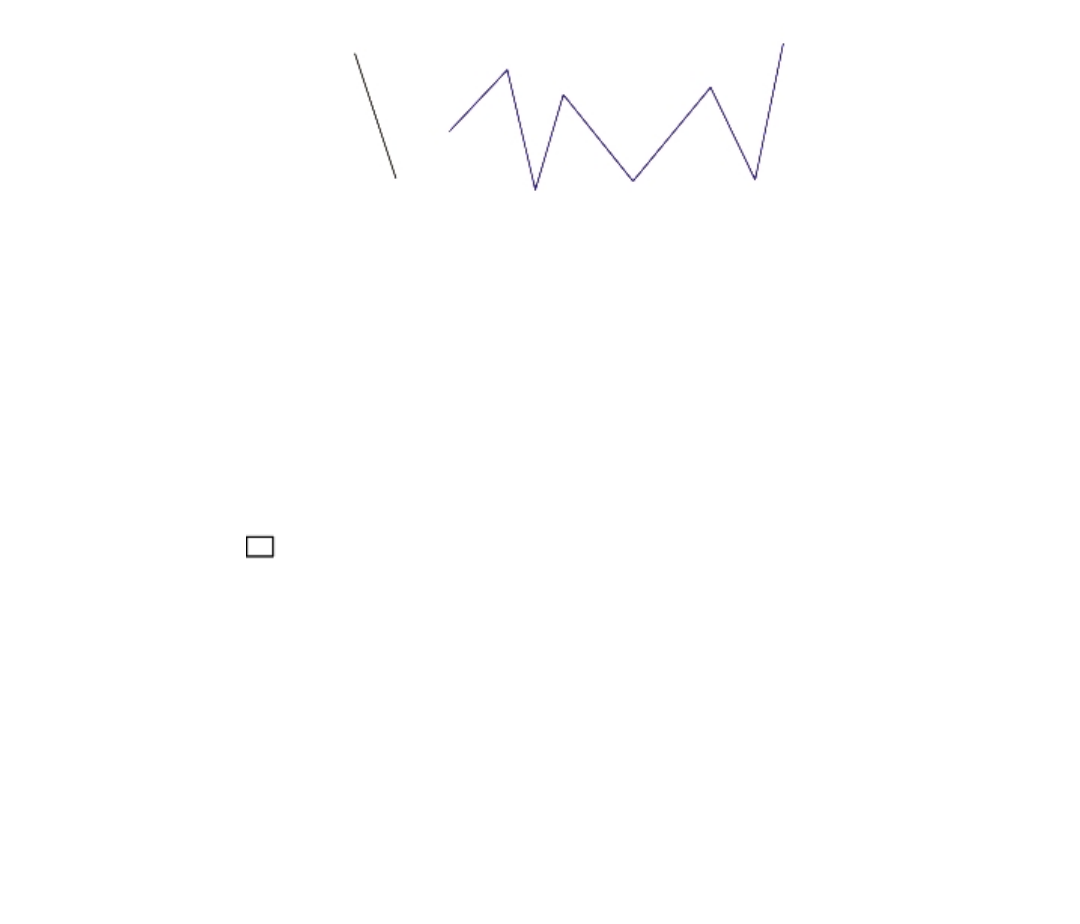
128 | Corel DESIGNER 2017 User Guide
Drawing lines
You can draw a straight line by using one of two methods. With the first method, you specify the start point and endpoint of the line. With
the second method, you specify the start point and length of the line, plus an angle of rotation.
You can create complex lines by specifying the coordinates of multiple points. You can delete points, and you can modify the coordinates of
existing points. After adding all the points you want, you can close the curved line by connecting its start point to its endpoint.
Straight and multipoint lines
Modifying existing objects
You can use the Object coordinates docker to modify existing objects with precision. Note that when you modify an existing object, it is
replaced with a new object. As a result, the following transformations and effects applied to the original objects are lost: envelope effects,
rotations, and skew effects. In addition, any changes that were previously applied to the nodes on a polygon are lost.
To draw or modify a rectangle by using object coordinates
1Click Window Object coordinates.
If you want to modify an existing rectangle, select the rectangle.
2Click the Rectangle button .
3Make any of the following adjustments:
• To set the origin point of the rectangle, click a point in the Origin area.
• To specify the exact position of the origin point, type values in the x and y boxes.
• To specify the width and height of the rectangle, type values in the Object size boxes.
• To specify only the height or width of the rectangle and have the other dimensions automatically adjusted in proportion, enable the
Proportional check box.
• To rotate the rectangle at a specified angle, type a value in the Angle of rotation box. The origin point of the rectangle is used as the
center of rotation.
4Click one of the following:
•Create object — adds a new rectangle to the drawing window
•Replace object — replaces the selected rectangle with a new one
You can also
Draw a rectangle by specifying the exact position of its lower-left
and upper-right corners
In the Bounding box area, type values in the x and y boxes.
The first pair of boxes controls the position of the lower-left corner.
The second pair ofboxes controls the position of the upper‑right
corner.
Working with precision | 129
You can also
This method for drawing rectangles is available only when no
rotation is applied.
Set the lower-left and upper-right corners of a rectangle directly in
the drawing window
In the Bounding box area, click the Set lower-left corner
interactively button or the Set upper-right corner interactively
button , and click in the drawing window.
Set the origin point directly in the drawing window Click the Set origin point interactively button , and click in
the drawing window.
Specify the dimensions of the rectangle directly in the drawing
window
Click either of the Set dimensions interactively buttons , and
drag in the drawing window.
Set the angle of rotation directly in the drawing window Click the Set angle interactively button , and drag in the
drawing window.
To draw or modify a square by using object coordinates
1Click Window Object coordinates.
If you want to replace an existing square, select the square.
2Click the arrow at the bottom of the Rectangle button, and click the Square button .
3Make any of the following adjustments:
• To set the origin point of the square, click a point in the Origin area.
• To specify the exact position of the origin point, type values in the x and y boxes.
• To specify the length of a side, type a value in the Object size box.
• To rotate the square at a specified angle, type a value in the Angle of rotation box. The origin point of the rectangle is used as the
center of rotation.
4Click one of the following:
•Create object — adds a new square to the drawing window
•Replace object — replaces the selected square with a new one
You can also
Set the origin point directly in the drawing window Click the Set origin point interactively button , and click in
the drawing window.
Specify the length of a square side directly in the drawing window Click the Set dimensions interactively button , and drag in the
drawing window.
Set the angle of rotation directly in the drawing window Click the Set angle interactively button , and drag in the
drawing window.
130 | Corel DESIGNER 2017 User Guide
To draw or modify an ellipse by using object coordinates
1Click Window Object coordinates.
If you want to modify an existing ellipse, select the ellipse.
2Click the Ellipse button .
3Make any of the following adjustments:
• To set the origin point of the ellipse, click a point in the Origin area.
• To specify the exact position of the origin point, type values in the x and y boxes.
• To specify the diameters (width and height) of the ellipse, type values in the Object size boxes.
• To specify only one of the diameters and have the other diameter automatically adjusted in proportion, enable the Proportional check
box.
• To rotate the ellipse at a specified angle, type a value in the Angle of rotation box. The origin point of the ellipse is used as the center
of rotation.
4Click one of the following:
•Create object — adds a new ellipse to the drawing window
•Replace object — replaces the selected ellipse with a new one
You can also
Draw an ellipse by specifying the lower-left and upper-right corners
of the bounding box around an ellipse
In the Bounding box area, type values in the x and y boxes.
The first pair of boxes controls the position of the lower-left
corner of the bounding box. The second pair of boxes controls the
position of the upper-right corner of the bounding box.
This method for drawing ellipses is available only when no rotation
is applied to the ellipse.
Set the lower-left and upper-right corners of an ellipse’s bounding
box directly in the drawing window
In the Bounding box area, click the Set lower-left corner
interactively or Set upper-right corner interactively button ,
and click in the drawing window.
Set the origin point directly in the drawing window Click the Set origin point interactively button , and click in
the drawing window.
Specify the dimensions of the ellipse directly in the drawing
window
Click either of the Set diameter interactively buttons , and
drag in the drawing window.
Set the angle of rotation directly in the drawing window Click the Set angle interactively button , and drag in the
drawing window.
To draw or modify a circle by using object coordinates
1Click Window Object coordinates.
If you want to replace an existing circle, select the circle.
2Click the arrow at the bottom of the Ellipse button, and click the Circle button .
Working with precision | 131
3Make any of the following adjustments:
• To set the origin point of the square, click a point in the Origin area.
• To specify the exact position of the origin point, type values in the x and y boxes.
• To specify the diameter of a circle, type a value in the Object size box.
• To rotate the circle at a specified angle, type a value in the Angle of rotation box. The origin point of the circle is used as the center of
rotation.
4Click one of the following:
•Create object — adds a new circle to the drawing window
•Replace object — replaces the selected circle with a new one
You can also
Set the origin point directly in the drawing window Click the Set origin point interactively button , and click in
the drawing window.
Specify the diameter of a circle directly in the drawing window Click the Set diameter interactively button , and drag in the
drawing window.
Set the angle of rotation directly in the drawing window Click the Set angle interactively button , and drag in the
drawing window.
To draw or modify a polygon by using object coordinates
1Click Window Object coordinates.
If you want to modify an existing polygon, select the polygon.
2Click the Polygon button .
3In the Object size area, type a value in the Points or sides box.
4Make any of the following adjustments:
• To rotate the polygon at a specified angle, type a value in the Angle of rotation box.
• To specify the polygon center, type values in the x and y boxes in the Bounding ellipse area. The polygon center is the center of the
bounding ellipse that can be drawn around the polygon. The polygon center is used as the center of rotation.
• To specify the diameters of the bounding ellipse around the polygon, type values in the Object size boxes in the Bounding ellipse
area.
• To specify only one diameter and have the other diameter automatically adjusted in proportion, enable the Proportional check box.
5Click one of the following:
•Create object — adds a new polygon to the drawing window
•Replace object — replaces the selected polygon with a new one
You can also
Set the angle of rotation directly in the drawing window Click the Set angle interactively button , and drag in the
drawing window.
Set the polygon center directly in the drawing window Click the Set polygon center interactively button , and click in
the drawing window.
132 | Corel DESIGNER 2017 User Guide
You can also
Specify the diameters of the bounding ellipse directly in the
drawing window
Click either of the Set diameter interactively buttons , and
drag in the drawing window.
To draw or modify a regular polygon by using object coordinates
1Click Window Object coordinates.
If you want to modify an existing polygon, select the polygon.
2Click the arrow at the bottom of the Polygon button, and click the Regular polygon button .
3In the Object size area, type a value in the Points or sides box.
4Type a value in the Side length box.
5Make any of the following adjustments:
• To rotate the polygon at a specified angle, type a value in the Angle of rotation box.
• To specify the polygon center, type values in the x and y boxes in the Bounding circle area.
• To specify the diameter of the bounding circle around the polygon, type a value in the Object size box.
6Click one of the following:
•Create object — adds a new polygon to the drawing window
•Replace object — replaces the selected polygon with a new one
You can also
Set the side length directly in the drawing window Click the Set dimensions interactively button , and drag in the
drawing window.
Set the angle of rotation directly in the drawing window Click the Set angle interactively button , and drag in the
drawing window.
Set the polygon center directly in the drawing window Click the Set polygon center interactively button , and click in
the drawing window.
Specify the diameter of the bounding circle directly in the drawing
window
Click the Set diameter interactively button , and drag in the
drawing window.
To draw or modify a straight line by using object coordinates
1Click Window Object coordinates.
If you want to modify an existing line, select the line.
2Click the 2-point line button .
3To specify the start point and endpoint along the x and y rulers, type values in the x and y boxes in the Points area.
In the live preview, the start point is highlighted.
4Click one of the following:
•Create object — adds a new line to the drawing window
•Replace object — replaces the selected line with a new one
Working with precision | 133
You can also
Draw a straight line by specifying its start point, length, and angle
of rotation
In the Points area, type values in the Start point x and y boxes. In
the Object size area, type a value in the Line length box. Then,
type a value in the Angle of rotation box.
Set the start point or endpoint of a line directly in the drawing
window
In the Points area, click one of the Set point interactively buttons
, and click in the drawing window.
Set the line length directly in the drawing window In the Object size area, click the Set line length interactively
button , and drag in the drawing window.
Set the angle of rotation directly in the drawing window In the Object size area, click the Set angle interactively button
, and drag in the drawing window.
To draw or modify a multi-point line by using object coordinates
1Click Window Object coordinates.
If you want to replace an existing line with a new one, select the line.
2Click the Multi-point curve button .
3Click the Add point button at the bottom of the Object coordinates docker.
4Make either of the following adjustments:
• To specify the exact position of the point along the x and y rulers, type values in the X and Y boxes.
•To add another point, click the Add point button , and type values in the X and Y boxes.
5After specifying all the points you need, click one of the following:
•Create object — adds a new line to the drawing window
•Replace object — replaces the selected line with a new one
You can also
Specify the position of a point directly in the drawing window Click a point in the Object coordinates docker. Click the Set point
interactively button , and click in the drawing window.
Delete a point Click a point in the Object coordinates docker, and click the Delete
point button .
Connect the start point with the endpoint of a line Click the Auto-close/open curve button .
Use the following keyboard shortcuts to create a multi-point line quickly:
• To add a point, click in the Points area, and press Insert.
• To delete a selected point, press Delete.
134 | Corel DESIGNER 2017 User Guide
• To activate the X or Y box of a selected point, press F2.
• To navigate through the X and Y boxes of the available points, select a box and press Tab repeatedly.
• To navigate backward through the X or Y boxes of the available points, select a box and press Shift + Tab repeatedly.
• To activate the Set point interactively button, double-click a point in the docker.
Touch and Surface Dial | 135
Touch and Surface Dial
This section includes the following topics:
•“Using touch” (page 135)
•“Using Microsoft Surface Dial” (page 137)
For information about using a pen and stylus with CorelDESIGNER, see “Using pressure-sensitive pens and devices” on page 179.
Using touch
CorelDESIGNER provides touch gesture support, a Touch workspace, and automatic workspace switching to help you make the most of your
touch-enabled device.
Gestures
You can use common gestures on your touchscreen device to scroll, zoom, and pan in a document as well as access tools grouped in flyouts.
The following table describes how to complete common tasks using touch gestures.
To Do the following...
Scroll in a document Tap the screen with two fingers and drag in the direction you want
to scroll.
Zoom in and out Using two fingers, pinch outwards to zoom in and pinch inwards
to zoom out.
Zoom and pan simultaneously Using two fingers, pinch outwards or inwards while dragging in
the direction you want.
Choose a tool located in a flyout In the toolbox, tap a flyout button, and tap the tool you want.
Touch workspace
Optimized for touch-enabled devices, the Touch workspace is ideal for field work and sketching. It allows you to complete your tasks by
using touch, dial, and a stylus, without needing a mouse or keyboard.
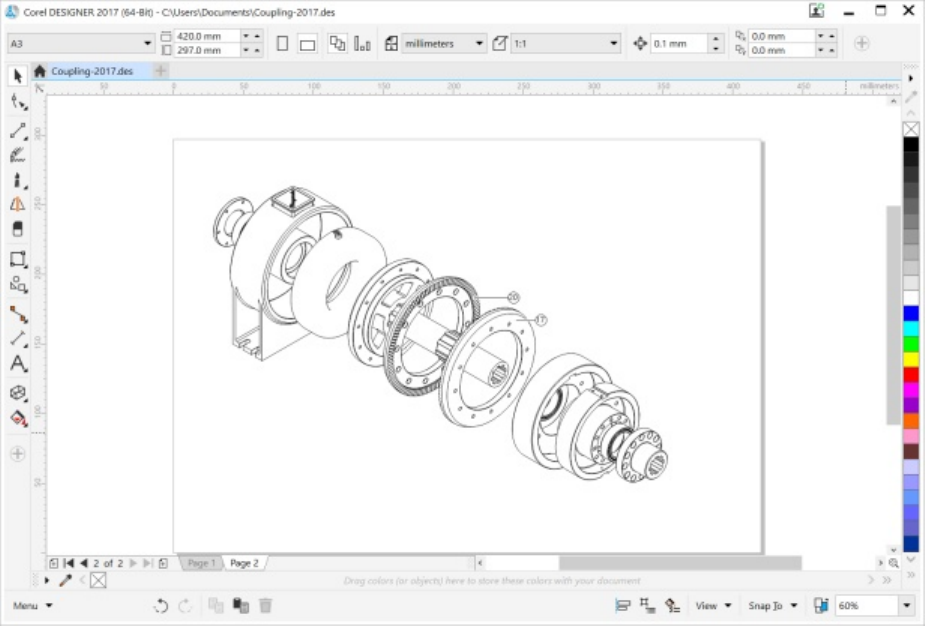
136 | Corel DESIGNER 2017 User Guide
The Touch workspace has streamlined user interface (UI) that shows you only the tools and commands that you are most likely to use when
using a tablet. In comparison to the other available workspaces, the Touch workspace features the following changes:
• Buttons and other UI elements are bigger to be touch-friendly.
• The toolbox is modified to include only tools you are likely to use often.
• The toolbox lets you access Undo and Redo commands as well as Copy, Paste, and Delete.
• The menu bar is no longer at the top of the main window. You can access menu commands by clicking the Menu button in the lower-
left corner of the status bar.
• The status bar lets you quickly change the zoom level as well as access commonly used commands and dockers.
The Touch workspace in CorelDESIGNER
Switching between Touch and Desktop workspaces
Tablet mode is a Windows feature that optimizes the UI for touch-enabled devices. Usually, Tablet mode is activated when you detach a
tablet from its base. When a tablet is attached to its base, it is in Desktop mode. On Windows 10, CorelDESIGNER automatically switches to
the Touch workspace when Tablet mode is enabled. When Tablet mode is disabled, the application switches to a desktop workspace. You can
choose which workspace to use in Desktop mode and which workspace to use in Tablet mode. You can also turn off automatic workspace
switching.
In addition, you can show and hide the rulers for Desktop mode and Tablet mode independently to suit your workflow. For more
information, see “To show or hide the rulers for Desktop and Tablet mode” on page 542.
Similarly to other workspaces, the Touch workspace can be selected from the Window Workspace menu.
To set options for switching between Tablet mode and Desktop mode
1Click Tools Options.
2In the Workspace list of categories, click Tablet Mode.
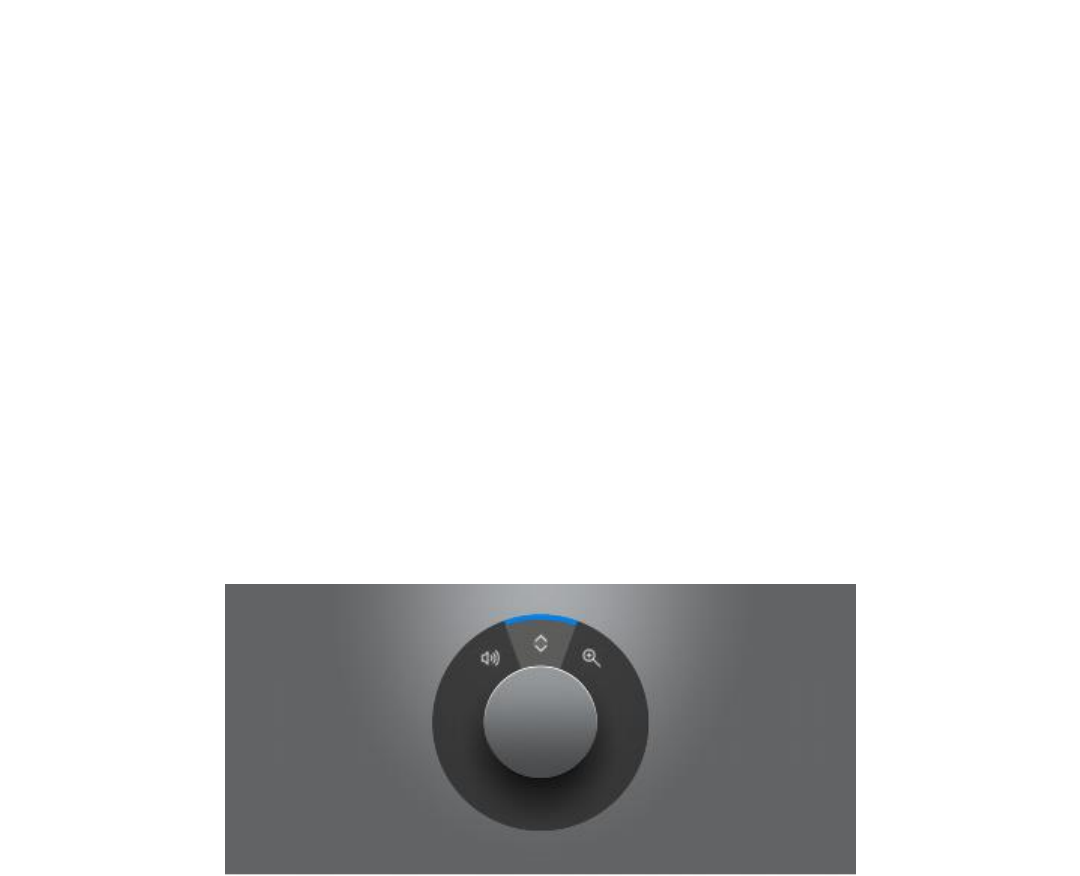
Touch and Surface Dial | 137
3Perform a task from the following table.
To Do the following...
Turn on or off automatic workspace switching when changing
between Desktop and Tablet mode
Enable or disable the Auto-switch between Tablet and Desktop
workspaces check box.
Automatic workspace switching is not available for Windows 8 or
Windows 7. To switch to the Touch workspace, you must choose it
manually (Window Workspace).
Set the workspace for Tablet mode Choose a workspace from the Tablet mode list box.
Set the workspace for Desktop mode Choose a workspace from the Desktop mode list box.
To choose the Touch workspace
•Click Window Workspace Touch Touch.
Using Microsoft Surface Dial
CorelDESIGNER lets you take advantage of the Microsoft Surface Dial, a new tool that can help you focus on your creative tasks. Especially
useful in combination with a stylus, the Surface Dial allows you to zoom in and out quickly as well as undo and redo actions as you’re
designing.
The Surface Dial can help you zoom in and out as well as undo actions while you’re designing.
For information about setting up your Surface Dial, see the manufacturer’s instructions.
To zoom using a Surface Dial
1Press down the Surface Dial to show the onscreen menu.
2Rotate the Surface Dial to select Zoom on the onscreen menu, and click.
3Do one of the following:
• To zoom in, rotate the Surface Dial clockwise.
• To zoom out, rotate the Surface Dial counterclockwise.
138 | Corel DESIGNER 2017 User Guide
To undo or redo actions using a Surface Dial
1Press down the Surface Dial to bring up the onscreen menu.
2Rotate the Surface Dial to select Undo on the onscreen menu, and click.
3Do one of the following:
• To undo an action, rotate the Surface Dial counterclockwise.
• To redo an action, rotate the Surface Dial clockwise.
Lines, shapes, and outlines | 139
Lines, shapes, and outlines
Working with lines, outlines, and brushstrokes....................................................................................................................................141
Drawing shapes................................................................................................................................................................................... 183
Shaping objects................................................................................................................................................................................... 195
Projecting objects................................................................................................................................................................................ 235
140 | Corel DESIGNER 2017 User Guide

Working with lines, outlines, and brushstrokes | 141
Working with lines, outlines, and brushstrokes
CorelDESIGNER lets you add lines and brushstrokes by using a variety of techniques and tools. After you draw lines or apply brushstrokes to
lines, you can format them. You can also format the outlines that surround objects.
The program provides you with preset objects that you can spray along a line.
You can also create connector lines, dimension lines, and callouts in drawings.
This section contains the following topics:
•“Setting the default property values” (page 141)
•“Drawing lines” (page 142)
•“Parallel drawing” (page 147)
•“Closing multiple line segments” (page 149)
•“Drawing callouts” (page 149)
•“Drawing connector lines” (page 153)
•“Drawing dimension lines” (page 157)
•“Formatting lines and outlines” (page 161)
•“Adding arrowheads to lines and curves” (page 166)
•“Drawing calligraphic and preset lines” (page 168)
•“Sketching naturally with intelligent stroke adjustment” (page 172)
•“Applying linear-pattern brushstrokes” (page 170)
•“Applying brushstrokes that respond to pen pressure, tilt, and bearing” (page 171)
•“Spraying linear patterns along a line” (page 177)
•“Using pressure-sensitive pens and devices” (page 179)
•“Support for Real-Time Stylus (RTS) pen tablets and devices” (page 180)
Setting the default property values
All objects that you create are based on the default property values, which include outline style and fill color. You can change the properties
for a selected object, but the default property values are applied automatically when you draw a new object.
There are several ways to change the default property values.
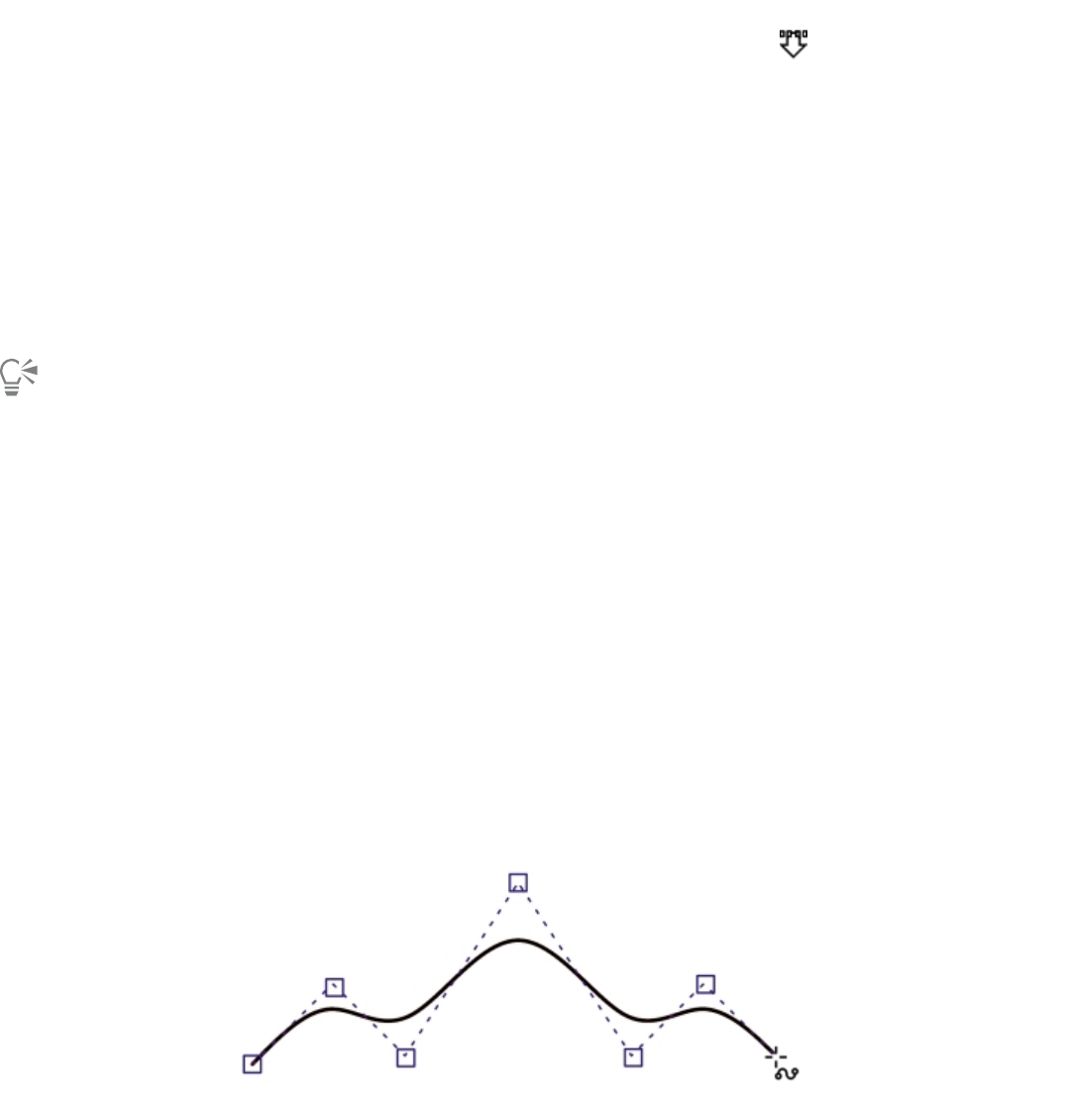
142 | Corel DESIGNER 2017 User Guide
To change the default property values
To Do the following
Set the default property values to be the same as the selected
object
Click the Keep settings button on the property bar.
Set the default property values when nothing is selected Change a property on a property bar, color palette, dialog box, or
docker. For example, in the Property manager docker, click the
Fountain fill button to have all future objects have the fountain
fill you created. You can also click a color on the color palette to
change the default fill color, or right-click a color to change the
default outline color.
Set the default fill color by dragging Drag a color from the color palette, and drop it on a blank area in
the drawing window.
You can also click Tools Save settings as default to save the current settings, or you can access the Options dialog box to set
specific settings. See “Saving and restoring defaults ” on page 721 for more information.
Drawing lines
You can draw many different kinds of lines, including straight lines, curved lines, lines that contain both straight and curved segments, and
straight lines that are perpendicular or tangent to objects. In addition, you can draw straight or curved segments and then add one node at
a time. You can also draw curved segments by specifying the width and height.
By using control points, you can easily shape a curved line and draw B-splines, which are typically smooth, continuous curved lines. B-splines
touch the first and last control points and are pulled by the points in between. However, unlike the nodes on Bézier curves, control points
don’t let you specify the points through which a curve passes when you want to align a curve with other drawing elements.
The control points that touch the line are referred to as “clamped”. Clamped control points function as anchors. The control points that pull
the line but do not touch it are referred to as “floating”. The first and last control points are always clamped on open‑ended B-splines. The
points in between float by default, but you can clamp points if you want to create cusps or straight lines within the B-spline. You can edit
completed B-splines by using the control points.
The path of a B-spline curve is determined by the control points you set.
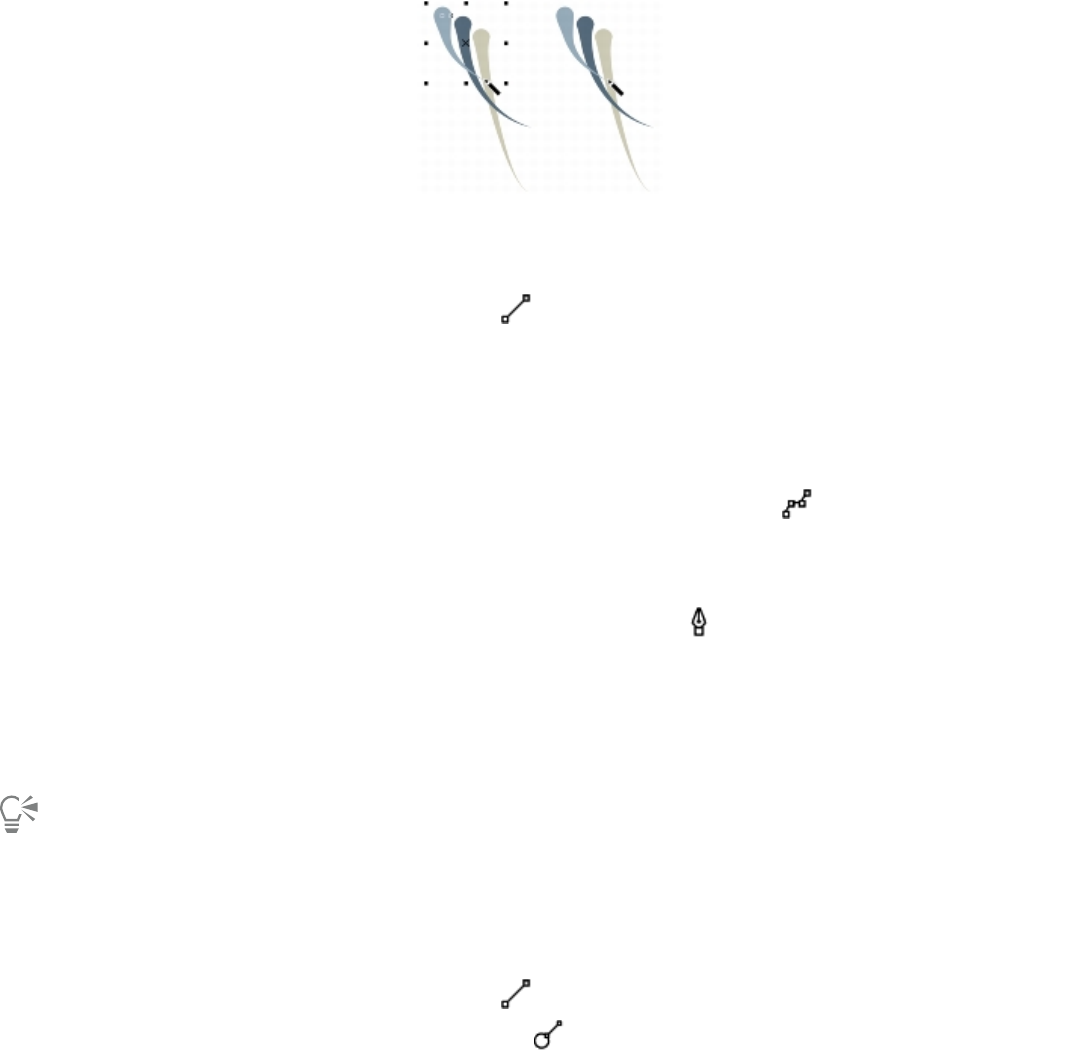
Working with lines, outlines, and brushstrokes | 143
Some lines have nodes and control points that you can manipulate to shape the lines as you draw. For information about node types, see
“Using node types” on page 202.
CorelDESIGNER provides preset lines that let you create thick strokes in a variety of shapes. After you draw a preset line, you can apply a fill
to it. For information about applying fills, see “Filling objects” on page 339.
When drawing lines using the curve tools, you can hide the bounding box that displays around the lines once they are drawn. The curve
tools include: the Linear Pattern tools, the Freehand tool, the 2-point line tool, the Bézier curve tool, the Pen tool, the Multi-point line
tool, the B-spline tool, and the 3-point curve tool.
You can hide the bounding box to enhance the fluidity of drawing lines in quick succession.
To draw a straight line
1Click the Curve tools button, and click the 2-point line tool .
2Point to where you want to start the line, and drag to draw the line.
As you drag, the length and angle of the segment appear in the status bar.
You can also
Draw a line by using the Multi-point line tool Click the Multi-point line tool . Click where you want to start
the line, and click where you want to end the first line segment.
Click to add additional segments. Double-click to end the line.
Draw a line by using the Pen tool Click the Pen tool . Click where you want to start the line
segment, and click where you want to end the first line segment.
Click to add additional segments. Double-click to end the line.
Add a line segment to a selected line With the 2-point line tool, point to the end node of a selected line,
and drag to draw the line.
To reposition a line while drawing, hold down both the left and right mouse buttons, and drag the line to a new position. This
feature is available for the following curve tools: Freehand, Multi-point line, and 2-point.
You can use snapping to specify the start points and endpoints of lines. For information, see “Working with precision” on page 113.
To draw a perpendicular line
1Click the Curve tools button, and click the 2-point line tool .
2On the property bar, click the Perpendicular 2-point line button .
3Click the edge of an object, and drag to where you want the line to end.
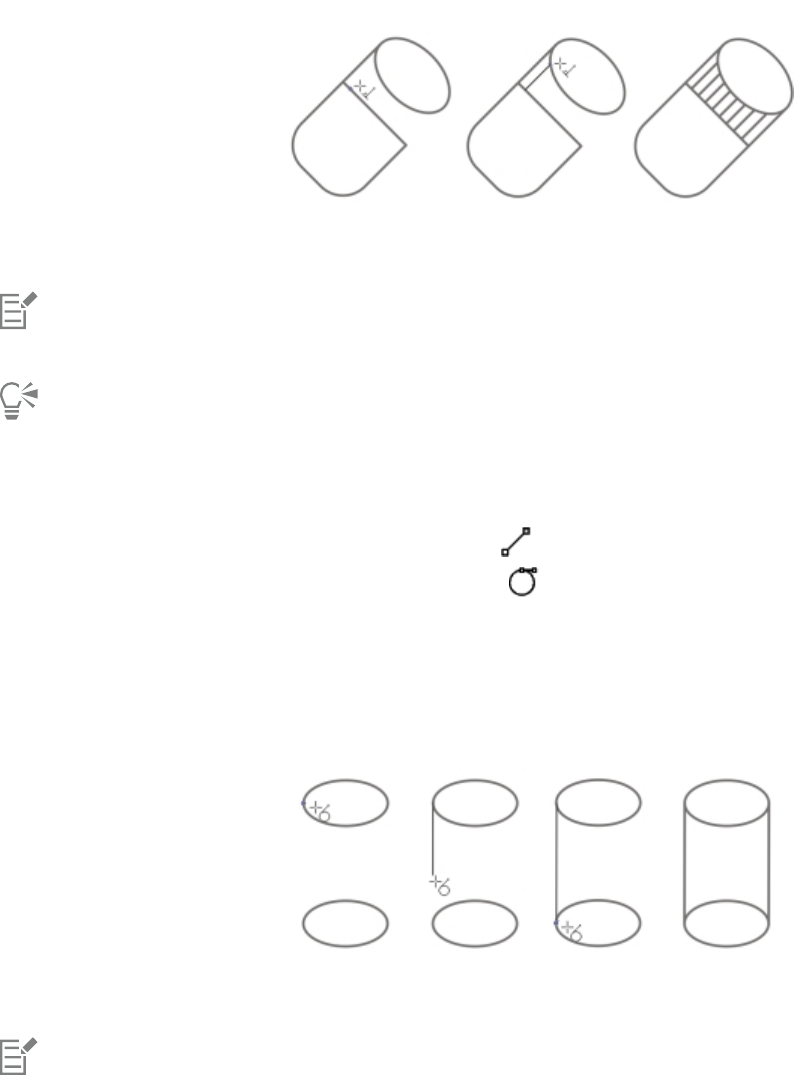
144 | Corel DESIGNER 2017 User Guide
If you want to draw a line that is perpendicular to two objects, drag to the edge of the second object, and release the mouse button
when the perpendicular snap point appears.
To extend the line beyond the second object, hold down Ctrl when the perpendicular snap point appears, and drag to where you want
the line to end.
Drawing a perpendicular line
This procedure cannot be used for drawing a line that is perpendicular to the baseline of a text object.
You can also drag from an existing curve to draw a perpendicular line.
To draw a tangent line
1Click the Curve tools button, and click the 2-point line tool .
2On the property bar, click the Tangential 2-point line button .
3Click the edge of a curved segment in an object, and drag to where you want the tangent line to end.
If you want to draw a line that is tangent to two objects, drag to the edge of the second object, and release the mouse button when the
tangent snap point appears. When the quadrant snap point coincides with tangent snap point, the quadrant snap point appears.
To extend the line beyond the second object, hold down Ctrl when the tangent snap point appears, and drag to where you want the line
to end.
Drawing tangent lines
The Tangential 2-point line mode can be used for drawing the sides of the cylinder.

Working with lines, outlines, and brushstrokes | 145
To draw a curved line
1Click the Curve tools button, and click the Freehand tool .
2Point to where you want to start the curve, and drag to draw the line.
You can also
Draw a curved line by using the Multi-point line tool Click the Multi-point line tool . Point to where you want to
start the curve, and drag across the drawing page. Double-click to
finish the curve.
Draw a curved line by using the Bézier curve tool Click the Bézier curve tool . Click where you want to place the
first node, and drag the control point in the direction you want the
curve to bend. Release the mouse button. Point to where you want
to place the next node, and drag the control point to create the
curve you want. Double-click to finish the curve. The length of the
line appears in the status bar as you drag.
Draw a curved line by using the Pen tool Click the Pen tool . Click where you want to place the first
node, and drag the control handle to where you want to place the
next node. Release the mouse button, and drag the control handle
to create the curve you want. Double-click to finish the curve.
You can erase a portion of a freehand curve by holding down Shift and dragging backward over the line before releasing the mouse
button.
To reposition a line while drawing, hold down both the left and right mouse buttons, and drag the line to a new position. This
feature is available for the following curve tools: Freehand, Multi-point line, and 2-point.
You can close an open curve object by clicking Object Join curves. The distance between the endpoints of the open curve should
not exceed the Gap tolerance value in the Join curves docker.
To draw a curved line by specifying width and height
1Click the Curve tools button, and click the 3-point curve tool .
2Click where you want to start the curve, and drag to where you want the curve to end.
The start and end positions appear in the status bar.
3Release the mouse button, and click where you want the apex of the curve to be.
As you position the apex, the length of the segment appears in the status bar.
To reposition a curved line while drawing, hold down both the left and right mouse buttons, and drag the line to a new position.
To draw a B-spline
1Click the Curve tools button, and click the B-spline tool .

146 | Corel DESIGNER 2017 User Guide
2Click where you want to start the line.
3Click to set as many control points as you need to shape your line.
Control points float by default, but you can clamp control points to the line by pressing V while clicking.
4Double-click to finish the line.
Pressing Esc cancels the line instead of finishing it.
You can also
Reshape the line by using control points Select the line using the Shape tool , and reposition the
control points to reshape the line.
Float a control point Select the line using the Shape tool , click a clamped control
point, and click the Float control point button on the
property bar.
Clamp a control point Select the line using the Shape tool , click a floating control
point, and click the Clamp control point button on the
property bar.
Add a control point Select the line using the Shape tool , and double-click along a
control line.
Delete a control point Select the line using the Shape tool , and double-click the
control point that you want to delete.
Select multiple control points Select the line using the Shape tool , and hold down Shift
while you click the control points that you want to select.
If you add to a B-spline by selecting the first or last control point, the clamped control point automatically changes to a floating
control point as you draw the new portion of the line.
You can change whether a control point is floating or clamped by holding down V and clicking a control point with the Shape tool.
You can also add control points while you draw a B-spline by pressing Spacebar instead of clicking.
By choosing Object Convert to curves, you can convert a B-spline line to curves and then reshape it by using nodes. After a line
has been converted, you can no longer edit it by using B-spline control points.
To draw a preset line
1Click the Linear pattern tools button, and click the Linear pattern preset tool .
2Choose a preset line shape from the Preset stroke list box.

Working with lines, outlines, and brushstrokes | 147
3Drag until the line is the shape you want.
If you want to adjust the line width, type a value in the Stroke width box on the property bar.
To hide the bounding box when using curve or linear pattern tools
1In the toolbox, click one of the following tools:
•Freehand
•2-point line
•Bézier curve
•Pen
•B-spline
•Multi-point line
•3-point curve
• a linear pattern tool
2Click the Bounding box button on the property bar.
When you hide the bounding box while working with one curve tool, the bounding box remains hidden for all curve tools. For
example, if you hide the bounding box when using the Freehand tool, it remains hidden when you switch to the Bézier curve tool.
You can also hide the bounding box when drawing with the curve tools by clicking Tools Options. In the Workspace list of
categories, click Display, and enable the Hide bounding box for curve tools check box.
Parallel drawing
To speed up the creation of all kinds of technical graphics, from wiring diagrams to architectural designs, CorelDESIGNER has added
the Parallel Drawing mode. It allows you to simultaneously draw multiple parallel curves while controlling the distance between them. In
addition, you can set the distance between the original line and the parallel line by specifying a value or dragging in the document.
CorelDESIGNER lets you create single or multiple parallel lines and preview them as you draw. You can also add parallel lines to an existing
line.
From left to right: Parallel drawing with the 2-point line tool, 3-point curve tool, and Pen tool
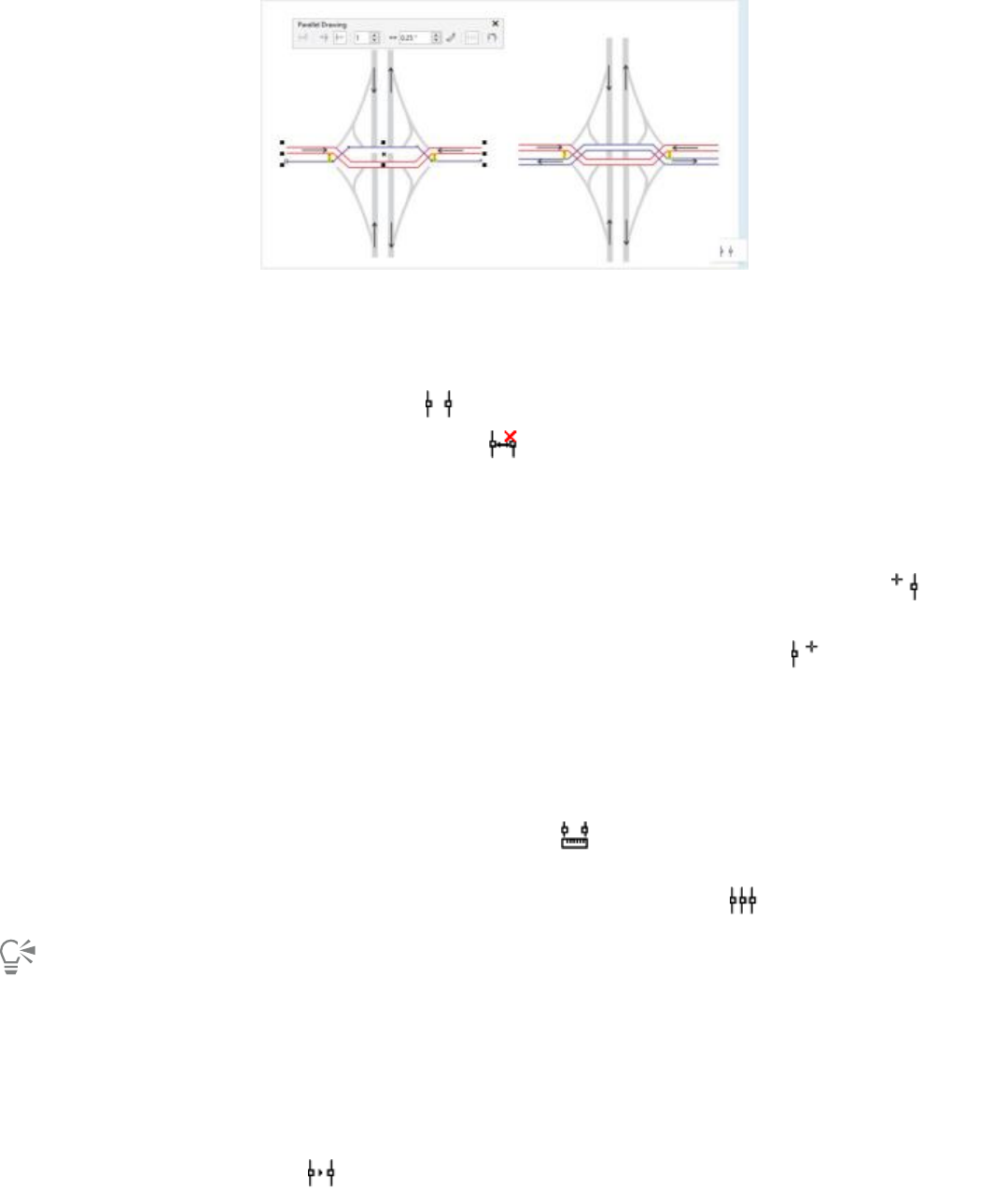
148 | Corel DESIGNER 2017 User Guide
You can draw parallel curves simultaneously.
To draw parallel lines
1Click the Curve tools button, and click a curve tool.
2On the property bar, click the Parallel Drawing button .
3On the Parallel Drawing toolbar, click the Parallel lines button .
4Draw a line.
You can also
Add a parallel line to the left of the original line On the toolbar, click the Parallel lines on left button .
Add a parallel line to the right of the original line Click the Parallel lines on right button .
Specify the number of parallel lines to be added Type a value in the Number of lines box.
Specify the distance between the original line and the parallel line Type a value in the Distance box.
You can also set the distance by clicking the Set distance interactively
button , and dragging in the drawing window.
Preview a parallel line while drawing Click the Preview lines button .
You can also display the Parallel Drawing toolbar by clicking View Toolbars Parallel Drawing.
To add a parallel line to an existing line
1Using the Pick tool, click a line.
2On the property bar, click the Parallel Drawing button.
3On the Parallel Drawing toolbar, specify the settings you want.
4Click the Create from existing button .
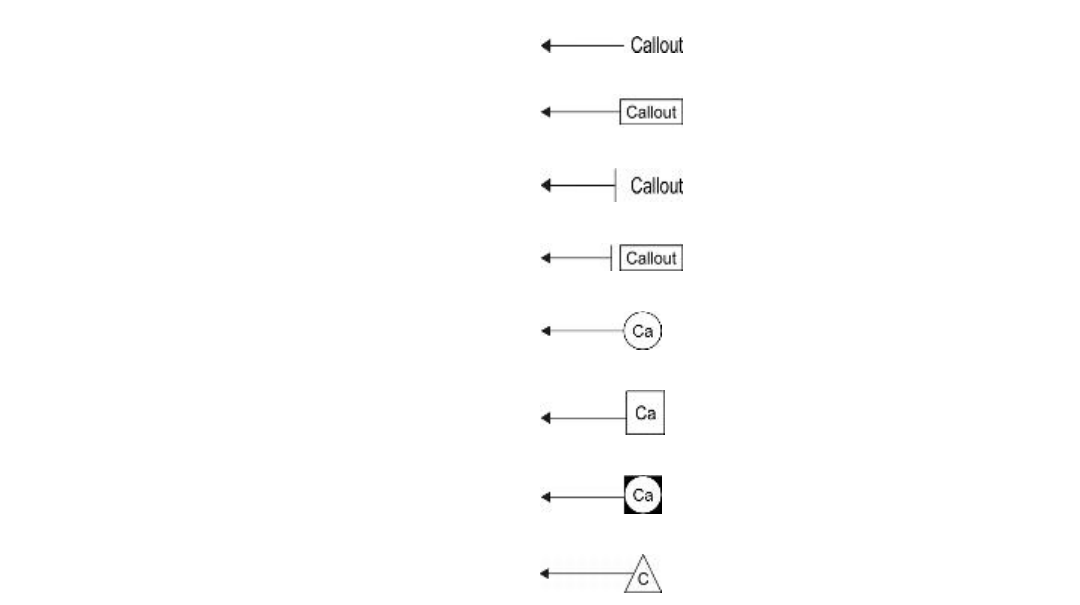
Working with lines, outlines, and brushstrokes | 149
Closing multiple line segments
The Object Join curves command lets you create a closed object from line segments by selecting which lines you want to connect and the
shape of the connecting line.
You can connect lines by using the closest nodes between lines. The connecting line can be either straight or curved. You can also connect
lines by using their start nodes and end nodes. The end node of the first selected line connects directly with the start node of the closest
selected line. The connected lines will have the properties of the first line selected. For more information about closing multiple line
segments, see “To join curves” on page 200.
Drawing callouts
Callouts are lines with text that point to and identify objects in a drawing. You can choose from a variety of line ends, including arrowheads
and other styles. Callouts can have one, two, or three line segments, or “legs,” between the line end and the text.
You can use different shapes for the callout text within a drawing.
Callout shape Example
None
Box
Line (side bar)
Box and line
Circle
Square
Circle and square
Triangle
You can enhance callouts in several ways. For instance, you can change the line width and color, and you can adjust the gap between the
line and the text.
The default option for callout text lets you type text after drawing the callout. You can also insert text from the Clipboard or from object
properties, or you can add a value and increase it in increments as you add more callouts. For more information about object properties, see
“Working with object data” on page 307.
You can link a callout to its source object by snapping the callout arrowhead to a snap point. Linked callouts, also known as “sticky callouts,”
are attached to the source objects similarly to connector lines. When you move the source object, the linked callout moves with it. You can
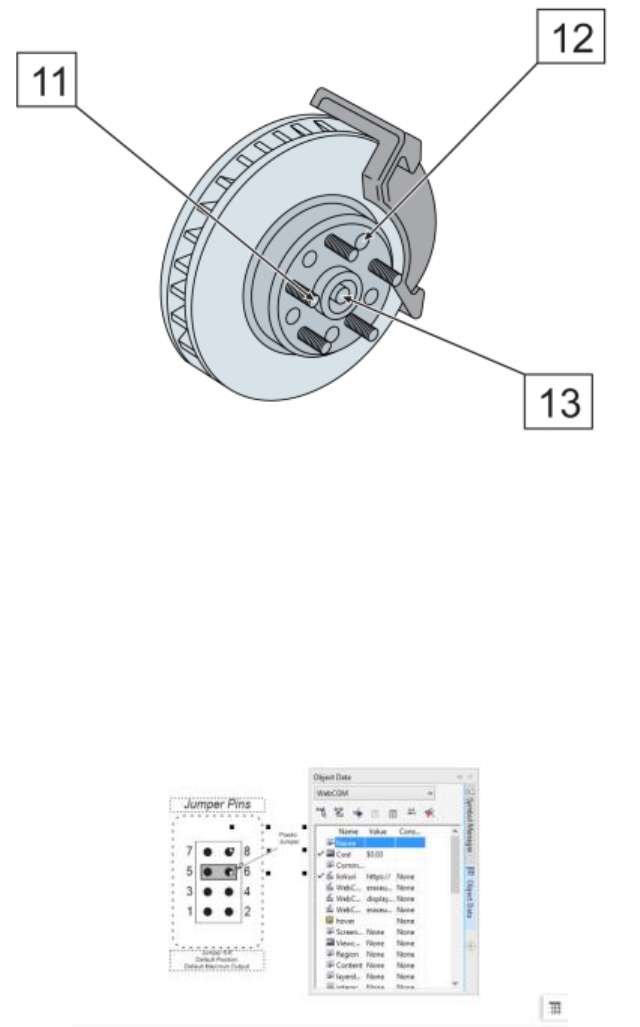
150 | Corel DESIGNER 2017 User Guide
specify how linked callouts move with the object. One option is to adjust the length of the leader line, leaving the callout text in place. The
other option is to move both the leader line and callout text, preserving the appearance of the callout group. You can break the link between
a callout and its source object at any time.
You can also add a halo behind the callout. A halo is a mask behind the leader line and text that makes the callout easier to see when it is on
top of another object. Usually, the halo is the same color as the page, although you can choose any color you like.
White halos are applied to the callouts to make them stand out against the underlying objects.
Callouts are added as linked groups. You can break the callout apart if necessary.
If your drawings are used in interactive electronic technical manuals (IETMs), you can make those files even more information-rich.
CorelDESIGNER lets you manually add hotspots to a callout shape when outputting a drawing to a CGM v4 file, making them responsive
when clicked or hovered over. Working in the Object data manager docker, you can link a callout shape to a web page, jump to a section
in another file specific to the callout shape, or display a screentip. For example, you can link a part in a design to an online parts catalog,
allowing for instant access to specific, up-to-date information, such as price and availability.
You can change the default properties of callouts, such as callout style, callout gap, and halo justification, from the Object styles docker
(Window Object styles). For more information, see “To edit default object properties” on page 516.
You can add hotspots to callout shapes.
To draw a callout
1Click the Callout tools button, and click one of the following tools:
Working with lines, outlines, and brushstrokes | 151
•1-leg callout
•2-leg callout
•3-leg callout
2Click where you want to place the arrowhead and drag to where you want to end the first line segment.
3Click to end each line segment.
4Add the callout text.
You can also
Change the callout end Select the callout line, and choose a style from the Start
arrowhead list box on the property bar.
Change the line style Choose a style from the Line style list box on the property bar.
Change the distance between the leader line and the callout text Type a value in the Gap box on the property bar.
To choose an option for callout text
1Click a callout tool, and click the Text source button on the property bar.
2Enable one of the following options:
• Interactive — lets you type the text at the end of the callout line
• Clipboard — pastes text from the Clipboard to the callout
• Object property — adds an object property that you choose, such as the object name, to the callout. For more information, see
“To draw a callout that shows object properties” on page 152.
• Increment — adds a numeric value to the callout. The value is increased in increments as you continue to add callouts, and you
can specify the start value and the increment amount. The increment values that you set apply only to the active drawing.
If properties are associated with an object, you can show them in callouts.
To draw a linked callout
1Click the Callout tools button, and click one of the following tools:
•1-leg callout
•2-leg callout
152 | Corel DESIGNER 2017 User Guide
•3-leg callout
2Click the Link callout button on the property bar, and choose one of the following options:
•Change leader line — adjusts the length of the leader line, leaving the callout text in place
•Move linked callout — moves both the leader line and callout text with the object
3Point to where you want to place the arrowhead on the object, click when a gravity source (snap point) appears, and drag to where you
want to end the first line segment.
4Click to end each line segment.
5Add the callout text.
Links between callouts and objects are not maintained when a drawing is saved to CorelDESIGNER X5 or earlier version.
To break the link between the callout and the object, click the Link callout button on the property bar, and choose Break
callout link. You can also right-click the callout and choose Break callout link from the context menu.
To draw a callout that shows object properties
1Click a callout tool in the toolbox, and click the Text source button on the property bar.
2Enable the Object property option.
3Using a callout tool, draw a callout.
4In the Callout data dialog box, enable any of the following check boxes:
•Include field name — includes the field name (such as name or cost) in the callout text
•Keep updated — automatically updates the callout text when the object data is modified. This option is available only for linked
callouts.
•Apply as default — sets the current settings in the dialog box as the defaults for new callouts. The dialog box will not be shown when
you draw other callouts that include object data.
You can change how object data is displayed in a callout by clicking the Callout object data button on the property bar and
modifying the settings you want.
To add a halo to a callout
1Using the Pick tool , select a callout.
2Click the Halo properties button on the property bar.
3Enable the Halo options check box.
4Adjust any of the following settings:
•Width — lets you specify the width of the halo on each side of the line
•Color — lets you access a color palette to change the color of the halo, or use the color of the page
•Opacity — lets you control the transparency of the halo and the visibility of objects underneath the halo by specifying a percentage
value (with values less than 100 allowing visibility)
•Justification — lets you specify the position of the halo in relation to the callout line

Working with lines, outlines, and brushstrokes | 153
To remove a halo from a callout, select the callout, click the Halo properties button, and disable the Halo options check box.
To break a callout apart
• Right-click the callout, and click Break callout apart.
To add a hotspot to a callout
1Using the Pick tool , select a callout.
2Click Window Object data manager.
3Choose WebCGM from the list box.
4Perform one or more tasks from the following table.
To Do the following
Add a link to a website Enable the check box to the left of the Linkuri data field, and add
type a URL in the DefaultValue column. For more information, see
“linkuri” on page 311.
Add a screentip Enable the check box to the left of the Screentip data field, and
add type the screentip text in the DefaultValue column. For more
information, see “screentip” on page 314.
Display the X and Y coordinates of the callout Enable the check box to the left of the Region data field. For more
information, see “region” on page 314.
For more information about applying CGM data to objects, see “Applying CGM data to objects ” on page 310.
Drawing connector lines
You can draw connector lines, also known as “flow lines,” in flowcharts and wiring diagrams to link shapes and demonstrate how different
elements in the drawing are connected. After you attach a connector line to an object, it remains attached to the object even when
you move it. You can also leave an end of a connector line unattached to any object, and you can add arrowheads to connector lines to
demonstrate the flow direction. For information about drawing flowchart shapes, see “Drawing predefined shapes” on page 189.
There are several types of connector lines that you can draw. In addition to drawing straight lines, you can draw right-angle connector lines
and automatically create right angles as you draw. You can choose between the Right-angle connector tool, which draws a right angle with
a sharp corner, and the Rounded right-angle connector tool, which draws a rounded corner. You can also draw curved connector lines by
using either the B-spline connector tool or the Bézier curve connector tool.
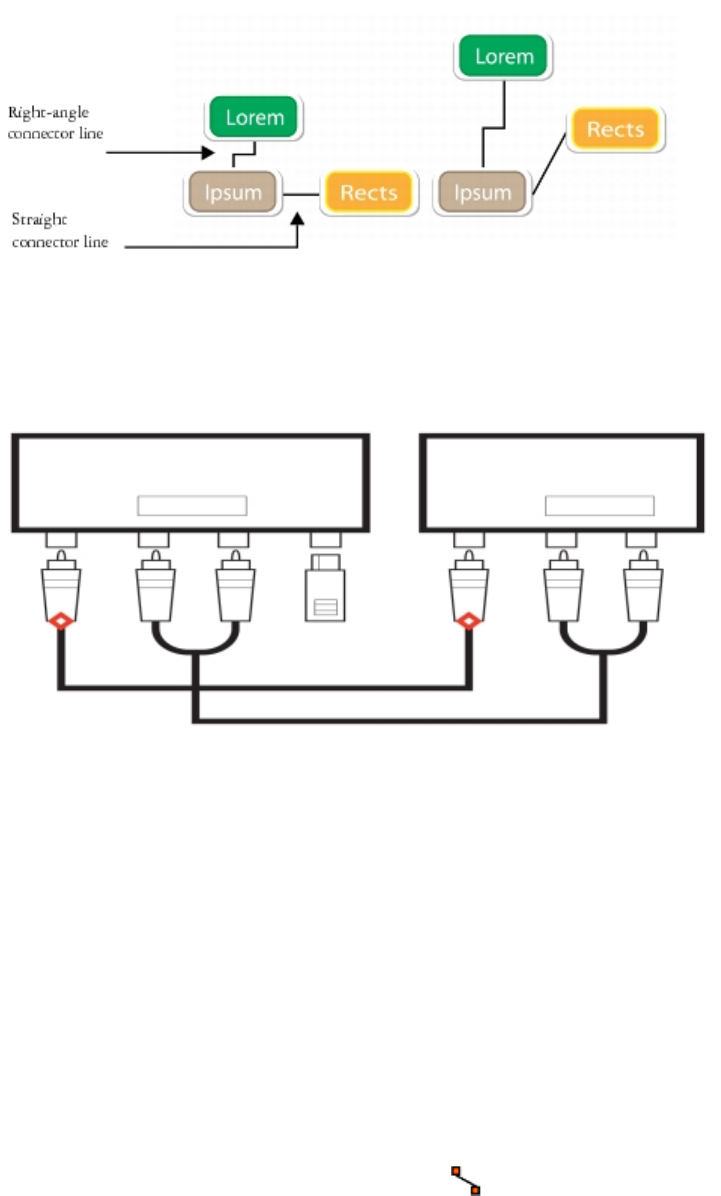
154 | Corel DESIGNER 2017 User Guide
Examples of connector lines
Connector lines are attached to objects by anchor points. By default, each object has four anchor points, located on the top, bottom, left,
and right sides of the object. Each anchor point appears as a small red diamond on the object. You can move an anchor point along the
edge of an object, or you can move an anchor point to any area inside or outside the object. You can also add an anchor point to an object.
Anchor points appear as small red diamonds.
When you move an object in a drawing, the connector line will snap to the nearest available anchor point. When you add an anchor point
to an object, it is not available as a snapping point for connector lines. However, you can set a property on the anchor point to make it
available as a snapping point.
You can set an object to repel right-angle, round right-angle, and B-spline connector lines. If the object is in a connector line route, the
connector line flows around it. If there is no route for the connector line to follow without intersecting the object, it flows through the
object. Straight-line and Bézier-curve connector lines cannot flow around objects.
You can add halos to connector lines. A halo is a mask behind the connector line that makes the line easier to see when it is on top of
another object. Usually, the halo is the same color as the page, although you can choose any color you like.
You can also convert connector lines to curves. When you convert a connector line to a curve, any attached text label changes to an artistic
text object.
To draw a straight connector line
1Click the Connector tools button, and click the Straight-line connector tool .
2Click where you want to start the line and drag to where you want to end the line.
Working with lines, outlines, and brushstrokes | 155
You can also
Draw a right-angle connector line Click the Right-angle connector tool or the Right-angle
round connector tool . Click where you want to start the line
and drag to where you want to end the line.
Draw a curved connector line Click the B-spline connector tool or the Bézier curve
connector tool . Click where you want to start the line and
drag to where you want to end the line. To change the shape of
the line, reposition the control points as needed.
After you snap a connector line to an anchor point on an object, the connector line always snaps to that anchor point, even if you
move the object around in the drawing. To ensure that the line connects to the closest available anchor point when you move the
object, release the mouse button to end the connector line inside the object when drawing the line.
To change the direction of a connector line
1Click the Connector tools button, and click the Edit anchor tool .
2Click the anchor point from which you want to change the connector line direction.
3On the property bar, click the Adjust anchor direction button .
4In the Anchor direction box, type one of the following values:
•0 — directs the connector line to the right
•90 — directs the connector line straight up
•180 — directs the connector line to the left
•270 — directs the connector line straight down
You can change the direction only of right-angle and Bézier-curve connector lines.
To add an anchor point to an object
1Click the Connector tools button, and click the Edit anchor tool .
2Double-click anywhere on the object to add an anchor point.
By default, anchor points that you add to an object are not available as snap points for a connector line when the object is moved
around in the drawing. To make an anchor point available as a snap point, select it with the Edit anchor tool, and click the Auto
anchor button on the property bar.
By default, the position of the anchor point is calculated relative to the page. You can set the anchor point position relative to the
object that it is attached to, which is useful if you want to set anchor points in the same relative position in multiple objects. To set
the anchor point position relative to the object, select the anchor point with the Edit anchor tool . On the property bar, click the
Relative to object button , and type the coordinates in the Anchor position box.
156 | Corel DESIGNER 2017 User Guide
To move or delete an anchor point
To Do the following
Move the anchor point anywhere along the perimeter of an object Drag the anchor point to another point on the perimeter.
Move the anchor point to the middle of an object Drag the anchor point to any point inside the object.
Delete an anchor point On the property bar, click the Delete anchor button .
To set a connector line to flow around objects
1Using the Pick tool , select the object to which the connector line is attached.
2Click Window Property manager.
3In the Property manager docker, click the Summary tab.
4Enable the Wrap connector line check box.
To convert a connector line to a curve
1Select the connector line and the objects it is attached to.
2Right-click, and click Convert to curves.
You can also convert a curve or a shape, such as a rectangle or an ellipse, to a connector line by clicking Object Convert to
connector.
To add a text label to a connector line
1Click the Connector tools button, and click a connector tool.
2Double-click the connector line.
A text cursor appears.
3Type the text.
As you move the connector line, the text label remains attached to it.
To add a halo to a connector line
1Using the Pick tool , select the connector line.
2On the property bar, click the Halo properties button .
3Enable the Halo options check box.
4Adjust any of the following settings:
•Width — lets you specify the width of the halo on each side of the line
•Color — lets you access a color palette to change the color of the halo, or use the color of the page
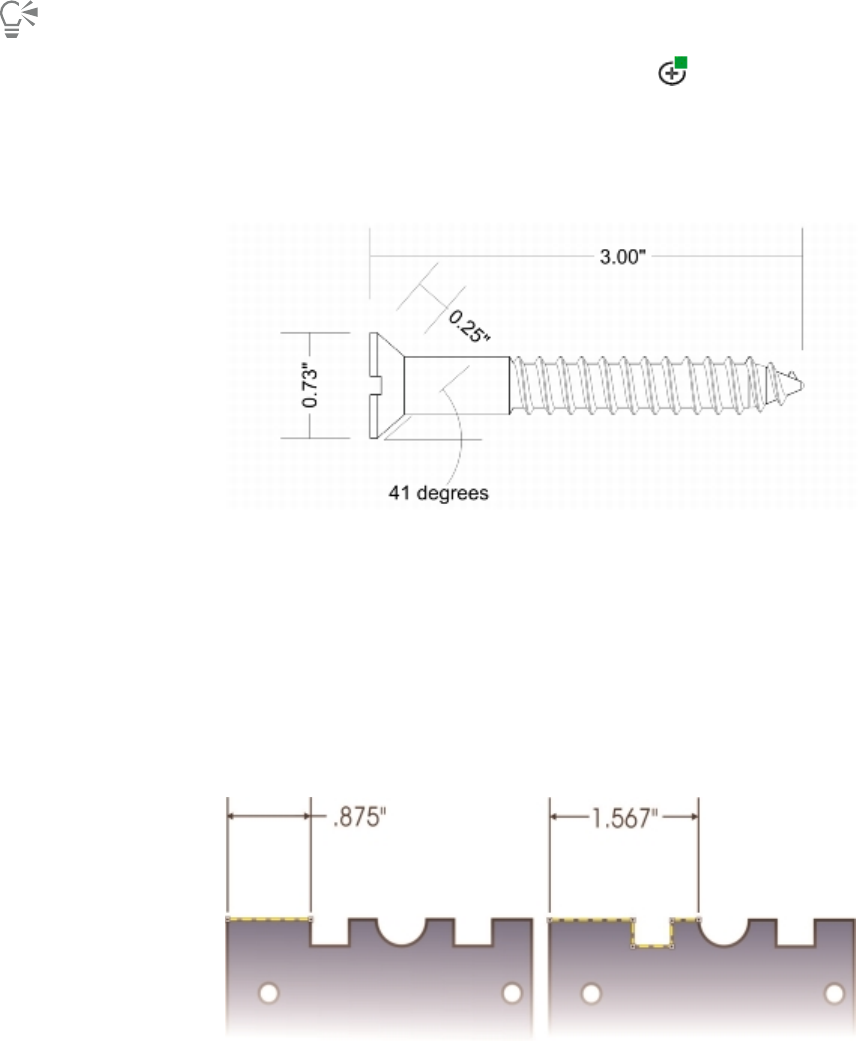
Working with lines, outlines, and brushstrokes | 157
•Opacity — lets you control the transparency of the halo and the visibility of objects underneath the halo by specifying a percentage
value (with values less than 100 allowing visibility)
To remove a halo from a line, select the line, click the Halo properties button , and disable the Halo options check box.
Drawing dimension lines
You can draw dimension lines to indicate the measurements of objects in a drawing, such as length, width, height, depth, and distance.
Dimension lines indicate the measurements of objects in a drawing.
Types of dimension lines
You can add several types of dimension lines:
• Vertical or horizontal dimension lines — measure the vertical (y-axis) or horizontal (x-axis) distance between any two nodes.
• Parallel dimension lines — measure the actual distance between two nodes.
• Angular dimension lines — measure angles.
• Segment dimension lines — measure the linear distance between the end nodes of a segment, or the linear distance between the two
most distant nodes in multiple segments. Segment dimension lines can also measure selected successive segments.
• Radial or diametric dimension lines — measure the radius or diameter of a circle or a partial circle.
You can measure the distance between the end nodes of a segment (left)
or between the two most distant nodes in multiple segments (right).
Dimension lines cannot be used for measuring the length of curved lines, but you can easily view the length of a curve in the Property
manager docker. For more information, see “To view curve properties” on page 196.
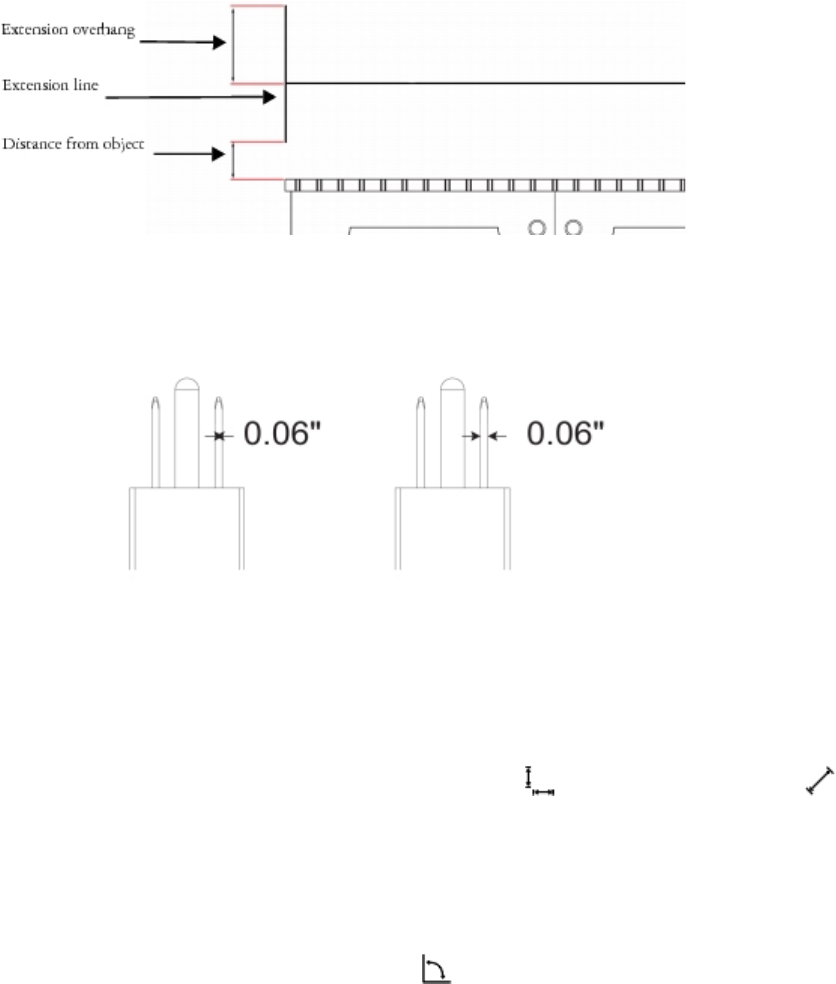
158 | Corel DESIGNER 2017 User Guide
Editing dimension lines
If you are not satisfied with the look and position of the dimension lines you added, you can edit them. You can set how dimension text and
lines are displayed. For example, you can choose the unit of measurement, specify the position and font of the dimension units, and add
a prefix or suffix to dimension text. You can also customize the extension lines on which dimension lines rest. You can specify the distance
between the extension lines and the object that is measured, and the length of the extension overhang. Extension overhang is the portion of
the extension line that falls beyond the dimension arrows.
By default, dimension text is dynamic. If you resize the object to which a dimension line is attached, the dimension text is updated
automatically to display the new size. However, you can make the dimension text static, if necessary.
When a dimension line is so small that its arrowheads overlap, the application automatically places them outside the leader lines.
Arrowheads are reversed when a dimension line is too small.
You can break the link between a dimension line and the object it is attached to. This feature can be useful if you want to manipulate the
dimension line independently of the object.
To draw a vertical, horizontal, or parallel dimension line
1Click the Dimension tools button, and click the Horizontal or vertical dimension tool or the Parallel dimension tool .
2Click to place the starting point, and drag to where you want to place the endpoint of the dimension line.
3Move the pointer to position the dimension line, and click to place the dimension text.
By default, the dimension text is centered on the dimension line.
To draw an angular dimension line
1Click the Dimension tools button, and click the Angular dimension tool .
2Click where you want the two lines that measure the angle to intersect, and drag to where you want the first line to end.
3Click where you want the second line to end.
4Click where you want the angle label to appear.
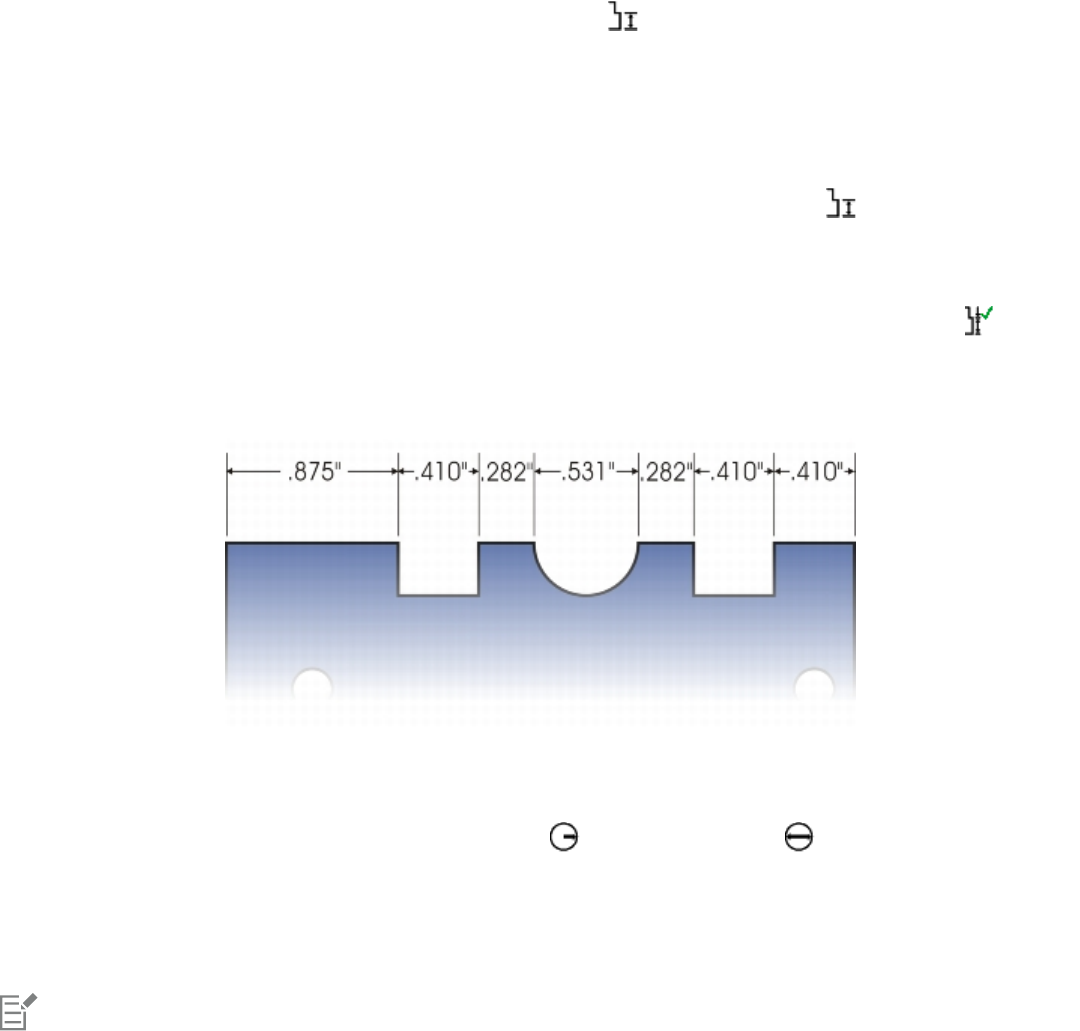
Working with lines, outlines, and brushstrokes | 159
To draw a segment dimension line
1Click the Dimension tools button, and click the Segment dimension tool .
2Click the segment that you want to measure.
3Move the pointer to where you want to position the dimension line, and click where you want to place the dimension text.
You can also
Measure the distance between the two most distant nodes in
multiple segments
Using the Segment dimension tool , marquee select the
segments, move the pointer to position the dimension line, and
click where you want to place the dimension text.
Measure successive segments automatically Click the Automatic successive dimensioning button on the
property bar, and marquee select the segments that you want to
measure. Move the pointer to position the dimension line, and click
where you want to place the dimension text.
Segment dimension lines can be applied automatically to selected successive segments.
To draw a radial or diametric dimension line
1Click the Dimension tools button, and click the Radial dimension or Diametric dimension tool.
2Click a circle or an arc, and drag to where you want the line to change direction.
You can hold down the constrain key while dragging to constrain the leader line to the current constrain angle.
3Move the pointer, and then click to place the dimension text.
If you want to add a symbol to the dimension text, choose a symbol from the Dimension symbol list box on the property bar.
If you transform a circle to an ellipse after applying a radial or diametric dimension line, the dimension measurement does not
appear. When you transform the ellipse back to a circle, the correct measurement is displayed.
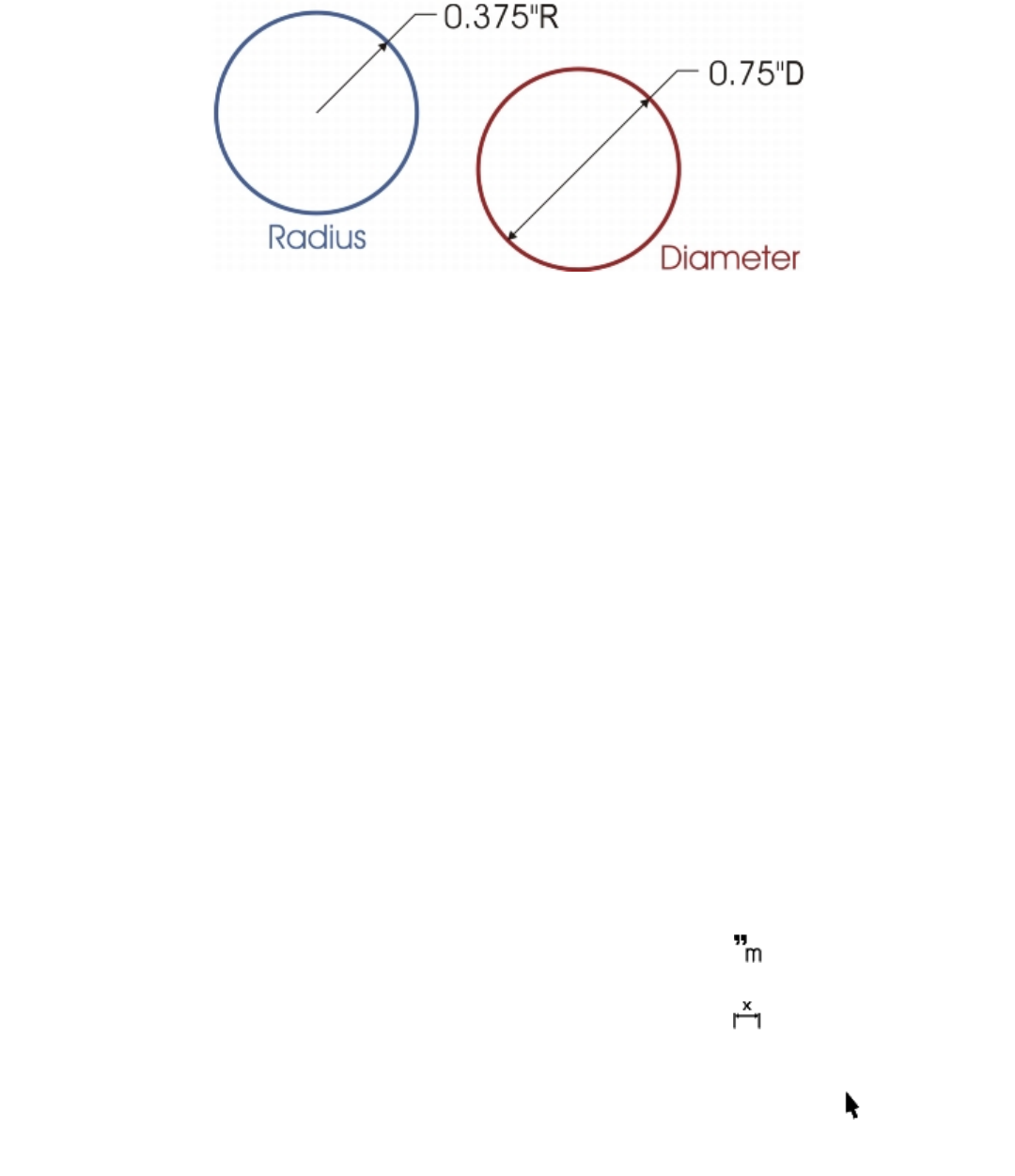
160 | Corel DESIGNER 2017 User Guide
Examples of radial and diametric dimension lines
To edit a dimension line
1Using the Pick tool, select a dimension line.
2Click a topic from the following table for help with accomplishing your task.
To See...
Change how dimension units are displayed “To set the display of dimension units ” on page 160
Change the distance of the extension lines from the object or the
length of the extension overhang
“To customize extension lines ” on page 161
Change the color of dimension lines and other line settings “To specify line and outline settings ” on page 163
To set the display of dimension units
1Select a dimension line.
2On the property bar, choose options from the following list boxes:
•Dimension style — lets you choose fractional, decimal, or standard dimension units
•Dimension precision — lets you choose a level of precision for the measurements
•Dimension units — lets you choose the unit of measurement
You can also
Hide dimension units Click the Display units button .
Specify the position of dimension units Click the Text position button on the property bar, and choose
a text position.
Change the point size and font of dimension units Select the dimension text using the Pick tool . On the property
bar, choose a font style from the Font list box, and type a value in
the Font size box.
Working with lines, outlines, and brushstrokes | 161
You can also
Specify a prefix or suffix for dimension text Type a prefix or suffix in the Prefix or Suffix box on the property
bar.
Hide or show a leading zero with a dimension value Click the Show leading zero button on the property bar.
The leading zero appears in dimension lines by default.
Make dimension text static Click the Dynamic dimensioning button on the property bar.
Most dimension line controls on the property bar become
unavailable. If you change the size of the object to which the line is
attached, the dimension line text is not updated.
To customize extension lines
1Select a dimension line.
2On the property bar, click the Extension line options button .
3To specify the distance between the extension lines and the object, enable the Distance from object check box, and type a value in the
Distance box.
4To specify the length of the extension overhang, enable the Extension overhang check box, and type a value in the Distance box.
To break the link between an object and a dimension line
1Select a dimension line.
2Click Object Break dimension apart.
After you break the link between the object and the dimension line, the dimension text is no longer updated automatically when you
resize the object.
Formatting lines and outlines
Lines are treated the same way as outlines of closed shapes, such as ellipses and polygons. In some programs, outlines are known as strokes
or thick lines.
You can change the appearance of both lines and outlines. For example, you can specify their color, width, style, corner shape, and cap style.
You can also remove a line or outline, and you can create your own line or outline style.
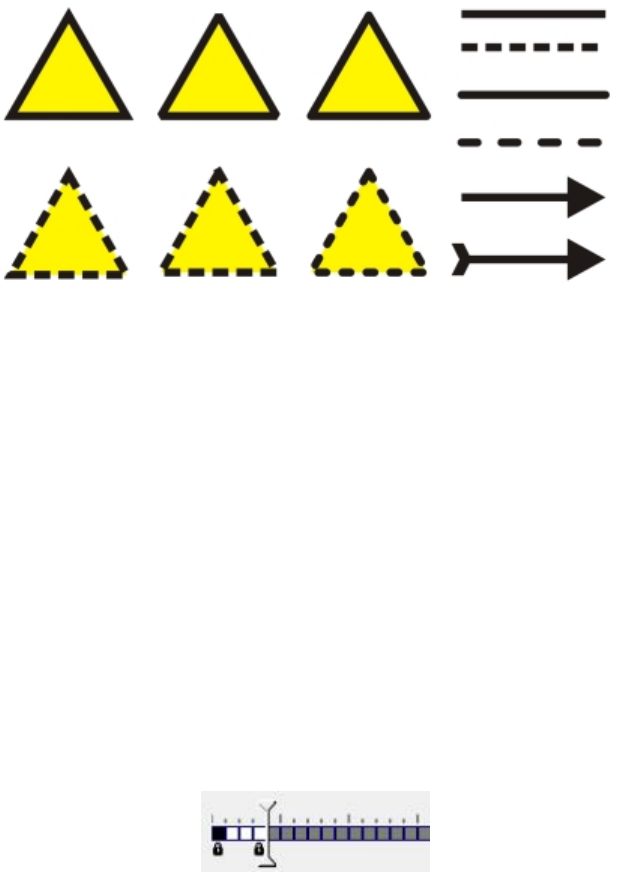
162 | Corel DESIGNER 2017 User Guide
Different corner styles were applied to the upper and lower row of triangles. Different line caps were
applied to the lines in the upper-right corner. Arrowheads were applied to the lines in the lower-right corner.
The program also lets you copy the color of an outline to other objects and convert outlines to objects so that you can fill them. For more
information about filling objects, see “Filling objects” on page 339.
You can choose a corner style to control the corner shape in lines and choose a line cap style to change the appearance of a line’s endpoints.
You can set the miter limit to determine the corner shape in objects containing lines that meet at sharp angles. Corners with angles above
the miter limit are pointed (mitered); corners with angles below the miter limit are beveled (squared off).
In addition, you can specify the position of the outline by placing it outside or inside the object, or centering it so that it overlaps equally the
outside and the inside of an object. The effect of outline position options are more obvious with thick outlines.
Line styles
You can choose from a variety of line styles. Line styles are organized into two categories: standard and enhanced.
Standard line styles consist exclusively of dashes and spaces. The dashes and spaces vary to create different patterns. You can use a preset
pattern or create a custom pattern. Each line style pattern is defined by units. There are fifty units — each of which can be “on” (filled in) or
“off” (blank) to define a pattern that contains a maximum of ten dashes or spaces. You can also set the pattern length. When you increase
or decrease the pattern length, the dashes and spaces appear longer or shorter because you are changing the size of the units to fit the
specified pattern length. The line width is not affected if you change the pattern length.
In the Edit line style dialog box, each box represents a unit that can be filled in to create a dash, or left blank
to create a space. You can move the white slider to the right to increase the number of units in your pattern.
Enhanced line styles consist of shapes, zigzags, or multiple lines to create diverse patterns. You can edit an enhanced line style by changing
the width of the lines or the width of the overall pattern.
When you apply an enhanced line style to a filled object, the fill is contained within the path of the object, not the outline. For example, if
you have an object with a zigzag line style, the fill does not extend into the points of the zigzag.
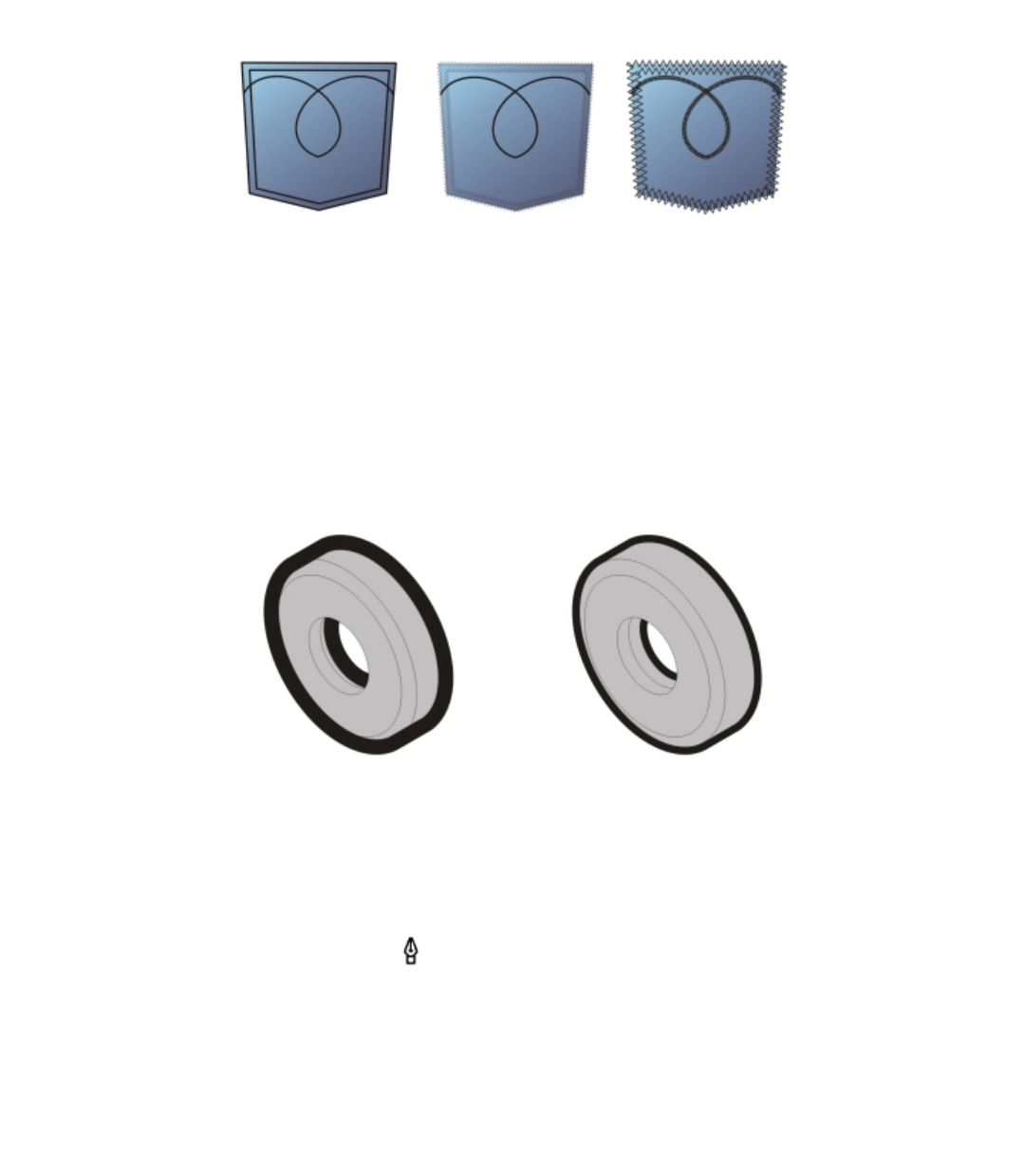
Working with lines, outlines, and brushstrokes | 163
These pocket drawings use a standard line style (left), an enhanced line style with low
pattern-width settings (center), and an enhanced line style with higher pattern-width
settings (right). The fill is always contained within the object’s path, not the object’s outline.
Other settings
The outline created by a standard or enhanced line style can appear in front of or behind a fill. For example, you may want an outline to
appear behind a fill to line up the outline with the outer edge of the fill. You can also link the outline thickness to an object’s size so that the
outline increases when you increase the object’s size and decreases when you decrease the object’s size. In addition, you can set the outline
to print on top of underlying colors, without removing them during printing.
In the drawing on the left, the outline is in front of the fill. Because the outline width is centered on the
object’s path, the outline covers part of the object’s fill. In the drawing on the right, the outline width is the
same, but the outline has been moved behind the fill and therefore lines up with the outer edge of the object.
To specify line and outline settings
1Select an object.
2On the property bar, click the Outline pen button .
3In the Pattern style area of the Outline pen dialog box, enable the Standard or Enhanced option.
4Choose a line style from the Pattern list box.
5Specify the settings you want.
To Do the following
Change the line or outline color In the Outline area, choose a color from the color picker.
164 | Corel DESIGNER 2017 User Guide
To Do the following
Change the line or outline width In the Outline area, type a value in the Width box.
Set the shape of corners Click one of the following buttons:
•Mitered corners — creates pointed corners
•Round corners — creates rounded corners
•Beveled corners — creates squared off corners
Set the miter limit Type a value in the Miter limit box
Set the appearance of endpoints in open paths Click one of the following buttons:
•Square cap — creates square end shapes
•Round cap — creates rounded end shapes
•Extended square cap — creates square end shapes that
extend the length of the line
Specify the outline position Click one of the following buttons:
•Outside outline — places the outline outside the object
•Centered outline — centers the outline along the object
edge
•Inside outline — places the outline inside the object
Change the pattern length of a standard pattern In the Pattern style area, type a value in the Length box.
Change the width of an enhanced pattern In the Pattern style area, type a value in the Width box. The
pattern width value must be higher than the outline width value.
Position the outline beneath the fill Enable the Behind fill check box.
Automatically scale the line or outline if an object is resized Enable the Scale with image check box.
Set the outline to print on top of underlying colors during printing Enable the Overprint outline check box.
If the pattern Width value is too low, the pattern might not appear as expected. To view the pattern on your object, try increasing the
pattern Width value and decreasing the outline Width value.
You can also specify line settings from the property bar or the Outline area of the Property manager docker.
You can also change the color of a line or outline by right-clicking a color swatch on the color palette.
Working with lines, outlines, and brushstrokes | 165
To edit a standard line style
1Select an object.
2On the property bar, click the Outline pen button .
3In the Pattern style area, enable the Standard option.
4Choose a line style from the Pattern list box.
5Click Edit style.
6Follow the instructions in the Edit line style dialog box to edit the pattern.
7Click Replace.
To create a standard line style
1Select an object.
2On the property bar, click the Outline pen button .
3In the Pattern style area, enable the Standard option.
4Click Edit style.
5Follow the instructions in the Edit line style dialog box to create a new pattern.
6Click Add to save your new pattern in the Pattern list box.
To copy an outline to another object
1Using the Pick tool , select the object that has the outline to be copied.
2Right-click the object, and drag to the second object.
A blue outline of the first object follows the pointer to the second object.
3Release the mouse button over the second object, and choose Copy outline here.
For more information about copying object properties, see “Copying object properties, transformations, and effects” on page 248.
To convert an outline to an object
1Select an object.
2Click Object Convert outline to object.
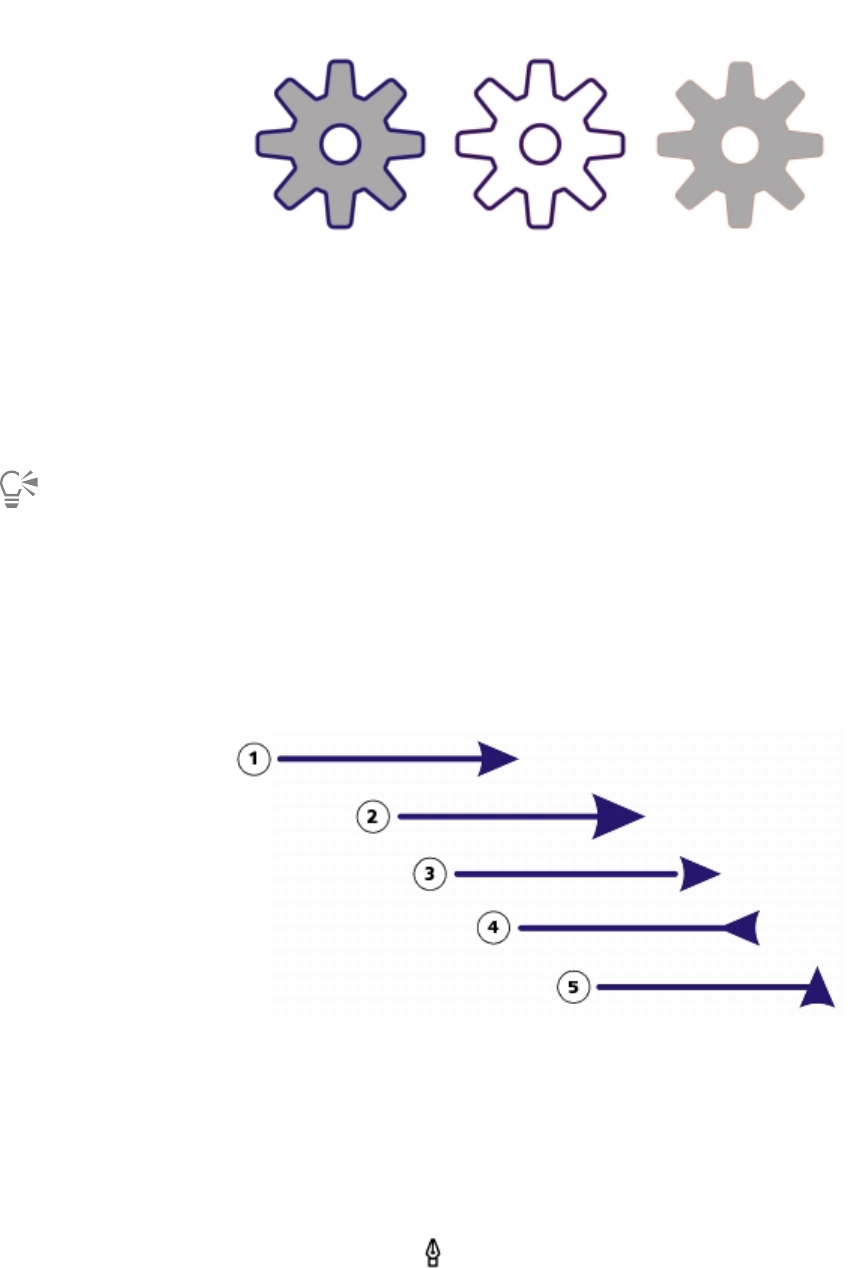
166 | Corel DESIGNER 2017 User Guide
The gear drawing on the left has a gray fill and a blue outline. By converting the outline
to an object, you can separate the new object (center) from the old filled shape (right).
To remove an outline from an object
1Select an object.
2On the property bar, choose None from the Outline width list box.
You can also remove an object’s outline by selecting the object and right-clicking the No color swatch on the color palette.
Adding arrowheads to lines and curves
Arrowheads let you enhance the starting points and endpoints of lines and curves. You can specify the attributes of an arrowhead with
precision. For example, you can define the exact size of an arrowhead as well as offset or rotate the arrowhead by a precise amount. You can
also flip arrowheads vertically and horizontally. You can save your specified attributes as arrowhead presets for later use.
Arrowhead in its original form (1), resized (2), with offset of 60% along
the x-axis (3), flipped horizontally (4), and rotated at 90 degrees (5).
You can edit existing arrowhead presets, and you can create an arrowhead preset based on an existing one. You can also create an
arrowhead preset based on an object such as a curve or a closed shape. When you no longer need an arrowhead preset, you can delete it.
To add an arrowhead
1Select a line or curve.
2On the property bar, click the Outline pen button .
Working with lines, outlines, and brushstrokes | 167
3In the Arrowheads area of the dialog box, open the Start arrowhead or End arrowhead picker, and click a shape.
You can also
Switch arrowheads from one end of a line or curve to another Click Options, and choose Swap.
Remove an arrowhead from a line or curve Click Options, and choose None.
You can also add an arrowhead by using the Start arrowhead or End arrowhead picker on the property bar.
To specify the arrowhead attributes of a line or curve
1Using the Pick tool , select a line or curve that has an arrowhead.
2On the property bar, click the Outline pen button .
If you want the start and end arrowheads to have the same size, offset, rotation angle, and orientation, enable the Share attributes
check box in the Arrowheads area of the Outline pen dialog box.
3In the Arrowheads area of the Outline pen dialog box, click Options below the Start arrowhead or End arrowhead picker, and click
Attributes.
4In the Arrowhead attributes dialog box, perform any of the tasks in the following table.
To Do the following
Specify the size of an arrowhead In the Size area, type a value in the Length or Width box.
If you want to create a nonproportional arrowhead, disable the
Proportional check box.
Offset an arrowhead In the Offset area, type values in the X and Y boxes.
Mirror an arrowhead In the Mirror area, enable the Horizontally or Vertically check box.
Rotate an arrowhead Specify an angle in the Rotation box.
Save custom arrowhead attributes as an arrowhead preset Enable the Save as arrowhead preset check box.
You can access the new arrowhead preset from the Start
arrowhead and End arrowhead pickers on the property bar.
Specifying the attributes of an arrowhead does not change the arrowhead preset that was applied.
To edit an arrowhead preset
1Using the Pick tool , select an object that has an arrowhead.
2On the property bar, click the Outline pen button .
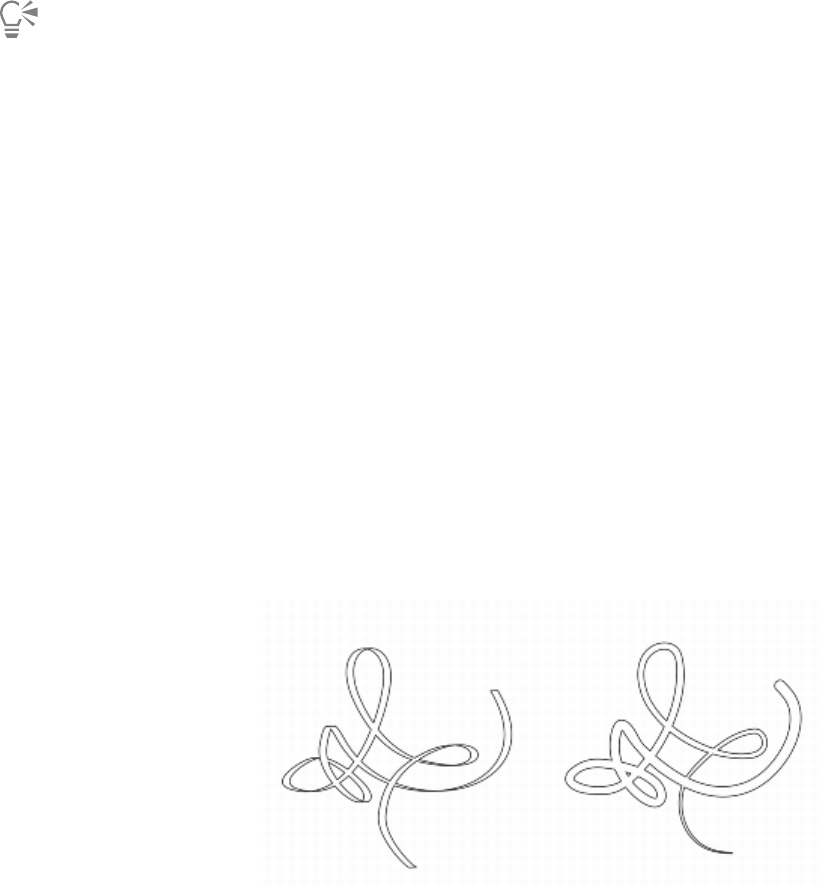
168 | Corel DESIGNER 2017 User Guide
3In the Arrowheads area of the Outline pen dialog box, click Options, and choose Edit.
4In the Arrowhead attributes dialog box, specify the attributes you want.
For information about the attributes you can specify, see “To specify the arrowhead attributes of a line or curve” on page 167.
You can create an arrowhead preset that is based on an existing preset. In the Arrowheads area of the Outline pen dialog box, click
Options, and choose New. Then, specify the attributes you want in the Arrowhead attributes dialog box, and type a preset name in
the Save arrowhead area.
To delete an arrowhead preset, select the preset from the Start or End arrowhead picker in the Outline pen dialog box, click
Options, and choose Delete.
To create an arrowhead preset from an object
1Select an object to use as an arrowhead.
2Click Tools Create Arrowhead.
3In the Create arrowhead dialog box, type a value in the Length box or Width box.
If you want to create a nonproportional arrowhead, disable the Proportional check box, and type values in both the Length and Width
boxes.
Drawing calligraphic and preset lines
CorelDESIGNER lets you simulate the effect of a calligraphic pen when you draw lines. Calligraphic lines vary in thickness according to the
direction of the line and the angle of the pen nib. By default, calligraphic lines appear as closed shapes drawn with a pencil. You can control
the thickness of a calligraphic line by changing the angle of the line that you draw in relation to a specified calligraphic angle. For example,
when the line that you draw is perpendicular to the calligraphic angle, the line is at the maximum thickness specified by the pen width. Lines
drawn at the calligraphic angle, however, have little or no thickness.
An image drawn by using two different linear pattern lines: calligraphic lines (left), and flat preset lines (right).
You can use preset lines to create thick strokes of various shapes. After you draw a calligraphic or preset line, you can apply a fill to it. For
information about applying fills, see “Filling objects” on page 339.
By using either a mouse or a pressure-sensitive pen and graphics tablet, you can create pressure-sensitive lines and brushstrokes that vary in
thickness. Both methods result in lines with curved edges and varying widths along a path. For more information, see “Applying brushstrokes
that respond to pen pressure, tilt, and bearing” on page 171. For information about using a pressure-sensitive pen on a graphics tablet,
see the manufacturer’s instructions. For information about choosing pen settings, see “Using pressure-sensitive pens and devices ” on page
179 and “Support for Real-Time Stylus (RTS) pen tablets and devices” on page 180.
Working with lines, outlines, and brushstrokes | 169
To draw a calligraphic line
1In the toolbox, click the Calligraphic tool , located on the Linear Pattern flyout.
2Type a value in the Calligraphic angle box on the property bar.
3Drag until the line is the shape you want.
You can also
Set the width of the line Type a value in the Stroke width box on the property bar.
Smooth the edges of the line Type a value in the Freehand smoothing box on the property bar.
Apply transformations to line thickness when scaling Click the Scale stroke with object button on the property bar.
Hide the bounding box for drawing Click the Bounding box button on the property bar.
The width you set is the maximum line width. The angle of the line you draw in relation to the calligraphic angle determines the line’s
actual width.
You can also access calligraphic lines by clicking Effects Linear patterns and specifying the settings that you want in the Linear
patterns docker.
To draw a preset line
1In the toolbox, click the Linear pattern preset tool , located on the Linear Pattern flyout
2Choose a line shape from the Preset stroke list box on the property bar.
3Drag until the line is the shape you want.
You can also
Set the width of the line Type a value in the Stroke width box on the property bar.
Smooth the edges of the line Type a value in the Freehand smoothing box on the property bar.
Apply transformations to line thickness when scaling Click the Scale stroke with object button on the property bar.
Hide the bounding box for drawing Click the Bounding box button on the property bar.
170 | Corel DESIGNER 2017 User Guide
Applying linear-pattern brushstrokes
CorelDESIGNER lets you apply a variety of preset brushstrokes, ranging from brushstrokes with arrowheads to brushstrokes that are filled
with patterns. When you draw a preset brushstroke, you can specify some of its attributes. For example, you can change the width of a
brushstroke and specify its smoothness.
You can also create custom brushstrokes by using an object or a group of vector objects. When you create a custom brushstroke, you can
save it as a preset.
To apply a preset brushstroke
1In the toolbox, click the Linear pattern brush tool , located on the Linear Pattern flyout.
2Choose a brush category from the Category list box on the property bar.
3Choose a brushstroke from the Brushstroke list box on the property bar.
4Drag until the stroke is the shape you want.
You can also
Set the width of the stroke Type a value in the Stroke width box on the property bar.
Smooth the edges of the stroke Type a value in the Freehand smoothing box on the property bar.
Apply transformations to stroke thickness when scaling Click the Scale stroke with object button on the property bar.
Hide the bounding box for drawing Click the Bounding box button on the property bar.
If you have access to a brushstroke that is not listed in the Brushstroke list box, you can apply it by clicking the Browse button on the
property bar, and locating the brushstroke file.
To create a custom brushstroke
1Select an object or a set of grouped objects.
2Click the Linear pattern brush tool .
3Click the object or grouped objects.
4Click the Save linear pattern stroke button on the property bar.
5Type a filename for the brushstroke.
6Click Save.
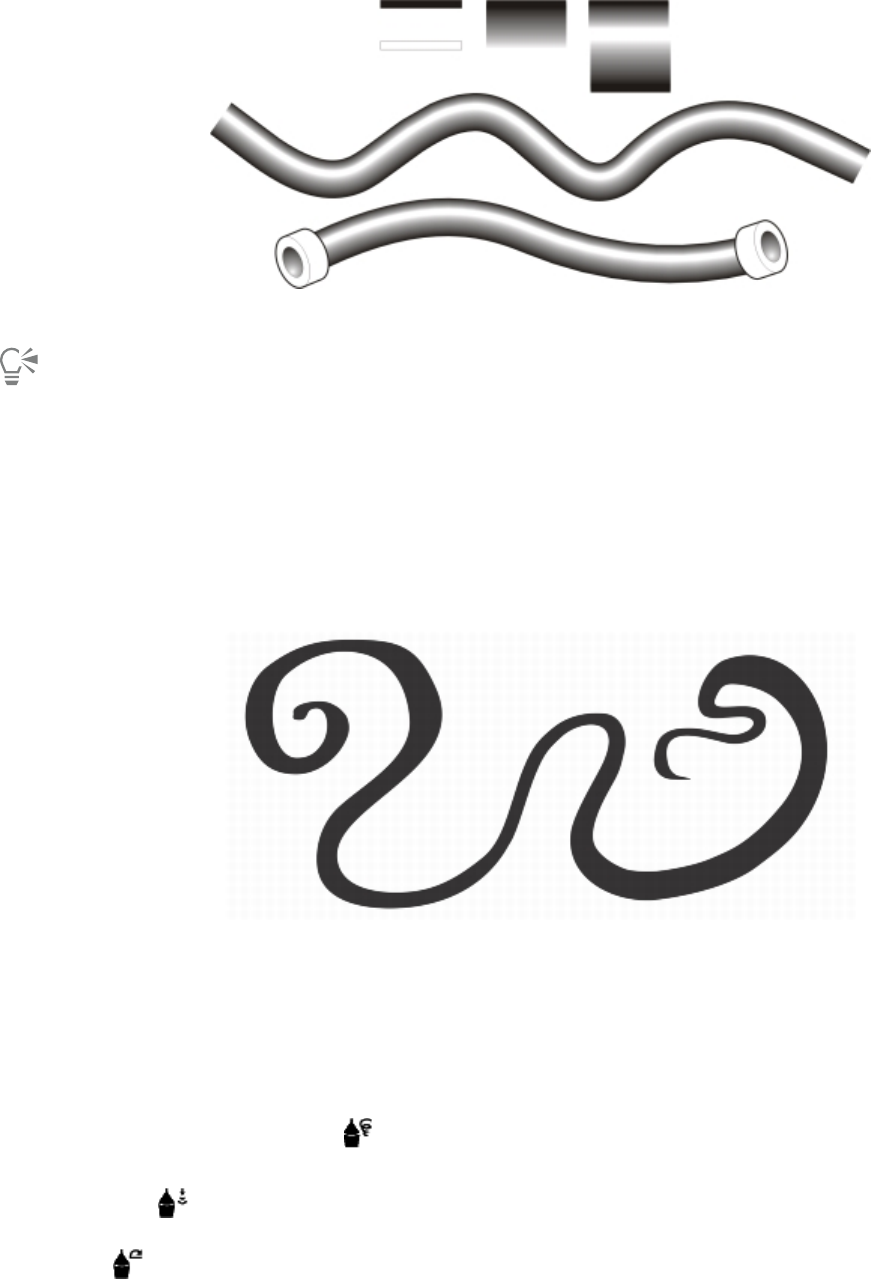
Working with lines, outlines, and brushstrokes | 171
Example of a custom linear pattern brushstroke
You can also create custom brushstrokes by clicking Window Linear patterns and specifying the settings that you want in the
Linear patterns docker.
Applying brushstrokes that respond to pen pressure, tilt, and bearing
You can apply brushstrokes that respond to pen pressure, tilt, and bearing provided your stylus or pen supports these features. Pen pressure
lets you vary the size of the brush nib. Pen tilt lets you vary the flatness of the brush nib, and pen bearing lets you vary the rotation of the
brush nib.
The Expression tool lets you vary brushstroke appearance by using the pressure, tilt, and bearing of your stylus.
You can use pen pressure, tilt, and bearing at the same time, or you can use only one or two of these features. For example, you can use pen
pressure to vary the size of the brush nib, but disable pen tilt so that the flatness of the brush nib does not change. You can set a fixed value
for pen tilt to flatten the nib. Disabling pen pressure lets you set a fixed nib size. Disabling pen bearing lets you use a nib of fixed rotation.
To apply a brushstroke that responds to pen pressure, tilt, and bearing
1In the toolbox, click the Expression tool , located on the Linear Pattern flyout.
2Make sure the following buttons on the property bar are enabled:
•Pen pressure — lets you vary the size of the brush nib. If you are using the mouse, press the Up arrow or Down arrow to
simulate changes in pen pressure and change the width of the stroke.
•Pen tilt — lets you vary the flatness of the nib
172 | Corel DESIGNER 2017 User Guide
•Pen bearing — lets you vary the rotation of the brush nib
3Drag until the stroke is the shape you want.
You can also
Change the width of the stroke Type a value in the Stroke width box on the property bar.
Change the stroke width when scaling the object Click the Scale stroke with object button on the property bar.
The width you set represents the stroke’s maximum width. The amount of pressure you apply determines the actual size of the brush
nib.
You can use pen tilt and pen bearing to vary brushstrokes only if your stylus or pen supports these features.
To use a brush nib of fixed width, flatness, or rotation
1In the toolbox, click the Expression tool .
2Perform a task from the following table.
To Do the following...
Set the size of the brush nib Click the Pen pressure button on the property bar to disable
it. Type a value in the Stroke width box.
Flatten the brush nib by using a fixed value for pen tilt Click the Pen tilt button on the property bar to disable it. Type
a value in the Tilt angle box.
Use a value between 15 and 90 degrees.
Rotate the brush nib by using a fixed value for pen bearing Click the Pen bearing button on the property bar to disable it.
Type a value in the Bearing angle box.
Sketching naturally with intelligent stroke adjustment
The LiveSketch tool offers the simplicity and speed of freehand sketching combined with intelligent stroke adjustment and vector drawing.
As you sketch, CorelDESIGNER analyses the properties, temporal order, and spacial proximity of your input strokes, adjusts them, and
converts them into Bézier curves.
Perfect for quick sketches and drawings, the LiveSketch tool speeds up your workflow and allows you to focus on the creation process.
Instead of being preoccupied with nodes and handles and switching between tools, you can let your creativity flow and achieve the desired
result quickly and effectively. There is no need to scan your sketches and trace them any more. You can sketch out your design concepts and
ideas using vector curves right from the get-go.
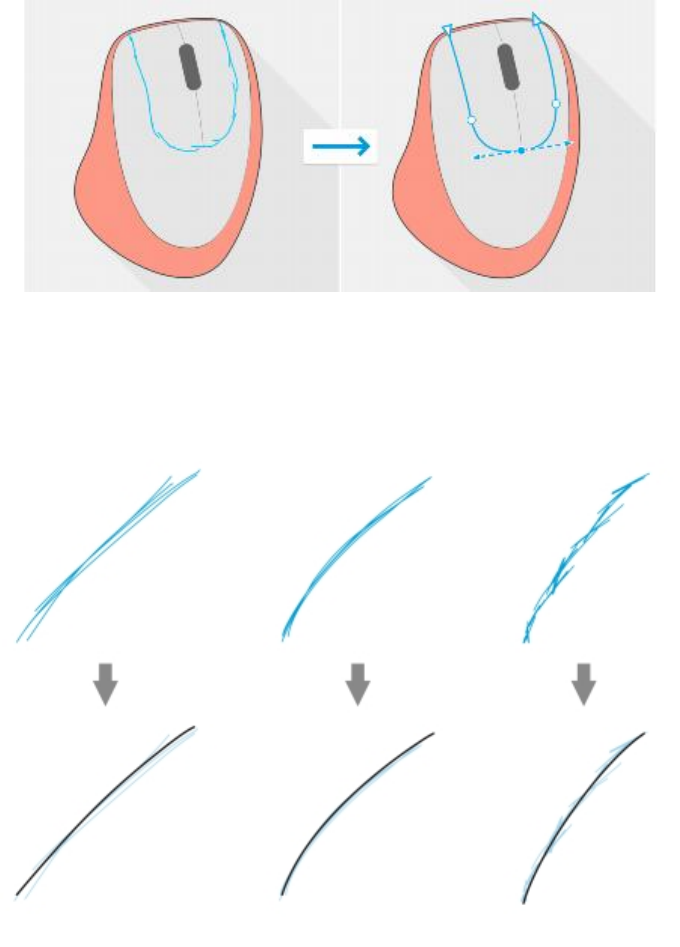
Working with lines, outlines, and brushstrokes | 173
The LiveSketch tool lets you capture design concepts using hand-drawn vector curves.
CorelDESIGNER supports the most common drawing styles: discrete overlapping strokes, folded strokes (scribbling back and forth across the
surface, with lines doubling back on each other), chicken scratch (drawing short lines rapidly one after the other to build long lines and large
forms).
Strokes before (top) and after (bottom) stroke adjustment: discrete
overlapping strokes (left), folded strokes (middle), chicken scratch (right)
To make the most of the LiveSketch tool, use a stylus and customize CorelDESIGNER to fit your sketching style.
You can specify the time it takes to activate stroke adjustment after you draw one or more strokes. For example, if you set the timer to one
second and make a few strokes, stroke enhancement will take effect one second after you finish drawing the strokes. The timer creates a
temporal window within which the discrete strokes that you make are analyzed and converted into curves. Experiment with the timer to find
a setting that best matches your sketching speed and style. Set a short delay time to create your curves right away and develop a sketching
cadence. Alternatively, increase the delay time to 5 seconds and take advantage of the live preview to see your input strokes and build upon
them.
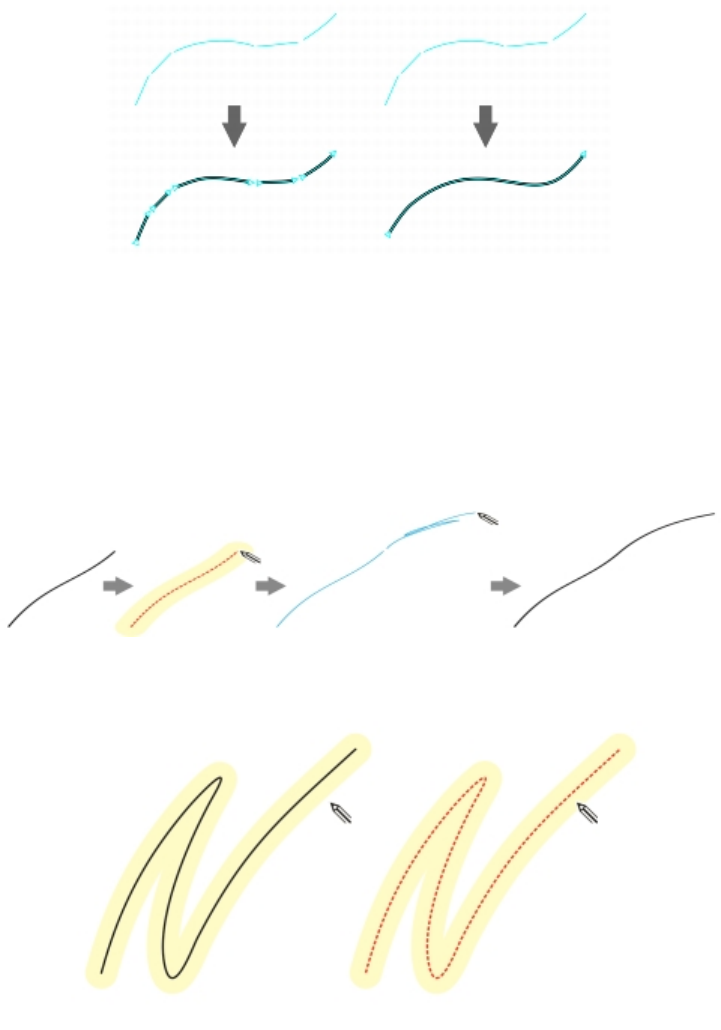
174 | Corel DESIGNER 2017 User Guide
With the timer set to 0 milliseconds (left), successive strokes are converted into discrete
curves. With the timer set to 1 second (right), successive strokes are joined into a single curve.
You can reset the timer and adjust the strokes before the specified time has elapsed. You can also delete strokes before they have been
adjusted.
As your composition progresses, you may want to re-draw existing lines to change their position and shape or simply to refine them.
CorelDESIGNER lets you modify existing curves by including them into your sketch as new input strokes. You can specify the width of the
editable area around previously drawn curves. When you sketch within this area, the existing curves are processed along with the other input
strokes and are readjusted; when you sketch outside the specified distance, your input strokes are added as new objects.
An existing stroke (left); A new stroke (in blue) is created within the proximity of
the existing stroke (middle); The existing stroke is extended and readjusted (right.)
When you move the pointer inside the editable area of an existing
curve, the curve is highlighted to indicate that you can modify it.
If you need to sketch very close to existing lines or draw over strokes to reinforce them, you can disable proximity-based stroke adjustment
temporarily or permanently so that strokes are added as separate objects.
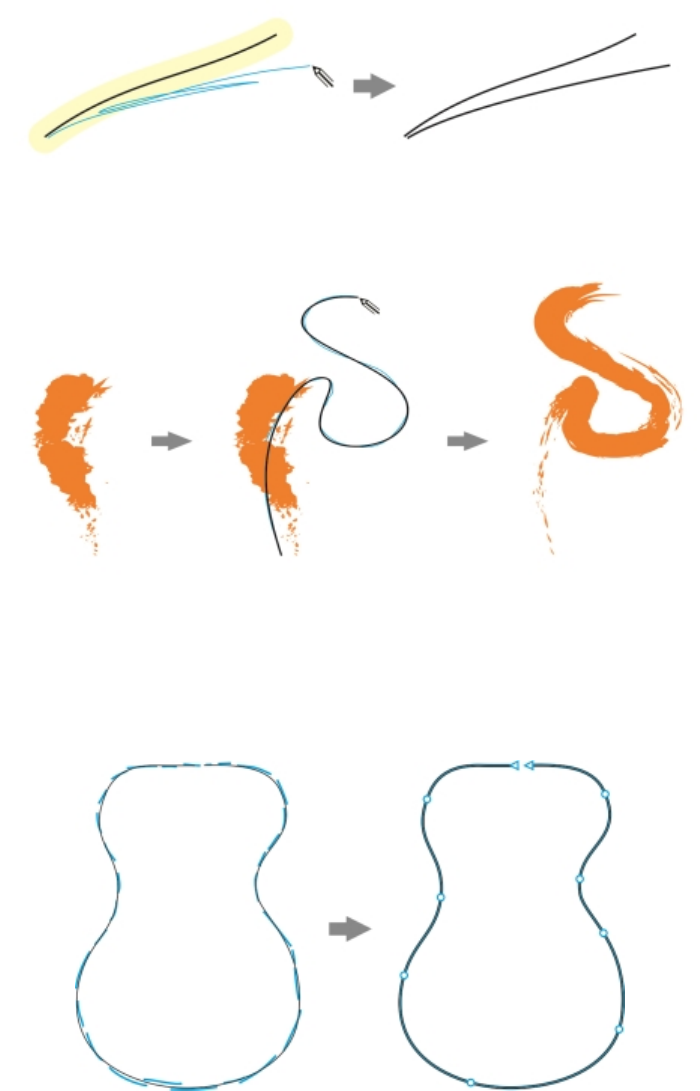
Working with lines, outlines, and brushstrokes | 175
Disable proximity-based stroke grouping to keep your strokes as separate objects.
When you include an existing curve into a sketch, the resulting curve inherits the properties of the existing curve.
A curve created with the Artistic Media tool (left); The new stroke drawn with the LiveSketch tool is within the proximity
threshold of the existing stroke (middle); The resulting stroke takes on the properties of the existing curve (right.)
At times, you may need to define the entire extent of a shape or an object with a single curve. It can be difficult, however, to maintain
smooth lines for a long distance or over a long curve without lifting the stylus off the tablet or releasing the mouse button. CorelDESIGNER
can help you work with continuous lines by creating a seamless curve from strokes that you draw within the specified time interval.
An example of an object created from strokes joined into a single curve.
Note that CorelDESIGNER processes only the input strokes that are within the specified delay time, so you may have to adjust the timer
depending on your sketching speed.
As more and more of your sketch is laid down, and you start to improve the accuracy and appearance of the lines, you may need to erase
existing curves or portions of curves. For more information about erasing Bézier curves, see “To erase portions of an object” on page 218.
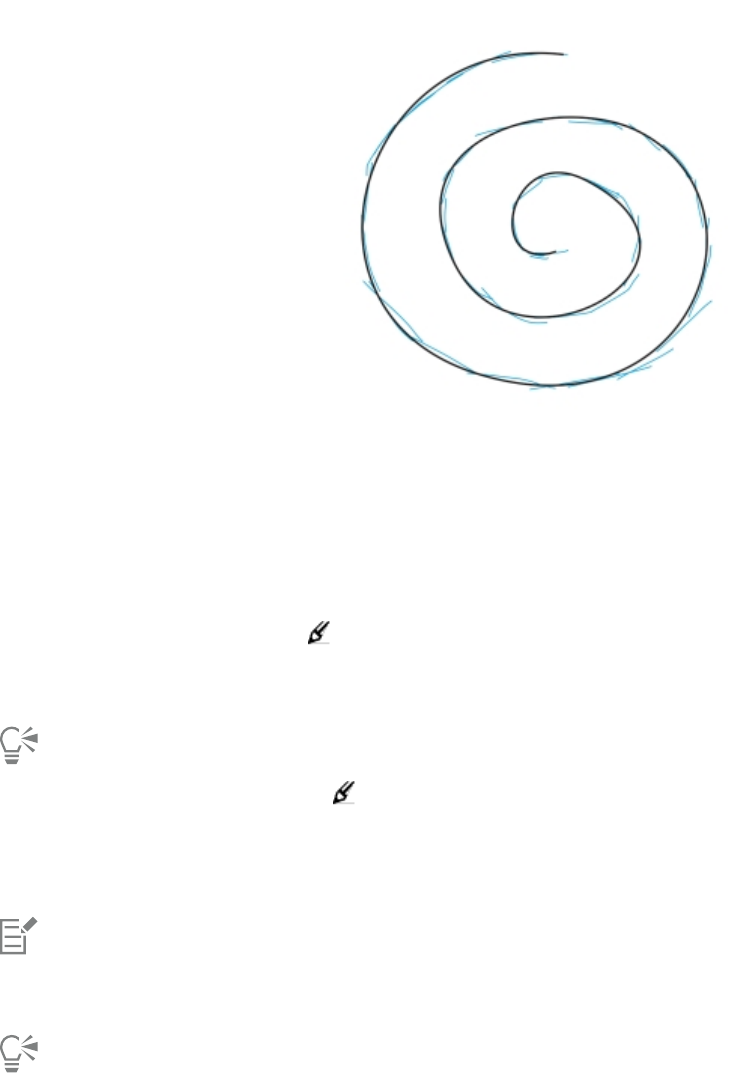
176 | Corel DESIGNER 2017 User Guide
By default, CorelDESIGNER shows a representation of the adjusted stroke while you are drawing. If you find the live preview too distracting,
you can hide it.
In preview mode, Corel DESIGNER displays the adjusted stroke (in black) before
the delay time has elapsed and the input strokes (in blue) have been processed.
You can control the amount of smoothing applied to curves.
To sketch with the LiveSketch tool
1In the toolbox, click the LiveSketch tool.
2Adjust any of the settings on the property bar.
3Sketch in the document window.
You can also access the LiveSketch tool by pressing S on your keyboard.
To set a delay before input strokes are adjusted
• Move the Timer slider.
By default, the delay is 1000 milliseconds or 1 second. The minimum delay is 0 milliseconds; the maximum is 5 seconds.
Clicking a different tool before the specified delay time has elapsed implements stroke adjustment.
Press Enter to reset the timer and adjust the strokes before the delay time has elapsed.
Press Esc to delete an input stroke before it has been adjusted.
Setting a longer delay period gives you more time to manipulate your lines.
Working with lines, outlines, and brushstrokes | 177
To readjust an existing curve
1Click the Include curves toggle button on the property bar to enable it.
2Move the Distance from curve slider to set the distance at which existing curves are included into a sketch as new input strokes.
3Sketch over an existing stroke to modify it.
To disable proximity-based stroke adjustment temporarily, hold down Shift and make one or more strokes.
To disable proximity-based stroke enhancement permanently, click the Include curves toggle button on the property bar.
By default, the distance threshold is 5 pixels. The minimum value is 0 pixels; the maximum is 40 pixels.
To create a single curve from strokes
1Click the Create single curve button on the property bar to allow input strokes to be converted into one continuous line.
2Sketch in the document window.
For best results, set a longer delay time. CorelDESIGNER processes only strokes that are within the specified delay time.
To show or hide a preview of the resulting curve
•Click the Preview mode button on the property bar.
To control curve smoothness
• Type a value in the Curve smoothing box on the property bar.
Higher values produce smoother curves.
Spraying linear patterns along a line
CorelDESIGNER lets you spray a series of objects along a line. You can spray graphics, text, or imported bitmaps or symbols.
You can control how a sprayed line appears by adjusting the spacing between objects, so that they are closer or farther apart from each
other. You can also vary the order of objects in the line. For example, if you are spraying a series of objects that includes a star, a triangle,
and a square, you can change the spray order so that the square appears first, the triangle second, and the star third. The program also lets
you shift the position of objects in a sprayed line by rotating them along the path, or by offsetting them in one of four different directions:
alternating, left, random, or right. For instance, you can choose a left offset direction to align the sprayed objects to the left of the path.
You can also create a new spraylist with objects of your own.
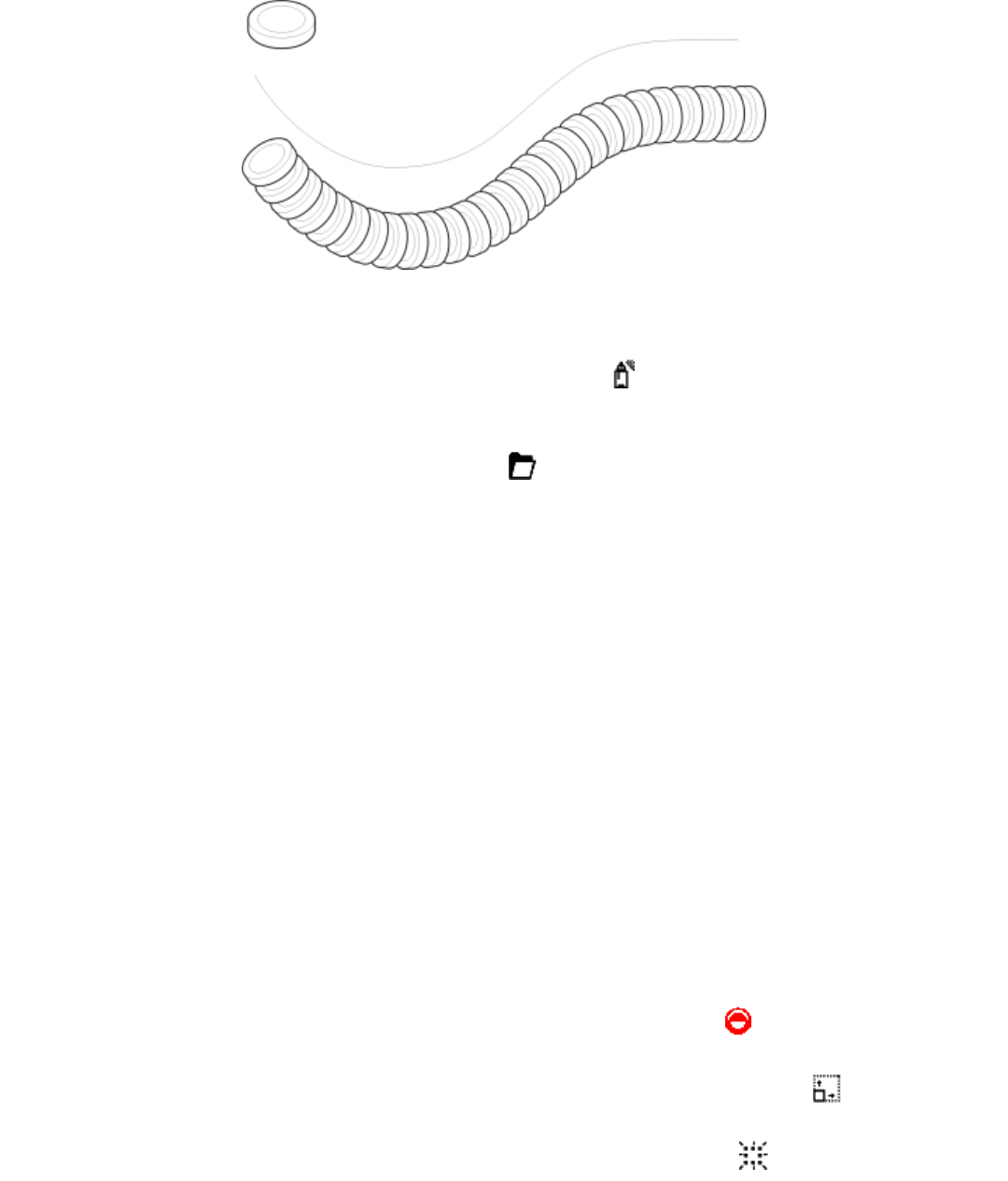
178 | Corel DESIGNER 2017 User Guide
The Linear pattern sprayer tool lets you repeat objects along a line.
To spray a line
1Click the Linear pattern tools button, and click the Linear pattern sprayer tool .
2Choose a spray pattern category from the Category list box on the property bar.
3Choose a spray pattern from the Spray pattern list box on the property bar.
If the spraylist that you want is not listed, click the Browse button on the property bar and navigate to the folder where the file is
located.
4Drag to draw the line.
You can also
Adjust the number of objects sprayed at each spacing point Type a number in the upper portion of the Images per dab and
image spacing box on the property bar.
Adjust the spacing between dabs Type a number in the lower portion of the Images per dab and
image spacing box on the property bar.
Set the spray order Choose a spray order from the Spray order list box on the property
bar.
Adjust the size of spray objects Type a number in the upper portion of the Size of sprayed objects
box on the property bar.
Increase or decrease the size of the objects to be sprayed as they
progress along the line
Type a number in the lower portion of the Size of sprayed objects
box on the property bar.
Reset a spraylist to its saved settings Click the Reset values button on the property bar.
Apply transformations to stroke thickness when scaling Click the Scale stroke with object button on the property bar.
Hide the bounding box for drawing Click the Bounding box button on the property bar.

Working with lines, outlines, and brushstrokes | 179
Increasing the value for the size of the objects to be sprayed along the line causes objects to become larger as they are distributed
along the path.
Spraylists that have more complex objects use more system resources. Lines that contain complex objects take longer to produce, and
these objects increase the file size. Using symbols for each group in the list can help reduce file size and the demands on your system.
For more information about creating symbols, see “Working with symbols” on page 275.
To rotate the objects to be sprayed
1Select a spraylist.
2Click the Rotation button on the property bar.
3Type a value between zero and 360 in the Angle of rotation box.
If you want each object in the spraylist to rotate incrementally, enable the Increment check box, and type a value in the box.
4Enable one of the following options:
•Relative to path — rotates objects in relation to the line
•Relative to page — rotates objects in relation to the page
5Press Enter.
To offset the objects to be sprayed
1Select a spraylist.
2Click the Offset button on the property bar.
3Enable the Use offset check box to offset objects from the path of the line sprayed.
If you want to adjust the offset distance, type a new value in the Offset box.
4Choose an offset direction from the Direction list box.
If you want to alternate between the left and the right of the line, choose Alternating.
To create a new spraylist
1Click Effects Linear patterns.
2Select an object, a set of grouped objects, or a symbol.
3Click the Save button in the Linear patterns docker.
4In the Create a new stroke dialog box, enable the Object sprayer option.
5Click OK.
6Type a filename in the File name box.
7Click Save.
Using pressure-sensitive pens and devices
The following tools in CorelDESIGNER let you use the pressure of your device: Expression, Roughen, Smudge, Eraser as well as the liquid
tools.
In addition, you can vary brushstrokes by using pen tilt and pen bearing with the Expression tool, Eraser , Roughen and Smudge tools.
Note that pen tilt and pen bearing can be used only if your pen or stylus supports these features.
You can also take full advantage of the pressure and tilt of your RTS-compatible pen tablet or device to control your brushstrokes. For more
information, see “Support for Real-Time Stylus (RTS) pen tablets and devices” on page 180.
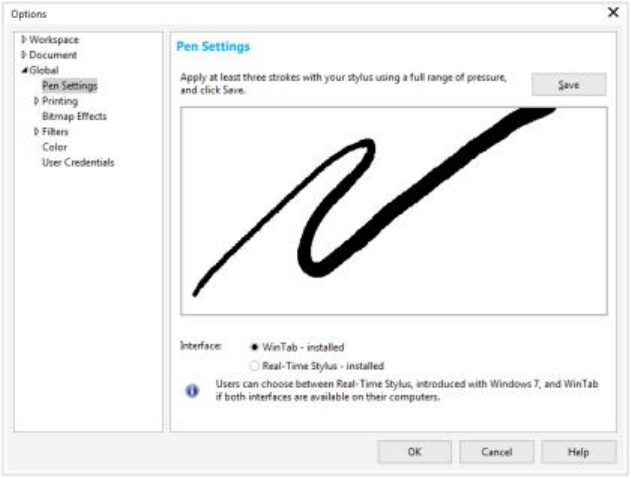
180 | Corel DESIGNER 2017 User Guide
Pressure and pen settings
When you use a pressure-sensitive stylus or pen tablet with CorelDESIGNER, the amount of pressure that you apply controls the width
of your strokes. Each person uses a different strength or pressure level in a stroke, and you can set the application to match your stroke
strength by specifying pen settings. Proper pen settings are particularly useful if you have a light touch. If a light stroke leaves no trace,
adjusting pen settings can increase sensitivity for specific tools. Abrupt changes in the width your brushstrokes shows that you need to
adjust your pen settings on the Pen Settings page in the Options dialog box. Pen settings can be saved as presets to use later.
You can adjust pen settings to match your stroke strength.
Tilt and bearing
Pen tilt lets you vary the flatness of the nib. If you do not want nib flatness to vary, you can disable pen tilt, and specify a fixed value for tilt
angle to determine the nib flatness. Pen bearing lets you use the direction in which the stylus is tilted to vary nib rotation. You can disable
pen bearing, and set a fixed value for the bearing angle to rotate the nib.
To adjust pen settings
1Click Tools Options.
2In the Global list of categories, click Pen Settings.
3Using your stylus or digital pen, apply at least three strokes, building from the lowest to the highest pressure.
To save the settings as a preset, click Save.
Support for Real-Time Stylus (RTS) pen tablets and devices
CorelDESIGNER includes support for the Real-Time Stylus (RTS) interface, which was introduced with Windows 7. You can take full
advantage of the pressure and tilt of your RTS-compatible pen tablet or device to control your brushstrokes.
If you have a Wacom-compatible graphics tablet or device, you can still use the WinTab interface for optimal results.
Working with lines, outlines, and brushstrokes | 181
You can now take full advantage of the pressure and tilt of your RTS-compatible pen tablet.
To choose a pen tablet interface
1Click Tools Options.
2In the Global list of categories, click Pen Settings.
3Choose one of the following tablet options:
•WinTab — recommended for Wacom-compatible pen tablets or devices
•Real-Time Stylus — recommended for pen tablets or devices that use the RTS interface of Windows 7 or later versions
182 | Corel DESIGNER 2017 User Guide
Drawing shapes | 183
Drawing shapes
CorelDESIGNER lets you draw basic shapes, which you can modify using special effects and reshaping tools.
This section contains the following topics:
•“Drawing rectangles and squares” (page 183)
•“Drawing ellipses, circles, arcs, and wedges” (page 186)
•“Drawing polygons and stars” (page 187)
•“Drawing grids” (page 189)
•“Drawing predefined shapes” (page 189)
•“Drawing projected shapes” (page 190)
•“Drawing by using shape recognition” (page 192)
Drawing rectangles and squares
CorelDESIGNER lets you draw rectangles and squares. You can draw a rectangle or square by dragging diagonally with the 2-point
rectangle tool or by specifying the width and height with the 3-point rectangle tool. The 3-point rectangle tool lets you quickly draw
rectangles at an angle.
You can create a 3-point rectangle by first drawing its baseline and then drawing its height. The resulting rectangle is angled.
You can also draw a rectangle or square with rounded, scalloped or chamfered corners. You can modify each corner individually or apply the
changes to all corners. In addition, you can specify that all corners scale relative to the object. You can also specify the default corner size for
drawing rectangles and squares.
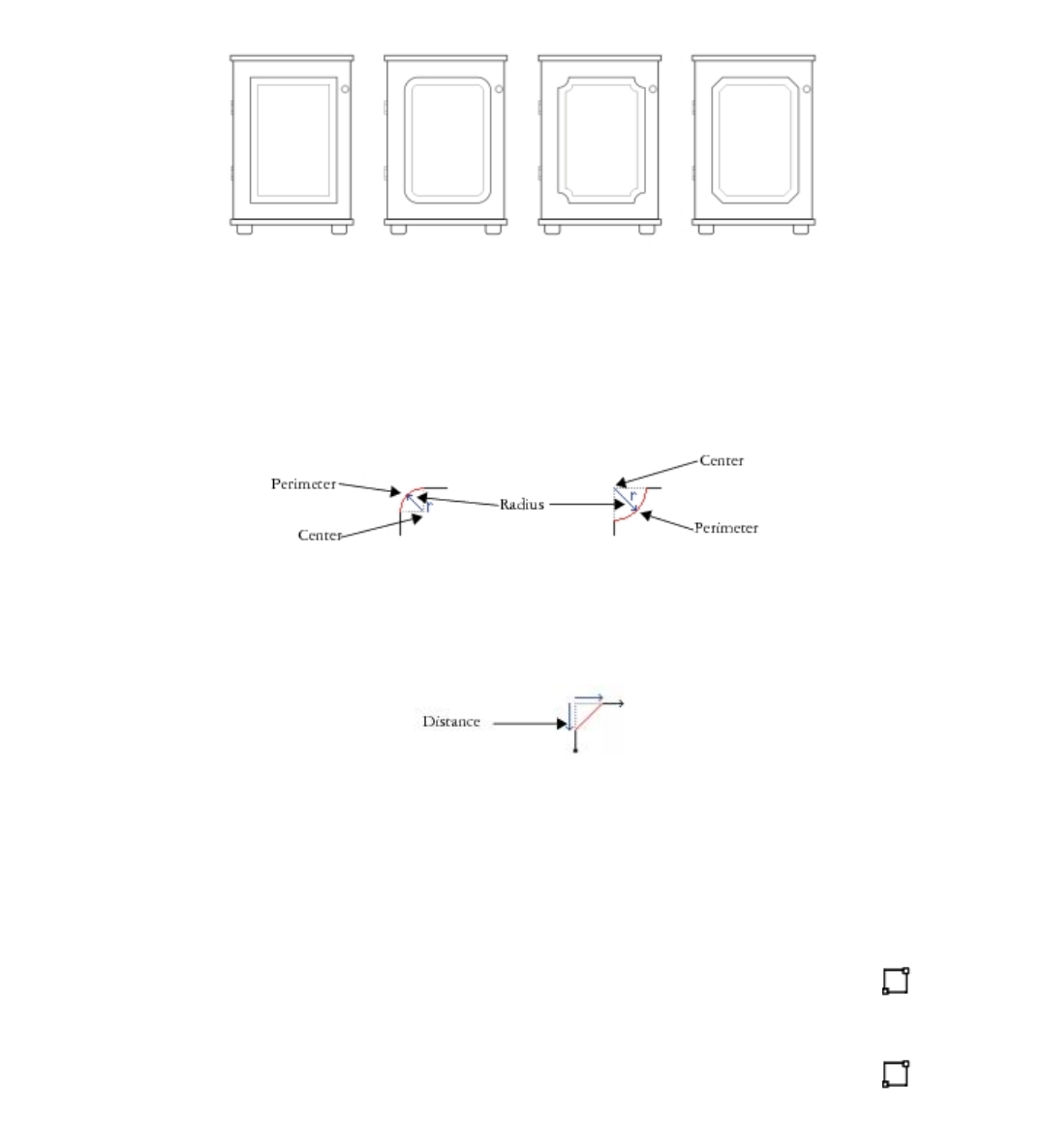
184 | Corel DESIGNER 2017 User Guide
Understanding rounded, scalloped, and chamfered corners
Rounding produces a curved corner, scalloping replaces the corner with an edge that has a curved notch, and chamfering replaces the
corner with a straight edge, also known as a bevel.
The cabinet doors have different styles applied to the corners. From left to right you can see
standard corners with no changes, filleted corners, scalloped corners, and chamfered corners.
To draw rectangles or squares with rounded, scalloped, or chamfered corners, you need to specify the corner size. For rounding or scalloping
a corner, the corner size determines the corner radius. The radius is measured from the curve’s center to its perimeter. Higher corner size
values produce more rounded corners or deeper scalloped corners.
From left to right, you can see the radius of a rounded corner and the radius of a scalloped corner.
The size value for chamfering a corner represents the distance from the original corner to the beginning of the chamfered edge. Higher
values produce a longer chamfered edge.
For more information about modifying the corners of curve objects, such as lines, text, or bitmaps, see “Filleting, scalloping, and chamfering
corners of curve objects” on page 87.
To draw a rectangle or square by dragging diagonally
To Do the following
Draw a rectangle In the toolbox, click the 2-point rectangle tool . Drag in the
drawing window until the rectangle is the size you want.
Draw a square In the toolbox, click the 2-point rectangle tool . Hold down
Ctrl, and drag in the drawing window until the square is the size
you want.
Drawing shapes | 185
You can draw a rectangle from its center outward by holding down Shift as you drag. You can also draw a square from its center
outward by holding down Shift + Ctrl as you drag.
To draw a 3-point rectangle
1In the toolbox, click the 3-point rectangle tool .
2In the drawing window, point to where you want to start the rectangle, drag to draw the width, and release the mouse button.
3Move the pointer to draw the height, and click.
To adjust the size of the rectangle, type values in the Object size boxes on the Transform toolbar. To open the Transform toolbar, click
View Toolbars Transform.
To constrain the angle of the baseline to a preset increment, known as constrain angle, hold down Ctrl as you drag. For information
about changing the constrain angle, see “To constrain an object while drawing or editing” on page 126.
To draw a rectangle or square with rounded, scalloped, or chamfered corners
1Click a rectangle or square.
2Click one of the following buttons on the property bar:
•Round corner — produces a curved corner
•Scalloped corner — replaces a corner with an edge that has a curved notch
•Chamfered corner — replaces a corner with a flat edge
3Type values in the Corner radius boxes on the property bar.
4Press Enter.
You can also
Apply the same changes to all corners Click the Edit corners together button on the property bar.
Disable the scaling of corners relative to the object Click the Relative corner scaling button on the property bar.
If you modify the corners of a rectangle or square and save it to a previous version of CorelDESIGNER, the shape may be converted to
curves.
You can also modify the corners of a selected rectangle or square by clicking the Shape tool , clicking a corner option button on
the property bar, and then dragging a corner node toward the shape’s center. If you want to modify only one corner, hold down Ctrl
as you drag.
186 | Corel DESIGNER 2017 User Guide
To specify the default corner size for drawing rectangles and squares
1Click Tools Options.
2Double-click Toolbox from the Workspace list of categories.
3Click Rectangle tool.
4In the Rectangle corners area, type values in the boxes.
You can also
Apply the same changes to all corners Click the Edit corners together button .
Disable the scaling of corners relative to the object Click the Relative corner scaling button .
Drawing ellipses, circles, arcs, and wedges
You can draw an ellipse by dragging diagonally or by specifying three points. You can also draw a circle by specifying three points, or you
can specify the center and a point on the radius.
Another way to create an ellipse is to convert a curve object. The object to be converted must have a recognizable elliptical shape to be
eligible. For instructions, see “To convert a curve to an ellipse” on page 72.
Drawing an arc or wedge (pie shape) is similar to drawing a circle or an ellipse, except that you move the line end points around to create
the shape.
To draw an ellipse or a circle
• Click the Circle tools or Ellipse tools button, and click the tool that you want to use.
To draw a Do the following
3-point circle Click the 3-point circle tool . Drag to specify the centerline of
the circle, move the pointer, and click to specify the third point.
Center-point circle Click the Center-point circle tool . Click where you want to
place the center, drag until the circle is the size you want, and
release the mouse button.
Center-radius circle Click the Center-radius circle tool . In the Circle dialog box,
type a value for the radius, and click where you want to place the
center point.
2-point ellipse Click the 2-point ellipse tool . Drag diagonally until the ellipse
is the size you want, and release the mouse button.
Drawing shapes | 187
To draw a Do the following
3-point ellipse Click the 3-point ellipse tool . Drag to specify the centerline of
the ellipse, and release the mouse button. Move the pointer until
the ellipse is the size and shape you want, and click.
When you draw a circle, holding down the constrain key while dragging constrains the shape to the current constrain angle. See
“Using constrain keys ” on page 126 for more information. Holding down the constrain key while drawing an ellipse constrains the
shape to a circle.
You can draw a two-point or three-point ellipse from its center outward by holding down the Shift key as you drag (if the constrain
key is Ctrl).
To draw an arc or a wedge
• Click the Circle tools or Ellipse tools button, and click the tool that you want to use.
To draw Do the following
An arc Click the Arc button on the property bar. Drag in the drawing
window until the arc is the shape you want.
A wedge Click the Pie button on the property bar. Drag in the drawing
window until the wedge is the shape you want.
When you draw an arc, the ellipse or circle must have an outline.
You can change the direction of a selected arc or a wedge by clicking the Geometric properties button on the property bar and
clicking Direction in the Property manager docker.
Drawing polygons and stars
CorelDESIGNER lets you draw polygons and two types of stars: perfect and complex. You can draw polygons and stars and then reshape
them. For example, you can convert a polygon to a star by dragging its nodes, and you can change the number of sides on a polygon.
Perfect stars are traditional-looking stars and can have a fill applied to the entire star shape. Complex stars have intersecting sides and
produce original results with a fill applied.
You can also draw a predefined star shape. For more information, see “To draw a predefined shape” on page 189.
To draw a polygon
1Click the Center-point polygon tool .
2Point to where you want the center, and drag in the drawing window until the polygon is the size you want.
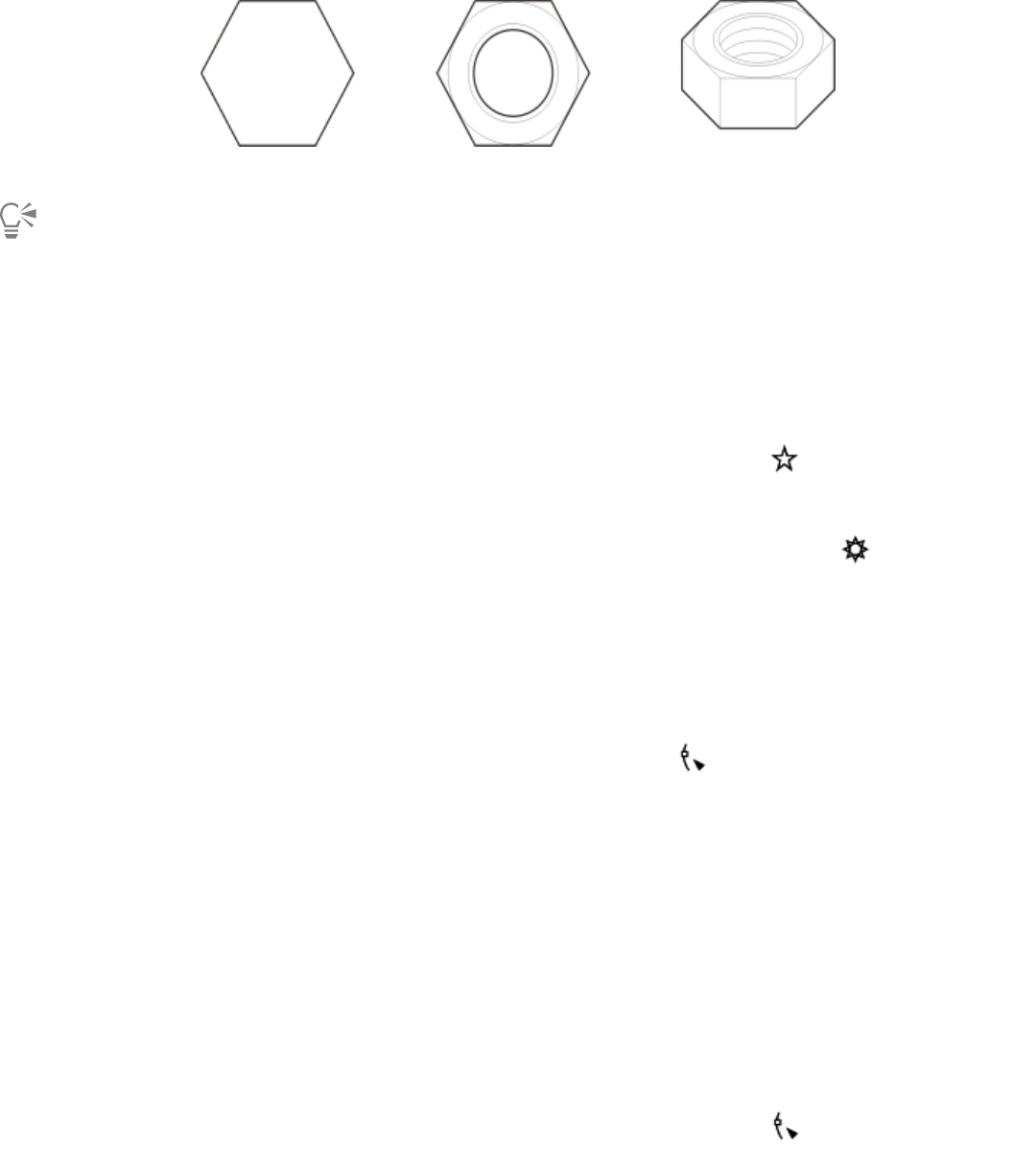
188 | Corel DESIGNER 2017 User Guide
Example of using a polygon to create a nut
You can change a polygon to a star by selecting the polygon with the Shape tool, clicking a node on one of the sides, and dragging
toward the center of the polygon.
To draw a star
To Do the following
Draw a perfect star In the toolbox, click the Star tool , and drag in the drawing
window until the star is the size you want.
Draw a complex star In the toolbox, click the Complex star tool , and drag in the
drawing window until the star is the size you want.
To reshape a polygon
To Do the following
Reshape a polygon Click the Shape tool , and click a node on the polygon. Drag
the node to change the polygon’s shape.
Change the number of sides of a polygon Select a polygon. Type a value in the Points or sides box on the
property bar, and press Enter.
To modify a star
To Do the following
Change the number of points on a star Select a star, type a value in the Points or sides box on the property
bar, and press Enter.
Reshape a star Select a star, click the Shape tool , and drag a node on the star.
Drawing shapes | 189
When you use the Shape tool to reshape a perfect star, the node movement is constrained. Also, you cannot add or delete nodes, or
convert line segments to curves.
Drawing grids
You can draw a grid and set the number of rows and columns. A grid is a grouped set of rectangles that you can break apart.
To draw a grid
1In the toolbox, click the Rectangle tools button, and click the Graph paper tool .
2Type values in the Columns and rows box on the property bar.
3Drag diagonally to draw the grid.
If you want to draw the grid from its center point outward, hold down Shift as you drag. If you want to draw a square grid, hold
down Ctrl as you drag; if the grid has an equal number of rows and columns, the cells will be square as well.
To ungroup a grid
1Select a grid by using the Pick tool .
2Click Object Ungroup.
Drawing predefined shapes
You can draw predefined shapes, such as basic shapes, arrows, and stars using the Perfect Shapes collection. Basic shapes, arrow shapes,
and star shapes have glyphs which let you modify their appearance.
You can add text to the inside or outside of the shape. For example, you might want to put a label inside a flowchart symbol.
To draw a predefined shape
1Click the Perfect Shapes tools button, and click one of the following tools:
•Basic shapes
•Arrow shapes
•Flowchart shapes
•Miscellaneous shapes
•Callout shapes
2Open the Perfect shapes picker on the property bar, and click a shape.
3Drag in the drawing window until the shape is the size you want.
Perfect Shapes can be modified like any other shapes.
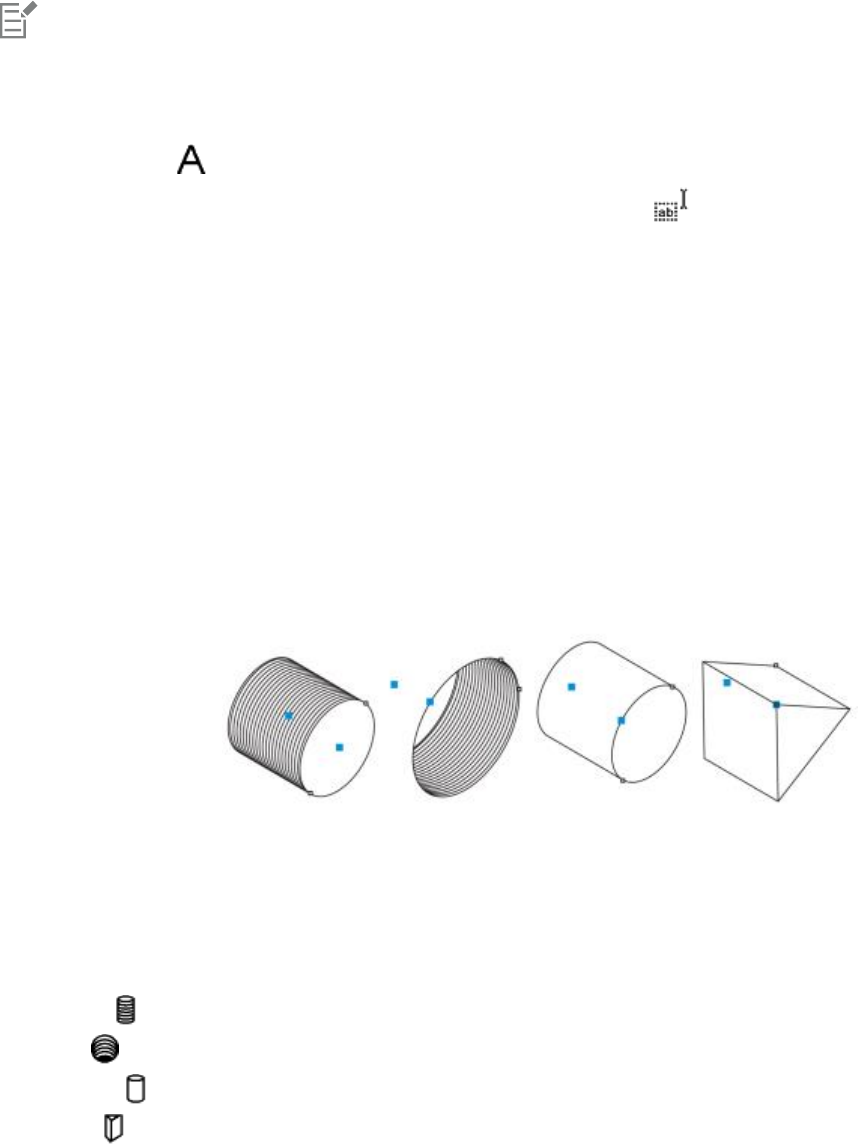
190 | Corel DESIGNER 2017 User Guide
To modify a predefined shape
1Select a shape with a glyph.
2Drag the glyph until the shape is modified the way you want.
The right-angle triangle, explosion, and flowchart shapes do not have glyphs.
To add text to a predefined shape
1Click the Text tool .
2Position the cursor inside the shape’s outline until it changes to a text cursor box , and then click.
3Type and format text inside the shape.
Drawing projected shapes
You can draw thread shapes, well shapes, cylinders, and prisms in projected view. These shapes are useful for creating illustrations of bolts,
nuts, and well nuts.
You can adjust the length and radius of the projected shapes by specifying values or by moving their control handles in the drawing window.
With thread and well shapes, you can set the distance from the first thread to the start of the object and the distance from the last thread
to the end of the object. You can also adjust the pitch, which is the distance in projected space from one thread to the next, or adjust the
number of threads per inch.
With prisms, you can specify the number of sides of the base faces.
Examples of projected shapes
To draw a projected shape
1Click one of the following tools:
•Thread
•Well
•Cylinder
•Prism
2Drag in the drawing window to set the radius of the shape, then move the pointer to set the length, and click.
Drawing shapes | 191
To modify a projected shape
1Click one of the following tools:
•Thread
•Well
•Cylinder
•Prism
2Click the projected shape, and perform any of the following tasks.
To Do the following
Set the radius Type a value in the top portion of the Radius and length box on
the property bar.
Set the length Type a value in the bottom portion of the Radius and length box
on the property bar.
Set the pitch of a thread or well shape Click the Pitch button on the property bar, and type a value in the
Pitch box.
Set the number of threads per inch for a thread or well shape Click the Threads per inch button on the property bar, and type a
value in the Threads per inch box.
Set the distance between the start of a well or thread shape and
the first thread
Type a value in the top portion of the Distance from start or end
box.
Set the distance between the end of a well or thread shape and the
last thread
Type a value in the bottom portion of the Distance from start or
end box.
Specify the number of sides of the base faces of a prism Type a value in the Sides box.
The radius, length, and distance values are applied in projected space.
To adjust a projected shape by using control handles
1Using a projected shape tool, click the shape.
2Perform any of the following tasks:
To Do the following
Adjust the shape radius Drag the radius control handle.
Adjust the shape length Drag the length control handle.
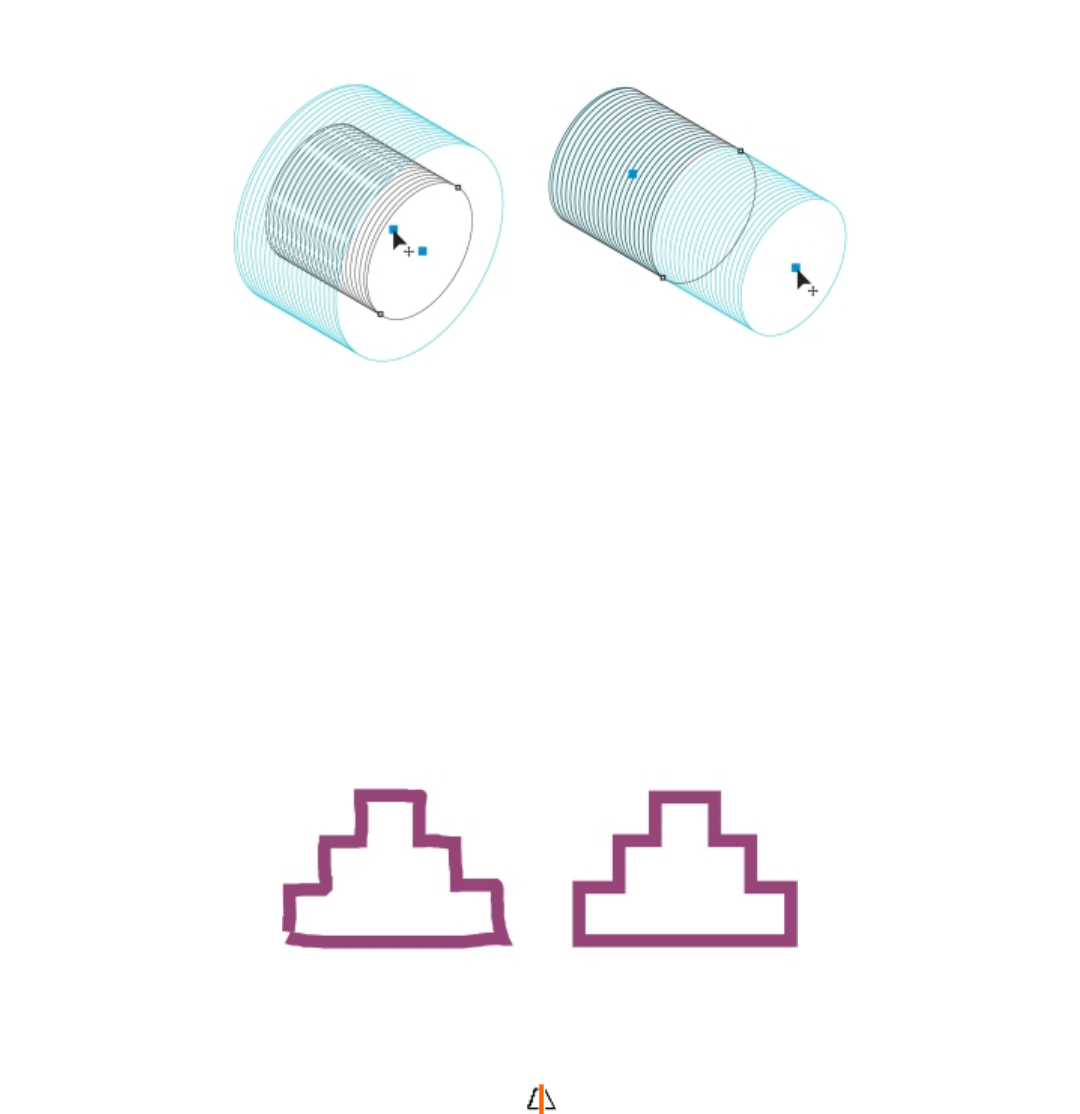
192 | Corel DESIGNER 2017 User Guide
To Do the following
Rotate a prism Drag the radius control handle.
Using control handles to adjust the radius (left) and length (right) of a thread shape
Drawing by using shape recognition
You can use the Smart drawing tool to draw freehand strokes that can be recognized and converted to basic shapes. Rectangles and ellipses
are translated to native CorelDESIGNER objects; trapezoids and parallelograms are translated to Perfect Shapes objects; lines, triangles,
squares, diamonds, circles, and arrows are translated to curve objects. If an object is not converted to a shape, it is smoothed. Objects and
curves drawn with shape recognition are editable. You can set the level at which CorelDESIGNER recognizes shapes and converts them to
objects. You can also specify the amount of smoothing applied to curves.
You can set the length of time to elapse between drawing the shape and the implementation of shape recognition. For example, if the
timer is set to one second and you draw a circle, shape recognition takes effect one second after you draw the circle and release the mouse
button.
You can make corrections as you draw. You can also change the thickness and line style of a shape that was drawn using shape recognition.
Shapes created with the Smart drawing tool are recognized and smoothed.
To draw a shape or line by using shape recognition
1Click the Curve tools button, and click the Smart drawing tool .
2Choose a recognition level from the Shape recognition level list box on the property bar.
3Choose a smoothing level from the Smart smoothing level list box on the property bar.
4Draw a shape or line in the drawing window.
Drawing shapes | 193
To set shape recognition delay
1Click Tools Options.
2In the Workspace list of categories, double-click Toolbox.
3Click Smart drawing tool.
4Move the Drawing assistance delay slider.
The slider moves in increments of 0.25 seconds; the maximum delay is 2 seconds.
To make a correction while using shape recognition
• Before the recognition delay has elapsed, hold down Shift, and drag over the area that you want to erase. Release Shift to continue
drawing.
You must start erasing the shape or line from the last point drawn.
If you are drawing a freehand shape consisting of several curves, you can delete the last curve drawn by pressing Esc.
To change the outline thickness of an object drawn with shape recognition
1Click the Curve tools button, and click the Smart drawing tool .
2Click the shape.
3From the Outline width list box on the property bar, choose an outline thickness.
When lines drawn with the Smart drawing tool overlap, the outline thickness is determined by the average.
You can change the line style of a shape drawn with shape recognition. For more information, see “To specify line and outline
settings” on page 163.
194 | Corel DESIGNER 2017 User Guide

Shaping objects | 195
Shaping objects
CorelDESIGNER lets you shape objects in various ways.
This section contains the following topics:
•“Using curve objects” (page 195)
•“Selecting and moving nodes” (page 196)
•“Manipulating segments” (page 198)
•“Joining curves” (page 199)
•“Copying and cutting segments” (page 200)
•“Adding, removing, joining, and aligning nodes” (page 201)
•“Using node types” (page 202)
•“Transforming nodes” (page 203)
•“Breaking the path of curve objects” (page 204)
•“Mirroring changes in curve objects” (page 205)
•“Smudging and smearing objects” (page 206)
•“Roughening objects” (page 208)
•“Shaping objects by attracting or pushing away nodes” (page 210)
•“Applying distortion effects” (page 211)
•“Adding twirl effects” (page 213)
•“Shaping objects by using envelopes” (page 214)
•“Cropping and erasing objects” (page 216)
•“Splitting objects” (page 220)
•“Trimming objects” (page 222)
•“Filleting, scalloping, and chamfering corners” (page 224)
•“Welding and intersecting objects” (page 226)
•“Creating PowerClip objects” (page 227)
•“Setting options for nodes, handles, and previews” (page 232)
Using curve objects
A curve object has nodes and control handles, which you can use to change the object’s shape. A curve object can be any shape, including
a straight or curved line. An object’s nodes are the small shapes that appear along the object’s outline. The line between two nodes is called
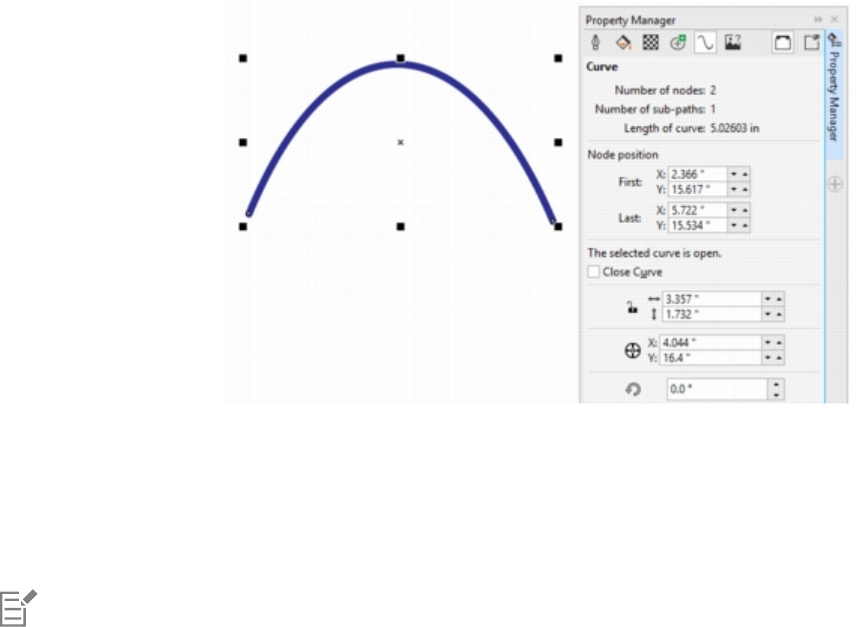
196 | Corel DESIGNER 2017 User Guide
a segment. Segments can be curved or straight. Each node has a control handle for each curved segment connected to it. Control handles
help you adjust the curve of a segment.
Curve objects created in CorelDESIGNER follow a path that gives them their defining shape. A path can be open (for example, a line) or
closed (for example, an ellipse) and can sometimes include subpaths. For more information about paths and subpaths, see “Breaking the
path of curve objects” on page 204.
Most objects that are added to a drawing are not curve objects, with the exception of spirals, freehand lines, and Bézier lines. Therefore, if
you want to customize the shape of an object or text object, it is recommended that you convert it to a curve object.
You can view the properties of a curve object in the Property manager docker.
The Property manager dockers lets you view curve properties such as
the number of nodes and subpaths, length as well as node position.
To convert objects to curve objects
1Select the object.
2Click Object Convert to curves.
You can convert artistic text to curves so that you can shape individual characters.
Bitmaps cannot be converted to curve objects.
To view curve properties
1Select the curve object.
2Click Window Property manager.
3At the top of the Property manager docker, click the Curve button.
Selecting and moving nodes
You can select individual, multiple, or all of the object’s nodes. Selecting multiple nodes lets you shape different parts of an object
simultaneously. You can marquee select nodes by enclosing them with a rectangular marquee box, or by enclosing them with an irregularly
shaped marquee box. Freehand marquee selection is useful when you want to select specific nodes in complex curves.
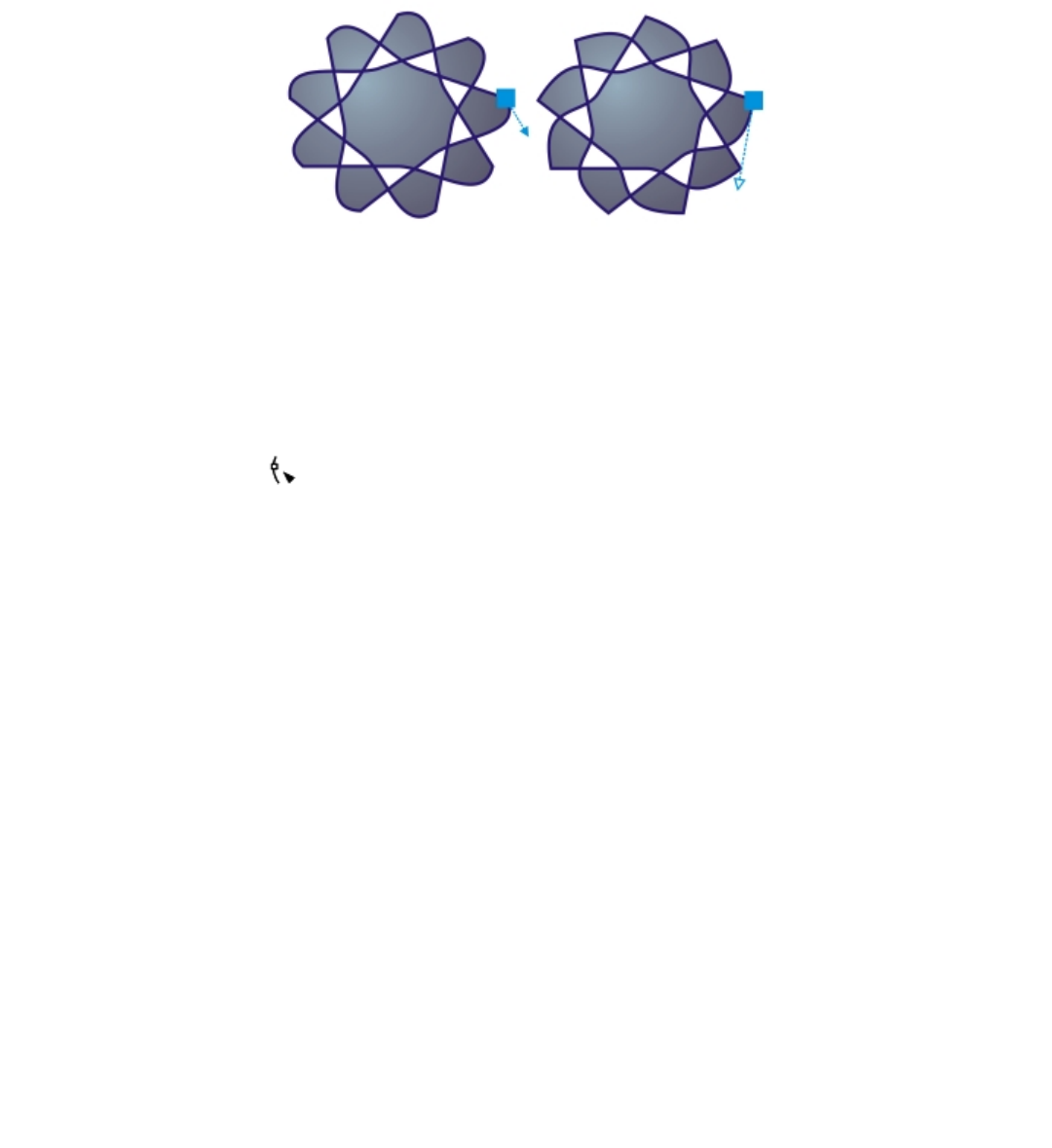
Shaping objects | 197
When a node is selected on curved segments, control handles are displayed. You can adjust the shape of the curved segments by moving the
nodes and control handles.
Usually, a control handle is displayed as a solid blue arrowhead (left). When a control handle
overlaps with a node, it is displayed as an unfilled blue arrowhead beside the node (right).
You can reposition a node by specifying its coordinates.
The Shape tool is the standard tool for moving nodes. You can also set an option to use the Pick and Bézier tools for selecting and moving
nodes.
To select a node
1In the toolbox, click the Shape tool.
2Select a curve object.
3Click a node.
You can also
Marquee select multiple nodes On the property bar, choose Rectangular from the Selection mode
list box, and drag around the nodes that you want to select.
Freehand marquee select multiple nodes On the property bar, choose Freehand from the Selection mode
list box, and drag around the nodes you want to select.
Select multiple nodes Hold down Ctrl, and click each node.
Select all nodes on a selected curved object Click Edit Select all Nodes.
Select consecutive nodes Holding down Shift, click the first node, and then the last node
that you want to select.
To change the direction in which the nodes are selected, click while
holding down Shift.
Select the node that follows or precedes a selected node Press Tab or Shift + Tab.
Deselect a node Hold down Ctrl, and click a selected node.
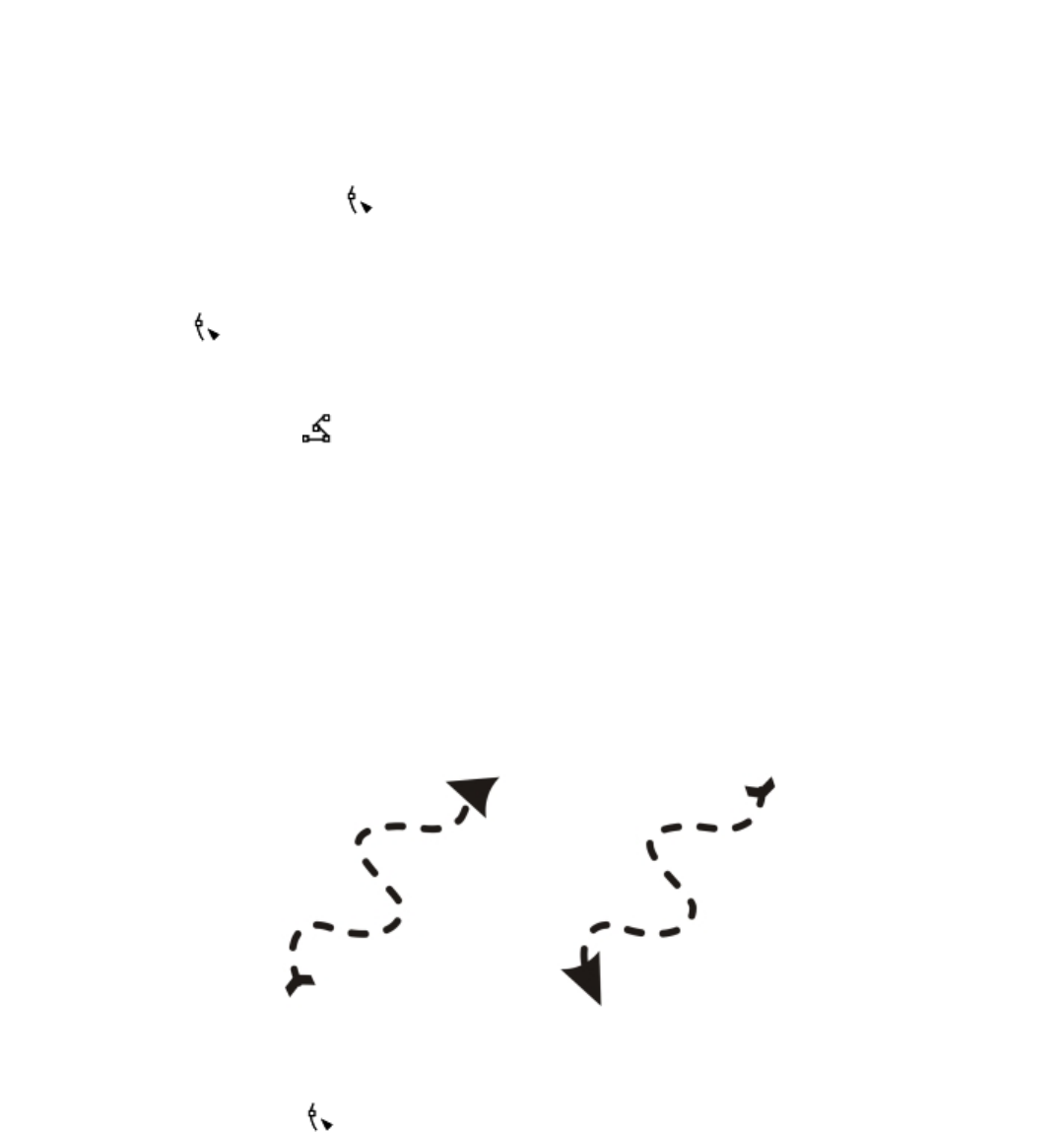
198 | Corel DESIGNER 2017 User Guide
You can also
Deselect multiple nodes Hold down Ctrl, and click each selected node.
Deselect all nodes Click an unused space in the drawing window.
To move a node
1Select an object by using the Shape tool .
2Drag the node until you achieve the desired shape.
To specify a node’s coordinate values
1Click the Shape tool .
2Select a node on a curve object.
3Click Window Object coordinates.
4Click the Multi-point curve button .
5Type values in the X and Y boxes to specify the exact position of the point along the x and y rulers.
6Click one of the following:
•Create object — adds a new curve object to the drawing window
•Replace object — replaces the selected curve object with a new one
Manipulating segments
You can move curved segments to change an object’s shape. You can also control the smoothness of curved segments.
You can change the direction of a curve object by reversing the position of its start and end nodes. The effect is apparent only when the
ends of a curve object are different. For example, when an arrowhead is applied to the end node of a curve object, changing the direction
results in moving the arrowhead to the start node.
Changing the direction of a curve
To manipulate the segments of a curve object
1In the toolbox, click the Shape tool .
2Click a curve object.
3Perform a task from the following table.
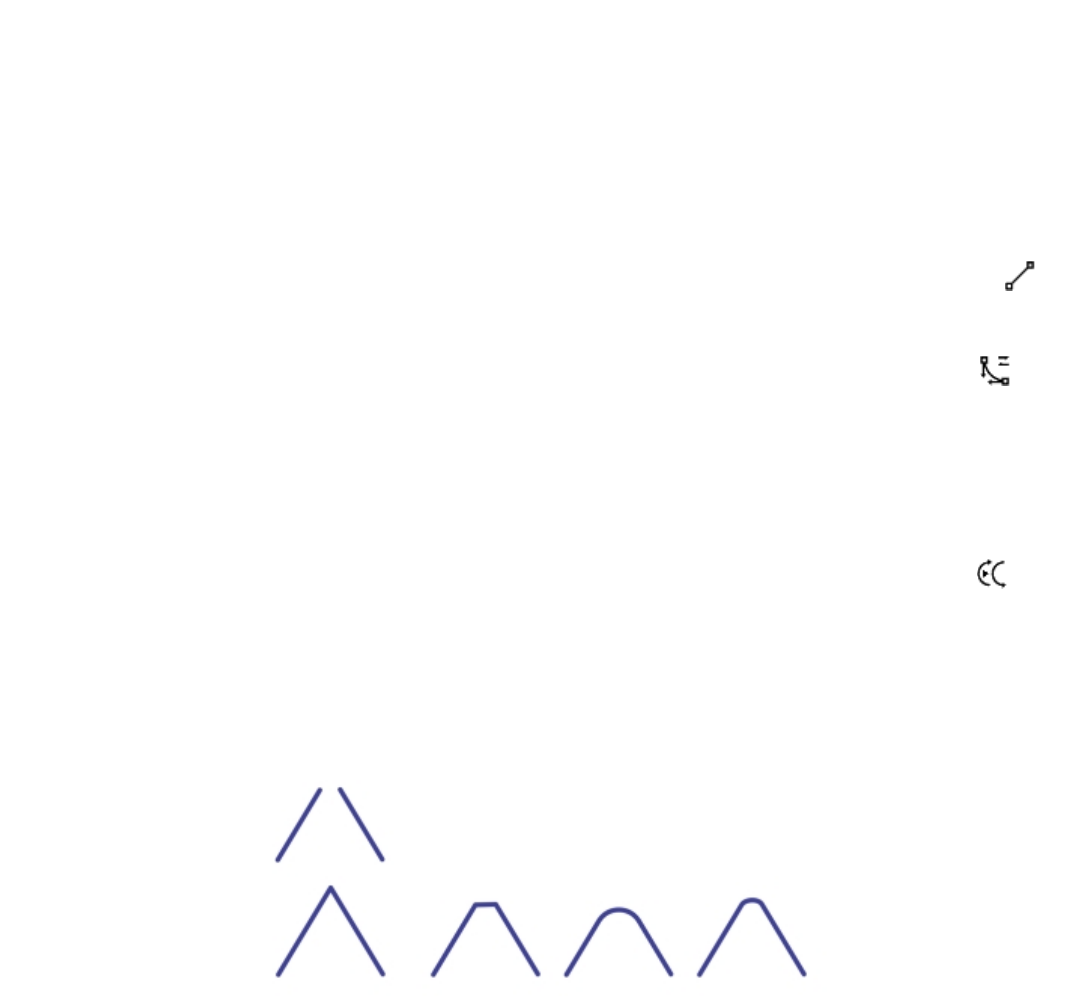
Shaping objects | 199
To Do the following
Shape a segment by using the control handles without affecting
the placement of the node
Click a node, then drag one of the control handles.
Shape a segment by using the control handles while moving a
node
Click a node. Hold down Alt, and drag one of the control handles.
You can also
Straighten a curve segment Click a curve segment, and click the Convert to line button on
the property bar.
Curve a straight segment Click a straight segment, and click the Convert to curve
button on the property bar.
Smooth a segment Click a node, and move the Curve smoothness slider on the
property bar. To smooth all segments in a curve object, select all of
the object’s nodes before moving the Curve smoothness slider.
Change the direction of a curve object Click a segment, and click the Reverse direction button on
the property bar.
Joining curves
You can join curves and line segments to create more complex curves as well as closed objects. The shape of the connecting lines is
determined by the mode that you choose: Extend, Chamfer, Fillet, or Bézier Curve.
The lines in the upper-left corner were joined by using different modes.
Modes from left to right: Extend, Chamfer, Fillet, and Bézier Curve.
You can also set the gap tolerance, which is the maximum distance between endpoints that can be joined. If the endpoints are further apart
than the gap tolerance, they cannot be joined.
When you join curves, the resulting curve takes on the properties of the last object that was selected.
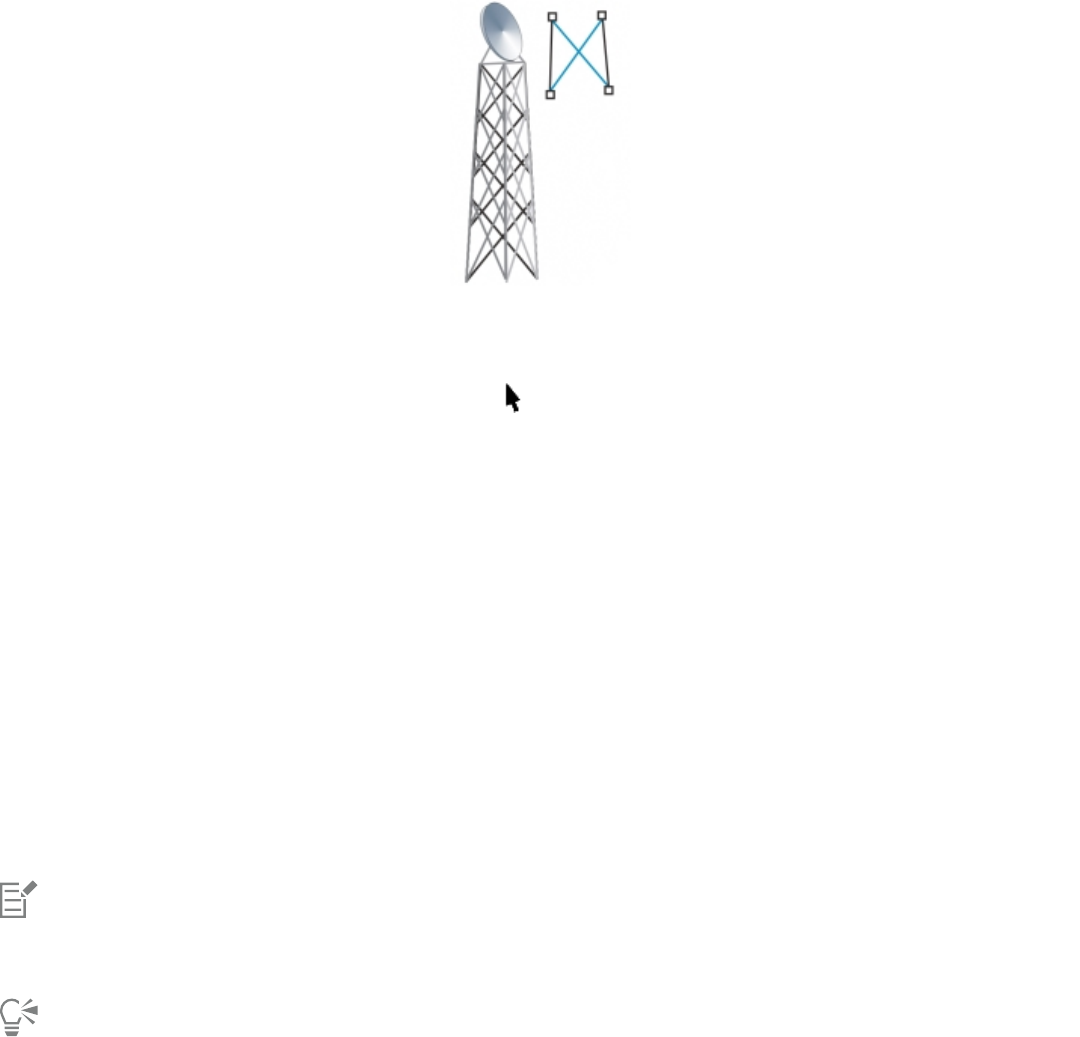
200 | Corel DESIGNER 2017 User Guide
Joining curves and line segments can be the starting point for a more complex drawing.
To join curves
1Hold down Shift, and select each object using the Pick tool .
2Click Object Join curves.
3In the Join curves docker, choose one of the following modes from the list box:
•Extend
•Chamfer
•Fillet
•Bézier Curve
4Click Apply.
If the curves are not joined, you must increase the gap tolerance.
You can also
Set the gap tolerance Type a value in the Gap tolerance box.
Specify the radius Type a value in the Radius box.
This control is available only for the Fillet mode.
You cannot join interior points, only endpoints.
If endpoints to be joined do not share coordinates, the endpoints are extended to their intersection.
You can also connect the subpaths in a group of objects.
You can also select lines by marquee selecting. If the lines are marquee selected, the properties from the bottom object on a layer are
used. To see which object is the bottom one, open the Object manager docker by clicking Window Object manager.
Copying and cutting segments
You can copy and cut curve segments, and then paste them as objects, making it easy to extract subpaths or create adjacent shapes with
similar contours.
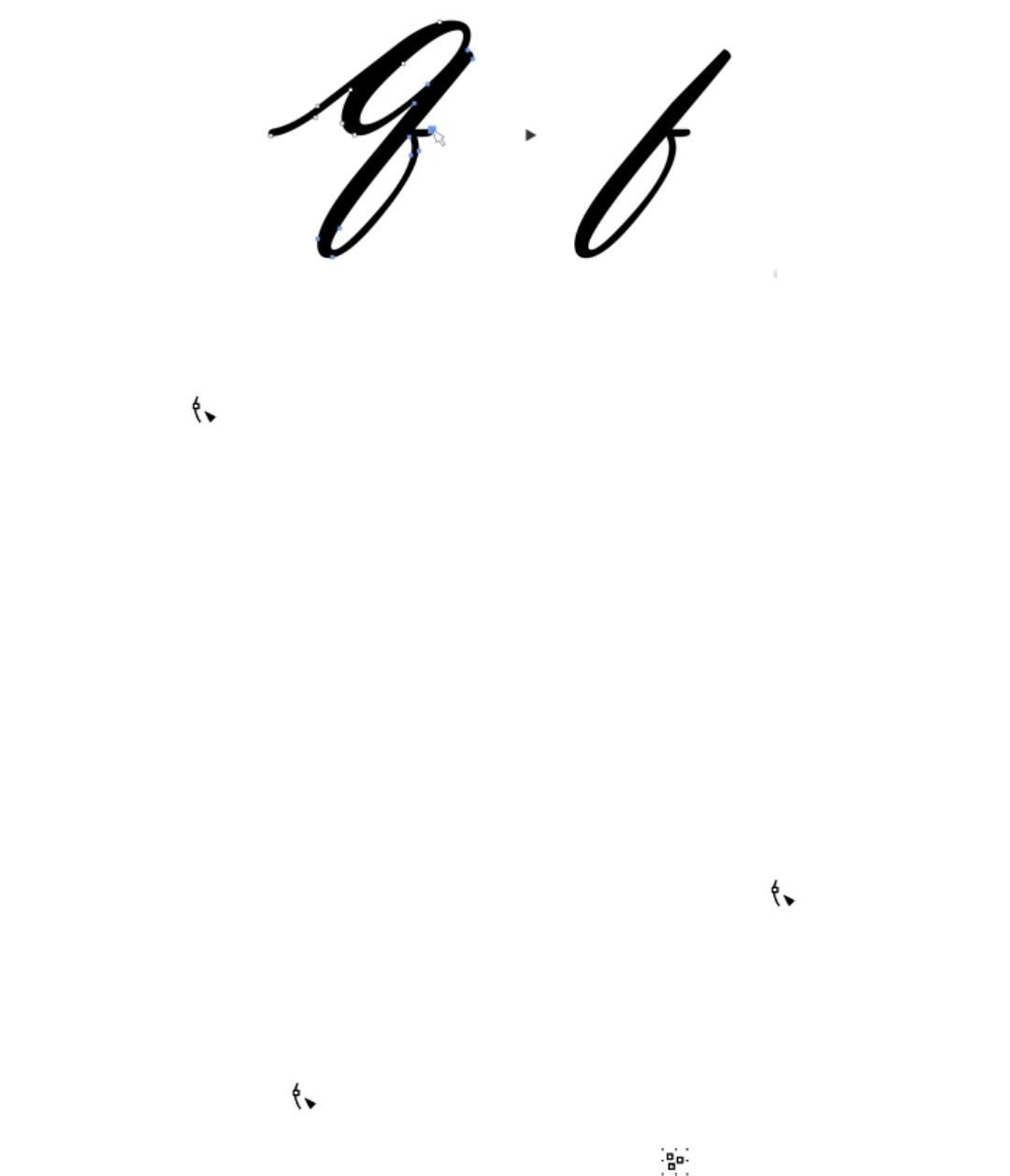
Shaping objects | 201
A curve segment was copied (left) and then pasted as an object (right).
To copy or cut a curve segment
1Select the curve object.
2Using the Shape tool , select the nodes on a curve segment, and then press one of the following:
•Ctrl + C to copy the curve segment
•Ctrl + X to cut the curve segment
•Ctrl + D to duplicate the curve segment at a specified offset distance
To paste the curve segment, press Ctrl + V.
Adding, removing, joining, and aligning nodes
When you add nodes, you increase the number of segments and, therefore, the amount of control you have over the shape of the object.
You can delete selected nodes to simplify an object’s shape.
When curve objects contain many nodes, it is difficult to edit and output them to devices such as vinyl cutters, plotters, and rotary engravers.
You can have the number of nodes in a curve object reduced automatically. Reducing the number of nodes removes overlapping nodes and
can smooth a curve object. This feature is especially useful for reducing the number of nodes in objects imported from other applications.
To add or delete a node
To Do the following
Add a node In the toolbox, click the Shape tool , select a curve object, and
double-click where you want to add a node.
Delete a node In the toolbox, click the Shape tool, select a curve object, and
double-click a node.
To reduce the number of nodes in a curve object
1In the toolbox, click the Shape tool .
2Click a curve object, and do one of the following:
•To reduce the number of nodes in the entire object, click the Select all nodes button on the property bar.
• To reduce the number of nodes in a part of a curve object, marquee select the part you want to change.
202 | Corel DESIGNER 2017 User Guide
3Do one of the following:
• Click Reduce nodes on the property bar to have overlapping and redundant nodes automatically removed.
• Move the Curve smoothness slider to control the number of nodes that are removed. Removing many nodes can reshape the curve
object.
To join the end nodes of a single subpath
1In the toolbox, click the Shape tool .
2Click a subpath.
3Click the Close curve button on the property bar.
You can close multiple subpaths in an object by clicking Object Join curves and choosing settings in the Join curves docker. For
more information, see “Joining curves” on page 199.
To join the nodes of multiple subpaths
1In the toolbox, click the Shape tool .
2Hold down Shift, and click a node from each subpath.
3Click the Extend curve to close button on the property bar.
If you want to join nodes from separate curve objects, you must first combine them into a single curve object, and then join the end
nodes of the new subpaths. For information about combining objects, see “Combining objects” on page 262.
To align nodes
1In the toolbox, click the Shape tool .
2Select a curve object.
3Select the nodes that you want to align.
4Click the Align nodes button on the property bar.
5In the Node align dialog box, enable the alignment options you want.
Using node types
You can change the nodes on a curve object to one of three types: cusp, smooth, and symmetrical. The control handles of each node type
behave differently.
Cusp nodes let you create sharp transitions, such as corners or sharp angles, in a curve object. You can move the control handles in a cusp
node independently of one another, changing only the line on one side of the node.
With smooth nodes, the lines passing through the node take on the shape of a curve, producing smooth transitions between line segments.
The control handles of a smooth node are always directly opposite one another, but they may be at different distances from the node.
Symmetrical nodes are similar to smooth nodes. They create a smooth transition between line segments, but they also let you give lines on
both sides of a node the same curve appearance. The control handles of symmetrical nodes are directly opposite each other and at an equal
distance from the node.
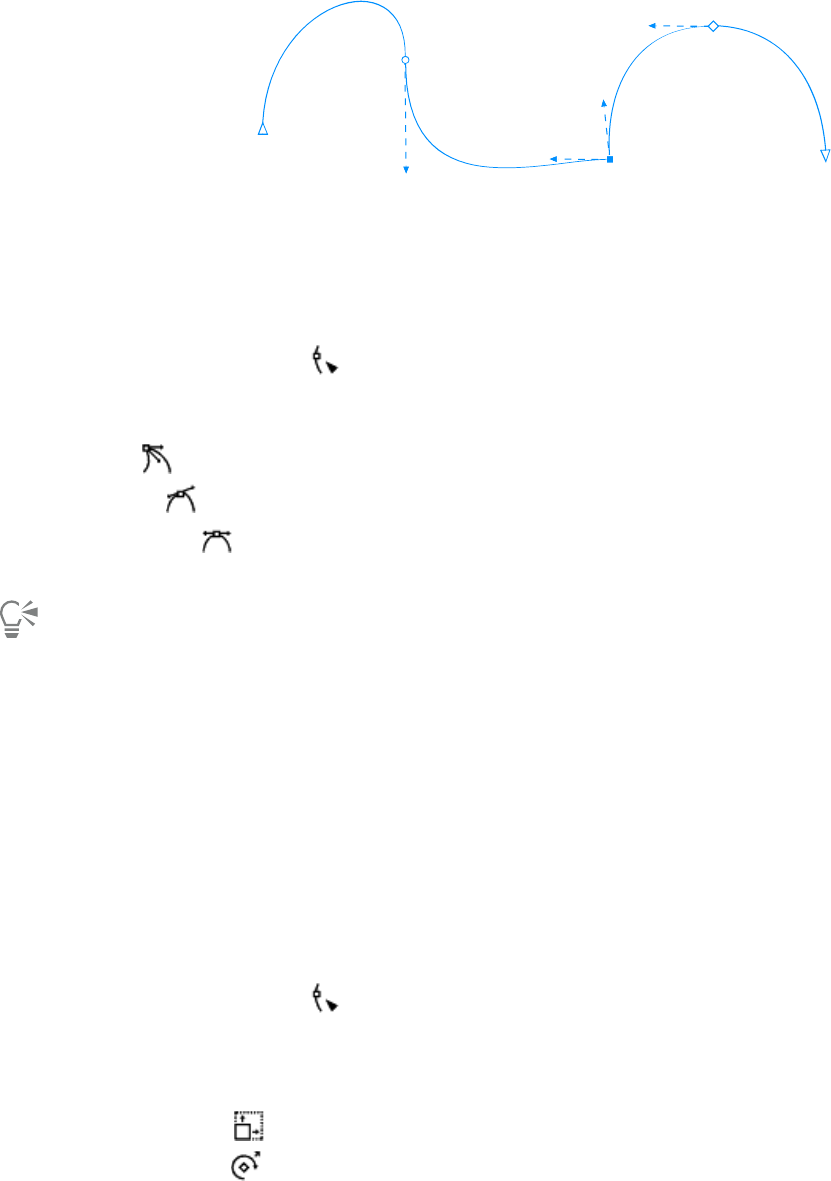
Shaping objects | 203
Each node type appears with a different shape - smooth nodes as
circles, cusp nodes as squares, and symmetrical nodes as diamonds.
To shape a curve object by using cusp, smooth, or symmetrical nodes
1In the toolbox, click the Shape tool .
2Click a node.
3On the property bar, click one of the following buttons:
•Cusp node
•Smooth node
•Symmetrical node
4Drag the node’s control handles.
You can also change an existing node from one type to another by using shortcut keys. To change a smooth node to a cusp node or a
cusp node to a smooth node, click the node using the Shape tool, and press C. To change a symmetrical node to a smooth node or a
smooth node to a symmetrical node, click the node with the Shape tool, and press S.
Transforming nodes
You can shape objects by stretching, scaling, rotating, and skewing their nodes. For example, you can scale the corner nodes of a curve
object to enlarge the curve object proportionally. Also, a curve object or parts of a curve object can be rotated in a counterclockwise or
clockwise direction.
To stretch, scale, rotate, or skew nodes
1In the toolbox, click the Shape tool .
2Select a curve object.
3Select the nodes along the curve that you want to transform.
4On the property bar, click one of the following buttons:
•Stretch or scale nodes
•Rotate or skew nodes
5Drag a set of handles to transform the nodes.
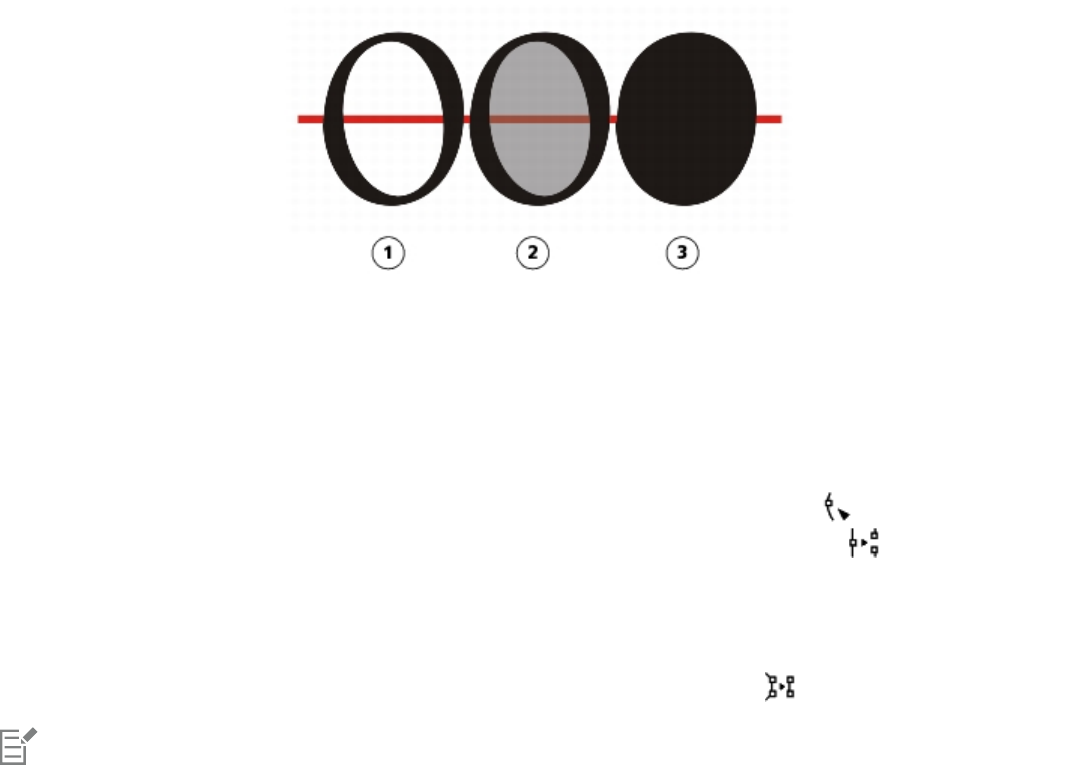
204 | Corel DESIGNER 2017 User Guide
Breaking the path of curve objects
You can break the path of a curve object.
Paths
Paths outline an object’s shape and are often visible as one or more line or curve segments. You can disconnect line segments from one
another to create subpaths. Even though they are not connected, subpaths are still part of the defining path of the original object; however,
you can extract a subpath to create two separate objects: the extracted subpath and the object it was extracted from.
Subpaths
Subpaths are the basic curves and shapes from which a single curve object is constructed. For example, a single curve object with subpaths
is often created when text is converted to curves. The letter “O,” for instance, is composed of two ellipses: the outside ellipse that defines the
letter’s shape and the inside ellipse that defines the “hole.” The ellipses are subpaths that compose the single curve object, “O.” One of the
basic reasons for creating an object with subpaths is that you can produce objects with holes in them. In the following example, you can see
objects underneath the center of the letter “O.”
1) The letter “O” is converted to curves. 2) The resulting subpaths are the outside ellipse
that defines the shape of the letter and the inside ellipse (tinted gray) that defines the hole.
3) In comparison, the black ellipse consists of a single path and cannot contain a “hole.”
To break a path
To Do the following
Break a path In the toolbox, click the Shape tool . Select a node on the
path, and click the Break curve button on the property bar.
Extract a broken path from an object In the toolbox, click the Shape tool. Right-click a path, and click
Break apart. Select a segment, node, or group of nodes that
represents the portion of the path you want to extract, and click
the Extract subpath button on the property bar.
When you break a path in a curve object, the resulting subpaths remain part of the same object. When you extract a path from an
object, you create two separate objects.
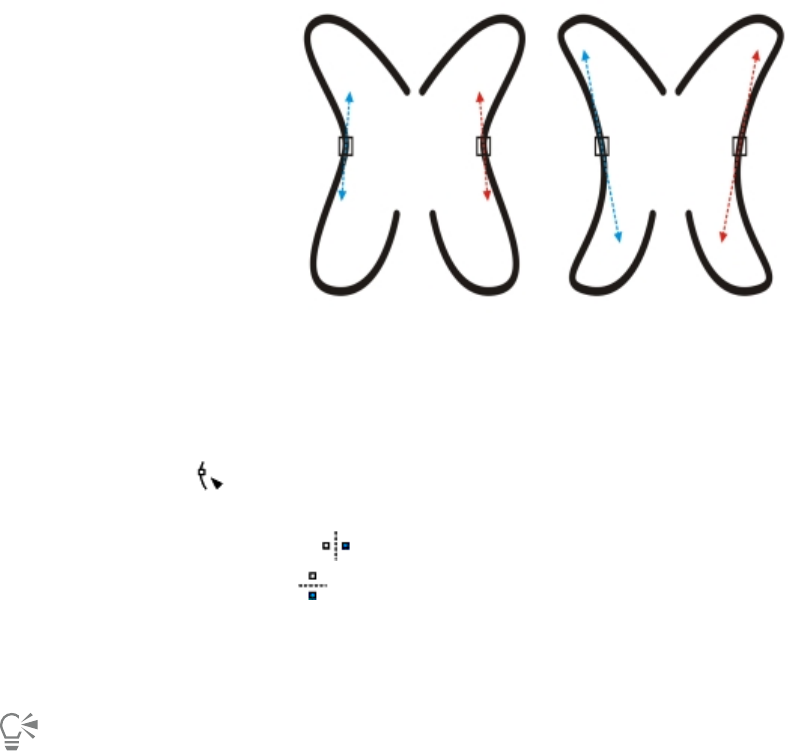
Shaping objects | 205
Mirroring changes in curve objects
When you mirror changes in curve objects by using Reflect Nodes mode, you edit nodes and have the same edits take place in reverse on
corresponding nodes. For example, you can move a node to the right, and its corresponding node moves the same distance to the left. This
feature is useful when you want to shape a curve object and mirror the changes across the object’s left and right side or top and bottom
side.
To mirror changes, you must select two curve objects one of which was created by mirroring the other, or a symmetrical object. For
information about mirroring objects, see “Mirroring objects” on page 256. Next, you need to choose whether to mirror changes
horizontally (along a vertical line of symmetry) or vertically (along a horizontal line of symmetry). Finally, you need to select the appropriate
corresponding nodes so that editing changes are mirrored across the selected objects.
Left: Two corresponding nodes are selected in mirrored curve objects. Right: When the blue
control handles are moved, the change is reflected in the corresponding control handles (in red).
To mirror changes in curve objects
1Using the Pick tool, select mirrored curve objects or a symmetrical curve object.
2Click the Shape tool .
3On the property bar, click one of the following:
•Reflect nodes horizontally button — lets you edit corresponding nodes in objects that have been mirrored horizontally
•Reflect nodes vertically button — lets you edit corresponding nodes in objects that have been mirrored vertically
4Hold down Shift, and select corresponding nodes on the left and right, or top and bottom.
5Edit the nodes on one side.
The changes occur in reverse on corresponding nodes on the other side.
To shape multiple objects by using Reflect Nodes mode, click the first object, and drag to select nodes; or hold down Shift, and click
each node on the first object. Then hold down Shift, click the second object, and drag to select nodes, or hold down Shift and click
each node on the second object.
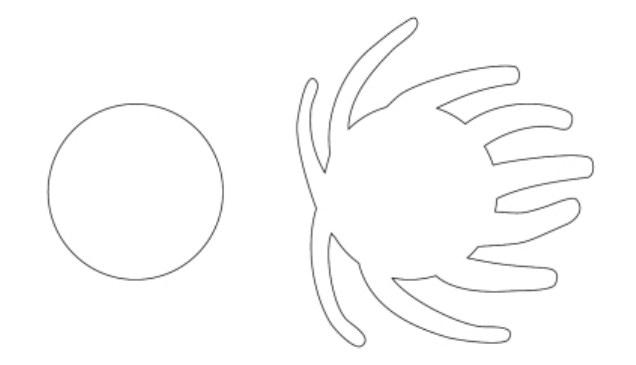
206 | Corel DESIGNER 2017 User Guide
Smudging and smearing objects
Smudging and smearing let you shape an object by pulling extensions or making indents along its outline. With smudging, the extensions
and indents resemble streaks that vary little in width as you drag with the Smudge tool. With smearing, the extensions and indents have a
more fluid shape that decreases in width as you drag with the Smear tool.
Smudging objects
When applying smudging to an object, you can control the extent and shape of the distortion whether you activate the controls for the
graphics tablet stylus or use the settings that apply to a mouse.
The smudging effect responds to both the angle of rotation — or bearing — and the tilt angle of a graphics tablet stylus. Rotating the stylus
changes the angle of the smudging effect and tilting the stylus flattens the brush tip and changes the shape of the smudging. If you are
using a mouse, you can simulate the bearing and tilt of the stylus by specifying values. Increasing the bearing angle from 0 - 359° changes
the angle of the brushstroke. As you decrease the tilt angle from 90° - 15°, you change the smudging shape by flattening the brush tip.
Smudging can respond to the pressure of a stylus on a tablet where the smudging widens with more pressure and narrows with less. If you
are using a mouse or want to override stylus pressure, you can enter real values to simulate the pressure of a stylus on a graphics tablet.
Negative values to -10 create a narrowing distortion, 0 maintains an even stroke width, and positive values to 10 create an expanding
distortion.
Smudging objects
Whether you are using a stylus or a mouse, you can specify the nib size. The nib size determines the width of the smudging applied to an
object.
Smearing objects
To control the smearing effect, you can set the size of the brush nib and the amount of effect to apply, and you can use the pressure of your
digital pen. You can use smooth curves or curves with sharp corners when smearing objects.
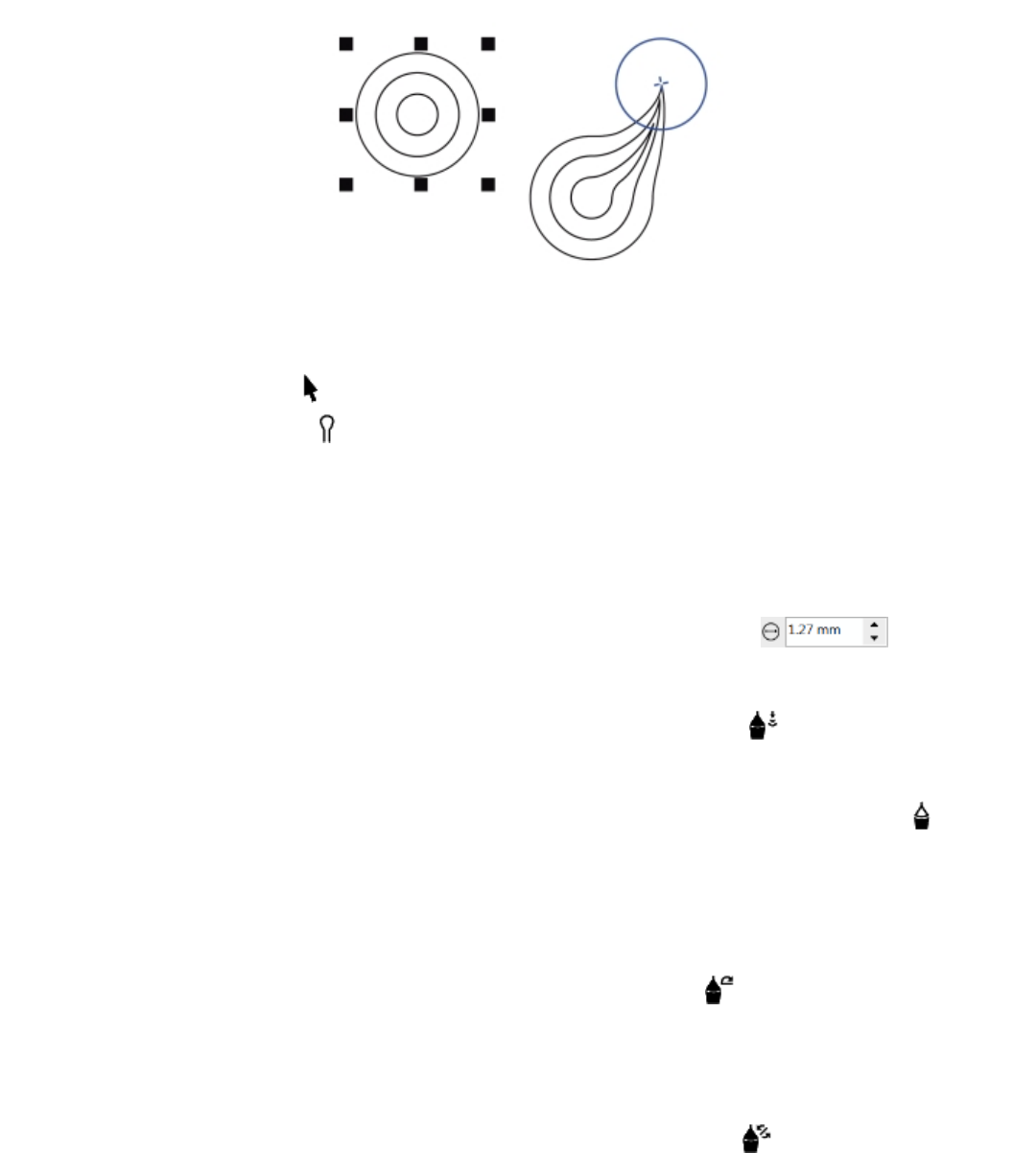
Shaping objects | 207
Smearing an object
To smudge an object
1Select an object using the Pick tool .
2In the toolbox, click the Smudge tool .
3Do one of the following:
• To smudge the inside of an object, click outside an object, and drag inwards.
• To smudge the outside of an object, click inside an object, and drag outwards.
You can also
Change the size of the brush nib Type a value in the Nib size box on the property
bar.
Change the size of the brush nib when using the graphics stylus Click the Pen pressure button on the property bar and apply
pressure to the stylus.
Widen or narrow the smudging Type a value between -10 and 10 in the Dryout box on the
property bar.
Specify the shape of the smudging Type a value between 15 and 90 in the Pen tilt box on the property
bar.
Change the shape of the smudging when using the graphics stylus Click the Pen tilt button on the property bar.
Specify the angle of the nib shape for smudging Type a value between 0 and 359 in the Pen bearing box on the
property bar.
Change the angle of the nib shape for smudging when using the
graphics stylus
Click the Pen bearing button on the property bar.
208 | Corel DESIGNER 2017 User Guide
To smear an object
1Select an object by using the Pick tool .
2In the toolbox, click the Smear tool .
3Do one of the following:
• To smear the outside of an object, click outside an object, close to its edge, and drag outwards
• To smear the inside of an object, click inside an object, close to its edge, and drag inwards.
You can also
Change the size of the brush nib Type a value in the Nib size box on the property bar.
Set the amount of smearing Type a value in the Pressure box.
Use the pressure of a digital pen to control the amount of smearing Click the Pen pressure button on the property bar.
Use smooth curves when smearing Click the Smooth smear button .
Use curves with sharp corners when smearing Click the Pointy smear button .
The difference between a smooth smear and pointy smear is noticeable only with higher Pressure values.
Roughening objects
The roughening effect lets you apply a jagged or spiked edge to objects, including lines, curves, and text. You can control the size, angle,
direction, and number of the indentations whether you activate the graphics tablet stylus or apply settings to a mouse.
The roughening effect is determined either by movements of a graphics tablet stylus, by fixed settings, or by automatically applying
perpendicular spikes to the line. Tilting the stylus toward and away from the tablet’s surface increases and decreases the size of the spikes.
If you are using a mouse, you can specify the tilt angle from 0 - 90°. You can determine the direction of the spikes by changing the angle
of rotation (or bearing) of the stylus as you apply the roughening effect to an object. When you are using a mouse, you can set the bearing
angle from 0 - 359°. You can also increase or decrease the number of spikes that are applied as you drag.
The roughening effect also responds to the pressure of the stylus on the tablet. The more pressure you apply, the more spikes are created in
the roughened area. If you are using a mouse, you can specify values to simulate the stylus pressure.
You can also change the brush nib size.
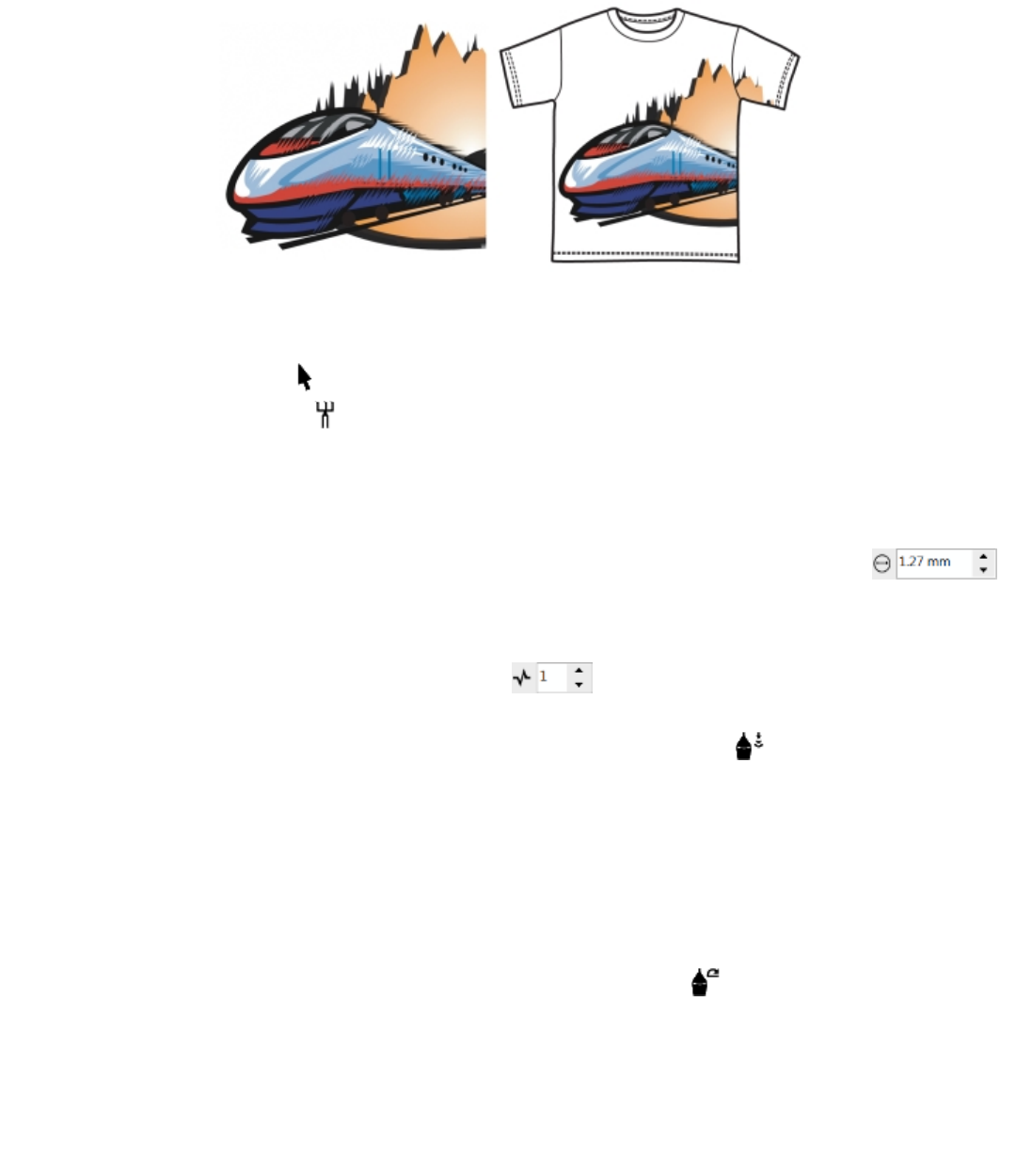
Shaping objects | 209
Roughening allows you to apply jags or spikes to part of an outline or path.
To roughen an object
1Select an object using the Pick tool .
2In the toolbox, click the Roughen tool .
3Point to the area on the outline you want to roughen, and drag the outline to distort it.
You can also
Specify the size of the roughening spikes Type a value from 0.01 to 2.0 in the Nib size box
on the property bar.
Change the number of spikes in a roughened area Type a value between 1 and 10 in the Frequency of spikes box
on the property bar.
Change the number of spikes in a roughened area when using a
graphics stylus
Click the Pen pressure button on the property bar.
Specify the height of the roughening spikes Type a value between 0 and 90 in the Pen tilt box on the property
bar.
Increase the number of roughening spikes as you drag Type a value between -10 and 10 in the Dryout box on the
property bar.
Change the height of the roughening spikes when using a graphics
stylus
Click the Pen tilt button on the property bar.
Specify the direction of the roughening spikes Choose Fixed direction from the Spike direction list box. Type a
value between 0 and 359 in the Bearing box on the property bar.
Change the direction of the roughening spikes when using a
graphics stylus
Choose Stylus setting from the Spike direction list box on the
property bar.
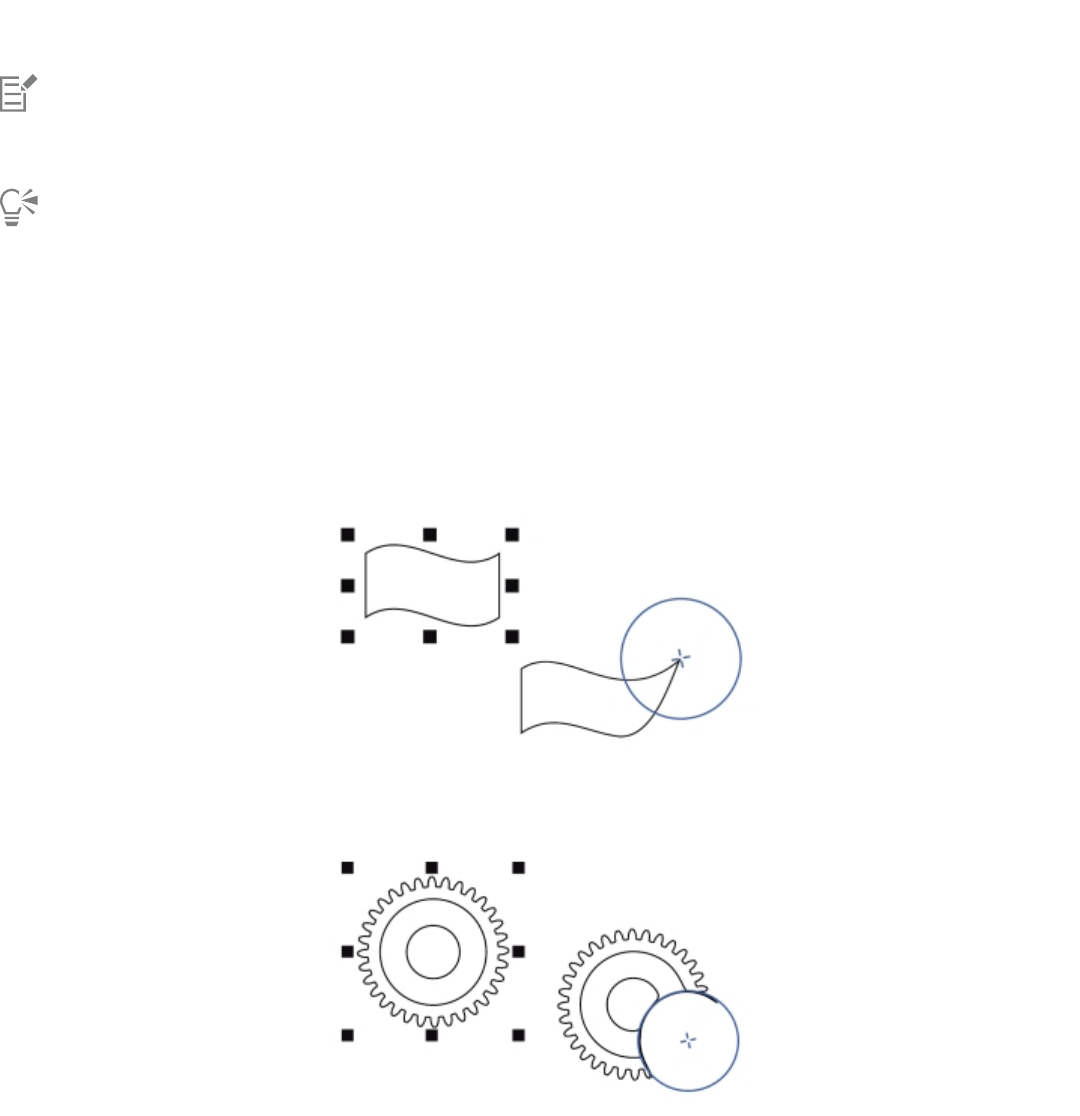
210 | Corel DESIGNER 2017 User Guide
You can also
Create roughening spikes perpendicular to the path or outline Choose Auto from the Spike direction list box on the property bar.
Objects with distortions, envelopes, and perspective applied to them are converted to curve objects before the roughening effect is
applied.
To make the tilt angle and bearing angle responsive to the graphics tablet stylus, right-click the roughened object, and select a
command from the submenu.
To get the minimum and maximum values for the roughening controls, right-click the control on the property bar, and click Settings.
Shaping objects by attracting or pushing away nodes
The Attract and Repel tools let you shape objects by attracting nodes or pushing nodes away. To control the shaping effect, you can vary the
size of the brush nib and the speed at which the nodes are attracted or pushed away, and you can use the pressure of your digital pen.
Using the Attract tool to shape an object
Using the Repel tool to shape an object
Shaping objects | 211
To shape an object by attracting nodes
1Select an object by using the Pick tool .
2In the toolbox, click the Attract tool .
3Click inside or outside the object, close to its edge, and hold down the mouse button to reshape the edge. For a more pronounced
effect, drag while holding down the mouse button.
You can also
Set the size of the brush nib Type a value in the Nib size box on the property bar.
To change the size of the brush nib, you can also drag in the
document window while holding down Shift. Drag towards the
nib’s center to decrease the radius, and away from the nib’s center
to increase it.
Set the speed of the attraction Type a value in the Rate box.
Use the pressure of a digital pen to control the effect Click the Pen pressure button on the property bar.
To shape an object by pushing nodes away
1Select an object by using the Pick tool .
2In the toolbox, click the Repel tool .
3Click inside or outside the object, close to its edge, and hold down the mouse button to reshape the edge. For a more pronounced
effect, drag while holding down mouse button.
You can also
Set the radius of the brush nib Type a value in the Nib size box on the property bar.
To change the radius of the brush nib, you can also drag in the
document window while holding down Shift. Drag towards the
nib’s center to decrease the radius, and away from the nib’s center
to increase it.
Set the speed of the repel effect Type a value in the Rate box.
Use the pressure of a digital pen to control the effect Click the Pen pressure button on the property bar.
Applying distortion effects
You can apply three types of distortion effects to shape objects.
212 | Corel DESIGNER 2017 User Guide
Distortion effect Description
Push and pull Lets you push the edges of an object in or pull the edges of an
object out
Zipper Lets you apply a saw tooth effect to the edges of the object. You
can adjust the amplitude and frequency of the effect.
Twister Lets you rotate an object to create a swirl effect. You can choose
the direction of the swirl, as well as the degree and amount of
rotation.
After you distort an object, you can change the effect by altering the center of distortion. This point is identified by a diamond-shaped
handle, around which a distortion appears. It is similar to a mathematical compass, where the pencil moves around a stationary point. You
can place the center of distortion anywhere in the drawing window, or choose to center it in the middle of an object so that the distortion is
distributed evenly and the shape of the object changes in relation to its center.
You can create an even more dramatic effect by applying a new distortion to an already distorted object. You don’t lose the effect of the
original distortion if, for example, you apply a zipper distortion on top of a twister distortion. The CorelDESIGNER application also lets you
remove and copy distortion effects.
To distort an object
1In the toolbox, click the Distort tool .
2On the property bar, click one of the following buttons, and specify the settings you want:
•Push and pull distortion
•Zipper distortion
•Twister distortion
3Point to where you want to place the center of distortion, and drag until the object is the shape you want.
You can also
Change the center of distortion Drag the diamond-shaped position handle to a new location.
Adjust the number of points on a zipper distortion Move the slider on the center of the distortion handle.
Apply a preset distortion Choose a distortion preset from the Preset list box on the property
bar.
Apply more than one distortion to an object Click another distortion type on the property bar, click an object,
and drag.
You can reapply the effects to distorted objects.
You can center a distortion by clicking the Center distortion button on the property bar.
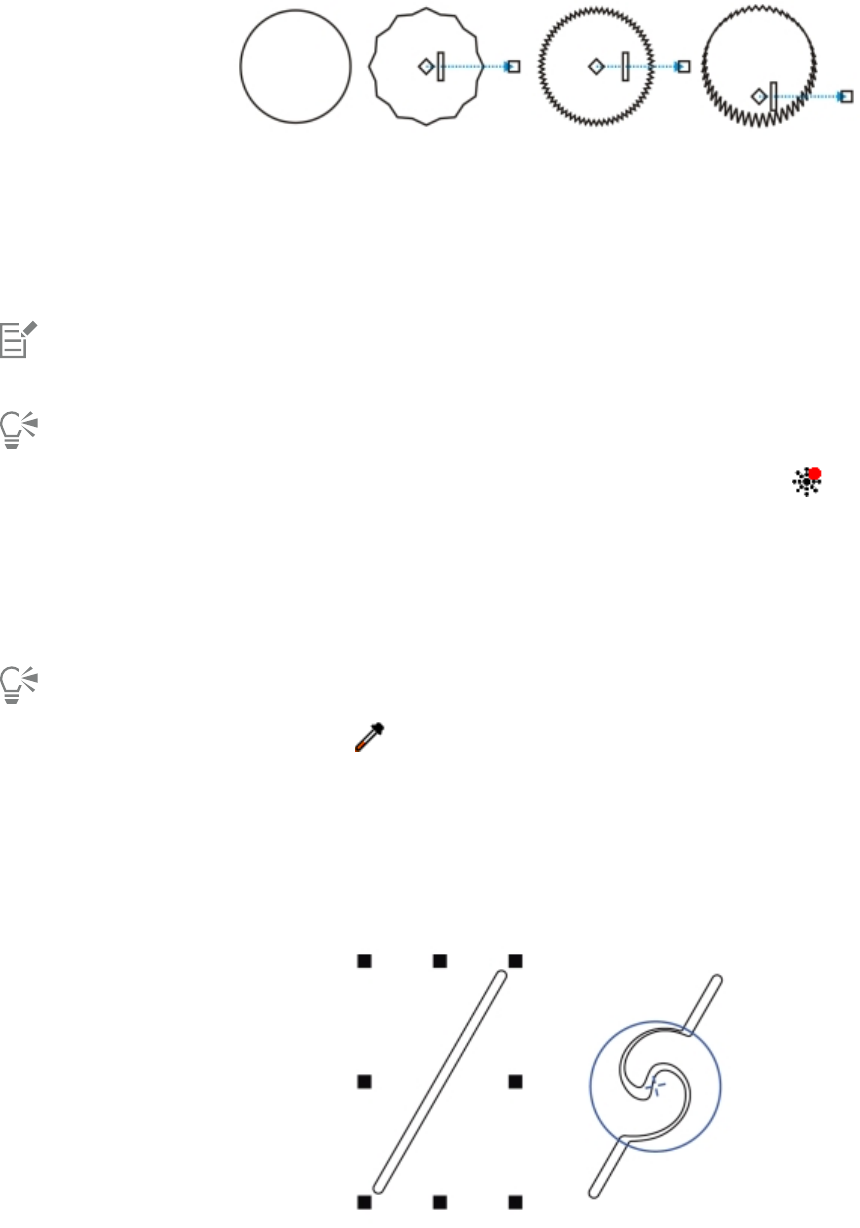
Shaping objects | 213
You can use the interactive vector controls to edit a distortion effect. Left: Zipper effect
applied to circle. Right: Zipper effects with higher frequency (more spikes) applied.
To remove a distortion
1Select a distorted object.
2Click Effects Clear distortion.
Removing a distortion this way clears the most recent distortion you’ve applied.
You can also remove a distortion from a selected object by clicking the Clear distortion button on the property bar.
To copy a distortion
1Select the object to which you want to copy a distortion.
2Click Effects Copy effect Distortion from.
3Click a distorted object.
You can also use the Eyedropper tool to copy the effect. For more information, see “To copy effects from one object to another”
on page 249.
Adding twirl effects
You can add twirl effects to objects. You can set the radius, speed, and direction of the twirl effects, and you can use the pressure of your
digital pen to change the intensity of the twirl effect.
Adding a twirl effect
214 | Corel DESIGNER 2017 User Guide
To add a twirl effect to an object
1Select an object by using the Pick tool .
2In the toolbox, click the Twirl tool .
3Click the edge of the object, and hold down the mouse button until the twirl is the size you want.
To position and reshape the twirl, you can drag while holding down the mouse button.
You can also
Set the radius of the twirl effect Type a value in the Nib size box on the property bar.
Set the rate at which the twirl effect is applied Type a value between 1 and 100
in the Rate box on the property bar.
Set the direction of the twirl effect Click the Counterclockwise twirl button or the Clockwise
twirl button .
Use the pressure of a digital pen to control the intensity of the twirl
effect
Click the Pen pressure button on the property bar.
Shaping objects by using envelopes
CorelDESIGNER lets you shape objects, including lines, artistic text, and paragraph text frames by applying envelopes to them. Envelopes are
made of multiple nodes that you can move to shape the envelope and, as a result, change the shape of the object. You can apply a basic
envelope that conforms to the shape of an object, or you can also apply a preset envelope. After you apply an envelope, you can edit it or
add a new envelope to continue changing the object’s shape. CorelDESIGNER also lets you copy and remove envelopes.
You can edit an envelope by adding and positioning its nodes. Adding nodes gives you more control over the shape of the object contained
in the envelope. CorelDESIGNER also lets you delete nodes, move multiple nodes simultaneously, change nodes from one type to another,
and change a segment of an envelope to a line or curve. For more information about the different types of nodes, see “Using curve objects”
on page 195.
You can also change the mapping mode of an envelope to specify how the object fits to the envelope. For example, you can stretch an
object to fit the basic dimensions of the envelope, and then apply the horizontal mapping mode to compress it horizontally so that it fits the
shape of the envelope.
To apply an envelope
1Select an object.
2In the toolbox, click the Envelope tool .
3On the property bar, click one of the following buttons:
•Straight line mode — creates envelopes based on straight lines, adding perspective to objects
•Single-arc mode — creates envelopes with an arc shape on one side, giving objects a concave or convex appearance
•Double-arc mode — creates envelopes with an S shape on one or more sides
Shaping objects | 215
•Unconstrained mode — creates freeform envelopes that let you change the properties of the nodes, and add and delete the
nodes
4Click the object.
5Drag the nodes to shape the envelope.
If you want to reset the envelope, press Esc before releasing the mouse.
You can also
Apply a preset envelope Click the Add preset button on the property bar, and click an
envelope shape.
Apply an envelope to an object with an envelope Click the Add new envelope button on the property bar, and
drag the nodes to change the shape of the envelope.
Remove an envelope Click Effects Clear envelope.
You can also apply an envelope by using the Envelope docker (Effects Envelope).
You can prevent the object’s straight lines from being converted to curves by enabling the Keep lines button on the property
bar.
To copy an envelope
1Select an object to which you want to copy an envelope.
2Click Effects Copy effect Envelope from.
3Select the object from which you want to copy the envelope.
You can also copy an envelope by selecting an object, clicking the Copy envelope properties button on the property bar, and
selecting an object with the envelope you want to copy.
You can also use the Eyedropper tool to copy an envelope. For more information, see “To copy effects from one object to
another” on page 249.
To edit the nodes and segments of an envelope
1In the toolbox, click the Envelope tool .
2Select an object with an envelope.
3Double-click the envelope to add a node or double-click a node to delete it.
You can also
Move several envelope nodes at once Click the Unconstrained mode button on the property bar,
marquee select the nodes you want to move, and drag any node to
a new position.
216 | Corel DESIGNER 2017 User Guide
You can also
Marquee select multiple nodes On the property bar, choose Rectangular from the Selection mode
list box, and drag around the nodes that you want to select.
Freehand marquee select multiple nodes On the property bar, choose Freehand from the Selection mode
list box, and drag around the nodes you want to select.
Move opposing nodes an equal distance in the same direction Press Ctrl, select two opposing nodes, and drag them to a new
position.
Move opposing nodes an equal distance in the opposite direction Click the Single-arc mode or Double-arc mode button
on the property bar so that it appears raised, press Shift, and drag
one of the nodes to a new position.
Change an envelope node type Click the Unconstrained mode button on the property bar so
that it appears pressed, and click either the Cusp node , the
Smooth node , or the Symmetrical node button.
Change an envelope segment to a straight line or curve Click the Unconstrained mode button on the property bar so that
it appears pressed, click a line segment, and click the Convert to
line button or the Convert to curve button.
To change the mapping mode
1In the toolbox, click the Envelope tool.
2Click an object with an envelope.
3On the property bar, choose one of the following from the Mapping mode list box:
•Horizontal — stretches the object to fit the basic dimensions of the envelope and then compresses the object horizontally to fit the
shape of the envelope
•Original — maps the corner handles of the object’s selection box to the envelope’s corner nodes. The other nodes are mapped linearly
along the edge of the object’s selection box.
•Putty — maps the corner handles of the object’s selection box to the envelope corner nodes
•Vertical — stretches the object to fit the basic dimensions of the envelope and then compresses the object vertically to fit the shape of
the envelope
4Drag the nodes or the control handles.
The mapping mode of paragraph text frames cannot be changed after an envelope is applied.
Cropping and erasing objects
You can crop and erase portions of objects.
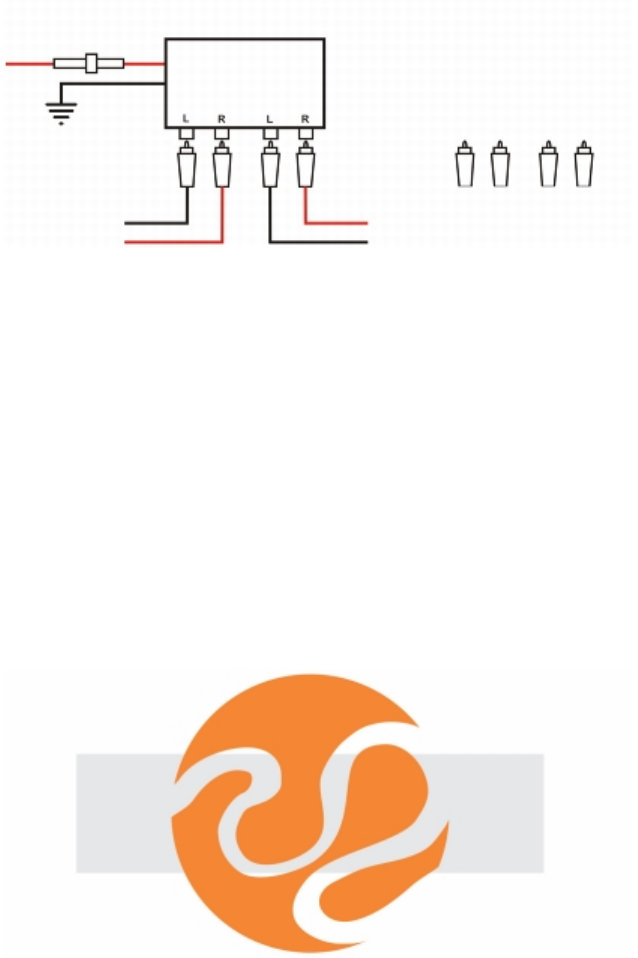
Shaping objects | 217
Cropping objects
Cropping lets you quickly remove unwanted areas in objects and imported photos, eliminating the need to ungroup objects, break linked
groups apart, or convert objects to curves. You can crop vector objects and bitmaps.
Cropping objects
When cropping objects, you define a rectangular area (cropping area) that you want to keep. Object portions outside the cropping area
are removed. You can specify the exact position and size of the cropping area, and you can rotate and resize it. You can also remove the
cropping area.
You can crop only selected objects without affecting other objects in a drawing, or you can crop all objects on the drawing page. In either
case, the affected text and shape objects are automatically converted to curves.
Erasing portions of objects
CorelDESIGNER lets you erase unwanted portions of bitmaps and vector objects. The Eraser tool works just like a pencil eraser, removing
any part of the image over which you click and drag. Erasing automatically closes any affected paths and converts the object to curves. If you
erase connecting lines, CorelDESIGNER creates subpaths rather than individual objects.
When working with a pen or stylus, you can use pressure to vary the size of the eraser nib. If your pen or stylus supports tilt and bearing,
you can use these features to vary the flatness and rotation of the eraser nib. You can also set fixed values for the tilt angle and bearing
angle so that the flatness and rotation of the nib remain the same.
You can use your stylus to vary the size and flatness of the eraser nib.
Deleting virtual line segments
You can also delete virtual line segments, which are portions of objects that overlap each other. For example, you can delete a loop in a line
that crosses over itself, or loops in line segments in which two or more objects overlap.
To crop an object or imported photo
1Select the object or imported photo that you want to crop.
218 | Corel DESIGNER 2017 User Guide
You can select one or more objects. If no objects on the drawing page are selected, all objects in the drawing will be cropped.
2In the toolbox, click the Crop tool .
3Drag to define a cropping area.
4Double-click inside the cropping area.
You can also
Specify the exact position of the cropping area Type values in the Crop position boxes on the property bar, and
press Enter.
Specify the exact size of the cropping area Type values in the Crop size boxes on the property bar, and press
Enter.
Rotate the cropping area Type values in the Angle of rotation box.
Remove the cropping area Click the Clear crop marquee button.
Objects on locked, hidden, Grid, or Guides layers cannot be cropped. Also, you cannot crop OLE and Internet objects, rollovers, or the
content of PowerClip objects.
During cropping, affected linked groups, such as contours, blends, and extrusions, are automatically broken apart.
You can move, rotate, and size the cropping area interactively as you would any object. To move the cropping area, drag it to a new
position. To size the cropping area, drag any of its handles. To rotate the cropping area, click inside, and drag a rotation handle .
You can remove the cropping area by pressing Esc.
To erase portions of an object
1Select an object.
2In the toolbox, click the Eraser tool .
3Drag over the object.
You can also
Change the size of the eraser nib Type a value in the Eraser thickness box on the property bar, and
press Enter.
Change the shape of the eraser nib Click the Round nib or the Square nib button on the property bar.
Vary the width of the eraser nib Click the Pen pressure button on the property bar to enable
it.
The maximum width of the nib is determined by the value specified
in the Eraser thickness box.
Shaping objects | 219
You can also
If you are using the mouse, press the Up arrow or Down arrow
to simulate changes in pen pressure and change the width of the
eraser nib.
Vary the flatness of the eraser nib Click the Pen tilt button on the property bar to enable it.
Flatten the eraser nib by setting a fixed value for pen tilt Click the Pen tilt button on the property bar to disable it, and
type a value in the Tilt angle box.
You can specify a value between 15 and 90. The lower the value,
the flatter the nib.
Vary the rotation of the eraser nib Click the Pen bearing button on the property bar to enable it.
Rotate the eraser nib by setting a fixed value for pen bearing Click the Pen bearing button on the property bar to disable it,
and type a value in the Bearing angle box.
You can specify a value between 0 and 359.
Maintain all the nodes of the area being erased Disable the Reduce nodes button on the property bar.
When you erase portions of objects, any affected paths are automatically closed.
You can erase straight lines by clicking where you want to start erasing, and then clicking where you want to finish erasing. Press Ctrl
if you want to constrain the line’s angle.
You can also erase an area of a selected object by double-clicking the area with the Eraser tool.
To delete a virtual line segment
1In the toolbox, click the Virtual segment delete tool .
2Move the pointer to the line segment you want to delete.
The Virtual segment delete tool snaps upright when positioned properly.
3Click the line segment.
If you want to delete multiple line segments at one time, click the pointer to drag a marquee around all line segments you want to
delete.
You can also
Delete multiple line segments at one time Drag the pointer to enclose or intersect all target segments.
Delete a virtual line segment that intersects with a curve Hold down Alt, and drag to draw a curve.
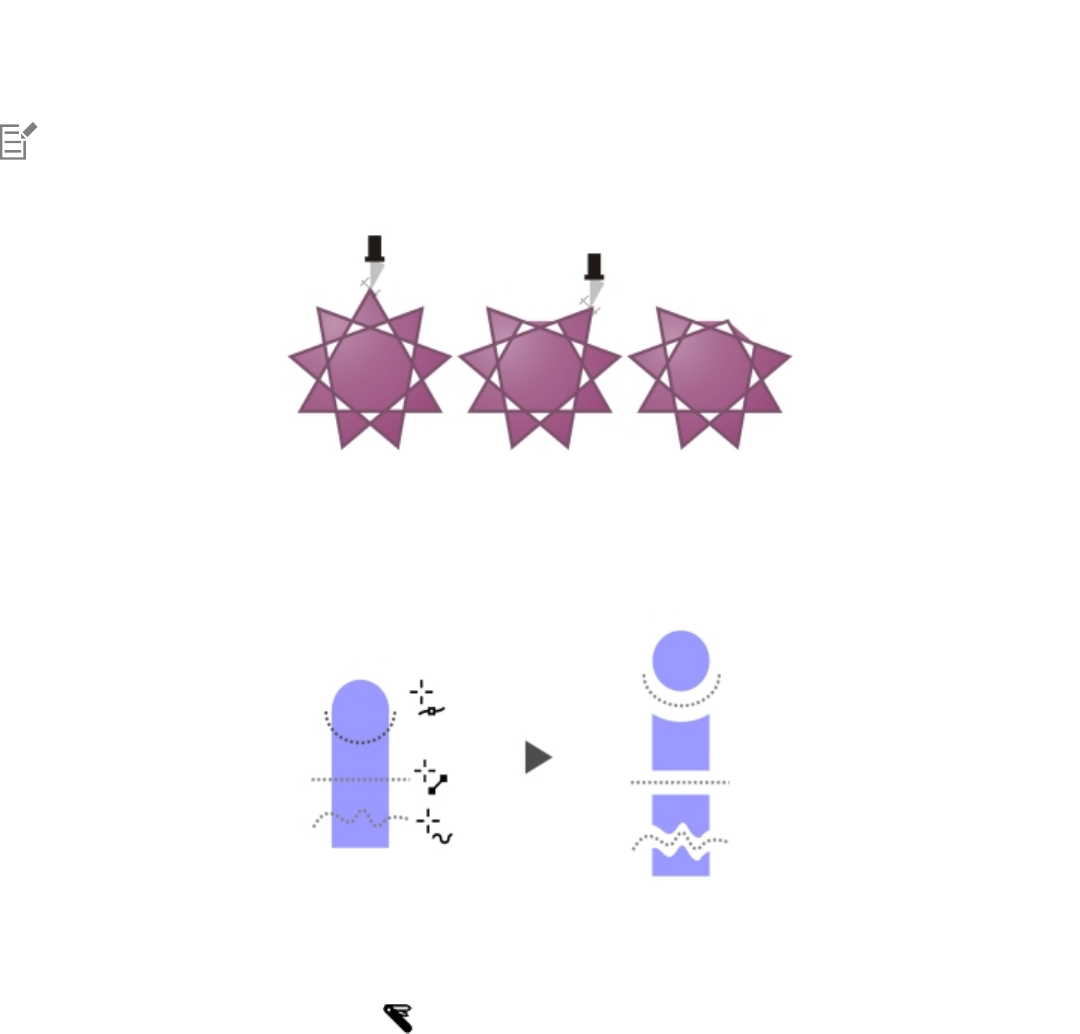
220 | Corel DESIGNER 2017 User Guide
You can also
Weld line segments Hold down Shift, click the two overlapping end points. You can
also hold down Alt + Shift, and drag to marquee select the
overlapping nodes.
The Virtual segment delete tool does not work on linked groups such as drop shadows, text, or images.
Deleting virtual line segments
Splitting objects
You can split vector objects, text, and bitmaps. You can split single objects or groups of objects along straight, freehand, or Bézier lines.
(From top to bottom) Three modes for splitting objects are available: Bézier, 2-Point Line, and Freehand.
In addition, you can create a gap between the new objects resulting from the splitting action, or you can make the new objects overlap.
When you split an object by using the Knife tool , CorelDESIGNER lets you choose whether to convert outlines to curve objects or keep
them as outlines. By default, the application automatically chooses the option that best preserves outline appearance.
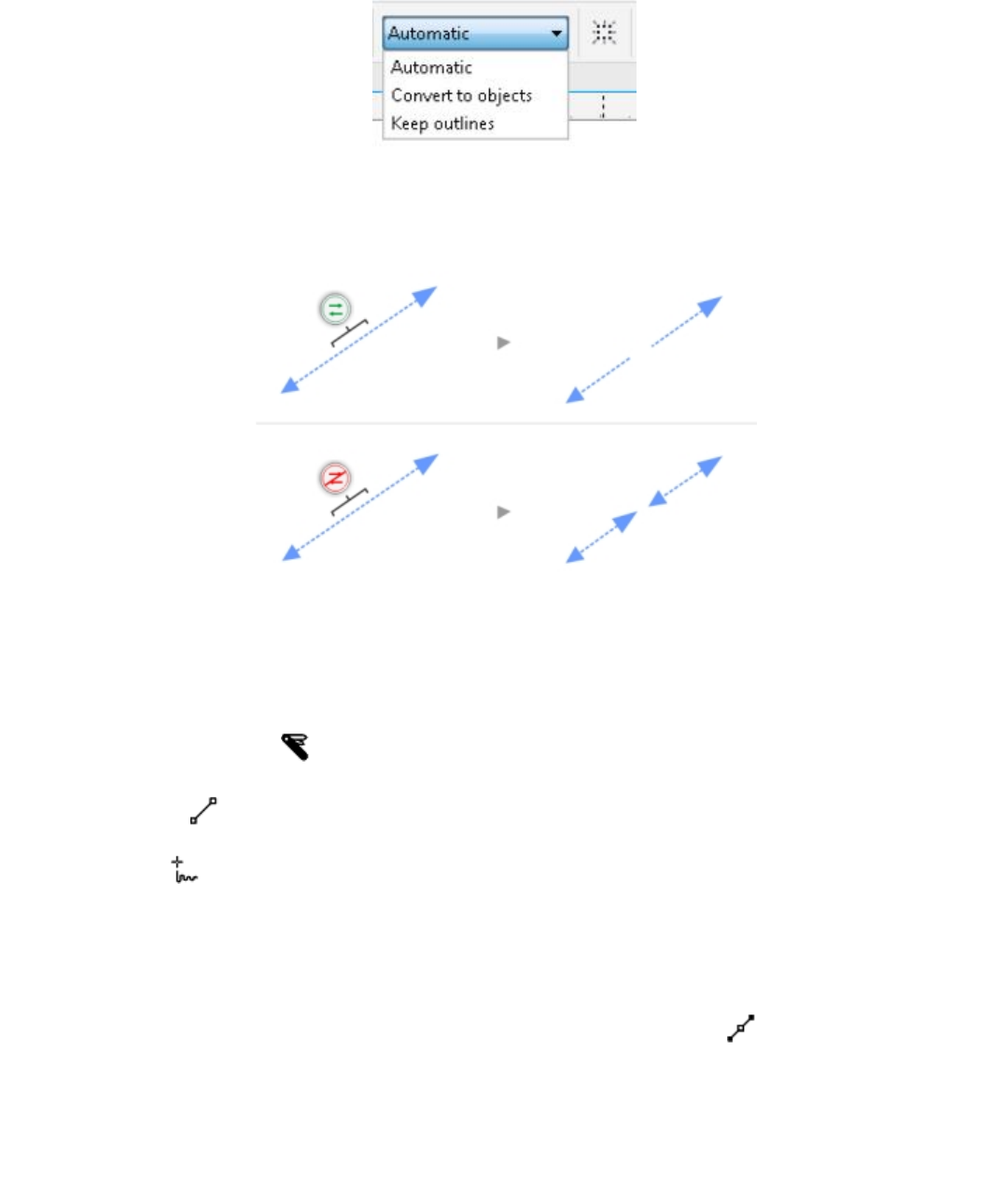
Shaping objects | 221
You can choose outlines options from the property bar.
When splitting objects that have dashed lines, arrowheads or end caps, the Convert to objects option preserves the outline appearance
better. When you choose the Automatic option for such objects, CorelDESIGNER converts the outlines to objects.
Top: The outline (a dashed line with arrowheads in this example) was converted to objects after the split, preserving the
original appearance. Bottom: The Keep outlines option was used, resulting in two lines with start and end arrowheads.
You can split an object into equal segments by using the Object Shaping Equal Divide command.
To split an object
1In the toolbox, click the Knife tool .
2On the property bar, click one of the following buttons:
•2-point line mode — to split the object along a straight line. To constrain the line by 15-degree increments, hold down Shift +
Ctrl.
•Freehand mode — to split the object along a freehand line
3Drag across the object or group of objects that you want to split.
You can also
Split an object along a Bézier line Click the Bézier mode button on the property bar. Click where
you want to start cutting an object, drag the control handle to
where you want to position the next node, and click. Continue
clicking to add more straight segments to the line. To add a curved
segment, point to where you want to place the node and drag to
shape the curve. To constrain the line by 15-degree increments,
hold down Shift + Ctrl.

222 | Corel DESIGNER 2017 User Guide
You can also
Create a gap or an overlap between the new objects On the property bar, choose Gap or Overlap from the Cut span list
box. Type a value in the Width box.
Choose outline options On the property bar, choose an option from the Outline options
list box.
When you split an object by using the Knife tool, the new objects become curve objects.
To divide an object into equal segments
1Select the object that you want to divide.
2Click Object Shaping Equal Divide.
3In the Shaping docker, specify the following:
•Divisions — number of segments to divide the object into
•Gap — amount of space between segments
If you want to group the segments after the divide, enable the Group divisions check box.
If you want the segments to be combined as one object, enable the Combine divisions check box. Disable the check box if you want the
segments to be individual objects.
If you do not want to delete the original object, disable the Delete selected object check box.
4Click Apply.
This feature creates a copy of the object and applies the divisions to the new object. If you do not delete the original object, you will
have two objects one on top of the other, and the object will appear unchanged.
The resulting object inherits the original object’s edge and fill properties.
You can divide curves, arcs, rectangles, and polygons. To divide other objects, you must first convert them to curves. You cannot
divide images.
You can select multiple objects to divide at one time. If you also enable the Group divisions check box, all the objects that you divide
are grouped into a single group.
Trimming objects
Trimming creates irregularly shaped objects by removing object areas that overlap. You can trim almost any object, including clones, objects
on different layers, and single objects with intersecting lines. However, you cannot trim paragraph text, dimension lines, or masters of clones.
Before you trim objects, you must decide which object you want to trim (the target object) and which object you want to use to perform
the trimming (the source object). For example, if you want to create a star-shaped cut out of a square object, the star is the source object
because you are using it to trim the square. The square is the target object because it’s the object you want to trim. The source object trims
the part of the target object it overlaps.
The target object retains its fill and outline attributes. For example, if you trim a rectangle that is overlapped by a circle, the area of the
rectangle that was covered by the circle is removed, creating an irregular shape.
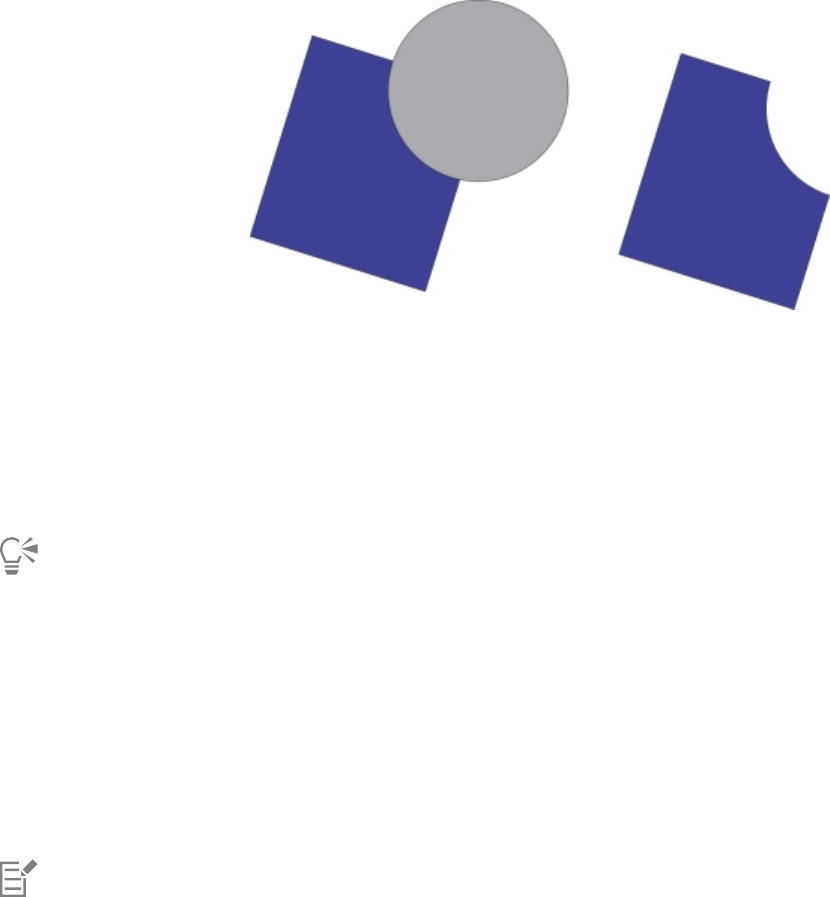
Shaping objects | 223
CorelDESIGNER lets you trim objects in different ways. You can use a front object as the source object to trim an object behind it, as well as
use the back object to trim a front object. You can also remove hidden areas of overlapping objects, so that only the visible areas remain in
the drawing. Removing the hidden areas can reduce file size when you convert vector graphics to bitmaps.
The circle is used to trim the rectangle.
To trim an object
1Select the source and target objects.
2Click Object Shaping Trim.
3In the Shaping docker, click Indicate target.
4Click the object to trim.
If you want to delete objects during the trim, enable the Delete selected object or Delete target object check box in the Shaping
docker.
To trim front or back objects
1Marquee select the source and target objects.
2Click Object Shaping, and click one of the following:
•Front minus back — removes the back object from the front one
•Back minus front — removes the front object from the back one
3Click Apply in the Shaping docker.
You can trim the control object of a PowerClip object so that the object inside the PowerClip object will assume the new shape of the
PowerClip container. For information about PowerClip objects, see “Creating PowerClip objects” on page 227.
Linked objects such as drop shadows, text on a path, blends, contours, and extrusions are converted to curve objects before they are
trimmed.
To trim overlapping areas in objects
1Marquee select the objects you want to trim.
2Click Object Shaping Simplify.
3Click Apply in the Shaping docker.
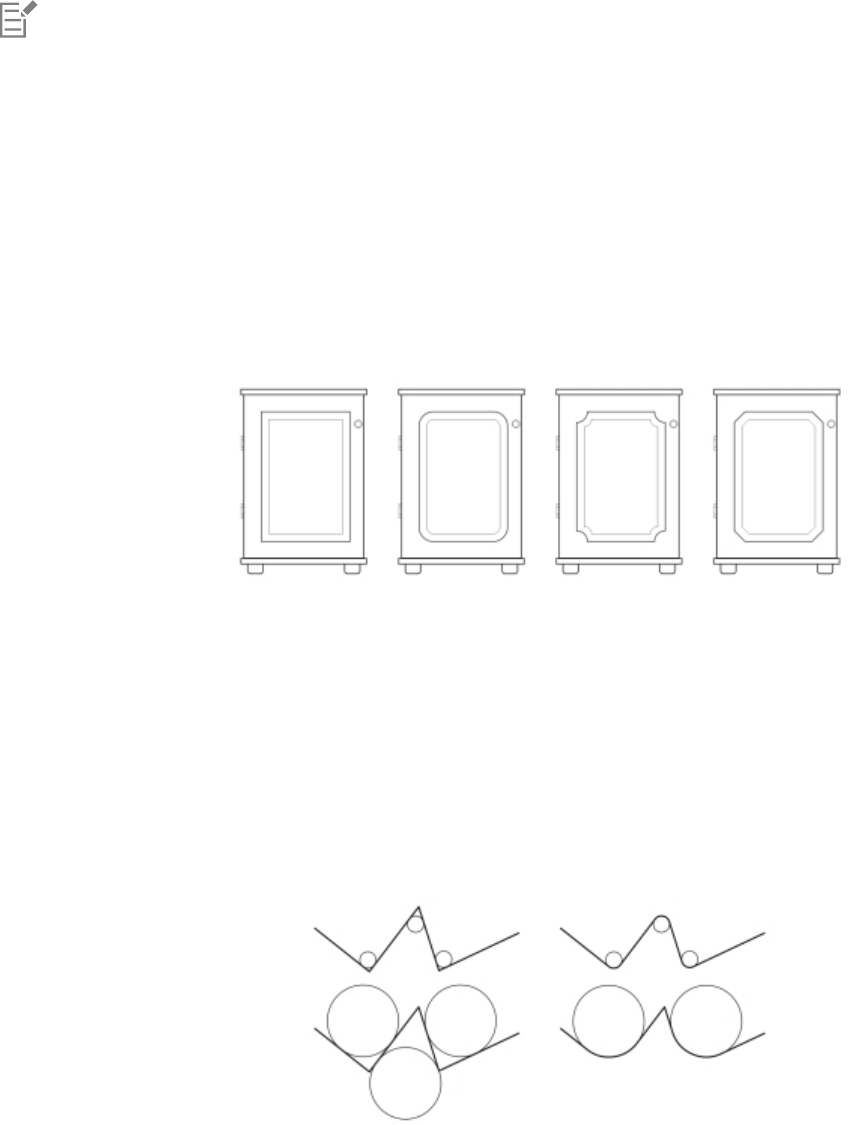
224 | Corel DESIGNER 2017 User Guide
You can trim the control object of a PowerClip object, so that the object inside the PowerClip object assumes the new shape.
Linked objects, such as drop shadows, text on a path, blends, contours, and extrusions, are converted to curve objects before they are
trimmed.
Filleting, scalloping, and chamfering corners
You can fillet, scallop, or chamfer the corners of any curve object, whether it originates from a shape, lines, text, or a bitmap. Filleting
produces a rounded corner, scalloping rounds and inverts the corner to create a notch, and chamfering bevels a corner so that it appears
flat. CorelDESIGNER also lets you preview the corners before you apply the changes to them. For information about modifying the corners
of squares and rectangles, see “Drawing rectangles and squares” on page 183.
The cabinet doors have different styles applied to the corners. From left to right you
can see standard corners, filleted corners, scalloped corners, and chamfered corners.
If you modify the corners of a non-curve shape, the shape is automatically converted to curves for you. The changes are applied to all corners
unless you select individual nodes. However, you must convert an object to curves manually by using the Convert to curves command
before you can select individual nodes. You cannot fillet, scallop, or chamfer a smooth or symmetrical curve; the corner must be created by
two straight or curve segments that intersect at an angle of less than 180 degrees.
The operation is not applied to the corners when the fillet, scallop, or chamfer value is too high. This occurs when the line segments aren’t
long enough to apply the radius or chamfer distance. When setting values for these operations, consider that, although the line segments
may appear long enough at the beginning of the operation, they shorten as the radius or chamfer values are applied across the object.
In this example, the circles represent fillet radius settings. The top row shows the proposed fillets on the
left and the filleted results on the right. The bottom row shows the proposed fillets on the left, but in the
results on the right, not all corners are filleted. After the first fillet is applied, the next corner cannot be
filleted because the line segment is not long enough. This corner is skipped, and the final corner is filleted.
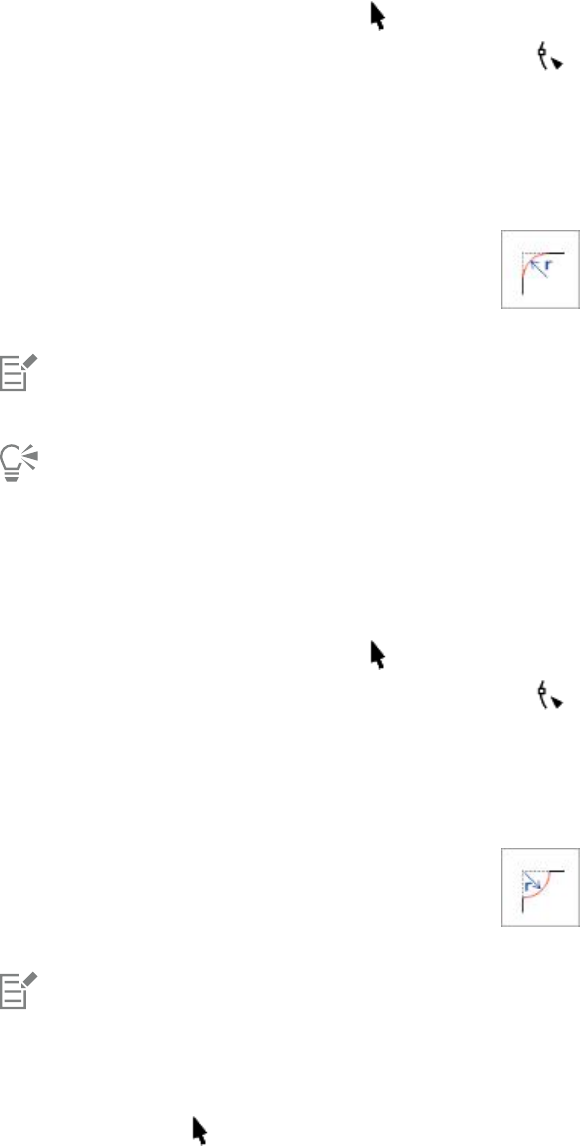
Shaping objects | 225
To round object corners by filleting
1Do one of the following:
•Select a curve object using the Pick tool .
•Select individual nodes on a curve object using the Shape tool .
2Click Window Fillet/Scallop/Chamfer.
3In the Fillet/Scallop/Chamfer docker, enable the Fillet option.
4Type a value in the Radius box.
The radius is used to create a circular arc whose center is equidistant from either side of a corner. Higher values produce more rounded
corners.
5Click Apply.
The Apply button is disabled if no valid objects or nodes are selected.
If you have a square or rectangle, you can also round all corners at once by dragging a corner node toward the center of the object
while the Shape tool is active. The shape is not converted to curves if you use this method.
To scallop object corners
1Do one of the following:
•Select a curve object using the Pick tool .
•Select individual nodes on a curve object using the Shape tool .
2Click Window Fillet/Scallop/Chamfer.
3In the Fillet/Scallop/Chamfer docker, enable the Scallop option.
4Type a value in the Radius box.
The radius value is measured from the original corner point to create a scalloping arc.
5Click Apply.
The Apply button is disabled if no valid objects or nodes are selected.
To bevel object corners by chamfering
1Using the Pick tool , select the object.
2Click Window Dockers Fillet/Scallop/Chamfer.
3In the Fillet/Scallop/Chamfer docker, choose Chamfer from the Operation list box.
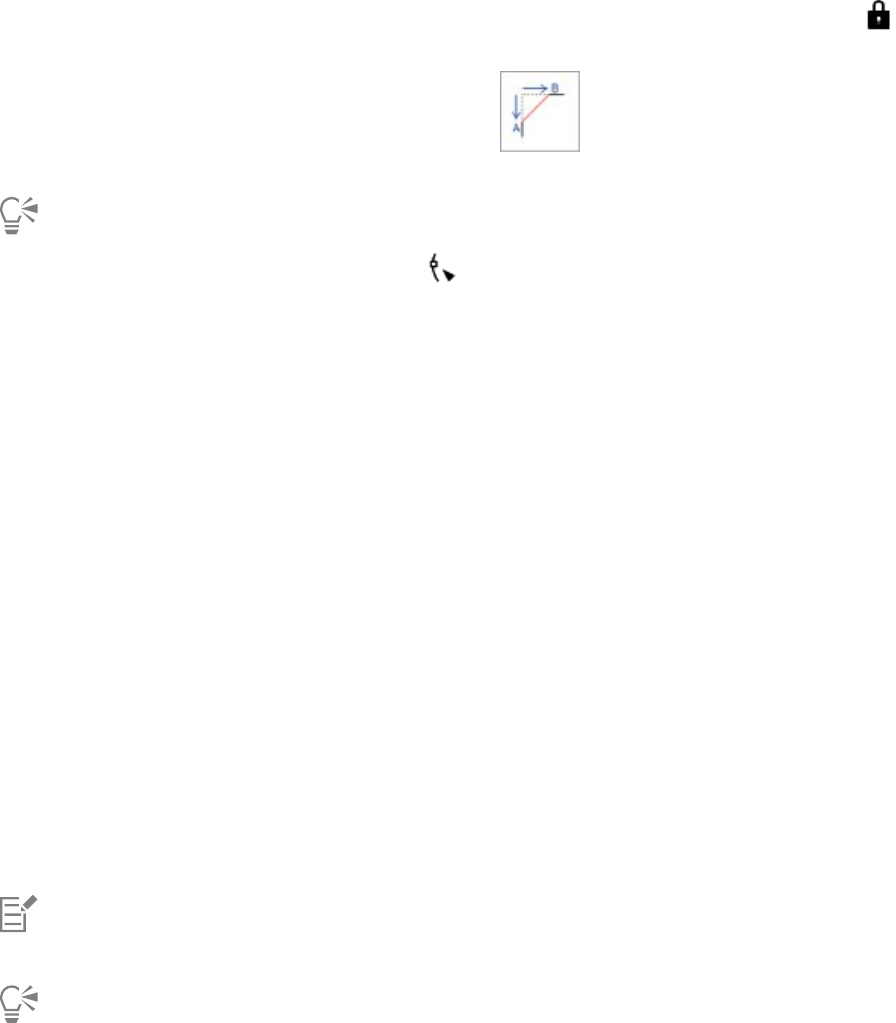
226 | Corel DESIGNER 2017 User Guide
4In the Chamfer distance area, type a value in the A box to set where the chamfer will begin in relation to the original corner.
If you do not want the ends of the chamfer to be equidistant from the original corner, click the Lock button , and type a different
value in the B box. A and B values are applied according to the direction in which the line is drawn.
5Click Apply.
To select individual nodes using the Shape tool , you must first convert the object to curves manually by using the Convert to
curves command.
Welding and intersecting objects
You can create irregular shapes by welding and intersecting objects. You can weld or intersect almost any object, including clones, objects on
different layers, and single objects with intersecting lines. However, you cannot weld or intersect paragraph text, dimension lines, or masters
of clones.
You can weld objects to create one object with a single outline. The new object uses the welded objects’ perimeter as its outline and adopts
the fill and outline properties of the target object. All intersecting lines disappear.
You can weld objects regardless of whether they overlap each other. If you weld objects that do not overlap, they form a weld group that
acts as a single object. In both cases, the welded object takes on the fill and outline attributes of the target object.
You can weld single objects with intersecting lines so that the object breaks into several subpaths, but its appearance remains the same.
Intersecting creates an object from the area where two or more objects overlap. The shape of this new object can be simple or complex,
depending on the shapes you intersect. The new object’s fill and outline attributes depend on the object you define as the target object.
To weld objects
1Select the source object or objects.
2Click Object Shaping Weld.
3In the Shaping docker, click Indicate target.
4Click the object to weld.
The new object has the fill and outline properties of the target object.
If you want to delete objects during welding, enable the Delete selected object or Delete target object check box.
To intersect objects
1Select the source object or objects.
2Click Object Shaping Intersect.
3In the Shaping docker, click Indicate target.
4Click the object to intersect with.
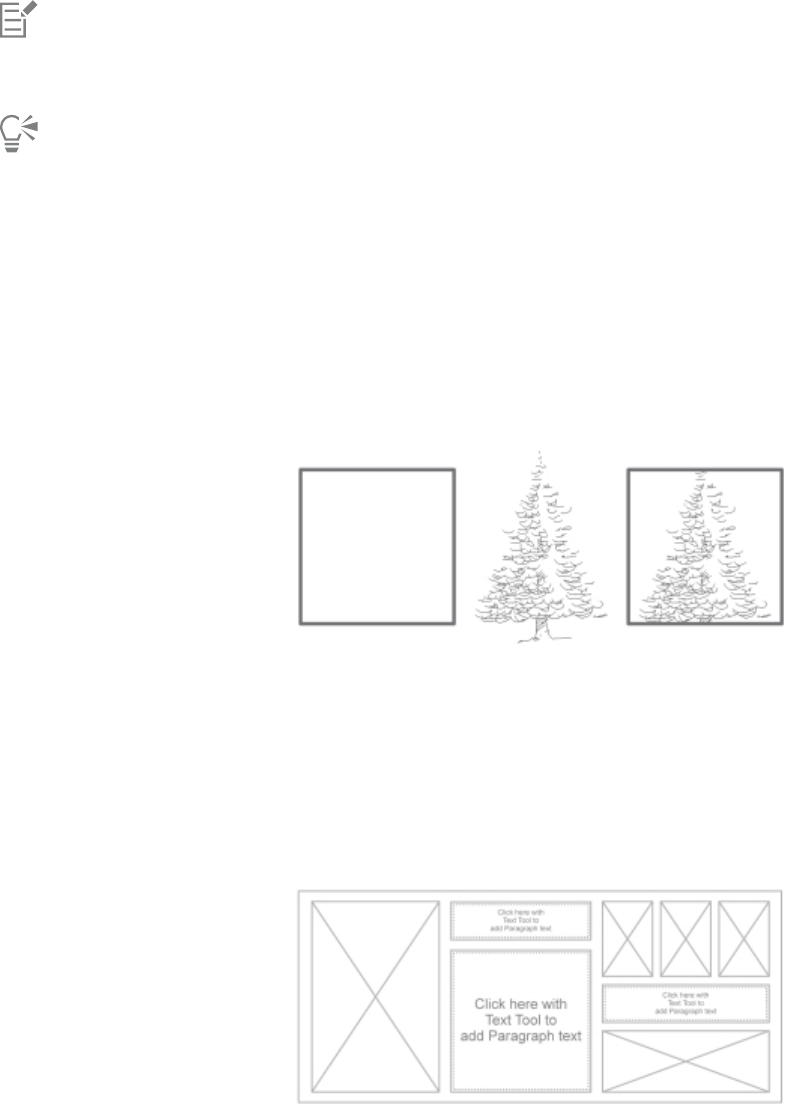
Shaping objects | 227
The new object, which is created from the overlapping parts of the source and target object, has the fill and outline properties of the
target object.
If you want to delete objects, enable the Delete selected object or Delete target object check box.
To intersect multiple objects, marquee select the source objects.
Creating PowerClip objects
CorelDESIGNER lets you place vector objects and bitmaps, such as photos, inside other objects, or frames. A frame can be any object, for
example artistic text or a rectangle. When the object is larger than the frame, the object, called the contents, is cropped to fit the form of the
frame. This creates a PowerClip object.
The rectangle is used as a frame, and the tree is placed inside to create a PowerClip object.
You can create more complex PowerClip objects by placing one PowerClip object inside another PowerClip object to produce a nested
PowerClip object. You can also copy the contents of one PowerClip object to another PowerClip object.
You can create an empty PowerClip frame from an object, or convert a PowerClip frame back to an object. Creating empty PowerClip frames
or text frames is useful when you want to define the layout of your document before adding the content. For more information about text
frames, see “Adding paragraph text” on page 415. After you create an empty PowerClip frame, you can add contents to it. You can also
add contents to a PowerClip frame that already contains another object.
Creating empty PowerClip frames and text frames is useful when
you want to visualize your page layout before adding the contents.
After you create a PowerClip object, you can select or edit its contents, or reposition the contents inside the frame. Whenever a PowerClip
object is selected, a floating toolbar appears.
228 | Corel DESIGNER 2017 User Guide
The PowerClip toolbar lets you edit, select, extract, lock, or reposition the contents
inside the frame. The toolbar appears whenever a PowerClip object is selected.
You can lock the PowerClip contents, so that when you move the frame, the content moves with it. If you want to delete the contents of a
PowerClip object or modify it without affecting the frame, you can extract the contents.
You can set the default behavior for dragging content to PowerClip frames, centering new content, and marking empty PowerClip frames.
To create a PowerClip object
1Select the object that you want to use as the PowerClip contents.
2Click Object PowerClip Place inside frame.
3Click the object that you want to use as a frame.
If you want to create a nested PowerClip object, drag the PowerClip object inside another PowerClip object, and hold down the W key as
you release the mouse button to place the object inside the frame.
You can also right-click an object or a group of objects, click PowerClip inside, and then click the object that you want to use as a
container.
If the content is placed so that it falls outside the frame in its current position, it is automatically centered inside the frame to make it
visible. To change this setting, click Tools Options, choose Edit in the Workspace list of categories, and set the options you want in
the PowerClip frame area.
To create an empty PowerClip frame
1Select an object that you want to use as a frame.
2Click Object PowerClip Create empty PowerClip frame.
You can also right-click the object, choose Frame type, and click Create empty PowerClip frame.
You can also click the PowerClip frame button on the Layout toolbar. To open the Layout toolbar, click View Toolbars Layout.
To add content to a PowerClip frame
1Drag an object to the PowerClip frame.
When the object approaches the frame, the frame is highlighted.
2Do one of the following:
• To add the object to an empty PowerClip frame, release the mouse button.
• To add the object to a full PowerClip frame, hold down the W key as you release the mouse button.
You can also drag content to the PowerClip frame directly from CorelCONNECT, or from the Get more docker.
If the content is placed so that it falls outside the frame, it is automatically centered inside the frame to make it visible. To change
this setting, click Tools Options, choose PowerClip Frame in the Workspace list of categories, and set the option you want in the
Auto-center new content area.

Shaping objects | 229
To convert a PowerClip frame back to an object
• Right-click the PowerClip frame, choose Frame type, and click None.
If the frame contains content, the content is deleted when the frame reverts to a regular object. To avoid losing the content, you can
first extract it from the PowerClip object.
You can also click the No frame button on the Layout toolbar. To open the Layout toolbar, click View Toolbars Layout.
To select the contents of a PowerClip object
1Select the PowerClip object.
The PowerClip toolbar appears.
2Click the Select contents button on the PowerClip toolbar.
To position the contents inside a PowerClip frame
1Select a PowerClip object.
2Perform a task from the following table.
To Do the following
Center the contents inside the PowerClip frame Click Object PowerClip Center contents.
Fit the contents proportionally inside the PowerClip frame Click Object PowerClip Fit contents proportionally.
The content is resized so that its longest dimension fits inside
the frame. The content is not distorted, and its aspect ratio is
preserved. The whole content is visible, but there may be empty
areas in the frame.
Fill the PowerClip frame proportionally Click Object PowerClip Fill frame proportionally.
The content is resized so that it fills the frame without being
distorted. The content’s aspect ratio is preserved. The frame is full,
but there may be parts of the content that fall outside the frame
and are not visible.
Fill the PowerClip frame by stretching the contents Click Object PowerClip Stretch contents to fill frame.
The content is resized and distorted so that it fills the frame. The
content’s aspect ratio is not preserved. The frame is full, and all of
the content is visible.
The Fit contents proportionally, Fill frame proportionally, and the Stretch contents to fill frame commands modify the PowerClip
contents. The content remains modified even if you extract it from the frame.
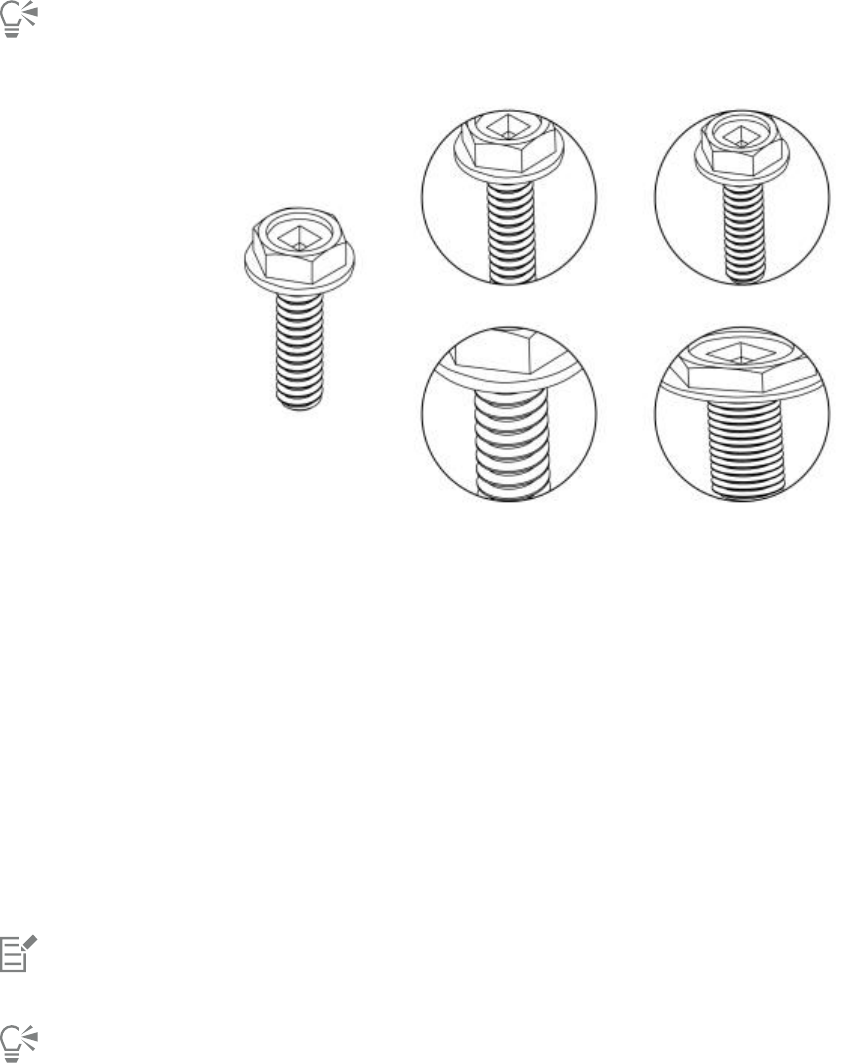
230 | Corel DESIGNER 2017 User Guide
You can also position the contents by clicking the arrow button on the PowerClip toolbar and clicking a command.
Examples of PowerClip contents positioned by using the following commands: Center contents (top left), Fit contents
proportionally (top right), Fill frame proportionally (bottom left), and Stretch contents to fill frame (bottom right).
To copy the contents of a PowerClip object
1Select an object.
2Click Object PowerClip Copy PowerClip from.
3Click a PowerClip object.
To edit the contents of a PowerClip object
1Select a PowerClip object.
2Click Object PowerClip Edit PowerClip.
3Edit the contents of the PowerClip object.
4Click Object PowerClip Finish editing this level.
While you edit the contents, the frame appears in Wireframe mode and cannot be selected or edited.
You can also double-click the PowerClip object to enable it for editing, or select the PowerClip object and click the Edit PowerClip
button on the PowerClip toolbar. When you have finished editing the contents, click the Stop editing contents button.
To lock or unlock the contents of a PowerClip object
1Select a PowerClip object.
2Click Object PowerClip Lock contents to PowerClip.

Shaping objects | 231
If you move the frame while the content is unlocked, the content remains stationary and is not visible until you move the frame over
it.
You can also right-click a PowerClip object and click Lock contents to PowerClip, or you can select the PowerClip object and click the
Lock contents to PowerClip button on the PowerClip toolbar.
To extract the contents of a PowerClip object
1Select a PowerClip object.
2Click Object PowerClip Extract contents.
The contents remains in the same location, but it is separated from the frame. The PowerClip frame remains as an empty PowerClip
frame.
You must extract the contents of each level in a nested PowerClip separately.
You can also select the PowerClip object and click the Extract contents button on the PowerClip toolbar.
To set default options for PowerClip frames
1Click Tools Options.
2In the Workspace category, click PowerClip Frame.
3Perform a task from the following table.
To Do the following
Set the default behavior for dragging content to a PowerClip frame In the Drag content inside PowerClip area, choose PowerClip
with content or Empty PowerClip from the list box, and then
choose one of the following options:
•Ignore PowerClip frame — places the content on top of the
PowerClip frame instead of inside
•Add content to PowerClip frame
•Replace existing content (available only for PowerClip frames
with content)
Set the default behavior for centering new content in a PowerClip
frame
In the Auto-center new content area, choose one of the following
options:
•When content is completely outside frame — centers content
only if it is beyond the boundaries of the PowerClip frame and
will not be visible otherwise
•Always — always centers new content
•Never— turns off auto-centering
Mark empty PowerClip frames Enable the Show lines in empty PowerClip frames check box, and
choose one of the following options:
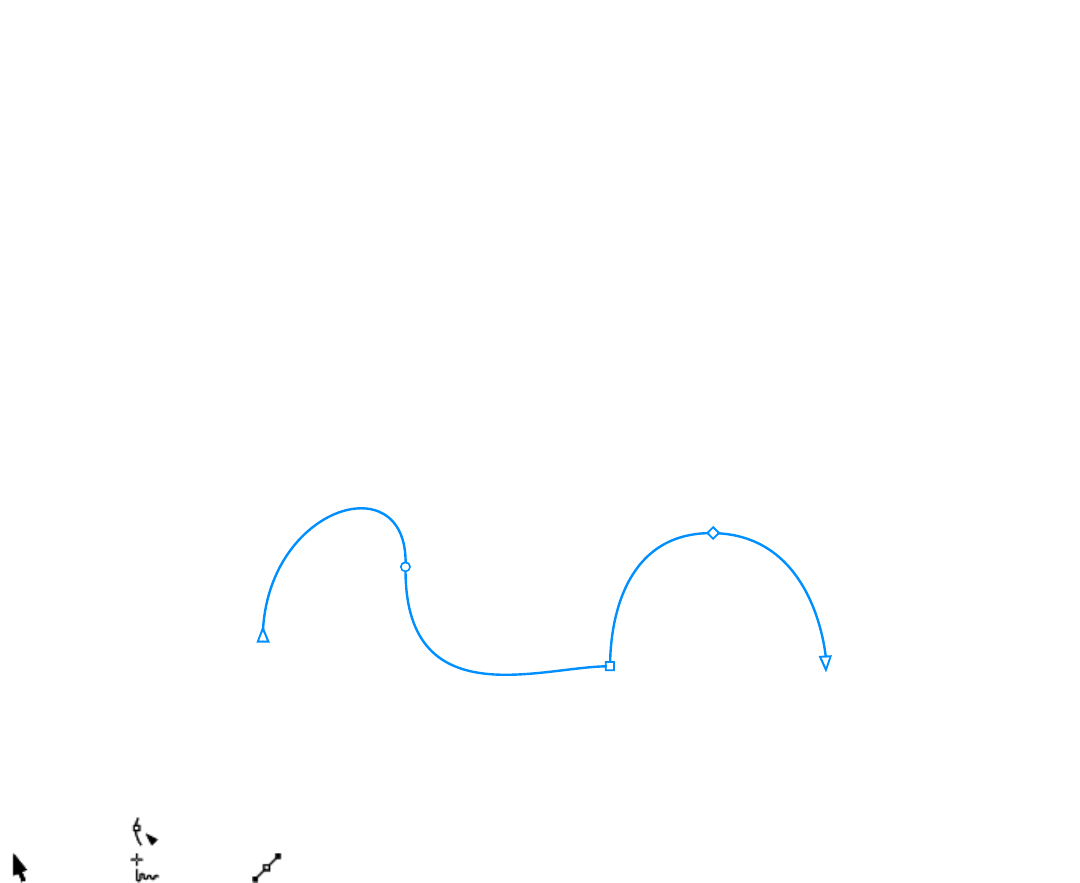
232 | Corel DESIGNER 2017 User Guide
To Do the following
•Always — displays lines in empty PowerClip frames on screen
and in printed or exported documents
•On screen only — displays lines in empty PowerClip frames only
on screen
Setting options for nodes, handles, and previews
The Nodes and Handles page of the Options dialog box (Tools Options) lets you customize the appearance of nodes, handles, and vector
previews to match your preferences, making it easier to edit nodes and apply vector effects and transformations.
General settings
You can change the size and shape of nodes, and you can choose to hide or show the curve direction when editing. Three preset sizes are
available for nodes and handles: small, medium, and large.
By default, each of the three node types has a different shape. Cusp nodes appear as squares, smooth nodes as circles, and symmetrical
nodes as diamonds. You can change the shape of any node type, choosing from shapes such as triangles, diamonds, circles, and polygons.
For information about the different type of nodes, see “Using node types” on page 202.
By default, each node type is displayed with a different shape - circle, square,
or diamond. The curve direction is shown by the orientation of the end nodes.
The Shape tool is usually used to select and move nodes. You can enable node tracking to select and move nodes by using the Pick
, Freehand , or Bézier tool.
Color settings
The Default color scheme uses blue as the main color and red as the secondary color for displaying nodes, control handles, and previews
while you are editing. The main color is used in the first curve you select. When you select additional curves with the Shape tool, they are
displayed in red, the secondary color. In addition, the Default color scheme applies a white highlight to improve visibility. This white highlight
color is also used to fill unselected nodes and to make vector previews stand out.
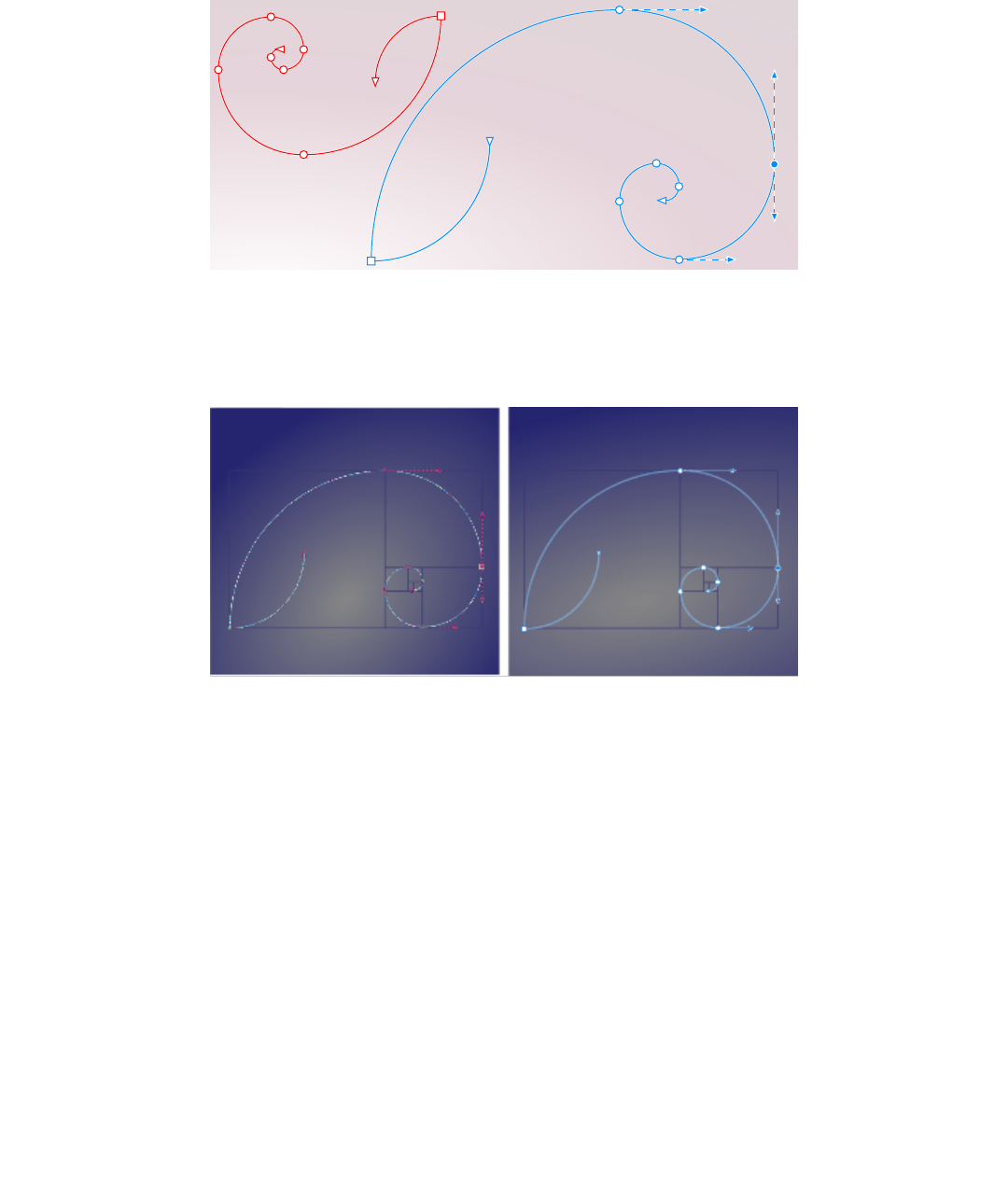
Shaping objects | 233
With the Default color scheme, the main color for nodes, handles, and previews is blue (right). The secondary color, red, is
used for the additional curve selected with the Shape tool (left). Unselected nodes are filled with white, the highlight color.
If you are used to the node editing colors of earlier versions, you can switch to the Legacy color scheme, which does not apply a highlight
color and inverts the preview and node colors.
A selected curve with inverted node and preview colors (left) and without color inversion (right)
You can create a custom color scheme by changing the main and the secondary colors. In addition, you can hide the highlight from
previews, and you can invert preview and node colors. To distinguish nodes types more easily, you can set the application to display each
node type in a different color.
To set general options for nodes, handles, and previews
1Click Tools Options.
2In the Workspace list of categories, click Nodes and Handles.
3In the General settings area, perform any of the tasks in the following table.
To Do the following...
Change the node size Choose a size from the Node size list box.
Change the shapes of nodes From the Node shape list boxes, choose a shape for each node
type: cusp, smooth, and symmetrical.
Revert to the default node shapes Next to the Nodes shape list boxes, click Reset.
234 | Corel DESIGNER 2017 User Guide
To Do the following...
Show or hide the direction of selected curves Enable or disable the Show curve direction when editing check
box.
Select and move nodes by using the Pick , Freehand , or
Bézier tool
Enable the Enable node tracking check box.
To choose a color scheme
1Click Tools Options.
2In the Workspace list of categories, click Nodes and Handles.
3In the Colors area, choose one of the following color schemes from the Color scheme list box:
•Default
•Legacy (version X8 and earlier)
•Custom
• The controls below the Color scheme list box become available only after you choose Custom from the Color scheme list box.
To create a custom color scheme for nodes, handles, and previews
1Click Tools Options.
2In the Workspace list of categories, click Nodes and Handles.
3In the Colors area, choose Custom from the Color scheme list box.
4Open the following color pickers, and choose a color:
•Main color — used in nodes and handles when an object is selected for editing. When you select multiple objects for editing, the
main color is used for the nodes and handles of the first selected object
•Secondary color — used in nodes and handles when additional objects are selected for editing with the Shape tool or when you are
editing vector effects such as extrusions
You can also
Hide the highlight color from vector previews Disable the Show highlight check box.
Invert the colors of nodes, handles and previews when displayed
against colored background
Enable the Invert node and vector preview colors check box.
Display each node type in a different color Enable the Show node types in different colors check box.
Revert to the default main and secondary colors Click Reset next to the Main color and the Secondary color picker.

Projecting objects | 235
Projecting objects
The CorelDESIGNER application lets you work in projected drawing modes. You can use drawing profiles to project objects onto drawing
planes and create the illusion of a three-dimensional image.
This section contains the following topics:
•“Understanding projected drawing modes” (page 235)
•“Using projected drawing modes” (page 236)
•“Customizing drawing profiles” (page 238)
Understanding projected drawing modes
CorelDESIGNER provides preset drawing profiles for working in projected drawing modes. After choosing a drawing profile, you then draw
or project objects onto its three drawing planes (top, front, and right) to create the illusion of a three-dimensional image. When you close
your drawing, the last drawing profile you used is saved along with it; this drawing profile is automatically activated the next time you open
the file.
CorelDESIGNER provides 11 preset drawing profiles:
• one isometric (default)
• four dimetric
• four trimetric
• one cavalier oblique
• one cabinet oblique
You can choose a different drawing profile at any time; however, if you change drawing profiles after you have begun a project, the
geometry of your existing objects will not change.
If the preset drawing profiles do not meet your needs, you can create new ones or edit existing ones. For more information, see
“Customizing drawing profiles” on page 238.
Each default drawing profile is associated with a set of three numbers, which correspond to the x, y, and z axes, respectively. The x-axis
is measured in degrees, clockwise from a line perpendicular to the y-axis. The y-axis is measured in degrees, counterclockwise from the
true horizontal, which is 0° east. The z-axis is measured in degrees, counterclockwise from a line perpendicular to the y-axis. The isometric
drawing profile, for example, has measurements of (30,90,30) while the cavalier oblique drawing profile has measurements of (0,90,45).
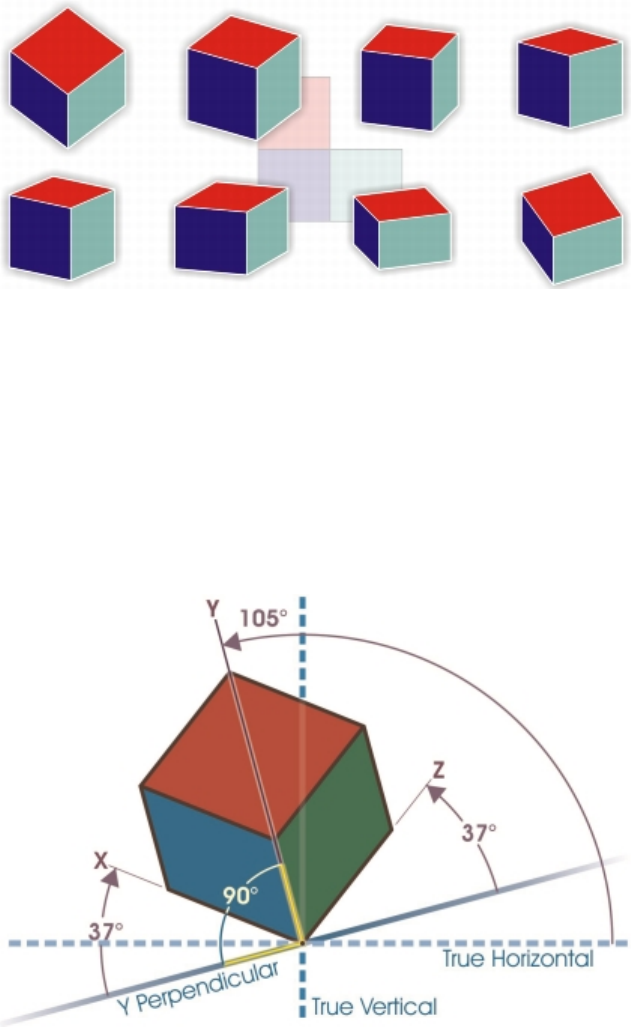
236 | Corel DESIGNER 2017 User Guide
This image depicts a cube displayed by using eight different drawing profiles.
Top row, left to right: Dimetric (37,90,37); Dimetric (16,90,37); Dimetric (7,90,42); Dimetric (15,90,15).
Bottom row, left to right: Trimetric (12,90,23); Trimetric (5,90,30); Trimetric (45,90,7); Trimetric (54,90,17)
You can choose to work from one of four drawing planes:
• orthographic — draws on a flat plane, such as the top, front, or right drawing plane
• top — draws onto a projected plane bounded by the x and z axes defined in the drawing profile
• front — draws onto a projected plane bounded by the x and y axes defined in the drawing profile
• right — draws onto a projected plane bounded by the y and z axes defined in the drawing profile
The default drawing plane is orthographic. Although you can change drawing planes at any time, only one drawing plane can be active at a
time.
In this example, a drawing profile is depicted. The x-axis is 37° clockwise from a line perpendicular to the
y-axis. The y-axis is 105° counterclockwise from the true horizontal. The z-axis is 37° counterclockwise
from a line perpendicular to the y-axis. Therefore, the drawing profile has a value of (37,105, 37).
Using projected drawing modes
You can specify a projected drawing mode by choosing drawing profiles and drawing planes from the Drawing plane toolbar. However, you
can have only one drawing profile and one drawing plane active at a time.
Projecting objects | 237
You can draw an object in a projected drawing mode, or you can project an object onto a drawing plane. You can also unproject an object
from a drawing plane; this reconstructs the object as it would appear in an orthographic view.
To display or hide the Drawing Plane toolbar
•Click View Toolbars Drawing plane.
A check mark beside the Drawing plane command indicates that the Drawing plane toolbar is displayed.
To choose a preset drawing profile
• From the Drawing profiles list box on the Drawing plane toolbar, choose one of the following preset drawing profiles:
•Cabinet oblique (0, 90, 60)
•Cavalier oblique (0,90,45)
•Dimetric (37,90,37)
•Dimetric (16,90,37)
•Dimetric (7,90,42)
•Dimetric (15,90,15)
•Isometric (30,90,30)
•Trimetric (12,90,23)
•Trimetric (5,90,30)
•Trimetric (45,90,7)
•Trimetric (54,90,17)
To choose a drawing plane
• On the Drawing plane toolbar, choose one of the following drawing planes:
•Orthographic
•Top
•Front
•Right
To draw an object in a projected drawing mode
1From the Drawing profiles list box on the Drawing plane toolbar, choose a drawing profile.
2On the Drawing plane toolbar, choose the Top, Front, or Right drawing plane.
3Draw an object.
To project an object onto a drawing plane
1Select an object.
2Click Object Transformations Project.
3In the Transformations docker, choose Project from the list box.
4In the Plane area, click one of the following buttons:
•Top — projects the object onto the top plane
•Front — projects the object onto the front plane
•Right — projects the object onto the right plane
5To specify an origin point on the drawing around which to project the selected object, do one of the following:
• Type values in the X and Y boxes to specify coordinates along the horizontal and vertical axes.
238 | Corel DESIGNER 2017 User Guide
•Click the Specify point button next to the X and Y boxes, and click a point on the drawing.
•Enable the Relative origin check box, and click the point on the origin locator that corresponds to the point on the object from
which you want to project the object.
If you want to leave the original object unchanged and apply the transformation to a copy, type 1 in the Copies box. The number of
copies cannot exceed one.
6Click Apply.
Applying a contour to a projected object may not produce the desired results. It is recommended that you apply a contour to the
object in its unprojected state and then project the object. Contour groups can be unlinked by clicking Arrange Break contour
group apart.
To unproject an object from a drawing plane
1Select an object.
2Click Object Transformations Project.
3In the Transformations docker, choose Unproject from the list box.
4In the Plane area, click one of the following buttons:
•Top — unprojects the object from the top plane
•Front — unprojects the object from the front plane
•Right — unprojects the object from the right plane
5To specify an origin point in the drawing around which to unproject the selected object, do one of the following:
• Type values in the X and Y boxes to specify coordinates along the horizontal and vertical axes.
•Click the Specify point button next to the X and Y boxes, and click a point on the drawing.
•Enable the Relative origin check box, and click the point on the origin locator that corresponds to the point on the object from
which you want to unproject the object.
If you want to leave the original object unchanged and apply the transformation to a copy, type 1 in the Copies box. The number of
copies cannot exceed one.
6Click Apply.
Customizing drawing profiles
You can use the Projected axes docker to create and edit drawing profiles. The Projected axes docker features a real-time preview of a cube,
which represents the projected axes and scales for the chosen drawing profile. When you change drawing profiles, or when you modify the
projected axes or scales, the preview is automatically updated.
The Projected axes docker allows you to set the degree offsets for the x, y, and z axes. For information on how these offsets are calculated,
see “Understanding projected drawing modes” on page 235. The Projected axes docker also allows you to set a scale factor for each axis.
For example, if you use a drawing profile with a scale of 50% on the x-axis, projected objects will display at half their original size along their
x-axis.
You can create a customized drawing profile from an existing one. You can also edit preset and custom drawing profiles, or you can delete
them altogether.
To display or hide the Projected Axes docker
•Click Window Projected axes.
A check mark beside the Projected axes command indicates that the Projected axes docker is displayed.
Projecting objects | 239
To create or edit a drawing profile
1If the Projected axes docker is hidden, click Window Projected axes to display it.
If you want to edit a drawing profile, choose a profile from the list.
2In the Projected axes docker, do one of the following:
• Enter a value between -360 and 360 in the X axis angle box. Repeat for the y and z axes.
•Click the User specified angle button next to the Angle box, and drag the pointer in the drawing window.
3Enter a value between 10 and 500 in the X axis scale box. Repeat for the y and z axes.
4Click the Save button .
5Choose where you want to save the file, and type a filename in the Filename box.
6Click Save.
You can create a custom axonometric drawing profile by having the application calculate the scale values automatically. To do this,
type values in the X axis angle, Y axis angle, and Z axis angle boxes, and enable the Auto axonometric check box. Note that the
Auto axonometric check box may be disabled for some angle values. In such cases, you first need to adjust the angle values so that
the option becomes available.
To delete a drawing profile
1In the Projected axes docker, choose a drawing profile from the list box.
2Click the Delete button .
240 | Corel DESIGNER 2017 User Guide
Objects, symbols, and layers | 241
Objects, symbols, and layers
Working with objects.......................................................................................................................................................................... 243
Inserting and editing QR codes........................................................................................................................................................... 269
Working with symbols......................................................................................................................................................................... 275
Creating objects for the web...............................................................................................................................................................285
Working with layers.............................................................................................................................................................................297
Object linking and embedding............................................................................................................................................................ 305
Working with object data....................................................................................................................................................................307
242 | Corel DESIGNER 2017 User Guide

Working with objects | 243
Working with objects
Working with objects is an essential part of creating drawings.
This section contains the following topics:
•“Selecting objects” (page 243)
•“Changing object properties” (page 246)
•“Copying, duplicating, and deleting objects” (page 246)
•“Copying object properties, transformations, and effects” (page 248)
•“Creating new objects from boundaries” (page 250)
•“Cloning objects” (page 250)
•“Moving objects” (page 251)
•“Sizing and scaling objects” (page 253)
•“Rotating objects” (page 255)
•“Mirroring objects” (page 256)
•“Skewing objects” (page 256)
•“Aligning and distributing objects” (page 257)
•“Applying object hinting” (page 260)
•“Changing the order of objects” (page 260)
•“Grouping objects” (page 261)
•“Combining objects” (page 262)
•“Locking objects” (page 264)
•“Finding and replacing objects” (page 264)
•“Hiding and displaying objects” (page 265)
•“Accessing and displaying geometric information about objects” (page 266)
•“Inserting bar codes” (page 266)
Selecting objects
Before you can change an object, you must select it. You can select visible objects, hidden objects, a single object in a group or a nested
group, and each object in the order in which it was created. You can also select all objects simultaneously and deselect objects.
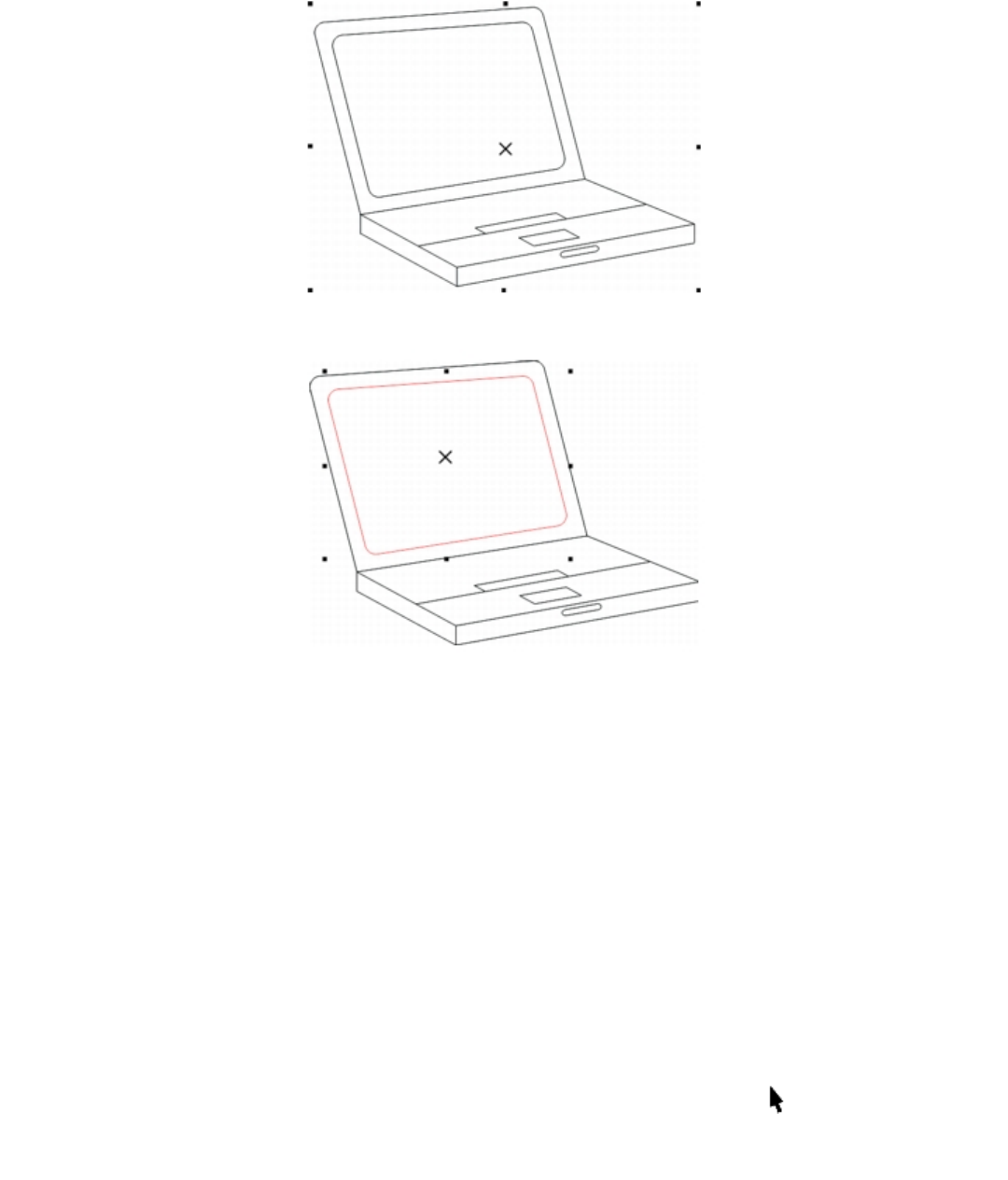
244 | Corel DESIGNER 2017 User Guide
A selection box appears around a selected object, and an “X” appears at its center.
You can select a single object in a group.
You can select all objects using the Pick tool. However, some tools allow you to select only objects that are appropriate to the active tool. For
example, if a curve tool is active, you can select any curve object, but you cannot select other object types.
When you select an object, either a selection box, rotation and skew handles, or the object’s nodes appear. Clicking a selected object
changes its selection mode. The selection modes are
•Drag and scale — a selection box appears around the object.
•Rotate and skew — rotation and skew handles appear around the object.
•Shape/Edit — the object’s nodes appear.
You can drag, rotate, or shape the object by its snap points, depending on which selection mode is active. See “Using gravity snapping ” on
page 113 for a list of snap points.
To select objects
To select Do the following
An object Click the object using the Pick tool .
Multiple objects Hold down Shift, and click each object that you want to select.

Working with objects | 245
To select Do the following
Multiple objects by using a marquee selection area of irregular
shape
Click the Freehand pick tool , and drag around the objects
that you want to select.
Objects that are only partially enclosed by the selection area are not
selected.
To select objects that are only partially enclosed by the selection
area, hold down Alt while dragging.
To constrain the selection area to a rectangular shape, hold down
Ctrl while dragging.
An object, starting with the first object created and moving toward
the last object created
Press Shift + Tab until a selection box appears around the object
that you want to select.
An object, starting with the last object created and moving toward
the first object created
Press Tab until a selection box appears around the object that you
want to select.
All objects Press Ctrl + A.
Or click Edit Select all Objects.
An object in a group Hold down Ctrl, and click an object in a group.
An object in a nested group Hold down Ctrl, and click the object that you want to select until a
selection box appears around it.
A hidden object Hold down Alt, and click the topmost object until a selection box
appears around the hidden object that you want to select.
Multiple hidden objects Hold down Shift + Alt, and click the topmost object until a
selection box appears around the hidden objects that you want to
select.
A hidden object in a group Hold down Ctrl + Alt, and click the topmost object until a
selection box appears around the hidden object that you want to
select.
The status bar displays a description of each object as you select it.
You can also select one or more objects by dragging around the object or objects using the Pick tool. This method is called “marquee
select.”
If you hold down Alt while dragging, any objects you intersect are also selected.
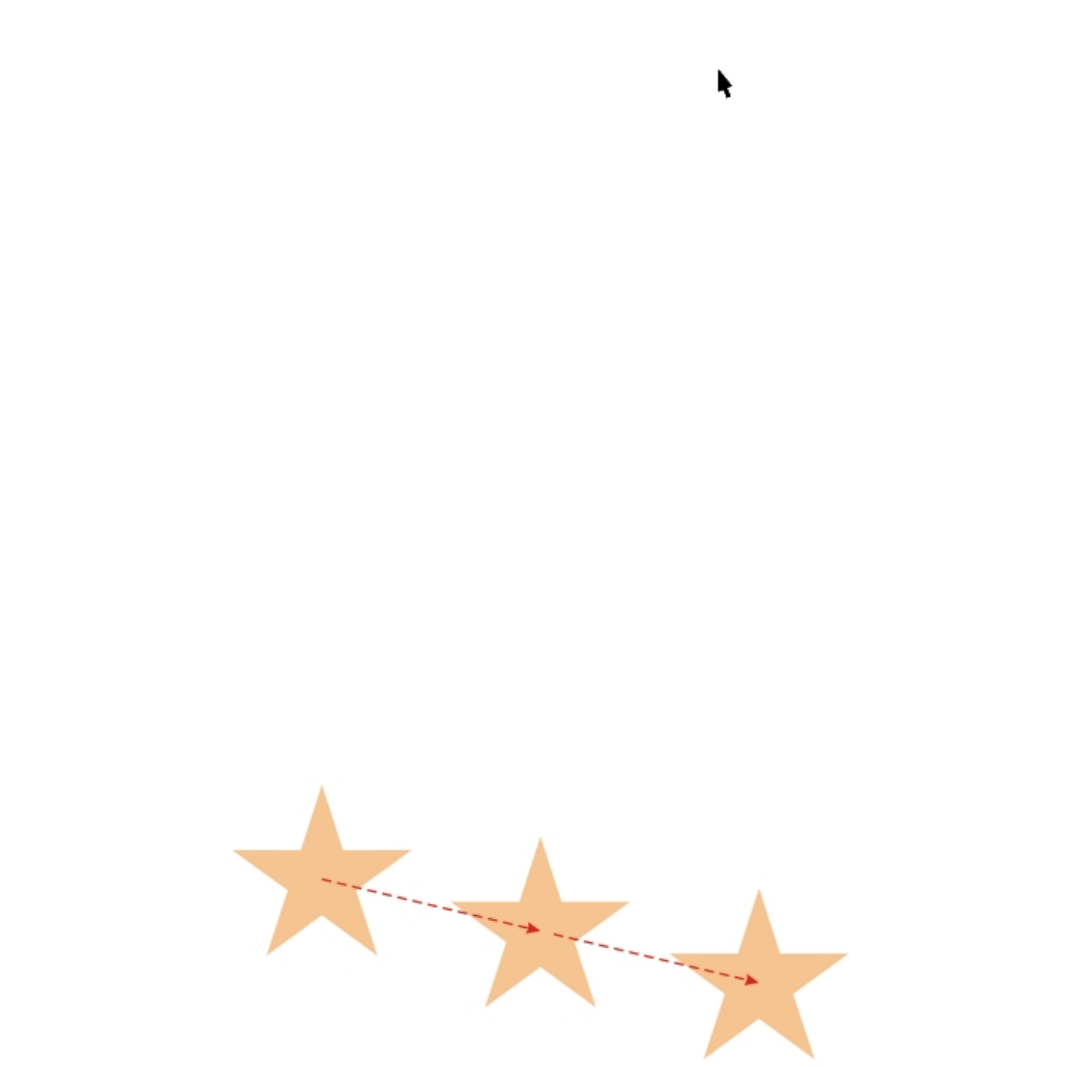
246 | Corel DESIGNER 2017 User Guide
To deselect objects
To deselect Do the following
All objects Press Esc.
Or click the Pick tool , and click a blank space in the drawing
window.
A single object in multiple selected objects Hold down Shift, and click the object using the Pick tool.
Changing object properties
After you’ve created an object, you can change its properties. There are several ways to do this, including using the property bar, color
palette, and dialog boxes. For more information about changing the default properties for new objects, see “Setting the default property
values” on page 141.
In addition, you can copy object properties such as outline, fill, and text properties from one object to another. For more information, see
“Copying object properties, transformations, and effects” on page 248.
Copying, duplicating, and deleting objects
CorelDESIGNER provides you with several ways to copy objects. When you no longer need an object, you can delete it.
Cutting, copying, and pasting
You can cut or copy an object to place it on the Clipboard and paste it into a drawing or another application. Cutting an object places it on
the Clipboard and removes it from the drawing. Copying an object places it on the Clipboard but keeps the original in the drawing.
Duplicating
Duplicating an object places a copy directly in the drawing window and does not use the Clipboard. Duplicating is faster than copying and
pasting. Also, when duplicating an object, you can specify the distance between the duplicate and the original object along the x and y axes.
This distance is known as the offset.
Duplicate offset

Working with objects | 247
Copying objects at a specified position
You can create multiple copies of objects simultaneously, while specifying their position, without using the Clipboard. For example, you
can distribute object copies horizontally, to the left or right of the original object; or you can distribute copies of objects vertically, below or
above the original object. You can specify the spacing between copies of objects, or you can specify the offset at which copies of objects are
created in relation to each other.
To cut or copy an object
1Select an object.
2Click Edit, and click one of the following:
•Cut
•Copy
You can also cut or copy an object by right-clicking the object and clicking Cut or Copy.
To paste an object into a drawing
•Click Edit Paste.
To duplicate an object
1Select an object.
2Click Edit Duplicate.
The duplicate is placed at an offset from the original object.
When you duplicate objects for the first time, the Duplicate offset dialog box appears. To specify the distance between the duplicate
and the original object along the x and y axes, type values in the Horizontal offset and Vertical offset boxes.
• Offset values of 0 place the duplicate on top of the original.
• Positive offset values place the duplicate up and to the right of the original.
• Negative offset values place the duplicate down and to the left of the original.
If you’ve set the Ctrl and Shift keys to the Windows standard (Ctrl=Duplicate/Leave original, Shift=Constrain), you can duplicate
an object as you place the duplicate where you want in the drawing window. To do this, first select the object using the Pick tool
. Holding down Ctrl, drag the object to where you want to create a duplicate, and release the mouse button. For information
about setting the Ctrl and Shift keys to the Windows standard, see “To change the constrain key” on page 126.
You can also duplicate a selected object by pressing Ctrl + D.
You can change the offset at which duplicates are created. Click Tools Options. In the Document list of categories, click General,
and type values in the Horizontal and Vertical boxes in the Duplicate offset area.
To delete an object
1Select an object.
2Click Edit Delete.
You can also delete an object by clicking the object and pressing Delete.
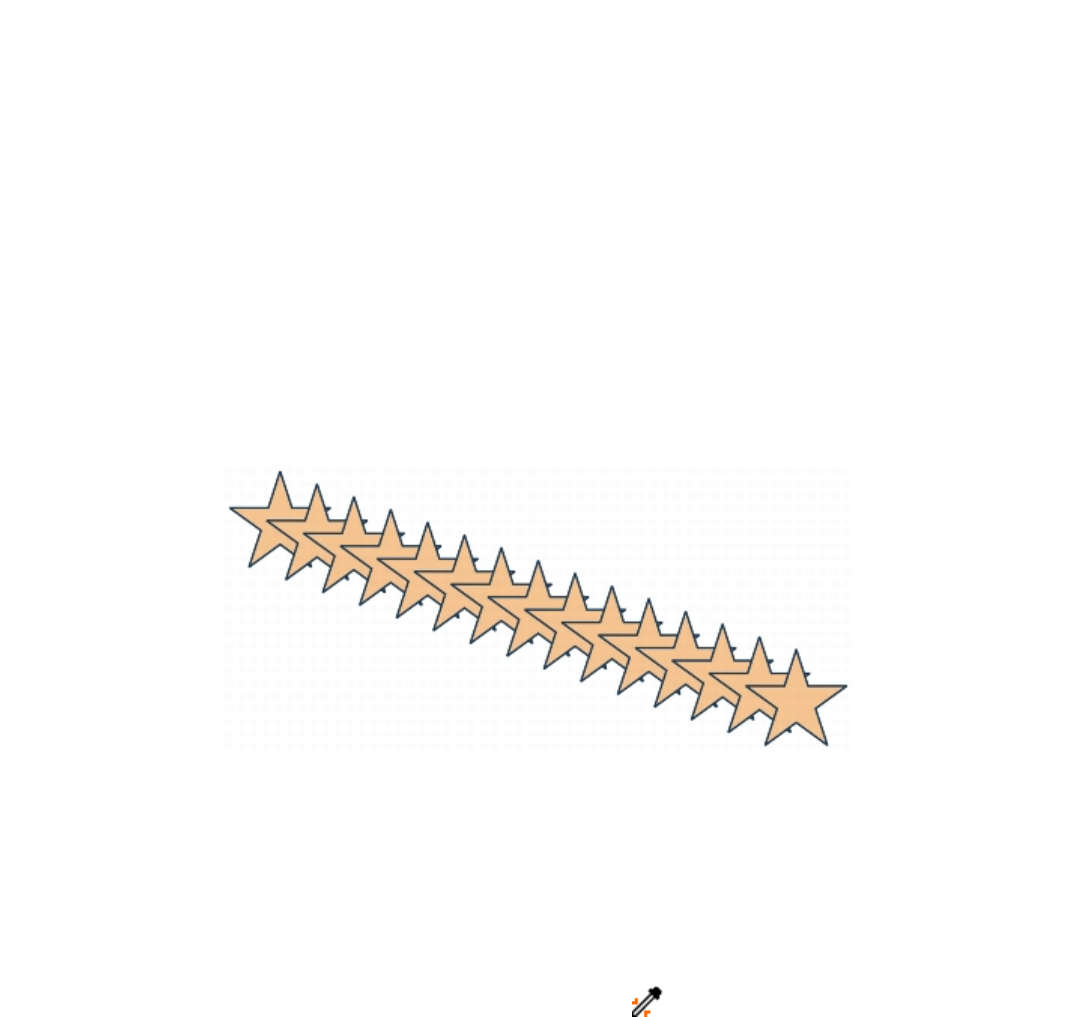
248 | Corel DESIGNER 2017 User Guide
To create copies of an object at a specified position
1Select an object.
2Click Edit Step and repeat.
3In the Step and repeat docker, type a value in the Number of copies box.
To Do the following
Distribute copies of objects horizontally In the Vertical settings area, choose No offset from the Mode
list box. In the Horizontal offset area, choose Spacing between
objects from the Mode list box. To specify the spacing between
object copies, type a value in the Distance box. To place the object
copies to the right or left of the original, choose Right or Left from
the Direction list box.
Distribute copies of objects vertically In the Horizontal settings area, choose No offset from the Mode
list box. In the Vertical offset area, choose Spacing between
objects from the Mode list box. To specify the spacing between
copies of objects, type a value in the Distance box. To place the
copies above or below the original, choose Up or Down from the
Direction list box.
Offset all copies of objects by a specified distance In the Horizontal offset and Vertical offset areas, choose Offset
from the Mode list box, and type values in the Distance boxes.
Multiple copies of an object are offset by a specified distance.
Copying object properties, transformations, and effects
You can copy object properties such as outline, fill, and text properties from one object to another. You can copy object transformations such
as sizing, rotating, and positioning as well as effects applied to an object.
To copy object properties from one object to another
1Click the Eyedropper tools button, and click the Attributes eyedropper tool .
2Click Properties on the property bar, and enable any of the following check boxes:
•Outline
Working with objects | 249
•Fill
•Text
3Click the edge of the object whose properties you want to copy.
The Attributes eyedropper tool automatically switches to the Apply object attributes mode.
4Click the edge of the object to which you want to apply the copied properties.
Any Transformations and Effects options on the property bar that are enabled are also applied when you copy properties.
You can also copy fill or outline properties, or both, by right-clicking an object with the Pick tool , dragging over another object,
and choosing Copy fill here, Copy outline here, or Copy all properties.
You can also copy object properties to a selected object by clicking Edit Copy properties from and clicking the object whose
properties you want to copy.
To copy size, position, or rotation from one object to another
1Click the Eyedropper tools button, and click the Attributes eyedropper tool .
2Click Transformations on the property bar, and enable any of the following check boxes:
•Size
•Rotation
•Position
3Click the edge of the object whose transformations you want to copy.
The Attributes eyedropper tool automatically switches to the Apply object attributes mode.
4Click the edge of the object to which you want to apply the copied transformations.
Any Properties and Effects options on the property bar that are enabled are also applied when you copy properties.
To copy effects from one object to another
1Click the Eyedropper tools button, and click the Attributes eyedropper tool .
2Click Effects on the property bar, and enable any of the following check boxes:
•Perspective
•Envelope
•Blend
•Extrude
•Contour
•Lens
•PowerClip
•Drop shadow
•Distortion
3Click the edge of the object whose effects you want to copy.
The Attributes eyedropper tool automatically switches to the Apply object attributes mode.
4Click the edge of the object to which you want to apply the copied effects.

250 | Corel DESIGNER 2017 User Guide
Any Properties and Transformations options on the property bar that are enabled are also applied when you copy properties.
Creating new objects from boundaries
You can draw a boundary around the outer or inner edges of complex shapes to create a new closed curve object with the current properties
(line weight, fill color, and so on).
During this process, if you specify a point outside the selected objects, an outline is wrapped around the outside edge. If you specify a point
on the inside of selected objects, an outline is drawn around the inner edges. If the objects do not overlap, each object is outlined separately.
Error messages appear if you click directly on a line or if there is not sufficient space to create the boundary.
Boundaries cannot be drawn around text, bitmaps, or open lines. However, you can set a gap tolerance for open lines. Endpoints within the
specified gap tolerance are temporarily repositioned to close the gap between objects and allow a boundary to be created.
To create a new object from a boundary
1Select the objects for the boundary.
2Click Object Shaping Boundary.
If you want the boundary object to be placed behind the current objects, enable the Place behind selected option in the Shaping
docker.
To set a gap tolerance for open lines, type a value in the Gap tolerance box. If the endpoints of the lines are within the specified
distance, a boundary will be created.
3Click Indicate target.
4Click a point outside or inside the selected objects.
If you want to delete the original objects, enable Delete selected object.
Cloning objects
When you clone an object, you create a copy of an object that is linked to the original. Any changes you make to the original object are
reflected automatically in the clone. Changes you make to the clone are not automatically reflected in the original, however. You can remove
changes made to the clone by reverting to the original.
Cloning lets you modify multiple copies of an object simultaneously by changing the master object. This type of modification is especially
useful if you want the clone and master objects to differ by certain properties, such as fill and outline color, but the master object to control
other properties, such as shape.
If you simply want to use the same object in a drawing multiple times, consider using symbols, instead of clones, to keep the file size
manageable. For more information about symbols, see “Working with symbols” on page 275.
To clone an object
1Select an object.
2Click Edit Clone.
You can also
Select the master object of a clone Right-click the clone, and click Select master.
Working with objects | 251
You can also
Select the clone objects of a master Right-click the master, and click Select clones.
You can clone a master object multiple times, but you cannot clone a clone.
To revert to the master object of a clone
1Right-click a modified clone, and click Revert to master.
2Enable any of the following check boxes:
•Clone fill — restores the master fill attributes
•Clone outline — restores the master outline attributes
•Clone path shape — restores the master shape attributes
•Clone transformations — restores the master shape and size attributes
•Clone bitmap color mask — restores the master color settings
Only the clone properties that are different from the master object are available in the Revert to master dialog box.
Moving objects
You can move objects by dragging, by specifying distance and direction, or by nudging. You can also move an object while you are drawing
it.
Super nudging and micro nudging let you move objects into place by increments. By default, you can nudge objects in 0.01-inch
increments, but you can change the nudge values to suit your needs.
To move an object
1Select an object.
2Click Object Transformations Position.
The Transformations docker appears.
3Use one of the following methods:
•Horizontal and vertical — type the horizontal and vertical values to move the object
•Length and angle — type the distance and angle to move the object
•Set distance interactively — click the Set position interactively button , and drag the pointer in the drawing window to specify
the distance and angle to move the object
•Gap and direction — enable the second option in the docker, type a value for the gap, and choose the direction to move the object.
This option moves the object in the selected direction at a distance equal to the height or width of its bounding box plus the specified
gap.
If you want to leave the original object unchanged and apply the transformation to copies that are created, type a number in the Copies
box.
4Click Apply.
By default, the point of origin (0,0) is at the lower-left corner of the drawing page. When you enable the Relative position check
box in the Transformations docker, the position of the center anchor point of the object, and not the point of origin of the drawing
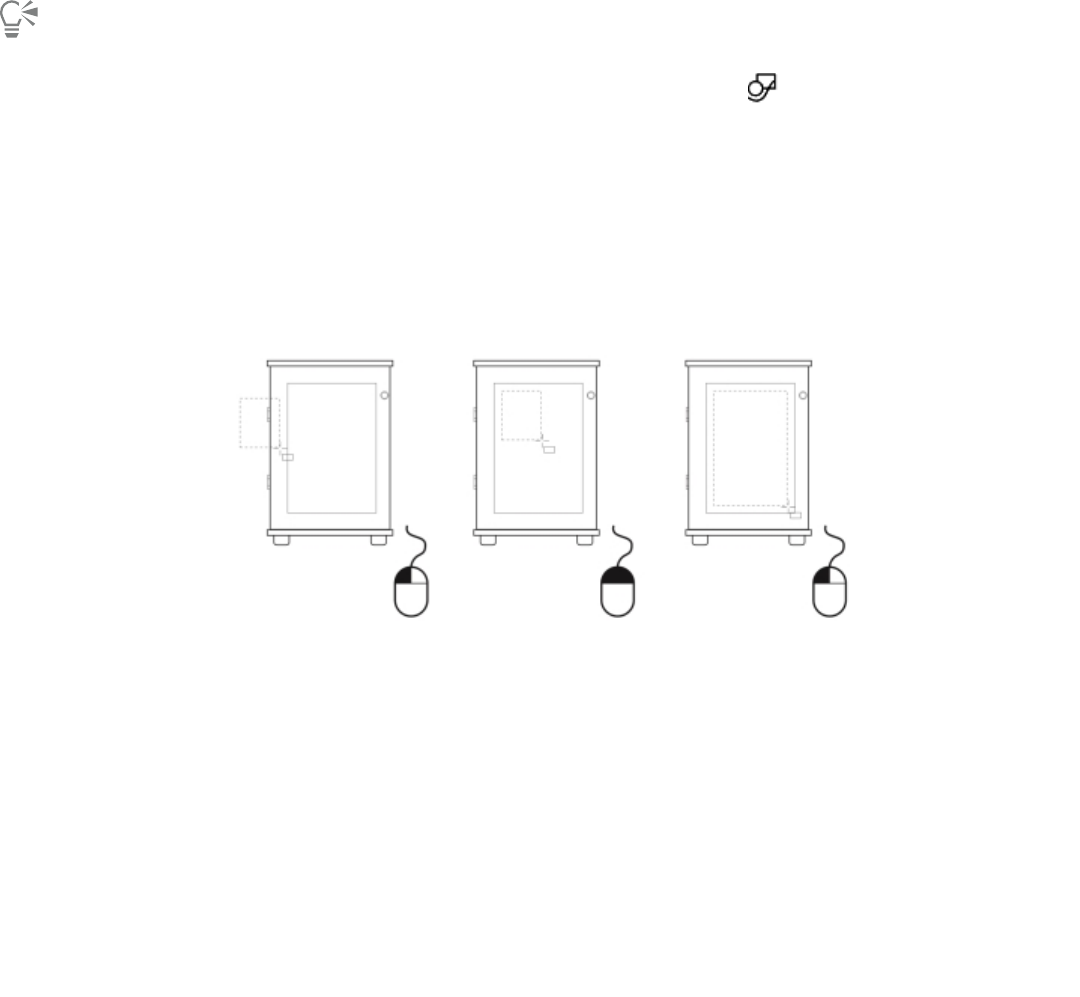
252 | Corel DESIGNER 2017 User Guide
page, is identified as 0,0 in the H and V boxes. When you specify a different position in the H and V boxes, the values represent a
change from the current position as measured from the center anchor point of the object.
You can also move a selected object by dragging it to another position in the drawing.
You can set a precise location for the object by clicking the Geometric properties button on the property bar and typing values
in the Property manager docker.
You can use snapping to move an object with precision. For more information, see “Working with precision ” on page 113.
To move an object while drawing
1Start drawing an object.
2Hold down the right mouse button without releasing the left mouse button, and drag the unfinished object to its new position.
3Release the right mouse button, and continue drawing.
Moving an object while drawing
To nudge an object
To Do the following
Nudge a selected object by the nudge distance Press an Arrow key.
Nudge a selected object by a fraction of the nudge distance (Micro
nudge)
Hold down Ctrl, and press an Arrow key.
Nudge a selected object by a multiple of the nudge distance (Super
nudge)
Hold down Shift, and press an Arrow key.
To set nudge distances
1Click Tools Options.
2In the Document list of categories, click Rulers.
3Type a value in the Nudge box.
4Type a value in one of the following boxes:
•Super nudge
•Micro nudge
Working with objects | 253
You can also set the nudge distance by deselecting all objects and typing a value in the Nudge distance box on the property bar.
To save the new nudge distances to use in new drawings, click Tools Save settings as default.
Sizing and scaling objects
CorelDESIGNER lets you size and scale objects. In both cases, you can change the dimensions of an object proportionally by preserving its
aspect ratio. You can size an object by specifying values or changing the object interactively. Scaling changes an object’s dimensions by a
specified percentage.
Objects are sized or scaled from the object’s origin. You can change an object’s origin from its center to any one of its eight selection
handles.
You can also specify a rectangular area for selected objects to scale into.
To specify the size of an object
1Select an object.
2Click View Toolbars Transform.
3Type values in the Object size boxes on the Transform toolbar.
You can also
Apply the sizing according to the object’s position rather than the x
and y coordinates
Click the Relative to object button on the Transform toolbar.
Size an object by using the Transformations docker Clicking Object Transformations Size, and type values in the X
and Y boxes to set the width and height of the object.
Preserve the original ratio of width to height when transforming
the object
In the Transformations docker, enable the Proportional check box.
Size from a point on the selected object In the Transformations docker, click the point on the origin locator
that corresponds to the point on the object from which you
want to size the object.
Leave the original object unchanged and apply the transformation
to copies that are created
In the Transformations docker, type a number in the Copies box.
To size an object interactively
To Do the following
Size a selected object Drag any of the corner selection handles.
Size a selected object from its center Hold down Shift, and drag one of the selection handles.
254 | Corel DESIGNER 2017 User Guide
To Do the following
Size a selected object to a multiple of its original size Hold down Ctrl, and drag one of the selection handles.
Stretch a selected object as you size it Hold down Alt, and drag one of the selection handles.
You can set a precise size for the object by clicking the Geometric properties button on the property bar and typing values in
the Property manager docker.
To scale an object
1Select an object.
2Click the Shape tools button in the toolbox, and click the Free transform tool .
3Click the Free scale button on the property bar.
If you want to change the reference point to use when scaling the object, locate the Object origin icon on the property bar and
click the box that corresponds to the reference point you want to set.
4On the property bar, type values in the Scale factor boxes to specify a percentage by which to scale the object horizontally or vertically.
If you want to maintain the aspect ratio, click the Lock ratio button on the property bar.
You can also
Apply the scaling according to the object’s position rather than the
x and y coordinates
Click the Relative to object button on the Transform toolbar.
To open the Transform toolbar, click View Toolbars Transform.
Scale an object by using the Transformations docker Click Object Transformations Scale and mirror, and type
values in the X and Y boxes to scale the object horizontally or
vertically.
Specify a rectangular area into which to scale the object In the Transformations docker, enable the Fit to box option.
Preserve the original ratio of width to height when transforming
the object
In the Transformations docker, enable the Proportional check box.
Scale from a point on the selected object In the Transformations docker, click the point on the origin locator
that corresponds to the point on the object from which you
want to scale the object.
Leave the original object unchanged and apply the transformation
to copies that are created
In the Transformations docker, type a number in the Copies box.
Working with objects | 255
You can also scale an object by dragging a selection handle.
You can also scale an object by typing values in the Scale factor boxes on the Transform toolbar. To display the Transform toolbar,
click View Toolbars Transform.
Rotating objects
You can rotate an object in a drawing by specifying an angle of rotation. You can also specify a point on the drawing around which to
rotate, or rotate around a point on the selected object.
To rotate an object
1Select an object.
2Click the Shape tools button in the toolbox, and click the Free transform tool .
3Click the Free rotation button on the property bar.
If you want to change the reference point to use when rotating the object, locate the Object origin icon on the property bar and
click the box that corresponds to the reference point you want to set.
4Type a value in the Angle of rotation box on the property bar.
To specify a point on the drawing to rotate around, type coordinates in the Center of rotation boxes on the property bar.
You can also
Apply the rotation according to the object’s position rather than
the x and y coordinates
Click the Relative to object button on the Transform toolbar.
To open the Transform toolbar, click View Toolbars Transform.
Rotate an object using the Transformations docker Click Object Transformations Rotate.
Specify two points for the angle by dragging In the Transformations docker, click the Rotation angle button
next to the Angle of rotation box, and drag in the drawing
window.
Specify a point on the drawing to rotate around by clicking In the Transformations docker, click the Specify point button
next to the X and Y boxes, and click a point on the drawing.
Rotate around a point on the selected object In the Center area of the Transformations docker, enable the
Relative center check box, and click the point on the origin locator
that corresponds to the center of rotation that you want to
set.
Adjust the object orientation when rotating In the Transformations docker, enable the Rotate orientation
option .
256 | Corel DESIGNER 2017 User Guide
You can also
Keep the object orientation when rotating In the Transformations docker, enable the Retain orientation
option .
Leave the original object unchanged and apply the transformation
to a copy
In the Transformations docker, type a number in the Copies box.
You can also rotate a selected object by dragging a rotation handle clockwise or counterclockwise.
You can also rotate an object by typing a value in the Angle of rotation box on the Transform toolbar. To display the Transform
toolbar, click View Toolbars Transform.
Mirroring objects
With CorelDESIGNER, you can create mirror images of objects. Mirroring an object flips it from left to right or top to bottom. By default, the
anchor point is in the center of the object.
To mirror an object
1Select an object.
2Click Object Transformations Scale and mirror.
3In the Transformations docker, enable the Mirror horizontally option or the Mirror vertically option .
4In the Transformations docker, click the point on the origin locator that corresponds to the point on the object about which you
want to mirror the object.
To leave the original object unchanged and apply the transformation to a copy, type 1 in the Copies box in the Transformations docker.
5Click Apply.
You can also mirror a selected object by holding down Ctrl and dragging a selection handle to the opposite side of the object.
Skewing objects
When you skew an object, you slant it horizontally, vertically, or both. You can specify the degree by which you want to slant the object. You
can also change the skew and sizing anchor point of an object from its default center position.
To skew an object
1Select an object.
2Click the Shape tools button in the toolbox, and click the Free transform tool .
3Click the Free skew button on the property bar.
If you want to change the object’s reference point to use when skewing the object, locate the Object origin icon on the property
bar and click the box that corresponds to the reference point you want to set.
4Type values in the Skew angle boxes on the property bar.
Working with objects | 257
You can also
Apply the skewing according to the object’s position rather than
the x and y coordinates
Click the Relative to object button on the property bar.
Skew an object using the Transformations docker Click Object Transformations Skew, and type values in the X
and Y boxes to skew the object horizontally or vertically.
Skew from a point on the selected object In the Transformations docker, enable the Use anchor point check
box, and click the point on the origin locator that corresponds
to the point on the object from which you want to skew the object.
Leave the original object unchanged and apply the transformation
to a copy
In the Transformations docker, type a number in the Copies box.
If you move the skew anchor point, you can reset it to the center again by clicking Object Clear transformations.
You can also skew an object interactively by dragging one of its skew handles.
You can also skew an object by typing values in the Skew angle boxes on the Transform toolbar. To display the Transform toolbar,
click View Toolbars Transform.
Aligning and distributing objects
CorelDESIGNER lets you precisely align and distribute objects in a drawing. You can instantly view the effect of changes as you modify the
options in the Align and distribute docker. By default, objects are aligned and distributed based on their paths. You can also align and
distribute objects from the edge of their outlines.
You can align objects to each other or to parts of the drawing page such as the center, edges, and grid. When you align objects to objects,
you can line them up by their centers or by their edges. You can also align objects with a reference point by specifying its exact x and y
coordinates.
CorelDESIGNER lets you align multiple objects to the center of the drawing page horizontally or vertically.
You can distribute objects at equal intervals in a specified area.
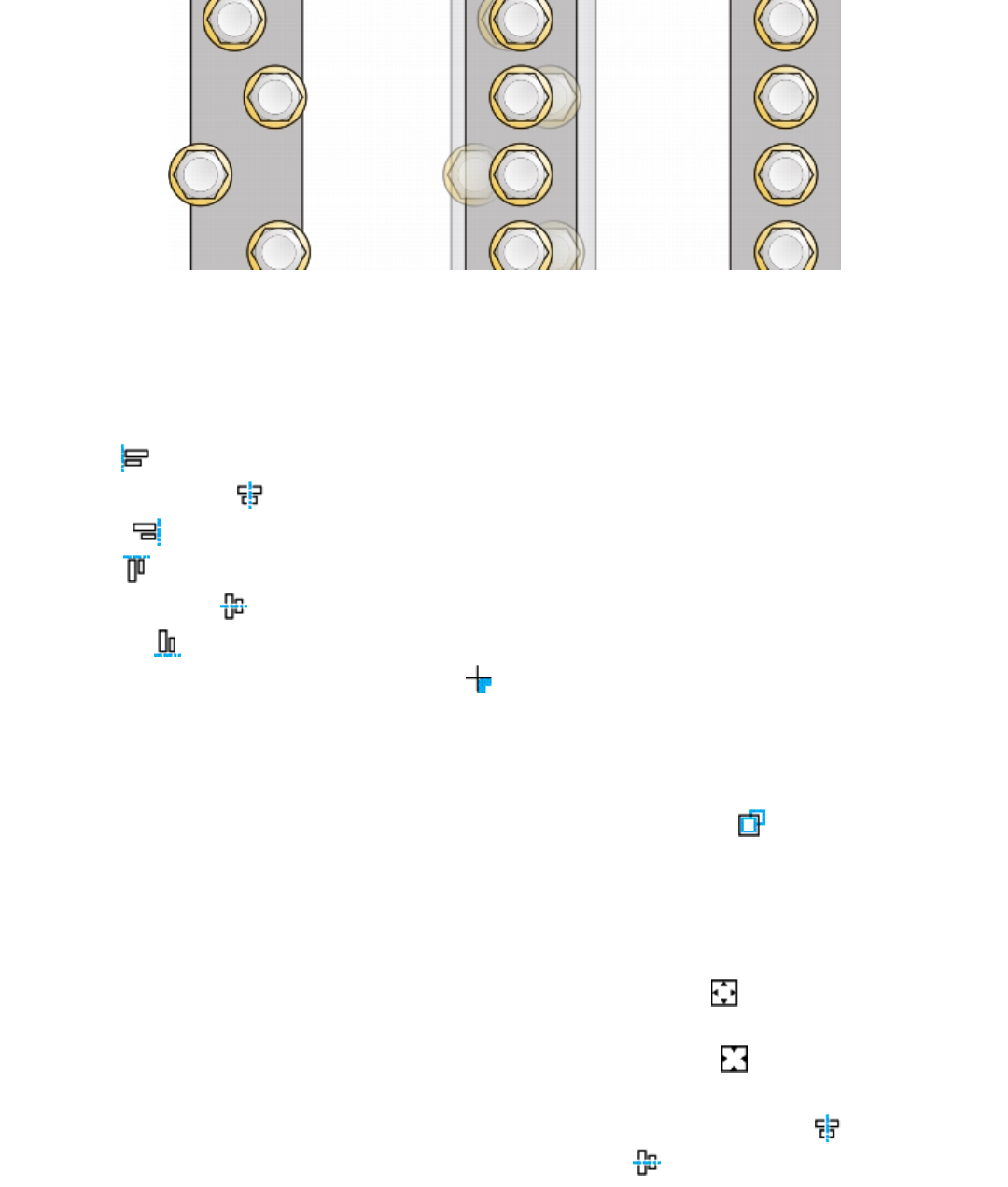
258 | Corel DESIGNER 2017 User Guide
Example of aligning objects to each one’s center
To align objects
1Select the objects.
2Click Object Align and distribute Align and distribute.
3In the Align area of the docker, click one of the following buttons to use an object edge or center for aligning.
•Align left — to align the left edges of objects
•Align center horizontally — to align object centers along a vertical axis
•Align right — to align the right edges of objects
•Align top — to align the top edges of objects
•Align center vertically — to align object centers along a horizontal axis
•Align bottom — to align the bottom edges of objects
To align objects from their outlines, click the Outline button .
4In the Align objects to area, perform any of the following tasks.
To Do the following
Align an object with a specific object Click the Active objects button .
If you select the objects one at a time, the last object selected is the
reference point for aligning the other objects. If you marquee select
the objects, the object that is positioned in the upper-left corner of
the selection is used as a reference point.
Align an object with the page edge Click the Page edge button .
Align an object with the page center Click the Page center button .
To align the center of the object with the page center, make sure
that the Align center horizontally button and Align center
vertically button in the Align area are enabled.
Working with objects | 259
To Do the following
Align an object with the closest grid line Click the Grid button .
Align an object with a specified point Click the Specified point button , and type values in the
Specify coordinates boxes.
You can also specify a point interactively by clicking the Specify
point button and clicking in the document window.
Set an alignment option for text objects In the Text area, choose one of the following options:
•First line baseline — aligns text by the baseline of the first line
•Last line baseline — aligns text by the baseline of the last line
•Bounding box — aligns text by its bounding box
You can also align objects with another object quickly, without using the Align and distribute docker, by clicking Object Align
and distribute and clicking any of the first six alignment commands. The letter next to a command name indicates the keyboard
shortcut that you can use to align objects. For example, the letter L next to the Align left command shows that you can press L to
align objects with the leftmost point of the object that is used as a reference point.
You can use snapping to precisely specify the alignment point. For more information, see “Working with precision ” on page 113.
To distribute objects
1Select the objects.
2Click Object Align and distribute Align and distribute.
3To distribute objects horizontally, click one of the following buttons:
•Distribute left — evenly spaces the left edges of the objects
•Distribute center horizontally — evenly spaces the center points of the objects along a horizontal axis
•Distribute right — evenly spaces the right edges of the objects
•Distribute space horizontally — places equal intervals between the objects along a horizontal axis
4To distribute objects vertically, click one of the following buttons:
•Distribute top — evenly spaces the top edges of the objects
•Distribute center vertically — evenly spaces the center points of the objects along a vertical axis
•Distribute bottom — evenly spaces the bottom edges of the objects
•Distribute space vertically — places equal intervals between the objects along a vertical axis
5To choose the area over which the objects are distributed, click one of the following buttons in the Distribute objects to area:
•Extent of selection — distributes the objects over the area of the bounding box surrounding them
•Extent of page — distributes the objects over the drawing page
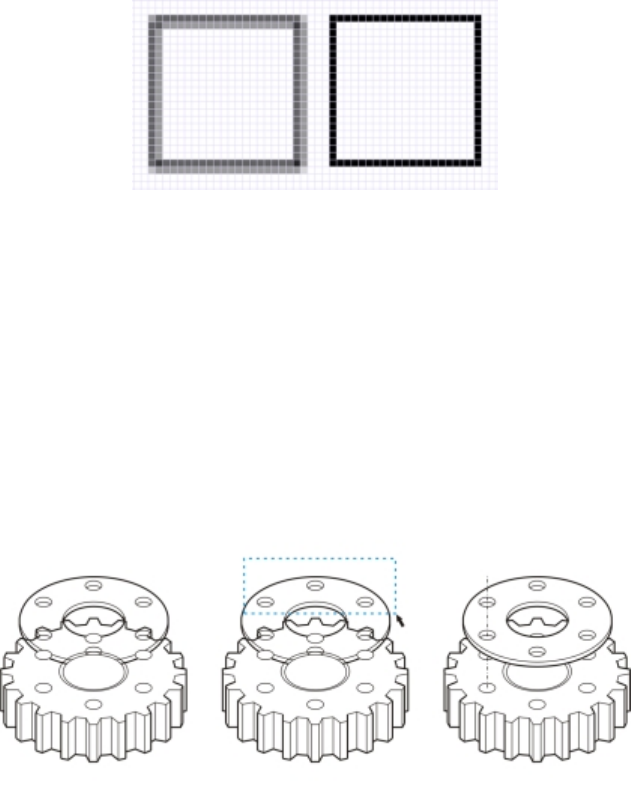
260 | Corel DESIGNER 2017 User Guide
Applying object hinting
Object hinting allows you to improve object rendering by adjusting the display of an object so that it lines up with the pixel grid. For
example, if you’re creating a button for the web, you can enable object hinting to ensure the object appears clean and sharp when
exporting it as a bitmap.
The Pixel view of a square (left) with a 1-pixel line width that was created without
object hinting. A copy of the square (right) displayed with object hinting applied.
To apply object hinting
1Select an object.
2Click Object Object hinting.
Changing the order of objects
You can change the stacking order of objects on a layer by sending objects to the front or back, or behind or in front of other objects. You
can also position objects precisely in the stacking order, as well as reverse the stacking order of multiple objects.
Changing the stacking order corrects the appearance of this graphic by bringing the object
to the front. (Tip: Hold down Alt and drag the pointer to select any object you intersect.)
To change the order of objects
1Select an object.
2Click Object Order, and click one of the following:
•To front of page — moves the selected object in front of all other objects on the page
•To back of page — moves the selected object behind all other objects on the page
•To front of layer — moves the selected object in front of all other objects on the active layer
•To back of layer — moves the selected object behind all other objects on the active layer
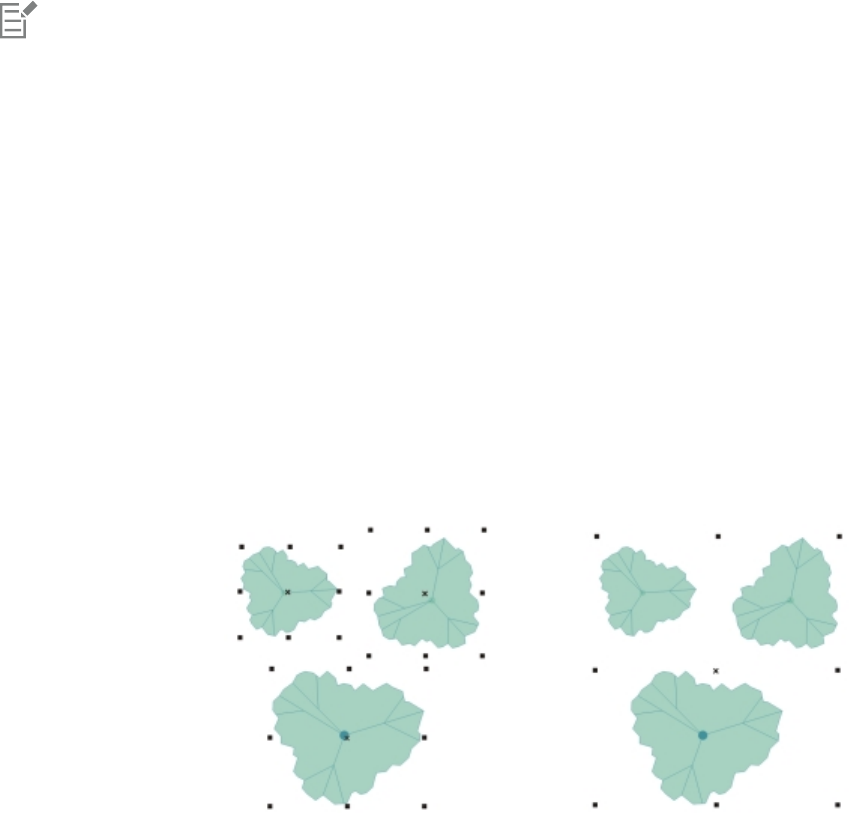
Working with objects | 261
•Forward one — moves the selected object forward one position. If the selected object is in front of all other objects on the active
layer, it is moved to the layer above.
•Back one — moves the selected object behind one position. If the selected object is behind all other objects on the selected layer, it is
moved to the layer below.
•In front of — moves the selected object in front of the object that you click in the drawing window
•Behind — moves the selected object behind the object that you click in the drawing window
An object cannot be moved to a locked (non-editable) layer; instead, it is moved to the closest editable layer. For example, if you
apply the To front of page command, and the topmost layer is locked, the object is moved to the topmost editable layer. Any objects
on the locked layer remain in front of the object.
By default, all objects on the master page appear on top of the objects on other pages. For information about reordering content on
master page layers, see “To move a layer” on page 303.
An Order command is unavailable if the selected object is already positioned in the specified stacking order. For example, the To front
of page command is unavailable if the object is already in front of all the other objects on the page.
To reverse the order of multiple objects
1Select the objects.
2Click Object Order Reverse order.
Grouping objects
When you group two or more objects, they are treated as a single unit. This feature lets you apply the same formatting and other properties
to all objects within the group at the same time. In addition, grouping helps prevent accidental changes to the position of an object in
relation to other objects. You can also create nested groups by grouping together existing groups.
Single objects retain their attributes when they are grouped.
You can add objects to or remove objects from a group, and you can delete objects that are members of a group. You can also edit a single
object in a group without ungrouping the objects. If you want to edit multiple objects in a group at the same time, you must first ungroup
the objects. If a group contains nested groups, you can ungroup all objects in the nested groups simultaneously.
To group objects
1Select the objects.
2Click Object Group Group objects.
You can create a nested group by selecting two or more groups of objects and clicking Object Group Group objects.

262 | Corel DESIGNER 2017 User Guide
The status bar indicates that a group of objects is selected.
You can select objects from different layers and group them; however, once grouped, the objects will reside on the same layer, based
on the last selected object.
You can also group objects by dragging an object’s name in the Object manager docker over the name of another object.
To add an object to a group
• In the Object manager docker, drag the name of the object to the name of the group that you want to add it to.
If the Object manager docker is not open, click Window Object manager.
To remove an object from a group
• Double-click the name of the group in the Object manager docker, and do one of the following:
• To remove an object from a group, drag it out of the group in the object list.
•To delete an object that’s in a group, select the object in the object list and click Edit Delete.
If the Object manager docker is not open, click Window Object manager.
You can select an object within a group by holding Ctrl and clicking the object. You can then press Delete to delete the object from
the drawing.
To edit a single object in a group
1Click the Pick tool .
2Hold down Ctrl, and click an object in a group.
3Edit the object.
You can also select a single object in a group by clicking the name of the object in the Object manager docker. To access the Object
manager docker, click Window Object manager.
To ungroup objects
1Select one or more groups.
2Click Object Group, and click one of the following commands:
•Ungroup — ungroups single objects but leaves nested groups intact
•Ungroup all — ungroups all objects, including objects in nested groups
Combining objects
Combining two or more objects creates a single object with common fill and outline attributes. This feature is often used to create objects
with holes.
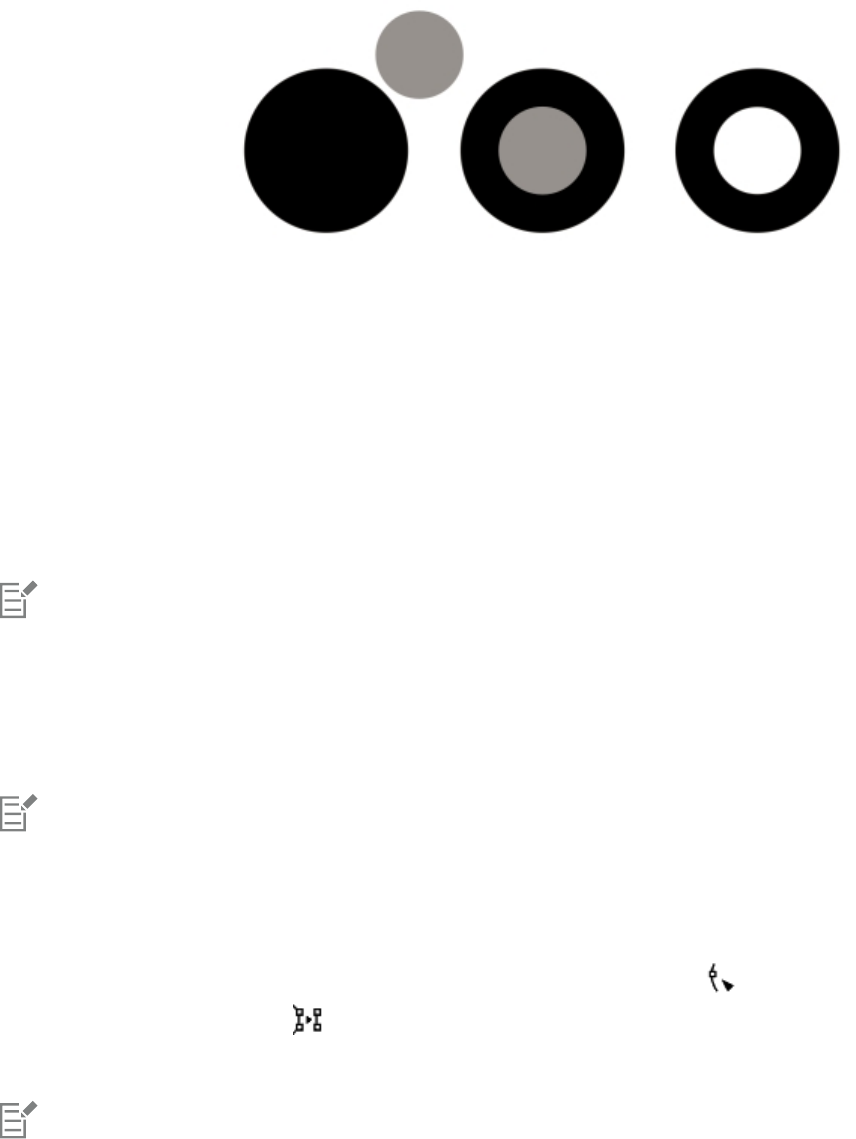
Working with objects | 263
Combining objects
You can combine rectangles, ellipses, polygons, stars, spirals, graphs, or text so that they are converted to a single curve object. If you need
to modify the attributes of an object that has been combined from separate objects, you can break apart the combined object. You can
extract a subpath from a combined object to create two separate objects. You can also weld two or more objects to create a single object.
For information about welding objects, see “Welding and intersecting objects” on page 90.
To combine objects
1Select the objects.
2Click Object Combine.
Combined text objects become larger blocks of text.
To break apart a combined object
1Select a combined object.
2Click Object Break curve apart.
If you break apart a combined object that contains artistic text, the text breaks apart into lines first, then into words. Paragraph text
breaks into separate paragraphs.
To extract a subpath from a combined object
1Select a segment, node, or group of nodes on a combined object using the Shape tool .
2Click the Extract subpath button on the property bar.
The Extract subpath button is available only if you select nodes from a single subpath. If you select nodes from more than one subpath,
this option is disabled.
After you have extracted the subpath, the path’s fill and outline properties are removed from the combined object.

264 | Corel DESIGNER 2017 User Guide
Locking objects
Locking an object prevents you from accidentally moving, sizing, transforming, filling, or otherwise changing it. You can lock single, multiple,
or grouped objects. To change a locked object, you need to unlock it first. You can unlock one object at a time, or all locked objects at the
same time.
To lock an object
•Select an object, and click Object Lock Lock object.
Text in locked text objects is excluded when the drawing is exported for translation.
You can also lock an object by right-clicking it and then clicking Lock object.
To unlock an object
1Select one or more locked objects.
2Click Object Lock, and then click one of the following:
•Unlock object
•Unlock all objects
You can also unlock an object by right-clicking it and then clicking Unlock object.
Finding and replacing objects
You can use the Find and Replace wizards to locate and edit objects in a large drawing.
Using search criteria that you specify, the Find wizard guides you step by step when you need to find and select objects in a drawing. The
search criteria can include object type and its related properties, fill and outline properties, vector effects applied to objects, or the name
of an object or style. For example, you can search for and select all rectangles with rounded corners and without fill, or all text on a path.
You can also search for objects that contain the same properties as a selected object. You can change the search criteria in the middle of a
search. You can also save search criteria for later use.
The Replace wizard guides you through the process of finding objects that contain the properties you specify and then replacing those
properties with others. For example, you can replace all object fills of a certain color with fills of a different color. You can also replace color
models and palettes, outline properties, and text attributes, such as font and font size.
You can also search for specific words and replace them with other words. For more information, see “Finding, editing, and converting text”
on page 424.
To find and select objects
1Click Edit Find and replace Find objects.
2Follow the instructions in the Find wizard.
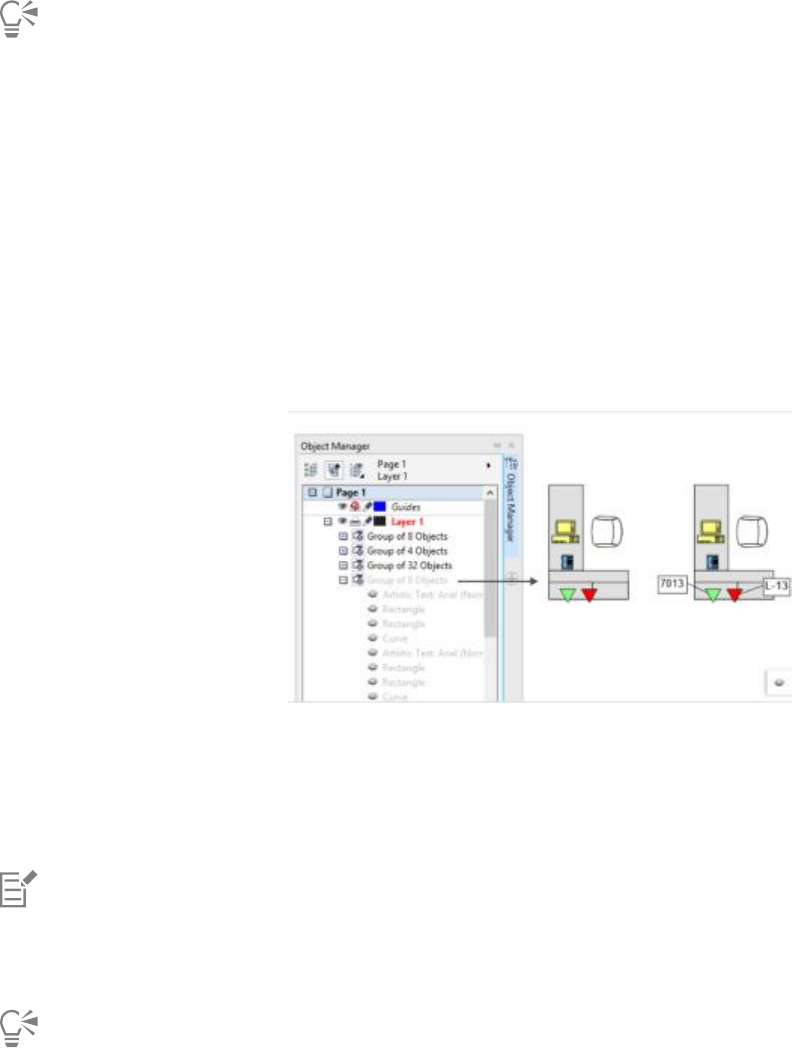
Working with objects | 265
If you save an object search, you can reactivate the last search you performed by clicking Edit Find and replace Recent search.
You can also reactivate an older search, if it was saved, by clicking Edit Find and replace Find objects, enabling the Load a
search from disk option in the Find wizard, and following the instructions in the wizard.
To replace object properties
1Click Edit Find and replace Replace objects.
2Follow the instructions in the Replace wizard.
Hiding and displaying objects
CorelDESIGNER allows you to hide objects and groups of objects, helping you edit objects in complex projects and experiment with your
designs more easily.
You can hide and display objects.
To hide an object
1Select the object that you want to hide.
2Click Object Hide Hide Object.
When an object is hidden, the object name appears grayed out in the Object Manager docker, and an icon is displayed beside the
name.
Text in locked text objects is excluded when the drawing is exported for translation.
You can also access the Hide Object command by right-clicking an object.
To display hidden objects
•Click Object Hide, and click one of the following commands:
•Show Object
•Show All Objects

266 | Corel DESIGNER 2017 User Guide
Accessing and displaying geometric information about objects
You can access geometric information, such as the length, perimeter, and area of objects. You can also calculate the volume of an object by
specifying a desired depth. Object geometric information can be copied to the Clipboard and displayed in the drawing window.
To access geometric information
1Select an object.
2Click Tools Geometric information.
3To calculate the volume of the selected object, enter a value in the Depth box.
To access geometric information about another object, select the object, and click Refresh in the Geometric information dialog box.
To display geometric information in the drawing window
1Select an object.
2Click Tools Geometric information.
3In the Geometric information dialog box, enable any of the following check boxes:
•Perimeter
•Area
4Click Create text to display the copied value below the selected object in the drawing window.
You can also
Display volume information In the Volume area, enter a value in the Depth box, enable the
Volume check box, and click the Create text check box.
Reset the depth values to zero In the Volume area, click Reset.
Change the unit of measurement of the values Choose a unit of measurement from the Units list box.
Change the number of decimal places in a value Enter the number of decimal places in the Precision box (minimum
0, maximum 5).
Inserting bar codes
The Barcode wizard in CorelDESIGNER lets you add bar codes to drawings. A bar code is a group of bars, spaces, and sometimes numbers
that is designed to be scanned and read into computer memory. Bar codes are most commonly used to identify merchandise, inventory, and
documents.
The Barcode wizard guides you through the process of inserting a bar code. If you need additional information at any step, you can consult
the Help in the Barcode wizard.
To insert a bar code
1Click Object Insert barcode.
2Follow the instructions in the Barcode wizard.

Working with objects | 267
A bar code is inserted into a drawing as an object.
268 | Corel DESIGNER 2017 User Guide
Inserting and editing QR codes | 269
Inserting and editing QR codes
A Quick Response (QR) code is a type of barcode that represents information in two dimensions. Typically, QR codes consist of dots (also
called “pixels”) arranged in a square pattern and displayed against a contrasting background. QR codes are known for their fast readability
and can store information such as website addresses, phone numbers, and messages.
With the widespread use of smartphones, QR codes have become popular in consumer advertising and packaging. By scanning a QR code
on your smartphone, you can quickly access the brand’s website for more information about a product.
To insert, edit, and validate QR codes, you must sign in to your account and be connected to the Internet.
This section contains the following topics:
•“Inserting QR codes” (page 269)
•“Editing QR codes” (page 270)
•“Validating QR codes” (page 272)
Inserting QR codes
CorelDESIGNER lets you insert QR codes with embedded information such as a web address, email address, phone number, text message,
geo location, or plain text. After you insert a QR code, you can edit and validate it. For more information, see “Editing QR codes ” on page
270 and “Validating QR codes” on page 272.
An example of a QR code
To insert a QR code
1Click Object Insert QR code.
2In the Property manager docker, choose one of the following options from the QR code type list box:
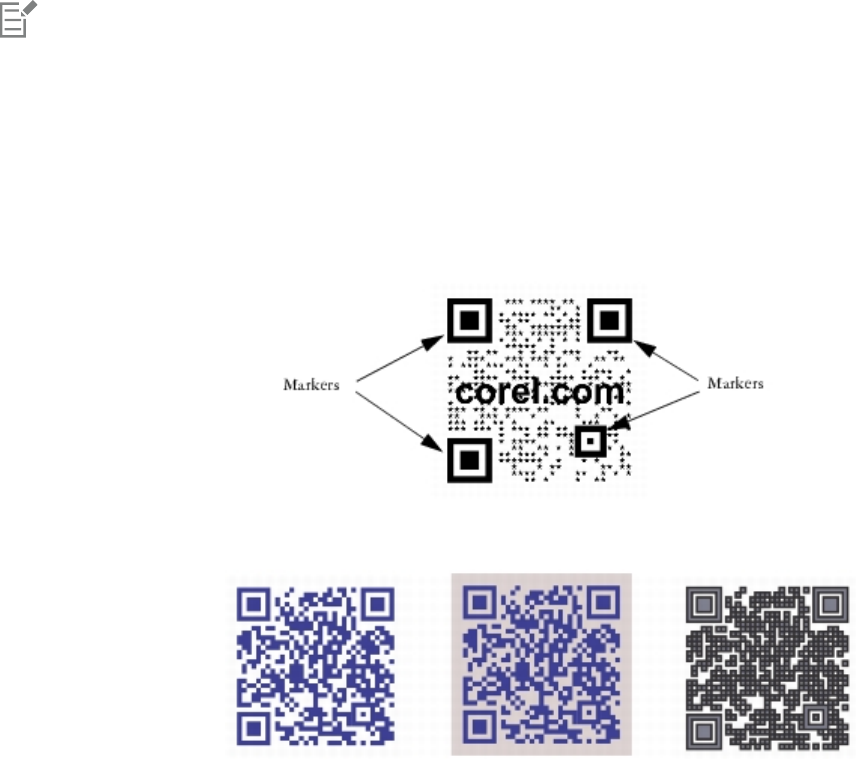
270 | Corel DESIGNER 2017 User Guide
•URL — lets you specify a URL for a website
•Email address — lets you specify an email address if you want to use the QR code to generate a blank email
•Phone number — lets you specify a phone number for the QR code. Depending on the QR reader that you use, scanning the code can
initiate, with your permission, dialing the phone number on smartphones.
•SMS — lets you include a Short Message Service (SMS) message by typing a phone number and message text. With your permission,
the QR reader can initiate sending the SMS message to the specified phone number.
•Contact — lets you specify contact information in vCard or meCard format. From the Contact card type list box, choose vCard
or meCard, and type the contact information in the appropriate boxes. With your permission, this contact information can be
automatically added to the address book on your phone.
•Calendar event — lets you schedule an event by specifying a name, location, start date/time, and end date/time for the event. With
your permission, the event can be added to your calendar.
•Geo location — lets you show a geographic location by specifying latitude and longitude values
•Plain text — lets you include plain (unformatted) text
To insert, edit, and validate QR codes, you must sign in to your account and be connected to the Internet.
Editing QR codes
After you insert a QR code, you can use the Property manager docker to customize the pixel fill, the background fill, the pixel outline, as
well as the pixel shape and corner roundness. When you customize the shape of the pixels, the markers (the three larger squares in the
corners, as well as one or more smaller squares in the interior of the code pattern) remain unchanged to maintain the readability of the
code. You can also specify the margin around the QR code or weld the pixels together.
A QR code with customized pixel shapes and added text. The markers remain unchanged.
From left to right: Custom pixel fill color, custom pixel fill and background
color, custom pixel fill and outline color as well as custom pixel outline width
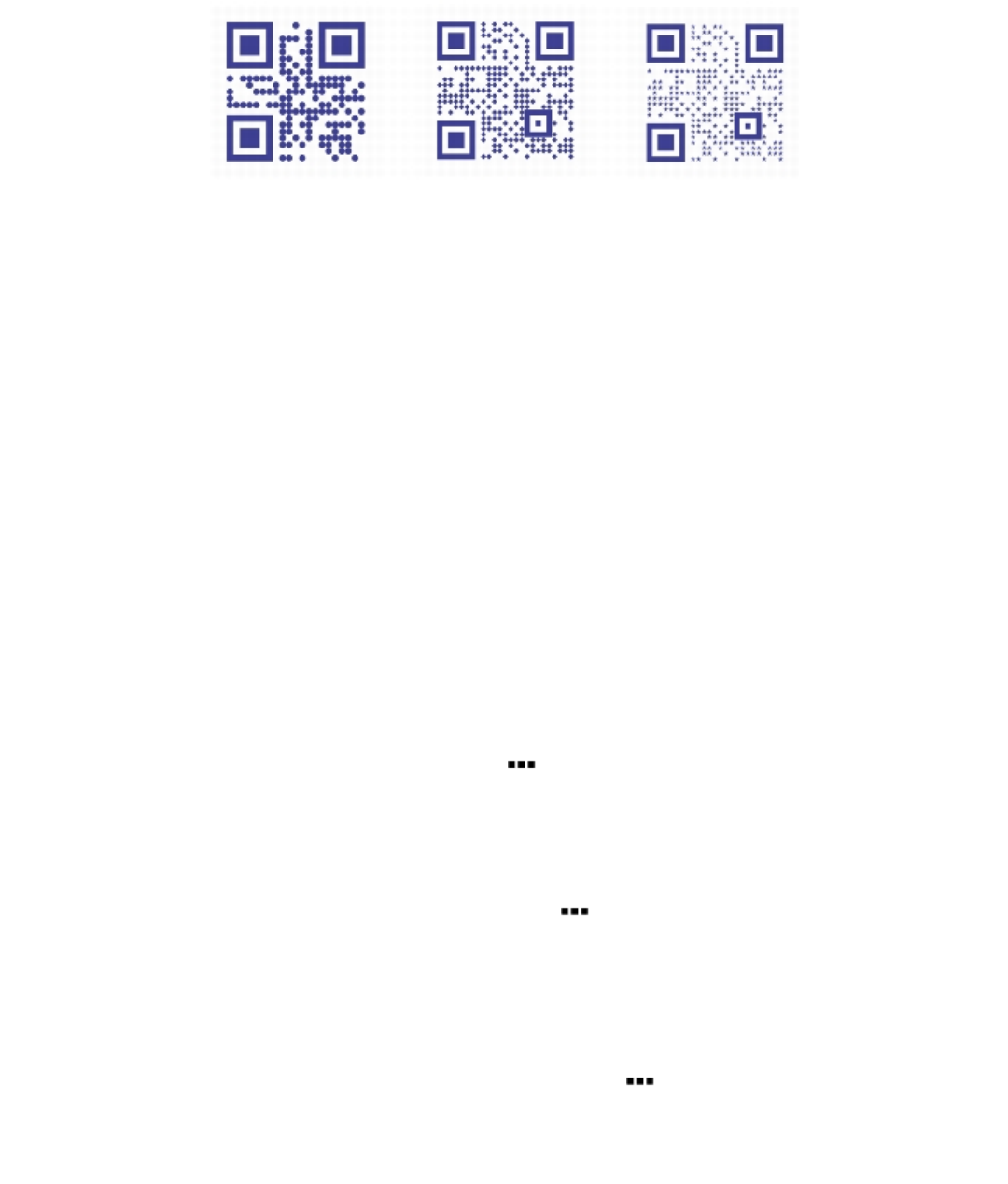
Inserting and editing QR codes | 271
From left to right: QR codes with circular, diamond, and star pixel shapes
Error correction
Visual effects, logos, or text added to a QR code can give it an artistic look but may be considered errors by scanners. You can use the error
correction settings to minimize the possibility of error when scanning the QR code. For example, if part of the pixel pattern is covered by a
graphic or text, the error correction duplicates some of the hidden data so that this data can be recovered. Four levels of error correction are
available.
You can move, resize, scale, and align the QR code like any other object. For more information, see “Working with objects” on page 243.
With QR codes, you can use styles to control the appearance of the fill, outline, and other properties. For more information, see “Working
with styles and style sets” on page 511. You can also change the default look of QR codes by modifying the default object properties. For
more information, see “Managing default object properties” on page 516.
To edit a QR code
1Double-click the QR code.
2In the Property manager docker, perform any of the following tasks.
To Do the following
Apply a fill to the pixels of the QR code Choose a fill type from the Pixel fill type list box, and then choose
a fill from the Pixel fill color picker.
If you want to customize the fill, click the Pixel fill settings button
next to the pixel color picker, and specify the fill settings.
Apply a fill to the background Choose a fill type from the Background fill type list box, and then
choose a fill from the Background fill color picker.
If you want to customize the fill, click the Background fill settings
button next to the background color picker, and specify the fill
settings.
Specify the pixel outline width and color
Type a value in the Pixel outline width box, and then choose a
color from the Pixel outline color picker.
If you want to customize the outline, click the Pixel outline
settings button next to the outline color picker, and specify
the outline settings.
Specify the margin around the QR code Type a value in the Margin box.
272 | Corel DESIGNER 2017 User Guide
To Do the following
Choose a pixel shape Choose a shape from the Pixel shape picker.
To set the percentage of fill on the pixels, type a value in the Pixel
fill factor box.
Weld pixels Click the arrow button at the bottom of the QR code section
to expand it, and enable the Weld pixels check box.
Set the corner roundness of the pixels Click the arrow button at the bottom of the QR code section
to expand it, and type a value in the Pixel roundness box.
When editing the fill, make sure that there is high contrast between the pixels and the background to avoid errors in scanning the
code.
To insert, edit, and validate QR codes, you must sign in to your account and be connected to the Internet.
To add a text or graphic object to a QR code
1Select the text or graphic object that you want to add.
2Move the object and place it in the QR code.
If the object is behind the QR code, change the stacking order by using the Object Order command.
To set the error correction level
1Double-click a QR code.
2In the Property manager docker, click the arrow button at the bottom of the QR code section to expand it, and choose an option
from the Error correction level list box.
The error correction levels specify what percentage of the information used in a QR code can be restored if lost.
•Low — restores 7% of the information
•Medium — restores 15% of the information
•Quartile — restores 25% of the information
•High — restores 30% of the information
Higher correction levels duplicate a higher percentage of the information, which may limit the amount of new information a QR code
can store. This may be a problem for QR codes that are approaching, or already contain, the maximum amount of information before
high error correction is applied. In that case, you are prompted to reduce either the correction level or the amount of data in the QR
code.
Validating QR codes
After inserting and formatting a QR code, you can validate it to make sure that it can be read by QR code readers and scanners.
To validate a QR code
1Double-click the QR code.
2In the Property manager docker, click Validate.

Inserting and editing QR codes | 273
To insert, edit, and validate QR codes, you must sign in to your account and be connected to the Internet.
To validate a QR code that was not created in CorelDESIGNER, click Object Validate barcode, and marquee-select the QR code.
274 | Corel DESIGNER 2017 User Guide

Working with symbols | 275
Working with symbols
Symbols are graphics that are defined once and can be referenced many times in a drawing. Using symbols for objects that appear many
times in a drawing helps to reduce file size.
With this application, you can link to symbols that have already been created, or you can create objects and save them as local symbols
within a document. Symbols that you can link to are stored in library files, which have a .csl filename extension.
Each time you insert a symbol into a drawing, you create an instance of the symbol. You can have multiple instances of a symbol in a
drawing with little impact on file size. Editing a drawing is quicker and easier, as changes made to a symbol are automatically inherited by all
instances. Symbol definitions, as well as information about instances, are stored in the CorelDESIGNER (DES) file.
This section contains the following topics:
•“Using symbols in drawings” (page 275)
•“Managing collections and libraries” (page 278)
•“Creating, editing, and deleting symbols” (page 279)
•“Sharing symbols between drawings” (page 282)
For information about modifying symbol instances and about unsupported object types, see “Reference: Working with symbols” on page
283.
Using symbols in drawings
You can insert a symbol into a drawing, which creates a symbol instance. A symbol instance can be modified in ways which do not affect
the symbol definition in the library. For example, you can modify the size and position of a symbol instance, without affecting the symbol
definition. You can also have the symbol instance scaled automatically to match the current drawing scale.
For a list of object properties that can be modified in a symbol instance, see “Modifying symbol instances” on page 283.
If a symbol stored in a library is changed, you can update the link to refresh the symbol instances.
You can revert a symbol instance to an object or objects while preserving its properties. You can also delete a symbol instance, and purge
unused symbol definitions. Purging removes all symbol definitions that are not instanced in a drawing.
You use the Symbol manager docker to work with symbols.
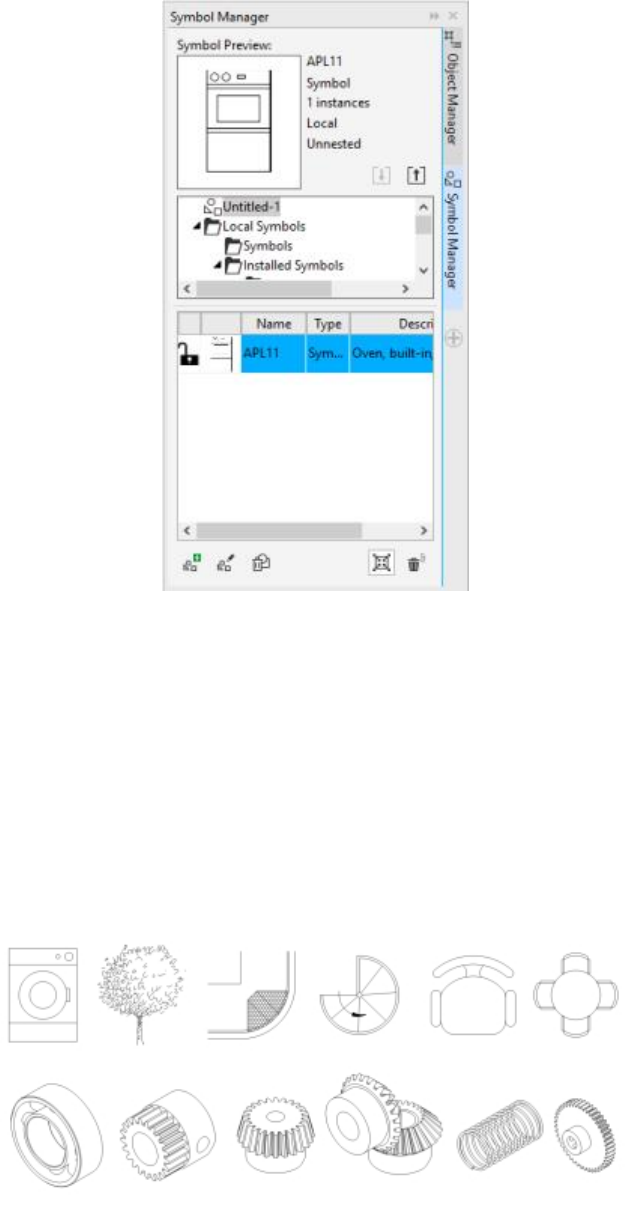
276 | Corel DESIGNER 2017 User Guide
Symbol manager docker
The preview area shows a symbol and information about it, including
• name
• number of instances in the active document
• type of link:
linked — the symbol definition is added from a library file
local — (also known as “internal”) the symbol was created in the active document or was made local by breaking a link
• type of symbol: nested or un-nested
Just below the preview area, a tree view lets you see all linked and local symbol definitions in the active document, including symbols that
are not instanced. You can also navigate to symbol libraries.
Examples of symbols
Working with symbols | 277
To locate a symbol
1Click Object Symbol Symbol manager.
2Click the active document at the top of the tree view to see symbols in the current document.
Click a folder to choose a collection, and click a symbol library to see symbols in a file.
To insert a symbol instance
1Click Object Symbol Symbol manager.
2Choose a symbol library in the tree view.
3Choose a symbol from the Symbols list.
If you want the symbol scaled automatically to match the current drawing scale, ensure that the Scale to world units button is
enabled.
4Click the Insert symbol button .
You can also insert a symbol instance by dragging a symbol from the Symbol manager docker to the drawing window.
To modify a symbol instance
1Select a symbol instance in the drawing window.
2Make any changes.
If a symbol contains multiple objects, all objects in the symbol instance are treated as if they were a group. You cannot modify
individual objects in a symbol instance.
Not all properties of a symbol instance can be modified. For a list of properties that can be modified, see “Modifying symbol
instances” on page 283.
To update a link
1Select a symbol in the active document.
2Click Object Symbol Update from link.
You can also click Window Link and bookmarks and use the Links and bookmarks docker to update links to symbols. An
exclamation mark appears next to objects that need to be updated.
To revert a symbol instance to an object or objects
1Select a symbol instance.
2Click Object Symbol Revert to objects.

278 | Corel DESIGNER 2017 User Guide
The symbol definition remains in the active document.
If the external definition of the symbol instance contains styles, those styles are added to the document. If the styles in the symbol
instance differ from those in its external definition, you are prompted to rename the style or merge the two styles. You can check for
conflicting styles in the Links and bookmarks docker. An exclamation mark appears next to objects that need to be updated.
You can also revert a symbol instance to an object by right-clicking the symbol instance and clicking Revert to objects.
To delete a symbol instance
1Select a symbol instance.
2Press Delete.
The symbol definition remains in the active document.
To purge unused symbol definitions
1In the Symbol manager docker, click the active document.
2Click the Purge unused definitions button .
Managing collections and libraries
Most of the symbols you will use have already been created and are stored in library files that are grouped into collections.
The Symbol manager docker always displays libraries and collections that are in your local Symbols folder. You can add collections and
libraries to your Symbols folder from elsewhere on the network. When you insert a local or external symbol into a drawing, a copy of the
symbol definition is added to the document but it remains linked to the source symbol.
To add a collection or library
1Click Window Symbol manager.
2In the tree, click Local symbols or Network symbols.
3Click the Add library button .
4Locate and choose a collection or library.
5Click OK.
By default, library files are referenced from their original location. If you want to copy a library to your User symbols folder (under
Application data for your user name), enable the Copy libraries locally check box.
If you are adding a collection, you can enable the Recursive check box to include subfolders.
To delete a collection or library
1In the Symbol manager docker, click a collection or library.
2Press Delete.
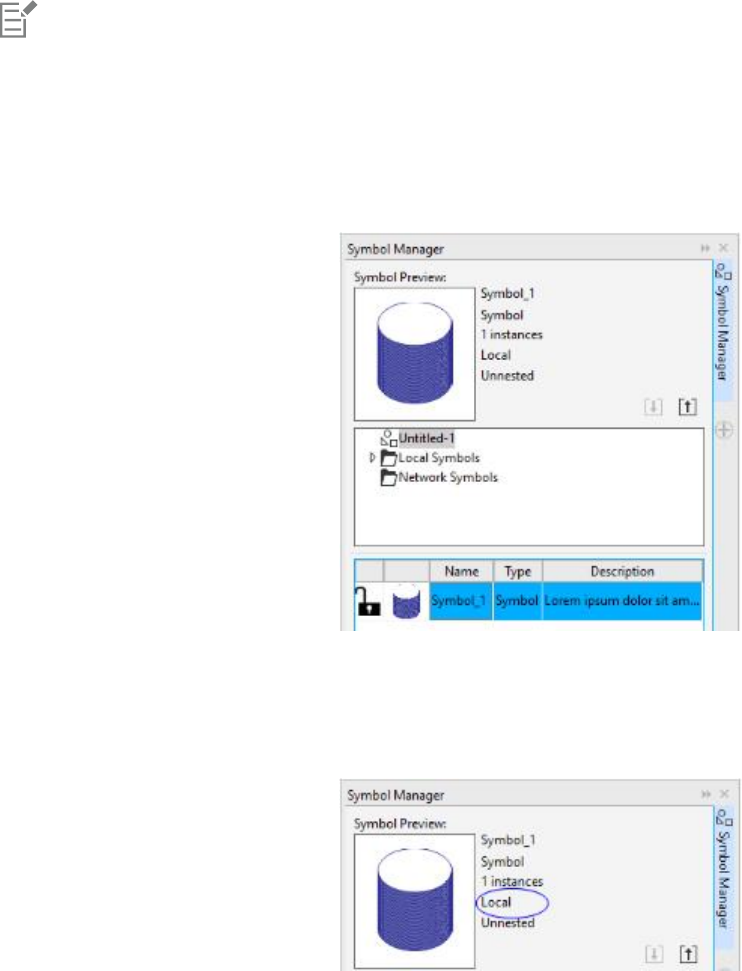
Working with symbols | 279
The collection or library is removed from the tree in the Symbol manager docker but files are not deleted.
Creating, editing, and deleting symbols
Local symbols can be created by converting an existing object or objects to a symbol, or by making a linked symbol a local one by breaking
its link. New symbols appear under a separate category in the Symbols manager and can be easily accessed when you need them.
You can access a new symbol by selecting the Untitled-1 category in the Symbol manager docker.
You can edit a local symbol; any changes you make affect all instances in a drawing. You can also rename a local symbol and add a
description. Linked symbols cannot be edited within the drawing, but can be edited directly in the library file where they are stored. You can
tell whether a symbol is local or linked by looking in the preview area of the Symbol manager docker or at the Symbols list.
The preview area shows if a symbol is local or linked.
If a nested symbol contains a local definition, you can edit the local symbol within the drawing. External symbols in nested symbols can also
be edited, but you must first convert the external symbols to local. For information about converting symbols from external to local, see “To
make a linked symbol local” on page 280.
You can also delete a symbol from the drawing and remove all instances.
To create a symbol from an object
1Do one of the following:
• Draw and select the object or objects that will be included in the symbol.
• Select an object or multiple objects.
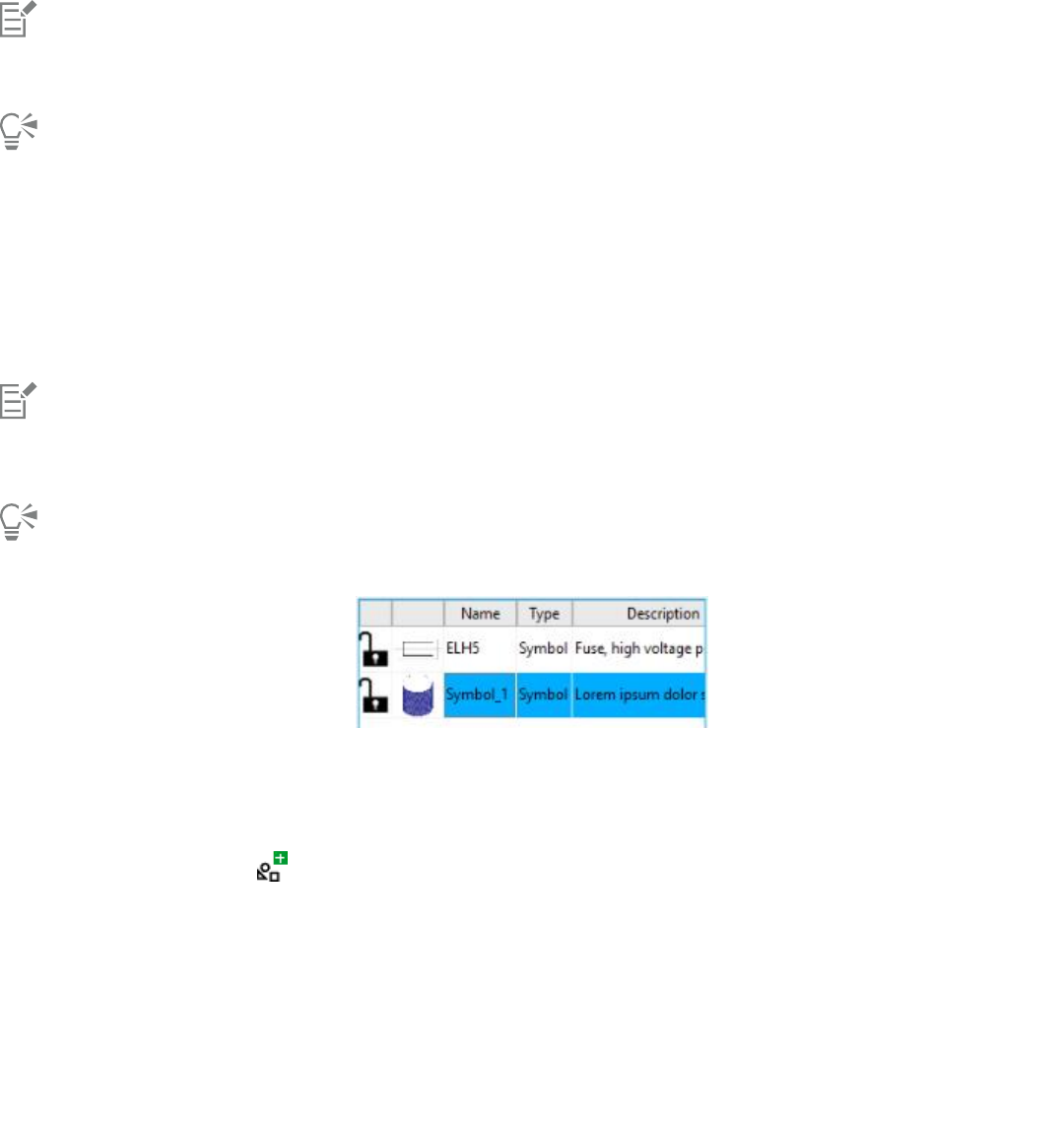
280 | Corel DESIGNER 2017 User Guide
2Click Object Symbol New symbol.
3Type a name for the symbol.
Symbols cannot span layers. If you convert objects on different layers to a symbol, the objects are combined on the topmost object’s
layer. For more information about layers, see “Working with layers” on page 297.
You can also convert an existing object or objects to a symbol by dragging the object or objects to the Symbol manager docker. The
symbol name is automatically added.
To make a linked symbol local
1Select a symbol.
2Click Object Symbol Break link.
If other instances of the symbol are in the drawing, the links to all instances are broken.
If the external definition of the symbol instance contains styles, those styles are added to the document. If the styles in the symbol
instance differ from those in its external definition, you are prompted to rename the style or merge the two styles. You can check for
conflicting styles in the Links and bookmarks docker. An exclamation mark appears next to objects that need to be updated.
You can also make a linked symbol local by right-clicking the symbol and choosing Break link.
In the Symbols list, local symbols appear with open-lock icons that show they can be edited and renamed within the drawing.
To edit a local symbol
1In the Symbol manager docker, click the active document, and choose a symbol from the Symbols list.
2Click the Edit symbol button .
3Modify the objects on the drawing page.
4Click the Finish editing object tab in the lower-left corner of the drawing window.
You can also
Rename a local symbol Double-click the symbol’s name box, and type a name.
Add a description Double-click the symbol’s Description box, and type a description.
Working with symbols | 281
Changes made to a symbol are automatically made to all instances in the active drawing.
You cannot add layers while in symbol edit mode.
While editing a symbol, you can insert an instance of another symbol, which creates a nested symbol. You cannot, however, insert an
instance of the same symbol.
To edit a linked symbol
1Click File Open.
2Choose the drive and folder where the library is stored.
3Click a library filename.
Library files have a .csl filename extension.
4Click Open.
5In the Symbol manager docker, click the active document, and choose a symbol from the Symbols list.
6Click the Edit symbol button .
7Modify the objects on the drawing page.
8Click the Finish editing object tab in the lower-left corner of the drawing window.
9Click File Save.
You can also
Rename a linked symbol Double-click the symbol’s name box, and type a name.
Add a description Double-click the symbol’s Description box, and type a description.
You may need permission to change files on the network.
To edit a nested symbol
1In the Symbol manager docker, click the active document, and choose the nested symbol from the Symbols list.
2Click the Edit symbol button .
3Modify the editable objects on the drawing page.
4Click the Finish editing object tab in the lower-left corner of the drawing window.
While you are editing a nested symbol, linked symbols cannot be edited.
To delete a symbol from a document
1In the Symbol manager docker, click the active document, and choose a symbol from the Symbols list.
2Click the Delete symbol button .

282 | Corel DESIGNER 2017 User Guide
When you delete a symbol, it is removed from the active drawing, and all instances of the symbol are removed from the drawing.
If the symbol is linked, its symbol definition is removed from the active document but remains in the library file.
Sharing symbols between drawings
Symbols can be stored within a drawing or in library files. You can share symbols between drawings by copying and pasting. Copying
symbols to the Clipboard leaves the originals in the drawing or library file.
You can also copy and paste instances of a symbol to and from the Clipboard. Pasting a symbol instance places the symbol in the active
document and also places an instance of the symbol in the drawing. Subsequent pasting will place another instance of the symbol in the
drawing without adding to the document. Symbol instances are copied, cut, and pasted in the same way other objects are. For more
information, see “Copying, duplicating, and deleting objects” on page 246.
You can export symbols from a document and create a new library file, or you can create a symbol library from any drawing file. You can
create a new library by exporting the symbol library from a document or by saving the symbols in a drawing as a new library. If you put the
new file in a shared folder, other users will be able to use the symbols.
To copy, paste, or duplicate symbols
To Do the following
Copy symbols to the Clipboard In the Symbol manager docker, select the symbol or symbols from
the Symbols list, right-click, and click Copy.
Paste symbols from the Clipboard In the Symbol manager docker, right-click, and click Paste.
Duplicate symbols In the Symbol manager docker, right-click the symbol, and click
Duplicate.
To export a symbol library
1In the Symbol manager docker, click the active document.
2Click the Export library button .
3Choose the drive and folder where you want to save the library file.
4Type a filename in the File name box.
5Click Save.
To create a new library
1Click File Save.
2Choose the drive and folder where you want to store the library.
3Type a filename in the File name box.
4Choose CSL - Corel Symbol Library from the Save as type list box.
5Click Save.

Working with symbols | 283
To add a symbol to an existing library
1Click File Open.
2Choose the drive and folder where the library is stored.
3Choose CSL - Corel Symbol Library from the Files of type list box.
4Click Open.
5In the Symbol manager docker, choose the library file where you want to add a symbol.
6Paste a symbol to the document.
7Save the library file.
Reference: Working with symbols
This reference section contains additional information about working with symbols.
Modifying symbol instances
The following object properties can be modified for symbol instances. If a symbol contains multiple objects, all objects in the symbol instance
are treated collectively as a single object, just as if they were grouped.
Property Notes
Position Type values in the Object position boxes on the Transform toolbar.
For more information, see “Moving objects” on page 251.
Size Type width and height values in the Object size boxes on the
Transform toolbar. For more information, see “Sizing and scaling
objects” on page 253.
Skew See “Skewing objects” on page 256.
Rotation angle Type a value in the Angle of rotation box on the Transform
toolbar. For more information, see “Rotating objects” on page 255.
Transparency Uniform transparency only. In the Symbol area of the Property
manager docker, move the Transparency slider. For more
information, see “Changing the transparency of objects” on page
397.
The transparency slider is disabled if the symbol contains an object
with transparency already applied to it.
Mirroring See “Mirroring objects” on page 256.
Wrap paragraph text In the Summary area in the Property manager docker, choose an
option from the Wrap paragraph text list box. See “Wrapping
text” on page 428.

284 | Corel DESIGNER 2017 User Guide
Property Notes
Order See “Changing the order of objects” on page 260.
Name The name of an instance is displayed in the Object manager
docker. Click twice to change it.
Unsupported object types
Most objects in CorelDESIGNER can be converted to symbols, with the following exceptions.
Unsupported object type Notes
Linked or embedded objects
Callouts
Control objects in link groups All related objects in the link group must be included in the symbol.
For example, if an object has a drop shadow, you cannot convert
the object without the drop shadow.
Linked bitmaps
Placed PDF or EPS files
Locked object Object must be unlocked.
Paragraph text
Connector and dimension lines Must be broken apart or included with the linked object or objects
Guidelines
Rollovers You cannot convert a rollover to a symbol; however, you can
include a symbol instance in a rollover state.

Creating objects for the web | 285
Creating objects for the web
CorelDESIGNER lets you export objects that are optimized for viewing in a web browser. You can also create interactive rollovers from
CorelDESIGNER objects. In addition, you can add hyperlinks and bookmarks to a drawing.
After creating the web-compatible object in CorelDESIGNER, you can add the object to a design using a web-authoring tool. You can also
export the object to HTML. For more information, see “Exporting to HTML” on page 669.
This section contains the following topics:
•“Exporting bitmaps for the web” (page 285)
•“Saving and applying web presets” (page 292)
•“Exporting objects with transparent colors and backgrounds” (page 292)
•“Creating rollovers” (page 293)
•“Adding bookmarks and hyperlinks to documents” (page 294)
•“Adding hotspots and alternate text to objects” (page 296)
Exporting bitmaps for the web
CorelDESIGNER lets you export the following web-compatible file formats: GIF, PNG, and JPEG.
While specifying exporting options, you can preview an image with up to four different configurations of settings. You can compare file
formats, preset settings, download speeds, compression, file size, image quality, and color range. You can also examine previews by zooming
and panning within the preview windows.
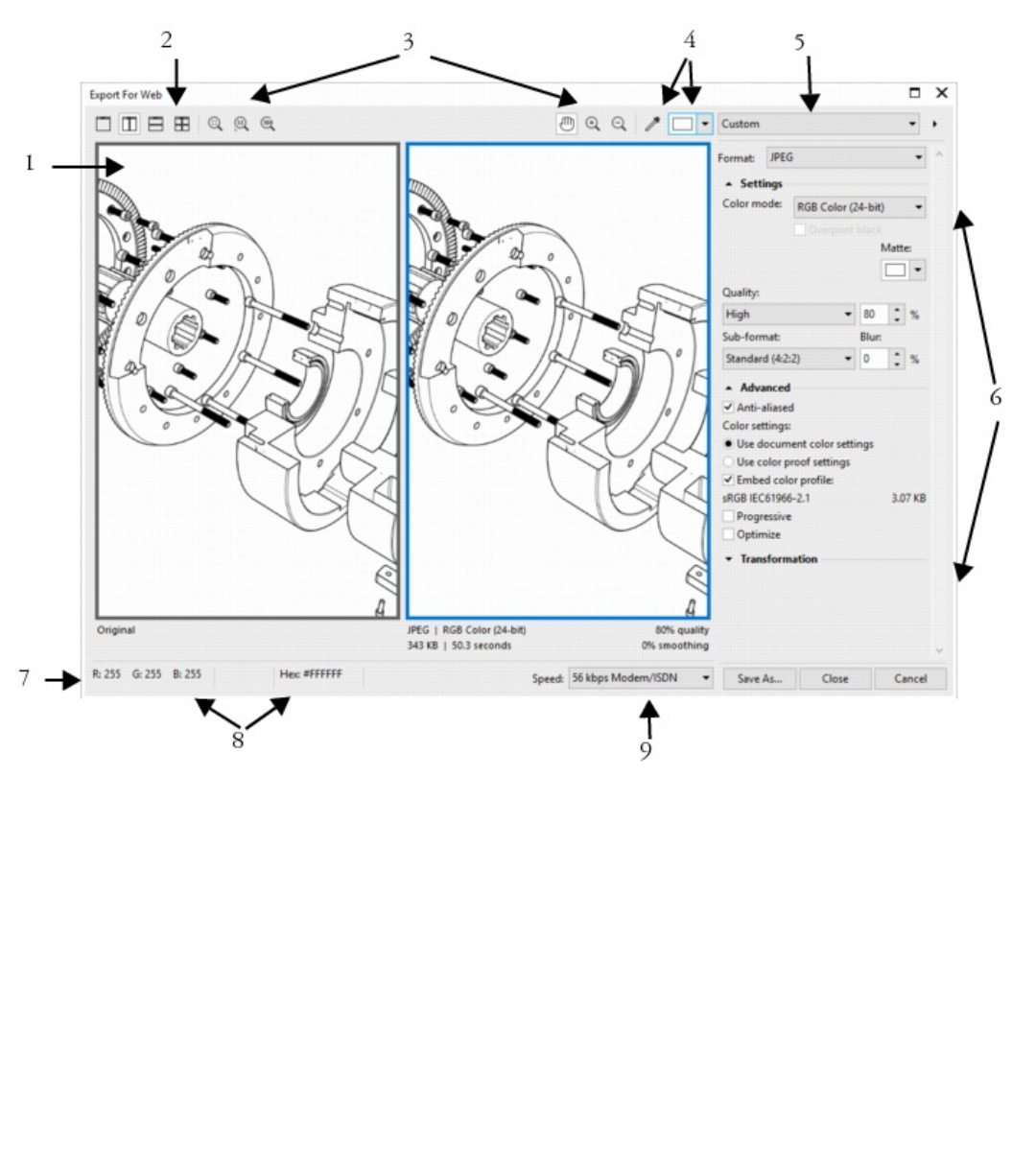
286 | Corel DESIGNER 2017 User Guide
Component Description
1. Preview window Displays a preview of the document.
2. Preview modes Lets you preview the adjustments in a single or split frame.
3. Zooming and panning tools Lets you zoom in and out of a document displayed in the preview
window, pan an image displayed at zoom level higher than 100%,
and fit an image in the preview window.
4. Eyedropper tool and sampled color swatch Lets you sample a color and display the sampled color.
5. Preset list box Lets you choose preset settings for a file format.

Creating objects for the web | 287
Component Description
6. Export settings Lets you customize export setting, such as color, display options,
and size.
7. Format information Lets you view file-format information, which is available for each
preview frame.
8. Color information Displays the color values for a selected color.
9. Speed list box Lets you choose an Internet speed for saving the file.
You can export web-compatible files using preset settings. This allows you to optimize the file, without the need to modify individual
settings. You can also customize the settings to produce a specific result. For example, you can adjust its color, display quality, and file size.
Choosing a web-compatible file format
This table is a quick reference for choosing a web-compatible file format.
File format Ideal for
GIF Line drawings, text, images with few colors, or images with sharp
edges, such as scanned black-and-white images or logos.
GIF offers several advanced graphic options, including transparent
backgrounds, interlaced images, and animation. It also lets you
create custom palettes for the image.
PNG Various image types, including photos and line drawings.
The PNG file format (unlike the GIF and JPEG formats) supports the
alpha channel. This allows you to save transparent images with
superior results.
JPEG Photos and scanned images.
JPEG files use file compression to store an approximation of an
image, which results in some loss of image data, but does not
compromise the quality of most photographs. You can choose the
image quality when you save an image — the higher the image
quality, the larger the file size.
Exporting palette-based documents
Palette-based documents, such as paletted GIF and 8-bit PNG, allow individual pixels to retain their exact color value. This lets you control
the display of colors in the file when exporting. Palette-based documents also allow you to introduce transparency to a file by choosing a
color in the image and making it transparent. For information, see “Exporting objects with transparent colors and backgrounds” on page
292.
To adjust the object-export preview
1Click File Export for Web.
2Perform one or more tasks from the following table.
288 | Corel DESIGNER 2017 User Guide
To Do the following
View the bitmap in a single preview frame Click the Full preview button on the View toolbar.
View two versions of the bitmap in side-by-side frames Click the Two vertical previews button .
View the two versions of the bitmap with one frame placed above
the other
Click the Two horizontal previews button .
View four versions of the bitmap in separate frames Click the Four previews button .
Fit a bitmap in the preview window Click the Zoom to fit button .
Display each pixel in the image data to a single pixel on-screen Click the Zoom 1:1 pixel button .
Display a bitmap at its actual size Click the Zoom to actual size button .
Pan to another area of the bitmap Using the Pan tool , drag the image until the area you want to
see is visible.
Zoom in and out Using the Zoom in tool or Zoom out tool , click in the
preview window.
Change the display options for the object in a preview frame Click a frame, then choose different export settings from the export
settings area.
To export a web-compatible bitmap
1Click File Export for Web.
2In the Export for web dialog box, choose preset settings from the Preset list box in the upper-right corner of the dialog box.
If you want modify the preset settings, you can change the exporting options in the dialog box.
3Click Save as.
4Choose the drive and folder where you want to save the file.
5Type a name in the File name box.
6Click Save.
You can also
Choose a color mode In the Settings area, choose a color mode from the Color mode
list box.
This option is unavailable for the GIF file format.

Creating objects for the web | 289
You can also
Embed the color profile In the Advanced area, enable the Embed color profile check box.
You can also export to a web-compatible format by clicking File Export, and choosing a file format from the Save as type list box.
You can choose an Internet connection speed from the Speed list box at the bottom of the dialog box.
To resize an object when exporting a web-compatible bitmap
• In the Export for web dialog box, perform one or more tasks from the following table.
To Do the following
Choose a unit of measurement for the bitmap In the Transformation area, choose a unit of measurement from
the Units list box.
Specify the bitmap dimensions In the Transformation area, type values in the Width and Height
boxes.
Resize the bitmap to a percentage of its original size In the Transformation area, type values in the Width % and
Height % boxes.
Avoid distortion by maintaining the width-to-height ratio of the
bitmap
In the Transformation area, enable the Maintain aspect ratio
check box.
Specify the bitmap resolution In the Transformation area, type a value in the Resolution box.
Maintain the size of the file on your hard disk when you change the
resolution of the bitmap
In the Transformation area, enable the Maintain size check box.
To customize options for exporting a JPEG bitmap
1In the Export for web dialog box, choose JPEG from the Format list box.
2Perform one or more tasks from the following table.
To Do the following
Control document quality In the Settings area, choose a quality option from the Quality list
box, or type a percentage value.
Choose an encoding setting In the Settings area, choose an option from the Sub-format list
box.
Blur the transition between adjacent pixels of different colors In the Settings area, type a value in the Blur box.

290 | Corel DESIGNER 2017 User Guide
To Do the following
Load the JPEG file gradually in certain web browsers to display only
portions of the image before it finishes loading
In the Advanced area, enable the Progressive check box.
Use the optimal encoding method to produce the smallest JPEG file
size
In the Advanced area, enable the Optimize check box.
You can also
Apply the document-color settings In the Advanced area, enable the Use document color settings
option.
Apply the color-proof settings to the document In the Advanced area, enable the Use color proof settings option.
Enable the overprinting of black when exporting to CMYK In the Settings area, enable the Overprint black check box.
Apply a matte color to the object’s background to help blend the
edges of anti-aliased objects
In the Settings area, open the Matte color picker, and click a color.
To specify display-quality options for exporting web-compatible bitmaps
• In the Export for web dialog box, perform one or more tasks from the following table.
To Do the following
Apply a matte color to the object’s background to help blend the
edges of anti-aliased objects
In the Settings area, open the Matte color picker, and click a color.
Smooth the edges of the object In the Advanced area, enable the Anti-aliased check box.
Load the file gradually in certain web browsers to display only
portions of the image before it finishes loading
In the Advanced area, enable the Interlaced check box.
This option is unavailable for the JPEG file format.
To specify color settings for exporting palette-based web-compatible bitmap
• In the Export for web dialog box, perform one or more tasks from the following table.
To Do the following
Choose a color mode In the Settings area, choose a color mode from the Color mode
list box.
This option is unavailable for the GIF file format.
Choose a color palette In the Settings area, choose a palette from the Color palette list
box.
Creating objects for the web | 291
To Do the following
This option is only available for the PNG file format in the Paletted
(8-bit) color mode.
Specify a dithering setting and amount In the Settings area, choose a dithering option from the Dithering
list box, and type a value in the box.
This option is only available for the PNG file format in the Paletted
(8-bit) color mode.
Embed the color profile In the Advanced area, enable the Embed color profile check box.
You can also
Load a color palette In the Settings area, click the arrow next to Color palette list box,
and click Load palette.
This option is only available for the PNG file format in the Paletted
(8-bit) color mode.
Sample a color and add it to a color palette Click the Eyedropper on the toolbar, and then click in the drawing
window to choose a color. In the Settings area, click the Add the
sampled color to palette button .
This option is only available for the PNG file format in the Paletted
(8-bit) color mode.
Add or modify colors Double-click a color swatch on the color palette.
This option is only available for the PNG file format in the Paletted
(8-bit) color mode.
Choose the number of colors that you want to display In the Settings area, choose a value from the Number of colors list
box.
This option is only available for the PNG file format in the Paletted
(8-bit) color mode.
Delete a color from the color palette In the Settings area, click a color on the color palette, and then
click the Delete the selected color button.
This option is only available for the PNG file format in the Paletted
(8-bit) color mode.
You can also add transparency to a palette-based document by choosing a color in the image and making it transparent. For
information, see “Exporting objects with transparent colors and backgrounds” on page 292.
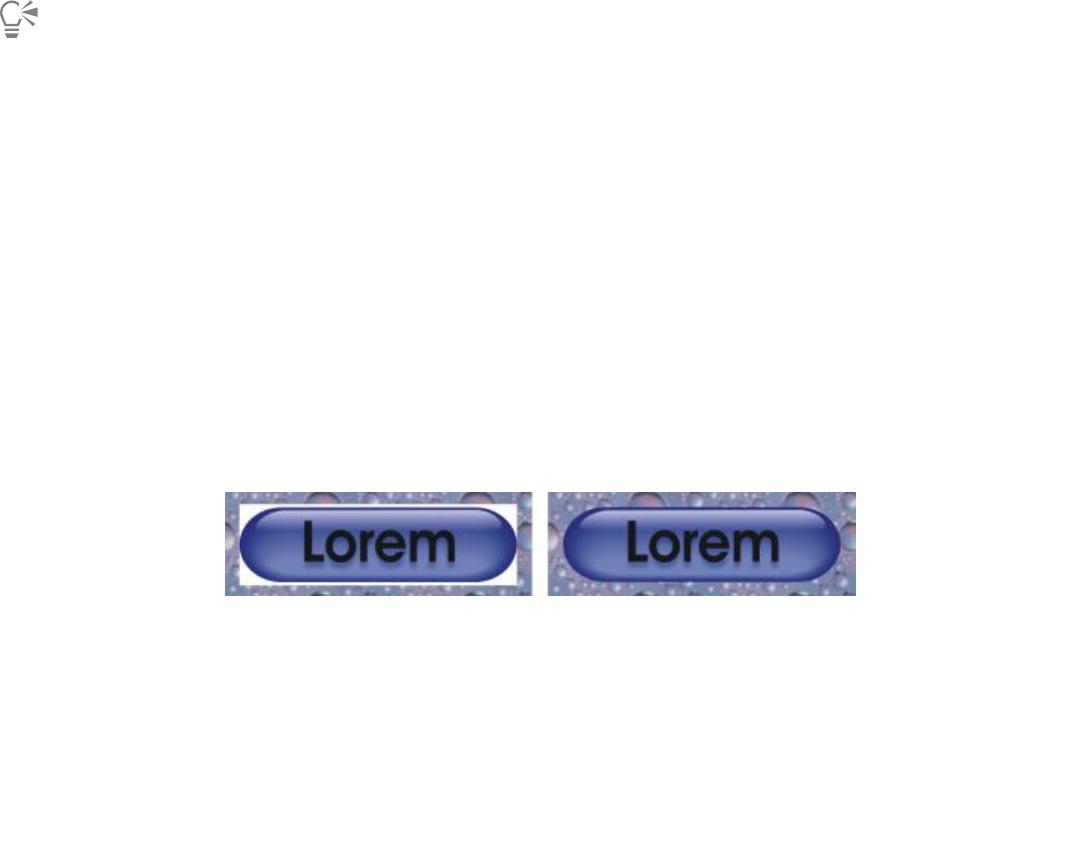
292 | Corel DESIGNER 2017 User Guide
Saving and applying web presets
Web presets allow you to save custom settings for exporting web-compatible file formats.
To save a preset for exporting web-compatible images
1In the Export for web dialog box, choose a file format from the Format list box.
2Choose the settings that you want to store as a preset.
3Click the arrow next to the Preset list box, and click Save preset.
4Type the name of the preset in the File name box.
5Click Save.
You can delete a saved preset by choosing a preset from the Preset list box, clicking the arrow next to the Preset list box, and clicking
Delete preset.
To apply a preset for exporting web-compatible images
1In the Export for web dialog box, click the arrow next to the Preset list box, and click Load preset.
2Click the name of the file.
3Click Open.
Exporting objects with transparent colors and backgrounds
CorelDESIGNER lets you export palette-based bitmaps, such as paletted GIF or 8-bit PNG, with transparent colors and backgrounds. These
bitmaps can contain objects, such as buttons and logos, which are commonly used on webpages with colored or patterned backgrounds.
If you place an object with an opaque background onto a webpage, the object background color appears as a rectangle on the page. By
making an object background transparent, the object background blends in with the page. Transparent object backgrounds also let you
change the color or pattern of a webpage background without having to change the backgrounds of the objects to match.
You can create a GIF with a transparent background to use on a webpage.
To save a bitmap with a transparent background
1In the Export for web dialog box, choose a paletted file format, such as GIF or Paletted 8-bit PNG, from the Format list box.
2Perform one or more tasks from the following table.
To Do the following
Make the background of the object transparent In the Settings area, enable the Transparency check box.
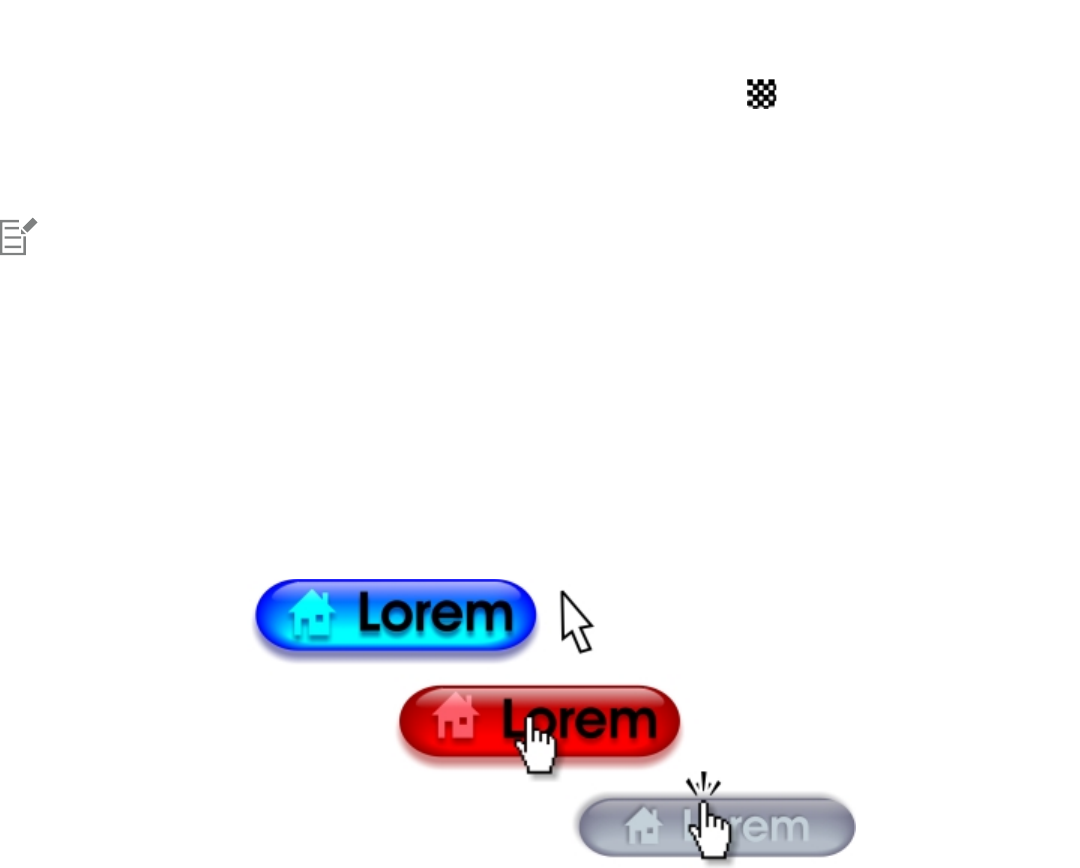
Creating objects for the web | 293
To Do the following
Make a selected color transparent Click the Eyedropper on the toolbar, and then click the image to
choose a color. In the Settings area, click the Make the selected
color transparent button .
Apply a matte color to the object’s background to help blend the
edges of anti-aliased objects
In the Settings area, open the Matte color picker, and click a color.
For best results, choose None from the Dithering list box in the Settings area.
Creating rollovers
Rollovers are interactive objects that change in appearance when you click or point to them. You can create rollovers using objects.
To create a rollover, you add the following rollover states:
•Normal — the default state of a button when no mouse activity is associated with the button
•Over — the state of a button when the pointer passes over it
•Down — the state of a clicked button
You can apply different object properties to each of the rollover states. You can also preview the rollover states.
Rollovers showing Normal (left), Over (center), and Down (right) states
To add the rollover object to a web design, you must first save it to Macromedia® Flash® (SWF) format. For more information about
creating and editing objects such as rollovers, see “Working with objects” on page 243.
To create a rollover object
1Select an object.
2Click Effects Rollover Create rollover.
To modify an object’s rollover state
1Click View Toolbars Internet.
The Internet toolbar appears.
2Click the rollover object to select it.
294 | Corel DESIGNER 2017 User Guide
3On the Internet toolbar, click the Edit rollover button .
4From the Active rollover state list box, choose a state:
•Normal
•Over
•Down
5Modify the object properties, such as the color.
6Click the Finish editing rollover button .
You can also
Delete a rollover state On the Internet toolbar, click the Delete rollover state button
.
Duplicate a rollover state On the Internet toolbar, click the Duplicate rollover state button
.
Undo a rollover On the Internet toolbar, click the Extract rollover objects button
.
Specify what frame appears when the rollover is clicked On the Internet toolbar, choose a target frame from the Target
frame list box.
You cannot close a drawing in which you are editing a rollover. You must finish editing first.
To view rollover properties
1Click Window Object manager.
2Click the page and layer where the rollover resides.
3Click the rollover name, and expand the Normal, Over, and Down states.
You can preview a rollover object’s states in the drawing page by clicking the Rollover live preview button on the Internet
toolbar. To quit previewing the rollover so that you can edit it, click the Rollover live preview button . You cannot undo while
previewing a rollover.
Adding bookmarks and hyperlinks to documents
CorelDESIGNER lets you add bookmarks and hyperlinks to your document. You can apply these to objects, including text objects, rollovers,
and bitmaps. For information, see “Including hyperlinks, bookmarks, and thumbnails in PDF files” on page 658.
Bookmarks
To create an internal link within a file, you can assign a bookmark to text or to an object. You can then assign a link to an object so that,
when it’s clicked, it opens the bookmark.
Creating objects for the web | 295
Hyperlinks
You can also assign a hyperlink to an object. You can link to a web address, FTP server, email address, bookmark, or file. When the object is
clicked, it opens to the assigned location in a appropriate application. After you create hyperlinks, you can display and verify them. You can
also delete links and bookmarks. When working with text, you can assign a hyperlink to both artistic and paragraph text.
Hyperlinks are maintained when you export files to CGM Version 4 profiles. For information about exporting CGM files, see “Computer
Graphics Metafile (CGM)” on page 678.
To assign a bookmark
1Click Window Links and bookmarks.
2In the workspace, click the object that you want to bookmark.
3Click the New bookmark button .
4Type the name of the bookmark in the name box.
To assign a hyperlink to an object
1Click Window Links and bookmarks.
2In the workspace, click the object to which you want to apply a hyperlink.
3Click the New link button .
4From the Link type list box, choose one of the following link types:
Link types
http:// or https:// Type a web address, or URL, for a webpage that opens when you
click the link.
ftp:// Type a web address, or URL, to the FTP server that opens when you
click the link.
mailto: Type an email address.
file:// Click the browse button and navigate to the file that you want to
open when you click the link.
bookmark Choose a previously created bookmark from the list.
To assign a hyperlink to text
1Click Window Links and bookmarks.
2Using the Text tool , select the text characters to which you want to assign a hyperlink.
3Click the New link button .
4From the Link type list box, choose one of the following link types:

296 | Corel DESIGNER 2017 User Guide
You can also assign a hyperlink from the Internet toolbar by clicking View Toolbars Internet to display the toolbar.
To verify a link
1Click Window Links and bookmarks.
2Choose the link that you want to open.
3Click the Open link button .
To delete a bookmark or link
1Click Window Links and bookmarks.
2Choose the link or bookmark that you want to delete.
3Click the Delete button .
Adding hotspots and alternate text to objects
You can set a hotspot to an object. CorelDESIGNER applies a crosshatch pattern to an object containing a link. In addition, you can add
alternate text to objects for text-only browsers or screen readers.
To set a hotspot
1Click View Toolbars Internet.
2In the workspace, click the object to which you want to add a hotspot.
3On the property bar, choose Link from the Behavior list box, and type a web address in the URL box.
You can also add a hotspot to a callout or part of a callout. For more information, see “To add a hotspot to a callout” on page 153.
To add alternate text to an object
1Click View Toolbars Internet.
2In the workspace, click the linked object to which you want to add alternate text.
3On the Internet toolbar, click the Alt comments button, and type the alternate text in the Alt comments text box.
Working with layers | 297
Working with layers
You can work with layers to help you organize and arrange objects in complex illustrations.
This section contains the following topics:
•“Creating layers” (page 297)
•“Changing layer properties” (page 301)
•“Moving and copying layers and objects” (page 303)
Creating layers
All CorelDESIGNER drawings consist of stacked objects. The vertical order of these objects — the stacking order — contributes to the
appearance of the drawing. An effective way to organize these objects is by using invisible planes called layers.
Drawings can be assembled by placing objects on various levels or layers.
Layering gives you added flexibility when you organize and edit the objects in complex drawings. You can divide a drawing into multiple
layers, each containing a portion of the drawing’s contents. For example, you can use layers to organize an architectural plan for a building.
You can organize the building’s various components (for example, plumbing, electrical, structural) by placing them on separate layers.
Local layers and master layers
All content is placed on a layer. Content that applies to a specific page is placed on a local layer. Content that applies to all pages in a
document can be placed on a global layer called a master layer. Master layers are stored on a virtual page called the Master Page.
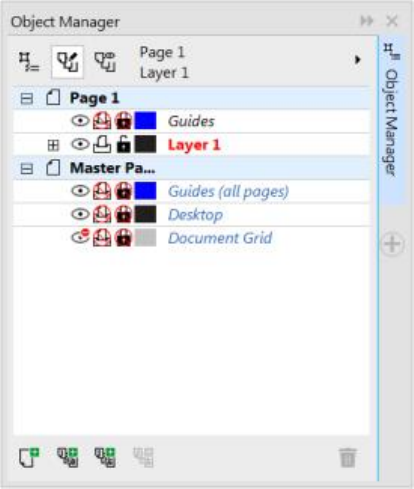
298 | Corel DESIGNER 2017 User Guide
The Object manager docker displays the default layer structure. The names of the active page and layer appear at the top.
You can create master layers for all pages, for even pages, or for odd pages. For example, placing content on an even master layer means
that the content will appear on all even pages but not on the odd pages.
Each new file is created with a default page (Page 1) and a Master Page. The default page contains the following layers:
•Guides — stores page-specific (local) guidelines. All objects placed on the Guides layer appear as outlines only, and the outlines act as
guidelines.
•Layer 1 — represents the default local layer. When you draw objects on the page, the objects are added to this layer unless you choose a
different layer.
The Master Page is a virtual page that contains the information that applies to all pages in a document. You can add one or more layers to a
master page to hold content such as headers, footers, or a static background. By default, a master page contains the following layers:
•Guides (all pages) — contains the guidelines that are used for all pages of the document. All objects placed on the Guides layer appear
as outlines only, and the outlines act as guidelines.
•Desktop — contains objects that are outside the borders of the drawing page. This layer lets you store objects that you may want to
include in the drawing at a later time.
•Document grid — contains the document grid that is used for all pages of the document. The document grid is always the bottom
layer.
The default layers on the master page cannot be deleted or copied.
To add content to a layer, you must first select the layer so that it becomes the active layer.
Viewing layers, pages, and objects
You can choose different views that let you display pages, layers, or all the objects in your document. The view you choose depends on the
complexity of your document and the task you are performing. For example, in a long multipage document, you can choose a pages-only
view so that you can navigate the document more easily and view only one page at a time. The Current page, layers only view lets you view
and reorder all the layers that affect the current page, including the master layers.
To create a layer
1If the Object manager docker is not open, click Window Object manager.
2Perform a task from the following table.
Working with layers | 299
To Do the following
Create a local layer In the upper-right corner of the Object manager docker, click the
flyout button , and click New layer.
Create a master layer for all pages In the upper-right corner of the Object manager docker, click the
flyout button , and click New master layer (all pages).
Create a master layer for odd pages In the upper-right corner of the Object manager docker, click the
flyout button , and click New master layer (odd pages).
This command is available only when the active page is an odd
page.
Create a master layer for even pages In the upper-right corner of the Object manager docker, click the
flyout button , and click New master layer (even pages).
This command is available only when the active page is an even
page.
To use a layer in the drawing, you must first make the layer active by clicking the layer name in the Object manager docker. The
layer name appears in a red bold font to indicate that it is the active layer. When you start a drawing, the default layer (Layer 1) is the
active layer.
Master layers are always added to the master page. Content added to these layers is visible on all pages of the document, all odd
pages, or all even pages, depending on the type of master layer that you have chosen.
Master layers for odd and even pages cannot be created in Facing Pages view. If you have created odd and even master pages before
switching to Facing Pages view, the odd and even master layers will be converted to all-page master layers. For more information
about facing pages, see “To view facing pages” on page 90.
You can also add a layer by clicking the New layer button in the Object manager docker.
You can also create new master layers by clicking the respective button in the Object manager docker: New master layer (all pages)
, New master layer (odd pages) , or New master layer (even pages) .
You can make any layer a master layer by right-clicking the layer name, and clicking Master (all pages), Master (odd pages), or
Master (even pages).
To make a layer active
1If the Object manager docker is not open, click Window Object manager.
2In the Object manager docker, click the layer name.
The layer name appears in a red bold font to indicate that it is the active layer.
300 | Corel DESIGNER 2017 User Guide
By default, the active layer is Layer 1.
The name of the active layer and the type of the currently selected object appear on the status bar at the bottom of the application
window. The names of the active page and layer also appear at the top of the Object manager docker.
To display pages, layers, and objects in the Object Manager docker
1If the Object manager docker is not open, click Window Object manager.
2Perform a task from the following table.
To Do the following
Display pages Click the flyout button , and then click Show pages.
Display all layers for the current page Click the name of a page, click the Layer manager view button
, and then click Current page, layers only.
Display all layers and objects across all pages Click the Layer manager view button , and then click All
pages, layers and objects.
Display selected objects in the Object manager docker Click the flyout button , and then click Expand to show
selection.
The name of the active layer and the type of the currently selected object appear on the status bar at the bottom of the application
window. The names of the active page and layer also appear at the top of the Object manager docker.
To delete a layer
1If the Object manager docker is not open, click Window Object manager.
2Click the name of a layer.
3Click the flyout button , and click Delete layer.
When you delete a layer, you also delete all the objects on it. To preserve an object, move it to a different layer before you delete the
current layer.
You can delete any unlocked layer except the following default layers: Document grid, Desktop, Guides, and Guides (all pages). For
more information about locking and unlocking layers, see “To set the editing properties of a layer” on page 302.
You can also delete a layer by right-clicking the layer name in the Object manager docker and choosing Delete.
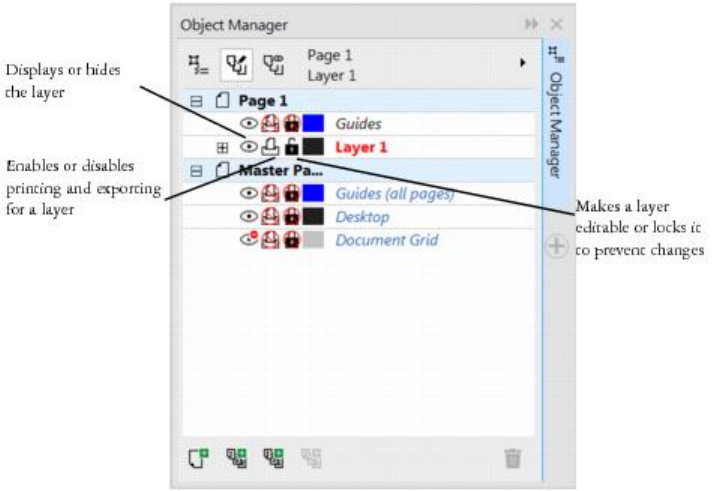
Working with layers | 301
Changing layer properties
For each new layer that you create, the display, editing, and printing and exporting properties are enabled by default. You can change these
properties at any time. You can also turn a local layer into a master layer, or a master layer into a local layer. For information about master
layers, see “Creating layers” on page 297.
The icons to the left of a layer’s name let you change the layer’s properties.
Showing and hiding layers
You can choose to show or hide layers in a drawing. Hiding a layer lets you identify and edit the objects on other layers. It also reduces the
time required for your drawing to refresh when you edit it.
Printing and exporting layers
You can set printing and exporting properties for a layer to control whether a layer is displayed in the printed or exported drawing. Note
that hidden layers are displayed in the final output if the printing and exporting properties are enabled. The Document grid layer cannot be
printed or exported.
Setting a layer’s editing properties
You can allow editing of the objects on all layers or restrict editing so that you can only edit objects on the active layer. You can also lock a
layer to prevent accidental changes to the objects it contains. When you lock a layer, you cannot select or edit the objects on that layer.
Renaming layers
You can rename layers to indicate their contents, their position in the stacking order, or their relationship with other layers.
Using layer color to view objects
You can change the layer color so that objects on the layer are displayed with the layer color when you use Wireframe view. For example, if
you place various components of an architectural plan (plumbing, electrical, structural) on separate layers, you can use layer color to quickly
identify to which component the objects belong.
302 | Corel DESIGNER 2017 User Guide
To change layer properties
1If the Object manager docker is not open, click Window Object manager.
2Right-click the layer, and click Properties.
3Specify the settings you want.
To show or hide a layer
1If the Object manager docker is not open, click Window Object manager.
2Click the Show or hide icon beside the layer name.
The layer is hidden when the Show or hide icon is grayed out.
Objects on a hidden layer are displayed in the printed or exported drawing unless the layer’s printing and exporting properties are
disabled.
You can also show or hide a layer by right-clicking the layer in the Object manager docker and then clicking Visible.
To enable or disable printing and exporting of a layer
1If the Object manager docker is not open, click Window Object manager.
2Click the Enable or disable printing and exporting icon beside the layer name.
Disabling the printing and exporting of a layer prevents its contents from appearing in the printed or exported drawing, or in full-
screen previews. For information about full-screen previews, see “Previewing drawings” on page 86.
You can also enable or disable the printing and exporting of a layer by right-clicking the layer in the Object manager docker and
clicking Printable.
To set the editing properties of a layer
1If the Object manager docker is not open, click Window Object manager.
2In the Object manager docker, click the name of the layer that you want to edit.
The layer name appears in a red bold font to indicate that the layer is active.
3Perform a task from the following table.
To Do the following
Lock or unlock a layer Click the Lock or unlock icon beside the layer name.
Allow editing on all layers Click the flyout button , and click Edit across layers.
Working with layers | 303
To Do the following
Allow editing on the active layer only Click the flyout button , and disable Edit across layers.
If you disable editing across layers, you can work only on the active layer and the Desktop layer. You cannot select or edit objects on
inactive layers. For example, if you use the Pick tool to marquee-select multiple objects on the drawing page, only the objects on the
active layer are selected.
You cannot lock or unlock the Document grid layer.
You can also allow editing on all layers by clicking the Edit across layers button in the Object manager docker. Editing across
layers is enabled when the button appears pressed. Clicking the button again restricts editing to the active layer.
You can also lock or unlock a layer by right-clicking the layer in the Object manager docker and then clicking Editable.
To rename a layer
1If the Object manager docker is not open, click Window Object manager.
2Right-click the layer name, and click Rename.
You can also rename a layer by clicking the layer name twice and typing a new name.
To change the layer color
• In the Object manager docker, double-click the color swatch that appears to the left of the layer name, and choose a color.
Objects on the layer are displayed with the layer color when you use Wireframe view (View Wireframe).
You can also choose to display only the objects on a specific layer in Wireframe view by right-clicking the layer name, choosing
Properties, and enabling the Override full color view check box in the layer properties dialog box.
Moving and copying layers and objects
You can move or copy layers on a single page or between pages. You can also move or copy selected objects to new layers, including layers
on the master page.
Moving and copying layers affects the stacking order. Moving or copying an object to a layer below its current layer causes the object to
become the top object on its new layer. Similarly, moving or copying an object to a layer above its current layer causes the object to become
the bottom object on its new layer.
To move a layer
1If the Object manager docker is not open, click Window Object manager.
2In the layers list, drag a layer name to a new position.

304 | Corel DESIGNER 2017 User Guide
You can change the order of the master layers relative to local layers by displaying the list of all layers for the current page and
dragging a layer name to a new position in the layers list. To display all layers for a page, click a page name, click the Layer manager
view button at the top of the Object manager docker, and choose Current page, layers only.
To copy a layer
1If the Object manager docker is not open, click Window Object manager.
2In the layers list, right-click the layer that you want to copy, and click Copy.
3Right-click the layer above which you want to place the copied layer, and click Paste.
The layer and the objects it contains are pasted above the selected layer.
To move or copy an object to another layer
1If the Object manager docker is not open, click Window Object manager.
2Click an object in the Object manager docker.
3Click the flyout button , and click one of the following:
•Move to layer
•Copy to layer
4Click the destination layer.
When you move objects to or from a layer, the layer must be unlocked.
You can move and copy an object to another layer by dragging the object to a new layer in the Object manager docker.
Object linking and embedding | 305
Object linking and embedding
Object linking and embedding (OLE) is a method of exchanging information between applications. Using OLE, you can take selected
objects or entire files from one application, called the source application, and place them into another application, called the destination
application. Objects that are placed into an application using OLE are called OLE objects. You can freely move objects and files between
applications as long as all the applications involved support OLE.
CorelDESIGNER lets you create and edit OLE objects, as well as insert objects and files created in other applications.
Linking results in a larger file size but is useful when you want to use an object or file in multiple files. To change every instance of the object
or the file, you only need to change the object in the source application. Linking is also useful when the destination application does not
directly support files created in the source application. Embedding is useful when you want to include all objects in one file.
This section contains the following topics:
•“Inserting linked or embedded objects” (page 305)
•“Editing linked or embedded objects” (page 306)
Inserting linked or embedded objects
You can insert a linked or embedded object. A linked object remains connected to its source file; whereas an embedded object is not linked
to its source file but is integrated into the new file. You can insert an embedded object or create an embedded object. You can also insert a
linked or embedded object by copying it from the source application and pasting it to the destination application.
To insert a linked object
1In the source application, select an object.
2Click Edit Copy.
3In CorelDESIGNER, click Edit Paste special.
4Enable the Paste link option.
The file from which you copy the object in the source application must be saved before you insert the object in CorelDESIGNER.

306 | Corel DESIGNER 2017 User Guide
To insert an embedded object
1Click Object Insert new object.
2Enable the Create from file option.
3Click the Browse button.
4Click a filename.
You can also create an embedded object by enabling the Create new option in the Insert new object dialog box, and choosing the
application in which you want to create the object from the Object type list box.
You can also insert an embedded object by selecting an object in the source application, and dragging it to the application window
of CorelDESIGNER.
Editing linked or embedded objects
You can edit a linked or embedded object. You can edit a linked object by editing its source file. Any changes you make to the source file are
automatically applied to the linked object. You can also modify a linked object; for example, you can update a linked object, substitute the
source file of a linked object for another, or break a link between a linked object and its source file.
To edit a linked or embedded object
1Double-click the linked or embedded object to start the source application.
2Edit the object in the source application.
3Save the changes in the source application.
4Close the source application.
5Return to the active application window to review the edits.
In most cases, you can edit OLE objects only in the source application. If you try to change an OLE object using CorelDESIGNER,
note the following limitations. Depending on the source of the OLE object, you might not be able to rotate, skew, clone, trim, weld,
intersect, use as symbols, or combine OLE objects. Also, you might not be able to apply any of the effects in the Effects menu to OLE
objects, except for PowerClip objects. You can only size, move, and copy OLE objects and place them into PowerClip containers.
You can also edit linked or embedded objects by starting the source application and opening the file directly.
To modify a linked object
1Select a linked object using the Pick tool .
2Click Object Links.
3Click one of the following buttons:
•Update now — updates the linked object to reflect changes made in the source file
•Open source — opens the object in the source application
•Change source — redirects the link to another file
•Break link — disconnects the link so that the object is embedded in the file

Working with object data | 307
Working with object data
The Object Data Manager is an advanced hotspotting feature that is particularly useful as a project management tool when you create or
supervise a large project. You can enter many types of project data about individual objects or groups of objects.
This section contains the following topics:
•“Setting up the project database” (page 307)
•“Managing object data” (page 309)
•“Applying CGM data to objects” (page 310)
Setting up the project database
Before you assign project data to objects in a drawing, you need to know what information you want to display. By default, CorelDESIGNER
creates multiple data fields including: Name, Cost, and Comments. These fields can be edited or deleted as required.
CorelDESIGNER also provides common ActiveCGM®, WebCGM, and WebCGM S1000D fields. When you import or export CGM files, the
object data is maintained. For more information on importing and exporting CGM files, see “Computer Graphics Metafile (CGM)” on page
678.
Object data is also maintained when you import or export SVG files. For more information on importing and exporting SVG files, see
“Scalable Vector Graphics (SVG)” on page 703.
You can create and assign as many data fields as you want, as long as they use permitted format variables. For more information about
assigning data fields, see “Managing object data” on page 309. In addition, you can add a child field to an existing field to create a
hierarchical structure. However, the field you choose must support the creation of a child field.
At any time, you can change the setting, such as the name or format, of a data field.
If you require custom fields, you can define their formats using four basic field formats: General, Date/time, Linear/angular, and Numeric.
Each of these formats provides a series of common settings. If the preset formats in CorelDESIGNER don’t provide the information you want
in your data summary, you can create your own custom formats using the variables available for the format type you’re using. The field
format you select is used for all objects in the active drawing.
When you delete a field, you also delete all data entered for that field in the active document and any children that are associated with the
field.

308 | Corel DESIGNER 2017 User Guide
To add a data field
1Click Window Object data manager.
2In the Object data docker, click the Open field editor button .
3In the Object data field editor dialog box, click New field.
4Double-click the Element name cell in the new field. Choose an element type from the list box, and press Enter.
5Double-click the Name cell in the new field. Type a name for the field, and press Enter.
If you want to change the field’s value, double-click the Default value cell, type a new value, and press Enter.
If you want to change the field’s constraint, double-click the Constraint cell, type a constraint, and press Enter.
6Double-click the Type cell in the new field, and choose one of the following format types from the list box:
•String
•Number
•Event
•Action
7Double-click the Target cell in the new field, and choose one of the following targets from the list box:
•General
•ActiveCGM
•WebCGM
8In the Add field to area, enable one or both of the following check boxes:
•Application defaults — stores the new field in the application
•Document defaults — stores the new field in the current document
You can also use this procedure to change the settings of an existing data field.
You can also
Add a child data field to an existing field Select the data field to which you want to add a child, and click
New child field.
The field you choose as a parent field must support the creation of
a child field.
Change the format of a data field Select the data field, and click Change in the Format area.
In the Format definition dialog box, enable the option beside
the format type you want to use, and choose a format from the
Format type list.
Create a custom format for a data field Select the data field, and click Change in the Format area.
In the Format definition dialog box, enable the option beside the
format type you want to create.
Type the format in the Create box, and press Enter.
Working with object data | 309
You can also
Delete a data field Choose the name of the data field from the list. To choose multiple
fields, hold down Ctrl, and click the names in the list. Click Delete
field(s).
Managing object data
After creating all the data fields you want for a drawing, you can create a database from a template. The database stores all the data you
apply to the objects in your drawing. You can choose from three different templates; because each template saves to an external, tagged
XML file, you can store the data for different workflows simultaneously.
The Object Data Manager provides all the commands and features you need to add, edit, and delete object data — even behaviors that were
applied using the Internet toolbar.
You can use one object’s data entries to update another object’s data entries. This function does not replace an object’s data entries; rather,
it appends fields and data where appropriate.
CorelDESIGNER also provides common ActiveCGM, WebCGM, and WebCGM S1000D fields. When you import or export CGM files, the
object data is maintained. For more information on importing and exporting CGM files, see “Computer Graphics Metafile (CGM)” on page
678.
Object data is also maintained when you import or export SVG files. For more information about importing and exporting SVG files, see
“Scalable Vector Graphics (SVG)” on page 703.
To choose a database template
1Click Window Object data manager.
2From the list box, choose one of the following templates:
•General
•ActiveCGM
•S1000D issue 4.0
•WebCGM
You can also view all existing database entries by choosing All from the list box.
To add or edit data for an object
1Select the object using the Pick tool .
2Click Window Object data manager.
3Select a data field.
A check mark indicates whether that field is applied to the selected object.
An icon indicates the field type:
•Text
•Number
•Action
•Event
310 | Corel DESIGNER 2017 User Guide
4Type text in the Value column for the field, and press Enter.
5Double-click in the Constraint column for the field, and specify a constraint value in the Object data field editor dialog box.
6Repeat steps 3 to 5 to add data to other fields.
You can also
Display or hide behaviors Click the Show/hide behaviors button .
Display or hide data Click the Show/hide data button .
Display active fields only Click the Show active fields only button .
Copy data from another object to the selected object Click the Copy data from button , and click the object from
which you want to copy data.
Clear all fields Click the Clear all fields button .
Applying CGM data to objects
This section provides a sample of the CGM data that you can apply to objects. It is divided into three parts:
•“Sample of WebCGM commands” (page 310)
•“Sample of ActiveCGM commands” (page 312)
•“Sample of WebCGM S1000D commands” (page 314)
When you choose an action as the type, any of the following can function as the value:
• one or more ActiveCGM commands
• BasicScript® subroutine name
• operating system command
• external application
When you choose an event as the type, only one or more Active CGM commands can function as the value.
Sample of WebCGM commands
button1press
•Type: event
•Description: Triggers when you click any of the members of the group.
•Value: WebCGM_button1press, or any of the WebCGM actions
•Constraint: none
content
•Type: text
•Description: Allows you to declare the first priority when searching the text content of a ‘para’ APS.
•Value: none
•Constraint: none
Working with object data | 311
cursorenter
•Type: event
•Description: Triggers when the pointer moves within two pixels of any of the members of the group.
•Value: WebCGM_cursorenter, or any of the WebCGM actions
•Constraint: none
cursorexit
•Type: event
•Description: Triggers when the pointer moves off all members of the group.
•Value: WebCGM_cursorexit, or any of the WebCGM actions.
•Constraint: none
hover
•Type: event
•Description: Triggers when the pointer moves over any member of the group.
•Value: any of the WebCGM actions
•Constraint: none
linkuri
•Type: action
•Description: Loads a file in the target window as specified by the URI.
•Value: either one or three strings entered by user input
• If it is one string, it will represent the URI.
Example: “http://www.corel.com”
• If it is three strings, the first string is the URI, the second is the empty string, and the third is the target frame.
Example:“http://www.corel.com” “” “_blank”
The target frames are as follows:
•_blank — viewer loads the content in a new window
•_self — viewer loads the content in the same window
•_parent — viewer loads the content in the immediate frameset parent of the active window
•_top — viewer loads the content in the full original window
•Constraint: none
name
•Type: text
•Description: Names the group.
•Value: entered by user input
Example: “Corel Designer Group”
•Constraint: none
region
•Type: text
•Description: Provides an optional spatial region, associated with a graphic object, allowing the user to pick operations for the object.
Simple regions of type rectangle, ellipse, polygon, and continuous polybezier can be defined.
• For a rectangle, two corner points of the viewport are provided, as in (x1,y1) (x2,y2).
Example: -820084 215104 342822 867138
• For an ellipse, three points are provided. The first point specifies the center of the ellipse, while the remaining two points specify the
CDP points, as in (x1,y1) (x2,y2) (x3,y3).
Example: -275602 514233 -786474 514233 -275602 282324
• For a polygon, points are provided where n is the number of vertices in the polygon using the formula n*(x.y).
• For a polybezier, points are provided where n is the number of contiguous cubic segments using the formula 3n+1(x,y).
312 | Corel DESIGNER 2017 User Guide
Example (polybezier with three vertices): 235270 712532 -235270 712532 342822 87386 342822 87386 342822
87386 -235270 87386 -235270 87386 -235270 87386 -235270 712532 -235270 712532
•Value: none
•Constraint: none
screentip
•Type: text
•Description: Causes the value to be displayed as a screen-tip when the pointer is positioned over the group.
•Value: entered by user input as a single string that is associated with a graphic object or a group
Example: “This is a screentip”
•Constraint: none
viewcontext
•Type: number
•Description: Lets you specify the initial view of an object when you position the pointer over the graphic object that contains this
attribute.
The value of the viewcontext specifies the two corner points of the viewport rectangle as (x1,y1) (x2,y2), where x1, y1 is the top-right
point of the viewport rectangle and x2, y2 is the bottom-left point of the viewport rectangle.
Example: -925688030 586990613 -799207691 509452731
•Value: entered by user input
•Constraint: none
WebCGM_button1press
•Type: action
•Description: Erases all usertip message boxes in the target window.
Example: ‘eraseusertip;execute -extension “linkuri”’
•Value: eraseusertip;execute -ext
•Constraint: none
WebCGM_cursorenter
•Type: action
•Description: Displays the specified usertip.
Example: ‘displayusertip -tip “<This is a screentip>”’
•Value: displayusertip -tip
•Constraint: none
WebCGM_cursorexit
•Type: action
•Description: Erases all usertip message boxes in the target window.
•Value: eraseusertip
•Constraint: none
Sample of ActiveCGM commands
@ML_button1press
•Type: event
•Description: Makes the group visible.
•Value: @ML_ToVisible
•Constraint: none
@ML_button1release
•Type: event
•Description: Makes the group invisible.
•Value: @ML_ToInvisible
•Constraint: none
Working with object data | 313
@ML_cursorenter
•Type: event
•Description: Changes the group color to red.
•Value: @ML_ToRed
•Constraint: none
@ML_cursorexit
•Type: event
•Description: Changes the group color to its original color.
•Value: @ML_ToNative
•Constraint: none
@ML_ToInvisible
•Type: action
•Description: Makes the group invisible.
•Value: changegroup -vis off
•Constraint: fixed
@ML_ToNative
•Type: action
•Description: Changes the group color to its original color.
•Value: changegroup -co native
•Constraint: fixed
@ML_ToRed
•Type: action
•Description: Changes the group color to red.
•Value: changegroup -co red
•Constraint: fixed
@ML_ToVisible
•Type: action
•Description: Makes the group visible.
•Value: changegroup -vis on
•Constraint: fixed
button1press
•Type: event
•Description: Triggers when you click any of the members of the group.
•Value: PressButton1, or any of the WebCGM or ActiveCGM actions
•Constraint: none
button1release
•Type: event
•Description: Triggers when you release the left mouse button while the pointer is positioned over any of the members of the group.
•Value: ReleaseButton1, or any of the WebCGM or ActiveCGM actions
•Constraint: none
cursorenter
•Type: event
•Description: Triggers when the pointer moves within two pixels of any of the members of the group.
•Value: ToRed, or any of the WebCGM or ActiveCGM actions
•Constraint: none
cursorexit
314 | Corel DESIGNER 2017 User Guide
•Type: event
•Description: Triggers when the pointer moves off all members of the group.
•Value: ToNative, or any of the WebCGM or ActiveCGM actions
•Constraint: none
description
•Type: text
•Description: This behavior is undefined.
•Value: entered by user input
Example: “product description”
•Constraint: fixed
Sample of WebCGM S1000D commands
desc
•Type: text
•Description: This behavior is undefined.
•Value: entered by user input
Example: “product description”
•Constraint: fixed
linkuri
•Type: action
•Description: Loads a file in the target window as specified by the URI.
•Value: either one or three strings entered by user input
• If it is one string, it will represent the URI.
Example: “http://www.corel.com”
• If it is three strings, the first string is the URI, the second is the empty string, and the third is the target frame.
Example:“http://www.corel.com” “” “_blank”
The target frames are as follows:
•_blank — viewer loads the content in a new window
•_self — viewer loads the content in the same window
•_parent — viewer loads the content in the immediate frameset parent of the active window
•_top — viewer loads the content in the full original window
•Constraint: none
region
•Type: text
•Description: Provides an optional spatial region, associated with a graphic object, allowing the user to pick operations for the object.
Simple regions of type rectangle, ellipse, polygon, and continuous polybezier can be defined.
• For a rectangle, two corner points of the viewport are provided, as in (x1,y1) (x2,y2).
Example: -820084 215104 342822 867138
• For an ellipse, three points are provided. The first point specifies the center of the ellipse, while the remaining two points specify the
CDP points, as in (x1,y1) (x2,y2) (x3,y3).
Example: -275602 514233 -786474 514233 -275602 282324
• For a polygon, points are provided where n is the number of vertices in the polygon using the formula n*(x.y).
• For a polybezier, points are provided where n is the number of contiguous cubic segments using the formula 3n+1(x,y).
Example (polybezier with three vertices): 235270 712532 -235270 712532 342822 87386 342822 87386 342822
87386 -235270 87386 -235270 87386 -235270 87386 -235270 712532 -235270 712532
screentip
•Type: text
•Description: Causes the value to be displayed as a screen-tip when the pointer is positioned over the group.
Working with object data | 315
•Value: entered by user input as a single string that is associated with a graphic object or a group
Example: “This is a screentip”
•Constraint: none
viewcontext
•Type: number
•Description: Lets you specify the initial view of an object when you position the pointer over the graphic object that contains this
attribute.
The value of the viewcontext specifies the two corner points of the viewport rectangle as (x1,y1) (x2,y2), where x1, y1 is the top-right
point of the viewport rectangle and x2, y2 is the bottom-left point of the viewport rectangle.
Example: -925688030 586990613 -799207691 509452731
•Value: entered by user input
•Constraint: none
316 | Corel DESIGNER 2017 User Guide
Color and fills | 317
Color and fills
Working with color..............................................................................................................................................................................319
Filling objects.......................................................................................................................................................................................339
Managing and sharing fills and transparencies.................................................................................................................................... 357
Using color management.................................................................................................................................................................... 361
318 | Corel DESIGNER 2017 User Guide

Working with color | 319
Working with color
CorelDESIGNER lets you choose and create colors by using a wide variety of industry-standard color palettes, color mixers, and color models.
You can store frequently used colors for future use by using the Document palette or creating and editing custom color palettes.
You can customize how a color palette appears on your screen by changing the size of swatches, the number of rows, and other properties.
You can also create color styles. For more information, see “Working with color styles” on page 521.
This section contains the following topics:
•“Understanding color models” (page 319)
•“Understanding color depth” (page 321)
•“Choosing colors” (page 322)
•“Using the Document palette” (page 328)
•“Creating and editing custom color palettes” (page 330)
•“Organizing and displaying color palettes” (page 333)
•“Displaying or hiding color palettes in the Palette libraries” (page 335)
Understanding color models
Color models provide a precise method for defining colors, each model defining colors through the use of specific color components. There
is a range of color models to choose from when creating graphics.
CMYK color model
The CMYK color model, which is used in printing, uses the components cyan (C), magenta (M), yellow (Y), and black (K) to define color.
Values for these components range from 0 to 100 and represent percentages.
In subtractive color models, such as CMYK, color (that is, ink) is added to a surface, such as white paper. The color then “subtracts”
brightness from the surface. When the value of each color component (C,M,Y) is 100, the resulting color is black. When the value of each
component is 0, no color is added to the surface, so the surface itself is revealed — in this case, the white paper. Black (K) is included in the
color model for printing purposes because black ink is more neutral and darker than blending equal amounts of cyan, magenta, and yellow.
Black ink produces sharper results, especially for printed text. In addition, black ink is usually less expensive than using colored ink.
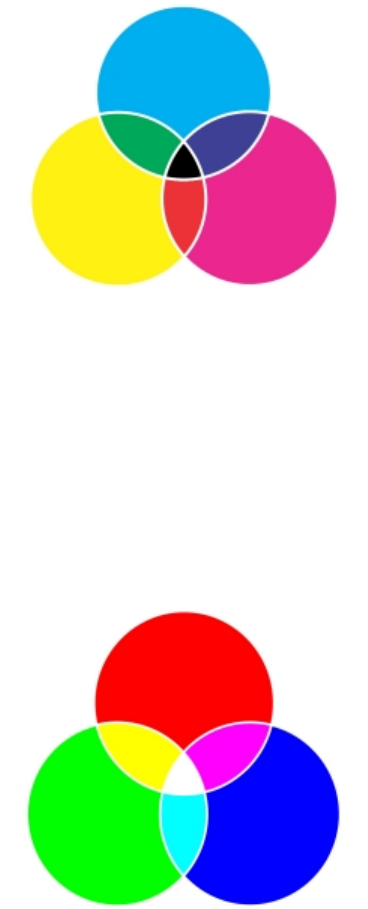
320 | Corel DESIGNER 2017 User Guide
Black is the result of combining the three CMY colors at their highest intensities.
RGB color model
The RGB color model uses the components red (R), green (G), and blue (B) to define the amounts of red, green, and blue light in a given
color. In a 24-bit image, each component is expressed as a number from 0 to 255. In an image with a higher bit rate, such as a 48-bit
image, the value range is greater. The combination of these components defines a single color.
In additive color models, such as RGB, color is produced from transmitted light. RGB is therefore used on monitors, where red, blue, and
green lights are blended in various ways to reproduce a wide range of colors. When red, blue, and green lights are combined at their
maximum intensities, the eye perceives the resulting color as white. In theory, the colors are still red, green, and blue, but the pixels on
a monitor are too close together for the eye to differentiate the three colors. When the value of each component is 0, which signifies an
absence of light, the eye perceives the color as black.
White is the result of combining the three RGB colors at their maximum intensities.
RGB is the most commonly used color model, because it allows a broad range of colors to be stored and displayed.
HSB color model
The HSB color model uses hue (H), saturation (S), and brightness (B) as components for defining color. HSB is also known as HSV (with the
components hue, saturation, and value). Hue describes the pigment of a color and is expressed in degrees to represent the location on the
standard color wheel. For example, red is 0 degrees, yellow is 60 degrees, green is 120 degrees, cyan is 180 degrees, blue is 240 degrees,
and magenta is 300 degrees.
Saturation describes the vividness or dullness of a color. Values of saturation range from 0 to 100 and represent percentages (the higher the
value, the more vivid the color). Brightness describes the amount of white in the color. Like saturation values, brightness values range from 0
to 100 and represent percentages (the higher the value, the brighter the color).
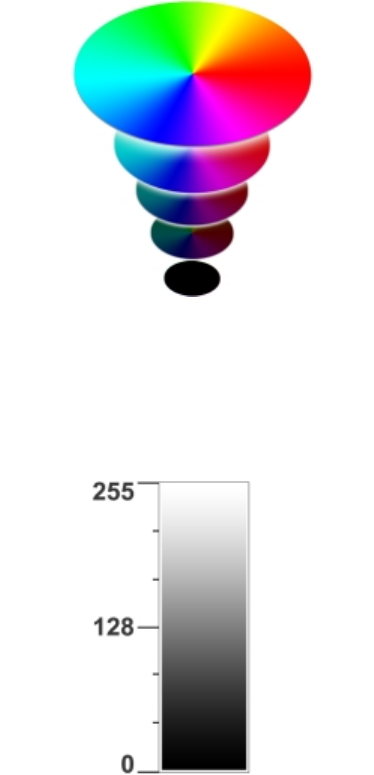
Working with color | 321
HSB color model
Grayscale color model
The grayscale color model defines color by using only one component, lightness, which is measured in values ranging from 0 to 255. Each
grayscale color has equal values of the red, green, and blue components of the RGB color model. Changing a color photo to grayscale
creates a black-and-white photo.
Grayscale color model
Understanding color depth
Color depth refers to the maximum number of colors an image can contain. Color depth is determined by the bit depth of an image (the
number of binary bits that define the shade or color of each pixel in a bitmap). For example, a pixel with a bit depth of 1 can have two
values: black and white. The greater the bit depth, the more colors an image can contain, and the more accurate the color representation is.
For example, an 8-bit GIF image can contain up to 256 colors, but a 24-bit JPEG image can contain approximately 16 million colors.
Usually, RGB, grayscale, and CMYK images contain 8 bits of data per color channel. That is why an RGB image is often referred to as 24-bit
RGB (8 bits x 3 channels), a grayscale image is referred to as 8-bit grayscale (8 bits x channel), and a CMYK image is referred to as 32-bit
CMYK (8 bits x 4 channels).
Regardless of how many colors an image contains, the image displayed onscreen is limited to the highest number of colors supported by the
monitor on which it is viewed. For example, an 8-bit monitor can display only up to 256 colors in a 24-bit image.
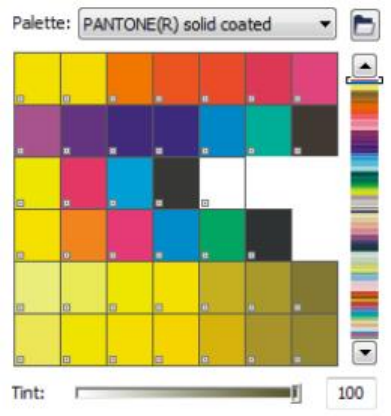
322 | Corel DESIGNER 2017 User Guide
Choosing colors
You can choose fill and outline colors by selecting a color from the Document palette, custom color palettes, palettes from the Palette
libraries, color viewers, or color blends. When you want to use a color that already exists in an object or document, you can sample the color
by using the Color eyedropper tool to achieve an exact match.
For information about applying the colors you choose, see “Applying uniform fills ” on page 339 and “Formatting lines and outlines” on
page 161. For information about saving colors for future use, see “Working with color styles” on page 521.
Default color palette
A color palette is a collection of color swatches. In some programs, color palettes are known as “swatch palettes.”
In CorelDESIGNER, the default color palette is based on the primary color mode of the document. For example, if the document’s primary
color model is RGB, the default color palette is also RGB. For more information, see “Understanding color models” on page 319. You
choose the default color model when you create a new drawing. You can open and use additional color palettes at any time.
You can choose both fill and outline colors by using the default color palette. The selected fill and outline colors appear in the color swatches
on the status bar.
Document palette
When you create a new drawing, the application automatically generates an empty palette, called the Document palette. It helps you
keep track of the colors that you use by storing them with your document for future use. For more information, see “Using the Document
palette” on page 328.
Palette libraries and custom color palettes
The color palettes that are found in the Palette libraries cannot be edited directly. Some of them are provided by third-party manufacturers,
for example PANTONE, HKS Colors, and TRUMATCH. It may be useful to have on hand a manufacturer’s swatch book, which is a collection
of color samples that shows exactly what each color looks like when printed.
The PANTONE solid coated palette is an example of a color palette from the Palette libraries.
Some palettes found in the Palette libraries — PANTONE, HKS Colors, TOYO, DIC, Focoltone, and SpectraMaster — are collections of spot
colors. If you create color separations when you print, each spot color requires a separate printing plate, which can significantly affect the
cost of the printing job. If you want to use color separations but would like to avoid using spot colors, you can convert the spot colors to
process colors when printing. For more information, see “Printing color separations” on page 635.
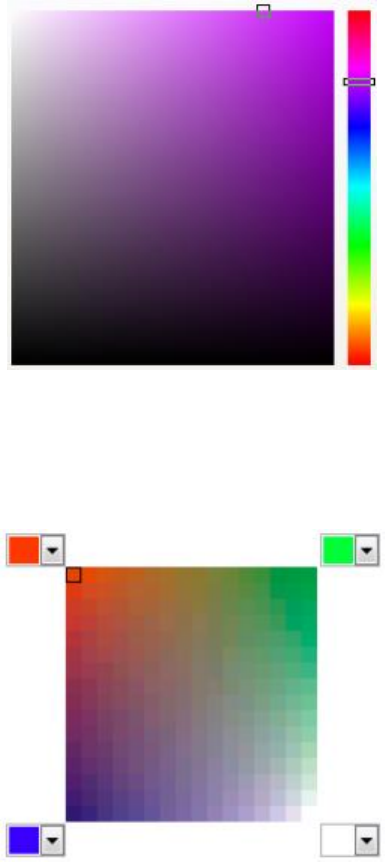
Working with color | 323
Custom color palettes can include colors from any color model, including palettes from the Palette libraries, such as a spot color palette. You
can save a custom color palette for future use. For more information about working with custom color palettes, see “Creating and editing
custom color palettes ” on page 330 and “Organizing and displaying color palettes” on page 333.
Sampling colors
When you want to use a color that already exists in a drawing, palette, or on your desktop, you can sample the color to achieve an exact
match. By default, you sample a single pixel from the drawing window.
Color viewers
Color viewers provide a representation of a range of colors by using either one-dimensional or three-dimensional shapes. The default color
viewer is based on the HSB color model, but you can use this viewer to choose CMYK, CMY, or RGB colors. For information about color
models, see “Understanding color models” on page 319.
An example of a color viewer
Color blends
When you choose a color by using color blends, you combine base colors to produce the color you want. The color blender displays a grid of
colors that it creates from the four base colors you choose.
An example of color blends
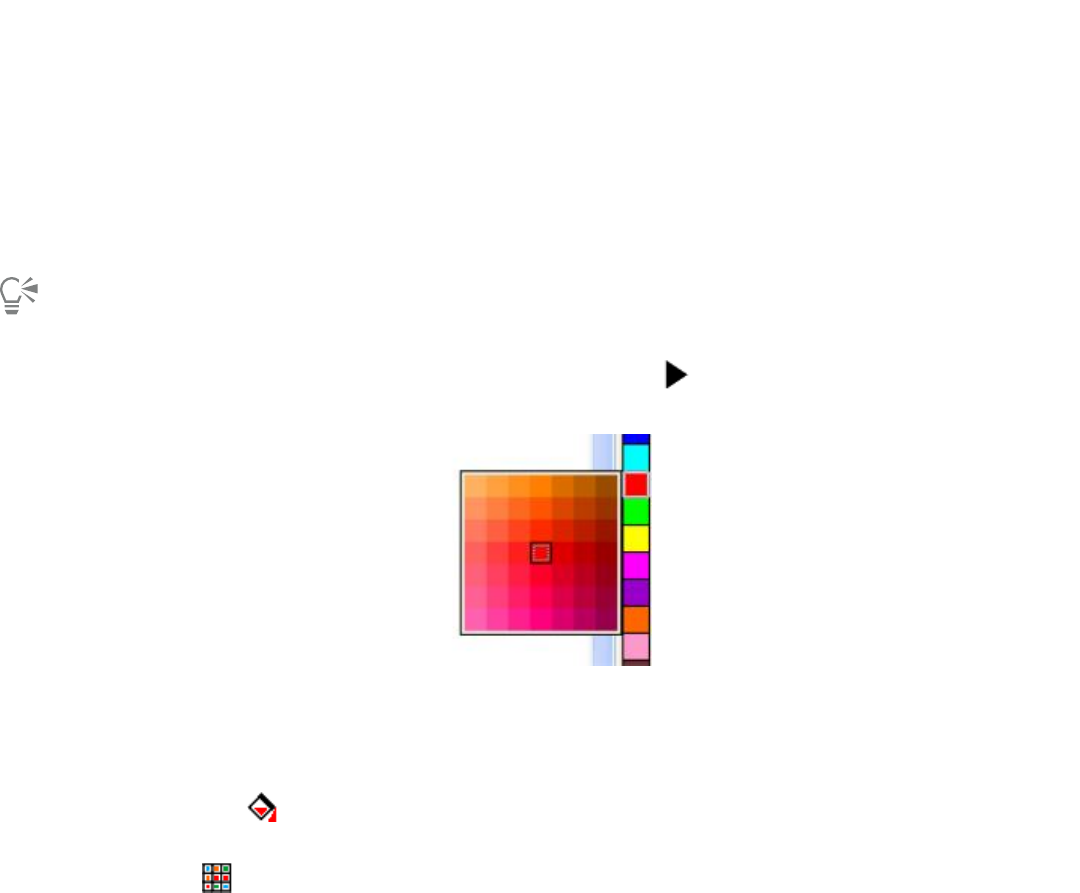
324 | Corel DESIGNER 2017 User Guide
Choosing web colors
You can use web colors when you design documents that will be published to the web. With CorelDESIGNER, you can define web colors by
using RGB hexadecimal values (for example, ‑aa003f).
To choose a color by using the default color palette
To Do the following
Choose a fill color for a selected object Click a color swatch.
Choose an outline color for a selected object Right-click a color swatch.
Choose from different shades of a color Click and hold a color swatch to display a pop-up color picker, and
then click a color.
View more colors on the default color palette Click the scroll arrows at the top and bottom of the color palette.
You can display color values by pointing to a swatch.
To display color names instead of color values, click the Options flyout button at the top of the default palette, and click Show
color names. This action undocks the default color palette and displays the color names.
An example of a pop-up color palette
To choose a color by using a color palette
1Select an object.
2Double-click the Fill button on the status bar.
3In the Edit fill dialog box, click the Uniform fill button.
4Click the Palettes tab .
5Choose a color palette from the Palette list box.
6Move the color slider to set the range of colors displayed in the color selection area.
7Click a color in the color selection area.
Working with color | 325
Each spot color swatch on a color palette is marked with a small white square.
You should use the same color model for all colors in a drawing; the colors will be consistent and you will be able to predict the
colors of the final output more accurately. For more information about reproducing colors accurately, see “Using color management”
on page 361.
You can also access color palettes in the Color docker by clicking the Show color palettes button and choosing a palette from
the list box. If the Color docker is not open, click Window Color.
To choose a color by using a color viewer
1Select an object.
2Double-click the Fill button on the status bar.
3In the Edit fill dialog box, click the Uniform fill button.
4Click the Models tab .
5Choose a color model from the Model list box.
6Choose a color viewer from the Color viewers list box.
7Move the color slider.
8Click a color in the color selection area.
You can also
Sample a color from the drawing or desktop Click the Eyedropper button , and click the drawing or
desktop.
Swap the reference color (original color of the selected object) with
the new color
Click the Swap colors button.
If you choose a color that is out of the printer’s gamut, CorelDESIGNER allows you to replace it with a similar color that is in the
printer’s gamut. To replace the color, click the Bring color into gamut button, which appears to the left of the New color swatch.
For information about color correction, see “Using color management” on page 361.
You should use the same color model for all colors in a drawing; the colors will be consistent and you will be able to predict the
colors of the final output more accurately. It is preferable to use the same color model in your drawing that you will be using for the
final output.
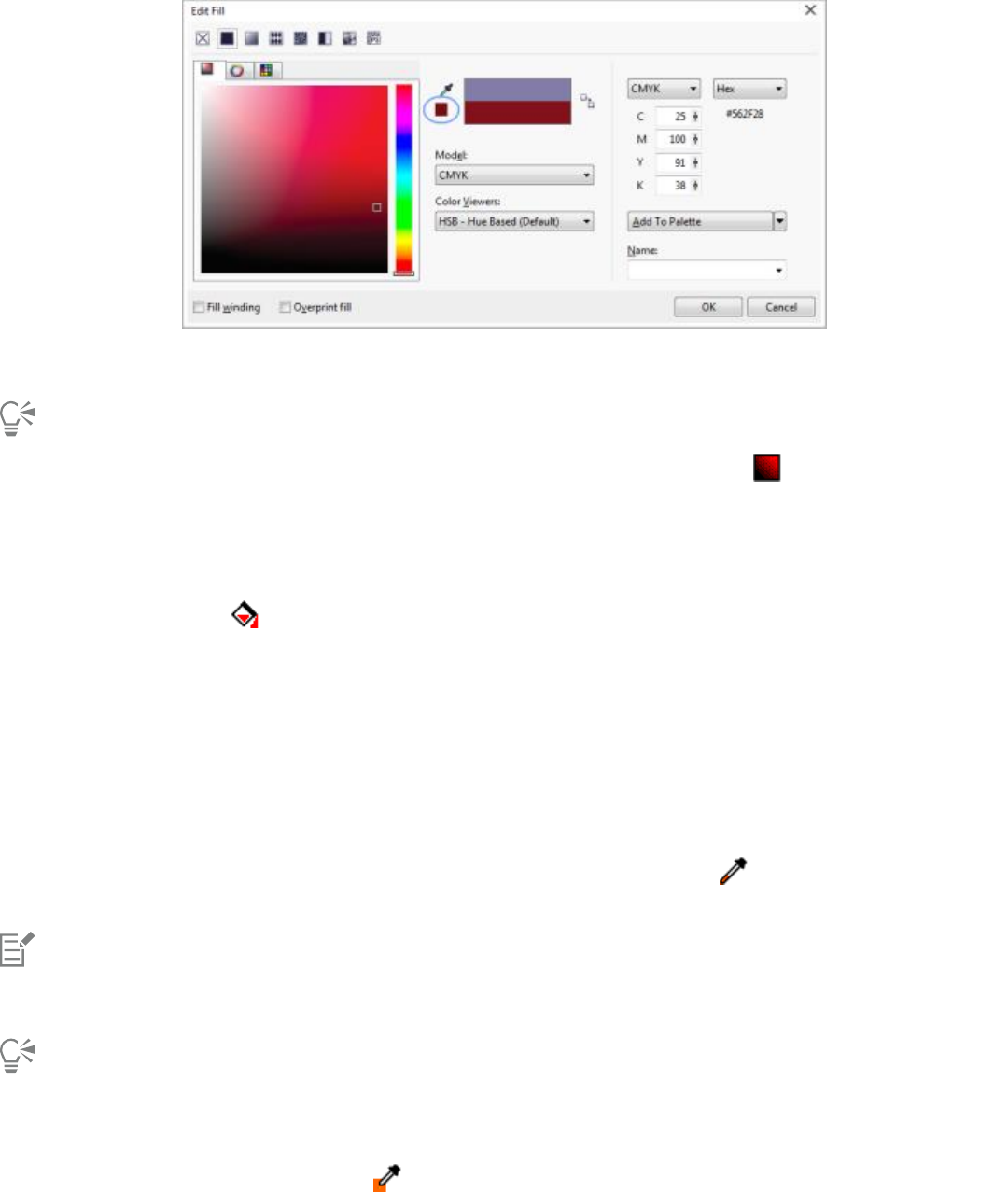
326 | Corel DESIGNER 2017 User Guide
When you choose a color that is out of the printer’s gamut, the Bring
color into gamut button appears below the Eyedropper button.
You can also access color models in the Color docker by clicking the Show color viewers button and choosing a color model
from the list box. If the Color docker is not open, click Window Color.
To choose a color by using color blends
1Select an object.
2Double-click the Fill button on the status bar.
3In the Edit fill dialog box, click the Uniform fill button.
4Click the Mixers tab.
5Choose Color blend from the Mixers list box.
6Open each color picker, and click a color.
7Click a color in the color selection area.
You can also
Sample a color from the drawing or desktop Click the Eyedropper button , and click the drawing or
desktop.
Only colors that are on the default color palette can be blended. To blend other colors, you must change the default color palette. For
more information, see “To display or hide a custom color palette” on page 334.
You can change the cell size of the color grid by moving the Size slider.
To sample a color
1In the toolbox, click the Color eyedropper tool .
Working with color | 327
2On the property bar, click one of the following buttons:
•1×1 — lets you choose the color of the pixel you click
•2×2 — lets you choose the average color in a sample area of 2 × 2 pixels. The pixel you click is in the middle of the sample area.
•5×5 — lets you choose the average color in a sample area of 5 × 5 pixels
If you want to sample a color outside the drawing window, click Select from desktop on the property bar, and click a color on the
desktop.
3Click the color that you want to sample.
The Color eyedropper tool automatically switches to the Apply color mode.
4Perform a task from the following table.
To Do the following
Fill an object with a sampled color Hover over an object. When the Apply color pointer changes to a
solid color swatch , click to apply the sampled color.
Fill an object’s outline color with the sampled color Hover over an object’s outline. When the Apply color pointer
changes to an outline shape , click to apply the sampled color.
Add the sampled color to the Document palette On the property bar, click the arrow next to Add to palette, and
choose Document palette.
Sample an additional color On the property bar, click the Select color button , and then
click the color that you want to sample.
You can also
Drag a sampled color from one object to another Drag the color to another object.
Apply a sampled color from the Selected color swatch on the
property bar
Drag the sampled color from the Selected color swatch to the
object.
Apply a sampled color from the Uniform fill swatch in the lower-
right corner of the drawing window
Drag a color from the Uniform fill swatch to the object.
Add the sampled color to the Document palette Drag the sampled color from the Selected color swatch or the
Uniform fill swatch to the Document palette.
In some cases, the sampled color may be an RGB or CMYK color that is the closest equivalent to the original color, rather than being a
complete match.
To choose a web color
1Select an object.
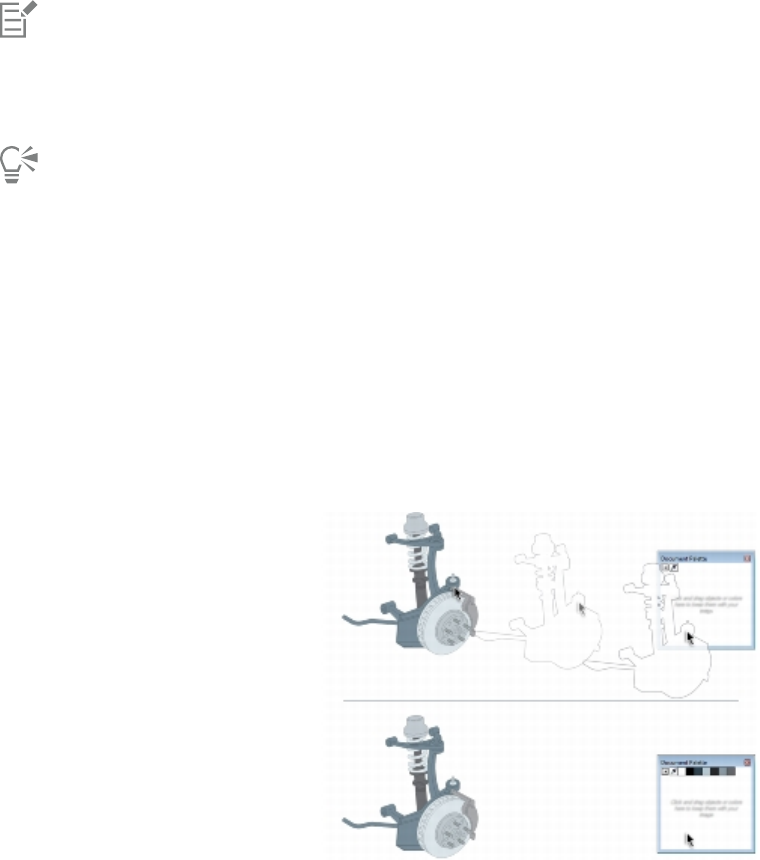
328 | Corel DESIGNER 2017 User Guide
2Click Window Color.
3In the Color docker, choose RGB from the list box.
4Type or paste a value in the Hex value box.
Whether you use a three-digit (‑fff) or six-digit format (‑ffffff), the final value is presented in the six-digit format.
5Click one of the following buttons:
•Fill — fills the selected object with the new color
•Outline — applies the color to the outline of the object
You can specify hexadecimal color values only when working with RGB colors.
If you type an invalid hexadecimal value, the color does not change.
You can view hexadecimal color values on the status bar.
You can also choose web colors from the Select color dialog box (on the status bar, double-click the Outline pen button, open
the Color picker in the Outline pen dialog box, and click More) and the Edit fill dialog box (on the status bar, double-click the Fill
button, and click the Uniform fill button), which let you view and copy the hexadecimal equivalents of non-hexadecimal color values.
Using the Document palette
When you start a new drawing, an empty color palette, called the Document palette, appears docked in the lower-left corner of the drawing
window. Every time you use a color in your drawing, it’s automatically added to the Document palette. However, if you prefer to control
which colors are added to the Document palette, you can disable the automatic updates and add colors manually.
You can add colors from a color palette, an external image, a color picker, or a color-related dialog box, such as the Uniform fill dialog box.
In addition, you can add colors from an imported image or object.
Drag a bitmap to the Document palette to add colors.
When you open documents that were created in a previous version of CorelDESIGNER, only color styles and spot colors are added to the
Document palette. However, you can add all colors from an existing drawing to the Document palette.
You can clear the Document palette of any unwanted or unused colors by removing colors individually or resetting the palette to remove all
unused colors at once.
Working with color | 329
To disable the automatic adding of color to the Document palette
•On the Document palette, click the flyout button , and click Automatically update.
By default, the Document palette is docked above the status bar at the bottom of the application window.
You can also disable the automatic adding of color by clicking Tools Customization, clicking Color palette in the Customization
list of categories, and disabling the Automatically update the document palette check box.
To manually add colors to the Document palette
To Do the following
Add a color from another color palette Drag a color from an open color palette to the Document palette.
Add a color from a bitmap image On the Document palette, click the Eyedropper button, and click a
color in the image.
Add multiple colors from an image On the Document palette, click the Eyedropper button , hold
down Ctrl, and then click the image until you add the colors that
you want.
Add multiple colors from an image or object by dragging Drag an image or object from the drawing window to the
Document palette.
Add colors from a selection Select an object or multiple objects. On the Document palette, click
the flyout button , and click Add from selection.
Add a color from a color-related dialog box In the dialog box, click a color swatch, click the arrow next to Add
to palette, choose Document palette, and then click Add to
palette.
Move a color swatch Drag a color swatch to a new position on the Document palette.
When dragging most vector objects to the palette, you add all object colors to the palette. When dragging a bitmap, you can specify
the number of colors that you want to be added to the palette. If an object includes a fountain fill, texture fill, or pattern fill, only
colors that are defined during the fill creation are supported. Colors from PostScript fills are not supported.
By default, the Document palette is docked above the status bar at the bottom of the application window.
To add colors from an existing drawing to the Document palette
1Open a drawing.
330 | Corel DESIGNER 2017 User Guide
2On the Document palette, click the flyout button , and click Add from document.
By default, the Document palette is docked above the status bar at the bottom of the application window.
If the drawing was created in a previous version of CorelDESIGNER and it includes custom spot colors, they appear in the Document
palette.
If you have a document with both vector and bitmap images, and you want to add only the colors from the vector images to the
Document palette, specify 0 in the Add colors from bitmap dialog box.
To remove a color from the Document palette
1Click a color swatch on the Document palette.
2On the Document palette, click the flyout button , and click Delete color.
By default, the Document palette is docked above the status bar at the bottom of the application window.
You can also remove all colors that are no longer used from the Document palette by clicking the flyout button , choosing
Palette, and clicking Reset palette.
To reset the Document palette
•On the Document palette, click the flyout button , choose Palette, and click Reset palette.
By default, the Document palette is docked above the status bar at the bottom of the application window.
To hide the Document palette
•Click Window Color palettes Document palette.
Hiding the Document palette does not disable the automatic adding of color.
Creating and editing custom color palettes
Custom color palettes are collections of colors or color styles that you save. They can include colors or color styles from any color model,
including spot colors, or any color palette found in the Palette libraries. You can create a custom palette to store all colors or color styles that
you need in a current, or future, project.
It’s easy to share color palettes with others. The custom palettes are accessible from the My palettes folder in the Color Palette Manager.
You can create a custom color palette by choosing individual colors or color styles, or by using the colors in a selected object or an entire
document. You can also edit, rename, and delete custom color palettes.
Custom color palettes are saved as XML files and are stored in the My Documents\My Palettes folder.
Working with color | 331
To create a custom color palette from scratch
1Click Window Color palette manager.
2Click the Creates a new empty color palette button .
3Type a filename in the File name box.
4Click Save.
5In the Color palette manager, choose the custom palette that you created.
6Click the Opens the palette editor button .
7In the Palette editor dialog box, click Add color.
8In the Select color dialog box, choose a color, and click Add to palette.
You can also
Treat the color as a spot color In the Selected color area of the Palette editor dialog box, choose
Spot from the Treat as list.
Treat the color as a process color In the Selected color area of the Palette editor dialog box, choose
Process from the Treat as list.
Rename a color In the Palette editor dialog box, click a color in the color selection
area, and type a name in the Name box.
To add a color to a custom color palette
1Open a custom color palette.
2Perform a task from the following table.
To Do the following
Add a color from another color palette Drag a color from an open color palette to the custom palette.
Add a color from an image On the custom palette, click the Eyedropper button , and click
the color that you want to add.
Add multiple colors from an image On the custom palette, click the Eyedropper button , hold
down Ctrl, and click the image until you add the colors that you
want.
Add multiple colors from an image or object Drag an image or object from the drawing window to the custom
palette.
Add a color from a color-related dialog box In the dialog box, click a color swatch, click the arrow next to Add
to palette, choose the name of your custom palette from the list,
and then click Add to palette.

332 | Corel DESIGNER 2017 User Guide
To Do the following
Add colors from a selection Select an object or multiple objects. On the custom palette, click
the flyout button , and click Add from selection.
Move a color swatch Drag a color swatch to a new position on the palette.
When dragging most vector objects to the palette, you add all object colors to the palette. When dragging a bitmap, you can specify
the number of colors that you want to be added to the palette. If an object includes a fountain fill, texture fill, or pattern fill, only
colors that are defined during the fill creation are supported. Colors from PostScript fills are not supported.
To create a color palette from an object
1Select an object.
2Click Window Color palettes Create palette from selection.
3Type a filename in the File name box.
4Click Save.
To create a color palette from a document
1Click Window Color palettes Create palette from document.
2Type a filename in the File name box.
3Click Save.
To edit a custom color palette
1Click Window Color palettes Palette editor.
2Choose a palette from the list box.
3Perform a task from the following table.
To Do the following
Add a color Click Add color. In the Select color dialog box, click the Models
tab, click a color in the color selection area, and click Add to
palette.
Treat a color as a spot color In the Selected color area of the Palette editor dialog box, choose
Spot from the Treat as list.
Treat a color as a process color In the Selected color area of the Palette editor dialog box, choose
Process from the Treat as list.
Change a color In the color selection area, click a color, and click Edit color. In the
Select color dialog box, click the Models tab, and click a new color
in the color selection area.

Working with color | 333
To Do the following
Delete a color In the color selection area, click a color, and click Delete color.
Sort colors Click Sort colors, and choose a color sorting method.
Move a color Drag a color swatch to a new position.
Rename a color Click a color in the color selection area, and type a name in the
Name box.
You can delete multiple colors by holding down Shift or Ctrl, clicking the colors that you want to delete, and clicking Delete color.
If you add a process color to the palette, but treat it as a spot color, the color is changed to spot and the color name is preserved.
However, if you choose a spot color with a trademarked name, for example a PANTONE color, and convert it to a process color, the
trademarked name is substituted with the color components for that color.
To rename a custom color palette
1Click Window Color palette manager.
2From the My Palettes folder, right-click a custom palette, and click Rename.
3Type a new name, and press Enter.
To delete a custom color palette
1Click Window Color palette manager.
2From the My Palettes folder, right-click a custom palette, and click Delete.
Organizing and displaying color palettes
The Color Palette Manager is a docker that lets you quickly access the available color palettes, including the Document palette and the
Color Styles palette, and create custom color palettes. The color palettes in the Color Palette Manager are divided into two main folders: My
palettes and Palette libraries.
You can use the My palettes folder to store all the custom color palettes that you create. You can add folders to store and organize your
color palettes for different projects. You can also copy a color palette or move it to a different folder. You can open and control the display of
all color palettes.
The Palette libraries folder of the Color Palette Manager contains collections of preset color palettes from which you can choose colors.
You cannot edit any of the color palettes that are found in the Palette libraries. However, you can create a custom color palette by copying a
color palette from the Palette libraries folder. For more information, see “Displaying or hiding color palettes in the Palette libraries” on page
335.
To open the Color Palette Manager
•Click Window Color palette manager.
334 | Corel DESIGNER 2017 User Guide
To display or hide a custom color palette
1Open the Color Palette Manager.
2In the My palettes folder, click the Show or hide icon beside the custom palette name.
If you want to set a custom color palette as the default palette, click the custom palette flyout button , and click Set as default.
To open a custom color palette
1Open the Color Palette Manager.
2Click the Opens a palette button .
3Choose the drive and folder where the custom color palette is stored.
If you want to open a color palette (.cpl file) that was created in a previous version of CorelDESIGNER, select Legacy custom palette
(*.cpl) from the Files of type list box.
4Click the custom palette.
5Click Open.
When you open a legacy custom palette (.cpl) file, it is automatically converted to the XML format (.xml). The XML version is stored
in the x:\Documents and Settings\your name\My Documents folder, and also appears in the My palettes folder in the Color Palette
Manager.
If the custom color palette (.xml) was saved to the My palettes folder, you can open it by clicking Window Color palettes and
choosing the custom palette from the list.
To create a folder for storing custom color palettes
1Open the Color Palette Manager.
2Click the Create a new folder button .
3Type a new name, and press Enter.
If you want to move a custom color palette, drag it to the new folder.
To cut or copy a custom color palette
1Open the Color Palette Manager.
2In the My palettes folder, right-click a custom palette, and click one of the following:
•Cut
•Copy
If you want to paste the custom palette to a different folder, right-click the folder, and click Paste.
To copy a palette from the Palette libraries for editing
1Open the Color Palette Manager.
2Drag a palette from the Palette libraries folder to the My palettes folder.
An editable copy of the color palette appears in the My palettes folder.
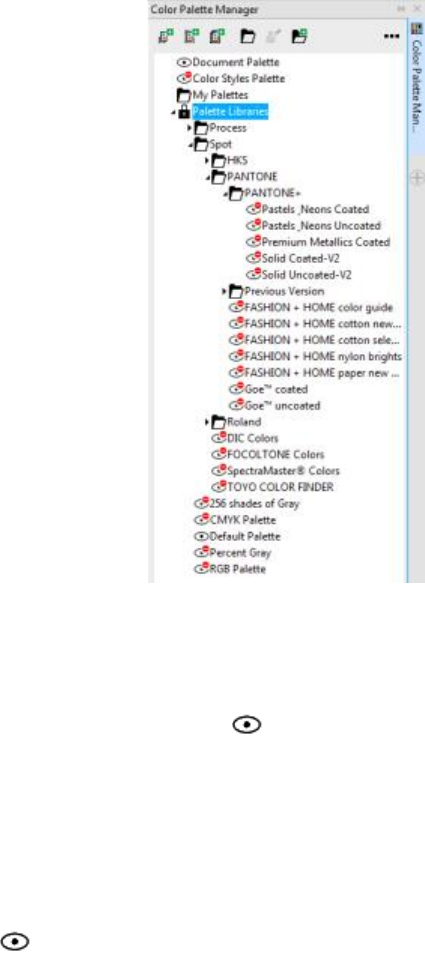
Working with color | 335
Displaying or hiding color palettes in the Palette libraries
The Palette libraries contain a collection of color palettes. You can control the display of the default color palettes, such as the default RGB
and default CMYK color palettes. The main Palette libraries that are included are Process color and Spot color.
The Process color library contains the default RGB, CMYK, and Grayscale color palettes. In addition, you can find preset color palettes that
have a specific theme, such as nature. The Spot color library contains color palettes that are provided by third-party manufacturers, such as
HKS Colors, PANTONE, Focoltone, and TOYO. These color palettes can be very useful when you need specific company-approved colors for
your printed projects. The color palette libraries are locked, which means that you cannot edit them.
Palette libraries
To display a color palette in the Palette libraries
1Open the Color Palette Manager.
2In the Palette libraries folder, click the Show or hide icon beside the color palette name.
To display spot or process color palettes
1Open the Color Palette Manager.
2In the Palette libraries folder, double-click one of the following folders:
•Spot
•Process
3Click the Show or hide icon beside the color palette name.
336 | Corel DESIGNER 2017 User Guide
Setting the properties of color palettes
You can customize color palettes.
Color palettes can be either docked or floating. Docking a color palette attaches it to the edge of the application window. Undocking a color
palette pulls it away from the edge of the application window, so it floats and can be easily moved around.
With color swatches, you can set the right mouse button either to display a context menu or to set the outline color. You can also adjust the
color swatch border and size, and you can hide or display the No color well.
To dock or undock a color palette
To Do the following
Dock a color palette Click the top of the color palette border, and drag the color palette
to any edge of the application window until a thin black toolbar
outline appears.
Undock a color palette Click the dotted border of the color palette, and drag the color
palette away from the edge of the application window.
Change the number of rows on a docked color palette On the palette, click the flyout button , click Rows, and choose
an option from the list.
You can also change the number of rows on a docked color palette by clicking Tools Customization, clicking Color palette in the
Customization list of categories, and typing a value in the Maximum palette rows when docked box. You can set a maximum of
seven rows on a color palette.
To set the action of the right mouse button for color swatches
1Click Tools Customization.
2In the Customization list of categories, click Color palette.
3Enable one of the following check boxes:
•Context menu
•Set outline color
If you enable Set outline color, you can still display the context menu by right-clicking anywhere on the border of a color palette.
To customize color swatches
1Click Tools Customization.
2In the Customization list of categories, click Color palette.
3Enable or disable any of the following check boxes:
•Wide borders

Working with color | 337
•Large swatches
•Show “no color” well
You can also display color names in the color swatches by clicking the flyout button on a color palette and clicking Show color
names.
338 | Corel DESIGNER 2017 User Guide

Filling objects | 339
Filling objects
You can add colored, patterned, textured, and other fills to the inside of objects. You can customize a fill and set it as a default, so that each
object you draw has the same fill.
Fill samples
This section contains the following topics:
•“Applying uniform fills” (page 339)
•“Applying fountain fills” (page 340)
•“Applying hatch fills” (page 343)
•“Applying pattern fills” (page 347)
•“Applying texture fills” (page 350)
•“Applying PostScript fills” (page 352)
•“Applying mesh fills” (page 352)
•“Applying fills to areas” (page 354)
•“Working with fills” (page 355)
Applying uniform fills
You can apply a uniform fill to objects. Uniform fills are solid colors you can choose or create using color models and color palettes. For
information about creating colors, see “Working with color” on page 319.
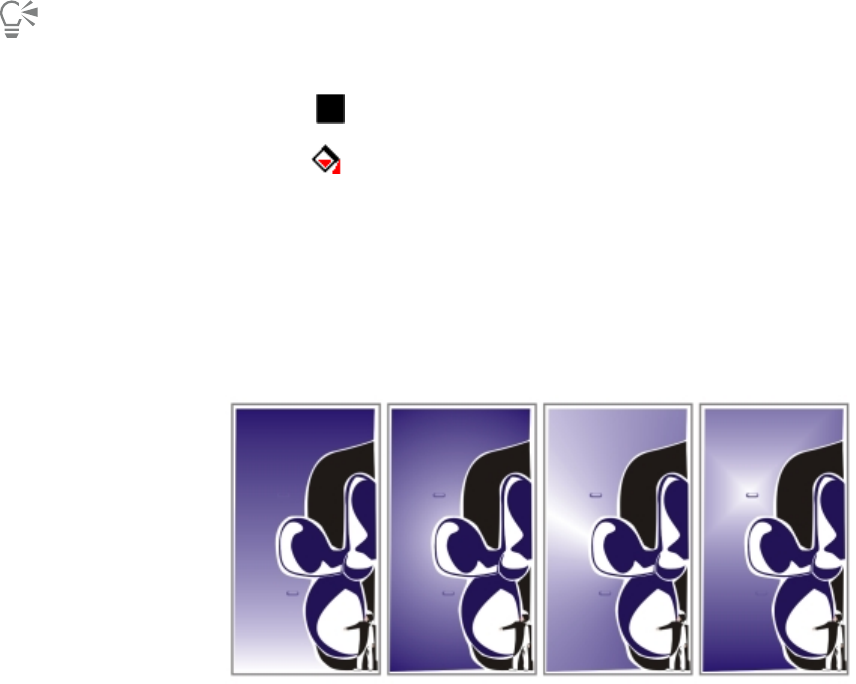
340 | Corel DESIGNER 2017 User Guide
To apply a uniform fill
1Select an object.
2Click a color on the color palette.
If you want to mix colors in a uniform fill, press Ctrl, and click another color on the color palette.
You can also choose a uniform fill by clicking
•the Uniform fill button in the Fill section of the Property manager docker
•the Interactive fill tool in the toolbox, and then clicking the Uniform fill button on the property bar
Applying fountain fills
A fountain fill is a smooth progression of two or more colors that adds depth to an object. Fountain fills are also known as gradient fills.
There are four types of fountain fills: linear, elliptical, conical, and rectangular. A linear fountain fill flows in a straight line across the object,
a conical fountain fill creates the illusion of light hitting a cone, an elliptical fountain fill is dispersed in concentric ellipses from the center of
the object, and a rectangular fountain fill is dispersed in concentric rectangles from the center of the object.
There are four types of fountain fills (left to right): linear, elliptical, conical, and rectangular.
You can choose fountain fills from a personal library or from the Content Exchange. You can browse the available fountain fills, search
by keyword, mark fills as favorites, vote for fills that you like, or copy fills from the Content Exchange to your personal library. For more
information, see “Managing fills and transparencies” on page 357.
Any fountain fill can be modified to suit your needs, and you can create your own fills. Fountain fills can contain two or more colors, which
you can position anywhere in the fill’s progression. You can specify fill attributes such as the direction of a fill’s color blend, the fill’s angle,
center point, and midpoint. You can also smooth, skew, or repeat a fill.
After you create a fountain fill, you can save it for future use or share it with other users on the Content Exchange. For more information, see
“Saving and sharing fills and transparencies” on page 359.
You can adjust the print and display quality of the fountain fill by specifying the number of fountain steps. By default, the fountain steps
setting is locked so that the print quality of the fountain fill is determined by the value specified in the print settings and the display quality
is determined by the default value you set. However, you can unlock the fountain steps setting and specify a value that applies to both the
print and view quality of the fill. For information about setting fountain fill steps for printing, see “Fine-tuning print jobs” on page 619.
Filling objects | 341
To apply a fountain fill
1Select an object.
2Click Edit Property manager.
3In the Property manager docker, click the Fountain fill button to display fountain fill options.
4Open the Fill picker, and click a fill thumbnail.
5Click the Apply button in the pop-up window that appears.
You can add a color to a fountain fill by clicking the Interactive fill tool in the toolbox, clicking the Fountain fill button on the
property bar, and dragging a color from the color palette to an object’s interactive vector handle.
To create a fountain fill
1Select an object.
2Click Edit Property manager.
3In the Fill section of the Property manager docker, click the Fountain fill button to display fountain fill options.
4Click one of the following buttons to choose a fountain fill type:
•Linear fountain fill
•Elliptical fountain fill
•Conical fountain fill
•Rectangular fountain fill
5Click the start node above the color band, open the Node color picker, and choose a color.
6Click the end node above the color band, open the Node color picker, and choose a color.
7Move the midpoint slider below the color band to set the midpoint between the two colors.
You can also
Change a color Select the corresponding node, open the Node color picker, and
choose a color.
Change the transparency of a color Select the corresponding node, and type a value in the Node
transparency box.
Add an intermediate color Double-click the color band where you want to add a node. With
the new node selected, open the Node color picker, and choose a
color.
Change the position of an intermediate color Drag the corresponding node to a new location above the color
band, or type a value in the Node position box.
Delete an intermediate color Double-click the corresponding node.
342 | Corel DESIGNER 2017 User Guide
You can also
Specify the way the colors blend between two nodes Select either the two nodes or the midpoint between them, click
the Blend direction button, and choose an option from the list:
•Linear color blend — blends the colors along a straight line,
beginning at the start color and continuing across the color
wheel to the end color
•Clockwise color blend — blends the colors along a clockwise
path around the color wheel
•Counterclockwise color blend — blends the colors along a
counterclockwise path around the color wheel
Mirror, repeat, or reverse the fill In the Property manager docker, click the arrow button at the
bottom of the Fill section to display more fill options, and click one
of the following buttons:
•Default fountain fill
•Repeat and mirror
•Repeat
•Reverse fill
Specify how quickly the fountain fill blends from one color to
another
Move the Acceleration slider.
Create smoother color transitions between fountain fill nodes Click the Smooth button .
Set the width and height of the fill as a percentage of the object’s
width and height
Type values in the Fill width and Fill height boxes.
Move the center of the fill up, down, left, or right Type values in the X and Y boxes.
Slant the fill at a specified angle Type a value in the Skew box.
Rotate the color progression clockwise or counterclockwise Type a value in the Rotate box.
Allow the fill to be skewed or stretched disproportionately Enable the Free scale and skew check box.
Apply the selected fill to the intersecting area of combined objects Enable the Fill winding check box.
For more information, see “Combining objects” on page 262.
Let the fill print on top of the underlying colors. Enable the Overprint fill check box.
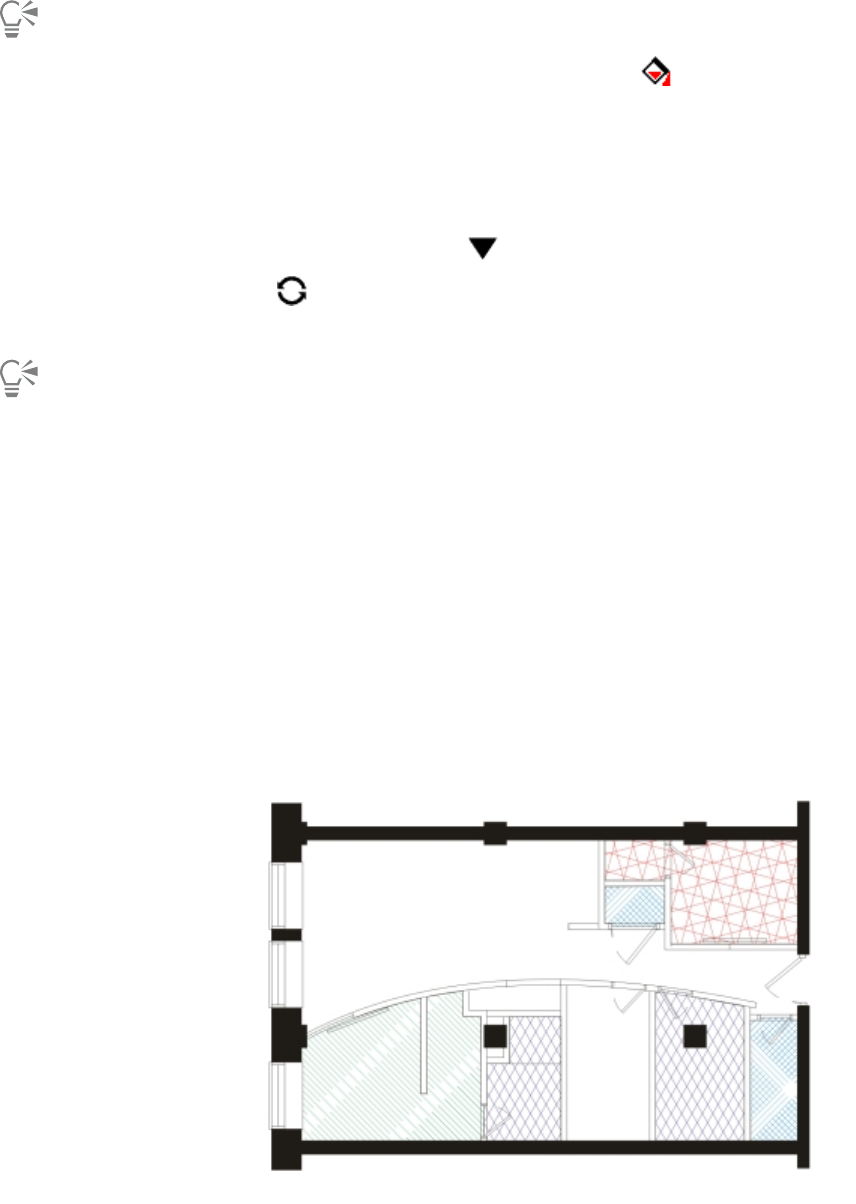
Filling objects | 343
You can also apply a custom fountain fill by clicking the Interactive fill tool in the toolbox and dragging colors from the color
palette in the document window onto the object’s interactive vector handles. You can mix colors by selecting one of the interactive
vector handles, pressing Ctrl, and clicking a color on the color palette.
To change the fountain fill print and display quality
1Select an object that has a fountain fill applied to it.
2In the Property manager docker, click the arrow button at the bottom of the Fill section to display more fill options.
3Click the Set to default button to unlock the fountain steps, and type a value in the Fountain steps box.
Higher numbers create a smoother transition between colors.
When the Fountain steps box is locked, the number of steps in the printed fountain fill is determined by the value specified in the
Print dialog box. For information about setting fountain fill steps for printing, see “Fine-tuning print jobs” on page 619.
To set the display quality for fountain fills
1Click Tools Options.
2In the list of categories, double-click Workspace, and click Display.
3Type a value in the Preview fountain steps box.
Applying hatch fills
You can fill objects with hatch patterns to clearly distinguish materials or object relationships in a drawing. For example, a drawing of a floor
plan may use hatching to indicate different flooring materials, or to indicate where two floors overlap.
Hatch fills can be used to indicate different materials.
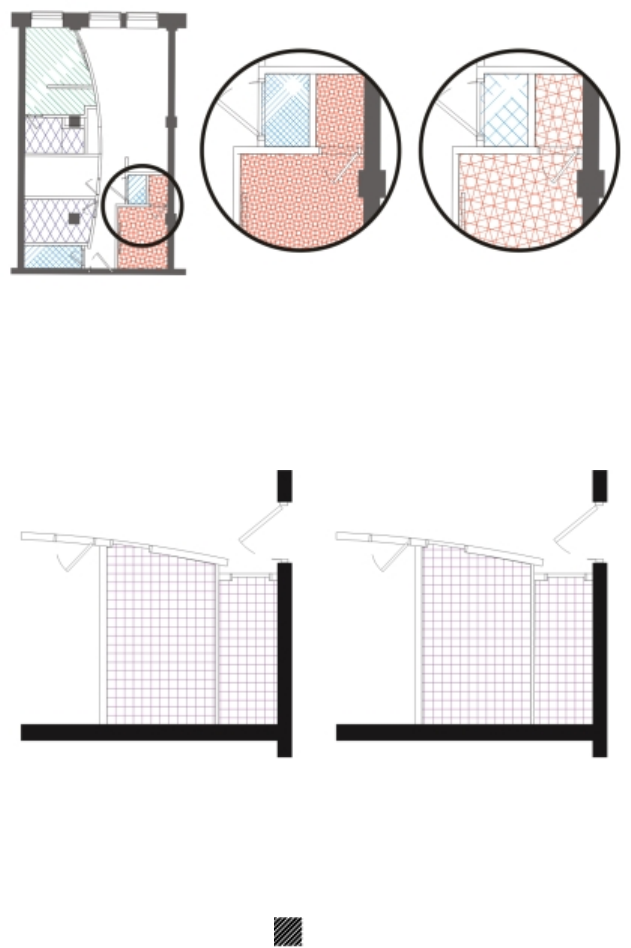
344 | Corel DESIGNER 2017 User Guide
Hatch fills are composed of vector-based lines. You can use preset hatch fills or edit fills by setting different line patterns and colors for the
foreground, or by changing the color of the background. When you edit hatch fills in the Hatch fill dialog box, the changes apply only to
the currently selected object. You can also create new hatch fills and add them to a library.
When you create new hatch fills, the currently selected fill is used as a starting point. If no fill is selected, the default fill is used. You can add
new lines, specify line style attributes, set the position and angle for the lines, and control the spacing and offset for each instance of a line.
You can use hatch fills on projected objects to create the illusion of a three-dimensional image. Hatch fills use the active drawing plane.
Transforming and scaling hatch fills
Hatch fills can retain their properties independently of changes made to the object, or they can be transformed and scaled with the object.
If you choose to transform the hatch fill with the object, only the transformations you apply from that point forward are applied — previous
object transformations are not applied to the hatch fill.
The original hatch fill (left) isn’t scaled with the object in the first example
(center) and is scaled with the object in the second example (right).
Aligning hatch fills
When you apply the same hatch fill to more than one object, you can retain the fill alignment for the individual objects, or you can align the
fills.
The hatch fills are aligned in the drawing on the right.
To apply a hatch fill
1Select an object for which you want to apply or edit a hatch fill.
2Click Edit Property manager.
3In the Property manager docker, click the Hatch fill button to display hatch fill options.
Filling objects | 345
4Click the Hatch fill properties button .
5In the Edit fill dialog box, choose a hatch fill library from the Library list box.
6Choose a hatch fill from the Fill picker located below the Library list box.
If a hatch fill is already applied to the selected object, it appears in the Fill picker.
7Specify the attributes you want.
To Do the following
Change the line color Choose a color from the Front color picker.
Change the background color Choose a color from the Back color picker.
Change line spacing In the Fill area, type a value in the Spacing box. Larger numbers
increase the distance between lines; smaller numbers decrease the
distance.
Change line width In the Fill area, type a value in the Thickness box. Larger numbers
increase the line width; smaller numbers decrease the line width.
Skew lines Type a value in the Skew box to set the degrees by which the lines
are skewed.
Rotate lines Type a value in the Rotate box to set the degrees by which the lines
are rotated.
When you edit a hatch fill in the Edit fill dialog box, the changes are applied only to the object selected in the drawing window. Only
custom hatch fills created in the New hatch from selected dialog box can be added to a library.
You can also apply a hatch fill by clicking the Interactive fill tool in the toolbox, choosing Hatch fill from the Fill type list box on
the property bar, and specifying the properties you want.
To create a custom hatch fill
1Click Window Property manager.
2In the Property manager docker, click the Hatch fill button to display hatch fill options.
3Click the Hatch fill properties button .
4In the Edit fill dialog box, click New hatch.
The new hatch fill is based on the current fill.
5In the New hatch from selected dialog box, click a line to edit from the Hatch lines list.
The selected line is displayed in red in the Hatch preview window. Unselected lines are displayed in their applied color.
6In the Line style area, specify the attributes you want.
7In the Line origin area, specify the following:
346 | Corel DESIGNER 2017 User Guide
•y-Origin — lets you set the y-origin for the line. This setting is important if you have more than one line in the hatch fill. The y-Origin
value can be used to set the spacing between different lines. For example, to ensure that a new line isn’t positioned directly over an
existing line, type a new value in the y-Origin box.
•x-Origin — lets you set the x-origin for the line. This setting is effective when you have more than one dashed line and you want to
offset the patterns of the different lines. It has no visible effect on standard solid lines.
8In the Line angle box, type a value to set the angle of the line.
9In the Shift box, type a value to offset each instance of a line.
This setting is effective when you have one dashed line and you want to stagger the pattern. It has no visible effect on standard solid
lines.
10 Type a value in the Spacing box to set the distance between two instances of the line.
The distance between lines is set from the path for the line, not the edge of the outline. If the Outline width value is high and the
Spacing value is low, the lines might overlap.
11 Repeat steps 5 through 10 for each line you want to edit.
12 Click OK to return to the Hatch fill dialog box, choose a library from the Library list box, and click Add to library.
You can also
Add lines Click the Add button . When you add a new line, it is created
directly over the previous line. Change the y-Origin value to view
the new line.
Delete lines In the Hatch lines list, choose a line, and click the Delete button
.
Hide or show lines in the Hatch preview window In the Hatch lines list, click the Eye icon to the left of the line
name. When the eye appears closed, the line is hidden. When the
eye appears open, the line is displayed.
To scale or transform a hatch fill with an object
1Select an object.
2Click Edit Property manager.
3In the Property manager docker, click the Hatch fill button to display hatch fill options.
4Click the Hatch fill properties button .
5In the Edit fill dialog box, enable the following options:
•Transform fill with object — automatically transforms the hatch fill to reflect all future transformations applied to the object
•Scale line width with object — automatically scales hatch lines when the object is resized
To align hatch fills across multiple objects
1Select two or more objects that have the same hatch fill.
2On the property bar, click the Fill button , and choose Hatch fill dialog.
3Enable the Use world coordinates option.
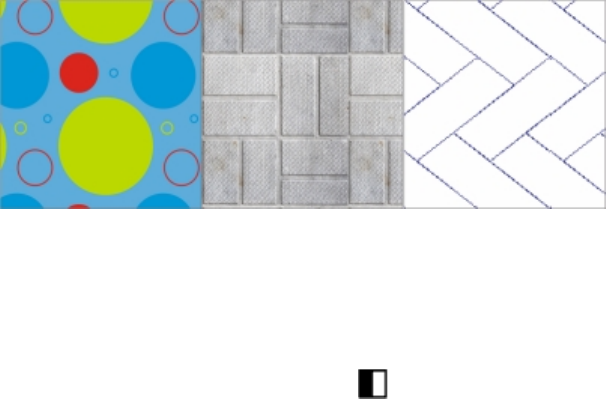
Filling objects | 347
Applying pattern fills
You can fill objects with vector or bitmap pattern fills, as well as two-color fills.
A two-color pattern fill is composed only of the two colors that you choose. A vector pattern fill is a more complex vector graphic composed
of lines and fills. A vector fill can have color or transparent background. A bitmap pattern fill is a bitmap image whose complexity is
determined by its size, image resolution, and bit depth.
CorelDESIGNER provides a collection of vector and bitmap patterns that you can access. You can browse the available patterns, search
patterns by keyword, mark patterns as favorites, vote for patterns that you like, or copy patterns from the Content Exchange to your
personal library. For more information, see “Managing fills and transparencies” on page 357.
You can also create your own patterns. For example, you can create patterns from areas of the workspace or images that you import. Vector
and bitmap patterns are made up of smaller units called tiles. Depending on the size of the object, the fill may consist of one or more tiles.
The pattern is created by repeating the tile to fill up the object. You can create a new pattern by selecting an area of the workspace to use as
a tile, or by using an imported image as a tile source.
After you create a new pattern, you can save it for future use or share it with other users on the Content Exchange. For more information,
see “Saving and sharing fills and transparencies” on page 359.
You can modify pattern fills to suit your needs. For example, you can change the size of the pattern fill, or specify exactly where the fill
begins by setting the tile origin. CorelDESIGNER also lets you offset tiles in a fill. Adjusting the horizontal or vertical position of the first tile,
relative to the top of the object, affects the rest of the fill.
You can mirror the fill so that alternating tiles are reflections of each other. If you want a pattern fill to change according to actions you
perform on the filled object, you can set the fill to transform with the object. For example, if you enlarge the object, the pattern becomes
larger while the number of tiles remains the same.
Fills from left to right: Vector pattern, bitmap pattern, two-color.
To apply a two-color pattern fill
1Select an object.
2Click Edit Property manager.
3In the Property manager docker, click the Two-color pattern fill button .
4Choose a fill from the Fill picker.
5Open the Front color picker, and click a color.
6Open the Back color picker, and click a color.
348 | Corel DESIGNER 2017 User Guide
You can also mix colors in a two-color pattern fill by pressing Ctrl and clicking a color on the color palette.
You can also apply a fill by clicking the Interactive fill tool in the toolbox and clicking the Two-color pattern fill button on the
property bar. You can drag colors from the color palette to the interactive handles to change the colors of the fill. You can mix colors
by holding down Ctrl while dragging a color to the interactive handles.
To edit the attributes of the two-color fill, in the Property manager docker, click the arrow button at the bottom of the Fill
section to display more fill options, and specify the attributes you want.
To apply a vector or bitmap pattern fill
1Select an object.
2Click Edit Property manager.
3In the Property manager docker, click one of the following buttons:
•Vector pattern fill
•Bitmap pattern fill
4Open the Fill picker, and click a pattern thumbnail.
5Click the Apply button in the pop-up window that appears.
You can also apply a vector or a bitmap pattern fill by clicking the Interactive fill tool in the toolbox, clicking the Vector pattern
fill or Bitmap pattern fill button on the property bar, and choosing a fill from the Fill picker.
To create a vector or bitmap pattern from the workspace
1Select an object.
2Click Edit Property manager.
3In the Fill area of the Property manager docker, click one of the following buttons:
•Vector pattern fill
•Bitmap pattern fill
4Click the New from document button .
5Select an area of the workspace that you want to use as a pattern.
The area can include any objects or parts of objects that you have drawn.
6Click the Accept pattern button displayed below the selection, and click OK in the dialog box that appears.
Vector patterns can have transparent or color background.
You can also click the New source from workspace button and select an area of the document to use as a tile source. In this
case, the current settings in the Transformations area of the Property manager docker will apply to the new pattern.
Filling objects | 349
To create a vector or bitmap pattern from an imported image
1Select an object.
2Click Edit Property manager.
3In the Fill area of the Property manager docker, click one of the following buttons:
•Vector pattern fill
•Bitmap pattern fill
4Click the New source from file button .
5In the Import dialog box, locate the image that you want to use, and double-click the filename.
To modify a vector or bitmap pattern fill
1Select an object.
2Click Edit Property manager.
3In the Fill area of the Property manager docker, click one of the following buttons:
•Vector pattern fill
•Bitmap pattern fill
4Click the arrow button at the bottom of the Fill area to display more pattern fill options.
5Perform a task from the following table.
To Do the following
Arrange the tiles so that alternating tiles are reflections of each
other
Click the Mirror tiles horizontally or the Mirror tiles vertically
button.
Create a radial or linear seamless blend In the Seamless area, click the Radial button , or click the
Linear button and move the slider.
This setting applies only to bitmap pattern fills.
Smooth the color transition of the pattern tile edges with their
opposite edge
Enable the Edge match check box, and move the slider.
This setting applies only to bitmap pattern fills.
Increase or decrease the brightness of the pattern Enable the Brightness check box, and move the slider.
This setting applies only to bitmap pattern fills.
Increase or decrease the grayscale contrast of the pattern Enable the Luminance check box, and move the slider.
This setting applies only to bitmap pattern fills.
Increase or decrease the color contrast of the pattern Enable the Color check box, and move the slider.
This setting applies only to bitmap pattern fills.
350 | Corel DESIGNER 2017 User Guide
To Do the following
Set the width and height of the pattern as a percentage of the
object’s width and height
Type values in the Fill width and Fill height boxes.
Move the center of the pattern fill up, down, left, or right Type values in the X and Y boxes.
Rotate the pattern at a specified angle Type a value in the Rotate box.
Slant the pattern at a specified angle Type a value in the Skew box.
Specify row or column offset as a percentage of the tile’s height or
width
Click the Row offset or the Column offset button , and
type a value in the % of tile box.
Apply object changes to the pattern fill Enable the Transform with object check box.
Apply the selected fill to the intersecting area of combined objects Enable the Fill winding check box.
For more information, see “Combining objects” on page 262.
You can also click the Interactive fill tool in the toolbox and use the controls on the property bar.
You can also skew or rotate tiles by clicking the Interactive fill tool in the toolbox, selecting an object, and dragging the skewing
or rotation handles to change the appearance of the pattern.
Applying texture fills
A texture fill is a randomly generated fill that you can use to give your objects a natural appearance. You can use existing texture fills, such
as water, minerals, and clouds, or you can edit a texture to create your own texture fill. You can use colors from any color model or palette.
Texture fills can hold only RGB colors; however, other color models and palettes can be used as a reference to select colors. For information
about color models, see “Understanding color models” on page 319.
You can change the tile size of texture fills. Increasing the resolution of a texture tile increases the accuracy of the fill. You can also specify
exactly where these fills begin by setting the tile origin. CorelDESIGNER also lets you offset tiles in a fill. Adjusting the horizontal or vertical
position of the first tile, relative to the top of the object, affects the rest of the fill.
You can also rotate or skew the fill, adjust the tile size, and change the center of the texture.
If you want a texture fill to change according to the actions you perform on the filled object, you can set the fill to transform with the object.
For example, if you enlarge the filled object, the texture becomes larger while the number of tiles remains the same.
Texture fills can enhance a drawing. However, they also increase the size of a file and the time it takes to print, so you may want to use them
in moderation.
To apply a texture fill
1Select an object.
2Click Edit Property manager.
Filling objects | 351
3In the Fill area of the Property manager docker, click the flyout arrow on the Two-color pattern fill button , and click the Texture
fill button to display texture fill options.
4Choose a texture library from the Texture library list box.
5Choose a texture from the Fill picker.
To create a texture fill
1Select an object.
2Click Edit Property manager.
3In the Fill area of the Property manager docker, click the flyout arrow on the Two-color pattern fill button, and click the Texture fill
button to display texture fill options.
4Choose a texture library from the Texture fill list box.
5Choose a texture from the Texture fill picker.
6Click the Edit fill button .
7In the Edit fill dialog box, perform an action from the following table.
To Do the following
Arrange the tiles so that alternating tiles are reflections of each
other
Click Transformations, and click the Mirror tiles horizontally
or the Mirror tiles vertically button .
Change the size of the fill Click Transformations, and type values in the Fill width and Fill
height boxes.
Move the center of the fill up, down, left, or right Click Transformations, and type values in the X and Y boxes.
Rotate the fill at a specified angle Click Transformations, and type a value in the Rotate box.
Slant the fill at a specified angle Click Transformations, and type a value in the Skew box.
Specify a row or column offset as a percentage of the tile’s width
or height
Click Transformations, and click the Row offset or the
Column offset button . Type a value in the % of tile box.
Apply object changes to the texture fill Click Transformations, and enable the Transform with object
check box.
Specify the bitmap resolution of the texture fill Click Options, and type a value in the Bitmap resolution box.
Apply the selected fill to the intersecting area of combined objects Enable the Fill winding check box.
For more information, see “Combining objects” on page 262.
352 | Corel DESIGNER 2017 User Guide
To Do the following
Save the texture fill Click the Save texture button , and type a name in the Texture
name box in the Save texture as dialog box. Choose a library from
the Library name list box.
You can modify the texture you choose from the texture library and save it to another library, but you cannot save textures to or
overwrite textures in the texture library.
Applying PostScript fills
You can apply PostScript texture fills to objects. A PostScript texture fill is created in the PostScript language. Some textures are very complex,
and large objects that contain PostScript texture fills may take time to print or to be updated on the screen. Depending on the view mode
you are using, the letters “PS” — rather than the fill — may appear. For more information about displaying PostScript fills, see “Working with
views” on page 89.
When you apply a PostScript texture fill, you can change several properties, such as the size, line width, and the amount of gray that appears
in the texture’s foreground and background.
To apply a PostScript fill
1Select an object.
2Click Edit Property manager.
3In the Property manager docker, click the flyout arrow on the Two-color pattern fill button , and click the PostScript fill button
to display postscript fill options.
4Choose a fill from the PostScript fill textures list box.
If you want to change the fill properties, click the Edit fill button , and specify the settings you want.
You can also apply a PostScript fill by clicking the Interactive fill tool , clicking the PostScript fill button on the property bar, and
choosing a fill from the PostScript fill textures list box.
Applying mesh fills
When you fill an object with a mesh fill, you can create unique effects. For example, you can create smooth color transitions in any direction
without having to create blends or contours. When you apply a mesh fill, you specify the number of columns and rows in the grid, and you
specify the grid’s intersecting points. After you have created a mesh object, you can edit the mesh fill grid by adding and removing nodes or
intersections. You can also remove the mesh.
A mesh fill can be applied only to closed objects or a single path. If you want to apply a mesh fill to a complex object, you must first create a
mesh-filled object and combine it with the complex object to form a PowerClip object. For more information about working with PowerClip
objects, see “Creating PowerClip objects” on page 92.
You can add color to a patch of a mesh fill and to the individual intersection nodes. You can also choose to mix colors for a more blended
appearance.
Filling objects | 353
In addition, you can smooth the color in a mesh fill to reduce the appearance of hard edges. You can also reveal objects underneath a
selected area by applying transparency to the mesh fill.
To apply a mesh to an object
1Select an object.
2In the toolbox, click the Mesh fill tool .
3Type the number of columns in the top portion of the Grid size box on the property bar.
4Type the number of rows in the bottom portion of the Grid size box on the property bar, and press Enter.
5Adjust the grid nodes on the object.
You can also
Add a node or an intersection Click once within a grid, and click the Add intersection button
on the property bar.
You can also add a node or an intersection by double-clicking
within a grid.
Remove a node or an intersection Click a node, and click the Delete nodes button on the
property bar.
Shape the mesh fill Drag a node to a new location.
Remove the mesh fill Click the Clear mesh button on the property bar.
If the mesh object contains color, adjusting the intersection nodes of the mesh affects how the colors blend together.
You can also marquee select or freehand marquee select nodes to shape an entire area of the mesh. To marquee select nodes, choose
Rectangular from the Selection mode list box on the property bar, and drag around the nodes that you want to select. To freehand
select nodes, choose Freehand from the Selection mode list box, and drag around the nodes that you want to select. Holding down
Alt while dragging lets you toggle between the Rectangular and Freehand selection modes.
You can add an intersection or a node by double-clicking in a space, or you can add a single line by double-clicking a line.
To fill a mesh with color
1Select a mesh-filled object.
2In the toolbox, click the Mesh fill tool .
3Drag a color from the color palette to a patch in the object.
You can also
Color a node in a mesh fill Click a node, and click a color on the color palette.
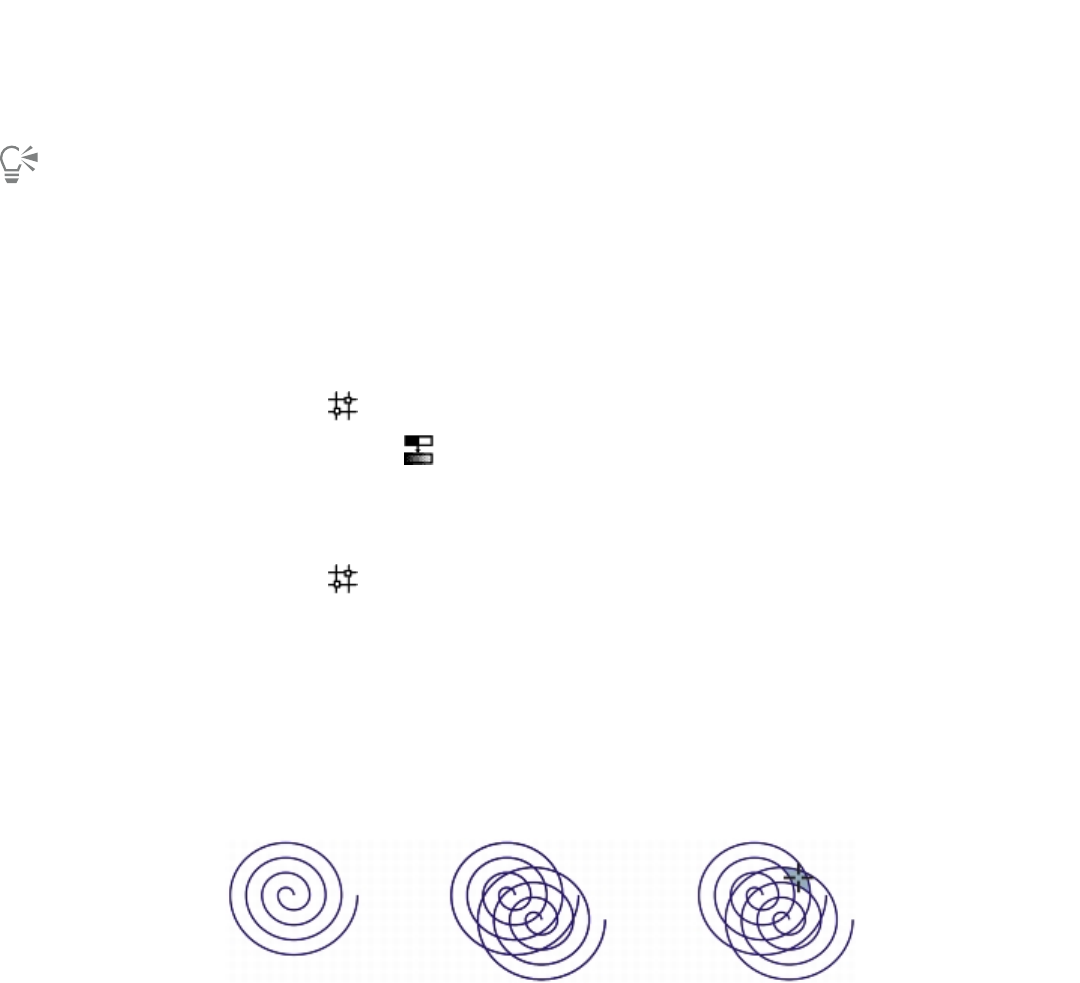
354 | Corel DESIGNER 2017 User Guide
You can also
You can also drag a color from the color palette to a node.
Mix a color in a mesh fill Select part of the mesh, press Ctrl, and click a color on the color
palette.
You can also marquee select or freehand marquee select nodes to apply a color to an entire area of the mesh. To marquee select
nodes, choose Rectangular from the Selection mode list box on the property bar, and drag around the nodes that you want to
select. To freehand select nodes, choose Freehand from the Selection mode list box on the property bar, and drag around the nodes
that you want to select. Holding down Alt while dragging lets you toggle between the Rectangular and Freehand selection modes.
To smooth color transitions in a mesh fill
1Select a mesh-filled object.
2In the toolbox, click the Mesh fill tool .
3Make sure that the Smooth mesh color button on the property bar is enabled.
To apply transparency to a mesh fill
1Select a mesh-filled object.
2In the toolbox, click the Mesh fill tool .
3Click a node to select part of the mesh.
4On the property bar, move the Transparency slider to the right to increase the transparency of the selected area.
Applying fills to areas
You can apply fills to any enclosed area by using the Smart fill tool. Unlike other fill tools, which fill only objects, the Smart fill tool detects
the edges of an area and creates a closed path so that the area can be filled. For example, if you draw a freehand line that crosses over itself
to create loops, the Smart fill tool can detect the edges of the loops and fill them.
In the example above, the original spiral object is duplicated and offset,
resulting in enclosed areas that can be filled by using the Smart fill tool.
An area must be enclosed so that it can be filled. However, you can set a gap tolerance to fill areas that are not completely enclosed.
Endpoints within the specified gap tolerance are temporarily repositioned to enclose the area and allow the fill to be applied.
Because the Smart fill tool creates a path around the area, it essentially creates a new object that can be filled, moved, copied, or edited.
This means that the tool can be used in one of two ways: to fill an area or to create a new object from an area.
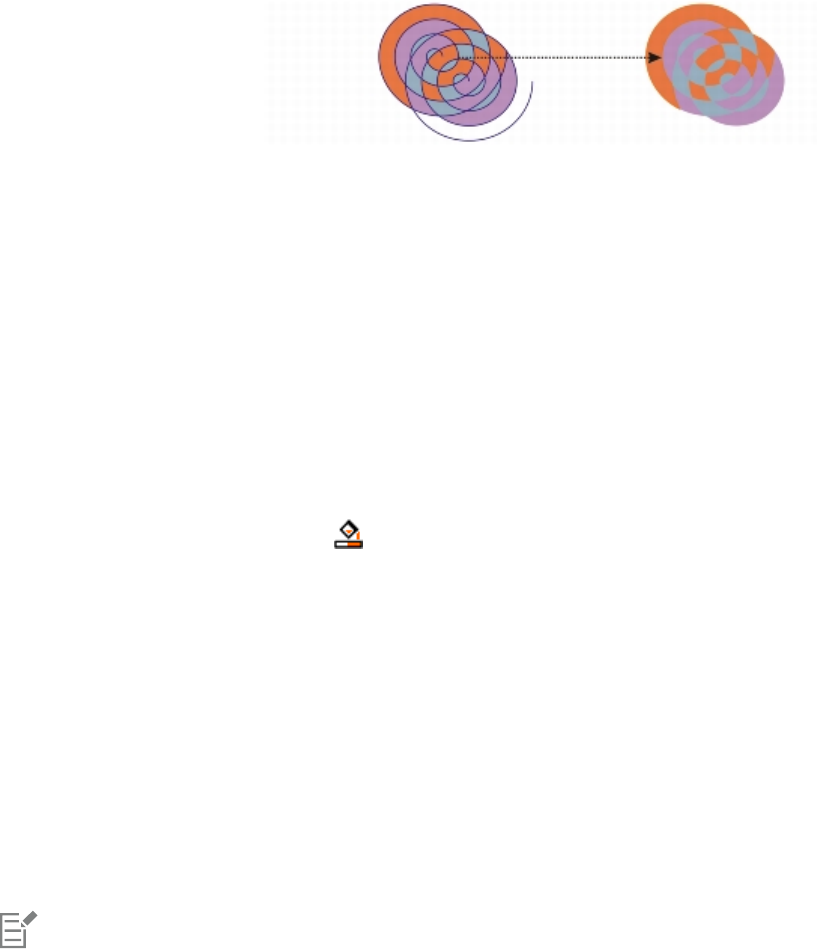
Filling objects | 355
Although primarily used to fill areas, the Smart fill tool can also be used to create new objects. In the example above, the
original objects — the two spirals (left) — are deleted (right), but the fill remains because each filled area is actually an object.
You can apply the default fill and outline to the area, use the property bar to specify a specific fill color and outline, or create an outline with
no fill.
When you use the Smart fill tool on areas that already have fills applied to them, remember the following:
• An object with transparency applied to it is considered completely transparent — paths under any area of the object are detected,
regardless of whether the specific area appears opaque.
• PostScript fills are considered transparent — paths under any area of a PostScript fill are detected.
• All fills other than PostScript fills are considered opaque — paths under these fills are not detected.
To apply a fill to an enclosed area
1In the toolbox, click the Smart fill tool .
2On the property bar, choose one of the following options from the Fill list box:
•Use default — lets you apply the default fill settings
•Specify — lets you fill the area with a solid color by choosing a color from the Fill color picker on the property bar
•No fill — applies no fill to the area
3From the Outline list box, choose one of the following options:
•Use default — lets you apply the default outline settings
•Specify — lets you choose a line width from the Outline width box and a line color from the Outline color color picker
•No outline — applies no outline to the area
4Type a value in the Gap tolerance box on the property bar.
5Click inside the enclosed area that you want to fill.
A new object is created from the enclosed area, and the selected fill and outline options on the property bar are applied to it. The new
object appears on top of the existing objects in the layer.
If you click outside an enclosed area, a new object is created from all objects on the page, and the selected fill and outline options on
the property bar are applied to the new object.
The outline width is centered on an object’s path. Because the Smart fill tool detects paths, not outlines, thick outlines appear
partially covered by the new object. You can uncover the original outlines by changing the stacking order of the objects. For
information about changing the stacking order of objects, see “To change the order of objects” on page 260.
Working with fills
There are a number of tasks that are common to all types of fills. You can choose a default fill color so that every object that you add to a
drawing has the same fill. You can also remove a fill, copy it to another object, or use it to fill an area surrounded by an open curve.
If you want to apply the same fill to other objects or simultaneously modify the fill attributes of multiple objects in a drawing, you can save
the fill settings as a style. For more information about styles, see “Working with styles and style sets” on page 511.
356 | Corel DESIGNER 2017 User Guide
To choose a default fill color
1Click a blank area on the drawing page to deselect all objects.
2Click any rectangle or circle tool.
3On the property bar, click the Fill button , and choose Fill color dialog .
4In the Uniform fill dialog box, specify any fill settings.
You can also change the default fill color by editing the default style sets in the Object styles docker. For more information, see
“Managing default object properties” on page 516.
To remove a fill
1Select an object.
2Click Edit Property manager.
3In the Property manager docker, click the No fill button .
You cannot remove mesh fills by following this procedure. To remove a mesh fill from an object, select the object by using the Mesh
fill tool , and click the Clear mesh button on the property bar.
To copy a fill to another object
1Using the Pick tool , select the object from which you want to copy the fill.
2With the right mouse button, drag the object over the destination object to which you want to apply the fill.
A blue outline of the first object follows the pointer to the destination object.
3When the pointer changes to a crosshair pointer , release the mouse button, and choose Copy fill here from the context menu.
You can also click the Interactive fill tool , select the object to which you want to copy a fill, click the Copy fill button on the
property bar, and click the object from which you want to copy the fill.
You can also use the Attributes eyedropper tool to copy a fill. For more information, see “To copy object properties from one
object to another” on page 248.
You can also sample the color of an existing object and apply the sampled color to another object as a uniform fill.
To show fills in open curves
1Click Tools Options.
2In the list of categories, double-click Document, and click General.
3Enable the Fill open curves check box.

Managing and sharing fills and transparencies | 357
Managing and sharing fills and transparencies
When working with vector patterns, bitmap patterns, or fountain fills and transparencies, you can use the Content Exchange to browse,
search, copy, and share fills and transparency patterns.
This section contains the following topics:
•“Managing fills and transparencies” (page 357)
•“Saving and sharing fills and transparencies” (page 359)
Managing fills and transparencies
CorelDESIGNER lets you browse vector patterns, bitmap patterns, and fountain fills that are available on the Content Exchange or in your
personal library. Any of these fills can also be used as transparency patterns. For more information, see “Changing the transparency of
objects” on page 397.
The Content Exchange contains content provided by Corel or shared by users. To use the Content Exchange, you must sign in to your
corel.com account. For more information, see “Authenticating CorelDRAWTechnicalSuite ” on page 27 and “Using the Content Exchange”
on page 100.
You can browse the available fills and patterns, or search by keyword, mark fills and patterns as favorites, vote for fills and patterns that you
like, or copy content from the Content Exchange to your personal library.
For more information about fills, see “Filling objects” on page 339.
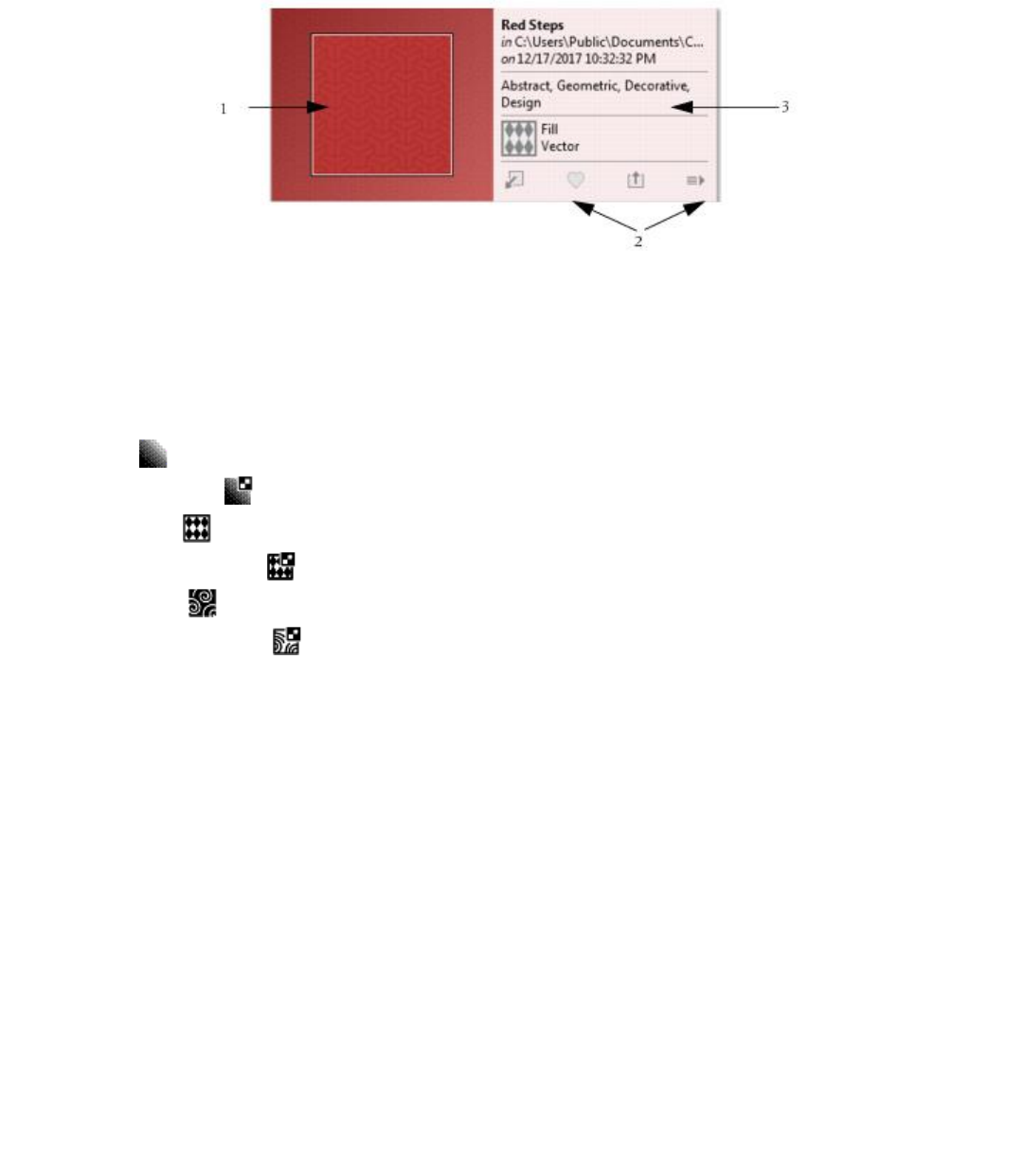
358 | Corel DESIGNER 2017 User Guide
You can preview the fill or pattern (1), vote for it, copy it, or access other options (2), and search by keyword (3).
To manage fills and transparencies
1Select an object.
2Click Edit Property manager.
3In the Property manager docker, click one of the following buttons in the Fill or Transparency section:
•Fountain fill
•Fountain transparency
•Vector pattern fill
•Vector pattern transparency
•Bitmap pattern fill
•Bitmap pattern transparency
4Open the Fill picker or the Transparency picker.
5Perform an action from the following table.
To Do the following
Search the fills and patterns on the Content Exchange and in your
personal library
In the Fill or Transparency picker, choose a category from the list,
type a keyword in the Search box, and press Enter.
You can also click a thumbnail and then click one of the keywords
associated with it to perform a search based on that keyword.
Sort search results Open the list next to the Search box, and choose one of the
following options:
•Hot — Sorts search results based on the number of downloads,
the number of votes, and the date on which the fill or pattern
was added to the Content Exchange.
•Top — Sorts search results based on the number of positive and
negative votes.
•Recent — Sorts search results based on the date on which the fill
or pattern was added to the Content Exchange.
•Popular — Sorts search results based on the number of
downloads of the fill or pattern.
Managing and sharing fills and transparencies | 359
To Do the following
Copy a fill or pattern from the Content Exchange to your personal
library
Click a thumbnail, click the More options button , and click
the Copy to personal button .
Fills and patterns that are copied to your personal library can be
accessed from the Fill picker.
Share a fill or pattern from your personal library to the Content
Exchange
Click a thumbnail, and click the Share button .
Change the name of a fill or pattern in your personal library, or the
tags associated with it
Click a thumbnail, click the More options button , and click
the Edit properties button .
Delete a fill or pattern from your personal library Click a thumbnail, click the More options button , and click
the Delete button .
Mark a fill or pattern as a favorite Click a thumbnail, and click the Favorite button .
To remove a fill or pattern from your favorites, click the Unfavorite
button .
Vote for a fill or pattern Click a thumbnail, and click the Vote up or the Vote down
button .
Report inappropriate content Click a thumbnail, click the More options button , and click
the Flag button .
Prevent a fill or pattern from appearing in future searches Click a thumbnail, click the More options button , and click
the Hide button .
This procedure applies only to vector patterns, bitmap patterns, and fountain fills and transparencies.
You must sign in to your corel.com account to access content on the Content Exchange.
Fills and patterns in your personal library are saved in the My Documents\Corel\Corel Content\Fills folder.
Saving and sharing fills and transparencies
After you create or modify a fill or transparency pattern, you can save it and add tags (keywords) in the language of your choice. Fills and
patterns are saved in a special file format with a .fill extension, which preserves information about the transformations applied to the fill or
pattern.

360 | Corel DESIGNER 2017 User Guide
To save and share a fill or transparency
1In the Fill or Transparency section of the Property manager docker, click the Save as new button .
2In the Save pattern dialog box, choose a language from the list box, type a name for the fill or pattern, and type any tags (keywords)
that you want to associate with it.
If you want to share the fill or pattern, enable the Share this content check box, and choose a category from the list.
You must sign in to your corel.com account to share content on the Content Exchange.
Fills and patterns in your personal library are saved in the My Documents\Corel\Corel Content\Fills folder.
You can also share a fill or pattern from your personal library to the Content Exchange. For more information, see “To manage fills
and transparencies” on page 358.

Using color management | 361
Using color management
Color management helps ensure colors appear consistent when you work with files from various sources and output these files on different
devices.
This section contains the following topics:
•“Understanding color management” (page 361)
•“Getting started with color management in CorelDESIGNER” (page 365)
•“Installing, loading, and embedding color profiles” (page 368)
•“Assigning color profiles” (page 369)
•“Converting colors to other color profiles” (page 370)
•“Choosing color-conversion settings” (page 370)
•“Soft proofing” (page 371)
•“Working with color management presets” (page 372)
•“Working with color management policies” (page 373)
•“Managing colors when opening documents” (page 374)
•“Managing colors when importing and pasting files” (page 375)
•“Managing colors for print” (page 376)
•“Using a safe CMYK workflow” (page 376)
•“Managing colors for online viewing” (page 376)
Understanding color management
This section provides answers to the following commonly asked questions about color management:
•“Why don’t colors match?” (page 362)
•“What is color management?” (page 362)
•“Why do I need color management?” (page 362)
•“How do I get started with color management?” (page 363)
•“Is my monitor displaying the correct colors?” (page 363)
•“Should I assign a color profile or convert colors to a color profile?” (page 363)
•“What is a rendering intent?” (page 363)
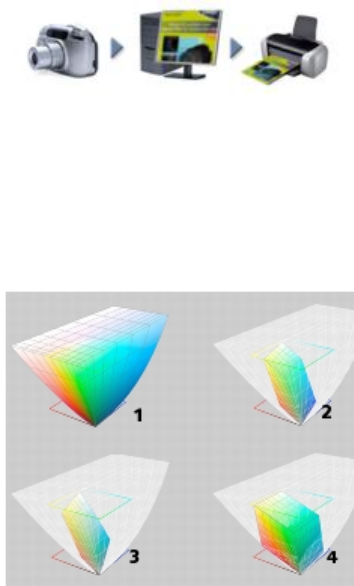
362 | Corel DESIGNER 2017 User Guide
Why don’t colors match?
Different tools are used during the process of creating and sharing a document. For example, you may start with a file that was created in
another application or import an image that was captured by a digital camera or scanner. After completing the document, you may print it
or email it to a colleague for review. Each of the tools that you use in your workflow has a different way of interpreting color. In addition,
each tool has its own range of available colors, called a color space, which is a set of numbers that define how each color is represented.
Example of a document workflow
In other words, when defining and interpreting color, each tool speaks a unique language. Consider a color in the color space of your digital
camera: a vivid blue RGB color with the values Red = 0, Green = 0, and Blue =255. This color may appear as a different color in the color
space of your monitor. In addition, the color space of your printer may not contain a match for this color. As a result, when your document
moves through the workflow, this vivid blue color gets lost in the translation and is not accurately reproduced. A color management system
is designed to improve the communication of color in the workflow so that the color of the output matches your intended color.
Colors are defined by their color space. 1. Lab color space. 2.sRGB color space, displayed against
the Lab color space. 3.U.S. Web Coated (SWOP) v2 color space. 4.ProPhoto RGB color space.
What is color management?
Color management is a process that lets you predict and control color reproduction, regardless of the source or destination of the
document. It ensures a more accurate color representation when a document is viewed, modified, shared, exported to another format, or
printed.
A color management system, also known as a color engine, uses color profiles to translate the color values from one source to another. For
example, it translates the colors that are displayed on the monitor into the colors that a printer can reproduce. Color profiles define the color
space of monitors, scanners, digital cameras, printers, and the applications that you use to create or edit documents.
Why do I need color management?
If your document requires accurate color representation, you may want to learn more about color management. The complexity of your
workflow and the ultimate destination of your documents are also important considerations. If your documents are destined only for online
viewing, color management may not be as important. However, if you plan to open documents in another application or if you are creating
documents for print or multiple types of output, then proper color management is essential.
Color management lets you do the following:
• reproduce colors consistently across your workflow, especially when opening documents that were created in other applications
• reproduce colors consistently when sharing files with others
Using color management | 363
• preview (or “soft-proof”) colors before they are sent to their final destination, such as a printing press, a desktop printer, or the web
• reduce the need to adjust and correct documents when sending them to different destinations
A color management system does not offer identical color matching, but it greatly improves color accuracy.
How do I get started with color management?
Here are some suggestions for adding color management to your workflow:
• Make sure that your monitor is displaying the correct colors. For more information, see “Is my monitor displaying the correct colors?” on
page 363.
• Install color profiles for any input or output devices that you are planning to use. For more information, see “Installing, loading, and
embedding color profiles” on page 368.
• Become familiar with the color management features of CorelDESIGNER. The default settings for color management produce good color
results, but you can change these default settings so that they suit your specific workflow. For more information, see “Getting started
with color management in CorelDESIGNER” on page 365.
• Soft-proof documents to preview final results on-screen. For more information, see “Soft proofing” on page 371.
• Embed color profiles when saving and exporting files. In this way, you help ensure color consistency when the files are viewed, modified,
or reproduced. For more information, see “Installing, loading, and embedding color profiles” on page 368.
Is my monitor displaying the correct colors?
Calibrating and profiling the monitor are essential steps for ensuring color accuracy. When you calibrate a monitor, you set it to display
colors according to an established standard of accuracy. After calibration, you can create a color profile of the monitor, which describes
how the monitor interprets colors. This custom color profile is usually installed in your operating system by the profiling software, so it can
be shared with other devices and applications. Calibration and profiling work together to achieve color accuracy: If a monitor is incorrectly
calibrated, its color profile is not useful.
Calibration and profiling are complex and usually require third-party calibration devices, such as colorimeters and specialized software.
Furthermore, improper calibration may do more harm than good. You can learn more about monitor calibration and custom color profiles
by researching color management techniques and products. You can also refer to the documentation that was provided with your operating
system or monitor.
How you perceive the color that your monitor displays is also important for managing color consistency. Your perception is influenced by the
environment in which you are viewing the documents. Here are some ways to create a suitable viewing environment:
• Ensure that your room has a consistent flow of light. For example, if the room is filled with sunlight, use a shade, or if possible, work in a
room without windows.
• Set the monitor background to a neutral color, such as gray, or apply a grayscale image. Avoid using colorful wallpapers and
screensavers.
• Don’t wear bright clothing that can clash with the display of colors on the monitor. For example, wearing a white shirt reflects onto the
monitor and alters your perception of color.
Should I assign a color profile or convert colors to a color profile?
When you assign a color profile, the color values, or numbers, in the document do not change. Instead, the application uses the color profile
to interpret the document colors. However, when you convert colors to another color profile, the color values in the document change.
The best practice is to choose a suitable color space when you create a document and to use the same color profile throughout your
workflow. You should avoid assigning color profiles and converting colors to other color profiles while working on a document. For more
information, see “Assigning color profiles ” on page 369 and “Converting colors to other color profiles” on page 370.
What is a rendering intent?
A color management system can perform effective translation of document colors to multiple devices. However, when converting colors
from one color space to another, a color management system may be unable to match certain colors. This translation failure occurs
because some colors in the source may not fit within the range (or gamut) of the destination color space. For example, the bright red
and blue colors that you see on your monitor are often outside the gamut of colors that your printer can produce. These “out-of-gamut”
colors can dramatically change the look of the document, depending on how they are interpreted by the color management system. Each
color management system has four methods of interpreting out-of-gamut colors and mapping them into the gamut of the destination
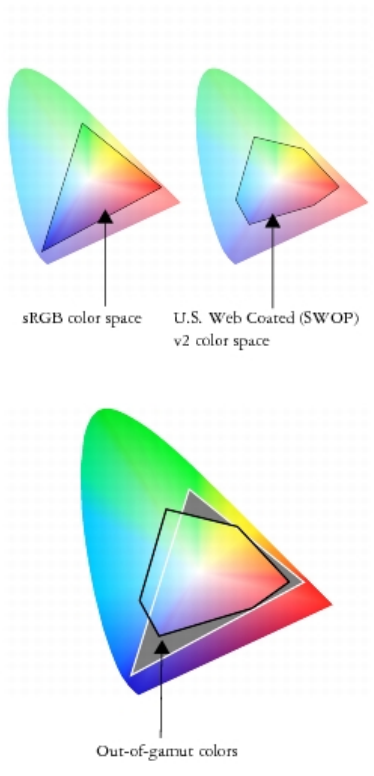
364 | Corel DESIGNER 2017 User Guide
color space. These methods are known as “rendering intents.” The choice of a rendering intent depends on the graphical content of the
document.
Many colors in an sRGB document may be out of gamut for the U.S. Web Coated (SWOP) v2
color space. The out-of-gamut colors are mapped into gamut according to the rendering intent.
The following rendering intents are available:
• The Relative colorimetric rendering intent is suitable for logos or other graphics that contain only a few out-of-gamut colors. It matches
the out-of-gamut source colors with the closest in-gamut colors at the destination. This rendering intent causes the white point to shift.
If you print on white paper, the whiteness of the paper is used to reproduce the white areas of the document. Therefore, this rendering
intent is a good option if your document will be printed.
• The Absolute colorimetric rendering intent is suitable for logos, or other graphics, that require very precise colors. If no match is found
for the source colors, then the closest possible match is used. The Absolute colorimetric and Relative colorimetric rendering intents
are similar, but the Absolute colorimetric rendering intent preserves the white point through the conversion and does not adjust for the
whiteness of the paper. This rendering intent is used mainly for proofing.
• The Perceptual rendering intent is suitable for photographs and bitmaps that contain many out-of-gamut colors. The overall color
appearance is preserved by changing all the colors, including the in-gamut colors, to fit within the range of colors at the destination. This
rendering intent maintains the relationships between colors to produce the best results.
• The Saturation rendering intent produces more concentrated solid colors in business graphics, such as charts and graphs. Colors may be
less accurate than those produced by other rendering intents.

Using color management | 365
The number of out-of-gamut colors (indicated by the green overlay) may influence your choice of a rendering intent.
Left: TheRelative colorimetric rendering intent is suitable for this photo, which contains only a few out-of-gamut colors.
Right: The Perceptual rendering intent is a good choice for this photo, which contains many out-of-gamut colors.
Getting started with color management in CorelDESIGNER
CorelDESIGNER has two types of color management settings: default settings for color management and document color settings. The
default settings for color management control the colors of new documents and any documents that do not contain color profiles (also
known as “untagged documents”). Documents that were created in earlier versions of CorelDESIGNER are treated as untagged. Document
color settings affect only the colors of the active document.
Default settings for color management
The default settings for color management are essential for producing consistent colors.
•Presets — If you are new to color management and create designs for a specific output, you can choose a preset to help you get started
with the right color management settings such as default color profiles and color-conversion settings. Examples are the North America
Prepress preset, which is suitable for projects to be printed by North American print service providers, and the Europe Web preset,
which is suitable for web projects that are created in Europe. For more information about color management presets, see “Working with
color management presets” on page 372.
•Default color profiles — define the RGB, CMYK, and grayscale colors in new and untagged documents. You can change these settings
so that all new documents use the color profiles that you specify. In some applications, default color profiles are called “working space
profiles.”
•Primary color mode — determines the document color palette that is displayed when you open or start a document as well as the
default color mode of a document that is exported as a bitmap. The primary color mode is set for all new and untagged documents, but
you can change this setting for the active document in the Document color settings dialog box. Note that the primary color mode does
not limit colors in a CorelDESIGNER document to a single color mode.
•Rendering intent — lets you choose a method for mapping out-of-gamut colors in new and untagged documents. If the default
rendering intent is not suitable for the active document, you can change it in the Document color settings dialog box. For information
about choosing the right rendering intent for your projects, see “What is a rendering intent?” on page 363.
•Color conversion settings — control how colors are matched when you are converting colors from one color profile to another.
For example, you can change the color engine or specify options for converting pure black colors in RGB, CMYK, Lab, or Grayscale
documents. For more information, see “Choosing color-conversion settings” on page 370.
•Spot color definition — lets you display spot colors by using their Lab, CMYK, or RGB color values. These alternative color values are also
used when spot colors are converted to process colors.
•Color management policies — manage colors in files that you open, or import or paste in an active document. For more information
about color management policies, see “Working with color management policies” on page 373.
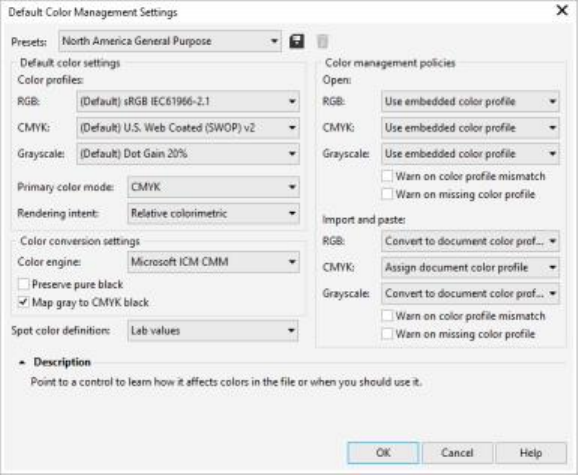
366 | Corel DESIGNER 2017 User Guide
Default color management settings dialog box
Document color settings
You can view and edit the color settings of the active document, without affecting new and untagged documents. You can see what color
profiles are assigned to the document as well as what are the default color profiles of the application. The color profiles that are assigned to
an active document determine the document color space for RGB, CMYK, and grayscale colors.
You can also assign different color profiles to the active document or convert its colors to specific color profiles. For information about
assigning color profiles, see “Assigning color profiles” on page 369. For information about converting document colors to other color
profiles, see “Converting colors to other color profiles” on page 370.
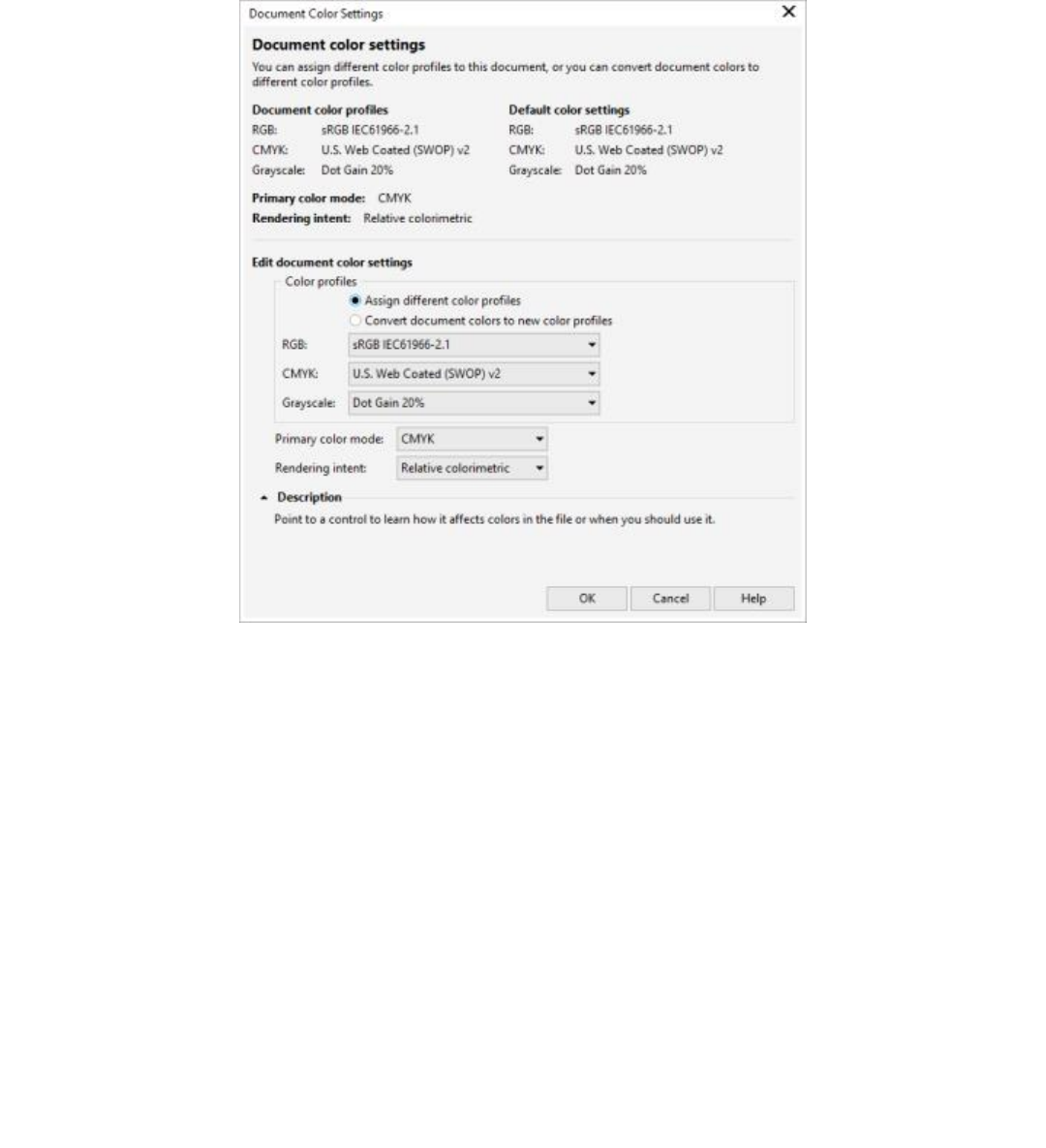
Using color management | 367
Document color settings dialog box
In addition, you can change the primary color mode and rendering intent for the active document.
Getting help
You can find information about each control available in the Default color settings and Document color settings dialog boxes by pointing
to the control and viewing the description in the Description area.
To access default settings for color management
•Click Tools Color management Default settings.
To change the default color profiles
1Click Tools Color management Default settings.
2In the Default color settings area, choose a color profile from the following list boxes:
•RGB — describes RGB colors in new and untagged documents
•CMYK — describes CMYK colors in new and untagged documents
•Grayscale — describes grayscale colors in new and untagged documents
You can also
Change the primary color mode Choose a color mode from the Primary color mode list box.

368 | Corel DESIGNER 2017 User Guide
You can also
Changing the primary color mode in the Default color
management settings dialog box does not affect the active
document.
Change the rendering intent Choose a rendering intent from the Rendering intent list box.
To access document color settings
•Click Tools Color management Document settings.
To display the color profiles that are used in the active document on the status bar, click the flyout button on the status bar, and
choose Color information.
You can also view the document color settings in the Document properties dialog box by clicking File Document properties.
Installing, loading, and embedding color profiles
To ensure color accuracy, a color management system needs ICC-compliant profiles for monitors, input devices, external monitors, output
devices, and documents.
• Monitor color profiles — define the color space that is used by your monitor to display document colors. CorelDESIGNER uses the
primary monitor profile that is assigned by the operating system. The monitor profile is very important for color accuracy. For more
information, see “Is my monitor displaying the correct colors?” on page 363.
• Input device color profiles — used by input devices such as scanners and digital cameras. These color profiles define which colors can be
captured by specific input devices.
• Display color profiles — include monitor profiles that are not associated with your monitor in the operating system. These color profiles
are especially useful for soft-proofing documents for monitors that are not connected to your computer.
• Output device color profiles — define the color space of output devices such as desktop printers and printing presses. The color
management system uses these profiles to map accurately document colors to the colors of the output device.
• Document color profiles — define the RGB, CMYK, and grayscale colors of a document. Documents that contain color profiles are known
as “tagged.”
Finding color profiles
Many color profiles are installed with your application or can be generated with profiling software. Manufacturers of monitors, scanners,
digital cameras, and printers also provide color profiles. In addition, you can access color profiles from websites such as:
•http://www.color.org/findprofile.xalter — This website of the International Color Consortium (ICC) can help you find commonly used
standard color profiles.
•http://www.eci.org/doku.php?id=en:downloads — This website of the European Color Initiative (ECI) provides standard ISO profiles as
well as profiles that are specific to Europe
•http://www.tftcentral.co.uk/articles/icc_profiles.htm — This website provides ICC profiles for many different types of LCD (Liquid Crystal
Display) monitors to help you display consistent colors. However, if color accuracy is essential for your workflow, you should calibrate
and profile your monitor instead of relying on readily available monitor profiles. For more information, see “Is my monitor displaying the
correct colors?” on page 363.
Installing and loading color profiles
If you don’t have the necessary color profile, you can install it, or you can load it within the application. Installing a color profile adds it to
the Color folder of the operating system; loading a color profile adds it to the Color folder of the application. CorelDRAW Graphics Suite can
access color profiles from both Color folders.

Using color management | 369
Embedding color profiles
When you save or export a document to a file format that supports color profiles, the color profiles are embedded in the file by default.
Embedding a color profile attaches the color profile to the document to ensure that the same colors you used are shared with anyone who
views or prints the document.
To install a color profile
• In Windows Explorer, right-click a color profile, and click Install profile.
To load a color profile
1Click Tools Color management Default settings.
2In the Default color setting area, choose Load color profiles from the RGB, CMYK, or Grayscale list boxes.
3In the Open dialog box, navigate to the color profile.
After you load a color profile, you can also access it from the Color proof settings docker, Print dialog box, and Document color
setting dialog box.
Note that you can load a color profile of any color mode from any list box: RGB, CMYK, or Grayscale. However, after you load the
profile, you can access it only from the list box of the respective color mode. For example, you can load an RGB color profile from the
CMYK list box, but you can access the profile only from the RGB list box.
You can also load a color profile from the Document color settings dialog box.
To embed a color profile
1Click File, and then click one of the following commands:
•Save as
•Export for Web
2In the dialog box that appears, enable the Embed color profiles check box.
When you save or export a file to the CorelDESIGNER (DES) or Adobe Portable Document Format (PDF) file format, you can embed
up to three color profiles.
Embedding a color profile increases the file size of a document. To avoid increasing the file size unnecessarily, CorelDESIGNER
embeds only color profiles for colors that are used in the document. For example, if your document contains only RGB objects, only
the RGB color profile will be embedded.
Assigning color profiles
When you open or import a document that is missing a color profile, by default the application automatically assigns a color profile to the
document. If the document has a color profile that is not suitable for the required destination, you can assign a different color profile to the
document. For example, if the document is intended to be displayed on the web or to be printed on a desktop printer, you should make sure
that sRGB is the document RGB profile. If the document is destined for print production, the Adobe RGB (1998) profile is a better choice,
because it has a larger gamut and produces good results when RGB colors are converted to a CMYK color space.
When you assign a different color profile to a document, the colors may appear different, although the color values do not change.
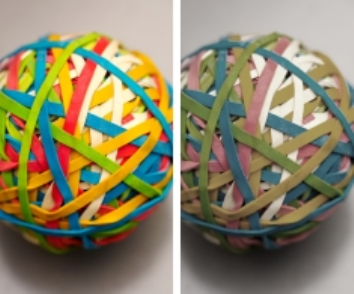
370 | Corel DESIGNER 2017 User Guide
Left: The SWOP 2006_Coated3v2.icc color profile is assigned to the active document. Right:When the Japan
Color 2002 Newspaper color profile is assigned to the document, the colors appear much less saturated.
To assign color profiles to a document
1Click Tools Color management Document settings.
2In the Edit document color settings area, enable the Assign different color profiles option.
3Choose color profiles from the RGB, CMYK, and Grayscale list boxes.
Converting colors to other color profiles
When you convert document colors from one color profile to another, the color values in the document are changed according to the
rendering intent, but the appearance of colors is preserved. The main purpose of converting colors is to match the appearance of colors in
the source color space as closely as possible to colors in the destination color space.
Because multiple color conversions deteriorate accuracy, it is recommended that you convert colors only once. Wait until the document is
ready and you are sure of the color profile that will be used for the final output. For example, if you designed a document in the Adobe RGB
(1998) color space, and the document will be posted on the web, you can convert document colors to the sRGB color space.
You can choose the color management engine that is used for converting colors. For more information, see “Choosing color-conversion
settings” on page 370.
To convert colors to other color profiles
1Click Tools Color management Document settings.
2In the Edit document color settings area, enable the Convert document colors to new color profiles option.
3Choose a color profile from the RGB, CMYK, and Grayscale list box.
4Choose a suitable rendering intent from the Rendering intent list box. For information about the available rendering intents, see “What
is a rendering intent?” on page 363.
Choosing color-conversion settings
When you choose color profiles, colors are matched between devices as closely as possible by the color management module (CMM) of the
Microsoft Image Color Management (ICM), which is the default CMM. Color management modules are also known as “color engines.”
You can also use the Adobe CMM if it is installed on your computer.
Handling pure black and grayscale colors
You can preserve pure black color in the destination color space during color conversion. For example, if you are converting an RGB
document to a CMYK color space, pure RGB black (R=0, G=0, B=0) can be mapped to pure black CMYK colors (K=100). This option is
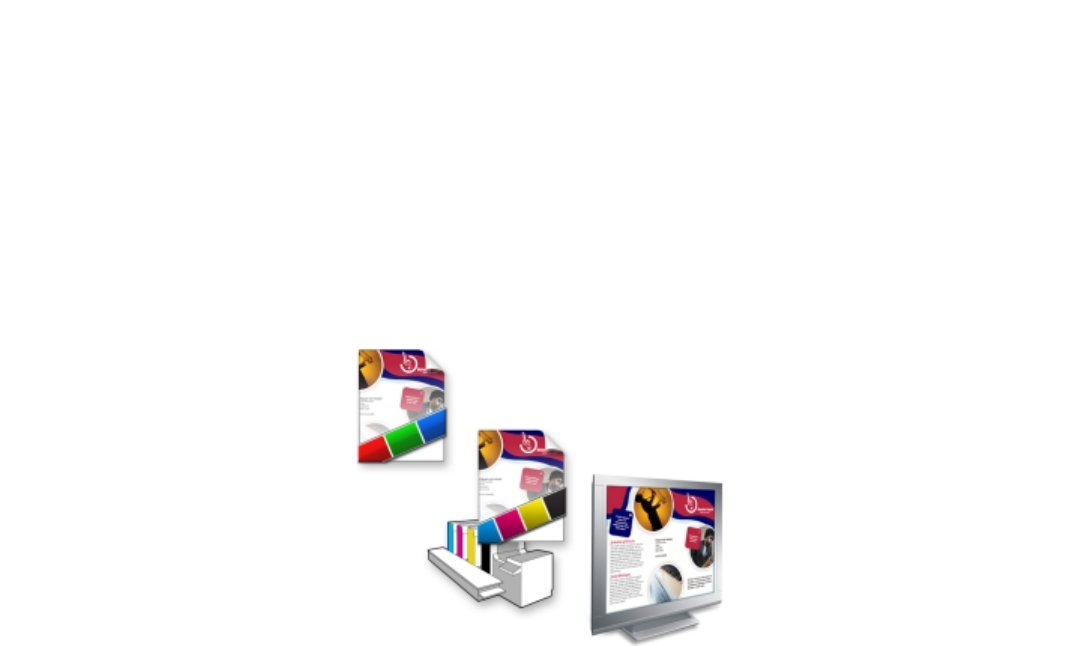
Using color management | 371
recommended for grayscale documents or documents that contain mostly text. Note that preserving pure black during color conversion may
create solid edges of black in effects and gradient fills that contain black.
By default, grayscale colors are converted to the CMYK black (K) channel. This process ensures that all grayscale colors print as shades of
black, and no cyan, magenta, and yellow inks are wasted during printing.
To choose color-conversion settings
1Click Tools Color management Default settings.
2In the Color conversion settings area, choose a color engine from the Color engine list box.
You can also Do the following
Keep pure black in the source color space as pure black in the
destination color space
Enable the Preserve pure black check box.
Map grayscale colors to CMYK black during conversion Enable the Map gray to CMYK black check box.
Soft proofing
Soft proofing provides an on-screen preview of a document as it will appear when it is reproduced by a specific printer or displayed on a
specific monitor. Unlike the “hard-proofing” technique that is used in a traditional printing workflow, soft proofing lets you look at the final
result without committing ink to paper. You can verify whether the color profile of the document is suitable for a specific printer or monitor
and avoid unwanted results.
Top left: An RGB color profile is assigned to the document. Middle and right: Assigning
a specific CMYK profile allows an on-screen simulation of the printed output.
To simulate the output colors that are produced by a device, you need to choose the color profile of the device. Because the color spaces of
the document and device are different, some document colors may not have matches in the gamut of the device color space. You can enable
the gamut warning, which lets you preview the on-screen colors that cannot be reproduced accurately by the device. When the gamut
warning is enabled, an overlay highlights all the out-of-gamut colors for the device that you are simulating. You can change the color of the
out-of-gamut overlay, and you can also make it more transparent to see the underlying colors.
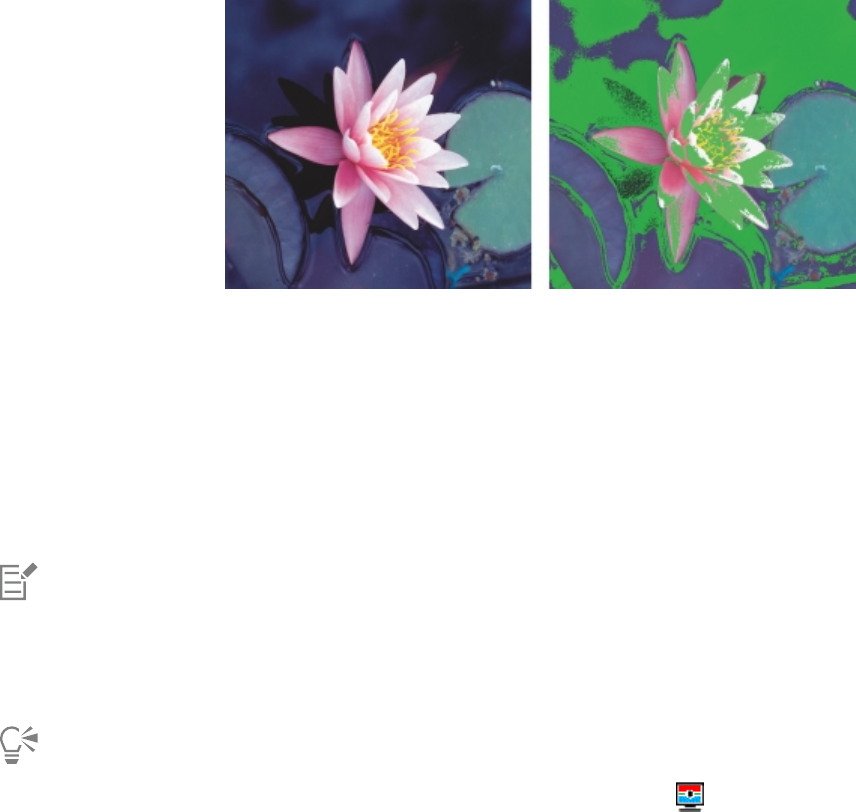
372 | Corel DESIGNER 2017 User Guide
The gamut warning highlights colors that a printer or monitor cannot reproduce accurately.
You can change how out-of-gamut colors are brought into the gamut of the proof profile by changing the rendering intent. For more
information, see “What is a rendering intent?” on page 363.
By default, soft proofing is disabled when you start a new document or when you open a document. However, you can make sure that soft
proofing is turned on by default at all times.
To turn soft proofing on or off
•Click View Proof colors.
When you turn soft proofing on, colors in the document window, color palettes, and preview windows of dialog boxes appear
different.
Simulating printer output may cause on-screen colors to appear dull because all colors are brought into a CMYK color space, which
has a smaller gamut than an RGB color space.
You can also enable or disable soft proofing by clicking the Proof colors button on the status bar.
To turn soft proofing on by default
1Click Tools Options.
2In the Workspace list of categories, click Display.
3Enable the Proof colors by default check box.
Working with color management presets
The application provides color management presets, which are default color settings that are applied to new and untagged documents. You
can choose a color management preset that is suitable for the geographic region where a document is created or for the location of its final
output.
You can also create your own presets, which allows you to retain your selections in the Default color management settings dialog box and
reuse them in other documents. If you no longer need a preset, you can delete it.
To choose a color management preset for new documents
1Click Tools Color management Default settings.

Using color management | 373
2Choose one of the following color management presets from the Presets list box:
•North America General Purpose — suitable for designs that will be used in multiple types of output in North America
•Europe General Purpose — suitable for designs that will be used in multiple types of output in Europe
•Europe Prepress — suitable for designs that will be printed by print service providers in Europe
•Europe Web — suitable for web designs that are created in Europe
•Japan General Purpose — suitable for designs that will be used in multiple types of output in Japan
•Japan Prepress — suitable for designs that will be printed by print service providers in Japan
•Japan Web — suitable for web designs that are created in Japan
•Minimal Color Management — preserves the original RGB, CMYK, and Grayscale color values when opening, importing, or pasting
documents
•North America Prepress — suitable for designs that will be printed by print service providers in North America
•North America Web — suitable for web designs that are created in North America
•Simulate Color Management Off — produces the color-conversion results of the Color Management Off preset that is available in
earlier versions of CorelDESIGNER
•Simulate Corel DESIGNER Technical SuiteX4 — displays colors as they appear in Corel DESIGNER Technical SuiteX4
To add a color management preset
1Click Tools Color management Default settings.
2Change any default color settings.
3Click the Save button next to the Presets list box.
4In the Save color management style dialog box, type a name in the Save style as box.
To delete a color management preset
1Click Tools Color management Default settings.
2Choose a preset from the Presets list box.
3Click the Delete button .
Working with color management policies
Color management policies determine how colors are managed in documents that you open and work with in an application. In
CorelDESIGNER, you can set one color-management policy for opening documents and another for importing and pasting files and objects
in the active document.
The color management policy for opening files determines what RGB, CMYK, and Grayscale color profiles are used in each file you want to
open. By default, the application uses the color profiles embedded in the file. You can also choose to assign the default color profiles to the
file or convert colors in the file to the default color profiles.
By default, the color management policy for importing and pasting files converts the RGB and Grayscale colors of the files to the document
color profiles, and assigns the document CMYK color profile to files in the CMYK mode. You can also choose to assign the document color
profiles to the file, or convert the colors of the active document to the color profiles that are embedded in the file.
The files that you are opening or importing may be missing color profiles, or may contain color profiles that do not match the default color
profiles. By default, the application does not warn you about missing or mismatched color profiles but makes color management choices
that produce good results. However, you can activate warning messages if you want to have full control over the colors in your documents.
To set a color management policy for opening documents
1Click Tools Color management Default settings.
2In the Open section of the Color management policies area, choose one of the following options from the RGB list box:
374 | Corel DESIGNER 2017 User Guide
•Use embedded color profile — preserves the RGB color profile that is embedded in the file. This option is recommended, because it
preserves the original RGB color appearance and RGB color values of the document.
•Assign default color profile — uses the default RGB color profile to define document colors. RGB color values are preserved, but the
appearance of RGB colors may change.
•Convert to default color profile — converts colors to the default RGB color profile. The appearance of RGB colors in documents is
preserved, but the color values may change.
3From the CMYK list box in the Open area, choose an option for managing CMYK colors in documents. The options are the same as the
options that are available for RGB colors.
4From the Grayscale list box in the Open area, choose an option for managing the grayscale colors in documents. The options are the
same as the options that are available for RGB colors.
To set a color management policy for importing and pasting files
1Click Tools Color management Default settings.
2In the Import and paste section of the Color management policies area, choose one of the following options from the RGB list box:
•Convert to document color profile — converts the RGB colors of the imported or pasted file to the RGB color profile of the active
document. This option is used when the imported file contains a color profile that does not match the color profile of the document.
•Assign document color profile — assigns the RGB color profile of the document to the imported or pasted file. The RGB color values
of the file are preserved but the color appearance may change.
•Use embedded color profile — uses the RGB color profile that is embedded in the file, preserving the RGB color values and
appearance of the imported or pasted file. This option converts document colors to the color profile that is embedded in the imported
or pasted file.
3From the CMYK list box in the Import and paste area, choose an option for managing CMYK colors in imported and pasted files. The
options are the same as the options that are available for RGB colors.
4From the Grayscale list box in the Import and paste area, choose an option for managing the grayscale colors in imported and pasted
files. The options are the same as the options that are available for RGB colors.
To activate warning messages for missing and mismatched color profiles
1Click Tools Color management Default settings.
2In the Color management policies area, enable any of the following check boxes in the Open and Import and paste areas:
•Warn on color profile mismatch
•Warn on missing color profile
Managing colors when opening documents
The default color management policy for opening documents preserves colors in all tagged documents that you open and assigns the
default color profiles to untagged documents.
If a document that you open is missing a color profile or contains color profiles that do not match the default color profiles of the
application, CorelDESIGNER makes color-management choices based on the color management policy. If you are comfortable with color
management, you can view warnings about missing and mismatched color profiles and choose different color management options. For
more information about how to activate warnings, see “To activate warning messages for missing and mismatched color profiles” on page
374.
Opening documents with missing color profiles
The document you are opening may support one or multiple color modes and therefore be missing one or more color profiles. For example,
a CorelDESIGNER (DES) or PDF document may contain three types of objects: RGB, CMYK, and Grayscale, so up to three color profiles may
be missing from such a document.
The following options are available when you are opening a document with a missing color profile and have activated warnings for missing
color profiles.
Using color management | 375
•Assign color profile — lets you assign a color profile to the document. This option preserves color values, but may change the
appearance of colors. For example, if the RGB color profile is missing from the document, the default RGB color profile of the application
is assigned by default. The RGB color values are preserved but the RGB colors may not appear as originally designed. You can also choose
to assign a color profile that is different from the default color profile of the application. This option is recommended only if you know
the original color space of the document and have the associated color profile installed.
•Convert to default color profile — Used in conjunction with the Assign color profile control, this option converts colors from the
assigned color profile to the default color profile. Colors will appear as they would in the assigned color space, but the color values may
change.
Opening documents with mismatched color profiles
When a document contains a color profile that does not match the default color profile, you can choose one of the following options:
•Use embedded color profile — This option ensures that the color values are preserved and colors are displayed as originally intended.
•Ignore embedded color profile, and use default color profile — Assigning the default color profile will preserve the color values but
may change the appearance of colors.
•Convert from embedded color profile to default color profile — This option converts colors from the embedded color profile to the
default color profile. The appearance of colors will be preserved, but the color values may change. This option is recommended if you
have already set color management options suitable for your workflow. For example, you may be creating graphics for the web, and you
may have chosen sRGB as the application default color space. Enabling this option ensures that the document uses the sRGB color space,
and document colors are consistent and suitable for the web.
Opening documents with missing and mismatched color profiles
Documents that support multiple color modes can be missing color profiles and contain mismatched color profiles at the same time. For
example, a document that contains RGB, Grayscale, and CMYK objects may be missing an RGB profile and may have a mismatched CMYK
color profile. In such cases, you are presented with warning dialog boxes that include options for missing and mismatched color profiles.
Managing colors when importing and pasting files
The default color policy for importing and pasting files converts the colors of imported and pasted files to the color profile of the active
document. If the color profile of the imported or pasted file matches the color profile of the active document, no color conversion is
performed. For more information about color management policies, see “Working with color management policies” on page 373.
However, you can choose to view warnings about missing and mismatched profiles and set other color management options. For more
information about how to view warnings, see “To activate warning messages for missing and mismatched color profiles” on page 374.
Importing and pasting files with missing color profiles
If color profiles are missing from a file, you can choose to assign specific color profiles to the file, and then convert its colors to the
document color profiles. The color values of the file will change.
Importing and pasting files with mismatched color profiles
If a file contains color profiles that do not match the document color profile, the following options are available:
•Ignore embedded color profile, and assign the document color profile — Color values are preserved, but the appearance of colors
may change.
•Convert from embedded color profile to the document color profile (default option) — The color of the imported file are converted
from the embedded color space to the document color space. The appearance of colors is preserved, but the color values may change.
•Convert document colors to embedded color profile — Document colors are converted to the color profile embedded in the imported
file. The appearance and color values of the imported or pasted file are preserved.
Importing and pasting files with missing and mismatched color profiles
Some files can be missing color profiles and contain mismatched color profiles at the same time. In such cases, you are presented with
dialog boxes that include options for missing and mismatched color profiles.
376 | Corel DESIGNER 2017 User Guide
Managing colors for print
By default, CorelDESIGNER does not perform color conversions when a document is sent to the printer. The printer receives the color values
and interprets the colors. However, if there is a color profile associated with the printer in the operating system, CorelDESIGNER detects the
color profile and uses it to convert document colors to the color space of the printer.
If you have a PostScript printer, you can let CorelDESIGNER or the PostScript printer perform any necessary color conversion. When
CorelDESIGNER manages the color conversion, document colors are converted from the assigned color space to the color space of the
PostScript printer. Note that you must disable color management in the printer driver. Otherwise, both application and printer manage colors
during printing, and document colors are corrected twice, which causes unwanted color shifts.
When the PostScript printer converts document colors, the color management feature must be enabled in the printer driver. Only PostScript
printers and RIP engines that support printer color conversions can be used in this advanced method. Although it increases the file size, this
method has the advantage of ensuring consistent colors when you send the same print job to different print service providers.
For more information about reproducing colors for print, see “Printing colors accurately” on page 620.
You can also manage colors in PDF files that you create for commercial printing. For more information, see “Specifying color management
options for exporting PDF files” on page 662.
Using a safe CMYK workflow
Often, you may use specific CMYK color values in your projects. To ensure reliable color reproduction, you may obtain these CMYK color
values from a color swatch book. By preserving these CMYK color values throughout the printing process, you can help prevent unwanted
color conversions and ensure that colors are reproduced as they appeared in the original design. A workflow that preserves the CMYK color
values is known as a “safe” CMYK workflow.
CorelDESIGNER supports a safe CMYK workflow. By default, CMYK color values are preserved in any document that you open, import, or
paste. Also, CMYK color values are preserved by default when you print documents.
In some cases, you may want to bypass the safe CMYK workflow and preserve the appearance of CMYK colors when you open, import, or
paste documents. This option is useful when you want to see the original colors of a design on-screen, or view a copy that is printed to a
desktop printer. To preserve the appearance of CMYK colors, you can set color management policies that convert CMYK colors in documents
that you open, import, or paste. In addition, when printing to a PostScript printer, you can convert CMYK colors to the printer color profile
by disabling the Preserve CMYK numbers check box on the Color page of the Print dialog box.
Managing colors for online viewing
Managing colors for online viewing can be even more complex than managing colors for print. Documents and images on the web are
displayed on a great variety of monitors, which are often uncalibrated. In addition, most web browsers do not support color management
and ignore the color profiles that are embedded in files.
When you design documents for exclusive web use, it is recommended that you use the sRGB color profile as your document RGB color
profile and choose RGB colors. If a document contains a different color profile, you should convert document colors to sRGB before saving
the document for use on the web.
When you create a PDF file for online viewing, you can embed color profiles in the file to reproduce colors consistently in Adobe Reader and
Adobe Acrobat. For more information, see “To specify color management options for exporting PDF files” on page 662.
When you start a new document that is destined for online viewing, you can choose a preset that can help you achieve good color results. In
addition, CorelDESIGNER offers color management presets for web documents. For information about how to choose a color management
preset, see “To choose a color management preset for new documents” on page 372.
Special effects | 377
Special effects
Adding 3D effects to objects...............................................................................................................................................................379
Changing the transparency of objects................................................................................................................................................. 397
Using lenses with objects.................................................................................................................................................................... 407
378 | Corel DESIGNER 2017 User Guide

Adding 3D effects to objects | 379
Adding 3D effects to objects
You can create the illusion of three-dimensional (3D) depth in objects by adding contour, perspective, extrusion, bevel, or drop shadow
effects.
This section contains the following topics:
•“Contouring objects” (page 379)
•“Applying perspective to objects” (page 382)
•“Creating extrusions” (page 383)
•“Creating bevel effects” (page 387)
•“Creating drop shadows” (page 389)
•“Blending objects” (page 392)
Contouring objects
You can contour an object to create a series of concentric lines that progress to the inside or outside of the object. CorelDESIGNER also lets
you set the number and distance of the contour lines.
In addition to creating interesting 3D effects, you can use contours to create cuttable outlines for output to devices such as plotters,
engraving machines, and vinyl cutters.
After contouring an object, you can copy or clone its contour settings to another object. With cloning, any changes you make to the master
object are automatically applied to its clones. You can also change the colors of the fill between the contour lines and the contour outlines
themselves. You can set a color progression in the contour effect, where one color blends into another. The color progression can follow a
straight, clockwise, or counterclockwise path through the color range of your choice.
You can also choose how contour corners appear. For example, you can use pointed or rounded corners, or you can bevel (square off) sharp
contour corners.
You can separate an object from its contour lines.
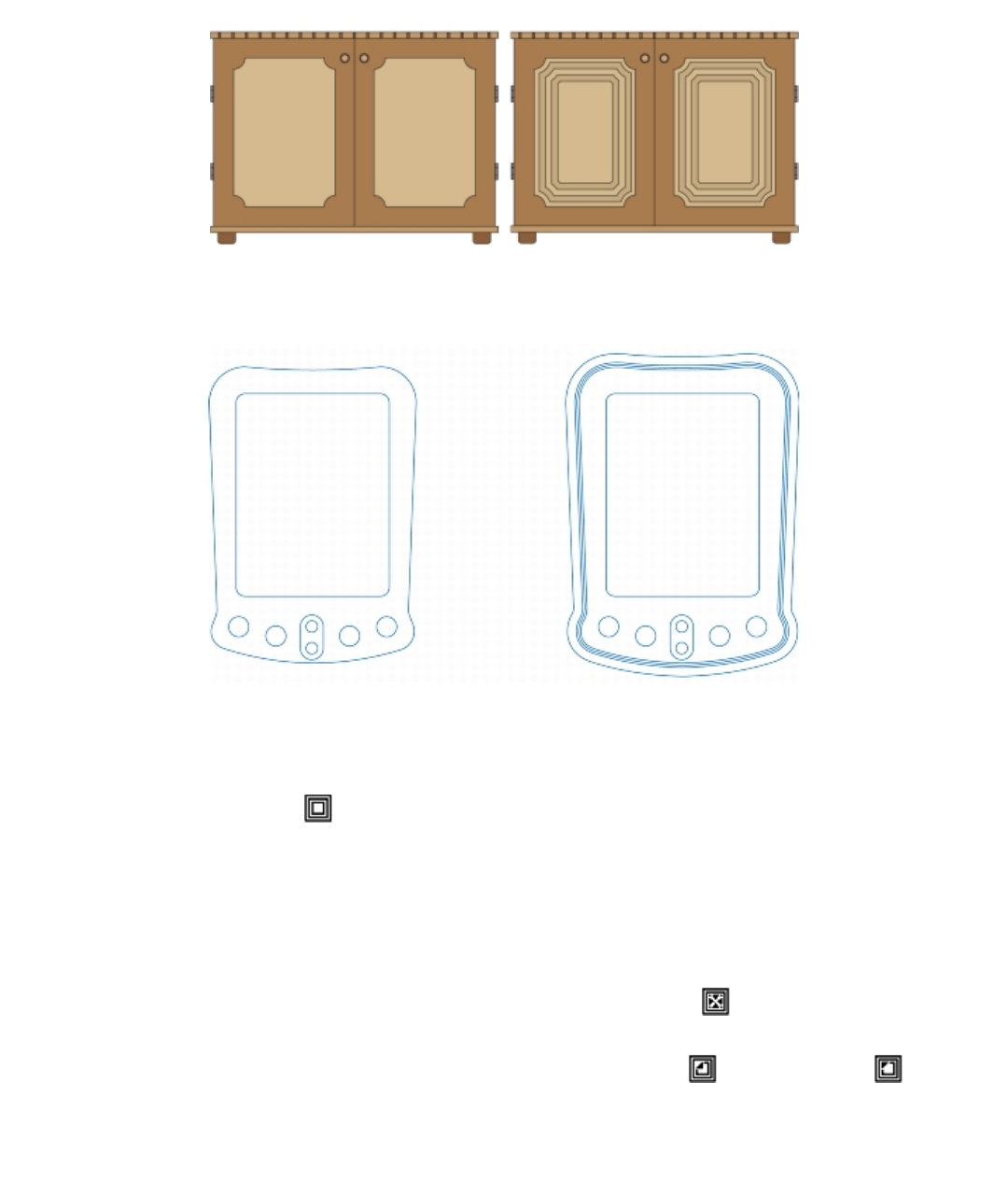
380 | Corel DESIGNER 2017 User Guide
A center contour has been applied to the cabinet on the right. The number
of contour lines, as well as the distance between lines, can be changed.
An outside contour has been applied to the above object. Note that
an outside contour projects from the outside edge of the object.
To contour an object
1In the toolbox, click the Contour tool .
2Click an object or a set of grouped objects, and drag the start handle toward the center to create an inside contour or away from the
center to create an outside contour.
3Move the object slider to change the number of contour steps.
You can also
Add contour lines to the center of the selected object Click the To center button .
Specify the number of contour lines Click the Inside contour or Outside contour button on
the property bar, and type a value in the Contour steps box on the
property bar.
Specify the distance between contour lines Type a value in the Contour offset box on the property bar.
Adding 3D effects to objects | 381
You can also
Accelerate contour line progression Click the Object and color acceleration button on the
property bar, and move the object slider.
Use pointed contour corners Click the Mitered corners button .
Use rounded contour corners Click the Round corners button .
The effect of this control is more obvious with outside contours.
Use beveled contour corners Click the Bevel corners button .
You can create contours by clicking Effects Contour and specifying the settings you want in the Contour docker.
To copy or clone a contour
1Select the object to which you want to apply the contour effect.
2Click Effects, and click one of the following:
•Copy effect Contour from
•Clone effect Contour from
3Click the object whose contour effect you want to copy or clone.
You can also use the Attributes eyedropper tool to copy a contour. For more information, see “To copy effects from one object
to another” on page 249.
To set the fill color for a contour object
1In the toolbox, click the Contour tool .
2Select a contour object.
3Open the Fill color picker on the property bar, and click a color.
If you cannot apply the fill color, make sure that the Fill color option is enabled on the status bar.
If the original object has a fountain fill, a second color picker appears.
You can accelerate the fill color progression by clicking the Object and color acceleration button on the property bar.
You can change the contour center’s color by dragging a color from the color palette to the end fill handle.
To specify an outline color for the contour object
1In the toolbox, click the Contour tool .
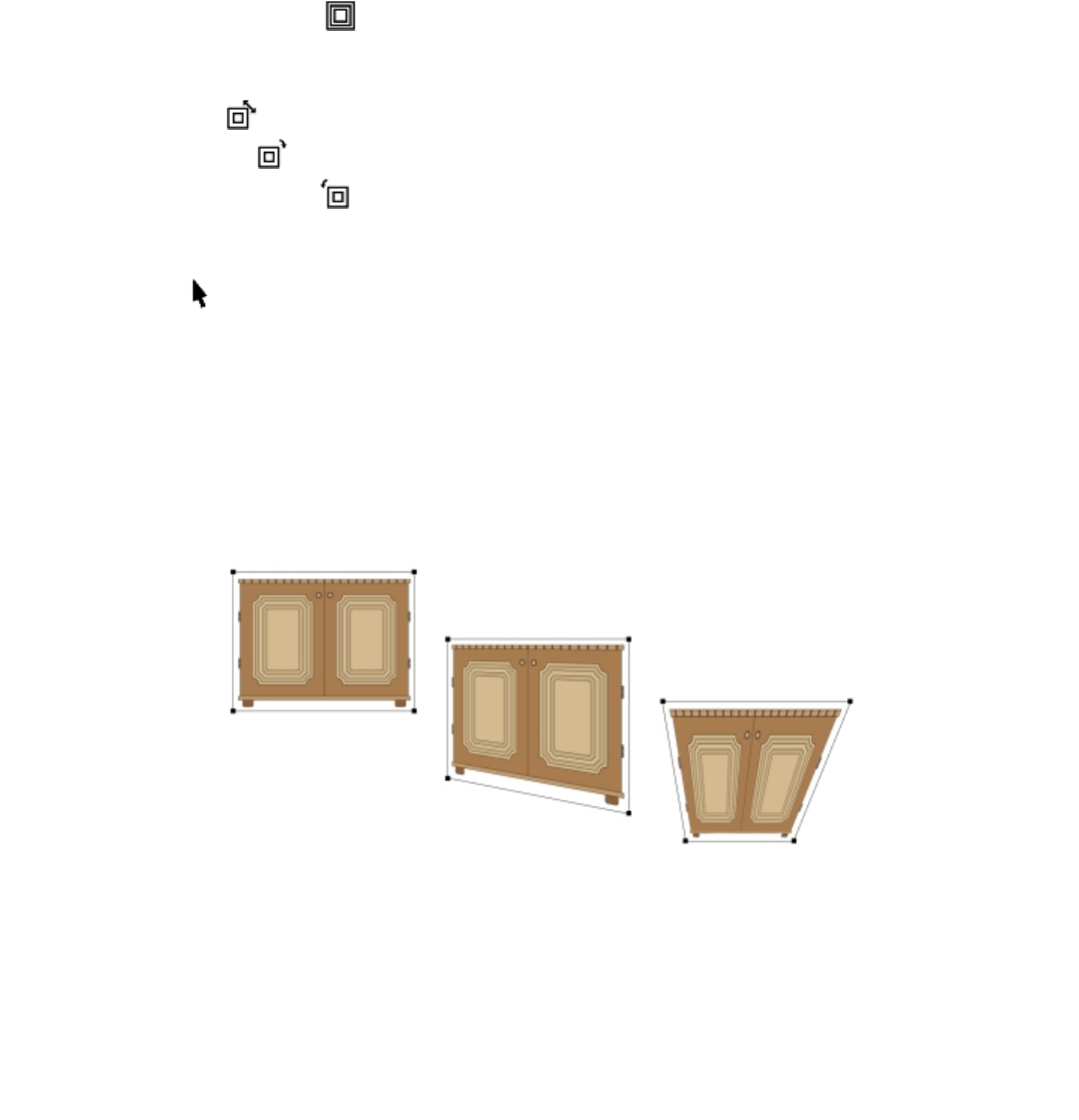
382 | Corel DESIGNER 2017 User Guide
2Select a contour object.
3Open the Outline color picker on the property bar, and click a color.
To set the fill progression
1In the toolbox, click the Contour tool .
2Select a contour object.
3Click the Contour colors button on the property bar, and then click any of the following buttons:
•Linear contour colors
•Clockwise contour colors
•Counterclockwise contour colors
To separate an object from its contour lines
1Using the Pick tool , select a contoured object.
2Click Object Break contour group apart.
Applying perspective to objects
You can create a perspective effect by shortening one or two sides of an object. This effect gives an object the appearance of receding in one
or two directions, thereby creating a one-point perspective or a two-point perspective.
Perspective effects can be added to objects or grouped objects. You can also add a perspective effect to linked groups, such as contours,
blends, and extrusions. You can’t add perspective effects to paragraph text, bitmaps, or symbols.
The original graphic (left) with one-point (middle) and two-point (right) perspectives applied to it.
After you apply a perspective effect, you can copy it to other objects in a drawing, adjust it, or remove it from the object.
To apply a perspective
To
Apply a one-point perspective Click Effects Add perspective. Press Ctrl, and drag a node.
Adding 3D effects to objects | 383
To
Apply a two-point perspective Click Effects Add perspective. Drag the nodes on the outside of
the grid to apply the effect you want.
Pressing Ctrl constrains the node’s movement to the horizontal or vertical axis to create a one-point perspective effect.
You can move opposing nodes the same distance in opposite directions by pressing Ctrl + Shift as you drag.
To copy an object’s perspective effect
1Select an object to which you want to apply a perspective effect.
2Click Effects Copy effect Perspective from.
3Select an object whose perspective effect you want to copy.
You can also use the Attributes eyedropper tool to copy a perspective effect. For more information, see “To copy effects from
one object to another” on page 249.
To adjust the perspective
1In the toolbox, click the Shape tool
2Select an object that has a perspective effect.
3Drag a node to a new position.
You can also adjust the perspective by dragging one or both of the vanishing points.
You can move opposing nodes the same distance in opposite directions by pressing Ctrl + Shift while dragging the node.
To remove a perspective effect from an object
1Select an object that has a perspective effect.
2Click Effects Clear perspective.
Creating extrusions
You can make objects appear three-dimensional by creating extrusions. You can create extrusions by projecting points from an object and
joining them to create an illusion of three dimensions. CorelDESIGNER also lets you apply a vector extrusion to an object in a group.
After you create an extrusion, you can copy or clone its attributes to a selected object. Cloning and copying transfer the extrusion attributes
of an extruded object to another. However, the cloned extrusion settings cannot be edited independently from the master.
You can change an extruded form by rotating it, changing its direction, changing its depth, and rounding its corners.
CorelDESIGNER also lets you remove a vector extrusion.
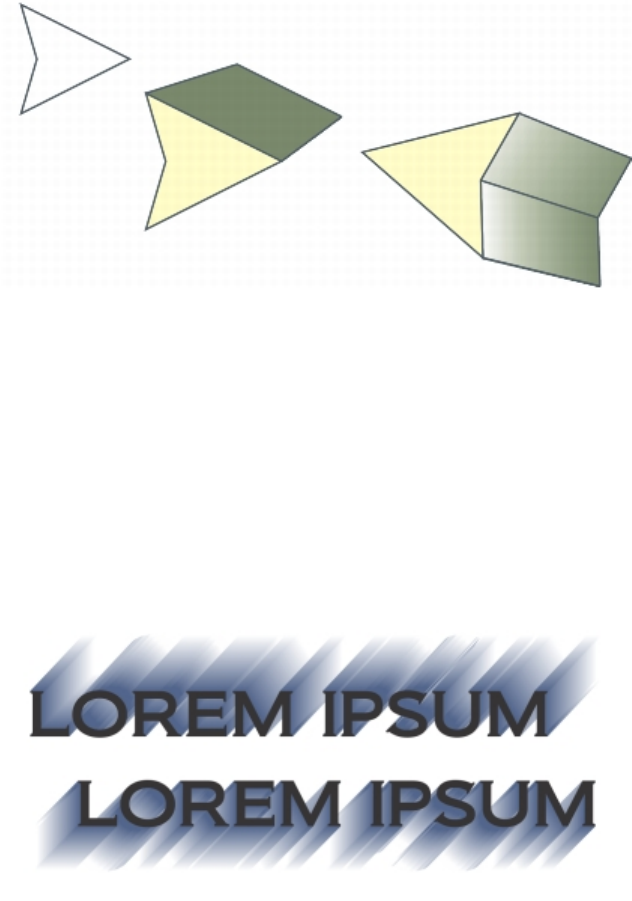
384 | Corel DESIGNER 2017 User Guide
Bevels
Another way in which you can give an object a three-dimensional appearance is by applying a beveled edge to an extrusion. A bevel creates
the illusion that an object’s extruded edges are cut on an angle. You can specify the angle and depth values of the bevel to control the
effect.
You can create a bevel effect without extruding an object. For more information, see “Creating bevel effects” on page 387.
Extruded fills
You can apply fills to an entire extrusion or only to the extruded surfaces. You can cover each surface individually with the fill, or you can
drape the fill so that it blankets the entire object with no breaks to the pattern or texture.
Left to right: a simple shape, the shape with an extruded fill of solid
color, the shape with an extruded gradient fill and a rotation applied.
Lighting
You can enhance extrusions by applying light sources. You can add up to three light sources to project toward the extruded object with
varying intensity. When you no longer need light sources, you can remove them.
Vanishing points
You can create a vector extrusion in which the lines of the extrusion converge at a vanishing point. The vanishing point of a vector extrusion
can be copied to another object so that both objects appear to recede toward the same point.
You can also give extrusions different vanishing points.
Extrusions with different vanishing points
Adding 3D effects to objects | 385
To create an extrusion
1Select an object using the Pick tool .
2In the toolbox, click the Extrude tool .
3Choose a preset from the Presets list box on the property bar.
4Choose an extrusion type from the Extrusion type list box on the property bar.
If you want to reset the extrusion, press Esc before releasing the mouse button.
You can also create an extrusion by using the Extrude docker (Effects Extrude).
To copy or clone an extrusion
1Select the object you want to extrude.
2Click Effects and click one of the following:
•Copy effect Extrude from
•Clone effect Extrude from
3Click an object whose extrusion properties you want to copy.
You can also use the Attributes eyedropper tool to copy an extrusion. For more information, see “To copy effects from one
object to another” on page 249.
To change the form of a vector extrusion
To Do the following
Rotate an extrusion Select an extruded object. Click the Extrude rotation button
on the property bar. Drag the extrusion in the direction you want.
Change the direction of an extrusion Using the Extrude tool , click an extrusion. Click the vanishing
point, and drag in the direction you want.
Change the depth of an extrusion Using the Extrude tool , click an extrusion. Drag the slider
between the interactive vector handles.
Round the corners of an extruded rectangle or square In the toolbox, click the Shape tool . Drag a corner node along
the outline of the rectangle or square.
To remove a vector extrusion
1Select an extruded object.
2Click Effects Clear extrusion.
386 | Corel DESIGNER 2017 User Guide
You can also remove a vector extrusion by clicking the Clear extrusion button on the property bar.
To apply a fill to an extrusion
1Select an extruded object with the Extrude tool .
2Click the Extrusion color button on the property bar.
3Click one of the following buttons:
•Use object fill — applies the object’s fill to the extrusion
•Use solid color — applies a solid color to the extrusion
•Use color shading — applies a gradient fill to the extrusion
You can apply an unbroken pattern or texture fill to an object by enabling the Drape fills check box before you click the Use object
fill button.
To apply beveled edges to an extrusion
1In the toolbox, click the Extrude tool .
2Select an extruded object.
3Click the Extrusion bevels button on the property bar.
4Enable the Use bevel check box.
5Type a value in the Bevel depth box.
6Type a value in the Bevel angle box.
You can also set the bevel depth and angle by using the Bevel interactive display box below the Use bevel check box.
You can show only the bevel and hide the extrusion by enabling the Show bevel only check box.
To add light to an extrusion
1Select an extruded object.
2Click the Extrusion lighting button on the property bar.
3Click any of the three Light buttons .
The lights appear as numbered circles in the preview window.
4Drag the numbered circles in the Light intensity preview window to position the lights.
If you want to create more realistic shading, enable the Use full color range check box.
You can also
Adjust the intensity of a light source Select a light in the Light intensity preview window, and move the
Intensity slider.
Adding 3D effects to objects | 387
You can also
Remove a light source Click an active Light button.
To change the vanishing point of an extrusion
To Do the following
Lock a vanishing point Double-click an extruded object. Choose VP locked to object or VP
locked to page from the Vanishing point properties list box on
the property bar.
Copy a vanishing point Double-click an extruded object whose vanishing point you want
to change. From the Vanishing point properties list box on the
property bar, choose Copy VP from. Select the extruded object that
has the vanishing point you want to copy.
Set one vanishing point for two extrusions Double-click an extruded object. Choose Shared vanishing point
from the Vanishing point properties list box on the property bar.
Select the extruded object that has the vanishing point you want to
share.
Creating bevel effects
A bevel effect adds 3D depth to a graphic or text object by making its edges appear sloped (cut at an angle). Bevel effects can contain both
spot and process (CMYK) colors, so they are ideal for printing.
You can remove a bevel effect at any time.
Bevel effects can be applied only to vector objects and artistic text, not to bitmaps.
Bevel styles
You can choose from the following bevel styles:
•Soft edge — creates beveled surfaces that appear shaded in some areas
•Emboss — makes an object appear as a relief
Left to right: Object without a bevel effect, with a Soft Edge bevel effect, and with an Emboss bevel effect

388 | Corel DESIGNER 2017 User Guide
Beveled surfaces
You can control the intensity of the bevel effect by specifying the width of the beveled surface.
Light and color
An object with a bevel effect appears lit by white ambient (surrounding) light and a spotlight. The ambient light is of low intensity and
cannot be changed. The spotlight is also white by default, but you can change its color, intensity, and location. Changing the spotlight color
affects the color of the beveled surfaces. Changing the spotlight’s intensity lightens or darkens the beveled surfaces. Changing the location
of the spotlight determines which beveled surfaces appear lit.
You can change the location of the spotlight by specifying its direction and altitude. Direction determines where the light source is located in
the plane of the object (for example, to the left or right of an object). Altitude determines how high the spotlight is located in relation to the
object’s plane. For example, you can place the spotlight flush with the horizon (altitude of 0°) or directly above the object (altitude of 90°).
In addition, you can change the color of the beveled surfaces that are in shadow by specifying a shadow color.
To create a Soft Edge bevel effect
1Select an object that is closed and has a fill applied to it.
2Click Effects Bevel.
3In the Bevel docker, choose Soft edge from the Style list box.
4Enable one of the following Bevel offset options:
•To center — lets you create beveled surfaces that meet in the middle of the object
•Distance — lets you specify the width of the beveled surfaces. Type a value in the Distance box.
You can also
Change the color of beveled surfaces in shadow Choose a color from the Shadow color picker.
Beveled surfaces change to a shade of the specified shadow color.
Choose a spotlight color Choose a color from the Light color picker.
Change the intensity of the spotlight Move the Intensity slider.
Specify the position of the spotlight Move either of the following sliders:
•Direction
•Altitude
Direction values range from 0° to 360°; altitude values range from
0° to 90°.
Bevel effects can be applied only to artistic text. You can convert paragraph text to artistic text by selecting the text using the Pick tool
and then clicking Text Convert to artistic text.
The lowest altitude value (0°) places the spotlight on the plane of the object; the highest altitude value (90°) places the spotlight
directly above the object.
The effect of the shadow color is most apparent when the spotlight is located close to the object’s plane (low altitude value).
Using a given altitude value, you can change the spotlight’s location by changing the direction value. For example, at an altitude of
45°, the following direction values change the spotlight location as noted:
• 45° places the spotlight on the upper right.

Adding 3D effects to objects | 389
• 135° places the spotlight on the upper left.
• 225° places the spotlight on the lower left.
• 315° places the spotlight on the lower right.
To create an Emboss effect
1Select an object that is closed and has a fill applied to it.
2Click Effects Bevel.
3In the Bevel docker, choose Emboss from the Style list box.
4In the Distance box, type a low value.
5To change the intensity of the spotlight, move the Intensity slider.
6To specify the direction of the spotlight, move the Direction slider.
7Click Apply.
If you want to create a more pronounced bevel effect, type a higher value in the Distance box, and reapply the effect.
You can also
Choose a shadow color Choose a color from the Shadow color picker.
Choose a spotlight color Choose a color from the Light color picker.
The Emboss bevel effect is achieved by creating two duplicates of the object. The duplicates are offset in opposite directions: one
toward the light source and the other away from the light source. The color of the duplicate placed toward the spotlight is a blend of
the spotlight and object colors and depends on the light intensity. The color of the duplicate placed away from the spotlight is a 50
percent blend of the shadow and object colors.
The Altitude slider is disabled for the Emboss bevel style.
To remove a bevel effect
1Select an object with a bevel effect applied.
2Click Effects Clear effect.
Creating drop shadows
Drop shadows simulate light falling on an object from one of five particular perspectives: flat, right, left, bottom, and top. You can add drop
shadows to most objects or groups of objects, including artistic text, paragraph text, and bitmaps.
Drop shadows created in CorelDESIGNER are ideal for printed outputs, but are not appropriate for output to devices such as vinyl cutters
and plotters. Cuttable shadows are needed for such projects. To add a cuttable shadow to an object, you need to duplicate the object, fill
the duplicate with a dark color, and then place it behind the original object. When you add a drop shadow, you can change its perspective,
and you can adjust attributes such as color, opacity, fade level, angle, and feathering.
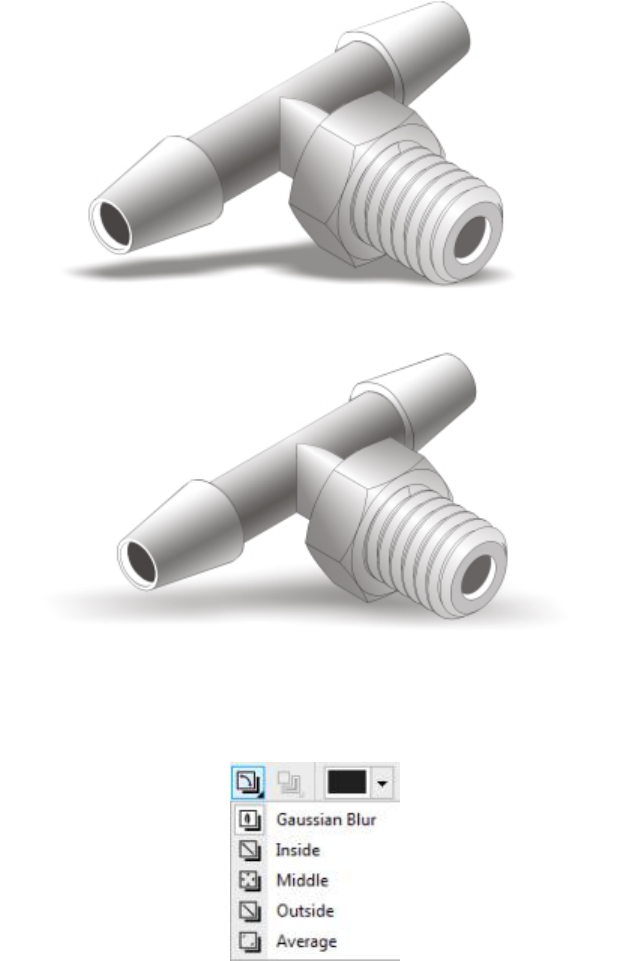
390 | Corel DESIGNER 2017 User Guide
A drop shadow applied to an object
The feathered effect softens the edges of a drop shadow.
Drop shadows look more realistic when they use Gaussian Blur feathering, which is the default option. You can change the feathering of
drop shadows from the Feathering direction button on the property bar.
Feathering options for drop shadows
After you create a drop shadow, you can copy it or clone it to a selected object. When you copy a drop shadow, the original and copy have
no connection and can be edited independently. With cloning, the master object’s drop shadow attributes are automatically applied to its
clone.
By separating a drop shadow from its object, you gain more control over the drop shadow itself. For example, you can edit the drop shadow
as you would edit a transparency. For information about editing a transparency, see “Changing the transparency of objects” on page 397.
As with transparencies, you can apply a merge mode to a drop shadow to control how the color of the drop shadow blends with the color
of the object underneath.
You can remove a drop shadow.
Adding 3D effects to objects | 391
To add a drop shadow
1In the toolbox, click the Drop shadow tool .
2Click an object.
3Drag from the center or side of the object until the drop shadow is the size you want.
4Specify any attributes on the property bar.
Drop shadows cannot be added to linked groups, such as blended objects, contoured objects, beveled objects, extruded objects,
objects created with the Linear pattern brush tool , or other drop shadows.
To add a cuttable shadow
1Select an object.
2Click Edit Duplicate.
3Click a dark color on the onscreen color palette.
4Click Object Order Behind, and click the original to position the duplicate behind it.
5Adjust the position of the duplicate.
To copy or clone a drop shadow
1Select the object to which you want to copy or clone a drop shadow.
2Click Effects and click one of the following:
•Copy effect Drop shadow from
•Clone effect Drop shadow from
3Click the drop shadow of an object.
You can also use the Attributes eyedropper tool to copy a drop shadow. For more information, see “To copy effects from one
object to another” on page 249.
To separate a drop shadow from an object
1Select an object’s drop shadow.
2Click Object Break drop shadow group apart.
3Drag the shadow.
To apply a merge mode to a drop shadow
1In the toolbox, click the Drop shadow tool .
2Select an object with a drop shadow, and choose a merge mode from the Transparency operation list box on the property bar.
The default merge mode Multiply produces natural-looking drop shadows.
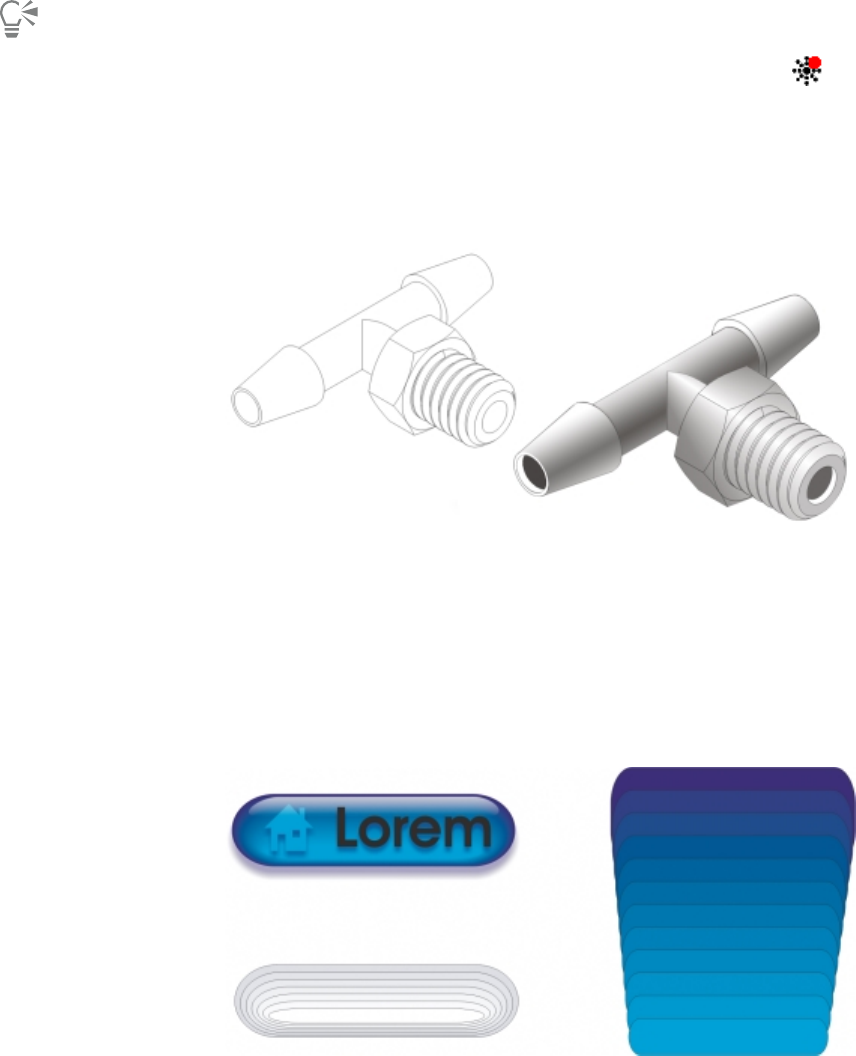
392 | Corel DESIGNER 2017 User Guide
To remove a drop shadow
1Select an object’s drop shadow.
2Click Effects Clear drop shadow.
You can also remove a drop shadow from an object by clicking the Clear drop shadow button on the property bar.
Blending objects
CorelDESIGNER lets you create blends, such as straight-line blends, blends along a path, and compound blends. Blends are often used for
creating realistic shadows and highlights in objects.
The highlights and shadows in the object on the right were created by using blends.
A straight-line blend shows a progression in shape and size from one object to another. The outline and fill colors of the intermediate objects
progress along a straight-line path across the color spectrum. The outlines of intermediate objects show a gradual progression in thickness
and shape.
After you create a blend, you can copy or clone its settings to other objects. When you copy a blend, the object takes on all the blend-
related settings, except for the outline and fill attributes. When you clone a blend, changes you make to the original blend (also called the
master) are applied to the clone.
Straight-line blends can be used to create graphics with a glass-like appearance.
The rollover button (left) contains a blend of tightly overlapped blended objects.
You can fit objects along part or all of a path’s shape, and you can add one or more objects to a blend to create a compound blend.
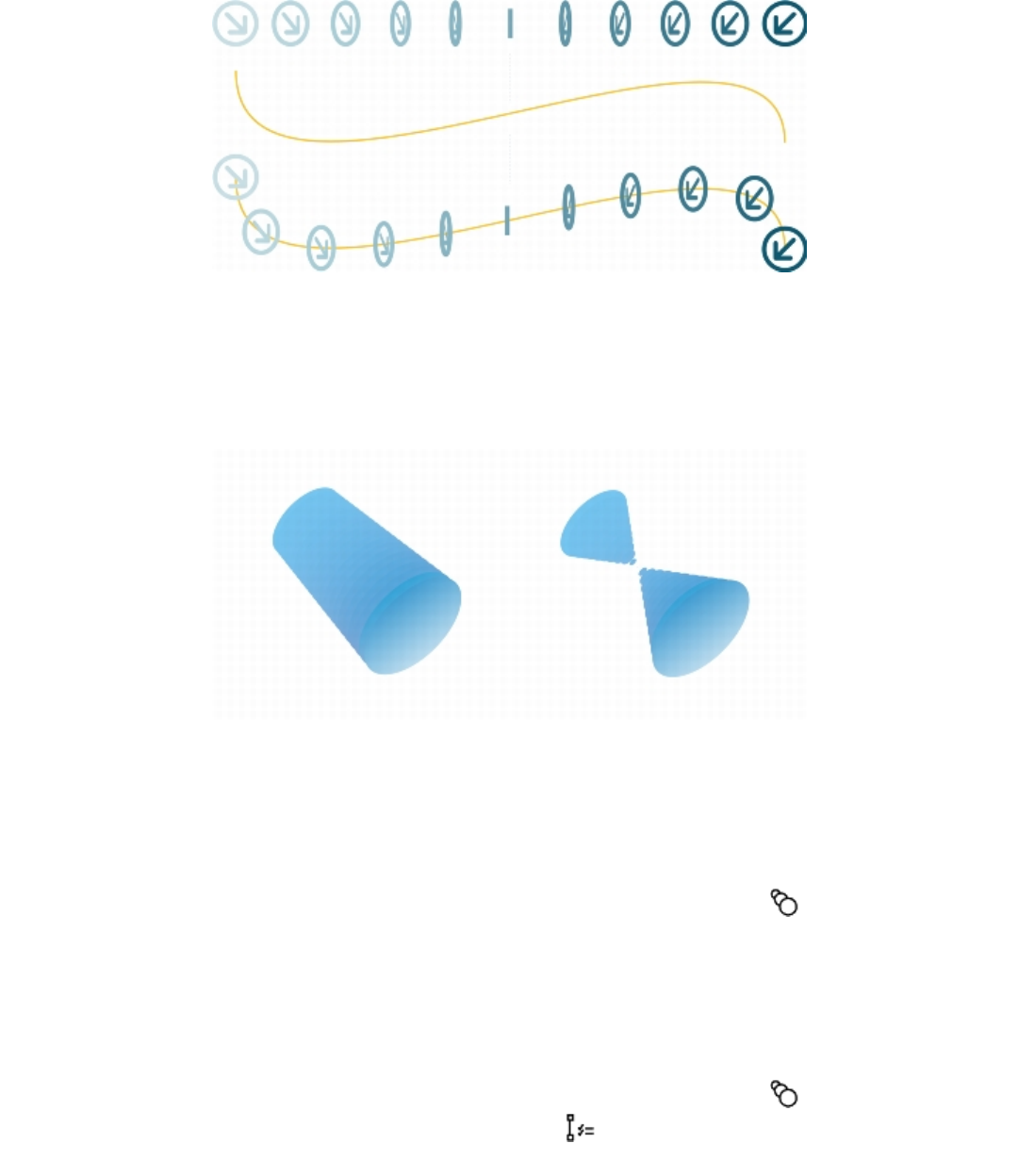
Adding 3D effects to objects | 393
The straight-line blend (top) is fitted to a curved path (bottom).
You can change the appearance of a blend by adjusting the number and spacing of its intermediate objects, the blend’s color progression,
the nodes the blends map to, the blend’s path, and the start and end objects. You can fuse the components of a split or compound blend to
create a single object.
You can also split and remove a blend.
By mapping nodes, you can control the appearance of a blend.
To blend objects
To Do the following
Blend along a straight line In the toolbox, click the Blend tool . Select the first object, and
drag over the second object. If you want to reset the blend, press
Esc as you drag.
Blend an object along a freehand path In the toolbox, click the Blend tool. Select the first object. Hold
down Alt, and drag to draw a line to the second object.
Fit a blend to a path In the toolbox, click the Blend tool . Click the Path properties
button on the property bar. Click New path. Using the curved
arrow, click the path to which you want to fit the blend.
394 | Corel DESIGNER 2017 User Guide
To Do the following
Stretch the blend over an entire path Select a blend that is already fitted on a path. Click the More blend
options button on the property bar, and enable the Blend
along full path check box.
Create a compound blend Using the Blend tool, drag from an object to the start or end object
of another blend.
You can also blend objects by using the Blend docker (Effects Blend).
To copy or clone a blend
1Select the two objects that you want to blend.
2Click Effects, and click one of the following:
•Copy effect Blend from
•Clone effect Blend from
3Select the blend whose attributes you want to copy or clone.
You can’t copy or clone a compound blend.
You can also use the Attributes eyedropper tool to copy a blend. For more information, see “To copy object properties from
one object to another” on page 248.
To set the number of intermediate objects in a blend
1Select a blend.
2Type a value in the Blend objects box on the property bar.
3Press Enter.
You can set object and color acceleration rates by clicking the Object and color acceleration button on the property bar and
moving the corresponding slider.
To set the distance between objects in a blend that is fit to a path
1Select a blend that is fit to a path.
2Click the Blend spacing button on the property bar.
3Type a value in the Blend objects box on the property bar.
4Press Enter.
Adding 3D effects to objects | 395
If you have used the Blend along full path command, the Blend spacing button is unavailable.
You can set object and color acceleration rates by clicking the Object and color acceleration button on the property bar and
moving the corresponding slider.
To set the color progression in a blend
1Select a blend.
2On the property bar, click one of the following:
•Direct blend
•Clockwise blend
•Counterclockwise blend
You can’t create color progressions by using blended objects filled with bitmaps, texture, pattern, or PostScript fills.
You can set how fast the object’s colors transform from the first to the last object by clicking the Object and color acceleration
button on the property bar and moving the corresponding sliders.
To map the nodes of a blend
1Select a blend.
2Click the More blend options button on the property bar, and click Map nodes.
3Click a node on the start object and on the end object.
To work with the start or end objects in a blend
To Do the following
Select the start or end object Select a blend, click the Starting and ending objects button
on the property bar, and click Show start or Show end.
Change the start or end object of a blend Select a blend, click the Starting and ending objects button on
the property bar, and click New start or New end. Click an object
outside the blend that you want to use as the start or end of the
blend.
Fuse the start or end object in a split or compound blend Hold down Ctrl, click a middle object in a blend, and then click a
start or end object. Click the More blend options button on
the property bar. If you have selected the start object, click the Fuse
396 | Corel DESIGNER 2017 User Guide
To Do the following
start button . If you have selected the end object, click the
Fuse end button .
You can reverse the direction of the blend by clicking Object Order Reverse order.
To change the blend path
1Select a blend.
2Click the Path properties button on the property bar, and click New path.
3Click the path you want to use for the blend.
You can also
Detach a blend from a path Click the Path properties button on the property bar, and click
Detach from path.
Change the path of a selected freehand blend Click the blend path with the Shape tool , and drag a path’s
node.
To select the blend path, click the Path properties button , and click Show path.
To split a blend
1Select a blend.
2Click the More blend options button on the property bar.
3Click the Split button .
4Click the intermediate object at the point at where you want to split the blend.
You can’t split a blend at the intermediate object that is immediately adjacent to the start or end object.
To remove a blend
1Select a blend.
2Click Effects Clear blend.
You can also remove a selected blend by clicking the Clear blend button on the property bar.
Changing the transparency of objects | 397
Changing the transparency of objects
When you apply a transparency to an object, you make the objects beneath it partially visible. You can apply transparencies by using the
same kind of fills you apply to objects; that is, uniform, fountain, hatch, texture, and pattern. For more information about these fills, see
“Filling objects” on page 339.
Examples of different types of transparencies, including uniform, fountain, and pattern.
CorelDESIGNER also lets you specify how the color of the transparent object combines with the color of the object beneath it by using
merge modes.
This section contains the following topics:
•“Applying uniform transparency” (page 397)
•“Applying fountain transparency” (page 398)
•“Applying pattern transparency” (page 400)
•“Applying texture transparency” (page 403)
•“Copying, freezing, and removing transparencies” (page 403)
•“Applying merge modes” (page 404)
Applying uniform transparency
Uniform transparency alters the transparency values of all pixels in the object or editable area by an equal amount.
398 | Corel DESIGNER 2017 User Guide
To apply a uniform transparency
1Select an object.
2Click Edit Property manager.
3In the Transparency area of the Property manager docker, click the Uniform transparency button .
4Move the Transparency slider to increase or decrease the transparency.
You can click a color on the color palette to apply a color to the transparency.
To apply the transparency only to the fill or the outline of the object, click the Fill button or the Outline button .
You can also click the Transparency tool in the toolbox and use the controls on the property bar.
Applying fountain transparency
Fountain transparency makes the object fade from one transparency value to another. The fountain transparency can be linear, elliptical,
conical, or rectangular.
You can choose fountain transparencies from a personal library or from the Content Exchange. You can browse the available transparency
patterns, search by keyword, mark patterns as favorites, vote for patterns that you like, or copy patterns from the Content Exchange to your
personal library. For more information, see “Managing fills and transparencies” on page 357.
You can create a fountain transparency by adding and removing nodes, and specifying a transparency value for each node. You can also
reverse, mirror, resize, or skew a fountain transparency, or apply other transformations.
After you create a fountain transparency, you can save it for future use or share it with other users on the Content Exchange. For more
information, see “Saving and sharing fills and transparencies” on page 359.
To apply a fountain transparency
1Select an object.
2Click Edit Property manager.
3In the Transparency area of the Property manager docker, click the Fountain transparency button to display fountain
transparency options.
4Open the Transparency picker, and click a thumbnail.
5Click the Apply button in the pop-up window that appears.
To apply the transparency only to the fill or the outline of the object, click the Fill button or the Outline button in the
Transparency area of the Property manager docker.
To modify the transparency, click the Edit transparency button in the Property manager docker, and specify the settings you
want.
You can also click the Transparency tool in the toolbox and use the controls on the property bar.
To create a fountain transparency
1Select an object.
Changing the transparency of objects | 399
2Click Edit Property manager.
3In the Transparency area of the Property manager docker, click the Fountain transparency button to display fountain
transparency options.
4Click one of the following buttons to choose a fountain transparency type:
•Linear fountain transparency
•Elliptical fountain transparency
•Conical fountain transparency
•Rectangular fountain transparency
5Click the first node above the grayscale band, and type a value in the Node transparency box.
6Click the last node above the grayscale band, and type a value in the Node transparency box.
7Move the midpoint slider below the grayscale band to set the midpoint of the transparency.
You can also
Change the transparency of the midpoint Select the midpoint node, and type a value in the Node
transparency box.
Add an intermediate transparency Double-click the grayscale band where you want to add a
node. With the new node selected, type a value in the Node
transparency box.
Change the position of an intermediate transparency Drag the corresponding node to a new location above the
grayscale band, or type a value in the Node position box.
Delete an intermediate transparency Double-click the corresponding node.
Allow the transparency to be skewed or stretched
disproportionately
Click the Free scale and skew button .
Mirror, repeat, or reverse the transparency Click the Edit transparency button , and click one of the
following buttons:
•Repeat and mirror
•Repeat
•Reverse transparency
Specify the number of steps used to display or print the fountain
transparency
Click the Edit transparency button, and click the Set to default
button to unlock the fountain steps, and type a value in the
Fountain steps box.
Specify how quickly the fountain transparency blends from one
level of opacity to another
Click the Edit transparency button, and move the Acceleration
slider.
400 | Corel DESIGNER 2017 User Guide
You can also
Create smoother color transitions between fountain fill nodes Click the Edit transparency button, and click the Smooth button
.
Set the width and height of the transparency as a percentage of
the object’s width and height
Click the Edit transparency button, and type values in the
Transparency width and Transparency height boxes.
Move the transparency center up, down, left, or right Click the Edit transparency button, and type values in the X and Y
boxes.
Slant the transparency at a specified angle Click the Edit transparency button, and type a value in the Skew
box.
Rotate the transparency at a specified angle Click the Edit transparency button, and type a value in the Rotate
box.
To apply the transparency only to the fill or the outline of the object, click the Fill button or the Outline button .
You can also click the Transparency tool in the toolbox. To adjust the transparency, use the controls on the property bar or the
interactive vector handles that appear on the object.
You can also drag colors, which are converted to grayscale, from the color palette onto the transparency nodes. Alternatively, if the
Transparency tool is selected, you can drag the colors onto the object’s interactive vector handles .
Applying pattern transparency
There are three types of pattern transparency:
•Vector pattern transparency — a picture composed of lines and fills, instead of dots of color like bitmaps. These vector graphics are
smoother and more complex than bitmap images and are easier to manipulate.
•Bitmap pattern transparency — a color picture composed of patterns of light and dark or differently colored pixels in a rectangular
array.
•Two-color pattern transparency — a simple picture composed of “on” and “off” pixels. The only shades included in the picture are the
two that you assign.
CorelDESIGNER provides a collection of vector and bitmap patterns that you can access. You can browse the available patterns, search by
keyword, mark patterns as favorites, vote for patterns that you like, or copy patterns from the Content Exchange to your personal library. For
more information, see “Managing fills and transparencies” on page 357.
You can also create your own patterns. For example, you can create patterns from areas of the workspace or images that you import. Vector
and bitmap patterns are made up of smaller units called tiles. Depending on the size of the object, the fill may consist of one or more tiles.
The pattern is created by repeating the tile to fill up the object. You can create a new pattern by selecting an area of the workspace to use as
a tile, or by using an imported image as a tile source.
After you create a pattern transparency, you can save it for future use or share it with other users on the Content Exchange. For more
information, see “Saving and sharing fills and transparencies” on page 359.
You can modify pattern transparencies to suit your needs.
Changing the transparency of objects | 401
To apply a vector or bitmap pattern transparency
1Select an object.
2Click Edit Property manager.
3In the Transparency area of the Property manager docker, click one of the following buttons:
•Vector pattern transparency
•Bitmap pattern transparency
4Open the Transparency picker, and click a thumbnail.
5Click the Apply button in the pop-up window that appears.
To apply the transparency only to the fill or the outline of the object, click the Fill button or the Outline button .
You can also click the Transparency tool in the toolbox and use the controls on the property bar.
To modify a vector or bitmap transparency
1Select an object.
2Click Edit Property manager.
3In the Transparency area of the Property manager docker, click one of the following buttons:
•Vector pattern transparency
•Bitmap pattern transparency
4Click the Edit transparency button .
5Perform a task from the following table.
To Do the following
Arrange the tiles so that alternating tiles are reflections of each
other
Click the Mirror tiles horizontally or the Mirror tiles vertically
button.
Create a radial or linear seamless blend In the Seamless area, click the Radial button , or click the
Linear button and move the slider.
This setting applies only to bitmap pattern transparency.
Smooth the color transition of the pattern tile edges with their
opposite edge
Enable the Edge match check box, and move the slider.
This setting applies only to bitmap pattern transparency.
Increase or decrease the brightness of the pattern Enable the Brightness check box, and move the slider.
This setting applies only to bitmap pattern transparency.
Increase or decrease the grayscale contrast of the pattern. Enable the Luminance check box, and move the slider.
402 | Corel DESIGNER 2017 User Guide
To Do the following
This setting applies only to bitmap pattern transparency.
Increase or decrease the color contrast of the pattern Enable the Color check box, and move the slider.
This setting applies only to bitmap pattern transparency.
Set the width and height of the transparency as a percentage of
the object’s width and height
Type values in the Transparency width and Transparency height
boxes.
Move the center of the transparency up, down, left, or right Type values in the X and Y boxes.
Rotate the transparency at a specified angle Type a value in the Rotate box.
Slant the transparency at a specified angle Type a value in the Skew box.
Specify row or column offset as a percentage of the tile’s height or
width
Click the Row offset or the Column offset button , and
type a value in the % of tile box.
Apply object changes to the transparency Enable the Transform with object check box.
You can also change the size of pattern tiles by clicking the Interactive fill tools button in the toolbox, clicking the Transparency tool
, selecting an object, and using the controls on the property bar.
You can also skew or rotate tiles by clicking the Interactive fill tools button in the toolbox, clicking the Transparency tool ,
selecting an object, and dragging the skewing or rotation handles to change the appearance of the pattern.
To apply a two-color pattern transparency
1Select an object.
2Click Edit Property manager.
3In the Transparency area of the Property manager docker, click the Two-color pattern transparency button .
4Choose a pattern from the Transparency picker.
5Type values in the Foreground transparency and Background transparency boxes.
To apply the transparency only to the fill or the outline of the object, click the Fill button or the Outline button .
To modify the pattern, click the Edit transparency button , and specify the settings you want.
You can also click the Transparency tool in the toolbox and use the controls on the property bar.
Changing the transparency of objects | 403
Applying texture transparency
You can use textures to create transparency effects. You can use existing textures, such as water, minerals, and clouds, or you can edit a
texture to create your own texture transparency.
When you edit a texture, you can modify its parameters, such as softness, density, brightness, and colors. Parameters vary for each texture.
You can also apply other transformations, such as mirror, resize, or offset the texture tiles. After you have edited a texture, you can save it for
future use.
To apply a texture transparency
1Select an object.
2Click Edit Property manager.
3In the Transparency area of the Property manager docker, click the flyout arrow on the Two-color pattern transparency button ,
and click the Texture transparency button to display texture transparency options.
4Choose a collection of textures from the Texture library list.
5Choose a texture from the Transparency picker.
To apply the transparency only to the fill or the outline of the object, click the Fill button or the Outline button .
To modify the texture, click the Edit transparency button , and specify the settings you want.
You can also click the Transparency tool in the toolbox and use the controls on the property bar.
Copying, freezing, and removing transparencies
You can copy a transparency from one object to another. If you want to apply the same transparency to other objects or simultaneously
modify the transparency attributes of multiple objects in a drawing, you can save the transparency settings as a style. For more information
about styles, see “Working with styles and style sets” on page 511.
When you position a transparency over an object, you can freeze it, making the view of the object move with the transparency.
You can also remove the transparency from an object.
To copy a transparency from another object
1In the toolbox, click the Interactive tools button, and click the Transparency tool .
2Select the object to which you want to copy the transparency.
3Click the Copy transparency button on the property bar.
4Click the object from which you want to copy the transparency.
To freeze the contents of a transparency
1In the toolbox, click the Interactive tools button, and click the Transparency tool .
2Select an object to which a transparency has been applied.
3Click the Freeze transparency button on the property bar.
404 | Corel DESIGNER 2017 User Guide
The view of the object beneath the transparency moves with it; however, the actual object remains unchanged.
To remove a transparency
1Select an object to which a transparency has been applied.
2In the Transparency area of the Property manager docker, click the No transparency button .
Applying merge modes
You can apply a merge mode to a transparency to specify how the color of a transparency is combined with the color of the object behind it.
The following merge modes available for transparencies can also be applied to drop shadows.
Merge mode Description
Normal Applies the transparency color on top of the base color
Add Adds the values of the transparency color and the base color
Subtract Adds the values of the transparency color and the base color
together, and then subtracts 255
Difference Subtracts the transparency color from the base color and multiplies
by 255. If the transparency color value is 0, the result will always be
255.
Multiply Multiplies the base color by the transparency color, and then
divides by 255. This has a darkening effect, unless you are applying
color to white. Multiplying black with any color results in black.
Multiplying white with any color leaves the color unchanged.
Divide Divides the base color by the transparency color, or conversely,
divides the transparency color by the base color, depending on
which color has the higher value
If lighter Replaces any base color pixels that are a darker color with the
transparency color. Base color pixels that are lighter than the
transparency color are not affected.
If darker Replaces any base color pixels that are a lighter color with the
transparency color. Base color pixels that are darker than the
transparency color are not affected.
Texturize Converts the transparency color to grayscale, and then multiplies
the grayscale value by the base color

Changing the transparency of objects | 405
Merge mode Description
Color Uses the hue and saturation values of the source color and the
lightness value of the base color to create a result. This merge
mode is the opposite of the Lightness merge mode.
Hue Uses the hue of the transparency color, as well as the saturation
and lightness of the base color. If you are adding color to a
grayscale image, there will be no change because the colors are
desaturated.
Saturation Uses the lightness and hue of the base color and the saturation of
the transparency color
Lightness Uses the hue and saturation of the base color and the lightness of
the transparency color
Invert Uses the transparency color’s complementary color. If a
transparency color value is 127, there will be no change because
the color value falls in the center of the color wheel.
Logical AND Converts the transparency and base colors to binary values, and
then applies the Boolean algebraic formula AND to these values
Logical OR Converts the transparency and base colors to binary values, and
then applies the Boolean algebraic formula OR to these values
Logical XOR Converts the transparency and base colors to binary values, and
then applies the Boolean algebraic formula XOR to these values
Behind Applies the source color to those areas of the image that are
transparent. The effect is similar to looking through the clear, silver-
free areas on a 35-mm negative.
Screen Inverts the source and base color values, multiplies them, and then
inverts the result. The result color is always lighter than the base
color.
Overlay Multiplies or screens the source color according to the value of the
base color
Soft light Applies a soft, diffused light to the base color
Hard light Applies a hard, direct spotlight to the base color
Color dodge Simulates the photographic technique called dodging, which
lightens image areas by decreasing the exposure

406 | Corel DESIGNER 2017 User Guide
Merge mode Description
Color burn Simulates the photographic technique called burning, which
darkens image areas by increasing the exposure
Exclusion Excludes the transparency color from the base color. This mode is
similar to the Difference mode.
Red Applies the transparency color to the red channel of RGB objects
Green Applies the transparency color to the green channel of RGB objects
Blue Applies the transparency color to the blue channel of RGB objects
To apply a merge mode to a transparency
1Select an object.
2In the Property manager docker, choose a merge mode from the Merge mode list box in the Transparency area.
You can also click the Transparency tool in the toolbox and choose a merge mode from the Merge mode list box on the
property bar.

Using lenses with objects | 407
Using lenses with objects
Lenses contain creative effects that let you change the appearance of an object without actually changing the object.
This section contains the following topics:
•“Applying lenses” (page 407)
•“Editing lenses” (page 409)
Applying lenses
Lenses change how the object area beneath the lens appears, not the actual properties and attributes of the objects. You can apply lenses
to any vector object, such as a rectangle, ellipse, closed path, or polygon. You can also change the appearance of artistic text and bitmaps.
When you apply a lens over a vector object, the lens itself becomes a vector image. Likewise, if the lens is placed over a bitmap, the lens also
becomes a bitmap.
After you apply a lens, you can copy it and use it with another object.
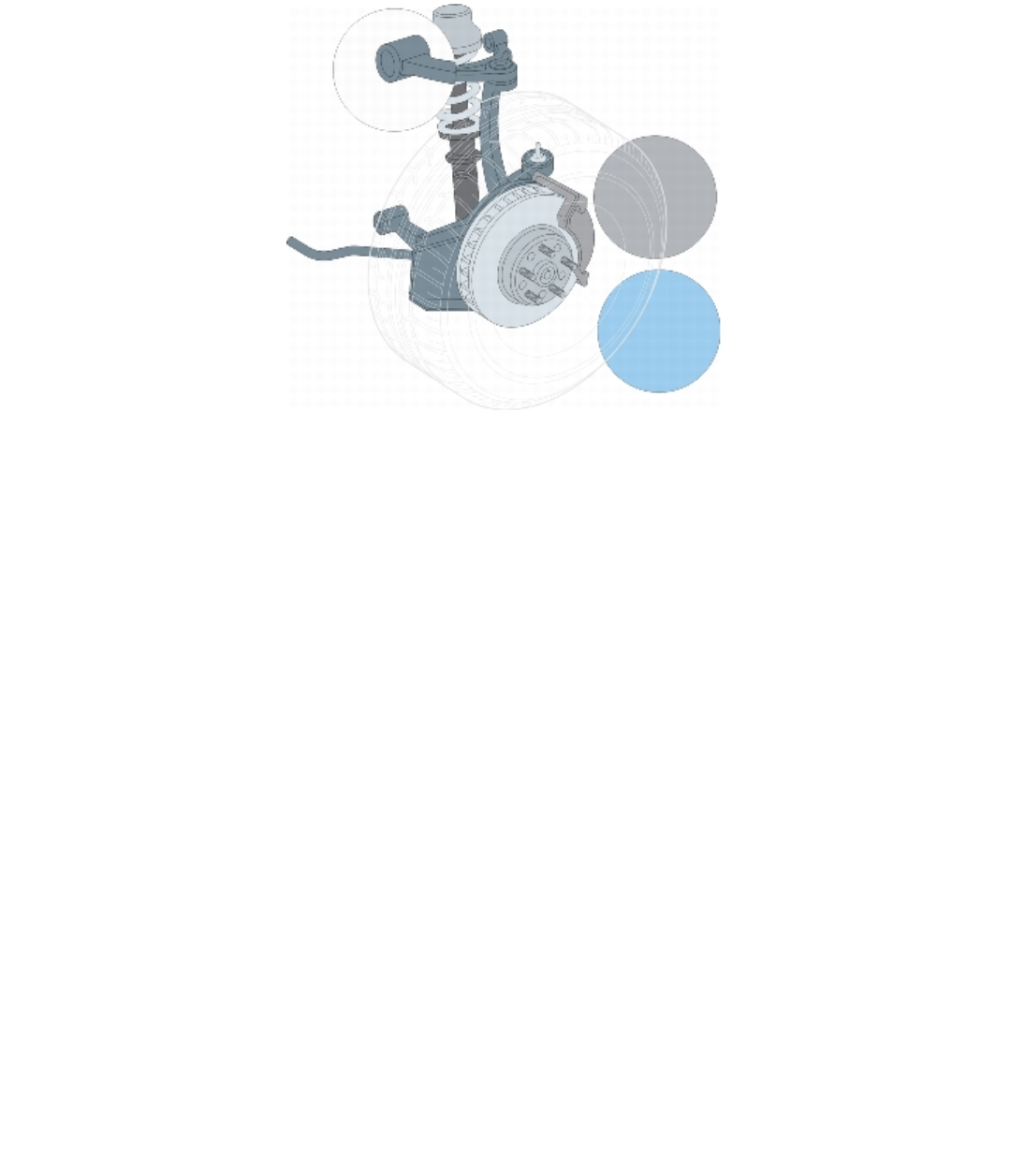
408 | Corel DESIGNER 2017 User Guide
The lens types applied to the illustration: (top to bottom) Magnify, Custom color map, and Heat map
The following are the types of lenses that you can apply to objects.
Lens Description
Brighten Lets you brighten and darken object areas and set the rate of the
brightness and darkness
Color add Lets you simulate an additive light model. The colors of the objects
beneath the lens are added to the color of the lens as if you were
mixing colors of light. You can choose the color and the amount of
color you want to add.
Color limit Lets you view an object area with only black and the lens color
showing through. For example, if you place a green color limit lens
over a bitmap, all colors except green and black are filtered out in
the lens area.
Custom color map Lets you change all the colors of the object area beneath the lens
to a color ranging between two colors you specify. You can choose
the range’s start and end colors and the progression between the
two colors. The progression can follow a direct, forward, or reverse
route through the color spectrum.
Fish eye Lets you distort, magnify, or shrink the objects beneath the lens,
according to the percentage value you specify
Heat map Lets you create the effect of an infrared image by mimicking the
heat levels of colors in object areas beneath the lens

Using lenses with objects | 409
Lens Description
Invert Lets you change the colors beneath the lens to their
complementary CMYK colors. Complementary colors are colors that
are opposite each other on the color wheel.
Magnify Lets you magnify an area on an object by an amount that you
specify. The magnify lens overrides the original object’s fill, making
the object look transparent.
Tinted grayscale Lets you change the colors of object areas beneath the lens to
their grayscale equivalents. Tinted grayscale lenses are particularly
effective for creating sepia-tone effects.
Transparency Lets you make an object look like a piece of tinted film or colored
glass
Wireframe Lets you display the object area beneath the lens with the outline or
fill color of your choice. For example, if you set red for the outline
and blue for the fill, all areas beneath the lens appear to have red
outlines and blue fills.
To apply a lens
1Select an object.
2Click Effects Lens.
3Choose a lens type from the list box in the Lens docker.
4Specify the settings you want.
You cannot apply the lens effect directly to linked groups such as contoured objects, beveled objects, extruded objects, paragraph
text or objects created with Linear pattern tools.
You can preview the different types of lenses in real time without auto-applying them to a drawing by clicking the Lock button and
then choosing a lens and settings to preview. When you find the lens you want to use, click Apply, or click the Lock button again to
resume auto-applying the lenses while previewing them.
To copy a lens
1Select the object to which you want to copy the lens.
2Click Effects Copy effect Lens from.
3Click the object from which you want to copy the lens.
Editing lenses
You can edit a lens to change how it affects the area beneath it. For example, you can change the viewpoint of a lens, indicated by an X in
the drawing window, to display any part of a drawing. The viewpoint represents the center point of what is being viewed through the lens.
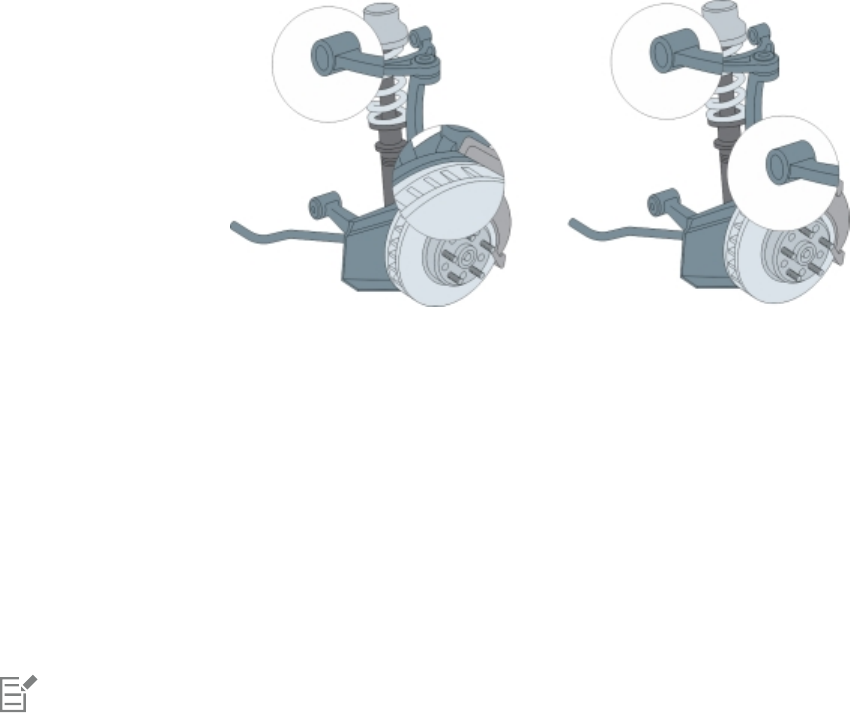
410 | Corel DESIGNER 2017 User Guide
You can position the lens anywhere in the drawing window, but it always shows the area around its viewpoint marker. For example, you can
use the viewpoint marker on the Magnify lens to enlarge part of a map.
You can also display a lens only where it overlaps other objects or the background. As a result, the lens effect is not seen where the lens
covers blank space (white space) in the drawing window.
Freezing the current view of a lens lets you move the lens without changing what’s displayed through it. In addition, changes you make to
the areas beneath the lens have no effect on the view.
Moving an unfrozen Magnify lens (left); moving a frozen Magnify lens (right)
To edit a lens
1Select an object.
2Click Effects Lens.
3Enable the Viewpoint check box on the Lens docker.
If you want to display a lens only where it covers other objects, enable the Remove face check box.
4Click Edit to display the viewpoint marker.
5Drag the viewpoint marker in the drawing window to a new location.
6Click End.
If you want to freeze the current view of a lens, enable the Frozen check box.
7Click Apply.
The Remove face check box is not available for the Fish Eye and Magnify lenses.
Text | 411
Text
Adding and manipulating text.............................................................................................................................................................413
Formatting text.................................................................................................................................................................................... 437
Adding equations................................................................................................................................................................................ 465
Working with text in different languages............................................................................................................................................ 467
Managing fonts................................................................................................................................................................................... 473
Using writing tools.............................................................................................................................................................................. 485
412 | Corel DESIGNER 2017 User Guide

Adding and manipulating text | 413
Adding and manipulating text
CorelDESIGNER provides multiple ways to add and manipulate text (also known as ‘type’). You can create two types of text objects: artistic
text and paragraph text. Artistic text is useful for adding a single word or a short line of text. Paragraph text is suitable for creating text-
intensive documents, such as newsletters or brochures.
You can change the position and appearance of text. For example, you can fit text to a path, wrap text around objects, or rotate text. You
can also format the appearance of characters and paragraphs. For more information, see “Formatting text” on page 437.
This section contains the following topics:
•“Importing and pasting text” (page 413)
•“Adding artistic text” (page 415)
•“Adding paragraph text” (page 415)
•“Adding columns to text frames” (page 419)
•“Combining and linking paragraph text frames” (page 420)
•“Aligning text by using the baseline grid” (page 423)
•“Selecting text” (page 424)
•“Finding, editing, and converting text” (page 424)
•“Shifting, rotating, mirroring, and flipping text” (page 426)
•“Moving text” (page 427)
•“Wrapping text” (page 428)
•“Fitting text to a path” (page 429)
•“Inserting special characters, symbols, and glyphs” (page 431)
•“Embedding graphics” (page 434)
•“Working with legacy text” (page 434)
Importing and pasting text
You can import text in a new or existing document. This allows you to author text in a word processor and then add it to a CorelDESIGNER
document. CorelDESIGNER supports the following text file formats:
• ANSI Text (TXT)
• Microsoft Word Document (DOC) files
• Microsoft Word Open XML Document (DOCX) files
• WordPerfect file (WPD)
• Rich Text Format (RTF) files
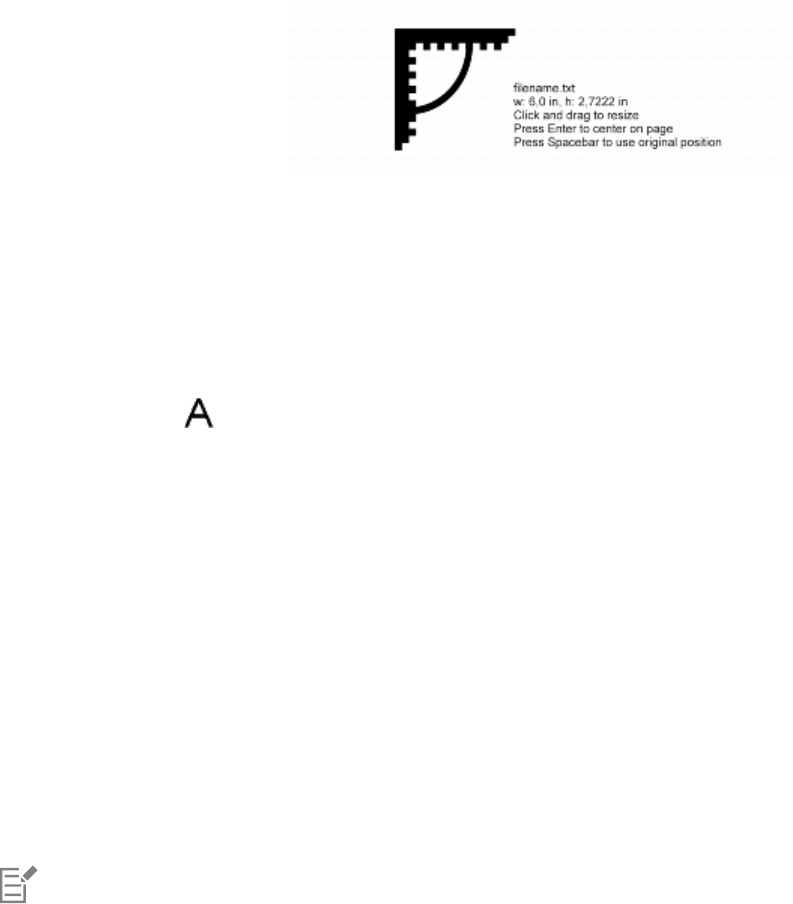
414 | Corel DESIGNER 2017 User Guide
When importing or pasting text, you can choose to keep or discard fonts and formatting. Maintaining fonts ensures that imported or pasted
text retains its original font. Maintaining formatting preserves information such as bullets and columns. If you choose to discard fonts
and formatting, the properties of the selected text are applied to the imported or pasted text. If no text is selected, the default font and
formatting properties are applied to the imported or pasted text. For more information about importing files, see “Importing files” on page
645. For more information about pasting, see “To paste an object into a drawing” on page 247.
The text import cursor lets you place text on the drawing page.
You can import text in a selected text frame, or, if you did not select a text frame, the imported text is automatically inserted in a new text
frame in the document window. By default, the size of text frames remains static, regardless of how much text you add to them. Any text
that does not fit the frame is hidden and the frame appears red until you enlarge it or link it to another text frame. You can adjust the text
size so that the text fits perfectly in the frame. For more information, see “Combining and linking paragraph text frames” on page 420.
To import text in a document
1Using the Text tool , position the cursor in the text frame where you want to import the text.
If you do not have a text frame in the document, skip step 1 and proceed to step 2.
2Click File Import.
3Choose the drive and folder where the file is stored.
4Click the filename.
5Click Import.
6In the Importing/Pasting text dialog box, choose one of the following options:
•Maintain fonts and formatting
•Maintain formatting only
•Discard fonts and formatting
If you want to apply CMYK black to the imported black text, enable the Force CMYK black check box. This check box is available when
you choose an option that maintains text formatting.
7Do one of the following:
• Position the import cursor in the drawing page, and click.
• Click and drag on the drawing page to define the size of the text frame.
• Press the Spacebar to place the imported text in the default location.
For more information about importing a specific file format, see “Supported file formats” on page 673.
You can replace existing text with imported translated text. For more information, see “Working with translated text” on page 471.
To paste text in a document
1Copy or cut text.
2Click Edit Paste.
3In the Importing/Pasting text dialog box, enable one of the following options:
Adding and manipulating text | 415
•Maintain fonts and formatting
•Maintain formatting only
•Discard fonts and formatting
If you want to apply CMYK black to the imported black text, enable the Force CMYK black check box. This check box is available when
you choose an option that maintains text formatting.
If you choose to maintain fonts, but the text that you import requires a font that is not installed on your computer, the PANOSE font
matching system substitutes the font for you. For more information, see “Substituting fonts” on page 474.
You can also set hyphenation options for imported text. For more information about hyphenation options, see “To create a custom
definition for optional hyphenation” on page 461.
If you want to use the same formatting options whenever you import or paste text, enable the Don’t show this warning again
check box. To reactivate the warning, click Tools Options, click Warnings in the Workspace list of categories, and enable the
Pasting and importing text check box.
Adding artistic text
Artistic text is useful for adding single words or short lines of text, such as headlines, to a document. You can then apply a wide range of
effects to the artistic text, such as drop shadows or a contour.
Artistic text appears in a bounding box in the document window
You can add artistic text along an open or closed path or fit existing artistic to a path. For more information, see “Fitting text to a path” on
page 429.
In addition, you can assign hyperlinks to text. For more information, see “To assign a hyperlink to text” on page 295.
To add artistic text
•Using the Text tool , click anywhere on the drawing page, and type.
You can convert artistic text to paragraph text by selecting the artistic text using the Pick tool and then clicking Text Convert
to paragraph text.
Adding paragraph text
You add paragraph text in a document by using text frames. Paragraph text, also known as “block text,” is generally reserved for larger
bodies of text that have greater formatting requirements. For example, you can use paragraph text when creating brochures, newsletters,
catalogs, or other text-intensive documents.
You can insert a text frame directly in the drawing window. You can also place text inside a graphic object, which increases the number of
different shapes that you can use as text frames. You can create a text frame from a closed object and then type text inside the frame. You
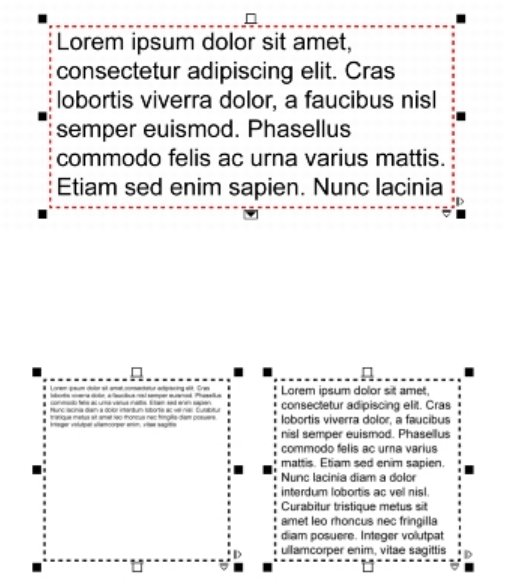
416 | Corel DESIGNER 2017 User Guide
can separate the frame from the object at any time, so that you can modify them independently. You can convert a text frame back to an
object.
If you want to see the layout of your document before you add the final content, you can fill the text frames with temporary placeholder
text. You can also use custom placeholder text.
By default, text frames have a fixed size, regardless of how much text you add to them. You can increase or decrease the frame size, so that
the text fits in the frame. If you add more text than a frame allows, the text continues past the lower-right border of the text frame, but
remains hidden. The color of the frame turns red to alert you that there's additional text. You can fix the overflow manually by increasing
the frame size, adjusting the text size, adjusting the column width, or linking the frame to another text frame. For more information, see
“Combining and linking paragraph text frames” on page 420.
The text frame turns red to indicate that there is additional text.
You can also choose to automatically adjust the point size of text so that it fits neatly inside a frame. If the text overflows, Corel DESIGNER
automatically decreases the point size; if you have little text, the application expands it to fill the frame.
The point size of the text in the frame (left) was automatically adjusted so that it fits neatly inside the frame (right).
You can also change the formatting of selected paragraph text frames and any frames to which they are linked. For information, see “To
specify formatting preferences for text frames” on page 422. You can also align text inside a text frame by using the baseline grid. For
more information, see “Aligning text by using the baseline grid” on page 423.
In addition, you can assign hyperlinks to paragraph text. For more information, see “To assign a hyperlink to text” on page 295. You can also
change the text orientation for Asian text. For more information, see “To choose a text orientation for Asian text” on page 467.
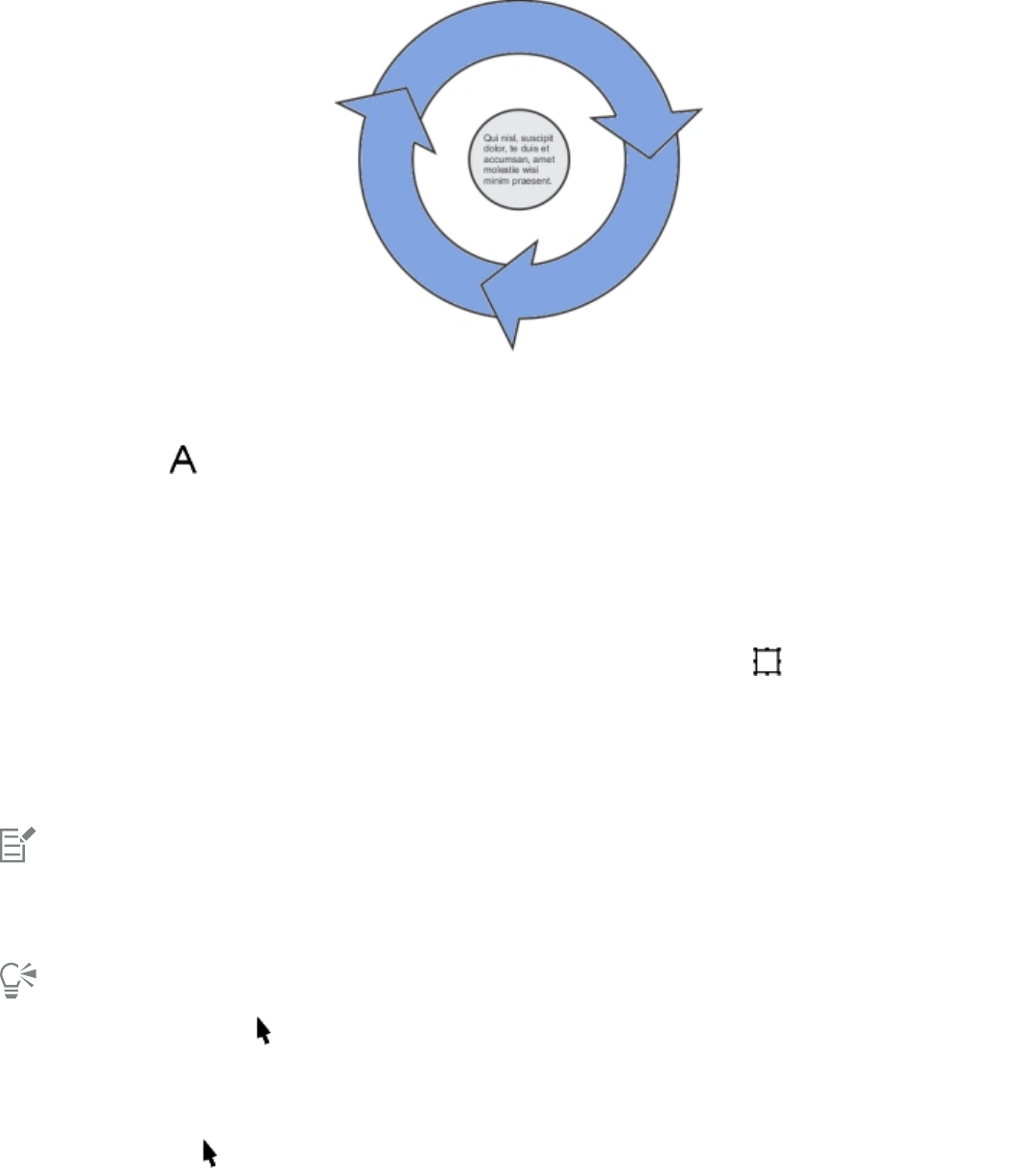
Adding and manipulating text | 417
Paragraph text placed inside an object.
To add paragraph text
1Click the Text tool .
2Drag in the drawing window to size the paragraph text frame.
3Type in the text frame.
You can also
Set text frame column width to adjust automatically to fit the text Click Window Property manager. In the Property manager
docker, click the Frame button to display the frame-related
options. In the Frame area, click the Columns buttons. In the
Column settings dialog box, enable the Automatically adjust
frame width option.
Apply a background color to a text frame Open the Background color picker, and click a color.
A red text frame indicates text overflow. You can fix the overflow manually by increasing the frame size, adjusting the text size, or
linking the frame to another text frame. For more information, see “Combining and linking paragraph text frames” on page 420.
You can also fix the overflow automatically by clicking Text Paragraph text frame Fit text to frame.
You can use the Pick tool to adjust the size of a paragraph text frame. Click the text frame, and drag any selection handle.
To create a frame from an object
1Do one of the following:
•Using the Pick tool , click the object in which you want to insert a text frame.
• Using a drawing tool, draw a closed shape.
2Select the object, and click Text Paragraph text frame Create empty text frame.
418 | Corel DESIGNER 2017 User Guide
You can also
Create a text frame from an object by using the Text tool Click the Text tool . Move the pointer over the outline of the
object, and click the object when the pointer changes to an Insert
in object pointer . Type inside the text frame.
Create a text frame from an object from the right-click menu Right-click the object, and click Frame type Create empty text
frame.
Create a text frame from an object by using the Layout toolbar Click View Toolbars Layout. Using the Pick tool , click
the object in which you want to insert a text frame. Click the Text
frame button.
To convert a text frame back to an object
• Right-click the text frame, choose Frame type, and click None.
If the frame contains content, the content is deleted when the frame reverts to a regular object.
You can also click the No frame button on the Layout toolbar. To open the Layout toolbar, click View Toolbars Layout.
To separate a text frame from an object
1Click the Pick tool .
2Select the object that includes the text frame.
3Click Object Break paragraph text inside a path apart.
The text frame and the object can now be moved or edited separately.
When you separate a text frame from some objects, such as ellipses or stars, the text does not retain the shape of the object.
Alternatively, the text is contained in a standard rectangular text frame.
To insert placeholder text
1Select an empty text frame.
2Click Text Paragraph text frame Insert placeholder text.
You can customize the placeholder text by creating text in a word processor or text application and saving the document as
placeholder.rtf. You then need to store the file in the following Users folder: My Documents\Corel\Corel Content. The next time
that you launch the application, the customized placeholder text is inserted in the text frame. However, if you save the file using an
incorrect file name or in the wrong folder, the default Lorem ipsum placeholder text is inserted in the text frame.
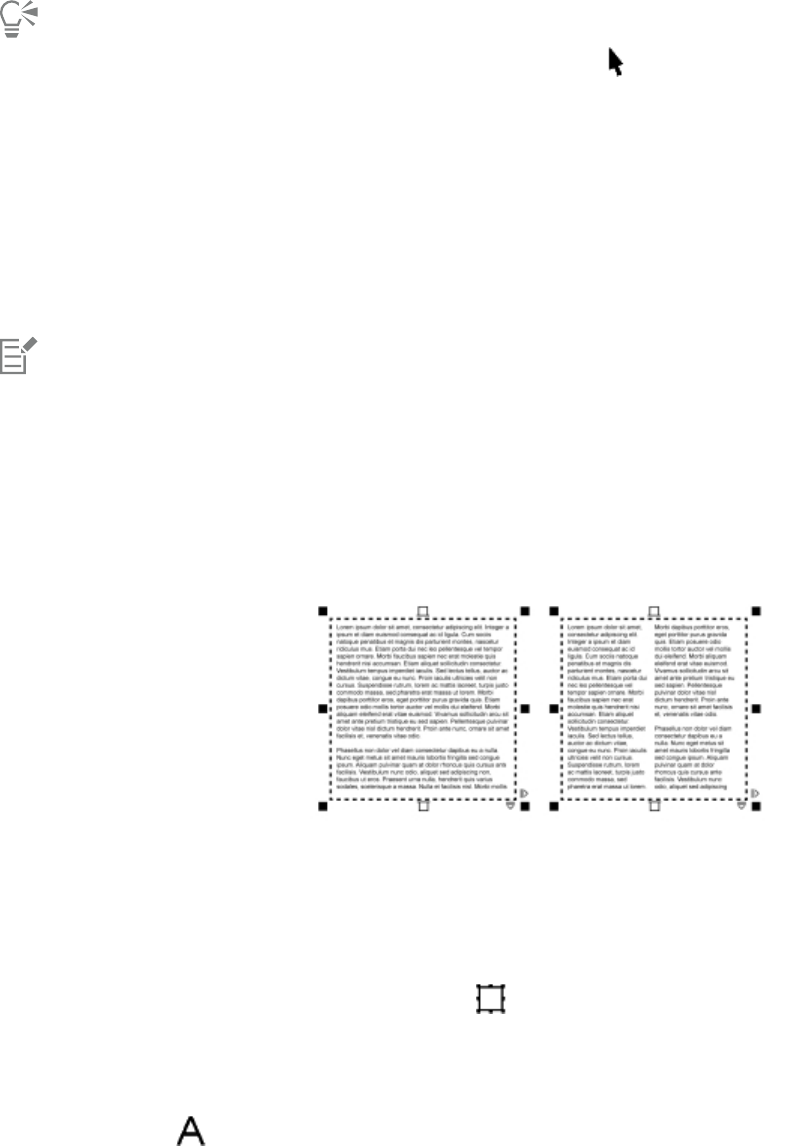
Adding and manipulating text | 419
You can insert placeholder text in multiple frames by clicking Pick tool , selecting the text frames while holding down Shift, and
then clicking Text Paragraph text frame Insert placeholder text.
You can also select the empty text frame, right-click, and choose Insert placeholder text.
When you insert placeholder text in the first frame in linked frames, the placeholder text fills all frames.
You can undo inserting placeholder text by clicking Edit Undo insert placeholder text.
To adjust text to fill the text frame
1Select a text frame.
2Click Text Paragraph text frame Fit text to frame.
If you choose to fit text to a frame that is linked to other frames, the application adjusts the size of text in all linked text frames. For
more information about linking text frames, see “Combining and linking paragraph text frames” on page 420.
Adding columns to text frames
You can lay out text in columns. You can create columns of equal or varying widths and gutters. You can also apply right-to-left text flow to
the columns for bidirectional (bidi) text, such as Arabic and Hebrew (Note that this option is available only for certain languages).
The text in the frame (left) was laid out in two columns (right).
To add columns to a text frame
1Select a paragraph text frame.
2Click Window Property manager.
3In the Property manager docker, click the Frame button to display the frame-related options.
4Type a value in the Number of columns box.
To resize text frame columns
1Click the Text tool and select a text frame with columns.
2Perform a task from the following table.
420 | Corel DESIGNER 2017 User Guide
To Do the following
Manually adjust column and gutter width Click the Text tool . Drag a column side selection handle.
Set a specific column and gutter width In the Property manager docker, click the Frame button to
display the frame-related options. Click the Columns button ,
and type values in the Width or Gutter boxes.
Automatically create columns of equal width In the Property manager docker, click the Frame button to
display the frame-related options. Click the Columns button ,
and enable the Equal column width check box.
To change the flow of bidirectional text in columns
1Select a paragraph text frame.
2Click Window Property manager.
3In the Property manager docker, click the Frame button to display the frame-related options.
4Enable the Right-to-left columns check box.
The Right-to-left columns option is available only for bidirectional languages, such as Hebrew and Arabic. The proper keyboard must
also be installed.
Combining and linking paragraph text frames
You can combine text frames. You can also break text frames apart into subcomponents — columns, paragraphs, bullets, lines, words, and
characters. Every time you break apart a text frame, the subcomponents are placed into separate text frames.
Linking text frames directs the overflow text of one text frame to another. If you resize a linked frame, or change the size of the text, the
amount of text in the next frame is automatically adjusted. You can link text frames before or after you type text.
You cannot link artistic text. However, you can link a paragraph frame to an open or closed object. When you link a frame to an open object,
such as a line, the text flows along the path of the line. Linking a text frame to a closed object, such as a rectangle, inserts a text frame and
directs the flow of text inside the object. If text exceeds the open or closed path, you can link the text to another frame or object. You can
also link to existing frames and objects across pages or create a linked frame in the same location on another page.
After linking text frames, you can redirect the flow from one object or text frame to another. When you select the text frame or object, a
blue arrow indicates the direction of the text flow. You can hide or display these arrows.
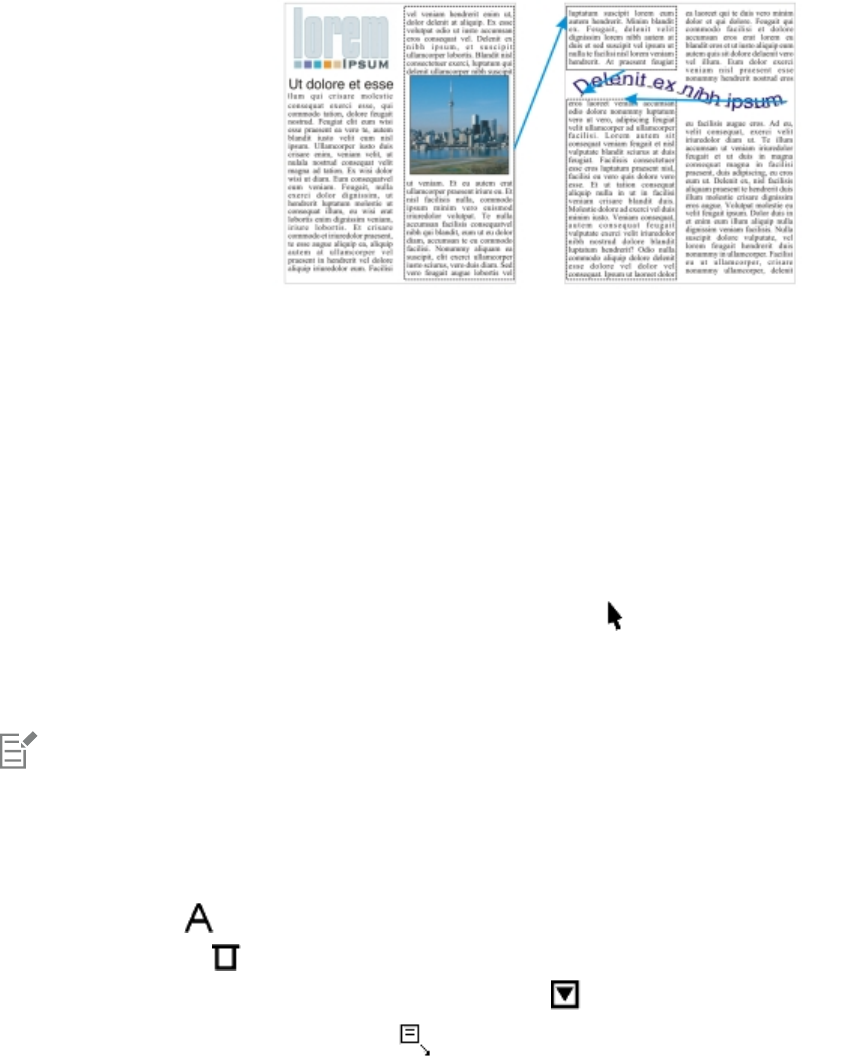
Adding and manipulating text | 421
You can make text flow between text frames and objects by linking the text.
You can remove links between multiple frames, and between frames and objects. When you have only two linked frames and you remove
the link, the overflow text remains in the second frame. Deleting a frame that is part of a series of linked frames redirects the text flow into
the next frame or object.
By default, paragraph formatting, such as columns, drop caps, and bullets, is applied to the selected text frames only. However, you can
change your settings so that formatting is applied to all linked text frames, or to all selected and subsequently linked text frames. For
example, if you apply columns to the text in one frame, you can choose whether to apply columns to the text in all the linked frames.
To combine or break apart paragraph text frames
1Select a text frame.
If you are combining text frames, hold down Shift, and use the Pick tool to select subsequent text frames.
2Click Object, and click one of the following:
•Combine
•Break apart
Text frames with envelopes, text fitted to a path, and linked text frames cannot be combined.
If you first select a text frame with columns, the combined text frame will have columns.
To link paragraph text frames and objects
1Using the Text tool , select the starting text frame.
2Click the Text flow tab at the bottom of the text frame or object.
If the text frame cannot hold all the text, the tab contains an arrow and the text frame becomes red.
3When the pointer changes to a Link to pointer , do one of the following:
• To link to a frame or object on the same page, click the text frame or object into which you want to continue the text flow.
• To link to an existing frame or object on a different page, click the corresponding Page tab on the document navigator, and then click
the text frame or object.
• To create a new linked frame on another page, click the corresponding Page tab on the document navigator, and hover over the area
of the drawing page that corresponds to the position of the first frame. When a preview of the frame appears, click to create the
linked frame. The new frame has the same size and position as the original frame. If you click elsewhere on the page, the text frame
that is created is the size of the entire page.
422 | Corel DESIGNER 2017 User Guide
If a text frame is linked, the Text flow tab changes , and a blue arrow indicates the direction of text flow. If the linked text is on
another page, the page number and a dashed blue line are displayed. To hide or display these indicators, see “To specify formatting
preferences for text frames” on page 422.
To link text frames successfully, you have to make sure that the automatic sizing of frames is disabled. For more information, see “To
add paragraph text” on page 417.
To redirect text flow to a different text frame or object
1Using the Pick tool , click the Text flow tab at the bottom of the frame or object that contains the text flow that you want to
modify.
2Select the new frame or object into which you want the text flow to continue.
To remove links between text frames or objects
1Using the Pick tool, select the linked frames or objects.
2Click Text Paragraph text frame Unlink.
You can disconnect linked frames on different pages only if they are on facing pages.
You can also remove links by clicking a text frame, and then clicking Object Break text apart.
To specify formatting preferences for text frames
1Click Tools Options.
2In the Workspace list of categories, double-click Text, and click Paragraph text frame.
If you want to hide or display the text flow indicators, disable or enable the Show linking of text frames check box.
3In the When editing, apply paragraph frames formatting to area, enable one of the following options:
•All linked frames — applies paragraph formatting to selected text frames and all text frames that are linked to them
•Selected frames only — applies paragraph formatting to the selected text frames only
•Selected and subsequent frames — applies paragraph formatting to selected text frames and any text frames that are later linked to
them.
You can also
Display and hide text frames Click Tools Options, double-click Text, and click Paragraph text
frame from the Workspace list of categories. Enable the Show text
frames check box.
Enable automatic expanding and shrinking of frames to fit text Click Tools Options, double-click Text, and click Paragraph text
frame from the Workspace list of categories. Enable the Expand
and shrink paragraph text frames to fit text check box.
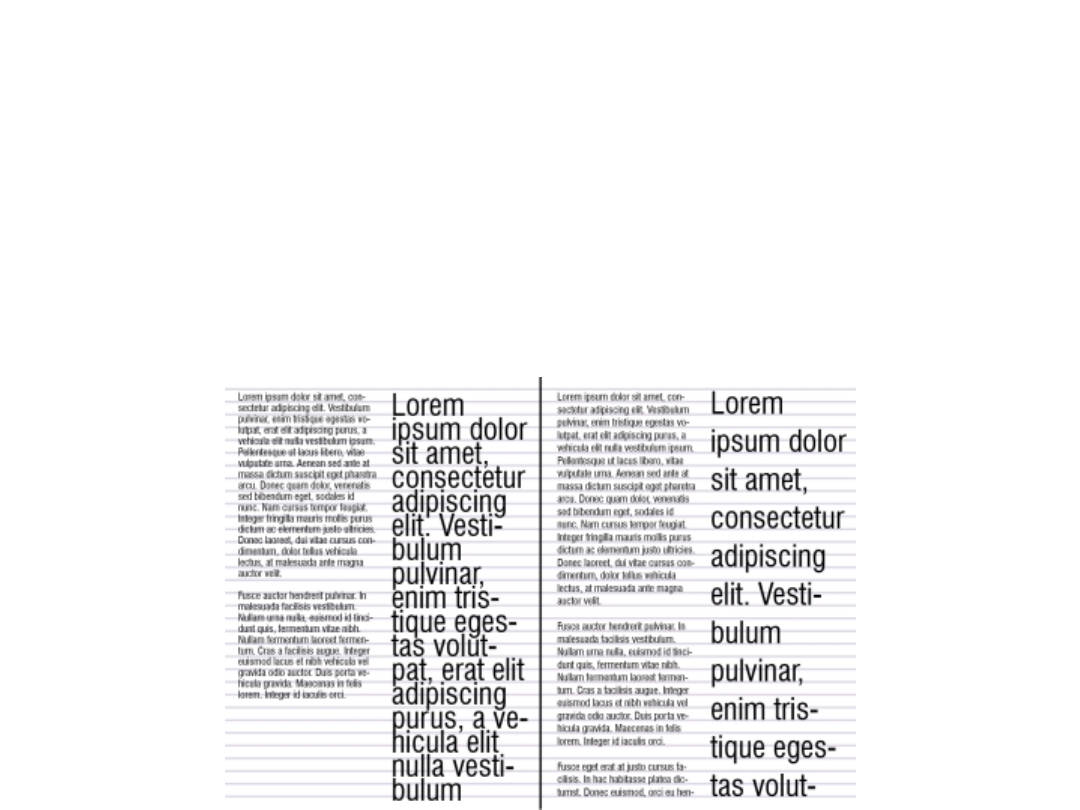
Adding and manipulating text | 423
You can also
Ensure all text frames are web-compatible Click Tools Options, double-click Text, and click Paragraph text
frame from the Workspace list of categories. Enable the Make all
new paragraph text frames web compatible check box.
Aligning text by using the baseline grid
You can align text within a frame or in different frames by using the baseline grid. This is useful, for example, when you want to align two or
more text frames that contain different fonts, font sizes, and spacing.
All objects can snap to the baseline grid; only text frames can align to the baseline grid. Snapping is turned on or off for all objects (it’s a
grid setting). Alignment is turned on or off for individual frames (it’s a text frame setting). For information about displaying or hiding the
baseline grid, turning snapping on or off, changing the grid color, and setting the line spacing, see “Setting up the baseline grid” on page
544.
Text columns with different fonts and font sizes (left) are aligned by using the baseline grid (right).
When you align paragraph text to the baseline grid, the line spacing is adjusted automatically so that the lines of text sit on the baseline
grid. When text is aligned to the baseline grid, the line spacing is controlled by the grid rather than by the text properties that have been
previously set. For more information about line spacing, see “Adjusting line and paragraph spacing” on page 451.
You can set one or more text frames to align to the baseline grid. When this option is enabled, the text in the text frame is aligned to the
baseline grid when part or all of the text frame overlaps with the drawing page. If the text frame is moved completely outside the drawing
page, the text is no longer aligned to the baseline grid.
If you align a text frame to the baseline grid and then link it to another frame, both frames are aligned to the baseline grid. If you align one
of several already linked frames to the baseline grid, only the selected frame is aligned. For more information about linking text frames, see
“Combining and linking paragraph text frames” on page 420.
To align paragraph text to the baseline grid
1Click View Grid Baseline grid.
2Select a text frame.
3Click Text Align to baseline grid.
424 | Corel DESIGNER 2017 User Guide
You can also right-click the text frame and choose Align to baseline grid.
You can align multiple selected frames at the same time.
Selecting text
CorelDESIGNER lets you select text to edit specific characters or modify it as an object. For example, you can select specific characters to
change the font or select a text object, such as a text frame, so you can move, resize, or rotate it.
To select a text object
To Do the following
Select artistic text Using the Pick tool , click the artistic text.
Select a text frame Using the Pick tool , click the text frame.
You can use the Pick tool to select multiple text objects. Hold down Shift, and click each text object.
To select text for editing
To Do the following
Select specific characters of artistic or paragraph text for editing Using the Text tool , drag across the text.
Select a text frame for editing Using the Text tool , click the text frame.
Finding, editing, and converting text
You can find text in a document and replace it automatically. You can also find special characters, such as an em dash or optional hyphen.
You can edit text directly in the drawing window or in a dialog box.
CorelDESIGNER lets you convert artistic text to paragraph text if you require more formatting options, and paragraph text to artistic text if
you’d like to apply special effects.
You can also convert both paragraph and artistic text to curves. By transforming characters into lines or curve objects, you can add, delete,
or move the nodes of individual characters to alter their shape. For more information, see “Working with curve objects” on page 69.
When you convert text to curves, the appearance of the text is preserved, including font, style, character position and rotation, spacing, and
any other text settings and effects. Any linked text objects are also converted to curves. If you convert paragraph text in a fixed-sized text
frame to curves, any text that overflows the text frame is deleted. For information about fitting text to a text frame, see “Formatting text” on
page 437.

Adding and manipulating text | 425
To find text
1Click Edit Find and replace Find text.
2Type the text that you want to find in the Find box.
If you want to find the exact case of the text that you specified, enable the Match case check box.
3Click Find next.
You can also find special characters by clicking the right arrowhead next to the Find box, choosing a special character, and clicking
Find next.
To find and replace text
1Click Edit Find and replace Replace text.
2Type the text that you want to find in the Find box.
If you want to find the exact case of the text that you specified, enable the Matchcase check box.
If you want to find only whole words, enable the Find whole words only check box.
3Type the replacement text in the Replace with box.
4Click one of the following buttons:
•Find next — finds the next occurrence of the text that is specified in the Find box
•Replace — replaces the selected occurrence of the text that is specified in the Find box. If no occurrence is selected, Replace finds the
next occurrence.
•Replace all — replaces every occurrence of the text that is specified in the Find box
To edit text
1Click the Text tool .
2Perform a task from the following table.
To Do the following
Edit artistic text Click in the artistic text.
Edit paragraph text Click in the text frame.
Text that has been converted to curves cannot be edited.
You can also edit text by clicking Text Edit text, and making changes to the text in the Edit text dialog box.
To convert text
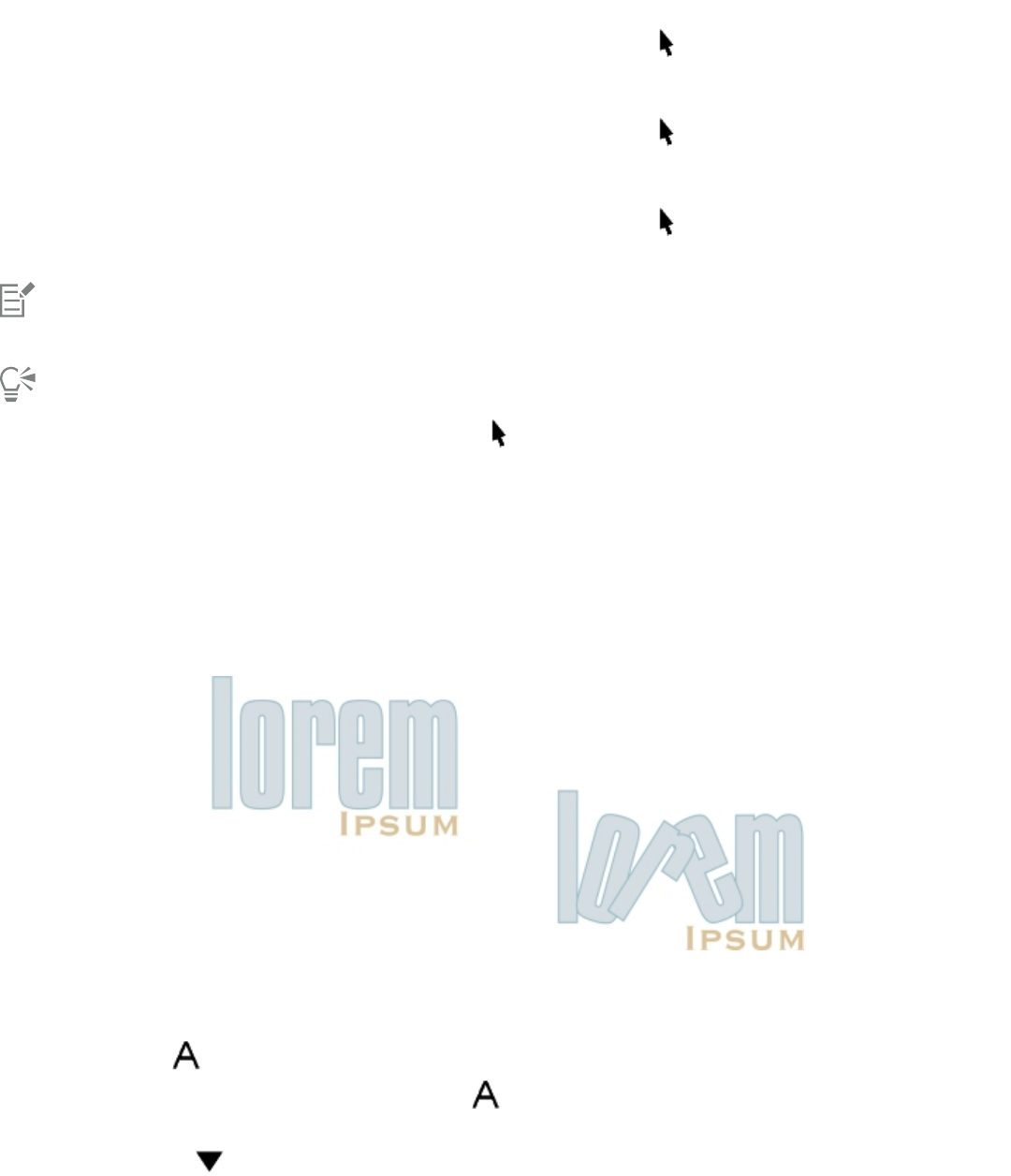
426 | Corel DESIGNER 2017 User Guide
To Do the following
Convert paragraph text to artistic text Using the Pick tool , select the text, and click Text Convert to
artistic text.
Convert artistic text to paragraph text Using the Pick tool , select the text, and click Text Convert to
paragraph text.
Convert artistic or paragraph text to curves Using the Pick tool , select the text, and click Object Convert
to curves.
Paragraph text cannot be converted to artistic text when it’s in a linked frame, has text overflow, or has special effects applied to it.
You can also convert text to curves by clicking the Pick tool , right-clicking the text, and clicking Convert to curves.
Shifting, rotating, mirroring, and flipping text
You can shift the characters of artistic and paragraph text vertically or horizontally or rotate them to create interesting effects.You can
straighten characters into their original position, and you can return vertically shifted characters to the baseline. You can also mirror or flip
artistic and paragraph text characters.
If you want to adjust the position of an entire text object that is fitted to a path, such as a circle or a freehand line, see “To adjust the
position of text that is fitted to a path” on page 430.
Rotated characters
To shift or rotate a character
1Using the Text tool , select the character or characters.
2In the Property manager docker, click the Character button to display the character-related options.
To display the Property manager docker, click Window Property manager.
3Click the arrow button at the bottom of the Character area to display additional options.
Adding and manipulating text | 427
4Type a value in one of the following boxes:
•Horizontal character offset — A positive number moves characters to the right, and a negative number moves characters to the left.
•Vertical character offset — A positive number moves characters up, and a negative number moves characters down.
•Character angle — A positive number rotates characters counterclockwise, and a negative number rotates characters clockwise.
You can also use the Shape tool to shift or rotate characters. Select the character node or nodes, and then type values in the
Horizontal character offset box, Vertical character offset box, or Character angle box on the property bar.
To straighten a shifted or rotated character
1Using the Text tool , select one or more characters.
2Click Text Straighten text.
To return a vertically shifted character to the baseline
1In the toolbox, open the Shape tool flyout.
2Click the Shape tool .
3Select the text object, and select the node to the left of the shifted character.
4Click Text Align to baseline.
To mirror text
1Using the Pick tool, select a text object.
2On the property bar, click one of the following buttons.
•Mirror horizontally — flips the text characters from left to right
•Mirror vertically — flips the text characters from top to bottom
You can also mirror text by holding down Ctrl and dragging a selection handle to the opposite side of the object.
You can also mirror text fitted to a path. For more information, see “To mirror text that is fitted to a path” on page 431.
To flip text by dragging diagonally
1Using the Text tool , select the artistic text or the paragraph text frame.
2Drag a middle selection handle across the text and past the corner handle on the opposite side.
Moving text
CorelDESIGNER offers different methods for moving text. If you select text as an object, such as a block of artistic text or a text frame, you
can move it to a new position, as you would any other object.
You can also move a selection of paragraph text between text frames or move artistic text between artistic text objects. Conversely, you can
move paragraph text to an artistic text object, or artistic text to a paragraph text frame.
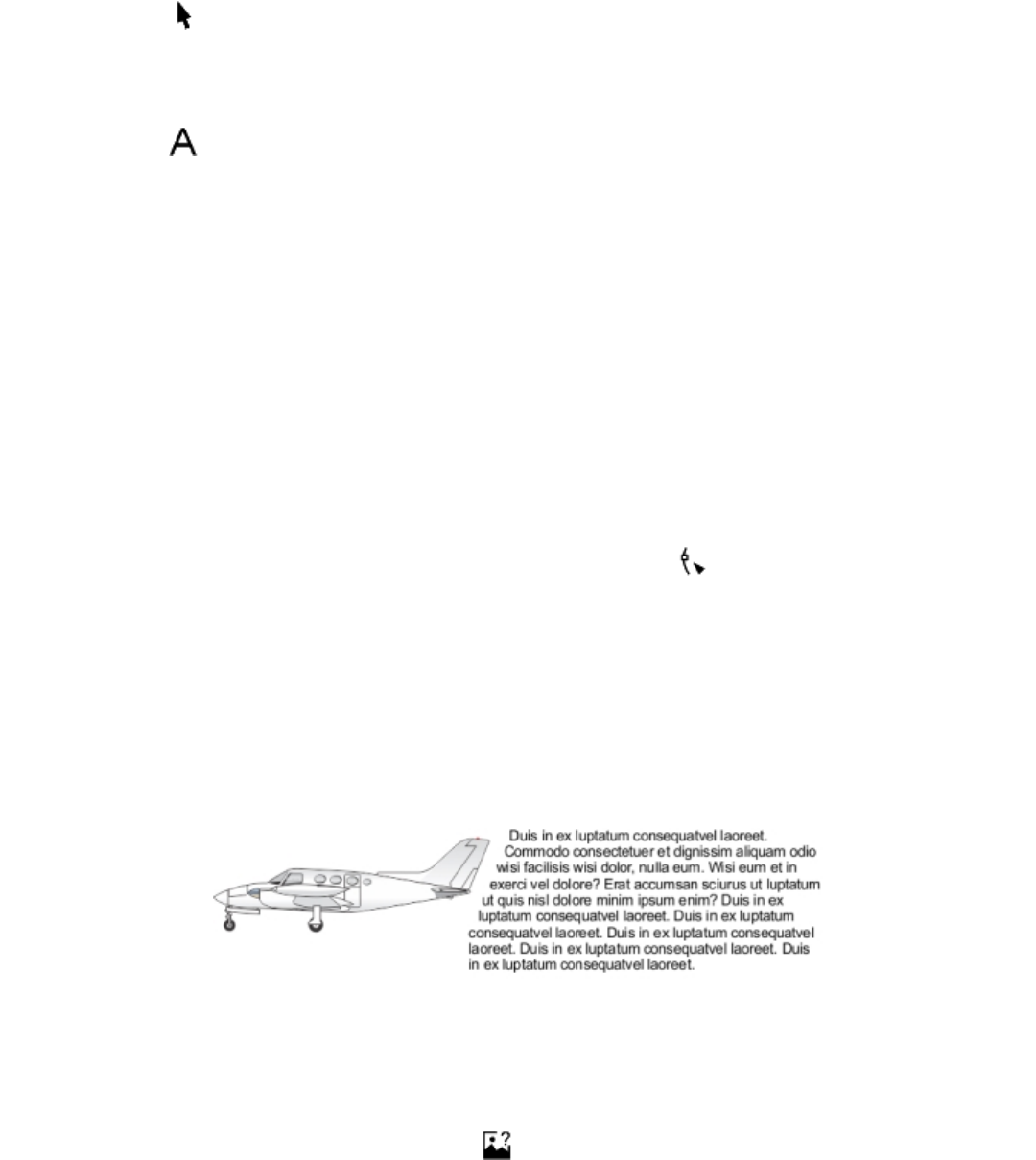
428 | Corel DESIGNER 2017 User Guide
To move a text object
1Click the Pick tool .
2Drag the text object to a new position in the drawing window.
To move a text selection
1Click the Text tool .
2Select the text that you want to move.
3Perform a task from the following table.
To Do the following
Move text within the same text object Drag the text to a new position within the text object. The text
cursor appears to indicate the insertion point.
Move the text to another text object. Drag the text to another text object. The text cursor appears to
indicate the insertion point.
Move or copy selected text to a new text object With the right mouse button, drag the text to a new position,
release the mouse button, and click Copy here or Move here.
Move an individual character freely in the drawing window Click the Shape tool , select the text object, and drag a
character’s selection handle in the lower-left corner of the
character.
Wrapping text
You can change the shape of text by wrapping paragraph text around an object, artistic text, or a text frame. You can wrap text by using
contour or square wrapping styles. The contour wrapping styles follow the curve of the object. The square wrapping styles follow the
bounding box of the object. You can also adjust the amount of space between paragraph text and the object or text, and you can remove
any previously applied wrapping style.
Text wrapped around an object by using the contour wrapping style
To wrap paragraph text around an object, artistic text, or a text frame
1Select the object or text around which you want to wrap text.
2Click Window Property manager.
3In the Property manager docker, click the Summary button .
4Choose a wrapping style from the Wrap paragraph text list box.
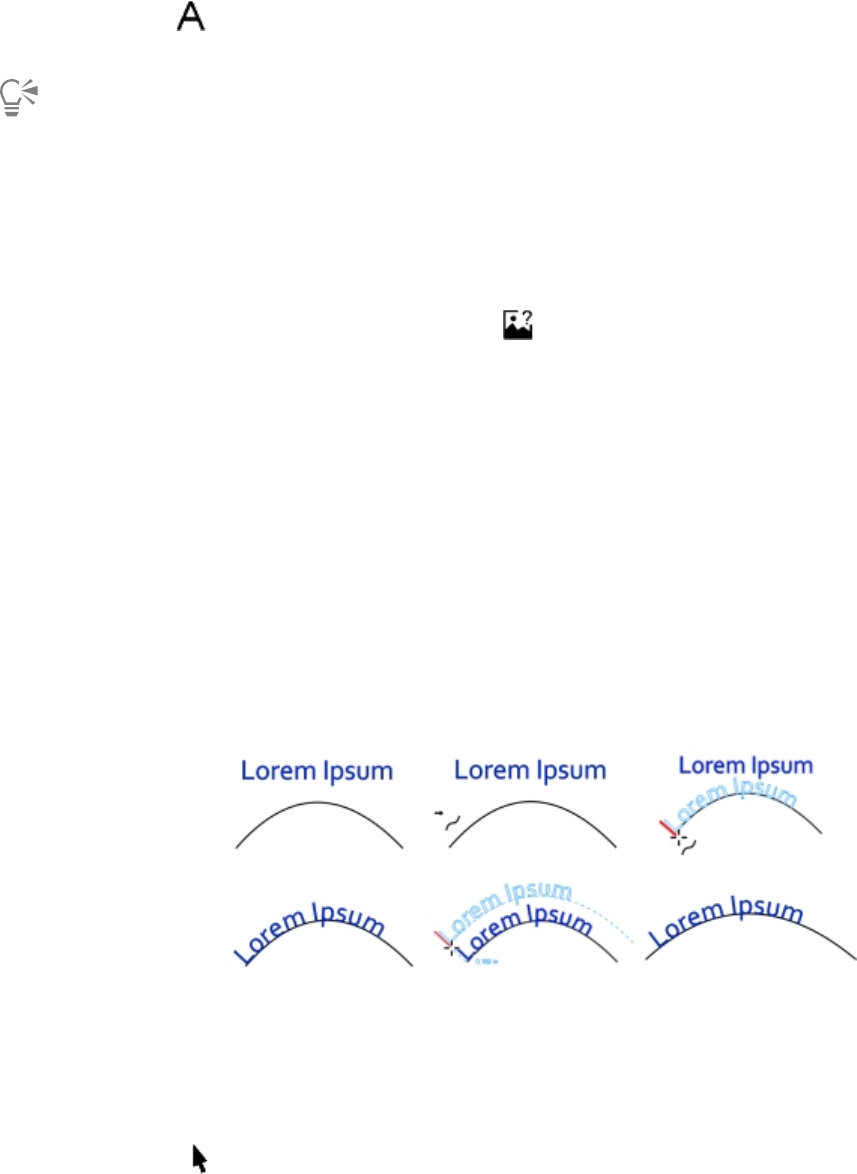
Adding and manipulating text | 429
If you want to change the amount of space between wrapped text and the object or text, change the value in the Text wrap offset box.
5Click the Text tool , and drag over the object or text to create a paragraph text frame.
6Type text in the text frame.
You can wrap existing paragraph text around a selected object by applying a wrapping style to the object and dragging the text
frame over the object.
To remove a wrapping style
1Select the wrapped text or the object it wraps.
2Click Window Property manager.
3In the Property manager docker, click the Summary button .
4Choose None from the Wrap text list box.
Fitting text to a path
You can add artistic text along the path of an open object (for example, a line) or a closed object (for example, a square). You can also fit
existing text to a path. Paragraph text in a text frame can be fitted to open paths only.
After you fit text to a path, you can adjust the text position relative to that path. For example, you can mirror the text horizontally, vertically,
or both. Using tick spacing, you can specify an exact distance between the text and the path.
CorelDESIGNER treats text fitted to a path as one object; however, you can separate the text from the object if you no longer want it to be
part of the path. When you separate text from a curved or closed path, the text retains the shape of the object to which it was fitted. You
can also modify the text and path properties independently.
The text reverts to its original appearance when you straighten it.
Text and curve as separate objects (upper left), choosing a path with the Fit Text to Path pointer (upper
middle), aligning text while fitting it to path (upper right), text fitted to path (lower left), interactive feedback
about offset distance (lower middle), and text and curve stretched horizontally by 200% (lower right)
To add text along a path
1Using the Pick tool , select a path.
2Click Text Fit text to path.
430 | Corel DESIGNER 2017 User Guide
The text cursor is inserted on the path. If the path is open, the text cursor is inserted at the beginning of the path. If the path is closed,
the text cursor is inserted at the center of the path.
3Type along the path.
Text cannot be added to the path of another text object.
You can also fit text to a path by clicking the Text tool and pointing to a path. When the pointer changes to the Fit text to path
pointer , click where you want the text to begin, and type.
To fit text to a path
1Using the Pick tool , select a text object.
2Click Text Fit text to path.
The pointer changes to the Fit text to path pointer . By moving the pointer over the path, you can preview where the text will be
fitted.
3Click a path.
If the text is fitted to a closed path, the text is centered along the path. If the text is fitted to an open path, the text flows from the point
of insertion.
Artistic text can be fitted to open or closed paths. Paragraph text can be fitted to open paths only.
Text cannot be fitted to the path of another text object.
To adjust the position of text that is fitted to a path
1Using the Pick tool , select the text that is fitted to a path.
2Choose a setting from any of the following list boxes on the property bar:
•Text orientation — specifies how the text bends to follow the path
•Distance from path — distance between the text and the path
•Offset — horizontal position of the text along the path
You can also
Use tick spacing to increase the distance between the path and the
text in specified increments
Select the text. On the property bar, click Tick snapping, enable the
Tick snapping on option, and type a value in the Tick spacing box.
When you move the text from the path, it moves in the increment
you specified in the Tick spacing box. When you move the text, the
distance from the path is displayed below the original text.
Change the horizontal position of fitted text Using the Shape tool , select the text, and drag the character
nodes that you want to reposition.
Adding and manipulating text | 431
You can also
Move fitted text along or off the path Using the Pick tool , drag the red glyph that appears next to
the text.
When you drag the glyph along the path, a preview of the text
is displayed. When you drag the glyph off the path, the distance
between the text preview and the path is displayed.
To mirror text that is fitted to a path
1Using the Pick tool , click the text that is fitted to a path.
2On the property bar, click one of the following buttons:
•Mirror text horizontally — flips the text characters from left to right
•Mirror text vertically — flips the text characters upside down
You can apply a 180-degree rotation to text that is fitted to a path by clicking both the Mirror text horizontally and the Mirror text
vertically buttons.
To separate text from a path
1Using the Pick tool , select the path and the fitted text.
2Click Object Break text apart.
To straighten text
1Using the Pick tool , select the path and the fitted text.
2Click Object Break text apart.
3Using the Pick tool, select the text.
4Click Text Straighten text.
Inserting special characters, symbols, and glyphs
Using the Insert character docker, you can find and insert special characters, symbols, and glyphs (variations of individual characters or
character combinations) of OpenType fonts.
Filtering
All characters, symbols, and glyphs included in a font are displayed by default, but you can filter character subsets to display only the
characters you want. For example, you can display only currency symbols or numbers, or you can display only Cyrillic characters and symbols.
Characters included in a font are organized in the following categories:
•Common — includes arrows, currency, mathematical symbols, numbers, punctuation marks, and separators as well as CJK symbols and
punctuation marks (used in Asian scripts)
•Scripts — includes the scripts that the selected font supports, such as Latin, Greek, Cyrillic, Hiragana and Katakana, Han, Arabic, or
Hebrew scripts
•OpenType — includes the OpenType features provided by the selected font such as standard ligatures, discretionary ligatures, fraction,
alternate annotation forms, and more. For more information about OpenType features, see “Working with OpenType features” on page
445.
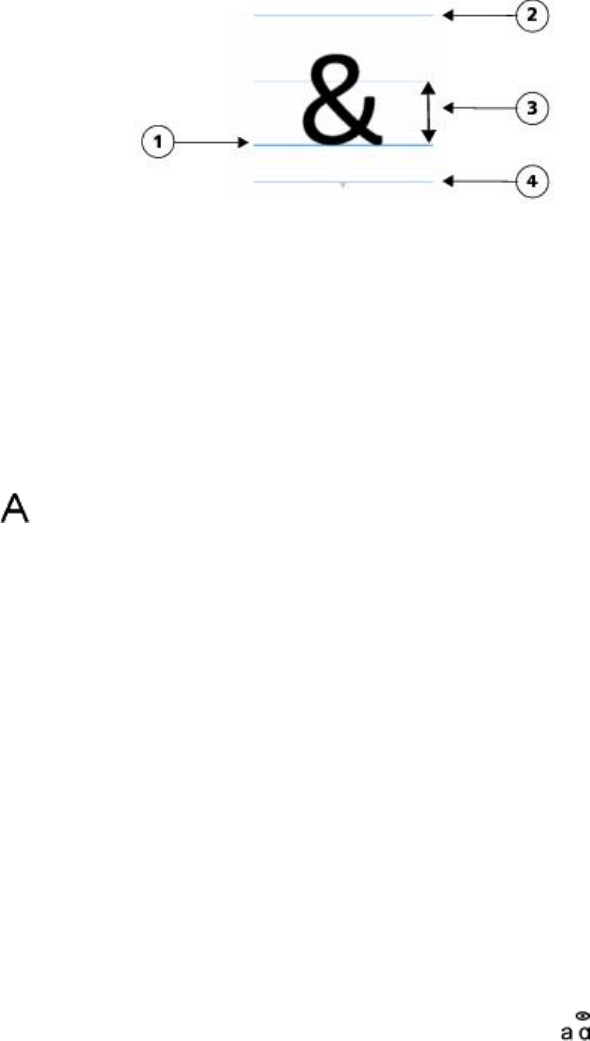
432 | Corel DESIGNER 2017 User Guide
OpenType fonts
The Insert character docker is ideal for viewing and applying the OpenType features provided by OpenType fonts. The default view shows a
list of characters in which the glyphs for individual characters appear grouped. Alternatively, you can display a longer list that shows available
glyphs at a glance.
Viewing character position
Each selected character appears against a set of blue lines that let you preview its position in relation to the text baseline.
1) Text baseline 3) Font x-height
2) Ascender line 4) Descender line
Most recently used special characters
You can use the list of most recently used special characters to copy characters that you use often. The list retains the font attributes of most
recently used characters and any OpenType features that were applied. You can manage the list by removing characters that you no longer
need.
To add a special character, symbol, or glyph
1Using the Text tool , click where you want to add the special character.
2Click Text Insert character.
3In the Insert character docker, choose a font from the Font list box.
4Double-click a character in the Character and glyph list.
If you cannot find the character you want, open the Character filter list box, and enable the Entire font check box.
To filter special characters, symbols, and glyphs
1Click Text Insert character.
2In the Insert character docker, choose a font from the Font list box.
3Open the Character filter list box, and enable the check boxes for the character subsets that you want to display.
4Click Close.
To view glyphs of OpenType features
1Click Text Insert character.
2In the Insert character docker, choose an OpenType font from the Font list box.
3Open the Character filter list box, and in the OpenType area, enable any of the check boxes for the available OpenType features.
4Do one of the following:
•To display a list that includes grouped glyphs, make sure that the Show all glyphs button does not appear pressed. To view all
glyphs in a group, click a character, and then click the OpenType feature indicator. Click a glyph to display it in the Character and
glyph list.
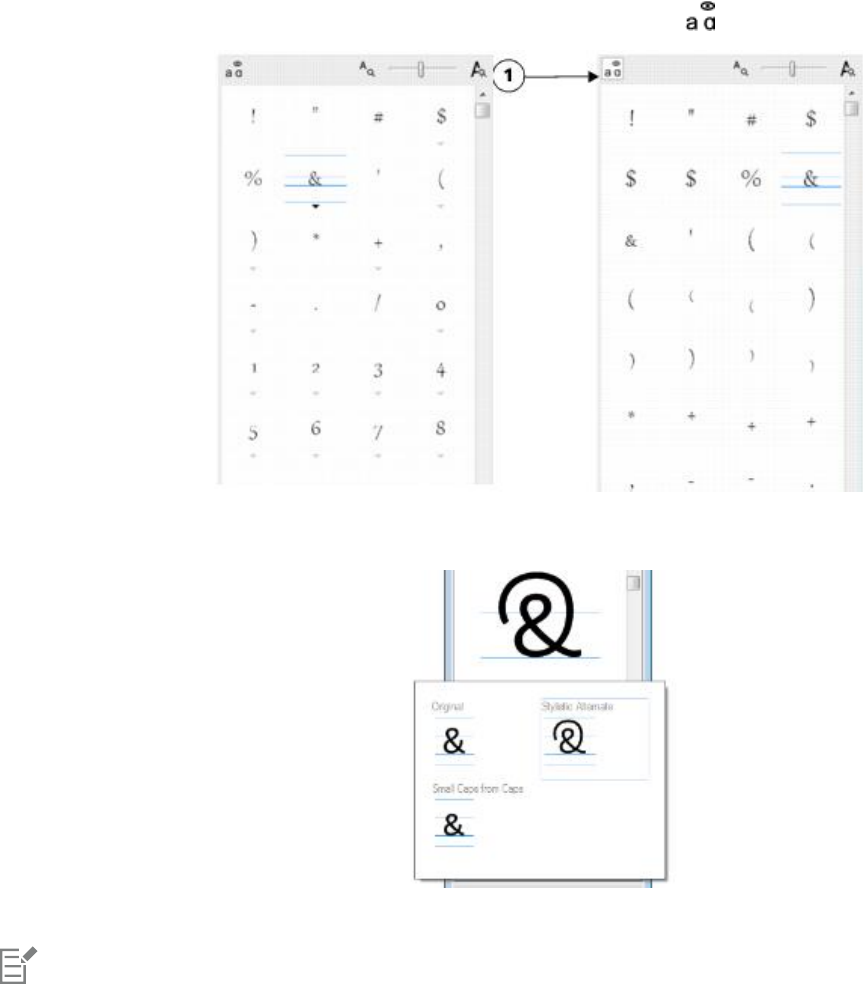
Adding and manipulating text | 433
•To display a list that includes all available glyphs, click the Show all glyphs button .
Left: The OpenType feature indicators below individual characters show that more glyphs are available.
Right: When the Show all glyphs button (1) is pressed, you can see available glyphs at a glance.
Viewing grouped glyphs
The Show all glyphs button is not available for fonts that do not support OpenType features.
Some glyphs provided by OpenType features vary depending on the context in which they appear and cannot be shown in the Insert
character docker. You can view and insert such glyphs in the document window by using the onscreen OpenType feature indicator.
For more information, see “To enable the onscreen OpenType feature indicator” on page 449.
To use the list of most recently used special characters
1Click Text Insert character.
2In the list of most recently used special characters, perform a task from the following table.

434 | Corel DESIGNER 2017 User Guide
To Do the following
View the font and OpenType attributes of a character Point to the character.
Copy a character from the list Right-click the character, and click Copy.
Remove characters from the list Right-click a character, and click Remove or Remove all.
Embedding graphics
You can embed a graphic object or bitmap in text. The graphic object or bitmap is treated as a text character. As a result, you can apply
formatting options according to the type of text in which you embed the graphic object. You can also remove an embedded object from
text, after which the object returns to its original state.
To embed a graphic object in text
1Select a graphic object.
2Click Edit, and click one of the following:
•Cut
•Copy
3Using the Text tool , click where you want to embed the graphic object.
4Click Edit Paste.
To remove an embedded object from text
1Using the Text tool , select an embedded object.
2Click Edit Cut.
3Click the Pick tool , and click outside the text object.
4Click Edit Paste.
Working with legacy text
If a document contains text and was created in a previous version of CorelDESIGNER, such as CorelDESIGNER X5, you must update the
legacy text before you can use new text features such as OpenType options and aligning text with the baseline grid. For more information,
see “Working with OpenType features ” on page 445 and “Aligning text by using the baseline grid” on page 423.
To update legacy text
1Open the document with legacy text.
An Update toolbar appears at the top of the drawing window.
2Click Update.
To undo the update, click Undo on the Update toolbar. However, once you make changes to the updated text, this option is no longer
available.

Adding and manipulating text | 435
When legacy text is updated, its flow and layout may change.
You can also update legacy text by clicking the Update button in the Character area of the Property manager docker.
436 | Corel DESIGNER 2017 User Guide

Formatting text | 437
Formatting text
The CorelDESIGNER application lets you use text to create documents or annotate drawings.
This section contains the following topics:
•“Choosing typefaces and fonts” (page 437)
•“Formatting characters” (page 440)
•“Changing text color” (page 441)
•“Kerning a range of characters” (page 443)
•“Changing text case” (page 444)
•“Working with OpenType features” (page 445)
•“Adjusting character and word spacing” (page 449)
•“Adjusting line and paragraph spacing” (page 451)
•“Adding bullets to text” (page 452)
•“Inserting drop caps” (page 454)
•“Changing character position and angle” (page 455)
•“Aligning text” (page 456)
•“Adding tabs and indents” (page 458)
•“Working with text styles” (page 459)
•“Hyphenating text” (page 459)
•“Inserting formatting codes” (page 462)
•“Displaying nonprinting characters” (page 463)
Choosing typefaces and fonts
Text is an important element in the design and layout of documents. In CorelDESIGNER, you can choose the typeface that is best suited to
your project. You can specify the font size and style. In addition, you can use an OpenType font to achieve a unique and distinctive style.
For more information, see “Working with OpenType features” on page 445. The default unit of measure for text is points; however, you
can change the unit of measure for the active drawing and all subsequent drawings. For information about previewing fonts, see “Viewing
fonts” on page 475.
Fonts vs. typefaces
“Font” and “typeface” are two typography terms that are often used interchangeably, but they do not have the same meaning. A font is a
collection of characters that includes letters, numbers, and symbols of one variation of a typeface, such as bold or italic. A typeface, which
is also known as a font family, is made up of several fonts that share similar design characteristics. In other words, a font is the mechanism
438 | Corel DESIGNER 2017 User Guide
that allows you to render the characters onscreen or in print, whereas the typeface, which embodies the style and visual distinctiveness of
the characters, refers to the design and style of the type.
The following table lists a few examples of typefaces and fonts.
Typeface (Font family) Font
Helvetica Helvetica Bold-Italic
Times New Roman Normal
Verdana Verdana Bold-Italic
Choosing a typeface
Typefaces come in different shapes and sizes and have unique characteristics and expressive qualities. Choosing the right typeface is an
important design consideration because it can set the tone of the project. Moreover, it can help, or hinder, effective communication. For
example, if you design a poster with a typeface that is difficult to read, or sets the wrong tone, your message may not effectively reach your
intended audience.
Here are a few basic tips for choosing the right typeface:
• Choose a typeface that best suits the tone of your design.
• Choose a typeface that is appropriate for the final output of your design (e.g. web or print).
• Use less typefaces in your document. The general rule is not to exceed three or four typefaces in a document.
• Make sure the typeface characters are easy to read and recognize.
• Choose a typeface that is appropriate for the age of your target audience.
• Make sure the typeface of headings stands out and looks good when displayed at larger sizes.
• Make sure the typeface of body text enhances readability.
• Choose a typeface that supports multiple languages if you’re working on multilingual documents.
To change the font
1Using the Text tool , select a character or a block of text.
If the Property manager docker is not open, click Window Property manager.
2In the Property manager docker, click the Character button to display the character-related options.
3In the Character area of the Property manager docker, perform one or more tasks from the following table.
To Do the following
Choose a typeface Choose a typeface from the Font list box.
For information about finding fonts more easily, see “Filtering fonts
” on page 477 and “Searching for fonts” on page 478.
Set font size Type a value in the Font size box.
Change the font style Choose a style from the Font style list box.
Formatting text | 439
To Do the following
Use lines to represent text that is smaller than a specific font size Click Tools Options, click Text in the Workspace list of
categories, and then type a value in the Greek text below box.
The method of “greeking” text helps increase the redraw speed, which is useful for creating prototypes of documents or drawings.
You can make text readable again by reducing the greeking value or by zooming in on the text.
You can also change the font and font size from the property bar.
You can also change the font style of selected text by clicking the Bold button , Italic button , or Underline button on
the property bar.
To resize text
1Using the Text tool , select a character or a block of text.
2On the property bar, choose a size from the Font size list box.
You can also
Resize artistic text using the Pick tool Click the Pick tool , and drag one of the corner handles.
Resize paragraph text using the Pick tool Click the Pick tool , press Alt, and then drag one of the corner
handles.
Increase the size of text Press Num Lock to activate the number pad on your keyboard, and
use the Text tool to select the text. Then, hold down Ctrl, and
press 8 on the number pad.
Decrease the size of text Using the Text tool , select the text. Then, hold down Ctrl, and
press 2 on the number pad.
Set an increment for resizing text Click Tools Options. In the Workspace list of categories, click
Text, and type a value in the Keyboard text increment box.
Change the default unit of measure Click Tools Options. In the Workspace list of categories, click
Text, and choose a unit from the Default text units list box.
You can also resize the text from the Character area of the Property manager docker, by choosing a size from the Font size list box.
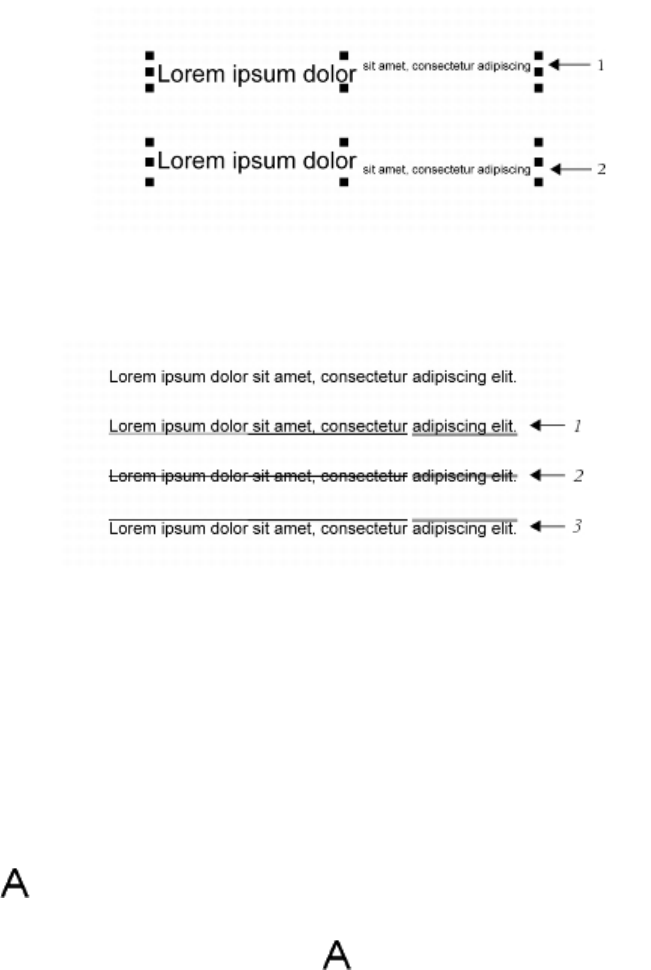
440 | Corel DESIGNER 2017 User Guide
Formatting characters
You can change the position and appearance of characters by displaying them as subscript or superscript, which is useful in drawings with
scientific notations. If you select an OpenType font that supports subscript and superscript, you can apply the OpenType feature. However,
if you select a font, including an OpenType font, that does not support subscript and superscript, you can apply a synthesized version of the
character, which CorelDESIGNER produces by altering the characteristics of the default font character. For more information, see “Working
with OpenType features” on page 445.
Artistic text with superscript (1) and subscript (2) applied
You can also add underlines, strikethrough lines, and overlines to selected characters.
Artist text with underline (1), strikethrough (2), and overline (3) applied to the text using both single and double line styles.
If you want to reuse the formatting of selected text, you can use styles or copy the text attributes and apply them to another text selection.
For more information, see “Working with styles and style sets ” on page 511 and “Copying object properties, transformations, and
effects” on page 248.
You can modify the behavior of the text cursor that displays onscreen and enable text highlighting, which is useful when formatting text.
In addition, you can change the text color and add a background color to paragraph text frames, the bounding box of artistic text, or
selected text characters.
To insert superscript or subscript text
1Using the Text tool , select a character or a block of text.
If the Property manager docker is not open, click Window Property manager.
2In the Property manager docker, click the Character button to display the character-related options.
3In the Character area of the Property manager docker, click the Position button, and choose one of the following options.
•None — turns off all the features in the list
•Superscript (auto) — applies the OpenType feature if the font supports it, or applies a synthesized version if the font does not support
superscript
Formatting text | 441
•Subscript (auto) — applies the OpenType feature if the font supports it, or applies a synthesized version if the font does not support
subscript
•Superscript (synthesized) — applies a synthesized version of the superscript feature, which looks the same as in previous versions of
CorelDESIGNER
•Subscript (synthesized) — applies a synthesized version of the subscript feature, which looks the same as in previous versions of
CorelDESIGNER
Some OpenType fonts may appear to support features that are unsupported. For example, Superscript and Subscript options may
appear available, but are not. If you apply one of these OpenType fonts, CorelDESIGNER cannot provide a synthesized version of
Superscript and Subscript.
To underline, overline, or strikethrough text
1Using the Text tool , select a character or a block of text.
If the Property manager docker is not open, click Window Property manager.
2In the Property manager docker, click the Character button to display the character-related options.
3In the Character area of the Property manager docker, click the arrow button located at the bottom of Character area to display
the additional character options.
4Perform one or more tasks from the following table.
To Do the following
Underline text Click the Underline button and choose a style from the list
box.
Apply a line through the selected text Choose a style from the Character strikethrough list box.
Apply a line above the selected text. Choose a style from the Character overline list box.
To modify the text cursor behavior
1Click Tools Options.
2In the list of categories, click Text.
3In the Text cursor area, enable any of the following check boxes:
•Highlight formatting changes
•Enhanced text cursor
Changing text color
You can quickly change both the fill and outline color of text. You can change the fill, outline, and background color of text. You can change
the color of individual characters, a block of text, or all characters in a text object.
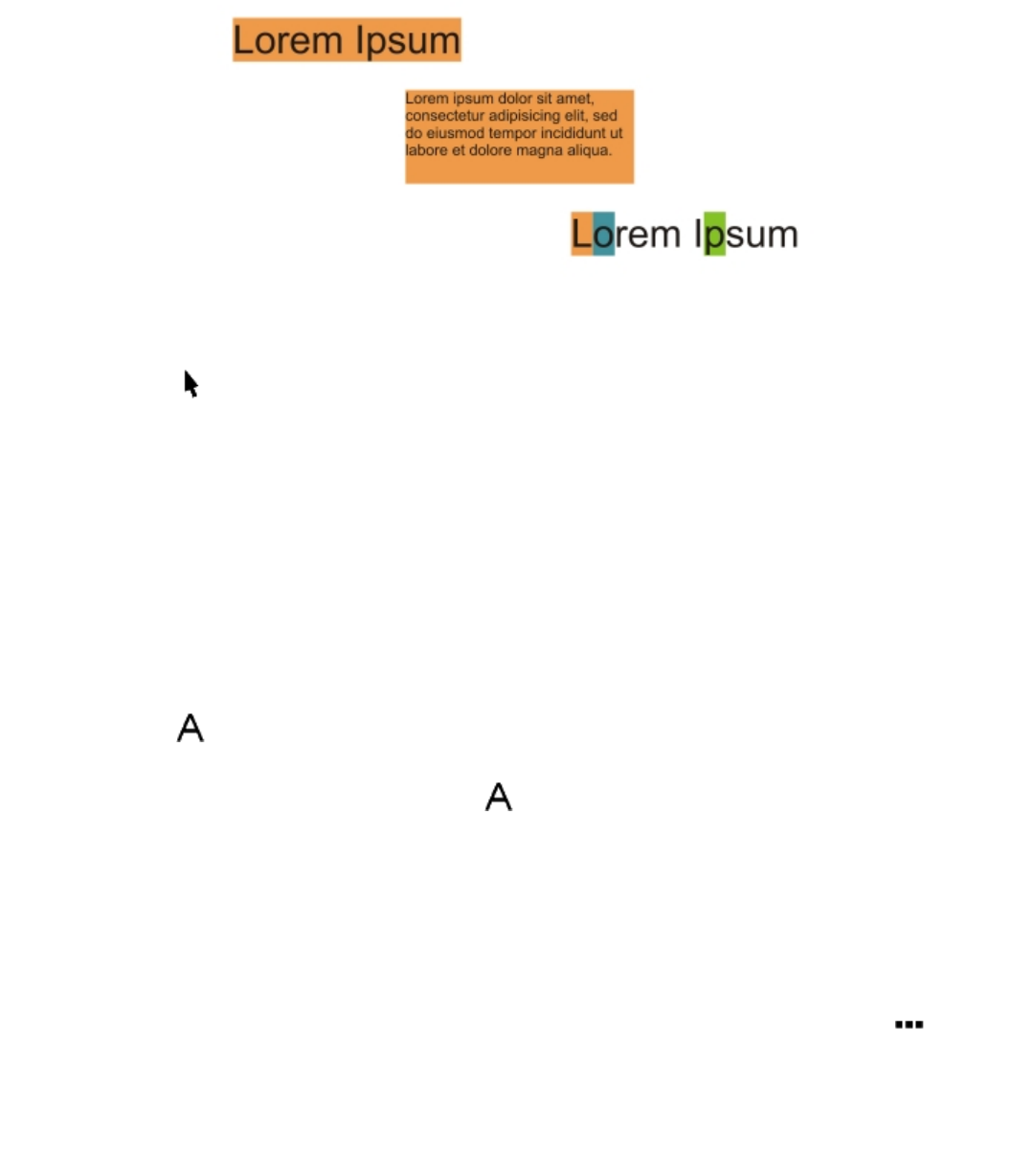
442 | Corel DESIGNER 2017 User Guide
Left to right: Background color is applied to artistic text, paragraph text, and selected characters
To quickly change the color of a text object
1Using the Pick tool , click a text object to select it.
2Perform a task from the following table.
To Do the following
To fill characters in a text object with one color Click any color swatch on the default color palette or drag a color
swatch to the text object.
To apply an outline color to all characters in a text object Right-click any color swatch on the default color palette or drag a
color swatch to the edge of a character in the text object.
To change the color of a text selection
1Using the Text tool , select a character or a block of text.
If the Property manager docker is not open, click Window Property manager.
2In the Property manager docker, click the Character button to display the character-related options.
3In the Character area of the Property manager docker, perform one or more tasks from the following table.
To Do the following
Choose a fill In the text color area, choose a fill type from the Fill type list box,
open the Fill picker, and then click a color or a fill.
Modify fill settings In the text color area, click the Fill settings button , and
modify the settings in the dialog box.
Choose a background fill In the text background color area, choose a fill type from the
Background fill type list box, open the Fill picker, and then click a
color or a fill.
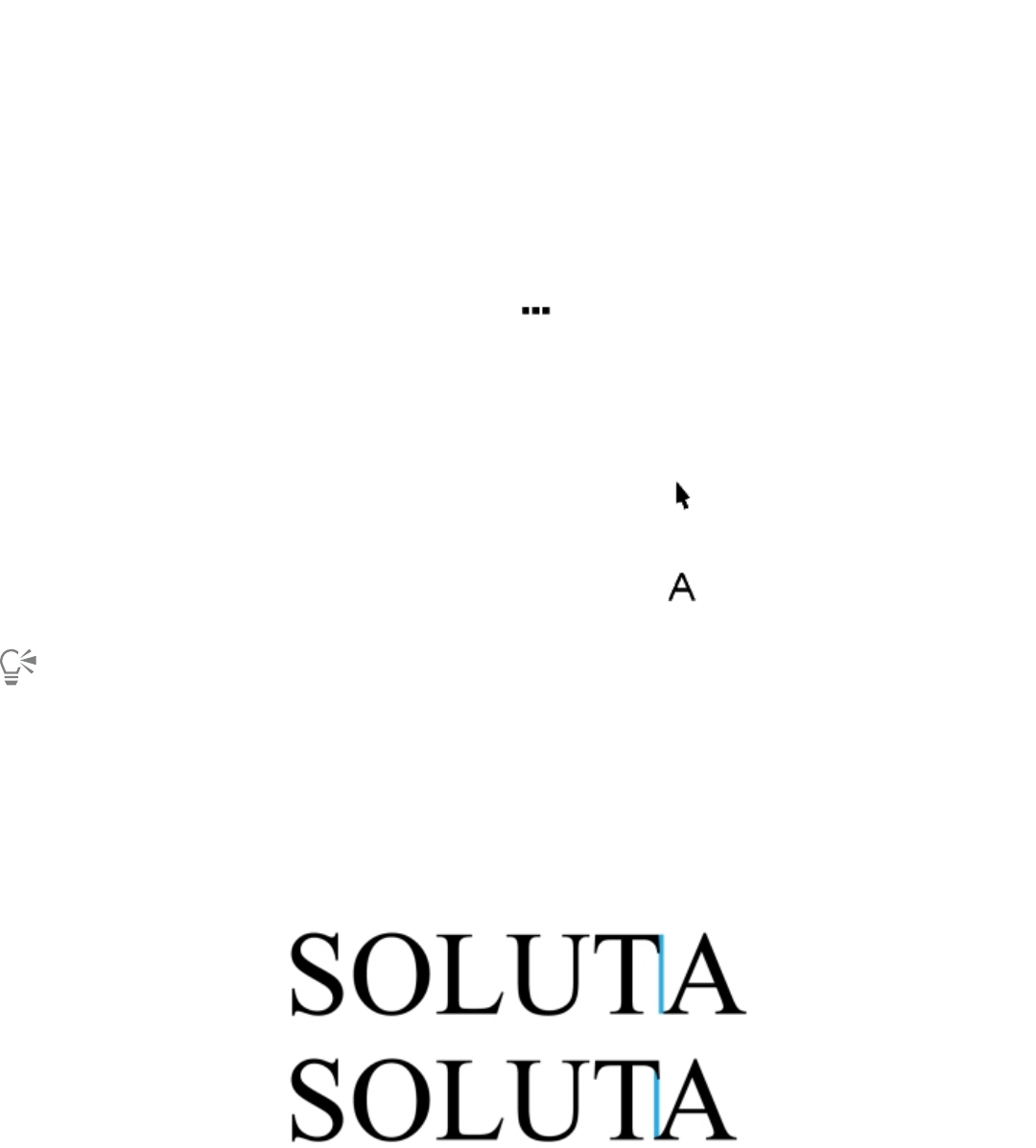
Formatting text | 443
To Do the following
Modify background fill settings In the text background color area, click the Fill settings button, and
modify the settings in the dialog box.
Choose an outline width In the text outline color area, click the Outline width button, and
choose an option from the list.
Choose an outline color In the text outline color area, click the Outline color picker, and
click a color.
Modify line outline settings In the text outline color area, click the Outline settings button
, and modify the settings in the Outline pen dialog box.
To add a background color to text
To Do the following
Add a background color to paragraph or artistic text Using the Pick tool , select the text. Open the Background
color picker on the property bar, and pick a color.
Add a background color to specific characters Using the Text tool , select the characters. Open the Character
background color picker on the property bar, and pick a color.
You can also add a background color to text by using the Background color controls in the Character area of the Property manager
docker. To access the Property manager docker, click Window Property manager.
Kerning a range of characters
You can kern pairs of selected characters. Kerning refers to the repositioning of two characters to balance the optical space between them.
For example, kerning is often used to decrease the space in character pairs such as AW, WA, VA, or TA. Such character pairs are known as
“kerning pairs.” Kerning increases readability and makes letters appear balanced and proportional, especially at larger font sizes.
Decreasing the kerning between two characters
444 | Corel DESIGNER 2017 User Guide
To kern text
1Using the Text tool , select the characters that you want to kern.
If the Property manager docker is not open, click Window Property manager.
2In the Property manager docker, click the Character button to display the character-related options.
3In the Character area of the Property manager docker, type a value in the Range kerning box.
Negative values decrease the spacing between characters; positive values increase the spacing between characters.
Changing text case
CorelDESIGNER lets you change the text case of artistic and paragraph text. For example, you can apply small caps to acronyms so they
visually blend with the text. If you apply default capitalization, the text stands out too much and impacts the readability. In the following
example, the acronym “A.M.” is shown with both the default uppercase and small caps applied.
Default uppercase Small caps
The class begins at 9:00 A.M. in room 132. The class begins at 9:00 a.m. in room 132.
You control the case of words, sentences, or paragraphs of selected text. For example, you can apply title case to selected text to capitalize
the initial letter of every word. This is a useful formatting technique for headings, such as book or chapter titles.
You can automatically convert text to lowercase or uppercase without deleting or retyping letters. For example, if you accidentally pressed
the Caps Lock key and added uppercase text, you can convert the text to lowercase without retyping it.
With uppercase text, you can adjust the spacing between capital characters to improve readability provided the font supports capital
spacing.
To change the text case
1Using the Text tool , select a character or a block of text.
If the Property manager docker is not open, click Window Property manager.
2In the Property manager docker, click the Character button to display the character-related options.
3In the Character area of the Property manager docker, click the Caps button, and click one of the following options:
•None — turns off all of the features in the list
•All caps — substitutes lowercase characters with upper case equivalents
•Titling caps — applies the OpenType version of the feature if the font supports it
•Small caps (auto) — applies the OpenType version of the feature if the font supports it
•All small caps — substitutes characters with a scaled-down version of the upper case characters
•Small caps from caps — applies the OpenType version of the feature if the font supports it
•Small caps (synthesized) — applies a synthesized version of Small caps, which appears the same as in previous versions of
CorelDESIGNER
If the font supports capital spacing, you can click the Capital spacing button to increase the spacing between capital characters
and improve readability.
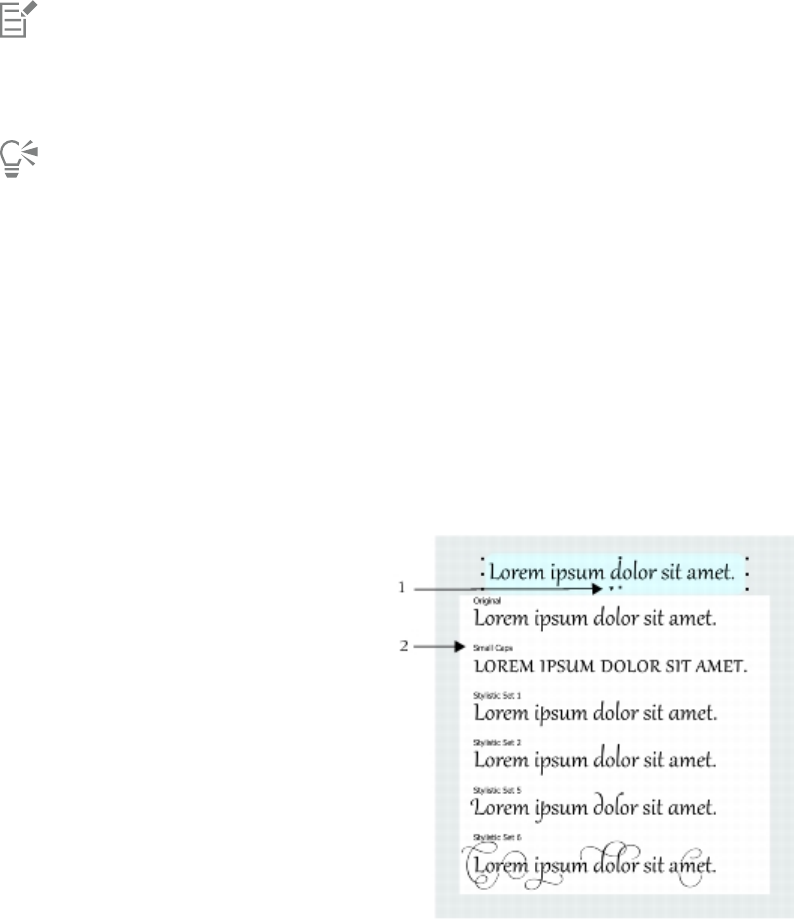
Formatting text | 445
If you choose a non-OpenType font that supports Caps styles, CorelDESIGNER provides a synthesized version of the Small caps and
All small caps styles.
Some OpenType fonts may appear to support features that are unsupported.
You can also change text case by selecting a character or a block of text, clicking Text Change case, and enabling an option in the
Change case dialog box.
Working with OpenType features
CorelDESIGNER supports OpenType fonts so you can take advantage of their advanced typographic features. OpenType features allow you
to choose an alternate appearance for an individual character (also referred to as a glyph) or a sequence of characters. For example, you can
choose alternate glyphs for numbers, fractions, or ligature sets.
You can access OpenType commands and options in the Character area of the Property manager docker. You can also let CorelDESIGNER
prompt you which OpenType features you can apply by enabling the Interactive OpenType option. When you select text, an indicator arrow
appears below the text if an OpenType feature is available. You can click the indicator to access a list of the most popular OpenType features
that are available for the selected text.
Clicking the Interactive OpenType indicator arrow (1) expands a list of the
most popular OpenType features that are available for the selected text.
The OpenType font specification was created jointly by Adobe and Microsoft. Based on Unicode, OpenType fonts extend the capabilities of
older font technologies. The most notable advantages of OpenType are:
• cross-platform support (Windows and Mac OS)
• extended character sets that offer better language support and advanced typographic features
• coexistence with Type 1 (PostScript) and TrueType fonts
• support for a larger glyph limit (64k)
OpenType features
The following table describes the OpenType features that you can apply in CorelDESIGNER provided that the feature is included in the font.
In addition, CorelDESIGNER also provides synthesized versions of some Caps and Position OpenType features. For example, if a font does not
support a feature, such as Small Caps, CorelDESIGNER produces its own version of the glyph by scaling the font.
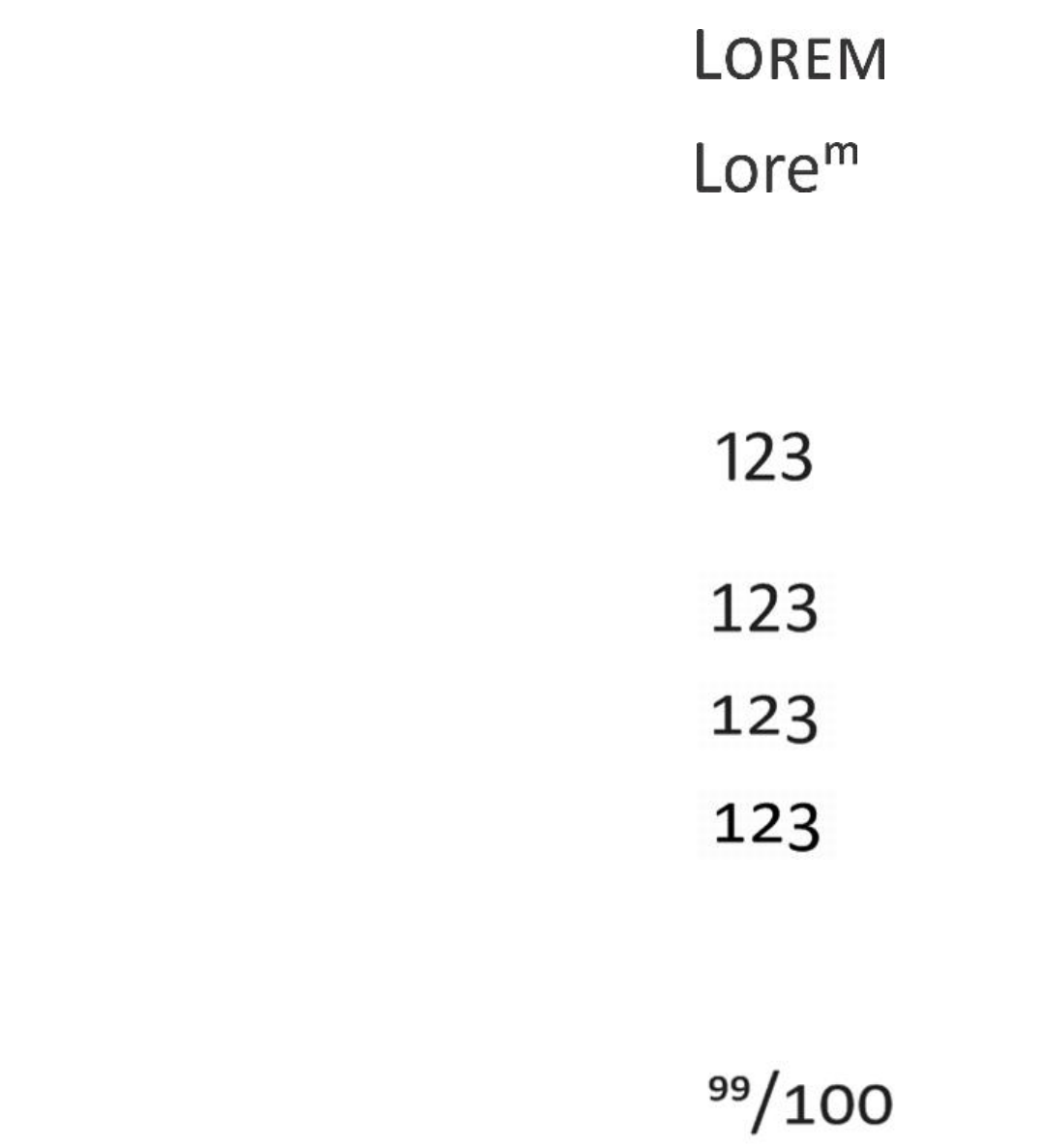
446 | Corel DESIGNER 2017 User Guide
OpenType feature Description Example
Caps Changes the case of text, which is useful for
inserting titles and acronyms
Small caps
Position Displays characters as superscript or
subscript, which is useful for inserting
footnotes or mathematical symbols. If you
select an OpenType font that does not
support subscript and superscript, or a non-
OpenType font, you can apply a synthesized
glyph.
Superscript
Number styles Includes features for controlling the
appearance of numbers
See examples below
Number styles — Proportional lining Displays numbers of varying width, which
is best suited for inserting numbers in body
text. However, the numbers have a fixed
height, which generally matches the height
of capital letters.
Number styles — Tabular lining Displays numbers of equal width, spacing,
and height, which is useful for aligning text
and displaying text in a table
Number styles — Proportional Oldstyle Displays numbers of varying width and
height. The style is best suited for blending
numbers with mixed text case.
Number styles — Tabular Oldstyle Displays numbers of equal width, but
varying height
Fraction Displays numbers separated by a slash as
fractions. The number of available fractions
vary from font to font. Apply this feature
only to the numbers that you want to
display as a fraction.
See examples below
Fraction — Numerator Displays a numerator, such as 456/, as a
fraction glyph. This is useful for displaying
a non-standard fraction, such as 456/789,
as a fraction. Use the Numerator feature
in conjunction with the Denominator
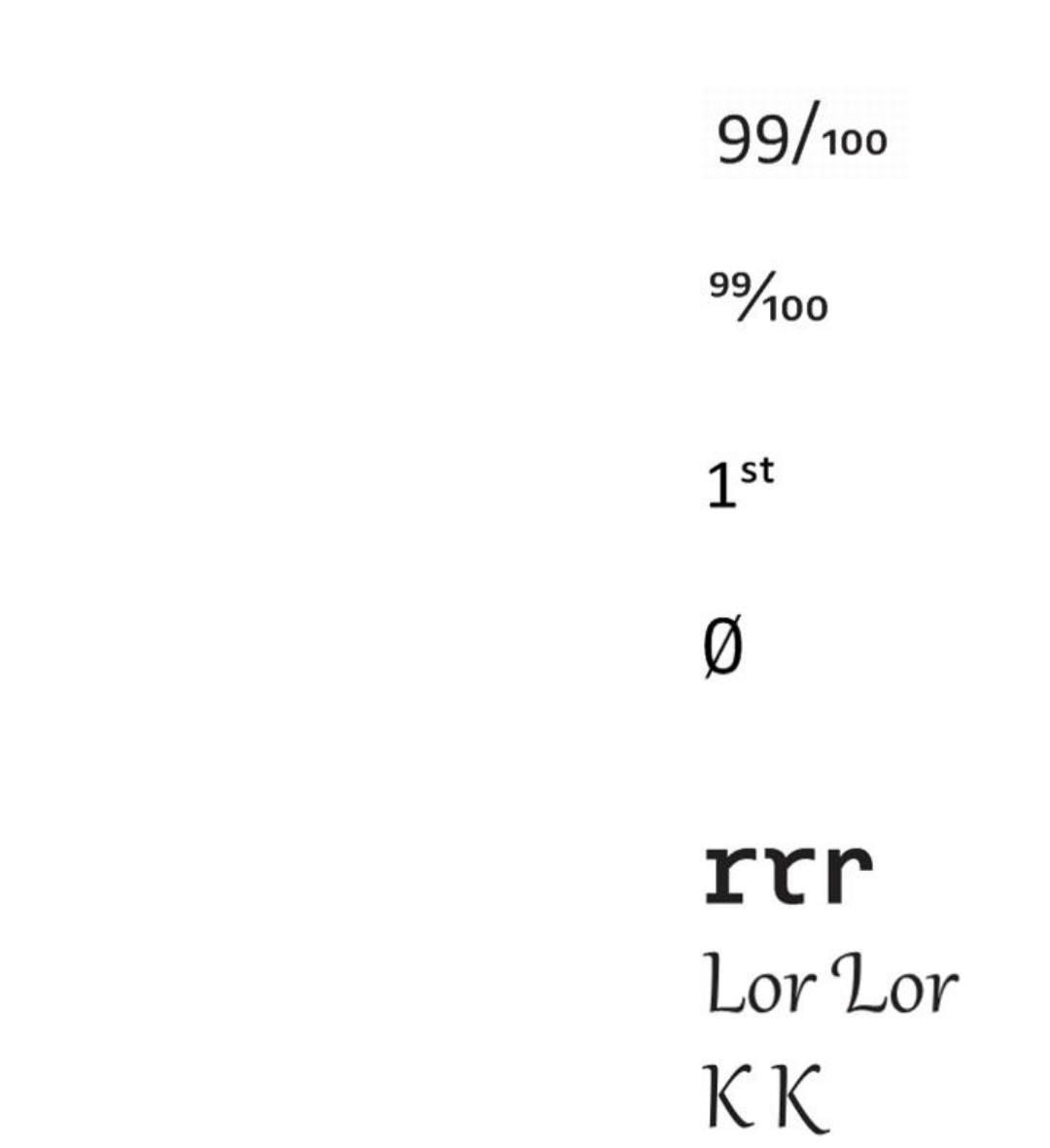
Formatting text | 447
OpenType feature Description Example
feature to display non-standard fractions as
fractions.
Fraction — Denominator Displays a denominator, such as /789, as a
fraction glyph. This is useful for displaying a
non-standard fraction, such as 456/789, as
a fraction. Use the Denominator feature in
conjunction with the Numerator feature to
display non-standard fractions as fractions.
Fraction — Fraction Displays standard fractions as fraction
glyphs
Fraction — Alternative fraction Displays a fraction by using a horizontal
dividing line instead of a slant or slash
Not available
Ordinals Displays ordinals by using a number and a
suffix in superscript. For example, you can
display “first” as 1st or “second” as 2nd.
Apply this feature only to the text that you
want to display as an ordinal.
Slashed zero Displays zeros with a diagonal slash, which
makes them easy to distinguish from the
letter O. This feature is useful for displaying
numbers in financial reports.
Ornaments Substitutes a character with an ornament
that was created by the font designer to
match the font’s motif
Not available
Stylistic alternates Applies an alternate design to characters
Stylistic sets Applies an alternate design to a text
selection
Swash Variants Inserts calligraphic-type decorative
characters
Contextual alternates Lets you fine-tune text by applying an
alternate design to a single character, or
Not available
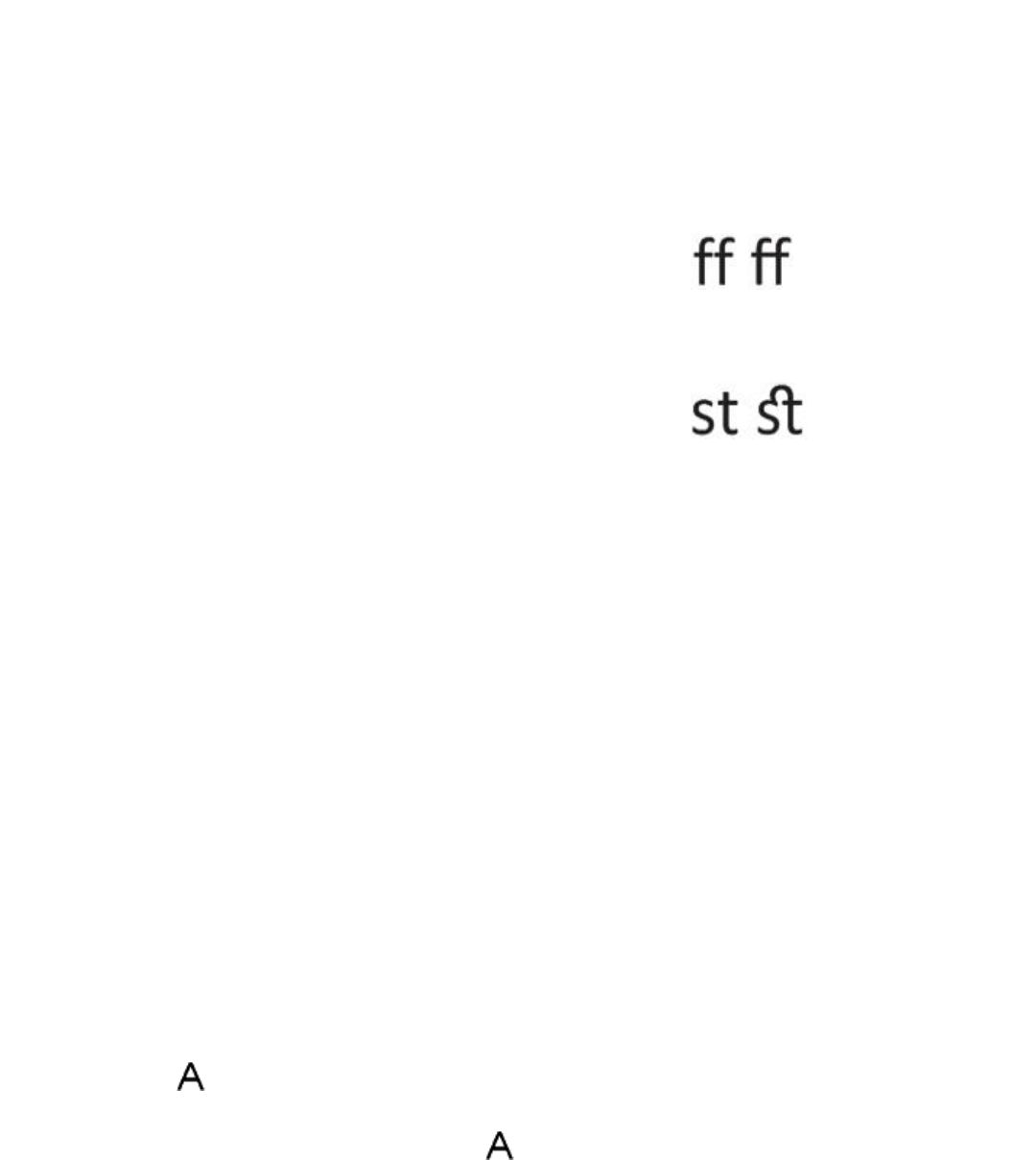
448 | Corel DESIGNER 2017 User Guide
OpenType feature Description Example
a sequence of characters, based on its
surrounding characters. For example, you
can apply this feature to script-based text so
that it flows more naturally.
Case-sensitive forms Shifts the position of punctuation marks
so they align with capitalized text or lining
numbers
Not available
Standard Ligatures Replaces a letter pair (or a sequence of
letters) with one glyph, which is called a
ligature. Many OpenType fonts include
standard ligatures for fi, fl, ff, ffi, and ffl.
Their purpose is to improve text readability.
Discretionary Ligatures Replaces a non-standard letter combination
with a ligature. Discretionary ligatures
designed to be decorative and are not
supported by the majority of OpenType
fonts.
Contextual ligatures Inserts a glyph that best suits the
surrounding characters. Contextual ligatures
are designed to increase readability by
improving the joining behavior between the
characters of a ligature.
Not available
Historical ligatures Substitutes a letter pair, or a letter
sequence, with a ligature that is based on
historical usages. Historical ligatures are
designed to be ornamental and are not
supported by the majority of OpenType
fonts. The most commonly-used historical
ligatures are the letter s combined with
another character, such as sh si sl ss, and st.
Not available
Historical forms Substitutes modern characters with
characters that were commonly used in
historical documents. Historical forms are
useful for recreating historical text.
Not available
To apply an OpenType feature to text
1Using the Text tool , a single character or a sequence of characters.
If the Property manager docker is not open, click Window Property manager.
2In the Property manager docker, click the Character button to display the character-related options.
3In the Character area of the Property manager docker, click an OpenType feature button, and, if applicable, choose a feature from the
list.
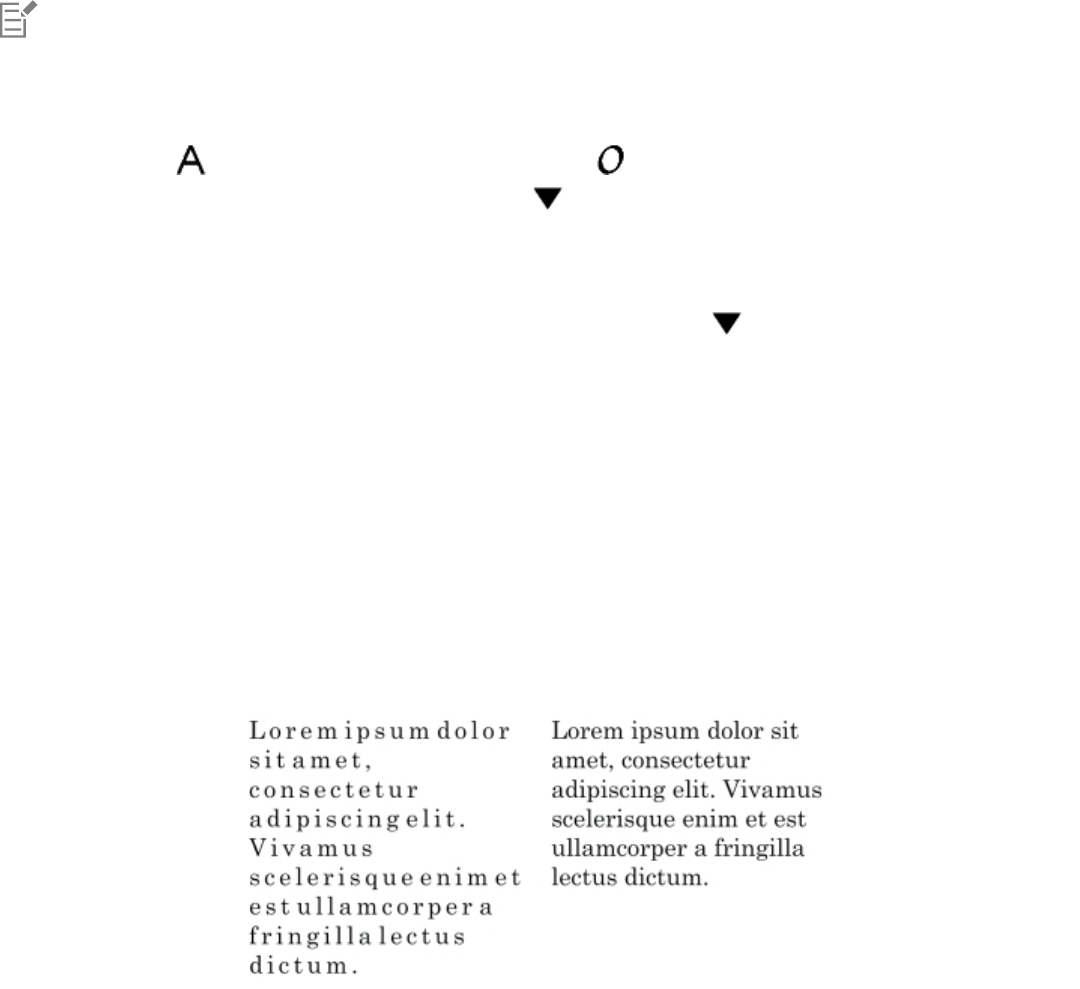
Formatting text | 449
Some OpenType fonts may appear to support features that are not supported.
To enable the onscreen OpenType feature indicator
•Click the Text tool , and then click the Interactive OpenType button on the property bar.
If an OpenType feature is available for the selected text, an arrow appears below the text.
You can also
View a list of the most popular OpenType features onscreen Click the down arrow below the text in the document
window.
Apply an OpenType feature to a text selection In the OpenType feature list, click a feature.
Adjusting character and word spacing
You can improve text readability by adjusting the character and word spacing. When letters or words are too close together, or too far apart,
they become difficult to read. CorelDESIGNER offers you different tools for controlling text spacing.
Character spacing
You can change the spacing between characters (also known as “letter spacing”) in a block of text. For example, fully justifying a block of
text may insert too much space between characters, which creates a visual imbalance. To improve readability, you can decrease the character
spacing.
Increased character spacing (left) makes it difficult to read the text. Decreased character spacing (right) improves readability.
If you want to change the spacing between several characters, you need to adjust the kerning. For more information, see “Kerning a range
of characters” on page 443.
Word spacing
You can also adjust the spacing between words.
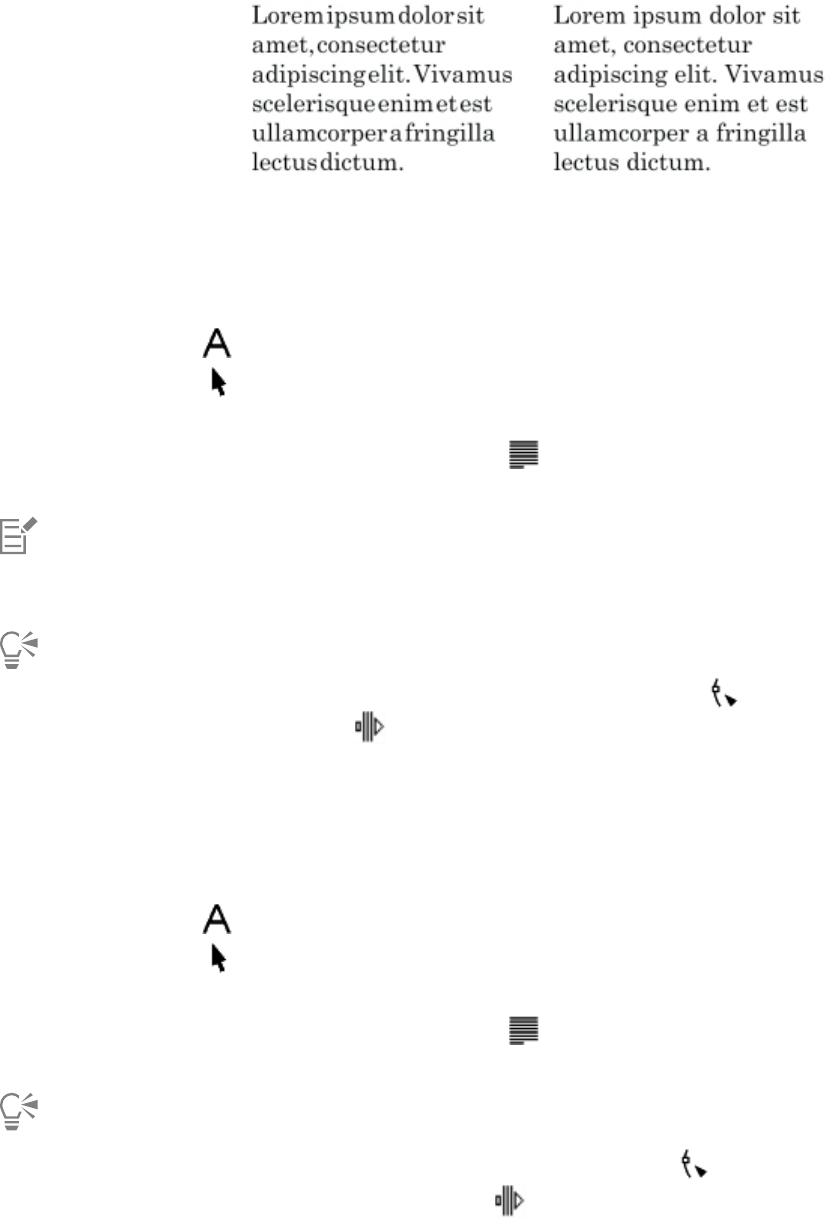
450 | Corel DESIGNER 2017 User Guide
Decreased word spacing makes it difficult to discern the individual words in a
paragraph (left). Increased word spacing (right) makes easier to read the paragraph.
To adjust character spacing
1Do one of the following:
•Using the Text tool , position the cursor in a block of text.
•Using the Pick tool , click an artistic text object or a text frame.
If the Property manager docker is not open, click Window Property manager.
2In the Property manager docker, click the Paragraph button to display the paragraph-related options.
3In the Paragraph area of the Property manager docker, type a value in the Character spacing box.
Values for adjusting spacing represent a percentage of the space character. The Character values range from -100 to 2000 percent.
All other values range from 0 to 2000 percent.
You can also change the character spacing proportionally by clicking the Shape tool , selecting the text object, and dragging the
Interactive horizontal spacing arrow in the lower-right corner of the text object.
You can increase the character spacing in uppercase text by using capital spacing. For more information, see “To change the text
case” on page 444.
To adjust word spacing
1Do one of the following:
•Using the Text tool , position the cursor in a block of text.
•Using the Pick tool , click an artistic text object or a text frame.
If the Property manager docker is not open, click Window Property manager.
2In the Property manager docker, click the Paragraph button to display the paragraph-related options.
3In the Paragraph area of the Property manager docker, type a value in the Word spacing box.
You can also change the word spacing proportionally by clicking the Shape tool , holding down Shift, selecting the text object,
and dragging the Interactive horizontal spacing arrow in the lower-right corner of the text object.
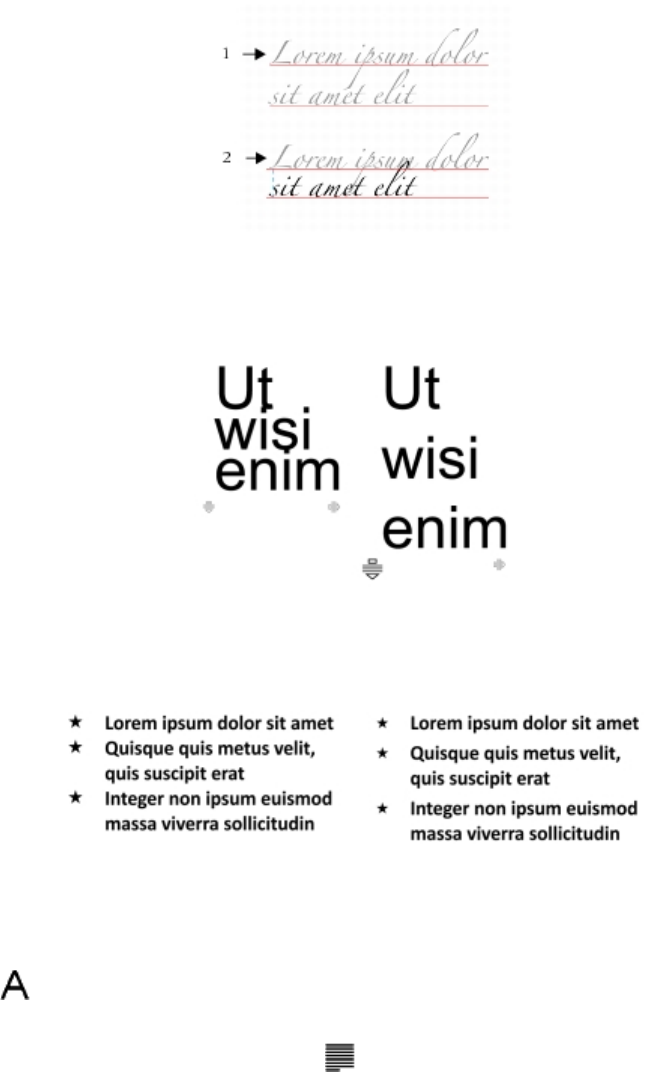
Formatting text | 451
Adjusting line and paragraph spacing
You can change the spacing between lines of text, which is also known as “leading” or “interline spacing.”
Well-balanced line spacing (1) can improve the readability of text. Insufficient
line spacing can reduce readability by causing letters to overlap (2).
In CorelDESIGNER, you can also adjust line spacing of a text object by using the Shape tool.
Adjusting line spacing proportionally by using the Shape tool
You can change the spacing between paragraphs, which is useful for copyfitting text. If a paragraph is positioned at the top or bottom of a
frame, the spacing does not apply to the space between the paragraph text and the frame.
The spacing in between the lines in the bulleted list (left) was
increased by adjusting the before and after paragraph spacing (right).
To adjust interline spacing
1Using the Text tool , select the paragraph text.
If the Property manager docker is not open, click Window Property manager.
2In the Property manager docker, click the Paragraph button to display the paragraph-related options.
3In the Paragraph area of the Property manager docker, choose one of the following units of measurement from the Vertical spacing
units list box:
•% of Char height — lets you use a percentage value that is relative to the character height
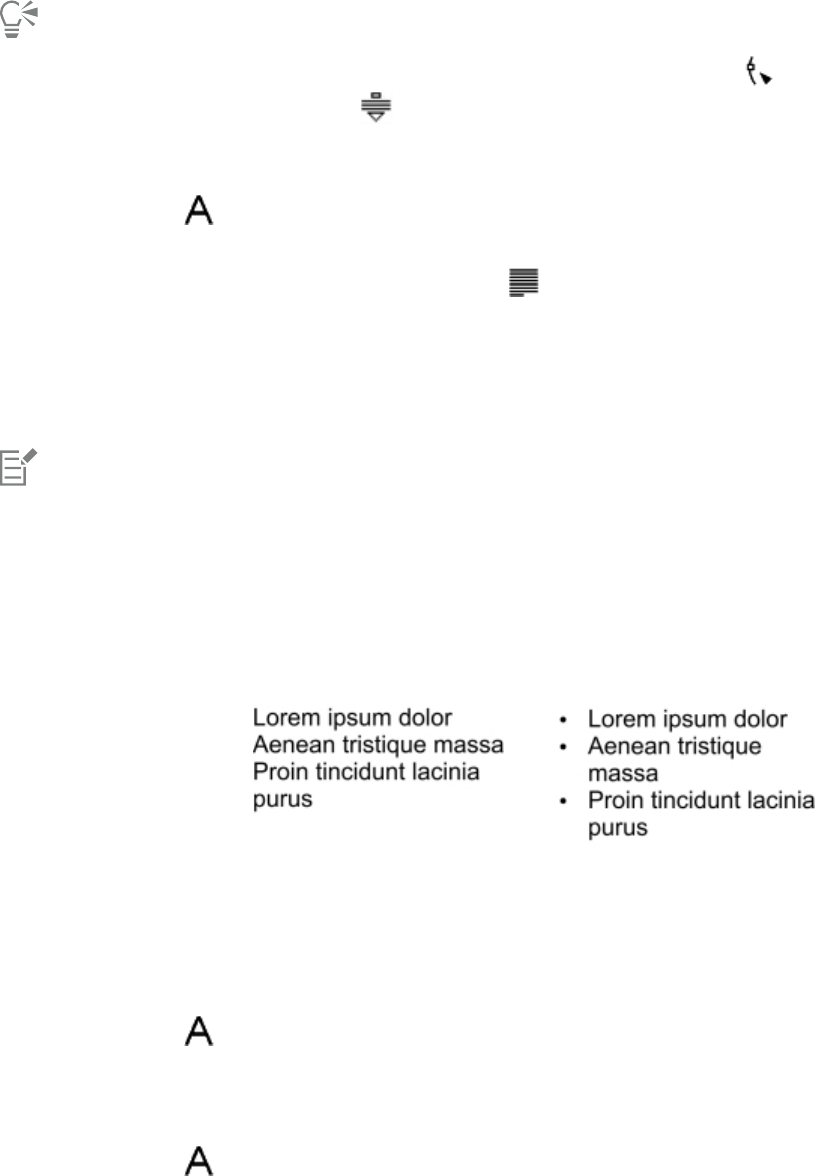
452 | Corel DESIGNER 2017 User Guide
•Points — lets you use points
•% of Pt.size — lets you use a percentage value that is relative to the character point size
4Type a value in the Line spacing box.
You can also change the spacing between lines proportionally by clicking the Shape tool , selecting the text object, and dragging
the Interactive vertical spacing arrow in the lower-left corner of the text object.
To adjust the spacing between paragraphs
1Using the Text tool , select the paragraph text.
If the Property manager docker is not open, click Window Property manager.
2In the Property manager docker, click the Paragraph button to display the paragraph-related options.
3In the Paragraph area of the Property manager docker, choose a unit of measurement for line spacing from the Vertical spacing units
list box.
4Type a value in one of the following boxes:
•Before paragraph spacing — lets you specify the amount of space to insert above the paragraph text
•After paragraph spacing — lets you specify the amount of space to insert below the paragraph text
You can also use this procedure to adjust the spacing between items in a bulleted list.
Adding bullets to text
You can use bulleted lists to format information. You can wrap text around bullets, or you can offset a bullet from text to create a hanging
indent. CorelDESIGNER lets you customize bullets by changing their size, position, and distance from text. You can also change the spacing
between items in a bulleted list. For more information, see “To adjust interline spacing” on page 451.
Three paragraphs (left) were converted into a bulleted list (right)
You can remove a bullet without deleting the text.
To quickly add bullets to paragraph text
1Using the Text tool , drag across the paragraph text that you want to format as a bulleted list.
2Click the Bulleted list button on the property bar.
To add bullets
1Using the Text tool , select the paragraph text.
If the Property manager docker is not open, click Window Property manager.
Formatting text | 453
2In the Property manager docker, click the Paragraph button to display the paragraph-related options.
3In the Paragraph area of the Property manager docker, click the arrow button located at the bottom of Paragraph area to display
additional options.
4Enable the Bullets check box.
5Click the Bullet settings button , which is located to the right of the Bullets check box.
6In the Bullets dialog box, perform a task from the following table.
To Do the following
Preview text with bullets Enable the Preview check box.
Choose a font In the Appearance area, choose a font from the Font list box.
Choose a symbol Open the Symbol picker, and click a symbol.
Set a bullet size Type a value in the Size box.
Adjust the bullet position Type a value in the Baseline shift box.
Set the distance from the text frame In the Spacing area, type a value in the Text frame to bullet box.
Set the distance between the bullet and the text Type a value in the Bullet to text box.
You can also
Add a bullet with a hanging indent Enable the Use hanging indent style for bulleted lists check box.
Change the color of a bullet Select the bullet with the Text tool , and click a color on the
color palette.
Remove bullets In the Paragraph area of the Property manager docker, disable the
Bullets check box.
Bullets are inserted at the beginning of each new line that is preceded by a return.
You can adjust the spacing in between bullets by increasing or decreasing the space before and after a paragraph. For more
information, see “To adjust the spacing between paragraphs” on page 452.
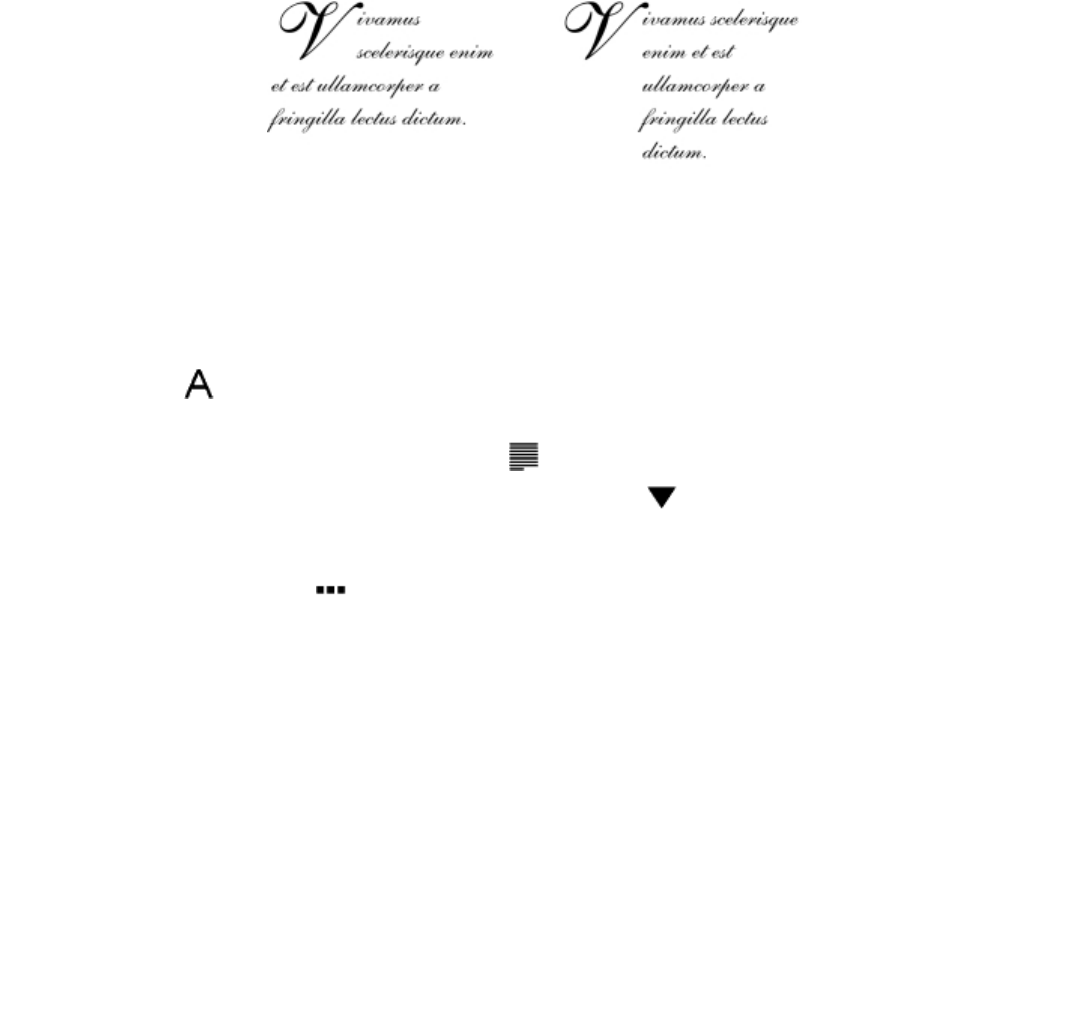
454 | Corel DESIGNER 2017 User Guide
Inserting drop caps
Applying drop caps, also known as initial caps, to paragraphs enlarges the initial letter and insets it into the body of text. You can customize
a drop cap by changing different settings. For example, you can change the distance between the drop cap and the body of text, or specify
the number of lines of text that you want to appear next to the drop cap. You can remove the drop cap at any point without deleting the
letter.
You can add a drop cap (left) or a hanging indent drop cap (right).
You can preview a drop cap before you add it to a drawing. The changes you make are temporarily applied to the text in the drawing
window, so you can see how the drop cap will look when you add it.
To add a drop cap
1Using the Text tool , select the paragraph text.
If the Property manager docker is not open, click Window Property manager.
2In the Property manager docker, click the Paragraph button to display the paragraph-related options.
3In the Paragraph area of the Property manager docker, click the arrow button located at the bottom of Paragraph area to display
additional options.
4Enable the Drop caps check box.
5Click the Drop caps settings button .
6In the Drop cap dialog box, perform a task from the following table.
To Do
Specify the number of lines next to a drop cap In the Appearance area, type a value in the Number of lines
dropped box.
Set the distance between the drop cap and the body of text In the Appearance area, type a value in the Space after drop cap
box.
This sets the space to the right of the drop cap.
Preview a drop cap Enable the Preview check box.
Offset the drop cap from the body of text Enable the Use hanging indent style for drop cap check box.
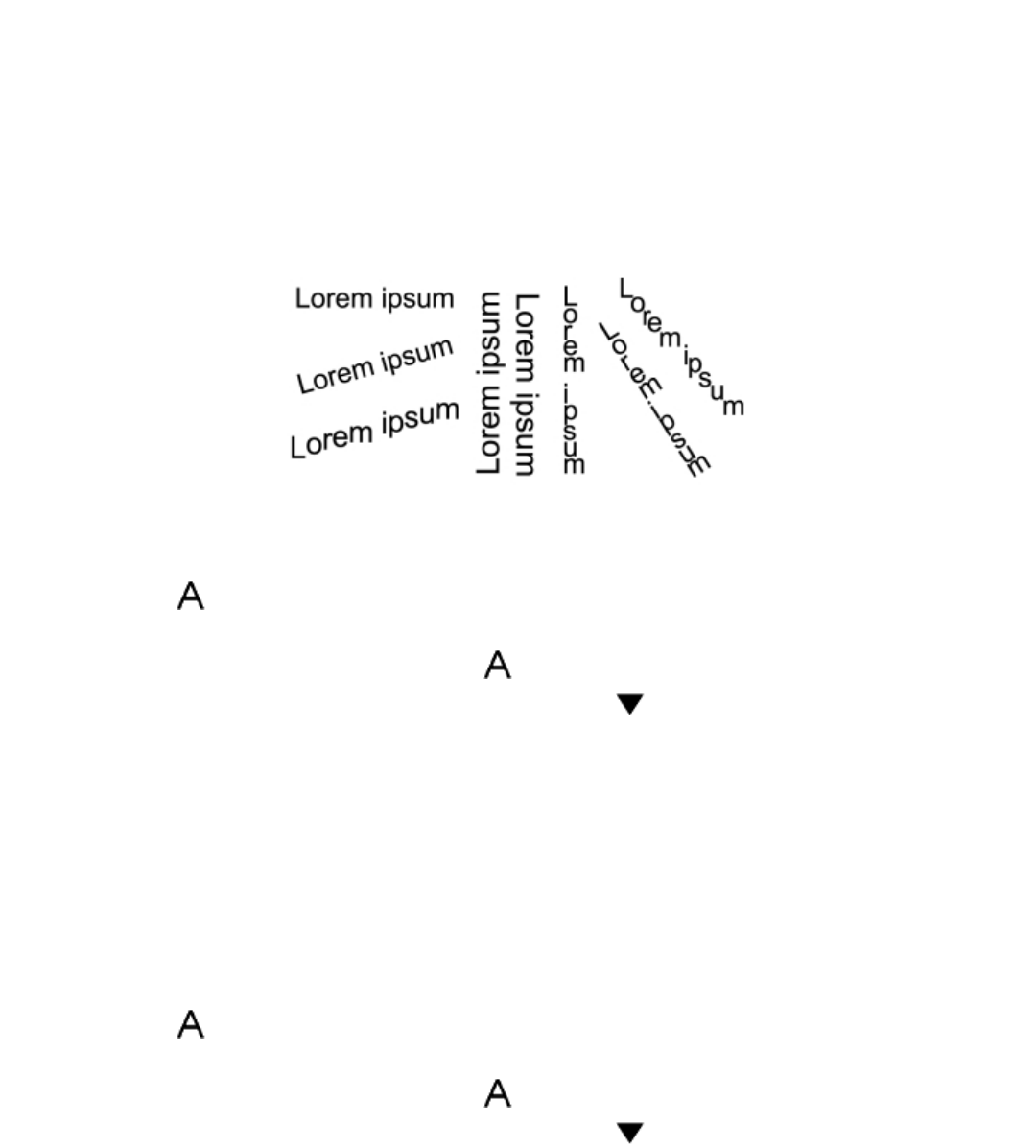
Formatting text | 455
To Do
Remove drop caps In the Paragraph area of the Property manager docker, disable the
Drop caps check box.
Changing character position and angle
You can modify the appearance of text by shifting the characters vertically or horizontally, which changes the position of the selected
characters relative to the surrounding characters.
You can also rotate characters by specifying an angle of rotation.
Examples of rotating text
To shift a character
1Using the Text tool , select a character or a block of text.
If the Property manager docker is not open, click Window Property manager.
2In the Property manager docker, click the Character button to display the character-related options.
3In the Character area of the Property manager docker, click the arrow button located at the bottom of Character area to display
additional options.
4Perform one or more tasks from the following table.
To Do the following
Shift characters horizontally Type a value in the Horizontal character offset box.
Shift characters vertically Type a value in the Vertical character offset box.
To rotate a character
1Using the Text tool , select a character or a block of text.
If the Property manager docker is not open, click Window Property manager.
2In the Property manager docker, click the Character button to display the character-related options.
3In the Character area of the Property manager docker, click the arrow button located at the bottom of Character area to display
additional options.
4Type a value in the Character angle box.
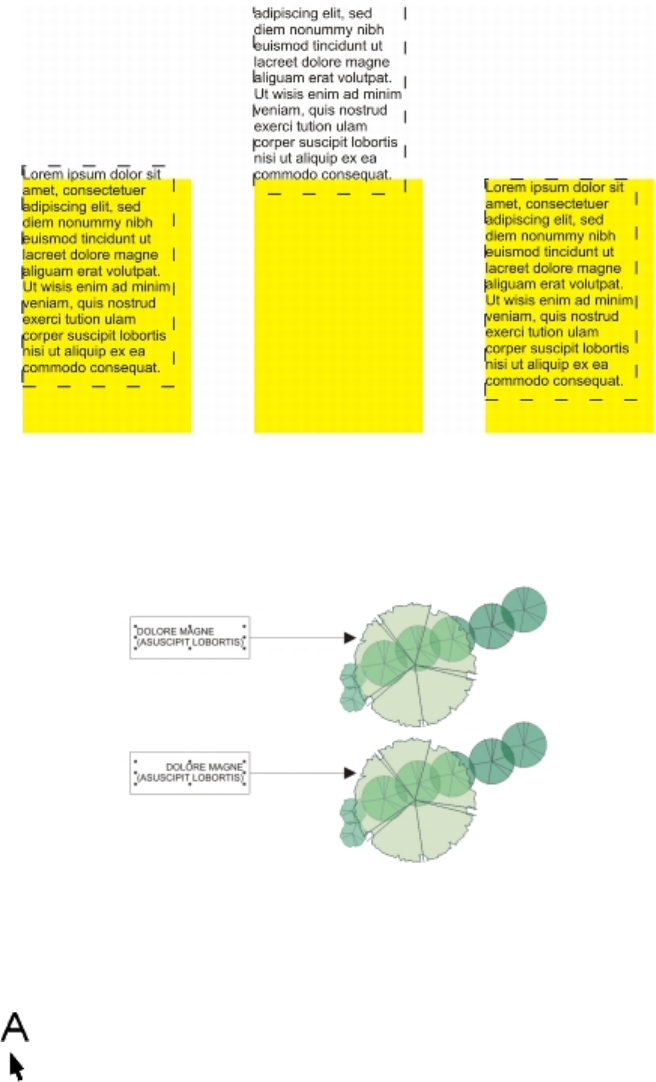
456 | Corel DESIGNER 2017 User Guide
Aligning text
CorelDESIGNER lets you align text in various ways. You can align paragraph text horizontally and vertically in relation to its text frame. You
can align paragraph text with the baseline grid. For more information, see “Aligning text by using the baseline grid” on page 423. You can
also align text to a selected object.
You can align a text object with other objects by using the baseline of
the first line, the baseline of the last line, or the edge of the text frame.
Artistic text can be aligned horizontally, but not vertically. When you align artistic text, the entire text object is aligned in relation to the
bounding box. If characters have not been shifted horizontally, applying no alignment produces the same result as applying left alignment.
Artistic text is aligned within the bounding box, which is indicated by eight selection handles
(black squares). The text at the top is left-aligned; the text at the bottom is right-aligned.
To align text horizontally
1Do one of the following:
•Using the Text tool , select the text that you want to align.
•Using the Pick tool , click an artistic text object or a text frame whose content you want to align.
If the Property manager docker is not open, click Window Property manager.
Formatting text | 457
2In the Property manager docker, click the Paragraph button to display the paragraph-related options.
3In the Paragraph area of the Property manager docker, click one of the following buttons:
•No horizontal alignment — applies the default alignment setting
•Align left — aligns text with the left side of the text frame or the bounding box of artistic text
•Center — centers text within the text frame
•Align right — aligns text with the right side of the text frame and the bounding box of artistic text
•Full justify — aligns text, with the exception of the last line, with the left and right sides of the text frame
•Force justify — aligns text, including the last line, with the left and right sides of the text frame
You can also align text horizontally by clicking the Horizontal alignment button on the property bar and choosing an alignment style
from the list box. The property bar displays an icon that corresponds to the current alignment style.
You can align multiple paragraphs in a text frame by selecting them with the Text tool and choosing an alignment style.
To align paragraph text vertically
1Using the Pick tool , click a text frame.
If the Property manager docker is not open, click Window Property manager.
2In the Property manager docker, click the Frame button to display the frame-related options.
3In the Frame area of the Property manager docker, choose an alignment option from the Vertical alignment list box.
You can also align text vertically by clicking the Vertical alignment button on the property bar and choosing an alignment style from
the list box. The property bar displays the alignment icon that corresponds to the current alignment style.
To align text with an object
1Using the Pick tool , hold down Shift, click the text object, and then click the object.
2Click Object Align and distribute Align and distribute.
3In the Text area, click one of the following buttons:
•First line baseline — uses the baseline of the first line of text to align the objects
•Last line baseline — uses the baseline of the last line of text to align the objects
•Bounding box — aligns text with its bounding box
4In the Align objects to area, click the Active objects button .
5In the Align area, click one of the following buttons to use an object edge or center for aligning.
•Align left — to align the left edges of objects
•Align center horizontally — to align object centers along a vertical axis
•Align right — to align the right edges of objects
•Align top — to align the top edges of objects
•Align center vertically — to align object centers along a horizontal axis
458 | Corel DESIGNER 2017 User Guide
•Align bottom — to align the bottom edges of objects
To align objects from their outlines, click the Outline button .
If you select the text objects one at a time, the last object selected is the reference point for aligning the other objects. If you marquee
select the objects before you align them, the object that is positioned in the upper-left corner of the selection is used.
Adding tabs and indents
You can modify existing tab stops by changing their alignment. You can also add trailing leader characters, so that dots, or other characters,
automatically precede the tab stops. In addition, you can add new tab stops and remove existing tab stops.
Indenting changes the space between a text frame and the text that it contains. You can add and remove indents without deleting or
retyping text. You can indent an entire paragraph, the first line of a paragraph, or all lines of a paragraph except the first line (a hanging
indent). You can also indent from the right side of the text frame.
To modify a tab stop
1Click Window Property manager.
2In the Property manager docker, click the Paragraph button to display the paragraph-related options.
3In the Paragraph area of the Property manager docker, click the arrow button located at the bottom of Paragraph area to display
additional options.
4Click the Tab settings button.
5Perform a task from the following table.
To Do the following
Change the alignment of tab stops Click the cell in the Alignment column, and choose an alignment
option from the list box.
Set tab stops with trailing leader characters Click the cell in the Leaders column, and choose On from the list
box.
Delete a tab stop Click the cell, and click Remove.
Change the default leader character Click Leader options, open the Character picker, and click a
character.
Change the default leader spacing Click Leader options, and type a value in the Spacing box.
You can also add, move, or delete tab stops on the horizontal ruler at the top of the drawing window. Click to add a tab stop, drag
a tab marker to move it, and drag a tab marker off the ruler to delete it. For information about rulers, see “Using the rulers” on page
541.
Formatting text | 459
To add a tab stop
1Using the Text tool , select the paragraph text.
2Click Window Property manager.
3In the Property manager docker, click the Paragraph button to display the paragraph-related options.
4In the Paragraph area of the Property manager docker, click the arrow button located at the bottom of Paragraph area to display
additional options.
5Click the Tab settings button .
6Click Add.
7Click the new cell in the Tabs column, and type a value.
To indent paragraph text
1Using the Text tool , select the paragraph text.
2Click Window Property manager.
3In the Property manager docker, click the Paragraph button to display the paragraph-related options.
4In the Paragraph area of the Property manager docker, type values in the following boxes:
•First line indent — indents the first line of text relative to the left side of the frame
•Left line indent — creates a hanging indent relative to the left side of the text frame; all lines, except the first line, are indented
•Right line indent — indents the text relative to the right side of the frame
You can remove indents by typing 0 in the First line indent, Left line indent, and Right line indent boxes.
You can indent an entire paragraph by typing the same value in both the First line indent and the Left line indent boxes.
Working with text styles
CorelDESIGNER provides advanced style capabilities that allow you to format document text with speed, ease, and consistency. A style
is a collection of formatting attributes defining object properties, such as artistic and paragraph text properties. For example, to define a
character style, you can specify font type, font style and size, text color and background color, character position, caps, and more. You can
create styles and style sets for text. You can also change the default text style, so that the same properties are applied to all new artistic or
paragraph text. For example, you can change the font type and size, or change the text to bold or italic. For more information, see “Working
with styles and style sets” on page 511.
Hyphenating text
Hyphenation can be used to break a word if the entire word does not fit at the end of a line. You can hyphenate automatically by using
a preset hyphenation definition in combination with your own hyphenation settings. You can set the minimum number of characters
before and after a hyphen. You can also specify the number of characters in the “hot zone,” which is the area at the end of a line where
hyphenation can occur.
You can insert an optional hyphen in a word to produce a specific word break at the end of a line. You can also create custom definitions
that specify the location of optional hyphens in specific words whenever you type, paste, or import the words in the application.
460 | Corel DESIGNER 2017 User Guide
To hyphenate paragraph text automatically
1Using the Text tool , select the text frame or paragraph text.
If the Property manager docker is not open, click Window Property manager.
2In the Property manager docker, click the Paragraph button to display the paragraph-related options.
3In the Paragraph area of the Property manager docker, click the arrow button located at the bottom of Paragraph area to display
additional options.
4Enable the Hyphenation check box.
5Click the Hyphenation settings button.
6In the Hyphenation settings dialog box, enable the Automatically hyphenate paragraph text check box.
Hyphenation can be used for any languages that have corresponding writing tools installed with the application. For more
information about language modules, see “Working with languages” on page 490.
If you do not see any hyphenated words in the paragraph after applying hyphenation, you may need to modify the hyphenation
settings.
To modify the hyphenation settings
1Using the Text tool , select the text frame or paragraph text.
If the Property manager docker is not open, click Window Property manager.
2In the Property manager docker, click the Paragraph button to display the paragraph-related options.
3In the Paragraph area of the Property manager docker, click the arrow button located at the bottom of Paragraph area to display
additional options.
4With the Hyphenation check box enabled, click the Hyphenation settings button .
5In the Hyphenation settings dialog box, perform one or more tasks from the following table.
To Do the following
Hyphenate capitalized words Enable the Break capitalized words check box.
Hyphenate words that contain all uppercase letters Enable the Break words using ALL CAPS check box.
Set a minimum word length for automatic hyphenation In the Hyphenation criteria area, type a value in the Minimum
word length box.
This value represents the minimum number of characters that
hyphenated words must contain.
Set the minimum number of characters to precede a hyphen In the Hyphenation criteria area, type a value in the Minimum
characters before box.
Set the minimum number of characters to follow a hyphen In the Hyphenation criteria area, type a value in the Minimum
characters after box.
Formatting text | 461
To Do the following
Set the “hot zone” In the Hyphenation criteria area, type a value in the Distance
from right margin box. This value represents the number of
characters in the hot zone. A word that does not fit within this
zone is hyphenated or moved to the next line.
To insert an optional hyphen
1Using the Text tool , click in a word where you want to place an optional hyphen.
2Click Text Insert formatting code Optional hyphen.
You can insert an optional hyphen by pressing Ctrl + -.
To create a custom definition for optional hyphenation
1Click Text Insert formatting code Custom optional hyphens.
2In the Word box, type the word for which you want to create the hyphenation definition.
When you type in the Word box, the same text is entered in the Hyphenated word box.
3In the Hyphenated word box, click where you want the optional hyphen inserted, and press the Hyphen key (-).
4Click Add definition.
You can also
Create a custom hyphen definition for a specific language keyboard Enable the Show all languages check box, and choose a language
option from the Language list box.
Automatically insert custom optional hyphens when typing Enable the When typing check box.
Automatically insert custom optional hyphens when typing,
pasting, or importing text
Enable the When pasting and importing text check box.
Delete a custom optional hyphen definition Click Remove definition.
The custom hyphenation definition is defined only for the language specified in the Language list box. You can choose another
language without affecting your keyboard.
You can create a custom optional hyphen definition by selecting a word in the document. The word appears in the Word box of
the Custom optional hyphens dialog box. After you insert the optional hyphen in the Hyphenated word box, you can apply it by
clicking Apply to selection.
You can find and replace optional hyphens. For more information, see “To find text ” on page 425 and “To find and replace text” on
page 425.

462 | Corel DESIGNER 2017 User Guide
Inserting formatting codes
You can insert formatting codes, such as em dashes and nonbreaking spaces. In some programs, formatting codes are also known as
“symbols.” The following table lists the available formatting codes and their corresponding keyboard shortcuts.
Formatting code Keyboard shortcut
Em space Ctrl + Shift + M
En space Ctrl + Shift + N
1/4 em space Ctrl + Alt + Space
Nonbreaking space Ctrl + Shift + Space
Tab Tab
Column break or text-frame break Ctrl + Enter
Em dash Alt + _
En dash Alt + -
Nonbreaking hyphen Ctrl + Shift + -
Optional hyphen Ctrl + -
All shortcut keys for formatting codes are customizable. For information about customizing these shortcut keys, see the Text commands
category in “To assign a keyboard shortcut to a command” on page 726.
You can find and replace formatting codes. For more information, see “To find text ” on page 425 and “To find and replace text” on page
425.
To insert a formatting code
1Using the Text tool , click to place the cursor where you want to insert a character or space.
2Click Text Insert formatting code, and choose a formatting code from the menu.
The Insert formatting code menu is unavailable when the Text tool is not active.
You can insert a character not listed in the Insert formatting code menu by clicking Text Insert character and clicking the
character in the Insert character docker.

Formatting text | 463
Displaying nonprinting characters
You can display nonprinting characters, such as spaces, tabs, and formatting codes. For example, when you display nonprinting characters,
a space appears as a tiny black dot, a nonbreaking space appears as a circle, and an em space appears as a line. When enabled, nonprinting
characters are displayed only when you add or edit text.
To display nonprinting characters
•Click Text Show non-printing characters.
You can also display nonprinting characters by clicking Tools Options, choosing Text from the Workspace list of categories, and
then enabling the Show non-printing characters check box.
464 | Corel DESIGNER 2017 User Guide
Adding equations | 465
Adding equations
Equation Editor is a utility that lets you insert preset equations and build your own equations by inserting preset symbols and templates.
Each equation you insert into a document is treated as an OLE object. For information about OLE objects, see “Object linking and
embedding” on page 305. You can select, move, and size equations in your document. For information about moving and sizing equations,
see “Moving objects ” on page 251 and “Sizing and scaling objects” on page 253. You can edit equations in Equation Editor. For example,
you can insert symbols, templates, and nonmathematical phrases, or you can change the color, style, and default formatting of equation
elements. For more information, please refer to the Equation Editor help.
You can create equations and insert them in a drawing.
To insert an equation
1Click Object Insert new object.
2Enable the Create new option.
3Choose Corel Equation from the Object type list.
To select an equation
•Click the equation using the Pick tool .
466 | Corel DESIGNER 2017 User Guide
To edit an equation
• Do one of the following:
• Double-click an equation to open Equation Editor.
• Right-click an equation, and click Open equation object.
To access the Equation Editor help
1Double-click an equation to open Equation Editor.
2Click Help.

Working with text in different languages | 467
Working with text in different languages
If you are running CorelDESIGNER on an Asian operating system, or if you have Asian language support installed on another operating
system, you can take advantage of the Asian text formatting capabilities available with CorelDESIGNER.
This section contains the following topics:
•“Formatting Asian text” (page 467)
•“Using line-breaking rules for Asian text” (page 468)
•“OpenType support for Asian text” (page 469)
•“Formatting multilingual text” (page 469)
•“Displaying text correctly in any language” (page 471)
•“Working with translated text” (page 471)
Formatting Asian text
Asian character input is only supported in CorelDESIGNER when using an Asian operating system or when language support is installed on
a non-Asian operating system. You can choose a default font and text orientation (either horizontal or vertical) when typing text. When you
type artistic or paragraph text, the program uses a default artistic or paragraph text style.
To choose a default font for Asian text
1Click the Text tool .
2Press Esc to ensure that no objects are selected.
3Choose an input method from the Input Method Editor (IME) on the Windows status bar.
If the Windows Language bar is displayed, you can choose an input method from the Language bar.
4Choose a font from the Font list box on the property bar.
5Choose a font style from the Font style list box.
To choose a text orientation for Asian text
1Using the Pick tool , select the frame that contains the text whose orientation you want to change.
2Click Window Property manager.
3In the Property manager docker, click the Frame button to display the frame-related controls.
468 | Corel DESIGNER 2017 User Guide
4Choose one of the following orientation options from the Text orientation list box:
•Horizontal
•Vertical
The default orientation for Asian text is horizontal.
When you change the text orientation from horizontal to vertical, underlines become left lines and overlines become right lines.
The text orientation setting applies to the entire text object. You cannot have text with different orientations in one text object.
If you have Asian text support installed with your operating system, you can also change text orientation by clicking the Vertical text
orientation or Horizontal text orientation buttons on the Text toolbar.
Using line-breaking rules for Asian text
CorelDESIGNER includes line-breaking rules for use with Asian text when you have an Asian operating system. For most Asian languages, a
line of text can break between any two characters, with a few exceptions. Some characters cannot appear at the beginning of a line. These
characters are referred to as “leading characters.” Other characters — referred to as “following characters” — cannot appear at the end of a
line. The line breaks either after the following character or before the character that precedes the following character. Still others — referred
to as “overflow characters” — are not wrapped but are, instead, allowed to extend beyond the right or bottom margin.
To enforce one or more of the line-breaking rules, you can enable any of the rules. To customize the rules, you can add or remove characters.
You can also reset the rules to the default.
To disable or enable line-breaking rules
1Click Text Line-breaking rules.
2In the Asian line-breaking rules dialog box, enable any of the following check boxes:
•Leading characters — ensures that a line does not break before any of the characters in the list
•Following characters — ensures that a line does not break after any of the characters in the list
•Overflow characters — ensures that the characters in the list are allowed to extend beyond the margin of the line
You must have Asian text support installed on your operating system to view the Line-breaking rules menu item.
To add or remove characters to a line-breaking rule
1Click Text Line-breaking rules.
2Type or remove the characters in the appropriate box.
You must have Asian text support installed on your operating system to view the Line-breaking rules menu item.
To reset a line-breaking rule to the default
1Click Text Line-breaking rules.
2Click the Reset button beside a rule.

Working with text in different languages | 469
You must have Asian text support installed on your operating system to view the Line-breaking rules menu item.
OpenType support for Asian text
You can apply advanced OpenType typography features to Asian text. OpenType features can be accessed from the Character area in the
Text properties (Text Text properties). The following table lists the OpenType features that you can use with Asian text provided the
features are included in the font.
OpenType feature Description
Asian widths Changes the width by spacing or replacing the glyphs
The Centered CJK punctuation feature centers punctuation marks
horizontally and vertically.
Asian forms Replaces the selected characters with a different glyph form. Forms
cannot be combined.
Asian vertical metrics The Alternate vertical metrics feature centers shorter characters
vertically relative to full-height characters. This feature also applies
to full-width Latin glyphs.
The Alternate vertical half metrics feature centers characters
vertically relative to half-height characters.
Horizontal Kana alternates Substitutes the standard kana glyph with a horizontal kana glyph
Vertical Kana alternates Substitutes the standard kana glyph with a vertical kana glyph
Vertical alternates and rotation Substitutes characters with forms suitable for vertical text, often
rotating them at 90 degrees
Alternate annotation forms Applies an annotation form to the selected characters. This
OpenType feature applies to both Latin and Asian text.
Formatting multilingual text
CorelDESIGNER includes controls that let you format text in different languages. You can limit any font, style, and size changes to only Latin,
Asian, or Middle Eastern text by choosing the script type. For example, if you want to change the font size of Japanese text in a document
that includes both English and Japanese text, you can choose the Asian script type, and then change the font size. This applies the new
font size only to the Japanese text, the English text font size is unaffected. You can also enable right-to-left text flow when working with
bidirectional languages, such as Middle Eastern languages. In addition, you can mix Latin text with Asian or Middle Eastern in one text
object and set the spacing between the two words.
470 | Corel DESIGNER 2017 User Guide
To limit font property changes to multilingual text
1Using the Text tool , select the text.
If the Property manager docker is not open, click Window Property manager.
2In the Property manager docker, click the Character button to display the character-related options.
3In the Character area of the Property manager docker, choose one of the following language options from the Language group and
script list box:
•All languages
•Latin
•Asian
•Middle Eastern
4Change any font properties.
The Language group and script list box is available only when using an Asian or Middle Eastern operating system or when language
support is installed on the operating system.
To set right-to-left text flow in text
1Do one of this following:
•Using the Text tool , position the cursor in a block of text.
•Using the Pick tool , click an artistic text object or a text frame.
If the Property manager docker is not open, click Window Property manager.
2In the Property manager docker, click the Paragraph button to display the paragraph-related options.
3In the Paragraph area of the Property manager docker, choose an option from the Text direction list box.
The Text direction option is available, and visible, only when you use a Middle Eastern operating system or when language support is
installed on a non-Middle Eastern operating system.
You can also change the direction of text flow in columns. For more information, see “To change the flow of bidirectional text in
columns” on page 420.
To specify spacing between Latin and Asian words
1Using the Text tool , select the paragraph that combines both the Latin and Asian text.
2In the Property manager docker, click the Paragraph button to display the paragraph-related properties.
3In the Paragraph area of the Property manager docker, type values in the Language spacing box.
The language spacing value is based on the percentage of a standard space. For example, two spaces are represented by typing a
value of 200.

Working with text in different languages | 471
Displaying text correctly in any language
In CorelDESIGNER, all text that is added to a document is encoded using the Unicode character set. When you open or import a drawing
that contains text, CorelDESIGNER converts the encoding system that was used in the file to Unicode. For example, if you import an older
document that includes 8-bit ANSI text that uses a specific code page (e.g. (949 ANSI/OEM - Korean), CorelDESIGNER converts code page
949 to Unicode. If the code page is not specified when you open a document, CorelDESIGNER uses a default code page to convert the text.
Therefore, this may cause some text to display incorrectly in CorelDESIGNER. However, you can display the text correctly by selecting it and
converting it back to Unicode by using the appropriate code page.
Encoding settings do not affect the display of text outside the drawing window, such as keywords, filenames, and text entries in the Object
manager and Object data manager dockers. For these types of text, you must use code page settings in the Open or Import dialog boxes
to set the proper characters. For information about using code page settings, see “Starting and opening drawings” on page 78.
To display text correctly in any language
1Using the Text tool , select the text object that is displaying incorrectly.
2Click Text Encode.
3In the Text encoding dialog box, choose the Other encoding option.
4From the Other encoding list, choose an encoding setting that makes the text readable.
The preview window displays the text with the selected encoding setting.
Changing the encoding allows you to use Unicode fonts, even if your original text was using non-Unicode fonts.
Working with translated text
CorelDESIGNER simplifies the creation of technical documentation for a global market and reduces localization costs by offering the ability
to send text to, and receive text from, a Translation Memory System (TMS). You can export text from a drawing to the XML Localization
Interchange file format (XLIFF), the industry-standard format for sharing translatable text between a TMS and software. Then, when you
receive the translated text back, it can be imported into the existing document, creating a new, language-specific file with identical content
except the translated text strings.
By default, all paragraph text, artistic text, table text, text on a curve, and callouts in a drawing are exported for translation. You can exclude
a text object from translation. When exporting text for translation, the font, font size, type face, bolding, italics, and underlining are
maintained.
CorelDESIGNER simplifies the creation of technical documentation for a global market.
472 | Corel DESIGNER 2017 User Guide
To export text for translation
1Click File Export for translation.
2Type a filename in the File name box.
3Locate the folder where you want to save the file.
4Choose one of the following options from the Save as type list box:
•XLIFF version 1.2
•XLIFF version 2.0
5Click Save.
Text in hidden or locked text objects, or in text objects on hidden or locked layers, is excluded when the drawing is exported for
translation.
Text in symbols cannot be exported for translation.
To exclude a text object from translation
1Using the Pick tool , click the text object you want to exclude.
2Click Window Dockers Property manager.
3In the Property manager docker, click the Summary button .
4Disable the Include text in translation check box.
You can get the word count of a selected text object by clicking the arrow button located at the bottom of the Summary area
of the Property manager.
To import translated text
1With the drawing open, click File Import translations.
2Choose the folder where the XLIFF file is stored.
3Click Import.

Managing fonts | 473
Managing fonts
CorelDESIGNER allows you to manage and preview fonts.
This section contains the following topics:
•“Changing the default font” (page 473)
•“Substituting fonts” (page 474)
•“Embedding fonts” (page 475)
•“Viewing fonts” (page 475)
•“Filtering fonts” (page 477)
•“Searching for fonts” (page 478)
•“Acquiring more fonts” (page 479)
•“Identifying fonts” (page 481)
•“Choosing fonts with Font Playground” (page 481)
•“Using Corel Font Manager” (page 483)
Changing the default font
You can change the default font that is used for artistic, callout, dimension, and paragraph text.
To change the default font
1Click the Text tool and without clicking anywhere in the document window, choose a font from the Font list box on the property bar.
2In the Change Document Defaults dialog box, enable any of the following check boxes to change the default font for the
corresponding text types:
•Artistic text
•Callout
•Dimension
•Paragraph text
This step changes the default font for the active document. If you want to change the default font for all new documents that you
create, click Tools Save Settings as Default.

474 | Corel DESIGNER 2017 User Guide
You can also change the default font from the Object Styles docker. For more information, see “To edit default object properties” on
page 516.
Substituting fonts
You can use PANOSE font matching to access a list of fonts that can be used as substitutes for fonts used in a document but not found on
your computer.
You can set options for font matching. You can use font matching in text only or in both text and text styles. You can also turn off font
matching. When you use font matching, you can accept the default substitute font, or you can choose another font to substitute for the
missing font. You can apply the substitution temporarily or permanently.
You can build a list of exceptions to font substitutions. Exceptions override the font substitutions recommended by the PANOSE font-
matching feature. A list of exceptions can be useful when you share drawings and documents across platforms, because sometimes the
same font is spelled differently on each platform.
To set options for font matching
1Click Tools Options.
2In the Workspace list of categories, double-click Text, and click Fonts.
3Click PANOSE font matching.
4In the PANOSE font matching preferences dialog box, enable one of the following options:
•Text — lets you choose font substitutions for text in the document and applies default font substitutions for text styles
•Text and styles — lets you choose font substitutions for text in the document and for text styles
•Never show — applies default font substitutions for text in the document and for text styles
To use PANOSE font matching
1Open or import a document.
If the document contains missing fonts, the Substitute missing fonts dialog box opens. The name of the missing font appears in the
Missing font list, and the recommended substitute appears in the Substituted font list.
2Enable the Use the PANOSE suggested match option.
3Enable one of the following options:
•Temporary — replaces the missing font with the substitution in the current session of the document
•Permanent — permanently replaces the missing font with the substitution. When you save and reopen the file, the new font is used.
To substitute a missing font
1Open or import a document.
If the document contains missing fonts, the Font matching results dialog box opens.
2Enable the Substitute font with option.
3Enable one of the following options:
•Show fonts in the same code page as missing font — displays only missing fonts that support the code page of the active
document
•Show all fonts — displays all missing fonts
4Choose a missing font from the Missing font list.
5Choose a font from the Substitute font with list box.
6Enable one of the following options:

Managing fonts | 475
•Temporary — replaces the missing font with the substitution in the current session of the document
•Permanent — permanently makes the font substitution in the document. When you save and reopen the file, the new font is used.
You can save font substitutions by enabling the Save this exception for future font matching check box.
You can substitute a font for more than one missing font by holding down Shift and selecting the fonts in the Missing font list in the
Font substitution for missing fonts dialog box.
To build a list of exceptions to font substitutions
1Click Tools Options.
2In the Workspace list of categories, double-click Text, and click Fonts.
3Click PANOSE font matching.
4In the PANOSE font matching preferences dialog box, click Exceptions.
5In the PANOSE font matching exceptions dialog box, type the name of the missing font in the Missing font box.
6Choose a font that is installed on your computer from the Substituted font list box.
Embedding fonts
Font embedding can help you share drawings so that others can view, print, and even edit them without having to install or substitute
fonts. By default, CorelDESIGNER embeds the fonts that are used in a drawing when the file is saved, but you can choose to disable font
embedding for that particular drawing. For more information, see “To save a drawing” on page 90. You can also change the default option
for embedding fonts in drawings.
Note that CorelDESIGNER respects the permissions of each font. Some fonts allow embedding for print and preview purposes, but not for
text editing; other fonts may not allow embedding.
You can import files that contain embedded fonts. If an embedded font does not allow editing, a visual indicator appears next to the font
name in the Object manager docker. When you try to edit text that uses this font, you are prompted to choose a font substitution. For more
information, see “Substituting fonts” on page 474.
To change the default option for embedding fonts
1Click Tools Options.
2In the Workspace list of categories, click Save.
3In the Fonts area, enable or disable the Embed fonts when saving files check box.
Viewing fonts
You can customize the font list, from within the Font list box, to make it easier to find fonts. For example, you can change the size of the
font names displayed in the Font list box. You can display fonts grouped by family or as a flat list. If you have non-Latin fonts installed, you
can show their names in Latin or in their native language. In addition, you can show recently used fonts at the top of the font list, or hide
them, and you can specify the number of recently used fonts to display.
By default, font names use the corresponding fonts, but you can display all font names by using the same font.
CorelDESIGNER lets you preview fonts in the Preview area at the bottom of the Font list box or in the drawing window. You can also
preview a font in all available styles, such as bold and italic.
You can resize the Font list area by adjusting its height and width or by hiding the preview area.

476 | Corel DESIGNER 2017 User Guide
To customize the font list
1Click the Text tool in the toolbox, and open the Font list box on the property bar.
2To change the size of the font names, move the Zoom slider.
3Click the Font Options button , and perform a task from the following table.
To Do the following
Display the font list grouped by family or as a flat list Click Group by family to enable or disable the command.
Show the names of non-Latin fonts in Latin or in the native
language
Click Show Latin names to enable or disable the command.
This option is useful when you work with Cyrillic, Arabic, and Asian
fonts.
Display font names by using the same font Click Use font to display the font name to disable the command.
Display or hide recently used fonts Click Show recently used fonts to enable or disable the command.
Specify the number of recently used fonts to display Click Font List Options, and on the Fonts page of the Options
dialog box, type a value in the Number of recently used fonts
displayed box.
The maximum number of recently used fonts that you can display is
20.
To preview a font
1Click the Text tool in the toolbox.
2On the property bar, click the Font list box.
The font name appears in the given font.
To preview the selected text with a specific font applied, point to the font name in the Font list box.
The names of symbol fonts are displayed in the default user interface font, with examples of the symbol font appearing to the right
of the symbol font name and in the Preview area.
If a font has other styles, such as bold or italic, you can preview them by pointing to the flyout arrow next to the font name.
To resize the Font list area
1Click the Text tool in the toolbox, and open the Font list box on the property bar.
2Do any of the following:
•To hide the preview area, click the Hide preview button .
• To adjust the width of the Font list area, point to the vertical grab area (right edge) and drag when the double-sided arrow appears.
Managing fonts | 477
• To adjust the height, point to the horizontal grab area (above the Zoom slider), and drag when the double-sided arrow appears.
Filtering fonts
Filtering helps you view only the fonts that meet specific requirements. For example, you can display only the fonts used in the document or
only symbol fonts. You can filter fonts based on the font technology, weight, width, style, supported language(s), OpenType features, and
more; and you can apply one or more filters at the same time.
To filter fonts
1Click the Text tool in the toolbox.
2Open the Font list box on the property bar, and click the Show filters button .
3Enable any of the filter check boxes.
You can also
Clear all filters Click Clear filters.
Close the filter list Click the Hide filters button .
You can filter only fonts that are installed on your computer.
The following table lists available font filter categories and filters.
Font filter category Description
Content Exchange Lets you display only fonts downloaded from the Content Exchange
Document Fonts Lets you display only the fonts used in the document
Font Status Lets you filter fonts based on their status such as Installed, Not
installed, and Protected System Fonts.
Font Technology Lets you filter fonts based on the font technology such as OpenType
- TrueType, OpenType - PostScript, TrueType, and Type1
If a font technology is not available on your computer, it does not
appear in the list of filters.
Weight Lets you display fonts based on their weight such as Light, Normal,
or Bold
Width Lets you display fonts based on their width such as Condensed,
Normal, and Expanded
478 | Corel DESIGNER 2017 User Guide
Font filter category Description
Style Lets you display fonts based on their style such as Decorative,
Display, Monospaced, Sans Serif, Script, Serif, and Symbol
Character Range Lets you filter fonts based on their language or script. Filters in
this group include Arabic, Chinese Simplified, Chinese Traditional,
Cyrillic, Devanagari, Greek, Hebrew, Japanese, Korean, Latin, and
Turkish
OpenType Lets you display fonts that have specific OpenType features such as
Capital Spacing, Case-Sensitive forms, and more
You can also filter fonts from the Font list box in the Property manager docker, Text Properties docker, Font Playground, and Insert
Character docker.
Searching for fonts
Corel Font Service is a utility that checks what fonts are installed on your computer and generates a font database with keywords. These
keywords include font names, font technology, and other metadata included in the fonts, and can be used to search for local fonts from
within the Font list box.
When you start typing a font name or another keyword, a relevant list of fonts is displayed. This list is automatically updated as you type.
To refine your search, you can type two or more keywords. For example, to find all available Arial fonts that have bold weight, you can type
Arial bold in the Font list box.
To search for fonts by using keywords
1Click the Text tool in the toolbox.
2Open the Font list box on the property bar.
3Double-click in the Font list box, and type a keyword such as a font name or font technology.
4To refine your search, press the space bar after typing the first keyword, and type another keyword.
The following table lists the search keywords that you can use organized by categories.
Category Keywords
Document Fonts Document Fonts
Font Technology OpenType - TrueType, OpenType - PostScript, TrueType, Type1
Weight Thin, Extra Light, Light, Regular, Medium, Semi Bold, Bold, Extra
Bold, Black

Managing fonts | 479
Category Keywords
Width Ultra Condensed, Extra Condensed, Condensed, Semi Condensed,
Normal, Semi Expanded, Expanded, Extra Expanded, Ultra
Expanded
Style Decorative, Display, Monospaced, Sans Serif, Script, Serif, Symbol
Character Range Arabic, Armenian, Chinese Simplified, Chinese Traditional, Coptic,
Cyrillic, Devanagari, Dhivehi, Georgian, Greek, Gujarati, Hebrew,
Hiragana, Japanese, Kannada, Katakana, Korean, Latin, Russian,
Syria, Tamil, Telugu, Thai, Turkish, Vietnamese
Manufacturer Ale/Paul, Bitstream, Cultivated/Mind, DynaComware, Font Fabric,
Fontlab, Fontographer, ITC, Linotype, Mark Simonson, Monotype,
Typodermic, RW++
Embedding rights Editable, Installable, No Embedding, Preview& Print, Restricted
OpenType All Small Capitals, Alternate Annotation Forms, Alternate
Half Widths, Alternate Vertical Half Metrics, Alternate Vertical
Metrics, Alternative Fractions, Capital Spacing, Case Sensitive
Forms Centered CJK Punctuation, Character Variants Contextual
Alternates, Contextual Ligatures, Denominators Discretionary
Ligatures, Expert Forms, Fractions, Half Widths, Historical Forms,
Historical Ligatures, Hojo Kanji Forms, Horizontal Kana Alternates,
JIS2004 Forms,JIS78 Forms, JIS83 Forms, JIS90 Forms, Kerning,
Lining Figures, Localized Forms, NLC Kanji, Numerators, Ordinals,
Ornaments, Proportional Kana, Proportional Lining, Proportional
Oldstyle, Proportional Widths, Quarter Widths, Scientific Inferiors,
Simplified Forms, Slashed ZeroSmall Capitals, Small Capitals from
Capitals, Standard Ligatures, Stylistic Alternates, Stylistic Sets,
Subscript, Superscript, Swash Variants, Tabular, Tabular Oldstyle,
Third Widths, Titling, Traditional Forms, Traditional Name Forms,
Vertical Alternates and Rotation
Acquiring more fonts
You can download additional fonts from within the Font list box in CorelDESIGNER and Corel Font Manager. These fonts are usually
grouped in font packs. Some font packs are free while others are available for purchase. You can access information about the font packs
and the fonts they include as well as view font samples. You can also download a sample sheet of each font pack.
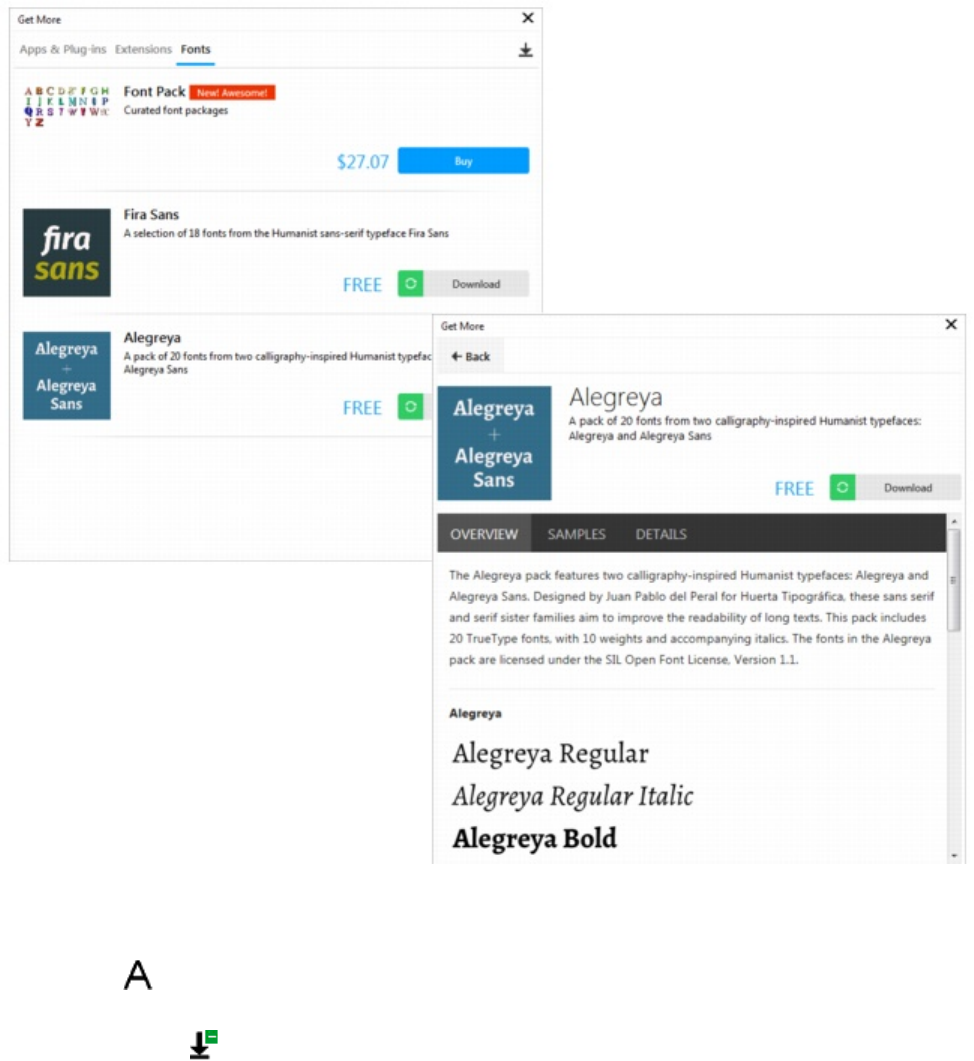
480 | Corel DESIGNER 2017 User Guide
You can browse and download available font packs from the Get More dialog box.
To acquire a font pack
1Click the Text tool in the toolbox.
2Open the Font list box on the property bar.
3Click the Get More button .
4In the Get More dialog box, click a font pack, and do any of the following:
• To view a short description of the font pack and the font names in the respective font, click the Overview tab.
• To view font samples, click the Samples tab. To download a sample sheet in PDF format, click the link at the top of the Samples page.
• To find information about font licensing, supported languages, the download location of the font files as well as the font file names,
click the Details tab.
5Do one of the following:
• Click Buy, and follow the onscreen instructions to purchase the font pack.
• Click Download if the font pack is free.
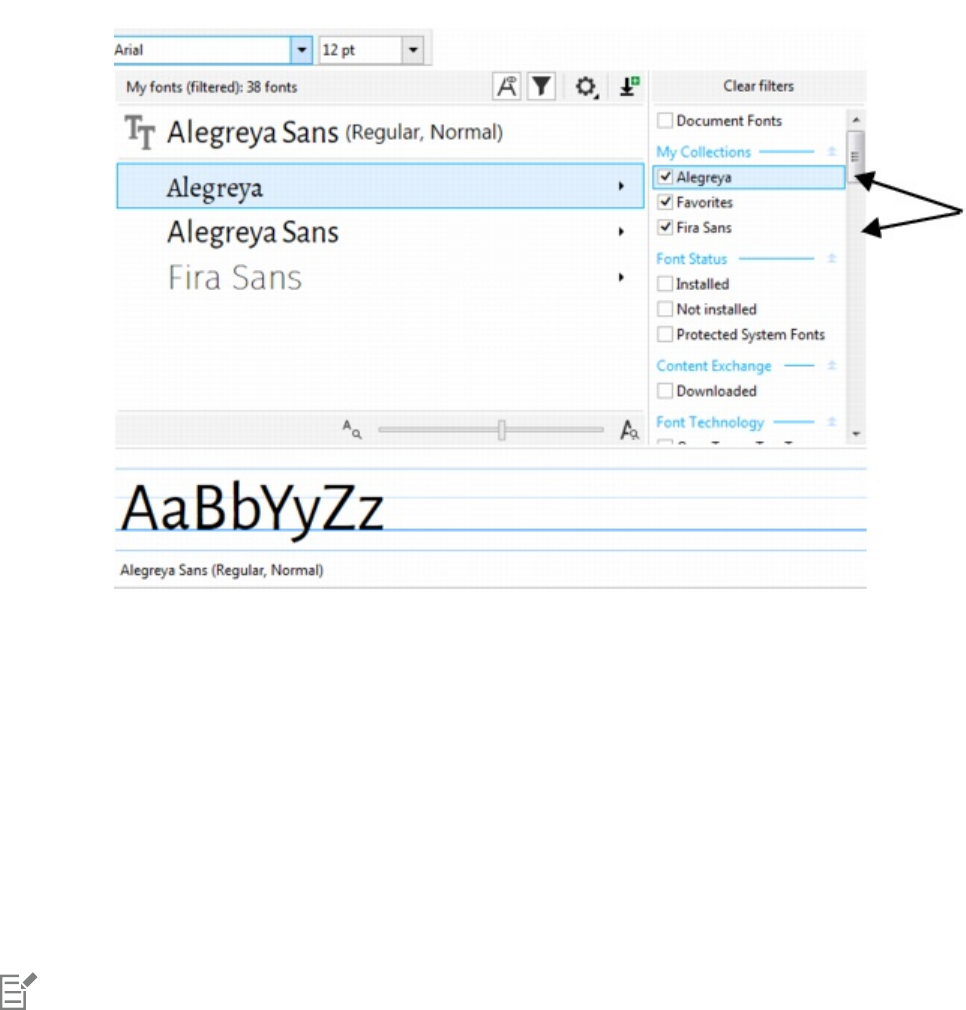
Managing fonts | 481
The downloaded font pack can be accessed from the Font list box. It also appears in the Filters list under My collections.
You can easily access the fonts from downloaded font packs by applying filters.
Identifying fonts
You can easily identify a font in the text portion of a webpage or a graphic design. CorelDESIGNER lets you capture a sample of the graphic
and automatically upload it to www.whatthefont.com for identification.
To identify a font
1Click Text WhatTheFont?!
2Drag the cursor to create a marquee around the font that you want to identify. Click inside the capture area, or press Enter to complete
the capture. To cancel, press Esc.
On the WhatTheFont?! website, the font you captured is displayed.
3Follow the directions on the WhatTheFont?! website to complete the font identification.
The ideal letter height for the best search result is about 100 pixels. Capture only uppercase or lowercase letters, not numbers or
special characters. Make sure that the captured text is horizontal and that the letters do not touch.
Choosing fonts with Font Playground
Font Playground lets you view the same sample text in different fonts and sizes to help you choose fonts for your project.
You can preview preset text samples, or you can type or paste text. In addition, you can view samples as single lines of text or multiline text,
and you can view a text sample as single lines of text in increasing font sizes.
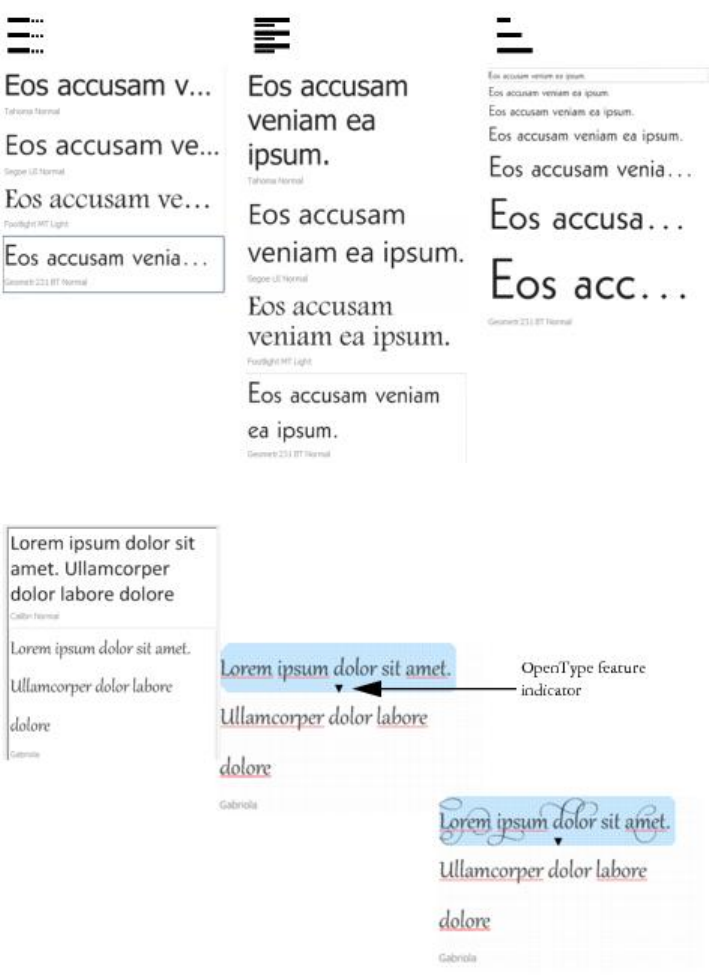
482 | Corel DESIGNER 2017 User Guide
When a text sample uses an OpenType font, you can view available OpenType features and apply them to the text sample.
Views from left to right: Single line, Multiline, and Waterfall
With text samples using OpenType fonts, you can select text to display the OpenType feature indicator
and apply an OpenType feature. In this example, a stylistic set was applied to the selected text.
To view a text sample in context, you can paste it where you want in the drawing window.
To preview fonts with Font Playground
1Click Text Font Playground.
2To change the font of a sample, click the sample, and choose a font from the Font list box.
If you want to change the text in all samples, double-click a sample, press Ctrl+A to select the text, and then type the new text.
3To choose a view option, click any of the following buttons:

Managing fonts | 483
•Single line — shows the samples as single lines of text
•Multiline — shows the samples as multiline text
•Waterfall — shows the selected sample as single lines of text in increasing sizes
4To change the size of sample text, move the Zoom slider.
If you want to change the text size in preset increments, click the Zoom buttons next to the Zoom slider.
Using Corel Font Manager
Corel Font Manager is a standalone font management application included with CorelDRAWTechnicalSuite. Corel Font Manager lets you
find, organize, and preview local fonts as well as online fonts on the Content Exchange. You can install and uninstall fonts with ease, and
you can delete fonts that you no longer need. For more information, see the Help in Corel Font Manager.
To start Corel Font Manager
• Click the Application launcher button on the standard toolbar, and then click Corel Font Manager.
To access the Corel Font Manager Help
• In Corel Font Manager, click the Help button on the title bar.
484 | Corel DESIGNER 2017 User Guide

Using writing tools | 485
Using writing tools
You can use writing tools to correct errors in spelling and grammar, correct mistakes automatically, and refine your writing style.
This section contains the following topics:
•“Using QuickCorrect” (page 485)
•“Using the spelling checker and Grammatik” (page 487)
•“Using the thesaurus” (page 489)
•“Working with languages” (page 490)
•“Customizing the writing tools” (page 490)
•“Using checking styles” (page 491)
•“Using rule classes” (page 494)
•“Analyzing a drawing” (page 495)
•“Using word lists” (page 496)
•“Checking statistics” (page 499)
For more information about using the writing tools, see “Reference: Using writing tools” on page 499.
Using QuickCorrect
QuickCorrect™ automatically corrects misspelled words and capitalization errors. You can customize QuickCorrect by specifying which types
of errors you want to correct automatically.
In CorelDESIGNER, the quotation marks that are applied to text vary according to the language that you have selected. You can further
customize the quotation marks for different languages by using QuickCorrect. For example, you can change the style of double, single, and
straight quotation marks for a language.
Adding words to QuickCorrect lets you replace words and abbreviations that you often mistype. The next time you type the misspelled
word, QuickCorrect corrects the word automatically. You can use this feature to create shortcuts to frequently used words and phrases. For
example, you can store the phrase “for your information” under the abbreviation “FYI” so that each time you type “FYI” followed by a space,
it is replaced with the phrase.
You can have QuickCorrect add corrections made with the spelling checker to its word list so that the next time you misspell the word the
same way, it is automatically corrected.
You can also undo a QuickCorrect correction.

486 | Corel DESIGNER 2017 User Guide
To customize QuickCorrect
1Click Text Writing tools QuickCorrect.
2Enable any of the following check boxes:
•Capitalize first letter of sentences
•Correct two initial, consecutive capitals
•Capitalize names of days
•Automatic hyperlink
•Replace text while typing
The Correct two initial, consecutive capitals option doesn’t make a change when a capital letter is followed by a space or period, or
if a word contains other capital letters.
Instead of enabling the Capitalize first letter of sentences check box, you can change the text case to sentence case. For more
information, see “To change the text case” on page 444.
To customize quotation marks for different languages
1Click Text Writing tools QuickCorrect.
2Choose a language from the Language list box.
3Perform a task from the following table.
To Do the following
Change straight quotation marks to typographic (“curly”) quotation
marks
Enable the Change straight quotes to typographic quotes check
box.
Insert straight quotation marks when the quotation mark follows a
number
Enable the Use straight quotation marks after numbers check
box.
Change the appearance of single quotation marks Choose a quotation mark style from the Open and Close list boxes,
or type a character in each of the boxes.
Change the appearance of double quotation marks Choose a quotation mark style from the Open and Close list boxes,
or type a character in each of the boxes.
Straight quotation marks are sometimes used to represent feet ( ' ) and inches ( " ).
To add words to QuickCorrect
1Click Text Writing tools QuickCorrect.
2Enable the Replace text while typing check box.
3In the Replace box, type the text to be replaced.
4Type the replacement text in the With box.
5Click Add.

Using writing tools | 487
You can use this feature to create shortcuts to frequently used words and phrases. Type the abbreviation in the Replace box, and the
word or phrase in the With box.
To add spelling corrections to QuickCorrect
1Click Tools Options.
2In the Workspace list of categories, double-click Text, and click Spelling.
3Enable the Add corrections to QuickCorrect check box.
To undo a QuickCorrect correction
•Click Edit Undo QuickCorrect.
Using the spelling checker and Grammatik
The writing tools let you check your text in many ways. By using the spelling checker and Grammatik, you can check the spelling and
grammar in an entire drawing, part of a drawing, or only selected text.
You can manually edit text and then resume checking the drawing.
The spelling checker and Grammatik replace words or phrases in two ways: you can choose a word, or define an automatic replacement for
a word. Defining automatic replacement words is useful for words that are regularly misspelled. Automatic replacement words are stored in
a user word-list file. For more information about user word-list files, see “Using word lists” on page 496.
You can skip a writing error once but flag subsequent occurrences of the problem, or you can skip the error throughout the entire
proofreading session.
To check the spelling or grammar in an entire drawing
1Click Text Writing tools, and click one of the following:
•Spell check
•Grammatik
2Choose Document from the Check list box.
3Click Start.
To check the spelling or grammar in part of a drawing
1Click Text Writing tools, and click one of the following:
•Spell check
•Grammatik
2From the Check list box, choose one of the following:
•Paragraph
•Selected text
•Sentence
•Word
3Click one of the following:
•Start — begins a new check
•Resume — continues an interrupted check

488 | Corel DESIGNER 2017 User Guide
The options available from the Check list box vary according to the type of drawing that you are checking.
To check the spelling or grammar of selected text
1Select the text you want to check.
2Click Text Writing tools, and click one of the following:
•Spell check
•Grammatik
By default, the Auto start command is enabled for the spelling checker and Grammatik. If you want to disable the Auto start command,
click Options Auto start; to check a drawing, you must click the Start button in the Writing tools dialog box.
To edit text manually
1Click Text Writing tools, and click one of the following:
•Spell check
•Grammatik
2When the spelling or grammar checker stops on a word or phrase, click where you want to make changes.
3Edit the text.
To replace a word or phrase
1Click Text Writing tools, and click one of the following:
•Spell check
•Grammatik
2When the spelling or grammar checker stops, choose a word or phrase from the Replacements list.
3Click Replace.
If the spelling checker does not offer replacement words, you can edit text manually in the Replace with box.
To define automatic text replacements
1Click Text Writing tools, and click one of the following:
•Spell check
•Grammatik
2When the spelling or grammar checker stops on a word, click Auto replace.
To skip a spelling or grammar error once
1Click Text Writing tools, and click one of the following:
•Spell check
•Grammatik
2When the spelling or grammar checker stops, click Skip once.
To skip all occurrences of an error
1Click Text Writing tools, and click one of the following:

Using writing tools | 489
•Spell check
•Grammatik
2When the spelling or grammar checker stops, click Skip all.
You can also skip all occurrences of a word for all proofreading sessions by adding it to a user word list. For more information about
user word-list files, see “Using word lists” on page 496.
Using the thesaurus
You can use the thesaurus to refine your writing style. The thesaurus lets you look up options such as synonyms, antonyms, and related
words.
You can replace a word by using the thesaurus. When you look up a word, the thesaurus provides a short definition and a list of the lookup
options selected. The thesaurus also maintains a history list of the words that you have looked up. Each time you start the thesaurus, it
begins a new history list.
The thesaurus automatically replaces a word with a suggested word, but you can also use the thesaurus to insert words.
To replace a word
1Select a word.
2Click Text Writing tools Thesaurus.
3Click Look up.
4In the list of categories, double-click a definition and click a word.
5Click Replace.
You can also
Look up words suggested by the thesaurus View definitions in the pane to the right of the suggested words.
Look up any word Type a word in the list box at the top of the Thesaurus page. Click
Look up.
Look up recently checked words Choose a word from the list box at the top of the Thesaurus page.
In some instances, you are prompted to select the correct form of the word that you want to insert. This prompt appears when the
word that you want to replace is spelled the same in both the present and past tenses (for example, “read”), or when the word can
be used as more than one part of speech (for example, “wonder,” which can be used as either a noun or a verb).
Click the left and right arrows to scroll through word lists.
To insert a word
1In the drawing, click where you want to insert the word.
2Click Text Writing tools Thesaurus.

490 | Corel DESIGNER 2017 User Guide
3Type a word in the box at the top of the Thesaurus page.
4Click Look up.
5Choose a word from the list box.
6Click Insert.
In some instances, you are prompted to select the correct form of the word that you want to insert. This prompt appears when the
word that you want to replace is spelled the same in both the present and past tenses (for example, “read”), or when the word can
be used as more than one part of speech (for example, “wonder,” which can be used as either a noun or a verb).
Working with languages
A drawing can contain text that alternates between different languages. For example, if English is the default language of your computer’s
operating system, and you also have a French language module installed, you can use the writing tools to check the spelling or grammar
of both French and English text. When you run the spelling checker or Grammatik, CorelDESIGNER checks words, phrases, and sentences
according to their assigned language. This prevents foreign words from being marked as misspellings. You can use the writing tools the
same way you would if the text were all in one language.
You can select from a list of writing tool languages when you install the application. If you did not perform a custom installation to include
additional languages, only the default writing tool language is installed.
For more information about installing a Writing Tools language module, see “Changing the language” on page 75.
You can also check for the formatting conventions of another language. For example, the spelling checker can format all dates in a drawing
according to French conventions (such as “12 avril 2005”).
Many of the languages support hyphenation. Hyphenation lets you reduce the raggedness of text along the right margin by dividing a word
that falls at the end of a line, instead of forcing the entire word to the next line.
You can also specify which quotation marks to use for different languages. For more information, see “To customize quotation marks for
different languages” on page 486.
To assign a language to text
1Select the text.
2Click Text Writing tools Language.
3In the Text language dialog box, choose a language from the list.
You can assign a language to selected words, sentences, or paragraphs.
To use the writing tools for the language you select in the Text language dialog box, the module for that language must be installed.
You can check which language has been assigned to text by selecting the text and viewing the three-letter language code that
appears in the status bar.
Customizing the writing tools
You can customize how the spelling is checked in a drawing. For example, you can choose how the spelling checker starts and whether it
searches for misspelled words, irregular capitalization, duplicate words, or words with numbers.

Using writing tools | 491
You can customize how Grammatik checks grammar in a drawing. For example, you can customize Grammatik to start automatically, to
prompt you before it automatically replaces words, and to show spelling suggestions for misspelled words.
You can customize the thesaurus to look up words or close automatically. The thesaurus can also be customized to suggest spelling
suggestions for misspelled words and to display multiple alternative word lists.
To set spelling checker options
1Click Text Writing tools Spell check.
2Click Options, and then click one of the following:
•Auto start
•Beep on misspelled
•Recheck all text
•Check words with numbers
•Check duplicate words
•Check irregular capitalization
•Prompt before auto replacement
•Show phonetic suggestions
The options you click are applied the next time you open the spelling checker.
To set Grammatik options
1Click Text Writing tools Grammatik.
2Click Options, and click one of the following:
•Auto start
•Prompt before auto replacement
•Suggest spelling replacements
The options you click are applied the next time you open Grammatik.
To set thesaurus options
1Click Text Writing tools Thesaurus.
2Click Options, and click one of the following:
•Auto look up
•Auto close
•Spelling assist
The options you click are applied the next time you open the thesaurus.
Using checking styles
A checking style is a preset writing style rule applied to a drawing. Using a checking style lets you check a drawing that has a specific type of
writing. For example, you can choose an advertising checking style to check advertising copy or marketing materials.

492 | Corel DESIGNER 2017 User Guide
You can create, delete, edit, and restore a checking style.
You can specify a maximum number of items when Grammatik checks the grammar of a drawing. For example, you can specify the
maximum number of consecutive nouns that Grammatik allows.
Choosing a formality level lets Grammatik check a drawing for strict or relaxed use of language and diction. Each checking style has a default
level of formality assigned to it. Each formality level focuses on a different style of writing. You can choose from three formality levels:
informal, standard, and formal.
To select a checking style
1Click Text Writing tools Grammatik.
2Click Options Checking styles.
3In the Checking styles dialog box, choose one of the following:
•Spelling plus
•Quick check
•Very strict
•Formal memo or letter
•Informal memo or letter
•Technical or scientific
•Documentation or speech
•Student composition
•Advertising
•Fiction
•Grammar As-You-Go™
4Click Select.
A checking style remains in effect until you disable the checking style or choose another one.
To create a checking style
1Click Text Writing tools Grammatik.
2Click Options Checking styles.
3In the Checking styles dialog box, choose Very strict from the list.
4Click Edit.
5In the Edit checking styles dialog box, disable any rule classes in the Rule classes list that you do not want to include.
6Modify any of the settings.
7Click Save as.
8In the Save as checking style dialog box, type a name in the Custom style name box.
To delete a checking style
1Click Text Writing tools Grammatik.
2Click Options Checking styles.
3In the Checking styles dialog box, choose a checking style from the list.
4Click Delete.

Using writing tools | 493
You can delete custom checking styles, but you cannot delete preset checking styles.
To edit a checking style
1Click Text Writing tools Grammatik.
2Click Options Checking styles.
3In the Checking styles dialog box, choose a checking style.
4Click Edit.
5Modify any of the settings.
6Click Save.
When you save an edited checking style, an asterisk (*) is added to the style name.
To restore an edited checking style
1Click Text Writing tools Grammatik.
2Click Options Checking styles.
3In the Checking styles dialog box, choose an edited checking style from the list.
4Click Edit.
5Click Restore.
If you want to save an edited or restored checking style with a new name, click Save as, and type the new name in the Save as checking
style dialog box.
Custom checking styles saved with new names cannot be returned to default settings.
To specify the maximum number of specific items
1Click Text Writing tools Grammatik.
2Click Options Checking styles.
3In the Checking styles dialog box, choose a checking style from the list.
4Click Edit.
5In the Maximum allowed area, type values in any of the following boxes:
•Consecutive nouns
•Consecutive prepositional phrases
•Long sentence length
•Spell numbers below or equal to
•Words allowed in split infinitive
Set the Spell numbers below or equal to value to zero if you do not want numerals to be flagged as errors.

494 | Corel DESIGNER 2017 User Guide
To change a formality level
1Click Text Writing tools Grammatik.
2Click Options Checking styles.
3In the Checking styles dialog box, choose a checking style from the list.
4Click Edit.
5In the Formality levels area, enable one of the following:
•Informal
•Standard
•Formal
Using rule classes
Rule classes contain groups of grammar and style rules. Grammatik uses rule classes to detect common writing errors.
You can enable or disable rules at any time during a Grammatik session. When you disable a rule, Grammatik ignores all the errors
associated with that rule during the current proofreading session. You can also choose which rule classes to apply during a Grammatik
session or save a new set of rules as a checking style.
To enable a rule
1Click Text Writing tools Grammatik.
2Click Options Turn on rules.
3In the Turn on rules dialog box, choose the rules you want to enable from the Rules list.
The Turn on rules command is available only when you have disabled a rule during proofreading. Otherwise, it is grayed.
To disable a rule
1Click Text Writing tools Grammatik.
2Start a new grammar-checking session.
3When Grammatik alerts you to an error that you do not want to flag, click Turn off.
To add rule classes
1Click Text Writing tools Grammatik.
2Click Options Checking styles.
3In the Checking styles dialog box, choose a checking style from the list.
4Click Edit.
5In the Edit checking styles dialog box, enable any check boxes beside the rule classes in the Rule classes list that you want to add.
To save a set of rules as a new checking style
1Click Text Writing tools Grammatik.
2Click Options Save rules.
3In the Save rules dialog box, click Save as.
4In the Save as checking style dialog box, type a name in the Custom style name box.

Using writing tools | 495
The Save rules command is available only when a rule has been turned off.
Analyzing a drawing
Grammatik lets you analyze the grammatical structure of text in a drawing. You can analyze parts of a sentence and parts of speech. When
Grammatik analyzes a sentence, it assigns a sentence part to each word or group of words. Grammatik uses Parse Tree to let you view the
parts of a sentence. When Grammatik analyzes text, it assigns a part of speech to each word in a sentence. You can view the parts of speech
that Grammatik assigns to a sentence.
You can view a basic counts report to analyze a writing style. The basic counts report determines if there are too many long words or if
paragraphs are too long and complicated for the reader to easily understand.
You can also view a flagged errors report to analyze a writing style. The flagged errors report lists the types of errors flagged in a drawing
and reports the number of times each error was flagged. You can also use this report to identify the types of grammar problems that often
appear in a drawing.
Viewing a readability report lets you analyze the amount of skill required for a reader to understand the text in a drawing. Grammatik
analyzes the readability of a drawing by comparing the text with a comparison document. You can choose from one of three Grammatik
comparison documents, or you can add a custom comparison document.
To view a parse tree
1Click Text Writing tools Grammatik.
2Click Options Analysis Parse tree.
The location of the cursor determines the sentence that appears in the parse tree.
To view parts of speech
1Click Text Writing tools Grammatik.
2Click Options Analysis Parts of speech.
The location of the cursor determines the sentence that appears in the Parts of speech dialog box.
To view a basic counts report
1Click Text Writing tools Grammatik.
2Click Options Analysis Basic counts.
To view a flagged errors report
1Click Text Writing tools Grammatik.
2Click Options Analysis Flagged.
To view the readability of a drawing
1Click Text Writing tools Grammatik.

496 | Corel DESIGNER 2017 User Guide
2Click Options Analysis Readability.
3In the Readability dialog box, choose a comparison document from the Comparison document list box.
To add a comparison document
1Open the drawing you want to use as a comparison document.
2Click Text Writing tools Grammatik.
3Click Options Analysis Readability.
4In the Readability dialog box, click Add document.
Grammatik lets you add only one custom comparison document. If you add a second document, it overwrites the first custom
comparison document.
Using word lists
A word list is a list of words or phrases scanned when you proof text by using the writing tools. Writing tools scan two types of word
lists: user word lists and main word lists. Each language comes with a default user word list. You can customize user word lists by adding,
deleting, or replacing words. Main word lists are lists of specialized words used by the spelling checker for a particular language, field or
company.
You can choose a user word list to help proof a text. You can have up to 10 user word lists active simultaneously. For example, if you want
the spelling checker to scan both the US English and the Canadian English main word lists, choose both lists. If you work in the medical
profession, you can select a third-party medical word list that runs with the writing tools. Each language supported by the spelling checker
has a default main word list. The active user word lists are scanned first; if the word or phrase is not found there, the active main word lists
are scanned. You can add, disable, or remove word lists.
You can add a word to a user word list so that the word is not flagged as an error. You can also add replacement words to a user word list,
which lets you choose a replacement when the spelling checker or Grammatik stops on a word.
You can edit or delete words in a user word list at any time.
To choose a user word list
1Click Text Writing tools, and click one of the following:
•Spell check
•Grammatik
2Click Options User word lists.
3Enable the User word list check box.
If there is only one user word list, no check box appears.
The default user word list for the language is always enabled.
To add a user word list
1Click Text Writing tools, and click one of the following:
•Spell check
•Grammatik
2Click Options User word lists.

Using writing tools | 497
3Click in the User word lists list where you want to position the new user word list.
4Click Add list.
5In the Add user word list dialog box, choose the new user word list.
6Click Open.
The filename extension for a user word list is .uwl.
When you check a drawing, the user word lists are scanned in the order of their appearance in the User word lists dialog box.
To disable a user word list
1Click Text Writing tools, and click one of the following:
•Spell check
•Grammatik
2Click Options User word lists.
3Disable the check box that corresponds to a user word list.
The default user word list for the language is always enabled.
To remove a user word list
1Click Text Writing tools Spell check.
2Click Options User word lists.
3Choose a user word list.
4Click Remove list.
You cannot remove the default language word list.
To add a word to a user word list
1Click Text Writing tools, and click one of the following:
•Spell check
•Grammatik
2Click Options User word lists.
3In the User word lists dialog box, choose a user word list.
4Type a word in the Word/phrase box.
5If you want to add a replacement word, type it in the Replace with box.
6Click Add entry.
7Click Close.
In the spelling checker, replacement words appear in the Replacements box.

498 | Corel DESIGNER 2017 User Guide
Click Add from the Spell checker or Grammatik pages to add the word to the current user word list.
You can also add short phrases to a user word list.
To add alternative words to a user word list
1Click Text Writing tools, and click one of the following:
•Spell check
•Grammatik
2Click Options User word lists.
3In the User word lists dialog box, choose a user word list.
4Type a word in the Word/phrase box.
5Type a replacement word in the Replace with box.
6Click Add entry.
7Click Close.
You can also add short phrases to a user word list.
To edit a word or phrase in a user word list
1Click Text Writing tools, and click one of the following:
•Spell check
•Grammatik
2Click Options User word lists.
3Choose the user word list that contains the word or phrase you want to edit.
4Choose the word or phrase you want to edit.
5Edit the word or phrase in the Replace with box.
6Click Replace entry.
If the word list you want to edit does not appear in the User word lists dialog box, click Add list to open the list.
To delete a word or phrase from a user word list
1Click Text Writing tools, and click one of the following:
•Spell check
•Grammatik
2Click Options User word lists.
3Choose the word list you want to edit.
4Choose the word or phrase you want to delete.
5Click Delete entry.

Using writing tools | 499
Checking statistics
You can check text statistics to count text elements, including the number of lines, words, characters, and the names of the fonts and styles
used. You can display statistics either for selected text objects or for the entire drawing. If no text is selected, all text elements in the drawing,
including tab and space characters, are counted.
To count text elements for an entire drawing
1Click a blank space in the drawing window.
2Click Text Text statistics.
You can also
Count text elements for selected text Select a block of text. Click Text Text statistics.
If you want to display information about the styles used, enable the Show style statistics check box.
Reference: Using writing tools
Grammatik uses the following notations to identify parts of speech or parts of a sentence.
Notation in Grammatik Grammatical term Explanation
3v third-person present verb The following sentences use the third-
person present-tense verb form:
“He waits.”
“She brushes her hair.”
“Does it sing?”
<> punctuation Punctuation clarifies the meaning of a
phrase or statement. Examples:
•period (.)
•comma (,)
•question mark (?)
abrv abbreviation An abbreviation is a shortened version of a
word. For example, “etc.” is an abbreviation
of “etcetera.”
adj adjective An adjective modifies a noun. Example: a
“good” book.
adv adverb An adverb modifies a verb or an adjective.
Examples:

500 | Corel DESIGNER 2017 User Guide
Notation in Grammatik Grammatical term Explanation
•go “quickly”
•a “very” good book
aux auxiliary verb An auxiliary verb is a form of “be,” “have,”
or “do.” Examples:
•“is” coming
•“had” not run
•“did” he say
bv base verb A base verb is the form of a verb that comes
after “to” in an infinitive, or after a modal
(such as “would”).
c/s comparative/superlative The comparative and superlative forms of
adjectives or adverbs indicate a degree of
comparison. Examples:
•happier
•slowest
cj conjunction A conjunction joins words, phrases, or
clauses. Examples:
•the book “and” the pen
•I want to leave “because” it is late.
det determiner A determiner is a type of adjective.
Examples:
•a
•an
•the
•some
•these
•any
direct object direct object A direct object receives the action. Example:
Bob opened “the box.”
ij interjection An interjection is an exclamation. Examples:
•Hi!
•Oh!
•Hey!
indirect object indirect object An indirect object tells “to whom” or “for
whom” the action of the sentence occurs.
Examples:
•Bob gave “her” an apple.
•I sent “him” a postcard.
inf split infinitive A split infinitive is a verb in its infinitive form
(to be, to run) that is split by intervening
modifiers. For example, in the split infinitive

Using writing tools | 501
Notation in Grammatik Grammatical term Explanation
“to boldly go,” the adverb “boldly” splits
the infinitive “to go.”
main clause main clause A main clause is complete in meaning
without any other sentence component.
Examples:
•Let’s have the picnic today unless it
rains. (Main clause: “Let’s have the picnic
today”)
•When not in school, children play. (Main
clause: “children play”)
mod modal A modal is a type of auxiliary verb.
Examples:
•will
•must
•can
•should
•might
num number A number expresses a quantity. Examples:
•“three” boys
•“497” days
•“62” percent
phrasal phrasal preposition A phrasal preposition is a preposition that
belongs to, but is separated from, a verb
phrase. Example: put the book “down.”
pn plural noun A plural noun is the plural form of a noun.
Examples:
•books
•children
poss possessive noun A possessive noun shows ownership. It
is used as an adjective to modify another
noun. Examples:
•“dog’s” leg
•“students’” cars
•“Joe’s” son
ppt past participle A past participle is a past-tense verb form.
Example: The note was “written” in ink.
prep phr prepositional phrase A prepositional phrase consists of a
preposition and its object, plus any
modifiers. Prepositional phrases function as
adjectives, adverbs, or nouns. Example: We
came back “for the second show.”

502 | Corel DESIGNER 2017 User Guide
Notation in Grammatik Grammatical term Explanation
pres-p present participle A present participle is a verb form that can
function as part of a verb phrase or as an
adjective. It is usually created by adding
“ing” to the base verb. Examples:
•He is “writing” a book.
•She is “going” to bed.
•The lawyers presented “closing”
arguments.
prn pronoun A pronoun takes the place of a noun.
Examples:
•I
•me
•you
•mine
•yourself
•these
•who
•which
pv past tense The past tense expresses actions that have
already occurred. Examples:
•He “wrote” the book.
•We “went” to the store.
relative clause relative clause A relative clause is a type of subordinate
clause that acts like an adjective, describing
the noun or pronoun that precedes it. A
relative clause usually begins with a relative
pronoun, such as “who,” “whom,” or
“what.” Example: The employees “who
worked diligently” were rewarded.
rel prn relative pronoun A relative pronoun introduces a subordinate
clause and links it with an independent
clause. Examples: The noise “that” scared
you was made by the boy “who” lives next
door.
sn singular noun A singular noun is the name of one person,
place, thing, or idea. Examples:
•Tom
•Canada
•pen
•health
subject subject The subject of a clause performs an action.
A subject can be one word or several.
Examples:
•“John” ran.

Using writing tools | 503
Notation in Grammatik Grammatical term Explanation
•“The cats” meowed.
•“All the children and their mothers” took
naps.
subordinate clause subordinate clause A subordinate clause, which is also called
a dependent clause cannot stand alone.
It depends on another clause to complete
its meaning. Example: We will have the
meeting today, “because everyone is here.”
that clause that-clause A that-clause is a specialized subordinate
clause starting with “that.” Example: We
were sure “that you would pay us.”
verb or verb phrase verb or verb phrase A verb or verb phrase shows action. Verbs
can contain one word or several words,
but Grammatik uses “verb phrase” when
the verb consists of more than one word.
Examples:
•John “ran.”
•He “has gone.
wh-clause wh-clause A wh-clause is a specialized subordinate
clause starting with “when,” “how,” “why,”
or “where.” A wh-clause can serve as a
noun, an adverb, or an adjective. Examples:
•We knew “where she would go.”
•I will tell you “when I go.”
504 | Corel DESIGNER 2017 User Guide
Templates and styles | 505
Templates and styles
Working with templates...................................................................................................................................................................... 507
Working with styles and style sets....................................................................................................................................................... 511
Working with color styles.................................................................................................................................................................... 521
506 | Corel DESIGNER 2017 User Guide

Working with templates | 507
Working with templates
A template is a collection of styles and page layout settings that govern the layout and appearance of a drawing. Templates are sometimes
referred to as “templets.”
You can use the preset templates provided with CorelDESIGNER, and you can create and use custom templates.
This section includes the following topics:
•“Searching for templates” (page 507)
•“Using templates” (page 509)
•“Creating templates” (page 509)
•“Editing templates” (page 510)
Searching for templates
CorelDESIGNER provides an easy way of finding templates.
Searching
You can search by the name, category, or reference information associated with a template. For example, if you type “contemporary” in the
text field, the application automatically filters out all files that do not match, and you see only the files that have the word “contemporary”
in the template name, category, or designer notes attached to the file.
You can cancel a search at any time.
Filtering search results
You can narrow the search results by using different criteria, such as document type (for example, brochure, flyer, newsletter, or postcard)
and industry (for example, hospitality or retail). You can choose to view only templates that you have created or all templates (the templates
included with CorelDESIGNER and provided by third-party designers, as well as templates that you have created).
Viewing templates and template information
You can increase the size of thumbnails to recognize a particular template easier and faster, and you can decrease thumbnail size to view
more search results at a glance.When you select a template in the viewing area, additional information is displayed about the template’s
category, style, pagination, and fold options, as well as any designer notes related to its intended use.
508 | Corel DESIGNER 2017 User Guide
To search for templates
1Click File New from template.
2In the New from template dialog box, type a word in the Search box, and press Enter.
Thumbnails that match the search term appear in the Templates pane.
3From the View by list box in the Filter pane, choose one of the following categories:
•Type — sorts templates by document type, such as brochure, flyer, or newsletter
•Industry — sorts templates by the industry that the template was designed for (for example, hospitality, retail, or services)
4In the category list, click a category.
To view all templates (that is, templates included with CorelDESIGNER, created by third-party designers, or created by you or others),
click All. To view only templates that you have created, click My templates.
Custom templates that do not contain any category information are displayed under My templates.
If the CorelDESIGNER shell integration components are not installed (that is, if you have disabled the Windows Shell Extension
option under Utilities in the Setup wizard during a custom installation), you can search for templates only by filename, not by name,
keywords, or other reference information.
You can also start a search by entering a search term in the Search box and clicking the Start search button .
To view templates and template information
1Click File New from template.
2In the New from template dialog box, search for templates.
3Perform one or more tasks from the following table.
To Do the following
Increase or decrease the size of thumbnails Drag the Zoom slider to the right or left.
View template details Click a thumbnail in the Templates pane. The template details are
displayed in the Template details pane.
If the Template details pane is hidden, click the Show/Hide
template details button to display it.
View designer notes Click a thumbnail in the Templates pane. The designer notes are
displayed in the Designer notes pane.
Print designer notes Click the Print designer notes button in the lower-left corner
of the Designer notes pane.
If there are no designer notes associated with a template, the Print
designer notes button is disabled.

Working with templates | 509
Using templates
When you start a document from a template by using the File New from template command, CorelDESIGNER formats the page
according to the page layout settings in the template and then loads all objects and template’s styles into the new document. With this
method, you can search and browse for templates.
If you want to use only the styles from a template, you can create a blank document by using the File Open command.
You can also import styles from a template into a document at any time.
To start a document from a template
1Click File New from template.
2Search or browse for templates.
3Choose a template from the Templates list.
4Click Open.
For information about searching for templates, see “To search for templates” on page 508.
You can also start a document from a template by clicking File Open, locating the template, double-clicking it, and enabling the
New from template check box in the Open dialog box. If you want to use only the template’s styles, disable the With contents
check box.
To import styles from a template into a document
1Click Window Object styles.
2In the Object styles docker, open the Import, export, or save defaults flyout, and then click the Import style sheet button .
3Locate the folder where the template is stored.
4Click the template that contains the styles that you want to load.
5Click Open.
Only the template styles are imported. Page layout settings and objects saved with the template are ignored. The attributes of existing
objects are maintained.
Creating templates
If the preset templates do not meet your needs, you can create your own templates, based on documents that you often use. For example, if
you regularly put together a newsletter, you can save the page layout settings and styles to a template.
When you save a template, CorelDESIGNER allows you to add reference information, such as pagination, folds, category, industry, and other
important notes. Although adding template information is optional, doing so makes it easier to organize and locate templates later on. For
example, adding descriptive notes to a template lets you subsequently search for that template by entering text from the notes.
To create a template
1Click File Save as template.
2Type a name in the File name list box.

510 | Corel DESIGNER 2017 User Guide
3Locate the folder where you want to save the template.
4Click Save.
5In the Template properties dialog box, specify the options you want:
•Name — Assign a name to your template. This name will appear with the thumbnail in the Templates pane.
•Sided — Choose a pagination option.
•Folds — Choose a fold from the list, or choose Other and type the fold type in the text box next to the Folds list box.
•Type — Choose an option from the list, or choose Other and type the template type in the text box next to the Type list box.
•Industry — Choose an option from the list, or choose Other and type the industry for which the template is designed.
•Designer notes — Type important information about the intended use of the template.
If you click Cancel, you close the Template properties dialog box without saving the template.
If you save a template to a previous version of CorelDESIGNER (12.5 or earlier), you cannot add reference information.
The Designer notes text box supports HTML markup, so you can paste such content as graphics and hyperlinks. Graphics pasted
from an HTML file are referenced from their original location and are not embedded in the CorelDESIGNER document. Therefore, if
you plan to share a template with others, make sure that they have access to the location of the graphics. If you paste formatted text
(also known as “rich text”) from a Rich Text Format (RTF) or HTML file, the formatting properties of the text are preserved.
If you don’t want to add reference information, click OK without specifying any of the options.
You can also enter designer notes by copying content from another document and pasting it into the Designer notes text box.
To format text in the Designer notes text box, use the following shortcut keys:
•Ctrl + B — applies bold formatting to selected text
•Ctrl + I — italicizes selected text
•Ctrl + U — underlines selected text
•Ctrl + K — lets you assign a hyperlink to selected text
Editing templates
You can edit a template by making changes to the styles, page layout settings, or objects. For example, if you like a template but want to
make it more versatile, you can add styles that you’ve created or that you’ve taken from another template. For information about editing
styles, see “Editing styles and style sets” on page 515. For information about setting page layout options, see “Specifying the page layout”
on page 533.
To edit a template
1Click File Open.
2Locate the folder where the template is stored.
3Double-click a template filename.
4In the Open dialog box, enable the Open for editing check box.
Working with styles and style sets | 511
Working with styles and style sets
CorelDESIGNER provides advanced style capabilities that allow you to format your documents with speed, ease, and consistency. You can
create and apply styles and style sets to different types of objects: graphic objects, artistic and paragraph text, callout and dimension objects,
and any objects created with the Artistic Media tools.
Styles and style sets are groups of attributes that determine the appearance of objects. When you apply a style or style set to an object, all
the attributes defined in that style are applied to the object in one step. That is how you can format simultaneously many different objects
and significantly reduce your set-up and production time. What is more, when you edit a style or style set, all the objects defined by that
style are automatically updated.
You can also export styles and style sets as style sheets for use in other documents, or import them from previously saved style sheets.
You can quickly change the look of an object by applying a style set.
This section includes the following topics:
•“Creating styles and style sets” (page 512)
•“Applying styles and style sets” (page 514)
•“Editing styles and style sets” (page 515)
•“Managing default object properties” (page 516)
•“Exporting and importing style sheets” (page 517)

512 | Corel DESIGNER 2017 User Guide
•“Assigning keyboard shortcuts to styles or style sets” (page 518)
•“Finding objects that use a specific style or style set” (page 518)
•“Breaking the link between objects and styles or style sets” (page 518)
Creating styles and style sets
A style is a group of formatting attributes that defines an object property, such as outline or fill. For example, to define an outline style, you
can specify attributes such as outline width, color, and type of line. To define a character style, you can specify the font type, font style and
size, text color and background color, character position, caps, and more. CorelDESIGNER lets you create and apply outline, fill, paragraph,
character, and text frame styles.
CorelDESIGNER lets you group styles into style sets. A style set is a collection of styles that helps you define the appearance of an object.
For example, you can create a style set containing a fill style and an outline style that you can apply to graphic objects such as rectangles,
ellipses, and curves.
There are two options for creating styles. You can create a style or style set based on the formatting of an object that you like, or you can
create a style or style set from scratch by setting the object attributes in the Object styles docker.
In CorelDESIGNER, styles can contain other styles. A style that contains another style is called a parent; a style that is contained within
another style is called a child. Properties are automatically inherited from the parent; however, you can override inherited properties for a
child and set its own specific properties. When you modify the parent style, the child style is updated automatically. If you set child-specific
attributes, the attributes are no longer related to the parent, so if you modify the parent, the child-specific attributes will not be modified.
The parent-child relationship applies to style sets as well.
You can use child and parent styles in documents where you want objects to share some, but not all, attributes, and you need to make
global changes on a regular basis. For example, if you are working on a long document and you want to have headings and subheadings
with similar formatting, you can create a parent character style for the headings and a child character style for the subheadings. The parent
and the child styles can share the same color and font type but differ in size. If you choose a different color or font type for the parent, both
the headings and the subheadings will be updated automatically. The subheadings, however, will still appear smaller than the headings.
To create a style from an object
1Using the Pick tool , right-click an object.
2Choose Object styles, choose New style from, and point to a style type.
A preview shows you what object attributes will be included in the new style.
3Click a style type.
4In the New style from dialog box, type a name in the New style name box.
If the Object styles docker is not open, enable the Open object styles docker check box in the New style from dialog box.
You can also create a style from an object by right-clicking the Styles folder in the Object styles docker, choosing New from
selected, and then choosing a style type.
To create a style set from an object
1Using the Pick tool , right-click an object.
2Choose Object styles, and point to New style set from.
Working with styles and style sets | 513
A preview shows you what object attributes will be included in the new style set.
3Click New style set from.
4In the New style set from dialog box, type a name in the New style set name box.
If the Object styles docker is not open, enable the Open object styles docker check box in the New style set from dialog box.
You can also create a style set from an object by dragging the object to the Style sets folder in the Object styles docker. If you drag
the object over an existing style set in the Style sets folder, the attributes of the object replace the attributes of the style set, and all
objects to which the style set has been applied are automatically updated.
To define a style
1Click Window Object styles.
2In the Object styles docker, click the New style button , and choose a style type.
The style appears in the Styles folder with a name assigned by the application, for example “Fill 1.”
3Specify the style attributes that you want.
You can also
Rename a style Right-click a style, click Rename, type a new name, and press
Enter.
Delete a style Do one of the following:
•Select a style in the Styles folder, and click the Delete style
button .
•Right-click a style, and click Delete.
Duplicate a style Right-click a style, and click Duplicate.
Create a child style Do one of the following:
•Select a style in the Styles folder, and click the New child style
button .
•Right-click a style, and click New child style.
To define a style set
1Click Window Object styles.
2In the Object styles docker, click the New style set button to create an empty style set to which you can add styles.
The style set appears in the Style sets folder with a name assigned by the application, for example “Style Set 1.”
3Do one of the following:
•Click the Add or remove style button next to the style set, and select the style types that you want to add to the style set. Then,
set the properties of each style.
• From the Styles folder, drag existing styles to the new style set.
514 | Corel DESIGNER 2017 User Guide
You can also
Rename a style set Right-click a style set in the Style sets folder, click Rename, type a
new name, and press Enter.
Delete a style set Do one of the following:
•Select a style set in the Style sets folder, and click the Delete
style set button .
•Right-click a style set, and click Delete.
Duplicate a style set Right-click a style set, and click Duplicate.
Create a child style set Do one of the following:
•Select a style set in the Style sets folder, and click the New child
style set button .
•Right-click a style set, and click New child style set.
Applying styles and style sets
When you apply a style or a style set to an object, the object takes on only the attributes that are defined by the style or style set. For
example, if you apply an outline style, the object outline changes while its other attributes stay the same.
You can apply styles and styles sets by using the Object styles docker and the Property manager docker.
In the Property manager docker, attributes which are defined by a style appear with a source indicator that is green and has a vertical line in
the middle . (The source indicator is the little square next to the attribute name.) If there is no style applied, the source indicator appears
blank . If there is an override of the applied style, the source indicator color is orange with a horizontal line in the middle .
To apply a style or style set to an object
1Using the Pick tool , select an object.
2Click Window Object styles.
3In the Object styles docker, select a style or style set, and click Apply to selected.
To see a preview of the style or style set before applying it, point to it in the Object styles docker.
You can also apply a style by clicking a source indicator next to an object property (outline, fill, character, paragraph, or frame) in the
Property manager docker and choosing a style from the list of styles.
You can also apply a style or style set to a selected object by using any of the following methods:
• In the Object styles docker, double-click a style or style set.
• Right-click the object, choose Object styles, choose Apply style, and then choose a style or style set from the list.
• In the Object styles docker, right-click a style or style set, and choose Apply style or Apply style set.
• In the Object styles docker, select a style or style set, and drag it to the object.
Working with styles and style sets | 515
Editing styles and style sets
You can edit a style or style set either by changing its attributes in the Object styles docker, or by changing the attributes of an object linked
to the style or style set, and then applying these changes to the style or style set.
You can also edit a style or style set by copying attributes from an object to the style or style set.
You can override style attributes. When you override an attribute, it is no longer related to the style definition, and changes to the style do
not affect the object until you remove the override.
To edit a style
1Click Window Object styles.
2In the Object styles docker, open the Styles folder, and select a style.
3In the style properties area of the Object styles docker, modify the attributes you want.
To edit a style set
1Click Window Object styles.
2In the Object styles docker, open the Style sets folder, and select a style set.
3Click the Add or remove style button next to the style set, and click the style type that you want to add or remove from the style
set.
Check marks appear next to the style types that are included in the style set.
In the style properties area of the Object styles docker, you can edit the styles that are included in the style set.
To edit a style or style set by editing an object
1Using the Pick tool , select an object that has a style or style set applied to it.
2Click Edit Property manager.
3In the Property manager docker, edit the object properties.
4In the document window, right-click the object, choose Object styles from the context menu, and choose Apply to style.
The new attributes of the object replace the attributes of the styles or style sets associated with this object.
To edit a style or style set by copying properties from an object
1Click Window Object styles.
2Drag an object from the document window over a style or style set name in the Object styles docker.
You can also copy the properties of an object to a style or style set by right-clicking the style or style set in the Object styles docker,
choosing Copy properties from, and then clicking an object in the document window.
To override a style attribute
1Using the Pick tool , select an object that has a style applied to it.
2Click Edit Property manager.
516 | Corel DESIGNER 2017 User Guide
3In the Property manager docker, edit an object attribute defined by a style.
The source indicator next to the attribute changes from green with a vertical line to orange with a horizontal line , showing that
the object attribute is no longer defined by the style.
To remove a style override, do one of the following:
•Click the orange source indicator , and choose Revert.
•In the document window, right-click the object by using the Pick tool , choose Object styles from the context menu,
and choose Revert to style.
Managing default object properties
The default object properties in CorelDESIGNER control the appearance of text and graphic objects in the active document. For example,
when you install CorelDESIGNER for the first time, the default properties for graphic objects determine that each new graphic object has a
black outline and no fill.
You can modify the default properties of the following types of objects: artistic media, artistic text, callout, dimension, graphic, and
paragraph text. When you modify the defaults, CorelDESIGNER automatically saves these changes to the current document. If you want to
use the custom settings in subsequent documents that you create, you can set them as the new document defaults.
You can specify which object styles, style sets, color styles, or default object properties in the active drawing are set as the new document
defaults.
To edit default object properties
1Click Window Object styles.
2In the Object styles docker, open the Default object properties folder, and choose one of the following object types:
•Artistic Media
•Artistic text
•Callout
•Dimension
•Graphic
•Paragraph text
3Modify the attributes you want.
Any changes you make are applied to all new objects in the active document and are automatically saved with the document.
You can also
Undo changes by reverting selected default properties to the new
document defaults
Do one of the following:
•Click the Revert to new document default button next to
the object type.
•Right-click the object type, and choose Revert to new document
default.
Undo changes to the default object properties for all object types
by reverting to the new document defaults
Do one of the following:
•Click the Revert all to new document default button next
to the Default object properties folder.
Working with styles and style sets | 517
You can also
•Right-click the Default object properties folder, and click Revert
all to new document default.
Set selected object properties as the default settings for new
documents
Do one of the following:
•Click the Set as new document default button next to the
object type.
•Right-click the object type, and click Set as new document
default.
You can also edit the default object properties while editing any object in the document window. Right-click the Default object
properties folder in the Objects styles docker, and choose Update default properties when editing objects. Any change you make
to an object becomes the default setting for new objects.
To set the current style settings as the new document defaults
1Click Window Object styles.
2In the Object styles docker, click the Import, export, or save defaults button , and click Set as new document defaults.
3Enable the check boxes for the settings that you’d like to save as the default settings for new documents.
You can also save settings as the default settings for new documents by using the Options dialog box. For more information, see
“Saving and restoring defaults” on page 721.
Exporting and importing style sheets
You can make styles and style sets available for use in other documents by exporting them to a CorelDESIGNER style sheet (.cdss) file. A style
sheet contains all the object styles, style sets, color styles, and default object properties in the active document. You can also use styles and
style sets from other documents by importing the style sheet to which they were saved.
To export a style sheet
1Click Window Object styles.
2In the Object styles docker, click the Import, export, or save defaults button , and click Export style sheet.
3In the Export style sheet dialog box, choose the folder where you want to save the style sheet.
4Type a file name in the File name box.
5Click Export.
6Enable the check boxes for the settings you’d like to export from the document.
To import a style sheet
1Click Window Object styles.
2In the Object styles docker, click the Import, export, or save defaults button , and click Import style sheet.
3In the Import style sheet dialog box, choose the folder where the style sheet is stored.
4Select the file name, and click Import.
5Enable the check boxes for the settings you’d like to import into the document.

518 | Corel DESIGNER 2017 User Guide
You can also import styles and style sets from an existing CorelDESIGNER file by selecting the file in the Import style sheet dialog box
and clicking Import.
Assigning keyboard shortcuts to styles or style sets
You can assign a keyboard shortcut to a style or style set. When you press the keyboard shortcut, CorelDESIGNER applies the style or style
set to the selected object. A keyboard shortcut can use up to four different keystrokes.
If a keyboard shortcut is already assigned to another command, you can override the existing setting.
For more information about working with keyboard shortcuts, see “Customizing keyboard shortcuts” on page 725.
To assign a keyboard shortcut to a style or style set
1Click Window Object styles.
2In the Object styles docker, right-click a style or style set, and click Assign keyboard shortcut.
The Options dialog box opens with the Shortcut keys tab of the Commands page displayed and Apply styles in the top list box
selected.
3Select the style or style set to which you want to assign a shortcut.
If you have already assigned a keyboard shortcut to the selected style, the shortcut is displayed in the Current shortcut keys box.
4Click in the New shortcut key box, and press a key combination.
If the key combination is already assigned to another command, that command is listed in the Currently assigned to box.
5Click Assign.
If the same keyboard shortcut is already assigned to another command, the second assignment overwrites the first. By enabling the
Navigate to conflict on assign check box, you can automatically navigate to the command whose shortcut you reassigned and
assign a new shortcut.
Finding objects that use a specific style or style set
CorelDESIGNER allows you to find objects with a specific style or style set in the active drawing. For example, you can find all text objects
that use a specific heading style.
To find objects that use a specific style or style set
1Click Window Object styles.
2In the Object styles docker, open the styles or styles sets folder that contains a specific style or style set.
3Right-click the style or style set, and choose Select objects using style.
Breaking the link between objects and styles or style sets
You can break the link between an object and the style or style set applied to it. When you break the link, the object retains its current
appearance. Subsequent changes to the style or style set will not affect the object attributes.

Working with styles and style sets | 519
To break the link between an object and a style or style set
•In the document window, right-click an object by using the Pick tool , choose Object styles from the context menu, and click Break
link to style.
If the Break link to style command is not available, there are no styles or style sets applied to this object.
You can also break the link between an object and a style by clicking the source indicator next to the styled property (outline, fill,
paragraph, character, or frame) in the Property manager docker and choosing Not styled.
520 | Corel DESIGNER 2017 User Guide

Working with color styles | 521
Working with color styles
A color style is a color you save and apply to objects in a document. Any time you update a color style, you also update all objects using that
color style. Color styles allow you to apply custom colors with ease and consistency.
This section contains the following topics:
•“Creating and applying color styles” (page 521)
•“Editing color styles” (page 524)
•“Viewing color styles” (page 528)
•“Exporting and importing color styles” (page 530)
•“Breaking the link between a color style and an object” (page 530)
Creating and applying color styles
You can create color styles from the colors of an existing object or from scratch. When you create a color style, the new color style is saved to
the active document and to the Color styles palette.
After you create a color style, you can apply it to objects in the document. CorelDESIGNER lets you access available color styles through
various controls: the Color styles docker, the Object styles docker, the Property manager docker, the Color styles palette, and the
Document palette. (A color style is automatically added to the Document palette when you apply it to an object.)
Color styles can be combined into groups called harmonies. A harmony allows you to link color styles into hue-based relationships and
modify them together as a set. By editing color styles in a harmony, you can quickly create a variety of alternate color schemes by shifting the
colors together, or you can alter the color composition of your artwork in one step.
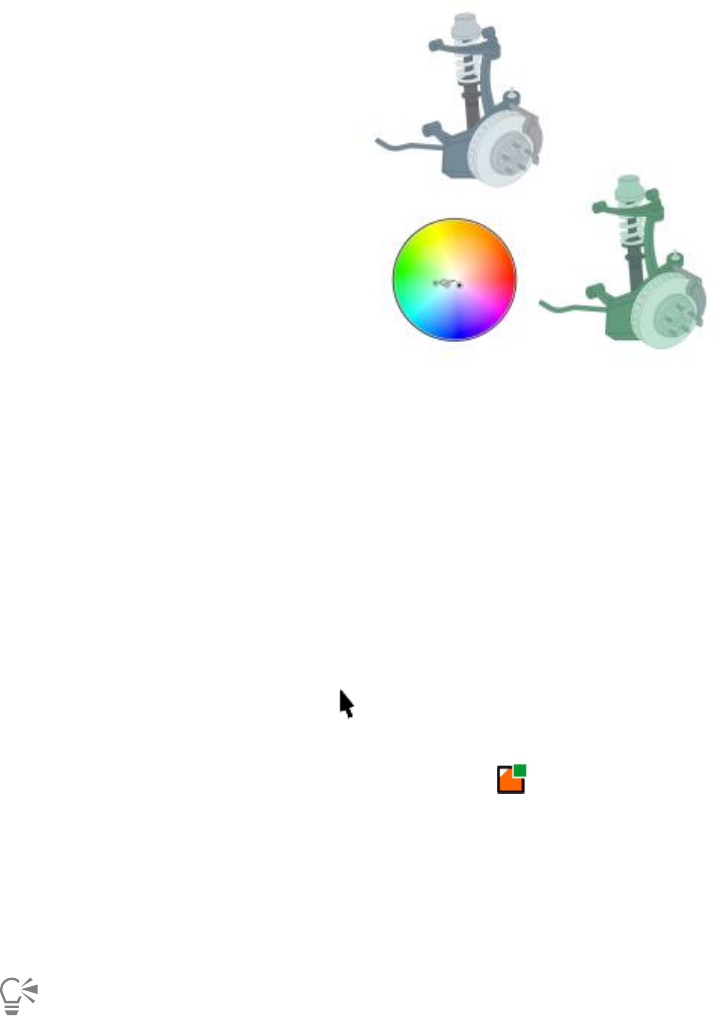
522 | Corel DESIGNER 2017 User Guide
Color harmonies let you change combinations of colors easily.
CorelDESIGNER allows you to create a special type of color harmony called a gradient. A gradient consists of a master color style and a
number of shades of that color style. For most of the available color models and palettes, the derivative color styles share the same hue as
the master color style but have different saturation and brightness levels. With the PANTONE MATCHING SYSTEM® and Custom spot color
palettes, the master color style and the derivative color styles are linked to one another but have different tint levels.
You can create a harmony from the colors of an existing object or from scratch.
CorelDESIGNER also lets you select all color styles that are not used in the document or merge unwanted color styles into others. It also lets
you convert color styles to different color modes or to spot colors to prepare your document for production printing.
To create a color style or harmony from a selected object
1Select an object by using the Pick tool .
2Click Window Color styles.
3In the Color styles docker, click the New color style button , and choose New from selected.
4In the Create color styles dialog box, enable one of the following options in the Create color styles from area:
•Object fill — creates a color style from the color of the object fill
•Object outline — creates a color style from the color of the object outline
•Both fill and outline — creates color styles from the object fill and outline colors
5To group the new color styles based on hues of similar saturation and value, enable the Group color styles into harmonies check box,
and specify the number of harmonies in the box.
To convert the color styles to a different color mode, enable the Convert all color styles to check box, and choose a color mode from
the list box.
You can also create color styles or color harmonies from a selected object by using any of the following methods:
• Drag the selected object to the top part of the gray area in the Color styles docker to create independent color styles, or
drag the selected object to the bottom part of the gray area to create color styles grouped into harmonies. Then, specify the
settings you want in the Create color styles dialog box.
•Right-click the object in the document window, and choose Color styles New from Selected. Then, specify the settings
you want in the Create color styles dialog box.
• Click the arrow button on the Color styles palette, and choose Add from selection.
Working with color styles | 523
To create a color style
1Click Window Color styles.
2Drag a swatch from any open palette to the top part of the gray area in the Color styles docker.
You can also create a color style by clicking the New color style button , choosing New color style, and choosing a color in the
Color editor. The Color editor provides a variety of options to choose the right color: Eyedropper tool, color viewers, sliders, and
palettes. For more information about choosing colors, see “Working with color” on page 319.
If you want to create color styles from all the colors in your document, do one of the following:
•In the Color styles docker, click the New color style button , and choose New from document.
•In the document window, right-click an object using the Pick tool , and choose Color styles New from document.
•On the Color styles palette, click the arrow button and choose Add from Document.
To create a color harmony
1Click Window Color styles.
2In the Color styles docker, click the New color harmony button , and choose New color harmony.
A folder icon for the color harmony appears in the bottom part of the gray area.
3Drag any color swatches or color style swatches to the harmony folder.
You can also duplicate a harmony by selecting its folder in the Color styles docker, clicking the New color harmony button ,
and choosing Duplicate harmony.
You can resize the Color harmonies area so that you can view available color harmonies without scrolling by pointing to the grab
area, and when the cursor changes to a two-directional arrow, dragging the edge of the pane.
To create a gradient
1Click Window Color styles.
2In the Color styles docker, select a color style as the master color for the gradient.
3Click the New color harmony button , and choose New gradient.
4In the New gradient dialog box, specify the number of shades in the Number of colors box.
5Adjust the Shade similarity slider.
Move the slider to the left to create very different shades; move the slider to the right to create very similar shades.
6Enable one of the following options:
•Lighter shades — creates shades that are lighter than the master color
•Darker shades — creates shades that are darker than the master color
•Both — creates an equal number of light and dark shades
To apply a color style
1Click Window Color styles.
2Select an object by using the Pick tool .
524 | Corel DESIGNER 2017 User Guide
3In the Color styles docker, do one of the following:
• Double-click a color style to apply a fill.
• Right-click a color style to apply an outline.
You can also
Delete a color style Select the color style, and click the Delete button .
Merge selected color styles with the last selected color style Click the Merge button .
Swap color styles Select two color styles in the Color styles docker, and click the
Swap color styles button . The fill color style becomes the
object outline, and the outline color style becomes the object fill.
Select all color styles which are not used in the document Click the Select unused button .
You can also apply a color style to a selected object by using any of the following methods:
• On the Color styles palette or the Document palette, click a color style to apply a fill or right-click a color style to apply an
outline. To open the Color styles palette, click Window Color palettes Color styles palette.
• Drag a color style from a palette or the Color styles docker to the object.
• In the Outline or Fill section of the Property manager docker, click the source indicator next to the color picker, and choose
from the list of previously created color styles.
• You can also use the Object styles docker to apply a color style, if the object style that is assigned to an object contains a
color attribute, such as a fill or outline. In the style properties area of the Object styles docker, click the source indicator next
to a color picker, and choose from the list of previously saved color styles.
Editing color styles
You can edit an individual color style or a color style in a harmony.
When you edit a harmony, you can edit color styles simultaneously by preserving the relationship between them, or you can modify
individual color styles within the harmony.
When you change the hue of the master color style in a gradient, all its derivative shades are updated based on the new hue and the original
saturation and brightness value.
Harmony rules
You can apply a rule to a color harmony to shift all colors according to predetermined logic and create various color schemes (combinations).
The selected color in the color harmony is considered to be the base color and is used as reference to position the remaining colors on the
color wheel.
You can also use a harmony rule to create a color harmony from scratch. The resulting color harmony contains five colors that are created
randomly based on the chosen rule, and its base color is the selected color in the harmony swatch list.
The following harmony rules are available.
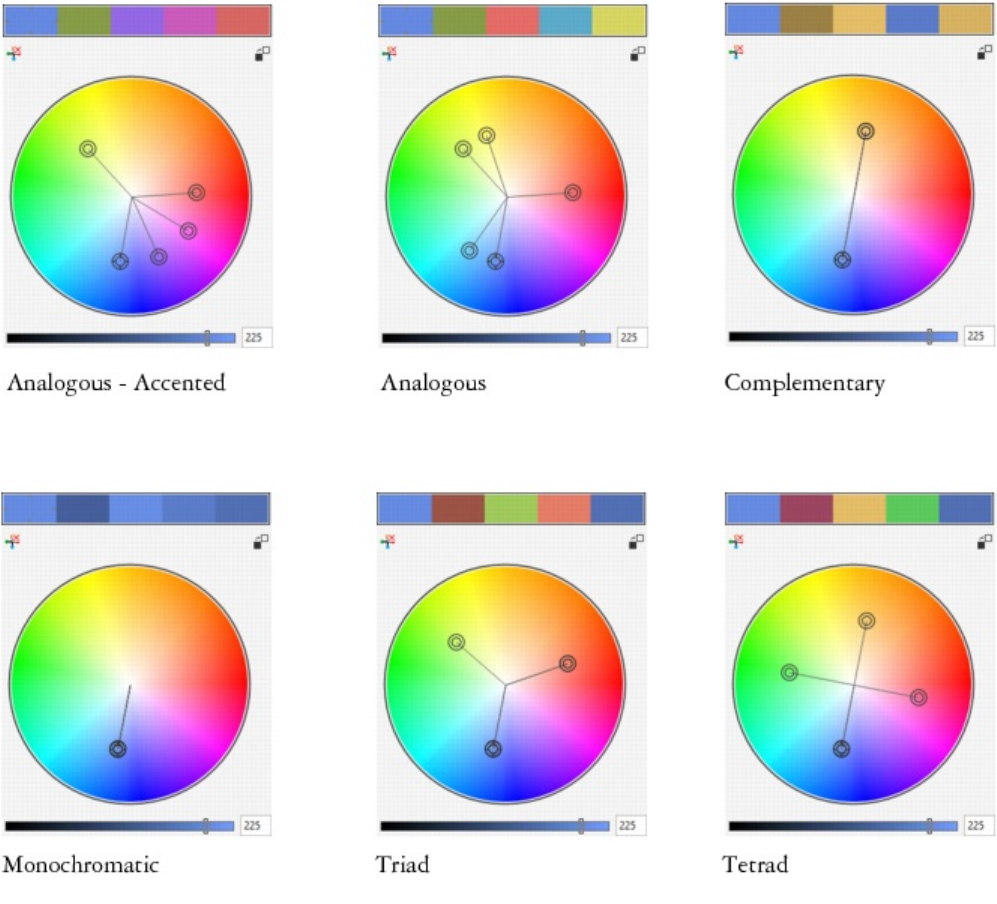
Working with color styles | 525
•Analogous — includes colors that are next to each other on the color wheel, creating clear and smooth color schemes
•Analogous - Accented — similar to the Analogous rule, but includes a complementary (contrasting) color in addition to the adjacent
colors
•Complementary (also known as “contrast”) — balances the base color with the opposite color on the color wheel. Warm and cold
colors are created for vibrant and energetic color schemes.
•Monochromatic — includes variations of a single color, creating soothing color schemes
•Tetrad — based on a pair of colors and their complements on the color wheel. This rule usually creates bold color harmonies and
requires careful planning when used.
•Triad — balances the base color with colors that are situated close to the opposite end of the color wheel, forming a triangle. This
harmony rule usually creates color schemes of soft contrast.
Examples of color harmonies created from scratch by using harmony rules
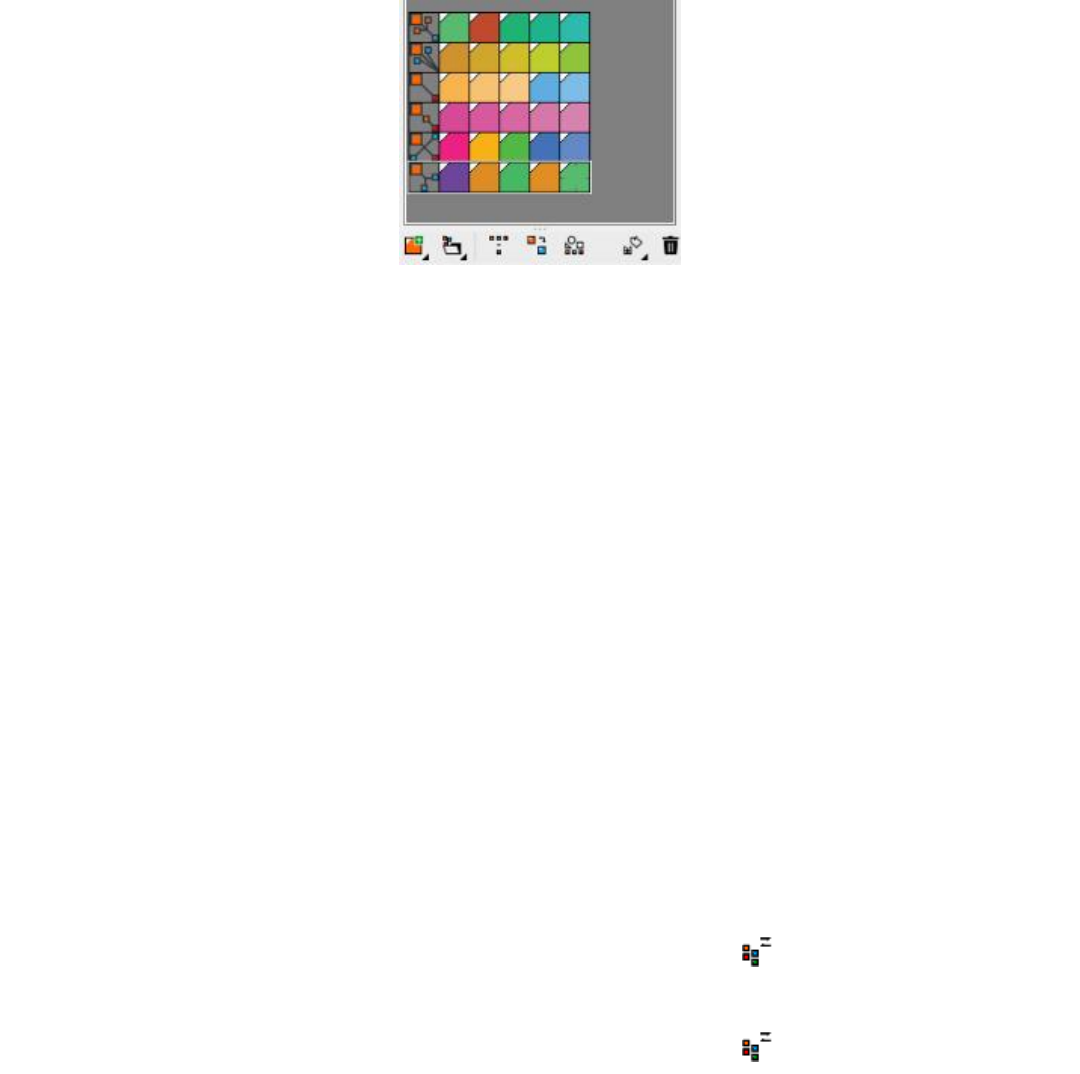
526 | Corel DESIGNER 2017 User Guide
The icons on the harmony folders show that the color harmonies are based on different harmony rules.
From top to bottom: Analogous - Accented, Analogous, Complementary, Monochromatic, Tetrad, and Triad.
Editing color harmonies
You can edit color harmonies in various ways: by removing a previously applied harmony rule, by substituting the base color with the
opposite color on the color wheel, by moving colors to different arms on the color wheel, and by dragging the color harmony on the color
wheel.
You can select colors from multiple color harmonies and edit them simultaneously. This feature lets you edit multiple rule-based color
harmonies at the same time without removing the rules.
In addition, you can convert a color style to the Grayscale color mode from within the Color styles docker.
To edit a color style
1Click Window Color styles.
2In the Color styles docker, select an individual color style or a color style in a harmony.
3In the Color editor or Harmony editor, edit the color style by using any of the available controls: Eyedropper tool, color viewers, sliders,
and palettes.
For more information about choosing colors, see “Working with color” on page 319.
You can also
Rename a color style Select the color style in the Color styles docker, and type a new
name in the name box at the top of the docker.
Convert a color style to a different color mode Click the Convert button , and choose a color mode from the
flyout.
Convert a color style to a spot color Click the Convert button , and choose Convert to Spot.
To edit a color harmony
1Click Window Color styles.
2In the Color styles docker, click a harmony folder.
3Do any of the following:
Working with color styles | 527
• In the Harmony editor, click a selector ring and drag to edit the color styles in the harmony. To constrain the movement of the selector
ring, hold down Ctrl while dragging the selector ring to preserve the original saturation, or hold down Shift to preserve the original
hue.
• In the Color editor, choose a color by using any of the available controls: Eyedropper tool, color viewers, sliders, and palettes. For
more information about choosing colors, see “Working with color” on page 319.
4In the Harmony editor, move the Brightness slider to change the tint of the color.
If you want to specify the exact tint, type a value in the Brightness box.
To edit an individual color style in the harmony, select the style by clicking its swatch in the harmony folder, or by clicking its
respective selector ring or swatch in the Harmony editor.
You can resize the Color harmonies area so that you can view available color harmonies without scrolling by pointing to the grab
area, and when the cursor changes to a two-directional arrow, dragging the edge of the pane.
You can reorder color harmonies by dragging a color swatch.
To apply a rule to a color harmony
1Click Window Color styles.
2In the Color styles docker, click a harmony folder.
3Choose a rule from the Harmony rule list box.
You can also
Create a rule-based color harmony from scratch Make sure that no color styles are selected, and choose a rule from
the Harmony rule list box.
Distribute colors evenly when changing a harmony rule Make sure the Distribute colors button is enabled, and
choose a harmony rule from the Harmony rule list box.
Colors will be distributed evenly along the arms on the color wheel,
which can result in radical color changes.
When the Distribute colors button is disabled, color relationships
in the color harmony are maintained.
You can choose Custom from the Harmony rule list box to remove a previously applied rule or start a new harmony folder.
To edit a color harmony
1Click Window Color styles.
2In the Color styles docker, click a color style in a color harmony.
3In the Harmony editor, perform any of the following tasks.
To Do the following
Remove a rule from a color harmony Click the Remove harmony rule button .
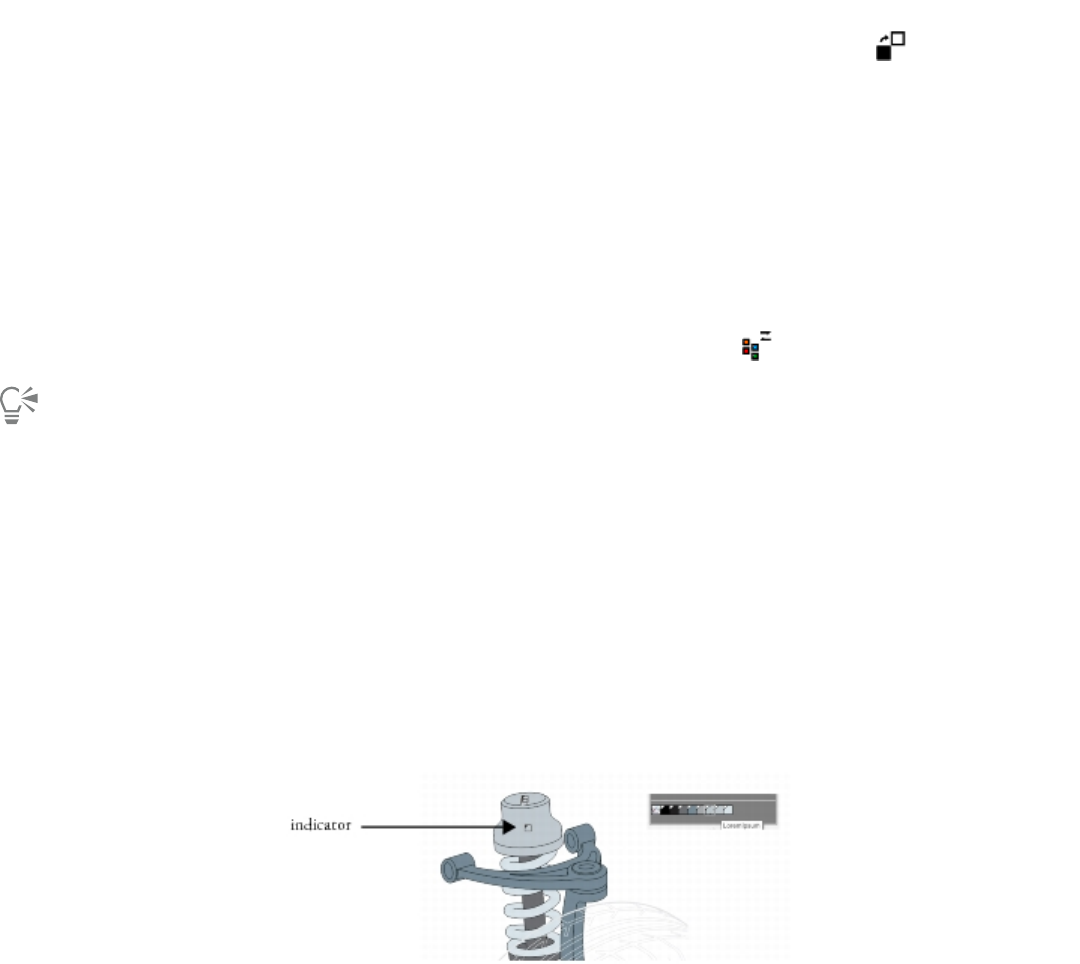
528 | Corel DESIGNER 2017 User Guide
To Do the following
Change to the opposite color on the color wheel Click the Switch to opposite color button .
Move a color to another arm Holding down Alt, drag a selector ring to another arm.
This feature is available for color harmonies that are based on the
Complementary, Tetrad, or Triad harmony rule as well as custom
color harmonies.
Edit multiple color harmonies simultaneously Click the color styles you want while holding down Ctrl, and drag a
selector ring in the Harmony editor.
Convert a color style to the Grayscale color mode Click the Convert button , and click Convert to grayscale.
You can also convert a color style or a color harmony to the Grayscale color mode in the Create color styles docker when you are
creating a color style or a color harmony from a selected object. For information about how to access the Create color styles docker,
see “To create a color style or harmony from a selected object” on page 522.
Viewing color styles
Several view options are available in the Color styles docker to help your work with color styles more easily.
Page Sorter view displays thumbnails of all pages in a document. When you edit a color style in Page Sorter view, you can see how all objects
that use the color style are changed. You can change the size of the page thumbnails to suit your needs.
Hint view shows what objects are associated with color styles. When you point to a color style in the Color styles docker, an indicator marks
the object that uses the color style in the document window.
Hint view helps you identify objects that use specific color styles.
In addition, you can show larger color swatches, and you can view empty arms in color harmonies in the Harmony editor.
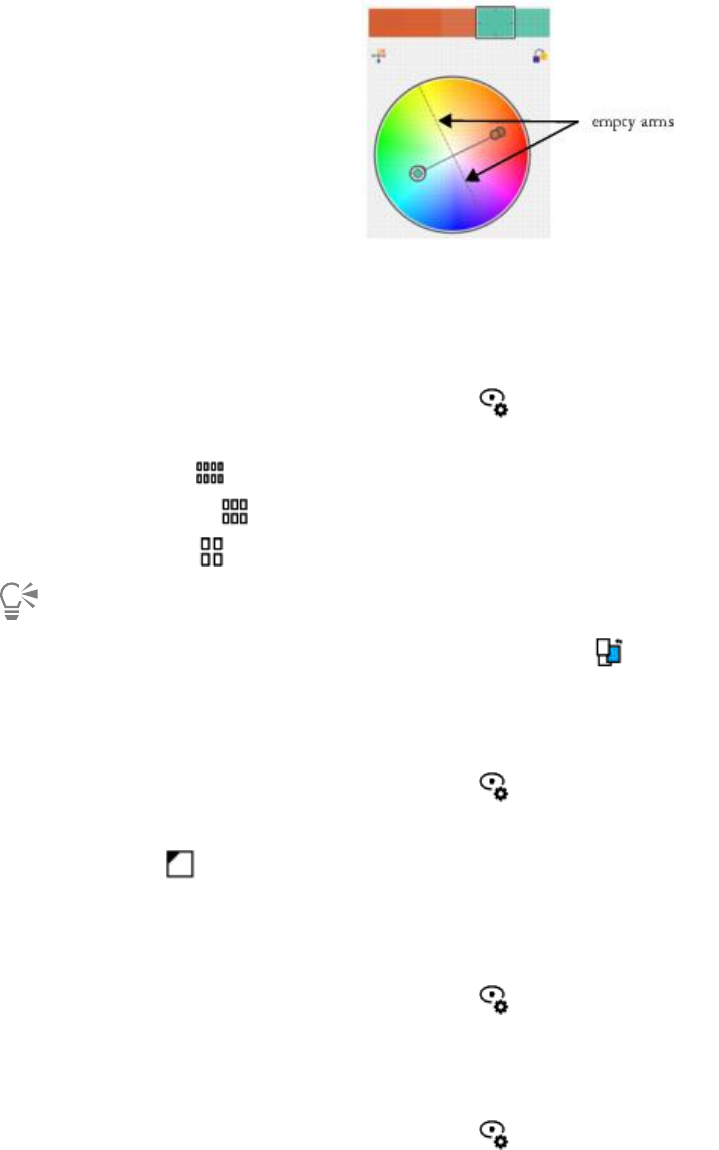
Working with color styles | 529
Two of the arms in this color harmony, based on the Tetrad harmony rule,
do not contain any colors, but are displayed to help with editing tasks.
To enable Page Sorter view
1Click Window Color styles.
2In the Color styles docker, click the View options button , and click Page sorter view.
3To change the size of the page thumbnails, click one of the following buttons on the property bar:
•Small thumbnails
•Medium thumbnails
•Large thumbnails
To return to the default page view, click the Page sorter view button on the property bar.
To use Hint view
1Click Window Color styles.
2In the Color styles docker, click the View options button , and click Hint view.
3Point to a color style that was applied to an object.
A small indicator appears in the center of the object that uses the color style.
To show larger color swatches
1Click Window Color styles.
2In the Color styles docker, click the View options button , and click Use large swatches.
To show empty arms in a color harmony
1Click Window Color styles.
2In the Color styles docker, click the View options button , and click Show empty arms.

530 | Corel DESIGNER 2017 User Guide
Exporting and importing color styles
You can reuse color styles by adding them to custom palettes, saving them as the new document defaults, or exporting them to a style
sheet. You can also import color styles from other documents. For more information, see “Creating and editing custom color palettes ” on
page 330, “Managing default object properties ” on page 516, and “Exporting and importing style sheets ” on page 517.
Breaking the link between a color style and an object
When you break the link between a color style and an object, the object no longer derives its color properties from the color style; you can
update the color style without modifying the object.
To break the link between a color style and an object
•Right-click an object by using the Pick tool , and choose Color styles Break link to color styles.
You can also break the link to a color style in the Property manager docker. Click the source indicator next to the color picker in the
Outline or Fill sections of the Property manager docker, and choose Break link to color style.
Pages and layout | 531
Pages and layout
Working with pages and layout tools..................................................................................................................................................533
Working with tables............................................................................................................................................................................ 549
532 | Corel DESIGNER 2017 User Guide

Working with pages and layout tools | 533
Working with pages and layout tools
CorelDESIGNER lets you specify the size, orientation, unit of scale, and background of the drawing page. You can customize and display
page grids and guidelines to help you organize objects and place them exactly where you want. Rulers can help you position grids,
guidelines, and objects along a scale that uses units of your choice. Also, you can add and delete pages.
Page layout settings and tools are fully customizable and can be used as defaults for other drawings.
This section contains the following topics:
•“Specifying the page layout” (page 533)
•“Choosing a page background” (page 536)
•“Adding, duplicating, renaming, and deleting pages” (page 537)
•“Inserting page numbers” (page 539)
•“Using the rulers” (page 541)
•“Calibrating the rulers” (page 542)
•“Setting up the document grid” (page 542)
•“Setting up the baseline grid” (page 544)
•“Setting up guidelines” (page 544)
•“Modifying guidelines” (page 546)
•“Setting the drawing scale” (page 547)
Specifying the page layout
You can begin working on a drawing by specifying settings for the size, orientation, and layout style of the page. The options you choose
when specifying the page layout can be used as a default for all new drawings you create. You can also adjust the page size and orientation
settings to match the standard paper settings for printing.
Page size
There are two options for specifying a page size: choosing a preset page size and creating your own. You can choose from many preset page
sizes, ranging from legal-size paper and envelopes to posters and webpages. If a preset page size does not meet your needs, you can create
a custom page size by specifying a drawing’s dimensions.
You can save custom page sizes as presets for later use, and you can delete any custom preset page sizes that you no longer need.

534 | Corel DESIGNER 2017 User Guide
Page orientation
The orientation of the page can be landscape or portrait. In landscape orientation, the drawing’s width is greater than its height, and in
portrait orientation, the drawing’s height is greater than its width. Any pages you add to a drawing have the current orientation; however,
you can change the orientation of individual pages at any time.
Layout styles
When you use the default layout style (Full Page), each page in a document is considered a single page and prints on one sheet. You can
choose layout styles for multipage publications, such as booklets and brochures. The multipage layout styles — Book, Booklet, Tent Card,
Side-fold Card, Top-fold Card, and Tri-fold Brochure — split the page size into two or more equal parts. Each part is considered a separate
page. The advantage of working with separate parts is that you can edit each page in upright orientation, and in sequential order in the
drawing window, regardless of the layout required to print your document. When you are ready to print, the application automatically
arranges the pages in the order required for printing and binding.
Label styles
You can choose from more than 800 preset label formats from different label manufacturers. You can preview the dimensions of labels
and see how they fit on a printed page. If CorelDESIGNER does not provide a label style that meets your requirements, you can modify an
existing style or create and save your own original style.
To set the page size and orientation
1Click Layout Page setup.
The Options dialog box appears with the Page size page displayed.
2Perform a task from the following table.
To Do the following
Choose a preset page size Choose a page size from the Size list box.
Match the page size and orientation to the printer settings Click the Get page size from printer button.
Specify a custom page size Type values in the Width and Height boxes.
Set the page orientation Click the Landscape or the Portrait button.
Set the page size and orientation for an individual page in a
multipage document
Make sure that the page you want to change is displayed in the
drawing window, choose a page size and orientation, and enable
the Apply size to current page only check box.
Display the page border Enable the Show page border check box.
Add a frame around the page Click Add page frame.
Choose a rendering resolution for the document Choose a resolution from the Rendering resolution list box.
Set a bleed limit Enable the Show bleed area check box, and type a value in the
Bleed box.
Working with pages and layout tools | 535
You can also specify the page size and orientation by clicking View Page sorter view and adjusting the controls on the property
bar.
You can also open the Options dialog box with the Page size page displayed by double-clicking the shadow of the drawing page.
To add or delete custom preset page sizes
1Click Layout Page setup.
The Options dialog box appears with the Page size page displayed.
2Perform a task from the following table.
To Do the following
Add a custom preset page size Specify a custom page size in the Width and Height boxes, click
the Save button, and type a name for the custom page in the Save
custom page type as box.
The custom preset page size appears in the Size list box.
Delete a preset page size Choose a page size from the Size list box, and click the Delete
button.
With the Pick tool active and no objects selected, you can also add or delete custom preset page sizes by clicking Edit this list at the
bottom of the Page size list box on the property bar.
To choose a layout style
1Click Layout Page layout.
2In the Options dialog box, choose a layout style from the Layout list box.
Each layout style is accompanied by a short description and illustration.
To use a label style
1Click Layout Page setup.
2In the Document list of categories, click Label, and enable the Labels option.
3Choose a manufacturer name from the list.
4Choose the label style you want from the list.
If you want to customize the label style, click Customize label, and adjust the label size, margins, gutters, and the number of labels
appearing on each sheet.
If you want to save the custom label style you created, click the Add button , and type a name for the new label style in the Save as
box.
You cannot use label styles if a drawing contains multiple pages.

536 | Corel DESIGNER 2017 User Guide
For best results, choose Letter paper size and Portrait orientation before applying a label style.
To save the current page layout as the default
1Click Tools Options.
2In the list of categories, click Document.
3Enable the Save options as defaults for new documents check box.
4Enable the Page options check box.
Choosing a page background
You can choose the color and type of background for a drawing. For example, you can use a solid color if you want a uniform background.
If you want a more intricate or dynamic background, you can use a bitmap.
When you choose a bitmap as the background, it is embedded in the drawing by default. This option is recommended. However, you can
also link the bitmap to the drawing so that if you later edit the source image, the change is automatically reflected in the drawing. If you
send a drawing with a linked image to someone else, you must also send the linked image.
You can make a background bitmap printable and exportable, or you can save computer resources by exporting and printing a drawing
without the background bitmap.
If you no longer need a background, you can remove it.
To use a solid color as the background
1Click Layout Page background.
2Enable the Solid option.
3Open the color picker, and click a color.
When you export files to a bitmap format, the background color is used for anti-aliasing edges. If the bitmaps are of irregular shape
and will be placed against a background different from white, it is recommended that you select a matching page background color.
For example, if you are planning to place the exported bitmap against a blue background, you may want to choose a similar blue
color for the page background.
To use a bitmap as the background
1Click Layout Page background.
2Enable the Bitmap option.
3Click Browse.
4Locate the folder in which the file is stored.
5Double-click the filename.
6In the Options dialog box, enable one of the following options:
•Linked — links the bitmap to the drawing so that changes made to the source file are reflected in the bitmap background
•Embedded — embeds the bitmap in the drawing so that changes made to the source file are not reflected in the bitmap background
If you want the background to be printed and exported with the drawing, enable the Print and export background check box.
7Enable one of the following options:
•Default size — lets you use the bitmap’s current size

Working with pages and layout tools | 537
•Custom size — lets you specify the dimensions of the bitmap by typing values in the H and V boxes.
If you want to specify nonproportional height and width values, disable the Maintain aspect ratio check box.
If the bitmap is smaller than the drawing page, it is tiled across the drawing page. If it is larger than the drawing page, it is cropped
to fit the drawing page.
A background bitmap is not an object and cannot be edited.
To remove a background
1Click Layout Page background.
2Enable the No background option.
Adding, duplicating, renaming, and deleting pages
CorelDESIGNER lets you add pages to a drawing or duplicate existing pages. You can also rename pages and delete a single page or an
entire range of pages. You can move objects from one page to another.
When you duplicate a page, you can choose to copy only the layer structure of the page or to copy the layers and all the objects they
contain. For more information about layers, see “Working with layers” on page 297.
You can use the Page Sorter view to manage pages while viewing the page contents. The Page Sorter view lets you change the order of
pages as well as copy, add, rename, and delete pages.
To add a page
1Click Layout Insert page.
2In the Pages area, type the number of pages you want to add in the Number of pages box.
3To place the new page before or after the current page, enable one of the following options:
•Before
•After
If you want to insert a page before or after a page other than the current page, type the page number in the Existing page box.
You can also
Specify the page size Choose a page size from the Size list box.
Specify a custom page size Type values in the Width and Height boxes.
Set the page orientation Click the Landscape or the Portrait button.
You can also insert a page before or after the current page by clicking one of the Add page buttons in the document navigator.
You can also add a page by right-clicking a page tab in the document navigator and clicking Insert page after or Insert page before.
To duplicate a page
1Click Layout Duplicate page.

538 | Corel DESIGNER 2017 User Guide
2In the Insert new page area of the Duplicate page dialog box, choose one of the following options:
•Before selected page
•After selected page
3At the bottom of the dialog box, choose one of the following options:
•Copy layer(s) only — lets you duplicate the layer structure without copying the contents of the layers
•Copy layer(s) and their contents — lets you duplicate the layers and all their contents
You can also duplicate a page by right-clicking a page name and choosing Duplicate page.
To rename a page
1Click Layout Rename page.
2Type the name of the page in the Page name box.
You can also rename a page in the Object manager docker by clicking the page name twice and typing a new name. To access the
Object manager docker, click Window Object manager.
To delete a page
1Click Layout Delete page.
2In the Delete page dialog box, type the number of the page that you want to delete.
You can delete a range of pages by enabling the Through to page check box and typing the number of the last page to delete in the
Through to page box.
To change the order of pages
• Drag the page tabs in the document navigator.
To move an object to another page
1Drag the object over the appropriate page tab in the document navigator.
The destination page appears in the drawing window.
2Without releasing the mouse button, drag to position the object on the page.
You can also move an object to another page by dragging the object name in the Object manager docker over a layer name on the
destination page.
To manage pages while viewing their contents
1Click View Page sorter view.
2Perform a task from the following table.
Working with pages and layout tools | 539
To Do the following
Change the order of pages Drag a page to a new location.
Copy a page With the right mouse button, drag the page to a new location,
release the mouse button, and click Copy here.
Add a page Right-click a page, and click Insert page before or Insert page
after.
Rename a page Click the page name below a selected page, and type a new name.
Delete a page Right-click a page, and click Delete page.
Change the size of the page thumbnails Click one of the following buttons on the property bar:
•Small thumbnails
•Medium thumbnails
•Large thumbnails
Return to normal view Double-click a page.
You can also copy a page by right-clicking the page and choosing Duplicate page.
Inserting page numbers
You can insert page numbers on the current page, all pages, all odd pages, or all even pages. When you insert page numbers on multiple
pages, a new master layer is automatically created, and the page number is placed on it. The master layer can be an all-page master layer, an
odd-page master layer, or an even-page master layer. For more information about master layers, see “Creating layers” on page 297.
Page numbers are automatically updated when you add or delete pages in your document.
You can also insert a page number inside existing artistic or paragraph text. If the text is located on a local layer, the page number is inserted
on the current page only. If the text is located on a master layer, the page number becomes part of the master layer and appears on all pages
where the master layer is visible. For more information about artistic and paragraph text, see “Adding and manipulating text” on page 413.
If the page numbers are on a master layer, you can hide the page number on a specific page by hiding the master layer on that page.
You can change the default page number settings before or after you insert page numbers in your document. For example, you can start the
page count at a specific number other than 1. This is particularly useful if you want to create multiple CorelDESIGNER files that will be put
together as one publication.
You can also specify whether to start page numbering on the first page or on another page. For example, if you choose to start page
numbering on page 3, page 3 displays the number 1. If you insert a new page between 1 and 2, it becomes the new page 2, whereas the
old page 2 becomes page 3 — the page where the first page number is displayed.
You can also choose from a variety of commonly used page number styles.
When you save to CorelDESIGNERX5 or earlier version, page numbers are preserved as editable artistic text. However, if you add or delete a
page, the page count will not be updated.

540 | Corel DESIGNER 2017 User Guide
Manipulating page numbers as objects
Page numbers are artistic text objects (unless you insert them in paragraph text) that can be modified and manipulated like any other artistic
text object. For example, you can resize, scale, or rotate a page number, change its color, or apply effects such as texture fill or a drop
shadow.
When the page number is on a master layer, applying transformations to it affects all page numbers.
The following table lists various ways to manipulate page numbers as objects.
You can For more information see
Resize and scale a page number “Sizing and scaling objects ” on page 253
Rotate a page number “Rotating objects ” on page 255
Mirror a page number “Mirroring objects ” on page 256
Change the color of a page number “Choosing colors ” on page 322
Apply texture to a page number “Applying texture fills ” on page 350
Apply a drop shadow to a page number “Creating drop shadows ” on page 389
To insert a page number
•Click Layout Insert page number, and choose one of the following options:
•On active layer — lets you insert a page number on the layer that is currently selected in the Object manager docker. If the active
layer is a master layer, page numbers are inserted on all pages of the document where the master layer is visible. If the active layer is a
local layer, the page number is inserted on the current page only.
•On all pages — lets you insert page numbers on all pages. The page number is inserted on a new all-page master layer.
•On all odd pages — lets you insert page numbers on all odd pages. The page number is inserted on a new odd-page master layer.
•On all even pages — lets you insert page numbers on all even pages. The page number is inserted on a new even-page master layer.
By default, the page number is centered at the bottom of the page.
In the Object manager docker, the page number appears as an artistic text object with the name “Page number.”
You can insert page numbers on odd pages only if the current page is an odd page, and you can insert page numbers on even pages
only if the current page is an even page.
You can move the page number anywhere on the page by selecting it with the Pick tool and dragging it to a new location. If you
move a page number outside the drawing page, the page number turns into the generic number sign (‑). If you then place it on
another page, it displays the correct number of the page.
You can also insert a page number inside an existing text object. Using the Text tool, type artistic or paragraph text. With the cursor
inside the text object, click Layout Insert page number On active layer. The page number is added as part of the existing text,
and it will not appear as a separate object in the Object manager docker.
Working with pages and layout tools | 541
To hide the page number on a single page
1Select the page in the Object manager docker.
If the Object manager docker is not open, click Object Object manager.
2Click the Layer manager view button , and then click Current page, layers only.
Only layers on the current page are displayed. Changes you make to the layer visibility in this view affect only the current page.
3Click the Show or hide icon beside the master layer where the page number object is located.
The application hides the page number of the current page, but the page is still included in the page count. All other pages continue to
display their page numbers.
To modify page number settings
1Click Layout Page number settings.
2In the Page number settings dialog box, choose any of the following options.
•Start at number — lets you start the page count at a specific number
•Start on page — lets you specify the page on which to start page numbering
•Style — lets you choose from commonly used page number styles
Using the rulers
You can display rulers in the drawing window to help you draw, size, and align objects precisely. You can hide the rulers or move them to
another position in the drawing window. You can also customize the ruler settings to suit your needs. For example, you can set the ruler
origin, choose a unit of measure, and specify how many marks or ticks appear within each full unit mark.
You can show and hide rulers for Desktop mode and Tablet mode independently to suit your workflow. By default, rulers are displayed in
Desktop mode and hidden when you switch to Tablet mode.
By default, CorelDESIGNER applies the units used for the rulers to the duplicate and nudge distances. You can change the default and
specify different units for these and other settings. For information about nudging, see “Moving objects” on page 251.
To hide or display the rulers
•Click View Rulers.
A check mark beside the Rulers command indicates that the rulers are displayed.
To move a ruler
• Hold down Shift, and drag a ruler to a new position in the drawing window.
To customize ruler settings
1Click Tools Options.
2In the Document list of categories, click Rulers.
3In the Units area, choose a unit of measure from the Horizontal list box.
If you want to use a different unit of measure for the vertical ruler, disable the Same units for horizontal and vertical rulers check box,
and choose a unit of measure from the Vertical list box.
4In the Origin area, type values in the following boxes:
•Horizontal

542 | Corel DESIGNER 2017 User Guide
•Vertical
5Type a value in the Tick divisions box.
If you change the unit of measure for rulers, the unit of measure for nudge distances automatically changes as well, unless you first
disable the Same units for duplicate distance, nudge and rulers check box in the Nudge area.
You can access ruler settings directly by double-clicking a ruler.
You can specify nudge settings by typing values in the Nudge, Super nudge, and Micro nudge boxes in the Nudge area.
To show or hide the rulers for Desktop and Tablet mode
1Click Tools Options.
2In the Document list of categories, click Rulers.
3On the Rulers page, enable or disable the following check boxes:
•Show rulers in Desktop mode
•Show rulers in Tablet mode
Calibrating the rulers
You can have one inch on your screen equal one inch of “real” distance. This lets you work with real-world distances as opposed to relative
distances that depend on screen resolution. This tool is particularly useful when you work with signs or draw in 1:1 zoom mode.
Before you can perform this procedure, you must have a clear plastic ruler for comparing real-world and on-screen distances. This ruler
should use the same unit of measure that you set for the CorelDESIGNER rulers. For information about ruler settings, see “Using the rulers”
on page 541.
To calibrate the rulers to real-world distance
1Click Tools Options.
2In the Workspace list of categories, double-click Toolbox, and click Zoom, Pan tool.
3Click Calibrate rulers.
4Place a clear plastic ruler under the on-screen horizontal ruler.
5Click the up or down arrows on the Horizontal box to match one unit of measure on the on-screen ruler with one unit of measure on
the actual ruler.
6Place the ruler beside the on-screen vertical ruler.
7Click the up or down arrows on the Vertical box to match one unit of measure on the on-screen ruler with one unit of measure on the
actual ruler.
Setting up the document grid
The document grid is a series of non-printing intersecting lines that you can display in the drawing window. You can use the document grid
to precisely align and position objects.
You can customize the look of the document grid by changing the grid display and grid spacing. The grid display lets you view the
document grid as lines or as dots. The spacing lets you set the distance between the grid lines. The spacing options are based on the unit of
measure for the ruler. For example, if the ruler unit of measure is set to inches, the spacing options are based on inches.

Working with pages and layout tools | 543
If the ruler unit of measure is set to pixels, or if you enabled the Pixel preview, you can specify the color and opacity of the pixel grid. For
more information about the Pixel preview, see “Choosing viewing modes” on page 88.
You can also have objects snap to the document grid or the pixel grid, so that when you move the objects, they align with the grid lines.
To display or hide the document grid
•Click View Grid Document grid.
A check mark beside the Document grid command indicates that the document grid is displayed.
To set the grid display
1Click Tools Options.
2In the Document list of categories, click Grid.
3Enable the Show grid check box, and enable one of the following options:
•As lines
•As dots
To set the grid spacing
1Click Tools Options.
2In the Document list of categories, click Grid.
3In the Document grid area, type a value in the Horizontal box.
If you want to change the grid spacing intervals or the number of lines displayed per unit of measure, choose an option from the list
box. The options are based on the unit of measure used for the ruler.
4Type a value in the Vertical box.
The unit of measure used for grid spacing is the same as that used for rulers. For information about ruler settings, see “To customize
ruler settings” on page 541.
To change the color and opacity of the pixel grid
1Click Tools Options.
2In the Document list of categories, click Grid.
3In the Pixel grid area, open the Color picker, and click a color.
4Move the Opacity slider to the right to increase the opacity of the grid.
You can disable the Show grid (at 800% or higher zoom) check box if you do not want the pixel view to automatically display
zoomed in at 800% or higher.
To set objects to snap to the document grid
1On the standard toolbar, click Snap to, and enable the Document grid check box.
2Move the objects with the Pick tool .
544 | Corel DESIGNER 2017 User Guide
To set objects to snap to the pixel grid
1On the standard toolbar, click Snap to, and enable the Pixels check box.
2Move the objects with the Pick tool .
This option is available only when pixel view is enabled. For more information, see “Choosing viewing modes” on page 88.
Setting up the baseline grid
The guides of the baseline grid run across the drawing page and follow the pattern of a ruled notebook. You can display or hide the baseline
grid, turn snapping on or off, change the grid color, and set the line spacing. By default, the line spacing is 14 pt. All objects can snap to the
baseline grid; only text frames can align to baseline grid. For more information, see “Aligning text by using the baseline grid” on page 423.
To display or hide the baseline grid
•Click View Grid Baseline grid.
A check mark beside the Baseline grid command indicates that the baseline grid is displayed.
To set baseline grid spacing and color
1Click Tools Options.
2In the Document list of categories, click Grid.
3Perform a task from the following table.
To Do the following
Set spacing In the Baseline grid area, type a value in the Spacing box.
Set distance from top Type a value in the Start from top box.
Setting this value to 0 makes the first line of the baseline grid
overlap with the top edge of the drawing page.
Set color Open the Color picker, and choose a color.
To turn baseline grid snapping on or off
• On the standard toolbar, click Snap to, and enable the Baseline grid check box.
Setting up guidelines
Guidelines are lines that can be placed anywhere in the drawing window to aid in object placement. In some applications, guidelines are
known as guides.
There are three types of guidelines: horizontal, vertical, and angled. By default, the application displays guidelines that you add to the
drawing window, but you can hide them at any time. You can also use objects as guides.

Working with pages and layout tools | 545
You can set guidelines for individual pages or you can set guidelines for the entire document. For more information about local and master
guidelines, see “Local layers and master layers” on page 297.
You can add a guideline wherever you need one; however, you can also choose to add preset guidelines. There are two types of preset
guidelines: Corel presets and user-defined presets. An example of a Corel preset is one with guidelines that appear at one-inch margins.
User-defined presets are guidelines whose location you specify. For example, you can add preset guidelines that display margins at a distance
you specify or that define a column layout or grid. You can remove guidelines at any time.
Guidelines use the unit of measure specified for rulers. For information about ruler settings, see “To customize ruler settings” on page 541.
To display or hide the guidelines
•Click View Guidelines.
A check mark beside the Guidelines command indicates that the guidelines are displayed.
You can also display or hide the guidelines by clicking Tools Guidelines and clicking the Show or hide guidelines button .
You can also access additional guideline options by clicking Tools Options, and then clicking Guidelines in the Document list of
categories.
To add a horizontal or vertical guideline
1Click Tools Guidelines.
2Choose one of the following options from the Guideline type list box:
•Horizontal
•Vertical
3Specify the location of the guideline in the x or y box.
4Click Add.
You can also add a guideline by dragging from the horizontal or vertical ruler to the drawing window.
To add an angled guideline
1Click Tools Guidelines.
2Choose Angled from the Guideline type list box.
3Specify the location of the guideline in the x and y boxes.
4Type a value in Angle of rotation box.
5Click Add.
You can also add an angled guideline by dragging from the horizontal or vertical ruler in the drawing window, and typing a value in
the Angle of rotation box on the property bar.
To use an object as a guide
1In the Object manager docker, click the Guides layer on the page you want.
If the Object manager docker is not open, click Object Object manager.
2Draw and position the object you want to use as a guide.
546 | Corel DESIGNER 2017 User Guide
To set guidelines for the entire document
1In the Object manager docker, click Guides (all pages) on the Master page.
If the Object manager docker is not open, click Object Object manager.
2In the drawing window, add the guidelines you want.
The guidelines that you set on the Guides (all pages) layer of the Master page appear on all pages of the document. These
guidelines appear in addition to any guidelines that you set for individual pages.
To add preset guidelines
1Click Tools Options.
2In the Document, Guidelines list of categories, click Presets.
3Enable one of the following options:
•Corel presets
•User-defined presets
4Specify guideline settings by enabling the corresponding check boxes.
If you enable the User-defined presets option, specify values in the Margins, Columns, or Grid area.
5Click Apply presets.
To remove a guideline
1Click Tools Guidelines.
2Choose a guideline from the list.
You can choose multiple guidelines by holding down Ctrl as you click.
3Click the Delete guideline button .
You can also remove individual guidelines by dragging them off the document window, or clicking a guideline with the Pick tool and
pressing Delete.
To delete a preset guideline, click Tools Options. In the Document, Guidelines list of categories, click Presets. Disable the check
box beside the preset guideline that you want to delete.
Modifying guidelines
After you add a guideline, you can select it, move it, rotate it, or lock it in place. You can also change the line style and color of guidelines.
To select a guideline
To Do the following
Select a single guideline Click the guideline with the Pick tool .
Working with pages and layout tools | 547
To Do the following
Select all guidelines on a page Click Edit Select all Guidelines. The local guidelines and
master guidelines are selected.
To move or rotate a guideline
1Click Tools Guidelines.
2Select the guideline.
3Perform any of the following tasks.
To Do the following
Move a guideline Specify the new location of the guideline in the x and y boxes, and
click Modify.
You can also drag a guideline to a new position in the drawing
window.
Rotate a guideline Choose Angled from the Guideline type list box, type a value in
the Angle of rotation box, and click Modify.
You can also use the Pick tool to click the guideline twice and
then rotate the guideline when skewing handles appear.
To lock or unlock a guideline
• Right-click the guideline, and click Lock object or Unlock object.
You can also click Tools Guidelines and click the Lock guideline button .
To set the line style and color of a guideline
1Click Tools Guidelines.
2Open the Guideline color picker, and choose a guideline color.
3Open the Guideline style picker, and choose a line style.
Setting the drawing scale
You can choose a preset or custom drawing scale so that distances in a drawing are proportionate to real-world distances. For example, you
can specify that 1 inch in the drawing corresponds to 1 meter in the physical world. A preset drawing scale lets you set a typical scale, such
as 1:2 or 1:10. A custom drawing scale lets you set any distance on the page to correspond to a real-world distance. For example, you can
set a more precise scale that includes decimal numbers, such as 4.5 to 10.6.
Drawing scales are particularly useful if you are creating a technical or architectural drawing with dimension lines. For information about
dimension lines, see “Drawing dimension lines” on page 157.

548 | Corel DESIGNER 2017 User Guide
To choose a preset drawing scale
1Click Tools Options.
2In the Document list of categories, click Rulers.
3Click Edit scale.
4Choose a drawing scale from the Typical scales list box.
To create a custom drawing scale
1Click Tools Options.
2In the Document list of categories, click Rulers.
3Click Edit scale.
4Choose Custom from the Typical scales list box.
5Specify the settings you want.
The Edit scale button does not appear if the ruler’s unit of measure is pixels.
If the drawing scale is set to anything other than 1:1, the units on the vertical ruler are the same as the units on the horizontal ruler.

Working with tables | 549
Working with tables
A table provides a structured layout that lets you present text or images within a drawing. You can draw a table, or you can create a table
from paragraph text. You can easily change the look of a table by modifying the table properties and formatting. In addition, because tables
are objects, you can manipulate them in various ways. You can also import existing tables from a text file or a spreadsheet.
This section contains the following topics:
•“Adding tables to drawings” (page 549)
•“Selecting, moving, and navigating table components” (page 550)
•“Inserting and deleting table rows and columns” (page 553)
•“Resizing table cells, rows, and columns” (page 554)
•“Formatting tables and cells” (page 555)
•“Working with text in tables” (page 556)
•“Converting tables to text” (page 557)
•“Merging and splitting tables and cells” (page 558)
•“Manipulating tables as objects” (page 559)
•“Adding images, graphics, and backgrounds to tables” (page 559)
•“Importing tables in a drawing” (page 560)
Adding tables to drawings
With CorelDESIGNER, you can add a table to a drawing to create a structured layout for text and images. You can draw a table, or you can
create a table from existing text.
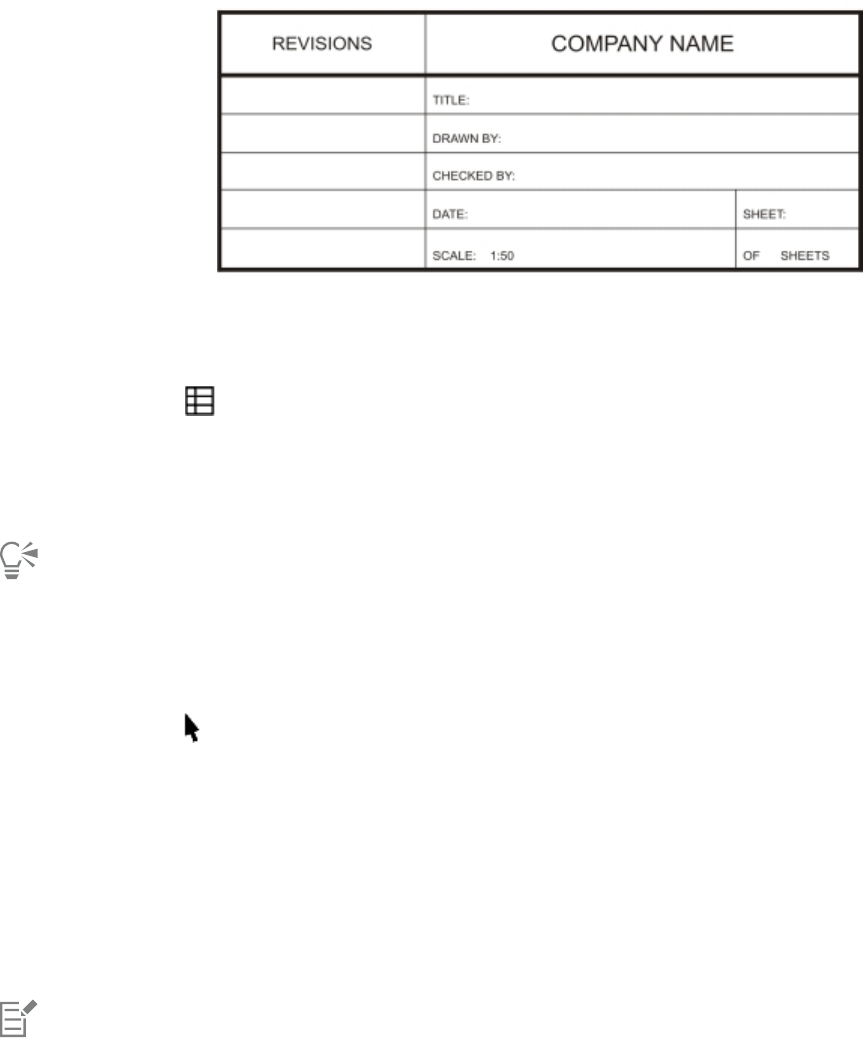
550 | Corel DESIGNER 2017 User Guide
In this example, a table was used to create the title block of a drawing.
To add a table to a drawing
1Click the Table tool .
2Type values in the Rows and columns boxes on the property bar.
The value that you type in the top portion specifies the number of rows; the value that you type in the bottom portion specifies the
number of columns.
3Drag diagonally to draw the table.
You can also create a table by clicking Table Create new table, and then typing values in the Number of rows, Number of
columns, Height, and Width boxes.
To create a table from text
1Click the Pick tool .
2Select the text that you want to convert to a table.
3Click Table Convert text to table.
4In the Create columns based on the following separator area, choose one of the following options:
•Commas — creates a column where a comma appears and a row where a paragraph marker appears
•Tabs — creates a column where a tab appears and a row where a paragraph marker appears
•Paragraphs — creates a column where a paragraph marker appears
•User defined — creates a column where a specified marker appears and a row where a paragraph marker appears
If you enable the User defined option, you must type a character in the User defined box.
If you do not type a character in the User defined box, only one column is created, and each paragraph of text creates a table row.
You can also convert a table to text. For more information, see “To convert a table to text” on page 557.
Selecting, moving, and navigating table components
You must select a table, table rows, table columns, or table cells before you insert rows or columns, change the table border properties, add
a background fill color, or edit other table properties. You can move selected rows and columns to a new location in a table. You can also
copy or cut a row or column from one table and paste it in another table. In addition, you can move from one table cell to another when
editing the table cell text, and you can set the direction in which the Tab key lets you move around a table.
Working with tables | 551
To select a table, row, or column
1Click the Table tool , and then click a table.
2Perform one of the following tasks.
To Do the following
Select a table Click Table Select Table.
Select a row Click in a row, and click Table Select Row.
Select a column Click in a column, and click Table Select Column.
Select all table contents Position the Table tool pointer over the upper-left corner of the
table until a diagonal arrow appears , and click.
Use a keyboard shortcut to select a table With the Table tool pointer inserted in an empty cell, press Ctrl + A
+ A.
Select a row interactively Position the Table tool pointer over the table border to the left of
the row that you want to select. When a horizontal arrow appears
, click the border to select the row.
Select a column interactively Position the Table tool pointer over the top border of the column
that you want to select. When a vertical arrow appears , click
the border to select the column.
To select table cells
To Do the following
Select a table cell Click the Table tool , click a table, and click a cell. Then, click
Table Select Cell.
Select adjacent table cells Using the Table tool, click inside the first cell that you want to
select, and drag over the adjacent cells that you want to select.
Select nonadjacent table cells Using the Table tool, click a table. Then, hold down Ctrl, and click
each table cell that you want to select.

552 | Corel DESIGNER 2017 User Guide
You can also select a cell by inserting the Table tool pointer in an empty cell and pressing Ctrl + A.
You can also use the Shape tool to select a single cell by clicking it, or to select adjacent cells by dragging over them.
To move a table row or column
1Select the row or column that you want to move.
2Drag the row or column to another location in the table.
To move a table row to another table
1Select the table row that you want to move.
2Click Edit Cut.
3Select a row in the other table.
4Click Edit Paste.
5Choose one of the following options:
•Replace selected row
•Insert above selected row
•Insert below selected row
To move a table column to another table
1Select the table column that you want to move.
2Click Edit Cut.
3Select a column in the other table.
4Click Edit Paste.
5Choose one of the following options:
•Replace selected column
•Insert left of the selected column
•Insert right of the selected column
To move to the next table cell
• With the Table tool inserted in a cell, press Tab.
If you are pressing Tab in a table for the first time, you must choose a tab order option from the Tab order list box.
You can use the Tab key to move to the next cell only if the Move to the next cell option is enabled in the Tab key options dialog
box.
To change the navigational direction of the Tab key
1Click Tools Options.
2In the Workspace, Toolbox list of categories, click Table tool.
3Enable the Move to the next cell option.
4From the Tab order list box, choose one of the following options:

Working with tables | 553
•Left to right, top to bottom
•Right to left, top to bottom
You can program the Tab key to insert a tab character in the table text by enabling the Insert a tab character into the text option.
Inserting and deleting table rows and columns
You can insert and delete the rows and columns in a table.
To insert a table row
1Select a row in the table.
2Perform a task from the following table.
To Do the following
Insert a row above the selected row Click Table Insert Row above.
Insert a row below the selected row Click Table Insert Row below.
Insert multiple rows above the selected row Click Table Insert Insert rows, type a value in the Number of
rows box, and enable the Above the selection option.
Insert multiple rows below the selected row Click Table Insert Insert rows, type a value in the Number of
rows box, and enable the Below the selection option.
When you use either the Row above command or the Row below command from the Table Insert menu, the number of rows
that are inserted depends on how many rows you have selected. For example, if you have selected two rows, then two rows are
inserted in the table.
To insert a table column
1Select a column.
2Perform a task from the following table.
To Do the following
Insert a column to the left of the selected column Click Table Insert Column left.
Insert a column to the right of the selected column Click Table Insert Column right.
Insert multiple columns to the left of the selected column Click Table Insert Insert columns, type a value in the Number
of columns box, and enable the Left of the selection option.
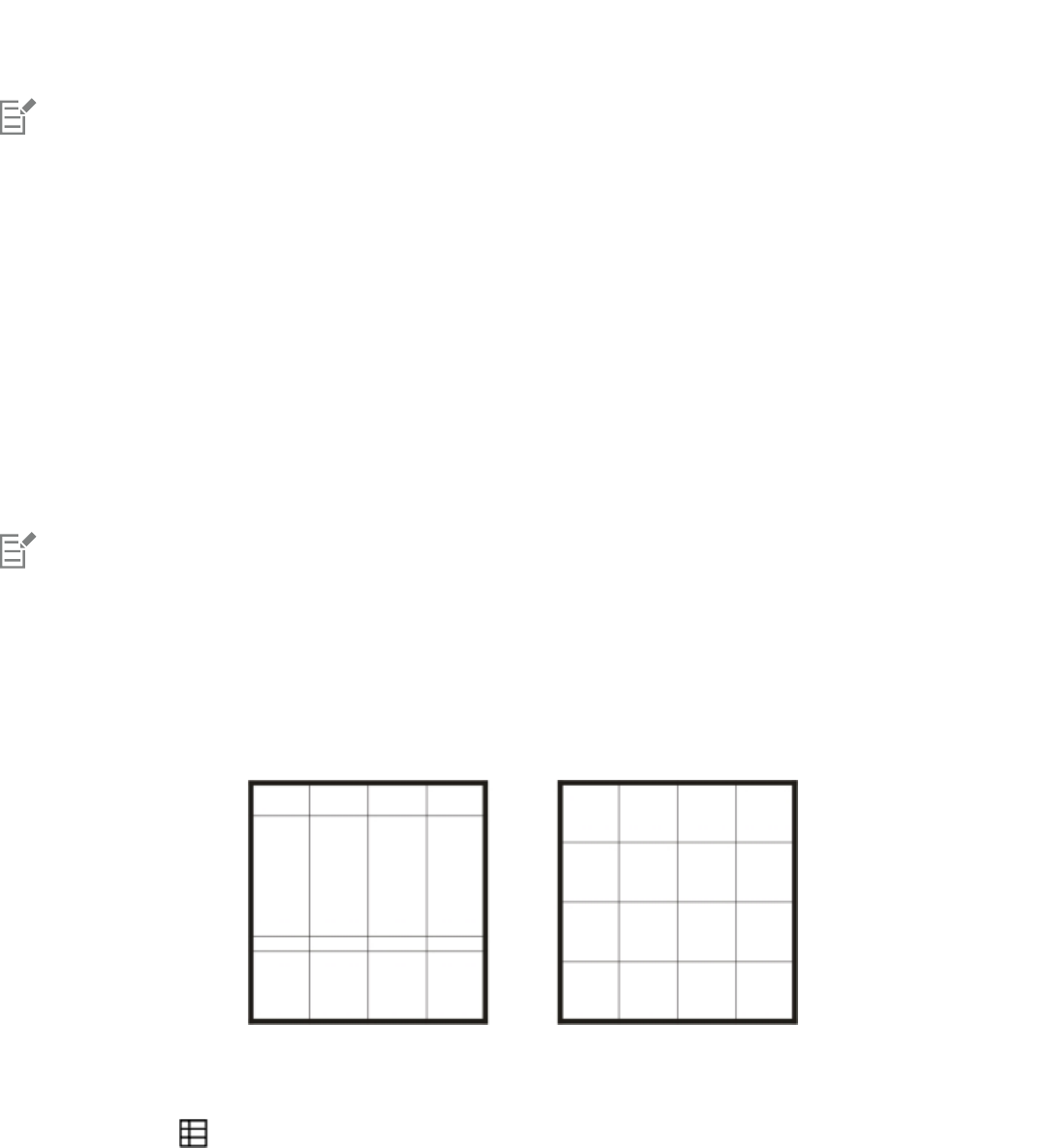
554 | Corel DESIGNER 2017 User Guide
To Do the following
Insert multiple columns to the right of the selected column Click Table Insert Insert columns, type a value in the Number
of columns box, and enable the Right of the selection option.
When you use the Column left command or the Column right command from the Table Insert menu, the number of columns
that are inserted depends on how many columns you have selected. For example, if you have selected two columns, then two
columns are inserted in the table.
To delete a row or column from a table
1Select the row or column that you want to delete.
2Perform a task from the following table.
To Do the following
Delete a row Click Table Delete Row.
Delete a column Click Table Delete Column.
If you select a row but choose the option to delete a column, or if you select a column but choose the option to delete a row, the
whole table is deleted.
Resizing table cells, rows, and columns
You can resize table cells, rows, and columns. In addition, if you previously changed the sizes of some rows or columns, you can redistribute
all rows or all columns so that they are the same size.
If table rows are different sizes (left), you can distribute them so that they are the same size (right).
To resize a table cell, row, or column
1Click the Table tool , and then click the table.
2Select the cell, row, or column that you want to resize.
3On the property bar, type values in the Table width and height boxes.
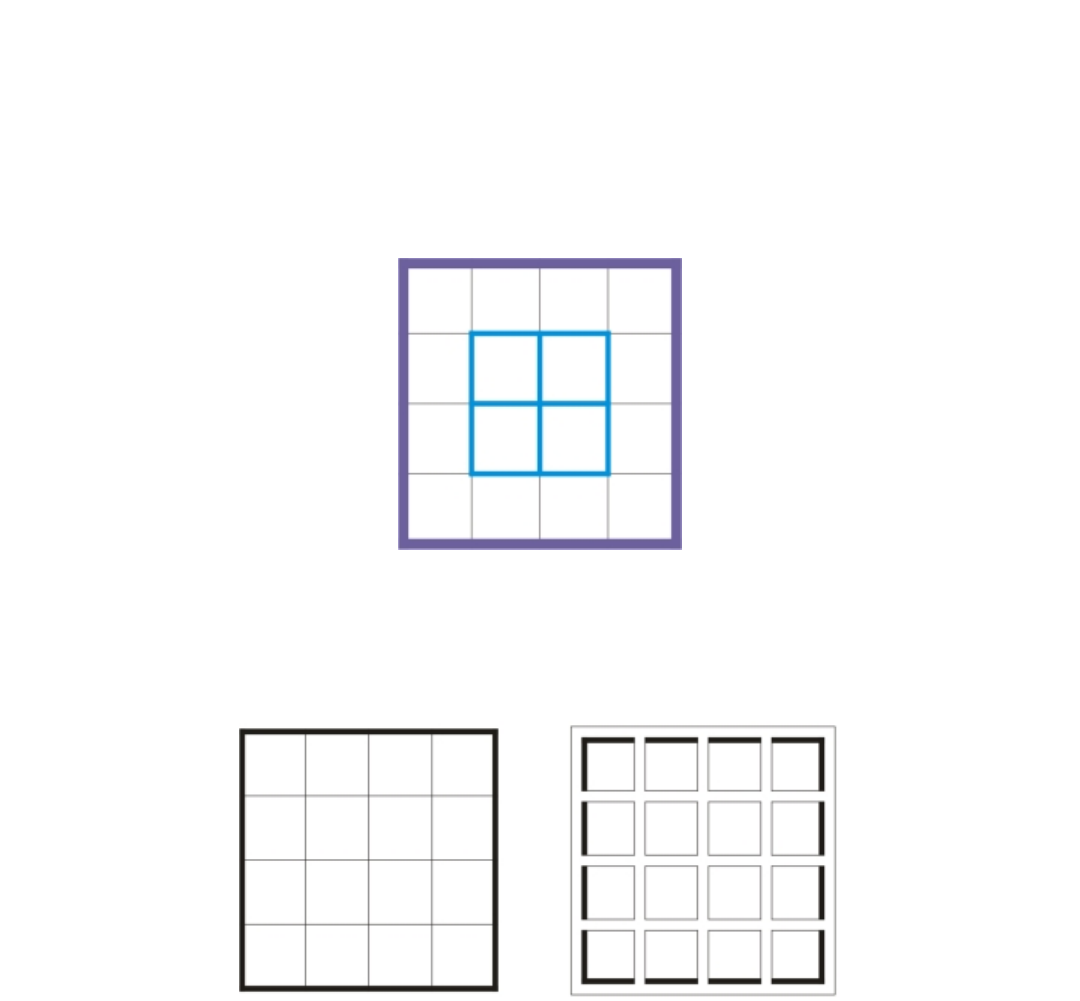
Working with tables | 555
To distribute table rows and columns
1Select the table cells that you want to distribute.
2Perform a task from the following table.
To Do the following
Make the height of all selected rows the same Click Table Distribute Rows evenly.
Make the width of all selected columns the same Click Table Distribute Columns evenly.
Formatting tables and cells
You can change the look of a table by modifying both table and cell borders. For example, you can change the table border width or color.
You can modify both table and table cell borders.
In addition, you can change the table cell margins and cell border spacing. The cell margins let you increase the space between the cell
borders and the text in the cell. By default, table cell borders overlap to form a grid. However, you can increase the cell border spacing to
move the borders away from each other. As a result, the cells do not form a grid, but appear as individual boxes (also known as “separated
borders”).
You can modify an existing table (left) by applying separated borders (right).
To modify table borders and cell borders
1Select the table or table area that you want to modify.
556 | Corel DESIGNER 2017 User Guide
A table area can include a cell, a group of cells, rows, columns, or the entire table.
2Click the Border selection button on the property bar, and choose the borders that you want to modify.
3Perform a task from the following table.
To Do the following
Modify the border thickness Choose a border width from the Outline width list box on the
property bar.
Modify the border color Click the Outline color picker on the property bar, and then click a
color on the color palette.
Modify the border line style and outline width In the Outline area of the Property manager docker, choose a line
style from the Line style picker, and type a value in the Outline
width box.
If the Property manager docker is not open, click Window
Property manager.
To modify cell margins in tables
1Click the Table tool , and then click the table.
2Select the cells that you want to modify.
3Click Margins on the property bar.
4Type a value in the Top margin box.
By default, the value in the top margin box is applied to all margins, so that equal margins are created.
If you want to apply different values for the margins, click the Lock margins button to unlock the margin boxes, and type values in the
Top margin, Bottom margin, Left margin, and Right margin boxes.
5Press Enter.
To modify cell border spacing in tables
1Click the Table tool , and then click the table.
2Click Options on the property bar.
3Enable the Separated cell borders check box.
4Type a value in the Horizontal cell spacing box.
By default, the vertical cell spacing is equal to the horizontal cell spacing.
If you do not want equal cell spacing, click the Lock cell spacing button to unlock the Vertical cell spacing box, and then type values in
both the Horizontal cell spacing and Vertical cell spacing boxes.
5Press Enter.
Working with text in tables
You can easily add text to table cells, and you can modify this text as you would any other paragraph text. For example, you can change
the font, add bullets, or add indents to table text. You can change the text properties of a single table cell, or of multiple table cells
simultaneously. In addition, you can add tab stops to table cells so that text is shifted away from the cell margins.
When you type text in a new table, you can choose to automatically adjust the size of table cells.

Working with tables | 557
To type text in a table cell
1Click the Table tool .
2Click a cell.
3Type text in the cell.
You can select text in a cell by pressing Ctrl + A.
To change the properties of text in table cells
1Using the Table tool , click a table.
2Hold down Ctrl, and click the table cells that contain text to be formatted.
3Click Text Text properties, and specify the settings you want in the Text properties docker.
For more information about formatting text, see “Formatting text” on page 437.
To change the text properties for an entire row, column, or table simultaneously, you must first select the table component or table.
For more information, see “To select a table, row, or column” on page 551.
To insert a tab stop in a table cell
•With the Table tool pointer inserted in a cell, click Text Insert formatting code Tab.
Another way to insert a tab stop is by pressing the Tab key. To use this method, you must set the Tab key to insert tab stops. For
information about changing the Tab key options, see “To change the navigational direction of the Tab key” on page 552.
To automatically resize table cells when you type
1Click the Pick tool , and then click the table.
2Click Options on the property bar, and enable the Automatically resize cells while typing check box.
This option can be applied to new tables that do not yet have text or other content.
If a table already contains text, only cells to which new text is added will be resized.
Converting tables to text
If you no longer want table text to appear in a table, you can convert the table text to paragraph text. For more information about
converting text to a table, see “To create a table from text” on page 550.
To convert a table to text
1Click the Table tool , and then click the table.
2Click Table Convert table to text.
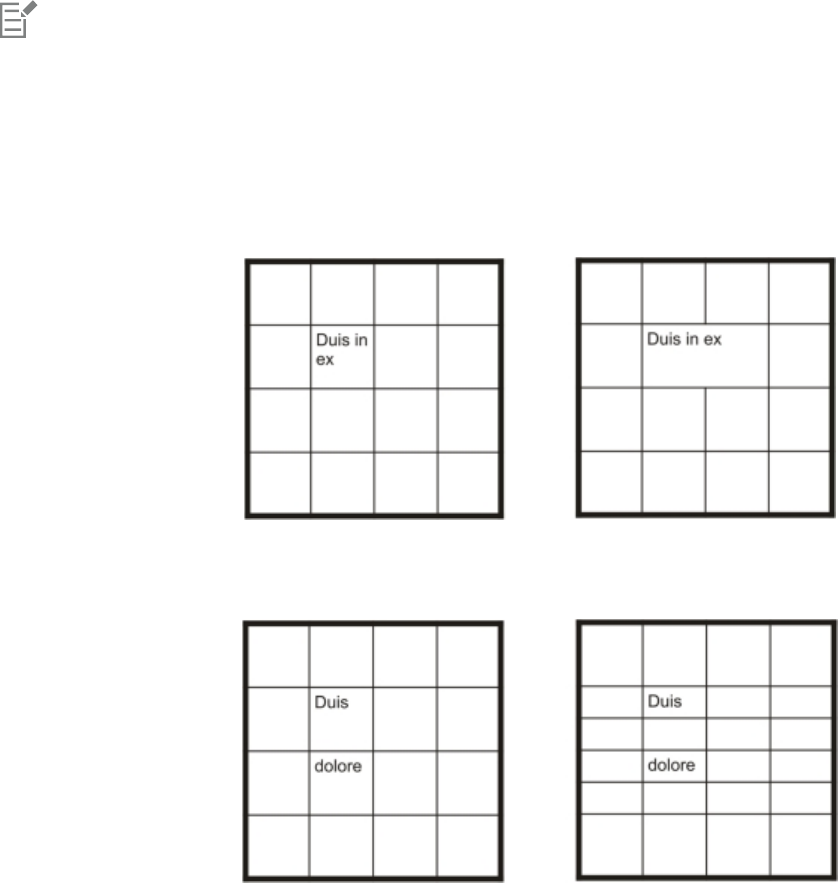
558 | Corel DESIGNER 2017 User Guide
3In the Separate cell text with area, choose one of the following options:
•Commas — replaces each column with a comma and replaces each row with a paragraph marker
•Tabs — replaces each column with a tab and replaces each row with a paragraph marker
•Paragraphs — replaces each column with a paragraph marker
•User defined — replaces each column with a specified character and replaces each row with a paragraph marker
If you enable the User defined option, you must type a character in the User defined box.
If you do not type a character in the User defined box, each of the table rows is converted into a paragraph, and the table columns
are ignored.
Merging and splitting tables and cells
You can change how a table is configured by merging adjacent cells, rows, and columns. If you merge table cells, the formatting of the
upper-left cell is applied to all merged cells. Alternatively, you can unmerge cells that were previously merged.
You can change the look of a table (left) by merging adjacent table cells (right).
You can also split table cells, rows, or columns. Splitting lets you create new cells, rows, or columns without changing the size of the table.
You can insert additional rows in a table (left) by splitting table cells (right).
To merge table cells
1Select the cells to be merged.
The selected cells must be contiguous.
2Click Table Merge cells.

Working with tables | 559
To unmerge table cells
1Select the cell that you want to unmerge.
2Click Table Unmerge cells.
To split table cells, rows, or columns
1Click the Table tool .
2Select the cell, row, or column that you want to divide.
3Perform a task from the following table.
To Do the following
Split a selection horizontally Click Table Split into rows, and type a value in the Number of
rows box.
Split a selection vertically Click Table Split into columns, and type a value in the Number
of columns box.
Manipulating tables as objects
You can manipulate tables as you would other objects.
The following table lists the various ways to manipulate a table as an object.
You can For more information see
Resize and scale a table “Sizing and scaling objects ” on page 253
Rotate a table “Rotating objects ” on page 255
Mirror a table “Mirroring objects ” on page 256
Lock a table “Locking objects ” on page 264
Convert a table to a bitmap “Converting vector graphics to bitmaps ” on page 565
Break a table apart “To convert objects to curve objects ” on page 196
Adding images, graphics, and backgrounds to tables
If you want to arrange bitmap images or vector graphics in a structured layout, you can add them to tables. You can also change the look of
a table by adding a background color.

560 | Corel DESIGNER 2017 User Guide
To insert an image or a graphic in a table cell
1Copy an image or a graphic.
2Click the Table tool, and select the cell where you want to insert the image or graphic.
3Click Edit Paste.
You can also insert a graphic or an image by holding down the right mouse button over the image, dragging the image to a cell,
releasing the right mouse button, and then clicking Place inside cell.
To add a background color to a table
1Click the Table tool , and then click the table.
2Click the Background color picker, and then click a color on the color palette.
You can also modify the background color of specific cells, rows, or columns by selecting the cells, clicking the Background color
picker on the property bar, and then clicking a color on the color palette.
Importing tables in a drawing
With CorelDESIGNER, you can create tables by importing content from Quattro Pro® (.qpw) and Microsoft Excel (.xls) spreadsheets. You can
also import tables created in a word-processing application, such as WordPerfect or Microsoft Word.
To import a table from Quattro Pro or Excel
1Click File Import.
2Choose the drive and folder where the spreadsheet is stored.
3Click the file to select it.
4Click Import.
The Import/Paste dialog box appears.
5From the Import tables as list box, choose Tables.
6Choose one of the following options:
•Maintain fonts and formatting — imports all fonts and formatting that are applied to the text
•Maintain formatting only — imports all formatting that is applied to the text
•Discard fonts and formatting — ignores all fonts and formatting that are applied to the text
To import a table from a word-processing document
1Click File Import.
2Choose the drive and folder where the text file is stored.
3Click the file.
4Click Import.
5From the Import tables as list box, choose Tables.
6Choose one of the following options:
•Maintain fonts and formatting — imports all fonts and formatting that are applied to the text
Working with tables | 561
•Maintain formatting only — imports all formatting that is applied to the text
•Discard fonts and formatting — ignores all fonts and formatting that are applied to the text
562 | Corel DESIGNER 2017 User Guide
Bitmaps | 563
Bitmaps
Working with bitmaps......................................................................................................................................................................... 565
Working with bitmap color modes...................................................................................................................................................... 587
Tracing bitmaps and editing traced results.......................................................................................................................................... 593
Working with RAW camera files.......................................................................................................................................................... 605
564 | Corel DESIGNER 2017 User Guide

Working with bitmaps | 565
Working with bitmaps
You can convert a vector graphic to a bitmap. You can also import and crop bitmaps in CorelDESIGNER.
You can also add color masks and special effects, and you can change the color and tone of the images.
This section contains the following topics:
•“Converting vector graphics to bitmaps” (page 565)
•“Importing bitmaps” (page 567)
•“Cropping bitmaps” (page 567)
•“Changing the dimensions and resolution of bitmaps” (page 567)
•“Straightening bitmaps” (page 569)
•“Correcting perspective distortions” (page 570)
•“Using Digimarc watermarks to identify bitmaps” (page 571)
•“Removing dust and scratch marks from bitmaps” (page 573)
•“Applying special effects in bitmaps” (page 573)
•“Working with colors in bitmaps” (page 575)
•“Using the Image Adjustment Lab” (page 576)
•“Adjusting color and tone” (page 581)
•“Using the Tone Curve filter” (page 583)
•“Transforming color and tone” (page 584)
•“Editing bitmaps with Corel PHOTO-PAINT” (page 584)
Converting vector graphics to bitmaps
When you convert a vector graphic to a bitmap, you can apply special effects that are unavailable for vector graphics or objects. The process
of converting a vector graphic to a bitmap is also known as “rasterizing.”
When you convert the vector graphic, you can select the color mode of the bitmap. A color mode determines the number and kind of
colors that make up the bitmap, so the file size is also affected. For more information about color modes, see “Changing the color mode of
bitmaps” on page 587.
You can also specify settings for such controls as dithering, anti-aliasing, overprinting black, and background transparency.
When you export a file to a bitmap file format, such as TIFF, JPEG, CPT, or PSD, the same bitmap conversion options are available. For more
information about exporting, see “Exporting files” on page 648.

566 | Corel DESIGNER 2017 User Guide
To convert a vector graphic to a bitmap
1Select an object.
2Click Bitmaps Convert to bitmap.
3Choose a resolution from the Resolution list box.
4Choose a color mode from the Color mode list box.
5Enable any of the following check boxes:
•Dithered — simulates a greater number of colors than those available. This option is available for images that use 256 or fewer colors.
•Always overprint black — overprints black when black is the top color. Enabling this option prevents gaps from appearing between
black objects and underlying objects when you print bitmaps.
•Anti-aliasing — smooths the edges of the bitmap
•Transparent background — makes the background of the bitmap transparent
You can change the black threshold for the Always overprint black option. For information about setting the black threshold, see
“To set the overprint black threshold” on page 638.
If you export a vector file to a bitmap format, such as GIF, you are prompted to set the bitmap conversion options described in the
procedure above before you export the file.
Making the background of a bitmap transparent lets you see images or a background otherwise obscured by the bitmap background.
To convert a vector graphic to a bitmap when exporting
1Click File Export.
2Choose the folder where you want to save the file.
3Choose a bitmap file format from the Save as type list box, and type a filename in the File name list box.
4Set the options you want, and click Export.
5In the Convert to bitmap dialog box, type values in one of the following pairs of boxes:
•Width and Height — let you specify the image dimensions
•Width % and Height % — let you resize the image to a percentage of its original size
6To specify the resolution, type a value in the Resolution box.
7Choose a color mode from the Color mode list box.
8Enable any of the following check boxes:
•Dithered — simulates a greater number of colors than those available. This option is available for images that use 256 or fewer colors.
•Always overprint black — overprints black when black is the top color. Enabling this option when you print bitmaps prevents gaps
from appearing between black objects and underlying objects.
9In the Options area, enable any of the following:
•Anti-aliasing — smooths the edges of the bitmap
•Maintain layers — preserves layers
•Transparent background — makes the background of the bitmap transparent
You can change the black threshold for the Always overprint black option. For information about setting the black threshold, see
“To set the overprint black threshold” on page 638.
Not all options in the Convert to bitmap dialog box are available for all bitmap file formats.
Working with bitmaps | 567
Making the background of a bitmap transparent lets you see images or a background otherwise obscured by the bitmap background.
Importing bitmaps
You can import a bitmap into a drawing either directly or by linking it to an external file. When you link to an external file, edits to the
original file are automatically updated in the imported file. After you import a bitmap, the status bar provides information about its color
mode, size, and resolution. For more information about importing bitmaps, see “Importing files” on page 645. For more information
about managing externally linked bitmaps, see “Adding bookmarks and hyperlinks to documents” on page 294.
You can also resample or crop a bitmap while importing. For more information, see “To resample a bitmap while importing ” on page 647
and “To crop a bitmap while importing” on page 648.
Cropping bitmaps
Cropping removes unwanted areas of a bitmap. To crop a bitmap into a rectangular shape, you can use the Crop tool. For more
information, see “To crop an object or imported photo” on page 217. To crop a bitmap into an irregular shape, you can use the Shape tool
and the Crop bitmap command.
To crop a bitmap
1Click the Shape tool .
2Select a bitmap.
3Drag the corner nodes to reshape the bitmap.
If you want to add a node, double-click the node boundary (dotted line) by using the Shape tool where you want the node to appear.
4Click Bitmaps Crop bitmap.
You cannot crop a bitmap comprised of more than one object.
You can also crop a selected bitmap after you drag the corner nodes by clicking the Pick tool , then clicking the Crop bitmap
button on the property bar.
Changing the dimensions and resolution of bitmaps
After you add a bitmap to a drawing, you can change its dimensions and resolution.
Changing dimensions
You can change the physical dimensions of bitmaps by increasing or decreasing their height and width. When you increase the dimensions,
the application inserts new pixels between existing pixels, and their colors are based on the colors of adjacent pixels. If you increase the
dimensions of bitmaps significantly, bitmaps may appear stretched and pixelated.
The size of the bitmap on your screen depends on the pixel height and width of the bitmap, on the zoom level, and on your monitor
settings. As a result, the size of the bitmap may appear different on your screen and in print.

568 | Corel DESIGNER 2017 User Guide
Changing bitmap resolution
You can change the resolution of a bitmap to increase or decrease its file size. Resolution is measured by the number of dots per inch (dpi)
when the bitmap is printed. The resolution you choose depends on how the bitmap is output. Typically, bitmaps created only for display
on computer monitors are 96 or 72 dpi and bitmaps created for the web are 72 dpi. Bitmaps created for printing on desktop printers are
generally 150 dpi, while professionally printed bitmaps are usually 300 dpi, or higher.
Higher-resolution bitmaps contain smaller and more densely packed pixels than lower- resolution bitmaps. Upsampling increases the
resolution of a bitmap by adding more pixels per unit of measure. Bitmap quality may be reduced because the new pixels are interpolated
based on the colors of neighboring pixels; the original pixel information is simply spread out. You cannot use upsampling to create detail
and subtle color gradations where none existed in the original image.
Downsampling decreases the resolution of a bitmap by removing a specific number of pixels per unit of measure. Best results are usually
achieved when downsampling is done after color and tone corrections but before sharpening.
To change the dimensions of a bitmap
1Select a bitmap.
2Click Bitmaps Resample.
3Choose a unit of measure from the list box next to the Width and Height boxes.
4Type values in any of the following boxes:
•Width
•Height
If you want to minimize the jagged appearance of curves, enable the Anti-alias check box.
If you want to maintain the file size, enable the Maintain original size check box. When this check box is enabled, the resolution of the
bitmap is automatically adjusted as you change the image dimensions.
You can maintain the proportions of the bitmap by enabling the Maintain aspect ratio check box and typing a value in either the
Width or Height box.
You can also resample the bitmap as a percentage of its original size by typing values in the Width % and Height % boxes.
To change the resolution of a bitmap
1Select a bitmap.
2Click Bitmaps Resample.
3In the Resolution area, type values in any of the following boxes:
•Horizontal
•Vertical
If you want to maintain the proportions of the bitmap, enable the Maintain aspect ratio check box.
If you want to maintain the file size, enable the Maintain original size check box. When this check box is enabled, the height and width
of the bitmap are automatically adjusted as you change the resolution.
You can also resample a selected bitmap by clicking the Resample button on the property bar.
Enable the Anti-alias check box to minimize the jagged appearance of curves.

Working with bitmaps | 569
Straightening bitmaps
The Straighten image dialog box lets you correct lens distortions and straighten bitmap images quickly. This feature is useful for
straightening photos that were taken or scanned at an angle or contain lens distortions.
You can access the Straighten image dialog box by clicking Bitmaps Straighten image.
Correcting camera lens distortions
With photos that contain camera lens distortions, it is recommended that you start with correcting the lens distortion. You can correct two
types of lens distortions, which make straight lines in photos appear curved: barrel and pincushion. Barrel distortions make photos appear
pushed out at the center. Pincushion distortions make photos appear pushed in at the center.
Rotating and previewing
The Straighten image dialog box lets you rotate an image by moving a slider, typing a rotation angle, or using the arrow keys. You can
specify a custom rotation angle from -15 to 15 degrees.
You can use the preview window to dynamically preview the adjustments that you are making. If you want to change the orientation of the
image before straightening it, you can start by rotating the image 90 degrees clockwise and 90 degrees counterclockwise.
A grid is displayed in the preview window to help you straighten the image. You can make more precise adjustments by controlling the cell
size of the grid. To heighten the contrast of the grid against the colors of the image, you can change the grid’s color. You can also hide the
grid if you want to preview the final result without the gridlines. In addition, you can zoom in and out, and pan the image in the preview
window to evaluate the results.
Cropping
By default, the straightened image is cropped to the cropping area that is displayed in the preview window. The final image has the same
aspect ratio as the original image, but it has smaller dimensions. However, you can preserve the original width and height of the image by
cropping and resampling the image.
You can also produce an image at an angle by disabling cropping and then using the Crop tool to crop the image in the drawing window.
To straighten an image
1Select an image.
2Click Bitmaps Straighten image.
If the image has a lens distortion, move the Correct lens distortion slider to the left to correct a barrel distortion or to the right to
correct a pincushion distortion.
3Move the Rotate image slider, or type a value between 15 and -15 in the Rotate image box.
4If necessary, move the Grid slider to adjust the size of the grid cells.
5To crop and straighten the image, enable the Crop image check box.
The image is cropped to preserve the aspect ratio of the original image, which means that the final image is smaller than the original
image.
If you want to preserve the width and height of the original image, enable the Crop and resample to original size check box. The final
image is resampled.
You can also
Change the grid color Choose a color from the Grid color picker.
570 | Corel DESIGNER 2017 User Guide
You can also
Align an image area with a gridline Using the Pan tool , drag the image until the area is aligned
with the gridline.
You can use the Pan tool only after you zoom in on the image.
Rotate the image 90 degrees in either direction Click the Rotate counterclockwise button or the Rotate
clockwise button .
Hide or display the grid Disable or enable the Grid check box.
Adjust the rotation angle by 0.1-degree increments Click in the Rotate image box, and press the Up arrow or Down
arrow key.
Reset the image to its original orientation Click Reset.
Zoom in or out Using the Zoom in or Zoom out tool, click in the
preview window.
Fit an image in the preview window Click the Zoom to fit button.
Display an image at its actual size Click the 100% button.
Correcting perspective distortions
You can correct perspective distortions in photos that have straight lines and flat surfaces such as architectural photos and photos of
buildings.
Perspective distortions usually occur when you take pictures of tall or wide objects, and the camera sensor is at an angle to the objects. As a
result, the photographed objects may appear to be leaning or to be at an angle. Adjusting the vertical perspective helps straighten leaning
objects; adjusting the horizontal perspective helps with angled objects. Often, you may need to adjust both the vertical and horizontal
perspectives for best results.
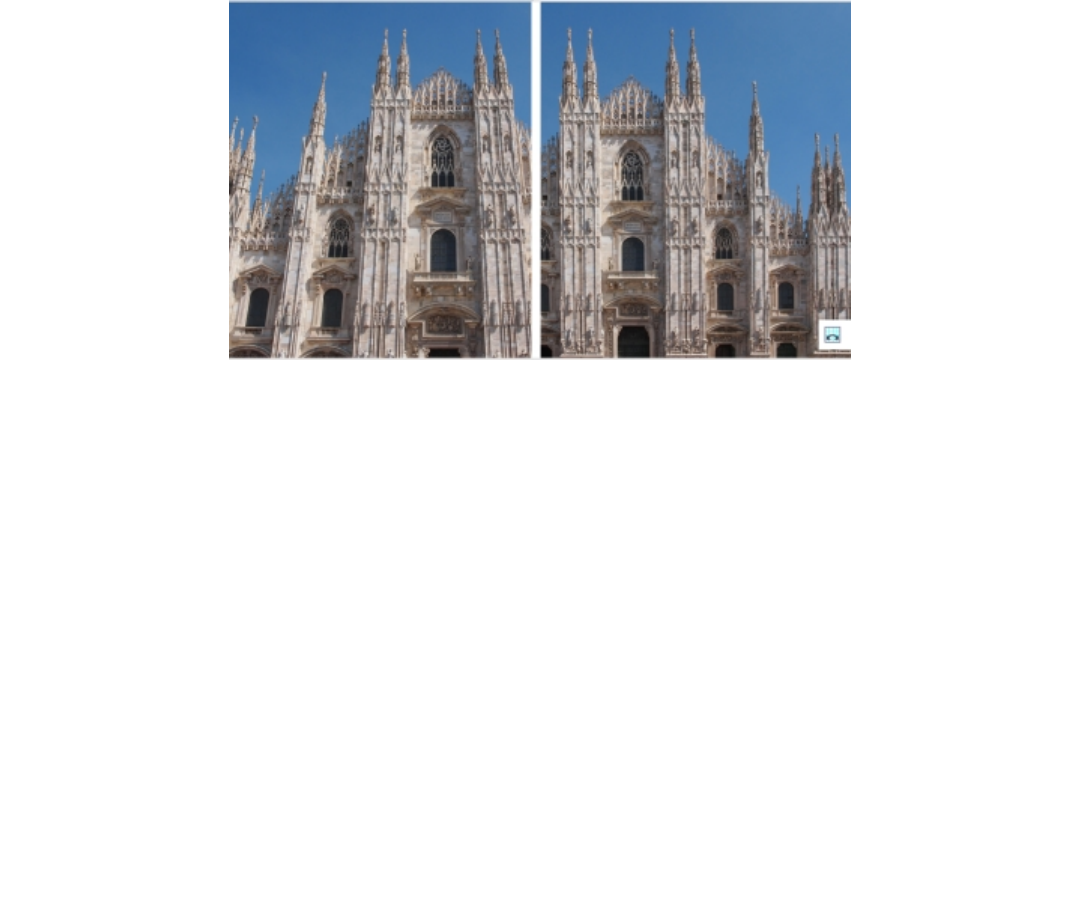
Working with bitmaps | 571
Correcting perspective distortions
To correct perspective distortions in photos
1Select an image.
2Click Bitmaps Straighten image.
3Perform a task from the following table.
To Do the following
Correct the vertical perspective Move the Vertical perspective slider. If the photo object appears to
be leaning backwards, move the slider to the left. Tall buildings in
photos usually appear to be leaning back when the picture is taken
from the ground.
Correct the horizontal perspective Move the Horizontal perspective slider. If the photo was taken
with the camera to the right of the object, move the slider to the
left.
Crop and resample the corrected image to its original size Enable the Crop check box, and then enable the Crop and
resample to original size check box.
Using Digimarc watermarks to identify bitmaps
A Digimarc watermark embeds copyright details, contact information, and image attributes in an image. A watermark makes subtle changes
to the brightness of pixels in an image. These changes cannot be readily seen; however, at high magnification, you might notice changes in
the brightness of some pixels. Digimarc watermarks aren’t affected by normal editing, printing, and scanning.
Detecting watermarks
When you open an image in CorelDESIGNER, you can check for a watermark. If a watermark is present, a copyright symbol appears on the
title bar. You can find information about the watermarked image by reading the embedded message and by linking to the contact profile in
the Digimarc database.

572 | Corel DESIGNER 2017 User Guide
Embedding watermarks
In CorelDESIGNER, you can also embed Digimarc watermarks in images. First, you must obtain a unique Creator ID by subscribing to
Digimarc’s online service. The Creator ID includes contact details, such as name, phone number, address, email, and web addresses.
Once you have a Creator ID, you can embed a watermark in an image. You can specify the copyright year, image attributes, and the
durability of a watermark. You can also specify the target output method for an image, such as print or the web.
Digimarc watermarks do not prevent unauthorized image use or copyright infringement. But the watermarks do communicate copyright
claims. They also provide contact information for those who want to use or license an image.
For more information about Digimarc, see www.digimarc.com.
To detect a watermark
1Click Bitmaps Plug-ins Digimarc Read watermark.
2Click Web lookup to view the webpage with contact details, or call the Digimarc fax-back service at the listed fax number.
This feature is not supported by the 64-bit version of CorelDRAWTechnicalSuite2017.
To get a Creator ID
1Click Bitmaps Plug-ins Digimarc Embed watermark.
2Click Personalize.
3In the Personalize Creator ID dialog box, click Register, and follow the instructions on the Digimarc website.
4In the Personalize Creator ID dialog box, type your Creator ID in the Creator ID box.
To embed a watermark
1Click Bitmaps Plug-ins Digimarc Embed watermark.
2In the Copyright year(s) box, type a year or years.
3In the Image attributes area, enable the check boxes for the applicable attributes.
4Choose an option from the Target output list box.
5Type a value in the Watermark durability box.
Higher values increase the persistence of the watermark under common image modifications such as dithering, cropping, compression,
and scaling.
If you want to confirm the information available to viewers when they detect the watermark, enable the Verify check box.
In the Copyright year(s) box, you cannot type a year before 1922 or after the current year. Separate the years with commas.
In the Target output box, the Monitor and Web controls require a setting of less than 200 per inch (dpi), and the Printer control
requires a setting of 300 dpi or higher.
Combine all objects with the background before adding a watermark. For more information about combining objects with the
background, see “Combining objects” on page 262.

Working with bitmaps | 573
Removing dust and scratch marks from bitmaps
You can quickly improve the appearance of a bitmap by removing dust and scratch marks. The dust and scratch filter works by eliminating
the contrast between pixels that exceed the contrast threshold you set. You can set a radius to determine how many pixels are affected by
the changes. The settings you choose depend on the size of the blemish and the area surrounding it. For example, to remove a white scratch
that is 1 or 2 pixels wide on a dark background, you can set a radius of 2 or 3 pixels and set the contrast threshold higher than you would
for a similar scratch on a light background.
To remove dust and scratch marks from a bitmap
1Click Effects Correction Dust and scratch.
2Move the following sliders:
•Radius — sets the range of pixels used to produce the effect. To retain image detail, choose a setting as low as possible.
•Threshold — sets the amount of noise reduction. To retain image detail, choose a setting as high as possible.
Applying special effects in bitmaps
You can apply a wide range of special effects to bitmaps, such as three-dimensional (3D) and artistic effects.
Special effect category Description
3D Effects Lets you create the illusion of depth. Effects include Emboss, Page
Curl, and Perspective.
Art Strokes Lets you apply hand-painted techniques. Effects include Crayon,
Impressionist, Pastels, Watercolor, and Pen & Ink.
Blur Lets you blur an image to simulate movement, speckling, or
gradual change. Effects include Gaussian Blur, Motion Blur, Smart
Blur, and Zoom.
Camera Lets you simulate effects produced by various camera lenses. Effects
include Colorize, Photo Filter, Sepia Toning, and Time Machine,
which lets you walk your image back through history to recreate
some popular photographic styles from the past.
Color Transform Lets you create photographic illusions by using color reduction and
replacements. Effects include Halftone, Psychedelic, and Solarize.
Contour Lets you highlight and enhance the edges of an image. Effects
include Edge Detect and Trace Contour.
Creative Lets you apply various textures and shapes to an image. Effects
include Fabric, Glass Block, Crystalize, Vortex, and Stained Glass.
Custom Lets you apply a wide range of effects to your image. For example,
you can transform your image into an artistic media painting by

574 | Corel DESIGNER 2017 User Guide
Special effect category Description
applying brushstrokes (Alchemy effect) or add texture and patterns
to an image (Bump-map effect).
Distort Lets you distort image surfaces. Effects include Ripple, Blocks, Swirl,
and Tile.
Noise Lets you modify the graininess of an image. Effects include Add
Noise, Remove Moiré, and Remove Noise.
Sharpen Lets you add a sharpening effect to focus and enhance edges.
Effects include Adaptive Unsharp, High Pass, and Unsharp Mask.
Texture Lets you add texture to an image by simulating a variety of
surfaces, such as cobblestone, elephant skin, plastic, and relief
sculpture.
Plug-ins Lets you apply effects from a third-party filter to bitmaps in
CorelDESIGNER. An installed plug-in appears at the bottom of the
Bitmaps menu.
Adding plug-in filters to CorelDESIGNER provides additional features and effects that you can use to edit images. You can add plug-in filters,
and you can remove them when you no longer need them.
CorelDESIGNER automatically inflates a bitmap so that a special effect covers the entire image. You can disable automatic inflation and
manually specify dimensions for the inflated bitmap.
To apply a special effect
1Select a bitmap.
2Click Bitmaps, choose a special effect type, and click an effect.
3Adjust any special effect settings.
To add a plug-in filter
1Click Tools Options.
2In the list of categories, double-click Workspace, and click Plug-ins.
3Click Add.
4Choose a folder containing a plug-in.
5Restart the application.
The plug-in appears in the Bitmaps Plug-ins menu.
To remove a plug-in filter, click a plug-in folder from the Plug-in folders list, and click Remove.
To inflate a bitmap manually
1Select a bitmap.
2Click Bitmaps Inflate bitmap Manually inflate bitmap.
Working with bitmaps | 575
3In the Width and Height areas, do one of the following:
• In the Inflate to boxes, type the number of pixels that should make up the dimensions of the inflated bitmap.
• In the Inflate by boxes, type the percentages by which to inflate the original bitmap.
4To inflate the bitmap proportionally, enable the Maintain aspect ratio check box.
To automatically inflate the bitmap to cover the entire image, click Bitmaps Inflate bitmap Auto inflate bitmap.
Working with colors in bitmaps
CorelDESIGNER lets you change colors in monochrome images, hide and show colors, and mask colors. Monochrome bitmaps have two
colors: black and white. You can replace the black and white pixels with any color on a color palette.
You can hide and display selected colors by masking them. Hiding colors in a bitmap lets objects or backgrounds show through the image.
Hiding a color can also alter the apparent shape of a bitmap. For example, if a bitmap shows a person on a black background, you can
hide the background so that the bitmap appears to take on the shape of the person rather than a rectangular shape. Also, hiding colors in
bitmaps can increase the speed at which objects are rendered on the screen. You can also display certain colors in a bitmap to change the
appearance of the image or to see where a particular color has been applied. You can mask as many as 10 colors in a bitmap.
Color masking also lets you change selected colors without altering the other colors in an image. You can also save a bitmap color mask to a
file and open the file for future use.
To color a monochrome bitmap
1Select a bitmap by using the Pick tool .
2Right-click a color on the color palette to change the color of the foreground (black) pixels.
3Click a color on the color palette to change the color of the background (white) pixels.
To hide or display a color in a bitmap
1Select the bitmap by using the Pick tool .
2Click Bitmaps Bitmap color mask.
3Enable one of the following options:
•Hide colors
•Show colors
4Enable the check box next to the channel that you want to hide or display.
5Move the Tolerance slider to set the color tolerance for the color.
6Click the Color selector button .
7Click the color that you want to hide or display.
8Click Apply.
Higher tolerance levels target a broader range of colors around the color you select. For example, if you select baby blue and increase
the tolerance, CorelDESIGNER hides or displays such colors as pastel blue or electric blue.
To open a bitmap color mask
1Click Bitmaps Bitmap color mask.
576 | Corel DESIGNER 2017 User Guide
2Click the Open mask button .
3Choose the folder where the color mask file is stored.
4Double-click the file.
Files containing bitmap color mask have the filename extension .ini.
To change a masked color
1Click Bitmaps Bitmap color mask.
2Choose a color from the list of masked colors.
3Click the Edit color button .
4Use the controls in the Select color dialog box to edit the color.
You can also change a masked color by clicking the Color selector button , selecting another color from the bitmap, and clicking
Apply.
Using the Image Adjustment Lab
The Image Adjustment Lab lets you correct the color and tone of most photos quickly and easily. You can access the Image Adjustment Lab
by clicking Bitmaps Image Adjustment Lab.
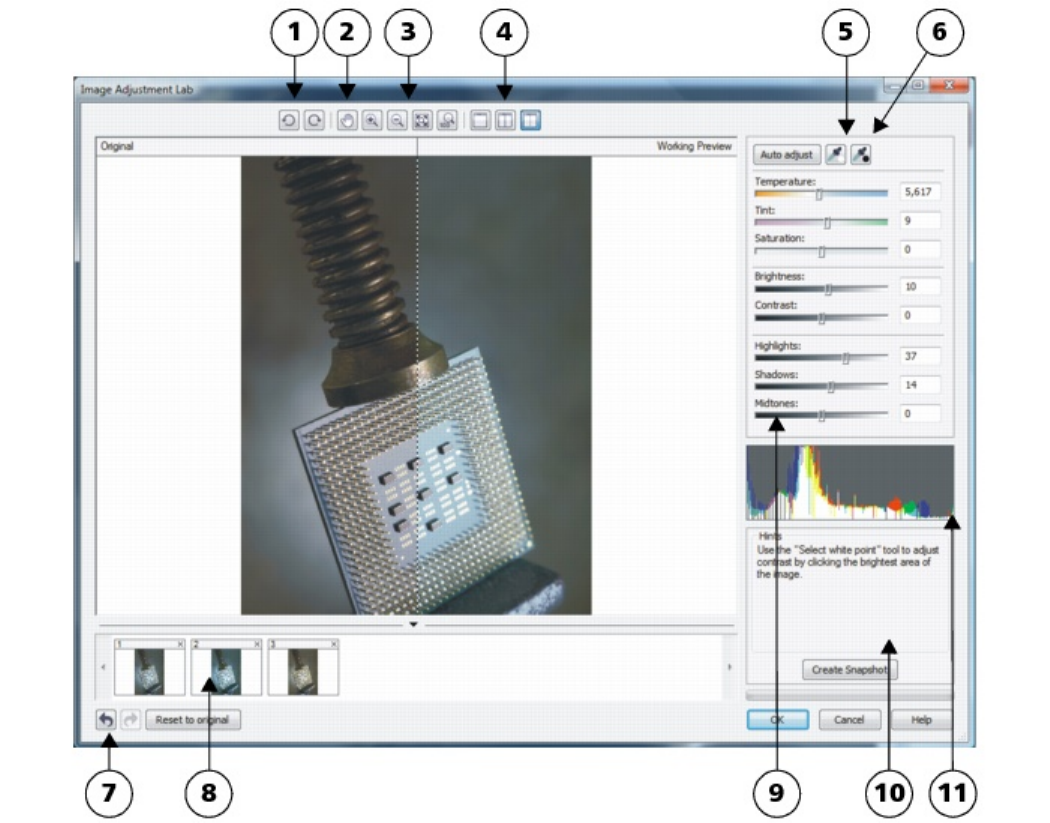
Working with bitmaps | 577
1. Rotation tools 5. Select white point 9. Sliders
2. Pan tool 6. Select black point 10. Hint for current tool
3. Zoom tools 7. Undo, Redo, and Reset 11. Histogram
4. Preview Modes 8. Snapshots
The Image Adjustment Lab consists of automatic and manual controls, which are organized in a logical order for image correction. By
starting in the upper-right corner and working your way down, you can select only the controls you need to correct the problems specific to
your image. It is best to crop or retouch any areas of the image before beginning the color and tone corrections.
When you work in the Image Adjustment Lab, you can take advantage of the following features:

578 | Corel DESIGNER 2017 User Guide
•Create snapshot — You can capture the corrected version of an image in a “snapshot” at any time. Thumbnails of the snapshots appear
in a window below the image. Snapshots make it easy to compare different corrected versions of the image so you can choose the best
one.
•Undo, Redo, and Reset to original — Image correction can be a trial-and-error process, so the ability to undo and redo corrections is
important. The Reset to original command lets you clear all corrections so that you can start again.
Using automatic controls
You can begin by using the automatic correction controls:
•Auto adjust — automatically corrects the contrast and color in an image by detecting the lightest and darkest areas and adjusting the
tonal range for each color channel. In some cases, this control may be all you need to improve an image. In other cases, you can undo
the changes and proceed with more precise controls.
•Select white point tool — automatically adjusts the contrast in an image according to the white point that you set. For example, you
can brighten an image that is too dark by using the Select white point tool.
•Select black point tool — automatically adjusts the contrast in an image according to the black point that you set. For example, you can
darken an image that is too light by using the Select black point tool.
Using color correction controls
After using the automatic controls, you can correct color casts in your image. Color casts are typically caused by the lighting conditions when
a photo is taken, and they can be influenced by the processor in your digital camera or scanner.
•Temperature slider — lets you correct color casts by “warming” or “cooling” the color in an image to compensate for the lighting
conditions at the time the photo was taken. For example, to correct a yellow color cast caused by taking a photo indoors in dim
incandescent lighting, you can move the slider toward the blue end to increase the temperature values (based on degrees Kelvin). Lower
values correspond to low lighting conditions, such as candlelight or light from an incandescent light bulb; these conditions cause an
orange cast. Higher values correspond to intense lighting conditions, such as sunlight; these conditions cause a blue cast.
•Tint slider — lets you correct color casts by adjusting the green or magenta in an image. You can add green by moving the slider to the
right; you can add magenta by moving the slider to the left. Moving the Tint slider after using the Temperature slider lets you fine-tune
an image.
•Saturation slider — lets you adjust the vividness of colors. For example, by moving the slider to the right, you can increase the vividness
of a blue sky in an image. By moving the slider to the left, you can reduce the vividness of colors. You can create a black-and-white photo
effect by moving the slider all the way to the left, so that all color in the image is removed.
Correction of a color cast. The image on the right is the corrected version.
Adjusting brightness and contrast across an entire image
You can brighten, darken, or improve the contrast in an entire image by using the following controls:
•Brightness slider — lets you brighten or darken an entire image. This control can correct exposure problems caused by too much light
(overexposure) or too little light (underexposure) at the time the photo was taken. If you want to lighten or darken specific areas of
an image, you can use the Highlights, Shadows, and Midtones sliders. Adjustment made by the Brightness slider is nonlinear, so the
current white point and black point values are not affected.
•Contrast slider — increases or decreases the difference in tone between the dark and light areas of an image. Moving the slider to the
right makes the light areas lighter and the dark areas darker. For example, if the image has a dull, gray tone, you can sharpen the detail
by increasing the contrast.
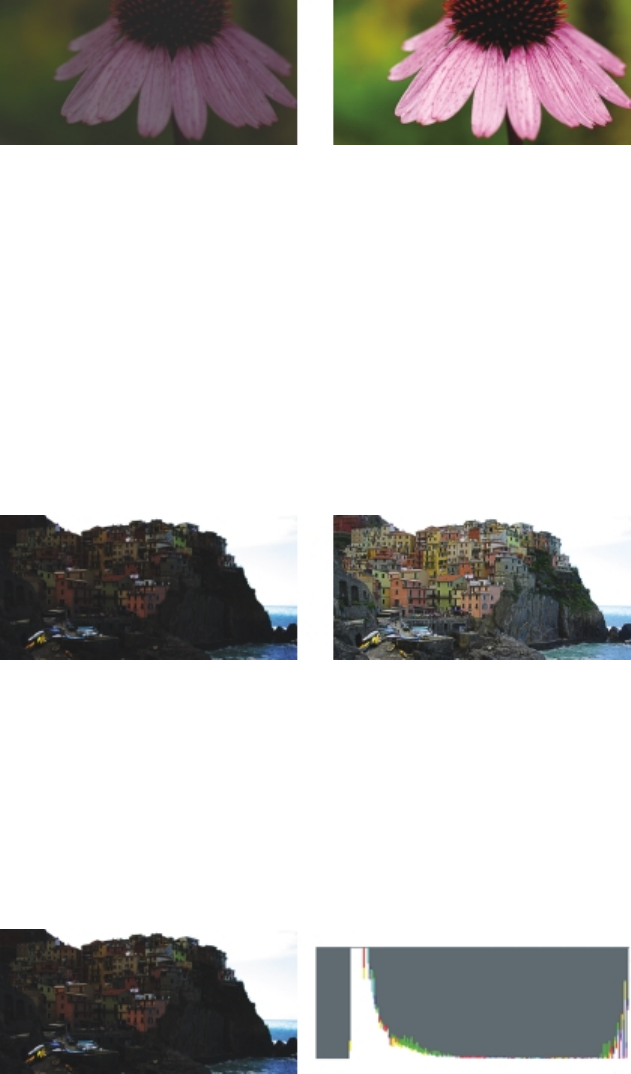
Working with bitmaps | 579
Adjusting the brightness and contrast of an image can reveal more image detail.
Adjusting highlights, shadows, and midtones
You can brighten or darken specific areas of an image. In many cases, the position or strength of the lighting at the time a photo is taken
causes some areas to appear too dark and other areas to appear too light.
•Highlights slider — lets you adjust brightness in the lightest areas of an image. For example, if you take a photo with a flash, and the
flash washes out the foreground subjects, you can move the Highlights slider to the left to darken the washed-out areas of the image.
You can use the Highlights slider in conjunction with the Shadows and Midtones sliders to balance the lighting.
•Shadows slider — lets you adjust the brightness in the darkest areas of an image. For example, a bright light behind a photo subject
(backlighting) at the time a photo is taken can cause the subject to appear in shadow. You can correct the photo by moving the Shadow
slider to the right to lighten the dark areas and reveal more detail. You can use the Shadows slider in conjunction with the Highlights
and Midtones sliders to balance the lighting.
•Midtones slider — lets you adjust the brightness of the midrange tones in an image. After adjusting the highlights and shadows, you
can use the Midtones slider to fine-tune the image.
The Highlights and Shadows sliders can lighten or darken specific areas of an image.
Using the histogram
The histogram lets you view the tonal range of an image to evaluate and adjust the color and tone. For example, a histogram can help you
detect hidden detail in a photo that is too dark because of underexposure (a photo taken with insufficient light).
The histogram plots the brightness values of the pixels in an image on a scale of 0 (dark) to 255 (light). The left part of the histogram
represents the shadows, the middle part represents the midtones, and the right part represents the highlights. The height of the spikes
indicates how many pixels are at each brightness level. For example, a higher number of pixels on the left side of the histogram indicates the
presence of image detail in the dark areas of the image.
The photo on the left is underexposed. Right: The histogram indicates
a large amount of image detail in the dark areas of the photo.
Viewing images in the Image Adjustment Lab
The tools in the Image Adjustment Lab let you view images in various ways, so that you can evaluate the color and tone adjustments you
make. For example, you can rotate images, pan to a new area, zoom in or out, and choose how to display the corrected image in the
preview window.
580 | Corel DESIGNER 2017 User Guide
Using other adjustment filters
Although the Image Adjustment Lab lets you correct the color and tone of most images, a specialized adjustment filter is sometimes
required. Using the powerful adjustment filters in the application, you can make precise adjustments to images. For example, you can adjust
images by using a tone curve. For more information about adjustment filters, see “Adjusting color and tone” on page 581.
To correct color and tone in the Image Adjustment Lab
1Click Bitmaps Image Adjustment Lab.
2Click Auto adjust.
Auto adjust automatically adjusts color and contrast by setting the white point and black point for an image.
If you want to control the white point and black point setting more precisely, click the Select white point tool , and click the lightest
area of your image. Then click the Select black point tool , and click the darkest area of your image.
3Perform one or more tasks from the following table.
To Do the following
Correct color in the image Adjust the Temperature slider to warm or cool the colors, and then
fine-tune the color correction by adjusting the Tint slider.
Make colors more vivid or less vivid Move the Saturation slider to the right to increase the amount
of color in the image; move the slider to the left to decrease the
amount of color in the image.
Brighten or darken an image Move the Brightness slider to the right to lighten the image; move
the slider to the left to darken the image.
Improve image sharpness by adjusting tone Move the Contrast slider to the right to make the light areas lighter
and the dark areas darker.
Brighten or darken specific areas Move the Highlights slider to brighten or darken the lightest areas
of the image. Then, move the Shadows slider to lighten or darken
the darkest areas of the image. Finally, move the Midtones slider to
fine-tune the midrange tones in the image.
The Image Adjustment Lab is not available for CMYK images. For CMYK images, you can access the Auto adjust filter and other
adjustment filters from the Effects menu.
You can capture the current version of your image by clicking the Create snapshot button. Thumbnails of the snapshots appear in
a window below your image. Each snapshot is numbered sequentially and can be deleted by clicking the Close button in the upper-
right corner of the snapshot title bar.
You can undo or redo the last correction you made by clicking the Undo button or the Redo button . To undo all
corrections, click the Reset to original button.
Working with bitmaps | 581
To view images in the Image Adjustment Lab
1Click Bitmaps Image Adjustment Lab.
2Perform a task from the following table.
To Do the following
Rotate the image Click the Rotate left button or the Rotate right button .
Pan to another area of an image Using the Pan tool , drag the image until the area you want to
see is visible.
Zoom in and out Using the Zoom in tool or the Zoom out tool , click in
the preview window.
Fit an image in the preview window Click the Zoom to fit button.
Display an image at its actual size Click the 100% button.
View the corrected image in a single preview window Click the Full preview button .
View the corrected image in one window and the original image in
another window
Click the Before and after full preview button .
View the image in one window with a divider between the original
and corrected versions
Click the Before and after split preview button . Move your
pointer over the dashed divider line, and drag to move the divider
to another area of the image.
Adjusting color and tone
CorelDESIGNER lets you adjust the color and tone of bitmaps. For example, you can replace colors and adjust the brightness, lightness, and
intensity of colors.
By adjusting color and tone, you can restore detail lost in shadows or highlights, remove color casts, correct underexposure or overexposure,
and generally improve the quality of the bitmaps. You can also correct color and tone quickly by using the Image Adjustment Lab. For more
information, see “Using the Image Adjustment Lab” on page 576.
You can adjust the color and tone of bitmaps automatically by using the Auto Adjust command or by using the following filters.
Effect Description
Contrast enhancement Lets you adjust the tone, color, and contrast of a bitmap while
preserving shadow and highlight detail. An interactive histogram
lets you shift or compress brightness values to printable limits.

582 | Corel DESIGNER 2017 User Guide
Effect Description
The histogram can also be adjusted by sampling values from the
bitmap.
Local equalization Lets you enhance contrast near edges to reveal detail in both light
and dark regions. You can set the height and width around the
region to accentuate contrast.
Sample/Target balance Lets you adjust color values in a bitmap with sample colors taken
from the image. You can choose sample colors from the dark,
midtone, and light ranges of an image and apply target colors to
each of the sample colors.
Tone curve Lets you perform color corrections precisely, by controlling
individual pixel values. By changing pixel brightness values, you
can make changes to shadows, midtones, and highlights. For more
information, see “Using the Tone Curve filter” on page 583.
Brightness/contrast/intensity Lets you adjust the brightness of all colors and the difference
between light and dark areas
Color balance Lets you add cyan or red, magenta or green, and yellow or blue to
selected tones in a bitmap
Gamma Lets you accentuate detail in low contrast areas without affecting
shadows or highlights
Hue/saturation/lightness Lets you adjust the color channels in a bitmap and change the
position of colors in the spectrum. This effect allows you to change
colors and their richness, as well as the percentage of white in an
image.
Selective color Lets you change color by changing the percentage of spectrum
CMYK process colors from the red, yellow, green, cyan, blue, and
magenta color spectrum in a bitmap. For example, decreasing the
percentage of magenta in the reds spectrum results in a color shift
toward yellow.
Replace colors Lets you replace one bitmap color with another color. A color mask
is created to define the color to be replaced. Depending on the
range you set, you can replace one color or shift an entire bitmap
from one color range to another. You can set the hue, saturation,
and lightness for the new color.
Desaturate Lets you reduce the saturation of each color in a bitmap to zero,
remove the hue component, and convert each color to its grayscale
equivalent. This creates a grayscale black-and-white photo effect
without changing the color model.
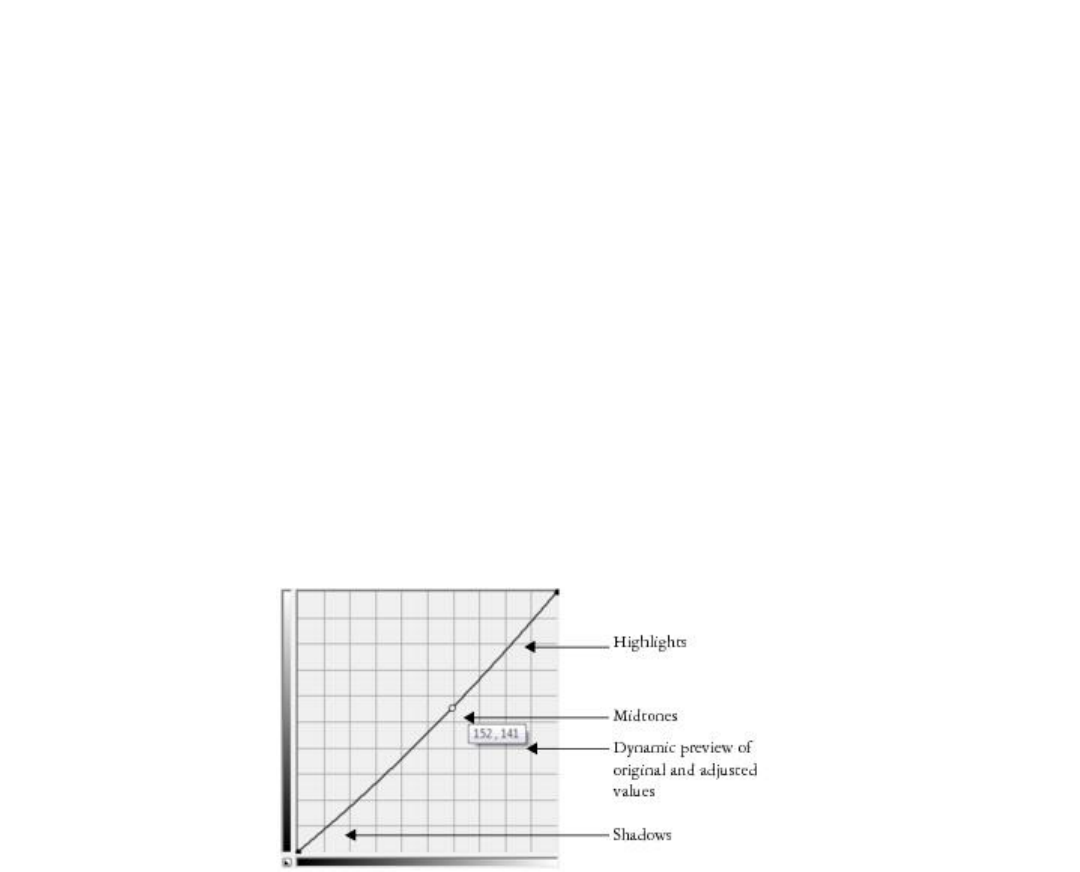
Working with bitmaps | 583
Effect Description
Channel mixer Lets you mix color channels to balance the colors of a bitmap. For
example, if a bitmap has too much red, you can adjust the red
channel in an RGB bitmap to improve image quality.
To adjust color and tone automatically
1Select a bitmap.
2Click Bitmaps Auto adjust.
To adjust color and tone by using an adjustment filter
1Select a bitmap.
2Click Effects Adjust, and click an adjustment filter.
3Specify any settings you want.
Using the Tone Curve filter
The Tone curve filter lets you perform color and tonal corrections by adjusting either individual color channels or the composite channel
(all channels combined). Individual pixel values are plotted along a tone curve that appears in a graph and represents the balance between
shadows (bottom of graph), midtones (middle of graph), and highlights (top of graph). The x-axis of the graph represents the tonal values of
the original image; the y-axis of the graph represents the adjusted tonal values.
The tone curve shows the balance between the shadows, midtones, and highlights of an image. The original
(x) and adjusted (y) pixel values are displayed side by side when you drag the tone curve. This example shows
a small adjustment to the tonal range, in which pixel values of 152 are replaced with pixel values of 141.
You can fix problem areas by adding nodes to the tone curve and dragging the curve. If you want to adjust specific areas in an image, you
can use the Eyedropper tool and select the areas in the image window. You can then drag the nodes that appear on the tone curve to
achieve the effect you want.
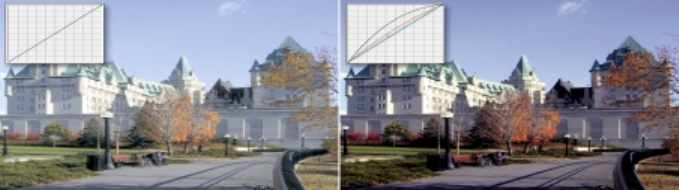
584 | Corel DESIGNER 2017 User Guide
Original image (left); the image with adjusted tonal range (right)
The histogram lets you view the adjusted tonal range and evaluate the results. For more information about histograms, see “Using the
histogram” on page 579.
To fine-tune your adjustments, you can choose a curve style from the Style list box. For example, you can redraw the curve by using freehand
lines or straight line segments.
You can adjust the color and tone of an image by applying a preset. To access a preset, click the Open button to the right of the Presets
box. You can also save tone settings as presets to use with other images.
In addition, you can equalize the tonal range of an image by clicking Auto balance tone. To specify the outlying pixels (clipped pixels) at
each end of the tonal range, you can click Settings and type values in the Auto-adjust range dialog box.
Transforming color and tone
You can transform the color and tone of an image to produce a special effect. For example, you can create an image that looks like a
photographic negative or flatten the appearance of an image. To transform the color and tone of images, you can use the following effects:
•Deinterlace — lets you remove lines from scanned or interlaced images
•Invert — lets you reverse the colors of an image. Inverting an image creates the appearance of a photographic negative.
•Posterize — lets you reduce the number of tonal values in an image. Posterize removes gradations and creates larger areas of flat color.
To transform color and tone
1Select a bitmap.
2Click Effects Transform, and click any of the following:
•Deinterlace
•Invert
•Posterize
Editing bitmaps with Corel PHOTO-PAINT
You can access Corel PHOTO-PAINT, a complete image-editing application, from within CorelDESIGNER. When you finish editing a bitmap,
you can quickly resume your work with CorelDESIGNER.
To send a bitmap to Corel PHOTO-PAINT, you can click the Edit bitmap button on the property bar, or you can use the Edit bitmap
command from the Bitmaps menu. You can also enable an option that lets you access Corel PHOTO-PAINT by double-clicking a bitmap.
You can copy selected objects from Corel PHOTO-PAINT and then paste them into your drawing. The selected objects are pasted as a group
of bitmaps.
For more information about editing images with Corel PHOTO-PAINT, click Help Product help from the Corel PHOTO-PAINT menu bar.

Working with bitmaps | 585
To edit a bitmap with Corel PHOTO-PAINT
1Using the Pick tool , select the bitmap that you want to edit.
2On the property bar, click Edit bitmap to start Corel PHOTO-PAINT.
The selected bitmap is displayed in the image window of Corel PHOTO-PAINT.
3Edit the bitmap.
4On the standard toolbar, click Finish editing to quit Corel PHOTO-PAINT.
The edited bitmap appears on the drawing page of CorelDESIGNER.
You can also use this procedure to edit groups of bitmaps. Corel PHOTO-PAINT opens the group of bitmaps as separate objects. If
the bitmaps in the group have different color modes, you are prompted to change the color mode of all bitmaps in the group to the
color mode of the bottom-most bitmap.
You can also open Corel PHOTO-PAINT by clicking Bitmaps Edit bitmaps.
To access Corel PHOTO-PAINT by double-clicking a bitmap
1Click Tools Options.
2In the Workspace list of categories, click Edit.
3On the Edit page, enable the Double-click to edit bitmaps in PHOTO-PAINT check box.
Enabling this check box lets you access Corel PHOTO-PAINT by double-clicking the bitmap in CorelDESIGNER.
586 | Corel DESIGNER 2017 User Guide

Working with bitmap color modes | 587
Working with bitmap color modes
Changing an image to another color mode, such as RGB, CMYK, or Grayscale, changes a bitmap’s color structure.
This section contains the following topics:
•“Changing the color mode of bitmaps” (page 587)
•“Changing bitmaps to black-and-white images” (page 588)
•“Changing bitmaps to duotones” (page 589)
•“Changing bitmaps to the paletted color mode” (page 590)
Changing the color mode of bitmaps
The colors of the images that you work with in CorelDESIGNER are based on color modes. Color modes define the color characteristics of
images and are described by their component colors. The CMYK color mode is composed of cyan, magenta, yellow, and black values; the
RGB color mode is composed of red, green, and blue values.
Although you may not be able to see the difference between an image in the CMYK color mode and an image in the RGB color mode on
screen, the images are quite different. For the same image dimensions, an RGB image has a smaller file size than a CMYK image, and the
RGB color space, or gamut, can display more colors. Therefore, images intended for the web or desktop printers, which require accurate
color fidelity, are generally in RGB mode. Where accurate print reproduction is needed, such as on a commercial printing press, images are
generally created in CMYK mode. Paletted color images attempt to preserve color fidelity while reducing the file size, making them ideal for
on-screen uses.
Each time you convert an image, you may lose color information. For this reason, you should save an edited image before you change it to a
different color mode. For more information about color modes, see “Working with color” on page 319.
CorelDESIGNER supports the following color modes:
• Black and White (1-bit)
• Duotone (8-bit)
• Grayscale (8-bit)
• Paletted (8-bit)
• RGB Color (24-bit)
• Lab Color (24-bit)
• CMYK Color (32-bit)

588 | Corel DESIGNER 2017 User Guide
To change the color mode of a bitmap
1Click a bitmap.
2Click Bitmaps Mode, and click a color mode.
The current mode of the selected bitmap is not available in the menu.
Changing bitmaps to black-and-white images
You can change any image to a black-and-white image. In addition to conversion settings such as threshold, screen type, and intensity, there
are seven conversion options that affect how the converted images will look.
Conversion
Line art Produces a high-contrast, black-and-white image. Colors with
a grayscale value lower than the threshold value that you set
change to black, while colors with a grayscale value higher than the
threshold value change to white.
Ordered Organizes the gray levels into repeating geometric patterns of black
and white pixels. Solid colors are emphasized and image edges are
hard. This option is best suited for uniform colors.
Halftone Creates different shades of gray by varying the pattern of black and
white pixels in an image. You can choose the screen type, angle for
the halftone, lines per unit, and the unit of measure.
Cardinality-Distribution Creates a textured look by applying a calculation and distributing
the result to the screen.
Jarvis Applies the Jarvis algorithm to the screen. This form of error
diffusion is suitable for photographic images.
Stucki Applies the Stucki algorithm to the screen. This form of error
diffusion is suitable for photographic images.
Floyd-Steinberg Applies the Floyd-Steinberg algorithm to the screen. This form of
error diffusion is suitable for photographic images.
To change a bitmap to a black-and-white image
1Click a bitmap.
2Click Bitmaps Mode Black-and-white (1-bit).
3Choose an option from the Conversion method list box.

Working with bitmap color modes | 589
4Move the Intensity slider.
If you want to view different parts of the image, you can drag the image in the Preview window.
The Intensity slider is not available for the Halftone conversion option.
Changing bitmaps to duotones
To convert an image to a duotone, you change a bitmap to the grayscale color mode and enhance it using one to four additional colors,
giving the image greater tonal depth.
The following four variations of the color mode correspond to the number of additional inks:
•Monotone — a grayscale image colored with a single tone
•Duotone — a grayscale image colored with two tones. In most cases, one is black and the other is colored.
•Tritone — a grayscale image colored with three tones. In most cases, one is black and the other two are colored.
•Quadtone — a grayscale image colored with four tones. In most cases, one is black and the other three are colored.
Adjusting tone curves
When you change an image to a duotone, a tone curve grid that represents the dynamic tone curves that are used throughout the
conversion is displayed. The horizontal plane (x-axis) displays the 256 possible shades of gray in a grayscale image (0 is black; 255 is white).
The vertical plane (y-axis) indicates the intensity of a color (from 0 to 100 percent) that is applied to the corresponding grayscale values. For
example, a grayscale pixel with a color value of 25 is printed with a 25-percent tint of the color. By adjusting the tone curves, you can control
the color and intensity of the tone that is added to an image.
Saving and loading inks
You can save an adjusted duotone tone curve and ink settings and then load them for use with other bitmaps.
Specifying how overprint colors display
When you change an image to a duotone, you can specify the colors to overprint when you print an image. Overprint colors are used to
preserve color integrity when inks overlap. When you display the image, each color is applied on the screen in sequence, creating a layered
effect.
You can view all instances in which the colors you choose for the duotone conversion overlap. Associated with each instance is the color that
is produced by the overlap. You can also choose new overprint colors to see how they overlap.
Duotones hold their color ink information when you save to EPS, PDF, CorelDESIGNER (DES), and Corel PHOTO-PAINT (CPT) file formats.
Other file formats don’t support duotone images.
To change an image to a duotone
1Click a bitmap.
2Click Bitmaps Mode Duotone (8-bit).
3Click the Curves tab.
4Choose a duotone type from the Type list box.
5Double-click an ink color in the Type window.
6In the Select color dialog box, choose a color, and click OK.
If you want to adjust the color’s tone curve, click the ink tone curve on the grid to add a node, and drag the node to adjust the
percentage of color at that point on the curve.
7Repeat steps 5 and 6 for each ink color you want to use.

590 | Corel DESIGNER 2017 User Guide
You can also
Display all the ink tone curves on the grid. Enable the Show all check box.
Save the ink settings Click Save. Choose the disk and folder where you want to save the
file, and type a filename in the File name box.
Specify how overprint colors display Click the Overprint tab, and enable the Use overprint check box.
Double-click the color you want to edit, and choose a new color.
You can load preset ink colors by clicking Load, locating the file in which the ink settings are stored, and double-clicking the filename.
Changing bitmaps to the paletted color mode
The paletted color mode, also called indexed color mode, is sometimes used for images on the World Wide Web. When you convert an
image to the paletted color mode, a fixed color value is assigned to each pixel. These values are stored in a compact color table, or palette,
containing up to 256 colors. As a result, the paletted color mode image contains less data than a 24-bit color mode image, and it has a
smaller file size. Conversion to paletted color mode works best on images that have a limited range of colors.
Choosing, editing, and saving a color palette
When you change an image to the paletted color mode, you can use a predefined palette, or you can customize a color palette by replacing
individual colors.
Saving conversion settings
After you choose a color palette and set the dithering and range sensitivity for changing an image to the paletted color mode, you can save
the settings as a conversion preset that you can use with other images. You can add as many conversion presets as you want.
The color palette you use is called the processed color palette. It can be saved for use with other images.
For more information about the predefined color palettes available for the paletted color mode, see “Palette types” on page 591. For more
information about creating and opening custom color palettes, see “Creating and editing custom color palettes” on page 330.
Dithering
Changing images to the paletted color mode lets you use dithering to enhance color information. Dithering places pixels with specific colors
or values relative to other pixels of a specific color. The relationship of one colored pixel to another creates the appearance of additional
colors that do not exist in the color palette.
You can use two types of dithering: ordered dithering and error diffusion. Ordered dithering approximates color blends using fixed dot
patterns; as a result, solid colors are emphasized and edges appear harder. Error diffusion scatters pixels irregularly, making edges and colors
softer. Jarvis, Stucki, and Floyd-Steinberg are conversion options that provide error diffusion.
The Ordered dithering option applies more quickly than the error diffusion options (Jarvis, Stucki, and Floyd-Steinberg) but is less accurate.
Specifying a range-sensitivity color
You can change an image to the paletted color mode and specify a focus color and a range sensitivity for the focus color, so that the focus
color and colors that fall within the range settings are included in the processed color palette. You can also specify how much emphasis to
place on the range sensitivity. Because the palette has a maximum of 256 colors, emphasizing a focus color reduces the number of colors
that fall outside the range sensitivity.

Working with bitmap color modes | 591
Palette types
The table below outlines available palette types.
Palette type Description
Uniform Provides a range of 256 colors with equal parts of red, green, and
blue
Standard VGA Provides the Standard VGA 16-color palette
Adaptive Provides colors original to the image and preserves the individual
colors (the entire color spectrum) in the image
Optimized Creates a color palette based on the highest percentage of colors
in the image. You can also specify a range-sensitivity color for
the color palette. This is the most common color palette for
photographic images.
Black Body Contains colors that are based on temperature. For example, black
may represent cold temperatures, while red, orange, yellow, and
white may represent hot temperatures.
Grayscale Provides 256 shades of gray, ranging from black to white
System Provides the predefined palette of colors used by the operating
system
Web-safe Provides a predefined palette of 216 non-dithered colors that
will display the same on most browsers. This palette is not
recommended for use with photographs and only benefits users
with older computers.
Custom Lets you add colors to create a customized color palette
To change an image to the paletted color mode
1Click a bitmap.
2Click Bitmaps Mode Paletted (8-bit).
3Click the Options tab.
4Choose a color palette type from the Palette list box.
5Choose an option from the Dithering list box.
6Move the Dithering intensity slider.
If you want to save the conversion settings as a preset, click the Add preset button, and type a name in the Save preset box.
592 | Corel DESIGNER 2017 User Guide
You can achieve better color fidelity by choosing the palette you want to use when you change an image to a paletted bitmap or
when you export a GIF or PNG. For example, the standard color palette provides more colors than necessary for an image with a
limited range of colors, but you can choose an optimized palette to ensure that color representation is accurate.
You can choose a custom color palette by clicking Open, locating the color palette file you want, and double-clicking the filename.
You can load preset conversion settings by choosing a preset from the Preset list box.
To create a custom processed color palette
1Click a bitmap.
2Click Bitmaps Mode Paletted (8-bit).
3Click the Processed palette tab.
4Click a color, and click the Edit button.
5In the Color table, specify the color you want, and click Edit color.
6Edit the color, and click OK.
7Click the Save palette as button to save the new palette.
8Choose the disk and folder where you want to store the color palette.
9Type a name in the Name box, and click Save.
To change a bitmap by setting range sensitivity
1Click a bitmap.
2Click Bitmaps Mode Paletted (8-bit).
3Click the Options tab.
4Choose Optimized from the Palette list box.
5Enable the Color range sensitivity to check box.
6Click the Eyedropper tool , and click a color in the image.
7Click the Range sensitivity tab.
8Move the range sensitivity sliders.
If you want to preview the color palette, click the Processed palette tab.

Tracing bitmaps and editing traced results | 593
Tracing bitmaps and editing traced results
CorelDESIGNER lets you trace bitmaps to convert them to fully editable and scalable vector graphics. You can trace artwork, photos,
scanned sketches, or logos and then easily integrate them into your designs.
For information about the difference between vector graphics and bitmaps, see “Understanding vector graphics and bitmaps” on page 77.
This section contains the following topics:
•“Tracing bitmaps” (page 593)
•“PowerTRACE controls” (page 596)
•“Previewing traced results” (page 598)
•“Fine-tuning traced results” (page 598)
•“Adjusting colors in traced results” (page 600)
•“Setting default tracing options” (page 602)
•“Tips for tracing bitmaps and editing traced results” (page 603)
Tracing bitmaps
You can trace a bitmap in one step by using the Quick Trace command. Alternatively, you can choose a suitable tracing method and preset
style and then use the PowerTRACE® controls to preview and adjust the traced results. CorelDESIGNER offers two methods for tracing
bitmaps: Centerline Trace and Outline Trace.
Choosing a tracing method
The Centerline Trace method uses unfilled closed and open curves (strokes) and is suitable for tracing technical illustrations, maps, line
drawings, and signatures. This method is also referred to as “stroke tracing.”
594 | Corel DESIGNER 2017 User Guide
The Centerline Trace method was used to convert the original bitmap (top) into a vector graphic (bottom).
The Outline Trace method uses curve objects with no outlines and is suitable for tracing clipart, logos, and photo images. The Outline Trace
method is also referred to as “fill” or “contour tracing.”
Choosing a preset style
A preset style is a collection of settings that are appropriate for the specific type of bitmap you want to trace (for example, line art or a high-
quality photo image). Each tracing method comes with specific preset styles.
The Centerline Trace method offers two preset styles: one for technical illustrations and another for line drawings.
Technical illustration Line drawing
The Outline Trace method offers the following preset styles that are suitable for line art, logos, clipart, and photo images.
Line art Logo
Tracing bitmaps and editing traced results | 595
Detailed logo Clipart
Low-quality image High-quality image
Adjusting traced results
You can adjust the traced results by using the controls in the PowerTRACE dialog box. For more information, see “Fine-tuning traced results
” on page 598 and “Adjusting colors in traced results” on page 600.
To trace a bitmap by using Quick Trace
1Select a bitmap.
2Click Bitmaps Quick Trace.
You can also trace a bitmap in one step by clicking the Trace bitmap button on the property bar and clicking Quick Trace.
You can change the settings that are used by Quick Trace. For more information, see “Setting default tracing options” on page
602.
To trace a bitmap by using the Centerline Trace method
1Select a bitmap.
2Click Bitmaps Centerline trace, and click one of the following:
•Technical illustration — to trace black-and-white illustrations with thin, faint lines
•Line drawing — to trace black-and-white sketches with thick, prominent lines
If necessary, adjust the traced results by using the controls of the PowerTRACE dialog box.
You can also access PowerTRACE from the Trace bitmap button on the property bar.
To trace a bitmap by using the Outline Trace method
1Select a bitmap.
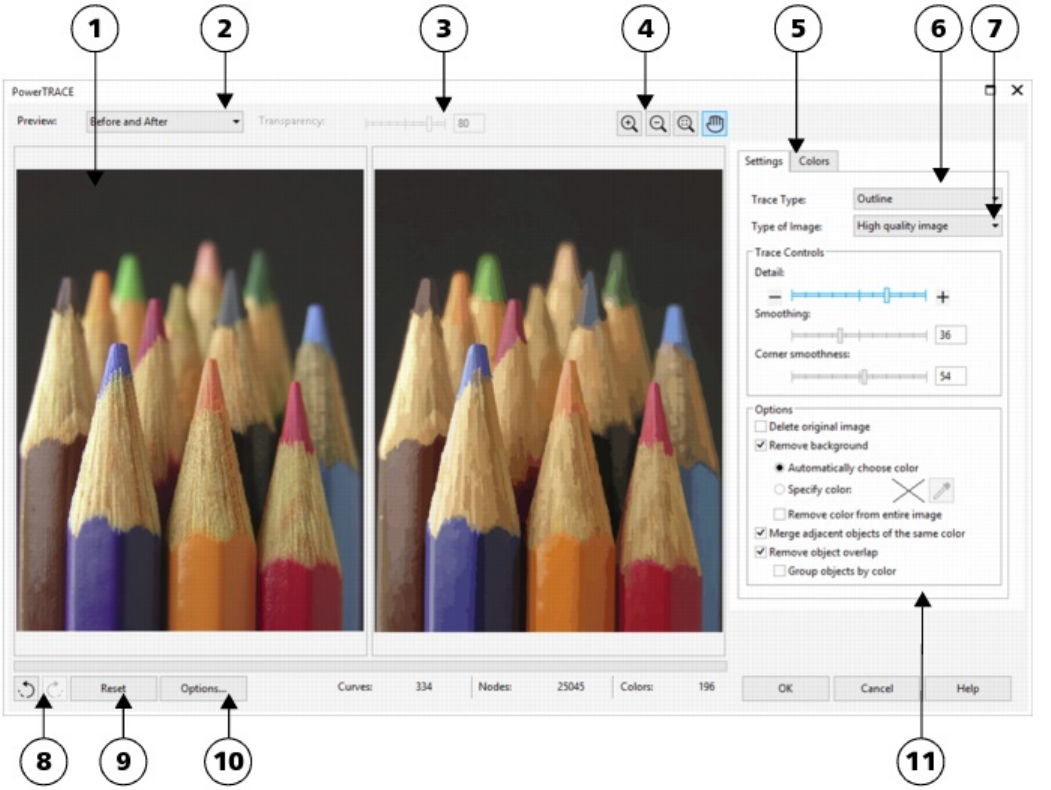
596 | Corel DESIGNER 2017 User Guide
2Click Bitmaps Outline trace, and click one of the following:
•Line art — lets you trace black-and-white sketches and illustrations
•Logo — lets you trace simple logos with little detail and few colors
•Detailed logo — lets you trace logos that contain fine detail and many colors
•Clipart — lets you trace ready-to-use graphics that vary according to their amount of detail and number of colors
•Low quality image— lets you trace photos that lack fine detail (or that contain fine detail that you want to ignore)
•High quality image — lets you trace high-quality, highly detailed photos
If necessary, adjust the traced results by using the controls of the PowerTRACE dialog box.
PowerTRACE controls
The PowerTRACE dialog box contains controls that help you preview and edit traced results.
Circled numbers correspond to the numbers in the following table, which describes the main controls of PowerTRACE.

Tracing bitmaps and editing traced results | 597
Control Description
1. Preview window Lets you preview the traced result and compare it to the source
bitmap
2. Preview list box Lets you choose one of the following previewing options:
•Before and after — lets you display both the source bitmap and
the traced result
•Large preview — lets you preview a traced result in a single-pane
preview window
•Wireframe overlay — lets you display a wireframe (outline) view
of the traced result on top of the source bitmap
3. Transparency slider Controls visibility of the source bitmap below the wireframe when
the Wireframe overlay option is selected
4. Zooming and panning tools Let you zoom in and out of an image displayed in the preview
window, pan an image displayed at a zoom level higher than
100%, and fit an image to the preview window.
5. Colors page Contains controls for modifying the colors of the traced results. For
more information, see “Adjusting colors in traced results” on page
600.
6. Trace type list box Lets you change the tracing method
7. Type of image list box Lets you choose a suitable preset style for the image to be traced.
The available preset styles change, depending on the tracing
method you choose.
8. Undo and Redo buttons Let you undo and redo the last action you performed
9. Reset button Lets you restore the first settings used to trace the source bitmap
10. Options button Lets you access the PowerTRACE options page in the Options
dialog box to set default tracing options. For more information, see
“Setting default tracing options” on page 602.
11. Settings page Contains controls for adjusting the traced results. The Traced result
details area on the Settings page lets you view the number of
objects, nodes, and colors in the traced result while you are making
adjustments.
For more information about adjusting traced results, see “Fine-
tuning traced results” on page 598.
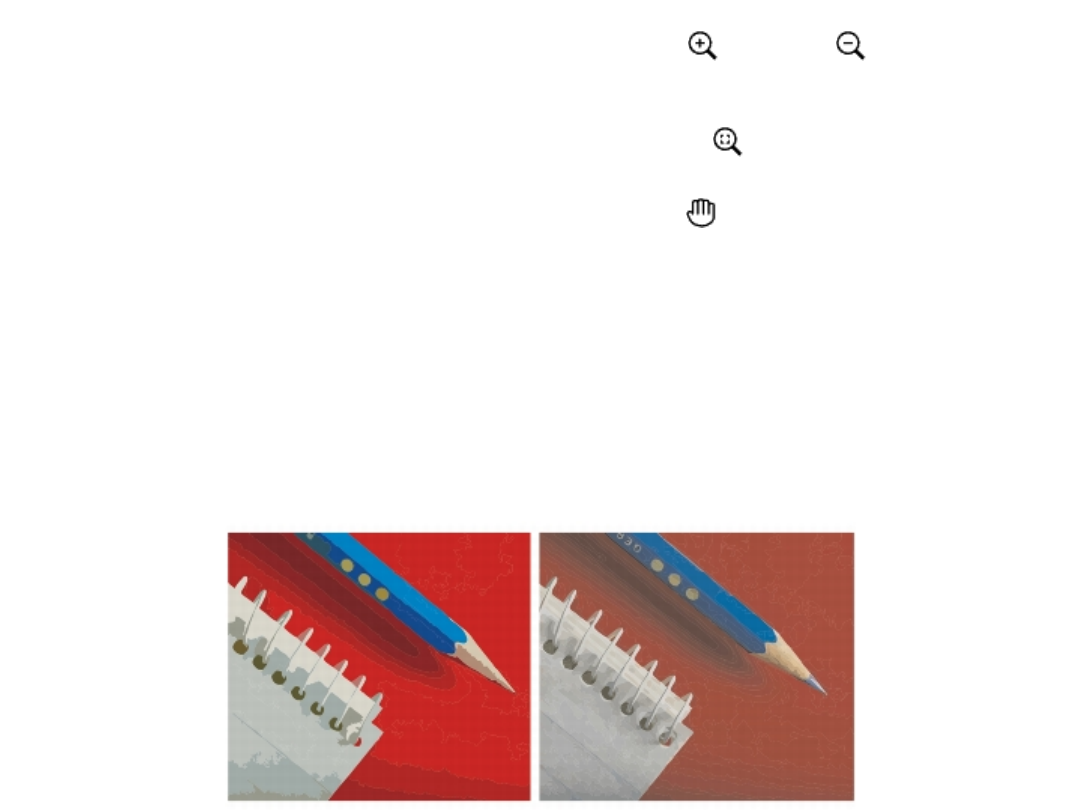
598 | Corel DESIGNER 2017 User Guide
Previewing traced results
By default, PowerTRACE displays both the source bitmap and the traced result. You can also preview a traced result in a single-pane preview
window, or you can display a wireframe (outline) view of the traced graphic on top of the source bitmap.
You can zoom in and out to get a better view of the graphic, and you can pan to view areas that fall outside the preview window.
To preview traced results
• In PowerTRACE, choose one of the following options from the Preview list box:
•Before and after — displays both the source bitmap and the traced result
•Large preview — displays a preview of the traced result in PowerTRACE
•Wireframe overlay — displays a wireframe (outline) preview of the traced result on top of the original bitmap. To control the visibility
of the original bitmap underneath the wireframe, move the Transparency slider.
You can also
Zoom in or out Click the Zoom in or Zoom out tool, and click in the
preview window.
Fit an image in the preview window Click the Zoom to fit tool.
Pan a graphic Click the Pan tool , and drag the graphic.
Fine-tuning traced results
PowerTRACE lets you perform the following adjustments to fine-tune your trace results.
Adjusting detail and smoothing
You can adjust the amount of detail in the traced result and smooth curved lines. When you adjust detail, you change the number of objects
in the traced result. If you used the Outline Trace method to trace the bitmap, adjusting the traced result also changes the number of colors.
Smoothing changes the number of nodes in the traced result. You can also control the appearance of corners in the traced result by setting
the threshold for corner smoothness.
Outline tracing with a low detail value (left); outline tracing with a high detail value (right)

Tracing bitmaps and editing traced results | 599
Completing a trace
By default, the source bitmap is preserved after being traced, and objects in the traced result are automatically grouped. You can have the
source bitmap automatically deleted after the trace is complete.
Removing and preserving the background
You can choose to remove or preserve the background in the traced result. With the Outline Trace method, you can also specify the
background color to be removed. If the background color around the edges is removed but some background color still shows through
some areas of the image, you can remove the background from the entire image.
Setting other Outline Trace options
By default, object areas that are hidden from view by overlapping objects are removed from the traced result. You can choose to keep the
underlying object areas. This feature is useful for traced results that will be output to vinyl cutters and screen printers.
To reduce the number of objects in the traced result, you can combine adjacent objects of the same color. You can also group objects of the
same color so that you can manipulate them more easily in CorelDESIGNER.
Undoing and redoing actions
You can adjust the settings in PowerTRACE and retrace a bitmap as many times as necessary until you are satisfied with the result. If you
make a mistake, you can undo or redo an action, or you can revert to the first traced result.
To fine-tune traced results
1Select a bitmap.
2Do one of the following:
•Click Bitmaps Centerline trace, and click a command.
•Click Bitmaps Outline trace, and click a command.
3On the Settings page, move any of the following sliders:
•Detail — lets you control the amount of original detail that is preserved in the traced result. Higher values maintain more detail and
result in a greater number of objects and colors; lower values discard some detail and result in fewer objects.
•Smoothing — lets you smooth curved lines and control the number of nodes in the traced result. Higher values result in fewer nodes
and produce curves that do not closely follow the lines in the source bitmap. Lower values result in more nodes and produce more
accurate trace results.
•Corner smoothness — This slider works in conjunction with the Smoothing slider and lets you control the appearance of corners.
Lower values maintain the appearance of corners; higher values smooth corners.
You can also
Change the tracing method Choose a method from the Trace type list box.
Change the preset style Choose a preset style from the Type of image list box.
Keep the source bitmap after a trace In the Options area, disable the Delete original image check box.
Discard or preserve the background in the traced result Enable or disable the Remove background check box.
Specify the background color you want to remove (Outline Trace) Enable the Specify color option, click the Eyedropper tool ,
and click a color in the preview window. To specify an additional
background color to remove, hold down Shift, and click a color in
the preview window.
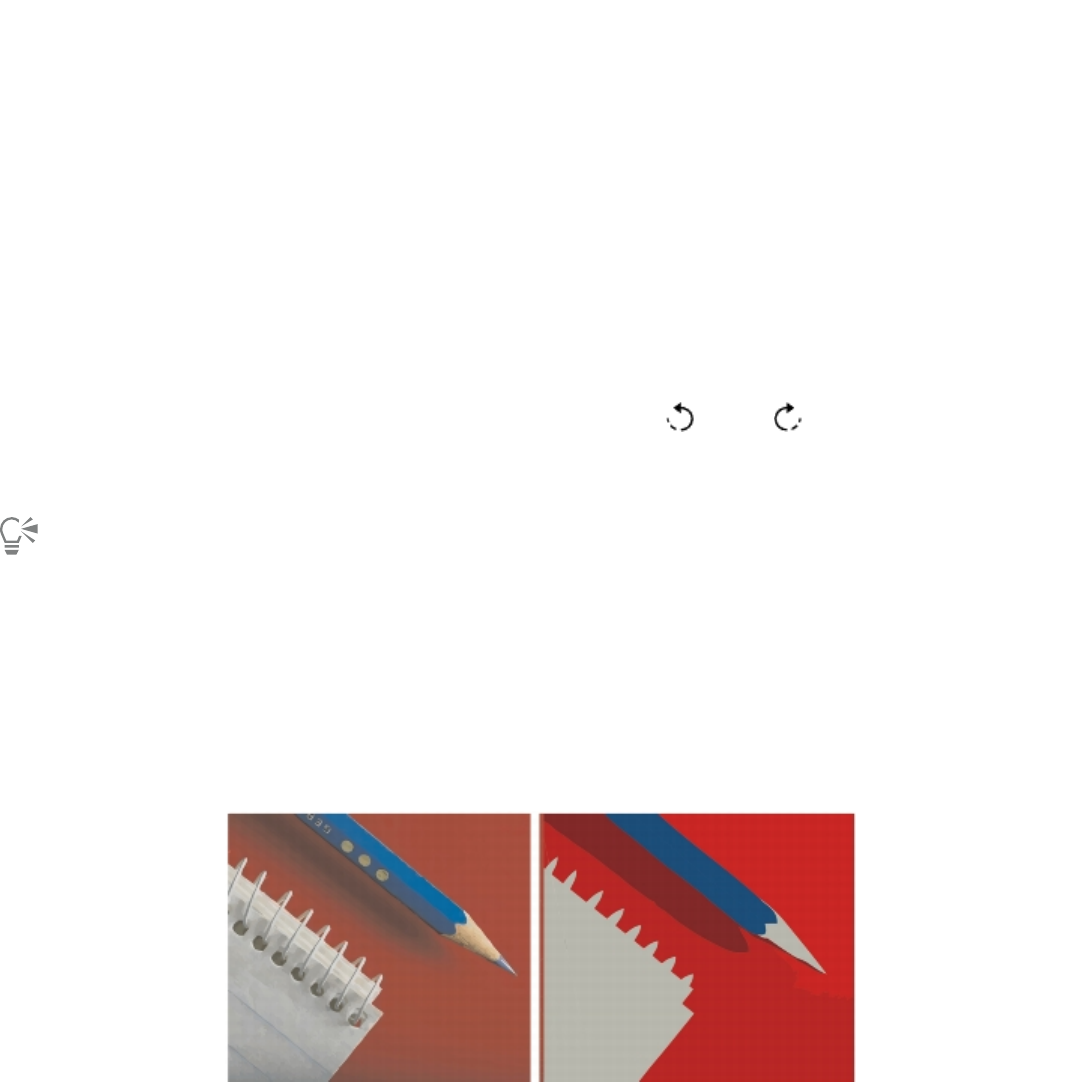
600 | Corel DESIGNER 2017 User Guide
You can also
The last specified color is displayed next to the Eyedropper tool.
Remove a background color from the entire image (Outline Trace) Enable the Remove color from entire image check box.
Keep object areas that are hidden by overlapping objects (Outline
Trace)
Disable the Remove object overlap check box.
Group objects by color (Outline Trace) Enable the Group objects by color check box.
This check box is available only when the Remove object overlap
check box is enabled.
Merge adjacent objects that have the same color (Outline Trace) Enable the Merge adjacent objects of the same color check box.
Undo or redo an action Click the Undo or Redo button.
Revert to the first traced result Click Reset.
You can also access PowerTRACE from the Trace bitmap flyout button on the property bar.
Adjusting colors in traced results
When the source bitmap is traced, the application generates a color palette for the traced result. The color palette uses the color mode of
the source bitmap (for example, RGB or CMYK). The number of colors on the color palette is determined by the number of colors in the
source bitmap and the selected preset style.
You can change the color mode of the traced result, and you can reduce the number of colors in the traced result.
Traced graphic that contains 152 colors (left); traced graphic that contains 5 colors (right)
Sorting colors
To edit the color palette more easily, you can sort colors by similarity or frequency. Sorting by similarity arranges the colors based on their
hue and lightness. Colors of similar hue and lightness appear close to each other on the color palette. Sorting by frequency arranges the
colors based on how much they are used in the traced results. The colors that are used most appear at the top of the color palette.

Tracing bitmaps and editing traced results | 601
Selecting colors
You can select a color by clicking it on the color palette of the traced result or by clicking the color in the preview window. You can also
select multiple colors.
Editing, merging, and deleting colors
When editing a color, you can choose a color from a color model that is different from that of other colors on the palette. For example, if
you are editing a color in an RGB traced result, you can change the color to a spot color, creating a mixed color palette. This feature is useful
when you are preparing the traced result for commercial printing.
With the Outline Trace method, you can also merge and delete colors.
By default, when two or more colors are merged, their color values are averaged to produce a new color. The merged colors are replaced
by the new color. However, you can change the default setting to replace the colors to be merged with the first color that you selected. For
information on how to change the default setting, see “Setting default tracing options” on page 602.
When you delete a color from the color palette, the deleted color is replaced by the next color on the color palette.
Using and creating color palettes
If you want the traced result to contain only colors from a specific color palette, you can open that color palette in PowerTRACE. The colors
of the traced result are replaced by their closest match on the color palette.
After you edit the color palette of the traced graphic, you can save it to create a custom color palette for later use.
To adjust the colors of a traced result
1Select a bitmap.
2Do one of the following:
•Click Bitmaps Centerline trace, and click a command.
•Click Bitmaps Outline trace, and click a command.
3Click the Colors tab, and perform any of the following tasks.
To Do the following
Change the color mode Choose a color mode from the Color mode list box.
Reduce the number of colors in a traced result (Outline Trace) Type a value in the Number of colors box, and click outside the
box.
Select a color Do one of the following:
•Click a color on the color palette. The selected color swatch
button appears pressed.
•Click the Eyedropper tool , and click a color in the preview
window. A marquee appears around the selected color. To select
an additional color, hold down Shift, and click a color in the
preview window. To deselect a color, hold down Ctrl, and click a
color.
Select a range of adjacent colors Hold down Shift, and click the first and last color swatch in the
range you are selecting on the color palette.
602 | Corel DESIGNER 2017 User Guide
To Do the following
Select multiple nonadjacent colors Hold down Ctrl, and click the nonadjacent color swatches on the
color palette.
Edit a color Select the color you want to edit, click Edit, and modify settings in
the Select color dialog box.
Merge colors (Outline Trace) Select the colors that you want to merge, and click Merge.
If you want to specify how to merge the colors, click Options to
access the Options dialog box, and enable an option in the Merge
colors area.
Delete a color from a traced result (Outline Trace) Select a color, and click the Delete color button .
The deleted color is replaced by the next color on the color palette.
Use a custom color palette Click the Open color palette button , find the folder where the
palette is stored, and click a filename.
Color palettes have a .cpl filename extension.
Each color of the traced graphic is mapped to a similar color on the
custom palette.
Create a custom color palette from the edited color palette of a
traced result
Click the Save color palette button . In the Save palette as
dialog box, type a name in the File name box.
The number of colors cannot be reduced, and colors cannot be merged, when you use the Centerline Trace method.
To increase the number of colors in a traced result, you need to change the preset style or increase the amount of detail. For
information about how to change the preset style and the amount of detail, see “To fine-tune traced results” on page 599.
Setting default tracing options
You can enable any of the following tracing options.
•Quick Trace method — You can change the default Quick Trace settings to any preset style, or to the most recently used settings.
•Performance — This option determines how source bitmaps between 1 and 5 megapixels in size are handled, and how the quality of
the traced results is affected. The performance of PowerTRACE depends on the size and color depth of the source bitmaps as well as on
the available system memory. High-quality traced results require high-quality source bitmaps, which are often quite large. The larger the
source bitmap, the more resources are required. Bitmaps that are too large need to be downsampled before tracing, which may decrease
the image quality. To trace large bitmaps without sacrificing quality, you can set PowerTRACE to trace images as large as 5 megapixels
(provided RAM is sufficient). To achieve maximum performance, you can set PowerTRACE to prompt you to downsample bitmaps larger
that 1 megapixel.
•Merge colors — You can choose whether to merge colors in a traced result by averaging their values or by replacing the colors to be
merged with the first color you select.

Tracing bitmaps and editing traced results | 603
To set default tracing options
1Click Tools Options.
2In the Workspace list of categories, click PowerTRACE.
3Perform any of the following tasks.
To Do the following
Choose a Quick Trace method From the Quick Trace method list box, choose a preset style or the
most recently used settings.
Determine performance level and quality of a traced result Move the Performance slider to the left to increase performance,
or to the right to increase the quality of the traced results. The
lowest value prompts you to downsample all bitmaps that exceed
1 megapixel. The highest value prompts you to downsample all
bitmaps that exceed 5 megapixels.
Choose how to merge colors in a traced result In the Merge colors area, enable an option. The Average merging
colors option replaces the colors to be merged with a color of their
average value. The Merge to first color selected option replaces
the colors to be merged with the first selected color.
You can also access the PowerTRACE page in the Options dialog box by clicking Options in PowerTRACE.
Tips for tracing bitmaps and editing traced results
The following tips can help you achieve high-quality trace results.
• Use high-quality source bitmaps. If dithering or JPEG compression was used in the source bitmap, the bitmap may contain additional
noise. For best traced results, remove the noise before tracing the bitmap.
• For best results when you use the Centerline Trace method, convert the bitmap to the black-and-white color mode before tracing. Note
that in this case you cannot adjust detail.
• When tracing technical illustrations and sketches with faint lines, you can improve the results by applying the Find edges special effect to
the source bitmap. To do this, click Bitmaps Contour Find edges.
• For outline tracing, reduce the color depth of the bitmap by changing the color mode, and then adjust the color and contrast.
• You can adjust the traced results at any time, including during a trace, by changing the PowerTRACE settings.
•To trace a specific area in a bitmap, use the Shape tool to define the area before clicking Bitmaps Trace bitmap.
• If important detail has been removed from the traced results, you can disable the Remove background check box on the Settings page
of PowerTRACE. You can also try enabling the Specify color option on the Settings page and sampling the color you want to specify as a
background color.
• If background color is removed around the edges but remains within image areas, enable the Remove from entire image check box.
• If too many colors or details are lost, move the Detail slider on the Settings page.
• To preserve detail in bitmaps that have fine details, thin lines, and no anti-aliasing applied, choose Line art from the Type of image list
box on the Settings page.
604 | Corel DESIGNER 2017 User Guide

Working with RAW camera files | 605
Working with RAW camera files
You can import and process RAW camera files in CorelDESIGNER.
This section contains the following topics:
•“Using RAW camera files” (page 605)
•“Bringing RAW camera files into CorelDESIGNER” (page 606)
•“Adjusting the color and tone of RAW camera files” (page 609)
•“Sharpening and reducing noise in RAW camera files” (page 611)
•“Previewing RAW camera files and obtaining image information” (page 611)
Using RAW camera files
RAW camera files contain picture data that is captured by the image censor of a digital camera. These files are called RAW because, unlike
JPEG and TIFF files, they contain minimal in-camera processing and need to be edited and prepared for printing in an image-editing
application.
With RAW camera files, you can control the processing of image data, rather than having the camera make automatic color adjustments and
conversions. You can adjust the white balance, tonal range, contrast, color saturation, and sharpness of a RAW image without any loss of
image quality. In addition, you can reprocess RAW images at any time to achieve the results you want. In this sense, RAW camera files can
be compared to an exposed but undeveloped film.
To take advantage of RAW camera files, you need to set your camera to save files to its own RAW file format. CorelDESIGNER lets you
import RAW camera files from supported camera models. Supported camera models include:
• Canon EOS-1D X, Canon EOS 650D, Canon 5D Mark III, Canon G1-X, Canon ID-X, Canon EOS 6D, Canon A3300, Canon EOS C500,
Canon EOS SX50
• Casio EX-ZR100
• Fuji X-Pro1, Fuji X-S1, Fuji XS50, Fuji X20, Fuji X100S, Fuji SL1000, Fuji X-E1, and Fuji XF1
• Olympus XZ-10
• Pentax K-5 II (s)
• Samsung EX2F, Samsung NX300, Samsung NX1000, Samsung NX20
• Sigma SD1, Sigma SD15, Sigma DP cameras
• Sony RX100
In addition, the Adobe’s lossy Digital Negative (DNG) file format and the Imacon Flexframe 3f format are now supported.
For more information about supported cameras, visit the Corel Knowledge Base.
606 | Corel DESIGNER 2017 User Guide
Bringing RAW camera files into CorelDESIGNER
When you open single or multiple RAW camera files in CorelDESIGNER, they are first displayed in the Camera RAW Lab. You can use the
controls in the Camera RAW Lab to adjust the color and tone of the RAW camera images.If you are satisfied with the adjustments of a file,
you can apply the same adjustments to the remaining files.
After processing RAW camera files, you can edit them further by using the tools and effects available in CorelDESIGNER. Then, you can save
the RAW camera files as TIFF or JPEG files, or you can save them to any other file format supported by CorelDESIGNER.
Note that RAW camera files cannot be saved to a RAW camera file format in CorelDESIGNER. Any changes made to the RAW camera files in
the Camera RAW Lab are lost unless you save the files to a supported file format.
Processing RAW camera files
The Camera RAW Lab includes controls that are organized in a logical order for color correction and other adjustments of RAW camera
images. It is recommended that you start from the top of the Color page and work your way down. Once you finish correcting the color and
tone of your image, you can sharpen it and remove noise by using the controls on the Detail page. For information about the settings on
the Color page, see “Adjusting the color and tone of RAW camera files” on page 609. For information about the settings on the Detail
page, see “Sharpening and reducing noise in RAW camera files” on page 611.
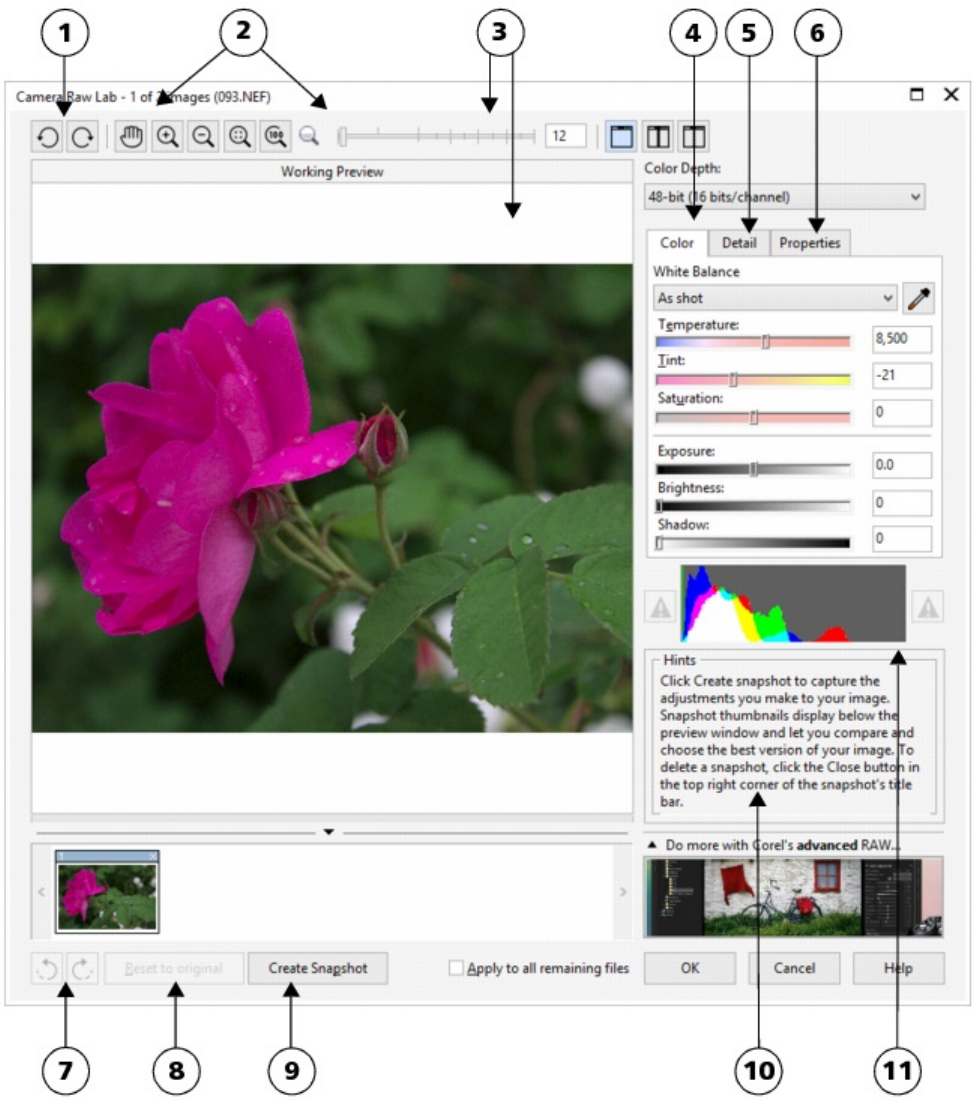
Working with RAW camera files | 607
Camera RAW Lab: circled numbers correspond to the numbers in the
following table, which describes the main components of the lab.

608 | Corel DESIGNER 2017 User Guide
Component Description
1. Rotation tools Let you rotate the image 90 degrees clockwise and
counterclockwise
2. Zooming and panning tools Let you zoom in and out of an image displayed in the preview
window, pan an image displayed at a zoom level higher than
100%, and fit an image to the preview window
3. Preview modes and Preview window Let you preview the adjustments made to a RAW camera image in
a single or split window. To compare the original and the adjusted
image, you can display them side by side.
4. Color page Contains controls that let you adjust the color and tone of RAW
camera images to remove color casts and reveal hidden detail
5. Detail page Contains controls that let you remove noise from RAW camera
images
6. Properties page Contains controls that let you view information about a RAW
camera image, such as size, color mode, and camera settings
7. Undo and Redo buttons Let you undo and redo the last action you performed
8. Reset to original button Lets you clear all corrections so that you can start with the original
RAW camera image
9. Create snapshot Lets you capture the corrected version of an image in a “snapshot”
at any time. Thumbnails of the snapshots appear in a window
below the image.
10. Hints area Displays information about the active control
11. Histogram Lets you preview the tonal range of the image.
To bring a RAW camera file into CorelDESIGNER
1Click File Import.
2Select the RAW camera file or files that you want to import, and click Import.
3In the Camera RAW Lab, adjust the color and tone of the RAW camera image. If necessary, you can also sharpen the image and reduce
the amount of noise.
If you selected multiple RAW camera files and want to apply the same adjustments to all of them, enable the Apply to all remaining
files check box.
You can rotate the image by clicking the Rotate left button or Rotate right button .
Working with RAW camera files | 609
Adjusting the color and tone of RAW camera files
You can adjust the color and tone of an image by using the following settings.
Color depth
Color depth refers to the number of colors an image can contain. One of the advantages of using RAW camera files is that they can contain
more colors than photos saved as JPEG or TIFF files. This greater number of colors makes it easier to reproduce colors accurately, reveal detail
in shadows, and adjust brightness levels.
The Camera RAW Lab lets you process the RAW camera files as 48-bit or 24-bit images. 48-bit images offer more accurate color
representation and prevent loss of image quality during retouching. Note that some of the special effects available in CorelDESIGNER cannot
be applied to 48-bit images.
White balance
White balance is the process of removing unnatural color casts from images so that image colors appear as they do in real life. White
balance takes into consideration the lighting conditions in which a photo was taken and sets the color balance to produce realistic image
colors.
By default, when a RAW camera file is brought into CorelDESIGNER, it reflects the camera setting for white balance. This setting appears
as the preset As shot in the White balance list box. If you are not satisfied with this setting, you can have the white balance adjusted
automatically by choosing the preset Auto. You can also apply any of the following presets: Daylight, Cloudy, Shade, Tungsten,
Fluorescent, or Flash. These presets let you simulate different lighting conditions.
In addition, you can use the Eyedropper tool to automatically adjust the contrast in an image according to the white or gray point that you
sample in the preview window.
If the White balance options do not produce the results you want, you can use the following controls to remove color casts:
•Temperature slider — lets you correct color casts by adjusting the color temperature of an image to compensate for the lighting
conditions at the time the photo was taken. For example, to correct a yellow color cast caused by taking a photo indoors in dim
incandescent lighting, you can move the slider to the left. Conversely, to correct a blue color cast caused by intense lighting conditions,
you can move the slider to the right.
•Tint slider — lets you correct color casts by adjusting the green or magenta in an image. You can add green by moving the slider to the
right; you can add magenta by moving the slider to the left. Moving the Tint slider after using the Temperature slider lets you fine-tune
an image.
Tonal adjustments
You can use the following controls to adjust the tone of RAW camera files.
•Saturation slider — lets you adjust the vividness of colors. For example, by moving the slider to the right, you can increase the vividness
of a blue sky in an image. By moving the slider to the left, you can reduce the vividness of colors.
•Exposure slider — lets you compensate for the lighting conditions at the time the photo was taken. Exposure is the amount of light
allowed to fall on the image sensor of a digital camera. High exposure values result in areas that are completely white (no detail); low
values result in increased shadows. Exposure values (EV) range from -3.0 to + 3.0.
•Brightness slider — lets you brighten or darken an entire image. If you want to darken only the darkest areas of an image, you must use
the Shadow slider.
•Shadow slider — lets you adjust the brightness in the darkest areas of an image without affecting the lighter areas. For example, a
bright light behind a photo subject (backlighting) at the time a photo is taken can cause the subject to appear in shadow. You can
correct the photo by moving the Shadow slider to the right to lighten dark areas and reveal more detail.
Using the histogram
While you are making adjustments, you can view the tonal range of the image on the histogram to check for any clipping of shadow or
highlight areas. Clipping is the shifting of image pixels to white (highlight clipping) or black (shadow clipping). Clipped highlight areas
appear completely white and contain no detail; clipped shadow areas appear completely black and contain no detail.

610 | Corel DESIGNER 2017 User Guide
The button on the left side of the histogram displays a warning if the image contains shadow clipping. The button on the right side of the
histogram displays a warning if the image contains highlight clipping. You can also choose to apply shading to the clipped areas in the
preview window.
To adjust the color and tone of a RAW camera file
1Click File Import.
2Select the RAW camera file or files that you want to import, and click Import.
3From the Color depth list box, choose one of the following options:
•48-bit (16 bits/channel)
•24-bit (8 bits/channel)
4To remove a color cast, select the Auto option from the White balance list box.
If you are not satisfied with the results, you can set the white point more precisely by using the Eyedropper tool to sample a white
or gray color in your image.
5Perform one or more tasks from the following table.
To Do the following
Simulate different lighting conditions Select an option from the White balance list box.
Correct color in the image Adjust the Temperature slider, and then fine-tune the color
correction by adjusting the Tint slider.
Make colors more vivid or less vivid Move the Saturation slider to the right to increase the amount of
color in the image or to the left to decrease the amount of color in
the image.
Adjust exposure Move the Exposure slider to the left to compensate for high-
exposure camera settings or to the right to compensate for low-
exposure camera settings.
Brighten or darken an image Move the Brightness slider to the right to lighten the image or to
the left to darken the image.
Adjust the brightness in the darker areas of an image without
changing the lighter areas
Move the Shadow slider.
Show clipped shadow areas Click the button to the left of the histogram.
Show clipped highlight areas Click the button to the right of the histogram.

Working with RAW camera files | 611
You can capture the current version of your image by clicking Create snapshot. Thumbnails of the snapshots appear in a window
below your image. Each snapshot is numbered sequentially and can be deleted by clicking the close button in the upper right corner
of the snapshot title bar.
To change a color or tone setting one increment at a time, you can click in the box to the right of a slider, and press the Up or Down
arrow keys.
You can undo or redo the last correction you made by clicking Undo or Redo. To undo all corrections, click Reset to original.
Sharpening and reducing noise in RAW camera files
You can sharpen RAW camera files to enhance image edges.
RAW camera files may contain luminous (grayscale) and color (chroma) noise that is especially obvious in the darker areas of an image.
Luminous noise appears as a “white snow” effect; color noise appears as random pixels of different colors scattered against image areas.
You can reduce noise in RAW camera files to improve image quality.
To sharpen a RAW camera file
1Click File Import.
2Select the RAW camera file or files that you want to import, and click Import.
3In the Camera RAW Lab, click the Detail tab.
4Move the Sharpness slider to enhance the edges in an image.
To reduce noise in a RAW camera file
1Click File Import.
2Select the RAW camera file or files that you want to import, and click Import.
3Click the Detail tab.
4Move any of the following sliders to the right:
•Luminance noise — to reduce the amount of luminance noise
•Color noise — to reduce the amount of color noise. Note that higher settings may decrease the color accuracy of an image.
Adjusting both the Luminance noise and Color noise settings produces better results.
Previewing RAW camera files and obtaining image information
By previewing RAW camera files in various ways, you can evaluate the color and tone adjustments you make. For example, you can rotate
images, pan to a new area, zoom in or out, and choose how to display the processed image in the preview window.
You can obtain information about the color mode, size, and resolution of a RAW camera file. In addition, you can obtain information about
the camera and camera settings used when the photo was taken.
To preview a RAW camera file
1Click File Import.
2Select the RAW camera file or files that you want to import, and click Import.
3In the Camera RAW Lab, perform a task from the following table.
612 | Corel DESIGNER 2017 User Guide
To Do the following
Pan to another area of an image Using the Pan tool , drag the image until the area that you
want to see is visible.
Zoom in and out Using the Zoom in tool or Zoom out tool , click in the
preview window.
You can also zoom in and out by dragging the Zoom slider.
Fit an image in the preview window Click the Zoom to fit button.
Display an image at its actual size Click the 100% button.
View the corrected image in a single preview window Click the Full preview button .
View the corrected image in one window and the original image in
another window
Click the Before and after full preview button .
View the image in one window with a divider between the original
and corrected versions
Click the Before and after split preview button . Move your
pointer over the dashed divider line, and drag to move the divider
to another area of the image.
To obtain information about a RAW camera file
1Click File Import.
2Select the RAW camera file or files that you want to import, and click Import.
3In the Camera RAW Lab, click the Properties tab, and view any of the properties that are available for the selected RAW camera file, such
as color space, camera manufacturer and model, focal length, exposure time, and ISO speed ratings.
Printing | 613
Printing
Printing basics......................................................................................................................................................................................615
Preparing files for print service providers............................................................................................................................................. 629
614 | Corel DESIGNER 2017 User Guide

Printing basics | 615
Printing basics
CorelDESIGNER provides extensive options for printing your work.
This section includes the following topics:
•“Printing your work” (page 615)
•“Laying out print jobs” (page 616)
•“Previewing print jobs” (page 617)
•“Applying print styles” (page 618)
•“Fine-tuning print jobs” (page 619)
•“Printing colors accurately” (page 620)
•“Printing to a PostScript printer” (page 622)
•“Using print merge” (page 624)
•“Viewing preflight summaries” (page 627)
Printing your work
Using CorelDESIGNER, you can print one or more copies of the same drawing. You can also specify the page type and the page range that
you want to print.
Before printing a drawing, you can specify printer properties, including paper size and device options. For example, you can specify printer
features such as duplexing stapling.
To set printer properties
1Click File Print.
2Click the General tab.
3In the Destination area, choose a printer from the Printer list box.
4Click Preferences.
5Set any properties in the dialog box.
To print your work
1Click File Print.

616 | Corel DESIGNER 2017 User Guide
2Click the General tab.
3In the Destination area, choose a printer from the Printer list box.
4In the Destination area, choose a page size and orientation option from the Page list box.
5In the Copies area, type a value in the Number of copies box.
If you want the copies collated, enable the Collate check box.
6In the Print range area, enable one of the following options:
•Current document — prints the active drawing
•Current page — prints the active page
•Pages — prints the pages that you specify
•Documents — prints the documents that you specify
•Selection — prints the objects that you have selected
If you enable the Pages option, you can choose to print a range of pages, only even pages, only odd pages, or both even and odd pages.
You can also
Automatically match the printer orientation to the document
orientation
In the Destination area, choose Match orientation from the Page
list box.
Apply the printer’s default page size In the Destination area, choose Use printer default from the Page
list box.
You must select objects before printing a selection.
Certain printers support the automatic matching of page size and orientation. To enable this option, you need to modify the driver
compatibility settings for the printer by clicking Tools Options. In the list of categories, double-click Global, double-click Printing,
click Driver compatibility, and enable the Printer can match document page sizes check box. In the Print dialog box, you can then
choose Match orientation and size from the Page list box.
Laying out print jobs
You can lay out a print job by specifying the size, position, and scale. Tiling a print job prints portions of each page on separate sheets of
paper that you can assemble into one sheet. You would, for example, tile a print job that is larger than your printer paper.
To specify the size and position of a print job
1Click File Print.
2Click the Layout tab.
3In the Image position and size area, enable one of the following options:
•As in document — maintains the image size as it is in the document
•Fit to page — sizes and positions the print job to fit to a printed page
•Reposition images to — lets you reposition the print job by choosing a position from the list box
Enabling the Reposition images to option lets you specify size, position, and scale in the corresponding boxes.
Printing basics | 617
You can also choose an imposition layout, such as 2 x 2 (4-up) or 2 x 3 (6-up), from the Imposition layout list box. For more
information, see “Working with imposition layouts” on page 630.
To tile a print job
1Click File Print.
2Click the Layout tab.
3In the Image position and size area, enable the Print tiled pages check box.
4Type values in the following boxes:
•Tile overlap — lets you specify the amount by which to overlap tiles
•% of page width — lets you specify the percentage of the page width the tiles will occupy
You can include tiling alignment marks by enabling the Tiling marks check box.
Previewing print jobs
You can preview your work to show how the position and size of the print job will appear on paper. For a detailed view, you can zoom in on
an area. You can view how the individual color separations will appear when printed.
Before printing your work, you can view a summary of issues for a print job to find potential printing problems. For example, you can check
the current print job for print errors, possible print problems, and suggestions for resolving issues.
To preview a print job
•Click File Print preview.
To close the print preview, click File Close print preview.
You can quickly preview a print job in the Print dialog box by clicking File Print and clicking the Mini preview button .
To magnify the preview page
1Click File Print preview.
2Click View Zoom.
3Enable the Percent option, and type a value in the box.
You can also magnify the preview page by choosing a preset zoom level.
You can also zoom in on a portion of the print preview by clicking the Zoom tool in the toolbox and marquee selecting an area.
To preview color separations
1Click File Print preview.
2On the property bar, click the Enable color separations button .
618 | Corel DESIGNER 2017 User Guide
You can preview the composite by clicking View Preview separations Composite.
You can view individual color separations by clicking the tabs at the bottom of the application window.
To view a summary of issues for a print job
1Click File Print.
2Click the Preflight tab.
If there are no print job issues, the tab name displays as No issues. If there are issues, the tab name displays the number of issues that
were found.
If you want to exclude certain issues from the preflight check, click Settings, double-click Printing, and disable any check boxes that
correspond to issues you want overlooked.
You can save settings by clicking the Add preflight settings button and typing a name in the Save preflight style box.
Applying print styles
A print style is a set of saved printing options. Each print style is a separate file. This lets you move a print style from one computer to
another, back up a print style, and keep document-specific styles in the same directory as the document file.
You can select an existing print style, create a new print style, or edit a print style and save the changes. You can also delete print styles.
To choose a print style
1Click File Print.
2Click the General tab.
3Choose one of the following from the Print style list box:
•Corel DESIGNER defaults
•Browse
To create a print style
1Click File Print.
2Click the General tab.
3Set any printing options.
4Click Save as.
5Choose the folder where you want to save the print style.
6Type a name for the style in the File name box.
When you save a print style, a dialog box opens that includes a section called Settings to include. The settings in this section
correspond to the printing options you have already selected. You can also specify which settings to include in a print style in this
dialog box.
You can also save a print style by clicking File Print preview, and clicking the Save print style as button.

Printing basics | 619
To edit a print style
1Click File Print.
2Choose a print style from the Print style list box.
3Modify any of the printing options.
4Click Save as.
5Choose the folder where the print style is stored.
6Click the filename.
7Click Save.
You should save the modified settings as a print style or apply the changes before canceling; otherwise, you’ll lose all the modified
settings.
To delete a print style
1Click File Print preview.
2Select a print style.
3Click the Delete print style button .
Fine-tuning print jobs
You can fine-tune print jobs to ensure print quality. Because problems sometimes occur when you are printing text to a non-PostScript
printing device (GDI printer), you can decrease printing time by specifying driver compatibility for non-PostScript printing devices. For more
information, see “Printing colors accurately” on page 620.
If a printing device has difficulty processing large bitmaps, you can divide a bitmap into smaller, more manageable chunks by setting an
output threshold. If any lines appear when the printing device prints the chunks, you can set an overlap value to produce a seamless image.
On occasion, you may experience difficulties with printing complex files. To print complex files, you may need to spend a considerable
amount of time fixing and correcting the files. Another option is to convert a page to a bitmap, also known as rasterizing, which can allow
you to print complex files more easily.
To reduce file size, you can downsample bitmaps. Because bitmaps are made up of pixels, when you downsample a bitmap, the number of
pixels per line decreases, which decreases the file size.
To specify driver compatibility settings
1Click Tools Options.
2In the list of categories, double-click Global, double-click Printing, and click Driver compatibility.
3Choose a non-PostScript printing device from the Printer list box.
4Enable any of the check boxes that correspond to the settings that you want to specify.
To choose a threshold and chunk overlap
1Click Tools Options.
2In the list of categories, double-click Global, and click Printing.
3From the Special settings list, choose one of the following:
•Bitmap output threshold (K)

620 | Corel DESIGNER 2017 User Guide
•Bitmap chunk overlap pixels
4Choose a value from the Setting list box.
To print as a bitmap
1Click File Print.
2On the General tab, enable the Print as bitmap check box, and type a number in the dpi box to set the resolution.
To downsample bitmaps
1Click File Print.
2Click the Prepress tab.
3In the Bitmap downsampling area, enable any of the following check boxes and type a value in the corresponding box:
•Color and grayscale
•Monochrome
Downsampling bitmaps affects them only when their resolution is higher than the resolution specified in the Bitmap downsampling
area.
Printing colors accurately
CorelDESIGNER allows you to manage colors when printing to ensure accurate color reproduction. You can print the document with the
document colors settings applied or you can choose alternate color settings only for printing. You can also print a document using the color
proofing settings that you previously specified in the Color proof settings docker.
In addition, you can choose a rendering intent to effectively interpret the out-of-gamut colors when printing. The rendering intent that you
choose depends on the graphic content of the document.
For more information about color management, see “Using color management” on page 361.
Notes for GDI printers
GDI printers support only two color spaces: RGB and Grayscale. If your document contains colors from multiple color spaces, for example
RGB, CMYK, and spot colors, you must convert all the colors to RGB or Grayscale before printing.
You can determine if a printer is a GDI printer by clicking File Print and choosing a printer from the Printer list box. If the
PostScript tab does not appear at the top of the dialog box, the selected printer is a GDI printer.
The following table describes different ways of managing color when printing to a GDI printer.
How to In the Print dialog box
Print the document and preserve the RGB or Grayscale colors Click the Color tab, and choose the appropriate color mode from
the Output colors as list box.
Print the document with original colors Click the Color tab, and choose the document color profile from
the Document profile area of the Correct colors using color
profile list box.

Printing basics | 621
How to In the Print dialog box
Print the document and convert the document colors to the printer
colors
Choose the printer color profile from the Correct colors using
color profile list box.
Notes for PostScript printers
Most PostScript printers support the use of multiple color spaces in a document. For example, a document can contain colors from multiple
colors spaces, such as RGB, CMYK, and Grayscale.
The following table describes different ways of managing color when printing to a PostScript printer.
How to In the Print dialog box
Print the document with the original colors Click the Color tab, and choose Native from the Output colors as
list box.
Print a document that contains multiple color modes using one
color mode
Click the Color tab, and choose a color mode from the Output
colors as list box.
If the printer supports only one color mode, you can control the
color conversion within CorelDESIGNER.
Print a document that contains only one color mode Click the Color tab, and choose the color profile from the Output
color as list box and from the Correct colors using color profile
list box.
To specify color settings for printing
1Click File Print.
2Click the Color tab.
3Enable the Use document color settings option.
If you selected a PostScript printer, you can choose one of the following options from the Color conversion performed by list box:
• CorelDESIGNER — lets the application perform the color conversion
• (selected printer) — lets the selected printer perform the color conversion (This option is only available for PostScript printers.)
4Choose a color model from the Output colors as list box.
This allows you to merge all document colors into a specific color model when printing.
You can also
Convert spot colors to process colors Enable the Convert spot colors to check box.
If you selected Native from the Output colors as list box, you need
to select a color mode from the list box.
Choose a color profile for correcting colors when printing to a
specific printer
Choose a color profile from the Correct colors using color profiles
list box.
This option is available only for certain color models.

622 | Corel DESIGNER 2017 User Guide
You can also
Retain the color values associated with the selected color model Enable the Preserve (color model) numbers check box.
To print using color proofing settings
1Click File Print.
2Click the Color tab.
3Enable the Use color proof settings option to apply the color settings that are defined in the Color proof settings docker.
If you want to correct the proof colors, you can choose a color profile from the Correct colors using color profile list box.
4Click Print.
To specify a rendering intent for printing
1Click File Print.
2Click the Color tab.
3From the Rendering intent list box, choose one of the following options:
•Relative colorimetric — for producing proofs on printers, without preserving the white point
•Absolute colorimetric — for preserving the white point and proofing
•Perceptual — for a variety of images, especially bitmaps and photographs
•Saturation — for vector graphics and for preserving highly saturated colors (lines, text, and solid-colored objects, such as charts)
Printing to a PostScript printer
PostScript is a page-description language that sends printing instructions to a PostScript device. All the elements in a print job (for
example, curves and text) are represented by lines of PostScript code that the printing device uses to produce the document. For improved
compatibility, you can choose a device-independent PostScript option. You can also select a PostScript Printer Description (PPD) file. A
PostScript Printer Description file describes the capabilities and features of your PostScript printer and is available from your printer’s
manufacturer.
You can automatically increase the fountain steps in a fountain fill to decrease banding. Increasing the number of steps used to render
fountain fills produces smoother shading when printing.
A print job that contains too many fonts may not print properly, and a print job that contains too many spot colors increases file size. You
can set the PostScript options to warn you when a print job contains more than a set number of fonts or spot colors.
By default, the printing device driver downloads Type 1 fonts to the printing device. You can disable the Download Type 1 Fonts option so
that fonts are printed as graphics (either curves or bitmaps). This may be useful when the file contains many fonts that would take a long
time to download or would fail to download because of their file size. Bitmap versions of TrueType® fonts look better in small print and print
faster than regular fonts. You can choose the maximum number of bitmap fonts that a print job can contain.
To select a PostScript Printer Description (PPD) file
1Click File Print.
2Click the General tab.
3In the Destination area, choose a PostScript printer from the Printer list box.
4Enable the Use PPD check box.
5Choose the folder where the file is stored.
6Double-click the filename.

Printing basics | 623
To print to a PostScript device
1Click File Print.
2Click the General tab.
3In the Destination area, choose a PostScript printer from the Printer list box.
4Click the PostScript tab.
5From the list box in the Compatibility area, choose the PostScript level that corresponds to the printer.
If you want to compress bitmaps when printing, choose an option from the Compression type list box in the Bitmaps area. If you
choose JPEG compression, you can move the JPEG quality slider to adjust the compression.
Bitmap compression settings can be saved in PostScript Interpreted (PS or PRN) files when you print to a file using a PostScript driver.
For information about printing to a file, see “To print to a file” on page 629.
To test fountain fills for banding
1Click File Print.
2Click the Preflight tab.
If there are no print job issues, the tab name displays as No issues.
3Click Settings.
4Double-click Printing.
5Enable the Banded fountain fills check box.
If you want to optimize fountain fills to reduce complexity, enable the Optimize fountain fills check box on the PostScript tab.
Testing fountain fills for banding applies only to linear fountain fills.
To automatically increase fountain steps
1Click File Print.
2Click the PostScript tab.
3Enable the Auto increase fountain steps check box.
To set color separations and font warning options
1Click Tools Options.
2In the list of categories, double-click Global, and click Printing.
3Choose Spot color separations warning from the Special settings list.
4Choose one of the following from the Setting list box:
•If any spot colors are used
•If more than 1 spot color used
•If more than 2 spot colors used
•If more than 3 spot colors used
5Choose Many fonts (preflight) from the Special settings list, and choose a number from the Setting list box that appears.
To disable the downloading of Type 1 fonts
1Click File Print.
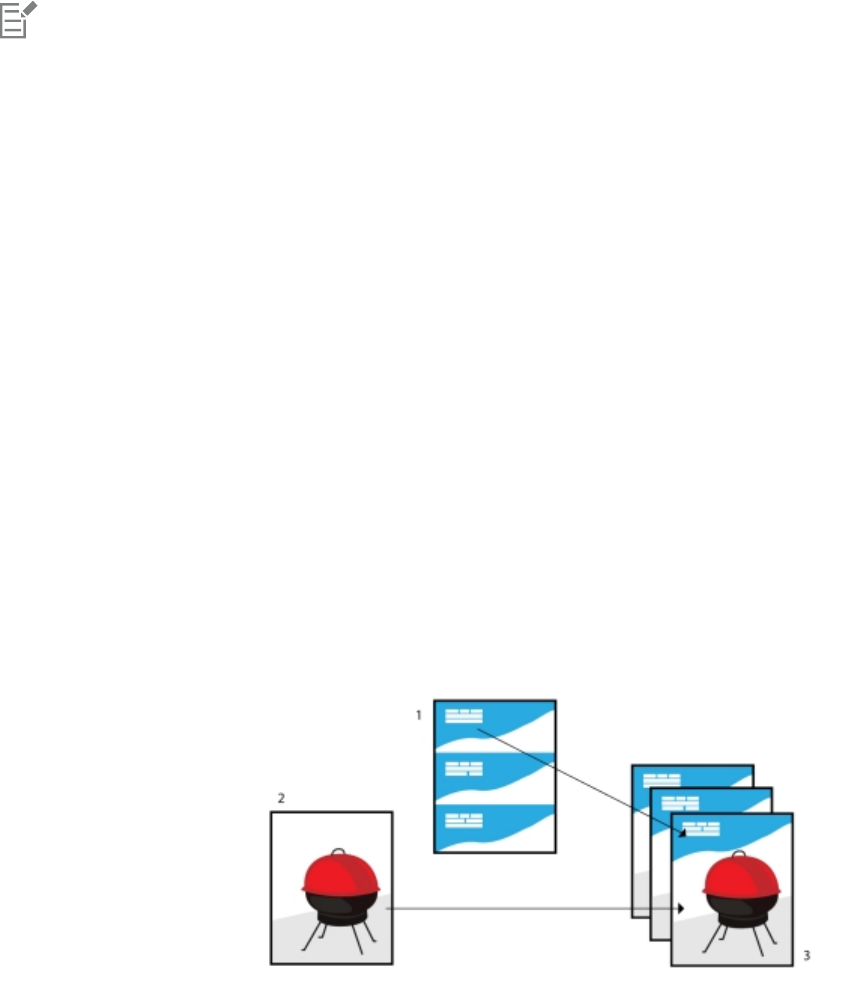
624 | Corel DESIGNER 2017 User Guide
2Click the PostScript tab.
3Disable the Download Type1 fonts check box.
Type 1 fonts can be downloaded only for PostScript devices.
When the Download Type1 fonts check box is enabled, the Convert TrueType to Type1 check box is enabled by default. This ensures
that TrueType fonts are converted to Type 1 fonts so that they can be downloaded. Disable the Convert TrueType to Type1 check box
only if the output device has difficulty interpreting Type 1 fonts.
To choose the maximum number of bitmap fonts
1Click Tools Options.
2In the list of categories, double-click Global, and click Printing.
3Choose Bitmap font limit (PS) from the Special settings list.
4Choose a value from the Settings list box.
If you want to set a maximum bitmap font size, choose a font size from the Bitmap font size threshold (PS) list box.
Using print merge
CorelDESIGNER lets you combine text from a data source with a drawing. When you merge documents, you can produce several different
copies of a drawing. You can use merged documents to create personalized documents, such as mailing lists, questionnaires, and targeted
marketing documents, where each printed document contains specific information from a record in a data source, such as a text file or an
ODBC data source (a Microsoft Excel or Microsoft® Access™ file).
When you merge documents, you create a form document in CorelDESIGNER and combine it with a data source. A form document
provides the pattern and layout for a merged document. A data source supplies information for a drawing during the merge.
CorelDESIGNER supports the following data source files: Text (TXT) files, comma-separated values (CSV) files, Rich Text Format (RTF) files, and
files that can be opened by means of an ODBC data source.
Data source document (1), form document (2), and merged documents (3)
Creating a data source file
Information in a data source file is organized into fields and records. A field can contain one or more characters. Fields can contain
alphanumeric data or only numeric data. For example, a record may include a first name, last name, address, and other contact information.
Each item within the record, such as first name, last name, or address, is recognized as a field. A record can contain one or more fields.
You can create a data source file or import an existing one. You can create a data text file by using CorelDESIGNER or a text editor. You can
edit the data in a data source file at any time.

Printing basics | 625
Creating a form document
Creating form documents is similar to creating regular drawings. For form documents, however, you insert merge fields, which are replaced
by information from the data source during the merge.
Associating a form document with a data source file
When you use CorelDESIGNER to create a data file, or when you import an existing data file into CorelDESIGNER, the data file is associated
with the form document. The association is always stored with the document and cannot be changed.
Performing a merge
CorelDESIGNER provides different output options for merge documents. You can print a merge document or save it to a new document.
When you print a merge document, the form document is merged with the data source file during printing. When you save the merged
document to a new file, the application merges the form document with the data from the data source file in a new CorelDESIGNER file.
You can use this file to preview your final output and make minor adjustments before printing. For major changes, such as the addition or
repositioning of merge fields or the addition of new records, you must work in the form document.
To create a data source file by using CorelDESIGNER
1Click File Print merge Create/Load merge fields to launch the Print merge wizard.
2Enable the Create new text option, and click Next.
3On the Add fields page, do one or both of the following:
• To create a text field, type a field name in the Text field box, click Add, and then click Next.
• To create a numeric field, type a field name in the Numeric field box, click Add, and then click Next.
4On the Add or edit records page of the Print merge wizard, do any of the following:
• To add a record, click New, and then click Next.
• To add data in a field, click in the field, type data, and click Next.
• To modify existing data in a field, click in the field, modify the data, and click Next.
5Enable the Save data settings as check box.
6Type a filename, choose the drive and folder where you want to save the file, and click Finish.
You can also
Apply formatting to the data in a numeric field On the Add fields page of the Print merge wizard, click a numeric
field in the list, and choose a format from the Numeric format list
box.
Different numeric formats are available in CorelDESIGNER. For
example, the X.0 format represents the value 1 as 1.0; the 00X
format represents the value 1 as 001.
Automatically increment the value in a numeric field Enable the Continually increment the numeric field check box,
and specify starting and ending values in the corresponding boxes.
Change the order of merge fields Select a field in the list and click Move up or Move down.
Delete a record On the Add or edit records page of the Print merge wizard, click
Delete.
626 | Corel DESIGNER 2017 User Guide
You can also
View records On the Add or edit records page of the Print merge wizard,
choose one of the following options from the Current view list
box:
•All records — lets you display all records in a source data file
•Single record — lets you display one record at a time
Browse records On the Add or edit records page of the Print merge wizard, click
any of the following buttons:
•First record
•Next record
•Previous record
•Last record
Find text in a data file On the Add or edit records page of the Print merge wizard, type
a search term in the box, and press Enter.
You can edit the fields and records in an existing data source file by clicking File Print merge Edit merge fields and following the
instructions in the Print merge wizard.
To create a data source by using a text editor
1Open a text editor, and create a new file.
2On the first line, type the number of merge fields that you want to insert in the drawing. For example:
3
3On the second line, type the names of the merge fields by separating them with a backslash. Each merge field must begin and end with
a backslash. For example:
\Name\\Date\\Instructor\
4On the next lines, type the data that you want to appear in the merged document. Each line constitutes a record. For example:
\Pixie Parsons\\6 September 2016\\Mr. Randy Harris\
\Shirley Wilkinson\\13 January 2016\\Ms. Corinne Pitts\
5Save the file as an ANSI text file (.txt extension) or as an RTF file.
Backslashes function as markers to indicate the beginning and end of merge fields; therefore, you cannot use them as data in fields.
Data in fields must end with a character. Blank spaces or lines before backslashes prevent the merge from being completed
successfully.
To import a data source file
1Click File Print merge Create/Load merge fields.
2In the Print merge wizard, enable the Import text from a file or an ODBC data source option, and click Next.
3Enable the File option, and navigate to the drive and folder where the data file is stored.
4Choose a file.
5Click Open.

Printing basics | 627
6Click Next.
7Follow the instructions in the Print merge wizard.
To import an ODBC data source file
1Click File Print merge Create/Load merge fields.
2In the Print merge wizard, enable the Import text from a file or an ODBC data source option, and click Next.
3Enable the ODBC data source option, and click Select ODBC data source.
4In the Select data source dialog box, click the Machine data source tab.
5Under Data source name, select Excel files, and click OK.
6In the Select workbook dialog box, choose the database that you want to import, and click OK.
To create a form document
1Open a drawing in which you want to insert merge fields.
2Click File Print merge Create/Load merge fields.
3Follow the instructions in the Print merge wizard to associate the drawing with a data source file, and then exit the Print merge wizard.
The Print merge toolbar appears.
4On the Print merge toolbar, choose a field name from the Field list box, and click Insert.
CorelDESIGNER places the merge field in the center of the current view. If you want to reposition the merge field, drag it to a new
location on the drawing page.
5Repeat step 4 to insert additional fields.
To perform a merge and print the document
1Do one of the following:
•Click File Print merge Perform merge.
•Click File Print. In the Perform merge dialog box, enable the Perform print merge option, and click OK.
• On the Print merge toolbar, click Merge to new document, and click Print.
2Specify any printer settings.
3Click Print.
If you want to print all records and pages, enable the Current document option.
To perform a merge and save the document to a new file
•Click File Print merge Merge to new document.
You can also perform a merge and save the document to a new file by clicking Merge to new document on the Print merge toolbar.
Viewing preflight summaries
Preflight checks the status of your file before you decide to output it and provides a summary of issues and potential problems, and
suggestions for resolving them. You can specify which issues Preflight checks for. You can also save Preflight settings. For more information
about specific Preflight settings, see any of the following:
• To check for issues related to printing a file, see “To view a summary of issues for a print job” on page 618.
• To check for issues related to publishing a PDF file, see “To view the preflight summary for a PDF file” on page 665.
• To check for issues related to exporting a SWF file, see “To view the issues summary for an Adobe Flash file” on page 708.
• To check for issues related to exporting an SVG file, see “Scalable Vector Graphics (SVG)” on page 703.
628 | Corel DESIGNER 2017 User Guide

Preparing files for print service providers | 629
Preparing files for print service providers
With CorelDESIGNER, you can prepare a print job for sending to a print service provider.
This section contains the following topics:
•“Preparing a print job for a print service provider” (page 629)
•“Working with imposition layouts” (page 630)
•“Printing printers’ marks” (page 632)
•“Maintaining OPI links” (page 634)
•“Printing color separations” (page 635)
•“Working with color trapping and overprinting” (page 636)
•“Specifying In-RIP trapping settings” (page 639)
•“Printing to film” (page 641)
•“Working with a print service provider” (page 641)
Preparing a print job for a print service provider
You can print a drawing to a file, which lets the print service provider send the file directly to an output device. If you are unsure about
which settings to choose, consult the print service provider.
For more information about commercial printing, see “Working with a print service provider” on page 641.
To print to a file
1Click File Print.
2Click the General tab.
3In the Destination area, enable the Print to file check box.
4Click the flyout arrow, and click one of the following commands:
•For Mac — saves the drawing to be readable on a Macintosh computer
•Single file — prints all pages in a document to a single file
•Pages to separate files — prints each page to a separate file
•Plates to separate files — prints each plate to a separate file
5Click Print.
6Choose one of the following from the Save as type list box:

630 | Corel DESIGNER 2017 User Guide
•Print file — saves the file as a PRN file
•PostScript file — saves the file as a PS file
7Choose the folder where you want to save the file.
8Type a filename in the File name box.
9Click Save.
If you prefer not to prepare PostScript files, print service providers equipped with the application in which you created your work can
take the original files (for example, CorelDESIGNER files) and apply the required prepress settings.
Working with imposition layouts
Working with imposition layouts lets you print more than one page of a document on each sheet of paper. You can choose a preset
imposition layout to create documents such as magazines and books to print on a commercial printing press; produce documents that
involve cutting or folding, such as mailing labels, business cards, pamphlets, or greeting cards; or print multiple thumbnails of a document
on one page. You can also edit a preset imposition layout to create your own layout.
You can select a binding method by choosing from three preset binding methods, or you can customize a binding method. When you
choose a preset binding method, all but the first signature are automatically arranged.
You can arrange pages on a signature manually or automatically. When you arrange the pages automatically, you can choose the angle of
the image. If you have more than one page across or down, you can specify the size of gutters between pages; for example, you can choose
the automatic gutter spacing option, which sizes gutters so that the document’s pages fill the entire available space in the layout.
When printing on a desktop printer, you can adjust the margins to accommodate the non-printable area of a page. If the margin is smaller
than the non-printable area, the edges of some pages or some printers’ marks may be clipped by your printer.
To choose a preset imposition layout
1Click File Print.
2Click the Layout tab.
3Choose an imposition layout from the Imposition layout list box.
The layout you choose does not affect the original document, only the way it is printed.
To edit an imposition layout
1Click File Print.
2Click the Layout tab.
3Choose an imposition layout from the Imposition layout list box.
4Click Edit.
5Edit any imposition layout settings.
6Click File Save imposition layout.
7Type a name for the imposition layout in the Save as box.
When editing an imposition layout, you should save it with a new name; otherwise the settings for a preset imposition layout will be
overwritten.
Preparing files for print service providers | 631
To select a binding method
1Click File Print preview.
2Click the Imposition layout tool .
3Choose Edit basic settings from the What to edit list box on the property bar.
4Type values in the Pages across/down boxes.
If you want the page to be double-sided, click the Single/double sided button .
5Choose one of the following binding methods from the Binding mode list box:
•Perfect binding — cuts apart individual pages and glues them at the spine
•Saddle stitch — folds pages and inserts them into one another
•Collate and cut — collates and stacks all signatures together
•Custom binding — lets you arrange the pages that are printed in each signature
If you choose either Saddle stitch or Custom binding, type a value in the corresponding box.
When you click the Single/double sided button for double-sided printing, and you are printing on a non-duplex printing device,
a wizard automatically provides instructions on how to insert the paper into the printer, so that you can print on both sides of the
page.
To arrange pages
1Click File Print preview.
2Click the Imposition layout tool .
3Choose Edit page placements from the What to edit list box on the property bar.
4Click one of the following buttons:
•Intelligent auto-ordering — automatically arranges the pages on a signature
•Sequential auto-ordering — arranges the pages from left to right and top to bottom
•Cloned auto-ordering — places the working page in each frame of the printable page
If you want to arrange the page numbering manually, click on the page and specify the page number in the Page sequence number
box.
5Choose an angle from the Page rotation list box.
To edit gutters
1Click File Print preview.
2Click the Imposition layout tool .
3Choose Edit gutters and finishing from the What to edit list box on the property bar.
4Click one of the following buttons:
•Auto gutter spacing — sizes gutters so that the document’s pages fill the entire available space in the layout
•Equal gutters — lets you set equal horizontal and vertical gutters
5Click one of the following buttons:
632 | Corel DESIGNER 2017 User Guide
•Cut location — places cut marks between pages
•Fold location — places fold marks between pages
If you click the Equal gutters button, you must specify a value in the Gutter size box.
You can edit the gutters only if you’ve selected an imposition layout with two or more pages across and down.
To adjust margins
1Click File Print preview.
2Click the Imposition layout tool .
3Choose Edit margins from the What to edit list box on the property bar.
4Click one of the following buttons:
•Auto margins — sets the margins automatically
•Equal margins — lets you make the right margin equal to the left one, and the bottom margin equal to the top one
If you click the Equal margins button, you must specify values in the Top/left margin boxes.
When preparing a job for a commercial press, the print service provider may request minimum margin sizes, such as for page
grippers and printers’ marks.
Printing printers’ marks
Printing printers’ marks lets you display information on a page about how a document should be printed.The available printers’ marks are as
follows:
•Crop/fold marks — represent the size of the paper and print at the corners of the page. You can print crop/fold marks to use as guides
to trim the paper. If you print multiple pages per sheet (for example, two rows by two columns), you can choose to print the crop/fold
marks on the outside edge of the page so that all crop/fold marks are removed after the cropping process, or you can choose to add
crop marks around each row and column. Crop/fold marks ensure that marks appear on each plate of a separated CMYK file.
•Bleed limit — determines how far an image can extend beyond the crop marks. When you use a bleed to extend the print job to the
edge of the page, you must set a bleed limit. A bleed requires that the paper you are printing on is larger than the size of paper you
ultimately want, and the print job must extend beyond the edge of the final paper size.
•Registration marks — are required to line up film for proofing or printing plates on a color press. They print on each sheet of a color
separation.
•Color calibration bars — are color scales that print on each sheet of a color separation and ensure accurate color reproduction. To see
calibration bars, make sure that the page size of the print job is larger than the page size of the work you are printing.
•Densitometer scale — is a series of gray boxes ranging from light to dark. These boxes are required to test the density of halftone
images. You can position the densitometer scale anywhere on the page. You can also customize the levels of gray that appear in each of
the seven squares on the densitometer scale.
•Page numbers — helps you collate pages of an image that do not include any page numbers or do not contain page numbers that
correspond to the actual number of pages
•File information — prints file information, such as, the color profile; halftone settings; name, date, and time the image was created;
plate number; and job name
To print crop and fold marks
1Click File Print.
2Click the Prepress tab.

Preparing files for print service providers | 633
3In the Crop/fold marks area, enable the Crop/fold marks check box.
If you want to print all crop/fold marks, disable the Exterior only check box.
To print crop and fold marks, ensure that the paper on which you print is 0.5 inches larger on all sides than the page size of the
image that you are printing.
To set crop and fold marks, see “To edit gutters” on page 631.
To print composite crop and fold marks
1Click Tools Options.
2In the list of categories, double-click Global, and click Printing.
3Choose Composite crop marks (PS) from the Option list.
4Choose Output on all plates from the Setting list box.
To set a bleed limit
1Click File Print.
2Click the Layout tab.
3Enable the Bleed limit check box.
4Type a value in the Bleed limit box.
Usually, a bleed limit of 0.125 to 0.25 inches is sufficient. Any object extending beyond that uses memory needlessly and may cause
problems when you print multiple pages with bleeds on a single sheet of paper.
To print registration marks
1Click File Print.
2Click the Prepress tab.
3In the Registration marks area, enable the Print registration marks check box.
4Choose a registration mark style from the Style picker.
To print registration marks, ensure that the paper on which you print is 0.5 inches larger on all sides than the page size of the image
that you are printing.
To print color calibration bars and densitometer scales
1Click File Print.
2Click the Prepress tab.
3In the Calibration bars area, enable any of the following check boxes:
•Color calibration bar
634 | Corel DESIGNER 2017 User Guide
•Densitometer scales
If you want to customize the levels of gray in one of the densitometer scale squares, choose a number from the Densities list (lower
values represent lighter squares), and type a new density for that square.
To print page numbers
1Click File Print.
2Click the Prepress tab.
3In the File information area, enable the Print page numbers check box.
If you want to position the page number inside the page, enable the Position within page check box.
To print file information
1Click File Print.
2Click the Prepress tab.
3In the File information area, enable the Print file information check box.
4Type a job name in the Print file information box.
If you want to position the file information inside the page, enable the Position within page check box.
To position printers’ marks
1Click File Print preview.
2Click the Marks placement tool .
3Click the Auto-position marks rectangle button on the property bar.
4Type values in the Marks alignment rectangle boxes.
You can also change the position of printers’ marks by clicking a printers’ mark icon in the print preview window and dragging the
bounding box.
If you want to affix printers’ marks to the object’s bounding box instead of to the page bounding box, click File Print, click the
Prepress tab, and enable the Marks to objects check box.
Maintaining OPI links
Open Prepress Interface (OPI) lets you use low-resolution images as placeholders for the high-resolution images that appear in your
final work. When a print service provider receives your file, the OPI server substitutes the high-resolution images for the low-resolution
placeholders.
To maintain OPI links
1Click File Print.
2Click the PostScript tab.
3Enable the Maintain OPI links check box.

Preparing files for print service providers | 635
The Maintain OPI links option is available for PostScript devices only.
You can reduce your work time by using OPI and print management server solutions, such as Creo Color Central. Low-resolution
samples are automatically created from the high-resolution originals and are placed in CorelDESIGNER. These files contain their own
OPI comments, which the Creo Color Central server recognizes when it receives the job and then substitutes the high-resolution
version of the file for the low-resolution version.
Low-resolution images must be flagged as OPI images (this must be done using third-party software) before you can import them
into a document.
Printing color separations
When you send color work to a print service provider or printing shop, either you or the print service provider must create color separations.
Color separations are necessary because a typical printing press applies only one color of ink at a time to a sheet of paper. You can specify
the color separations to print, including the order in which they print.
Printing presses produce color using either process color or spot color, or both. You can convert the spot colors to process colors at printing
time. For more information on spot and process colors, see “Choosing colors” on page 322.
When setting halftone screens to print color separations, we recommend that you use the default settings; otherwise, screens can be
improperly set and result in undesirable moiré patterns and poor color reproduction. However, if you are using an imagesetter, the screen
technology should be set to match the type of imagesetter the print service provider uses. Before customizing a halftone screen, consult the
print service provider to determine the correct setting.
If you have overprinted areas, you can choose how you want those areas to print. For more information about overprinting, see “Working
with color trapping and overprinting” on page 636.
To print color separations
1Click File Print.
2Click the Color tab.
3Enable the Print separations option.
If you want to print specific color separations, click the Separations tab, and enable the corresponding check box in the list of color
separations.
You can change the order in which color separations print, by enabling the Use advanced settings check box in the Options area. In
the separations list at the bottom of the dialog box, click in the Order column next to the color separation that you want to change.
Chose a new order value from the list box.
If you want to print separations using a color profile that is different from the document color profile, you can click the Color tab and
choose a color profile from the Correct colors using color profile list box.
To convert spot colors to process colors
1Click File Print.
2Click the Color tab.
3Enable the Print separations option.
4Enable the Convert spot colors to check box.

636 | Corel DESIGNER 2017 User Guide
Changing the spot colors to process colors does not affect the original CorelDESIGNER file; it affects the way colors are sent to the
printer.
To customize a halftone screen
1Click File Print.
2Click the Color tab.
3Enable the Print separations option.
4Click the Separations tab.
5In the Options area, enable the Use advanced settings check box.
6Click Advanced.
7Change any of the following settings:
•Screening technology
•Resolution
•Basic screen
•Halftone type
You can set the screen frequency, screen angle, and overprint options for spot colors as well as process colors. For example, if you
have a fountain fill made up of two spot colors, you can set one to print at 45 degrees and the other at 90 degrees.
Working with color trapping and overprinting
When colors are trapped, they are intentionally overlapped so that misalignments of print separations are not noticeable. In manual
trapping, one color must overprint the other. Overprinting is achieved by printing one color over another. Overprint trapping works best
when the top color is much darker than the underlying color; otherwise, an undesirable third color may result (for example, cyan over yellow
results in a green object). In some cases, you might actually want to create a third color; for example, you can overprint two spot colors to
create a third color.
How overprinted colors mix depends on the type of colors and ink you are mixing and the types of objects you are overprinting. For example,
an object that uses a CMYK color overprints differently from an object that uses a spot color. Bitmaps also overprint differently from vector
objects. You can preview a simulation of how overprinted colors will mix by enabling the Enhanced viewing mode and the Simulate
overprints viewing mode. For more information about choosing a viewing mode, see “Choosing viewing modes” on page 88. Some
variation between the preview and the printed version may occur, depending on the printer you use.
When you are ready to print, you can choose to preserve overprint settings if you want to trap objects in a document, or if you want to mix
the overlapping colors for effect. You can also choose to knock out the overprinted areas so that only the top color is visible. If you want to
print a proof version of the file, you can simulate overprints. Simulating overprints rasterizes the file, and it prints using process colors only.
You can set a group of objects to overprint. You can allow text to overprint overlying objects. You can also overprint bitmaps; or each vector
object’s fill, or outline, or both. In addition, you can overprint specific color separations and specify in which order they will print, as well as
whether you want to overprint graphics, or text, or both.
The two methods for automatic color trapping include always overprinting black and auto-spreading. Overprinting black creates a color trap
by causing any object that contains 95% black or more to overprint any underlying objects. This option is useful for artwork containing a lot
of black text, but it should be used with caution on artwork with a high graphics content. You can adjust the threshold, if the print service
provider recommends a black threshold value other than 95%.

Preparing files for print service providers | 637
Auto-spreading creates color trapping by assigning an outline to an object that is the same color as the object’s fill and having it overprint
underlying objects. Auto-spreading is created for all objects in the file that meet three conditions: they do not already have an outline, are
filled with a uniform fill, and have not already been designated to overprint.
For advanced trapping options, see “Specifying In-RIP trapping settings” on page 639.
To preserve or ignore overprints when printing
1Click File Print.
2Click the Color tab.
3Choose one of the following options:
•Print composite
•Print separations
4Click one of the following tabs:
•Separations
•Composite
5From the Document overprints list box, choose one of the following options:
•Ignore — does not overprint areas; color on top prints and underlying colors are knocked out
•Preserve — preserves overprinted areas
To print a simulated overprint
1Click File Print.
2Click the Color tab.
3Enable the Print composite option.
4Click the Composite tab.
5From the Document overprints list box, choose Simulate.
The Simulate option rasterizes the file; the file is printed with process colors.
To overprint selected objects
1Select an object.
2Click Object, and choose any of the following:
•Overprint outline
•Overprint fill
•Overprint bitmap
You can also set an object to overprint by right-clicking the object and choosing an overprint option from the context menu.
To overprint selected color separations
1Click File Print.
2Click the Color tab.
3Enable the Print separations option.
4Click the Separations tab.
5In the Options area, enable the Use advanced settings check box.
6Click Advanced.
7In the Advanced separations settings dialog box, choose a color separation from the Screening technology list box.
638 | Corel DESIGNER 2017 User Guide
8In the Overprint column, click one or both of the following icons:
•Overprint graphics
•Overprint text
The icons appear darker when the separation is set to overprint.
You can change the order in which color separations print by selecting a color separation and choosing an order from the Order list
box.
To trap by always overprinting black
1Click File Print.
2Click the Color tab.
3Choose one of the following options:
•Print composite
•Print separations
4Click one of the following tabs:
•Separations
•Composite
5In the Options area, enable the Always overprint black check box.
To set the overprint black threshold
1Click Tools Options.
2In the list of categories, double-click Global, and click Printing.
3Choose Overprint black threshold (PS) from the Option list.
4Choose a number from the Setting list box.
The number you choose represents the percentage of black above which black objects overprint.
To trap by auto-spreading
1Click File Print.
2Click the Color tab.
3Choose one of the following options:
•Print composite
•Print separations
4Click one of the following tabs:
•Separations
•Composite
5In the PostScript trapping or Trapping area, do one of the following:
• Enable the Auto-spreading option, and type a value in the Maximum box.
• Enable the Fixed width option, and type a value in the Width box.
6Type a value in the Text above box.

Preparing files for print service providers | 639
The value that you type in the Text above box represents the minimum size to which auto-spreading is applied. If you set this value
too low, small text may be rendered illegible when auto-spreading is applied.
The amount of spread assigned to an object depends on the maximum trap value specified in the Maximum box and the object’s
color. The lighter the color, the greater the percentage of the maximum trap value. The darker the color, the smaller the percentage of
the maximum trap value.
Specifying In-RIP trapping settings
In-RIP trapping allows you to specify advanced trapping settings. Before selecting In-RIP trapping, ensure that your PostScript 3 printer
supports In-RIP trapping options.
You can select a trap width — the amount that one color spreads into another. You can also specify image trap placement, which
determines where the trap occurs. You can, for example, specify whether the trap is a choke or a spread, depending upon the neutral
densities of adjacent colors. Neutral density indicates the lightness or darkness of a color and helps determine how adjacent colors spread
into one another.
You can specify a threshold at which a trap is created by specifying a step trap limit. If trap colors are of similar neutral densities, the trap
placement adjusts accordingly. The step trap limit specifies a threshold at which a trap adjusts.
Before trapping, you can set the inks; for example, you can set an ink to opaque, as in the case of a metallic ink, so that nothing shows
through it. To reduce the visibility of a trap, you can decrease the amount of ink color in a trap. This is especially helpful in the case of pastel
colors, contrasting colors, and colors with similar neutral densities.
To select a trap width
1Click File Print.
2Click the Color tab.
3Enable the Print composite option.
4Click the PostScript tab.
5Choose PostScript 3 from the Compatibility list box.
6Click the Composite tab.
7Enable the PostScript level 3 In-RIP trapping check box.
8Click Settings.
9Type a value in the Trap width box.
If you are trapping to black, type a value in the Black trap width box.
To select In-RIP trapping options, you must have selected PostScript 3 from the Compatibility list box under the PostScript tab of the
Print dialog box.
To specify image trap placement
1Click File Print.
2Click the Color tab.
3Enable the Print composite option.
4Click the PostScript tab.
5Choose PostScript 3 from the Compatibility list box.
6Click the Composite tab.

640 | Corel DESIGNER 2017 User Guide
7Enable the PostScript Level 3 In-RIP trapping check box.
8Click Settings.
9From the Image trap placement list box, choose one of the following placements:
•Neutral density — used to determine the lighter object and thus the direction and placement of the trap
•Choke — used to trap a dark foreground object to a light background image
•Spread — used to trap a light foreground object to a dark background image
•Centerline — used when adjacent images and objects have similar neutral densities or when image density changes along an object’s
edge
If you want to trap an object to an image, enable the Trap objects to images check box.
To specify a threshold
1Click File Print.
2Click the Color tab.
3Enable the Print composite option.
4Click the PostScript tab.
5Choose PostScript 3 from the Compatibility list box.
6Click the Composite tab.
7Enable the PostScript 3 In-RIP trapping check box.
8Click Settings.
9Type a value in one or more of the following boxes:
•Step limit — specifies a threshold between color variations. The lower the threshold value, the more likely it is that a trap will be
created.
•Black limit — specifies the threshold at which process black is considered pure black
•Black density limit — specifies a neutral density value for the black ink
•Sliding trap limit — specifies the difference between the neutral densities of adjacent colors at which a trap adjusts (slides) from the
darker side of a color edge toward the centerline. The lower the sliding trap limit, the more gradual the transition.
To choose In-RIP trapping options, you must have selected PostScript 3 from the Compatibility list box under the PostScript tab in
the Print dialog box.
To set inks for trapping
1Click File Print.
2Click the Color tab.
3Enable the Print composite option.
4Click the Composite tab.
5Enable the PostScript Level 3 In-RIP trapping check box.
6Click Settings.
7In the Type column, select one of the following for each color separation:
•Transparent — the selected ink doesn’t get trapped, but anything beneath it does
•Neutral density — the neutral density of the selected ink determines how it is treated
•Opaque — the selected ink is treated as opaque
•Opaque ignore — the selected ink doesn’t get trapped nor does anything beneath it

Preparing files for print service providers | 641
To choose In-RIP trapping options, you must have selected PostScript 3 from the Compatibility list box under the PostScript tab in
the Print dialog box.
To select a trap color reduction
1Click File Print.
2Click the Color tab.
3Enable the Print composite option.
4Click the Composite tab.
5Enable the PostScript 3 In-RIP trapping check box.
6Click Settings.
7Type a value in the Trap color reduction box.
A reduction value of 100% indicates no reduction, while a lower value reduces the neutral density.
Printing to film
You can set up a print job to produce negative images. An imagesetter produces images on film that may need to be produced as negatives
depending on which printing device you are using. Consult your print service provider to determine whether you can produce images on
film.
You can specify to print with the emulsion down. Printing with the emulsion down produces a backward image on desktop printers.
To print a negative
1Click File Print.
2Click the Prepress tab.
3In the Paper/film settings area, enable the Invert check box.
Do not choose negative film if you are printing to a desktop printer.
To specify film with the emulsion down
1Click File Print.
2Click the Prepress tab.
3In the Paper/film settings area, enable the Mirror check box.
Working with a print service provider
When you send a file to a print service provider, the provider takes your file and converts it directly to film or to plates.
When you prepare a print job for printing, you can send camera-ready paper output or the work on disk. If you send the work on disk, the
print service provider needs either a PostScript file or a native file from the application that you use. If you are creating a file to send to an
imagesetter or a plate-setter, speak with the print service provider about the best file format and printing device settings to use. Always
642 | Corel DESIGNER 2017 User Guide
provide a final printout of the work to the print service provider, even if it is only a black-and-white representation. This helps the print
service provider to identify and assess any potential problems.
Before printing a drawing, you must choose and properly configure the appropriate printing device driver. Consult the printing device
manufacturer instructions, or the print service provider or printing shop that you use to print the work, to find out the best way to set up the
printing device driver.
File formats | 643
File formats
Importing and exporting files.............................................................................................................................................................. 645
Working with 3D models.....................................................................................................................................................................651
Exporting to PDF................................................................................................................................................................................. 655
Working with office productivity applications...................................................................................................................................... 667
Exporting to HTML.............................................................................................................................................................................. 669
Supported file formats.........................................................................................................................................................................673
644 | Corel DESIGNER 2017 User Guide

Importing and exporting files | 645
Importing and exporting files
Your application provides filters that convert files from one format to another when you import or export files.
This section contains the following topics:
•“Importing files” (page 645)
•“Exporting files” (page 648)
Importing files
You can import files created in other applications. For example, you can import an Adobe Portable Document Format (PDF), JPEG, or Adobe
Illustrator (AI) file. You can import a file and place it in the active application window as an object. You can also resize and center a file
as you import it. The imported file becomes part of the active file. You can also import a bitmap as an externally linked image. When you
import a linked bitmap, edits to the original (external) file are automatically updated in the imported file.
While importing a bitmap, you can resample it to reduce the file size, or crop it to eliminate unused areas of the image. You can also crop a
bitmap to select only the exact area and size of the image that you want to import.
When you import a file from an earlier version of CorelDESIGNER that contains text in a language different from the language of your
operating system, you can use code page settings to ensure that object names, keywords, and notes saved with the file are displayed
correctly.
To import a file into an active drawing
1Click File Import.
2Choose the folder where the file is stored.
If necessary, you can search for a file by using the search box. You can search for such things as file name, title, subject, author, keyword,
comment, bitmap name, object name, and so on.
3Choose a file format from the list box next to the File name box.
If you don’t know the file’s format, choose All file formats.
4Click the file name.
If the file contains text in a language different from that of your operating system, choose the corresponding option from the Select
code page list box to ensure that object names, keywords, and notes are correctly displayed.
These options are not available for all file formats.
5Click Import, and do one of the following:
• Click the drawing page to maintain the dimensions of the file and position its top-left corner where you click.

646 | Corel DESIGNER 2017 User Guide
• Drag on the drawing page to resize the file. The import cursor displays the dimensions of the resized file as you drag on the drawing
page.
• Press Enter to center the file on the drawing page.
• Press the Spacebar to place the file in the same position as it was in the original file (CDR and AI files only).
Active snapping options are applied to the imported file.
You can also
Link to a bitmap externally instead of embedding it Click the arrow on the Import button, and then click Import as
externally linked image check box.
If you want to display a list of the linked images, click Window
Links and bookmarks.
Link to a high-resolution file for Open Prepress Interface (OPI)
output
Click the arrow on the Import button, and then click Import as
high-resolution file for output using OPI check box.
This procedure inserts a low-resolution version of a TIFF or Scitex®
Continuous Tone (CT) file into a document. The low-resolution
version is linked to the high-resolution image, which resides on an
Open Prepress Interface (OPI) server.
Merge layers in an imported bitmap Enable the Combine multi-layer bitmap check box.
Save the embedded International Color Consortium (ICC) profile Enable the Extract embedded ICC profile check box to save the
ICC profile to the color folder where the application is installed.
This option is not available for all file formats.
Check for watermark or copyright information Enable the Check for watermark check box.
This option is not available for all file formats.
Use the default settings for the filter instead of opening the dialog
box
Enable the Do not show filter dialog check box.
This option is not available for all file formats.
Preserve layers and pages in an imported file Enable the Maintain layers and pages check box. If you disable
the check box, all layers are combined into a single layer.
This option is not available for all file formats.
Select the pages to import when importing multi-page TIFF
documents
In the Import TIFF dialog box, enable an option in the Select the
page(s) to import area.
This option is available only for the TIFF file format.
Open only part of an image In the Load partial file dialog box, type the range of frames to
open in the Load frames box.

Importing and exporting files | 647
Not all importing options are available for all file formats.
You can import multiple files. Hold down Shift and click to select consecutive files in a list. Hold down Ctrl and click to select non-
consecutive files.
To import a bitmap as an externally linked image
1Click Window Links and bookmarks.
2In the Links and bookmarks docker, click the New linked image button.
3Browse to the drive and folder where the image is stored.
4Click Import.
5Click in the workspace to place the image.
You can also
Update a linked image Click the Update linked image button.
Break the link to an externally linked image Click the Break link button.
To resample a bitmap while importing
1Click File Import.
2Choose the folder where the image is stored.
3Choose a file format from the Files of type list box.
4Click the file name.
5Click the arrow next to the Import button, and then click Resample and load.
6In the Resample image dialog box, type values in any of the following boxes:
•Width — specifies the width of the graphic in a chosen unit of measure or as a percentage of its original width
•Height — specifies the height of the graphic in a chosen unit of measure or as a percentage of its original height
7In the Resolution area, type values in the following boxes:
•Horizontal — lets you specify the horizontal resolution of the graphic in pixels or dots per inch (dpi)
•Vertical — lets you specify the vertical resolution of the graphic in pixels or dots per inch (dpi)
8Click the drawing page.
You can also
Maintain the width-to-height ratio of the image Enable the Maintain aspect ratio check box.
Change the unit of measure Choose a unit type from the Units list box.
Maintain equal horizontal and vertical resolution values
automatically
Enable the Identical values check box.

648 | Corel DESIGNER 2017 User Guide
If a dialog box for the import format opens, specify the options you want. For detailed information about file formats, see
“Supported file formats” on page 673.
Not all importing options are available for all file formats.
To crop a bitmap while importing
1Click File Import.
2Choose the folder where the image is stored.
3Choose a file format from the Files of type list box.
4Click the file name.
5Click the arrow next to the Import button, and click Crop and load.
6In the Crop image dialog box, type values in any of the following boxes:
•Top — specifies the area to remove from the top of the graphic
•Left — specifies the area to remove from the left edge of the graphic
•Width — specifies the width of the graphic that you want to keep
•Height — specifies the height of the graphic that you want to keep
7Click the drawing page.
You can also resize a graphic by dragging the selection handles in the preview window.
You can change the unit of measure by choosing a unit type from the Units list box in the Crop image dialog box.
Exporting files
You can use the File Export command to export files to a variety of bitmap and vector file formats that can be used in other applications.
For example, you can export a file to the Adobe Illustrator (AI) or JPG format. You can also export a file so that it is optimized for use with a
suite of office productivity applications, such as Microsoft Office or Corel WordPerfect Office.
When you are exporting a file, the original file is left open in the drawing window in its existing format.
You can use the File Save as command to save files to various vector formats. After you save a file to a different format, the saved file
is displayed immediately in the drawing window. It is recommended that you first save the file as a CorelDESIGNER file because some file
formats do not support all of the features found in a CorelDESIGNER file.
To export a file
1Click File Export.
2Choose the folder where you want to save the file.
3Choose a file format from the Save as type list box.
4Type a file name in the File name list box.
5Enable any of the following check boxes:
•Export this page only — exports only the current page in a multipage file
•Selected only — saves only the objects selected in the active drawing
•Do not show filter dialog — suppresses dialog boxes that offer more advanced exporting options
These options are not available for all file formats.
6Click Export.

Importing and exporting files | 649
If a dialog box for the export format opens, specify the options you want. For detailed information about file formats, see “Supported file
formats” on page 673.
You can also
Compress a file on export Choose a compression type from the Compression type list box.
Specify information about a file Type any comments you want in the Notes box.
Not all of the options or compression types in the Export dialog box are available for all file formats.
Objects on a hidden layer are displayed in the exported file unless the printing and exporting function for the hidden layer is disabled.
For information about the options available when you export to a bitmap file format, see “To convert a vector graphic to a bitmap
when exporting” on page 566.
If you are using an expired trial version, you will not be able to export files.
You can specify which layers will appear in the exported file. For more information, see “To enable or disable printing and exporting
of a layer” on page 302.
To export a file to Microsoft Office or WordPerfect Office
1Click File Export for Office.
2From the Export to list box, choose one of the following:
•Microsoft Office — lets you set options to meet the output requirements of Microsoft Office applications
•WordPerfect Office — optimizes the image for Corel WordPerfect Office by converting it to a WordPerfect Graphics file (WPG)
3If you chose Microsoft Office, choose one of the following options from the Graphic should be best suited for list box:
•Compatibility — lets you save the drawing as a Portable Network Graphic (PNG) bitmap. This preserves the appearance of the
drawing when you import it into an office application.
•Editing — lets you save the drawing in the Extended Metafile Format (EMF). This retains most of the editable elements in vector
drawings.
4If you chose Microsoft Office and Compatibility, choose one of the following options from the Optimized for list box:
•Presentation — lets you optimize the file for outputs such as slide shows or online documents (96 dpi)
•Desktop printing — lets you maintain good image quality for desktop printing (150 dpi)
•Commercial printing — lets you optimize the file for high-quality printing (300 dpi)
An estimated file size appears in the lower-left corner of the dialog box.
5Click OK.
6Locate the folder in which you want to save the file.
7Type a file name in the File name list box.
8Click Save.
You can also
Zoom in and out in the preview window Using the Zoom in or Zoom out tool, click in the
preview window.

650 | Corel DESIGNER 2017 User Guide
You can also
Pan to view another area of the drawing Using the Pan tool , drag in the preview window until the area
that you want to see becomes visible.
The Graphic should be best suited for and Optimized for options are available only if you choose the Microsoft Office and
Compatibility options.
Layers in a drawing are flattened when exported to Microsoft Office or CorelWordPerfect Office.
To save a file to a different format
1Click File Save as.
2Choose the folder where you want to save the file.
3Choose a file format from the Save as type list box.
4Type a file name in the File name list box.
5Enable any of the following check boxes:
•Selected only — saves only the objects selected in the active drawing
•Save with embedded VBA project — lets you save, with the file, macros you have created in the VBA editor
These options are not available for all file formats.
6Click Save.
You can also
Specify information about a file Type any comments you want in the Add comments box.
Add keywords Type any keywords you want in the Add a tag box.
Not all of the options or the compression types in the Save drawing dialog box are available for all file formats.

Working with 3D models | 651
Working with 3D models
CorelDRAWTechnicalSuite includes software that lets you add three-dimensional (3D) models to your technical illustrations. By using
Lattice3D Studio Corel Edition, a 3D-authoring application produced by Lattice Technology, you can view 3D models and import them as 2D
vector graphics when you work with CorelDESIGNER.
This section contains the following topics:
•“Installing Lattice3D Studio Corel Edition” (page 651)
•“Importing 3D models” (page 652)
•“Inserting and adjusting 3D models” (page 653)
Installing Lattice3D Studio Corel Edition
To work with 3D models, you must install Lattice3D Studio Corel Edition, the 3D-authoring application that is included with
CorelDRAWTechnicalSuite2017.
You can install Lattice3D Studio Corel Edition while you install CorelDRAWTechnicalSuite2017, or you can update your installation later to
include Lattice3D Studio Corel Edition.
You can upgrade your version of Lattice3D Studio Corel Edition to the advanced-level Lattice3D Studio CAD Corel Edition add-on to receive
these exclusive features:
• Additional native 3D CAD file format support to ensure support for assemblies and parts from 3D CAD systems, including CATIA,
Inventor, PTC Creo, SolidWorks, NX and more
• Support for many 3D CAD exchange file formats to easily access and re-purpose files saved to IGES, STEP, JT, and other commonly used
file formats
• Publish 3D files, including animations, as 3D PDF
• Import and export metadata (for example, part lists)
• Advanced tools for Disassembly views to illustrate assembly and maintenance instructions
• 3D Dimension and Measurement tools
• Animation tools
For more detailed information about Lattice3D Studio Corel Edition and direct comparison to Lattice3D Studio CAD Corel Edition, please visit
www.coreldraw.com/technicalsuite.
Trial versions of CorelDRAWTechnicalSuite include a trial version of the advanced Lattice3D Studio CAD Corel Edition that will become
deactivated after the trial period expires. When you convert a trial version of CorelDRAWTechnicalSuite to a fully licensed software package,
the basic Lattice3D Studio Corel Edition becomes available. You can purchase an unlock key to upgrade to Lattice3D Studio CAD Corel
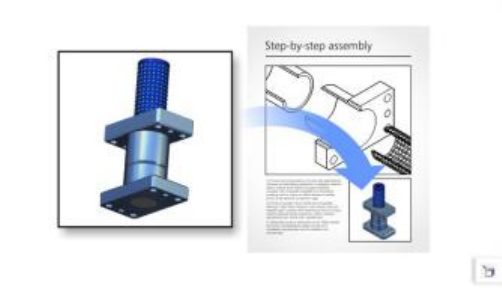
652 | Corel DESIGNER 2017 User Guide
Edition from the coreldraw.com estore or by launching Lattice3D Studio Corel Edition and clicking Help Upgrade to Lattice3D Studio
CAD Corel Edition.
To update a CorelDRAWTechnicalSuite installation to include Lattice3D Studio Corel Edition
1Close any open programs.
2Insert the disc in the DVD drive of your computer.
3On the Windows taskbar, click Start Control panel.
4Click Uninstall a program.
5Double-click CorelDRAWTechnicalSuite2017 from the Uninstall or change a program page.
6In the installation wizard, enable the Modify option.
7Click Next.
8In the Programs list, enable the Lattice3D Studio Corel Edition check box.
9Click Install now.
Importing 3D models
CorelDESIGNER lets you import 3D models as 2D vector graphics to your illustrations. Before importing a graphic into CorelDESIGNER, you
must open it with Lattice3D Studio Corel Edition. After you open the 3D model, you can preview it from different angles. For example, you
can specify parallel or perspective projected views. You can also change the position, orientation, and size of a 3D model, and you can create
cross-sections. When you are satisfied with the view of the 3D model in Lattice3D Studio Corel Edition, you can import it as a 2D vector
graphic into the active drawing or save it for later use.
Lattice3D Studio Corel Edition lets you import files saved to the following 3D file formats:
• AutoCAD (DWG and DXF) — 3D polygon data only. Volume geometries are not supported.
• 3D Studio (3DS)
• VRML
• Universal 3D (U3D)
If you want to use additional file formats, you can upgrade to Lattice3D Studio CAD Corel Edition, which supports native 3D CAD file
formats including CATIA, SolidWorks, Autodesk Inventor, NX, PTC Creo, and more. It also supports 3D CAD exchange formats such as JT,
IGES, STEP, and Parasolid.
For a detailed list of the 3D CAD file formats supported by Lattice3D Studio CAD Corel Edition, see the Help system within Lattice3D Studio
Corel Edition.
You can embed or link 3D models in drawings.
To import a 3D model
1Click File 3D Import.

Working with 3D models | 653
If this menu command is not available, you must install Lattice3D Studio Corel Edition.
2In Lattice3D Studio Corel Edition, open and adjust the 3D model that you want to import.
3Click File Send to Corel DESIGNER.
If you want to adjust the size and position of the 2D graphic, specify the settings you want in the Send to Corel DESIGNER dialog box.
4Click Send.
You can also
Access Help In Lattice3D Studio Corel Edition, click Help Help.
Export a 3D model In the Send to Corel DESIGNER dialog box, click Export.
Preview a 3D model In the Send to Corel DESIGNER dialog box, click Preview.
Open a 2D view of a 3D model in CorelDRAW In Lattice3D Studio Corel Edition, click File Send to CorelDRAW.
Open a 2D view of a 3D model in CorelPHOTO-PAINT In Lattice3D Studio Corel Edition, click File Send to
CorelPHOTO-PAINT.
If you have the advanced-level Lattice3D Studio CAD Corel Edition add-on installed, you can access settings for line types or fonts for
creating illustrations in the Send to Corel DESIGNER dialog box by clicking Details.
You can publish to 3D PDF from CorelDESIGNER, creating documents that combine text, vector graphics, images, and embedded 3D
models. Using a PDF reader that supports 3D PDF viewing, such as Adobe Reader, the end user can interact with the 3D model, so
they can rotate, move, and size it.
Inserting and adjusting 3D models
You can insert and view 3D models in CorelDESIGNER by using the embedded interface of Lattice3D Player, a 3D viewer for XVL files. In
addition, you can use the controls of the Lattice3D Player to adjust the view of the 3D model by panning, rotating, zooming, and choosing a
different view.
When you insert a 3D model, you can embed the 3D model or maintain a link with the source 3D files. When you can maintain a link with
the source 3D files, any adjustments that you make to an inserted file affect the source file. You can break the link between the inserted files
and the source 3D files at any time.
To insert a 3D model
1Click File Insert 3D model.
If this menu command is not available, you must update your installation to include Lattice3D Player. For more information, see “To
modify or repair a CorelDRAWTechnicalSuite installation” on page 25.
2Locate and open the XVL file that you want to insert.
To embed the 3D model, disable the Import as linked file check box.
3Drag in the drawing window to insert the file at the desired size and position.
654 | Corel DESIGNER 2017 User Guide
You can insert only 3D models saved to the XVL file format. To insert a 3D model saved to another file format, you must first import
it (File 3D Import), save it as an XVL file, including snapshots and cross section, and then insert it. If you have the advanced-level
Lattice3D Studio CAD Corel Edition add-on installed, you can save a 3D model that includes animations as an XVL file.
To adjust the view of a 3D model
1Double-click the graphic in the drawing window.
2Using the controls in the Lattice3D Player, do any of the following:
• Pan the 3D model.
• Rotate the 3D model.
• Zoom in and out of the 3D model.
• Change the view.
To adjust the view of a 3D model, you can also right-click the graphic in the drawing window, and click Edit 3D model. When
you finish editing the inserted 3D model, Corel DESIGNER stores the most recent view as a preview image, which is included when
exporting the drawing to bitmap or vector graphics file formats.
To break the link between an inserted 3D model and its source file
1Using the Pick tool , select the inserted graphic.
2Click Window Links and bookmarks.
3In the Links and bookmarks docker, click the Break link button .

Exporting to PDF | 655
Exporting to PDF
PDF is a file format designed to preserve fonts, images, graphics, and formatting of an original application file.
This section contains the following topics:
•“Exporting documents as PDF files” (page 655)
•“Including hyperlinks, bookmarks, and thumbnails in PDF files” (page 658)
•“Reducing the size of PDF files” (page 658)
•“Working with text and fonts in PDF files” (page 659)
•“Specifying an encoding format for PDF files” (page 661)
•“Specifying a viewing option for EPS files” (page 661)
•“Specifying color management options for exporting PDF files” (page 662)
•“Setting security options for PDF files” (page 662)
•“Optimizing PDF files” (page 664)
•“Viewing preflight summaries for PDF files” (page 665)
•“Preparing PDF files for a print provider” (page 665)
Exporting documents as PDF files
You can export a document as a PDF file. A PDF file can be viewed, shared, and printed on any platform provided that users have Adobe
Acrobat, Adobe Reader, or a PDF-compatible reader installed on their computers. A PDF file can also be uploaded to an intranet or the web.
You can also export an individual selection or an entire document to a PDF file.
When you export a document as a PDF file, you can choose from several PDF presets, which apply specific settings. For example, with the
Web preset, the resolution of the images in the PDF file is optimized for the web.
You can also create a new PDF preset or edit any existing preset. PDF file security settings are not saved with a PDF preset. For information
about PDF file security options, see “Setting security options for PDF files” on page 662.
If you have used symbols in a document, they will be supported in the PDF file. For more information on symbols, see “Working with
symbols” on page 275.
To export a document as a PDF file
1Click File Publish to PDF.
You can also save a PDF file by clicking the Publish to PDF button on the Standard toolbar.

656 | Corel DESIGNER 2017 User Guide
2Locate the folder in which you want to save the file.
3Type a filename in the File name box.
4Choose one of the following options from the PDF preset list box:
•Archiving (CMYK) — creates a PDF/A-1b file, which is suitable for archiving purposes. In comparison to traditional PDF files, PDF/A-1b
files are better suited for long-term preservation of documents because they are more self-contained and more device-independent.
PDF/A-1b files include embedded fonts, device-independent color, and their own description as XMP metadata. This PDF style preserves
any spot or Lab colors included in the original document, but it converts all other colors, such as grayscale or RGB, to the CMYK color
mode. In addition, this style embeds a color profile to specify how CMYK colors should be interpreted on the rendering device.
•Archiving (RGB) — similarly to the previous style, creates a PDF/A-1b file, preserving any spot and Lab colors. All other colors are
converted to the RGB color mode.
•Current proof settings — applies the proofing color profile to the PDF
•Document distribution — creates a PDF file that can be printed on a laser or desktop printer and is suitable for general document
delivery. This style enables JPEG bitmap image compression and can include bookmarks and hyperlinks.
•Editing — creates a high-quality PDF file intended to be sent to a printer or digital copier. This style enables LZW compression, embeds
fonts, and includes hyperlinks, bookmarks, and thumbnails. It displays the PDF file with all the fonts, with all of the images at full
resolution, and with hyperlinks, so that you can edit the file at a later date.
•PDF/X-1a — enables ZIP bitmap image compression, converts all objects to the destination CMYK color space
•PDF/X-3 — This style is a superset of PDF/X-1a. It allows both CMYK and non-CMYK data (such as Lab or Grayscale) in the PDF file.
•Prepress — enables ZIP bitmap image compression, embeds fonts, and preserves spot color options best designed for high-end
quality printing. Before preparing a PDF file for printing, it’s always best to consult your print provider to find out which settings are
recommended.
•Web — creates a PDF file intended for online viewing, such as a PDF file to be distributed by email or published on the web. This style
enables JPEG bitmap image compression, compresses text, and includes hyperlinks.
5Click Settings.
The PDF settings dialog box appears.
6In the Export range area, enable one of the following options:
•Current document — exports the current document
•Documents — exports the documents that you specify
•Selection — exports the objects that you have selected
•Current page — exports the active page
•Pages — exports the pages that you specify
7In the Page size area, choose one of the following options:
•As defined in CorelDRAW — applies the page size that is defined in the document
•Set by the selected objects — allows the page size to be determined by the size of the objects on the page
8Click OK.
9Click Save.
If you want to create a PDF file for archiving purposes that conforms to the PDF/A-1b standards, embedding must be allowed for
all the fonts in your document. To check for fonts that cannot be embedded, view the preflight summary of the PDF file. For more
information about viewing summaries, see “To view the preflight summary for a PDF file” on page 665. You can substitute any
fonts that cannot be embedded, or you can convert all text to curves by enabling the Export all text as curves check box on the
Objects page of the Publish to PDF settings dialog box.
If the document contains a 3D model, click Settings in the Publish to PDF dialog box, and choose Acrobat 8.0 or higher from the
Compatibility list box to ensure that the 3D model is interactive in PDF readers.
To check if a font can be embedded, you can view licensing information and embedding restrictions by using a free tool, such as the
Font properties extension tool available on the Microsoft website.
Exporting to PDF | 657
To export multiple documents as a single PDF file
1Click File Publish to PDF.
2Locate the folder in which you want to save the file.
3Type a filename in the File name box.
4Click Settings.
The PDF settings dialog box appears.
5On the General tab, enable the Documents option from the Export range area.
6Enable the check box for each document you want to save.
7Click OK.
8Click Save.
To create a PDF preset
1Click File Publish to PDF.
2Locate the folder in which you want to save the file.
3Type a filename in the File name box.
4Click Settings.
5In the PDF settings dialog box, specify any settings.
6Click the General tab.
7Click the Add PDF preset button next to the PDF preset list box.
8Type a name for the style in the Save PDF preset as list box.
9Click OK.
10 Click Save.
If you want to delete a PDF style, select the style and click the Delete PDF preset button next to the PDF preset list box.
To edit a PDF preset
1Click File Publish to PDF.
2Locate the folder in which you want to save the file.
3Type a filename in the File name box.
4Click Settings.
5In the PDF settings dialog box, specify any settings.
6Click the General tab.
7Click the Add PDF preset button next to the PDF list box.
8Choose the style you want to edit from the Save PDF preset as list box.
9Click OK.
10 Click Save.
If you save changes you make to preset settings, the original settings will be overwritten. To avoid this, save any changes to preset
settings with a new name.
658 | Corel DESIGNER 2017 User Guide
Including hyperlinks, bookmarks, and thumbnails in PDF files
You can include hyperlinks, bookmarks, and thumbnails in a PDF file. Hyperlinks are useful for adding jumps to webpages or to Internet
URLs. Bookmarks allow you to link to specific areas in a PDF file. You can specify whether bookmarks or thumbnails are displayed when the
PDF file is first opened in Adobe Acrobat or Acrobat Reader.
To include hyperlinks, bookmarks, and thumbnails in a PDF file
1Click File Publish to PDF.
2Locate the folder in which you want to save the file.
3Type a filename in the File name box.
4Click Settings.
The PDF settings dialog box appears.
5Click the Document tab.
6In the Bookmarks area, enable any of the following check boxes:
•Include hyperlinks
•Generate bookmarks
•Generate thumbnails
If you want to display bookmarks or thumbnails on startup, enable the Bookmarks or Thumbnails button in the On start, display area.
7Click OK.
8Click Save.
Reducing the size of PDF files
You can compress bitmap images, text, and line art to reduce the size of a PDF file. Options for bitmap image compression include JPEG,
LZW, and ZIP. Bitmap images that use JPEG compression have a quality scale ranging from 2 (high quality, less compression) to 255 (lower
quality, more compression). The higher the image quality, the larger the file size.
You can also reduce the size of a PDF file by downsampling color, grayscale, or monochrome bitmap images.
To set the bitmap compression in a PDF file
1Click File Publish to PDF.
2Locate the folder in which you want to save the file.
3Type a filename in the File name box.
4Click Settings.
The PDF settings dialog box appears.
5Click the Objects tab.
6Choose one of the following from the Compression type list box:
•None
•LZW
•JPEG
•ZIP
•JP2
7Click OK.
8Click Save.

Exporting to PDF | 659
The JP2 (JPEG 2000) option is available only for Adobe Acrobat 6.0, Adobe Acrobat 8.0, and Adobe Acrobat 9.0
If you choose JPEG compression, you can specify the compression quality by moving the JPEG quality slider.
To compress text and line art in a PDF file
1Click File Publish to PDF.
2Locate the folder in which you want to save the file.
3Type a filename in the File name box.
4Click Settings.
The PDF settings dialog box appears.
5Click the Objects tab.
6Enable the Compress text and line art check box.
7Click OK.
8Click Save.
To downsample bitmap images in a PDF file
1Click File Publish to PDF.
2Locate the folder in which you want to save the file.
3Type a filename in the File name box.
4Click Settings.
The PDF settings dialog box appears.
5Click the Objects tab.
6Enable any of the following check boxes, and type a value in the corresponding box:
•Color
•Grayscale
•Monochrome
7Click OK.
8Click Save.
Downsampling color, grayscale, or monochrome bitmap images is effective only when the resolution of the bitmap image is higher
than the resolution specified in the Bitmap downsampling area.
Working with text and fonts in PDF files
You can determine how the text in your PDF file outputs by setting text and font options.
You can embed fonts in a PDF file. Embedding increases the file size but makes a PDF file more portable, since the fonts do not have to
reside on other systems. When you embed base 14 fonts, the fonts are added to your PDF file, thus eliminating font variances on different
systems. The base 14 fonts are resident on all PostScript devices.
You can also convert TrueType fonts to Type 1 fonts, which can increase file size if there are many fonts in a file. When you convert fonts, you
can reduce file size by subsetting fonts if you use only a smaller number of characters (for example, English characters A to E). You can also

660 | Corel DESIGNER 2017 User Guide
include a percentage of fonts used. For example, you can create a subset that contains 50 percent of the fonts. If the number of characters
used in the document exceeds 50 percent, the whole set of characters is embedded. If the number of characters used in the document is less
than 50 percent, only the characters used are embedded.
You can also eliminate font variances on different computers by exporting text as curves. For example, if you are using unusual text
characters, you can export the text as curves. Exporting text as curves increases the complexity of the file and can increase file size. For
general document publication, embed fonts in a document rather than convert text to curves.
To embed fonts in a PDF file
1Click File Publish to PDF.
2Locate the folder in which you want to save the file.
3Type a filename in the File name box.
4Click Settings.
The PDF settings dialog box appears.
5Click the Objects tab.
6Enable the Embed fonts in document check box.
If you want to install the basic fonts to your PDF file, enable the Embed base 14 fonts check box.
7Click OK.
8Click Save.
Enabling the Embed base 14 fonts check box increases file size, and, therefore, it is not recommended for publishing to the web.
To convert TrueType fonts to Type 1 fonts
1Click File Publish to PDF.
2Locate the folder in which you want to save the file.
3Type a filename in the File name box.
4Click Settings.
The PDF settings dialog box appears.
5Click the Objects tab.
6Enable the Convert TrueType to Type 1 check box.
If you want to reduce file size, you can create a subset of fonts by enabling the Subset fonts check box and typing a percentage of fonts
used in the Under% of charset box.
7Click OK.
8Click Save.
If you create a subset of fonts, some characters from the font may not be present in the file when editing the PDF file in Adobe
Acrobat.
To export text as curves
1Click File Publish to PDF.
2Locate the folder in which you want to save the file.
3Type a filename in the File name box.
4Click Settings.
The PDF settings dialog box appears.
Exporting to PDF | 661
5Click the Objects tab.
6Enable the Export all text as curves check box.
7Click OK.
8Click Save.
Specifying an encoding format for PDF files
ASCII and binary are encoding formats for documents. When you publish a file to PDF, you can choose to export ASCII or binary files. The
ASCII format creates files that are fully portable to all platforms. The binary format creates smaller files, but they are less portable, because
some platforms cannot handle the file format.
To specify an encoding format for a PDF file
1Click File Publish to PDF.
2Locate the folder in which you want to save the file.
3Type a filename in the File name box.
4Click Settings.
The PDF settings dialog box appears.
5Click the Document tab.
6Enable one of the following options:
•ASCII 85
•Binary
7Click OK.
8Click Save.
Specifying a viewing option for EPS files
EPS files are PostScript files that are embedded in a document. You can choose how encapsulated PostScript (EPS) files are viewed in a
PDF document. The PostScript option includes high-resolution images in the PDF document but does not let you view them in Adobe
Acrobat. The Preview option includes high-resolution images in the PDF file and displays their low-resolution bitmap representation in
Adobe Acrobat.
To choose a viewing option for EPS files
1Click File Publish to PDF.
2Locate the folder in which you want to save the file.
3Type a filename in the File name box.
4Click Settings.
The PDF settings dialog box appears.
5Click the Objects tab.
6Choose one of the following from the EPS files list box:
•PostScript — includes high-resolution images in the PDF document but does not let you view them
•Preview — includes high-resolution images in the PDF file and displays their low-resolution bitmap representation
7Click OK.
8Click Save.

662 | Corel DESIGNER 2017 User Guide
Specifying color management options for exporting PDF files
You can specify color management options for exporting files to PDF. You can choose a color profile or leave the objects in their original color
space. You can also embed the color profile with the PDF.
If you have spot colors in your file, you can either preserve the spot colors or convert them to process colors so that the file produces four
plates for CMYK output.
If you want to export to PDF for the purpose of soft-proofing the document, you can apply the document’s color proofing settings. In
addition, you can choose additional soft-proofing options, such as preserving document overprints and overprinting black.
To specify color management options for exporting PDF files
1Click File Publish to PDF.
2Locate the folder in which you want to save the file.
3Type a filename in the File name box.
4Click Settings.
The PDF settings dialog box appears.
5Click the Color tab.
6In the Color management area, enable the Use document color settings option.
7Choose a color profile option from the Output colors as list box:
•RGB
•CMYK
•Grayscale
•Native
8Click OK.
9Click Save.
If you choose the Native option from the Output colors as list box, a maximum of three color spaces are displayed, or embedded, in
the PDF file.
Setting security options for PDF files
You can set security options to protect PDF files that you create. Security options let you control whether, and to what extent, a PDF file can
be accessed, edited, and reproduced when viewed in Adobe Reader.
The level of security that is available is also determined by which version of Adobe Reader you use to create the PDF file. The encryption levels
provided by Adobe Reader have increased over time. For example, if you save to Adobe Reader version 6, or lower, it has standard encoding,
version 8 has 128-bit encoding, and version 9 has 256-bit encoding. For more information about choosing a version, see “Optimizing PDF
files” on page 664.
The security options are controlled by two passwords: the Permission password and the Open password.
The Permission password is the master password that lets you control whether a file can be printed, edited, or copied. For example, as the
owner of the file, you can protect the integrity of the file’s content by choosing permission settings that prevent editing.
You can also set an Open password that lets you control who can access the file. For example, if your file contains sensitive information,
and you want to limit the users who can view it, you can set an Open password. It is not recommended that you set an Open password
without setting a Permission password, because users would then have unrestricted access to the PDF file — including the ability to set a
new password.

Exporting to PDF | 663
The security options are applied when you save the PDF file. These settings can be viewed when a PDF file is opened in Adobe Acrobat.
To open and edit a secured PDF file, you must enter the Permissions password (or the Open password if no Permission password is set). For
information about opening and importing PDF files, see “Adobe Portable Document Format (PDF)” on page 698.
To set PDF file permissions
1Click File Publish to PDF.
2Locate the folder in which you want to save the file.
3Type a filename in the File name box.
4Click Settings.
The PDF settings dialog box appears.
5Click the Security tab.
6Enable the Permission password check box.
7Type a password in the Password box.
8Retype the password in the Confirm Permission password box.
9In the Printing permissions box, choose one of the following options:
•None — lets users view the PDF on-screen but prevents them from printing the PDF file
•Low resolution — lets users print a low resolution version of the PDF file. This option is available for PDF files compatible with Adobe
Acrobat 5 or higher.
•High resolution — lets users print a high resolution version of the PDF file
10 In the Editing permissions box, choose one of the following options:
•None — prevents users from editing the PDF file
•Insert, delete, and rotate pages — lets users insert, delete, and rotate pages when editing the PDF file. This option is available for
PDF files compatible with Adobe Acrobat 5 or higher.
•Any except extracting pages — lets users edit the PDF file but prevents them from removing pages from the file
If you want to allow copying of content from the PDF file to other documents, enable the Enable copying of text, images, and other
contents check box.
11 Click OK.
12 Click Save.
The Permission password is the master password for the document. It can be used by the file owner to set permissions, or to open
the file if an Open password is set.
Some PDF compatibility options, such as PDF/X-3 and PDF/A-1b, do not let you set PDF file permissions. If you choose such a
compatibility option, all controls on the Security page appear disabled. To change the compatibility, see “To select a compatibility
option” on page 664.
To set a user password for a PDF file
1Click File Publish to PDF.
2Locate the folder in which you want to save the file.
3Type a filename in the File name box.
4Click Settings.
The PDF settings dialog box appears.
5Click the Security tab.
6Enable the Open password check box.
7Type a password in the Password box.

664 | Corel DESIGNER 2017 User Guide
8Retype the password in the Confirm Open password box.
9Click OK.
10 Click Save.
If you set an Open password, it is recommended that you also set a Permission password.
Optimizing PDF files
You can optimize PDF files for different versions of Adobe Acrobat or Acrobat Reader by choosing a compatibility option that matches the
type of viewer used by the recipients of the PDF file. In CorelDESIGNER, you can select one of the following compatibility options: Acrobat
4.0, Acrobat 5.0, Acrobat 6.0, Acrobat 8.0, Acrobat 9.0, PDF/X-1a, PDF/X-3, or PDF/A-1b.The available controls differ, depending on which
compatibility option you choose. If you are publishing a PDF file for a wide distribution, it is better to choose an earlier compatibility option
such as Acrobat 8.0 or 9.0 to ensure that the file can be viewed in earlier versions of Acrobat. However, if security is a concern, you may
want to choose a later version because the encryption levels are higher. For more information, see “Setting security options for PDF files” on
page 662.
You can optimize the viewing of a PDF document on the web to speed up the loading time of the PDF.
If you added complex fills to the document, you can choose to convert them to bitmaps, which is also known as rasterizing. This may
increase the PDF file size, but it will ensure that the complex fills display correctly.
To select a compatibility option
1Click File Publish to PDF.
2Locate the folder in which you want to save the file.
3Type a filename in the File name box.
4Click Settings.
The PDF settings dialog box appears.
5Click the General tab.
6From the Compatibility list box, choose a compatibility option.
To preserve layers and layer properties in the published PDF file, you must choose the Acrobat 6.0, Acrobat 8.0, or Acrobat 9.0
option. Note that master layers will not be preserved.
To preserve transparencies in the published PDF file, you must choose the Acrobat 5.0, Acrobat 6.0, Acrobat 8.0, or Acrobat 9.0
option.
To optimize a PDF file for viewing on the web
1Click File Publish to PDF.
2Locate the folder in which you want to save the file.
3Type a filename in the File name box.
4Click Settings.
The PDF settings dialog box appears.
5Click the Document tab.
6Enable the Optimize for fast web view check box.

Exporting to PDF | 665
To convert complex fills to bitmaps
1Click File Publish to PDF.
2Locate the folder in which you want to save the file.
3Type a filename in the File name box.
4Click Settings.
The PDF settings dialog box appears.
5Click the Objects tab.
6Enable the Render complex fills as bitmaps check box.
Viewing preflight summaries for PDF files
Before saving a document as a PDF file, you can preflight your document to find potential problems. Preflighting checks and displays a
summary of errors, possible problems, and suggestions for resolving issues. By default, many PDF issues are checked during a preflight, but
you can disable the issues that you do not want to check.
To view the preflight summary for a PDF file
1Click File Publish to PDF.
2Locate the folder in which you want to save the file.
3Type a filename in the File name box.
4Click Settings.
The PDF settings dialog box appears.
5Click the Preflight tab.
You can limit the issues to check during the preflight by clicking the No issues tab, clicking Settings, and, in the Preflight settings dialog
box, disabling the check boxes next to the items that you want the preflight to overlook.
You can save settings by clicking the No issues tab, clicking Settings, and, in the Preflight settings dialog box, clicking the Add
preflight settings button and typing a name in the Save preflight style as box.
Preparing PDF files for a print provider
Open Prepress Interface (OPI) lets you use low-resolution images as placeholders for the high-resolution images that appear in your final
work. When a print provider receives your file, the OPI server substitutes the low-resolution images with the high-resolution images.
Printers’ marks provide information to the print provider about how the work should be printed. You can specify which printers’ marks to
include on the page. The available printers’ marks are as follows:
•Crop marks — represent the size of the paper and appear at the corners of the page. You can add crop marks to use as guides in
trimming the paper. If your output has multiple pages per sheet (for example, two rows by two columns), you can add the crop marks
on the outside edge of the page so that all crop marks are removed after the cropping process, or you can choose to add crop marks
around each row and column. A bleed determines how far an image can extend beyond the crop marks. A bleed requires that the paper
you are printing on is larger than the size of paper you ultimately want, and the image area must extend beyond the edge of the final
paper size.
•Registration marks — are required to line up the film, analog proofs, or print plates on a color press. Registration marks print on each
sheet of a color separation.

666 | Corel DESIGNER 2017 User Guide
•Densitometer scale — is a series of gray boxes ranging from light to dark. These boxes are required to test the density of halftone
images. You can position the densitometer scale anywhere on the page. You can also customize the levels of gray that appear in each of
the seven squares on the densitometer scale.
•File information — can be printed, including the color profile; name, date, and time the image was created; and page number.
To maintain OPI links in a PDF file
1Click File Publish to PDF.
2Locate the folder in which you want to save the file.
3Type a filename in the File name box.
4Click Settings.
The PDF settings dialog box appears.
5Click the Prepress tab.
6Enable the Maintain OPI links check box.
Don’t use OPI links if you are not sure whether your PDF file is destined for an OPI server.
To include printers’ marks in a PDF file
1Click File Publish to PDF.
2Locate the folder in which you want to save the file.
3Type a filename in the File name box.
4Click Settings.
The PDF settings dialog box appears.
5Click the Preflight tab.
6Enable any of the following check boxes:
•Crop marks
•File information
•Registration marks
•Densitometer scales
If you want to include a bleed, enable the Bleed limit check box, and type a bleed amount in the corresponding box.
Usually, a bleed amount of 0.125 to 0.25 inch is sufficient. Any object extending beyond this amount uses space needlessly and may
cause problems when you print multiple pages with bleeds on a single sheet of paper.

Working with office productivity applications | 667
Working with office productivity applications
CorelDESIGNER is highly compatible with office productivity applications such as Microsoft Word and WordPerfect Office. You can import
and export files between applications, and you can copy or insert objects from CorelDESIGNER into office productivity documents.
This section contains the following topics:
•“Importing files from office productivity applications” (page 667)
•“Exporting files to office productivity applications” (page 667)
•“Adding objects to documents” (page 667)
Importing files from office productivity applications
CorelDESIGNER lets you import files created in other applications. For example, you can import a file from a Microsoft Office or WordPerfect
Office application. For more information about importing files, see “WordPerfect Document (WPD) ” on page 710 and “Microsoft Word
(DOC, DOCX, and RTF) technical notes” on page 683.
Exporting files to office productivity applications
You can export a file so that it is optimized for use with office productivity applications such as Microsoft Word or WordPerfect. For more
information about exporting files from CorelDESIGNER, see “To export a file to Microsoft Office or WordPerfect Office” on page 649.
Adding objects to documents
CorelDESIGNER lets you copy an object and paste it into a drawing. You can also copy an object and place it into a document created
in an office productivity application such as Microsoft Word or WordPerfect. For more information about copying objects, see “Copying,
duplicating, and deleting objects” on page 246.
You can insert an object into a CorelDESIGNER document, or into an office productivity document, such as one created in Microsoft Word
or WordPerfect. For more information about inserting objects into CorelDESIGNER documents, see “Finding and managing creative tools
and content” on page 95. For information about inserting objects into office productivity documents, see “Inserting linked or embedded
objects ” on page 305, or see the Help in the office productivity application.
668 | Corel DESIGNER 2017 User Guide

Exporting to HTML | 669
Exporting to HTML
You can ensure that your CorelDESIGNER files and objects publish to HTML successfully by setting document elements to be HTML-
compatible, selecting the settings you want, and checking Preflight issues. You can then publish to HTML. The resulting HTML code and
images can be used in HTML authoring software for creating a website or webpage.
This section contains the following topics:
•“Setting preferences for exporting images to HTML” (page 669)
•“Creating web-compatible text” (page 670)
•“Previewing and verifying files before exporting to HTML” (page 670)
•“Exporting to HTML” (page 671)
Setting preferences for exporting images to HTML
You can set preferences for exporting images that are destined to be viewed on the web. For example, you can determine layout options,
such as size and position of the image white space.
You can also publish your document as a single image, from which the application creates an image map. An image map is a hypergraphic
whose hotspots link to different URLs — including pages, locations, and images — when you view the HTML document with a browser.
Note that large image maps might cause slow downloads for those with a slow Internet connection.
To set preferences for exporting images to HTML
1Click Tools Options.
2In the list of categories, double-click Document, and click Export HTML.
3Set any bitmap options.
You can also
Specify the number of pixels text can be automatically nudged to
avoid introducing rows or columns that are only a few pixels in size
Type a value in the Position tolerance box.
Specify the number of pixels that can occur in an empty cell before
it’s merged with an adjacent cell
Type a value in the Image white space box.
670 | Corel DESIGNER 2017 User Guide
You can also
This lets you avoid splitting a single graphic that spans adjacent
cells.
Specify the amount of white space allowed in an image Type a value in the Position white space box.
Create a Server-side image map In the Image map type area, enable the Server check box, and
choose a format.
Creating web-compatible text
When you convert paragraph text to web-compatible text, you can edit the text of the published document in an HTML editor. If you
are exporting text to HTML, you can change text font characteristics, including the font type, size, and style. The web-compatible text
sizes, numbered 1 through 7, correspond to particular point sizes between the 10-point and 48-point range. For more information about
formatting text, see “Formatting text” on page 437.
The default web font style is used automatically unless you override it with another font. If you choose to override it, the default font is
used when visitors to your website don’t have the same font installed on their computers. The bold, italic, and underline text styles are also
available. You can apply uniform fills, but not outlines, to web-compatible text.
Any non-web-compatible text in your drawing is converted to bitmaps when you publish your drawing to the World Wide Web as HTML.
To make text web-compatible
To Do the following
Change paragraph text to web-compatible text Using the Pick tool , select the paragraph text frame. Click Text
Make text web compatible.
Make new text web-compatible Click Tools Options. In the list of categories, double-click
Workspace, Text, and click Paragraph. Enable the Make all new
paragraph text frames web compatible check box.
Ensure that the web-compatible text does not intersect or overlap other objects or extend beyond the boundaries of the drawing
page; otherwise the text will be converted to a bitmap, and it will lose its Internet properties.
Artistic text cannot be converted to web-compatible text and is always treated as a bitmap. However, you can convert it to paragraph
text and then make it web compatible. For information on converting text, see “Finding, editing, and converting text” on page 424.
Previewing and verifying files before exporting to HTML
You can preview your files and objects in a browser before exporting them to HTML. You can also identify any potential exporting problems
by checking for Preflight issues.

Exporting to HTML | 671
To preview a webpage
1Click File Export for HTML.
2Click Browser preview.
To set HTML preflight options
1Click File Export for HTML.
2Click the Issues tab.
3Click Settings.
4In the Issues to check for list, expand the Publishing to web tree.
5Deselect the issues you do not want to check for.
Exporting to HTML
When publishing a document or selection to the World Wide Web, you can choose several options, such as image format, HTML layout,
export range, and file transfer protocol (FTP) site parameters.
To export to HTML
1Click File Export for HTML.
2Set the following options in the Export HTML dialog box:
•General — contains options for HTML layout, folders for HTML file and images, and FTP site and export range. You can also select,
add, and remove presets.
•Details — contains details of HTML files produced, and allows you to change the page name and file name
•Images — lists all images for the current HTML export. You can set individual objects to JPEG, GIF, and PNG formats. Click Options to
select presets for each image type.
•Advanced — provides options for generating JavaScript for rollovers and cascading style sheets, and maintaining links to external files
•Summary — shows statistics for files according to various download speeds
•Issues — displays a list of potential issues, including explanations, suggestions, and tips
CorelDESIGNER assigns the extension .htm to documents you publish in the HTML format. By default, HTML files share the same
name as the CorelDESIGNER (DES) source file and are saved in the last folder you used to store exported web documents.
672 | Corel DESIGNER 2017 User Guide

Supported file formats | 673
Supported file formats
A file format defines how an application stores information in a file. If you want to use a file created in a different application than the one
you are currently using, you must import that file. Conversely, if you create a file in one application and want to use it in another application,
you must export the file to a different file format.
When you name a file, an application automatically appends a filename extension, usually three characters in length (for example, .cdr,
.bmp, .tif, and .eps). This filename extension helps you and the computer differentiate between files of different formats.
The following list includes all file formats used in this application. Note that not all file format filters are installed by default. If you cannot
export or import a file from the list, you need to update your installation of CorelDRAWTechnicalSuite2017. For more information, see
“Modifying and repairing installations” on page 25.
•“3D file formats” (page 674)
•“Adobe Illustrator (AI)” (page 674)
•“Adobe Type 1 Font (PFB)” (page 677)
•“Windows Bitmap (BMP)” (page 677)
•“OS/2 Bitmap (BMP)” (page 678)
•“Computer Graphics Metafile (CGM)” (page 678)
•“CorelDRAW (CDR)” (page 680)
•“Corel Presentation Exchange (CMX)” (page 681)
•“Corel PHOTO-PAINT (CPT)” (page 681)
•“Corel Symbol Library (CSL)” (page 682)
•“Cursor Resource (CUR)” (page 682)
•“Microsoft Word (DOC, DOCX, or RTF)” (page 682)
•“Microsoft Publisher (PUB)” (page 684)
•“CorelDESIGNER (DES, DSF, DS4, or DRW)” (page 684)
•“AutoCAD Drawing Database (DWG) and AutoCAD Drawing Interchange Format (DXF)” (page 685)
•“Encapsulated PostScript (EPS)” (page 687)
•“PostScript (PS or PRN)” (page 691)
•“GIF” (page 692)
•“HTML” (page 693)
•“JPEG (JPG)” (page 693)
•“JPEG 2000 (JP2)” (page 694)
•“Kodak Photo CD Image (PCD)” (page 695)
•“PICT (PCT)” (page 696)
•“PaintBrush (PCX)” (page 697)
674 | Corel DESIGNER 2017 User Guide
•“Adobe Portable Document Format (PDF)” (page 698)
•“HPGL Plotter File (PLT)” (page 700)
•“Portable Network Graphics (PNG)” (page 701)
•“Adobe Photoshop (PSD)” (page 702)
•“Corel Painter (RIF)” (page 703)
•“Scalable Vector Graphics (SVG)” (page 703)
•“Adobe Flash (SWF)” (page 707)
•“TARGA (TGA)” (page 708)
•“TIFF” (page 709)
•“TrueType Font (TTF)” (page 709)
•“Visio (VSD)” (page 710)
•“WordPerfect Document (WPD)” (page 710)
•“WordPerfect Graphic (WPG)” (page 711)
•“RAW camera file formats” (page 711)
•“Wavelet Compressed Bitmap (WI)” (page 712)
•“Windows Metafile Format (WMF)” (page 712)
•“XML Localization Interchange (XLIFF)” (page 712)
•“Additional file formats” (page 712)
•“Recommended formats for importing graphics” (page 713)
•“Recommended formats for exporting graphics” (page 714)
•“General notes on importing text files” (page 714)
3D file formats
3D files contain 3D models of objects. Usually, 3D files are constructed of polygons and surfaces, and include descriptions of related
elements, such as color, texture, and reflections. The 3D-authoring software that is included in CorelDRAWTechnicalSuite2017 supports
only polygon 3D models.
CorelDESIGNER lets you import files of the following 3D file types:
• AutoCAD Drawing Interchange Format (DXF, DWG).
• 3DS
• Initial Graphics Exchange Specification (IGES)
• OBJ
• STL
• Universal 3D (U3D)
• VRML
• XVL (.xv2, .xv3, .xv0)
CorelDESIGNER licenses 3D applications from Lattice Technologies — Lattice3D Studio Corel Edition and Lattice3D Player — to provide 3D
file format support. You can upgrade Lattice3D Studio Corel Edition to Lattice3D Studio CAD Corel Edition, which supports additional native
3D CAD and advanced 3D exchange file formats.
For information about working with 3D models, see “Working with 3D models” on page 651.
Adobe Illustrator (AI)
The Adobe Illustrator (AI) file format was developed by Adobe Systems, Incorporated for the Macintosh® and Windows platforms. It is
primarily vector-based, although later versions support bitmap information.
You can import AI files for use in CorelDESIGNER or export CorelDESIGNER files to the AI file format. Before exporting a document as an AI
file, you can preflight your document to find potential problems. Preflighting checks and displays a summary of errors, possible problems,

Supported file formats | 675
and suggestions for resolving issues. By default, many AI issues are checked during a preflight, but you can disable the issues that you do not
want to check.
To import an Adobe Illustrator file
1Click File Import.
2Locate the folder in which the file is stored.
3Click the filename.
4Click Import.
5Click in the drawing page where you want to import the file.
To export an Adobe Illustrator file
1Click File Export.
2Locate the folder in which you want to save the file.
3Choose AI - Adobe Illustrator from the Save as type list box.
4Type a filename in the File name list box.
5Click Export.
6From the Compatibility list box, choose an Adobe Illustrator file format.
7In the Export range area, enable one of the following options:
•Current document — exports the active drawing
•Current page — exports the active page
•Selection — exports the objects that you have selected
•Pages — exports the pages that you specify (This option is only available for CS 4 and later versions.)
8In the Export text as area, enable one of the following options:
•Curves — lets you export text as curves
•Text — lets you export text as editable characters
You can also
Convert transparent areas to bitmaps In the Transparency area, enable the Preserve appearance and
convert transparent areas to bitmaps option.
(This option is only available for version 8 and lower.)
Discard transparent areas and preserve curves and text In the Transparency area, enable the Preserve curves and text by
removing transparent effects option.
(This option is only available for version 8 and lower.)
Convert an outline to an object to create an unfilled closed object
with the outline’s shape
In the Options area, enable the Convert outlines to objects check
box.
Convert complex outlines to curves In the Options area, enable the Simulate complex filled curves
check box.
Convert spot colors to process colors In the Options area, enable the Convert spot colors to CMYK
check box.

676 | Corel DESIGNER 2017 User Guide
You can also
Embed the color profile In the Options area, enable the Embed color profiles check box.
Generate a preview of the document in the Adobe Illustrator File
open dialog box
In the Options area, enable the Include preview images check
box.
If you enable the Simulate complex filled curves check box, an object that is composed of complex curves, such as a text object that
was converted to curves, may be broken into several objects on export to help minimize the complexity of the object.
If you disable the Include placed images check box and export the file, the exporting process generates one Adobe Illustrator file and
a series of EPS files. The EPS files contain individual objects and images which are linked to the AI file. Always store the EPS files with
the AI file to preserve the link to the AI file.
To view the preflight summary for an AI file
1Click File Export.
2Locate the folder in which you want to save the file.
3Choose AI - Adobe Illustrator from the Save as type list box.
4Type a filename in the File name list box.
5Click Export.
6In the Adobe Illustrator Export dialog box, click the second tab.
You can limit the issues to check during the preflight by clicking the Settings button, double-clicking AI Export, and disabling the check
boxes next to the items that you want the preflight to overlook.
You can save settings by clicking the Add preflight settings button and typing a name in the Save preflight style as box.
Adobe Illustrator (AI) technical notes
Importing an AI file
• You can import AI file formats up to and including Adobe Illustrator CS6.
• For files saved in Adobe Illustrator CS or higher with PDF-compatibility, text can be imported as text or curves.
• Objects with gradient fills that were created in CS5 may not appear correctly when imported.
• Corel programs cannot import AI files containing bitmaps linked as EPS files.
•Adobe Illustrator graphics are imported into the program as a group of objects. Click Object Ungroup to manipulate objects in the
imported graphic. If you open an AI file instead of importing it, you do not need to ungroup objects.
• For AI CS4, CS5, and CS6 files, each Artboard is imported as an individual CorelDESIGNER page. In multi-page documents, objects that
are placed off a page are placed on the first page of the CorelDESIGNER document.
• Objects filled by using Global Colors (color schemes) appear correctly in CorelDESIGNER, but the Global Colors are not maintained as
color styles.
• Symbols, objects with patterns, and objects that have 3d extrude or bevel applied are converted as curves.
• Objects that have the Feather or Transparency effect applied are converted using the applicable lens effect in CorelDESIGNER.
• Objects that have the texture, drop shadow, blur, or brushstroke effect applied are converted as bitmap objects in CorelDESIGNER.
Exporting an AI file
• During export conversion, objects can become complex, making it difficult to edit them in other drawing programs, or in CorelDESIGNER
if you reimport them. To avoid this problem, keep a copy of the image in Corel DESIGNER (DES) format, and use CorelDESIGNER for all
editing.
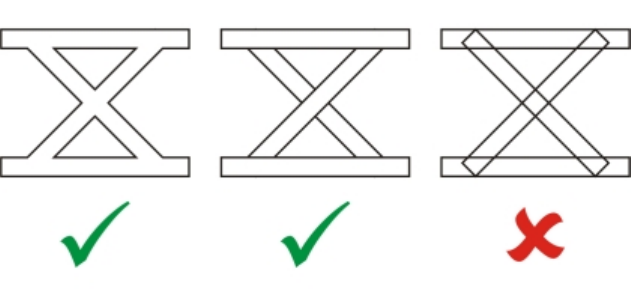
Supported file formats | 677
• If you create a file that will be printed in other programs, such as Adobe® PageMaker®, export it using the Encapsulated PostScript (EPS)
filter, not the Adobe Illustrator (AI) filter. The Encapsulated PostScript filter supports more drawing effects than the Adobe Illustrator filter
does and yields better results overall.
• Most linear and radial fountain fills are preserved. Conical and square fountain fills are exported as a series of filled bands, an effect
similar to that achieved by blending. You can set the number of bands by clicking Tools Options. In the Workspace list of categories,
click Display, and type a number in the Preview fountain steps box. The maximum number of bands supported is 256.
• You can export text as text when you are exporting AI files from versions CS and later.
• When exporting multi-page CorelDESIGNER files to the CS4, CS5, and CS6 formats, individual pages are exported as Artboards. They are
also layed out using the Arrange by row format.
• When exporting multi-page CorelDESIGNER files to the CS4, CS5, and CS6 formats, objects that are placed off of the page are removed.
Adobe Type 1 Font (PFB)
The Adobe Type I Font (PFB) is a file format that stores Adobe Type 1 fonts. Most Type 1 fonts are single master fonts that permit only style
editing; for example, Roman, italic, bold. A single master Type 1 font contains two files: a Printer Font Metrics (PFM) file and a Printer Font
Binary (PFB) file.
Some Type 1 fonts are also available in multiple master format. You can customize design elements of multiple master fonts such as weight,
width, style, and optical size. A multiple master base font is the multiple master font itself, from which you create variations called multiple
master instances. A multiple master base font is composed of a PFM file, a PFB file, and a Multiple Master Metrics (MMM) file. A multiple
master instance is composed of a PFM file and a PostScript Printer Stub (PSS) file.
Adobe Type 1 Fonts technical notes
• Adobe Type 1 fonts exported from CorelDESIGNER are unhinted.
•Each exported character constitutes a single object. Before you export multiple objects, you must combine them by clicking Object
Combine. You cannot export multiple objects or grouped objects.
• For best results, avoid intersecting lines. Any object in your character should lie completely inside or outside of others, as shown in the
following example.
Left to right: three objects correctly combined; five objects correctly combined; five objects incorrectly combined
• Fill and outline attributes applied to objects are not exported.
• Adobe Type 1 fonts you create are compatible with Adobe Type Manager version 2.0, but not with earlier versions.
Windows Bitmap (BMP)
The Windows® bitmap (BMP) file format was developed as a standard for representing graphic images as bitmaps on the Windows
operating system.
678 | Corel DESIGNER 2017 User Guide
To import a bitmap file
1Click File Import.
2Locate the folder in which the file is stored.
3Choose BMP - Windows bitmap (*.bmp; *.dib; *.rle) from the list box next to the File name box.
4Click the filename.
5Click Import.
6Click the drawing page.
To export a bitmap file
1Click File Export.
2Locate the folder in which you want to save the file.
3Choose BMP - Windows bitmap from the Save as type list box.
4Type a filename in the File name list box.
5Click Export.
6In the Convert to bitmap dialog box, adjust the width, height, resolution, color mode, or any of the other settings.
Windows Bitmap (BMP) technical notes
Importing a BMP file
• You can import Windows Bitmap files conforming to the Windows and OS/2 BMP specifications.
• Windows Bitmap files may be black-and-white, 16 colors, grayscale, paletted, or RGB color (24-bit), and print accordingly, depending on
your printer.
• Run-length encoding (RLE) compression may be used on all bitmaps, except RGB color (24-bit), and black-and-white bitmaps.
• The resolution ranges from 72 to 300 dpi, or higher if you choose custom settings.
• The maximum image size is 64,535 × 64,535 pixels.
Exporting a BMP file
• Because raster images such as bitmaps are mapped pixel by pixel to the page, the resolution does not increase. Instead, your bitmap
appears jagged, with an apparent loss of resolution.
OS/2 Bitmap (BMP)
This type of bitmap file is designed for the OS/2 operating system. The OS/2 Bitmap file format supports a maximum image size of 64,535 ×
64,535 pixels. OS/2 uses Run-length encoding (RLE) compression.
OS/2 Bitmap (BMP) technical notes
• Corel programs support Standard Version 1.3 and Enhanced Version 2.0, or later versions of the OS/2 Bitmap file format.
• Corel programs support the following color depths when importing and exporting BMP files: 1-bit black and white, 256 shade (8-bit)
grayscale, 16-color (4-bit) and 256-color (8-bit) paletted, and 24-bit RGB.
Computer Graphics Metafile (CGM)
Computer Graphics Metafile (CGM) is an open, platform-independent metafile format used for storing and exchanging two-dimensional
graphics. It supports RGB color. CGM files can contain both vector graphics and bitmaps, but they usually contain one graphic type or the
other — rarely both.
Supported file formats | 679
CorelDESIGNER supports CGM Version 1, CGM Version 3, and the following CGM Version 4 profiles — ActiveCGM, WebCGM, S1000D,
and ATA GREXCHANGE. The CGM Version 4 profiles are subsets of the CGM standard; each profile contains some CGM features. Files of
these profiles allow associating of non-graphical data with graphical elements, and are often referred to as “intelligent graphics.” Short
descriptions of the supported Version 4 profiles follow.
•ACGM (ActiveCGM) — supports hyperlinking of both vector graphics and bitmaps, zooming, panning, hotspots, and database links. It is
suitable for displaying 2D drawings on the Internet.
•WebCGM (versions 1.0, 2.0, and 2.1) — a binary file format that supports hyperlinks, document navigation, picture structuring and
layers, as well as searching on WebCGM picture contents. It also supports Unicode and web fonts. The WebCGM profile is used widely in
web electronic documents.
•S1000D (versions 2.3, 3.0, 4.0, 4.1) — a standard that specifies requirements for creating graphics that are compliant with S1000D.
S1000D is an international, SGML/XML-based standard for creating and managing technical publications. It was originally developed by
the Aerospace and Defense Industries Association of Europe (ASD) for creating technical publications for military aircrafts. The standard
has since been enhanced and is now supported by numerous industries for creating technical publications.
•ATA GREX (ATA GREXCHANGE) versions 2.4, 2.6, 2.8, 2.9, 2.10, 2.11, and 2.12— very similar to WebCGM in its rules for graphical
elements. The ATA GREXCHANGE CGM profile is widely used in the civil aerospace industry.
Export options
When exporting to a CGM file, you can choose from various export options. The following list describes the controls in the CGM Export
dialog box. Note that not all controls may be available for the version and profile you want to export to.
•Version — lets you choose CGM Version 1, 3, and 4
•Profile — available only for GGM Version 4. This list box lets you choose from many supported CGM Version 4 profiles.
•ICN — Information Control Number (ICN) is a document identifier in S1000D profiles (versions 2.3 to 4.1). The ICN box lets you add or
edit a document identifier.
•GNBR — Graphic Number (GNBR) is a document identifier in ATA GREX profiles. The GNBR box lets you add or edit a document
identifier.
•File encoding — lets you choose between Text and Binary file encoding provided the selected profile supports text encoding.
•Output precision (VDC) — VDC stands for Virtual Device Coordinate, which is the type of coordinate system used for positioning
objects. If the coordinate system uses greater precision (more units) to describe the position of objects, the exported file will retain the
original object position more accurately. Note that the output precision affects the file size. The High option (Real 32-bit) results in a
bigger file size; the Low option (Integer 16-bit) keeps the file size smaller.
• Text controls
•Type — lets you choose the character encoding for text in the exported file: ISO 8859-1, UTF-8, or UTF-16. Both UTF-8 and UTF-16
can encode all characters defined by Unicode. ISO 8859 does not support characters that are not included in the Latin or Symbols
character sets. To choose the encoding of unsupported characters, you can use the Character set mode and Fallback text encoding
controls.
•Character set mode — The Strict mode replaces unsupported characters with the default character (typically, the question mark ?).
The Relaxed mode preserves unsupported characters at the expense of profile violation by using the fallback encoding for ATA GREX.
•Fallback text encoding — The available options for encoding unsupported characters are UTF-8 and UTF-16.0.
•Color mode — controls how colors are exported, impacting the file size of the exported file. You can choose between the Indexed and
Direct options. With the Direct option, the color values are stored with each shape in the document. With the Indexed option, the
color values are defined once and then referenced in the shapes, typically resulting in a smaller file size. Some industry and company
specifications impose a very strict file size limit on CGM files so it may be important to keep the CGM files small. The Color mode options
are not available for ActiveCGM and CGM Version 1.
•Export layers — This check box lets you preserve layers in the exported file. If you don’t want to keep the layers, disable the check box.
To import a CGM file
1Click File Import.
2Locate the folder in which the file is stored.
3Choose CGM - Computer Graphics Metafile (*.cgm) from the list box next to the File name box.
4Click the filename.
5Click Import.
680 | Corel DESIGNER 2017 User Guide
To export a CGM file
1Click File Export.
2Locate the folder in which you want to save the file.
3Choose CGM - Computer Graphics Metafile from the Save as type list box.
4Type a filename in the File name list box.
5Click Export.
6In the CGM export dialog box, choose a version from the Version list box.
If you chose Version 4, choose a profile from the Profile list box.
7Adjust any of the available export settings. For more information, see “Export options ” on page 679.
Computer Graphics Metafile (CGM) technical notes
Importing a CGM file
• Corel DESIGNER can import CGM Version 1, 3 and 4 files. Version 4 files include WebCGM 1.0, 2.0, 2.1, ATA GREX, and S1000D files.
• The CGM filter accepts only markers supported by the CGM file format standard. Private-use markers are ignored.
• Text is editable, provided the file is exported from the source program with the correct text options specified. The typeface you see may
not correspond to the one used in the source program; however, you can easily correct the typeface in the Corel program.
• If the CGM file contains a font that is not on your computer, the PANOSE font-matching dialog box lets you replace the font with an
available one.
• When you import a CGM file, some object types are converted to CorelDESIGNER objects. For example, hyperbolic and parabolic
elements are converted to Bézier curves.
• When you import a WebCGM (Version 2.0 and 2.1) or S1000D file in CorelDESIGNER, objects attributes stored in an XML companion
file (XCF) are imported.
Exporting a CGM file
• CorelDESIGNER can export CGM version 1, 3, and 4 files.
• When you export to the WebCGM format, you choose from three Text encoding options: UTF-8, UTF-16, and ISO 8859-1.
• You can export WebCGM (Version 2.0 and 2.1) or S1000D CGM files with objects attributes stored in an XML companion file (XCF).
• You have the option of compressing WebCGM 2.1 files on export.
• CGM files can be saved in text or binary format provided the selected profile supports text encoding. Text-encoded files can be opened in
an ASCII text editor.
• PostScript textures are converted to curves.
CorelDRAW (CDR)
CorelDRAW (CDR) files are primarily vector graphic drawings. Vectors define a picture as a list of graphic primitives (rectangles, lines, text,
arcs, and ellipses). Vectors are mapped point by point to the page, so if you reduce or increase the size of a vector graphic, the original
image will not be distorted.
Vector graphics are created and edited in graphics design applications, such as CorelDRAW, but you can also edit vector graphics in image-
editing applications such as Corel PHOTO-PAINT. You can use vector images of various formats in desktop publishing programs.
To import a CorelDRAW file
1Click File Import.
2Locate the folder in which the file is stored.
3Choose CDR - CorelDRAW (*.cdr) from the list box next to the File name box.
4Click the filename.
Supported file formats | 681
5Click Import.
6Click the drawing page.
CorelDRAW (CDR) technical notes
•Imported CorelDRAW files appear as a group of objects. Click Object Ungroup to manipulate individual objects in the imported
graphic.
Corel Presentation Exchange (CMX)
Corel Presentation Exchange (CMX) is a metafile format that supports bitmap and vector information and the full range of PANTONE, RGB,
and CMYK colors. Files saved in CMX format can be opened and edited in other Corel applications.
To import a Corel Presentation Exchange file
1Click File Import.
2Locate the folder in which the file is stored.
3Choose one of the following from the list box next to the File name box:
•CMX - Corel Presentation Exchange — for files created in Corel Presentations X6 or later
•CMX - Corel Presentation Exchange legacy — for files created in Corel Presentations X5 or earlier
4Click the filename.
5Click Import.
6Click the drawing page.
To export a Corel Presentation Exchange file
1Click File Export.
2Locate the folder in which you want to save the file.
3Choose one of the following from the Save as type list box:
•CMX - Corel Presentation Exchange — for versions 16.0 or later
•CMX - Corel Presentation Exchange legacy — for versions 15.0 or earlier
4Type a filename in the File name list box.
5Click Export.
Corel Presentation Exchange (CMX) technical notes
• The following versions are supported: 5, 6, 7, 8, 9, 10, 11, 12, X3, X4, X5, and X6.
• When you import a CMX file from an earlier version, any text color backgrounds included in the file are not preserved.
Corel PHOTO-PAINT (CPT)
Files saved to the Corel PHOTO-PAINT (CPT) file format are bitmaps that represent shapes as pixels arranged to form an image. When you
save a graphic to the Corel PHOTO-PAINT format, masks, floating objects, and lenses are saved with the image. CorelDESIGNER can import
and export files in Corel PHOTO-PAINT format, including files that contain color and grayscale information.
To export a Corel PHOTO-PAINT file
1Click File Export.
2Locate the folder in which you want to save the file.
3Choose CPT - Corel PHOTO-PAINT image from the Save as type list box.

682 | Corel DESIGNER 2017 User Guide
4Type a filename in the File name list box.
5Click Export.
6In the Convert to bitmap dialog box, adjust the width, height, resolution, color mode, or any of the other settings.
You can export CorelDESIGNER layers as objects in the CPT file format.
You can export to an image with transparent background.
Corel PHOTO-PAINT (CPT) technical notes
• This filter is available in CorelDESIGNER.
• Corel PHOTO-PAINT files may be black-and-white, grayscale, paletted, CMYK color (32-bit), RGB color (24-bit), or Lab.
Corel Symbol Library (CSL)
Corel Symbol Library (CSL) files store symbols that can be used in other files.
Corel Symbol Library (CSL) files can be stored locally or on a network, allowing easy deployment and management of symbol collections.
For more information, see “Managing collections and libraries” on page 278.
Cursor Resource (CUR)
The Windows 3.x/NT Cursor Resource (.cur files) file format is used to create cursors for Windows 3.1, Windows NT, and Windows 95
interfaces. It supports cursor graphic elements that are used in Windows pointers. You can select a color for Transparent and Inverse masks.
The Windows 3.x/NT Cursor Resource file format supports a maximum image size of 32 × 32 pixels.
Cursor Resource (CUR) technical notes
• Corel programs support the following color depths when importing .cur files: 1-bit black-and-white, 16-color (4-bit) paletted, and 256-
color (8-bit) paletted.
Microsoft Word (DOC, DOCX, or RTF)
You can import the following Microsoft Word files:
• Microsoft Word Document (DOC) files from versions 97, 2000, 2002, and 2003. In addition, files saved as DOC from MS Word 2007 and
2010.
• Microsoft Word Open XML Document (DOCX) files. This file format is based on Open XML and uses ZIP compression. It was introduced
with Microsoft Word 2007.
• Rich Text Format (RTF) files. Rich Text Format (RTF) is a text format that stores plain text and text formatting, such as bold. When you
import an RTF file to CorelDESIGNER, the text and any embedded Windows Metafile Format (WMF) graphics are transferred. However,
graphic elements are not transferred in an RTF file exported from CorelDESIGNER.
Because Microsoft Word is a proprietary file format, it’s sometimes difficult to precisely import all aspects of a Microsoft Word file in
CorelDESIGNER. To successfully import text with fewer inconsistencies, it is recommended that you install the Microsoft Office Compatibility
Pack. If the Microsoft Office Compatibility Pack was not previously installed on your computer, you will be prompted to install it when you
attempt to import text.
To import a Microsoft Word file
1Click File Import.

Supported file formats | 683
2Choose DOC, DOCX - MS Word or RTF - Rich Text Format from the All file formats list box.
3Choose the drive and folder where the file is stored.
4Click the filename.
5Click Import.
If the Microsoft Office Compatibility Pack was not previously installed on your computer, the Install compatibility pack dialog box
appears. The installation of the Microsoft Office Compatibility Pack is highly recommended. To proceed with the installation, click OK and
follow the instructions in the installation wizard.
6In the Importing/Pasting text dialog box, you can choose to maintain or discard text formatting. You can also choose to import tables as
tables or text.
7Position the import cursor in the drawing window, and click.
Any embedded Windows Metafile Format (WMF) or Enhanced Metafile Format (EMF) graphics are preserved in the imported file. If
the file contains other graphic elements, these are lost during conversion and do not appear in CorelDESIGNER.
You can place your imported text by dragging a marquee to define a paragraph text box, or by pressing the Spacebar to place the
imported text in the default location.
If you import text and choose not to install the Microsoft Office Compatibility Pack, the Install compatibility pack dialog box will
reappear the next time you import text, unless you enable the Do not ask me this question again check box. You can reactivate
the Install compatibility pack dialog box by clicking Tools Options. In the list of categories, double-clicking Workspace, clicking
Warnings, and enabling the Install Compatibility Pack for DOC and DOCX check box from the Show warnings when list box.
To export a Microsoft Word file
1Open a drawing that contains a text object.
2Click File Export.
3Choose DOC - MS Word for Windows 6/7 or RTF - Rich Text Format from the Save as type list box.
4Type a filename in the File name list box.
5Click Export.
The filename extension for the format you choose is appended to the filename automatically.
Only text in drawings can be exported to the Microsoft Word file formats. Other graphical elements, such as lines, curves, and
rectangles, are lost during conversion and do not display in the file. To export graphics, use a graphic format such as WMF.
Microsoft Word (DOC, DOCX, and RTF) technical notes
Importing a DOC, DOCX, and RTF file
• To successfully import text with fewer inconsistencies, it is recommended that you install the Microsoft Office Compatibility Pack. If the
Microsoft Office Compatibility Pack was not previously installed on your computer, you will be prompted to install it when you attempt
to import text.
• The following Microsoft Word versions are supported: Microsoft Word 97-2007, Microsoft Word for Windows 6/7, Microsoft Word for
Windows 2.x, Microsoft Word 3.0, 4.0, 5.0, and 5.5.
• The embedded-field method for building indexes in Microsoft Word is supported, but the style-implied method for building indexes is
not.
• The Corel program matches the fonts in the file you are importing with the same or similar fonts, depending on the fonts installed on
your computer. However, the Normal text style in Microsoft Word is converted to the default text style. To set the default text style, click
684 | Corel DESIGNER 2017 User Guide
Tools Options. In the list of categories, double-click Document, enable the Save options as defaults for new document check box,
and then enable the Styles check box.
• Whenever possible, the program automatically converts characters available in the sets “Symbol” or “MS Linedraw” to the corresponding
Windows character set entries.
• Most fonts are proportionally spaced, and text is reflowed when imported. As a result, soft line and page breaks often appear in new
locations if you are converting to a fixed-pitch or nonscalable font.
• When you import text, the page size in the original document is ignored. The text is adjusted to fit the current page size, which may
affect the placement of text.
• If a table is longer then the current page, the table data continues down and off the page.
• Nested tables are not fully supported. The text within a nested table appears within the text box of the top-level table cell as text only (no
bounding lines).
• Nested bullets are not fully supported.
• Objects and graphs are not supported.
• Equations are not maintained — the data and results may be maintained but they are unlinked.
• Text direction is not maintained.
Microsoft Publisher (PUB)
Microsoft® Publisher (PUB) is the native format for files created in Microsoft Publisher, an application in the Microsoft Office line of products
used for creating publications and market materials.
Microsoft Publisher (PUB) technical notes
• CorelDESIGNER imports Microsoft Publisher files from versions 2002, 2003, 2007, and 2010.
• Exporting is not supported.
• Two-page spread is imported as separate pages.
• Master pages are not supported. A master page is imported as a separate layer on the page. The name of the layer corresponds to the
name of the master page in Microsoft Publisher.
• Headers and footers are not supported. Text from the header/footer is placed in the appropriate position on each page.
• Tables are supported. Not all border types are supported. If a border type is not supported, it is replaced with an outline of the desired
thickness and color.
• Border art is not supported.
• Styles are not supported. Style and formatting attributes are mapped to text.
• Some underline styles are not supported. Unsupported underline styles are replaced with the best-match underline style available in
CorelDESIGNER.
• Shadow, Emboss, and Engrave font effects are not supported.
• Horizontal rules in text objects are not supported.
• Color schemes are not supported. Color scheme colors are mapped to object colors.
• Font schemes are not supported. Font names and styles are mapped to their equivalents in CorelDESIGNER.
• 3D shapes are supported. Surface textures are not supported.
• Word art is imported as artistic text in CorelDESIGNER. Surface textures for extrudes are not supported.
• Linked text boxes are supported.
• Bookmarks and hyperlinks are supported.
• Form objects (Microsoft Publisher 2002) are not supported.
CorelDESIGNER (DES, DSF, DS4, or DRW)
You can import CorelDESIGNER files. Files from version 10 and later have the filename extension .des. Files from Micrografx versions 6 to 9
have the filename extension .dsf. Version 4 files have the filename extension .ds4. The .drw filename extension is used for a Micrografx 2.x
or 3.x file. Micrografx template files (DST) are also supported.
Supported file formats | 685
To import a CorelDESIGNER file
1Click File Import.
2Locate the folder in which the file is stored.
3Choose DES - Corel DESIGNER (*.des) or DSF, DRW, DST, MGX - Corel/Micrografx Designer (*.dsf; *.drw; *.ds4) from the list box next
to the File name box.
4Click the filename.
5In the Import dialog box, adjust any of the settings.
6Click Import.
7Click the drawing page.
Corel DESIGNER (DSF) technical notes
• Guidelines are preserved. Grid settings are not converted, however.
•Snap points are not converted — the program preserves the default gravity settings.
•Objects on some pages may be grouped together. You may want to select the group and then ungroup it before editing.
• DSF files display OLE data as picture objects. OLE data object types are lost in the conversion.
• Curvygons are converted to curves.
• Any part of a graphic that is outside the extents that CorelDESIGNER can support cannot be accessed. You should resize the graphic
before converting.
• Enhanced line styles are preserved.
• Gradient transparency may be offset in some cases.
• Hatch fills are preserved in the imported file.
• Unclosed, filled lines are converted to two objects: one for the line and one for the fill.
• Block text in Corel DESIGNER 9 files is converted to paragraph text in CorelDESIGNER2017. Freeform text is converted to artistic text.
• Warped text is converted to curves.
• Repelled text (block text that wraps around an object) is converted to multiple text objects.
• Each line of a nonrectangular text object (text placed within an object) is converted to a separate text object.
• For block text that has many transformations, tab stops may stretch or shrink.
• Text flowing between containers is not preserved; each container is converted to a separate object.
• Dimensions of text in small caps vary when the text is imported.
Corel DESIGNER (DES) technical notes
• Dimension lines and connector lines are converted to curves when you save a file to CorelDESIGNER version 15.0 or earlier.
AutoCAD Drawing Database (DWG) and AutoCAD Drawing Interchange Format (DXF)
AutoCAD Drawing Database (DWG) files are vector files used as a native format for AutoCAD drawings.
The Drawing Interchange Format (DXF) is a tagged data representation of the information contained in an AutoCAD drawing file. The
Drawing Interchange format is a native file format of AutoCAD. It has become a standard for exchanging CAD drawings and is supported by
many CAD applications. The Drawing Interchange format is vector-based and supports up to 256 colors.
Enhanced support for the AutoCAD Drawing Database (DWG) format simplifies working with dimension shapes when you import those
files. CorelDESIGNER recognizes dimension shapes in DWG files, allowing you to use the Dimension tools to easily change arrowheads
on dimension lines, reposition dimension text, and update associative dimensions when modifying a shape. You also have the option of
maintaining the exact look of the dimension shape, which converts it to curves and text. And when you export to DWG/DXF, dimension
shapes are editable in CAD applications, such as AutoCAD or CorelCAD. For more information about dimension lines, see “Drawing
dimension lines” on page 157.
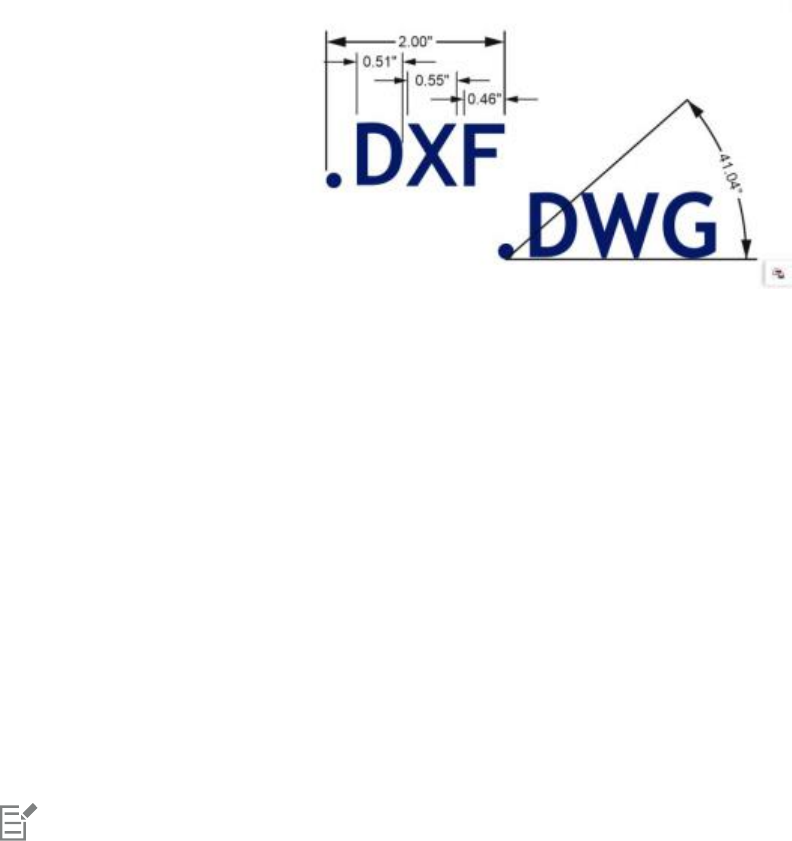
686 | Corel DESIGNER 2017 User Guide
CorelDESIGNER recognizes dimension shapes in AutoCAD (DWG/DXF) files.
To import an AutoCAD Drawing Database file (DWG) or AutoCAD Drawing Interchange Format (DXF)
1Click File Import.
2Locate the folder in which the file is stored.
3Choose DWG - AutoCAD (*.dwg) or DXF - AutoCAD (*.dxf) from the list box next to the File name box.
4Click the filename.
5Click Import.
6From the 3D projection list box in the Import AutoCAD file dialog box, choose a plane projection of a three-dimensional object as seen
from a given focal point.
If you want to reduce the number of nodes on the imported object, enable the Auto-reduce nodes check box.
7In the Scaling area, enable one of the following options:
•Automatic — scales the drawing using the scale of the AutoCAD source file
•English (1 unit = 1 inch) — lets you scale the drawing in inches
•Metric (1 unit = 1 mm) — lets you scale the drawing in millimeters
8Click OK.
If the file is password protected, type the password in the Password box.
If views are specified in your file, they appear automatically in the 3D projection list box.
If your computer is missing a font that is included in a file you are importing, a PANOSE font matching dialog box appears and lets
you substitute the font with a similar font.
To export an AutoCAD Drawing Database file (DWG) or an AutoCAD Drawing Interchange file (DXF)
1Click File Export.
2Locate the folder in which you want to save the file.
3From the Save as type list box, choose one of the following options:
•DWG - AutoCAD
•DXF - AutoCAD
4Type a filename in the File name list box.
5Click Export.
6In the Export to AutoCAD dialog box, choose an AutoCAD version from the Export version list box.
7Choose a unit of measure from the Export units list box.
8In the Export text as area, enable one of the following options:
Supported file formats | 687
•Curves — lets you export text as curves
•Text — lets you export text as editable characters
9In the Export bitmap as area, enable one of the options to export the bitmaps in a drawing to a supported bitmap format.
10 In the Fill unmapped fills area, enable one of the following options:
•Color — fills all unmapped fills with color. To change the color, click the Color picker and choose a color on the palette.
•Unfilled — leaves unmapped fills unfilled
AutoCAD Data Interchange Format (DXF) technical notes
• The program supports AutoCAD files from version R2.5 to 2015.
• Layers are retained on import and export.
Importing an AutoCAD DXF file
• If a DXF file is too complex to import into CorelDESIGNER, you can configure your AutoCAD output device as an HP7475 plotter and
perform a plot-to-file of the drawing. Then you should be able to import this plot file using the import filter. Newer versions of AutoCAD
allow you to create EPS files.
• Corel graphics programs try to center the imported image. The image is scaled down if the coordinates are larger than the maximum
page size available in CorelDESIGNER — 150 × 150 feet.
• Model space pages are imported as master pages.
• Solid and trace entities are filled.
• Dimension lines are imported as dimension objects.
• A point is imported as an ellipse of minimum size.
• Files exported as “Entities only” may not appear as expected in the Corel program because of a lack of header information.
• Imported AutoCAD files that contain formatted paragraph text preserve text formatting such as spacing, alignment, and indents.
• Justification of text entries may not be preserved, especially if fonts are replaced in the imported files. For best results, avoid justification
of text.
• If the DXF file contains a font that is not on the user’s computer, the PANOSE font matching dialog box lets the user replace the font
with an available one.
• Lines with a number of points that exceed the maximum supported in CorelDESIGNER will be broken into multiple lines, and their fills
will be dropped.
• 3D solids are not directly supported in CorelDESIGNER. Users can import 3D solids with the 3D Import program.
Exporting an AutoCAD DXF file
• CorelDESIGNER saves drawings in a vector format accepted by computer-aided design/computer-aided manufacturing (CAD/CAM)
programs and devices, such as AutoCAD and certain computer-driven sign and glass cutters.
• Password protection is not available in the exported files.
• Only the outlines of objects are exported.
• Filled objects with no outlines have an outline appended to them on export.
• All text is exported by using a generic font. Text formatting is not preserved.
AutoCAD Drawing Database (DWG) technical notes
• CorelDESIGNER can import and export AutoCAD files from version R2.5 to AutoCAD 2013 files (from AutoCAD 2013 - AutoCAD 17
releases)
• Password protection is not available in the exported files.
• If the DWG file contains a font that is not on your computer, the PANOSE font matching dialog box lets you replace the font with an
available one.
Encapsulated PostScript (EPS)
EPS files can contain text, vector graphics, and bitmaps and are intended to be included (encapsulated) in other documents. Unlike other
PostScript files, which can contain multiple pages, an EPS file is always a single page.

688 | Corel DESIGNER 2017 User Guide
EPS files usually contain a preview image (header) that lets you view the file content without the help of a PostScript interpreter. An EPS file
without a preview image is displayed as a gray box in Corel applications.
You can import and export EPS files. You can import an EPS file as a group of editable objects as you would import any other PostScript (PS)
file. You can also bring the file as encapsulated, placing the preview image in the drawing window. The preview image is linked to the file. It
is recommended that you import an EPS file as encapsulated in the following situations:
• You want text in the EPS file to be displayed with the original fonts, without any font substitutions.
• You are working with a large EPS file, and you don’t want to slow down the application.
During the CorelDRAWTechnicalSuite2017 installation, you have the option of installing Ghostscript®, which is an application that
interprets the PostScript file format. Ghostscript allows you to import PostScript Level 3 files. If you did not install Ghostscript when you first
installed the product, you can do so now.
To import an encapsulated PostScript file
1Click File Import.
2Locate the folder in which the file is stored.
3Choose PS, EPS, PRN - PostScript (*.ps; *.eps; *.prn) from the list box next to the File name box.
4Click the filename.
5Click Import.
6In the Import EPS dialog box, enable one of the following options:
•Import as editable —brings in the file as a group of CorelDESIGNER objects that you can modify
•Place as encapsulated PostScript —places the preview image in the drawing. You cannot modify specific parts of the file, but you can
edit the file as a whole by applying transformations, such as sizing and rotation.
7If you are importing the file as editable, enable one of the following text options:
•Text — preserves text objects in the imported file so that you can edit the text
•Curves — converts text to curves
8Click OK.
9Click the drawing page.
Some restrictions apply when you modify EPS files imported as editable. For more information, see “PostScript (PS or PRN) technical
notes” on page 692.
If the EPS file contains text converted to curves, the text in the imported file is not editable, even if you choose to import the text as
text.
You can also drag an EPS file from Windows Explorer into the drawing window.
To export an encapsulated PostScript file
1Click File Export.
2Locate the folder in which you want to save the file.
3Choose EPS - Encapsulated PostScript from the Save as type list box.
4Type a filename in the File name list box.
5Click Export.
6In the EPS export dialog box, adjust any of the settings.

Supported file formats | 689
To set general exporting options
1In the EPS export dialog box, click the General tab.
2Perform one or more tasks from the following table.
To Do the following
Specify the color mode for exporting to eps In the Color management area, choose an option from the
Output colors as list box:
•Native
•RGB
•CMYK
•Grayscale
If you choose the Native option, all objects preserve the color mode
in which they were created, for example RGB, CMYK, Grayscale, or
spot.
Convert spot colors In the Color management area, enable the Convert spot colors to
check box, and select an option from the list box.
Choose a file format for previewing the PostScript image In the Preview image area, choose one of the following options:
•None
•TIFF
•WMF
If you choose the TIFF format, choose a color mode and resolution.
Specify how to export text Enable one of the following options in the Export text as area:
•Curves — lets you export text as curves
•Text — lets you export text as editable characters
If you want to include PostScript font information with your file,
enable the Include fonts check box.
Choose a compatibility option From the Compatibility list box, choose a PostScript level that is
supported by the printer or the application with which you will be
printing or displaying the file.
Objects are always output as CMYK. Bitmaps have the option of different color modes.
If you choose the 8-bit TIFF format for previewing images, you can make the background of the bitmap transparent by enabling the
Transparent background check box in the Preview image area.
To set advanced exporting options
1In the EPS export dialog box, click the Advanced tab.
2Perform one or more tasks from the following table.

690 | Corel DESIGNER 2017 User Guide
To Do the following
Specify the author’s name Type a name in the Author box.
Apply bitmap compression In the Bitmap compression area, enable the Use JPEG
compression check box. Move the JPEG quality slider to adjust the
quality of the bitmaps.
Apply a trapping option In the Trapping area, enable any of the following options:
•Preserve document overprint settings — maintains current
settings on objects
•Always overprint black — creates a color trap by causing any
objects that contain at least 95 percent black to overprint any
underlying objects
•Auto-spreading — creates a color trap by assigning an outline to
an object that is the same color as its fill and having it overprint
underlying objects
•Maximum — lets you specify the amount of spread that the
Auto-spreading option assigns to an object
If you want to specify the minimum font size to which Auto-
Spreading is applied, type a value in the Text above box.
If you want the outlines of all objects on the page to have the same
width, enable the Fixed width check box.
Apply a bounding box In the Bounding box area, enable any of the following options:
•Objects — aligns the bounding box exactly to the objects in the
file
•Page — aligns the bounding box to the page
•Bleed limit — lets you specify how far the bleed extends beyond
the edge of the area to be printed
•Crop marks — lets you use crop marks as alignment aids when
you trim the print output to its final size
•Floating point numbers — lets you use numbers with decimals
Maintain OPI link Enable the Maintain OPI links check box to use low-resolution
images as placeholders for high-resolution images.
The Use JPEG compression check box remains disabled until you choose a PostScript level that supports this feature.
To install Ghostscript
1Close any open programs.
2On the Windows taskbar, click Start Control panel.
3Click Uninstall a program.
4Double-click CorelDRAW Technical Suite X8 from the Uninstall or change a program page.
5Enable the Modify option.
6On the Features page, enable the GPL Ghostscript check box.
7Follow the instructions in the installation wizard.
Supported file formats | 691
Encapsulated PostScript (EPS) technical notes
Importing an EPS file
• If the encapsulated PostScript file was imported with the Place as Encapsulated PostScript option, and if it contains a preview image
(called a header), the preview image is imported and displayed. The EPS information remains attached to the header and is used when
the image is printed to a PostScript printer.
• The PostScript Interpreted filter converts the objects in the encapsulated PostScript file to native CorelDESIGNER objects on import.
• When you import a file with large or complex gradient fills, you may generate a large number of objects.
Exporting an EPS file
• On a PostScript printer, graphics exported to the encapsulated PostScript (EPS) format print from other programs exactly as they do from
a Corel graphics programs.
• You can save a header to the Tagged Image file format (TIFF) or Windows Metafile format (WMF) in black and white, 4-bit grayscale or
color, or 8-bit grayscale or color. You can set the header resolution between 1 and 300 dots per inch (dpi); the default header resolution
is 72 dpi. If the program importing the EPS file has a limitation on the image header size, you might receive an error message stating
that the file is too large. To reduce file size, in the EPS export dialog box, choose Black and White from the Mode box, and lower
the header resolution before exporting the file. The setting determines only the resolution of the header and has no impact on the
print quality of a drawing. Color headers are useful for viewing EPS files. If the program in which you are going to use the file does not
support color headers, try exporting with a mono header instead. You can also export without a header.
• Along with the graphic, exported EPS files contain a filename, program name, and date.
• To save font information in an EPS file, enable the Include fonts check box in the Export text as area.
• If you export text as curves, text is converted to vector curves.
• If a font used in the file is not available on the printer or has not been saved in the file, either the text is printed in Courier font or the
drawing is not printed.
PostScript (PS or PRN)
PostScript (PS) files use PostScript language to describe the layout of text, vector graphics, or bitmaps for printing and display purposes. They
can contain multiple pages. PostScript files are imported as a group of objects that you can edit.
PostScript files usually have a .ps filename extension, but you can also import PostScript files with a .prn extension. Files with a .prn filename
extension, commonly known as Printer (PRN) files, contain instructions about how a file should be printed. These files let you reprint a
document even if the application in which the document was created is not installed on your computer.
During the CorelDRAWTechnicalSuite2017 installation, you have the option of installing Ghostscript, which is an application that interprets
the PostScript file format. Ghostscript assists the file importing process. If you did not install Ghostscript during the installation, see “To
install Ghostscript” on page 690.
You can also import encapsulated PostScript (EPS) files. For more information, see “Encapsulated PostScript (EPS) ” on page 687.
To import a PostScript (PS or PRN) file
1Click File Import.
2Locate the folder in which the file is stored.
3Choose PS, EPS, PRN - PostScript (*.ps; *.eps; *.prn) from the list box next to the File name box.
4Click the filename, and click Import.
5In the Import text as area, enable one of the following text options:
•Text — preserves text objects in the imported file so that you can edit the text
•Curves — converts text to curves
6Click OK.
7Click the drawing page.

692 | Corel DESIGNER 2017 User Guide
When the PostScript file contains text converted to curves, the text in the imported file is not editable, even if you choose to import
the text as text.
PostScript (PS or PRN) technical notes
• PostScript files containing mesh fills with spot colors, DeviceN images, or duotone images cannot be imported. Installing Ghostscript
resolves this issue.
• Mesh fills in the CMYK color mode are imported as bitmaps and cannot be edited.
• Gradient fills are imported as a group of filled objects simulating the gradient fill appearance and cannot be edited as gradient fills.
• RGB bitmaps are converted to CMYK in imported PS files. Installing Ghostscript resolves this issue.
• Font information is maintained only if the font was embedded in the original file before it was imported.
• Files that are too large cannot be imported into some programs because of memory limitations. This problem can be caused by complex
gradient fills that increase the number of objects in a graphic.
• Only Printer (PRN) files, PS files, and EPS files in PostScript format are supported.
GIF
GIF is a bitmap-based format designed for use on the web. It is highly compressed to minimize file transfer time and supports images with
up to 256 colors. The GIF file format supports a maximum image size of 30,000 × 30,000 pixels and uses LZW compression.
The GIF format provides the ability to store multiple bitmaps in a file. When the multiple images are displayed in rapid succession, the file is
called an animated GIF file.
For Internet use, you can also save images to the JPEG and PNG formats. If you want to publish an image to the web and are not sure which
format to use, see “Exporting bitmaps for the web” on page 285.
To import a GIF file
1Click File Import.
2Locate the folder in which the file is stored.
3Choose GIF - CompuServe Bitmap (*.gif) from the list box next to the File name box.
4Click the filename.
5Click Import.
6Click the drawing page.
You can also
Resample a graphic while importing For more information, see “To resample a bitmap while importing”
on page 647.
Crop a graphic while importing For more information, see “To crop a bitmap while importing” on
page 648.
You can drag on the drawing page to resize the image.
Supported file formats | 693
GIF technical notes
• Corel programs import versions 87A and 89A of the GIF file format, but export only to version 89A. Version 87A supports basic features
and interlacing. The newer version, 89A, includes all features found in 87A plus the ability to use transparent colors and to include
comments and other data from the image file.
• Corel programs support the following color depths when importing animated GIF files: black and white (1-bit), 16 colors, grayscale (8-
bit), and 256 color paletted (8-bit).
HTML
HTML files are plain-text (also known as ASCII) files that can be created using any text editor, including SimpleText and TextEdit. HTML files
are intended for display on a web browser.
You can import HTML files to edit text and add web objects, bookmarks, and hyperlinks. For more information about preparing files and
objects for web publishing and uploading to the web, see “Exporting to HTML” on page 669.
To import an HTML file
1Click File Import.
2Locate the folder in which the file is stored.
3Choose HTM - HyperText Markup Language (*.htm) from the list box next to the File name box.
If you don’t see this option, you first need to add the HTML filter to your installation of CorelDRAWTechnicalSuite2017. For information
about modifying your installation, see “To modify or repair a CorelDRAWTechnicalSuite installation” on page 25.
4Click the filename.
5Click Import.
6In the Use default text colors area, enable one of the following options:
•Yes — uses the default color for text and for visited, unvisited, and active links, ignoring the colors specified in the HTML file
•No — uses the colors specified in the HTML file
7Click the drawing page.
HTML technical notes
Importing an HTML file
• The HTML import filter extracts editable information from a web document and brings objects into CorelDESIGNER in a manner similar
to the original layout.
• Imported HTML files that exceed the boundaries of the drawing page continue down the workspace without a page break.
JPEG (JPG)
JPEG is a standard format developed by the Joint Photographic Experts Group. Through the use of superior compression techniques, this
format allows the transfer of files among a wide variety of platforms. JPEG supports 8-bit grayscale, 24-bit RGB, and 32-bit CMYK color
modes.
The JPEG format is commonly used on the web. For more information about exporting to the JPEG file format, see “Exporting bitmaps for
the web” on page 285.
To import a JPEG file
1Click File Import.
2Locate the folder in which the file is stored.
3Choose JPG - JPEG Bitmaps (*.jpg; *.jtf; *.jff; *.jpeg) from the list box next to the File name box.

694 | Corel DESIGNER 2017 User Guide
4Click the filename.
5Click Import.
6Click the drawing page.
You can also
Resample a graphic while importing For more information, see “To resample a bitmap while importing”
on page 647.
Crop a graphic while importing For more information, see “To crop a bitmap while importing” on
page 648.
You can drag on the drawing page to resize the image.
JPEG technical notes
• JPEG files can contain EXIF data. This data may affect how the JPEG files open.
JPEG 2000 (JP2)
The JPEG 2000 (JP2) file format is a JPEG image with advanced compression and file data capabilities. JPEG 2000 standard files can store
more descriptive file data (or metadata), such as dimensions, tone scale, color space, and intellectual property rights, than JPEG 2000
codestream files. Codestream files are optimized for network transmission since they resist bit errors that can cause data loss on low-
bandwidth channels.
Not all web browsers support JPEG 2000 formats. You may require a plug-in to view these files.
When you export the image to a JP2 file, you can choose to view download progression by resolution, quality, and position.
To import a JPEG 2000 file
1Click File Import.
2Locate the folder in which the file is stored.
3Choose JP2 - JPEG 2000 Bitmaps (*.jp2; *.j2k) from the list box next to the File name box.
4Click the filename.
5Click Import.
6Click the drawing page.
To export a JPEG 2000 bitmap
1Click File Export.
2Choose JP2 - JPEG 2000 bitmaps from the Save as type list box.
3Type a name in the File name box.
4Click Export.
5Choose a JPEG 2000 preset from the Preset list list box in the upper-right corner of the dialog box.
If you want modify the preset settings, you can change the exporting options in the dialog box.
6Click OK.

Supported file formats | 695
You can also
Choose a color mode In the Settings area, choose a color mode from the Color mode
list box.
Embed the color profile In the Advanced area, enable the Embed color profile check box.
Control image quality In the Settings area, choose a quality option from the Quality list
box or type a value.
Set the JPEG 2000 download from low to high resolution so that
the size of the entire image increases
In the Advanced area, choose Resolution\Quality from the
Progression list box.
Set the JPEG 2000 download from the upper-left corner of the
image to the lower-right corner
In the Advanced area, choose Resolution\Position from the
Progression list box.
Set the JPEG 2000 download from the upper-left corner of the
image to the lower-right corner
In the Advanced area, choose Position from the Progression list
box.
Set the JPEG 2000 download progressively by color channel In the Advanced area, choose Channels from the Progression list
box.
Allow JPEG 2000 codestream In the Advanced area, enable the Codestream check box.
JPEG 2000 (JP2) technical notes
• CorelDESIGNER can import either JP2 or JPC files but export only to the JP2 format.
• CorelDESIGNER supports exporting JPEG 2000 files in 24-bit RGB, and 8-bit grayscale.
•CMYK, 48-bit RGB, and black-and-white images are not supported for export.
Kodak Photo CD Image (PCD)
Kodak® Photo CD image file is a raster format developed by Eastman Kodak for scanning photographic images onto compact discs. PCD
images are derived from 35-mm film negatives or slides that have been converted to digital format and stored on a CD. Photo CD allows
high-quality digital storage and manipulation of photographic images. The PCD format is typically used by photofinishers and service
bureaus who provide the service of placing photographs on CDs.
This file format is not supported by the 64-bit version of the application.
To import a Kodak Photo CD image file
1Click File Import.
2Choose the folder in which the file is stored.
3Choose PCD - Kodak Photo-CD image (*.pcd) from the list box next to the File name box.
4Click the filename.
5Click Import.
6In the PCD import dialog box, move any of the following sliders:
•Brightness — lets you set the amount of light

696 | Corel DESIGNER 2017 User Guide
•Contrast — lets you specify the contrast between the pixels in the image
•Saturation — lets you specify the purity of a color
•Red — lets you specify the amount of red in the image
•Green — lets you specify the amount of green in the image
•Blue — lets you specify the amount of blue in the image
7From the Resolutions list box, choose an image size.
8From the Image type list box, choose a color mode.
9Position the import placement start cursor on the drawing window, and click.
You can also
Resample a graphic while importing For more information, see “To resample a bitmap while importing”
on page 647.
Crop a graphic while importing For more information, see “To crop a bitmap while importing” on
page 648.
You can drag on the drawing page to resize the image.
You can remove the adjustments made by the photofinisher at the time the original image was scanned and placed on the Photo CD
disk by enabling the Subtract scene balance check box.
You can identify out-of-gamut areas of the image by enabling the Show colors out of gamut check box, which renders the out-of-
gamut pixels in pure red or pure blue.
Kodak Photo CD Image (PCD) technical notes
• Kodak Photo CD (PCD) images may be subject to copyright. The Corel program does not display a warning message about this.
• Other Kodak-compatible programs may install the Kodak pcdlib.dll file in the Windows folder instead of the Windows\System folder.
This difference in the folder location produces an error message.
• When you import Photo CD files, a dialog box appears and prompts you to choose the desired file resolution and color. The resolution is
limited to 72 dpi and the maximum image size is 3072 × 2048 pixels.
• You can import the following color modes: RGB (24-bit), paletted (8-bit), and grayscale (8-bit).
PICT (PCT)
The Macintosh PICT file format was developed for the macOS platform by Apple® Computer Inc. It is a native file format of QuickDraw®
and can contain both vectors and bitmaps. The Macintosh PICT file format is widely used in Macintosh applications.
To import a PICT file
1Click File Import.
2Locate the folder in which the file is stored.
3Choose PCT - Macintosh PICT (*.pct; *.pict) from the list box next to the File name box.
4Click the filename.
5Click Import.
6Click the drawing page.

Supported file formats | 697
You can drag on the drawing page to resize the image.
To export a PICT file
1Click File Export.
2Locate the folder in which you want to save the file.
3Choose PCT - Macintosh PICT from the Save as type list box.
4Type a filename in the File name list box.
5Click Export.
PICT (PCT) technical notes
• Corel graphics programs can import vector drawings and bitmaps contained in PICT (PCT) files.
•Objects that contain a fill and an outline open as a group of two objects. One object is the outline, and the other is the fill.
• PICT fills are often bitmap patterns, and the Corel program tries to maintain these fills as bitmap patterns.
• Pattern outlines are converted to a solid color.
• Text in PICT files opens as editable text. If a typeface in the imported file is not available on your computer, it is converted to the font that
it most closely resembles.
• Text alignment may not be preserved in the original file. This is due to the differences in font size, and intercharacter and interword
spacing between the two formats. Any misalignment is easily corrected using the text formatting settings in the program.
PaintBrush (PCX)
The PaintBrush (PCX) file format is a bitmap format originally developed by the ZSoft Corporation for the PC Paintbrush program.
To import a PaintBrush file
1Click File Import.
2Locate the folder in which the file is stored.
3Choose PCX - PaintBrush (*.pcx) from the list box next to the File name box.
4Click the filename.
5Click Import.
6Click the drawing page.
To export a PaintBrush file
1Click File Export.
2Locate the folder in which you want to save the file.
3Choose PCX - PaintBrush from the Save as type list box.
4Type a filename in the File name list box.
5Click Export.
6In the Convert to bitmap dialog box, adjust the width, height, resolution, color mode, or any of the other settings.
7In the Convert to paletted dialog box, adjust any of the settings.
698 | Corel DESIGNER 2017 User Guide
PaintBrush (PCX) technical notes
Exporting a PCX file
• Bitmaps may be black-and-white, 16 colors, grayscale (8-bit), paletted (8-bit), or RGB color (24-bit).
• Run-length encoding (RLE) compression is supported, and the maximum image size is 64,535 × 64,535 pixels.
• These files may contain one, two, or four color planes.
• This file format is supported in CorelDESIGNER.
Importing a PCX file
• PCX files can be imported if they conform to the following PCX specifications: 2.5, 2.8, and 3.0.
• Bitmaps may be black-and-white, 16 colors, grayscale (8-bit), paletted (8-bit), or RGB color (24-bit).
• RLE compression is supported and the maximum image size is 64,535 × 64,535 pixels.
• These files may contain one, two, or four color planes. Files containing three color planes or more than four color planes cannot be
imported.
Adobe Portable Document Format (PDF)
The Adobe Portable Document Format (PDF) is a file format designed to preserve fonts, images, graphics, and formatting of an original file.
Using Adobe Reader and Adobe Acrobat, a PDF file can be viewed, shared, and printed by macOS, Windows, and UNIX® users.
You can open or import a PDF file. When you open a PDF file, it is opened as a CorelDESIGNER file. When you import a PDF file, the file is
imported as grouped objects and can be placed anywhere within your current document. You can import an entire PDF file, individual pages
from the file, or multiple pages.
Some PDF files are secured by a password. You are prompted to enter a password before you can open and edit a secured PDF file. For
information about PDF security options, see “Setting security options for PDF files” on page 662.
You can save a file in the PDF format. For more information, see “Exporting to PDF” on page 655.
Importing text
The method by which PDF files store information affects how text looks and how easily it can be edited. To help ensure the best results for
your document, you can choose whether to import the text in your file as text or as curves.
When you import text as text, the font and text are preserved, and the text is fully editable as artistic or paragraph text. However, some
effects and formatting may be lost. This option is recommended if you have a PDF file that contains large blocks of text, such as a newsletter,
and you want to reformat the text or add text content.
When you import text as curves, the appearance of the text, including all effects applied to it, are preserved, and each letter is converted to a
curve object. With this option, the text formatting features can no longer be used to edit the text. If you have a PDF file that contains a small
amount of text that does not require editing, or if you do not have the fonts used in the PDF file, you can import the text as curves. For more
information about converting text to curves, see “Finding, editing, and converting text” on page 424.
Importing comments
Some PDF files can contain comments and annotations. These may consist of text, curves, and other drawings or shapes that are added to
the PDF document by a reviewer. If commenting rights have been granted, you have the option of importing the comments with the PDF
file. When comments are imported, they are placed on a separate “Comments” layer in the document. By default, this layer is set as non-
printable.
If the PDF document contains comments written by multiple reviewers, the comments are grouped on the “Comments” layer based on the
author’s name.
Cropping content
Some PDF files may contain objects that fall outside the drawing page. You can crop object parts that are not on the drawing page, or you
can leave them intact.

Supported file formats | 699
To import an Adobe Portable Document Format file
1Click File Import.
2Locate the folder in which the file is stored.
3Choose PDF - Adobe Portable Document Format or All file formats from the list box next to the File name box.
4Click the filename.
5Click Import.
If the file is protected by a password, type a valid password in the Password box.
6In the Import text as area, choose one of the following options:
•Text — lets you edit and reformat the text from the PDF file
•Curves — converts text to curves. Choose this option when you do not need to edit the text from the PDF file, and you want to
maintain the appearance of the original text.
If you are importing a multipage document, select the pages you want to import, and click OK.
If the document contains comments that you want to import, enable the Import comments and place on a separate layer check box.
If the document contains objects that fall outside the drawing page, you can choose to crop them to the drawing page or leave them
intact by enabling or disabling the Crop content to drawing page check box.
7Click the drawing page.
If a block of text is imported as separate text objects, you can combine the text objects by selecting them and clicking Object
Combine.
Adobe Portable Document Format (PDF) technical notes
Publishing a PDF file
• Texture fills created in CorelDESIGNER are exported and imported as bitmap patterns.
• Embedded 3D models are exported as embedded interactive 3D objects. If a document contains a 3D model, click Settings in the
Publish to PDF dialog box, and choose Acrobat 9.0 or higher from the Compatibility list box to ensure that the 3D model is interactive
in PDF readers.
Importing a PDF file
• CorelDESIGNER imports Adobe Portable Document Format files.
• Transparency applied to text and graphics is preserved.
• Character attributes of text, including OpenType features, are preserved.
•DeviceN color spaces may be converted to RGB or CMYK processed colors in the imported file, depending on the file content.
• Layers are preserved in files created with Adobe Acrobat 6 and later.
• Xform objects, headers and footers are converted to symbols.
• Symbols are preserved when PDF files created with version 1.3 or later undergo round-tripping.
• Comments are preserved and imported on a separate “Comments” layer in the document.
• Text annotations, including free text and pop-up annotations, are imported as paragraph text.
• Sticky Notes display as a rectangle with the appropriate background and border color. Headers in Sticky Notes are not supported.
• Line annotations display as straight lines with the appropriate width and color. Arrows with different fill and outline colors display fill and
outline of the same color.
• Square and circle annotations display as rectangles and ellipses with the appropriate fill/outline properties. Polygon and polyline
annotations are mapped as polycurves with similar fill/outline properties. Cloud shapes display as polygons.
• Text markup annotations, such as highlights, underlining, and strikeouts, are imported.
• Standard ink and stamp annotations are supported. Custom stamp annotations are not supported.
700 | Corel DESIGNER 2017 User Guide
HPGL Plotter File (PLT)
The HPGL Plotter File (PLT) format, developed by Hewlett-Packard®, is vector-based. It is used in programs such as AutoCAD for printing
drawings on plotters. Other Corel applications can interpret a SUBSET of the HPGL and HPGL/2 command set. This format uses a scaling
factor of 1,016 plotter units to 1 inch.
To import an HPGL Plotter file
1Click File Import.
2Locate the folder in which the file is stored.
3Choose PLT - HPGL Plotter File (*.plt; *.hgl) from the list box next to the File name box.
4Click the filename.
5Click Import.
6In the HPGL options dialog box, adjust any of the settings.
To export an HPGL Plotter file
1Click File Export.
2Locate the folder where you want to store the file.
3Choose PLT - HPGL Plotter File from the Save as type list box.
4Type a filename in the File name list box.
5Click Export.
6In the HPGL export dialog box, adjust any of the settings.
HPGL Plotter (PLT) technical notes
Importing a PLT file
• Corel programs support versions 1 and 2 of PLT file formats although some features of version 2 are not supported.
• You can import images larger than the Corel program’s maximum page size by enabling the Scale option in the HPGL options dialog
box, which lets you resize the imported image.
• The curve resolution factor can be set to a value between 0.0001 and 1.0 inch. The value can be very precise; up to eight decimal places
are accepted. A setting of 0.0001 results in the highest resolution, but it also greatly increases file size. A curve resolution of 0.004 inch
is recommended.
• The PLT file format does not contain color information. Instead, the various objects in a PLT file have certain pen numbers associated
with them. When imported into a Corel program, each pen number is assigned a specific color. You can specify the color assigned to a
particular pen, so that you can match the original colors of the graphic.
• The Pen selection list contains 256 pens, although not all of the pens may be assigned. You can change the color assignments by
choosing the pen and then choosing a new color for that pen from the Pen color list box. Choosing Custom colors brings up a color
definition dialog box that allows you to define a custom color according to RGB values.
• You can change the pen width assignments by choosing the pen and then choosing a new width for that pen from the Pen width list
box.
• You can change the pen velocity by choosing the pen and then choosing a new velocity for that pen from the Pen velocity list box. This
is useful only for exporting PLT files.
• You can set a defined pen to the Unused option. You can also reset the current Pen Library pen settings to the previously saved settings.
• Corel programs support numerous dotted, dashed, and solid line types of the PLT file format. The pattern number of a line in a PLT file is
translated to a line type pattern.
• If the PLT file contains a font that is not on the user’s computer, the PANOSE font matching dialog box lets the user replace the font
with an available one.
Exporting a PLT file
• In CorelDESIGNER, you have the option of setting the Plotter origin to Top left.

Supported file formats | 701
• Only the outlines of objects are exported to the PLT file format.
• Dotted lines, dashed lines, and arrowheads are mapped to standard line types of the PLT file format.
• Bézier curves are converted to line segments.
• Outline thickness and calligraphic settings are lost.
• Outline colors are limited to eight: black, blue, red, green, magenta, yellow, cyan, and brown.
Portable Network Graphics (PNG)
The Portable Network Graphics (PNG) file format is an excellent file format for lossless, portable, and well-compressed storage of bitmaps.
It takes up a minimum amount of disk space and can be easily read and exchanged between computers. The Portable Network Graphics
format provides a replacement for the GIF format and can also replace many common uses of the TIFF format.
The Portable Network Graphics format is designed to work well in online viewing, such as on the web, and it’s fully streamable with a
progressive display option. Some web browsers do not support all formatting and features. You can export images to the Portable Network
Graphics file format if you want to use transparent backgrounds, image interlacing, image maps, or animation in your webpages.
Exporting graphics to the Portable Network Graphics format converts them to bitmaps that can be used in desktop publishing programs
and Microsoft Office applications. You can also edit Portable Network Graphics in image-editing programs such as Corel PHOTO-PAINT and
Adobe Photoshop. For more information, see “Exporting bitmaps for the web” on page 285.
You can also save images to the GIF and JPEG formats to use on the Internet. If you want to publish an image to the web but are not sure
which format to use, see “Exporting bitmaps for the web” on page 285.
To import a Portable Network Graphics file
1Click File Import.
2Locate the folder in which the file is stored.
3Choose PNG - Portable Network Graphics (*.png) from the list box next to the File name box.
4Click the filename.
5Click Import.
6Click the drawing page.
You can also
Resample a graphic while importing For more information, see “To resample a bitmap while importing”
on page 647.
Crop a graphic while importing For more information, see “To crop a bitmap while importing” on
page 648.
You can drag on the drawing page to resize the image.
Portable Network Graphics (PNG) technical notes
• You can import Portable Networks Graphics (PNG) files from 1-bit black and white to 24-bit color; 48-bit color is not supported.
• Masks and indexed-color, grayscale, and true color images are supported. Masks, however, are not saved in 1-bit black-and-white or 8-
bit paletted files.
• LZ77 compression is supported, and the maximum image size is 30,000 × 30,000 pixels. Sample depths range from 1 to 16 bits.
• The PNG file format also checks full-file integrity and detects common transmission errors. The PNG file format can store gamma and
chromatic data for improved color matching on different platforms.

702 | Corel DESIGNER 2017 User Guide
Adobe Photoshop (PSD)
The Adobe Photoshop (PSD) file format is the native bitmap file format for Adobe Photoshop.
To import an Adobe Photoshop file
1Click File Import.
2Locate the folder in which the file is stored.
3Choose PSD - Adobe Photoshop (*.psd; *.pdd) from the list box next to the File name box.
4Click the filename.
5Click Import.
6Click the drawing page.
You can also
Resample a graphic while importing For more information, see “To resample a bitmap while importing”
on page 647.
Crop a graphic while importing For more information, see “To crop a bitmap while importing” on
page 648.
To export an Adobe Photoshop file
1Click File Export.
2Locate the folder in which you want to save the file.
3Choose PSD - Adobe Photoshop from the Save as type list box.
4Type a filename in the File name list box.
5Click Export.
6In Convert to bitmap dialog box, adjust the width, height, resolution, color mode, or any of the other settings.
You can export to an image with a transparent background.
Adobe Photoshop (PSD) technical notes
Importing a PSD file
• Monotone, grayscale, duotone, 48-bit RGB, and up to 32-bit CMYK images are supported.
• Some layer effects cannot be imported. (Gradient map adjustment layer is imported without Noise, Opacity stops, and Dither.)
• Imported layers using the Darken Color and Lighten Color blend modes map to the If Darker and If Lighter merge modes, respectively. For
more information about working with merge modes, see “Applying merge modes” on page 404.
• Files that contain spot color channels are imported as multichannel (DeviceN) bitmaps.
Exporting a PSD file
• This format supports 1-bit black-and-white and up to 32-bit CMYK color images.
• Layers are supported.
• Text is rasterized.
• Spot color channel information is preserved in the exported file.

Supported file formats | 703
Corel Painter (RIF)
Imported Corel Painter (RIF) files retain information such as floating objects, which makes the files much larger than GIF or JPEG files. Corel
Painter files can be imported for resizing and adjusting floaters.
To import a Corel Painter file
1Click File Import.
2Locate the folder in which the file is stored.
3Choose RIFF - Painter (*.rif) from the list box next to the File name box.
4Click the filename.
5Click Import.
6Click the drawing page.
You can also
Resample a graphic while importing For more information, see “To resample a bitmap while importing”
on page 647.
Crop a graphic while importing For more information, see “To crop a bitmap while importing” on
page 648.
Corel Painter (RIF) technical notes
• The embedded color profile is preserved, but can be changed after importing the file.
• If the Corel Painter image contains a transparent background, which is called a canvas in Corel Painter, it is preserved.
• Vector shapes are not preserved in the imported file.
• Text and annotations are not preserved.
• Bitmap layers are imported as grouped objects.
• Liquid Ink, Watercolor, Digital Watercolor, and plug-in layers are imported as RGB objects.
• Mosaics and tessellations are imported as RGB objects.
• Image slicing is not retained.
Scalable Vector Graphics (SVG)
Scalable Vector Graphics (SVG) is an open standard graphics file format that allows designers to put the power of vector graphics to work on
the web. It was created by the World Wide Web Consortium (W3C®).
SVG files are described in Extensible Markup Language (XML). They are vector graphic images, which can provide superior detail and faster
download times than bitmaps. Compressed SVG files have an .svgz filename extension.
To view SVG files, you need an SVG viewer plug-in such as the Corel SVG viewer.
Unicode support
SVG files support Unicode encoding for text. When exporting an SVG file, you can choose a Unicode encoding method.
Embedding and linking
You can embed information in an SVG file, or you can create additional files to store some of the information. For example, you can embed
a style sheet in an SVG file, or you can create an external cascading style sheet and link it to the SVG file. By default, JavaScript, such as

704 | Corel DESIGNER 2017 User Guide
JavaScript related to rollovers, is embedded in the exported file, but you can choose to store it as a separate file linked to the SVG file. Also,
you can embed bitmaps, or you can save bitmaps as externally linked files.
Exporting text
You can export text as text or curves. When exporting text as text, you can choose to embed all fonts in a Scalable Vector Graphics file to
have full editing capabilities. You can also embed only the fonts used, and common English or common Roman fonts.
Using preset export options
To make your work easier, you can use preset export options, and you can create custom preset export options that you can reuse later.
Using SVG colors
SVG colors correspond to color keywords. You can use the SVG color palette available in the application to help ensure that colors in the
exported SVG file are defined by color keywords. To ensure that the SVG color names you choose are retained in the SVG exported file, it
is recommended that you disable color correction. For information about color correction, see “Getting started with color management in
CorelDESIGNER” on page 365.
Adding reference information to SVG objects
Reference information can be added and retained in an exported Scalable Vector Graphics object. You can add information to an object so
that the information appears in the file’s XML tags. These tags are derived from the data field names, each of which is formatted as general
text, data and time, linear and angular dimensions, or numbers. For example, you can name individual objects in the drawing and add
comments for each of these objects. The name and comments for each object display in the tags of the exported Scalable Vector Graphics
file.
To import a Scalable Vector Graphics file
1Click File Import.
2Locate the folder in which the file is stored.
3Click the filename.
4Click Import.
5In the Import SVG file dialog box, enable one of the following options:
•Automatic — scales the drawing using the scale of the source file
•English (1 unit = 1 inch) — lets you scale the drawing in inches
•Metric (1 unit = 1 mm) — lets you scale the drawing in millimeters
6Choose a drawing scale from the Scaling list box.
7Click OK.
8Click the drawing page where you want to place the file.
For more information about importing SVG files, see “Importing an SVG file” on page 707.
For more information about placing the imported file, see “To import a file into an active drawing” on page 645.
To export a Scalable Vector Graphics file
1Click File Export.
2Locate the folder in which you want to save the file.
3Choose SVG - Scalable vector graphics or SVGZ - Compressed SVG from the Save as type list box.
4Type a filename in the File name list box.
5Click Export.
6From the Compatibility list box, choose an SVG version for the exported file.

Supported file formats | 705
7From the Encoding method list box, choose one of the following encoding options:
•Unicode - UTF-8 — produces a smaller file size. This is the default encoding method and is useful in most circumstances.
•Unicode - UTF-16 — produces a bigger file size
8In the Export text area, enable one of the following options:
•As text — exports text as editable characters, known as glyphs
•As curves — exports text as curves
9Choose one of the following options from the Styling options list box:
•Presentation attributes — lets you specify attributes directly in an element in the exported file
•Internal style sheet — uses the CLASS attribute to embed the style sheet in the Scalable Vector Graphics file
•External CSS — creates an external cascading style sheet file and links it to the Scalable Vector Graphics file
JavaScript related to rollovers can be saved to a separate file by enabling the Link externally check box in the JavaScript area.
You can also
Specify the dimensions of the exported document In the Document Setup area, type a value in the Height and
Width boxes.
Change the unit of measurement Choose a unit of measurement from the list box to the right of the
Height and Width boxes.
Set the drawing precision From the Drawing precision list box, select the drawing precision
defined as a ratio of units.
When you choose pixels as the export unit of measurement in
the Document Setup area, the application automatically sets the
drawing precision to 1:1 and rounds all dimensions in the SVG
file to the nearest pixel. With smaller documents, the output is
not affected. With larger documents, however, rounding the pixel
measurements may result in output inaccuracies — objects in the
document may look different from the objects in the exported file.
To avoid such inaccuracies and increase the precision of the vector
coordinates, enable the Use decimal precision option or choose a
drawing precision value higher than 1:10. Note that using decimal
precision increases the size of the exported file.
Set the number of fountain fill steps to export In the Fountain steps box, type the number of fill levels.
Embed a font Enable the Embed font in file check box. Choose which fonts you
want to embed from the Character subsetting list box.
Give an embedded font priority over the default browser font Enable the Give embedded font priority check box.
Export bitmaps to the JPEG, GIF, or PNG file format Choose a bitmap format from the Bitmap export type list box, and
enable one of the following options:
•Link images — saves each bitmap as a separate file that is linked
to the SVG file
•Embed images — embeds each bitmap in the SVG file
706 | Corel DESIGNER 2017 User Guide
You can also
Apply preset export options Choose a preset from the Presets list box.
Create custom preset export options Choose the settings you want, click the Add preset button
beside the Presets list box, and type a name for the settings.
Preview the exported file Click Preview.
You must embed fonts when you require the display of a specific font that the users may not have installed on their computers.
As the number of fonts or fountain fill steps increases, so does the size of the file.
Objects with mesh fills or drop shadows are exported as bitmaps.
If no single element in a drawing is selected, the content of the entire page is exported.
To choose a color by using the SVG color palette
1Select an object.
2Click Window Color palettes Color palette manager.
The Color palette manager opens.
3From the Palette libraries folder, double-click the Process folder.
4Click the Show or hide icon beside the SVG colors palette.
5Click a color swatch on the SVG color palette.
To add reference information to a Scalable Vector Graphics object
1Select an object using the Pick tool .
2Click Window Object data manager.
3In the Name/value list, click a data field name.
4Type the information in the text box.
You can also
Rename a data field Click the Open field editor button . Choose the name of the
data field, and type a new name.
Add a data field Click the Open field editor button. Click the Create new field
button, and type the name of the new field.
Change the data field format Click the Open field editor button. Click a field name and then
click the Change button. Enable a field type option.
Fields containing no values are ignored when a file is exported to the Scalable Vector Graphics format.
Supported file formats | 707
Scalable Vector Graphics (SVG) technical notes
Importing an SVG file
• Most of the information in SVG files created in other programs is preserved in the imported file, even if CorelDESIGNER does not support
a feature. For example, information about ink strokes in an SVG file created in another program is preserved in the imported file, even
though the ink strokes are not displayed.
• Clipped and masked objects are imported as PowerClip objects.
• Group, object, and symbol names and IDs are retained in the imported file.
• Symbols in the imported file appear in the Symbol manager docker.
• Bitmap files embedded in an SVG file are retained.
• SVG color definitions and names are supported.
• Round-tripping is supported.
• Metadata is supported.
• Hyperlinks are supported.
Exporting an SVG file
• Scalable Vector Graphics (SVG) allows three types of graphic objects: vector graphic shapes (for example, paths consisting of straight
lines and curves), images, and text.
• Drop shadows are rasterized in SVG files.
• Hotspot information added to a drawing is retained in the exported file. For information about hotspotting, see “Managing object data”
on page 309.
• All CorelDESIGNER symbols are supported on export as SVG symbols.
• Object, layer, group, and symbol names are also supported. If the names are the same, the SVG file appends unique numbers to the
object IDs. Invalid names are corrected on export.
• Graphical objects can be grouped, styled, transformed, and combined into previously rendered objects.
• You can export text as editable characters, so that after you publish an SVG graphic to the web, text continues to be recognized as text.
Text strings can be restyled, copied and pasted, or indexed by search engines. Text can also be edited by SVG-capable editing programs,
eliminating the need for maintaining multiple versions of graphic images for editing.
• The SVG standard allows the use of Cascading Style Sheets (CSS) to define font, text, and color properties of objects on a page.
• Layers are retained as groups in the exported file. If you import the file back into CorelDESIGNER, the layer groups are converted into
layers with the original layer names preserved.
• Only the active page in a drawing is exported. If you want to export only a part of a drawing, enable the Selected only check box in the
Export dialog box.
• URLs assigned to text objects are retained in the exported file.
• Transformations, such as rotation and skewing, are usually retained in the exported files. In some cases, transformations may be lost, and
transformed shapes may be converted into curves.
Adobe Flash (SWF)
Adobe Flash is a file format for creating and displaying vector-based images and animation. Macromedia Flash files are extremely compact
and of high quality, making them ideal for use on the web.
Before you save a file to the Adobe Flash file format, you can determine whether the file has potential export problems. You can check the
current file and display a summary of errors, possible problems, and a suggestion for resolving the issue.
To export an Adobe Flash file
1Click File Export.
2Locate the folder in which you want to save the file.
3Choose SWF - Adobe Flash from the Save as type list box.
4Type a filename in the File name list box.
5Click Export.
708 | Corel DESIGNER 2017 User Guide
6In the Flash export dialog box, choose values from any of the following list boxes:
•JPG compression — specifies the amount of JPEG file compression
•Resolution (dpi) — specifies the resolution of the image
•Smoothing — tones down differences between adjacent pixels
7Enable one of the following options in the Bounding box size area:
•Page — applies the bounding box to the page
•Objects — aligns the bounding box to the objects in the file
8Enable any of the following check boxes in the Optimization area:
•Convert dashed outlines — converts dashed outlines to solid lines
•Rounded caps and corners — rounds the corners and endpoints of lines and curves
•Use default fountain steps — lets you use the default number of steps for fountain fills
You can save the settings in the Flash export dialog box to a preset by clicking the Add preset button and typing a name in the
Setting name box.
To preview a Adobe Flash file in a browser, you must have the Adobe Flash Player plug-in installed on your computer.
To view the issues summary for an Adobe Flash file
1Click File Export.
2Locate the folder in which you want to save the file.
3Choose SWF - Adobe Flash from the Save as type list box.
4Type a filename in the File name list box.
5Click Export.
6In the Flash export dialog box, click the Issues tab.
7Click an error or warning in the error list to see the details and suggestions for resolving the issue.
If you want to overlook certain issues, click Settings, and disable the check boxes that correspond to those issues.
The Issues tab heading indicates the number of issues. The icon on the tab heading changes, depending on the severity of the issue
or issues identified.
Adobe Flash (SWF) technical notes
• Adobe Flash (SWF) files cannot be imported into CorelDESIGNER.
TARGA (TGA)
The TARGA (TGA) graphics format is used for saving bitmaps. It supports various compression systems and can represent bitmaps ranging
from black-and-white to RGB color. You can import or export TGA files in CorelDESIGNER.
To export a TARGA file
1Click File Export.
2Locate the folder in which you want to save the file.
3Choose TGA - Targa bitmap from the Save as type list box.
4Type a filename in the File name list box.

Supported file formats | 709
To compress an image while exporting it, choose a compression type from the Compression type list box.
5Click Export.
6In the Convert to bitmap dialog box, adjust the width, height, resolution, color mode, or any of the other settings, and click OK.
7In the TGA export dialog box, enable one of the following options:
•Normal
•Enhanced
Black-and-white images cannot be saved as TARGA files.
TARGA (TGA) technical notes
• The following features are supported: uncompressed color-mapped images, uncompressed RGB images, run-length encoding (RLE)
compressed color-mapped images, RLE-compressed RGB images (types 1, 2, 9, and 10 as defined by the AT&T Electronic Photography
and Imaging Center), and masks.
• The type of file produced depends on the number of colors exported. For example, 24-bit color TARGA (TGA) files are exported as RLE-
compressed RGB bitmaps.
• You can import TGA files from 8-bit grayscale to 24-bit RGB.
• Masks are not saved in 1-bit black-and-white or 8-bit paletted files.
• RLE compression is supported, and the maximum image size is 64,535 × 64,535 pixels.
TIFF
The Tagged Image File format (TIFF) is a raster format designed as a standard. Almost every graphics application can read and write TIFF files.
TIFF supports various color modes and bit depths.
For information about importing TIFF files, see “To import a file into an active drawing” on page 645.
To export a TIFF file
1Click File Export.
2Locate the folder in which you want to save the file.
3Choose TIF - TIFF bitmap from the Save as type list box.
4Type a filename in the File name list box.
5Click Export.
6In the Convert to bitmap dialog box, adjust the width, height, resolution, color mode, or any of the other settings, and click OK.
TIFF technical notes
• When importing a TIFF that contains multiple pages, you can import all pages or choose the individual pages that you want to import.
• Black-and-white, color, and grayscale TIFF files up to and including the 6.0 specification can be imported and exported.
• TIFF files compressed using JPEG, ZIP, CCITT, Packbits 32773, or LZW compression can also be imported. However, you may notice
additional loading time with these files because the program decodes the file compression.
TrueType Font (TTF)
The TrueType Font (TTF) file format was created jointly by Apple Computer and Microsoft Corporation. It is the most common format for
fonts used in both Macintosh and Windows operating systems. The TTF file format prints font characters as bitmaps or vectors depending
on the capabilities of your printer. True Type fonts appear the same in print and on-screen, and they can be resized to any height.
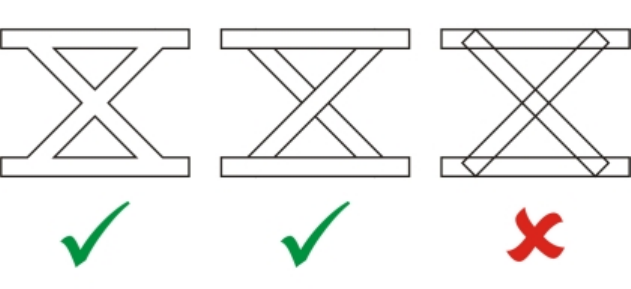
710 | Corel DESIGNER 2017 User Guide
TrueType Fonts (TTF) technical notes
• TrueType fonts exported from CorelDESIGNER are unhinted.
•Each exported character constitutes a single object. Before you export multiple objects, you must combine them by clicking Object
Combine. You cannot export multiple objects or grouped objects.
• Fill and outline attributes applied to objects are not exported.
• For best results, avoid intersecting lines. Any object in your character should lie completely inside or outside of others, as shown in the
following example.
Left to right: three objects correctly combined; five objects correctly combined; five objects incorrectly combined
Visio (VSD)
• VSD is the Visio drawing format. It can contain bitmaps and vectors.
• You can import all VSD file types, up to VSD 2007.
• Rectangle shapes are imported as rectangle objects.
• Circle and ellipse shapes are imported as ellipse objects.
• Curvygon, pentagon, hexagon, heptagon, octagon, and megagon shapes are imported as polygon objects.
• All other shapes are imported as polycurves.
WordPerfect Document (WPD)
The WordPerfect Document format (WPD) is the native file format for WordPerfect files. CorelDESIGNER supports WPD files from
WordPerfect 4.2 to the latest version. WordPerfect files for versions 4 and 5 have the file extensions .wp4 and .wp5.
For more information, see “General notes on importing text files” on page 714.
WordPerfect Document (WPD) technical notes
• When you import text from a WPD file, you can maintain formatting, maintain fonts and formatting, or discard fonts and formatting.
• When you import or export a WordPerfect file, only text is transferred. Graphic elements are not imported or exported.
• The following features are not supported: index functions, text in tables of contents, and style sheets.
• Equations and formulas created in the WordPerfect equation language are converted to regular text.
• Graphic features like HLine and VLine are not converted.
• When importing text, the page size in the original document is ignored. The text is fit to the current page size, which may affect the
placement of text.

Supported file formats | 711
WordPerfect Graphic (WPG)
The Corel WordPerfect Graphic file format (WPG) is primarily a vector graphic format, but it can store both bitmap and vector data. The WPG
files may contain up to 256 colors, chosen from a palette of more than 1 million colors.
To import a WordPerfect Graphic file
1Click File Import.
2Locate the folder in which the file is stored.
3Choose WPG - Corel WordPerfect Graphic (*.wpg) from the list box next to the File name box.
4Click the filename.
5Click Import.
6Click the drawing page.
Any embedded Windows Metafile Format (WMF) or Enhanced Metafile Format (EMF) graphics are preserved in the imported file. If
the file contains other graphic elements, these are lost during conversion and do not appear in CorelDESIGNER.
To export a WordPerfect Graphic file
1Click File Export.
2Locate the folder in which you want to save the file.
3Choose WPG - Corel WordPerfect Graphic from the Save as type list box.
4Type a filename in the File name list box.
5Click Export.
6Enable one of the following options in the Export colors area:
•16 colors — exports the image as a 16-color image
•256 colors — exports the image as a 256-color image
7Enable one of the following options in the Export text as area:
•Text — exports text as editable characters
•Curves — exports text as curves
8Enable one of the following options in the Export file as area:
•WordPerfect Version 1.0 — supported by WordPerfect 5.1 and earlier
•WordPerfect Version 2.0 — supported by WordPerfect 6 and later
WordPerfect Graphic (WPG) technical notes
• Graphics Text Type 2 is not supported.
RAW camera file formats
A RAW camera file is a data file captured by the image censor of a high-end digital camera. RAW camera files contain minimal in-camera
processing, such as sharpening or digital zoom, and they give you full control over the sharpness, contrast, and saturation of images.
Various RAW camera file formats exist, so the files can have different filename extensions, such as .nef, .crw, .dcr, .orf, or .mrw.
You can import RAW camera files directly into CorelDESIGNER. For more information, see “Working with RAW camera files” on page 605.
712 | Corel DESIGNER 2017 User Guide
Wavelet Compressed Bitmap (WI)
This file format is not supported by the 64-bit version of the suite.
Importing a WI file
• Corel programs support the following color depths when you import Wavelet Compressed Bitmap (.wi) files: 256-shade (8-bit) grayscale,
and 24-bit RGB.
Exporting a WI file
• Corel programs support the following color depths when you export to the Wavelet Compressed Bitmap file format: 256 shade (8-bit)
grayscale, 24-bit RGB.
• The Wavelet Compressed Bitmap file format supports Wavelet compression. It also supports a minimum image size of 16 pixels and a
maximum size of 2,048 pixels.
Windows Metafile Format (WMF)
Developed by Microsoft Corporation, this file format stores both vector and bitmap information. It was developed as the internal file format
for Microsoft Windows 3. It supports 24-bit RGB color and is supported by most Windows applications.
Windows Metafile Format (WMF) technical notes
Importing a WMF file
• CorelDESIGNER substitutes fonts that are missing from a file in the WMF format from similar fonts available on your computer.
• The following features are not supported: PANOSE font matching and rotated and skewed bitmaps.
Exporting a WMF file
• The WMF format is used to export graphics to Windows programs.
• A header contains additional information, such as sizing. Therefore, a WMF file can successfully be exported from CorelDESIGNER if the
header is included.
• Text is maintained as text when exported, and WMF files can be very large. This can cause problems in programs that limit the size of
imported files.
• The WMF format is 16 bits, while CorelDESIGNER is 32 bits. When you export a WMF file, the 32-bit numbers are converted to 16 bits.
For example, lines that are thinner than 0.01388 inch appear as hairlines because the WMF format does not have enough precision to
specify these widths accurately.
XML Localization Interchange (XLIFF)
XML Localization Interchange file format (XLIFF) is an XML-based format used to share translatable text between localization tools and
software. For more information, see “Working with translated text” on page 471.
Additional file formats
CorelDESIGNER also supports the following file formats:
• ANSI Text (TXT) — ANSI Text (TXT) is a vector format that stores ANSI characters. This format is able to store text information but not
formatting information, such as the font type or size. When a TXT file is imported to or exported from CorelDESIGNER, only the text is
transferred. If the file has graphic elements, they are not imported or exported.
• CALS Compressed Bitmap (CAL) — CALS Raster (CAL) is a bitmap format used mainly for document storage by high-end CAD programs.
It supports a monochrome (1-bit) color depth and is used as a data graphics exchange format for computer-aided design and
manufacturing, technical graphics, and image-processing applications.
• Corel ArtShow 5 (CPX) — The CPX file format is a native file format of Corel ArtShow 5. It can contain both vectors and bitmaps.

Supported file formats | 713
• Corel Presentations (SHW) — The SHW file format is a native format of Corel Presentations.
• Corel R.A.V.E.™ (CLK) — The CLK file format is an animation file format that is native to Corel R.A.V.E.
• CorelDRAW Compressed (CDX) — The CDX file format is a compressed CorelDRAW file.
• CorelDESIGNER or CorelDRAW Template (CDT) — The CDT file format is for a CorelDESIGNER or CorelDRAW template file.
• Encapsulated PostScript (Desktop Color Separation) — The DCS file format, developed by QuarkXPress, is an extension of the standard
encapsulated PostScript (EPS) file format. Typically, the DCS file format consists of five files. Four of the five files contain information
about high-resolution color. This information is expressed in CMYK (cyan, magenta, yellow and black) format. The fifth file, considered
the master file, contains a PICT preview of the DCS file.
• EXE — The EXE format is a Windows 3.x/NT bitmap resource and can store an ICO file as a Windows 3.x/NT icon resource.
• FPX — The FlashPix file format stores images at different resolutions in a single file. This file format is not supported by the 64-bit version
of the suite.
• Frame Vector Metafile (FMV) — The FMV file format is used for a Frame Vector Metafile.
• GEM Paint (IMG) — GEM Paint (IMG) is a bitmap format that is the native bitmap file format of the GEM environment. IMG files support
1- and 4-bit paletted color and are compressed by using an RLE method. IMG was a common format in the early days of desktop
publishing.
• GEM File (GEM) — The GEM file format is used for a GEM file.
• GIMP (XCF) — XCF is the native GIMP format. It supports layers and other GIMP-specific information.
• ICO — The ICO format is a Windows 3.x/NT icon resource.
• MacPaint Bitmap (MAC) — MacPaint (MAC) is a bitmap format that uses the filename extensions MAC, PCT, PNT, and PIX. It is the format
used by the MacPaint program that was included with the Macintosh 128. It supports only two colors and a palette of patterns. It is
used mainly by Macintosh graphics applications to store black-and-white graphics and clipart. The maximum size for MAC images is 720
× 576 pixels.
• Macromedia FreeHand (FH) — the FH format is the native vector file format for Macromedia Freehand. Corel graphics applications
support versions 7 and 8 of Macromedia FreeHand.
• MET Metafile (MET) — The MET file format is for a MET Metafile.
• Micrografx Picture Publisher 4 & 5 (PP4, PP5) — The PP4 file format is a native file format of Micrographx Picture Publisher 4. The PP5 file
format is a native file format of Micrographx Picture Publisher 5. This file format is not supported by the 64-bit version of the suite.
• Picture Publisher File (PPF) — The PPF file format is native to Micrografx Picture Publisher 6, 7, 8, 9, and 10. This file format is not
supported by the 64-bit version of the suite.
• Microsoft Excel (XLS) — The XLS file format is the native file format of a Microsoft Excel workbook.
• Microsoft PowerPoint (PPT) — The PPT file format is native to Microsoft PowerPoint.
• NAP Metafile (NAP) — The NAP file format is used for a NAP Metafile.
• PostScript Interpreted (PS or PRN) — PRN PostScript (PS or PRN) is a metafile format for PostScript printers. This format is written in ANSI
text. The PostScript Interpreted import filter can import PS, PRN, and EPS PostScript files.
• SCITEX CT Bitmap (SCT) — The SCT file format is used for importing 32-bit color and grayscale SCITEX images. SCITEX bitmaps are
created from high-end scanners. The bitmaps are then processed for output by film recorders or high-end page layout programs.
• XPixMap Image (XPM) — The XPM file format is used with an XPixMap Image file.
Recommended formats for importing graphics
The table below shows what file formats to use when you are importing graphics from other applications.
Application Recommended import format
Adobe Illustrator AI, PDF
AutoCAD DXF, DWG, HPGL (PLT files)
Text editors Clipboard and Paragraph text import

714 | Corel DESIGNER 2017 User Guide
Recommended formats for exporting graphics
When exporting graphics to be used in Adobe PageMaker, use the encapsulated PostScript file format if you have a PostScript printer. If you
have a non-PostScript printer, the WMF format is recommended.
The following table lists the recommended file formats for exporting to page layout and desktop publishing packages that have graphics
editing capabilities.
Application Recommended format
Adobe Illustrator AI
AutoCAD DXF
Macromedia FreeHand and other vector programs PCT, AI
WordPerfect Office WPG
Micrografx Designer CGM
The HPGL or DXF outlines formats are recommended for exporting graphics to be output to devices such as plotters and computer-driven
cutters.
General notes on importing text files
• When you import a text file into a Corel program, it appears almost the same as in the source program. However, some formatting
attributes and page layout features may not be supported. In such cases, the program tries to simulate the results of a feature when a
reasonable substitution can be made.
• The following word-processing features are not supported: headers, footers, footnotes and endnotes, columns, and macros.
• Font matching support is included. You can modify font-matching settings in the Font matching results dialog box. Fonts are converted
by size and by family, provided the source file format includes font family information that the program can access.
• Rich Text Format (.rtf) files are automatically converted to the Microsoft Windows ANSI (American National Standards Institute) character
set. The Macintosh Character Set and Standard IBM PC Code Page 437 are also supported.
• Corel graphics programs match characters as closely as possible. Font matching is used if the imported text font is not on the user’s
system. However, if a match cannot be made, the font characters appear in the program as unrecognizable text.
• Conversion of font sizes is supported.
• Corel graphics programs support all font families for the following word-processing programs and formats: Corel WordPerfect, Microsoft
RTF, Microsoft Word PC, Microsoft Word Macintosh, Word for Windows.
• Corel graphics programs support only selected fonts from the fonts supported by Ami Professional. This typically includes Standard
PostScript fonts and the Standard HP PCL fonts.
• When Macintosh files are converted, font support is limited to the supported font families of the Windows formats.
• Fonts converted to formats other than those listed in the table above are mapped to fonts that Corel graphics programs find as the best
fit.
• You may encounter alignment problems when converting from and to a proportional and nonproportional font. Therefore, if you import
a document created in a nonproportional font to a proportional font, some pages may have more text on a page than the original
document.
• Source documents that contain a table of contents and index are converted into the appropriate functions in an .rtf file.
• Data that is automatically outlined is converted to regular text.
Supported file formats | 715
• Style sheet properties are converted to RTF. The file appears as in the source program; however, the style sheet from the original program
is not imported.
• Text contained within a frame or a positioned object is retained.
716 | Corel DESIGNER 2017 User Guide
Customizing and automating | 717
Customizing and automating
Setting basic preferences..................................................................................................................................................................... 719
Customizing CorelDESIGNER............................................................................................................................................................... 721
Using macros to automate tasks......................................................................................................................................................... 737
718 | Corel DESIGNER 2017 User Guide

Setting basic preferences | 719
Setting basic preferences
This section includes the following topics:
•“Disabling warning messages” (page 719)
•“Viewing system information” (page 719)
Disabling warning messages
You may encounter warning messages while working in the application. Warning messages explain the consequences of an action you are
about to perform, and inform you of permanent changes that might result from that action. Although the warnings are helpful, you can
disable them so you don’t have to view them after you become familiar with the software. Avoid disabling warning messages until you are
comfortable with the application and familiar with the results of the commands you use.
To disable warning messages
1Click Tools Options.
2In the Workspace list of categories, click Warnings.
3Disable one or more of the check boxes.
Viewing system information
You can view information about your computer as well as information about the application itself. For example, you can view details about
your computer’s setup. You can view detailed information about your system, display and printing properties, Corel applications and DLL
files, and system DLL files. You can use this feature, for instance, to find out how much space you have on the drive to which you want to
save a file.
To view system information
1Click Help About CorelDESIGNER.
2Click System info.
3Choose a category from the Choose a category list box.

720 | Corel DESIGNER 2017 User Guide
Click the Save button to store system information for printing.

Customizing CorelDESIGNER | 721
Customizing CorelDESIGNER
You can customize your application by arranging command bars and commands to suit your needs and changing the color of window
borders. Command bars include menus, toolbars, the property bar, and the status bar.
Help topics are based on the application’s default settings. When you customize command bars, commands, and buttons, the Help topics
associated with them do not reflect your changes.
This section contains the following topics:
•“Saving and restoring defaults” (page 721)
•“Creating workspaces” (page 722)
•“Importing and exporting workspaces” (page 722)
•“Customizing workspace appearance” (page 723)
•“Customizing keyboard shortcuts” (page 725)
•“Customizing menus” (page 727)
•“Customizing toolbars” (page 728)
•“Customizing the toolbox” (page 731)
•“Customizing the property bar” (page 731)
•“Customizing the status bar” (page 733)
•“Customizing filters” (page 734)
•“Customizing file associations” (page 734)
Saving and restoring defaults
Many application settings apply to the active drawing only. These include page layout options, grid and ruler settings, guideline settings,
style options, save options, some tool settings, and web publishing options. Saving the current settings as defaults lets you use the settings
of the active drawing for all new drawings you create. You can also choose to save only specific settings as defaults.
You can restore the default settings by resetting the current workspace.
To save current settings as defaults
•Click Tools Save settings as default.

722 | Corel DESIGNER 2017 User Guide
To save specific settings as defaults
1Click Tools Options.
2In the list of categories, click Document.
3Enable the Save options as defaults for new documents check box.
4Enable the check boxes that correspond to the options you want to save.
To reset the current workspace
1Exit the application.
2Restart the application while holding down F8.
Creating workspaces
You can create workspaces to make more accessible the tools that you use most often. For example, you can open dockers or add tools to
toolbars. You can also delete the custom workspaces that you create.
Before creating a workspace, you can try the workspaces that are included with the application. These workspaces are optimized for a
number of common workflows. For more information, see “Choosing a workspace” on page 73.
To create a workspace
1Click Tools Options.
2In the list of categories, click Workspace.
3Click New.
4Type the name of the workspace in the Name of new workspace box.
5From the Base new workspace on list box, choose an existing workspace on which to base the new workspace.
If you want to include a description of the workspace, type a description in the Description of new workspace box.
To delete a workspace
1Click Tools Options.
2In the list of categories, click Workspace.
3Choose a workspace from the Workspace list.
4Click Delete.
You cannot delete the Default workspace.
Importing and exporting workspaces
You can import custom workspaces created on other computers or in other versions of the application (back to version X6). When importing
a workspace, you can select which workspace elements to import. For example, you can import docker settings and position, but you can
discard application settings such as startup options. You can also import the selected workspace elements into the current workspace or into
a new workspace. You can base the new workspace on one of the available workspaces, and you can give it a name and description.
You can also export the workspaces that you create to share them with others.

Customizing CorelDESIGNER | 723
To import a workspace
1Click Window Workspace Import.
2In the Open dialog box, locate the workspace file you want to import, and click Open.
3In the Import Workspace dialog box, select the workspace elements that you want to import. By default, all workspace elements are
selected.
4Enable one of the following options:
•Current workspace — to replace the workspace elements of the current workspace with the imported workspace elements. For
example, if you choose to import all toolbars, the toolbars of the current workspace are replaced with the imported ones.
•New workspace — creates a workspace that includes the imported workspace elements
You can also
Specify the name of the new workspace Type a name in the Name box.
Base the new workspace on an existing workspace Choose a workspace from the Base on list box.
The imported workspace elements will be merged with the base
workspace.
Add a workspace description Type a description in the Description box.
Any new features that were not available when the workspace was created are added to the imported workspace. The new features
may not be in the same location as they appear in the default workspace.
Custom icons may not be scaled properly in imported workspaces created in versions X6 and X7.
To export a workspace
1Click Window Workspace Export.
2Enable the check boxes beside the workspace items you want to export.
3Click Save.
4Choose the folder where you want to save the file.
5Type a filename in the File name box.
6Click Save.
7Click Close.
The workspace items available for export are dockers, toolbars (including the property bar and toolbox), menus, and shortcut keys.
A workspace is exported as a .cdws file.
Customizing workspace appearance
You can customize the size of user interface items, choose a theme, and change the color of window borders and the desktop.
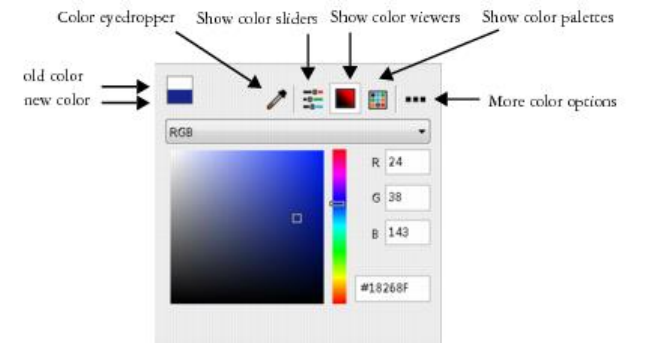
724 | Corel DESIGNER 2017 User Guide
Scaling
You can change the size of user interface (UI) items by changing the scaling level. The scaling level is relative to the scaling level of the
operating system. The default setting is 100%, which means that UI items in the application appear the same size as similar UI items in the
operating system. Scaling by 200% makes the application UI items appear twice as large as the UI items of the operating system.
Theme
To make the workspace lighter or darker, you can choose one of the following themes: Light, Medium, or Dark.
Window border color
You can customize the application window and dialog boxes by changing the color of their borders.
Desktop color
You can change the color of the desktop, the area surrounding the drawing page, to suit your documents. For example, if the document
contains dark colors, you can change the desktop color from white to gray for lower contrast.
Choosing colors
To choose the color you want for the desktop and window borders, you can quickly sample any onscreen color; or you can use color sliders,
color viewers, or color palettes.
Various tools are available to help you change the desktop or window border color.
To set the scaling level for UI items
1Click Tools Options.
2In the Workspace list of categories, click Appearance.
3In the Size area, move the slider to the right for larger UI items, and to the left for smaller UI items.
To choose a theme
1Click Tools Options.
2In the Workspace list of categories, click Appearance.
3In the Color area, choose a theme from the Theme list box.
To change the color of window borders
1Click Tools Options.
2In the Workspace list of categories, click Appearance.
Customizing CorelDESIGNER | 725
3In the Color area, open the Window border color picker, and choose a color.
To change the desktop color
1Click Tools Options.
2In the Workspace list of categories, click Appearance.
3In the Color area, open the Desktop color picker, and choose a color.
To specify a color by using various color tools
• In the Color area, open the Desktop or Window border color picker, and perform a task from the following table.
To Do the following
Sample a color Click the Color eyedropper tool , and click an onscreen color.
Use color sliders Click the Show color sliders button , choose a color mode
from the list box, and move the sliders.
Use a color viewer Click the Show color viewers button , choose a color mode
from the list box, and click a color on the color viewer.
Choose a color from a color palette Click the Show color palettes button , choose a color palette
from the Palette Libraries, and click a color. To adjust the tint, move
the Tint slider.
Access additional color options Click the More color options button , and choose an option.
The options are dependent on the selected method such as
sampling or using a color viewer, color sliders or a color palette.
Customizing keyboard shortcuts
Although your application has preset keyboard shortcuts, you can change them, or add your own shortcuts, to suit your working style. You
can assign keyboard shortcuts to the commands that you use the most, and you can delete keyboard shortcuts.
You can print a list of keyboard shortcuts. You can also export a list of keyboard shortcuts to the CSV file format — a comma delimited
format that is easily opened by word processors and spreadsheet applications.
When you change keyboard shortcuts, the changes are saved in a file called an accelerator table. Your application comes with the following
accelerator tables which can be customized to suit your work habits:
• Anchor editing table — contains shortcut keys for anchor editing
• Curve editing table — contains shortcut keys for editing curves
• Main table — contains all non-text-related shortcut keys
• Print preview — contains shortcut keys for print preview options
• Table editing table — contains non-text-related shortcut keys for table editing
• Table text editing table — contains shortcut keys for editing text in tables
• Text editing table — contains all text-related shortcut keys

726 | Corel DESIGNER 2017 User Guide
To assign a keyboard shortcut to a command
1Click Tools Customization.
2In the Customization list of categories, click Commands.
3Click the Shortcut keys tab.
4Choose a shortcut key table from the Shortcut key table list box.
5Choose a command category from the top list box.
6Click a command in the Commands list.
The shortcut keys currently assigned to the selected command are displayed in the Current shortcut keys box.
7Click the New shortcut key box, and press a key combination.
If the key combination is already assigned to another command, that command is listed in the Currently assigned to box.
8Click Assign.
If the same keyboard shortcut is already assigned to another command, the second assignment overwrites the first. By enabling
the Navigate to conflict on assign check box, you can automatically navigate to the command whose shortcut you reassigned,
prompting you to assign a new shortcut.
You can view all of the existing keyboard shortcuts by clicking View all.
To delete a keyboard shortcut
1Click Tools Customization.
2In the Customization list of categories, click Commands.
3Click the Shortcut keys tab.
4Choose a shortcut key table from the Shortcut key table list box.
5Choose a command category from the top list box.
6Click a command in the Commands list.
7Click a shortcut key in the Current shortcut keys box.
8Click Delete.
To print keyboard shortcuts
1Click Tools Customization.
2In the Customization list of categories, click Commands.
3Click the Shortcut keys tab.
4Click View all.
5Click Print.
To export a list of keyboard shortcuts
1Click Tools Customization.
2In the Customization list of categories, click Commands.
3Click the Shortcut keys tab.
4Click View all.
5Click Export to CSV.

Customizing CorelDESIGNER | 727
6Choose the folder where you want to save the file.
7Type a filename in the File name box.
8Click Save.
Customizing menus
Corel customization features let you modify the menu bar and the menus it contains. You can change the order of menus and menu
commands; add, remove, and rename menus and menu commands. You can search for a menu command if you do not remember the
menu in which it belongs. You can also reset menus to the default setting.
The customization options apply to the menu bar menus as well as to shortcut menus that you access by right-clicking.
Help topics are based on the application’s default settings. When you customize menus and menu commands, the Help topics associated
with them do not reflect your changes.
To change the order of menus and menu commands
1Click Tools Customization.
2In the Customization list of categories, click Commands.
3In the application window, drag a menu on the menu bar to the left or right.
If you want to change the order of menu commands, click a menu on the menu bar, click a menu command, and drag it up or down.
If you want to change the order of context menu commands, right-click in the application window to display the context menu, and
drag a menu command to a new position.
To rename a menu or menu command
1Click Tools Customization.
2In the Customization list of categories, click Commands.
3Choose a command category from the top list box.
4Click a menu or command in the list.
5Click the Appearance tab.
6Type a name in the Caption box.
An ampersand (&) before a letter in the Caption box indicates a shortcut, also known as an accelerator key. Menus are displayed by
pressing Alt + the letter. Commands are invoked by pressing the letter that is underlined when the menu is displayed.
You can reset the name to the default by clicking Restore defaults.
To add or remove an item on the menu bar
1Click Tools Customization.
2In the Customization list of categories, click Commands.
If you want to remove an item, drag it off the menu bar.
3Choose a command category from the top list box.
4Drag an item to the menu bar.
728 | Corel DESIGNER 2017 User Guide
To add or remove a command on a menu
1Click Tools Customization.
2In the Customization list of categories, click Commands.
If you want to remove a command from a menu, click the menu name, and when the menu displays, drag the command off the menu.
3Choose a command category from the top list box.
4Drag a command to a menu in the application window.
To find a menu command quickly
1Click Tools Customization.
2In the Customization list of categories, click Commands.
3Click the Search button .
4In the Find text dialog box, type the menu command in the Find what box.
5Click Find next.
To reset menus to the default setting
1Click Tools Customization.
2In the Customization list of categories, click Command bars.
3Choose Menu bar from the list.
4Click Reset.
Customizing toolbars
You can customize toolbar position and display. For example, you can move or resize a toolbar, and you can choose to hide or display a
toolbar.
Toolbars can be either docked or floating. Docking a toolbar attaches it to the edge of the application window. Undocking a toolbar pulls it
away from the edge of the application window, so it floats and can be easily moved around.
You can create, delete, and rename custom toolbars. You can customize toolbars by adding, removing, and arranging toolbar items. You can
adjust toolbar appearance by resizing buttons; and displaying images, captions, or both. You can also edit toolbar button images.
When moving, docking, and undocking toolbars, you use the grab area of the toolbar.
For a The grab area is
Docked and unlocked toolbar Identified by a dotted line at the top or left
edge of the toolbar
Floating toolbar The title bar. If the title is not displayed, the
grab area is identified by a dotted line at
the top or left edge of the toolbar.
If you do not want to move docked toolbars by mistake, you can lock them. Locked toolbars do not have a dotted line along their left edge.

Customizing CorelDESIGNER | 729
A locked toolbar
To customize toolbar position and display
To Do the following
Move a toolbar Unlock the toolbar, click the toolbar’s grab area, and drag the
toolbar to a new position.
Dock a toolbar Click the toolbar’s grab area, and drag the toolbar to any edge of
the application window.
Undock a toolbar Unlock the toolbar, click the toolbar’s grab area, and drag the
toolbar away from the edge of the application window.
Resize a floating toolbar Point to the edge of the toolbar and, using the two-directional
arrow, drag the edge of the toolbar.
Hide or display a toolbar Click Tools Customization. In the Customization list of
categories, click Command bars, and disable or enable the check
box next to the toolbar name.
Reset a toolbar to its default setting Click Tools Customization. In the Customization list of
categories, click Command bars, click a toolbar, and click Reset.
Docked toolbars cannot be moved when they are locked. For information about unlocking toolbars, see “To lock or unlock toolbars”
on page 731.
To add, delete, or rename a custom toolbar
To Do the following
Add a custom toolbar Click Tools Customization. In the Customization list of
categories, click Command bars, click New, and type a name in
the Command bars list. Holding down Alt + Ctrl, drag a tool or
button in the application window to the new toolbar. You can also
drag commands from the Commands list (Tools Customization
Commands).
Delete a custom toolbar Click Tools Customization. In the Customization list of
categories, click Command bars, click a toolbar, and click Delete.

730 | Corel DESIGNER 2017 User Guide
To Do the following
Rename a custom toolbar Click Tools Customization. In the Customization list of
categories, click Command bars, click a toolbar name twice, and
type a new name.
To add or remove an item on a toolbar
1Click Tools Customization.
2In the Customization list of categories, click Commands.
3Choose a command category from the top list box.
4Drag a toolbar item from the list to a toolbar in the application window.
If you want to remove an item from a toolbar, drag the toolbar item off the toolbar.
To arrange toolbar items
1Click Tools Customization.
2In the Customization list of categories, click Commands.
3On the toolbar in the application window, drag the toolbar item to a new position.
If you want to move a toolbar item to another toolbar, drag the toolbar item icon from one toolbar to the other.
You can copy a toolbar item to another toolbar by holding down Ctrl while dragging a toolbar item. If the Options dialog box is not
open, you must hold down Alt+Ctrl.
To modify toolbar appearance
1Click Tools Customization.
2In the Customization list of categories, click Command bars.
3Click a toolbar name in the list.
If you want to choose multiple toolbars, hold down Ctrl, and click the other toolbar names.
4Choose a size from the Button list box.
5From the Default button appearance list box, choose one of the following:
•Caption only
•Caption to right of image
•Default
•Image only
If you want to hide the title when the toolbar is floating, disable the Show title when toolbar is floating check box.
You can reset a built-in toolbar to its default settings by clicking Reset.
To edit a toolbar button image
1Click Tools Customization.
2In the Customization list of categories, click Commands.
3Choose a command category from the top list box.

Customizing CorelDESIGNER | 731
4Click a toolbar command.
5Click the Appearance tab.
6Edit the button image using the options in the Imagearea.
When you choose either Small or Medium in the Size list box, you edit the small or medium versions of a particular button image.
You cannot edit the large version of a button image. For information about how to display all buttons as small, medium, or large, see
“To modify toolbar appearance” on page 730.
You can reset toolbar button images to the default settings by clicking Restore defaults.
To lock or unlock toolbars
•Click View Toolbars Lock toolbars.
The Lock toolbars command is enabled when a check mark appears beside it. When you launch the application for the first time, the
toolbars are locked by default.
Floating toolbars cannot be locked.
You can also lock or unlock toolbars by right-clicking a toolbar and clicking Lock toolbars.
Customizing the toolbox
You can add or remove tools from the toolbox. If you modify the toolbox, you can reset the default settings at any time.
To customize the toolbox
1On the toolbox, click the Quick customize button .
2Enable or disable any of the check boxes.
You can also
Reset the toolbox Click the Reset toolbar button.
Customize the toolbox Click the Customize button.
Customizing the property bar
You have control over the placement and content of the property bar. You can move the property bar anywhere on screen. Placing it inside
the application window creates a floating property bar. Placing it on any of the four sides of the application window docks it, making it part
of the window border.
732 | Corel DESIGNER 2017 User Guide
When moving, docking, or undocking the property bar, you use the grab area of the property bar, which is the same as the grab area of a
toolbar. For more information about the grab area, see “Customizing toolbars” on page 728.
You can also customize the property bar by adding or removing tools. This lets you customize what appears on the property bar when you
choose various tools. For example, when the Text tool is active, you can have the property bar display additional commands for text-related
tasks such as increasing or decreasing font size, or changing case. You can also reset the property bar to its default settings.
To position the property bar
To Do the following
Move the property bar Unlock the property bar, click the property bar’s grab area, and
drag the property bar to a new position.
Undock the property bar Click the property bar’s grab area, and drag the property bar away
from the edge of the application window.
Dock the property bar Click the property bar’s grab area, and drag the property bar to any
edge of the application window.
To add or remove a toolbar item on the property bar
1On the property bar, click the Quick customize button .
2Enable or disable the check boxes next to the items that you want to add or remove.
You can also
Reset the toolbox Click the Reset toolbar button.
Customize the toolbox Click the Customize button.
The new item is displayed on the property bar for the active tool or task. When the property bar content changes, the item is not
displayed. The new item is displayed again when the related tool or task is activated.
You can also customize the property bar by clicking Tools Customization. In the Customization list of categories, click
Commands, choose a command category from the top list box, and then drag a toolbar item from the list to the property bar. If you
want to remove an item from the property bar, drag the toolbar item icon off the property bar.
To rearrange toolbar items on the property bar
1Click Tools Customization.
2In the Customization list of categories, click Commands.
3Drag the toolbar item icon to a new position on the property bar.

Customizing CorelDESIGNER | 733
Customizing the status bar
The status bar displays information about selected objects, such as color, fill type, and outline. The status bar also shows the current cursor
position and relevant commands. In addition, it displays document color information, such as the document color profile and color proofing
status. You can customize the status bar by changing the information that is displayed and by resizing it. You can also customize the status
bar by adding, removing, and resizing toolbar items. In addition, you can restore the status bar to its default settings. You can also place the
status bar at the top of the application window to see the displayed information more easily.
To change the information the status bar displays
•Click the flyout button next to the displayed information and choose one of the following options:
•Cursor position
•Object details
•Color information
•Information about selected tool
To resize the status bar
1Click Tools Customization.
2In the Customization list of categories, click Command bars.
3Click Status bar, and enable the check box.
4Type 1 or 2 in the Number of lines when docked box.
To add or remove a toolbar item on the status bar
1Click Tools Customization.
2In the Customization list of categories, click Commands.
3Choose a command category from the top list box.
4Drag a toolbar item from the list to the status bar.
If you want to remove a toolbar item from the status bar, drag the item off the status bar.
To resize toolbar items on the status bar
1Click Tools Customization.
2In the Customization list of categories, click Command bars.
3Click Status bar, and enable the check box.
4Choose one of the following options from the Button list box:
•Small
•Medium
•Large
Only toolbar items you have added to the status bar are affected by resizing. The size of the default icons remains unchanged.
To change the position of the status bar
•Right-click the status bar, click Customize Status bar Position, and click Top or Bottom.

734 | Corel DESIGNER 2017 User Guide
To restore the status bar default settings
•Right-click the status bar, and click Customize Status bar Reset to default.
Customizing filters
Filters are used to convert files from one format to another. They are organized into four types: raster, vector, animation, and text. You can
customize filter settings by adding or removing filters so that only the filters you need are loaded. You can also change the order of the list
of filters and reset filters to the default setting.
To add a filter
1Click Tools Options.
2In the list of categories, double-click Global, and double-click Filters.
3Double-click a type of filter in the Available file types list.
4Click a filter.
5Click Add.
To remove a filter
1Click Tools Options.
2In the list of categories, double-click Global, and click Filters.
3Click a filter in the List of active filters.
4Click Remove.
To change the order of the list of filters
1Click Tools Options.
2In the list of categories, double-click Global, and click Filters.
3Click a filter in the List of active filters.
4Click one of the following:
•Move up — moves the filter up the list
•Move down — moves the filter down the list
You can reset the List of active filters to the default setting by clicking Reset.
Customizing file associations
You can associate a number of different file types with Corel applications. When you double-click a file you have associated with an
application, the application starts and the file opens. When you no longer need a file type association, you can break it.
To associate a file type with CorelDESIGNER
1Click Tools Options.
2In the list of categories, double-click Global, and click Filters.
3Click Associate.
4In the Associated file extensions with Corel DESIGNER list, enable the check box of the file type you want to associate.

Customizing CorelDESIGNER | 735
Associating a file type with an application adds the application to the list of recommended programs for opening this file type. To
open a file of an associated file type in CorelDESIGNER while browsing in Windows, you also need to make CorelDESIGNER the
default program. To do this, click the Start button on the Windows taskbar, and then click Default programs. Next, click Associate
a file type or protocol with a program. For detailed instructions about how to change the default program for a file type, see the
Windows Help.
You can reset file associations by clicking Reset.
To break a CorelDESIGNER file type association
1Click Tools Options.
2In the list of categories, double-click Global, and click Filters.
3Click Associate.
4In the Associated file extensions with Corel DESIGNER list, disable the check box of the file type association you want break.
You can reset file associations by clicking Reset.
736 | Corel DESIGNER 2017 User Guide
Using macros to automate tasks | 737
Using macros to automate tasks
You can use macros to speed up repetitive tasks, combine multiple or complex actions, or make an option more easily accessible. You create
macros by using the built-in features for Visual Basic for Applications (VBA) or Visual Studio Tools for Applications (VSTA).
Using a macro is similar to using the speed-dialing feature on a phone. On many phones, you can set a frequently dialed number to a speed-
dial button; then, the next time you need to dial that number, you can save time by pressing its speed-dial button. Similarly, a macro lets you
set the actions that you want to repeat; then, the next time that you need to repeat those actions, you can save time by playing that macro.
This section contains the following topic:
•“Working with macros” (page 737)
Working with macros
You can save time by using a macro to automate a series of repetitive tasks. A macro lets you specify a sequence of actions so that you can
quickly repeat those actions later.
You don’t need any programming experience to use macros — in fact, the basic tools for working with macros are available within the
main application window. However, if you want to have more control over your macros, you can use the following built-in programming
environments:
• Microsoft Visual Studio Tools for Applications (VSTA) — the successor to VBA, and an excellent choice for developers and other
programming experts. VSTA provides the tools and features that you need to create the most advanced macro projects.
• Microsoft Visual Basic for Applications (VBA) — a subset of the Microsoft Visual Basic (VB) programming environment, and an excellent
choice for beginners. You can use VBA to create basic macros for personal use, but you can also use it to create more advanced macro
projects.
For detailed information on the differences between VBA and VSTA, please see the programming guide on the Developer area on the
CorelDRAW community website.
Getting started with macros
The macro features for VBA and VSTA are installed with the software by default, but you can manually install these features if necessary. You
can specify options for the VBA feature.

738 | Corel DESIGNER 2017 User Guide
To use VSTA macro features with CorelDESIGNER, you must have Microsoft Visual Studio 2012 or later installed. To use the VSTA
Editor, you must first install Microsoft Visual Studio 2012, 2013 or 2015, Community, Professional, Premium, Ultimate or Enterprise
Edition; and then reinstall Microsoft Visual Studio Tools for Applications 2015 from microsoft.com.
If you install Microsoft Visual Studio after installing CorelDRAW Technical Suite, you must re-install the VSTA macro features by
modifying your CorelDRAW Technical Suite installation. For more information, see “To manually install the macro features” on page
739.
The macro features provide several tools for working with macros in the main application window:
• Macros toolbar — provides easy access to common macro functions
• Macro Manager docker — provides easy access to all available macro projects for VBA, and to basic functions for working with those
projects
• Macro Editor (formerly the Visual Basic Editor) — provides advanced functions for creating VBA-based macro projects
• VSTA Editor — provides advanced functions for creating VSTA-based macro projects. The VSTA Editor is accessible only if you have
Microsoft Visual Studio 2012, 2013 or 2015 installed.
Creating macros
Macros are stored in modules (also called “code modules”), which are stored in macro projects. The Macro Manager docker lets you view
and manage all of the macro projects, modules, and macros that are available to you.
You can use the Macro Manager docker to create macro projects in the form of Global Macro Storage (GMS) files or Corel VSTA Projects
(CGSaddon). Using such files is an excellent way to bundle the components of your macro project for sharing with others. You can use the
Macro Manager docker to open (or “load”) the macro projects that you create, as well as the macro projects that install with the software
or that are otherwise made available to you. You can also use the Macro Manager docker to rename macro projects, as well as to copy and
close (or “unload”) GMS-based and VSTA macro projects.
Some macro projects are locked and cannot be modified.
When you create a document, a macro project for that document is automatically added to the Macro Manager docker. Although
you can store macros within the macro project for a document — for example, to create an all-in-one template — it is recommended
that you instead use GMS files to store your macro projects.
Each macro project contains at least one module. You can use the Macro Manager docker to add a module to a VBA-based macro project,
or to open existing modules for editing. You can also use the Macro Manager docker to rename or delete VBA modules.
The editing feature is disabled for some modules.
Finally, you can use the Macro Manager docker to create macros within the available modules. You don’t need any programming experience
to create macros; however, if you have programming experience and want to edit VBA macros, you can do so by using the Macro Editor. You
can also use the Macro Manager docker to rename and delete VBA macros.
Recording macros
You can record macros and save them for later use.
You can also record temporary macros for actions that you need to repeat only a few times. A temporary macro is accessible until a new
temporary macro is recorded.

Using macros to automate tasks | 739
The recording feature is disabled for some macro projects.
Before recording a macro, make sure that you know exactly which actions you want to record and the order in which you want
to record them. When you start recording, the macro recorder captures every change that you make in a drawing. For example, if
you create a shape, resize the shape, and then change its color, the macro records all the changes. When you are done making the
changes, you must stop recording the macro.
Playing macros
You can perform the actions that are associated with a macro by playing that macro.
You can also play a temporary macro.
Learning more about macros
The Developer area on the CorelDRAW community website can help you with its wealth of useful resources: a programming guide, detailed
Object Model reference documentation with code samples, object model diagrams, and in-depth programming articles and tutorials.
The Object Model reference documentation, also referred to as API documentation, includes help on every feature and function that can
be automated in the applications. (Collectively, these features and functions are called an “object model.”) You can easily access relevant
documentation from within the Macro Editor.
The Object Model diagrams provide a hierarchical representation of the features and functions that can be automated in CorelDRAW, Corel
PHOTO-PAINT, and CorelDESIGNER.
For more detailed information about VBA and its programming environment, please consult the Microsoft Visual Basic Help from the
Help menu in the Macro Editor.
For more detailed information about VSTA and its programming environment, please consult the Help menu in the VSTA Editor.
To manually install the macro features
1On the Windows Control Panel, click Uninstall a program.
2Double-click CorelDRAW Technical Suite 2017 on the Uninstall or change a program page.
3Enable the Modify option in the wizard that appears, and follow the instructions.
4On the Features page of the installation wizard, enable the following check boxes in the Utilities list box:
•Visual Basic for Applications
•Visual Studio Tools for Applications
The macro features for VBA and VSTA are installed with the software by default.
To specify VBA options
1Click Tools Options.
2In the Workspace list of categories, click VBA.
3In the Security area, specify how to control the risk of running malicious macros by clicking Security options.
If you want to bypass this security feature, enable the Trust all installed GMS modules check box, and then proceed to step 6.
4On the Security level page of the Security dialog box, enable one of the following options:
740 | Corel DESIGNER 2017 User Guide
•Very high — allows only macros installed in trusted locations to run. All other signed and unsigned macros are disabled.
•High — allows only signed macros from trusted sources to run. Unsigned macros are automatically disabled.
•Medium — lets you choose which macros run, even if they are potentially harmful
•Low (not recommended) — allows all potentially unsafe macros to run. Enable this setting if you have virus-scanning software
installed, or if you check the safety of all documents that you open.
5On the Trusted publishers page of the Security dialog box, review which macro publishers are trusted. Click View to display details on
the selected macro publisher, or click Remove to delete the selected macro publisher from the list.
If desired, you can enable or disable the Trust access to Visual Basic project check box for the selected macro publisher.
6Disable the Delay load VBA check box if you want to load the VBA feature at start-up.
To access the macro tools
To Do the following
Display the Macros toolbar Click View Toolbars Macros.
A check mark next to the command indicates that the toolbar is
displayed.
Display the Macro Manager docker Do one of the following:
•Click Tools Macros Macro Manager.
•Click the Macro Manager button on the Macros toolbar.
Display the Macro Editor Do one of the following:
•Click Tools Macros Macro Editor.
•Click the Macro Editor button on the Macros toolbar.
•Right-click Visual Basic for Applications in the Macro Manager
docker, and then click Show IDE.
Display the VSTA Editor Click Tools Macros VSTA Editor. (VSTA must be installed on
your computer.)
To create a macro project
• In the Macro Manager docker, do one of the following:
• Click Visual Studio Tools for Applications in the list, click New, and then click New macro project.
• Click Visual Basic for Applications in the list, click New, and then click New macro project.
You can also
Open (or “load”) a macro project Do one of the following:
•Click Visual Studio Tools for Applications in the list, click Load,
and then choose the project.
•Click Visual Basic for Applications in the list, click Load, and
then choose the project.
Rename a macro project Right-click the project in the list, and then click Rename.
Using macros to automate tasks | 741
You can also
Copy a GMS-based macro project Right-click the project in the list, click Copy to, and then choose the
target location for the copied project.
NOTE: You cannot copy a document-based macro project. Such
projects are stored within a document and cannot be managed
separately from that document.
Display or hide all modules in the list Click the Simple mode button .
Add a module to a VBA macro project Do one of the following:
•Click the project in the list, click New, and then click New
module.
•Right-click the project in the list, and then click New module.
Edit a module in a VBA macro project Do one of the following:
•Click the module in the list, and then click the Edit button .
•Right-click the module in the list, and then click Edit.
Rename a module in a macro project Right-click the module in the list, and then click Rename.
Delete a module from a macro project Do one of the following:
•Click the module in the list, and then click the Delete button
.
•Right-click the module in the list, and then click Delete.
Close (or “unload”) a GMS-based macro project Right-click the macro project in the list, and then click Unload
macro project.
NOTE: You can close a document-based macro project only by
closing the document in which it is stored.
Some macro projects are locked and cannot be modified.
To create a macro
• In the Macro Manager docker, do one of the following:
• Click the container you want, click New, and then click New macro.
• Right-click the desired container module, and then click New macro.
You can also
Edit a macro Do one of the following:
•Click the macro in the list, and then click the Edit button .
•Right-click the macro in the list, and then click Edit.
742 | Corel DESIGNER 2017 User Guide
You can also
Delete a macro Do one of the following:
•Click the macro in the list, and then click the Delete button .
•Right-click the macro in the list, and then click Delete.
Some macro projects are locked and cannot be modified.
To record a macro
1Click Tools Macros Start recording.
The Record macro dialog box appears.
2In the Macro name box, type a name for the macro.
Macro names can contain numerals, but they must begin with a letter. Macro names cannot contain spaces or non-alphanumeric
characters other than underscores ( _ ).
3Type a description of the macro in the Description box, and then click OK.
4Perform the actions that you want to record.
The application begins recording your actions. If you want to pause recording, click Tools Macros Pause recording. Repeat this step
to resume recording.
5To stop recording, click Tools Macros Stop recording.
You cannot record a macro if all available macro projects are locked.
Not all actions can be recorded — some because of their complexity (although many such actions can be manually coded in the
Macro Editor). When an action cannot be recorded, a comment is placed in the macro code (“The recording of this
command is not supported.”), but the recording process continues until you stop it. You can view any comments in the code
by opening the macro in the Macro Editor.
By default, macros are recorded in the GlobalMacros project so that they can be accessed from other documents. However, you can
change the default macro project for recordings by right-clicking another project in the Macro Manager docker, and then clicking
Set as recording project. You cannot specify a locked macro project.
You can cancel recording a macro, and discard any commands recorded thus far, by clicking Tools Macros Cancel recording.
You can also record, pause, and stop recording a macro by using the Macros toolbar or the Macro Manager docker (Tools Macros
Macro Manager).
You can also
Save the actions in the Undo list as a VBA macro Click Edit Undo manager, perform the actions that you want to
record, and then click the Save list to a VBA macro button in
the Undo manager docker.
To record a temporary macro
1Click Tools Macros Record temporary macro.
Using macros to automate tasks | 743
2Perform the actions that you want to record.
The application begins recording your actions. If you want to pause recording, click Tools Macros Pause recording. Repeat this step
to resume recording.
3To stop recording, click Tools Macros Stop recording.
The macro is temporarily saved to the default recording project. When the current session is ended, the macro is deleted from that
project.
You cannot record a temporary macro if all available macro projects are locked.
Not all actions can be recorded.
By default, macros are recorded in the GlobalMacros project so that they can be accessed from other documents. However, you
can change the default recording project by right-clicking another project in the Macro Manager docker, and then clicking Set
as recording project. (You cannot specify a locked macro project.) If you want, you can create multiple temporary recordings by
assigning each one to its own macro project.
You can cancel recording a macro, and discard any commands recorded thus far, by clicking Tools Macros Cancel recording.
You can also pause and stop recording a temporary macro by using the Macros toolbar or the Macro Manager docker (Tools
Macros Macro Manager).
To play a macro
• Do any of the following:
•Click Tools Macros Run macro, or click the Run macro button on the Macros toolbar. From the Macros in list box, choose
the project or file in which the macro is stored. From the Macro name list, choose the macro. Click Run.
• In the Macro Manager docker, double-click the macro in the list.
•In the Macro Manager docker, click the macro in the list, and then click the Run button .
• In the Macro Manager docker, right-click the macro in the list, and then click Run.
To play a temporary macro
•Click Tools Macros Run temporary macro.
This option is enabled only after you record a temporary macro.
If you have created multiple temporary macros, you must specify which macro project contains the one that you want to run. Right-
click the project in the Macro Manager docker, and then click Set as recording project.
To access Object Model reference documentation from within the Macro Editor
1While in Microsoft Visual Basic for Applications, press F2 to display the Object Browser.
The Object Browser displays all the features and functions that can be automated in the Macro Editor.
2Choose VGCore from the Library list box.
The Object Browser is updated to display only the features and functions of CorelDESIGNER that can be automated in the Macro Editor.
Collectively, these features and functions are called an “object model.”
3Click an item in the Object Browser, and press F1.

744 | Corel DESIGNER 2017 User Guide
You can also display information for any item in the Code window of the Macro Editor by clicking that item and pressing F1.
Reference | 745
Reference
Comparing features............................................................................................................................................................................. 747
Glossary............................................................................................................................................................................................... 751
746 | Corel DESIGNER 2017 User Guide

Comparing features | 747
Comparing features
If you are moving from another technical graphics program, you will find many familiar features in CorelDESIGNER. However, some of these
features have different names.
The following table lists features and standard industry terms used in other technical graphics programs that have different names in
CorelDESIGNER.
Technical graphic term Corel DESIGNER feature
Banner Status bar
Bevel Chamfer
Block select Marquee select (definition: marquee select)
Block text Paragraph text (see “Adding paragraph text ” on page 415)
Bounding box Selection box
Canvas Drawing window
Clone Duplicate
Color depth Color mode
Construction lines Guidelines
Dynamic snap Snap to point (see Gravity snapping)
Edit image Edit bitmap

748 | Corel DESIGNER 2017 User Guide
Technical graphic term Corel DESIGNER feature
Fillet Rounded corner
Freeform text Artistic text (see “Adding artistic text ” on page 415)
Gradient fill Fountain fill (see “Applying fountain fills ” on page 340)
Image fill Bitmap pattern fill (see “Applying pattern fills ” on page 347)
Line attributes Line settings
Line style overall width Pattern width
Line style width Outline width
Magnetism Gravity snapping
Magnify Magnify lens
Masked object PowerClip object
Object explorer Object Manager
Object fill 2-color or full color pattern fill (see “To apply a two-color pattern
fill ” on page 347)
Hotspots Object Data Manager
Page manager Page sorter view
Palette window Toolbox
Path text Text fit to path (see “Fitting text to a path ” on page 429)
Pivot point Center of rotation
Prompt and report area Status bar
Reflection Flipping objects
Ribbon Property bar

Comparing features | 749
Technical graphic term Corel DESIGNER feature
Rotation point Center of rotation
Rubberband box Marquee select (definition: marquee select)
Smash Convert to curves
Snap points Gravity snapping
Snap to rulers Snap to grid (see Gravity snapping)
Solid color fill Uniform fill (see “Applying uniform fills ” on page 339)
Stretchable box Marquee select (definition: marquee select)
Structure view Object Manager (see “To create a layer” (page 298))
Target sheet Active layer
Text container Text frame (see “Combining and linking paragraph text frames ” on
page 420)
750 | Corel DESIGNER 2017 User Guide

Glossary | 751
Glossary
A B C D E F G H I J K L M N O P Q R S T U V W Z
A
accelerator table
A file that contains a list of shortcut keys. Different tables are active depending on the task that you are performing.
alignment guides
Temporary guidelines that help align objects as you create, resize, or move them in relation to other nearby objects.
anchor point
The point that remains stationary when you stretch, scale, mirror, or skew an object. Anchor points correspond to the eight handles that
appear when an object is selected, as well as the center of a selection box marked by an X.
animation file
A file that supports moving images; for example, animated GIF and QuickTime (MOV).
anti-aliasing
A method of smoothing curved and diagonal edges in images. Intermediate pixels along edges are filled to smooth the transition between
the edges and the surrounding area.
arrow keys
Direction keys that move or “nudge” selected objects in small increments. You can also use arrow keys to position the cursor when you type
or edit text on-screen or in a dialog box.
artistic text
A type of text created with the Text tool. Use artistic text to add short lines of text, such as titles, or to apply graphic effects, such as
fitting text to a path, creating extrusions and blends, and creating all other special effects. An artistic text object can contain up to 32,000
characters.
aspect ratio
The ratio of the width of an image to its height (expressed mathematically as x:y). For example, the aspect ratio of an image that is 640 x
480 pixels is 4:3.
axonometric
A type of orthographic projection in which three faces of a projected cube are visible. Dimetric, trimetric, and isometric are types of
axonometric projection.
752 | Corel DESIGNER 2017 User Guide
B
base color
The color of the object that appears under a transparency. The base color and the color of the transparency combine in various ways
depending on the merge mode you apply to the transparency.
baseline
An invisible line upon which text characters sit.
baseline grid
A series of evenly spaced horizontal lines that follow the pattern of a ruled notebook and help align text and objects.
baseline shift
The process of moving text characters above or below the baseline.
Bézier line
A straight or curved line made up of segments connected by nodes. Each node has control handles that allow the shape of the line to be
modified.
bit depth
The number of binary bits that define the shade or color of each pixel in a bitmap. For example, a pixel in a black-and-white image has a
depth of 1 bit, because it can only be black or white. The number of color values that a given bit depth can produce is equal to 2 to the
power of the bit depth. For example, a bit depth of 1 can produce two color values (2 1=2), and a bit depth of 2 can produce 4 color values
(2 2 = 4).
Bit depth ranges between 1 and 64 bits per pixel (bpp) and determines the color depth of an image.
bitmap
An image composed of grids of pixels or dots.
See also vector graphic.
black point
A brightness value that is considered black in a bitmap image. In Corel PHOTO-PAINT, you can set the black point to improve the contrast of
an image. For example, in a histogram of an image, with a brightness scale of 0 (dark) to 255 (light), if you set the black point at 5, all pixels
with a value greater than 5 are converted to black.
black-and-white color mode
A 1-bit color mode that stores images as two solid colors — black and white — with no gradations. This color mode is useful for line art and
simple graphics. To create a black-and-white photo effect, you can use the grayscale color mode.
See also grayscale.
bleed
The part of the printed image that extends beyond the edge of the page. The bleed ensures that the final image goes right to the edge of
the paper after binding and trimming.
blend
An effect created by transforming one object into another through a progression of shapes and colors.
bookmark
An indicator for marking an address on the Internet.
bounding box
The invisible box indicated by the eight selection handles surrounding a selected object.
Glossary | 753
brightness
The amount of light that is transmitted or reflected from a given pixel. In the HSB color mode, brightness is a measure of how much white a
color contains. For example, a brightness value of 0 produces black (or shadow in photos), and a brightness value of 255 produces white (or
highlight in photos).
C
calligraphic angle
The angle that controls the orientation of a pen to the drawing surface, like the slant of the nib on a calligraphy pen. A line drawn at the
calligraphic angle has little or no thickness, but widens as its angle gets farther from the calligraphic angle.
cascading style sheet (CSS)
An extension to HTML that allows styles such as color, font, and size to be specified for parts of a hypertext document. Style information can
be shared by multiple HTML files.
See also HTML.
center of rotation
The point around which an object rotates.
CGI script
An external application that is executed by an HTTP server in response to an action you perform in a web browser, such as clicking a link,
image, or another interactive element of a webpage.
character
A letter, number, punctuation mark, or other symbol.
child color
A color style created as a shade of another color style. For most of the available color models and palettes, child colors share the same hue as
the parent, but have different saturation and brightness levels.
See also parent color.
choke
In commercial printing, a form of trapping created by extending the background object into the foreground object.
clipart
Ready-made images that can be imported into Corel applications and edited if required.
Clipboard
An area that is used to temporarily store cut or copied information. The information is stored until new information is cut or copied to the
Clipboard, replacing the old.
clone
A copy of an object or an area of an image that is linked to a master object or image area. Most changes made to the master are
automatically applied to its clones.
See also symbol.
closed object
An object defined by a path whose start point and end point are connected.
closed path
A path whose start point and end point are connected.
color cast
A color tint that often occurs in photos as a result of lighting conditions or other factors. For example, taking a photo indoors in dim
incandescent light can result in a yellow color cast, and taking a photo outdoors in bright sunlight can result in a blue color cast.
754 | Corel DESIGNER 2017 User Guide
color depth
The maximum number of colors an image can contain. Color depth is determined by the bit depth of an image and the displaying monitor.
For example, an 8-bit image can contain up to 256 colors, while a 24-bit image can contain roughly up to 16 million colors. A GIF image is
an example of an 8-bit image; a JPEG image is an example of a 24-bit image.
control object or control group
An object or a group of objects to which a special effect, such as an extrusion, blend, drop shadow, or contour, is applied. You can edit the
control object or group by changing its shape, color or position or by applying a transformation, thus modifying the overall appearance of
the special effect.
With blends, the start and end objects of the blend are the control objects.
CMYK
A color mode made up of cyan (C), magenta (M), yellow (Y), and black (K). CMYK printing produces true blacks and a wide tonal range. In
the CMYK color mode, color values are expressed as percentages; therefore, a value of 100 for an ink means that the ink is applied at full
saturation.
code page
A code page is a table in the DOS or Windows operating system that defines which ASCII or ANSI character set is used for displaying text.
Different character sets are used for different languages.
collection
A group of symbol library files.
color channel
An 8-bit grayscale version of an image. Each channel represents one level of color in the image; for example, RGB has three color channels,
while CMYK has four. When all the channels are printed together, they produce the entire range of colors in the image.
See also RGB and CMYK.
color gamut
The range of colors that can be reproduced or perceived by any device. For example, a monitor displays a different color gamut than a
printer, making it necessary to manage colors from original images to final output.
color mode
A system that defines the number and kind of colors that make up an image. Black-and-white, grayscale, RGB, CMYK, and paletted are
examples of color modes.
color model
A simple color chart that defines the range of colors displayed in a color mode. RGB (red, green, blue), CMY (cyan, magenta, yellow), CMYK
(cyan, magenta, yellow, black), HSB (hue, saturation, brightness), HLS (hue, lightness, saturation), and CIE L*a*b (Lab) are examples of color
models.
color palette
A collection of solid colors from which you can choose colors for fills and outlines.
color profile
A description of the color-handling capabilities and characteristics of a device.
color separation
In commercial printing, the process of splitting colors in a composite image to produce a number of separate grayscale images, one for each
primary color in the original image. In the case of a CMYK image, four separations (one for cyan, magenta, yellow, and black) must be made.
color space
In electronic color management, a virtual representation of a device or the color gamut of a color model. The boundaries and contours of a
device’s color space are mapped by color management software.
See also color gamut.
Glossary | 755
color swatch
A solid-colored patch in a color palette.
color trapping
A printing term used to describe a method of overlapping colors to compensate for misaligned color separations (misregistration). This
method avoids white slivers that appear between adjoining colors on a white page.
See also spread, choke, and overprinting.
color value
A set of numbers that define a color in a color mode. For example, in the RGB color mode, color values of 255 for red (R) and zero for both
green (G) and blue (B) result in the color red.
combined object
An object created by combining two or more objects and converting them into a single curve object. A combined object takes on the fill
and outline attributes of the last selected object. Sections where an even number of objects overlapped have no fill. Sections where an odd
number of objects overlapped are filled. The outlines of the original objects remain visible.
compound blend
A blend created by blending the start or end object of one blend with another object.
concave
Hollowed or rounded inward like the inside of a bowl.
content
The object or objects that appear inside a container object when you apply PowerClip effects.
This term is also used to describe graphics resources included with the product such as clipart, photos, symbols, fonts, and objects.
constrain key
A key you hold to constrain drawing and editing to a shape or at an angle. The default key is Ctrl. You can change the default key to Shift,
the Windows standard, on the Pick tool page of the Options dialog box.
contour
An effect created by adding evenly spaced concentric shapes inside or outside the borders of an object. This effect can also be used for
creating cuttable outlines for devices, such as plotters, engraving machines, and vinyl cutters.
contrast
The difference in tone between the dark and light areas of an image. Higher contrast values indicate greater differences and fewer
gradations between dark and light.
control object
The original object used to create effects such as envelopes, extrusions, drop shadows, contours, and objects created with the Linear
pattern tool. Changes made to the control object control the appearance of the effect.
control handles
The handles that extend from a node along a curve that is being edited with the Shape tool. Control handles determine the angle at which
the curve passes through the node.
convex
Curved or rounded outwards like the exterior of a sphere or circle.
crop
To cut unwanted areas of an image without affecting the resolution of the part that remains.
curve object
An object that has nodes and control handles, which you can manipulate to change the object’s shape. A curve object can be any shape,
including a straight or curved line.
756 | Corel DESIGNER 2017 User Guide
cusp
A point or corner created where two curves meet.
D
desktop
The area in a drawing where you can experiment and create objects for future use. This area is outside the borders of the drawing page. You
can drag objects from the desktop area to the drawing page when you decide to use them.
DeviceN
A type of color space and device color model. This color space is multi-component, allowing color to be defined by other than the standard
set of three (RGB) and four (CMYK) color components.
diacritical mark
An accent mark above, below, or through a written character; for example, the acute (é) and cedilla (ç) accents.
dimension line
A line that displays the size of objects or the distance or angle between objects.
dithering
A process used to simulate a greater number of colors when only a limited number of colors are available.
document grid
A series of evenly spaced horizontal and vertical lines that are used to help draw and arrange objects.
document navigator
The area at the bottom-left of the application window that contains controls for moving between pages and adding pages. The document
navigator also displays the page number of the active page and the total number of pages in a drawing.
dpi (dots per inch)
A measure of a printer’s resolution in dots per inch. Typical desktop laser printers print at 600 dpi. Imagesetters print at 1270 or 2540 dpi.
Printers with higher dpi capabilities produce smoother and cleaner output. The term dpi is also used to measure scanning resolution and to
indicate bitmap resolution.
drawing
A document you create in CorelDESIGNER.
drawing page
The portion of a drawing window enclosed by a rectangle with a shadow effect.
drawing plane
The area bounded by two axes in the drawing profile. The top drawing plane is bounded by the x and z axes. The front drawing plane is
bounded by the x and y axes. The right drawing plane is bounded by the y and z axes.
drawing profile
A group of settings that determines how three-dimensional objects are represented in two dimensions.
drawing window
The portion of the application window on which you can create, add, and edit objects.
drop shadow
A three-dimensional shadow effect that gives objects a realistic appearance.
duotone
An image in the duotone color mode is an 8-bit grayscale image that has been enhanced with one to four additional colors.
Glossary | 757
dynamic guides
Temporary guidelines that appear from the following snap points in objects — center, node, quadrant, and text baseline.
E
envelope
A closed shape that can be placed around an object to change the object’s shape. An envelope consists of segments connected by nodes.
After an envelope has been placed around an object, the nodes can be moved to change the shape of the object.
exposure
A photographic term referring to the amount of light used to create an image. If not enough light is permitted to interact with the sensor (in
a digital camera) or film (in a traditional camera), the image appears too dark (underexposed). If too much light is permitted to interact with
the sensor or film, the image appears too light (overexposed).
extrusion
A feature that lets you apply a three-dimensional perspective by projecting lines from an object to create the illusion of depth.
F
feathering
The level of sharpness along the edges of a drop shadow.
fill
A color, bitmap, fountain, or pattern applied to an area of an image.
filter
An application that translates digital information from one form to another.
floating object
A bitmap with no background. Floating objects are also referred to as photo objects or cutout images.
font
A set of characters with a single style (such as italic), weight (such as bold), and size (such as 10 point) for a typeface such as Times New
Roman.
fountain fill
A smooth progression of two or more colors applied to an area of an image that follow a linear, radial, conical, or square path. Two-color
fountain fills have a direct progression from one color to another, while custom fills may have a progression of many colors.
fountain step
The shades of color that make up the appearance of a fountain fill. The more steps in a fill, the smoother the transition from the beginning
color to the end color.
freehand marquee select
To marquee select objects or nodes while dragging the Shape tool and controlling the shape of the marquee box enclosure as if you were
drawing a freehand line.
See also marquee select.
FTP (File Transfer Protocol)
A method of moving files between two computers. Many Internet sites have established repositories of material that can be accessed by
using FTP.
G
GIF
A graphic file format designed to use a minimum of disk space and be easily exchanged between computers. This format is commonly used
to publish images of 256 or fewer colors to the Internet.
758 | Corel DESIGNER 2017 User Guide
glyph
Diamond-shaped handles that can be dragged to alter the form of a shape.
grab area
The area of a command bar that can be dragged. Dragging the grab area moves the bar, while dragging any other area of the bar has no
effect. The location of the grab area depends on the operating system you are using, the orientation of the bar, and whether the bar is
docked or undocked. Command bars with grab areas include toolbars, the toolbox, and the property bar.
gravity candidate
A snap point that attracts the pointer. A box, tooltip, or status bar prompt appears when the gravity candidate is active and has become a
gravity source.
gravity field
The area around a gravity candidate. When the pointer is within this distance, a box or tooltip may appear, and a prompt appears on the
status bar.
gravity source
An active gravity candidate that is the snap point when you click.
grayscale
A color mode that displays images by using 256 shades of gray. Each color is defined as a value between 0 and 255, where 0 is darkest
(black) and 255 is lightest (white). Grayscale images, especially photos, are commonly referred to as “black and white.”
greeking
A method of representing text by using either words that have no meaning or a series of straight lines.
grid
A series of evenly spaced horizontal and vertical lines that are used to help draw and arrange objects.
See also document grid.
group
A set of objects that behave as one unit. Operations you perform on a group apply equally to each of its objects.
guideline
A horizontal, vertical, or slanted line that can be placed anywhere in the drawing window to aid in object placement.
gutter
The space between columns of text, also called the alley. In printing, the white space formed by the inside margins of two facing pages.
H
halftone
An image that has been converted from a continuous tone image to a series of dots of various sizes to represent different tones.
handles
A set of eight black squares that appear at the corners and sides of an object when the object is selected. By dragging individual handles,
you can scale, resize, or mirror the object. If you click a selected object, the shape of the handles changes to arrows so that you can rotate
and skew the object.
halo
A mask behind a line that makes it easier to see when the line is on top of another object. Halos are usually the same color as the page.
histogram
A histogram consists of a horizontal bar chart that plots the brightness values of the pixels in your bitmap image on a scale from 0 (dark) to
255 (light). The left part of the histogram represents the shadows of an image, the middle part represents the midtones, and the right part
represents the highlights. The height of the spikes indicates the number of pixels at each brightness level. For example, a large number of
pixels in the shadows (the left side of the histogram) indicates the presence of image detail in the dark areas of the image.
Glossary | 759
hotspot
The area of an object that you can click to jump to the address specified by a URL.
hot zone
The distance from the right margin at which hyphenation begins.
HSB (hue, saturation, brightness)
A color model that defines three components: hue, saturation, and brightness. Hue determines color (yellow, orange, red, and so on);
brightness determines perceived intensity (lighter or darker color); and saturation determines color depth (from dull to intense).
HTML
The World Wide Web authoring standard comprised of markup tags that define the structure and components of a document. The tags are
used to tag text and integrate resources (such as images, sound, video, and animation) when you create a webpage.
hue
The property of a color that allows it to be classified by its name. For example, blue, green, and red are all hues.
hyperlink
An electronic link that provides access directly from one place in a document to another place in that document or to another document.
I
icon
A pictorial representation of a tool, object, file, or other application item.
input stroke
A stroke that you make as you sketch with the LiveSketch tool. Input strokes are adjusted and converted to Bézier curves based on the time
and distance between them.
image map
A graphic in an HTML document that contains clickable areas that link to locations on the World Wide Web, to other HTML documents, or
to graphics.
image resolution
The number of pixels per inch in a bitmap measured in ppi (pixels per inch) or dpi (dots per inch). Low resolutions can result in a grainy
appearance of the bitmap; high resolutions can produce smoother images but result in larger file sizes.
imagesetter
A high-resolution device that creates film or film-based paper output used in the production of plates for printing presses.
insert
To import and place a photo image, clipart object, or sound file into a drawing.
intensity
Intensity is a measure of the brightness of the light pixels in a bitmap compared with the darker midtones and dark pixels. An increase in
intensity increases the vividness of whites while maintaining true darks.
interlacing
In GIF images, a method that lets you display a web-based image on the screen at a low, blocky resolution. As the image data loads, the
image quality improves.
isometric
A type of projection characterized by three axes at right angles. Objects can be represented as three-dimensional by projecting them. A
square becomes one of the faces of a cube when it is projected. Isometric projections use angles that are increments of 30 degrees.
760 | Corel DESIGNER 2017 User Guide
J
JavaScript
A scripting language used on the web to add interactive functions to HTML pages.
JPEG
A format for photographic images that offers compression with some loss of image quality. Because of their compression (up to 20 to 1)
and small file size, JPEG images are widely used in Internet publishing.
JPEG 2000
An improved version of the JPEG file format that features better compression and allows you to attach image information and assign a
different compression rate to an image area.
justify
To modify the spacing between characters and words so that the edges on the left, right, or both margins of a block of text are even.
K
kerning
The space between characters, and the adjustment of that space. Often, kerning is used to place two characters closer together than usual,
for example WA, AW, TA, or VA. Kerning increases readability and makes letters appear balanced and proportional, especially at larger font
sizes.
knockout
A printing term that refers to an area where underlying colors have been removed so that only the top color prints. For example, if you print
a small circle on a large circle, the area under the small circle is not printed. This ensures that the color used for the small circle remains true
instead of overlapping and mixing with the color used for the large circle.
L
Lab
A color model that contains a luminance (or lightness) component (L) and two chromatic components: “a” (green to red) and “b” (blue to
yellow).
layer
A transparent plane on which you can place objects in a drawing.
leader tabs
A row of characters placed between text objects to help the reader follow a line across white space. Leader tabs are often used in place of
tab stops, especially before text that is flush right such as in a list or table of contents.
leading
The spacing between lines of text. Leading is important for both readability and appearance.
library
The area in a Corel DESIGNER (DES) file that contains symbol definitions and information about instances.
lightness
The level of brightness that is shared between a transparency and the object to which it is applied. For example, if a transparency is applied
to an object whose color appears bright, the transparency color takes on a comparable brightness. The same is true for a transparency that is
applied to an object whose color appears dark — the transparency takes on a comparable darkness.
lossless
A kind of file compression that maintains the quality of an image that has been compressed and decompressed.
lossy
A kind of file compression that results in noticeable degradation of image quality.
Glossary | 761
LZW
A lossless file compression technique that results in smaller file size and faster processing time. LZW compression is commonly used on GIF
and TIFF files.
M
marquee select
To select objects or nodes by dragging the Pick tool or Shape tool diagonally and enclosing objects in a marquee box with a dotted outline.
master object
An object that has been cloned. Most changes you make to the master object are automatically applied to the clone.
master layer
A layer on a master page whose objects appear on every page of a multipage drawing. A master page can have more than one master layer.
master page
A virtual page that contains global objects, guidelines, and grid settings that apply to all pages in your document.
mesh fill
A type of fill that lets you add patches of color to the inside of a selected object.
micro nudge
To move an object in small increments.
See also nudge and super nudge.
miter limit
A value that determines when two lines that meet at a sharp angle switch from a pointed (mitered) joint to a squared-off (beveled) joint.
moiré pattern
The visual effect of radiating curves created by superimposing two regular patterns. For example, a moiré pattern can result from
overlapping two halftone screens of different angles, dot spacing, and dot size. Moiré patterns are the undesirable result of rescreening an
image with a different halftone screen or with the same halftone screen on an angle different from the original.
multiple select
To select multiple objects by using the Pick tool, or multiple nodes by using the Shape tool.
N
nested group
A group of two or more groups that behaves as one object.
nested PowerClip objects
Containers that hold other containers to form complex PowerClip objects.
nested symbol
A symbol definition that contains one or more other definitions.
nodes
The square points at each end of a line or curve segment. You can change the shape of a line or curve by dragging one or more of its nodes.
noise
In bitmap editing, random pixels on the surface of a bitmap, resembling static on a television screen.
nonprinting characters
Items that appear on the screen but do not print. They include the rulers, guidelines, table gridlines, hidden text, and formatting symbols,
such as spaces, hard returns, tabs, and indents.
762 | Corel DESIGNER 2017 User Guide
nudge
To move an object in increments.
See also micro nudge and super nudge.
O
object
A generic term for any item you create or place in a drawing. Objects include lines, shapes, graphics, and text.
one-point perspective
An effect created by lengthening or shortening one side of an object to create the impression that the object is receding from view in one
direction.
opacity
The quality of an object that makes it difficult to see through. If an object is 100 percent opaque, you cannot see through it. Opacity levels
under 100 percent increase the transparency of objects.
See also transparency.
open object
An object defined by a path whose start point and end point are not connected.
origin
The point in the drawing window at which the rulers intersect.
orthogonal
A view of an object that is perpendicular to one plane. A cube appears as a square since only one plane is visible.
output resolution
The number of dots per inch (dpi) that an output device, such as an imagesetter or laser printer, produces.
outline
The line that defines the shape of an object.
overexposure
Excessive light in an image that gives it a washed-out appearance.
See also exposure.
overprinting
Overprinting is achieved by printing one color over another. Depending on the colors you choose, the overprinted colors mix to create a new
color, or the top color covers the bottom color. Overprinting a dark color on a light color is often used to avoid registration problems that
occur when color separations are not precisely aligned.
See also color trapping, choke, and spread.
P
paletted color mode
An 8-bit color mode that displays images of up to 256 colors. You can convert a complex image to the paletted color mode to reduce file
size and to achieve more precise control of the colors used throughout the conversion process.
pan (CorelDESIGNER)
To move the drawing page around in the drawing window. Panning changes the page view in the same way that scrolling moves the
drawing up, down, to the left, or to the right in the drawing window. When working at high magnification levels where not all of the
drawing is displayed, you can quickly pan to see parts of the drawing that were previously hidden.
Glossary | 763
PANOSE font matching
A feature that lets you choose a substitute font if you open a file that contains a font not installed on your computer. You can make a
substitution for the current working session only, or you can make a permanent substitution, so that the new font is automatically displayed
when you save and reopen the file.
PANTONE process colors
The colors that are available through the PANTONE Process Color System, which is based on the CMYK color model.
paragraph text
A text type that allows you to apply formatting options and directly edit large blocks of text.
parent color
An original color style that you can save and apply to objects in a drawing. You can create child colors from the parent color.
See also child color.
path
The basic component from which objects are constructed. A path can be open (for example, a line) or closed (for example, a circle), and it
can be made up of a single line or curve segment or many joined segments.
pattern fill
A fill consisting of a series of repeating vector objects or images.
pixel
A colored dot that is the smallest part of a bitmap.
See also resolution.
PNG (Portable Network Graphics)
A graphic file format designed for use in online viewing. This format can import 24-bit color graphics.
point
A unit of measure used primarily in typesetting to define type sizes. There are approximately 72 points to an inch and 12 points to a pica.
PostScript fill
A type of texture fill designed using the PostScript language.
PowerClip effect
A way of arranging objects that lets you contain one object inside another.
PowerClip object
An object created by placing objects (contents objects) inside other objects (container objects). If the contents object is larger than the
container object, the contents object is automatically cropped. Only the contents that fit inside the container object are visible.
process color
In commercial printing, colors that are produced from a blend of cyan, magenta, yellow, and black. This is different from a spot color, which
is a solid ink color printed individually (one printing plate is required for each spot color).
progressive
In JPEG images, a method of having the image appear on screen in its entirety, at a low, blocky resolution. As the image data loads, the
image quality progressively improves.
Q
QuickCorrect™
A feature that automatically displays the fully worded form for abbreviations or the correct form for errors as you type. You can use
QuickCorrect to capitalize words or to correct common spelling and typographic errors automatically; for example, QuickCorrect can replace
“asap” with “as soon as possible” and “hte” with “the.”
764 | Corel DESIGNER 2017 User Guide
A feature that automatically displays the fully worded form for abbreviations or the correct form for errors as you type. You can use QuickCorrect™ to capitalize words or to correct common
spelling and typographic errors automatically; for example, QuickCorrect can replace “asap” with “as soon as possible” and “hte” with “the.”
R
radius
As applied to orbits, sets the distance between the center of the brushstroke and the nibs that travel around the center of the brushstroke
when you paint with orbits. Increasing this value increases the size of the brushstroke.
range sensitivity
A paletted color mode option that lets you specify a focus color for the paletted conversion. You can adjust the color and specify its
importance to guide converting.
rasterized image
An image that has been rendered into pixels. When you convert vector graphic files to bitmap files, you create rasterized images.
render
To capture a two-dimensional image from a three-dimensional model.
resample
To change the resolution and dimensions of a bitmap. Upsampling increases the size of the image; downsampling decreases the size of
the image. Resampling with fixed resolution lets you maintain the resolution of the image by adding or subtracting pixels while varying the
image size. Resampling with variable resolution keeps the number of pixels unchanged while changing the image size, resulting in lower or
higher resolution than that of the original image.
resolution
The amount of detail that an image file contains, or that an input, output, or display device is capable of producing. Resolution is measured
in dpi (dots per inch) or ppi (pixels per inch). Low resolutions can result in a grainy appearance; high resolutions can produce higher quality
images but result in larger file sizes.
rich text
Rich text supports text formatting, such as bold, italics, and underlining, as well as different fonts, font sizes, and colored text. Rich text
documents can also include page formatting options, such as custom page margins, line spacing, and tab widths.
RGB
A color mode in which the three colors of light (red, green, and blue) are combined in varying intensities to produce all other colors. A value
between 0 and 255 is assigned to each channel of red, green, and blue. Monitors, scanners, and the human eye use RGB to produce or
detect color.
rollover
An interactive object or group of objects that changes its appearance when you click or point to it.
round-tripping
The conversion of a document saved in one file format, such as Portable Document Format (PDF), to another format, such as
CorelDESIGNER (DES) and then back again.
rotate
To reposition and reorient an object by turning it around its center of rotation.
ruler
A horizontal or vertical bar marked off in units and used to determine the size and position of objects. By default, the rulers appear on the
left side and along the top of the application window, but they can be hidden or moved.
S
saturation
The purity or vividness of a color, expressed as the absence of white. A color that has 100 percent saturation contains no white. A color with
0 percent saturation is a shade of gray.
Glossary | 765
scale
To change an object’s horizontal and vertical dimensions proportionally by a specified percentage. For example, scaling a rectangle that is 1
inch high and 2 inches wide by 150 percent results in a rectangle that is 1.5 inches high and 3 inches wide. The aspect ratio of 1:2 (height
to width) is maintained.
segment
The line or curve between nodes in a curve object.
selection box
An invisible rectangle with eight visible handles that appears around any object you select using the Pick tool.
simple wireframe view
An outline view of a drawing that hides fills, extrusions, contours, and intermediate blend shapes. Bitmaps are displayed in monochrome.
size
To change an object’s horizontal and vertical dimensions proportionally by changing one of the dimensions. For example, a rectangle with a
height of 1inch and a width of 2inches can be sized by changing the value of the height to 1.5inches. A width of 3inches automatically
results from the new height value. The aspect ratio of 1:2 (height to width) is maintained.
skew
To slant an object vertically, horizontally, or both.
snap
To force an object that is being drawn or moved to align automatically to a point on the grid, a guideline, or another object.
source object
The object you use to perform a shaping action on another object, such as welding, trimming, or intersecting. The source object receives the
fill and outline attributes of the target object.
See also target object.
splash screen
The screen that appears when CorelDESIGNER starts. It monitors the progress of the startup process and provides information about
copyright and registration.
split blend
A single blend that is broken into two or more components to create a compound blend. The object where the blend is split becomes the
end object for one component of the blend and start object for the other.
spot color
In commercial printing, a solid ink color that prints individually, one plate per spot color.
spread
In commercial printing, a type of trap that is created by extending the foreground object into the background object.
style
A set of attributes that controls the appearance of a specific type of object. There are three style types: graphic styles, text styles (artistic and
paragraph), and color styles.
subpaths
Subpaths are the basic curves and shapes from which a single curve object is constructed.
subscript
Text characters that are positioned below the baseline of the other characters in a line of text.
subtractive color model
A color model, such as CMYK, that creates color by subtracting wavelengths of light reflected from an object. For example, a colored ink
appears blue if it absorbs all colors except blue.
766 | Corel DESIGNER 2017 User Guide
super nudge
To move an object in large increments by pressing Shift and an Arrow key. The super nudge value is multiplied by the nudge value to obtain
the distance by which the object is moved.
See also nudge and micro nudge.
superscript
Text characters that are positioned above the baseline of the other characters in a line of text.
swap disk
Hard drive space used by applications to artificially increase the amount of memory available in your computer.
swatch
One of a series of solid-colored patches used as a sample when selecting color. A printed booklet of swatches is called a swatchbook. Swatch
also refers to the colors contained in the color palette.
symbol
A reusable object or group of objects. A symbol is defined once and can be referenced many times in a drawing.
symbol instance
An occurrence of a symbol in a drawing. A symbol instance automatically inherits any changes made to the symbol. You can also apply
unique properties to each instance, including size, position, and uniform transparency.
T
target object
The object you perform a shaping action on, such as welding, trimming, or intersecting with another object. The target object retains its fill
and outline attributes while copying these attributes to the source objects used to perform the action.
See also source object.
template
A predefined set of information that sets the page size, orientation, ruler position, and grid and guideline information. A template may also
include graphics and text that can be modified.
text frame
The rectangle that appears as a series of dashed lines around a block of paragraph text created using the Text tool.
text style
A set of attributes that controls the appearance of text. There are two text style types: artistic text styles and paragraph text styles.
texture fill
A fractally generated fill that, by default, fills an object or image area with one image instead of with a series of repeating images.
threshold
A level of tolerance for tonal variation in a bitmap.
thumbnail
A miniature, low-resolution version of an image or illustration.
tick
Invisible divisions to which your pointer gravitates.
tiling
The technique of repeating a small image across a large surface. Tiling is often used to create a patterned background for webpages.
tint
In photo editing, a tint often refers to a semitransparent color applied over an image. Also called a color cast.
Glossary | 767
In printing, a tint refers to a lighter shade of a color created with halftone screening — for example, a spot color.
See also halftone.
tonal range
The distribution of pixels in a bitmap image from dark (a value of zero, indicating no brightness) to light (a value of 255, indicating full
brightness). Pixels in the first third of the range are considered shadows, pixels in the middle third of the range are considered midtones,
and pixels in the last third of the range are considered highlights. Ideally, the pixels in an image should be distributed across the entire tonal
range. A histogram is an excellent tool for viewing and evaluating the tonal range of images.
tone
The variations in a color or the range of grays between black and white.
transparency
The quality of an object that makes it easy to see through. Setting lower levels of transparency causes higher levels of opacity and less
visibility of the underlying items or image.
See also opacity.
trapping
See color trapping.
tree view
A hierarchical view of folders, sub-folders, and files. In the Symbol manager docker, the tree shows the current document at the top,
followed by collections and library files.
TrueType fonts
A font specification developed by Apple. TrueType fonts print the way they appear on the screen and can be resized to any height.
TWAIN
By using the TWAIN driver supplied by the manufacturer of the imaging hardware, Corel graphics applications can acquire images directly
from a digital camera or scanner.
two-point perspective
An effect created by lengthening or shortening two sides of an object to create the impression that the object is receding from view in two
directions.
U
underexposure
Insufficient light in an image.
See also exposure.
uniform fill
A type of fill used to apply one solid color to your image.
See also fill.
Unicode
A character encoding standard that defines character sets for all written languages in the world by using a 16-bit code set and more than
65, 000 characters. Unicode lets you handle text effectively regardless of the language of the text, your operating system, or the application
you are using.
URL (Uniform Resource Locator)
A unique address that defines where a webpage is located on the Internet.
768 | Corel DESIGNER 2017 User Guide
V
vanishing point
A marker that appears when you select an extrusion or an object to which perspective has been added. With an extrusion, the vanishing
point marker indicates the depth (parallel extrusion) or the point at which the extruded surfaces would meet if extended (perspective
extrusion). In both cases, the vanishing point is indicated by an X.
vector graphic
An image generated from mathematical descriptions that determine the position, length, and direction in which lines are drawn. Vector
graphics are created as collections of lines rather than as patterns of individual dots or pixels.
See also bitmap.
vector object
A specific object within a drawing that is created as a collection of lines rather than as patterns of individual dots or pixels. Vector objects are
generated from mathematical descriptions that determine the position, length, and direction in which lines are drawn.
W
watermark
A small amount of random noise added to the luminance component of the image pixels which carries information about the image. This
information survives normal editing, printing, and scanning.
weld
To combine two objects into a single curve object with a single outline. A source object is welded to a target object to create a new object
that takes on the fill and outline attributes of the target object.
white point
The measurement of white on a color monitor that influences how highlights and contrast appear.
In image correction, the white point determines the brightness value that is considered white in a bitmap image. In Corel PHOTO-PAINT, you
can set the white point to improve the contrast of an image. For example, in a histogram of an image, with a brightness scale of 0 (dark) to
255 (light), if you set the white point at 250, all pixels with a value greater than 250 are converted to white.
Windows Image Acquisition (WIA)
A standard interface and driver, created by Microsoft, for loading images from peripheral devices, such as scanners and digital cameras.
Z
zoom
To reduce or magnify the view of a drawing. You can zoom in to see details or zoom out for a broader view.
ZIP
A lossless file compression technique that results in smaller file size and faster processing time.
