Corel Corel® Snapfire™ User Guide Snapfire
User Manual: corel Snapfire - User Guide Free User Guide for Corel Snapfire Software, Manual
Open the PDF directly: View PDF  .
.
Page Count: 82
- Table of contents
- Welcome to Corel Snapfire
- Learning how to use the program
- Downloading photos
- Working with folders
- Working with photos
- Using photo trays
- Sharing your photos
- Finding your photos
- Reviewing your photos
- Changing photo information
- Enhancing your photos
- Working with videos
- Creating projects
- Choosing program preferences
- Index

USER GUIDE

Table of contents i
Table of contents
Welcome to Corel Snapfire . . . . . . . . . . . . . . . . . . . . . . . . . . . 1
Starting and exiting Corel Snapfire . . . . . . . . . . . . . . . . . . . . . . . . 1
Registering Corel products . . . . . . . . . . . . . . . . . . . . . . . . . . . . . . 2
Updating Corel products . . . . . . . . . . . . . . . . . . . . . . . . . . . . . . . . 2
Uninstalling Corel Snapfire . . . . . . . . . . . . . . . . . . . . . . . . . . . . . . 3
Corel Support Services . . . . . . . . . . . . . . . . . . . . . . . . . . . . . . . . . 3
About Corel Corporation . . . . . . . . . . . . . . . . . . . . . . . . . . . . . . . . 4
Learning how to use the program . . . . . . . . . . . . . . . . . . . . . . 5
Documentation conventions . . . . . . . . . . . . . . . . . . . . . . . . . . . . . 5
Using the Help system . . . . . . . . . . . . . . . . . . . . . . . . . . . . . . . . . . 6
Downloading photos. . . . . . . . . . . . . . . . . . . . . . . . . . . . . . . . . 9
Using the Corel Photo Downloader . . . . . . . . . . . . . . . . . . . . . . . . 9
Choosing options for the Corel Photo Downloader . . . . . . . . . . 10
Working with folders . . . . . . . . . . . . . . . . . . . . . . . . . . . . . . . . 13
Browsing and renaming folders. . . . . . . . . . . . . . . . . . . . . . . . . . 13
Adding and removing folders . . . . . . . . . . . . . . . . . . . . . . . . . . . 14
Working with photos . . . . . . . . . . . . . . . . . . . . . . . . . . . . . . . . 15
Opening and closing photos . . . . . . . . . . . . . . . . . . . . . . . . . . . . 15
Panning and zooming . . . . . . . . . . . . . . . . . . . . . . . . . . . . . . . . . 16
Sorting photos. . . . . . . . . . . . . . . . . . . . . . . . . . . . . . . . . . . . . . . 17
Selecting photos . . . . . . . . . . . . . . . . . . . . . . . . . . . . . . . . . . . . . 18
Moving photos between folders . . . . . . . . . . . . . . . . . . . . . . . . . 18
Saving photos . . . . . . . . . . . . . . . . . . . . . . . . . . . . . . . . . . . . . . . 20
Renaming photos. . . . . . . . . . . . . . . . . . . . . . . . . . . . . . . . . . . . . 21
Deleting photos . . . . . . . . . . . . . . . . . . . . . . . . . . . . . . . . . . . . . . 21

ii Table of contents
Using photo trays . . . . . . . . . . . . . . . . . . . . . . . . . . . . . . . . . . 23
Adding and removing photo trays . . . . . . . . . . . . . . . . . . . . . . . . 23
Adding photos to photo trays . . . . . . . . . . . . . . . . . . . . . . . . . . . 24
Removing photos from photo trays. . . . . . . . . . . . . . . . . . . . . . . 24
Renaming photo trays . . . . . . . . . . . . . . . . . . . . . . . . . . . . . . . . . 24
Sharing your photos . . . . . . . . . . . . . . . . . . . . . . . . . . . . . . . . 27
Sending e-mail . . . . . . . . . . . . . . . . . . . . . . . . . . . . . . . . . . . . . . . 27
Printing your photos . . . . . . . . . . . . . . . . . . . . . . . . . . . . . . . . . . 29
Changing printer settings . . . . . . . . . . . . . . . . . . . . . . . . . . . . . . 29
Ordering prints . . . . . . . . . . . . . . . . . . . . . . . . . . . . . . . . . . . . . . 30
Finding your photos . . . . . . . . . . . . . . . . . . . . . . . . . . . . . . . . 33
Searching for photos . . . . . . . . . . . . . . . . . . . . . . . . . . . . . . . . . . 33
Saving your search criteria . . . . . . . . . . . . . . . . . . . . . . . . . . . . . 34
Finding photos by using the Calendar. . . . . . . . . . . . . . . . . . . . . 35
Reviewing your photos . . . . . . . . . . . . . . . . . . . . . . . . . . . . . 37
Using Quick Review . . . . . . . . . . . . . . . . . . . . . . . . . . . . . . . . . . . 37
Choosing Quick Review settings . . . . . . . . . . . . . . . . . . . . . . . . . 38
Saving and sharing reviews as Snapfire Shows . . . . . . . . . . . . . . 39
Changing photo information. . . . . . . . . . . . . . . . . . . . . . . . . 41
Changing the recorded date that a photo was taken . . . . . . . . . 41
Applying photo ratings . . . . . . . . . . . . . . . . . . . . . . . . . . . . . . . . 42
Adding captions to photos . . . . . . . . . . . . . . . . . . . . . . . . . . . . . 42
Enhancing your photos . . . . . . . . . . . . . . . . . . . . . . . . . . . . . 43
Starting Corel Paint Shop Pro Photo to fix photos . . . . . . . . . . . 43
Using Photo Doctor . . . . . . . . . . . . . . . . . . . . . . . . . . . . . . . . . . . 44
Applying basic photo corrections . . . . . . . . . . . . . . . . . . . . . . . . 44
Removing red-eye . . . . . . . . . . . . . . . . . . . . . . . . . . . . . . . . . . . . 46
Cropping photos . . . . . . . . . . . . . . . . . . . . . . . . . . . . . . . . . . . . . 47
Rotating photos . . . . . . . . . . . . . . . . . . . . . . . . . . . . . . . . . . . . . . 48

Table of contents iii
Applying effects with Corel Snapfire . . . . . . . . . . . . . . . . . . . . . . 49
Resizing photos . . . . . . . . . . . . . . . . . . . . . . . . . . . . . . . . . . . . . . 50
Working with videos . . . . . . . . . . . . . . . . . . . . . . . . . . . . . . . .53
Playing videos . . . . . . . . . . . . . . . . . . . . . . . . . . . . . . . . . . . . . . . 53
Choosing frames to use as video thumbnails . . . . . . . . . . . . . . . 54
Extracting frames from videos. . . . . . . . . . . . . . . . . . . . . . . . . . . 54
Creating projects . . . . . . . . . . . . . . . . . . . . . . . . . . . . . . . . . . 57
Creating collages . . . . . . . . . . . . . . . . . . . . . . . . . . . . . . . . . . . . . 57
Creating greeting cards . . . . . . . . . . . . . . . . . . . . . . . . . . . . . . . . 59
Creating calendars . . . . . . . . . . . . . . . . . . . . . . . . . . . . . . . . . . . . 60
Creating album pages . . . . . . . . . . . . . . . . . . . . . . . . . . . . . . . . . 62
Choosing program preferences . . . . . . . . . . . . . . . . . . . . . . 65
Resetting program warning messages. . . . . . . . . . . . . . . . . . . . . 65
Choosing file format associations . . . . . . . . . . . . . . . . . . . . . . . . 65
Choosing thumbnail preferences. . . . . . . . . . . . . . . . . . . . . . . . . 67
Choosing multimedia preferences. . . . . . . . . . . . . . . . . . . . . . . . 68
iv

Welcome to Corel Snapfire 1
Welcome to Corel Snapfire
Corel® Snapfire™ is the smart alternative to traditional digital camera
software. With automatic downloads, quick photo fixes,
straightforward organization and sharing options, and an array of
creative project templates, Corel Snapfire makes it fun and easy to do
more with your photos. With drag-and-drop simplicity, you can quickly
create impressive photo projects that are sure to entertain your
friends and family.
Corel Snapfire provides the convenient Message Center, which guides
users to the outstanding features available to them. The Message
Center also automatically delivers quick tips, photo ideas, and tutorials,
as well as product news and special offers.
In this section, you’ll learn about
• starting and exiting Corel Snapfire
• registering Corel products
• updating Corel products
• uninstalling Corel Snapfire
• Corel® Support Services™
• Corel Corporation
Starting and exiting Corel Snapfire
You can start Corel Snapfire from the Windows® taskbar and exit the
program from the File menu.
To start Corel Snapfire
• On the Windows taskbar, click Start All Programs Corel
Snapfire Corel Snapfire.

2 Corel Snapfire User Guide
If your operating system is Windows 2000, click Start Programs
Corel Snapfire Corel Snapfire.
To exit Corel Snapfire
• Choose File Exit.
Registering Corel products
Registering Corel products is important to ensure that you receive
timely access to the latest product updates as well as valuable
information about product releases.
Registration also gives you access to free downloads, articles, tips and
tricks, and special offers. You can register the program when you install
it, or you can register at a later date.
You can register the program in one of the following ways:
•online — If you are connected to the Internet when you install the
Corel graphics application, you can launch the online registration. If
no Internet connection is detected, you are presented with a list of
options.
•by phone — You can call the Corel Customer Service Center nearest
you.
For more information about registering a Corel product, visit
www.corel.com/support/register.
Updating Corel products
You can check online for updates to Corel and other software products.
When product updates become available, you can choose to have them
downloaded and installed automatically. You can also set how often the
Update Manager searches for product updates.
To update Corel products
1Choose Help Check for Updates.
2Follow the instructions on your screen.

Welcome to Corel Snapfire 3
Uninstalling Corel Snapfire
You can use the Windows Control Panel to uninstall Corel Snapfire.
To uninstall Corel Snapfire
1On the Windows taskbar, click Start Control Panel.
If your operating system is Windows 2000, click Start Settings
Control Panel.
2Double-click the Add/Remove Programs icon.
3In the Add or Remove Programs dialog box, choose Corel Snapfire
from the list, and click Remove.
4Follow the InstallShield® wizard instructions.
Corel Support Services
Corel’s warranty support is designed to help customers with technical
issues related to installation and product defects, including crashes and
errors caused by Corel software. Corel Support Services can provide
you with prompt and accurate information about product features,
specifications, pricing, availability, services, and technical support. For
the most current information on available support and professional
services for your Corel product, please visit www.corel.com/support.
Personal Telephone Support
Many customers choose to speak directly to a Corel support technician
over the telephone. Live person-to-person support on a toll-free line is
available as a paid service and is designed for individual, small business,
academic, trial version, and OEM users.
A support incident is the resolution of one technical question, problem,
or issue, regardless of the number of telephone calls required to resolve
it. Support includes assistance with understanding how features work
and how they are applied to a sample document; troubleshooting
technical issues and documents; installation, configuration, and setup
on standalone computers; and migration from one software version to

4 Corel Snapfire User Guide
another. Please note that support does not include how to implement
features within your files.
About Corel Corporation
Corel is a leading global packaged software company with an estimated
installed base of more than 40 million users. The company provides
high-quality, affordable, and easy-to-use productivity, graphics, and
digital imaging software and enjoys a favorable market position among
value-conscious consumers and small businesses. Corel’s product
portfolio features well-established, globally recognized brands,
including CorelDRAW® Graphics Suite, Corel® WordPerfect® Office,
WinZip®, Corel® Paint Shop Pro®, and Corel® Painter™.
Headquartered in Ottawa, Canada, Corel Corporation is traded on The
NASDAQ Stock Market® under the symbol CREL and on the Toronto
Stock Exchange under the symbol CRE. For more information, please
visit www.corel.com.

Learning how to use the program 5
Learning how to use
the program
You can learn how to use the program in various ways: by reading the
user guide PDF located on the CD, by accessing the Help, or by
exploring the resources on the Corel Web site (www.corel.com), which
include tutorials, movies, and training videos.
You can also receive the latest information about the software by
checking the readme.html file installed in the program directory.
In this section, you’ll learn about
• documentation conventions
• using the Help system
Documentation conventions
The following table describes important conventions used in the user
guide and Help.
Convention Description Example
Menu Menu
command
A menu item followed
by a menu command
Choose File Open.
drop-list A list of options that
drops down when a user
clicks a down arrow
button
Choose an option from
the Selection Type drop-
list on the property bar.
mark and unmark Terms that refer to
enabling or disabling
check boxes by clicking
them
To preserve the current
print size, mark the
Maintain original print
size check box.

6 Corel Snapfire User Guide
Using the Help system
The Help is the most comprehensive source of information for the
program. The Help topics dialog box provides three ways to find
information. You can choose a topic from the Contents page, use the
Index page to search for a specific topic, or use the Search page to
search for specific words and phrases. You can also print topics from the
Help.
To use the Help system
1Click Help Help topics.
2Click one of the following tabs:
• Contents — lets you browse through topics in the Help
Enter The Enter key on your
keyboard
Type a new folder name
in the box, and press
Enter.
A note containing
information that is
important to the
preceding steps. It may
describe conditions
under which the
procedure can be
performed.
To protect the original
version of your photo,
you can save the file
with a different filename
by using the Save As
button on the toolbar.
A tip containing
suggestions for
performing the
preceding steps. It may
present alternatives to
the steps, or other
benefits and uses of the
procedure.
You can also right-click
in the photo and select
Delete.
Convention Description Example

Learning how to use the program 7
• Index — lets you use the keywords from the index to find a topic.
For example, if you want to add a caption to a photo, but are not
sure which feature to use, type caption.
• Search — lets you search the full text of the Help for a particular
word or phrase. For example, if you are looking for information
about a specific tool or command, you can type the name of the
tool or command to display a list of relevant topics. To search for
a phrase, type the phrase, and enclose it with quotation marks
(for example, type “Photo Fix”).
• Favorites — lets you create a list of Help topics that you can
easily access. You can remove and add Help topics at any time.
You can also
Print a specific Help topic Open a Help topic, click the frame
you want to print, and click Print.
View Help for a dialog box Click Help at the bottom of the
dialog box.
Access information and
troubleshooting tips on the Corel
Web site
Click Support in the upper-right
corner of the Help window.

8 Corel Snapfire User Guide

Downloading photos 9
Downloading photos
The Corel Photo Downloader offers the quickest and easiest way to
transfer photos from your digital camera to your computer. Just plug in
your camera, or insert a memory card into your card reader, and
perform a quick one-time setup. After that, the Corel Photo
Downloader will start automatically every time you plug in your
camera or insert a memory card into your card reader.
You can even set the Corel Photo Downloader to rotate photos, or to
clear memory card space by deleting photos that have already been
downloaded.
In this section, you’ll learn about
• using the Corel Photo Downloader
• choosing options for the Corel Photo Downloader
Using the Corel Photo Downloader
The Corel Photo Downloader (located in your system tray) is activated
when you insert a CD containing photos into your computer, or when
you plug your camera or media card into your computer. Your photos
are automatically downloaded and are opened with the program. The
first time you start the program, you are prompted to choose settings
for the Corel Photo Downloader.

10 Corel Snapfire User Guide
To use the Corel Photo Downloader with a camera or
card reader
1Connect the camera or card reader to the computer by using a USB
cable.
The Corel Photo Downloader window appears.
2Mark the Use Corel Photo Downloader to transfer photos check
box.
3Choose one of the following options, and click OK.
• Always start downloading automatically
• Display this prompt each time
To use the Corel Photo Downloader with a photo CD
1Insert a CD into the CD drive.
2Mark the Use Corel Photo Downloader to view photos check box.
3Choose one of the following options, and click OK.
• Always start viewing automatically
• Display this prompt each time
Choosing options for the Corel Photo
Downloader
You can change the detection settings for your camera, card reader, and
CDs. You can set up the program to download all photos from your
camera or card reader or to download only the photos that you select.
You can also choose to open the program when you insert a CD that
contains photos.
By default, the program creates a subfolder in the year-month-day date
format in the My Pictures folder, and it automatically rotates your
photos to the proper orientation. In addition, the Corel Photo
Downloader downloads only the new photos in your camera, so you
don’t waste space on your hard drive with multiple copies of the same
photo. You can change the default options if you want.

Downloading photos 11
To choose or specify options for the Corel Photo
Downloader
1In your system tray, right-click the Corel Photo Downloader
icon, and choose Options.
2To activate the Corel Photo Downloader when you connect a camera
or insert a memory card into the card reader, mark the Detect
Cameras and Card Readers check box, and select one of the
following options:
• Always start downloading photos automatically — opens
Corel Snapfire and displays the Download Photos dialog box
• Prompt me each time to choose what to do — displays the Corel
Photo Downloader each time you connect your camera or insert a
memory card into the card reader
3To activate the Corel Photo Downloader when you insert a photo
CD into a drive, mark the Detect Photo CDs check box, and select
one of the following options:
• Always start viewing photos automatically — opens the program
and displays the photos on the CD
• Prompt me each time to choose what to do — displays the Corel
Photo Downloader each time you insert a CD into the CD drive of
your computer
4To start the Corel Photo Downloader when you turn on your
computer, mark the Load Corel Photo Downloader when my
computer starts up check box.
5Click OK.
To choose options for downloading
1In your system tray, right-click the Corel Photo Downloader
icon, and choose Options to open the Corel Photo Downloader
Options dialog box.
2Click the Download Options button to open the Download Options
dialog box.
3Perform one or more tasks from the following table, and click OK.

12 Corel Snapfire User Guide
To Do the following
Change the default folder to which
photos are automatically
downloaded
Click Browse, and select a new
folder.
Specify the naming format for
folders as the download date
Mark the Create Subfolder using
check box, and choose Download
date.
Enter a folder name whenever you
download photos from your camera
Mark the Create Subfolder using
check box, and choose Custom
Folder Name from the drop-list.
Automatically rotate photos when
you download them
Mark the Automatically rotate
photos check box.
Avoid downloading previously
downloaded photos from your
camera
Mark the Download only new
photos check box.
Automatically erase the photos in
the camera after downloading them
Mark the Erase photos on camera
after download check box.

Working with folders 13
Working with folders
You can use the program to browse the folders on your computer. You
can rename, add, and remove folders from your folder list.
In this section, you’ll learn about
• browsing and renaming folders
• adding and removing folders
Browsing and renaming folders
You can view the photos contained in folders on your computer. You can
also add and remove viewable folders so that you see only the folders
that you want to view while you are using the program. You can also
change a folder name.
To browse folders
1In the task panel, select Home, and click Find Photos.
2Click Folders to expand the list of folders, and click a folder to view
thumbnails of the photos it contains.
To view all photos contained in the folders in the folder list, click
All photos.
To rename a folder
1In the task panel, select Home, and click Find Photos.
2Right-click the folder that you want to rename, and choose Rename
Folder.
3Type the new folder name in the box, and press Enter.

14 Corel Snapfire User Guide
You can view a folder in Windows Explorer by right-clicking it
and choosing Reveal in Explorer.
Adding and removing folders
By default, the program displays the folders contained in the My
Pictures and Share Pictures folders. If you want to view other folders,
you can add them to the folder list. You can also remove folders from
the list.
To add a folder to the folder list
1In the task panel, select Home, choose Find Photos, and click the
plus sign (+) next to Folders to expand the folder tree.
2Click View More Folders to open the Browse for Folder dialog box.
3Choose a folder from the directory tree, and click OK to add the
folder to the folder list.
If you add a folder that contains subfolders, the subfolders are also
added to the folder list.
You can create new folders by clicking the Make New Folder
button in the Browse For Folder dialog box.
To remove a folder from the folder list
1In the task panel, select Home, and click Find Photos.
2Click the plus sign (+) next to a folder to expand the folder tree.
3Right-click the folder that you want to remove from the list, and
choose Remove from List.
You can view a folder in Windows Explorer by right-clicking the
folder and choosing Reveal in Explorer.

Working with photos 15
Working with photos
After opening photos, you can pan them and zoom in and out of them.
You can also sort and select photos, move photos between folders, and
save, rename, delete, and rotate photos.
In this section, you’ll learn about
• opening and closing photos
• panning and zooming
• sorting photos
• selecting photos
• moving photos between folders
• saving photos
• renaming photos
• deleting photos
Opening and closing photos
The program provides several ways to open and close photos. You can
open photos by double-clicking a thumbnail or by using the File menu.
You can close photos and folders by using the File menu or by clicking
the Close button in the upper-right corner of the photo or folder
window.
To open a photo in a folder
1In the task panel, select Home, and click Find Photos.
2Click a folder to display thumbnails of the photos in the folder.
To expand the folder tree, click the plus sign (+) next to a folder.
3Click a folder to display thumbnails of the photos in the folder.

16 Corel Snapfire User Guide
4Double-click the thumbnail of the photo that you want to open in
Enhance mode.
To open a photo from the File menu
1Choose File Open to display the Open dialog box.
2Choose the location of the folder from the Look in drop-list.
3Click Open to open the folder.
4Double-click the thumbnail of the photo you want to open.
You can also open projects and show by using the File menu.
To close a photo or folder
• Click the Close button in the upper-right corner of the photo or
folder window.
Panning and zooming
You can adjust your view of a photo by panning or zooming. Panning
lets you view hidden areas of large photos. Zooming in or out increases
or decreases the viewable size of a photo.
To pan a photo
• When a photo is larger than the viewable area, drag the hand
within a photo to view hidden areas.
If the entire photo is viewable within the photo window, then the
photo cannot be panned.
To zoom in or out
• On the toolbar, drag the Zoom slider to the left to zoom out, or to
the right to zoom in.
You can also
View the photo at full size Click the Normal Viewing
button on the toolbar.

Working with photos 17
You can also access the zoom controls from the View menu.
Sorting photos
To find photos more easily, you can sort a folder’s thumbnails by
filename, folder and filename, date modified, date taken, file size, file
format, or rating.
To sort thumbnails of photos
1In the task panel, choose Home, and click the Sort by button on the
toolbar.
2Choose one of the following options:
• Filename — sorts thumbnails alphabetically by photo name
• Folder & Filename — sorts thumbnails alphabetically by folder
and filename
• Date Modified — sorts thumbnails by the date on which the
photo was last modified
• Date Taken — sorts thumbnails by the date on which the photo
was taken
• File Size — sorts thumbnails by file size (in kilobytes), from
smallest to largest
• Format — sorts thumbnails alphabetically by filename extension
(.jpg, .tif, and so on)
• Rating — sorts thumbnails by photo rating
Fit the photo to the window Click the Fit Image to Window
button on the toolbar.
Use a mouse wheel for zooming Roll the mouse wheel forward to
zoom in, or backward to zoom out.
You can also

18 Corel Snapfire User Guide
You can also sort photos by using the View menu.
Selecting photos
You can select one photo, all photos, multiple photos, or a sequence of
photos.
To select a photo
• From the Organizer, or from a photo tray, click the thumbnail of the
photo you want to select.
Moving photos between folders
You can move or copy photos into other folders or programs. You can
either cut and paste, which removes photos from one folder and inserts
them into another folder, or you can copy and paste, which retains the
photos in the original folder and places copies of them in the new
folder.
You can also drag a photo directly into a document in another
application, such as a word-processing application.
To move photos to a different folder
1In the task panel, select Home, and click Find Photos.
You can also
Select all photos Choose Edit Select All, or press
Ctrl + A.
Select multiple photos Hold down Ctrl, and click the
thumbnails of the photos you want
to select.
Select multiple photos in a sequence Hold down Shift, click the first
photo in the sequence, and then
click the last photo in the sequence.

Working with photos 19
2Click the plus sign (+) next to a folder to expand the folder tree.
3Click the folder containing the photos that you want to move.
4While holding down the Shift key, select the photos, and drag them
to the destination folder.
The original photos are removed from the original folder and placed
in the destination folder.
To copy photos to a different folder
1In the task panel, select Home, and click Find Photos.
2Click the plus sign (+) next to a folder to expand the folder tree.
3Click the folder containing the photos that you want to copy.
4Select the photos that you want to copy, and drag the selected
photos from the first folder to the second folder.
The original photos stay in the first folder and are copied to the
second folder.
To copy a photo to another open application
1Open the application to which you want to copy a photo.
2Return to Corel Snapfire, and open the folder or removable media
containing the photo that you want to copy.
3In the task panel, select Home, and click Find Photos.
4Click the plus sign (+) next to a folder to expand the folder tree.
5Click the folder containing the photos that you want to copy to
another application.
6Select the thumbnail of the photo that you want to copy, and then
drag the thumbnail into the other open application.
Note: If the other application is not visible on the screen, drag the
photo to the application icon on the Windows task bar (at the
bottom of the screen), wait for the second application window to
appear, and then continue dragging to place the photo where you
want it in the second application window.
When you drag the photo into the other application, the cursor
indicates the locations where you can drop the photo.

20 Corel Snapfire User Guide
You can cancel the copying action by pressing Esc before
releasing the mouse button.
Saving photos
You can save a photo, or save it to a different filename or location. If you
modify a photo and do not save it, you are prompted to save it when
you try to close the photo or open another photo.
To save a photo to the same filename and location
• Choose File Save to save the photo to the same filename and
location.
The original photo is overwritten by the modified photo.
To save a photo to a different filename or location
1Click the Save As button to open the Save Photo dialog box.
2From the Save in drop-list, choose the folder in which you want to
save the photo.
3Type a name for the file in the File name box.
4Choose a file format from the Save as type drop-list.
5From the Quality drop-list, select one of the following options:
• Low (Highest Compression)
• Medium
• High
• Best (Lowest Compression)
Note: Photo compression settings are not available for all file types.
6Click Save to save the photo to the new filename or folder location.
By saving the photo to a different filename or location, you
preserve the original photo file.
You can also open the Save Photo dialog box by choosing File
Save As.

Working with photos 21
Renaming photos
You can change the name of your photos and replace the cryptic
filenames assigned by your digital camera with more meaningful ones
that clearly indicate the content of your photos.
To rename a photo
1Open the folder containing the photo that you want to rename, and
select the thumbnail of that photo.
2Choose Edit Rename to open the Rename File dialog box.
3Type the new photo name in the Enter the new file name box, and
click OK.
You can also rename a photo by right-clicking the thumbnail and
choosing Rename.
Deleting photos
You can delete photos and permanently remove them from your
computer. When you delete photos, they are moved into the Windows
Recycle Bin.
To delete photos
1Select the photo or photos that you want to delete.
Note: In the Enhance mode, you can select only one photo at a
time. Use the Home mode if you want to select and delete more
than one photo at the same time.
2Click the Delete button in the toolbar.
3In the Confirm File Delete dialog box, click Yes to move the photo to
the Recycle Bin.
Note: The next time that you empty the Recycle Bin, the photo is
removed from your computer’s hard disk.
You can also delete photos by choosing Edit Delete, or by right-
clicking and choosing Delete.

22 Corel Snapfire User Guide

Using photo trays 23
Using photo trays
You can use photo trays to gather photos from various folders so that
you can e-mail or print your photos, use your photos to create a
project, or upload your photos to a photo-sharing service. You can also
add, remove, and rename photo trays.
In this section, you’ll learn about
• adding and removing photo trays
• adding photos to photo trays
• removing photos from photo trays
• renaming photo trays
Adding and removing photo trays
You can add additional photo trays to help you sort your photos. You
can create a photo tray for the photos that you want to enhance, share,
or use to create a project. You can also remove photo trays.
To add a photo tray
1Click the Add Photo Tray button on the Photo Tray toolbar to
open the Add Photo Tray dialog box.
2Type a name for the new tray in the Name field, and click OK.
You can also add a new tray by clicking the Photo Tray Menu
button and selecting Add Photo Tray.
To remove a photo tray
1Select the photo tray that you want to remove.
Note: Removing a photo tray does not delete the photos in the tray.
2Click the Remove Photo Tray button on the Photo Tray toolbar.

24 Corel Snapfire User Guide
You can also remove a tray by clicking the Photo Tray Menu
button and selecting Remove Photo Tray.
Adding photos to photo trays
You can drag photos into a tray or use the File menu to add photos.
To add photos to a photo tray
1Select the photo tray to which you want to add photos.
2Drag the photos to the photo tray.
You can also add photos to a photo tray by choosing File Add
to Photo Tray.
Removing photos from photo trays
You can remove photos from photo trays. Removing photos from a
photo tray does not delete them from your computer.
To remove photos from a photo tray
1Click the name of the photo tray from which you want to remove
photos.
2Click the Photo Tray Menu button, and select Remove from
Photo Tray.
Renaming photo trays
After you have created several photo trays, you can rename them and
create categories for them.
To rename a photo tray
1Select the photo tray that you want to rename.
2Click the Photo Tray Menu button, and select Rename Photo
Tray to open the Rename Photo Tray dialog box.
3Type a new name for the photo tray in the Name field, and click OK.

Using photo trays 25

26 Corel Snapfire User Guide

Sharing your photos 27
Sharing your photos
It is easy to share your photos and videos with others. You can embed
your photos in the body of an e-mail message to ensure that your
recipients can immediately view them, or you can send your photos as
attachments. You can also choose a size for the photos you’re sending.
In this section, you’ll learn about
• sending e-mail
• printing your photos
• changing printer settings
• ordering prints
Sending e-mail
You have the following options when you e-mail digital photos, videos,
and shows:
•Snapfire Show — automatically creates a Snapfire Show of all
selected photos and attaches it to the e-mail message
•Embedded Photos — lets you embed photos so that they appear in
the body of your e-mail message. The person who receives your e-
mail can see the photos immediately on opening the message.
Embedded photos appear only in e-mail that uses the HTML
message format. If you know that your recipient uses plain text or
Rich Text Format (RTF), you must use the Attachments option.
Note: If your default e-mail application does not support the
extended MAPI standard (such as Microsoft® Outlook®), the
option to embed photos is not available.
•Attachments (original file format) — lets you send photos, videos,
or shows as file attachments. Each item is attached as an individual

28 Corel Snapfire User Guide
file, and the e-mail recipient can choose how they want to view the
photos and videos. All photos are sent in the JPEG file format.
To e-mail photos, videos, or Snapfire Shows
1Select the photos, videos, or Snapfire Shows that you want to e-
mail.
Note: You can select photos from either the thumbnail view or a
photo tray.
2In the task panel, select Home, and click Share as E-mail to open
the E-mail dialog box.
Note: You can also click the Share button in a photo tray to open
the E-mail dialog box.
3In the E-mail As group box, choose one of the following options:
• Snapfire Show — creates a Snapfire Show file from the photos
you have selected. You can name the Snapfire Show by typing a
name in the Snapfire Show name box.
• Embedded photos — displays photos in the body of your e-mail
message
• Attachments (original file format) — sends items as individual
file attachments
4In the Maximum photo size drop-list, select a maximum size at
which to send your photos. The total size of your e-mail is displayed
beside the preview.
Note: You can select the maximum photo size only when sending
embedded or attached photos.
5Click OK to apply the settings and launch your e-mail program.
Some e-mail providers limit the size of e-mail messages, which
could prevent messages larger than 2 MB from being sent or
received. You can reduce the size of the e-mail message by
selecting fewer photos.

Sharing your photos 29
To select your default e-mail application, open Internet
Explorer®, choose To o l s Internet Options, click the Programs
tab, and select your e-mail client from the E-mail drop-list.
Printing your photos
It it easy to print individual or multiple photos on the same page,
because the program automatically detects your default printer, paper,
and ink settings.
The settings you specify are recorded in the program’s memory, which
is especially useful if you always use the same printer and the same type
of paper when you print. These settings do not affect your computer’s
default printer settings.
To print your photos
1Select the photos that you want to print.
Note: You can select photos from either the thumbnail view or a
photo tray.
2In the task panel, select Home, and click Print to open the Print
dialog box.
3Select a layout from the Available layouts list.
4Type a number in the Number of times to use each picture field.
5Click Print.
You can use the Forward and Back buttons below the
page preview to view each page.
Changing printer settings
You may need to change your printer settings if you have more than one
printer, if you want to change the printed appearance of your photos,
or if you install a new photo printer.
The settings that you specify are recorded in the program’s memory,
which is especially useful if you always use the same printer and the

30 Corel Snapfire User Guide
same type of paper when you print. These settings do not affect your
computer’s default printer settings.
To change your printer settings
1In the task panel, select Home, and click Print to open the Print
dialog box.
2Click the Change Printer Settings button to open the Change
Printer Settings dialog box.
3Select your printer from the list of available printers, and click Next.
4Select the paper type from the list, and click Next.
5Select the paper size, and click Next.
6Click Properties to open the Properties dialog box for your printer.
7Adjust any settings that you want to change, and click OK to return
to the Change Printer Settings dialog box.
8Click Next, and then click Finish to close the Change Printer
Settings dialog box.
9Click Print to print selected photos, or click Cancel to close the
Print dialog box.
Ordering prints
You can upload your photos to a photo-sharing service. Photo-sharing
services allow you to upload your photos, store them online, and order
high-quality photographic prints.
Before you can use a photo-sharing service, you must sign up. Signing
up is free, and it gives you space for storing, printing, and sharing your
photos.
As the program is updated, support for additional photo-sharing
services may be included. Photo-sharing may not be available in all
regions.
To order prints from a photo-sharing service
1Select the photos that you want to print.

Sharing your photos 31
Note: You can select photos from either the thumbnail view or a
photo tray.
2In the task panel, select Home, and click Order Prints to open the
Order Prints dialog box.
3In the Select a Service group box, choose a photo-sharing service,
and click Upload.
4Enter your login information, and click Next to open the Photo
Upload dialog box.
Note: If you have not yet created an account with a photo-sharing
service, click the Create New Account link, and follow the
instructions for signing up.
5Enter a name for your album in the Name of Online Album field,
and click Next to upload your photos to the photo-sharing service.
When your upload is complete, you can visit the photo-sharing
service site to order your prints.

32 Corel Snapfire User Guide

Finding your photos 33
Finding your photos
You can find your valuable photos through various methods. You can
find them by using the basic search or advanced search tools, or by
using the Calendar.
In this section, you’ll learn about
• searching for photos
• saving your search criteria
• finding photos by using the Calendar
Searching for photos
You can find your photos by typing a search word in the basic search
field or by using photo information with the advanced search feature.
To search for photos quickly
• In the top toolbar, type a word in the search field.
Photos matching your search word are displayed in the program
window.
To search for photos by using photo information
1Click the Search button on the toolbar to open the Search
dialog box.
2In the Find photos that match group box, select one of the
following options:
• All — searches for photos that match all of the selected rules
• Any — searches for photos that match any of the selected rules
3In the Find group box, select your search rules from the drop-lists.
To add additional rule fields, click Add Rule. To remove the last rule,
click Remove Rule.

34 Corel Snapfire User Guide
4Click Search to view the matching thumbnails.
You can save the search criteria by clicking Save in the Search
dialog box.
To search for photos by using a saved search
1In the task panel, select Home, and click Find Photos.
2Click the plus sign (+) next to Saved Search to expand the folder
tree, and click the name of the saved search to view the photos that
match the search criteria.
Saving your search criteria
If you have created a complex set of search criteria, you can save it to
avoid having to reenter it if you want to repeat the search.
To save your search criteria
1In the task panel, select Home, and click Find Photos.
2Click the plus sign (+) next to Saved Search to expand the folder
tree, and click Add to open the Search dialog box.
3In the Find photos that match group box, select one of the
following options:
• All — searches for photos that match all of the selected rules
• Any — searches for photos that match any of the selected rules
4In the Find group box, select your search rules from the drop-lists.
To add additional rule fields, click Add Rule. To remove the last rule,
click Remove Rule.
5Click Save to open the Save Search dialog box.
6Enter a name for the search criteria in the Search Name field, and
click Save.
The saved search appears in the Saved Search folder tree.

Finding your photos 35
Finding photos by using the Calendar
You can use the Calendar to browse for photos taken on a specific date
or within a date range. Highlighted dates on the Calendar indicate that
photos were taken on that date.
To find photos by using the Calendar
1In the task panel, choose Home, select Find Photos, and click
Calendar to open the Calendar Search dialog box.
2Choose one of the following options:
• To find photos taken today, click the Today button.
• To find photos taken on a specific date, use the Previous (Year/
Month) and Next (Month/Year) buttons to select the
month and year, and select a date.
• To find photos taken within a specific month, use the Previous
(Year/Month) and Next (Month/Year) buttons to select
the month and year.
• To find photos taken within a date range, use the Previous
and Next buttons to select the month and year, press Shift,
click the first date in the range, and then click the last date in the
range.
• To find photos taken on multiple dates not in sequence, use the
Previous and Next buttons to select the month and
year, press Ctrl, and click the dates.

36 Corel Snapfire User Guide

Reviewing your photos 37
Reviewing your photos
You can use Quick Review to view a series of photos in full-screen
mode and apply Quick Fix, add photo information, rotate or delete
photos, or add them to photo trays. You can even choose show
settings, and save and send the review by e-mail as a Snapfire Show.
In this section, you’ll learn about
• using Quick Review
• choosing Quick Review settings
• saving and sharing reviews as Snapfire Shows
Using Quick Review
You can view photos in full-screen mode by using Quick Review. While
reviewing your photos, you can use the toolbar buttons to rotate
photos, add captions and ratings to photos, use Quick Fix, add photos
to a photo tray, or delete photos. You can also choose settings for the
review, save the review as a Snapfire Show, and share the show with
others by sending it via e-mail.
To use Quick Review
1In the task panel, select Home, select the photos that you want to
review, and click Quick Review.
2Use the buttons on the toolbar, and perform one or more tasks
from the following table.
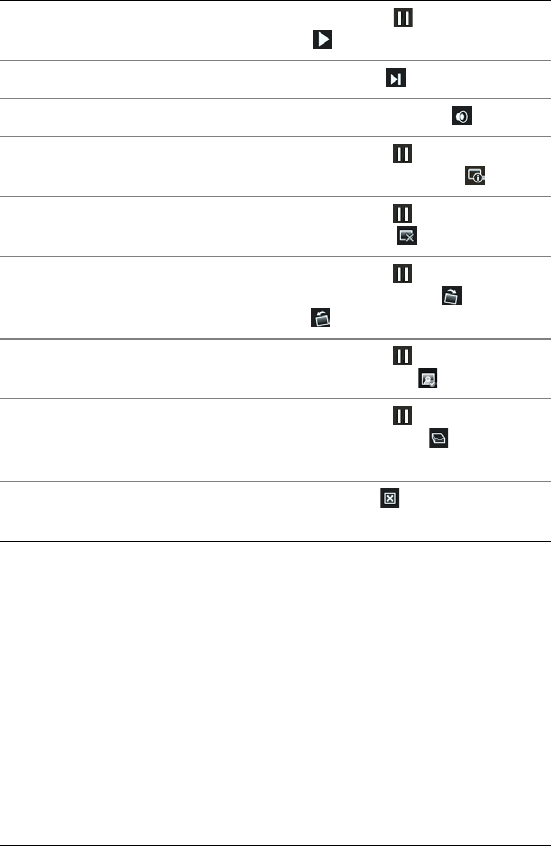
To Do the following
View the previous photo Click the Step back one slide
button.
38 Corel Snapfire User Guide
Choosing Quick Review settings
You can choose review settings, transitions, and a soundtrack that plays
during the review.
If you add a soundtrack to a review, it replaces the audio associated
with any video file included in the review.
To choose Quick Review settings
1In the task panel, select Home, select the photos that you want to
review, and click Quick Review.
Pause and play the review Click the Pause button or the
Play button.
View the next photos Click the Next button.
Turn off audio Click the Toggle Sound button.
Add photo information Click the Pause button, and then
click the Show Slide Info button.
Delete a photo Click the Pause button, and then
click the Delete button.
Rotate a photo Click the Pause button, and then
click the Rotate Right or Rotate
Left button.
Apply photo corrections Click the Pause button, and then
click the Quick Fix button.
Add or remove a photo from a photo
tray
Click the Pause button, and then
click the Photo Tray toggle
button.
Exit review Click the Exit button, or press
Esc.
To Do the following

Reviewing your photos 39
2Click the Pause button on the toolbar, and then click the View
Show Settings button to open the Show Settings dialog box.
3In the Slide Settings group box, choose one or more of the
following:
• Duration — sets the number of seconds to display each photo
• Transitions — determines the transition style between photos
• Include captions — displays the photo caption below the photo
in the review
• Include motion effects — displays the motion effect applied to
the review
4In the Soundtrack group box, choose one or more of the following
options:
• Include Soundtrack — plays the selected soundtrack
• Browse — lets you select a soundtrack
• Synchronize — calculates the per-photo display time so that the
review ends when the audio is done playing. This option applies
only when you have selected a soundtrack.
5Click OK.
Saving and sharing reviews
as Snapfire Shows
You can save the review as a Snapfire Show and share it with others by
sending it as an e-mail attachment.
To save a review as a Snapfire Show
1While reviewing photos, click the Pause button on the toolbar,
and then click the Save as Snapfire Show button to open the
Save As dialog box.
2From the Save in drop-list, select the folder where you want to save
the show.
3In the File Name field, type a name for the Snapfire Show, and click
Save.

40 Corel Snapfire User Guide
To share a Snapfire Show
1While reviewing photos, click the Pause button.
2Click the Share as E-mail button to automatically open a message in
your e-mail application and attach the Snapfire Show.

Changing photo information 41
Changing photo
information
You can view, add, and edit information about a photo, such as the
date the photo was taken. You can also apply photo ratings and add
captions to photos. Adding and updating photo information helps you
organize and locate your photos.
In this section, you’ll learn about
• changing the recorded date that a photo was taken
• applying photo ratings
• adding captions to photos
Changing the recorded date that a
photo was taken
You can change the recorded time and date that a photo was taken.
To change the recorded date that a photo was taken
1In the task panel, choose Home, select a photo, and click View
Photo Info to open the General Info panel.
2Click the Edit Date button to open the Adjust Date Taken dialog
box.
3Select a new date from the Date drop-list.
4Select a time from the Time drop-list, click OK, and then click the
Apply button.

42 Corel Snapfire User Guide
Applying photo ratings
You can apply ratings to your photos and identify your favorite photos.
A one-star rating is the lowest, and a five-star rating is the highest.
Ratings appear on the photo thumbnail if you have chosen to display
ratings in your thumbnail preferences. You can also search for photos
by rating.
To choose photo ratings
1In the task panel, choose Home, select a photo, and click View
Photo Info to open the General Info panel.
2In the Rating field, select the number of stars to apply the rating,
and click the Apply button.
Note: A one-star rating is the lowest, and a five-star rating is the
highest.
Adding captions to photos
You can add captions to photos. The captions are displayed when you
play a Snapfire Show.
To add a caption to a photo
1In the task panel, choose Home, select a photo, and click View
Photo Info to open the General Info panel.
2In the Caption field, enter comments about the photo, and click the
Apply button.

Enhancing your photos 43
Enhancing your photos
Corel Snapfire contains several tools for fixing problems in your
photos. The Quick Fix tool lets you quickly correct common problems
in one click. You can also rotate and crop your photos, correct red-eye,
and apply effects to your photos.
In this section, you’ll learn about
• starting Paint Shop Pro Photo to fix photos
• using Photo Doctor
• applying basic photo corrections
• removing red-eye
• cropping photos
• rotating photos
• applying effects
• resizing photos
Starting Corel Paint Shop Pro Photo to fix
photos
If Corel Paint Shop Pro Photo is installed on your computer, you can
quickly start it and use its advanced photo-correction tools.
To start Corel Paint Shop Pro Photo to fix photos
• Choose File Open with Open with Paint Shop Pro.
You can also start Corel Paint Shop Pro Photo while in Home and
Enhance modes, by clicking Edit with Paint Shop Pro.

44 Corel Snapfire User Guide
Using Photo Doctor
It’s not always easy to know which photos can be improved or how to
improve them. Photo Doctor helps solve this problem by automatically
analyzing your photos and identifying which ones could benefit from a
Quick Fix adjustment to such elements as the color or brightness.
When you open a photo in Enhance mode, Photo Doctor analyzes your
photo. If your photo could benefit from an adjustment, an information
icon is displayed next to Quick Fix in the task panel. When you hover
over the icon, a message appears with recommendations for fixing the
photo.
To apply Photo Doctor recommendations
• In Enhance mode, when an information icon appears next to
Quick Fix in the task panel, click Quick Fix.
Note: You can display the Photo Doctor message by placing your
cursor over the information icon. You can close the message by
clicking the Close button in the top corner of the message box.
Applying basic photo corrections
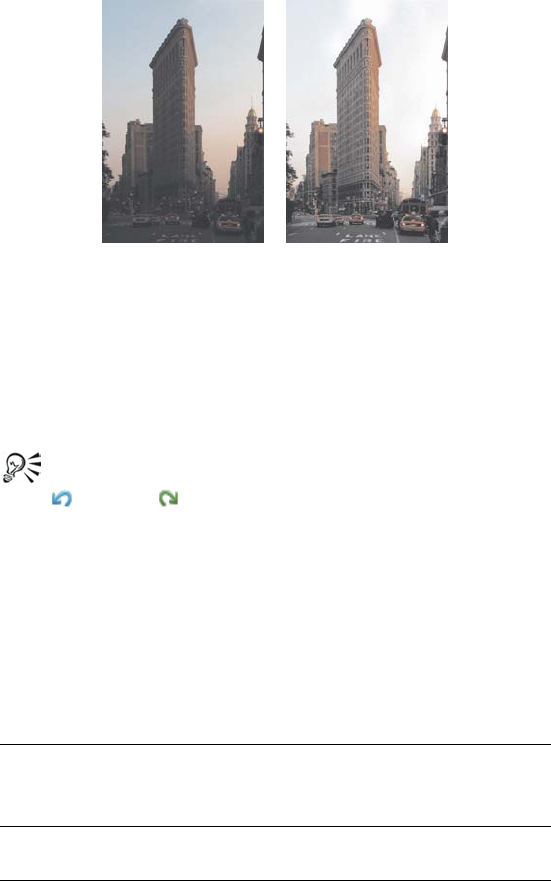
The Quick Fix command applies a predetermined set of color balancing
and sharpening corrections to your photo. If you want the option of
controlling the amount of these same corrections, you can use the
Photo Fix command.
Enhancing your photos 45
You can use the Quick Fix and Photo Fix commands to
improve the exposure and color balance of photos quickly
and easily.
To fix a photo in one step
1Double-click the photo to open it in Enhance mode.
2In the task panel, click Quick Fix.
To view before and after versions of your photo, click the Undo
and Redo buttons on the toolbar.
To use Photo Fix
1Double-click the photo to open it in Enhance mode.
2In the task panel, click Photo Fix to open the Photo Fix dialog box.
The upper-left pane shows the original photo. The upper-right pane
shows the photo with the initial set of adjustments applied.
3Perform one or more tasks from the following table, and click OK.
To Do the following
Brighten or darken the photo Drag the Brightness slider to the
right to increase brightness, or to
the left to decrease brightness.
46 Corel Snapfire User Guide
You can reset all controls to their initial values by clicking the
Reset to Default button.
Removing red-eye
Red-eye is a common problem in photos. Red-eye occurs when light
from the camera’s flash that reflects off the retina of a photo subject is
then captured in the photo.
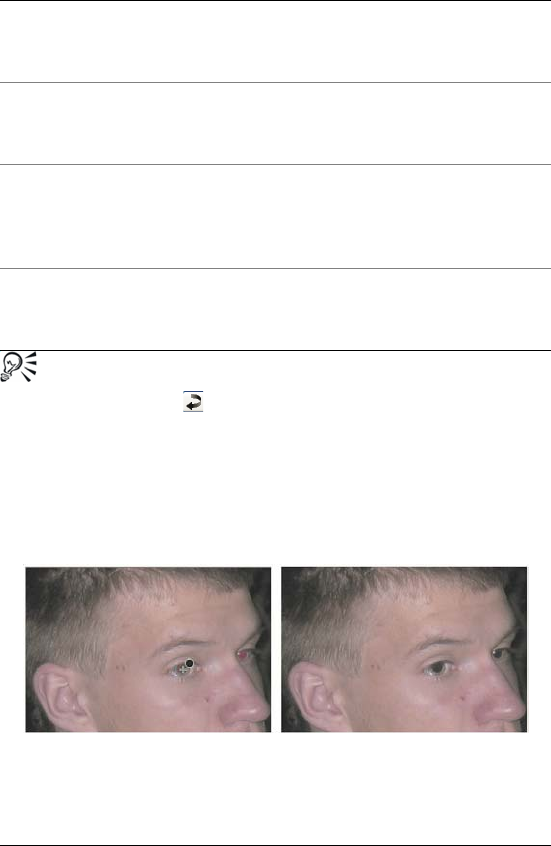
The Red Eye tool replaces the red color in the subject’s pupil
with a dark gray color to restore a natural look.
Increase or decrease contrast Drag the Contrast slider to the right
to increase contrast, or to the left to
decrease contrast.
Increase or decrease warmth Drag the Warmth slider to the right
to make the photo warmer, or to the
left to make the photo cooler.
Increase or decrease saturation Drag the Saturation slider to the
right to make the colors more
vibrant, or to the left to make the
colors less vibrant.
Sharpen the edges of the photo Drag the Focus control to the right
to increase focus, or to the left to
decrease focus.
To Do the following
Enhancing your photos 47
To remove red-eye
1Double-click the photo to open it in Enhance mode.
2In the task panel, click Fix Red Eye.
3In the task panel, adjust the Size control so that the pointer is
slightly larger than the eye needing correction.
4Point directly over the eye, and click.
You can zoom in on the photo, if necessary, to use the Red Eye
tool more easily.
Cropping photos
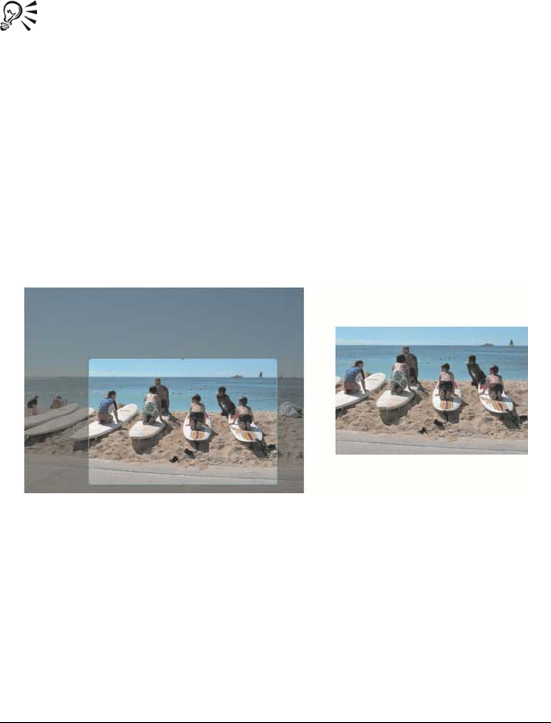
You can remove unwanted portions of a photo to create stronger
compositions or to change the focus. Cropping can reduce the amount
of hard drive memory required for the editing process. Also, by
eliminating extraneous areas of color, cropping can improve color
corrections. If a photo requires both cropping and color correction, you
should crop the photo first and then apply the color correction.
You can remove unwanted portions of a photo to create a
stronger composition or to change the focus.
To crop a photo
1Double-click the photo to open it in Enhance mode.
Note: To protect the original version of your photo, you can save
the file with a different filename by choosing File Save As.

48 Corel Snapfire User Guide
2In the task panel, click Crop.
3Define the crop area by dragging any of the handles on the crop
area rectangle.
You can drag any of the handles to adjust the crop area.
4When you’re ready to crop the photos, click the Apply button in
the task panel or on the floating toolbar.
Rotating photos
When you are enhancing or organizing a photo, you can change its
orientation by rotating it 90 degrees to the left or right. While
organizing your photos, you can rotate multiple photos at one time.
You can rotate JPEG images with lossless rotation and retain all
of the original image data.
To rotate a photo
• In either the Home or Enhance mode, select a photo and click one
of the Rotate buttons:
You can also
Select a preset crop size Choose an option from the Presets
drop-list in the task panel or on the
floating toolbar.
Rotate the crop rectangle Click the Rotate Crop Rectangle
button in the task panel or on the
floating toolbar.
Move the entire crop rectangle Drag inside the crop area.
Constrain the crop area to its
current proportions
Mark the Maintain aspect ratio
check box on the task panel. This
option is available only for custom-
defined crop rectangles.
Clear the crop area and start over Right-click anywhere in the photos.

Enhancing your photos 49
• Rotate Right — rotates the photo 90 degrees clockwise
• Rotate Left — rotates the photo 90 degrees counterclockwise
To rotate multiple photos
1In the task panel, select Home.
2Select the photo or photos that you want to rotate.
3In the task panel, click one of the Rotate buttons:
• Rotate Right — rotates the photo 90 degrees clockwise
• Rotate Left — rotates the photo 90 degrees counterclockwise
Applying effects with Corel Snapfire
You can make a color photo look like a black-and-white photo by
converting it to shades of gray (grayscale), or you can use the Sepia tool
to apply a warm brown tone to a photo, which gives it a 19th-century
look.
To apply a black-and-white effect
1Double-click the photo to open it in Enhance mode.
Note: To protect the original version of your photo, you can save
the file with a different filename by using the Save As button on the
toolbar.
2In the task panel, click Black and White.
To apply a sepia effect
1Double-click the photo to open it in Enhance mode.
Note: To protect the original version of your photo, you can save
the file with a different filename by using the Save As button on the
toolbar.
2In the task panel, click Sepia.

50 Corel Snapfire User Guide
Resizing photos
You can use the Resize command to change the actual pixel dimensions
of photos without changing their composition. When the size of a
photo is increased, pixels (the individual grid cells that make up a digital
photo) are added to create the enlarged photo.
Resizing photos may reduce their sharpness, especially when photo
size is decreased. It is therefore a good idea to preserve a copy of the
original photo by saving the new photo with a new filename.
Guidelines for resizing
• Do not increase the photo size by more than 25 percent.
• Resize a photo only once. Each time you resize the photo, some
data is lost, which can cause the photo to become blurry. If your
first resizing of the photo is not correct, undo the change, and try
again.
• Correct and retouch photos before resizing.
To resize a photo
1Double-click the photo to open it in Enhance mode.
2Choose Edit Resize Photo to open the Resize dialog box.
3Mark the Resample using check box, and select a resampling type
from the drop-list.
• Smart Size — chooses the best algorithm based on the new pixel
dimensions you set
• Bicubic — minimizes the jaggedness that often results from
expanded, irregular, or complex photos
• Bilinear — uses the two nearest pixels around each existing pixel
to determine the appearance of newly created pixels
• Pixel Resize — duplicates or removes pixels to achieve the
selected width and height of the photo (recommended for hard-
edged photos and simple graphics)
• Weighted Average — uses a weighted-average color value of
neighboring pixels to determine the appearance of newly created

Enhancing your photos 51
pixels (useful for reducing photorealistic, irregular, or complex
photos)
4In the Pixel Dimensions group box, type or set new values in the
Width and Height controls. From the drop-list, choose whether to
enter values in pixels or as a percentage of the original size.
5Click OK.
It is recommended that you constrain the new photo dimensions
to the photo’s current proportions by marking the Lock aspect
ratio check box. Changing the aspect ratio distorts the image by
stretching or contracting it in one dimension more than the
other.
You can keep the image’s current print size by marking the
Maintain original print size check box.
To change the photo resolution and print size
1Double-click the photo to open it in Enhance mode.
2Choose Edit Resize Photo.
3Unmark the Resample using check box.
4In the Print Size group box, do one of the following:
• Type or set values in the Width and Height controls.
• Type or set a value in the Resolution control.
You can choose units of measurement from the drop-lists next to
the Width, Height, and Resolution controls.
5Click OK.

52 Corel Snapfire User Guide
Working with videos 53
Working with videos
You can play your video clips as video thumbnails, or you can play
them in Show mode or full-screen mode. You can also select a frame to
display as the video thumbnail or extract a frame to use as a photo.
In this section, you’ll learn about
• playing videos
• choosing frames to use as video thumbnails
• extracting frames from videos
Playing videos
You can preview your video files (with .avi, .mov, .mp4, or .mpeg
filename extensions) from thumbnails.
Example of a video thumbnail
To preview a video from a thumbnail
1In the task panel, select Home, choose Find Photos, and select a
folder that contains video files.

54 Corel Snapfire User Guide
2Select the thumbnail of the video file, and press the Play button
on the thumbnail.
Choosing frames to use as video
thumbnails
A single frame in your video is displayed as the video thumbnail. If you
want to choose a frame that better depicts your video, you can select a
different frame from the video file to use as the video thumbnail.
To choose a frame to use as the video thumbnail
1In the task panel, select Home, choose Find Photos, and select a
folder that contains a video file.
Note: You can also select a video file contained in a photo tray.
2Select the thumbnail for the video file, and press the Play button
on the thumbnail.
3Click the Pause button on the thumbnail to stop the video at the
frame you want to use as the video thumbnail.
4Click the Set as Thumbnail button on the thumbnail.
Extracting frames from videos
You can extract a frame from a video file and save it as a photo.
To extract a frame from a video
1In the task panel, select Home, choose Find Photos, and select a
folder that contains a video file.
Note: You can also select a video file contained in a photo tray.
2Select the thumbnail for the video file, and press the Play button
on the thumbnail.
3Click the Pause button on the thumbnail to stop the video on
the frame that you want to use as the video thumbnail.
4Click the Save Frame as Photo button on the thumbnail to open
the Save As dialog box.

Working with videos 55
5From the Save in drop-list, select the folder in which you want to
save the frame as a photo.
6In the File name field, type a name for the photo, and click Save.

56 Corel Snapfire User Guide

Creating projects 57
Creating projects
You can create projects to share with others. You can create album
pages to use in scrapbooking, make greeting cards, and create custom
calendars and collages.
In this section, you’ll learn about
• creating collages
• creating greeting cards
• creating calendars
• creating album pages
Creating collages
The program includes many templates that you can use to make
collages with your photos.
To create a collage
1Drag the photos for your collage into a photo tray.
2In the task panel, select Create, and click Collage.
3In the task panel, click Select Layout, and choose a layout for your
collage.
4Drag photos from the photo tray into the cells of the layout.
5Arrange photos in the cells by selecting a cell and using any of the
following options or controls:
• Fill Frame — enlarges the photo to fill the cell
• Fit to Frame — fits the entire photo in the cell
• Rotate Right or Rotate Left buttons — changes the photo
orientation
58 Corel Snapfire User Guide
• Zoom Tool — increases or decreases the size of the photo in the
cell
• Pan Tool — moves the photo in the cell to show hidden areas
For the best print results, use a photo-quality printer and paper,
and adjust the printer to use the highest quality settings.
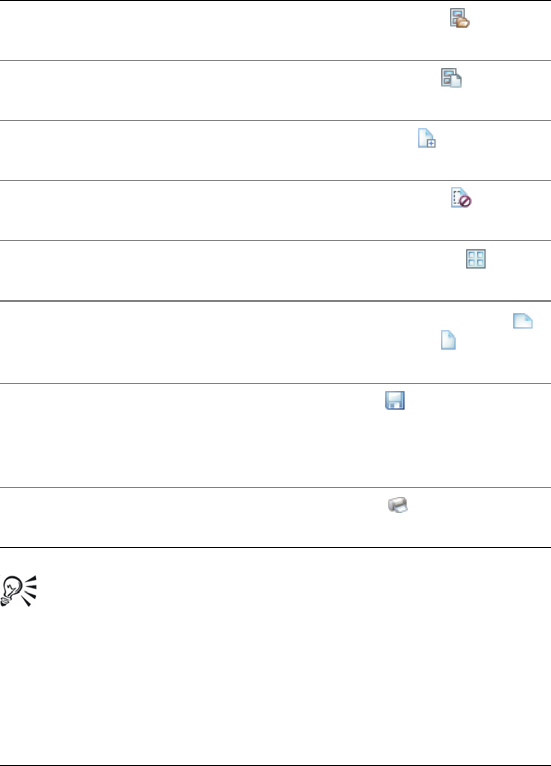
You can also
Open an existing project Click the Open Project button
on the toolbar.
Create a new project Click the New Project button on
the toolbar.
Add additional pages Click the Add Page button on the
toolbar.
View a preview of the selected page Click the View Preview button
on the toolbar.
Change the page view Click the View Multipage button
on the toolbar.
Change the page orientation Click the View Page Horizontal
or View Page Vertical button on
the toolbar.
Save your project Click the Save button on the
toolbar.
The pages are saved in the Corel
Project File (.SnapfireProject) format.
Print your project Click the Print button on the
toolbar.

Creating projects 59
Creating greeting cards
You can use one of the many template layouts available to create special
cards that contain your own photos and greetings. Just select a greeting
card layout, drag pictures into the cells, add text, and print.
To create a greeting card
1Drag the photos for your greeting card into a photo tray.
2In the task panel, select Create, and click Greeting Card.
3In the task panel, click Select Layout, and choose a layout for your
greeting card.
4Drag photos from the photo tray into the cells of the layout.
5Arrange photos in the cells by selecting a cell and using any of the
following options or controls:
• Fill Frame — enlarges the photo to fill the cell
• Fit to Frame — fits the entire photo in the cell
• Rotate Right or Rotate Left buttons — changes the photo
orientation
• Zoom Tool — increases or decreases the size of the photo in the
cell
• Pan Tool — moves the photo in the cell to show hidden areas
6Click in a text cell, and type your message in the Tex t field on the
task panel.
7To change the text format, select the text, and apply any of the
following controls:
• Bold — applies bold formatting to text
• Italic — applies italic formatting to text
• Underline — underlines text
• Size drop-list — changes the text size
• Color box — changes the text color or lets you create a custom
color
• Left , Center , or Right — aligns text
• To p , Middle , or Bottom — aligns text margins
60 Corel Snapfire User Guide
For the best print results, use a photo-quality printer and paper,
and adjust the printer to use the highest quality settings.
Creating calendars
You can share your memories with others by creating a calendar that
contains your own photos.
To create a calendar
1Drag the photos for your calendar into a photo tray.
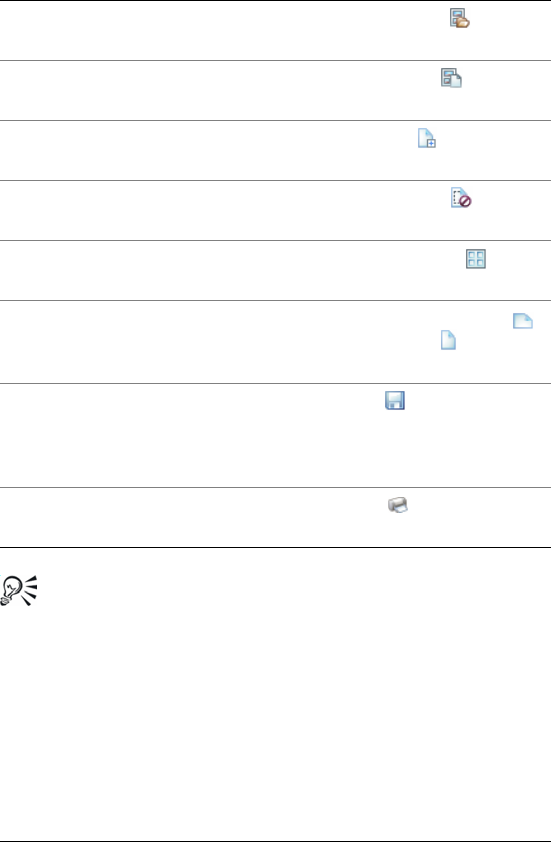
You can also
Open an existing project Click the Open Project button
on the toolbar.
Create a new project Click the New Project button on
the toolbar.
Add additional pages Click the Add Page button on the
toolbar.
View a preview of the selected page Click the View Preview button
on the toolbar.
Change the page view Click the View Multipage button
on the toolbar.
Change the page orientation Click the View Page Horizontal
or View Page Vertical button on
the toolbar.
Save your project Click the Save button on the
toolbar.
The pages are saved in the Snapfire
Project File (.SnapfireProject) format.
Print your project Click the Print button on the
toolbar.
Creating projects 61
2In the task panel, select Create, and click Calendar to open the
Choose a month and year dialog box.
3Select a month from the Month drop-list and a year from the Yea r
drop-list, and click OK.
4In the task panel, click Select Layout, and choose a layout for your
calendar.
5Drag photos from the photo tray into the cells of the layout.
6Arrange photos in the cells by selecting a cell and using any of the
following options or controls:
• Fill Frame — enlarges the photo to fill the cell
• Fit to Frame — fits the entire photo in the cell
• Rotate Right or Rotate Left buttons — changes the photo
orientation
• Zoom Tool — increases or decreases the size of the photo in the
cell
• Pan Tool — moves the photo in the cell to show hidden areas
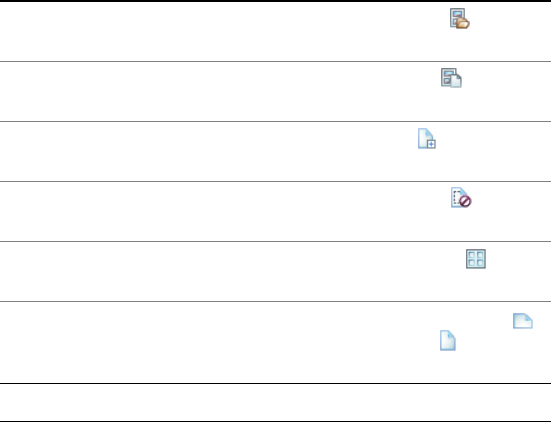
You can also
Open an existing project Click the Open Project button
on the toolbar.
Create a new project Click the New Project button on
the toolbar.
Add additional pages Click the Add Page button on the
toolbar.
View a preview of the selected page Click the View Preview button
on the toolbar.
Change the page view Click the View Multipage button
on the toolbar.
Change the page orientation Click the View Page Horizontal
or View Page Vertical button on
the toolbar.

62 Corel Snapfire User Guide
For the best print results, use a photo-quality printer and paper,
and adjust the printer to use the highest quality settings.
Creating album pages
You can create an album page by using one of the many available
template layouts. Just select an album page layout, drag pictures into
the cells, add text, and then print. You’ll quickly have an array of album
pages that you can use for scrapbooking, framing, or sharing with
others.
To create an album page
1Drag the photos for your album page into a photo tray.
2In the task panel, select Create, and click Horizontal Album Page,
Square Album Page, or Vertical Album Page.
3In the task panel, click Select Layout, and choose a layout for your
album page.
4Drag photos from the photo tray into the cells of the layout.
5Arrange photos in the cells by selecting a cell and using any of the
following options or controls:
• Fill Frame — enlarges the photo to fill the cell
• Fit to Frame — fits the entire photo in the cell
• Rotate Right or Rotate Left buttons — changes the photo
orientation
Save your project Click the Save button on the
toolbar.
The pages are saved in the Snapfire
Project File (.SnapfireProject) format.
Print your project Click the Print button on the
toolbar.
You can also
Creating projects 63
• Zoom Tool — increases or decreases the size of the photo in the
cell
• Pan Tool — moves the photo in the cell to show hidden areas
6Click in a text cell, and type your message in the Tex t field on the
task panel.
7To change the text format, select the text, and apply any of the
following controls:
• Bold — applies bold formatting to text
• Italic — applies italic formatting to text
• Underline — underlines text
• Size drop-list — changes the text size
• Color box — changes the text color or lets you create a custom
color
• Left , Center , or Right — aligns text
• To p , Middle , or Bottom — aligns text margins
You can also
Open an existing project Click the Open Project button
on the toolbar.
Create a new project Click the New Project button on
the toolbar.
Add additional pages Click the Add Page button on the
toolbar.
View a preview of the selected page Click the View Preview button
on the toolbar.
Change the page view Click the View Multipage button
on the toolbar.
Change the page orientation Click the View Page Horizontal
or View Page Vertical button on
the toolbar.

64 Corel Snapfire User Guide
For the best print results, use a photo-quality printer and paper,
and adjust the printer to use the highest quality settings.
Save your project Click the Save button on the
toolbar.
The pages are saved in the Snapfire
Project File (.SnapfireProject) format.
Print your project Click the Print button on the
toolbar.
You can also

Choosing program preferences 65
Choosing
program preferences
Using the Preferences dialog box, you can control advanced program
features, such as options for file format association, thumbnails, and
multimedia. You can also reset program warning messages.
In this section, you’ll learn about
• resetting program warning messages
• choosing file format associations
• choosing thumbnail preferences
• choosing multimedia preferences
Resetting program warning messages
If you have disabled warning messages by choosing not to show the
message again, you can reset the warning messages so that they are
displayed.
To reset program warning messages
1Choose File Preferences to open the Preferences dialog box.
2In the General group box, click Reset Warnings, and click OK.
Choosing file format associations
You can have certain file formats (such as JPEG) automatically open in
the program when you double-click the icons on the Windows desktop.
The associated files display the program icon.
File format associations control how the program interacts with many
types of file formats. Changes in file format extensions do not take
effect until the next time you start the program.

66 Corel Snapfire User Guide
To choose file format associations
1Choose File Preferences to open the Preferences dialog box.
2In the General group box, click File Associations to open the File
Format Associations dialog box.
3Mark one of the following check boxes:
• To associate all listed formats that are not already associated with
other applications, click the Select Unused button.
• To associate no file formats with the program, click the Remove
All button.
4Click OK.
To set file extensions
1Choose File Preferences to open the Preferences dialog box.
2In the General group box, click the File Associations button to open
the File Format Associations dialog box.
3Mark the file format check boxes that contain the extensions you
want to set, and click OK.
You can also
Associate all listed formats Click Select All.
Associate all listed formats that are
not already associated with other
applications
Click Select Unused.
Associate no file formats with the
program
Click Remove All.
You can also
Add a file extension Click Extensions in the File Format
Association dialog box. Click Add in
the Extensions dialog box, type in
the new extension, and click OK.

Choosing program preferences 67
Choosing thumbnail preferences
You can choose whether to display photo ratings and filenames on the
photo thumbnails. You can also change how the thumbnails appear in
Organize mode.
To choose thumbnail preferences
1Choose File Preferences to open the Preferences dialog box.
2In the Organizer group box, perform one or more tasks from the
following table, and click OK.
Delete a file extension Click Extensions in the File Format
Association dialog box. In the
Extensions dialog box, select the
extension from the list, and click
Delete.
Reset a format to its default
extension
Click Extensions in the File Format
Association dialog box. In the
Extensions dialog box, select the
extension from the list, and click
Reset.
Make an extension the preferred
choice
Click Extensions in the File Format
Association dialog box. In the
Extensions dialog box, select the
extension, and click Preferred.
To Do the following
Display thumbnails in a column Mark the Display variable with
thumbnail images check box.
Show photo ratings on thumbnails Mark the Show ratings with
thumbnail images check box.
You can also

68 Corel Snapfire User Guide
Choosing multimedia preferences
You can change the default output size of an exported video. You can
specify whether you plan to play the video from a DVD, the Web, or on
a high-definition television.
If your exported video fails to play, you can select a different video or
audio compression method.
To choose multimedia preferences
1Choose File Preferences to open the Preferences dialog box.
2In the Multimedia group box, perform one or more tasks from the
following table, and click OK.
Show photo filenames on
thumbnails
Mark the Show file name with
thumbnail images check box.
To Do the following
Change the video size Choose a new size from the Video
Size drop-list.
Change the video compression Choose a new compressor from the
Video Compressor drop-list.
Change the audio compression Choose a new compressor from the
Audio Compressor drop-list.
To Do the following

Index 69
Index
A
album pages . . . . . . . . . . . . . . 62
creating . . . . . . . . . . . . . . . . . 62
application settings
See program preferences
associating file formats . . . . . 65
attaching files to e-mail . . . . . 28
audio
compressing . . . . . . . . . . . . . 68
B
black-and-white effect . . . . . 49
brightening photos . . . . . . . . . 45
browsing folders . . . . . . . . . . . 13
C
Calendar
finding photos with . . . . . . . 35
calendars . . . . . . . . . . . . . . . . . 60
creating . . . . . . . . . . . . . . . . . 60
cameras
erasing photos from . . . . . . . 12
using Corel Photo Downloader
with . . . . . . . . . . . . . . . . . . 10
captions, photo
adding . . . . . . . . . . . . . . . . . . 42
card readers
using Corel Photo Downloader
with . . . . . . . . . . . . . . . . . . 10
cards, greeting . . . . . . . . . . . . 59
CDs
using Corel Photo Downloader
with . . . . . . . . . . . . . . . . . . 10
closing
Corel Snapfire . . . . . . . . . . . . . 1
folders . . . . . . . . . . . . . . . . . . 16
photos . . . . . . . . . . . . . . . . . . 15
collages . . . . . . . . . . . . . . . . . . 57
creating . . . . . . . . . . . . . . . . . 57
compression
audio . . . . . . . . . . . . . . . . . . . 68
video . . . . . . . . . . . . . . . . . . . 68
contrast, adjusting . . . . . . . . . 46
copying photos
into folders . . . . . . . . . . . . . . 19
into other open applications 19
Corel Corporation . . . . . . . . . . 4
Corel Paint Shop Pro Photo
opening to fix photos . . . . . . 43
Corel Photo Downloader . . . . . 9
choosing options for . . . . . . . 10
using with cameras or
card readers . . . . . . . . . . . 10
using with photo CDs . . . . . . 10
Corel products
registering . . . . . . . . . . . . . . . . 2
updating . . . . . . . . . . . . . . . . . 2
Corel Support Services . . . . . . 3
correcting photos . . . . . . . . . . 43
See also fixing photos
with basic techniques . . . . . . 44
in Corel Paint Shop Pro Photo 43
with Photo Doctor . . . . . . . . 44

70
cropping photos . . . . . . . . . . . 47
customer support . . . . . . . . . . . 3
D
darkening photos . . . . . . . . . . 45
date modified
sorting photos by . . . . . . . . . 17
date taken
changing . . . . . . . . . . . . . . . . 41
sorting photos by . . . . . . . . . 17
deleting photos . . . . . . . . . . . . 21
from camera upon download 12
from photo trays . . . . . . . . . . 24
dialog boxes
viewing Help for . . . . . . . . . . . 7
documentation conventions . . 5
downloading photos . . . . . . . . 9
avoiding duplication when . . 12
choosing options for . . . . . . . 11
with Corel Photo Downloader . 9
E
edges, sharpening . . . . . . . . . 46
effects . . . . . . . . . . . . . . . . . . . . 49
black-and-white . . . . . . . . . . . 49
sepia . . . . . . . . . . . . . . . . . . . 49
e-mail . . . . . . . . . . . . . . . . . 27–28
e-mail application
specifying default . . . . . . . . . 28
embedding photos in e-mail 28
enhancing photos . . . . . . . . . . 43
exiting . . . . . . . . . . . . . . . . . . . . . 1
extensions, file . . . . . . . . . . . . . 66
extracting video frames . . . . . 54
F
file extensions, setting . . . . . . 66
file formats
choosing associations . . . . . . 65
sorting photos by . . . . . . . . . 17
File menu
opening photos from . . . . . . 16
file size
sorting photos by . . . . . . . . . 17
filenames
saving photos to different . . . 20
saving photos to same . . . . . 20
sorting photos by . . . . . . . . . 17
finding photos . . . . . . . . . . . . . 33
by sorting thumbnails . . . . . . 17
with Calendar . . . . . . . . . . . . 35
fitting photos to windows . . . . 17
fixing photos . . . . . . . . . . . . . . 43
See also correcting photos
in Corel Paint Shop Pro Photo 43
in one step . . . . . . . . . . . . . . 45
with Photo Doctor . . . . . . . . . 44
folder list . . . . . . . . . . . . . . . . . . 14
adding photos to . . . . . . . . . . 14
removing folders from . . . . . . 14
folders . . . . . . . . . . . . . . . . . . . . 13
adding to folder list . . . . . . . . 14
browsing . . . . . . . . . . . . . . . . 13
changing default for
downloads . . . . . . . . . . . . 12
closing . . . . . . . . . . . . . . . . . . 16
copying photos into . . . . . . . 19
moving photos between . . . . 18

Index 71
naming for downloads . . . . . 12
opening photos in . . . . . . . . . 15
removing listed . . . . . . . . . . . 14
renaming . . . . . . . . . . . . . . . . 13
saving photos to different . . . 20
saving photos to same . . . . . 20
sorting photos by . . . . . . . . . 17
specifying naming format for
downloads . . . . . . . . . . . . . 12
frames, video
choosing as thumbnails . . . . 54
extracting . . . . . . . . . . . . . . . 54
G
greeting cards . . . . . . . . . . . . . 59
creating . . . . . . . . . . . . . . . . . 59
H
Help system . . . . . . . . . . . . . . . . 5
using . . . . . . . . . . . . . . . . . . . . 6
I
information, photo
See photo information
L
learning . . . . . . . . . . . . . . . . . . . 5
lightening photos . . . . . . . . . . 45
listing folders . . . . . . . . . . . . . . 14
M
Message Center . . . . . . . . . . . . 1
messages, warning
resetting . . . . . . . . . . . . . . . . 65
montages . . . . . . . . . . . . . . . . . 57
mouse wheel
zooming with . . . . . . . . . . . . 17
moving photos . . . . . . . . . . . . 18
between folders . . . . . . . . . . 18
multimedia preferences . . . . 68
O
one-step photo fixes . . . . . . . 45
opening
Corel Paint Shop Pro Photo . 43
Corel Snapfire . . . . . . . . . . . . . 1
photos . . . . . . . . . . . . . . . . . . 15
ordering prints . . . . . . . . . . . . . 30
Organizer
selecting photos from . . . . . . 18
P
pages, album . . . . . . . . . . . . . 62
panning . . . . . . . . . . . . . . . . . . 16
photos . . . . . . . . . . . . . . . . . . 16
photo corrections
See correcting photos
Photo Doctor . . . . . . . . . . . . . . 44
applying recommendations . 44
Photo Fix . . . . . . . . . . . . . . . . . . 44
using . . . . . . . . . . . . . . . . . . . 45
photo information
captions . . . . . . . . . . . . . . . . 42
changing . . . . . . . . . . . . . . . . 41
photo ratings . . . . . . . . . . . . 42
recorded date . . . . . . . . . . . . 41
searching for photos with . . . 33

72
photo ratings . . . . . . . . . . . . . . 42
choosing . . . . . . . . . . . . . . . . 42
sorting photos by . . . . . . . . . 17
photo trays . . . . . . . . . . . . . . . . 23
adding . . . . . . . . . . . . . . . . . . 23
adding photos to . . . . . . . . . . 24
removing . . . . . . . . . . . . . . . . 23
removing photos from . . . . . . 24
renaming . . . . . . . . . . . . . . . . 24
selecting photos from . . . . . . 18
photo-sharing services
ordering prints from . . . . . . . 30
playing
videos . . . . . . . . . . . . . . . . . . 53
Preferences dialog box . . . . . 65
print size, changing . . . . . . . . 51
printer settings . . . . . . . . . . . . . 29
changing . . . . . . . . . . . . . . . . 30
printing
Help topics . . . . . . . . . . . . . . . 7
photos . . . . . . . . . . . . . . . . . . 29
prints, ordering . . . . . . . . . . . . . 30
product overview . . . . . . . . . . . 1
program preferences . . . . . . . 65
file extensions . . . . . . . . . . . . 66
file format associations . . . . . 65
multimedia . . . . . . . . . . . . . . 68
thumbnails . . . . . . . . . . . . . . . 67
warning messages . . . . . . . . . 65
projects . . . . . . . . . . . . . . . . . . . 57
album pages . . . . . . . . . . . . . 62
calendars . . . . . . . . . . . . . . . . 60
collages . . . . . . . . . . . . . . . . . 57
greeting cards . . . . . . . . . . . . 59
opening from File menu . . . . 16
Q
Quick Fix . . . . . . . . . . . . . . . . . . 44
applying . . . . . . . . . . . . . . . . . 44
using . . . . . . . . . . . . . . . . . . . 45
Quick Review . . . . . . . . . . . . . . 37
choosing settings for . . . . . . . 38
using . . . . . . . . . . . . . . . . . . . 37
quitting . . . . . . . . . . . . . . . . . . . . 1
R
rating photos . . . . . . . . . . . . . . 42
recorded date, changing . . . 41
red-eye, removing . . . . . . . . . 46
registering Corel products . . . . 2
renaming
folders . . . . . . . . . . . . . . . . . . 13
photo trays . . . . . . . . . . . . . . 24
photos . . . . . . . . . . . . . . . . . . 21
resampling methods . . . . . . . . 50
resetting warning messages .65
resizing
photos . . . . . . . . . . . . . . . . . . 50
videos . . . . . . . . . . . . . . . . . . 68
resolution, changing . . . . . . . . 51
reviewing photos . . . . . . . . . . . 37
choosing settings for . . . . . . . 38
with Quick Review . . . . . . . . . 37
reviews
sharing as Snapfire Shows . . . 40
rotating photos . . . . . . . . . . . . 48
individual . . . . . . . . . . . . . . . . 48
multiple . . . . . . . . . . . . . . . . . 49
upon download . . . . . . . . . . . 12

Index 73
S
saturation, adjusting . . . . . . . . 46
saving
photos . . . . . . . . . . . . . . . . . . 20
photos to different
filenames or locations . . . . 20
photos to same
filename and location . . . . 20
reviews as Snapfire Shows . . 39
search criteria . . . . . . . . . . . . 34
video frames as photos . . . . . 54
scrapbook pages . . . . . . . . . . 62
search criteria
saving . . . . . . . . . . . . . . . . . . 34
searching for photos
with saved . . . . . . . . . . . . . 34
searching for photos . . . . . . . 33
quickly . . . . . . . . . . . . . . . . . . 33
with photo information . . . . 33
with saved searches . . . . . . . 34
selecting photos . . . . . . . . . . . 18
sending e-mail . . . . . . . . . . . . 27
with attachments . . . . . . . . . 28
sepia effect . . . . . . . . . . . . . . . 49
sharing
photos . . . . . . . . . . . . . . . . . . 27
reviews as Snapfire Shows . . 39
sharpening photo edges . . . . 46
Snapfire Shows
adding photo captions . . . . . 42
e-mailing . . . . . . . . . . . . . . . . 28
opening from File menu . . . . 16
sharing reviews as . . . . . . . . . 40
sorting photos . . . . . . . . . . . . . 17
special effects
See effects
starting
Corel Paint Shop Pro Photo . 43
Corel Snapfire . . . . . . . . . . . . . 1
support, customer . . . . . . . . . . 3
T
thumbnails
choosing preferences . . . . . . 67
choosing video frames . . . . . 54
previewing videos from . . . . 53
sorting for photos . . . . . . . . . 17
time, changing in image files 41
training videos . . . . . . . . . . . . . 5
tutorials . . . . . . . . . . . . . . . . . . . . 5
U
uninstalling . . . . . . . . . . . . . . . . . 3
updating Corel products . . . . . 2
user guide PDF . . . . . . . . . . . . . 5
V
videos . . . . . . . . . . . . . . . . . . . . 53
changing compression . . . . . 68
changing size . . . . . . . . . . . . 68
choosing thumbnail frames . 54
e-mailing . . . . . . . . . . . . . . . . 28
extracting frames . . . . . . . . . 54
playing . . . . . . . . . . . . . . . . . 53
previewing from thumbnails . 53
viewing photos
at full size . . . . . . . . . . . . . . . 16
with sorted thumbnails . . . . . 17

Corel® Snapfire™ User Guide
Copyright 2006 Corel Corporation. All rights reserved.
Protected by U.S. Patents 5652880; 5347620; 5767860; 6195100;
6385336; 6552725; 6657739; 6731309; 6825859; 6633305; Patents
Pending.
Product specifications, pricing, packaging, technical support and
information (“specifications”) refer to the retail English version only.
The specifications for all other versions (including other language
versions) may vary.
INFORMATION IS PROVIDED BY COREL ON AN “AS IS” BASIS, WITHOUT
ANY OTHER WARRANTIES OR CONDITIONS, EXPRESS OR IMPLIED,
INCLUDING, BUT NOT LIMITED TO, WARRANTIES OF MERCHANTABLE
QUALITY, SATISFACTORY QUALITY, MERCHANTABILITY OR FITNESS
FOR A PARTICULAR PURPOSE, OR THOSE ARISING BY LAW, STATUTE,
USAGE OF TRADE, COURSE OF DEALING OR OTHERWISE. THE ENTIRE
RISK AS TO THE RESULTS OF THE INFORMATION PROVIDED OR ITS USE
IS ASSUMED BY YOU. COREL SHALL HAVE NO LIABILITY TO YOU OR
ANY OTHER PERSON OR ENTITY FOR ANY INDIRECT, INCIDENTAL,
SPECIAL, OR CONSEQUENTIAL DAMAGES WHATSOEVER, INCLUDING,
BUT NOT LIMITED TO, LOSS OF REVENUE OR PROFIT, LOST OR
DAMAGED DATA OR OTHER COMMERCIAL OR ECONOMIC LOSS, EVEN
IF COREL HAS BEEN ADVISED OF THE POSSIBILITY OF SUCH DAMAGES,
OR THEY ARE FORESEEABLE. COREL IS ALSO NOT LIABLE FOR ANY
CLAIMS MADE BY ANY THIRD PARTY. COREL'S MAXIMUM AGGREGATE
LIABILITY TO YOU SHALL NOT EXCEED THE COSTS PAID BY YOU TO
PURCHASE THE MATERIALS. SOME STATES/COUNTRIES DO NOT
ALLOW EXCLUSIONS OR LIMITATIONS OF LIABILITY FOR
CONSEQUENTIAL OR INCIDENTAL DAMAGES, SO THE ABOVE
LIMITATIONS MAY NOT APPLY TO YOU.
Corel, the Corel logo, Paint Shop Pro, CorelDRAW, Corel Support
Services, MAIL, Painter, Snapfire, WordPerfect, and Winzip are
trademarks or registered trademarks of Corel Corporation and/or its
subsidiaries in Canada, the U.S., and/or other countries.
InstallShield is a registered trademark of Macrovision Corporation in
the United States of America and/or other countries. Internet Explorer,
Microsoft, Outlook, and Windows are registered trademarks of
Microsoft Corporation in the United States and/or other countries. The
NASDAQ Stock Market is a registered trademark of The NASDAQ Stock
Market, Inc. Toronto Stock Exchange is a trademark of TSX Inc. Other
product, font, and company names and logos may be trademarks or
registered trademarks of their respective companies.
022066
