Corel Corel® WordPerfect® Lightning™ Word Perfect Office X4 Lightning Instruction Manual UGEN
User Manual: corel WordPerfect Office - X4 Lightning - Instruction Manual Free User Guide for Corel WordPerfect Software, Manual
Open the PDF directly: View PDF  .
.
Page Count: 55

USER GUIDE

Contents i
Contents
Welcome to Corel WordPerfect Lightning . . . . . . . . . . . . . . . . . . . . . . . . .1
Starting and exiting Lightning . . . . . . . . . . . . . . . . . . . . . . . . . . . . . . . . . . . . . . 1
Using the Help . . . . . . . . . . . . . . . . . . . . . . . . . . . . . . . . . . . . . . . . . . . . . . . . . . 2
Workspace tour. . . . . . . . . . . . . . . . . . . . . . . . . . . . . . . . . . . . . . . . . . . . . . . . . . 3
About Corel Corporation. . . . . . . . . . . . . . . . . . . . . . . . . . . . . . . . . . . . . . . . . . . 4
Working with documents . . . . . . . . . . . . . . . . . . . . . . . . . . . . . . . . . . . . . .7
Opening documents . . . . . . . . . . . . . . . . . . . . . . . . . . . . . . . . . . . . . . . . . . . . . . 7
Importing documents and graphics . . . . . . . . . . . . . . . . . . . . . . . . . . . . . . . . . . . 8
Selecting text or graphics in a document . . . . . . . . . . . . . . . . . . . . . . . . . . . . . . . 8
Copying text or graphics in a document . . . . . . . . . . . . . . . . . . . . . . . . . . . . . . . 9
Viewing documents. . . . . . . . . . . . . . . . . . . . . . . . . . . . . . . . . . . . . . . . . . . . . . 10
Navigating documents . . . . . . . . . . . . . . . . . . . . . . . . . . . . . . . . . . . . . . . . . . . 11
Searching documents. . . . . . . . . . . . . . . . . . . . . . . . . . . . . . . . . . . . . . . . . . . . . 12
Saving and closing documents . . . . . . . . . . . . . . . . . . . . . . . . . . . . . . . . . . . . . . 12
Working with notes. . . . . . . . . . . . . . . . . . . . . . . . . . . . . . . . . . . . . . . . . .15
Creating notes . . . . . . . . . . . . . . . . . . . . . . . . . . . . . . . . . . . . . . . . . . . . . . . . . . 15
Adding content to notes . . . . . . . . . . . . . . . . . . . . . . . . . . . . . . . . . . . . . . . . . . 16
Changing the appearance of notes . . . . . . . . . . . . . . . . . . . . . . . . . . . . . . . . . . . 16
Modifying font settings . . . . . . . . . . . . . . . . . . . . . . . . . . . . . . . . . . . . . . . . . . . 17
Creating and applying lists . . . . . . . . . . . . . . . . . . . . . . . . . . . . . . . . . . . . . . . . 18
Indenting text . . . . . . . . . . . . . . . . . . . . . . . . . . . . . . . . . . . . . . . . . . . . . . . . . . 19
Adding tables to notes. . . . . . . . . . . . . . . . . . . . . . . . . . . . . . . . . . . . . . . . . . . . 20
Adding images and lines to notes . . . . . . . . . . . . . . . . . . . . . . . . . . . . . . . . . . . 20
Adding hyperlinks to notes . . . . . . . . . . . . . . . . . . . . . . . . . . . . . . . . . . . . . . . . 21
Saving and closing notes . . . . . . . . . . . . . . . . . . . . . . . . . . . . . . . . . . . . . . . . . . 21
Capturing images of note and document content . . . . . . . . . . . . . . . . . .23
Capturing images . . . . . . . . . . . . . . . . . . . . . . . . . . . . . . . . . . . . . . . . . . . . . . . 23
Organizing content . . . . . . . . . . . . . . . . . . . . . . . . . . . . . . . . . . . . . . . . . .25
Working with folders . . . . . . . . . . . . . . . . . . . . . . . . . . . . . . . . . . . . . . . . . . . . 25
Displaying content . . . . . . . . . . . . . . . . . . . . . . . . . . . . . . . . . . . . . . . . . . . . . . 26

ii Contents
Sharing content. . . . . . . . . . . . . . . . . . . . . . . . . . . . . . . . . . . . . . . . . . . . .27
Sending documents and notes by e-mail. . . . . . . . . . . . . . . . . . . . . . . . . . . . . . . 27
Sending notes to a word processor . . . . . . . . . . . . . . . . . . . . . . . . . . . . . . . . . . . 28
Sending documents to a word processor . . . . . . . . . . . . . . . . . . . . . . . . . . . . . . . 29
Posting notes on a WordPress.com blog. . . . . . . . . . . . . . . . . . . . . . . . . . . . . . . 30
Deleting and restoring content. . . . . . . . . . . . . . . . . . . . . . . . . . . . . . . . .33
Deleting notes, documents, and folders . . . . . . . . . . . . . . . . . . . . . . . . . . . . . . . 33
Restoring deleted content . . . . . . . . . . . . . . . . . . . . . . . . . . . . . . . . . . . . . . . . . 34
Printing . . . . . . . . . . . . . . . . . . . . . . . . . . . . . . . . . . . . . . . . . . . . . . . . . . .35
Printing notes and documents . . . . . . . . . . . . . . . . . . . . . . . . . . . . . . . . . . . . . . 35
Storing content online . . . . . . . . . . . . . . . . . . . . . . . . . . . . . . . . . . . . . . .37
About the Joyent Connector suite of applications . . . . . . . . . . . . . . . . . . . . . . . . 37
Creating an online account. . . . . . . . . . . . . . . . . . . . . . . . . . . . . . . . . . . . . . . . . 39
Connecting to an online account . . . . . . . . . . . . . . . . . . . . . . . . . . . . . . . . . . . . 40
Tips for working with WordPerfect Lightning . . . . . . . . . . . . . . . . . . . . .43
Opening documents. . . . . . . . . . . . . . . . . . . . . . . . . . . . . . . . . . . . . . . . . . . . . . 43
Taking notes . . . . . . . . . . . . . . . . . . . . . . . . . . . . . . . . . . . . . . . . . . . . . . . . . . . 44
Organizing information . . . . . . . . . . . . . . . . . . . . . . . . . . . . . . . . . . . . . . . . . . . 45
Sending content by e-mail . . . . . . . . . . . . . . . . . . . . . . . . . . . . . . . . . . . . . . . . . 45
Creating polished documents . . . . . . . . . . . . . . . . . . . . . . . . . . . . . . . . . . . . . . . 46
Accessing online resources . . . . . . . . . . . . . . . . . . . . . . . . . . . . . . . . . . . . . . . . . 47

Welcome to Corel WordPerfect Lightning 1
Welcome to
Corel WordPerfect Lightning
Corel® WordPerfect® Lightning™ is a free, downloadable word processor that allows
you to create and capture content in a variety of ways. You can use WordPerfect
Lightning as a notebook, a project folder, and a document viewer, all in one.
WordPerfect Lightning consists of three tools that allow you to view, capture and create
content. The Viewer is a document-viewing application that allows you to open and
navigate WordPerfect, Microsoft® Word, and PDF documents. The Notes window
allows you to create and reuse content in a note format. To organize your projects,
WordPerfect Lightning includes a Navigator window, which allows you to group your
documents and notes into project folders.
In this section, you’ll learn about
• starting and exiting Lightning
• exploring the work area
•using the Help
• Corel Corporation
Starting and exiting Lightning
You can start Lightning, which opens the Navigator. From the Navigator, you can begin
a variety of tasks, such as creating and opening notes and viewing documents. You can
also set Lightning as your default document viewer, which means that every time you
open a WordPerfect, Microsoft Word or PDF document, it opens in the Viewer window.
When you are finished, you can exit Lightning. Exiting Lightning also closes all open
documents and notes.

2 Corel WordPerfect Lightning User Guide
To start Lightning
•Click Start ! All Programs ! Corel WordPerfect Lightning ! Corel
WordPerfect Lightning.
To make Lightning the default document viewer
1In Windows Explorer, right-click a WordPerfect, Microsoft Word, or PDF
document and select Open With ! Choose Program.
2In the Programs list, choose WordPerfect Lightning.
3Enable the Always use the selected program to open this kind of file check
box.
4Click OK.
Repeat steps 1 to 4 for each document type.
To exit Lightning
•Click the Close button in the upper-right corner of the Navigator.
The Navigator closes, including all open notes and documents.
Using the Help
WordPerfect Lightning includes an online Help system to help you learn to use the
application efficiently. The following is a list of the types of Help that WordPerfect
Lightning provides:
Online – lets you retrieve all the information you need and then return to your work.
Online help topics open in a separate window on your screen. You can keep the Help
window open for quick and easy reference.
Tips – provides quick tutorials for accomplishing a task or a related set of tasks. Tips
are periodically shown in the messaging window at the bottom of the Navigator.
Getting Started Guide – provides information on performing basic tasks. This PDF
guide is available in the Linked Documents folder in the Navigator.
WordPerfect Lightning User Guide – contains the same comprehensive information
that is available in the Web-based Help system. This PDF user guide is installed with
WordPerfect Lightning, so you can refer to it when you are not connected to the Web.

Welcome to Corel WordPerfect Lightning 3
You can view the user guide from either the Navigator or the Viewer by clicking the
arrow next to the Help button , selecting User Guide & Tips, and then choosing
the user guide from the list of resources.
To access Help topics
1From either the Navigator or the Viewer, click the Help button , and select
Help Topics.
2Click one of the following tabs:
• Contents – lets you browse through the topics in the Help
• Index – lets you use the index to find a topic
You can also access Help topics from within a Note window by clicking the
arrow next to the Note button and selecting Help.
Workspace tour
WordPerfect Lightning consists of three main components, each of which allows you to
perform different functions. From the Viewer, you can open and view documents. From
the Notes window, you can create notes. From the Navigator, you can organize your
documents and notes. This section will help you become familiar with each component.
Navigator window
The Navigator is a folder-based application in which you can organize your notes and
documents. It looks very much like an instant messaging window and provides a
familiar tree strucuture.
You can
• create, store, and access WordPerfect Lightning notes
• print and e-mail WordPerfect Lightning notes
• produce images of anything appearing on-screen
• access helpful Tips & Tricks for getting the most out of WordPerfect Lightning

4 Corel WordPerfect Lightning User Guide
Notes window
The Notes window is a small word processing tool in which you can capture your ideas
by typing or pasting content. It gives you access to standard word-processing features,
such as fonts and font styles, bullets and numbering, text alignment, tables, and color.
The Notes window even lets you insert graphics or pictures in your notes.
You can
• create new notes
• format your text for later reuse
• e-mail and print notes
• add graphics or pictures to your notes
Viewer window
You can use the Viewer window to open and view WordPerfect, Microsoft Word and
PDF documents. You can send a document to WordPerfect for editing, and you can
print documents. You can also save documents to the Navigator or to your local hard
drive.
You can
• view PDF, WordPerfect, and Microsoft Word files
• copy and reuse text from PDF, WordPerfect, and Microsoft Word files
• export information to e-mail, WordPerfect, Microsoft Word, or WordPerfect
Lightning notes
• easily produce images of anything appearing on-screen
About Corel Corporation
Corel is a leading developer of graphics, productivity, and digital media software, with
more than 100 million users worldwide. The company’s product portfolio includes some
of the world’s most popular and widely recognized software brands, including
CorelDRAW® Graphics Suite, Corel® Paint Shop Pro®, Corel® Painter™, Corel
DESIGNER®, Corel® WordPerfect® Office, WinZip®, and iGrafx®. In 2006, Corel
acquired InterVideo, makers of WinDVD®, and Ulead, a leading developer of video,
imaging, and DVD authoring software. Designed to help people become more
productive and express their creative potential, Corel’s full-featured software products
set a higher standard for value in being easier to learn and use. The industry has

Welcome to Corel WordPerfect Lightning 5
responded with hundreds of awards recognizing Corel’s leadership in software
innovation, design, and value. Corel’s products are sold in more than 75 countries
through a well-established network of international resellers, retailers, original
equipment manufacturers, online providers, and Corel’s global Web sites. With its
headquarters in Ottawa, Canada, the company has major offices in the United States,
the United Kingdom, Germany, China, and Japan. Corel’s stock is traded on the
NASDAQ under the symbol CREL and on the TSX under the symbol CRE.
To access the WordPerfect Lightning Web site
•Click the Help Topics button , and select WordPerfect Lightning Web si te .

Working with documents 7
Working with documents
An important feature of WordPerfect Lightning is that it lets you open and view
documents. Using the Viewer, you can view WordPerfect, Microsoft Word, and PDF
documents. You can reuse text in a document by copying it and sending it to
WordPerfect, the Clipboard, or a note.
You can change your viewing preferences by enlarging or reducing the display of a
document. To navigate through a document, you can jump to a specific page or use the
scrollbar to move from page to page.
When you are finished with a document, you can save it to the Navigator, or save it to
your local drive.
In this section, you’ll learn about
• opening documents
• importing documents and graphics
• selecting text in a document
• copying text in a document
• viewing documents
• navigating documents
• searching documents
• saving and closing documents
Opening documents
You can open a document from either the Viewer or the Navigator.
To open a document
1From either the Viewer or the Navigator, click the Open button on the toolbar.

8 Corel WordPerfect Lightning User Guide
2Choose the folder where the document is stored.
3Choose a file type from the Files of type list.
4Choose a file.
5Click Open.
If you know where a file is located, you can type the full path and filename in
the File name box.
You can also open a document by right-clicking the file name and clicking
Open with ! WordPerfect Lightning Viewer.
Importing documents and graphics
WordPerfect Lightning lets you import PDF, WPD, DOC, and TXT files by dragging
them to the Navigator. PDF, WPD, and DOC files appear as documents; TXT files
appear as notes.
WordPerfect Lightning lets you import graphics by dragging them to the Navigator.
Each graphic that you drag to the Navigator opens automatically in its own note
window.
To import a document
• Click a file, and drag it to the Navigator.
PDF, WPD, and DOC files appear as documents; TXT files appear as notes.
You can import several files at once. To select consecutive files in a list, click
them while holding down Shift. To select nonconsecutive files, click them
while holding down Ctrl. Drag the selected files to the Navigator.
Selecting text or graphics in a document
By selecting text or graphics in a document, you specify the content to be copied.
When selecting, you can either highlight the text or graphic, or marquee select the

Working with documents 9
area, which draws a box around the text or graphic that you want to copy. You can also
deselect text or graphics.
To select text or a graphic
• Drag across the text or graphic.
You can also drag around the text or graphic to marquee select it. When you
use this selection method, the area is enclosed in a box.
To deselect text or a graphic
• Click anywhere outside the selected text or graphic.
Copying text or graphics in a document
You can copy text or graphics in a document for various purposes. You can place copied
material in a new note, in the Clipboard, or in a new WordPerfect document.
To copy text or a graphic to the Clipboard
1Select the text or graphic.
2Click the arrow beside the Copy button , and select Copy to Clipboard.
To copy and paste text or a graphic to a new note
1Select the text or graphic.
2Click the arrow beside the Copy button , and select Copy to Note.
The Notes window appears and displays the copied content in a new note.
Copying both a graphic and text results in only the text being placed the note.
To copy a graphic to a note, ensure that you copy the graphic only.
To copy text or a graphic to a new WordPerfect document
1Select the text or graphic.
10 Corel WordPerfect Lightning User Guide
2Click the arrow beside the Copy button , and select Copy to WordPerfect.
Copying both a graphic and text results in only the text being placed in the
document. To copy a graphic to a document, ensure that you copy the graphic
only.
Viewing documents
You can customize the document view by enlarging or reducing the display or by
changing the size of the document window.
The Viewer lets you rotate the page display of a PDF document.
You can view general information about a PDF document, such as the filename, title,
subject, and author, as well as detailed information such as the creation date, revision
date (if applicable), page size, and number of pages in a PDF document. This
information is generated automatically and cannot be modified in the Viewer.
To enlarge or reduce the display of a document
You cannot enlarge or reduce the page display of a PDF document.
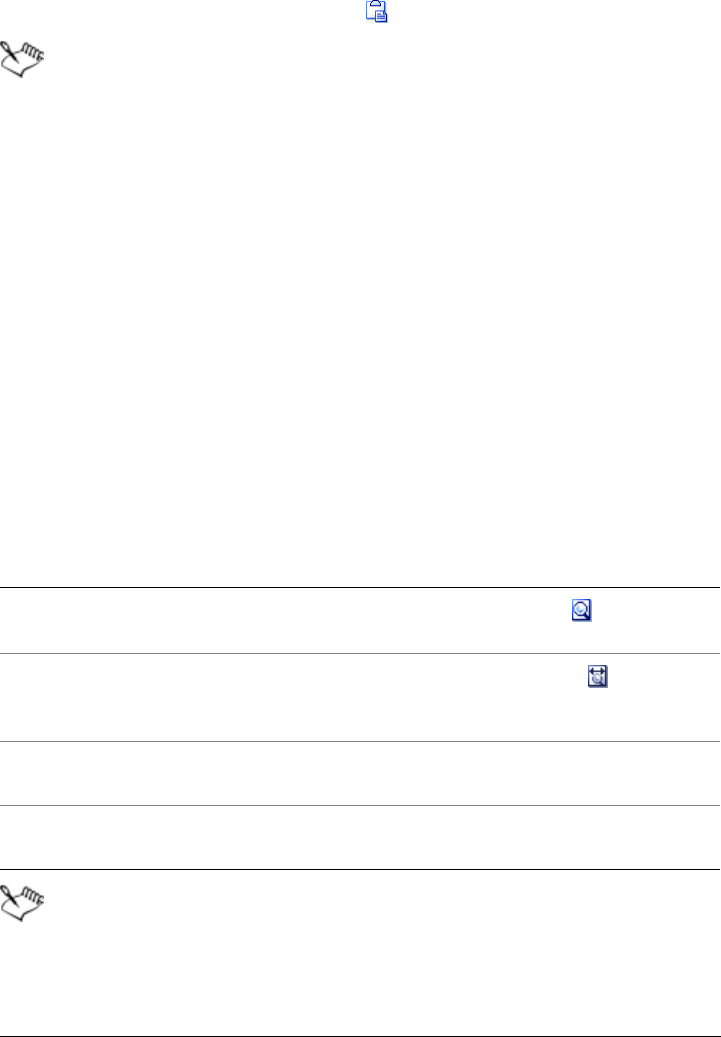
To Do the following
Display the entire page, including margins,
in the document window
Click the Full page button on the status
bar.
Display the entire width of the page,
including the left and right margins, in the
document window
Click the Page width button on the
status bar.
Choose a preset zoom option Click the zoom picker on the status bar, and
select a zoom option.
Choose a custom zoom option Move the zoom slider on the status bar to
the left or right.

Working with documents 11
To minimize or maximize the document window
• Right-click the Viewer title bar, and click either Minimize or Maximize.
To restore a document window to its original size, right-click the title bar, and
click Restore.
To rotate the page display of a PDF document
•Click the Rotate Clockwise button or Rotate Counterclockwise button .
You can rotate a page display in 90-degree increments.
Rotating a page display changes the page view, not the orientation of the page
in the Viewer.
To view information for a PDF document
1Open the PDF document.
2Click the Info button .
Navigating documents
You can navigate documents in several ways. You can scroll through the document, or
you can jump to a specific page.
To scroll through a document
• Drag the scroll box on the vertical scroll bar.
To Do the following
Copy document information to the
Clipboard
Click the arrow beside the Copy button ,
and select Copy to Clipboard.
Copy and paste document information to a
new note
Click the arrow beside the Copy button ,
and select Copy to Note.
The Notes window appears and displays the
copied content in a new note.

12 Corel WordPerfect Lightning User Guide
To jump to a page in a document
Searching documents
You can search for words, phrases, or individual characters in a document.
To search a document
1Click the Find button on the toolbar.
2In the Find box, type the word or words that you want to find.
3Click one of the following:
• Find next — finds the next instance of the word in the document
• Find prev — finds the previous instance of the word in the document
Saving and closing documents
As you work with a document, you can save it either locally on your computer or to
the Navigator. When you are finished with a document, you can also close a single
document, or close all documents open in WordPerfect Lightning.
To Do the following
Jump to the first page Click the First page button on the status
bar.
Jump to the last page Click the Last page button on the status
bar.
Jump to the next page Click the Next page button on the status
bar.
Jump to the previous page Click the Previous page button on the
status bar.

Working with documents 13
To save a document locally
1Click the arrow beside the Save button , and select Save a Copy.
2Choose the folder in which you would like to save the document.
3Ty p e a n a m e i n t h e File name box.
4Click Save.
To save a document to the Navigator
• Click the arrow beside the Save button , and select Save to Notebook.
The document is saved in the Notebook folder in the Navigator.
To close a document
•Click the Close button at the upper-right corner of the document.
To close all documents
• From the Navigator, click the Close all Documents button .

Working with notes 15
Working with notes
WordPerfect Lightning lets you create notes for a variety of purposes. For example,
notes can serve as the building blocks for a document. You can also create notes for
project organization, such as lists, task reminders, or comments about a document or
Web page.
You can create a note from scratch, or you can paste content into a new note. You can
also change the appearance of notes by adding images, changing the background color,
and modifying the font settings.
When closed, notes are saved automatically to a root folder in the Navigator. You can
then move the note to another folder in the Navigator.
In this section, you’ll learn about
•creating notes
• adding content to notes
• changing the appearance of notes
• modifying font settings
• creating and applying lists
• indenting text
• adding tables to notes
• adding images and lines to notes
• adding hyperlinks to notes
• saving and closing notes
Creating notes
You can create notes in one of three ways: from within the Navigator, from existing
notes, or from documents in the Viewer.

16 Corel WordPerfect Lightning User Guide
To create a note
• From the Navigator, click the New Note button .
To keep a note open on your desktop, click the arrow next to the Note button
, and choose Keep on Top. When you want to close the note, click the Close
button .
Adding content to notes
A quick way to add content to a note is to paste text or images copied from another
source, such as a document, a Web page, or another note. You can also type text into a
note.
To type text in a note
1Click in the note where you want to type.
2Type the text you want to add.
To paste text or images into a note
1Copy the text or image you want to paste.
2Click in the note where you want to insert the text or image.
3Right-click, and choose Paste.
Changing the appearance of notes
You can change the appearance of a note in several ways. You can change the
background color, add a background image, or change the size of a note.
You can also
Create a note from an existing note In a note window, click the arrow next to the
Note button , and choose New Note.
Create a note from a document in the
Viewer
Select the text, click the arrow next to the
Copy button , and choose Copy to Note.

Working with notes 17
To change the background color of a note
1Click the arrow next to the Note button , and choose Note Properties.
2Click the Background color picker.
3In the Basic colors area, choose a color.
4Click OK.
To add a background image to a note
1Click the arrow next to the Note button , and choose Note Properties.
2Type a path and filename in the Background image box.
3Click OK.
You can browse for an image file by clicking the button next to the
Background image box.
To change the size of a note
1Place the cursor over the outer edge of a note.
The cursor changes to a double-sided arrow.
2Drag the cursor to resize the note.
You can also change the size of a note by dragging the corners, which
proportionally resizes the note.
Modifying font settings
You can change the look of text in notes by modifying the font settings. You can
change the font face, size, and appearance.
To change the font face
1Select the text.
2On the toolbar, click the arrow next to the font face box, and choose a font face.
18 Corel WordPerfect Lightning User Guide
3Click OK.
Creating and applying lists
You can use bulleted and numbered lists in notes to organize text. Numbered lists
organizes content into sequential steps. Bulleted lists can be used to organize text into
lists that do not require a particular order.
You can create a list from scratch, or you can apply a list format to existing text.
To create a bulleted list
1Click in the note where you want the bulleted list to begin.
2Click the Bulleted List button .
3Type the text, and press Enter.
Perform this step for each entry in the list.
You can discontinue a bulleted list by clicking before the first word in a line
and pressing Backspace.
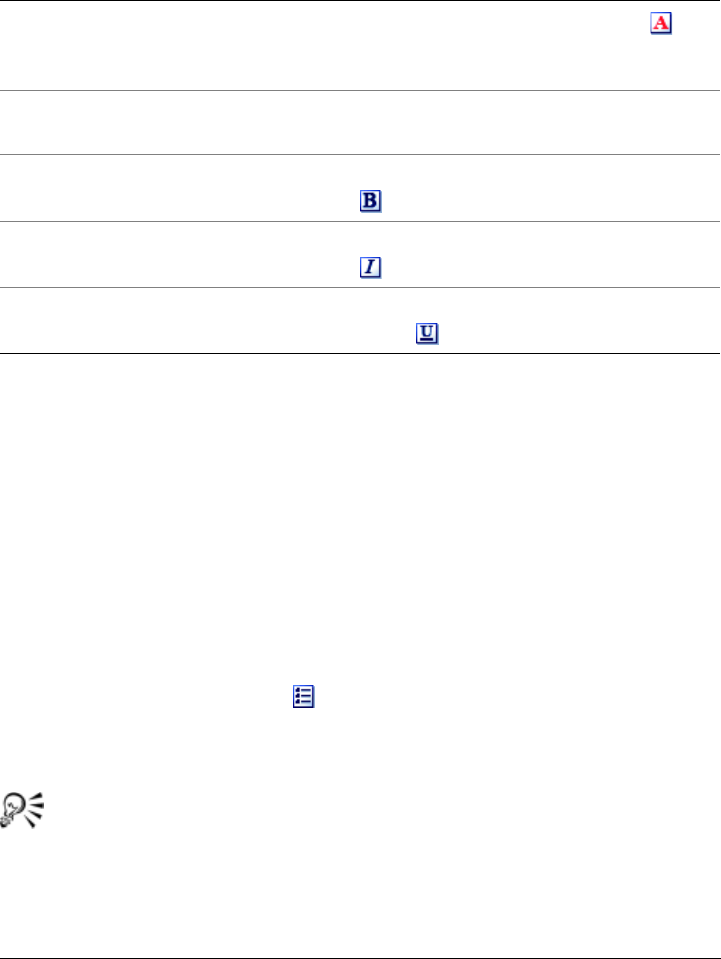
You can also
Change the color of selected text Select the text, click the Color button on
the toolbar, and choose a color from the
Color Picker. Click OK.
Change the size of selected text Select the text, click the Font Size box on
the toolbar, and choose a font size.
Apply bold formatting to the selected text Select the text, and click the Bold button
.
Italicize the selected text Select the text, and click the Italics button
.
Underline the selected text Select the text, and click the Underline
button .

Working with notes 19
To apply a bullet format to existing text
1Select the text.
2Click the Bulleted List button .
To create a numbered list
1Click in the note where you want the numbered list to begin.
2Click the Numbered List button .
3Type the text, and press Enter.
Perform this step for each entry in the list.
You can discontinue a numbered list by clicking before the first word in a line
and pressing Backspace.
To number existing text
1Select the text.
2Click the Numbered List button .
Indenting text
Indenting text moves the selected text to the right. You can indent text in notes for a
variety of reasons, such as marking the beginning of a paragraph, emphasizing text, or
displaying an excerpt from another source.
To indent text
1Position the cursor before the text you want to indent.
2Click the Right Indent button .
Indenting text in a note moves the entire paragraph. To indent a single word
or sentence, position the cursor after the word or sentence and press Enter to
create a new paragraph.

20 Corel WordPerfect Lightning User Guide
To remove an indent from text
1Click at the beginning of a line of text.
2Click the Left Indent button .
Adding tables to notes
A table is a collection of information consisting of rows and columns. Each square
within a table is an editable area called a cell. You can type text in each cell.
You can add a table anywhere in a note.
To add a table to a note
1Click the Arrow button , and choose Ta b l e .
2Specify values in the following boxes:
• Rows
• Columns
3Click Insert.
Adding images and lines to notes
You can insert an image anywhere in a note. Depending on the alignment options you
choose, you can set the text to wrap around the image.
You can also insert a horizontal line into a note. Horizontal lines can be used to
emphasize a title, or to provide a visual break between concepts or ideas.
To add an image to a note
1Click in the note where you want to insert the graphic.
2Click the Insert button , and select Image.
3Type the path and filename of the image in the Picture Source box.
If you don’t know the exact path and filename, you can locate the image by
clicking Browse.

Working with notes 21
To add a horizontal line to a note
1Click in the note where you want to add the horizontal line.
2Click the Insert button , and choose Horizontal Line.
Adding hyperlinks to notes
You can add a hyperlink to a note. Hyperlinks are clickable links that provide instant
access to Web pages, e-mail messages, or FTP sites.
To add a hyperlink to a note
1Click in the note where you want to insert the hyperlink.
2Click the Insert button , and choose Hyperlink.
3Choose a hyperlink type from the Ty p e list.
4Type the URL for the link in the URL box.
Saving and closing notes
When you close a note, it is saved automatically in the Navigator. You can close a
single note, or all open notes. You can also change the title of a note in the Note
Properties dialog box. WordPerfect Lightning automatically creates a title for each
note, consisting of the first few words of the note.
You can also
Set a border width for the image In the Layout area, type a number in the
Border Thickness box. The higher the
number, the thicker the border becomes.
Align the image within the page In the Layout area, choose an alignment
position from the Alignment list.
Set the spacing between the image and
surrounding text
In the Spacing area, type numbers in the
Horizontal and Vertical boxes. The higher
the numbers, the more space is added
between the image and surrounding text.

22 Corel WordPerfect Lightning User Guide
To change the title of a note
1Click the Note button , and choose Note Properties.
2Type a new title in the Note title box.
To save and close a note
•Click the Close button in the upper-right corner of the note.
To close all notes
• From the Navigator, click the Close All Notes button .

Capturing images of note and document content 23
Capturing images of note and
document content
When working with a note or document in WordPerfect Lightning, you can capture an
area of text and graphic as an image. You can then send that image to a new note, to
the Clipboard, or to a new WordPerfect document.
You can also capture an image of anything on your desktop. After you begin an image
capture, you can pause the process, rearrange the contents of your desktop, and then
resume the image capture.
In this chapter you’ll learn about
• capturing images
Capturing images
You can capture images of note content within the Notes window, or images of
document content from the Viewer. After you create an image, you can send it to a
new note, to the Clipboard, or to a new WordPerfect document.
To capture an image from the Navigator or Viewer
1Click the arrow next to the Snapshot button , and choose one of the following
options:
• Take Snapshot to New Note — copies the image to a new note
• Take Snapshot to WordPerfect — copies the image to a WordPerfect
document
• Take Snapshot to Clipboard — copies the image to the Clipboard
2Make a selection by dragging around the area that you would like to include in the
image.

24 Corel WordPerfect Lightning User Guide
To capture an image from the Notes window
•Click the Note button , and choose one of the following:
• Take Snapshot to New Note — copies the image to a new note
• Take Snapshot to This Note — copies the image to the active note
You can also
Pause an image capture Press Pause. To resume the image capture,
press Pause again.
Use the keyboard to capture an image Press the Spacebar, use the Arrow keys to
define the image capture area, and press the
Spacebar again to capture the image.
You can move the cursor from corner to
corner in the image capture area by pressing
Ta b .
Redefine an image capture area Before you release the left mouse button or
press the Spacebar to capture the image,
press Backspace.
Cancel an image capture Press Esc.
You can also
Pause an image capture Press Pause. To resume the image capture,
press Pause again.
Use the keyboard to capture an image Press the Spacebar, use the Arrow keys to
define the image capture area, and press the
Spacebar again to capture the image.
You can move the cursor from corner to
corner in the image capture area by pressing
Ta b .
Redefine an image capture area Before you release the left mouse button or
press the Spacebar to capture the image,
press Backspace.
Cancel an image capture Press Esc.

Organizing content 25
Organizing content
You can use the Navigator to organize your documents and notes. You can create and
name folders to store associated files, and you can move files from folder to folder. To
easily find documents and notes in large projects, you can choose to display files by
content type, such as WordPerfect, Microsoft Word, PDF, or note. You can also choose
to display open items only.
In this chapter you’ll learn about
• working with folders
• displaying content
Working with folders
At the core of the Navigator is the ability to create folders to store and organize
content such as documents and notes. You can create new folders and move them up
and down in the Navigator tree. You can also rename folders, if necessary. As you add
notes and documents to the Navigator, you can move them into folders that you have
created.
To create a folder
1Click in the Navigator tree where you would like to place the new folder.
By default, new folders are created at the root level.
2Click the New Folder button in the Navigator menu.
To move a folder
• Drag the folder to a new position in the Navigator tree.

26 Corel WordPerfect Lightning User Guide
To rename a folder
1Right-click a folder, and select Rename from the menu.
The folder title becomes an editing area.
2Type a new name for the folder in the editing area.
Displaying content
You can choose how to display documents, and notes in the Navigator. You can
narrow down your search for content by displaying only certain content types, such as
notes, WordPerfect, PDF, and Microsoft Word documents. In addition, you can also
choose to display open items only.
To select which content types to display
1From the Navigator, click the Show button .
2Choose one of the following:
• Notes – displays only notes.
• WPD – displays only WordPerfect documents.
• DOC – displays only Microsoft Word documents.
• PDF – displays only PDF documents.
• All – displays all content types.
You can choose to display only open notes or documents by clicking the Show
button and choosing Opened Items Only.

Sharing content 27
Sharing content
WordPerfect Lightning lets you easily share the content that you have viewed or
created. You can e-mail a note or document, or send the note or document to
WordPerfect for editing.
In this section, you’ll learn about
• sending documents and notes by e-mail
• sending notes to a word processor
• sending documents to a word processor
• posting notes on a WordPress.com blog
Sending documents and notes by e-mail
WordPerfect Lightning contains an e-mail feature that allows you to send content to a
friend quickly and easily. You can send both notes and documents by e-mail. The
e-mail feature opens an e-mail message in your default e-mail client. Notes are
included in the body of the e-mail, and documents are included as attachments.
When you sign up for online storage space, you receive a Web-based e-mail account
from Joyent. You can access your e-mail account from Lightning. For information on
using your e-mail account, refer to the Joyent Documentation Wiki.
To e-mail a document
1From the Navigator, select the document.
2Click the arrow next to the Send to button , and choose Send to Mail
Recipient.

28 Corel WordPerfect Lightning User Guide
You can also e-mail a document from within the Viewer by clicking the arrow
next to the Save button and choosing Send to Mail Recipient.
To e-mail a note
1From the Navigator, select the note.
2Click the arrow next to the Send to button , and choose Send to Mail
recipient.
You can also e-mail a note from within the Notes window by clicking the Send
to Mail Recipient button in the lower-left corner.
To access your online e-mail account
• From the Navigator, click the arrow next to the Go online button , and choose
Use online e-mail.
For information on using your e-mail account, refer to the Joyent
Documentation Wiki.
Sending notes to a word processor
You can send a note to WordPerfect or Microsoft Word to create a more formal
document out of the note content. The tools in a word processor let you apply more
advanced formatting, control page layout, check grammar and spelling, and use other
more advanced features for refining your document.
You can choose to set a default word processor in which to open your documents;
alternatively, you can choose a word processor each time you want to create a
document from note content.
To send notes or documents to Microsoft Word, you must have the Send to Word
Processor module installed with WordPerfect Lightning. You can install the Send to
Wor d Pr oc es so r module from the Viewer or a note by clicking the arrow next to the
Send to button , choosing Send to Word Processor, and following the instructions
on your screen.

Sharing content 29
To set a default word processor
1From the Navigator, click the Settings button on the toolbar.
2In the Settings dialog box, click Send to word processor.
3Choose one of the following options:
• Send to WordPerfect
• Send to Microsoft Word
• Let me choose each time
4Click OK.
You must have WordPerfect or Microsoft Word installed in order to complete
this task.
You can also send a note to a word processor from within the Notes window
by clicking the Send to Word Processor button in the lower-left corner.
To send a note to a word processor
1From the Navigator, select the note.
2Click the arrow next to the Send to button , and choose Send to Word
Processor.
The note content appears in a new document window within your word processor.
You must have WordPerfect or Microsoft Word installed in order to complete
this task.
You can also send a note to a word processor from within the Notes window
by clicking the Send to Word Processor button in the lower-left corner.
Sending documents to a word processor
You can send a document to WordPerfect or Microsoft Word to use advanced editing
features. You can send any document that is open in the Viewer, regardless of
document type.

30 Corel WordPerfect Lightning User Guide
To send notes or documents to Microsoft Word, you must have the Send to Word
Processor module installed with WordPerfect Lightning. You can install the Send to
Wor d Pr oc es so r module from the Viewer or a note by clicking the arrow next to the
Send to button , choosing Send to Word Processor, and following the instructions
on your screen.
To send a document to a word processor
1From the Navigator, select the document.
2Click the arrow next to the Send to button , and choose Send to Word
Processor.
The document content appears in a new document window within your word
processor.
You must have WordPerfect or Microsoft Word installed in order to complete
this task.
You can also send a document to a word processor from within the Viewer by
clicking the arrow next to the Save button and choosing Send to Word
Processor.
Posting notes on a WordPress.com blog
WordPerfect Lightning lets you post notes on your WordPress.com blog. When you
post a note, its title appears as the title of your blog entry.
Before you can post notes, you must establish a connection to your blog by entering
your account information in WordPerfect Lightning. You need to provide the name and
URL of your blog, as well as your login user name and password.
To connect to a WordPress.com blog
1From the Navigator, click the Settings button on the toolbar.
2In the Settings dialog box, click Blogging.
3Click the Add new blog account button .

Sharing content 31
4Type the name of your blog in the Name of blog box.
5Type the URL for your blog in the Blog URL box.
6Type your user name in the User name box.
7Type your password in the Password box.
To save your password, enable the Save password check box.
To confirm your connection settings, click Verify.
8Click OK.
To post a note on a blog
1From the Navigator, select the note.
2Click the arrow next to the Send to button , and choose Send to Blog.
You can also send a note to a blog from within the note by clicking the Send
to Blog button in the lower-left corner.
You can also
Set a default blog account Choose a blog account, and click the Set as
default blog account button .
View a blog Choose a blog account, and click the View
blog button .
Delete a blog account Choose a blog account, and click the
Remove blog account button .
Change connection settings for a blog Choose a blog account, and click the Edit
blog account button . In the Blog
Account Details dialog box, make changes
to any of the settings.

Deleting and restoring content 33
Deleting and restoring content
You can delete notes, documents, and folders from the Navigator. When you delete an
item, it is sent to the Deleted Items folder. From this folder, you can delete the item
permanently or restore the item to its previous location.
In this section, you’ll learn about
• deleting notes, documents, and folders
• restoring deleted content
Deleting notes, documents, and folders
You can delete notes, documents, and folders from the Navigator. When you delete a
folder, the entire contents of the folder are also deleted.
To mark a note, document, or folder for deletion
1From the Navigator, select the item.
2Press Delete.
The item is moved to the Deleted Items folder.
You can also delete an item by right-clicking it and choosing Delete, or by
selecting the item and clicking the Delete button .
To delete a note, folder or document permanently
1From the Deleted Items folder in the Navigator, select the note, folder, or
document.
2Press Delete.

34 Corel WordPerfect Lightning User Guide
The item is permanently deleted from the Navigator.
Restoring deleted content
You can restore a note, document, or folder that has been sent to the Deleted Items
folder. Restoring an item returns it to the folder where it originally resided.
To restore a deleted note, document, or folder
1From the Deleted Items folder in the Navigator, select the note, document, or
folder.
2Click the Restore button .

Printing 35
Printing
WordPerfect Lightning lets you print single or multiple copies of notes and documents.
You can print entire notes or documents or specify only selected pages for printing.
In this section, you’ll learn about
• printing notes and documents
Printing notes and documents
You can print items from within the Navigator, the Viewer, or the Notes window. You
can print single or multiple copies of an entire note or document, or of selected pages
only.
To print a note
1From the Navigator, select a note.
2Click the Print button .
3In the Select Printer area, choose a printer.
4Click Print.
You can print multiple copies of a note by typing a number in the Number of
copies box.
To print a WordPerfect or Microsoft Word document
1From the Viewer, click the Print button .
2In the Select Printer area, choose a printer.
3In the Page Range area, enable one of the following options:

36 Corel WordPerfect Lightning User Guide
• All – prints the entire file.
• Selection – prints the current page.
• Pages – prints the pages specified in the Pages box.
If you enable the Pages option, type the page numbers of the pages you want to
print in the Pages box.
4Click Print.
To print multiple copies, type a number in the Number of copies box. If you
want the copies collated, enable the Collate option.
To print a PDF document
1From the Viewer, click the Print button .
2In the Name list, choose a printer.
3In the Page Range area, enable one of the following options:
• All – prints the entire file.
• Current page – prints the current page.
• Page from – prints the pages specified in the Page from and to boxes.
If you enable the Page from option, type a page number for the first page you
want to print in the Page from box, and a page number for last page in the to box.
4Click OK.
To print multiple copies, type a number in the Copies box.

Storing content online 37
Storing content online
The Joyent Connector online productivity and collaboration application suite is an
excellent complement to WordPerfect Lightning. Connector is Web-based software, so
there is nothing for you to install on your computer. You simply access it like any other
Web site, which means you will always have the latest version. WordPerfect Lightning
lets you upload your notebook from the Navigator to Connector, where you can share
up to 200 MB of notes and documents with other online users.
In this section, you’ll learn about
• the Joyent Connector suite of applications
• creating an online account
• connecting to an online account
About the Joyent Connector suite of applications
The Joyent Connector productivity and collaboration application suite is Web-based
software, so there is nothing for you to install on your computer. You simply access it
like any other Web site, which means you always have the latest version.
The Connector suite consists of a number of online applications, including:
Mail
All Connector users are assigned an e-mail address. Mail includes Spam protection and
lets you attach files directly from your computer or existing files you have previously
uploaded to Connector.

38 Corel WordPerfect Lightning User Guide
Calendar
Calendar helps you keep track of events of all kinds. You can even import calendars from
any program that supports the standard iCalendar format (.ics).
People
This contact management application ensures that your personal and business contacts
are accessible to you from almost anywhere.
Files
This online storage application lets you back up and share documents, images, and
other kinds of files. You can upload up to five files at one time.
Bookmarks
This application lets you store Web addresses that you use frequently, so you can easily
access them from any Internet-connected computer. Moreover, bookmarking Web
pages in Joyent Connector allows you to make bookmarks part of your workflow and
collaboration.
Lists
This flexible list and outline maker helps you organize your thoughts, tasks, a big
project — whatever you want.
These applications are placed within a unified, consistent user interface. Each of the
applications has the same controls and overall features.
You can access your information from any Internet-connected Web browser, anywhere,
anytime. Yet because your data resides on Joyent's own cutting-edge infrastructure, you
can also be assured that it is safe and secure.
For more information about the Joyent Connector, refer to the Joyent Documentation
Wiki.

Storing content online 39
Creating an online account
You can create an online account by providing information such as your first name,
your last name, an e-mail address, and a user name. You must also provide some
information to ensure that your account has a unique online address. To create this
unique address, you must provide a domain name, which becomes part of the online
address for your account. If the domain name is taken by another user, then you are
prompted to provide another name. You must also provide an organization name,
which is simply a way for you to identify the type of account you are creating. The
organization name appears in the browser title bar.
You can use your online account as a backup storage space for your notes and
documents, and as a method of sharing your content with other users.
Included with the online storage space is the Joyent Connector, a suite of Web-based
productivity and collaboration applications. For more information about the Joyent
Connector, refer to the Joyent Documentation Wiki.
To create an online account
1From the Navigator, click arrow next to the Go online button , and choose Go
to Lightning online.
2Choose I want to create an account.
3In the Create an account dialog box, type your first name, last name, and user
name in the boxes provided.
4Type your e-mail address in the E-mail address box.
5Type a unique identifier for your online account address in the Domain box.
6Type an organization name in the Organization box.
7Type the password you want to use for your account in the Password and Confirm
Password boxes.
8Click Submit.
If the domain name you provided is already in use, you are prompted to provide
a different domain name.
Note that your domain name must contain at least one character and cannot
contain spaces. Also, the first and last characters of the name cannot be digits.

40 Corel WordPerfect Lightning User Guide
Connecting to an online account
After you create an online account, you can access it from the Navigator. You can
upload files from the Navigator to your online account, or you can download files from
your online account to the Navigator. This process of uploading or downloading your
files is called synchronization.
When performing a synchronization, you must be aware that you are uploading or
downloading the entire contents of your notebook, including the Deleted Items folder.
Synchronizing overwrites all existing files. For example, when you upload your
notebook from the Navigator to your online account, all of the files stored in your online
account are overwritten by the files you are uploading. Overwriting also occurs when
you download files from your online account to the Navigator. For this reason, it is
recommended that you double-check to ensure that you do not overwrite your most
recent notes and documents.
To log into an online storage account
1From the Navigator, click arrow next to the Go online button , and choose Go
to Lightning online.
2Choose I want to connect to an existing account.
3In the Domain box, type the domain name for your account.
4In the User Name and Password boxes, type your user name and password.
5Click OK.
A Web page appears, representing your online account.
To upload files to an online account
1From the Navigator, click the arrow next to the Sync button , and choose
Upload my notebook.
In the Status area, a list is dynamically generated, showing the notes and
documents being transferred to your online account. When all of the notes and
documents are uploaded, the list stops moving.
2Click OK.

Storing content online 41
You cannot access WordPerfect Lightning while the notes and documents are
being uploaded to your online account. You can access WordPerfect Lightning
after the synchronization is complete.
To download files from an online account
1From the Navigator, click the arrow next to the Sync button , and choose
Download my notebook.
In the Status area, a list is dynamically generated, showing the notes and
documents being transferred to the Navigator. When all of the notes and
documents are downloaded, the list stops moving.
2Click OK.
You cannot access WordPerfect Lightning while the notes and documents are
being downloaded to the Navigator. You can access WordPerfect Lightning
after the synchronization is complete.

Tips for working with WordPerfect Lightning 43
Tips for working with
WordPerfect Lightning
WordPerfect Lightning blends the powerful features of desktop applications with the
versatility of Web-based office software to give you something new — an easily
accessible tool that lets you not only quickly assemble ideas, information, and images,
but also store and organize these items for future use. In addition, WordPerfect
Lightning integrates with a variety of online products and services, which lets you
collaborate anytime and anywhere.
You can get the most out of WordPerfect Lightning by learning to perform just a few
simple procedures. The tips presented in this section let you easily create notes, capture
and edit information, and share information with others.
• opening documents
•taking notes
• organizing information
• sending content by e-mail
• creating polished documents
• accessing online resources
Opening documents
You can open WordPerfect, Microsoft Word, and PDF files from within the Viewer in
WordPerfect Lightning. Each document you open appears in a new viewing window.
To open a document
1From either the Viewer or the Navigator, click the Open button on the toolbar.
2Choose the folder where the document is stored.
44 Corel WordPerfect Lightning User Guide
3Choose a file type from the Files of type list.
4Choose a file.
5Click Open.
If you know where a file is located, you can type the full path and filename in
the File name box.
Taking notes
WordPerfect Lightning acts as your digital memory, letting you quickly capture your
ideas in notes. You can copy text and graphics as images into your notes from e-mail or
the Web. You can then send that image to a new note, to the Clipboard, or to a new
WordPerfect document.
To create a note
• From the Navigator, click the New Note button .
To copy and paste text or a graphic to a new note
1Select the text or graphic.
2Click the arrow next to the Copy button , and choose Copy to Note.
The Notes window appears and displays the copied content in a new note.
Copying both a graphic and text results in only the text being placed the note.
To copy a graphic to a note, ensure that you copy the graphic only.
You can also
Create a note from an existing note In a note window, click the arrow next to the
Note button , and choose New Note.
Create a note from a document in the Viewer Select the text, click the arrow next to the
Copy button , and choose Copy to Note.

Tips for working with WordPerfect Lightning 45
Organizing information
You can use WordPerfect Lightning as a fast and simple organizer for all your ideas and
documents — it’s like a word processor, notebook, whiteboard, and filing cabinet
combined into a single tool.
Every note you create is automatically saved in the Navigator. After you’ve created a
few notes, you can create folders in the Navigator and then drag your notes into them.
To create a folder, click the New Folder button in the Navigator.
To save a document to the Navigator
• Click the arrow next to the Save button , and choose Save to Notebook.
The document is saved in the Notebook folder in the Navigator.
Sending content by e-mail
WordPerfect Lightning lets you easily share the content that you have viewed or
created. You can e-mail a note or document to a friend, or send the note or document
to WordPerfect for editing.
To e-mail a note
1From the Navigator, select the note.
2Click the arrow next to the Send to button , and choose Send to Mail
recipient.
You can also e-mail a note from within the Notes window by clicking the Send
to Mail Recipient button in the lower-left corner.
To e-mail a document
1From the Navigator, select the document.
2Click the arrow next to the Send to button , and choose Send to Mail
Recipient.

46 Corel WordPerfect Lightning User Guide
You can also e-mail a document from within the Viewer by clicking the arrow
next to the Save button and choosing Send to Mail Recipient.
Creating polished documents
When you have all the information you need and want to create something polished,
WordPerfect Lightning does something no other word-processing product can do: it
seamlessly integrates with a full-featured office suite — Corel WordPerfect Office.
To send a document to a word processor
1From the Navigator, select the document.
2Click the arrow next to the Send to button , and choose Send to Word
Processor.
The document content appears in a new document window within your word
processor.
You must have WordPerfect or Microsoft Word installed in order to complete
this task.
You can also send a document to a word processor from within the Viewer by
clicking the arrow next to the Save button and choosing Send to Word
Processor.
To send a note to a word processor
1From the Navigator, select the note.
2Click the arrow next to the Send to button , and choose Send to Word
Processor.
The note content appears in a new document window within your word processor.
You must have WordPerfect or Microsoft Word installed in order to complete
this task.

Tips for working with WordPerfect Lightning 47
You can also send a note to a word processor from within the Notes window
by clicking the Send to Word Processor button in the lower-left corner.
Accessing online resources
There are many ways to stay current with the latest WordPerfect Lightning updates and
innovations. In addition to posting an online blog, the WordPerfect Lightning Web site
hosts user forums, where you can find tips from users and share any of your own
comments. To access the Web site, click the arrow next to the Help To p i c s button ,
and select WordPerfect Lightning Website.
WordPerfect Lightning also provides an online Help system, where you can access more
detailed Help topics. To access the online Help system, click the Help Topics button
.

Index 49
Lightning Index
B
background images . . . . . . . . . . . . . . . . 16
blogs
connecting to WordPress.com . . . . . . 30
posting notes on WordPress.com . . . 30
bulleted lists
adding to notes . . . . . . . . . . . . . 15, 18
C
capturing images . . . . . . . . . . . . . . . . . . 23
closing
documents . . . . . . . . . . . . . . . . . . . . . 7
notes . . . . . . . . . . . . . . . . . . . . . . . . 21
WordPerfect Lightning . . . . . . . . . . . 1
copying text and graphics . . . . . . . . . . 7, 9
Corel Corporation
about . . . . . . . . . . . . . . . . . . . . . . . . . 4
D
default document viewer . . . . . . . . . . . . . 2
documents
closing . . . . . . . . . . . . . . . . . . . . . 7, 12
closing all . . . . . . . . . . . . . . . . . . . . 12
deleting . . . . . . . . . . . . . . . . . . . . . . 33
displaying . . . . . . . . . . . . . . . . . . . . 26
e-mailing . . . . . . . . . . . . . . . . . . . . . 27
importing . . . . . . . . . . . . . . . . . . . . . 8
opening . . . . . . . . . . . . . . . . . . . . 7, 43
printing . . . . . . . . . . . . . . . . . . . . . . 35
restoring . . . . . . . . . . . . . . . . . . 33, 34
rotating . . . . . . . . . . . . . . . . . . . . . . 10
saving . . . . . . . . . . . . . . . . . . . . . 7, 12
scrolling . . . . . . . . . . . . . . . . . . . . . . 11
searching . . . . . . . . . . . . . . . . . . . . . 12
sending to a word processor . . . . . . . 29
sending to WordPerfect . . . . . . . . . . .27
storing . . . . . . . . . . . . . . . . . . . . . . .25
viewing . . . . . . . . . . . . . . . . . . . . 7, 10
zooming . . . . . . . . . . . . . . . . . . . . . .10
dragging folders . . . . . . . . . . . . . . . . . . . 25
E
editing notes
in Microsoft Word . . . . . . . . . . . . . .28
in WordPerfect . . . . . . . . . . . . . . . . .28
e-mailing
documents . . . . . . . . . . . . . . . . . . . .27
notes . . . . . . . . . . . . . . . . . . . . . . . .27
exiting WordPerfect Lightning . . . . . . . . .1
F
folders
creating . . . . . . . . . . . . . . . . . . . 25, 26
deleting . . . . . . . . . . . . . . . . . . . . . .33
moving . . . . . . . . . . . . . . . . . . . . . . .25
renaming . . . . . . . . . . . . . . . . . . . . .25
restoring . . . . . . . . . . . . . . . . . . . . . .34
fonts
changing color . . . . . . . . . . . . . . . . .17
changing font face . . . . . . . . . . . . . . 17
changing size . . . . . . . . . . . . . . . . . .17
G
graphics
adding to notes . . . . . . . . . . . . . . . . .15
capturing . . . . . . . . . . . . . . . . . . . . . 23
copying . . . . . . . . . . . . . . . . . . . . . . .9
importing . . . . . . . . . . . . . . . . . . . . . .8
selecting . . . . . . . . . . . . . . . . . . . . . 8, 9

50 Index
Corel WordPerfect Lightning
H
Help files
accessing . . . . . . . . . . . . . . . . . . . . . . 2
tips . . . . . . . . . . . . . . . . . . . . . . . . . . 2
user guide . . . . . . . . . . . . . . . . . . . . . 2
highlighting text . . . . . . . . . . . . . . . . . . . . 8
hyperlinks
adding to notes . . . . . . . . . . . . . . . . 15
I
images
adding to notes . . . . . . . . . . . . . . . . 15
capturing . . . . . . . . . . . . . . . . . . . . 23
copying . . . . . . . . . . . . . . . . . . . . . . . 9
selecting . . . . . . . . . . . . . . . . . . . . . . 8
importing
documents . . . . . . . . . . . . . . . . . . . . 8
graphics . . . . . . . . . . . . . . . . . . . . . . 8
text . . . . . . . . . . . . . . . . . . . . . . . . . . 8
indenting text . . . . . . . . . . . . . . . . . .15, 19
L
lists
creating . . . . . . . . . . . . . . . . . . . . . . 18
M
moving
folders . . . . . . . . . . . . . . . . . . . . . . . 25
N
note titles
changing . . . . . . . . . . . . . . . . . . . . . 22
notes
adding background color . . . . . . .16, 17
adding background images . . . . .16, 17
adding images . . . . . . . . . . . . . . . . . 20
adding lines . . . . . . . . . . . . . . . . 20, 21
adding tables . . . . . . . . . . . . . . . . . . 20
changing titles . . . . . . . . . . . . . . . . . 22
closing . . . . . . . . . . . . . . . . . . . . . . . 21
creating . . . . . . . . . . . . . . . . 15, 16, 44
deleting . . . . . . . . . . . . . . . . . . . . . . 33
displaying . . . . . . . . . . . . . . . . . . . . 26
e-mailing . . . . . . . . . . . . . . . . . . . . . 27
pasting content . . . . . . . . . . . . . . . . 16
posting on a blog . . . . . . . . . . . . . . . 30
printing . . . . . . . . . . . . . . . . . . . . . . 35
resizing . . . . . . . . . . . . . . . . . . . . . . 16
restoring . . . . . . . . . . . . . . . . . . 33, 34
saving . . . . . . . . . . . . . . . . . . . . 15, 21
sending to a word processor . . . . . . . 28
sending to WordPerfect . . . . . . . . . . 27
storing . . . . . . . . . . . . . . . . . . . . . . . 25
typing content . . . . . . . . . . . . . . . . . 16
numbered lists
adding to notes . . . . . . . . . . . . . 15, 18
O
opening
documents . . . . . . . . . . . . . . . . . . 7, 43
WordPerfect Lightning . . . . . . . . . . . 1
P
pasting content into notes . . . . . . . . . . . 16
printing . . . . . . . . . . . . . . . . . . . . . . . . . 35
documents . . . . . . . . . . . . . . . . . . . . 35
notes . . . . . . . . . . . . . . . . . . . . . . . . 35
R
renaming
folders . . . . . . . . . . . . . . . . . . . . . . . 25
resizing
document windows . . . . . . . . . . . . . 10

Index 51
Corel WordPerfect Lightning
notes . . . . . . . . . . . . . . . . . . . . . . . . 16
restoring
notes and documents . . . . . . . . . 33, 34
S
saving
documents . . . . . . . . . . . . . . . . . . . . . 7
notes . . . . . . . . . . . . . . . . . . . . . 15, 21
scrolling documents . . . . . . . . . . . . . . . . 11
searching
documents . . . . . . . . . . . . . . . . . . . . 12
for notes and documents . . . . . . . . . . 26
selecting text and graphics . . . . . . . . 7, 8, 9
snapshots
taking . . . . . . . . . . . . . . . . . . . . . . . 23
starting WordPerfect Lightning . . . . . . . . 1
storing
documents . . . . . . . . . . . . . . . . . . . . 25
notes . . . . . . . . . . . . . . . . . . . . . . . . 25
T
tables
adding to notes . . . . . . . . . . . . . 15, 20
text
copying . . . . . . . . . . . . . . . . . . . . . 7, 9
importing . . . . . . . . . . . . . . . . . . . . . 8
indenting . . . . . . . . . . . . . . . . . . 15, 19
selecting . . . . . . . . . . . . . . . . . . 7, 8, 9
typing content into notes . . . . . . . . . . . .16
V
viewing documents . . . . . . . . . . . . 7, 10, 11
W
Web site
WordPerfect Lightning . . . . . . . . . . 4, 5
word processor
sending documents to . . . . . . . . . . . .29
sending notes to . . . . . . . . . . . . . . . .28
WordPerfect Lightning
accessing the Web site . . . . . . . . . . . . .5
making the default document viewer . .2
work area
exploring . . . . . . . . . . . . . . . . . . . . . .3
Z
zooming . . . . . . . . . . . . . . . . . . . . . . . . . 10
