Corel PainterX3 Installation Guide Painter X3 Dg En
User Manual: corel Painter - X3 - Installation Guide Free User Guide for Corel Painter Software, Manual
Open the PDF directly: View PDF  .
.
Page Count: 8
- Corel® Painter® Installation Guide
- Preparing for the installation
- Running the full installer
- Accessing Help during the installation
- Performing a silent installation
- Installing with a pre-defined serial number
- Installing at a user-defined location
- Using logging options
- Repairing the software
- Removing the software
- Accessing additional resources
- PainterX3_DGCover.pdf
Installation Guide
Installation Guide 1
Corel® Painter® Installation Guide
The Corel® Painter® Installation Guide documents installation options so
system administrators can carry out an unattended (or silent) installation
and specify custom settings, such as installation folder, serial number, and
more.
Corel Painter X3 supports Setup.exe command lines. Each sample
command line provides an example of Setup.exe command lines, which
should meet your installation requirements.
Preparing for the installation
In preparation for the installation, you need to verify the version of .NET
Framework you have installed.
Verifying the .NET Framework version
You must have .NET Framework 4.5 or later installed before you can install
Corel Painter X3. If you’re installing from a CD, .NET Framework 4.5 is
included in the installation package. If you’re using electronic software
distribution (ESD), you must ensure that you have .NET Framework 4.5 or
later installed. If you don’t, you can download .NET Framework from
http://www.microsoft.com/download.
Running the full installer
You can run the full installer (Setup.exe) to install Corel Painter X3 with
the user interface (UI) visible for an attended installation, or without any
UI for a silent installation.
Accessing Help during the installation
You can access Help for the setup using either /? or /help.
Performing a silent installation
The /q switch can be used to perform “silent installations” to restrict the
amount of the user interface (UI) that appears during installation.
Parameters
You can specify one of the following parameters for the /q switch. The
default parameter for /q is n.
Parameter Effect
nNo UI whatsoever. Errors are logged in a file that you
can control by using /l. This is the default parameter.
Installation Guide 2
Installing with a pre-defined serial number
To install with a serial number, use the following command for 64-bit and
32-bit:
x:\x64\
Setup.exe /qn SERIALNUMBER=<valid serial number>
or
x:\x86\
Setup.exe /qn SERIALNUMBER=<valid serial number>
SERIALNUMBER is a property that defines the serial number that uses the
syntax xxxx-xxxx-xxxx-xxxx. Public properties, such as SERIALNUMBER,
are case-sensitive and must be typed in capital letters. For example:
SERIALNUMBER=YK93-DY87-V3LN-K3UJ
The serial number specified by SERIALNUMBER must be valid. If it isn’t, the
silent installation continues, but Corel Painter X3 will start up in trial
mode, as if no serial number had been entered. The validation failure is
logged by Windows Installer.
If you’ve entered a serial number incorrectly and Corel Painter X3 is in trial
mode, click the Enter Serial Number button and type your serial number.
Installing at a user-defined location
The default location for installation is the path Program
Files\Corel\Painter13, but you can use the INSTALLDIR public property
to install the software at a specific location on the workstations. The value
for this property is the desired installation path. If there are spaces in the
path, you must enclose the path in quotation marks. Here’s the command-
line syntax for 64-bit and 32-bit (which also shows a silent installation):
x:\x64\
Setup.exe /qn
SERIALNUMBER=YK93-DY87-V3LN-K3UJ
INSTALLDIR="C:\Custom_Install_Path"
or
x:\x86\
Setup.exe /qn
SERIALNUMBER=YK93-DY87-V3LN-K3UJ
INSTALLDIR="C:\Custom_Install_Path"
When using the INSTALLDIR property in a msiexec installation, the path
cannot end with a backslash (/).
rReduced UI: A progress bar, along with a page containing
information about the installation.
bBasic UI: The user sees only a progress bar.
Parameter Effect
Installation Guide 3
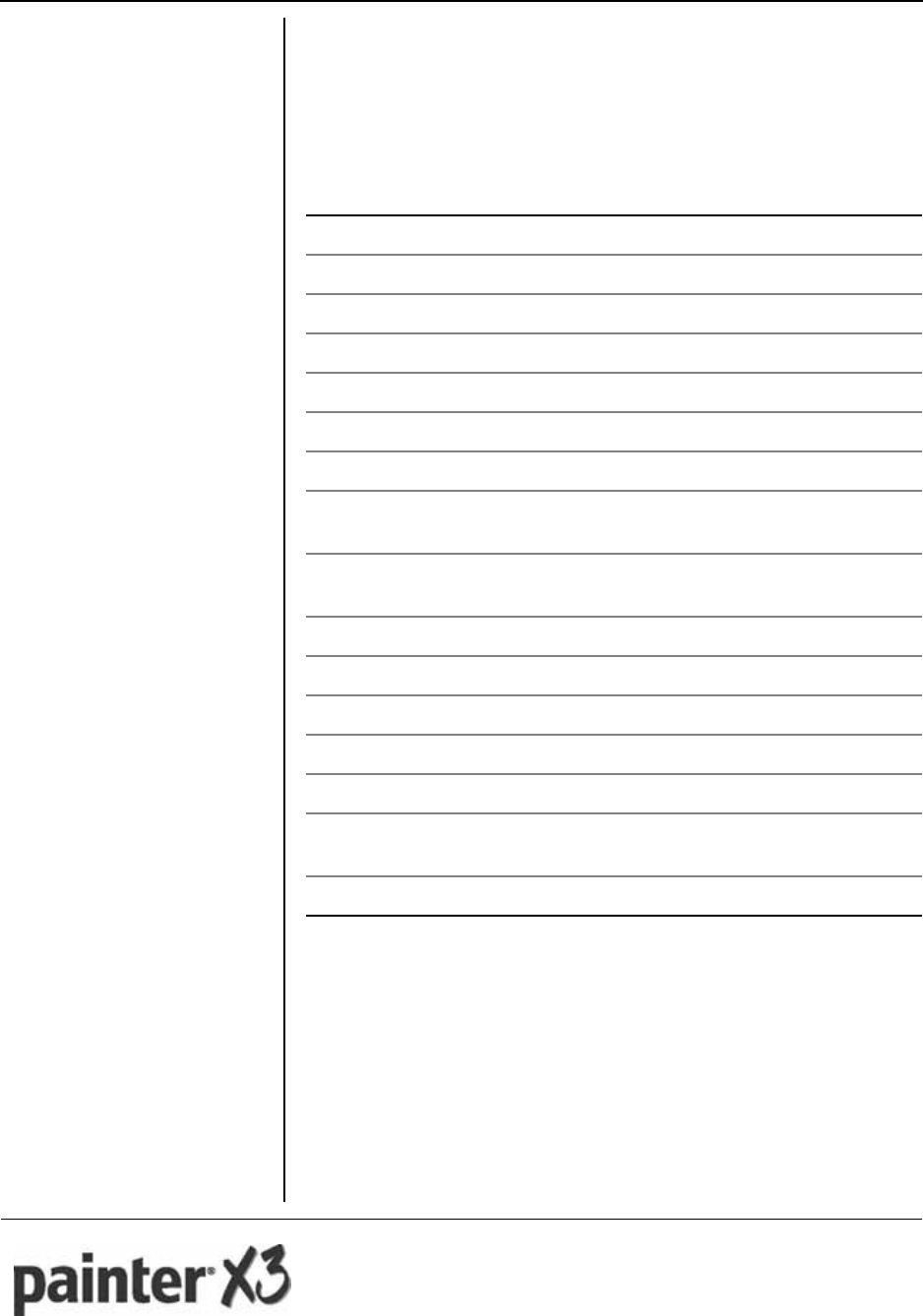
Using logging options
You can request the creation of logs at a specified location using the /l
switch with various modifiers. The default parameters for the /l switch are
iwearmo.
You can specify one or more of the following parameters for the /l switch.
Location and filename of log file
The /l switch can take an additional parameter: the location and filename
of the log file. Type /l followed by a space; followed by an opening
quotation mark, the path to the log file, the filename of the log file, and a
closing quotation mark. Here’s the command-line syntax for 64-bit and
32-bit (where log_file is the location and filename of the log file):
x:\x64\
Setup.exe /l
SERIALNUMBER=YK93-DY87-V3LN-K3UJ
"Log_file"
Parameter Effect
iLogs status messages
wLogs nonfatal warnings
eLogs all error messages
aLogs initiated actions
rLogs action-specific records
uLogs user requests
cLogs initial user-interface parameters
mLogs error messages about out-of-memory warnings or
fatal exits
oLogs error messages resulting from insufficient hard disk
space during installation to a server
pLogs terminal properties
vLogs very detailed information
xLogs extra debugging information
+Appends to existing log file
!Flushes each line to the log
*Applies all parameters except v and x, recording all
information in a single log file
/log <LogFile> Can be used in place of /l*
Installation Guide 4
or
x:\x86\
Setup.exe /l
SERIALNUMBER=YK93-DY87-V3LN-K3UJ
"Log_file"
If you do not specify a path and filename, the log file is created in the
current user’s Temp folder.
Syntax
The following sample command line uses the default parameters of the
/l switch to log information in the file C:\Logs\My_Log.txt during
installation (for 64-bit and 32-bit):
x:\x64\
Setup.exe /l
SERIALNUMBER=YK93-DY87-V3LN-K3UJ
"C:\Logs\My_Log.txt"
or
x:\x86\
Setup.exe /l
SERIALNUMBER=YK93-DY87-V3LN-K3UJ
"C:\Logs\My_Log.txt"
Using the /qn switch with /l
You can use the /qn and /l switches together. The following sample
command line uses /qn to suppress the user interface during installation
and record errors in the specified log file (for 64-bit and 32-bit):
x:\x64\
Setup.exe /qn
SERIALNUMBER=YK93-DY87-V3LN-K3UJ
/l
"C:\Logs\My_Log.txt"
or
x:\x86\
Setup.exe /qn
SERIALNUMBER=YK93-DY87-V3LN-K3UJ
/l
"C:\Logs\My_Log.txt"
Combining command line elements
You can combine command line elements, such as properties, switches, and
parameters. The following sample command line shows a silent installation
from a UNC path (rather than a normal map drive) with a predefined serial
number. The command line also shows installation to a custom path and
the creation of a log file to a specified folder for 64-bit and 32-bit.
"\\PathTo\x64\Setup.exe" /qn SERIALNUMBER=YK93-DY87-V3LN-
K3UJ INSTALLDIR= "C:\Custom_Install_Path" /l
"C:\Logs\My_Log.txt"
or
"\\PathTo\x86\Setup.exe" /qn SERIALNUMBER=YK93-DY87-V3LN-
K3UJ INSTALLDIR= "C:\Custom_Install_Path" /l
"C:\Logs\My_Log.txt"
Installation Guide 5
Repairing the software
You can use the command-line switch /f to repair the software. When
using the command-line switch /f, you must also use /qn. The default
parameters for /f are oums.
Here’s the command-line syntax for 64-bit and 32-bit:
x:\x64\
Setup.exe /f /qn
or
x:\x86\
Setup.exe /f /qn
You can specify one or more of the following parameters for the /f switch.
Removing the software
You can use the command-line switch /x or /uninstall to remove the
software.
Using the /x or /uninstall command line with Setup.exe removes the
entire suite.
Here’s the command-line syntax:
Setup.exe /x
Parameter Effect
pReinstalls missing files
oReinstalls missing files and files older than current
version
eReinstalls missing files and files equal to or older than
current version
dReinstalls missing files and files different from current
version
cRepairs the software if a file is missing or checksum does
not match the calculated value
aReinstalls all files
uReinstalls all required user-specific registry (default):
HKEY_CURRENT_USER, HKEY_USERS
mReinstalls all required computer-specific registry keys
(default): HKEY_LOCAL_MACHINE,
HKEY_CLASSES_ROOT
sReinstalls all existing shortcuts (default)
Installation Guide 6
Silent removal
You can include the /qn switch in your command line if you want to
silently remove the software:
Setup.exe /x /qn
Accessing additional resources
For more information, see the following web resources.
Web resource Description
Corel® website:
www.corel.com Information about Corel Corporation and
its portfolio of software products
Corel® Support Services website:
www.corel.com/support Information about product features,
specifications, pricing, availability,
services, and technical support
Corel® Knowledge Base™:
www.corel.com/kb A searchable repository of articles written
by the Corel Support Services team
Copyright © 2013 Corel Corporation. All rights reserved.
Corel® Painter® Installation Guide
Product specifications, pricing, packaging, technical support and information (“specifications”) refer to the retail
English version only. The specifications for all other versions (including other language versions) may vary.
INFORMATION IS PROVIDED BY COREL ON AN "AS IS" BASIS, WITHOUT ANY OTHER
WARRANTIES OR CONDITIONS, EXPRESS OR IMPLIED, INCLUDING, BUT NOT LIMITED TO,
WARRANTIES OF MERCHANTABLE QUALITY, SATISFACTORY QUALITY, MERCHANTABILITY OR
FITNESS FOR A PARTICULAR PURPOSE, OR THOSE ARISING BY LAW, STATUTE, USAGE OF
TRADE, COURSE OF DEALING OR OTHERWISE. THE ENTIRE RISK AS TO THE RESULTS OF THE
INFORMATION PROVIDED OR ITS USE IS ASSUMED BY YOU. COREL SHALL HAVE NO LIABILITY
TO YOU OR ANY OTHER PERSON OR ENTITY FOR ANY INDIRECT, INCIDENTAL, SPECIAL, OR
CONSEQUENTIAL DAMAGES WHATSOEVER, INCLUDING, BUT NOT LIMITED TO, LOSS OF
REVENUE OR PROFIT, LOST OR DAMAGED DATA OR OTHER COMMERCIAL OR ECONOMIC LOSS,
EVEN IF COREL HAS BEEN ADVISED OF THE POSSIBILITY OF SUCH DAMAGES, OR THEY ARE
FORESEEABLE. COREL IS ALSO NOT LIABLE FOR ANY CLAIMS MADE BY ANY THIRD PARTY.
COREL'S MAXIMUM AGGREGATE LIABILITY TO YOU SHALL NOT EXCEED THE COSTS PAID BY
YOU TO PURCHASE THE MATERIALS. SOME STATES/COUNTRIES DO NOT ALLOW EXCLUSIONS
OR LIMITATIONS OF LIABILITY FOR CONSEQUENTIAL OR INCIDENTAL DAMAGES, SO THE
ABOVE LIMITATIONS MAY NOT APPLY TO YOU.
Corel, the Corel logo, Knowledge Base, and Corel Painter are trademarks or registered trademarks of Corel
Corporation and/or its subsidiaries in Canada, the U.S. and/or other countries. All other product names and any
registered and unregistered trademarks mentioned are used for identification purposes only and remain the
exclusive property of their respective owners.
103073
