Cyberlink PowerDVD Power DVD 15.0 Operating Instructions DVD15 ENU
User Manual: cyberlink PowerDVD - 15.0 - Operating Instructions Free User Guide for Cyberlink PowerDVD Software, Manual
Open the PDF directly: View PDF  .
.
Page Count: 192 [warning: Documents this large are best viewed by clicking the View PDF Link!]
- Contents
- Introduction
- PowerDVD Media Library
- PowerDVD Workspace
- Playing Media in PowerDVD
- Playback Controls
- Playback Features
- Utilizing CyberLink Cloud
- Sharing, Syncing, and Transferring Media in the Media Library
- PowerDVD Settings - Player Settings
- PowerDVD Settings - Preferences
- PowerDVD Hotkeys
- Licensing and Copyright Information
- Technical Support
- Index

User's Guide
PowerDVD
CyberLink
Copyright and Disclaimer
All rights reserv ed.
To the extent allowed by law, PowerDVD IS PROVIDED “AS IS”, WITHOUT WARRANTY OF ANY
KIND, EITHER EXPRESS OR IMPLIED, INCLUDING WITHOUT LIMITATION ANY WARRANTY FOR
INFORMATION, SERVICES, OR PRODUCTS PROVIDED THROUGH OR IN CONNECTION WITH
PowerDVD AND ANY IMPLIED W ARRANTIES OF MERCHANTABILITY, FITNESS FOR A
PARTICULAR PURPOSE, EXPECTATION OF PRIVACY, OR NON-INFRINGEMENT.
BY USING THIS SOFTWARE, YOU AGREE THAT CYBERLINK WILL NOT BE LIABLE FOR ANY
DIRECT, INDIRECT, OR CONSEQUENTIAL LOSS ARISING FROM THE USE OF THIS SOFTW ARE
OR MATERIALS CONTAINED EITHER IN THIS PACKAGE.
The terms and conditions here under shall be governed and construed in accordance with the
laws of Taiwan.
PowerDVD is a registered trademark along with other company and product names mentioned
in this publication, used for identification purposes and remain the exclusive property of their
respectiv e owners.
Manufactured under license from Dolby Laboratories. Dolby and the double-D symbol are
registered trademarks of Dolby Laboratories. Confidential unpublished works. Copyright
1995-2005 Dolby Laboratories. All rights reserv ed.
Manufactured under license under U.S. Patent #’s: 5,451,942; 5,956,674; 5,974,380; 5,978,762;
6,226,616; 6,487,535; 7,003,467; 7,212,872 & other U.S. and worldwide patents issued &
pending. DTS and DTS Digital Surround are registered trademarks and the DTS logos, Symbol
and DTS 96/24 are trademarks of DTS, Inc. © 1996-2007 DTS, Inc. All Rights Reserv ed.
Manufactured under license under U.S. Patent #’s: 5,451,942; 5,956,674; 5,974,380; 5,978,762;
6,226,616; 6,487,535 & other U.S. and worldwide patents issued & pending. DTS is a registered
trademark and the DTS logos, Symbol, DTS-HD and DTS-HD Master Audio are trademarks of
DTS, Inc. © 1996-2007 DTS, Inc. All Rights Reserv ed.
International Headquarters
Mailing Address CyberLink Corporation
15F., No. 100, Minquan Rd., Xindian Dist.
New Taipei City 231, Taiwan (R.O.C.)
Web Site http://www.cyberlink.com
Telephone 886-2-8667-1298
Fax 886-2-8667-1385
Copyright © 2015 CyberLink Corporation. All rights reserved.

i
Contents
..................................................1
Introduction
................................................................................................1Welcome
..............................................................................................3New Features in PowerDVD
..............................................................................................4PowerDVD Versions
................................................................................................5System Requirements
..................................................9
PowerDVD Media Library
................................................................................................9Importing Media into the Media Library
................................................................................................10Media Library Overview
..............................................................................................10Movies/TV in the Media Library
..............................................................................................11Videos in the Media Library
..............................................................................................11Photos in the Media Library
..............................................................................................11Music in the Media Library
..................................................13
PowerDVD Workspace
................................................................................................13Media Panel
..............................................................................................14Media Library
..............................................................................................14CyberLink Cloud
..............................................................................................14My Computer
..............................................................................................14Playlists
..............................................................................................15Online Video
..............................................................................................15Devices & Home Media (DLNA)
................................................................................................15Media Window
..............................................................................................15Browsing Through Movies in the Movie Library
..............................................................................................16Browsing Through TV Shows
..............................................................................................17Browsing Through Photo/Video Folders
..............................................................................................20Browsing Through Music

CyberLink Pow erDVD
ii
..............................................................................................21Searching for Media
..............................................................................................21Rating Media
..............................................................................................22Setting 3D Source Format
................................................................................................23PowerDVD Modes
................................................................................................24PowerDVD Settings
................................................................................................24Playback Controls
..................................................25
Playing Media in PowerDVD
................................................................................................25Playing Movie Discs
..............................................................................................25Auto-Resume
..............................................................................................26Supported Disc Formats
..............................................................................................26Accessing Disc Menus in PowerDVD
................................................................................................28Playing Movie Files and TV Shows
..............................................................................................28Auto-Resume
..............................................................................................29Supported Movie File/TV Show Formats
..............................................................................................29Playing Movie Files in PowerDVD
..............................................................................................30Playing TV Shows in PowerDVD
................................................................................................30Playing Videos
..............................................................................................30Supported Video Formats
..............................................................................................31Playing Videos in PowerDVD
................................................................................................31Viewing Photos
..............................................................................................31Supported Photo Formats
..............................................................................................32Playing Photo Slideshows
................................................................................................32Playing Music
..............................................................................................33Supported Audio Formats
..............................................................................................33Playing Audio Discs and Music in the Library
..............................................................................................35Playing a Karaoke Disc
................................................................................................35Playing Media Stored on CyberLink Cloud
..............................................................................................36CyberLink Cloud Media
..............................................................................................37Playing CyberLink Cloud Media
..............................................................................................37Downloading Media from CyberLink Cloud
................................................................................................38Creating Media Playlists
..............................................................................................39Smart Playlists

iii
..............................................................................................39Playing Back Media Playlists
................................................................................................39Playing Online Videos
..............................................................................................39Watching Videos on YouTube
..............................................................................................42Watching Videos on Vimeo
................................................................................................42
Playing Media Shared on a Device/Home Media
(DLNA) Network
..............................................................................................43Setting Up CyberLink Apps on Your Devices
..............................................................................................45Supported File Formats
..............................................................................................46Playing Shared Media
..............................................................................................46Downloading Shared Media
................................................................................................47Streaming Media (Play to)
..................................................49
Playback Controls
................................................................................................49Movie Disc Playback Controls
................................................................................................55Video Playback Controls
................................................................................................61Photo Playback Controls
................................................................................................67Music Playback Controls
..............................................................................................70Using the Audio Equalizer
..............................................................................................71Playing Music in Mini Player Mode
................................................................................................72Play Speed Navigator
................................................................................................73Other UI Controls
..............................................................................................75Gesture Controls
..............................................................................................77Video Mark In/Out (Video Scene Selector)
..............................................................................................79Seek by Time
................................................................................................79Media Playback Menu
..............................................................................................79DVD Playback Menu
..............................................................................................80Blu-ray Disc Playback Menu
..............................................................................................81Movie File/TV Show/Video Playback Menu
................................................................................................83Express Menu
..............................................................................................84Basic Controls
..............................................................................................85Disc Menu Controls
..............................................................................................86Preference Controls
..............................................................................................88Viewing Controls

CyberLink Pow erDVD
iv
..............................................................................................90Feature Controls
..............................................................................................91Playback Info & Settings
................................................................................................92Playback Menu
..............................................................................................92Browser
..............................................................................................93Chapter Viewer
................................................................................................93Controlling Playback with PowerDVD Remote
..............................................................................................94Setting Up PowerDVD Remote on Device
..............................................................................................94
Playing Media in PowerDVD with PowerDVD
Remote
..................................................97
Playback Features
................................................................................................97TrueTheater Enhancements
..............................................................................................97Enabling TrueTheater
..............................................................................................99When is TrueTheater is Not Available?
..............................................................................................99TrueTheater Display Modes
................................................................................................1003D Playback
..............................................................................................100Enabling 3D Playback
................................................................................................101Adding Bookmarks
..............................................................................................101Bookmark Viewer
..............................................................................................103Playing Bookmarks
................................................................................................103More Functions
..............................................................................................105A-B Repeat
..............................................................................................106Say-It-Again
..............................................................................................106Taking Photo Snapshots
..............................................................................................107Next Angle
..............................................................................................107Menu/Number Pad
................................................................................................107External/Embedded Subtitles
..............................................................................................107Importing External Subtitle Files
..................................................109
Utilizing CyberLink Cloud
................................................................................................109Uploading Media to CyberLink Cloud
................................................................................................110Syncing Media with CyberLink Cloud

v
..................................................113
Sharing, Syncing, and
Transferring Media in the Media
Library
................................................................................................113Sharing Media on a Network
................................................................................................114Sharing Media on Social Networks
..............................................................................................114Uploading Videos to Facebook
..............................................................................................115Uploading Videos to YouTube
..............................................................................................116Uploading Videos to Vimeo
..............................................................................................117Uploading Photos to Facebook
..............................................................................................118Uploading Photos to Flickr
................................................................................................119Syncing Media to Connected Device
................................................................................................121Transferring Movie Files to Devices
..................................................123
PowerDVD Settings - Player
Settings
................................................................................................123General Settings
..............................................................................................126More General Settings
................................................................................................127Video, Audio, Subtitles Settings
..............................................................................................129More Video Settings
..............................................................................................130More Audio Settings
..............................................................................................137Subtitles and Closed Captions Settings
................................................................................................139Blu-ray Disc Settings
..............................................................................................140More Blu-ray Disc Settings
................................................................................................141CyberLink Cloud Settings
..............................................................................................142General Settings
..............................................................................................142Conversion Settings
................................................................................................143Hotkeys/Mouse Wheel Settings
................................................................................................144Movie Info Settings
................................................................................................145Information
..................................................147
PowerDVD Settings - Preferences
................................................................................................147UI Customization Preferences
..............................................................................................147Wallpaper

CyberLink Pow erDVD
vi
..............................................................................................148Media Panel
..............................................................................................149Others
................................................................................................151Media Library Preferences
..............................................................................................152Movies
..............................................................................................153TV Shows
..............................................................................................155Videos/Photos
..............................................................................................156Music
................................................................................................157Home Media (DLNA) Preferences
..............................................................................................157Access Control
..............................................................................................158Folder Sharing
................................................................................................1583D Display Preferences
..............................................................................................158General
..............................................................................................159Display Device
..................................................161
PowerDVD Hotkeys
..................................................165
Licensing and Copyright
Information
..................................................171
Technical Support
................................................................................................171Before Contacting Technical Support
................................................................................................172Web Support
................................................................................................172Help Resources
1
Introduction
Introduction
Chapter 1:
This chapter provides an introduction to the CyberLink PowerDVD program. It
outlines all of the latest features, available versions, and reviews the minimum
system requirements for the program.
Note: this document is for reference and informational use only. Its content
and the corresponding program are subject to change without notice.
Welcome
Welcome to the CyberLink family of digital media tools. CyberLink PowerDVD is the
world's number one movie disc and digital media player, providing you with
feature-rich controls, for an interactive and tailored viewing experience on your
computer.
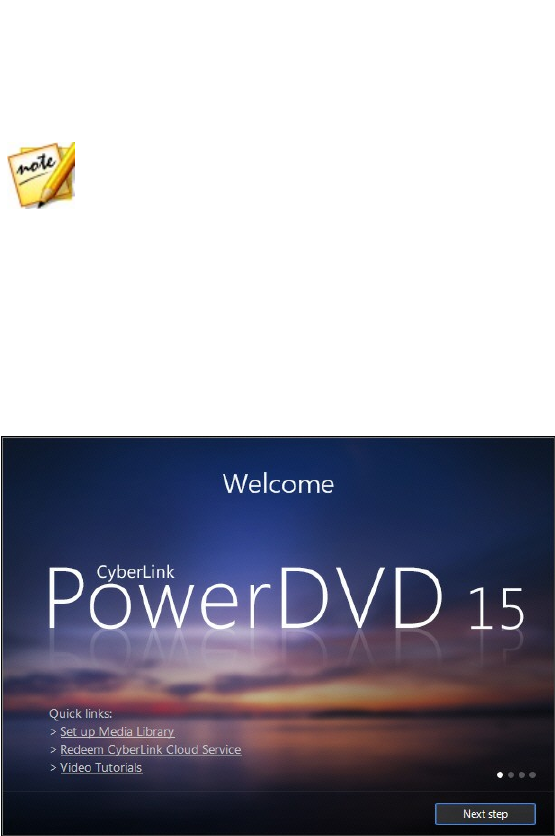
The first time you launch the program you will see a dialog welcoming you to
CyberLink PowerDVD.

2
CyberLink Pow erDVD
The first step of launching CyberLink PowerDVD is to import movies, TV shows, and
other media files into your PowerDVD media library.
Note: if you previously had CyberLink PowerDVD 14 installed, you will be
asked if you want to import your personal settings into the new version.
Select Yes, I would like to import my personal settings from my
previous PowerDVD setup to import the media library, playlists, PowerDVD
settings, and more.
Click the Set up Media Library link to configure what media is imported into the
library.
Note: in the welcome dialog you can also click the Video Tutorials link to
view videos that outline the latest features in CyberLink PowerDVD. To
review a list of all the new features, see New Features in PowerDVD.
You can also click the Next Step button to view more information about the
advantages of the PowerDVD media library, and then click the Select more folders
in the media library link to set the folders on your computer's hard drive and
connected network devices that CyberLink PowerDVD will search for media in and
then import into the library. For more information on importing movies, TV shows,
and other media files in to the media library, see Importing Media into the Media
Library. For a detailed overview of the media library itself, see Media Library
Overview.
Note: once you proceed from this dialog window and close the welcome
dialog, even if you didn’t change the media library preferences, CyberLink
PowerDVD will start searching the default media folders (Windows Media
Library and Downloads folder) on your computer for media files. If you don't
want CyberLink PowerDVD to do this, be sure to click the Select more
folders in the media library link and remove all of the folders in the
media library settings window.
Once you click the Next Step button, you are asked to participate in the CyberLink
Product Improvement Program. Select Yes, I would like to participate to help make
PowerDVD better. CyberLink will use the information collected to improve the
PowerDVD program and to develop new features.
Note: you can always change your selection later in General settings. See
CyberLink Product Improvement Program for more information.
Click Confirm to continue and launch CyberLink PowerDVD.

3
Introduction
New Features in PowerDVD
This section outlines the latest features within the CyberLink PowerDVD program.
Easier and more intuitive TrueTheater enhancement controls that result in
better than expected video and audio quality.
All new TrueTheater Color that makes the colors in video more vivid, without
affecting skin tones.
An enhanced playback engine for a smoother 4K movie playback experience.
More exclusive audio output (WASAPI Exclusive) formats supported: FLAC,
MP3, WAV, and WMA.
Supports playback of lossless copies (ISO) of Blu-ray Discs and DVDs from hard
drive or network device*.
Hardware acceleration support for HEVC/H.265 video for smoother playback*.
More audio effect presets to choose from or manually create your own in the
Audio Equalizer.
TV show import and management in the PowerDVD media library.
Extract audio from imported video clips and pinned YouTube videos*.
Edit tags in the music library to fix unknown artists and missing album art.
Rip audio from CDs and import the audio into the media library*.
Customize the PowerDVD UI by setting the background wallpaper, which you
can download or create using your own photos.
Mark the best moments in videos so you can always play the best part of your
memories.
More effortless photo browsing using Instant Thumbnails.
More intuitive 3D playback options that auto play 3D content in 3D*.
View all video bookmarks at a glance so you can more quickly jump to your
favorite moments.
A resume-able UI feature that remembers where you left off the next time you
launch PowerDVD.
Adds support for video transcoding and streaming playback from CyberLink

4
CyberLink Pow erDVD
Cloud*.
Share a link to your photos stored on CyberLink Cloud* with your family and
friends.
Note: * this feature is not available in some versions of CyberLink
PowerDVD.
PowerDVD Versions
The features that are available in CyberLink PowerDVD are completely dependent
on the version you have installed on your computer. Click the CyberLink PowerDVD
logo in the top left (or press Ctrl+Shift+A on your keyboard) to determine the
version and build number for your copy of CyberLink PowerDVD.
To view the PowerDVD version table, please go to our web site: http://www.
cyberlink.com/products/powerdvd-ultra/compare-versions_en_US.html
PowerDVD Live
PowerDVD Live is the first in its category to integrate full-featured media playback
on desktop PCs and mobile devices together with cloud services. Your music,
photos, and videos are always made available, no matter where, when or on which
device you want to play it.
With a PowerDVD Live subscription, you get:
All the award-winning features of the Ultra version of CyberLink PowerDVD,
including enhanced Blu-ray playback.
Cloud storage space on CyberLink Cloud, for instant media access anywhere.
Guaranteed updates to the latest version of CyberLink PowerDVD Ultra.
PowerDVD Live is the must-have solution to access and play all your movies,
videos, photos and music at their best.
CyberLink Cloud
CyberLink Cloud* is a cloud storage service from CyberLink where users can upload
5
Introduction
videos, photos, and music to make it available anywhere for playback on a portable
device using Power Media Player. CyberLink PowerDVD can also auto sync the
media in your media library with the media on CyberLink Cloud. See Utilizing
CyberLink Cloud for more information.
Note: * this feature is not available in some versions of CyberLink
PowerDVD. Users for selected versions of CyberLink PowerDVD do get a
free 1 year subscription to the CyberLink Cloud service.
Updating Your Software
Software upgrades and updates (patches) are periodically available from CyberLink.
CyberLink PowerDVD automatically prompts you when either is available.
Note: you must connect to the Internet to use this feature.
To update your software, do this:
1. Open the Notification Center by doing one of the following:
click the button.
press the I key on your keyboard.
click the Upgrade button in the About or PowerDVD Settings window.
Note: when playing back media in Cinema mode, click and then select
Upgrades. Select Updates to view information on the latest patch updates.
2. Click the feature you would like to upgrade to, or the patch you want to
update to.
3. A web browser window opens, where you can purchase product upgrades or
download the latest patch update.
System Requirements
The system requirements for CyberLink PowerDVD vary depending on the movie
content you are watching. 3D technologies require additional hardware to view 3D
movie content. Please see the Hardware Support section on the CyberLink
PowerDVD web site for more details about 3D hardware and graphics card support.

6
CyberLink Pow erDVD
CyberLink PowerDVD optimizes performance by selecting the appropriate video de-
interlacing algorithm for the available processing power. CyberLink PowerDVD
maintains its support for processors below 1.6 GHz by ensuring that some
CyberLink TrueTheater technologies are turned off by default. CyberLink
PowerDVD's advanced audio and video technologies function better when used
with processors above 2.4 GHz.
Operating System
Microsoft Windows 8/8.1, Windows 7, and Vista.
Note: for new Blu-ray movies from Fox studios, Windows 8.1, 8, or 7 is
required.
Processor (CPU)
Blu-ray Disc, DVD, and TrueTheater 3D Playback
Blu-ray Disc playback: Intel Core 2 Duo E6750 (2.66GHz), AMD Phenom 9450
(2.10GHz) or above.
Blu-ray 3D playback: Intel Core i5, AMD Phenom II X4 or above.
TrueTheater HD** and TrueTheater 3D** for Blu-ray and HD video: Intel Core i5
(with 4 Cores), AMD Phenom II X6 or above.
DVD playback: Pentium 4 (2.4 GHz), Athlon 64 2800+ (1.8 GHz), AMD Fusion E-
series & C-series or above.
Note: ** some Fox titles released from Jul. 2013 will not support
TrueTheater HD or TrueTheater 3D.
4K UltraHD with Hardware Acceleration
Intel 3rd generation Core i5 or above.
Note: CyberLink PowerDVD supports 4K Ultra HD video in H.264 / MP4
format at bitrates up to 60 Mbps.

7
Introduction
Graphics Cards (GPU)
Blu-ray Disc, DVD, and TrueTheater HD/3D Playback
Intel HD Graphics, ATI Radeon HD 5000, NVIDIA GeForce 9500GT or above.
Note: we strongly recommend that you update your graphics card driver to
the latest version. 3D display devices are required for TrueTheater 3D
playback.
Blu-ray 3D playback
Intel HD Graphic (Intel Core i5), NVIDIA GeForce GTX 400 series and GeForce GT
240/320/330/340, AMD Radeon HD 6000 and 6000M series with UVD 3 support.
DVD Playback
PCI Express graphic accelerator supporting DirectX 9.0 or above.
Memory (RAM)
Blu-ray Disc, DVD, and TrueTheater 3D Playback
Blu-ray Disc playback: 2 GB required for Vista, Windows 7 and Windows 8/8.1.
DVD and TrueTheater 3D playback: 1 GB required for Vista, Windows 7 and
Windows 8/8.1.
Blu-ray 3D with or without Hardware Acceleration
2 GB.
Hard Disk Space
500 MB for product installation.

8
CyberLink Pow erDVD
Display Devices
Blu-ray Disc, DVD, and TrueTheater 3D Playback
For Blu-ray titles with AACS and DVD titles with CPRM playback, PowerDVD 15
only allows output to display devices using DVI, HDMI and DisplayPort
connector in order to be compliant with copy protection (HDCP).
For other DVD and Blu-ray Disc playback: HDCP compliant display for digital
output. TV or computer monitor for analog output.
TrueTheater 3D playback: 3D display and 3D glasses required.
Blu-ray 3D with or without Hardware Acceleration
3D display and 3D glasses are required (NVIDIA 3D Vision, 3D Ready HDTV,
HDMI 1.4-enabled TV, Micro-polarizer LCD or Anaglyph Red/Cyan Glasses).
HDCP compliant display for digital output.
Disc Player
Blu-ray Disc playback: BD-ROM/BD-RE or Super Multi Blu combo disc drive.
DVD and TrueTheater 3D playback: DVD-ROM, DVD+-R/RW, DVD-RAM or DVD
Super Multi combo disc drive.
Internet Connection
You can use your subscription software offline, however, the software requires
that you connect to the Internet at least once every 30 days to ensure that
your software is up-to-date and that your subscription is still active.
Internet connection required for initial software activation, CyberLink Cloud,
BD-Live, and Social Media Services (MoovieLive, Facebook, Flickr, YouTube).

9
Pow erDVD M edia Library
PowerDVD Media Library
Chapter 2:
The PowerDVD media library is comprised of all the movies, TV shows, and other
media files that you import from your computer's hard drive and connected
network devices. It is also where you can play back your movie discs and access the
latest movie information from the Internet.
To ensure the PowerDVD media library has all of your media, make sure that you
tell CyberLink PowerDVD where it is so it can be imported. For information on
importing movies, TV shows, and other media files in to the media library, see
Importing Media into the Media Library.
Once in the media library, you can organize, play, and share your movies, TV shows,
and media, and much more. For a detailed overview of the media library itself, and
what each tab contains, see Media Library Overview.
Importing Media into the Media
Library
CyberLink PowerDVD imports the movies, TV shows, and other media files on your
computer's hard drive and connected network devices into the PowerDVD media
library. By default CyberLink PowerDVD imports the movies, TV shows, and other
media files that are in the most commonly used media folders. However you can
specify which folders CyberLink should be importing media from by clicking the
Set up Media Library link in the welcome dialog, or modifying the library folder lists
in preferences. See Media Library Preferences for detailed information on setting
which folders CyberLink PowerDVD imports movies and media from.
Once the movies, TV shows, and other media files are in the media library, you can
easily play them back, share them with DLNA network and mobile devices, stream
them to other devices, and much more. For more information on the PowerDVD
media library and its available features, see Media Library Overview.
Note: if you don't import media into the PowerDVD media library you can still
access it on your computer's hard drive via the M y Computer tab of
PowerDVD.

10
CyberLink Pow erDVD
Media Library Overview
Click on the Media Library tab to access to all of the media you have imported into
the media library and play back movie discs. The media library consists of four
main sections: Movies/TV, Videos, Photos, and Music.
See the relevant sections in Playing Media in PowerDVD for detailed information on
playing back the media in the media library.
Movies/TV in the Media Library
Click on the Movies/TV tab to play back movie discs, movie files, TV shows, and
access the latest movie information from CyberLink's movie information services.
The Movies/TV tab has four sections: Movie Info, Movie Discs, Movie Library, and TV
Library.
Movie Info
The Movie Info section of the media library provides access to movie information
from the internet. To view the latest movie releases and other information in the
media window, click .
Movie Discs
Click to access the Movie Discs section of the Movies/TV tab, which is
where you play back video discs in CyberLink PowerDVD. See Playing Movie Discs
for information on the playback of discs in CyberLink PowerDVD.
Movie Library
Click on to open the Movie Library section and access all the movie files
in CyberLink PowerDVD. Movie files are DVD/Blu-ray Disc* folders and individual
video files (movie files you recorded with a PVR) that are saved on your computer's
hard drive. By importing them into the Movie Library section of the media library
you can view movie cover art, rating information, and more. See Browsing Through
Movies in the Movie Library for more information.

11
Pow erDVD M edia Library
Note: disc folders and video files you import into the movie library are also
available for playback in PowerDVD Cinema mode. * this feature is not
available in some versions of CyberLink PowerDVD.
See Playing Movie Files for more information on playing movie files in CyberLink
PowerDVD.
TV Shows
The TV Shows section is where TV show video files you recorded with a PVR are
found in the PowerDVD media library. Click to access, organize, and play
them back. See Browsing Through TV Shows for more information.
Videos in the Media Library
Click on the Videos tab to play back the video clips that are in your media library.
These videos are home movies and other short clips that you may not want to
include in the Movie Library. See Browsing Through Photo/Video Folders for more
information.
See Playing Videos for information on the playback of video files in CyberLink
PowerDVD.
Photos in the Media Library
Click on the Photos tab to view all of the photos that are in your media library. You
can view these photos one at a time, in slideshows, and even share them or print
them out. See Browsing Through Photo/Video Folders for more information.
See Viewing Photos for information on the photo features that are available in
CyberLink PowerDVD.
Music in the Media Library
Click on the Music tab to play back the music that is in your media library. You can
also view album art for your music collection and create music playlists for
playback. The audio that is in the music library does not have to be just music. It
can be any type of supported audio that you want to play back in CyberLink
PowerDVD. See Browsing Through Music for more information.

13
Pow erDVD Workspace
PowerDVD Workspace
Chapter 3:
This chapter outlines the CyberLink PowerDVD program workspace and its available
features.
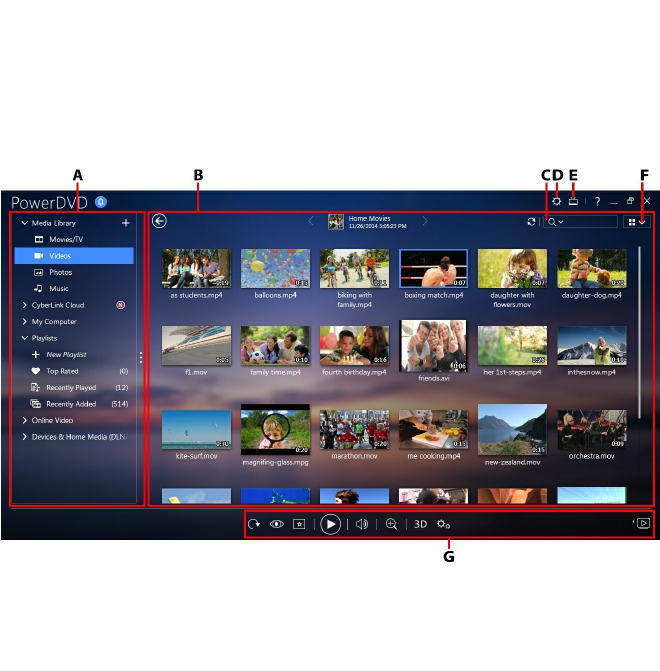
When you launch the program it displays as follows:
A - M edia Pa nel, B - M edia Window, C - Sea rch for M edia , D - Configure PowerDVD Settings, E -
Switch to Cinema M ode, F - M edia Window View, G - Pla yba ck Controls
Media Panel
The media panel is where you can play back movies discs and access all the
imported photos, video clips, movie files, TV shows, and music in the CyberLink
PowerDVD media library. The media panel also lets you watch online videos
(YouTube and Vimeo), play media on portable devices and media servers* on your
home network, create media playlists, access CyberLink Cloud*, and much more.

14
CyberLink Pow erDVD
Note: * this feature is not available in some versions of CyberLink
PowerDVD.
Media Library
The Media Library tab of the media panel provides access to all of the media you
have imported into the media library and is where you can play back movie discs.
See PowerDVD Media Library for more detailed information.
CyberLink Cloud
Click on the CyberLink Cloud* tab to view the media stored on the cloud service
from CyberLink. You can use CyberLink Cloud to back up your media so you can
access it anywhere, or to access the media that you uploaded via a portable device
running CyberLink Power Media Player.
Note: * this feature is not available in some versions of CyberLink
PowerDVD.
The media on CyberLink Cloud can be streamed or downloaded to your computer
for playback in CyberLink PowerDVD. See Utilizing CyberLink Cloud for more
information about this feature.
My Computer
Click on the My Computer tab to view all of the folders on your computer's hard
drive, and any connected USB devices, network drives, and more. This tab mirrors
the view seen when you click on Computer in Windows Explorer, and lets you
access and play back any media that you did not import into the media library.
Note: you cannot share any of the folders or media on this tab on a network
or with mobile devices. To share them, you must add them to the media
library. See Importing Media into the Media Library for more information.
Playlists
On the Playlists tab of CyberLink PowerDVD you can create media playlists that
contain music, videos, and photos. See Creating Media Playlists for more
information.

15
Pow erDVD Workspace
Online Video
The Online Video* tab of the media panel lets you watch videos on YouTube and
Vimeo, without leaving the program interface.
Note: * this feature is not available in some versions of CyberLink
PowerDVD.
See Playing Online Videos for more information about using this feature.
Devices & Home Media (DLNA)
On the Devices & Home Media (DLNA) tab of CyberLink PowerDVD, you can access
and play back media that is on any device or DLNA media server that is connected
to a home Wi-Fi network. You can also sync all the media in the media library to an
Android device that is connected via a USB cable.
See Playing Media Shared on a Device/Home Media (DLNA) Network for more
information on playing back shared media on a network, or Syncing Media to
Devices to learn more about syncing media to connected Android devices.
Media Window
The media window of CyberLink PowerDVD is where you view all of the media
folders, files, and watch content during playback. Just select a tab in the media
panel to display media files and folders in the media window.
Note: when browsing through and viewing media in the media window,
CyberLink PowerDVD will remember your place for you when you close the
program. The next time you launch CyberLink PowerDVD, you will be
brought back to the last media you were viewing for your added convenience.
Browsing Through Movies in the Movie
Library
When browsing through the movie files in the Movies/TV tab's Movie Library section
of the media library, you can view their movie cover art, rating information, and
more. Click the down arrow in the top right of the window to filter the movies by
10 Recently Played Movies or Movies Not Watched Yet if required.
16
CyberLink Pow erDVD
Note: use the zoom slider on the playback controls to use Instant Scale to
dynamically resize the movie cover art to a desired size. If you are not
seeing the latest movie files in the media library, just click to refresh.
As you browse through the library, note the icons next to each of the movie files.
Their meanings are as follows:
- indicates the movie has not yet been watched.
- indicates the movie was partly watched, but not to the end.
- indicates the movie was previously watched.
If a movie file is not displaying the cover art, you can insert an image file (in the JPG
or PNG format) in the movie file's folder and name it “folder” to use it as the cover
art. You can also right click on the movie file and then select Set Cover Art. In the
Select Image dialog, browse to and then select an image on your computer's hard
drive to use as the cover art.
Note: if the cover art for a movie file in the library is incorrect, you can right
click on it and select Hide Online Info to remove it and the related movie
information.
Right-click on a movie file thumbnail in the media window and then select Locate
on Disk to view the folder where the file is located in Windows Explorer. If you'd like
to remove a movie file from the media library (and from your computer's hard
drive), just right click on it and select Delete from Disk.
Browsing Through TV Shows
When you go through the content in the TV Shows section of the media library, you
can view their cover art, rating information, and more.
Note: use the zoom slider on the playback controls to use Instant Scale to
dynamically resize the TV show cover art to a desired size. If you are not
seeing the latest TV shows in the media library, just click to refresh.
CyberLink PowerDVD automatically organizes TV shows by show, season, and
episode for easy browsing. If you find that the TV shows are not displaying
correctly, you may need to update the file and folder names. See Organizing TV
Shows for more information.
As you browse through the library, note the icons next to each of the TV show
episodes. Their meanings are as follows:
- indicates the episode has not yet been watched.
17
Pow erDVD Workspace
- indicates the episode was partly watched, but not to the end.
- indicates the episode was previously watched.
If a TV show is not displaying the cover art, you can insert an image file (in the JPG
or PNG format) in the TV show's folder and name it “folder” to use it as the cover art.
You can also right click on the TV show and then select Set Cover Art. In the Select
Image dialog, browse to and then select an image on your computer's hard drive to
use as the cover art.
Note: if the cover art for a TV show in the library is incorrect, you can right
click on it and select Hide Online Info to remove it and the related TV show
information.
Right-click on a TV show thumbnail in the media window and then select Locate on
Disk to view the folder where the file is located in Windows Explorer.
Browsing Through Photo/Video Folders
You can browse through photos and videos in the media window in one of three
views. To change the view, just click the down arrow in the top right of the window
and select the one you want to use.
Note: if you are not seeing the latest photos and video files in the media
library, just click to refresh.
List view: displays photos, videos, and their folders in a list, which is easily
sortable by clicking on the list headings.
Folder view: displays photos, videos, and their folders as thumbnails, which
can be resized.
Calendar view: displays photos and videos in a calendar. Providing a timeline
for your media, just double click on a date to view all the photos and videos
that were shot on that day.
Note: use the zoom slider on the playback controls or Gesture Controls to
change the calendar view to show more than one month, or click on a year at
the top of the window to view media from a different year. Click to view
any media that was created on today's date.
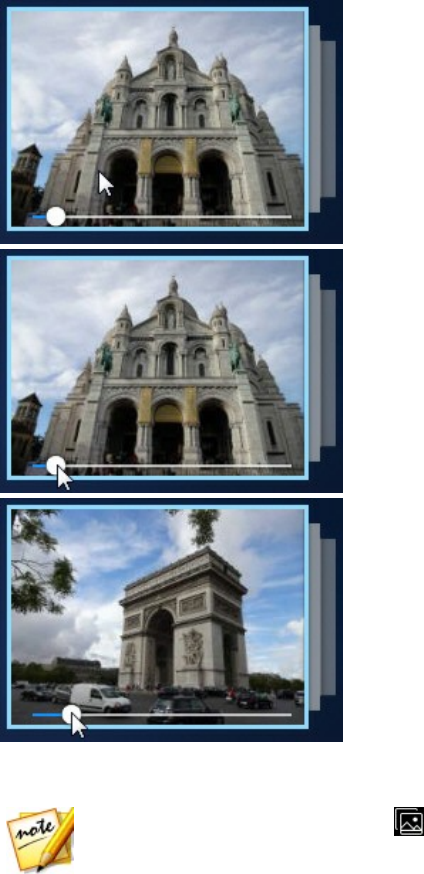
When browsing through the media folders on the Photos and Videos tabs in folder
view, you can hover your mouse over a folder thumbnail to use Instant View to
preview all the media inside by dragging the slider that appears.
18
CyberLink Pow erDVD
To view the photos or videos in a folder, just double-click on it (or right click on it
for more options).
Note: when viewing a single photo, click to view the instant photo
thumbnails for all the photos in the current folder.

19
Pow erDVD Workspace
To play videos, or to view the photos in a folder in a slideshow, just select them in
the media window and then click the play button.
Note: when browsing through photos and videos in a folder, right click on
one and then select Set as Cover to set it as the thumbnail cover image for
its folder.
Right-click on a video or photo thumbnail in the media window and then select
Locate on Disk to view the folder where the file is located in Windows Explorer. If
you'd like to remove a media file from the media library (but not from your
computer's hard drive), just right click on it and select Remove from Library. Click
Delete from Disk if you want to remove it from the library and delete it from your
computer's hard drive.
Note: use the zoom slider on the playback controls to use Instant Scale to
dynamically resize the folder and media thumbnails to a desired size.
For more information on playing videos and photo slideshows, see Playing Media
in PowerDVD.
Extracting Audio from Video Clips
You can extract just the audio track of a video clip and import it into the media
library. To extract audio from a video clip, do this:
1. Click on the Videos tab the media library.
2. Right-click on the video clip you want to extract the audio from,
and then select Extract Audio.
3. In the Extract Audio dialog, enter a Title, or name for the audio file that will
be created. If required, you can also modify the Artist, Album, and Genre
fields.
Note: you can also add album art for the extracted audio by clicking on the
album art box and then browsing to and locating an image on your hard drive
to use it as the album art.
4. Click the More Settings button to configure the extract audio settings as
follows:
Destination directory: set the folder on your computer where the extracted
audio will be stored by clicking the Change button and selecting the new
folder.
20
CyberLink Pow erDVD
Note: if you select a folder that it is not in the media library, CyberLink
PowerDVD will auto add the folder and the extracted audio into the media
library for you.
Format: select the preferred audio file format of the extracted audio.
Bitrate: set the quality of the extracted audio files.
Click OK to close the More Settings dialog.
5. Click the Extract button to extract the audio and import it into the media
library.
Browsing Through Music
On the Music tab, CyberLink PowerDVD automatically loads and displays the album
art for all music that is imported into the media library, if available.
Note: use the zoom slider on the playback controls to use Instant Scale to
dynamically resize the album cover art to a desired size. If you are not
seeing the latest music in the media library, just click to refresh.
You can also click to view the music by the recording artist, or
to view all of the individual songs in the media library. Click to return to
album view.
Right-click on an album, artist, or song in the media window and then select Locate
on Disk to view the folder where the music files are located in Windows Explorer. If
you'd like to remove music from the media library (but not from your computer's
hard drive), just right click on it and select Remove from Library. Click Delete from
Disk if you want to remove music from the library and delete it from your
computer's hard drive.
To view the songs in an album or for an artist, just double-click on it (or right click
on it for more options). To play a song, just select it in the media window and then
click the play button. For more information on playing music files and other audio,
see Playing Music.
Editing Tags
If some music is not displaying the album art or is displayed as "Unknown Artist",
just right click on it and select Edit Tags to fix it.

21
Pow erDVD Workspace
Note: you can edit the tags for each song one at a time, or for an entire
album by selecting multiple music files.
In the Edit Tags dialog you can modify the Artist, Album, and Genre fields if
required. For the album art, just click on the album art box and then browse to and
locate an image on your hard drive to use it as the album art. Click Save to update
the information in the music library.
Note: the edit music tags feature is supported for AAC, MP3, FLAC audio
files only.
Searching for Media
If you are looking for specific media in the PowerDVD media library, you can use
the search function to find it.
To search for media, do this:
1. Enter in a keyword in the search field located in the top right of the media
window.
2. CyberLink PowerDVD filters the media in the media window based on the
keywords entered.
Note: click to clear the search results and display all the media in the
window.
Rating Media
When browsing though the media in the PowerDVD media library you can rate each
media file by assigning it a rating from 1 and 5 stars.
To rate media, do this:
1. Select the media file in the PowerDVD media library you want to rate.
2. To rate it, do any of the following:
when watching a movie file, click stop to view the current rating for that
movie. Rate the movie by hovering your mouse over the desired star and then
selecting it.

22
CyberLink Pow erDVD
right click on a video, photo, or music (song) file, select Rate, and then the
star rating you want to set.
in the Rating column, hover your mouse over the rating you want to apply to
the media file, and then click on the star rating to set it.
Note: you can only see the Rating column for videos and photos if you are in
list view. For music, you can see the Rating column when viewing all the
songs in an album or for an artist.
Setting 3D Source Format
When 3D* videos and photos are imported into the PowerDVD media library, you
may need to change the format of the 3D source video. This is because 3D media
comes in a variety of different video source formats. CyberLink PowerDVD needs to
know the source format of each 3D media file so that it can display it properly in
3D.
Note: * this feature is not available in some versions of CyberLink
PowerDVD.
To set the 3D source format of your 3D media in the media window, do this:
1. Right-click on the 3D video file or photo in the PowerDVD media library.
2. Select Change 3D Format.
3. Change the 3D source format by selecting one of the following:
Auto Detect: if you are not sure what the source format is of your 3D media,
select this item to have CyberLink PowerDVD automatically detect and set it
for you.
Side by Side Format: select this option if the 3D content has two different
images side by side. CyberLink PowerDVD merges the two images to produce
the 3D effect.
Over/Under Format: select this option if the 3D content has two different
images, one on top of the other. CyberLink PowerDVD merges the two images
to produce the 3D effect.

23
Pow erDVD Workspace
2D Format: select this option if the selected media file is actually 2D content.
PowerDVD Modes
CyberLink PowerDVD has three different modes available for playing back your
media content: Classic mode, Mini Player mode, and Cinema mode*.
Note: * this feature is not available in some versions of CyberLink
PowerDVD.
Classic mode
Classic mode is the main mode of CyberLink PowerDVD and contains all of the
features listed in this document.
Mini Player mode
Mini Player mode is for playing the music in your media library and music playlists.
See Playing Music in Mini Player Mode for more information.
Cinema mode
Cinema mode is for users who wish to view movies at a distance (10 foot) with a
remote control, or utilize touch screen playback on the latest generation of
Ultrabooks. To switch to Cinema mode, click the button on the title bar. Cinema
mode is a simplified version of CyberLink PowerDVD and has less features than
Classic mode.
CyberLink PowerDVD's Cinema mode also comes fully integrated in Windows Media
Center when both are installed on your computer. The CyberLink PowerDVD
shortcut is found in the TV + Movies section of Windows Media Center.
Note: see the help file within the Cinema mode of CyberLink PowerDVD for a
detailed description of its functions and features.

24
CyberLink Pow erDVD
PowerDVD Settings
Click on at any time to configure the player settings and preferences of
CyberLink PowerDVD. For a complete list of all the available options and features
you can customize, see both PowerDVD Settings - Player Settings and PowerDVD
Settings - Preferences.
Playback Controls
The CyberLink PowerDVD playback controls provide effortless navigation of discs
and media files in the media library, and quick access to all of the program's
playback features. You can also use the controls to share the media in the library.
See Playback Controls for a detailed description of all the available controls you can
use with your media, and Sharing Media for information on sharing media on
YouTube, Vimeo, Facebook, Flickr, or on a network.

25
Playing M edia in Pow erDVD
Playing Media in
PowerDVD
Chapter 4:
CyberLink PowerDVD supports the playback of a variety of different media. From
high definition content and DVDs, to movie files and TV shows, home videos, audio
CDs, photo slideshows, and music, CyberLink PowerDVD provides you with the
complete digital media playback experience.
Playing Movie Discs
When you insert a video disc into your disc drive, CyberLink PowerDVD plays it
automatically. If there is a disc already in your disc drive when you opened
CyberLink PowerDVD, do this:
1. Click on the Movies/TV tab, and then .
2. Click the play button.
Note: see Movie Disc Controls for a list and description of the controls
available during movie playback.
Auto-Resume
If you stop or close CyberLink PowerDVD during DVD disc playback, and even play
other media or discs afterwards, the next time you play that specific disc title, you
may resume playback from the last viewed scene.
Note: the auto-resume feature is not available for Blu-ray Disc playback.
The auto-resume feature remembers exactly where you left off the last time you
watched the disc. It includes the following options:
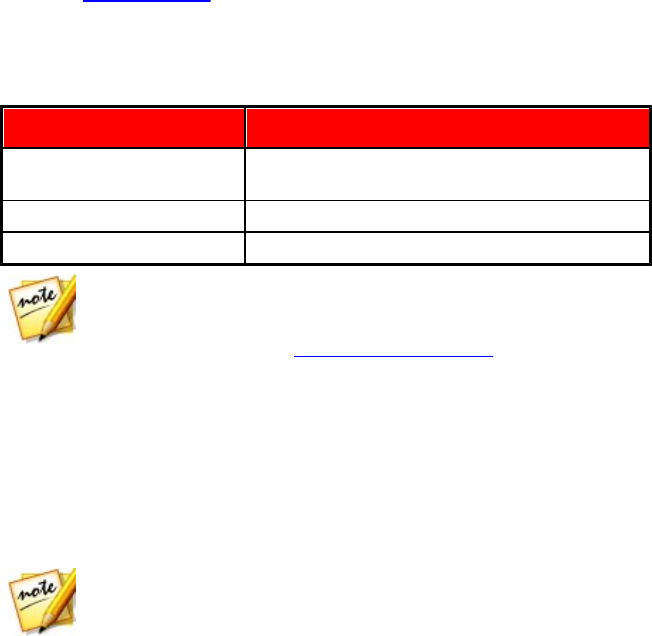
select Resume to continue from the point where you previously stopped
watching.
select Restart to watch the disc from the beginning.
26
CyberLink Pow erDVD
If you don't want CyberLink PowerDVD to prompt you every time a disc is inserted,
you can disable the auto-resume function in settings. See the Auto-Resume setting
section of General Settings for more information.
Supported Disc Formats
The optical disc formats that CyberLink PowerDVD supports are listed below:
Optical Disc Types
File Formats
Blu-ray Discs*/Blu-ray 3D**
Discs
BDAV, BDMV
DVD
DVD-Video, AVCHD*, AVCREC*, DVD-VR, DVD+VR
CD
VCD, SVCD
Note: * this feature is not available in some versions of CyberLink
PowerDVD. ** If your version of CyberLink PowerDVD supports Blu-ray 3D
playback, you may have to enable playback in settings. See the
Miscellaneous section of More Blu-ray Disc Settings for information on
enabling it.
Accessing Disc Menus in PowerDVD
When playing discs with CyberLink PowerDVD you can access the disc menus in a
variety of ways. Whether it is the title, root, chapter, or audio menu, you can easily
access them from anywhere within the program during playback.
CyberLink PowerDVD also provides access to pop-up menus for Blu-ray Discs*, as
well as for menus on DVD-VR discs.
Note: * this feature is not available in some versions of CyberLink
PowerDVD.
Menus on Commercial Discs
During the playback of most commercial discs, you can access the Title Menu, Root
Menu (for special features), Subtitles Menu, Audio Menu, Angle Menu, or the
Chapter Menu from various locations.
27
Playing M edia in Pow erDVD
Note: some disc titles will not allow you to select menus other than the Root
Menu. Users will need to access the settings from within the Root Menu if
this is the case.
To access these menu items:
click on in the playback controls during DVD playback and then select
either Title Menu or Root Menu.
click on in the playback controls during playback and then choose Select
Menu. The available disc menus are dependent on how the disc was authored.
right-click on the media window during playback to access the express menu,
and then choose Select Menu.
Note: when you enter the disc menu during disc playback and you are done
selecting the desired options, right-click on the media window and then
select Resume to return to the point where you left off. Note that this resume
from menu function is not available if you stopped playback.
Pop-up Menu for Blu-ray Discs
Most Blu-ray Disc* titles have a pop-up menu that provides quick access to scene
selection and other features during playback.
Note: * this feature is not available in some versions of CyberLink
PowerDVD.
If there is a pop-up menu available for the Blu-ray Disc title you are watching, you
can access it by doing one of the following:
during playback, click the button on the playback controls.
during playback, press the M key on your keyboard.
Blu-ray Disc Mouse Solution
Some Blu-ray Disc titles do not allow you to use a mouse to navigate through the
pop-up menu. If this is the case when you are playing a Blu-ray Disc in CyberLink
PowerDVD, click during disc playback to open the More Functions dialog, and
then use the navigation controls to navigate through the pop-up menu.
28
CyberLink Pow erDVD
Using the Menus in DVD-VR Format
You can use the Program Set Viewer to access and navigate the menus for discs in
the DVD-VR video format.
1. Click on the playback controls.
2. Select Program Set Viewer to visually view the first frame of every title/
chapter.
3. Click on the thumbnail that represents the title/chapter in order to begin
playback or click Close to exit the viewer.
Note: if playlists are available, they are available for selection here too.
Playing Movie Files and TV
Shows
Click on the Movies/TV tab, and then to play back the movie files in the
media library, or to play the TV shows. Movie files are DVD/Blu-ray Disc*
folders, and individual video files (movie files you recorded with a PVR) that are
saved on your computer's hard drive. TV shows are videos you recorded with a PVR.
Note: see Video Playback Controls for a list and description of the controls
and playback features available during movie file and TV show playback.
Auto-Resume
If you stop or close CyberLink PowerDVD when playing movie files or TV shows in
the media library, the next time you play that specific video file, you may resume
playback from the last viewed scene.
Note: the auto-resume feature is also available for DVD files on the hard
drive if an IFO file is present and they are in the media library.
The auto-resume feature remembers exactly where you left off the last time you
29
Playing M edia in Pow erDVD
watched the movie file/TV show. It includes the following options:
select Resume to continue from the point where you previously stopped
watching.
select Restart to watch the movie file/TV show from the beginning.
Supported Movie File/TV Show Formats
In CyberLink PowerDVD you can play back movie files/TV shows in the following
formats:
Movie file formats: 264, 265*, 26L, 3G2, 3GP, 3GP2, 3GPP, ASF, AVC, AVI, BSF*, DIV,
DIVX*, DVR-MS, FLV, H264, H265*, HEVC*, JSV, JVT, M1V, M2P, M2T, M2TS, M2V, M4V,
MK3D*, MKV, MOD, MOV, MP4, MP4V, MPE, MPEG, MPG, MPV, MTS, MVC*, QT, TOD,
TP, TPD, TRP, TS, TTS, VC1*, VOB, VRO, WM, WMV, WTV.
Note: * this feature is not available in some versions of CyberLink
PowerDVD.
Playing Movie Files in PowerDVD
You can play back movie files by doing any of the following:
drag and drop a movie file directly onto the CyberLink PowerDVD user
interface or the PowerDVD desktop icon.
to play a movie file in your media library, click Movies/TV in the media panel,
and then . Browse to the folder that contains your movie files, and
then double-click on a movie file to begin playback.
if you want to play a DVD/Blu-ray folder that is not in the media library, click
, browse to and select the folder, and then click the play button.
to play a movie file on your hard drive, click the My Computer tab in the
media panel, and then browse to the folder that contains your movie file.
Double-click on a movie file to begin playback.
if CyberLink PowerDVD is set as the default player for a movie file on your
computer (see File Association for more information), you can also just
double-click on a file in Windows Explorer to play it back.
30
CyberLink Pow erDVD
Note: you can also play movie files that are on a network (UPnP/DLNA/
DTCP-IP) media server. See Playing Media Shared on a Device or Home
Media (DLNA) Network for more information on playing media on a network.
Playing TV Shows in PowerDVD
You can play back TV shows by doing any of the following:
drag and drop a TV show directly onto the CyberLink PowerDVD user interface
or the PowerDVD desktop icon.
to play a TV show in your media library, click Movies/TV in the media panel,
and then . Browse to the folder that contains your TV shows, and
then double-click on a TV show to begin playback.
to play a TV show on your hard drive, click the My Computer tab in the media
panel, and then browse to the folder that contains your TV show. Double-click
on a TV show to begin playback.
if CyberLink PowerDVD is set as the default player for a TV show on your
computer (see File Association for more information), you can also just
double-click on a file in Windows Explorer to play it back.
Note: you can also play TV shows that are on a network (UPnP/DLNA/DTCP-
IP) media server. See Playing Media Shared on a Device or Home Media
(DLNA) Network for more information on playing media on a network.
Playing Videos
Click on the Videos section of the media panel in CyberLink PowerDVD to play back
video files in the media library.
Note: see Video Playback Controls for a list and description of the controls
and playback features available during video file playback.
Supported Video Formats
In CyberLink PowerDVD you can play back videos in the following file formats:
Video formats: 264, 265*, 26L, 3G2, 3GP, 3GP2, 3GPP, ASF, AVC, AVI, BSF*, DIV,
DIVX*, DVR-MS, FLV, H264, H265*, HEVC*, JSV, JVT, M1V, M2P, M2T, M2TS, M2V, M4V,
MK3D*, MKV, MOD, MOV, MP4, MP4V, MPE, MPEG, MPG, MPV, MTS, MVC*, QT, TOD,

31
Playing M edia in Pow erDVD
TP, TPD, TRP, TS, TTS, VC1*, VOB, VRO, WM, WMV, WTV.
Note: * this feature is not available in some versions of CyberLink
PowerDVD.
Playing Videos in PowerDVD
You can play back videos files by doing any of the following:
drag and drop a video file directly onto the CyberLink PowerDVD user
interface or the PowerDVD desktop icon.
to play a video file in your media library, select Videos in the media panel, and
then browse to the folder that contains your videos. Double-click on a video
file to begin playback.
to play a video file on your hard drive, click the My Computer tab in the media
panel, and then browse to the folder that contains your video file. Double-
click on a video file to begin playback.
if CyberLink PowerDVD is set as the default player for a video file on your
computer (see File Association for more information), you can also just
double-click on a file in Windows Explorer to play it back.
Note: you can also play video files that are on a network (UPnP/DLNA/DTCP-
IP) media server. See Playing Media Shared on a Device or Home Media
(DLNA) Network for more information on playing media on a network.
Viewing Photos
Click on the Photos section of the media panel to view the photos in your media
library and play them in a slideshow.
Note: see Photo Controls for a list and description of the controls and
playback features available when viewing photos and playing slideshows.
Supported Photo Formats
In CyberLink PowerDVD you can view photos in the following photo file formats:
Photo formats: ARW, BMP, CR2, CRW, DCR, DNG, ERF, JPEG, JPG, JPS*, KDC, MEF,
MPO*, MRW, NEF, ORF, PEF, PNG, RAF, RAW, RW2, SR2, SRF, TIF, TIFF, X3F.

32
CyberLink Pow erDVD
Note: * this feature is not available in some versions of CyberLink
PowerDVD.
Playing Photo Slideshows
To play back your photos in a slideshow, do one of the following:
Note: if you are already playing music in CyberLink PowerDVD, it continues
to play while you view photos and play slideshows.
drag and drop photos directly onto the CyberLink PowerDVD user interface or
the PowerDVD desktop icon, and then click the play button.
to play a slideshow with photos in your media library, select Photos in the
media panel, and then browse to the folder that contains your photos. Select
a photo and then click the play button to play a slideshow with all the photos
in the folder.
to play a slideshow with photos on your hard drive, click the My Computer tab
in the media panel, and then browse to the folder that contains your photos.
Select a photo and then click the play button to play a slideshow with all the
photos in the folder.
Note: you can also play a slideshow with photos that are on a network (UPnP/
DLNA/DTCP-IP) media server. See Playing Media Shared on a Device or
Home Media (DLNA) Network for more information on playing media on a
network.
Playing Music
Click on the Music section of CyberLink PowerDVD to play audio CDs and files in the
media library.
Note: see Music Controls for a list and description of the controls and
playback features available during music playback. You can also play music
in the mini player. See Playing Music in Mini Player Mode for more
information.
33
Playing M edia in Pow erDVD
Supported Audio Formats
In CyberLink PowerDVD you can play back audio in the following audio formats:
Optical Disc Types
File Formats
CD
Audio, Karaoke
Audio file formats: AAC, AC3, ADTS, AOB, APE, DTS, FLAC, M4A, MID, MKA, MP2,
MP3, MPA, OGG, RMI, WAV, WMA.
Playing Audio Discs and Music in the
Library
To play back audio in CyberLink PowerDVD, do one of the following:
Note: when you play music in CyberLink PowerDVD, it continues to play if
you view photos and play slideshows, and browse through media on the other
tabs. Playback stops if you start movie file, video, or movie disc playback.
insert an audio CD into your disc drive and CyberLink PowerDVD will play it
automatically. If there is a disc already in your disc drive when you opened
CyberLink PowerDVD, click the My Computer tab in the media panel, browse
to and select the disc drive, and then click play to begin playback.
Note: you can rip the audio on CD to your computer's hard drive using
CyberLink PowerDVD. See Ripping Audio from a CD for more information.
drag and drop audio files directly onto the CyberLink PowerDVD user
interface.
to play an audio file in your media library, select Music in the media panel,
and then browse to the folder that contains your audio. Double-click on an
audio file to begin playback.
to play audio files on your hard drive, click the My Computer tab in the media
panel, and then browse to the folder that contains your audio files. Double-
click on an audio file to begin playback.
Note: you can also play audio files that are on a network (UPnP/DLNA/
DTCP-IP) media server. See Playing Media Shared on a Device or Home
Media (DLNA) Network for more information on playing media on a network.

34
CyberLink Pow erDVD
Ripping Audio from a CD
In CyberLink PowerDVD you can rip the audio from an audio CD. To rip an audio CD
using CyberLink PowerDVD, do this:
1. Place the audio CD in the disc tray and then close it.
2. If required, select Music in the media panel to display the tracks on the CD.
3. Click the Rip CD button.
4. In the Rip CD dialog, ensure that the artist and album information is correct.
You can modify the Artist, Album, and Genre fields if required.
Note: if the album art is not displayed, just click on the album art box and
then browse to and locate an image on your hard drive to use it as the album
art.
5. Select the tracks that you want to rip from the audio CD by ensuring the check
box next to the track name is selected.
6. Click the More Settings button to configure the rip audio settings as follows:
Destination directory: set the folder on your computer where the ripped audio
will be stored by clicking the Change button and selecting the new folder.
Note: if you select a folder that is not in media library, CyberLink PowerDVD
will auto add the folder and the ripped audio into the media library for you.
Format: select the preferred audio file format of the ripped audio.
Bitrate: set the quality of the ripped audio files.
Click OK to close the More Settings dialog.
7. Click the Rip button to rip the audio from CD and import it into the media
library.

35
Playing M edia in Pow erDVD
Playing a Karaoke Disc
You can use CyberLink PowerDVD to play back Karaoke DVDs or VCDs. Be sure to
look for the Karaoke Logo on the DVD/VCD title package before starting playback.
Selecting Karaoke Options
1. Upon inserting your karaoke disc, be sure your microphone is properly
connected.
2. Click the play button to display the menu screen.
3. Click and then select More Functions to use the navigation buttons on
the menu pad or choose a song by clicking on it with your mouse.
4. During playback, click the button within More Functions or right-click to
call the Express Menu and select Karaoke.
5. Select from dual vocal channels on (Both Channels), either Left Channel or
Right Channel.
6. If playing a karaoke VCD, select the desired audio channel for the voice and
music mixing in the Express Menu.
Adjust Pitch
You can adjust the pitch of your karaoke titles using the Adjust Pitch function.
To adjust pitch, do the following:
1. Right click on the button within More Functions.
2. Select Adjust Pitch and then make your selection.
Playing Media Stored on
CyberLink Cloud
You can play the media that you have stored on CyberLink Cloud* with CyberLink
PowerDVD.

36
CyberLink Pow erDVD
Note: * this feature is not available in some versions of CyberLink
PowerDVD. Users for selected versions of CyberLink PowerDVD do get a
free 1 year subscription to the CyberLink Cloud service.
For more information on CyberLink Cloud and how you can upload your media to
it, see Utilizing CyberLink Cloud.
CyberLink Cloud Media
CyberLink Cloud contains media that you uploaded using a portable device, or
transferred from your computer using CyberLink PowerDVD. This media is playable
on a portable device using CyberLink Power Media Player, and on your computer
using the desktop version of CyberLink PowerDVD.
Click on the CyberLink Cloud tab to view and the play the media that you
previously uploaded to the Videos, Photos, and Music folders on CyberLink Cloud.
For information on uploading media from your computer to CyberLink Cloud, see
Uploading Media to CyberLink Cloud.
Videos
Click on Videos to view all the video files that were uploaded to CyberLink Cloud.
Click to view the videos by folders, or to view the uploaded video
playlists. If you want to view the video files that were uploaded by a portable
device, just double click on the Mobile Upload folder.
Note: when playing back videos that are stored on CyberLink Cloud, the
videos are streamed from the server if the source video is in the following file
formats: MP4, M2TS, MTS, TS, MKV, MPG.
Photos
You can view the photos that on your CyberLink Cloud by clicking on Photos. Click
to view the photos by folders, or to view the uploaded photo
slideshow playlists. Double click on the Mobile Upload folder to view the photos
you uploaded from a portable device.
Right click on any of the photos stored on CyberLink Cloud and select Share Link if
you want to share a photo with family and friends. CyberLink PowerDVD copies a
link (that is viewable to anyone) on your clipboard. Just paste this link in e-mails,
37
Playing M edia in Pow erDVD
social media sites, etc. to share the photo.
Music
The music you uploaded to CyberLink Cloud is viewable when you click on Music. If
you want to view all the music by song title, just click . You can also view
the music by artist , album , or click to view by the playlists
you created and uploaded.
Playing CyberLink Cloud Media
To play a media file that is on CyberLink Cloud, do this:
Note: when playing media that is stored on CyberLink Cloud, the playback
controls that are available depend on the type of media you are playing. See
Playback Controls for a description of the available controls and playback
features for each media type.
1. Click on the CyberLink Cloud tab in the media panel.
2. Select either Videos, Photos, or Music, and then browse to the media file or
playlist that you want to play.
3. Double-click on the media file to begin playback. To play multiple files, select
each of them and then click the play button.
Note: if may take a few moments before the playback of media begins, as
CyberLink PowerDVD must download most media files from the CyberLink
Cloud server before playback. When playing videos (in the MP4, M2TS,
MTS, TS, MKV, or MPG format), CyberLink PowerDVD streams the video
from the CyberLink Cloud server.
Downloading Media from CyberLink
Cloud
You can download the media that is stored on CyberLink Cloud to your computer.
Note: you can set the folders on your computer where the media is
downloaded to in CyberLink Cloud Settings.
To download media from CyberLink Cloud, do this:
38
CyberLink Pow erDVD
1. Click on the CyberLink Cloud tab, and then the type of media you want to
download (Videos, Photos, Music).
2. Select a media folder, or the individual media files in the folder, that you want
to download.
3. Click on the button in the bottom right corner of the CyberLink
PowerDVD window to start downloading the selected folders/files.
4. Click OK once the download is complete.
Creating Media Playlists
In the Playlists section of CyberLink PowerDVD you can create a playlist that
contains your music, videos, and photos. You can also add media that is not in
your media library to your playlists, by dragging and dropping folders and files
from the My Computer tab or from Windows File Explorer.
Note: you can add music, videos, and photos all in the same media playlist,
but you cannot add tracks from an audio CD.
To create a custom media playlist, do this:
1. On the Playlists tab of the media panel, click on New Playlist.
2. Enter a Name for the new playlist in the field provided, and then click OK.
3. Browse to the media that you want to add to the playlist. Note that you can
add folders and files from the My Computer tab or from Windows File
Explorer directly as well.
4. To add media to the playlist, just drag and drop it on the playlist name in the
Playlists section of the media panel. You can also right click on a media file in
the media library, select Add to, and then the playlist name to include it in the
playlist.
Note: hover your mouse over the Playlists section and then click to
export the playlist you created or import other playlists you created
previously in the PLS and M3U formats. Select a playlist and then click to
delete it from the list.
5. If required, you can drag and drop the media in your created playlist to new
positions in the playlist to change the playback order.

39
Playing M edia in Pow erDVD
Smart Playlists
CyberLink PowerDVD also auto creates smart playlists with the media in your
PowerDVD media library. Smart playlists are like any other playlists, and are always
available on the Playlists section.
The smart playlists in CyberLink PowerDVD include:
Top Rated: is a playlist made up of all the highest rated media in the library.
See Rating Media for more information on rating media.
Recently Played: is a playlist made up of the most recently played videos,
music, and photos.
Recently Added: is a playlist made up of all the media that was most recently
imported in the PowerDVD media library.
Playing Back Media Playlists
Media playlists can contain three types of media: music, videos, and photos. To
play back media in a playlist, do this
1. Select the playlist you want to play in the media panel and then click the play
button.
2. CyberLink PowerDVD will play all the files in the playlist.
3. Use the available buttons to control the playback of the playlist. See Playback
Controls for detailed information on the available controls.
Playing Online Videos
In CyberLink PowerDVD you can watch videos on YouTube and Vimeo, without
leaving the program. Select the Online Video tab to begin watching videos on these
social media web sites.
Watching Videos on YouTube
You can watch YouTube videos directly from within the Videos tab of CyberLink
PowerDVD.
To watch videos on YouTube, do this:
1. Select Online Video section of the media panel and then YouTube.

40
CyberLink Pow erDVD
Note: if required, hover your mouse over the YouTube section, and then
click on to sign in to your account on YouTube so you can view your
subscriptions, favorites, and any videos you have uploaded.
2. Use the drop-down menu in the top left of the media window to filter the
videos from YouTube.
3. Select a video and then click the play button to begin playing it back. See
Video Playback Controls for a description of the available playback controls
when playing YouTube videos.
4. When watching videos on YouTube, you can set the quality of the video. To
do this, select the quality of the streamed video from the YouTube quality
menu to the left of the playback controls.
Note: the quality options that are available is dependent on those available
from YouTube.
Pinning YouTube Videos
When browsing through the videos available on the tabs in the YouTube section,
you can pin the videos that you want to watch later. These pinned videos can be
played when you are not connected to the Internet.
To pin a YouTube video, do this:
1. In the media window browse to the YouTube video that you want to pin.
2. Do either of the following:
hover your mouse over the video thumbnail and then click .
right-click on the video thumbnail and then select Pin.
3. In the dialog that displays, click OK.
Playing Pinned YouTube Videos
To play back videos that you previously pinned, select Online Video, YouTube, and
then select from the drop-down. Select the video you want to play, and
then click the play button. See Video Playback Controls for a description of the
available playback controls when playing YouTube videos.

41
Playing M edia in Pow erDVD
Note: the YouTube videos on the pinned videos tab can be reordered before
playback by dragging them to a new position.
Extracting Audio from Pinned YouTube Videos
You can extract just the audio track from a pinned YouTube video and import it
into the media library. To extract audio from a pinned YouTube video, do this:
1. Select Online Video, YouTube, and then select from the drop-down.
2. Right-click on the video you want to extract the audio from, and
then select Extract Audio.
3. In the Extract Audio dialog, enter a Title, or name for the audio file that will
be created. If required, you can also modify the Artist, Album, and Genre
fields.
Note: you can also add album art for the extract audio by double clicking on
the album art box and then browsing to and locating an image on your hard
drive to use it as the album art.
4. Click the More Settings button to configure the extract audio settings as
follows:
Destination directory: set the folder on your computer where the extracted
audio will be stored by clicking the Change button and selecting the new
folder.
Note: if you select a folder that it is not in the media library, CyberLink
PowerDVD will auto add the folder and the extracted audio into the media
library for you.
Format: select the preferred audio file format of the extracted audio.
Bitrate: set the quality of the extracted audio files.
Click OK to close the More Settings dialog.
5. Click the Extract button to extract the audio and import it into the media
library.

42
CyberLink Pow erDVD
Watching Videos on Vimeo
You can watch Vimeo videos directly from within the Videos tab of CyberLink
PowerDVD.
To watch videos on Vimeo, do this:
1. Select the Vimeo section of the media panel, and then sign in to your account
so you can view your videos, likes, and more.
Note: you must have a Vimeo account to watch videos. If you don't have one,
click the Sign up to Vimeo link in the Vimeo Account Authentication
window.
2. Use the tabs at the top of the media window to filter the videos from Vimeo.
3. Select a video and then click the play button to begin playing it back. See
Video Playback Controls for a description of the available playback controls
when playing Vimeo videos.
4. When watching videos on Vimeo, you can set the quality of the video. To do
this, select the quality of the streamed video from the Vimeo quality menu to
the left of the playback controls.
Note: the quality options that are available is dependent on those available
from Vimeo and for your Vimeo account.
Playing Media Shared on a
Device/Home Media (DLNA)
Network
In CyberLink PowerDVD you can play videos, listen to music, and view photos that
are shared on network (UPnP, DLNA, DTCP-IP) media servers* or devices that have
Power Media Player or PowerDVD Remote installed.
Note: when playing shared media on a network or device, the playback
controls that are available depend on the type of media you are playing. See
Playback Controls for a description of the available controls and playback
features for each media type. * this feature is not available in some versions
of CyberLink PowerDVD.

43
Playing M edia in Pow erDVD
Setting Up CyberLink Apps on Your
Devices
There are two apps from CyberLink you can use to access and play media on your
devices:
Power Media Player: compatible with Windows, Android, and iOS devices,
Power Media Player lets you access the media on these devices for playback in
CyberLink PowerDVD on your computer. Power Media Player will also play
media shared in CyberLink PowerDVD when connected to the same Wi-Fi
network.
PowerDVD Remote: compatible with both Android and iOS smart phones,
PowerDVD Remote lets you play media that is on your device. PowerDVD
Remote can also be used to control playback of media in CyberLink
PowerDVD. See Controlling Playback with PowerDVD Remote for more
information.
Setting Up Power Media Player
Power Media Player is a program from CyberLink that runs on Windows, iOS, and
Android devices. It lets you wirelessly stream videos, music, and photos from your
computer to your device, or access all the media on your PC from your device.
Power Media Player* is available in the Windows Store, Apple App Store, or Google
Play.
Note: see the help file within Power Media Player for a detailed list of the
available features and descriptions of the program functions. * this feature is
not available in some versions of CyberLink PowerDVD.
Before you can access and play media located on a portable device that is running
Power Media Player, you must first:
connect the computer with CyberLink PowerDVD 12/13/14/15 installed to a
wireless network.
connect the portable Windows, iOS, or Android device to the same wireless
network.
download the Power Media Player Bundle Version* app from the online store
(Windows Store, Apple App Store, Google Play).
install the Power Media Player app on your portable device.

44
CyberLink Pow erDVD
on the computer connected to the wireless network, click on the Devices &
Home Media (DLNA) tab of CyberLink PowerDVD, and then select Power
Media Player. Enter the serial number** provided on this tab into the device
running Power Media Player, to activate Power Media Player.
Note: * the Power Media Player Bundle Version app is free for users who
have purchased the Live and Ultra versions of CyberLink PowerDVD. Those
users who have a different version of CyberLink PowerDVD must purchase
the Power Media Player app from the online store (Windows Store, Google
Play, Apple App Store). ** iOS users do not need to enter the serial number
to activate the bundle version of Power Media Player.
Setting Up PowerDVD Remote
Before you can access and play media located on a smart phone that is running
PowerDVD Remote, you must first:
connect the computer with CyberLink PowerDVD 11/12/13/14/15 installed to a
wireless network.
connect the portable Android or iOS device to the same wireless network.
download the free PowerDVD Remote app from the online store (Google Play,
Apple App Store).
install the PowerDVD Remote app on your portable device.
on the computer connected to the wireless network, click on the Devices &
Home Media (DLNA) tab of CyberLink PowerDVD, and then select PowerDVD
Remote.
select the Allow PowerDVD Remote to connect and control this computer
option.
find and enter the 4-digit passcode provided on this tab into the device
running PowerDVD Remote, so that CyberLink PowerDVD can access the
media on it.
Note: if required, click Change to generate a new passcode for the
connected device.

45
Playing M edia in Pow erDVD
Supported File Formats
CyberLink PowerDVD supports the playback of shared media on a network or
mobile device (that was Power Media Player installed) in the following file formats:
Video:
264, 26L, 3G2, 3GP, 3GP2, 3GPP, ASF, AVC, AVI, BSF*, DAT, DIV, DIVX, FLV, H264, JSV,
JVT, M1V, M2P, M2T, M2TS, M2V, M4V, MKV, MOD, MOV, MP4, MP4V, MPE, MPEG,
MPG, MPV, MTS, MVC, QT, TOD, TP, TPD, TRP, TS, TTS, VC1, VOB, VRO, WM, WMV.
Photo: BMP, JPEG, JPG, PNG, TIF, TIFF.
Audio: AAC*, AC3, ADTS*, AOB*, DTS, LPCM, M4A, MKA, MP2, MP3, MPA, WAV,
WMA.
Note: * this feature is not available in some versions of CyberLink
PowerDVD.
PowerDVD Remote Supported Formats
When playing media that is stored on a portable device that has PowerDVD Remote
installed, CyberLink PowerDVD can play back media in the following file formats:
Device Type
Media Type
File Formats
Android
Audio
AAC, M4A, MID, MP3,
OGG, WAV, WMA
Android
Video
3G2, 3GP, 3GPP, ASF,
AVI, FLV, M4V, MKV,
MOV, MP4, MPEG, QT,
WMV
Android
Photo
BMP, JPEG, JPG, PNG
Apple iOS
Video
3GP, 3GPP, MP4, MOV
Apple iOS
Photo
BMP, JPEG, JPG, PNG

46
CyberLink Pow erDVD
Playing Shared Media
To play a media file that is on a network (UPnP, DLNA, DTCP-IP) media server or a
device running Power Media Player* or PowerDVD Remote, do this:
Note: * this feature is not available in some versions of CyberLink
PowerDVD.
1. Click on the Devices & Home Media (DLNA) tab in the media panel.
2. Select the server/device in the list that contains the media you want to play.
Note: if you are wanting to play media that is on a computer running
CyberLink PowerDVD, you must first share the media in the PowerDVD
media library. See Sharing Media on a Network for more information.
3. Select the type of media you want to play, and then navigate to the location
of the media file on the device.
4. Double-click on the media file to begin playback.
Downloading Shared Media
When streaming media from a network (UPnP, DLNA, DTCP-IP) media server or a
device running Power Media Player* or PowerDVD Remote, you can download it to
the current computer you are using.
Note: * this feature is not available in some versions of CyberLink
PowerDVD.
To download shared media, do this:
1. Click on the Devices & Home Media (DLNA) tab in the media panel.
2. Select the server/device in the list that contains the media you want to
download.
Note: if you are wanting to download media that is on a computer running
CyberLink PowerDVD, you must first share the media in the PowerDVD
media library. See Sharing Media on a Network for more information.
3. Select the type of media you want to download, and then navigate to the
location of the media file on the device.
4. Select the media file and then click on the button in the bottom right
47
Playing M edia in Pow erDVD
corner of the CyberLink PowerDVD window.
Note: if the download button is hidden, just hover your mouse over the
available buttons in the bottom right to display it.
5. In the dialog that opens, click the Browse button and then select the location
on your computer where you want to save the media.
6. Click Download to download it to your computer.
Streaming Media (Play to)
When browsing through the media files in the PowerDVD media library or on the
My Computer tab, you can select them and then click to stream them to a
Digital Media Renderer over a DLNA network, or a computer/device running
CyberLink PowerDVD or Power Media Player.
Note: you may have to give permission on the network computer/device for
another computer to control its media player before you can play media on it.
To do this on a computer running CyberLink PowerDVD (making it a Digital
Media Renderer), select the button on the Devices & Home Media
(DLNA) tab and then ensure Allow Home Media Controller to Control
My Player is selected.
To stream media, do this:
1. Select all of the media files you want to stream/play.
2. Click the button to display a list of the (UPnP, DLNA, DTCP-IP) media
servers and devices running Power Media Player*.
3. Select the server/device in the list you want to stream/play the media to.
CyberLink PowerDVD streams the media and starts playing back the media on
the selected server/device.
4. Click to return to the media library.
Note: * this feature is not available in some versions of CyberLink
PowerDVD.
CyberLink Pow erDVD
48
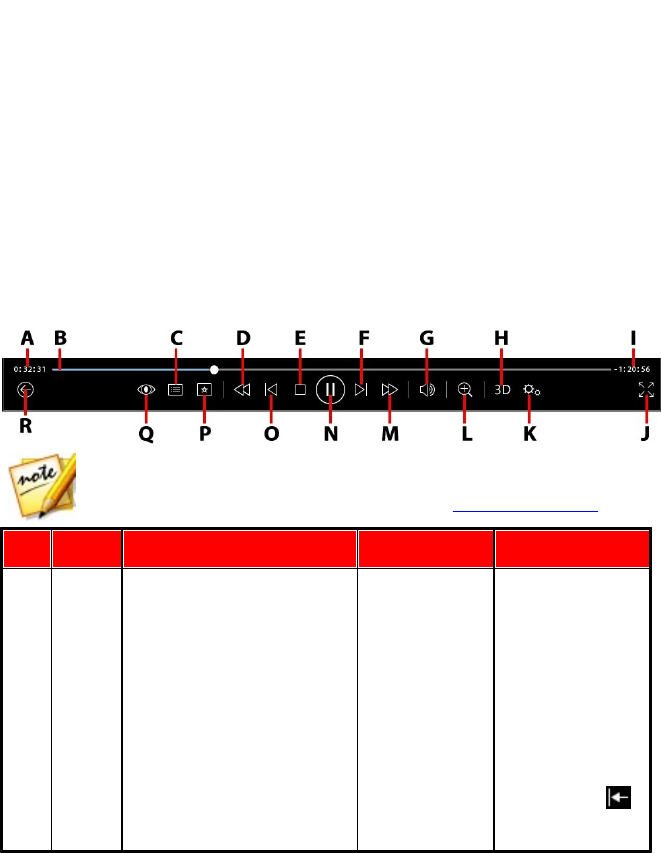
49
Playback Controls
Playback Controls
Chapter 5:
The CyberLink PowerDVD playback controls provide effortless navigation of discs
and other media, and easy access to all of the program's playback features.
Depending on the type of media you are playing, and whether media is playing or
playback is paused or stopped, the buttons available on the playback controls
display differently.
Movie Disc Playback Controls
When playing back a movie disc in the BD/DVD Movie section of the Media Library
tab, the playback controls display as follows:
Note: the below table includes the hotkey for each specific button on the
playback controls, if available. For a complete list of all the hotkeys in
PowerDVD and the corresponding behavior, see PowerDVD Hotkeys.
Icon
Button
Hotkey
Description
A
Elapsed time
Displays the time
elapsed for the
current movie.
Hover your
mouse over it to
reveal two
buttons that let
you jump
backward and
forward in the
movie. Click
to quickly jump

50
CyberLink Pow erDVD
back 8 seconds,
or to skip
forward 30
seconds. If you
have a touch
enabled display,
you can also use
Gesture Controls
to skip forward
or backward
during movie
playback.
B
Navigational slider
Visually displays
elapsed playback
time. Click along
the navigational
slider to jump to
different
moments in the
movie, or click
and drag it to
use Instant Seek
to quickly
browse and find
specific scenes in
your movie.
Hover your
mouse over the
slider to use
Instant
Thumbnails to
quickly find
scenes you
previously
viewed during
DVD playback.
C
Access DVD menu
controls/Pop-up menu
(Blu-ray* playback only)
M
During DVD
playback, this
button provides
quick access to
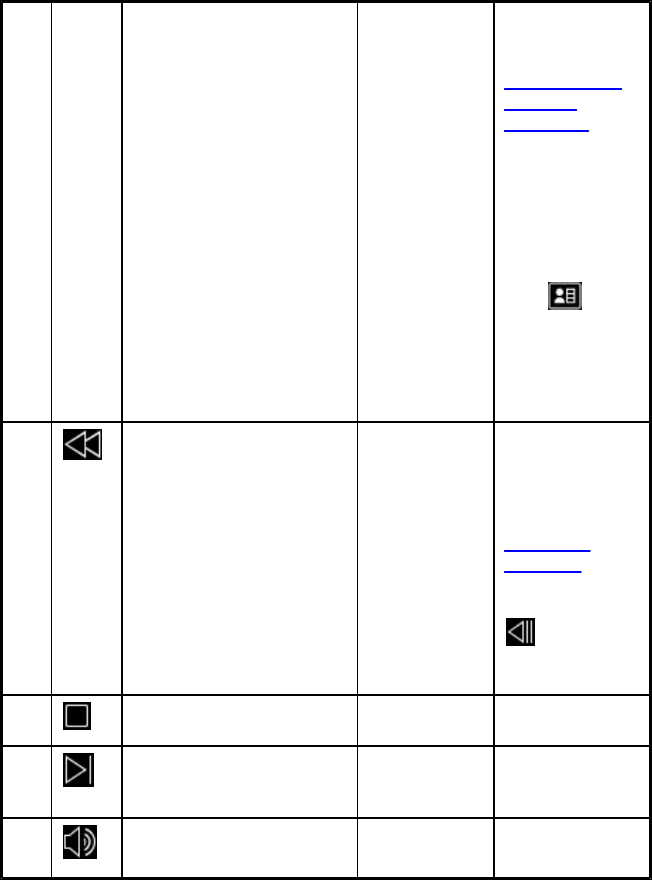
51
Playback Controls
the title and root
menus on the
DVD. See
Accessing Disc
Menus in
PowerDVD for
more
information.
During Blu-ray
Disc* playback,
the pop-up
menu button
displays here.
Click or
press M on your
keyboard to
display the pop-
up menu over
the disc content.
D
Rewind/Step backward
(when paused)
[
During playback
click this button
to reverse
through content
and access the
Play Speed
Navigator. When
playback is
paused, use the
button to go
to the previous
frame of video.
E
Stop
S
Stops playback
of media.
F
Next
N
Jumps to the
next chapter on
the movie disc.
G
Mute/Volume adjustment
Q / + and -
Click to mute the
volume; click
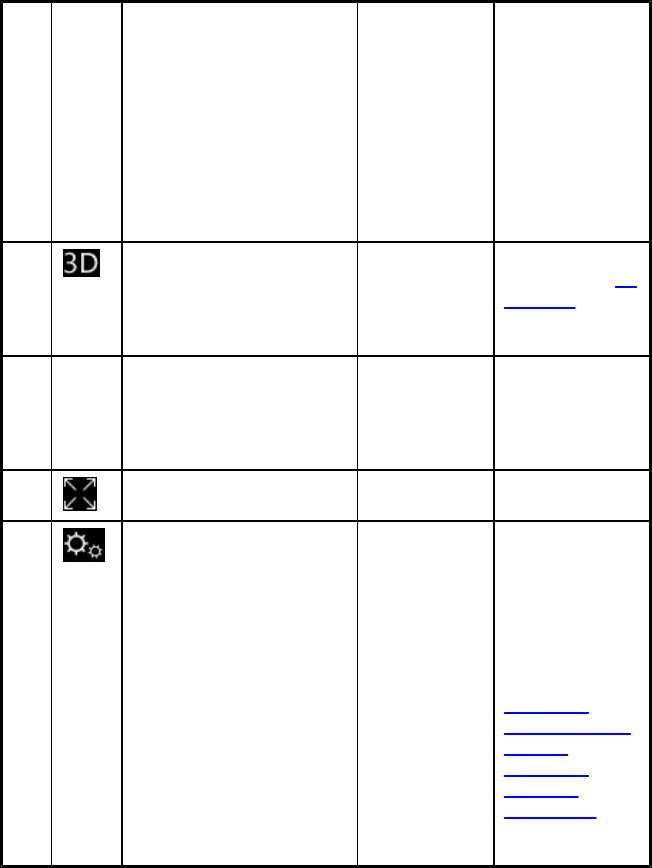
52
CyberLink Pow erDVD
again to turn
mute off. To
manually adjust
the volume,
hover your
mouse over this
button and then
use the slider to
increase or
decrease the
volume.
H
Enable 3D*
Enable 3D movie
playback. See 3D
Playback for
more
information.
I
Movie duration/Remaining
time
Click to toggle
between movie
duration and
remaining
playback time.
J
Go to full screen
Z
Click to enter full
screen mode.
K
PowerDVD settings menu
Opens the
PowerDVD
settings menu,
where you can
access player
settings and
PowerDVD
preferences. See
PowerDVD
Settings - Player
Settings and
PowerDVD
Settings -
Preferences for
more
information.

53
Playback Controls
L
Zoom
Ctrl+mouse
wheel**
Hover your
mouse over this
button, and then
use the slider to
use Instant
Zoom to digitally
zoom in or out
on a DVD
movie's video
image (note: this
feature is not
available during
Blu-ray Disc
playback). When
zoomed in, you
can click and
drag on the
video image to
view different
areas of the
image. ** note
that this hotkey
can be modified
in settings, so
the behavior
may differ. If you
have a touch
enabled display,
you can also use
Gesture Controls
to digitally zoom
in or out on the
video image.
Note: this feature
is not supported
on videos that
have a resolution
greater than 2560
x 1440, or when
the output
display is greater
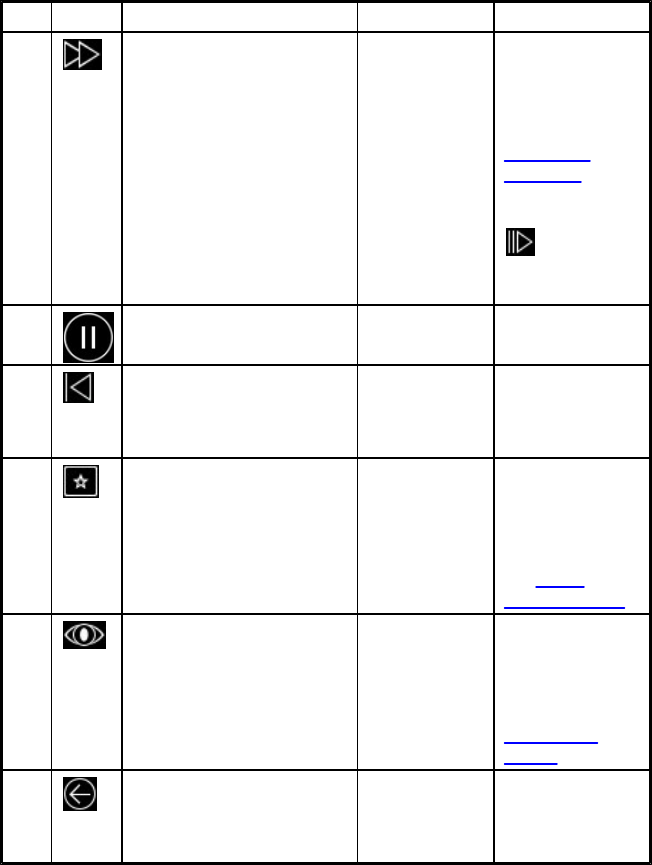
54
CyberLink Pow erDVD
than 2560 x 1440.
M
Fast forward/Step forward
(when paused)
]
During playback
click this button
to fast forward
through content
and access the
Play Speed
Navigator. When
playback is
paused, use the
button to
go to the next
frame of video.
N
Play/Pause
Space bar
Plays and pauses
media playback.
O
Previous
P
Returns to the
previous chapter
on the movie
disc.
P
Media playback menu
During playback,
this button
provides access
to the media
playback menu.
See Media
Playback Menu.
Q
TrueTheater effects
Provides access
to the
TrueTheater
video effect
controls. See
TrueTheater
Effects.
R
Return to previous window
Backspace
Click to stop
playback and
return to the
media library.
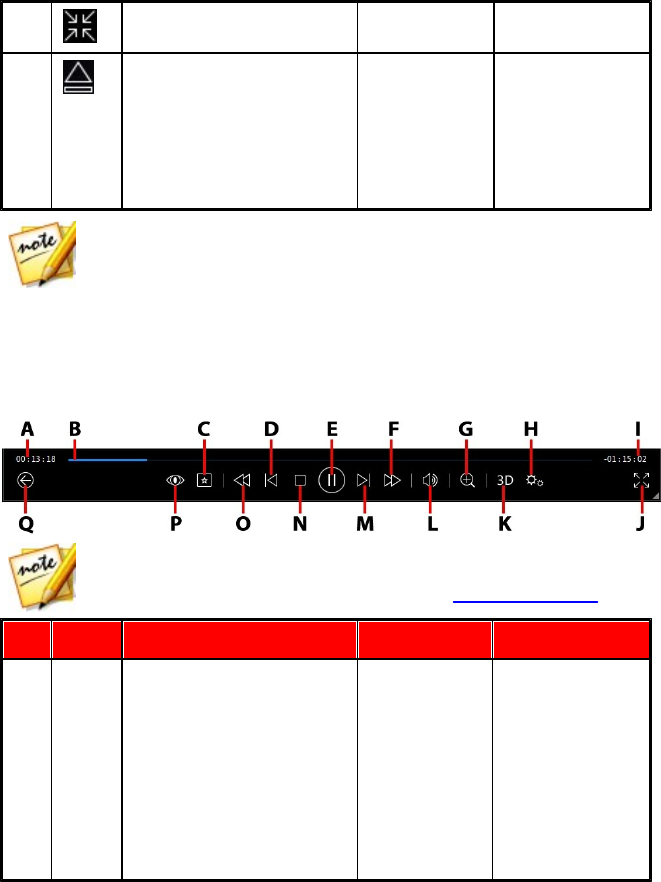
55
Playback Controls
Restore from full screen
Z / Esc
Click to exit full
screen mode.
Eject disc
Ctrl+E
When playback is
stopped, this
button is
displayed. Click it
to eject the disc
in the selected
disc drive.
Note: * this feature is not available in some versions of CyberLink
PowerDVD.
Video Playback Controls
When playing back movie files or TV shows in the Movies/TV section, or video files
in the Videos tab of the media library, the playback controls display as follows:
Note: the below table includes the hotkey for each specific button on the
playback controls, if available. For a complete list of all the hotkeys in
PowerDVD and the corresponding behavior, see PowerDVD Hotkeys.
Icon
Button
Hotkey
Description
A
Elapsed time
Displays the time
elapsed for the
current video.
Hover your
mouse over it to
reveal two
buttons that let
you jump
backward and
forward in the

56
CyberLink Pow erDVD
video. Click
to quickly jump
back 8 seconds,
or to skip
forward 30
seconds. If you
have a touch
enabled display,
you can also use
Gesture Controls
to skip forward
or backward
during video
playback.
B
Navigational slider
Visually displays
elapsed playback
time. Click along
the navigational
slider to jump to
different
moments in the
video, or click
and drag it to use
Instant Seek to
quickly browse
and find specific
scenes in your
video. Hover
your mouse over
the slider to use
Instant Preview
to quickly find
scenes you
previously
viewed during
movie file
playback.
C
Media playback menu
During playback,
this button
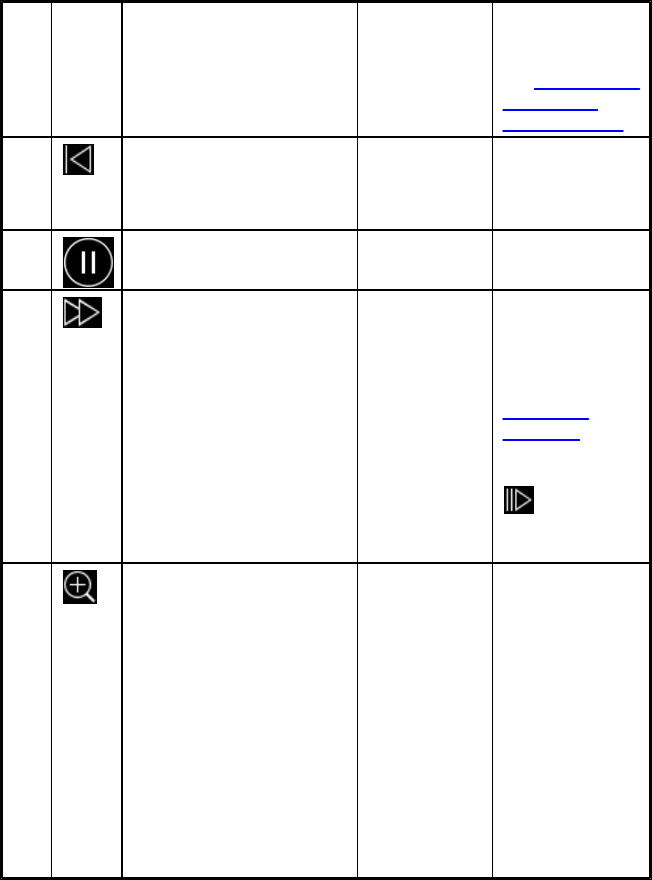
57
Playback Controls
provides access
to the media
playback menu.
See Movie File/TV
Show/Video
Playback Menu.
D
Previous
P
Returns to the
previous video
file in a folder/
playlist.
E
Play/Pause
Space bar
Plays and pauses
media playback.
F
Fast forward/Step forward
(when paused)
]
During playback
click this button
to fast forward
through content
and access the
Play Speed
Navigator. When
playback is
paused, use the
button to go
to the next frame
of video.
G
Zoom
Ctrl+mouse
wheel**
Hover your
mouse over the
button, and then
use the slider to
use Instant Zoom
to digitally zoom
in or out on the
video image.
When zoomed in,
you can click and
drag on the
video image to
view different
areas of the

58
CyberLink Pow erDVD
image.** note
that this hotkey
can be modified
in settings, so the
behavior may
differ. If you have
a touch enabled
display, you can
also use Gesture
Controls to
digitally zoom in
or out on the
video image.
Note: this feature
is not supported
on videos that
have a resolution
greater than 2560
x 1440, or when
the output
display is greater
than 2560 x 1440.
H
PowerDVD settings menu
Opens the
PowerDVD
settings menu,
where you can
access player
settings and
PowerDVD
preferences. See
PowerDVD
Settings - Player
Settings and
PowerDVD
Settings -
Preferences for
more
information.
I
Video duration/Remaining
time
Click to toggle
between movie

59
Playback Controls
duration and
remaining
playback time.
J
Full screen
Z
Click to enter full
screen mode.
K
Enable 3D*
Enable 3D video
playback. See 3D
Playback for
more
information.
L
Mute/Volume adjustment
Q / + and -
Click to mute the
volume, or to
turn mute off. To
manually adjust
the volume,
hover your
mouse over this
button and then
use the slider to
increase or
decrease the
volume.
M
Next
N
Jumps to next
video file in a
folder/playlist.
N
Stop
S
Stops playback
of media.
O
Rewind/Step backward
(when paused)
[
During playback
click this button
to reverse
through content
and access the
Play Speed
Navigator. When
playback is
paused, use the
button to
go to the
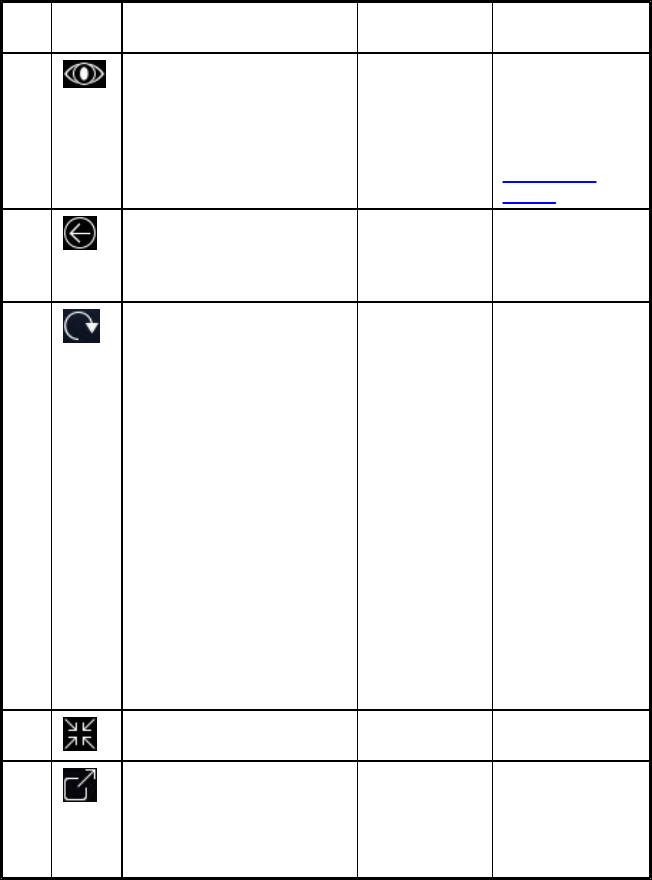
60
CyberLink Pow erDVD
previous frame
of video.
P
TrueTheater effects
Provides access
to the
TrueTheater
video effect
controls. See
TrueTheater
Effects.
Q
Return to previous window
Backspace
Click to stop
playback and
return to the
media library.
Rotate right
Ctrl+.
When playing
back or browsing
video files in the
Videos section of
the media library,
click to rotate the
current video 90
degrees in the
clockwise
direction. Note:
this feature is not
supported on
videos that have
a resolution
greater than 2560
x 1440, or when
the output
display is greater
than 2560 x 1440.
Restore from full screen
Z / Esc
Click to exit full
screen mode.
Share
When browsing
through video
files in the Videos
section of the
media library,

61
Playback Controls
click this button
to share the
video on
Facebook,
YouTube, or
Vimeo. See
Sharing Media on
Social Networks
for more
information.
Play to
When browsing
through video
files in the Videos
section of the
media library,
click this button
to play the
current video file
on a home
media server or
device that is
connected to the
same network.
See Streaming
Media (Play to)
for more
information.
Note: * this feature is not available in some versions of CyberLink
PowerDVD.
Photo Playback Controls
When viewing photos and playing slideshows on the Photos tab of the media
library, the playback controls display as follows:
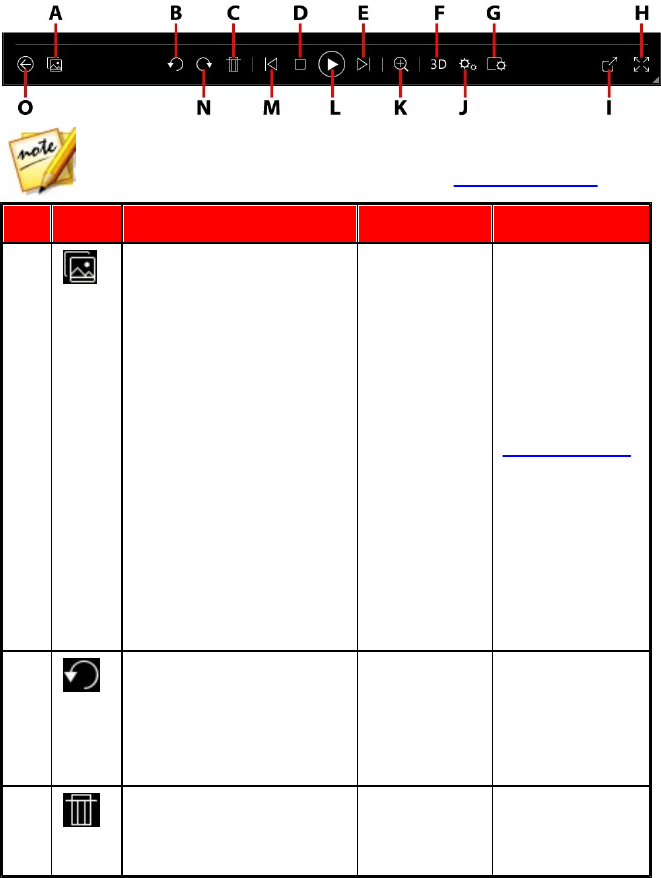
62
CyberLink Pow erDVD
Note: the below table includes the hotkey for each specific button on the
playback controls, if available. For a complete list of all the hotkeys in
PowerDVD and the corresponding behavior, see PowerDVD Hotkeys.
Icon
Button
Hotkey
Description
A
Enable instant photo
thumbnails
When viewing a
single photo,
click to view the
instant photo
thumbnails for
all the photos in
the current
folder. Once
enabled, use
gesture controls,
your mouse's
scroll wheel, the
navigational
slider, or the
arrow keys on
the keyboard to
browse through
all the photos in
a folder.
B
Rotate left
Ctrl+,
Click to rotate
the current
photo 90 degrees
in the
counterclockwise
direction.
C
Delete photo
Delete
Deletes the
current photo
from your
63
Playback Controls
computer's hard
drive.
D
Stop
S
Stops playback
of slideshow.
E
Next
N
Jumps to next
photo in the
folder or
slideshow. If you
have a touch
enabled display,
you can also use
Gesture Controls
to go to the next
photo.
F
Enable 3D*
Enable 3D on
photos. See 3D
Playback for
more
information.
G
Configure slideshow
preferences
Click this button
to adjust
slideshow
preferences.
Select the
Duration each
photo displays
before advancing
to the next
photo. Select the
Effect applied to
your slideshow.
Motion adds
pans and zooms
on each photo,
while Fade adds
a fade effect
between the
photos. Select
None if you don't

64
CyberLink Pow erDVD
want any
transition effect
to be used.
H
Full screen
Z
Click to enter full
screen mode.
I
Share, e-mail, print, or
open photo in a another
program
Click to share the
photo you are
viewing on Flickr
or Facebook. See
Sharing Media on
Social Networks
for more
information. You
can also share
the photo by
selecting E-mail
to launch your
default mail
client and attach
it to a new e-mail
message. Select
Print to print the
current photo
out on a
connected
printer. When
clicked, the
photo is sent to
your computer's
default photo
viewer for
printing. Proceed
to use your
computer's
default photo
viewer to print
off the photo as
required. If you'd
like to open the

65
Playback Controls
photo you are
viewing in
another
program, select
Open with and
then select the
desired program.
J
PowerDVD settings menu
Opens the
PowerDVD
settings menu,
where you can
access player
settings and
PowerDVD
preferences. See
PowerDVD
Settings - Player
Settings and
PowerDVD
Settings -
Preferences for
more
information.
K
Zoom
Ctrl+mouse
wheel**
Hover your
mouse over the
button, and then
use the slider to
use Instant Zoom
to zoom in or out
on the photo.
When zoomed in,
you can click and
drag on the
photo to view
different areas of
the photo. **
note that this
hotkey can be
modified in
settings, so the
66
CyberLink Pow erDVD
behavior may
differ. If you have
a touch enabled
display, you can
also use Gesture
Controls to
digitally zoom in
or out on the
photo.
L
Play/Pause
Space bar
Plays and pauses
slideshow
playback.
M
Previous
P
Returns to
previous photo
in the folder or
slideshow. If you
have a touch
enabled display,
you can also use
Gesture Controls
to go to the
previous photo.
N
Rotate right
Ctrl+.
Click to rotate
the current
photo 90 degrees
in the clockwise
direction.
O
Return to previous window
Backspace
Click to stop
playback and
return to the
media library.
Restore from full screen
Z / Esc
Click to exit full
screen mode.
Play to
Select to view the
current photo on
a home media
server or device
that is connected
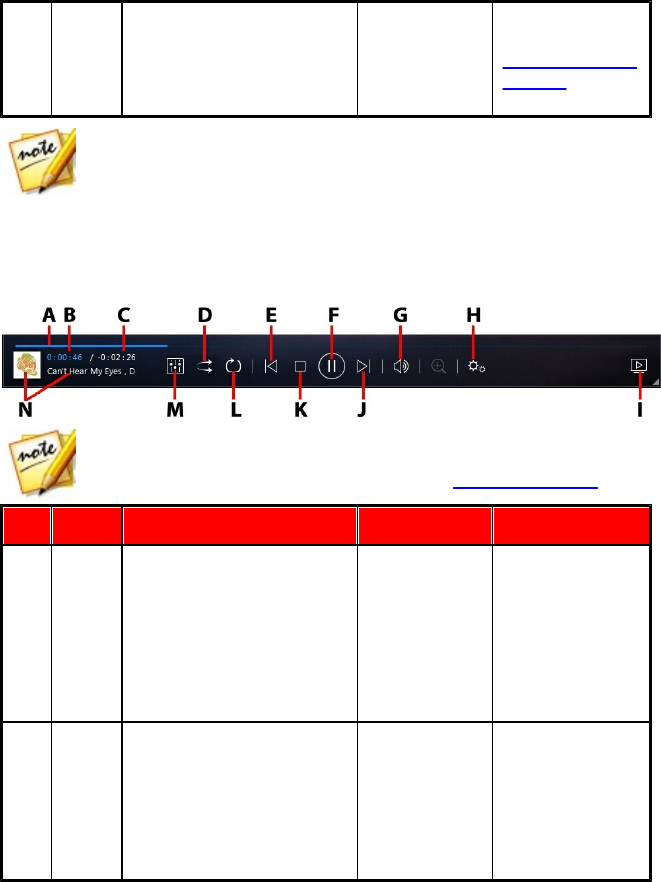
67
Playback Controls
to the same
network. See
Streaming Media
(Play to) for more
information.
Note: * this feature is not available in some versions of CyberLink
PowerDVD.
Music Playback Controls
When playing music on the Music tab, the playback controls display as follows:
Note: the below table includes the hotkey for each specific button on the
playback controls, if available. For a complete list of all the hotkeys in
PowerDVD and the corresponding behavior, see PowerDVD Hotkeys.
Icon
Button
Hotkey
Description
A
Navigational slider
Visually displays
elapsed playback
time. Click along
the navigational
slider to jump to
different
moments in the
song.
B
Elapsed time
Displays the time
elapsed in the
current song.
Hover your
mouse over it to
reveal two
buttons that let
68
CyberLink Pow erDVD
you jump
backward and
forward in the
song. Click to
quickly jump
back 8 seconds,
or to skip
forward 30
seconds.
C
Song duration/Remaining
time
Click to toggle
between song
duration and
remaining
playback time.
D
Shuffle
V
Plays the music
in a folder,
playlist, or on a
disc in random
order.
E
Previous
P
Returns to the
previous song in
the folder,
playlist, or on the
disc.
F
Play/Pause
Space bar
Plays and pauses
music playback.
G
Mute/Volume adjustment
Q / + and -
Click to mute the
volume, or to
turn mute off. To
manually adjust
the volume,
hover your
mouse over this
button and then
use the slider to
increase or
decrease the
69
Playback Controls
volume.
H
PowerDVD settings menu
Opens the
PowerDVD
settings menu,
where you can
access player
settings and
PowerDVD
preferences. See
PowerDVD
Settings - Player
Settings and
PowerDVD
Settings -
Preferences for
more
information.
I
Play to
Select to play the
current music file
on a home
media server or
device that is
connected to the
same network.
See Streaming
Media (Play to)
for more
information.
J
Next
N
Jumps to the
next song in the
folder, playlist, or
on the disc.
K
Stop
S
Stops music
playback.
L
Repeat
Ctrl+R
Click this button
during playback
to repeat one
or all of the

70
CyberLink Pow erDVD
songs in a
folder/playlist.
When the button
displays as ,
the repeat
function is off.
M
Audio equalizer
When playing
back music, click
this button to
access the Audio
Equalizer presets
used to alter the
audio.
N
Song information
Displays the
album art and
song information
for the current
music that is
playing. If you're
browsing
through media
on other tabs
during music
playback,
double-click on
the song
information to
quickly return to
the music
section of the
media library.
Using the Audio Equalizer
During music playback, click and then select Audio Equalizer to access the
equalizer and audio presets you can use to alter the audio in CyberLink PowerDVD.
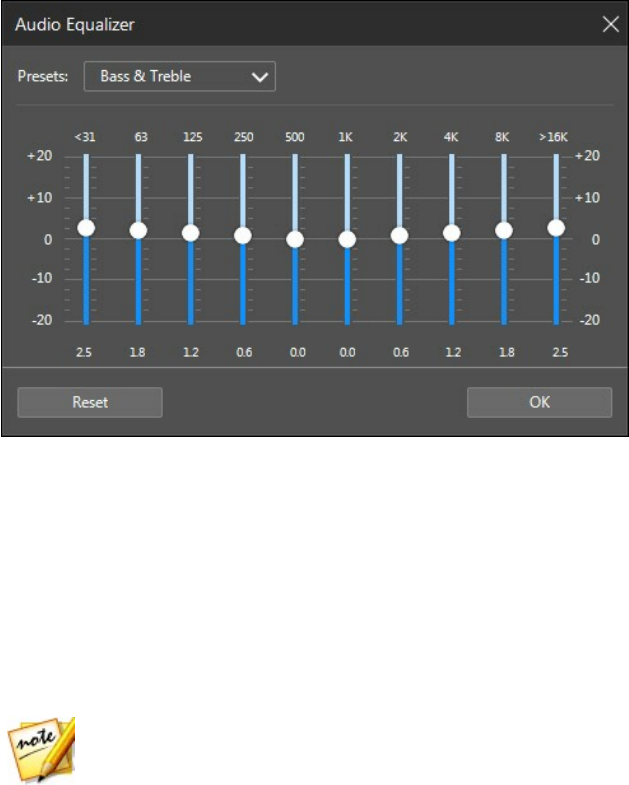
71
Playback Controls
Select a preset from the Presets drop-down to change the sound of the audio. The
preset you should select, depends on the type of audio or genre of music you are
playing back. You can also manually adjust the sliders on the equalizer to manually
set the audio output to your custom specifications. Once you have manually set
the sliders to your liking, click the Save button. You can save up to three custom
presets using the Custom Preset 1, 2, and 3 options.
Playing Music in Mini Player Mode
You can play music in the media library in PowerDVD Mini Player mode. This mode
makes it easy to listen to music in CyberLink PowerDVD while performing other
tasks on your computer.
Note: you can also use the PowerDVD Mini Player mode to play music
playlists. Note that if any videos or photos are in a playlist that contains
music, then the Mini Player mode is not available.
To access the Mini Player mode during music playback, right click on an empty
space in the Music tab's media window and then select Mini Player. CyberLink
PowerDVD will switch to Mini Player mode and display the album art just above the
task bar in Windows. Hover your mouse over the album art to display the available
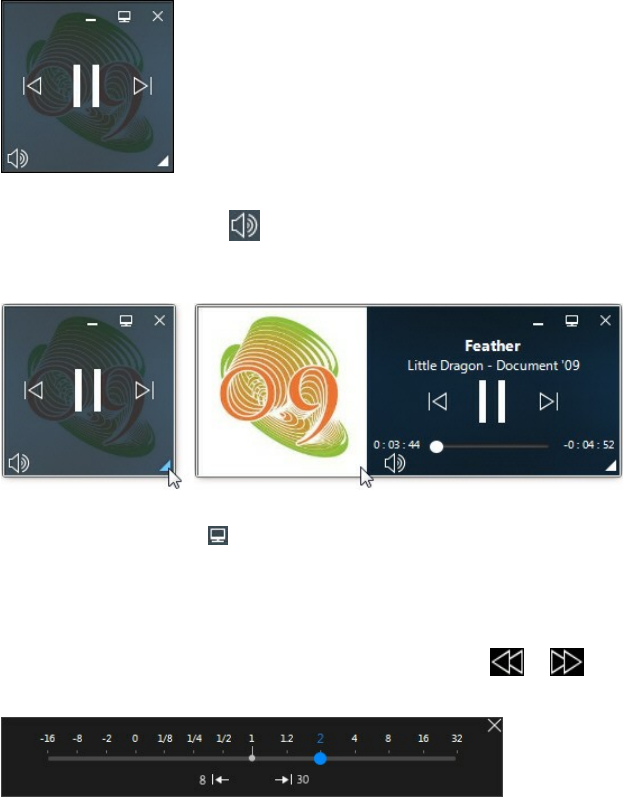
72
CyberLink Pow erDVD
controls in the Mini Player.
You can use the controls to pause/start playback, go to the previous or next song in
the folder or playlist, or click to mute the music volume. To view the current
song and playback information, click in the bottom right corner to expand the Mini
Player.
You can click on an empty area of the player and drag it to a new location on your
computer's desktop. Click to exit Mini Player mode and return to Classic mode.
Play Speed Navigator
When wanting to rewind or fast forward through content on movie discs, in movie
files, TV shows, or when playing videos files, you can click the or button
to access the Play Speed Navigator for easier control.
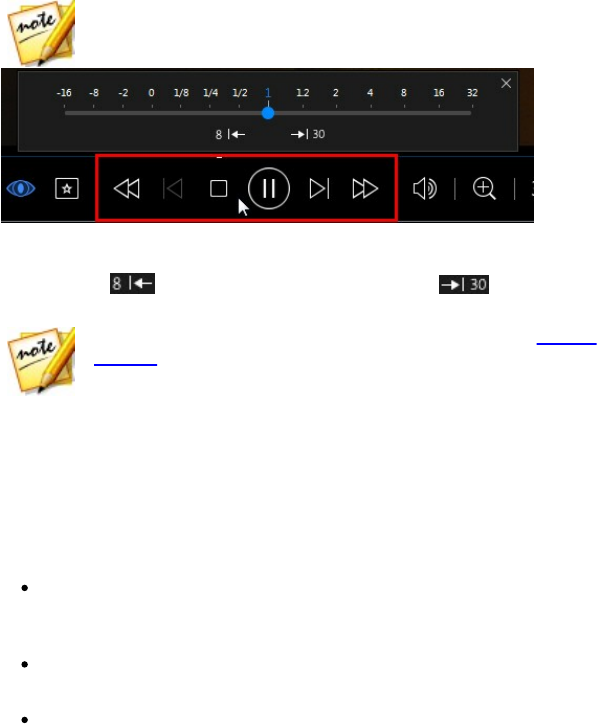
73
Playback Controls
Note: you can also access this panel by right-clicking above or below the
player controls.
Drag the blue control slider left to increase the rewind speed up to 16 times the
normal playback speed, or right to increase the forward speed up to 32 times. You
can also click to quickly jump back 8 seconds, or to skip forward 30
seconds.
Note: if you have a touch enabled display, you can also use Gesture
Controls to skip forward or backward during movie/video playback.
Press the space bar on your keyboard to close the control panel and resume normal
playback.
Other UI Controls
CyberLink PowerDVD also includes the following extra playback features and
controls that you may find quite useful during media playback:
When in Windowed mode, you can click anywhere in the media window
during playback and then drag the program window to a new location on
your computer's desktop.
When in full screen mode, move the mouse cursor to the left or right side of
the screen to instantly hide the caption bar and playback controls.
When in full screen mode, the current time from your computer clock is
displayed on the caption bar.
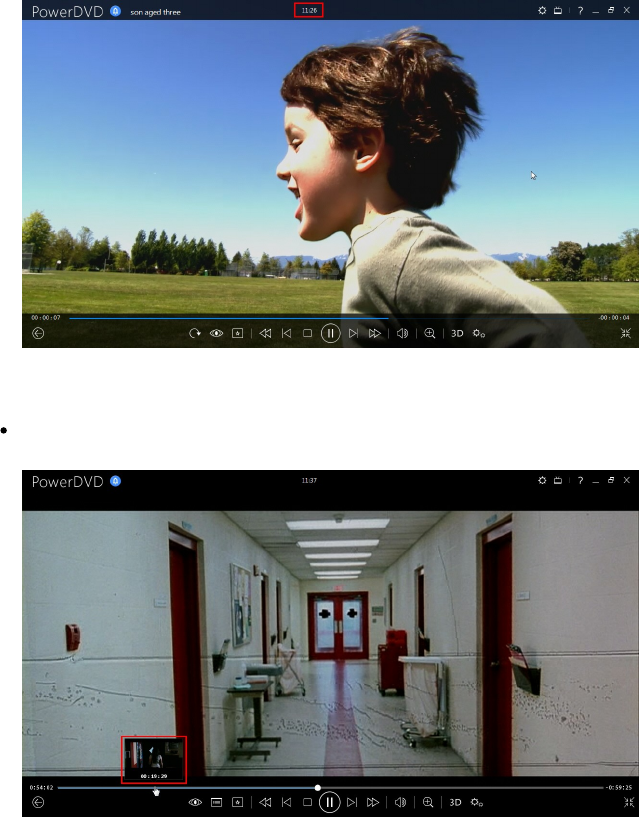
74
CyberLink Pow erDVD
During video file playback, you can hover your mouse over the current time
on the title bar to view the estimated playback end time.
You can hover your mouse over the navigational slider to use Instant Preview
to quickly find scenes during DVD and movie file playback.
These thumbnails are generated during playback and are only available for
video content you previously viewed.
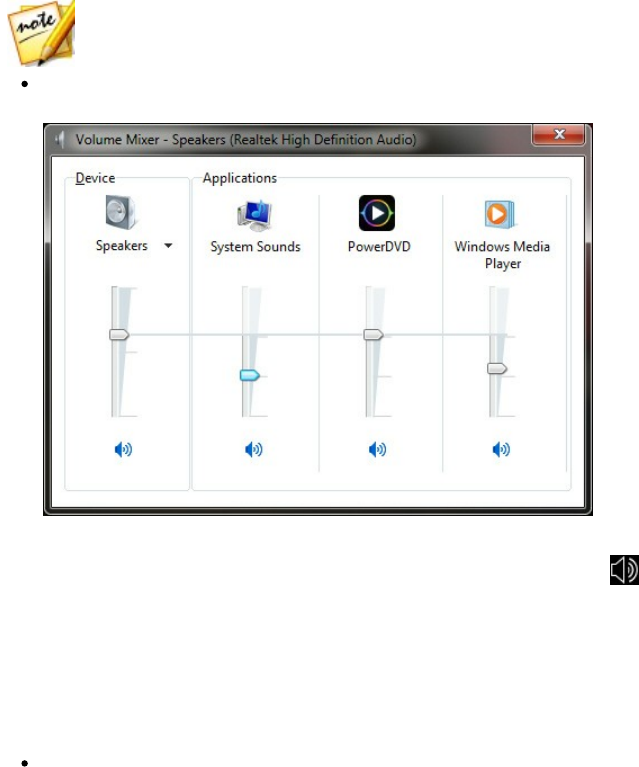
75
Playback Controls
Note: this feature is not supported on videos that have a resolution greater
than 2560 x 1440, or when the output display is greater than 2560 x 1440.
The CyberLink PowerDVD volume control is independent from your computer
system's audio control in the Volume Mixer.
This means, for example, if you mute the volume in CyberLink PowerDVD, the
audio will not be muted in other Windows programs. Right-click on the
button to open the Volume Mixer.
Gesture Controls
If CyberLink PowerDVD is installed on a computer that has a touch enabled display,
you can use gesture controls to browse through your media and during media
playback.
When viewing a photo, movie, or video, use the spread and pinch gestures to
zoom in and out on the image. These gesture controls are also available in
calendar view, so you can change the calendar view to show more than one
month, or zoom in on a specific day.
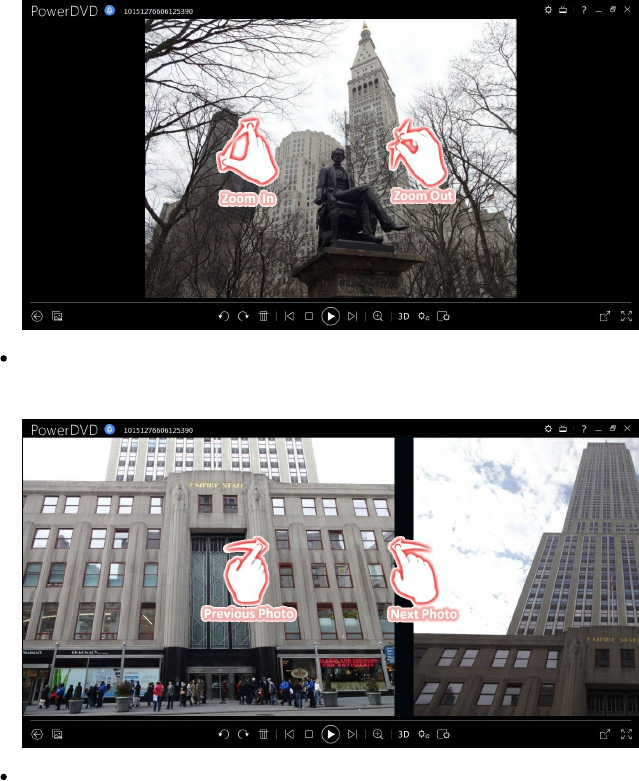
76
CyberLink Pow erDVD
When viewing a photo, use the swipe right and left gestures to view the
previous or next photo. When in calendar view you can swipe up or down to
scroll through the days and months in the calendar.
When playing movies or video files, use the swipe right gesture to quickly
jump backward 8 seconds. Swipe left to skip forward 30 seconds.
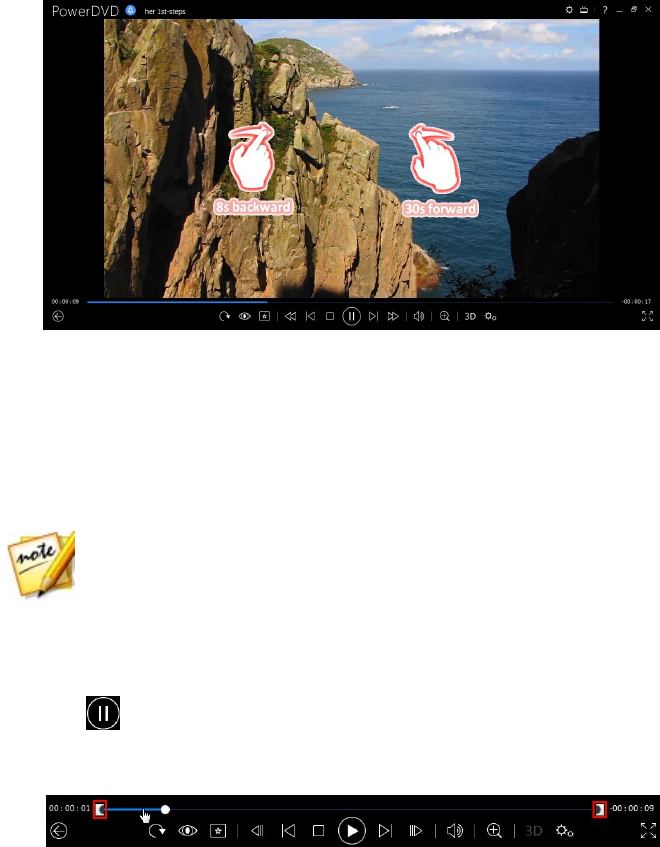
77
Playback Controls
Video Mark In/Out (Video Scene
Selector)
In the media library you can mark in and out positions on movie files, TV shows,
and video clips to highlight the best moment in the video. CyberLink PowerDVD
will remember the mark in/out positions, even if you close the program, letting you
only play the part of the video that you want.
Note: this feature is not supported on videos that have a resolution greater
than 2560 x 1440, or when the output display is greater than 2560 x 1440.
To mark a video, do this:
1. Browse to a movie file, TV show, or video clip in the media library and then
double-click on it to begin playback.
2. Click to or press the spacebar on your keyboard to pause playback.
3. Hover your mouse over the navigational slider and the playback markers will
display.
4. Click and drag the mark in position (icon on the left) and drag it to the desired
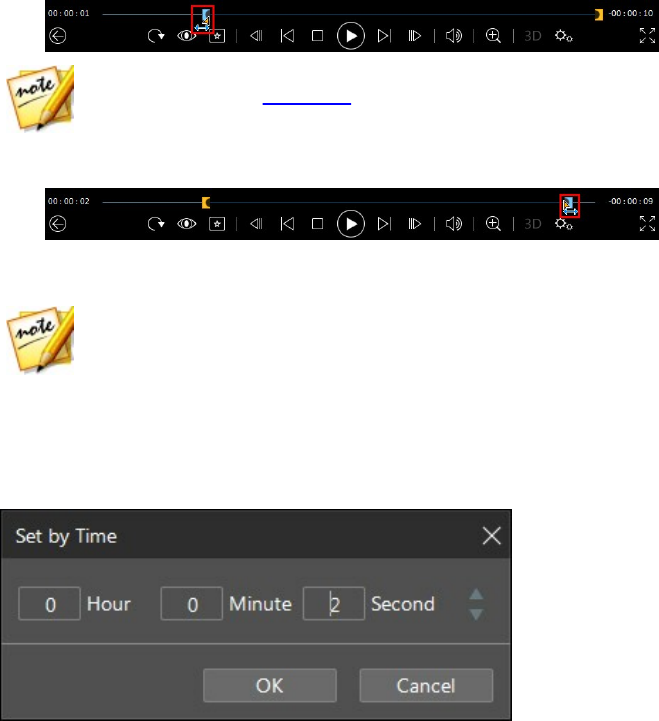
78
CyberLink Pow erDVD
starting position of the video.
Note: you can right-click on the markers to use set by time to set more
precise positions. See Set by Time for more information.
5. Click and drag the mark out position (icon on the right) and drag it to the
desired ending position of the video.
6. Restart playback and only the video content between the playback markers
will be played.
Note: to remove the playback markers from a video, right click on one of
them and then select Remove Mark In/Out.
Set by Time
For a more precise placement of a mark in/out position, right click on it and then
select Set by Time to open the following dialog.
Enter the time code (in hour, minute, and second) for the mark in/out position and
then click OK to set the marker.
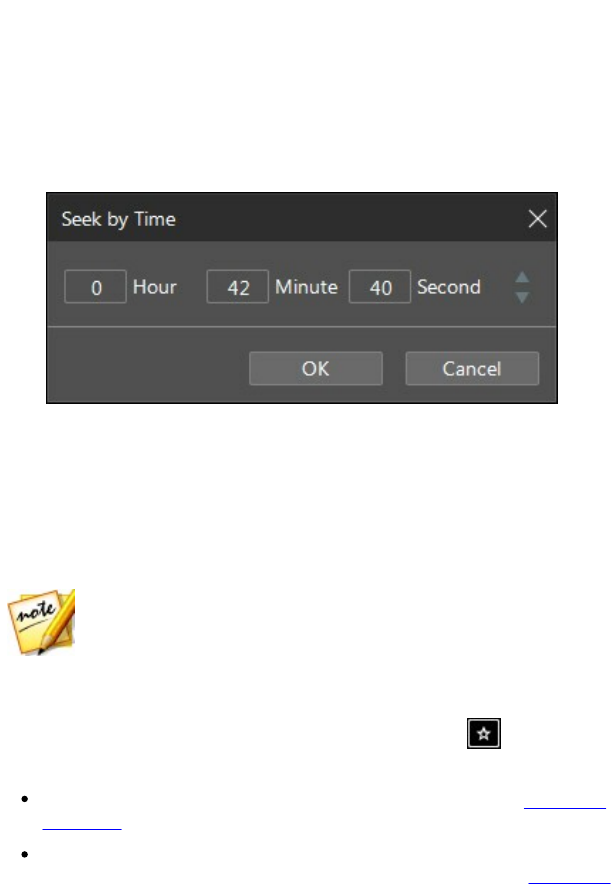
79
Playback Controls
Seek by Time
You can instantly jump to a specific point of time in a disc, movie file, TV show,
video clip, or song using the Seek by Time function.
To use the Seek by Time, do this:
1. During media playback, right-click on the navigational slider. The Seek by
Time dialog box displays.
2. Enter the time code (in hour, minute, and second) and then click OK. Playback
continues from the time you entered.
Media Playback Menu
Depending on the media you are playing, the media playback menu provides quick
access to a number of useful functions and features in CyberLink PowerDVD.
Note: the media playback menu is not available during the playback of
music, photo slideshows, VCDs, or SVCDs.
DVD Playback Menu
When playing back DVDs in CyberLink PowerDVD, click the button to access
the following features:
Add Bookmark: select to add a bookmark on the movie. See Bookmark
Functions for more information.
Bookmarks/Chapters: select to jump to a chapter on the disc, or view all the
current bookmarks and chapters in the respective viewer. See Bookmark

80
CyberLink Pow erDVD
Viewer or Chapter Viewer for more information.
Select Menu: provides access to the available menus on the disc.
Resume: if you go to the disc's menu during playback, select this option to
quickly return to the scene you were just watching.
Note: the resume from menu function is not available if you stopped
playback.
Audio Languages: lets you select from available audio streams or dialogue
languages. The number of audio streams depends on the disc title itself.
Primary Subtitles: lets you select the default subtitles. Primary subtitles
usually display at the bottom of the screen.
Secondary Subtitles: lets you select additional subtitles that display along with
the default (primary) subtitles. Secondary subtitles usually display at the top of
the screen.
Viewing Angles: when available on some disc titles, select this option to
switch among the available camera angles.
Snapshot: select to capture a frame of the DVD. The frame of video is copied
to the Windows clipboard and saved as a photo snapshot on your computer.
See the Snapshot section in More General settings to select the photo
snapshot format and set the folder on your computer where it is saved.
More Functions: select to access some additional playback features such as A-
B Repeat, Next Angle, and more. See More Functions for more information.
Blu-ray Disc Playback Menu
When playing back Blu-ray Discs* in CyberLink PowerDVD, click the button to
access the following features:
Note: * this feature is not available in some versions of CyberLink
PowerDVD.
Select Menu: provides access to the available menus on the disc.
Resume: if you go to the disc's menu during playback, select this option to
quickly return to the scene you were just watching.

81
Playback Controls
Note: the resume from menu function is not available if you stopped
playback.
Still Off: when playback is paused, but the interactive menu is active, this will
resume the video.
Chapters: select to jump to a chapter on the current disc, or view a list of all
the available chapters in the Browser. See Browser for more information.
PiP Video: select to enable a picture in picture window that contains
additional content, when available on certain Blu-ray Disc titles.
Audio Languages: lets you select from available audio streams, i.e. the
dialogue language. The number of audio streams depends on the disc title
itself.
PiP Audio Language: when playing PiP video, select the language of the
picture in picture video from the PiP Audio Language list.
Primary Subtitles: lets you select the default subtitles. Primary subtitles
usually display at the bottom of the screen.
Secondary Subtitles: lets you select additional subtitles that display along with
the default (primary) subtitles. Secondary subtitles usually display at the top of
the screen.
Viewing Angles: when available on some disc titles, select this option to
switch among camera angles.
More Functions: select to access some additional playback features such as
the navigational buttons and the color buttons that correspond to ones on
your remote control. See More Functions for more information.
Movie File/TV Show/Video Playback
Menu
When playing back movie files, TV shows, or videos in CyberLink PowerDVD, click
the button to access the following features:
Note: when playing back DVD or Blu-ray Disc folders in the Movie Library
section, the button provides access to the same media playback menu
as a regular disc. See DVD Playback Menu or Blu-ray Disc Playback Menu
for more information.

82
CyberLink Pow erDVD
Add Bookmark: select to add a bookmark on the movie file/video. See
Bookmark Functions for more information.
Bookmarks/Chapters: select to view all the current bookmarks for the movie
file/video in the Bookmark Viewer. See Bookmark Viewer for more
information.
Audio Languages: lets you select from available audio streams, i.e. the
dialogue language. The number of audio streams depends on the video file
itself.
Primary Subtitles: lets you import external subtitle files and provides access to
Subtitles Settings. See Importing External Subtitle Files or Subtitles Settings for
more information.
Secondary Subtitles: lets you import a secondary subtitle file that displays
along with the default (primary) subtitles and edit the settings for the
secondary subtitles. See Importing External Subtitle Files or Subtitles Settings
for more information.
Viewing Angles: when available on some movie files, select this option to
switch among camera angles.
Snapshot: select to capture a frame of the video. The frame of video is copied
to the Windows clipboard and saved as a photo snapshot on your computer.
See the Snapshot section in More General Settings to select the photo
snapshot format and set the folder on your computer where it is saved.
Note: during the playback of WTV files, these video playback menu options
are not available. You can however select the preferred video and audio
stream, as well as any available subtitles during WTV playback.
When video file playback is stopped, click the button to access the following
feature:
Bookmark Viewer: select to view all the current bookmarks for the current
movie file/video in the Bookmark Viewer. See Bookmark Viewer for more
information.
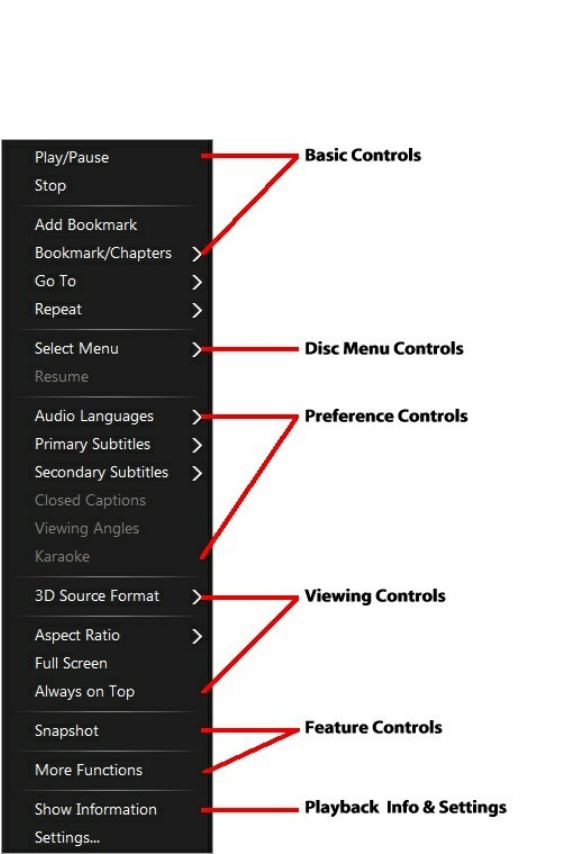
83
Playback Controls
Express Menu
The express menu provides quick access to many of CyberLink PowerDVD's controls
and playback features during playback. To access it, simply right-click the mouse
button on the media window during playback.

84
CyberLink Pow erDVD
Note: the features that are displayed and available in the express menu are
completely dependent on the type of media you are currently playing and the
features that are available for the specific media (disc title, video file, etc.).
Basic Controls
Use the basic controls to control playback, access the Go To menu, add bookmarks,
and more when watching movies and videos.
Playback Controls
Includes the basic playback controls (Play, Stop, Pause, etc.) for CyberLink
PowerDVD.
Add Bookmark
Select the Add Bookmark option to add a bookmark on the movie or video during
playback.
Bookmark/Chapters
Select to view all the current bookmarks and the chapter thumbnails for the current
disc. See Bookmark Viewer or Chapter Viewer for more information.
Go To
Use the Go To option to quickly select a chapter or navigate among available titles,
when available. The check mark signifies the current playback title, while the arrows
to the right of the title signify further selections in the form of chapters. You can
also select the Browser or the Chapter Viewer options for easier access to chapters.
Repeat
Select to repeat the playback for the current chapter, media file, disc title, etc. It also
provides access to Say-It-Again and A-B Repeat during disc playback.

85
Playback Controls
Shuffle
When playing slideshows, movie files, and videos, select this option to play the
media in a folder or playlist in random order.
Disc Menu Controls
The express menu provides quick access to some disc menu controls during
playback.
DVD Menu Controls
During the playback of DVD titles, the following menu controls are available in the
express menu.
Select Menu
Use the Select Menu option to quickly jump to one of the available disc menus. See
Accessing Disc Menus in PowerDVD for more information.
Resume
If you go to the disc's menu during playback, select Resume to quickly return to the
scene you were just watching.
Note: the resume from menu function is not available if you stopped
playback.
Blu-ray Disc Menu Controls
During the playback of Blu-ray Disc* titles, the following extra disc menu control is
also available in the express menu.
Note: * this feature is not available in some versions of CyberLink
PowerDVD.

86
CyberLink Pow erDVD
Still Off
When the playback is paused, but the interactive menu is active, this will resume
the video.
Preference Controls
The preference controls provide access to features such as audio language,
subtitles, viewing angles, and more.
DVD and Video Preference Controls
During the playback of discs, movie files, and videos, the following preferences are
available in the express menu.
Audio Languages
The Audio Languages menu lets you select from available audio streams, i.e. the
dialogue language. The number of audio streams depends on the disc title itself.
Subtitles
The Primary Subtitles menu is the selection menu for the default subtitles. Primary
subtitles usually display at the bottom of the screen.
The Secondary Subtitles menu is for additional subtitles that you can choose to
display along with the default subtitles. Secondary subtitles usually display at the
top of the screen.
Closed Captions
Closed Captions, if supported by your disc title, is made available by national
organizations and is tailored towards the hearing impaired. The captions are found
in video content and in the form of text located somewhere on the picture. Closed
captions, as opposed to open captions, are hidden in the video signals and need a
special decoder. Select the Settings option to modify how the closed captions text
is displayed. See Closed Captions Settings for more information.

87
Playback Controls
Viewing Angles
When available on some disc titles, select this option to switch among available
camera angles.
Karaoke
The Karaoke option is available when playing back karaoke discs. See Playing a
Karaoke Disc for more information.
Blu-ray Disc Preference Controls
During the playback of Blu-ray Disc* titles, the following extra preference controls
are also available in the express menu.
Note: * this feature is not available in some versions of CyberLink
PowerDVD.
PiP Video
Select to enable a picture in picture window that contains additional content, when
available on certain Blu-ray Disc titles.
PiP Audio Language
Select the language of the picture in picture video from the list.
Primary Subtitles (for Blu-ray Discs)
When PiP Video is enabled, there may be additional subtitles available in Primary
Subtitles for the picture in picture video (indicated by (from PiP) next to it). When
you select PiP subtitles, they are displayed on the main video.
Note: when the video in the PiP window ends or is closed, the displayed
subtitles will revert back to the originally selected Primary Subtitles.

88
CyberLink Pow erDVD
Viewing Controls
In viewing controls you can set the 3D source format, adjust the aspect ratio of the
media content you are playing, and more.
3D Source Format
Select this option if you need to change the viewing format of 3D content. See
Setting 3D Source Format for more information.
Aspect Ratio
In the Aspect Ratio option, you can access such features as TrueTheater Stretch,
Digital Zoom, and Pan & Scan.
Keep Aspect Ratio
Select the Keep Aspect Ratio option to keep the correct aspect ratio of your video
content and window and apply a letterbox if required.
Stretch to Fit the Screen
Select Stretch to Fit the Screen to stretch the movie to fit the video window.
TrueTheater Stretch*
The TrueTheater Stretch feature is only available in full screen mode and is for DVD
titles with a widescreen aspect ratio (i.e. optimal with 16:9 on a 4:3 monitor). It
employs CyberLink's unique Pano Vision video technology to stretch the movie to
fit the monitor size.
Note: * this feature is not available in some versions of CyberLink
PowerDVD.
The available TrueTheater Stretch modes are as follows:
Smart Stretch: crops and stretches the sides of the picture slightly, while

89
Playback Controls
keeping the center as is.
Fit to Screen: keeps the center of the picture as is, while stretching the sides
slightly.
Smart for 2.35:1: select this option for disc titles that have an aspect ratio of
2.35:1. This setting is specifically designed to maximize the display space of
widescreen (16:9 or 16:10) display devices when viewing discs with this aspect
ratio.
Custom Stretch: enables a custom created aspect ratio configured on the
Aspect Ratio tab. See Aspect Ratio for more information on creating a custom
aspect ratio.
Pan&Scan
Pan&Scan displays the central portion of disc content and allows you to drag the
display area to view all portions of the video. This feature is only available in full
screen mode and is for disc titles with the 2.35:1 or 1.85:1 aspect ratios (i.e. optimal
for widescreen content on a 4:3 monitor). Check the aspect ratio of your specific
disc title for optimal results when using this feature.
Pan&Scan enables you to view content without the black bars, but at the expense of
being unable to view the entire screen area at once. The default Pan&Scan position
is centered, but you can move the video screen simply by clicking on it and
dragging the screen left or right.
Full Screen/Restore
Select Full Screen/Restore to toggle CyberLink PowerDVD to and from full screen
mode.
Always on Top
Select this option to have CyberLink PowerDVD play on top of all other open
programs and windows on your computer.

90
CyberLink Pow erDVD
Feature Controls
During the playback of discs and other media files you can access the following
feature controls in the express menu.
Snapshot
Select to capture a frame of the DVD or video. The frame of video is copied to the
Windows clipboard and saved as a photo snapshot on your computer. See the
Snapshot section in More General Settings to select the photo snapshot format and
set the folder on your computer where it is saved.
More Functions
Select to access some additional playback features such as A-B Repeat, Next Angle,
and more. See More Functions for more information.
Share on
When viewing photos, select to share the current photo on a social network or via
e-mail.
Print
Select during photo slideshow playback to print the current photo out on a
connected printer. When clicked, the photo is sent to your computer's default
photo viewer for printing. Proceed to use your computer's default photo viewer to
print off the photo as required.
Set as PowerDVD Wallpaper
Select this option to use the current photo as custom PowerDVD wallpaper. See
Wallpaper for more information.

91
Playback Controls
Open with
If you'd like to open a photo you are viewing in another program, select Open with
and then the desired program.
Delete from Disk
Select this option if you want to remove the current photo you are viewing from
the library and delete it from your computer's hard drive.
Locate on Disk
Select this option to view the folder where the photo file is located in Windows
Explorer.
Playback Info & Settings
In this section of the express menu you can also toggle the OSD on/off and access
the PowerDVD settings window.
Show Information
When you enable Show Information, the OSD (on screen display) displays the
variable video bitrate, audio types such as Dolby Digital 5.1, Dolby Digital 2.0 or DTS
5.1, and their audio bit rates. It also displays the playback time elapsed and
remaining, plus the chapter and title information.
Note: this feature is not supported on videos that have a resolution greater
than 2560 x 1440, or when the output display is greater than 2560 x 1440.
Slideshow Preferences
Select when playing a photo slideshow to adjust slideshow preferences. Select the
Duration each photo displays before advancing to the next photo. Select the Effect
applied to your slideshow. Motion adds pans and zooms on each photo, while Fade
adds a fade effect between the photos.

92
CyberLink Pow erDVD
Settings
Select to access the settings window. See PowerDVD Settings - Player Settings for
more information.
Playback Menu
When playing back movie discs, the playback menu provides you with another
shortcut for selecting chapters, and provides access to the Browser and the Chapter
Viewer.
1. To access the playback menu, right click on the or button on the
playback controls during playback. The check mark signifies the current
chapter you are watching.
2. Select the chapter you want to view to go to that chapter.
Browser
The Browser provides you with a window where you can navigate and view all your
available titles, their associated chapters, and any added bookmarks.
Note: the Browser is also available through the express menu when you
select the Go To option.
1. Select Browser in the playback menu to open the Browser window for
navigating between titles and chapters, and viewing bookmarks. The red
pointer indicates the current playing chapter.
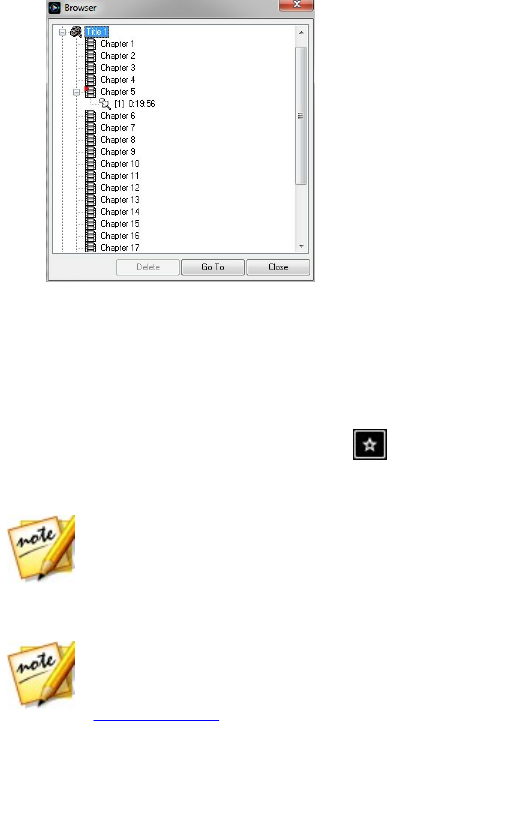
93
Playback Controls
2. Simply select a chapter or a bookmark (indicated by the tack) and then click
Go To to start playback.
Chapter Viewer
The Chapter Viewer lets you view DVD chapter thumbnails in a grid view. You can
also access it in the playback menu (click on , select Bookmarks/Chapters and
then Chapter Viewer) or through the express menu when you select the Go To or
the Bookmark/Chapters option.
Note: the Chapter Viewer is not available for Blu-ray Disc titles for content
protection reasons.
Use a remote control or your mouse to browse through the chapter thumbnails.
Select a chapter thumbnail to start playback from that chapter.
Note: CyberLink PowerDVD saves all of the chapter thumbnails on your
computer when you use the Chapter Viewer. If you would like to manage
these thumbnails to free up disc space, see the Cache files section in
General Settings.
Controlling Playback with
PowerDVD Remote
If you have an Android or iOS device with PowerDVD Remote* installed, you can
remotely control the playback of media on a computer that has CyberLink

94
CyberLink Pow erDVD
PowerDVD 11, 12, 13, 14 or 15 installed. You can also use PowerDVD Remote to play
back media on the connected devices in CyberLink PowerDVD.
Note: * this feature is not available in some versions of CyberLink
PowerDVD.
Setting Up PowerDVD Remote on Device
Before you can use a portable device to remotely control the play back of media,
you must first:
connect the computer with CyberLink PowerDVD 11, 12, 13, 14, 15 installed to
a wireless network.
connect the portable Android or iOS device to the same wireless network.
download the free PowerDVD Remote app from the online store (Google Play,
Apple App Store).
install the PowerDVD Remote app on your portable device.
on the computer connected to the wireless network, click on the Devices &
Home Media (DLNA) tab of CyberLink PowerDVD and then select PowerDVD
Remote. Next, select the Allow PowerDVD Remote to connect and control this
computer option to give permission for PowerDVD Remote to control the
playback of CyberLink PowerDVD on the current computer.
enter the Passcode provided on this tab into the device running PowerDVD
Remote, so that it can control CyberLink PowerDVD on this computer.
Note: if required, click Change to generate a new Passcode for the
connected device.
Playing Media in PowerDVD with
PowerDVD Remote
Once you have set up your portable device by connecting it to the wireless network
and installing PowerDVD Remote, you can use it to control the playback of media
in CyberLink PowerDVD or on the device itself.
To remotely control the playback of media with PowerDVD Remote, do this:
1. Open the CyberLink PowerDVD program on the computer you want to play

95
Playback Controls
the media on.
2. Launch the PowerDVD Remote app on your portable device. PowerDVD
Remote will search for and find all the media servers connected to the
network it is connected to.
3. Select the server from the list (the name of the computer you launched
CyberLink PowerDVD on) to connect to it.
4. If required, enter the four digit passcode to access the media server. See
Setting Up PowerDVD Remote on Device for more information.
5. PowerDVD Remote displays the Modules window.
6. In the Modules window of PowerDVD Remote, you can do the following:
select Movie to access and play back movie discs on the Movies/TV tab of the
computer running CyberLink PowerDVD.
select Video to access and play back video files on the Videos tab of the
computer running CyberLink PowerDVD.
select Photo to access and view photos on the Photos tab of the computer
running CyberLink PowerDVD.
select Music to access and play back music on the Music tab of the computer
running CyberLink PowerDVD.
select Device to access and play back media located on the device you are
using to control playback. If there are other portable devices connected to the
server as well, you can access them and the device you are using to control
playback on the Devices tab of the computer running CyberLink PowerDVD.
Note: when playing media remotely using PowerDVD Remote, the playback
controls that are available depend on the type of media you are playing. See
Playback Controls for a description of the available controls and playback
features for each media type.
7. In PowerDVD Remote, select the Touchpad tab at the bottom of the screen to
access and use the touchpad. Dragging your finger across the portable
device's screen controls mouse movement on the computer running
CyberLink PowerDVD. Double tapping the screen begins playback of selected
media.
Note: the Touchpad gives you all the same options as a regular mouse or
touchpad. You can select any button, tab, or media file that is contained in
the CyberLink PowerDVD program, and use the scroll bar on the right to
scroll through media in a window.
96
CyberLink Pow erDVD
8. In PowerDVD Remote, select the Playback Controls tab to control the
playback of the selected media using the available controls. If playing a disc
on the Movies tab, tap the DVD/BD option for more controls including access
to the chapter viewer, disc menus, subtitles, available languages, etc.
97
Playback Features
Playback Features
Chapter 6:
CyberLink PowerDVD includes many playback features that are sure to enhance
your movie viewing experience.
TrueTheater Enhancements
Click the button to display the TrueTheater window. TrueTheater is video and
audio enhancement technologies from CyberLink that provides better than the
original quality viewing during the playback of your media.
Enabling TrueTheater
During the playback of Blu-rays, DVDs, video files (including movie files and TV
shows), and videos on YouTube, you can enable TrueTheater video enhancements
to maximize the playback quality.
Note: if TrueTheater enhancements are not available for you during
playback, check the following section for information on the possible
reason: When is TrueTheater is Not Available?
Click the button to open the TrueTheater window and display the following
options:
Smart Enhancement
On this tab you can apply all the TrueTheater enhancements automatically during
playback. CyberLink PowerDVD dynamically adjusts (turns on or off) TrueTheater
video enhancements to provide optimum performance, while maximizing playback
quality.
Video: select this option to enable video enhancements and make the video
look better. Drag the available slider left or right to adjust the amount of
TrueTheater video enhancements applied. TrueTheater Video enhances video
brightness, contrast, and also the color, making it more saturated and vivid.
TrueTheater will also sharpen video (if the resolution is less than 720p) to make
it look clearer.

98
CyberLink Pow erDVD
Audio: select this option to enable audio enhancements and make the audio
sound better. Drag the available slider left or right to adjust the amount of
TrueTheater audio enhancements applied. TrueTheater Audio amplifies the
movie volume, boosting movie bass and dialogue, to provide a more
immersive media viewing experience.
Advanced Enhancement
Select this tab to manually enable and set the amount of TrueTheater
enhancements applied to the video as follows:
Video
Select the Video option to enable the following True Theater video enhancements:
TrueTheater HD: select this option to up scale the original video to a higher
resolution version, which is sharper and artifact-free. TrueTheater HD is
capable of boosting 480p video to 1080p. Use the slider to adjust the
sharpness to the best output that suits your configuration.
TrueTheater Lighting (CyberLink Eagle Vision 2): is a video enhancement
technology developed by CyberLink that detects video content and
dynamically adjusts the brightness/contrast ratios so that you do not need to
change the video settings if the video you are watching contains scenes that
are overly dark or too bright. Use the level slider to adjust the TrueTheater
Lighting effect the desired amount.
TrueTheater Color: select this option to dynamically adjust the color
saturation ratio in the video. Use the level slider to make the colors in the
video more vivid, without affecting skin tones.
TrueTheater Motion: select this option to enable frame rate upsampling, from
24 fps up to 60 fps, to make panning scenes, particularly in action movies,
play more smoothly. TrueTheater Motion can improve the frame rate of video
content to 60 or 72 fps, depending on the output frame rate of your display.
TrueTheater Noise Reduction: select this option to reduce the amount of
video noise when playing home video files in CyberLink PowerDVD, including
High-ISO and TV signal noise. Once enabled, drag the slider to increase or
decrease the level of noise reduction on the video.

99
Playback Features
Note: this feature is not available for disc playback.
TrueTheater Stabilizer: select this option to employ motion compensation
technology when playing home video files that are shaky. This feature is ideal
for use with video files taken without a tripod or recorded while moving.
Note: this feature is not available for disc playback.
Audio
Select the Audio option to enable TrueTheater audio enhancements. Drag the
available slider left or right to adjust the amount applied. TrueTheater Audio
amplifies the movie volume, boosting movie bass and dialogue, to provide a more
immersive media viewing experience.
When is TrueTheater is Not Available?
During video playback, there are some circumstances where TrueTheater
enhancements are not available:
TrueTheater video enhancements are not available during the playback of Blu-
ray 3D discs.
TrueTheater video enhancements are not available when the video resolution
exceeds 1080p.
TrueTheater video enhancements are not available when playing video over a
DLNA network with DTCP-IP.
TrueTheater audio enhancements are not available when the selected HDMI
audio output mode in More Audio Settings is either of the "non-decoded"
passthrough to external device options.
TrueTheater Display Modes
The display mode option is available when you enable TrueTheater video
enhancements, and lets you select how they are displayed during playback.
You can select from the following display modes:
100
CyberLink Pow erDVD
: select to view the applied video enhancements on the entire video in
normal mode.
: select to compare the applied video enhancements in split mode,
with the left half of the video played back with the original video, while the
right half has the video enhancements applied.
: select to preview the applied video enhancements on the entire video
using compare mode, with the left side containing the original video, while
the right side contains the same video with the video enhancements applied.
3D Playback
CyberLink PowerDVD supports the playback of 3D Blu-ray Discs*, DVDs*, video
files*, and 3D YouTube videos*, and also lets you view JPS, MPO, and side by side
3D photos* in 3D. CyberLink PowerDVD can also convert any regular 2D Blu-ray
Disc**, DVD movie, video file, YouTube video, and photo into 3D using TrueTheater
3D*.
3D Playback Warning: if you experience headaches, dizziness, nausea, blurry
eyesight or other symptoms while watching 3D video content, it is highly
recommended that you stop playback immediately and see your doctor.
Note: * this feature is not available in some versions of CyberLink
PowerDVD. ** Windows 7/8 only.
Before beginning 3D playback, it is recommended that you first set up your 3D
display device. See Display Device in the 3D Display preferences for more
information.
Enabling 3D Playback
To enable 3D* playback, just select the button on the playback controls and
then select one of the following options:
Play 3D Media in 3D: select this option to auto enable playback of all 3D media
(3D** Blu-ray Disc or DVD, 3D video file, 3D photos). Once enabled, CyberLink
PowerDVD will automatically play 3D media in 3D once playback starts, so
that you don't need to enable 3D playback every time you play it.
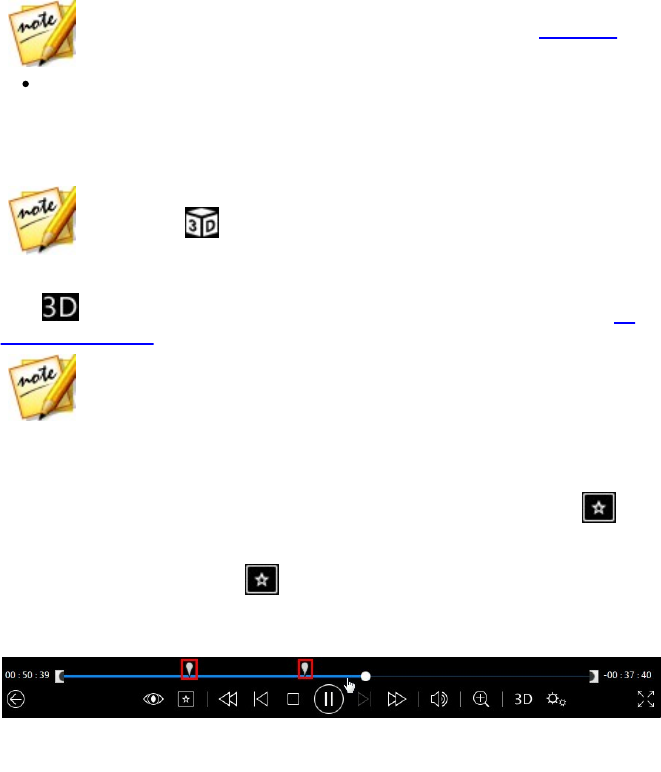
101
Playback Features
Note: ** if your version of CyberLink PowerDVD supports 3D Blu-ray Disc
playback, you may have to enable playback in settings. See Blu-ray 3D for
information on enabling it.
Convert 2D Media to 3D: select this option if you want CyberLink PowerDVD
to convert all 2D media (2D Blu-ray Discs, DVDs, video files, YouTube videos,
photos) to 3D using TrueTheater 3D when playback starts. Once enabled, you
won't need to enable TrueTheater 3D every time you want to convert 2D
media.
Note: 3D mode is enabled when the 3D icon on the playback controls
displays as . Note that a number of features are disabled during 3D
playback.
If you need to adjust your 3D display configuration or the playback preferences,
click on the playback controls and then select More 3D Preferences. See 3D
Display Preferences for details on all the available configuration options.
Note: * this feature is not available in some versions of CyberLink
PowerDVD.
Adding Bookmarks
During the playback of DVDs, movie files, TV shows, and video clips, click to
bookmark your favorite scenes and gain access to the Bookmark Viewer.
To bookmark a scene, click on and then select Add Bookmark. When you add
bookmarks to videos, CyberLink PowerDVD adds a graphic marker on the
navigational slider so you can easily find and jump to it later.
Bookmark Viewer
In the Bookmark Viewer you can view all of the bookmarked scenes for the current
DVD, movie file, TV show, or video clip you are playing. You can also edit the
existing bookmarks by adding comments, or export/import DVD bookmarks to/
from your hard drive.

102
CyberLink Pow erDVD
To open the Bookmark Viewer, click on and then select Bookmark/Chapters >
Bookmark Viewer during playback. If playback is stopped in the Videos tab, access
it by clicking and then selecting Bookmark Viewer.
For DVDs, the Bookmark Viewer displays all of the bookmarks (if any) for the current
disc you are watching. For videos, the Bookmark Viewer displays all of the
bookmarks (if any) for the current video file and all of videos that have bookmarks
in the left pane.
In the Bookmark Viewer, you can perform the following tasks:
Note: some of these tasks are not available for video bookmarks.
for video bookmarks, if required, select the video file in the left pane to view
all of the bookmarked scenes for that video.
click on a bookmark in the main window to play from that scene, or click the
Play button to play the first bookmarked scene. See Playing Bookmarks for
more information.
click on Edit to add comments to a bookmark. Click Save to save your
changes, or Cancel to discard the changes.
to delete a specific bookmark, click on the Edit button and then click the
button next to the bookmark you want to delete.
for DVD bookmarks, click on Export to save the bookmarks in a MovieMark
file on your hard drive. Saved in the BMK format, you can import it into
another computer or e-mail it to friends.
for DVD bookmarks, click to import a set of bookmarks (MovieMarks) in
the BMK format into the Bookmark Viewer. You can view a list of the movies
that you have imported MovieMarks for by clicking on the drop down in the
top left corner. The DVD for the movie must be in the drive to view the
bookmarked scenes.
to delete imported bookmarks (MovieMark) from the list view, select it and
then click .
click on Exit to close the Bookmark Viewer and return to the DVD or video.
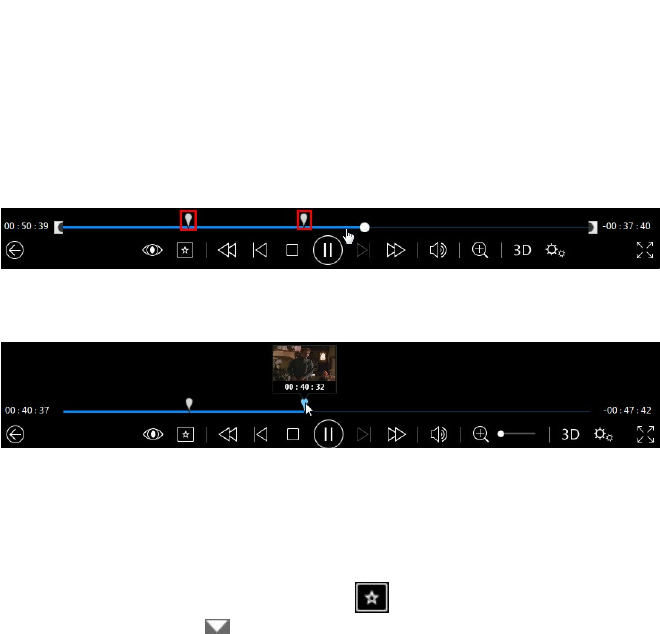
103
Playback Features
Playing Bookmarks
When you play a MovieMark or individual bookmark, CyberLink PowerDVD starts
the playback from the bookmarked point and continues the playback of the disc/
video from the point where it was bookmarked. To view the next bookmarked
scene, press the G key on the keyboard.
If the bookmarks are on a movie file, TV show, or video clip, you can just hover your
mouse over the navigational slider to view the bookmarked scenes on it.
Hover your mouse over the bookmark to view a thumbnail of the scene, or click it
to play the video from that bookmarked point.
More Functions
Open the More Functions window for access to some additional playback features
such as A-B Repeat and Next Angle.
To display the More Functions window, click during disc playback, select More
Functions, and then click to view all the available buttons.
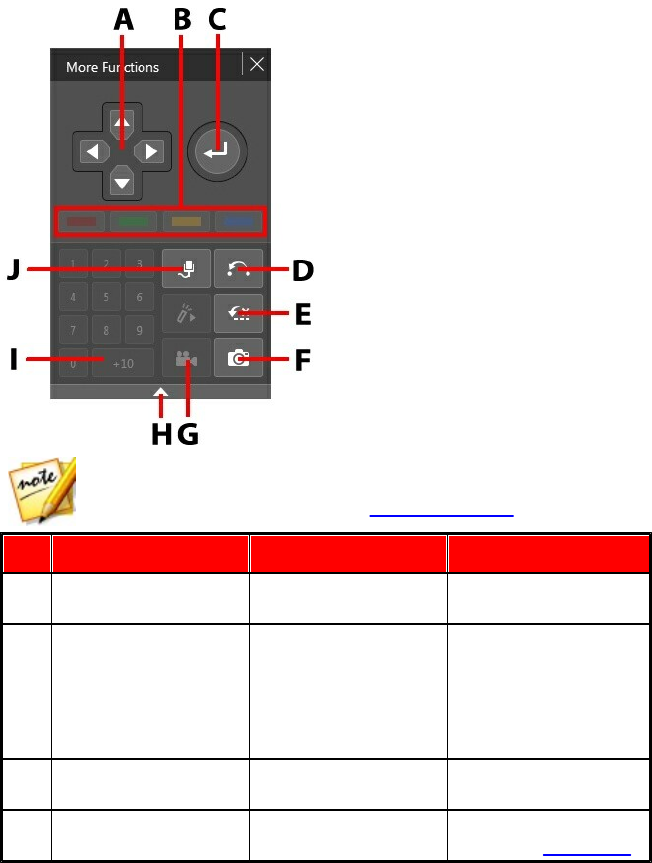
104
CyberLink Pow erDVD
Note: the below table includes the hotkey for each specific button in more
functions, if available. For a complete list of all the hotkeys in PowerDVD
and the corresponding behavior, see PowerDVD Hotkeys.
Button/Icon
Hotkey
Description
A
Navigation buttons
Left, Right, Up, Down
arrows
Use to navigate
through a disc menu.
B
F9 (red), F10 (green),
F11 (yellow), F12 (blue)
Same as the
corresponding colored
buttons on remote
control. Displayed
during Blu-ray Disc
playback only.
C
Enter
Enter
Accepts the selected
option.
D
A-B Repeat
X
Repeats selected
scene. See A-B Repeat.
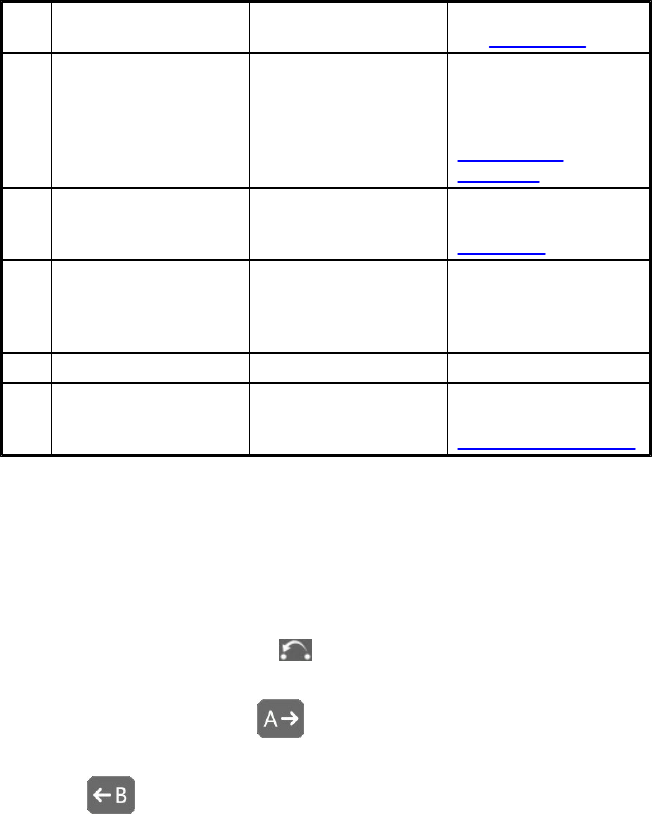
105
Playback Features
E
Say-It-Again
W
Repeats the last dialog.
See Say-It-Again.
F
Snapshot
C
Captures video content
as an image file. (Not
supported during Blu-
ray Disc playback.) See
Taking Photo
Snapshots.
G
Next angle
A
Switches among any
available angles. See
Next Angle.
H
Expand/Collapse
Select to display or
hide buttons by
expanding or
collapsing the window.
I
1 - +10
0-9, * for +10
Number pad.
J
Karaoke
K
Switches among
karaoke modes. See
Playing a Karaoke Disc.
A-B Repeat
A-B Repeat lets you select any part of the movie for repeated playback. The starting
point of the repeating playback is called A and the end is called B. This is different
from Say-It-Again, which only repeats the current dialog.
To use A-B Repeat, do this:
1. During playback, click on the button to access the A-B Repeat dialog
window (or press the X key on your keyboard).
2. Set point A by clicking the button at the beginning of the segment you
would like to repeat.
3. Click to set point B, or where you would like the segment to end. The
segment will repeat and loop continuously, even if you close the A-B Repeat
dialog window.

106
CyberLink Pow erDVD
4. To cancel A-B Repeat, click the button again or navigate out of the
segment's range (i.e. with the navigational slider or by jumping to the next or
previous chapters).
Note: this feature is not supported with Blu-ray Disc titles.
Say-It-Again
You can use Say-It-Again to repeat the current dialog you are watching. To use Say-
It-Again, do this:
1. Simply click the button during the playback of some dialog to repeat the
same dialog again.
2. Click again to turn Say-It-Again off.
Taking Photo Snapshots
CyberLink PowerDVD lets you capture individual frames from your favorite scenes
during the playback of a DVD, movie file, TV show, or video. The frame of video is
copied to the Windows clipboard and saved as a photo snapshot on your
computer. See the Snapshot section in More General Settings to select the photo
snapshot format and set the folder on your computer where it is saved.
Note: this feature is not available during the playback of Blu-ray Disc titles.
It is also not available in 3D mode, on videos that have a resolution greater
than 2560 x 1440, or when the output display is greater than 2560 x 1440.
Capturing Snapshots
1. During playback, click the button in the More Functions window, or press
C on your keyboard, to capture a frame of the current video content. To be
more precise, you can pause the scene, play it in slow motion, or step through
the frames, and then capture the exact desired frame of video.
2. The Snapshot dialog displays once the photo snapshot it taken. Click the
Open Folder button to view the location of the captured photo on your
computer's hard drive. Click on Settings to change the photo format or
location.

107
Playback Features
Next Angle
The Next Angle feature is often available for music concert discs. Click during
playback to switch among any available angles.
Menu/Number Pad
The Menu/Number pad offers navigation buttons, a pad for entering numbers, and
buttons for accessing other functions.
External/Embedded Subtitles
CyberLink PowerDVD supports the use of subtitles that are embedded in MKV
movie files. You can also import subtitles that are in an external file during movie
file playback.
Note: the use of external subtitles files is only supported during the
playback of individual video files (movie files or TV shows).
To display or change the external/embedded subtitles during playback, do this:
1. Click on the button (or right-click on the media window to display the
express menu).
2. Select Primary Subtitles or Secondary Subtitles, and then select the subtitle
language in the list you want to use. If the subtitles you want to use are not
available, you may need to import the subtitle file. See Importing External
Subtitle Files for more information.
3. To stop displaying the subtitles, click on the button (or right-click on the
media window), select Primary Subtitles > Off, or Secondary Subtitles > Off.
See Subtitles Settings for information on changing the font style, position, and
encoding for external and embedded subtitles.
Importing External Subtitle Files
You can import subtitles that are in an external file during movie file and video file
playback. CyberLink PowerDVD supports the following external subtitle file formats:
ASS, PSB, SSA, SMI, SRT, SUB.

108
CyberLink Pow erDVD
To import an external subtitle file, do this:
Note: you can also drag and drop a subtitle file onto the CyberLink
PowerDVD UI during playback to import it.
1. During playback, click on the button (or right-click on the media
window) and then select Primary Subtitles > Import, or Secondary Subtitles >
Import.
2. In the dialog that displays, browse to and then select the subtitle file you want
to import.
3. Click the Open button to import the subtitle file.
Note: CyberLink PowerDVD will also automatically import any supported
subtitle files it finds in the same directory as the movie file it is playing back.
You can import up to 10 subtitle files, but can only display a maximum of two
during playback.
Once imported, you can change the font style, position, and encoding in settings if
required. See Subtitles Settings for more information.
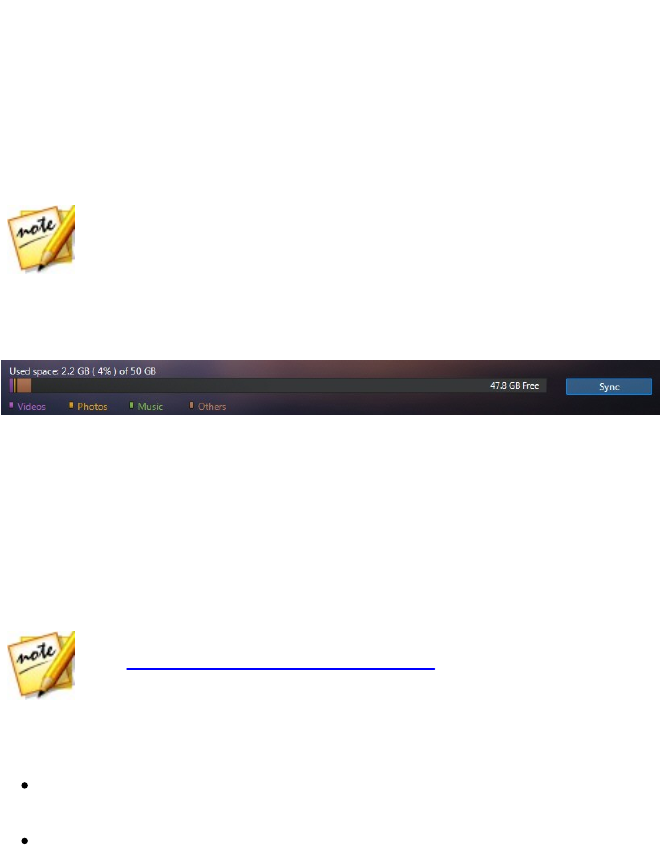
109
Utilizing CyberLink Cloud
Utilizing CyberLink Cloud
Chapter 7:
Click on the CyberLink Cloud* tab to view the media stored on the cloud service
from CyberLink. You can upload the videos, photos, and music on your computer's
hard drive to CyberLink Cloud. This allows you to back it up, and make it available
anywhere for playback on a portable device using Power Media Player. CyberLink
PowerDVD can also auto sync the media in your media library with the media on
CyberLink Cloud.
Note: * this feature is not available in some versions of CyberLink
PowerDVD.
At the bottom of the media window CyberLink PowerDVD displays how much of
each type of media you have stored on CyberLink Cloud. It also displays how much
free space there is available.
Uploading Media to CyberLink
Cloud
You can quickly and easily upload media that is in the CyberLink media library and
on your computer's hard drive, to CyberLink Cloud. You can even upload just the
playlists you created in CyberLink PowerDVD. The media files (listed in the playlists)
will automatically be uploaded with the playlists.
Note: you can play the media that is stored on CyberLink Cloud, and more.
See Playing Media Stored on CyberLink Cloud for more information.
To upload media to CyberLink Cloud, do this:
1. Do any of the following:
Click on the Media Library tab and then browse to the media in the library that
you want to upload.
Click on the My Computer tab and then browse to the media on your

110
CyberLink Pow erDVD
computer's hard drive that you want to upload.
Click on the Playlists tab and then select the playlist you want to upload.
Note: you can also drag media files and folders from within Windows File
Explorer and drop them on the CyberLink Cloud area of the media panel to
upload them.
2. Select the media that you want to upload. You can select individual media
files, or you can select entire media folders or music albums. If you want to
upload a playlist, just select the playlist name in the media panel.
3. Drag the selected media/folders/playlist and then drop them on the CyberLink
Cloud area of the media panel. CyberLink PowerDVD will upload all the
selected content to CyberLink Cloud.
Note: if you are uploading movie files to CyberLink Cloud, you will be asked
if you want to upload its subtitles, if available, for the movie as well.
Syncing Media with CyberLink
Cloud
CyberLink PowerDVD will automatically sync the media in your media library with
the media on CyberLink Cloud, ensuring that it is always available when and where
you need it.
Note: you can configure the sync options for syncing media in CyberLink
Cloud Settings.
To sync media with CyberLink Cloud, do this:
1. In CyberLink PowerDVD, click on the CyberLink Cloud tab of the media panel
and then the Information section.
2. Click the in the media window and then configure the options as
follows:
Automatically download videos uploaded by other devices: select this option
if you want CyberLink PowerDVD to download and import any new videos it
finds on CyberLink Cloud into the media library.
Automatically sync videos with CyberLink Cloud: select this option if you want

111
Utilizing CyberLink Cloud
CyberLink PowerDVD to sync the videos in the media library with the videos
on CyberLink Cloud. You can choose to sync All videos, or just the Selected
playlists, folders you specify once this option is selected.
3. Click the in the media window and then configure the options as
follows:
Automatically download photos uploaded by other devices: select this option
if you want CyberLink PowerDVD to download and import any new photos it
finds on CyberLink Cloud into the media library.
Automatically sync photos with CyberLink Cloud: select this option if you
want CyberLink PowerDVD to sync the photos in the media library with the
photos on CyberLink Cloud. You can choose to sync All photos, or just the
Selected playlists, folders you specify once this option is selected.
4. Click the in the media window and then configure the options as
follows:
Automatically download music uploaded by other devices: select this option if
you want CyberLink PowerDVD to download and import any new music it
finds on CyberLink Cloud into the media library.
Automatically sync music with CyberLink Cloud: select this option if you want
CyberLink PowerDVD to sync the music in the media library with the music on
CyberLink Cloud. You can choose to sync All music, or just the Selected
playlists, artists, albums, and genres you specify once this option is selected.
5. Click the Sync button when ready to begin the sync process. CyberLink
PowerDVD will sync all the media based on the options you selected.
CyberLink Pow erDVD
112

113
Sharing, Syncing, and Transferring Media in the M edia Library
Sharing, Syncing, and
Transferring Media in the
Media Library
Chapter 8:
In CyberLink PowerDVD you can share all of the media in the PowerDVD media
library so that is available to other computers and devices connected to the same
network. You can also share videos and photos in the media library on social
networking web sites, sync* all the media in the media library to an Android device
that is connected via a USB cable, or transfer movie files to a device on the Devices
& Home Media (DLNA) tab.
Note: * this feature is not available in some versions of CyberLink
PowerDVD.
Sharing Media on a Network
You can share the media in the PowerDVD media library so that it is available to
other computers and devices that are connected to the same home network.
To share the media on your computer running CyberLink PowerDVD on a home
network, do this:
1. Ensure your computer is connected to a Wi-Fi home network.
2. Hover your mouse over the Devices & Home Media (DLNA) tab of CyberLink
PowerDVD media panel, click on the menu button, and then select Share
My Media with Home Media Devices. The Home Media (DLNA) preferences
window displays.
3. Configure all the sharing options in the Home Media (DLNA) preferences
window. See Home Media (DLNA) Preferences for detailed information on
configuring these options.
4. Click OK to save your changes and share the media with the specified home
media clients.
114
CyberLink Pow erDVD
Note: see Playing Shared Media for detailed information on playing media
shared on a home network.
Sharing Media on Social
Networks
In CyberLink PowerDVD you can upload the videos in your media library to
Facebook, YouTube and Vimeo, or share the photos on Facebook and Flickr.
Uploading Videos to Facebook
You can upload videos to Facebook from within CyberLink PowerDVD. To upload a
non-copyrighted video to Facebook, do this:
1. Select the Videos section on the Media Library tab to display all the available
video files.
2. Browse to and select the videos you want to upload to Facebook.
3. Click in the bottom right of the playback controls, and then select
Facebook.
Note: you may need to hover your mouse over the button to display the
share button.
4. Click on Sign In to grant CyberLink PowerDVD access to your Facebook
account, and then sign in and complete the authorization process. Once
done, click Close to continue.
5. Enter the details about your video as follows:
Video title: enter the title of your video. If this field is grayed out, deselect the
Use file name(s) check box.
Video description: enter in a short description of your video.
Note: you must enter both a title and description before you can upload your
video.
Privacy: select who has permission to view the video once it's uploaded.

115
Sharing, Syncing, and Transferring Media in the M edia Library
6. Click the Upload button to proceed. Click on Done once your video is
uploaded.
Uploading Videos to YouTube
You can upload videos in the media library directly to YouTube. To upload a non-
copyrighted video to YouTube, do this:
1. Select the Videos section on the Media Library tab to display all the available
video files.
2. Browse to and then select the videos you want to upload to YouTube.
3. Click in the bottom right of the playback controls, and then select
YouTube.
Note: you may need to hover your mouse over the button to display the
share button.
4. The upload wizard opens, displaying the sign in window. To sign in to
YouTube do one of the following:
if you already have a YouTube account, enter in your username and password
and then click the Sign In button to sign in and authorize CyberLink
PowerDVD to upload video to your account.
if do not have a YouTube account, select the Sign up to YouTube link to
create a new account and then authorize CyberLink PowerDVD to upload
video to your created account.
5. Confirm the Copyright Disclaimer and then click Next to proceed.
6. Enter the details about your video as follows:
Title: enter the title of your video. If this field is grayed out, deselect the Use
file name(s) check box.
Description: enter in a short description of your video.
Tags: enter in several tags, separated by a comma, that describe your video.
Tags are keywords that people can search for on YouTube.
Note: you must enter a title, description and at least one tag before you can
upload the video.

116
CyberLink Pow erDVD
Video category: select the relevant video category type from the list.
Privacy: select whether to make the video Public or mark it as Private.
3D option*: select the Upload to 3D option if you want to upload the video to
YouTube 3D. If the video you are uploading is in 2D, CyberLink PowerDVD will
use TrueTheater 3D* to convert it 3D before uploading.
Note: * this feature is not available in some versions of CyberLink
PowerDVD.
7. Click the Upload button to proceed and begin uploading your video to
YouTube. Click the Done button once your video is uploaded.
Uploading Videos to Vimeo
You can upload videos in the media library directly to Vimeo. To upload a non-
copyrighted video to Vimeo, do this:
1. Select the Videos section on the Media Library tab to display all the available
video files.
2. Browse to and then select the videos you want to upload to Vimeo.
3. Click in the bottom right of the playback controls, and then select Vimeo
.
Note: you may need to hover your mouse over the button to display the
share button.
4. The upload wizard opens, displaying the sign in window. To sign in to Vimeo
do one of the following:
if you already have a Vimeo account, enter in your username and password
and then click the Sign In button to sign in and authorize CyberLink
PowerDVD to upload video to your account.
if do not have a Vimeo account, select the Sign up to Vimeo link to create a
new account and then authorize CyberLink PowerDVD to upload video to your
created account.
5. Confirm the Copyright Disclaimer and then click Next to proceed.
6. Enter the details about your video as follows:
117
Sharing, Syncing, and Transferring Media in the M edia Library
Title: enter the title of your video. If this field is grayed out, deselect the Use
file name(s) check box.
Description: enter in a short description of your video.
Tags: enter in several tags, separated by a comma, that describe your video.
Tags are keywords that people can search for on Vimeo.
Note: you must enter a title, description and at least one tag before you can
upload the video.
Privacy: select whether to make the video Public or mark it as Private.
7. Click the Upload button to proceed and begin uploading your video to Vimeo
. Click the Done button once your video is uploaded.
Uploading Photos to Facebook
To upload photos to Facebook, do this:
1. Select the Photos section on the Media Library tab to display all the available
photos.
2. Browse to and select all of the photos you want to upload to Facebook.
3. Click in the bottom right of the playback controls, and then select
Facebook.
Note: you may need to hover your mouse over the button to display the
share button.
4. Click on Sign In to grant CyberLink PowerDVD access to your Facebook
account, and then sign in and complete the authorization process. Once
done, click Close to continue.
5. Enter the details about your photo as follows:
Select an album: select an existing album from your Facebook page to upload
the photos to. Select Create a new album to add the photos to a new album.
Album name: enter a name for a newly created photo album.
Note: if you are creating a new album, you must enter an album name before
you can upload your photos.
118
CyberLink Pow erDVD
Location: enter in the location where the photos were taken.
Album description: enter in a short description for the photos you are
uploading.
Privacy: select who has permission to view these photos once they are
uploaded.
Add photo description: enter a description that will display under all of the
uploaded photos.
6. Select Upload to begin uploading your photos to Facebook. Select Done once
your photos are uploaded.
Uploading Photos to Flickr
To upload photos to Flickr, do this:
1. Select the Photos section on the Media Library tab to display all the available
photos.
2. Browse to and select all of the photos you want to upload to Flickr.
3. Click in the bottom right of the playback controls, and then select Flickr.
Note: you may need to hover your mouse over the button to display the
share button.
4. Click on Sign In to grant CyberLink PowerDVD access to your Flickr account,
and then sign in and complete the authorization process. Once done, click
Close to continue.
5. Enter the details about your photo as follows:
Resize: select whether you want to resize the photos or not, and then the size,
if applicable.
Privacy: select who has permissions to view these photos once they are
uploaded. Select Public to share them with the world.
Additional tags: enter in tags that describe your photos.
6. Select Upload to begin uploading your photos to Flickr. Select Done once
your photos are uploaded.

119
Sharing, Syncing, and Transferring Media in the M edia Library
Syncing Media to Connected
Device
You can sync media in the media library with the media on an Android device*.
Note: you must first connect your Android device to a computer (via USB
cable) running CyberLink PowerDVD before you can sync media to it. * this
feature is not available in some versions of CyberLink PowerDVD.
To sync media with connected devices, do this:
1. In CyberLink PowerDVD, click on the Devices & Home Media (DLNA) tab of the
media panel and then select the connected device in the list.
2. Click the General tab and then configure the options as follows:
Open PowerDVD when this device is connected via USB: select this option if
you want CyberLink PowerDVD to automatically launch when the device is
connected to your computer.
Auto start syncing process when device is connected via USB: select this
option if you want CyberLink PowerDVD to automatically sync media on the
connected device with the media in the media library.
Auto transcode video in: select this option and then select the converted
video quality of the files that CyberLink PowerDVD syncs to your Android
device. If selected, during the sync process CyberLink PowerDVD converts
non-MP4 videos to the MP4 format to ensure they are playable on your
Android device.
3. Click the Videos tab and then configure the options as follows:
Import newly found videos from my device: select this option if you want
CyberLink PowerDVD to import any new videos it finds on your connected
Android device into the media library.
Sync videos in library with my device: select this option if you want CyberLink
PowerDVD to sync the videos in the media library with the videos on your
connected Android device. You can choose to sync All videos, or just the
Selected playlists, folders you specify once this option is selected.

120
CyberLink Pow erDVD
Note: you can also manually transfer videos from your connected Android
device to the media library, or vice versa. Just click on the device on the
Devices tab, and then click Videos. Browse to the videos on your device,
select them, and then drag and drop them onto the Videos section of the
Media Library tab. To manually transfer videos from the media library to
your device, just drag and drop them on to your device in the Devices tab.
4. Click the Photos tab and then configure the options as follows:
Import newly found photos from my device: select this option if you want
CyberLink PowerDVD to import any new photos it finds on your connected
Android device into the media library.
Sync photos in library with my device: select this option if you want CyberLink
PowerDVD to sync the photos in the media library with the photos on your
connected Android device. You can choose to sync All photos, or just the
Selected playlists, folders you specify once this option is selected.
Note: you can also manually transfer photos from your connected Android
device to the media library, or vice versa. Just click on the device on the
Devices tab, and then click Photos. Browse to the photos on your device,
select them, and then drag and drop them onto the Photos section of the
Media Library tab. To manually transfer photos from the media library to
your device, just drag and drop them on to your device in the Devices tab.
5. Click the Music tab and then configure the options as follows:
Import newly found music from my device: select this option if you want
CyberLink PowerDVD to import any new music it finds on your connected
Android device into the media library.
Sync music in library with my device: select this option if you want CyberLink
PowerDVD to sync the music in the media library with the music on your
connected Android device. You can choose to sync the All music, or just the
Selected playlists, artists, albums, and genres you specify once this option is
selected.
Note: you can also manually transfer music from your connected Android
device to the media library, or vice versa. Just click on the device on the
Devices tab, and then click M usic. Browse to the music on your device,
select it, and then drag and drop it onto the M usic section of the Media
Library tab. To manually transfer music from the media library to your
device, just drag and drop it on to your device in the Devices tab.
6. Click the Sync button when ready to begin the sync process. CyberLink
PowerDVD will sync all the media based on the options you selected.

121
Sharing, Syncing, and Transferring Media in the M edia Library
Transferring Movie Files to
Devices
You can manually transfer movie files that are in your movie library to connected
devices. When you do this, any subtitles that are available for the movie are also
transferred to the device.
Note: the transfer of DVD and Blu-ray Disc folders to connected devices is
not supported.
To manually transfer media with connected devices, do this:
1. In CyberLink PowerDVD, click on the Movies/TV tab, and then the Movie
Library section.
2. Select the movie file you want to transfer to the device, and then drag and
drop it on the device in the Devices & Home Media (DLNA) tab of CyberLink
PowerDVD.
3. If there are subtitles available for the selected movie file the Subtitle Copy
Options window displays with the following options:
Copy subtitles as individual subtitle file: select this option if you plan to play
the movie with CyberLink Power Media Player on your device.
Blend and encode below subtitle file with the video: select this option if the
movie file playback software on your connected device does not support
subtitle files. If required, select the subtitle file from the available list that you
want to blend/encode.
No, don't copy any subtitle files: select this option if you don't want the
subtitle file copied to your device.
4. Click OK to transfer the movie file and its subtitles to the connected device.
CyberLink Pow erDVD
122
123
Pow erDVD Settings - Player Settings
PowerDVD Settings -
Player Settings
Chapter 9:
This chapter outlines the Player Settings of CyberLink PowerDVD. Modify these
settings in the program to configure CyberLink PowerDVD to your specific playback
requirements.
You can access the Player Settings tab by:
clicking the button at the top of the window on the caption bar.
clicking the button on the playback controls and then selecting Player
Settings.
pressing Ctrl+Shift+C on your keyboard.
Note: Dolby, Pro Logic, Surround EX, Dolby Digital Plus, Dolby TrueHD and
the double-D symbol are trademarks of Dolby Laboratories. DTS, DTS
96/24, DTS-HD are trademarks of DTS (Digital Theater Systems).
General Settings
On the General settings tab you can name your PowerDVD, set the language of the
user interface, configure player options, and more. The available settings are as
follows:
Name your PowerDVD
In the field provided, enter a name for CyberLink PowerDVD on the current
computer you are using. You use this name to identify this computer on a network
or the Home Media (DLNA) tab of another computer running PowerDVD.
UI language
The UI language option allows you to set the language for CyberLink PowerDVD's
user interface. In the drop-down, select the specific language that you want

124
CyberLink Pow erDVD
CyberLink PowerDVD to use. Select System Default if you want the language to be
the same as your operating system's.
Player options
Run PowerDVD automatically at Windows startup: select this option to have
CyberLink PowerDVD launch automatically when your computer starts.
Show OSD: select this option if you want to show the on screen display (OSD)
text during playback.
Automatically play next video when video ends: select this option if you want
CyberLink PowerDVD to play the next video in finds in a folder when playback
of the previous one ends.
Check for product update information: select to periodically check for
updates or new versions of PowerDVD automatically.
Auto-Resume setting
The Auto-Resume setting section lets you set the behavior of CyberLink PowerDVD
when you play a DVD disc or video file (in the movie/TV show library) you viewed
previously. Select from the available settings in the drop-down list. To prevent
CyberLink PowerDVD from prompting, select one of the first two options. See Auto
Resume for more detailed information on this feature.
Select files opened with PowerDVD
Click the Set File Association button to set the file formats that CyberLink
PowerDVD is the default player for. When any of the selected file formats in the Set
File Association window are double-clicked on your computer, CyberLink
PowerDVD launches and plays it back.
Note: this feature is not available under Windows 8. Instead, you can click
on the Set Associations for PowerDVD button to access the Set Program
Associations function in Windows.
The check boxes are defined as follows:
means CyberLink PowerDVD is not the default player for this type of file.
means for these file extensions, CyberLink PowerDVD is the default player

125
Pow erDVD Settings - Player Settings
for some, but not all of them.
means CyberLink PowerDVD is the default player for all the file extensions
in this type.
Play automatically upon inserting disc: select this option to have CyberLink
PowerDVD automatically launch and start playback when a disc is inserted
into the disc drive.
CyberLink Product Improvement Program
I want to participate: select this item if you would like to participate in the
CyberLink Product Improvement Program for PowerDVD. Once enabled,
CyberLink PowerDVD will collect information about the hardware and
software configuration of your computer system, as well as your usage
behavior and statistics related to the software. Click the Learn more link to
view more detailed information about the content collected.
Note: the CyberLink Product Improvement Program for PowerDVD will not
collect any personal information for purposes of identifying you.
Reset "Never show again" dialogs
Click the Reset button to reset all the "Never show again" dialogs back to the default
settings. All of these CyberLink PowerDVD's dialogs will display again once the
button is clicked.
Cache files
Click the Cache Files button to manage the cache used for storing chapter
thumbnails, the Instant Thumbnails that are generated as you watch video content,
and for pinned videos. This cache is also used to store the extra content
downloaded during Blu-ray Disc playback, such as BD-Live content, Blu-ray
applications, etc.
In the Cache Files window, you can modify the options as follows:
Save cache files to: if you would like to change the location where the cache
files are stored, click Browse and then navigate to the folder you want to use
for storage.

126
CyberLink Pow erDVD
Limit the size of the cache storage to: select this option and then in the field
provided, enter the maximum amount of disk space CyberLink PowerDVD can
use for storing cache files. Once this limit it reached, older cache files are
removed to make room for the new cache files.
Current cache size: indicates the current size of the cache file storage.
Click the Clear Cache button to empty the cache and delete this extra content
from your computer to free up disk space if required.
More general settings
Click the More Settings button to access additional settings, such as configuring
settings for captured frames (snapshots), selecting the default movie language, and
more. See More General Settings for more detailed information.
More General Settings
Click the More Settings button to access additional settings, such as configuring
settings for captured frames (snapshots) and selecting the default movie language.
More General Settings is composed of two tabs: Snapshot and Movie Language. The
available settings on them are as follows:
Snapshot
On the Snapshot tab you can configure the settings for capturing frames of your
favorite videos or movies. See Taking Photo Snapshots for more information.
Snapshot format: select the desired file format of the captured frame
snapshots from the drop-down.
Save snapshot to: if you would like to change the location where the
snapshots are saved, click Browse and then navigate to the folder you want to
use for storage.
Movie Language
The Movie Language tab lets you set the default movie language for your disc
content (when available).

127
Pow erDVD Settings - Player Settings
Default movie language settings
Select the Customize option to specify a desired default language for a disc's
menu, subtitles, and audio.
Select Same as UI language if you want CyberLink PowerDVD to automatically
display a disc's menu, subtitles, and audio in the same language as your
operating system's.
Note: the language you select is only used if available on the disc title you
are playing back.
Video, Audio, Subtitles Settings
On the Video, Audio, Subtitles settings tab you can configure settings for video and
audio playback. You can also customize subtitles on movie files, and closed
captions on DVDs and Blu-ray movies. The available settings are as follows:
Videos
In the Videos section you can enable hardware acceleration, apply video
enhancements, and more. The available settings are as follows:
Enable hardware acceleration decoding whenever possible: select this option
to use GPU acceleration to decode the video for smoother movie playback.
When the option is selected, CyberLink PowerDVD will enable (if possible)
hardware acceleration whenever playing Blu-ray/DVD/video files. Whether
hardware acceleration can be enabled or not depends on your computer's
GPU (ex. Intel, NVIDIA, AMD) capabilities. For more detailed information,
check with your GPU manufacturer, or contact our customer support team.
Note: during video file and DVD playback, if TrueTheater video
enhancements are enabled, then hardware acceleration will not be used
even if this option is enabled.
Enable AMD™ Fluid Motion for Blu-ray movies: if your computer's graphics
card and driver supports AMD™ Fluid Motion, this option will be available.
Select it to enable smoother Blu-ray playback.

128
CyberLink Pow erDVD
Note: during Blu-ray 3D playback or when in 3D mode, True Theater video
enhancements are disabled when AMD™ Fluid Motion is enabled.
Click the Video Enhancements button to apply enhancements to the current
video you are watching. See Enabling Video Enhancements for a detailed
description of the available features and settings.
Note: * this feature is not available in some versions of CyberLink
PowerDVD.
Click the More Video Settings button to access additional settings, such as de-
interlacing and setting the playback aspect ratio. See More Video Settings for more
detailed information.
Audio
In the Audio section you can set the audio output mode and more. The available
settings are as follows:
Output: depending on your sound card and/or number of speakers, select the
output that matches your configuration. See Speaker Environment for a
definition of each output type.
Click the More Audio Settings button to access additional settings, such as setting
output quality, output synchronization, and more. See More Audio Settings for
more detailed information.
Subtitles and Closed Captions
This section lets you change font, style, position, encoding, and more for subtitles
on movie files. You can also change the font face, size, and color for closed
captions text. Click the Subtitles Settings button to access these settings. See
Subtitles Settings for more detailed information.
Note: these settings only apply to external and embedded subtitles for movie
files and TV shows. Subtitles on Blu-ray and DVD discs/folders cannot be
changed via this setting.

129
Pow erDVD Settings - Player Settings
More Video Settings
Click the More Video Settings button in Video, Audio, Subtitles settings to access
additional settings, such as de-interlacing and setting the playback aspect ratio.
More Video Settings is composed of two tabs: De-interlacing and Aspect Ratio. The
available settings on them are as follows:
De-interlacing
On the De-interlacing tab you can set how and when to convert interlaced video
into a non-interlaced form.
De-interlace settings
Select None if you don't wish to use de-interlacing.
Select Perform de-interlacing if you want to use de-interlacing, and then
select When to apply de-interlacing from the drop-down.
Note: if video enhancements are enabled, the below de-interlacing options
are disabled.
If using hardware acceleration during playback, select the de-interlacing
algorithm from the second drop-down list. Try each option to see which
provides you with the best results.
If using software decoding during playback, select the de-interlacing
algorithm from the third drop-down list. Try each option to see which
provides you with the best results.
Aspect Ratio
On the Aspect Ratio tab you can control how 4:3 video is converted to 16:9 (and
vice versa).
Aspect ratio preference
Always maintain video aspect ratio: select this option to retain the original

130
CyberLink Pow erDVD
aspect ratio whenever you resize the video display. This option is mutually
exclusive with the TrueTheater Stretch option below.
Apply stretch: select this option to stretch all parts of the video equally,
resulting in noticeable distortion when the aspect ratio of the video display
does not match the aspect ratio of the monitor.
TrueTheater Stretch
TrueTheater Stretch* is a non-linear video stretching technology that produces
minimal distortion in the center of the picture. TrueTheater Stretch feature is only
available in full screen mode and is for DVD titles with a widescreen aspect ratio (i.e.
optimal with 16:9 on a 4:3 monitor). It employs CyberLink's unique Pano Vision
video technology to stretch the movie to fit the monitor size.
Note: * this feature is not available in some versions of CyberLink
PowerDVD. This feature is disabled during the playback of Blu-ray Disc
titles when DxVA is in use.
Once enabled, select one of the following options:
Smart Stretch: (recommended for most videos) crops and stretches the sides
of the picture slightly, while keeping the center as is.
Fit to Screen: keeps the center of the picture as is, while stretching the sides
slightly.
Smart for 2.35:1: for disc titles that have an aspect ratio of 2.35:1. This setting
is specifically designed to maximize the display space of widescreen (16:9 or
16:10) display devices when viewing discs with this aspect ratio.
More Audio Settings
Click the More Audio Settings button in Video, Audio, Subtitles settings to access
additional settings, such as setting output quality, output synchronization, and
more.
More Audio Settings is composed of two tabs: Output Quality and Miscellaneous.
The available settings on them are as follows:

131
Pow erDVD Settings - Player Settings
Output Quality
On the Output Quality tab you can set your speaker environment, output mode,
and the dynamic range compression used on the audio.
Speaker environment
Note: these settings are disabled in versions of CyberLink PowerDVD that
use Dolby PCEE to optimize sound for media playback.
Depending on your sound card and/or number of speakers, select the speaker
environment that matches how you are listening to content in CyberLink
PowerDVD:
Headphone is mainly for notebook users who listen to their audio output on
headphones.
2 Speaker is the selection for most users playing discs on their desktop/laptop
who only have 2 speakers or a sound card that only outputs two channels.
The 4 Speaker selection is for computers equipped with sound cards that
support 4-ch output.
The 6 Speaker selection (a.k.a. 5.1 channel) is for computers equipped with
sound cards that support 6-ch output and is optimal for DVD Video titles that
feature multichannels encoding such as Dolby Digital 5.1 or DTS 5.1.
The 8 Speaker (a.k.a. 7.1 channel) option is available for users who have
multiple speakers and wish to output audio to each of them.
The Use S/PDIF option is an advanced technological Digital InterFace, as
opposed to transferring signals via conventional analog interfaces, designed
by the Sony and Philips corporations. To enjoy true 6 speaker output quality,
you must have an external Dolby Digital or DTS decoder along with a S/PDIF-
compliant sound card to make this selection available.
Note: when the Use S/PDIF audio output is enabled and the output stream is
not PCM, the volume control for CyberLink PowerDVD is disabled because
your decoder assumes the task.
The HDMI output selection is for users who have their audio connected with
an HDMI (High-Definition Multimedia Interface) connector.

132
CyberLink Pow erDVD
Output mode
This option lets you select the special processing that is used on the audio signal.
Experiment with the available settings to decide which you prefer.
Note: the selections that are available in the Output mode drop down menu
are dependent on the selection made in Speaker Environment and the
configuration of your computer.
Headphone Output Options
The following output options are available when the speaker environment is
headphone. The option you should select depends on your personal preference and
setup.
The major difference between Dolby Surround* Compatible Downmix and
Stereo is that Dolby Surround uses the Dolby Surround downmixing
algorithm and the possibility exists of connecting an analogue Pro Logic
decoder to the sound card so as to enable 4-ch surround sound (left, right,
center, surround) for Dolby Surround. Otherwise, both are relatively similar in
2-channel output.
Dolby Headphone* is a post-processing effect designed to create a virtual
surround sound experience particularly for a headphone environment, but is
suitable also for both notebook and desktop environments. Select one of the
following options depending on your individual listening environment.
Dolby Headphone: Small room model: this option simulates a small, well-
damped private room appropriate for both movies and music-only
recordings. It is equivalent to the Dolby Headphone Reference Room and is
provided on all Dolby Headphone equipped products.
Dolby Headphone: Conference room model: this option simulates a more
acoustic live room particularly suited for music listening (e.g. intimate jazz
clubs).
Dolby Headphone: Movie theater model: this option simulates larger
venues like a concert hall or movie theater.
The TrueTheater Surround* option uses technology developed by CyberLink
to improve the quality of audio output from a notebook over headphones.
The Advanced options simulate the very different experiences of listening to
sound in a living room, a small theater or a large stadium. Select one of the

133
Pow erDVD Settings - Player Settings
following options depending on your individual listening environment.
Living Room: this option simulates a small, well-damped private room
appropriate for both movies and music-only recordings.
Theater: this option simulates an intimate live concert environment,
particularly suited for music listening.
Stadium: this option simulates a larger concert venue.
Note: * this feature is not available in some versions of CyberLink
PowerDVD.
2 Speaker Output Options
The following output options are available when you select 2 speaker. The option
you should select depends on your personal preference and setup.
The major difference between Dolby Surround* Compatible Downmix and
Stereo is that Dolby Surround uses the Dolby Surround downmixing
algorithm and the possibility exists of connecting an analogue Pro Logic
decoder to the sound card so as to enable 4-ch surround sound (left, right,
center, surround) for Dolby Surround. Otherwise, both are relatively similar in
2-channel output.
The Dolby Virtual Speaker* option allows you to experience virtual surround
sound through 2 speakers. Select one of the following options depending on
your individual listening environment.
Reference: this mode creates a convincingly realistic five-speaker surround
sound from two speakers with the apparent width of the sound across the
front image defined by the distance between the two speakers.
Wide 1: this mode provides a wider, more spacious front image when the
two speakers are close together.
Wide 2: this mode is similar to Wide 1, but further emphasizes the surround
speakers.
TrueTheater Surround*: is a virtual surround technology developed by
CyberLink. Select one of the following options depending on your individual
listening environment.
Living Room: this option simulates a small, well-damped private room

134
CyberLink Pow erDVD
appropriate for both movies and music-only recordings.
Theater: this option simulates an intimate live concert environment,
particularly suited for music listening.
Stadium: this option simulates a larger concert venue.
Note: * this feature is not available in some versions of CyberLink
PowerDVD.
4/6/8 Speaker Output Options
The following output options are available when you select 4, 6, or 8 speaker. The
option you should select depends on your personal preference and setup.
Dolby Pro Logic IIx*: has three options. Select one of the following options
depending on your individual listening environment.
Movie mode: select this option for watching movies.
Music listening: select this option for listening to music.
DDEX mode: select this option for enhanced surround sound.
TrueTheater Surround*: is an audio channel expansion technology
developed by CyberLink that converts a stereo audio sound and outputs to
multiple channels (converts a 2 channel source to 4, 6, 7, or 8 speakers or a 6
channel source to 7 or 8 speakers). Select one of the following options
depending on your individual listening environment.
Movie playback: this mode is suitable for movies, especially those with
dynamic audio position shifting.
Music mode - standard: this mode simulates a concert from inside the
audience.
Music mode - onstage: this mode simulates a concert from onstage.
Note: * this feature is not available in some versions of CyberLink
PowerDVD.

135
Pow erDVD Settings - Player Settings
Use S/PDIF Output Modes
The following output modes are available during the playback of Blu-ray Disc titles
when Use S/PDIF is selected as the speaker environment. The mode that you should
select depends on the external decoder (AV Receiver) connected to your computer.
Only primary audio: this mode only outputs the audio from the primary video
(e.g. no sound will be available for Picture-in-Picture, secondary video streams
or director commentaries). The compressed audio format is passed-through
to the external decoder unit (AV Receiver).
Note: if the primary audio format is another format besides Dolby Digital,
DD+, DTS or DTS-HD, CyberLink PowerDVD will decode it and output both
audio signals simultaneously.
Dolby Digital* mixing: this mode outputs both primary video sound and
secondary video sound simultaneously by mixing both audio and encodes
into a Dolby Digital bitstream. Select this option if your external decoder unit
(AV Receiver) supports Dolby Digital.
DTS* mixing: this mode outputs both primary video sound and secondary
video sound simultaneously by mixing both audio and encodes into a DTS
bitstream. Select this option if your external decoder unit (AV Receiver)
supports DTS.
Note: * this feature is not available in some versions of CyberLink
PowerDVD.
HDMI Output Modes
The following output modes are available when an external decoder (AV Receiver) is
connected with an HDMI connector under Windows 8, 7 or Vista. The mode that
you should select depends on the external decoder (AV Receiver) connected to your
computer.
PCM decoded by PowerDVD: this mode creates a digital representation of an
analog signal. Select this option if your external decoder (AV receiver) does
not support Dolby Digital or DTS to produce a digital sounding output for
your audio.
Non-decoded Dolby Digital/DTS audio to external device: this mode passes
compressed audio through to your external decoder (AV receiver). Select this
option if your amplifier/receiver supports Dolby Digital or DTS to enable either

136
CyberLink Pow erDVD
during playback, when available.
Non-decoded high-definition audio to external device (HDMI 1.3 and above):
this mode passes lossless audio through to your external decoder (AV
receiver). Select this option if your amplifier/receiver supports high definition
audio to enable either during playback, when available.
Dynamic range compression
This section only applies to disc titles with Dolby Digital technology.
select the first option if you are watching in a quiet environment. All audible
sound, from low frequency to high frequency audio effects, are highly
distinctive and fall into the full dynamic range of Dolby Digital.
select the second option if you are watching in a normal listening
environment. Audible effects that fall in the extreme ranges of Dolby Digital's
audio spectrum are compressed.
select the third option if you are watching in a noisy environment, or on a
notebook or laptop. For this option, low range audio signals are amplified so
that the audible volume will be increased.
Miscellaneous
On the Miscellaneous tab you can synchronize the audio output and enable
exclusive audio output.
Audio output synchronization
Use the audio output synchronization option to fix audio and video streams that
are out of sync. This can occur if the audio and video are connected via different
interfaces, because TV post-processing can delay the video. You can also use this
option if you are experiencing an audio delay when using Bluetooth headphones.
Delay audio for: in the field provided, enter the duration you want the audio
delayed (up to 2 seconds). If the audio is behind the video, you can advance it
up a half a second by entering a negative value.

137
Pow erDVD Settings - Player Settings
Exclusive audio output (WASAPI Exclusive)
Note: this feature is only available when playing audio with the following
codecs: ALAC, AAC (LC/HE), AMR-NB, Dolby Digital, Dolby Digital Plus,
Dolby TrueHD, DTS, DTS-HD, FLAC, MP3, MPEG Audio, LPCM, WAV,
WMA. This feature is not available under Windows XP.
select the available option if you want to utilize the Windows Audio Session
API (WASAPI) to mute all other audio during playback and bypass the
Windows mixer to avoid audio quality degradation by Windows sound
mixing. If supported by your audio device (card/chip) and driver, the audio
heard during playback will be bit perfect. Once selected, CyberLink PowerDVD
will exclusively play the intended audio and mute all other audio on your
computer, including any secondary audio that may be available on a Blu-ray
Disc.
Subtitles and Closed Captions Settings
In the Subtitles and Closed Captions Settings window you can modify settings for
subtitles for movie files. You can also change the font face, size, and color for
closed captions text. For additional closed captions settings, see More Closed
Captions Settings.
Subtitles Settings
Click the Subtitles Settings button in Video, Audio, Subtitles settings to access
change font style, position, encoding, and more for subtitles on movie files. The
available settings are as follows:
Note: these settings only apply to external and embedded subtitles for movie
files. Subtitles on Blu-ray and DVD discs/folders cannot be changed via this
setting.
Font style
Note: this feature is not supported on videos that have a resolution greater
than 2560 x 1440, or when the output display is greater than 2560 x 1440.
Font: from the drop-down select the font face and size you want to use for
the subtitle text. Note that these font settings will also be used for closed

138
CyberLink Pow erDVD
captions text when enabled.
Font color: if required, set the color of the subtitle text. Note that this font
color will also be used for closed captions text when enabled.
Border color: if required, set a border color for the subtitle text. Doing this can
make subtitles more readable if the text color falls on a similar color on the
video.
Position: use the arrows to set the position of the subtitles on the screen. The
higher the percentage, the closer to the top of the screen they will appear.
Default encoding
if required, select the language encoding for non-Unicode subtitle files.
Imported file settings
Note: these settings only apply to the imported/embedded subtitle file that is
currently being used during playback.
Current file: this field displays the location and subtitle file that was imported
and is currently being used for playback.
Encoding: if required, select the language encoding used on the imported
subtitles.
Delay for: if you find that the subtitles are appearing ahead of the dialog, use
the up arrow to delay them a specified amount of time. If the subtitles are
behind the dialog, use the down arrow enter a negative value, advancing the
subtitles the specified amount of time.
More Closed Captions Settings
Click the More Closed Captions Settings button in the Subtitles and Closed Captions
Settings window to customize how closed captions on DVDs and Blu-ray Discs are
displayed. The available settings are as follows:
Apply custom font style, size and color of closed captions text for DVD and Blu-
ray movies: select this option to enable the customization of the closed
captions text.

139
Pow erDVD Settings - Player Settings
Note: once this option is selected, CyberLink PowerDVD will apply the font
face, size, and color selected in the Subtitles and Closed Captions Settings
window.
Border
Style: from the drop-down, select the style of the closed captions text border.
Font Background
Color: use this option to select the background color of the closed captions
text. When in the Color window, select the Opacity of the closed captions text
background color.
Closed Captions Window Background
Color: use this option to set the color of the background that the closed
captions text is displayed on. When in the Color window, select the Opacity of
the background that the closed captions text is displayed on.
Blu-ray Disc Settings
On the Blu-ray Disc settings tab* you can configure the settings for the playback of
Blu-ray Disc titles. The available settings are as follows:
Note: * this feature is not available in some versions of CyberLink
PowerDVD.
Blu-ray country and region setting
Some Blu-ray Disc titles may have features that are country specific and are enabled
only when that country is selected. Selecting a country specifies which region your
Blu-ray Disc drive is set to. Setting it to a region means that you can only play titles
from that region with your disc drive and CyberLink PowerDVD.
Note: you may only change the region setting of your disc drive a maximum
five times.
In the drop-down, select a specific country that you want CyberLink PowerDVD to
use. Select System Location if you want use the same country as your operating
system uses.

140
CyberLink Pow erDVD
Region code
This section informs you how many more times you can change the Blu-ray
country and region setting of your computer's Blu-ray Disc drive. The maximum is
five times, and every time you change the Blu-ray country and region setting
above, this number decreases by one.
More Blu-ray Disc settings
Click the More Settings button to access additional settings, such as configuring the
BD-Live settings, setting hybrid disc playback behavior, and more. See More Blu-ray
Disc Settings for more detailed information.
More Blu-ray Disc Settings
Click the More Settings button in Blu-ray Disc settings to access additional settings,
such as configuring the BD-Live options, setting hybrid disc playback behavior, and
more.
More Blu-ray Disc Settings is composed of two tabs: Miscellaneous and Hybrid Disc.
The available settings on them are as follows:
Miscellaneous
On the Miscellaneous tab you can set the BD-Live options, enable Blu-ray 3D
support, disable Windows Aero, and more.
Enable network for BD-Live: select this option if you want to allow Blu-ray
Discs to access and download extra BD-J content from the Internet. Disable
this option for faster Blu-ray Disc start-up time.
Enable BD-J keyboard support: select this option to enable keyboard support
for BD-J content.
Note: enabling this feature disables all existing CyberLink PowerDVD
hotkeys.
Allow connection when certification is invalid: when accessing BD-J content
on a Blu-ray Disc, if the disc's digital signature is not recognized or is invalid,
CyberLink PowerDVD will ask you if you want to continue the connection to

141
Pow erDVD Settings - Player Settings
the Internet. This is because the content may be unsafe. If you select this
option, CyberLink PowerDVD will continue with the connection to the BD-Live
site without prompting you.
Enable Blu-ray 3D* support: select this option if you want to play back Blu-ray
3D Discs in CyberLink PowerDVD. Deselect it if you want to disable Blu-ray 3D
playback.
Note: * this feature is not available in some versions of CyberLink
PowerDVD.
Allow PowerDVD to automatically disable Windows Aero to optimize Blu-ray
Disc playback: when playing Blu-ray Discs on a Windows 7/Vista computer,
select this option to automatically disable Windows Aero to optimize Blu-ray
Disc playback to improve performance. Once playback is stopped, CyberLink
PowerDVD re-enables Windows Aero.
Hybrid Disc
On the Hybrid Disc tab you can set the default behavior of CyberLink PowerDVD
when a hybrid disc is in your disc drive.
Hybrid disc
When a hybrid Blu-ray Disc is inserted: from the drop down, select the
behavior of CyberLink PowerDVD when a hybrid (DVD/Blu-ray Disc) disc is
inserted into the disc drive. Select Play Format Based on Type of Disc Drive if
you want CyberLink PowerDVD to play the Blu-ray Disc format if a hybrid disc
is inserted in a Blu-ray Disc drive. Select Always Play DVD Video if you want
CyberLink PowerDVD to play the DVD video.
CyberLink Cloud Settings
On the CyberLink Cloud* settings tab you can select the sync options for CyberLink
Cloud, set the default download folders, and configure how CyberLink PowerDVD
converts media before uploading it.
Note: * this feature is not available in some versions of CyberLink
PowerDVD.

142
CyberLink Pow erDVD
CyberLink Cloud settings is composed of two tabs: General and Conversion.
General Settings
On the General tab, the available settings are as follows:
Sync options
Sync when PowerDVD is not running (background sync): deselect this option
if you want CyberLink PowerDVD to only sync media in the media library with
media on CyberLink Cloud when the program is running.
Stop sync when battery is below 20%: select this option if you want CyberLink
PowerDVD to automatically stop syncing media when your laptop's/
notebook's battery life drops below 20% capacity.
Download folders
if required you can set the folders on your computer's hard drive where
CyberLink Cloud media is downloaded to. To change a folder, just click the
Browse button, navigate to the folder where you want to store the
downloaded media, and then click Select Folder.
Clear CyberLink Cloud cache: click the Clear Offline Cache button to free up
some disk space by emptying the temp files stored when downloading
content from CyberLink Cloud.
Conversion Settings
On the Conversion tab, the available settings are as follows:
Convert videos for portable devices before uploading: select this option if you
want CyberLink PowerDVD to change the resolution of the videos before
uploading them to CyberLink Cloud. Once selected, select the desired video
Resolution from the drop-down.
Convert photos to JPEG format for portable devices before uploading: select
this option if you want CyberLink PowerDVD to change the resolution of the
photos before uploading them to CyberLink Cloud. Once selected, select the
desired photo Resolution from the drop-down.

143
Pow erDVD Settings - Player Settings
Convert music files to AAC format before uploading for the best listening
experience on Android/iOS devices: select this option if you want CyberLink
PowerDVD to change the bitrate of the music files before uploading them to
CyberLink Cloud. Once selected, select the desired music Bitrate from the
drop-down.
Hotkeys/Mouse Wheel Settings
On the Hotkeys/Mouse Wheel settings tab you can set the function behavior for
some specific keyboard hotkeys, and the mouse wheel, during media playback. The
available settings are as follows:
Keyboard hotkeys
Ctrl + Right/Left: from the drop down, select the CyberLink PowerDVD
behavior when you hold down the Ctrl key on your keyboard and then press
the right or left arrow key.
Note: during the playback of video files only, this hotkey is also available by
pressing just the right/left arrow key.
Shift + Right/Left: from the drop down, select the CyberLink PowerDVD
behavior when you hold down the Shift key on your keyboard and then press
the right or left arrow key.
Alt + Right/Left: from the drop down, select the CyberLink PowerDVD behavior
when you hold down the Alt key on your keyboard and then press the right or
left arrow key.
Mouse wheel hotkeys
Mouse Wheel: from the drop down, select the CyberLink PowerDVD behavior
when you use a mouse's scroll wheel during playback.
Ctrl + Mouse Wheel: from the drop down, select the CyberLink PowerDVD
behavior when you hold down the Ctrl key on your keyboard and then use a
mouse's scroll wheel during playback.
Shift + Mouse Wheel: from the drop down, select the CyberLink PowerDVD
behavior when you hold down the Shift key on your keyboard and then use a
mouse's scroll wheel during playback.

144
CyberLink Pow erDVD
Movie Info Settings
On the Movie Info settings tab you can configure CyberLink PowerDVD's interaction
with the CyberLink's movie information web service.
Auto sign in
This option lets you decide whether you want to automatically sign in to
MoovieLive every time CyberLink PowerDVD is launched.
Select Automatically sign in and then enter your E-mail and Password so you
can always enjoy the benefits MoovieLive has to offer.
Note: if you don't have a user name and password, select Sign Up to get one
now.
Movie Info features
Select the Enable advanced features option to enable the advanced features
and benefits of the movie information service in CyberLink PowerDVD,
including the downloading of disc information when a disc is inserted and
more.
Note: when you enable advanced features, you are asked to agree to the
MoovieLive privacy policy. You may click on the associated link on the tab to
review the privacy policy and terms of use in detail.
Default language for viewing movie data
This option lets you select the language for the movie information that is
downloaded from the movie information service into CyberLink PowerDVD.
In the drop-down, select the specific language that you want CyberLink PowerDVD
to use. Select Same as UI language to use the same language as specified on the
General Settings tab. See UI Language for more information.

145
Pow erDVD Settings - Player Settings
Information
The Information settings tab lets you view detailed information regarding all
aspects of the disc you are playing, your computer's disc drive and hardware
configuration, and the current configuration settings CyberLink PowerDVD is using.
Note: the information displayed is completely dependent on how your
individual computer is built, set up, and your current usage. In some cases,
this information may only display in English.
CyberLink Pow erDVD
146

147
Pow erDVD Settings - Preferences
PowerDVD Settings -
Preferences
Chapter 10:
This chapter outlines the CyberLink PowerDVD Preferences. Modify these
preferences if you want to customize the CyberLink PowerDVD UI, choose what
media is displayed in the library, set what folders are shared on a home media
network, or configure your 3D display.
You can access the Preferences tab by:
clicking the button at the top of the window on the caption bar, and then
clicking the Preferences tab.
clicking the button on the playback controls and then selecting 3D
Display, Home Media (DLNA), Media Library, or UI Customization.
pressing Ctrl+Shift+C on your keyboard, and then clicking the Preferences tab.
UI Customization Preferences
On the UI Customization preferences tab you can set the PowerDVD wallpaper, and
customize what items and features are displayed on the media panel, caption bar,
Movies/TV tab, and playback controls.
UI Customization preferences is composed of three tabs: Wallpaper, Media Panel
and Others.
Wallpaper
CyberLink PowerDVD lets you customize the UI wallpaper for your player. You can
download wallpaper from MoovieLive or create your own. The available preferences
are as follows:
Get new wallpaper for your PowerDVD
Click one of the wallpaper thumbnails, or the View More link, to download the
148
CyberLink Pow erDVD
latest custom PowerDVD wallpaper from MoovieLive. Once downloaded, click on
the .pbgz file to install it and make it available in the My wallpaper section.
Note: you can also check the Notification Center for information on the latest
wallpaper available from CyberLink. Just click the button and then click
in the Latest wallpaper from M oovieLive section to view the latest
available.
Create your own wallpaper
Click the Create button to import your own image from your computer to create a
custom PowerDVD wallpaper. Just browse to the image you want to use, and then
click Open to create the new wallpaper and make it available in the My wallpaper
section.
Note: you can also right click on a photo in the PowerDVD media library and
select Set as PowerDVD Wallpaper to create your own wallpaper.
Select wallpaper to set as PowerDVD background
To set wallpaper as the PowerDVD background, just select it in either the
PowerDVD default wallpaper section or the My wallpaper section. Click OK to apply
the change.
Media Panel
On the Media Panel tab you can customize what items and features are displayed
on the media panel. The available preferences are as follows:
Customize items displayed on the media panel
In the available list, select the items you want displayed on the media panel of
CyberLink PowerDVD. Deselect the ones you want to hide.
Media Library
By default all of the media library tabs are displayed in CyberLink PowerDVD, and
you cannot hide them.

149
Pow erDVD Settings - Preferences
CyberLink Cloud*
Select this item if you want CyberLink PowerDVD to display the CyberLink Cloud
tab, providing access CyberLink's cloud service.
My Computer
Select this item if you want CyberLink PowerDVD to display the My Computer tab,
providing access to all of the folders on your computer's hard drive.
Playlists
Select this item if you want CyberLink PowerDVD to display the Playlists tab,
providing access to your media playlists. If selected, you can then specify which
playlists are displayed/hidden on this tab.
Online Video
Select this item if you want CyberLink PowerDVD to display the Online Video tab,
providing access to Facebook and YouTube. If selected, you can then specify which
of these social media web sites are displayed/hidden on this tab.
Devices & Home Media (DLNA)
Select this item if you want CyberLink PowerDVD to display the Devices & Home
Media tab, providing access to and showing all of the devices and home media
clients that are connected to your computer. If selected, you can then specify what
type of devices are displayed/hidden on this tab.
Note: * this feature is not available in some versions of CyberLink
PowerDVD.
Others
On the Others tab you can customize what items and features are displayed on the
caption bar, Movies/TV tab, and playback controls. The available preferences are as
follows:
Customize items displayed on the caption bar
Switch to Cinema Mode
Select this item if you want to display the Switch to Cinema Mode icon on the

150
CyberLink Pow erDVD
caption bar. Clicking it that launches the Cinema mode of CyberLink PowerDVD.
Show Help
Select this item if you want to display the help icon on the caption bar. Clicking it
provides access to this help file.
Customize items displayed on the Movies/TV tab
In the available list, select the items you want displayed on the Movies/TV tab in the
media library. Deselect the ones you want to hide.
Note: by default the BD/DVD Movie and Movie Info sections are displayed in
CyberLink PowerDVD, and you cannot hide them.
Movie Library
Select this item if you want to display the Movie Library section in the media library.
TV Shows
Select this item if you want to display the TV Shows section in the media library.
Customize items displayed on the playback controls
Open with
Select this item if you want to the Open with function to be available when you
click the button when viewing photos and playing slideshows.
E-mail
Select this item if you want to the E-mail function to be available when you click
the button when viewing photos and playing slideshows.
Print
Select this item if you want to the Print function to be available when you click the
button when viewing photos and playing slideshows.

151
Pow erDVD Settings - Preferences
Play To
Select this item if you want to display the button on the playback controls.
Share on Facebook
Select this item if you want to display the Facebook option in the share menu.
Upload to YouTube
Select this item if you want to display the YouTube option in the share menu.
Share on Vimeo
Select this item if you want to display the Vimeo option in the share menu.
Share on Flickr
Select this item if you want to display the Flickr option in the share menu.
Enable/Disable 3D
Select this item if you want to display the button on the playback controls.
Play Speed Navigator
Select this item if you want to be able to access the Play Speed Navigator when you
click the rewind or fast forward button during playback. See Play Speed Navigator
for more information.
Video Mark In/Out
Select this item if you want to be able to access the video mark in/out feature
during video playback. See Video Mark In/Out for more information.
Media Library Preferences
On the Media Library preferences tab you can set which folders on your computer
and connected network devices CyberLink PowerDVD imports media from. By
doing this, you can control what media is displayed in each tab in the media library.
Media Library preferences is composed of four tabs: Movies, TV Shows, Videos/
Photos, and Music.

152
CyberLink Pow erDVD
Movies
Click on the Movies tab to set what folders CyberLink PowerDVD imports movie files
from. Movie files are DVD/Blu-ray Disc* folders and individual video files (movie files
you recorded with a PVR) that are stored on your computer's hard drive and
connected network devices.
The movie files in the folders you specify are imported into the Movie Library
section of the media library. See Movies/TV in the Media Library for more
information.
Movie library
In the Movie library list are the folders that CyberLink PowerDVD imports supported
movie files from. See Supported Movie File/TV Show Formats for a list of the
supported file formats.
Note: these folders are continuously scanned for new media, so if you add or
remove media from them, the PowerDVD media library is updated
automatically.
To add folders to the movie library, do this:
1. Click the Add Movie Folder button.
2. Browse to the folder you want to add. The folders can be on your computer's
hard drive or on a connected network device.
3. Click the Select Folder button to add it to the list.
4. Repeat the above steps to add more folders if necessary.
5. If required, select the Ignore videos that are under option and enter a duration
in minutes in the field provided. This will help to filter out shorter home or
other videos you may not want in your movie library.
6. If required, select the Show disconnected media option if you want to see
movie files on disconnected network devices in the media library.
7. Once you are done adding folders, click OK to close the Media Library
preferences window. CyberLink PowerDVD will scan the folder and import all
the supported movie files.
Note: if you want to remove a folder from the movie library, hover your mouse
over the folder in the list and then select .

153
Pow erDVD Settings - Preferences
TV Shows
Click on the TV Shows tab to set what folders CyberLink PowerDVD imports TV
shows from. TV shows are video files recorded with a PVR and saved on your
computer's hard drive and connected network devices.
The TV shows in the folders you specify are imported into the TV Shows section of
the media library. See Movies/TV in the Media Library for more information.
TV show library
In the TV show library list are the folders that CyberLink PowerDVD imports
supported TV shows from. See Supported Movie File/TV Show Formats for a list of
the supported file formats.
Note: these folders are continuously scanned for new media, so if you add or
remove media from them, the PowerDVD media library is updated
automatically.
To add folders to the TV show library, do this:
1. Click the Add TV Show Folder button.
2. Browse to the folder you want to add. The folders can be on your computer's
hard drive or on a connected network device.
3. Click the Select Folder button to add it to the list.
4. Repeat the above steps to add more folders if necessary.
5. If required, select the Ignore videos that are under option and enter a duration
in minutes in the field provided. This will help to filter out shorter home or
other videos you may not want in your TV show library.
6. If required, select the Show disconnected media option if you want to see TV
shows on disconnected network devices in the media library.
7. Once you are done adding folders, click OK to close the Media Library
preferences window. CyberLink PowerDVD will scan the folder and import all
the supported movie files.
Note: if you want to remove a folder from the TV show library, hover your
mouse over the folder in the list and then select .

154
CyberLink Pow erDVD
Organizing TV Shows
For easing browsing, TV shows are organized by series and season. CyberLink
PowerDVD does this automatically based on the TV show file and folder names. For
best results, ensure the TV show file and folder names are as follows:
the TV show name should be in either the file name or in the name of the file's
parent folder.
where "XX" indicates the season number, it should be in either the file name as
"SXX", or as "Season XX" the file's parent folder.
where "YY" indicates the episode number, it should be in either the file name
as "YY" or "EYY".
Naming Examples
The following are some examples of how you can organize your TV shows so that
they are organized properly in the TV show library:
Top Folder Name
Parent Folder Name
File Name
--
TV Shows
The.PowerDVD.
Show.S01E01.MP4,
The.PowerDVD.
Show.S01E02.MP4,
The.PowerDVD.
Show.S02E01.MP4, ...
TV Shows
The PowerDVD Show
S01E01.MP4, S01E02.
MP4, S02E01.MP4, ...
The PowerDVD Show
Season 1
E01.MP4, S01E02.
MP4, ...
The PowerDVD Show
Season 1
01.MP4, 02.MP4, ...
Note: if there is additional text in the file name between the episode number
and file extension, it will be ignored and not displayed in the TV show library.

155
Pow erDVD Settings - Preferences
Videos/Photos
Click on the Videos/Photos tab to set what folders CyberLink PowerDVD imports
videos and photos from. It is recommended that you import video files that are
home movies, or other short clips, that you may not want to include in the Movie
Library section. See Videos in the Media Library for more information.
The photos you choose to import are available for slideshows, sharing, and other
features. See Photos in the Media Library for more information.
Video/Photo libraries
In the Video/Photo libraries list are the folders that CyberLink PowerDVD imports
supported video files and photos from. See both Supported Video File Formats and
Supported Photo Formats for a list of the supported file formats.
Note: these folders are continuously scanned for new media, so if you add or
remove media from them, the PowerDVD media library is updated
automatically.
To add folders to the video and photo libraries, do this:
1. Click the Add Video/Photo Folder button.
2. Browse to the folder you want to add. The folders can be on your computer's
hard drive or on a connected network device.
3. Click the Select Folder button to add it to the list.
4. Repeat the above steps to add more folders if necessary.
5. If required, select the either of the following import options:
Ignore photo files less than: select this option if you do not want to import
photo files that are less than the size you select from the drop-down.
Ignore video files less than: select this option if you do not want to import
video files that are less than the size you select from the drop-down.
6. If required, select the Show disconnected media option if you want to see
videos/photos on disconnected network devices in the media library.
7. Once you are done adding folders, click OK to close the Media Library
preferences window. CyberLink PowerDVD will scan the folder and import all
the supported video files and photos.

156
CyberLink Pow erDVD
Note: if you want to remove a folder from the video or photo library, hover
your mouse over the folder in the list and then select .
Music
Click on the Music tab to set what folders CyberLink PowerDVD imports audio files
from. You can import any type of audio file into the music library that is a
supported format, but the files are imported into the Music tab of the media library.
See Music in the Media Library for more information.
Music library
In the Music library list are the folders that CyberLink PowerDVD imports supported
music from. See Supported Audio Formats for a list of the supported file formats.
Note: these folders are continuously scanned for new media, so if you add or
remove media from them, the PowerDVD media library is updated
automatically.
To add folders to the music library, do this:
1. Click the Add Music Folder button.
2. Browse to the folder you want to add. The folders can be on your computer's
hard drive or on a connected network device.
3. Click the Select Folder button to add it to the list.
4. Repeat the above steps to add more folders if necessary.
5. If required, select the Show disconnected media option if you want to see
music files on disconnected network devices in the media library.
6. Once you are done adding folders, click OK to close the Media Library
preferences window. CyberLink PowerDVD will scan the folder and import all
the supported audio files.
Note: if you want to remove a folder from the music library, hover your mouse
over the folder in the list and then select .

157
Pow erDVD Settings - Preferences
Home Media (DLNA)
Preferences
On the Home Media (DLNA) preferences tab* you can make media in the media
library available on a network and allow other network devices to stream media to
your computer's CyberLink PowerDVD.
Note: * this feature is not available in some versions of CyberLink
PowerDVD.
Home Media (DLNA) preferences is composed of two tabs: Access Control and
Folder Sharing.
Access Control
On the Access Control tab you can allow other network devices to stream media to
your computer's CyberLink PowerDVD, and enable the sharing of media in your
library on a network. The available preferences are as follows:
Allow other home media computers or devices to play their media content to
this PowerDVD: select this option to give permission to a network computer/
device to play media with CyberLink PowerDVD on the current computer.
Stream contents of PowerDVD library to other home media computers or
devices: select this option if you want to share the media in the media library
with computers and devices connected to the same network. Once selected,
select one of the following two options:
Stream to all home media devices: select this option if you want to share
the media in the library with all of the computers and devices connected to
the network.
Stream only to the devices selected below: if you only want to share media
with certain computers and devices, select this option. Next, select each of
the devices in the list that you want to share the media with and then click
to add it to the Allowed list.
Note: if a computer or device you want to share is not displayed in either list,
ensure it is enabled and connected to the network. Then click to refresh
the list of home media computers and devices.

158
CyberLink Pow erDVD
Folder Sharing
On the Folder Sharing tab you can set which folders in the media library are
available on a network. The available preferences are as follows:
Note: you must first enable the Stream PowerDVD library content to
other home media computers/devices option on the Access Control tab
before you can begin sharing folders.
All the media in the library: select this option if you want to share all of the
media that is in the media library.
Only the selected folders below: select this option if you want to specify which
media library folders are shared. You share them by selecting them from
available the list.
3D Display Preferences
On the 3D Display* preferences tab you can enable 3D playback, set up your 3D
display device, and more.
Note: * this feature is not available in some versions of CyberLink
PowerDVD.
3D Display preferences is composed of two tabs: General and Display Device.
General
On the General tab, set the 3D display configuration. The available preferences are
as follows:
Play 3D media in 3D
Select this option to auto enable playback of all 3D media (3D** Blu-ray Disc or DVD,
3D video file, 3D photos). Once enabled, CyberLink PowerDVD will automatically
play 3D media in 3D once playback starts. Once enabled, you won't need to enable
3D playback every time you play 3D media.
Note: ** if your version of CyberLink PowerDVD supports 3D Blu-ray Disc
playback, you may have to enable playback in settings. See Blu-ray 3D for
information on enabling it.

159
Pow erDVD Settings - Preferences
Convert 2D media to 3D
Select this option if you want CyberLink PowerDVD to convert all 2D media (2D Blu-
ray Discs, DVDs, video files, YouTube videos, photos) to 3D using TrueTheater 3D
when playback starts. Once enabled, you won't need to enable 3D playback every
time you want to convert 2D media.
3D scene depth: if required, use the slider to adjust the amount of 3D scene
depth on the video image, until the resulting 3D image is optimized for your
specific setup and viewing experience. The 3D scene depth slider can be used
to adjust the scene depth on both native 3D and TrueTheater 3D converted
content.
Swap eye view
During the playback of 3D content, if you begin to feel uncomfortable or uneasy, it
may be because the layout of the 3D image is displayed differently than most
standard content. If this occurs, try selecting the opposite eye view. This switches
the way the 3D content is displayed on your display device, and may reduce the
discomfort.
Display Device
On the Display Device tab you can set up your 3D display device. The available
preferences are as follows:
Choose 3D display
Auto detect: select this option to have CyberLink PowerDVD automatically
detect your device for you. If you do not have a 3D display, CyberLink
PowerDVD plays 3D content in Anaglyph Red/Cyan mode and then you can
watch content in 3D with anaglyphic (red/cyan) 3D glasses.
If you want to manually select your 3D display device, select the other radio
button and then select it from the drop-down menu. If you do not have a 3D
display device, select Anaglyph Red/Cyan Mode and then use anaglyphic (red/
cyan) 3D glasses to watch 3D content.
CyberLink Pow erDVD
160

161
Pow erDVD Hotkeys
PowerDVD Hotkeys
Chapter 11:
This section lists all the hotkeys that are available in CyberLink PowerDVD.
Hotkey
Description
Playback Controls
`
Access the Play Speed Navigator.
B or [
Reverse through media content. Press repeatedly to increase
the reverse speed.
E or ,
Pause playback and go to the previous frame of video. Press
repeatedly to step backward through media one frame at a
time.
P
Return to previous chapter or media file in a playlist/folder.
Also return to previous song on a music disc.
S
Stop playback.
Space bar
Play/pause media playback.
N
Go to the next chapter or media file in a playlist/folder. Also go
to next song on a music disc.
F or ]
Fast forward through media content. Press repeatedly to
increase the fast forward speed.
T or .
Pause playback and go to the next frame of video. Press
repeatedly to step forward through media one frame at a time.
}
Slow forward through media content. Press repeatedly to
increase the slow forward speed.
Q
Mute on/off.
= or +
Increase audio volume.
-
Decrease audio volume.
Ctrl+R
Repeat one or all of the media files in a folder/playlist.
V
Turn music shuffle on/off.
Ctrl+,
Rotate photo 90 degrees in the counterclockwise direction.

162
CyberLink Pow erDVD
Ctrl+.
Rotate photo/video 90 degrees in the clockwise direction.
Menus
M
Provides access to DVD menu controls during DVD playback.
During Blu-ray Disc* playback pressing this button will display
the pop-up menu.
Ctrl+P
Displays the playback menu.
R
Navigate up in menus.
Miscellaneous Hotkeys
F1 or ?
Open PowerDVD help.
F5
Maximize the CyberLink PowerDVD program.
F9, F10, F11,
12
Red, green, yellow, blue buttons on a remote control.
Left arrow key
Navigate left in menus.
Right arrow
key
Navigate right in menus.
Up arrow key
Navigate up in menus.
Down arrow
key
Navigate down in menus.
Enter
Accepts the selected option when using the arrow keys to
navigate menus.
Ctrl+Shift+A
Open the About PowerDVD window.
Ctrl+Shift+C
Open the PowerDVD settings window.
Ctrl+C
Take a photo snapshot.
Ctrl+D
Enable/disable secondary audio for Blu-ray Disc movies.
Ctrl+E
Eject the disc in the selected disc drive.
Ctrl+G
Enable/disable PG textST. When enabled, a BD-ROM player will
present either a text subtitle stream or a presentation graphics
subtitle stream, when available for a disc title.
Ctrl+K
Enable/disable Closed Captions.
Ctrl+M
Switch to Mini Player mode during music playback.

163
Pow erDVD Hotkeys
Ctrl+N
Minimize the CyberLink PowerDVD program.
Ctrl+U
Enable/disable secondary subtitles.
Ctrl+V
Enable/disable secondary video.
Ctrl+W
When the video playback is paused, but the interactive menu is
active, this will resume the video.
Ctrl+Y
Change secondary subtitles position (Read-it-Clearly).
Esc
Close active dialog or exit full screen mode.
Ctrl+Up arrow
key
Increase screen brightness** by 5 to 10%.
Ctrl+Down
arrow key
Decrease screen brightness** by 5 to 10%.
A
Go to next available angle.
C
Take a photo snapshot.
D
Toggle OSD playback details on/off.
G
Go to bookmark.
H
Switch among available audio channels.
I
Access PowerDVD upgrade information dialog.
J
Go to the DVD root menu.
K
Switches among karaoke modes.
L
Access a menu that lets you quickly jump to one of the
available disc menus.
W
Enable Say-it-Again.
X
Open A-B Repeat dialog window.
Z
Toggle playback to/from full screen mode.
Extra Hotkeys for Special Keyboards
Apps
Displays context menu.
Previous
Time seek previous five seconds.
Next
Time seek next five seconds.
Select
Accepts the selected option.

164
CyberLink Pow erDVD
User Defined (Can be customized in Hotkeys/Mouse Wheel Settings)
Ctrl+Right/
Left arrow key
Skip forward 30s/backward 8s (default).
Shift+Right/
Left arrow key
Skip forward/backward 2 min (default).
Alt+Right/Left
arrow key
Skip forward/backward 5 min (default).
Mouse wheel
Increase/decrease volume (default).
Ctrl+Mouse
wheel
Instant zoom (default).
Shift+Mouse
wheel
Fast forward/rewind (default).
Note: ** increase/decrease brightness amount is dependent on display
device's capability. Some display devices do not support the brightness
adjustment by CyberLink PowerDVD.

165
Licensing and Copyright Information
Licensing and Copyright
Information
Chapter 12:
This section contains the PowerDVD licensing and copyright information. There is
also a list of the third-party components used in PowerDVD.
Dolby Laboratories
Manufactured under license from Dolby Laboratories. Dolby and the double-D
symbol are registered trademarks of Dolby Laboratories. Confidential unpublished
works. Copyright 1995-2005 Dolby Laboratories. All rights reserved.
DTS
For DTS patents, see http://patents.dts.com. Manufactured under license from DTS
Licensing Limited. DTS, the Symbol, & DTS and the Symbol together are registered
trademarks, and DTS Digital Surround is a trademark of DTS, Inc. © DTS, Inc. All
Rights Reserved.
DTS-HD
For DTS patents, see http://patents.dts.com. Manufactured under license from DTS
Licensing Limited. DTS, DTS-HD, the Symbol, & DTS and the Symbol together are
registered trademarks of DTS, Inc. © DTS, Inc. All Rights Reserved.
DTS-HD-MA (DTS-HD 7.1 output)
For DTS patents, see http://patents.dts.com. Manufactured under license from DTS
Licensing Limited. DTS, DTS-HD, the Symbol, & DTS and the Symbol together are
registered trademarks, and DTS-HD Master Audio is a trademark of DTS, Inc. © DTS,
Inc. All Rights Reserved.

166
CyberLink Pow erDVD
Apple Lossless Audio Codec
CyberLink PowerDVD uses Apple Lossless Audio Codec. It's licensed under Apache
license. Related files are located in C:\Program Files\CyberLink\PowerDVD15
\Custom\Setting\FreeLicenses\ALAC.
Java
Oracle and Java are registered trademarks of Oracle and/or its affiliates. Other
names may be trademarks of their respective owners.
BSD License
1/Under BSD license:
Redistribution of source code must retain the following copyright notice and
following disclaimer:
Copyright (C) 2000,2001,2002,2003,2004,2005,2006,2007,2008,2009 Josh Coalson
Neither the name of the Xiph.org Foundation nor the names of its contributors may
be used to endorse or promote products derived from this software without
specific prior written permission.
THIS SOFTWARE IS PROVIDED BY THE COPYRIGHT HOLDERS AND CONTRIBUTORS
``AS IS'' AND ANY EXPRESS OR IMPLIED WARRANTIES, INCLUDING, BUT NOT LIMITED
TO, THE IMPLIED WARRANTIES OF MERCHANTABILITY AND FITNESS FOR A
PARTICULAR PURPOSE ARE DISCLAIMED. IN NO EVENT SHALL THE FOUNDATION OR
CONTRIBUTORS BE LIABLE FOR ANY DIRECT, INDIRECT, INCIDENTAL, SPECIAL,
EXEMPLARY, OR CONSEQUENTIAL DAMAGES (INCLUDING, BUT NOT LIMITED TO,
167
Licensing and Copyright Information
PROCUREMENT OF SUBSTITUTE GOODS OR SERVICES; LOSS OF USE, DATA, OR
PROFITS; OR BUSINESS INTERRUPTION) HOWEVER CAUSED AND ON ANY THEORY
OF LIABILITY, WHETHER IN CONTRACT, STRICT LIABILITY, OR TORT (INCLUDING
NEGLIGENCE OR OTHERWISE) ARISING IN ANY WAY OUT OF THE USE OF THIS
SOFTWARE, EVEN IF ADVISED OF THE POSSIBILITY OF SUCH DAMAGE.
Cinavia
Cinavia Notice
This product uses Cinavia technology to limit the use of unauthorized copies of
some commercially-produced film and videos and their soundtracks. When a
prohibited use of an unauthorized copy is detected, a message will be displayed
and playback or copying will be interrupted.
More information about Cinavia technology is provided at the Cinavia Online
Consumer Information Center at http://www.cinavia.com. To request additional
information about Cinavia by mail, send a postcard with your mailing address to:
Cinavia Consumer Information Center, P.O. Box 86851, San Diego, CA, 92138, USA.
Copyright 2004-2013 Verance Corporation. Cinavia™ is a Verance Corporation
trademark. Protected by U.S. Patent 7,369,677 and worldwide patents issued and
pending under license from Verance Corporation. All rights reserved.
Python 27
CyberLink PowerDVD uses Python, related license files are available in C:\Program
Files\CyberLink\PowerDVD15\Custom\Setting\FreeLicensespython27/*.txt and in C:
\Program Files\CyberLink\PowerDVD15\Custom\Setting\FreeLicenses\python27
\from_pydocs\*.html.
Pthreads-win32
Cyberlink H.264 video decoder is a software work uses open-source PThread library
(namely PThreadVC2.dll) which is under LGPL (GNU Lesser General Public License).
0. Pthreads-win32 license file only deals with license of PThread library, not
including the license of other parts of Cyberlink H.264 video decoder. The
168
CyberLink Pow erDVD
Pthreads-win32 license file could be found in C:\Program
Files\CyberLink\PowerDVD15\Custom\Setting\FreeLicenses\pthreads-win32/
copying.html.
1. The PThread library is available at http://sources.redhat.com/pthreads-win32/.
2. One copy of LGPL is provided in C:\Program Files\CyberLink\PowerDVD15
\Custom\Setting\FreeLicenses\licenses\lgpl-2.1.txt. It is also available at http://
www.gnu.org/copyleft/lesser.html.
Intel OpenCV
CyberLink PowerDVD uses Intel Open Source Computer Vision Library. The License
Agreement For Open Source Computer Vision Library is in C:\Program
Files\CyberLink\PowerDVD15\Custom\Setting\FreeLicenses\opencv\license.txt.
simplejson
CyberLink PowerDVD uses simplejson. It's licensed under MIT License which is
attached in C:\Program Files\CyberLink\PowerDVD15
\Custom\Setting\FreeLicenses\simplejson\license.txt.
CSystemTray
CyberLink PowerDVD uses "CSystemTray" in code project. It's licensed under CPOL
license. Related files are located in C:\Program Files\CyberLink\PowerDVD15
\Custom\Setting\FreeLicenses\systemtray and C:\Program
Files\CyberLink\PowerDVD15\Custom\Setting\FreeLicenses\licenses/CPOL.html.
boost C++ Libraries
CyberLink PowerDVD uses boost C++ Libraries. It's licensed under boost license.
Related file is located in C:\Program Files\CyberLink\PowerDVD15
\Custom\Setting\FreeLicenses\licenses\boost_license_1_0.txt.
169
Licensing and Copyright Information
multiprocessing
CyberLink PowerDVD uses multiprocessing. It's licensed under BSD license. Related
files are located in C:\Program Files\CyberLink\PowerDVD15
\Custom\Setting\FreeLicenses\multiprocessing\license.txt.
oauth2
CyberLink PowerDVD uses oauth2. It's licensed under MIT License which is attached
in C:\Program Files\CyberLink\PowerDVD15\Custom\Setting\FreeLicenses\oauth2
\LICENSE.txt.
httplib2
CyberLink PowerDVD uses httplib2. It's licensed under MIT License which is attached
in C:\Program Files\CyberLink\PowerDVD15\Custom\Setting\FreeLicenses\httplib2
\license.txt.
beautifulsoup
CyberLink PowerDVD uses beautifulsoup. It's licensed under Creative Commons
License which is attached in C:\Program Files\CyberLink\PowerDVD15
\Custom\Setting\FreeLicenses\beautifulsoup\license.txt.
socksipy
CyberLink PowerDVD uses socksipy. It's licensed under BSD style License which is
attached in C:\Program Files\CyberLink\PowerDVD15
\Custom\Setting\FreeLicenses\socksipy\license.txt.
Monkey’s Audio
CyberLink PowerDVD uses "Monkey’s Audio" as source filter in code project. The
Monkey's Audio license file could be found in C:\Program
Files\CyberLink\PowerDVD15\Custom\Setting\FreeLicenses\Monkeys Audio\license.
170
CyberLink Pow erDVD
html.
SQLite3
CyberLink PowerDVD uses "SQLite3" as database engine in code project. The
SQLite3 license file could be found in C:\Program Files\CyberLink\PowerDVD15
\Custom\Setting\FreeLicenses\licenses\sqlite3_copyright-release.html.
rapidjson
CyberLink PowerDVD uses rapidjson. It's licensed under MIT License which is
attached in C:\Program Files\CyberLink\PowerDVD15
\Custom\Setting\FreeLicenses\licenses\license_rapidjson.txt.

171
Technical Support
Technical Support
Chapter 13:
If you require technical support, then this chapter can help. It includes all the
information you need to find the answers you are looking for. You may also find
answers quickly by contacting your local distributor/dealer.
Before Contacting Technical
Support
Before contacting CyberLink technical support, please take advantage of one or
more of the following free support options:
consult the user’s guide or the online help installed with your program.
refer to the Knowledge Base at the following link on the CyberLink web site:
http://www.cyberlink.com/support/search-product-result.do
check the Help Resources page in this document.
When contacting technical support by e-mail or phone, please have the following
information ready:
registered product key (your product key can be found on the software disc
envelope, the box cover, or in the e-mail received after you purchased
CyberLink products on the CyberLink store).
the product name, version and build number, which generally can be found
by clicking on the product name image on the user interface.
the version of Windows installed on your system.
list of hardware devices on your system (capture card, sound card, VGA card)
and their specifications. For fastest results, please generate and attach your
system info using the DxDiag.txt.
Note: here are the steps to generate the system info DxDiag.txt file: Click
Windows (start) button, and then search for "dxdiag". Click Save All
Information button to save the DxDiag.txt file.
the wording of any warning messages that were displayed (you may want to
write this down or take a screen capture).

172
CyberLink Pow erDVD
a detailed description of the problem and under what circumstances it
occurred.
Web Support
Solutions to your problems are available 24 hours a day at no cost on the CyberLink
web site:
Note: you must first register as a member before using CyberLink web
support.
CyberLink provides a wide range of web support options, including FAQs, in the
following languages:
Language
Web Support URL
English
http://www.cyberlink.com/cs-help
Traditional Chinese
http://tw.cyberlink.com/cs-help
Japanese
http://jp.cyberlink.com/cs-help
Spanish
http://es.cyberlink.com/cs-help
Korean
http://kr.cyberlink.com/cs-help
Simplified Chinese
http://cn.cyberlink.com/cs-help
German
http://de.cyberlink.com/cs-help
French
http://fr.cyberlink.com/cs-help
Italian
http://it.cyberlink.com/cs-help
Help Resources
The following is a list of help resources that may assist you when using any of
CyberLink's products.
Access CyberLink's Knowledge base and FAQ (frequently asked questions):
http://www.cyberlink.com/cs-resource
View video tutorials for your software: http://directorzone.cyberlink.com/
tutorial/

173
Technical Support
Ask questions and get answers from our users on the CyberLink Community
Forum: http://forum.cyberlink.com/forum/forums/list/ENU.page
Note: CyberLink’s user community forum is only available in English and
German.
CyberLink Pow erDVD
174
175
Index
Index
2
2D to 3D 158
3
3D 158
changing format 22, 88
configuration 158
display device 159
enabling 100, 158
enabling Blu-ray playback 141
movie playback 52
option 116
photos 63
playback 100
preferences 158
slideshows 63
TrueTheater 158
video file playback 59
YouTube 116
4
4K 6
5
5.1 channel 131
7
7.1 channel 131
A
A-B Repeat 105
Adjust pitch 35
Album art 20
AMD™ Fluid Motion 127
Android device
syncing media to 113
Angles
Blu-ray Disc 81
DVD 80
video files 82
Aspect ratio 88
settings 129
Audio 33
5.1 channel 131
7.1 channel 131
Blu-ray Disc language 81
default language 126
delay 136
discs 33
DVD language 80
enhancing 97
equalizer 70
exclusive output 137
extracting 19, 41
high definition 135
menu 26
output synchronization 136
CyberLink Pow erDVD
176
Audio 33
passthrough 135
PiP language 81
playing back 32
presets 70
ripping 33, 34
settings 127, 130
streaming 42
supported formats 33
video file language 82
WASAPI 137
Auto transcode video 119
Auto-resume
options 25, 28
setting 124
B
Backgrounds
changing 147
BD-J content 140
BD-Live 140
Bluetooth 136
Blu-ray 3D
enabling 141
Blu-ray Discs
angles 81
audio language 81
country code 139
hybrid 141
menus 26
mouse solution 27
PiP video 81
playing back 25
pop-up menu 27, 50
region code 140
settings 139
subtitles 81
Bookmarks
adding 101
exporting 102
playing back 103
viewer 101
Brightness
increase/decrease 163
TrueTheater 98
Browser 92
C
Cache files 125
Calendar view 17
Capture
file format 126
screen shots 106
settings 126
CDs
playback 33
ripping 33
ripping audio 34
Chapters
menu 26
viewer 93
Cinema mode 23
Closed captions
settings 138
Color profile 127
Configure
177
Index
Configure
3D display 158
player settings 123
preferences 147
Controls
playback 49
volume 73
Country code 139
Cover art
movies 15
TV shows 16
Customize
UI 147
CyberLink Cloud
downloading 37
format support 36
media 36
overview 4
playing 35
playing media 37
settings 141
streaming 35, 37
sync 141
syncing media 110
uploading media 109
D
De-Interlacing 129
Delay audio 136
Denoise 98
Devices
syncing media to 113
Digital zoom 53, 57, 65
Discs
3D playback 52
auto playback 124
default language 126
digital zoom 53
hybrid 141
information 145
playback controls 49
playing back 25
supported formats 26
Display device
3D configuration 159
Display mode 99
DLNA
playing media 42
preferences 157
Dolby Digital
mixing 135
to external device 135
Dolby Headphone 132
Dolby Surround 132, 133
Dolby Virtual Speaker 133
Download
shared media 46
DTS
mixing 135
to external device 135
Duration
slideshow 63
DVDs
angles 80
audio language 80
menus 26
playing back 25
subtitles 80
CyberLink Pow erDVD
178
Dynamic range compression 136
E
Edit tags 20
Effects
audio presets 70
slideshow 63
E-mail 64
Enable
3D 100
Blu-ray 3D 141
TrueTheater 97
Environment
speaker 131
Equalizer 70
Exclusive audio output 137
Export
Bookmarks 102
playlists 38
Express menu 83
Extract audio 19
YouTube 41
F
Facebook
uploading photos to 117
uploading videos to 114
Features 3
File association 124
Flickr
uploading photos to 118
Folders
cover 17
playing back 29
sharing 158
G
Gesture controls 75
Go to 84
GPU acceleration 127
H
Hardware decoding 127
HDMI 131
1.3 135
output modes 135
Headphone
Dolby 132
TrueTheater Surround 132
Help 172
High definition
audio 135
playing back 25
supported discs 26
Home media
downloading 46
playing media 42
preferences 157
supported file formats 45
Hotkeys 161
Hybrid disc 141
179
Index
I
Import
media 9
playlists 38
subtitles 107
Information settings 145
Instant photo thumbnails 61
Instant preview 56
Instant scale 15, 16, 17, 20
Instant seek 49, 56
Instant thumbnails 50, 73
cache files 125
Instant view 17
Instant zoom 53, 57, 65
Interlace 129
K
Karaoke 35
accessing controls 105
adjust pitch 35
playing discs 35
Keep aspect ratio 88
Keyboard
hotkeys 161
settings 143
L
Language
Blu-ray Disc audio 81
default movie 126
DVD audio 80
MoovieLive 144
UI 123
video file audio 82
Library
importing media to 9
movie files 10
searching 21
TV shows 11
Local storage 125
M
Mark in/out 77
Media
importing 9
library 14
playback menu 79
playing back 25
rating 21
searching for 21
sharing 158
sharing on network 113
streaming 47
syncing to device 119
syncing with CyberLink Cloud 110
window 15
Media library
overview 10
preferences 151
welcome 1
Menus 26
accessing 26
CyberLink Pow erDVD
180
Menus 26
default language 126
disc 26
DVD-VR 28
express 83
media playback 79
pop-up 27
root 26
Mini player mode
overview 23
using 71
Mixer 73
Modes
Cinema 23
Classic 23
Mini Player 23, 71
MoovieLive
data language 144
movie library 10
Mouse
Blu-ray Disc solution 27
scroll settings 143
Movie files
importing 152
overview 10
playback controls 55
playing back 29
sharing 158
subtitles 82
supported formats 29
syncing with CyberLink Cloud 110
Movie info
movie library 10
settings 144
Movie library
importing 152
overview 10
MovieMarks 101
Movies
3D playback 52
cover art 15
default language 126
library 10
playback controls 49
transferring to devices 121
Music
album art 20
edit tags 20
equalizer 70
importing 9
Mini Player mode 71
playback controls 67
playing back 32
sharing 158
sharing on network 113
syncing to device 119
syncing with CyberLink Cloud 110
My computer 14
N
Navigation buttons 104
Network
downloading from 46
playing media 42
supported file formats 45
New features 3
Next angle 107
Noise reduction 98
181
Index
Number pad 105
NVIDIA 127
O
Online video 39
Output mode 132
P
Pan&Scan 89
Pano Vision 88
Passthrough 135
PCM 135
Photos
3D 63
3D source format 22
capturing 106
digital zoom 65
e-maling 64
importing 9
instant thumbnails 61
open with 64
playback controls 61
printing 64
rotating 66
sharing 117, 158
sharing on network 113
slideshows 32
streaming 42
supported formats 31
syncing to device 119
syncing with CyberLink Cloud 110
viewing 31
Pin YouTube video 40
PiP
audio language 81
video 81
Play back
3D content 100
movie discs 25
music 32
photo slideshows 32
videos 30
Play speed navigator 72
Playback controls 49
Player settings 123
Playlists 38
creating 38
importing/exporting 38
playing 39
smart 39
Pop-up menu 27, 50
Power Media Player
setting up 43
PowerDVD
changing background 147
new features 3
update 5
welcome 1
PowerDVD Live
overview 4
PowerDVD Remote
overview 93
playing media with 94
setting up 43, 94
supported file formats 45
Preferences 147
3D 158
CyberLink Pow erDVD
182
Preferences 147
DLNA 157
home media 157
media library 151
UI customization 147
Print 64
Product Improvement Program 1, 125
R
Rate
media 21
Region code 140
Repeat 69
Resume
disc playback 28
movie file playback 25
setting 124
Rip audio 34
Rotate
photos 66
videos 60
S
S/PDIF
output modes 135
Say-It-Again 106
Search
media library 21
Seek
by time 79
Set as cover 17
Set associations 124
Set by time 78
Settings 127
3D 158
aspect ratio 129
audio 127, 130
Blu-ray Discs 139
general 123
home media preferences 157
information 145
Movie info 144
player 123, 143
subtitles 137
TrueTheater 127
video 127
Share
media on network 113
on social networks 114
Shuffle 68
Skins 147
Slideshows
playback controls 61
playing back 32
preferences 63
Smart playlists 39
Snapshots
file format 126
taking 106
Software decoding 127
Source format
3D video 22
Speaker environment 131
Stabilizer 99
Still off 81, 86
Stream 35
media to devices 47
183
Index
Stretch to fit 88
Subtitles
Blu-ray Discs 81
default language 126
DVDs 80
external/embedded 107
importing 107
menu 26
secondary 80, 81
settings 137
transferring to devices 121
video files 82
Supported formats
audio 33
discs 26
movie files 29
photos 31
videos 30
Sync
audio 136
CyberLink Clould 141
media to device 113
subtitles 137
with CyberLin Cloud 110
System requirements 5
T
Tags
editing 20
Technical support 171
Time seek 79
Transfer
movie files 121
subtitles 121
TrueTheater
2D to 3D 158
audio 97
display mode 99
enabling 97
enhancements 97
HD 98
not available 99
overview 97
settings 127
stretch 88, 130
surround 132, 134
video 97
TV shows
cover art 16
organizing 154
overview 11
playing back 30
U
UI
changing background 147
customization 147
language 123
Upgrade 5
Upload
photos 117
videos 115, 116
V
Version table 4
CyberLink Pow erDVD
184
Video Scene Selector 77
Videos
3D playback 59
3D source format 22
angles 82
audio delay 136
audio language 82
auto transcode 119
digital zoom 57
enhancing 97
extracing audio 19
importing 9
mark in/out 77
online 39
playback controls 55
playing back 30
rotating 60
settings 127
sharing 115, 116, 158
sharing on network 113
streaming 37, 42
subtitles 82
supported formats 30
syncing to device 119
syncing with CyberLink Cloud 110
Vimeo 42
YouTube 39
Viewing angles
Blu-ray Disc 81
DVD 80
video files 82
Vimeo
uploading videos to 116
viewing videos 42
Virtual speaker 133
Volume 73
W
Wallpaper
changing 147
downloading 147
setting 90
using custom photo 90
WASAPI exclusive 137
Web support 172
Windows Aero 141
Workspace 13
Y
YouTube
extracing audio 41
pinning videos 40
playlists 38
uploading 3D video 116
uploading videos to 115
viewing videos 39
Z
Zoom 53, 57, 65
