Cyberlink PowerProducer Power Producer 6.0 User’s Guide 6 UG ENU
User Manual: cyberlink PowerProducer - 6.0 - User’s Guide Free User Guide for Cyberlink PowerProducer Software, Manual
Open the PDF directly: View PDF  .
.
Page Count: 72
- Contents
- Introduction
- PowerProducer Overview
- Producing a Movie Disc
- Right-to-Disc
- Editing a Disc After Burning
- Disc Utilities
- PowerProducer Preferences
- Technical Support
- Index

User's Guide
PowerProducer
CyberLink
Copyright and Disclaimer
All rights reserved. No part of this publication may be reproduced,
stored in a retrieval system, or transmitted in any form or by any
means electronic, mechanical, photocopying, recording, or
otherwise without the prior written permission of CyberLink
Corporation.
To the extent allowed by law, PowerProducer IS PROVIDED “AS
IS”, WITHOUT WARRANTY OF ANY KIND, EITHER EXPRESS OR
IMPLIED, INCLUDING WITHOUT LIMITATION ANY WARRANTY FOR
INFORMATION, SERVICES, OR PRODUCTS PROVIDED THROUGH
OR IN CONNECTION WITH PowerProducer AND ANY IMPLIED
WARRANTIES OF MERCHANTABILITY, FITNESS FOR A PARTICULAR
PURPOSE, EXPECTATION OF PRIVACY, OR NON-INFRINGEMENT.
BY USING THIS SOFTWARE, YOU AGREE THAT CYBERLINK WILL
NOT BE LIABLE FOR ANY DIRECT, INDIRECT, OR CONSEQUENTIAL
LOSS ARISING FROM THE USE OF THIS SOFTWARE OR MATERIALS
CONTAINED EITHER IN THIS PACKAGE.
The terms and conditions here under shall be governed and
construed in accordance with the laws of Taiwan.
PowerProducer is a registered trademark along with other
company and product names mentioned in this publication, used
for identification purposes and remain the exclusive property of
their respective owners.
International Headquarters
Mailing Address
Web Site
Telephone
Fax
CyberLink Corporation
15F., No. 100, Minquan Rd., Xindian Dist.
New Taipei City 231, Taiwan (R.O.C.)
http://www.cyberlink.com
886-2-8667-1298
886-2-8667-1300
Copyright © 2012 CyberLink Corporation. All rights reserved.

i
Contents
....................................................1Introduction
................................................................................................1Welcome
.........................................................................................1Lastest Features
.........................................................................................2DirectorZone
.........................................................................................2PowerProducer Versions
................................................................................................3System Requirements
....................................................5PowerProducer Overview
................................................................................................6PowerProducer Projects
....................................................7Producing a Movie Disc
................................................................................................7Selecting Your Media
.........................................................................................9Supported Disc Types and File Formats
.........................................................................................9Selecting 3D Discs
................................................................................................10Importing Media into PowerProducer
.........................................................................................11Importing Media Files
.........................................................................................12Importing Scenes on a Disc
.........................................................................................13Capturing Video
.........................................................................................153D Video
................................................................................................18Editing Media Clips
.........................................................................................18Rearranging Video Clips
.........................................................................................19Adjusting a Video Clip's Aspect Ratio
.........................................................................................19Using AB Cut
.........................................................................................21Merging Clips
.........................................................................................21Splitting Clips
.........................................................................................22Setting Video Title Thumbnail

CyberLink PowerProdu cer
ii
................................................................................................23Commercial Cut
.........................................................................................23Detecting and Removing Commercials Automatically
.........................................................................................24Manually Editing Out Commercials
................................................................................................25Editing Photo Slideshows
.........................................................................................27Adding More Photos to a Slideshow
.........................................................................................27Rearranging Slides
.........................................................................................28Setting Background Music for a Slideshow
.........................................................................................28Setting Slideshow Duration
.........................................................................................29Adding Slideshow Effects
.........................................................................................29Setting Photo as TitleThumbnail
.........................................................................................30Creating a Browsable Slideshow
.........................................................................................30Advanced Editing for Photos (Optional)
................................................................................................30Customizing Disc Menus
.........................................................................................31Applying Pre-Defined Templates
.........................................................................................32Creating Custom Disc Menus
.........................................................................................35Customizing the Menu Layout
................................................................................................35Setting Chapters
.........................................................................................36Setting Chapters Automatically
.........................................................................................37Setting Chapters Manually
................................................................................................37Adding Playlists
................................................................................................39Finalizing Your Disc
.........................................................................................40Burning Your Production to Disc
.........................................................................................42Saving Your Production as a Disc Image
.........................................................................................42Creating a Folder
....................................................45Right-to-Disc
................................................................................................46Burning Video Right to Disc
.........................................................................................47Configuring Capture Settings
.........................................................................................48Setting Video Quality and Other Options
....................................................49Editing a Disc After Burning
....................................................51Disc Utilities
................................................................................................51Erasing a Disc

iii
................................................................................................52Copying a Disc
................................................................................................53Making a Disc DVD Player-Compatible
................................................................................................54Finalizing/Unfinalizing a Disc
................................................................................................54Burning a Disc From a Disc Image
................................................................................................55Saving as a Disc Image
................................................................................................55Burning a Disc from a Folder
................................................................................................56Exporting to a File
................................................................................................56Launching LabelPrint
....................................................57PowerProducer Preferences
................................................................................................57Project Preferences
................................................................................................58Video/Audio Preferences
................................................................................................59General Preferences
....................................................61Technical Support
................................................................................................61Before Contacting Technical Support
................................................................................................62Web Support
iv
CyberLink PowerProdu cer

1
Introduction
Introduction
Chapter 1:
This chapter introduces CyberLink PowerProducer and the digital movie production
process. It also outlines all of the latest features, available versions, and reviews the
minimum system requirements for the program.
Note: this document is for reference and informational use only. Its content and the
corresponding program are subject to change without notice.
Welcome
Welcome to the CyberLink family of digital video tools. CyberLink PowerProducer is
the ultimate burning software that lets you perform a large variety of tasks.
CyberLink PowerProducer supports the import of all the most popular video and
photo formats (including many of the latest 3D* formats), and the burning of discs
in the Blu-ray Disc*, AVCHD*, AVCREC*, DVD, and VCD* formats.
If that isn't enough, CyberLink PowerProducer also lets you burn video from a
number of devices (camcorder, TV, webcam, etc.) Right-to-Disc, edit previously
burned discs, and access a large number of handy disc utilities to erase and copy
discs, create and burn disc images, and much more.
Note: * optional feature in CyberLink PowerProducer. Check the version table on
our web site for detailed versioning information.
Lastest Features
The following is a list of the new features available in the latest versions of
CyberLink PowerProducer:
Author and burn 3D Blu-ray, AVCHD, and DVD discs*.
Import MKV and FLV video files, and photos in (Canon/Nikon) RAW image
formats.
Enhanced MPEG-2 production quality for video capture and creating DVD
discs.
Choose from the 144 transition effects to create eye-catching photo
slideshows.
Enhanced menu creation, including 3D-like menus and menus with animated

2
CyberLink PowerProdu cer
openings.
Latest disc menu engine and video encoding performance improvements to
speed up authoring and burning tasks.
Improved H.264 (MPEG-4) encoding performance, and support for the latest
GPGPU and CPU hardware encoding technologies.
Complete disc authoring with the inclusion of the CyberLink LabelPrint
program.
Note: * optional feature in CyberLink PowerProducer. Check the version table on
our web site for detailed versioning information.
DirectorZone
DirectorZone is a web service that lets you download menu templates created by
other users, so you can use them in movie disc production.
To access DirectorZone, click the Download More Templates button in the
Customize Menu window of CyberLink PowerProducer. Or go to http://
directorzone.cyberlink.com to view more detailed information about the features
that are available on DirectorZone web site.
PowerProducer Versions
The features that are available to you within CyberLink PowerProducer are
completely dependent on the version you have installed on your computer.
Supported file formats, editing features, disc-making functions, and other features
vary depending on the version that you have.
To determine your version of CyberLink PowerProducer, click on the CyberLink
PowerProducer logo anywhere in the program.
Updating Your Software
Software upgrades and updates (patches) are periodically available from CyberLink.
CyberLink PowerProducer automatically prompts you when either is available.
Note: you must connect to the Internet to use this feature.
To update your software, do this:
1. Open the Upgrade Information window by doing one of the following:

3
Introduction
click the button.
click on the PowerProducer logo in the top right corner, and then on the
Upgrade button in the About PowerProducer window.
2. Click the feature you would like to upgrade to, or the patch you want to
update CyberLink PowerProducer with.
3. A web browser window opens, where you can purchase product upgrades or
download the latest patch update.
System Requirements
The system requirements listed below are recommended as minimums for burning.
You may find that your system, while meeting these recommended minimums,
requires expanded capacity during specific burning tasks.
Minimum System Requirements
Operating
System
Microsoft Windows 8, 7, Vista, or XP (Windows XP Service
Pack 3 is required for HDV capture).
Screen
Resolution
1024 x 768, 16-bit color or above.
CPU Processor
VCD / SVCD / DVD / -VR / +VR authoring: Pentium 4 3.0
Ghz or AMD Athlon 64 X2 or above (Required).
AVCHD / AVCREC / Blu-ray Disc authoring: Pentium Core
2 Duo E6400, or AMD Phenom II X2 (Recommended).
Graphics Card
128 MB VGA VRAM or higher (1 GB or higher VRAM are
recommended).
DV/HDV
OHCI IEEE 1394 compliant device.
Capture
Analog video capture: USB or PCI capture devices
compliant to WDM standards.
DV Camcorder video capture: IEEE 1394 I/O devices
compliant with OHCI standards.
DSC photo import: USB interface.
Memory
512 MB required.
3 GB DDR2 or above recommended.
Hard Disk Space
2 GB.

4
CyberLink PowerProdu cer
(Installation)
Hard Disk Space
(Burning)
1 GB free for VCD production.
10 GB (20 GB recommended) free for DVD production.
60 GB (100 GB recommended) free for Blu-ray Disc/
AVCHD/AVCREC production.
Burning Drive
A CD or DVD burner (CD-R/RW, DVD+R/RW or DVD-R/RW)
is required to burn VCD/SVCD/DVD/+VR/-VR/AVCHD/
AVCREC titles.
A Blu-ray Disc recordable drive is required to burn Blu-
ray Discs.
Internet
Connection
The import/export of some media formats may require
activation via an Internet connection. Activation is fast,
easy, and free.
5
PowerProducer Overview
PowerProducer Overview
Chapter 2:
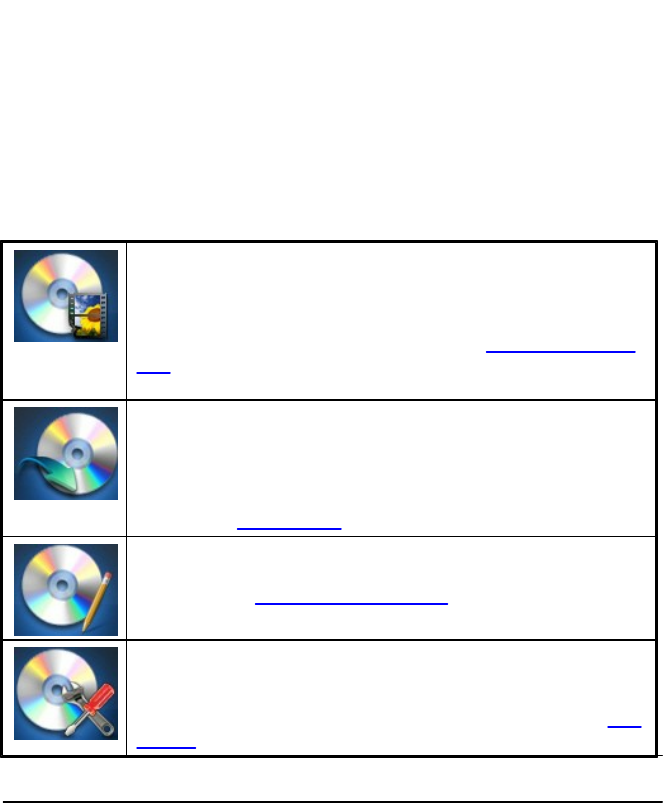
CyberLink PowerProducer consists of four main modules: Produce Movie Disc,
Right-to-Disc, Edit Disc, and Disc Utilities. In these modules you can perform a
wide variety of tasks, including the import and edit of videos and photos, the
customization of disc menus, burn video from a device right-to-disc, edit
previously burned discs, and a whole lot more with the disc utilities.
The following is an overview of each module and some of the functions you can
perform in CyberLink PowerProducer.
In the Produce Movie Disc module you use your video footage
and photos to create professional looking discs, complete with
stylish menus you customize. You can burn discs in both 2D and
3D*, and in a variety of disc formats, including Blu-ray Disc*,
AVCHD*, AVCREC*, DVD, and video CD*. See Producing a Movie
Disc for complete details on all the features and functions
available.
With the Right-to-Disc module you can burn video content
directly from a DV camcorder, HDV camcorder, TV, webcam, or
VCR to a disc. By transferring it straight to a DVD or Blu-ray Disc*,
you save time by avoiding the intermediary step of first writing
the content to your hard drive. For more information on this
module, see Right-to-Disc.
If you burned your movie production onto a rewritable disc, you
can go back and edit the content at a later time in the Edit Disc
module. Go to Edit a Disc After Burning to find out more details
about this module.
The Disc Utilities module provides you with a number of useful
features, including erasing and copying discs, burning discs
from images or folders, saving disc images, and much more. To
learn about all the utilities in CyberLink PowerProducer, see Disc
Utilities.
Note: * optional feature in CyberLink PowerProducer. Check the version table on
our web site for detailed versioning information.
6
CyberLink PowerProdu cer
PowerProducer Projects
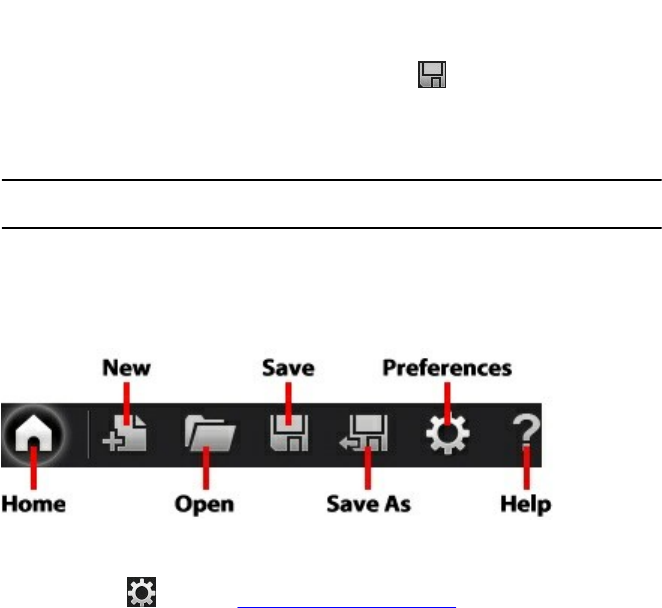
When your are creating a new disc, you can click the button at the top of the
window to save it as a .ppp file, a project file format that is used exclusively by
CyberLink PowerProducer. This project file contains a list of the media (video clips,
photos, background music) in your project, the disc type and menu template
selected, and a log of any edits you want to make to the imported media.
Note: any edits made to your video clips, audio files, or photos in CyberLink
PowerProducer do not affect the original media.
At any time you can create a new CyberLink PowerProducer project file, or open or
save existing projects as new files.
The buttons for these tasks are located on the toolbar at the top of the program
window, and available depending on the feature you are currently in.
The toolbar also includes the home button, which returns you to the page where
you can choose a CyberLink PowerProducer module. Click the help button to open
this help file, or to set the PowerProducer Preferences.
7
Producing a M ovie Disc
Producing a Movie Disc
Chapter 3:
This chapter leads you through the process of creating a movie disc, from
capturing content to burning your finished production to a disc. It includes
instructions for creating a full-feature video production or photo slideshow, and
details on how to customize a disc menu.
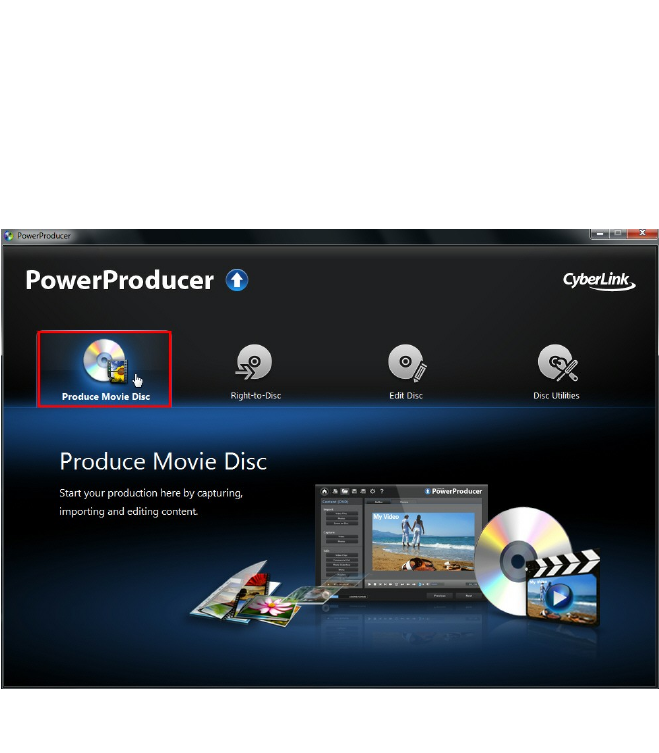
To begin, open CyberLink PowerProducer, and then on the home page click the
Produce Movie Disc option to start using this feature.
Selecting Your Media
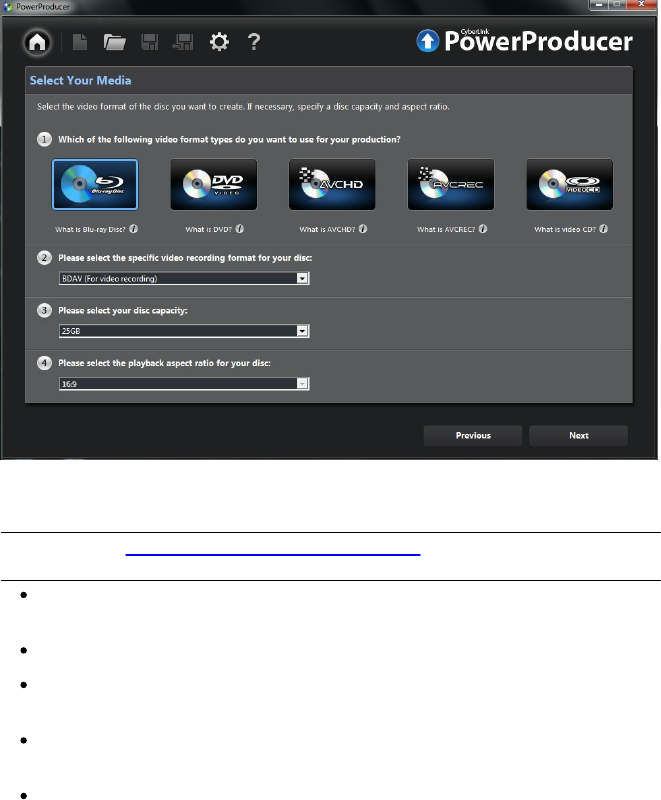
The first step to producing a movie disc is to select a disc format, and then specify
its recording format, capacity, and video aspect ratio.
8
CyberLink PowerProdu cer
To begin producing a movie disc, do this:
1. Select the disc format type you want to use:
Note: see Supported Disc Types and File Formats for list of the support disc types
and the associated file formats.
Blu-ray Disc*: creates a high-quality, high definition video that will play back
on a Blu-ray Disc player.
DVD: creates a longer, high-quality video on a DVD disc.
AVCHD*: creates a high-quality, high definition video on a DVD, using the
MPEG-4 AVC (H.264) video codec.
AVCREC*: creates a high-definition movie disc on DVD media in the AVCREC
disc format.
Video CD: creates a lower-quality video or a slideshow on a CD disc.
2. Select the video recording format for your disc. Here you can also choose to
create a 3D* disc. Depending on the disc format you select, the format quality

9
Producing a M ovie Disc
and available options will vary. For example, your selection will determine
whether your disc has a menu or not.
Note: for more information about 3D* discs, see Selecting 3D Discs.
3. Select the capacity of the disc you are using to burn your movie production.
4. Set the playback aspect ratio for your disc.
5. Click Next to continue.
Note: * optional feature in CyberLink PowerProducer. Check the version table on
our web site for detailed versioning information.
Supported Disc Types and File
Formats
CyberLink PowerProducer supports the following disc types and video format
types:
Disc Types
Video Format Types
BD-RE*, BD-R*
BDAV*, BDMV*
DVD-R, DVD-R DL, DVD+R, DVD+R DL
DVD-Video, AVCHD*, AVCREC*
DVD-RW
DVD-Video, DVD-VR, DVD+VR, AVCHD*,
AVCREC*
DVD+RW
DVD-Video, DVD+VR, AVCHD*, AVCREC*
DVD-RAM
DVD-VR
CD-R, CD-RW
VCD*, SVCD*
Note: * optional feature in CyberLink PowerProducer. Check the version table on
our web site for detailed versioning information.
Selecting 3D Discs
CyberLink PowerProducer now supports the creation of 3D* discs. You can create
3D discs in the Blu-ray Disc, AVCHD, or DVD disc format. Note that CyberLink
PowerProducer cannot convert 2D media to 3D, so all the media on your 3D disc
should be in a 3D format. See 3D Media for more information about the 3D media
you can import and setting a media file's source format.
Note: * optional feature in CyberLink PowerProducer. Check the version table on
our web site for detailed versioning information.

10
CyberLink PowerProdu cer
To ensure your movie production is burned in 3D, do this:
if producing a 3D Blu-ray Disc, select BDMV (Side by side 3D without menu)
from the recording format drop-down.
if producing a 3D DVD, select DVD-Video (Side by side 3D without menu)
from the recording format drop-down.
if producing a 3D AVCHD, select AVCHD (Side by side 3D without menu) from
the recording format drop-down.
Note: CyberLink PowerProducer does not currently support the creation of 3D
discs with disc menus.
Importing Media into
PowerProducer
The next step in creating your disc is to import all the media content that you want
to include on your disc. Your disc can include both videos and photos, which you
import directly into your project. You can also capture video from a connected
device such as a camcorder, webcam, etc., or extract scenes from a non-copyright
protected disc.
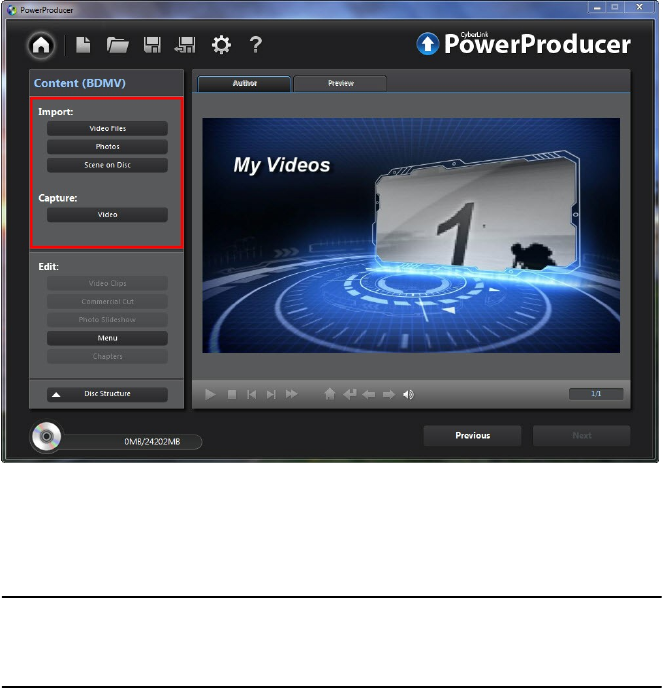
You import and capture media in the Content panel of the CyberLink
PowerProducer's disc authoring window.
11
Producing a M ovie Disc
Importing Media Files
If you already have videos and photos that you want to use in your production on
your computer's hard drive, you can import the files directly into CyberLink
PowerProducer. You can also import media files that are on a removable device.
Note: if you import media files that are on a removable device into the media
library, they will be removed if the removable device is disconnected. For best
results, it is recommended that you copy the media to your computer's hard drive
before importing.
Supported Formats
CyberLink PowerProducer supports the following file formats:
Photo: BMP, GIF, JPEG, PNG, TIFF
CyberLink PowerProducer also supports the import of the following camera RAW
image formats, which are then converted to JPEG once imported: CR2 (Canon), NEF

12
CyberLink PowerProdu cer
(Nikon), NRW (Nikon)
Video: 3G2, 3GP, ASF, AVI, DAT, DV-AVI, DVR-MS*, FLV (H.264), HD MPEG-2, M2T*,
M2TS, MKV (H.264), MOD*, MOV, MOV (H.264), MP4, MPE, MPEG-1*, MPEG-2*, MPEG-
4 AVC (H.264), MTS, TOD*, TPD, TRP, TS, VOB*, VRO*, WMV, WMV-HD, WTV*
3D Video Format: Dual-stream AVI, MVC*, Side-by-Side Video*, Over/Under Video
Note: * optional feature in CyberLink PowerProducer. Check the version table on
our web site for detailed versioning information.
Importing Media
To import media into CyberLink PowerProducer, do either of the following in the
Import area:
Note: you can also drag and drop media onto the CyberLink PowerProducer
window to import it into the program.
click the Video Files button to import video.
Note: if you're importing 3D video files, select the Detect 3D video formats
option to have CyberLink PowerProducer auto detect the 3D source video format
of the files. See Setting Video 3D Source Format for more information.
click the Photos button to import photos and enter the Photo Slideshow
room. As the photos are imported, CyberLink PowerProducer automatically
creates a new slideshow album. See Editing Photo Slideshows for more
information.
Note: if you want to create more than one slideshow on your disc, just import the
photos you want in each slideshow separately. CyberLink PowerProducer will
create a new slideshow album for each set of imported photos, which you can
then edit later.
Importing Scenes on a Disc
You can extract scenes from a non-copyright protected disc, importing the video
content into CyberLink PowerProducer.
To extract scenes and import videos, do this:
1. Insert the disc that contains the video that you want to import into your disc
drive.
2. In the Import section of the Content panel, click the Scenes on Disc button.
13
Producing a M ovie Disc
3. If you have more than one disc drive installed in your computer, select the
Drive from the drop-down that contains the disc you want to import from.
4. If the disc contains any Playlists, make sure you select one from the drop-
down so you can extract scenes from it.
5. In the Scenes section, select the check boxes next to all the content you want
to extract and import into CyberLink PowerProducer.
Note: if required, double-click on a scene and then use the playback controls on
the right of the window to watch selected scenes in the preview window.
6. Click . CyberLink PowerProducer will extract the selected scenes from the
disc and then import them into the thumbnail panel at the bottom of the
window.
Note: the extracted video files are saved in the MPEG-2 format to the Working
directory folder specified in Preferences.
7. When you are done, click OK to return to the author window.
Capturing Video
In CyberLink PowerProducer you can capture video (including the audio) from:
a DV camcorder
an HDV camcorder
a TV
a PC webcam
a VCR
To begin capturing video, do this:
1. In the Capture section of the Content panel, click the Video button.
Note: make sure that your DV or HDV camcorder is turned on and set to VCR
mode in order for it to be detected by CyberLink PowerProducer. If your camcorder
connects to your computer via a USB connection, just import the video files directly
from your camcorder, as if it was another hard drive on your computer. See
Importing Media Files for information on importing video files from your computer.
2. In the Capture Video window, select the source device in the drop-down that
you want to capture video from.
14
CyberLink PowerProdu cer
Note: before you begin capturing, be sure to click to configure the
capture settings, or set the capture options if capturing from a camcorder. See
Configure Capture Settings for more information.
3. If required, locate the content you want to capture in either of these ways:
when capturing from an HDV or DV camcorder you can use the playback
controls under the Preview window to find the content.
Note: when using the and playback controls to find the content you want to
capture, you can click and then select a different seek increment.
when capturing from a TV, use the buttons to select the channel you want to
capture video from.
4. If required, select Auto-recording duration and then enter the length of the
video you want to capture. CyberLink PowerProducer will stop capturing once
this duration has been reached.
Note: before you begin recording, it is recommended that you Configure Capture
Settings and Set Camcorder Capture Preferences, depending on your capture
device.
5. Click to begin capture.
6. Click to stop the capture once you have captured the video you want.
7. When you are done, click OK to return to the disc authoring window.
Configure Capture Settings
If capturing from a webcam, VCR, or TV, click to configure the capture
settings. Depending on the device you are capturing from, in the Capture Settings
window you can set the video and audio input devices, as well as select the correct
channel and video source when capturing from a TV.
Set Camcorder Capture Preferences
When capturing from an HDV or DV camcorder, set the capture preferences as
follows:
Enable non-realtime capture: select to have CyberLink PowerProducer
continue processing captured video after the original video stops playing in
order to ensure that no frames are dropped during capture.

15
Producing a M ovie Disc
DV timecode: displays the video timecode at the current position.
to add a text remark, date stamp, or time stamp to the video being captured,
click on the button. On the Overlay Text tab, select which type and
display format of text overlay you want to include on your recorded video.
Select the Overlay Format tab to set the font and text position for the text.
3D Video
CyberLink PowerProducer supports various 3D* video formats that you can use to
create 3D discs. All imported 3D video is indicated by a 3D icon in the top right of
its thumbnail.
Note: * optional feature in CyberLink PowerProducer. Check the version table on
our web site for detailed versioning information.
The Difference Between 3D and 3D-Like
Menus
In supported versions of CyberLink PowerProducer, there are both videos that
display in 3D, and menus that have "3D-Like" properties.
3D videos are composed of two images from slightly different perspectives. They
have one image for the left eye, and one image for the right eye. When these
images are viewed together with compatible 3D hardware and software, they
produce an effect that gives the perception of depth.
Some disc menus in CyberLink PowerProducer have 3D-Like properties. Available in
all versions of the program, these effects are simply 3D animations that only consist
of one image. 3D-Like menus do not produce a 3D depth effect when viewed in 3D
mode.
Setting 3D Source Format
When 3D video is imported into CyberLink PowerProducer, you may need to set the
format of the 3D source video/photo. This is because 3D media comes in a variety
of different video source formats. CyberLink PowerProducer needs to know the
source format of each 3D media file so that it can display it properly in 3D.
Note: if you are creating a 2D disc with 3D media, you still must set the 3D
source format to ensure that the video displays correctly in 2D.

16
CyberLink PowerProdu cer
To set the 3D source format of your 3D videos, do this:
Note: if you selected the Detect 3D video formats option when importing the
video, it is not necessary to perform this step. However, if you find the video is not
displaying correctly in 3D, then you can follow these steps to change the source
format.
1. Right-click on a 3D video file in the author window, select Set 3D Source
Format, and then one of the following:
Note: this is the procedure for setting the 3D source format when creating a 3D
disc. If you are creating a 2D disc, see Setting Source Format for 2D Discs.
2D: select this option if the selected media file is actually 2D content.
Side by Side Format (Left Eye First): select this option if the 3D content has
two different images side by side. CyberLink PowerProducer merges the
two images to produce the 3D effect, by showing the left eye image first.
Side by Side Format (Right Eye First): select this option if the 3D content
has two different images side by side. CyberLink PowerProducer merges
the two images to produce the 3D effect, by showing the right eye image
first.
Over/Under format (Left Eye First): select this option if the 3D content has
two different video images, one on top of the other. CyberLink
PowerProducer merges the two images to produce the 3D effect, by
showing the left eye image first.
Over/Under format (Right Eye First): select this option if the 3D content
has two different video images, one on top of the other. CyberLink
PowerProducer merges the two images to produce the 3D effect, by
showing the right eye image first.
Setting Source Format for 2D Discs
If you want to use 3D video files in the production of a 2D movie disc, you must still
change the source format to the proper 3D format for the content to be displayed
correctly on your disc.
To set the source format of 3D video files when creating a 2D disc, do this:
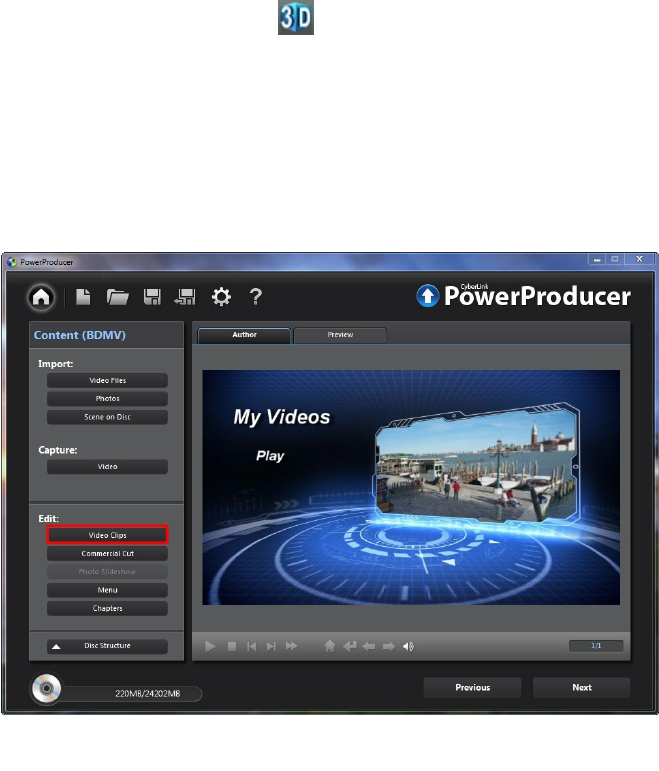
1. Click Video Clips in the Edit section of CyberLink PowerProducer's disc
authoring window.
2. Right click on the video file in the storyboard panel.

17
Producing a M ovie Disc
3. Select Set 3D Source Format, and then one of the following:
2D: select this option if the selected media file is actually 2D content.
Side by Side Format (Left Eye First): select this option if the 3D content has
two different images side by side. In 2D, CyberLink PowerProducer will
display the left eye image only.
Side by Side Format (Right Eye First): select this option if the 3D content
has two different images side by side. In 2D, CyberLink PowerProducer will
display the right eye image only.
Over/Under format (Left Eye First): select this option if the 3D content has
two different video images, one on top of the other. In 2D, CyberLink
PowerProducer will display the left eye image only.
Over/Under format (Right Eye First): select this option if the 3D content
has two different video images, one on top of the other. In 2D, CyberLink
PowerProducer will display the right eye image only.
3D Configuration
Before you can enable 3D mode, you must first set your 3D display device.
To set your 3D display device, do this:
1. Select the 3D configuration menu underneath the preview window .
2. Select one of the following options:
select your 3D display type from the list, i.e. 3D-Ready HDTV
(Checkerboard), Micro-polarizer LCD 3D (Row-Interleaved), 120Hz Time-
sequential 3D LCD, HDMI 1.4 Enabled 3D TV, etc.
if you do not have a 3D display, select Anaglyph Red/Cyan mode and then
use anaglyphic (red/cyan) 3D glasses to view 3D content.
Enabling 3D Mode
Once you have set your 3D display device, you can enable 3D mode at any time to
preview your video production in 3D. To enable, just select the button.
18
CyberLink PowerProdu cer
To disable 3D mode, just select the button.
Editing Media Clips
CyberLink PowerProducer lets you perform minor editing tasks on your imported
and captured video clips. You can also edit created photo slideshows, which are
treated like video clips in the edit function.
To edit the media clips in your production, click Video Clips in the Edit section of
CyberLink PowerProducer's disc authoring window.
Rearranging Video Clips
Once you have all the video clips you want to include in your movie production,
the next step is to ensure they are in the correct viewing order.
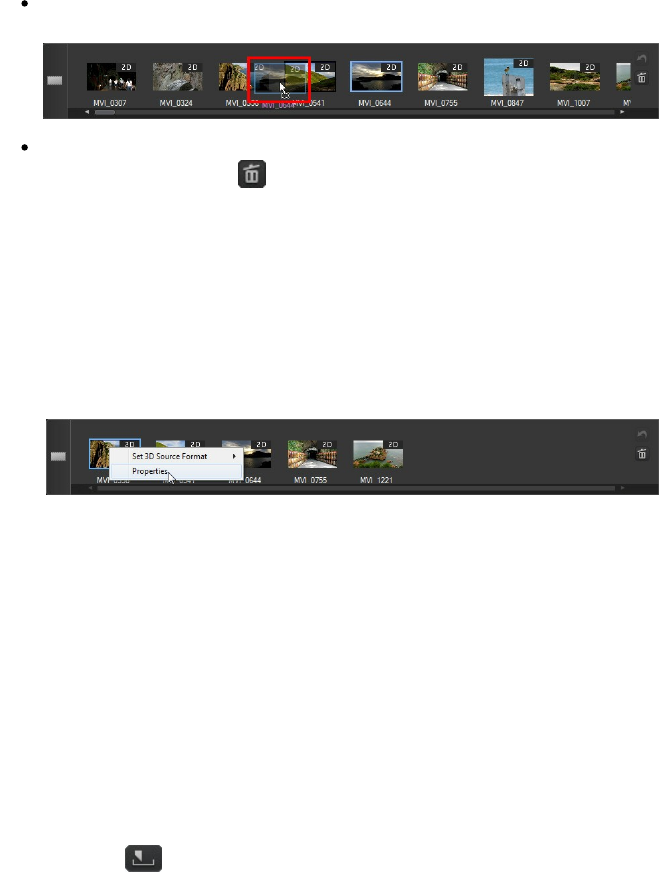
In the Edit Clips window, rearrange the clips on the storyboard panel as follows:
19
Producing a M ovie Disc
to rearrange the video clips, just select a video in the storyboard panel and
then drag it to the new position.
to remove a video clip from the movie production, select it in the storyboard
panel and then click the button.
Adjusting a Video Clip's Aspect Ratio
When you import or capture a video clip, CyberLink PowerProducer automatically
detects its aspect ratio. If the project you are creating has a different aspect ratio,
you can manually adjust the aspect ratio of the video clips in your project.
To manually adjust a video clip's aspect ratio, do this:
1. Right click on a video clip in the storyboard panel at the bottom of the Edit
Clips window.
2. Select Properties to open the Video Properties window.
3. Select the new aspect ratio from the Aspect ratio drop down.
4. Click OK.
Using AB Cut
The AB Cut option allows you to trim off the ends of a video clip/photo slideshow.
You can also cut out a middle portion of the clip, keeping the two end portions.
To perform an AB cut on a clip/slideshow, do this:
1. In the Edit Clips window, click the AB Cut tab.
2. Select the clip/slideshow that you want to edit in the storyboard panel.
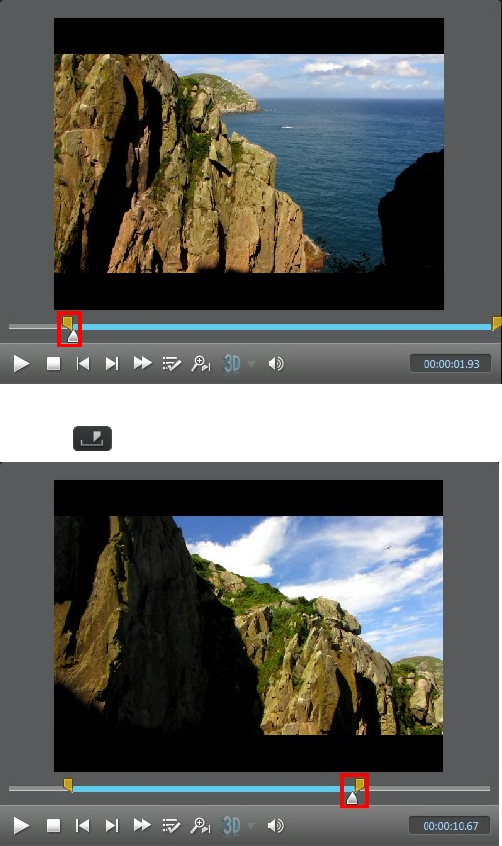
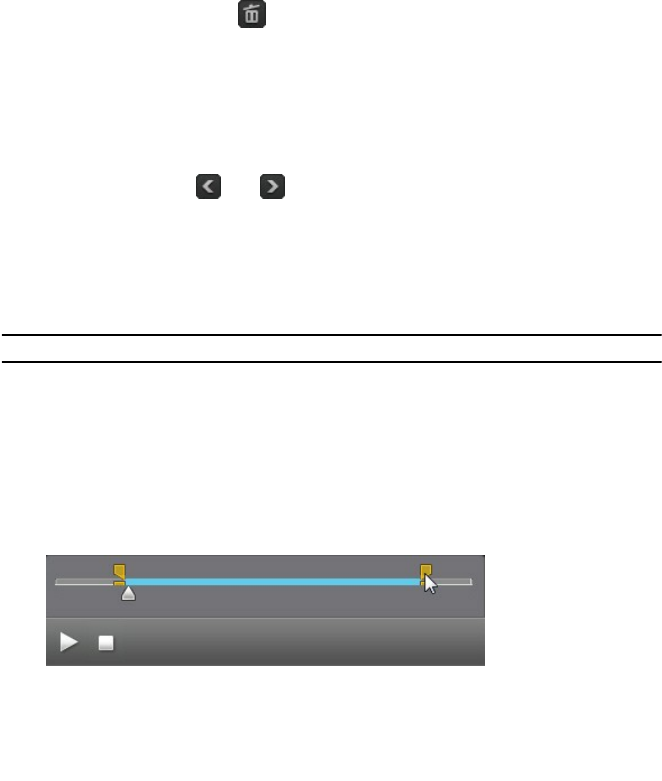
3. Drag the playback slider to the position where you want to begin the cut, and
then click .
20
CyberLink PowerProdu cer
4. Drag the playback slider to the position where you want to end the cut, and
then click .
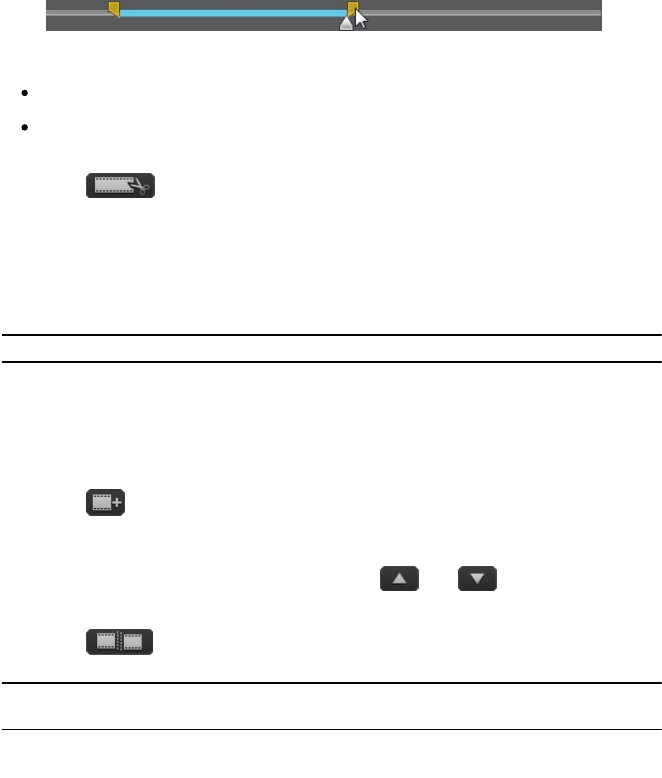
You can also manually drag the right marker to the position where you want to
21
Producing a M ovie Disc
end the cut.
5. Next, select:
Keep selected to keep the video segment indicated in blue.
Delete selected to delete the video segment indicated in blue. Doing this will
merge the two gray segments together.
6. Click . The edited clip/slideshow appears in the storyboard panel.
Merging Clips
You can merge video clips in the storyboard together into one longer clip using the
Merge function. You can also merge two or more photo slideshows into a single
slideshow in this function.
Note: video clips and slideshows cannot be merged together.
To merge multiple clips together, do this:
1. In the Edit Clips window, click the Merge tab.
2. Select the first video clip or slideshow that you want to merge with another
clip in the storyboard panel.
3. Click to add it to the merge list.
4. Continue to add all the clips that you want to merge together.
5. Once you have added all the clips, use the and buttons to order
the clips in the sequence you want them in the final clip.
6. Click to merge the clips. The new clip is displayed in the storyboard
panel as one clip.
Note: when video clips are merged, the aspect ratio of the merged clip will be set
to match the longest clip's aspect ratio.
Splitting Clips
You can split an existing video clip or photo slideshow into two separate clips.
To split a clip, do this:
22
CyberLink PowerProdu cer
1. In the Edit Clips window, click the Split tab.
2. Select the video clip or slideshow in the storyboard panel that you want to
split.
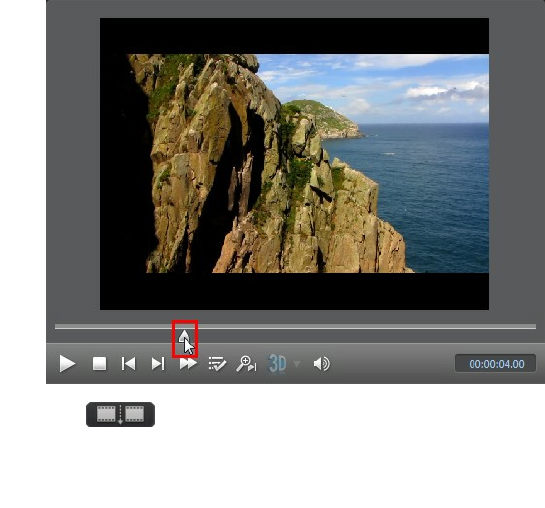
3. Drag the timeline slider (or use the player controls) to the position in the clip
where you want to split it.
4. Click to split the clip. Two clips will be displayed in the storyboard
panel.
Setting Video Title Thumbnail
In the Edit Clips window you can set any frame in a video clip as its title thumbnail.
This thumbnail will display on the video clip in CyberLink PowerProducer, and
more importantly, in the disc menu after it is burned to a disc.
To set a video frame as the thumbnail, do this:
1. Select the video clip in the storyboard panel that you want to set the title
thumbnail in.
2. Drag the timeline slider (or use the player controls) to the frame in the clip
that you want to use as its title thumbnail.
23
Producing a M ovie Disc
3. Click on the button to set the title thumbnail.
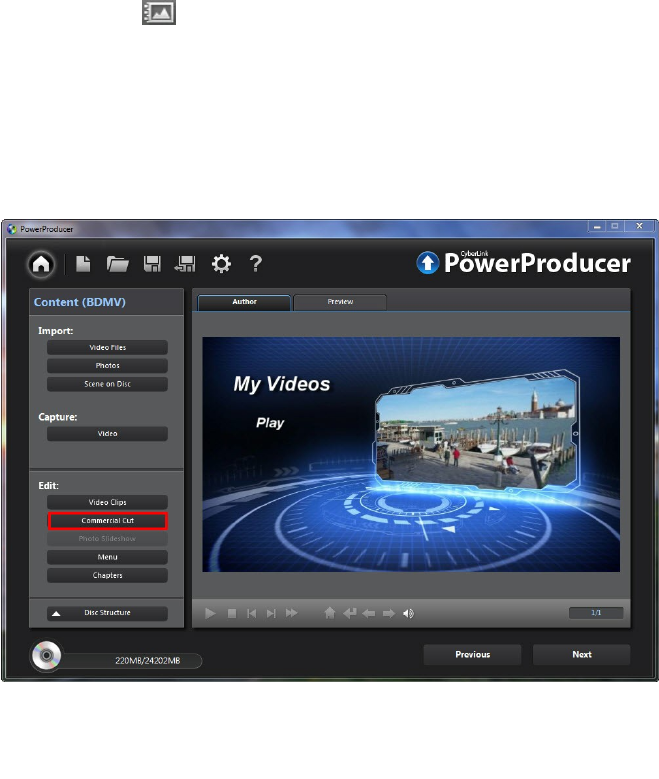
Commercial Cut
You can use the Commercial Cut function to edit out television commercials in
captured video.
To edit out the television commercials in your video clips, click Commercial Cut in
the Edit section of CyberLink PowerProducer's disc authoring window.
Detecting and Removing Commercials
Automatically
CyberLink PowerProducer can automatically detect the commercials in a video clip.
You can then fine tune the suggested edit points, before quickly removing the
commercials by simply clicking a button.
24
CyberLink PowerProdu cer
To auto detect and remove the commercials in a video clip, do this:
1. Select the video clip in the storyboard panel that you want to remove
commercials from.
2. Click the button. CyberLink PowerProducer will proceed
to detect all the commercials in the video clip, which are highlighted in blue
on the video timeline under the preview window. The commercials are also
placed in the storyboard panel.
3. Click on each commercial in the storyboard panel and use the playback
controls to preview them. Make sure the mark in and out points do not cut off
segments of the video you want to keep. You can click to quickly jump to
the end of a highlighted commercial.
4. If required, drag the mark in and out sliders to adjust the cut positions at the
beginning and end of the commercial. Once satisfied with the results, click
to set the new mark in/out positions.
5. Once you are done refining all the mark in/out positions, ensure that Delete
selected is selected.
6. Click to edit out the selected commercials.
7. Click OK to return to the disc authoring window.
Manually Editing Out Commercials
You can also manually edit out the commercials in a video clip.
To manually edit out the commercials from a clip, do this:
1. Select the video clip in the storyboard panel that you want to remove
commercials from.
2. Drag the timeline slider (or use the player controls) to the point just before the
commercials begins.
3. Click to set the mark in position.
4. Drag the timeline slider (or use the player controls) to the point just before the
commercials end.
5. Click to set the mark in position.

25
Producing a M ovie Disc
6. Click the button, and then ensure that Delete selected is selected.
Note: doing the above will edit out the content that you just selected, i.e. the
commercials. If you want to keep the part you selected, ensure that Keep selected
is selected.
7. Click to edit out the selected commercial.
8. If your video clip contains more commercials, repeat the above steps to edit
them out.
9. When you are done, click OK to return to the author window.
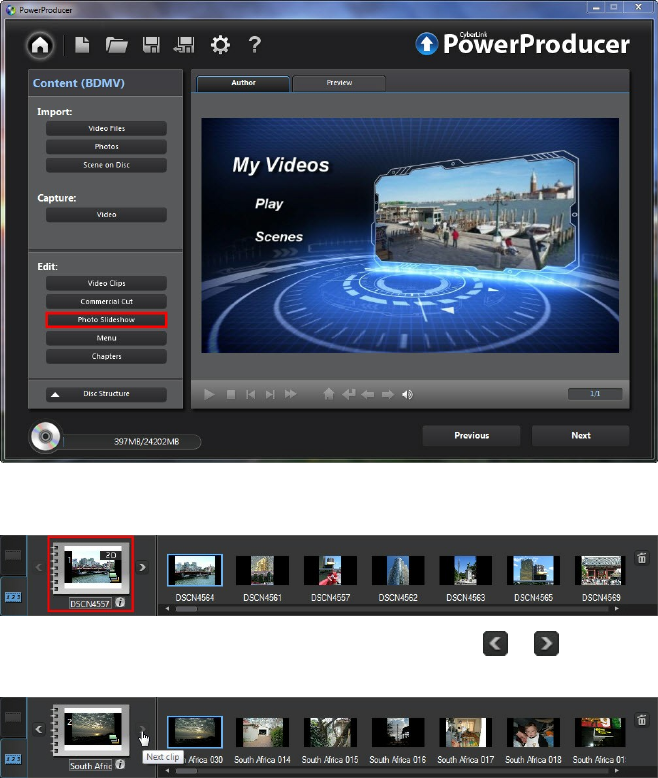
Editing Photo Slideshows
CyberLink PowerProducer uses photos you import to create eye-catching
slideshows in the Photo Slideshow window. The Photo Slideshow window is
launched automatically when you import photos into the program, as CyberLink
PowerProducer auto creates a slideshow album for you.
If you are no longer in the Photo Slideshow window and want to edit a slideshow
album, click Photo Slideshow in the Edit section of CyberLink PowerProducer's disc
authoring window.
26
CyberLink PowerProdu cer
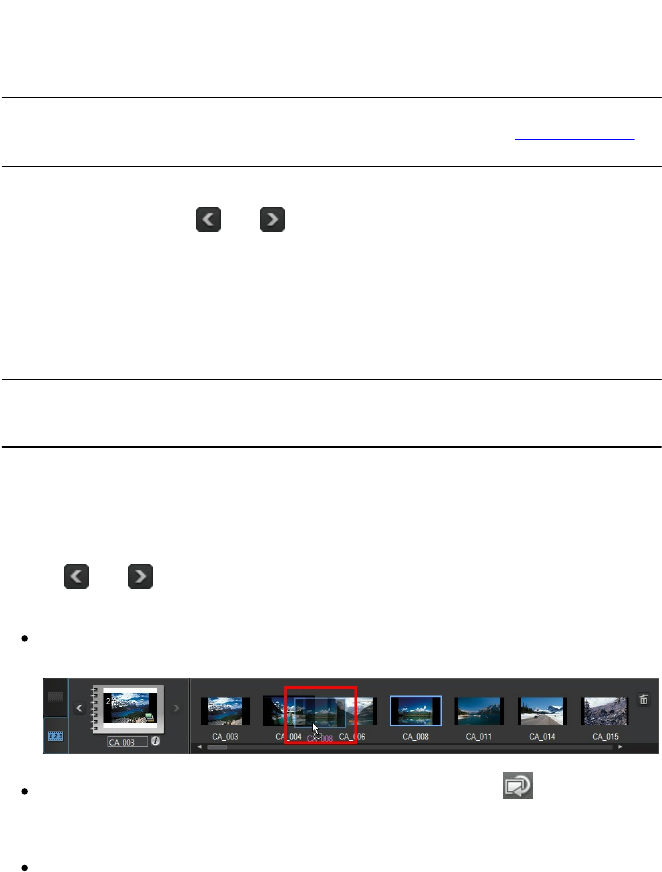
If you imported more than one set of photos, creating multiple slideshow albums,
make sure you select the album you want to edit before proceeding.
To select the slideshow album you want to edit, just click the or buttons
until you locate it.
27
Producing a M ovie Disc
Adding More Photos to a Slideshow
At any time you can add additional photos to the slideshow album created by
CyberLink PowerProducer.
Note: if you want to add photos into a new slideshow, creating a new slideshow
album, you must import them in the disc authoring window. See Importing Media for
more information.
To add photos to an existing slideshow album, do this:
1. If required, use the and buttons to select the slideshow album you
want to add photos to.
2. Click Add Photos.
3. In the Import window, select all the photos that you want to add to the
slideshow album.
4. Click Import to add them into the slideshow album.
Note: once you are done adding all the photos to your slideshow, select the Back
up photos on disc option to have CyberLink PowerProducer make a backup copy
of them when you burn the disc.
Rearranging Slides
Once you have all the photos you want to include in your slideshow album, the
next step is to ensure they are in the correct order and are displaying correctly.
Use the and buttons to select a slideshow album and then update it in the
storyboard panel as follows:
to rearrange the slide order, just select a photo in the storyboard panel and
then drag it to the new position.
if a photo's orientation is incorrect, select it and then click in the playback
controls under the preview window to rotate it 90 degrees in the
counterclockwise direction.
to remove a photo slide from the slideshow album, select it in the storyboard
28
CyberLink PowerProdu cer
panel and then click the button.
Setting Background Music for a
Slideshow
To set the background music for a photo slideshow, do this:
1. If required, use the and buttons to select the slideshow album you
want to set the background music for.
2. Click Set Background Music. The Background Music window displays, and
then takes you to the import window.
3. Select all the audio files you want to use as the background music in your
slideshow, and then click Open.
Note: you can import more than one song, and even an entire album.
4. If required, set the order you want the music to play back using the buttons
on the right side.
5. Select Auto repeat if you want the imported music to repeat during the
slideshow.
6. Select Auto cross fade to add a fade between each of the songs you imported.
7. If required, select an imported audio file and then trim it using the player
controls and the mark-in/mark-out indicators.
8. Click OK to save your changes and set the background music in your
slideshow.
Setting Slideshow Duration
In the Duration section of the Photo Slideshow window you can set the amount of
time each photo in a slideshow displays, or how long it takes to play the entire
slideshow.

29
Producing a M ovie Disc
Use the and buttons to select a slideshow album and then set the duration
as follows:
To set the length of time each individual slide (photo) is displayed, select the
Slides option and then enter a duration in seconds.
To set the duration of the entire slideshow album, select the Album option
and then enter a duration in minutes and seconds in the fields provided.
To match the length of the slideshow to the duration of the background
music you imported, select the Match music duration option. This option is
only enabled if you imported background music previously.
Adding Slideshow Effects
In the Effects section you can set the type of effects that appear in your photo
slideshow, including transitions between slides and adding motion to your photos.
Use the and buttons to select a slideshow album and then set the effects as
follows:
Automatic Pan & Zoom: select this option to make your slideshow more
engaging by adding motion. When selected it adds a pan and zoom effect to
the photos in your slideshow.
Transition Effect: from this drop-down choose a transition you'd like between
each of the photos in your slideshow album.
Note: select Random to have many different transitions between your slides,
instead of the same transition between each.
Duration: in the field provided enter in the amount of time, in seconds, it will
take for the transition to occur.
Once you are done adding the slideshow effects, click the Apply to all albums
button if you want all the slideshow albums on your disc to have the same effects.
Setting Photo as TitleThumbnail
In the Photo Slideshow window you can set any slide in a slideshow album as its
title thumbnail. This thumbnail will display on the slideshow album in CyberLink
PowerProducer, and more importantly, in the disc menu after it is burned to a disc.
To set a slide as the title thumbnail, do this:

30
CyberLink PowerProdu cer
1. Use the and buttons to select a slideshow album you want to set the
title thumbnail for.
2. Select the photo/slide in the storyboard panel that you want to use as its title
thumbnail.
3. Click on the button to set the title thumbnail.
Creating a Browsable Slideshow
When creating a disc in the BDMV (Standard 2D with menu)* format, you can create
a browsable* slideshow. Once burned to disc, a browsable slideshow lets you
browse through the photos in the slideshow at your own pace using the next
chapter button, without interrupting any added background music.
To create a browsable slideshow, simply deselect Automatic Pan & Zoom and then
select No Transition from the Transition Effect drop down.
Note: * optional feature in CyberLink PowerProducer. Check the version table on
our web site for detailed versioning information.
Advanced Editing for Photos
(Optional)
If required, click on the Photo Editing button to edit and touch up the photos in
your slideshow in CyberLink PhotoNow! Please see the help file within in that
product for assistance in using that program.
Customizing Disc Menus
If you are creating a disc with a menu, one of the last step before burning is to
customize the disc menu. In the Customize Menu window you have creative
control over the look of your disc menu.
Note: if you're creating a 3D Blu-ray*, AVCHD*, or DVD disc, this feature is not
available. CyberLink PowerProducer does not currently support the creation of 3D
discs with disc menus. * Optional feature in CyberLink PowerProducer. Check the
version table on our web site for detailed versioning information.
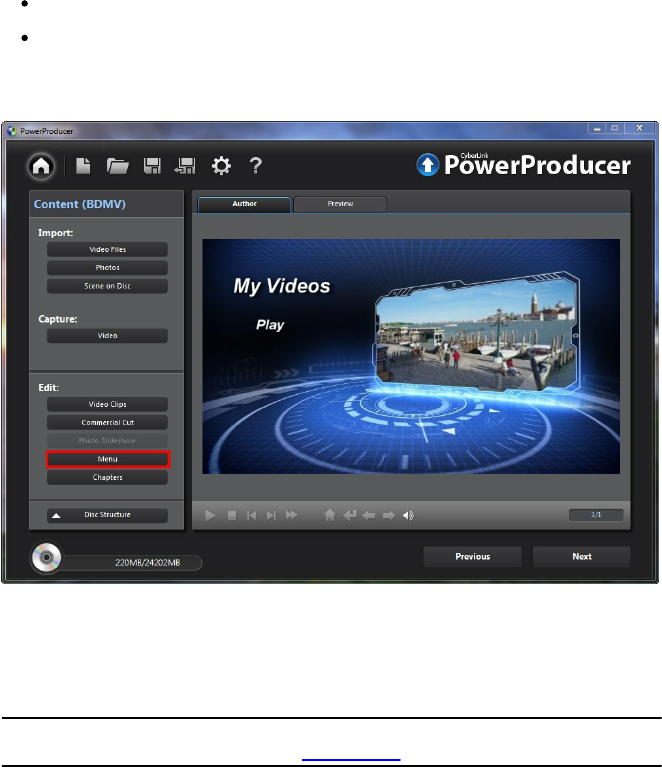
In this window you can:
import a custom background to use as your menu, or choose from a number
of pre-defined templates.
31
Producing a M ovie Disc
modify text and overall layout of buttons and text.
add a first play video and background music
To start customizing your menu, click Menu in the Edit section of the CyberLink
PowerProducer's disc authoring window.
Applying Pre-Defined Templates
CyberLink PowerProducer provides you with several stylish menu templates that
you can choose from. These menus have already been customized for you and may
include such features as motion and menu music.
Note: click on the Download More Templates button to download more free
templates from DirectorZone. See DirectorZone for more information.
The menu templates in CyberLink PowerProducer have either clickable menu text
or clickable thumbnails, depending on the template you selected. Some menus are
also multi-layered, consisting of a main menu home page, with text links to the sub
menu pages that contain your scenes and chapters.

32
CyberLink PowerProdu cer
Scenes in a menu refers to the video clips (titles) and photo slideshows (albums)
you added while creating your disc. Chapters you can add to the video clips in your
movie production, to make your disc more easily browsable. See Setting Chapters
for more information.
To navigate a multi-layered menu in the Customize Menu window, click on Scenes
or Chapters, and then to view the clips and slideshow albums on your disc.
To apply a predefined disc menu template to your movie production, do this:
1. In the Customize Menu window, click Templates.
2. Select the menu template thumbnail that you want to use from the list.
3. Select:
Apply to Current Page to set the menu template to the current menu page
you are viewing in the disc menu preview window.
Apply to All Pages to apply the menu template to all the pages in your disc
menu, i.e. home, scenes, chapters.
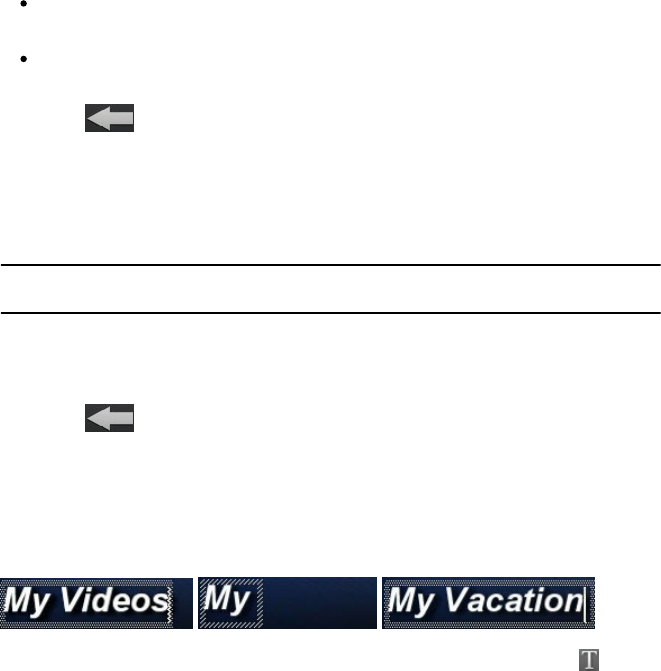
4. Click to return to the previous window.
Creating Custom Disc Menus
You can customize the disc menus in CyberLink PowerProducer, or create your
own new disc menu creations.
Note: customized menus are automatically saved and available under Custom
Menus in the drop-down in the menu window.
Using Custom Menu Background
You can import your own photo or thumbnail from a video, and use it as your
menu's background.
To use a custom background in your disc menu, do this:
1. Within the Customize Menu window, click Templates.
2. Click and then select the photo or video you want to use to import it
into CyberLink PowerProducer.
33
Producing a M ovie Disc
3. Next, select:
Apply to Current Page to set the imported background to the current menu
page you are viewing in the disc menu preview window.
Apply to All Pages to set the imported background to all the pages in your
disc menu, i.e. home, scenes, chapters.
4. Click to return to previous window.
Specifying the Number of Buttons Per Page
To specify the number of thumbnail buttons that are displayed on each menu
page, do this:
Note: some pre-defined menus do not let you specify the number of buttons per
page.
1. In the Customize Menu page, click Thumbnails Per Page.
2. Select the number of thumbnail buttons by clicking on the corresponding
icon.
3. Click to return to previous window and apply your changes.
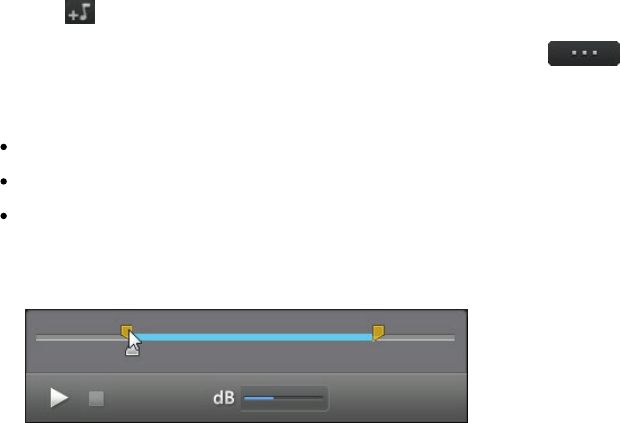
Modifying Menu Text
To modify the title text that appears on any menu page, just double-click on it, and
then enter the new text.
To change the font properties of text, click on the text box and then click . In the
Font window, change the font type, style, size,color, and alignment. You can also
add a shadow or border to your text. Click OK when you're done modifying the
font properties.
34
CyberLink PowerProdu cer
Setting Menu Background Music
Some menu templates have default background music, but you can add your own
music or modify the existing music if you prefer.
To set the menu background music, do this:
1. Click . The Background Music window opens.
2. If you want to change the music file being used in the menu, click
to select a different music file.
3. Next, select:
Fade in if you want the background music to fade in gradually.
Fade out if you want the background music to fade out gradually.
Auto repeat if you want the background music to repeat while the menu is
displayed.
4. If required, you can trim the background music using the player controls and
the mark-in/mark-out indicators.
5. Adjust the dB slider to set the volume level of the background music.
6. When you are done, click OK to save your changes.
Adding a First Play Video
Use this option to add a video as a first play video on your created disc. The first
play video plays automatically when the disc is inserted into a disc player, before
the disc menu loads. No navigation buttons are available during the first play, and
viewers cannot fast forward past this segment.
In a professional production, this is usually a copyright notice or warning. However,
you may prefer to use a personal introduction or other video clip instead.

35
Producing a M ovie Disc
To set a video clip as the first play video, do this:
click and then select the video that you want to use as the first play
video.
click to remove the video set as the first play video.
click to preview the first play video.
Customizing the Menu Layout
You can rearrange the clip/album thumbnails and text on each menu page, giving
your disc menu a custom layout. To move clips or text, do any of the following:
Note: for multi-layered menus, you may have to click on Scenes and then click
to view the thumbnail clips.
Right click on a thumbnail, then select Move Forward (towards the beginning
of your story) or Move Backward (towards the end of your story). The clip
moves one position in the direction you specified.
Drag thumbnails and their corresponding text anywhere on the menu.
Use the arrow keys on your keyboard to move the thumbnails and text to the
exact desired position.
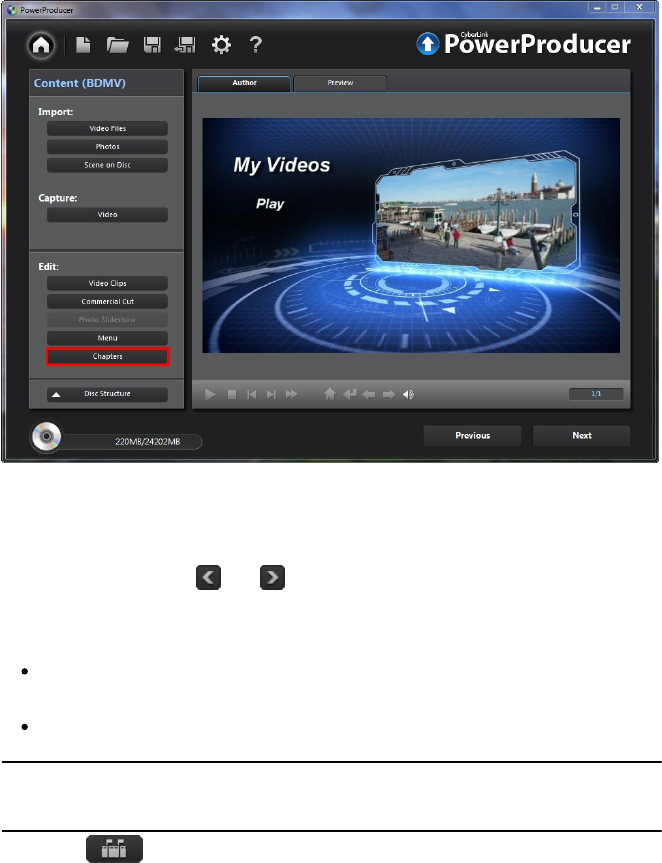
Setting Chapters
CyberLink PowerProducer lets you add chapters to the video clips in your movie
production. Just like in most commercial discs, setting chapters lets viewers select
scenes in the video clips you add to the disc.
To set chapters on your disc, click Chapters in the Edit section of the CyberLink
PowerProducer's disc authoring window.
36
CyberLink PowerProdu cer
Setting Chapters Automatically
To set chapters automatically, do this:
1. If required, use the and buttons to select the video clip (title) you want
to add chapters to.
2. Set the chapters in one of the following ways:
If you want your video to have a specific number of chapters, select the Set
chapters evenly option, and then enter the number in corresponding box.
If you want CyberLink PowerProducer to set chapters by detecting the change
of scenes in the video clip, select the Set chapters by scene detection option.
Note: you can control the number of chapters by dragging the slider to increase or
decrease the sensitivity of scene detection. Increased sensitivity sets more
chapters.
3. Click to set the chapters. Each chapters displays in the storyboard
37
Producing a M ovie Disc
panel as thumbnails.
4. Click OK to save your changes.
Note: if required, use the playback controls and then click to set a frame in
the video as the chapter thumbnail. This thumbnail displays on the chapter in the
storyboard panel and on your final disc.
Setting Chapters Manually
To set chapters manually, do this:
1. If required, use the and buttons to select the video clip (title) you want
to add chapters to.
2. Use the playback controls to locate the position in the video clip where you
want to add a chapter.
3. Click add a chapter marker at this position.
4. Repeat the last two steps to add as many chapters as required.
5. Click OK to save your changes.
Note: if required, use the playback controls and then click to set a frame in
the video as the chapter thumbnail. This thumbnail displays on the chapter in the
storyboard panel and on your final disc.
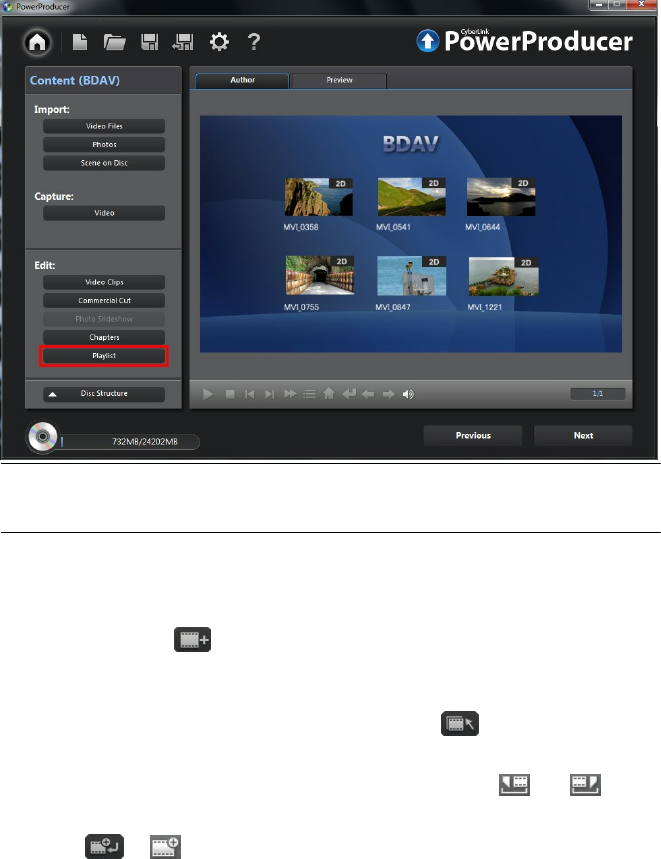
Adding Playlists
You can add custom media playlists to the discs you create. Playlists can include
both video clips and slideshows, which you can trim so that they are specifically
designed for the playlists.
38
CyberLink PowerProdu cer
Note: playlists are available only when you create DVD-VR or BDAV* discs. *
Optional feature in CyberLink PowerProducer. Check the version table on our web
site for detailed versioning information.
To add playlists, do this:
1. Click Playlist in the Edit section of the CyberLink PowerProducer's disc
authoring window.
2. If required, click to create a new playlist. You can add multiple playlists
to a disc.
3. In the Original titles section, select the check boxes under the video clips you
want to add to the new playlist. You can also click to quickly select all
the imported video clips.
4. Double click on each selected video clip and then use the and
buttons to trim them, if required.
5. Click or to add the selected video clips to the playlist. Note that you

39
Producing a M ovie Disc
can add a video clip to a playlist more than once.
6. Repeat these steps for each new playlist as required.
7. Click OK to save your changes.
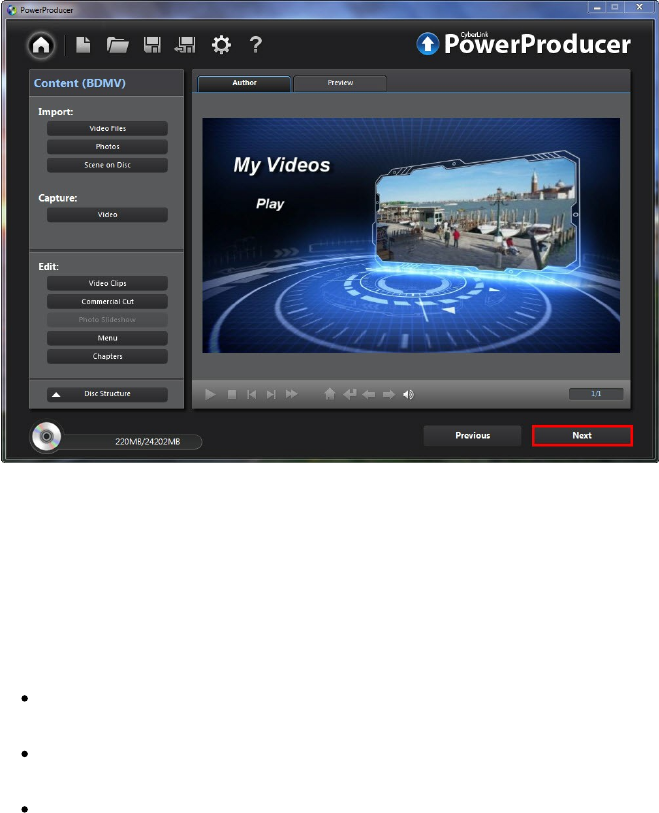
Finalizing Your Disc
After you have imported your media, rearranged it on the storyboard, edited your
videos and photos, customized your disc menu, set chapters, then it's time to
finalize your production. Finalizing your production entails burning your movie
production to a disc, or outputting it as a disc image or a folder.
Before you proceed, click the Disc Structure button to view the structure of your
disc menu. In the structure tree you can see all the titles (videos clips and slideshow
albums) on your disc and any chapters within each title.
Next, make sure you preview your entire production before burning it to disc. To do
this, click the Preview tab in the disc authoring window to view what your burned
disc will look like when played on a disc player. Use your mouse to select menu text
and thumbnails in your menu, so you can preview the entire disc content from the
beginning. Use the controls under the preview window to start and stop the
preview.
If you are creating a 3D disc, there is no menu available to preview. However, you
can still preview what the disc will look like by clicking to enable 3D and then
selecting a thumbnail in the disc authoring window.
When you are done previewing your disc and ready to proceed, click Next.
40
CyberLink PowerProdu cer
Burning Your Production to Disc
Burning your production to disc is the final stage of the movie production process.
Once it is burned you are able to play it on a disc player.
To burn your production to disc, do this:
1. Select the Burn to disc option in the Final Output window.
2. Specify your burning options as follows:
Disc volume label: in the field provided, enter a label for your disc. The disc
label can be up to 16 characters long.
Number of copies: in the field provided, enter the number of discs you want
CyberLink PowerProducer to burn for you in succession.
If you are using an NVIDIA graphics card that supports CUDA technology or
an ATI graphics card that supports Stream technology, select Enable GPU
hardware video encoder to help speed up the overall production time.

41
Producing a M ovie Disc
3. Click to configure the burn settings as follows:
Recording drive: if required, select the burning drive CyberLink
PowerProducer will use to burn the production to disc.
Recording speed: set the recording speed used when burning the disc. If you
encounter errors during the burning process, try lowering the burning speed.
Include buffer under-run protection: select this option to ensure that video is
written to disc without interruption. An interruption in video burning can
result in an unusable disc.
Set disc protection: select this option to protect a DVD-VR from being over
written by accident.
Click OK to set you changes.
4. If you are using a rewritable disc that is not blank, click to erase the
disc. See Erasing a Disc for details on using this feature.
5. Click Burn. CyberLink PowerProducer will proceed to burn your movie
production to the disc.
Note: the burning process may take at least a few minutes, depending on the
length and quality of your video, and your computer's processing power. Be
prepared for a short wait while CyberLink PowerProducer renders your production.
When the task is complete a window appears displaying a congratulatory message
and offering several options:
Click Play Disc to play the disc in CyberLink PowerDVD, if it's installed on your
computer.
Click Go to Main Window to return to the home page of CyberLink
PowerProducer.
Click Launch LabelPrint to create a disc label for your disc in CyberLink
LabelPrint. See the help file in that program for detailed information about
creating disc labels.
Note: CyberLink PowerProducer sends the title and author information from your
created disc to LabelPrint. This information is added to the title and artist fields
respectively, so you do not have to reenter this information when creating your disc
label.
Click Exit PowerProducer to close the program.

42
CyberLink PowerProdu cer
Saving Your Production as a Disc
Image
You can save your production on your hard drive as a disc image for later burning.
This option is particularly useful if your computer currently does not have a disc
burning drive installed.
To save your production as a disc image, do this:
1. Select the Save as disc image option in the Final Output window.
2. If required, click to select the location on your computer's hard drive
where you want the disc image saved. You can also enter a custom file name
for the disc image.
3. If you are using an NVIDIA graphics card that supports CUDA technology or
an ATI graphics card that supports Stream technology, select Enable GPU
hardware video encoder to help speed up the overall production time.
4. Click Burn. CyberLink PowerProducer will proceed to save your production as
a disc image.
When the task is complete a window appears displaying a congratulatory message
and offering a couple of options:
Click Go to Main Window to return to the home page of CyberLink
PowerProducer.
Click Launch LabelPrint to create a disc label for your disc image in CyberLink
LabelPrint. See the help file in that program for detailed information about
creating disc labels.
Note: CyberLink PowerProducer sends the title and author information from your
created disc image to LabelPrint. This information is added to the title and artist
fields respectively, so you do not have to reenter this information when creating
your disc label.
Click Exit PowerProducer to close the program.
Creating a Folder
Creating a folder outputs your movie production as a series of files in a folder that
you can later burn to disc.
To create a folder, do this:

43
Producing a M ovie Disc
1. Check the Create a folder option in the Final Output window.
2. If required, click to select the location on your computer's hard drive
where you want the folder saved.
Note: creating a folder overwrites existing data in a directory.
3. If you are using an NVIDIA graphics card that supports CUDA technology or
an ATI graphics card that supports Stream technology, select Enable GPU
hardware video encoder to help speed up the overall production time.
4. Click Burn. CyberLink PowerProducer will proceed to output your production
to a folder.
When the task is complete a window appears displaying a congratulatory message
and offering a couple of options:
Click Go to Main Window to return to the home page of CyberLink
PowerProducer.
Click Launch LabelPrint to create a disc label for your disc folder in CyberLink
LabelPrint. See the help file in that program for detailed information about
creating disc labels.
Note: CyberLink PowerProducer sends the title and author information from your
created disc folder to LabelPrint. This information is added to the title and artist
fields respectively, so you do not have to reenter this information when creating
your disc label.
Click Exit PowerProducer to close the program.
44
CyberLink PowerProdu cer
45
Right-to-Disc
Right-to-Disc
Chapter 4:
You can burn video content from a DV camcorder, HDV camcorder, TV, webcam, or
VCR directly onto a DVD or Blu-ray Disc* without the intermediary step of first
writing to your hard drive. This can save you a lot of time when you want to
transfer video to a disc.
Note: some camcorders are recognized as external disk drives on your PC, and
therefore the Right-to-Disc feature is not available. If this case, copy the video to
your computer's hard drive and then use the import feature in the Produce Movie
Disc module.
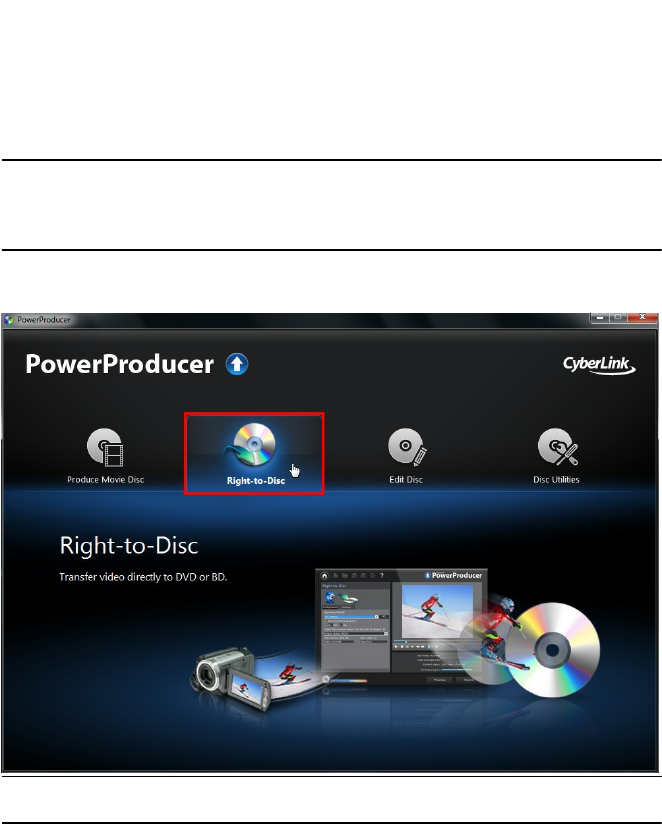
To begin, open CyberLink PowerProducer, and then on the home page click the
Right-to-Disc option to start using this feature.
Note: * optional feature in CyberLink PowerProducer. Check the version table on
our web site for detailed versioning information.

46
CyberLink PowerProdu cer
Burning Video Right to Disc
You can use CyberLink PowerProducer to perform the following Right-to-Disc
tasks:
Burn video from a DV camcorder directly to a DVD or Blu-ray Disc*.
Burn video from an HDV camcorder directly to a Blu-ray Disc*.
Burn video from TV directly to DVD or Blu-ray Disc*.
Burn video from a PC webcam directly to DVD or Blu-ray Disc*.
Burn video from a VCR directly to a DVD or Blu-ray Disc*.
Note: * optional feature in CyberLink PowerProducer. Check the version table on
our web site for detailed versioning information.
The steps to perform each of these functions are similar. Just the configuration of
the settings are slightly different.
To burn video directly to disc, do this:
1. In the Confirm Recording Disc window, insert your target disc and ensure the
correct drive is selected.
2. Set the Maximum speed used when burning the disc. If you encounter errors
during the burning process, try lowering the burning speed.
3. In the bottom left of the window, be sure to select the target disc format from
the drop-down. If the format is different from the original format of the disc,
CyberLink PowerProducer will initialize and format the disc for you.
4. Click Next to proceed to the Right-to-Disc window.
5. Select the source you want to capture from in the Recording from drop-
down.
Note: make sure that your DV or HDV camcorder is turned on and set to VCR/
Camera mode in order for it to be detected by CyberLink PowerProducer.
6. On the Capture Settings tab, configure the capture settings. See Configuring
Capture Settings for detailed information.
7. On the Settings tab, set the quality and audio format of the captured video.
See Setting Video Quality and Other Options for detailed information.
8. Set the disc preferences as follows:
47
Right-to-Disc
Select the location where the disc will be played: select the TV format (NTSC or
PAL) or location where the disc will be played. The location should
correspond to the region in which you plan to play your video.
Disc volume label: in the field provided, enter a label for your disc. The disc
label can be up to 16 characters long.
Disc name: in the field provided, enter a name for your disc. This disc name
displays in the disc player when playing the disc.
9. Click Record to begin burning. CyberLink PowerProducer will proceed to
capture and burn the video to the disc.
Note: the burning process may take at least a few minutes, depending on the
length of your video.
Configuring Capture Settings
Before you capture the video and burn it to the disc, be sure to configure the
capture settings on the Capture Settings tab. The capture settings available differ
depending on the source you are recording from.
Capture Settings for Webcam, VCR, TV
If capturing from a webcam, VCR, or TV, configure the settings as follows:
if required, select Auto-recording duration and then enter the length of the
video you want to capture. CyberLink PowerProducer will stop capturing once
this duration has been reached.
click to configure the advanced capture settings. Depending on the
device you are capturing from, in the Capture Settings window you can set
the video and audio input devices, as well as select the video source when
capturing from a TV.
if capturing from a TV, select the Channel no. you want to capture from.
Capture Settings for Camcorder
If capturing from a camcorder, configure the settings as follows:
DV tape length: select the length of the DV tape that is in the camcorder from
the drop-down.
48
CyberLink PowerProdu cer
Set mark in/mark out times: if you know the timecodes for the segment of
video you want to capture, enter them in these fields.
to add a text remark, date stamp, or time stamp to the video being captured,
click on the button. On the Overlay Text tab, select which type and
display format of text overlay you want to include on your recorded video.
Select the Overlay Format tab to set the font and text position for the text.
Setting Video Quality and Other
Options
Before you capture the video and burn it to the disc, be sure to set the video quality
and more on the Settings tab, as follows:
Video quality: select the quality of the captured video from the drop-down.
Aspect ratio: if required, set the screen aspect ratio of the video being
captured.
Audio format: select the format of the audio that will be captured and burned
to the disc.
Menu heading: enter text you would like to include on a disc menu that will
be burned to the disc. Click to set the font properties of this menu text,
if required.
Note: click the on the Settings tab to make a custom menu for your disc.
See Creating Disc Menus for more information.
49
Editing a Disc After Burning
Editing a Disc After
Burning
Chapter 5:
If you burned your movie production onto a rewritable disc in the +VR, -VR, or
BDAV* format, you can go back and edit the content on the disc at a later time.
Note: * optional feature in CyberLink PowerProducer. Check the version table on
our web site for detailed versioning information.
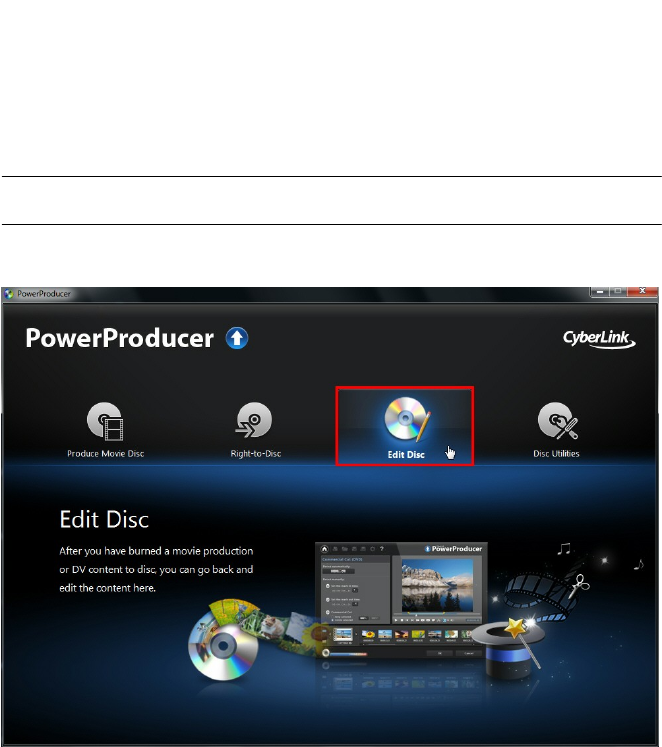
To begin, open CyberLink PowerProducer, and then on the home page click the
Edit Disc option to start using this feature.
To edit a disc, do this:
1. In the Confirm Disc to be Edited window, insert your target disc, select a
maximum recording speed, and then click Next.

50
CyberLink PowerProdu cer
2. Make any of the required modifications in the CyberLink PowerProducer
program as follows:
To import more media, see Importing Media into PowerProducer.
To edit clips or slideshows, see Editing Media Clips.
To edit slideshows, see Editing Photo Slideshows.
To modify the disc menu, see Customizing Disc Menus.
3. When you are done your edits click Next.
4. Click Burn to re-burn your disc with the edits applied.
51
Disc Utilities
Disc Utilities
Chapter 6:
CyberLink PowerProducer includes some handy disc utilities you can use to
manage and format your discs. You can also create and burn disc images and
folders, export discs to files, and access the CyberLink LabelPrint program.
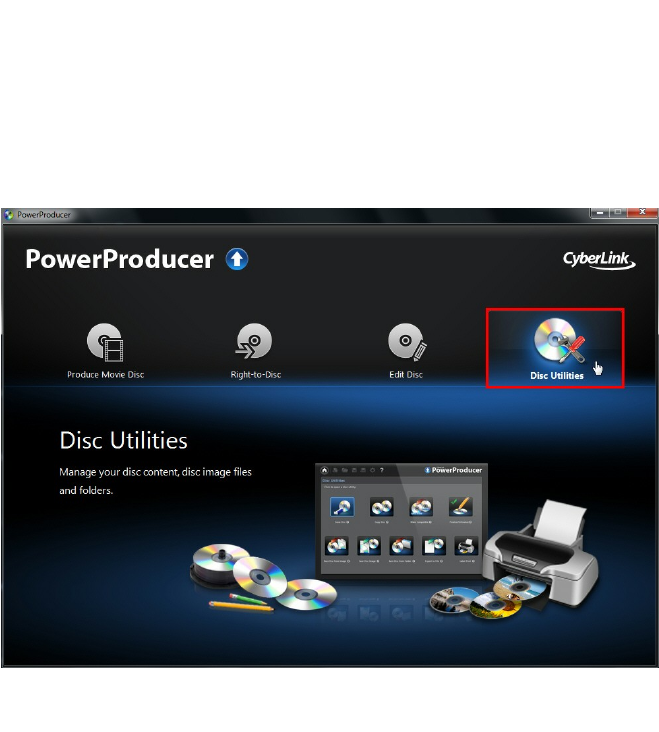
To begin, open CyberLink PowerProducer, and then on the home page click the
Disc Utilities option to start using this feature.
Erasing a Disc
If you are using a rewritable disc you can erase content that was previously
recorded or burned on it. This allows you to reuse the same discs over and over
without the need to continually buy new discs.
To erase a disc, do this:

52
CyberLink PowerProdu cer
1. In the Disc Utilities window, click Erase Disc.
2. Insert your disc and then select your drive.
3. Select an erasing method:
the Quick option erases the disc index contained on the disc.
the Full option erases all of the content the disc contains.
4. Click Start to begin. CyberLink PowerProducer will erase the content on the
disc.
5. Click Close to return to the Disc Utilities window.
Copying a Disc
CyberLink PowerProducer allows you to make an exact copy of a disc of any
format. However, you must copy the disc onto another disc of the same format.
You cannot, for example, copy a CD onto a DVD.
To copy a disc, do this:
Note: you do not need two disc drives in your computer to use this feature.
1. In the Disc Utilities window, click Copy Disc.
2. Insert the disc you want to copy into the Source drive and then select it from
the drop-down.
3. Insert a blank disc in your burning drive and then select it from the Target
drive drop-down.
Note: if you are using the same drive to copy and burn the disc, just select the
Create disc image option and then specific a folder to save the disc image that
will be burned. After copying the disc, CyberLink PowerProducer will prompt you to
insert the blank disc for burning.
4. Set the burning options as follows:
Recording speed: set the recording speed used when burning the disc. If you
encounter errors during the burning process, try lowering the burning speed.
Number of copies: in the field provided, enter the number of discs you want
CyberLink PowerProducer to burn for you in succession.
Enable buffer underrun protection: select this option to ensure that video is
written to disc without interruption. An interruption in video burning can
result in an unusable disc.

53
Disc Utilities
Delete image file after burning: select this option if you want CyberLink
PowerProducer to automatically delete the image file of the source disc it
creates to burn the disc after the burning is complete.
Create disc image: if you only have one disc drive, click to specify the
location where CyberLink PowerProducer stores the created disc image file it
will burn to the blank disc.
5. Click Start to begin. CyberLink PowerProducer will copy and burn the disc.
6. Click Close to return to the Disc Utilities window.
Making a Disc DVD
Player-Compatible
CyberLink PowerProducer can convert DVD-VR discs to the DVD-Video format,
which can be played on most DVD players. You must have a DVD burner to use this
utility.
To make a DVD-VR disc DVD-Video compatible, do this:
1. In the Disc Utilities window, click Make Compatible.
2. Insert the DVD-VR disc in the drive and then select it in the Source drive drop-
down.
Note: the source disc must be a DVD-VR format disc.
3. Insert the blank disc and then select it from the Target drive drop-down.
Note: the target disc can be a DVD-R/RW or DVD+R/RW format disc.
4. Set the burning options as follows:
Recording speed: set the recording speed used when burning the disc. If you
encounter errors during the burning process, try lowering the burning speed.
Number of copies: in the field provided, enter the number of discs you want
CyberLink PowerProducer to burn for you in succession.
Enable buffer underrun protection: select this option to ensure that video is
written to disc without interruption. An interruption in video burning can
result in an unusable disc.
Keep folder: select this option to retain a DVD folder on the disc if one is
encountered while converting the disc format.

54
CyberLink PowerProdu cer
5. Click Start to begin. CyberLink PowerProducer will burn the disc and make it
compatible.
6. Click Close to return to the Disc Utilities window.
Finalizing/Unfinalizing a Disc
If you want to view a DVD-RW disc with -VR profile on a disc player, you must first
finalize the disc, as unfinalized discs cannot be viewed on some home disc players.
When you finalize a disc, no further data can be added to it, even if the disc
contains sufficient space. However, you can unfinalize a disc in order to perform
further editing functions (such as appending video, adding chapters, etc.).
To finalize or unfinalize a disc, do this:
1. In the Disc Utilities window, click Finalize/Unfinalize. The Finalize or Unfinalize
window opens (depending on state of the disc).
2. Insert your disc and select your drive.
3. Click Start to begin. CyberLink PowerProducer will finalize/unfinalize the disc.
4. Click Close to return to the Disc Utilities window.
Burning a Disc From a Disc
Image
A disc image is a file on your computer (in .RDF or .ISO format) that is the duplicate
of the contents and file structure of a disc. CyberLink PowerProducer lets you burn
a disc image to a disc.
To burn a disc image, do this:
1. In the Disc Utilities window, click Burn Disc From Image.
2. Click to select the disc image you want to burn to a disc.
3. Insert a blank disc and then select your drive in the Drive drop-down if
required.
4. Select a Recording speed for burning the disc. If you encounter errors during
the burning process, try lowering the burning speed.
5. Click Start to begin. CyberLink PowerProducer will burn the disc image to the

55
Disc Utilities
disc.
6. Click Close to return to the Disc Utilities window.
Saving as a Disc Image
If you have previously burned a disc image to a disc, you can save that image onto
your hard drive. Saving a disc image is useful if you want to back up your discs on
your computer’s hard drive.
To save as a disc image, do this:
1. In the Disc Utilities window, click Save Disc Image.
2. Insert your disc and then select your drive in the Drive drop-down if required.
3. If required, click to select the location on your computer's hard drive
where you want the disc image saved. You can also enter a custom file name
for the disc image.
4. Click Start to begin. CyberLink PowerProducer will save the disc image to
your computer's hard drive.
5. Click Close to return to the Disc Utilities window.
Burning a Disc from a Folder
If you have created a folder that contains all of the media files for your production,
you can burn this folder to a disc. Burning a folder to disc is similar to burning a
disc image, but does not use compression, so there are no compatibility issues.
To burn a disc from a folder, do this:
1. In the Disc Utilities window, click Burn Disc From Folder.
2. Insert a blank disc and then select your drive in the Drive drop-down if
required.
3. Click to select the folder you want to burn to a disc.
4. Click Start to begin. CyberLink PowerProducer will burn the folder to the disc.
5. Click Close to return to the Disc Utilities window.
56
CyberLink PowerProdu cer
Exporting to a File
Use the Export to File function to export DVD Video, DVD-VR, DVD+VR, BDMV*, and
AVCHD* files from a disc to your hard drive. The video files are saved in the MPEG-2
format.
Note: * optional feature in CyberLink PowerProducer. Check the version table on
our web site for detailed versioning information.
To export files to your hard drive, do this:
1. In the Disc Utilities window, click Export to File. The Export to File window
opens.
2. Insert the disc you want to export from and then select your drive in the Drive
drop-down if required.
3. Select the clips you want to export in the Scenes panel. You can preview the
selected clips using the playback controls in the preview window to ensure
the video content you are exporting is the content you want.
4. If required, click to select the location on your computer's hard drive
where the files are saved.
5. Click Export. CyberLink PowerProducer will export the clips on the disc to
your hard drive.
6. Click Close to return to the Disc Utilities window.
Launching LabelPrint
The last step to creating your disc is making a label for it. You can do this in the
CyberLink LabelPrint program, which you can open by clicking Launch LabelPrint
in Disc Utilities.
Note: CyberLink PowerProducer sends the title and author information from your
created disc to LabelPrint. This information is added to the title and artist fields
respectively, so you do not have to reenter this information when creating your disc
label.
See the help file in that program for detailed information about creating disc
labels.
57
PowerProducer Preferences
PowerProducer
Preferences
Chapter 7:
To set your preferences in CyberLink PowerProducer, just click the button.
Note: the preferences in CyberLink PowerProducer can only be set when you are
in the Produce Movie Disc function.
Project Preferences
In the Preferences window, select the Project tab. The available options are as
follows:
Note: the project options that are available depend on the disc format that you
have selected.
Movie playback mode: from the drop-down, set the disc's playback behaviour
when it is inserted into a disc player. Depending on the mode you select, the
disc may or may not display the disc menu, and the playback order of the
titles (videos and photo slideshows on the disc) will vary.
Working directory: this is the directory that CyberLink PowerProducer uses to
store captured video, create disc images during burning, and save project files
by default. Click to select a different folder, if required. If you change
this directory, be sure there is enough free space on the hard disk to
accommodate burning.
Temporary directory: this is the directory that CyberLink PowerProducer uses
for temporary files that are automatically deleted when you exit CyberLink
PowerProducer. Click to select a different folder, if required.
Capture Settings
Default name for captured video: enter a file name prefix that will be used in
each video file you capture. CyberLink PowerProducer will add a unique
timestamp after the prefix you enter to distinguish each captured file.
Split captured video files according to disc size limit: select this item to have
CyberLink PowerProducer automatically split video files during capture, so

58
CyberLink PowerProdu cer
that they will fit on the type of disc you are using in your production.
Create new chapter every: select this item if you want to automatically add
chapters to videos during capture. CyberLink PowerProducer will add a
chapter at the intervals you specify in the fields provided.
Enable Cyberlink MPEG@Best technology: select this option to burn MPEG
video at the highest possible quality. By taking into consideration your
computer's processing power, CyberLink PowerProducer will adjust burning
speed to ensure the best video quality.
Menu Settings
Add thumbnail index: select to add a thumbnail index to the disc's menu.
Enable video thumbnail: select if you want chapter thumbnails to display
moving video on the disc's menu.
Auto-menu timeout: select this option to have your created disc
automatically begin playback after the user-defined menu duration has
expired.
User-defined menu duration: enter in the amount of time video thumbnails
and background music play in a created disc menu.
Display TV safe zone: select this item to display a box in the preview window
when authoring your disc menu. This box is an indication of the safe zone
where you can ensure added menu items, including text, thumbnails, and
buttons, are within the display range of most TVs.
Auto rotate photos during import: select this option if you want CyberLink
PowerProducer to auto rotate imported photos to their correct orientation
while creating a slideshow. Note that this function only works if the photos
were taken with a digital camera that supports Exif (Exchangeable image file
format).
Video/Audio Preferences
In the Preferences window, select the Video/Audio tab. The available options are as
follows:
Note: the video and audio quality options that are available depend on the disc
format that you have selected.

59
PowerProducer Preferences
File format: indicates the video format of the file that will be burned to your
disc. If available, you can select a different video file format from the drop
down. However, not all selected disc types allow you to change the video file
format.
Video quality: select the video quality for your disc from the drop-down. The
video qualities available depend on the video disc format you selected in the
Select Your Media window. They offer different bitrates, resulting in files of
different sizes. The higher the quality of the video, the larger the resulting file
and the shorter the length of video that can fit onto a disc.
Smart Fit: after selecting your video quality, select this option to have
CyberLink PowerProducer ensure the best quality of video for your specific
disc type. If the file size of the produced video will not fit on disc you are
burning to, CyberLink PowerProducer will slightly lower the bitrate, but not
lower the resolution, to ensure the best quality video fits exactly to the
capacity of the disc you are using.
Audio format: indicates the format of the audio that will be burned to your
disc. If available, you can select a different audio format from the drop down.
However, not all selected disc types allow you to change the audio format.
The following is a list of the possible audio formats: LPCM is an uncompressed
audio format; Dolby Digital* uses the Dolby Digital Consumer Encoder format
to create a high quality stereo sound output; Dolby Digital 5.1* uses the Dolby
Digital Consumer Encoder format to create a high quality six channel sound
output.
Note: * optional feature in CyberLink PowerProducer. Check the version table on
our web site for detailed versioning information.
Location: select the location where your disc will be played. Location
determines the TV format (PAL or NTSC) of the video that is burned to the
disc.
Reduce Video Blocky Artifacts (Intel SSE4 optimized): if your computer
supports Intel SSE4, select this option to reduce the blocky artifacts that may
appear on video recorded with a low resolution or reduced bitrate.
General Preferences
In the Preferences window, select the General tab. The available options are as
follows:
Use system default language: select this option for the CyberLink

60
CyberLink PowerProdu cer
PowerProducer language display to be the same as the default language of
your operating system.
User defined: select this option and then select the language from the drop-
down list that you want CyberLink PowerProducer to use.
Connect to the Internet: select this option to allow CyberLink PowerProducer
to automatically connect to the Internet to check for updates and display
promotional information from CyberLink.

61
Technical Support
Technical Support
Chapter 8:
This chapter contains technical support information. It includes all the information
to find the answers you need to assist you. You may also find answers quickly by
contacting your local distributor/dealer.
Before Contacting Technical
Support
Please take advantage of one of CyberLink’s free technical support options:
consult the user’s guide or the online help installed with your program.
refer to the Knowledge Base in the Support section of the CyberLink web site.
http://www.cyberlink.com/prog/support/cs/index.do
The FAQs may have information and helpful hints that are more current than the
User Guide and online help.
When contacting technical support by email or phone, please have the following
information ready:
registered serial number (Your serial number can be found on the CD cover,
the box cover, or in the e-mail received after you purchased CyberLink
products on the CyberLink store).
the product name, version and build number, which generally can be found
by clicking on the product name image on the user interface.
the version of Windows installed on your system.
hardware devices on your system (capture card, sound card, VGA card) and
their specifications.
the wording of any warning messages that were displayed (You may want to
write this down or take a screen capture).
a detailed description of the problem and under what circumstances it
occurred.

62
CyberLink PowerProdu cer
Web Support
Solutions to your problems are available 24 hours a day at no cost on the CyberLink
web sites:
Note: you must first register as a member before using CyberLink web support.
CyberLink provides a wide range of web support options, including FAQs, in the
following languages:
Language
Web Support URL
English
http://www.cyberlink.com/prog/support/cs/index.do
Traditional Chinese
http://tw.cyberlink.com/prog/support/cs/index.do
Japanese
http://support.jp.cyberlink.com
Italian
http://it.cyberlink.com/prog/support/cs/index.do
German
http://de.cyberlink.com/prog/support/cs/index.do
French
http://fr.cyberlink.com/prog/support/cs/index.do
Spanish
http://es.cyberlink.com/prog/support/cs/index.do
Simplified Chinese
http://cn.cyberlink.com/prog/support/cs/index.do
Korean
http://kr.cyberlink.com/prog/support/cs/index.do
Note: CyberLink’s user community forum is only available in English and German.
63
Index
Index
3
3D
enabling 15
overview 15
previewing discs 39
selecting discs 9
setting source format 15
video 15
3D-Like
overview 15
A
AB Cut 19
Adding
playlists 37
Albums
background music 28
Aspect ratio 7
adjusting 19
Audio
Dolby 58
format on disc 59
LPCM 58
Auto-menu timeout 58
AVCHD 7
AVCREC 7
B
Back up photos 27
Background music
menus 34
slideshows 28
Blu-ray Disc 7
Browsable slideshow 30
Buffer underrun protection 53
Burn 40
disc image 54
DV content 45
DVD folder 55
Right-to-disc 46
C
Capture
preferences 14
settings 14, 47, 57
video 13
Chapters
setting 35
Clips
splitting 21
Commercial cut 23
D
DirectorZone
overview 2
Disc folder
CyberLink PowerProdu cer
64
Disc folder
burning to disc 55
Disc images
burning 54
creating 52
saving 55
Discs
3D 9, 39
adding menus 30
audio format 59
burning 40
capacity 7
capturing scenes from 12
copying 52
creating folders 42
creating images 42
editing 49
erasing 51
exporting to file 56
finalizing 54
previewing 39
supported formats 9
utilities 51
video format 59
video quality 59
DivX 7
Dolby 58
DVD 7
E
Effects
pan & zoom 29
transition 29
F
File format 59
Folder 42
I
Images
editing 30
importing 11
L
LabelPrint 40, 56
LPCM 58
M
Media
editing 18
importing 11
supported formats 11
Menus
applying 31
background menu 34
buttons 33
chapters 35
customizing 30, 32
customizing layout 35
duration 58
first play video 34
settings 58
65
Index
Menus
text 33
Merge
clips 21
N
New features 1
NTSC 59
P
PAL 59
Pan & zoom 29
PhotoNow! 30
Photos
adding to slideshow 27
auto rotate 57
backing up 27
creating slideshows 25
editing 30
importing 11
rearranging 27
rotating 27
supported formats 11
Playback modes 57
Playlists
adding 37
Preferences 57
Previewing
while importing DVD content 37
Project 6
R
Right-to-disc 46
Rotate 27, 57
S
Save
projects 6
Set 3D format 15
Settings
capture 14, 47, 57
menu 58
Slides
rearranging 27
Slideshow
duration 28
editing 18
Slideshows
background music 28
browsable 30
creating 25
effects 29
merging 21
transitions 29
Smart Fit 59
Source format 15
Support 61
SVCD 7
System requirements 3
CyberLink PowerProdu cer
66
T
Technical support 61
Temp directory 57
Thumbnails
duration 58
index 57
setting 29
Titles
setting thumbnail 22
Transitions 29
TV format 59
TV safe zone 58
U
Upgrade 2
Utilities 51
V
VCD 7
Video CD 7
Video thumbnail 57
Videos 7
3D 15
capturing 13
chapters 35
commercial cut 23
cutting 19
editing 18
format on disc 59
importing 11
merging 21
quality 59
rearranging 18
recording format 7
selecting format 7
setting thumbnail 22
splitting 21
supported formats 11
trimming 19
TV format 59
W
Web support 62
Welcome 1
Working directory 57
