Doro Liberto 825 User Guide En
User Manual: doro Liberto 825 - User Guide Free User Guide for Doro Mobile Phone, Manual
Open the PDF directly: View PDF  .
.
Page Count: 92
- Congratulations on your purchase
- How to set up your Doro Liberto® 825
- Step 1 — Unbox your new phone
- Get to know your phone
- Sign in to Google™
- Assistive functions
- Conversational questionnaire
- Touchscreen motion and gestures
- Scroll, Swipe and Flick
- Pinch and spread (zoom)
- Sensors
- Home screen
- Lock screen
- Screen lock
- To use the phone keys
- My applications screen
- Quick ways to quiet your phone
- Notification panel and status bar
- Enter text
- Capture a screenshot
- Connect to the Internet
- Battery
- Navigate your phone
- Select on-screen actions
- Phone settings
- Where to find the settings
- The date and time
- The haptic feedback
- The screen timeout
- My wallpaper
- Home screen shortcuts
- My widgets
- The text size
- The screen brightness
- The text contrast
- The color inversion
- The color correction
- Improve accessibility further
- The volume
- My ringtone
- My audio setup for voice calls
- The Bluetooth connection®
- Aeroplane mode
- Connect the phone to a computer
- My phone information
- Backup
- Reset the phone
- Memory and storage
- Change the SIM PIN code
- Install applications
- Make a call
- Add new contact
- An assistance option
- My assistance button
- Applications
- Beginners guide - Discover your phone
- Doro Selection
- Messages
- Camera
- Handle pictures in the Gallery
- Connect & Care
- My Doro Manager
- Google search
- Internet (Web browser)
- Dock mode
- Magnifier
- Music
- Listen to the radio
- Alarm
- Calendar
- My notes
- Torch
- Timer
- The calculator
- Listen to a recorded sound
- Code safe
- Google Apps
- The cloud
- Location based services
- Status icons
- Examples of soft keys
- Safety instructions
- Network services and costs
- Care and maintenance
- Warranty
- Specifications
- Copyright and other notices
English
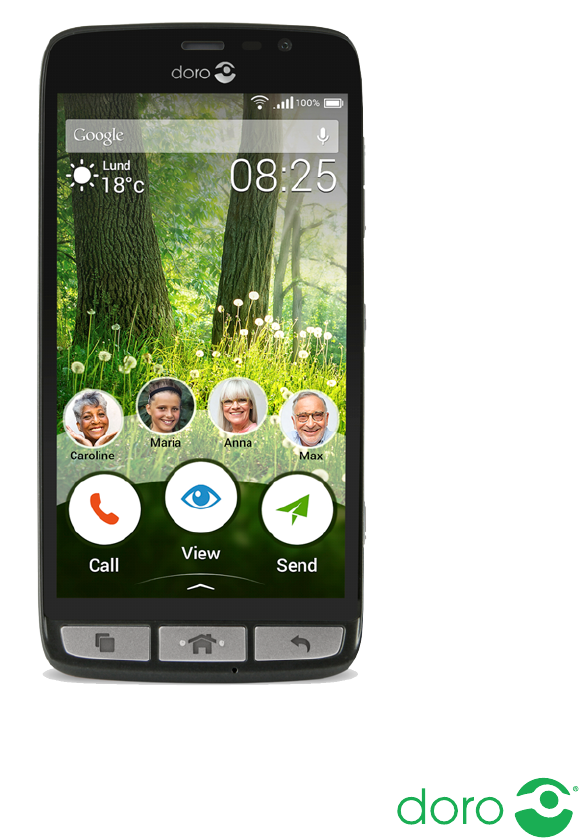
Doro Liberto®825
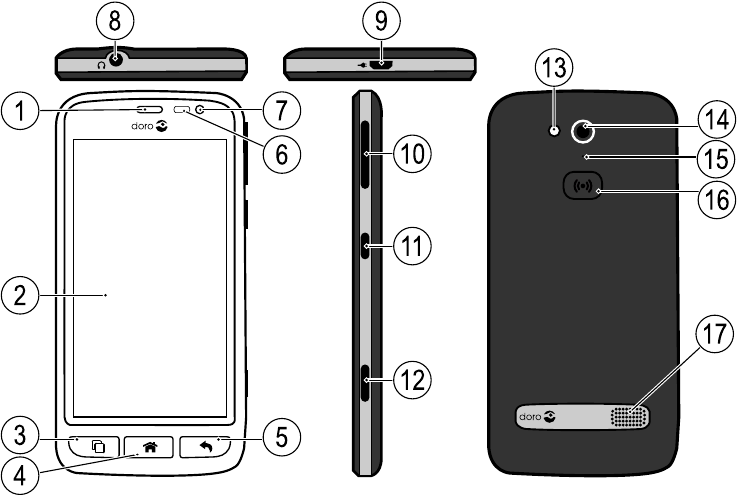
1
2
3
4
7
6
98
5
11
12
10
16
17
14
13
15
Note! All illustrations are for illustrative purposes only and may not
accurately depict the actual device.
English
1. Earpiece
2. Touch display
3. Recents key
4. Home key
5. Back key
6. Proximity sensors
7. Front-facing camera
8. Headset port
9. Charging port
10. Volume
11. Power button
12. Camera button
13. Flash
14. Rear-facing camera
15. Second microphone
16. Assistance button
17. Loudspeaker
The items supplied with your phone might vary depending on the soft-
ware and accessories available in your region or offered by your service
provider. You can obtain additional accessories from your local Doro deal-
er. The supplied accessories provide the best performance with your
phone.
English
Contents
Congratulations on your purchase ............................................................... 1
How to set up your Doro Liberto®825.......................................................... 2
Step 1 — Unbox your new phone .......................................................... 2
Step 2 — Insert memory card, SIM card and battery .......................... 3
Step 3 — Charge .................................................................................... 4
Step 4— Turn on the phone .................................................................. 6
Get to know your phone ................................................................................ 7
Sign in to Google™.................................................................................. 7
Assistive functions................................................................................. 7
Conversational questionnaire............................................................... 7
Touchscreen motion and gestures....................................................... 7
Home screen ....................................................................................... 10
Lock screen..........................................................................................10
Screen lock ..........................................................................................11
To use the phone keys ........................................................................12
My applications screen .......................................................................13
Quick ways to quiet your phone .....................................................14
Notification panel and status bar.......................................................14
Enter text .......................................................................................16
Capture a screenshot..........................................................................18
Connect to the Internet.......................................................................19
Battery..................................................................................................21
Navigate your phone .............................................................................23
Select on-screen actions.....................................................................23
Call...................................................................................................23
View .................................................................................................23
Send ................................................................................................ 24
Search .............................................................................................25
Add...................................................................................................25
Snap ................................................................................................26
Discover...........................................................................................26
Listen...............................................................................................26
Set ................................................................................................... 27
Phone settings.............................................................................................28
Where to find the settings ..................................................................28

English
The date and time ...............................................................................28
The haptic feedback............................................................................28
The screen timeout .............................................................................29
My wallpaper........................................................................................29
Home screen shortcuts.......................................................................29
My widgets ...........................................................................................30
The text size.........................................................................................30
The screen brightness.........................................................................30
The text contrast.................................................................................. 31
The color inversion .............................................................................. 31
The color correction ............................................................................ 31
Improve accessibility further .............................................................. 31
The volume ..........................................................................................31
My ringtone ..........................................................................................32
My audio setup for voice calls ............................................................32
The Bluetooth connection®.................................................................33
Aeroplane mode ..................................................................................34
Connect the phone to a computer .....................................................35
My phone information.........................................................................36
Backup ................................................................................................. 37
Reset the phone ..................................................................................38
Memory and storage ...........................................................................39
Change the SIM PIN code ................................................................... 41
Google™Play Store.......................................................................................42
Install applications ..............................................................................42
Uninstall applications..........................................................................43
Calls..............................................................................................................43
Make a call...........................................................................................43
Answer a call........................................................................................43
End a call .............................................................................................44
Options during a call ...........................................................................44
Headset................................................................................................45
Call log..................................................................................................45
Call settings .........................................................................................45
SOS calls ..............................................................................................46
Contacts....................................................................................................... 47
Add new contact .................................................................................. 47
Search for a contact............................................................................ 47
Manage your contacts......................................................................... 47

English
Import and export contacts ................................................................48
How to find the ICE contacts ..............................................................48
An assistance option .............................................................................49
My assistance button ....................................................................49
ICE (In Case of Emergency) ........................................................... 51
Remote help ................................................................................... 51
Applications .................................................................................................52
Beginners guide - Discover your phone .............................................52
Doro Selection .....................................................................................52
Messages.............................................................................................53
Email ....................................................................................................54
Camera.................................................................................................55
Handle pictures in the Gallery............................................................58
Connect & Care ...................................................................................59
My Doro Manager................................................................................63
Google search......................................................................................64
Internet (Web browser) .......................................................................65
Dock mode...........................................................................................65
Magnifier..............................................................................................66
Music....................................................................................................67
Listen to the radio ...............................................................................67
Alarm ....................................................................................................68
Calendar...............................................................................................68
My notes...............................................................................................69
Torch.....................................................................................................69
Timer ....................................................................................................69
The calculator ......................................................................................70
Listen to a recorded sound.................................................................70
Code safe .............................................................................................70
Google Apps......................................................................................... 71
The cloud .............................................................................................72
Location based services .....................................................................72
Status icons .................................................................................................73
Safety instructions....................................................................................... 74
Network services and costs................................................................ 74
Operating environment .......................................................................75
Medical units .......................................................................................75
Areas with explosion risk ....................................................................75
Li-Ion battery........................................................................................ 76

English
Protect your hearing............................................................................ 76
Emergency calls................................................................................... 76
GPS/Location based functions .......................................................... 76
Vehicles................................................................................................77
Protect your personal data .................................................................77
Malware and viruses........................................................................... 77
Care and maintenance ...............................................................................78
Warranty.......................................................................................................79
Specifications ..............................................................................................79
Copyright and other notices................................................................80
Hearing aid compatibility ....................................................................82
Specific Absorption Rate (SAR) ..........................................................82
Correct disposal of this product .........................................................83
Correct disposal of batteries in this product .....................................83
Declaration of Conformity ...................................................................84

English
Congratulations on your purchase
Doro Liberto®825 is a revolutionary smartphone that does what other
smartphones do, but far more easily than ever before. Now you can com-
municate and enjoy photos, videos, fast 4G Internet and much more in a
way that simplifies how you set up, access and use the phone's various
functions. Get help as you go from the built-in coach, and feel even more
secure with safety features such as our Assistance button. You can also
add more apps via Google Play, and easily manage settings and content
remotely. If using a smartphone seems unnecessarily complicated, Doro
Liberto®825 will change your mind. It's the first smartphone to think the
way you do, making it the perfect choice for first-time users who want all
the enjoyment a smartphone can offer, but in an easier, more intuitive
way. For more information about accessories or other Doro products
please visit www.doro.com.
1

English
How to set up your Doro Liberto®825
When you first get your phone, there is a few actions that you need to
take before starting to use it.
Step 1 — Unbox your new phone
The first step is to unbox the phone and assess the items and equipment
included in the delivery. Make sure to read through the manual so you
can familiarize yourself with the equipment and the basic functions.
•The items supplied with the device and any available accessories
may vary depending on the region or service provider.
•The supplied items are designed for this device and may not be com-
patible with other devices.
•Appearances and specifications are subject to change without prior
notice.
•You can purchase additional accessories from your local Doro re-
tailer. Make sure they are compatible with the device before
purchase.
•Only use batteries, chargers and accessories that have been ap-
proved for use with this particular model. Connecting other accesso-
ries may be dangerous and may invalidate the phone's type approval
and warranty.
•Availability of all accessories is subject to change depending entirely
on manufacturing companies. For more information about available
accessories, refer to the Doro website.
2
English
Step 2 — Insert memory card, SIM card and battery
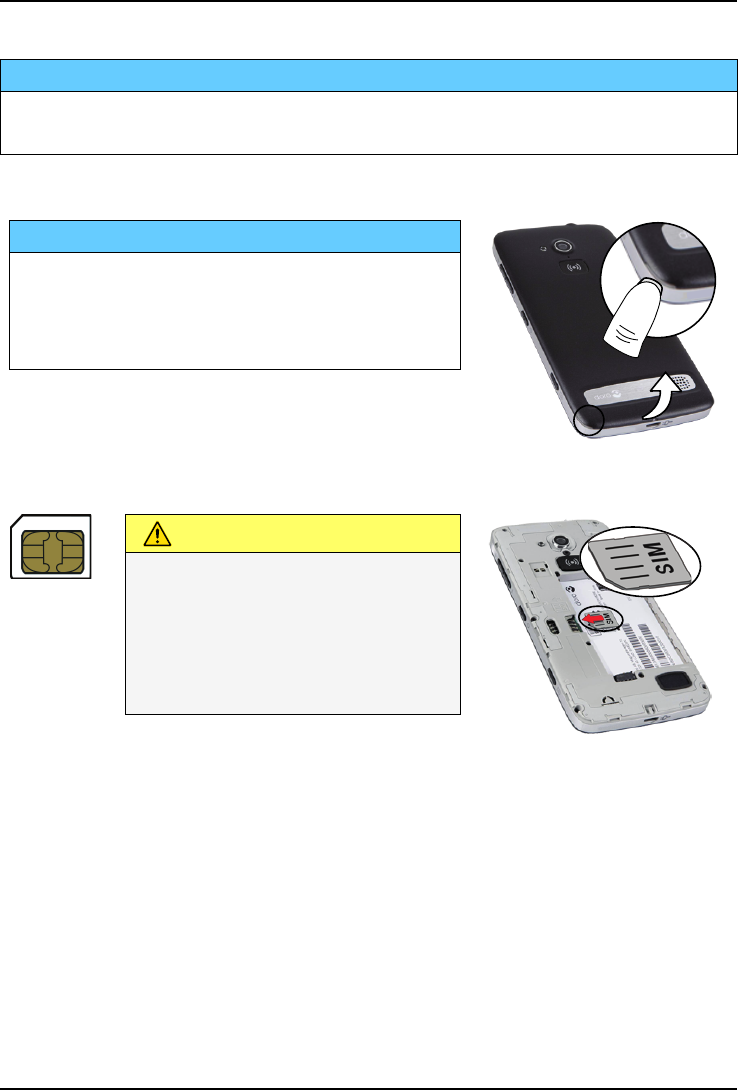
IMPORTANT!
Turn off the phone and disconnect the charger before removing the
battery cover.
Remove the battery cover
IMPORTANT!
Be careful not to damage your fingernails
when you remove the battery cover. Do not
bend or twist the battery cover excessively
as it may get damaged.
Insert the SIM card
CAUTION
This device accepts micro SIM
or 3FF SIM card. Use of
incompatible SIM cards may
damage the card or the device,
and may corrupt data stored
on the card.
3
English
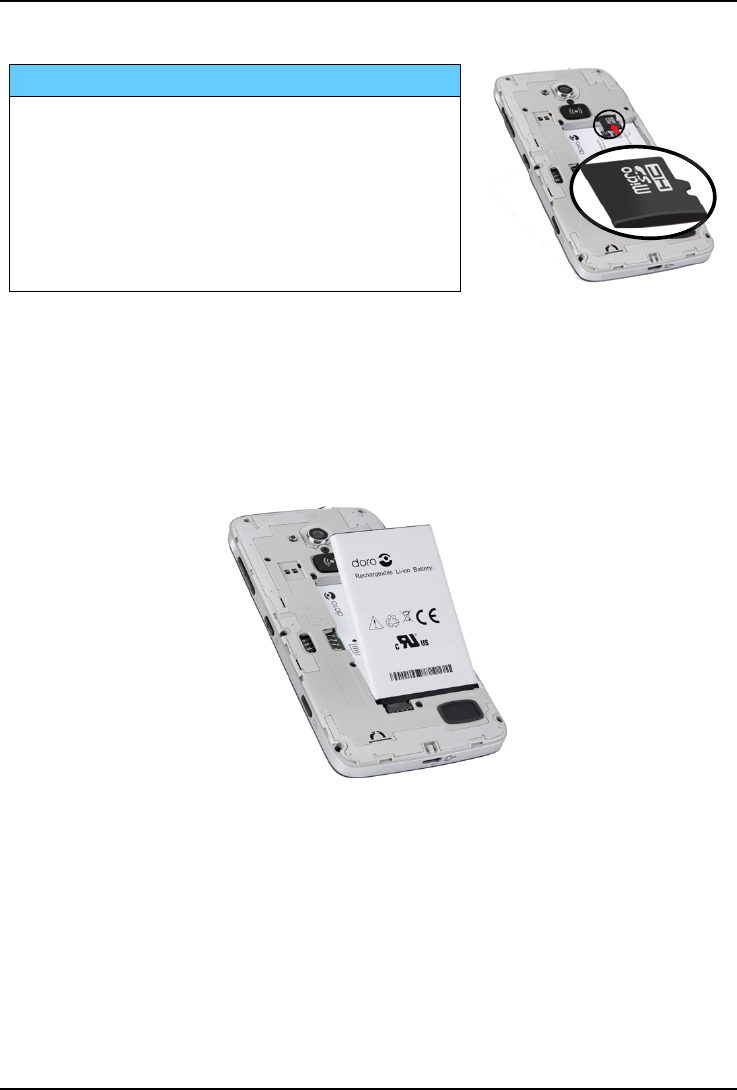
Insert the memory card
IMPORTANT!
Use only compatible memory cards with
this device. Compatible card type:
microSD, microSDHC.
Incompatible cards may damage the card
itself, the device and corrupt any data
stored on the card. Some phones may
have a pre-installed memory card.
Tip: Take care not to scratch or bend the
contacts on the memory or SIM card when
inserting them into the card holders.
See External memory, p.40 for additional info.
Insert the battery
Step 3 — Charge
Charge your phone. While it's possible that your phone will already come
with enough charge to be powered on right out of the box, we recommen-
ded to give it a full charge before first using it.
4
English
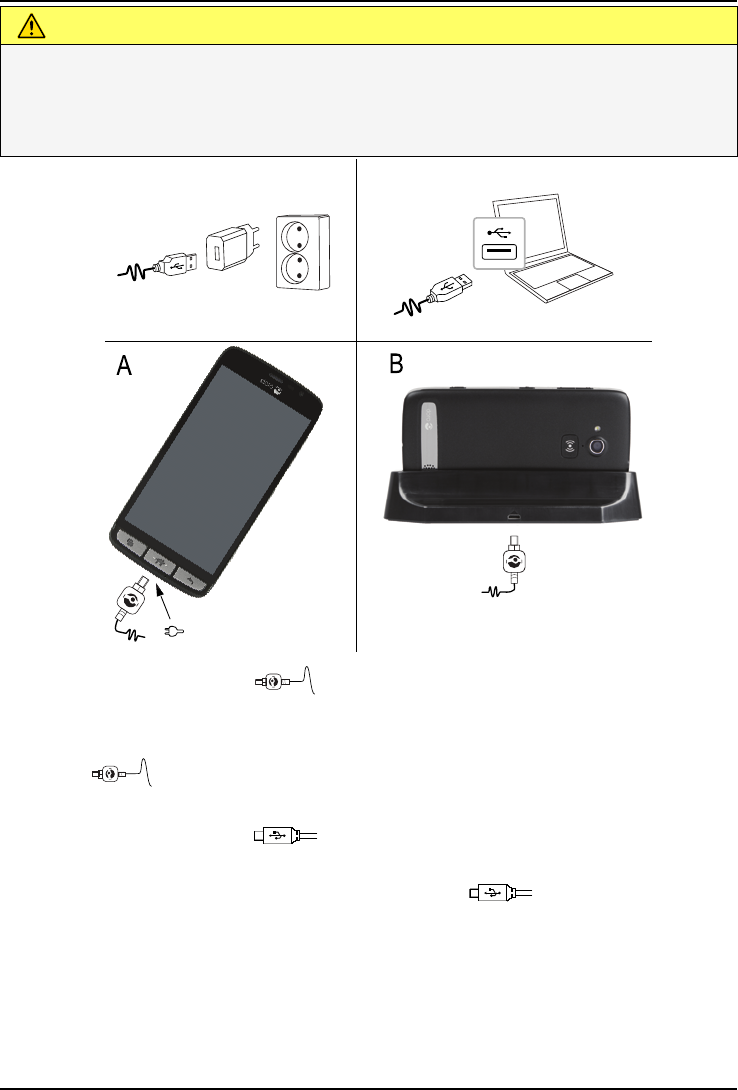
CAUTION
Only use batteries, chargers and accessories that have been approved
for use with this particular model. Connecting other accessories may
be dangerous and may invalidate the phone's type approval and
warranty.
AB
•Insert the small end of the included USB cable into the charg-
ing port on the phone (A).
•You can also charge the phone using the cradle. Insert the small
end of the included USB cable into the charging port on the
cradle and place the phone in the cradle (B).
•Insert the other end of the included USB cable into the wall
charger that you plug into to a wall socket.
•You can also plug the included USB cable into a USB port on
your computer. Generally charging is quicker if plugged directly into
the wall socket.
If the phone is turned off during charging, the phone is still charging.
Press the !Power button to view charging status.
5
English
Save energy
When you have fully charged the battery and disconnected the charger
from the device, unplug the charger from the wall socket.
Note! To save power, the screen is locked after a while. Press the
!Power button to activate the screen, see Lock screen, p.10
Step 4— Turn on the phone
Note! When turning on your phone, the installed applications may need
to be updated. Application updates requires Internet connection and can
take a few minutes. A Wi-Fi connection is preferable. The phone may
appear a bit slow during the update.
•Once you've fully charged the device, turn it on by pressing and hold-
ing the !Power button. Keep it pressed until the phone vibrates
and the display lights up.
•Enter your SIM card PIN if requested, then select to confirm. Tap
to erase.
•Wait for the phone to start.
If the wrong PIN code is entered several times Enter PUK is displayed
and you need to enter your PUK code (Personal Unblocking Key). Contact
your service provider for more information about PIN and PUK code. See
Change the SIM PIN code, p.41 for information about changing the PIN
code.
To turn off the phone
•Press and hold the !Power button until the options menu opens.
•In the options menu, tap Power off.
6
English
Get to know your phone
Sign in to Google™
IMPORTANT!
You need an Internet connection to use this service. It is recommended
to use Wi-Fi connections when available to reduce costs for data traffic.
Contact your service provider for detailed subscription costs before
activating.
You need to have a Google™account, one free account gets you into
everything Google. It’s a convenient way to manage your phone’s applica-
tions, contacts, calendar events, reminders and more. You can also back
up your information in case you should lose your phone. You don't have
to use any of the specific Google services like Gmail on a daily basis if
you don't want to, and you can add other email accounts to your phone.
Create Google™account
1. From the Home screen, select Play Store.
2. Follow the on-screen instructions to complete the account setup.
Assistive functions
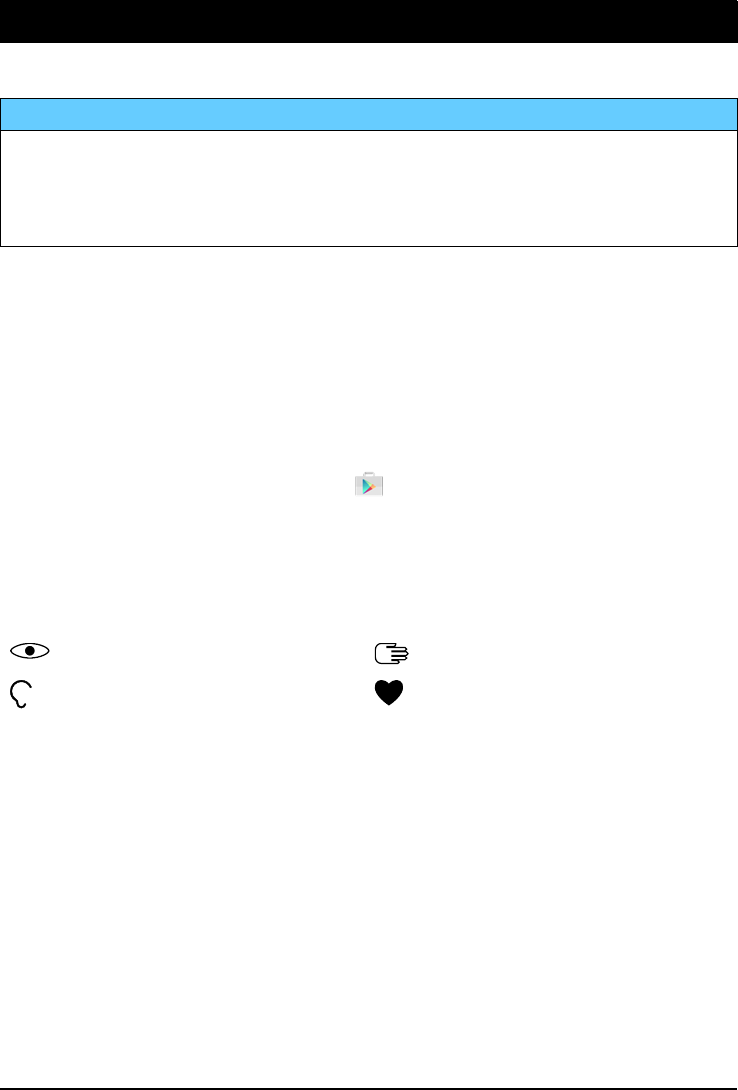
Use the symbols to guide you through supporting sections in the manual.
Seeing Handling
Hearing Safety
Conversational questionnaire
Learn at your own pace! Setting up your phone the first time can be tricky
— we created the conversational questionnaire to help you to easily navi-
gate and explore your device — asking all the right questions so that your
phone is as unique as you. Follow the instructions to start personalising
your new Doro Liberto®825.
Touchscreen motion and gestures
Here is a description of how to use your touchscreen and gestures (mo-
tions that you make with one or two fingers).
7
English
CAUTION
Avoid scratching the touch screen, do not tap it with anything sharp or
allow the touch screen to come into contact with water. Do not touch
the screen if the glass is cracked or shattered.
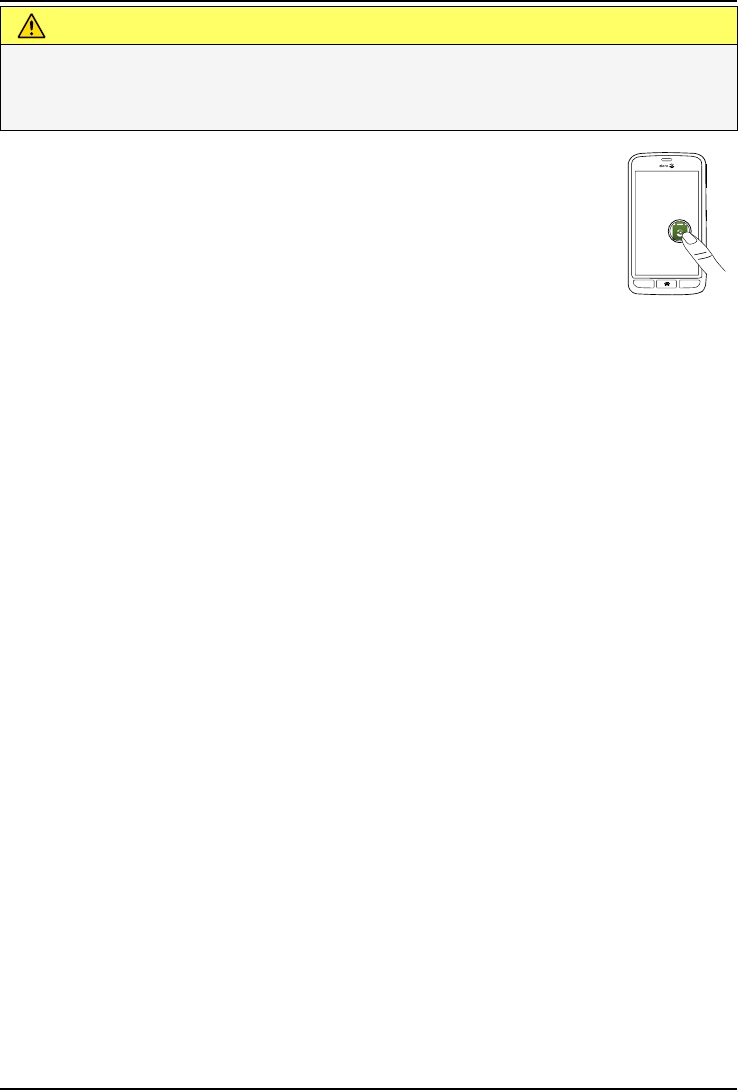
Touch or tap
•Touch or tap an item, such as a button or a program
icon, to select it or to open it. Touch can be used to
select or deselect a relevant tick box in a list of
options.
Double-tap
•Touch the same item twice to zoom in on a map or an
image.
Long press
•Touch and hold an item on the screen. Some actions, such as to
move an icon on the Home screen, begins with a long press.
Select or deselect options
•Select or deselect (tap) relevant boxes or list options.
Drag and drop
•Dragging and dropping is a way of moving something — for exam-
ple, an app on your desktop — from one place to another. To drag,
put your finger on an app and hold down. As you move your finger
across your screen, the app is dragged across the screen, or
across several screens. Place your finger where you want the app
to go and release your finger. The app drops. While dragging and
dropping a helpful little menu, Drag and drop, is shown to confirm
that you are doing it right.
8
English
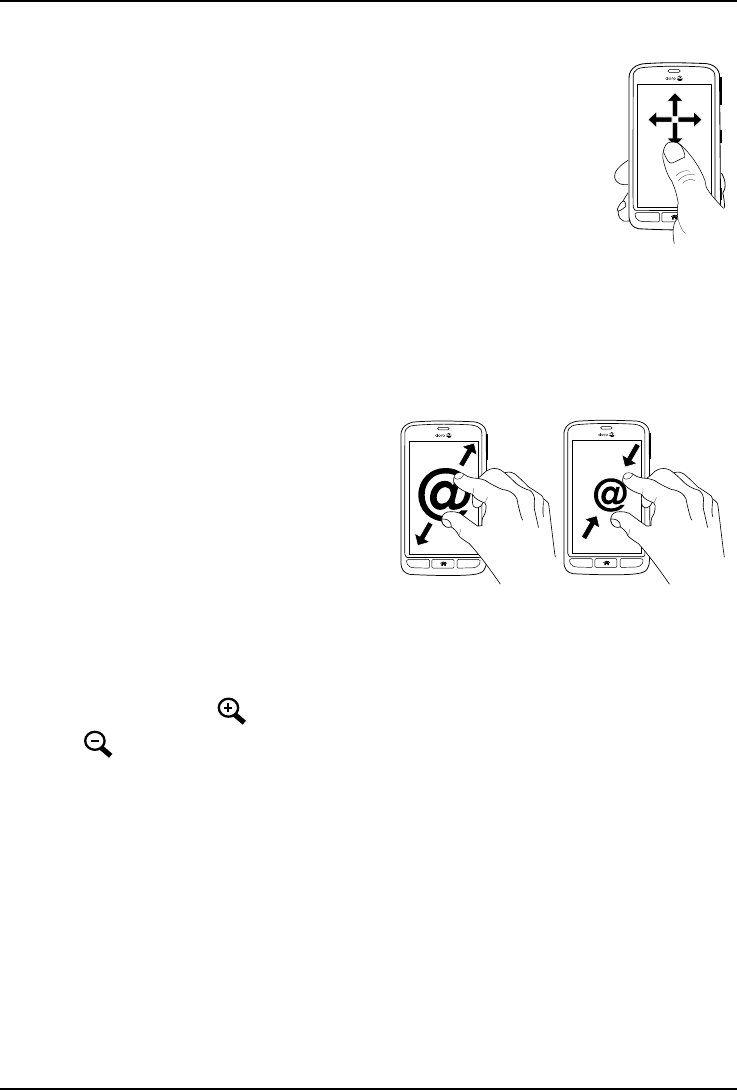
Scroll, Swipe and Flick
•A swipe is when you press your finger to the screen
and drag to the right or left, the screen moves. Swip-
ing to the left on the Home screen, for example,
moves you to the next Home screen. Drag or flick
your finger on the screen in the direction you want to
go. Think of it as using the left- or right-arrow keys on
a computer keyboard.
•Flick means to swipe more quickly on a page, quickly
flick your finger on the screen in the direction you
want to move.
Pinch and spread (zoom)
•To pinch: Place two fingers sep-
arated on the screen and pinch
them together to zoom out of a
map. This function is not always
applicable.
•To spread: Place two fingers to-
gether on the screen and
spread them to zoom in. This
function is not always
applicable.
•If available, tap to zoom in
or to zoom out.
@@
9
English
Sensors
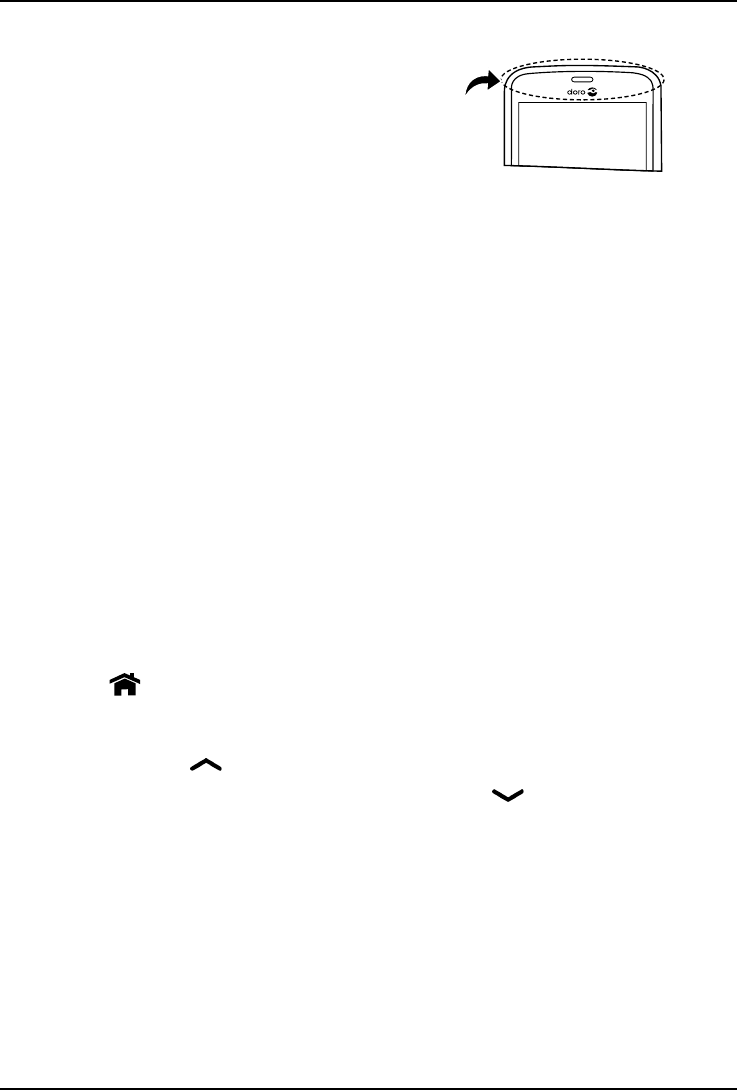
Your device has sensors that detect light and
proximity.
•Light sensor to detect light and adjust
adjust the brightness of the screen, if
set to automatic. See The screen
brightness, p.30.
•Proximity sensor (touch sensor) to de-
tect motions. It can turn the touch
screen off during voice calls when
your ear is close to the screen to pre-
vent unintentionally activating other
functions. See Call settings, p.45
Home screen
The Home screen is your start screen on your Doro Liberto®825, and
here you can collect the apps and your favourite contacts that you use
most often. You can also set your favourite picture as wallpaper. Use the
Google™search bar to quickly find what you are looking for. To add a
shortcut to the Home screen see Add a shortcut, p.29 and to remove
shortcuts see Remove a shortcut, p.30.
Go to the Home screen
•Press .
Access the extended Home screen
1. Tap the arrow at the bottom end of the Home screen.
2. To close the extended screen, tap the arrow again.
Tip: You can also swipe upwards or downwards to open and close the
extended Home screen.
Lock screen
The screen turns off and locks when you are not using the phone. The
lock screen can show time and date as well as notifications like missed
calls or messages.
10
English
Note! Your phone continues to run while it’s sleeping. Mail is received,
social networking updates are made, and so on. Your phone also
continues to play music while the screen is locked.
Activate or unlock the screen
•Briefly press the .
Lock the screen
•Briefly press the !Power button.
Screen lock
The screen lock prevents unwanted actions on the touch screen when
you are not using the phone.
Screen lock settings
You can change the way that you lock the screen to prevent others from
accessing your personal information.
1. To activate the screen lock or change the type of screen lock, tap
Set.
2. Tap A general option My screen lock. Tap to select one of the
following:
•None to unlock, press or the !Power button.No security.
•Swipe (default setting) to unlock you slide up with your fin-
ger. No security.
•Pattern to unlock you trace a pattern with your finger on the
screen. Medium security.
Note! You can trace over the dots in any order, but you can
trace over the same dot only once. The pattern must cover at
least four dots.
•PIN to unlock you type a PIN. A PIN consists of numbers only.
Enter at least four numbers, and then enter the password again
to verify it. Medium to high security.
•Password to unlock you type a password. A password can con-
sists of characters and/or numbers. Enter at least four charac-
ters including numbers and symbols, and then enter the
11
English
password again to verify it. High security. Password must con-
tain at least one letter.
IMPORTANT!
It makes sense to choose a PIN code or a pattern that is easy to
remember, but try to make it difficult enough so that others can’t guess
it. If you activate it, keep the code/pattern in a safe place, since it will
be needed if you need to reset.
Note! The available options may vary depending on the screen lock
method selected.
To use the phone keys
Recents key
•Press to view recently used applications.
1. To close an application, swipe it to the left or right. Or tap the
to close all at once.
2. To open an application, tap it.
Home key
•Press to return to the Home screen.
•Press and hold to launch Google Now. Google Now is an intelli-
gent personal assistant developed by Google, that is available within
the Google search mobile application.
IMPORTANT!
You need an Internet connection and a Google account (see, Sign
in to Google™, p.7) to use this service. It is recommended to use
Wi-Fi connections when available to reduce costs for data traffic.
Contact your service provider for detailed subscription costs
before activating.
To set up Wi-Fi, see Connect to Internet using wireless networks (Wi-Fi),
p.19.
Back key
•Press to return to the previous screen, or to close a dialog box,
menu, or keyboard. Once you are back to the Home screen, you
can’t go back any further.
12
English
Side volume keys
•During a call the volume keys adjusts the call volume.
•From standby the volume keys adjust the ringtone volume.
•To adjust the volume level for music and videos.
Soft keys
Android smart phones like your Doro Liberto®825, as well as most An-
droid applications, feature common icons. Many icons that you see on-
screen are actually buttons on the touchscreen. If you don’t see the text,
images or information that you want, try to touch the screen or to tap an
icon for a pick list or to reach another menu.
To access further options
more options (available in the action bar or in apps).
I want to more options (available in the action bar or in apps).
To enable and disable features and functions
or enabled functions.
or disabled functions.
My applications screen
Application is another word for program or software, a common way to
shorten the term application is App. The application screen contains the
applications that come pre-installed on your Doro Liberto®825 and any
other apps that you choose to install. The applications screen extends be-
yond the regular screen width, so you need to swipe left or right to view
all content. The number tabs at the bottom displays the current screen of
the applications, you can also tap a number tab to select that screen.
Open the application screen
•From the Home screen, tap the shortcut My apps.
•Or from the Home screen, swipe to the right to open My apps.
Close the application screen
•Press or .
13
English
To install applications, see Doro Selection, p.52.
Application screen settings
1. From the Home screen, tap the shortcut My apps.
2. Or from the Home screen, swipe to the right to open My apps.
3. Tap I want to.
4. Tap Open settings:
•Drag and drop switch on to enable drag and drop on long
press. This allows you to touch and hold applications on-screen,
slide your finger to the item'snew location, lift your finger to
drop it in its new place.
•Application sorting to arrange your applications by download
date, to sort them manually (drag and drop) or by your most
used apps.
Quick ways to quiet your phone
You have three options to quiet your phone:
1. Use the side keys +/–to adjust the volume.
2. Drag the slider to adjust the sound level or tap:
•Silent.
•Sleep.
•Sound.
Tip: You can also activate silent mode by pressing and holding the
!Power button and tap to select in the options menu. Tap to
activate vibrate mode.
Notification panel and status bar
Status bar
The status bar, located at the top of your screen, shows signal strength,
ongoing and new applications as well as battery status. Indicator icons
appear when something new happens, like new message or missed call.
14
English
Notification panel
Open the notification panel to view more information about the icons in
the status bar, to view your notifications and manage quick phone set-
tings like Wi-Fi or Aeroplane mode.
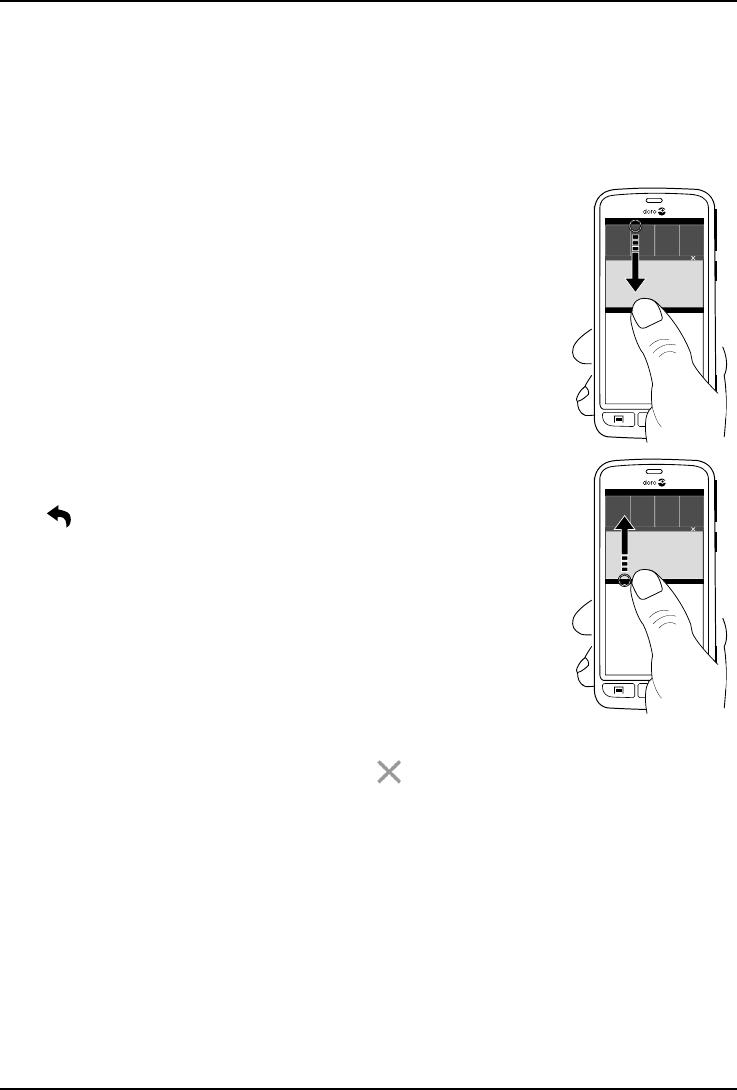
Open and close the notification panel
To open the notification panel,
swipe the status bar downwards.
To close the notification panel,
swipe upwards on the screen. Or
tap .
Clear the notification list
•To clear all the notifications, tap .
•To close one by one, swipe to the left or right.
Use the quick setting buttons
1. To enable or disable features, tap:
•Wi-Fi.
•Mobile Data.
•Bluetooth.
•Aeroplane mode.
•Torch.
15
English
Tip: Use the shortcut in the upper right corner to reach Set.
Notifications on lock screen
All app notifications appear on the lock screen ready for viewing. Not only
that, but you can interact with them as well. Depending on the app in
question you can:
•Swipe to dismiss.
•Tap to reply.
•Double tap to go to the relevant app.
Note! To hide sensitive alerts; swipe the status bar downwards to open
the notification panel and tap A general option Advanced
settings Sound & notification When device is locked.
Enter text
You can enter text, numbers and other characters using the on-screen
keyboard. Your phone is preloaded with the Doro keyboard. Select a text
field to open the on-screen keyboard. You can also adjust your on-screen
keyboard in various ways eg select a theme to improve readability.
Activate keyboard
•Tap a text field.
Select Voice input or Classic keyboard
•Tap Voice input or Classic keyboard to select how to enter your text.
Hide the keyboard
•Tap the icon or press .
Special characters and numerals
1. Tap ?123 for more characters.
2. Select the desired character or select =\< to view additional
characters.
3. To return, select ABC.
Move the cursor within text
•Tap somewhere in the text to get the marker. Put your finger on the
marker to move the cursor within the text. As you move your fin-
ger, the marker is dragged over the text. Place your finger where you
want the marker to go and release your finger. The marker drops.
16
English
Switch between upper case and lower case letters
The Shift-key is found to the lower left of your keyboard. Capitalisation is
activated when you start entering text. Capitalisation means writing a
word with its first letter in uppercase and the remaining letters in
lowercase.
Note! Double tap Spacebar to make a full stop followed by a space.
•Tap Shift key twice to type ALL CAPS.
•Tap to type only lower case letters.
•to type with capitalisation.
Smileys
1. Tap for a list of smileys.
2. Select the desired smiley.
3. To return, select ABC.
Enter text with word predictions
Start entering text and the dictionary suggests words based on the keys
you have selected. Predictive text is enabled by default. When you’re
done typing something, you can go back and tap a misspelled or mistak-
enly autocorrected word. Tap the misspelled or mistakenly autocorrected
word to select other possible auto corrections. This is the easiest way to
fix mistakes — if you don’t find the word you wanted, use the Backspace
key to erase and type a new word.
Enter text
1. Start to type a word, your keyboard may provide predictions as you
type. You can tap a predicted word below the entered text to auto-
matically complete it.
2. Tap the Spacebar to keep the word you typed and continue with the
next word.
Cut, copy, select all and paste
Cut,Copy,Select all, and Paste are features available inside
an email, text message/box, or basically anywhere.
17
English
Note! Long pressing on any action bar icon will help to identify them by
popping up a text bar describing the action.
1. Touch and hold the text you want to copy.
2. The selected text is highlighted . Move the marker on either
end to increase or decrease the highlighted area.
3. When the highlighted area is the size you want, select Copy or
Cut.
4. Touch and hold where you want to paste. The text box Paste will be
displayed. Press the text box to paste the text.
Tip: While you're in the middle of writing a message you can change the
keyboard also from the quick settings in the Notification panel. To open
the Notification panel, swipe the status bar downwards.
Select keyboard and personalise your keyboard
You can select to personalise your keyboard, depending on the selected
keyboard.
1. From the Home screen, tap Set.
2. Tap A general option The keyboard options.
3. Tap Choose a keyboard.
4. Tap wanted keyboard.
5. After you've done that, tap More options to make further personali-
sations to your keyboard.
6. When done, tap .
Tip: When entering text, open the Notification panel by swiping your
finger from the top of the screen to the bottom, and press Change
keyboard. Or, from the The keyboard options menu, set the default
keyboard by pressing Change keyboard.
Capture a screenshot
It's easy and often useful to get a snapshot of your phone’s screen, a
screenshot. To view the screenshot, see Handle pictures in the Gallery,
p.58.
18
English
Take a screenshot
1. Find the screen you want to get a snapshot of.
2. Simultaneously press and hold the !Power button and the volume
minus key .
Connect to the Internet
Your smartphone Doro Liberto®825 is just like any other mobile phone -
you can make calls and send texts. But you can also access the internet,
send and receive emails, install apps and games, and check your social
networking sites, like Facebook and Twitter, for this you need to be con-
nected to Internet.
Connect to Internet using wireless networks (Wi-Fi)
Use Wi-Fi to connect your phone to the Internet instead of the mobile net-
work. You may already have Wi-Fi in your home and it's often available at
workplaces. Take advantage of free networks in coffee shops, hotels,
trains and libraries. Connecting to the Internet with Wi-Fi doesn’t incur
additional data traffic costs, unless you have to pay to get on the wireless
network.
1. From the Home screen, tap Set My Internet connection
Wi-Fi.
2. Switch to enable. Available networks are displayed in a list. The
networks can be open or secured ( ).
3. Select a network and tap Connect. If secured, enter the
password.
For more information, contact the relevant network administrator.
4. Connected network is highlighted with Connected.
Tip: is shown in the status bar when connected.
You can easily turn on and off Wi-Fi from the quick settings in the
notification panel. To open the notification panel, swipe the status bar
downwards.
Note! Keep in mind that your phone remembers Wi-Fi networks you
connect to. If Wi-Fi is turned on, the phone automatically connects to the
network next time you are within reach. Some open networks require you
to log in to a webpage before gaining access to the network.
19
English
Connect to Internet using mobile data
Use Mobile data to connect your phone to a network provider with a data
traffic plan. What that means is that your phone can connect to the Inter-
net anytime it is in range of your operators mobile network a service you
pay for through a monthly data traffic plan. And there may be a limit to
the amount of data you can use per month. You can limit your data usage
by turning off mobile data. You'll then not be able to access the internet
using the mobile network. You can still use Wi-Fi even though mobile data
is turned off.
1. From the Home screen, tap Set My Internet connection
My Mobile data settings.
2. Switch to enable.
3. When done, tap .
Note! You can easily turn on and off Mobile Data from the quick settings
in the notification panel. To open the notification panel, swipe the status
bar downwards.
Tip: Contact your service provider for detailed subscription costs before
activating.
Network services and costs
Your device is approved for use on the 4G LTE FDD 3 (1800), 7 (2600), 8
(900), 20 (800) MHz / WCDMA 1 (2100), 2 (1900), 5 (850), 8 (900) MHz
/ GSM 850, 900, 1800, 1900 MHz networks. To use the device, you
need a subscription with a service provider.
Using network services may result in traffic costs. Some product features
require support from the network, and you may need to subscribe to
them.
Some operations and features are SIM card and/or network dependent
or dependent on the compatibility of devices and the content formats
supported. Some services are subject to a separate charge.
Data roaming On or Off
When you travel with your device and you are switched from your own net-
work operator's network to another, it’s called roaming. The roaming
state allows you to be reachable and you can make or receive phone calls
20
English
regardless of where you are, but it almost always involves a surcharge for
using another operators network. If you need to access the Internet or
other data services using mobile data traffic, then you need to activate
data roaming. To limit your data usage when abroad roaming is Off as
default.
Tip: is shown in the status bar when roaming.
Your phone can still access the Internet over the Wi-Fi connection even if
you disable roaming.
Note! Using data services while roaming can be costly. Contact your
service provider for data roaming rates before you use data roaming.
Turn Data roaming On or Off
1. From the Home screen, tap Set My Internet connection
My Mobile data settings More… .
2. Use the Data roaming switch to enable/disable and confirm
with OK.
3. When done, tap .
Battery
Increase the charging speed
1. To increase the charging speed, turn the device or its screen off
when you charge the battery. Press the !Power button to view
charging status.
2. The device can be used during charging, but it may take longer to
fully charge the battery.
3. If the device heats up or the ambient air temperature rises, the
charging speed may automatically decrease. This is a normal operat-
ing condition to prevent damage to the device.
Battery saver mode
Once activated, the battery saver mode, helps to increase battery life.
The battery saver is designed to start functioning when the battery level
of your phone reaches a certain level. To save battery many features are
slowed down, such as: background syncing, vibrations (vibrate on touch
will be lost), email and/or message processes and more.
21
English
1. From the Home screen, tap Set A general option
Advanced settings Battery Battery saver.
2. Switch to enable. When you flip the switch you'll see that the
colour of the switch changes and your status bar at the top of the
screen turns orange. This lets you know instantly that the mode is
enabled (but not necessarily engaged).
3. To automatically activate power saving mode when the remaining
battery power reaches the preset level, tap Turn on automatically
and select an option.
Note! The battery saver feature will turn off automatically when you
charge your device.
Reduce battery consumption
Here are some tips on how you may extend the phone’s battery power by
reducing battery consumption.
•Charge your phone often, preferably every day. Charging does not af-
fect the lifetime of the battery.
•When not downloading data from the Internet, which is power con-
suming, disable data connections over mobile networks. Data is still
transmitted over Wi-Fi.
•Turn off Wi-Fi when not in use. Use the notification panel to disable
the features.
•Turn off Bluetooth when not in use. Use the notification panel to dis-
able the features.
•Deactivate auto-syncing of apps and synchronise your applications
manually, like your email, calendar and contacts.
•Use the Battery status menu in your device to see which applica-
tions use the most power.
•Decrease the screen brightness, see The screen brightness, p.30.
•When in areas with no network coverage, turn off your device or acti-
vate the Aeroplane mode. The device repeatedly scans for available
networks which consumes power. See Aeroplane mode, p.34.
•The GPS is also quite battery consuming. If you want to stop apps re-
porting on your location automatically, make sure that Location re-
porting is off, see How to disable GPS location services, p.73.
22
English
•Use Doro original handsfree devices to listen to music. Handsfree
devices consume less battery than your device's own loudspeakers.
•Lock the screen when not in use, press the !Power button and
your display goes to sleep. See Lock screen, p.10.
Navigate your phone
Select on-screen actions
Doro's unique telephone menu is action-based and allows you to navigate
your phone, by just asking yourself, What do I want to do?
For example, send an email to a contact that is available in your contact
book.
1. Tap the Send button. You are asked, What? and responds by tapping
An email.
2. You are asked To whom? and responds by tapping A contact.
3. Tap to select a contact.
4. Enter subject.
5. Tap just above Sent from my Doro to compose your email.
6. If desired, tap I want to to access more options:
7. When done, tap Send.
Call
To call someone.
A number to enter a phone number, see Calls, p.43.
A contact to make a call from your contact book. For more info see
Calls, p.43 or Contacts, p.47.
A recent contact to call from the call log, see Call log, p.45
My voicemail to call your voicemail, see Call settings, p.45.
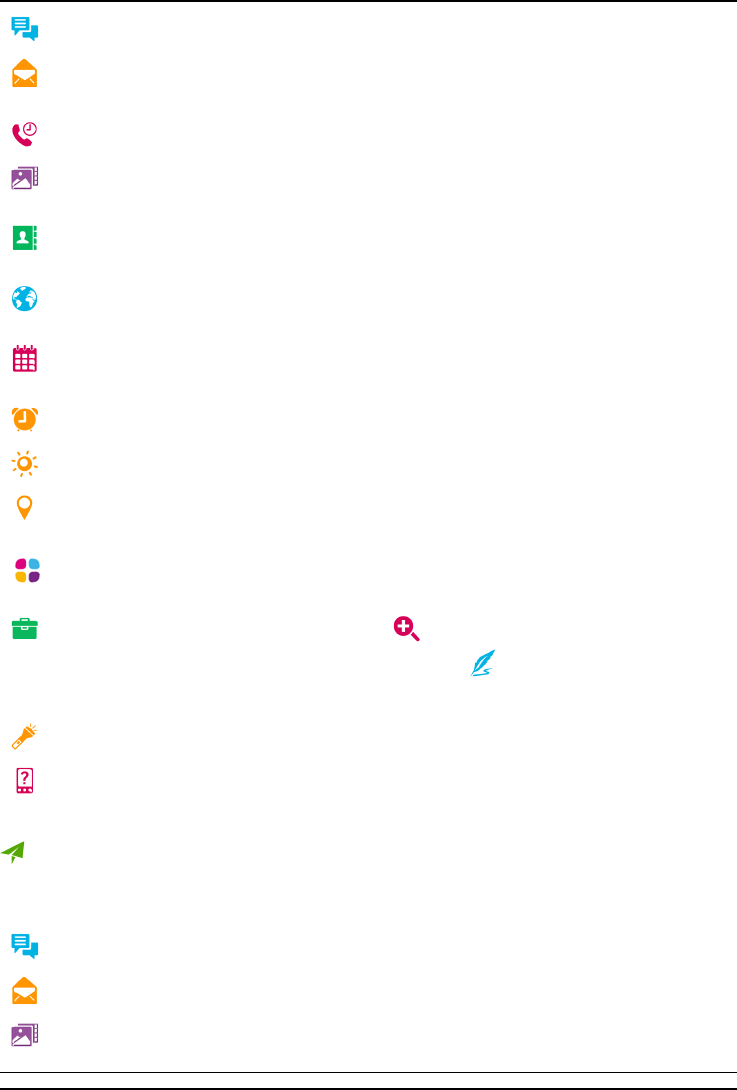
View
To reach many of the most frequently used apps.
23
English
Messages to view messages.
My emails to view emails, create or add an email account, see
Email, p.54
My call history to view call logs, see Call log, p.45
My pictures and videos to view stored images and videos, see Han-
dle pictures in the Gallery, p.58
My contacts to see and handle your ICE card (In Case of Emer-
gency), see Contacts, p.47
Something on the Internet to search the Internet, see Internet (Web
browser), p.65
My calendar to see the calendar and your events, see Calendar,
p.68
My alarms to view your alarms or add a new one, see Alarm, p.68.
The weather forecast, see My widgets, p.30
My location to go to Google maps and find your location, search for
addresses, find your way and more.
My applications to reach your apps, see My applications screen,
p.13
My tools to reach your tool apps. The magnifier to magnify text
and small parts etc, see Magnifier, p.66. My notes ,see My notes,
p.69
In the dark to switch on and off, see Torch, p.69
My phone information to view information and data about your
phone.
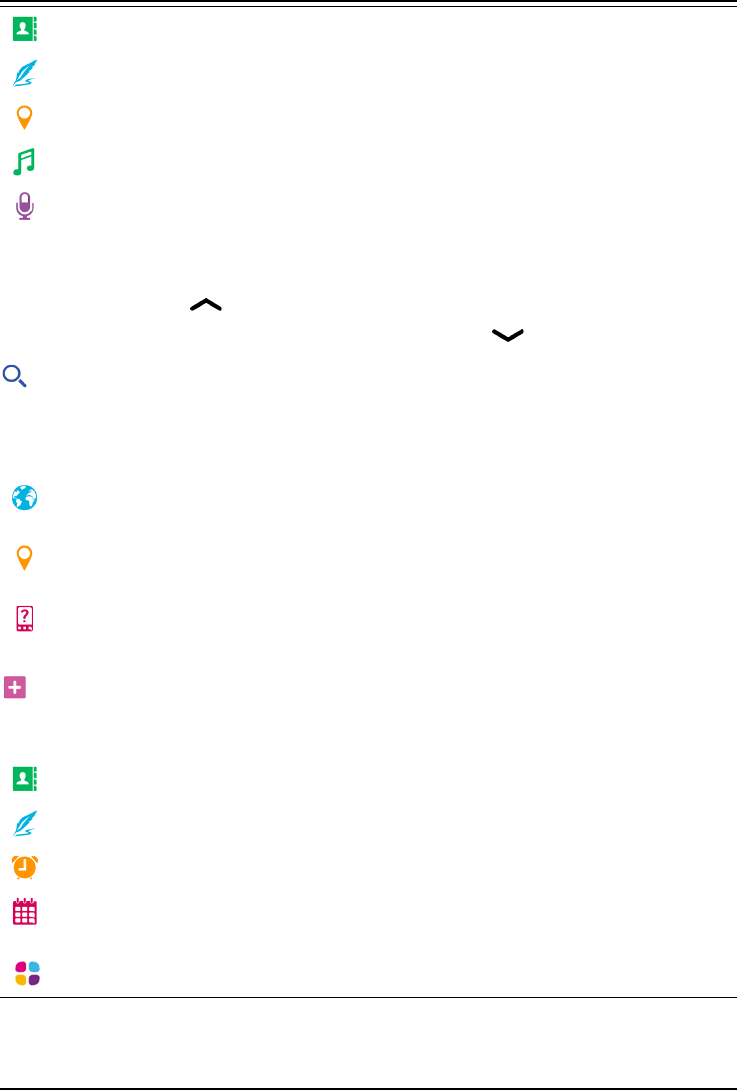
Send
To send and share messages, email, pictures and more from your phone.
A message see Write messages, p.53
An email , see Write emails, p.55
A picture or video to send a picture or video. To view stored images
and videos, see Handle pictures in the Gallery, p.58
24
English
A contact card to send a contact card.
A note, see My notes, p.69.
My location to send your present location.
A music file to send a music file.
A recorded sound to record and send a recorded sound, see Listen
to a recorded sound, p.70.
To access the extended Home screen
1. Tap the arrow at the bottom end of the Home screen.
2. To close the extended screen, tap the arrow again.
Search
To find information on the Internet, your way to a place or find out what
music you are listening to.
Something on the Internet to search the Internet, see Internet (Web
browser), p.65.
Directions, an address, a place to find an address, a place or your
way from your current position.
Something in my phone to search your phone for files, images or
contacts and more.
Add
To add new contacts, notes, alarms, events etc.
A contact to create a new contact, see Add new contact, p.47.
A note to write a note, see My notes, p.69.
An alarm to set alarms or reminders, seeAlarm, p.68.
An event to book an event and get a reminder at the start time, see-
Calendar, p.68.
An application to add new applications, see Doro Selection, p.52.
25
English
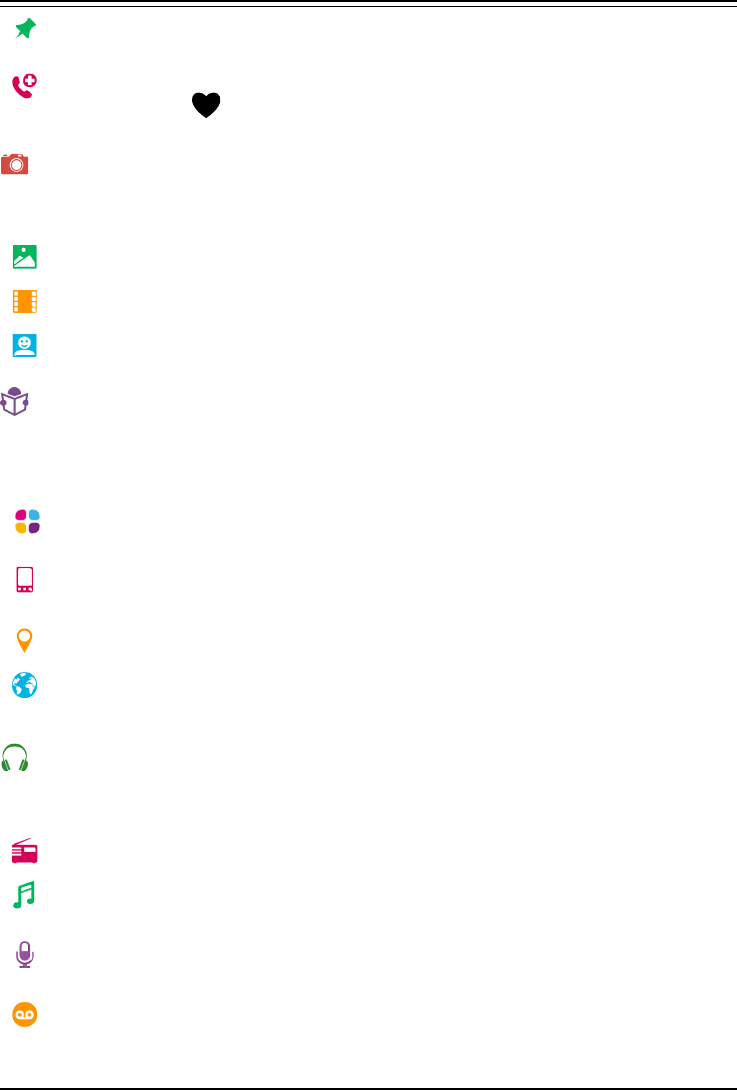
My home screen shortcuts to select the shortcuts you want access
to from the Home screen.
My information in case of emergency (ICE), see ICE (In Case of
Emergency) , p.51.
Snap
Document an event with a picture, video or sound.
A photo to take photos, see Camera, p.55.
A video to record a video, see Camera, p.55.
A selfie to take a picture of yourself; see Take a selfie, p.56.
Discover
To discover apps, your phone, places near you or something on the
Internet.
New applications to view your apps and add new ones, see Doro Se-
lection, p.52.
My phone to find learn more about the basic functions of your
phone, see Beginners guide - Discover your phone, p.52.
Around me to find useful facilities nearby your current position.
Something on the Internet to search the Internet, see Internet (Web
browser), p.65.
Listen
To listen to the radio, your music or to your voicemail messages.
To the radio to listen to the FM-radio, see Listen to the radio, p.67.
To my music to search and listen to your downloaded music, see
Music, p.67.
To a recorded sound to search and listen to your recorded sounds,
see Listen to a recorded sound, p.70.
Voicemail messages to listen to the message(s) you use in the voi-
cemail and to the voicemail you have received, see Call settings,
p.45.
26
English
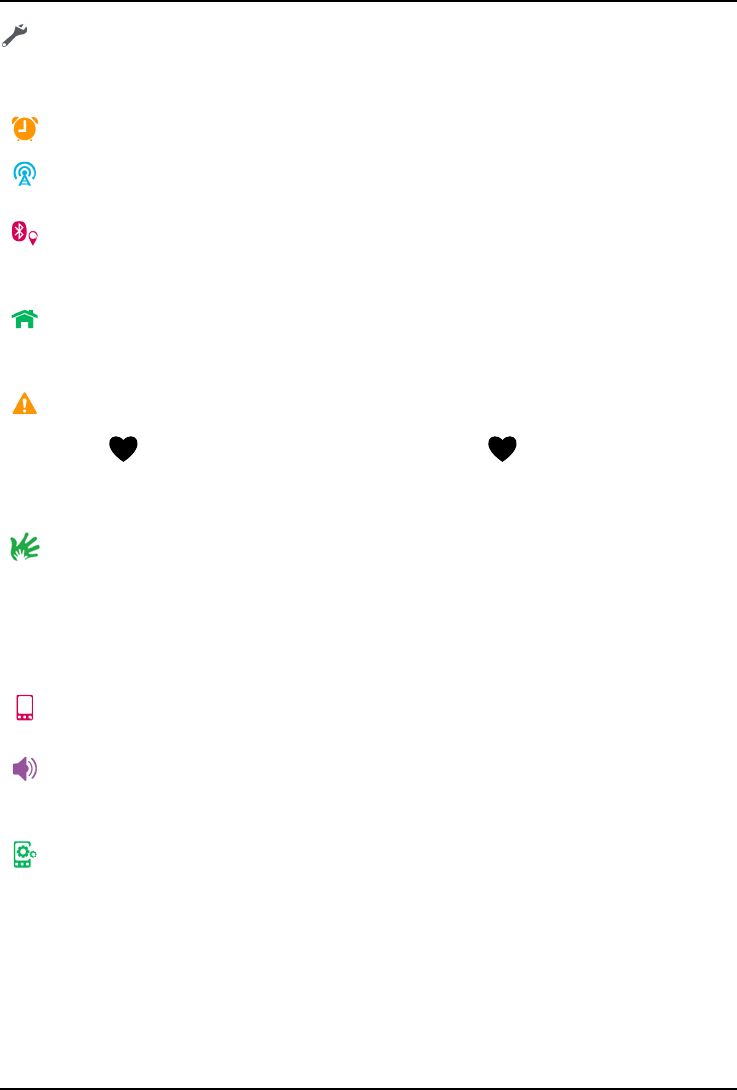
Set
To manage the settings of your phone.
My alarms to set an alarm, see Alarm, p.68.
My Internet connection to activate and set up your Internet connec-
tion, see Connect to the Internet, p.19.
My other connections to activate and set your connection with The
Bluetooth connection or The geolocation options, see The Bluetooth
connection®, p.33 or Location based services, p.72.
My home screen to personalise the Home screen with your own wall-
paper and shortcuts, see My wallpaper, p.29 and Home screen
shortcuts, p.29.
An assistance option to set your assistance button and manage your
ICE information (In Case of Emergency) card, see My assistance but-
ton , p.49 or ICE (In Case of Emergency) , p.51. You can also
start remote help from this menu when needed, see My phone infor-
mation, p.36.
My Doro Manager is a convenient web service that makes owning a
Doro phone even easier. The Doro phone owner and his relatives
can just log into the website and easily manage the phone’s settings
and content from anywhere. It’s also a great way to transfer data to
a new phone, or enable trusted relatives or friends to assist wher-
ever they are. See My Doro Manager, p.63.
A display option to change the font size , contrast, screen bright-
ness, colors and audio setup for voice calls (hearing aid).
An audio option to set the ringtone, the volume and to manage
phone audio settings. You can configure the audio settings with your
hearing aid, see My audio setup for voice calls, p.32.
A general option to set screen’s brightness, sounds volume and vi-
bration on/off, Haptic feedback (vibration on/off when you press the
screen), storing in the phone or on the memory card, the phone’s
language, date and time, and the more advanced Android settings.
27
English
Phone settings
Where to find the settings
To reach the most common settings for your phone
1. From the Home screen, tap Set.
To reach the advanced settings for your phone
1. Swipe the status bar downwards, to open the Notification panel.
2. Tap in the upper right corner.
3. Tap A general option Advanced settings.
The date and time
Your phone should already be set to the correct time, date, time format
and time zone, these are provided by your network operator. If not, you
can set it yourself. Do as follows to reach the settings:
1. From the Home screen, tap Set A general option.
2. Tap The date and time.
•Auto time to automatically update the time, date and time zone.
Auto time is enabled by default.
Note! Switch to disable and manually set time, date and
time zone.
•Set time format to select 24-hour format or 12-hour format.
3. When done, tap .
The haptic feedback
When the haptic feedback is activated the device will vibrate with the
sound when playing music and it will also vibrate when buttons are tap-
ped in supported apps.
1. From the Home screen, tap Set A general option The
haptic feedback.
•To disable switch . Confirm with .
28
English
The screen timeout
You can set the length of time the device waits before turning off the dis-
play backlight.
1. From the Home screen, tap Set A general option My
screen lock. Tap to select one of the time intervals.
2. Confirm with .
My wallpaper
Wallpaper is the background on the Home screen and on the Lock
screen. You can change the wallpaper image into any image, such as a
picture you've taken or pre-loaded images.
1. From the Home screen, tap Set My home screen.
2. Tap My wallpaper.
3. Tap Change.
4. Tap Gallery,Live wallpaper or Doro wallpaper.
5. Tap an image to select it and confirm with .
Note! You can also reset to the default wallpaper, to reset tap Reset.
Home screen shortcuts
What is a shortcut? A shortcut can be a fast track to a contact or an
application.
Add a shortcut from the Home screen
1. You can add or remove a shortcut directly from the Home screen,
tap .
2. Tap once again.
3. Select an item to add as shortcut from the pick list.
4. Confirm with .
Add a shortcut
1. From the Home screen, tap Set My home screen.
2. Tap My shortcuts.
3. Tap to add and tap to select e.g. Pin a contact from the pick list.
Confirm with .
29
English
Note! You need to remove a shortcut before you can replace it.
Remove a shortcut
1. From the Home screen, tap Set My home screen.
2. Tap My shortcuts.
3. Tap to select a shortcut and confirm with .
My widgets
Widgets are small apps that launch specific functions to provide informa-
tion and convenient access. Turn on weather forecasts for your location,
add one or more locations.
Disable Google search bar
•To disable switch .
Weather forecast display
1. Tap My widgets.
2. Tap Today to select from the pick list. Confirm with .
Disable clock
•To disable switch . Confirm with .
The text size
1. From the Home screen, tap Set A display option.
2. Tap Normal and tap to select an option in the pick list.
3. When done, tap .
The screen brightness
You can adjust the brightness of the screen. The default setting is Auto-
matic and to save battery, we recommend you to keep this setting.
1. From the Home screen, tap Set A display option.
2. Switch to disable.
3. Drag the slider to adjust the screen brightness manually. The higher
value the brighter the screen.
4. When done, tap .
30
English
The text contrast
To increase the contrast of some text and images on the screen and
make objects clearer and easier to identify.
1. From the Home screen, tap Set A display option.
2. Switch to enable. Confirm with .
The color inversion
1. From the Home screen, tap Set A display option.
2. To switch to white text on dark background. When done, tap .
Note! All colours on your screen are inverted and you may get some
pretty odd colour combinations.
The color correction
1. From the Home screen, tap Set A display option.
2. To switch colour mode for persons with colour vision deficiency to
see things more clearly. Tap to select:
•Disabled
•Monochromacy
•Inverted deuteranomaly
•Deuteranomaly (red-green)
•Inverted protanomaly
•Protanomaly (red-green)
•Inverted tritanomaly
•Tritanomaly (blue-yellow)
When done, tap .
Improve accessibility further
Improve accessibility further with features that make the device easier to
use for users who have impaired vision, hearing, and reduced dexterity.
1. From the Home screen, tap Set A general option
Advanced settings Accessibility.
The volume
Adjust settings for various sounds on your device.
31
English
1. From the Home screen, tap Set
An audio option The volume.
2. Drag the slider to adjust the volume (or press the minus or plus
icon).
•Ringtone and notifications.
•Music, videos and games.
•Alarms.
•Also vibrate for calls.
3. When done, tap .
Tip: You can also press the volume keys to adjust the volume. During a
call the volume keys adjusts the call volume and from standby they
adjust the ringtone volume.
My ringtone
Adjust settings for various sounds on your device.
1. From the Home screen, tap Set An audio option My
ringtone.
Tip: Tap to play and tap to stop listening.
•Ringtone and tap to select an option in the pick list. Confirm
with .
•Message & Notification tone tap to select an option in the pick
list.
•Recurrent notification tone switch to enable.
•Power ON/OFF tone switch to enable.
•Charging tone switch to enable.
2. When done, tap to confirm.
Tip: You can also press the volume keys on the side of the phone to
adjust the volume.
My audio setup for voice calls
If you use a hearing aid or have hearing difficulties when using the tele-
phone in a noisy environment, you can customise the phones audio
settings.
32
English
1. From the Home screen, tap Set An audio option My
audio setup for voice calls.
2. Tap Normal to select:
•Normal for normal hearing in normal conditions.
•High for moderate hearing impairment or use in noisy
environment.
•HAC mode for use with hearing aid.
3. When done, tap .
Hearing aid compatible (HAC)
This telephone is hearing aid compatible. Hearing aid compatibility is not
a guarantee that a specific hearing aid will work with a specific telephone.
Mobile telephones contain radio transmitters that may interfere with
hearing aid performance. This phone has been tested for use with hear-
ing aids, for some of the wireless technologies that it uses, but there may
be some newer wireless technologies that have not been tested yet for
use with hearing aids. To ensure that a specific hearing aid works well
with this telephone, test them together before making a purchase.
The standard for hearing aid compatibility contains two types of ratings:
•M: To use your hearing aid in this mode, make sure that your hearing
aid is set to M-mode or acoustic coupling mode, and position the tel-
ephone's receiver near the hearing aid’s built-in microphone. For the
best results, try using the telephone in different positions relative to
your hearing aid—for example, placing the receiver slightly above the
ear may result in better performance for hearing aids with micro-
phones positioned behind the ear.
•T: To use your hearing aid in this mode, make sure that your hearing
aid is set to T-mode or telecoil coupling mode (not all hearing aids
have this mode). For the best results, try using the telephone in dif-
ferent positions relative to your hearing aid—for example, placing the
receiver slightly below or in front of the ear may result in better
performance.
The Bluetooth connection®
You can connect wirelessly to other Bluetooth®compatible devices such
as headsets or other phones.
33
English
Note! Bluetooth can use a lot of battery power. Don’t forget to turn off
when not using.
Pair with other Bluetooth devices
1. From the Home screen, tap Set My other connections
The Bluetooth connection.
2. Switch to enable.
3. Tap to select the unit that you want to connect to.
Note! If you can’t spot the unit that you want to connect with, tap
Refresh, to refresh the list. Or you can request to make the device
visible to others, a selection you make on the other unit. Refer to the
other device’s user manual.
4. You may be asked to input a password or to press a button. If promp-
ted, input the password or otherwise acknowledge the connection
on your phone or the other device.
5. After you acknowledge the password (or not), the units are con-
nected and communicating. You can begin using the device.
6. Tap I want to to view available options.
Note! Because the devices are now paired, when you turn on Bluetooth
on your device and the other device is on, the connection reestablishes
and they'll stay paired until you unpair them.
Unpair devices
1. From the Home screen, tap Set My other connections
The Bluetooth connection.
2. The paired devices are listed.
3. Tap next to the device name that you want to unpair.
4. Tap FORGET.
Note! To disconnect you can turn off the other unit or disable Bluetooth
on that device.
Aeroplane mode
In Aeroplane mode you can’t make or receive calls, surf the web or down-
load emails, or do anything that requires an Internet connection, this is
to prevent disturbance to sensitive equipment. You can still play games,
34
English
listen to music, watch videos and other content, as long as all this con-
tent is saved on your memory card or internal storage.
When you take your phone abroad, you can keep it in flight mode. If you
do that, there’s no chance of data roaming charges, and you can still en-
able Wi-Fi. Enable Aeroplane mode when in areas with no network cover-
age to save battery since the phone repeatedly scans for available
networks and this consumes power. You can be notified by alarms, if
alarms are activated.
1. From the Home screen, tap Set A general option
Advanced settings.
2. Tap More.
3. Switch to enable.
Tip: To enable you can also press and hold the !Power button and then
select Aeroplane mode in the menu that opens. You can also enable
flight mode from the quick settings in the Notification panel.
Tip: is shown in the status bar when enabled.
You can easily turn on and off Aeroplane mode from the quick settings in
the notification panel. To open the notification panel, swipe the status
bar downwards.
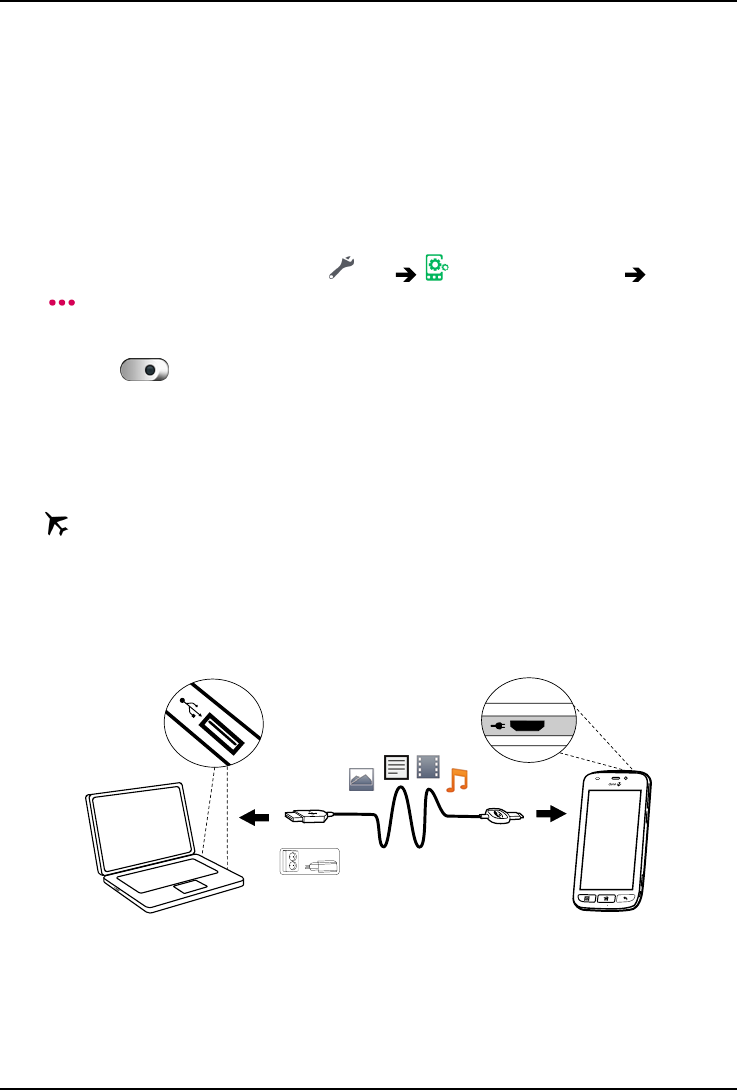
Connect the phone to a computer
Connect the phone to a computer and start transferring pictures, music
and other file types. All you have to do is connect a USB cable between
the phone and computer. From your computer's file explorer, you can
drag and drop content between your phone and the computer.
35

English
Note! You might not be able to transfer some copyright-protected
material.
Tip: If default storage location is set to memory card, all photos and
videos taken by the phone are stored in the DCIM/Camera folder on the
memory card.
Drag and drop content between phone and a computer
1. Connect your phone to a computer using a USB cable.
Note! You might need to wait for the driver to be installed on your
computer before you can access the phone.
Mac users, see https://www.android.com/filetransfer/.
2. You are prompted, on the computer screen, to choose what to do
when you connect your phone to a computer.
3. Select to open the device and view files in the computers file
explorer.
4. Wait until the phone/memory card appears as external disks in the
computers file explorer.
5. Drag and drop selected files between the phone and the computer.
6. If necessary, also use the Safe to remove hardware function on your
computer.
7. When done, remove the USB cable.
Tip: You can select different connection modes for you phone when
connecting to a computer. Swipe down the status bar and select
Connected as a media device.
Note! When the phone/memory card is mounted to the computer, the
phone cannot access the memory card. Some functionality and
applications in the phone, such as the camera, may not be accessible.
You can transfer files by using a USB cable on most devices and
operating systems supporting a USB Mass Storage interface.
My phone information
To access device information such as the current software version, bat-
tery status or to update device software.
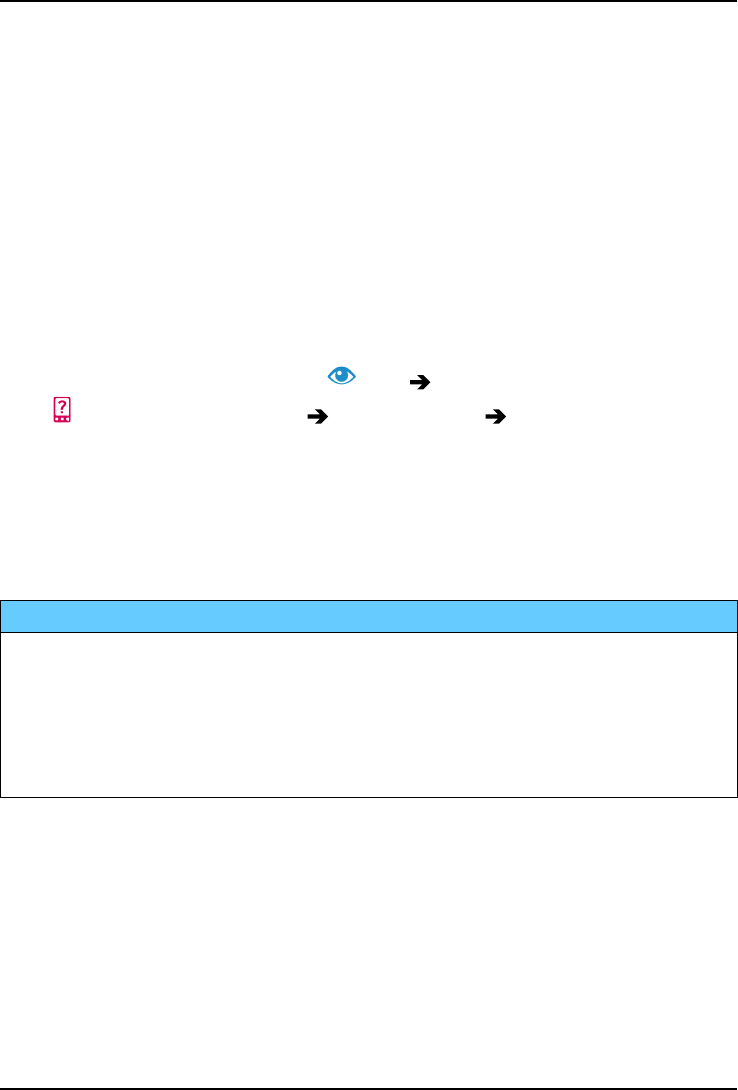
1. From the Home screen, tap View My phone information.
36
English
•Battery info access information and statistics about battery sta-
tus and battery usage history.
•Storage check the status of the used and available memory.
•Phone status to check system and software versions and more.
•Device update to check for available software updates.
•Legal information to see terms and conditions and other legal
information.
Updating your device
When your device is connected to a Wi-Fi network it's directly updated to
the latest software by the firmware over-the-air (FOTA) service.
To allow your device to update when connected to the Mobile network
1. From the Home screen, tap View
My phone information Device update Always download.
To update device software you need to be connected to the Internet. It is
recommended to use Wi-Fi connections when available to reduce costs
for data traffic, but you can also update over the mobile data network. If
needed contact your service provider for detailed subscription costs be-
fore starting to update you device.
IMPORTANT!
We recommend that you always update your device to the latest
software version to get optimal performance and the latest
enhancements. When a new software is available, a notification
message is shown in the status bar, or as a notification. Select it to
start downloading. The download time may vary depending on Internet
connection.
Note! During the installation, your phone will be temporarily out of
service, even for emergency calls. All contacts, photos, settings, etc. will
remain safely stored in the phone. Do not interrupt the installation.
Backup
It's a good idea to backup your phone on a regular basis. Don't wait back-
ing up your phone until it's too late. There’s no universal method to back
up the information on your Android phone. Here we will mention some
ways to help you keep your information. We recommend that you
37
English
regularly copy your photos from the phone's internal storage to your com-
puter as a form of backup, see Connect the phone to a computer, p.35.
These files are found in the DCIM folder on your phone. DCIM stands for
Digital Camera IMages and it is the default directory structure for digital
cameras and for smartphone cameras.
Your Google account information is set to back up automatically. Follow
below settings to make sure your contacts, system settings, apps, calen-
dar, and email will be restored whenever you set up a new device with
that same Gmail account.
Backup with Google
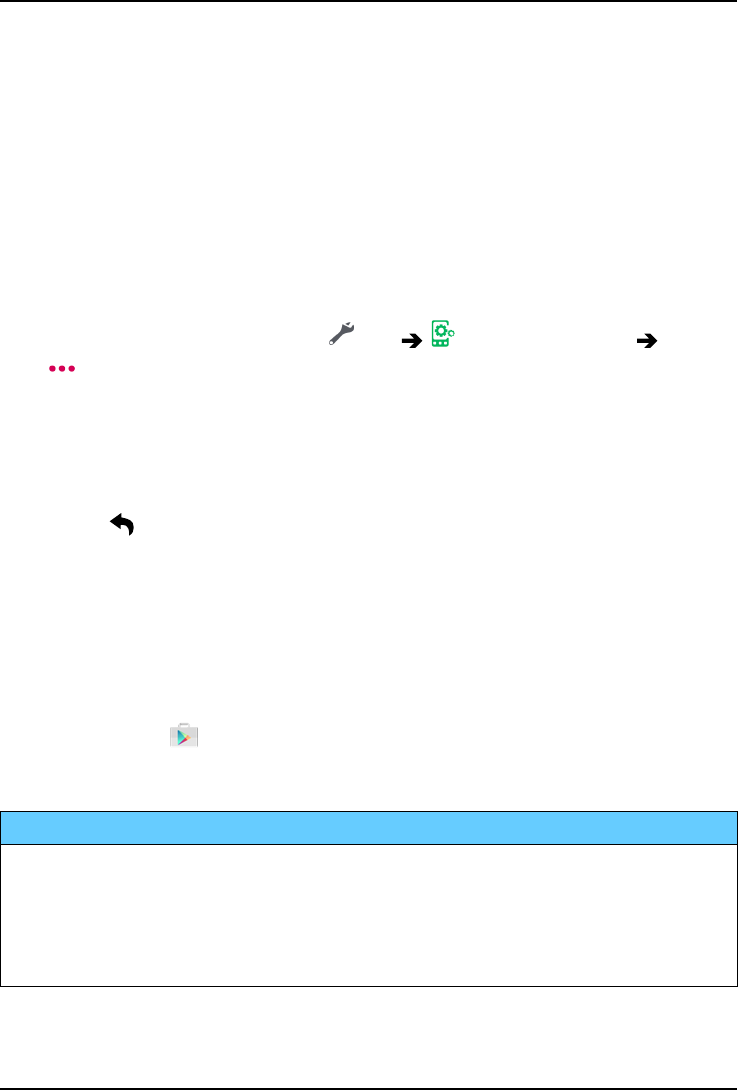
1. From the Home screen, tap Set A general option
Advanced settings.
2. Scroll to and select Accounts and select Google™.
3. Tap the green synchronisation icon next to your Gmail address.
4. Make sure that every wanted item in the list is activated. Each item
needs to be activated if you want it to be backed up.
5. Press three times to save and return to Advanced settings.
6. Select Backup & reset.
7. Make sure that Back up my data is switched on.
To immediately do a backup, tap Backup account.
There are many apps that allow you to backup your photos, applications
and much more. Some apps even offer cloud storage that allows mobile
uploading, and others that allow you to restore your data should you need
to. Try searching Play Store, see Google™Play Store, p.42
Reset the phone
IMPORTANT!
Resetting the phone means that most information will be lost such as
downloaded and installed applications, accounts, system and
application data and settings. Be sure to backup any data and files you
want to keep before you perform the reset. A backup is a safety copy of
information. Carefully read all the text below before you start.
The reason to perform a reset might be a persistent problem that is im-
possible to solve or if you want to pass the phone to someone else.
38
English
Note that everything added to the phone since you got it will be erased.
Exceptions
•Everything saved on an SD card if you have one installed (see Insert
the memory card, p.4 and External memory, p.40).
•Applications and data by Google™— if the box by Back up my data is
checked, see Backup, p.37.
•Information you have stored in any cloud storages (or on a computer,
see Connect the phone to a computer, p.35).
Reset the phone
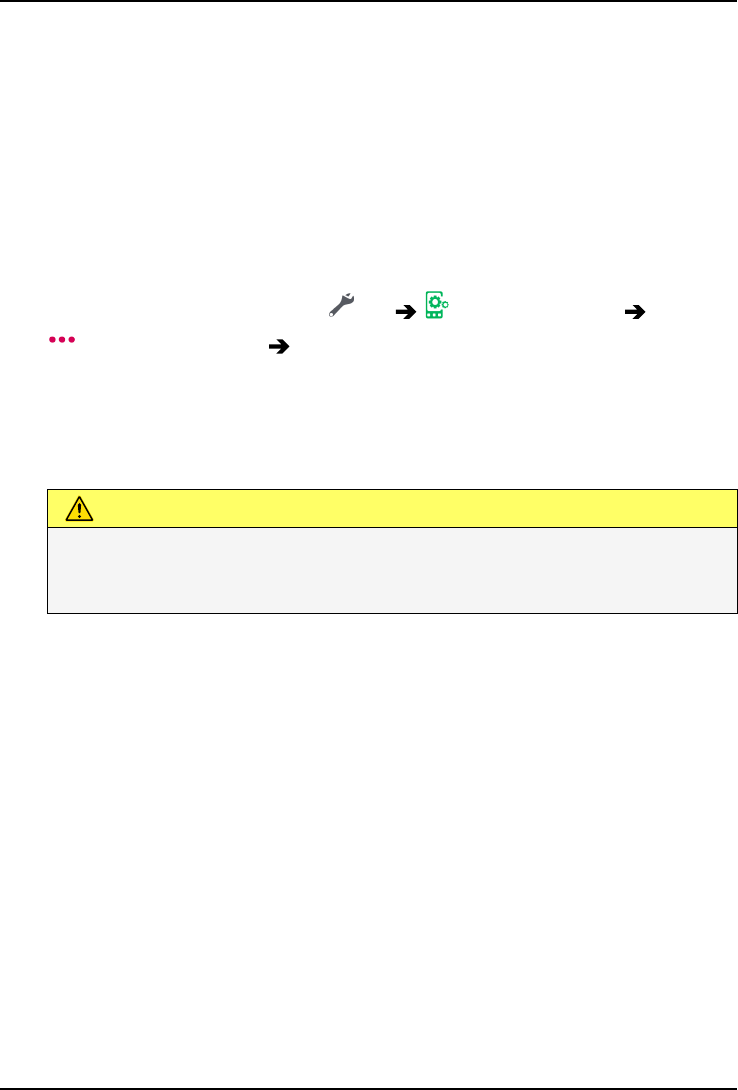
1. From the Home screen, tap Set A general option
Advanced settings Backup & reset.
2. Select Factory data reset. Carefully read the on-screen information,
it is important!
3. Select Reset phone.
4. Select Erase everything.
CAUTION
This is the last step before ALL data from the device, including
Google or other account settings, system and application data and
settings will be permanently erased.
5. After your phone resets, it will be set back to factory defaults and will
be just like it was when it came out of the box.
Memory and storage
Note! When you update the phone the available capacity may change.
Your phone has different types of memory and storage possibilities.
Internal storage
The internal storage is used to store downloaded or transferred content
along with your personal settings and data. Examples are alarm, volume
and language settings, emails, bookmarks, contacts, calendar events,
photos, videos and music.
39

English
External memory
SD stands for Secure Digital. There are many different media card stand-
ards. Lower-capacity cards store less information. Use only compatible
memory cards with this device. The phone works with or without a SD
card installed.
You can use an external memory card (compatible card type for this de-
vice: microSD, microSDHC max 32 GB) to get more storage space. Most
applications can read data from a memory card but only certain apps
can save files to this type of memory. You can, for example, set the cam-
era application to save photos directly to the memory card.
Note! If you insert an external memory, it is recommended you change
the default storage location. This allows you to save more files on your
phone, like pictures and videos.
Free up memory space
The memory in your device tends to fill up as a result of normal usage. If
your phone starts to slow down, or applications suddenly shut down, con-
sider the following:
Delete pictures
•If you use your phone to take a lot of pictures, remember to back
them up to your computer every now and again. Not only will this pre-
vent you from losing any photos if anything were to happen to your
phone, but it also gives you the opportunity to delete them from your
phone and free up space. You can access your pictures by simply
plugging your phone into your computer via a USB cable, see Con-
nect the phone to a computer, p.35.
•There are also several services to use if you want to back up your
photos – in many cases, automatically. Google, for example, has an
automatic upload feature that will put your photos into a private al-
bum on Google+, and even create mini-albums for you.
Clear the cache memory
What is cache? When you are surfing the web or using apps on your
phone’s browser, those websites that you visit will be stored on your
phone in an area of memory called cache. The reason is that the next
time you visit the same website or app the phone will load it from cache
40
English
memory instead of downloading everything again from the server which,
take up time and bandwidth.
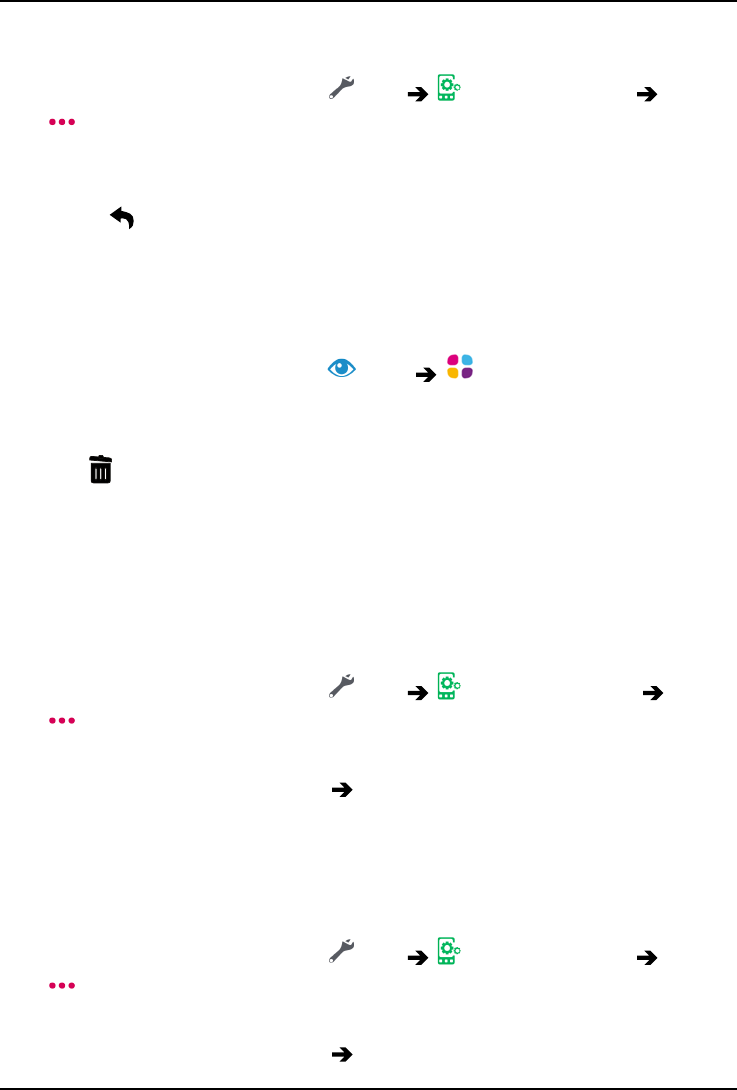
1. From the Home screen, tap Set A general option
Advanced settings.
2. Select Storage.
3. Select Cached data and confirm.
4. Press to return.
Tip: The cache will fill up again over time, and you’ll want to delete it
again.
Uninstall applications that you don't use
1. From the Home screen, tap View My applications.
2. Tap I want to.
3. Tap Uninstall applications.
4. Tap for the items to delete.
5. Tap OK to confirm.
Tip: All purchases are managed by your Gmail account. If you want to
install a particular app again later on, as long as you are signed in with
your original Gmail account you won’t be charged again for the same app.
Change the SIM PIN code
1. From the Home screen, tap Set A general option
Advanced settings.
2. Select Security.
3. Select Set up SIM card lock Change SIM PIN.
4. Enter old PIN and select OK.
5. Enter new PIN and select OK. Enter new PIN again and select OK
once more. When done, SIM PIN changed successfully will appear.
Require PIN code at startup
1. From the Home screen, tap Set A general option
Advanced settings.
2. Select Security.
3. Select Set up SIM card lock Lock SIM card.
41
English
•Tick to activate PIN code. You need to enter the PIN code every
time the phone is started.
•Tick to deactivate PIN code.
WARNING
If the SIM card is lost/stolen it is unprotected.
Google™Play Store
IMPORTANT!
You need an Internet connection to use this service. It is recommended
to use Wi-Fi connections when available to reduce costs for data traffic.
Contact your service provider for detailed subscription costs before
activating.
Note! You need to have a Google™account to use Play Store. Your Gmail
account is also your Google Account, so you can use your same Gmail
username and password to use other Google products like YouTube,
Google+, Google Play, and Google Drive.
Browse the available applications and games through different catego-
ries or through the lists like Top paid and Top Free. You can also search
for a specific application or game.
Some applications need to be purchased. The cost is shown in the appli-
cation description as well as if it is free. You pay using Google™Wallet,
which can be registered when setting up a Google™account or the first
time for a purchase or by using any other available payment method.
Install applications
1. From the Home screen, tap Play Store.
2. Find an item you wish to download by browsing categories or by us-
ing the search function.
3. Tap the item to view its details, and follow the instructions to com-
plete the installation/purchase.
Tip: All downloaded applications can be found in Play Store. Tap ,
and tap to select My apps.
42
English
Open an installed application
1. In Play Store, tap and tap to select My apps.
2. Select the downloaded application. If needed tap Open.
Update an installed application
1. In Play Store, tap and tap to select My apps.
2. You can select to update all applications that needs to be updated,
tap Update all, or select a specific application and tap Update
and confirm.
Uninstall applications
1. In Play Store, tap and tap to select My apps.
2. Tap to select an application, tap Uninstall and confirm.
Calls
Make a call
To call a contact that is currently not available in your contact book, see
also Call, p.23.
1. From the Home screen, tap Call.
2. Tap A number.
3. Enter the phone number, you are offered suggestions as you type.
4. Tap Call to call or tap directly on the suggested contact.
Tip: For international calls, use the international prefix +before the
country code. Touch and hold 0until +is shown.
Answer a call
The phone rings or vibrates to alert you to an incoming call.
Note! The sound you hear when the phone rings is known as the
ringtone, see My ringtone, p.32. You can set your phone to play a
number of ringtones, for example depending on who's calling, or you can
set a universal ringtone.
1. The touchscreen display lights up, giving you more information about
the call.
43
English
2. You now have some options.
•Answer the call tap Accept or slide it to the right
•Ignore the call tap (or slide left) Decline to decline without
answering (busy signal)
•Silence the ringer press the volume button (up or down) to si-
lence the ringer
End a call
•Tap End call to end.
Options during a call
Volume control
•Use the side volume keys to adjust the call volume, the selected lev-
el is shown on-screen.
Mute
1. During a voice call, select .
2. To disable, select again.
Keypad (tone sending)
1. During a voice call, select .
2. Enter number.
3. To close, select again.
Loudspeaker
1. During a voice call, select .
2. Speak clearly into the microphone at a maximum distance of 1 m.
Use +or –to adjust the loudspeaker volume.
3. To disable, select again.
Note! During a voice call more actions are available. Tap I want to to view
your selectable actions. Some content in your device may differ
depending on the region, service provider, model specifications, or
software.
44
English
Headset
Headset
•Connect a headset to the headset socket. The internal microphone
in the phone is automatically disconnected.
CAUTION
Using a headset at high volume may damage your hearing. Adjust the
volume level carefully when using a headset.
Call log
1. From the Home screen, select View My call history.
2. Tap a number or a contact to:
•To call, tap Call.
•For more options tap I want to.
Clear the call log
1. From the Home screen, select View My call history.
2. Tap I want to and select Clear my call history.
3. Tap the white square next to the items to delete, or tap Select all.
4. Tap and select OK or Cancel.
Call settings
Lock the screen during calls, call log limitation and more
1. From the Home screen, tap Call.
2. Tap A number I want to Open settings :
•Enable Lock during calls to avoid making touch mistakes during
a call. Your phone contains proximity sensors that should dis-
able the touchscreen when you are on a call. But in some rare
occasions when the phone is held at an angle or slightly off the
face the proximity sensors may report that your face is not close
enough and the touchscreen is enabled. This has resulted in ac-
cidental calls, or disconnected the ongoing call. When done,
tap .
45
English
•Disable Direct calls to help to avoid making accidental calls by
adding a confirmation dialog to any phone call that you are
about to make. The confirmation dialog is helpful to double
check that you really want to make a phone call. The default
setting is Enabled. When done, tap .
Note! Only applies to calls made directly from View
My contacts.
•Enable Call log limitation to reduce your phone's call history to
show only your 100 most recent calls.
•Call Timer to view and reset the total time for outgoing and in-
coming calls since you started to use the phone or since the lat-
est reset. The most recent call is displayed with both time and
receiver. Select OK or Cancel.
•Advanced settings to reach and manage more options, such as
Voicemail,Fixed Dialling Numbers,Call forwarding and Call
barring.
Note! The features in Advanced settings are network services
and you may need to subscribe to them first. For more
information and for the Voicemail number, contact your service
provider.
3. When done, tap .
SOS calls
As long as the phone is switched on, you can always make an SOS call.
1. From the Home screen, tap Call.
2. Tap A number to enter the main local emergency number for your
present location.
3. Tap Call .
Some networks accept calls to emergency numbers without a valid SIM
card. Contact your service provider for more information.
46
English
Contacts
Add new contact
Your contacts are automatically synced with your Google account (pro-
vided that you are logged onto your Google account). To manage synchro-
nisation for your Google account, see Backup, p.37.
1. From the Home screen, tap Add A contact.
2. Enter contact information and continue to fill in the information you
know, to proceed, tap Next.
3. Your new contact is created when you reach and tap Save.
Tip: To hide the keyboard tap and to activate the keyboard simply tap
a text field once again.
Search for a contact
1. From the Home screen, tap Search Something in my phone.
2. Start to enter a name in the search bar Search. You are offered
suggestions as you type.
3. Select the correct match by tapping it.
Note! See also Google search, p.64
Manage your contacts
1. From the Home screen, tap View My contacts.
2. Tap to open an existing contact.
Tip: Try to tap the I want to before you tap an existing contact, this
way you may get another set of menu options.
3. Tap Edit.
4. Tap to add as favourite contact or tap to remove as favourite.
5. Tap to add image.
6. Follow the on-screen instructions to complete contact information.
7. Tap Save, when you are done. Your contacts are automatically
synced with your Google account (provided that you are logged onto
your Google account). To manage synchronisation for your Google
account, see Backup, p.37.
47
English
Tip: The favourite-contacts are easily found with . To remove as
favourite, tap a favourite contact and tap I want to to tap Remove as
favourite.
Import and export contacts
If you have a Doro service such as My Doro Manager or Connect & Care,
you can use that service to import and export to/from SIM/SD card.
Import contacts from storage services to your device
1. From the Home screen, tap View My contacts.
2. Tap I want to.
3. Tap Import/Export to select an import option from the pick list.
4. Tap to confirm.
How to find the ICE contacts
From locked screen
1. Swipe to unlock the screen.
2. Tap Ice to retrieve stored ICE information.
3. Tap to call the Ice contact.
Note! Only applies when screen lock method is set to Pattern,PIN or
Password. To activate the screen lock or change the type of screen lock,
tap Set A general option My screen lock see Screen lock,
p.11..
From Contact book
1. From the Home screen, tap View My contacts In Case
of Emergency (ICE).
2. Swipe to view all information.
3. Tap Edit, follow the on-screen instructions to complete the ICE-card
information.
4. When done, tap .
Note! Applies when the phone is unlocked. To activate the screen lock or
change the type of screen lock, see Screen lock, p.11.
48
English
An assistance option
My assistance button
CAUTION
When an assistance call is activated the phone is pre-set to handsfree/
speakerphone mode. Do not hold the device near your ear when the
handsfree mode is in use, because the volume may be extremely loud.
In order to possibly make everyday safer, the phone has an assistance
button . The assistance button makes it easy to contact the help num-
bers you have predefined in the Assistance number list . Before the assis-
tance button can be used, the assistance function has to be activated,
phone numbers added to the number list and, the text message edited
with the information you want to send.
Make an assistance call
•Press and hold the assistance button for 3 seconds, or press it
three (3) times within 1 second. The assistance call begins after a
delay of 5 seconds. In this time you can prevent a possible false
alarm by pressing Cancel.
•An assistance text message (SMS) can be sent to all recipients.
•A positioning text message (SMS) can be sent to all recipients.
•The first recipient in the list is dialled. If the call is not answered
within 25 seconds, the next number is dialled. Dialling is repeated 3
times or until the call is answered, or until Cancel is pressed.
Assistance button settings
You can select to use your Assistance button together with Connect &
Care, see Connect & Care, p.59. Below we describe how to set up the As-
sistance button.
1. From the Home screen, tap Set An assistance option
My assistance button.
2. Tap Configure.
Application
Set what application that should be linked with the assistance button.
49

English
•Tap Configure to choose a different application for the assistance
button.
Note! Not all steps needs to be done, but at least Assistance button
configuration and one contact in the Assistance numbers list must be
set up to activate this feature.
Set the volume level for the assistance calls
Select the signal type for the assistance sequence.
Note! This sets the signal of your device, NOT the receiver's signal.
•High.
•Low.
•Silent.
Select how to activate the assistance function
•Press 3 times to activate by pressing the button 3 times within 1
second.
•Long press to activate by pressing and holding the button for approx-
imately 3 seconds, or press it twice within 1 second.
Select your assistance contacts
1. Tap Add contact.
2. Select a contact to add.
3. Tap Add contact when you are done. To delete a contact, press the
minus sign after the number.
Note! Some private security companies can accept automatic calls from
their clients. Always contact the security company before using their
phone number.
Alert message
•A text message can be sent to the contacts in the list when the as-
sistance button is pressed. You may edit the SMS to make it more
personal. If required, tap the text field to modify the message.
Switch to enable or to disable the message.
Location message
If you send an assistance alert it can be of great help for your help con-
tacts to know your current position. This allows them to be able to assist
50
English
you in the fastest possible way. The position SMS lets you share your GPS
coordinates via a text message to your assistance contacts. The position
information is based on the GPS position at the time for the assistance
call, and if that position can't be detected, your latest known position is
shared.
•Switch to enable or to disable.
When done, select .
ICE (In Case of Emergency)
In the event of a trauma, it is critical to have this information as early as
possible to increase the chances of survival. Add ICE contact to improve
your own safety. First responders can access additional information such
as medication and next of kin from your phone in case of an emergency.
All fields are optional, but the more information provided the better.
Note! Your ICE contacts are fetched from your Contact book and you
need to make sure that relevant information is stored on each ICE
contact.
1. From the Home screen, tap Set An assistance option My
information in case of emergency (ICE).
2. Select Create ICE and enter your medical information. Follow the on-
screen instructions to complete the ICE-card information.
3. When done, tap .
Note! To remove an already added ICE contact tap the minus sign next to
the ICE contact. Tap to confirm.
Remote help
Let someone you trust control your phone remotely. Allow access so they
can remotely administrate and transfer files, help you to perform mainte-
nance tasks and with problems should they occur.
To connect a remote support session
1. From the Home screen, tap Set An assistance option
Remote help.
2. Share Your ID with your personal tech support to allow remote con-
trol. Tap Send my ID... to select how to share your ID.
3. Follow the on-screen instructions.
51
English
4. To quit TeamViewer, open the Notification panel, swipe the status
bar downwards. Click QuickSupport and tap in the upper right
corner.
5. Confirm with Close.
Note! All TeamViewer connections are highly encrypted and are thus
protected from being accessed by third parties. For detailed technical
information regarding connections, security and data privacy in
TeamViewer, see the security statement at http://www.teamviewer.com/
en/products/security.aspx.
Applications
Applications can be a program or game that you can use on your Doro
Liberto®825. Depending on market and service provider, the pre-in-
stalled applications can vary. Some applications need Internet access.
Contact your service provider for detailed subscription costs before acti-
vating. Some applications need to be purchased. The cost is shown in
the application description as well as if it is free. Using downloaded and
installed applications does not cost anything, except if an Internet con-
nection is needed.
Use Doro Selection or Google™Play Store to download and install all the
applications you need.
Beginners guide - Discover your phone
Get guided help and useful tip to discover the basics of your new phone.
•From the Home screen, tap Discover My phone Gener-
al features.
•To exit the guide tap I want to and tap Exit.
Doro Selection
The easiest way to look for applications is to use the Doro Selection.
Searches are made easier thanks to categories with a selection of apps
for such as home, digital life, news, health and wellness, finance and
more. You can also use Recommended applications: as well as View by
categories to find apps.
1. From the Home screen, tap Add An application.
52
English
2. Tap an item to select it:
•Recommended applications: tap to select an app.
•View by categories to select an option in the pick list. Confirm
with .
•Search on Google Play Store to reach Play Store.
•My applications to view the applications downloaded by you.
•Recommended to view recommendations sent to you via My
Doro Manager see My Doro Manager, p.63.
Messages
Write messages
You can send different types of messages from your phone. Here we will
explain how to send a text message, but you can also send other mes-
sage types from the Send menu.
Tip: Text messages (sms) are delivered immediately to a device that most
of us have with us at all times, a text message also represents a more
personal and intimate connection. Most modern smartphones can
receive emails (that may be preferable for more formal communications
or inquiries) but texting remains simpler and is the only option for those
using a more basic cell phone.
1. From the Home screen, tap Send A message.
2. Tap A number.
3. Enter the phone number, you are offered suggestions as you type.
4. Tap Pick number or tap the suggested contact.
5. Compose your message.
Note! Access more options through the menu key I want to.
6. When done, tap Send.
Note! If you choose to add multiple recipients, you may be charged for
each recipient. You may also incur additional charges for sending
messages when you are roaming. It is recommended to use Wi-Fi
connections when available to reduce costs for data traffic.
53
English
Messages settings
1. From the Home screen, tap View My messages.
2. Tap I want to.
3. Tap Open settings.
•Tap to select the features to change or switch to enable or
disable them.
4. When done, tap .
Note! Message settings are normally already set and should not need to
be altered by you, unless, of course you want to make changes. Some
features are network services and you may need to subscribe to them
first. For more information contact your service provider.
Email
Set up email account
When opening email the first time you are prompted to set up an email
account.
IMPORTANT!
You need an Internet connection to use this service. It is recommended
to use Wi-Fi connections when available to reduce costs for data traffic.
Contact your service provider for detailed subscription costs before
activating.
Tip: Gmail is always available under Google apps.
To activate your email account
1. From the Home screen, tap View My emails.
2. Tap Add an account.
•Add existing account
•Create Gmail account
3. Tap to confirm.
4. If desired, tap I want to to access more options.
•Manage accounts to select account or Add another account?
Press I want to again to get more options.
54
English
5. If needed enter requested settings manually and tap when done.
Contact your email provider for detailed information.
Write emails
Here we will explain how to send an email to a contact that is available in
your contact book.
1. From the Home screen, tap Send An email.
2. Tap A contact.
3. Tap to select a contact.
4. Enter subject.
5. Tap just above Sent from my Doro to compose your email.
6. If desired, tap I want to to access more options.
7. When done, tap Send.
Read emails
1. From the Home screen, tap View My emails.
2. Tap to read an mail.
3. Tap Reply / Forward to select an option from the pick list. Confirm
with .
4. Compose your email.
5. If desired, tap I want to to access more options.
6. When done, tap Send.
Email settings
1. From the Home screen, tap View My emails.
2. Tap I want to.
3. Tap Open settings to access more options.
4. Tap to select an option.
5. When done, tap .
Camera
Use the camera to take photos or record videos.
55
English
Tip: Press and hold the Camera button to activate the camera from any
screen or mode except in the Power off mode. The Camera button is
located on the lower right side of the phone.
To get sharp photos, wipe the lens clean with a dry cloth.
Note! Do not take photos or record videos of other people without their
permission. Do not take a photo or record a video where prohibited or
where you may be violating others' integrity.
Focus
•On the preview screen, tap the image on the preview screen where
you want the camera to focus.
Zoom
•On the preview screen, place two fingers together on the screen and
spread them apart to zoom in and pinch them together to zoom out.
Take photos
1. From the Home screen, tap Snap A photo.
2. Tap , or press the side button .
Take a selfie
Selfie means to take a picture of yourself. You can use the front camera
to take self-portraits.
1. On the camera preview screen, tap to switch to the front camera
for self-portraits.
2. Face the front camera. Move the camera around until you find a
pleasing pose.
3. When you see your face in the display, tap or press the side but-
ton to take a picture of yourself.
Record a video
1. From the Home screen, tap Snap A video.
2. On the camera preview screen, tap to switch to the front camera.
3. Tap to record a video. Press to stop video recording.
56
English
Camera settings
Note! The available options may vary depending on the shooting mode
and which camera is being used.
On the preview screen, you can make general camera settings.
1. Tap More Options to access the list of shooting modes.
•Tap Flash mode to select Flash on or Flash off to focus
on the target, accurately and precisely
•Tap Grid to select On or Off to focus on the target, accu-
rately and precisely
•Timer to select 5 seconds,10 seconds or Timer off.
Camera resolution
Low resolutions are just fine for uploading to Facebook. The high-
er the resolution the clearer the photo will be, however high resolution
takes up more storage space. High-resolution images are great for print-
ing photos and photo-editing.
1. Select More Options.
2. Select Settings Photo mode Back camera and select:
•5MP (default setting)
•3MP
•2MP
•VGA (resolution of 640 × 480 pixels)
3. Select Resolution (front camera):
•VGA (resolution of 640 × 480 pixels)
4. When done, tap .
Video resolution
Note! Once taken, videos formats cannot be changed to meet MMS
standards. Make sure to take your videos in MMS format if you plan to
send them as MMS.
1. Select More Options.
57
English
2. Select Settings Video mode Resolution (back camera) and
select:
•720P for higher standard definition resolution.
•480P (default setting) for standard definition resolution.
•MMS will automatically configure the settings for MMS.
3. Select Resolution (front camera):
•480P (default setting)
•MMS
4. When done, tap .
Options
1. Tap More Options.
2. Tap Settings Options and select:
•Exposure control, switch to enable.
Once activated, exposure can be set via More Options
Exposure control.
•Shutter sound. Switch to enable.
•Save on SD card. Switch to enable.
Note! This option is only available when an SD card is inserted.
See External memory, p.40
•Video stabilization. Switch to enable.
3. When done, tap .
Tip: You can also access your gallery from camera mode, on the camera
preview screen, select the thumbnail in the lower left corner.
Handle pictures in the Gallery
View images or videos
All pictures taken by the camera, received photos and recorded videos
are stored in My gallery.
1. From the Home screen, tap View My pictures and videos.
2. Select the photo/video to view/play.
58
English
3. Swipe to the left or right to skip to the next image, you can also tap
the arrows to do so.
4. To exit press .
Tip: After you have taken a photo you can access the Gallery from
camera mode, by tapping .
Manage photos or videos
1. From the Home screen, tap View My pictures and videos.
2. From here you can tap I want to to access more options.
•Display to access even more options.
•Manage favourite
•Delete picture(s)
•Open settings
3. When done, tap .
4. Select the photo/video to view/play.
5. From here you can tap I want to to access more options.
•Edit this picture
•Crop picture
•Rotate picture
•Set this picture as
•Share this picture
•Picture details
•Add to favourites
•Delete this picture
6. When done, tap .
Connect & Care
Note! You need to have Internet access to use most of the features in
Connect & Care. Depending on how you use your phone, it can use up a
lot of Internet bandwidth really quickly. Before you use your phone, we
strongly recommend that you contact your mobile operator about data
rates. Using data services while roaming can be costly. Check with your
mobile operator for data roaming rates before you use data roaming.
59
English
Connect & Care is an application that gives you the opportunity to get
help from a helper i.e. a friend or relative with a smart device that can
run the Connect & Care application. The help can be carried out from
anywhere (remote help). A helper is a friend or relative.
Note! In order to use some of the features of Connect & Care, either the
Doro Liberto®825 user or the helper needs to have a Care service
subscription with Doro.
Getting started — Install the application
Create account on the Doro Liberto®825
1. From the Home screen, tap My apps Connect & Care.
2. Follow the on-screen instructions to complete the account setup.
Install the application on the helper’s device
1. Go to Play Store or App Store.
2. Install the Connect & Care helper application to the helper's
device.
Note! You can also use this method to update your Connect and Care
app to the latest version.
Connect a helper to the Doro Liberto®825
The request can be sent from either the 8030 user’s or the helper’s
device.
Send a connection request
1. From the Connect & Care, open Contacts (available through
the menu key if not visible on screen).
2. Tap Add Contacts and select the contact from the contact list on
your phone.
3. Once the request has been sent from either you or a helper, it needs
to be accepted by the other person.
Accept/Decline a connection request
1. From the Connect & Care, open Contacts (available through
the menu key if not visible on screen).
60
English
2. Tap the pending invitation to connect. (Tapping the menu key is
equivalent to immediately accept the invitation.
3. Accept or Decline the contact request.
4. After accepting a contact request, select to share information with
the contact or not (this option is only available on the Doro 8030
and only if a Care service subscription exists).
5. When done, tap .
Note! Even when the Doro Liberto®825 user selects to share information
with a helper, only the information available within the Connect & Care
application is shared. Through the remote setup interface the current
value for some settings can also be shared, but personal information on
the Doro Liberto®825, that is not stored inside the Connect & Care
application, is still personal.
Open a contact profile
1. From the Connect & Care, open Contacts (available through
the menu key if not visible on screen).
2. Tap the contact in the contact list to open their profile.
Remote setup
Getting started — Enable remote setup
In the helper's phone
1. Open the Doro Liberto®825 user's profile in Connect & Care.
2. Tap Remote setup.
3. Tap settings icon access request (only needed if Care service
subscription already exists).
In the Doro Liberto®825
1. From the Connect & Care, open Notifications (available through
the menu key if not visible on screen).
Accept or Decline the remote setup offer.
How to use Remote setup
From the helpers phone
1. From the Connect & Care, open the User's profile.
61
English
2. Tap Remote setup to change settings on the Doro Liberto®825 or
Phone status to see some phone information about the Doro Liber-
to®825.
Note! Changing settings on the Doro Liberto®825 through the remote
setup interface will in most cases take effect immediately, without the
need for any interaction from the Doro Liberto®825 user.
How to activate Care service subscription
This can be done either from the Doro Liberto®825 phone if the Doro Lib-
erto®825 user will pay for the subscription, or from a helper's phone if
the helper will pay for the subscription.
From the helper's phone
1. From the Connect & Care, open the User's profile and follow the
on-screen instructions.
2. Tap Activate the Care services and follow the on-screen instructions.
3. The Doro Liberto®825 user then has to Accept the Care service offer
on their phone.
4. Both the Doro Liberto®825 user and the helper can now access ad-
ditional features via the services tab and the user profiles.
From the Doro 8030
1. From the Connect & Care, open the Care service (available
through the menu key if not visible on screen).
2. Follow the on-screen instructions to complete the setup.
Note! Only one care service subscription is needed even if the Doro
Liberto®825 user has multiple helpers.
3. Open the helper's profile in Connect & Care.
4. Tap the settings icon and select Confirm and enable information
sharing.
5. When done, tap .
62

English
Note! Even when the Doro Liberto®825 user selects to share information
with a helper, only the information available within the Connect & Care
application is shared. Through the remote setup interface the current
value for some settings can also be shared, but personal information on
the Doro 8030, that is not stored inside the Connect & Care application,
is still personal.
Note! To cancel a Care service subscription delete the profile that started
the subscription. You can then add the profile again if you wish to
continue using the free parts of Connect & Care or start a new
subscription from another profile.
My Doro Manager
Note! You need to have Internet access to use My Doro Manager.
Depending on how you use your phone, it can use up a lot of Internet
bandwidth really quickly. We strongly recommend that you contact your
mobile operator about data roaming rates before you use data roaming.
My Doro Manager is an application that gives you or the helper the op-
portunity to manage Doro Liberto®825 from the http://www.mydoroman-
ager.com website. On the website you can also watch tutorials and
discover a lot of possibilities in your Doro Liberto®825.
Note! The Doro Liberto®825 user needs to have both a Connect & Care
profile and a Google™—account to use My Doro Manager. To be able to
use the My Doro Manager website any helpers also need a My Doro
Manager account which they can set up by either linking their Facebook
or a Google™account. They can also create an My Doro Manager account
that only requires an existing e-mail account to work. The Google account
can also be used with other Google products like YouTube, Google+,
Google Play, and Google Drive.
How to Create a new account
In the Doro Liberto®825
1. From the Home screen, tap My apps My Doro Manager.
2. Follow the on-screen instructions to complete the account setup.
Access the web site
63
English
1. On the computer access http://www.mydoromanager.com.
2. Select either to manage your own phone or help someone else.
3. Sign in using your Google™account.
Note! To help the Doro Liberto®825 user remotely from their phone the
helpers can also install the Connect & Care application from Play
store or App store. See Remote setup, p.61.
Note! The My Doro Manager helper application that is available through
Play Store or App store is for older phone models and is not compatible
with Doro Liberto®825.
Google search
IMPORTANT!
You need an Internet connection to use this service. It is recommended
to use Wi-Fi connections when available to reduce costs for data traffic.
Contact your service provider for detailed subscription costs before
activating.
Note! The available options may vary depending on your device settings.
To use the web browser
1. From the Home screen, tap the Google™search field .
Note! The first time you are asked if you want to Sign in with your
Google account.
2. Tap next to to search the Internet, to search you type words, or
you can paste text, copied by you.
3. When you start a search on Google, you can find information faster
by looking at search predictions. Search predictions are possible
search terms you can use that are related to the terms you’re typing
and what other people are searching for.
4. Tap to select the best matching search results.
To go back, tap Back .
64
English
Internet (Web browser)
IMPORTANT!
You need an Internet connection to use this service. It is recommended
to use Wi-Fi connections when available to reduce costs for data traffic.
Contact your service provider for detailed subscription costs before
activating.
To use the web browser
1. From the Home screen, tap View Something on the Internet.
2. Tap Voice input or Classic keyboard to select how to enter your text.
To search you type words, or you can paste text, copied by you.
3. When you have entered your search word, tap Search.
4. To go back, tap Back .
Note! The first time you are asked if you want to Sign in with your Google
account.
Dock mode
You may think of the dock mode as a screensaver that turns your Doro
Liberto®825 into a side-table clock, a photo frame, a music player and
more.
Turn Dock mode on and off
1. Dock mode is launched automatically when the device is placed in
the charging cradle.
To launch it manually select My apps Dock mode.
2. Remove the device from the cradle to exit.
To exit while the device is in the cradle press the Home key .
Dock mode menu
1. From Dock mode, tap the screen to reach:
•Call to make calls.
•Slideshow to use the device as a photo frame.
•Do not disturb to activate press once and simply press it again
to deactivate.
65
English
Note! Do not disturb is a helpful setting for when you do not
want to be disturbed, such as when you are sleeping or in a
meeting. All notifications, alerts and calls are stopped from
making any noise, vibration or lighting up the phone screen.
You can schedule quiet hours to be repeated at the same time
every day. Select to enable or disable the sound of the alarm
clock during Do not disturb.
•Music to select music to be played (mirrors 1from the Music
app, see Music, p.67).
Note! If you like to fall asleep to music you can set the Sleep
timer when playing music. Tap the to select how many
minutes you want the music to play.
•Alarm to set alarms and to handle already set alarm (mirrors 2
from the Alarm app, see Alarm, p.68).
•Settings to select the display background, the clock style and
more.
2. To return to the previous screen, use Back .
Magnifier
Use the screen to magnify text or other things you have trouble reading
or seeing, the flash LED illuminates the object.
1. Tap My apps Magnifier.
2. Use the display as a magnifier.
•Freeze object to temporarily freeze the view in the display.
•Un-freeze object to release.
3. For more options, press I want to.
66
1. Parts of what you see in the Dock mode derive/originate from other apps
(in this case as replicas of Music Player and Alarm clock). To make
changes and delete content you must go to the source app (Music Player
and Alarm clock).
2. Parts of what you see in the Dock fashion derive/originate from other
apps (in this case as replicas of Music Player and Alarm clock). To make
changes and delete content you must go to the source app (Music Player
and Alarm clock).
English
4. To exit press .
Music
Use the music player to listen to music or other audio files.
Play music
1. From the Home screen, tap Listen To my music.
2. Tap to select a track from the list. The next track is automatically
played.
3. Tap to pause the track.
4. Press to return to the Home screen. The music continues to play.
5. For more options, tap I want to.
Tip: While you're listening to music you can start and pause the music
from the quick settings in the Notification panel. To open the Notification
panel, swipe the status bar downwards.
Listen to the radio
The FM radio has a frequency range from 87.5 to 108.0 MHz.
Tip: For best sound quality, set the phone in sleep mode by briefly
pressing the !Power button.
Turn on the radio
1. Connect a headset to the headset socket.
2. From the Home screen, tap Listen To the radio.
The radio is turned on. The tuned frequency is displayed.
3. Select or to scan channels.
Press to play and to stop.
Slide the scale to set the frequency manually.
Use the side keys +and –to adjust the volume.
4. For more options, tap I want to.
5. Press to return to the Home screen. The radio continues to play.
Disconnect the headset to turn off the radio.
to turn off the radio.
67
English
Tip: While you're listening to the radio you can start and pause from the
quick settings in the Notification panel. To open the Notification panel,
swipe the status bar downwards.
Alarm
Set alarms
The phone must be powered on in order for the alarm to function
properly.
1. From the Home screen, tap Add An alarm Add alarm
and follow the on-screen instructions.
Tip: To save battery and prevent incoming calls or messages, you can
turn on Aeroplane mode but still keep the alarm function, see Aeroplane
mode, p.34.
To edit or delete alarms
1. From the Home screen, tap View My alarms.
2. To turn on and off switch .
3. Tap an alarm to edit it.
4. To delete an alarm tap I want to and select Delete.
5. Tap to confirm.
Stop or snooze an alarm
•Tap Snooze to snooze the alarm for 5 minutes.
•Tap Stop to stop the alarm.
Calendar
Add an event
1. From the Home screen, tap Add An event.
2. Enter required information and set reminder notification.
3. Tap to confirm.
To edit or delete events
1. From the Home screen, tap View My calendar.
2. Tap or to scroll month or day.
68
English
3. Dates that already has saved events or tasks in it are marked with a
green dot. Tap the date and the tap an event to edit it.
4. For more options tap I want to.
•To delete an event tap Delete
•To select view mode tap Display.
5. Tap to confirm.
My notes
Add a note
1. From the Home screen, tap View My tools My notes
Add note.
2. Enter required information.
3. For more options, tap I want to:
•Send this note to share.
•Delete this note to delete.
4. Tap Save to confirm.
Torch
Turn on the lamp
1. From the Home screen, tap My apps Torch.
2. Tap to switch off.
Alternatively:
•Swipe the status bar down.
•Tap Torch.
Note! The battery will drain very quickly. Remember to switch off after
use.
Timer
Set timer
1. From the Home screen, tap My apps Timer.
2. Tap Set and use the keypad digits to set the duration.
3. When done, tap Start.
69
English
4. Tap Stop when the alarm goes off.
Tip: You can use the phone as usual when the timer application is
running as long as the phone is turned on.
The calculator
Perform simple calculations.
1. From the Home screen, tap My apps The calculator.
2. Enter the first number, select an operation (+, -, x, ÷) and enter next
number. Repeat if needed.
3. Select =to calculate the result.
Listen to a recorded sound
Use the sound recorder to record memos and messages.
Record a sound
1. From the Home screen, tap Listen To a recorded sound.
The radio is turned on. The tuned frequency is displayed.
2. Select the button to start recording.
3. Select the button to pause recording.
4. Select the button to stop recording.
Listen to recording
After you have recorded your first memo you can select:
1. Tap Recordings list.
2. Tap a recording to listen to it.
3. Tap I want to and select:
•Record a sound.
•Rename a sound.
•Send sound(s).
•Delete sound(s). Select for the items to delete, or Select all.
Code safe
A convenient password manager for you to help keep track of and to re-
member your passwords and other personal information and sensitive
70
English
data. The only code you need to remember from now on is the simple
password you create for your personal password vault Code safe.
Activate the code safe
1. From the Home screen, tap My apps Code safe.
2. Enter a 3 number code to get started. When done, tap .
3. Enter the same 3 digit code and turn the handle downwards.
4. Tap Add.
5. Enter your note and tap when done.
•To edit a note, select the note, tap on the white writing area to
get the keyboard. Edit the note and tap when done.
To delete safe note or change password
1. Tap I want to to select:
•Change my password to change the password
•Delete note(s). Select for the items to delete, or Select all.
Note! All safe notes will be deleted if the wrong 3 number code is entered
three (3) times. Write all the safe notes you keep in the Code safe on a
piece of paper before resetting the phone or erasing the storage card.
Google Apps
IMPORTANT!
You need an Internet connection to use this service. It is recommended
to use Wi-Fi connections when available to reduce costs for data traffic.
Contact your service provider for detailed subscription costs before
activating.
All pre-installed Google™applications can be found in Google Apps. De-
pending on the market, the pre-installed applications can vary. To view
more app information, access each app’s help menu.
Note! Some apps may not be available or may be labelled differently
depending on the region or service provider.
•From the Home screen select Google to open the Google™
applications.
71

English
•Chrome search for information and browse webpages.
•Gmail send or receive emails via the Google Mail service.
•Maps find your location on the map, search for locations, and
view location information for various places.
•Photos search for, manage, and edit all your photos and videos
from various sources in one place.
•Play Music discover, listen to, and share music on your phone.
You can upload music collections stored on your device to the
cloud and access them later.
•Google quickly search for items on the Internet or on your
phone.
•Play Movies & TV download videos to watch from Play Store,
see Google™Play Store, p.42.
•Drive store your content on the cloud, access it from anywhere,
and share it with others.
•YouTube watch or create videos and share them with others
•Hangouts chat individually or in groups with your friends.
The cloud
The cloud is not a physical thing. The cloud is a network of servers, and
each server has a different function. Some servers use computing power
to run applications or "deliver a service." For example, when you take a
picture on your smartphone, it is stored on your phone's internal memory
drive. However, when you upload the photos to Instagram, you are up-
loading it to the cloud.
So remember: The Cloud is a network of servers. Some servers provide
an online service, and others allow you to store and access data, like In-
stagram or Dropbox. Chances are, you encounter the cloud daily. From
Google Drive to Evernote, any time you store information without using
up your phone's internal data, you're storing information in the cloud.
Location based services
LBS stands for Location-Based Service and is a software application for
mobile devices that requires knowledge about where the device is lo-
cated. The service can be query-based and it can provide you with useful
information such as “Where is the nearest restaurant?”. The service can
also be push-based and send you coupons or let you view commute
72
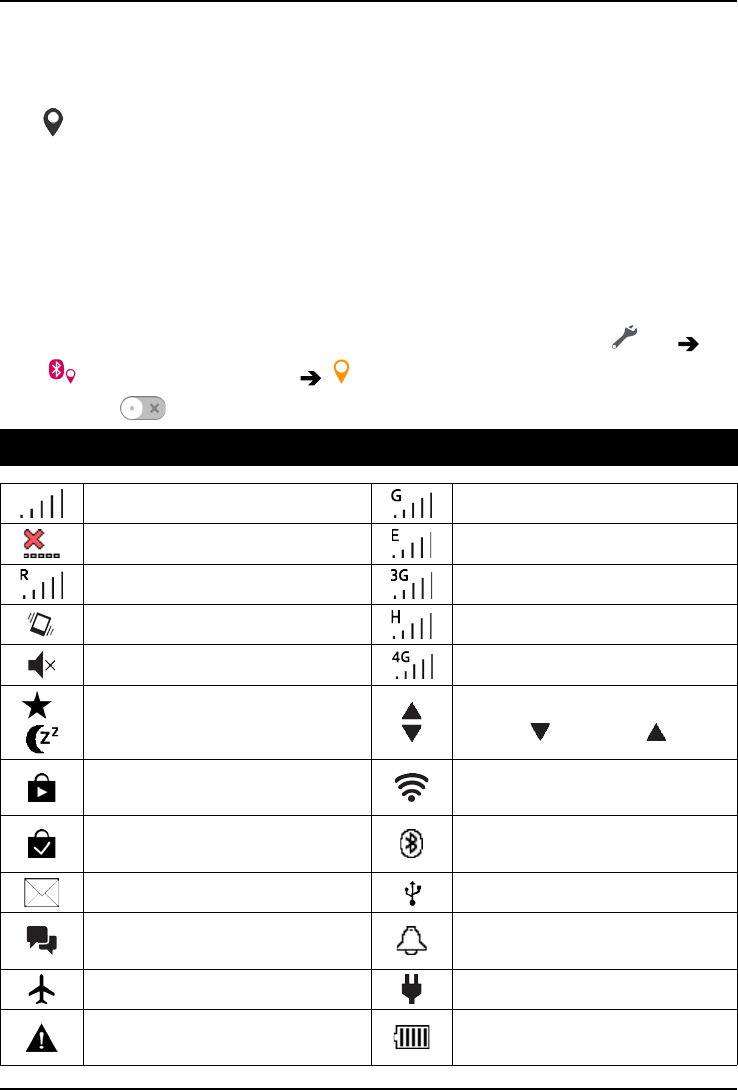
English
traffic. By law, location-based services must be permission-based. That
means that you, must opt in (actively say yes) to the service in order to
use it.
Tip: is shown in the status bar when your phones location is being
used by any app.
Note! Turning off location for your device also turns it off for Google apps
and other non-Google apps. This means that apps can’t use your phone's
location, and many useful features will be turned off.
How to disable GPS location services
1. From the Home screen, open the notification panel, tap Set
My other connections The geolocation options.
2. Switch to disable location services.
Status icons
Signal strength 2.5G GPRS data
No signal EDGE data
Roaming (in other network) 3G data
Vibrate mode HSPA data
Silent mode 4G data
/Sleep mode Data transmission:
data in , data out .
Google Play Store software
updates available Wi-Fi AP connected
Google Play Store, update
completed Bluetooth on
Unread email Connected to computer
New text message or multi-
media message Alarm active
Flight mode activated Charger connected
Error occurred or caution
required Battery level
73
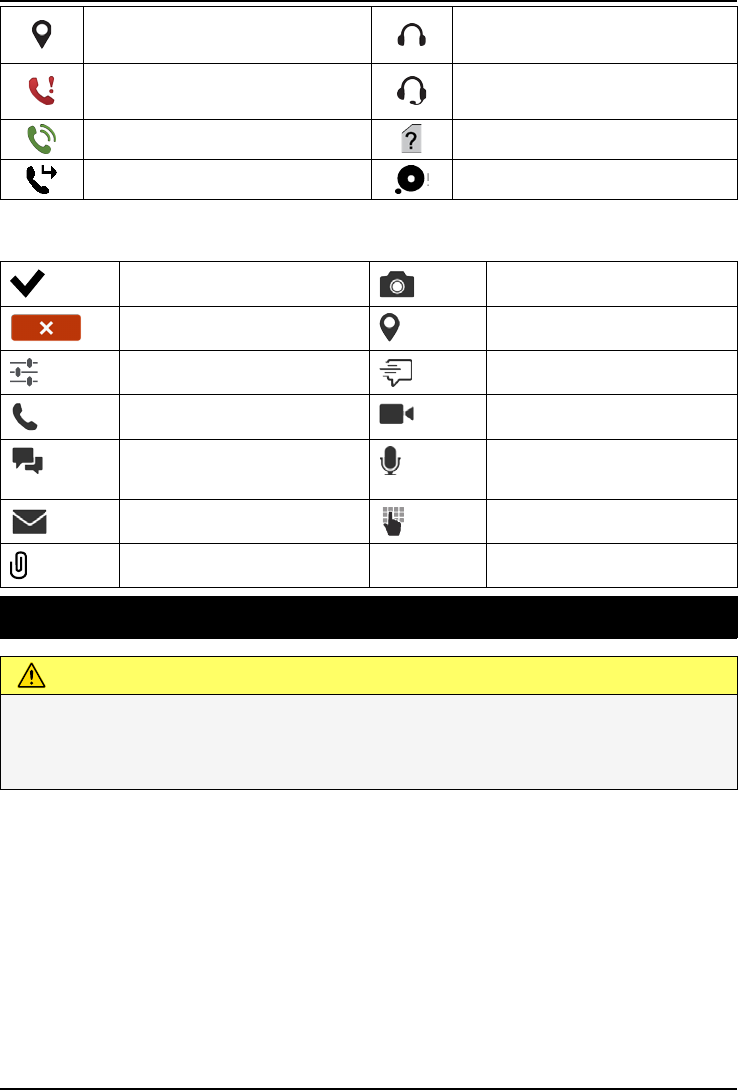
English
GPS activated Headset connected (without
microphone)
Missed call Headset connected (with mi-
crophone )
Call ongoing SIM card not inserted
Call forwarding on Memory full
Examples of soft keys
Validate Add picture
Discard Add current location
Advanced Add template text
Call contact Add video
Write text or picture
message (SMS/MMS)
Add voice recording
Write email Bring up the keypad
Handle attachments
Safety instructions
CAUTION
The unit and the accessories can contain small parts. Keep all of the equipment out
of the reach of small children.
The mains adapter is the disconnect device between the product and mains power.
The mains socket outlet must be close to the equipment and easily accessible.
Network services and costs
Your device is approved for use on the 4G LTE FDD 3 (1800), 7 (2600), 8 (900), 20
(800) MHz / WCDMA 1 (2100), 2 (1900), 5 (850), 8 (900) MHz / GSM 850, 900, 1800,
1900 MHz networks. To use the device, you need a subscription with a service provider.
Using network services may result in traffic costs. Some product features require sup-
port from the network, and you may need to subscribe to them.
74

English
Operating environment
Follow the rules and laws that apply wherever you are, and always turn off the unit
whenever its use is prohibited or can cause interference or hazards. Only use the unit in
its normal user position.
Parts of the unit are magnetic. The unit can attract metal objects. Do not keep credit
cards or other magnetic media near the unit. There is a risk that information stored on
them can be erased.
Wi-Fi (WLAN)
This equipment may be operated in all European countries.
The 5150 - 5350 MHz band is restricted to indoor use only.
AT BE BG CH CY CZ DE DK EE ES FI FR
GR HR HU IE IS IT LI LT LU LV ME MK
MT NL NO PL PT RO RS SE SI SK TR UK
Medical units
The use of equipment that transmits radio signals, for example, mobile phones, can in-
terfere with insufficiently protected medical equipment. Consult a doctor or the manu-
facturer of the equipment to determine if it has adequate protection against external
radio signals, or if you have any questions. If notices have been put up at health care fa-
cilities instructing you to turn off the unit while you are there, you should comply. Hospi-
tals and other health care facilities sometimes use equipment that can be sensitive to
external radio signals.
Implanted medical devices
To avoid potential interference, manufacturers of implanted medical devices recom-
mend a minimum separation of 15 cm between a wireless device and the medical de-
vice. Persons who have such devices should:
•Always keep the wireless device more than 15 cm from the medical device.
•Should not carry the phone in a breast pocket.
•Hold the wireless device to the ear opposite the medical device.
If you have any reason to suspect that interference is taking place, turn the phone off
immediately If you have any questions about using your wireless device with an im-
planted medical device, consult your health care provider.
Areas with explosion risk
Always turn off the unit when you are in an area where there is a risk of explosion. Fol-
low all signs and instructions. There is a risk of explosion in places that include areas
where you are normally requested to turn off your car engine. In these areas, sparks
can cause explosion or fire which can lead to personal injury or even death.
75
English
Turn off the unit at filling stations, and any other place that has fuel pumps and auto re-
pair facilities.
Follow the restrictions that apply to the use of radio equipment near places where fuel
is stored and sold, chemical factories and places where blasting is in progress.
Areas with risk for explosion are often – but not always – clearly marked. This also ap-
plies to below decks on ships; the transport or storage of chemicals; vehicles that use
liquid fuel (such as propane or butane); areas where the air contains chemicals or par-
ticles, such as grain, dust or metal powder.
Li-Ion battery
This product contains a Li-Ion battery. There is a risk of fire and burns if the battery pack
is handled improperly.
WARNING
Danger of explosion if battery is incorrectly replaced. To reduce risk of fire or burns,
do not disassemble, crush, puncture, short external contacts, expose to temperature
above 60° C (140° F), or dispose of in fire or water. Recycle or dispose of used
batteries according to the local regulations or reference guide supplied with your
product.
Protect your hearing
This device has been tested to comply with the Sound Pressure Level requirement laid
down in the applicable EN 50332-1 and/or EN 50332-2 standards.
WARNING
Excessive exposure to loud sounds can cause hearing damage. Exposure
to loud sounds while driving may distract your attention and cause an
accident. Listen to a headset at a moderate level, and do not hold the
device near your ear when the loudspeaker is in use.
Emergency calls
IMPORTANT!
Mobile phones use radio signals, the mobile phone network, the terrestrial network
and user-programmed functions. This means that connection cannot be guaranteed
in all circumstances. Therefore, never rely only on a mobile phone for very important
calls such as medical emergencies.
GPS/Location based functions
Some products provide GPS/Location based functions. Location determining functional-
ity is provided “As is”. No representation or warranty are made as to the accuracy of
such location information. Use of location-based information by the device may not be
76
English
uninterrupted or error free and may additionally be dependent on network service avail-
ability. Please note that functionality may be reduced or prevented in certain environ-
ments such as building interiors or areas adjacent to buildings.
CAUTION
Do not use GPS functionality in a manner which causes distraction from driving.
Vehicles
Radio signals can affect electronic systems in motor vehicles (for example, electronic
fuel injection, ABS brakes, automatic cruise control, air bag systems) that have been in-
correctly installed or are inadequately protected. Contact the manufacturer or its repre-
sentative for more information about your vehicle or any additional equipment.
Do not keep or transport flammable liquids, gases or explosives together with the unit
or its accessories. For vehicles equipped with air bags: Remember that air bags fill with
air with considerable force.
Do not place objects, including fixed or portable radio equipment in the area above the
airbag or the area where it might expand. Serious injuries may be caused if the mobile
phone equipment is incorrectly installed and the airbag fills with air.
It is prohibited to use the unit in flight. Turn off the unit before you board a plane. Using
wireless telecom units inside a plane can pose risks to air safety and interfere with tele-
communications. It may also be illegal.
Protect your personal data
Protect your personal data and prevent leakage or misuse of sensitive information
•While using your device, be sure to back up important data.
•When disposing of your device, back up all data and then reset your device to pre-
vent misuse of your personal information.
•Carefully read the permissions screen when downloading applications. Be particu-
larly cautious with applications that have access to many functions or to a signifi-
cant amount of your personal information.
•Check your accounts regularly for unapproved or suspicious use. If you find any
sign of misuse of your personal information, contact your service provider to delete
or change your account information.
•In the event your device is lost or stolen, change the passwords on your accounts
to protect your personal information.
•Avoid using applications from unknown sources and lock your device with a pattern,
password, or PIN.
Malware and viruses
To protect your device from malware and viruses, follow these usage tips. Failure to do
so may result in damages or loss of data that may not be covered by the warranty
service.
77

English
•Do not download unknown applications.
•Do not visit untrusted websites.
•Delete suspicious messages or email from unknown senders.
•Set a password and change it regularly.
•Deactivate wireless features, such as Bluetooth, when not in use.
•If the device behaves abnormally, run an antivirus program to check for infection.
•Run an antivirus program on your device before you launch newly-downloaded ap-
plications and files.
•Do not edit registry settings or modify the device’s operating system.
Care and maintenance
Your unit is a technically advanced product and should be treated with the greatest care.
Negligence may void the warranty.
•Protect the unit from moisture. Rain, snow, humidity, and all types of liquids can
contain substances that corrode the electronic circuits. If the unit gets wet, you
should immediately power off the phone, remove the battery and allow the unit to
dry completely before you replace it.
•Do not use or keep the unit in dusty, dirty environments. The unit’s moving parts
and electronic components can be damaged.
•Do not keep the unit in warm places. High temperatures can reduce the lifespan
for electronic equipment, damage batteries and distort or melt certain plastics.
•Do not keep the unit in cold places. When the unit warms up to normal tempera-
ture, condensation can form on the inside and can damage the electronic circuits.
•Do not try to open the unit in any other way than that which is indicated here.
•Do not drop or shake the unit. If it is treated roughly the circuits and precision me-
chanics can be broken.
•Do not use strong chemicals to clean the unit.
•Do not disassemble, open, crush, bend, deform, puncture or shred.
•Do not modify or remanufacture, attempt to insert foreign objects into the battery,
immerse or expose to water or other liquids, expose to fire, explosion or other
hazard.
•Only use the battery for the system for which it is specified.
•Only use the battery with a charging system that has been qualified with the system
per IEEE-Std-1725. Use of an unqualified battery or charger may present a risk of
fire, explosion, leakage, or other hazard.
•Do not short circuit a battery or allow metallic conductive objects to contact battery
terminals.
•Replace the battery only with another battery that has been qualified with the sys-
tem per this standard, IEEE-Std-1725. Use of an unqualified battery may present a
risk of fire, explosion, leakage or other hazard.
•Promptly dispose of used batteries in accordance with local regulations.
•Battery usage by children should be supervised.
•Improper battery use may result in a fire, explosion or other hazard.
78

English
For devices that utilize a USB port as a charging source, the device's user manual shall
include a statement that the device shall only be connected to CTIA certified adapters,
products that bear the USB-IF logo or products that have completed the USB-IF compli-
ance program.
The advice applies to the unit, battery, power adapter and other accessories. If the
phone is not working as it should, please contact the place of purchase for service.
Don’t forget the receipt or a copy of the invoice.
Warranty
This product is guaranteed for a period of 24 months and for original accessories for a
period of 12 months (such as the battery, charger, charging cradle or handsfree kit)
which may be delivered with your device, from the date of purchase. In the unlikely
event of a fault occurring during this period, please contact the place of purchase. Proof
of purchase is required for any service or support needed during the guarantee period.
This guarantee will not apply to a fault caused by an accident or a similar incident or
damage, liquid ingress, negligence, abnormal usage, non-maintenance or any other cir-
cumstances on the user’s part. Furthermore, this guarantee will not apply to any fault
caused by a thunderstorm or any other voltage fluctuations. As a matter of precaution,
we recommend disconnecting the charger during a thunderstorm.
Please note that this is a voluntary manufacturer’s warranty and provides rights in addi-
tion to, and does not affect statutory rights of end-users.
This guarantee does not apply if batteries other than DORO original batteries are used.
Specifications
Network bands (MHz) [maximum ra-
dio-frequency power/dBm]:
2G GSM 850 [33], 900 [33],
1800 [30], 1900 [30]
3G UMTS 1 (2100) [24], 2 (1900) [24],
5 (850) [24], 8 (900) [24]
4G LTE FDD 3 (1800) [24], 7 (2600) [24],
8 (900) [24], 20 (800) [24]
Operating system: Android 5.1.1
SIM card size: Micro-SIM (3FF)
Wi-Fi (MHz) [maximum radio-fre-
quency power/dBm]:
WLAN IEEE 802.11 b/g/n ,
(2412 - 2472) [19]
Bluetooth (MHz) [maximum radio-
frequency power/dBm]:
4.1, (2402 - 2480) [10]
79

English
GPS receiver: Category 3
Dimensions: 146 mm x 73 mm x 10 mm
Weight: 159 g (including battery)
Battery: 3.7 V / 2000 mAh Li-ion battery
Image format: BMP, GIF, JPG, PNG
Video format: AVI, MP4, 3GP, 3GP2
Audio format: WAV, AMR, MIDI, MP3, AAC
Main camera resolution: 8MP
Front camera resolution: 2 MP
Camera digital zoom: 4x
Display Size: 5”
Display resolution: 720 x 1280
Internal memory: 8 GB
External memory: microSD, microSDHC max 32 GB
Operating ambient temperature: Min: 0°C (32°F)
Max: 40°C (104°F)
Charging ambient temperature: Min: 0°C (32°F)
Max: 40°C (104°F)
Storage temperature: Min:–20°C (–4°F)
Max: 60°C (140°F)
Copyright and other notices
Bluetooth®is a registered trademark of Bluetooth SIG, Inc.
vCard is a trademark of the Internet Mail Consortium.
eZiType™is a trademark of Zi Corporation.
Wi-Fi is a trademark or a registered trademark of the Wi-Fi Alliance.
microSD is a trademark of SD Card Association.
Java, J2ME and all other Java-based marks are trademarks or registered trademarks of
Sun Microsystems, Inc. in the United States and other countries.
The contents of this document are provided "as is". Except as required by applicable
law, no warranties of any kind, either express or implied, including, but not limited to,
the implied warranties of merchantability and fitness for a particular purpose, are made
in relation to the accuracy, reliability or contents of this document. Doro reserves the
right to revise this document or withdraw it at any time without prior notice.
80

English
Google, Google Maps™, Gmail, Google Calendar, Google Checkout, Hangouts, YouTube,
the YouTube logo, Picasa and Android are trademarks or registered trademarks of Goo-
gle, Inc.
This product is licensed under the MPEG-4 visual and AVC patent portfolio licenses for
the personal and noncommercial use of a consumer for (i) encoding video in compli-
ance with the MPEG-4 visual standard ("MPEG-4 video") or the AVC standard ("AVC vid-
eo") and/or (ii) decoding MPEG- 4 or AVC video that was encoded by a consumer
engaged in a personal and non-commercial activity and/or was obtained from a video
provider licensed by MPEG LA to provide MPEG-4 and/or AVC video. No license is
granted or shall be implied for any other use. Additional information including that relat-
ing to promotional, internal and commercial uses and licensing may be obtained from
MPEG LA, L.L.C. See www.mpegla.com. MPEG Layer-3 audio decoding technology li-
censed from Fraunhofer IIS and Thomson.
Other product and company names mentioned herein may be the trademarks of their
respective owners.
Any rights not expressly granted herein are reserved. All other trademarks are property
of their respective owners.
To the maximum extent permitted by applicable law, under no circumstances shall Doro
or any of its licensors be responsible for any loss of data or income or any special, inci-
dental, consequential or indirect damages howsoever caused.
Doro does not provide a warranty for or take any responsibility for the functionality, con-
tent, or end-user support of third-party apps provided with your device. By using an app,
you acknowledge that the app is provided as is. Doro does not make any representa-
tions, provide a warranty, or take any responsibility for the functionality, content, or end-
user support of third-party apps provided with your device.
Content copyright
The unauthorised copying of copyrighted materials is contrary to the provisions of the
Copyright Laws of the United States and other countries. This device is intended solely
for copying non-copyrighted materials, materials in which you own the copyright, or ma-
terials which you are authorised or legally permitted to copy. If you are uncertain about
your right to copy any material, please contact your legal advisor.
Open source licenses
You are entitled to receive a copy of the source code of software licensed under an open
source license that gives you the right to receive the source code for that software (for
example GPL or LGPL) to you on an appropriate media, against an administrative fee
covering Doro AB’s cost for handling the distribution and costs for media. Please direct
such request to Doro AB, Open Source Software Operations, Magistratsvagen 10, SE
226 43 Lund, Sweden. To be valid, such a request must be made within three (3) years
from the date of the distribution of this product by Doro AB, or in the case of code li-
censed under the GPL v3 for as long as Doro AB offers spare parts or customer support
for this product model.
81

English
Hearing aid compatibility
Note! For hearing aid compatibility, turn off Bluetooth connectivity.
This phone is hearing aid compatible. Hearing aid compatibility is not a guarantee that
a specific hearing aid will work with a specific phone. Mobile phones contain radio
transmitters that may interfere with hearing aid performance. This phone has been
tested for use with hearing aids, for some of the wireless technologies that it uses, but
there may be some newer wireless technologies that have not been tested yet for use
with hearing aids. To ensure that a specific hearing aid works well with this phone, test
them together before making a purchase.
The standard for hearing aid compatibility contains two types of ratings:
•M: To use your hearing aid in this mode, make sure that your hearing aid is set to
"M-mode" or acoustic coupling mode, and position the phones receiver near the
hearing aid’s built-in microphone. For the best results, try using the phone in differ-
ent positions relative to your hearing aid—for example, placing the receiver slightly
above the ear may result in better performance for hearing aids with microphones
positioned behind the ear.
•T: To use your hearing aid in this mode, make sure that your hearing aid is set to "T-
mode" or telecoil coupling mode (not all hearing aids have this mode). For the best
results, try using the phone in different positions relative to your hearing aid—for ex-
ample, placing the receiver slightly below or in front of the ear may result in better
performance.
Your device meets the M3/T3 level rating.
Specific Absorption Rate (SAR)
This device meets applicable international safety requirements for exposure to radio
waves. Your mobile device is a radio transmitter and receiver. It is designed not to ex-
ceed the limits for exposure to radio waves (radio frequency electromagnetic fields) rec-
ommended by international guidelines from the independent scientific organization
ICNIRP (International Commission of Non-Ionizing Radiation Protection).
The radio wave exposure guidelines use a unit of measurement known as the Specific
Absorption Rate, or SAR. The SAR limit for mobile devices is 2 W/kg averaged over 10
grams of tissue and include a substantial safety margin designed to assure the safety
of all persons, regardless of age and health.
Tests for SAR are conducted using standard operating positions with the device trans-
mitting at its highest certified power level in all tested frequency bands. The highest
SAR values under the ICNIRP guidelines for this device model are:
Head SAR: 0.515 W/kg
Body SAR: 1.410 W/kg
During normal use, the SAR values for this device are usually well below the values sta-
ted above. This is because, for purposes of system efficiency and to minimize interfer-
ence on the network, the output power of your mobile device is automatically decreased
82
English
when full power is not needed for the call. The lower the power output of the device, the
lower its SAR value.
This device meets RF exposure guidelines when used against the head or when posi-
tioned at least 0.5 cm away from the body. When a carry case, belt clip or other form of
device holder is used for body-worn operation, it should not contain metal and should
provide at least the above stated separation distance from the body.
The World Health Organization (WHO) has stated that current scientific information does
not indicate the need for any special precautions when using mobile devices. If you are
interested in reducing your exposure, they recommend you reduce your usage or use a
hands-free accessory to keep the device away from your head and body.
Correct disposal of this product
(Waste Electrical & Electronic Equipment)
(Applicable in countries with separate collection systems)
This marking on the product, accessories or manual indicates that the product and its
electronic accessories (e.g. charger, headset, USB cable) should not be disposed of with
other household waste. To prevent possible harm to the environment or human health
from uncontrolled waste disposal, please separate these items from other types of
waste and recycle them responsibly to promote the sustainable reuse of material re-
sources. Household users should contact either the retailer where they purchased this
product, or their local government office, for details of where and how they can take
these items for environmentally safe recycling. Business users should contact their sup-
plier and check the terms and conditions of the purchase contract. This product and its
electronic accessories should not be mixed with other commercial wastes for disposal.
This product is RoHS compliant.
Correct disposal of batteries in this product
(Applicable in countries with separate collection systems)
The marking on the battery, manual or packaging indicates that the battery in this prod-
uct should not be disposed of with other household waste. Where marked, the chemical
symbols Hg, Cd or Pb indicate that the battery contains mercury, cadmium or lead above
the reference levels in EC Directive 2006/66. If batteries are not properly disposed of,
these substances can cause harm to human health or the environment.
To protect natural resources and to promote material reuse, please separate batteries
from other types of waste and recycle them through your local, free battery return
system.
83


English
85

