Doro Phone Easy 618 Operation Manual EN
User Manual: doro PhoneEasy 618 - Operation Manual Free User Guide for Doro Mobile Phone, Manual
Open the PDF directly: View PDF  .
.
Page Count: 68
- Installation
- Installing the SIM card, memory card and the battery
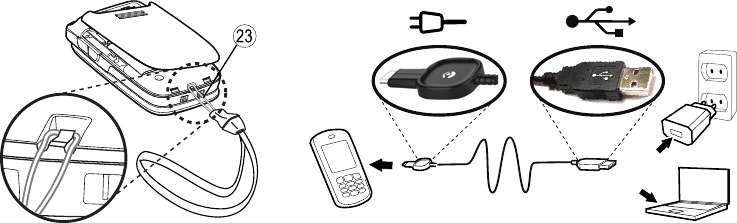
- Charging
- Symbols
- Assistive functions
- Operation
- Activating the phone
- Phonebook
- Creating a phonebook entry
- ICE (In Case of Emergency)
- Messages
- Creating and sending text messages
- Call log
- Retrieving and dialing
- Camera (take photos)
- Camera, options
- Image viewer
- Options
- Connecting the phone to a computer
- Drag and drop content between phone and a computer
- Settings
- General
- Additional functions
- Alarm
- Other
- Troubleshooting
- Safety instructions
- Network services and costs
- Disclaimer and Limitation of Liability
- FCC/Industry Canada notice
- Care and maintenance
- Battery disposal and recycling information
- Warranty
- Support
- Specifications
Doro PhoneEasy® 618
English (US)
AB C
DEF
GHI JKL MNO
WXYZTUVPQRS
0
8
4
5
6
7 9
1
2
3
ABC
2
3
4
5
6
8
7
9
10
11
12
1
13
14
16
17
18
15
19
20
21
22
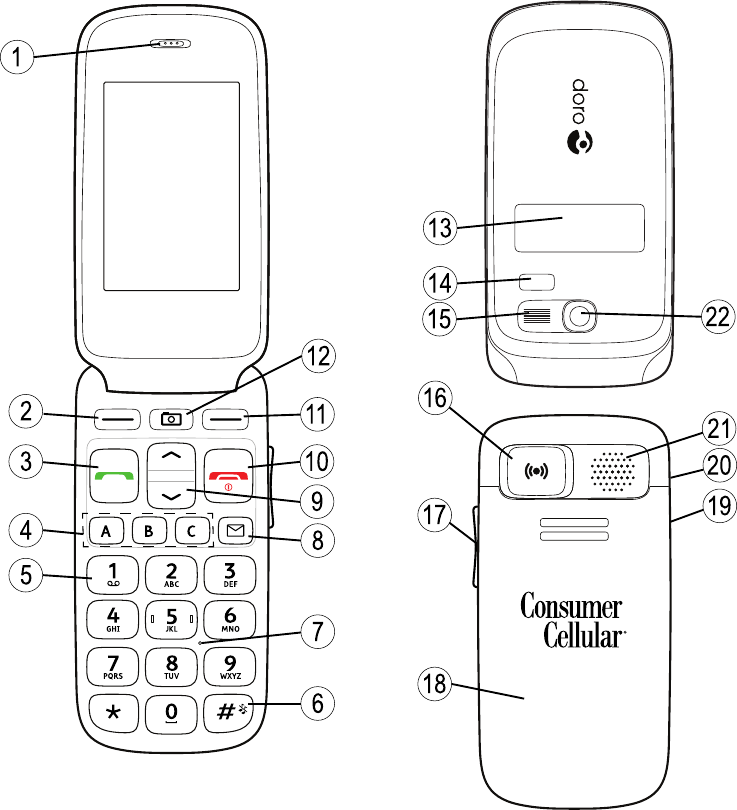
1. Earpiece
2. Left selection button
3. Call button
4. Speed dials
5. Voice mail
6. Silent/Input method
7. Microphone
8. Messages shortcut
9. Arrow buttons
10. End call/Power on/off
11. Right selection button
12. Camera shortcut
13. External display
14. LEDs (Red=Battery low/
charging, Green=New mes-
sage/missed call)
15. Camera flash/Flashlight
16. Emergency button
17. Volume control
18. Battery cover
19. Headset socket
20. Charging socket
21. Loudspeaker
22. Camera lens
23. Lanyard
23

English (US)
Contents
Installation ..................................................................................................... 1
Installing the SIM card, memory card and the battery ....................... 1
Charging......................................................................................................... 2
Symbols.......................................................................................................... 3
Assistive functions................................................................................. 3
Phone indicators ................................................................................... 3
Display status symbols ......................................................................... 3
Display main symbols ........................................................................... 4
Operation ....................................................................................................... 5
Activating the phone ............................................................................. 5
Making a call ......................................................................................... 6
Making a call from the Phonebook ...................................................... 6
Receiving a call...................................................................................... 6
Volume control....................................................................................... 6
Entering phone numbers ...................................................................... 7
Entering text ..................................................................................... 7
Call options ............................................................................................ 8
Call waiting............................................................................................. 9
Call information ..................................................................................... 9
Speed dial ........................................................................................ 9
Silent ...................................................................................................... 9
Headset.................................................................................................. 9
SOS calls .............................................................................................. 10
Emergency button ..........................................................................10
Phonebook...................................................................................................12
Creating a phonebook entry ...............................................................12
Creating ICE entry (In Case of Emergency) ...................................12
Managing phonebook entries.............................................................12
ICE (In Case of Emergency) ....................................................................14
Messages.....................................................................................................15
Creating and sending text messages.................................................15
Creating and sending picture messages ...........................................15
Inbox, Sent, Outbox ............................................................................. 17
Call log..........................................................................................................18
Retrieving and dialing .........................................................................18

English (US)
Camera (take photos) .................................................................................19
Camera, options ..................................................................................19
Camera adjustments...........................................................................19
Image viewer................................................................................................20
Options.................................................................................................20
Connecting the phone to a computer ........................................................21
Drag and drop content between phone and a computer .................21
Disconnect the USB cable safely........................................................22
Settings ........................................................................................................22
General.................................................................................................22
Sound...................................................................................................25
Display..................................................................................................27
Calls......................................................................................................28
Messages.............................................................................................33
Camera.................................................................................................36
Emergency ......................................................................................36
Bluetooth®............................................................................................ 37
Security ................................................................................................38
File manager........................................................................................ 41
Additional functions ....................................................................................43
Alarm ....................................................................................................43
Organizer..............................................................................................43
Calculator.............................................................................................45
FM radio...............................................................................................45
Flashlight..............................................................................................46
Instructions for the REMOTE USER .................................................... 47
Other ............................................................................................................50
Troubleshooting ...................................................................................50
Safety instructions.......................................................................................52
Network services and costs................................................................52
Operating environment .......................................................................52
Medical units .......................................................................................52
Areas with explosion risk ....................................................................53
Protect your hearing............................................................................53
Emergency calls...................................................................................53
Vehicles................................................................................................53
Driving safely .......................................................................................54
Hearing aid compatibility ....................................................................55

English (US)
TTY compatibility .................................................................................55
RF exposure information (SAR) ..........................................................55
Disclaimer and Limitation of Liability......................................................... 57
FCC/Industry Canada notice ...................................................................... 57
Care and maintenance ...............................................................................58
Battery disposal and recycling information ...............................................60
Warranty.......................................................................................................60
Support ........................................................................................................61
Specifications ..............................................................................................61
English (US)
Installation
IMPORTANT!
Turn off the phone and disconnect the charger before removing the
battery cover.
Installing the SIM card, memory card and the battery
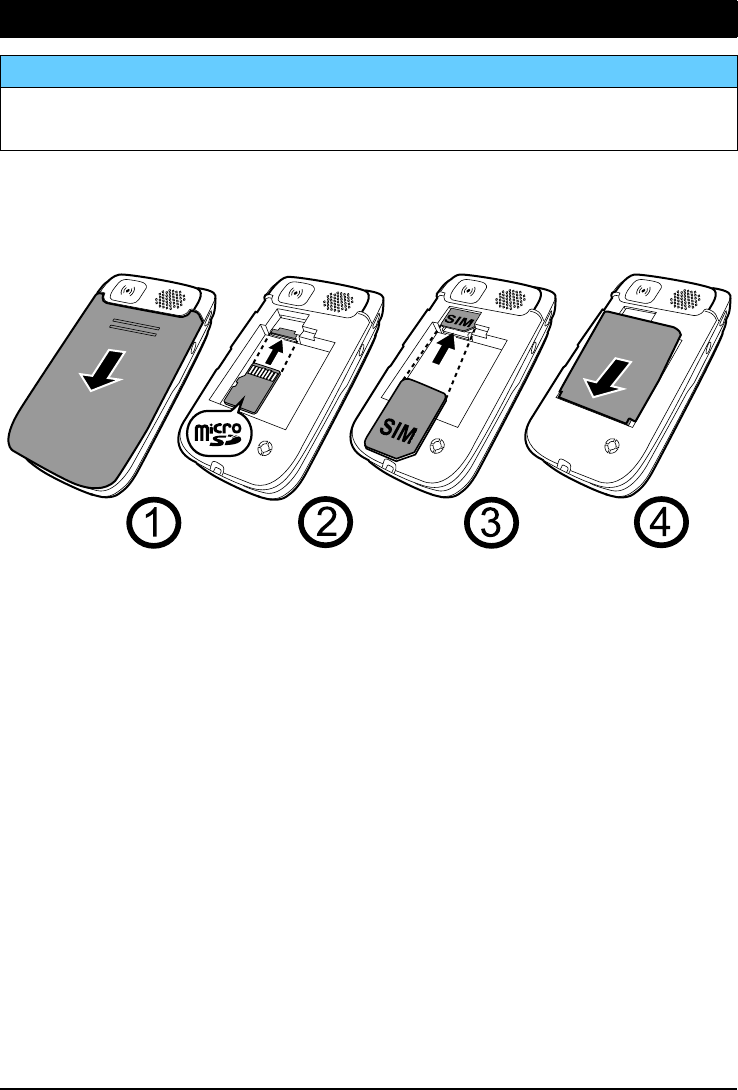
The SIM and memory card holder’s are located inside the battery
compartment.
1234
1. Remove the battery cover and the battery if it is already installed.
2. Optional: Insert the memory card into the slot under the SIM card
holder. Make sure that the memory card contacts are facing up-
wards and push the card in, until you hear a click. Take care not to
scratch or bend the contacts on the card.
To remove or replace the card, push the card in until you hear a click
and then pull the card out.
3. Insert the SIM card by gently sliding it into the holder. Make sure
that the SIM card’s contacts are facing downwards and that the cut
off corner is pointing inwards. Take care not to scratch or bend the
contacts on the SIM card.
4. Insert the battery by sliding it into the battery compartment. Replace
the battery cover.
1
English (US)
IMPORTANT!
Use only compatible memory cards for use with this device. Compatible
card type: microSD, microSDHC.
Incompatible cards may damage the card itself, the device and corrupt
data stored on the card. Depending on the market some phones may
have a pre-installed memory card.
Charging
CAUTION
Only use batteries, charger and accessories that have been approved
for use with this particular model. Connecting other accessories may
be dangerous and may invalidate the phones type approval and
guarantee.
When the battery is running low, is displayed and a warning signal is
heard. To charge the battery, connect the mains adapter to a wall socket
and to the charging socket y.
is displayed briefly when the charger is connected to the phone, and
when it is disconnected. The battery charge indicator will be ani-
mated while charging. It takes approximately 3 hours to fully charge the
battery.
is displayed on the screen when charging is completed. If the phone
is turned off when the charger is connected to the phone only the battery
charge indicator will be shown on the display.
Note! To save power the LCD backlight goes off after a while. Press any
button to illuminate the display. Full battery capacity will not be reached
until the battery has been charged 3–4 times. Batteries degrade over
time, which means that call time and standby time will normally
decrease with regular use.
Save energy
When you have fully charged the battery and disconnected the charger
from the device, unplug the charger from the wall outlet.
2
English (US)
Symbols
Assistive functions
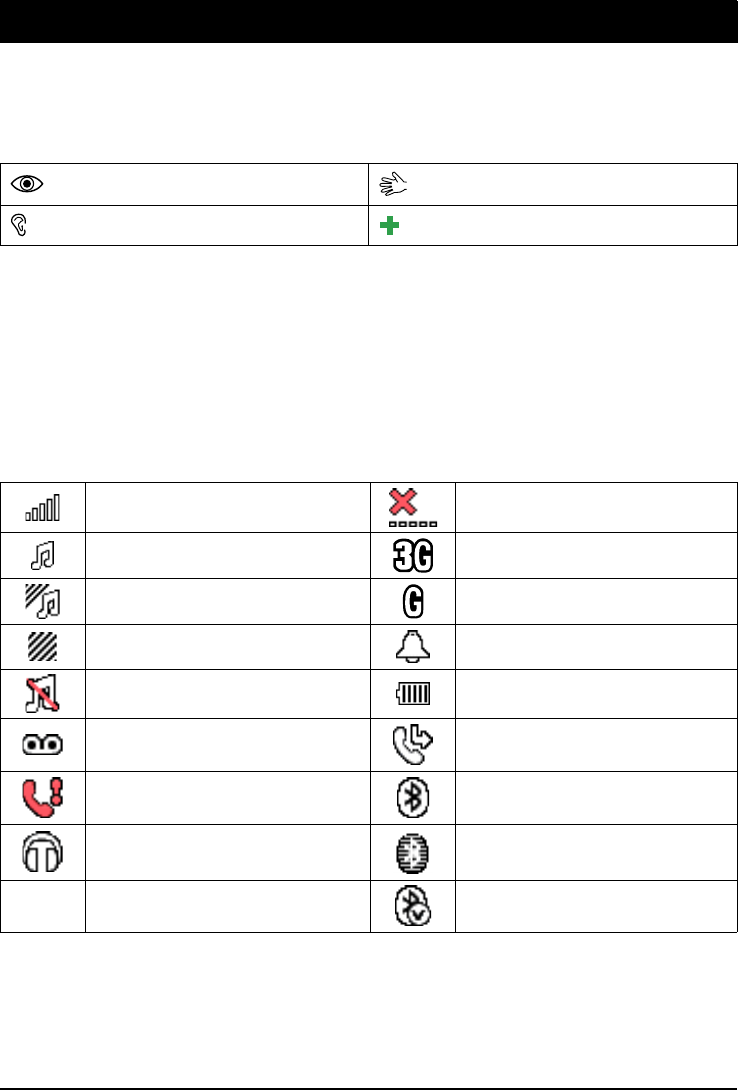
The following symbols indicate information in the manual about assistive
functions for:
Seeing Handling
Hearing Safety
Phone indicators
LED light on the phone will:
•flash green when you have a new message or a missed call. After
reading the new message/missed call, the flashing will stop.
•flash red when the battery is running low and during charging.
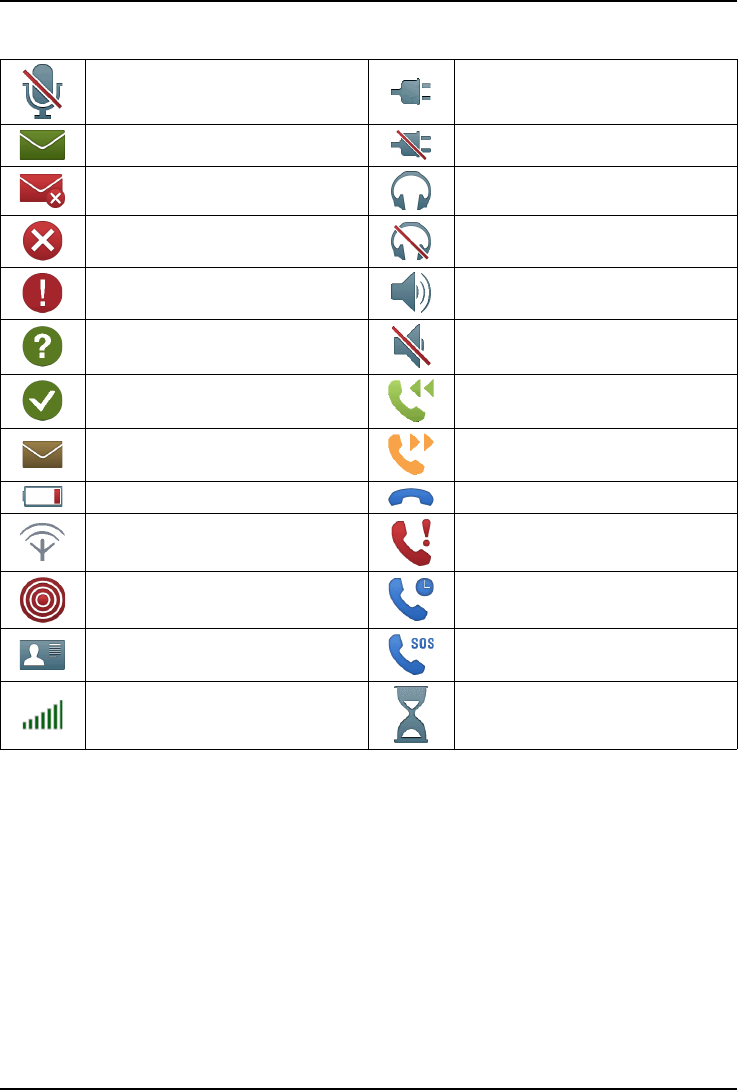
Display status symbols
Signal strength No network coverage
Ring only 3G coverage
Ring + vibration 2G coverage
Vibration only Alarm active
Silent Battery level
Voice mail message
received Call forward activated
Missed call Bluetooth on, visible to
others
Headset connected Bluetooth on, invisible to
others
5Unread message in Inbox Bluetooth connected
3
English (US)
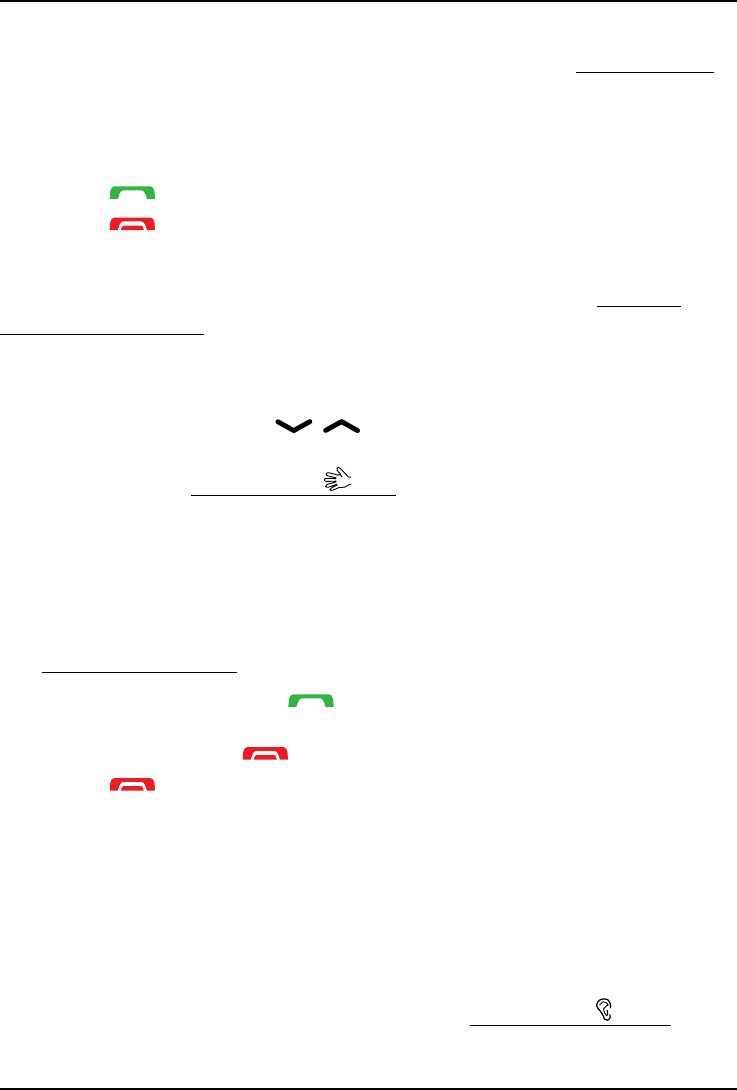
Display main symbols
Mute Charger connect
Message sending success Charger removed
Message sending failed Headset in
Error Headset out
Warning Speaker on
Query Speaker off
Done (confirmed) Incoming call
New message Outgoing call
Battery level low Call ended
Searching Missed call. Press View to
see the missed calls.
Emergency call Call on-hold
vCard message SOS calls only
Volume control Processing, please wait
4

English (US)
Operation
Activating the phone
Press and hold the red button on the phone to turn it on/off. Con-
firm with Yes to power off.
If the SIM card is valid but protected with a PIN code (Personal Identifica-
tion Number), PIN is displayed. Enter the PIN code and press OK (
upper left corner of keypad). Delete with Clear ( upper right corner of
keypad).
Note! If PIN and PUK codes were not provided with your SIM card, please
contact your service provider.
Attempts: #shows the number of PIN attempts left. When no more at-
tempts remain, PIN blocked is displayed. The SIM card must now be un-
locked with the PUK code (Personal Unblocking Key).
1. Enter the PUK code and confirm with OK.
2. Enter a new PIN code and confirm with OK.
3. Re-enter new PIN code and confirm with OK.
Start-up wizard
When starting the phone for the first time, you can use the Start-up wiz-
ard to set some basic settings.
•Press Yes to change or No if you do not want to change.
Tip: You can run the Start-up wizard later if you want, see Start-up wizard,
p.23.
Standby (Idle mode)
When the phone is ready to use, and you have not keyed in any charac-
ters, the phone is in standby.
Left selection button in standby is Menu.
Right selection button in standby is Name.
Tip: You can always press to return to standby.
5
English (US)
Changing the language, time and date
The default language is determined by the SIM card. See General, p.22
on how to change language, time and date.
Making a call
1. Enter the phone number including the area code. Delete with Clear.
2. Press to dial. Press Cancel to cancel dialing.
3. Press to end the call.
Tip: For international calls, always use +before the country code for best
operation. Press *twice for the international prefix +, see Entering
phone numbers, p.7.
Making a call from the Phonebook
1. Press Name to open the phonebook.
2. Use the arrow buttons / to scroll through the phonebook, or
quick search by pressing the key corresponding to the first letter of
the entry, see Entering text , p.7.
3. Press Call to dial the selected entry, or press Back.
Receiving a call
To answer an incoming call when the flip is closed, open the flip.
To answer an incoming call when you have set Open to answer to Off,
see Answer mode, p.30.
1. Open the flip and press to answer, or press Silent to switch off
the ring signal and then Reject to reject the call (busy signal).
Alternatively, press to reject the call directly.
2. Press to end the call.
Tip: Press and hold +or –to temporary switch off the ring signal without
opening the flip.
Volume control
Use the side buttons +/–to adjust the sound volume during a call. The
volume level is indicated on the display. If you use hearing aid or have
hearing difficulties when using the telephone in noisy environment, you
can customize the phone's audio settings, see Audio setup , p.25.
6
English (US)
Entering phone numbers
For international calls, always use +before the country code for best op-
eration. Press *twice for the international prefix +.
You can dial or save phone numbers with pauses for use with automated
systems, such as voicemail or credit card billing numbers. There are two
types of pauses available on your phone, press *repeatedly until de-
sired character is shown.
wSends the next set of numbers when prompted. The wmeans your
phone waits before dialing further. A message appears asking
about sending the rest of the digits.
pAutomatically sends the next set of numbers after three seconds.
Press *again to enter more pauses. Each prepresents a three-
second pause.
Tip: You can have multiple pauses in a phone number and combine waits
and pauses.
Entering text
Press a numerical key repeatedly until desired character is shown. Wait a
few seconds before entering the next character.
Press *for a list of special characters. Select the desired character with
/ and press OK to enter it.
Use the side keys +/–or / to move the cursor within the text.
Press #to cycle upper case, lower case and numerals.
Entering text with predictive text
In some languages you can use the Smart ABC (eZiType™) input method
which uses a dictionary to suggest words. See Predictive text , p.33 on
how to activate predictive text.
Press each key once, even if the displayed character is not the one you
want. The dictionary will suggest words based on the keys you have
pressed.
1. To write the word “Fred”, press 3,7,3,3. Complete the word
before looking at the suggestions.
7
English (US)
2. Use / to view the suggested words.
3. Press Select and continue with the next word.
Alternatively, press 0to continue with the next word.
If none of the suggested words are correct, press #to change to manual
input mode. The icon on the top left of the display indicates the input
mode:
Abc Sentence case with predictive text
ABC UPPER CASE with predictive text
abc lower case with predictive text
Abc Sentence case
ABC UPPER CASE
abc lower case
123 Numerals
Note! The selected menu language determines the available input
methods.
Call options
During a call the selection buttons1( ) give access to additional
functions:
Options (left selection button)
A menu with the following options is displayed:
Hold single
call/Retrieve
single
Hold/retrieve current call.
End single
call
End current call (same as ).
New call Call another number (Conference).
Phonebook Search the phonebook.
Messages Write or read messages.
Mute Disable the microphone.
8
1. selection buttons have multiple functions. Current key function is shown
above the selection button on the display.

English (US)
SPK on (right selection button)
Activates handsfree mode, which allows you to speak without holding the
phone. Speak clearly into the microphone at a maximum distance of
3 feet. Use the side buttons +/–to adjust the loudspeaker volume. Press
SPK off to return to normal mode.
Note! The handsfree function allows only one person at a time to talk.
Switching between talk/listen is triggered by the sound of the person
talking. Loud noises (music, etc.) in the background may interfere with
the function.
Call waiting
An alert tone will be heard if there is an incoming call while talking. To
put current call on hold and answer the incoming call, press Options, se-
lect Answer and then OK.
Tip: Call waiting must be activated, see Call setup, p.31.
Call information
During a call, the outgoing or incoming phone number and the elapsed
call time is displayed. If the identity of the caller is withheld, Unknown is
displayed.
Speed dial
You can use keys A,Band Cand you can also use the numerical keys
0and 2–9. To speed dial an entry from standby, press and hold the
corresponding key. See Speed dial , p.29.
Silent
Silent is a fixed profile with Keypad tone, Message tone and Ring tone
disabled, while Vibration, Tasks and Alarm are unchanged.
Tip: Press and hold shortcut button #to activate/deactivate Silent.
Headset
When a headset is connected, the internal microphone in the phone is
automatically disconnected.
9
English (US)
When receiving a call you can use the answer key on the headset cable
(if it has one) to answer and end calls.
CAUTION
Using a headset at high volume may damage your hearing. Adjust the
volume level carefully when using a headset.
SOS calls
As long as the phone is switched on, it is always possible to place an SOS
call by entering the main local emergency number for your present loca-
tion followed by .
Most networks accept calls to emergency numbers without a valid SIM
card. Contact your service provider for more information.
Emergency button
IMPORTANT!
Always let your friend or family member know that it is listed as your
emergency contact.
CAUTION
When an emergency call is activated the phone is pre-set to handsfree
mode. Do not hold the device near your ear when the handsfree mode
is in use, because the volume may be extremely loud.
The Emergency button allows you easy access to contact a predeter-
mined number should you need help. The number will normally be a fam-
ily member or a friend. To use the Emergency button, you must first
activate the function and store the emergency number you wish to call in
Set number, see Emergency , p.36. Once activated, to make an emer-
gency call you will follow the instructions for the option you selected:
On (3) Press the Emergency button three times within 1 second.
The emergency call begins after a delay of 5 seconds. In this
time you can prevent a possible false alarm by pressing
.
Off Emergency button disabled.
10

English (US)
Note! Some private security companies can accept automatic calls from
their clients. Always contact the security company before using their
phone number.
11
English (US)
Phonebook
The phonebook can store 300 entries with 3 phone numbers in each
entry.
Creating a phonebook entry
1. Press Menu, scroll to and press OK.
2. Select -New contact- and press Add.
3. Enter a Name for the contact, see Entering text , p.7. Delete
with Clear.
4. Use / to select Mobile,Home or Office, and enter
the phone number(s) including the area code.
5. Select Picture and press Edit to associate a picture to the
contact.
This picture will be displayed when the correspondning contact is
calling you and may also be visible in the phonebook, see Phone-
book picture, p.25.
•Select Take picture and press OK for using the camera to take
a picture.
•Select My pictures and press OK to select an existing picture.
6. Press Save.
Creating ICE entry (In Case of Emergency)
With this additional information and medical information, first responders
can access this information from the victim's phone in case of emergency.
In the event of a trauma, it is critical to have this information as early as
possible which can increase the chances of survival. All fields are option-
al, but the more information provided the better. See ICE (In Case of
Emergency) , p.14 on how to configure your ICE information.
Managing phonebook entries
1. Press Menu, scroll to and press OK.
2. Select a contact and press Options.
3. Select one of the following options and press OK.
View
Show details for the selected contact.
12

English (US)
Edit
1. Use / to move the cursor. Delete with Clear.
2. Press Save.
Add
See Creating a phonebook entry, p.12.
Call
Press OK to call the contact.
Send text message
Press OK to write a text message, see Creating and sending text mes-
sages, p.15.
Send picture message
Press OK to write a picture message, see Creating and sending picture
messages, p.15.
Delete
Press OK to delete the selected phonebook entry. Press Yes to confirm or
No to abort.
Delete all
Select From SIM or From phone and press OK to delete all phonebook
entries from the SIM card or phone memory.
Enter the phone code and press OK to confirm. The default phone code
is 1234.
Copy all
Select From SIM and press OK to copy all phonebook entries from the
SIM card to the phone memory. Press Yes to confirm or No to abort.
Select From phone and press OK to copy all phonebook entries from the
phone memory to the SIM card. Press Yes to confirm or No to abort.
13
English (US)
Send vCard
Select Send by text message and press OK to send the selected phone-
book entry as a vCard via text message. Enter the phone number of the
recipient.
Alternatively use the arrow buttons / to scroll through the phone-
book, or quick search by pressing the key corresponding to the first letter
of the entry, see Entering text , p.7. Press OK to send.
Select Send by picture message and press OK to send the selected pho-
nebook entry as a vCard via picture message. Type your message, then
press Options. Add items to your message from the options Add picture,
Add sound,Add video and Add subject. Add recipients with To and Send
when ready.
Select Send by Bluetooth and press OK to send the selected phonebook
entry as a vCard via Bluetooth®. See Bluetooth®, p.37 on how to connect
with Bluetooth.
ICE (In Case of Emergency)
First responders can access additional information such as medical infor-
mation from the victim's phone in case of emergency. In the event of a
trauma, it is critical to have this information as early as possible to in-
crease the chances of survival. All fields are optional, but the more infor-
mation provided the better.
1. Press Menu, scroll to and press OK.
2. Select and press OK, then use / to scroll the list of
entries.
3. Press Edit to add or edit information in each entry, see Entering text
, p.7. Delete with Clear. Press Save when done.
Name: Your own name.
Birth: Your date of birth.
Height: Your height.
Weight: Your weight.
Language: Your language.
Insurance: Your insurance provider and policy number.
14
English (US)
Contact 1:
Contact 2:
Doctor:
Press Options and then OK to Add or Delete a con-
tact from the phonebook, or Save to accept current
entry. If possible, add your relationship to your ICE
contacts in the phonebook, such as “ICE Wife Mary
Smith”.
Condition: Any medical conditions/medical devices (e.g. dia-
betic, pacemaker).
Allergies: Any known allergies (e.g. penicillin, bee stings).
Blood type: Your blood type.
Vaccination: Any relevant vaccination.
Medication: Any medication that you are treated with.
Other info: Other information (e.g. organ donor, living will, con-
sent to treat).
Messages
Creating and sending text messages
1. Press shortcut or press Menu, scroll to and press OK.
2. Select Text message and press OK.
3. Type your message, see Entering text , p.7, then press To.
4. Select a recipient from Phonebook and press Add.
Alternatively, select Enter number and press OK to add recipient
manually and press Done.
5. Select Add to add more recipients or select Send to send and then
press OK.
6. You can also modify the recipients by selecting one and press Op-
tions to Edit,Delete or Delete all.
Note! If you choose to add multiple recipients, you will be charged for
each recipient (maximum 10).
Creating and sending picture messages
A picture message can contain text and media objects such as pictures,
sound recordings and video. Both you and the recipient must have sub-
scriptions that support picture messages. The settings is supplied by your
service provider and can be automatically sent to you. If not, see Profile,
p.34 on how to set your profile.
15

English (US)
1. Press Menu, scroll to and press OK.
2. Select Picture message and press OK.
3. Type your message, see Entering text , p.7, then press Options.
4. Add items to your message from the options Add picture,Add
sound,Add video and Add subject.
5. Add recipients with To and Send when ready.
To (Add recipients)
1. Select To and press OK to select recipient from Phonebook and
press OK.
Alternatively, select Enter number and press OK to add recipient
manually and press Done.
2. Select Add to add more recipient or select Send to send and then
press OK.
3. You can also modify the recipients by selecting one and press Op-
tions to Edit,Delete or Delete all.
Add picture
1. Select Add picture and press OK.
2. Select My pictures and press OK
Alternatively, select Take picture and press OK for using the camera
to take a picture.
3. Select Phone/Memory card and press Open.
4. Select a folder, eg Photos and press Open.
5. Select a file and press OK.
Add sound
1. Select Add sound and press OK.
2. Select My sounds and press OK.
Alternatively, select Record sound and press OK for using the micro-
phone to record sound. Recording will start immediately. Press Stop
when done and press Yes to save.
3. Select Phone/Memory card and press Open.
4. Select a folder, eg Audio and press Open.
5. Select a file and press OK.
Add video
1. Select Add video and press OK.
2. Select My videos and press OK.
16
English (US)
3. Select Phone/Memory card and press Open.
4. Select a folder, eg Received and press Open.
5. Select a file and press OK.
Add subject
1. Select Add subject and press OK.
2. Type your subject, then press Done.
Inbox, Sent, Outbox
/text message/picture mes-
sage unread
/text message/picture mes-
sage sent
/text message/picture mes-
sage read
/text message/picture mes-
sage unsent
1. Press Menu, scroll to and press OK.
2. Select Inbox/Sent/Outbox and press OK.
3. Select a message and press View.
Use / to scroll the message up/down.
4. Press Options for the following options:
View (picture message only)
To view the message.
Reply
Type your reply, then press Done. The message will be sent immediately.
Call
Press OK to call the contact.
Forward
Forward a message. Edit the message (if desired), then press Send.
Delete
Press Yes to delete the message, or No to return.
Resend
Send again to the same receiver.
17
English (US)
Save objects (picture message only)
To save text and media objects such as pictures, sound recordings and
video.
Use number
Displays all phone numbers contained in the message as well as the
sender's number.
Call Call the selected number.
Save Save the number in the Phonebook.
Send text
message
Write a new text message.
Send picture
message
Write a new picture message.
Details (picture message only)
To view details of the message.
Call log
Received, missed, and dialed calls are saved in a combined call log. 20
calls of each type can be stored in the log. For multiple calls related to
the same number, only the most recent call is saved.
Retrieving and dialing
1. Press .
Alternatively, press Menu, scroll to and press OK.
2. Use / to scroll through the Call log.
Received call
Dialed call
Missed call
3. Press to dial the number or press Options for the following
settings:
View Show details for the selected call.
Delete Delete the call.
Delete all Delete all calls in the Call log.
18
English (US)
Save Save the number in the Phonebook.
Create new Creates new contact in the Phonebook.
Update Udate an existing contact in the Phonebook.
Camera (take photos)
To get sharp photos, wipe the lens clean with a dry cloth.
1. Press shortcut or press Menu, scroll to and press OK.
2. Press to take photo.
3. Press Options or Back (if you do not make any selection the picture
is saved).
Camera, options
Send
Select an option, then press OK:
Send by pic-
ture message
Send as picture message. Press OK to create a message,
see Creating and sending picture messages, p.15.
Send by
Bluetooth
Send to other Bluetooth devices, see Bluetooth®, p.37.
Delete
Press OK to delete selected image. Press Yes to confirm or No to return.
Use
Select an option from the list, then press OK.
Wallpaper Save as display background. Press OK
Phonebook
picture
Save with a phonebook contact. Press OK.
Camera adjustments
•Use / to zoom in and out.
•Use the side buttons +/–to adjust EV/Light sensitivity.
Note! Zoom may reduce image quality.
For more camera settings, see Camera, p.36.
19
English (US)
Image viewer
View your saved images.
1. Press Menu, scroll to and press OK.
2. Select an image, then press Options.
3. Select one of the following options and press OK.
Options
View
Single view. Press Back when done.
Send
Select an option, then press OK:
Send by pic-
ture message
Send image as picture message. Press OK to create a mes-
sage, see Creating and sending picture messages, p.15.
Send by
Bluetooth
Send image to other Bluetooth devices, see Bluetooth®, p.37.
Delete
Press OK to delete selected image. Press Yes to confirm or No to return.
Use
Select an option from the list, then press OK to confirm.
Wallpaper Save as display background. Press OK.
Phonebook
picture
Save with a phonebook contact. Press OK.
Details
View detailed information about the file, e.g. date, size, copyright.
Rename
Rename image. Delete with Clear and press Done to confirm.
Browse style
You can change image view. Default is Large, you can also select List or
Medium.
20
English (US)
In List the file name, the date and the size of the image is shown.
Sort by
Select if you want to sort your images by Name or Time.
Storage
Select where the phone should save files if you have memory card
installed.
Delete all
Press OK to delete all images. Press Yes to confirm or No to return.
Connecting the phone to a computer
Connect the phone to a computer and start transferring pictures, music
and other file types. All you have to do is connect a USB cable between
the phone and computer. From your computer's file explorer, you can
drag and drop content between your phone and the computer.
Note! You might not be able to transfer some copyright-protected
material.
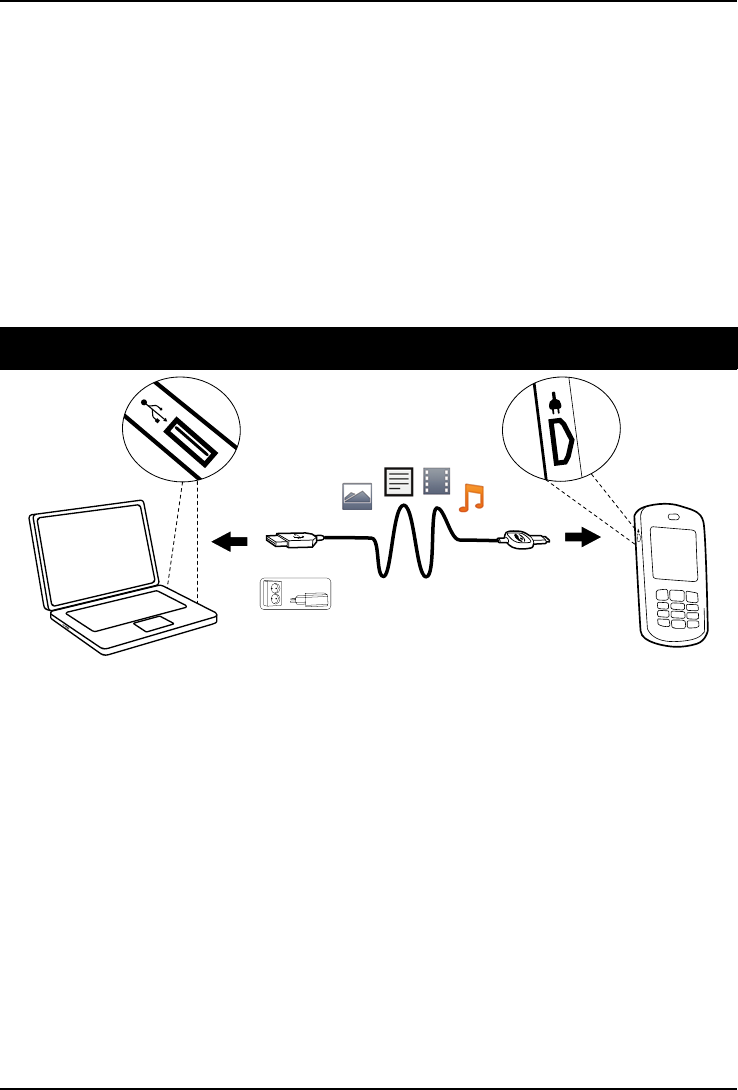
Drag and drop content between phone and a computer
1. Connect your phone to a computer using a USB cable.
2. Wait until the phone/memory card appears as external disks in the
file explorer.
3. Drag and drop selected files between the phone and the computer.
21
English (US)
Note! When the phone/memory card is mounted to the computer, the
phone cannot access the memory card. Some functionality and
applications in the phone, such as the camera, may not be accessible.
You can transfer files by using a USB cable on most devices and
operating systems supporting a USB Mass Storage interface.
Disconnect the USB cable safely
1. Make sure to enable the hardware to be safely removed.
2. Disconnect the USB cable.
Note! Do not disconnect the USB cable when transferring content as this
may corrupt the content. Computer instructions may vary depending on
your operating system. See the documentation of your computer's
operating system for more information.
Settings
Note! The settings described in this chapter are carried out in standby
mode. Press to return to standby mode.
General
Time & date
Setting the time and date
1. Press Menu, scroll to and press OK.
2. Select General and press OK.
3. Select Time & date and press OK.
4. Select Set time and press OK.
5. Enter the time (HH:MM), then press OK.
6. Select am or pm and press OK
7. Select Set date and press OK.
8. Enter the date (MM/DD/YYYY), then press OK.
Setting the time/date format
1. Press Menu, scroll to and press OK.
2. Select General and press OK.
3. Select Time & date and press OK.
4. Select Set format and press OK.
22

English (US)
5. Select Time format and press OK.
6. Select 12 hours or 24 hours and press OK.
7. Select Date format and press OK.
8. Select the desired date format and press OK.
Setting Auto time on/off
1. Press Menu, scroll to and press OK.
2. Select General and press OK.
3. Select Time & date and press OK.
4. Select Auto time and press OK.
5. Select On/Off and press OK.
To set the phone to automatically update the time and date according to
current time zone, select On. Automatic update of date and time does
not change the time you have set for the alarm clock or the calendar.
They are in local time. Updating may cause some alarms you have set to
expire. Depending on network support and subscription.
Language
The default language for the phone menus, messages etc. is determined
by the SIM card. You can change this to any other language supported by
the phone.
1. Press Menu, scroll to and press OK.
2. Select General and press OK.
3. Select Language and press OK.
4. Scroll / to select a language, then press OK.
Start-up wizard
Use the Start-up wizard to set some basic settings.
Press Yes to change Language, Time & date, Ring tone, Volume, Text size
or Themes. Press No if you don’t want to change.
Owner number
The phone numbers assigned to your SIM card are saved in Owner num-
ber if this is allowed by the card.
To view/edit or the numbers:
23
English (US)
1. Press Menu, scroll to and press OK.
2. Select General and press OK.
3. Select Owner number and press OK.
See Phonebook, p.12 on how to add names/numbers.
To edit or delete an existing entry, select it and press Options, then select
Edit or Delete and press OK.
Block function
You can disable functions to simplify use of the phone.
1. Press Menu, scroll to and press OK.
2. Select General and press OK.
3. Select Block function and press OK.
4. Select each function you want to disable and press Off.
5. Press Done to confirm.
Flashlight
Set the automatic switch off time for the built in flashlight.
1. Press Menu, scroll to and press OK.
2. Select General and press OK.
3. Select Flashlight and press OK.
4. Select one of the following options and press OK.
1 min Turns off automatically after 1 min
2 min Turns off automatically after 2 min
No limit No automatic turn off
Note! The flashlight will drain the battery very quickly. Remember to turn
off the flashlight after use.
Phonebook storage
1. Press Menu, scroll to and press OK.
2. Select General and press OK.
3. Select Phonebook storage and press OK.
4. Select one of the following options and press OK.
24
English (US)
SIM 1 phone number per contact. Number and length of the
phone numbers/contacts that can be stored will vary de-
pending on SIM card/service provider preferences.
Phone 300 contacts with 3 phone numbers each Mobile,Home or
Office.
Phonebook picture
You can change the phonebook view mode. Select On to see the contacts
associate picture (Picture), or select Off to display only the names of
contacts.
1. Press Menu, scroll to and press OK.
2. Select General and press OK.
3. Select Phonebook picture and press OK.
4. Select On or Off and press OK.
Sound
Note! Silent needs to be set to Off to access Tone setup, Volume, Alert
type and Extra tone. See Silent, p.26.
Audio setup
If you use a hearing aid or have hearing difficulties when using the tele-
phone in a noisy environment, you can customize the phone's audio
settings.
1. Press Menu, scroll to and press OK.
2. Select Sound and press OK.
3. Select Audio setup and press OK.
4. Select one of the following options and press OK.
Normal For normal hearing in normal conditions.
Medium For mild hearing impairment or usage in noisy environment.
High For moderate hearing impairment or usage in very noisy
environment.
Tone setup
1. Press Menu, scroll to and press OK.
25
English (US)
2. Select Sound and press OK.
3. Select Tone setup and press OK.
4. Select Ring tone and press OK.
5. Scroll / to select one of the available melodies, the melody
will be played. Press OK to confirm or Back to discard changes.
6. Set up the Alarm,Message tone,Opening tone,Closing tone,Key-
pad tone,Power on and Power off in the same way.
Ringtone volume
1. Press Menu, scroll to and press OK.
2. Select Sound and press OK.
3. Select Volume and press OK.
4. Scroll / to change the ring volume, then press OK.
Silent
1. Press Menu, scroll to and press OK.
2. Select Sound and press OK.
3. Select Silent and press OK.
4. Select On or Off and press OK.
Tip: Press and hold shortcut button #to activate/deactivate Silent.
Alert type
Incoming calls can be signaled by a ring tone and/or vibration.
1. Press Menu, scroll to and press OK.
2. Select Sound and press OK.
3. Select Alert type and press OK.
4. Scroll / to select signaling mode, then press OK.
Ring only Ring tone only.
Vib. only Vibration only.
Vib. and ring Vibration and ring tone.
Vib. then ring Starts with vibration and adds ring tone after a short while.
Silent No sound or vibration, the display light is lit.
26

English (US)
Extra tone
Warning and error tones are used to alert you of low battery power,
phone and SIM card errors, etc.
1. Press Menu, scroll to and press OK.
2. Select Sound and press OK.
3. Select Extra tone and press OK.
4. Select Warning and press On/Off to enable/disable.
5. Select Error and press On/Off to enable/disable.
6. Press Done to save.
Display
Wallpaper
You can select different display backgrounds.
1. Press Menu, scroll to and press OK.
2. Select Display and press OK.
3. Select Wallpaper and press OK.
4. Scroll / to display available wallpapers.
5. Press OK to confirm or Back to discard changes.
Text size
You can customize the text size for messages and the phonebook.
1. Press Menu, scroll to and press OK.
2. Select Display and press OK.
3. Select Text size and press OK.
4. Select Normal or Large and press OK.
Idle display
In standby mode the display can show clock only, clock and the service
provider, or all information.
1. Press Menu, scroll to and press OK.
2. Select Display and press OK.
3. Select Idle display and press OK.
4. Select Clock only,Clock & Operator or All info and press OK.
27

English (US)
Themes
You can select different themes to personalize the phone's texts and
background.
1. Press Menu, scroll to and press OK.
2. Select Display and press OK.
3. Select Themes and press OK.
4. Scroll / to select a theme.
5. Press OK to confirm or Back to discard changes.
LCD backlight
Select the delay time for the display backlight.
1. Press Menu, scroll to and press OK.
2. Select Display and press OK.
3. Select LCD backlight and press OK.
4. Select 15 sec.,30 sec. or 1 min and press OK.
Brightness
You can customize the phone's brightness settings.
1. Press Menu, scroll to and press OK.
2. Select Display and press OK.
3. Select Brightness and press OK.
4. Select Level 1–Level 3 and press OK.
Calls
Voice mail
If your subscription includes an answering service, callers can leave a
voice mail message when you cannot answer a call. Voice mail is a net-
work service and you may need to subscribe to it first. For more informa-
tion and for the voice mail number, contact your service provider.
1. Press Menu, scroll to and press OK.
2. Select Calls and press OK.
3. Select Voice mail and press OK.
4. Select Empty and press Add.
5. Select Phonebook to add a contact from the Phonebook.
28

English (US)
Alternatively, press Manual. See Phonebook, p.12 on how to add
names/numbers.
6. Press OK.
To edit or delete an existing entry, select it and press Options, then select
Edit or Delete and press OK.
Call voice mail
1. Press Menu, scroll to and press OK.
2. Select Calls and press OK.
3. Select Voice mail and press OK.
4. Select Options and press OK.
5. Select Call voice mail and press OK to call the voice mailbox.
Tip: Press and hold shortcut button 1to call your voice mail.
Speed dial
A,B,Cand the numerical keys 0and 2–9can be used for speed
dialing.
Adding speed dial numbers
1. Press Menu, scroll to and press OK.
2. Select Calls and press OK.
3. Select Speed dial and press OK.
4. Select Aand press Add.
5. Select an entry from the phonebook and press OK.
6. Repeat to add speed dial entries for buttons B,C,0,2–9.
To change contact, select an existing entry and press Options, then se-
lect Edit or Delete and press OK.
To speed dial an entry from standby, press and hold corresponding
button.
You can edit the contact information for the dedicated speed dial buttons
A,Band C.
1. Press corresponding button. Use / to highlight the name or
the number, then press Edit.
2. Press OK to confirm. Delete with Clear.
29
English (US)
Top 10
Set the entry as one of the first 10 contacts listed in the phonebook.
1. Press Menu, scroll to and press OK.
2. Select Calls and press OK.
3. Select Top 10 and press OK.
4. Select one of the empty entries and press Add.
5. Use / to scroll through the phonebook, or quick search by
pressing the key corresponding to the first letter of the entry.
6. Press OK to save the selected entry, or press Back to discard
changes.
To delete a Top 10 entry, select the entry in the Top 10 list and press Op-
tions, then Delete.
Call time
During a call, the duration of the call is shown. You can check the dura-
tion of your calls.
1. Press Menu, scroll to and press OK.
2. Select Calls and press OK.
3. Select Call time and press OK.
4. Select one of the following options and press OK.
Last call Show the elapsed time of the most recent call.
Outgoing
calls
Show the elapsed time of all dialed calls.
Received
calls
Show the elapsed time of all received calls.
Reset all Press Yes to reset the timer, or No to discard changes.
Answer mode
Select Open to answer and press OK, select On and press OK to answer
incoming calls by opening the flip.
Select Any key and press OK, select On and press OK to be able to an-
swer incoming calls by pressing any button (exemption ).
30
English (US)
Call setup
Depending on network support and subscription. Contact your service
provider for more information.
Caller ID
Display or hide your phone number on the recipient's phone when you
call.
1. Press Menu, scroll to and press OK.
2. Select Calls and press OK.
3. Select Call setup and press OK.
4. Select Caller ID and press OK.
5. Select one of the following options and press OK.
Set by
network
Use default setting by the network.
Hide ID Never show your number.
Send ID Always show your number.
Call waiting
You can handle more than one call at a time. An alert tone will be heard
if there is an incoming call while talking. To put current call on hold and
answer the incoming call, press Options, select Answer and then OK.
1. Press Menu, scroll to and press OK.
2. Select Calls and press OK.
3. Select Call setup and press OK.
4. Select Call waiting and press OK.
5. Select one of the following options and press OK.
Activate Enables call waiting.
Deactivate Disables call waiting.
Query status Displays if call waiting is active or not.
Call forward
You can divert calls to an answering service, or to another phone number.
Set up which calls should be diverted. Select a condition and press OK,
then select Activate,Deactivate or Query status (see Call waiting, p.31)
for each.
31
English (US)
1. Press Menu, scroll to and press OK.
2. Select Calls and press OK.
3. Select Call setup and press OK.
4. Select Call forward and press OK.
5. Select one of the following options and press OK.
Voice calls Diverts all voice calls.
Unreachable Diverts incoming calls if the phone is turned off or out of
range.
No reply Diverts incoming calls if unanswered.
If busy Diverts incoming calls if the line is busy.
Cancel all Do not divert calls.
Call barring
Your phone can be restricted to disallow certain types of calls.
Note! A password is needed to apply Call barring. Contact your service
provider to get the password.
1. Press Menu, scroll to and press OK.
2. Select Calls and press OK.
3. Select Call setup and press OK.
4. Select Call barring and press OK.
5. Select one of the following options and press OK.
Outgoing
calls
Press OK then select:
All calls User can answer incoming calls but not dial out.
Internat.calls User can not call international numbers.
Int. except
home
User can not call international numbers except to the coun-
try associated with the SIM card.
Incoming
calls
Press OK then select:
All calls User can dial out but not receive incoming calls.
When
roaming
User can not receive incoming calls while roaming (operat-
ing in other networks).
Cancel all Cancel all call barring (password needed).
32
English (US)
Messages
1. Press Menu, scroll to and press OK.
2. Select Messages and press OK.
3. Select one of the following options and press OK.
Predictive text
Select On and press OK to enable Predictive text/eZiType™, see Entering
text , p.7.
Write speed
You can change the speed at which keypad characters repeat (before the
cursor moves onto the next character).
Select Slow,Normal or Fast and press OK.
Text message
Memory status
Displays the percentage of memory space used on the SIM card and in
the phone memory. Phone memory can store up to 200 messages.
Storage
1. Select SIM (default) to store messages on the SIM card, or Phone to
store messages in the phone memory.
2. Press OK.
Cell information
You can receive messages on various topics from your service provider,
such as weather or traffic conditions in a particular region. For available
channels and relevant channel settings, contact your service provider.
Cell broadcast messages cannot be received when the device is roaming.
Select Cell information and press OK for the following settings:
Function on/
off
To turn information On or Off.
View
messages
Press OK to read the message.
33
English (US)
Languages Select language On/Off and press Done.
Channel
settings
Select from which channels you want to receive/subscribe
messages. Use the options Subscribe,Cancel subscription,
Add,Edit and Delete to define your channels.
Picture message
Memory status
Displays the percentage of memory space used in the phone memory
and on the memory card. Phone memory can store up to 100 messages.
Profile
These settings are needed to use the picture message function. The set-
tings is supplied by your service provider and can be automatically sent
to you.
1. Select Profile and press OK.
2. Select your service provider and press Options.
3. Select Activate and press OK.
If your service provider is not in the list, do the following:
1. Select Profile and press OK.
2. Select Add and press OK for the following settings:
Enter the settings for your service provider. The correct settings can
be obtained from the service provider.
Account
name
Add account name.
APN Add APN (Access Point Name).
User name Add user name.
Password Add password.
Homepage Add homepage.
Connection
type
Use the side buttons +/-to select connection type HTTP
or WAP.
Proxy
address
Add proxy address.
Proxy port Add proxy port.
User name Add proxy user name.
Password Add proxy password.
34
English (US)
3. Press OK and press Yes to save or No to exit without saving.
4. Select your new profile and press Options.
5. Select Activate and press OK.
You can also activate/modify a picture message profile by selecting one
and press Options to Activate/Edit/Delete the account.
Note! Some service provider’s require you to send an picture message
before you will be able to receive one. Send a picture message with text
only to activate the service. Some service provider’s require that you
contact them before enabling picture message for your account. Contact
your service provider’s Customer Services. Press during set up to
exit without saving.
Reminder
The reminder alerts you once if you haven't checked your message within
10 minutes from receipt. If notification envelope is removed by pressing
, no reminder will be heard.
Select Reminder and press On/Off to enable/disable.
Vibration
The vibration alert is several short vibrations that continues for either
Short (4 seconds) or Long (12 seconds).
Note! If Alert type is set to Ring only the phone will not vibrate.
Delivery report
You can select if you want the phone to notify you when your message
has reached the receiver.
Select Delivery report and press OK. Select On or Off to enable/disable.
Press OK to save.
Note! If you choose Delivery report=On, some operators will charge you
for that message.
35

English (US)
Delete
Select Inbox to delete all messages in Inbox. Press Yes confirm or No to
discard changes.
Select Outbox to delete all messages in Outbox. Press Yes confirm or No
to discard changes.
Select Sent to delete all messages in Sent. Press Yes confirm or No to
discard changes.
Select Delete all to delete all messages at the same time. Press Yes con-
firm or No to discard changes.
Camera
1. Press Menu, scroll to and press OK.
2. Select Camera and press OK.
3. Select one of the following options and press OK.
EV information
EV/Light sensitivity can be adjusted by pushing volume keys up & down
when in camera mode.
Flash
Select one of the following options Auto,Off,On or Red-eye reduction.
Image size
Select one of the following options Wallpaper (lowest quality), 1 MP,2
MP or 3 MP (highest quality).
Note! With higher quality (more megapixels), less pictures can be stored
in memory.
Shutter sound
Select Low or High.
Emergency
Settings for the Emergency button function.
1. Press Menu, scroll to and press OK.
2. Select Emergency and press OK for the following settings:
36
English (US)
Activation
Select one of the following options and press OK.
On (3) To activate, press button 3 times within 1 second.
Off Emergency button disabled.
Set number
The number that is called when the Emergency button is pressed.
1. Select Empty and press Add.
2. Select Phonebook to add a contact from the phonebook.
Alternatively, press Manual. See Phonebook, p.12 on how to add
names/numbers.
3. Press OK.
To edit or delete an existing entry, select it and press Options, then select
Edit or Delete and press OK.
Bluetooth®
IMPORTANT!
When you are not using Bluetooth connectivity, select Function on/off/
Off or Visibility/Off. Do not pair with an unknown device.
You can connect wireless to other Bluetooth compatible devices such as
headsets.
1. Press Menu, scroll to and press OK.
2. Select Bluetooth and press OK for the following settings:
Function on/off
Select On/Off and press OK to enable/disable Bluetooth.
Visibility
Select On/Off to make your phone visible/invisible to other devices.
Note! To prevent other devices from finding your device, select Off. Even
if you select Off, paired devices can still detect your device.
37
English (US)
Device name
Enter the name your phone should appear with for other Bluetooth devi-
ces and press OK.
Search device
Search for available Bluetooth audio devices. If Bluetooth is not enabled
you can enable it now by pressing Yes.
1. Select from the list of devices and press Bond to connect.
2. When connecting to another Bluetooth device you need a shared
password. Enter the password and press OK.
My device
Lists saved devices and enables you to add new devices. Select device
from the list and press Options.
Connect/
Disconnect
Connect/disconnect selected device. Select required profile,
usually a headset.
Set default Select the connected device as default.
Rename Change the name of the device.
Delete Delete the device from the list.
Delete all Delete all devices from the list.
Audio path
Select one of the following options and press OK.
Phone Incoming calls are answered with the phone.
Forward BT Incoming calls are forwarded to Bluetooth device.
Security
1. Press Menu, scroll to and press OK.
2. Select Security and press OK.
SIM lock
The SIM card is protected with a PIN code (Personal Identification Num-
ber). The phone can be set to ask for the PIN code on startup.
Select one of the following options and press OK.
38
English (US)
On PIN code activated, you need to enter the PIN code every
time the phone is started.
Off PIN code deactivated. Warning, if SIM card is lost/stolen it
is unprotected.
Automatic You do not need to enter the PIN code when the phone is
started, the phone remembers it automatically. If SIM card
is moved to another phone (lost/stolen), the PIN code needs
to be entered to unlock.
Note! You need to input current PIN code to disable/enable SIM lock.
Phone lock
Select On/Off and press OK to enable/disable.
Note! You need to input current Phone code to disable/enable Phone
lock. The default Phone code is 1234.
Remote configuration
Allow persons that you trust, usually a family member or friend, to send
information to your Doro PhoneEasy®618. You can receive phonebook
contacts and contacts for speed dial keys, calendar tasks and settings
for the emergency button. When activated, you don’t have to do anything,
it’s the other person that sends information to you.
Select Remote config and press OK for the following settings:
Activation
Select On to activate remote configuration and press OK.
On Remote configuration enabled.
Off Remote configuration disabled.
Number list
You need to add the name and number of the people who are allowed to
send information from their phone to your Doro PhoneEasy®618.
1. Select Number list and press OK.
2. Select Empty and press Add.
3. Select Phonebook to add a contact from the Phonebook.
Alternatively, press Manual.
39
English (US)
4. Press .
5. Enter the number and press OK.
Repeat until you have 5 contacts (maximum).
To edit or delete an existing entry, select it and press Options, then select
View,Edit or Delete and press OK.
Fixed dial (FDN)
You can limit calls to certain numbers saved on the SIM card. The list of
allowed numbers is protected by your PIN2-code.
Mode Select On/Off and press OK. Enter PIN2. Press OK to
confirm.
Fixed
numbers
Press Add to enter the first allowed number. Alternatively,
select an entry and press Options for the following settings:
Add,Edit or Delete and press OK. Enter PIN2. Press OK to
confirm.
Note! You can save parts of phone numbers. For example, if you save
01234, allows calls to all numbers starting with 01234. It is possible to
place an SOS call by entering the main local emergency number followed
by even when fixed dial is activated. When fixed dial is activated you
are not allowed to view or manage any phone numbers saved on the SIM
card. You are not able to send any messages either.
Passwords (change your passwords)
To change the PIN,PIN2 or the Phone code passwords:
1. Enter current code and confirm with OK.
2. Enter a new code and confirm with OK.
3. Enter the new code again and confirm with OK.
Master reset
Resets phone to factory settings. SIM card memory is not affected.
Note! You need to input current phone code, default is 1234.
Reset with SIM card inserted
1. Select Master reset and press OK.
2. Enter phone password and press OK.
40

English (US)
3. Confirm with Yes.
Reset without SIM card inserted
1. Press Options, scroll to and press OK.
2. Select Security and press OK.
3. Select Master reset and press OK.
4. Enter phone password, confirm with OK.
5. Confirm with Yes.
Master clear
Resets phone to factory settings and deletes all stored information in
phone. SIM card memory is not affected.
Note! You need to input current phone code, default is 1234.
Reset with SIM card inserted
1. Select Master clear and press OK.
2. Enter phone password and press OK.
3. Confirm with Yes.
Reset without SIM card inserted
1. Press Options, scroll to and press OK.
2. Select Security and press OK.
3. Select Master clear and press OK.
4. Enter phone password, confirm with OK.
5. Confirm with Yes.
File manager
Manage the contents and properties of files. You can open, delete, move,
copy and rename files.
Supported image format: BMP/GIF/JPG/PNG. Photos taken with the built
in camera are saved as JPG.
Supported audio format: WAV/AMR/MIDI/MP3/AAC/AAC+. Recordings
made with the built in sound recorder are saved as AMR.
Supported video format: MP4/3GPP. Only playback of received files is
possible.
1. Press Menu, scroll to and press OK.
41
English (US)
2. Select File manager, then press OK.
3. Select Phone/Memory card and press Open.
4. Select a folder, eg Photos and press Open.
5. Select a file and press Options for the following options:
Play (audio/video/music)
Play file. Use to Play, use to Stop playback. Press Back when
done.
View (photos/images)
Single view. Press Back when done.
Send
Select an option, then press OK:
Send by pic-
ture message
Send by picture message. Press OK to create a message,
see Creating and sending picture messages, p.15.
Send by
Bluetooth
Send to other Bluetooth devices, see Bluetooth®, p.37.
Details
View detailed information about the file, e.g. date, size, copyright-
protection.
Use
Select an option from the list, then press OK.
Wallpaper Save as display background. Press OK.
Phonebook
picture
Save with a phonebook contact. Press OK.
Rename
Rename the file. Delete with Clear and press Done to confirm.
Delete
Press OK to delete selected file. Press Yes to confirm or No to return.
42
English (US)
Delete all
Press OK to delete all files in selected folder. Press Yes to confirm or No
to return.
Sort by
Select if you want to sort your files by Name or Time.
Copy/Move
To copy or move a file to another folder:
1. Select Copy/Move and press OK.
2. Select Phone/Memory card and press Options.
3. Select Open and press OK.
4. Select a folder, eg Photos and press Options.
5. Select Paste and press OK.
Additional functions
Alarm
1. Press Menu, scroll to and press OK.
2. Select On and press OK.
3. Enter the alarm time using the keypad, then press OK.
4. Select am or pm and press OK
5. For a single occurrence, select Single and press OK.
6. For a repeated alarm, select Repeated and press OK. Scroll through
the list of weekdays and press On/Off to enable/disable the alarm
for each weekday, then press Done.
7. To edit an alarm, press Edit, then press OK.
8. To stop the alarm, press Off. The alarm is now deleted.
Note! The alarm will work even when the phone is switched off. Do not
press Yes to power on if wireless phone use is prohibited or when it may
cause interference or danger.
When the alarm goes off a signal will sound. Press Stop to turn off the
alarm or press Snooze to repeat the alarm after 9 minutes.
Organizer
1. Press Menu, scroll to and press OK.
43
English (US)
2. Select one of the following options and press OK.
Calendar
View
Show tasks for the selected date.
Add task
1. Enter date for the task, then press .
2. Enter time for the task.
3. Select Options to reach the screen where you can switch between
am and pm, then press OK.
4. Then press .
5. Enter subject.
6. Press OK.
Jump to date
Enter the date and press OK.
View all
Select a task and press Options for the following options:
Edit Edit selected task.
Delete Delete selected task.
Delete all Delete all tasks.
Note! The calendar will work even when the phone is switched off. Do not
press Yes to power on if wireless phone use is prohibited or when it may
cause interference or danger.
Daily reminder
1. Enter time for the task, then press .
2. Enter subject.
3. Press OK to save the task.
Note! Works even when the phone is switched off. Do not press Yes to
power on if wireless phone use is prohibited or when it may cause
interference or danger.
When the alarm goes off a signal will sound. Press Silent to turn off the
alarm or press Snooze to repeat the alarm after 9 minutes.
44
English (US)
Calculator
The calculator can perform basic mathematical operations.
1. Press Menu, scroll to and press OK.
2. Enter the first number. Use #to enter decimal points.
3. Use the arrow buttons to select an operation (+, -, x, ÷) and press OK.
4. Enter the next number and press OK.
5. Repeat steps 2–4 as necessary.
Select =and press OK to calculate the result.
FM radio
The FM radio has a frequency range from 87.5 to 108.0 MHz and 9 pre-
set channels.
Turning the radio on
1. Connect the headset to the headset socket .
2. Press Menu, scroll to and press OK. The radio is turned on. The
tuned frequency is displayed. Select channel using or . Use
the side buttons +/-to adjust the volume.
3. Press to return to standby mode. The radio will continue to play.
Save frequency
1. Press Menu, scroll to and press OK.
2. Select channel using or .
3. When a station has been found, select Options.
4. Select Save frequency and press OK.
5. Enter a name for the new channel, see Entering text , p.7.
6. Press Save.
Switch off
1. Press Menu, scroll to and press OK.
2. Press Options, then press Switch off.
Tip: Disconnecting the headset will also turn off the radio.
45
English (US)
Channel list (editing the channel list)
1. Press Menu, scroll to and press OK.
2. Select Options.
3. Select Channel list and press OK.
4. Select the channel you wish to edit and press Options or Add.
5. Select one of the following options and press OK.
Play Play the selected channel.
Delete Delete the channel. Press Yes to confirm or No to return to
the channel list.
Edit Edit the channel name, then press to edit the fre-
quency, use #to enter the decimal point. Press Save.
Selecting channels
Press keys 1-9to quick-select a preset channel while the radio is
playing.
Manual input (changing search mode)
1. Press Menu, scroll to and press OK.
2. Select Options.
3. Select Manual input and press OK.
4. Select one of the following options and press OK.
Fine tune Manual tuning with or .
Auto search Automatic station search with or .
Auto save
Note! This will overwrite all previously saved channels!
1. Press Menu, scroll to and press OK.
2. Select Options.
3. Select Auto save and press OK to automatically install available ra-
dio stations in channels 1-9.
Flashlight
Use of the built in flashlight.
46
English (US)
1. Press Menu, scroll to and press OK to switch on the flashlight.
2. Press Off to switch off the flashlight.
Note! The flashlight will drain the battery very quickly. Remember to turn
off the flashlight after use. See Flashlight, p.24 how set the automatic
switch off time.
Instructions for the REMOTE USER
Sending remote control commands by text message
Activation must be set to On and the remote user must be entered in
Number list on the Doro PhoneEasy®618.
Menu Security Remote config
All contacts sent to Doro PhoneEasy®618 by remote configuration are
stored in the Phone (even if storage is set to SIM).
3 phone numbers for each contact Mobile, Home or Office.
Note! Text message format must be *#Command#, otherwise the text
message cannot be identified as a remote control command.
Parameters are the content you want to send and you must use # sign to
separate two parameters. In tables P = Parameters.
Setting a contact in the phonebook
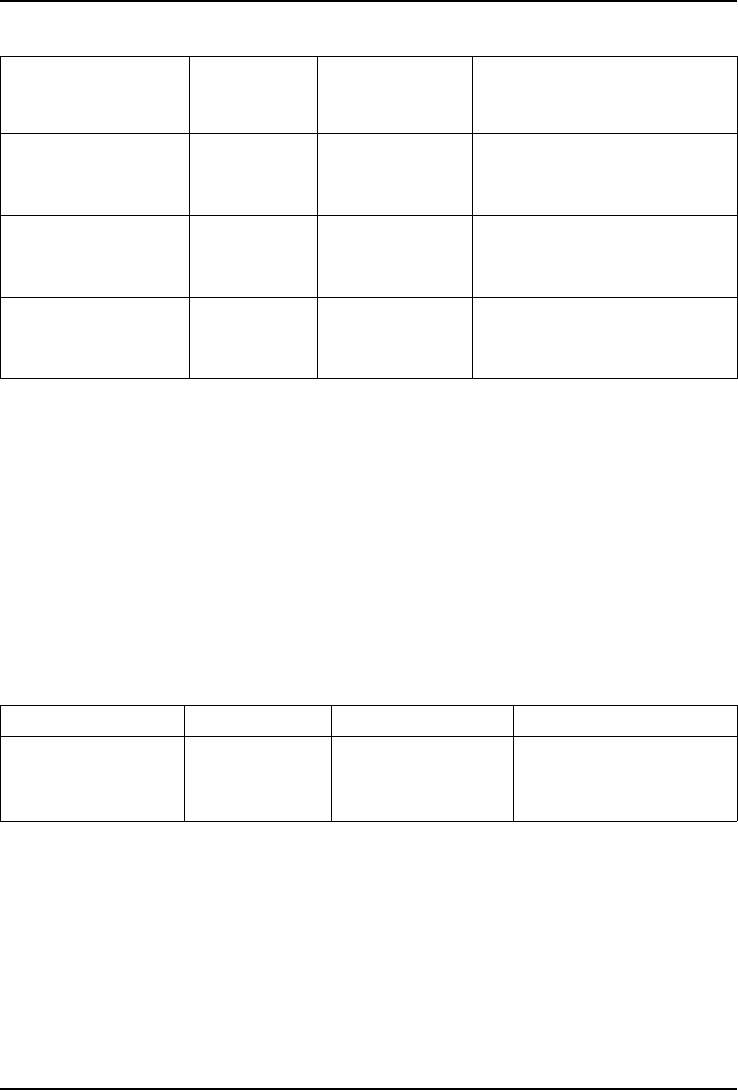
Command P 1 P 2 P 3 P 4
phonebook name
max. length=
20
mobile
max. length=
40
home office
Example:
You want to send Jeff Jackson’s mobile number, home number and his
office number to Doro PhoneEasy®618. The mobile number is: 0700-
393939. Home number: 046-280 50 11. Office number: 046-280 50 83.
*#phonebook#Jeff
Jackson#0700393939#0462805011#0462805083#
The number will be saved in the 618 Phonebook as:
47
English (US)
Jeff Jackson
0700393939
0462805011
0462805083
Note! Only use numerals for parameters 2, 3 and 4. If you use letters in
these parameters it will be stored as empty/blank in the Phonebook.
Contacts already saved in the Phonebook, will not be replaced. They will
be duplicated.
This is to avoid unintentional removal of contacts from the phonebook.
Tip: When storing international numbers, always use +before the country
code for best operation. Enter the phone number including the area code.
Setting the emergency function
Command P 1 P 2 P 3 P 4
alert a
activation
0/1/
0=Off
1=On (3)
alert n
number
1–5
location in
Number list
Name
max. length=
20
number
max. length=
40
Example:
You want to activate the emergency function.
*#alert#a#1#
You want Jeff Jackson to be stored in Set number in position one (1) with
phone number: 0700-393939.
*#alert#n#1#Jeff Jackson#0700393939#
Tip: Remember to write down the positions you send. This way it is easier
for you to later send changes.
48
English (US)
Setting the one touch memories
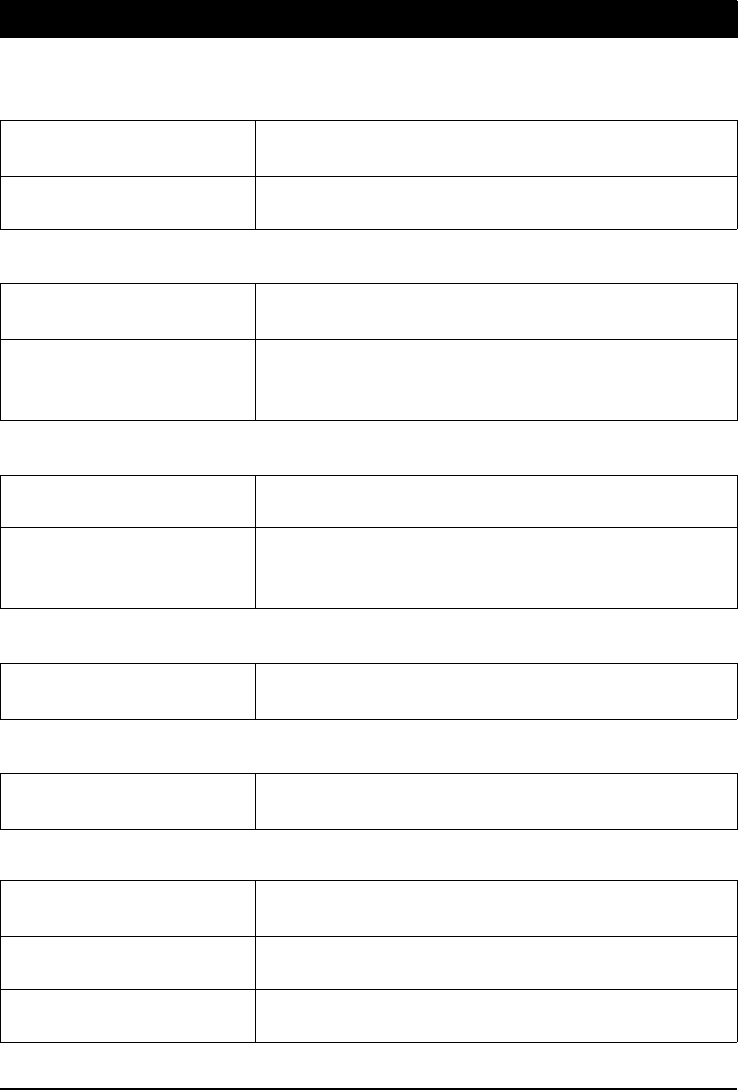
Command P 1 P 2 P 3
memorykey a
A key
Name
max length =
20
number
max length = 40
memorykey b
B key
Name
max length =
20
number
max length = 40
memorykey c
C key
Name
max length =
20
number
max length = 40
Example:
You want to set Jeff Jackson’s mobile number in memory key Ain Doro
PhoneEasy®618.
Martha Thomson in memory key Band Steve Lewis in memory key C.
*#memorykey#a#Jeff Jackson#0700393939#
*#memorykey#b#Martha Thomson#0768991014#
*#memorykey#c#Steve Lewis#0709441819#
Add task to calendar
Command P 1 P 2 P 3
task yyyymmdd
Date
hhmm
Time
note
description of task.
max. length = 35
Example 1:
You want to send a new calendar task to Doro PhoneEasy®618. It is for a
dentist appointment in December 1, 2010 at 10:30.
*#task#20101201#1030#dentist appointment#
49
English (US)
Other
Troubleshooting
Phone cannot be switched on
Battery charge low Connect the power adapter and charge the bat-
tery for 3 hours.
Battery incorrectly
installed
Check the installation of the battery.
Failure to charge the battery
Battery or charger
damaged
Check the battery and charger.
Charger incorrectly con-
nected to phone or
power socket
Check the charger connections.
Standby time decreases
Battery charge capacity
too low
Install a new battery.
Too far from base sta-
tion, phone is constantly
searching for signal
Searching the network consumes battery power.
Find a place with a stronger signal, or tempora-
rily turn off the phone.
Failure to place or receive calls
Call barring activated Deactivate call barring. If this does not solve the
problem, contact your service provider.
PIN code not accepted
Wrong PIN code entered
too many times
Enter the PUK code to change the PIN code, or
contact your service provider.
SIM card error
SIM card damaged Check the condition of the SIM card. If it is dam-
aged, contact your service provider.
SIM card incorrectly
installed
Check the installation of the SIM card. Remove
the card and reinstall it.
SIM card dirty or damp Wipe the contact surfaces of the SIM card with a
clean cloth.
50
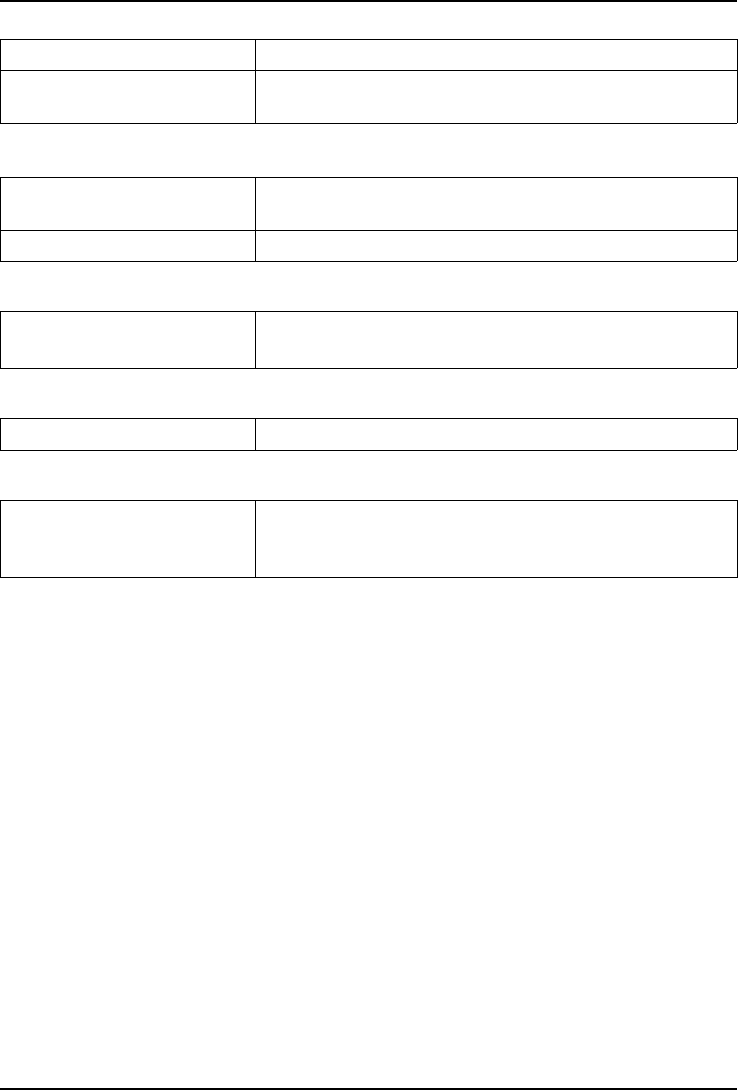
English (US)
Failure to connect to network
SIM card invalid Contact your service provider.
No coverage of GSM
service
Contact your service provider.
Weak signal
Too far from base
station
Try again from another location.
Network congestion Try calling at a later time.
Echo or noise
Regional problem from
bad network relay
Hang up and redial. This may switch to another
network relay.
Failure to add a contact
Phonebook memory full Delete contacts to free up memory.
Failure to set a function
Function not supported
or subscribed from
network
Contact your service provider.
51

English (US)
Safety instructions
CAUTION
The unit and the accessories can contain small parts. Keep all of the equipment out
of the reach of small children.
The mains adapter is the disconnect device between the product and mains power.
The mains socket outlet must be close to the equipment and easily accessible.
Network services and costs
Your device is approved for use on the WCDMA 850/1900 MHz, GSM 850/1800/1900
MHz networks. To use the device, you need a subscription with a service provider.
Using network services may result in traffic costs. Some product features require sup-
port from the network, and you may need to subscribe to them.
Operating environment
Follow the rules and laws that apply wherever you are, and always turn off the unit
whenever its use is prohibited or can cause interference or hazards. Only use the unit in
its normal user position.
This unit complies with guidelines for radiation when it is used either in a normal posi-
tion against your ear, or when it is at least 0.6 in from your body. If the unit is carried
close to your body in a case, belt holder or other holder, these holders should not con-
tain any metal, and the product should be placed at the distance from your body speci-
fied above. Make sure that the distance instructions above are followed until the
transfer is complete.
Parts of the unit are magnetic. The unit can attract metal objects. Do not keep credit
cards or other magnetic media near the unit. There is a risk that information stored on
them can be erased.
Medical units
The use of equipment that transmits radio signals, for example, mobile phones, can in-
terfere with insufficiently protected medical equipment. Consult a doctor or the manu-
facturer of the equipment to determine if it has adequate protection against external
radio signals, or if you have any questions. If notices have been put up at health care fa-
cilities instructing you to turn off the unit while you are there, you should comply. Hospi-
tals and other health care facilities sometimes use equipment that can be sensitive to
external radio signals.
Pacemakers
The Health Industry Manufacturers Association recommends that a minimum separa-
tion of 6 inch be maintained between a handheld wireless phone and a pacemaker to
avoid potential interference with the pacemaker. Persons with pacemakers:
•Should always keep the phone more than 6 inch from their pacemaker when the
phone is turned on.
52
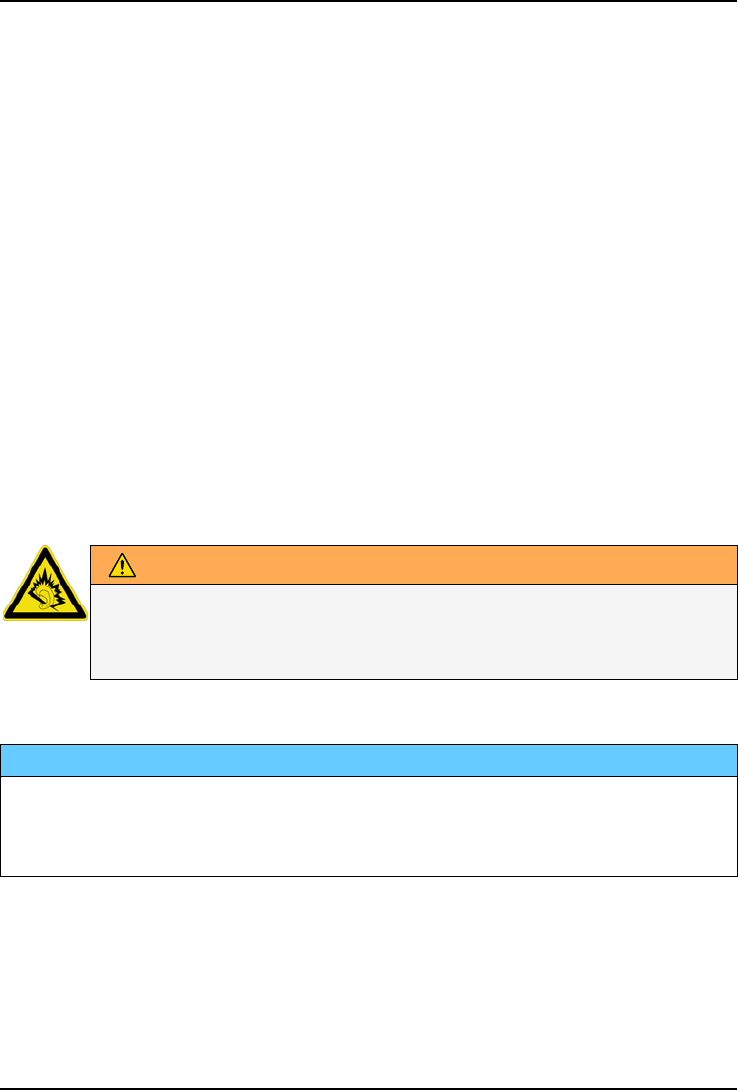
English (US)
•Should not carry the phone in a breast pocket.
•Should use the ear opposite the pacemaker to minimize the potential for
interference.
If you have any reason to suspect that interference is taking place, turn the phone off
immediately.
Areas with explosion risk
Always turn off the unit when you are in an area where there is a risk of explosion. Fol-
low all signs and instructions. There is a risk of explosion in places that include areas
where you are normally requested to turn off your car engine. In these areas, sparks
can cause explosion or fire which can lead to personal injury or even death.
Turn off the unit at filling stations, and any other place that has fuel pumps and auto re-
pair facilities.
Follow the restrictions that apply to the use of radio equipment near places where fuel
is stored and sold, chemical factories and places where blasting is in progress.
Areas with risk for explosion are often – but not always – clearly marked. This also ap-
plies to below decks on ships; the transport or storage of chemicals; vehicles that use
liquid fuel (such as propane or butane); areas where the air contains chemicals or par-
ticles, such as grain, dust or metal powder.
Protect your hearing
WARNING
Excessive exposure to loud sounds can cause hearing damage. Exposure
to loud sounds while driving may distract your attention and cause an
accident. Listen to a headset at a moderate level, and do not hold the
device near your ear when the loudspeaker is in use.
Emergency calls
IMPORTANT!
Mobile phones use radio signals, the mobile phone network, the terrestrial network
and user-programmed functions. This means that connection cannot be guaranteed
in all circumstances. Therefore, never rely only on a mobile phone for very important
calls such as medical emergencies.
Vehicles
Radio signals can affect electronic systems in motor vehicles (for example, electronic
fuel injection, ABS brakes, automatic cruise control, air bag systems) that have been in-
correctly installed or are inadequately protected. Contact the manufacturer or its repre-
sentative for more information about your vehicle or any additional equipment.
53
English (US)
Do not keep or transport flammable liquids, gases or explosives together with the unit
or its accessories. For vehicles equipped with air bags: Remember that air bags fill with
air with considerable force.
Do not place objects, including fixed or portable radio equipment in the area above the
airbag or the area where it might expand. Serious injuries may be caused if the mobile
phone equipment is incorrectly installed and the airbag fills with air.
It is prohibited to use the unit in flight. Turn off the unit before you board a plane. Using
wireless telecom units inside a plane can pose risks to air safety and interfere with tele-
communications. It may also be illegal.
Driving safely
Adapted from CTIA-The Wireless Association®
WARNING
Use of this unit alone or with headphones (even if used only in one ear) while driving
a motor vehicle or riding a bicycle is dangerous and is illegal in some areas, and the
user should not engage in such conduct. Driving while operating a mobile phone is
distracting and could cause serious injury or death.
If you decide to use this unit while driving or riding a bicycle, keep in mind the following
guidelines:
•Give full attention to driving and to the road.
Using a mobile device while driving may be distracting. If you find it disruptive or
distracting while operating any type of vehicle, riding a bicycle, or performing any
activity that requires your full attention, pull off the road and park before making or
answering a call if driving conditions require.
•Get to know your phone and its features such as phone book, call memory, and
speakerphone.
These features help you to place your call without taking your attention off the road.
See the applicable portion of this user’s guide for more information.
•Use a hands-free device.
Add an extra layer of convenience and safety to your unit with one of the many
hands-free accessories available.Use of a headset or other hands-free device may
be legally required.Several states have in recent years passed laws making it un-
lawful to operate a motor vehicle while talking on a wireless phone without use of a
headset, speakerphone, or other hands-free device. County and municipal ordinan-
ces may also limit or ban wireless conversations for automobile drivers. You should
therefore check the status of such laws in your area and in locations to which you
travel by car, whether or not you otherwise follow the preferred safety practice of
routinely using a hands-free device.For SMS text messaging, it is a recommended
safety practice that you never send or view received text messages while driving; in
California, and likely other states in the future, SMS messaging by a driver is also a
legal violation.
•Position phone within easy reach.
54

English (US)
Keep your eyes on the road. If you get an incoming call at an inconvenient time, let
your voice mail answer it for you.
•Assess the traffic before dialing, or place calls when you are not moving or before
pulling into traffic.
Try to plan calls when your car will be stationary. Never dial, send SMS text mes-
sages, or enter other text while you are driving. Driving while operating a mobile
phone is distracting and could cause serious injury or death.
•Let the person you are speaking with know you are driving.
If necessary, suspend the call in heavy traffic or hazardous weather conditions.
Driving in rain, sleet, snow, ice, fog, and even heavy traffic can be hazardous.
•Do not take notes, look up phone numbers, or perform any other activities that re-
quire your attention while driving.
Jotting down a to-do list or flipping through your address book takes attention away
from your primary responsibility, driving safely.
•Do not engage in stressful or emotional conversations that may be distracting.
Make people you are talking with aware you are driving and suspend conversations
that have the potential to divert your attention from the road.
Hearing aid compatibility
Note! For hearing aid compatibility, turn off Bluetooth connectivity.
Your mobile device model complies with FCC rules (C63.19-2007) governing hearing aid
compatibility. These rules require an M3 microphone or higher value. The M-value,
shown on the device box and below, refers to lower radio frequency (RF) emissions. A
higher M-value generally indicates that a device model has a lower RF emissions level,
which may improve the likelihood that the device will operate with certain hearing aids.
Some hearing aids are more immune than others to interference. Please consult your
hearing health professional to determine the M-rating of your hearing aid and whether
your hearing aid will work with this device.
This device is set for direct connection to telecoilequipped hearing aids. When both the
telecoil hearing aid (T switch) and the phone telecoil are activated, using the device with
the aided ear will provide a direct connection for audio through your hearing aid. The
quality of sound depends on the type of hearing aid used. You should test the device
with the telecoil setting activated to determine whether your audio performance
improves.
Your device meets the M3/T4 level rating.
TTY compatibility
This unit does not support TTY signaling. If you intend to connect a TTY to the unit, this
unit should not be purchased and, if already purchased, it should be returned for a
refund.
RF exposure information (SAR)
This model phone meets the government’s requirements for exposure to radio waves.
55

English (US)
This phone is designed and manufactured not to exceed the emission limits for expo-
sure to radio frequency (RF) energy set by the Federal Communications Commission of
the U.S. Government and by the Canadian regulatory authorities.
The exposure standard for wireless mobile phones employs a unit of measurement
known as the Specific Absorption Rate, or SAR. The SAR limit set by the FCC and by the
Canadian regulatory authorities is 1.6W/kg. *Tests for SAR are conducted using stand-
ard operating positions accepted by the FCC and Industry Canada with the phone trans-
mitting at its highest certified power level in all tested frequency bands. Although the
SAR is determined at the highest certified power level, the actual SAR level of the phone
while operating can be well below the maximum value. This is because the phone is de-
signed to operate at multiple power levels so as to use only the poser required to reach
the network. In general, the closer you are to a wireless base station antenna, the lower
the power output.
The highest SAR value for the model phone as reported to the FCC when tested for use
at the ear is 0.712 W/kg and when worn on the body, as described in this user guide, is
0.761 W/kg (Body-worn measurements differ among phone models, depending upon
available enhancements and FCC requirements.)
While there may be differences between the SAR levels of various phones and at vari-
ous positions, they all meet the government requirement. The FCC has granted an
Equipment Authorization for this model phone with all reported SAR levels evaluated as
in compliance with the FCC RF exposure guidelines. SAR information on this model
phone is on file with the FCC and can be found under the Display Grant section of
http://www.fcc.gov/oet/ea/fccid after searching on FCC ID: WS5DORO618
For body worn operation, this phone has been tested and meets the FCC RF exposure
guidelines for use with an accessory that contains no metal and the positions the hand-
set a minimum of 5/8 inch (1.5 cm) from the body. Use of other enhancements may not
ensure compliance with FCC RF exposure guidelines. If you do not use a body-worn ac-
cessory and are not holding the phone at the ear, position the handset a minimum of 5/
8 inch (1.5 cm) from your body when the phone is switched on.
*In the United States and Canada, the SAR limit for mobile phones used by the public is
1.6 watts/kilogram (W/kg) averaged over one gram of tissue. The standard incorporates
a substantial margin of safety to give additional protection for the public and to account
for any variations in measurements. SAR values may vary depending on national report-
ing requirements and the network band.
IC Radiation Exposure Statement
This EUT is compliance with SAR for general population/uncontrolled exposure limits in
IC RSS-102 and had been tested in accordance with the measurement methods and
procedures specified in IEEE 1528 and IEC 62209. This equipment should be installed
and operated with minimum distance 1.5 cm between the radiator and your body. This
device and its antenna(s) must not be co-located or operating in conjunction with any
other antenna or transmitter.
Cet appareil est conforme aux limites d'exposition DAS incontrôlée pour la population
générale de la norme CNR-102 d'Industrie Canada et a été testé en conformité avec les
méthodes de mesure et procédures spécifiées dans IEEE 1528 et IEC 62209. Cet appa-
reil doit être installé et utilisé avec une distance minimale de 1,5 cm entre l’émetteur et
56

English (US)
votre corps. Cet appareil et sa ou ses antennes ne doivent pas être co-localisés ou fonc-
tionner en conjonction avec tout autre antenne ou transmetteur.
Disclaimer and Limitation of Liability
Doro AB and its affiliates, licensees and retailers assume no responsibility for any dam-
age or loss resulting from the use of this guide. Doro AB and its affiliates, licensees and
retailers assume no responsibility for any loss or claims by third parties that may arise
through the use of this software. Doro AB and its affiliates, licensees and retailers as-
sume no responsibility for any damage or loss caused by deletion of data as a result of
malfunction, dead battery, or repairs. Be sure to make backup copies of all important
data on other media to protect against data loss.
TO THE MAXIMUM EXTENT PERMITTED BY APPLICABLE LAW, UNDER NO CIRCUMSTAN-
CES SHALL DORO AB OR ANY OF ITS AFFILIATES, LICENSEES AND RETAILERS BE RE-
SPONSIBLE FOR ANY LOSS OF DATA OR INCOME OR ANY SPECIAL, INCIDENTAL,
CONSEQUENTIAL OR INDIRECT DAMAGES HOWSOEVER CAUSED. THE CONTENTS OF
THIS DOCUMENT ARE PROVIDED “AS IS.” EXCEPT AS REQUIRED BY APPLICABLE LAW,
NO WARRANTIES OF ANY KIND, EITHER EXPRESS OR IMPLIED, INCLUDING, BUT NOT
LIMITED TO, THE IMPLIED WARRANTIES OF MERCHANTABILITY AND FITNESS FOR A PAR-
TICULAR PURPOSE, ARE MADE IN RELATION TO THE ACCURACY, RELIABILITY, OR CON-
TENTS OF THIS DOCUMENT. DORO AB RESERVES THE RIGHT TO REVISE THIS
DOCUMENT OR WITHDRAW IT AT ANY TIME WITHOUT PRIOR NOTICE.
FCC/Industry Canada notice
This device complies with part 15 of the FCC Rules and Industry Canada license-exempt
RSS standard(s). Operation is subject to the following two conditions: (1) This device
may not cause harmful interference, and (2) this device must accept any interference
received, including interference that may cause undesired operation.
This equipment has been tested and found to comply with the limits for a Class B digital
device, pursuant to part 15 of the FCC Rules/Canadian ICES-003. These limits are de-
signed to provide reasonable protection against harmful interference in a residential in-
stallation. This equipment generates, uses and can radiate radio frequency energy and,
if not installed and used in accordance with the instructions, may cause harmful inter-
ference to radio communications. However, there is no guarantee that interference will
not occur in a particular installation. If this equipment does cause harmful interference
to radio or television reception, which can be determined by turning the equipment off
and on, the user is encouraged to try to correct the interference by one or more of the
following measures:
•Reorient or relocate the receiving antenna.
•Increase the separation between the equipment and the receiver.
•Connect the equipment to an outlet on a circuit different from that to which the re-
ceiver is connected.
•Consult the dealer or an experienced radio/TV technician for help.
The FCC or Industry Canada can require you to stop using your unit if such interference
cannot be eliminated.
57

English (US)
Doro has not approved any changes or modifications to this device by the user. Any
changes or modifications could void the user’s authority to operate the equipment.
Cet appareil est conforme aux dispositions de la partie 15 des règles de la FCC et des
normes CNR d'Industrie Canada sur les appareils radio exempts de licence. Son utilisa-
tion est assujettie aux deux conditions suivantes : (1) Cet appareil ne doit pas causer
d'interférence nuisible; et (2) cet appareil doit accepter toute interférence reçue, y
compris l'interférence qui pourrait causer un fonctionnement non désiré.
Cet équipement a été testé et jugé conforme aux limites d'un appareil numérique de la
Classe B, en vertu de la partie 15 des règles de la FCC et de la NMB-003 canadienne.
Ces limites sont conçues pour fournir une protection raisonnable contre l'interférence
nuisible dans une installation résidentielle. Cet équipement génère, utilise et peut ém-
ettre de l'énergie radiofréquence et, s'il n'est pas installé et utilisé conformément aux in-
structions, peut causer une interférence nuisible aux communications radio. Toutefois,
il n'est pas garanti que l'interférence ne se produira pas dans une installation particu-
lière. Si cet équipement cause une interférence nuisible à la réception radio ou de pro-
grammes de télévision, laquelle peut être déterminée en éteignant et en allumant
l'équipement, l'usager est encouragé à essayer de corriger l'interférence par l'une ou
plusieurs des mesures suivantes :
•Réorientez ou relocalisez l'antenne de réception.
•Augmentez la séparation entre l'équipement et le receveur.
•Connectez l'équipement à une prise sur un circuit différent de celui auquel de le re-
ceveur est connecté.
•Consultez le vendeur ou un technicien radio/de télévision pour obtenir de l'aide.
La FCC ou Industrie Canada peut vous obliger à arrêter d'utiliser votre appareil si une
telle interférence ne peut pas être éliminée.
Doro n'a pas approuvé les changements ou modifications apportés à cet appareil par
l'usager. Tous les changements ou modifications apportés peuvent entraîner la révoca-
tion de l'autorisation d'utilisation de l'appareil.
Care and maintenance
Your unit is a technically advanced product and should be treated with the greatest care.
Negligence may void the warranty.
•Protect the unit from moisture. Rain/snowfall, moisture and all types of liquid can
contain substances that corrode the electronic circuits. If the unit gets wet, you
should remove the battery and allow the unit to dry completely before you replace
it.
•Do not use or keep the unit in dusty, dirty environments. The unit’s moving parts
and electronic components can be damaged.
•Do not keep the unit in warm places. High temperatures can reduce the lifespan
for electronic equipment, damage batteries and distort or melt certain plastics.
•Do not keep the unit in cold places. When the unit warms up to normal tempera-
ture, condensation can form on the inside which can damage the electronic circuits.
•Do not try to open the unit in any other way than that which is indicated here.
58

English (US)
•Do not drop the unit. Do not knock or shake it either. If it is treated roughly the cir-
cuits and precision mechanics can be broken.
•Do not use strong chemicals to clean the unit.
•Maintain the battery and phone during operation between 32 °F–113 °F. If the
phone and battery become too warm or too cold, the phone and battery may not
work temporarily, even if the battery is fully charged. Subjecting the phone and bat-
tery to excessive temperatures can create a safety hazard resulting in fire, explo-
sion or other hazards.
•Do not disassemble or open crush, bend or deform, puncture or shred.
•Do not modify or remanufacture, attempt to insert foreign objects into the battery,
immerse or expose to water or other liquids, expose to fire, explosion or other
hazard.
•Only use the battery for the system for which it is specified.
•Only use the battery with a charging system that has been qualified with the system
per IEEE-Std-1725. Use of an unqualified battery or charger may present a risk of
fire, explosion, leakage, or other hazard.
•Do not short circuit a battery or allow metallic conductive objects to contact battery
terminals.
•Replace the battery only with another battery that has been qualified with the sys-
tem per this standard, IEEE-Std-1725. Use of an unqualified battery may present a
risk of fire, explosion, leakage or other hazard.
•Promptly dispose of used batteries in accordance with local regulations.
•Battery usage by children should be supervised.
•Avoid dropping the phone or battery. If the phone or battery is dropped, especially
on a hard surface, and the user suspects damage, take it to a service center for
inspection.
•Improper battery use may result in a fire, explosion or other hazard.
For those host devices that utilize a USB port as a charging source, the host device's
user manual shall include a statement that the device shall only be connected to CTIA
certified adapters, products that bear the USB-IF logo or products that have completed
the USB-IF compliance program.
The advice above applies to the unit, battery, mains adapter and other accessories. If
the phone is not working as it should, please contact Consumer Cellular for service.
Don’t forget the receipt or a copy of the invoice.
59

English (US)
Battery disposal and recycling information
When the battery in this unit has reached the end of its useful life, please dispose of it
according to your local environmental laws and regulations. For information about recy-
cling cell phone batteries, go to: http://www.rbrc.org.
The symbol means that according to local laws and regulations your
product should be disposed of separately from household waste. When
the battery in this unit has reached the end of its useful life, take it to a
collection point designated by local authorities. Some collection points
accept products for free. The separate collection and recycling of your
unit will help conserve natural resources and ensure that it is recycled in
a manner that protects human health and the environment.
Warranty
This product is guaranteed for a period of 12 months from the date of purchase. In the
unlikely event of a fault occurring during this period, please contact Consumer Cellular.
Proof of purchase is required for any service or support needed during the guarantee
period.
This guarantee will not apply to a fault caused by an accident or a similar incident or
damage, liquid ingress, negligence, abnormal usage, non-maintenance or any other cir-
cumstances on the user’s part. Furthermore, this guarantee will not apply to any fault
caused by a thunderstorm or any other voltage fluctuations. As a matter of precaution,
we recommend disconnecting the charger during a thunderstorm.
Batteries are consumables and are not included in any guarantee.
This guarantee does not apply if batteries other than DORO original batteries are used.
60

English (US)
Support
For assistance, please contact:
Email: service@ConsumerCellular.com
Website: www.ConsumerCellular.com/support
Telephone: (888) 345-5510
Need to test your cell phone?
At anytime you can place a mobile phone test call to our FREE test line by dialing
(888) 460-8781 from your cellular phone. If the call is completed correctly you will hear
a recorded message telling you that your mobile phone is working.
Check your minutes or change your plan.
With Consumer Cellular you are in control and can change your plan at any time. To
check your usage and change your plan just go to My Account at:
www.ConsumerCellular.com
Or call (888) 373-1777 any time. The call is free.
Further information is available on our website:
www.ConsumerCellular.com/DoroPhoneEasy618
OR
www.doro.com
You may also view helpful how-to videos at:
www.ConsumerCellular.com/Support/VideosAndManuals
Specifications
Network: WCDMA 850/1900 MHz, GSM 850/1800/1900 MHz
Dimensions: 4 in x 2.1 in x 0.9 in
Weight: 4 oz (including battery)
Battery: 3.7 V / 900 mAh Li-ion battery
Bluetooth®is a registered trademark of Bluetooth SIG, inc.
eZiType™is a trademark of Zi Corporation.
vCard is a trademark of the Internet Mail Consortium.
61

