eInstruction GTCO MENUPAD MENUPAD User Manual Manual

eInstruction GTCO Holdings LLC MENUPAD Manual

Manual

ContentsAbout InterWrite MenuPadTechnical supportInstalling MenuPadOverview of the installation processParts checklistInstalling batteries in the MenuPadInstalling the receiverInstalling InterWrite softwareUsing MenuPadBasic operationOther informationAbout MenuPad helpCare and cleaningSpecificationsRadio frequency emission noticesCE Certification- END –About InterWrite MenuPadInterWrite MenuPad is a wireless touch input tablet system.  MenuPad consists of a touch tablet.One MenuPads communicate wirelessly with a PC through a small radio receiver (MenuPadManager) attached to the PC.MenuPad works with the Software to move the mouse, and enter keystrokes a distance from theircomputer. MenuPad can also be used with InterWrite MeetingBoard to expand collaboration toany meeting participant anywhere in the room. InterWrite MenuPad and Software work with PCsrunning Windows 9x/ME/NT/2000.- END –Technical supportFor additional help in installing, configuring and using InterWrite products, contact GTCOCalComp Technical Service & Support:U.S. West CoastGTCO CalComp Inc.14555 North 82nd StreetScottsdale, AZ  85260E-mail: CalComp.support@gtcocalcomp.comPhone: 1-480-443-2414Fax: 1-480-948-5508
U.S. East CoastGTCO CalComp Inc.7125 Riverwood DriveColumbia, MD  21046E-mail: gtco.support@gtcocalcomp.comPhone: 1-410-381-6688Fax: 1-410-290-9065- END -Overview of the installation processNote:  You will need to supply a Windows 9x/ME/NT/2000 PC.1. Unpack MenuPad.2. Install batteries in the tablet3. Install the receiver (if your system doesn't already have a receiver).4. Install InterWrite software.Start: Unpack MenuPad.- END –Unpack MenuPad and assure all parts are present.TabletbatteriesCD-ROM containing InterWrite software, Windows drivers and this help fileMeetingPad Manager receiver- END –Installing batteries in the tablet1. Slide open the cover.2. Insert the batteries with "+" matching the + on the tablet.3. Set  the rotary switch the same number as your MeetingPad Manager4. Replace the cover
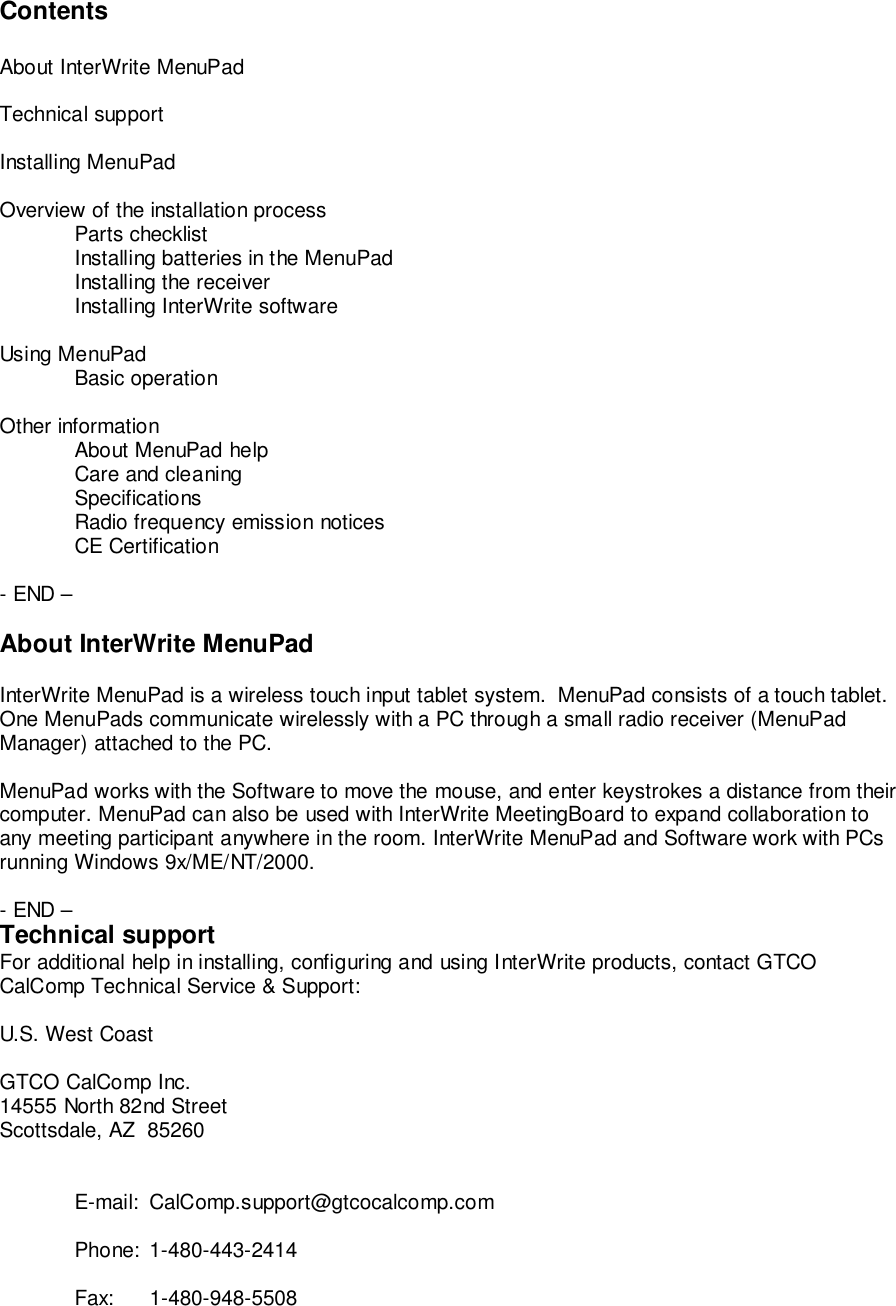
Next: Install the receiver (if one isn't already installed).- END –Installing the MeetingPad Manager receiverAn InterWrite system incorporating one MenuPads must have a MeetingPad Manager receiver.  Ifyour system doesn't have a MeetingPad Manager receiver (available separately), install one now:1. Turn off the computer and disconnect the keyboard.2. Using the Y-cable provided with the receiver, connect the receiver and the keyboard tothe computer (as shown here).3. If your system includes and InterWrite MeetingBoard or DrawingBoard Interactive,connect it to the receiver with a 9-pin serial cable.4. If your facility has other MenuPad Manager receivers, set the rotary switch to a numberdifferent from the other receivers.5. Place the receiver in an appropriate location.  For best operation it should be:Away from metal objects.Directly visible (line of sight) from the MenuPads in the same room.6. Turn on the computer.Tip:  The LED on the receiver lights when data is passing through.Next: Install InterWrite software.- END –Installing InterWrite software1. Remove any graphic tablet drivers installed on the PC.2. Insert the InterWrite MenuPad CD-ROM into the computer’s CD-ROM drive.3. Wait for the installation program to launch.
Note:  If the installation program does not start on its own, use Windows Explorer to locate andlaunch setup.exe on the CD-ROM.4. Follow the instructions to install InterWrite.5. Remove the CD-ROM.6. Restart the PC.  The InterWrite icon should appear in the Taskbar.Next: Installation is complete.- END –Basic operationNote:One MenuPads can communicate with one receiver.Each MenuPad must be within 15 feet (4.5m) of its intended receiver.  Receptiondepends on local conditions, and performance may vary in your facility.MenuPad receivers should  be at least 100 feet (30m) apart.To do this... Do this...Turn MenuPad is only on when touching the surface and for sort time after that.Tip:  "Quick start for InterWrite Software" and the InterWrite Software help file contain instructionsfor using that product to control the PC, annotate screens, save screens and distribute meetingnotes.- END –About MenuPad helpInterWrite MenuPad help, Rev. x0 4-26-01© 2001 GTCO CalComp, Inc. All rights reserved. No part of this publication may be reproduced,stored in a retrieval system, or transmitted, in any form or by any means, electronic, mechanical,photocopying, recording or otherwise, without the prior written permission of GTCO CalComp,Inc.InterWrite, MenuPad, MeetingBoard and DrawingBoard Interactive are trademarks of GTCOCalComp, Inc.  GTCO is a registered trademark of GTCO CalComp, Inc.- END –Care and cleaningReplacing pen batteries1. Slide open the cover.2. Insert the batteries with "+" matching the + on the tablet.3. Replace the coverGeneral care
Follow these precautions at all times to avoid damaging MenuPad:Avoid discharging static electricity to the tablet.Do not place heavy objects on the tablet surface.Do not use sharp objects, like compasses or knives, on the tablet surface.Do not use the tablet surface for any purpose other than drawing with your finger.Cleaning the tabletClean the tablet's surface with a slightly dampened cloth.CAUTION:  Do not clean pencil lines with a soft cleanser or pencil eraser.  This may create anundesirable shiny spot on the tablet's surface that cannot be removed.WARNING:  Do not use abrasive cleaners, acrylic or lacquer paint thinners, or cleansers with anacetone or solvent base, such as MDC or EDC, on the tablet surface.  They will damage thetablet case.- END –SpecificationsProduct specificationsPlatform Support PCSoftware Drivers Windows 95/98/ME/NT/2000Hardware Interfaces 915MHz (U.S.) or 433MHz (other countries) proprietary radio interfaceRS-232 to computer via MeetingPad Manager receiverPower Supply replaceable batteriesCertification FCC Part 15 Subpart B (Class B) and Subpart CEN55022, ETS 300 683 (1997), ETS 300 220-1 (2000-09)Operating Temperature 40 to 115°F / 5 to 40°CTablet Physical DimensionsActive Area  6.5 in H x 13.0 in W / 16.5 cm H x 33.0 cm W)width ??? in / ??? cmHeight ??? in / ??? cmDepth ??? in / ??? cmWeight tbdMenuPad Manager Physical DimensionsWidth 3.2 in / 8.1 cmHeight 4.2 in / 10.6 cmDepth 1.9 in / 4.8 cm (915MHz version), 3.5 in / 8.9 cm (433MHz version)Weight 0 lb, 5 oz / 0.14 kg
- END –Radio frequency emission noticesThis equipment has been tested and found to comply with the limits for a Class B digital device,pursuant to part 15 of the FCC Rules. These limits are designed to provide reasonable protectionagainst harmful interference in a residential installation. This equipment generates, uses and canradiate radio frequency energy and, if not installed and used in accordance with the instructions,may cause harmful interference to radio communications. However, there is no guarantee thatinterference will not occur in a particular installation. If this equipment does cause harmfulinterference to radio or television reception, which  can be determined by turning the equipmentoff and on, the user is encouraged to try to correct the interference by one or more of thefollowing measures:Reorient or relocate the receiving antenna.Increase the separation between the equipment and receiver.Connect the equipment into an outlet on a circuit different from that to which the receiveris connected.Reorient or coil cables.If necessary, consult the dealer or an experienced radio/television technician foradditional suggestions.Any cables the user adds to the device must be shielded to be in compliance with the FCCstandards.  Any unauthorized modification to this device could result in the revocation of the enduser’s authority to operate this device.- END –CE certificationDeclaration of conformity according to ISO/IEC Guide 22 and EN 45014Manufacturer’s Name: GTCO CalComp, Inc.Manufacturer’s Address: 14555 N. 82nd StreetScottsdale, Arizona 85260U.S.A.declares, that the productProduct Name: InterWrite MenuPadModel Numbers:Product Options: Allconforms to the following product specifications:Safety: Not applicable to any standard.EMC: CISPR22:1985/EN 55022:1988--Class BEN 55024:1998ETS 300 683 (1997)ETS 300 220 (2000-09)Supplementary InformationThe product herewith complies with the requirements of the EMC Directive 89/336/EEC.
Scottsdale, Arizona, U.S.A.               Mike TruscioLocation Date Vice President of EngineeringEuropean ContactGTCO CalCompWorld Trade CenterA-1300 Vienna  --  AirportAustriaTel: + 43 1 7007 36450Fax: + 43 1 7007 36458European Union-emission directiveThis product is in conformity with the protection requirements of EU Council Directive89/366/ECC on the approximation of the laws of the Member States relating to electromagneticcompatibility.This product has been tested and found to comply with the limits for Class B InformationTechnology Equipment according to CISPR 22/European Standard EN55022.  The limits forClass B equipment were derived for typical industrial environments to provide reasonableprotection against interference with licensed communication devices.CanadaIndustry Canada Class B emission compliance statement. This Class B digital apparatuscomplies with Canadian ICES-003.Avis de conformite' a' la re'glementation d'Industrie Canada. Cet appareil nume'rique de classe Best conforme a' la norme NMB-003 du Canada.- END -

Navigation menu