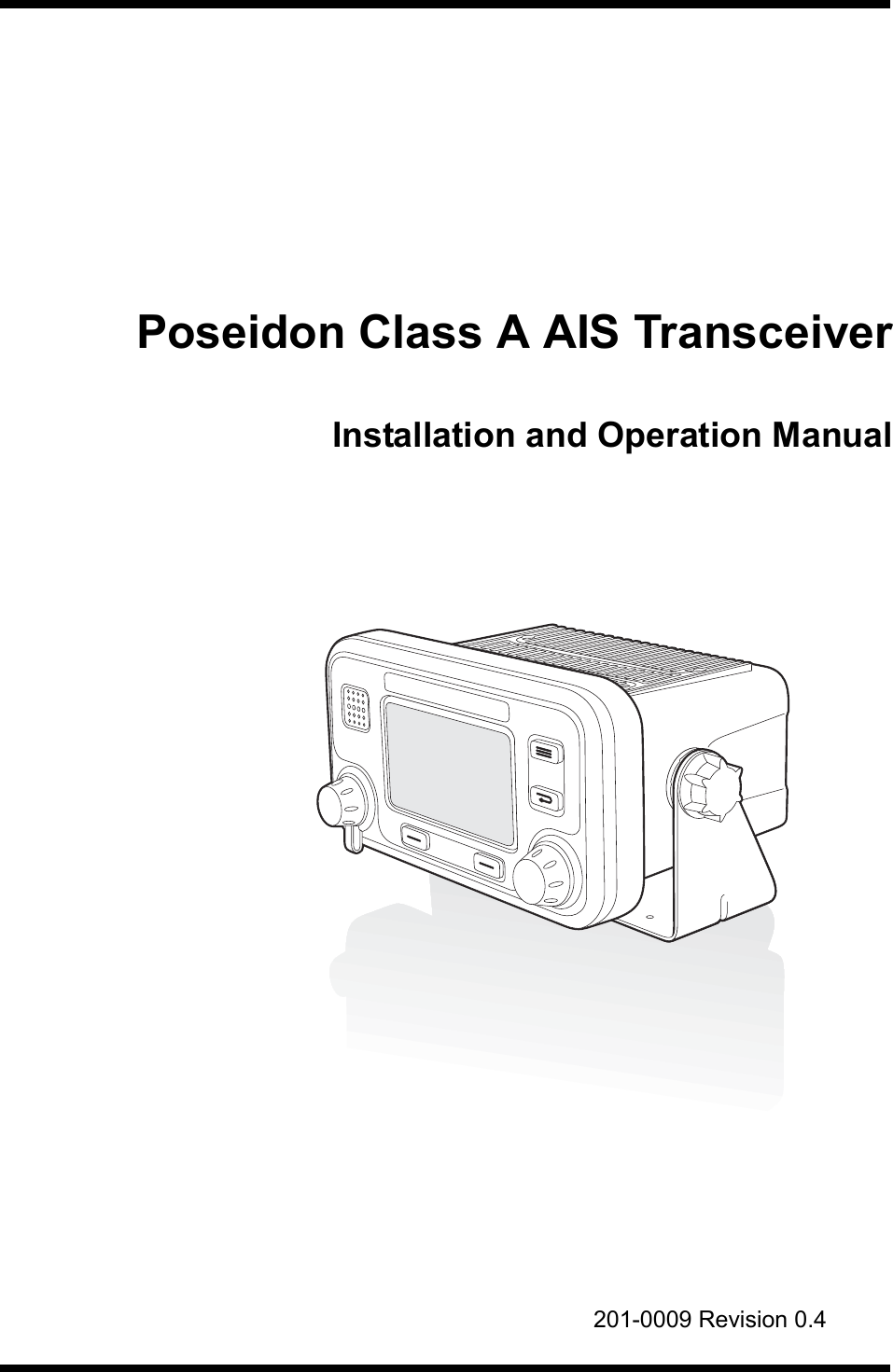
em trak Marine Electronics 405-0026 Marine Class A AIS Transceiver to IEC61993-2 User Manual Poseidon installation and user guide
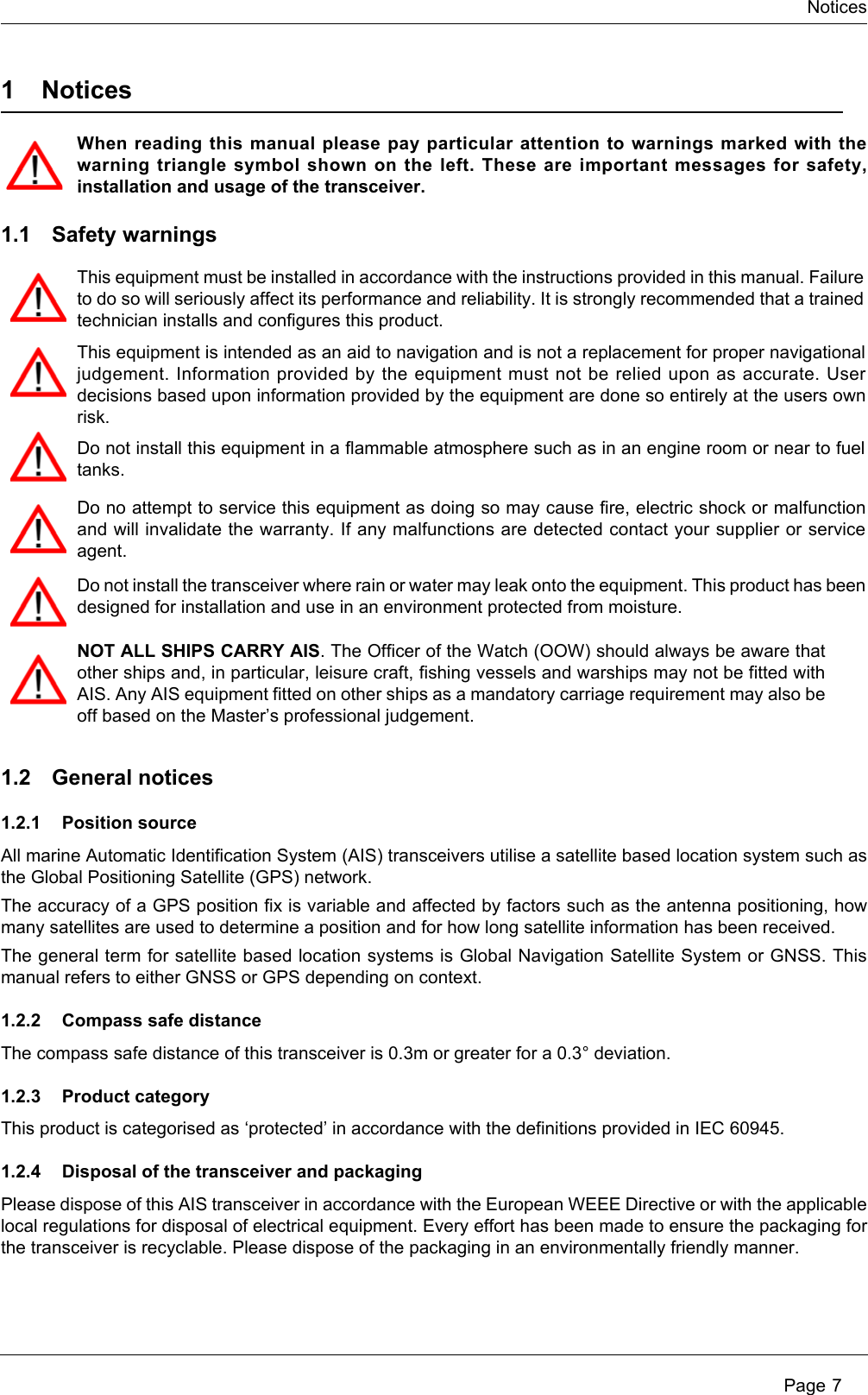
em-trak Marine Electronics Ltd Marine Class A AIS Transceiver to IEC61993-2 Poseidon installation and user guide
Poseidon user guide

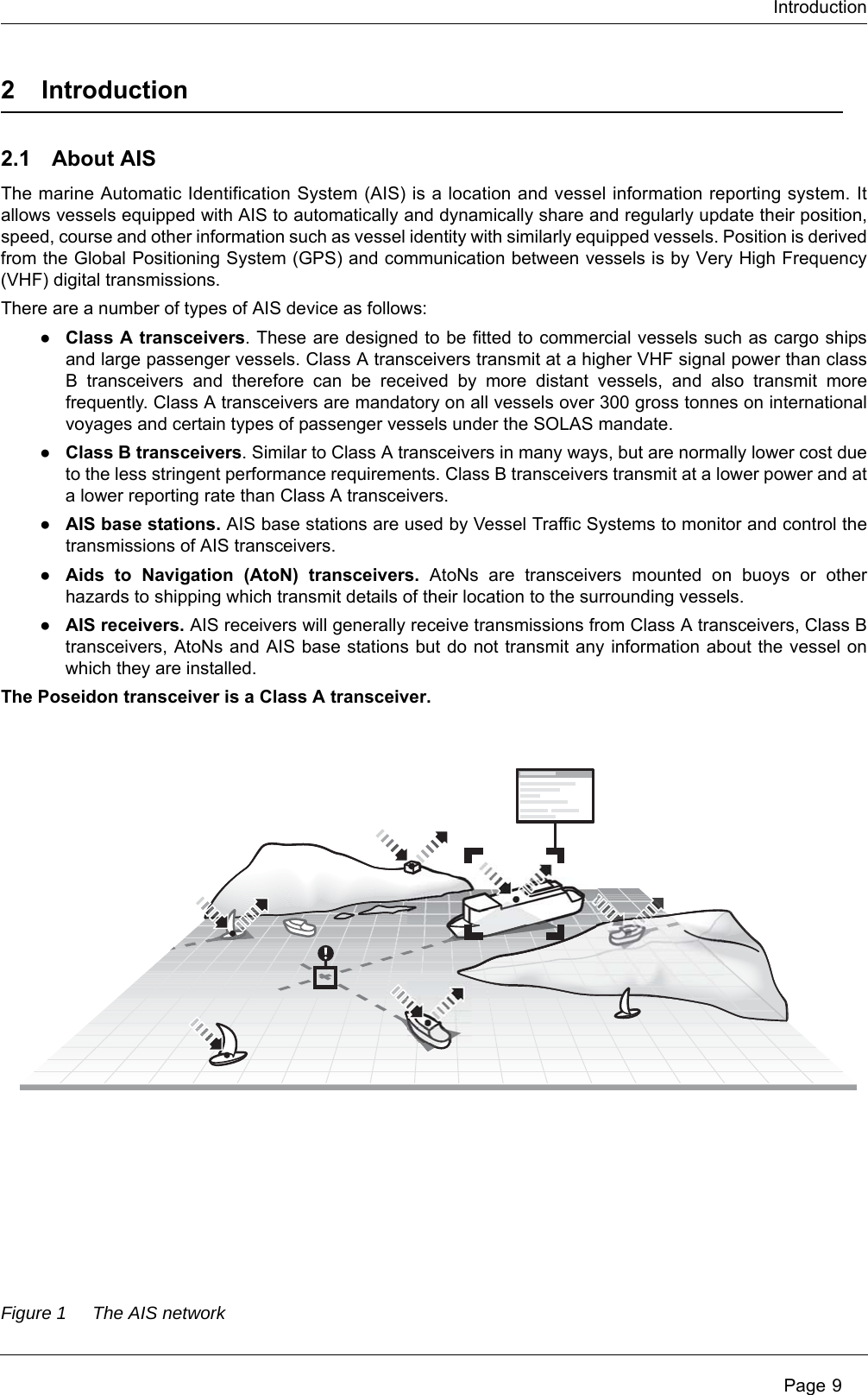
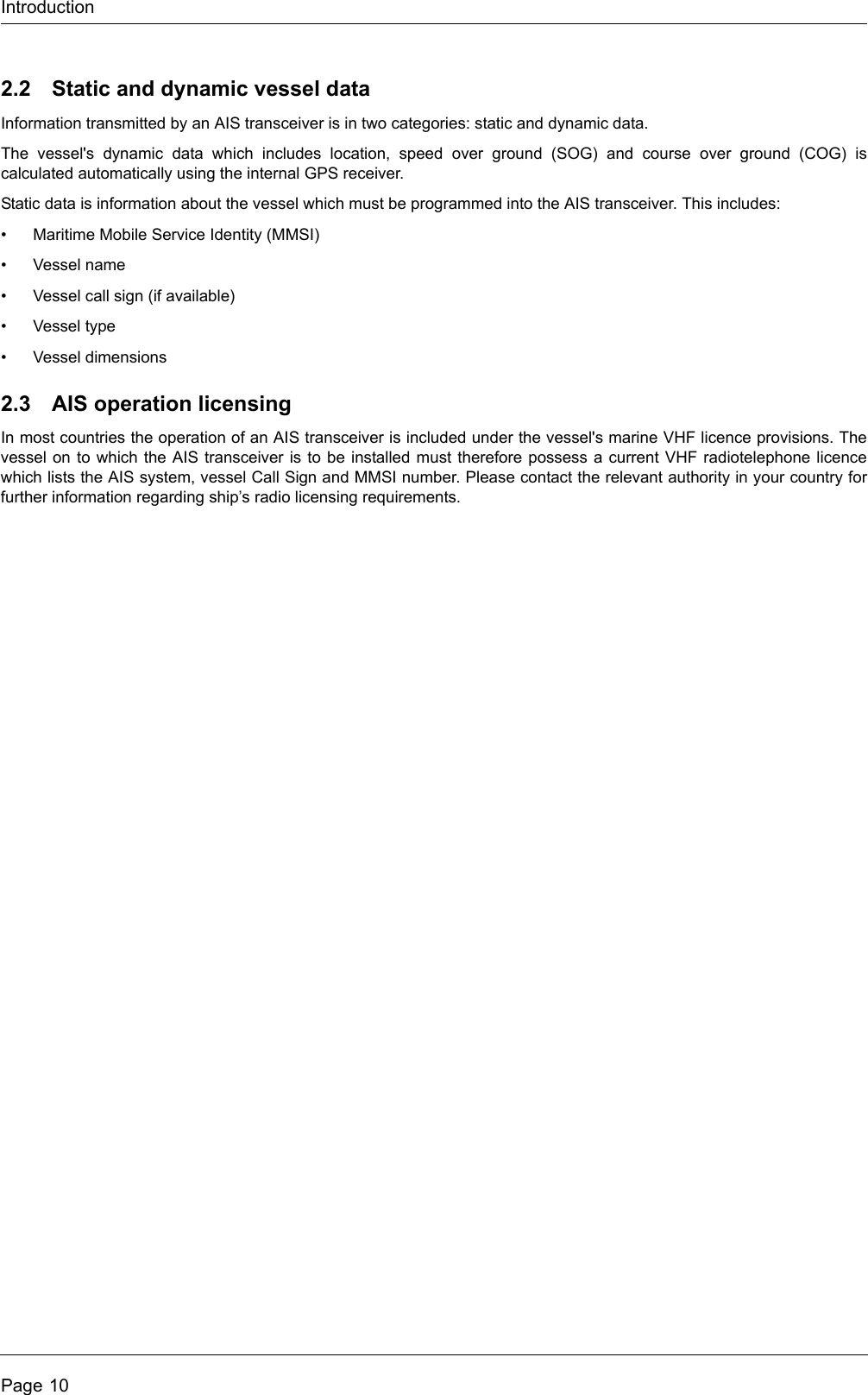
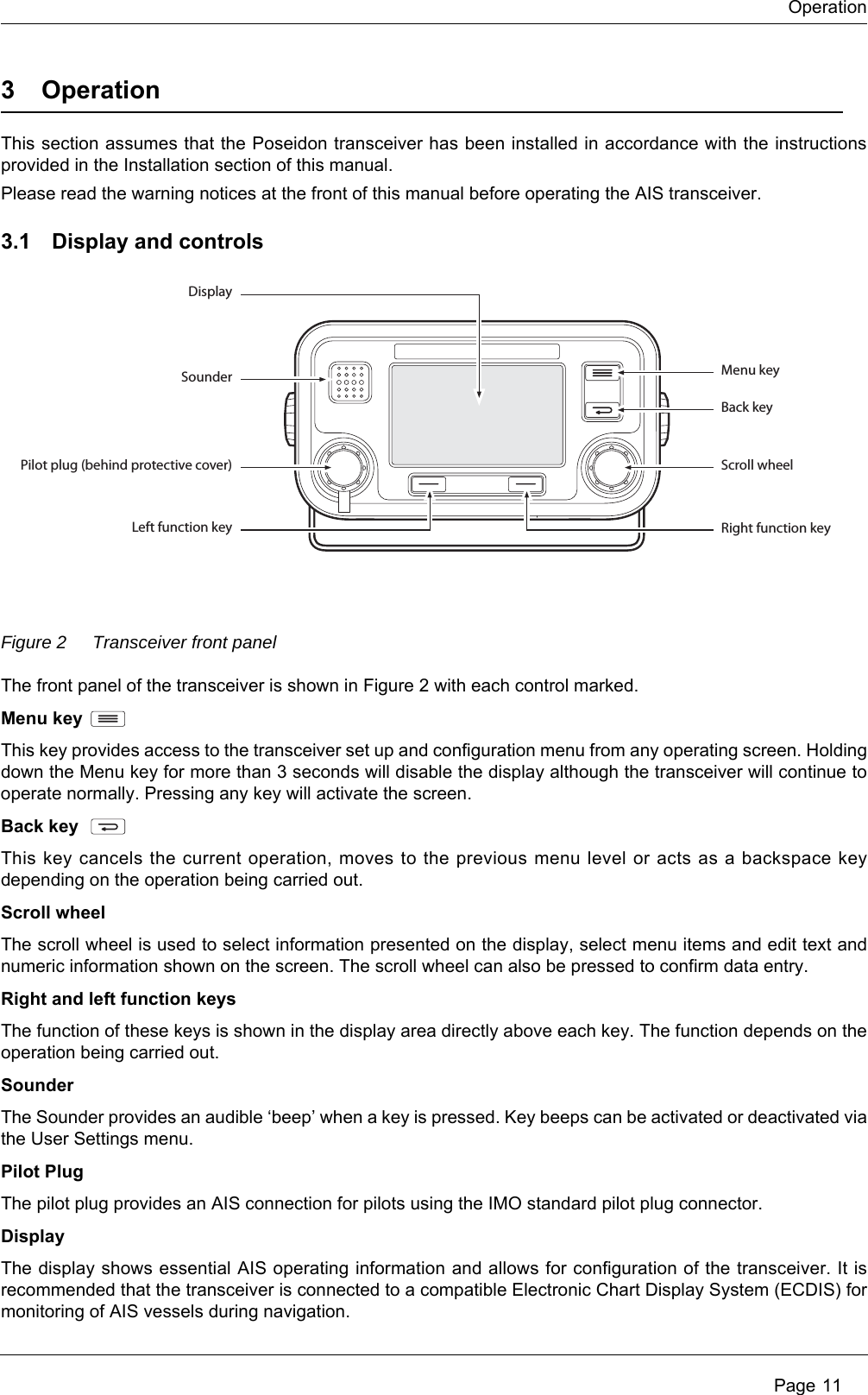
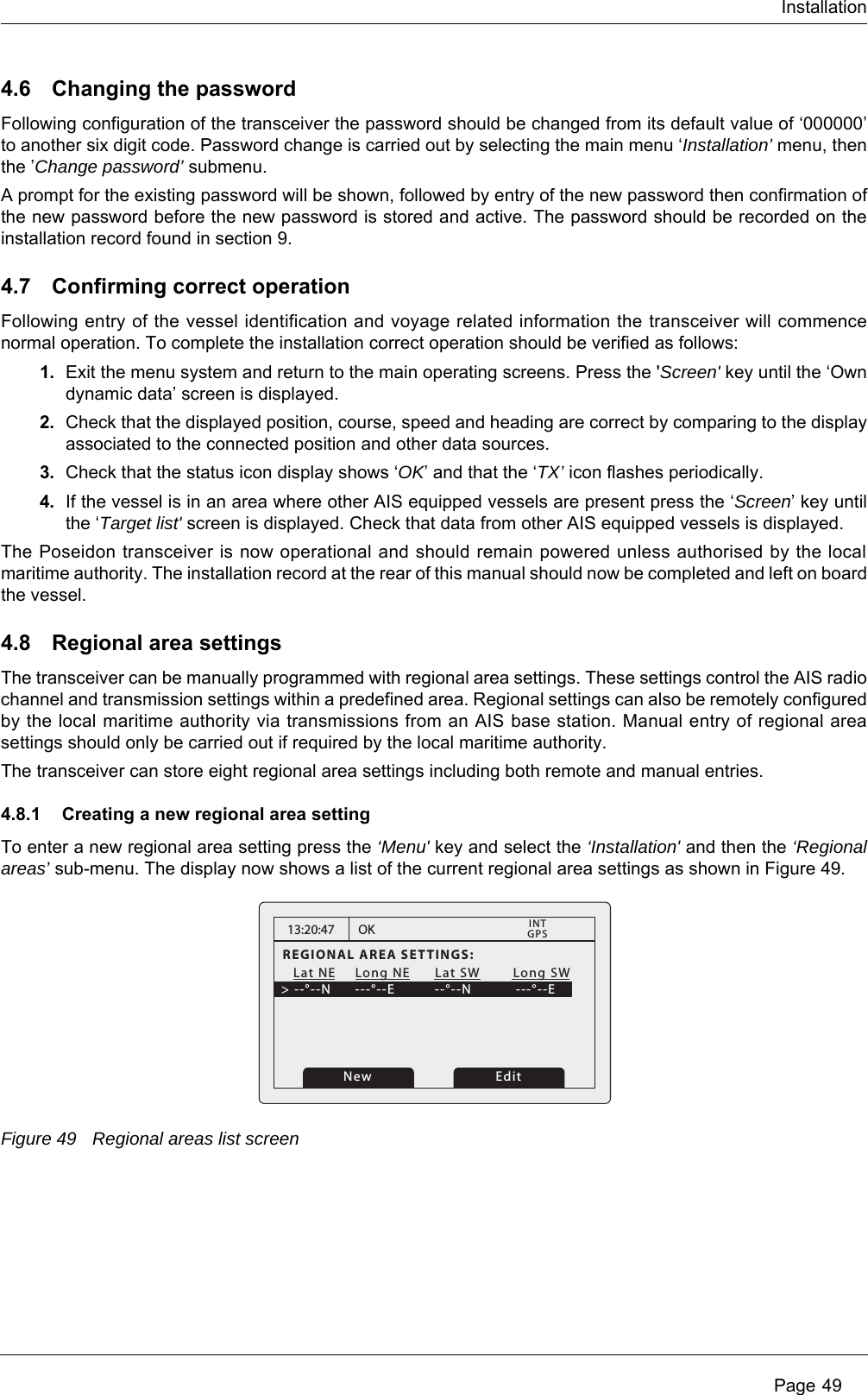
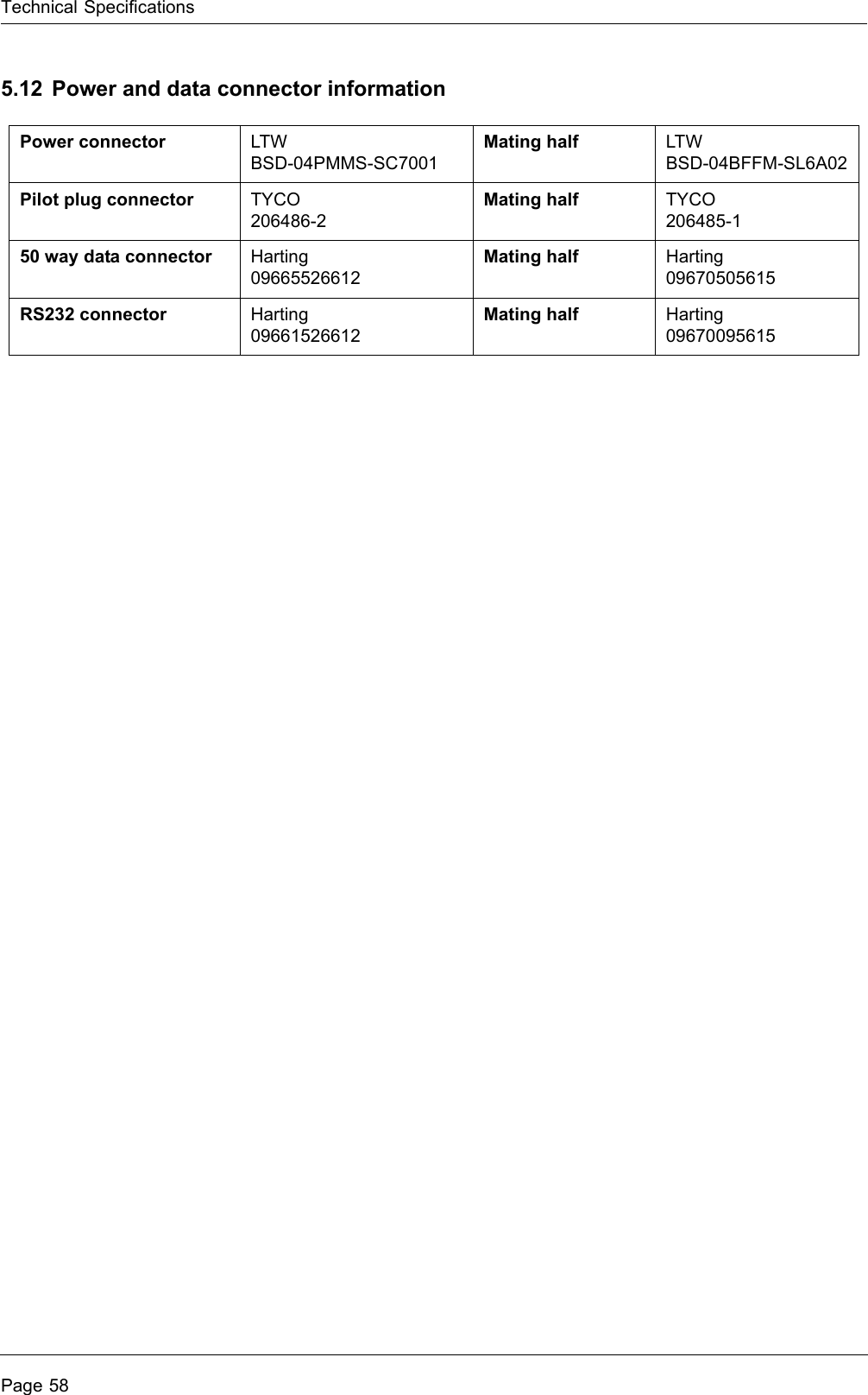
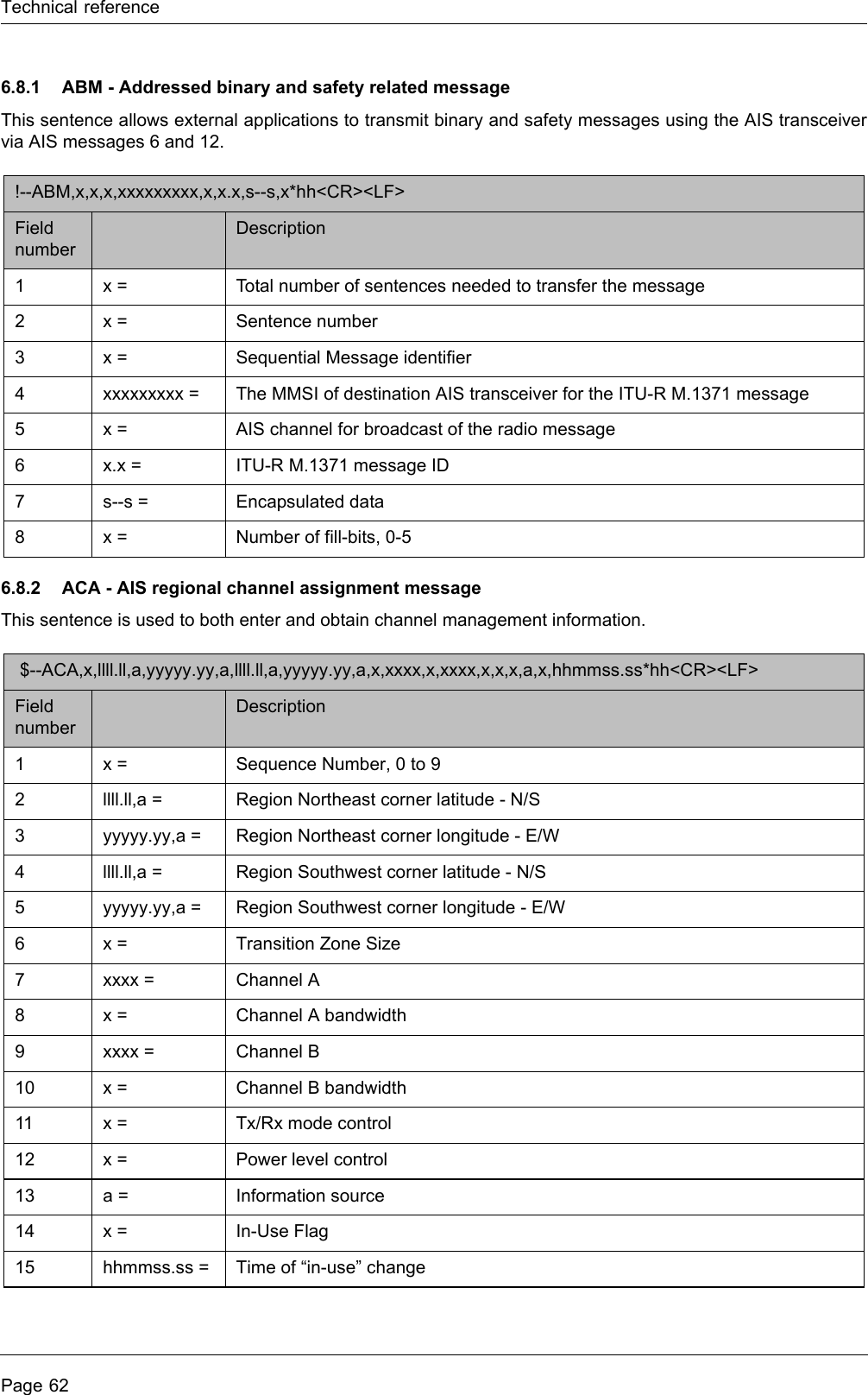
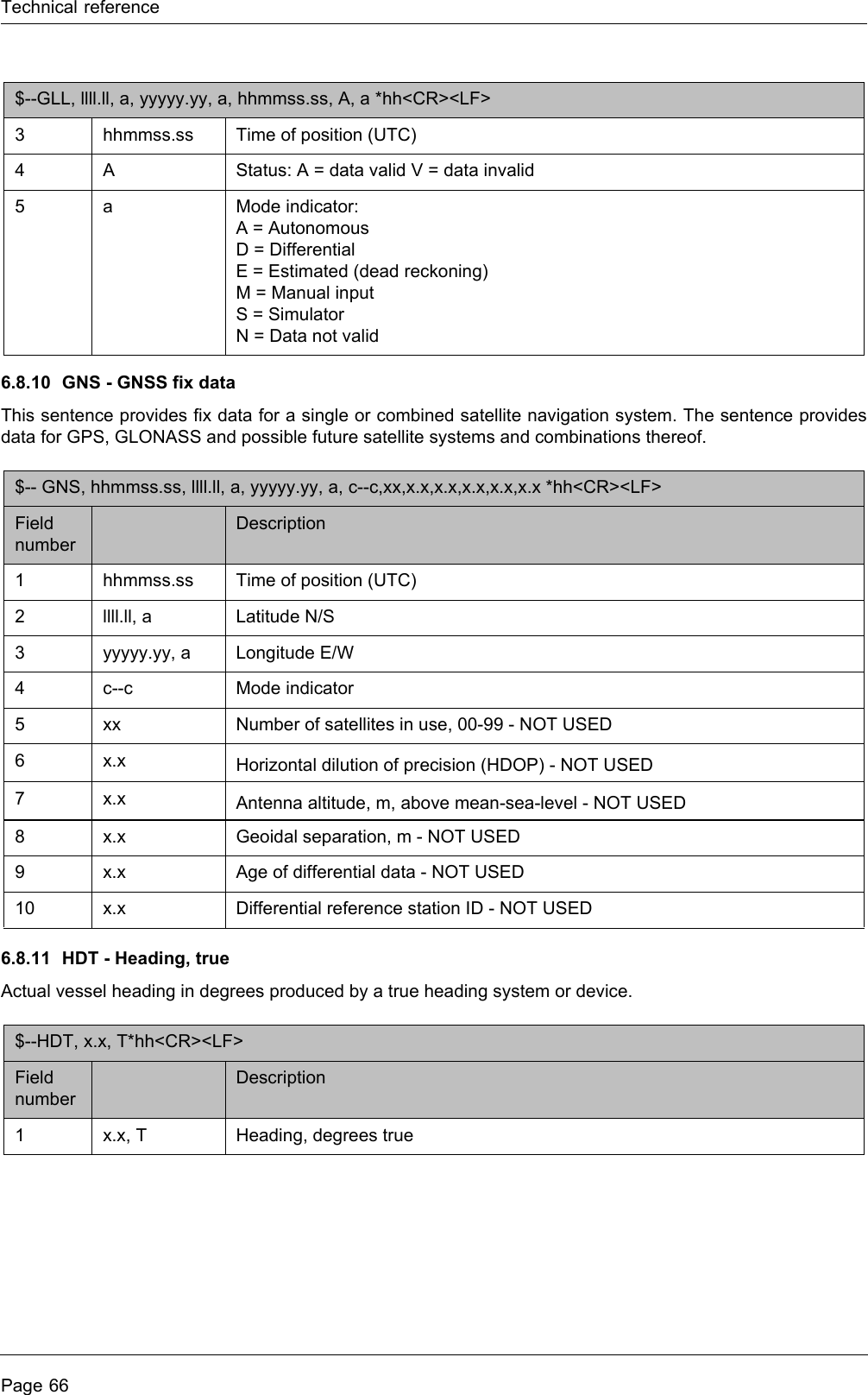
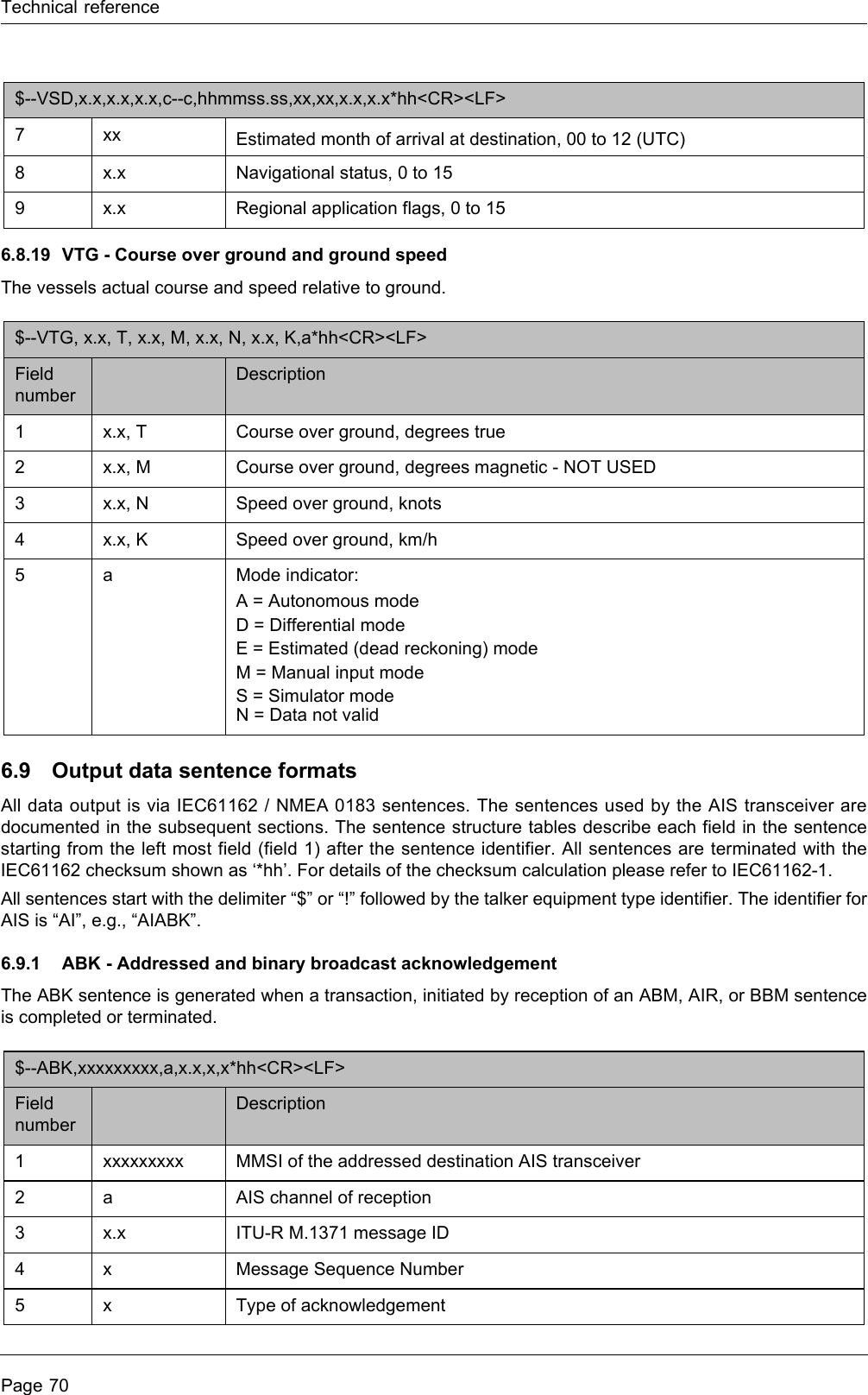
![OperationPage 123.2 Turning the transceiver onThe Poseidon transceiver does not have a power switch and is designed to be permanently powered. When power is first applied the display will show a splash screen followed by software version information. Each screen is shown for 5 seconds before the main operating screen is shown.Figure 3 Power on display sequence3.3 Display layoutThe display layout is shown in Figure 4. All operating screens show the time, status bar, scroll indicators and relevant function keys. The time displayed is UTC time.When no UTC time is available from the internal GNSS module the time display will show --:--:-- in place of the time of day.Figure 4 Display layout13:20:47TARGET LIST:NAME/MMSI7777777777178555236000.0000.0061.9000.0RNG[NM] BRG[deg]OK170202012 000.0 026.3Select ScreenGPSNOAutomatic Identification SystemHH:MM:SSSelect ScreenMain display areaUTC timeLeft function keyScroll indicatorsStatus barRight function key](https://usermanual.wiki/em-trak-Marine-Electronics/405-0026/User-Guide-1386180-Page-12.png)
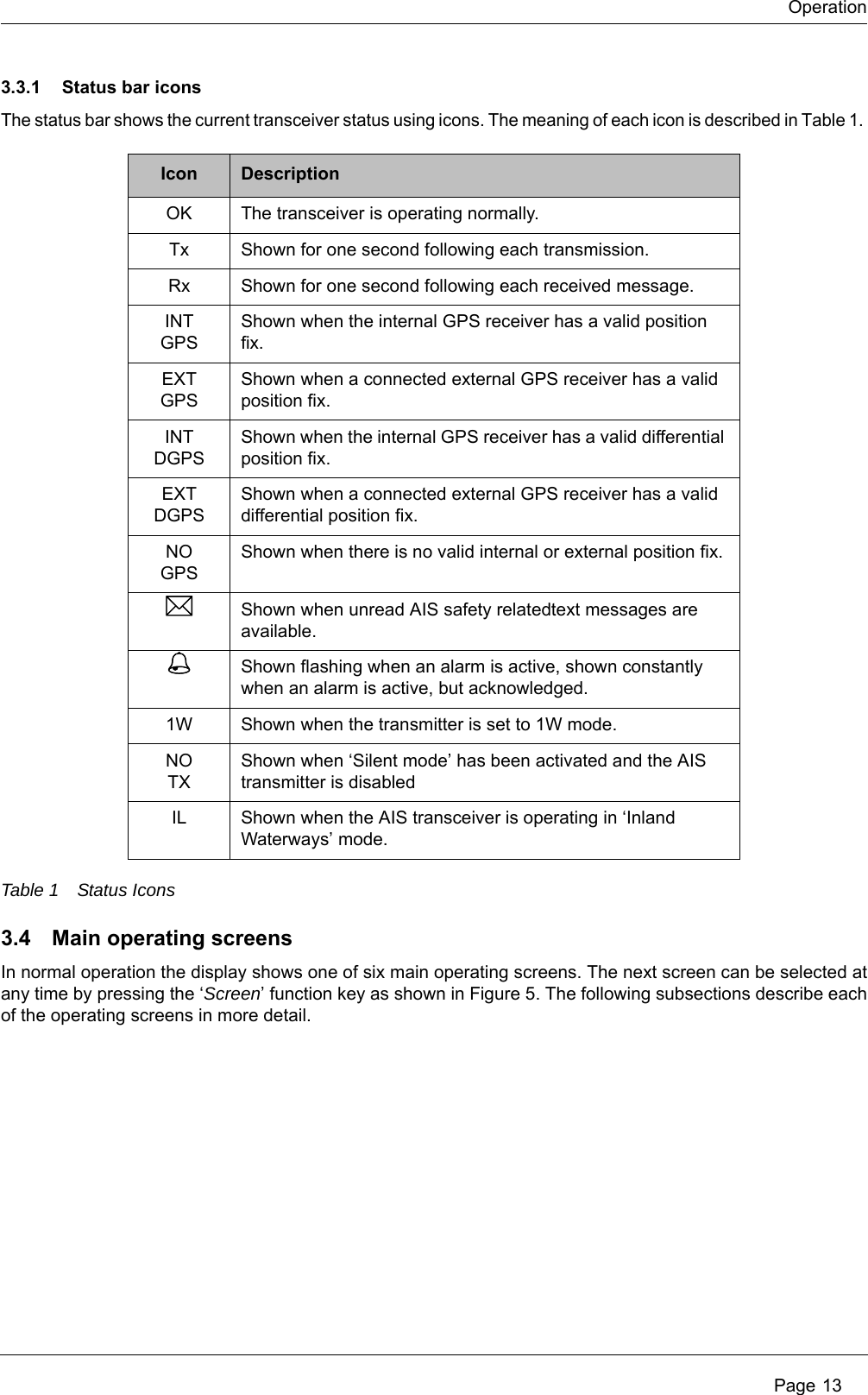
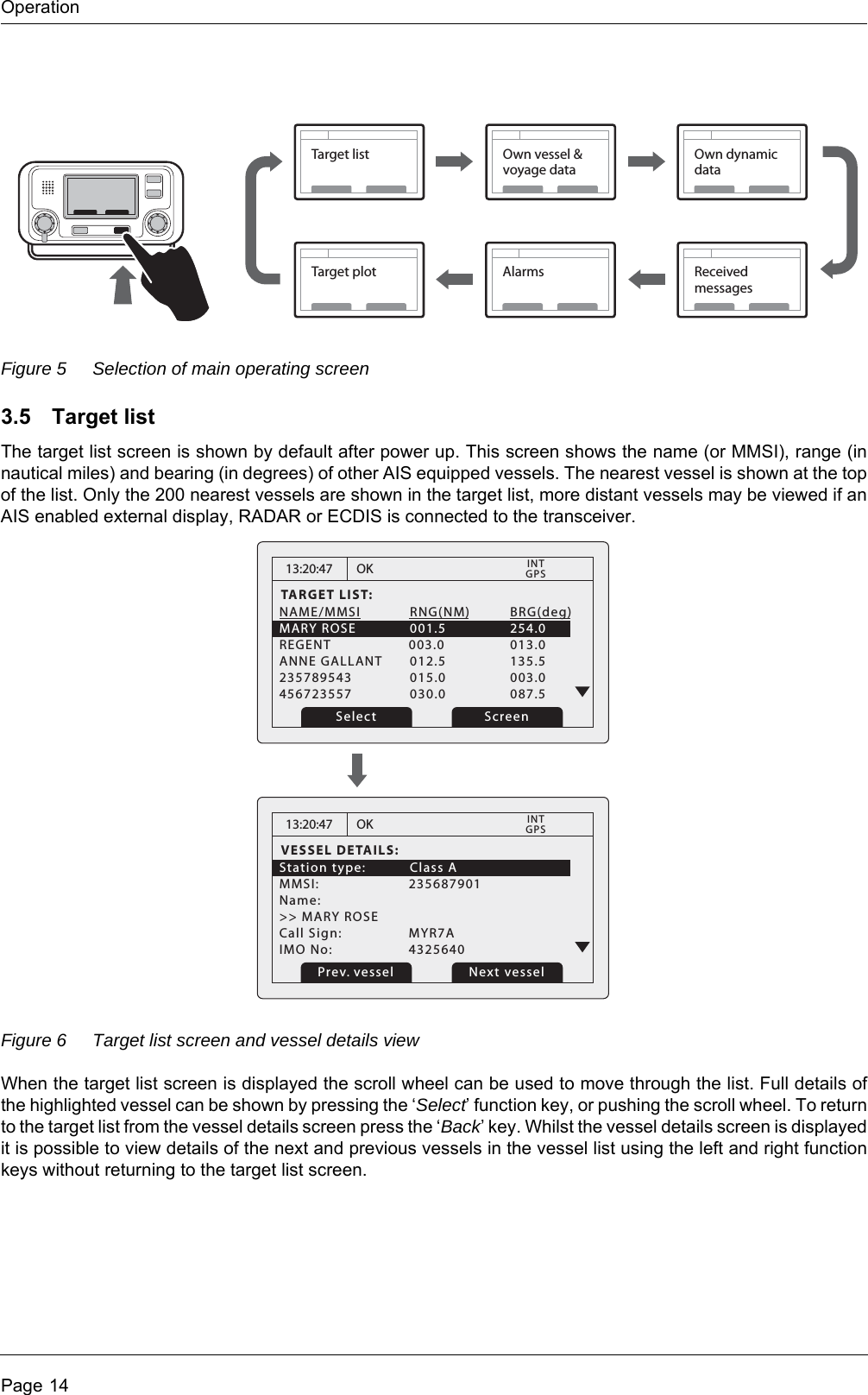
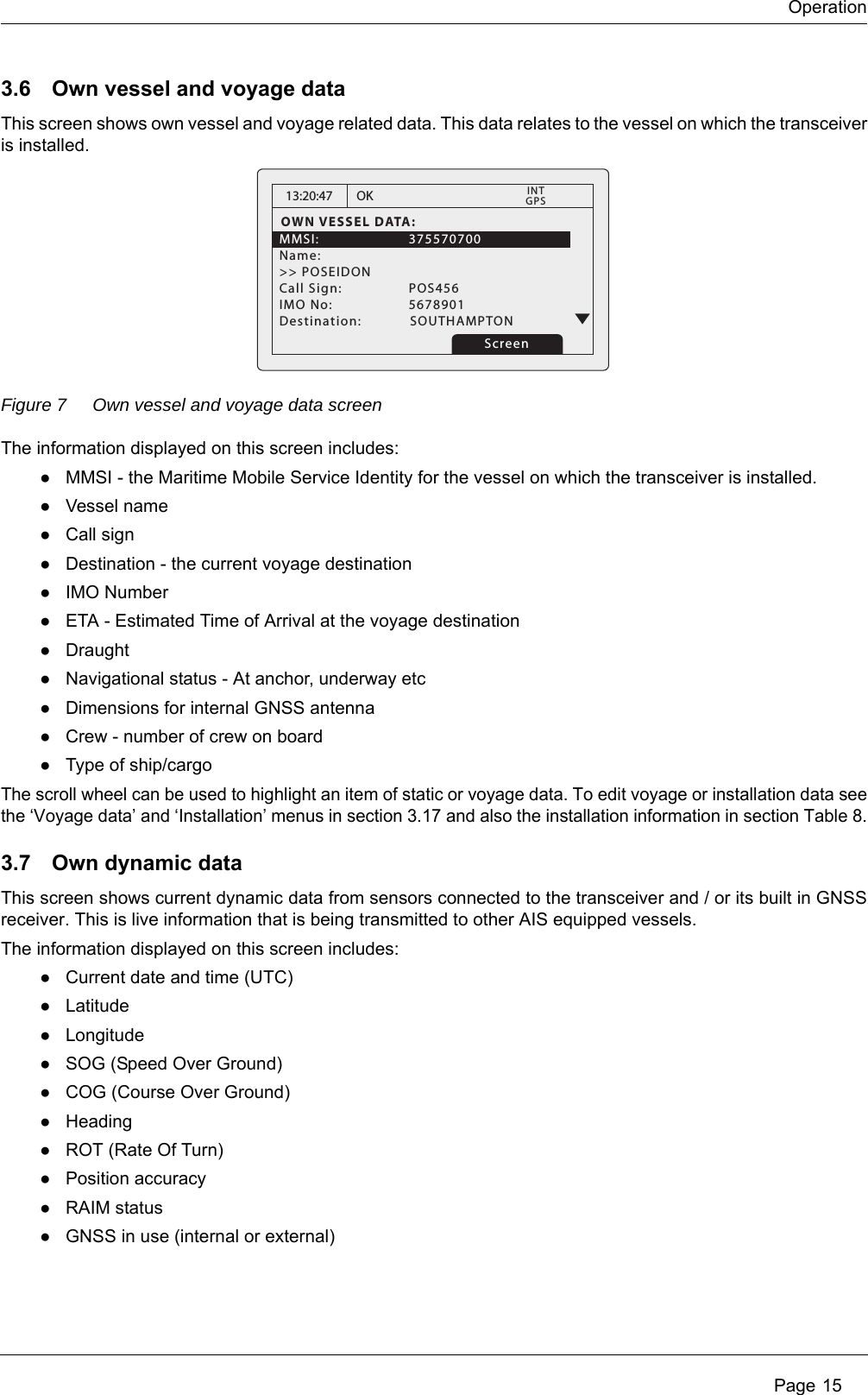
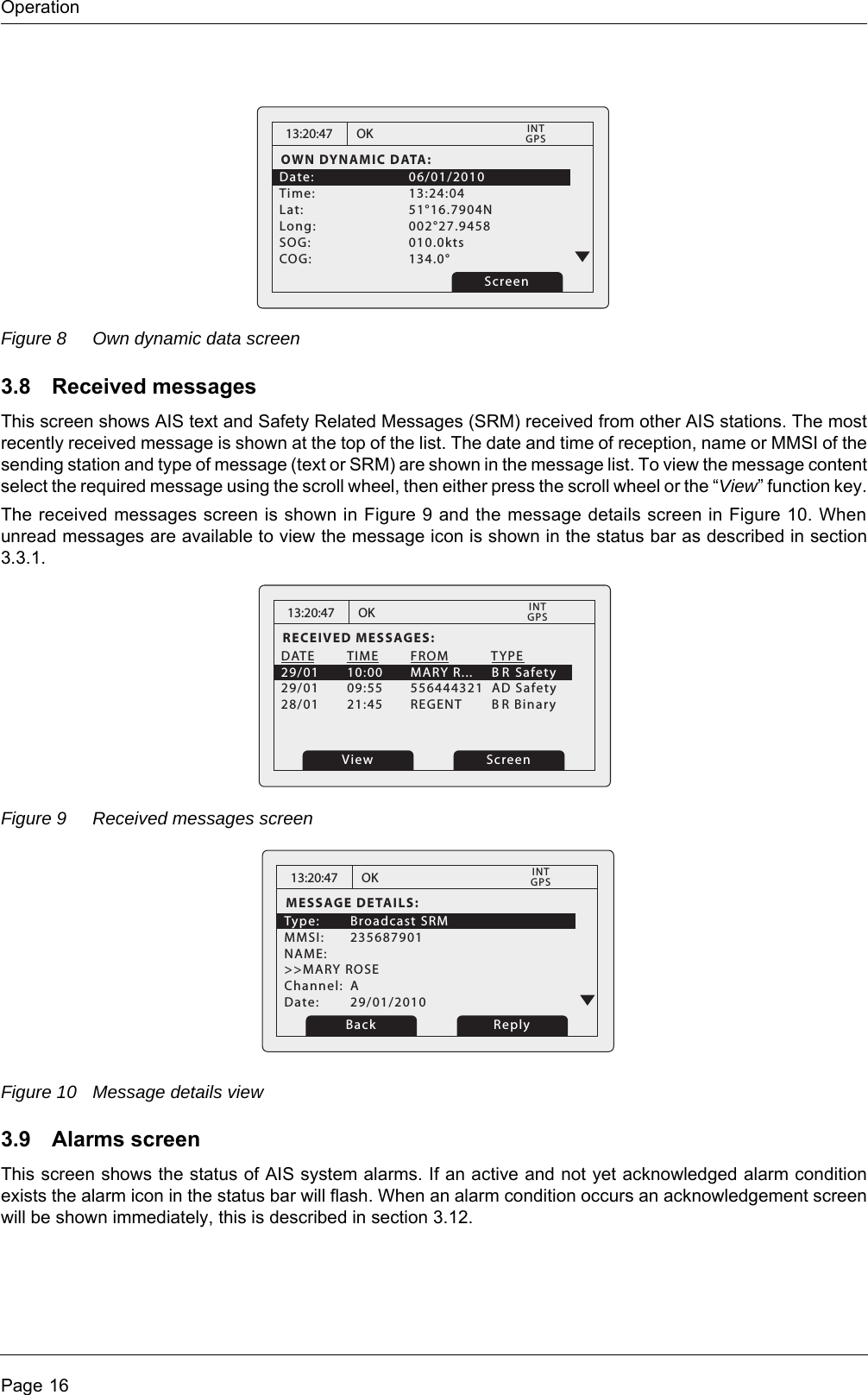
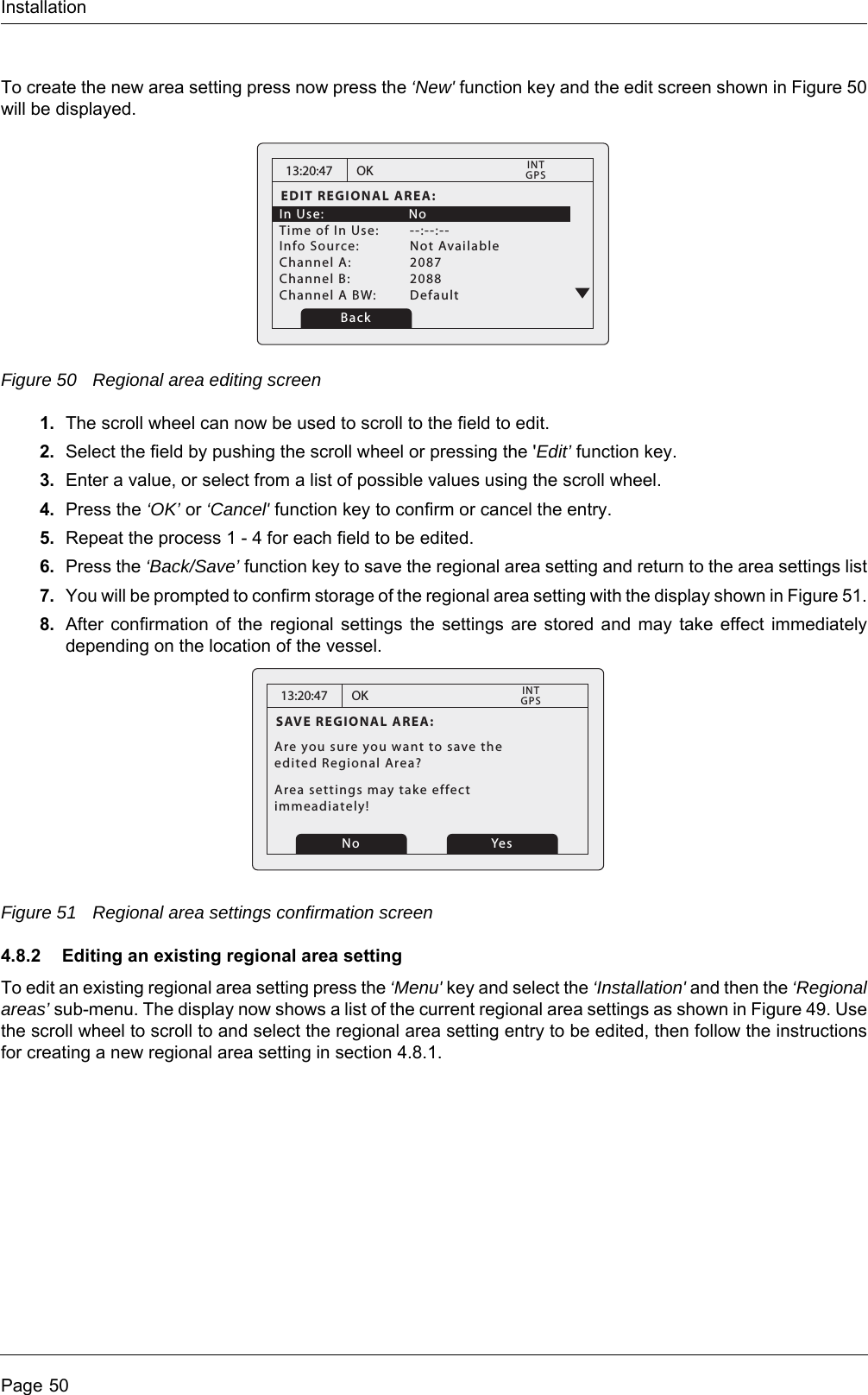
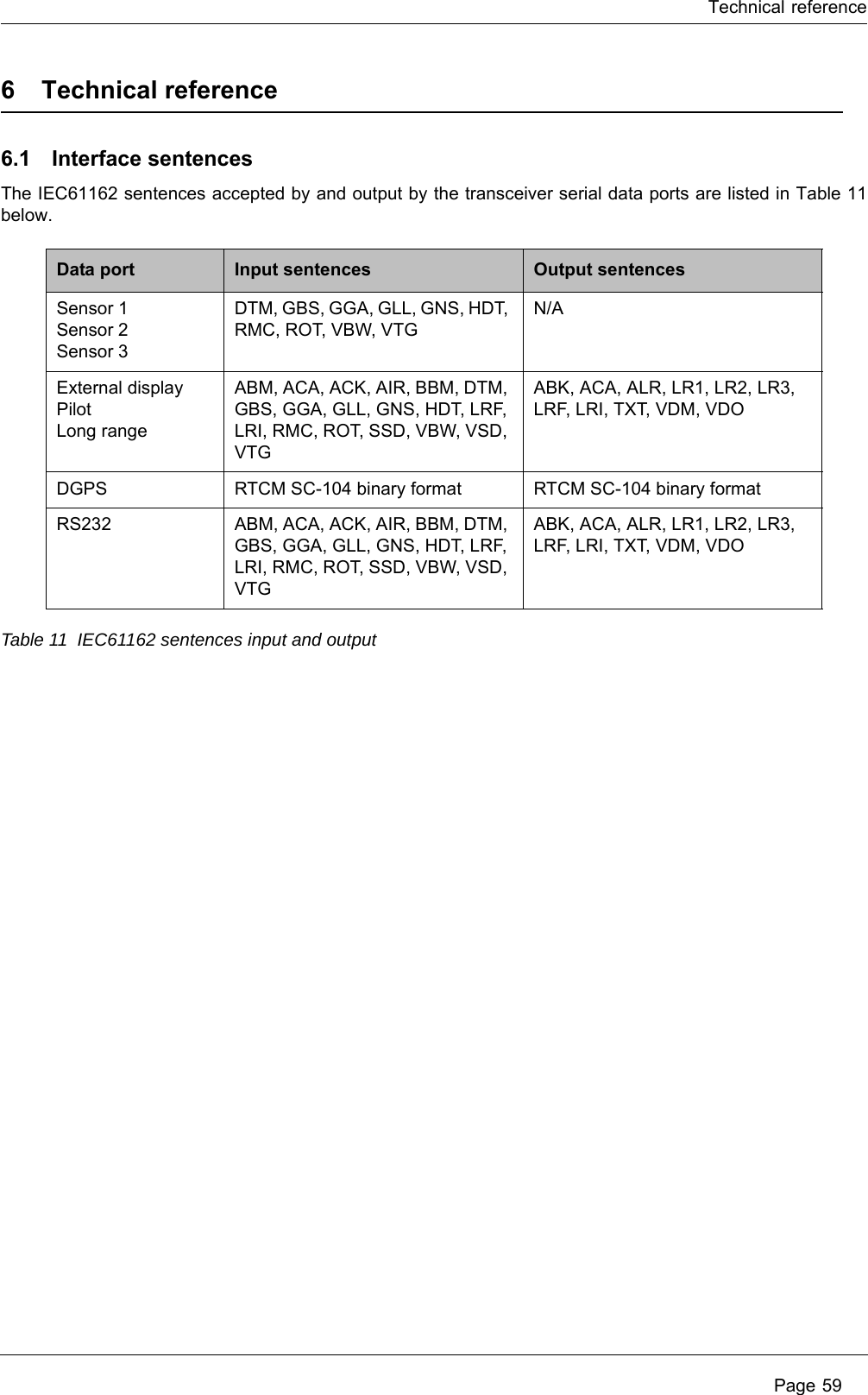
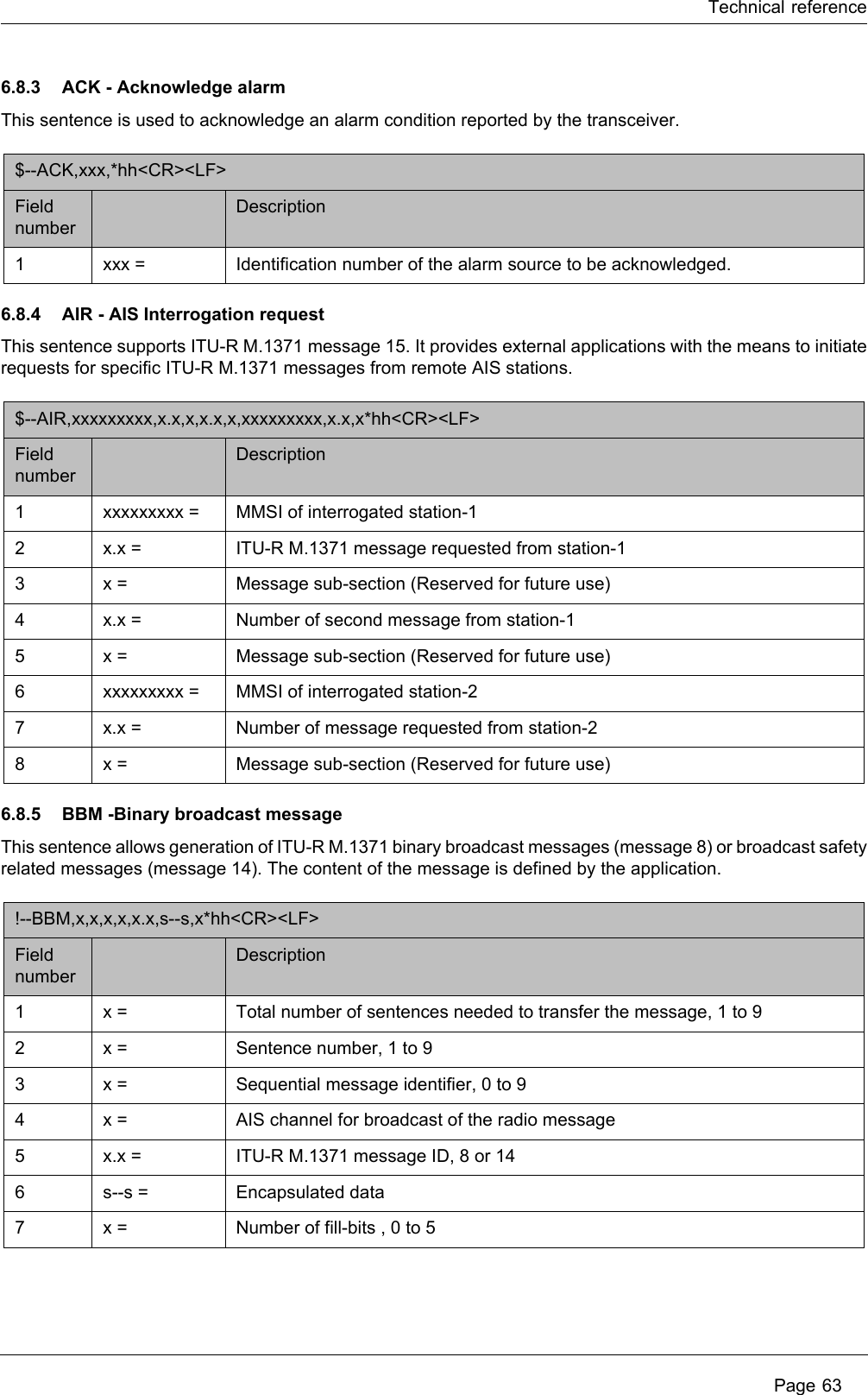
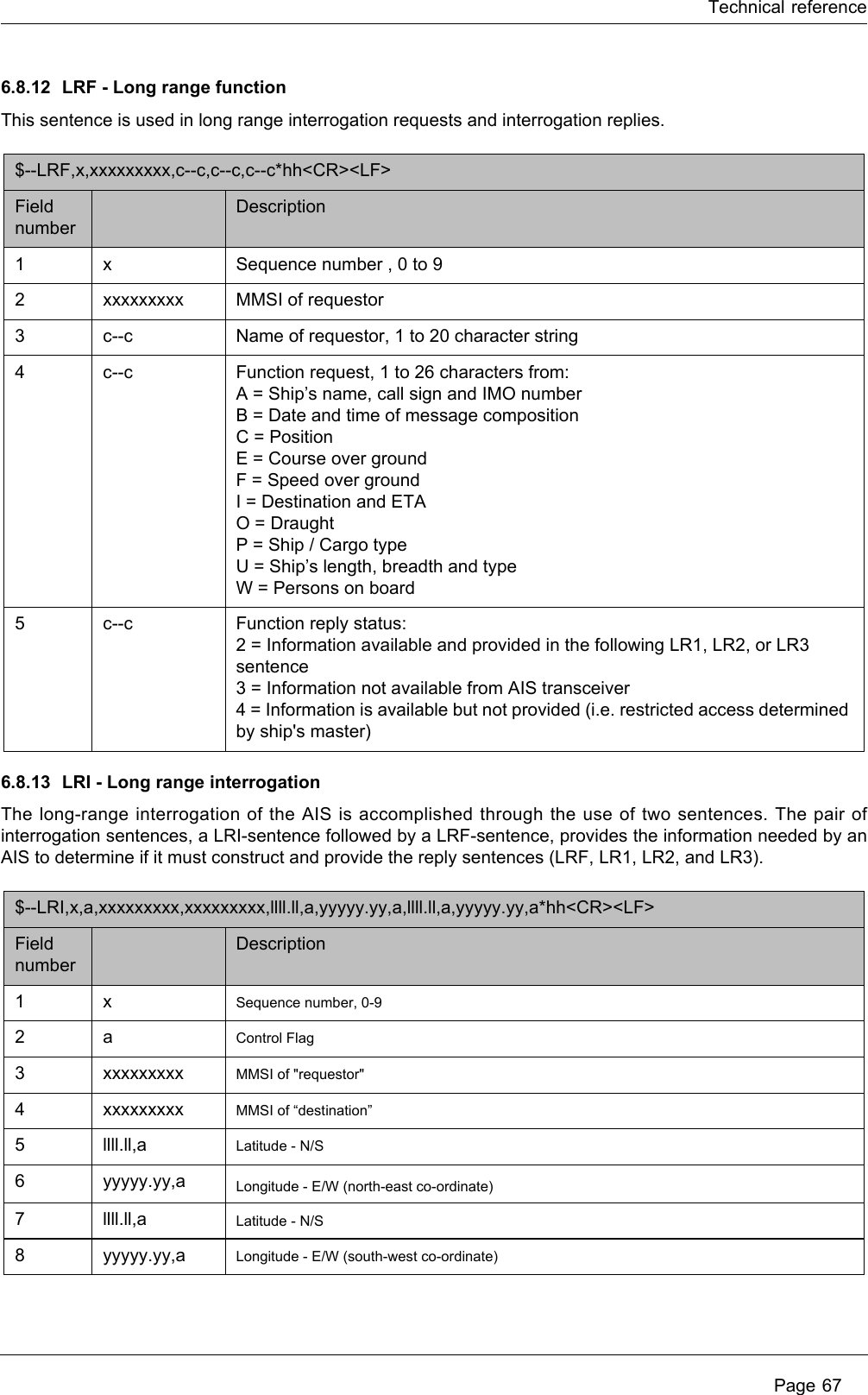
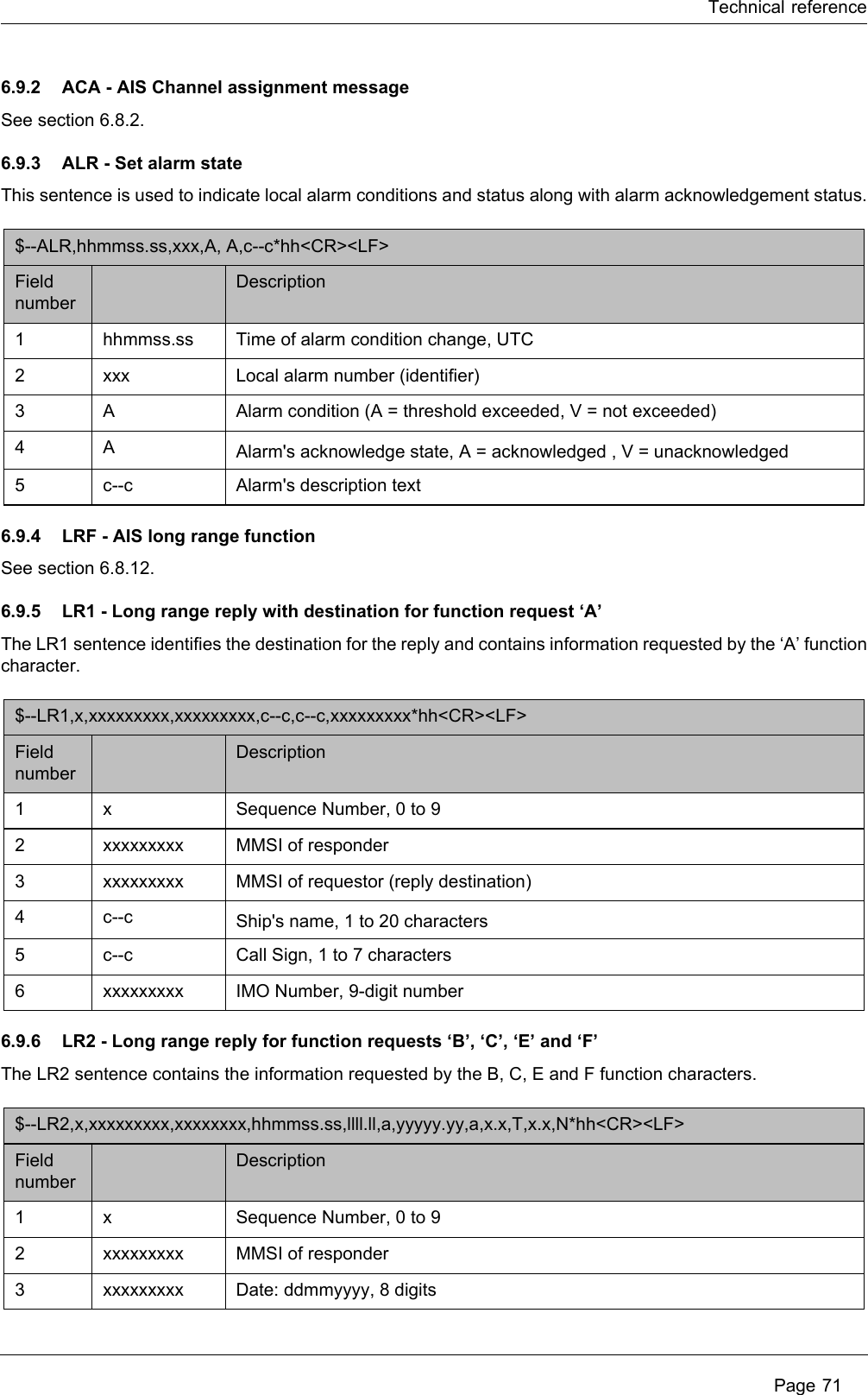
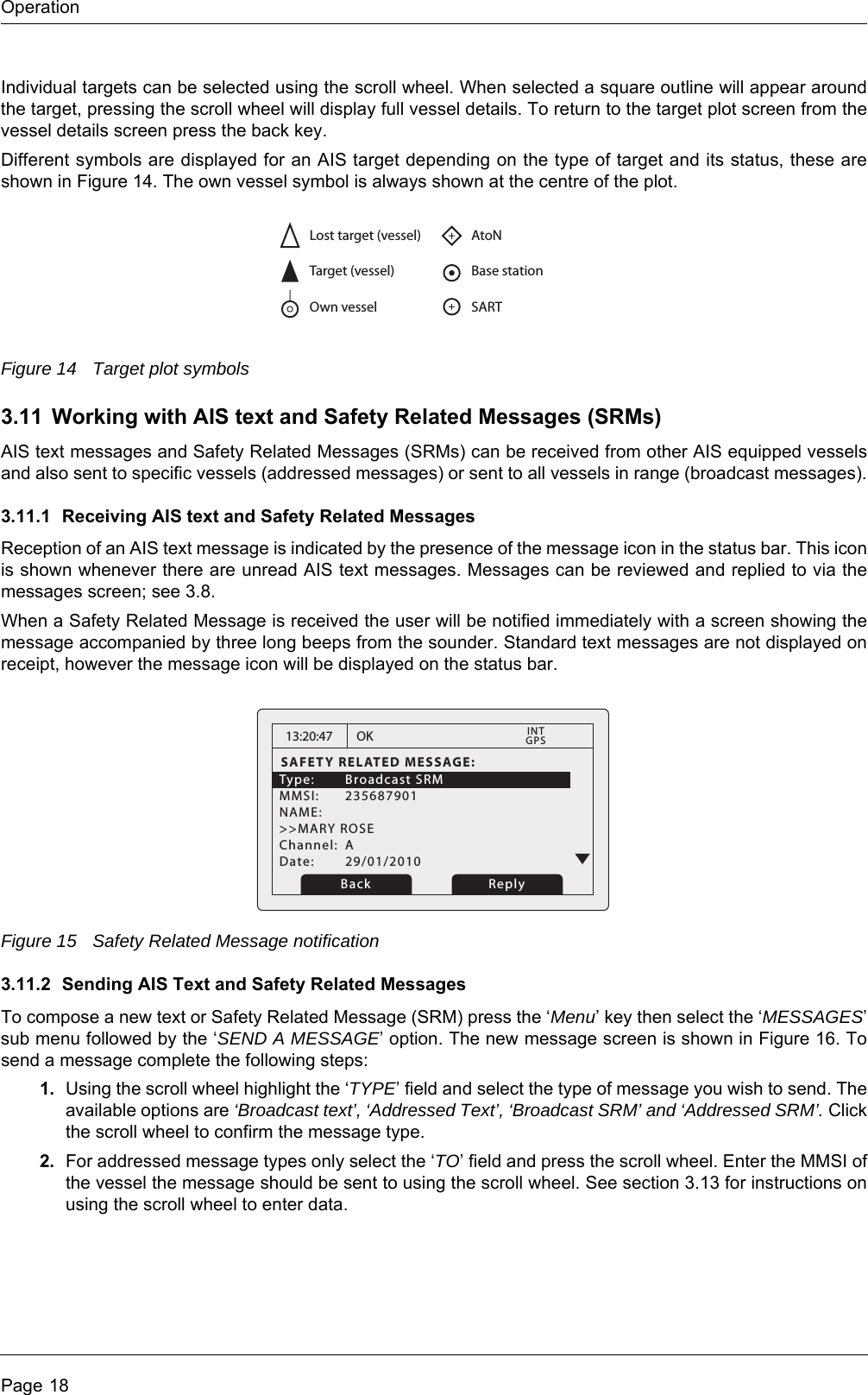
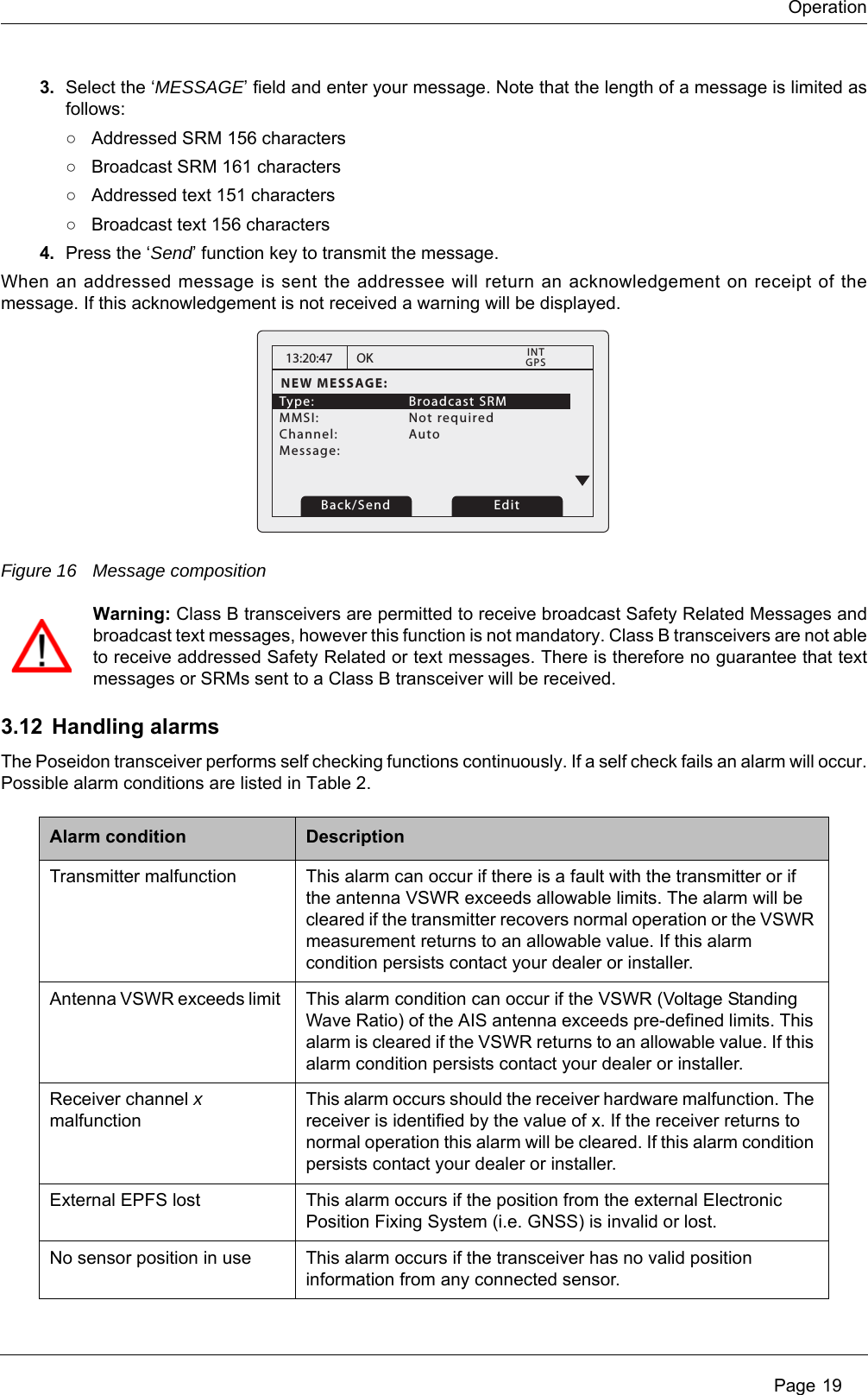
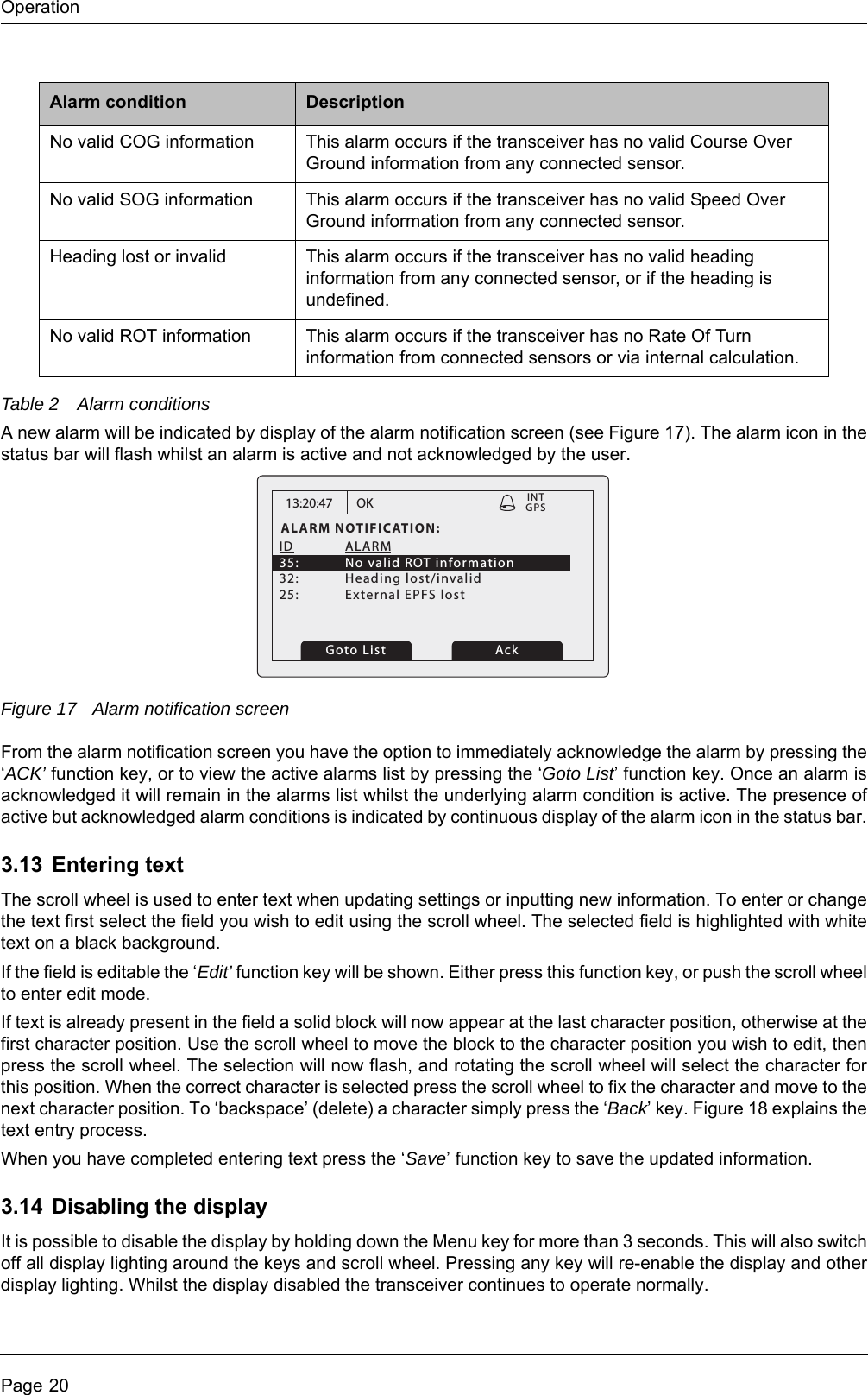
![Operation Page 17The alarms screen shows the date and time of activation along with a brief description of any active alarm and its acknowledge state — see Figure 11. Alarms that are active but not acknowledged by the operator have ‘No’in the ‘Ack’ column. Once an alarm is acknowledged by the operator ‘Yes’ is displayed in the ‘Ack’ column. An individual alarm can be selected from the list using the scroll wheel and it’s details viewed by either pressing the scroll wheel or the “View” function key. The alarm details view is shown in Figure 12.Figure 11 Alarms screenFigure 12 Alarm details view3.10 Target plot screenThe target plot screen shows the location of other AIS equipped vessels and shore stations relative to your own vessel. The target plot screen provides a basic overview of AIS targets and should not be regarded as a substitute for display of AIS information on a dedicated electronic chart display system (ECDIS).Figure 13 Target plot screenThe plot range can be adjusted by pressing the ‘Range’ function key which cycles through the ranges 48, 24, 12, 6, 3, 1 and 0.5nm. The range relates to radius of the outer range ring shown on the screen.13:20:47ALARMS LIST:DATE TIME ALARM ACK25/11 16:13 No valid ROT... Yes25/11 16:11 Heading lost... Yes25/11 16:11 External EPFS... YesOKGPSINTView Screen13:20:47ALARM DETAILS:ALARM: No valid ROT informationID: 35DATE: 25/11/2010TIME: 16:13:30ACK: YesOKGPSINTExitWhile un-acknowledged alarm conditions are active then any connected external alarm system will remain activated.Range ScreenName of selected target MMSI of selected targetHeading line (points up to signify heading up)Selected target[HDG UP] 27 Tgts10nmMARY ROSE 235687901Number of targets on displayheading up modeRange selected](https://usermanual.wiki/em-trak-Marine-Electronics/405-0026/User-Guide-1386180-Page-17.png)
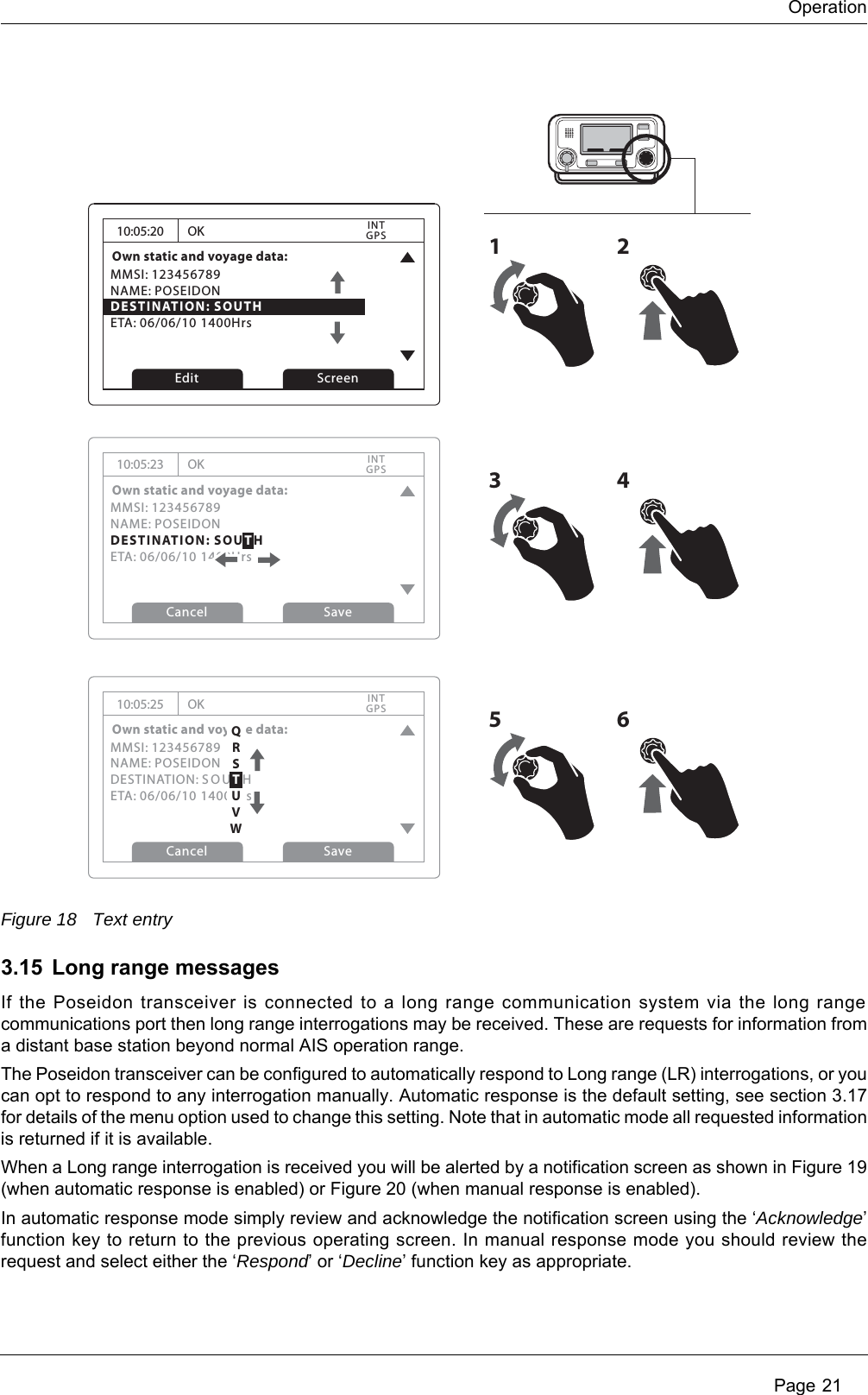
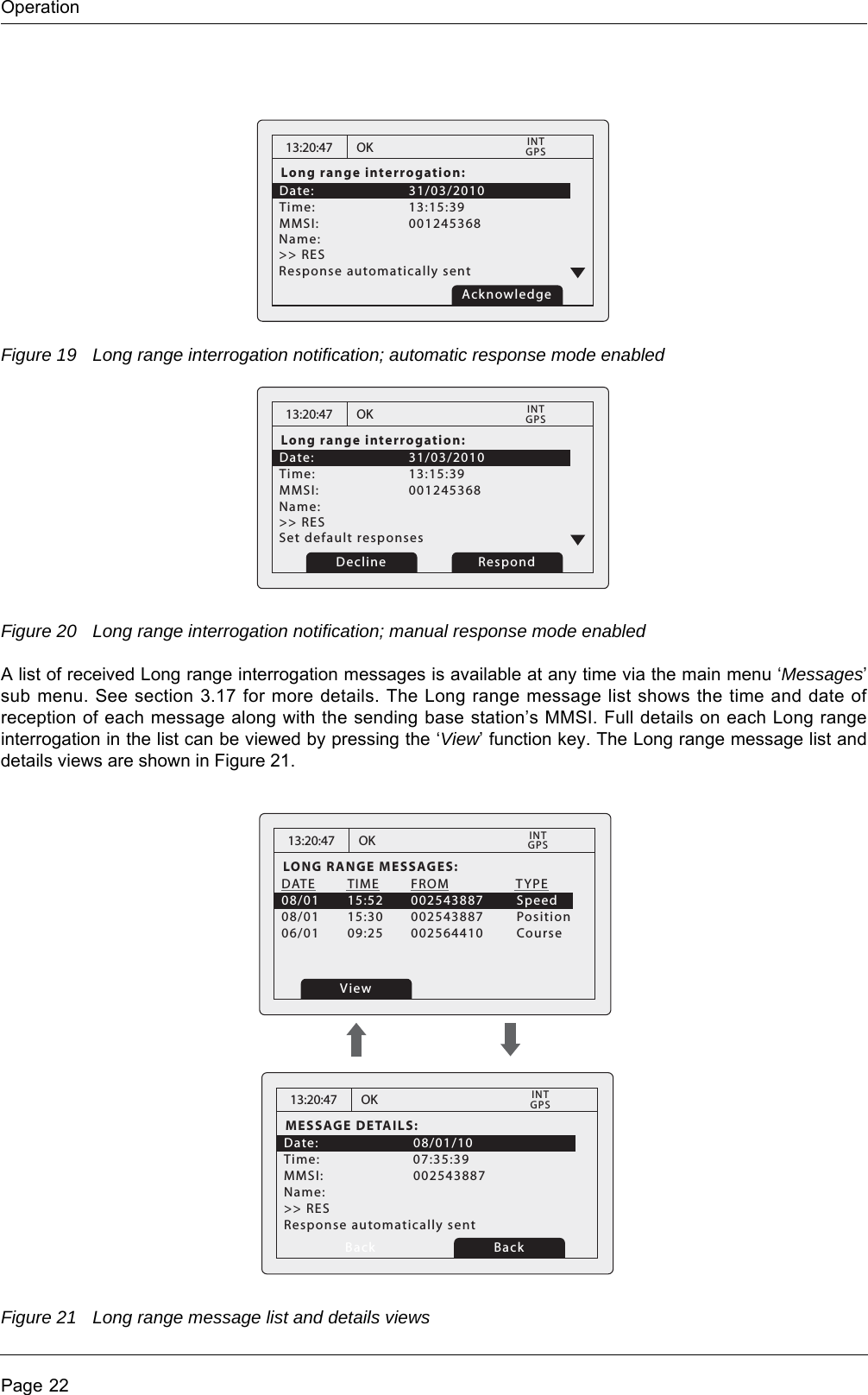
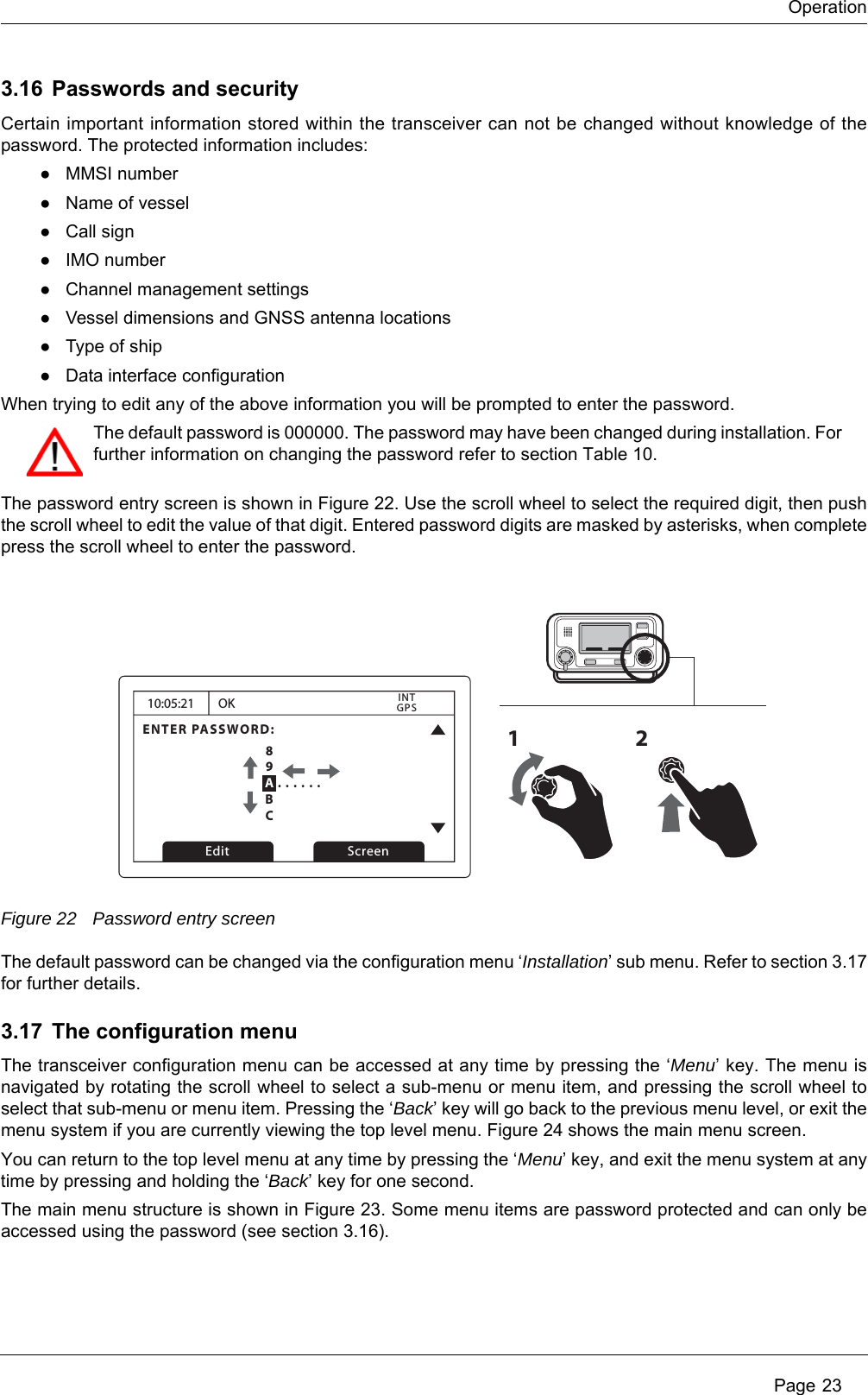
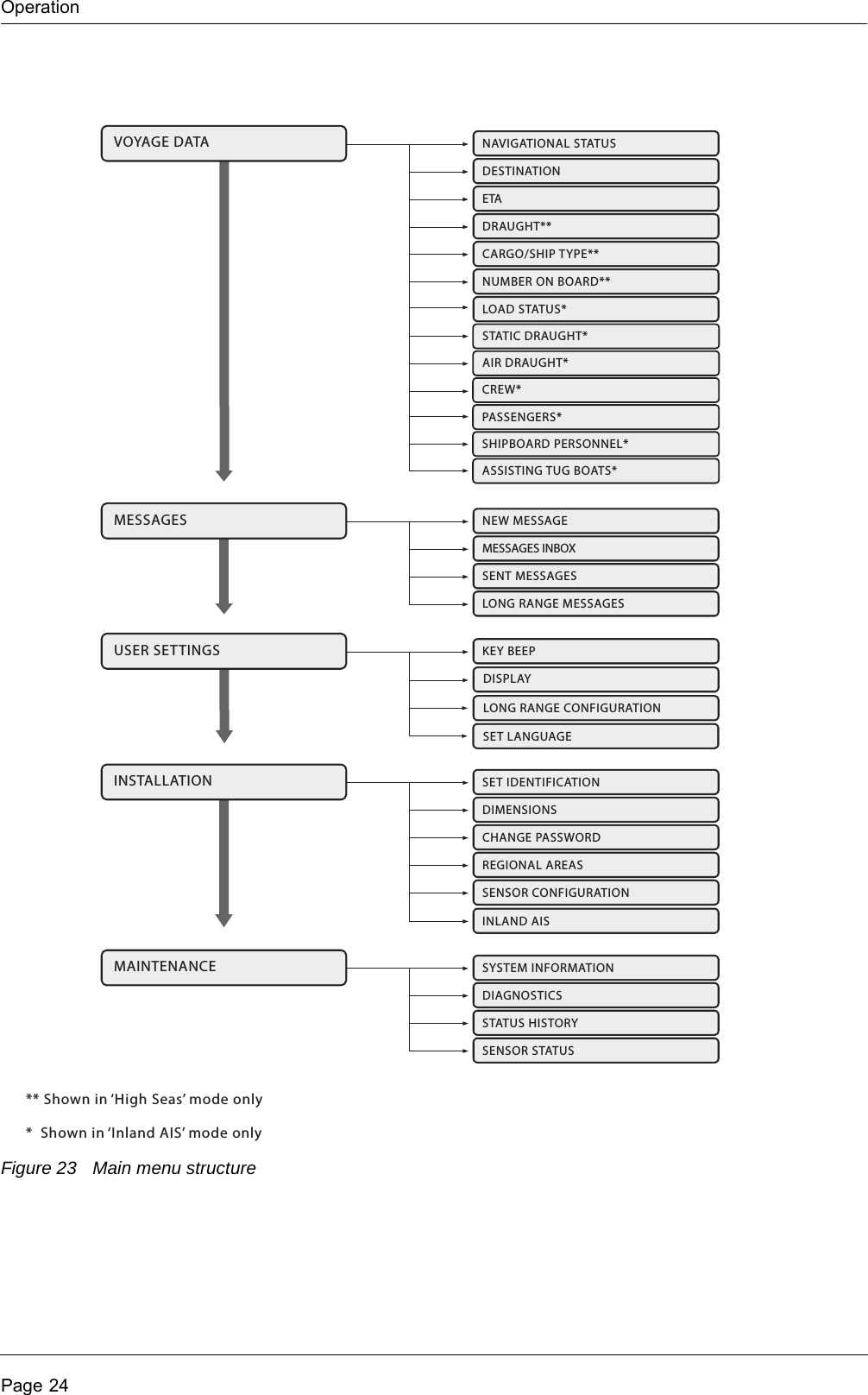
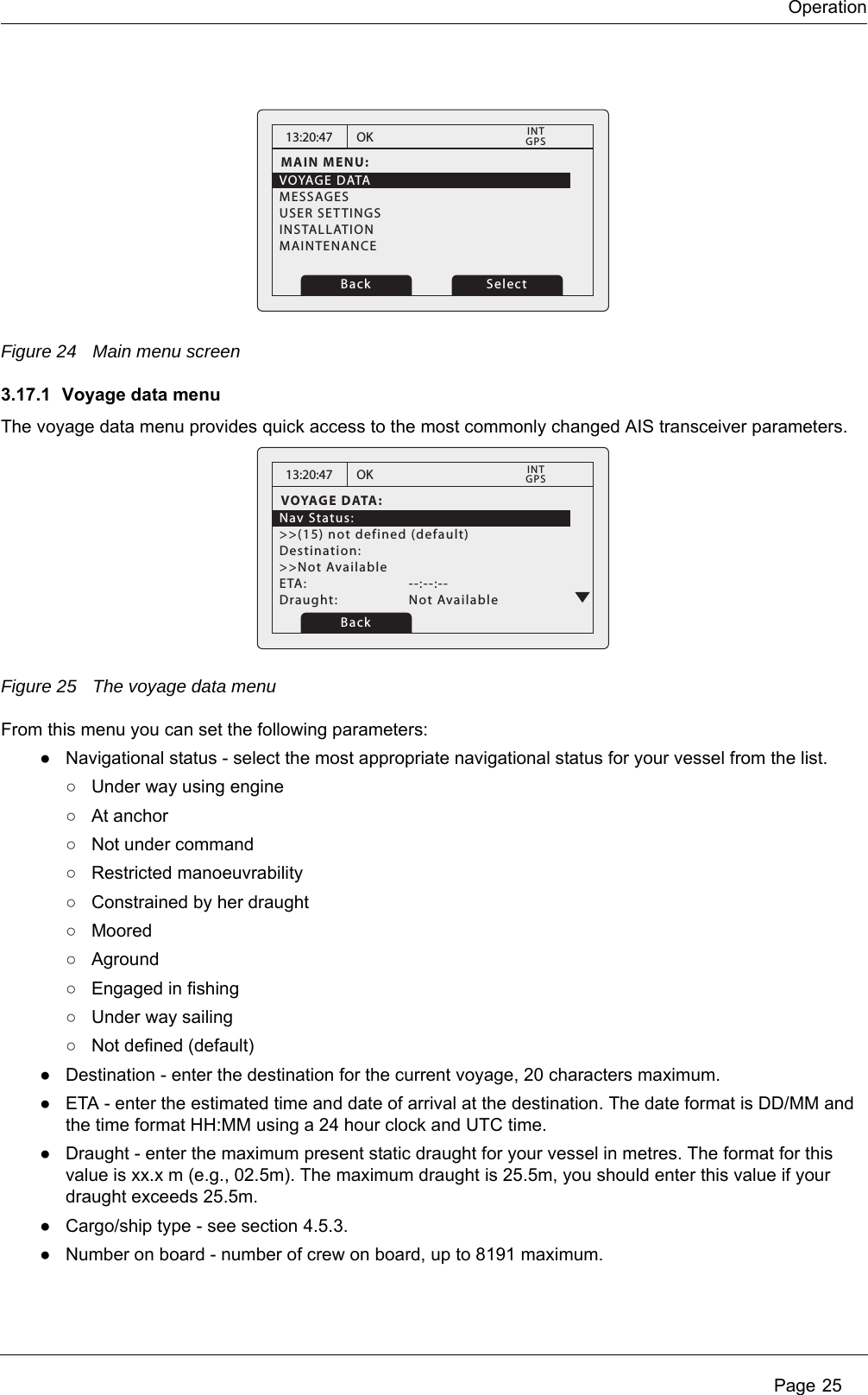
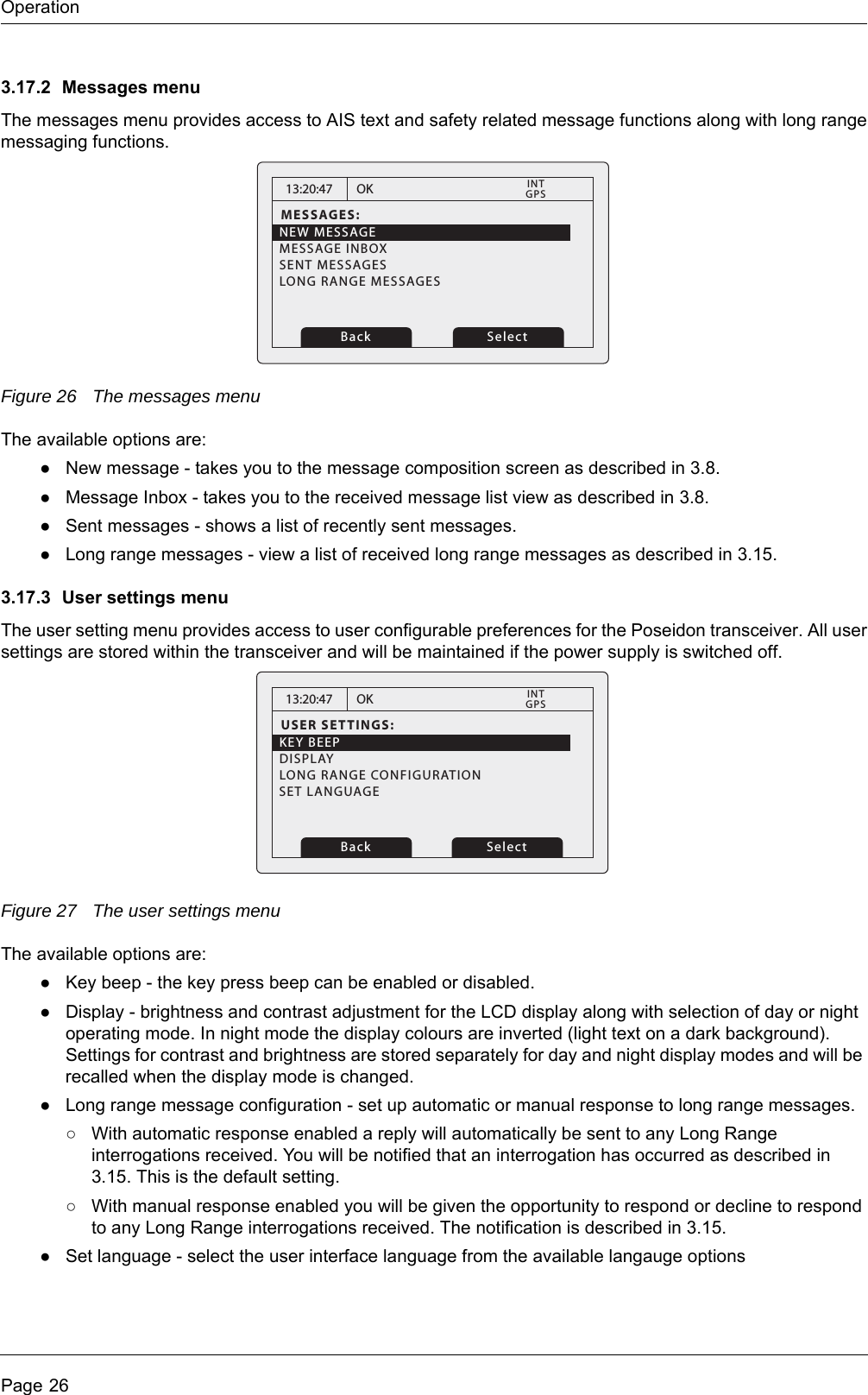
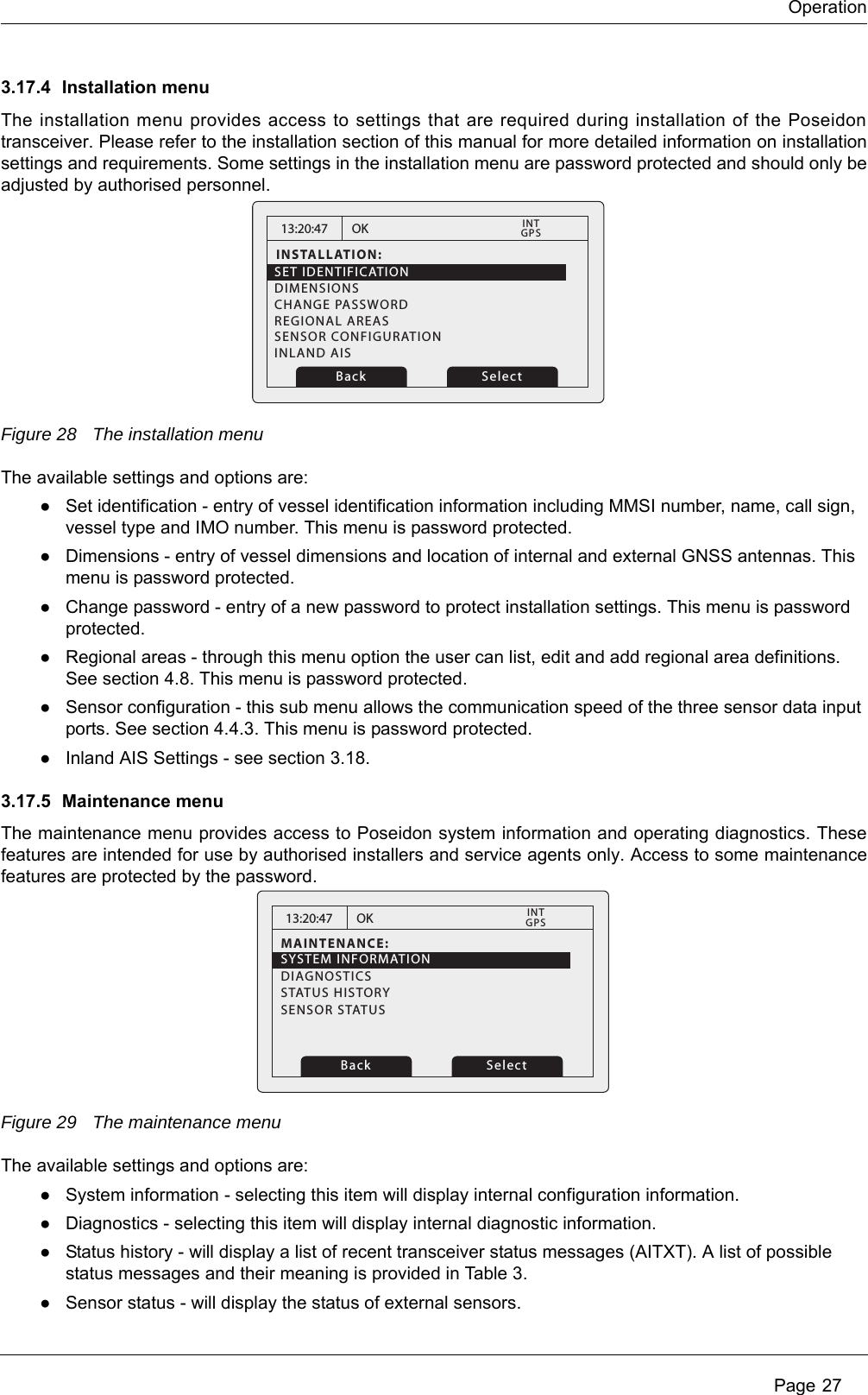
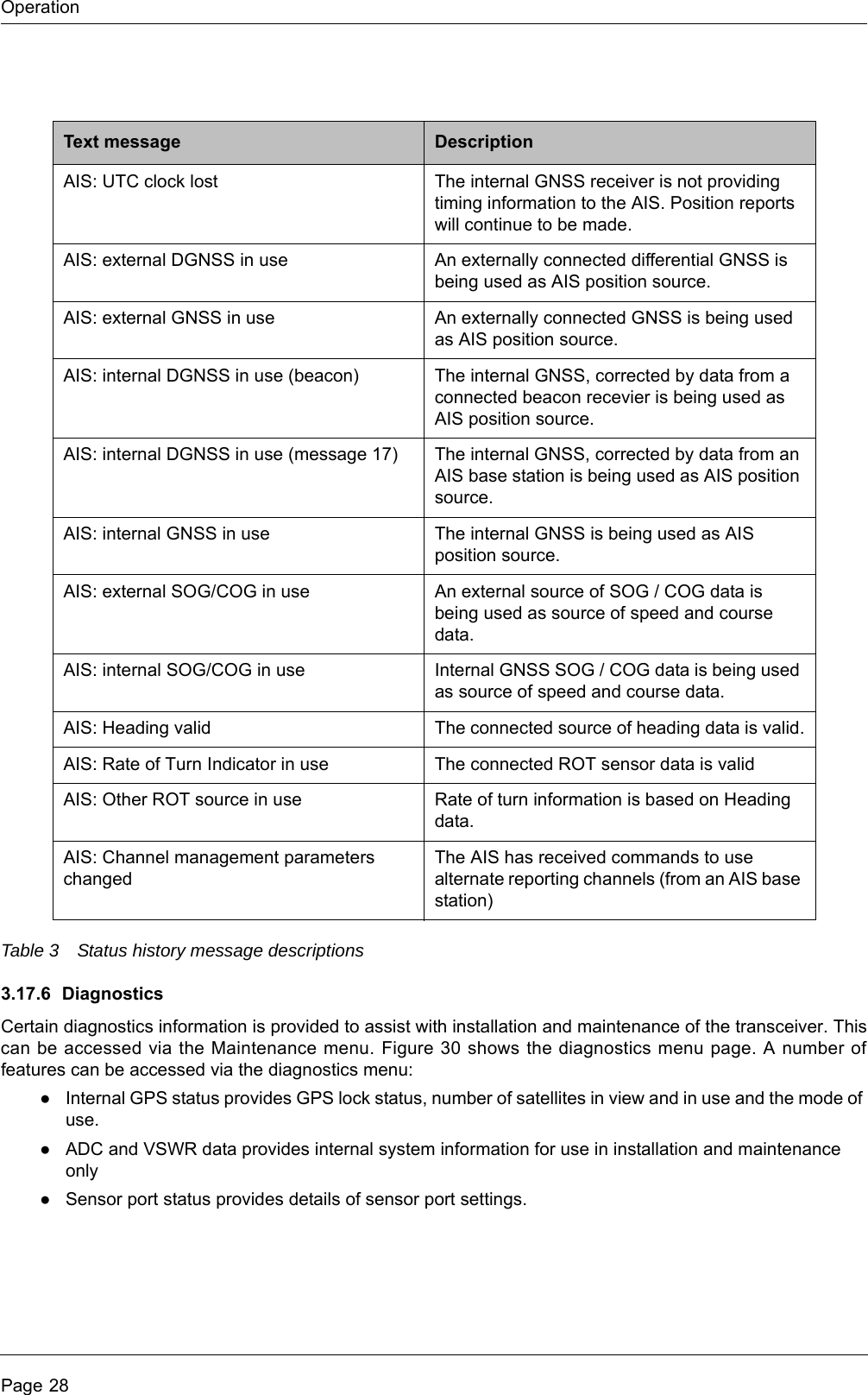
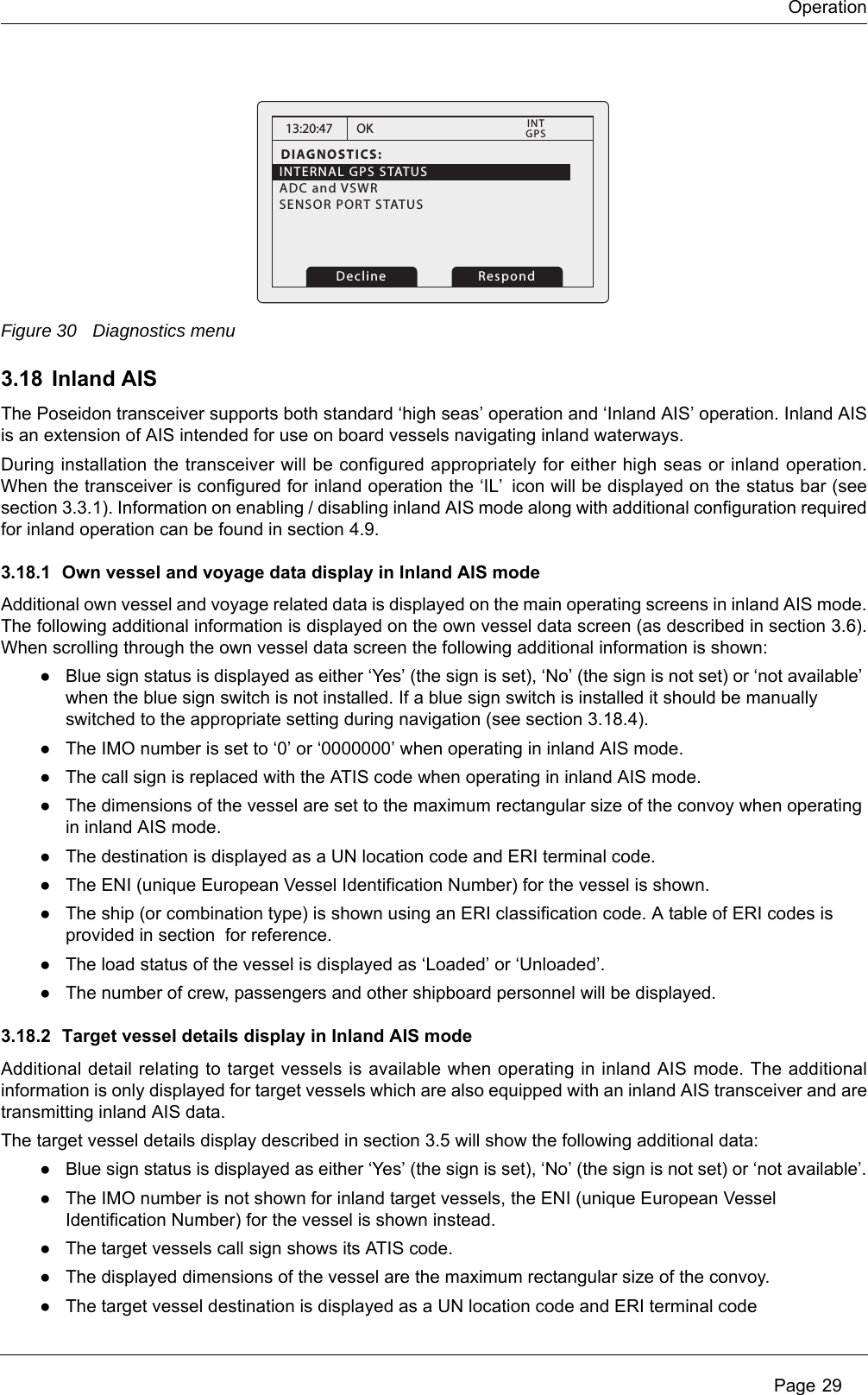
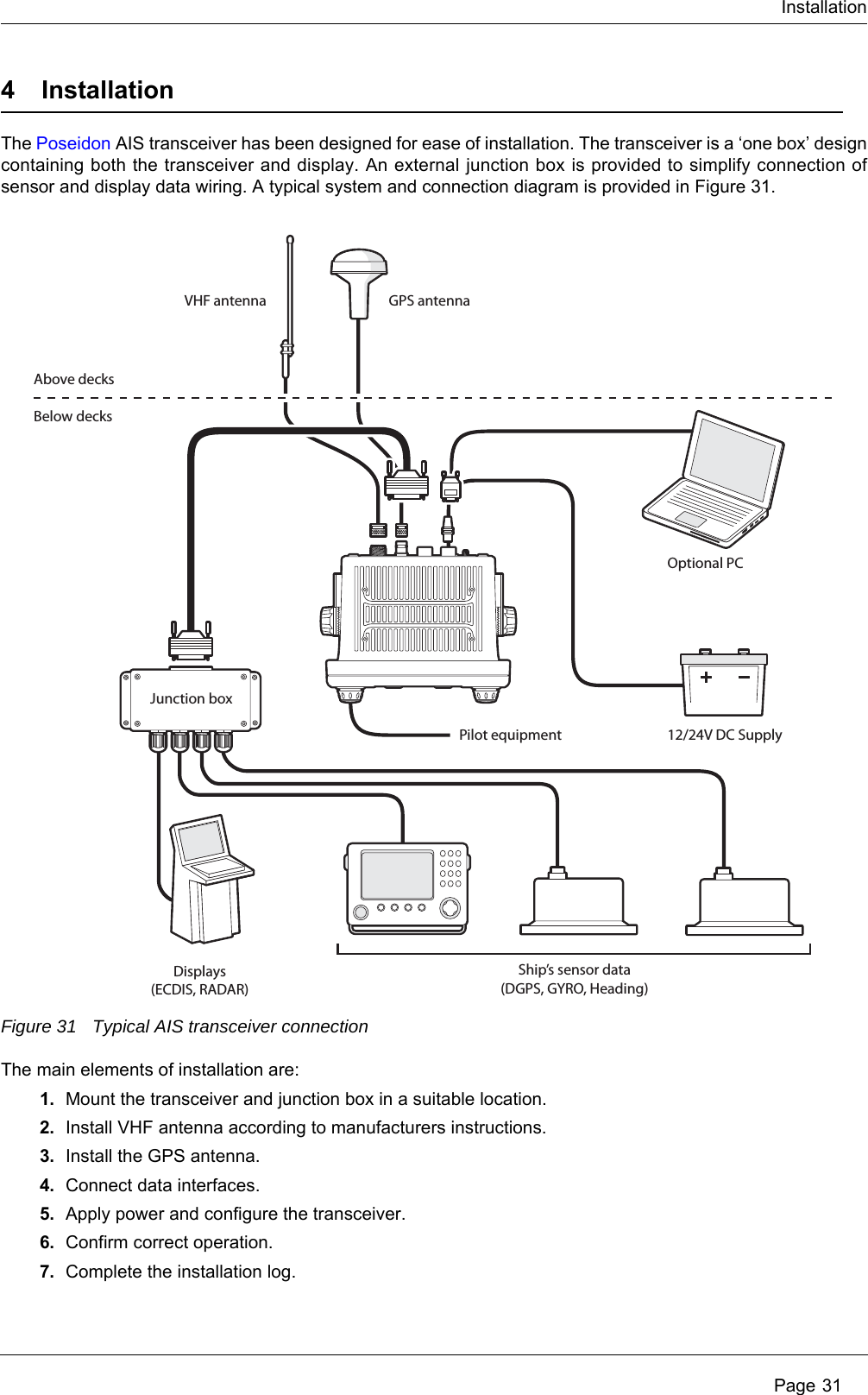
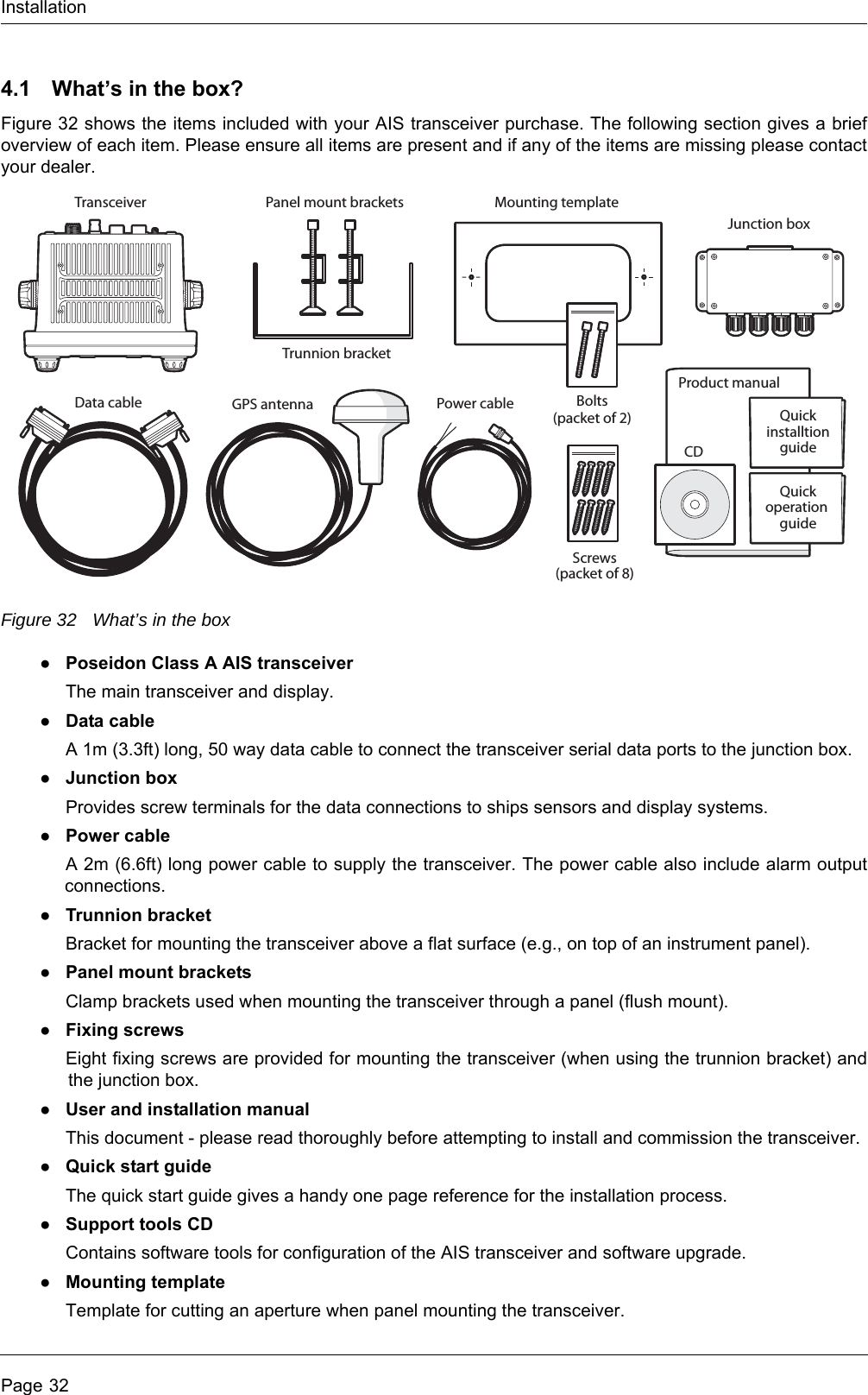
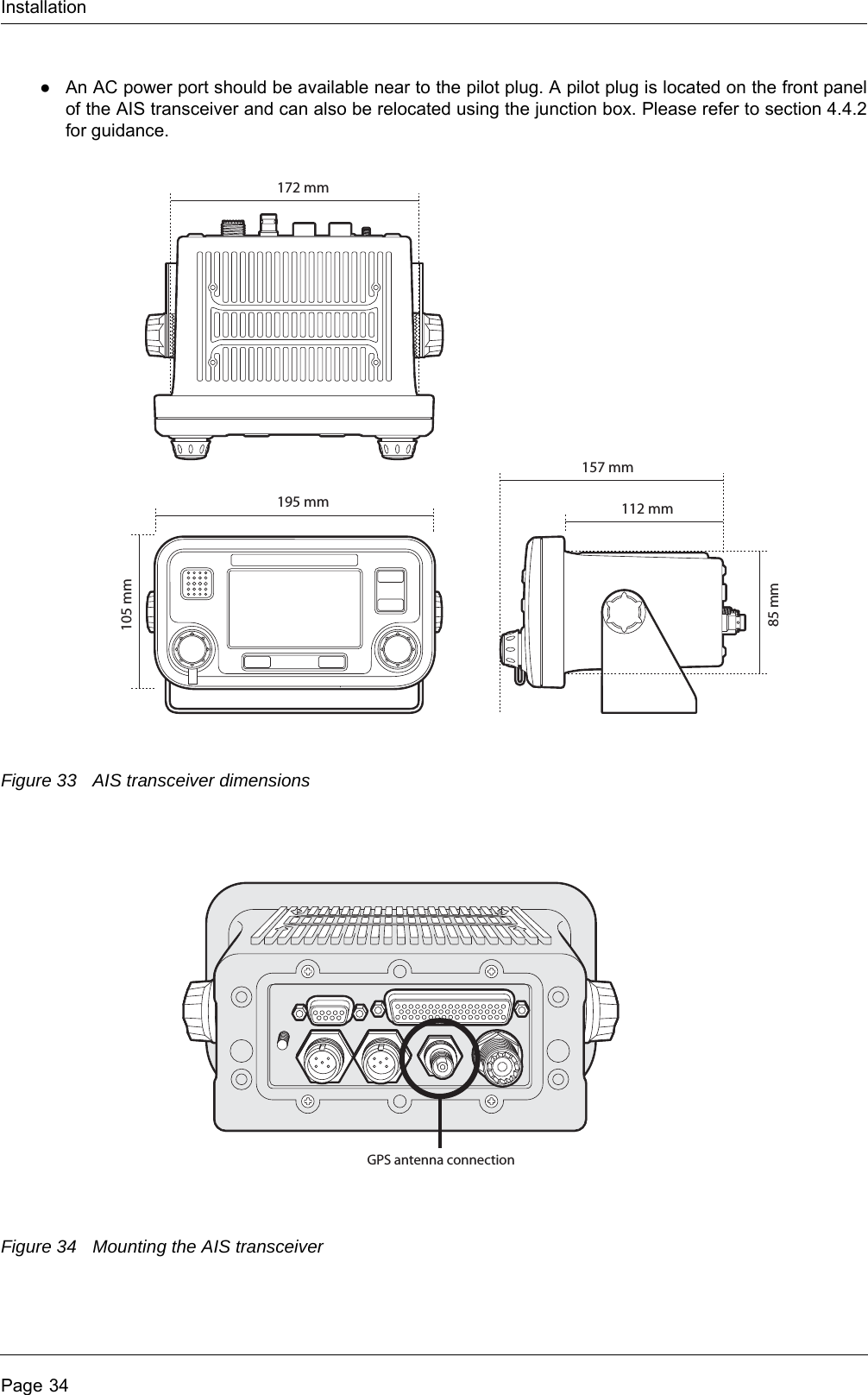
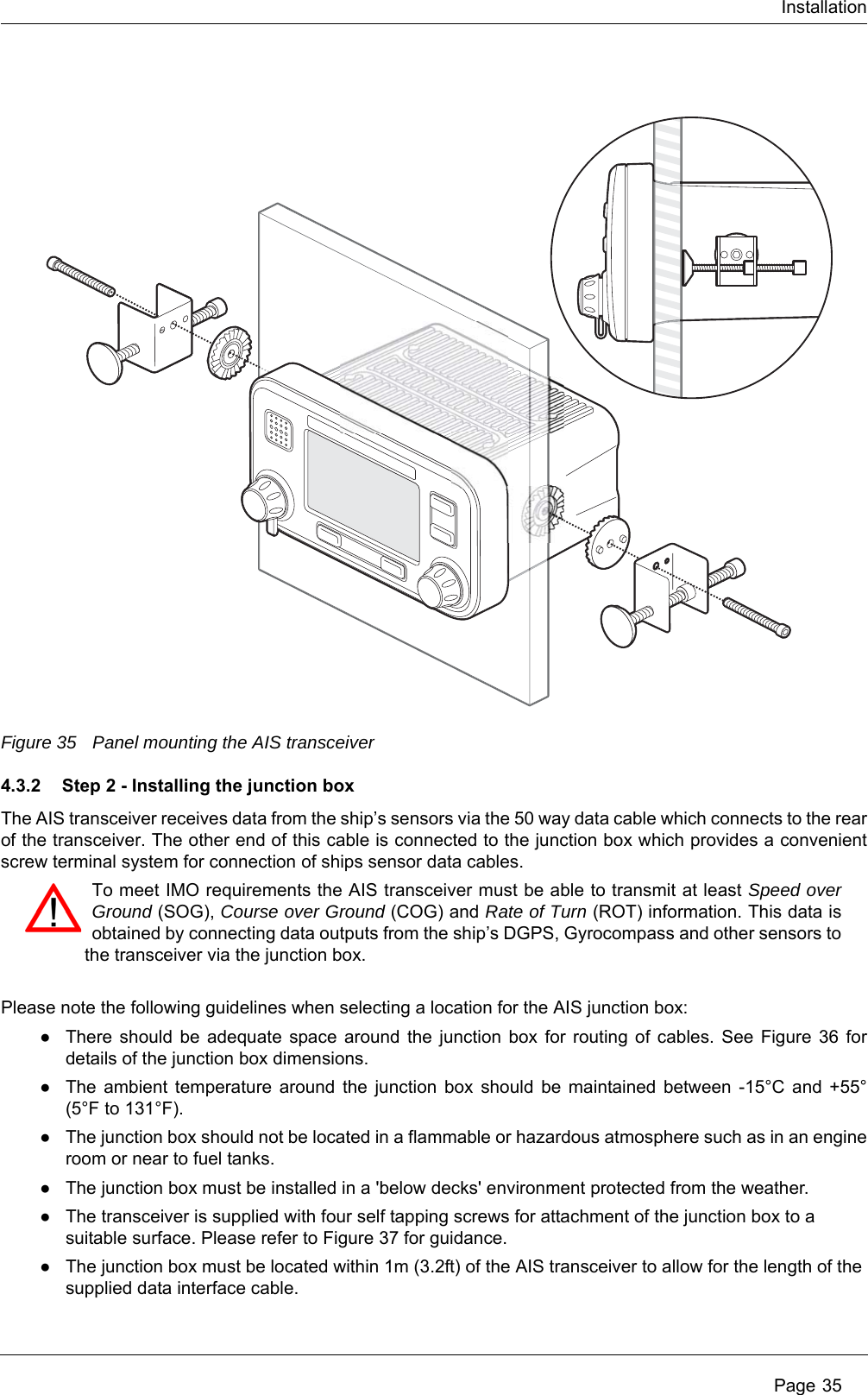
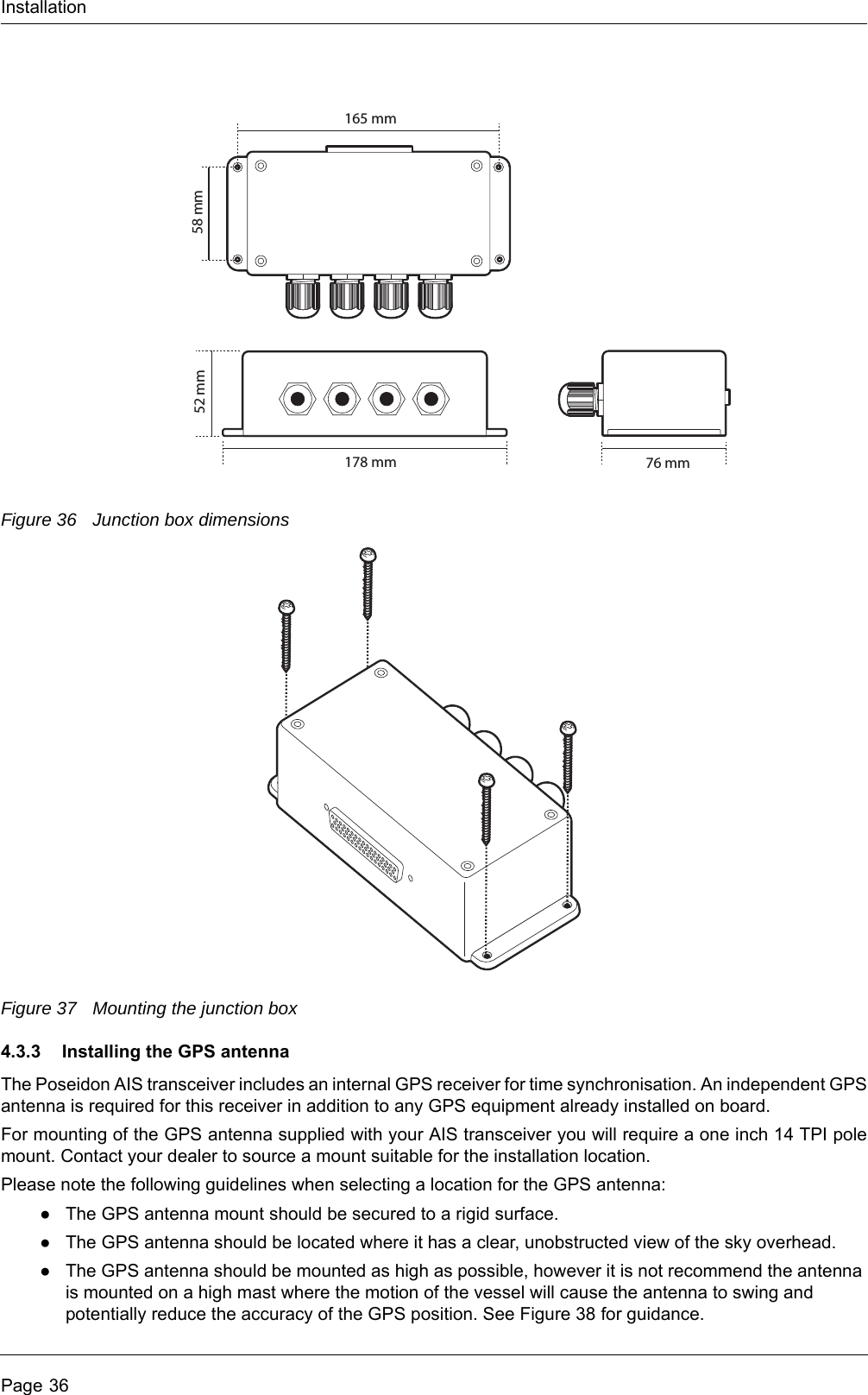
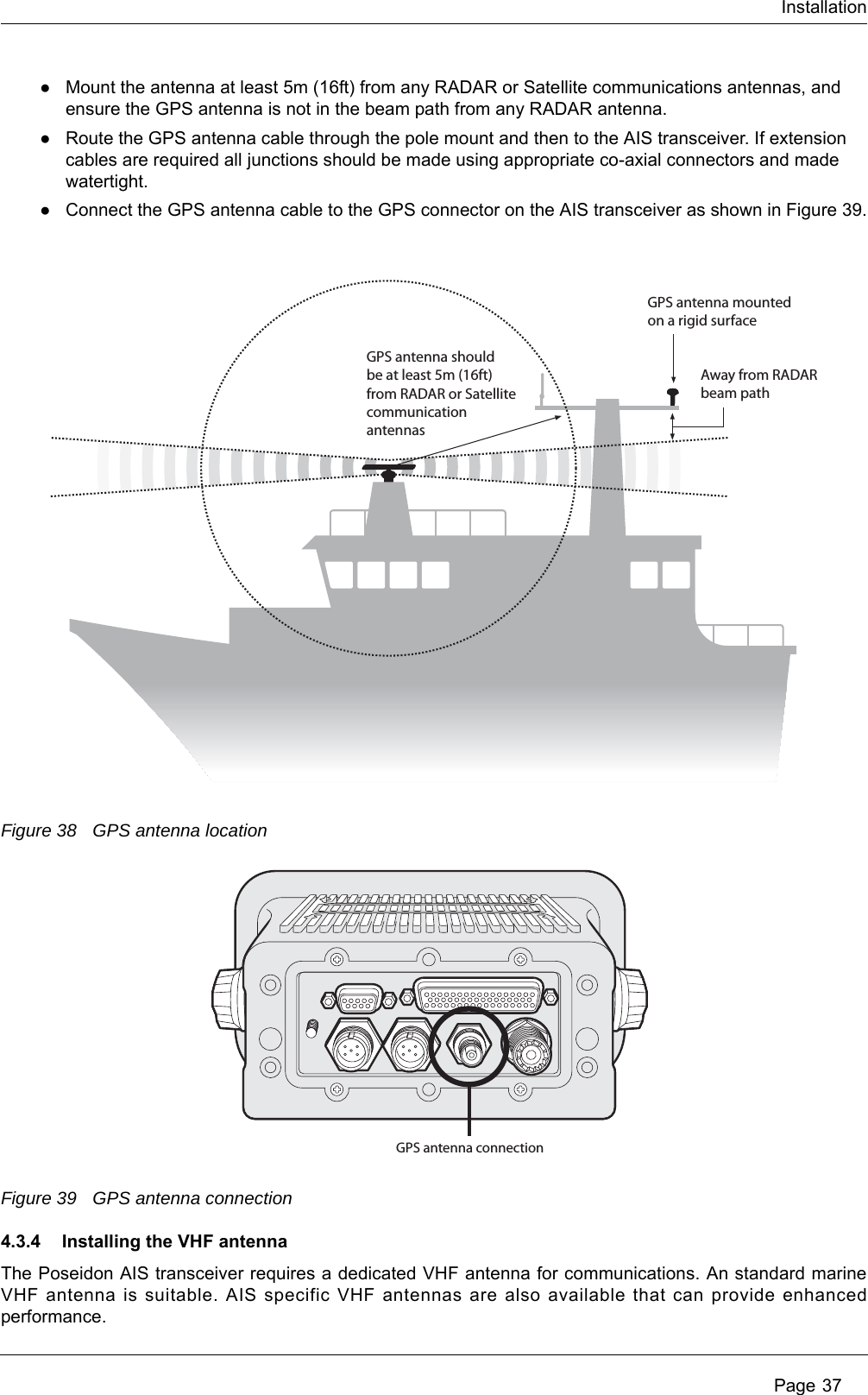
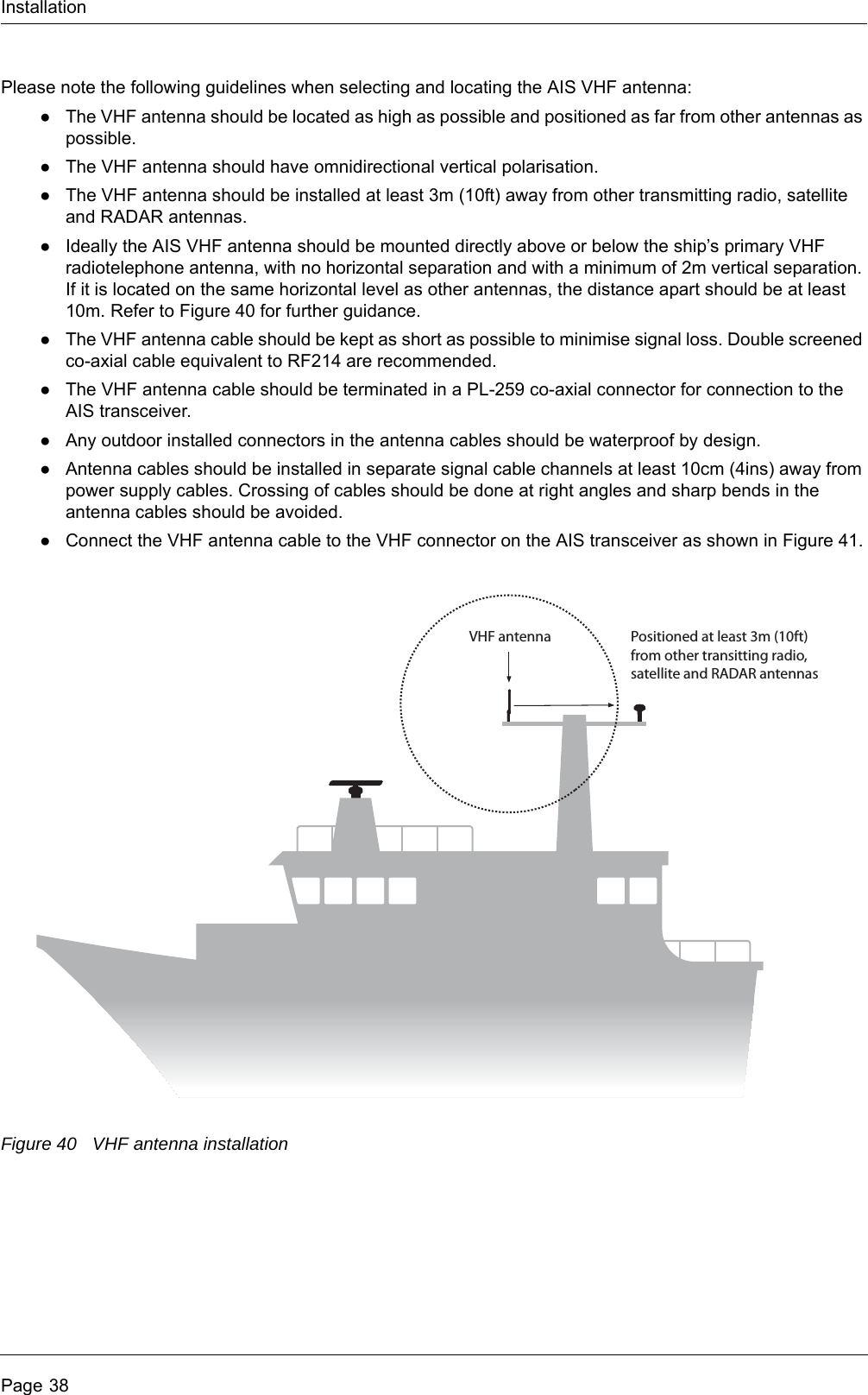
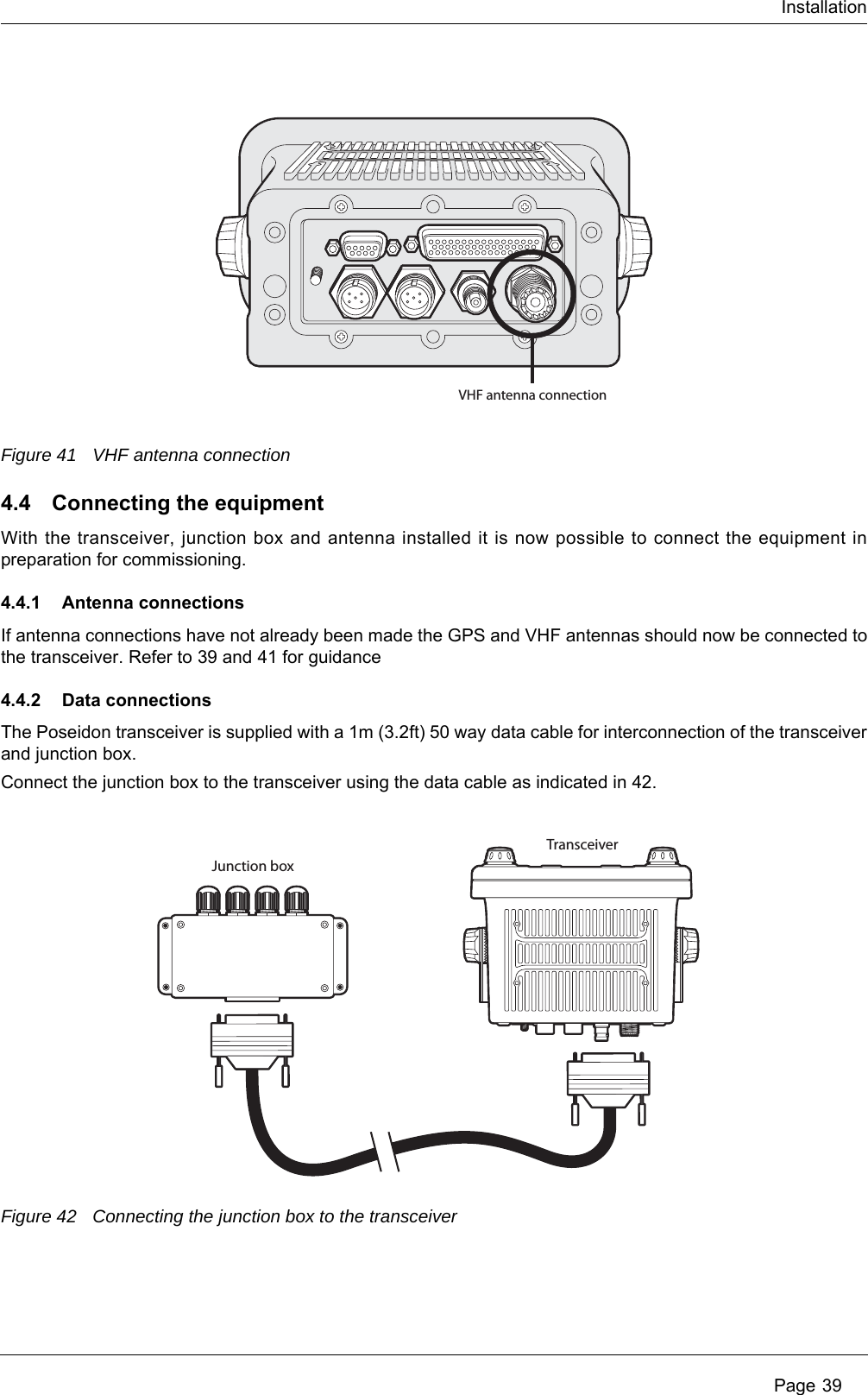
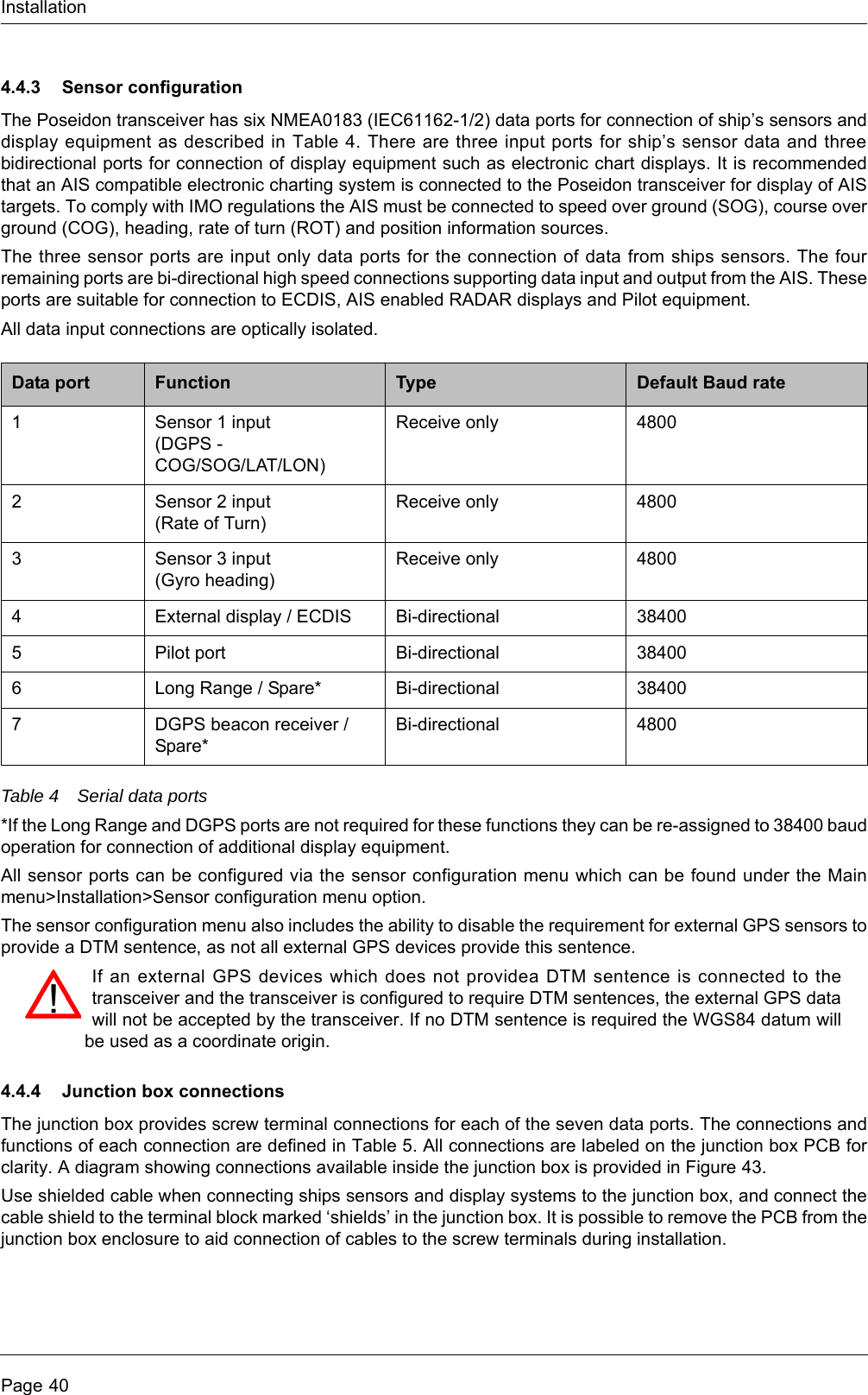
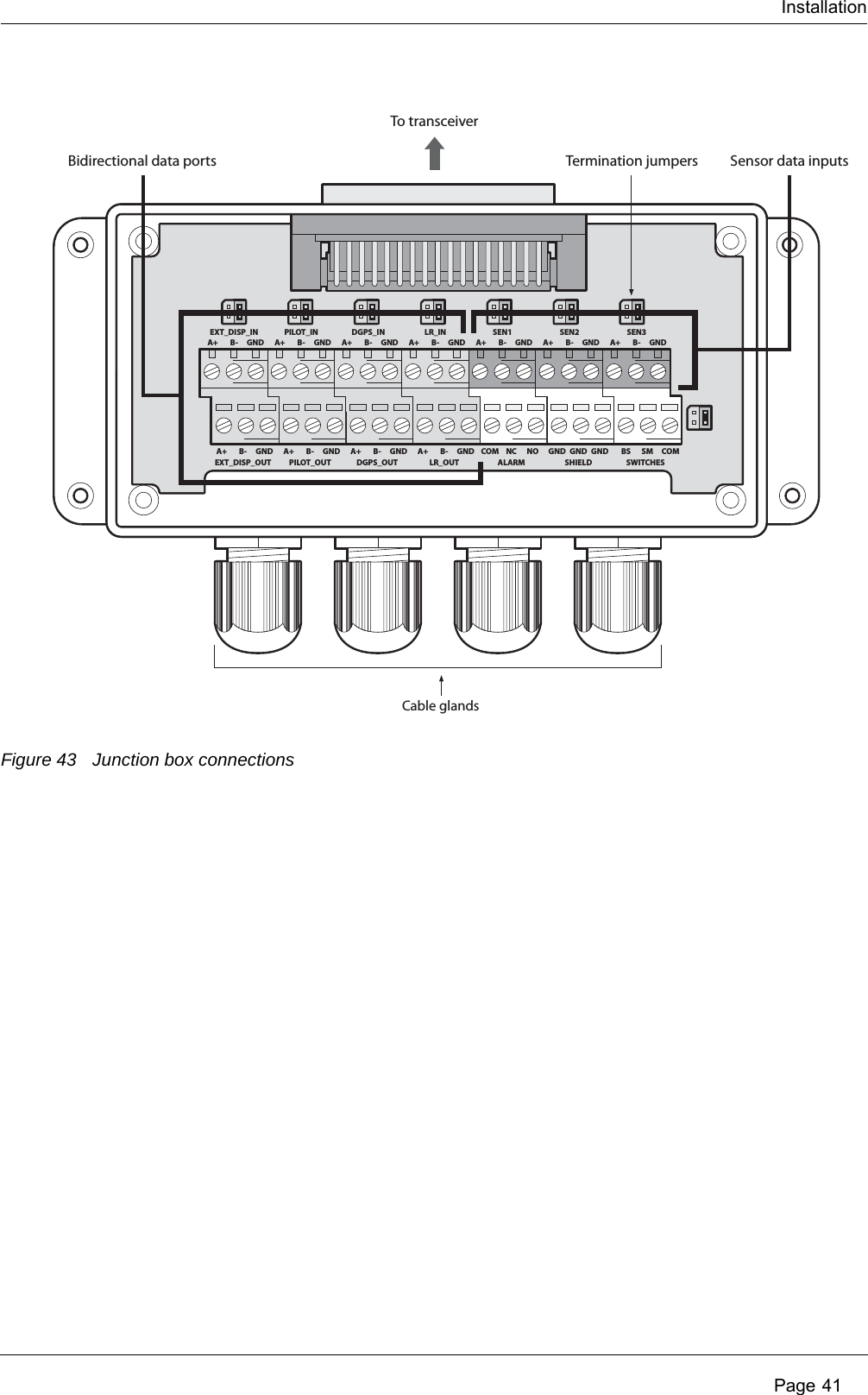
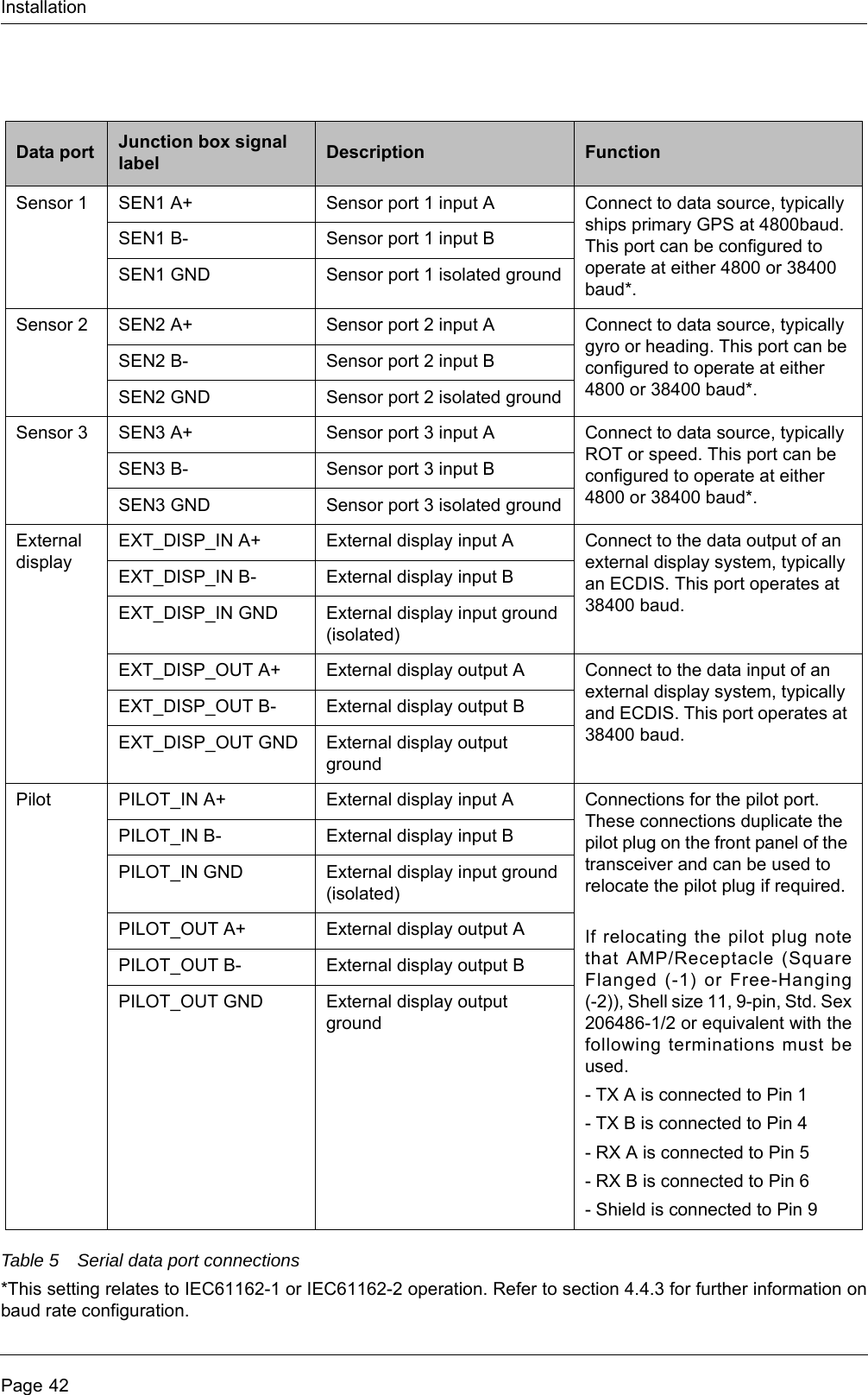
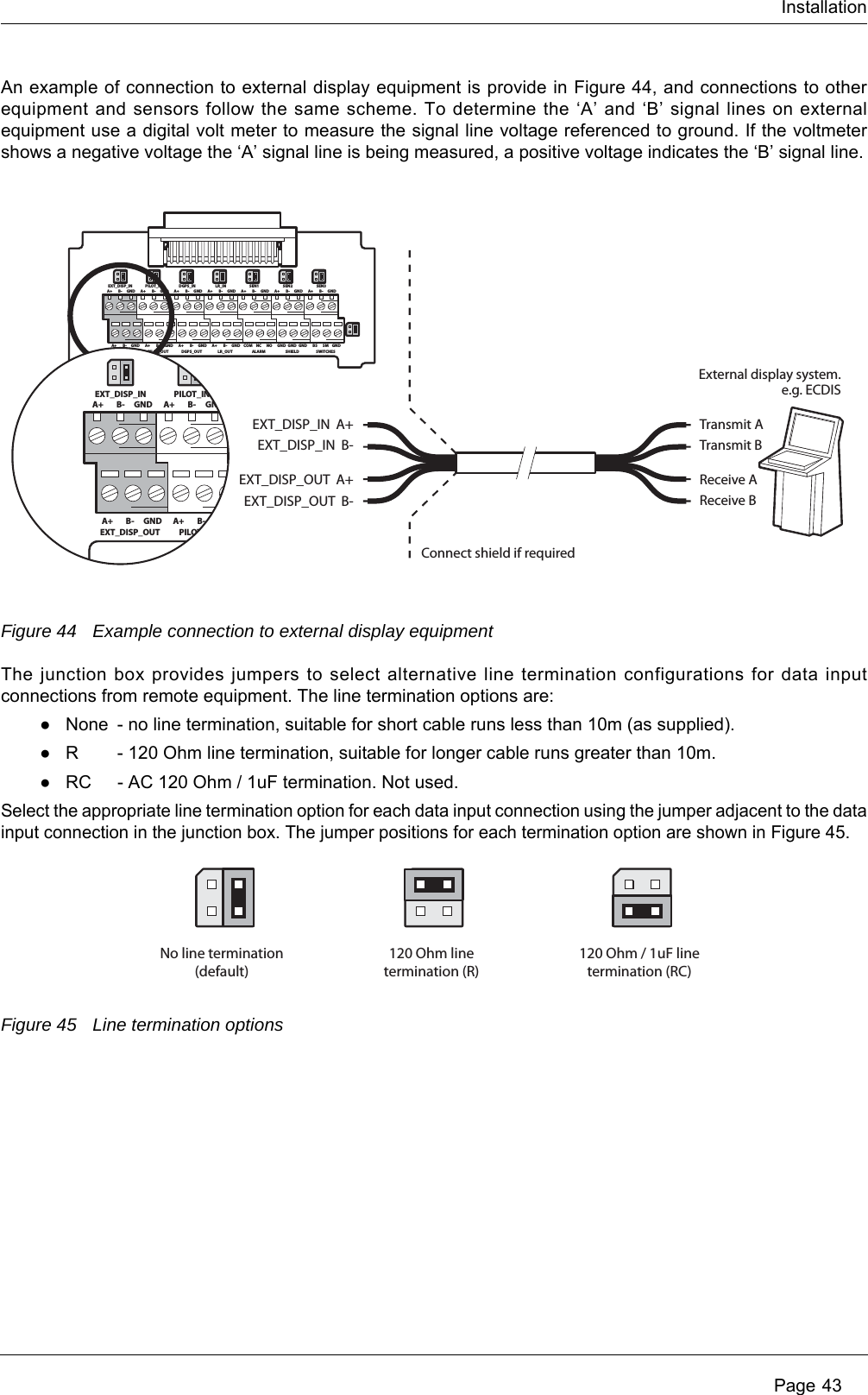
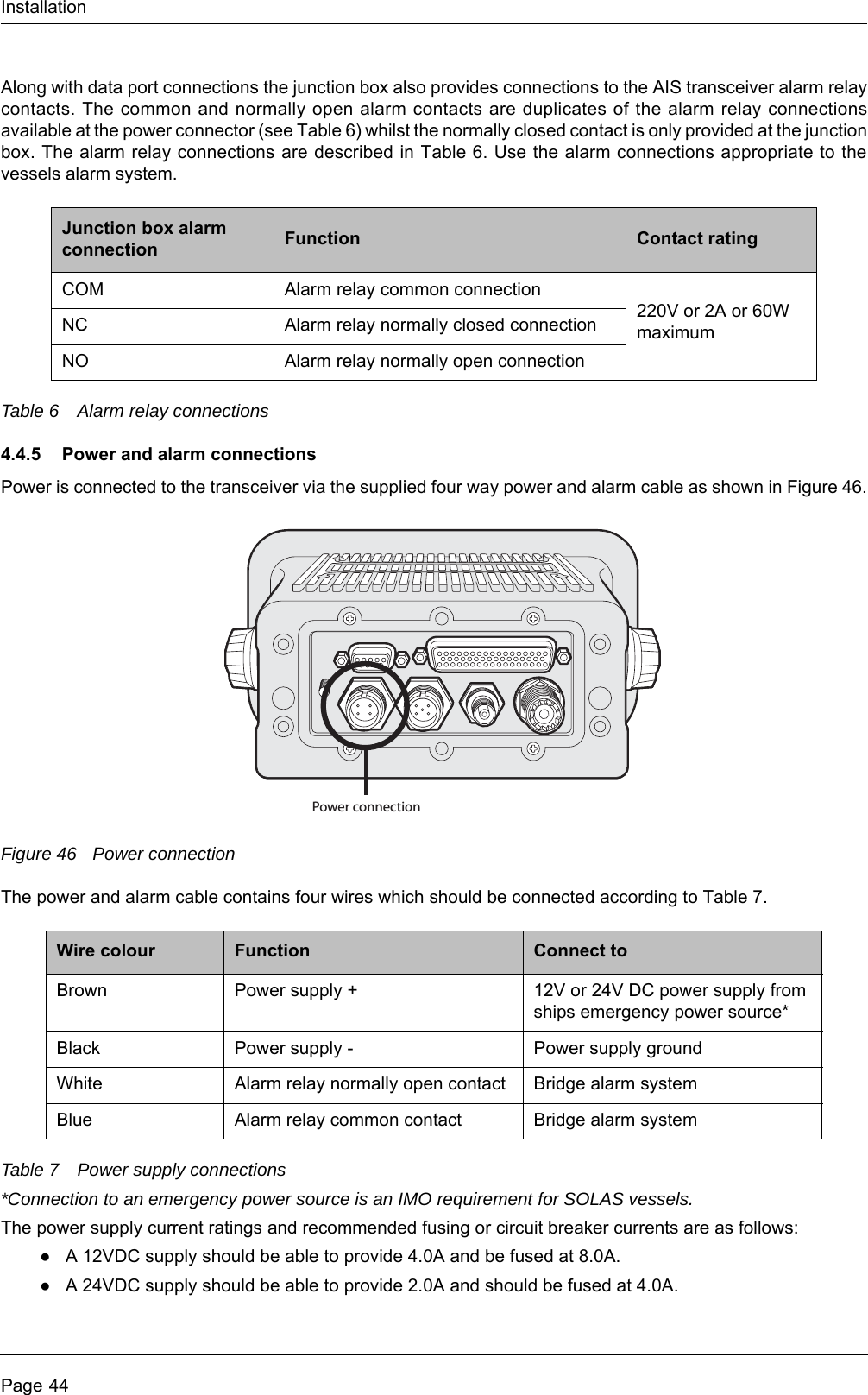
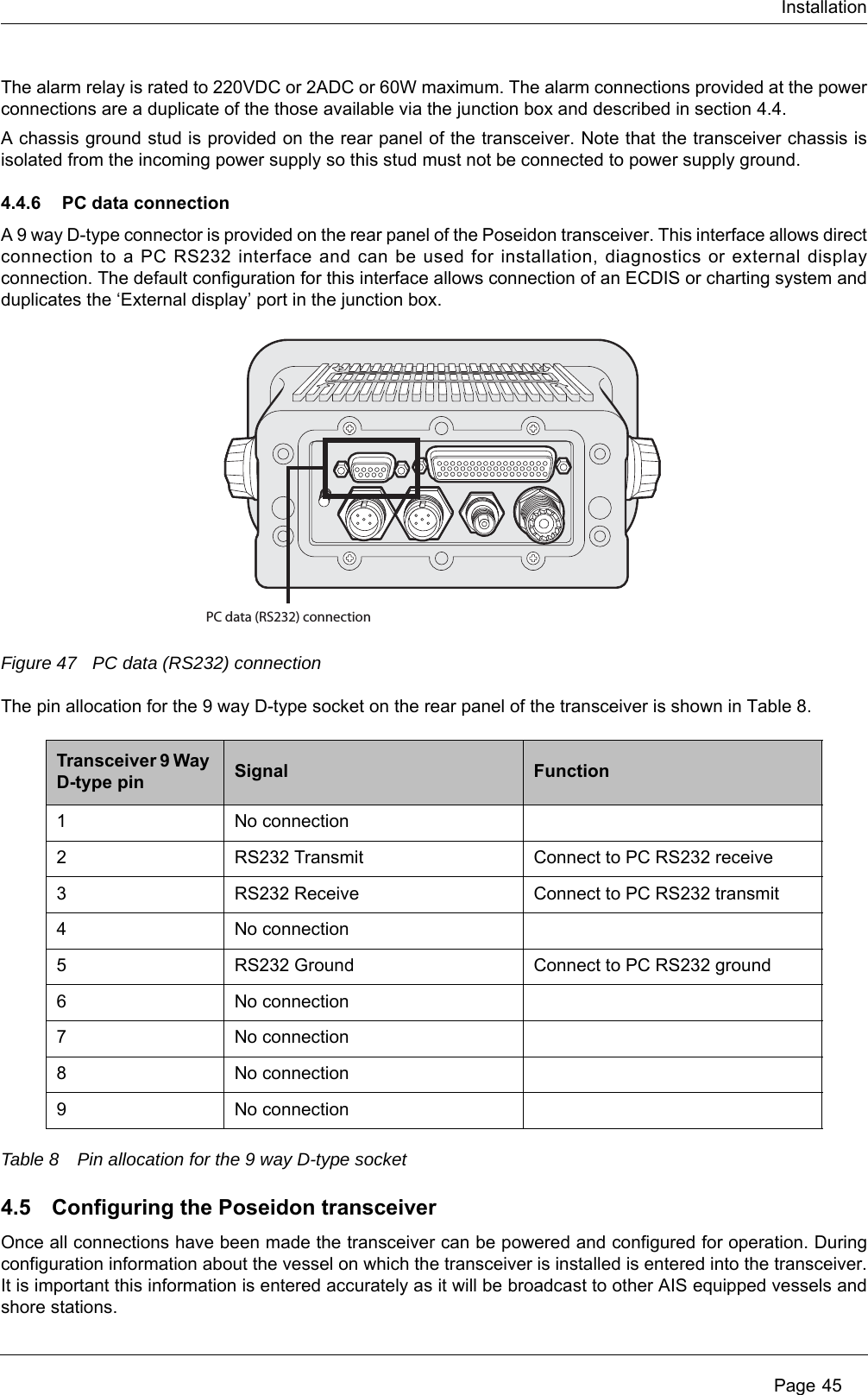
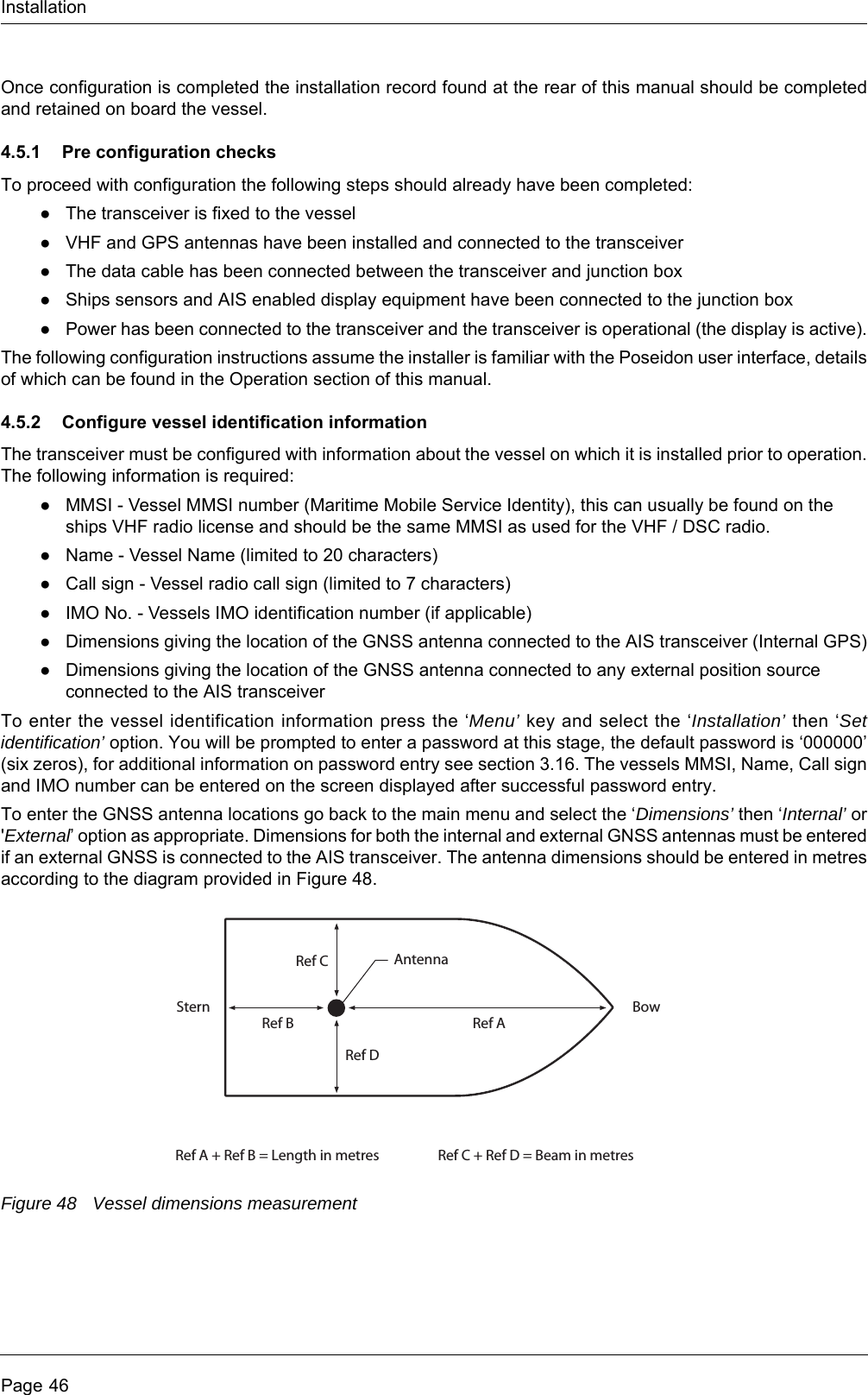
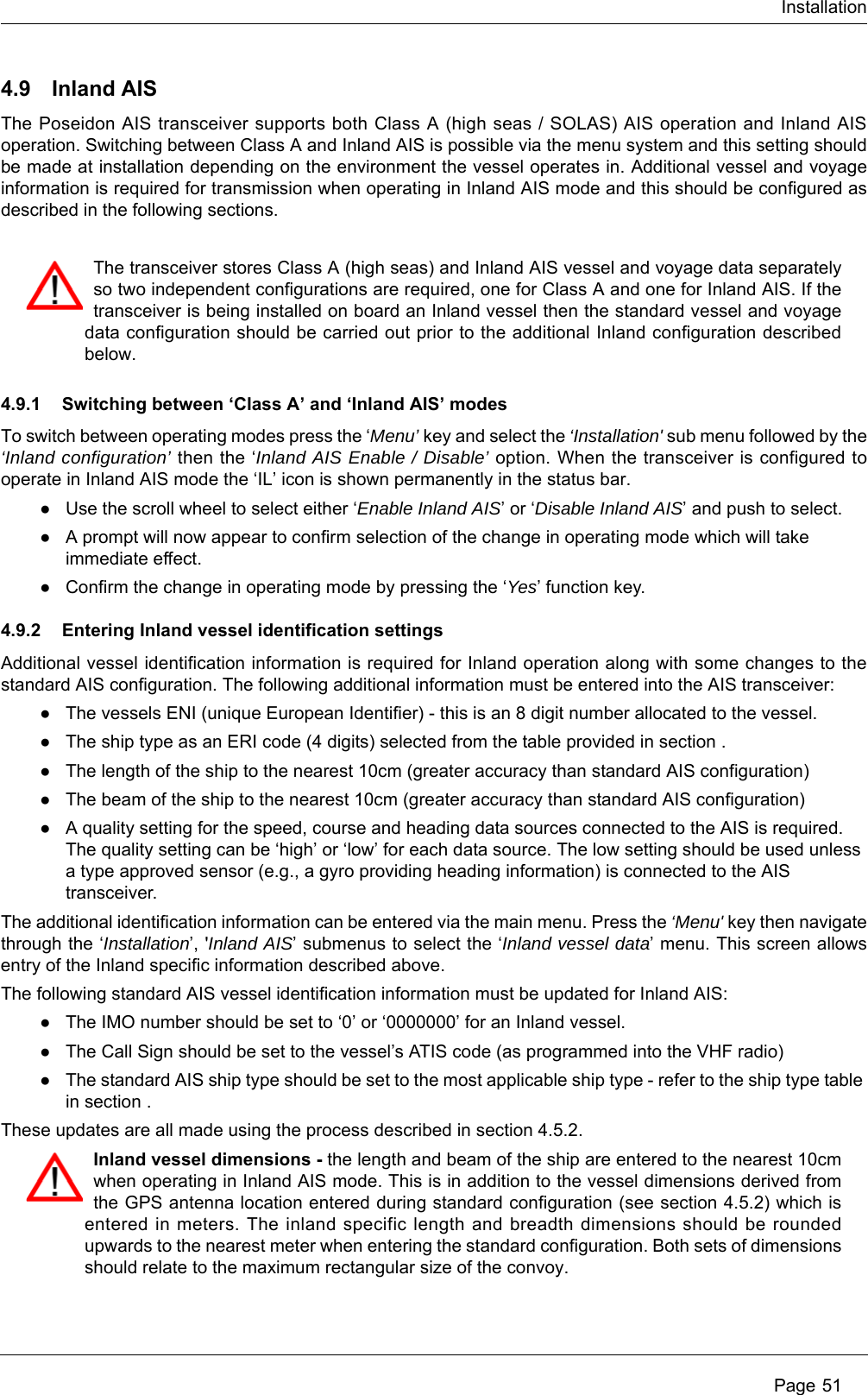
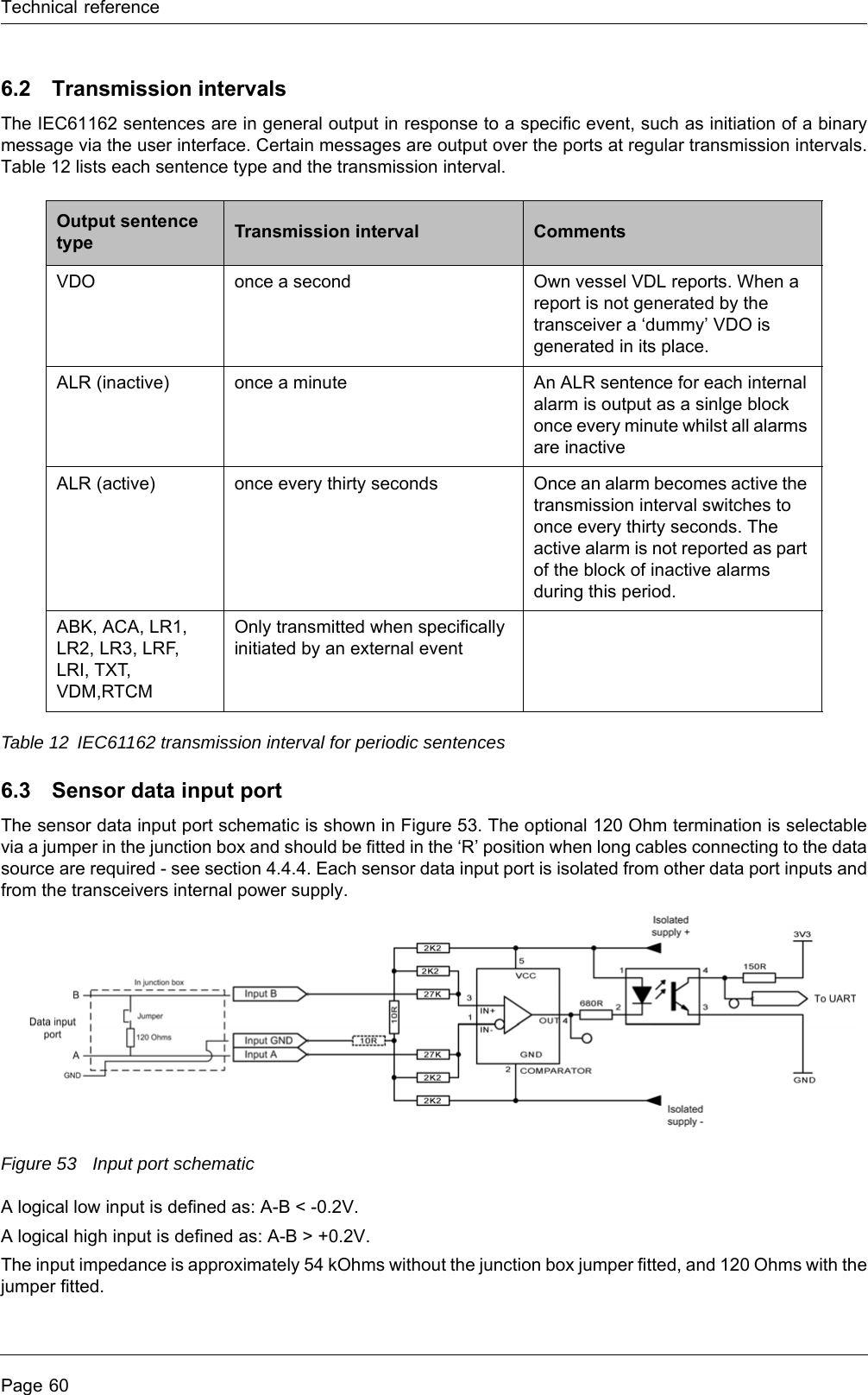
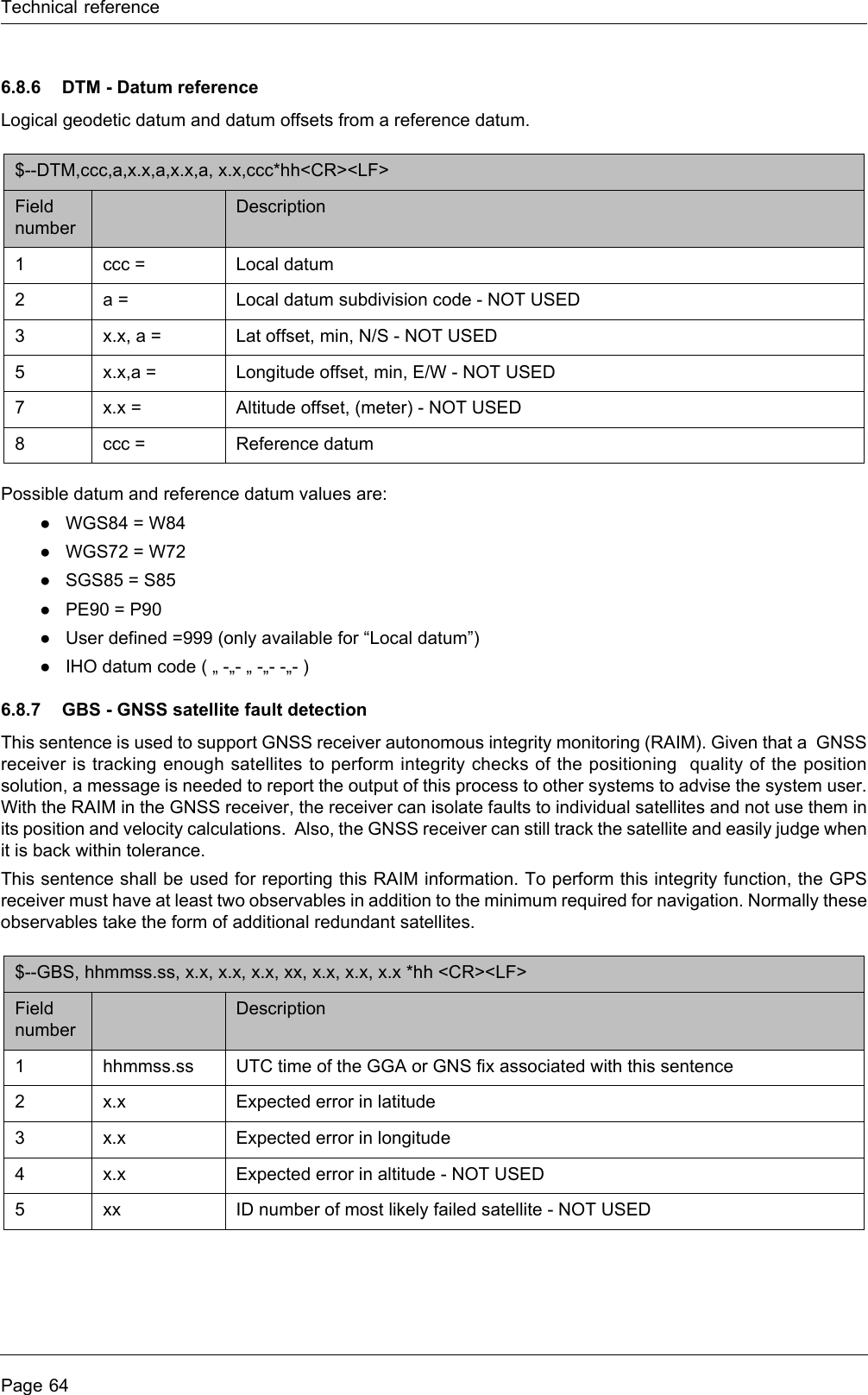
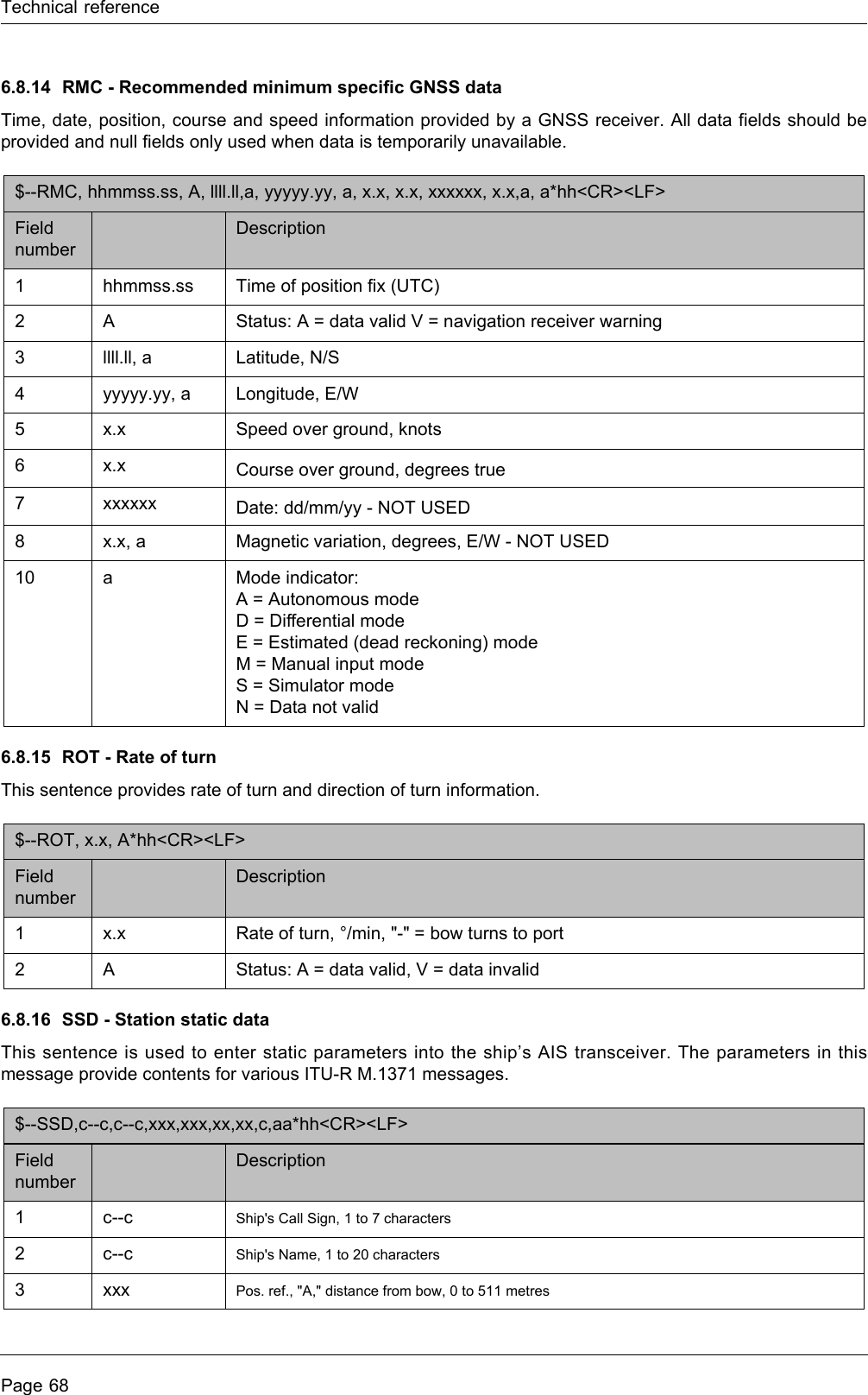
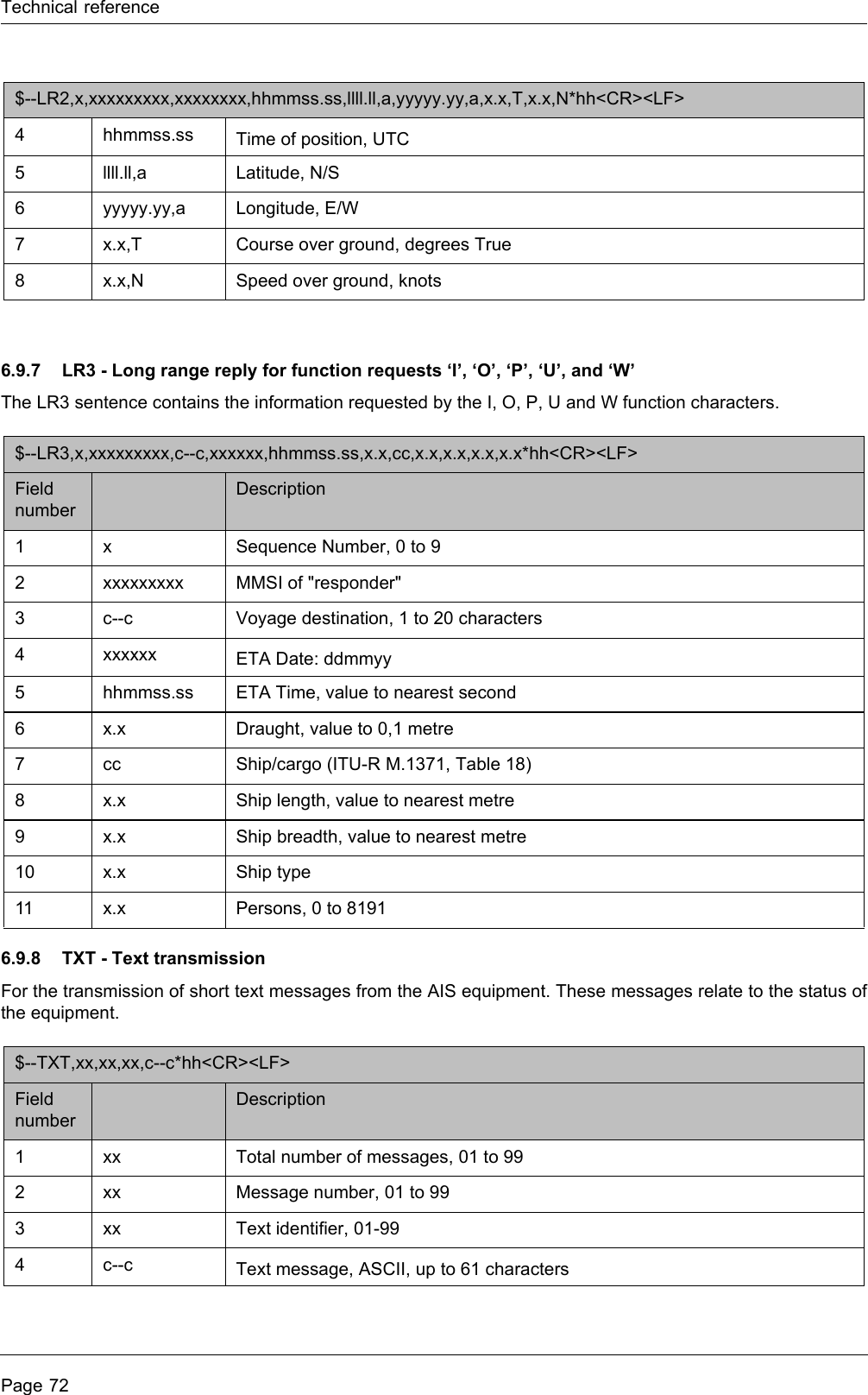
![Installation Page 474.5.3 Configure voyage related dataThe transceiver must be configured with information about its voyage prior to operation. The following information is required:●Nav Status - Navigational status selected from the list below:○0 - Under way using engine.○1 - At anchor.○2 - Not under command.○3 - Restricted manoeuvrability.○4 - Constrained by her draught.○5 - Moored.○6 - Aground.○7 - Engaged in fishing.○8 - Under way sailing.○9 to 14 - reserved for future use.○15 - not defined (default setting).●Destination - Ships next destination port (limited to 20 characters).●ETA - Estimated time / date of arrival at destination (using UTC time).●Draught - Maximum present static draught to the nearest 1/10th of a metre.●Ship and cargo type - a two digit code selected using Table 9. Where the second digit is represented by [n] the appropriate code for the second digit should be selected from Table 10. ●Crew - Number of crew on board (optional).To enter the vessel identification information press the ‘Menu’ key and select the ‘Voyage Data’ option. The vessels Nav. status, Destination, ETA, Draught, Type and number of crew can then be entered.](https://usermanual.wiki/em-trak-Marine-Electronics/405-0026/User-Guide-1386180-Page-47.png)
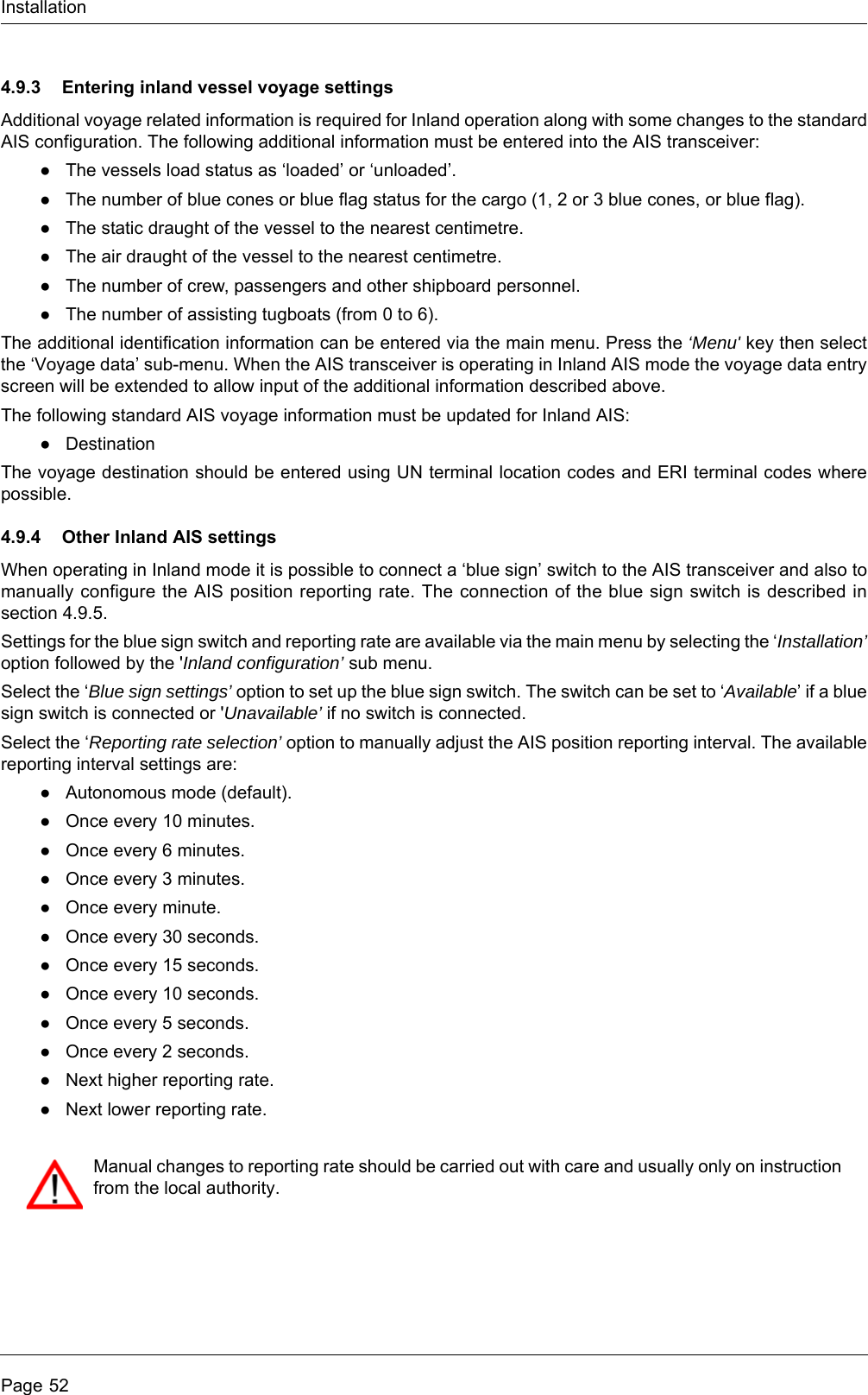
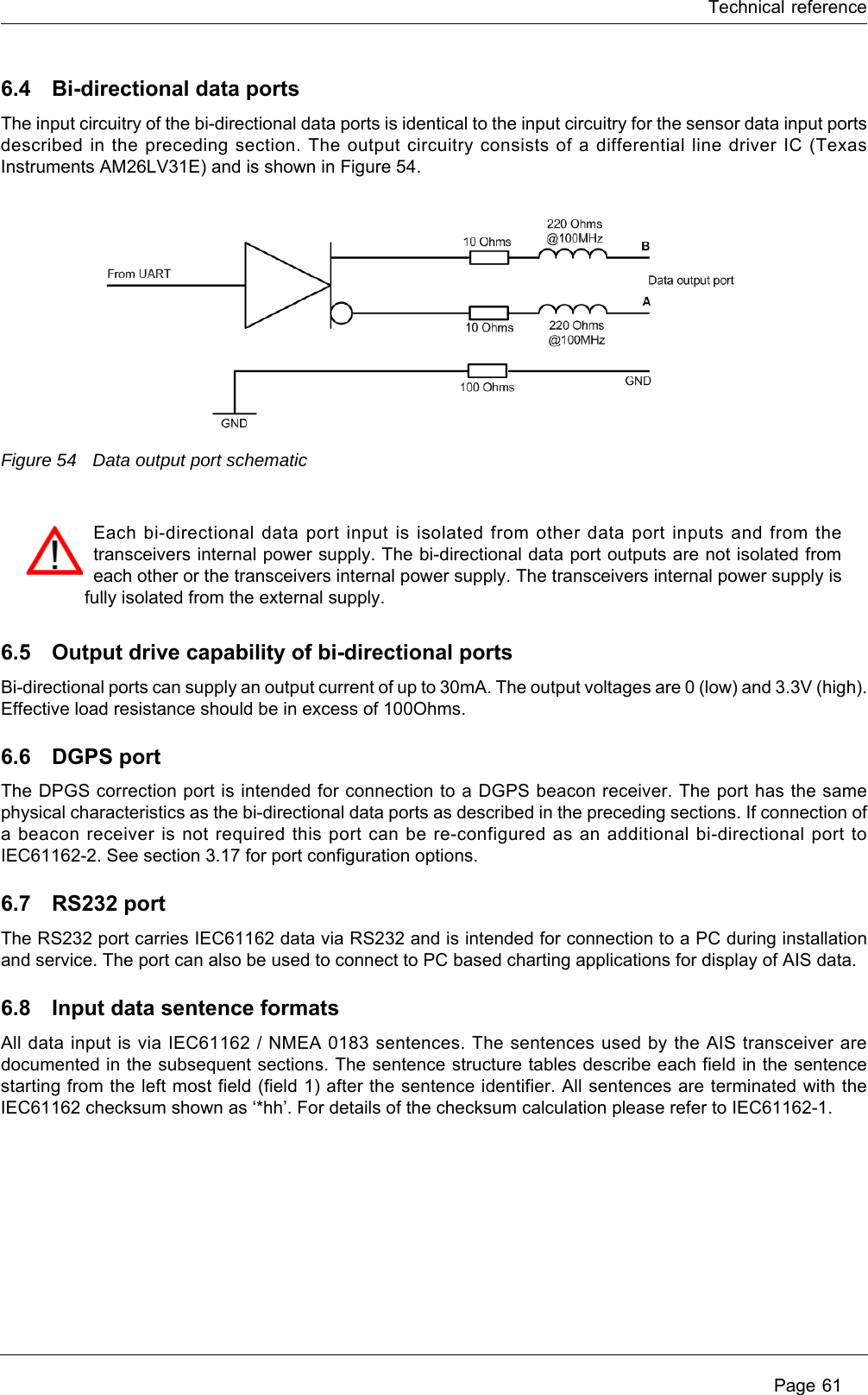
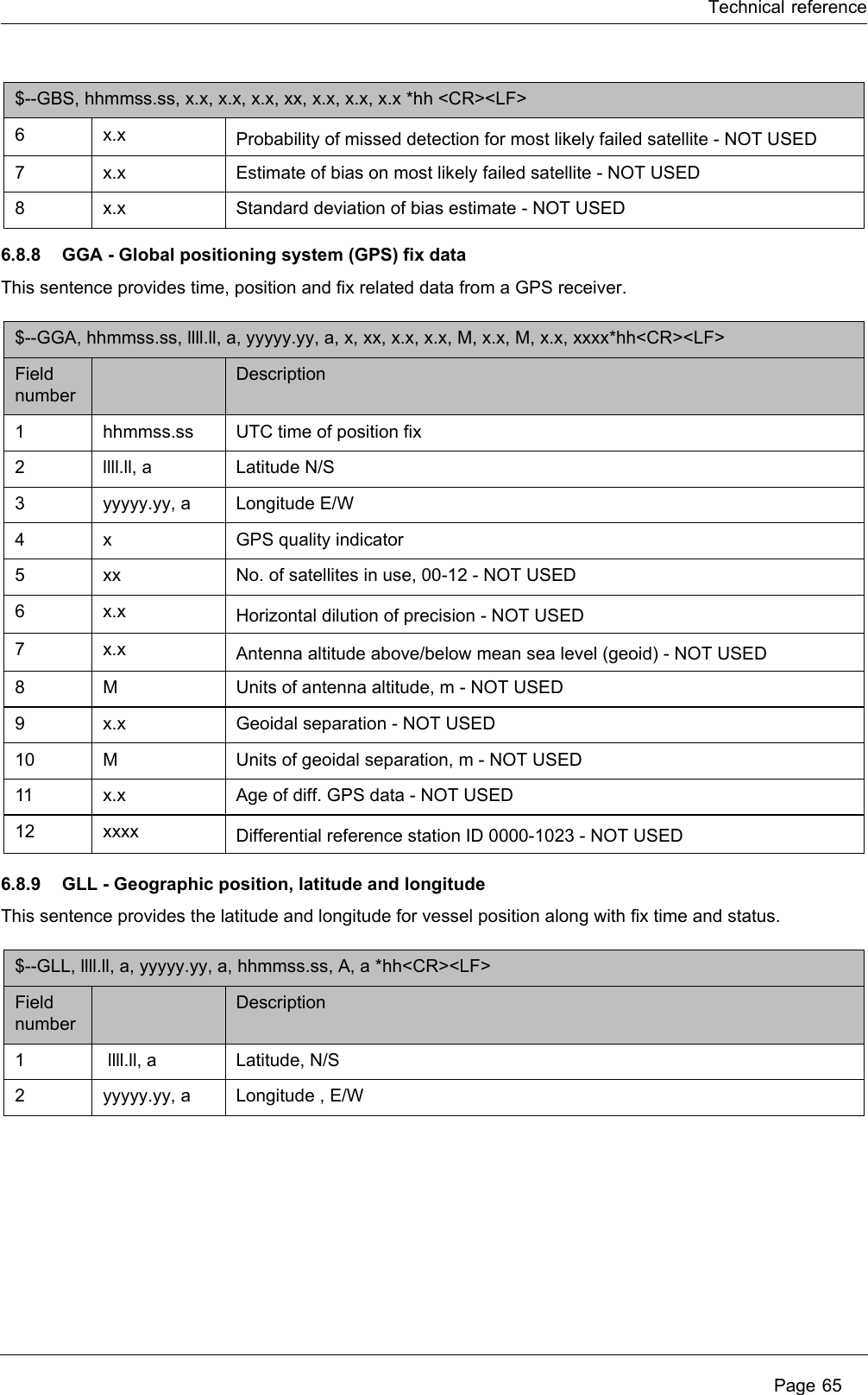
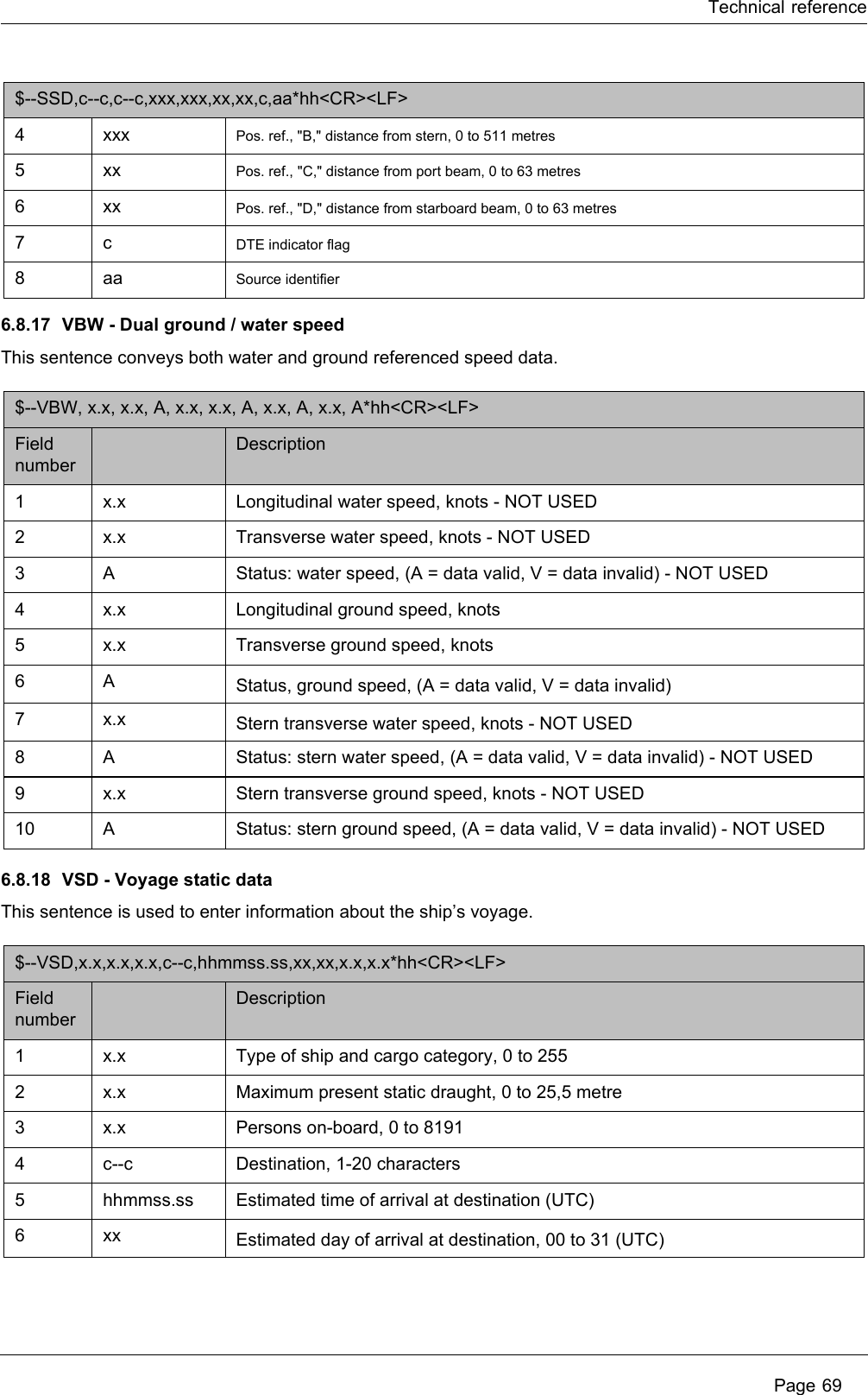
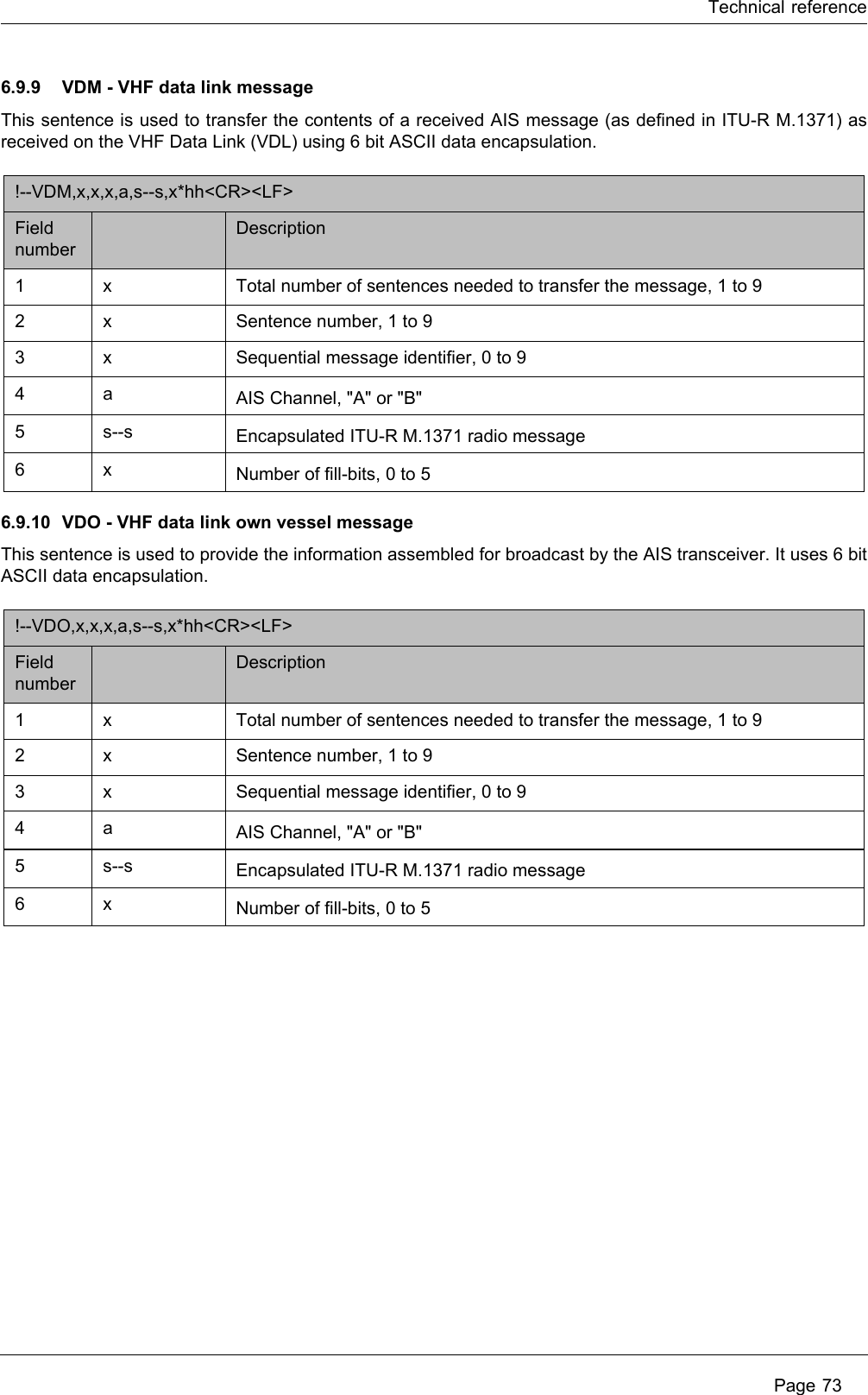
![InstallationPage 48Table 9 Vessel types and their corresponding vessel type codesTable 10 Type codes for vessels carrying cargoVessel type Type codeReserved 1[n]Wing in ground craft 2[n]Fishing 30Towing 31Towing and length of tow exceeds 200m or breadth exceeds 25m 32Engaged in dredging or underwater operations 33Engaged in diving operations 34Engaged in miliary operations 35Sailing 36Pleasure craft 37(HSC) High speed craft 4[n]Pilot vessel 50Search and rescue vessel 51Tug 52Port tender 53Vessel with anti-pollution facilities 54Law enforcement vessel 55Spare - for local use 56Spare - for local use 57Medical transports (under the 1949 Geneva conventions and additional protocols) 58Ships according to RR Resolution No. 18 (Mob-83) - Relating to the Procedure for Identifying and Announcing the Position of Ships and Aircraft of States Not Parties to an Armed Conflict59Passenger ship 6[n]Cargo ship 7[n]Tanker 8[n]Other type of ship 9[n]Cargo type Second digit(where not predefined)All ships of this type 0Carrying DG, HS, or MP, IMO hazard or pollutant category A 1Carrying DG, HS, or MP, IMO hazard or pollutant category B 2Carrying DG, HS, or MP, IMO hazard or pollutant category C 3Carrying DG, HS, or MP, IMO hazard or pollutant category D 4Reserved 5Reserved 6Reserved 7Reserved 8No additional information 9](https://usermanual.wiki/em-trak-Marine-Electronics/405-0026/User-Guide-1386180-Page-48.png)