Filemaker Go Development Guide File Maker 13 Fmgo13 Dev En
User Manual: filemaker FileMaker Go 13 - Development Guide Free User Guide for FileMaker Software, Manual
Open the PDF directly: View PDF  .
.
Page Count: 23
- Chapter 1 Setting up databases for FileMaker Go
- Chapter 2 Differences between FileMaker Go and FileMaker Pro
- Chapter 3 Designing databases for FileMaker Go
- Chapter 4 Protecting databases in FileMaker Go
FileMaker Go® 13
Development Guide
© 2011-2013 FileMaker, Inc. All Rights Reserved.
FileMaker, Inc.
5201 Patrick Henry Drive
Santa Clara, California 95054
FileMaker and Bento are trademarks of FileMaker, Inc. registered in the U.S. and other countries. The file folder logo,
FileMaker WebDirect, and the Bento logo are trademarks of FileMaker, Inc. All other trademarks are the property of their
respective owners.
FileMaker documentation is copyrighted. You are not authorized to make additional copies or distribute this
documentation without written permission from FileMaker. You may use this documentation solely with a valid licensed
copy of FileMaker software.
All persons, companies, email addresses, and URLs listed in the examples are purely fictitious and any resemblance to
existing persons, companies, email addresses, or URLs is purely coincidental. Credits are listed in the
Acknowledgements documents provided with this software. Mention of third-party products and URLs is for
informational purposes only and constitutes neither an endorsement nor a recommendation. FileMaker, Inc. assumes
no responsibility with regard to the performance of these products.
For more information, visit our website at www.filemaker.com.
Edition: 01
Contents
Chapter 1
Setting up databases for FileMaker Go 5
Sharing FileMaker Pro files with FileMaker Go clients 5
Enabling FileMaker network sharing 5
Hosting files with FileMaker Server overview 6
Connecting to databases 7
About file transfers 7
Transferring a file with container fields that store data externally 8
Importing to and from a transferred file 8
Chapter 2
Differences between FileMaker Go and FileMaker Pro 10
Features not supported in FileMaker Go 10
Behavior differences 10
Modes 10
Sorting 10
Date and time pickers 11
Custom menus (FileMaker Pro Advanced) 11
Printing 11
Saving records as a PDF file 11
Exporting 11
Container fields 11
Display state of objects 11
Snapshot link files 12
Scroll bars in portals 12
Encrypted files (FileMaker Pro Advanced) 12
Navigating slide controls 12
Popovers 12
Kiosk mode (FileMaker Pro Advanced) 12
Scripting and calculations 12
Scripts and functions behavior 12
Unsupported script steps 15
4
Chapter 3
Designing databases for FileMaker Go 17
Designing layouts 17
Tips for designing layouts and fields 17
Screen dimensions 18
Choosing fonts 18
Text styles 18
Keyboards for text, number, date, time, and timestamp fields 18
Considerations for data entry on an iOS device 18
Considerations for performance on an iOS device 18
Container fields 18
Layouts 19
Script triggers 19
External keyboards 19
Web viewers 19
Chapter 4
Protecting databases in FileMaker Go 20
Opening files protected with passwords 20
Logging in after multitasking 20
Using the fmreauthenticate extended privilege 21
Opening files and running scripts using the FMP protocol 21
Suggestions for protecting remote and local files 22
If your files need less security 22
If your files need more security — one user per iOS device 22
If your files need more security — multiple users per iOS device 22
Security tips 23
SSL certificates 23
Chapter 1
Setting up databases for FileMaker Go
FileMaker Go® lets you work with FileMaker Pro databases on your iPhone, iPod touch, or iPad.
You work with data interactively: when you change data on an iOS device, the data is updated on
the host computer, and vice versa. You can also transfer a database to the device and work
“offline.”
You create, design, and manage databases in FileMaker Pro on the desktop. On a device, you
can add, modify, delete, find, and sort records, display data in form, table, and list views, view
information in portals, tabs, and web viewers, capture signatures, scan bar codes (via scripting)
as well as perform scripts and other tasks.
This guide provides information about tailoring databases for FileMaker Go. See FileMaker Go
Help on your device for information on usage. See FileMaker Pro documentation if you are new
to FileMaker Pro.
Sharing FileMaker Pro files with FileMaker Go clients
Build databases using FileMaker Pro. Share them using FileMaker Pro or FileMaker Server. Then
use FileMaker Go to work with the data on a device.
Enabling FileMaker network sharing
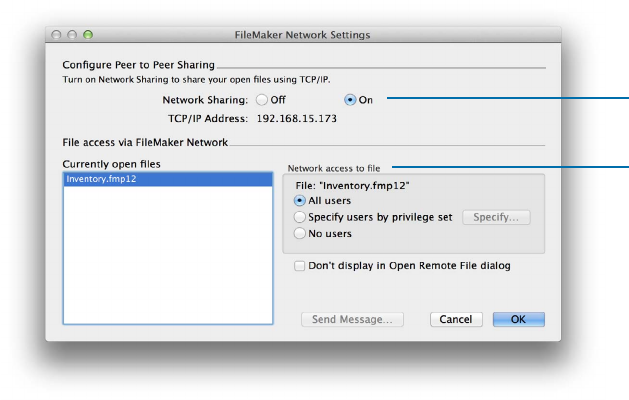
To enable peer-to-peer sharing in FileMaker Pro:
1. In FileMaker Pro, open the file.
2. Choose File menu > Sharing > Share with FileMaker Clients.
3. In the FileMaker Network Settings dialog box, set Network Sharing to On.
4. Select the file(s) to be hosted from the list of Currently open files.
5. For Network access to file, choose All users or Specify users by privilege set.
6. Click OK.
Chapter 1 | Setting up databases for FileMaker Go 6
Hosting files with FileMaker Server overview
Before you share FileMaker Pro database files, prepare the files for hosting. Here is an overview
of the process used to host files with FileMaker Server.
1. In FileMaker Pro, edit the accounts and privilege sets that clients will use for shared access (for
example, Access via FileMaker Network).
2. In FileMaker Pro, upload the database files to FileMaker Server. For more information on
uploading files to FileMaker Server, see FileMaker Pro Help.
3. In FileMaker Server, verify the status of your files using the Admin Console Activity >
Databases tab, and verify that the files are available to FileMaker clients.
When FileMaker Server starts, it automatically opens and hosts all FileMaker Pro databases
located in the default database folder and in the optional additional database folders, if specified.
See FileMaker Server Help for more information on server administration.
Network Sharing on
Allow network access
Settings to enable network sharing for FileMaker Go clients
Chapter 1 | Setting up databases for FileMaker Go 7
Connecting to databases
After you share and host a file, you can connect to it as a client in FileMaker Go. For information
on connecting to databases, see FileMaker Go Help.
Devices connect to hosted databases like any other client, using the fmapp extended privilege.
Note FileMaker Go cannot access FileMaker Server hosts available through LDAP, or view and
use SSL certificates from LDAP hosts.
About file transfers
For information on transferring files to or from a device, see FileMaker Go Help.
Keep the following points in mind:
1When you transfer a file to your iOS device, you are creating a copy of the remote file. When
you make data changes to the local file, the remote file is not updated. To set up a file to import
and update data from the local file to the hosted file using FileMaker Pro, see “Importing to and
from a transferred file” on page 8.
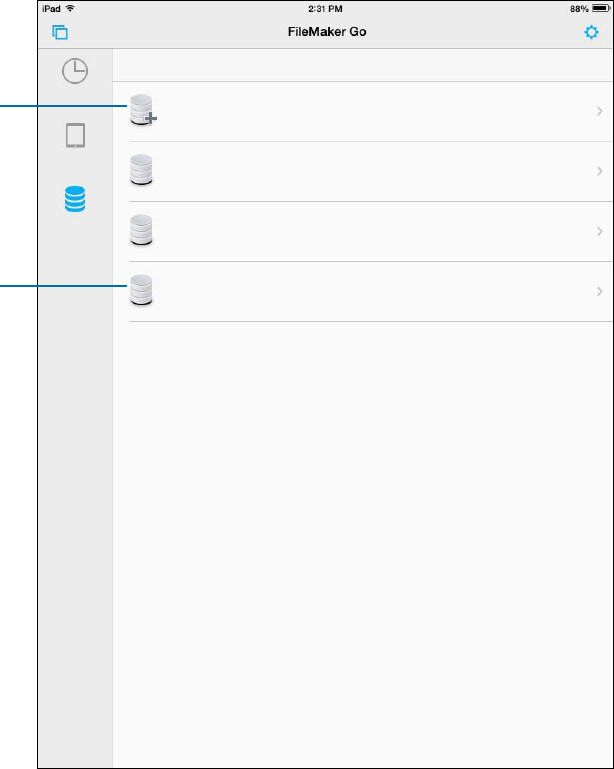
Tap a host name to select a
hosted file
Tap Add Host to add a host
Connecting to a hosted database in FileMaker Go
Host 1
Host 2
Host 3
Hosts
Recent
Device
Hosts
Add Host
Chapter 1 | Setting up databases for FileMaker Go 8
1Routine backups are strongly recommended for any document stored on a computer or iOS
device. For information about backing up FileMaker Pro databases, see FileMaker Pro Help.
Transferring a file with container fields that store data externally
To transfer a file with container fields that store data externally, you must first embed the container
field data. To do this, in FileMaker Pro, use the Save a Copy As command and choose self-
contained copy (single file). Then transfer the copy.
Importing to and from a transferred file
You can use the Import Records script step to merge data from a local FileMaker Pro file on a
device to another FileMaker Pro file. FileMaker Go must have network access to FileMaker Server
or FileMaker Pro.
Set up field mapping and import order before you import. You can’t create a new table when you import.
You can:
1import from a remote source into a local database
1import from a local source into a remote database
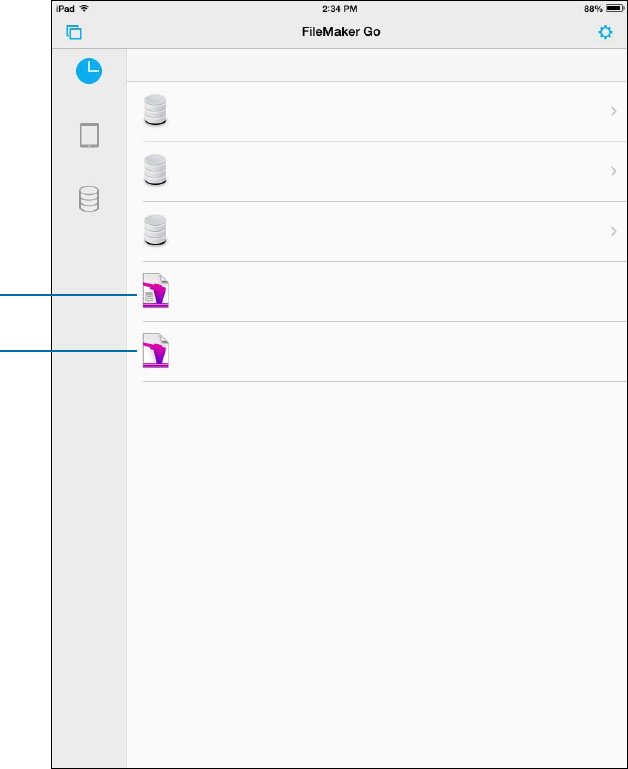
Remote file
(with host name)
Local transferred file
Host 1
Host 2
Host 3
FMServer_Sample
Host 3
Getting Started
3.5 MB Sep 19, 2013 4:20pm
Recent Files
Recent
Device
Hosts
Chapter 1 | Setting up databases for FileMaker Go 9
1import from a remote source into a remote database
1import from a local source into a local database
Example 1: Importing from a remote source (Source.fmp12) into a local database (Target.fmp12)
1. Open Source.fmp12 and Target.fmp12 in FileMaker Pro.
2. Create an “Import from Remote” script in Target.fmp12. For example:
Import Records [No dialog; “Source.fmp12”;Update existing;Mac Roman]
and set up a path to the source file using your machine IP address. For example:
fmnet:/192.168.10.10/Source.fmp12
3. Specify the import order.
4. Close Target.fmp12.
5. Transfer Target.fmp12 to FileMaker Go.
6. Open Target.fmp12 in FileMaker Go and run the script “Import from Remote.”
The local database is updated with data from the remote database.
Example 2: Importing from a local source (Source.fmp12) into a remote database (Target.fmp12)
1. Transfer Source.fmp12 to FileMaker Go.
2. Open Target.fmp12 in FileMaker Pro.
3. Create an “Import to Remote” script in Target.fmp12. For example:
Set Variable[$FilePath;Value:Get(DocumentsPath) & “Source.fmp12”]
Import Records[No dialog; “$FilePath”; Add; Mac Roman] where the path to
the source file on the device is file:$FilePath
4. In the Edit Script dialog box, select the Import Records script step and select Specify import order.
If the source fields do not appear in the Import Field Mapping dialog box, select Specify data
source. In the Specify File dialog box, for File Type, select FileMaker Pro files. Then add
another path to Source.fmp12 to the path list. For example:
file:$FilePath
file:Source.fmp12
5. Open Target.fmp12 remotely in FileMaker Go.
6. Run the script “Import to Remote.”
Using Target.fmp12 in FileMaker Go, you have added data from Source.fmp12 on the device
to Target.fmp12 on the host computer.
Tip After you complete one import, the field mapping is retained if you selected Arrange by: last
order in the Import Field Mapping dialog box. There is no longer a need for the file:Source.fmp12
reference.
Chapter 2
Differences between FileMaker Go and
FileMaker Pro
This chapter explains some differences between FileMaker Go and FileMaker Pro, as well as
some differences between FileMaker Go for iPhone and FileMaker Go for iPad.
Features not supported in FileMaker Go
FileMaker Go does not support the following FileMaker Pro features:
1creating and modifying database schema such as tables, fields, relationships, data sources,
and privileges
1creating and modifying database structure such as layouts, scripts, value lists, and custom
menus
1importing*
1exporting to .fmp12, XML, or Excel .xls format
1spell checking
1external functions
1plug-ins
1hosting files
*Importing from one FileMaker Pro file into another FileMaker Pro file is supported in FileMaker Go
version 1.1.1 and later.
Behavior differences
Modes
Layout and Preview modes aren’t supported in FileMaker Go. However, you can preview records
by printing to PDF and viewing the PDF within FileMaker Go.
Sorting
When you tap a column header to sort records in Table View, three sort orders are available:
ascending, descending, and unsorted. The sort order By Value List is available when you tap a
column header if you had previously sorted the field by a value list using Sort Records.
By default, By Value List sorts records in ascending order. After you sort By Value List the first time,
tap the column header again to sort records in descending order. If this field had been used in a
previous sort of multiple fields, the sort order for the field will change but retain the previous sort
order for the other fields. You might need to tap the column header more than once to clear the
previous sort criteria.
Chapter 2 | Differences between FileMaker Go and FileMaker Pro 11
Date and time pickers
Differences in behavior between FileMaker Go and the desktop include:
1Seconds or fractions of seconds aren’t available on the time/timestamp picker in FileMaker Go.
You can type seconds into the field. Scripted or calculated times will display seconds on the device.
1On the iPad, the keyboard remains active while the date picker is active.
Custom menus (FileMaker Pro Advanced)
FileMaker Go doesn’t support:
1removal of menu items that were removed on the desktop. The menu items are still displayed
in FileMaker Go, but they are disabled.
1additional menu items that do not map to existing FileMaker Go menu items.
1override of the Quick Find menu item by custom menus, though you can override the quick find
behavior.
1override of Save Record and Exit Record by custom menus.
1display of an ampersand (&) in custom menu titles.
Printing
1The print options that you set for a file in FileMaker Pro have no effect on the print options for
the same file in FileMaker Go, and vice versa.
1If you don’t specify page margins for a layout in FileMaker Pro, FileMaker Go uses the printer’s
default margin, which might vary with different printers or different print drivers. You should
specify page margins if you’re printing a layout where exact spacing is important, like labels or
a preprinted form.
Saving records as a PDF file
When you save records as a PDF file, FileMaker Go uses the name of the window for the PDF
filename.
Exporting
By default, all manual export operations use UTF-8, except .xlsx, which uses UTF-16.
You must use the Export Records script step to:
1select fields that are not on the current layout.
1configure the output file character set.
Container fields
FileMaker Go doesn’t support:
1the Inspector Data Formatting options Images or Interactive content. (Content in container
fields is displayed by the iOS like other iOS audio, video, and PDF files.)
1setting up container fields to store data externally.
Display state of objects
FileMaker Go doesn’t display the Hover state for objects.
Chapter 2 | Differences between FileMaker Go and FileMaker Pro 12
Snapshot link files
When a snapshot link file that was created in Preview mode is opened in FileMaker Go, the file is
displayed in Browse mode.
Scroll bars in portals
When the Show vertical scroll bar option in the FileMaker Pro Portal Setup dialog box is
enabled, FileMaker Go users can scroll within a portal using an iOS scroll bar.
Encrypted files (FileMaker Pro Advanced)
You can’t enable or disable file encryption in FileMaker Go. To enable or disable encryption, use
the Developer Utilities in FileMaker Pro Advanced.
Navigating slide controls
If Enable swipe gestures or Show navigation dots is enabled in FileMaker Pro, in
FileMaker Go, swipe to move forward or back within a slide control.
Popovers
In FileMaker Go, layout popovers are dismissed when you tap outside the popover and when you
start to scroll or zoom.
Kiosk mode (FileMaker Pro Advanced)
Although you can design a Kiosk solution to run on an iOS device, you can’t navigate records by
swiping with two fingers. For information about creating Kiosk solutions, see FileMaker Pro Help.
Scripting and calculations
Important Test your solution to ensure your script steps are supported.
Scripts and functions behavior
1To abort a currently running script, tap anywhere on the screen, and confirm that you want to
abort the script. If you do not make a choice, the confirmation will dismiss itself after a few
seconds, and the script will continue running.
1Get(SystemPlatform) returns 3 when performed on the device.
1Send Mail doesn’t support Perform without dialog. The email displays on the device, and you
can send it manually. This does not apply to mail sent through SMTP.
1The Select All and Set Selection script steps don’t highlight text if the keyboard is hidden on the
device.
1The Open URL script step using a Google Maps URL will open a browser, and then choosing
Open in Safari will open the Maps app.
1If a script contains a hide window command, FileMaker Go does not hide the window but
changes the order of the open windows that are displayed.
Chapter 2 | Differences between FileMaker Go and FileMaker Pro 13
1When you switch to another app, FileMaker Go enters a suspended state, and scripts are also
suspended. When you return to FileMaker Go, the app and scripts resume from where they left off.
For hosted files, if any of the records in the data set that a script is acting on were modified while
FileMaker Go was suspended, the script aborts. If none of the records were modified, the script
continues.
If you switch away from FileMaker Go for an extended period, and iOS forces the app to quit,
FileMaker Go attempts to generate a hibernation file. When you restart FileMaker Go, it uses
the hibernation file to reopen files. A hibernation file is not generated when a script with Allow
User Abort set to Off was running when you switched away from FileMaker Go.
1The GetLayoutObjectAttribute function returns only PNG and JPEG images for the content
attribute for charts.
1The New Window script step doesn’t support the Specify Advanced Style options.
1Although you set up the Location and LocationValues functions in FileMaker Pro, they are
designed for use on devices.
1The Insert File script step doesn’t support the dialog box options Storage options or Display.
1The Exit Application script step closes all files but does not quit FileMaker Go.
Get(ApplicationVersion) function
Get(ApplicationVersion) returns Go x.x.x for the iPhone or iPod touch. Get(ApplicationVersion)
returns Go_iPad x.x.x for the iPad. In FileMaker Server, Go x.x.x or Go_iPad x.x.x appears in
Admin Console.
Replace Field Contents script step
A script using Replace Field Contents can’t prompt users in FileMaker Go to specify the field and
data to be replaced. A Replace Field Contents script step with Perform without dialog
deselected will not be performed.
Save a Copy As script step
The options compacted copy, clone, and self-contained copy (single file) are supported when
you perform a Save a Copy As script in FileMaker Go, but not when you manually tap
Save/Send > Database in FileMaker Go. For the script step, the self-contained copy (single
file) option is equivalent to the compacted copy option.
Save Records as PDF script step
If you don’t specify the output file path for the Save Records as PDF script step, FileMaker Go
uses the name of the window to save the PDF file.
Some Save Records as PDF script step options aren’t supported:
1appending records to an existing PDF
1selecting the Acrobat version
1selecting Printing and Editing options on the Security tab
1deselecting the option that allows screen reading software
1options on the Initial View tab
Chapter 2 | Differences between FileMaker Go and FileMaker Pro 14
Save Records as Snapshot Link script step
The snapshot link includes the current found set of record IDs, including the layout, view, sort
order, mode, and toolbar visibility.
If you don’t specify the output file path for the Save Records as Snapshot Link script step,
FileMaker Go uses the name of the file to save the snapshot link file.
You can open a snapshot link file on multiple devices if:
1the FileMaker Pro file is stored on each device.
1the snapshot link file was created in FileMaker Go.
1the original FileMaker Pro file and the local copy of the file have matching filenames and are at
the same relative location.
Print Setup script step
Performing a Print Setup script step in FileMaker Go sets the paper size, orientation, and scale
options for the FileMaker Go Print Setup dialog without displaying the dialog.
The Perform without dialog option has no effect on the Print Setup script step in FileMaker Go.
Print script step
If the Perform without dialog option is not selected, when you perform a Print script step,
FileMaker Go displays the Print Setup dialog. You can choose the settings in the dialog, then tap
Print to print the file.
Although the Maximum Image DPI option is not available in the Print script step, you can choose
a resolution in the Print Setup dialog at the time you print.
The Print script settings for number of copies and double-sided options have no effect on the print
settings in FileMaker Go.
Export Field Contents script step
FileMaker Pro exports text as UTF-16, but FileMaker Go exports text as UTF-8.
Open Remote script step
When you open a remote file via the Open Remote script step, recent hosts will be listed along
with the other hosts in alphabetical sort order.
Notes
1By default, the files created by script steps appear in the Device list and are saved in the
Documents folder. To save the files in a temporary folder, use the Set Variable script step to
create a variable to specify the output file path and filename for the script step.
You can use the following example to create an email with the file as an attachment.
Set Variable [$Output; Value: Get( TemporaryPath ) & “sample.pdf”]
Save Records as PDF [No dialog; “$Output”; Records being browsed]
Send Mail [Send via E-mail Client; To: “linda@glolda.com”; Subject:
“Invoice” ; Message: “Test”; “$Output”]

Chapter 2 | Differences between FileMaker Go and FileMaker Pro 15
1By default, when you run script steps, FileMaker Go creates a new output file. If you continue
running the script, a number is added to the end of each filename. For example, the first time
you run the Save Records as PDF script step for a sample file, the output filename is
sample.pdf. The second time you run the script, the filename will be sample 1.pdf.
To replace the output file with the new one instead of keeping multiple copies, add the file path
(file:fileName or filemac:fileName) to the script. For example, if you type file:sample.pdf
or filemac:sample.pdf in the Specify Output File dialog each time you run the script, the
sample.pdf file in the Documents folder will be replaced with the new one.
The following example saves records as a PDF file named sample.pdf and will either create a
new file or overwrite the existing file.
Save Records as PDF [No dialog; “sample.pdf”; Records being browsed]
Unsupported script steps
FileMaker Go does not support some script steps.
Important Running scripts without handling unsupported script steps appropriately may lead to
unintended behavior or data corruption.
Returns error code 3
The following script steps return error code 3: Command is unavailable. Use Get(LastError) to
check for this error code.
FileMaker Go does not display an alert for these script steps.
Category Script step
Editing script steps Perform Find/Replace
Fields script steps Insert from Index
Files script steps 1New File
1Convert File
1Set Multi-User
1Recover File
Miscellaneous script steps 1Allow Formatting Bar
1Speak (Mac)
1Install Plug-In File
1Send DDE Execute (Windows)
1Perform AppleScript (Mac)
1Execute SQL
1Send Event (Mac)
1Send Event (Windows)
Navigation script steps Enter Preview Mode

Chapter 2 | Differences between FileMaker Go and FileMaker Pro 16
Open Menu Item script steps 1Open Edit Saved Finds
1Open File Options
1Open Manage Containers
1Open Manage Database
1Open Manage Data Sources
1Open Manage Layouts
1Open Manage Scripts
1Open Manage Themes
1Open Manage Value Lists
1Open Find/Replace
1Open Sharing
1Upload to FileMaker Server
Records script steps 1Import Records (import between FileMaker files is supported)
1Export Records (.csv, .dbf, .xlsx, .htm, .mer, .tab file formats are
supported)
1Save Records as Excel
Spelling script steps 1Check Selection
1Check Record
1Check Found Set
1Correct Word
1Spelling Options
1Select Dictionaries
1Edit User Dictionary
Windows script steps 1Move/Resize Window
1Arrange All Windows
1Show/Hide Menubar
1Show/Hide Text Ruler
Category Script step
Chapter 3
Designing databases for FileMaker Go
This chapter explains what to consider when designing a database that will be used on an iOS
device.
Designing layouts
When you design a layout, keep in mind that on an iOS device, you can’t:
1remove views or layouts
1add or remove fields
1switch to layouts that aren’t set to show in the Layouts menu, unless you provide a navigation button
1use the menu to insert the current date, time, or timestamp, unless you provide a button or use
a script
1define and assign value lists (drop-down lists and pop-up menus that Allow editing of value
list are supported)
1display tooltips
1display leader characters such as “...” in tab control names
1display shadows on layout objects
For general design considerations for devices, see the Apple developer website.
Tips for designing layouts and fields
1In the New Layout/Report assistant, choose one of the Touch Device layouts.
1Leave enough inactive space on the form so that users can tap outside a field to commit their data.
1Reduce the size of images as much as possible.
1Use the PNG file format for images.
1Use the screen stencils to help you work within the viewing area of a device.
1Some FileMaker Pro themes use the Tahoma font. This font is not supported in iOS and will be
converted to Helvetica in FileMaker Go.
1Choose one of the Touch themes, which are designed for devices, in the Change Theme dialog
box. The Touch themes use the Arial and Verdana fonts.
1In the Starter Solutions, adapt layouts that are designed for devices.
1Distribute the fields on a form vertically.
1FileMaker Go supports accessibility using VoiceOver. For information about creating accessible
solutions, see FileMaker Pro Help.
1If you apply FileMaker Pro themes to files that you plan to use on a device, check the
appearance of field label spacing, field heights, portals, and tabs on the device.
1To create iOS-style grouped fields, in the Appearance tab of the Inspector, specify a Corner
radius value for each corner to make it round or square.
Chapter 3 | Designing databases for FileMaker Go 18
Screen dimensions
To optimize your design for both portrait and landscape orientation, limit the width of the layout to the
screen width for the portrait orientation. This way, users don’t have to scroll right or left to see the data.
Try to keep the information that needs to be most visible within the screen dimensions that are
shared between portrait and landscape orientations.
Use auto-resizing settings in FileMaker Pro to optimize the layout for portrait and landscape rotations.
Choosing fonts
When choosing fonts, consider which platform you are designing for. Some fonts have different
behavior for different platforms.
Not all fonts are supported on the desktop or on devices, and the fonts that are supported on iOS
are likely to change over time. Be sure to test your databases on all platforms you plan to use.
Text styles
The following text styles are supported in iOS: bold, italic, underline, title case, uppercase,
lowercase, word underline (appears as underline), double underline.
iOS doesn’t support: highlight, strike through, condense, extend, small caps, superscript, subscript.
Keyboards for text, number, date, time, and timestamp fields
In the Data tab of the Inspector, you can set up text, number, date, time, and timestamp fields to
use a specific type of keyboard to help you quickly enter values in FileMaker Go. For more
information, see FileMaker Pro Help.
Considerations for data entry on an iOS device
1Only fields are supported in the tab order. You can set up Tab and Return, but not Enter, to go
to the next field.
1You can’t insert values into a field from an index on the device, and you can’t Auto-complete
using existing values.
1Paragraph alignment, line spacing, and indentation might not display correctly in container
fields. To prevent these appearance issues, use center alignment in container fields.
1Auto-Correction will not work in text fields that have script triggers set up to catch keystrokes.
1Editing a text field in FileMaker Go reverts all styles in that field to plain text.
1You can edit about 64K of text at a time.
1Asian languages: sideways text and Furigana aren’t supported. Input method editors (IMEs) will
not work in text fields that have script triggers set up to catch keystrokes.
Considerations for performance on an iOS device
Container fields
For container fields with images in remote files, the server scales the images before sending them
to the device. For container fields with images in local files, the device handles the images; for
improved performance use smaller images.

Chapter 3 | Designing databases for FileMaker Go 19
Layouts
Make several layouts with a minimum number of objects instead of one layout with many objects.
For information about designing layouts, see “Tips for designing layouts and fields” on page 17.
Script triggers
To improve performance, use uncomplicated scripts in script triggers.
External keyboards
Some keystrokes behave differently on external keyboards.
Web viewers
You can have multiple active web viewers if your device has sufficient memory.
Functionality Behavior in FileMaker Go
Tab key Supported for field types that display the onscreen keyboard.
Shift-Tab isn’t supported.
Undo, Redo, Cut, Copy, Paste, Select All keys Supported
Keystrokes to move between records (for example,
Control-Down Arrow)
Not supported
Modifier keys (for example, Option or Alt) Not supported
Eject key Hides or shows the onscreen keyboard
Arrow keys Not supported for value lists, date/time/timestamp pickers
Device memory Maximum number of active web viewers
256 MB 1
512 MB 3
1 GB 4
Chapter 4
Protecting databases in FileMaker Go
This chapter explains the behavior for opening protected files and logging in after multitasking. It
also provides information for keeping your databases secure.
Opening files protected with passwords
When users try to open a protected file, a dialog prompts them to specify an account and
password. FileMaker Go checks the following settings in the specified order to determine how to
open a protected file. If none of these settings are used, the user needs to enter the login
information to open the file.
1. URL protocols
In FileMaker Pro, you can use the FMP protocol in a URL to open a shared, remote
FileMaker Pro file. See “Opening files and running scripts using the FMP protocol” on page 21.
2. File Options dialog box to log in automatically
In FileMaker Pro, you can use the File Options dialog box to automatically log in using a specific
account and password when you open the database.
3. User manual override
In FileMaker Go, users can temporarily bypass the default login information when they open a
file by touching and holding a filename in the file list. Releasing the filename displays a dialog
where users can enter a different account and password.
Logging in after multitasking
When you press the Home button on your device, FileMaker Go moves to the background and
saves the state of the file. FileMaker Go also saves the state of the file when you answer a phone
call. When you switch back to FileMaker Go, you return to where you left off.
Files can be configured to require reauthentication after being in the background for a specified
period of time. See “Using the fmreauthenticate extended privilege” on page 21.
After FileMaker Go moves to the background, you must re-enter your account and password to
return to the file, unless:
1you are using the Guest account.
1your account name and password match the account name and password set in the File
Options dialog box in FileMaker Pro.
1you have returned to the file before the time limit specified in the fmreauthenticate extended
privilege.
1you are using an account that does not have the fmreauthenticate extended privilege.
Note These conditions also apply to files converted from an earlier version of FileMaker Pro.
Chapter 4 | Protecting databases in FileMaker Go 21
Using the fmreauthenticate extended privilege
Use the fmreauthenticate extended privilege to control when users will be required to
reauthenticate after not using FileMaker Go for a specified period of time.
With this privilege, when FileMaker Go switches to the foreground, users must re-enter the
account name and password if the specified time limit has elapsed. Users can attempt to enter
their account name and password five times before FileMaker Go closes the files.
New privilege sets created in FileMaker Pro include the keyword fmreauthenticate10 by default.
The fmreauthenticate extended privilege activates anytime a user leaves the context of the app,
including iOS alerts, and sleep.
If a file converted from an earlier version of FileMaker Pro:
1does not have the fmrestorelogin extended privilege, FileMaker Pro adds the keyword
fmreauthenticate0.
1does have the fmrestorelogin extended privilege, FileMaker Pro removes it.
Opening files and running scripts using the FMP protocol
In FileMaker Pro, you can use the FMP protocol in a URL to open a shared, remote FileMaker Pro
file. For example:
[<][URL:]FMP://[[account:password@]netaddress]/databasename[>]
You can also use the FMP protocol to open and run a specified script in remote FileMaker Pro files,
hibernated files, local database files on a device, or to communicate with other apps.
Example 1: Opening remote files
Open a file named Clients.fmp12 on the host machine with an IP address of 192.168.10.0 with a
script named ListClients.
FMP://192.168.10.0/Clients.fmp12?script=ListClients
Example 2: Opening files
Reopen a file named Clients.fmp12 with a script named ListClients.
fmp://%24/Clients.fmp12?script=ListClients
Note When using FMP, FileMaker Go restores all hibernated files first and then processes FMP.
Example 3: Opening local files
Open a local file named Clients.fmp12 on the device with a script named ListClients.
fmp://%7e/Clients.fmp12?script=ListClients
Example 4: Passing parameters to a script and defining local variables
Open a file named Clients.fmp12 on the host machine with an IP address of 192.168.10.0 with a
script named ListClients. Specify a parameter of TopClients and a local variable $NumberToList
with a value of 10.
FMP://192.168.10.0/Clients.fmp12?script=ListClients¶m=TopClients&$NumberTo
List=10
Chapter 4 | Protecting databases in FileMaker Go 22
Notes
1Filenames are case-sensitive. Script names are not case-sensitive.
1The filename extension .fmp12 is not required.
1You can define multiple variables in the same FMP protocol.
1If spaces are needed in a link, replace every space with %20.
You can specify the account and password in the address (except when you’re opening hibernated
files).
Suggestions for protecting remote and local files
If your files need less security
1Set a long server idle time for files served by FileMaker Server.
1Increase the number of minutes before requiring re-login using the fmreauthenticate extended
privilege.
1Don’t use the fmreauthenticate extended privilege.
If your files need more security — one user per iOS device
Remote files
Try to balance security needs and user convenience when specifying the amount of time:
1before the passcode is required
1for server idle time
1before requiring re-login using the fmreauthenticate extended privilege
Local files
1Take additional precautions to prevent someone from accessing files on lost or stolen devices.
1Use the fmreauthenticate extended privilege to minimize unauthorized access.
If your files need more security — multiple users per iOS device
1Set the passcode to be required immediately.
1Set the fmreauthenticate extended privilege to fmreauthenticate0.
1Users should be required to enter the passcode, then log in to files using their own accounts.
Chapter 4 | Protecting databases in FileMaker Go 23
Security tips
To limit unauthorized access:
1Important: Set a passcode so that iOS data protection is enabled on your device.
1Use the free Find My iPad or Find My iPhone app. Enable the Remote Passcode Lock and
Remote Wipe features for your device.
1Use the Get(PersistentID) function to help identify devices that access your solutions.
Notes
1FileMaker Go doesn’t work with IPv6 file references or addresses.
1If a host asks a client to close and there is no response after 30 seconds, FileMaker Go will
attempt to close databases and the alert message will close.
1File recovery isn’t supported on devices.
SSL certificates
FileMaker Go can connect to the following FileMaker Server root certificate configurations:
1FileMaker root certificate (SSL-enabled Server)
1VeriSign
1GeoTrust
1GoDaddy
1Thawte
1Comodo
