Filemaker Server Custom Web Publishing With XML File Maker 13 And XSLT Fms13 Cwp En
User Manual: filemaker FileMaker Server 13 - Custom Web Publishing with XML and XSLT Free User Guide for FileMaker Software, Manual
Open the PDF directly: View PDF  .
.
Page Count: 76
- Preface
- Chapter 1 Introducing Custom Web Publishing
- Chapter 2 About Custom Web Publishing with XML
- Chapter 3 Preparing databases for Custom Web Publishing
- Chapter 4 Accessing XML data with the Web Publishing Engine
- Using Custom Web Publishing with XML
- General process for accessing XML data from the Web Publishing Engine
- About the URL syntax for XML data and container objects
- Accessing XML data via the Web Publishing Engine
- Using the fmresultset grammar
- Using other FileMaker XML grammars
- About UTF-8 encoded data
- Using FileMaker query strings to request XML data
- Switching layouts for an XML response
- Understanding how an XML request is processed
- Troubleshooting XML document access
- Chapter 5 Staging, testing, and monitoring a site
- Appendix A Valid names used in query strings
- About the query commands and parameters
- Query command reference
- –dbnames (Database names) query command
- –delete (Delete record) query command
- –dup (Duplicate record) query command
- –edit (Edit record) query command
- –find, –findall, or –findany (Find records) query commands
- –findquery (Compound find) query command
- –layoutnames (Layout names) query command
- –new (New record) query command
- –scriptnames (Script names) query command
- –view (View layout information) query command
- Query parameter reference
- –db (Database name) query parameter
- –delete.related (Portal records delete) query parameter
- –field (Container field name) query parameter
- fieldname (Non-container field name) query parameter
- fieldname.op (Comparison operator) query parameter
- –lay (Layout) query parameter
- –lay.response (Switch layout for response) query parameter
- –lop (Logical operator) query parameter
- –max (Maximum records) query parameter
- –modid (Modification ID) query parameter
- –query (Compound find request) query parameter
- –recid (Record ID) query parameter
- –relatedsets.filter (Filter portal records) query parameter
- –relatedsets.max (Limit portal records) query parameter
- –script (Script) query parameter
- –script.param (Pass parameter to Script) query parameter
- –script.prefind (Script before Find) query parameter
- –script.prefind.param (Pass parameter to Script before Find) query parameter
- –script.presort (Script before Sort) query parameter
- –script.presort.param (Pass parameter to Script before Sort) query parameter
- –skip (Skip records) query parameter
- –sortfield (Sort field) query parameter
- –sortorder (Sort order) query parameter
- Appendix B Error codes for Custom Web Publishing
- Appendix C XML query changes in FileMaker 12
- Index

FileMaker® Server 13
Custom Web Publishing with XML
© 2004–2013 FileMaker, Inc. All Rights Reserved.
FileMaker, Inc.
5201 Patrick Henry Drive
Santa Clara, California 95054
FileMaker and Bento are trademarks of FileMaker, Inc. registered in the U.S. and other countries. The file folder logo,
FileMaker WebDirect, and the Bento logo are trademarks of FileMaker, Inc. All other trademarks are the property of their
respective owners.
FileMaker documentation is copyrighted. You are not authorized to make additional copies or distribute this
documentation without written permission from FileMaker. You may use this documentation solely with a valid licensed
copy of FileMaker software.
All persons, companies, email addresses, and URLs listed in the examples are purely fictitious and any resemblance to
existing persons, companies, email addresses, or URLs is purely coincidental. Credits are listed in the
Acknowledgements documents provided with this software. Mention of third-party products and URLs is for
informational purposes only and constitutes neither an endorsement nor a recommendation. FileMaker, Inc. assumes
no responsibility with regard to the performance of these products.
For more information, visit our website at http://www.filemaker.com.
Edition: 01
Contents
Preface 6
About this guide 6
Chapter 1
Introducing Custom Web Publishing 7
About the Web Publishing Engine 8
How a Web Publishing Engine request is processed 8
Custom Web Publishing with PHP 9
Custom Web Publishing with XML 9
Comparing PHP to XML 9
Reasons to choose PHP 9
Reasons to choose XML 9
Chapter 2
About Custom Web Publishing with XML 10
Creating dynamic websites with the Web Publishing Engine 10
Key features in Custom Web Publishing with XML 10
Web publishing requirements 11
What is required to publish a database using Custom Web Publishing 11
What web users need to access a Custom Web Publishing solution 11
Connecting to the Internet or an intranet 12
Where to go from here 12
Chapter 3
Preparing databases for Custom Web Publishing 13
Enabling Custom Web Publishing in a database 13
Accessing a protected database 13
Protecting your published databases 14
Web server support for Internet media types (MIME) 15
About publishing the contents of container fields on the web 15
Container field objects embedded in a database 15
Container fields with referenced files 16
Container fields with externally stored data 17
How web users view container field data 18
FileMaker scripts and Custom Web Publishing 18
Script tips and considerations 18
Script behavior in Custom Web Publishing solutions 20
Script triggers and Custom Web Publishing solutions 20
Chapter 4
Accessing XML data with the Web Publishing Engine 21
Using Custom Web Publishing with XML 21
Differences between the Web Publishing Engine and FileMaker Pro XML Import/Export 21
How the Web Publishing Engine generates XML data from a request 22
General process for accessing XML data from the Web Publishing Engine 23
4
About the URL syntax for XML data and container objects 23
About the URL syntax for XML data 23
About the URL syntax for FileMaker container objects in XML solutions 24
About URL text encoding 25
Accessing XML data via the Web Publishing Engine 25
About namespaces for FileMaker XML 26
About FileMaker database error codes 26
Retrieving the document type definitions for the FileMaker grammars 26
Using the fmresultset grammar 27
Description of elements in the fmresultset grammar 27
Example of XML data in the fmresultset grammar 29
Using other FileMaker XML grammars 30
Description of elements in the FMPXMLRESULT grammar 30
Example of XML data in the FMPXMLRESULT grammar 31
Description of elements in the FMPXMLLAYOUT grammar 32
Example of XML data in the FMPXMLLAYOUT grammar 34
About UTF-8 encoded data 35
Using FileMaker query strings to request XML data 35
Switching layouts for an XML response 37
Understanding how an XML request is processed 37
Troubleshooting XML document access 38
Chapter 5
Staging, testing, and monitoring a site 39
Staging a Custom Web Publishing site 39
Testing a Custom Web Publishing site 40
Examples of stylesheets for testing XML output 40
Monitoring your site 41
Using the web server access and error logs 41
Using the Web Publishing Engine log 41
Using the Web Server Module error log 43
Using the Tomcat logs 43
Appendix A
Valid names used in query strings 44
About the query commands and parameters 44
Guidelines for using query commands and parameters 44
Query command parsing 45
About the syntax for a fully qualified field name 46
Using query commands with portal fields 47
About the syntax for specifying a global field 48
Query command reference 49
–dbnames (Database names) query command 49
–delete (Delete record) query command 49
–dup (Duplicate record) query command 49
–edit (Edit record) query command 49
–find, –findall, or –findany (Find records) query commands 50
–findquery (Compound find) query command 50
5
–layoutnames (Layout names) query command 51
–new (New record) query command 51
–scriptnames (Script names) query command 51
–view (View layout information) query command 52
Query parameter reference 52
–db (Database name) query parameter 52
–delete.related (Portal records delete) query parameter 52
–field (Container field name) query parameter 53
fieldname (Non-container field name) query parameter 53
fieldname.op (Comparison operator) query parameter 54
–lay (Layout) query parameter 55
–lay.response (Switch layout for response) query parameter 55
–lop (Logical operator) query parameter 55
–max (Maximum records) query parameter 55
–modid (Modification ID) query parameter 56
–query (Compound find request) query parameter 56
–recid (Record ID) query parameter 57
–relatedsets.filter (Filter portal records) query parameter 58
–relatedsets.max (Limit portal records) query parameter 58
–script (Script) query parameter 59
–script.param (Pass parameter to Script) query parameter 59
–script.prefind (Script before Find) query parameter 59
–script.prefind.param (Pass parameter to Script before Find) query parameter 60
–script.presort (Script before Sort) query parameter 60
–script.presort.param (Pass parameter to Script before Sort) query parameter 60
–skip (Skip records) query parameter 61
–sortfield (Sort field) query parameter 61
–sortorder (Sort order) query parameter 62
Appendix B
Error codes for Custom Web Publishing 63
Error code numbers in XML format 63
Error code numbers for FileMaker databases 63
Appendix C
XML query changes in FileMaker 12 71
XML query changes in syntax 71
XML query changes in semantics 71
Differences in query parsing 71
Differences in query processing 72
Differences in error codes returned 72
Index 73

Preface
About this guide
This guide assumes you are experienced with XML, developing websites, and using
FileMaker® Pro to create databases. You should understand the basics of FileMaker Pro database
design, and should understand the concepts of fields, relationships, layouts, portals, and
containers. For information about FileMaker Pro, see FileMaker Pro Help.
This guide provides the following information about Custom Web Publishing with XML on
FileMaker Server:
1what is required to develop a Custom Web Publishing solution using XML
1how to publish your databases using XML
1what web users need to access a Custom Web Publishing solution
1how to obtain XML data from databases hosted by FileMaker Server
Important You can download PDFs of FileMaker documentation from
http://www.filemaker.com/documentation. Any updates to this document are also available from
the website.
The documentation for FileMaker Server includes the following information:
For information about See
Installing and configuring FileMaker Server FileMaker Server Getting Started Guide
FileMaker Server Help
Making layouts from FileMaker Pro and
FileMaker Pro Advanced databases accessible
to web browser users over an intranet or the
internet
FileMaker WebDirect™ Guide
Custom Web Publishing with PHP FileMaker Server Custom Web Publishing with PHP
Custom Web Publishing with XML FileMaker Server Custom Web Publishing with XML (this book)
Installing and configuring ODBC and JDBC
drivers, and using ODBJ and JDBC
FileMaker ODBC and JDBC Guide
SQL statements and standards supported by
FileMaker software
FileMaker SQL Reference
Chapter 1
Introducing Custom Web Publishing
With FileMaker Server, you can publish your FileMaker database on the Internet or an intranet in
these ways.
FileMaker WebDirect Publishing: With FileMaker WebDirect, you can quickly and easily publish
layouts from a database on the web. You don’t need to install additional software—with compatible
web browser software and access to the internet or an intranet, web users can connect to your
FileMaker WebDirect solution to view, edit, sort, or search records, if you give them access
privileges.
With FileMaker WebDirect, the host computer must be running FileMaker Server. The user
interface resembles the desktop FileMaker Pro application. The web pages and forms that the
web user interacts with are dependent on the layouts and views defined in the FileMaker Pro
database. For more information, see FileMaker WebDirect Guide.
Static publishing: If your data rarely changes, or if you don’t want users to have a live connection
to your database, you can use static publishing. With static publishing, you export data from a
FileMaker Pro database to create a web page that you can further customize with HTML. The web
page doesn’t change when information in your database changes, and users don’t connect to your
database. (With FileMaker WebDirect, the data is updated in the web browser whenever the data
is updated in the database.) For more information, see FileMaker Pro Help.
Custom Web Publishing: To integrate your FileMaker database with a custom website, use the
Custom Web Publishing technologies available with FileMaker Server. FileMaker Server, which
hosts the published databases, does not require FileMaker Pro to be installed or running for
Custom Web Publishing to be available.
With Custom Web Publishing, you can:
1Integrate your database with another website
1Determine how users interact with data
1Control how data displays in web browsers
FileMaker Server provides two Custom Web Publishing technologies:
1Custom Web Publishing with PHP: Use the FileMaker API for PHP, which provides an object-
oriented PHP interface to FileMaker Pro databases, to integrate your FileMaker data into a PHP
web application. Because you code the PHP web pages yourself, you have complete control
over the user interface and how the user interacts with the data.
1Custom Web Publishing with XML: Use XML data publishing to exchange FileMaker data with
other websites and applications. By using HTTP URL requests with FileMaker query
commands and parameters, you can query a database hosted by FileMaker Server, download
the resulting data in XML format, and use the resulting XML data in whatever way you want.
Chapter 1 | Introducing Custom Web Publishing 8
About the Web Publishing Engine
To support FileMaker WebDirect and Custom Web Publishing, FileMaker Server uses a set of
software components called the FileMaker Server Web Publishing Engine. The Web Publishing
Engine handles interactions between a web user’s browser, your web server, and
FileMaker Server.
Custom Web Publishing with XML: Web users access your Custom Web Publishing solution by
clicking an HREF link or by entering a Uniform Resource Locator (URL) that specifies the web
server address and a FileMaker query string request. The Web Publishing Engine returns the XML
data specified in the query string request.
Custom Web Publishing with PHP: When a web user accesses your Custom Web Publishing
solution, PHP on FileMaker Server connects with the Web Publishing Engine and responds
through the FileMaker API for PHP.
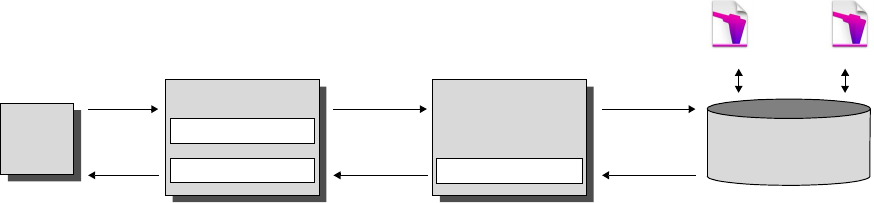
How a Web Publishing Engine request is processed
1. A request is sent from a web browser or application to the web server.
2. The web server routes the request through FileMaker’s Web Server Module to the Web
Publishing Engine.
3. The Web Publishing Engine requests data from the database hosted by the Database Server.
4. The FileMaker Server sends the requested FileMaker data to the Web Publishing Engine.
5. The Web Publishing Engine converts the FileMaker data to respond to the request.
1For PHP requests, the Web Publishing Engine responds to the API request.
1For XML requests, the Web Publishing Engine sends XML data directly to the web server.
6. The web server sends the output to the requesting web browser or program.
Important Security is important when you publish data on the web. Review the security
guidelines in FileMaker Pro User’s Guide, available as a PDF file from
http://www.filemaker.com/documentation.
Web
Browser
Customers.fmp12
Database
Server
Products.fmp12
Using the FileMaker Server Web Publishing Engine for Custom Web Publishing
Web Server
Web Server Module
23
564
1
FM API and PHP code
Web Publishing Engine
Web Publishing Core
Chapter 1 | Introducing Custom Web Publishing 9
Custom Web Publishing with PHP
The FileMaker API for PHP provides an object-oriented PHP interface to FileMaker databases. The
FileMaker API for PHP enables both data and logic stored in a FileMaker Pro database to be accessed
and published on the web, or exported to other applications. The API also supports complex and
compound find commands for extracting and filtering data stored in FileMaker Pro databases.
Originally designed as a procedural programming language, PHP has been enhanced as an object-
oriented web development language. PHP provides programming language functionality for constructing
virtually any type of logic within a site page. For example, you can use conditional logic constructs to
control page generation, data routing, or workflow. PHP also provides for site administration and security.
Custom Web Publishing with XML
FileMaker Custom Web Publishing with XML enables you to send query requests to a FileMaker
Pro database hosted by FileMaker Server, and display, modify, or manipulate the resulting data.
Using an HTTP request with the appropriate query commands and parameters, you can retrieve
FileMaker data as an XML document. You can then export the XML data to other applications.
Comparing PHP to XML
The following sections provide some guidelines for determining the best solution for your site.
Reasons to choose PHP
1PHP is a more powerful, object-oriented procedural scripting language, but is relatively easy to
learn. There are many resources available for training, development, and support.
1The FileMaker API for PHP enables data and logic stored in a FileMaker Pro database to be
accessed and published on the web, or exported to other applications.
1PHP lets you use conditional logic to control page construction or flow.
1PHP provides programming language functionality for constructing many types of logic on a site
page.
1PHP is one of the most popular web scripting languages.
1PHP is an open source language, available at http://php.net.
1PHP enables access to a wide variety of third-party components that you can integrate into your
solutions.
Note For more information about Custom Web Publishing with PHP, see FileMaker Server
Custom Web Publishing with PHP.
Reasons to choose XML
1FileMaker XML request parameter syntax is designed for database interaction, simplifying
solution development.
1XML is a W3C standard.
1XML is a machine and human readable format that supports Unicode, enabling data to be
communicated in any written language.
1XML is well-suited for presenting records, lists and tree-structured data.
1You can use FMPXMLRESULT for accessing XML data using Custom Web Publishing and for
XML export from FileMaker Pro databases.
Chapter 2
About Custom Web Publishing with XML
Creating dynamic websites with the Web Publishing Engine
The Web Publishing Engine provides Custom Web Publishing for FileMaker Server using XML
data publishing. Custom Web Publishing provides several benefits:
1Customization: You can determine how web users interact with FileMaker data, and how the
data displays in web browsers.
1Data interchange: By using FileMaker XML, you can exchange FileMaker data with other
websites and applications.
1Data integration: You can integrate FileMaker data into other websites, with other middleware,
and with custom applications. You can make the data look like it belongs to another website
instead of displaying an entire FileMaker layout in the web browser.
1Security: The FileMaker Server administrator can individually enable or disable XML web
publishing for all databases hosted by the server. As the FileMaker database owner, you can
control web user access to or XML web publishing for each database.
1Control and filtering of published data: You can control and filter the data and the type of
database information you want to publish, which prevents unauthorized use of the database.
You can also hide metadata, such as database and field names.
1Based on an open standard: You have more access to tools, resources and skilled personnel
for Custom Web Publishing solutions. If you know standard XML, then you can start developing
solutions after learning a few unique details about Custom Web Publishing with XML, such as
the URL syntax and query parameters to use.
Custom Web Publishing with XML allows you to retrieve data from FileMaker databases, and
easily use the data in other output formats. By using an HTTP request with the appropriate query
commands and parameters, you can retrieve FileMaker data as an XML document. You can then
use the XML data in other applications. See “Accessing XML data via the Web Publishing Engine”
on page 25.
Key features in Custom Web Publishing with XML
FileMaker Server Custom Web Publishing with XML provides several important features:
1Databases are hosted on FileMaker Server, and FileMaker Pro is not required to be running.
1You can use server-side processing of the XML using JavaScript.
1Like FileMaker Pro, access to data, layouts, and fields is based on the user account settings
defined in the database’s access privileges. The Web Publishing Engine also supports several
other security enhancements. See “Protecting your published databases” on page 14.
1Web users can perform complex, multi-step scripts. FileMaker supports about 65 script steps
in Custom Web Publishing. See “FileMaker scripts and Custom Web Publishing” on page 18.
Chapter 2 | About Custom Web Publishing with XML 11
1You can pass a parameter value to a FileMaker script. For more information, see “–script.param
(Pass parameter to Script) query parameter” on page 59, “–script.prefind.param (Pass
parameter to Script before Find) query parameter” on page 60, and “–script.presort.param
(Pass parameter to Script before Sort) query parameter” on page 60.
1The fmresultset XML grammar enables you to access fields by name and manipulate
relatedset (portal) data.
1To access data in a database, you must specify a layout. See appendix A, “Valid names used
in query strings.”
Web publishing requirements
What is required to publish a database using Custom Web Publishing
To publish databases using Custom Web Publishing with XML, you need:
1a FileMaker Server deployment that includes
1a web server, either Microsoft IIS (Windows) or Apache (OS X)
1the FileMaker Database Server, enabled for Custom Web Publishing
1the Web Publishing Engine, installed and configured
1one or more FileMaker Pro databases hosted by FileMaker Server
1the IP address or domain name of the host running the web server
1a web browser and access to the web server to develop and test your Custom Web Publishing
solution
For more information, see FileMaker Server Getting Started Guide.
What web users need to access a Custom Web Publishing solution
To access a Custom Web Publishing solution that uses XML, web users need:
1a web browser
1access to the Internet or an intranet and the web server
1the IP address or domain name of the host running the web server
If the database is password-protected, web users must also enter a user name and password for
a database account.
Chapter 2 | About Custom Web Publishing with XML 12
Connecting to the Internet or an intranet
When you publish databases on the Internet or an intranet, the host computer must be running
FileMaker Server, and the databases you want to share must be hosted and available. In addition:
1Publish your database on a computer with a full-time Internet or intranet connection. You can
publish databases without a full-time connection, but they are only available to web users when
your computer is connected to the Internet or an intranet.
1The host computer for the web server that is part of the FileMaker Server deployment must
have a dedicated static (permanent) IP address or a domain name. If you connect to the
Internet with an Internet service provider (ISP), your IP address might be dynamically allocated
(it is different each time you connect). A dynamic IP address makes it more difficult for web
users to locate your databases. If you are not sure of the type of access available to you, consult
your ISP or network administrator.
Where to go from here
Here are some suggestions to get started developing Custom Web Publishing solutions:
1If you haven’t already done so, use FileMaker Server Admin Console to enable Custom Web
Publishing. See FileMaker Server Help and FileMaker Server Getting Started Guide.
1In FileMaker Pro, open each FileMaker database that you want to publish and make sure the
database has the appropriate extended privilege(s) enabled for Custom Web Publishing. See
“Enabling Custom Web Publishing in a database” on page 13.
1To learn how to access data in FileMaker databases using XML, see “Accessing XML data via
the Web Publishing Engine” on page 25.
Chapter 3
Preparing databases for Custom Web
Publishing
Before you can use Custom Web Publishing with a database, you must prepare the database and
protect it from unauthorized access.
Enabling Custom Web Publishing in a database
You must enable Custom Web Publishing with XML in each database you want to publish. If you
don’t enable Custom Web Publishing with XML in the database, web users won’t be able to use
Custom Web Publishing to access the database even if it is hosted by FileMaker Server that is
configured to support a Web Publishing Engine.
To enable Custom Web Publishing for a database:
1. In FileMaker Pro, open the database you want to publish using an account that has the Full
Access privilege set. Alternatively, you can open the database using an account that has the
Manage Extended Privileges access privileges.
2. Assign the Custom Web Publishing with XML extended privilege by using this keyword: fmxml
3. Assign the privilege set(s) that include the Custom Web Publishing with XML extended privilege
to one or more accounts, or to the Admin or Guest account.
Note When defining account names and passwords for Custom Web Publishing solutions, use
printable ASCII characters, for example a-z, A-Z, and 0-9. For more secure account names and
passwords, include punctuation characters such as “!” and “%,” but do not include colons. For
information on setting up accounts, see FileMaker Pro Help.
Accessing a protected database
Custom Web Publishing with XML enables you to restrict access to your published databases
through database password protection, database encryption, and secure connections. When
using a Custom Web Publishing solution to access a database, web users may be prompted for
their account information. If the Guest account for the database is disabled or does not have a
privilege set enabled that includes a Custom Web Publishing extended privilege, the Web
Publishing Engine uses HTTP Basic Authentication to request authentication from web users. The
web user’s browser displays the HTTP Basic Authentication dialog box for the user to enter a user
name and password for an account that has a Custom Web Publishing extended privilege.
The following list summarizes the process that occurs when a web user uses a Custom Web
Publishing solution to access a database:
1If you have not assigned a password for an account, web users only specify the account name.
1If the Guest account is disabled, then users will be prompted for account name and password
when they access the database. The account must have a Custom Web Publishing extended
privilege enabled.
Chapter 3 | Preparing databases for Custom Web Publishing 14
1If the Guest account is enabled and has a privilege set enabled that includes a Custom Web
Publishing extended privilege, all web users automatically open the database with the access
privileges assigned to the Guest account. If the Custom Web Publishing extended privilege is
assigned to the Guest account:
1Web users are not prompted for an account name and password when opening a file.
1All web users will automatically log in with the Guest account and assume the Guest account
privileges. You can let users change their login accounts from a web browser with the Re-
Login script step (for example, to switch from the Guest account to an account with more
privileges).
1The default privilege set for Guest accounts provides “read-only” access. You can change the
default privileges, including Extended Privileges, for this account. See FileMaker Pro Help.
Note By default, web users cannot modify their account password from a web browser. You can
build this feature into a database with the Change Password script step, which allows web users
to change their passwords from their browser. See FileMaker Pro Help.
Protecting your published databases
When using Custom Web Publishing with XML, you can limit who can access your published
databases.
1Assign passwords to database accounts that are used for Custom Web Publishing.
1Enable Custom Web Publishing with XML only in the privilege sets for accounts that you want
to allow access to your published databases.
1Disable Custom Web Publishing with XML for a specific database by deselecting the fmxml
extended privilege for all privilege sets in that database. See FileMaker Pro Help.
1Enable or disable Custom Web Publishing for all Custom Web Publishing solutions in the Web
Publishing Engine using FileMaker Server Admin Console. See FileMaker Getting Started
Guide and FileMaker Server Help.
1Configure your web server to restrict the IP addresses that can access your databases via the
Web Publishing Engine. For example, you can specify that only web users from the IP address
192.168.100.101 can access your databases. For information on restricting IP addresses, see
the documentation for your web server.
Chapter 3 | Preparing databases for Custom Web Publishing 15
FileMaker Server supports encryption for data written to disk and for data transmitted to clients.
1Encrypt your database by using the Database Encryption feature of FileMaker Pro Advanced.
Encryption protects the FileMaker database file and any temporary files written to disk. For
more information on encrypting a database, see FileMaker Pro User’s Guide, FileMaker Server
Getting Started Guide and FileMaker Pro Help.
1An encrypted database that is hosted on FileMaker Server is opened by using the Admin
Console or the command line interface (CLI). As the FileMaker Server administrator, you
open the file with its database encryption password, so that FileMaker clients can use the
encrypted database.
1Once the FileMaker encrypted database is opened with the encryption password by the
FileMaker Server administrator, FileMaker clients don’t need the encryption password to
access the encrypted database. For more information about opening an encrypted
database, see FileMaker Server Help.
1Use Secure Sockets Layer (SSL) encryption for communication between your web server and
web browsers. SSL encryption converts information exchanged between servers and clients
into unintelligible information using mathematical formulas known as ciphers. These ciphers are
used to transform the information back into understandable data through encryption keys. SSL
connections are accessed through an HTTPS connection. No action is required by the client
once they are set up and operational. For information on enabling, configuring, and maintaining
your SSL connections, see the documentation for your web server.
For more information on securing your database, see FileMaker Pro User’s Guide, available as a
PDF file from http://www.filemaker.com/documentation.
Web server support for Internet media types (MIME)
Your web server determines the support for the current MIME (Multipurpose Internet Mail
Extensions) types registered for the Internet. The Web Publishing Engine does not change a web
server’s support for MIME. For more information, see the documentation for your web server.
About publishing the contents of container fields on the web
The contents of a container field can be embedded in the database, linked by reference using a
relative path, or stored externally.
Container field objects embedded in a database
If a container field stores the actual files in the FileMaker database, then you don’t need to do
anything with the container field contents if the database file is properly hosted and accessible on
FileMaker Server. See “About the URL syntax for FileMaker container objects in XML solutions”
on page 24.
Notes
1The Web Publishing Engine supports progressive download of audio files (.mp3), video files
(.mov, .mp4, and .avi recommended), and PDF files for interactive containers. For example, a
web user may start viewing a movie even if the entire movie file has not yet downloaded. To
allow for progressive download, you may need to create the files using options that support
streaming or that optimize for display on the web. For example, create PDF files using the
“Optimize for Web Viewing” option.
Chapter 3 | Preparing databases for Custom Web Publishing 16
1When the FileMaker Server setting Enable secure connections is not selected, the
connections that FileMaker Server uses to transmit data are not encrypted during transmission.
1FileMaker clients see the interactive container data with little delay.
1FileMaker Server decrypts the container field data to a cache folder on the server when a
FileMaker Pro, FileMaker Go, or web client requests the data. The data may remain
decrypted in the cache folder on the server for two hours, until FileMaker Server periodically
empties the cache folder. The data is not cached locally on the client.
1When the FileMaker Server setting Enable secure connections is selected, FileMaker Server
uses secure connections to transmit data. FileMaker clients completely download the container
data before the user can interact with it. The data is as secure as if the solution were a local
database, since no temporary cache files are created and the data is encrypted during
transmission.
The Database Server must be stopped and restarted when the Enable secure connections
setting is changed in order for the new setting to take effect.
Container fields with referenced files
If a container field stores a file reference, then you must follow these steps to publish the
referenced files using the Web Publishing Engine:
To publish container field objects that are stored as a file reference:
1. Store the container object files in the Web folder inside the FileMaker Pro folder.
2. In FileMaker Pro, insert the objects into the container field and select the Store only a
reference to the file option.
3. Copy or move the referenced object files in the Web folder to the same relative path location in
the root folder of the web server software.
1For IIS (Windows):
[drive]:\Program Files\FileMaker\FileMaker Server\HTTPServer\conf
where [drive] is the drive on which the Web Publishing Engine component of your
FileMaker Server deployment resides.
1For Apache (OS X): /Library/FileMaker Server/HTTPServer/htdocs
Notes
1For container objects stored as file references, your web server must be configured to support
the MIME (Multipurpose Internet Mail Extensions) types for the kinds of files you want to serve,
such as movies. Your web server determines the support for the current MIME types registered
for the Internet. The Web Publishing Engine does not change a web server’s support for MIME.
For more information, see the documentation for your web server.
1All QuickTime movies stored in a container field are stored by reference.
Chapter 3 | Preparing databases for Custom Web Publishing 17
Container fields with externally stored data
If a container field stores objects externally — that is, if you selected Store container data
externally in the FileMaker Pro Field Options dialog box — then use FileMaker Pro to transfer
database files from the client file system to FileMaker Server. When you use FileMaker Pro to
upload a database, the externally stored container field data is uploaded to FileMaker Server as
part of the process. See FileMaker Pro Help for information on transferring the database files to
FileMaker Server.
When you manually upload a database that uses a container field with externally stored objects,
then you must follow these steps to publish the externally stored container objects using the Web
Publishing Engine.
To upload a database manually:
1. Place the database file in the proper location on the server. Place the FileMaker Pro database
files that you want FileMaker Server to open — or shortcuts (Windows) or aliases (OS X) to
those files — in the following folders:
1Windows:
[drive]:\Program Files\FileMaker\FileMaker Server\Data\Databases\
where [drive] is the primary drive from which the system is started.
1OS X: /Library/FileMaker Server/Data/Databases/
Or you can place the files in an optionally specified additional database folder.
2. In the folder where you placed the database, create a folder named RC_Data_FMS, if it
doesn’t already exist.
3. In the RC_Data_FMS folder, create a folder with a name that matches the name of your
database. For example, if your database is named Customers, then create a folder named
Customers. Place the externally stored objects in the new folder you created.
Note When databases are hosted on FileMaker Server, there is no way for multiple databases
to share a common folder of container objects. The container objects for each database needs
to be in a folder identified by that database’s name.
4. For files that will be shared from OS X, change the files to belong to the fmsadmin group.
For more information about manually uploading databases, see FileMaker Pro Help.
Notes
1The Web Publishing Engine supports progressive download of audio files (.mp3), video files
(.mov, .mp4, and .avi recommended), and PDF files for interactive containers. For example, a
web user may start viewing a movie even if the entire movie file has not yet downloaded. To
allow for progressive download, you may need to create the files using options that support
streaming or that optimize for display on the web. For example, create PDF files using the
“Optimize for Web Viewing” option.
Chapter 3 | Preparing databases for Custom Web Publishing 18
1When the FileMaker Server setting Enable secure connections is not selected, the
connections that FileMaker Server uses to transmit data are not encrypted during transmission.
1FileMaker clients see the interactive container data with little delay.
1FileMaker Server decrypts the container field data to a cache folder on the server when a
FileMaker Pro, FileMaker Go, or web client requests the data. The data may remain
decrypted in the cache folder on the server for two hours, until FileMaker Server periodically
empties the cache folder. The data is not cached locally on the client.
1When the FileMaker Server setting Enable secure connections is selected, FileMaker Server
uses secure connections to transmit data. FileMaker clients completely download the container
data before the user can interact with it. The data is as secure as if the solution were a local
database, since no temporary cache files are created and the data is encrypted during
transmission.
The Database Server must be stopped and restarted when the Enable secure connections
setting is changed in order for the new setting to take effect.
How web users view container field data
When you publish a database using the Web Publishing Engine, the following limitations apply to
container field objects:
1Web users cannot modify or add to the contents of container fields. Web users cannot use
container fields to upload objects to the database.
1For databases that use a container field with thumbnails enabled, the Web Publishing Engine
downloads the full file, not a thumbnail.
FileMaker scripts and Custom Web Publishing
The Manage Scripts feature in FileMaker Pro can automate frequently performed tasks and
combine several tasks. When used with Custom Web Publishing, FileMaker scripts allow web
users to perform more tasks or a series of tasks.
FileMaker supports over 65 script steps in Custom Web Publishing. Web users can perform a
variety of automated tasks when you use scripts in a query string for a URL. To see script steps
that are not supported, select Custom Web Publishing from the Show Compatibility list in the
Edit Script window in FileMaker Pro. Dimmed script steps are not supported for Custom Web
Publishing. For information on creating scripts, see FileMaker Pro Help.
Script tips and considerations
Although many script steps work identically on the web, there are several that work differently. See
“Script behavior in Custom Web Publishing solutions” on page 20. Before sharing your database,
evaluate all scripts that will be executed from a web browser. Be sure to log in with different user
accounts to make sure they work as expected for all clients. Check the Web Publishing Engine log
file (wpe.log) for any scripting-related errors; for more information, see “Using the Web Publishing
Engine log” on page 41.
Chapter 3 | Preparing databases for Custom Web Publishing 19
Keep these tips and considerations in mind:
1Use accounts and privileges to restrict the set of scripts that a web user can execute. Verify that
the scripts contain only web-compatible script steps, and only provide access to scripts that
should be used from a web browser.
1Consider the side effects of scripts that execute a combination of steps that are controlled by
access privileges. For example, if a script includes a step to delete records, and a web user
does not log in with an account that allows record deletion, the script will not execute the Delete
Records script step. However, the script might continue to run, which could lead to unexpected
results.
1In the Edit Script window, select Run script with full access privileges to allow scripts to
perform tasks that you would not grant individuals access to. For example, you can prevent
users from deleting records with their accounts and privileges, but still allow them to run a script
that would delete certain types of records under conditions predefined within a script.
1If your scripts contain steps that are unsupported, for example, steps that are not web-
compatible, use the Allow User Abort script step to determine how subsequent steps are
handled.
1If the Allow User Abort script step option is enabled (on), unsupported script steps stop the
script from continuing.
1If Allow User Abort is off, unsupported script steps are skipped and the script continues to
execute.
1If this script step is not included, scripts are executed as if the feature is enabled, so
unsupported script steps stop scripts.
1Some scripts that work with one step from a FileMaker Pro client may require an additional
Commit Record/Request step to save the data to the host. Because web users don’t have a
direct connection to the host, they aren’t notified when data changes. For example, features like
conditional value lists aren’t as responsive for web users because the data must be saved to
the host before the effects are seen in the value list field.
1Any script that modifies data should include the Commit Record/Request step, because data
changes aren’t visible in the browser until the data is saved or “submitted” to the server. This
includes several script steps like Cut, Copy, Paste, and so on. Many single-step actions should
be converted into scripts to include the Commit Record/Request step. When designing scripts
that will be executed from a web browser, include the Commit Record/Request step at the end
of a script to make sure all changes are saved.
1To create conditional scripts based on the type of client, use the Get(ApplicationVersion)
function. If the value returned includes “Web Publishing Engine” then you know that the current
user is accessing your database with Custom Web Publishing. For more information on
functions, see FileMaker Pro Help.

Chapter 3 | Preparing databases for Custom Web Publishing 20
Script behavior in Custom Web Publishing solutions
The following script steps function differently on the web than in FileMaker Pro. For information on
all script steps, see FileMaker Pro Help.
Script triggers and Custom Web Publishing solutions
In FileMaker Pro, both scripts and user actions (such as the user clicking a field) can activate script
triggers. But in Custom Web Publishing, only scripts can activate script triggers. For more
information on script triggers, see FileMaker Pro Help.
Note For FileMaker Pro 13, to specify that you want a script performed when a file is opened,
you need to use the OnFirstWindowOpen script trigger. Similarly, to specify that you want a script
performed when a file is closed, you need to use the OnLastWindowClose script trigger.
Script step Behavior in Custom Web Publishing solutions
Perform Script Scripts cannot perform in other files, unless the files are hosted on FileMaker Server and Custom Web
Publishing is enabled in the other files.
Exit Application Logs off web users, closes windows, but does not exit the web browser application.
Allow User Abort Determines how unsupported script steps are handled. Enable to stop scripts from continuing, and
disable to skip unsupported steps. See “Script tips and considerations” on page 18 for more details.
Web users cannot abort Custom Web Publishing scripts, but this option allows unsupported script steps
to stop the script from continuing.
Set Error Capture This is always enabled with Custom Web Publishing. Web users cannot abort Custom Web Publishing
scripts.
Pause/Resume script Although this script is supported in Custom Web Publishing, you should avoid using it. When a Pause
step is executed, the script pauses. Only a script containing the Resume script step can make it resume
execution. If the script remains in a paused state until the session times out, then the script will not be
completed.
Sort Records You must save a sort order with the Sort Records script step to execute in Custom Web Publishing.
Open URL This script step has no effect in a Custom Web Publishing solution.
Go to Field You cannot use Go to Field to make a particular field active in the web browser, but you can use this
script step in conjunction with other script steps to perform tasks. For example, you can go to a field,
copy the contents, go to another field and paste the value. To see the effect in the browser, be sure to
save the record with the Commit Record script step.
Commit
Record/Request
Submits the record to the database.
Chapter 4
Accessing XML data with the Web Publishing
Engine
You can obtain and update FileMaker data in Extensible Markup Language (XML) format by using
the Web Publishing Engine. In the same way that HTML has become the standard display
language for communication on the World Wide Web, XML has become the standard language
for structured data interchange. Many individuals, organizations, and businesses use XML to
transfer product information, transactions, inventory data, and other business data.
Using Custom Web Publishing with XML
If you know standard XML, you can start using the Web Publishing Engine after learning a few
unique details about Custom Web Publishing with XML, such as the URL syntax and query
parameters to use.
By using HTTP URL requests with FileMaker query commands and parameters, you can query a
database hosted by FileMaker Server and download the resulting data in XML format. For
example, you can query a database for all records in a certain postal code, and use the resulting
XML data in whatever way you want to.
For more general information on XML, see the FileMaker Knowledge Base
(http://help.filemaker.com).
Note The Web Publishing Engine generates XML data that is well-formed and compliant with the
XML 1.0 specification. For details about the requirements for well-formed XML, see the XML
specification, which is available at http://www.w3.org.
Differences between the Web Publishing Engine and FileMaker Pro XML
Import/Export
The Web Publishing Engine and FileMaker Pro both enable you to use XML data with FileMaker
databases. There are, however, some important differences between the two methods:
1For accessing XML data, the Web Publishing Engine supports the fmresultset,
FMPXMLRESULT, and FMPXMLLAYOUT grammars. For XML import, FileMaker Pro uses the
FMPXMLRESULT grammar, and for export, FileMaker Pro uses the FMPXMLRESULT grammar.
See “Accessing XML data via the Web Publishing Engine” on page 25.
1To access XML data with the Web Publishing Engine, you use a Web Publishing Engine query
string in a URL. To import and export XML with FileMaker Pro, you use FileMaker Pro menu
commands or scripts.
1The Web Publishing Engine is server-based and can be installed on the same or a different host
than FileMaker Server. FileMaker Pro XML import and export is desktop-based.
1You can dynamically access XML data from FileMaker databases by using URL requests with
the Web Publishing Engine. The FileMaker Pro XML export feature generates a pre-specified
XML data file.
1Working with XML data via the Web Publishing Engine is an interactive operation.
FileMaker Pro XML import and export is a batch operation.
Chapter 4 | Accessing XML data with the Web Publishing Engine 22
1The Web Publishing Engine can access XML data from a FileMaker portal, but FileMaker Pro
cannot.
1The Web Publishing Engine can access data in a container field, but FileMaker Pro cannot.
1The Web Publishing Engine provides real-time access to FileMaker data via HTTP or HTTPS,
but FileMaker Pro cannot.
Note For information on using FileMaker Pro to import and export data in XML format, see
FileMaker Pro Help.
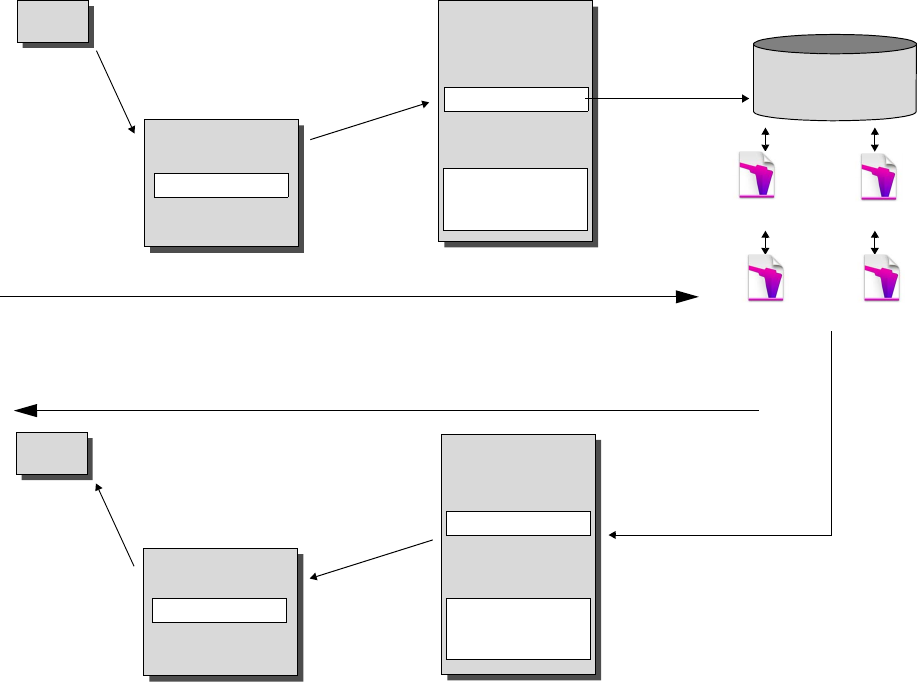
How the Web Publishing Engine generates XML data from a request
After a request for XML data is sent to the web server, the Web Publishing Engine queries the
FileMaker database and returns the data as an XML document.
Web
Browser
Web Server
Web Server Module
FileMaker Server Web
Publishing Engine
Web Publishing Core
Custom Web
Publishing Engine
(CWPE)
FileMaker
Database Server
FileMaker Server Web
Publishing Engine
Web Publishing Core
Web Server
Web Server Module
Customers.fmp12
Request for XML data is routed from web browser or program to FileMaker Database Server
Products.fmp12
Catalog.fmp12
1. HTTP or
HTTPS request
for XML data is
sent from web
browser or
program to web
server.
2. Web server routes
request to Web
Publishing Core.
3. Web Publishing
Core requests data
from database hosted
by FileMaker
Database Server.
XML data is routed back from FileMaker Database Server to web browser or program
6. Web server
sends output to
web browser or
program.
5. Web Publishing Core
converts data to XML and
sends it to web server.
4. FileMaker Database
Server sends requested
data to Web Publishing
Core.
Orders.fmp12
Web
Browser
Custom Web
Publishing Engine
(CWPE)
Chapter 4 | Accessing XML data with the Web Publishing Engine 23
General process for accessing XML data from the Web Publishing Engine
Here is an overview of the process for using the Web Publishing Engine to access XML data in a
FileMaker database:
1. In the FileMaker Server Admin Console, make sure XML Publishing is enabled. See
FileMaker Server Help.
2. In FileMaker Pro, open each FileMaker database that you’re publishing and make sure the
database has the fmxml extended privilege enabled for XML Custom Web Publishing. See
“Enabling Custom Web Publishing in a database” on page 13.
To access XML data in a portal, set the view for the database layout to View as Form or View
as List. If a user or script changes the view of the database layout to View as Table, only the
first related record (first row of the portal) is accessible as XML data.
The XML data is output in an order that corresponds to the order in which field objects were
added to the layout. If you want the XML data order to match the order in which fields appear
on the screen (top-to-bottom, left-to-right order), then select all fields, group them, and then
ungroup them. This procedure resets the layout order to match the screen order.
3. Send an HTTP or HTTPS request in the form of a URL that specifies the FileMaker XML
grammar, one query command, and one or more FileMaker query parameters to the Web
Publishing Engine through an HTML form, an HREF link, or a script in your program or web
page. You can also type the URL in a web browser.
For information on specifying the URL, see the next section, “About the URL syntax for XML
data and container objects.” For information on query commands and parameters, see “Using
FileMaker query strings to request XML data” on page 35, and appendix A, “Valid names used
in query strings.”
4. The Web Publishing Engine uses the grammar you specified in the URL to generate XML data
containing the results of your request, such as a set of records from the database, and returns
it to your program or web browser.
5. The web browser, if it has an XML parser, displays the data, or the program uses the data in
the way you specified.
About the URL syntax for XML data and container objects
This section describes the URL syntax for using the Web Publishing Engine to access XML data
and container objects from FileMaker databases.
About the URL syntax for XML data
The URL syntax for using the Web Publishing Engine to access XML data from FileMaker
databases is:
<scheme>://<host>[:<port>]/fmi/xml/<xml_grammar>.xml[?<query string>]
where:
1<scheme> can be the HTTP or HTTPS protocol.
1<host> is the IP address or domain name of the host where the web server is installed.
1<port> is optional and specifies the port that the web server is using. If no port is specified,
then the default port for the protocol is used (port 80 for HTTP, or port 443 for HTTPS).
Chapter 4 | Accessing XML data with the Web Publishing Engine 24
1<xml_grammar> is the name of the FileMaker XML grammar. Possible values are
fmresultset, FMPXMLRESULT, or FMPXMLLAYOUT. See “Using the fmresultset grammar” on
page 27 and “Using other FileMaker XML grammars” on page 30.
1<query string> is a combination of one query command and one or more query parameters
for FileMaker XML publishing. (The –dbnames command doesn’t require any parameters.) See
“Using FileMaker query strings to request XML data” on page 35, and appendix A, “Valid
names used in query strings.”
Note The URL syntax, including the names of the query command and parameters, is case
sensitive except for portions of the query string. The majority of the URL is in lowercase, with the
exception of the two uppercase grammar names: FMPXMLRESULT and FMPXMLLAYOUT. For
information on the rules for case sensitivity of the query string, see “Guidelines for using query
commands and parameters” on page 44.
Here are two examples of URLs for accessing XML data via the Web Publishing Engine:
http://server.company.com/fmi/xml/fmresultset.xml?-db=products&-lay=sales
&-findall
http://192.168.123.101/fmi/xml/FMPXMLRESULT.xml?-db=products&-lay=sales
&-findall
About the URL syntax for FileMaker container objects in XML solutions
In a generated XML document for an XML solution, the syntax used to refer to a container object
is different for container fields that store the actual object in the database, as opposed to container
fields that store a reference to the object.
If a container field stores the actual object in the database
The container field’s <data> element uses the following relative URL syntax to refer to the object:
<data>/fmi/xml/cnt/data.<extension>?<query string></data>
where <extension> is the filename extension identifying the type of object, such as .jpg. The
filename extension sets the MIME type to allow the web browser to properly identify the container
data. For information on <query string>, see the previous section, “About the URL syntax for
XML data.”
For example:
<data>/fmi/xml/cnt/data.jpg?-db=products&-lay=sales&-field=product_image(1)
&-recid=2</data>
Note In the generated XML for a container field, the value for the –field query parameter is a
fully qualified field name. The number in the parentheses indicates the repetition number for the
container field, and is generated for both repeating and non-repeating fields. See “About the
syntax for a fully qualified field name” on page 46.
To retrieve the container data from the database, use the following syntax:
<scheme>://<host>[:<port>]/fmi/xml/cnt/data.<extension>?<query string>
For information about <scheme>, <host>, or <port>, see the previous section, “About the URL
syntax for XML data.”
Chapter 4 | Accessing XML data with the Web Publishing Engine 25
For example:
http://www.company.com/fmi/xml/cnt/data.jpg?-db=products&-lay=sales
&-field=product_image(1)&-recid=2
If a container field stores a file reference instead of an actual object
The container field’s <data> element contains a relative path that refers to the object. For
example:
<data>/images/logo.jpg</data>
Note The referenced container object must be stored in the FileMaker Pro Web folder when the
record is created or edited, and then copied or moved to a folder with the same relative location
in the root folder of the web server software. See “About publishing the contents of container fields
on the web” on page 15.
If a container field is empty
The container field’s <data> element is empty.
About URL text encoding
The URLs for accessing XML data and container objects must be encoded in UTF-8 (Unicode
Transformation 8 Bit) format. See “About UTF-8 encoded data” on page 35.
For example, to set the value of the “info” field to fiancée, you could use the following URL:
http://server.company.com/fmi/xml/fmresultset.xml?-db=members
&-lay=relationships&-recid=2&info= fianc%C3%A9e&-edit
In this example URL, %C3%A9 is the URL encoded UTF-8 representation of the é character.
For more information on URL text encoding, see the URL specification, which is available at
http://www.w3.org.
Accessing XML data via the Web Publishing Engine
To access XML data via the Web Publishing Engine, you use a URL that specifies the name of the
FileMaker grammar to use, one FileMaker query command, and one or more FileMaker query
parameters. The Web Publishing Engine generates XML data from your database that is
formatted by one of the following types of XML grammars:
1fmresultset: This is the recommended grammar for the Web Publishing Engine for accessing
XML data. It is flexible and is optimized for easier field access by name and for easier
manipulation of relatedset (portal) data. This grammar is also more directly linked to
FileMaker terminology and features such as global storage options and identification of
summary and calculation fields. To facilitate web publishing, this grammar is designed to be
more verbose than the FMPXMLRESULT grammar. See “Using the fmresultset grammar” on
page 27.
1FMPXMLRESULT and FMPXMLLAYOUT: You can also use the FMPXMLRESULT and
FMPXMLLAYOUT grammars with the Web Publishing Engine for accessing XML data. To use
one stylesheet for both XML export and Custom Web Publishing, you must use the
FMPXMLRESULT grammar. To access value lists and field display information in layouts, you
must use the FMPXMLLAYOUT grammar. See “Using other FileMaker XML grammars” on
page 30.

Chapter 4 | Accessing XML data with the Web Publishing Engine 26
Depending on the grammar you specify in the URL request, the Web Publishing Engine will
generate an XML document using one of the grammars. Each XML document contains a default
XML namespace declaration for the grammar. See the next section, “About namespaces for
FileMaker XML.” Use one of these grammars in your document or web page to display and work
with FileMaker data in XML format.
Note XML data generated by the Web Publishing Engine is encoded using UTF-8 format
(Unicode Transformation Format 8). See “About UTF-8 encoded data” on page 35.
About namespaces for FileMaker XML
Unique XML namespaces help distinguish XML tags by the application they were designed for.
For example, if your XML document contains two <DATABASE> elements, one for FileMaker XML
data and another for Oracle XML data, the namespaces will identify the <DATABASE> element for
each.
The Web Publishing Engine generates a default namespace for each grammar.
About FileMaker database error codes
The Web Publishing Engine returns an error code in the error code elements at the beginning of
each XML document that represents the error, if any, in the execution of the most recently
executed query command. A value of zero (0) is returned for no error.
The error code element in the XML document indicates errors related to the database and query
strings. See appendix B, “Error codes for Custom Web Publishing.”
Retrieving the document type definitions for the FileMaker grammars
You can retrieve the document type definitions (DTDs) for the FileMaker grammars by using an
HTTP request.
For this grammar This default namespace is generated
fmresultset xmlns="http://www.filemaker.com/xml/fmresultset"
FMPXMLRESULT xmlns="http://www.filemaker.com/fmpxmlresult"
FMPXMLLAYOUT xmlns="http://www.filemaker.com/fmpxmllayout"
For this grammar This syntax is used
fmresultset <error code="0"></error>
FMPXMLRESULT <ERRORCODE>0</ERRORCODE>
FMPXMLLAYOUT <ERRORCODE>0</ERRORCODE>
For this grammar Use this HTTP request
fmresultset http://<host>[:<port]/fmi/xml/fmresultset.dtd
FMPXMLRESULT http://<host>[:<port]/fmi/xml/FMPXMLRESULT.dtd
FMPXMLLAYOUT http://<host>[:<port]/fmi/xml/FMPXMLLAYOUT.dtd
Chapter 4 | Accessing XML data with the Web Publishing Engine 27
Using the fmresultset grammar
The XML element names in this grammar use FileMaker terminology, and the storage of fields is
separated from the type of fields. The grammar also includes the ability to identify summary,
calculation, and global fields.
To use the fmresultset grammar, specify the following name of the fmresultset grammar in
the URL requesting the XML document from the Web Publishing Engine:
fmresultset.xml
For example:
http://192.168.123.101/fmi/xml/fmresultset.xml?-db=employees&-lay=family
&-findall
Note When specifying the fmresultset grammar, be sure to use lowercase.
The Web Publishing Engine will generate an XML document using the fmresultset grammar.
In the XML document, the Web Publishing Engine will reference the document type definition for
the fmresultset grammar in the <!DOCTYPE> instruction in the second line of the document,
immediately after the <?xml...?> instruction. The <!DOCTYPE> instruction specifies the URL for
downloading the DTD for the fmresultset grammar.
Description of elements in the fmresultset grammar
The fmresultset grammar consists primarily of the <datasource> element, the <metadata>
element, and the <resultset> element.
<datasource> element
In the fmresultset grammar, the <datasource> element contains the table, layout, date-
format, time-format, timestamp-format, total-count, and database attributes.
1The date-format attribute of the <datasource> element specifies the format of dates in the
XML document:
MM/dd/yyyy
where:
1MM is the 2-digit value for the month (01 through 12, where 01 is January and 12 is December)
1dd is the 2-digit value for the day of the month (01 through 31)
1yyyy is the 4-digit value for the year
1The time-format attribute of the <datasource> element specifies the format of times in the
XML document:
HH:mm:ss
where:
1HH is the 2-digit value for hours (00 through 23, for the 24-hour format)
1mm is the 2-digit value for minutes (00 through 59)
1ss is the 2-digit value for seconds (00 through 59)
1The timestamp-format attribute of the <datasource> element combines the formats of date-
format and time-format into one timestamp:
MM/dd/yyyy HH:mm:ss
Chapter 4 | Accessing XML data with the Web Publishing Engine 28
<metadata> element
The <metadata> element of the fmresultset grammar contains one or more <field-
definition> and <relatedset-definition> elements, each containing attributes for one
of the fields of the result set.
The <field-definition> attributes specify:
1whether the field is an auto-enter field (“yes” or “no”)
1whether the field is a four-digit-year field (“yes” or “no)
1whether it is a global field (“yes” or “no”)
1the maximum number of repeating values (max-repeat attribute)
1the maximum number of characters allowed (max-characters attribute)
1whether it is a not-empty field (“yes” or “no”)
1whether it is for numeric data only (“yes” or “no”)
1result (“text”, “number”, “date”, “time”, “timestamp”, or “container”)
1whether it is a time-of-day field (“yes” or “no”)
1type (“normal”, “calculation”, or “summary”)
1and the field name (fully qualified as necessary)
The <relatedset-definition> element represents a portal. Each related field in a portal is
represented by the <field-definition> element contained within the
<relatedset-definition> element. If there are multiple related fields in a portal, the field
definitions for the related fields are grouped within a single <relatedset-definition>
element.
<resultset> element
The <resultset> element contains the <record> elements returned as the result of a query
and an attribute for the total number of records found. Each <record> element contains the field
data for one record in the result set—including the mod-id and the record-id attributes for the
record, and the <data> element containing the data for one field in the record.
Each record in a portal is represented by a <record> element within the <relatedset>
element. The count attribute of the <relatedset> element specifies the number of records in
the portal, and the table attribute specifies the table associated with the portal.
Chapter 4 | Accessing XML data with the Web Publishing Engine 29
Example of XML data in the fmresultset grammar
The following is an example of XML data generated with the fmresultset grammar.
<?xml version="1.0" encoding="UTF-8" standalone="no"?>
<!DOCTYPE fmresultset PUBLIC "-//FMI//DTD fmresultset//EN"
""http://localhost:80/fmi/xml/fmresultset.dtd">
<fmresultset xmlns="http://www.filemaker.com/xml/fmresultset" version="1.0">
<error code="0" />
<product build="12/31/2014" name="FileMaker Web Publishing Engine"
version="0.0.0.0" />
<datasource database="art" date-format="MM/dd/yyyy" layout="web3" table="art"
time-format="HH:mm:ss" timestamp-format="MM/dd/yyyy HH:mm:ss" total-count="12"
/>
<metadata>
<field-definition auto-enter="no" four-digit-year="no" global="no" max-
repeat="1" name="Title" not-empty="no" numeric-only="no" result="text" time-of-
day="no" type="normal" />
<field-definition auto-enter="no" four-digit-year="no" global="no" max-
repeat="1" name="Artist" not-empty="no" numeric-only="no" result="text" time-
of-day="no" type="normal" />
<relatedset-definition table="artlocations">
<field-definition auto-enter="no" four-digit-year="no" global="no" max-
repeat="1" name="artlocations::Location" not-empty="no" numeric-only="no"
result="text" time-of-day="no" type="normal" />
<field-definition auto-enter="no" four-digit-year="no" global="no" max-
repeat="1" name="artlocations::Date" not-empty="no" numeric-only="no"
result="date" time-of-day="no" type="normal" />
</relatedset-definition>
<field-definition auto-enter="no" four-digit-year="no" global="no" max-
repeat="1" name="Style" not-empty="no" numeric-only="no" result="text" time-of-
day="no" type="normal" />
<field-definition auto-enter="no" four-digit-year="no" global="no" max-
repeat="1" name="length" not-empty="no" numeric-only="no" result="number" time-
of-day="no" type="calculation" />
</metadata>
<resultset count="1" fetch-size="1">
<record mod-id="6" record-id="14">
<field name="Title">
<data>Spring in Giverny 3</data>
</field>
<field name="Artist">
<data>Claude Monet</data>
</field>
<relatedset count="0" table="artlocations" />
<field name="Style">
<data />
</field>
<field name="length">
<data>19</data>
Chapter 4 | Accessing XML data with the Web Publishing Engine 30
</field>
</record>
</resultset>
</fmresultset>
Using other FileMaker XML grammars
The other FileMaker XML grammars contain information about field types, value lists, and layouts.
FMPXMLRESULT is functionally equivalent to fmresultset. To access value lists and field display
information in layouts, you must use the FMPXMLLAYOUT grammar. The FMPXMLRESULT and
FMPXMLLAYOUT grammars are more compact for data interchange.
To use the FMPXMLRESULT grammar, specify the following grammar name in the URL requesting
the XML document from the Web Publishing Engine:
FMPXMLRESULT.xml
For example:
http://192.168.123.101/fmi/xml/FMPXMLRESULT.xml?-db=employees&-lay=family
&-findall
To use the FMPXMLLAYOUT grammar, specify the following grammar name with the –view query
command in the URL requesting the XML document from the Web Publishing Engine:
FMPXMLLAYOUT.xml
For example:
http://192.168.123.101/fmi/xml/FMPXMLLAYOUT.xml?-db=employees&-lay=family
&-view
Note When specifying the FMPXMLRESULT and FMPXMLLAYOUT grammars, be sure to enter the
grammar name in uppercase.
In the generated XML document, the Web Publishing Engine will reference the document type
definition for the grammar in the <!DOCTYPE> instruction in the second line of the document,
immediately after the <?xml...?> instruction. The <!DOCTYPE> instruction specifies the URL for
downloading the DTD for the grammar.
Description of elements in the FMPXMLRESULT grammar
In the FMPXMLRESULT grammar, the <DATABASE> element contains the NAME, RECORDS,
DATEFORMAT, LAYOUT, and TIMEFORMAT attributes.
The DATEFORMAT attribute of the <DATABASE> element specifies the format of dates in the XML
document. The TIMEFORMAT attribute of the <DATABASE> element specifies the format of times
in the XML document. The date and time formats for the FMPXMLRESULT and the fmresultset
grammars are the same. See “Description of elements in the fmresultset grammar” on page 27.
The <METADATA> element of the FMPXMLRESULT grammar contains one or more <FIELD>
elements, each containing information for one of the fields/columns of the result set—including the
name of the field as defined in the database, the field type, the Yes or No allowance for empty
fields (EMPTYOK attribute) and the maximum number of repeating values (MAXREPEAT
attribute). Valid values for field types are TEXT, NUMBER, DATE, TIME, TIMESTAMP, and
CONTAINER.
Chapter 4 | Accessing XML data with the Web Publishing Engine 31
The <RESULTSET> element contains all of the <ROW> elements returned as the result of a query
and an attribute for the total number of records found. Each <ROW> element contains the
field/column data for one row in the result set. This data includes the RECORDID and MODID for
the row (see “–modid (Modification ID) query parameter” on page 56), and the <COL> element.
The <COL> element contains the data for one field/column in the row where multiple <DATA>
elements represent one of the values in a repeating or portal field.
Example of XML data in the FMPXMLRESULT grammar
The following is an example of XML data generated with the FMPXMLRESULT grammar.
<?xml version="1.0" encoding="UTF-8" standalone="no"?>
<!DOCTYPE FMPXMLRESULT PUBLIC "-//FMI//DTD FMPXMLRESULT//EN"
""http://localhost:80/fmi/xml/FMPXMLRESULT.dtd">
<FMPXMLRESULT xmlns="http://www.filemaker.com/fmpxmlresult">
<ERRORCODE>0</ERRORCODE>
<PRODUCT BUILD="12/31/2014" NAME="FileMaker Web Publishing Engine"
VERSION="0.0.0.0" />
<DATABASE DATEFORMAT="MM/dd/yyyy" LAYOUT="web" NAME="art" RECORDS="12"
TIMEFORMAT="HH:mm:ss" />
<METADATA>
<FIELD EMPTYOK="YES" MAXREPEAT="1" NAME="Title" TYPE="TEXT" />
<FIELD EMPTYOK="YES" MAXREPEAT="1" NAME="Artist" TYPE="TEXT" />
<FIELD EMPTYOK="YES" MAXREPEAT="1" NAME="Image" TYPE="CONTAINER" />
</METADATA>
<RESULTSET FOUND="1">
<ROW MODID="6" RECORDID="15">
<COL>
<DATA>Spring in Giverny 4</DATA>
</COL>
<COL>
<DATA>Claude Monet</DATA>
</COL>
<COL>
<DATA>/fmi/xml/cnt/data.jpg?-db=art&-lay=web&-recid=15&-
field=Image(1)</DATA>
</COL>
</ROW>
</RESULTSET>
</FMPXMLRESULT>
The order of the <COL> elements corresponds with the order of the <FIELD> elements in the
<METADATA> element—for example, where the “Title” and “Artist” fields are listed in the
<METADATA> element, “Village Market” and then “Camille Pissarro” are listed in the same order
in the <RESULTSET> and <ROW> elements.
Chapter 4 | Accessing XML data with the Web Publishing Engine 32
Description of elements in the FMPXMLLAYOUT grammar
In the FMPXMLLAYOUT grammar, the <LAYOUT> element contains the name of the layout, the
name of the database, and <FIELD> elements for each field found in the corresponding layout in
the database. Each <FIELD> element describes the style type of the field, and contains the
VALUELIST attribute for any associated value list of the field.
The <VALUELISTS> element contains one or more <VALUELIST> elements for each value list
found in the layout—each including the name of the value list and a <VALUE> element for each
value in the list.
Depending on the options selected in the Specify Fields for Value List dialog box in the
FileMaker database, the <VALUE> element contains a DISPLAY attribute that contains the value
in the first field only, the second field only, or both fields of a value list. For example, suppose the
first field in a value list stores the art style’s ID number (such as “100”), and the second field
displays the art style’s associated name (such as “Impressionism”). Here is a summary of the
contents of the DISPLAY attribute when the various combinations of options are selected in the
Specify Fields for Value List dialog box:
1If Also display values from second field is not selected, the DISPLAY attribute contains the
value in the first field of a value list only. In the following XML data example, the DISPLAY
attribute contains the art style’s ID number only:
<VALUELISTS>
<VALUELIST NAME="style">
<VALUE DISPLAY="100">100</VALUE>
<VALUE DISPLAY="101">101</VALUE>
<VALUE DISPLAY="102">102</VALUE>
</VALUELIST>
</VALUELISTS>
1If Also display values from second field and Show values only from second field are both
selected, the DISPLAY attribute contains the value in the second field only. In the following XML
data example, the DISPLAY attribute contains the art style’s name only:
<VALUELISTS>
<VALUELIST NAME="style">
<VALUE DISPLAY="Impressionism">100</VALUE>
<VALUE DISPLAY="Cubism">101</VALUE>
<VALUE DISPLAY="Abstract">102</VALUE>
</VALUELIST>
</VALUELISTS>
Chapter 4 | Accessing XML data with the Web Publishing Engine 33
1If Also display values from second field is selected and Show values only from second
field is not selected, the DISPLAY attribute contains the values in both fields of a value list. In
the following XML data example, the DISPLAY attribute contains both the art style’s ID number
and the art style’s name:
<VALUELISTS>
<VALUELIST NAME="style">
<VALUE DISPLAY="100 Impressionism">100</VALUE>
<VALUE DISPLAY="101 Cubism">101</VALUE>
<VALUE DISPLAY="102 Abstract">102</VALUE>
</VALUELIST>
</VALUELISTS>
For date, time, and timestamp fields, data for value lists are formatted using the “fm” format for
that field type. The “fm” formats are MM/dd/yyyy for date, HH:mm:ss for time, and MM/dd/yyyy
HH:mm:ss for timestamp. For example, if a “birthdays” value list is used for a pop-up menu on a
“birthdate” field of a layout, and the “birthdate” field is of type date, then the values output for that
value list will all be in the “fm” date format.
Note If two fields with different field types on a layout share the same value list, the first field’s
type determines the format of the value list data.
Chapter 4 | Accessing XML data with the Web Publishing Engine 34
Example of XML data in the FMPXMLLAYOUT grammar
The following is an example of XML data generated with the FMPXMLLAYOUT grammar.
<?xml version="1.0" encoding="UTF-8" standalone="no"?>
<!DOCTYPE FMPXMLLAYOUT PUBLIC "-//FMI//DTD FMPXMLLAYOUT//EN"
""http://localhost:80/fmi/xml/FMPXMLLAYOUT.dtd">
<FMPXMLLAYOUT xmlns="http://www.filemaker.com/fmpxmllayout">
<ERRORCODE>0</ERRORCODE>
<PRODUCT BUILD="12/31/2014" NAME="FileMaker Web Publishing Engine"
VERSION="0.0.0.0" />
<LAYOUT DATABASE="art" NAME="web2">
<FIELD NAME="Title">
<STYLE TYPE="EDITTEXT" VALUELIST="" />
</FIELD>
<FIELD NAME="Artist">
<STYLE TYPE="EDITTEXT" VALUELIST="" />
</FIELD>
<FIELD NAME="Image">
<STYLE TYPE="EDITTEXT" VALUELIST="" />
</FIELD>
<FIELD NAME="artlocations::Location">
<STYLE TYPE="EDITTEXT" VALUELIST="" />
</FIELD>
<FIELD NAME="artlocations::Date">
<STYLE TYPE="EDITTEXT" VALUELIST="" />
</FIELD>
<FIELD NAME="Style">
<STYLE TYPE="POPUPMENU" VALUELIST="style" />
</FIELD>
</LAYOUT>
<VALUELISTS>
<VALUELIST NAME="style">
<VALUE DISPLAY="Impressionism">100</VALUE>
<VALUE DISPLAY="Cubism">101</VALUE>
<VALUE DISPLAY="Abstract">102</VALUE>
</VALUELIST>
</VALUELISTS>
</FMPXMLLAYOUT>

Chapter 4 | Accessing XML data with the Web Publishing Engine 35
About UTF-8 encoded data
All XML data generated by the Web Publishing Engine is encoded in UTF-8 (Unicode
Transformation 8 Bit) format. This format compresses data from the standard Unicode format of
16 bits to 8 bits for ASCII characters. XML parsers are required to support Unicode and UTF-8
encoding.
UTF-8 encoding includes direct representations of the values of 0-127 for the standard ASCII set
of characters used in English, and provides multibyte encodings for Unicode characters with
higher values.
Note Be sure to use a web browser or text editor program that supports UTF-8 files.
The UTF-8 encoding format includes the following features:
1All ASCII characters are one-byte UTF-8 characters. A legal ASCII string is a legal UTF-8 string.
1Any non-ASCII character (any character with the high-order bit set) is part of a multibyte
character.
1The first byte of any UTF-8 character indicates the number of additional bytes in the character.
1The first byte of a multibyte character is easily distinguished from the subsequent byte, which
makes it is easy to locate the start of a character from an arbitrary position in a data stream.
1It is easy to convert between UTF-8 and Unicode.
1The UTF-8 encoding is relatively compact. For text with a large percentage of ASCII characters,
it is more compact than Unicode. In the worst case, a UTF-8 string is only 50% larger than the
corresponding Unicode string.
Using FileMaker query strings to request XML data
To request XML data from a FileMaker database, you use the FileMaker query commands and
parameters in a query string. For example, you can use the –findall query command in the
following query string in a URL to request a list of all products in a FileMaker database named
“products”:
http://192.168.123.101/fmi/xml/fmresultset.xml?-db=products-lay=sales&-findall
A query string must contain only one query command, such as –new. Most query commands also
require various matching query parameters in the query string. For example, all query commands
except –dbnames require the –db parameter that specifies the database to query.
You can also use query commands and parameters in a URL.
This section contains a summary of the FileMaker query commands and parameters. For more
information about using them in a query string, see “Valid names used in query strings” on
page 44.
Use this query command name To execute this command
–dbnames Retrieve names of all hosted and web-shared databases.
–delete Delete record.
–dup Duplicate record.
–edit Edit record.
–find Find record(s).
–findall Find all records.

Chapter 4 | Accessing XML data with the Web Publishing Engine 36
–findany Find a random record.
–findquery Perform complex or compound find request.
–layoutnames Retrieve names of all available layouts for a hosted and web-shared database.
–new Add new record.
–scriptnames Retrieve names of all available scripts for a hosted and web-shared database.
–view Retrieves layout information from a database if the FMPXMLLAYOUT grammar is
specified. Retrieves <metadata> section of XML document and an empty recordset
if the fmresultset or FMPXMLRESULT grammar is specified.
Use these query parameter names With these query commands
–db (database name) Required with all query commands except –dbnames
–delete.related Optional with –edit
–field Required to specify a field in a URL for container requests. See “About the URL
syntax for FileMaker container objects in XML solutions” on page 24.
fieldname At least one field name is required with –edit. Optional with –find. See “fieldname
(Non-container field name) query parameter” on page 53.
fieldname.op (operator) Optional with –find
–lay (layout name) Required with all query commands, except –dbnames, –layoutnames, and
–scriptnames
–lay.response (switch layout for XML
response)
Optional with all query commands, except –dbnames, –layoutnames, and
–scriptnames
–lop (logical operator) Optional with –find
–max (maximum records) Optional with –find, –findall, and –findquery
–modid (modification ID) Optional with –edit
–query Required with -findquery compound find requests
–recid (record ID) Required with –edit, –delete, –dup. Optional with –find
–relatedsets.filter Optional with –find, –findall, –findany, –edit, –new, –dup, and
–findquery
–relatedsets.max Optional with –find, –edit, –new, –dup, and –findquery
–script (perform script) Optional with –find, –findall, –findany, –new, –edit, –delete, –dup,
–view, and –findquery
–script.param (pass a parameter value
to the script specified by –script)
Optional with –script and –findquery
–script.prefind (perform script before
–find, –findany, and –findall)
Optional with –find, –findany, –findall, and –findquery
–script.prefind.param (pass a
parameter value to the script specified by
–script.prefind)
Optional with –script.prefind and –findquery
–script.presort (perform script before
sort)
Optional with –find, –findall, and –findquery
–script.presort.param (pass a
parameter value to the script specified by
–script.presort)
Optional with –script.presort and –findquery
–skip (skip records) Optional with –find, –findall, and –findquery
Use this query command name To execute this command

Chapter 4 | Accessing XML data with the Web Publishing Engine 37
Switching layouts for an XML response
The –lay query parameter specifies the layout you want to use when requesting XML data. Often,
the same layout is appropriate for processing the data that results from the request. In some
cases, you might want to search for data using a layout which contains fields that, for security
reasons, don’t exist in another layout you want to use for displaying the results. (To do a search
for data in a field, the field must be placed on the layout you specify in the XML request.)
To specify a different layout for displaying an XML response than the layout used for processing
the XML request, you can use the optional –lay.response query parameter.
For example, the following request searches for values greater than 100,000 in the “Salary” field
on the “Budget” layout. The resulting data is displayed using the “ExecList” layout, which does not
include the “Salary” field.
http://192.168.123.101/fmi/xml/fmresultset.xml?-db=employees
&-lay=Budget&Salary=100000&Salary.op=gt&-find&-lay.response=ExecList
Understanding how an XML request is processed
There are several query parameters that affect the processing of an XML request and the
generation of an XML document.
Here is the order in which FileMaker Server and the Web Publishing Engine process an XML
request:
1. Process the –lay query parameter.
2. Set the global field values specified in the query (the “.global=” portion of a URL).
3. Process the –script.prefind query parameter, if specified.
4. Process the query commands, such as –find or –new.
5. Process the –script.presort query parameter, if specified.
6. Sort the resulting data, if a sort was specified.
7. Process the –script query parameter, if specified.
8. Process the –lay.response query parameter to switch to a different layout, if this is specified.
9. Generate the XML document.
If one of the above steps generates an error code, the request processing stops; any steps that
follow are not executed. However, any prior steps in the request are still executed.
For example, consider a request that deletes the current record, sorts the records, and then
executes a script. If the –sortfield parameter specifies a non-existent field, the request deletes
the current record and returns error code 102 (“Field is missing”), but does not execute the script.
–sortfield.[1-9] (sort field) Optional with –find, –findall, and –findquery
–sortorder.[1-9] (sort order) Optional with –find, –findall
Use these query parameter names With these query commands
Chapter 4 | Accessing XML data with the Web Publishing Engine 38
Troubleshooting XML document access
If you have trouble accessing XML documents with the Web Publishing Engine, verify that:
1The extended privileges in the database are set for XML Custom Web Publishing and assigned
to a user account. See “Enabling Custom Web Publishing in a database” on page 13.
1The database is hosted on the Database Server component of the FileMaker Server
deployment, and is opened by FileMaker Server. See FileMaker Server Help.
1The database account name and password you are using, if any, are correct.
1The web server component of the FileMaker Server deployment is running.
1The Web Publishing Engine component of the FileMaker server deployment is running.
1XML Publishing is enabled in the Web Publishing Engine component. See FileMaker Server
Help.
Chapter 5
Staging, testing, and monitoring a site
This chapter provides instructions for staging and testing a Custom Web Publishing site before
deploying it in a production environment. Instructions are also provided for using log files to
monitor the site during testing or after deployment.
Staging a Custom Web Publishing site
Before you can properly test your site, you must copy or move the required files to the correct
locations on the staging server(s).
To stage your site and prepare it for testing:
1. Complete all of the steps outlined in chapter 3, “Preparing databases for Custom Web
Publishing.”
2. Check that XML has been enabled and properly configured in the FileMaker Server Admin
Console.
Note For instructions, see FileMaker Server Help.
3. Verify that the web server and the Web Publishing Engine are running.
4. Copy or move any referenced container objects to the web server machine.
1If the database file is properly hosted and accessible on the Database Server component of
the FileMaker Server deployment, and the container fields store the actual files in the
FileMaker database, then you don’t need to relocate the container field contents.
1If a database container field stores a file reference instead of an actual file, then the
referenced container object must be stored in the FileMaker Pro Web folder when the record
is created or edited. To stage your site, you must copy or move the referenced containers to
a folder with the same relative location in the root folder of the web server software.
1When you use FileMaker Pro to upload a database with container fields that store objects
externally, the externally stored container field data is uploaded to FileMaker Server as part of
the process. See FileMaker Pro Help for information on transferring the database files to
FileMaker Server.
1When you manually upload a database that uses a container field with externally stored
objects, then you must copy or move the referenced objects into a subfolder of the
RC_Data_FMS folder, as described in “Container fields with externally stored data” on
page 17.
5. Copy any additional components of your web application to the web server machine. Your web
application processes the XML data before sending it to another application or to the client.
Chapter 5 | Staging, testing, and monitoring a site 40
Testing a Custom Web Publishing site
Before notifying users that your Custom Web Publishing site is available, verify that it looks and
functions as you expect.
1Test features like finding, adding, deleting, and sorting records with different accounts and
privilege sets.
1Verify that privilege sets are performing as expected by logging in with different accounts. Make
sure unauthorized users can’t access or modify your data.
1Check all scripts to verify that the outcome is expected. See “FileMaker scripts and Custom
Web Publishing” on page 18 for information on designing web-friendly scripts.
1Test your site with different operating systems and web browsers.
Note If you don’t have a network connection and you have installed FileMaker Server using a
single machine deployment—with the web server, Web Publishing Engine, and Database Server
on one computer—then you can test your Custom Web Publishing site by using http://127.0.0.1/
in the URL. For information on the URL syntax, see “About the URL syntax for XML data and
container objects” on page 23.
Examples of stylesheets for testing XML output
Here are two examples of XSLT stylesheets that are useful for testing XML output.
1The following stylesheet example outputs the requested XML data without doing any
transformation. This stylesheet is useful for displaying the actual XML data that the Web
Publishing Engine is using.
<?xml version="1.0" encoding="UTF-8"?>
<xsl:stylesheet version="1.0"
xmlns:xsl="http://www.w3.org/1999/XSL/Transform"
xmlns:fmrs="http://www.filemaker.com/xml/fmresultset">
<xsl:output method="xml"/>
<xsl:template match="/">
<xsl:copy-of select="."/>
</xsl:template>
</xsl:stylesheet>
1When debugging a stylesheet, you can use the following example of an HTML <textarea> tag
to display the XML source document that was accessed via the stylesheet in a scrolling text
area.
<?xml version="1.0" encoding="UTF-8"?>
<xsl:stylesheet version="1.0"
xmlns:xsl="http://www.w3.org/1999/XSL/Transform"
xmlns:fmrs="http://www.filemaker.com/xml/fmresultset">
<xsl:output method="html"/>
<html>
<body>
<xsl:template match="/fmrs:fmresultset">
<textarea rows="20" cols="100">
Chapter 5 | Staging, testing, and monitoring a site 41
<xsl:copy-of select="."/>
</textarea><br/>
</xsl:template>
</body>
</html>
</xsl:stylesheet>
Monitoring your site
You can use the following types of log files to monitor your Custom Web Publishing site and gather
information about web users who visit your site:
1Web server access and error logs
1Web Publishing Engine log
1Web Server Module error log
1Tomcat logs
Using the web server access and error logs
IIS (Windows): The Microsoft IIS web server generates an access log file and displays errors in
the Windows Event Viewer instead of writing them to a log file. The access log file, which is in the
W3C Extended Log File Format by default, is a record of all incoming HTTP requests to the web
server. You can also use the W3C Common Logfile Format for the access log. For more
information, see the documentation for the Microsoft IIS web server.
Apache (OS X): The Apache web server generates an access log file and an error log file. The
Apache access log file, which is in the W3C Common Logfile Format by default, is a record of all
incoming HTTP requests to the web server. The Apache error log is a record of problems involving
processing HTTP requests. For more information on these log files, see the documentation for the
Apache web server.
For information on the W3C Common Logfile Format and the W3C Extended Log File Format, see
the World Wide Web Consortium website at http://www.w3.org.
Using the Web Publishing Engine log
By default, the Web Publishing Engine generates a log file called wpe.log that contains a record
of any Web Publishing Engine errors that have occurred, including application errors, usage
errors, and system errors. You can also have the Web Publishing Engine include information
related to Custom Web Publishing, such as end-user XML requests to generate web publishing
output or changes to the Custom Web Publishing settings.
The wpe.log file is located on the Web Publishing Engine component of the FileMaker Server
deployment:
1IIS (Windows): [drive]:\Program Files\FileMaker\FileMaker
Server\HTTPServer\logs\wpe.log
where [drive] is the primary drive from which the system is started.
1Apache (OS X): /Library/FileMaker Server/HTTPServer/Logs/wpe.log

Chapter 5 | Staging, testing, and monitoring a site 42
Web Publishing Engine log settings
The wpe.log file is generated if the Enable logging for Web Publishing option is enabled in the
Admin Console.
The Error level messages setting is enabled by default. For information on setting these options
using the Admin Console, see FileMaker Server Help.
Important Over time, the wpe.log file may become very large. Use the Admin Console to set the
maximum size for the wpe.log file. When the wpe.log file reaches this maximum size, the Web
Publishing Engine copies the wpe.log file to a single backup file, wpe.log.1, and creates a new
wpe.log file. You may wish to save an archive of the wpe.log.1 file on a regular basis, if you want
more than one backup copy.
Web Publishing Engine log format
The wpe.log file uses the following format for each entry:
[TIMESTAMP_GMT] [WPC_HOSTNAME] [CLIENT_IP:PORT] [ACCOUNT_NAME] [MODULE_TYPE]
[SEVERITY] [FM_ERRORCODE] [RETURN_BYTES] [MESSAGE]
where:
1[TIMESTAMP_GMT] is the date and time of the entry, in Greenwich Mean Time (GMT).
1[WPC_HOSTNAME] is the machine name for the machine where the Web Publishing Engine is
installed.
1[CLIENT_IP:PORT] is the IP address and port of the client where the XML request originated.
1[ACCOUNT_NAME] is the account name used for logging into the hosted FileMaker database.
1[MODULE_TYPE] is either: XML, for Custom Web Publishing with XML requests, or PHP, for
Custom Web Publishing with PHP requests.
1[SEVERITY] is either INFO, indicating an informational message, or ERROR, indicating an
error message.
1[FM_ERROR_CODE] is the error number returned for an error message. The error number may
be an error code for FileMaker databases (see “Error code numbers for FileMaker databases”
on page 63).
In addition, the error number may be an HTTP error number, prefixed by an “HTTP:” string.
1[RETURN_BYTES] is the number of bytes returned by the request.
1[MESSAGE] provides additional information about the log entry.
Logging option enabled Information recorded in wpe.log
Error level messages Any Web Publishing Engine errors that have occurred, including application errors,
usage errors, and system errors.
Info and Error Level
messages
Any errors as described above, and information about access to the Web Publishing
Engine. It contains a record of all end-user XML requests to generate Custom Web
Publishing output.
Chapter 5 | Staging, testing, and monitoring a site 43
Web Publishing Engine log message examples
The following examples show the types of messages that may be included in the wpe.log file:
1When the Web Publishing Engine starts and stops
2014-06-02 15:15:31 -0700 - - - - INFO - - FileMaker Server
Web Publishing Engine started.
2014-06-02 15:46:52 -0700 - - - - INFO - - FileMaker Server
Web Publishing Engine stopped.
1Successful or failed XML query requests
2014-06-02 15:21:08 -0700 WPC_SERVER 192.168.100.101:0 jdoe XML
INFO 0 3964 "/fmi/xml/fmresultset.xml?-db=Contacts&-
lay=Contact_Details&-findall"
2014-06-02 15:26:31 -0700 WPC_SERVER 192.168.100.101:0 jdoe XML
ERROR 5 596 "/fmi/xml/fmresultset.xml?-db=Contacts&-
layout=Contact_Details&-findall"
1Scripting errors
2014-06-02 17:33:12 -0700 WPC_SERVER 192.168.100.101:0 jdoe - ERROR
4 - Web Scripting Error: 4, File: "10b_MeetingsUpload", Script: "OnOpen",
Script Step: "Show Custom Dialog"
1Changes to the Custom Web Publishing settings
2014-06-09 10:59:49 -0700 WPC_SERVER 192.168.100.101:0 jdoe - INFO
- - XML Web Publishing Engine is enabled.
1System errors
2014-06-02 15:30:42 -0700 WPC_SERVER 192.168.100.101:0 jdoe XML
ERROR - - Communication failed
Using the Web Server Module error log
If the web server is unable to connect to the Web Publishing Engine, the Web Server Module
generates a log file that records any errors with its operation. This file is called
web_server_module_log.txt and is located in the Logs folder in the FileMaker Server folder on the
web server host.
Using the Tomcat logs
When FileMaker Server has a problem caused by an internal web server error, you may find it
helpful to view the Tomcat logs. The Tomcat logs are located on the web server component of the
FileMaker Server deployment:
1IIS (Windows): [drive]:\Program Files\FileMaker\FileMaker
Server\Admin\admin-master-tomcat\logs\
where [drive] is the primary drive from which the system is started.
1Apache (OS X): /Library/FileMaker Server/Admin/admin-master-tomcat/logs/

Appendix A
Valid names used in query strings
This appendix describes the valid names of query commands and parameters you can use in a
query string when accessing FileMaker data using the Web Publishing Engine.
About the query commands and parameters
The following is a complete list of the query command names and query parameter names:
Important The –lay parameter for specifying a layout is required with all query commands
except –dbnames, –layoutnames, and –scriptnames.
Guidelines for using query commands and parameters
When using query commands and parameters in a query string, keep the following guidelines in
mind:
1A query string must contain only one query command; no more and no less. For example, a
query string can contain –new to add a new record, but it can’t contain –new and –edit in the
same query string.
1Most query commands require various matching query parameters in the query string. For
example, all query commands except –dbnames require the –db parameter that specifies the
database to query. See the table of required parameters in “Using FileMaker query strings to
request XML data” on page 35.
Query command names Query parameter names
–dbnames (See page 49.)
–delete (See page 49.)
–dup (See page 49.)
–edit (See page 49.)
–find, –findall, –findany (See page 50.)
–findquery (See page 50.)
–layoutnames (See page 51.)
–new (See page 51.)
–scriptnames (See page 51.)
–view (See page 52.)
–db (See page 52.)
–field (See page 53.)
fieldname (See page 53.)
fieldname.op (See page 54.)
–lay (See page 55.)
–lay.response (See page 55.)
–lop (See page 55.)
–max (See page 55.)
–modid (See page 56.)
–query (See page 56.)
–recid (See page 57.)
–relatedsets.filter (See page 58.)
–relatedsets.max (See page 58.)
–script (See page 59.)
–script.param (See page 59.)
–script.prefind (See page 59.)
–script.prefind.param (See page 60.)
–script.presort (See page 60.)
–script.presort.param (See page 60.)
–skip (See page 61.)
–sortfield.[1-9] (See page 61.)
–sortorder.[1-9] (See page 62.)
Appendix A | Valid names used in query strings 45
1For query parameters and field names, specify the particular value you want to use, such as -
db=employees. For query commands, don’t specify an “=” sign or a value after the command
name, such as –findall.
1The Web Publishing Engine converts all reserved words to lowercase, including query
commands, query parameters, and command values where specific values are expected (for
example: –lop=and, –lop=or, –sortorder=ascend, –sortorder=descend,
–max=all).
1Database names, layout names, and field names used in query strings are case insensitive,
such as using –lay=mylayout to specify the layout name MyLayout.
1It is not recommended to use periods or parentheses in field names. In some cases, field names
with periods may work, but field names with the following exceptions can never be used:
1The period cannot be followed by a number. For example, myfield.9 is an invalid field
name.
1The period cannot be followed by the text string op (the two letters “op”). For example,
myfield.op is an invalid field name.
1The period cannot be followed by the text string global (the word “global”). For example,
myfield.global is an invalid field name.
Field names containing any of these exceptions cannot be accessed via XML using an HTTP
query. These constructs are reserved for record IDs, as described in the section, “About the
syntax for a fully qualified field name,” below.
1For the –find command, the value of a field is case insensitive. For example, you can use
Field1=Blue or Field1=blue. For the –new and –edit commands, the case you use in
the value of a field is preserved and stored in the database exactly as you specify in the query
string. For example, LastName=Doe.
Query command parsing
The Web Publishing Engine parses query commands in the following order, and stops parsing
XML queries with the first error. If an error code is returned, the error code returned matches the
first error that is identified.
1. Does the query have a command and is the query command valid?
It is an error if the query is missing the command or uses an unknown command. For example:
-database
2. Does the query have two commands?
For example: -find&-edit
3. Does the query have an invalid value for a command or parameter?
For example: -lop=amd
4. Is the query missing the required database name parameter (–db parameter)?
5. Is the query missing the required layout name parameter (–lay parameter)?
Appendix A | Valid names used in query strings 46
6. Does the query have an invalid sort?
7. Does the query have invalid field parameters?
Note If a query contains valid but extraneous information, the query is processed without an
error. For example, if you specify the –lop parameter on a –delete command, the –lop
parameter is ignored because it does not cause the query to be invalid or ambiguous.
For information about specific error codes returned, see appendix B, “Error codes for Custom Web
Publishing.”
About the syntax for a fully qualified field name
A fully qualified field name identifies an exact instance of a field. Because fields with common
names can be based on different tables, you must use fully qualified names, in some cases, to
avoid errors.
The syntax for specifying a fully qualified field name is:
table-name::field-name(repetition-number).record-id
where:
1table-name is the name of the table that contains the field. The table name is only required if
the field is not in the underlying table of the layout specified in the query string.
1field-name(repetition-number) is the specific value in a repeating field, and is only
required for repeating fields. The repetition number starts counting at the numeral 1. For
example, field-name(2) refers to the second value in the repeating field. If you don’t specify
a repetition number for a repeating field, the first value in the repeating field is used. The
repetition-number is required for the –new and –edit query commands involving repeating
fields, but it is not required for the –find command.
1record-id is the record ID, and is only required if you are using a query string to add or edit
records in portal fields. See the following sections “Adding records to a portal,” and “Editing
records in a portal.” The record-id is required for the –new and –edit query commands
involving portal fields, but it is not required for the –find command.
Note To be accessible, fields must be placed on the layout you specify in the query string.
Appendix A | Valid names used in query strings 47
Using query commands with portal fields
The following sections describe how query commands work with portal fields.
Adding records to a portal
To add a new record to a portal at the same time you add a parent record, use the –new query
command and do the following in query string for the request:
1Use the fully qualified field name for the related portal field.
1Specify 0 as the record ID after the name of the related portal field.
1Specify at least one of the fields for the parent record before specifying the related portal field.
1Specify the data for the match field (key field) in the parent record.
For example, the following URL adds a new parent Employee record for John Doe, and a new
related record for Jane in the portal at the same time. The name of the related table is Dependents,
and the name of the related field in the portal is Names. The match field, ID, stores an employee
ID number.
http://192.168.123.101/fmi/xml/fmresultset.xml?-db=employees
&-lay=family&FirstName=John&LastName=Doe&ID=9756&Dependents::Names.0=Jane&-new
Note You can only add one related record to a portal per request.
Editing records in a portal
To edit one or more records in a portal, use the –edit command and a record ID to specify the
parent record that contains the portal records you want to edit. Specify the particular portal record
to edit by using its record ID in a fully qualified field name. You can determine a record ID from the
record ID attribute of the <record> element in the <relatedset> element in the XML data. See
“Using the fmresultset grammar” on page 27.
For example, the following URL edits a record in a portal where the parent record has the record
ID of 1001. Dependents is the name of the related table, Names is the name of the related field in
the portal, and the 2 in Names.2 is the record ID of a portal record.
http://192.168.123.101/fmi/xml/fmresultset.xml?-db=employees&-lay=family
&-recid=1001&Dependents::Names.2=Kevin&-edit
Here is an example of how to use one request to edit multiple portal records via the parent record:
http://192.168.123.101/fmi/xml/fmresultset.xml?-db=employees&-lay=family
&-recid=1001&Dependents::Names.2=Kevin&Dependents::Names.5=Susan&-edit
You can also use the –edit command and specify 0 as the portal record ID to add a new related
record in the portal for an existing parent record. For example:
http://192.168.123.101/fmi/xml/fmresultset.xml?-db=employees&-lay=family
&-recid=1001&Dependents::Names.0=Timothy&-edit
Appendix A | Valid names used in query strings 48
Deleting portal records
To delete portal records, use the –delete.related parameter with the –edit command rather
than using the –delete command.
For example, the following URL deletes record “1001” from the table “employees”:
http://192.168.123.101/fmi/xml/fmresultset.xml?-db=employees&-lay=family
&-recid=1001&-delete
But the following URL deletes a portal record with a record ID of “3” from the related table called
“Dependents”, with the parent record ID of “1001”.
http://192.168.123.101/fmi/xml/fmresultset.xml?-db=employees&-lay=family
&-recid=1001&-delete.related=Dependents.3&-edit
For more information, see “–delete.related (Portal records delete) query parameter” on page 52.
Querying portal fields
In a solution that has many related records, querying and sorting portal records can be time
consuming. To restrict the number of records and rows to display in a related set, use the
–relatedsets.filter and –relatedsets.max parameters with find requests. For more
information, see “–relatedsets.filter (Filter portal records) query parameter” on page 58 and
“–relatedsets.max (Limit portal records) query parameter” on page 58.
About the syntax for specifying a global field
The syntax for specifying a global field is:
table-name::field-name(repetition-number).global
where global identifies a field as using global storage. For information about table-name and
field-name(repetition-number), see “About the syntax for a fully qualified field name” on
page 46. For information on global fields, see FileMaker Pro Help.
You must use the .global syntax to identify a global field in a query string. The Web Publishing
Engine sets the parameter values for global fields before performing the query command or setting
any other parameter values in the query string. For direct XML requests, the global values expire
immediately after the request is made.
If you don’t use the .global syntax to identify a global field in a query string, the Web Publishing
Engine evaluates the global field along with the remainder of the query string without setting the
global field value first.
For example:
http://192.168.123.101/fmi/xml/fmresultset.xml?-db=employees&-lay=departments
&Country.global=USA&-recid=1&-edit
Appendix A | Valid names used in query strings 49
Query command reference
This section contains information about the query commands available for XML requests.
–dbnames (Database names) query command
Retrieves the names of all databases that are hosted by FileMaker Server and enabled for Custom
Web Publishing with XML.
Required query parameters: (none)
Example:
To retrieve the database names:
http://192.168.123.101/fmi/xml/fmresultset.xml?-dbnames
–delete (Delete record) query command
Deletes the record as specified by –recid parameter
Required query parameters: –db, –lay, –recid
Optional query parameter: –script
Example:
To delete a record:
http://192.168.123.101/fmi/xml/fmresultset.xml?-db=employees
&-lay=departments&-recid=4&-delete
–dup (Duplicate record) query command
Duplicates the record specified by –recid
Required query parameters: –db, –lay, –recid
Optional query parameter: –script
Example:
To duplicate the specified record:
http://192.168.123.101/fmi/xml/fmresultset.xml?-db=employees
&-lay=departments&-recid=14&-dup
–edit (Edit record) query command
Updates the record specified by the –recid parameter, populating the fields with the contents of
any field name/value pairs. The –recid parameter indicates which record should be edited.
Required query parameters: –db, –lay, –recid, one or more field name(s)
Optional query parameter: –modid, –script, field name
Note For information on editing records in a portal, see “Editing records in a portal” on page 47.
Example:
To edit a record:
http://192.168.123.101/fmi/xml/fmresultset.xml?-db=employees
&-lay=departments&-recid=13&Country=USA&-edit
Appendix A | Valid names used in query strings 50
–find, –findall, or –findany (Find records) query commands
Submits a search request using defined criteria
Required query parameters: –db, –lay
Optional query parameters: –recid, –lop, –op, –max, –skip, –sortorder, –sortfield,
–script, –script.prefind, –script.presort, field name
Examples:
To find a record by field name:
http://192.168.123.101/fmi/xml/fmresultset.xml?-db=employees
&-lay=family&Country=USA&-find
Note Specifying a field name multiple times in a single request is not supported; FileMaker
Server parses all of the values, but uses only the last value parsed.
To find a record by record ID:
http://192.168.123.101/fmi/xml/fmresultset.xml?-db=employees&-lay=family
&-recid=427&-find
To find all records in the database, use –findall:
http://192.168.123.101/fmi/xml/fmresultset.xml?-db=employees&-lay=family
&-findall
To find a random record, use –findany:
http://192.168.123.101/fmi/xml/fmresultset.xml?-db=employees&-lay=family
&-findany
–findquery (Compound find) query command
Submits a search request using multiple find records and omit records requests.
Required query parameters: –db, –lay, –query
Optional query parameters: –max, –skip, –sortorder, –sortfield, –script,
–script.prefind, –script.presort
Example:
Find records for cats or dogs that are not named “Fluffy.”
http://host/fmi/xml/fmresultset.xml?-db=vetclinic&-lay=animals
&-query=(q1);(q2);!(q3)&-q1=typeofanimal&-q1.value=Cat&-q2=typeofanimal
&-q2.value=Dog&-q3=name&-q3.value=Fluffy&-findquery
Using the -findquery command for compound finds
A –findquery statement consists of four parts, in the following order:
1The –query parameter
1The query request declarations, consisting of the query identifier declarations and request
operations.
Appendix A | Valid names used in query strings 51
1The search field and value definitions for each query identifier.
1Define query identifiers. A query identifier is the letter "q" followed by a number. For example:
-q1
1Define query identifier values with the parameter. For example: -q1.value=fieldvalue
1Define query identifier operators by including it as part of the fieldvalue expression. For
example, to use an asterisk as a “begins with” operator: -q1.value=fieldvalue*
1The –findquery command, at the end of the complete statement.
For more information on using the –query parameter, see “–query (Compound find request)
query parameter” on page 56.
–layoutnames (Layout names) query command
Retrieves the names of all available layouts for a specified database that is hosted by FileMaker
Server and enabled for Custom Web Publishing with XML.
Required query parameters: –db
Example:
To retrieve the names of available layouts:
http://192.168.123.101/fmi/xml/fmresultset.xml?-db=employees&-layoutnames
–new (New record) query command
Creates a new record and populates that record with the contents of any field name/value pairs.
Required query parameters: –db, –lay
Optional query parameter: one or more field name(s), –script
Note For information on including new data for a portal, see “Adding records to a portal” on
page 47.
Example:
To add a new record:
http://192.168.123.101/fmi/xml/fmresultset.xml?-db=employees
&-lay=departments&Country=Australia&-new
–scriptnames (Script names) query command
Retrieves the names of all available scripts for a specified database that is hosted by FileMaker
Server and enabled for Custom Web Publishing with XML.
Required query parameters: –db
Example:
To retrieve the names of all scripts:
http://192.168.123.101/fmi/xml/fmresultset.xml?-db=employees&-scriptnames
Appendix A | Valid names used in query strings 52
–view (View layout information) query command
If the FMPXMLLAYOUT grammar is specified, retrieves layout information from a database and
displays it in the FMPXMLLAYOUT grammar. If a data grammar (fmresultset or
FMPXMLRESULT) is specified, retrieves the metadata section of XML document and an empty
recordset.
Required query parameters: –db, –lay
Optional query parameter: –script
Examples:
To retrieve layout information:
http://192.168.123.101/fmi/xml/FMPXMLLAYOUT.xml?-db=employees
&-lay=departments&-view
To retrieve metadata information:
http://192.168.123.101/fmi/xml/fmresultset.xml?-db=employees
&-lay=departments&-view
Query parameter reference
This section contains information about the query parameters available for XML requests.
–db (Database name) query parameter
Specifies the database that the query command is applied to
Value is: Name of the database, not including the filename extension if any
Note When specifying the name of the database for the –db parameter in query strings, do not
include a filename extension. The actual database filename can optionally include an extension,
but extensions are not allowed as a value for the –db parameter.
Required with: All query commands except –dbnames
Example:
http://192.168.123.101/fmi/xml/fmresultset.xml?-db=employees
&-lay=departments&-findall
–delete.related (Portal records delete) query parameter
Deletes a record from a portal field.
Optional with: –edit query command
Requires: A related table name and a record id
Example:
The following example deletes a portal record with a record ID of “20” from the related table called
“jobtable”, with a parent record ID of “7”.
http://host/fmi/xml/fmresultset.xml?-db=career&-lay=applications&-recid=7
&-delete.related=jobtable.20&-edit
Appendix A | Valid names used in query strings 53
–field (Container field name) query parameter
Specifies the name of a container field.
Required with: request for data in a container field
See “About the URL syntax for XML data and container objects” on page 23.
fieldname (Non-container field name) query parameter
Field names are used to control criteria for the –find query command, or to modify the contents
of a record. When you need to specify a value for a non-container field for a query command or
parameter, use the field name without the hyphen (-) character as the name portion of the
name/value pair.
Name is: Name of the field in the FileMaker database. If the field is not in the underlying table of
the layout specified in the query string, the field name must be fully qualified.
It is not recommended to use periods or parentheses in field names. In some cases, field names
with periods may work, but field names with the following exceptions can never be used:
1The period cannot be followed by a number. For example, myfield.9 is an invalid field
name.
1The period cannot be followed by the text string op (the two letters “op”). For example,
myfield.op is an invalid field name.
1The period cannot be followed by the text string global (the word “global”). For example,
myfield.global is an invalid field name.
Field names containing any of these exceptions cannot be accessed via XML using an HTTP
query. These constructs are reserved for record IDs, as described in the section, “About the syntax
for a fully qualified field name” on page 46.
Value is: For the –new and –edit query commands, specify the value you want to store in the
field in the current record. For the –find query commands, specify the value you want to search
for in the field. When you specify the value for a date, time, or timestamp field, specify the value
using the “fm” format for that field type. The “fm” formats are MM/dd/yyyy for date, HH:mm:ss for
time, and MM/dd/yyyy HH:mm:ss for timestamp.
Required with: –edit query command
Optional with: –new and –find query commands
Example:
http://192.168.123.101/fmi/xml/fmresultset.xml?-db=employees
&-lay=departments&-op=eq&FirstName=Sam&-max=1&-find
Note Specifying a field name multiple times in a single request is not supported; FileMaker
Server parses all of the values, but uses only the last value parsed.

Appendix A | Valid names used in query strings 54
fieldname.op (Comparison operator) query parameter
Specifies the comparison operator to apply to the field name that precedes the operator.
Comparison operators are used with the –find query command.
Value is: The operator you want to use. The default operator is “begins with”. Valid operators are as
follows:
Optional with: –find query command
Requires: A field name and a value
The syntax for specifying a comparison operator is:
table-name::field-name=value&table-name::field-name.op=op-symbol
where:
1table-name is the table that contains the field and is only required if the field is not in the
source table of the layout specified in the query string.
1op-symbol is one of the keywords in the preceding table, such as cn.
Example:
http://192.168.123.101/fmi/xml/fmresultset.xml?-db=employees
&-lay=departments&name=Tim&name.op=cn&-find
You can use any FileMaker Pro find operator by specifying the bw keyword. For example, to find
a range of values using the range operator (...), you would specify the bw keyword and then you
would place the characters “...” before the search criteria.
Example:
http://192.168.123.101/fmi/xml/fmresultset.xml?-db=employees
&-lay=departments&IDnum=915...925&IDnum.op=bw&-find
For more information on the operators you can use to find text, see FileMaker Pro Help.
Keyword FileMaker Pro equivalent operator
eq =word
cn *word*
bw word*
ew *word
gt > word
gte >= word
lt < word
lte <= word
neq omit, word
Appendix A | Valid names used in query strings 55
–lay (Layout) query parameter
Specifies the database layout you want to use
Value is: Name of the layout
Required with: All query commands except –dbnames, –layoutnames, and –scriptnames.
Example:
http://192.168.123.101/fmi/xml/fmresultset.xml?-db=employees
&-lay=departments&-view
–lay.response (Switch layout for response) query parameter
Specifies that FileMaker Server should use the layout specified by the –lay parameter when
processing a request, and switch to the layout specified by the –lay.response parameter when
processing the XML response.
If you don’t include the –lay.response parameter, FileMaker Server uses the layout specified
by the –lay parameter when processing both the request and the response.
You can use the –lay.response parameter for XML requests.
Value is: Name of the layout
Optional with: All query commands except –dbnames, –layoutnames, and –scriptnames.
Example:
http://192.168.123.101/fmi/xml/fmresultset.xml?-db=employees
&-lay=Budget&Salary=100000&Salary.op=gt&-find&-lay.response=ExecList
–lop (Logical operator) query parameter
Specifies how the find criteria in the –find query command are combined as either an “and” or
an “or” search
Value is: and or or
If the –lop query parameter is not included, then the –find query command uses the “and” value.
Optional with: –find query command
Note Not supported by -findquery query command.
Example:
http://192.168.123.101/fmi/xml/fmresultset.xml?-db=employees
&-lay=departments&Last+Name=Smith&Birthdate=2/5/1972&-lop=and&-find
–max (Maximum records) query parameter
Specifies the maximum number of records you want returned
Value is: A number, or use the value all to return all records. If –max is not specified, all records
are returned.
Optional with: –find, –findall, and -findquery query commands
Note The –max query parameter does not affect the values returned for portal records. To limit
the number of rows returned for portal records, see “–relatedsets.max (Limit portal records) query
parameter” on page 58.
Appendix A | Valid names used in query strings 56
Examples:
http://192.168.123.101/fmi/xml/fmresultset.xml?-db=employees
&-lay=departments&-max=10&-findall
http://192.168.123.101/fmi/xml/fmresultset.xml?-db=employees
&-lay=departments&-max=all&-findall
–modid (Modification ID) query parameter
The modification ID is an incremental counter that specifies the current version of a record. By
specifying a modification ID when you use an –edit query command, you can make sure that
you are editing the current version of a record. If the modification ID value you specify does not
match the current modification ID value in the database, the –edit query command is not allowed
and an error code is returned.
Value is: A modification ID, which is a unique identifier for the current version of a record in a
FileMaker database.
Optional with: –edit query command
Requires: –recid parameter
Example:
http://192.168.123.101/fmi/xml/fmresultset.xml?-db=employees
&-lay=departments&-recid=22&-modid=6&last_name=Jones&-edit
–query (Compound find request) query parameter
Specifies the query names and search criteria for a compound find request. See “–findquery
(Compound find) query command” on page 50.
Value is: A query expression.
Required with: –findquery query command
The syntax for a compound find request is:
-query=<request-declarations><request-definitions>&-findquery
Where:
<request-declarations> is two or more request declarations.
1Each request declaration is composed of one or more query identifiers separated by commas,
and enclosed in parentheses. A query identifier is the letter “q” followed by a number. For
example: q1
1Enclosed in parentheses, the multiple queries act as logical AND searches that narrow the
found set. For example, (q1, q2) returns records that match q1 and q2.
Note It is not recommended to use the same fields for multiple q variables in the same “and”
search criteria.
Appendix A | Valid names used in query strings 57
1As with FileMaker Pro, each request can be either a find request or an omit request. A find
request adds the matching records to the found set; an omit request removes the matching
records from the found set. The default is a find request. For an omit request, put an
exclamation point (!) in front of the opening parenthesis.
For example: (q1);!(q2)
In this example, q1 is a find request; q2 is an omit request because it is preceded by an
exclamation point.
1Requests are separated by semicolons. Multiple find requests act as logical OR searches that
broaden the found set. For example, (q1);(q2) returns records that match q1 or q2. Omit
requests do not act as logical OR searches because omit requests remove records from the
found set.
1Requests are executed in the order specified; the found set includes the results of the entire
compound find request.
<request-definitions> is a request definition for each request declaration. Each request
definition consists of a search field and value definition. A minus (-) sign starts the request
definition.
Syntax:
-<query-id>=<fieldname>&-<query-id>.value=<value>
For example:
-q1=typeofanimal&-q1.value=Cat
-q2=name&-q2.value=Fluffy
Example:
Find records of gray cats that are not named “Fluffy.”
http://host/fmi/xml/fmresultset.xml?-db=petclinic&-lay=Patients
&-query=(q1, q2);!(q3)&-q1=typeofanimal&-q1.value=Cat&-q2=color
&-q2.value=Gray&-q3=name&-q3.value=Fluffy&-findquery
–recid (Record ID) query parameter
Specifies the record you want processed. Used mainly by the –edit, and –delete query
commands. Used by the –view command to retrieve related value list data in the
FMPXMLLAYOUT grammar.
Value is: A record ID, which is a unique specifier to a record in a FileMaker database
Required with: –edit, –delete, and –dup query commands
Optional with: –find query and –view commands
Example 1:
http://192.168.123.101/fmi/xml/fmresultset.xml?-db=employees
&-lay=departments&-recid=22&-delete
Example 2:
http://localhost/fmi/xml/FMPXMLLAYOUT.xml?-db=test&-lay=empty&-view&-recid=9
Appendix A | Valid names used in query strings 58
–relatedsets.filter (Filter portal records) query parameter
Specifies whether to filter the portal records to be returned in the results for this query.
Value is: layout or none
1If –relatedsets.filter is set to layout, then the Initial row setting specified in the
FileMaker Pro Portal Setup dialog box is respected.
1If the Show vertical scroll bar setting is enabled in the Portal Setup dialog box, then use
the –relatedsets.max option to specify the maximum number of records to be returned.
See “–relatedsets.max (Limit portal records) query parameter” below.
1If the Show vertical scroll bar setting is disabled or the –relatedsets.max option is not
used, then the Number of rows setting in the Portal Setup dialog box determines the
number of portal records to be returned.
1The default value is none if this parameter is not specified. If –relatedsets.filter is set
to none, then the Web Publishing Engine returns all records in the portal. The values for Initial
row and Number of rows specified in the Portal Setup dialog box are ignored.
Notes:
1The –relatedsets.filter parameter has no impact on how portal records are sorted in
XML queries. The sort specified in FileMaker Pro is respected whether the
–relatedsets.filter parameter value is layout or none.
1The Filter portal records setting in the Portal Setup dialog box is not supported for XML
queries. Any calculation specified for the Filter portal records setting is ignored.
Optional with: –find, –edit, –new, –dup, and –findquery.
Examples:
http://localhost/fmi/xml/fmresultset.xml?-db=FMPHP_Sample&-lay=English
&-relatedsets.filter=none&-findany
http://localhost/fmi/xml/fmresultset.xml?-db=FMPHP_Sample
&-lay=English&relatedsets.filter=layout&-relatedsets.max=all&-findany
http://localhost/fmi/xml/fmresultset.xml?-db=FMPHP_Sample&-lay=English
&-relatedsets.filter=layout&-relatedsets.max=10&-findany
–relatedsets.max (Limit portal records) query parameter
Specifies the maximum number of portal records to return in the results for this query.
Value is: an integer, or all.
1The –relatedsets.max parameter is respected only if the Show vertical scroll bar setting
is enabled in the FileMaker Pro Portal Setup dialog box and the –relatedsets.filter
parameter is layout.
1If the –relatedsets.max parameter specifies an integer, then the Web Publishing Engine
returns that number of portal records starting with the initial row.
1If the –relatedsets.max parameter specifies all, then the Web Publishing Engine
returns all portal records.
Note For information on filtering portal records, see “–relatedsets.filter (Filter portal records)
query parameter” above.
Appendix A | Valid names used in query strings 59
Optional with: –find, –edit, –new, –dup, and –findquery.
Examples:
http://localhost/fmi/xml/fmresultset.xml?-db=FMPHP_Sample
&-lay=English&relatedsets.filter=layout&-relatedsets.max=all&-findany
http://localhost/fmi/xml/fmresultset.xml?-db=FMPHP_Sample&-lay=English
&-relatedsets.filter=layout&-relatedsets.max=10&-findany
–script (Script) query parameter
Specifies the FileMaker script to run after the query command and sorting are executed. See
“Understanding how an XML request is processed” on page 37.
Value is: Script name
Optional with: all query commands except –dbnames, –layoutnames, and –scriptnames
Example:
http://192.168.123.101/fmi/xml/fmresultset.xml?-db=employees
&-lay=departments&-script=myscript&-findall
–script.param (Pass parameter to Script) query parameter
Passes a parameter to the FileMaker script specified by –script
Value is: A single text parameter.
1To pass in multiple parameters, you can create a string delimiting the parameters and have your
script parse out the individual parameters. For example, pass “param1|param2|param3” as
a list with the “|” character URL-encoded as this: param1%7Cparam2%7Cparam3
1To treat the text parameter as a value that is not text, your script can convert the text value. For
example, to convert the text value to a number, your script could include the following:
GetAsNumber(Get(ScriptParam))
1If your query contains –script.param without –script, then –script.param is ignored.
1If your query contains more than one –script.param, then the Web Publishing Engine uses
the last value that it parses.
Optional with: –script
Example:
http://192.168.123.101/fmi/xml/fmresultset.xml?-db=employees
&-lay=departments&-script=myscript&-script.param=Smith%7CChatterjee%7CSu
&-findall
–script.prefind (Script before Find) query parameter
Specifies the FileMaker script to run before finding and sorting of records (if specified) during
processing of the –find query command
Value is: Script name
Optional with: all query commands except –dbnames, –layoutnames, and –scriptnames
Example:
http://192.168.123.101/fmi/xml/fmresultset.xml?-db=employees
&-lay=departments&-script.prefind=myscript&-findall
Appendix A | Valid names used in query strings 60
–script.prefind.param (Pass parameter to Script before Find) query parameter
Passes a parameter to the FileMaker script specified by –script.prefind
Value is: A single text parameter.
1To pass in multiple parameters, you can create a string delimiting the parameters and have your
script parse out the individual parameters. For example, pass “param1|param2|param3” as
a list with the “|” character URL-encoded as this: param1%7Cparam2%7Cparam3
1To treat the text parameter as a value that is not text, your script can convert the text value. For
example, to convert the text value to a number, your script could include the following:
GetAsNumber(Get(ScriptParam))
1If your query contains –script.prefind.param without –script.prefind, then
–script.prefind.param is ignored.
1If your query contains more than one –script.prefind.param, then the Web Publishing
Engine uses the last value that it parses.
Optional with: –script.prefind
Example:
http://192.168.123.101/fmi/xml/fmresultset.xml?-db=employees
&-lay=departments&-script.prefind=myscript&-script.prefind.param=payroll
&-findall
–script.presort (Script before Sort) query parameter
Specifies the FileMaker script to run after finding records (if specified) and before sorting records
during processing of the –find query command
Optional with: all query commands except –dbnames, –layoutnames, and –scriptnames
Example:
http://192.168.123.101/fmi/xml/fmresultset.xml?-db=employees
&-lay=departments&-script.presort=myscript&-sortfield.1=dept
&-sortfield.2=rating&-findall
–script.presort.param (Pass parameter to Script before Sort) query parameter
Passes a parameter to the FileMaker script specified by –script.presort
Value is: A single text parameter.
1To pass in multiple parameters, you can create a string delimiting the parameters and have your
script parse out the individual parameters. For example, pass “param1|param2|param3” as
a list with the “|” character URL-encoded as this: param1%7Cparam2%7Cparam3
1To treat the text parameter as a value that is not text, your script can convert the text value. For
example, to convert the text value to a number, your script could include the following:
GetAsNumber(Get(ScriptParam))
1If your query contains –script.presort.param without –script.presort, then
–script.presort.param is ignored.
1If your query contains more than one –script.presort.param, then the Web Publishing
Engine uses the last value that it parses.
Optional with: –script.presort
Appendix A | Valid names used in query strings 61
Example:
http://192.168.123.101/fmi/xml/fmresultset.xml?-db=employees
&-lay=departments&-script.presort=myscript&-script.presort.param=18%7C65
&-sortfield.1=dept&-sortfield.2=rating&-findall
–skip (Skip records) query parameter
Specifies how many records to skip in the found set
Value is: A number. If the value is greater than the number of records in the found set, then no
record is displayed. The default value is 0.
Optional with: –find query command
In the following example, the first 10 records in the found set are skipped and records 11 through
15 are returned.
Example:
http://192.168.123.101/fmi/xml/fmresultset.xml?-db=employees
&-lay=departments&-skip=10&-max=5&-findall
–sortfield (Sort field) query parameter
Specifies the field to use for sorting
Value is: field name
Optional with: –find or –findall query commands
The –sortfield query parameter can been used multiple times to perform multiple field sorts.
The syntax for specifying the precedence of the sort fields is:
-sortfield.precedence-number=fully-qualified-field-name
where the precedence-number in the –sortfield.precedence-number query parameter
is a number that specifies the precedence to use for multiple sort fields. The value for
precedence-number:
1must start from 1.
1must increment sequentially.
1must not be greater than 9.
In the following example, the “dept” field is sorted first, and then the “rating” field is sorted. Both
fields are sorted in ascending order because the –sortorder query parameter is not specified.
Example:
http://192.168.123.101/fmi/xml/fmresultset.xml?-db=employees
&-lay=performance&-sortfield.1=dept&-sortfield.2=rating&-findall

Appendix A | Valid names used in query strings 62
–sortorder (Sort order) query parameter
Indicates the direction of a sort
Value is: The sort order. Valid sort orders are as follows, where <value-list-name> is a value
list name such as Custom:
Optional with: –find or –findall query commands
Requires: –sortfield query parameter
The –sortorder query parameter can been used with the –sortfield query parameter to
specify the sort order of multiple sort fields. The syntax for specifying the sort order of a sort field is:
-sortorder.precedence-number=sort-method
where:
1precedence-number in the –sortorder.precedence-number parameter is a number
from 1 to 9 that specifies the –sortfield query parameter that the –sortorder query
parameter applies to.
1sort-method is one of the keywords in the preceding table to specify the sort order, such as
ascend
In the following example, the sort order of the highest precedence sort field (dept) is ascend, and
the sort order of the second highest precedence sort field (rating) is descend. The precedence-
number 2 in -sortorder.2 specifies that the query parameter -sortorder.2=descend
applies to the -sortfield.2=rating query parameter.
Example:
http://192.168.123.101/fmi/xml/fmresultset.xml?-db=employees
&-lay=performance&-sortfield.1=dept&-sortorder.1=ascend&-sortfield.2=rating
&-sortorder.2=descend&-findall
Note If a –sortorder query parameter is not specified for a sort field, the default ascending sort
is used.
Keyword FileMaker Pro Equivalent Operator
ascend Sort a to z, -10 to 10
descend Sort z to a, 10 to -10
<value-list-name> Sort using the specified value list associated with the field on the layout
Appendix B
Error codes for Custom Web Publishing
The Web Publishing Engine generates error codes for database and query string errors that may
occur during an XML data request.
This appendix lists the error codes known at the time this document was published. For a list of
updated error codes, see the FileMaker Knowledge Base (http://help.filemaker.com).
Error code numbers in XML format
The Web Publishing Engine generates an error code for databases published in XML format
whenever data is requested. This type of error code value is inserted at the beginning of the XML
document in the <error code> element for the fmresultset grammar, or in the
<ERRORCODE> element for the FMPXMLRESULT or FMPXMLLAYOUT grammars. An error code of 0
indicates that no error has occurred.
Here is an example of the database error code in the fmresultset grammar:
<?xml version="1.0" encoding="UTF-8" standalone="no"?>
<!DOCTYPE fmresultset PUBLIC "-//FMI//DTD fmresultset//EN"
"/fmi/xml/fmresultset.dtd">
<fmresultset xmlns="http://www.filemaker.com/xml/fmresultset" version="1.0">
<error code="0"></error>
Here is an example of the database error code in the FMPXMLRESULT grammar:
<?xml version="1.0" encoding="UTF-8" standalone="no"?>
<!DOCTYPE FMPXMLRESULT PUBLIC "-//FMI//DTD FMPXMLRESULT//EN"
"/fmi/xml/FMPXMLRESULT.dtd">
<fmpxmlresult xmlns="http://www.filemaker.com/fmpxmlresult">
<ERRORCODE>0</ERRORCODE>
It is up to you, as the developer of the Custom Web Publishing solution, to check the value of the
<error code> or <ERRORCODE> element and handle it appropriately. The Web Publishing
Engine does not handle database errors.
Error code numbers for FileMaker databases
Error Number Description
-1 Unknown error
0 No error
1 User canceled action
2 Memory error
3 Command is unavailable (for example, wrong operating system, wrong mode, etc.)
4 Command is unknown
5 Command is invalid (for example, a Set Field script step does not have a calculation specified)
6 File is read-only

Appendix B | Error codes for Custom Web Publishing 64
7 Running out of memory
8 Empty result
9 Insufficient privileges
10 Requested data is missing
11 Name is not valid
12 Name already exists
13 File or object is in use
14 Out of range
15 Can’t divide by zero
16 Operation failed, request retry (for example, a user query)
17 Attempt to convert foreign character set to UTF-16 failed
18 Client must provide account information to proceed
19 String contains characters other than A-Z, a-z, 0-9 (ASCII)
20 Command or operation cancelled by triggered script
21 Request not supported (for example, when creating a hard link on a file system that does not support
hard links)
100 File is missing
101 Record is missing
102 Field is missing
103 Relationship is missing
104 Script is missing
105 Layout is missing
106 Table is missing
107 Index is missing
108 Value list is missing
109 Privilege set is missing
110 Related tables are missing
111 Field repetition is invalid
112 Window is missing
113 Function is missing
114 File reference is missing
115 Menu set is missing
116 Layout object is missing
117 Data source is missing
118 Theme is missing
130 Files are damaged or missing and must be reinstalled
131 Language pack files are missing (such as Starter Solutions)
200 Record access is denied
201 Field cannot be modified
Error Number Description

Appendix B | Error codes for Custom Web Publishing 65
202 Field access is denied
203 No records in file to print, or password doesn’t allow print access
204 No access to field(s) in sort order
205 User does not have access privileges to create new records; import will overwrite existing data
206 User does not have password change privileges, or file is not modifiable
207 User does not have sufficient privileges to change database schema, or file is not modifiable
208 Password does not contain enough characters
209 New password must be different from existing one
210 User account is inactive
211 Password has expired
212 Invalid user account and/or password. Please try again
213 User account and/or password does not exist
214 Too many login attempts
215 Administrator privileges cannot be duplicated
216 Guest account cannot be duplicated
217 User does not have sufficient privileges to modify administrator account
218 Password and verify password do not match
300 File is locked or in use
301 Record is in use by another user
302 Table is in use by another user
303 Database schema is in use by another user
304 Layout is in use by another user
306 Record modification ID does not match
307 Transaction could not be locked because of a communication error with the host
308 Theme is locked and in use by another user
400 Find criteria are empty
401 No records match the request
402 Selected field is not a match field for a lookup
403 Exceeding maximum record limit for trial version of FileMaker Pro
404 Sort order is invalid
405 Number of records specified exceeds number of records that can be omitted
406 Replace/Reserialize criteria are invalid
407 One or both match fields are missing (invalid relationship)
408 Specified field has inappropriate data type for this operation
409 Import order is invalid
410 Export order is invalid
412 Wrong version of FileMaker Pro used to recover file
413 Specified field has inappropriate field type
Error Number Description

Appendix B | Error codes for Custom Web Publishing 66
414 Layout cannot display the result
415 One or more required related records are not available
416 A primary key is required from the data source table
417 Database is not a supported data source
418 Internal failure in INSERT operation into a field
500 Date value does not meet validation entry options
501 Time value does not meet validation entry options
502 Number value does not meet validation entry options
503 Value in field is not within the range specified in validation entry options
504 Value in field is not unique as required in validation entry options
505 Value in field is not an existing value in the database file as required in validation entry options
506 Value in field is not listed on the value list specified in validation entry option
507 Value in field failed calculation test of validation entry option
508 Invalid value entered in Find mode
509 Field requires a valid value
510 Related value is empty or unavailable
511 Value in field exceeds maximum field size
512 Record was already modified by another user
513 No validation was specified but data cannot fit into the field
600 Print error has occurred
601 Combined header and footer exceed one page
602 Body doesn’t fit on a page for current column setup
603 Print connection lost
700 File is of the wrong file type for import
706 EPSF file has no preview image
707 Graphic translator cannot be found
708 Can’t import the file or need color monitor support to import file
709 QuickTime movie import failed
710 Unable to update QuickTime file reference because the database file is read-only
711 Import translator cannot be found
714 Password privileges do not allow the operation
715 Specified Excel worksheet or named range is missing
716 A SQL query using DELETE, INSERT, or UPDATE is not allowed for ODBC import
717 There is not enough XML/XSL information to proceed with the import or export
718 Error in parsing XML file (from Xerces)
719 Error in transforming XML using XSL (from Xalan)
720 Error when exporting; intended format does not support repeating fields
721 Unknown error occurred in the parser or the transformer
Error Number Description

Appendix B | Error codes for Custom Web Publishing 67
722 Cannot import data into a file that has no fields
723 You do not have permission to add records to or modify records in the target table
724 You do not have permission to add records to the target table
725 You do not have permission to modify records in the target table
726 There are more records in the import file than in the target table. Not all records were imported
727 There are more records in the target table than in the import file. Not all records were updated
729 Errors occurred during import. Records could not be imported
730 Unsupported Excel version (convert file to Excel 2007/2008 format or a later supported version and try
again)
731 File you are importing from contains no data
732 This file cannot be inserted because it contains other files
733 A table cannot be imported into itself
734 This file type cannot be displayed as a picture
735 This file type cannot be displayed as a picture. It will be inserted and displayed as a file
736 There is too much data to be exported to this format. It will be truncated.
737 Bento table you are importing is missing
738 The theme you are importing already exists
800 Unable to create file on disk
801 Unable to create temporary file on System disk
802 Unable to open file.
This error can be cause by one or more of the following:
1Invalid database name
1File is closed in FileMaker Server
1Invalid permission
803 File is single user or host cannot be found
804 File cannot be opened as read-only in its current state
805 File is damaged; use Recover command
806 File cannot be opened with this version of FileMaker Pro
807 File is not a FileMaker Pro file or is severely damaged
808 Cannot open file because access privileges are damaged
809 Disk/volume is full
810 Disk/volume is locked
811 Temporary file cannot be opened as FileMaker Pro file
812 Exceeded host’s capacity
813 Record Synchronization error on network
814 File(s) cannot be opened because maximum number is open
815 Couldn’t open lookup file
816 Unable to convert file
817 Unable to open file because it does not belong to this solution
819 Cannot save a local copy of a remote file
Error Number Description

Appendix B | Error codes for Custom Web Publishing 68
820 File is in the process of being closed
821 Host forced a disconnect
822 FMI files not found; reinstall missing files
823 Cannot set file to single-user, guests are connected
824 File is damaged or not a FileMaker file
825 File is not authorized to reference the protected file
826 File path specified is not a valid file path
850 Path is not valid for the operating system
851 Cannot delete an external file from disk
852 Cannot write a file to the external storage
853 One or more containers failed to transfer
900 General spelling engine error
901 Main spelling dictionary not installed
902 Could not launch the Help system
903 Command cannot be used in a shared file
905 No active field selected; command can only be used if there is an active field
906 Current file is not shared; command can be used only if the file is shared
920 Can’t initialize the spelling engine
921 User dictionary cannot be loaded for editing
922 User dictionary cannot be found
923 User dictionary is read-only
951 An unexpected error occurred
954 Unsupported XML grammar
955 No database name
956 Maximum number of database sessions exceeded
957 Conflicting commands
958 Parameter missing in query
959 Custom Web Publishing technology is disabled
960 Parameter is invalid
1200 Generic calculation error
1201 Too few parameters in the function
1202 Too many parameters in the function
1203 Unexpected end of calculation
1204 Number, text constant, field name or "(" expected
1205 Comment is not terminated with "*/"
1206 Text constant must end with a quotation mark
1207 Unbalanced parenthesis
1208 Operator missing, function not found or "(" not expected
Error Number Description

Appendix B | Error codes for Custom Web Publishing 69
1209 Name (such as field name or layout name) is missing
1210 Plug-in function has already been registered
1211 List usage is not allowed in this function
1212 An operator (for example, +, -, *) is expected here
1213 This variable has already been defined in the Let function
1214 AVERAGE, COUNT, EXTEND, GETREPETITION, MAX, MIN, NPV, STDEV, SUM and
GETSUMMARY: expression found where a field alone is needed
1215 This parameter is an invalid Get function parameter
1216 Only Summary fields allowed as first argument in GETSUMMARY
1217 Break field is invalid
1218 Cannot evaluate the number
1219 A field cannot be used in its own formula
1220 Field type must be normal or calculated
1221 Data type must be number, date, time, or timestamp
1222 Calculation cannot be stored
1223 Function referred to is not yet implemented
1224 Function referred to does not exist
1225 Function referred to is not supported in this context
1300 The specified name can’t be used
1301 One of the parameters of the function being imported or pasted has the same name as a function
already in the file
1400 ODBC client driver initialization failed; make sure the ODBC client drivers are properly installed
1401 Failed to allocate environment (ODBC)
1402 Failed to free environment (ODBC)
1403 Failed to disconnect (ODBC)
1404 Failed to allocate connection (ODBC)
1405 Failed to free connection (ODBC)
1406 Failed check for SQL API (ODBC)
1407 Failed to allocate statement (ODBC)
1408 Extended error (ODBC)
1409 Extended error (ODBC)
1410 Extended error (ODBC)
1411 Extended error (ODBC)
1412 Extended error (ODBC)
1413 Extended error (ODBC)
1414 SQL statement is too long
1450 Action requires PHP privilege extension
1451 Action requires that current file be remote
1501 SMTP authentication failed
Error Number Description
Appendix B | Error codes for Custom Web Publishing 70
1502 Connection refused by SMTP server
1503 Error with SSL
1504 SMTP server requires the connection to be encrypted
1505 Specified authentication is not supported by SMTP server
1506 Email message(s) could not be sent successfully
1507 Unable to log in to the SMTP server
1550 Cannot load the plug-in or the plug-in is not a valid plug-in
1551 Cannot install the plug-in. Cannot delete an existing plug-in or cannot write to the folder or disk
1626 Protocol is not supported
1627 Authentication failed
1628 There was an error with SSL
1629 Connection timed out; the timeout value is 60 seconds
1630 URL format is incorrect
1631 Connection failed
Error Number Description
Appendix C
XML query changes in FileMaker 12
This appendix lists syntactic and semantic changes to the XML query commands and parameters
that were introduced in FileMaker 12. For FileMaker 13, the syntax and semantics are the same
as introduced in FileMaker 12.
XML query changes in syntax
The following query commands have been deleted for FileMaker 12:
1–process
The following query parameters have been deleted for FileMaker 12:
1–encoding
1–grammar
1–stylehref
1–styletype
1–token.[string]
XML query changes in semantics
Differences in query parsing
The Web Publishing Engine for FileMaker 12 has significant changes to the order in which query
commands are parsed. See “Query command parsing” on page 45 for information on the query
command parsing order.
For example, as a result of the query command parsing order change, FileMaker 12 does not
support using a –find query with no find criteria, even if you include a –script parameter that
specifies the find criteria. For example, the following query command would work in FileMaker 11,
assuming the script performFind specifies the find criteria:
-db=Customers&-lay=account&-script=performFind&-find
But in FileMaker 12, this example returns error code 400 (Find criteria are empty). In FileMaker
12, you may include -findall as the find criteria:
-db=Customers&-lay=account&-findall&-script=performFind
In addition, the Web Publishing Engine for FileMaker 12:
1Ignores valid commands or parameters that are extraneous in a query. For example, in the
following query, the –lop parameter is a valid parameter, but it is extraneous in the –delete
command:
-db=test&-lay=test&-recid=82&-delete&f1=hi&-lop=and
Because the –lop parameter uses the valid argument and, it is ignored, and no error is returned.

Appendix C | XML query changes in FileMaker 12 72
1Ignores the same command passed more than once. For example: -dbnames&-dbnames
However, the Web Publishing Engine does return an error if you specify more than two different
commands in the same query. For example: -find&-edit
1Ignores double ampersands or empty parameters in a query request. FileMaker 11 returns an error.
1Converts all reserved words to lowercase. FileMaker 11 returns errors for uppercase reserved
words in some cases.
1Ignores the field.op parameter for a query that is not a –find query. FileMaker 11 replaces
the field with the field.op parameter.
1Ignores all non-global fields passed in for –findany, –findall, –find with recid,
–findquery, –delete, and –dup commands.
1Requires global fields to be appended with the ".global" suffix.
Differences in query processing
The Web Publishing Engine for FileMaker 12:
1Edits global fields for –findall, –findany, –find, –findquery, –new, –edit, and –dup
commands.
1Resets global fields that are edited manually back to their original values after the query is
processed and results are returned. Global fields that are edited through a script are not reset.
1Returns all records that satisfy the find criteria for a –find query with field-name.op set to
neq and –lop set to or. FileMaker 11 does not process this query correctly.
1Returns all records that have a value for each field parameter passed as an empty string for a
–find query. FileMaker 11 removes each empty string field from the search criteria.
1Returns decimal seconds for date, time, and timestamp fields. FileMaker 11 returns integer
seconds.
1For value lists defined with the setting Include only related values starting from, returns no
values unless a recid is included. FileMaker 11 returns the values related to the first record.
Differences in error codes returned
Error condition FileMaker 11 error code FileMaker 12 error code
Invalid max or skip values. Example:
-db=basicfinds&-lay=layoutone&-max=-1&-findall
5 (Command is invalid) 960 (Parameter is invalid)
Sort order number is missing or invalid Example:
-db=basicsorts&-lay=layoutone
&-sortfield.=textfield&-findall
5 (Command is invalid) 404 (Sort order is invalid)
Invalid related table specified. Example: -db=relfinds
&-lay=layoutone
&aliasdoesntexist::relatedtextfield=sometext&-find
102 (Field is missing) 106 (Table is missing)
An empty sort field in a query. Example:
-db=basicsorts&-lay=layoutone&-sortfield.1=
&-findall
Ignored. No error code. 102 (Field is missing)
–find query submitted without any fields. Example:
-db=basicedits&-lay=layoutone&-find
No error. FileMaker 11
returns all records.
400 (Find criteria are
empty)
–find query submitted with only global fields. Example:
-db=basicfinds&-lay=layoutone
&globaltextfield.global=sales&-find
No error. FileMaker 11
returns all records.
400 (Find criteria are
empty)
Index
A
access log files for web server, described 41
access privileges 14
accounts and privileges
enabling for Custom Web Publishing 13
Guest account 14
scripts 19
Admin Console 14, 23
application log 41
ASCII characters, in XML documents 35
authentication of web users 13
auto-enter attribute 28
available scripts 51
B
Basic Authentication for web users 13
C
Change Password script 14
commands for queries. See query strings
comparison of XML grammars 25
comparison operators for fields 54
compound find
query command 50
query parameter 56
container fields
how web users access data 18
publishing contents of 15
URL syntax for accessing in XML solutions 24
with externally stored data 17
with referenced files 16
creating a new record 51
Custom Web Publishing
access to solutions by web users 13
definition 7
enabling in database 13
enabling in Web Publishing Engine 14
extended privilege for 13
Guest account 14
new features in 10
overview 7
requirements for 11
restricting IP address access in web server 14
scripts 20
using a static IP address 12
using scripts 18
with PHP 9
with XML 9, 21
Custom Web Publishing Engine (CWPE) 22
D
database error codes 26, 63
database layouts available 51
databases, protecting when published 14
<datasource> element 27
–db query parameter 52
–dbnames query command 49
–delete query command 49
–delete.related query parameter 48
deleted for FileMaker 12
–encoding query parameter 71
–grammar query parameter 71
–process query command 71
–stylehref query parametet 71
–styletype query parameter 71
–token query parameter 71
deleting portal records 48
document type definitions (DTDs) 26, 30
documentation 6
documentation information 6, 12
–dup query command 49
E
–edit query command 49
electronic documentation 6
elements
database error code 26
in FMPXMLLAYOUT grammar 32
in FMPXMLRESULT grammar 30
in fmresultset grammar 27
enabling Custom Web Publishing in database 13
encoding
URLs 25
XML data 26, 35
–encoding query parameter, deleted for FileMaker 12 71
<error code> and <ERRORCODE> elements 63
errors
about error codes 63
database error code elements 26
database error code numbers 63
log files for web server 41
examples of
generated FMPXMLLAYOUT grammar 34
generated FMPXMLRESULT grammar 31
generated fmresultset grammar 29
export XML data 21
extended privilege for Custom Web Publishing 13
Extensible Markup Language (XML). See XML
F
field name query parameter (non-container) 53
field names, fully qualified syntax 46
–field query parameter (container) 53
<field-definition> element 28
–fieldname.op query parameter 54
74
FileMaker API for PHP 9
FileMaker Pro, contrast with Web Publishing Engine 21
FileMaker Server
documentation 6
installing 6
FileMaker Server Admin Console 14, 23
FileMaker WebDirect
definition 7
documentation 6
filtering portal field records 58
–find query command 50
–findall query command 50
–findany query command 50
–findquery query command 50
FMPXMLLAYOUT grammar 21, 25, 32–34
FMPXMLRESULT grammar 21, 25, 30–31
fmresultset grammar 21, 25, 27–29
fmxml keyword for enabling XML publishing 13, 23
four-digit-year attribute 28
fully qualified field name, syntax of 46
G
global fields
in field definition 28
syntax of 48
–grammar query parameter, deleted for FileMaker 12 71
grammars for XML, described 25
Guest account
disabling 14
enabling 14
with Custom Web Publishing 14
H
HTML forms for XML requests 23
I
import XML data 21
installation documentation 6
J
JDBC documentation 6
K
keywords for enabling Custom Web Publishing 13, 23
L
–lay query parameter 37, 55
–lay.response query parameter 37, 55
–layoutnames query command 51
layouts, switching for an XML response 37
limiting portal field records 58
log files 40
described 41
Tomcat 43
web server access 41
web_server_module_log.txt 43
–lop query parameter 55
M
–max query parameter 55
max-characters attribute 28
max-repeat attribute 28
<metadata> element 28
MIME (Multipurpose Internet Mail Extensions) types 15
–modid query parameter 56
monitoring websites 41
N
name attribute 28
namespaces for XML 26
new features in Custom Web Publishing 10
–new query command 51
not-empty attribute 28
numbers for database error codes 63
numeric-only attribute 28
O
ODBC documentation 6
online documentation 6
operators, comparison 54
order of XML request processing 37
overview
Custom Web Publishing 7
steps for XML data access 23
P
parameters for queries. See query strings
passwords
Basic Authentication for web users 13
Change Password script 14
defining for Custom Web Publishing 13
no login password 14
PDFs 6
PHP advantages 9
portal field queries 58
portals
adding records 47
deleting records 48
editing records 47
initial row 58
layout 58
number of records 58
sorting records 58
privilege set, assigning for Custom Web Publishing 13
–process query command, deleted for FileMaker 12 71
processing a Web Publishing Engine request 8
75
progressive download 15, 17
protecting published databases 14
publishing on the web
connecting to Internet or intranet 12
container field objects 15
database error codes 63
protecting databases 14
QuickTime movies 16
requirements for 11
using XML 23
Q
–query query parameter 56
query strings
adding records to portals 47
commands and parameters 35, 44
editing records in portals 47
fully qualified field name, syntax of 46
global fields, syntax of 48
guidelines for 44
requesting XML data 35, 44
querying portal fields 48
QuickTime movies, publishing on the web 16
R
–recid query parameter 57
<relatedset-definition> element 28
–relatedsets.filter query parameter 58
–relatedsets.max query parameter 58
Re-Login script 14
requests for XML data 23
requirements for Custom Web Publishing 11
result attribute 28
<resultset> element 28
retrieving available script names 51
retrieving layout information 52
retrieving layout names 51
S
SAT
see FileMaker Server Admin Console 14
–script query parameter 59
–script.param query parameter 59
–script.prefind query parameter 59
–script.prefind.param query parameter 60
–script.presort query parameter 60
–script.presort.param query parameter 60
–scriptnames query command 51
scripts
accounts and privileges 19
Change Password 14
for XML requests 23
in Custom Web Publishing 18
Re-Login 14
tips and considerations 18
triggers 20
security
accounts and passwords 14
documentation 8
guidelines for protecting published databases 14
restricting access from IP addresses 14
–skip query parameter 61
–sortfield query parameter 61
sorting portal field records 58
–sortorder query parameter 62
specifying layout when requesting XML data 37
SSL (Secure Sockets Layer) encryption 15
static publishing, definition 7
streaming. See progressive download
–stylehref query parameter, deleted for FileMaker 12 71
stylesheets, testing 40
–styletype query parameter, deleted for FileMaker 12 71
summary of steps for XML data access 23
switching layouts for an XML response 37
T
testing
websites 40
XML output 40
text encoding
generated XML data 26
URLs 25
time-of-day attribute 28
–token query parameter, deleted for FileMaker 12 71
Tomcat, using log files 43
triggers 20
troubleshooting
Custom Web Publishing websites 40
XML document access 38
type attribute 28
U
Unicode characters 35
URL syntax for
container objects in XML solutions 24
XML requests 23
URL text encoding 25
user names
Basic Authentication for web users 13
defining for Custom Web Publishing 13
UTF-8 (Unicode Transformation 8 Bit) format 25, 35
V
–view query command 52
W
web browsers role in XML requests 22
Web folder, copying container field objects 16
Web Publishing Core illustrated 22
76
Web Publishing Engine
Admin Console 23
application log 41
benefits of 10
described 8
generated error codes 63
generating XML data 22
generating XML documents 23
request processing 8
web server
log files 41
MIME type support 15
role in XML requests 22
web users
accessing protected databases 13
requirements for accessing Custom Web Publishing
solutions 11
using container field data 18
web_server_module_log.txt log file 43
websites
creating with Web Publishing Engine 10
FileMaker support pages 6
monitoring 41
testing 40
X
XML
advantages 9
custom web publishing 9
described 21
document type definitions (DTDs) 26, 27, 30
enabling in database 13
encoded using UTF-8 format 26, 35
FMPXMLLAYOUT grammar 32
FMPXMLRESULT grammar 30
fmresultset grammar 27
<datasource> element 27
<field-definition> element 28
<metadata> element 28
<relatedset-definition> element 28
<resultset> element 28
generating XML data from request 22
grammars compared 25
namespaces for 26
order of request processing 37
parsers 23, 35
query strings 35, 44
request, specifying layout 37
requesting data 23
response, switching layout 37
summary of steps for accessing XML data 23
troubleshooting access to XML documents 38
URL text encoding 25
XML 1.0 specification 21
<xsl:stylesheet> element 40
<xsl:template> element 40
