Htc U11 User Guide Sprint U 11 (Sprint) Operating Instructions EN
User Manual: htc U 11 (Sprint) - Operating Instructions Free User Guide for HTC Mobile Phone, Manual - page4
Open the PDF directly: View PDF  .
.
Page Count: 264 [warning: Documents this large are best viewed by clicking the View PDF Link!]
- Table of Contents
- Important Information
- Introduction
- Set Up Your Phone
- Basic Operations
- Your Phone's Home Screen
- Phone Calls and Voicemail
- Contacts
- Messaging
- Text and Multimedia Messaging
- Gmail
- Create and Send Gmail
- Open Gmail Messages
- Manage Gmail Messages
- Use Gmail Labels
- Mute Gmail Threads
- Archive Gmail Threads
- Delete Gmail Threads
- Search Gmail Messages
- Report Spam Gmail
- Add Another Google (Gmail) Account
- Switch between Gmail Accounts
- Gmail Settings
- Add an Exchange ActiveSync Account in Gmail
- Get Help with Gmail
- Internet and Social Networking
- Connectivity
- Camera and Video
- Productivity
- Entertainment and Activities
- Connections Settings
- Device Settings
- Personal Settings
- System Settings
- For Assistance
- Index

User Guide
[UG template version 17a]
[Sprint_HTC_U11_ug_en_06022017]

TOC i
Table of Contents
Getting Started .............................................................................................................................................. 1
Important Information ............................................................................................................................ 2
Radio Frequency Exposure Operating Instructions ...................................................................... 2
Important Note on Recoverable Data ........................................................................................... 2
Introduction ........................................................................................................................................... 3
About the User Guide ................................................................................................................... 3
Access Instructions on Phone....................................................................................................... 3
Launch the Guide .................................................................................................................. 3
Access Help .......................................................................................................................... 3
Get Support from My Sprint .................................................................................................. 4
Features You'll Enjoy .................................................................................................................... 4
What's New in Android Nougat ..................................................................................................... 8
Set Up Your Phone ............................................................................................................................. 10
Parts and Functions .................................................................................................................... 10
Charge the Battery ...................................................................................................................... 12
SIM Card ..................................................................................................................................... 13
SD Card ...................................................................................................................................... 17
Insert SD Card .................................................................................................................... 17
Unmount and Remove the SD Card ................................................................................... 19
Format SD Card .................................................................................................................. 20
Turn Your Phone On and Off ...................................................................................................... 21
Sleep Mode ................................................................................................................................. 22
Use the Touchscreen .................................................................................................................. 23
Activate Your Phone ................................................................................................................... 24
Complete the Setup Screens ...................................................................................................... 24
Water and Dust Resistant ........................................................................................................... 26
Care and Maintenance Tips ............................................................................................... 27
Cleaning and Drying ........................................................................................................... 27
Basic Operations ................................................................................................................................. 29
Basics .......................................................................................................................................... 29
HTC Sense Home and Applications (Apps) List ................................................................. 29
Onscreen Navigation Keys ................................................................................................. 30
Phone Settings Menu.......................................................................................................... 30
TOC ii
Using Quick Settings........................................................................................................... 31
Capture Your Phone's Screen ............................................................................................ 32
Portrait and Landscape Screen Orientation ....................................................................... 32
Applications ................................................................................................................................. 33
Apps List ............................................................................................................................. 33
Launch an App .................................................................................................................... 35
App Shortcuts ..................................................................................................................... 36
Work with Two Apps at the Same Time .............................................................................. 36
Switch Between Recently Opened Apps ............................................................................ 37
Arrange Apps on the Apps Screen ..................................................................................... 37
Control App Permissions .................................................................................................... 39
Set Default Apps ................................................................................................................. 39
Set Up App Links ................................................................................................................ 39
Phone Number ............................................................................................................................ 40
Silent Mode ................................................................................................................................. 40
Airplane Mode ............................................................................................................................. 41
Working with Text ....................................................................................................................... 41
Edit Text .............................................................................................................................. 41
Enter Text by Typing ........................................................................................................... 42
Enter Text with Word Prediction ......................................................................................... 43
Enter Text by Voice ............................................................................................................. 43
Adjust the Keyboard Settings ............................................................................................. 44
Typing Faster and More Accurate ...................................................................................... 45
Google Account .......................................................................................................................... 47
Create a Google Account ................................................................................................... 47
Sign In to Your Google Account ......................................................................................... 49
Factory Reset Protection .................................................................................................... 49
Google Play Store ....................................................................................................................... 50
Find and Install an App ....................................................................................................... 50
Request a Refund for a Paid App ....................................................................................... 51
Restore Apps ...................................................................................................................... 51
Update an App .................................................................................................................... 51
Uninstall an App .................................................................................................................. 52
Get Help with Google Play .................................................................................................. 52
Edge Sense................................................................................................................................. 52
TOC iii
Set Up Edge Sense ............................................................................................................ 52
Turning Edge Sense On or Off ........................................................................................... 53
Take Camera Shots Using Edge Sense ............................................................................. 53
Change the Action When You Squeeze the Phone ............................................................ 53
Enable Advanced Mode ...................................................................................................... 54
Enter Text with Your Voice Using Edge Sense .................................................................. 54
Adjust the Squeeze Force Level ......................................................................................... 55
HTC Sense Companion .............................................................................................................. 55
Set Up HTC Sense Companion .......................................................................................... 55
View the Detail Cards ......................................................................................................... 56
Fingerprint Scanner .................................................................................................................... 57
Add a Fingerprint the First Time ......................................................................................... 57
Add, Remove, or Edit Fingerprints ...................................................................................... 58
Lock and Unlock Your Screen .................................................................................................... 59
Update Your Phone .................................................................................................................... 59
Before Updating Your Phone .............................................................................................. 60
Update Your Phone Software ............................................................................................. 61
Update Your Profile ............................................................................................................. 61
Update Your PRL ................................................................................................................ 62
Your Phone's Home Screen ................................................................................................................ 63
Home Screen Basics .................................................................................................................. 63
Status Bar and Notification Panel ............................................................................................... 64
Status Bar ........................................................................................................................... 64
Notification Panel ................................................................................................................ 66
Front Indicator Light (LED) .......................................................................................................... 67
Change LED Notification Settings ...................................................................................... 68
HTC BlinkFeed - Your Dynamic Home Screen .................................................................. 68
Customize the Home Screen ...................................................................................................... 72
Set the Home Wallpaper ..................................................................................................... 72
Organize Your Widget Panels ............................................................................................ 73
Work with Widgets and Shortcuts ....................................................................................... 74
Customize the Lock Screen ................................................................................................ 77
HTC Themes ............................................................................................................................... 79
Download Themes and Individual Elements ...................................................................... 79
Create Themes ................................................................................................................... 79
TOC iv
Find Your Themes .............................................................................................................. 80
Edit Your Theme ................................................................................................................. 80
Delete a Theme .................................................................................................................. 81
Choose a Home Screen Layout .......................................................................................... 81
Set Multiple Wallpapers ...................................................................................................... 83
Set a Time-based Wallpaper .............................................................................................. 83
Motion Launch ............................................................................................................................ 84
Turn Motion Launch On or Off ............................................................................................ 84
Wake Up to the Lock Screen .............................................................................................. 85
Wake Up and Unlock .......................................................................................................... 85
Wake to the Home Widget Panel ........................................................................................ 86
Wake to HTC BlinkFeed ..................................................................................................... 86
Launch the Camera ............................................................................................................ 87
Motion Launch Troubleshooting ......................................................................................... 87
Making Connections .................................................................................................................................... 89
Phone Calls and Voicemail ................................................................................................................. 90
Place and Answer Calls .............................................................................................................. 90
Call Using Smart Dial .......................................................................................................... 90
Voice Dialing ....................................................................................................................... 91
Call Using a Speed Dial Number ........................................................................................ 92
Call Emergency Numbers ................................................................................................... 92
Call a Number in a Text Message, Email Message, or Calendar Event ............................ 93
Make International Calls ..................................................................................................... 93
Return a Missed Call ........................................................................................................... 94
Answer Phone Calls ............................................................................................................ 94
In-Call Screen Layout and Operations................................................................................ 95
Place Calls from History/People ......................................................................................... 96
Call History .................................................................................................................................. 97
Open Call History ................................................................................................................ 97
Save a Number From Call History ...................................................................................... 97
Prepend a Number From Call History ................................................................................. 97
Block a Caller ...................................................................................................................... 98
Erase Call History ............................................................................................................... 98
Voicemail ..................................................................................................................................... 98
Optional Calling Services ............................................................................................................ 99
TOC v
Wi-Fi Calling ........................................................................................................................ 99
Conference Calling ............................................................................................................. 99
Caller ID Blocking ............................................................................................................. 100
Call Waiting ....................................................................................................................... 100
Call Forwarding ................................................................................................................. 100
Internet Calls ..................................................................................................................... 101
Ringtone Settings ...................................................................................................................... 102
Call Settings .............................................................................................................................. 102
Call Features ..................................................................................................................... 103
Voicemail Settings ............................................................................................................ 103
Hearing Aids ..................................................................................................................... 103
CDMA Call Settings .......................................................................................................... 104
Contacts ............................................................................................................................................ 106
Add Contacts............................................................................................................................. 106
Contacts Screen Layout ............................................................................................................ 108
Find Contacts .................................................................................................................... 109
Set Up Your Profile ........................................................................................................... 110
Get in Touch with a Contact ............................................................................................. 111
Edit Contacts ............................................................................................................................. 111
Delete Contacts ........................................................................................................................ 112
Import or Copy Contacts ................................................................................................... 112
Merge Contact Information ............................................................................................... 113
Send Contact Information ................................................................................................. 114
Contact Groups ......................................................................................................................... 115
Back Up and Restore Contacts ........................................................................................ 116
Private Contacts ................................................................................................................ 117
Messaging ......................................................................................................................................... 118
Text and Multimedia Messaging ............................................................................................... 118
Send a Text Message (SMS) ............................................................................................ 118
Send a Multimedia Message (MMS) ................................................................................. 119
Send a Group Message .................................................................................................... 119
Save and Resume Composing a Draft Message ............................................................. 120
Read and Reply to a Message ......................................................................................... 120
Block Unwanted Messages .............................................................................................. 121
Delete Messages and Conversations ............................................................................... 122
TOC vi
Messages Options ............................................................................................................ 122
Gmail ......................................................................................................................................... 123
Create and Send Gmail .................................................................................................... 123
Open Gmail Messages ..................................................................................................... 124
Manage Gmail Messages ................................................................................................. 125
Use Gmail Labels .............................................................................................................. 126
Mute Gmail Threads ......................................................................................................... 126
Archive Gmail Threads ..................................................................................................... 126
Delete Gmail Threads ....................................................................................................... 127
Search Gmail Messages ................................................................................................... 127
Report Spam Gmail .......................................................................................................... 127
Add Another Google (Gmail) Account .............................................................................. 127
Switch between Gmail Accounts ...................................................................................... 127
Gmail Settings ................................................................................................................... 128
Add an Exchange ActiveSync Account in Gmail .............................................................. 128
Get Help with Gmail .......................................................................................................... 129
Internet and Social Networking ......................................................................................................... 130
Data Services General Information (4G LTE and 3G Networks) .............................................. 130
4G LTE .............................................................................................................................. 130
Data Connection Status and Indicators ............................................................................ 130
Turn the Data Connection On or Off ................................................................................. 131
Manage Your Data Usage ................................................................................................ 131
Chrome Browser ....................................................................................................................... 133
Facebook .................................................................................................................................. 133
Twitter ....................................................................................................................................... 134
Connectivity ....................................................................................................................................... 136
Wi-Fi .......................................................................................................................................... 136
Turn Wi-Fi On and Connect to a Wireless Network .......................................................... 136
Connect to a Wi‑Fi Network via WPS .............................................................................. 136
Disconnect from a Wireless Network ................................................................................ 136
Wi-Fi Direct ....................................................................................................................... 137
Bluetooth ................................................................................................................................... 137
Enable the Bluetooth Feature ........................................................................................... 138
Pair Bluetooth Devices...................................................................................................... 138
Connect to a Paired Bluetooth Device .............................................................................. 139
TOC vii
Send Information Using Bluetooth .................................................................................... 140
Receive Information via Bluetooth .................................................................................... 141
Bluetooth Tethering ........................................................................................................... 141
Virtual Private Networks (VPN) ................................................................................................. 142
Add a VPN Connection ..................................................................................................... 142
Connect to a VPN ............................................................................................................. 142
Disconnect From a VPN ................................................................................................... 143
Mobile Hotspot .......................................................................................................................... 143
Transfer Content to Your New Phone ....................................................................................... 144
Transfer Content from an Android Phone ......................................................................... 144
Transfer Content from an iPhone ..................................................................................... 145
Ways of Transferring Contacts and Other Content into Your Phone ............................... 146
Transfer Files Between Your Phone and a Computer ...................................................... 146
Share Content with NFC ........................................................................................................... 147
Turn NFC On .................................................................................................................... 148
Beam Content ................................................................................................................... 148
HTC Connect ............................................................................................................................ 148
Share Media Using HTC Connect .................................................................................... 149
Stream Music to Speakers Powered by Qualcomm AllPlay Media Platform .................... 150
Stream Music to AirPlay Speakers or Apple TV ............................................................... 150
Stream Music to Blackfire Compliant Speakers ............................................................... 151
Apps and Entertainment ............................................................................................................................ 152
Camera and Video ............................................................................................................................ 153
Open the Camera and Adjust the Settings ............................................................................... 153
Choose a Capture Mode ........................................................................................................... 154
Capture Mode Settings ..................................................................................................... 155
Set the Photo Quality and Size ......................................................................................... 155
Touch Autoexposure ......................................................................................................... 156
Zooming ............................................................................................................................ 156
Turn the Camera Flash On or Off ..................................................................................... 156
Use the Volume Button for Taking Photos and Videos .................................................... 156
Close the Camera App...................................................................................................... 156
Take a Picture ........................................................................................................................... 157
Capture Better Photos ...................................................................................................... 157
Record Video in 3D Audio or High Resolution Audio ............................................................... 158
TOC viii
Set the Video Resolution .................................................................................................. 159
Turn on High Resolution Audio ......................................................................................... 159
Take a Photo While Recording a Video—VideoPic® ........................................................ 160
Record Video Using Acoustic Focus ........................................................................................ 160
Camera Features ...................................................................................................................... 161
Selfies ............................................................................................................................... 161
Take Continuous Camera Shots ....................................................................................... 163
Use HDR Boost ................................................................................................................. 163
Selfie Panorama ............................................................................................................... 164
Panoramic Shots ............................................................................................................... 167
Advanced Camera Features ..................................................................................................... 167
Record Slow Motion Videos .............................................................................................. 167
Hyperlapse ........................................................................................................................ 167
Scenes .............................................................................................................................. 168
Manually Adjust Camera Settings ..................................................................................... 168
Take a RAW Photo ........................................................................................................... 169
Google Photos .......................................................................................................................... 170
View Photos and Videos ................................................................................................... 170
Edit Your Photos ............................................................................................................... 171
Productivity ........................................................................................................................................ 174
Calendar .................................................................................................................................... 174
Schedule or Edit an Event ................................................................................................ 175
Choose Which Calendar to Show ..................................................................................... 175
Dismiss or Snooze Reminders ......................................................................................... 175
Google Drive ............................................................................................................................. 176
Google Maps ............................................................................................................................. 177
Web Search .............................................................................................................................. 179
Perform Searches on the Web and Your Phone .............................................................. 180
Search the Web with Your Voice ...................................................................................... 180
Set Search Options ........................................................................................................... 180
Get Instant Information with the Google App .................................................................... 180
Boost+ ....................................................................................................................................... 183
Turn Smart Boost On or Off .............................................................................................. 183
Clear Junk Files Manually ................................................................................................. 184
Use Power Optimizer for Apps ......................................................................................... 184
TOC ix
Check Activities of Downloaded Apps .............................................................................. 185
Create an Unlock Pattern for Some Apps......................................................................... 185
Calculator .................................................................................................................................. 186
Clock ......................................................................................................................................... 186
Set Alarms ........................................................................................................................ 187
Additional Clock Features ................................................................................................. 187
Weather ..................................................................................................................................... 188
Voice Recorder ......................................................................................................................... 188
HTC Sync Manager .................................................................................................................. 189
HTC Help .................................................................................................................................. 191
Entertainment and Activities ............................................................................................................. 192
Google Play Music App ............................................................................................................. 192
Play Music with Google Play ............................................................................................ 192
Google Play Music Screen Layout .................................................................................... 193
Create Playlists in Google Play Music .............................................................................. 193
YouTube .................................................................................................................................... 194
My Sprint ................................................................................................................................... 195
HTC BoomSound for Speakers ................................................................................................ 195
Tune Your HTC USonic Earphones .......................................................................................... 196
Turn Active Noise Cancellation On or Off ......................................................................... 196
Settings ..................................................................................................................................................... 197
Connections Settings ........................................................................................................................ 198
Basic Settings ........................................................................................................................... 198
Airplane Mode Settings ............................................................................................................. 200
Wi-Fi Settings ............................................................................................................................ 200
Wi-Fi Calling .............................................................................................................................. 200
Bluetooth Settings ..................................................................................................................... 200
Mobile Data Settings ................................................................................................................. 200
HTC Connect Settings .............................................................................................................. 200
More Wireless & Network Settings ........................................................................................... 200
Device Settings ................................................................................................................................. 202
Edge Sense............................................................................................................................... 202
Display, Gestures & Buttons Settings ....................................................................................... 202
Glove Mode ....................................................................................................................... 202
Font Size ........................................................................................................................... 202
TOC x
Auto-rotate Screen ............................................................................................................ 202
Display Size ...................................................................................................................... 203
Brightness Level ............................................................................................................... 203
Color Temperature ............................................................................................................ 204
Night Mode ........................................................................................................................ 204
Screen Saver .................................................................................................................... 204
Screen Timeout (Sleep) .................................................................................................... 204
Buttons Settings ................................................................................................................ 205
Media Gesture .................................................................................................................. 205
Launch Camera Using the Power Button ......................................................................... 205
Motion Launch Gestures ................................................................................................... 205
HTC BoomSound for Built-in Speakers .................................................................................... 205
HTC USonic with Active Noise Cancellation ............................................................................. 206
Sound & Notification Settings ................................................................................................... 206
Sound Profile and Vibrate ................................................................................................. 206
Volumes ............................................................................................................................ 206
Notification and Alarm Sound ........................................................................................... 206
Do Not Disturb .................................................................................................................. 207
Incoming Calls - Ringtone ................................................................................................. 209
Incoming Calls - Other Options ......................................................................................... 209
System Sound Settings..................................................................................................... 209
Notifications - Flash Notifications ...................................................................................... 210
Notifications - App Light Notifications ............................................................................... 210
Notifications - Lock Screen Notifications .......................................................................... 210
Apps Settings ............................................................................................................................ 211
Uninstall Third-party Apps ................................................................................................ 211
Clear Application Cache and Data .................................................................................... 211
Disable Apps ..................................................................................................................... 211
Storage Settings ....................................................................................................................... 211
Types of Storage ............................................................................................................... 211
SD Card Storage Settings ................................................................................................ 212
Copy Files To or From Your Phone .................................................................................. 214
Make More Storage Space ............................................................................................... 215
Power Settings .......................................................................................................................... 216
Battery Optimization for Apps ........................................................................................... 216
TOC xi
Use Power Saver Mode .................................................................................................... 216
Use Extreme Power Saving Mode .................................................................................... 217
Check Battery Usage ........................................................................................................ 217
Check Battery History ....................................................................................................... 217
Display the Battery Percentage ........................................................................................ 217
Battery Saving Tips ........................................................................................................... 218
Memory Settings ....................................................................................................................... 219
Personal Settings .............................................................................................................................. 220
Personalize Settings ................................................................................................................. 220
Customize the Home and Lock Screen Settings .............................................................. 220
Ringtone ............................................................................................................................ 220
Notification Sound ............................................................................................................. 220
Alarm ................................................................................................................................. 221
Font ................................................................................................................................... 221
Keyboard and Dialer Color ............................................................................................... 221
Fingerprint Scanner Settings .................................................................................................... 221
Accounts & Sync Settings ......................................................................................................... 221
Add Your Social Networks, Email Accounts, and More .................................................... 221
Add One or More Google Accounts .................................................................................. 222
Manage Your Online Accounts ......................................................................................... 222
Location Settings ...................................................................................................................... 223
Location Setting ................................................................................................................ 223
Google Location History.................................................................................................... 224
Security Settings ....................................................................................................................... 224
Screen Lock Settings ........................................................................................................ 224
Lock Screen and Password Settings ................................................................................ 226
Allow Installation of Third-Party Apps ............................................................................... 226
Install Digital Certificates................................................................................................... 226
Backup and Reset ..................................................................................................................... 227
Backup .............................................................................................................................. 227
Android Backup Service.................................................................................................... 228
Factory Data Reset ........................................................................................................... 229
Get Content From Another Phone ............................................................................................ 230
System Settings ................................................................................................................................ 231
Accessibility Settings ................................................................................................................ 231
TOC xii
Navigate Your Phone with TalkBack ........................................................................................ 232
Google Settings ........................................................................................................................ 235
Language & Keyboard Settings ................................................................................................ 235
Change the Phone Language ........................................................................................... 235
Keyboard and Input Methods - Virtual Keyboard .............................................................. 235
Keyboard and Input Methods - Google Voice Typing ....................................................... 235
Speech Settings ................................................................................................................ 236
Date & Time Settings ................................................................................................................ 236
Printing ...................................................................................................................................... 237
System Updates ........................................................................................................................ 237
About Phone ............................................................................................................................. 237
Getting Help .............................................................................................................................................. 239
For Assistance .................................................................................................................................. 240
Troubleshooting ........................................................................................................................ 240
Sprint Account Information and Help ........................................................................................ 241
Sprint Account Passwords ................................................................................................ 241
Manage Your Account ...................................................................................................... 241
Sprint Support Services .................................................................................................... 242
Copyright Information ................................................................................................................ 243
Index .......................................................................................................................................................... 245

1
Getting Started
The following set of topics will introduce you to your phone, help you get set up with service, provide an
overview of the phone screen, and get you started with basic phone operations.

Important Information 2
Important Information
The following topics provide important information that should be read prior to using your HTC U11.
Radio Frequency Exposure Operating
Instructions
This device was tested for compliance with the applicable FCC and Industry Canada specific absorption
rate (SAR) limits for radio frequency (RF) exposure during typical body-worn operations. To ensure that
RF exposure levels remain at or below the tested levels, use a belt-clip, holster, or similar accessory that
maintains a minimum separation distance of 1.0 cm between your body and the device, with either the
front or back of the device facing towards your body. Such accessories should not contain any metallic
components. Body-worn accessories that do not meet these specifications may not ensure compliance
with applicable SAR limits and their use should be avoided.
Important Note on Recoverable Data
Files and other data that have been deleted, cleared, removed, or erased from your device may still be
recoverable by third-party data recovery software. Even a factory reset may not permanently erase all
data from your phone, including personal information.

Introduction 3
Introduction
The following topics describe the basics of using this guide and your new phone.
About the User Guide
Thank you for purchasing your new HTC phone. The following topics explain how best to use this guide to
get the most out of your phone.
Before Using Your Phone
Read the Get Started guide and Important Information booklet that were packaged with your phone
thoroughly for proper usage.
Accessible services may be limited by subscription contract conditions.
Descriptions in the User Guide
Note that most descriptions in this guide are based on your phone’s setup at the time of purchase. Unless
otherwise noted, instructions begin from the phone’s home screen, which is displayed by tapping .
Some operation descriptions may be simplified.
Screenshots and Key Labels
Screenshots and other illustrations in this user guide may appear differently on your phone. Key labels in
the user guide are simplified for description purposes and differ from your phone’s display.
Other Notations
In the user guide, the phone may be referred to either as "phone," "device," or "handset." A microSD™ or
microSDHC™ card is referred to as an "SD Card" or a "memory card."
Access Instructions on Phone
These topics will help you find help on your new phone.
Launch the Guide
A mobile user guide that contains all the information found here is easily accessible from the Apps
screen.
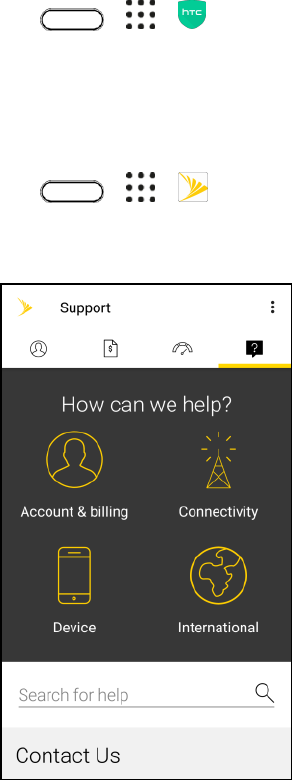
■ Tap > > HTC Mobile Guide.
Tip: There is a search box where you can quickly look for information. Just enter what you want to look
for and related topics will appear.
Access Help
Use the phone’s Help menu to learn about your phone.
Introduction 4
■ Tap > > Help.
Get Support from My Sprint
In addition to your phone’s built-in Help menu, you can also access support for your phone and service
through the preloaded My Sprint app.
1. Tap > > My Sprint.
2. Go to the Support tab.
3. Tap a help topic to view its contents.
Features You'll Enjoy
You'll enjoy use of your HTC U11 with these features.
Edge Sense
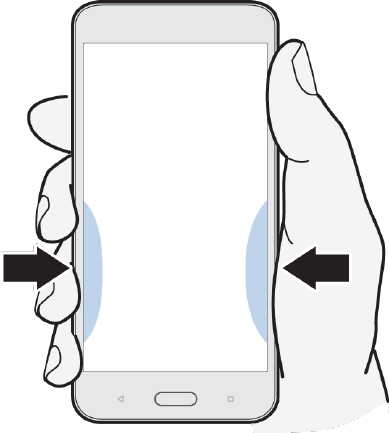
HTC U11 comes with a pressure-sensitive squeeze area on its frame. By squeezing the sides of
HTC U11, quickly access your favorite app or shortcut even while your phone is in sleep mode.
Introduction 5
For details, see Set Up Edge Sense.
What’s Special with Camera
Capture great photos and videos using HTC U11.
UltraSpeed Autofocus
HTC U11 lets you enjoy faster focus speeds using a full sensor autofocus similar to DSLRs. Using the
Camera app, you can easily take photos in low light situations, capture images of moving subjects, and
record clear videos.
HDR Boost
Take clearer, sharper photos using HDR Boost. By combining multiple shots with different exposure
levels, HDR Boost lets you capture great photos even in low light conditions. For details, see Use HDR
Boost.
Capture Video in 3D Audio or High Res Audio
HTC U11 has four highly-sensitive omnidirectional microphones that capture positional sound in your
video recordings. This means that you can record sound in 360 degrees for immersive audio that’s just
like being there. Or, you can record video with 24-bit high resolution audio. For details, see Record Video
in 3D Audio or High Resolution Audio.
Acoustic Focus
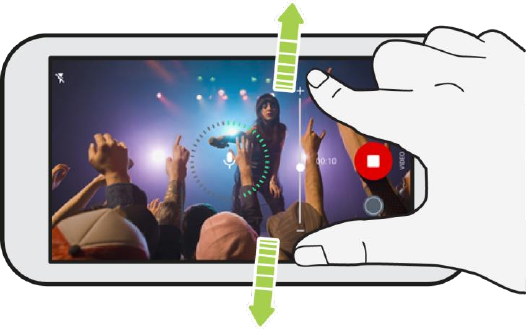
When recording videos, especially from a distance, you can reduce surrounding noise and enhance the
clarity of your subject's audio using Acoustic Focus.
Introduction 6
For details, see Record Video Using Acoustic Focus.
Pro Level Capabilities
Pro mode gives you professional level control over your photography. Capture RAW photos and take full
control over your camera settings. The camera captures RAW photos in DNG format. The RAW file
provides more image information for post processing in the Google Photos app or a graphics program on
your computer. For details, see Take a RAW Photo.
Hyperlapse
Hyperlapse lets you speed up the action up to 12 times, and select sections of the video to change its
speed. For details, see Hyperlapse.
Selfies
Capture awesome selfies with the front facing camera. For details, see Selfies.
● Live Makeup – Before taking your selfie, use Live Makeup to smoothen your skin.
● Instant selfie shots – Flash a smile, and the camera instantly captures your smiling face. Or, just
say "Cheese!"
● Enjoy taking wide-angle selfies with family or friends and with a panoramic scenery behind you.
For details, see Selfie Panorama.
Immersive sound
Discover audio bliss on HTC U11 through its earphones and speakers.
HTC USonic with Active Noise Cancellation
Experience music tuned to your ears. When you plug in the HTC USonic earphones to HTC U11, they will
scan your ears and determine the audio output level that best suits you. The earphones also incorporate
Active Noise Cancellation which reduces background noise so you hear music and videos clearly. For
details, see HTC USonic with Active Noise Cancellation.
HTC BoomSound for Speakers
Introduction 7
Hear what you've been missing. HTC BoomSound™ gives you a rich, authentic sound experience,
whether you’re listening to music, watching a video, or playing a game. For details, see HTC BoomSound
for Speakers.
Record Audio in High Res Quality
Enable high res quality audio in Voice Recorder to make crystal clear audio recordings. For details, see
Voice Recorder.
HTC Sense Companion
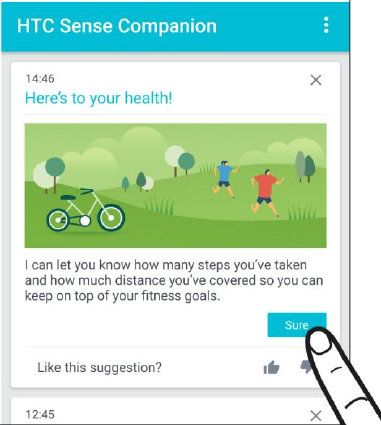
HTC Sense Companion is a personal companion that’s always learning from you, and the things you do
every day. It’s made to evolve and get to know you better over time so it can give you better and more
relevant suggestions and information.
For details, see HTC Sense Companion.
Fingerprint sensor
You can use the fingerprint scanner on HTC U11 to quickly wake up and unlock your phone with your
fingerprint. For details, see Fingerprint Scanner.
Truly personal
Designed with you in mind, HTC U11 is filled with innovations that help it to adapt to your life.
Themes
Make HTC U11 more personal by customizing how it looks with your own photos and then mix and match
with different sets of icons, sounds, color schemes, and more. More wallpaper types, such as Multiple
wallpapers and Apps screen wallpapers, are also in store. For details, see HTC Themes.
Freestyle Home Screen
Introduction 8
If you want to take designing your Home screen to the next level, try the Freestyle home screen layout for
zero-grid limitations and fun stickers to replace your app icons.
HTC BlinkFeed
Get your favorite topics, news, social media, and more conveniently delivered to one place on your
phone. Even get suggestions for places to eat! You can also play embedded videos right on HTC
BlinkFeed™. For details, see HTC BlinkFeed - Your Dynamic Home Screen.
Boost+
Use the Boost+ app to help you optimize your phone's performance by allocating resources, removing
junk files, stopping irregular app activities, and uninstalling the apps you don't use. You can also set this
app to help extend battery life while you're playing your favorite game on HTC U11. For details, see
Boost+.
What's New in Android Nougat
Android® 7 Nougat brings new features that make working with apps and settings even more convenient.
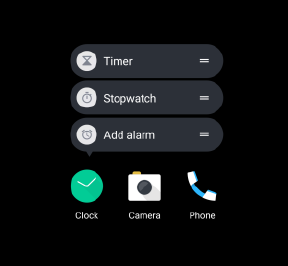
App Shortcuts
Starting from Android 7.1, press and hold an app icon to display a menu that lets you quickly access
common app functions. For example, from the Clock app icon, you can quickly set a timer or alarm.
Multi-tasking Made Easy
Aside from flipping through running apps, there are faster ways to use the Recent apps button for
switching between apps.
● Want to watch a video while chatting at the same time? Use the split-screen view to display two
running apps side by side.
● Quickly switch to the previous app with a double tap.
For details, see Work with Two Apps at the Same Time.
Introduction 9
Enhanced Notifications
See incoming information on a notification without having to open an app. If you received a new
message, you can send a reply directly from the notification. See Notification Panel.
Improved Settings
● Limit how much mobile data your phone uses. When you turn Data Saver on, apps in the
background won't be able to use the data connection unless you've set these apps to access
mobile data. See Manage Your Data Usage.
● Use the Quick Settings bar to toggle Wi-Fi and other quick settings on and off. See Using Quick
Settings.
● No more navigating back to the main settings screen by screen. There's a slideout menu that you
can open anytime to directly access the main settings.
● At the top of the Settings screen, see suggestions for how to get more out of your phone.
● Aside from changing the font size, you can also adjust the display size of items such as icons and
images. See Display Size.
Set Up Your Phone 10
Set Up Your Phone
The following topics give you all the information you need to set up your phone and wireless service the
first time.
Parts and Functions
These topics illustrate your phone’s primary parts and key functions.
Note: Your phone’s screens and apps layouts are subject to change. This user guide uses sample
images only.
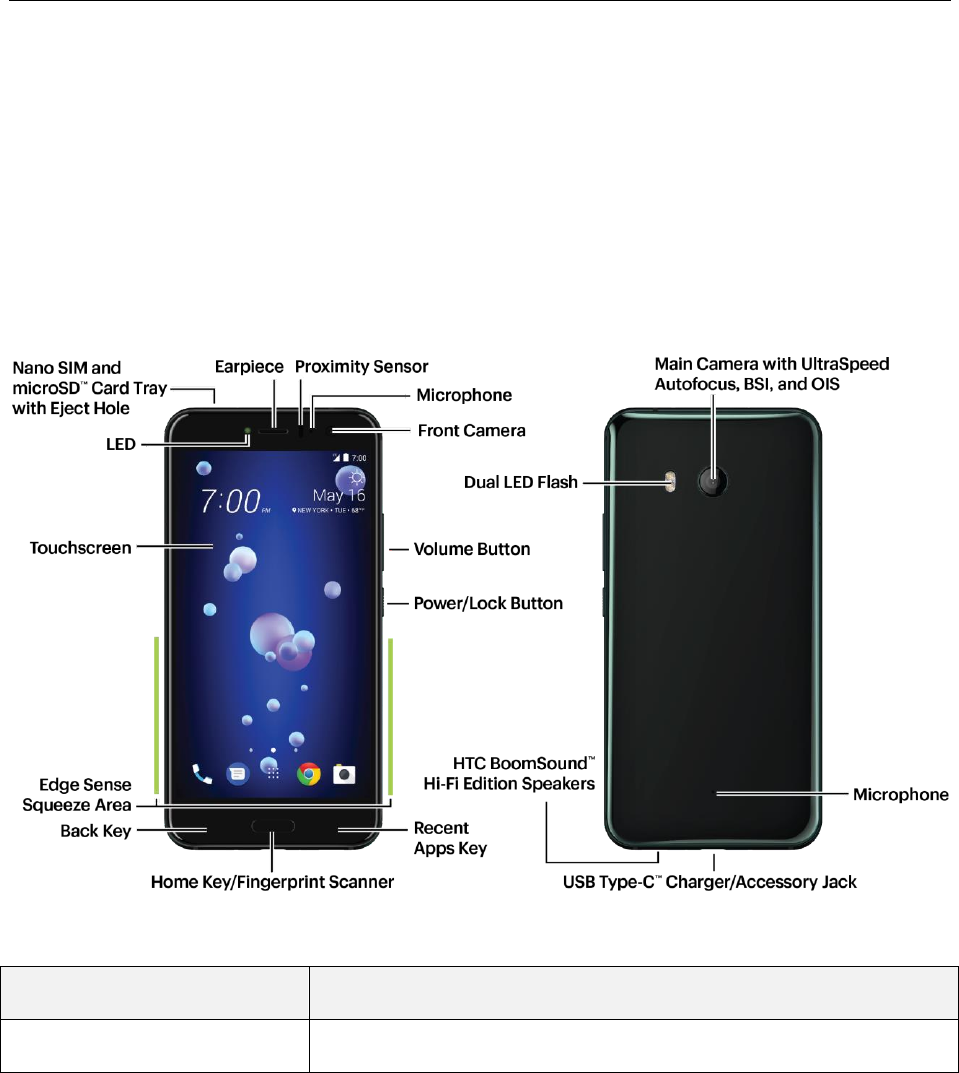
Phone Layout
The following illustration outlines your phone’s primary external features and keys.
Front Panel
Part
Description
Earpiece
Lets you hear the caller and automated prompts.
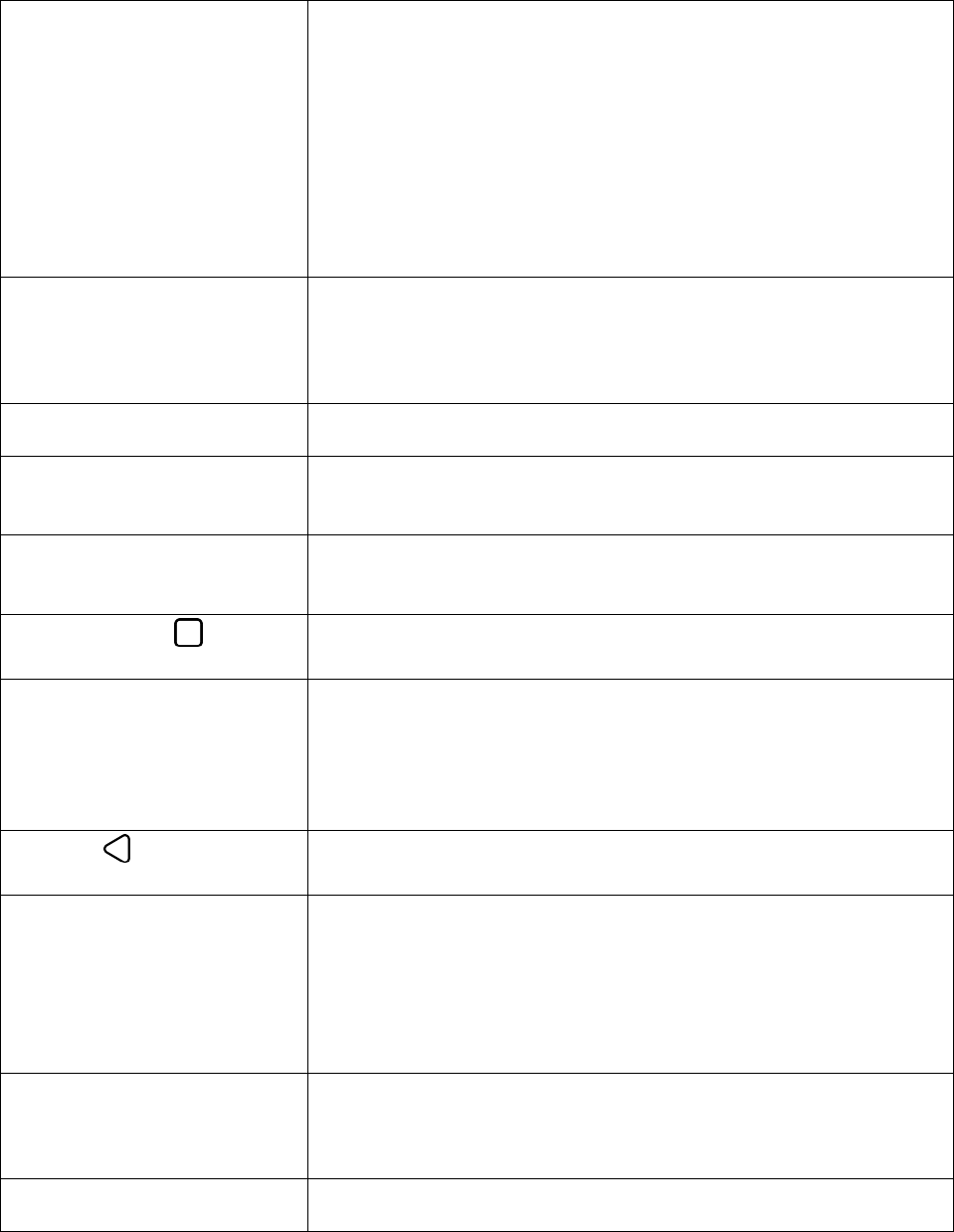
Set Up Your Phone 11
Proximity sensor
Detects how close an object is to the surface of the screen. This is
typically used to detect when your face is pressed up against the
screen, such as during a phone call.
While talking on the phone, the sensor detects talk activity and turns
off the screen to prevent accidental key taps.
Note: If you want to use a case or screen protector, don’t cover and
block the proximity sensor. Purchase a case or screen protector
designed for HTC U11.
Microphone
Captures your voice during phone and conference calls.
Note: Avoid liquid or dust from entering the microphone hole to
prevent damage to the microphone.
Front camera
Takes selfie pictures and videos with greater detail and clarity.
Volume button
Allows you to adjust the ringtone or media volume or adjust the voice
volume during a call.
Power/Lock button
Press quickly to turn off and lock the phone screen. Press and hold to
turn the phone on or off or switch to airplane mode.
Recent apps key
Tap to display your most recently used apps.
Home key/Fingerprint
scanner
Tap to display the main home screen.
This is also the fingerprint scanner that allows you to quickly wake up
and unlock your phone with your fingerprint. You can register up to 5
fingerprints. See Fingerprint Scanner.
Back key
Tap to return to the previous screen.
Edge Sense squeeze area
Set up Edge Sense and squeeze this area to launch an app or display
information. For details, see Edge Sense.
Note: If you want to use a case or screen protector, don’t cover and
block the proximity sensor and Edge Sense area. Purchase a case or
screen protector designed for HTC U.
Touchscreen
Displays all the information needed to operate your phone, such as the
call status, the Contacts list, and the date and time. Also provides one-
tap access to all of your features and applications.
LED
Displays a phone notification, charging status, or alert.

Set Up Your Phone 12
Nano SIM and microSD card
tray and eject hole
Holds the preinstalled Sprint 4G LTE™ nano SIM card and optional
microSD card. See SIM Card and SD Card.
Note: The microSD card is sold separately.
Back Panel
Part
Description
Main camera with UltraSpeed
autofocus, BSI, and OIS
Captures quality photos and videos.
Note: BSI stands for Backside Illumination sensor and OIS stands for
Optical Image Stabilization.
Microphone
Captures your voice during phone and conference calls.
Note: Avoid liquid or dust from entering the microphone hole to
prevent damage to the microphone.
USB Type-C™ charger/
Accessory jack
Allows you to connect the phone with the AC power adapter using the
USB cable or with the provided HTC USonic earphones. (Items
included in the phone package).
Note: The HTC USonic earphones provided in the box can only be
used with HTC U11 and other compatible HTC phones supporting
HTC USonic.
HTC BoomSound™ hi-fi
edition speakers
Lets you hear the different ringtones and sounds. This speaker also
lets you hear the caller’s voice and automated prompts.
Dual LED flash
Helps illuminate subjects in low-light environments when the camera is
focusing and capturing a picture or video.
Charge the Battery
Follow these instructions to charge your phone’s battery using either the included AC adapter or via a
USB connection on your computer.
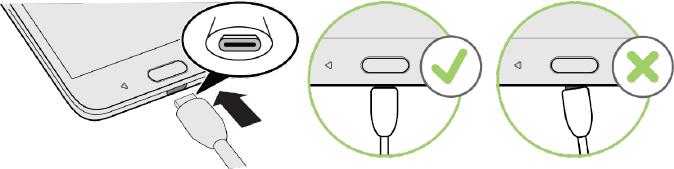
Important: Use only the adapter and the USB Type-C cable that came with HTC U Ultra to charge the
battery. When the battery power is too low, make sure to use the power adapter to charge, not the USB
cable connection with your computer.
Notes:
● If the battery has been discharged for several days, you may need to charge HTC U11 for several
minutes before powering it on.
Set Up Your Phone 13
● The battery is built-in and non-removable. Do not attempt to remove the battery.
● As a safety precaution, the battery may stop charging to avoid overheating.
● Avoid charging the battery in hot environments.
● When you’re using the Web browser and charging the battery, your phone may become warmer.
This is normal.
● To conserve energy, unplug the power adapter from the electrical outlet after you finish charging.
Charge Using the AC Adapter
1. Plug one end of the USB cable into the AC adapter.
2. Plug the other end of the USB cable into the USB Type-C charger/Accessory jack on the bottom
panel of your phone.
3. Plug the other end of the USB cable into the AC adapter.
4. Plug the AC adapter into an electrical outlet.
The indicator light (LED) illuminates when charging starts. The light turns green when the
battery is fully charged.
5. After charging, disconnect the phone from the charger.
Unplug the AC adapter from the outlet, and remove the USB cable from the phone.
Charge Using a PC Connection
Before using a PC connection to charge your phone, ensure that the computer is turned on. Depending
on the type of connection, your phone’s battery may not charge.
1. Insert the small end of the USB cable into the USB Type-C charger/Accessory jack on the bottom
of your phone.
2. Insert the large end of the USB cable into an external USB port on your computer.
3. After charging, disconnect the USB cable from both the phone and the computer.
SIM Card
The SIM card is an IC card containing phone number and other customer information.
Set Up Your Phone 14
Handling a SIM Card
Keep the following in mind when handling a SIM card.
● You are responsible for any damage caused by inserting the SIM card in another-brand IC card
reader, etc. Sprint is not responsible in such case.
● Always keep the IC chip clean.
● Wipe clean with a dry, soft cloth.
● Avoid applying labels. May damage SIM card.
● See instructions included with the SIM card for handling.
● The SIM card is the property of Sprint.
● The SIM card is replaceable (at cost) in case of loss/damage.
● Return the SIM card to Sprint when canceling subscription.
● Returned SIM cards are recycled for environmental purposes.
● Note that SIM card specifications and performance may change without notice.
● It is recommended that you keep a separate copy of information that is stored on the SIM card.
Sprint is not responsible for damages from stored information that is lost.
● Always follow emergency procedures to suspend service if your SIM card or phone (SIM card
inserted) is lost or stolen. For details, contact Customer Service.
Nano SIM Card
HTC U11 uses a nano SIM card. The nano SIM card is preinstalled in your HTC U11. If you need to
remove or replace the card, refer to the following instructions.
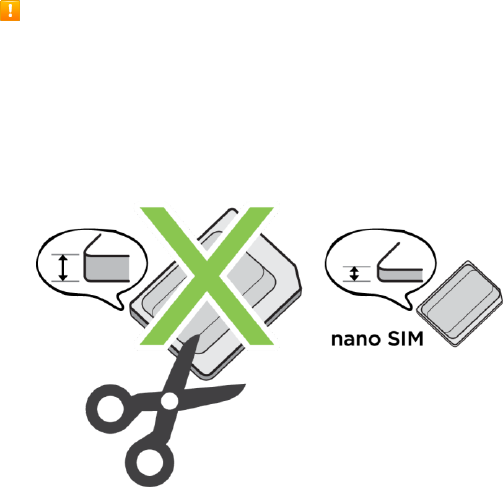
Use a standard nano SIM card. A modified card that is thicker than the standard nano SIM card will
not fit properly on the tray and may damage the card slot.
Set Up Your Phone 15
Slot with Card Tray
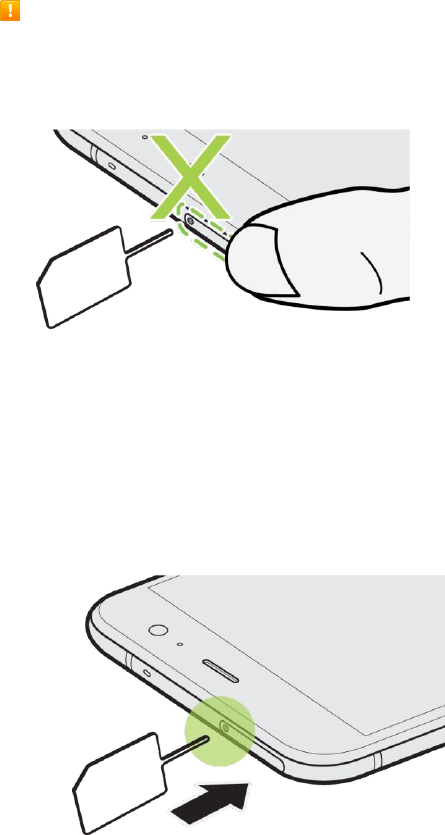
When inserting the eject tool into the tray eject hole to remove the card tray, do not obstruct the tray
to avoid damaging the eject mechanism inside the slot.
Insert SIM Card
The nano SIM card is preinstalled in your HTC U11. If you need to remove or replace the card, refer to
the following instructions.
1. Hold the phone face up.
2. Insert the tip of the tray eject tool (included in the box) into the tray eject hole.
3. Push the tip all the way into the hole until the tray ejects, and then pull the tray out.
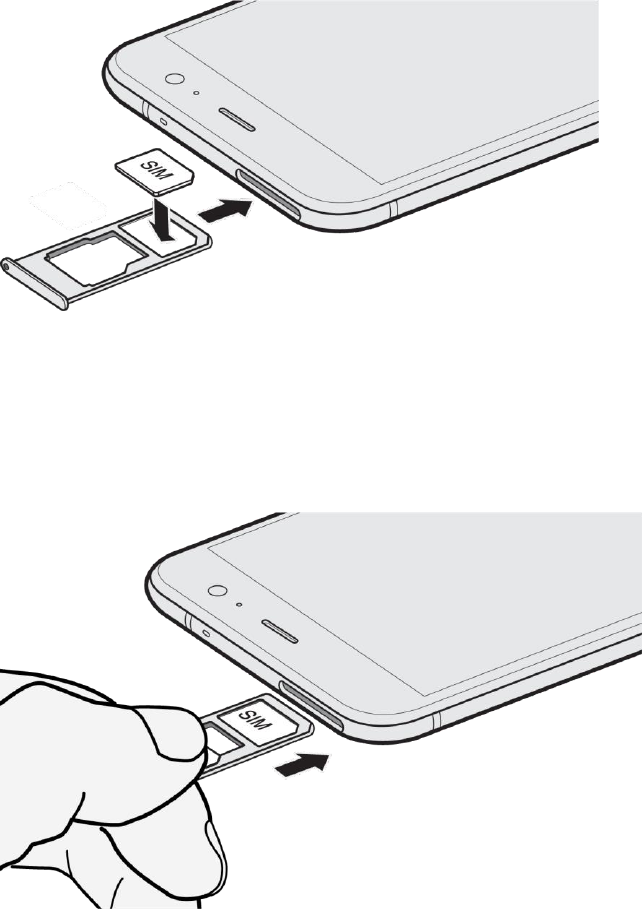
4. With your nano SIM card's gold contacts facing down, place the card into the SIM holder of the
tray. Make sure to align the cutoff corner to the notch on the holder.
Set Up Your Phone 16
Note: If you purchased an optional microSD card, place the microsSD card to the SD holder of the tray.
For details, see Insert SD Card.
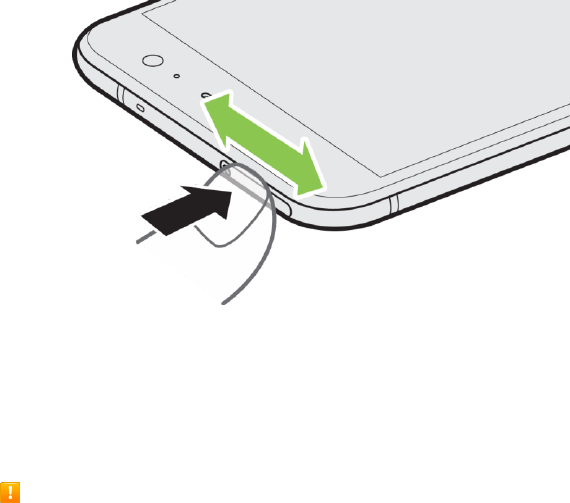
5. When reinserting the tray, make sure it is facing up so that your cards don't fall out. Hold the tray
with the outer card holder between your fingers, and then steadily slide the tray all the way into
the slot.
Set Up Your Phone 17
6. Make sure the tray is fully inserted and doesn't protrude from the slot.
SD Card
Use a SD card (optional and sold separately) to store your photos, videos, and music. When you need to
free up phone storage space, you can also move certain apps to the storage card, if the apps support this
feature.
SD Card Cautions
Data: Information stored on the SD card can become lost or changed accidentally as a result of
damage. It is recommended that you keep a separate copy of important data. Sprint is not
responsible for damages from data that is lost or changed.
Reading/Writing Data: Never power off the phone while reading or writing data.
Battery Level: A low battery charge may prevent reading/writing to SD card.
Handling SD Card: Use/store SD cards away from the reach of infants. May cause choking if
swallowed.
Insert SD Card
Follow these steps to insert an optional SD card (not included).
1. Hold the phone face up.
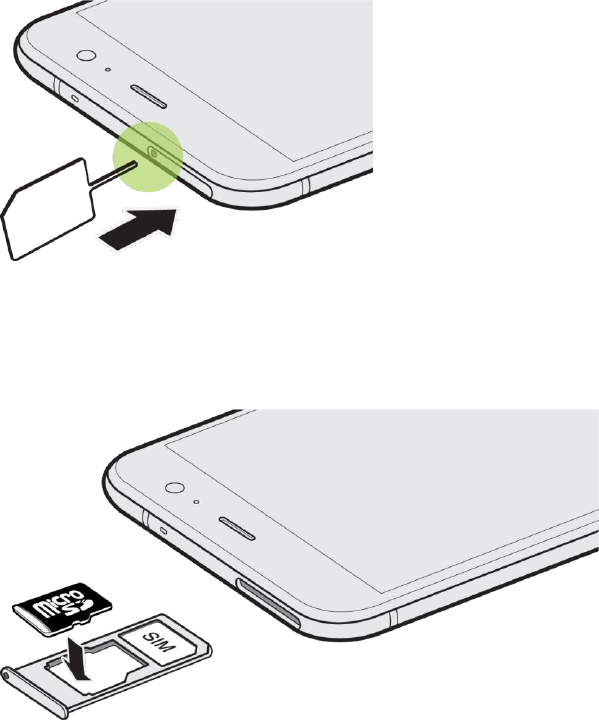
Set Up Your Phone 18
2. Insert the tip of the tray eject tool (included in the box) into the tray eject hole.
3. Push the tip all the way into the hole until the tray ejects, and then pull the tray out.
4. Place your microSD card—gold contacts facing down and narrow side facing in—into the
microSD holder of the tray.
5. When reinserting the tray, make sure it is facing up so that the nano SIM and microSD cards
don’t fall out. Hold the tray with the outer card holder between your fingers, and then steadily slide
the tray all the way into the slot.
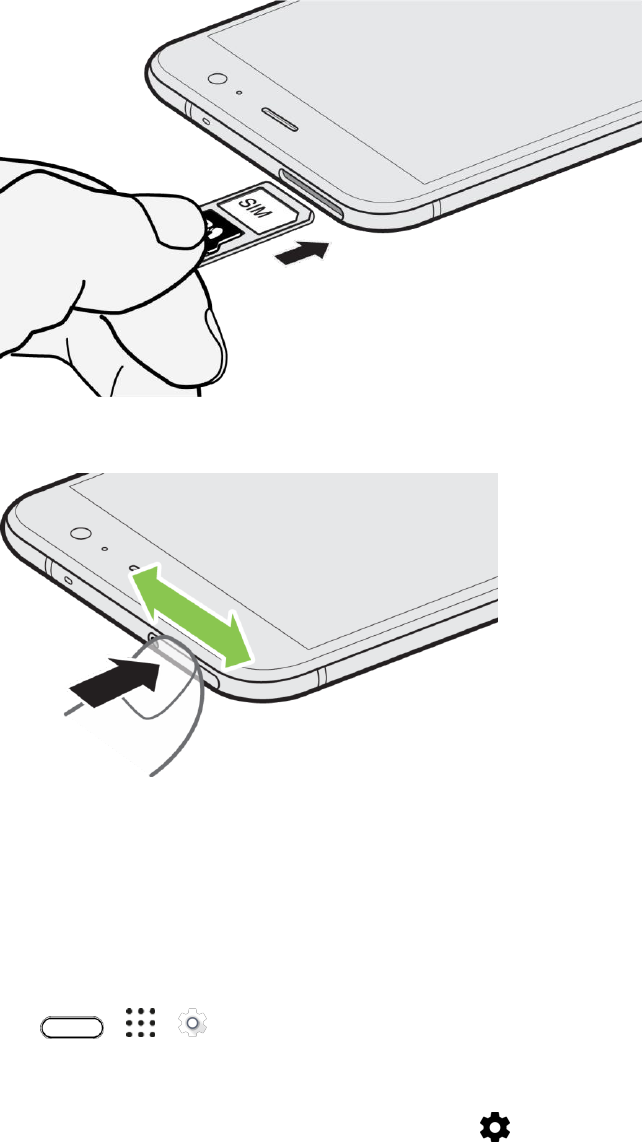
Set Up Your Phone 19
6. Make sure the tray is fully inserted and doesn't protrude from the slot.
7. Turn on the phone.
If it's the first time you inserted the SD card, you'll be prompted to set it up.
Unmount and Remove the SD Card
Follow these instructions to unmount and remove an SD card. Always unmount an SD card before
removing it from your phone, and always power the phone off before inserting or removing an SD card.
1. Tap > > Settings.
2. Tap Storage.
3. If the SD card appears under Removable storage, tap next to the card name, and then tap
Eject.
– or –
Set Up Your Phone 20
If your SD card appears under Internal storage, tap the card name, and then tap > Eject.
Important: If the SD card is used as internal storage and there are apps that were moved to the card, you
will not be able to open these apps after unmounting the card.
4. Power the phone off.
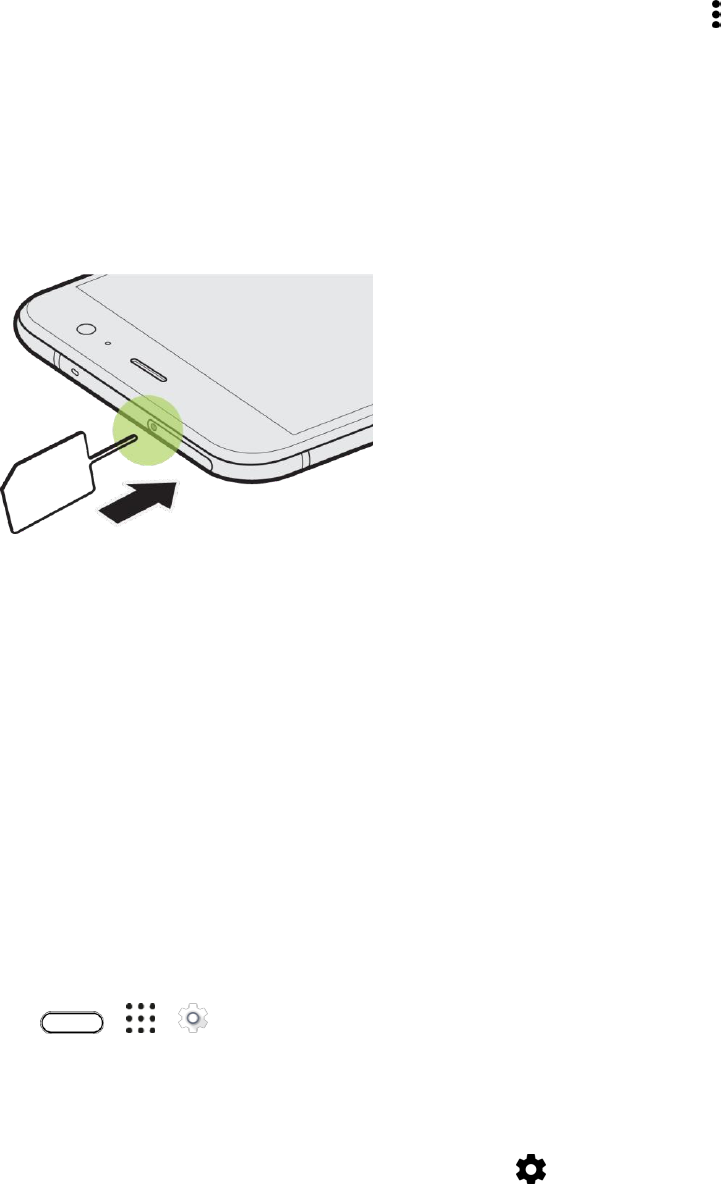
5. Hold the phone face up.
6. Insert the tip of the tray eject tool (included in the box) into the tray eject hole.
7. Push the tip all the way into the hole until the tray ejects, and then pull the tray out.
8. Gently pull the SD card out of the slot.
9. Replace the SD card and tray.
10. Make sure the tray is fully inserted and doesn't protrude from the slot.
Format SD Card
When you want to change the storage setting of the SD card from removable storage to internal storage,
you will be prompted to format it first.
Note: When you format or erase the SD card, the files CANNOT be retrieved. To help prevent the loss of
important data, please check the contents before you erase the card.
Important: Formatting or erasing the SD card may not permanently erase all data from the card, including
personal information.
1. Tap > > Settings.
2. Tap Storage.
3. Do one of the following:
If the SD card appears under Removable storage, tap next to the SD card name, and
then tap Format as internal > Erase & format > Format. After format is completed, you can
choose to move photos, files, and apps to the SD card.
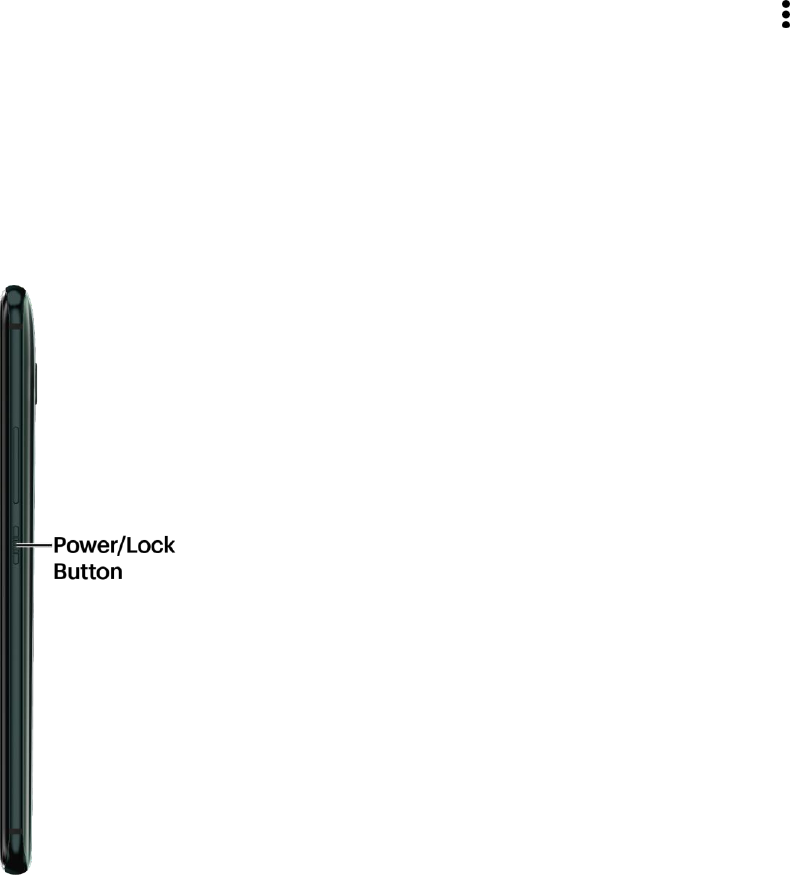
Set Up Your Phone 21
If your SD card appears under Internal storage, tap the SD card name, and then tap >
Format as portable > Format. After format is completed, tap Done.
Turn Your Phone On and Off
The instructions below explain how to turn your phone on and off.
Turn Your Phone On
■ Press and hold the Power/Lock button on the right panel of the phone.
Your phone will power on. You will feel or hear the phone vibrate when it has been turned on.
Depending on the settings, you may see the lock screen.
See Lock and Unlock Your Screen for information about using the screen lock.
The first time you turn on your phone, it will search for Sprint service, and begin the setup
application. See Complete the Setup Screens.
If your phone is not yet activated, see Activate Your Phone for more information.
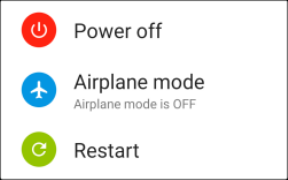
Set Up Your Phone 22
Turn Your Phone Off
1. Press and hold the Power/Lock button to open the Phone options menu.
Note: When the screen is locked and you press the Power/Lock button it will only turn off the screen and
not the phone. You will need to turn the screen on before you press and hold the Power/Lock button to
turn the phone off. See Lock and Unlock Your Screen for details.
2. Tap Power off to turn the phone off.
Your phone will power off.
Restart Your Phone
If HTC U11 is running slower than normal, is unresponsive, or has an app that is not performing properly,
try rebooting and see if that helps solve the problem. Restarting the phone will close all running apps and
will clear all temporary files in the phone’s memory. Make sure to save your work before restarting the
phone.
1. If the display is off, press the Power/Lock button to turn it back on.
2. Press and hold the Power/Lock button for about two seconds.
3. Tap Restart.
Note: If the phone or touchscreen becomes unresponsive, press and hold the Power/Lock and Volume
down buttons for at least 12 to 15 seconds to restart the phone.
Sleep Mode
Sleep mode saves battery power by putting HTC U11 into a low power state while the display is off. It
also stops accidental button presses when HTC U11 is in your bag.
Switch to Sleep mode
To turn off the display and switch to Sleep mode, briefly press the Power/Lock button. You can also
double-tap the lock screen.
Note: HTC U11 also automatically goes into Sleep mode when it’s left idle for a while. You can change
the time before HTC U sleeps by setting the screen timeout. For details, see Screen Timeout (Sleep).
Wake Up From Sleep Mode
■ Press the Power/Lock button.
Set Up Your Phone 23
■ Use Motion Launch™ to wake up and unlock your phone directly to an app or screen. For details,
see Motion Launch.
Use the Touchscreen
Your phone’s touchscreen lets you control actions through a variety of touch gestures.
Important: When the TalkBack option in the Accessibility settings is turned on and the Explore by touch
setting is selected, the regular touch gestures are replaced by the TalkBack gestures. For details, see
Accessibility Settings.
Tap or Touch
When you want to type using the onscreen keyboard, select items onscreen such as application and
settings icons, or press onscreen buttons, simply tap or touch them with your finger.
Touch and Hold
To open the available options for an item (for example, a contact or link in a Web page), touch and hold
the item.
Swipe or Slide
Quickly swipe your finger vertically or horizontally across the screen to go to other widget panels, scroll
through documents, and more.
Drag
To drag, touch and hold your finger with some pressure before you start to drag. While dragging, do not
release your finger until you have reached the target position.
Flick
Flicking the screen is similar to swiping, except that you need to swipe your finger in light, quick strokes.
This finger gesture is always in a vertical direction, such as when flicking the contacts or message list.
Touch and Flick
On the Home screen, you can easily move a widget or icon from one screen to another. Touch and hold
the widget or icon with one finger, and flick the screen to the new location with another finger.
Pinch and Spread
"Pinch" the screen using your thumb and forefinger to zoom out or "spread" the screen to zoom in when
viewing a picture or a Web page. (Move fingers inward to zoom out and outward to zoom in.)
Slide two fingers together to zoom out of the picture or text.
Two-finger Swipe
Swipe down from the status bar with two fingers to open Quick Settings.
Set Up Your Phone 24
Three-finger Gesture
● Swipe up the screen with three fingers and HTC Connect™ streams music or video from HTC U
to your speakers or TV respectively. You can also share streaming media from apps such as
YouTube®.
● Swipe down to disconnect from your speakers or TV.
Notes:
● Media gesture is turned on in Settings by default, which makes the three-finger gesture work for
sharing media.
● The 3-finger gesture may not be available when TalkBack gestures are enabled. For details, see
Navigate Your Phone with TalkBack.
Activate Your Phone
Follow the instructions below to activate your phone if it has not already been activated. Depending on
your account or how and where you purchased your phone, it may be ready to use or you may need to
activate it on your Sprint account.
● If you purchased your phone at a Sprint Store, it should be activated and ready to use.
● If you received your phone in the mail, and it is for a new Sprint account or a new line of service,
it will activate automatically when you first turn it on.
● If you’re swapping phones for a number already on your Sprint account, go to sprint.com/activate
and follow the instructions
To confirm activation, make a phone call. If your phone is still not activated, visit sprint.com/support for
assistance. If you do not have access to the Internet, call Sprint Customer Service at 1-888-211-4727
from another phone.
Tip: Do not press the Power/Lock key while the phone is being activated. Pressing the Power/Lock key
cancels the activation process.
Note: If you are having any difficulty with activation, visit sprint.com/support.
Complete the Setup Screens
When you switch on the HTC U11 for the first time, or after you've done a factory reset, you'll need to set
it up. The setup screens help you set up certain features and preferences on your phone.
Before you do the setup, first back up your old phone using Android Backup Service if you want to restore
your apps and settings to HTC U11. To find out how to do the backup, see Using Android Backup Service
see Android Backup Service.
Note: You may be able to complete the setup screens before your phone has been activated on your
account.
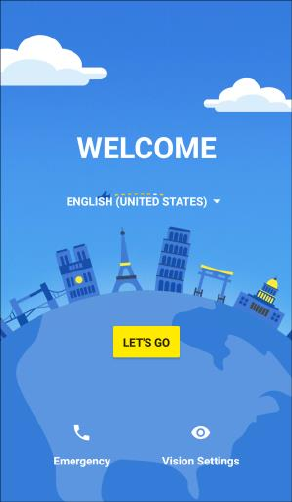
Set Up Your Phone 25
1. If you need to navigate by voice feedback, turn on TalkBack by pressing and holding two fingers
on the first screen until you hear a message and then a beep. Or if you accidentally enabled
TalkBack, follow the onscreen tutorial to turn it off.
2. From the Welcome screen, select a language and tap Let's go.
To skip any section, tap Next or Skip.
Note: If you are visually impaired or hard of hearing, touch and hold the screen with two fingers to enable
TalkBack. Tap Accessibility settings to change accessibility options.
3. Follow the onscreen instructions to complete each section. For each topic, you will have the
option to skip it and continue to the next screen.
Terms of use – Read any applicable End User License Agreements or Terms of use for
using your phone, and tap Next to continue.
Set up Internet access – Select Mobile data or select a Wi-Fi® network to connect to. For
secured Wi-Fi networks, you will need to enter a password.
Hands Free Activation – See Activate Your Phone.
Sign in with your Google Account – Enter your Google Account email or phone number
and tap Next. If you don’t have a Google Account, tap More options > Create account.
Welcome – Enter your Google Account password, tap Next > I agree.
Note: You do not need to sign up for a Google Account to use your phone. However, to download apps
from the Google Play™ Store, you must link your phone to a Google Account.

Set Up Your Phone 26
Which device? – If you have backed up your old phone’s data to your Google Account, you
can easily restore that backup on your new phone using Android Backup Service.
• If you backed up your old phone using Android Backup Service, tap the phone name. Tap
to select the apps to install, and then tap Restore.
• If you want to start fresh, tap Don't restore.
Google services – Read information about Google's location services and ways to improve
your Android experience.
Google Assistant – Set up Google Assistant on your phone. Tap Continue, give permission
to the Google Assistant app, and then tap Yes, I'm in. To further customize Google Assistant,
follow the instructions on the next screen, or tap Do it later to set it up some other time.
Accelerated Location – Select Location Consent if you agree to share your location.
HTC Account – Sign in to your HTC Account to use the same login credentials for HTC
services such as Themes and HTC Sense Companion.
Edge Sense – Set up Edge Sense so you can instantly take camera shots or perform other
actions by simply squeezing your phone.
Protect your phone – Register a fingerprint to help secure your phone. Tap Skip for now to
do this later in Settings > Fingerprint scanner.
4. Tap Finish.
Your phone is now set up for use. If you skipped any part of the setup, you can access
additional options through the Apps screen or through Settings.
Note: Some features that need to connect to the Internet such as location-based services and auto-sync
of your online accounts may incur extra data fees. To avoid incurring data fees, disable these features
under Settings.
Water and Dust Resistant
HTC U11 is water and dust resistant and has an IP57 rating as defined in the International Standard IEC
60529. With the nano SIM/microSD slot cover closed tightly, this phone is water resistant if it is briefly
submerged by accident in fresh water less than 1 meter (3.28 feet) deep and no longer than 30 minutes
at room temperature.
HTC U11 must not be exposed to non-fresh water, high water pressure, strong or fast-moving water, or
sand since these may cause overheating, electric shock, or damage to the phone. Do not attempt to
charge or otherwise use the USB port when HTC U11 is wet. Normal wear and tear may decrease the
water and dust resistance over time.
Warranty will be void if the phone is not used in accordance with the instructions and precautions
addressed in this user guide, including, but not limited to, using the phone in environments or situations
that exceed the limitations of the IP57 rating. For usage precautions and tips on care and maintenance,
see Care and Maintenance Tips and Cleaning and Drying. Also make sure to read the Important
Information Booklet that comes with the phone.

Set Up Your Phone 27
Care and Maintenance Tips
Follow these tips and precautions to help maintain water and dust resistance for your phone.
● Never attempt to insert or remove the nano SIM and microSD cards with gloves, wet hands, or
when the phone is wet.
● Do not intentionally submerge HTC U11. If the phone accidentally gets immersed in water, avoid
pressing the controls—such as the Power/Lock and Volume buttons—and do not operate the
phone.
● Do not expose the phone to fast or strong-moving water such as shower spray, running taps or
faucets, waterfalls, or ocean waves.
● Do not expose the phone to or let the USB port come in contact with the following:
Water containing soap, detergent, or shower gel
Sea water, swimming pools, spas, hot water, and hot springs
Any liquid besides tap water such as alcohol, juices, and condiments
Sand
● If the phone is exposed to fresh water, make sure to dry it thoroughly. To avoid damaging the
phone, do not charge when contaminants are present or the USB port is not completely dry. In
these circumstances, do not connect any external device.
● Never use a hair dryer to dry wet parts of the phone.
● The power adapter and accessories are not water resistant. Never use them in wet areas such as
in the bathroom or kitchen since contact with water may cause malfunction, electric shock, or
other hazards.
● Avoid leaving the phone in humid places such as the bathroom or kitchen for too long since it is
not moisture-proof.
Cleaning and Drying
If HTC U11 has had contact with salt water, liquid chemicals, dust, or other contaminants, immediately
rinse the phone. When the phone is wet, make sure to dry it thoroughly.
To avoid damaging HTC U11, don't charge the phone when contaminants are present or the USB port is
not completely dry. In these circumstances, do not connect any external device.
The sound volume of the earpiece, speakers, and microphone may be less audible if these parts are not
dried well.
Set Up Your Phone 28
Rinsing
● Before rinsing, make sure the nano SIM and microSD slot covers are closed tightly. See SIM
Card and SD Card for details.
● Rinse the phone using fresh water. Rinse by hand only. Don't use a brush or sponge.
● While rinsing, do not press on the card slot covers to avoid having gaps around the covers which
may allow water to seep through the gaps.
Drying
● Gently wipe off the water from the phone with a clean, dry cloth. Don't use cotton swabs to wipe
the earpiece, speakers, microphone, and connection port.
● The display may not respond accurately to touch gestures when it's wet. For the touch screen
and lenses, wipe with a soft dry cloth such as a microfiber cloth that will not scratch the surface.
● Leave the phone at room temperature for 3 hours or so to let it dry completely. If buttons and any
connection port such as the USB port are still wet, make sure to let them dry completely before
you use the phone.
● If condensation forms inside the display such as when there's a drastic change in temperature,
place the phone at room temperature until condensation disappears.
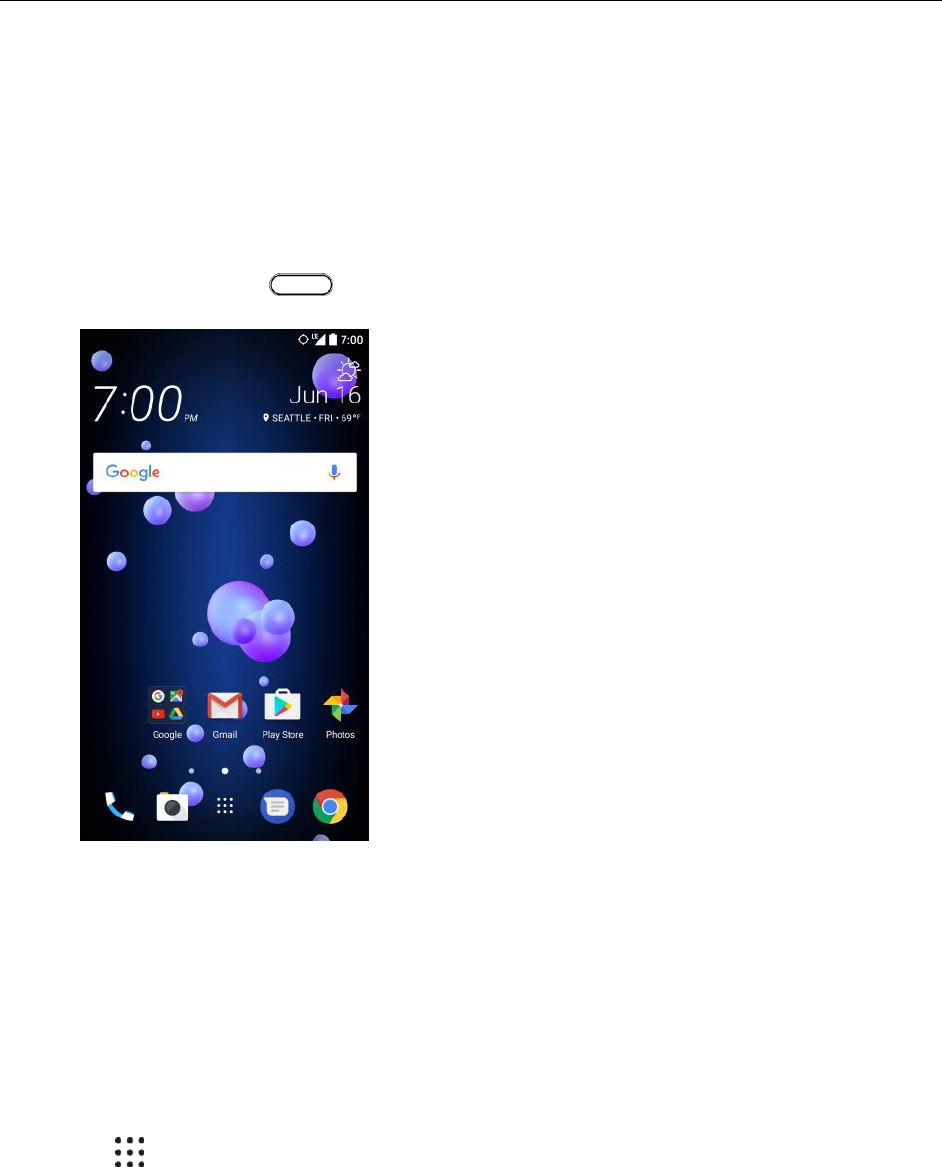
Basic Operations 29
Basic Operations
The following topics outline basic features and operations of your phone.
Basics
The following topics offer an overview of your phone’s basic operations.
HTC Sense Home and Applications (Apps) List
After you've turned on or set up your phone for the first time, you'll see the home screen. Most of your
phone’s operations originate from the home screen or the apps list.
1. From any screen, tap to display the home screen.
Swipe right and you'll find HTC BlinkFeed. You can customize HTC BlinkFeed to show posts
from your social networks, headlines from your favorite news media, and more. For details,
see HTC BlinkFeed - Your Dynamic Home Screen.
Swipe left and you’ll discover widget panels for adding your favorite widgets, apps, and more
so they’re just a tap away. You can also add panels. For details, see Customize the Home
Screen.
You can change the apps on the launch bar at the bottom of the home screen. See Work with
Widgets and Shortcuts.
2. Tap to see all apps installed on your phone.
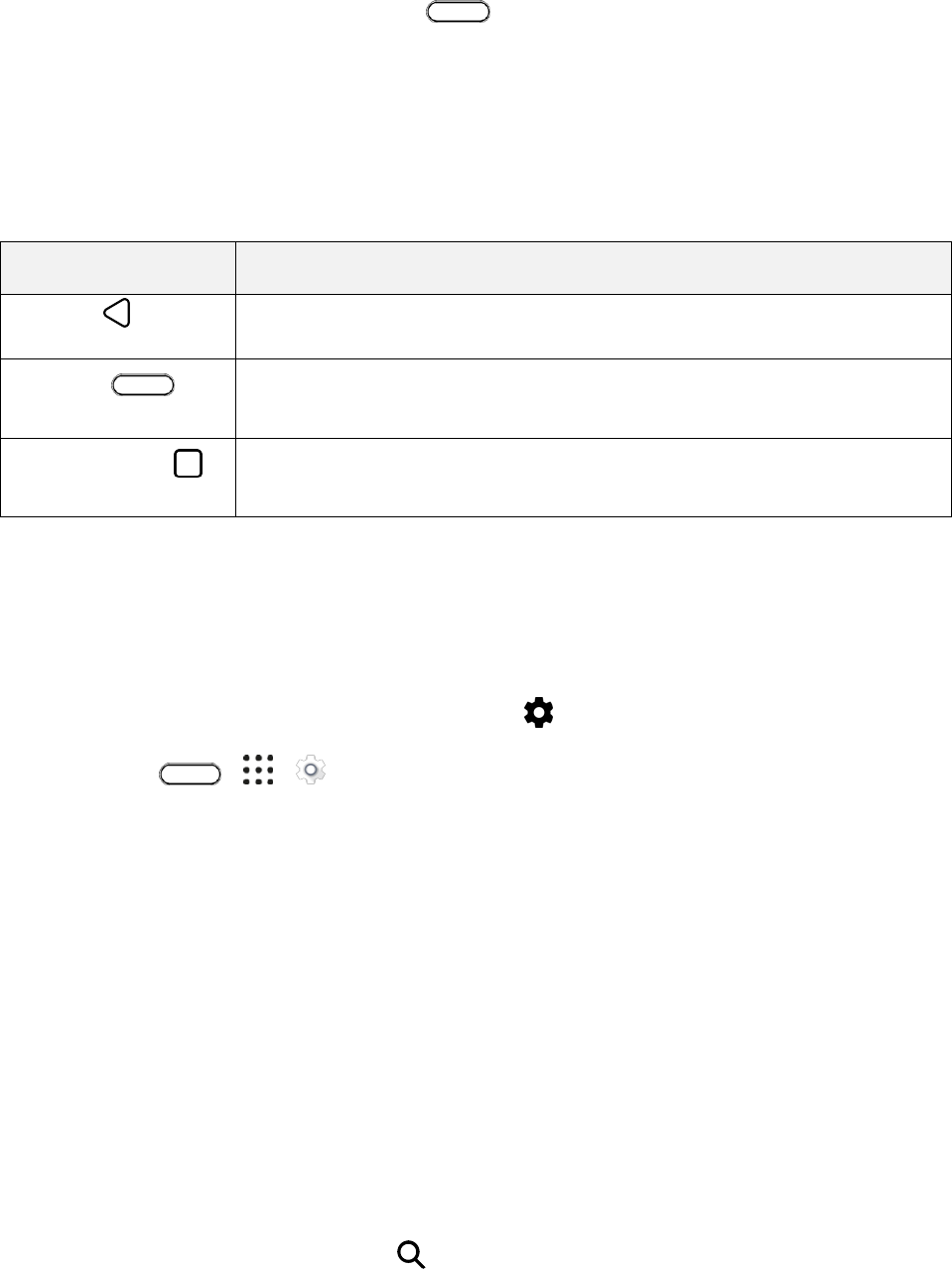
Basic Operations 30
Tip: While you’re in another screen or app, tap to return to the last Home screen you visited.
Onscreen Navigation Keys
Your phone has onscreen navigation keys at the bottom of the screen which rotate when you change the
orientation. The onscreen navigation keys do not show up when the screen is off, when you’re on the
Camera viewfinder screen, or when you chose to hide it.
Standard Navigation Keys
Key
Description
Back key
Go to the previous screen.
Home key
Go to the Home screen. Touch and hold to launch Google Assistant. For
details about Google Assistant, go to assistant.google.com.
Recent apps key
Show the thumbnails of the most recently used apps and Google Chrome
tabs.
Phone Settings Menu
You can customize your phone's settings and options through the Settings menu.
1. Open Settings from the Apps screen or notification panel.
Swipe down from the status bar, and then tap .
Tap > > Settings.
2. Here are some of the basic settings you can change:
Tap the On/Off switch next to an item such as Wi-Fi to turn it on or off. Tap the item itself to
configure its settings.
Tap Sound & notification to set a ringtone, choose a sound profile, and configure incoming
call sound settings.
Tap Personalize to change the wallpaper, theme, ringtone, and more.
Tap Accounts & sync to add and sign in to your different accounts, such as email, social
networks, and more.
Tap Security to help secure your phone, for example with a screen lock.
3. Tap an item under Suggestions to check out new or recommended settings to customize.
4. You can also swipe right on the Settings screen to see the list of main settings and quickly jump
from one setting to another. Or, tap to easily find options and settings.
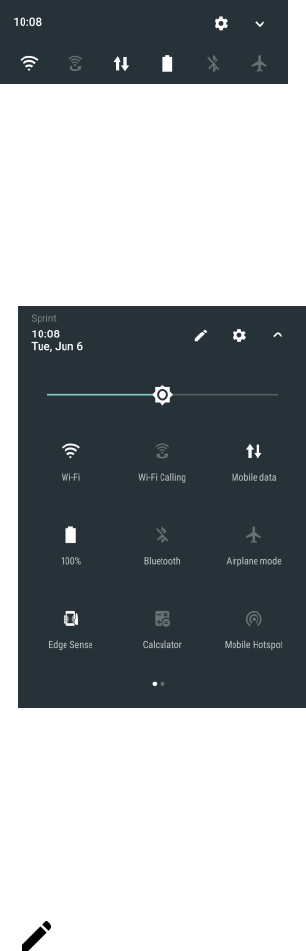
Basic Operations 31
For more information, see Basic Settings.
Using Quick Settings
In the Quick Settings panel, easily turn settings such as Wi-Fi and Bluetooth on or off.
1. Swipe down from the top of the screen to open the notification panel.
Right below the Settings button, you'll see the first six Quick Settings tiles.
2. To see all of the Quick Settings tiles:
With two fingers, swipe down from the status bar.
– or –
Swipe down twice from the status bar.
3. To turn a setting on or off, just tap its tile.
Customize Quick Settings
You can remove, replace, or rearrange the tiles in Quick Settings.
1. With two fingers, swipe down from the top of the screen to open Quick Settings.
2. Tap and do one of the following:
Touch and hold a tile, and then drag it to your desired position.
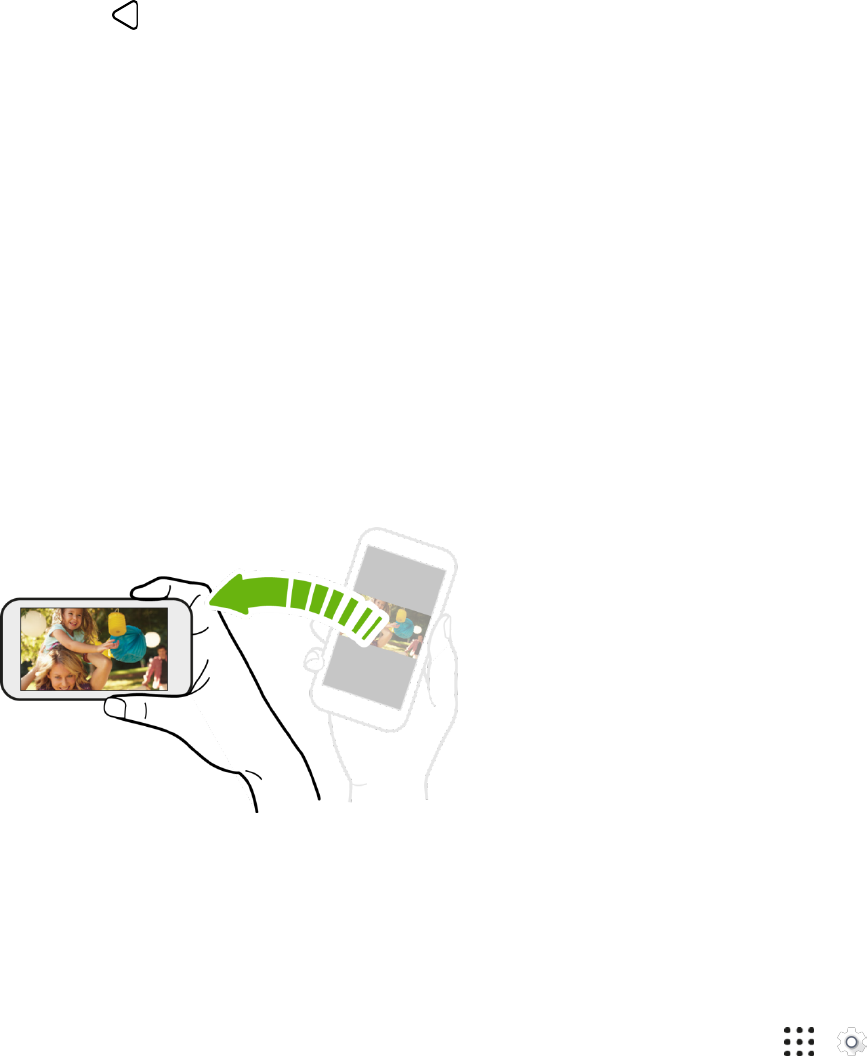
Basic Operations 32
Touch and hold a tile, and then drag it down under the Drag to add tiles section to hide it from
the Quick Settings panel.
Under the Drag to add tiles section, drag a tile up to show it in the Quick Settings panel.
3. Tap .
Note: There is a limit to the number of tiles that can be shown in the first panel of Quick Settings. You
may need to swipe left on the Quick Settings panel to see more Quick Settings tiles.
Capture Your Phone's Screen
Capture the phone screen to show off your high game score, write a blog post about your phone’s
features, or post a status update about a song you’re playing.
1. Press and hold the Power/Lock button and the Volume down button at the same time.
2. Open the notification panel, and then slide two fingers apart on the Screenshot captured
notification.
3. Tap Share.
Portrait and Landscape Screen Orientation
The default orientation for your phone’s screen is portrait (vertical), but many apps will change to
landscape orientation (widescreen) when you rotate the phone sideways.
Note: Not all screens will adjust for landscape orientation.
Turn Screen Rotation On or Off
1. Swipe down from the status bar with two fingers to open the Quick Settings panel.
2. Tap Auto rotate to turn the option on or off.
Note: You can also set the rotation option from the main settings menu. From home, tap >
Settings > Display, gestures & buttons, and then select or clear the Auto rotate screen option.
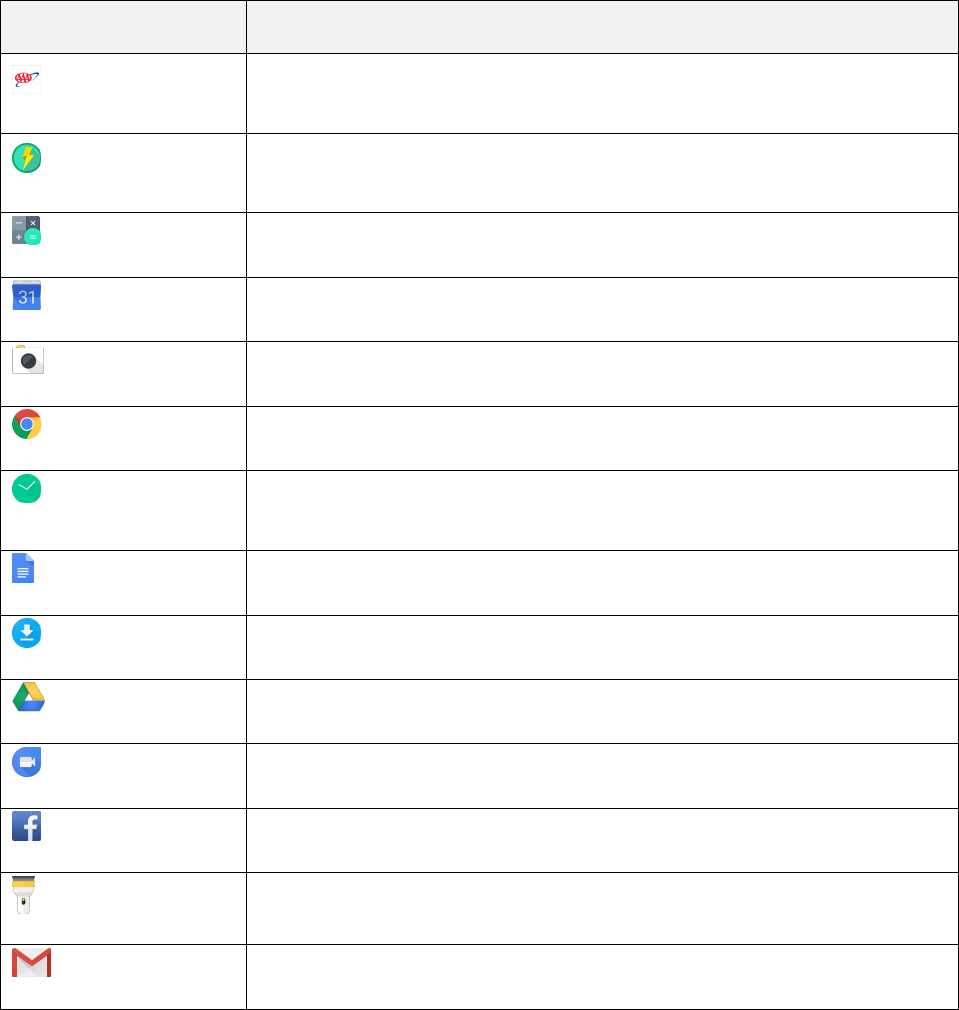
Basic Operations 33
Applications
The following topics describe how to access the applications (apps) list and launch apps on your phone.
Apps List
The Apps screen includes any apps you download and install on your phone. The following table outlines
the primary apps that have been preinstalled on your phone.
App
Function/Service
AAA
Get maps and directions, roadside assistance, and AAA member discounts
nearby.
Boost+
Optimize your phone's performance, maximize your storage capacity, and
add a level of privacy to some of your apps.
Calculator
Perform basic and advanced mathematical operations. See Calculator.
Calendar
View, create and send events. See Calendar.
Camera
Take photos and capture videos. See Camera and Video.
Chrome
Browse the Internet. See Chrome Browser.
Clock
Check the time, set an alarm, or use the World Clock, Stopwatch and Timer.
See Clock.
Docs
Create, edit, and share documents.
Downloads
View all your downloaded files here.
Drive
Manage your Google Drive online storage. See Google Drive.
Duo
Start a one-to-one video call with people that matters to you.
Facebook
Check what’s new with your social network. See Facebook.
Flashlight
Use your phone's dual flash as a handy flashlight.
Gmail
Create, send, and receive emails. See Gmail.
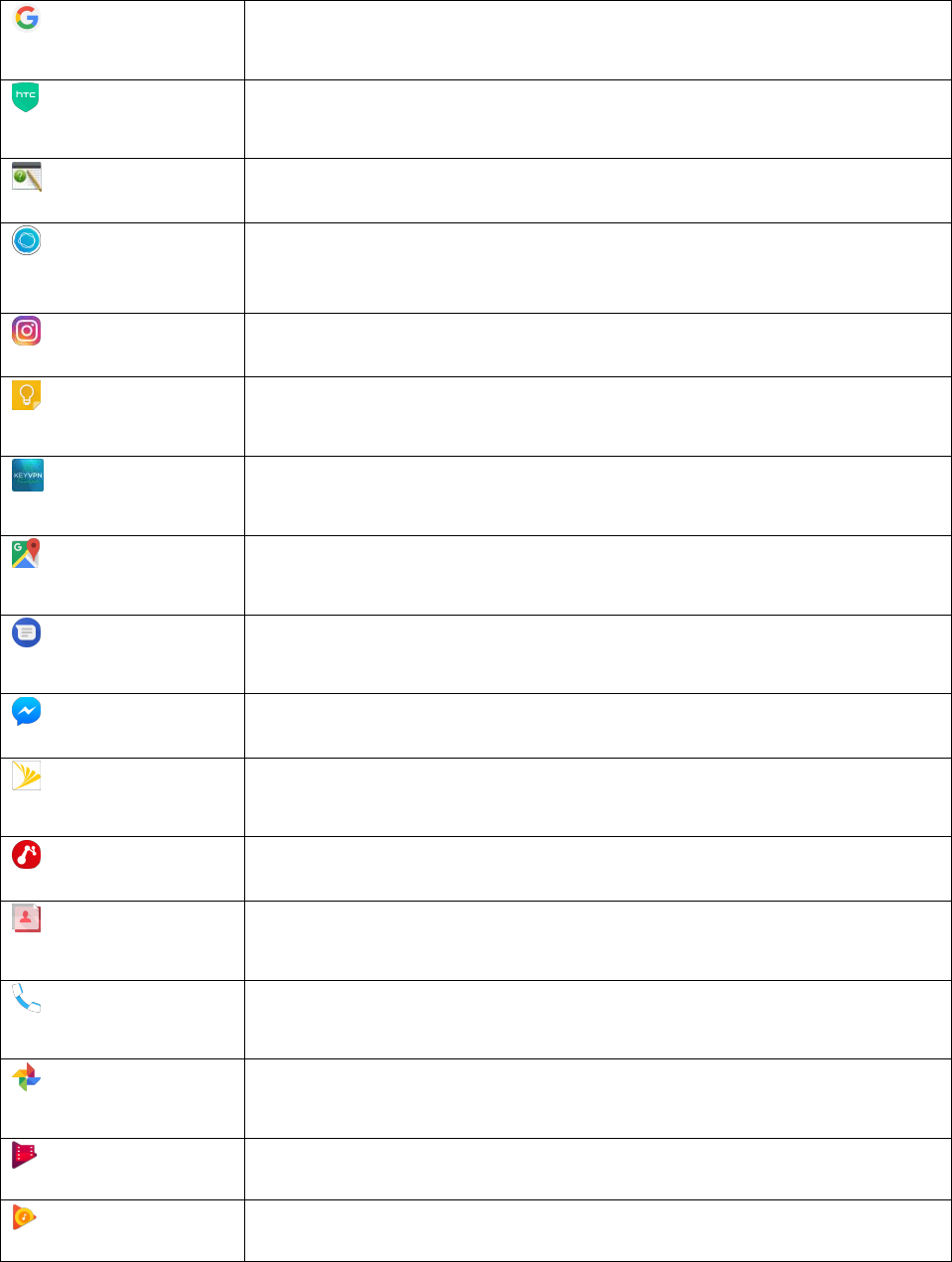
Basic Operations 34
Google
Open the Google app. See Perform Searches on the Web and Your Phone
and Get Instant Information with the Google App.
Help
Find useful content on how to use your phone, view troubleshooting
information, and more. See HTC Help.
HTC Mobile Guide
View your phone’s online user guide.
HTC Sense
Companion
Sign up to HTC Sense Companion and manage your information
preferences. See Set Up HTC Sense Companion.
Instagram
Edit and share your favorite photos with this photo-sharing app.
Keep
Jot down notes, reminders, and ideas, or record a voice memo with this
handy app.
KeyVPN
Securely connect to your corporate intranet sites. Ask your network
administrator for details.
Maps
View maps and get detailed turn-by-turn navigation to your destination. See
Google Maps.
Messages
Create and send text and multimedia messages. See Text and Multimedia
Messaging.
Messenger
Chat with your Facebook buddies with this app.
My Sprint
Monitor your data usage, view or pay bills, update your account preferences,
and more with the My Sprint app.
News Republic
Find out the latest headlines in news, entertainment, sports, and more.
People
Add, manage, and get in touch with people that matter to you most. See
Contacts.
Phone
Call friends, check out your call history, manage your contacts list, and more.
See Phone Calls and Voicemail.
Photos
View and edit photos and videos you’ve captured using the phone's camera
or those you've stored online.
Play Movies & TV
Search, buy, and watch movies and shows on your phone.
Play Music
Search, buy, and listen to music on your phone.
Basic Operations 35
Play Store
Search, buy, and install apps to your phone. See Google Play Store.
Record
Track your activities, sleep, and workouts by connecting your fitness device to
your phone.
Settings
Change your phone settings. See Basic Settings.
Sheets
Create, edit, and collaborate on spreadsheets from your phone.
Slides
Create, edit, and collaborate on presentations from your phone.
Themes
Personalize your phone with themes. See Themes.
TouchPal
Choose from a variety of keyboard themes and more.
Viveport
Visit the app store for virtual reality content, where you can explore, create,
connect, and experience VR.
Voice Recorder
Record and share your voice or create a voice memo. See Voice Recorder.
Voice Search
Search the Web using your voice. See Search the Web with Your Voice.
Weather
Check the weather in your location and in other cities around the world. See
Weather.
Wi-Fi Calling
Make and receive calls over Wi-Fi. See Wi-Fi Calling.
YouTube
Watch or upload videos online. See YouTube.
Note: Available apps are subject to change without prior notice.
Launch an App
There are several options for opening an app from the Home screen.
● Tap an app on the launch bar at the bottom of the Home screen.
● Tap to go to the Apps screen, and then tap the app you want to use.
● On the Apps screen, tap , then enter the name of the app you’re looking for.
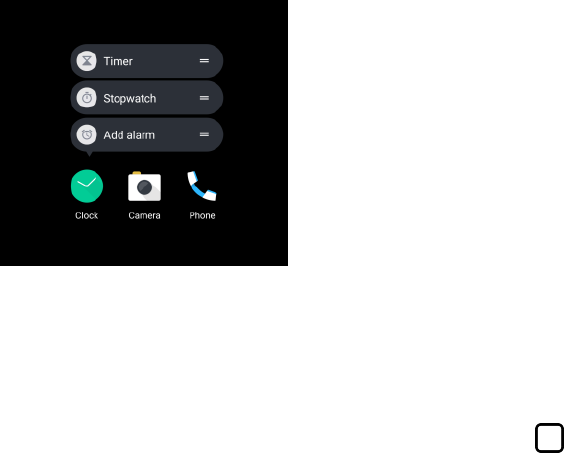
Basic Operations 36
Open an App or Folder from the Lock Screen
■ On the lock screen, drag an app or folder icon up to unlock the screen and directly go to the app
or folder.
If you’ve set up a screen lock, you’ll be asked to provide your credentials first before your phone opens
the app or folder.
Tip: The shortcuts on the lock screen are the same ones on your Home screen’s launch bar. To change
the lock screen shortcuts, you’ll have to replace the apps or folders on the launch bar.
App Shortcuts
Starting from Android 7.1, touch and hold an app icon on a widget panel or the Apps screen to display a
menu that lets you quickly access common app functions.
Note: Not all apps support the app shortcuts feature.
1. Touch and hold an app icon, for example Clock.
2. From the displayed menu, tap the function you want to launch in the app.
Work with Two Apps at the Same Time
Use the split-screen view to display two running apps side by side.
Note: Some apps may not support this feature.
1. Open the first app you want to use, and then touch and hold .
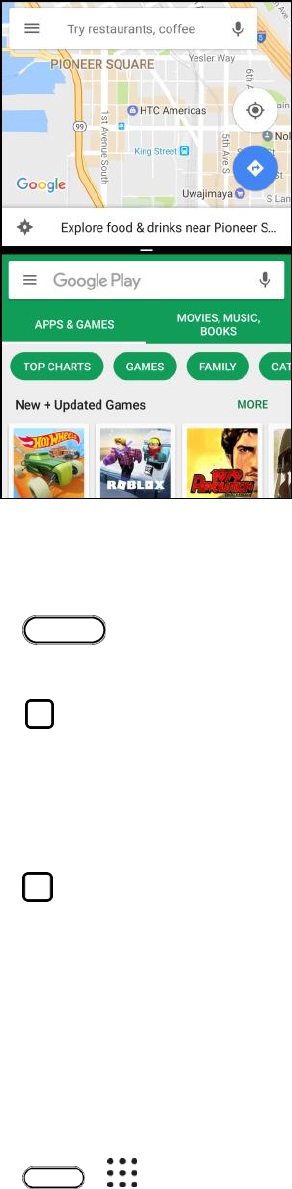
Basic Operations 37
A screen divider will appear onscreen.
2. If the app you want to use is in the recent apps list, tap it to make it the second active app.
– or –
Tap , and then open the app you want to use as the second active app.
■ To turn off the split-screen view, drag the screen divider up or down the screen. Or, touch and
hold .
Switch Between Recently Opened Apps
When you’re multitasking and using different apps on your phone or opened multiple Web pages from the
Web browser, you can easily switch between the apps or Web pages you’ve recently opened.
■ Tap to see recently-opened apps.
To switch back to an app, just tap it.
To remove an app from the list, drag it left or right.
To clear the recent apps list, tap Clear all.
Arrange Apps on the Apps Screen
Personalize the Apps screen to your liking. You can rearrange the apps and change the layout.
1. Tap > .
Basic Operations 38
2. Tap and then choose how to arrange apps, such as alphabetically.
3. Select Custom if you want to rearrange or group apps into folders.
Move Apps and Folders
1. Tap > .
2. Tap > Custom.
3. Tap > Rearrange apps.
4. Touch and hold an app or folder, and then do one of the following:
Drag the app to another position on the same page. Wait until you see the occupying icon
move away before releasing your finger.
Drag the app to the or arrow to move it to another page.
5. When you’re done, tap .
Group Apps into Folders
1. Tap > .
2. Tap > Custom.
3. Tap > Rearrange apps.
4. Touch and hold an app, and then drag it over to another app to automatically create a folder.
5. To add more apps, drag each app over to the folder.
6. To name the folder, open the folder, tap its title bar, and then enter a folder name.
7. When you’re done, tap .
Remove Apps from a Folder
1. Tap > .
2. Tap > Custom.
3. Tap > Rearrange apps.
4. Tap the folder to open it.
5. Touch and hold an app, and then drag it out to the Apps screen. Wait until you see the occupying
icon move away before releasing your finger.
Basic Operations 39
6. When you’re done, tap .
Hide or Show Apps on the Apps Screen
1. Tap > .
2. Tap > Show/Hide apps.
3. Select the apps you want to hide, or clear their check boxes to unhide them.
4. Tap Done.
Control App Permissions
When you open apps the first time, you'll be prompted to grant them permissions to access certain data
or features, such as contacts or the microphone. This gives you more control over which apps have
authorized access.
● If you suspect a certain app of being malicious or requesting unnecessary permissions, you
should choose Deny to protect your phone.
● If you choose Deny in a trusted app, you may not be able to use the app or access its full
functionality. When this happens, go to Settings to change the app permissions.
1. Tap > > Settings.
2. Tap Apps.
3. Tap the app you want to configure, and then tap Permissions.
4. Choose which permissions you want to turn on.
Set Default Apps
In Settings, you can choose default apps for Web browsing, text messaging, and more.
1. Tap > > Settings.
2. Tap Apps.
3. Tap Configure apps.
4. Under Default, choose your default launcher, Web browser, phone, text messaging apps, and
more.
Set Up App Links
If there's more than one app that can be opened when you tap a link—such as a shared social post or
media link—you may be prompted to choose the app you want to use. When you're prompted after you've
tapped a link, select an app, and then tap Always to set that app as the default app to use.
You can also go to Settings to see how app links have been set up for different apps and change them.

Basic Operations 40
1. Tap > > Settings.
2. Tap Apps.
3. Tap Configure apps > Opening links.
4. Tap the app you want to configure, and then tap Open supported links.
5. Select Open in this app to always open the app without being prompted when you tap a link.
You can also choose whether to always be prompted to choose the app or never use the app
for opening links.
Phone Number
Follow the instructions below to display your phone’s wireless phone number.
1. Tap > > Settings.
2. Tap About > Phone identity.
You will see the number listed under Phone number.
Silent Mode
Silent mode sets your phone’s ringtone, operation sounds, notifications, etc., not to sound to avoid
disturbing others around you.
Note: Camera shutter, video start/stop tones, and certain other sounds may still be active during silent
mode.
To set to silent mode:
1. Tap > > Settings.
2. Tap Sound & notification > Sound profile.
3. Select Silent.
Tip: You can also set the phone to silent mode using Quick Settings. See Using Quick Settings for
details.
To restore the sound to normal mode:
1. Tap > > Settings.
2. Tap Sound & notification > Sound profile.
3. Select Normal.
Your phone’s sound settings are now restored.
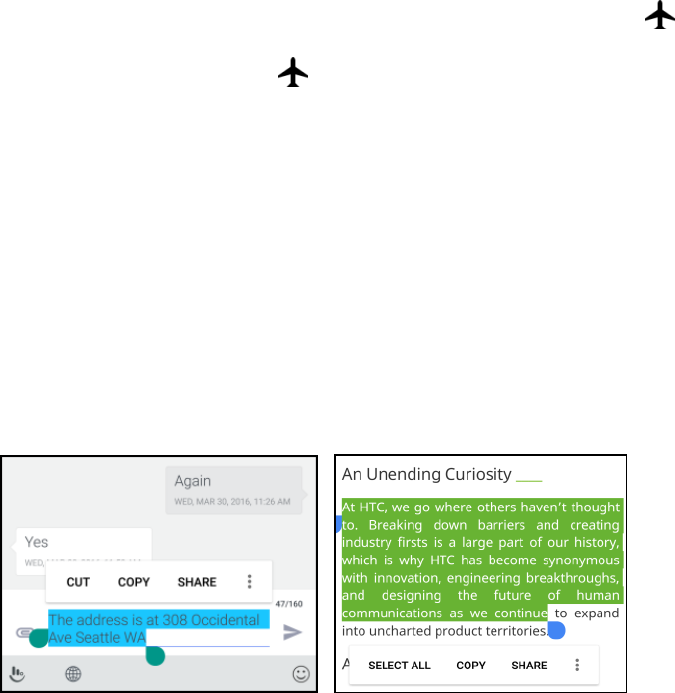
Basic Operations 41
Tip: You can also restore the phone sound using Quick Settings. See Using Quick Settings for details.
Airplane Mode
When you enable Airplane (flight) mode, all wireless radios on your phone are turned off, including the
call function, data services, Bluetooth, and Wi-Fi. You can still use many of your phone’s features, such
as Camera when you are on an airplane or in any other area where making or receiving calls or data is
prohibited.
When you disable Airplane mode, the call function is turned back on and the previous state of Bluetooth
and Wi-Fi is restored.
Notes:
● You can manually turn Bluetooth and Wi-Fi back on after enabling Airplane mode.
● If USB tethering is turned on, enabling Airplane mode turns it off. You need to manually turn USB
tethering on after you disable Airplane mode.
■ To turn Airplane mode on or off:
Press and hold the Power/Lock button, and then tap Airplane mode.
– or –
Swipe down from the status bar to open Quick Settings and then tap .
When enabled, the Airplane mode icon is displayed in the status bar.
Working with Text
Enter, select, edit, and share text from apps that allow text input.
Edit Text
You can select and copy text, and then paste or share it.
Select, Copy, and Paste Text
1. Touch and hold on a word.
2. Drag the start and end anchors to highlight the surrounding text you want to select.
Basic Operations 42
3. After you have selected the text you want to copy, tap Copy or . The selected text is then
copied to the clipboard.
4. In a text entry field (for example while composing an email), touch and hold at the point where
you want to paste the text.
5. Tap Paste or .
Tip: To copy the address of a link on a webpage, touch and hold the link, and then tap Copy link
address.
Share Text
1. After you have selected the text you want to share, tap Share or .
2. Choose where to paste and share the selected text, such as in an email message or social
network status update.
Enter Text by Typing
The keyboard becomes available when you tap a text field in an app. Enter letters and numbers, change
the keyboard layout or language, and more.
● Tap the keys on the onscreen keyboard to enter letters and numbers, as well as punctuation
marks and symbols.
● Tap to enter an uppercase letter. Tap twice to turn on caps lock.
● Touch and hold keys with gray characters at the top to enter numbers, symbols, or accented
letters. Some keys have multiple characters or accents associated with them.
● To delete your text entry one letter at a time, tap . To quickly delete words, touch and hold
.
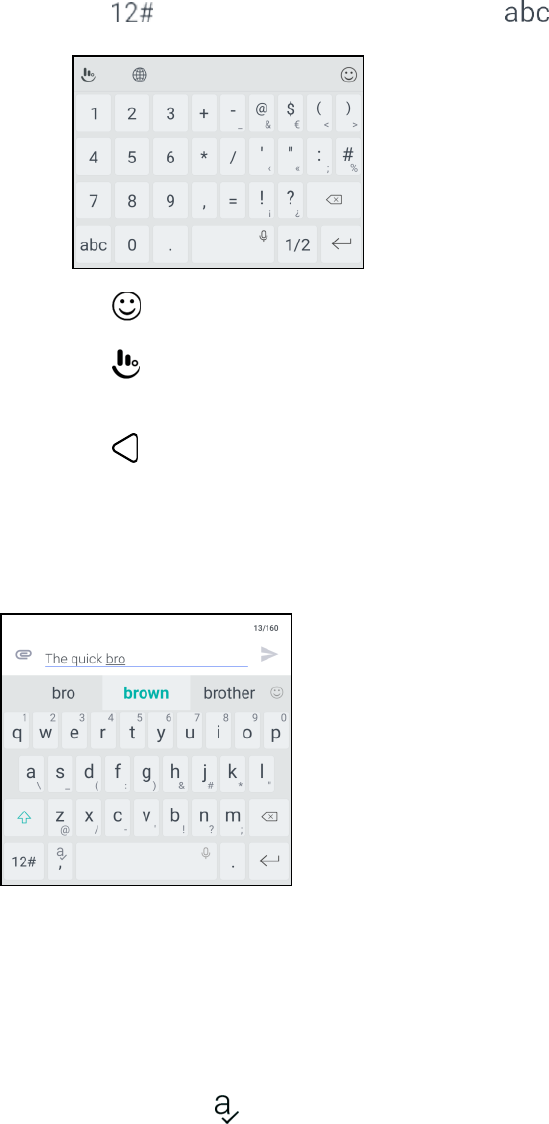
Basic Operations 43
● Tap to show number and symbol keys. Tap to return to the main keyboard.
● Tap to choose from a wide selection of emojis.
● Tap to check out more features, options, and settings. You can resize the keyboard space,
change the layout and design, download dictionaries, and more.
● Tap to close the onscreen keyboard.
Enter Text with Word Prediction
The onscreen keyboard has predictive text to help you type quickly and accurately. Predictive text input is
enabled by default, and word suggestions are displayed as you type.
To enter a word in predictive mode, do any of the following:
● Tap the space bar to insert the highlighted word in the suggestion list.
● Tap a word from the suggestion list.
To turn word prediction on or off:
■ Touch and hold on the keyboard, and then tap the Prediction switch to turn word prediction
on or off.
Enter Text by Voice
Try speaking the words to enter them in most text fields that let you use the touch input keyboard.
1. Tap an area where you want to enter text.
Basic Operations 44
2. On the onscreen keyboard, touch and hold .
3. When you see the microphone button and the words "Speak now", say the words you want to
enter.
Tip: To set the voice input language, tap > Languages. You can choose one or more languages.
Available languages depend on the voice input languages supported by Google.
4. If a word doesn’t match what you’ve spoken and it’s underlined, tap the underlined word to delete
it or to see more choices.
5. Enter punctuation marks by saying the name (for example, say "comma").
Adjust the Keyboard Settings
You can change the keyboard language and layout based on your preference.
Enabling Smart Keyboard Options
Turn on the keyboard's advanced features to help you type faster, such as contextual prediction, auto-
correction, and more.
1. Tap > > Settings.
2. Tap Language & keyboard.
3. Tap Virtual keyboard > TouchPal - HTC Sense Version > Smart input.
4. Select the options to enable.
Change the Keyboard Language
If multiple keyboard languages are available on your phone, you can choose which languages to enable
in the onscreen keyboard.
1. Tap > > Settings.
2. Tap Language & keyboard > Languages > Add a language.
3. Choose the languages you want.
4. To change the keyboard language, do any of the following while entering text:
Swipe the space bar key ( ) left or right.
Tap and then choose the language you want to use.
Change the Keyboard Layout
You can change the keyboard layout depending on your typing preference.
Basic Operations 45
1. While entering text, tap .
2. Under the current keyboard language, tap the keyboard layout you want to use. Depending on
the selected language, you can select Phonepad, Full, or T+.
Typing Faster and More Accurate
The onscreen keyboard of your phone is highly customizable. You can modify its settings and options to
enhance your typing experience. Here are some tips that you could try.
Turn On Contextual Prediction
1. Tap > > Settings.
2. Tap Language & keyboard.
3. Tap Virtual keyboard > TouchPal - HTC Sense Version > Smart input.
4. Select Contextual prediction.
This option enables next word prediction and will also allow the keyboard to learn from the
usual word patterns you type for better word suggestions.
Switch to Landscape Mode
1. With two fingers, swipe down from the status bar and check if Auto rotate is turned on.
2. Open the app you need, and then tap a text field to show the keyboard.
3. Turn your phone sideways to bring up a bigger keyboard.
4. You can then tap > Split.
5. To return to the normal keyboard, tap > Normal.
Resize or Reposition the Keyboard
1. Open the app you need, and then tap a text field to show the keyboard.
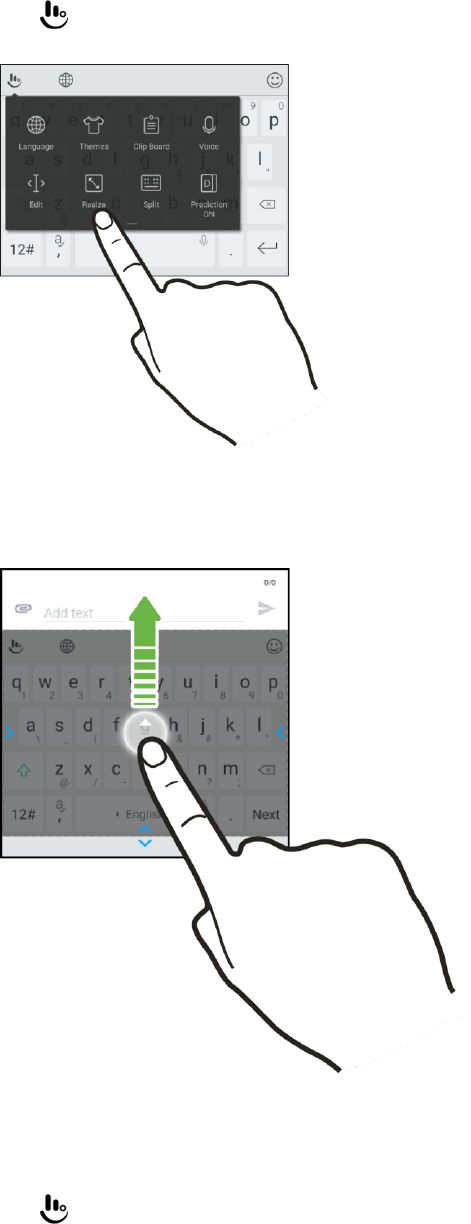
Basic Operations 46
2. Tap , and then tap Resize.
3. Drag any of the border arrows to resize your keyboard.
4. To move the keyboard up, drag the center button up.
Show Numeric Keys on the Top Row of the Keyboard
1. Open the app you need, and then tap a text field to show the keyboard.
2. Tap , swipe to the left, and then tap Settings.
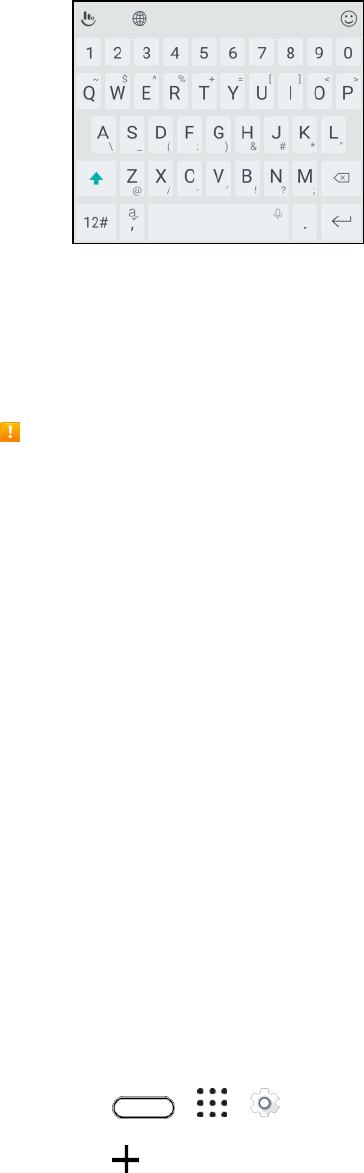
Basic Operations 47
3. Tap General settings and select Number Row.
Google Account
You will need a Google Account to access several phone features such as Gmail, Google Maps, and the
Google Play applications. Before you are able to access Google applications, you must enter your
account information. These applications sync between your phone and your online Google Account.
Google Account Cautions
Be sure not to forget your Google Account ID or password.
Create a Google Account
If you do not already have a Google Account, you can create one online or using your phone.
Notes:
● You can also create and sign into your Google/Gmail account through your phone’s Setup
application.
● Although you need a Gmail account to use certain features of your phone, such as Google Play,
you do not need to use Gmail as the default account for your phone.
Create a Google Account Online
1. From a computer, launch a Web browser and navigate to google.com.
2. On the main page, click Sign in > Add account > Create account.
3. Follow the onscreen prompts to create your free account.
4. Navigate to your Gmail inbox.
Create a Google Account Using Your Phone
1. Tap > > Settings > Accounts & sync.
2. Tap .
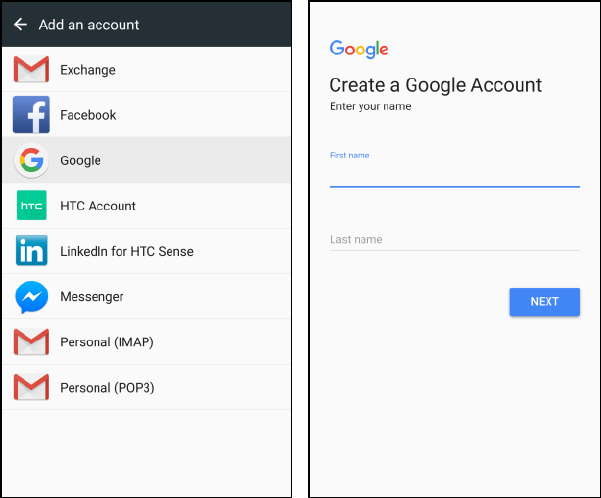
Basic Operations 48
3. Tap Google, and then tap More options > Create a new account.
4. Follow the prompts to set up your account. Tap Next to proceed between steps, which may
include:
Enter your First name and Last name.
Enter a desired Username.
Enter and reenter a password.
Create a security question and answer.
Enter a secondary email address to help you recover your password if you ever lose it.
On the Finish account screen, select your Web history and additional Google Play options.
Enter the letters from the Authenticating screen.
After your phone connects with the Google servers, select the items you would like to sync
with your phone and then tap Sync now.
5. Tap Finish setup.
You are signed in to your Google Account, and your phone will synchronize the selected items.
Note: When setting up a new Google Account, either on your phone or online, you will be prompted to
add a secondary email address. Enter a second Gmail address or any other email address from which
you currently send and receive email. This address is used to authenticate your account should you ever
encounter problems or forget your password. It is strongly encouraged for Android users so you can
regain access to Google services and purchases on your phone.

Basic Operations 49
Sign In to Your Google Account
If you have a Google Account but have not yet signed in with your phone, follow these instructions to sign
in to your Google Account.
1. Tap > > Settings > Accounts & sync.
2. Tap > Google.
3. Tap Enter your email.
4. Enter your Gmail address, and then tap Next.
5. Complete any additional screens if prompted.
You are signed in to your Google Account, and your phone will synchronize the selected items.
Factory Reset Protection
When you sign in to a Google Account on your device, Factory Reset Protection is turned on. Factory
Reset Protection (FRP) prevents other people from using your device if it is reset to factory settings
without your permission. For example, if your device is lost or stolen and a factory data reset is
performed, only someone with your Google Account username and password can use the device.
You will not be able to access the device after a factory data reset if you do not have your Google
Account username and password. For more information, see Factory Data Reset.
Caution: You should remove your Google Account before shipping your device to any service provider
for service and before resetting the device to factory settings.
Enable Factory Reset Protection
Adding a Google Account to your device automatically turns on the Factory Reset Protection (FRP)
security feature. No further action is necessary to turn on FRP.
Disable Factory Reset Protection
To disable FRP, remove all Google Accounts from the device.
1. Tap > > Settings.
2. Tap Accounts & sync.
3. Tap the account that you want to remove.
4. Tap or > Remove.
5. Tap Remove account to confirm.
Important: Some personal data may be retained by the third-party app after you have removed the
account from your phone.
Basic Operations 50
Google Play Store
Google Play is the place to go to find new apps for your phone. Choose from a wide variety of free and
paid apps ranging from productivity apps, entertainment, to games.
Note: To purchase apps and other content on Google Play, you can use the payment methods from your
Google account. When you make your first purchase, your selected payment method will be added to our
Google account. To learn more about accepted payment methods, see support.google.com.
Installing Applications
Many different kinds of applications can be installed on your phone from Google Play (provided by
Google Inc.). Sprint is not responsible in any way for user-installed applications (quality, reliability,
legality, fitness for a purpose, credibility, accuracy, etc.) or resulting malfunctions (viruses, etc.).
Important: Our policies often do not apply to third-party applications. Third-party applications may access
your personal information or require us to disclose your customer information to the third-party application
provider. To find out how a third-party application will collect, access, use, or disclose your personal
information, check the application provider’s policies, which can usually be found on their website. If you
aren’t comfortable with the third-party application’s policies, don’t use the application.
Find and Install an App
When you install apps from Google Play app and use them on your phone, they may require access to
your personal information (such as your location, contact data, and more) or access to certain functions
or settings on your phone. Download and install only apps that you trust.
1. Tap > > Play Store.
2. Browse or search for an app.
3. When you find the app you like, tap it and read its description and user reviews.
4. To install a free app, tap Install. To install a paid app, tap the price button, and then tap Buy. If
you have not added a payment method to your Google account, tap to select the payment
method, and then tap Continue.
The selected app is downloaded and installed on your phone.
Warning: Read the notification carefully! Be especially cautious with applications that have access to
many functions or a significant amount of your data. Once you installed an app, you are responsible for
the results of using this item on your phone.
5. To open the app, tap Open after installing or go to the Apps screen and tap the app.
Tip: Apps sometimes get updated with improvements or bug fixes. To automatically download updates,
after installing, tap > Auto-update.
Purchasing Applications
Purchase apps at your own risk. Sprint is not responsible for any harm to you or third parties resulting
from the use of purchased applications.

Basic Operations 51
Request a Refund for a Paid App
If you are not satisfied with an app, you can ask for a refund within 15 minutes of the purchase. Your
credit card is not charged and the app is uninstalled from your phone.
If you change your mind, you can install the app again, but you can’t request a refund a second time.
1. Tap > > Play Store.
2. Tap , and then tap My apps & games.
3. Tap the app to uninstall for a refund. The details screen for the app opens.
4. Tap Refund, and then tap Yes to confirm. Your app is uninstalled and the charge is cancelled.
Restore Apps
When you're upgrading to a new phone, replacing a lost one, or performing a factory reset, you can
restore apps that you previously downloaded.
1. Tap > > Play Store.
2. Tap , and then tap My apps & games.
3. Swipe to the Library tab.
4. Tap Install next to the app you want to restore.
For more details, refer to the Google Play help.
Update an App
Depending on your settings, many apps will update automatically, or you can update apps directly from
the Play Store app.
Update an App Directly
1. Tap > > Play Store.
2. Tap > My apps & games.
3. Swipe to the Updates tab, and then tap Update next to the app.
The app update is downloaded and installed.
Set Automatic Updates
1. Tap > > Play Store.
2. Tap > Settings > Auto-update apps.
Basic Operations 52
3. Tap an auto-update option, such as auto-update apps over Wi-Fi only.
Note: Automatic updates are unavailable for some apps.
Uninstall an App
You can uninstall any app that you have downloaded and installed from Google Play.
1. Tap > > Play Store.
2. Tap > My apps & games.
3. On the Installed tab, tap the app you want to uninstall, and then tap Uninstall > OK.
The app is uninstalled and removed from your phone.
Get Help with Google Play
The Google Play Store app offers an online help option if you have questions or want to know more about
the app.
1. Tap > > Play Store.
2. Tap > Help & feedback.
The Web browser will take you to the Google Play Help Web page, where you will find
comprehensive, categorized information about Google Play.
Edge Sense
Edge Sense provides an intuitive way to interact with HTC U11 by simply squeezing its lower sides.
Customize Edge Sense to quickly access your favorite app or shortcut, such as launching the Camera
app, typing with your voice, capturing screenshots, and more.
Set Up Edge Sense
If you didn't set up Edge Sense when you first set up your phone, you can do it in Settings.
1. Tap > > Settings.
2. Tap Edge Sense.
3. Follow the onscreen instructions to complete the process.
To turn it on or off, tap the Edge Sense On/Off switch in Settings.
After you've finished setting up Edge Sense, it works in Basic mode which, by default, allows you to
launch the Camera app and take shots with a squeeze of your phone. See Take Camera Shots Using
Edge Sense. If you want to assign another action or app to the squeeze gesture, see Change the Action
When You Squeeze the Phone.
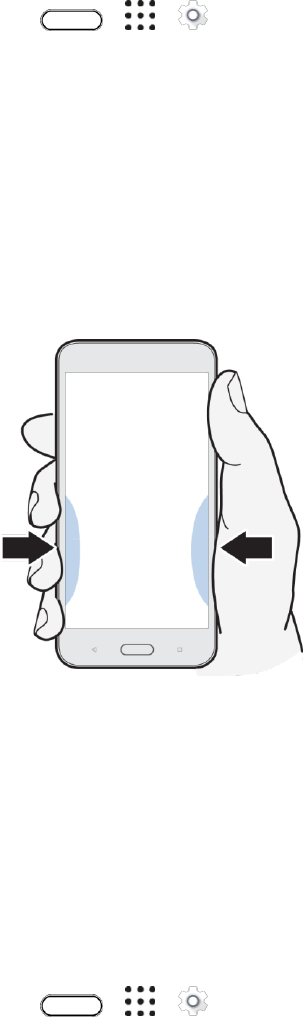
Basic Operations 53
Edge Sense also has an Advanced mode that gives you two types of squeeze gestures: a short squeeze
and a squeeze and hold. For details, see Enable Advanced Mode.
Turning Edge Sense On or Off
You can turn Edge Sense on or off in Settings.
1. Tap > > Settings.
2. Tap the Edge Sense On/Off switch to turn it on or off.
You can also turn Edge Sense on or off in Quick Settings. For details, see Using Quick Settings.
Take Camera Shots Using Edge Sense
Instantly launch the camera and begin taking shots.
1. Squeeze the lower sides of HTC U11 to open the Camera app.
2. Squeeze again to take a photo.
Note: Squeezing your phone will open the Camera app in the last capture mode you were using. When
you squeeze again, the camera takes a photo, video, or selfie, depending on the capture mode.
If you turn on Advanced mode in the Edge Sense settings, you can squeeze and hold the lower sides of
your phone to switch between the main and front cameras while you're in the Camera app. For details,
see Enable Advanced Mode.
Change the Action When You Squeeze the Phone
By default, the Camera app opens when you squeeze your phone. You can assign the squeeze gesture
to do a different action or launch a different app.
1. Tap > > Settings.
2. Tap Edge Sense.
3. Tap Customize squeeze action, and then choose your preferred option.

Basic Operations 54
Note: If you want your phone to detect your squeeze only when the display is on, clear the Enable
gesture when screen is off option.
4. Tap to save your setting.
Tip: You can also assign one more action for Edge Sense. For details, see Enable Advanced Mode.
Enable Advanced Mode
Turning on advanced mode activates the squeeze and hold gesture.
In this mode, you'll be able to do the following with Edge Sense:
● While you're using the Camera app, squeeze and hold the lower sides of your phone to switch
between the main and front cameras. You can do this only if the squeeze gesture—whether it's
the short squeeze or squeeze and hold—is set to Launch Camera app.
● Do two different actions when squeezing, depending on how long you squeeze. By default, short
squeeze opens the Camera app while squeeze and hold launches Google voice assistant. You
can assign these two squeeze gestures to other actions.
1. Tap > > Settings.
2. Tap Edge Sense.
3. Select the Enable advanced mode check box.
4. Follow the onscreen instructions to set the squeeze force levels.
5. To change the action the phone takes when you squeeze it, tap Customize short squeeze
action, and then choose your preferred option.
6. To change the action the phone takes when you squeeze and hold it, tap Customize squeeze &
hold action, and then choose your preferred option.
7. Tap to save your setting.
Enter Text with Your Voice Using Edge Sense
Enter text using your voice instead of the onscreen keyboard. To use the Voice-to-Text feature, Google
voice assistant needs to be assigned to a squeeze gesture. If you turned on Advanced mode, by default,
the squeeze and hold gesture is set to Launch Google voice assistant. See Enable Advanced Mode.
1. Open an app where you want to enter text.
2. With the onscreen keyboard showing, squeeze the lower sides of your phone, and then speak the
words you want typed.
Note: If you paused speaking, you may need to tap the microphone icon on the screen to resume voice
typing.
Basic Operations 55
Aside from entering text, you can also use Edge Sense to launch Google voice assistant to do a web
search, ask questions such as about the weather, and more. While you're not in the Camera app or
onscreen keyboard, squeeze and hold the lower sides of your phone to use Google voice assistant.
Adjust the Squeeze Force Level
Make your phone detect the strength of your squeeze more effectively when using Edge Sense.
1. Tap > > Settings.
2. Tap Edge Sense.
3. Tap Adjust your squeeze force level.
4. Tap Test your squeeze force.
5. Follow the onscreen instructions to complete the process.
HTC Sense Companion
HTC Sense Companion is a personal companion that’s always learning from you, and the things you do
every day. It reminds you when you have evening engagements in your calendar and battery power may
not be enough, informs about weather conditions that might affect your weekend plans, tracks your steps
to provide you a weekly fitness report with details such as step count and distance traveled, and more.
HTC Sense Companion is made to evolve and get to know you better over time.
Notes:
● The help content here is based on the following app version: 1.00.91.
● HTC Sense Companion retrieves information from third party websites and databases. HTC is not
responsible for the accuracy of such third party content.
● More features will be added through an HTC system update or app update.
Set Up HTC Sense Companion
When setting up HTC Sense Companion for the first time, sign in to your HTC Account so that HTC
Sense Companion can link to all HTC apps and services. This allows you to get better recommendations
and information tailored to your needs.
1. Tap > > HTC Sense Companion.
2. Tap Continue.
3. When prompted to choose permissions, select all the options to get better recommendations, and
then tap Next.
4. Tap Sign in or Yes to link HTC Sense Companion to your HTC Account.
5. When you're all set, tap Continue.
Note: To change HTC Sense Companion settings, open the app again, and then tap .

Basic Operations 56
View the Detail Cards
After you've set up HTC Sense Companion, it needs some time to learn from your daily phone usage and
activities before it can provide suggestions and information. When it starts to display them as detail cards,
here are ways you can view the cards.
● Tap the edge bubble when you see it on the right side of the screen. It only appears for a few
seconds.
● Slide the notification panel open, and then tap the HTC Sense Companion notification. You may
need to scroll down the panel to see it, if you have several app notifications.
● Open the HTC Sense Companion app to view all detail cards.
Make sure to respond to the detail cards so that HTC Sense Companion can continuously learn from you
and provide suggestions and information.
Notes:
● HTC Sense Companion checks your calendar data, such as evening and weekend events, to
display reminders. You'll need to enter your events with their respective dates and locations first
to your calendar.
● For HTC Sense Companion to learn and provide helpful information based on your location and
activities, tap > Permissions and grant the app access to your data, if you haven't done so.
Also, make sure location services are enabled. See Location Setting for details.
Basic Operations 57
Fingerprint Scanner
You can quickly wake up and unlock the phone using your fingerprint. You can add up to 5 fingerprints.
When setting up and using the fingerprint scanner, follow these tips:
● Make sure your finger and the fingerprint scanner are dry and clean.
● Use the entire pad of your finger, including the sides and tip.
● When recording your fingerprint, touch the scanner until it vibrates.
● The fingerprint scanner has 360° readability—you can touch a recorded finger at any angle to the
scanner to turn on the screen or unlock the phone.
Note: You may not be able to set the fingerprint scanner to unlock the phone, if you’ve signed in to an
Exchange ActiveSync account that requires you to set a different screen lock option (such as password).
Check with your Exchange Server administrator if your Exchange ActiveSync account supports the
fingerprint scanner.
Add a Fingerprint the First Time
It’s quick and easy to add a fingerprint.
1. Tap > > Settings > Fingerprint scanner.
2. Tap Add fingerprint.
If you haven’t already set up a lock screen pattern, PIN, or password, you’ll be asked to set
one up.
3. Tap Start.
4. Choose which finger or thumb to use, touch the scanner until it vibrates, then lift your finger or
thumb.
5. Repeatedly touch the scanner until the fingerprint has been successfully recorded. You’ll get the
best results if you hold your finger in the same direction when touching the scanner.
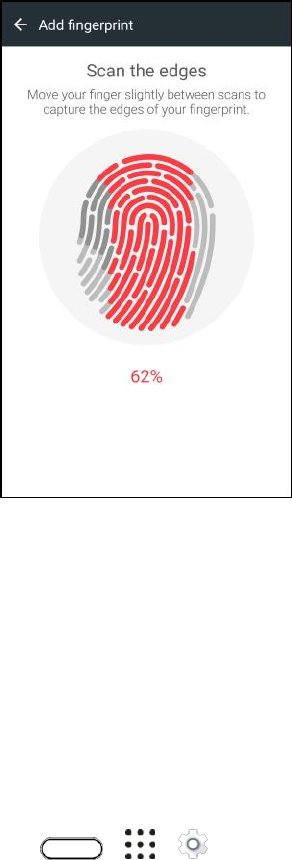
Basic Operations 58
6. After you’ve successfully recorded your fingerprint, tap Done. Otherwise, tap Add another
fingerprint to register another one.
You can now use your fingerprint to wake up and unlock your phone.
Important: You’ll need to input your backup lock screen pattern, PIN, or password if the scanner doesn’t
identify your fingerprint after five attempts. You’ll only have 10 additional attempts before your data is
deleted from your phone.
Add, Remove, or Edit Fingerprints
Follow these steps to manage your fingerprints on your phone.
1. Tap > > Settings > Fingerprint scanner.
2. Enter your pattern, PIN, or password.
3. Do any of the following:
Tap Add fingerprint to add another fingerprint.
Tap a recorded fingerprint to rename or delete it.
Tap Reset fingerprint scanner to delete all recorded fingerprints.
Select Wake up screen if you want to be able to tap the fingerprint scanner to wake up the
screen.

Basic Operations 59
Lock and Unlock Your Screen
Your phone allows you to quickly turn the screen off when not in use and to turn it back on and unlock it
when you need it.
Turn the Screen Off When Not in Use
■ To quickly turn the screen off, press the Power/Lock button. Pressing the Power/Lock button
again or receiving an incoming call will turn on your phone screen and show the lock screen.
To save battery power, the phone automatically turns off the screen after a certain period of time when
you leave it idle. You will still be able to receive messages and calls while the phone’s screen is off.
Note: For information on how to adjust the time before the screen turns off, see Display, Gestures &
Buttons Settings.
Unlock the Screen
Unlock the screen to access your phone.
1. Do any of the following:
Swipe up to unlock the screen.
Touch and hold the fingerprint sensor.
2. If you’ve set up a screen lock, you’ll be asked to provide your credentials before your phone
unlocks.
Tip: If you’ve set an alarm, you can snooze or dismiss the alarm right from the lock screen. Just drag
or up.
Update Your Phone
From time to time, updates may become available for your phone. You can download and apply updates
through the Settings > System updates menu. Download and install software updates for the latest
performance enhancements, bug fixes, and security improvements. HTC U11 can check and notify you if
there’s a new update available.
Some app updates are available from HTC or Sprint, and you'll receive notifications on your phone when
there are new updates. Or you can install app updates from Google Play. Some HTC apps that are not
preloaded in certain phones can also be downloaded from Google Play.
Note: The information in this guide may not be most up-to-date if there are more recent software or app
updates available.
Software Update Cautions
During update: The phone cannot be used until the software update is complete. It may take time to
update your phone’s software.
Basic Operations 60
Signal during update: Update your phone where signal reception is good, and do not change
location during the update process. Make sure the battery is adequately charged before beginning an
update. A weak signal or low battery during an update may cause the update to fail. An update failure
may disable the phone.
Other functions during update: Other phone functions cannot be used during a software update.
Before Updating Your Phone
Updating your phone may result in a loss of saved data depending on the condition of your phone
(malfunctioning, damaged, water seepage, etc.). You must back up all critical information before updating
your phone firmware.
Note: Updating your phone firmware may not permanently erase all data from your phone, including
personal information.
Confirm Your Phone Software Version
Before installing a system software update, you can check first what Android version you have on your
phone.
1. Tap > > Settings > About.
2. Tap Software information.
The Android and software version are displayed.
Back Up All Data Prior to Update
To back up your Gmail information:
1. Tap > > Settings > Accounts & sync.
2. Do any of the following:
Turn on the Auto sync option. When auto sync is on, Gmail email, Calendar, and Contacts
automatically synchronize whenever a change is made.
Tap Google, select the Google Account you want to back up, and then select the items you
want to synchronize. Tap > Sync now to sync your Google Account information.
To back up your Google applications:
Applications you’ve purchased from Google Play are reloaded remotely and can be re-installed after the
update is applied. After the update, make sure that you add your Google Account on the phone.
1. Tap > > Play Store.
2. Tap to open the slideout menu.
3. Tap My apps & games, swipe to the All tab, and then tap the app you want to restore.
Basic Operations 61
4. Follow the onscreen instructions.
As an added precaution, to preserve any data on your microSD card, please unmount it from your phone
prior to starting the update process. See Storage Settings for details.
Enable Automatic Updates
You can choose to automatically download and install software updates.
1. Tap > > Settings > System updates.
2. Tap HTC software update.
3. To save on data usage, you can choose to update through Wi-Fi only.
4. Choose whether to auto-download system updates, app updates, or both.
Note: App updates are installed automatically. You'll still need to confirm when to install system software
updates.
Update Your Phone Software
You can update your phone’s operating system (OS) via an over-the-air connection.
1. Tap > > Settings > System updates.
2. Tap HTC software update > Check now.
Note: If you want to conserve data usage, you can select the Update over Wi-Fi only option before you
tap Check now.
3. Follow onscreen instructions to download and install any available updates.
Your phone automatically downloads and installs any available updates. You may be required
to power your phone off and back on to complete the software upgrade.
Update Your Profile
This option allows you to automatically update your online user profile information. If you choose to
change your user name and select a new one online, you must then update the user name on your
phone.
1. Tap > > Settings > System updates.
2. Tap Update profile and follow onscreen instructions.
The phone will download and install the profile update and you will see a confirmation when
complete.
Note: If your data services or account syncing ever seems to go out unexpectedly, use this feature to
reconnect with the network.

Basic Operations 62
Update Your PRL
This option allows you to automatically download and update the PRL (preferred roaming list).
1. Tap > > Settings > System updates.
2. Tap Update PRL and follow onscreen instructions.
The phone will download and install the PRL update and you will see a confirmation when
complete.
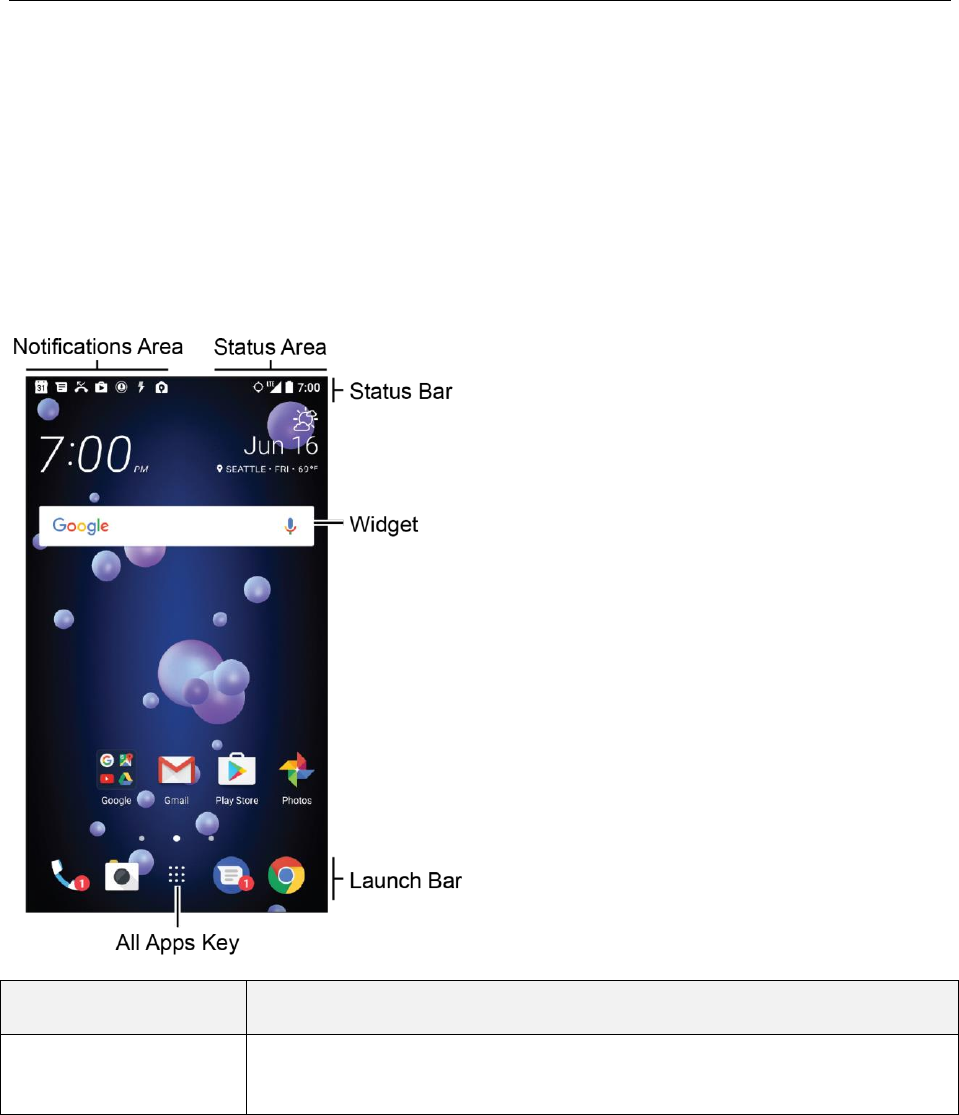
Your Phone's Home Screen 63
Your Phone's Home Screen
The following topics describe how to use and customize your phone’s home screen, understand the
status bar, and use the notification panel.
Home Screen Basics
The home screen is the starting point for your phone’s applications, functions, and menus. You can
customize your home screen by adding application icons, shortcuts, folders, widgets, and more.
Home Screen Layout
Your home screen extends beyond the initial screen. Swipe the screen left or right to display additional
screens.
Item
Description
Notifications Area
The notification area of the status bar (on the left) displays notifications for
incoming messages, missed calls, application updates, and more.
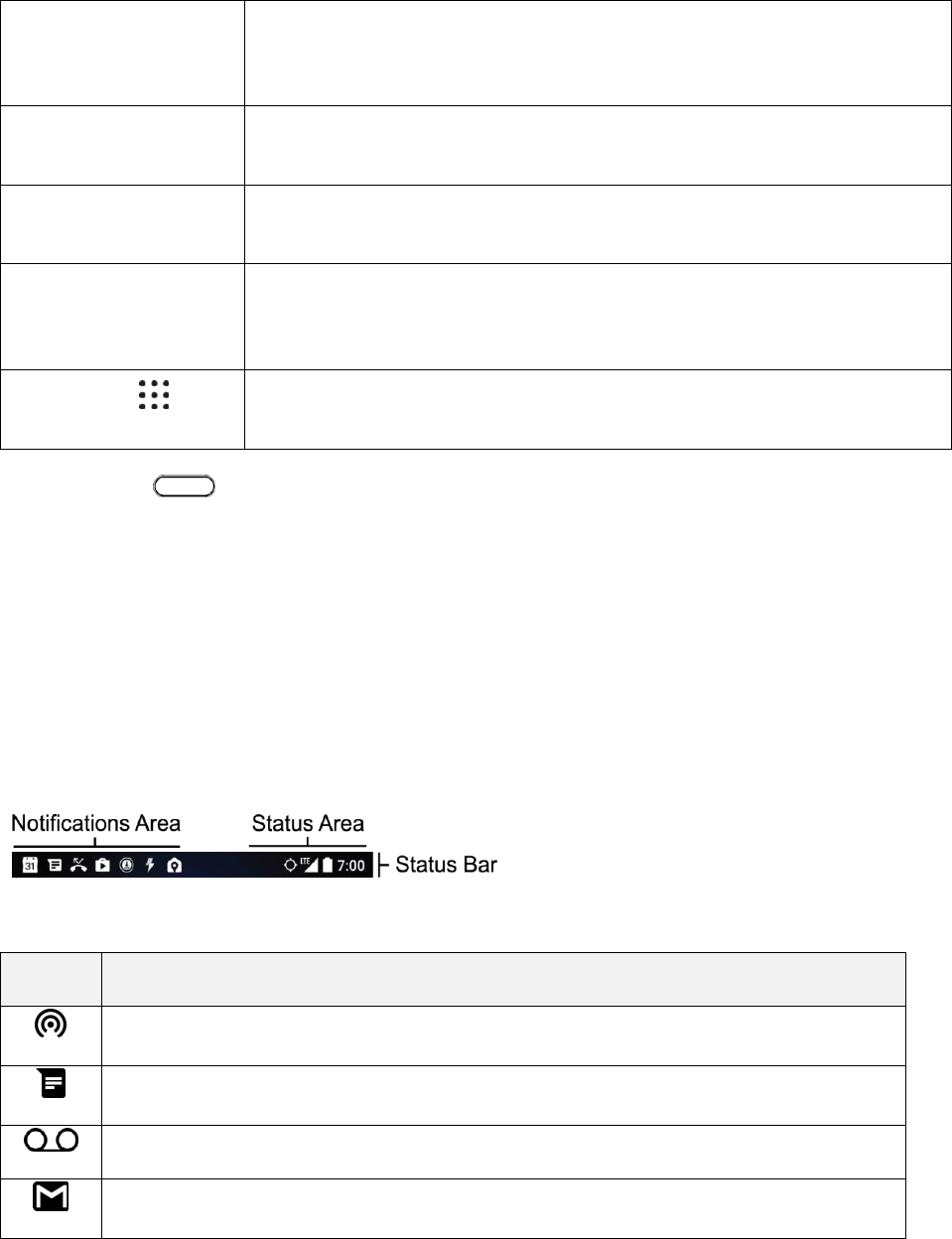
Your Phone's Home Screen 64
Status Area
The status area of the status bar (on the right) displays phone and service
status information such as signal strength, battery status, Wi-Fi and data
connectivity, ringer status, and time.
Status Bar
The status bar displays icons to notify you of your phone’s status (on the right
side) and notifications (on the left side).
Widgets
Widgets are self-contained onscreen apps that reside on your phone’s home
screen.
Launch Bar
Primary shortcuts are application shortcuts that appear in the same location
on all of your phone’s home screens. These are customizable except for the
All Apps Key, which remains static.
All Apps Key
Tap to open the applications (apps) list. The All Apps Key is a primary
shortcut available from all home screens.
Tip: Tap Home to return to the main home screen from any other screen.
Status Bar and Notification Panel
Your phone’s status and notifications are available at a glance at the top of the screen.
Status Bar
The status bar at the top of the home screen provides phone and service status information on the right
side and notification alerts on the left. To view the notifications window or access the quick settings menu,
tap the status bar and drag it down.
Status Bar Layout
Main Notification Icons
Icon
Notification
Mobile Hotspot is on
New text or MMS message
New voicemail
New Gmail message
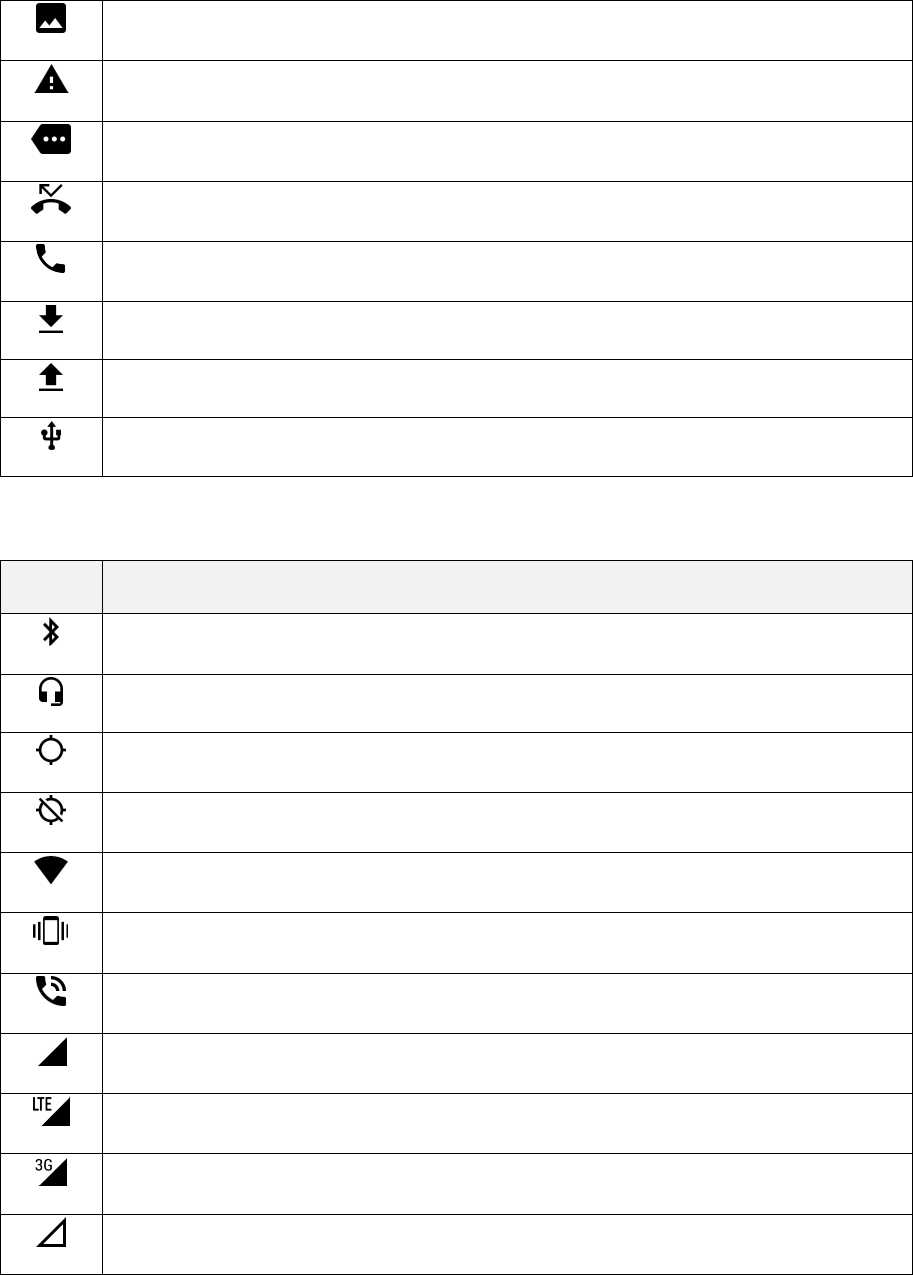
Your Phone's Home Screen 65
Screen captured
General notification (for example, sync error)
More notifications available (tap to view)
Missed call
Call in progress
Downloading
Uploading
USB connection
Main Status Icons
Icon
Status
Bluetooth active
Headset connected
Location service (GPS) is on
Location service (GPS) is off
Wi-Fi active
Vibrate
Speakerphone active
Network (full signal)
Sprint 4G LTE data service
Sprint 3G data service
Roaming
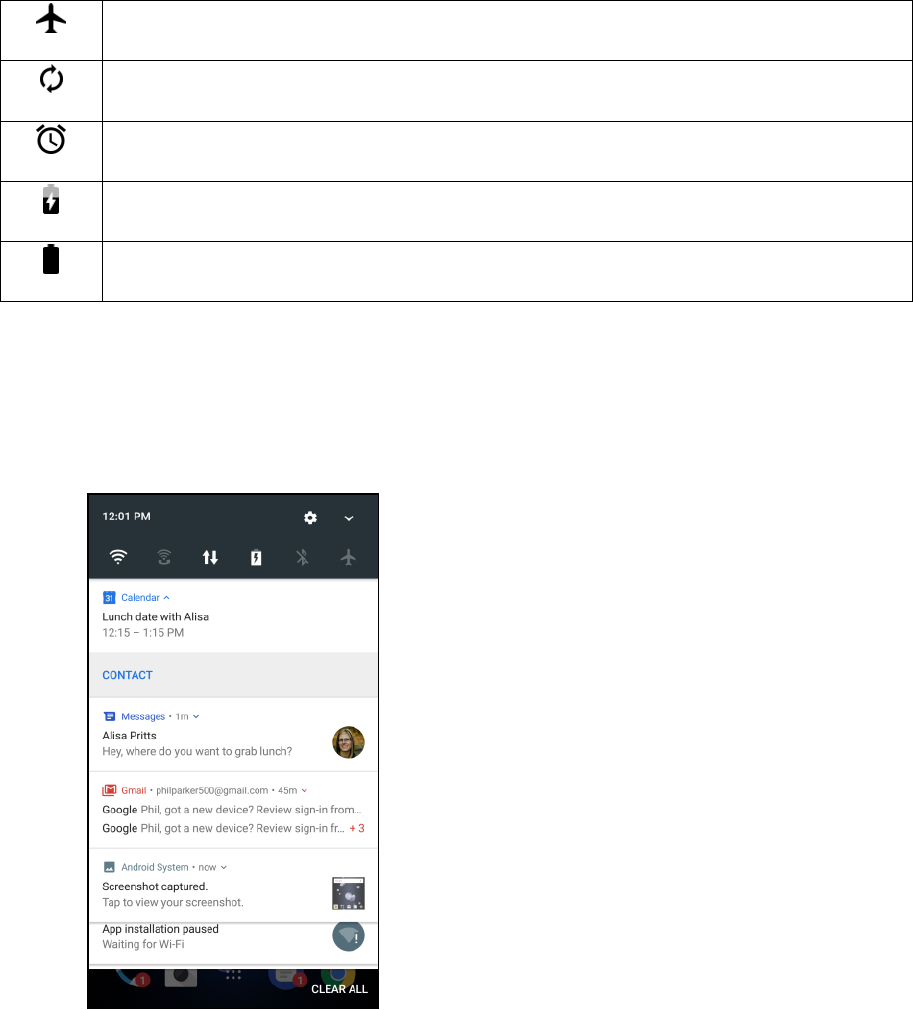
Your Phone's Home Screen 66
Airplane mode
Data synchronizing – connected to HTC Sync
Alarm set
Battery (charging)
Battery (full charge)
Notification Panel
When you see notification icons, open the notification panel to check out details of the notifications that
you’ve received. You can also quickly access settings from the notification panel.
1. Slide down from the top of the screen to open the notification panel.
2. On the notification panel:
Tap the notification to open the corresponding app.
To dismiss just one notification in the list, drag it left or right.
Slide two fingers apart on the notification to expand it and see more details or see if there are
more notifications bundled inside it. Slide two fingers together on the notification to minimize
it again.
Your Phone's Home Screen 67
Some notifications allow you to take immediate action. For example, tap Reply to reply
directly to a received text message or tap Call back to return a missed call. Tap on a
notification to show all actions that you can immediately take without opening the related app.
If you have several notifications, scroll through the list screen to see them all.
To dismiss all non-persistent notifications, tap Clear all.
Touch and hold a notification to customize the corresponding app's notification settings. You
can change what app notifications you want to receive. See Manage App Notifications.
Manage App Notifications
You can set the priority of app notifications or completely block notifications for apps you don’t want to be
notified about.
1. Tap > > Settings > Sound & notification.
2. Tap Notifications, and then tap the app to set. You can also touch and hold a notification in the
notification panel or the lock screen to see the notification settings you can customize.
3. Tap the On/Off switch next to the option you want to toggle.
Settings for app notifications are applied to notifications in the notification panel and the lock
screen.
Front Indicator Light (LED)
The Front Indicator Light (LED) provides phone information at a glance.
The indicator shows:

Your Phone's Home Screen 68
● Solid green light when your phone is connected to the power adapter or a computer and the
battery is fully charged.
● Flashing green light when you have a pending notification (for example, a new message or a
missed call).
● Solid orange light when the battery is being charged.
● Flashing orange light when the battery level reaches very low. (Power is below 14%.)
Change LED Notification Settings
You can change when to flash and which apps will flash the LED when there are new notifications.
1. Tap > > Settings > Sound & notification.
2. Under Notifications, tap Flash LED for notifications and choose whether to always flash the
LED or flash it only when the screen is off.
3. Tap Manage LED notifications and choose which app notifications you want the LED to flash
for.
Tip: In other apps, check their settings to find out if they have an option for flashing the LED.
HTC BlinkFeed - Your Dynamic Home Screen
Get the latest news about your interests or status updates from your right on HTC BlinkFeed. Set up
which social networks, news sources, and more will appear. To go to HTC BlinkFeed, swipe right from the
Home screen.
● Swipe up or down to browse stories on HTC BlinkFeed.
● Tap a tile to view the content. If it's a video tile, you can watch the video in full screen, hear the
audio, and control the playback.
● While viewing a news article, swipe left or right to see more stories.
● While in HTC BlinkFeed, you can tap either or to scroll to the top.
● Swipe right on HTC BlinkFeed to open the slideout menu to choose the type or add your custom
topics to display.
Tips:
● You’ll see the clock widget on HTC BlinkFeed if you’ve set HTC BlinkFeed as the main Home
screen.
● HTC BlinkFeed is a part of the HTC Sense Home app. To get the latest features of HTC
BlinkFeed, make sure you've downloaded the newest version of HTC Sense Home.
Turn HTC BlinkFeed On or Off
You can turn HTC BlinkFeed on or off.
Your Phone's Home Screen 69
1. On the Home screen, slide two fingers together.
2. Tap .
3. Do one of the following:
To turn on HTC BlinkFeed, swipe right until you see BlinkFeed, then tap it.
To turn off HTC BlinkFeed, swipe to the thumbnail and then tap Remove.
Get Restaurant Recommendations
If you’re having a hard time thinking where to eat, get recommendations for nearby restaurants in HTC
BlinkFeed.
Before you get restaurant recommendations, make sure you’ve added personalized content to HTC
BlinkFeed. See HTC BlinkFeed - Your Dynamic Home Screen.
1. On HTC BlinkFeed, swipe right to open the slideout menu.
2. Tap and make sure Mealtime recommendations is selected. If prompted, give HTC Sense
Home permission to access your location and personal usage data.
To get restaurant recommendations, you’ll need to actively use HTC BlinkFeed daily. Restaurant
recommendations will show up as a tile in HTC BlinkFeed and also on your lock screen.
View Restaurant Recommendations
View photos of the restaurant, get directions to the restaurant, and more. When you see a restaurant
recommendation tile, tap it to view more information.
You can do the following:
● Tap the photo tile or View Photos to browse photos of the restaurant.
● Tap the map icon or address to see the location in Google Maps. From there, you can get
directions.
● If you see a phone number, tap the phone number to call the restaurant.
● Tap the dots at the bottom for more options or swipe left to see more options.
Your Phone's Home Screen 70
Notifications on the Lock Screen
From time to time, you’ll see HTC BlinkFeed notifications, such as a suggestion for a nearby restaurant or
a recommended article.
1. Double-tap the notification to see the full notification. For restaurant recommendations, tap or
the notification text.
2. Tap the notification again to get more information about the restaurant recommendation or to
read the article in HTC BlinkFeed.
Tip: If you don’t want to see restaurant recommendations on your lock screen, go to HTC BlinkFeed, and
then tap > and clear the Mealtime recommendations option.
Add Sources to HTC BlinkFeed
Add news sources such as News Republic™ to select from a wide variety of news services. Discover
stories and articles on HTC BlinkFeed based on your interests, favorite categories, and popular news
channels or websites.
1. Tap or swipe right to go to HTC BlinkFeed.
2. Swipe right to open the slideout menu.
3. Tap , and then select the sources you want to add.
Select Feeds
Discover stories and articles on HTC BlinkFeed.
Note: You need to add a news source before you can select feeds.
1. Tap or swipe right to go to HTC BlinkFeed.
2. Swipe right to open the slideout menu.
3. Next to News Republic, tap > Add topics.
4. Swipe across the screen to browse the categories.
5. Select one or more feeds.
Show Content From Your Apps and Social Networks
See your friends’ posts in social networks or show content from your HTC apps right on HTC BlinkFeed.
Notes:
● You need to sign in to your social networks to see their feeds on HTC BlinkFeed.
● When adding a social network to HTC BlinkFeed, you need to give HTC Sense permission to
access it.

Your Phone's Home Screen 71
1. Tap or swipe right to go to HTC BlinkFeed.
2. Swipe right to open the slideout menu.
3. Tap , and then select the apps and social networks you like.
Search and Add Topics of Interest
You can search for and select topics of interest to display them on HTC BlinkFeed.
1. Tap or swipe right to go to HTC BlinkFeed.
2. Swipe right to open the slideout menu.
3. Next to News Republic, tap > Add topics.
4. Tap , and enter keywords of what you’re looking for.
5. Tap a result to add it to My topics in the News Republic app.
Read with Convenience
Make reading HTC BlinkFeed content more convenient with resizable fonts.
1. Tap or swipe right to go to HTC BlinkFeed.
2. Swipe right to open the slideout menu.
3. Tap an article to open it in News Republic.
4. Tap > Font size, and then select a font size.
Customize the Highlights Feed
Go to the Highlights feed to see a mix of top trending articles and status updates from the feed sources
you added. You can also set the Highlights feed to only show items from your favorite news sources,
categories, and apps.
Note: You cannot add custom topics to the Highlights feed.
1. Tap or swipe right to go to HTC BlinkFeed.
2. Swipe right to open the slideout menu.
3. Tap > Settings > Choose Highlights topics.
4. Select the feed sources you want to appear in Highlights.
Play Videos on HTC BlinkFeed
If you're connected to Wi-Fi and there's a news or social media post that contains a video, the video plays
automatically on the tile.
Your Phone's Home Screen 72
● Tap a video tile to play it in full screen. Tap the title of the video tile to open its article page.
● While the video is playing, tap the screen to see the playback controls.
● To turn off autoplay or if you want to autoplay videos while on mobile data, tap to open the
slideout menu, and then tap > Settings > Videos play automatically. Tap the option you want.
Post to Your Social Networks
You can easily post a status update from HTC BlinkFeed.
Notes:
● You need to sign in to your social networks to see their feeds on HTC BlinkFeed.
● When adding a social network to HTC BlinkFeed, you need to give HTC Sense permission to
access it.
1. Tap or swipe right to go to HTC BlinkFeed.
2. Swipe right to open the slideout menu.
3. Tap > Compose, and then choose a social network.
4. Compose your status update and post it on your social network.
Remove Content From HTC BlinkFeed
Whether it’s a tile or an entire feed, you can remove content you don’t want to see on HTC BlinkFeed.
● To remove a tile, touch and hold the tile you want to remove, and then tap Remove.
● To remove a feed source, in the slideout menu next to News Republic, tap > Add topics,
then tap any tile marked with to remove it.
● To remove social networks or apps from HTC BlinkFeed, in the slideout menu, tap . Then
uncheck the social networks or apps you want to hide from HTC BlinkFeed.
Customize the Home Screen
Learn how to set the wallpaper and add, move, or remove shortcuts, widgets, and folders from the home
screen. Your phone allows you to change the wallpaper, add or remove widget panels, change your main
Home screen, and add shortcuts, folders, and widgets at any time.
Set the Home Wallpaper
Choose from the available wallpapers, or use any photo you’ve taken with the camera.
Note: You can only change the wallpaper while in Classic home screen layout.
1. Tap and hold an empty space on a widget panel.
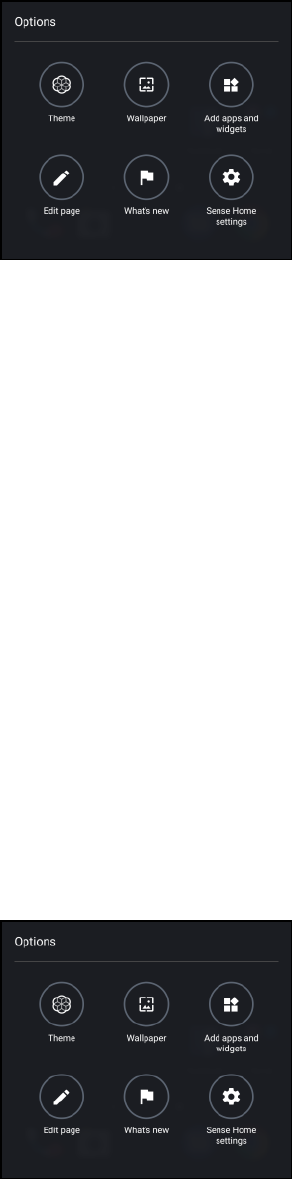
Your Phone's Home Screen 73
2. Tap Wallpaper.
3. Choose from where you want to select a wallpaper.
To use a wallpaper stored on your phone, tap HTC wallpapers or Live wallpapers.
Tap Themes store to use a wallpaper from the Theme app. See Themes for details.
To use a photo you captured with the camera, tap Photos.
Tap Sprint ID to select a wallpaper from a downloaded Sprint ID pack.
4. Tap Apply or Set wallpaper.
5. When prompted, tap Home screen. Or, if you want to use the same wallpaper for the lock
screen, tap Home screen and lock screen.
Organize Your Widget Panels
Organize your widget panels depending on your needs.
Change Your Main Home Screen
Set HTC BlinkFeed or a widget panel as your main Home screen.
1. Touch and hold an empty space on a widget panel.
2. Tap Edit page.
3. Swipe left or right until you see the panel that you want to use as your main Home screen.
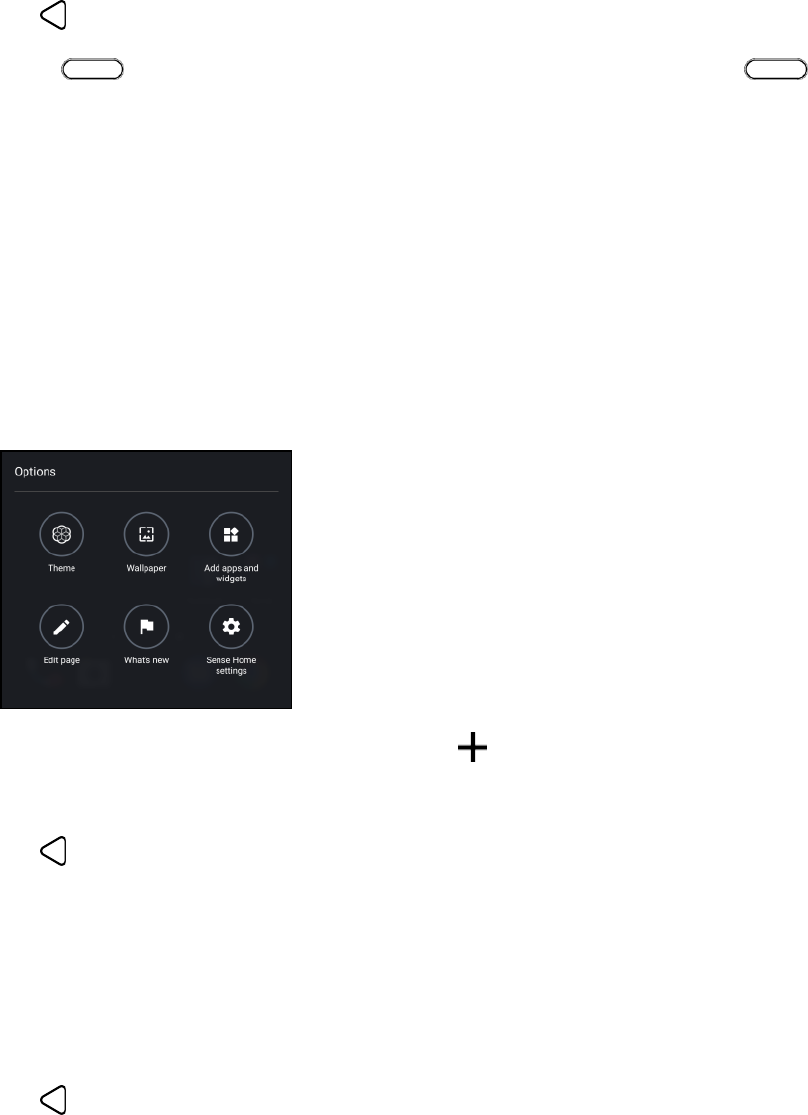
Your Phone's Home Screen 74
4. Tap Set as home.
5. Tap .
Note: Tapping from an app will first return you to the last panel you were in. Just tap again
to go to your main Home screen.
Add or Remove a Widget Panel
Notes:
● You won’t be able to add a new widget panel if you’ve already reached the maximum limit.
● If it’s not removed, HTC BlinkFeed always appears as the first panel. A widget panel cannot be
inserted before HTC BlinkFeed.
1. Touch and hold an empty space on a widget panel.
2. Tap Edit page.
3. To add a new widget panel, swipe until you see the icon, and then tap it.
4. To remove a widget panel, swipe left or right until you see the panel, and then tap Remove.
5. Tap .
Arrange Widget Panels
Note: A widget panel cannot be moved or inserted before HTC BlinkFeed.
1. On HTC BlinkFeed or any widget panel, slide two fingers together to customize the Home screen.
2. Touch and hold a widget panel thumbnail, and then drag it left or right to the position you want.
3. Tap .
Work with Widgets and Shortcuts
Customize the launch bar, widgets, and app shortcuts to the Home screen.
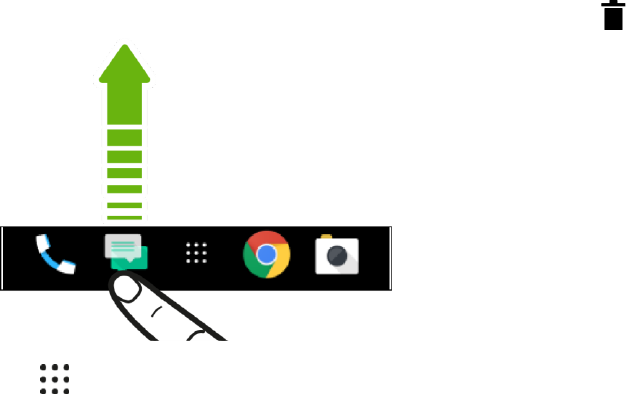
Your Phone's Home Screen 75
Customize the Launch Bar
The launch bar gives you one-tap access to commonly used apps and other shortcuts. You can replace
the apps on the launch bar with other apps that you often use.
Notes:
● You can only customize the launch bar while in Classic layout.
● If you're using the Freestyle layout, you will only see the launch bar on the lock screen. Icons
displayed will be the same ones you have in the Classic layout.
1. Touch and hold the app you want to replace, and then drag it out to .
2. Tap to go to the Apps screen.
3. Touch and hold an app, and then drag it to the empty slot on the launch bar.
Tips:
● You can also group apps on the launch bar into a folder.
● The apps or shortcuts you see on the lock screen are the same as the ones in the launch bar.
Add Widgets on Your Home Screen
Widgets make at-a-glance important information and media content readily available.
1. Touch and hold an empty space on a widget panel.
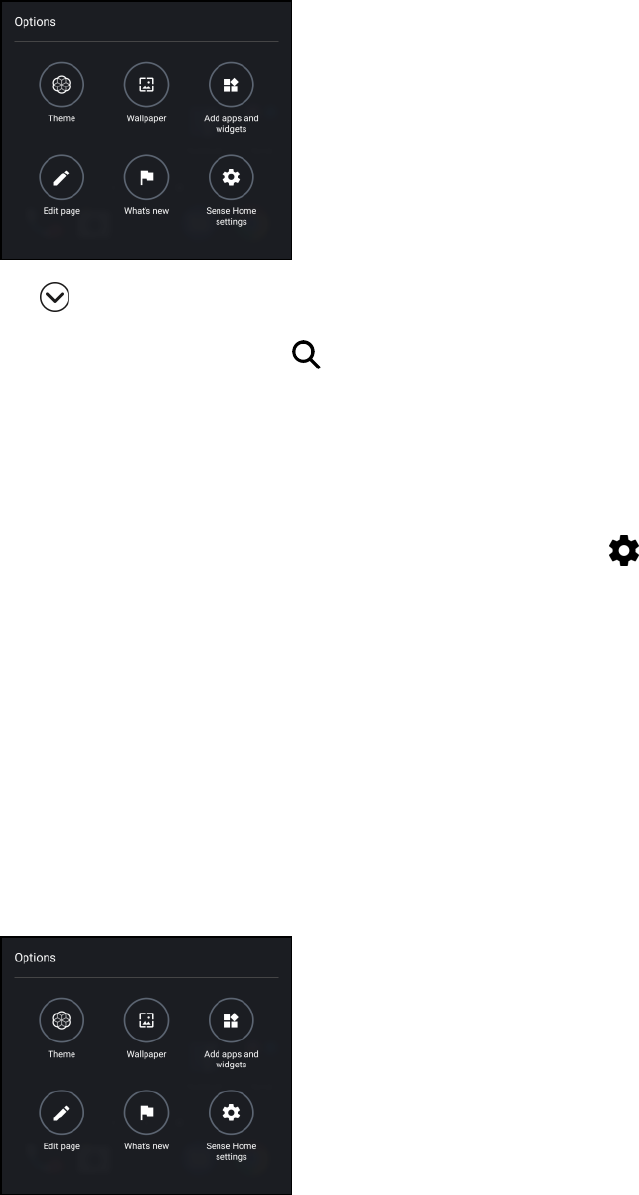
Your Phone's Home Screen 76
2. In the pop-up menu, tap Add apps and widgets.
3. Tap > Widgets.
4. Scroll through the widgets or tap to search for specific widgets.
5. Touch and hold a widget, and then drag it to a widget panel you want to add it to.
Change the Widget Settings
You can modify basic settings of some widgets.
1. Touch and hold the widget on your Home screen, and then drag it to .
2. Customize the widget settings.
To resize a widget, touch and hold the widget and then release your finger. If a border
appears around the widget, drag the sides of the border to enlarge or shrink the widget size.
Add Apps and Other Shortcuts on Your Home Screen
Place apps you often use on your Home screen. You can also add shortcuts to frequently used settings,
bookmarked Web pages, and more.
1. Touch and hold an empty space on a widget panel.
2. In the pop-up menu, tap Add apps and widgets.
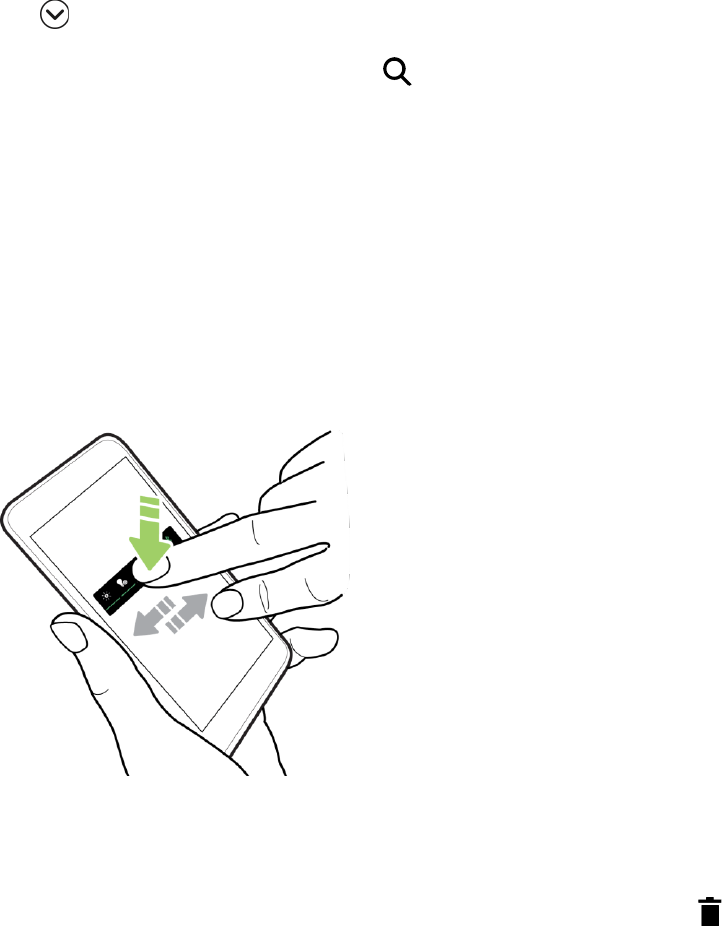
Your Phone's Home Screen 77
3. Tap > Apps or Shortcuts.
4. Scroll through the apps or shortcuts, or tap to search for one.
5. Touch and hold an app or shortcut icon, and then drag it to a widget panel where you want to add
it.
Note: To add an app from the Apps screen, touch and hold an app and drag it to a widget panel.
Move Items on Your Home Screen
You can easily move a widget, icon, or sticker from one widget panel to another.
1. Touch and hold the Home screen item with one finger.
2. With another finger, flick left or right to go to another widget panel.
3. Release the item where you want to move it.
Remove Items on Your Home Screen
1. Touch and hold the Home screen item you want to remove, and then drag it to .
2. When the item turns red, lift your finger.
Customize the Lock Screen
Customize the lock screen and interact with lock screen icons and notifications.
● Swipe up on the lock screen to unlock the screen. Or, press and hold the fingerprint sensor.
● Tap twice on a notification to go directly to the related app.
● Swipe left or right on the notification to remove it.
● Press and hold a notification to mute or block notifications from the related app. Tap More
settings to customize the notification settings.
Your Phone's Home Screen 78
If you don't want notification content to appear on the lock screen, go to Settings > Sound &
notification > On the lock screen, and then tap Don't show notifications at all.
● If you want to set up a screen lock or Smart lock, see Set a Screen Lock or Set up Smart Lock.
Set a Screen Lock
Help protect your personal information and help prevent others from using HTC U11 without your
permission. Choose to set a screen lock pattern, numeric PIN, or other means of securing your phone.
You’ll be asked to unlock the screen every time HTC U11 is turned on or when it’s idle for a certain period
of time.
1. Tap > > Settings > Security.
2. Tap Screen lock and select a screen lock option.
3. On the secure startup screen, select whether you want the phone to require the PIN after
restarting, and tap Continue.
4. Set up the screen lock.
5. Select which notifications to show in the lock screen, and then tap Done.
6. Tap next to Screen lock, and then tap Automatically lock phone.
7. Specify the idle time before the screen is locked.
You can also clear Make pattern visible or Make passwords visible if you don’t want your screen lock
to display as you enter it onscreen.
Set up Smart Lock
Set up your phone to detect your face or another trusted device before you can unlock the screen.
1. Tap > > Settings > Security.
2. Tap Screen lock, and then select and set up a screen lock.
This will be your backup screen lock method to use in case the phone doesn’t recognize you or
a trusted device.
3. On the Security screen, tap Smart Lock.
4. Confirm your screen lock.
5. Tap Trusted face and follow the onscreen instructions.
6. Tap Lock phone after then specify the idle time before the screen is locked.
To help make Smart Lock more reliable and more secure, you can to train HTC U11 to recognize your
face in different situations, such as when you’re wearing glasses or sporting a beard.
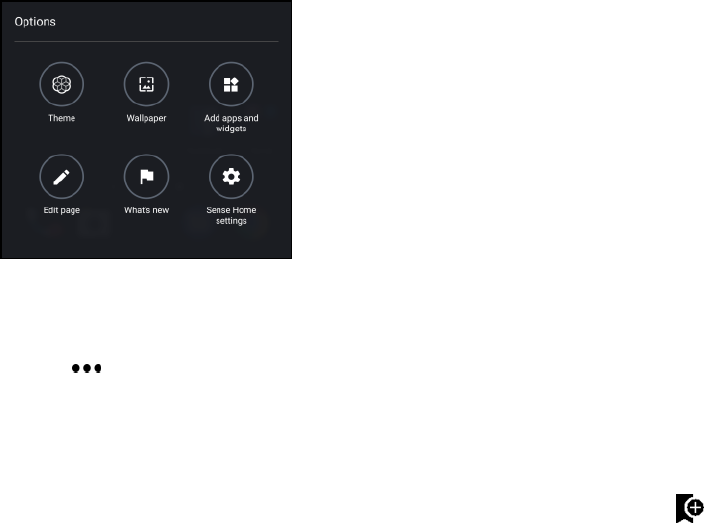
Your Phone's Home Screen 79
■ Tap Smart Lock, confirm your screen lock, and then tap Trusted face > Improve face
matching. Follow the onscreen instructions.
HTC Themes
Themes brings a quick and easy way for you to customize your phone with elements such as wallpapers,
sounds, and icons. You need to log in with your preferred account to download themes, icons, fonts, and
more from the Themes store.
Note: Themes is a part of the HTC Sense Home app. To get the latest features of Themes, make sure
you've downloaded the newest version of HTC Sense Home
Download Themes and Individual Elements
Find and download themes and elements that make it easy for you to personalize your phone.
1. Touch and hold an empty space on your Home screen.
2. Tap Theme.
3. If it's your first time to use Themes, tap Get Started, and then sign in with your preferred account.
4. On the Recommended screen, swipe up and down to see different themes and theme elements,
and tap next to each category to browse recommended items.
5. Tap a thumbnail to see the details screen.
6. Tap Download.
Tip: If you don't want to download the theme or any element right away, you can tap to bookmark it
first.
To apply the theme after it has finished downloading, tap Apply. If your theme has custom
sounds, all of your ringtones and alert tones will also change.
Create Themes
You can create and customize your own theme and even share it for others to download.
1. Touch and hold an empty space on your Home screen.
2. Tap Theme.

Your Phone's Home Screen 80
3. Tap > Change wallpaper to set the main wallpaper for your theme.
4. Select an image from your phone, or take a photo with Camera.
5. Move or enlarge the crop box to the area of the image you want to include.
6. Crop and save the image.
7. Tap Next.
8. Swipe up or down to select a style for your theme.
9. Do any of the following:
If you don’t want to customize your theme further, tap Next to save your theme.
Tap Edit to customize the style elements such as colors and icons.
10. After you've finished customizing your theme, tap Preview to see what your theme will look like.
11. Tap Finish, name your theme, and then tap OK to save your theme.
To apply the theme after saving it, make sure you select the Apply this theme now option.
Find Your Themes
Themes you created or downloaded can be found in your theme collection. You’ll also find the theme you
bookmarked.
1. Touch and hold an empty space on your Home screen.
2. Tap Theme.
3. Tap > My themes or My designs.
Edit Your Theme
After selecting a theme, you can mix and match parts from other themes such as sounds, icons,
wallpapers, and more.
Note: To mix and match themes, you need to first download theme components from the catalog.
1. Touch and hold an empty space on your Home screen.
2. Tap Theme.
3. Tap > Edit current theme.
4. Tap any of the other categories you want to change.
5. Tap any of the theme elements you want to change. If the theme element list is empty, tap
beside the theme element name and choose one of the collections to select from.
6. Do any of the following:
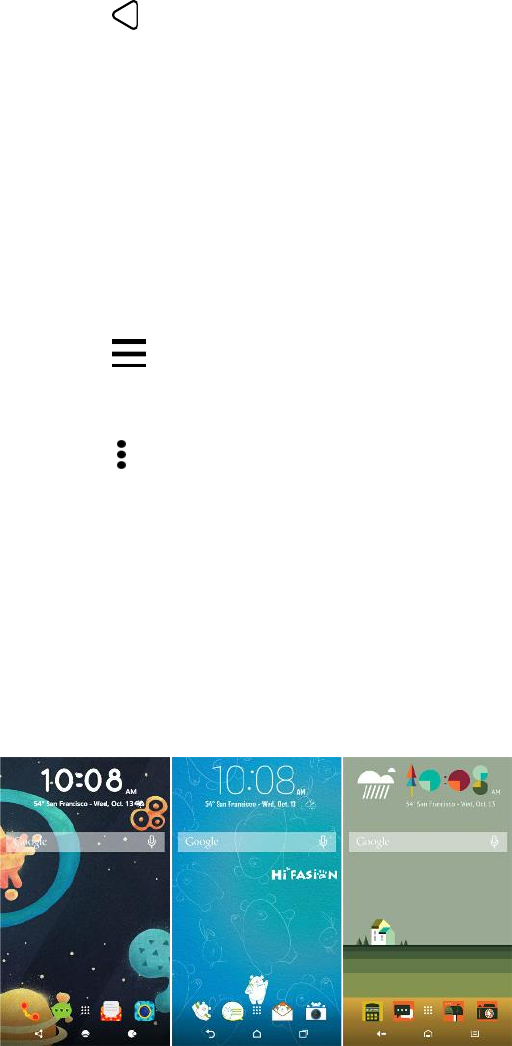
Your Phone's Home Screen 81
Tap an item in the theme element list to apply the change directly.
Tap Download to get the content if necessary, and then tap Apply to apply the change to
your current theme.
7. Tap until you see the Edit current theme screen. Continue making changes until you’re
satisfied with the result.
8. Tap Save copy to save your new theme, or if you're editing a theme that you copied, tap Save to
save the changes.
Delete a Theme
You can delete a theme if you no longer want to keep it on your phone.
1. Touch and hold an empty space on your Home screen.
2. Tap Theme.
3. Tap > My themes or My designs.
4. Find and tap an item to delete.
5. Tap > Remove.
Note: If the theme is currently applied, it will still be applied to your phone until another theme is applied.
Choose a Home Screen Layout
You can choose between two Home screen layouts.
Classic Layout
The Classic layout allows you to add traditional app shortcuts and widgets on your Home screen. By
design, this layout will follow and fit what you've added on the Home screen according to an invisible grid.
Freestyle Layout
The Freestyle Home screen layout frees you from grid constraints and allows you to place your icons and
widgets anywhere you want them on the Home screen. You can use custom stickers as app icons, too.
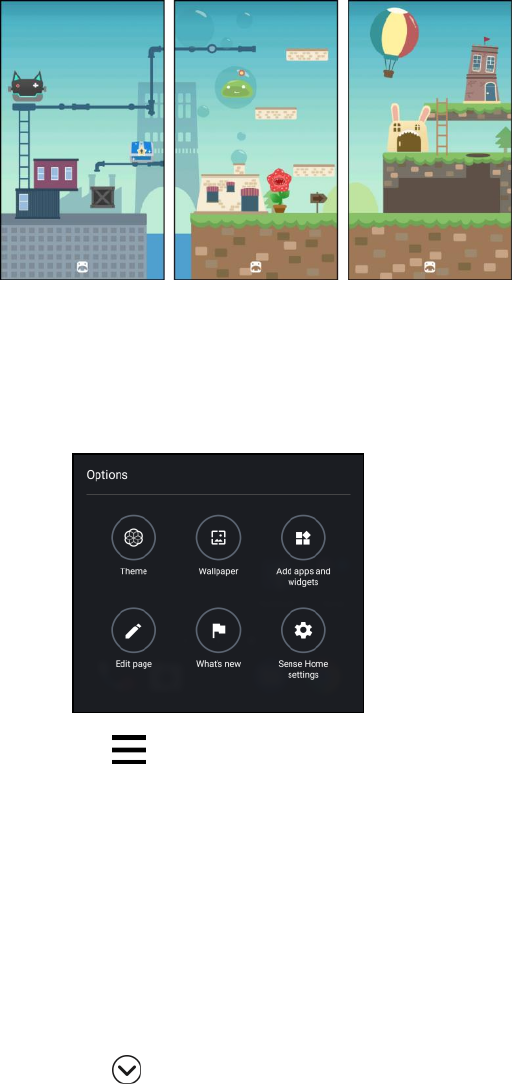
Your Phone's Home Screen 82
Select a Home Screen Layout
1. Touch and hold an empty space on your Home screen.
2. Tap Theme.
3. Tap > Classic layout themes or Freestyle layout themes.
Use Stickers as App Icons
Replace the usual app icons with stickers to blend with your home wallpaper design. You can link
individual stickers to different apps.
1. Switch to Freestyle layout. To find out how, see Choose a Home Screen Layout.
2. Touch and hold an empty space on your Home screen.
3. Tap Add stickers.
4. Tap > Stickers.
5. Scroll through the stickers, and then drag a sticker to a widget panel you want to add it to.
6. Tap the newly added sticker, and then tap an app to link to the sticker.
Tip: If you need to link the sticker to a different app, touch and hold it on the widget panel, and then drag
it to Relink.

Your Phone's Home Screen 83
7. To show or hide the name of the app it's linked to, touch and hold the sticker on the widget panel,
and then drag it to Show label or Hide label.
Tip: You can choose to show or hide labels for all stickers on the Home screen. Touch and hold an empty
space on a widget panel, and then tap Show/hide label.
Set Multiple Wallpapers
You can split a panorama photo into three parts so that it extends to three Home screen panels as one
photo. Or, you can choose to set three different wallpapers for each widget panel.
Notes:
● You can only apply Multiple wallpapers while in Classic home screen layout.
● You can only set the Multiple wallpapers for three widget panels. The right-most photo will be
used as the wallpaper for any additional panels.
1. Touch and hold an empty space on your Home screen.
2. Tap Theme.
3. Tap > Edit current theme.
4. Tap Home wallpaper.
5. Tap > Multiple.
You'll then see three page thumbnails.
6. Tap Change wallpaper under the first page thumbnail.
7. Select from the preset wallpapers or tap to choose from your photos.
If you've selected a panorama photo, you need to crop it starting from the area that will fit the
left widget panel of the Home screen.
8. Repeat steps 4 and 5 to change the wallpaper for the second and third widget panels.
9. Tap .
Set a Time-based Wallpaper
Set your home wallpaper to automatically change during the day and night.
Note: You can only use a Time-based wallpaper while in Classic home screen layout.
1. Touch and hold an empty space on your Home screen.
2. Tap Theme.
3. Tap > Edit current theme.
Your Phone's Home Screen 84
4. Tap Home wallpaper.
5. Tap > Time-based.
You'll then see two page thumbnails.
6. Tap Change wallpaper under the Day thumbnail to choose the wallpaper you want to display
during the day.
7. Select from the preset wallpapers or tap to choose from your photos.
8. Tap Change wallpaper under the Night thumbnail to choose the wallpaper you want to display
during the night.
9. Tap .
Motion Launch
Motion Launch is a combination of a motion gesture followed by a finger gesture. Using a combination of
simple gestures, you can wake up to your Home screen, HTC BlinkFeed, and more.
Turn Motion Launch On or Off
Motion Launch is on by default. You can turn it off in Settings.
1. Tap > > Settings.
2. Tap Display, gestures & buttons.
3. Tap Motion Launch gestures.
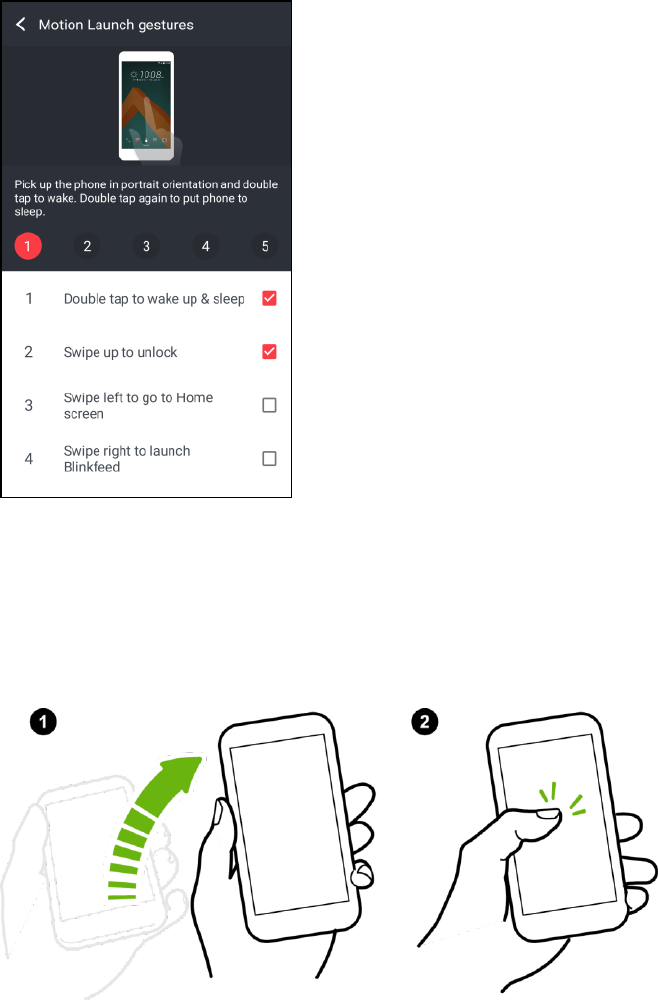
Your Phone's Home Screen 85
4. Select the Motion Launch gestures you want.
Wake Up to the Lock Screen
Go from sleep mode to the lock screen without pressing the Power/Lock button.
1. Lift the phone in portrait orientation.
2. Immediately double-tap the screen.
Make sure you’re not touching the screen when the phone vibrates.
Wake Up and Unlock
Go from sleep mode and unlock HTC U11 to the last screen you were using without pressing the
Power/Lock button.
Note: If you’ve set up a screen lock with credentials, you’ll be asked to provide your credentials first
before HTC U11 unlocks.
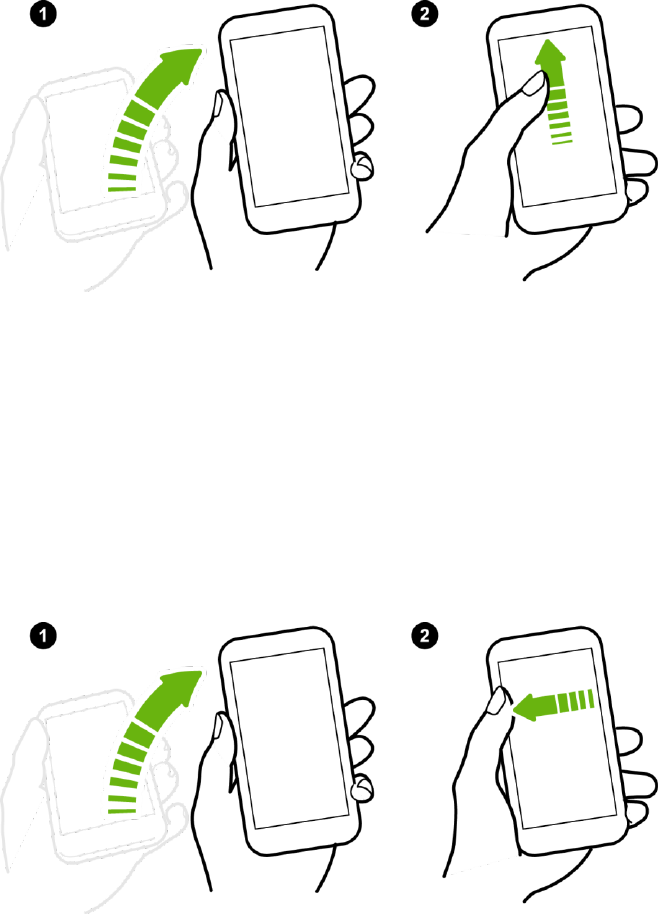
Your Phone's Home Screen 86
1. Lift the phone in portrait orientation.
2. Immediately swipe up from the bottom half of the screen.
Make sure you’re not touching the screen when the phone vibrates.
Wake to the Home Widget Panel
Go from sleep mode to the Home widget panel without pressing the Power/Lock button.
Note: If you’ve set up a screen lock with credentials, you’ll be asked to provide your credentials first
before HTC U11 unlocks.
1. Lift the phone in portrait orientation.
2. Immediately swipe left from the right side of the screen.
Make sure you’re not touching the screen when the phone vibrates.
Wake to HTC BlinkFeed
Go from sleep mode to HTC BlinkFeed without pressing the Power/Lock button.
Note: If you’ve set up a screen lock with credentials, you’ll be asked to provide your credentials first
before HTC U11 unlocks.
1. Lift the phone in portrait orientation.
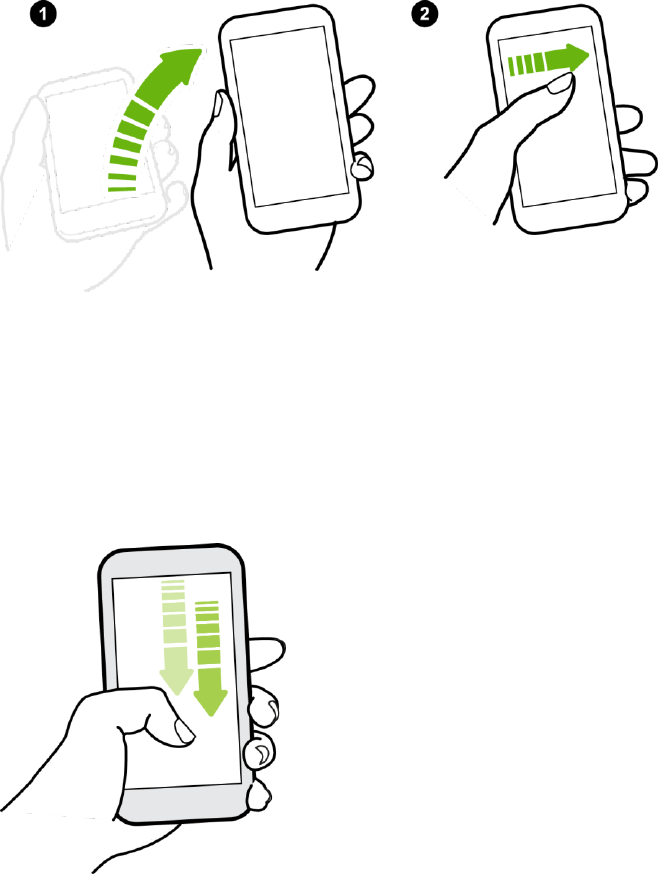
Your Phone's Home Screen 87
2. Immediately swipe right from the right side of the screen.
Make sure you’re not touching the screen when the phone vibrates.
Launch the Camera
Go from sleep mode to the Camera app without pressing the Power/Lock button.
1. Lift the phone in portrait orientation.
2. Immediately swipe down twice on the screen.
Note: If you’ve set up a screen lock with credentials, you’ll be asked to provide your credentials when you
exit the Camera app.
Motion Launch Troubleshooting
In Settings > Display, gestures & buttons, tap Motion Launch gestures and make sure that the
Motion Launch gestures you want to use are selected. If Motion Launch is already on but your phone is
not responding to your gestures, see the possible causes below.
● There was no motion gesture before the finger gesture. Make sure to lift the phone first before
doing the finger gesture.
● Length of swiping was too short. Swipe a longer distance across your screen.
Your Phone's Home Screen 88
● When swiping up to unlock the screen, you didn’t swipe from the bottom half of the screen.
● You may have covered the proximity sensor while holding the phone.
● The duration of swiping may be too long. Release your finger when the phone vibrates.

89
Making Connections
The following set of topics will cover your phone’s ability to help you make connections, from phone calls
and maintaining contacts, to text messages, email, Internet, and international services.
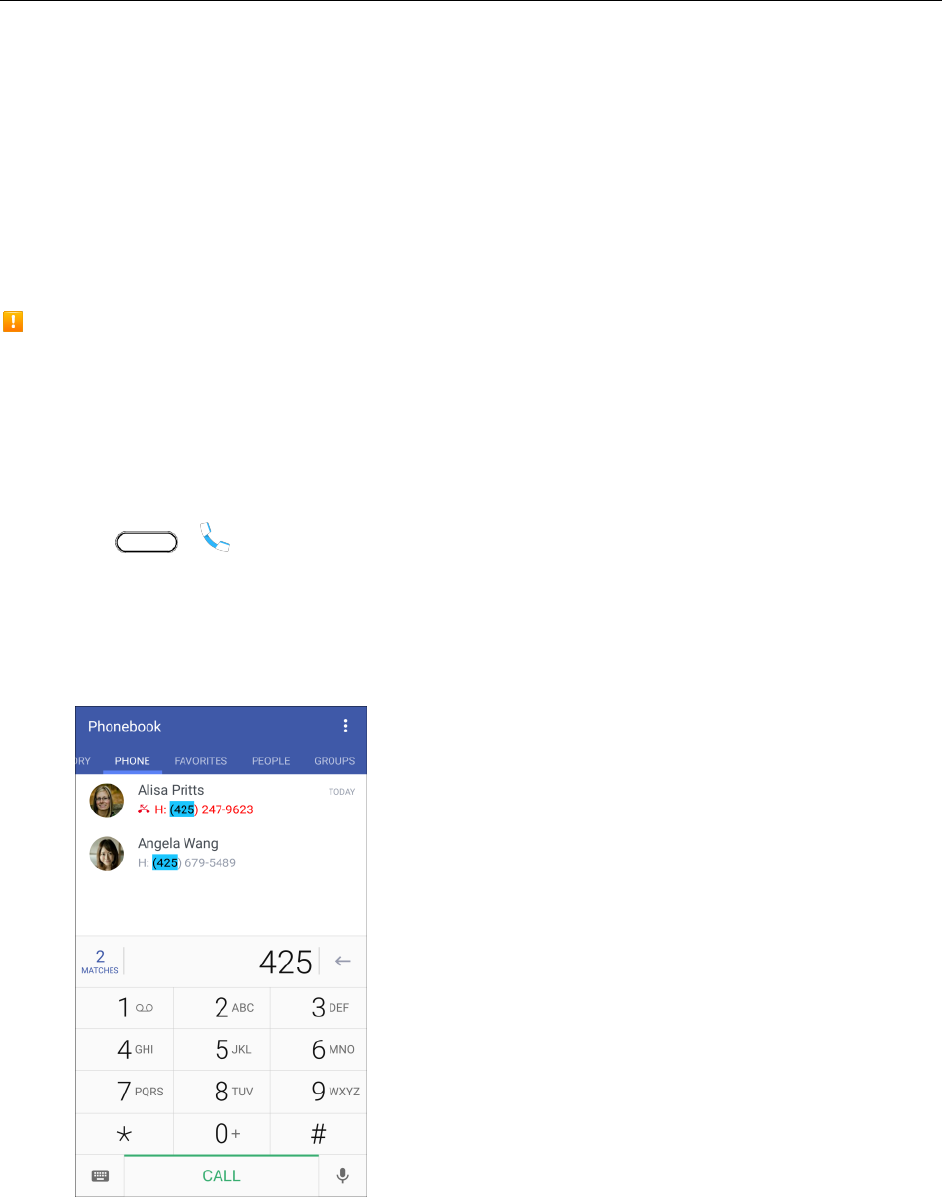
Phone Calls and Voicemail 90
Phone Calls and Voicemail
The following topics outline the use of your device’s phone app to place and receive calls, use voicemail,
set up and manage contacts, and more.
Place and Answer Calls
The following topics describe how to directly dial calls, how to answer incoming calls, and how to use the
in-call screen options.
Adjust In-Call Volume
■ Adjusting Call Volume: Press the Volume up or down button during the call.
Emergency Call Caution
Emergency calls are restricted in Airplane mode.
Call Using Smart Dial
You can either dial a number directly, or use Smart dial to quickly place a call. Smart dial searches and
calls a stored/synced contact or a number from your call history.
1. Tap > to display the phone’s dialer screen.
2. Enter the phone number or first few letters of the contact’s name to see the top matching contact.
3. If there are a number of matches found (for example, 3 Matches), tap the number to see all the
matches.
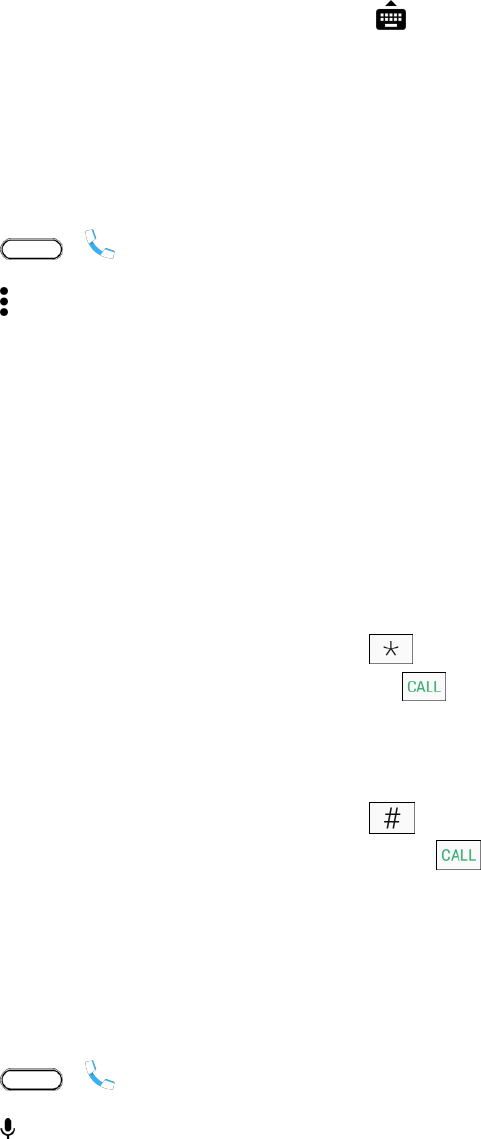
Phone Calls and Voicemail 91
4. Tap the contact you want to call.
To check other phone numbers associated with the contact, tap the contact photo.
If the phone number has an extension, tap after connecting to the main line and then dial
the extension number.
5. To hang up, tap End call.
Change the Phone Dialer Layout
Switch between a large or standard dial keypad.
1. Tap > to display the phone’s dialer screen.
2. Tap > Large dial pad or Standard dial pad.
Troubleshooting
Problem: Call does not connect.
Answer 1: Was the number dialed using the area code? Try dialing the number starting with "0."
Answer 2: Are you in an area with poor wireless coverage? Try calling again from another area.
Dial an Extension Number
To skip voice prompts when dialing an extension number, do one of the following.
■ After dialing the main number, touch and hold . A comma (,) is added to the number you are
dialing. Enter the extension number, and then tap . You will be connected to the mainline
and then to the extension number.
– or –
After dialing the main number, touch and hold . A semicolon (;) is added to the number you
are dialing. Enter the extension number, and then tap . After connecting to the main line, tap
Send to dial the extension number.
Tip: You can save phone numbers with an extension in the People app. See Add Contacts.
Voice Dialing
Call a contact hands-free using your voice.
1. Tap > .
2. Tap .
3. Say the name of contact you want to call. For example, say "Call [person’s name in phonebook]."
Phone Calls and Voicemail 92
4. Follow screen instructions to make the call.
Call Using a Speed Dial Number
Speed dial numbers let you dial numbers by touching and holding a single number on the Phone keypad.
1. Tap > to display the phone dialer’s screen.
2. Touch and hold the speed dial key on the Phone keypad. The display confirms that you have
dialed the number when it shows "Dialing" on the upper right side of the screen.
Set Up Speed Dial
Your phone can store up to eight phone numbers in speed dial locations. (The number 1 is reserved for
Sprint voicemail access.)
To assign a speed dial number to a contact:
1. Tap > > People, and then tap a contact.
2. Tap > Set speed dial.
3. Tap Not assigned under Number to select the contact’s number that you want to assign to the
speed dial key.
4. Tap Not assigned under Location and then select a speed dial location.
5. Tap Save.
Note: If you assign a number to an already assigned speed dial location, the new phone number will
automatically replace the previous speed dial assignment.
Call Emergency Numbers
You can place calls to 9-1-1 even if the phone’s screen is locked or your account is restricted.
Important: You won’t be able to make an emergency call if you don’t have a network signal.
1. Unlock the screen. For more information, see Lock and Unlock Your Screen.
2. Tap > .
3. Tap .
As long as you are in an area covered by wireless service, the emergency call is placed.
Note: When your account is restricted or if you’ve enabled but forgotten your lock password or lock
pattern, you can still make emergency calls by tapping Emergency on the screen.
Phone Calls and Voicemail 93
Enhanced 9-1-1 (E9-1-1) Information
This phone features an embedded Global Positioning System (GPS) chip necessary for utilizing E 9-1-1
emergency location services where available.
When you place an emergency 9-1-1 call, the GPS feature of your phone seeks information to calculate
your approximate location. Depending on several variables, including availability and access to satellite
signals, it may take up to 30 seconds or more to determine and report your approximate location.
Important: Always report your location to the 9-1-1 operator when placing an emergency call. Some
designated emergency call takers, known as Public Safety Answering Points (PSAPs), may not be
equipped to receive GPS location information from your phone.
Call a Number in a Text Message, Email Message, or
Calendar Event
While viewing a text message, email, or a Calendar event that has a phone number in it, you can just tap
the phone number to place a call.
■ For additional information, see Text and Multimedia Messaging, Gmail, and Calendar.
Make International Calls
When placing international calls, plus code dialing automatically adds the international dialing code for
your location (for example, 011 for international calls made from the U.S.).
Notes:
● Make sure the North American dialing option is enabled under Settings > Call > CDMA call
settings > Plus code dialing.
● To call someone in your contacts list, the stored phone number needs to have a "+" sign followed
by the country code, area code, and phone number.
1. Tap > .
2. Enter the first few letters of a contact name, and then tap a contact to call. If you don’t have the
number stored, touch and hold the until a "+" sign appears. Then enter the country code,
area code, and phone number, and tap .
The Phone dialer automatically adds your international dialing code to the number.
Note: The Phone dialer dials as is and doesn’t automatically add your international access code when
you dial a phone number that has a "+1" in front or when there’s no plus sign in front of the number.
Important: International calls may incur additional fees. Contact Sprint customer service for details.
Change the International Dialing Code
By default, the international dialing code is set to 011. When you’re traveling in another country, you can
set the international dialing code to your current location.
Phone Calls and Voicemail 94
1. Tap > > Settings.
2. Tap Call > CDMA call settings > Plus code dialing > International dialing.
3. Enter the dialing code of the country where you’re located, and then tap OK.
Return a Missed Call
You’ll see the missed call icon in the status bar when you miss a call.
1. Slide the notification panel open to check who the caller is.
2. To return the call, tap on the missed call notification to expand it, and then tap Call back.
Tips:
● You can also tap the notification to display call history and then tap the entry to call it.
● If you have multiple missed calls, tap the missed calls notification to open the Call history tab.
Answer Phone Calls
The following information lets you know how to answer incoming calls, mute the ringer on incoming calls,
reject incoming calls, and more.
Notes:
● Your phone will automatically adjust the ringtone volume when you use the polite ringer and
pocket mode features.
● If your phone is turned off, all calls automatically go to voicemail.
Answer or Reject an Incoming Call
● If the display is on when you get a call, tap Answer or Decline.
● If the display is locked when you get a call, drag or upwards.
Tip: After declining a call, you can send a text message to the caller. All declined calls go to your
voicemail.
Mute the Ringing Sound without Rejecting the Call
● Press the Volume button.
● Briefly press the Power/Lock button.
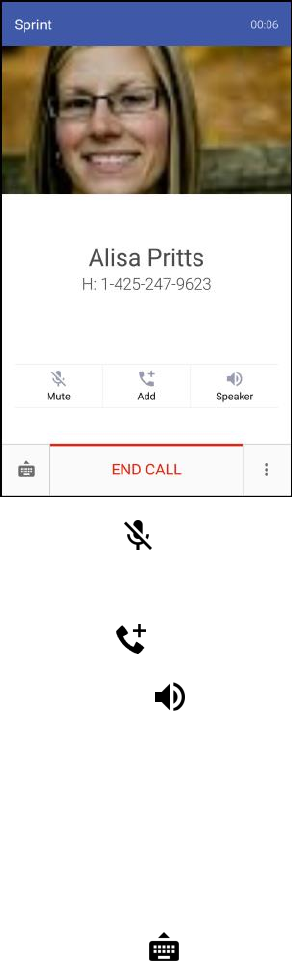
Phone Calls and Voicemail 95
● Place the phone face down on a level surface. (You can do this even on the lock screen.)
Note: If Flip to mute option in Sound & notification settings is set to Mute once, HTC U11 will still ring
when there are subsequent incoming calls
In-Call Screen Layout and Operations
While you’re on a call, you will see a number of onscreen options.
● Mute : Mute the microphone during an active call. Tap again to unmute the microphone.
Note: If Mute is activated, the speaker mode is deactivated.
● Add : Tap to add a call and initiate a conference call (3-way call).
● Speaker : Route the phone’s audio through the speaker (On) or through the earpiece (Off).
Activate Speaker to route the phone’s audio through the speaker. (You can adjust the
speaker volume using the Volume button.)
Deactivate Speaker to use the phone’s earpiece.
Warning: Because of higher volume levels, do not place the phone near your ear during speakerphone
use.
● Dialpad : Use the onscreen dialpad to enter additional numbers, for example, an extension or
access code.
For example: When you call your bank’s 800 number, use your dialpad to enter your account
number and PIN.

Phone Calls and Voicemail 96
● Tap to view more in-call options.
People: Display your contacts list.
Open contact card: Display the caller’s contact information.
End a Call
There are a couple of options for ending a phone call.
● On the call screen, tap End call.
● Slide the notification panel open, and then tap Hang up on the call notification.
Tip: If the phone number of the person who called is not in your contacts list, you can choose to save the
number to your contacts list after you hang up.
Place Calls from History/People
You can also place calls directly from your contacts list or from the Call history screen.
Call From Call History
You can directly call numbers stored in your Call history.
1. Tap > .
2. Swipe right to display the Call history tab.
3. Tap an entry to place a call.
Note: You cannot make calls from Call history to entries identified as No ID or Restricted.
Tip: Touch and hold an entry in the Call history list to open the options menu where you can select to
view the contact information (if number is stored in People), edit the number before you call, send a text
message, or delete the entry from the Call history list and more.
Call From People
Call your contacts from the People application.
1. Tap > .
2. Swipe left to display the People tab.
3. Tap the contact you want to call to open the contact details screen.
4. Tap a phone number to place a call.
For additional information, see Contacts.

Phone Calls and Voicemail 97
Call History
Call history lists all recent incoming, outgoing, and missed calls. Call history makes redialing a number
fast and easy. It is continually updated as your phone automatically adds new numbers to the beginning
of the list.
Note: Call history records only calls that occur while the phone is turned on. If a call is received while your
phone is turned off, it will not be included in History.
Open Call History
Access your Call history to quickly call someone back or see who you have talked to recently.
1. Tap > .
2. Swipe right to display the Call history tab.
Each entry contains the phone number (if it is available) and the contact name (if the number is
in People).
3. Do any of the following:
Tap a name or number in the list to call. See Call From Call History.
Touch and hold a name or number in the list to display the options menu.
Tap a contact photo to find more ways of getting in touch with the contact.
Tap to display only a particular type of call such as missed calls or outgoing calls.
Save a Number From Call History
If the phone number of a person who called is not in People, you can choose to save the number after
you hang up.
1. Tap > .
2. Swipe right to display the Call history tab.
3. Tap next to the new number and choose whether to create a new contact or save the number
to an existing contact.
Note: You cannot save phone numbers already in People or from calls identified as No ID or Restricted.
Prepend a Number From Call History
If you need to make a call from the Call history and you are outside your local area code, you can add the
appropriate prefix by prepending the number.
1. Tap > .
2. Swipe right to display the Call history tab.
Phone Calls and Voicemail 98
3. Touch and hold the entry you want to call and tap Edit number before calling.
4. Enter the prefix and tap to call the number.
Block a Caller
When you block a phone number or a contact, all calls from the phone number or contact will be declined
automatically.
1. Tap > .
2. Swipe right to display the Call history tab.
3. Touch and hold the contact or phone number you want to block, and then tap Block contact >
OK.
Note: To remove a caller from your blocked list, on the Call history tab, tap > Blocked contacts.
Touch and hold a contact, and then tap Unblock contacts.
Erase Call History
If the Call history becomes long, you can delete an entry or the entire Call history list.
1. Tap > .
2. Swipe right to display the Call history tab.
3. Do either of the following:
To delete a Call history entry, touch and hold the entry, and then tap Delete from call
history.
To erase the entire Call history list, tap > Remove call history. Tap > Select all, and
then tap Delete.
Voicemail
Follow the instructions below to set up voicemail on your phone. You should set up your voicemail and
personal greeting as soon as your phone is activated. Always use a passcode to protect against
unauthorized access. Your phone automatically transfers all unanswered calls to your voicemail, even if
your phone is in use or turned off.
1. Tap > .
2. Touch and hold to dial your voicemail number.
Your phone dials the voicemail access number.
3. Follow the system prompts to:
Create your passcode.
Phone Calls and Voicemail 99
Record your name announcement.
Record your greeting.
Important: Voicemail Passcode – Sprint strongly recommends that you create a passcode when setting
up your voicemail to help protect against unauthorized access. Without a passcode, anyone who has
access to your phone is able to access your voicemail messages.
Optional Calling Services
The following topics outline additional voice-related services available with your phone.
Wi-Fi Calling
Wi-Fi Calling is a free service that allows you to make and receive phone calls over a Wi-Fi network, even
when your wireless signal is low. If you have a limited Talk plan, Wi-Fi Calling doesn't count against your
minutes. Once connected, you place and receive calls just like normal.
Set Up Wi-Fi Calling
1. Tap > > Settings.
2. Tap Wi-Fi Calling, and then tap the switch to turn Wi-Fi Calling on.
3. Follow the screen prompts to set up Wi-Fi Calling.
Wi-Fi Calling is set up. You will see in the status bar when Wi-Fi Calling is active, or if
Wi-Fi Calling is set up but you are not currently connected to a Wi-Fi network.
Tip: For more information about Wi-Fi Calling, visit support.sprint.com.
Enable or Disable Wi-Fi Calling
1. Tap > > Settings.
2. Tap the Wi-Fi Calling On/Off switch.
Tip: You can also turn Wi-Fi Calling on or off through the Quick Settings panel. Swipe down the screen
from the status bar to display the minimized Quick Settings panel and tap to enable or disable the
feature.
Conference Calling
With conference calling, also known as 3-way calling, you can talk to two people at the same time. When
using this feature, the normal airtime rates will be charged for each of the two calls.
1. Tap > .
2. Dial a number and tap Call.
Phone Calls and Voicemail 100
3. Once you have established the connection, tap Add, and dial the second number. (This puts the
first caller on hold and dials the second number.)
Tip: You can add a call even if the first call was an incoming call.
4. When you’re connected to the second party, tap .
If one of the people you called hangs up during your call, you and the remaining caller stay connected. If
you initiated the call and are the first to hang up, all callers are disconnected.
■ To end the three-way call, tap End call.
Caller ID Blocking
Caller ID identifies a caller before you answer the phone by displaying the number of the incoming call. If
you do not want your number displayed when you make a call, follow these steps.
1. Tap > .
2. Tap .
3. Enter a phone number.
4. Tap Call.
To permanently block your number, call Sprint Customer Service.
Call Waiting
When you’re on a call, Call Waiting alerts you to incoming calls by sounding two beeps. Your phone’s
screen informs you that another call is coming in and displays the caller’s phone number (if it is available
and you are in digital mode).
To respond to an incoming call while you’re on a call:
1. Tap Answer.
This puts the first caller on hold and answers the second call.
2. To switch back to the first caller, tap the contact on the screen.
Note: For those calls where you don’t want to be interrupted, you can temporarily disable Call Waiting by
tapping before placing your call. Call Waiting is automatically reactivated once you end
the call.
Call Forwarding
Call Forwarding lets you forward all your incoming calls to another phone number – even when your
phone is turned off. You can continue to make calls from your phone when you have activated Call
Forwarding.
Note: Depending on your plan, you may be charged a higher rate for calls you have forwarded.
Phone Calls and Voicemail 101
To activate Call Forwarding:
1. Tap > .
2. Tap .
3. Enter the area code and phone number to which you want your calls forwarded.
4. Tap Call. (You will hear a tone to confirm the activation of Call Forwarding.)
You will hear a tone to confirm the activation of Call Forwarding. All calls to your wireless
number will be forwarded to the designated phone number.
To deactivate Call Forwarding:
1. Tap > .
2. Tap .
3. Tap Call. (You will see a message and hear a tone to confirm the deactivation.)
You will hear a tone to confirm the deactivation.
Internet Calls
When you’re connected to a Wi-Fi network, you can make and receive calls through an Internet calling
account.
Note: Before you add an Internet calling account, make sure that you’ve registered with an Internet
calling service that supports voice calls over Session Initiation Protocol (SIP). Internet calls to phone
numbers may incur additional fees.
Add an Internet Calling Account
You must add an Internet calling account before you can make Internet calls.
1. Tap > > Settings > Call.
2. Under Other call settings, tap Calling accounts.
3. Tap Internet calling (SIP) accounts and tap .
4. Enter your account details.
5. Tap > Save.
6. To set your phone to receive Internet calls on your added account, select the Receive incoming
calls option.
Phone Calls and Voicemail 102
Make an Internet Call
Make an Internet call to either your contact’s Internet calling account or phone number.
● Internet calling account
In People, tap a contact who has an Internet calling account, and then tap Internet call.
In Call History, tap an Internet call log.
● Phone number. First, enable Internet calling for your outgoing calls. Tap > >
Settings > Call > Calling accounts. Tap Use Internet calling, and then select either For all
calls or Only for Internet calls.
Ringtone Settings
You can change how your phone alerts you when you receive calls.
Switch Between Silent, Vibrate, and Normal Modes
● To change from silent to normal mode, press the Volume up button.
● To change from vibrate to normal mode, press the Volume up button twice.
● Swipe down from the status bar, and then tap > Sound & notification > Sound profile.
Lower the Ring Volume Automatically
Your phone has a quiet ring feature that automatically lowers the ring volume when you move it.
1. Swipe down from the status bar, and then tap > Sound & notification.
2. Select the Quiet ring on pickup option.
Make Your Phone Ring Louder in Your Pocket or Bag
To help avoid missing incoming calls when your phone is in your pocket or bag, the pocket mode feature
gradually increases the ring volume and vibrates when you receive a call.
1. Swipe down from the status bar, and then tap > Sound & notification.
2. Select the Pocket mode option.
Call Settings
Your phone’s Call settings menu lets you configure your voicemail options and a number of accessibility
options such as hearing-aid amplification and teletypewriter.
1. Tap > > Setting.
2. Tap Call.
Phone Calls and Voicemail 103
The call settings menu appears.
3. Configure your options.
Tap a menu item to display its options.
Select your options and follow the prompts to set them.
Your call settings options are set.
Call Features
Use these options to set various call features.
1. Tap > > Settings.
2. Tap Call.
3. Set the following:
Auto answer calls: Select this option to automatically answer incoming calls just by lifting
the phone to your ear.
Show declined call options: Select to enable text message and reminder options for
declined calls.
Save to People: Select to add unknown numbers to the People list after the call.
Voicemail Settings
Use this menu to check your voicemail settings such as the voicemail service provider and voicemail
number.
1. Tap > > Settings.
2. Tap Call.
3. Tap Voicemail service or Voicemail settings.
Hearing Aids
Select the Hearing aids option to enable hearing aid compatibility that amplifies your phone’s in-call
volume.
1. Tap > > Settings.
2. Tap Call.
3. Select the Hearing aids option.
4. Select Sidetone to get voice feedback in a hearing aid.
Phone Calls and Voicemail 104
CDMA Call Settings
Use these options to enable hearing aid compatibility, and adjust several call settings, such as
teletypewriter (TTY) mode.
1. Tap > > Settings.
2. Tap Call.
3. Tap CDMA call settings.
TTY (Teletypewriter) Mode
TTY mode allows people who have hearing or speech impediments to communicate by telephone.
HTC U11 is compatible with select TTY phones. Contact your TTY phone manufacturer to see if the
phone supports digital wireless transmission. HTC U11 and the TTY phone connect using a special cable
that may come with the TTY phone. If this cable was not provided with your TTY phone, contact your TTY
phone manufacturer to purchase the connector cable. Most TTY phones connect via a 2.5 mm headset
jack adapter. HTC provides a 2.5 mm headset jack adapter that connects to the USB Type-C port on
HTC U11. To request this adapter, contact HTC by chat or email at htc.com/us/support.
When establishing your Sprint service, please call Sprint Customer Service using the state
Telecommunications Relay Service (TRS) by first dialing . Then provide the
state TRS with this number: 866-727-4889.
To turn TTY Mode on or off:
1. Tap > > Settings.
2. Tap Call.
3. Tap CDMA call settings > TTY mode.
4. Tap TTY Full, TTY HCO, or TTY VCO. Tap TTY Off to turn TTY mode off.
Note: When enabled, TTY mode may impair the audio quality of non-TTY phones connected to the
headset jack.
Warning: 9-1-1 Emergency Calling
Sprint recommends that TTY users make emergency calls by other means, including
Telecommunications Relay Services (TRS), analog cellular, and landline communications. Wireless TTY
calls to 9-1-1 may be corrupted when received by public safety answering points (PSAPs), rendering
some communications unintelligible. The problem encountered appears related to TTY equipment or
software used by PSAPs. This matter has been brought to the attention of the FCC, and the wireless
industry and the PSAP community are currently working to resolve this.
Other CDMA Call Settings
Select these options to enhance voice privacy, prepend numbers automatically, or use plus code dialing.
1. Tap > > Settings.
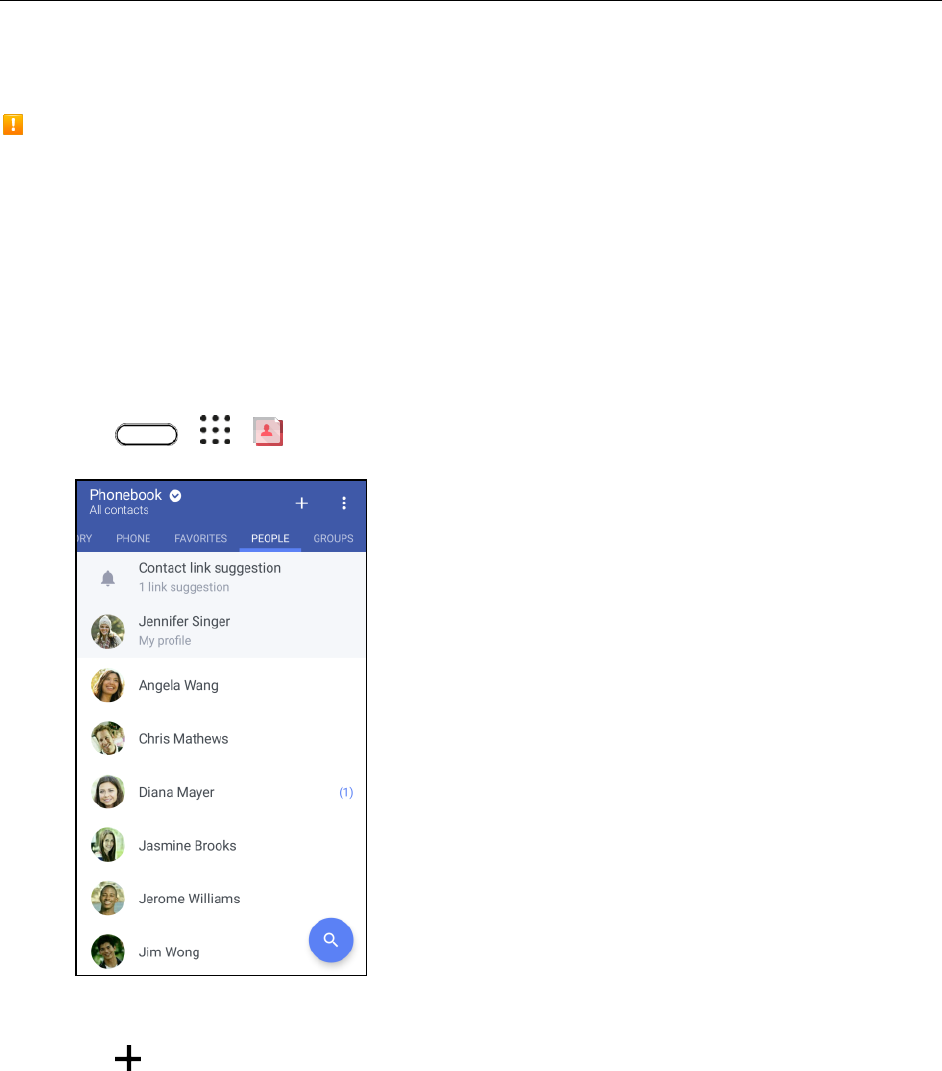
Contacts 106
Contacts
The Contacts application lets you store and manage contacts from a variety of sources, including
contacts you enter and save directly in your phone as well as contacts synchronized with your Google
Account, your PC, compatible email programs (including Exchange Server), and your Facebook friends.
Contacts Cautions
Information saved in Contacts may be lost or changed if the battery is removed for a long period or
left uncharged. Accident or malfunction may also cause loss or change to information. It is
recommended that you keep a separate copy of contacts and other important information. Sprint is
not responsible for any damages from lost or changed contacts.
Add Contacts
You can add contacts from your phone’s Contacts application. Enter details such as name, phone
numbers, email addresses, mailing addresses, and more.
1. Tap > > People.
You will see the Contacts list.
2. Tap .
The Add Contact screen appears.
3. If you have multiple account types associated with your phone, select a contact type.

Contacts 107
Select Google if you want to save contacts to your Google Account; these will be synced
automatically with your Google Account online.
Select Phone as the sync account if you want your contacts on your phone only; they will not
be synced with your Google Account.
4. Use the keyboard to enter as much information as you want.
: Tap the picture icon to assign a picture to the contact.
Name
Phone
Email
Group
Add more information: Tap Add another field to include additional information such as IM
address, Postal address, Nickname, Website, etc.
Notes:
● To select a type (label) for a phone number, email address, or postal address (such as Mobile,
Home, Work, etc.), tap the type next to the field and select the appropriate type.
● To add more phone numbers, email addresses, etc., tap next to the entry field.
5. When you have finished adding information, tap .
The contact is added.
Add an Extension Number to a Contact Number
While creating a new contact in People, you can add an extension number to their number so you can
skip the voice prompts when calling.
1. After entering the number of the main line, do one of the following:
Tap P to insert a pause (,) before the extension number is dialed automatically. To make the
pause longer, tap P again.
Tap W to insert a wait (;) and be prompted to confirm the extension number.
2. Enter the extension number.
3. Tap .
Save a Phone Number
You can save a phone number to Contacts directly from the phone keypad.
1. Tap > .
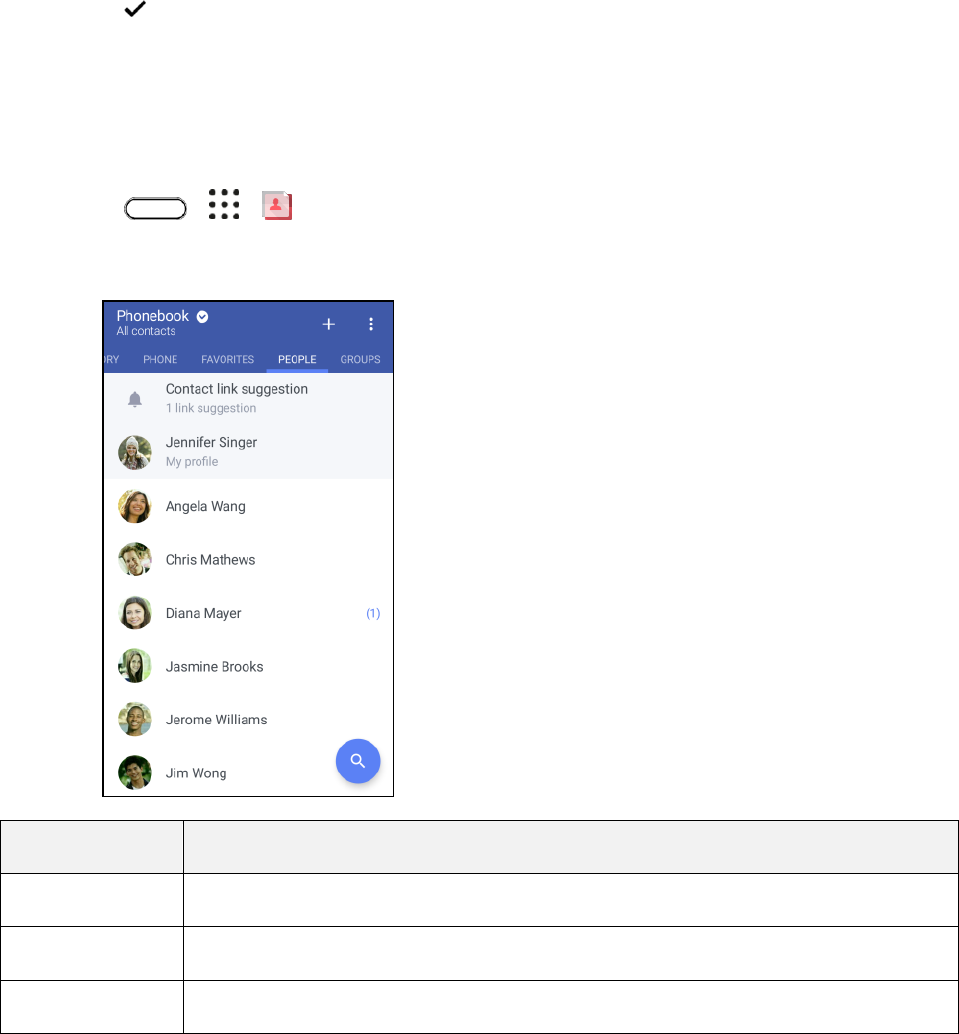
Contacts 108
2. Enter a phone number and tap Save to People.
3. To add the number to an existing contact, tap Save to existing contact. To add a new contact,
tap Create new contact.
For an existing contact, tap the contact name and select a number type for the new number.
For a new contact, enter the name and any additional information.
4. Tap or Save.
The contact is added.
Contacts Screen Layout
The following illustration shows your Contacts app layout and describes its features.
■ Tap > > People.
The following illustration shows your Contacts app layout and describes its features.
Item
Description
Groups tab
Show contact groups.
Favorites tab
Show all contacts.
People tab
Show favorite contacts.
Contacts 109
Contact name
Tap to show contact’s details. This also shows when a contact has sent you new
messages.
Contact image
Tap to find ways to quickly connect with the contact.
Contact link
suggestion
Tap to manage contacts from your social network and Web-based email accounts.
My profile
View your profile and edit your contact information.
Menu
Tap to manage your contacts list.
Search
Search contacts.
Add new
Add a new contact.
Tips:
● You can also access People through the Phone app. Tap > and then swipe left until
you reach the People tab.
● To sort your contacts by their first or last name, tap > Settings > Sort contacts by.
Filter Your Contacts List
When your contacts list gets long, you can choose which contact accounts to show.
1. Tap > > People.
2. On the People tab, tap Phonebook.
3. Choose the accounts that contain the contacts you want to display.
4. Tap .
Find Contacts
Search for contacts stored on your phone, your company directory if you have an Exchange ActiveSync
account, or social networks you’ve signed into.
1. Tap > > People.
2. On the People tab, you can:
Find people in your contacts list. Tap , and then enter the first few letters of the contact
name in the Search people box.
Contacts 110
Find people on your company directory (Microsoft Exchange ActiveSync account required).
Tap , enter the first few letters of the contact name in the Search people box, and then
tap Search contacts in your Company Directory.
Tip: Aside from searching for a contact by name, you can search using a contact’s email address or
company name. On the People tab, tap > Settings > Search contacts by, and then choose a search
criteria.
Why can't I see newly added contacts in the People app?
Check if you've created the contact under a specific account type. On the People app, tap Phonebook,
and then select the accounts or sources you want your contacts to show from.
Set Up Your Profile
Your profile stores your personal contact information in an easy-to-access location.
1. Tap > > People > My profile.
2. Tap Edit my contact card.
3. Enter or edit your name and contact details.
4. Tap or the current photo to change your contact photo.
5. Tap .
Aside from your contact details, your profile also shows updates you’ve posted on your social networks.
Emergency Information
To make it easier for emergency personnel to identify important contacts and personal information, you
can select your emergency contacts and enter your emergency information right in your profile. These
information will show on the emergency calling screen.
1. Tap > > People > My profile.
2. Tap Emergency Information under the Information section.
3. Tap Select emergency contacts.
You will be redirected to your Emergency contacts group.
4. Add contacts to your Emergency contacts group, and then tap .
5. Tap Emergency medical information, and then enter your emergency information.
6. Tap .
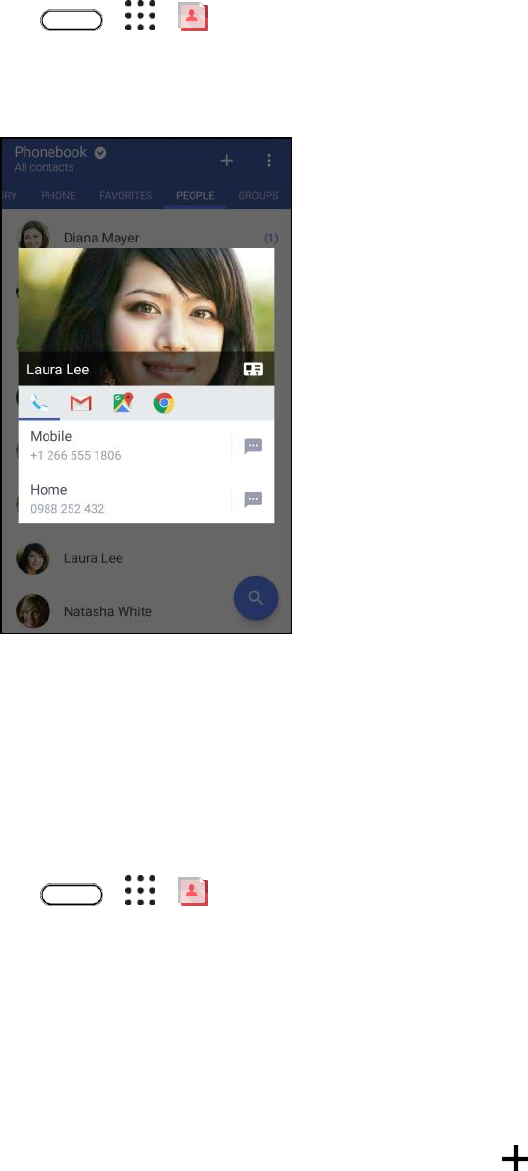
Contacts 111
Get in Touch with a Contact
Choose the best way to connect with your contacts.
1. Tap > > People.
2. Tap a contact’s photo (not the name), and then choose how you want to get in touch with that
contact.
Tip: For more ways of getting in touch with your contact, tap an icon below the contact photo.
Edit Contacts
Once you’ve added a contact, you can add or edit any of the information in the entry, assign a caller ID
picture, customize with a unique ringtone, and more.
Note: Facebook and Twitter contacts cannot be edited.
1. Tap > > People.
2. On the People tab, touch and hold the contact, and then tap Edit contact.
3. Enter the new information.
Notes:
● To select a type (label) for a phone number, email address, or postal address (such as Mobile,
Home, Work, etc.), tap the type next to the field and select the appropriate type.
● To add more phone numbers, email addresses, etc., tap next to the entry field.

Contacts 112
4. Tap .
Your changes are saved to the contact entry.
Delete Contacts
Follow these steps to delete an entry in your contacts list.
1. Tap > > People.
2. On the People tab, touch and hold the contact, and then tap Delete contact.
3. Tap OK to confirm.
Delete Multiple Contacts
Clean up your contacts list by deleting entries that you no longer need.
1. Tap > > People.
2. On the People tab, tap > Delete contacts.
3. Select the entries you want to delete, and then tap Delete.
Import or Copy Contacts
It’s easy to import or copy contacts to your phone.
Import a Contact from an Exchange ActiveSync Account
1. Tap > > People.
2. On the People tab, tap and enter the contact’s name or email address in the search box.
3. Tap Search contacts in your Company Directory.
4. Tap the name of the contact you want copied to your phone.
5. Tap to save the contact to your phone.
Copy Contacts from One Account to Another
1. Tap > > People.
2. On the People tab, tap > Manage contacts.
3. Tap Copy contacts, and then choose a contact type or online account to copy from.
4. Select a contact type or account you want to save to.
Note: Contacts from your social network accounts may not be copied.
Contacts 113
Merge Contact Information
If you have the same contacts on your phone, Google Account, and social network accounts such as
Facebook and Twitter, your phone will try to combine them automatically or let you decide which contacts
to combine. Combining the same contacts avoids duplicated entries in your contacts list.
Accept Contact Link Suggestions
When your phone finds contacts that can be merged, you’ll see a link notification when you open the
People app.
1. Tap > > People.
2. On the People tab, tap the Contact link suggestion notification when available. You’ll see a list
of suggested contacts to merge.
3. Navigate to the contact you want to merge.
4. Tap to merge. Otherwise, tap to dismiss the link suggestion.
Note: If you don’t want to receive contact link suggestions, on the People tab, tap > Settings. Clear the
Suggest contact link option.
Manually Merge Contacts
You can merge your entries manually and choose the accounts to link the contact.
1. Tap > > People.
2. On the People tab, tap the name of the contact (not the icon or photo) you want to link.
3. Tap > Link.
4. You can:
Under Suggest links, tap to link the contact to an account.
Under Add contact, tap one of the options to link to another contact.
5. Tap Done to save the change.
Break the Link
When contact information has changed, you can choose to break the contact’s link from another account.
1. Tap > > People.
2. On the People tab, tap the name of the contact (not the icon or photo) whose link you want to
break.
3. Tap > Link.
Contacts 114
4. Under the Linked contacts section, tap beside an account to break the link.
5. Tap Done to save the change.
Send Contact Information
Quickly share your contact cards on your phone.
1. Tap > > People.
2. Do any of the following:
To send someone’s contact information, touch and hold the name of the contact (not the icon
or photo), and then tap Send contact as vCard.
To send your contact information, touch and hold My profile, and then tap Send my profile.
3. Tap Send contact via and choose how you want to send the vCard.
4. Select the type of information you want to send.
5. Tap Send.
Send Multiple Contact Cards
1. Tap > > People.
2. Tap > Send contacts.
3. Select the contacts whose contact information you want to share.
4. Tap Send.
5. Choose how you want to send the contact cards.
6. Follow screen instructions to proceed.
Share All Visible Contacts
You can share all entries that appear in your contacts list, regardless of the online account that your
contacts sync with.
1. Tap > > People.
2. Tap > Manage contacts > Import/Export contacts > Share visible contacts.
3. Choose how you want to send your contacts.
Contacts 115
Contact Groups
Organize your friends, family, and colleagues into groups so you can quickly send a message or email to
everyone in the group. We’ve also set up the Frequent group to automatically add the contacts you dial or
get calls from the most.
Your phone also syncs with groups you’ve created in your Google Account.
Create a Group
Create a group for your sporting buddies or family members so you can easily send them a message or
email.
1. Tap > > People.
2. On the Groups tab, tap .
3. Enter a name for the group.
4. Tap > Add contact to group.
5. Select the contacts you want to add, and then tap Save.
Send a Message or Email to a Group
Easily send a message or email to all members of the group.
1. Tap > > People.
2. On the Groups tab, tap the group you want to send a message or email to.
3. Go to the Group action tab.
4. Choose if you want to send a text message or email.
5. Follow the prompts to complete and send the group message or group mail. See Send a Text
Message (SMS) or Create and Send Gmail.
Edit a Contact Group
You have full control of your groups. Change the group name or add and remove group members from
the People app.
1. Tap > > People.
2. On the Groups tab, touch and hold the group, and then tap Edit group.
3. You can:
Tap the group name to change the name. You can only change the name for groups that you
have created.
Contacts 116
Tap > Add contact to group to add more members.
To rearrange the group members, drag at the end of the contact’s name to its new
position.
Select the check box next to any contacts you want to remove from the group.
4. Tap Save.
Manage Your Contact Groups
Put your favorite group at the top of the groups’ list or delete groups that you don’t need.
1. Tap > > People.
2. On the Groups tab, tap > Edit groups.
3. You can:
Rearrange the contact groups. Drag at the end of the group name to its new position.
Select the contact groups you want to remove.
4. Tap Save.
Back Up and Restore Contacts
Make sure you don’t lose your contacts by backing them up to your phone’s storage or microSD card (if
you inserted one).
Back Up Contacts
1. Tap > > People.
2. Tap > Manage contacts.
3. Tap Import/Export contacts > Export to phone storage or Export to SD card.
4. Select an account or type of contacts to export.
5. To help protect your data, tap Yes, and then set a password for this backup. Be sure to
remember this password. You’ll need to enter it again when importing contacts. If you don’t need
a password, tap No.
6. Tap OK.
Restore Contacts
Note: You can only restore contacts that were backed up using the Export to phone storage feature.
Contacts 117
1. Tap > > People.
2. Tap > Manage contacts.
3. Tap Import/Export contacts > Import from phone storage or Import from SD card.
4. If you have more than one account set up, tap the type for the imported contacts.
5. If you have multiple backups available, select the backup you want to import, and then tap OK.
6. Enter the password you’ve set for this backup, and then tap OK.
Private Contacts
If you don’t want to show a contact’s name and photo on the lock screen when you have an incoming call,
add the contact to your private contacts list.
Note: Contacts must have a phone number before they can be added to the private contacts list.
Add a Contact to the Private Contacts List
1. Tap > > People.
2. Touch and hold the contact, and then tap Add to private contacts.
To view your private contacts list, on the People tab, tap > Manage contacts > Private
contacts.
Organize Your Private Contacts
1. Tap > > People.
2. On the People tab, tap > Manage contacts > Private contacts.
3. To add contacts to the private contacts list, tap , select the contacts you want to add, and then
tap Save.
To remove private contacts from the list, tap > Remove private contact, select the
contacts you want to remove, and then tap Remove.
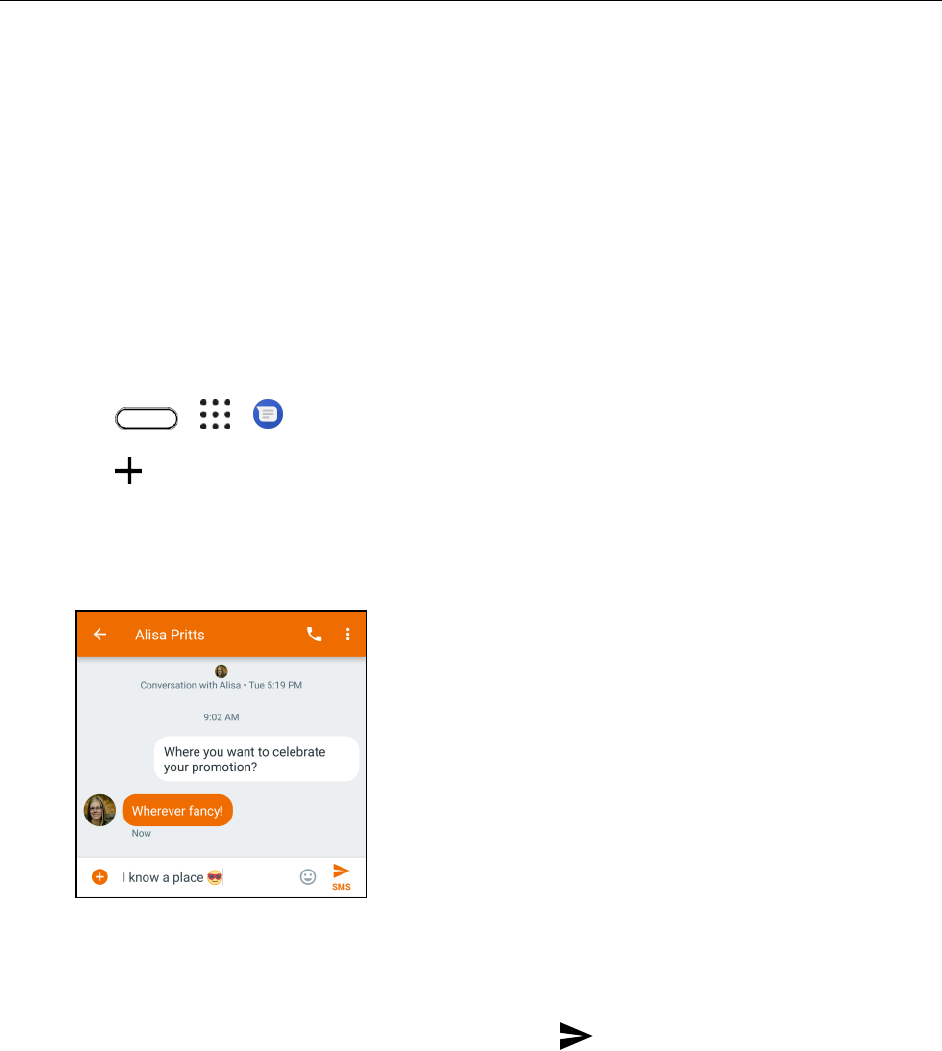
Messaging 118
Messaging
With wireless service and your phone’s messaging and data capabilities, you have the opportunity to
share information through many different channels and accounts, including Gmail (Google), personal and
corporate email, and text and multimedia messaging.
Text and Multimedia Messaging
With Android Messages, you can send and receive instant text (SMS) and multimedia (MMS) messages
between your wireless phone and another messaging-ready phone.
MMS can contain text and pictures, recorded voice, audio or video files, or contact cards (vCard). See
your service plan for applicable charges for messaging.
Send a Text Message (SMS)
Quickly compose and send text messages on your phone.
1. Tap > > Messages.
2. Tap .
3. Enter a contact name or mobile number in the "To" field. Or select a contact from the list.
4. Tap the "Type an SMS message" box and then start composing your message.
Notes:
● There is a limit on the number of characters for a single text message. Once you go over the
character limit, a new message is created but automatically joined into one when received. As
you near the limit, a character count will appear above .
● Your text message automatically becomes a multimedia message if you select two or more
recipients, attach an item, or compose a very long message.
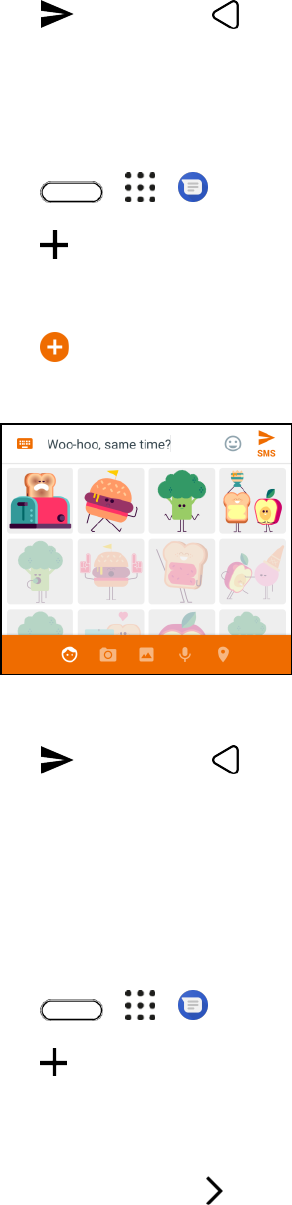
Messaging 119
5. Tap to send, or tap to save the message as a draft.
Send a Multimedia Message (MMS)
When you need to add a little more to a text message, you can send a multimedia message (MMS) with
pictures, voice recordings, audio or video files.
1. Tap > > Messages.
2. Tap .
3. Enter a contact name or mobile number in the "To" field. Or select a contact from the list.
4. Tap and then select an attachment type. You can attach a sticker, a photo or video that you
capture using the camera, a saved photo or video, a voice recording, or your location information.
5. Tap the "Add text" box then start composing your message.
6. Tap to send, or tap to save the message as a draft.
Note: Depending on the resolution of your photo or video attachments, they may be displayed as cropped
thumbnails in your multimedia message.
Send a Group Message
Group messaging makes it easy to send a message to multiple contacts all at once. You can choose to
send a group SMS or group MMS.
1. Tap > > Messages.
2. Tap > Start group conversation.
3. Enter a contact name or mobile number in the "To" field. Or tap the contact's name (not the
photo) from the list.
4. When you're done, tap .
5. Tap the "Type an MMS message" box then start composing your message.
Messaging 120
6. Tap to send, or tap to save the message as a draft.
Group MMS FAQs
Question: Why can’t my recipients see or join the group MMS I sent them?
Answer: Check whether your recipients have enabled group messaging on their mobile devices.
Some devices or mobile operators may not support this feature.
Save and Resume Composing a Draft Message
While composing a text or multimedia message, tap to automatically save your message as a draft.
You can resume composing a draft message.
1. Tap > > Messages.
2. Tap the draft message, edit the message, and then tap .
Read and Reply to a Message
Depending on your notification settings, the phone plays a ringtone, vibrates, or displays the message
briefly in the status bar when you receive a new text or multimedia message. To change the notification
for new text and multimedia messages, see Messages Options. A new message icon ( ) also appears
in the status bar.
1. To open and read the message, you can:
Open the notification panel, and then tap the new message.
Tap > > Messages, and then tap the message.
2. While reading the message, you can:
Reply with a text message. Tap the "Type an SMS message" box, enter your reply
message, and then tap .
Reply with a multimedia message. Tap the "Type an MMS message" box, enter your reply
message, tap to choose an attachment for your message, and then tap .
Call or save a phone number contained in the message. Tap the phone number, and then
choose whether to call the number or add it to your contacts.
Open a link in the message. Tap the link to open it in the Web browser.
Send to an email address contained in the message. Tap the email address to send an
email.
Check message details. Touch and hold the message (do not tap a link or a phone number)
and then tap .
Messaging 121
Forward a Message
1. Tap > > Messages.
2. Tap a contact (or phone number) to display the exchange of messages with that contact.
3. Touch and hold the message, and then tap .
4. Select the recipient from the pop-up window, or tap New message to select another contact.
5. Tap to send.
View and Save an Attachment from a Multimedia Message
When you receive a multimedia message, you can view and save files that are attached to it.
● If there’s a media attachment such as a photo or video in a received message, tap it to view the
content and tap to save.
● If the attachment is a contact (vCard), tap it to view the contact information, and then tap to
add to your contacts.
Note: If you are concerned about the size of your data downloads, you can choose to check the size and
subject first before you download a multimedia message. On the Messages main screen, tap > Settings
> Advanced. Turn off the Auto-download MMS option.
Block Unwanted Messages
Declutter your Messages screen by moving spam messages from contacts to the block box. If you have
blocked a contact, that contact’s messages will also be in the block box.
1. Tap > > Messages.
2. Touch and hold a contact (or phone number) and tap .
When the contact sends you messages, you will not see them in the messages screen or
receive notifications and calls.
3. To read messages from a blocked contact or number, on the Messages main screen, tap >
Archived.
4. To see all contacts and numbers you blocked, tap > Blocked contacts.
Note: To read messages from a blocked contact or number, on the Messages screen, tap > Archived.
Unblock a Contact or Number
1. Tap > > Messages.

Messaging 122
2. Tap > Archived and tap the blocked contact (or phone number).
3. Tap > People & options, and tap Unblock.
The contact or phone number is unblocked and the conversation is moved back to the
messages screen.
Delete Messages and Conversations
Tidy up your messages list by deleting old messages and conversations.
1. Tap > > Messages.
2. To delete a single conversation, touch and hold the contact (or phone number), and then tap .
3. To delete a message within a conversation, tap the contact (or phone number) to open the
conversation thread, touch and hold the message you want to delete, and then tap .
Messages Options
You can set how your phone receives a multimedia message, or set other messaging options.
1. Tap > > Messages.
2. Tap > Settings. You can set the following options:
Default SMS app: Select which app to use to send and receive text and multimedia
messages.
Get notifications: Enable this option to display a notification in the notification panel when
you receive a text or multimedia message.
Notification sound: Select the outgoing message and notification sound.
Hear outgoing message sounds: Enable this option to hear a sound when your text or
multimedia message is sent.
Vibrate: Enable this option if you want the phone to vibrate when you receive a text or
multimedia message.
Your current country: Auto-detects your current location.
Advanced
• Enhanced features: Tap to select options such as using data for messaging, sending
read receipts, showing typing indicator, and automatic resending if message gets
undelivered.
• Group messaging: Select whether to send individual SMS messages or a single MMS to
all recipients in a group message.
Messaging 123
• Auto-download MMS: Select this option to automatically retrieve all your multimedia
messages completely. When selected, the multimedia message header plus the
message body and attachments will automatically download to your phone. If you turn
this off, only the multimedia message header will be retrieved and shown in the
messages screen.
• Auto-download MMS when roaming: Select this option to automatically retrieve all your
multimedia messages completely while roaming. Data roaming charges will apply.
• Use simple characters: Enable this option to convert special characters in SMS
messages you send.
• Wireless alerts: Tap to see emergency alerts and cell broadcasts.
• SIM card messages: Displays the messages stored on your nano SIM card.
• Phone number: Enable or change the callback number for MMS.
Gmail
Use Google’s Gmail service and your Google Account to send, receive, and manage your Gmail
messages. Before using Gmail, you must register a Google (Gmail) Account on your phone. See Google
Account for details.
Gmail Cautions
Gmail is handled as email from a PC. Restricting email from PCs on your phone prevents your phone
from receiving Gmail.
Create and Send Gmail
Create and send an email message from your Gmail account.
1. Tap > > Gmail.
The Gmail inbox opens.
2. In the inbox of the Gmail account you want to use, tap .
The Gmail composition window opens.
3. Enter the message recipient(s), subject, and message, and then tap .
The Gmail message is sent.
Gmail Composition Options
● Adding Cc/Bcc: In the mail composition window, tap next to the "To" field.
● Attaching Pictures or Videos: In the mail composition window, tap > Attach file, select the
source of the attachment, and then select the file to attach.

Messaging 124
● Save as a Draft (Send Later): In the mail composition window, tap > Save draft to save it as a
draft.
● Delete Mail Being Composed: In the mail composition window, tap > Discard.
Notes:
● To view your draft email messages, in the inbox, tap > Drafts.
● To view your sent messages, in the inbox, tap > Sent.
Open Gmail Messages
Your phone allows you to access, read, and reply to all your Gmail messages.
Open Gmail Messages from Notifications
When new Gmail arrives, you will see in the status bar.
1. Pull down the status bar to display the notification panel.
2. Tap the new message from the notification panel.
The new Gmail message opens.
If you have two or more new Gmail messages, tapping the notification opens the Gmail inbox.
Open Gmail Messages from the Inbox
You can also read and reply to all your Gmail messages from the Gmail inbox.
1. Tap > > Gmail.
The Gmail inbox opens.
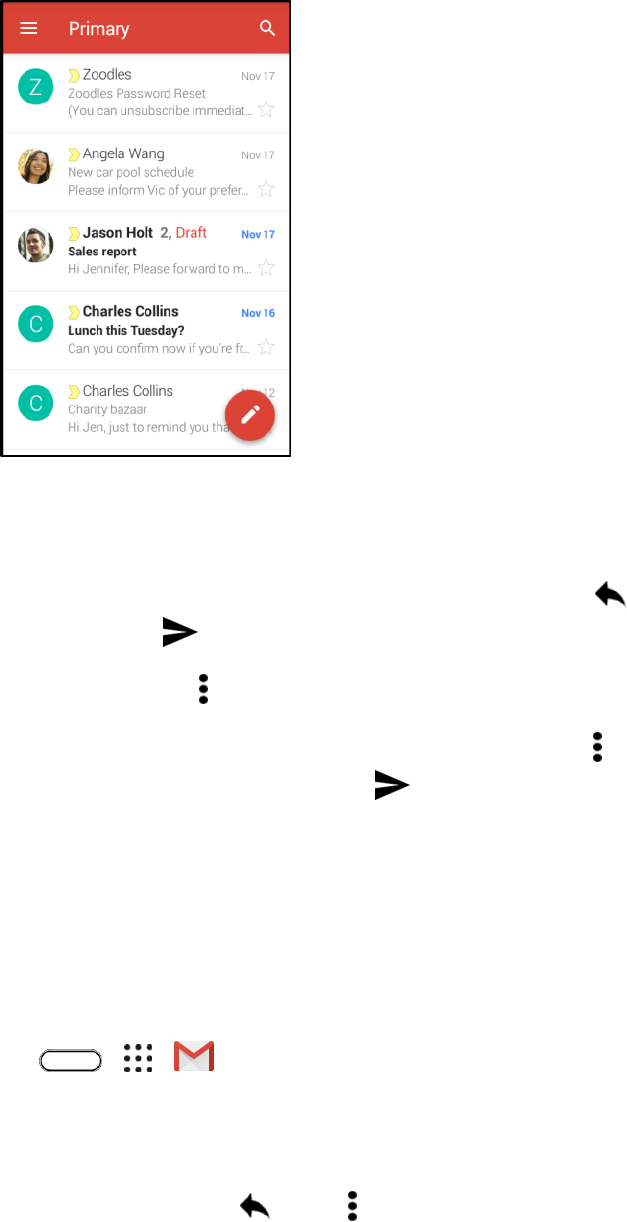
Messaging 125
2. Tap the message thread you want to view.
The message thread opens, with the newest message displayed.
Options when Reviewing Gmail Messages
● Replying to Gmail Messages: With the Gmail message open, tap , compose your reply
message, and tap .
To reply to all, tap and choose Reply all.
● Forwarding Gmail Messages: With the Gmail message open, tap > Forward, enter a recipient
and an additional message, and tap Send .
Manage Gmail Messages
Your phone gives you control over how you manage your Gmail messages with labels, thread
management, search capabilities, adding multiple Google Accounts, and more.
Reply To or Forward an Email Message
Use your Gmail Account to reply to or forward email messages.
1. Tap > > Gmail.
The inbox opens.
2. Tap the email message or conversation.
3. To reply to the sender, tap . Or, tap and choose whether to Reply all or Forward.
Messaging 126
4. Do one of the following:
If you are replying to the sender or you selected Reply all, enter your reply message.
If you selected Forward, specify the message recipients.
Note: Tap if you want to interleave your new message with the received email. However, this
removes any attachments or formatting in the original email message.
5. Tap to send.
Use Gmail Labels
Gmail saves all mail in one box, but you can add labels that allow you to sort your Gmail conversation
threads. For example, when a new thread starts with a received mail, the label "Inbox" is automatically
added to the thread. By then adding the label "travel," all threads with "travel" are shown in a list.
1. Tap > > Gmail.
The inbox opens.
2. Touch and hold a conversation thread to add a checkmark to it, and then tap > Move to.
3. Tap a label for the thread, and then tap OK.
The thread is added to the selected label.
Mute Gmail Threads
If registered on a mailing list, there will be threads with always-continuing conversations. For long threads
that are not important, mute the threads and they will no longer appear in the inbox. When mail arrives
that includes user's address as a recipient or in Cc, mail will again appear in the inbox.
1. Tap > > Gmail.
The inbox opens.
2. Touch and hold a conversation thread to add a checkmark to it, and then tap > Mute.
The thread is now hidden.
Archive Gmail Threads
Remove sent and received Gmail threads so they do not appear in the inbox. When replies arrive for
archived threads, they appear in the inbox again.
1. Tap > > Gmail.
The inbox opens.
2. Swipe the conversation you want to archive left or right.
Messaging 127
The thread is now archived.
Delete Gmail Threads
If you no longer wish to keep a Gmail conversation thread, you can simply delete it from the inbox.
1. Tap > > Gmail.
The inbox opens.
2. Touch and hold a conversation thread to add a checkmark to it, and then tap .
The thread is deleted.
Search Gmail Messages
If you need to find a specific message or message thread, you can search Gmail from the inbox.
1. Tap > > Gmail.
The inbox opens.
2. Tap , enter what you want to search for and tap Search on the keyboard.
The search results appear. Tap a message or thread from the list to display it.
Report Spam Gmail
You can report spam Gmail messages from your phone’s Gmail inbox.
1. Tap > > Gmail.
The inbox opens.
2. Touch and hold a conversation thread to add a checkmark to it, and then tap > Report spam.
The selected message is reported as spam Gmail.
Add Another Google (Gmail) Account
If you have two or more Gmail accounts, you can add them on your phone and easily switch between
accounts in Gmail.
■ To add another Gmail account, see Create a Google Account.
Switch between Gmail Accounts
If you have more than one Gmail account or another email account set up, you can switch between them
in the Gmail app.
1. Tap > > Gmail.
The inbox opens.

Messaging 128
2. Tap and select the account you want to access.
The selected account inbox is displayed.
Gmail Settings
You can access settings for the Gmail app and for your individual Gmail accounts from the Gmail Settings
menu.
1. Tap > > Gmail.
The Primary inbox opens.
2. Tap > Settings.
3. Tap General settings to access settings for all accounts, or tap an account name to configure
settings for a specific Gmail account.
General settings: Gmail default action, Conversation view, Swipe actions, Sender image,
Reply all, Auto-fit messages, Auto-advance, Confirm before deleting, Confirm before
archiving, and Confirm before sending.
Account settings: Inbox type, Inbox categories, Notifications, Inbox sound & vibrate,
Signature, Vacation responder, Sync Gmail, Days of mail to sync, Manage labels, Download
attachments, and Images.
Note: Available settings are subject to change.
Add an Exchange ActiveSync Account in Gmail
If you synchronize your phone with your Exchange ActiveSync account, you can read, manage, and send
email in the same easy way as with a Gmail account.
Important: Ask your network administrator or email service provider for additional email settings that you
may need such as the server address and client certificate.
1. Tap > > Settings > Accounts & sync.
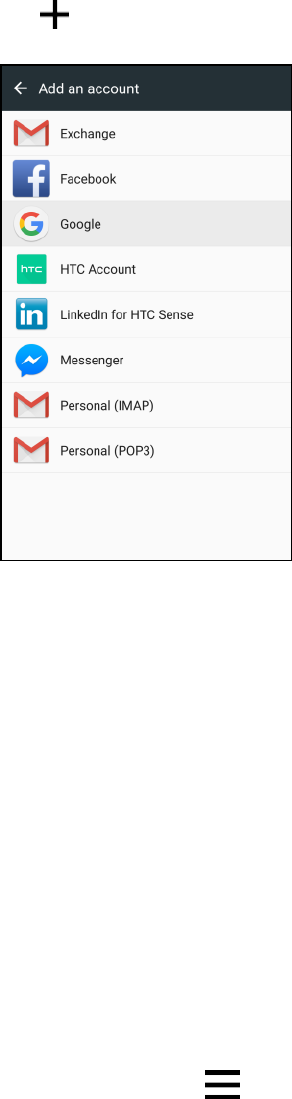
Messaging 129
2. Tap > Exchange.
3. Enter the email address and password for your email account, and then tap Next.
4. In the Incoming server settings screen, you can set the following options:
Client certificate: Tap Select and choose the client certification, if required.
Server: Enter the server address.
Port: Enter the port number.
Security type: Tap to select the security type if your system requires SSL encryption.
5. Tap Finish.
Your corporate email account is set up and you will begin receiving email for the account in
Gmail.
Get Help with Gmail
Find out more about how to use Gmail.
■ In the Gmail inbox, tap > Help & feedback.
Internet and Social Networking 130
Internet and Social Networking
Understand your phone's data connection and start your social networking with handy apps that are
readily available on your phone.
Data Services General Information (4G LTE and
3G Networks)
The following topics will help you learn the basics of using your data services, including managing your
user name, launching a data connection, and navigating the Web with your phone.
Important: Certain data services requests may require additional time to process. While your phone is
loading the requested service, the touchscreen may appear unresponsive when in fact they are
functioning properly. Allow the phone some time to process your data usage request.
4G LTE
The Sprint 4G LTE network provides your phone with wireless Internet access over greater distances
than Wi-Fi and delivers data transfer rates of up to 60 Mbps. To connect your phone to the 4G LTE
network, you must be in an area covered by the 4G LTE network.
For more information about the availability of Sprint 4G LTE service in your location, visit
Sprintmobile.com.
Note: The availability and range of the network depends on a number of factors including your distance to
the base station, and infrastructure and other objects through which the signal passes.
Set Your Network Options
1. Tap > > Settings.
2. Under Wireless & networks, tap Mobile data > Network mode.
3. Select LTE/CDMA or Automatic.
The phone will scan for the best available Sprint network and will automatically connect to it.
When your phone is connected via 4G LTE, LTE appears above the signal strength indicator in the
status bar.
Note: The network is self-discoverable, which means no additional steps are required for your phone to
connect to it.
Data Connection Status and Indicators
Your phone displays the current status of your data connection through indicators at the top of the screen.
The following symbols are used:
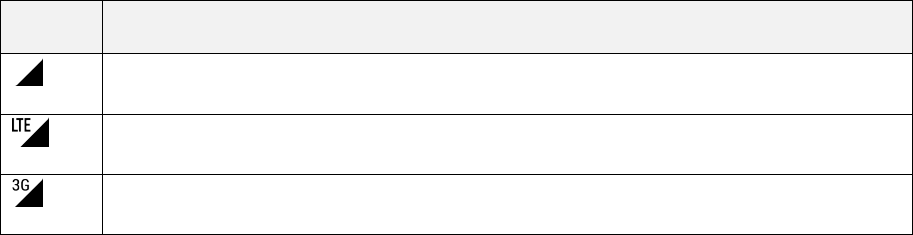
Internet and Social Networking 131
Icon
Status
Network (full signal): The icon indicates the strength of the signal.
4G LTE data service: Your phone is connected to a 4G LTE network.
3G data service: Your phone is connected to the 3G data network.
Turn the Data Connection On or Off
Turn your data connection off to optimize the phone’s battery life and your data usage.
1. Swipe down from the status bar with two fingers to open Quick Settings.
2. Tap Mobile data to turn data connection on or off.
Note: If you don’t have the data connection turned on and you’re also not connected to a Wi-Fi network,
you won’t receive automatic updates to your email, social network accounts, and other synced
information.
Manage Your Data Usage
If you’re on a limited data allowance, it’s important to keep track of the activities and apps that usually
send and receive data, such as browsing the Web, syncing online accounts, and sending email or sharing
status updates.
Here are some other examples:
● Streaming Web videos and music
● Tuning in to Internet radio
● Playing online games
● Downloading apps, maps, and files
● Refreshing apps to update info and feeds
● Uploading and backing up your files to your online storage account
● Using your phone as a Mobile Hotspot
● Sharing your mobile data connection by USB tethering
To help you save on data usage, connect to a Wi‑Fi network whenever possible and set your online
accounts and emails to sync less frequently.
Internet and Social Networking 132
Data Saver
Use Data Saver to reduce mobile data by restricting background data usage of selected apps. You can
also set Data Saver to ignore those apps you want to always have access to data—such as your email
app.
1. Tap > > Settings.
2. Under Wireless & networks, tap More > Data usage.
3. Tap Data saver and then tap the switch to turn it on.
4. Tap Unrestricted data access, and then select those apps that you want ignored by Data Saver.
The apps you select will not have their data usage restricted.
Keep Track of Your Data Usage
Note: Data usage measured by your phone may differ from, and be less than, your actual data usage.
1. Tap > > Settings.
2. Under Wireless & networks, tap More > Data usage.
At the top you'll see a bar that displays the data usage to date, and the data usage cycle, alert,
and limit.
3. Tap Mobile data usage and then tap .
4. Tap Reset data usage, set the day of the month when your usage cycle resets, and then tap Set.
This date is usually the start of your monthly billing cycle.
5. Tap Set data warning to enable, and then tap Data warning.
6. Enter the amount of data usage at which you'll be alerted before you reach your monthly data
limit and tap Set. Tap to select between gigabytes and megabytes of data.
7. Enable Set data limit to automatically disable your data connection when you reach the set limit.
8. Tap Data limit and enter the set data usage at which your data connection will automatically be
disabled.
View the Data Usage of Apps
1. Tap > > Settings.
2. Under Wireless & networks, tap More > Data usage.
3. Tap Mobile data usage.
4. Drag the lines left and right to display the usage at a specific duration within your usage cycle.
Internet and Social Networking 133
5. Scroll down the screen to see a list of apps and their data usage info.
6. Tap an app to see more details.
Chrome Browser
You can use the Chrome mobile Web browser to browse the Web on your phone. If you are signed in
with a Google Account, the Chrome browser will import all your bookmarks and other Web preferences
for use on your phone.
Go to a Website
1. Tap > Chrome.
Chrome opens.
2. Tap the address bar at the top and enter search words (for a Google search) or a Web address
(URL).
The search results appear or a Web page opens.
Chrome Support
■ To find on-phone help with Chrome, from Chrome, tap > Help & feedback.
A Web page will open displaying Google help for Chrome.
Tip: For more information, from your computer, visit: google.com/intl/en/chrome/browser/mobile/.
Facebook
Post updates, read what your friends are up to, upload pictures and check-ins, and more with on-the-go
Facebook access.
Update the Facebook App on Your Phone
Before you use Facebook on your phone, you must download and install the app update from the Google
Play store app. See Find and Install an App for details.
1. Tap > > Play Store.
2. Tap the search bar and search for "facebook".
3. Tap Facebook from the results list.
4. Tap Update.
The app update will be downloaded and installed on your phone.
5. When the download has completed, tap Open.
Internet and Social Networking 134
To open the app from the home screen, tap > > Facebook.
Use Facebook
Once you’ve downloaded the Facebook app and signed in, you can post and read updates, upload
pictures, tag locations, and more, all from your phone.
1. Tap > > Facebook
The Facebook app launches.
If this is the first time you’ve used Facebook on your phone, enter your Facebook ID and
password and tap Log in to sign in to an existing account, or tap Sign Up for Facebook to
set up a new Facebook account.
2. Tap Status and type an update, tap Photo and upload a picture from the gallery, tap Check In to
share your location, “Like” and comment on friends’ posts, and more.
Twitter
Tweet (post messages) and view other people's tweets on Twitter. Login may be required to use Twitter.
For details on Twitter, visit twitter.com.
Install the Twitter App on Your Phone
Before you can use Twitter on your phone, you have to download and install the app from Google Play.
See Find and Install an App for details.
1. Tap > > Play Store.
2. Tap and search for "twitter."
3. Tap Twitter from the results list.
4. Tap Install, and then tap Accept.
5. When the download has completed, tap Open. To open the app from the Home screen, tap >
Twitter.
Tweet on Twitter
Read Twitter feeds, follow your friends, and tweet your own updates right from your phone.
1. Tap > > Twitter.
The Twitter app launches.
If this is the first time you’ve used Twitter on your phone, tap Log in to sign in to an existing
account, or tap Sign up to set up a new Twitter account.
Internet and Social Networking 135
2. Tap the "What’s happening?" text box, type a tweet, and tap Tweet.
The tweet is sent and appears on your Twitter feed.
Connectivity 136
Connectivity
The following topics address your phone’s connectivity options, including USB file transfer and tethering,
Wi-Fi, Bluetooth, and more.
Wi-Fi
Wi-Fi provides wireless Internet access over distances of up to 300 feet. To use your phone’s Wi-Fi, you
need access to a wireless access point or "hotspot."
Note: The availability and range of the Wi-Fi signal depends on a number of factors, including
infrastructure and other objects through which the signal passes.
Turn Wi-Fi On and Connect to a Wireless Network
It’s quick and easy to turn Wi-Fi on and connect to a wireless network.
1. Tap > > Settings
2. Tap the Wi-Fi On/Off switch to turn Wi-Fi on or off.
3. Tap Wi-Fi to see a list of detected Wi-Fi networks.
Note: To manually scan for Wi-Fi networks, tap > Scan. Tap to view saved networks, enable a
notification when public Wi-Fi is available, and set Wi-Fi status during sleep mode.
4. Tap the Wi-Fi network you want to connect to.
5. If you selected a secured network, you’ll be asked to enter the network key or password.
6. Tap Connect. You’ll see the Wi-Fi icon ( ) in the status bar when connected.
Connect to a Wi‑Fi Network via WPS
If you’re using a Wi‑Fi router with Wi‑Fi Protected Setup (WPS), you can connect your phone easily.
1. Tap > > Settings
2. Tap the Wi-Fi On/Off switch to turn Wi-Fi on.
3. Tap Wi-Fi.
4. Tap > WPS Push, and then press the WPS button on your Wi‑Fi router.
Note: To use the Wi‑Fi Protected Setup (WPS) PIN method, tap > WPS Pin Entry.
Disconnect from a Wireless Network
Quickly disconnect from a wireless network your phone is connected to.

Connectivity 137
1. Tap > > Settings
2. Tap the Wi-Fi On/Off switch to turn Wi-Fi on.
3. Tap Wi-Fi.
4. Tap the wireless network that the phone is connected to, and then tap Disconnect.
5. If you want to remove the settings for this network, touch and hold the network name, and then
tap Forget network.
Wi-Fi Direct
Use Wi-Fi Direct to connect directly to other Wi-Fi Direct devices simply via Wi-Fi, without an access point
or via the Internet.
1. Tap > > Settings.
2. Tap the Wi-Fi On/Off switch to turn Wi-Fi on.
3. Tap Wi-Fi.
4. Tap > Wi-Fi Direct.
The Wi-Fi Direct settings menu appears.
Note: Wi-Fi Direct and Wi-Fi are unavailable at the same time.
5. Tap a device with which to connect. If connected via Wi-Fi, you will see a confirmation. Follow the
onscreen instructions.
6. Accept the connection on the other device.
The phone is connected via Wi-Fi Direct.
If a connection is not accepted after a certain period, the connection request is cancelled.
7. To stop a connection, tap End connection > OK.
Bluetooth
Bluetooth is a short-range communications technology that allows you to connect wirelessly to a number
of Bluetooth devices, such as headsets and hands-free car kits, and Bluetooth-enabled handhelds,
computers, printers, and wireless phones. The Bluetooth communication range is usually approximately
30 feet.
Bluetooth Function Cautions
Information may not appear correctly on connected devices depending on the transferred data.
Connectivity 138
Bluetooth Information
Bluetooth is a technology that enables wireless connection with PCs, Bluetooth devices with hands-free
features, etc.
Function
Description
Audio output
Listen to music, etc., wirelessly.
Hands-free calls
Call hands-free, using Bluetooth-capable hands-free devices and headsets.
Data exchange
Exchange data with Bluetooth devices.
Enable the Bluetooth Feature
Use the settings menu to enable or disable your phone’s Bluetooth capabilities.
● Wireless connection to all Bluetooth® functions is not guaranteed for the phone.
● The phone may not connect properly depending on the other device.
● Noise may be experienced with wireless calls and hands-free calls depending on the conditions.
To enable Bluetooth:
1. Tap > > Settings.
2. Tap the Bluetooth On/Off switch to turn the Bluetooth connection on and off.
3. Tap Bluetooth to see a list of available devices.
Tip: You can also turn Bluetooth on or off with the toggle menu in the notification panel. Pull down the
status bar to display the notification panel and then tap Bluetooth to turn Bluetooth on or off.
Note: Turn off Bluetooth when not in use to conserve battery power, or in places where using a wireless
phone is prohibited, such as aboard an aircraft and in hospitals.
Pair Bluetooth Devices
Search for and pair nearby Bluetooth devices. Registered Bluetooth® devices can be connected simply.
■ Enable the Bluetooth function on the Bluetooth devices being paired beforehand.
Important: For you to listen to music with your headset, the headset must support the A2DP Bluetooth
profile.
Note: Before you connect your headset, make it discoverable so your phone can find it. Refer to your
headset manual for details.
1. Swipe down from the status bar with two fingers to open Quick Settings.

Connectivity 139
2. Tap Bluetooth to turn Bluetooth on. You'll also see a list of paired devices.
3. Tap More settings.
The Bluetooth settings open.
Nearby devices appear in the “Available devices” list.
If a target device is not detected, tap Scan for devices to search again.
4. Tap a device from the “Available devices” list, and follow the onscreen instructions to pair with the
device.
The Bluetooth device is paired to your phone.
Methods to accept a Bluetooth connection differ depending on the devices used.
Unpairing from a Bluetooth Device
1. Tap > > Settings.
2. Tap the Bluetooth On/Off switch to turn Bluetooth on.
3. In the Paired devices section, tap next to the device to unpair.
4. Tap Unpair.
The device is unpaired from your phone. To make another connection with the device, you will
need to pair again.
Connect to a Paired Bluetooth Device
You can listen to music over a Bluetooth stereo headset, or have hands-free conversations using a
compatible Bluetooth headset or car kit. It’s the same procedure to set up stereo audio and hands-free
devices.
Important: Make sure that the headset is discoverable. Refer to the headset manual for details.
1. Turn Bluetooth on and check the list of available devices. See Enable the Bluetooth Feature.
2. If you don't see your headset listed, tap Scan for devices to refresh the list.
3. Tap the name of your headset in the Available Devices section. HTC U11 pairs with the headset
and the headset connection status is displayed in the Paired Devices section.
4. If prompted to enter a passcode, try 0000 or 1234, or consult the headset documentation to find
the passcode.
When the Bluetooth headset is connected, you'll see in the status bar.
Note: Due to different specifications and features of other Bluetooth-compatible devices, display and
operations may be different, and functions such as transfer or exchange may not be possible with all
Bluetooth-compatible devices.
Connectivity 140
Reconnect a Bluetooth Headset
Normally, you can easily reconnect your headset by switching on Bluetooth on HTC U11, and then
turning on the headset.
However, you might have to connect manually if your headset has been used with another Bluetooth
device.
1. Tap > > Settings.
2. Tap the Bluetooth On/Off switch to turn Bluetooth on.
3. Tap the headset’s name in the Paired Devices section.
4. If prompted to enter a passcode, try 0000 or 1234, or consult the headset documentation to find
the passcode.
Send Information Using Bluetooth
You can use Bluetooth to transfer information between your phone and another Bluetooth-enabled device
such as a phone or notebook computer.
Types of Data You Can Send via Bluetooth
You can send the following types of information, depending on the device you are sending to:
● Images and videos
● Calendar events
● Contacts
● Audio files
In the instructions below, Contacts data is being used as an example.
Sending Contacts Data via Bluetooth
1. Tap > > People.
2. Do any of the following:
To send someone’s contact information, touch and hold the name of the contact (not the icon
or photo), and then tap Send contact as vCard.
To send your contact information, touch and hold My profile, and then tap Send my profile.
3. Tap Send contact via and choose Bluetooth.
4. Select the type of information you want to send.
5. Tap Send.

Connectivity 141
6. Tap a paired device to receive the data.
The contact information is sent.
If you see a message to confirm, follow the onscreen instructions.
Receive Information via Bluetooth
Your phone lets you receive various files with Bluetooth, including photos, contact info, and documents
such as PDFs.
Important: Refer to the other device’s documentation for instructions on sending information over
Bluetooth.
1. Tap > > Settings.
2. Tap the Bluetooth On/Off switch to turn Bluetooth on.
3. On the sending device, send one or more files to your phone.
4. If asked, accept the pairing request on your phone and on the sending device. You may also be
prompted to enter the same passcode or confirm the auto-generated passcode on both devices.
You’ll then get a Bluetooth authorization request.
5. Tap Pair.
6. When your phone receives a file transfer request notification, slide the notification panel down,
tap the incoming file notification, and then tap Accept.
7. When a file is transferred, a notification is displayed. Slide the notification panel down, and then
tap the relevant notification to view the file.
Bluetooth Tethering
Use Tethering to share your device’s Internet connection with a computer that connects to your device via
Bluetooth.
Notes:
● To make sure that the USB drivers for your phone are up-to-date, install the latest version of HTC
Sync Manager on your computer.
● You may need to have tethering added to your data plan. Contact Sprint for details.
● Make sure that mobile data is turned on.
1. Swipe down from the status bar, and then tap .
2. Under Wireless & networks, tap More.
3. Tap Mobile network sharing > Bluetooth tethering.
4. Tap Next.
Connectivity 142
Tethering is turned on, and your phone’s Internet connection can be shared with a connected
device.
For Bluetooth tethering, pair your phone with the other device via Bluetooth. See Pair
Bluetooth Devices for details.
5. Launch the Web browser on the other device to confirm you have an Internet connection.
Virtual Private Networks (VPN)
Add virtual private networks (VPNs) so you can connect and access resources inside a local network,
such as your corporate network.
Before you can connect to your organization’s local network, you may be asked to:
● Install security certificates
● Enter your login credentials
● Download and install a required VPN app if you're connecting to a secured enterprise network.
Contact your network administrator for details.
Also, your phone must first establish a Wi‑Fi or data connection before you can start a VPN connection.
For information about setting up and using these connections on your phone, see Data Services General
Information (4G LTE and 3G Networks).
Add a VPN Connection
You must first set a lock screen PIN or password before you can use credential storage and set up the
VPN.
1. Tap > > Settings.
2. Under Wireless & networks, tap More > VPN.
3. Tap .
4. Enter the VPN settings and set them up according to the security details your network
administrator gave you.
5. Tap Save.
Connect to a VPN
After you’ve added a VPN connection, you are now ready to connect and access that network.
1. Tap > > Settings.
2. Under Wireless & networks, tap More > VPN.
3. Tap the VPN that you want to connect to.

Connectivity 143
4. Enter your login credentials, and then tap Connect. When you are connected, the VPN
connected icon appears in the notification area of the status bar.
You can then open the Web browser to access resources such as your corporate network intranet. For
more information, see Chrome Browser.
Disconnect From a VPN
Disconnect from the VPN when you’re done accessing your intranet sites.
1. Slide the notification panel open.
2. Tap the VPN connection, and then tap Disconnect.
Mobile Hotspot
Hotspot allows you to turn your phone into a Wi-Fi hotspot. When this feature is turned on, you can share
your phone's mobile data services via Wi-Fi with other Wi-Fi enabled devices. The feature works best
when used in conjunction with 4G data services (although 3G service can also be used).
Important: Use of the Hotspot feature requires an additional subscription. Access your account via My
Sprint (tap > > My Sprint) to learn more.
Notes:
● Turning on Hotspot on will disable your phone’s connection to other Wi-Fi networks.
● The best way to keep using the phone as a hotspot is to have it connected to a power supply.
Set Up Hotspot
1. Swipe down from the status bar, and then tap .
2. Under Wireless & networks, tap More.
3. Tap Mobile network sharing > Mobile Hotspot > OK.
4. Enter a router name or use the default router name.
5. Set the password (key) for your wireless router or use the default password.
Important: To help minimize security risks, use the default settings and set a secure and unique
password.
Important: Write down the passkey (password) for this communication (shown onscreen).
Note: The password is the key other people need to enter on their device so they can connect and use
your phone as a wireless router.
6. Tap the Mobile Hotspot switch to turn on the wireless router.
Your phone is ready to be used as a wireless router when you see on the status bar.

Connectivity 144
Connect to Hotspot
1. Enable Wi-Fi (wireless) functionality on your target device (laptop, media device, etc.).
2. Scan for Wi-Fi networks from the device and select your phone hotspot from the network list.
3. Follow the onscreen instructions to enter the passkey.
The device is connected via your phone’s Hotspot.
Transfer Content to Your New Phone
You can easily transfer content, contacts, messages, calendar events, music, photos, videos, and more
from other phones or your computer to your new phone using the HTC Transfer Tool, Bluetooth®, or direct
USB connection.
Transfer Content from an Android Phone
On your old Android phone, download the HTC Transfer Tool and use it to transfer your content to your
new HTC phone.
The types of locally stored content on your old phone that the HTC Transfer Tool can transfer include
contacts, messages, calendar events, music, photos, videos, and some settings. More types of data such
as call histories, email accounts, and some HTC app settings can be transferred from HTC phones that
have HTC Sense 5.5 or higher.
Note: You need Android version 2.2 or later to use the HTC Transfer Tool on your old phone.
1. Tap > > Settings > Get content from another phone.
2. Choose whether to transfer from an old HTC Android phone or other Android phone.
3. On the Get content from another phone screen, tap Next.
4. Follow the steps shown on your new phone to download and install the HTC Transfer Tool from
Google Play to your old phone, install it, and open the tool.
5. When you see a PIN on your old phone, make sure the same PIN also appears on your new
phone before you continue.
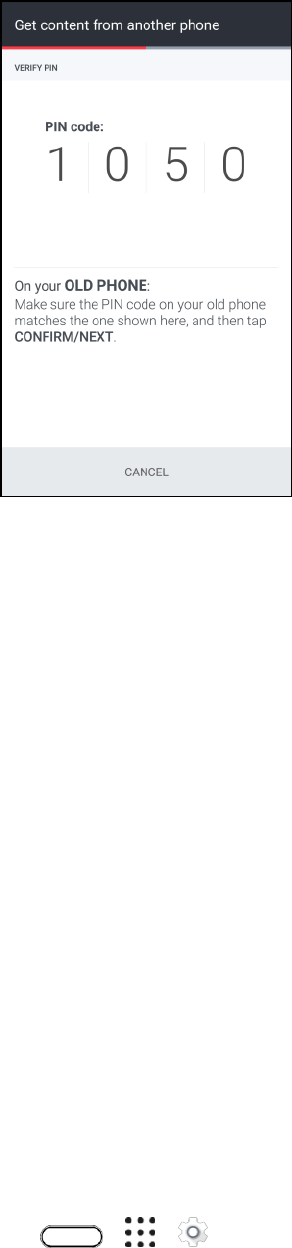
Connectivity 145
Note: If the PIN code doesn’t appear, tap Retry on your old phone. If it still won’t appear, this may mean
that your old phone is unable to connect to HTC U11. When this happens, try another transfer method.
6. Tap Confirm on your old phone.
7. On your old phone, choose the types of content you want to transfer, tap Transfer, and then tap
Yes.
8. Wait for the transfer to finish.
9. Tap Done on both phones.
Transfer Content from an iPhone
If you have an iPhone®, there are easy ways to transfer your contacts, messages, and other content to
your HTC U11.
● Back up and restore iPhone content through iCloud®. For details, see Transfer iPhone Content
Through iCloud.
● Back up iPhone content using iTunes® on your computer, and then use HTC Sync Manager to
transfer the content to HTC U11. For details, see HTC Sync Manager.
Transfer iPhone Content Through iCloud
If you have an iCloud account, sync iPhone content to your iCloud storage, and then transfer the content
to HTC U11. You can transfer the following types of content from iCloud: contacts, bookmarks, text
messages, messages from iMessage®, calendar events, and photos.
1. Tap > > Settings > Get content from another phone.
Connectivity 146
2. Tap iPhone > Import from iCloud backup.
3. Follow the steps shown onscreen to back up your iPhone content to your iCloud storage, and
then tap Sign in.
4. Choose the iPhone backup that you want to transfer to HTC U11, and then tap Next.
5. Choose the types of content you want to transfer, and then tap Import.
6. Wait for the transfer to finish, and then tap Done.
Note: Only some contact details can be transferred, such as the contact name, photo, postal address,
email address, birthdate, anniversary date, and notes.
Ways of Transferring Contacts and Other Content into Your
Phone
There are different ways you can individually add contacts and other content to your new HTC phone.
● Sync with your computer. Use HTC Sync Manager to sync contacts, documents, playlists, and
more between your phone and a computer running a Windows® or Mac OS X® operating system.
You can also use it to transfer iTunes backup that contains contacts, messages, and other
content from an iPhone to your computer, and then to your HTC phone. For details, see HTC
Sync Manager.
● Google Account. Google contacts are imported to your phone after you sign in to your Google
Account. You can also create more Google contacts right from your phone.
● Social network accounts. Log in to your favorite social networks to sync contact information
from them.
● Microsoft® Exchange ActiveSync®. Your phone syncs your work contacts from the Microsoft
Exchange ActiveSync Server in your workplace.
● Outlook.com account. Sync personal contacts from your Microsoft Outlook.com account.
● Phone contacts. You can create contacts locally on your phone, if you don’t prefer to store them
on your online accounts.
Transfer Files Between Your Phone and a Computer
You can use the supplied USB/charging cable to connect your phone directly to your computer and
transfer music, pictures, and other content files.
For example, if you have a music album stored on your computer that you want to listen to on your phone
with any of the music apps, just attach your phone to the computer and copy the files to the music folder.
Transfer Content Between Your Phone and Computer
These are ways you can transfer content to or from your computer.
● Connect your phone to your computer. Your computer will recognize it just like any removable
USB drive, and you can copy your media between them.
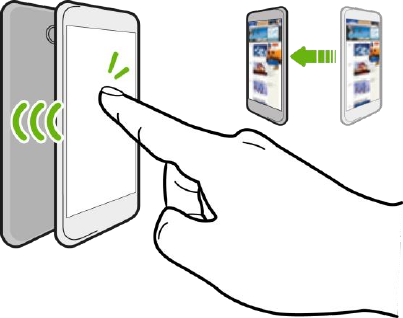
Connectivity 147
● Download and use the HTC Sync Manager software on your computer. You can set it up to
automatically get music, photos, and videos off your phone to your computer. You can also sync
playlists from your computer to the phone.
If you have an iPhone, you can even connect it and transfer the camera roll (photos and videos)
to your computer. Then reconnect your phone and copy them over. For details, see HTC Sync
Manager.
● Use cloud storage services to put your media in one place so you can manage them anywhere—
on your computer, HTC U11, and other mobile devices.
USB Type-C
Check out some frequently asked questions about the USB Type-C Accessory/charging port on the
HTC U11.
Am I required to use the provided USB Type-C cable or can I use a third-party cable?
HTC recommends that you use the USB cable that was provided with your phone for optimal
performance and compatibility. While third-party cables should work, there may be variances in power
output and this may cause performance degradation or other power-related issues. If you want to
purchase another USB cable for your phone, please visit htc.com/accessories. If you decide to buy a USB
cable elsewhere, look for the USB-IF certified logo. Please visit usb.org/kcompliance/view to see if your
USB cable received a USB-IF certification.
How does the USB Type-C connector differ from the micro USB connector on my old phone?
The main difference is that USB Type-C is reversible and you can insert the connector to the
USB/charger port of the phone in any horizontal orientation and it will still work.
Share Content with NFC
With built-in NFC (near field communication) on your phone, you can share content to someone’s mobile
phone in an instant. Beam a webpage you’re viewing, contact information, and more by just holding your
phone and the other phone back to back.
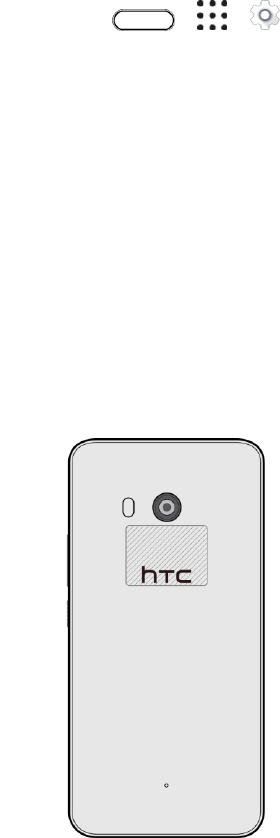
Connectivity 148
Turn NFC On
Before you can beam content to another NFC-capable device, you need to enable NFC on your phone.
1. Tap > > Settings.
2. Under Wireless & networks, tap More.
3. Tap the NFC On/Off switch to turn it on and off.
Beam Content
Make sure that both devices are unlocked and have NFC turned on. If the other device has an Android
Beam™ option, make sure it is also turned on.
1. While viewing the content that you want to share, hold your phone and the other phone back to
back.
Make sure that the NFC area (shaded part) of your phone and the other phone’s NFC area
are close to one another. Experiment by slightly moving the phones until a connection is
made.
2. When your phone vibrates, tap the screen to send the content to the other device.
The shared content appears on the other screen. For some items that you’ve shared (such as contact
information), additional instructions on how to save the item will appear on the receiving device.
HTC Connect
With HTC Connect®, wirelessly stream music or video from HTC U11 to your speakers or TV by just
swiping up the screen with 3 fingers.
You can stream media to any of the following types of devices:
● Airplay® speakers or Apple TV®
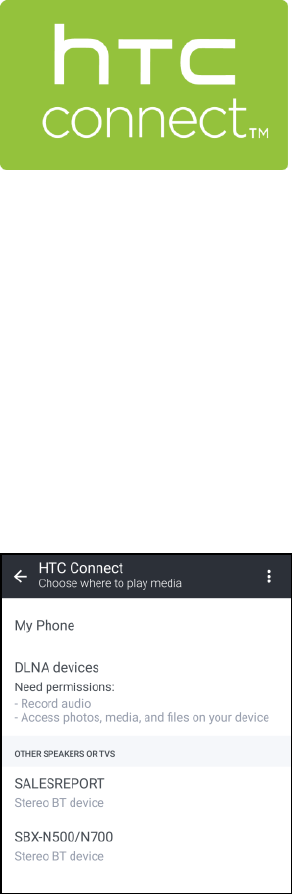
Connectivity 149
● Multi-room speakers that support Qualcomm® AllPlay™ smart media platform
● Blackfire® compliant multi-room speakers
● DLNA® compatible speakers and TV
● Miracast™ compatible display devices
● Chromecast™ compatible display devices
● Bluetooth speakers
● HTC certified consumer electronic devices or accessories that have the HTC Connect logo.
Note: Some devices may need to be paired before you can share to them.
Share Media Using HTC Connect
Before you start, make sure you have set up your speakers, TV, or appliance to connect to your Wi-Fi
network. Refer to its documentation on how to set it up.
1. Open and play any music or other media content that you want to share from your phone.
2. Swipe up with three fingers on the screen.
3. Choose the device you want to connect to.
4. Once connected, use your phone to control the volume, pause or resume playback, and more.
Connectivity 150
5. To stop wireless media sharing and disconnect from the device, swipe down with three fingers on
the screen.
Stream Music to Speakers Powered by Qualcomm AllPlay
Media Platform
Before you start, make sure your AllPlay speakers are connected to your Wi-Fi network. Refer to the
documentation that comes with your speakers to set up and connect them to your Wi-Fi network.
1. After connecting your AllPlay speakers to your Wi-Fi network, open a music app on your phone.
2. Swipe up with three fingers on the screen.
Your phone then turns Wi-Fi on automatically and scans for media devices on your Wi-Fi
network. You’ll then see the available speakers listed.
3. Tap the speaker you want to connect to.
4. In the music app that you’re using, start playing music. You’ll then hear the music play from the
speaker you’ve selected.
5. To switch between speakers or to group them, swipe up the screen again with three fingers.
Just tap another speaker to stream music to it.
To group speakers so that music plays through them at the same time, tap the Group button
next to a speaker name, select the other speakers you want to group it with, and then tap
OK.
Stream Music to AirPlay Speakers or Apple TV
Before you start, make sure your device is connected to your Wi-Fi network. Refer to the documentation
that comes with your AirPlay speakers or Apple TV for details.
1. After connecting your AirPlay speakers or Apple TV to your Wi-Fi network, open a music app on
your phone.
2. Swipe up with three fingers on the screen.
Your phone turns Wi-Fi on automatically and scans for media devices on your Wi-Fi network.
You'll then see the available devices listed.
3. Tap the device you want to connect to.
4. In the music app that you're using, start playing music. You'll then hear the music play from the
device you've selected.

Connectivity 151
Stream Music to Blackfire Compliant Speakers
Play music simultaneously to multiple Blackfire compliant speakers from your phone.
Before you start, make sure your speakers are connected to your Wi-Fi network. Refer to the
documentation that comes with your speakers to set up and connect them to your Wi-Fi network.
1. After connecting your speakers to your Wi-Fi network, open a music app on your phone.
2. Swipe up with three fingers on the screen.
Your phone then turns Wi-Fi on automatically and scans for media devices on your Wi-Fi
network. You’ll then see the available speakers listed.
3. Tap the speaker you want to connect to.
4. In the music app that you’re using, start playing music.
You’ll then hear the music play from the speaker you’ve selected.
5. To switch between speakers or to group them, swipe up the screen again with three fingers.
To stream music to another speaker, just tap it.
To group speakers so that music plays through them at the same time, tap the Group button
next to a speaker name, select the other speakers you want to group it with, and then tap
OK.
Rename the Speakers
You can rename your Blackfire compliant speakers in Settings.
1. Make sure the speakers are connected to your Wi-Fi network.
2. Tap > > Settings > HTC Connect.
Your phone then turns Wi-Fi on automatically and scans for media devices on your Wi-Fi
network. You’ll then see the available Blackfire speakers listed.
3. Tap next to a speaker name.
4. Enter the new speaker name, and then tap Done.

152
Apps and Entertainment
The following set of topics will explore the features that make your phone so much more than a phone,
from the camera and productivity apps to music, entertainment, and more.
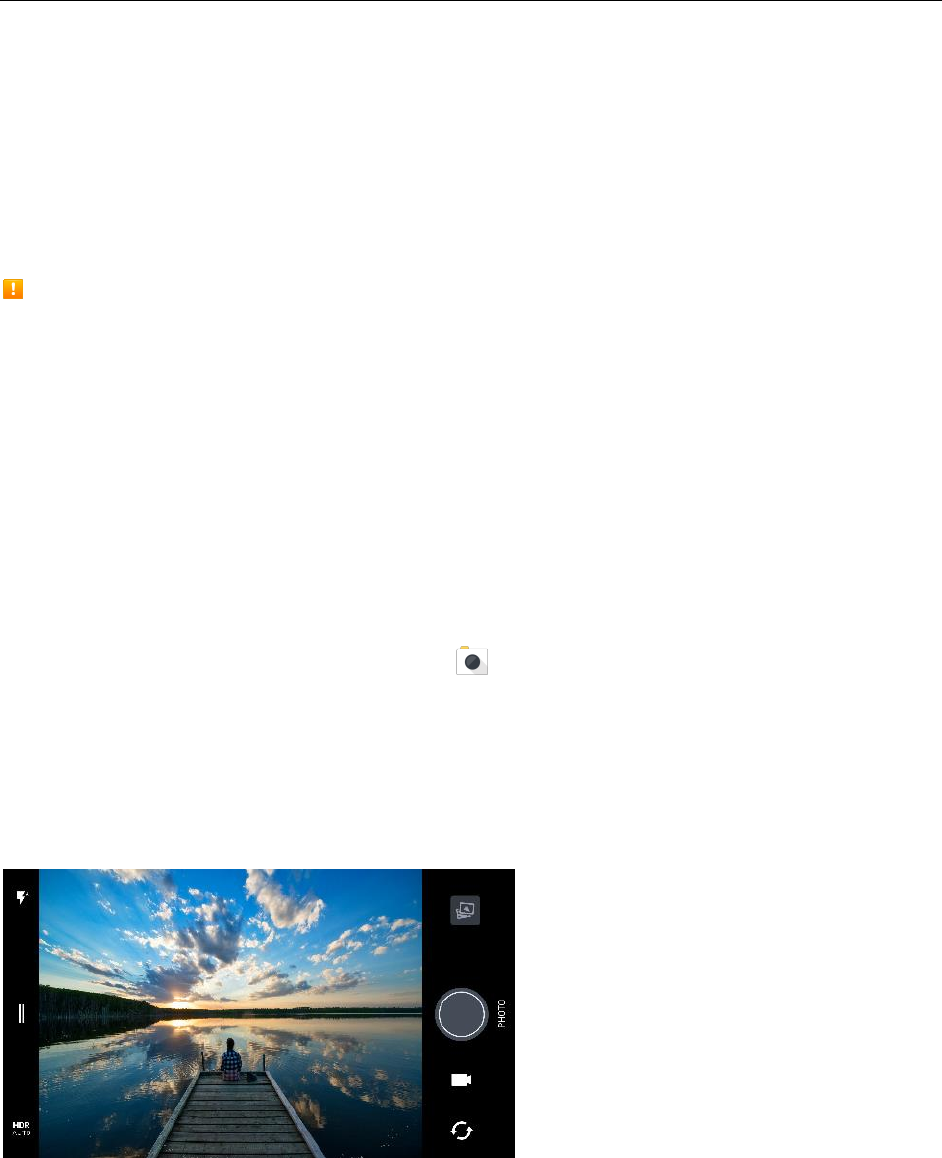
Camera and Video 153
Camera and Video
Take great photos and videos and make them more memorable by applying a variety of effects and
scenes.
You can use the front and main cameras to take and share pictures and videos.
Capturing Pictures/Videos
● File Format for Pictures: File format for pictures is JPEG or DNG for RAW photos.
● File Format for Videos: File format for videos is MPEG4.
Camera Cautions
If Lens Becomes Dirty: Fingerprints/smudges on lens prevent capturing of clear still images/videos.
Wipe lens with a soft cloth beforehand.
Avoid Exposure to Direct Sunlight: Be careful not to expose lens to direct sunlight for long periods.
May discolor color filter and affect color of images.
Open the Camera and Adjust the Settings
For your convenience, there's more than one way you can do to launch the Camera app.
● If you've already set up Edge Sense, just squeeze the lower sides of the phone. For details, see
Edge Sense.
● On the Home screen, tap the Camera icon to open the Camera app.
● Press the Power/Lock button twice while the display is off.
Tip: Make sure Press power button twice for camera is selected in Settings > Display, gestures &
buttons.
You’ll see Photo mode, which is the default capture mode.
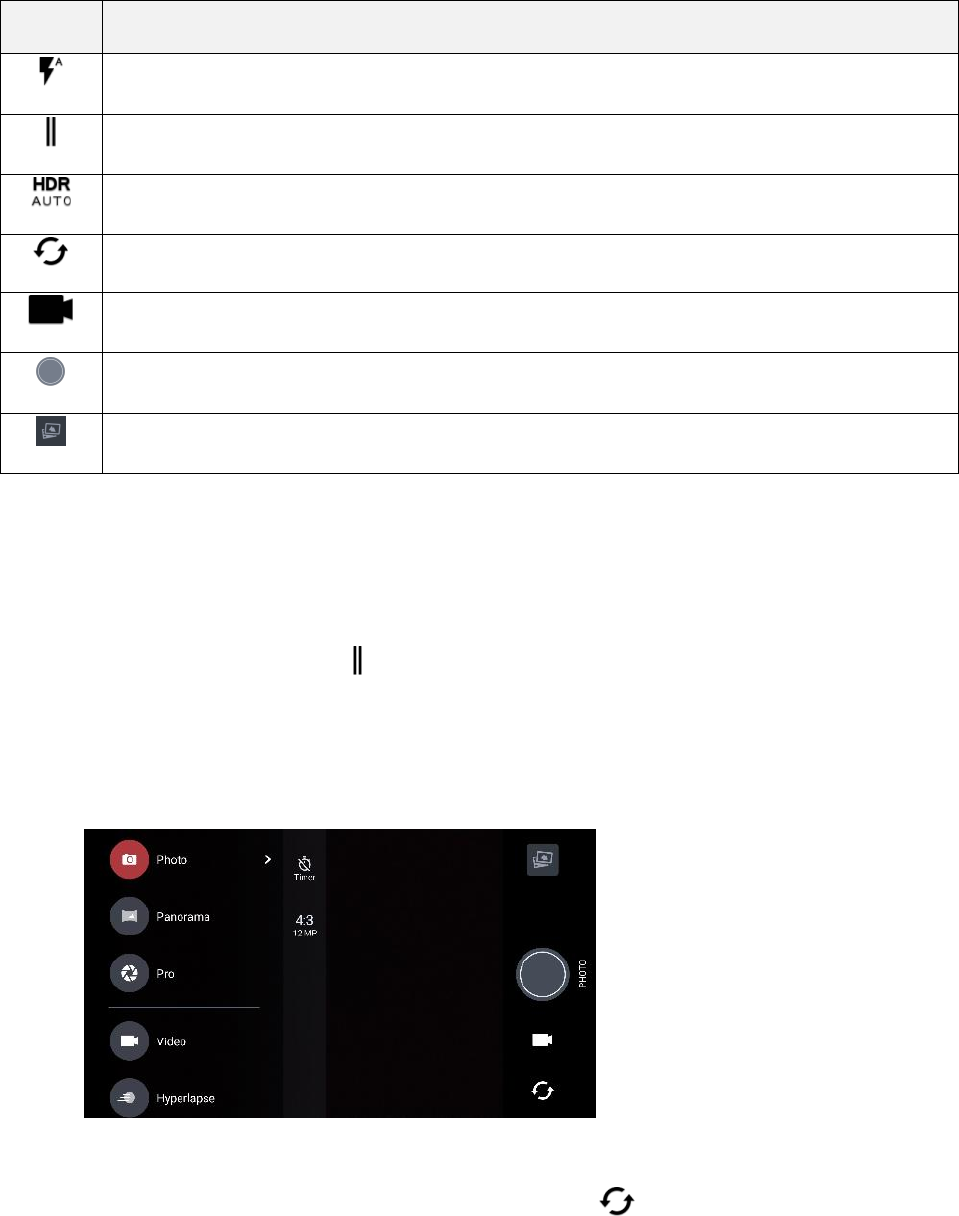
Camera and Video 154
Icon
Function
Switch between flash modes.
Open the slideout menu to select a capture mode and choose camera settings.
Toggle photo HDR between auto, on, and off.
Switch between the front camera and main camera.
Switch between Video and Photo modes.
Capture a photo.
View the last photo or video taken.
Choose a Capture Mode
Switch to a capture mode to use for taking photos or videos. The camera on HTC U11 separates capture
modes into categories so that you can quickly find which mode you want.
1. On the Viewfinder screen, tap to open the slideout menu.
You can also swipe right from the left edge in landscape orientation or swipe down from the
top edge in portrait orientation.
2. Scroll through the menu to see the available capture modes.
3. Tap the capture mode you want to use.
4. To quickly switch between the front and main camera, tap on the Viewfinder screen.
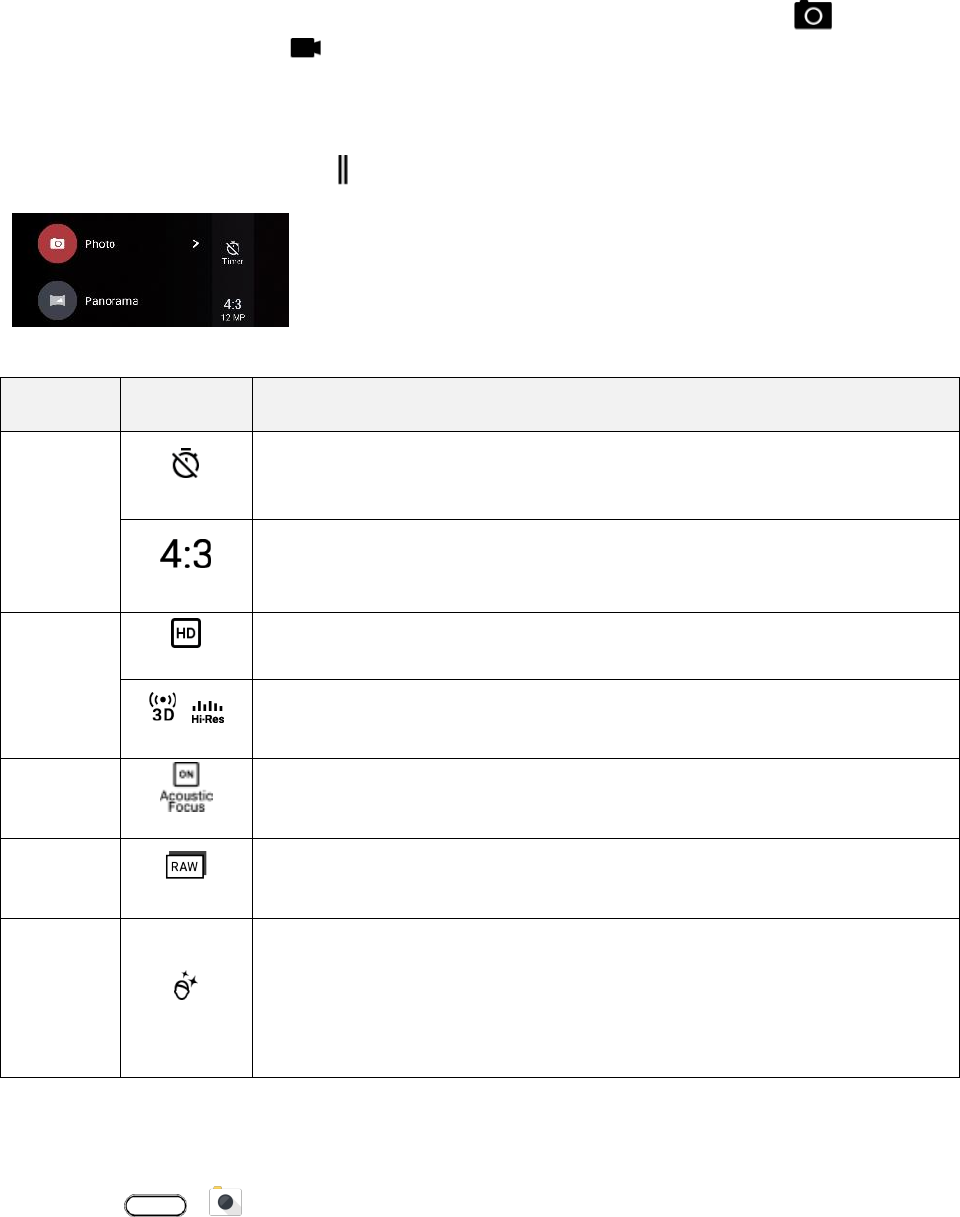
Camera and Video 155
5. You can quickly switch back to either Photo or Video mode when you're in other capture modes
without opening the slideout menu. Right below the main shutter button, just tap to switch
back to Photo mode or to switch back to Video mode.
Capture Mode Settings
You can change the settings for some of the capture modes such as Photo or Video mode. To change
settings, select a mode and then tap to view and choose the available settings for the mode.
Mode
Setting
Description
Photo
Selfie
Photo
Pro
Toggle between the time settings to set the self-timer or turn off the self-
timer. See Selfies and People Shots.
Set the photo quality and aspect ratio. See Set the Photo Quality and Size.
Video
Selfie
Video
Set the video quality. See Set the Video Resolution.
Tap this icon to toggle between high resolution audio and 3D audio. See
Turn on High Resolution Audio and Record Video Using Acoustic Focus.
Video
Tap Acoustic Focus to turn Acoustic Focus on and off. See Record Video
Using Acoustic Focus.
Pro
Choose RAW or JPG format for photos. See Manually Adjust Camera
Settings.
Selfie
Photo
Selfie
Panorama
Turn Live Makeup on and off. See Selfies and People Shots.
Set the Photo Quality and Size
Before you capture, select the photo quality and size.
1. Tap > Camera.
2. Switch to Photo or Selfie Photo mode. Or, select Pro mode.
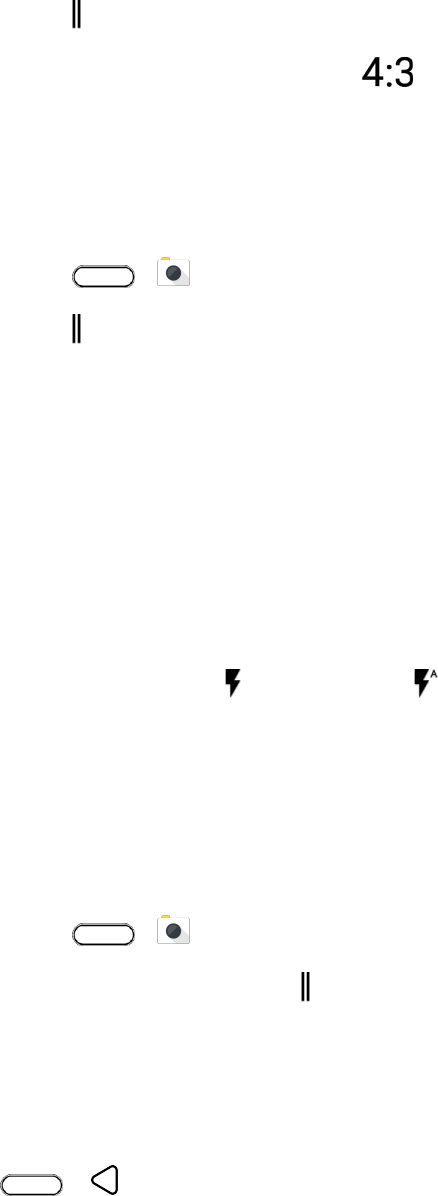
Camera and Video 156
3. Tap to open the slideout menu.
4. Tap the current setting—for example — to change the photo quality and size, or aspect
ratio.
Touch Autoexposure
Turn Touch autoexposure on in Camera settings if you want the main camera to automatically adjust the
exposure levels when you tap a darker area on the Viewfinder screen.
1. Tap > Camera.
2. Tap to open the slideout menu.
3. Tap Settings.
4. Select or clear the Touch autoexposure option.
Zooming
Before taking a photo or video, slide two fingers apart to zoom in or together to zoom out. You can also
freely zoom in or out while recording.
Turn the Camera Flash On or Off
On the Viewfinder screen, tap the flash icon to choose a flash setting.
● When using Flash on or Auto flash mode , the camera intelligently sets the best flash
brightness for your photo.
● In Selfie Photo mode, you can also tap the flash icon to turn the screen flash on or off.
Use the Volume Button for Taking Photos and Videos
If you feel much comfortable with using push-buttons when taking photos and videos, you can set your
phone to use the Volume button as the Camera app’s shutter release or zoom control.
1. Tap > Camera.
2. On the Viewfinder screen, tap to open the slideout menu.
3. Tap Settings > Volume button options.
4. Choose how you want to use the Volume button when you’re in the Camera app.
Close the Camera App
Tap or to close the Camera app and return to the Home screen or the previous screen.
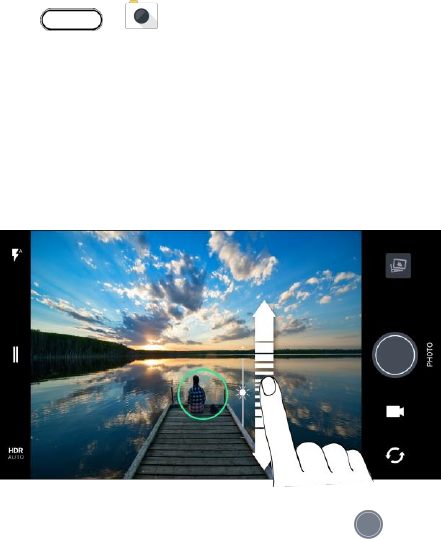
Camera and Video 157
Take a Picture
Whether it’s moving or not, clearly capture any moment with your phone’s camera.
Note: If you have an SD card installed, you can choose to save pictures and videos to the SD card. If no
card is installed, pictures and videos are saved to your phone’s memory.
1. Tap > Camera.
2. Switch to Photo mode, if you're not in this mode. See Choose a Capture Mode.
3. Point the camera at what you want to capture. The camera adjusts the focus automatically as you
move it. You can also tap the screen to change the focus to a different subject.
4. To manually adjust the exposure, tap the screen, and then drag your finger up and down.
5. When you’re ready to take the shot, tap .
Tip: In Photo mode's settings, tap Camera options, and then turn on Auto smile capture to set the
camera to take a photo automatically when your subject smiles.
Capture Better Photos
To get better captures with the Camera app, here are some tips on what to do while taking your shots.
Before Capturing
If you find that your shots are coming out a little blurry, try these tips.
● Make sure that the camera lens and dual flash are clean and without fingerprints. Use a soft,
clean, microfiber cloth to wipe them.
● Hold the phone so that your fingers aren't blocking the camera lens or flash lenses.
Take Clear, Sharp Shots
● Tap the screen to focus and dynamically readjust the image contrast, which is sometimes
desirable if you wish to take a macro to get an off-center bokeh effect or take photos while you're
moving. Adjust the exposure to brighten the subject or make the subject look darker and richer.
For details, see Touch Autoexposure.
Camera and Video 158
● If the subject is moving, on the Viewfinder, touch and hold the subject to lock the focus.
● If there are parts of the image that are in shadows and others are in highlights, use HDR to
capture multiple shots of different exposures and combine them into one shot. Keep HTC U11
steady or place it on a level surface when using HDR. For details, see Use HDR Boost.
● When taking a panoramic photo, consider the whole scene and focus on an object that has a
neutral tone to help keep the exposure balanced in the composite image.
● Make sure you're not moving the camera when taking a photo, especially in low light conditions.
Hold the phone steady and don't move the camera while taking RAW photos in Pro mode.
● You can control image noise by adjusting the ISO, shutter, and exposure settings of your camera.
Use Pro mode to tweak these, and save up to three different manual photography settings. For
details, see Manually Adjust Camera Settings.
It also captures in RAW format, which is suitable for post processing photos.
Other Tips
● In Camera settings, tap Grid to help frame the subject better or improve the composition.
● After capturing the photo, you can enhance the photo in the Google Photos app.
Record Video in 3D Audio or High Resolution
Audio
Choose to record videos, including selfie videos, with high resolution audio or 3D Audio.
Notes:
● High resolution audio is only available when the video quality is set to HD (720p) or higher.
● You can't pause video recording when using high resolution audio.
1. Tap > Camera.
2. Switch to Video mode, if you're not in this mode. See Choose a Capture Mode.
By default, video is recorded using 3D Audio. You'll see on the Viewfinder.
3. To record using hi-res audio, tap to open the slideout menu, and then tap High-res audio.
4. When you’re ready to start recording, tap .
When recording using 3D Audio, make sure not to cover the microphones when holding the
phone.
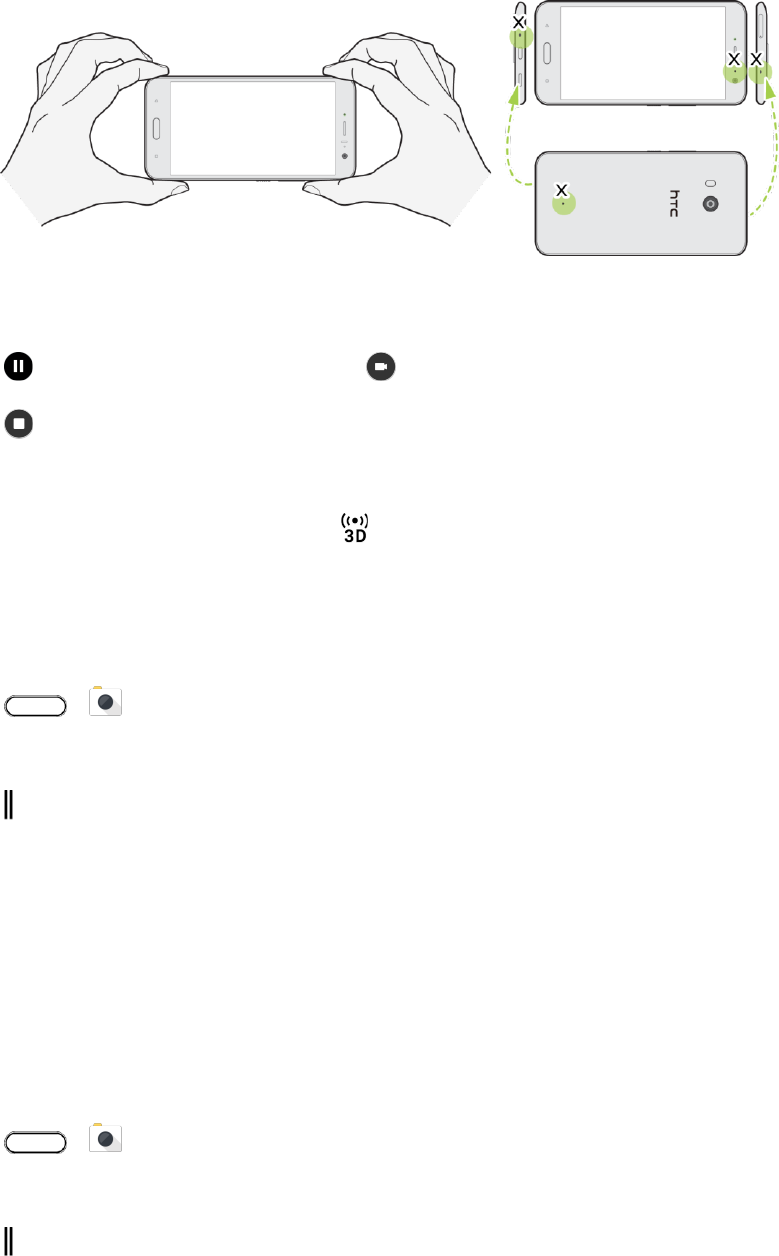
Camera and Video 159
5. Change focus to a different subject or area by just tapping it on the Viewfinder screen. You can
also change the exposure after tapping by dragging up and down on the screen.
6. Tap to pause the recording, and then tap to resume.
7. Tap to stop recording.
Videos recorded with high resolution audio are saved in MKV (Matroska video) file format.
Tip: Videos recorded in 3D Audio are marked with in Google Photos. Use earphones when playing
back the video to enjoy immersive sound.
Set the Video Resolution
Select the resolution of the video you're about to record.
1. Tap > Camera.
2. Switch to Video mode, if you're not in this mode. See Choose a Capture Mode.
3. Tap to open the slideout menu.
4. Tap Quality to change the video resolution.
Turn on High Resolution Audio
Record videos, including selfie videos, with high resolution audio.
Notes:
● High resolution audio is only available when the video quality is set to HD (720p) or higher.
● You can't pause video recording when using high resolution audio.
1. Tap > Camera.
2. Switch to Video mode, if you're not in this mode. See Choose a Capture Mode.
3. Tap to open the slideout menu.
Camera and Video 160
4. Tap High-res audio to turn on high resolution audio.
5. When you're ready to start recording, tap .
6. To stop recording, tap .
Videos recorded with high resolution audio are saved in MKV (Matroska video) file format.
Take a Photo While Recording a Video—VideoPic®
It's easy to capture a photo while recording a video.
1. Tap > Camera.
2. Switch to Video mode, if you're not in this mode. See Choose a Capture Mode.
3. Tap to start recording.
4. While recording, tap whenever you want to capture a still shot.
5. Tap to stop recording.
Record Video Using Acoustic Focus
While recording video, you can zoom in to focus on your subject and capture their audio loud and clear
using Acoustic Focus.
Notes:
● The Acoustic Focus feature only works while you're in Video capture mode.
● Acoustic Focus is only available when recording using the main camera and 3D Audio. See
Record Video in 3D Audio or High Resolution Audio.
1. Tap > Camera.
2. Switch to Video mode, if you're not in this mode. See Choose a Capture Mode.
3. By default, Acoustic Focus is already enabled. If you need to turn it on, tap to open the slideout
menu, and then tap Acoustic Focus.
4. Frame the shot then tap to start recording.
5. While recording, you can slide two fingers apart to zoom in on your subject. The green mic level
indicates how amplified your subject's audio becomes as you zoom.
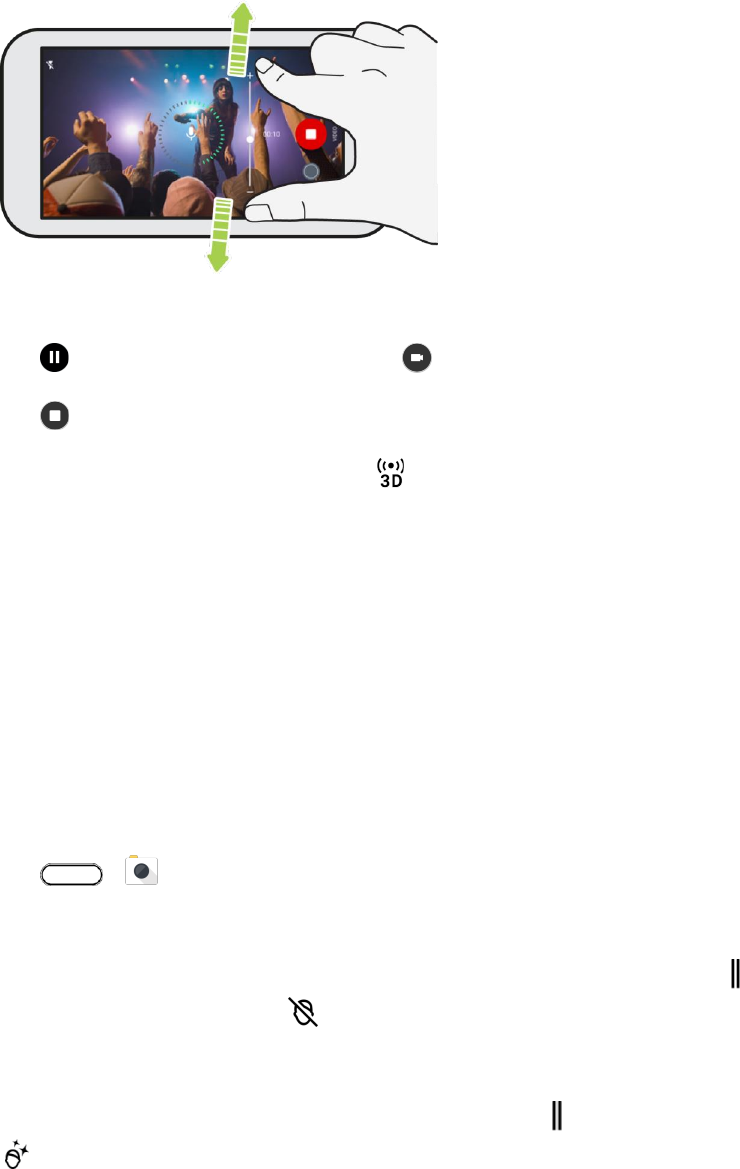
Camera and Video 161
When recording, make sure not to cover the microphones when holding the phone.
6. Tap to pause the recording, and then tap to resume.
7. Tap to stop recording.
Tip: Videos recorded in 3D Audio are marked with in Google Photos. Use earphones when playing
back the video to enjoy immersive sound.
Camera Features
The HTC U11 camera is packed with several features that will make capturing photos and videos more
enjoyable and memorable.
Selfies
Take high-quality selfies with the front camera.
Apply Skin Touch-ups with Live Makeup
Touch up your skin before taking your selfie. Live Makeup smoothens your skin in real time.
1. Tap > Camera.
2. Switch to Selfie Photo mode. See Choose a Capture Mode.
If you don't see the Live Makeup adjustment bar on the Viewfinder screen, tap to open the
slideout menu, and then tap .
To change the skin smoothing level, drag the adjustment bar slider.
Tip: Next time you want to take selfies without using Live Makeup, tap to open the slideout menu, and
then tap to turn Live Makeup off.

Camera and Video 162
Using Auto Selfie
Keep still to take an auto selfie—or just smile! You just need to turn this feature on in the camera settings.
1. Tap > Camera.
2. Switch to Selfie Photo mode. See Choose a Capture Mode.
3. Tap to open the slideout menu.
4. Tap Settings > Camera options.
5. Select the Auto Selfie option, and then tap outside the slideout menu to close it.
6. Pose and frame yourself on the Viewfinder screen.
7. To take your selfie automatically, look at the front camera, and then:
Stay still until the white box turns green on the Viewfinder screen.
Or smile at the camera. Hold your smile for a few seconds until your shot is taken.
Take Selfies with Your Voice
You can easily take photo or video selfies using simple voice commands. You just need to turn this
feature on in the camera settings.
Note: This feature may not be available in all languages.
1. Tap > Camera.
2. Switch to Selfie Photo or Selfie Video mode. See Choose a Capture Mode.
3. Tap to open the slideout menu.
4. Tap Settings > Camera options.
5. Select the Voice capture option, and then tap outside the slideout menu to close it.
6. Pose and frame yourself on the Viewfinder screen.
7. To take your selfie automatically, look at the front camera, and then:
Say Cheese or Capture to take a photo selfie.
Say Action or Rolling to record a video selfie.
Tip: You can also use voice capture with the main camera. Switch to Photo mode, and then select the
Voice capture option in the camera settings.
Camera and Video 163
Take Photos with the Self-timer
When you use the self-timer, the Camera app counts down before taking the shot. You can set the
countdown time.
1. Tap > Camera.
2. Choose the capture mode you want to use. See Choose a Capture Mode.
3. Tap to open the slideout menu.
4. Tap Timer to set the countdown time.
5. To start the timer, tap . The camera takes the photo after the countdown.
Angle of Selfies
You can set the angle of your shots to look exactly the same as how you see yourself on the Viewfinder
screen.
1. Tap > Camera.
2. Switch to Selfie Photo mode. See Choose a Capture Mode.
3. Tap to open the slideout menu.
4. Tap Settings > Camera options.
5. Make sure the Save mirrored selfies option is selected.
Take Continuous Camera Shots
Take photos of moving subjects. Whether it’s your kid’s football game or a car race, you can capture the
action. Use the Auto scene when you want to take continuous camera shots.
1. Tap > Camera.
2. Switch to Photo mode, if you're not in this mode. See Choose a Capture Mode.
3. Touch and hold the onscreen shutter button .
The camera takes consecutive shots of your subject.
Use HDR Boost
When shooting portraits against a bright background, use HDR Boost, short for High Dynamic Range, to
capture your subjects clearly. HDR Boost brings out the details of both the highlights and shadows, even
in high contrast lighting.
Note: HDR Boost works best when your subject is steady. The camera takes multiple shots at different
exposure levels and combines them into one enhanced photo.
Camera and Video 164
1. Tap > Camera.
2. Switch to Photo mode, if you're not in this mode. See Choose a Capture Mode.
3. Make sure that or is selected. If not, tap to change it. HDR auto is also available
in Selfie photo mode, and is enabled by default.
4. Frame the scene or subject you want to capture.
5. Tap .
Selfie Panorama
Include more people to your selfie with the Selfie Panorama mode.
Note: Some camera features are not available when you’re in Selfie panorama mode, such as zooming.
Take a Panoramic Selfie
1. Tap > Camera.
2. Switch to Selfie Panorama mode. See Choose a Capture Mode.
3. Tap to open the slideout menu.
4. Make sure that is selected.
5. Hold the phone at face level and in portrait orientation.
6. When you're ready to take the center shot, tap .
7. While holding your phone steadily, slowly swivel left or right on the phone's axis until you see the
white capture box move to the side panel of the panorama overlay.
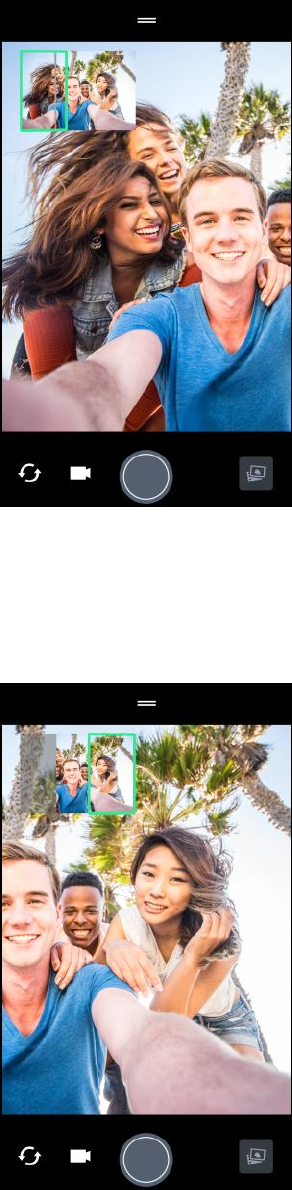
Camera and Video 165
The capture box turns green and you'll hear a shutter sound as the photo is taken.
8. Slowly swivel to the opposite side until you see the white capture box move to the other side of
the panorama overlay.
The capture box turns green and you'll hear a shutter sound as the photo is taken. The camera
stitches the frames into a single photo.
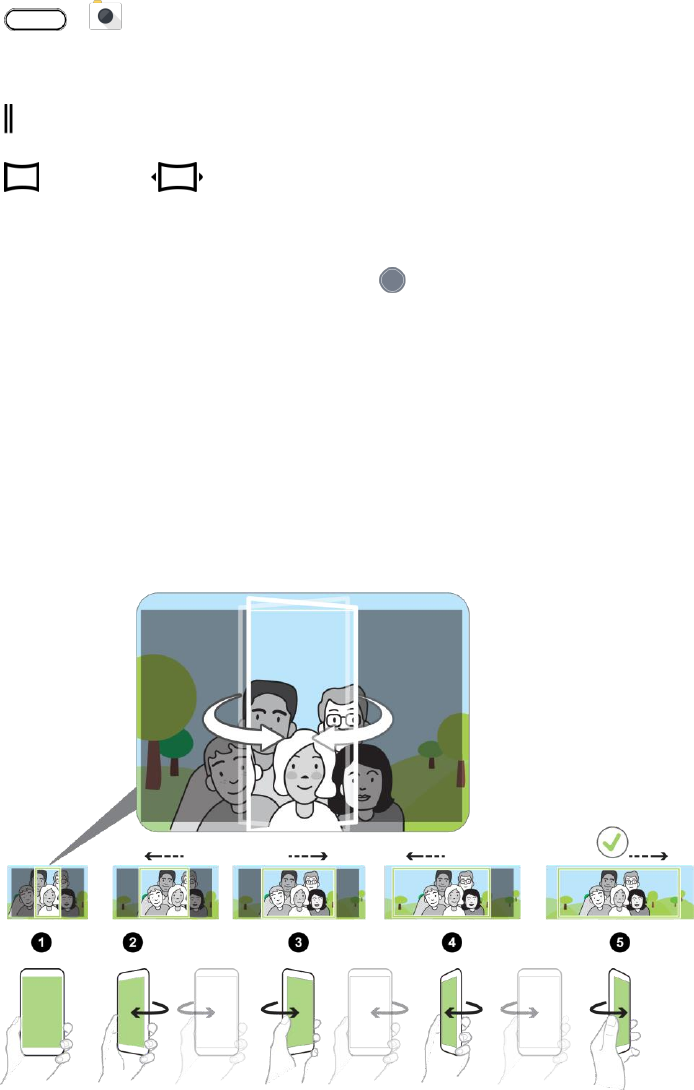
Camera and Video 166
Tip: For best results, closely follow the straight and linear path of the capture box on the panorama
overlay. Try to not tilt the phone up or down or move the capture box away from its path.
Take a Super-Wide Angle Panoramic Selfie
If you have more friends or scenery to capture, set the Selfie Panorama mode to Widest to stitch five
photos instead of three.
1. Tap > Camera.
2. Switch to Selfie Panorama mode. See Choose a Capture Mode.
3. Tap to open the slideout menu.
4. Tap to switch to .
5. Hold the phone at face level and in portrait orientation.
6. When you're ready to take the center shot, tap .
7. While holding your phone steadily, slowly swivel left or right on the phone's axis until you see the
white capture box move to the side panel of the panorama overlay.
The capture box turns green and you'll hear a shutter sound as the photo is taken. When the
second photo is taken, you'll see that the panorama overlay becomes wider.
8. Continue to slowly swivel your phone left and right to fill the entire panorama overlay with your
photos.
For best results, follow the capture sequence indicated in the illustration below.
Camera and Video 167
The camera stitches the frames into a single photo.
Panoramic Shots
Get a wider shot of landscapes in one sweep.
Note: Some camera features are not available when you’re in this mode, such as zooming.
1. Tap > Camera.
2. Switch to Panorama mode. See Choose a Capture Mode.
3. When you're ready to take the shot, tap .
4. Pan left or right in either landscape or portrait view. Hold your phone as smoothly as you can to
automatically capture frames.
5. Tap to stop capturing anytime.
The camera stitches the frames into a single photo.
Advanced Camera Features
Use the phone's camera to capture slow motion videos, hyperlapse, or RAW photos.
Record Slow Motion Videos
Relive high speed action bit by bit and add a touch of suspense to your videos.
Note: Audio is recorded when you’re in this mode, but will be turned on only when video is played in
normal speed.
1. Tap > Camera.
2. Switch to Slow motion mode. See Choose a Capture Mode.
3. Tap to start recording.
4. To stop recording, tap .
Hyperlapse
Apply a fast motion effect in your videos. Use Hyperlapse mode to speed videos up to 12 times.
1. Tap > Camera.
2. Switch to Hyperlapse mode. See Choose a Capture Mode.
3. When you're ready to start recording, tap .
4. Change focus to a different subject or area by tapping it on the Viewfinder screen.
Camera and Video 168
5. Tap the flash icon to turn the flash on or off.
6. To stop recording, tap .
Scenes
Instead of manually adjusting the camera settings, you can select a scene with predefined settings that
best matches the environment you're capturing.
1. Tap > Camera.
2. Switch to Pro mode. See Choose a Capture Mode.
3. Tap and then choose a preset scene:
Capture nightscapes such as a city skyline or street with city lights. Keep the camera
steady when taking the shot for best results.
Capture a moving subject such as your kid playing sports or a moving car.
Capture a close-up shot of a subject such as a bird or a flower.
4. When you're ready to take the photo, tap .
If you need to manually adjust a scene and save it as a new preset, see Manually Adjust Camera
Settings.
Manually Adjust Camera Settings
If you want to have expert command of your camera settings for different environments or lighting
conditions, manually adjust the values for settings like white balance, exposure, ISO, and more. You can
save the adjustments for reuse.
1. Tap > Camera.
2. Switch to Pro mode. See Choose a Capture Mode.
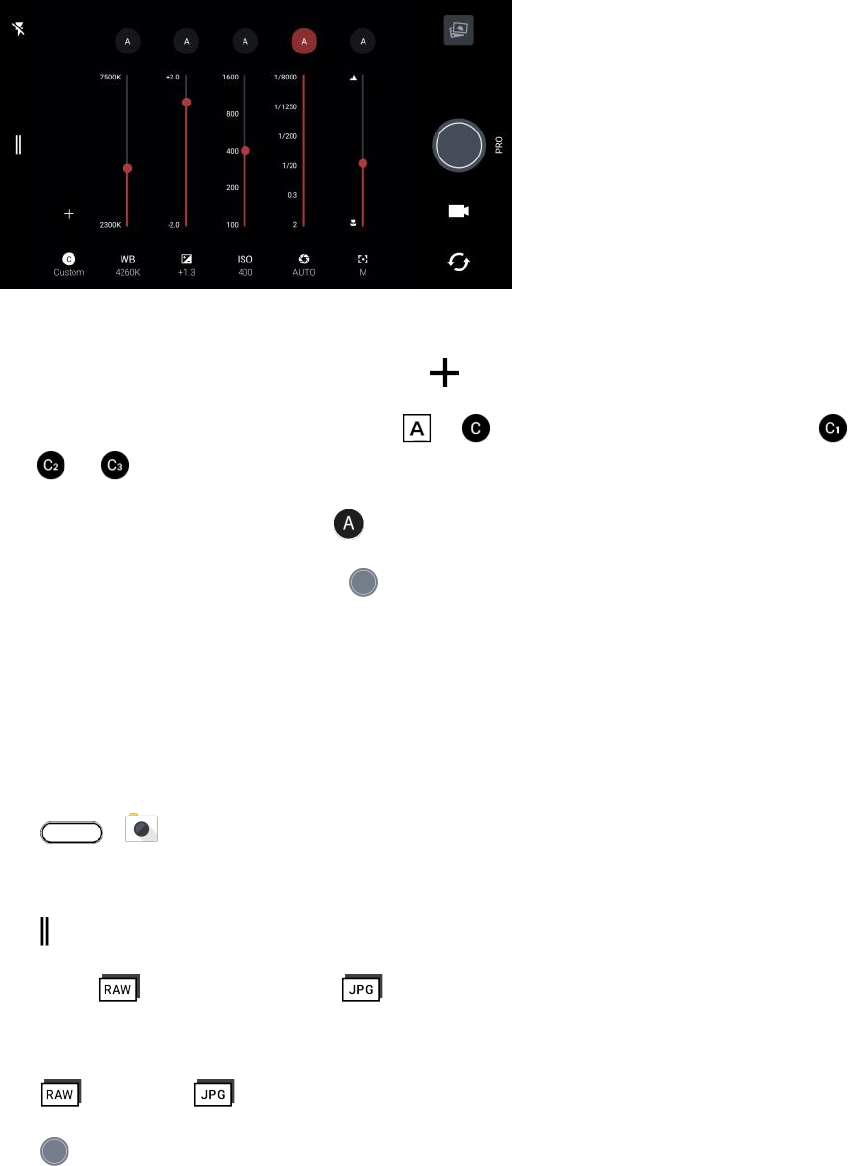
Camera and Video 169
3. Tap a setting, and then drag its slider to make adjustments.
4. Tap a setting again to hide the slider.
5. To save the adjustment as a custom setting, tap , select Custom 1, 2, or 3, and then tap Save.
To use one of your custome settings, tap or , and then select the custom setting ( ,
, or )
6. To change a setting back to auto, tap .
7. When you're ready to take a photo, tap .
Take a RAW Photo
Keep more detail in your shots, or fix the lighting in post processing. With Pro mode, you can take photos
that will be saved as RAW image files in DNG format, along with a JPG compressed version.
Note: RAW image files take up a lot of storage space. It's recommended to use a SD card as the default
storage for photos and videos.
1. Tap > Camera.
2. Switch to Pro mode. See Choose a Capture Mode.
3. Tap to open the slideout menu.
4. Make sure is selected. If not, tap to change it.
– or –
Tap to switch to if you only want to save a JPG compressed version.
5. Tap .
Camera and Video 170
RAW Photos
The Camera app captures a photo in both the DNG RAW format and JPG format.
Digital Negative (DNG) is an open-standard lossless RAW image format. Since a RAW file is typically 2 to
6 times larger than a JPEG file and is not viewable in most photo viewer apps, a photo is captured in both
DNG and JPG formats. When you use the Google Photos app, you’ll see the JPG copy of the photo, with
a icon to indicate that there is a DNG RAW format of that photo.
RAW photos are not processed when captured to preserve most of the original image data—such as
dynamic range—so you can adjust lighting or make professional adjustments using advanced editing
tools. After making adjustments, save the RAW photo as a JPG file if you want to print or share it.
Google Photos
Here are some of the things you can do when using Google Photos on your phone.
● View, edit, and share the photos and videos you've taken on your phone. You can also access
the media files previously backed up to your Google Account.
● To select photos and videos, touch and hold a thumbnail to select one. Tap a date to select all
the media files under it. Or, touch and hold a thumbnail as your first selection, and then drag your
finger to the last item you want to select.
● Enhance RAW photos taken using the HTC Camera app.
● Add Hyperlapse effect to your videos.
● Change the speed of your slow motion videos.
Tip: To learn more about Google Photos, tap > Help. Or, you can visit support.google.com/photos.
View Photos and Videos
When you open Google Photos for the first time, sign in to your Google Account, if prompted, and choose
whether to turn backup and sync on or off.
1. Tap > > Photos.
You'll see your local and synced photos and videos organized by date.
2. To switch to another view, tap > Layout, and then choose how you want to view your media
files.
3. Tap a thumbnail to view it in full screen.
Tip: Videos recorded in 3D Audio are marked with in Google Photos. Use earphones when playing
back the video to enjoy immersive sound.
Camera and Video 171
4. To view only the photos and videos saved on the phone storage and SD card, tap to open
the slideout menu, and then tap Device folders.
Edit Your Photos
Edit your photos, enhance RAW captures, trim videos and more.
Basic Photo Editing
1. Tap > > Photos.
2. Tap a photo thumbnail to view it in full screen.
3. Tap , and then do any of the following:
Tap to adjust the brightness, color, and more.
Tap to apply a filter to the photo.
Tap to rotate or crop the photo.
4. While you're editing, touch and hold the photo to compare your changes to the original.
5. After making your adjustment, tap Save.
Enhance RAW Photos
After capturing RAW photos, you can improve its contrast and detail from the Photos app.
1. Tap > > Photos.
2. Find and tap the RAW photo you want to enhance. RAW photos are marked with the icon
on the thumbnail.
3. Tap , and then tap RAW Enhancement.
4. Tap to toggle between before and after photos.
5. Tap when done.
Trim a Video
1. Tap > > Photos.
2. Tap a video thumbnail to view it in full screen.
Note: Videos captured using hi-res audio cannot be trimmed. See Record Video in 3D Audio or High
Resolution Audio.
Camera and Video 172
3. Tap , and then drag the trim sliders to the part where you want the video to begin and end.
4. Tap to preview your trimmed video.
5. Tap Save.
The trimmed video is saved as a copy. The original video remains unedited.
Change the Playback Speed of a Slow Motion Video
Adjust the playback speed of a selected section of a slow motion video.
Note: You can only change the video playback speed of videos captured using slow motion in the
Camera app.
1. Tap > > Photos.
2. Find and tap the thumbnail of slow motion video to view it in full screen. Slow motion videos are
marked with the icon on the thumbnail.
3. Tap the screen to see the onscreen controls.
4. Frame the sequence you want to slow down by moving the left and right sliders.
5. Tap to watch the result.
6. You can still adjust the playback speed while previewing.
Editing a Hyperlapse video
If you captured a video in Hyperlapse mode, you can apply varying speeds to different sections of the
video.
1. Tap > > Photos.
2. Find and tap the Hyperlapse video to view it in full screen. Hyperlapse videos are marked with the
icon on the thumbnail.
3. Tap .
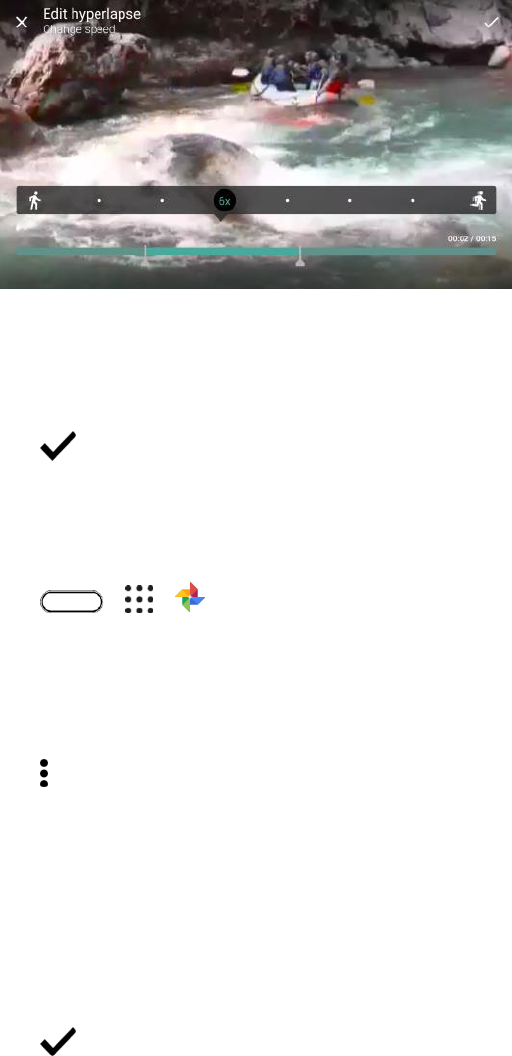
Camera and Video 173
4. Move the left and right sliders to divide your video into sections.
5. Tap a section that you want to adjust, and then tap a dot that corresponds to particular playback
speed to modify the selected section.
6. Repeat the previous step for the remaining sections.
7. Tap .
The edited video is saved as a copy. The original video remains unedited.
To add a Hyperlapse effect on a regular video:
1. Tap > > Photos.
2. Find and tap the thumbnail of a video to view it in full screen.
Note: You cannot add a Hyperlapse effect on a video that was captured using hi-res audio. See Record
Video in 3D Audio or High Resolution Audio.
3. Tap > Edit in > Zoe Video Editor.
4. Tap Create a Hyperlapse video.
5. Move the left and right sliders to divide your video into sections.
6. Tap a section that you want to adjust, and then tap a dot that corresponds to particular playback
speed to modify the selected section.
7. Repeat the previous step for the remaining sections.
8. Tap .
The edited video is saved as a copy. The original video remains unedited.
Productivity 174
Productivity
The following topics detail many of your phone’s productivity apps and features including how to search
for information, use maps and navigation, and use essential apps such as the calculator, calendar, and
clock.
Calendar
Use Google Calendar™ to create and manage events, meetings, and appointments. Google Calendar
helps organize your time and reminds you of important events. Depending on your synchronization
settings, your phone’s calendar stays in sync with your Google Calendar on the Web.
In order to sync with your Google Calendar, you must sign in to your Google Account on your phone. See
Google Account.
Calendar Operations
● View Today’s Calendar: Tap > > Calendar and then tap .
● Change Calendar View: Tap > > Calendar. Tap and then tap Schedule,
Day, 3 Day, Week, Month to change the current view.
● View Next/Previous Month: In Month view, flick the screen left or right.
● View Next/Previous Week: In Week view, flick the screen left or right.
● View Next/Previous Day: In Day view, flick the screen left or right.
Select a Calendar
1. Tap > > Calendar.
2. Tap .
3. If you have more than one calendar, select a calendar in which to add events:
Select your Google Account to create a Google Calendar event. If you have several Google
Calendars on the Web, select one in which to add your event.
• You can create multiple Google Calendars only in Google Calendar on the Web. After
creating them in Google Calendar on the Web, you’ll be able to see them in the Calendar
application on your phone. For more information about creating and managing multiple
Google Calendars, visit the Google website: calendar.google.com.
If you have synchronized your phone with an Exchange ActiveSync account or Outlook on
your computer, you can also select these calendars.
Select PC Sync to create an Outlook Calendar event to sync with your computer.
Productivity 175
Select Exchange to create an Exchange ActiveSync calendar event.
Schedule or Edit an Event
You can create or edit events on your phone, and also sync events with your Google or Exchange
ActiveSync calendars.
Note: Editing events is not supported for all accounts.
1. Tap > > Calendar.
2. On any Calendar view, do one of the following:
Create an event. Tap . Tap , and then tap Events to select the calendar you will add
the event to.
Edit an event. View an event, and then tap .
3. Enter and set the event details.
4. To invite from your Google or Exchange ActiveSync account, tap Invite people.
5. Tap Save.
Choose Which Calendar to Show
You have the option to show only the calendars that you frequently use. You can also show or hide tasks
that you’ve created in your phone.
1. Tap > > Calendar.
2. Tap .
3. Select or clear an account you wish to show or hide.
Note: Calendars are synced on your phone, even if they are hidden.
Dismiss or Snooze Reminders
If you have set at least one reminder for an event, the upcoming event icon will appear in the
notifications area of the status bar to remind you.
1. Open the notification panel and tap the calendar notification.
2. If the notification shows that there are multiple reminders, tap it to see all the reminders. You can
then choose to snooze or dismiss them.
3. If you don’t want to dismiss or snooze the calendar notifications, tap from the notification
panel to keep them pending in the notifications area of the status bar.
Productivity 176
Google Drive
Store your photos, documents, and other files on Google Drive to access them on your phone, your
computer, and your other mobile devices. On your phone, just use your Google Account to sign in to your
Google Drive storage.
You can then:
● Share a link to your Google Drive files by email.
● Check your available storage space in Google Drive app's settings.
● Back up your phone to Google Drive, so you can easily restore your backup to another HTC
phone next time.
● Use the Google Drive app to manage your online storage.
Activate Your Free Google Drive Storage
In addition to the default storage that you get from Google Drive, you may be eligible to receive additional
storage for free. Sign in to your Google Account on HTC U11 (and not from your computer or other non-
HTC phones) to claim this offer.
1. Tap > > Drive.
2. If this is your first time to open the Drive app, walk through the product tour until you see the
additional storage offer.
3. On the screen that shows the additional storage offer, tap Redeem. Or to claim the offer at a later
time, tap Offer Details and check up to when you can redeem the offer.
The additional storage will then be added to your account.
4. Follow the onscreen prompts to learn the things you can do with Google Drive.
Notes:
● Additional terms and requirements may apply (including a subscription fee) after your two-year
trial expires. For details, refer to the terms and conditions on the Google Drive support site
support.google.com.
● The Drive app is owned by Google and is not provided by or associated with HTC Corporation.
● Uploading files requires you have the Drive app installed on your phone. If this app is not
preloaded, you can download and install it from Google Play.
Check Your Google Drive Storage Space
Check your available storage space right in the Google Drive app.
1. Tap > > Drive.

Productivity 177
2. Tap and check the storage space under Upgrade storage on the slideout menu.
From time to time, check back on how much online storage space you still have before you upload more
content.
Google Maps
Use the Google Maps app to determine your location, find directions, browse local businesses and
attractions, rate and review places, and more.
Notes:
● Before using any location-based services, you must enable your phone’s location feature. For
information about setting your phone’s location options, see Location Settings.
● The Google Maps application does not cover every country or city.
Get Around Maps
When you open Google Maps, you can easily find your location on the map or check out nearby places
by panning and zooming in and out on the map.
1. Tap > > Maps.
2. Tap to show your current location. The blue marker or shows your location on the map.
3. Tap to turn Compass mode on. In Compass mode, the map orients itself depending on the
direction you’re facing. To exit Compass mode, tap .
4. If you want to see more information overlaid on the map, tap , and then tap a map view such
as Traffic or Satellite to toggle the view on and off.
Navigate the Map
Navigate the map using finger gestures.
● Slide your finger on any direction to pan.
● Double-tap the map or slide two fingers apart over an area to zoom in. To zoom in while holding
the phone with one hand, double-tap with your thumb and hold the second tap, and then drag
your thumb down.
● Double-tap the map with two fingers or slide two fingers together over an area to zoom out. To
zoom out while holding the phone with one hand, double-tap with your thumb and hold the
second tap, and then drag your thumb up.
● Touch and hold an area with two fingers and then drag your fingers in a circular motion to rotate
the map.
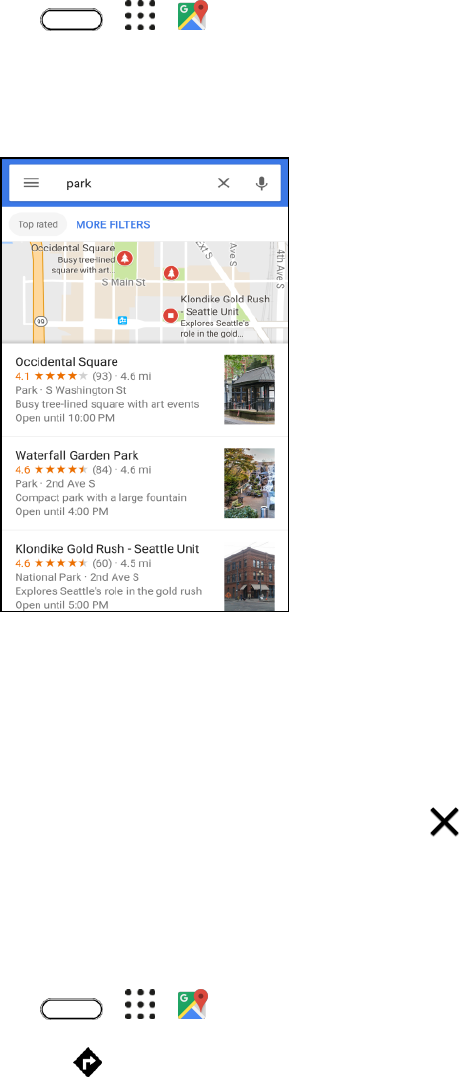
Productivity 178
● Touch and hold an area with two fingers and then swipe up to see an angled view of the map.
Swipe down to return to overhead view.
Search for a Location
In Google Maps, you can search for a location, such as an address or a type of business or establishment
(for example, museums).
1. Tap > > Maps.
2. Tap "Search here" and then enter the place you want to search for.
3. Tap Search on the keyboard or tap a suggested search item.
4. If there are multiple search results, they will be indicated by red dots or smart map icons. Scroll
down the screen to see all of the search results. If the list collapses and shows only the map, tap
Show list to display the search results again.
5. Tap an item from the search results to check the address, get directions, see the location in
Street View (if available), and more.
Note: To clear the map and search another location, tap .
Get Directions
Get detailed directions to your destination. Google Maps provides travel directions by car, public transit,
bike, or foot.
1. Tap > > Maps.
2. Tap Go .
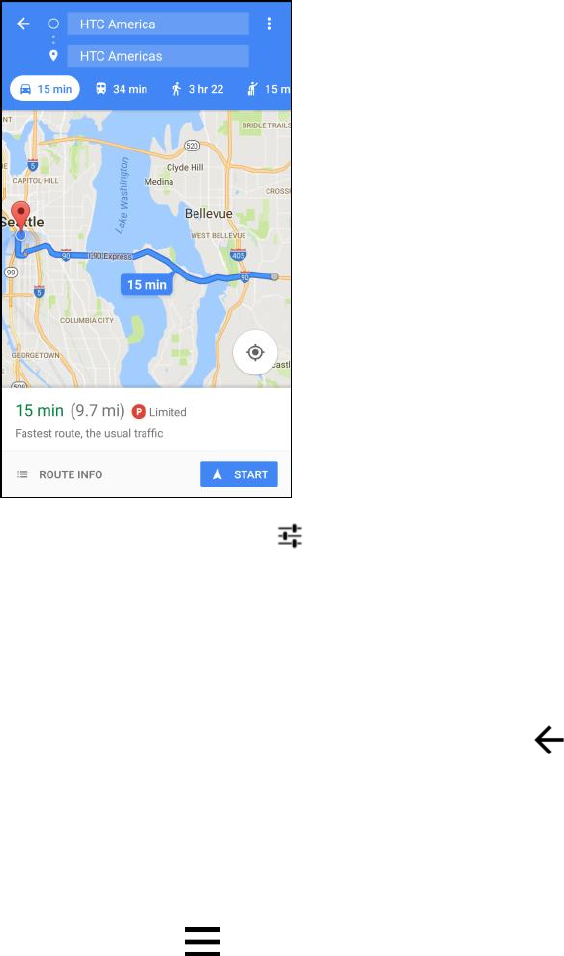
Productivity 179
3. Choose how you want to get to your destination.
4. Use your current location as starting point, or tap Your location to enter your starting point or
select a location from your search history.
5. Tap Choose destination, and then enter or select your destination.
Note: If you’re taking public transit, tap to set the date and time of travel, or tap Options to set your
route preferences.
6. Tap a route or transit option to view the directions on the map. You’ll also see the travel duration
for each travel option.
7. Tap the info sheet to view the directions in a list.
8. When you’re finished viewing or following the directions, tap to reset the map.
Your destination is automatically saved in the Google Maps history.
Get Help with Google Maps
Get help and more information about Maps.
■ In Google Maps, tap > Help. The Web browser opens and takes you to the Google Maps
help site.
Web Search
Start your search by entering a keyword or by using Google Voice Search™.
Productivity 180
Note: Some apps, such as People or Mail, have their own search function, which you can use to search
only within those apps.
Perform Searches on the Web and Your Phone
You can search for information on your phone and on the Web.
1. Tap > > Google. Or tap the Google Search bar widget if available.
Tip: If you’ve already set up a Google Account on your phone, you will be given the option to sign in to
access other features of the Google app.
2. In the search box, enter what you want to search for. As you type, matching items on your phone
and suggestions from Google search are shown.
To search for the information exclusively on your phone, swipe your finger up the screen, and
then tap Search phone.
3. If what you’re searching for is in the list of suggestions, tap the item to open it in its compatible
app.
Search the Web with Your Voice
Use Google Voice Search to find information on the Web just by speaking to your phone.
Note: Searching with your voice is not supported on all languages.
1. Tap > > Google. Or tap the Google Search bar widget if available.
2. Tap and then say what you want to search for. After speaking, matching items from Google
web search are shown.
3. If what you’re searching for is in the list, tap the item to open it in its compatible app. Otherwise,
tap to search again.
Set Search Options
You can select or customize your search preferences.
1. Tap > > Settings.
2. Tap Google.
3. Tap Search & Now and tap the options you want to change.
Tip: To get help or provide feedback, tap > Help & feedback on the Google Settings screen.
Get Instant Information with the Google App
The Google app delivers quick and up-to-date information that matters to you — all without the search.
Productivity 181
Depending on your location, time of day, and previous Google searches, the Google app displays
information cards that include:
● The day’s weather and the weather forecast for upcoming days.
● The traffic conditions on your way to work or your commute back home.
● The directions and travel time to your next appointment.
● The next train or bus arriving at your platform or bus stop.
● Your favorite team’s score and stats while you enjoy the game.
● Time or location based reminders that you can set.
To open the Google app:
■ From the Home screen, tap > > Google. Or tap the Google search bar widget
when available.
Set Up the Google App
Before setting up the Google app, make sure that you’re signed in to your Google Account, you’ve turned
on location services, and have an Internet connection. For more information on Location services, see
Location Settings.
1. Tap > > Google.
2. Tap Get started. Or if you’ve previously set up the Google app on HTC U11 and turned it off, tap
Get started > Set up.
3. Read the information screen and then tap Yes, I’m in. Google app's information cards will start to
appear on the Google search screen.
4. Swipe up the screen to see all available information cards.
5. To dismiss a card, swipe it left or right.
Note: Depending on the information that you’ve allowed to share, more information cards will appear on
the Google search screen as you use your phone to search the Web, create appointments, set reminders,
and more.
Change Card Settings
You can easily customize the settings of the Google app cards to suit your information needs. For
example, you can change the weather units in the Weather card or your transportation mode in the Traffic
card.
1. Tap > > Google.
2. Do any of the following:
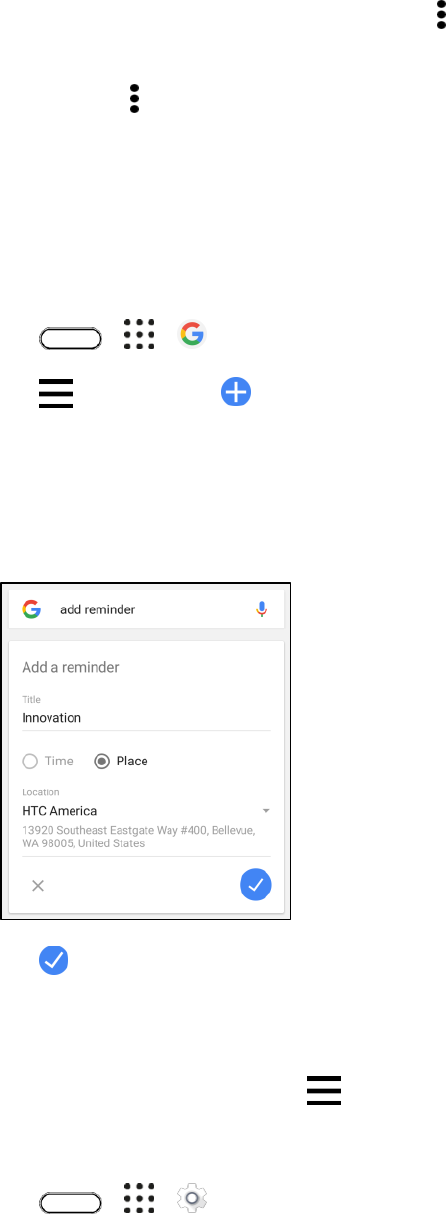
Productivity 182
To change the settings of a specific card, tap and then tap an action.
To change specific information such as your work address, sports teams, or stocks you
follow, tap , and then tap Customize the feed. Choose the information you want to change.
Set Reminders in the Google App
Setting reminders in Google app is an easy way to keep tab of things to do. You can set time or location-
based reminders. When the reminder time is up or when you’ve arrived at the specified location, the
Google app displays the Reminder card in the Google search screen and sounds a notification to alert
you.
1. Tap > > Google.
2. Tap > Reminders > .
3. Enter the reminder title, such as the task you want to be reminded of.
4. Select Time to set a time-based reminder or Place to set a location-based reminder.
5. Set the reminder time or location details.
6. Tap .
When the reminder time is due or when you’ve arrived at the location, the Reminder card will
appear in the Google search screen. You can then dismiss or snooze the reminder.
Tip: To see a list of all your reminders, tap > Reminders.
Turn Off Google App's Card Feed
1. Tap > > Settings.
2. Tap Google > Search > Your feed.
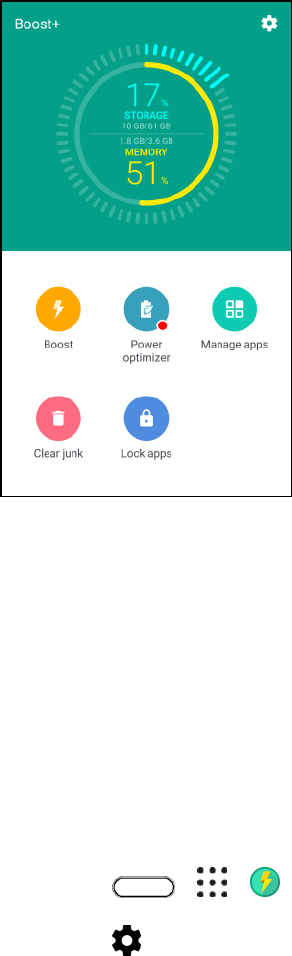
Productivity 183
3. Tap the switch next to Feed, and then tap Turn off.
Boost+
Optimize your phone's performance, maximize your phone storage capacity, and even lock some apps for
an added level of privacy.
Here are some of the things you can do when using Boost+ app:
● Monitor your phone storage space and memory usage.
● Delete cache, app installers, temporary files, and ad files on your phone.
● Optimize system resources to extend battery life while you're playing your favorite games.
● Manage irregular app activities, stop unused apps from running in the background, lock apps with
sensitive content, or uninstall apps you don't use.
Turn Smart Boost On or Off
The Smart Boost feature allows the Boost+ app to automatically free up memory space on your phone.
1. Tap > > Boost+.
2. Tap , and then select or clear the Smart Boost option.
3. When prompted to set up the system permission for Boost+, tap Continue > Boost+.
4. Tap the Permit usage access On/Off switch.

Productivity 184
Add Apps to Smart Boost Exception List
You can set the Boost+ app to skip apps when it runs its Smart Boost checks.
1. Tap > > Boost+.
2. Tap Smart Boost.
3. Tap > Manage skipped apps.
4. Tap , and then select the apps to skip.
5. Tap Add.
Clear Junk Files Manually
Regularly remove junk files that clutter your storage space or slow down the phone's performance.
1. Tap > > Boost+.
2. Tap Clear junk.
The Boost+ app will show you how much storage space is being used up by different junk files,
such as cache files, ad files, temporary files, and app installers.
3. Select or clear the junk file types you want to delete.
4. You can tap next to a category to view the files under it.
5. Tap to clear junk files.
Tip: In the Boost+ app settings, you can also choose to get notified when your junk files exceed a set limit
or when an app is unused over a period of time.
Use Power Optimizer for Apps
Optimize the performance of installed apps and help extend your phone's battery power using Power
optimizer.
1. Tap > > Boost+.
2. Tap Power optimizer.
3. On the Power optimizer screen, tap an app under Not optimized to see the available optimizing
options:
Tap Background optimizer to stop the app from running in the background when it's
unused.
Tap Foreground optimizer to optimize your phone's screen resolution while using the app.
Productivity 185
Tap Cloud optimizer to optimize your app's CPU and GPU usage based on its available
data in the cloud.
Note: Available optimizers may vary per app.
Manage Apps Using Background Optimizer
After enabling Background optimizer on an app, you can set the Boost+ app to automatically stop unused
apps from running in the background. To enable this, see Use Power Optimizer for Apps.
1. Under Optimizing, tap the app where Background optimizer is applied, and then tap .
2. Choose any of the following options:
Tap Always stop to always stop the app from running in the background when it's not in use.
By default, you can tap Stop it after 3 days of no use to stop the app from running in the
background when it's unused for a certain period of time.
3. To change the auto stop period for Background optimizer, tap > Schedule auto stop, and then
choose how long an app can be left unused before it's automatically stopped from running in the
background.
Check Activities of Downloaded Apps
The Boost+ app can check for irregular activities of a downloaded app that may affect your phone's
performance. When an irregular activity is detected, you can choose to stop the activity. Or, you can also
uninstall the downloaded app via the Boost+ app.
Note: You can only uninstall the apps you've downloaded.
1. Tap > > Boost+.
2. Tap Manage apps.
3. Do any of the following:
To uninstall apps you don't need, select one or more apps under the Apps tab, and then tap
.
Go to the Irregular Activities tab to see if there are irregular activities detected. If there's
one, tap it and choose an action.
Create an Unlock Pattern for Some Apps
Add a security pattern to some installed apps that you treat as private. Lock these apps to require an
unlock pattern whenever the app is opened, avoiding others to access it without your permission.
1. Tap > > Boost+.
2. Tap Lock apps.
3. Draw your desired lock pattern.
Productivity 186
4. You can sign in to your Google Account or answer a security question. This will only serve as
your authentication method to reset the unlock pattern.
5. Tap the On/Off switch next to an app to require a lock pattern to open it.
6. Tap .
Tips:
● To change the app unlock pattern, tap Lock apps, and then draw your unlock patter. Tap >
Change pattern.
● To use your fingerprint to unlock apps, tap Lock apps. When you're prompted to draw the unlock
pattern, tap and select the Use fingerprint to unlock option.
Calculator
Your phone’s convenient built-in calculator lets you perform basic and advanced mathematical equations.
1. Tap > > Calculator.
The calculator app launches.
2. Tap onscreen keys for calculations.
Calculation results appear.
Tip: To use the scientific calculator, make sure Auto rotate is turned on, and then rotate the screen to the
landscape orientation.
Clock
Your phone has a clock app that lets you set alarms, view time in time zones around the world, use a
stopwatch, set a timer, and use your phone as a desk clock.
Check the Time
You can check the phone any time on your phone. The current time displays in the upper right corner of
the status bar. Many widgets and lock screens also display the time and provide options for how time is
displayed.
Set the Date and Time Manually
You can change your date and time.
1. Tap the clock on your Home screen panel, if available. Or tap > > Clock.
2. On the World clock tab, tap > Local time settings.
Productivity 187
3. Clear Automatic date & time and Automatic time zone, and then set the time zone, date, and
time as required.
Tip: To display military time, choose the Use 24-hour format option.
Set Alarms
You can set up one or more alarms.
1. Tap the clock on your Home screen panel, if available. Or tap > > Clock.
2. On the Alarms tab, select the check button of an alarm and then tap that alarm.
3. Under Set alarm, use the scroll wheels to set the alarm time.
4. If you want the alarm for multiple days, tap Repeat.
5. Tap Done.
6. If you need to set more than three alarms, tap .
Tip: To turn off an alarm, clear the check box of that alarm.
Phone at Alarm Time
● At the set alarm time, the phone sounds the alarm and/or vibrates.
● Stopping an alarm: When the alarm sounds, drag up to dismiss it.
Additional Clock Features
Your phone’s clock app provides additional useful features including world clock, stopwatch, and timer
functions.
World Clock
The world clock lets you keep track of the current time in multiple cities around the globe.
1. Tap the clock on your Home screen panel, if available. Or tap > > Clock.
2. Tap the World clock tab.
3. Tap and select a city.
4. Repeat to add multiple cities.
Stopwatch
The stopwatch lets you time events down to the hundredth of a second.
1. Tap the clock on your Home screen panel, if available. Or tap > > Clock.
Productivity 188
2. Tap the Stopwatch tab.
3. Tap Start to begin timing.
4. Tap Stop to stop timing.
Additional options include Lap to keep track of laps and Reset to continue timing.
Timer
The timer provides a countdown timer for up to 99 hours, 59 minutes, and 59 seconds.
1. Tap the clock on your Home screen panel, if available. Or tap > > Clock.
2. Tap the Timer tab.
3. Use the scroll wheels to set the length of the time.
4. Tap Start to begin the timer.
Weather
Use the Weather app and widget to check the current weather and weather forecasts for the next few
days. In addition to your current location, you can view weather forecasts for other cities around the
globe.
1. Tap > > Weather.
You’ll see the weather from different cities, including where you are.
2. Tap a city to view weather information.
3. Tap the Hourly and Forecast tabs to view the forecasts in your selected location.
4. To check the weather in other cities, tap , and then select the city you want.
5. To add more cities, tap and then enter the location.
Note: Your settings in the Weather app also control the weather information that is shown in the Clock
and Calendar apps.
Voice Recorder
Use Voice Recorder to capture information during lectures, interviews, or even to create your own audio
log.
Record Voice Clips
Start creating voice memos on your phone.
1. Tap > > Voice Recorder.
Productivity 189
2. Hold the microphone near the sound source.
3. Tap to start recording a voice clip.
Note: Voice Recorder can run in the background while you do other things on your phone, except when
you open other applications that also use audio functions.
4. Tap to stop recording.
5. To play back the voice clip, tap .
Tip: To see your recorded voice clips, tap . Touch and hold a voice clip to see options for sharing,
setting it as a ringtone, and more.
Enable High Resolution Audio Recording
Make crystal clear recordings by capturing sounds in high resolution audio.
1. Tap > > Voice Recorder
2. Tap > Settings > Encoding format, and select High res quality (FLAC).
HTC Sync Manager
With HTC Sync Manager, enjoy the same media whether you’re at your computer or on the move. Use it
also to store your same contacts, important documents, and other data on both your phone and your
computer.
HTC Sync Manager supports a computer running Windows or Mac OS.
Here are the things you can do with HTC Sync Manager.
● View and manage media on your computer
Browse and manage music, photos, and videos that are on your computer and your phone.
Import iTunes and Windows Media® Player playlists from your computer to HTC Sync
Manager.
Create playlists from music on your computer or your phone and then sync these to your
other device.
Play music, videos, and playlists using the built-in player.
● Transfer content
Transfer iPhone photos, text messages, contacts, and more to your HTC phone. You can
also find and install the same apps that you were using on your iPhone.
Import all music, photos, and videos from your HTC phone to your computer.
Productivity 190
Copy selected music, photos, or videos from your computer to your phone.
Import documents from your computer to your phone.
● Back up and restore. Back up your HTC phone to your computer so you can easily restore your
backup to the same phone or to another HTC phone.
● Sync data. Sync data such as contacts between your phone and your computer.
Install HTC Sync Manager on a Windows Computer
Follow the steps below to install HTC Sync Manager on your computer.
Note: You can install HTC Sync Manager on Windows XP or later versions. To install it on a Mac
computer, you need Mac OS 10.6 or later versions.
Important: If you have problem with installing HTC Sync Manager, close all your running programs and
reinstall. If the problem persists, temporarily disable your anti-virus program and try installing again.
1. Download the HTC Sync Manager installer from htc.com/hsm.
2. Launch the installer and follow the onscreen instructions.
3. Connect your phone to your computer using the supplied USB cable. HTC Sync Manager opens.
Important: If you disabled your anti-virus program, make sure to turn it back on after installing HTC Sync
Manager.
Transfer iPhone Content to Your HTC Phone
With HTC Sync Manager, easily transfer iPhone content such as contacts, messages, wallpaper, camera
photos, and more to your HTC phone. If you’re using an HTC phone that has HTC Sense 6, HTC Sync
Manager also enables your phone to find and install the same apps that you were using on your iPhone.
Note: You need to use iTunes 9.0 or later to back up your iPhone content first to your computer.
1. Connect your iPhone and your HTC phone to your computer.
2. In HTC Sync Manager, click Home > Transfer & Backup.
3. Click the Get Started button.
4. If you haven’t used iTunes to back up your iPhone content to your computer, please do so before
proceeding.
5. Select your iPhone backup file, and then click OK.
6. Select the types of content you want to transfer to your HTC phone.
You can choose whether to replace the content on your HTC phone with the iPhone content.
7. Click Start. Wait for HTC Sync Manager to finish transferring content.

Productivity 191
8. When done, slide open the notification panel on your HTC phone, and then tap .
9. Choose which apps you were using on iPhone you want to find in Google Play and download to
your HTC phone.
Get Help
To find out more about using HTC Sync Manager, download the user guide PDF from the HTC support
site (htc.com/hsm). Or open the Help that comes with the software.
Tip: On Windows, click in HTC Sync Manager, and then click Help.
HTC Help
Before calling for support, you can first use the Help app to troubleshoot or perform diagnostics on your
phone. This helps you in finding the problem cause, and in determining whether you can resolve the
problem or you need to call for support.
1. Tap > > Help.
2. On the Help screen, tap and then tap Troubleshooting or Diagnostics tools to use a
troubleshooting wizard to check the basic hardware functions.
3. You can also tap Software updates to check for new software updates if available. Software
updates may contain bug fixes and feature improvements.
Note: If HTC Help is not preinstalled on your phone, you can download it from the Google Play Store app.

Entertainment and Activities 192
Entertainment and Activities
Your phone lets you discover, download, and listen to your favorite music through a variety of music
apps. Your phone is also equipped with fun apps that will keep you entertained anytime, anywhere.
Google Play Music App
The Google Play Music app lets you browse, shop, and play back songs purchased from Google Play as
well as songs you have loaded from your own music library. The music you choose is automatically
stored in your Google Play Music library and instantly ready to play via streaming or download.
For more information about Google Play Music, visit play.google.com/about/music.
Note: For information about loading music onto your phone, see Copy Files To or From Your Phone.
Play Music with Google Play
Use the Google Play Music app to listen to all your music on your phone. Check the Google Play Music
help for compatible music file formats.
1. Tap > > Play Music.
2. Tap > Music library.
3. Flick the screen left or right to select a library category such as Artists or Albums.
4. Tap an item from the category window and then tap a song.
The song begins playing.

Entertainment and Activities 193
Google Play Music Screen Layout
The following diagram outlines the main features of the Play Music app player screen.
Create Playlists in Google Play Music
Organize music into playlists to fit every occasion.
1. Tap > > Play Music.
2. Tap > Music library.
3. Flick the screen left or right to select a library category such as Artists or Albums.
4. Tap an item from the category window and then tap a song.
The song begins playing.
5. Tap > Add to playlist.
6. Select whether you want to add the song to a new playlist or to an existing playlist.
7. Follow screen instructions to proceed.
Adding Currently Playing Music to a Playlist
■ While playing music, tap > Add to playlist, and then select the playlist.
The music is added to the playlist.
Entertainment and Activities 194
YouTube
View videos uploaded to YouTube and upload your own videos to your YouTube account.
Watch YouTube Videos
You can use the YouTube app to view videos on YouTube even if you aren’t signed in to a YouTube
account.
1. Tap > > YouTube.
2. Browse or search for a video.
3. Tap the one you want to watch.
4. While watching a video, you can:
Turn the phone sideways to watch the video in full screen.
Tap the video screen to pause, resume playback, or drag the slider to jump to a different part
of the video.
Tap to see the video description or comments from other viewers, or scroll down to see
related videos.
Browse other videos by minimizing the video screen. Tap or drag the video screen down
to minimize. To close the video thumbnail, swipe it left or right.
Tip: If you want to watch the video at a later time, tap next to the video title, and then tap Add to Watch
Later. You can access the video again from your account profile’s Watch Later list.
Post a Video to YouTube
You can post videos to your YouTube account from your phone. Before posting, you must set up a
YouTube account and sign in to it on your phone.
1. Tap > > YouTube.
The YouTube app launches.
2. Tap the Account ( ) tab, and then tap .
3. Record a video or select a recorded video to upload.
4. Enter a title, description, and tags, and select a privacy setting.
5. Tap .
The video is uploaded to your YouTube channel.
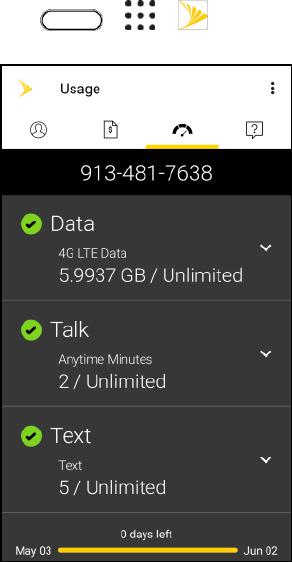
Entertainment and Activities 195
My Sprint
Use My Sprint to access your Sprint Mobile account, check your usage and billing, and get phone
information and help.
■ Tap > > My Sprint.
Tap the Account tab to check and manage your Sprint Mobile account.
Tap the Billing tab to sign in and pay your bill.
Tap the Usage tab to find out your data, talk, and text usage.
Tap the Support tab get help with your device or service.
Note: My Sprint categories and options are subject to change. Check back frequently for new content and
updates.
HTC BoomSound for Speakers
Immerse yourself in surround sound whether you're listening to music or enjoying movies and games.
1. From the Home screen, tap , and then find and tap Settings.
2. Tap HTC BoomSound for built-in speakers to toggle between Theater mode and Music mode.
Note: HTC BoomSound is not available over HDMI, Bluetooth, Miracast, or USB audio out.

Entertainment and Activities 196
Tune Your HTC USonic Earphones
Experience music tuned to your ears when you use your HTC USonic earphones with HTC U11. The
earphones will scan your ears to determine the output level that best suits you.
Note: The HTC USonic earphones can only be used with HTC U11 and other compatible HTC phones
supporting HTC USonic.
1. Plug your HTC USonic earphones into the phone, and then put the ear buds into your ears.
2. If this is your first time to plug in the earphones and you're prompted to set up a personal audio
profile, tap Start.
– or –
Go to Settings and then tap HTC USonic with Active Noise Cancellation.
3. Tap Start scanning now and then wait for the phone to finish setting up your audio profile.
4. Tap Done.
Notes:
● You can add another profile for the same or another set of HTC USonic earphones. Go to
Settings and then tap HTC USonic with Active Noise Cancellation > .
● To turn your personal audio profile that's tuned for your earphones on or off, just tap the HTC
USonic with Active Noise Cancellation On/Off switch in Settings or in the notification panel when
you're listening to music, watching movies, or playing games.
● HTC BoomSound is not available over HDMI, Bluetooth, Miracast, or USB audio out.
Turn Active Noise Cancellation On or Off
Active Noise Cancellation tunes out distracting and annoying background noise. It is turned on by default
after you've created your personal audio profile for the first time.
With the HTC USonic earphones plugged in, hear music, videos, or games clearly without needing to turn
up the volume in loud environments. When you don't need Active Noise Cancellation, you can turn it off.
Note: In some regions, you may need to download and install the latest system update to turn Active
Noise Cancellation on or off separately from your personal audio profile.
■ To turn Active Noise Cancellation off or back on, slide the notification panel open, and then tap
on the HTC USonic with Active Noise Cancellation notification.
■ Turning off your personal audio profile also turns off Active Noise Cancellation. While using an
app that plays audio, slide the notification panel open, and then tap Disable HTC USonic. Or go
to Settings, and then tap the HTC USonic with Active Noise Cancellation On/Off switch.

Connections Settings 198
Connections Settings
The following topics introduce your phone’s basic settings menus and cover your phone’s Connections
settings options.
Basic Settings
Your phone’s settings menu provides access to all your phone settings, from connections, display, and
sounds, to accounts, applications, and more.
Access Settings
1. Tap > Settings.
The settings menu opens.
2. Select categories and then select your settings options.
Settings are made and applied.
Tip: You can also access settings from the notification panel. Swipe down from the top of the screen to
open the Notification panel, and then tap .
The table below outlines the top-level settings categories.
Category
Description
Airplane mode
Turn Airplane mode on or off.
Wi-Fi
Enable and set Wi-Fi options.
Wi-Fi Calling
Enable and set up Wi-Fi Calling.
Bluetooth
Enable Bluetooth connections.
Mobile data
Settings for your mobile network and data connection.
HTC Connect
Options where to play media.
More
Settings for data usage, NFC, Mobile network sharing, VPN, and USB
connection.
Personalize
Options for customizing your phone’s wallpaper, navigation bar, themes,
sound, and more.
Fingerprint scanner
Options to add and manage your fingerprints and the fingerprint sensor.

Connections Settings 199
Accounts & sync
Set up your email and social network accounts.
Location
Select your phone’s location access options.
Security
Set up a screen lock and other security features.
Accessibility
Set accessibility options such as screen magnification, TalkBack, and more.
Backup & reset
Options for selecting the backup account, restoring a backup, and resetting
the phone.
Get content from
another phone
Options for transferring content from an old phone to your new HTC phone.
Google
Options for all Google apps and features on your phone.
Edge Sense
Turn Edge Sense on or off or to set it up.
Display, gestures &
buttons
Change the display, motion gestures, and G-Sensor settings.
HTC BoomSound for
built-in speakers
Turn HTC BoomSound for built-in speakers on or off.
HTC USonic with Active
Noise Cancellation
Tune your HTC USonic earphones (included in the box) and create an audio
profile that is optimized for your hearing.
Sound & notification
Set your sound profile, volumes, incoming call options, and system sounds.
Call
Options for received calls, voicemail settings, and others including hearing
aids and CDMA call settings (TTY mode, DDTM mode, plus code dialing,
etc).
Apps
View all downloaded or running apps, uninstall apps, search for an app and
more.
Storage
View your phone and SD card storage, set the SD card mode, and more.
Power
Check your battery level, and battery usage, turn on power saver and
extreme power saving mode, and more.
Memory
View your phone memory use and check which apps use the most memory.
Language & keyboard
Change the language and the onscreen keyboard settings.
Date & time
Change the date and time and date/time format.

Connections Settings 200
Printing
Choose print services using Google Cloud Print.
System updates
Options for updating your profile, PRL, UICC, and phone software.
About
View your phone’s hardware and software information.
Tip: You can also swipe right on the Settings screen to see the list of main settings and quickly jump from
one setting to another. You can also tap in Settings to easily find options and settings.
Airplane Mode Settings
Enable or disable Airplane mode.
■ See Airplane Mode for details.
Wi-Fi Settings
Your phone lets you take advantage of Wi-Fi hotspots for high-speed data access using available
computer networks.
■ See Wi-Fi for details.
Wi-Fi Calling
Enable and set up Wi-Fi Calling on your phone.
■ See Wi-Fi Calling for details.
Bluetooth Settings
Your phone’s Bluetooth capabilities let you use wireless headsets, send and receive pictures and files,
and more.
■ See Bluetooth for details.
Mobile Data Settings
This menu lets you turn your data connection on or off, and more.
■ See Data Services General Information (4G LTE and 3G Networks) for details.
HTC Connect Settings
Configure settings for HTC Connect.
■ See HTC Connect for details.
More Wireless & Network Settings
Additional options that let you view your data usage and set up VPN.

Connections Settings 201
1. Tap > > Settings.
2. Under Wireless & networks, tap More and select an option.
Data usage: Check how much data usage have you been using or check the data usage of
certain apps. See Manage Your Data Usage.
NFC: Share information wirelessly with other NFC-enabled device or pay securely using your
phone. See Share Content with NFC.
Mobile network sharing: Use these settings to turn Mobile Hotspot on or off, or enable
Bluetooth tethering. See Bluetooth Tethering.
VPN: Configure your Virtual Private Network (VPN) settings so you can connect to your
company’s intranet sites. See Virtual Private Networks (VPN).
USB connection: Select the USB connection type when you connect the phone to your
computer.
Device Settings 202
Device Settings
Adjust your phone's sound, display, storage, apps and battery settings.
Edge Sense
Configure settings for Edge Sense.
■ See Edge Sense for details.
Display, Gestures & Buttons Settings
Adjusting your phone’s display and gestures settings not only helps you see what you want, it can also
help increase battery life.
Glove Mode
Turn Glove mode on to get better screen responses even when you’re wearing gloves.
1. Tap > > Settings.
2. Tap Display, gestures & buttons.
3. Select the Glove mode option.
When Glove mode is turned on, you'll be able to see where you've tapped the touch screen.
Font Size
You can adjust the size of fonts for easier reading.
1. Tap > > Settings.
2. Tap Display, gestures & buttons.
3. Tap Font size.
4. Drag the slider to the desired font size.
5. Tap .
Auto-rotate Screen
By default, the screen orientation automatically changes when the phone is rotated.
To disable automatic screen orientation:
1. Tap > > Settings.
2. Tap Display, gestures & buttons.
Device Settings 203
3. Clear the Auto rotate screen option and tap .
Notes:
● Not all application screens support automatic rotation. The screen orientation automatically
changes to landscape mode when you turn the phone sideways.
● The TalkBack accessibility feature works best if you turn off auto-rotate. For details, see Navigate
Your Phone with TalkBack.
Display Size
You can adjust the size of texts and screen content for your viewing comfort.
1. Tap > > Settings.
2. Tap Display, gestures & buttons.
3. Tap Display size and then select the size to use.
Brightness Level
By default, the screen brightness automatically adjusts depending on the surrounding lighting conditions.
1. Tap > > Settings.
2. Tap Display, gestures & buttons.
3. Tap Brightness level.
4. Drag the slider to adjust the brightness.
5. Tap OK.
Set the Maximum Brightness Level
You can set the maximum brightness level for your phone screen.
1. Tap > > Settings.
2. Tap Display, gestures & buttons.
3. Tap Brightness level.
4. Clear the Automatic brightness option.
5. Drag the slider to adjust the maximum brightness level.
Quickly Adjust the Brightness
1. Swipe down from the status bar with two fingers to open Quick Settings.
Device Settings 204
2. Drag the Brightness indicator left or right to adjust the brightness intensity.
Color Temperature
Adjust the display's color temperature.
1. Tap > > Settings.
2. Tap Display, gestures & buttons.
3. Tap Color temperature, and then drag the slider to the desired color temperature.
Night Mode
Enable Night mode in the evening to filter out blue light that can strain your eyes.
1. Tap > > Settings.
2. Tap Display, gestures & buttons.
3. Tap Night mode, and then tap the On/Off switch to turn it on.
4. Drag the slider to adjust the color temperature. Dragging the slider to Warmer filters out more
blue light.
5. Tap Enable Night mode automatically to set a schedule when Night mode will be turned on.
Screen Saver
Select your phone’s screensaver when it’s idle or docked.
1. Tap > > Settings.
2. Tap Display, gestures & buttons.
3. Tap Screen saver, and then select a screensaver.
4. Tap .
Screen Timeout (Sleep)
After a period of inactivity, the phone screen turns off to conserve battery power. You can set the idle time
before the screen turns off.
Tip: To turn off and lock the screen quickly, press the Power/Lock button.
1. Tap > > Settings.
2. Tap Display, gestures & buttons.
Device Settings 205
3. Tap Screen timeout, and then tap the time before the screen turns off.
Note: Extended screen timeout periods reduce the battery’s talk and standby times.
Buttons Settings
Control the button settings on the phone.
1. Tap > > Settings.
2. Tap Display, gestures & buttons.
3. Tap Navigation button backlight, and then select whether you want the navigation button
backlight to automatically turn off or to always light up.
4. Select Menu button to use the Recent Apps key as the menu button for certain apps.
Media Gesture
Select this option to allow other apps to recognize the 3-finger gesture.
Note: The 3-finger gesture may not be available when TalkBack gestures are enabled. For details, see
Navigate Your Phone with TalkBack.
1. Tap > > Settings.
2. Tap Display, gestures & buttons.
3. Tap Media gesture to select or clear this option.
Launch Camera Using the Power Button
Select this option to quickly open the Camera app by pressing the Power/Lock button twice.
1. Tap > > Settings.
2. Tap Display, gestures & buttons.
3. Select the Press power button twice for camera option.
Motion Launch Gestures
Configure the Motion Launch gesture from this setting. See Motion Launch for details.
1. Tap > > Settings.
2. Tap Display, gestures & buttons.
3. Tap Motion Launch gestures and enable this feature.
HTC BoomSound for Built-in Speakers
Tap this option to select a sound mode for the HTC BoomSound for the built-in speakers.

Device Settings 206
■ See HTC BoomSound for Speakers for details.
HTC USonic with Active Noise Cancellation
Connect your HTC USonic headphones to your HTC U11 and then tap this option to tune your
headphones based on your hearing.
■ See Tune Your HTC USonic Earphones for details.
Sound & Notification Settings
The Sound & notification settings menu lets you control your phone’s audio, from ringtones and alerts to
touch tones and notifications.
Sound Profile and Vibrate
Use the following settings for such features as silent mode, vibrate, and overall phone volume.
1. Tap > > Settings.
2. Tap Sound & notification > Sound profile.
3. Select Normal, Vibrate, or Silent.
Note: If you selected Vibrate as your sound profile (step 2), your phone will vibrate for all notifications
and incoming calls.
4. Tap .
5. To set your phone to always vibrate for calls in addition to any ringer settings, select the Vibrate
option below Volumes.
Volumes
You can separately adjust your phone’s multimedia, ringtone and notifications, and alarm volumes.
1. Tap > > Settings.
2. Tap Sound & notification > Volumes.
3. Drag the volume sliders on the screen to adjust the ringtone and notifications, music and videos,
and alarm volumes.
4. Tap Done.
Note: You can adjust the ringer volume in standby mode (or the earpiece volume during a call) by
pressing the Volume button.
Notification and Alarm Sound
You can set the notification and alarm sound.
1. Tap > > Settings.

Device Settings 207
2. Tap Sound & notification.
3. Tap Notification sound or Alarm.
4. Select the sound you want and tap Apply.
Do Not Disturb
Use Do not disturb mode to reject calls, and silence audible alerts and notifications, but still keep a data
connection available.
1. With two fingers, swipe down from the top of the screen to open Quick Settings.
2. Tap Do not disturb . If necessary, swipe to the next screen.
3. Tap Total silence, Alarms only, or Priority only depending on if you want to allow exceptions.
When Priority only is selected, you can receive messages or calls from contacts in your
exceptions list.
4. Tap Until you turn this off if you want to turn off Do not disturb by yourself or tap or to
set the number of hours before Do not disturb turns off automatically.
5. Tap Done to activate it.
The Do not disturb icon will appear in the status bar.
6. You can also tap More settings and then select Auto decline incoming calls to decline
incoming calls and have them sent to voicemail.
Tips:
● When the screen is on, press the Volume button and then tap End now to turn off Do not disturb
mode quickly.
● When you press the Volume down button until you reach silence mode, Do not disturb Alarms
only mode is activated.
Note: When Do not disturb is on, the notification LED will not flash.
Block Visual Disturbance
You can set Do not disturb mode to block visual disturbances such as pop up notifications.
1. Tap > > Settings.
2. Tap Sound & notification.
3. Tap Do not disturb > Block visual disturbances.
4. Tap the On/Off switches to choose whether to block visual disturbances when the screen is on
and off.
Device Settings 208
Allow Notifications and Contacts to Bypass Do Not Disturb Mode
Add important contacts to an exceptions list so you can still receive their calls and messages even when
Do not disturb mode is on.
1. Tap > > Settings.
2. Tap Sound & notification > Do not disturb.
3. Tap Priority only allows.
4. Tap the On/Off switch next to the items you wish to allow.
5. Tap Messages from or Calls from to select who can contact you.
6. Tap Manage approved contacts, and then tap to add contacts to your exceptions list.
7. To remove contacts or numbers from the list, tap > Remove contacts.
Set a Do Not Disturb Schedule
Schedule Do not disturb to turn on automatically and how long will it last. For example, you can set it to
turn on during a weekly meeting.
1. Tap > > Settings.
2. Tap Sound & notification.
3. Tap Do not disturb > Automatic rules.
4. Tap Add rule.
5. Select whether to base the rule on a time or an event, enter a name for the rule, and then tap OK.
6. Set the rule's parameters.
For Time rule:
• Set the days.
• Set the start and end times.
• Select a Do not disturb level.
• Choose whether to allow the rule to stop at either the rule end time or by the next alarm
you've set in the Clock app.
For Event rule:
• Select a calendar you want to make the rule for.
• Set a condition for the type of reply.

Device Settings 209
• Select a Do not disturb level.
Note: You can turn an automatic rule on or off by tapping the On/Off switch when viewing the details of
the rule.
Incoming Calls - Ringtone
You can select and assign ringtones for your incoming calls. Your phone provides a variety of ringtones
that you can set as the default ringtone of your phone.
1. Tap > > Settings.
2. Tap Sound & notification > Ringtone.
3. Tap the ringtone you want to use, and then tap Apply.
The ringtone briefly plays when selected.
Note: To set a sound file as ringtone, see Ringtone.
Incoming Calls - Other Options
Enable Quiet ring on pickup so your phone lowers the ringtone volume the moment you pick it up to
answer a call. When your phone is in your bag or pocket, enable Pocket mode so the phone rings louder
when you have an incoming call. Tap the Flip to mute option to mute the phone just by flipping it over.
You can choose to enable or disable the Quiet ring on pickup or Pocket mode incoming call features.
1. Tap > > Settings.
2. Tap Sound & notification.
3. Select or clear the Quiet ring on pickup or Pocket mode options to enable or disable the
features.
4. Tap Flip to mute and then select the mute setting.
For more information, see Motion Launch.
System Sound Settings
The System sound settings menu lets you select whether you hear tones when tapping numbers on the
dialpad, selecting onscreen options, and more.
1. Tap > > Settings.
2. Tap Sound & notification.
3. Select or customize options under the System menu.
Keypad touch tones: Select the short tones to use.
Tap sounds: Play sounds when making an onscreen selection.

Device Settings 210
Screen lock sounds: Play sounds when locking or unlocking the screen.
Pull to refresh sounds: Play sounds when pulling the screen down to refresh content.
Vibrate on touch: Vibrate when tapping soft keys and during certain other instances.
Emergency tone: Set behavior when an emergency call is placed.
Notifications - Flash Notifications
Tap this option to select when you want the Front Indicator Light (LED) to light up.
1. Tap > > Settings.
2. Tap Sound & notification.
3. Tap Flash LED for notifications, and then select Always or When screen is off.
Notifications - App Light Notifications
Tap this option to select which app events you want the Front Indicator Light (LED) to light up and notify
you.
1. Tap > > Settings.
2. Tap Sound & notification.
3. Tap Manage LED notifications.
4. Tap an app for which you want to see the Front Indicator Light (LED) to light up.
Notifications - Lock Screen Notifications
These additional options let you choose how to display app notifications on the lock screen.
1. Tap > > Settings.
2. Tap Sound & notification.
3. Tap Notifications.
4. Select an app whose notifications you want to appear on the lock screen.
5. Select whether to block or to prioritize all notifications from the selected app.
6. Tap twice.
7. Tap On the lock screen, and then choose whether to show or not to show notifications.
8. Tap Notifications access to control HTC Ice View notifications.
Device Settings 211
Apps Settings
Use the Apps menu to control your application settings or remove apps.
Uninstall Third-party Apps
Uninstall apps that you no longer need to save storage space.
1. Tap > > Settings.
2. Tap Apps.
3. Tap the application you want to uninstall.
4. On the App info screen, tap Uninstall.
5. Tap OK to confirm.
Note: You cannot uninstall programs that are preinstalled on the phone.
Clear Application Cache and Data
Free up storage space and phone memory by deleting application cache and data.
1. Tap > > Settings.
2. Tap Apps.
3. Browse to the app you want to clear and then tap it.
4. Tap Storage.
5. Tap Clear data and Clear cache.
Disable Apps
Apps, even if not used often, may be running in the background and downloading data. If an app cannot
be uninstalled, you can disable it.
1. Tap > > Settings.
2. Tap Apps.
3. Tap the application you want to disable, and then tap Disable.
Storage Settings
The Storage settings let you view and manage the phone and SD card storages.
Types of Storage
Your phone has the following storage types for your apps, data, and files.

Device Settings 212
● Phone storage. This is the internal storage which contains the Android system, preinstalled
apps, email, text messages, and cached data from the apps. You can also install apps that you've
downloaded and capture photos, videos, and screenshots to this storage.
● SD card (Storage card). Use your SD card (purchased separately) as a removable storage to
store and access your media and other files on HTC U11 or any Android phone, or set it up as an
extension of the internal storage. See SD Card Storage Settings.
● USB storage. When you plug in an external USB storage device (such as a USB flash drive or
an SD card reader). You need a special cable to connect your phone and a USB storage device.
SD Card Storage Settings
Use your SD card as removable storage when there's already content such as your media and other files
so that you don't lose that content. If you have a brand new SD card, choose whether to use it as
removable storage or set it up as an extension of the internal storage.
Removable Storage
Use a new SD card as removable storage to be able to insert and use the card on HTC U11 and other
Android phones.
Internal Storage
Set up a new SD card as internal storage for more privacy and secure use. This encrypts and formats the
SD card to work just like the internal storage.
This also expands the storage space since:
● Captured screenshots, camera shots, media, and other files will be stored on the SD card.
● Third-party apps that you installed and their data can be moved between the on-device storage
and SD card.
Important: After setting up the SD card as internal storage, the SD card can only be used on HTC U11
where it has been formatted.
Set Up Your SD Card as Internal Storage
When you insert a SD card that has not been used on HTC U11 before, the card will be mounted as
removable storage by default. If the SD card is new or doesn't have content you want to keep, you can
format the SD card to use it as internal storage for HTC U11.
See SD Card Storage Settings to find out the differences between using the SD card as removable
storage or internal storage.
Important: If there are still files on the SD card, back up the files first before you format the card.
1. Tap > > Settings.
2. Tap Storage.

Device Settings 213
3. Under Removable storage, tap next to the SD card name, and then tap Format as internal.
4. Tap Erase & format > Format.
5. Follow the onscreen instructions to move your installed apps and their data from the phone
storage to the SD card.
Tip: If you no longer want to use your SD card as internal storage, you can reformat the card as
removable storage. Before you do so, make sure to move all the apps and data from the card back to the
phone storage.
Move Apps and Data Between the Phone Storage and SD Card
If you've set up your SD card as internal storage, you can move third-party apps that you installed and
their data such as photos, media, and downloaded files to the SD card to free up phone storage space.
If you no longer want to use your SD card as internal storage, make sure to move all the apps and data
from the card back to the phone storage.
1. Tap > > Settings.
2. Tap Storage.
3. Tap the name of your SD card if you're moving app data from the phone storage to the SD card,
or tap Phone storage if you're moving data from the SD card back to the phone
4. Tap > Migrate data.
5. Tap Move.
Notes:
● Screenshots will also be migrated.
● When you take new photos or videos, capture new screenshots, or download new files after the
migration, they will be saved to the new storage location.
Move an App
When you're running out of phone storage space, you can move a downloaded app and its data to the SD
card if the card has been set up as internal storage.
If you need to reformat your SD card, make sure to move each app and its data back to the phone
storage before formatting the card.
Note: Preinstalled apps cannot be moved. Some third-party apps you've downloaded and installed to the
phone storage may also not allow you to move them to the SD card.
1. Tap > > Settings.
2. Tap Storage.
Device Settings 214
3. Tap Phone storage > Apps if you want to move an app from the phone storage to the SD card.
– or –
Tap the name of your SD card, and then tap Apps if you need to move an app from the SD card
back to the phone storage.
4. Tap the app you want to move.
5. Tap Change, and then tap where you want to move it.
6. Tap Move.
Copy or Move Files Between the Phone Storage and SD Card
You can go to Settings to view and manage files on the phone storage and SD card. If you're using your
SD card as removable storage, you can copy or move your files between the phone storage and SD card.
You can also copy or move files to or from an external USB storage device when you have it connected
to HTC U11.
1. Tap > > Settings.
2. Tap Storage.
3. Tap Phone storage > Explore or tap the SD card name.
– or –
Tap the external USB storage device if you have one connected.
4. Open the folder that contains the files you want to copy or move.
5. To select or deselect files:
Touch and hold a file to select it. To select more files, tap each file.
Tap a file to deselect it.
To select all files, touch and hold a file first, and then tap > Select all.
6. Tap , and then tap Copy to or Move to.
7. In the slideout menu that opens, choose the type of storage where to copy or move to, and then
open the destination folder.
8. Tap Copy or Move.
Copy Files To or From Your Phone
You can copy your music, photos, and other files to your phone.
Important: Save and close your files before copying them from your computer to HTC U11, or vice versa.
Device Settings 215
Note: If you're using your SD card as internal storage, your computer will only show SD card content.
1. Connect your phone to the computer using the supplied USB cable.
2. On your phone, unlock the screen if it's locked.
3. On the pop-up message that asks whether to use USB for file transfers, tap Yes. If you don't see
this message, slide the notification panel open, tap the Use USB for notification, and then tap
Transfer files.
You'll then see options for viewing or importing files on the computer screen.
4. Choose to view files.
5. Copy the files from your computer to your phone, or vice versa.
6. After copying the files, disconnect the phone from the computer.
Make More Storage Space
As you use your phone, you’ll accumulate data and fill its storage capacity over time. Here are some tips
on how to increase storage space.
Manage Photos and Videos
● After taking continuous camera shots, keep only the best shot and discard the rest, if you don't
need them.
● After editing a photo or trimming a video, the original file is kept. Delete original files or move
them to online storage or to your computer.
● If you are only sending videos through MMS, use a lower resolution. High-resolution video takes
up more space.
● RAW image files take up a lot of storage space. It's recommended to use an SD card as the
default storage for photos and videos. If your SD card is running low on space, consider moving
RAW image files to your computer.
Remove Unused Themes
Themes can quickly consume storage space because themes can include images, sounds and icons.
Remove themes you're not using. For details, see Delete a Theme.
Back up Data and Files
Keep only the most recent data in your apps and files that you often need to use. You can back up your
other data and files. For some tips, see Backup.
Remove or Disable Apps
Uninstall apps that you've downloaded if no longer need them. See Uninstall Third-party Apps.
Preinstalled apps can be disabled when you're not using them. See Disable Apps.
Device Settings 216
Move Apps to the SD card
Third-party apps that you've downloaded and installed can be moved to the SD card if you've set up the
card as internal storage. See SD Card Storage Settings.
Power Settings
Use the Power settings to check the phone’s battery, enable Power saver mode, and more.
Battery Optimization for Apps
When you have connections such as Wi-Fi on while the phone is in sleep mode, some apps may still
continue to use the battery. Starting from Android 6.0, battery optimization is enabled for all apps by
default which helps prolong battery standby time when you're not using the phone.
The phone needs to be sitting idle for an extended period of time before battery optimization takes effect.
Turn Battery Optimization Off in Apps
If there are apps that you don't want battery optimization enabled, you can turn the feature off in those
apps.
1. Tap > > Settings.
2. Tap Power.
3. Tap Battery optimization.
4. Tap Not optimized > All apps to see the complete list of apps.
5. To turn off battery optimization in an app, tap the app name, and then tap Don't optimize >
Done.
6. Repeat this process to turn off optimization in other apps.
Note: To filter the list and see which apps have battery optimization disabled, tap Battery optimization >
Not optimized.
Use Power Saver Mode
Power saver mode helps to increase battery life. It reduces the usage of phone features that drain the
battery such as the display and data connection.
1. Tap > > Settings.
2. Tap Power.
3. Tap the Power saver On/Off switch to turn Power saver mode on or off.
Tip: To set when to automatically switch this mode on, tap Power saver > Turn on automatically, and
then select a battery level.

Device Settings 217
Use Extreme Power Saving Mode
In times when you don’t need to use much of your phone, turn Extreme power saving mode on to extend
battery life longer. In this mode, standby time can last longer than usual, and you can only use the most
basic functions such as phone calls, text messaging, and email.
1. Tap > > Settings.
2. Tap Power.
3. Tap the Extreme power saving mode On/Off switch to turn Extreme power saving mode on or
off.
Tip: If you want to set when to automatically switch this mode on, tap Extreme power saving mode and
select a battery level.
Check Battery Usage
See a ranking list of apps that are using the battery. You can also see how much and how long the
battery has been used for each app.
1. Tap > > Settings.
2. Tap Power > Battery usage, and then tap an app to check how it’s using the battery.
3. If you see the Adjust power use section while viewing battery use details, you can tap the option
underneath it to adjust settings that affect battery usage.
Tip: Another way to check the battery usage per app is to go to Settings > Apps. Tap the app you want
to check, and then tap Battery.
Note: If the Battery option on the App info screen is grayed out, it means the app is currently not using
the battery.
Check Battery History
Check how long you’ve been using the phone since the last charge. You can also see a chart that shows
how long the screen has been on, and how long you’ve been using connections like the mobile network
or Wi‑Fi.
1. Tap > > Settings.
2. Tap Power > History to view battery usage time.
Display the Battery Percentage
You can check the percentage of remaining battery power right from the status bar.
1. Tap > > Settings.
2. Tap Power.
3. Select Show battery level.
Device Settings 218
Battery Saving Tips
How long the battery can last before it needs recharging depends on how you use your phone. The power
management features of your phone helps increase battery life.
Use the Power Management Features
● Turn Power saver mode and Extreme power saving mode on in Settings.
● Monitoring your battery usage helps identify what's using the most power so you can choose
what to do about it. See Check Battery Usage.
Manage Your Connections
● Turn off wireless connections such as mobile data, Wi‑Fi, or Bluetooth when not in use.
● Turn GPS only when a precise location is needed, such as while using navigation or location-
based apps. For details, see Location Setting.
● Turn on Airplane mode when you don’t need any wireless connections and you don’t want to
receive calls or messages. For details, see Airplane Mode.
Manage Your Display
Lowering the brightness, letting the display sleep when not in use, and keeping it simple helps save
battery power.
● Use automatic brightness (the default), or manually lower the brightness.
● Set the screen timeout to a shorter time. For more details, see Security Settings.
● Don’t use a live wallpaper for your Home screen. Animation effects are nice to show off to other
people but they drain your battery. Changing your wallpaper to a plain, black background can
also help a little. The less color is displayed, the less battery is used. For more details, see
Display, Gestures & Buttons Settings.
Manage Your Apps
● Battery optimization helps extend battery standby time. For details, see Battery Optimization for
Apps.
● Install the latest software and application updates. Updates sometimes include battery
performance improvements.
● Uninstall or disable apps that you never use.
Many apps run processes or sync data in the background even when you’re not using them.
If there are apps that you don’t need anymore, uninstall them. See Uninstall Third-party Apps.
If an app came preloaded and can’t be uninstalled, disabling the app can still prevent it from
continuously running or syncing data. For details, see Disable Apps.
Device Settings 219
Limit Background Data and Sync
Background data and sync can use a lot of battery power if you have many apps syncing data in the
background. It’s recommended not to let apps sync data too often. Determine which apps can be set with
longer sync times, or sync manually.
● In Settings, tap Accounts & sync and check what types of data are being synced in your online
accounts. When the battery is starting to run low, temporarily disable syncing some data.
● When you’re not traveling from one place to another, sync weather updates of only your current
location, rather than in all of your named cities. Open the Weather app, and then tap to edit and
remove unneeded cities.
● Choose widgets wisely. Some widgets constantly sync data. Consider removing the ones that are
not important from your Home screen.
● In Play Store, tap > Settings, and then clear Add icon to Home screen to avoid
automatically adding Home screen app shortcuts whenever you've installed new apps. Also tap
Auto-update apps > Do not auto-update apps if you're fine with updating apps from Play Store
manually.
More Battery Saving Tips
To squeeze in a little bit more battery power, try these tips.
● Tone down the ringtone and media volume.
● Minimize the use of vibration or sound feedback. In Settings, tap Sound & notification and
choose which ones you don’t need and can disable.
● Check your apps’ settings as you may find more options to optimize the battery.
Memory Settings
Use the Memory settings to check the phone's average memory use or to find out how much memory is
being used by individual apps.
1. Tap > > Settings.
2. Tap Memory.
You'll see the average memory use of your phone.
3. To change the monitoring duration, tap the duration hours and select a duration time.
4. To find out how much memory is being used by apps, tap Memory used by apps.
Personal Settings 220
Personal Settings
Use these options to personalize your phone, set security, or manage your online accounts and apps.
Personalize Settings
Use the Personalize menu to customize your phone’s display, add items to the Home screen, or change
the sound settings.
Customize the Home and Lock Screen Settings
Using the phone’s Personalize home screen menus, you can set the following settings.
● Customize the wallpaper of your Home screen by choosing from a collection of wallpapers or
from your own photos. See Customize the Home Screen.
● Add apps and widgets to the widget panels. See Work with Widgets and Shortcuts.
● Manage additional home screen panels. See Organize Your Widget Panels.
● Change the lock screen wallpaper. See Customize the Lock Screen.
● Change the phone’s theme. See Themes.
Ringtone
Use the Ringtone settings menu to select a phone ringtone or to make your own music as ringtone.
1. Tap > > Settings.
2. Tap Personalize > Ringtone.
3. Do any of the following:
Select a ringtone from the list and tap Apply.
Add a ringtone from your music or Themes. Tap , tap Themes or Music and then follow
screen instructions.
Notification Sound
The Notification sound menu lets you select your phone’s notification sound.
1. Tap > > Settings.
2. Tap Personalize > Notification sound.
3. Select a sound and tap Apply.
Personal Settings 221
Alarm
Tap this option to select an alarm sound. For details on how to set an alarm, see Set Alarms.
1. Tap > > Settings.
2. Tap Personalize > Alarm.
3. Select a sound and tap Apply.
Tip: Tap to add an alarm sound from music on your phone or from Themes.
Font
Use these options to select a font and set the font size.
1. Tap > > Settings.
2. Tap Personalize > Font style.
3. Select a font and tap .
Tip: To install more fonts to your phone, tap .
4. Tap Font size, and then select the size you want.
Keyboard and Dialer Color
Tap any of these options to change the keyboard and dialer color.
1. Tap > > Settings.
2. Tap Personalize > Keyboard color or Dialer color.
3. Select a color and tap .
Fingerprint Scanner Settings
Tap this option to add and manage fingerprints or configure the fingerprint sensor.
■ See Fingerprint Scanner.
Accounts & Sync Settings
The Accounts & sync settings menu lets you add and manage all your email, social networking, online
storage, and HTC account.
Add Your Social Networks, Email Accounts, and More
Add your favorite social networks, email accounts, and online storages on your phone so you are
connected anywhere you go.

Personal Settings 222
1. Tap > > Settings.
2. Tap Accounts & sync.
3. Tap .
4. Tap an account type. You can set up these accounts on your phone: Amazon Photos, Exchange,
Facebook, Google, HTC Account, LinkedIn for HTC Sense, IMAP/POP3 email, and more.
5. Enter your account information and follow screen instructions to proceed.
Note: Depending on the account type, you may need to enter an email address or user address,
password, domain name, or other information. For Exchange ActiveSync accounts, contact your server
administrator to determine what information you will need.
Add One or More Google Accounts
Sign in to your Google Account to see your Gmail, contacts, and calendars, and to use Google apps on
your phone.
■ See Create a Google Account.
Forgot Your Google Account Password?
If you have forgotten your Google Account password, you can try to recover it by going to the Google
website.
1. On your phone or computer, open your Web browser.
2. Go to google.com/accounts/recovery.
3. Select I don’t know my password.
4. Enter the email address or username that you use to sign in to your Google Account and click
Continue.
5. Follow the instructions on the screen to reset your password.
Manage Your Online Accounts
Manage the online accounts you have associated with your phone.
Remove an Account
You can remove an account from your phone. Removing an account does not remove accounts and
information from the online service itself.
1. Tap > > Settings.
2. Tap Accounts & sync.
3. Tap the account that you want to remove.

Personal Settings 223
4. Tap or > Remove.
5. Tap Remove account to confirm.
Important: Some personal data may be retained by the third-party app after you have removed the
account from your phone.
Sync All Your Accounts Automatically
1. Tap > > Settings.
2. Tap Accounts & sync.
3. Tap the Auto sync On/Off switch to turn automatic sync on or off.
Change Synced Data or Settings for an Account
1. Tap > > Settings.
2. Tap Accounts & sync.
3. Tap the account that you want to update.
4. Tap the item you want to sync or edit.
Location Settings
Your Location settings menu lets you select how your phone determines its location (using the wireless
network, GPS satellites, both, or neither).
Location Setting
Your phone is equipped with a Location setting for use in connection with location-based services.
The Location feature allows the network to detect your position. Turning Location off will hide your
location from everyone except 9-1-1.
Note: Turning on Location will allow the network to detect your position using GPS technology, making
some Sprint applications and services easier to use.
To enable your phone’s Location setting feature:
1. Tap > > Settings.
2. Tap Location.
3. Tap the On/Off switch to turn location services on and off.
4. Under Location sources, tap Mode to select the location mode you want. For example, for a
better estimate of your location, choose High accuracy. To save battery power, choose Battery
saving.
Personal Settings 224
When you turn the Location setting feature on, the phone displays the icon on the status bar. When
you turn Location setting off, the phone displays the icon.
Important: Turning off a location service means no applications on your phone will collect your location
data through that location service. However, third party applications may collect — and your phone may
continue to provide — location data through other services, including through Wi‑Fi and signal
triangulation.
Google Location History
Select this option if you want to allow Google to collect anonymous location data or to allow certain apps
to determine your location.
1. Tap > > Settings.
2. Tap Location.
3. Tap Google Location History.
4. Tap the On/Off switch to turn this setting on or off.
Security Settings
Use the Security settings to help increase your phone security, privacy, and more.
Screen Lock Settings
You can increase the security of your phone by creating a screen lock. When enabled, you will be asked
to draw the correct unlock pattern on the screen, enter the correct PIN, or enter the correct password to
unlock the phone’s control keys, buttons, and touchscreen. You can also use face recognition to unlock
your screen.
Enable or Disable the Lock and Security Screens
1. Tap > > Settings.
2. Tap Security.
3. Tap Screen lock to show the lock screen and not the security screen.
4. Tap None to disable both the lock and security screens.
Use Face Unlock - Smart Lock
1. Tap > > Settings.
2. Tap Screen lock, and then select and set up a screen lock. This will be your backup screen lock
method to use in case the phone doesn’t recognize you or a trusted device.
3. On the Security screen, tap Smart Lock.
Personal Settings 225
4. Confirm your screen lock and tap Next.
5. Tap Trusted face.
6. Tap Set up > Next and follow the screen instructions.
7. Tap Lock phone after, and then specify the idle time before the screen is locked.
To help make Smart Lock more reliable and more secure, you can to train HTC U11 to recognize your
face in different situations, such as when you’re wearing glasses or sporting a beard.
Tap Smart Lock, confirm your screen lock, then tap Trusted face > Improve face matching. Follow the
onscreen instructions.
Use a Screen Unlock Pattern
1. Tap > > Settings.
2. Tap Security.
3. Tap Screen lock > Pattern.
4. Draw the screen unlock pattern by connecting at least four dots in a vertical, horizontal, or
diagonal direction. Lift your finger from the screen when finished.
5. The phone records the pattern. Tap Continue.
6. When prompted, draw the screen unlock pattern again, and then tap Confirm.
Note: If you fail to draw the correct unlock pattern on the screen after five attempts, you will be prompted
to wait for 30 seconds before you can try again.
Tip: To change your unlock screen pattern, tap Screen lock on the Security screen. Draw your current
screen unlock pattern and then tap Pattern.
Use a Screen Unlock PIN
1. Tap > > Settings.
2. Tap Security.
3. Tap Screen lock > PIN.
4. Enter a PIN and tap Continue.
5. Enter your PIN again to confirm and tap OK.
Note: If you fail to enter the correct PIN after five attempts, you will be prompted to wait for 30 seconds
before you can try again.

Personal Settings 226
Use a Screen Unlock Password
1. Tap > > Settings.
2. Tap Security.
3. Tap Screen lock > Password.
4. Enter a password and tap Continue.
5. Enter your password again to confirm and tap OK.
Note: If you fail to enter the correct password after five attempts, you will be prompted to wait for 30
seconds before you can try again.
Lock Screen and Password Settings
Increase your privacy by selecting what type of information you want to display on the lock screen. You
can also choose to make passwords invisible as you enter them on your phone.
1. Tap > > Settings.
2. Tap Security.
3. Do any of the following:
Select the Incoming phone calls option to hide the private contact’s name and photo on the
lock screen. See Private Contacts.
Clear the Make passwords visible option (recommended) to make passwords invisible as
you enter them on your phone.
Allow Installation of Third-Party Apps
By default, you can only install apps downloaded from Google Play. The Security menu lets you allow
installation of non-Play Store apps on your phone.
To allow installation of non-Play Store apps on the phone:
1. Tap > > Settings.
2. Tap Security.
3. Select the Unknown sources option.
Important: After installing the app, go back to Settings > Security and make sure to clear the Unknown
sources option. This can help protect your phone from installing other insecure apps from the Web.
Install Digital Certificates
Use client and Certificate Authority (CA) digital certificates to enable your phone to access VPN or
secured Wi-Fi networks, and also to provide authentication to online servers. You can get a certificate
from your system administrator or download it from sites that require authentication.

Personal Settings 227
Notes:
● You must set a lock screen PIN or password before installing a digital certificate.
● Some apps such as your browser or email client let you install certificates directly in the app. See
the app’s help for details.
1. Save the certificate file in the root folder of your SD card.
2. Tap > > Settings > Security.
3. Tap Install from SD card.
4. Browse to the certificate and select it.
5. Enter a name for the certificate and select how it will be used.
6. Tap OK.
Backup and Reset
Find ways on how to back up your data or how to reset the phone.
Backup
Always keep important stuff on your phone. Back up your phone before you erase the storage, do a
factory reset, or upgrade to a new phone.
● Android Backup Service. Use your Google Account to automatically back up app data and
settings including Wi-Fi passwords and files stored by certain apps. For details, see Android
Backup Service.
● HTC Sync Manager. Use HTC Sync Manager to import music, photos, and videos to your
computer. You can also sync locally stored contacts, calendar events, bookmarks, documents,
and playlists to your computer. Likewise, HTC Sync Manager is a good alternative if you don’t
want to back up your accounts, settings, and other personal content to the cloud. You can use it
to create backups of your phone on your computer. For details, see HTC Sync Manager.
● Other backup options. Separately back up other data and file types if they’re not supported in
HTC Backup and HTC Sync Manager. In some apps, you can back up data to the storage on the
phone so you can easily restore them after a factory reset.
Contacts. Save contacts and other personal data to your online accounts so you can just
sync them when switching to another phone. If you have locally stored contacts in the People
app, export them to the storage on the phone. See Back Up and Restore Contacts.
Files. Manually copy and paste files by connecting your phone to your computer as a disk
drive. You can also upload files to online storage and services.
Note: If you’re backing up data to the storage, don’t choose to erase the storage when you do a factory
reset.
Personal Settings 228
Android Backup Service
Starting from Android 6.0, use the Android Backup Service to back up your HTC phone to Google Drive.
This service can back up and restore the following:
Back up
What content or settings are backed up
App data
● In HTC apps, app data includes contacts stored on HTC U11, call history,
Clock and Weather city list, and email accounts.
● Data from third-party apps may also be saved in the backup, depending on the
app developer settings.
Settings
These include ringtones, grid size and sort order on theApps screen, Wi-Fi networks
and passwords and some device settings.
When auto backup is enabled, the Android Backup Service periodically backs up your phone to a private
folder in Google Drive. Auto backup occurs every 24 hours when the phone is idle, charging, and
connected to a Wi-Fi network.
Backup data will not count towards your Google Drive storage quota. Large files or files that app
developers have chosen to exclude from the service will not be backed up.
Note: Restoring your wallpaper from your old phone may depend on screen resolution compatibility of
both your old phone and HTC U11
Back up HTC U11
Automatically back up HTC U to Google Drive so you can restore content such as app data and settings
when needed.
1. Tap > > Settings.
2. Tap Backup & reset.
3. Tap Back up my data.
4. Tap the On/Off switch to turn it on, and then tap .
5. Make sure Automatic restore is turned on.
This allows an app's data and settings saved through the Android Backup Service to be
restored when you reinstall the app on HTC U11.
Tip: To select a backup account other than your primary Google Account, tap Backup account and then
select another Google Account. You can also tap Add account to add a new Google Account for your
backup.
Personal Settings 229
Factory Data Reset
Reset your device to factory defaults, erasing all data from your device.
This action permanently erases ALL data from the device, including Google or other account settings,
system and application data and settings, downloaded applications, as well as your music, photos,
videos, and other files. Any data found on an external SD card is not affected.
Note: When you sign in to a Google Account on your device, Factory Reset Protection is automatically
activated. This protects your device in the event it is lost or stolen. For more information, see Factory
Reset Protection .
If you reset your device to factory default settings with the Factory Reset Protection (FRP) feature turned
on, you must enter the user name and password for a registered Google Account used on this device to
regain access to the device. You will not be able to access the device without the correct credentials.
Warning: If you reset your Google Account password, you must wait 24 hours after changing your
password to perform a factory data reset on your device.
Before resetting your device:
1. Verify that the information you want to keep has transferred to your storage area.
2. Log in to your Google Account and confirm your user name and password.
Note: A factory reset may not permanently erase all data from your phone, including personal
information.
Reset Your Phone via Settings
1. Tap > > Settings.
2. Tap Backup & reset > Factory data reset.
3. To delete media and other data on your SD card (if you installed one), select Erase SD card.
4. Tap Reset phone.
Once the phone has reset, it will run through the Hands Free Activation and update processes again.
When finished, you will see the Welcome screen and Setup application. See Complete the Setup Screens
to start over.
Reset Phone Network Settings
Reset the network settings when you're having problems connecting HTC U11 to your mobile data or Wi-
Fi network and Bluetooth devices.
1. Tap > > Settings.
2. Tap Backup & reset > Network settings reset.
3. Tap Reset settings > Reset settings.

System Settings 231
System Settings
Use these options to change the phone's language, keyboard, date and time, accessibility, and more.
Accessibility Settings
Use these settings when you’ve downloaded and installed an accessibility tool, such as a screen reader
that provides voice feedback. You can turn accessibility functions or services on or off.
1. Tap > > Settings.
2. Tap Accessibility and choose the settings you want. Options include:
TalkBack: Turn this option on if you want your phone to provide spoken feedback. TalkBack
helps blind and low-vision users.
Select to Speak: Turn this option on to hear spoken feedback when you tap an item or drag
your finger acorss multiple items on the screen.
Switch Access: Turn this option on if you want to control your phone using configurable key
combinations.
Font size: Tap this option to select a font size for better readability.
Display size: Tap this option to select the size of screen elements.
Captions: Turn this option on and then tap it to customize captions for your phone.
Magnification gesture: Tap this option to enable magnification gestures such as zooming in
or out by triple-tapping the screen.
Color inversion Select this option to improve screen visibility.
Color correction: Turn on color correction to improve screen visibility.
Unread notification reminder: Enable this option to remind you of unread notifications.
Click after pointer stops: Enable this option to set always select the item under the pointer
as soon as it stops. To set the delay before click time, tap this option.
High contrast text: Select this option to enable high-contrast text for better readability.
Power button ends call: When selected, you can press the Power/Lock button to end a
call.
Auto rotate screen: Select this option to automatically change the screen orientation when
the phone is rotated.
Speak passwords: When selected, your phone will speak the passwords you enter on your
phone.
System Settings 232
Large mouse pointer: When selected, your phone will display a large mouse pointer on
areas you tap.
Mono audio: When selected, your phone will combine channels when playing audio.
Accessibility shortcut: Tap this option to quickly turn on accessibility features on your
phone.
Text-to-speech output: Tap to select the text-to-speech engine, set the speech speed, or
listen to a speech synthesis demo.
Touch & hold delay: Set the delay when touching and holding items on the screen.
Sound balance: Tap to control the left or right channel volume.
Mono audio: Select this option to improve sound when listening with only one headphone.
Navigate Your Phone with TalkBack
Use TalkBack if you need to navigate your phone by spoken feedback. When you tap the screen, your
phone vibrates and gives you an audible response so you know what you are tapping.
Note: Not all languages are supported.
Turn TalkBack On
1. Tap > > Settings.
2. Tap Accessibility > TalkBack.
3. Tap the TalkBack On/Off switch.
4. Read the TalkBack disclaimer and then tap OK. Your phone will enable Explore by touch, which
provides an audible description of what you’re tapping on the screen.
A short tutorial explaining how to use TalkBack will begin playing after you turn on TalkBack.
Note: TalkBack works best if you turn off auto-rotate screen.
Turn Explore by Touch On or Off
Explore by touch allows HTC U11 to respond to shortcut gestures and screen touches with audible
feedback.
Note: Explore by touch is enabled when you turn on TalkBack.
1. Tap > > Settings.
2. Tap Accessibility > TalkBack.
3. Tap > Settings.
System Settings 233
4. Under Touch exploration, tap the On/Off switch next to Explore by touch to turn the feature on
or off.
When Explore by touch is disabled, HTC U11 will no longer respond to shortcut gestures or speak items
when you touch the screen.
Use TalkBack Gestures
When TalkBack and Explore by touch are turned on, the regular touch gestures are replaced by the
TalkBack gestures.
Note: Media gestures such as 3-finger swiping may not be available when TalkBack gestures are
enabled.
To open an item:
1. Drag your finger on the screen to find and select the item.
2. Double-tap anywhere on the screen to open the item.
To move an item:
1. Drag your finger on the screen to find the item.
2. Double-tap anywhere on the screen, but don’t lift your finger on the second tap.
3. Drag the item to a new spot and then lift your finger.
To scroll through a screen:
■ Use two fingers to swipe up, down, left or right.
To unlock the lock screen:
■ Use two fingers to swipe up from the bottom of the screen.
To open the notification panel:
■ Use two fingers to swipe down from the top of the screen.
Assign TalkBack Shortcuts
TalkBack has customizable gestures that you can use to open the notification panel, view recent apps,
access TalkBack controls, and more.
Important: The steps below are described using the regular gestures. Use the corresponding TalkBack
gestures if you already have TalkBack turned on.
1. Tap > > Settings.
2. Tap Accessibility > TalkBack.
3. Tap > Settings > Manage gestures.
System Settings 234
4. Tap any of the gestures under Shortcut gestures, and then select an action.
Use TalkBack Context Menus
TalkBack has a global context menu for controlling continuous reading and TalkBack controls and a local
context menu for controlling the selected text or item on the screen.These menus can be accessed using
TalkBack shortcut gestures.
1. Turn TalkBack on.
2. Do one of the following:
To open the global context menu, use one finger to swipe down and right in one continuous
movement.
To open the local context menu, use one finger to swipe up and right in one continuous
movement.
Note: If you already changed the TalkBack shortcut gestures, check your TalkBack settings for the
appropriate gesture.
3. Double-tap an item on the menu to select.
Change the TalkBack Reading Speed and Pitch
Important: The steps below are described using the regular gestures. Use the corresponding TalkBack
gestures if you already have TalkBack turned on.
1. Tap > > Settings.
2. Tap Accessibility > Text-to-speech output.
3. Drag the Speech rate and Pitch sliders to the right to increase or left to decrease.
4. Tap Listen to an example to hear the speech rate and pitch you've set.
Tip: Tap Reset speech rate or Reset speech pitch to revert the settings to their default values.
Change the TalkBack Language Settings
1. Tap > > Settings.
2. Tap Accessibility > Text-to-speech output.
3. Tap next to Google Text-to-speech Engine, and then do any of the following:
Select a different language: Tap Language.
Install a language: Tap Install voice data, and then tap the language. Tap next to the
voice data you want to install. When installation is completed, press twice and tap
Language.
System Settings 235
Note: Not all languages are supported.
Google Settings
The Google settings let you manage your Google Account and services on your phone.
1. Tap > > Settings.
2. Tap Google.
3. Tap and change the settings to your preference.
Language & Keyboard Settings
Your phone’s Language & keyboard settings let you select a language for the phones screens and
menus, as well as manage a personal user dictionary.
Change the Phone Language
Changing the language adjusts the keyboard layout, date and time formatting, and more.
1. Tap > > Settings.
2. Tap Language & keyboard > Languages.
The first language in the list is the display language.
3. Tap Add a language to add another language to the list, and then if necessary, select the
regional variant of the selected language.
4. To change the display language, touch and hold next to the language you want, and drag it to
the beginning of the list.
Tip: To remove languages from the list, tap > Remove, select the languages you want to remove, and
then tap .
Keyboard and Input Methods - Virtual Keyboard
Change the settings for the TouchPal keyboard.
■ See Adjust the Keyboard Settings.
Keyboard and Input Methods - Google Voice Typing
This option lets you choose the input language for Google voice typing, block offensive words, or
download offline speech recognition.
1. Tap > > Settings.
2. Tap Language & keyboard > Virtual keyboard.
3. Tap Google voice typing.

System Settings 236
4. Change the settings as desired.
Speech Settings
Use these settings to adjust or select your default text-to-speech output.
1. Tap > > Settings.
2. Tap Language & keyboard.
3. Tap Text-to-speech output to select the text-to-speech engine, set the speech speed, or listen
to speech synthesis demo.
Date & Time Settings
By default, your phone automatically uses the network-provided date, time zone, and time. However, you
can set the date, time zone, and time manually if you need to.
1. Tap > > Settings.
2. Tap Date & time.
3. Clear the Automatic date & time and Automatic time zone options.
4. Tap Set date, change the date and tap OK.
5. Tap Set time, adjust the time and tap OK.
6. Tap Select time zone, and then select the time zone in the list.
7. Select the Use 24-hour format option to toggle between using a 12-hour or 24-hour (military)
time format.
8. Tap Choose date format, and then select how you want dates to display on your phone. The
selected date format also applies to the date displayed in the Alarm Clock.
Enable Travel Mode
If you often travel across time zones, turn on Travel mode in Settings to see a dual clock on the Home
screen and lock screen that shows both your home and current time zones.
Notes:
● Make sure you turn on location services in your phone settings. See Location Setting.
● Set your home time zone first in the Clock app. See Clock.
1. Tap > > Settings.
2. Tap Date & time.
3. Tap the Travel mode On/Off switch to turn travel mode on or off.

System Settings 237
You'll see a dual clock of your home and current locations once your phone detects a different
time zone from the home time zone you've set.
Printing
Print from anywhere you are using Google Cloud Print™. For more information about Cloud Print, see
google.com/cloudprint.
1. Tap > > Settings.
2. Tap Printing > Cloud Print.
System Updates
From time to time, system software updates for your phone may be available. Your phone can
automatically check and notify you if an update is available. You can download and install the update to
your phone. Depending on the type of update, the update may erase all your personal data and
customized settings, and it could also remove any programs you have installed. Make sure that you have
backed up the information and files you want to keep.
Note: Checking and downloading system software updates require data access that will count towards
your monthly data allowance.
1. Tap > > Settings.
2. Tap System updates.
3. Tap any of these available settings:
Update profile: Update your online user profile information. See Update Your Profile for
details.
Update PRL: Update the Preferred Roaming List (PRL). See Update Your PRL for details.
UICC Unlock: Unlock the UICC and use a UICC card from other service providers. For more
information about UICC unlock, contact Sprint.
HTC software update: Update the phone’s operating system. See Update Your Phone
Software for details.
About Phone
The About menu lets you access important phone information and view legal and safety information.
1. Tap > > Settings.
2. Tap About.
3. Scroll through the list and select options to view or customize information.
Hardware and software version: Displays the phone hardware and software version.
System Settings 238
Software updates: Check if there are is a new software update available for your phone.
Usage and error reporting: Send error, preference, and usage reports to HTC.
Help: Enable quick tips to appear on the screen.
Network: Check the operator, signal strength, mobile network type, and more.
Phone identity: Check the phone’s name, model number, IMEI, SIM ID, MEID current user
name, and number.
Software information: View software related information such as the Android, HTC Sense,
and software versions.
Legal information: View HTC legal information, privacy alert, Google legal information and
open source licenses.

239
Getting Help
The following set of topics will cover troubleshooting tips, phone specifications, and how to contact Sprint
and manage your wireless service.

For Assistance 240
For Assistance
The following topics address areas of support for your phone, including troubleshooting, specifications,
account information, and customer service contact information.
Troubleshooting
Check the questions and answers below for troubleshooting solutions for common phone issues.
Check Here First
Problem: Phone freezes/operation is unstable.
Answer: Turn the phone on again. See Turn Your Phone On and Off. Data that was being edited is
erased after your phone is powered on again.
Problem: Operation is unstable after a new application was installed.
Answer: The newly installed application may be the cause. Uninstall the application following the
steps in Uninstall Third-party Apps. If you're unable to uninstall the app, restart the phone in Safe
mode. To turn the phone on in Safe mode:
Press and hold the Power/Lock button, touch and hold Power off, read the disclaimer for
safe mode, and then tap OK.
• After turning the phone on in Safe mode, "Safe Mode" appears at lower left.
• After restarting in Safe mode, your phone can be powered on as usual.
• Before turning the phone on in Safe mode, it is recommended that you back up important
data.
• By powering the phone on in Safe mode, added widgets may be deleted.
Problem: Cannot use the phone, email, or Internet?
Answer 1: Check whether you are where signal is weak or out of service area.
Answer 2: Power the phone on again.
Answer 3: Is the phone in Airplane mode? To check that Airplane mode is canceled:
Swipe down from the status bar with two fingers to open Quick Settings. Check if Airplane
mode is turned off.
Answer 4: Is data communication disabled? To check that data communication is enabled:
Swipe down from the status bar with two fingers to open Quick Settings. Check if Mobile
data is turned on.
For Assistance 241
Problem: Battery level goes down quickly.
Answer: Are you where signal is weak or have been out of service area for a long period? Calling
where signal is weak or being out of service area uses a lot of battery power.
Problem: Cannot install applications.
Answer: Applications cannot be installed with only a little free space on the phone or SD card. To
check free space, see SD Card Storage Settings. Applications not supported by your phone cannot
be installed.
Problem: Cannot unlock screen.
Answer: Restart the phone. Data that was being edited is erased after the phone is powered on
again.
Sprint Account Information and Help
Find out about account passwords and information about managing your account and finding help.
Sprint Account Passwords
You will need to create passwords to protect access to your personal account information, your voicemail
account, and your data services account. As a Sprint customer, you enjoy unlimited access to all your
information.
Account User Name and Password
If you are the account owner, you will create an account user name and password when you sign on to
sprint.com/mysprint. (Click Register and follow the prompts to get started.) If you are not the account
owner (if someone else receives the bill for your Sprint service), you can get a sub-account password at
sprint.com/mysprint.
Voicemail Passcode
You’ll create your voicemail passcode when you set up your voicemail. See Voicemail for more
information on your voicemail passcode.
Data Services Password
With your Sprint phone, you may elect to set up an optional data services password to control access and
authorize purchases.
For more information, or to change your passwords, sign on to sprint.com/mysprint.
Manage Your Account
Manage your Sprint account from your computer, your Sprint phone, or any other phone.
Online: sprint.com/mysprint
● Access your account information.
For Assistance 242
● Check your usage (depending on your Sprint service plan).
● View and pay your bill.
● Enroll in Sprint online billing and automatic payment.
● Purchase accessories.
● Shop for the latest Sprint phones.
● View available Sprint service plans and options.
● Learn more about data services and other Sprint products.
From Your Sprint Phone
1. Tap > .
2. Do any of the following:
Tap to access My Sprint Support tab. There you can find information about
your account and billing, connectivity, device information, and more. See Get Support from
My Sprint.
Tap to access the My Sprint Billing tab and make a payment.
Tap to check usage and account balance.
Sprint Support Services
Sprint 411 and Sprint Operator Services let you easily access information and calling assistance from
your Sprint phone.
Sprint 411
Sprint 411 gives you access to a variety of services and information, including residential, business, and
government listings; movie listings or showtimes; driving directions, restaurant reservations, and major
local event information. You can get up to three pieces of information per call, and the operator can
automatically connect your call at no additional charge.
There is a per-call charge to use Sprint 411, and you will be billed for airtime.
■ From home, tap > and then tap .
Sprint Operator Services
Sprint Operator Services provides assistance when you place collect calls or when you place calls billed
to a local telephone calling card or third party.
■ From home, tap > and then tap .
For Assistance 243
For more information or to see the latest in products and services, visit us online at sprint.com/mysprint.
Copyright Information
©2017 Sprint. Sprint and the logo are trademarks of Sprint. Other marks are trademarks of their
respective owners.
Portions of this document ©2017 HTC Corporation. All rights reserved.
HTC, the HTC logo, HTC BlinkFeed, HTC BoomSound, HTC Connect, HTC Sense, Motion Launch,
VideoPic, Zoe, and all other HTC product and feature names are trademarks or registered trademarks in
the U.S. and/or other countries of HTC Corporation and its affiliates.
Google, Android, Chrome, Gmail, Google+, Google Cloud Print, Google Drive, Google Maps, Google
Play, Google Voice Search, and YouTube are trademarks of Google Inc.
Microsoft, Windows, ActiveSync, Outlook.com, Windows Media, and Windows Vista are either registered
trademarks or trademarks of Microsoft Corporation in the United States and/or other countries.
The Bluetooth® word mark and logos are registered trademarks by Bluetooth SIG, Inc.
Wi-Fi® and Miracast are registered trademarks of the Wireless Fidelity Alliance, Inc.
Facebook is a trademark of Facebook, Inc.
Twitter is a trademark of Twitter, Inc., and is used under license.
DLNA and the DLNA disc logo are trademarks or registered trademarks of Digital Living Network Alliance.
All rights reserved. Unauthorized use is strictly prohibited.
AirPlay, Apple TV, iCloud, iMessage, iPhone, iTunes, and Mac OS are trademarks of Apple Inc.
registered in the U.S. and other countries.
Qualcomm is a trademark of Qualcomm Incorporated, registered in the United States, and other countries
and used with permission. AllPlay and the AllPlay icon are trademarks of Qualcomm Connected
Experiences, Inc., and used with permission.
BLACKFIRE RESEARCH™ is a Registered Trademark (No. 3,898,359) of BLACKFIRE RESEARCH
CORP.
LinkedIn is a registered trademark or trademark of LinkedIn Corporation and its affiliates in the United
States and/or other countries.
Instagram is a trademark of Instagram, LLC.
microSD and microSDHC are registered trademarks of SD-3C, LLC.
LTE is a trademark of European Telecommunications Standards Institute (ETSI) registered for the benefit
of its members.
All other trademarks and service marks mentioned herein, including company names, product names,
service names and logos, are the property of their respective owners and their use herein does not
For Assistance 244
indicate an affiliation with, association with, or endorsement of or by HTC Corporation. Not all marks listed
necessarily appear in this User Guide.
The HTC Sync Manager software can be used with materials that you own or are lawfully authorized to
use and/or duplicate. Unauthorized use and/or duplication of copyrighted material may be a violation of
copyright law in the United States and/or other countries/regions. Violation of U.S. and international
copyright laws may subject you to significant civil and/or criminal penalties. HTC Corporation shall not be
held responsible for any damages or losses (direct or indirect) that you may incur as a result of using this
software.
Screen images contained herein are simulated. HTC shall not be liable for technical or editorial errors or
omissions contained herein, nor for incidental or consequential damages resulting from furnishing this
material. The information is provided “as is” without warranty of any kind and is subject to change without
notice. HTC also reserves the right to revise the content of this document at any time without prior notice.
No part of this document may be reproduced or transmitted in any form or by any means, electronic or
mechanical, including photocopying, recording or storing in a retrieval system, or translated into any
language in any form without prior written permission of HTC.

Index 245
Index
3-way Calling, 99
4G, 130
Accessibility
TalkBack, 232
Accessory Jack, 12
Activation, 24
Airplane Mode, 41
Alarm, 187
Alarm Sound, 221
Android Backup Service, 228
Android Beam. See NFC
Android Market, 50
Answer a Call, 94
App Links, 39
App Permissions, 39
Applications
Clear App Cache, 211
Disable, 211
Install Third-Party Apps, 226
Uninstall, 211
Apps
Find & Install, 50
Open, 35
Open from Lock Screen, 36
Recent Apps, 37
Request Refunds, 51
Restore, 51
Uninstall, 52
Update, 51
Apps Screen
Arrange Apps, 37
Group Apps, 38
Hide/Unhide Apps, 39
Move Apps and Folders, 38
Remove Apps from Folder, 38
Back Key, 30
Backup, 227
Battery
Charge, 12
Check History, 217
Check Usage, 217
Extreme Power Saving Mode, 217
Power Saver Mode, 216
Save Power, 218
Settings, 216
Battery Saving Tips, 218
Block List, 98
Bluetooth
Connect, 139
Pair devices, 138
Receive Files, 141
Send Information, 140
Turn on or off, 138
Bonus Storage, 176
BoomSound Settings, 205, 206
Boost+, 183
Brightness, 203
Maximum Level, 203
Burst Shots, 163
Calculator, 186
Calendar
Create Event, 175
Edit Event, 175
Make Call From, 93
Show or Hide, 175
Snooze Reminders, 175
Call Forwarding, 100
Call History, 96, 97
Block Caller, 98
Make Call From, 96
Open, 97
Prepend a Number, 97
Save a Number, 97
Call Log, 97
Call Services
Call Forwarding, 100
Call Waiting, 100
Caller ID, 100
Call Waiting, 100
Caller ID, 100
Camera, 153
Capture Mode, 154
Close the App, 156
Edge Sense, 53
HDR Boost, 163
Launch, 153
RAW Photo, 169
Record Video, 158
Set Flash, 156
Slow Motion Video, 167
Index 246
Squeeze, 53
Take a picture, 157
Tips, 157
Use Volume Buttons, 156
Zooming, 156
Camera Flash, 156
Camera Mode
Burst, 163
Camera Scenes
Hyperlapse, 167
Panorama, 167
Capture Mode, 154
Car Kit
Connect, 139
Change the Language, 235
Charge the Battery, 12
Charger/Accessory Jack, 12
Chrome, 133
Classic Layout, 81
Clear App Cache, 211
Clock, 186
Check Time, 186
Set Date, 186
Stopwatch, 187
Timer, 188
World Clock, 187
Color Profile, 204
Conference Calling, 99
Contacts, 106
Add contact, 106
Save a Phone Number, 107
Contacts Screen, 108
Data Saver, 132
Data Services, 130
Data Saver, 132
Password, 241
Status indicators, 130
Track Usage, 131
Data Usage, 131
Date & Time, 236
Daydream, 204
Default App, 39
Disable Apps, 211
Display, 202
Auto-rotate Screen, 202
Font Size, 202, 203
DLNA
HTC Connect, 148
Do Not Disturb
Settings, 207
Drag, 23
Dust Resistance, 26
Earpiece, 10
Edge Sense, 52
Adjust Force, 55
Advanced Mode, 54
Camera, 53
Change Action, 53
Set Up, 52
Email
Add Exchange ActiveSync Account, 128
Make Call From, 93
Send Gmail, 123
Emergency Numbers, 92
Enhanced 911 (E911), 93
Event
Create, 175
Edit, 175
Exchange ActiveSync
Add Account, 128
Extreme Power Saving Mode, 217
Facebook, 133
Factory Data Reset, 229
Factory Reset Protection, 49
Feeds Panel, 68
Off, 68
Files
Transfer between phone and computer, 146
Filter Contacts List, 109
Fingerprint
Add, 57
Manage, 58
Fingerprint Scanner, 57
Fingerprint Sensor, 57
Flash, 12
Flick, 23
Font, 221
Free Storage, 176
Freestyle Layout, 81
Front Indicator Light, 67
Glove Mode, 202
Gmail, 123
Add Account, 127
Archive threads, 126
Create account, 47
Delete threads, 127
Get Help, 129
Labels, 126
Index 247
Mute threads, 126
New messages, 124
Read and reply, 124
Read messages, 124
Reply Email, 125
Report Spam, 127
Search, 127
Send Message, 123
Switch Accounts, 127
Google
Chrome, 133
Create account, 47
Sign in, 49
Google Account
Add Account, 222
Forgot Password, 222
Google App, 180
Google Calendar, 174
Google Drive, 176
Bonus Space, 176
Check Space, 176
Google Location Service, 224
Google Maps, 177
Get Around Maps, 177
Get Directions, 178
Moving in Maps, 177
Search Location, 178
Google Photos, 170
Basic Editing, 171
Edit Photos, 171
RAW Enhancement, 171
Slow Motion Video, 172
Trim Video, 171
View Photos, 170
View Videos, 170
Google Play
Find & Install Apps, 50
Help, 52
Store, 50
Google Play Music, 192
Google Search, 179
Google Settings, 235
Google Voice Search, 180
Google Voice Typing, 43
Google Voice Typing, 235
Group Messaging, 119
Group Text, 119
HDR Boost, 163
Headset
Connect, 139
Hearing Aids, 103
High Res Audio, 159
History
Erase, 98
Home Key, 30
Home Screen, 63
Add App Shortcuts, 76
Add or Remove Widget Panel, 74
Add Stickers, 82
Add Widgets, 75
Arrange Widget Panels, 74
Change Main Home Screen, 73
Change Widget Settings, 76
Customize, 72
Feeds Panel, 68
Launch Bar, 75
Move or Remove Items, 77
Organize Widget Panels, 73
Settings, 220
Wallpaper, 72
Widgets, Shortcuts, 74
Home Screen Layout, 81
HTC BlinkFeed, 68
Customize, 70
Customize Highlights, 71
Off, 68
Post Status, 72
Remove Content, 72
Show and Add Topics, 71
Show Your Content, 70
HTC BoomSound Adaptive Audio, 195
HTC Connect, 148
AllPlay, 150
Blackfire, 151
Share Media, 149
HTC Sense Companion, 55
Set Up, 55
View Card Details, 56
HTC Sense Input Settings, 235
HTC Sync Manager, 189
Get Help, 191
Install, 190
Transfer iPhone, 190
iCloud, 145
Incoming Call
Answer, 94
Mute Ringtone, 94
Reject, 94
Index 248
Internet, 118
Internet Calls, 101
Add Account, 101
Make an Internet Call, 102
iPhone, 190
iPhone Transfer, 145
iCloud, 145
Keyboard Settings, 235
Language Settings, 235
LED, 67
Location Settings, 223
On or Off, 223
Lock Screen
Customize, 77
Settings, 220
Unlock, 59
Long Distance Calls, 93
Maps, 177
Media Gesture, 205
Messages
Block Messages, 121
Delete Messages, 122
Messaging, 118
MMS
Reply, 120
Send, 119
Send messages, 119
Mobile Hotspot, 143
Motion Launch, 84
On or Off, 84
Troubleshooting, 87
Wake and Unlock, 85
Wake Phone, 85
Wake to Camera, 87
Wake to HTC BlinkFeed Screen, 86
Wake to Widget Panel, 86
Motion Launch Settings, 205
Multimedia Messaging, 119
Multi-tasking, 36
Music
Google Play Music, 192
My Sprint, 195
Nano SIM Card Tray, 12
Navigation
Google Maps, 177
NFC, 147
Notification Icons, 64
Notification LED, 67
Notification Panel, 66
Notification Sound, 220
Notifications, 64
Online Accounts
Manage, 222
Online Storage
Google Drive, 176
Onscreen Keyboard
Enter Text by Speaking, 43
Landscape, 45
Reposition, 45
Resize, 45
Show Numeric Keys, 46
Split, 45
Tips, 45
Type Faster, 45
Word Prediction, 43
Onscreen Navigation, 30
Optimize Phone Storage, 215
People
Backup Contacts, 116
Contact Groups, 115
Copy, 112
Copy Contacts, 112
Delete Contacts, 112
Edit Contacts, 111
Find, 109
Import, 112
Import Contacts, 112
Make Call From, 96
Merge, 113
My Profile, 110
Private Contacts, 117
Send Contacts, 114
Phone
Change Dialer Layout, 91
Dialer, 90
Ringtone, 102
Phone Calls, 90
Answer, 94
Emergency Numbers, 92
Extension Number, 91
From Calendar Event, 93
From Call History, 96
From Email Messages, 93
From People, 96
From Text Messages, 93
International, 93
Missed Call, 94
Phone Dialpad, 90
Index 249
Smart Dial, 90
Use Speed Dial, 92
Phone Layout (illustration), 10
Phone Number
Save to Contacts, 107
Phone Update
Software, 61
Photo Tips, 157
Pictures
Take with camera, 157
Pinch, 23
Play Music, 192
Play Store, 50
Find & Install Apps, 50
Plus Code Dialing, 93
Power
Sleep Mode, 22
Power Button, 11
Power Off, 22
Power On, 21
Power Options
Restart, 22
Turn Phone Off, 22
Turn Phone On, 21
Power Saver, 216
Predictive Text, 43
Press and Flick, 23
Quick Settings, 31
RAW, 169
RAW Photo
Editing, 171
Format and Information, 170
Take, 169
Recent Apps Key, 30
Record
Clips, 188
High Resolution Audio, 189
Reject a Call, 94
Reset Phone, 229
Restart Phone, 22
Ringtone
Settings, 220
Save a Phone Number, 107
Screen
Auto-rotate Screen, 202
Font Size, 202, 203
Glove Mode, 202
Screen Timeout, 204
Screen Unlock
Face Unlock, 224
Password, 226
Pattern, 225
PIN, 225
Screenshots, 32
SD Card, 17
Install, 17
Internal, 212
Removable, 212
Remove, 19
Set as Internal, 212
Storage Settings, 212
Unmount, 19
Search, 179
By Voice, 180
Set Options, 180
Using Google, 180
Using Google App, 180
Search Info, 180
Security Settings
Digital Certificates, 226
Lock Screen, 226
Screen Lock, 224
Selfie Panorama, 164
Take A Panoramic Selfie, 164
Settings
About Your Phone, 237
Accessibility, 231
Accounts, 221
Airplane Mode, 200
Applications, 211
Backup, 227, 228
Bluetooth, 200
Connections, 198
Date & Time, 236
Display & gestures, 202
Get Content From Another Phone, 230
Getting To, 30
Google, 235
Hearing Aids, 103
HTC BoomSound Adaptive Audio, 205, 206
HTC Connect, 200
Language & Keyboard, 235
List of Settings, 198
Location Settings, 223
Memory, 219
Mobile Data, 200
Personalize, 220
Power, 216
Index 250
Printing, 237
Quick Settings, 31
Reset, 229
Screen Capture, 32
Security Settings, 221, 224, 226
Sound & Notification, 206
Storage, 211
Sync Accounts, 221
System Updates, 237
TTY Mode, 104
Wi-Fi, 200
Setup Screens, 24
Silent Mode, 40
SIM Card, 13
Handle, 14
Install, 15
Sleep Mode, 204
Switch To, 22
Wake From, 22
Slide, 23
Slow Motion Video, 167
Slow Motion Video Editing, 172
Smart Dial, 90
Smart Lock, 224
SMS
Reply, 120
Send, 118
Social Network Account
Add Account, 221
Sound
Incoming Calls, 209
Notification, Alarm, 206
Other Options, 209
Ringtones, 209
Sound Profile, 206
System Sounds, 209
Vibrate, 206
Volumes, 206
Speaker, 12
Speech Setting, 236
Speed Dial, 92
Split-screen View, 36
Spread, 23
Sprint 411, 242
Sprint Account
Management, 241
Passwords, 241
Sprint Hotspot, 143
Sprint Operator Services, 242
Status Bar, 64
Status Icons, 65
Stickers, 82
Stopwatch, 187
Storage
Copy Files, 214
Optimize, 215
Phone Storage, 211
Photos and Videos, 215
Storage Types, 211
Super-Wide Angle Panoramic Selfie, 166
Sweep Panorama, 167
Swipe, 23
TalkBack, 232
Assign Shortcuts, 233
Context Menus, 234
Gestures, 233
Language, 234
Reading Speed, 234
Turn On, 232
Tap, 23
Text
Cut and Paste, 41
Edit, 41
Share, 42
Text Message
Make Call From, 93
Text Messaging
Send messages, 118
Themes, 79
Create, 79
Delete, 81
Download, 79
Search, 80
Three-finger Gesture, 24
Timer, 188
Touch, 23
Touch and Hold, 23
Touch Autoexposure, 156
Touchscreen, 11
Turn off, 59
Transfer Content, 144, 230
From Android Phone, 144
iPhone, 145
Other Ways to Transfer, 146
To/From Your Computer, 146
Transfer Contacts, 146
Using USB Connection, 146
Transfer Files, 214
Index 251
Travel Mode, 236
Trim Video, 171
TTY Mode, 104
Turn Device Off, 22
Turn Device On, 21
Twitter, 134
Two-finger Swipe, 23
Update Phone
Back Up Data, 60
Prepare, 60
Update PRL, 62
Update Your Profile, 61
USB Type-C, 147
USB-C, 147
Video
3D Audio, 158
High Resolution Audio, 158
Video Resolution, 159
VideoPic, 160
Virtual Private Networks (VPN), 142
Visual Disturbance, 207
Voice Dial, 91
Voice Memos, 188
Voice Recorder, 188
Voice Typing, 43
Voicemail, 98
Passcode, 241
Volume
Button, 11
Wallpaper
Multiple, 83
Set, 72
Time-based, 83
Water Resistance, 26
Weather, 188
Wi-Fi, 136
Disconnect, 136
Turn On or Off, 136
WPS, 136
Wi-Fi Calling, 99
Wireless Router, 143
World Clock, 187
Your Phone Number, 40
YouTube, 194
Post Videos, 194
Zoom, 23
Zooming, 156
