i MOBIL de C V 06M-2 Mobile Phone User Manual User s Manual for YUS

i-MOBIL S.A. DE C.V. Mobile Phone User s Manual for YUS

User Manual

     USER MANUAL FOR M-2 GSM/GPRS MOBILE PHONE (Version 1.0)
User Manual for i-MOBIL M-2   1Contents SAFETY PRECAUTIONS................................................4  Overview of the Phone.............................................7  Index of the Mobile Key ...........................................8 GETTING STARTED......................................................11 CALLING .......................................................................17   Making Calls ...........................................................17  Answering & Rejecting Calls ..................................19 MENU STRUCTURE .....................................................21 MULTIMEDIA.................................................................24   MP3.........................................................................24   Camera ...................................................................26   Movie ......................................................................31   Voice Memo ............................................................33   Media Folder ...........................................................36 NAMES..........................................................................37  Search ...................................................................37  Add ........................................................................38  Edit.........................................................................40
User Manual for i-MOBIL M-2   2 Copy ......................................................................41  Move ......................................................................41  Erase .....................................................................42  Speed Dial .............................................................43 MESSAGE .....................................................................45  SMS .......................................................................45   MMS........................................................................51  Broadcast...............................................................56  Voice Mail ..............................................................57 RECORD........................................................................58  Dialed.....................................................................58  Received................................................................58  Missed ...................................................................59  Erase .....................................................................60  Time Info................................................................60  Cost Info ................................................................60  GPRS Info..............................................................61 SERVICE .......................................................................63  Call Divert ..............................................................63  Call Barring ............................................................65  Call Waiting............................................................67 SETTINGS .....................................................................69
User Manual for i-MOBIL M-2   3 Audio Setting .........................................................69  Phone Setting ........................................................71  Call Setting ............................................................75  Network Security....................................................77   Sync........................................................................80   Assistant .................................................................80 GAMES..........................................................................84   Games....................................................................84 WAP...............................................................................87   Home......................................................................87   Enter URL ...............................................................89   Favourites ...............................................................89   Push Messages Inbox.............................................90   Tools........................................................................90   History.....................................................................92 APPENDIX.....................................................................93   Technical Data ........................................................93   SAR Information......................................................94   Use and Maintenance .............................................95   Problems and Solutions ..........................................97
User Manual for i-MOBIL M-2   4Safety precautions Switch off in Hospitals or where sensitive medical equipment is used.     Switch off mobile at a refueling point, or near chemicals and blasting areas.    Remember to make backup copies of all important data.   .
User Manual for i-MOBIL M-2   5 Use only approved power supplies with this product.   Only qualified personnel may repair this equipment.   Any damage to the security seal will cause the warranty to be invalidated.  Uses only approved accessories, and dispose of batteries in accordance with   regulations. All wireless phones may suffer from radio interference, which may affect performance.
User Manual for i-MOBIL M-2   6Switch off in aircraft. Your mobile phone is a radio transmitter and may interfere with the aircraft systems.  Do not use a handheld phone while driving.  Warning:Improper use will cause the warranty to be invalidated.
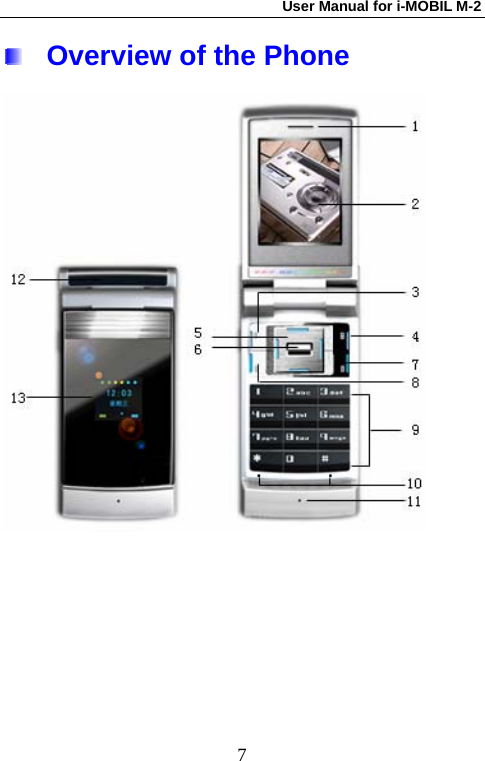
User Manual for i-MOBIL M-2   7 Overview of the Phone
User Manual for i-MOBIL M-2   8   Index of the Mobile Key 1  Earpiece  For listening 2  LCD  260K TFT   3  Left Function Key Press to select options that appears in the display .
User Manual for i-MOBIL M-2   94  Right Function Key Press to select options that appears in the display . 5  Navigation Key  Move through the menus ,lists and texts . 6  OK Key  For confirmation 7  Power Key  Switched off:press and hold to switch on . During a conversation or in an application : press briefly to finish . In menus : press briefly to go back a level ,Press and hold to return to standby mood . In standby mood : press and hold to switch off the key . 8  Dial Key  To make and accept calls, and access the calls list. 9  Number Keys  Enter digits.
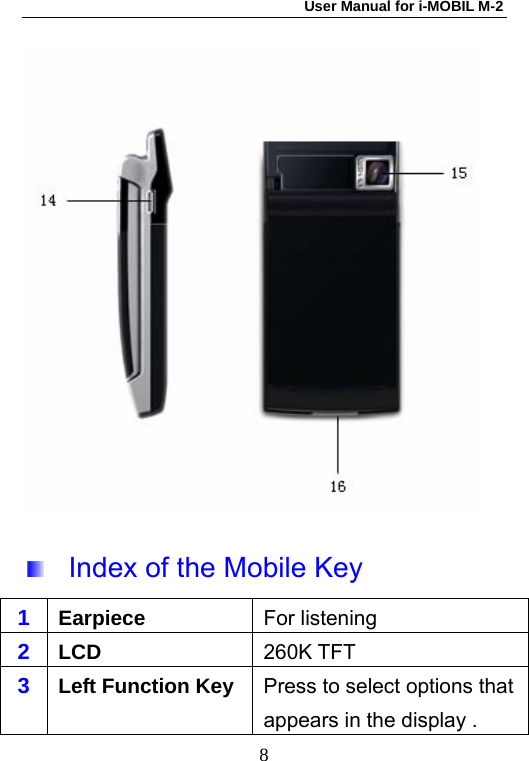
User Manual for i-MOBIL M-2   10Press and hold 0 to enter the international prefix+.  Press and hold # to make the speaker off. 10  Speaker  To display Hi-Fi ring tones.11  Microphone  For speaking. 12  7-color LED  To set different colors when having incoming calls. 13  Outer LCD  To display time, signal strength and battery status.14  Side Key  When having an incoming call , press to silence the rong tone. Press and hold to reject the call. 15  Camera  1300K pixels, Auto focus, Built-in camera. 16  Plug scket    For charger and data cable.
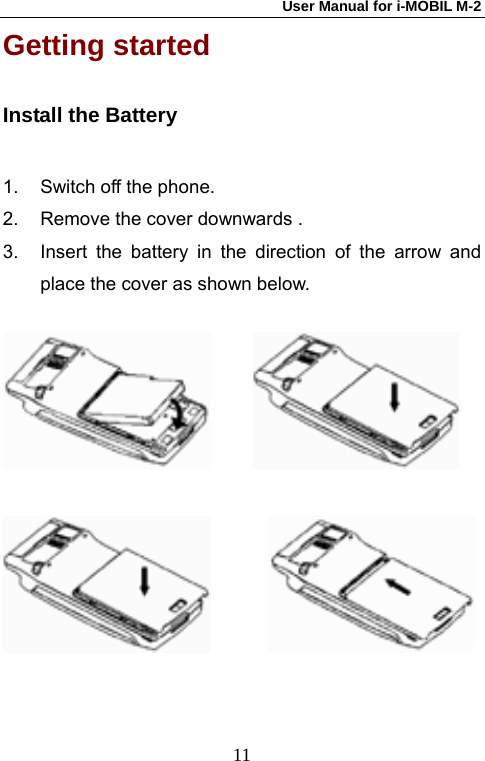
User Manual for i-MOBIL M-2   11Getting started   Install the Battery 1.  Switch off the phone. 2.  Remove the cover downwards . 3.  Insert the battery in the direction of the arrow and place the cover as shown below.
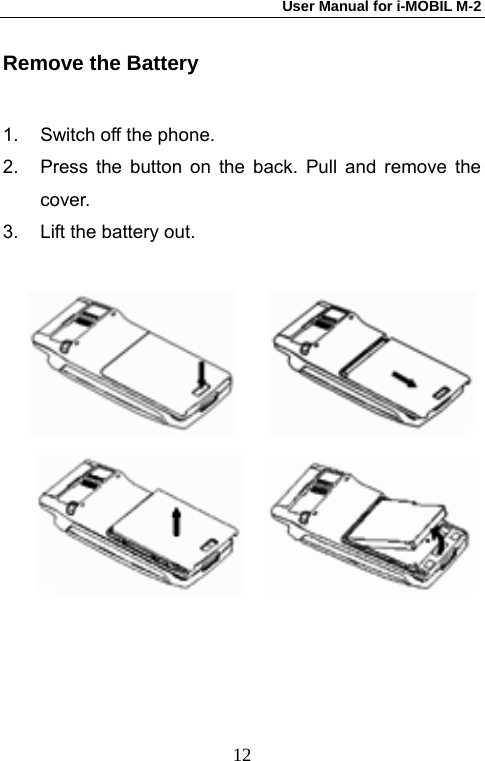
User Manual for i-MOBIL M-2   12Remove the Battery 1.  Switch off the phone. 2.  Press the button on the back. Pull and remove the cover. 3.  Lift the battery out.
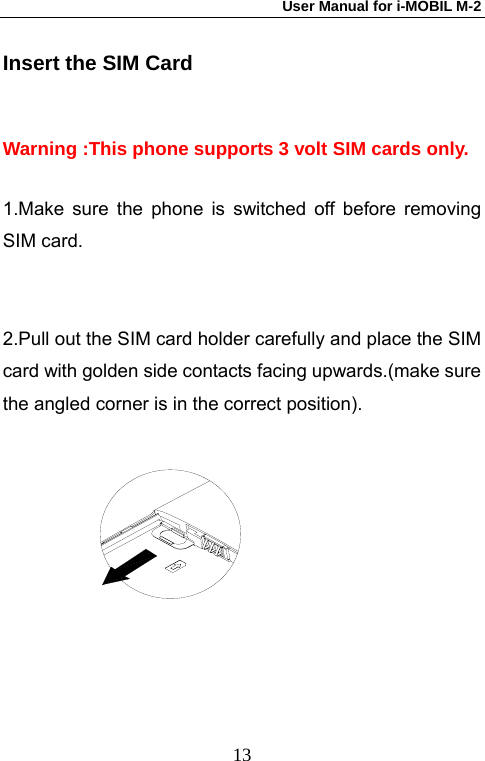
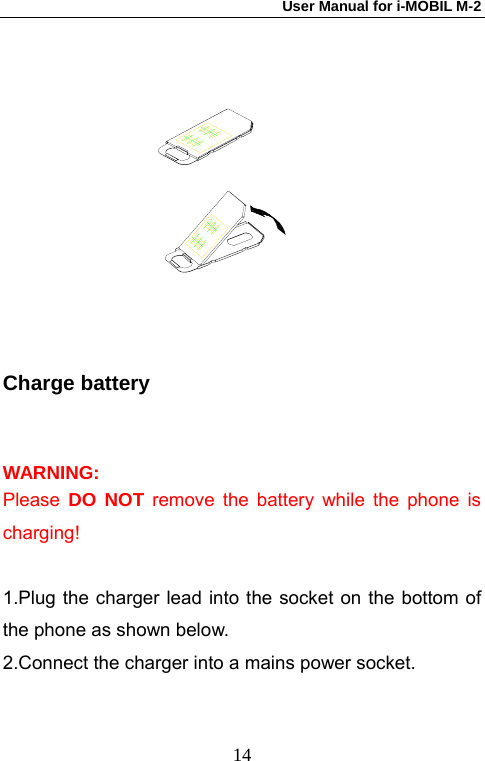
User Manual for i-MOBIL M-2   13Insert the SIM Card Warning :This phone supports 3 volt SIM cards only.  1.Make sure the phone is switched off before removing SIM card.   2.Pull out the SIM card holder carefully and place the SIM card with golden side contacts facing upwards.(make sure the angled corner is in the correct position).
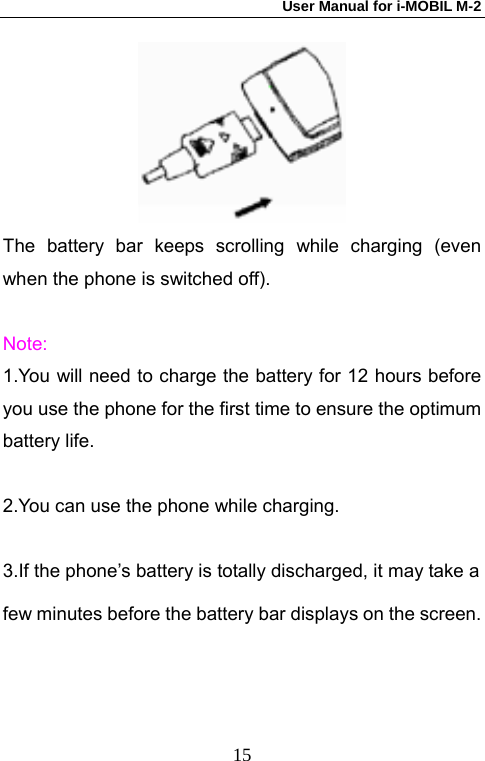
User Manual for i-MOBIL M-2   14 Charge battery WARNING: Please  DO NOT remove the battery while the phone is charging!  1.Plug the charger lead into the socket on the bottom of the phone as shown below. 2.Connect the charger into a mains power socket.
User Manual for i-MOBIL M-2   15 The battery bar keeps scrolling while charging (even when the phone is switched off).    Note: 1.You will need to charge the battery for 12 hours before you use the phone for the first time to ensure the optimum battery life.  2.You can use the phone while charging.  3.If the phone’s battery is totally discharged, it may take a   few minutes before the battery bar displays on the screen.
User Manual for i-MOBIL M-2   16Switch On / Off 1 Press and hold the Power key to switch the mobile phone On/Off.  2.When you switch on, the phone may ask you to enter your PIN code for security reasons.  3. Enter the PIN code if asked (displayed as ****).PLS see the detail explanation on page 114
User Manual for i-MOBIL M-2   17Calling   Making Calls Making Calls by Pressing Number Key 1.  In the main menu, enter the phone number using the Number Keys. The entered number can be edited using the Navigation Key and ‘Clear’ Key. Press and hold the‘Clear’ Key to delete all digits on the left of the cursor. 2.  To make International Calls, press and hold the * Key to enter a “+”.  3.  To enter a ‘P’(pause), press and hold the # Key. 4. Press the Dial Key to dial the numbers shown on the screen.  5.  To end the call, press the Power Key. 6.  Press ‘Dial’ to display the 20 last-dialed numbers.
User Manual for i-MOBIL M-2   18Scroll to the number you want to redial by using the Navigation Key and press OK to select it. The call details are shown, if OK is pressed again this number can be Dialed, Sent a message, Erased or Saved to memory. Making Calls by Using Names 1.  In the main menu, press Right Function Key to enter the names menu.   2.  Select the name by using the Navigation Key and press OK to show the details or press Dial key to call the default number . 3.  You can select an alternative number stored against this entry by pressing OK and using the Navigation Keys to select an alternative number,    Note: It is also possible to search the directory for a name using the Alphabetical search. When in the names list, press the Alphanumeric Key of the first letter of the
User Manual for i-MOBIL M-2   19required name, and the list will jump to entries starting with that letter.      Answering & Rejecting Calls 1. Press the Dial Key to answer calls.  Options when answering a call  This mobile phone provides a number of functions during a call (many of them are based on Network Service which need Network Operators support , if they do not work, please contact your local service provider).   The following features are available during a call: 1.  Hold: Put the current call on hold, allowing you to make or receive a second call. 2.  Dial New: Allows you to make another call while you are involved in a call. (The current call will be held automatically).
User Manual for i-MOBIL M-2   203.  End this call: Select this function to end the current call (allowing you to swap to a call waiting). 4.  Send DTMF: Allows you to send further dialing digits during a call (some networks allow this feature automatically). 5.  Mute: Disables the microphone in your handset to allow a private aside without the person on the call hearing you. 6.  Names: Enter into contacts list to select the number needed. 7.  Main Menu: Select this Function to display the main menu during a call.
User Manual for i-MOBIL M-2   21Menu Structure  The main menu has nine icons,  Multimedia MP3 Camera Movie V-meno Media folder    Names Search Add Edit Copy Move Erase Speed Dial Setting  Message SMS MMS Boardcast
User Manual for i-MOBIL M-2   22Voice mail  Record Dialled Received Missed Erase Time Info Cost Info GPRS Info  Service Call divert Call barring Call waiting   Settings Audio Setting Phone Setting Call Setting Network &Security  Extras Sync Assistant  Games
User Manual for i-MOBIL M-2   23Games  WAP Home Enter URL Favorites Push message In box Tools History
User Manual for i-MOBIL M-2   24MULTIMEDIA   MP3 Select  Multimedia  and enter into MP3 menu. You can change the MP3 settings using this procedure.  Shortcut: In the main menu, press Navigation Key Left to enter into the MP3. Music List 1. Select Music List and scroll to the music you want to listen. Press OK to play the selected music. 2.  In the playing mode, push the Navigation Key upward to increase the volume and downward to lower the volume. 3. Press    to change the play mode and equalizer of
User Manual for i-MOBIL M-2   25the current music.   4. Press    to jump to the previous piece;   5. Press    to pause the current playing;   6. Press    to jump to the next one   7. Press    to stop playing and quit. 8.  In the playing mode, press Power Key or close the clamshell to enter into the background playing mode. Play Mode Select the mode you want from the four. Scroll to play mode and press OK.  There are four play modes for choosing Sequence, Random, Sequence repeat and Random repeat. Equalizer Select the mode you want. Scroll to Equalizer and press OK.
User Manual for i-MOBIL M-2   26There are nine equalizer for choosing normal, rock, jazz, classic , country, SRS , FOCUS.,TRUBASS and WOWXT. Volume You can adjust the music volume in this item. 1. Scroll to Volume and press OK. Press the Navigation Key left or right to adjust the volume. 2. Press OK to save the setting or Quit to cancel and back to the previous menu.   Camera  The camera within this product have been tested and found to comply with the limits for a Class A digital device, pursuant to Part 15 of the FCC Rules. These limits are designed to provide reasonable protection against harmful interference when the equipment is operated in a commercial environment. This equipment generates, uses, and can radiate radio frequency energy and, if not
User Manual for i-MOBIL M-2   27installed and used in accordance with the instruction manual, may cause harmful interference to radio communications. Operation of this equipment in a residential area is likely to cause harmful interference in which case the user will be required to correct the interference at his own expense. Activating the Camera Select  Multimedia in the main menu, press the Navigation Key left or right to scroll to Camera. Capture Select capture. Choose General Photo,  Sticker Photo or Quick Photo and press OK. General Photo 1. Press the Navigation Key up or down to Zoom in or Zoom out. Press OK to take a photo.
User Manual for i-MOBIL M-2   282. Press Left Function Key to enter into Setting. Press Navigation Key left or right to choose from Brightness, Quality, Color and Size. Press Navigation Key up or down to change the default settings. 3. Press OK or Left Function Key to save the photo, or press Right Function Key  to quit without saving. The photos will be saved in the Multimedia Album.  Sticker Photo Sticker photo shows a cartoon character and allows you to ‘frame’ a picture in the characters face. 1. Scroll to Sticker Photo and select a cartoon. Press OK to take a photo. 2. Press Left Function Key to enter into Setting. Press Navigation Key left or right to choose from Brightness, Quality, Color and Size. Press Navigation Key up or down to change the default settings.
User Manual for i-MOBIL M-2   293. Press OK or Left Function Key to save the photo, or press Right Function Key  to quit without saving. The photos will be saved in the Multimedia Album.  Quick Photo 1. Scroll to Quick Photo and press OK to take quick photos. 2. Press Left Function Key to enter into Setting. Press Navigation Key left or right to choose from Brightness, Quality, Color and Size. Press Navigation Key up or down to change the default settings. 3. Press OK or Left Function Key to save the photo, or press  Right Function Key  to quit without saving. The photos will be saved in the Multimedia Album.   Album In Camera menu, select Album. Choose General Photo,
User Manual for i-MOBIL M-2   30Sticker Photo or Quick Photo and press OK to enter into the relevant album. If you have used the phone lock function (Settings / Network Security / Phone Lock), you will have to enter the phone password.   When you are viewing a picture, press Left Function Key  to: 1.  Rename: Change the name of the current photo. 2.  Erase: Erase the current photo. 3.  Erase All: Erase all the photos.  4.  Usage  ,you can set the photo as the portrait in the phonebook. or set the photo as the wallpaper.   5.  Roam:  Press the Navigation Key left/right or up/down to choose the part displayed on the screen. Setting The procedure is to change the settings of the camera. Select Settings, scroll to the option you want.
User Manual for i-MOBIL M-2   31  Movie Select  Multimedia in the main menu, press the Navigation Key left or right to scroll to Video. Take Movie 1. Select Take Movie. 2. Press Left Function Key  to enter into movie setting. Press  Navigation Key left or right to select from Brightness  , Quality , and Rec. Speed , and up or down to change the default setting. 3. Press OK to take a movie. 4. Press OK or Left Function Key    to save the movie, or press Right Function Key    to quit without saving. The movie will be saved in the Multimedia Album.   Film Folder 1. Select Film Folder. 2.  Select a movie. If you have used the phone lock function(Settings / Network Security / Phone Lock),
User Manual for i-MOBIL M-2   32you will have to enter the phone password. 3. Press Left Function Key   to: 1.  Rename: Change the name of the current movie. 2.  Erase: Erase the current movie. 3.  Erase All: Erase all the movies. 4.  Usage: Set the current movie as the power on or power off  animation. Setting The procedure is to change the settings of the Movie. There are three options available which are Quality, Brightness and Rec. Speed. Select Settings, scroll to the option you want. 1. Press the Navigation Key up or down to select an option. 2. Press OK to save, or Exit to return to the previous menu.
User Manual for i-MOBIL M-2   33  Voice Memo Select Multimedia in the main menu, press OK and Select V-memo by pressing the Navigation Key left or right.  Add New Press Add New, and press OK to choose creating a Voice Memo, Ring Tone .  Voice Memo In this Menu, it shows the total time that you can use to record, and the recorded time which you have already used. Press OK to stop recording. Select Play or Save and press OK to confirm: 1.  Play: To play the current record. 2.  Save: To save the current record. 3. Press Exit to return to the previous menu, or press the Power Key to return to the Main Menu.
User Manual for i-MOBIL M-2   34Ring Tone The procedure for recording a ring tone is identical to the voice memo. When the ring tone is saved it appears in the list of ring tones which can be selected   Saved :   You can listen to the saved Voice memos and ring tones. Voice Memo Scroll to Saved and press OK. Select a recorded voice memo and press OK or Left Function Key to choose: 1.  Rename: To edit the name of the current saved record. 2.  Erase: To delete the current saved record. 3.  Erase all: To delete all the saved records. 4.  Detail: Display the name, length and the date of
User Manual for i-MOBIL M-2   35current record. 5. Press Exit to return to the previous menu, or press the Power Key to return to the Main Menu. Ring Tone Scroll to Saved and press OK. Select a recorded ring tone and press OK or Left Function Key to choose: 1.  Rename: To edit the name of the current saved record. 2.  Erase: To delete the current saved record. 3.  Erase all: To delete all the saved records. 4.  Incoming Tone: Set the current record as incoming tone. 5.  Detail: Display the name, length and the date of current record.
User Manual for i-MOBIL M-2   36  Media Folder  In the Multimedia menu, scroll to Media Folder and press OK.   In the Media Folder you can manage MP3, Album, Film Folder, Graphic Library, Melody Library and Voice Memo, and also you can see Memory status here.  Note: The memory for these folders is shared. Use of one or more of these features may reduce the memory available for the remaining features sharing memory. Your phone may display a message that the memory is full when you try to use a shared memory feature. In this case, delete some of the information or entries stored in the shared memory features before continuing.
User Manual for i-MOBIL M-2   37Names  The information in the contacts list can be saved either in the Phone or the SIM card.    Entries saved in the SIM card can only store the name and one number. If the SIM card is moved to a new handsets, then the information saved on   is available in the new handset.    Entries saved in the Phone can store the contacts; name, main, mobile, office, home numbers, and email address.   The phone can store up to 500 entries in the handset.   The number of entries which can be stored on the SIM card  depends upon its capacity.  Search In the main menu, use the Navigation Key to highlight Names and press OK. Scroll to Search and press OK.
User Manual for i-MOBIL M-2   381.  Search By Name: Enter the first letter(s) of a name, then press Search.  2.  Search By Group: use the Navigation Key to highlight the required group and press OK.  3.  When in the names list, you can scroll up or down using the Navigation Key, or jump a page at a time by pressing the  # Key or the * Key. 4.  With the name highlighted, it can be dialed by pressing the dial Key, or press Left function key , it can be; Dialed, Sent message, Edited, Erased or Grouped. 5.  Press Exit to return to the above menu or short press power key to return to the main menu.  Add In the main menu, use the navigation Key to highlight Names and press OK. Scroll to Add and press OK. To save in the phone
User Manual for i-MOBIL M-2   391st Line:  Enter a name. 2nd Lind:  To enter default number (This number will be used by the mobile when you select the record and press dial). 3rd Line: Enter a mobile number.   4th Line: Enter an office number. 5th Line: Enter a home number.  6th Line: Enter the Info 7th Line: Enter an E-mail address. To save in the SIM card 1st Line:  Enter a name. 2nd Lind:  Enter default number 1.  When the contact entry is complete, press Save or OK to store the record. 2.  Press  Exit to return to the previous menu or short press the Power Key to go to the main menu.
User Manual for i-MOBIL M-2   40 Edit In the main menu, use the Navigation Key to highlight Names and press OK. Scroll to Edit and press OK. 1.  The    contacts list is shown. The symbol on the right hand side of the screen beside the contacts indicates if the entry is stored in the SIM or the phone.  2.  To find an entry, use the navigation Keys up or down , or enter the first letter(s) of the required name. 3.  To jump one ‘page’ of entries at a time, press the * or # Key. 4. Press OK to select the contact to be edited. When the changes are complete, press Save to store the edited information. 5. Press Exit to return to the previous menu or short press the Powerl Key to go to the main menu.
User Manual for i-MOBIL M-2   41 Copy In the main menu, use the Navigation Key to highlight Names and press OK. Select Copy and press OK.  1. Choose either SIM → Phone or Phone → SIM, press Ok to select.   2.  The entire contents of one contacts list can be copied in one action, by selecting ‘All’, or you can just select specific entries to be copied, if ‘One by one’ is selected. Note: If you copy the entries, then the handset may show duplicate entries, the original and the copy.  Move In the main menu, use the Navigation Key to highlight Names and press OK. Select Move and press OK. 1. Choose SIM → Phone or Phone → SIM, press Ok to
User Manual for i-MOBIL M-2   42select.  2.  The entire contents of one contacts list can be moved in one action, by selecting ‘Move All’, or you can just select specific entries to be moved, if ‘One by one’ is selected.  Erase In the main menu, use the Navigation Key to highlight Names and press OK. Scroll to Erase and press OK. You can erase the entries at a time, the entire SIM card’s contact list, or the entire phone’s contact list. 1.  One by one: This option takes you to the full contacts list, where you can select the entry to be Erased. With the entry to be erased highlighted, press OK. Press OK again  The entry can be erased .  2.  SIM Card: If you want to erase all the records in you
User Manual for i-MOBIL M-2   43SIM Card, select SIM Card and press OK to confirm. All entries will be permanently deleted! 3.  Phone: To erase all the records that are saved in your mobile phone, select Phone, and Press OK to confirm. All entries will be permanently deleted! 4. Press Exit to return to the previous menu or short press the Power Key to go to the main menu.  Speed Dial   In the main menu, use the Navigation Key to highlight Names and press OK, scroll to Speed dial and press OK. You can set up 7 speed dial numbers from key 2 to key8, which are dialed by long pressing the appropriate number Key in the   Standby mood. To create a speed dial entry: 1.  Select an empty speed dial location.   2.  Press the Add function Key, then will display the
User Manual for i-MOBIL M-2   44contacts list, allow you to create a speed dial link to the contact. To edit an existing Speed dial entry, highlight the entry and press option. 3. Press Exit to return to the previous menu or short press the Power Key to go to the main menu.  Setting In the main menu, use the Navigation Key to highlight Names and press OK, scroll to Setting and press OK. 1.  Status: Show the memory usage for the contact lists in the phone and    SIM card. 2.  Own Number: Display the mobile number associated with the SIM card. (Line 1 and Line 2 are displayed, as some SIM cards can have two numbers). 3.  Group Tone: Allow a different ring tone to be allocated to each of the pre-defined groups on the handset.
User Manual for i-MOBIL M-2   45MESSAGE  SMS In the main menu, use the Navigation Key to highlight Messages and press OK:  New Note: The phone can ‘join together’ SMS messages to enable you to enter one message of up to 912 characters, including spaces. Please note this large message will be sent as separate smaller messages,    Additional special character are obtained by pressing the ‘*’ Key and navigating to the required symbol then pressing OK to insert it. The total number of characters typed is shown in the information bar on the top of the LCD.
User Manual for i-MOBIL M-2   46Input methord (need to confirm ) 1. The phone is defaulted to multi-tap text entry, 2. Pressing the ‘#’ Key will step through.         The text entry modes include; ABC for capital letters, abc for lower case letters, 123 for numeric entry and →En for predictive text mode. Press Option to Send, Save , insert Name, Insert Number. Send to Group. Received All the SMS text messages received are shown in this menu (including messages that are read and unread.).   1. Select the SMS and press Received  to read its content and show the sender’s number (or name), date and time. If the message is too long and you cannot read them all in one screen, press the Navigation Key up or down to view all the information. 2.  Pressing OK, or Left function key when reading a message allows you to:
User Manual for i-MOBIL M-2   471.  Reply: To reply this SMS text message. 2.  Erase: To delete this message. 3.  Forward: To forward this message to another phone. 4.  Save: To save the message. 5.  Edit: To edit the content of the message and save it 6.  Call: To call the sender . 7.  Send to Group:  To send this message to a group of people. 8.  Extract no.: to extract useful data such as phone number or number from the messages 9.  Extract URL: to extract URL from the message.  3.  Press Exit to return to the previous menu, or press the Power Key to return to the main menu.
User Manual for i-MOBIL M-2   48Sent All the sent messages are shown in this menu. And you can delete all the sent messages by select Delete All. 1.  Select a message and press Read  to read its content and show the sender’s number (or name), date and time. If the message is too long and you cannot read them all in one screen, press the Navigation Key up or down to view all the information. 2.  Pressing OK, or Option when reading a message allows you to: 1.  Erase: To erase this message. 2.  Send : To send this message. 3.  Save: To save this message. 4.  Edit : To edit the content of the message and save it   5.  Extract no.: to extract useful data such as phone number or number from the messages
User Manual for i-MOBIL M-2   496.  Extract URL: to extract URL from the message. 7.  Send to Group:  To send this message to a group of people. 3.  Press Exit to return to the previous menu, or press the Power Key to return to the main menu. Saved All the saved  messages (in the SIM Card or in phone)are shown in this menu. Select the messages stored, pressing OK, or Option when allows you to: 1.  Erase: To erase this message. 2.  Send : To send this message. 3.  Edit : To edit the content of the message and save it   4.  Extract no.: to extract useful data such as phone number or number from the messages 5.  Extract URL: to extract URL from the message. 6.  Send to Group:  To send this message to a
User Manual for i-MOBIL M-2   50group of people.  Setting 1.  Info. Center : the network telephone number for receiving or sending SMS text messages. Editing this number may result in you being unable to send or receive SMS messages.   2.  Delivery Rept.: If you turn the delivery report on, when a message has been received, you will receive a notification message from the network confirming receipt. 3.  Saving priority: choose to save the message in the SIM card or in phone. 4.  Validity:  set the time that the network will try to deliver your message for. If you set this to a low value, the network may not be able to deliver the message before it times out and is deleted. 5.  Memory Status shows the SMS memory space in SIM card and phone
User Manual for i-MOBIL M-2   51Press Exit to return to the previous menu, or press the Power Key to return to the main menu. Template Some useful expressions are listed here , which can be used widely during editing a message.   MMS Select  Message in the Main Menu, press OK and then scroll to MMS menu.  Please make sure your SIM card supports MMS and consults your network operator before using this function. Before using MMS for the first time, you must ensure that the correct network settings have been selected. From the MMS menu, select ‘Setting’, ‘MMS Profile’. Please select you network provider from the list..   New MMS When a new MMS is created, the phone is in text entry mode, and you can type, just like a SMS text message. To add pictures or sounds, press ‘Options’ and select ‘Insert’.
User Manual for i-MOBIL M-2   52From here you can insert images or sounds that have been stored in the handset. The message is made of a number of slides, each slide containing a maximum of some text, a picture and a sound. To insert more information a new slide must be ‘Inserted’ into the message from the Insert menu. When the message is complete, press the Options Key or OK key to   1.  Send: Type in subject, then scroll down using the navigation Keys and enter the recipient’s phone number and other relative information, Press Send to send the MMS. 2.  Insert: To insert images, sound, new images or slide to the current MMS. Select the object you want to insert and press OK to confirm. 3.  Te mp la te : This function sets the display mode of words and images by Above below or Auto. Press the  Navigation Key to select and press OK to confirm.
User Manual for i-MOBIL M-2   534.  Preview: Select this option to preview the created MMS. 5.  Save: To save the new MMS. Inbox When an MMS is received, the handset can auto-download it . MMS can be much larger than SMS text messages, so may take a little while to download.  1.  Read: To read the current MMS press OK. If the MMS has more than one slide, press and hold Navigation Key to go to the next slide in the message. Press the Option to do the following:       Extract: To pick out images, sound, etc. from the current MMS and save them. Pictures and sounds are stored in Multimedia Folders.   Erase: To delete the current MMS.   Forward: Type in the recipient’s mobile phone number and other relevant info. Such as Cc.,
User Manual for i-MOBIL M-2   54Bcc. and press OK to forward the MMS.   Reply: Press the Navigation Key and press OK to select between reply by SMS mode or by MMS mode. Then type in the content and press OK to send.   Dial: to dial the phone number of current MMS sender. 2.  Erase: To delete the current MMS. 3.  Details: Information on the topic, sent date, number and size, etc. of the current MMS. Outbox All the MMS you have created, but not yet sent are saved in the outbox. Sent MMS   All the MMS messages that have been sent are stored
User Manual for i-MOBIL M-2   55here and can be viewed by pressing the Navigation Key to select, then press OK or Option to Read, Erase, Show the details or Edit the MMS  Saved MMS All the Saved MMS are in this menu, push Navigation Key to select the MMS and press OK or options to Read, Erase, Show the details,  Edit  the MMS or send the MMS.  Setting 1.  MMS profile: In order to use the MMS service, you must:   Have the service on your network  Have the correct network settings in your MMS profile on the handset. 2.  Delivery Rept. to send a report when an MMS you have sent has been received; Read Rept. to send a report when an MMS you have sent has been read.
User Manual for i-MOBIL M-2   563.  Validity: This is the time the Network will keep trying to deliver your MMS. If the network is unable to deliver the MMS in this time it will be automatically deleted. 4.  Download status: If the handset is set to ‘immediate Download’ then the handset will download any message it is notified of immediately (this may incur a Network charge). Manual Download, allows you to download the message manually, or delete it without downloading it.   5.  Slide Duration: MMS messages can be made up of a number of slides (each slide can contain one picture, one sound file and one text file). The handset can automatically step through each slide, or allow you to manually step onto the next slide. This setting adjusts the display time of each slide.  Broadcast This function requires Network support, please contact the Network operator to confirm if this service is available.
User Manual for i-MOBIL M-2   571. Select Read, to view any received broadcast messages (You must have selected a topic from the Topics menu before you can receive broadcast messages)  2. Select Topics and you can customize the Broadcast categories. Press Exit to return to the previous menu, or press the Power Key to return to the main menu.   Voice Mail Voice Mail is a Network Service, so please ensure you have the service provided by your network operator. 1. Press Ok to enter the Voice mail menu   2.  Get V-mail will dial the number stored in the ‘V-mail box number (option 2). Press OK to get into the V-mail Box No.
User Manual for i-MOBIL M-2   58RECORD The phone keeps a record of the Dialled ,Received and Missed calls.  Each record includes a full set of call details including the time, date and duration of a call.  Dialed  In the main menu, scroll to Record by pressing the Navigation Key up or down and press OK. A full list of the last 20 dialed calls is shown. 1. Press OK to redial the selected number. 2. Press Left Function Key to get the detailed information of the dialed calls. And press again to have the following options: Dial,  Send Message, Erase and Save.  Received In the Record menu, scroll to Received by pressing the
User Manual for i-MOBIL M-2   59Navigation Key. A full list of the last 20 received calls is shown. 1. Press OK to dial back the selected number. 2. Press left function key to get the detailed information of the received calls. And press again to have the following   options: Dial, Send Message, Erase and Save.  Missed In the Record menu, scroll to Missed by pressing the Navigation key. A full list of the last 20 received calls is shown. 1. Press OK to dial the selected number. 2.  Press left function key to get the detailed information of the missed calls. And press again to have the following options: Dial,  Send Message,  Erase and Save.
User Manual for i-MOBIL M-2   60 Erase In the Record menu, scroll to Erase. Choose from the options  Dialled,  Received, Missed and All to delete the content of each list.  Time Info In the Record menu, scroll to Time Info. 1. Select Time Info. to view the time information of the calls. The list includes: Total, Outgoing and Incoming (calculating Total/Outgoing/Incoming call time). 2. Select Erase Time Info. to delete all the call time information.  Cost Info In the Record menu, scroll to Cost Info. Select Cost Info. to view the information of the call cost. (This function requires Network support, please contact your Network operator).  Select Last Call menu and press OK to see.
User Manual for i-MOBIL M-2   611. Select Last Call and press OK to view the cost for the last call. 2. Select ALL Calls and press OK to see the cost for all the calls you made. 3. Select Clear Logs and input the correct PIN2 code to delete all the cost records. 4. Select Cost Units to check or set the cost rate.   5. Select Max Cost to check or set the maximum cost.    GPRS Info.  In this procedure, you can consult the information of data volume including the current connection, all connections and  last connection. (This function needs the support of network, please contact your local service provider for detailed information.)  In the Record menu, scroll to GPRS Info. And press OK. 1. Select Current Conn. to view the information on the current connection.
User Manual for i-MOBIL M-2   622. Select All Conn. to view the information on all connections. 3. Select Last Conn. to view the information on the last connection. 4. Select Clear Logs to delete all the information on connection.
User Manual for i-MOBIL M-2   63SERVICE This procedure allows you to configure the network service options offered by your service provider.    In the main menu, select Service and press to enter.  Call Divert You can divert the incoming calls to a number you have set by using this function. (The service is supported by the network, please contact your service provide for detailed information.)  In the Service menu, select Call Divert. Unconditional Diverts all calls to the number you have set regardless of the handset status.
User Manual for i-MOBIL M-2   64Select Unconditional and press OK. 1. On: Press OK to Set Number or Voice Mail.     Set Number: Enter the number you want to divert to. Voice Mail: If you phone has stored the voicemail number, it will automatically divert your calls to Voicemail. Or else, it will prompt you to enter one. 2.  Off: Select Off and press OK to turn off unconditional divert.  3.  Status: Select Status and press OK to view the status of current unconditional divert. No Reply Diverts calls if the incoming call is not answered.   Busy Divert calls if the line is busy, all the incoming calls will be diverted to another number that you have set. Not Available Divert all calls to a number you have set if your handset
User Manual for i-MOBIL M-2   65cannot find a network, e.g. Out of service area, or if the handset is turned off. Cancel All Select this function to cancel all the diversion.  Call Barring In the Service menu, scroll to Call Barring. Outgoing Press OK to have the following options: 1. Select On to forbid dialing out any call. 2. Select Off to turn off the restrain. 3. Select Status to check the current restraint status on outgoing. Intl. Out Scroll to Intl. Out and press OK to have the following options:
User Manual for i-MOBIL M-2   661. Select On to forbid dialing out International calls. 2. Select Off to turn off the restrain. 3. Select Status to check the current restraint status on international calls. Dial Local Scroll to Dial Local and press OK to have the following options: 1. Select On to forbid dialing to the numbers outside the local network. 2. Select Off to turn off the restrain. 3. Select Status to check the current restraint status on local calls. Incoming Scroll to Incoming  and press OK to have the following options: 1. Select On to forbid receiving any call. 2. Select Off to turn off the restrain.
User Manual for i-MOBIL M-2   673. Select Status to check the current restraint status on incoming calls. Roaming In Scroll to Roaming In and press OK to have the following options: 1. Select On to forbid receiving any call when roaming. 2. Select Off to turn off the restrain. 3. Select Status to check the current restraint status on roaming. Cancel All Scroll to Cancel All to cancel all barring settings. Password The Call barring feature normally requires a Network password. Please contact your local service provider for detailed information.  Call Waiting In the Service menu, scroll to call waiting and press OK to
User Manual for i-MOBIL M-2   68have the following options: 1. Select On to turn on the call waiting function. The incoming call icon will display on the screen when there is another coming call during a call. 2. Select Off to turn off the function. 3. Select Status to check the current configure on call waiting.
User Manual for i-MOBIL M-2   69SETTINGS In the main menu, scroll to Settings and press OK.  Audio Setting In this procedure, you can set different ringing tone to replace the default. Incoming Tone In the Audio Setting menu, select Incoming Tone and press  OK. You can set different ringing tones to five groups including Other,  Family,  VIP,  Friend and Colleague. 1.  Select a group and press OK. 2.  Select a ring tone from Default or Extend tone. Press OK to confirm or Exit to cancel. Message Tone Select a message alert tone from Default or Extend tone. Press OK to confirm or Exit to cancel.
User Manual for i-MOBIL M-2   70Alert Tone Select an Alert tone from Default or Extend tone. Press OK to confirm or Exit to cancel.  Profile  In the Audio Setting menu, scroll to Profile to have the following options: Normal,  Meeting,  Outdoor,  VIP and Silent. You can Set Profile or Edit Profile on each profile. Set Profile   1.  Select a profile and press OK. 2. Select Set Profile and press OK. Edit Profile 1.  Select a mode and press OK. 2. Select Edit Profile and press OK. Volume You can adjust the volume of Speaker, Ring Tone and Message Tone by pressing the Navigation Key left or right. Press OK to confirm and Exit to cancel.
User Manual for i-MOBIL M-2   71 Keypad Tone Select Keypad Tone and press OK to turn on/off keypad tone. Power On Tone Select Power On Tone and press OK to turn on/off power on tone. System Tone Select System Tone and press OK to turn on/off system alert tone as saved or deleted a file.   Vibration Select Vibration and press OK to turn on/off vibrator. Ans method Select Flip on or After press to answer .  Phone Setting In the Settings menu, scroll to Phone Setting. Language Select  Language and press OK. Select a language you want and press OK.
User Manual for i-MOBIL M-2   72Display Setting This procedure allows you to configure the Back Light, Wallpaper, Signal lamp and wallpaper. Back Light Scroll to Back Light and press OK.  1. Select Backlight Timer to choose the duration of the backlight when pressing any key. 2. Select Backlight Level to set the brightness of the backlight.  Signal lamp   Scroll to Signal lamp and press OK. 1.  Select Idle signal lamp to set .The optional are White ,Off , Red, Green ,Blue ,Orange ,Cambridge blue,Purple. Press OK to confirm. 2   Select Ring signal lamp to set the group of Ring signal lamp.
User Manual for i-MOBIL M-2   73Wallpaper The wallpaper is the background that appears on the idle screen. There are 5 pre-loaded wallpapers. Scroll to Wallpaper and press OK. 1. Select Default to get into the default folder. 2. Select Extend to get into the media folder. 3.  Select a wallpaper you want and press OK to confirm. Input Methods When entering text in SMS text messaging, MMS Messaging, the directory etc. there are different text entry modes. The different modes can be selected during text entry by a short press on the ‘#’ Key. Select the input methods you want and press OK. Time & Date Select this option to edit the time and date on the phone. 1. Scroll to Time & Date, press OK  2. Select Set Time, press OK. Please enter the time in
User Manual for i-MOBIL M-2   7412/24-hour mode. 3. Press OK to save the entry. 4. Select Set Date, press OK. Please enter the date, Day, Month Year. 5. Select Set Time Format, press OK. Select 12 hours or 24 hours. 6. Select Set Date Format, press OK. You can choose the display mode of date.  Auto On/Off This feature allows the handset to turn itself on and off at times of your choosing. To use the feature, set it to On and then enter the time for the ‘On’ and ‘Off’ events. Factory Settings You can use this function to reset your mobile to the Factory Setting (default setting). If you set up your system to the default setting, you will lose all the setting changes
User Manual for i-MOBIL M-2   75you have made. It will not delete your phone book or the other information which you have saved to your phone. The time and the date you have set up will also not be changed.  Call Setting In the Settings menu, scroll to Call Setting and press OK.  Outgoing ID Enables you to release or block your telephone number being sent to the people you are calling. This feature must be supported by your service provider. Minute Reminder If this feature is enabled, you will hear a quiet beep in your ear for every minute you are involved in a call. It is not heard by the person you are speaking to. Fixed dialling This is a Network feature and must be supported by your
User Manual for i-MOBIL M-2   76Network operator. Accidental operation is locked by a Network PIN (PIN 2) which must be obtained from your Network operator. When enabled, only certain numbers can be dialed, which can be selected as follows:  Number List: Lists all the numbers that can be dialed.  Add: You can add more numbers from this menu. Press Save to confirm after you have entered the number.  Edit: You can edit the names and numbers on the list.  Erase: Select the number you want to erase from your Fixed Number List. Press OK to confirm.   Status: Select On or Off, and press Ok to turn this function on or off.
User Manual for i-MOBIL M-2   77Rejected Calls Scroll to Rejected Calls and press OK. Please enter your phone password. (The original password is 1234.) Select the calls you want to reject and press OK.   Network Security In the Settings menu, scroll to Network Security and press OK. Choose Net You can choose the way of your handset connecting to the network Automatically or Manually.  1.  Automatic: The phone will search for a proper network service.   2.  Manual: Select Manual and press OK. The handset will list all the available networks for your choice. Band mode You can choose the band mode EGSM/DCS or PCS only.
User Manual for i-MOBIL M-2   78PIN   You can set a Personal Identification Number from this menu, which will prevent unauthorized access to your SIM. Normally PIN code are 4 digits.  Warning: If you enter the wrong PIN three times, your SIM card will be locked and you will have to contact your Network provider to get an Unlock code.   If you enter the wrong PIN ten times, your SIM card will be damaged and no long be used. (You will have to buy a new SIM Card) Phone Lock You can protect some areas of your phone with a Phone Lock PIN code, e.g. SMS,  MMS,  Album. (The default password is 1234.)  PIN2 6-digit security code is originally set to 000000. Your
User Manual for i-MOBIL M-2   79service provider may reset these codes before  you receive the phone ,if the coded are not reset ,You can edit the PIN here ,enter the old PIN2 first ,then you can change a new PIN2.
User Manual for i-MOBIL M-2   80EXTRAS   Sync. In the main menu, select Extras and press OK. 1. Select USB HD to connect the handset to PC. 2. Select Wap Camera to get connection and work as web camera. 3. Select Connect PC to connect .   Assistant In the Extras menu, scroll to Assistant and press OK. Alarm Select Alarm and press OK. Select Set Time to set time for an alarm or Alarm Status to check the status of alarm setting.
User Manual for i-MOBIL M-2   81Activate Alarm Select an alarm, press Dial key (Option) or Scroll key to access operation menu.      Active: Activate the current alarm.      Modify/Reset: Edit or set the current alarm.      Alarm status: View the status of the current alarm.      Close all: Close all the activated alarms.   Memo In the Assistant menu, select memo and press OK.  Allows a text Memo to be created, as a ‘Stand alone’ reminder, or associated with a date and time. A memo cannot be created and attached to a date that has already passed.
User Manual for i-MOBIL M-2   82Add 1.  Enter the memo text. 2.  You can short press the # Key to change the text entry mode. After you have completed the memo entry, press OK to save it. 3. Use the Navigation Key up or down to select Reminder alert or No reminder . View All Allow you to view all of the memos that are stored on the handset. World Time Allow you to nominate the time zone in which the phone is being used.  1. Press the Navigation Key left or right to move the line around the world map to select your time zone.
User Manual for i-MOBIL M-2   83Press OK to Confirm. Calculator The calculator offers basic mathematical functions which can be selected using the navigation Key. Pressing the OK Key will perform the calculation and display the result. To exit the calculator, press the power Key. Calendar Select Calendar to Display a monthly view calendar.
User Manual for i-MOBIL M-2   84GAMES   Games In the main menu, scroll to Games and press OK.  The handset has two pre-loaded games (it is not possible to download additional games). The two loaded games are Tet ri s and Jumper. The Music and Key backlight for both games are controlled from the setting Menu.  Tetris The objective of the game is to fit together the puzzle pieces as they fall from the top of the screen. If there are no gaps in a row across the screen, the row will be deleted, creating more space at the top of the screen.
User Manual for i-MOBIL M-2   85The game is controlled by the Navigation Keys. A falling piece can be moved left or right with the left or right Navigation Keys. Pressing the up Navigation Key will rotate the piece.   Pressing the down Key will cause the pieces to fall to the bottom of the screen rapidly. The player’s score increases with every piece that the player is able to locate in the ‘wall’. The game is over when there is no more room at the top of the screen for a new piece to enter the screen. Jumper The objective of the game is to launch the golden ball from the lower cup, catching it in the next cup up, and so climbing the ladder of cups. The golden ball is launched by pressing the OK Key. The higher you climb to higher your score. Setting Select  Setting and press OK. Select Music Volume to
User Manual for i-MOBIL M-2   86adjust the volume of the game and Key Backlight to adjust the brightness of backlight.
User Manual for i-MOBIL M-2   87WAP The WAP browser, allows you to access and surf the mobile Internet. You must ensure that the appropriate network settings have been selected before the Wap service will work. From the idle screen, select the WAP option and select Option 5, Tools, and from the profiles, select your Network. Then from the Data connections menu (Option 5, Tools, option 2) please select your network. (Note: some networks have different settings for Pay As You Go, PAYG and Contract, please ensure you select the correct settings).   Home Select WAP in the main menu, select Home and press OK. The WAP browser will now connect to the homepage for your network provider. Under the Options Key you can:
User Manual for i-MOBIL M-2   88z Refresh: To refresh the content webpage. z Back: To return to the previous page. z Stop: Select Stop to end the connection to the WAP service. z Image: Select Image to send or save the image. z Enter URL: To input any available website address and get connected. z Add To Favourites: To save the current website to your favourites list. z Set As Homepage: To set the current website as homepage. z History: To view the history of the WAP session z Favourites: To show the Favorite menu z Home: To return to the homepage. z Main Menu: To return to the previous page that you have just visited. 2. Press Exit to the previous menu or short press the
User Manual for i-MOBIL M-2   89power key to return to the main menu.   Enter URL Select  WAP  in the Main Menu. Press OK, and press Option  to view the sub-menus. (The browser must be connected to the internet at this time). Using the text input, enter the name of the URL site you want to visit. There are three options:  Standard phrases: To select the general network format.  Add to Favourites: To add the current website   address to Favourites.  Save as Homepage: To save the current page as homepage. 3. Press Exit to go to the previous menu.   Favourites Select WAP in the main menu. Press the Navigation Key, and select Favourites to view the menu.
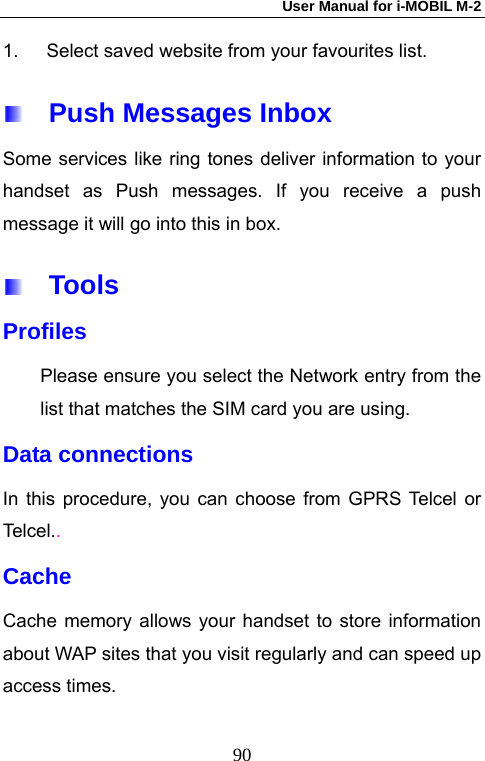
User Manual for i-MOBIL M-2   901.  Select saved website from your favourites list.   Push Messages Inbox Some services like ring tones deliver information to your handset as Push messages. If you receive a push message it will go into this in box.     Tools Profiles Please ensure you select the Network entry from the list that matches the SIM card you are using. Data connections   In this procedure, you can choose from GPRS Telcel or Tel ce l. . Cache  Cache memory allows your handset to store information about WAP sites that you visit regularly and can speed up access times.
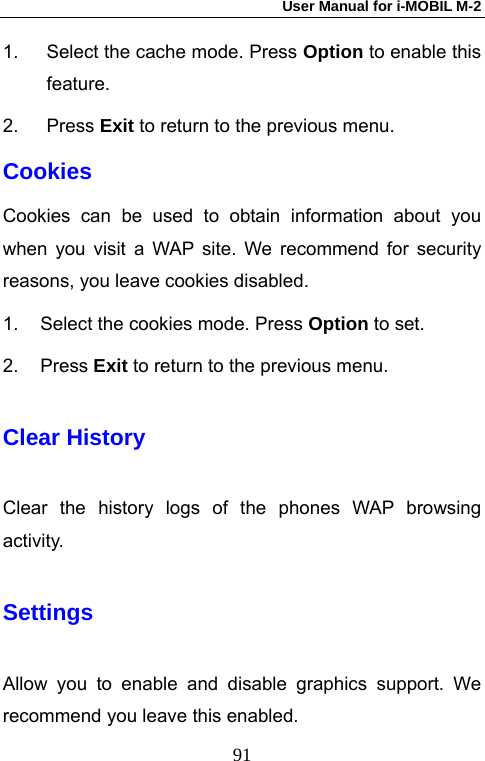
User Manual for i-MOBIL M-2   911.  Select the cache mode. Press Option to enable this feature. 2. Press Exit to return to the previous menu. Cookies Cookies can be used to obtain information about you when you visit a WAP site. We recommend for security reasons, you leave cookies disabled. 1.  Select the cookies mode. Press Option to set. 2. Press Exit to return to the previous menu. Clear History Clear the history logs of the phones WAP browsing activity. Settings Allow you to enable and disable graphics support. We recommend you leave this enabled.
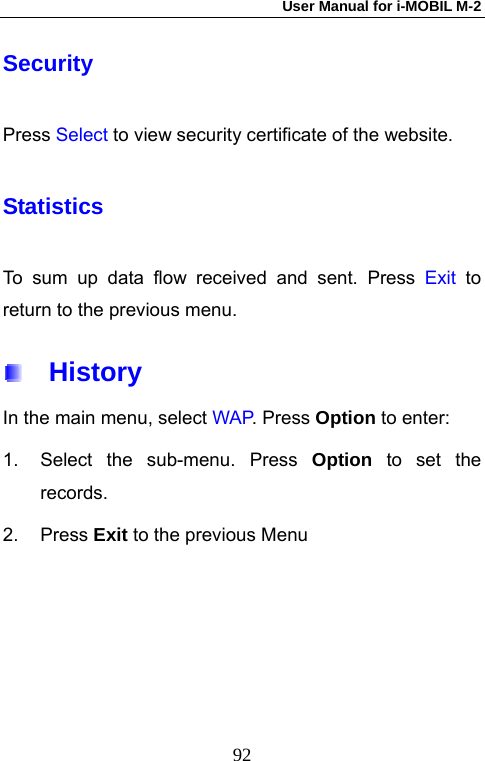
User Manual for i-MOBIL M-2   92Security Press Select to view security certificate of the website. Statistics To sum up data flow received and sent. Press Exit to return to the previous menu.   History In the main menu, select WAP. Press Option to enter:   1.  Select the sub-menu. Press Option to set the records. 2. Press Exit to the previous Menu
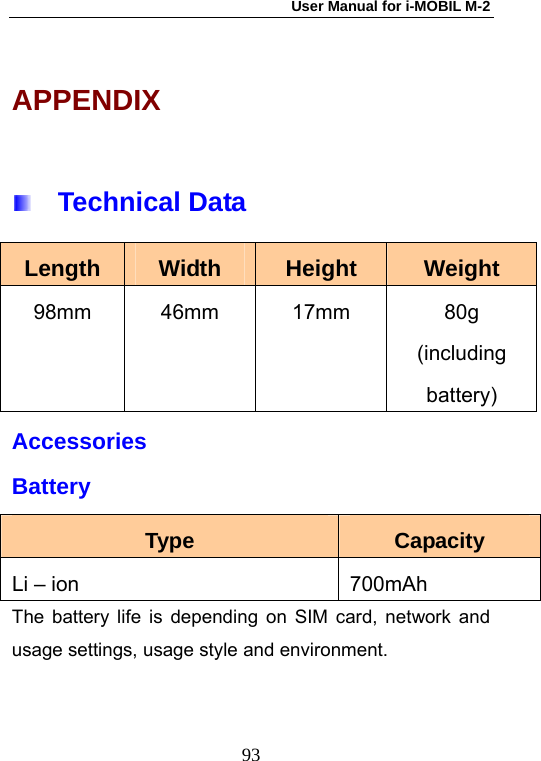
User Manual for i-MOBIL M-2   93APPENDIX   Technical Data Length  Width  Height  Weight 98mm 46mm  17mm  80g (including battery) Accessories Battery Type  Capacity Li – ion  700mAh   The battery life is depending on SIM card, network and usage settings, usage style and environment.
User Manual for i-MOBIL M-2   94Safety of the Battery 1.  Please use the battery approved by the original manufacturer. Use of any other battery will invalidate the warranty. 2.  Please ensure that any metal objects are not inserted into the connector on the bottom of the phone, e.g. Keys when the phone is in your pocket. 3.  Do not try to open the battery case. 4.  Please keep the battery away from water and fire. 5.  Please ensure the battery is charged in a normal operating temperature, being 0C (32F) to above 45C (113F ).    SAR Information The SAR limit of USA (FCC) is 1.6 W/kg averaged over one gram of tissue. Device types M-2 (FCC ID:
User Manual for i-MOBIL M-2   95TPP06M-2) has also been tested against this SAR limit. The highest SAR value reported under this standard during product certification for use at the ear is 0.682 W/kg and when properly worn on the body is 0.093 W/kg. This device was tested for typical body-worn operations with the back of the handset kept 1.5cm from the body. To maintain compliance with FCC RF exposure requirements, use accessories that maintain a 1.5cm separation distance between the user's body and the back of the handset. The use of belt clips, holsters and similar accessories should not contain metallic components in its assembly. The use of accessories that do not satisfy these requirements may not comply with FCC RF exposure requirements, and should be avoided.    Use and Maintenance 1.  Keep the phone and all parts in a safe place out of
User Manual for i-MOBIL M-2   96the reach of young children. 2.  Please keep dry. Exposure to rainwater, very high humidity and any kinds of liquid may damage the phone.  3.  Please ensure the phone is kept clean. If abrasive dirt contaminates the slide mechanism or other moving parts, damage may result.   4.  There are no customer serviceable parts inside the phone. If the case is opened by a non authorized person the warranty will be invalidated. 5.  Please do not use chemical cleaning agents. If the phone requires cleaning wipe it with a clean soft cloth. 6.    If your phone should get wet, please switch it off and remove the battery. Make sure the mobile has dried for 24 hours before using it agai
User Manual for i-MOBIL M-2   97  Problems and Solutions Problems:  Solutions: Display “Locked” when the phone is on. Wrong PIN number input, contact with your local service provider. No Signal level is displayed Lost  connection  with  the Network. The phone may be in a place without network service. Please move to another location or contact your service centre for help. No reaction of the Keypad or slow reaction The operation speed of the screen is slow at very low temperatures. Please try again in a place warmer. No display on the screen while charging Very low battery, or out of the temperature range (0-45 degrees C). Please
User Manual for i-MOBIL M-2   98wait for couple minutes or move the mobile to a warmer place to continue charging. “Not Provided” or “Not Set” is displayed on the screen while using some function.Many functions can only be used after subscribing to the services on the Network. “SIM card error” is display on your screen. SIM might be damaged, please contact your service provided for help. “Insert SIM” displayed  Please make sure that you have inserted the SIM correctly and that it is fully inserted.

Navigation menu