i MOBIL de C V 05M-1 TRI-BAND GSM 900/1800/1900 MHZ MOBILE PHONE User Manual i MOBIL M 1 en
i-MOBIL S.A. DE C.V. TRI-BAND GSM 900/1800/1900 MHZ MOBILE PHONE i MOBIL M 1 en
Users Manual

USER MANUAL FOR i-MOBIL M-1
- 0 -
USER MANUAL FOR
i-MOBIL M-1
GSM/GPRS MOBILE PHONE
V 1.0
USER MANUAL FOR i-MOBIL M-1
- 1 -
Copyright and Acknowledgements
Copyright © i-MOBIL. All rights reserved. Reproduction,
transfer, distribution or storage of any part or all of the
content in this manual in any form without the prior written
permission of i-MOBIL is prohibited.
Operating a policy of continuous development, i-MOBIL
reserves the right to make changes and improvements to any
of the products described in this manual with out prior notice.
Under no circumstances shall i-MOBIL be responsible for
any loss of data or income or any special, incidental,
consequential or indirect damages howsoever caused.
The content of this manual is provided “as is”. Except as
required by applicable law, no warranties of any kind, either
express or implied, including, but not limited to, the implied
warranties of merchantability and fitness for a particular
purpose, are made in relation to the accuracy, reliability or
content of this document. i-MOBIL reserves the right to
revise this document or withdraw it at any time without prior

USER MANUAL FOR i-MOBIL M-1
- 2 -
notice.
USER MANUAL FOR i-MOBIL M-1
- 3 -
Table Contents
FOR YOUR SAFETY......................................................7
FRONT / SIDE VIEW OF THE PHONE .........................10
SIMPLIFIED MANUAL...............................................13
BEFORE USING .....................................................13
CALL FUNCTION ..................................................13
SIM CARD LOCK ......................................................14
NAMES....................................................................15
QUICK ACCESS TO MENUS.................................15
ONE KEYPRESS TO INTERNET ..........................16
GETTING START .........................................................17
INSERT/CHANGE BATTERY ...............................17
INSERT/CHANGE SIM CARD ..............................18
CHARGING THE BATTERY .................................19
SWITCH ON / OFF .................................................20
MARK AND ANSWER CALLS...................................21
MAKING CALLS....................................................21
ANSWERING CALLS............................................24
OPTIONS.................................................................24
NAVIGATING THROUGH MENUS...........................27
CAMERA........................................................................28
TAKE PHOTO ..........................................................28

USER MANUAL FOR i-MOBIL M-1
- 4 -
ALBUM ....................................................................30
SETTING ..................................................................31
VIDEO ............................................................................32
VIDEO..........................................................................32
NAMES...........................................................................34
SEARCH..................................................................34
ADD.........................................................................35
EDIT ........................................................................37
ERASE.....................................................................37
SPEED DIAL...........................................................38
SETTING.................................................................39
COPY.......................................................................40
MESSAGE......................................................................42
SMS..........................................................................42
MMS ........................................................................48
BROADCAST .........................................................54
VOICE MAIL ..........................................................55
RECORD ........................................................................56
DIALED...................................................................56
RECEIVED..............................................................56
MISSED...................................................................57
ERASE.....................................................................57
TIME INFO..............................................................57
COST INFO .............................................................58
GPRS INFO. ............................................................59
USER MANUAL FOR i-MOBIL M-1
- 5 -
SERVICE........................................................................59
CALL DIVERT........................................................59
CALL BARRING ....................................................62
CALL WAITING .....................................................64
SETTINGS......................................................................65
AUDIO SETTING ...................................................65
PHONE SETTING...................................................68
CALL SETTING......................................................73
NETWORK SECU. .................................................76
MEDIA FOLDER....................................................79
ALARM ....................................................................79
MEMO......................................................................81
OTHER......................................................................82
GAMES...........................................................................85
GAMES .......................................................................85
WAP.................................................................................87
HOME.........................................................................87
RESUME ....................................................................88
BOOKMARKS...........................................................88
PUSH MESSAGES.....................................................89
SETTING....................................................................89
EMPTY TMP. FILE ....................................................91
VOICE.............................................................................92
ADD NEW................................................................92
SAVED ......................................................................93
USER MANUAL FOR i-MOBIL M-1
- 6 -
STK..................................................................................95
APPENDIX.....................................................................96
TECHNICAL DATA .................................................96
ACCESSORIES ........................................................96
USE AND MAINTENANCE....................................98
PROBLEMS AND SOLUTIONS ...........................100
USER MANUAL FOR i-MOBIL M-1
- 7 -
For Your Safety
Switch off mobile in hospitals where sensitive
medical equipment in.
Switch off mobile at a refueling point, or near
chemicals and blasting areas.
SIM card can be removed from the phone, keep
it in a safe place out of the reach of young
children.
Don’t use incompatible power supplies.
Don’t dismantle the phone or battery by
yourself, instead of qualified personnel.
Damaged Seal will cause the invalidation of the
warranty.
USER MANUAL FOR i-MOBIL M-1
- 8 -
Uses only approved accessories, and follow the
local rules about useless batteries.
Mobile is a radio transmitter / receiver, so it
may interrupt PC, TV, and radio nearby.
Switch off mobile in an aircraft, for wireless
devices can cause interference in aircraft.
Use earphone while driving to avoid traffic
accident.
USER MANUAL FOR i-MOBIL M-1
- 9 -
Attention:The SAR limit of USA (FCC) is 1.6 W/kg
averaged over one gram of tissue. Device types M-1 (FCC
ID: TTP05M-1) has also been tested against this SAR limit.
The highest SAR value reported under this standard during
product certification for use at the ear is 0.132 W/kg and
when properly worn on the body is 0.058 W/kg. This
device was tested for typical body-worn operations with
the back of the handset kept 1.5cm from the body. To
maintain compliance with FCC RF exposure requirements,
use accessories that maintain a 1.5cm separation distance
between the user's body and the back of the handset. The
use of belt clips, holsters and similar accessories should
not contain metallic components in its assembly. The use
of accessories that do not satisfy these requirements may
not comply with FCC RF exposure requirements, and
should be avoided.
Warning:Improper use will cause invalidation of the
warranty
USER MANUAL FOR i-MOBIL M-1
- 10 -
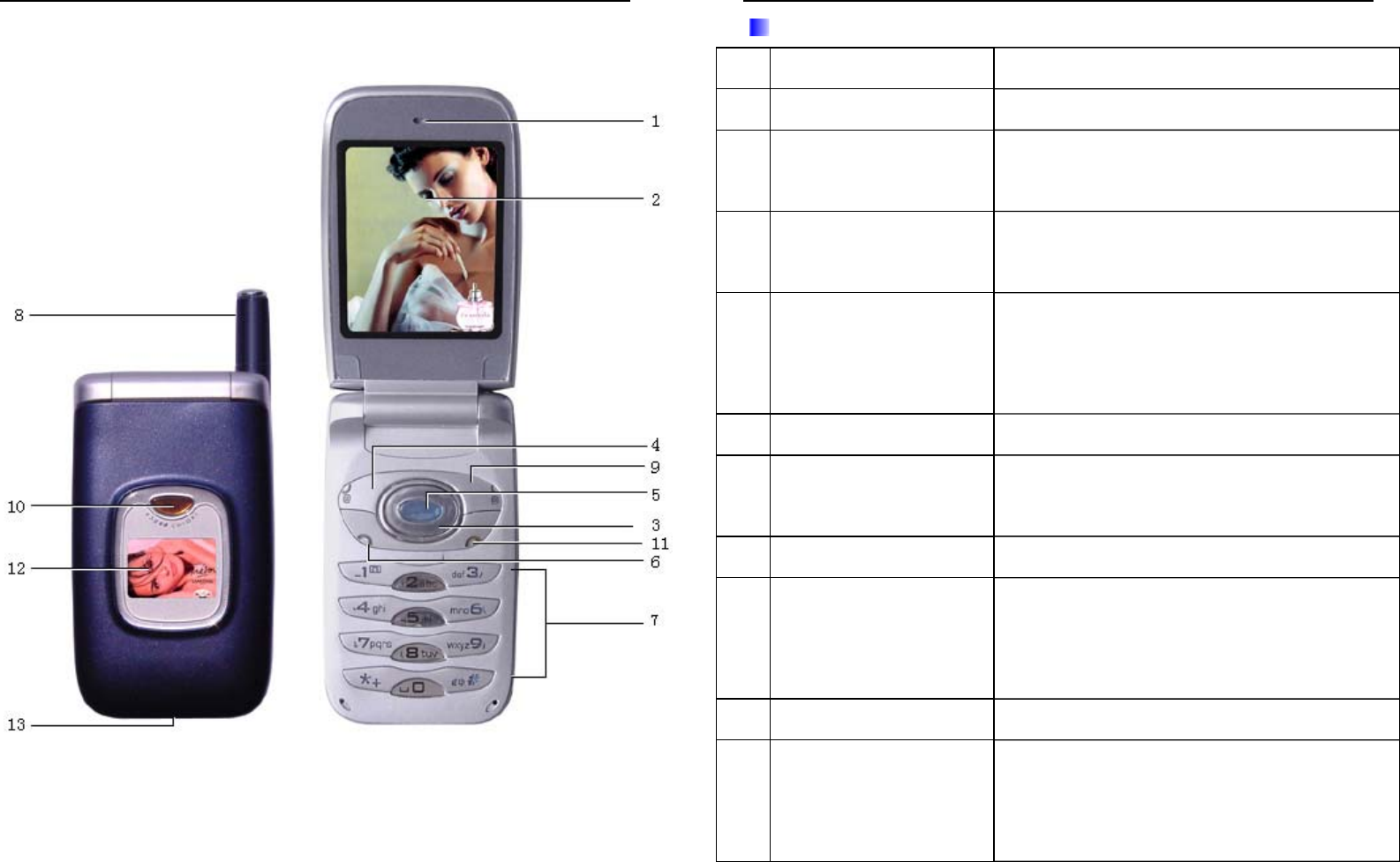
FRONT / SIDE VIEW OF THE PHONE
Illustration 1
USER MANUAL FOR i-MOBIL M-1
- 11 -
Index of the Mobile Key
1 Receiver Phone answering
2 LCD 260K TFT color, 2.2”
3 Direction Key 4 direction display in upper/lower
left/right
4 Left function key Performs the function indicted at
the bottom left corner of LCD.
5 OK Key Select the highlighted manual or
item by pressing this key to
confirm
6 Dial Key Dial numbers and answer a call
7 Number Key Input number and characters, or
swiftly shift to menu
8 Antenna Signal receiving and sending
9 Right function
key
Performs the function indicted at
the bottom right corner of LCD,
e.g. Delete, Exit etc.
10 Front cover key Control the display of sub-LCD
11 Power Key Long press to switch on/off the
mobile; short press to end or reject
a call & exit from any functions at

USER MANUAL FOR i-MOBIL M-1
- 12 -
any time
12 Sub-LCD 65536 TFT color LCD, display
time、signal status and capacity of
battery
13 Port Prot for Charger and USB
Please refer to the illustration 1 while you read this user menu.
USER MANUAL FOR i-MOBIL M-1
- 13 -
SIMPLIFIED MANUAL
BEFORE USING
1. Insert the SIM card into mobile (Following
functions ONLY are available if without SIM
card: camera, VDO, audio setting, phone
setting, tools, games and voice. SIM card is a
must if entering other menu or operating other
functions concerned with time)
Only support the SIM Card with a voltage of 3V
2. Please charge the battery for 12 hours without break
before using the phone for the first time.
3. At stand-by mode or in main menu, making a call by
pressing numbers, and then press Dial Key.
4. Press Power Key or close the flip to end up a call.
CALL FUNCTION
1. Press Dial Key or OK Key to receive an
incoming call.

USER MANUAL FOR i-MOBIL M-1
- 14 -
2. ; when the flip is open, press Power Key or
simply close the flip to end calls.
3. Adjusting earpiece Volume: Press Left/Right
Navigation Key.
4. Redial number: Press Dial Key, then use
Up/Down Navigation Key to select the number
you are looking for. Press OK Key to connect the
call.
SIM Card Lock
1. The screen showed“enter lock code” when the
SIM card has been inserted in cell phone. Press
number key to input the PIN number.
2. If the PIN number is correct, the screen
showed “please reset your mobile”. Please
reset then your cell phone can be used
normally.
3. If the PIN number is wrong, the screen will
show the times you entered. If you
continuously enter wrong number for 5 times,
your cell phone will be locked permanently. At
USER MANUAL FOR i-MOBIL M-1
- 15 -
the same time, the screen showed “please
update your mobile software”.
NAMES
1. Under the sleep mode, you can press Right Function
Key to bring up your phonebook list. Scroll
Up/Down by using the Navigation Key, or you can
use the # Key and * Key to turn the page up and
down, then press OK to connect calls.
2. If you would like to use phonebook during a call,
press Left Function Key to get into the next menu.
Using Navigation Key to select Phonebook. Press
OK to connect calls.
QUICK ACCESS TO MENUS
1. Under sleep mode, press OK key to enter main menu.
Press the “up”, ”down”, ”left” and “right” Navigation
Key to speedily enter into Settings, Camera, MMS
and SMS under the sleep mode. At the same mode,
press Left Function Key to surf Internet and press
Right Function Key to bring up Names entry. Press
USER MANUAL FOR i-MOBIL M-1
- 16 -
Dial Key to check the last dialed numbers and long
press # Key to switch on/off the speaker.
2. Under main menu, use Up/Down Navigation Key to
select menus you want and press OK Key to enter.
Press Dial Key to see the dialed number. Short press
Power Key to return to main menu directly.
3. Press Left/Right Navigation Key to select among the
2nd level menu while Up/Down Navigation Key for
the 3rd level menu. Press OK Key to connect calls.
4. Press Right Key to return to the previous Menu or
short press the Power Key to return to the main menu
directly.
ONE KEYPRESS TO INTERNET
Under sleep mode, press Left Function Key to surf the
Internet.
USER MANUAL FOR i-MOBIL M-1
- 17 -
GETTING START
INSERT/CHANGE BATTERY
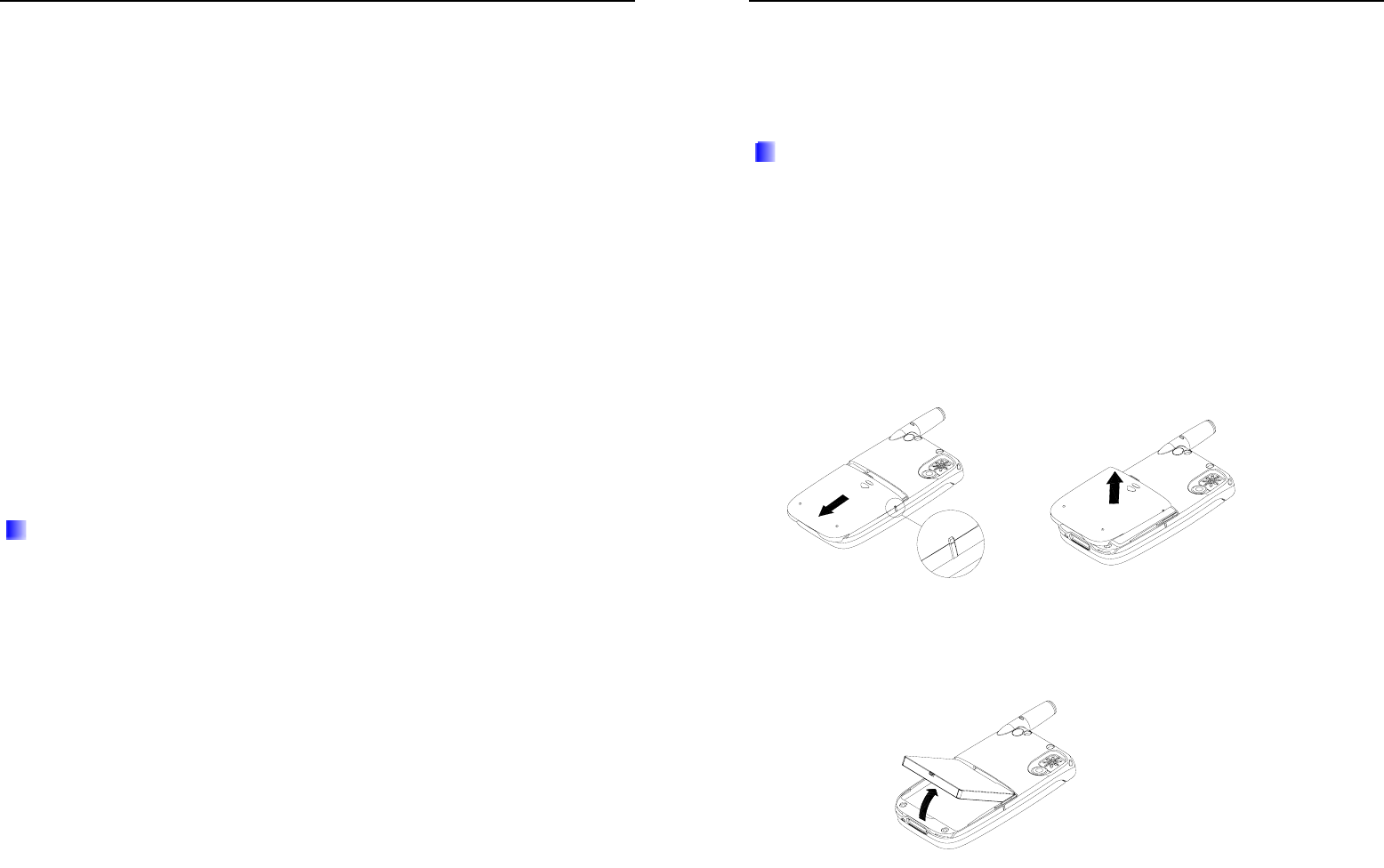
1. Make sure the phone is switched off before changing
battery.
2. Press the release latch at the back of the phone,
move the battery against antenna direction and
pull the back cover off.
3. Button up the down side of the battery and pull
it out
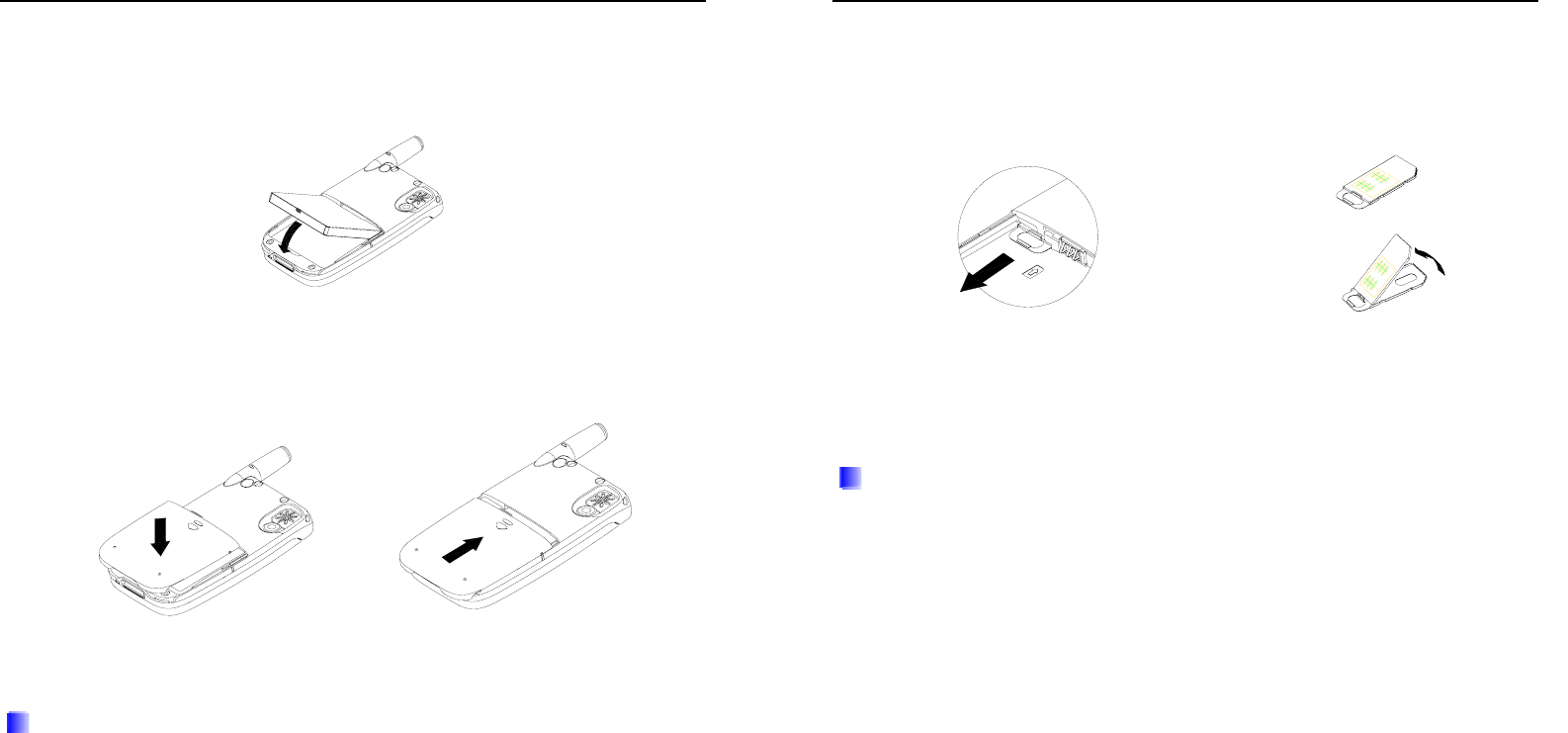
USER MANUAL FOR i-MOBIL M-1
- 18 -
4. Put the upper side of the battery to the relevant place
of the phone and they push down the battery to insert
the battery.
5. Place the back cover to right place then push it
up.
INSERT/CHANGE SIM CARD
1. Make sure your phone is switched off and the battery
is removed before you insert/change the SIM card.
2. Slightly pull out the SIM card drawer, slide
SIM card inside with golden side of the card
facing upwards,then push the drawer back to the
USER MANUAL FOR i-MOBIL M-1
- 19 -
right place;repeats all the steps when change
the SIM card.
This phone only supports 3 volt SIM cards.
This phone only supports 3 volt SIM cards.
CHARGING THE BATTERY
1. Make sure the battery is inserted into the phone
correctly before charging.
2. Connect the lead of the charger to the socket on the
bottom of the phone and plug to an AC wall socket
Warning: Please DO NOT remove the battery
while charging!

USER MANUAL FOR i-MOBIL M-1
- 20 -
3. The animation charging is displayed when the phone
is turned off. The phone can work while charging.
Please keep charging the battery continuously for 12
hours when you use the phone for the first time and
make sure the battery has been fully charged.
4. Black screen will appear during charging if the
voltage of the battery is too low (e.g. Not in use for a
long time, etc.).The animation Charging will appear
after several minutes.
SWITCH ON / OFF
1. Long press the Power Key to turn on or off the
mobile phone.
2. Enter PIN code if asked (shown as ****). Please refer
to Settings/Network Secu. /PIN for more information.
USER MANUAL FOR i-MOBIL M-1
- 21 -
MARK AND ANSWER CALLS
MAKING CALLS
Making Calls by Pressing Number Key
1. Press the phone number by using Number Key under
sleep mode or main menu mode. Press “up” &
“down”, and “left” & “right” Navigation Key to
move the cursor if you need to edit the number. You
can press the Right Key one time to clear one number
left to the cursor. Or long press this key to delete all.
After you finish entering the number, press Dial Key
to connect. When you see the word of “Connecting”
changing to “Talk” on LCD, start talking over the
phone.
2. If you make a long distance call, long press the * Key
until change to “+” which is the prefix for the
international dialing code; then follow by entering the
number. After you finish entering the number, press
Dial Key to connect the call.

USER MANUAL FOR i-MOBIL M-1
- 22 -
3. To reach an extension number, enter the switchboard
number at first, long press # key until it changes to
“P”, and then enter the extension number. Press Dial
Key to make the phone call. It will dial the extension
for you automatically. After you made the call, go
back to the DIALED record (by pressing Dial Key) to
select this number and save the number to phonebook.
For the next time you dial this extension number, it
will be automatically connected.
4. Press Dial Key to bring all the records of the dialed
numbers under sleep mode or main menu mode.
Select a number, press OK Key and then press Dial
Key to make the call. If you want to Dial /Send
Message / Save, press Option.
5. Under sleep mode, long press 1 key to access
to voice mail box *68; long press 9 key to
access to 060 for emergency call.
6. To end up the call, short press Power Key or simply
close the flip.
USER MANUAL FOR i-MOBIL M-1
- 23 -
Making Calls by Using Names
1. Enter into the names then select the name by using
Navigation Key, press OK to bring up the
phonebook entries.
2. When you enter into names entries, you can press
Dial Key to call the default number, or select another
number by using Up/Down Navigation Key, press
Dial Key to call.
3. You can also enter Names/Search menu to find the
number you are looking for.
Redial the last Dialed/Received/Missed Calls
1. In the main menu mode, use Up/Down Navigation
Key or Left/Right Navigation Key to select
Record and press OK Key to enter.
2. Press Left/Right Navigation Key to select among
Dialed/Received/Missed
3. Press Up/Down Navigation Key to the number you
are looking for and press Dial Key to connect.

USER MANUAL FOR i-MOBIL M-1
- 24 -
Speed Dial
1. Long press Number Key 2-8 in the main menu for
speed dialing. Numbers are requested to be pre-set to
different number Key before dialing. (Please refer to
names/Speed Dial).
2. After pressing a number key, the phone will connect it
automatically.
ANSWERING CALLS
1. Press the Dial Key to answer calls.
2. When the flip is open, short press Power Key or
simply close the flip to end or reject calls.
3. Adjusting Receiver Volume: Press Left/Right
Navigation Key
OPTIONS
This mobile phone provides varies functions during calls
(many of them are based on Network Service which must
be applied from Network Operators firstly). Below are the
functions that the phone provides by pressing Left Key
USER MANUAL FOR i-MOBIL M-1
- 25 -
during a call. Use Up/Down Navigation Key to select the
following functions. Press OK Key to confirm.
1. Hold: To select this function, user can receive another
incoming call or dial another number without hang up
the current call.
2. Dial New: Select this function to make another call
while you are on the phone. (The current calling will
be held automatically).
3. End this call: Select this function to end the current
call.
4. End all calls: Select this Function to end up all the
calls.
5. Send DTMF: DTMF means duple tone & multiply
frequency. If this function is selected, the dialed
number will be sent as DTMF meaning that you will
be connected to the number with extension #
automatically (Refer to Making a Call).
6. Mute: Select this Function to switch on/off the sound
of the microphone.
7. Nameser into phonebook to select the number

USER MANUAL FOR i-MOBIL M-1
- 26 -
needed.
8. Main Menu: Select this Function to display the main
menu during a call.
9. Call Conference: This option appears when there are
more than three phones being connected with. Select
this Function to enable call conference function. (This
function requires network support, please apply with
the Network Operators.
USER MANUAL FOR i-MOBIL M-1
- 27 -
Navigating Through Menus
Camera
Take Photo
Album
Setting
VDO
VDO
Names
Search
Add
Edit
Erase
Speed Dial
Setting
Copy
Message
SMS
MMS
Broadcast
Voice Mail
Record
Dialed
Received
Missed
Erase
Time Info
Cost Info
GPRS Info
Service
Divert
Call Barring
Call Waiting
Settings
Audio Setting
Phone Setting
Call Setting
Network/Security
Tools
Media Folder
Alarm
Memo
Other
Games
Games
Wap
Home
Resume
Bookmarks
Push Messages
Setting
Empty Tmp File
Voice
Add new
Saved
STK

USER MANUAL FOR i-MOBIL M-1
- 28 -
CAMERA
TAKE PHOTO
When the flip is open, under the main menu, enter into
take photo. There are Four sub-menus you can choose to
take photos. Use Up/Down Navigation Key to select and
press OK Key to get in to each sub-menu.
General Photo
1. Use Up/Down Navigation Key to zoom in and zoom
out, press OK key to take and save the picture.
Up/Down Navigation Key can not zoom in or
zoom out if it is 640*480 pixel.
2. Press OK Key to get into setting screen,press Left
/Right Navigation Key to change the picture size
, quality, brightness , color Press
Up/Down Navigation Key to change the current
setting. Press OK Key to take a photo.
3. After action above, press OK Key to save the picture.
Then it will return to home screen automatically.
Sticker Photo
1. When you get into Sticker photo viewfinder, press
USER MANUAL FOR i-MOBIL M-1
- 29 -
Left/ Right Navigation Key to change the frame.
Press Up/Down Navigation Key to zoom in and out.
Press OK Key to take photo.
2. To Set up the camera, use Left/ Right Navigation
Key to change the quality of the picture quality 、
the brightness 、the color ;press Up/Down
Navigation Key to change the current setting. Press
OK Key to take photo.
3. After action above, press Save or OK Key to save the
picture. Then it will return to the photo pre-view
screen automatically.
Quick Photo
1. Use Up/Down Navigation Key to zoom in and zoom
out, press OK key to take and save the picture.
2. Press OK Key to get into setting screen,press Left
/Right Navigation Key to change the picture
quality, brightness , color ; Press Up/Down
Navigation Key to change the current setting. Press
OK Key to take a photo.
3. After action above, press OK Key to save the picture.
Then it will return to home screen automatically.

USER MANUAL FOR i-MOBIL M-1
- 30 -
Portrait
The operation is same as General Photo. Please refer to
Album / Portrait to learn how to link the portrait with your
address book. Please be noted that there is no size
setting for phonebook portrait.
ALBUM
Scroll Up/Down by using the Navigation Key to select
between General Photo, Sticker Photo Quick Photo and
Portrait. Press OK Key to get into next sub-menu. But if
you have used the phone lock function (Settings / Network
Security / Phone Lock), you have to enter your password
to get into next sub-menu. When you get into the 2nd level
menu, use the same way to select the photos and press OK
Key to open the photo. When you enter to the third level
menu, you can change the followings:
1. Rename:Change the name of current photo.
2. Erase:Erase selected photo.
3. Erase All: Erase all photos.
4. Usage:You can view photos by using Up/Down
Navigation Key. Press OK KEY to settle the photo
as wallpaper or portrait (only applicable for portrait
USER MANUAL FOR i-MOBIL M-1
- 31 -
format).
5. Roam :To display photos randomly. Press
Navigation Key Up/Down/Left/Right to adjust the
displayed photo size (only applicable for
general pictures 640×480 photos).
SETTING
1. You can set up default 1. Size, 2. Color, 3. Quality, 4.
Brightness by using Up/Down Navigation Key.
Press OK Key to confirm.

USER MANUAL FOR i-MOBIL M-1
- 32 -
Video
Video
Select VDO under main menu, press Up/Down
Navigation Key and OK key to enter the needed item.
Take Movie
1. Press OPTION to get into setting screen,press Left
/Right Navigation Key to change the picture,
quality , brightness, record speed Press
Up/Down Navigation Key to change the current
setting and OK Key to take a film.
2. Press OK Key to take a film and EXIT to stop.
3. After action above, press OK Key OR SAVE to save
the record Then it will return to home screen
automatically.
Film Folder
Press “Up”, “Down” and “OK” keys to select a
movie clip. If “Phone lock” under
Settings/Network security is set ON, please enter
phone password to enter this menu. Press
“Operate” to:
USER MANUAL FOR i-MOBIL M-1
- 33 -
1. Rename: change the name of the selected
movie.
2. Erase: delete the selected movie
3. Erase All: delete all movies
4. Usage: press “Up”, “Down” and “OK” keys
to set selected movie as power on or off
animation.
Settings
1. Press “Up”, “Down” and “OK” keys
selecting a mode as the default settings for
movie.
2. Press “Esc” back to upper-class menu, or press
Power on/off key to main menu.

USER MANUAL FOR i-MOBIL M-1
- 34 -
NAMES
You can save the name, default number, cell phone number,
office number, home phone number, note, and email
address to your mobile phone in the Phone book record.
But you can only save one phone number to your SIM.
There are totally 500 records you can save to your mobile
phone. User can use the following function to operate the
phone.
When FDN is set ON, the phone book is prohibited.
Press Right Function Key to view FDN list.
Please refer to Call Settings/FDN for more
information.
SEARCH
Under the main menu, Use Up/Down Navigation Key to
select Names, press OK Key to bring up the 2nd level
menu of Search. Use Up/Down Navigation Key to select
between By Name.
1. By Name: enter a name or the first letter of a name,
then press Find. Or find by Group, press Up/Down
Navigation Key to the group needed and press OK to
USER MANUAL FOR i-MOBIL M-1
- 35 -
find. Press the # * to change the page.
2. Scroll to select a phonebook entry and press Dial, it
will be connected automatically.
3. Press Option to dial, send message, edit, erase, group,
photos.
Note: Pictures only can be applied into
phonebook entries stored in mobile. Confirm
that names and telephone numbers stored in
mobile are unique (delete repeated phonebook
entries stored either in mobile or in SIM card)
4. Press Exit to return to the upper menu or short
press Power Key to return to main menu.
ADD
Under main menu mode, scroll Up/Down to select Names,
press OK to get into next sub-menu, Press Right
Navigation Key once to see the menu Add containing
following choices:
1. Use Up/Down Navigation Key to select
To -> Phone and To ->SIM card. Press OK
Key or Left Key to bring up the new
record that you can input the following info.

USER MANUAL FOR i-MOBIL M-1
- 36 -
Please also input the area code when you
entry the numbers by using the Number
Key.
1. 1st Line: To enter a name.
2. 2nd Lind: To enter default number (This number
will be recognized by the mobile when you select
the record and press Dial Key, Otherwise you
have to use Up/Down Navigation Key to select
other number which you listed in each record,
such Office number, Home number, etc.)
3. 3rd Line: To enter a mobile number.
4. 4th Line: To enter an office number.
5. 5th Line: To enter a home number.
6. 6th Line: To enter personal info (such as birthday,
company name, etc.).
7. 7th Line: To enter an email address.
2. Press “#” Key to change the Input method. When
finishing the entry, press Left Key or OK to save
the record.
3. Press Right Key to return to the previous menu
or short press the Power Key to the main menu.
USER MANUAL FOR i-MOBIL M-1
- 37 -
EDIT
You can edit your record by pressing the Right
Navigation Key twice under the menu of Names to get
into Edit menu.
1. All the records will be listed under the screen of Edit.
Use Up/Down Navigation Key to select the record
you want to edit. You can use the “#” Key and “*”
Key to turn page down and up to select the records.
Press OK to get into the record screen and scroll up
and down to select the info you want to change.
2. Use Right Key to delete old info, then re-enter new
info.
3. After finishing the edit, press OK or Left Key to save
and back to the edit sub-menu again.
4. Press Right Key to return to the previous menu or
short press Power Key to the main menu.
ERASE
You can erase your record by pressing the Right
Navigation Key three times under the menu of Names to
get into the Erase menu.

USER MANUAL FOR i-MOBIL M-1
- 38 -
1. One by One: Press OK to get into Erase menu. Use
Up/Down Navigation Key to select the record you
want to delete. Press OK Key to confirm.
2. SIM Card: If you want to erase all the records in you
SIM Card, select SIM Card and press OK to confirm.
3. Phone: To erase all the records that saved in your
mobile phone, select Phone, and Press OK to
confirm.
4. Press Right Key to return to the previous menu or
short press the Power Key to the main menu.
SPEED DIAL
You can set up your speed dial number by pressing the
Right Key four times under the menu of Names to get into
the speed dial menu. You can set up 8 speed dial numbers
from #2 to #8
1. Use Up/Down Navigation Key to select the speed
dial number you would like to set up. The number has
not been set up will be displayed as “Empty”, press
OK Key to bring up the name list. Use Up/Down
Navigation Key to select a name entry in which you
will a number as Speed Dial number. Press OK Key
USER MANUAL FOR i-MOBIL M-1
- 39 -
to confirm. If you select the number that has been set
up before, press Left Key or OK Key to get into next
sub-menu:
a) Edit: press OK or Left Key to bring up all the
name records. Use Up/Down Navigation Key or
“#” Key and “*” Key to turn one page down or
up. Select the name you would like to set up a
speed dial number, press OK to confirm.
b) Erase: To erase the saved speed dial record, select
the speed dial number, press OK, then select
Erase, press OK to erase the setting. The word of
the record name will be changed back to
“Empty”.
2. Press Right Key to return to the previous menu or
short press Power Key to the main menu.
SETTING
You can set up your phone book by pressing the Right
Navigation Key five times under the menu of Names to
get into the Setting menu.
1. Status: You can check your phonebook status by
pressing OK. After you get into the next screen, you

USER MANUAL FOR i-MOBIL M-1
- 40 -
can learn the number of the records that you have
been used and records that have not been.
2. Own Number: You can find out your own number by
pressing OK.
3. Group Tone: You can set up the group Ring tone by
pressing OK. After you get into the Group Tone menu,
use Up/Down Navigation Key to select the group
name, press OK to bring you to the next menu, select
the incoming tone by use Up/Down Navigation Key.
Press OK to confirm. This setting can help you to
distinguish the call from four groups by a unique
incoming tone.
4. Press Exit to return to the previous menu or short
press the Power Key to the main menu.
COPY
You can make copy from Mobile phone to your SIM card
or from SIM card to your Mobile Phone by pressing the
Right Navigation Key six times under the menu of Names
to get into Copy menu.
1. SIM Card -> Phone: Select this function and press
OK to get into next menu. Select One by one to copy
USER MANUAL FOR i-MOBIL M-1
- 41 -
the number from SIM Card to Phone. Or select All to
copy all the numbers from SIM Card to Phone.
2. Phone -> SIM card: Same as above.
3. Press Right Key to return to the previous menu or
short press the Power Key to the main menu

USER MANUAL FOR i-MOBIL M-1
- 42 -
MESSAGE
SMS
Scroll Up/Down to select “Message” under the main menu
mode, press OK to get into the 3rd level menu of SMS.
Press Up/Down Navigation Key to select the sub-menu
between New, Received, Saved, and Setting. Press OK
Key or Left Key to confirm. Password is needed to get
into a certain number of 3rd level menus if you have set up
Phone Lock in Settings/Network Secu.
When FDN is set ON, please pay attention as to:
1. Add Message Center Number to FDN list.
Check the number in Navigate Message
Settings/ Message Center Number
2. To enter message receiver’s phone number,
press Look For key and list all FDN numbers
for selection.
Please refer to Call Settings/FDN for more
information.
New
1. Under this setting, both English and Spanish
characters can be edited. A message of
USER MANUAL FOR i-MOBIL M-1
- 43 -
maximum 60 characters (incl. Space) can be
input under English language otherwise
maximum 70 characters. When number of
characters exceeds maximum quota the
exceeding characters will automatically go to
next message. The series of messages can be
send once and is limited to maximum 6 items
containing maximum 912 English characters in
total or 396 characters in other languages.
2. Press “Operate” key to Send, Save to SIM card,
Save to phone, Insert name and number. Select
Send or Sent to Group and input receiver’s
number. When there is no characters input, it is
allowable to press “Search” in Name List for
receiver’s number (which should be saved in
phone already). Select Save to SIM card or
Save to phone to save the message for future
usage (if using SIM card with big capacity,
Save to phone is invalid automatically). Select
Insert name or Insert number, in Name List
choosing a name or entering the records to
choose a number, and insert it to input arrow
points in the new message.

USER MANUAL FOR i-MOBIL M-1
- 44 -
3. When input arrow stays in editing area, one
click on Delete key to erase the character left
to the arrow and continuous clicks on Delete
key to erase all characters. One-click on Power
on/off key to go back to main menu.
Received
All the SMS received are shown in this menu (including
messages that been read and not been read). Select Delete
All to delete all messages received
1. Press Up/Down Navigation Key to select the SMS
and press OK to read its content, the sender’s number
(or name), date and time. If the message is too long
and you can not read them all in one screen, use
Up/Down Navigation Key to turn the page up and
page down. You can also press Left Key and scroll up
and down with Navigation Key for the following
function. Press OK to get into it.
Reply: To reply this SMS by pressing OK or Left
Key.
Erase: To delete this message.
Forward: To send this message out again.
USER MANUAL FOR i-MOBIL M-1
- 45 -
Edit: To edit the content of the message and save it
Call: To call the sender
Extract No.: Use this function to pick up the phone
number from the message that you can call or save it
to the phone book. Or pick up any other URL from
the message.
Send to Group:To send this message to a number of
people.
Save to SIM: To save the message to SIM card.
Save to Phone: To save the message to the phone (this
does not work if the SIM card is with big capacity).
2. Press Right Key to return to the previous menu or
short press Power Key to the main menu.
Saved
All the saved message (In SIM Card and In Phone) are
shown in this menu (with either saved or sent status).
Select Delete All to delete all the saved messages.
1. Press Navigation Key Up/Down to select messages
stored in SIM card or Mobile. Press OK Key to enter
USER MANUAL FOR i-MOBIL M-1
- 46 -
into list.
2. Press Up/Down Navigation Key to select one to
read. Use Up/Down Navigation Key to page up and
page down the content of the message. (All the
message will be saved In SIM Card but not In Phone
if the SIM card is with big capacity.
3. Press OK Key or Left Key to bring up the next menu.
Use the Up/Down Navigation Key to select
functions including Erase, Send, Edit, Extract No.
Sent to Group , and save to phone. (Please refer to the
same function in Received SMS). Press OK to
confirm. The SMS In SIM Card can be saved to the
phone.
4. Press Right Key to return to the previous menu or
short press Power Key to the main menu
Setting
1. Info. Center is a set number for receiving or sending
SMS from the network. This number must be set
before using SMS. Press OK to get into this selection
and save the number after setting.
2. Delivery Rept.: Use Up/Down Navigation Key to
select On and Off to turn the function of delivery
USER MANUAL FOR i-MOBIL M-1
- 47 -
report on or off after you sent the message. Press OK
to confirm.
3. Select Val id ity to set the saving period of the
message.
4. Memory Status shows the SMS memory space in SIM
card and phone
5. Press Right Key to Exit to the previous menu, or
short press Power Key to the Main Menu.
Add a New Word
1. Under initial status, text and graphic area will be
empty and the text input mode icon will be displayed
on the screen.
2. Press keypad to enter letters. Press Up/Down
Navigation Key to select a unique letter as the first
letter of a new word.
3. After selecting the first letter, press Number Key 1 to
enter into Intelligent Memory status and then
continue to enter other letters. Then press OK to add
the new word to the vocabulary.
4. If necessary, press Erase to clear any letter you want.
Or press Left/Right Navigation Key to move the

USER MANUAL FOR i-MOBIL M-1
- 48 -
cursor.
5. Short press Erase to clear the letter left to the cursor;
long press Erase to clear all letters. Short press
Power Key to cancel saved contents and quit to main
menu.
Template:
There are some regular used sentences installed in
the phone, user can select and use these sentences
according to their requests.press up or down key to
select one, then press ok to enter SMS edition state
MMS
Select Message under Main Menu mode, press OK and
then the “right” Navigation Key once to get into MMS
menu. Use Up/Down Navigation Key to select the
sub-menu you want and press OK to confirm. MMS
requires network support. Please make sure your SIM card
supports MMS or consults your network operator before
using this function. Password is needed to get into some
3rd level menus if you select Phone Lock in
Settings/Network Secu.
USER MANUAL FOR i-MOBIL M-1
- 49 -
New MMS
Select New MMS to create a new MMS by typing in
words directly or press the left function key to select the
following options:(please press # key to choice the way
of input)
1. Send: Type in the recipient’s phone number and other
relative information, e.g. Cc., Bcc. Use comma
between numbers or e-mail addresses. Press OK to
send the MMS.
2. Insert: Select this option to insert Images, Sound,
New Image and Slide to the current MMS. Press OK
to get into the option you want and press Up/Down
Navigation Key to scroll in relevant listings, and then
press OK to confirm.
3. Template: This function is to set the display mode of
words and images by above/below or Auto. Press
Up/Down Navigation Key to select and press OK to
confirm. All the words and images will be displayed
the way you select.
4. Preview: Select this option to preview the new MMS.
You can also use Up/Down Navigation Key to turn
the page up and down.
USER MANUAL FOR i-MOBIL M-1
- 50 -
5. Save: To save the new MMS.
Inbox
Newly received MMS is saved to the Inbox. Press
Up/Down Navigation Key to select the one you
like to read and press OK to confirm. Then you can
select from the options below to operate.
1. Read: To read the current MMS. Long press
Up/Down Navigation key to change the page; or
press the Option to do the following option:
Extract: To pick out images, sound, etc. from the
current MMS and save them. Pictures and voices are
stored in picture folder and voice folder respectively in
Multimedia Folder.
Erase: To delete the current MMS.
Forward: Type in the recipient’s mobile phone number
and other relevant info. Such as Cc., Bcc. and press
OK to forward the MMS.
Reply: Press Up/Down Navigation Key to scroll and
press OK to select between reply by SMS mode or by
MMS mode. Then type in the content and press OK to
send.
USER MANUAL FOR i-MOBIL M-1
- 51 -
Details: Information of the topic, sent date, number and
size, etc. of the current MMS.
2. Erase: To delete the current MMS.
3. Details: Information of the topic, sent date, number
and size, etc. of the current MMS.
4. Press Right Key to Exit to the previous menu, or
short press Power Key to the Main Menu.
Outbox
Outbox :This memu includes all the saved MMS,
press up or down direction key and press ok to
select, the detailed operation is same as saved SMS
Sent MMS
All the Sent MMS are in this menu, press Up/Down
Navigation Key to select and press OK to read. Then you
can select from the options below to operate.
1. Read: To read the current MMS. After you read your
MMS, you can simply Exit by using Right Key; or
use the Left Key to do the following option:
USER MANUAL FOR i-MOBIL M-1
- 52 -
a) Extract: To pick out images, sound, etc. from the
current MMS and Save them.
b) Erase: To delete the current MMS.
c) Forward: Type in the recipient’s mobile phone
number and other relevant info. Such as Cc., Bcc.
and press OK to forward the MMS.
d) Reply: Press Up/Down Navigation Key to scroll
and press OK to select between reply By SMS
mode or By MMS mode. Then type in the content
and press OK to send.
2. Erase: Press OK to delete the current MMS.
3. Details. Information of the size or other aspect of the
current MMS.
4. Edit: Similar function to the same option in SMS.
Press Exit to the previous menu, or short press Power Key
to the Main Menu.
Saved MMS
All the Saved MMS are in this menu, press Up/Down
Navigation Key to select and press OK to read.
1. Read:To read the current MMS. Long press Up/Down
Navigation Key to change page. Press Option to
USER MANUAL FOR i-MOBIL M-1
- 53 -
extract, erase, forward and reply.
2. Erase:To delete the current MMS.
3. Details: Information of current MMS including size
and etc.
4. Edit:Similar function to the same option in SMS.
5 Send:Edit or enter recipient’s mobile number and
other information, say forward or cc. Then press
Confirm to send MMS (only for files in folder Sent
MMS/Saved MMS).
Setting
1. WAP profile: Get into this option to select the
relevant WAP information
2. Delivery Rept.: Send Rept., a has two statuses ON
and OFF. Select to set the display of the sending and
reading information of the MMS. Press Up/Down
Navigation Key to select and press OK to confirm.
3. Validity: To set the saving period of the MMS.
4. Download status: This option includes Deferred Dld
and Immediate Dld. Press Up/Down Navigation Key
to select and press OK to confirm.
5. Slide Duration: Press Up/Down Navigation Key to

USER MANUAL FOR i-MOBIL M-1
- 54 -
select and press OK to confirm the slide duration of
the MMS.
6. Press the Right Key to Exit to the previous menu, or
short press Power Key to the Main Menu.
BROADCAST
This function requires network support, please contact the
network operator.
1. Press OK to get into Read, then the activated
Broadcast message will be displayed. “No Message”
is displayed if there is no broadcast message available
in the activated topic. Press Next to show another
message.
2. Select Topics to do the User Defined or Activate the
set topic. Press Up/Down Navigation Key to select
between the following function if you selected User
Defined.
Add:To add the topics;
Edit:To edit the current topic;
Erase: To erase the current topic.
3. Press the Right Key to Exit to the previous menu, or
USER MANUAL FOR i-MOBIL M-1
- 55 -
short press Power Key to the Main Menu.
VOICE MAIL
Voice Mail is based on network service, so please contact
the relevant network operator to apply for this service.
Select Message in Main Menu, press Right Navigation
Key three times to select Voice Mail. Press Up/Down
Navigation Key to select between Get V-mail and V-mail
Box No.
1. Press Ok to get into Get V-mail and dial the V-mail
box number.
2. Press OK to get into the V-mail Box No. to edit the
number. Use Left/Right Navigation Key to move the
cursor. Press Right Key to Clear the number left to
the cursor. Press Left Key to Save after the editing.
3. Press Right Key to Exit to the previous menu, or
short press Power Key to the Main Menu.

USER MANUAL FOR i-MOBIL M-1
- 56 -
RECORD
The phone will keep the record of the Dialed, Received
and Missed number. To find this record by select Record
under the main menu mode or simply press the Dial Key
under the sleep mode.
After get into the Record Menu, you can use the Up/Down
Navigation Key to select one of the record by using OK
Key or Left Key and follow the operations: Dial, Send
Message, Erase and Save (if the name has not been saved
before), or Press Dial Key to call the number in the record.
DIALED
There are 20 dialed records can be saved to Dialed. And
every record can be saved up to 3 different calling time.
Press Up/Down Navigation Key to select the record you
like to use. Or press the Right Key to Exit to the previous
menu, or short press Power Key to the Main Menu.
RECEIVED
Similar with Dialed, 20 of the last received numbers can
be saved in Received. And every record can be saved up to
USER MANUAL FOR i-MOBIL M-1
- 57 -
3 different calling time. Press Up/Down Navigation Key
to select the record you need. Or press Right Key to Exit
to the previous menu, or short press Power Key to the
Main Menu.
MISSED
20 of the latest missed numbers can be saved to Missed.
And every record can be saved up to 3 different calling
time.Press Up/Down Navigation Key to select the
record you need. Or press Right Key to Exit to the
previous menu, or short press Power Key to the Main
Menu.
ERASE
Select Erase to delete the Dialed, Received, Missed or All
records. Press Up/Down Navigation Key to select and
press OK to confirm Then press OK again to delete the
record or press Exit to quit.
TIME INFO
1. Select Time Info. to view the time information of the
calls, includes Total calling time, Outgoing calling
time and Incoming calling time.

USER MANUAL FOR i-MOBIL M-1
- 58 -
2. Select Erase Time Info. to delete the information
above. Press OK to delete or press Right Key to exit.
COST INFO
Select Cost Info. to view the information of the call cost.
(This function requires network support, please contact the
network operator). Press Up/Down Navigation Key to
select and press OK to get into each Info.. Press the Right
Key to Exit to the previous menu, or short press Power
Key to the Main Menu.
1. To select Last Call menu and press OK to see the cost
for the last call.
2. To select ALL Calls menu and press OK to see the
cost for all the calls you made.
3. Select Clear Logs and input the correct PIN2 code to
delete all the cost records.
4. Select Cost Units to check the cost rate. Input the
correct PIN2 code to re-set the cost rate.
5. Select Max Cost to check the maximum cost available.
Or re-set the Maximum cost after inputting the correct
PIN2 code
(The above options can be set or deleted without inputting
USER MANUAL FOR i-MOBIL M-1
- 59 -
PIN2 code for some SIM cards).
GPRS INFO.
Select GPRS Info. to view the data flow information of the
internet browsing (this function requires network service
support, please contact the network operator). Under the
menu of GPRS Info., you can find Current Conn., All
Conn., and Last Conn. Press Up/Down Navigation Key to
select and press OK to confirm. Select Clear Logs to
delete relevant information. Press Right Key to Exit to the
previous menu, or short press Power Key to the Main
Menu.
SERVICE
Select Service under the main menu; use Left/Right
Navigation Key and press OK Key to get into the next
menu:
CALL DIVERT
You can divert the incoming calls to a number you have set
by using this function. (This function needs network
support, please contact with network provider to apply for
USER MANUAL FOR i-MOBIL M-1
- 60 -
this service.)
There are several conditions to divert incoming calls. And
each condition has three selections: On; Off; Status. Use
Up/Down Navigation Key to select and press OK to
confirm. Press the Right Key to Exit to the previous menu,
or short press Power Key to the Main Menu.
UNCONDITIONAL
To select Unconditional you can divert all the incoming
calls to a number you have already set on any conditional.
Press OK to get into next sub-menu which has
On/Off/Status. When Fixed Dialing is set to on, call
divert is invalid
1. On: Press OK to bring you to the next sub-menu Set
Number/Voice Mail.
a. Set Number: Enter the number or using Light Key to
search the record from your phone book. Press OK
after you finish entering the number to confirm.
b. Voice Mail: To select Voice Mail, your phone will
search the voice mail number automatically for you if
you have already have this service. If not, it will bring
you to the screen that you can enter the voice mail
USER MANUAL FOR i-MOBIL M-1
- 61 -
number. Enter the number press OK to save.
2. Off: Select Off and press OK to turn off this function.
3. Status: To select this menu, you can check out that you
have turned on or off this function.
4. Press the Right Key to Exit to the previous menu, or
short press Power Key to the Main menu
No Reply
To use this function, if there is no answer during the period
of time (which you have to set the time range), the
incoming calls will be diverted to another the number that
you have already set.
Busy
To use this function, if the line is busy, all the incoming
calls will be diverted to another number that you have
already set.
Not Available
To use this function, if you are in the network service area
or you turn the power off, all the incoming calls will be
diverted to another number that you have already set.

USER MANUAL FOR i-MOBIL M-1
- 62 -
Cancel All
Select this function to cancel all the above divert settings.
CALL BARRING
You can use this function to set up the numbers that you
like to forbid to dial or to bar the numbers you don’t like to
receive. (This function requires network service support,
please contact the network operator).
Select Service under the main menu, press OK and Right
Navigation Key once to get into Call Barring. Under this
menu, you can use Up/Down Navigation Key to select the
followings. Get into each of the following menu; you will
see three of the sub-menu On/Off/Status. After you finish
the setting, press Right Key to Exit to the previous menu,
or short press Power Key to the Main Menu.
Outgoing
By using this function you can forbid to dial all the
numbers. Use Up/Down Navigation Key to select
Outgoing and press OK to the next menu that you can turn
On this function by select On and press OK follow by
entering the network password. You can also turn Off this
function by selecting Off and Press OK follow by entering
USER MANUAL FOR i-MOBIL M-1
- 63 -
the network password. To check out whether you have
turned on or off this function, select Status and Press OK.
Intl. Out
By using this function, you can forbid to dial all the
international calls.
Dial Local
To set up this function, you only can dial the local
numbers.
Incoming
Select this function to bar all the numbers that you don’t
like to receive.
Roaming In
Turn on this function; the mobile will not receive any calls
when it is roaming.
Cancel All
Select this function to cancel all the above setting after
entering the password.

USER MANUAL FOR i-MOBIL M-1
- 64 -
Password
To select this function, you can change the password (If
user apply for the relevant service, the network provider
will give you this password.)
CALL WAITING
In this menu, user can set the function on or off. Press
Up/Down Navigation Key to the item you want to choose.
Finish the operation, press the Right Key to Exit to the
previous menu, or short press Power Key to the Main.
Choose On to turn on the call waiting function. If there is
an incoming call while you are on the phone, the incoming
number will be displayed on your screen..
Choose Off, the call waiting function will be deactivated.
Choose Status, the mobile will tell whether the call waiting
function is active or inactive.
USER MANUAL FOR i-MOBIL M-1
- 65 -
SETTINGS
AUDIO SETTING
Under the main menu mode, use Up/Down Navigation
Key to select Settings. Press OK to bring up the Audio
Setting Menu. Use Up/Down Navigation Key to select
the sub-menu. Press OK to confirm.
Incoming Tone
1. After get into this menu, use Up/Down Navigation
Key to select the tone. Press OK to confirm the
incoming tone
2. Press the Right Key to Exit to the previous menu, or
short press Power Key to the Main.
Keypad Tone
You can make individuation setting for keypad tone.
If want to open or close the recorded keypad tone,
you can make the setting in edit profile.
1. press up or down direction key to select the
item you like to edit, then press ok for
confirmation
2. select DTMF tone, will enter into tolerant
USER MANUAL FOR i-MOBIL M-1
- 66 -
setting, select Recordable voice, you can record
the music or sound you like as keypad tone
Finished the operation, press Exit back to the previous
menu, or short press Power Key to the Main. The
following user can edit the setting
Message Tone
You can select one of the message tones by using
Up/Down Navigation Key after you get into this Menu.
Press OK to confirm. Press the Right Key to Exit to the
previous menu, or short press Power Key to the Main.
Set Profile
1. Use Up/Down Navigation Key to select between
Normal, Meeting, Outdoor, VIP, and Silent. Press OK
to confirm the select.
2. Press the Right Key to Exit to the previous menu, or
short press Power Key to the Main.
Edit Profile
1. Use Up/Down Navigation Key to select the item you
like to edit. Press OK to enter to the next sub-menu.
2. Use Up/Down Navigation Key to select the
following menu by pressing OK to enter:
USER MANUAL FOR i-MOBIL M-1
- 67 -
a. Volume:
You can adjust the volume of the Speaker, Ring Tone,
and Message Tone by select the menu of Volume.
1). Use Up/Down Navigation Key to select between the
menu of Speaker, Ring Tone, and Message Tone.
Press OK and use the Left/Right Navigation Key to
adjust the volume. Press OK to save.
2). Press the Right Key to Exit to the previous menu, or
short press Power Key to the Main.
b. Keypad Tone
To select the Keypad Tone by using Up/Down
Navigation Key, you can turn the volume On or Off.
c. Power On Tone
To select the Power On Tone, you can turn On or Off
the tone when you turn on your mobile phone
d. Flip Tone
Can set on or off for the tone of flip(operation is
same as keypad tone)

USER MANUAL FOR i-MOBIL M-1
- 68 -
e System Tone
You can turn the system tone that includes when the
system has been set up successfully, failed, saved, or
deleted On or Off.
f Vibration
To turn the Vibration On or Off when you receive an
incoming call.
g. Answer Method
You can answer a call by open the flip or press Dial
Key.
PHONE SETTING
Under the Main Menu mode, use Up/Down Navigation
Key to select Setting. Use Left/Right Navigation Key to
select Phone setting menu. Press OK to bring you to the
next sub-menu.
Language
Use Up/Down Navigation Key to select Language
including English, Spanish, press OK to enter. From this
sub-menu you can select the language. Press OK to
confirm. Press the Right Key to Exit to the previous menu,
USER MANUAL FOR i-MOBIL M-1
- 69 -
or short press Power Key to the Main.
Back Light
Select this option by using Up/Down Navigation Key.
Press OK to bring up the following menu.
a. Backlight Timer
Select backlight timer by using Up/Down Navigation Key,
press OK Key or the Left Key to confirm. To select the
timer between 5 Sec., 10 Sec., 15 Sec., 25 Sec. and Always
On by use Navigation Key. Press the Right Key to Exit to
the previous menu, or short press Power Key to the Main.
b. Backlight Level
The backlight level of the screen and keypad can be
adjusted by entering to this menu.
1. Use Left/Right Navigation Key to adjust.
2. Press the Right Key to Exit to the previous menu, or
short press Power Key to the Main.
Input Methods
Select input methods which are in common use from all
methods provided. Then you can switch among these
selected input methods by short press the # Key.
USER MANUAL FOR i-MOBIL M-1
- 70 -
1. Use Up/Down Navigation Key to select the input
method press OK to confirm. User can have the
multiple choices.
2. Press the Right Key to Exit to the previous menu, or
short press Power Key to the Main.
Wallpaper
Use Up/Down Navigation Key to select Bitmap or Flash.
Press OK to enter. Use the Navigation Key again to select
the one and press OK or Left Key to view. Press OK Key
or Left Key to save the one as your wallpaper.
1 Use Up/Down Navigation Key to select Bitmap or
Flash. Press OK Key or Left Key to save the one as
menu background.
2 Press the Right Key to Exit to the previous menu, or
short press Power Key to the Main.
Menu background
Use Up/Down Navigation Key to review then press OK
Key you can change the background paper for sub-menu
and third-menu
Time & Date
Select this option to edit the time and date on the phone.
USER MANUAL FOR i-MOBIL M-1
- 71 -
1. Use Up/Down Navigation Key to select Time &
Date, press OK to bring you up next menu, Set Time
and Set Date.
2. Select Set Time, press OK to bring you a screen that
you can input the time. Press OK Key or the Left
Key to save and return to the previous menu.
3. Select Set Date, press OK to bring you a screen that
you can input the year, month, and date. Press OK
Key or the Left Key to save and return to the
previous menu.
4. Press the Right Key to Exit to the previous menu, or
short press Power Key to the Main Menu.
Auto ON/Off
Activate this function to pre-set the time to turn the Power
On/Off Automatically.
1. Use Up/Down Navigation Key to select between
Auto On and Auto Off. Press OK to confirm.
2. Use Up/Down Navigation Key to select ON or Off,
press OK to confirm the selection.
3. If the user selected On from the menu of Auto On or
Auto Off, it requires to input the time that you like to

USER MANUAL FOR i-MOBIL M-1
- 72 -
turn the power on or off each date automatically.
After finish the input, press OK Key or Left Key to
save and return to the previous menu.
4. Press the Right Key to Exit to the previous menu, or
short press Power Key to the Main Menu.
Factory Settings
You can use this function to reset your mobile to the
Factory Setting (default setting). If you set up your system
to the default setting, you will lost all the settings your
made before. So please carefully use this function.
1. When you select Factory Settings, press OK to enter.
It will ask you Restore Factory Settings? Press OK or
the Left Key.
2. Press Right Key to give up or the short press the
Power Key to give up too
3. It will not delete your phone book or the other info
which you have saved to your phone when you use
this function.
4. The time and the date you have set up will also not be
changed when use this function.
USER MANUAL FOR i-MOBIL M-1
- 73 -
CALL SETTING
Under the main menu mode, use up and down Navigation
Key to select Settings. Press right Navigation Key twice
to the sub-menu Call setting.
Outgoing ID
To set up this function, you can choice to show or block
your ID from the receivers. But it needs your local
network support.
1. Under the Call Setting menu, Select Outgoing ID,
press OK to enter to the next menu. Select On or Off
by using up and down Navigation Key.
2. Press OK to confirm.
3. To return to the previous menu or to the main menu,
press Right Key or short press the Power Key to
return to the Main Menu.
Minute Reminder
To use this function, you will hear a reminder sound for
each minute. To set up the function, please refer to the
above.

USER MANUAL FOR i-MOBIL M-1
- 74 -
Fixed Dialing
1. Enter proper PIN2 password (this shall be
provided by the Network Operator) and then
press OK key, and then the mobile phone can
only dial fixed dialing numbers.
2. If password is correct, the submenu of FDN
would appear. Go to needed sub menu by
pressing Up-down Navigation Key and then
press OK to enter in.
FDN List:FDN List. Using Up-down
Navigation Key to switch between the
numbers, select “ View” to check current
number.
Add: Add new numbers. Select “Save”
to store the number into FDN list.
Edit: Modify name and default number
in the list.
Delete: Switch between the numbers using
Up-down Navigation Key, press OK to
delete the selected number.
Status: Press Up-down Navigation Key to
USER MANUAL FOR i-MOBIL M-1
- 75 -
switch between status of ON and OFF,
press OK to confirm selected status.
3. Select Exit (or short press power key) and
back to superior menu to finish all the settings.
Note: To ensure that SIM Card works normally, it
is suggested to restart the handset if any change
were made on the FDN.
Ejected Calls
You can refuse to receive the number by using this
function. Enter the password (default password is 1234),
press OK to enter the sub-menu to set up this function.
1. Number List: Select this and press OK to bright up
the Ejection Number List which you have already set
up. You can select number to edit. Press OK to
confirm.
2. Add: To add a new number that you want to eject.
Enter the number or use Left Key to bring up your
phone book list. Press OK to confirm after finish the
entering the number.
3. Erase: If you want take the number out of your
ejected number list, select the number by using

USER MANUAL FOR i-MOBIL M-1
- 76 -
Up/Down Navigation Key, press OK to confirm.
4. Status: Use Up/Down Navigation Key to select On
or Off to turn this function on or off.
5. To return to the previous menu or the main menu,
press Right Key or short press the Power Key to
return to the main menu.
NETWORK SECU.
Under the main menu mode, use Up/Down Navigation
Key to select Settings. Press “right” Navigation Key three
times to the sub-menu Network Security. Use Up/Down
Navigation Key to select between the followings, press
Enter to bring up the next menu.
Choose Net
You can choose the net Automatically or Manually.
1. Automatic: Select Automatic, press OK. The net will
search the best network service automatically for you.
2. Manual: Use Up/Down Navigation Key to select
Manual, press OK to confirm. The net will search the
entire available networks in your area. Use Up/Down
Navigation Key to select the one you want, press OK
USER MANUAL FOR i-MOBIL M-1
- 77 -
to confirm.
3. To return to the previous menu or the main menu,
press Right Key or short press the Power Key.
PIN Number
You can set up your PIN number from here. There are
normally 4 numbers. After you finish entering the number
press OK to confirm and return to the previous menu.
Press Right Key or short press the Power Key to return to
the previous menu or the main menu.
Warning:If you continuously enter the wrong PIN
three times, your SIM card will be locked. (You have to
contact your local phone company to unlock the phone).
If you continuously enter the wrong number ten times,
your SIM card will be damaged and no long to can be
used. (You have to buy a new SIM Card from your
local phone company).
Phone Lock
You can turn on or off, and change or setting your phone
password from this menu. You need enter the password to
get into some of the menus (such as SMS, MMS, Album,
and Film) when you set up this phone lock function.

USER MANUAL FOR i-MOBIL M-1
- 78 -
1. Use Up/Down Navigation Key to select between the
sub-menu (On/Off/Edit), press OK to confirm.
2. Input password, press OK to confirm.
3. If the password is correct, you can turn on or off of
this function. You also can edit your password; you
need enter your new password twice, and then press
the OK key to confirm.
4. To return to the previous menu or the main menu,
press Right Key or short press the Power Key
The default of the password is 1234.
USER MANUAL FOR i-MOBIL M-1
- 79 -
TOOLS
MEDIA FOLDER
Enter this menu can browse multimedia files saved in the
phone, such as: Album, Film Folder ,MMS/WAP Graphic,
MMS/WAP Sound, Download Graphic,Download Midi.
Also, you can erase them. Because the memory of the
phone for the files are shared, the space of file in every
folder will be changed according to the arrangement
ALARM
Under the main menu, select Tools by using Up/Down
Navigation Key. Press OK to enter to the next sub-menu.
Use Left/Right Navigation Key to select Alarm to bring
up the menu that you can Set Time or show the Alarm
Status.
Set Time
1. Press OK to select Set Time. Input the time (24 Hours)
by using the Number Key. Moving the cursor by
using Left/Right Navigation Key. Press OK to Save
and bring you to the next menu.

USER MANUAL FOR i-MOBIL M-1
- 80 -
2. It will bring you to the menu that you can set up the
alarm to the status of Repeat off, Repeat Daily, and
Repeat Weekly after you finish entering the time by
pressing OK. Use Up/Down Navigation Key to
select the function you like. Press OK to confirm and
return back to the previous menu.
3. After finishing the setting, press Right Key to return
to the previous menu or short press the Power Key to
the Main Menu.
Alarm Status
1. Press OK to enter this menu. It shows the alarm
status. You can press Left Key to enter to the next
menu to Modify / Reset or turn the Alarm Off.
Modify/Reset:To modify or reset the current
alarm.
Alarm Off:Select Alarm Off and press OK to turn
off the alarm.
2. After finishing the setting, press Right Key to return
to the previous menu or short press the Power Key to
the Main Menu
USER MANUAL FOR i-MOBIL M-1
- 81 -
MEMO
Under the main menu, select Tools by using Up/Down
Navigation Key. Press OK to enter to the next sub-menu.
Use Left/Right Navigation Key to select the Memo. Press
OK to confirm to bring you up to the next menu which
you can Add or View All the memo.
Add
1. Enter the memo contents by using the Number Key.
You can short press the # Key to change the way of
input. After you finish the entry, press OK to save it
and get into next menu that you can turn On or Off
the function.
2. Use Up/Down Navigation Key to select On or Off.
Press OK to confirm.
3. If you select On, you need to select the date by using
Navigation Key, and then enter the time. Press OK
to save.
4. After finishing the setting, press Right Key to return
to the previous menu or short press the Power Key to
the Main Menu.

USER MANUAL FOR i-MOBIL M-1
- 82 -
View All
To select View all, you can read all the memos you have
saved in you phone.
1. You can press Left Key to enter to the next menu to
View/ Edit or Delete.
View:Press OK to view. Press Right Key to turn
to the previous menu.
Edit: Make a correction, and then press OK to
confirm.
Delete :Press OK to delete the current
memo.
2. After finishing the setting, press Right Key to return
to the previous menu or short press the Power Key to
the Main Menu.
OTHER
Under the main menu, select TOOLS by using Up/Down
Navigation Key. Press OK to enter to the next sub-menu.
Use Left/Right Navigation Key to select the menu of
Other. You can set up the World Time, use the Calculator,
see the Calendar. Use Up/Down Navigation Key to select
USER MANUAL FOR i-MOBIL M-1
- 83 -
between these sub-menu. Press OK to confirm.
World Time
1. Use Left/Right Navigation Key to move the line
around the world map to set up your time zone. Press
OK to Confirm.
2. After finishing the setting, press Right Key to return
to the previous menu or short press the Power Key to
the Main Menu.
Calculator
You can use this calculator to do some basic calculations,
such as plus, subtract, multiply, and divided, etc.
1. To enter the numbers by using Number Key; Press
the # Key to input decimal point“.”; Press * Key to
input “00”; Press “up”, “down”, “left”, and “right”
Navigation Key input operation mark “-、÷、+、
×”.
2. Press OK Key to calculate the result. If the
computation out of the range, the phone will give you
tips.
3. Press Right Key to erase a number. Press the Left

USER MANUAL FOR i-MOBIL M-1
- 84 -
Key or Dial Key to clear the screen.
4. When you clear the screen, press Right Key to return
to the previous menu, or short press the Power Key
to return to the Main Menu.
Calendar
1. Use “up”, “down”, “left”, and “right”
Navigation Key to move the cursor around to change
the date; You can also press # Key and * Key to find
the months.
2. After finishing the use, press Right Key to return to
the previous menu or short press the Power Key to
the Main Menu.
USER MANUAL FOR i-MOBIL M-1
- 85 -
GAMES
Games
Two different games were provided with similar
game manus.
1. Press Up-down Navigation Key to switch
between games and press OK to enter game
menu.
2. Go to needed submenu by pressing Up-down
Navigation Key, then press OK
3. Choose “Start” to enter Game interface, select
“Game Instructions” to get information about
the rules and hints of the game. Choose “ Top
Score” to show rank status.
4. Exit the game by pressing Right Function
Key and back to game menu, or short press
Power Key to go to Main Menu.
Setting
Music Volume and Key Backlight can be in Setting
Menu,
1. Press Up-down Navigation Key to reach

USER MANUAL FOR i-MOBIL M-1
- 86 -
needed item and press OK to enter in.
2. Press Up-down Navigation Key to choose
status, press OK to fix the setting.
3. Select Exit and back to superior menu after the
setting, or short press Power Key to reach
Main Menu.
USER MANUAL FOR i-MOBIL M-1
- 87 -
WAP
HOME
WAP under the Main Menu by using Navigation Key
Up/Down to get homepage.
1. Press OK to get into the set Home page. Press Exit or
short press the Power Key to return to Main Menu.
2. The following functions can be selected by pressing
OK Key when browsing the Internet
Stop: To cut the connection with the Internet.
Go Back: To return to the previous page.
Bookmarks: To switch to the Favorite menu.
Add Bookmark: To save the current website to
bookmark.
Enter address: To input any available website address
and get connected.
Home: To return to the homepage.
Top: To return to the top of current page.
Refresh: To refresh the content webpage.

USER MANUAL FOR i-MOBIL M-1
- 88 -
3. Press the Number Key 2 and 5 to move the cursor.
Press Exit to the previous menu or short press the
Power Key to the Main Menu after your browsing.
RESUME
Select WAP under main menu and press Right Navigation
key to get the Keep linking. Press OK to link the previous
webpage.
BOOKMARKS
Press Navigation Key Up/Down, and then press select to
view sub-menus for Bookmarks.
1. Use Up/Down Navigation Key to select the page and
press OK Key or Left Key to enter the sub-menu.
2. Press Up/Down Navigation Key to the item needed
and press OK to enter.
Select:To choose and connect the current website
automatically.
Edit Name:To edit the name of the current
website.
Edit Address: To edit the address of the current
website.
USER MANUAL FOR i-MOBIL M-1
- 89 -
Delete:To delete the current website and name..
3. Press EXIT to return to the previous menu, or short
press the Power Key to return to the Main Menu.
PUSH MESSAGES
Select WAP under main menu and press Left/ Right
Navigation Key to get Push service.
Receive the info from Internet, inform users relative
content and provide the link of the content. Link directly if
available.
SETTING
Select WAP under main menu , press Left/ Right
Navigation Key to get the third menu of Setting. Press
Up/Down Navigation Key to get needed sub-menu and
press OK to enter.
Conn. Settings
Some settings have already been listed in this Menu.
1. Use Up/Down Navigation Key to select between the
certain setting and add new setting, then press OK to
enter.
2. Select Add new Profile and press OK to add.

USER MANUAL FOR i-MOBIL M-1
- 90 -
3. Select the current setting and press OPTION to reset.
Activate
Select this function to Activate the current webpages.
Edit
Scroll Up/Down Navigation Key to select item needed.
Press OK to enter. Press Exit to return to the previous
menu.
Homepage:To input the website of homepage, and
press SAVE to save.
Image settings: To set connection status as On/Off.
Conn Type: To set temporary or continuous
Conn Options: To set as security.
Gateway Info: To input the user’s name and
password.
Bearer: GPRS
GPRS Setting: Input IP Address, APN, user ID and
password.
Change Name
Press Left/Right Navigation key to edit and press OK to
save.
Delete Profile
Press OK to delete the current setting, and Quit to stop
canceling.
USER MANUAL FOR i-MOBIL M-1
- 91 -
Security Certificate
To enter to get the Security agreement
1. Press delete to clear the SECURITY AGREEMENT
2. Press EXIT to return to previous menu or short press
Power Key to main menu.
Cache Mode
1. Press Up/Down Navigation Key to select the cache
mode. Press Option to set.
2. Press Exit to return to the previous menu or shot
press Power Key to return to main menu.
Push Security
To select the content type which will be sent to cell phone
from Push Setting. ( Same to Cache Mode)
EMPTY TMP. FILE
Select WAP under main menu. Press Left/ Right
Navigation Key to get the third menu of EMPTY
TMP. FILE
Press Up/Down Navigation Key to get needed
sub-menu and press OK to delete

USER MANUAL FOR i-MOBIL M-1
- 92 -
VOICE
ADD NEW
Select VOICE under the Main Menu and press OK to start
the voice recording. On the screen it shows the total time
that you can use to record and the Recorded time that you
have already taken. Press OK Key or the Left Key to
stop the record and brings you the next menu for to Play
and Save. Select the function and press OK to confirm:
1. Play:To Playback the current recording. If you
satisfied your recording, Press OK Key or the Left
Key to bring you to the save screen. Enter the Title of
the record, press OK Key or Left Key to save.
2. Save:You can also save the record without playback
by using the Navigation Key to select save, enter the
title of the record, press OK Key or Left Key to
save.
3. Press Right Key to return to the previous menu, or
short press the Power Key to return to the Main
Menu.
USER MANUAL FOR i-MOBIL M-1
- 93 -
RING TONE
Same as V-MEMO.
SAVED
Select VOICE under the Main Menu by using Up/Down
Navigation Key. Press “right” Navigation Key once to
the menu of Saved Press Up/Down Navigation Key to
select the record that you have already saved. Press OK to
see the record. Press Left Key or the OK Key to the next
menu.
1. Rename:To edit the title of the current saved record.
2. Erase:To Erase the current saved record.
3. Erase ALL:To Erase all the current saved record.
4. Detail:Display the title、length、and record date of
current record.
5. Press Right Key to return to the previous menu, or
short press Power Key to return to the Main Menu.
RING TONE
Same as the V-MEMO ,additionally add following
operation:
USER MANUAL FOR i-MOBIL M-1
- 94 -
1. Set as ring tone:Set the ring tone as Incoming
Tone.
2. Set as message tone:Set the ring tone as
Message Tone.
USER MANUAL FOR i-MOBIL M-1
- 95 -
STK
In addition to the functions available on the phone, your
SIM card may provide additional services that you can
access in menu STK. For availability, rates and
information on using SIM services, contact please refer to
the user menu provided by your SIM card service provider.

USER MANUAL FOR i-MOBIL M-1
- 96 -
APPENDIX
TECHNICAL DATA
Length Width Height Weight
82.8mm 49mm 14.8mm 80g
ACCESSORIES
Battery
Type Capacity
Li 700mAh
The battery life is depending on SIM card, network and
usage settings, usage style and environment.
USER MANUAL FOR i-MOBIL M-1
- 97 -
Safety of the Battery
1. Please use the battery provided by the original
manufacturer. Using of any other fitting will lead to
the nullity of all the warranty. And the manufacturer
of the phone will take no responsibility in repairing
the phones damaged by wrong use of the fittings.
2. Please keep any metal things (e.g. Key in your pocket)
away from the contact point of your battery to avoid
short circuit.
3. Don’t bend or open the batter by force
4. Please keep the batter away from water and fire.
5. The battery can only be charged under the situation
similar with the room temperature. The battery can
not be charged under 0C (32F) or above 45C (113F ).
Speed Charger
The Speed Charger can help you to charge the battery
faster. Plug the charger to an AC wall socket and plug the
other end to the charger port of the phone. Please make
sure the batter is correctly inserted on the phone before

USER MANUAL FOR i-MOBIL M-1
- 98 -
charging. Please do not remove the battery while charging.
Handsfree System
Handsfree System can be used while driving or under
other situations while your hands are busy with other
things. The System includes the Headset and Microphone.
When there is an incoming call, long press the button on
the side of the microphone. Long press the same button
again to end the call.
USE AND MAINTENANCE
This mobile is designed by excellent technique, please use
carefully.
The following suggestion will help you use and maintain
the mobile better.
1. Keep the phone and all parts in a safe place out of the
reach of young children.
2. Please keep dry. Rainwater, humidity and any kinds of
liquid or moisture might contain mineral which could
corrode the circuit.
3. Kinetic parts maybe damaged if you put or use the
USER MANUAL FOR i-MOBIL M-1
- 99 -
phone in a dirty place.
4. Please do not put the mobile in a high-temperature
place. High-temperature might shorten the life of
electron sets, destroy the battery and distort or melt
some plastic part.
5. Please do not keep the mobile in a low-temperature
place. When move it from low-temperature to
high-temperature, interior may engender humidity, and
this might cause damage to the PCB.
6. Please don’t trying to dismantle the mobile. The
wrong disposal performed by non-professionals may
destroy the setting.
7. Please don’t throw, thump or shake the mobile. Rough
usage of the mobile will damage the internal main
board.
8. Please don’t use pungency chemicals, detergent or
caustic detergents to clean the mobile. If you want to
clean it, please wipe it slightly with rag with some
suave soap water.
9. Please don’t paint on the phone. Color might hinder

USER MANUAL FOR i-MOBIL M-1
- 100 -
the kinetic and affect normal manipulate.
10. Use the substituted antenna we provide, or other
eligible antenna. Usage of disapproved antenna or
other parts might damage the mobile.
11. If the mobile was wetted, please switch it off and
remove the battery. Make sure the mobile has dried for
24 hours before using it again.
12. When you use the mobile, please turn down the
volume, the backlight ; and reduce the displaying time
of the keypad’s backlight. All the above operation will
help you to elongate the standby time.
13. Keep metal (except the charger port and data cable
port originally provided) away from the charger port
of the mobile to avoid short circuit.
PROBLEMS AND SOLUTIONS
Problems: Solutions:
Display “Locked” when the Wrong PIN number input,
USER MANUAL FOR i-MOBIL M-1
- 101 -
phone is on. contact with the “Network
Operator”.
No Signal level is displayed Lost connection with the
network. The phone may be
in a place without network
service. Please move to
another location or contact
your service centre for help.
No reaction of the keypad
or slow reaction
The operation speed of the
screen is slow under low
temperature which is
normal. Please try again in
a place warmer.
No display on the screen
while charging
Low battery, or out of the
temperature range (0-45 ). ℃
Please wait for couple
minutes or move the mobile
to a warmer place to
recharge again.
“Not Provided” or “Not
Set” is displayed on the
screen while using some
function.
Many functions can only be
used after applying the
services. Please contact the
network operator for

USER MANUAL FOR i-MOBIL M-1
- 102 -
details.
“SIM damaged” is display
on your screen.
SIM might be damaged,
please contact your service
provided for help.
“Insert SIM” displayed Please make sure that you
have inserted the SIM
correctly.