ikeGPS 4000 BLUETOOTH, BLE & 802.11 a/b/g/n Measuring Device User Manual Tiger 160317
ikeGPS Limited BLUETOOTH, BLE & 802.11 a/b/g/n Measuring Device Tiger 160317
ikeGPS >
Contents
- 1. Tiger Setup Guide_160317
- 2. Tiger User Manual_160317
Tiger User Manual_160317
IKE 4 user manual 1
IKE 4
user manual
Copyright © 2016 IKEGPS LTD.
IKE4-000-00-00-1.0

2 IKE 4 user manual
Visit http://ikegps.com/ike-4/ for
software updates • manuals • tutorials • videos

IKE 4 user manual 3
contents
introduction X
what’s in the box X
IKE 4 system overview X
system setup X
IKE 4 tripod X
IKE Field – how it works
IKE Ofce X
IKE Field X

4 IKE 4 user manual
Introduction
Thank you for purchasing the IKE 4 Your IKE 4 is a location-based measuring solution that will
greatly increase your productivity when undertaking utility asset management surveys and
related measurements. The IKE 4 integrates a digital camera, compass, laser range nder,
mobile computer, and precision GPS.
With your IKE solution you can quickly:
Collect geo-located pole photos
Measure wire span heights, even across busy roads
Determine wire clearances from vegetation or buildings
Make accurate attachment height measurements on captured photos
This document will guide you through:
Setting up your IKE system
Making in-eld measurement tasks
Transferring data from the IKE Field to IKE Ofce
Measuring attachment heights from a photo
Outputting data in industry standard le formats
IKE 4 user manual 5
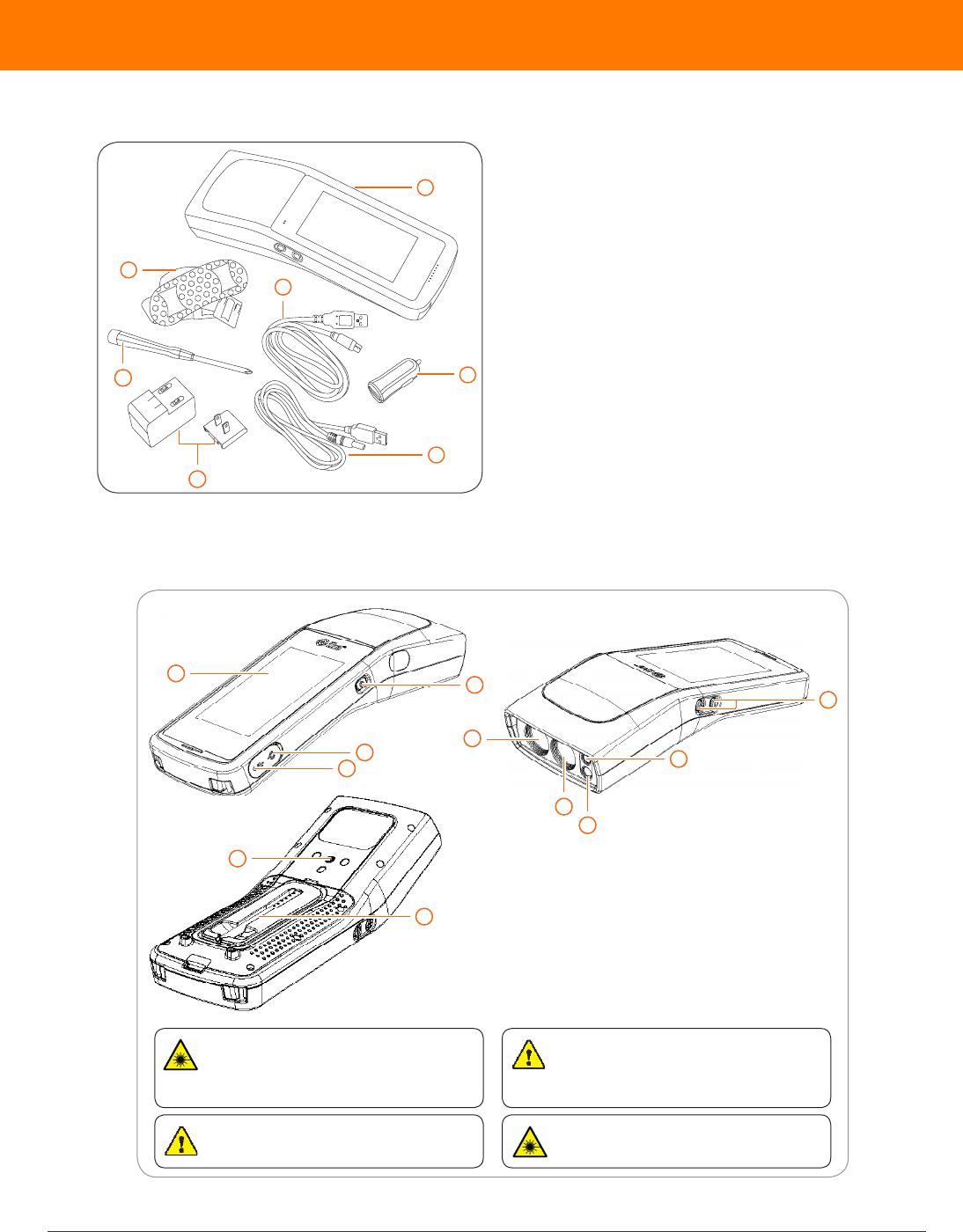
1 IKE device
2 USB car charger
3 power cable
4 micro USB cable
5 AC charger with plug adapter
6 screwdriver
7 shoulder strap for hard case
8 hard case (not shown)
A SIM card and SD card are not included.
IMPORTANT: The IKE 4 device is
designed to be used with the IKE Tripod.
It should not be used while being held by
hand or placed close to the user’s body.
6
5
1
2
3
7
4
What’s in the box
1 LCD display 7 camera
2 power button 8 laser receive lens
3 power port 9 laser transmit lens
4 USB port 10 stylus pen thread
5 volume buttons 11 tripod screw thread
6 ash
1
2
3
4
11
10
9
8
7
6
5
WARNING This equipment complies with FCC radiation exposure
limits set forth for an uncontrolled environment. In order to avoid the
possibility of exceeding the FCC radio frequency exposure limits,
human proximity to the antenna shall not be less than 20cm during
normal operation.
WARNING This device contains an eye safe class 1M laser product.
Invisible laser radiation is emitted from (and received into) the front
apertures. Avoid staring into the laser beam. This product complies with
IEC60825-1 Ed 2.0 and 21CFR1040.10 except for deviations pursuant to
Laser Notice No.50, dated July 26 2001.
CAUTION Use of controls or adjustments, or performance of
procedures other than those specied herein may result in hazardous
radiation exposure.
WARNING LASER RADIATION
DO NOT EXPOSE USERS OF TELESCOPIC OPTICS
CLASS 1M LASER PRODUCT
6 IKE 4 user manual
IKE 4 system overview
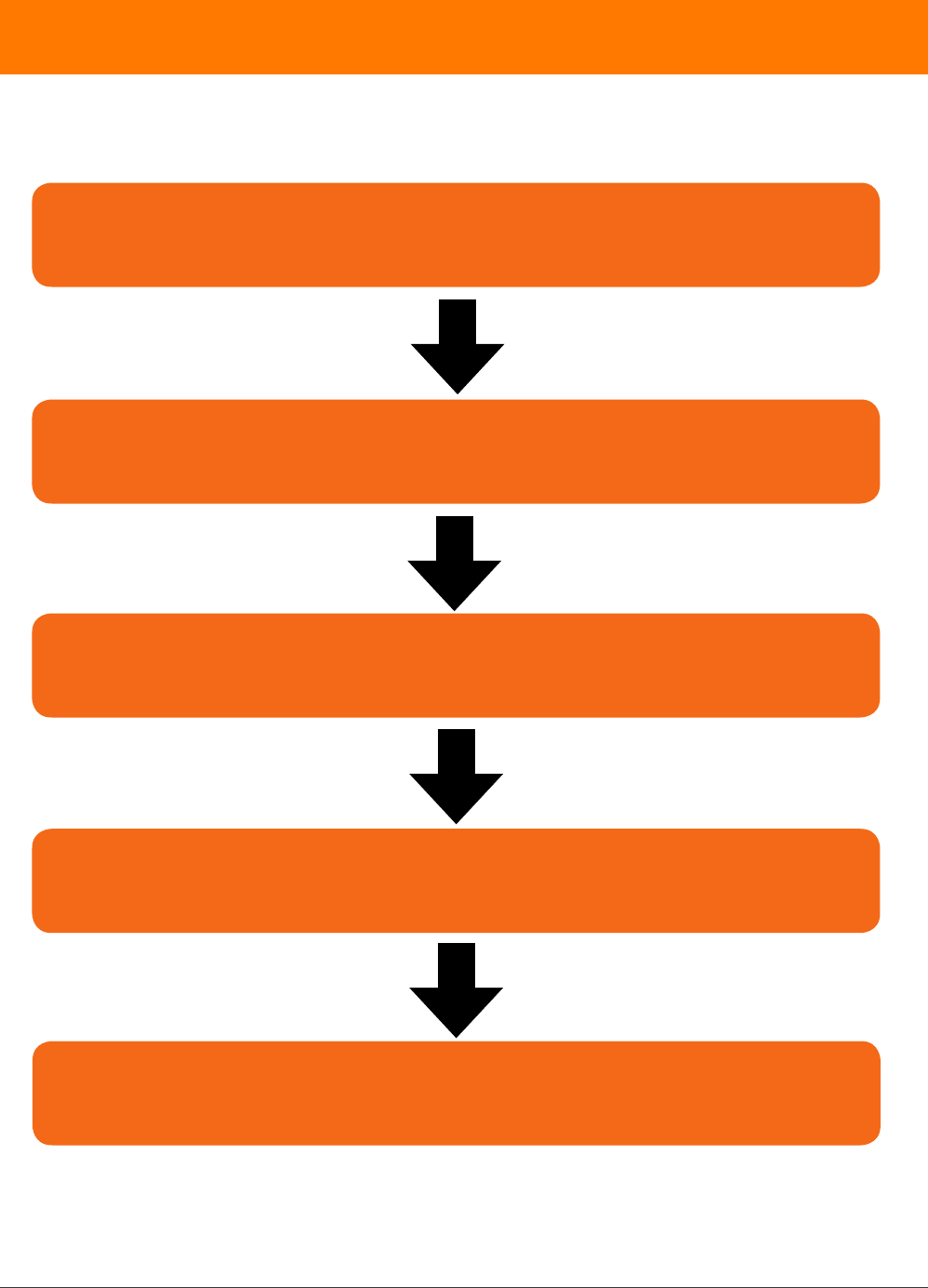
Plan Design a form or import a Spida Client le
Capture Make measurements and capture data in your
forms using the IKE Field device
Upload Upload data to IKE Ofce over Wi-Fi
Measure Use Photo Measure in IKE Ofce to measure
pole attachment heights
Export Export your collections to one of the following
formats: KML, JSON, PDF or SPIDA

IKE 4 user manual 7
system setup
IKE 4 software
IKE Ofce
IKE Ofce makes data transfer from your IKE Field device simple. Customize and deploy
forms directly to your IKE Field device and export various le types from captured data. Make
accurate photo measurements and save marked-up photos.
IKE Field
Your device has been shipped with the latest factory software — your installed version shows
on the IKE Field device main screen. However, the team at IKE regularly makes product
improvements. Updates will be delivered to your device via the Google Play store. You only need
to update the software when prompted, and you will stay up to date.
IKE 4 documentation
IKE 4 setup guide
A guide to getting started with your IKE eld device
IKE 4 user manual (this guide)
The most comprehensive A-Z guide to using your IKE device
IKE 4 eldcraft guide
How to get the best results from your IKE, tips and tricks to improve performance, accuracy,
and productivity
additional software
• Web Browser – IKE Ofce supports Internet Explorer 11+, Firefox and Chrome browsers.
• Google Earth™ – View your data and measurements by clicking on their location on aerial
photographs.
8 IKE 4 user manual
IKE 4 tripod
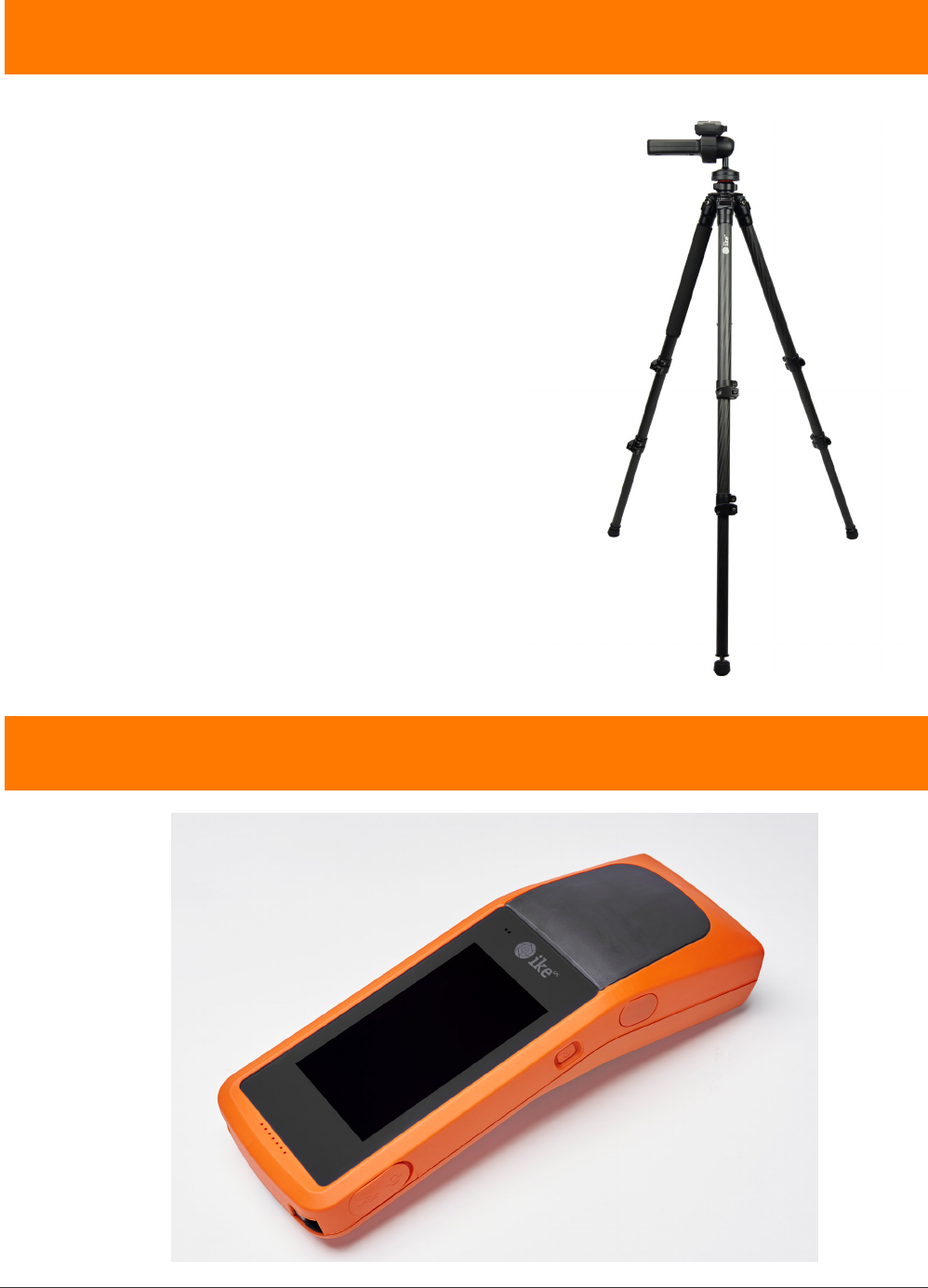
Your device is designed to be used with the IKE 4
tripod, which provides a stable platform to obtain
the most accurate results when measuring objects
such as target poles and wires. The tripod has a
low magnetic signature that will not affect the IKE
device’s compass, which helps provide accurate
measurements.
Important: Tripods other than the IKE tripod will likely
produce less accurate results than the IKE tripod.
IKE Field – how it works
IKE 4 user manual 9
IKE Field
IKE Field
Signing In
Settings
Creating a job
Downloading forms
Starting a collection
Viewing the map
Uploading data
Making measurements
signing In
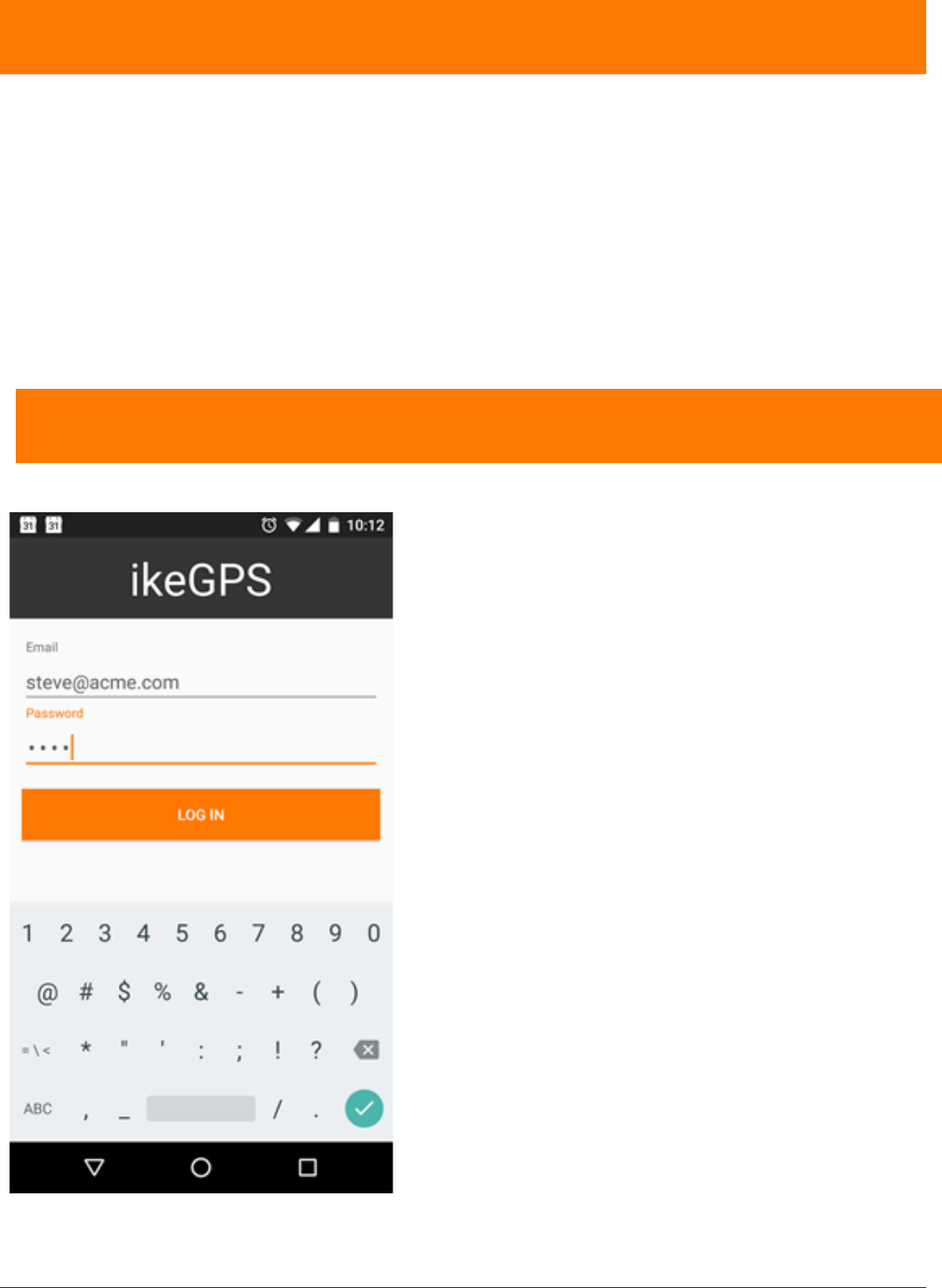
1. Sign in to the application with the same email and
password as you used for IKE Ofce.
This user information will be saved, so the next time
the application is opened it will already be logged in
to the most recent account.
10 IKE 4 user manual
settings
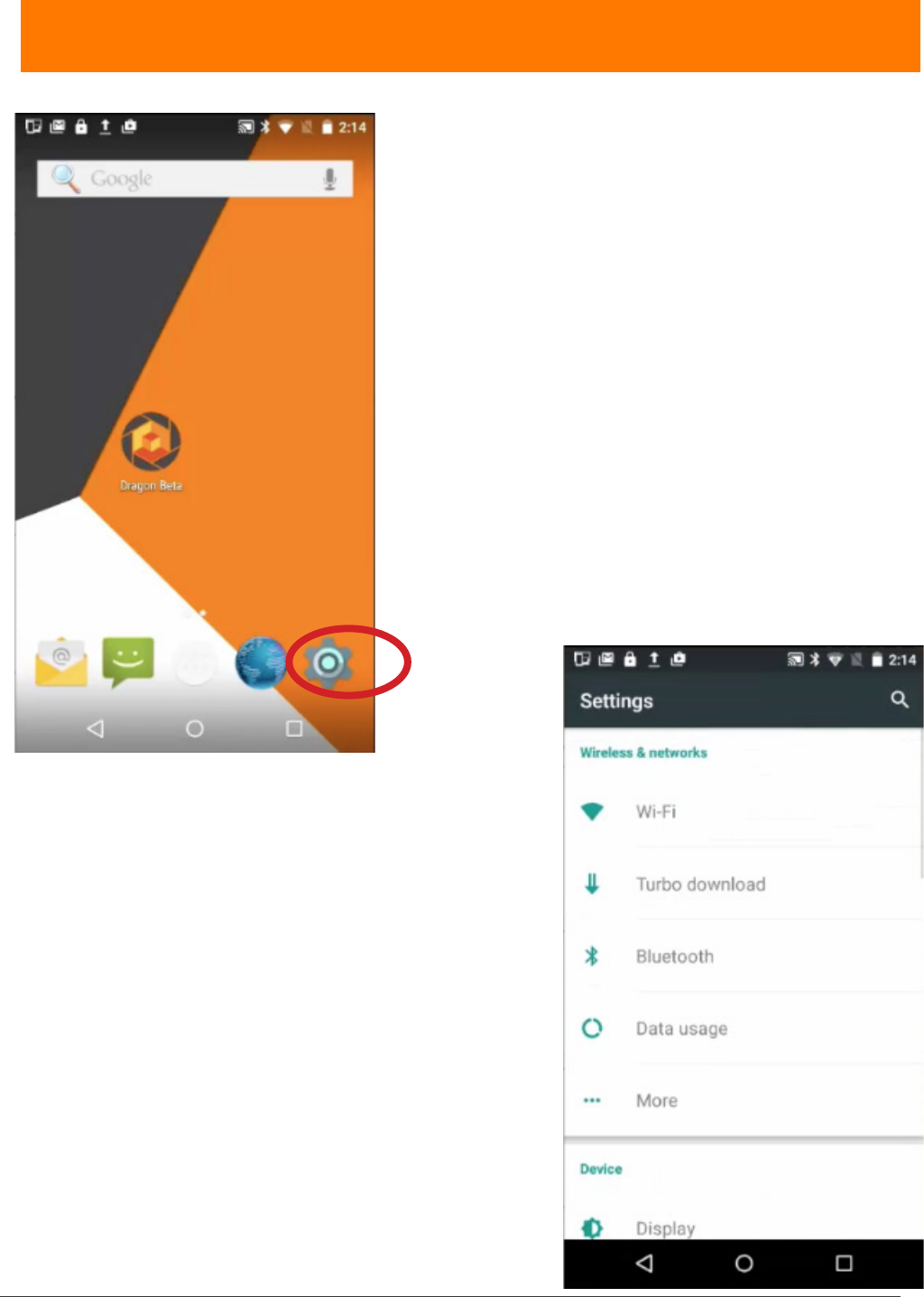
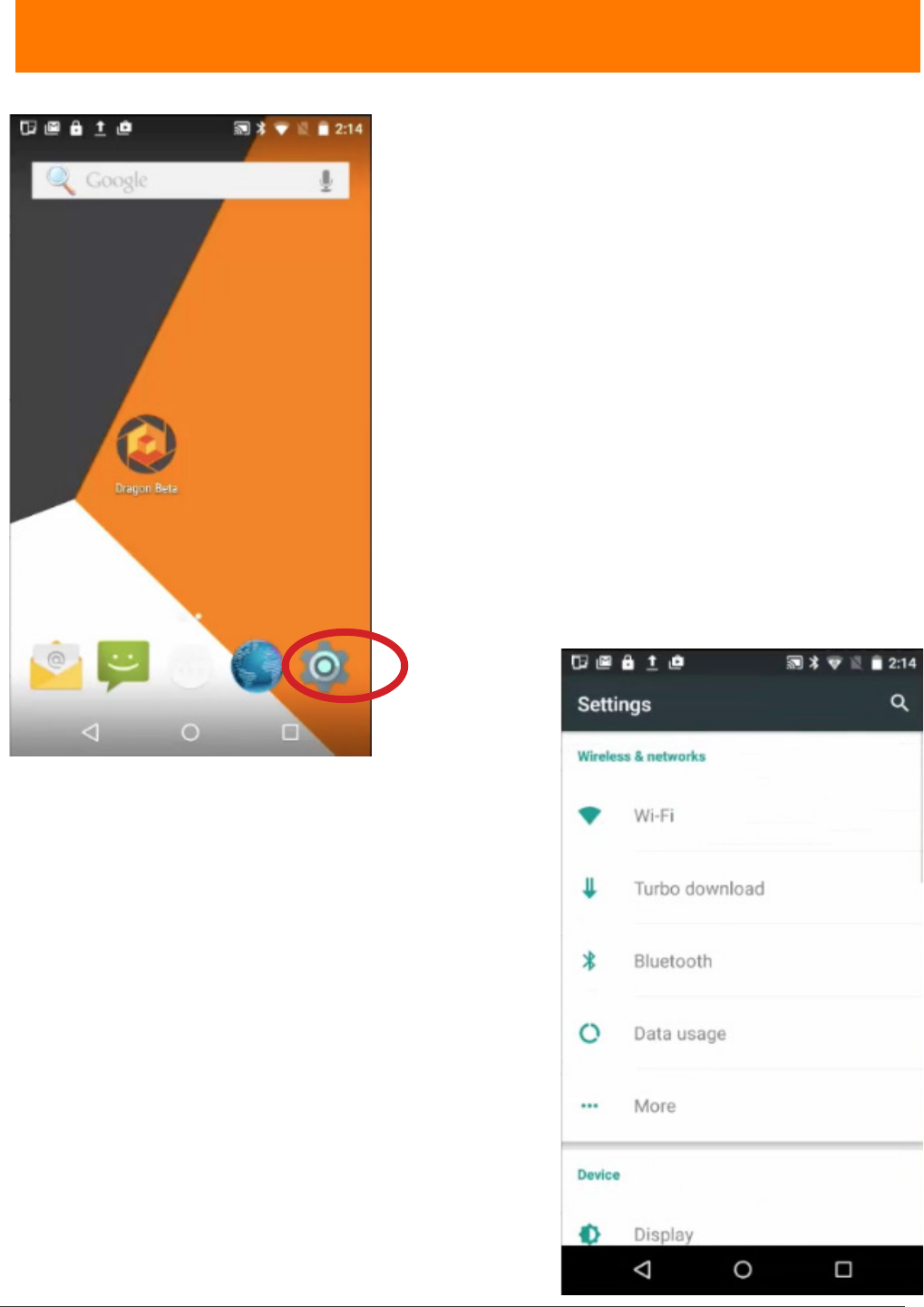
After turning on the IKE, navigate to the device’s
Settings.
There are four (4) separate Settings sections:
• Wireless & networks
• Device
• Personal
• System
Each will be discussed briey, in general.
Wireless & networks
• Wi-Fi — touch Wi-Fi, and then touch the slider
to move it to the On position. Chose a wireless
connection.
• Turbo download — touch Turbo download to
download large les (>20 MB) faster, using the Wi-
Fi and 4G/3G networks simultaneously. Touch the
slider to move it to the On position.
• Bluetooth — touch Bluetooth, and then touch
the slider to move it to the On position. Choose a
Bluetooth device
• Data usage — touch Data usage to check daily
and total data usage. Default is OVERVIEW. Touch
Wi-Fi to view app usages. Touch available monthly
segments to compare across time.
IKE 4 user manual 11
• More — Touch More to access
• Airplane mode
• Tethering & portable hotspot
• VPN
• Cellular networks
12 IKE 4 user manual
settings
1. After turning on the IKE, navigate to the device’s
Settings.
2. Move to the Wireless & networks section.
3. Select the router you want.
4. Enter the router’s password and select CONNECT.
For extended Internet coverage, use a standard AT&T
SIM card, or a micro or nano card with an adapter, in
the IKE SIM card slot under the battery.
Refer to IKE 4 Training Module 4 for further details.
IKE 4 user manual 13
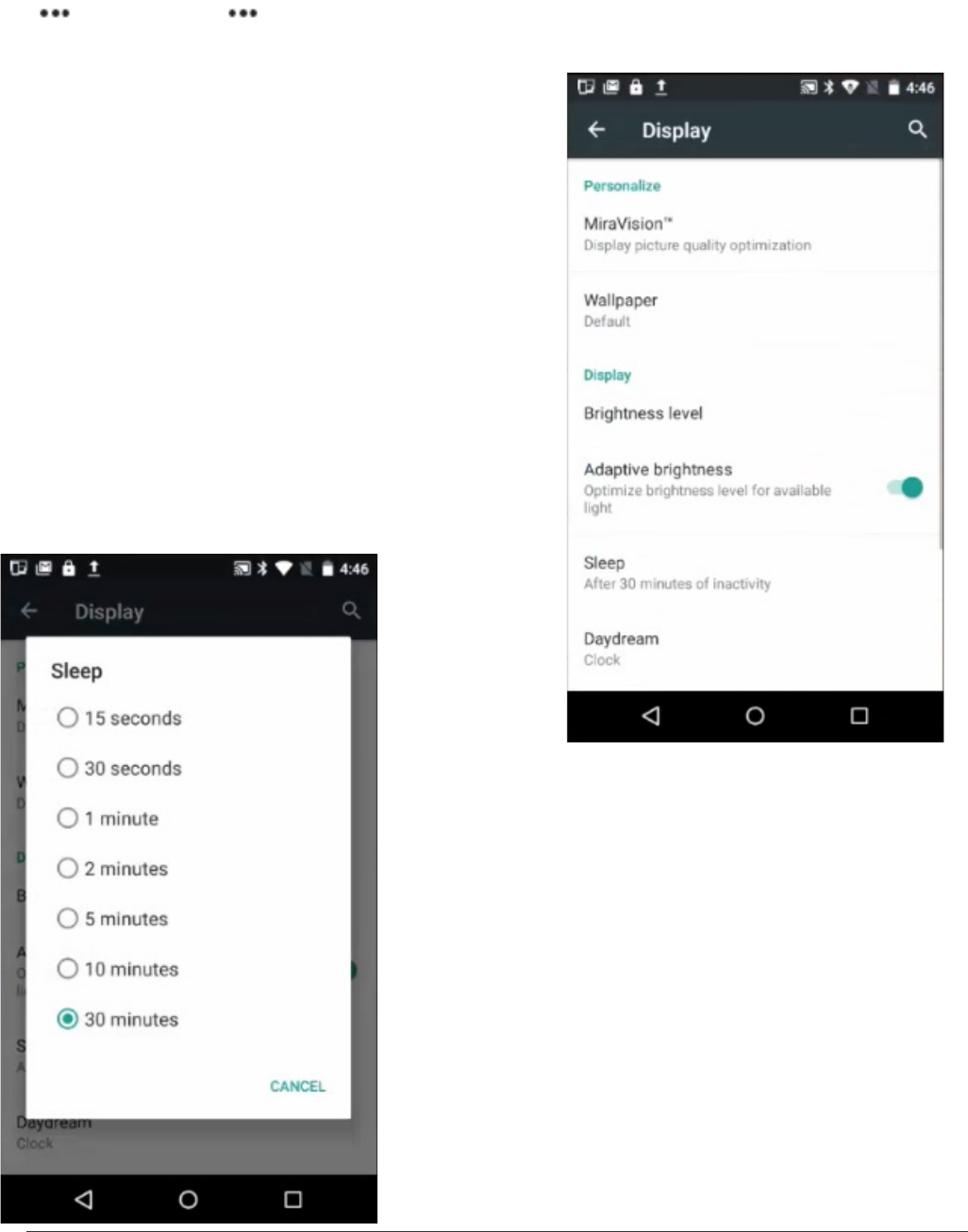
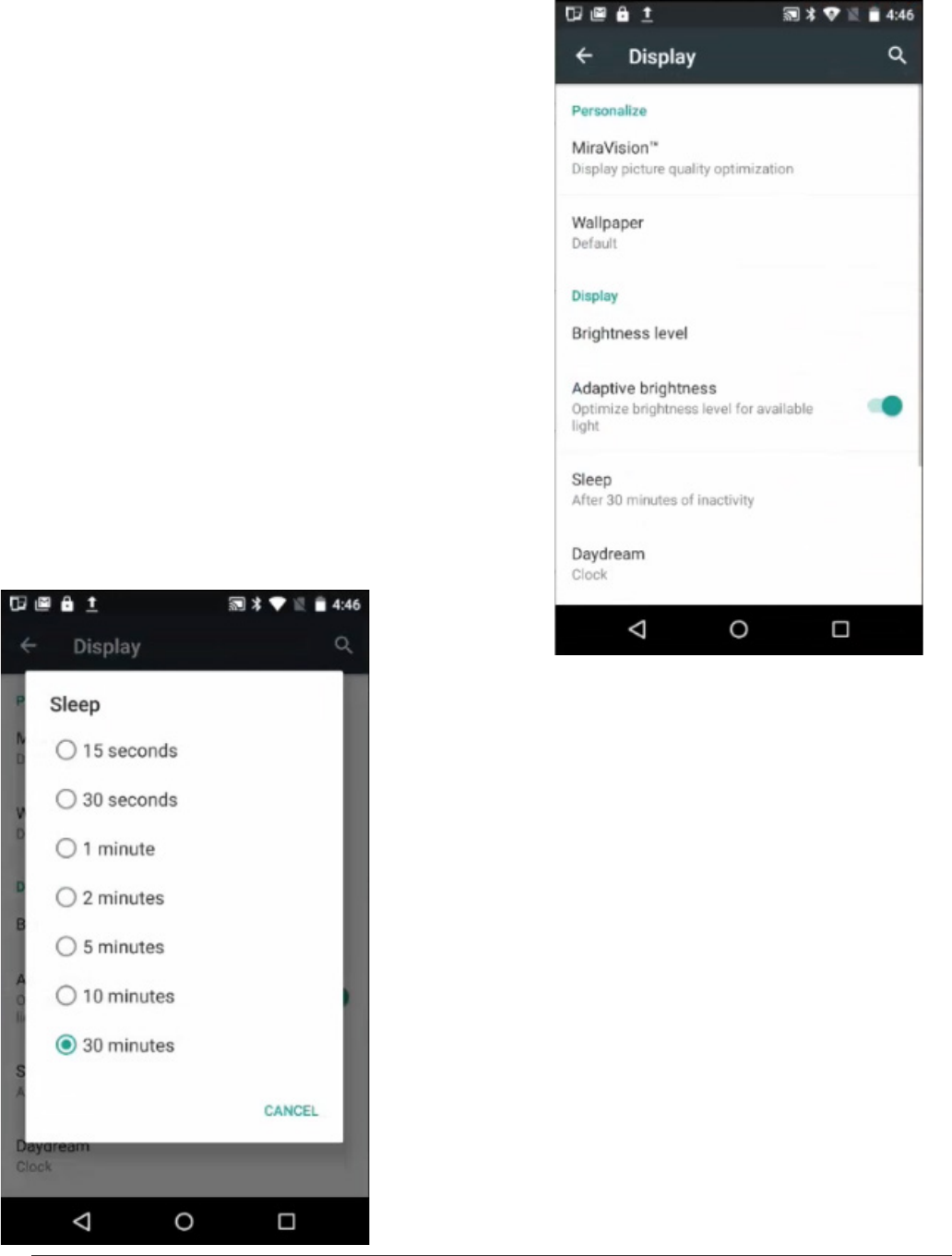
5. Navigate:
Settings > Device > Display
There you can change
• Brightness level
• Adaptive brightness
• Sleep
Change the Brightness level for easy viewing.
Adjust the Adaptive brightness, depending
on the light in your environment.
Change the Sleep mode setting to save battery life
during periods of inactivity.
14 IKE 4 user manual
6. Navigate:
Settings > Personal > Location
Touch Location to manage:
• Location settings
• Satellite-based augmentation systems (SBAS)
For the IKE device’s GPS to function correctly, SBAS
must be turned on
• Location — touch Location, and then touch the slider
to move it to the On position.
• SBAS — touch the SBAS slider to move it to the On
position.
IKE Settings
1. Sign in to the IKE Field app, using the same sign
in information as the IKE Ofce account.
The app opens to the My Jobs screen.
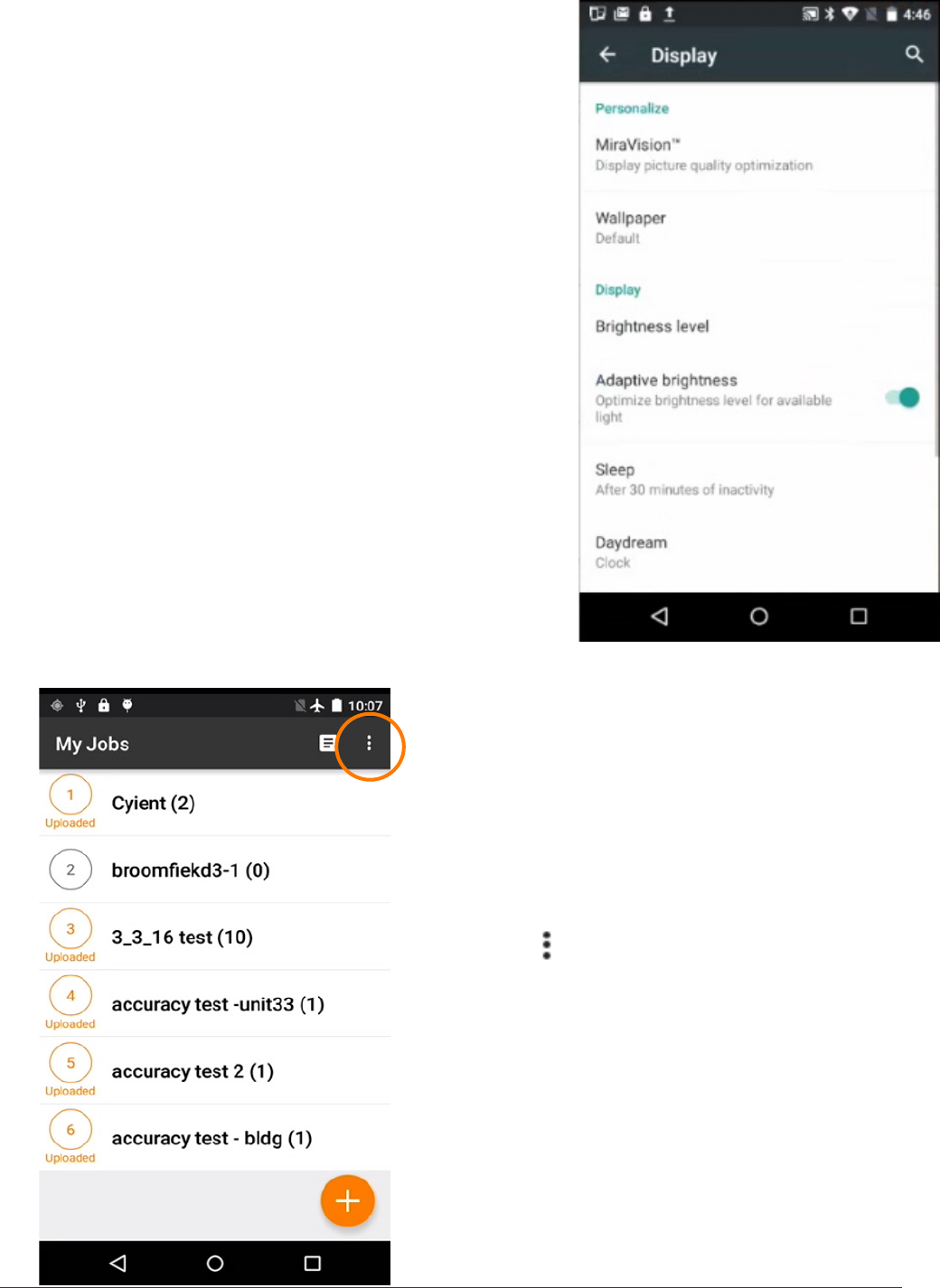
2. On the My Jobs screen, touch the
More icon ( ) in the upper-right of the screen.
3. Touch Settings.
Now you can change
• the Date Format
• the Measurement Unit.
4. Touch Date Format to choose between
MM/dd/yyyy and dd/MM/yyyy formats.
5. Touch Measurement Unit to choose between
feet and meters.
IKE 4 user manual 15
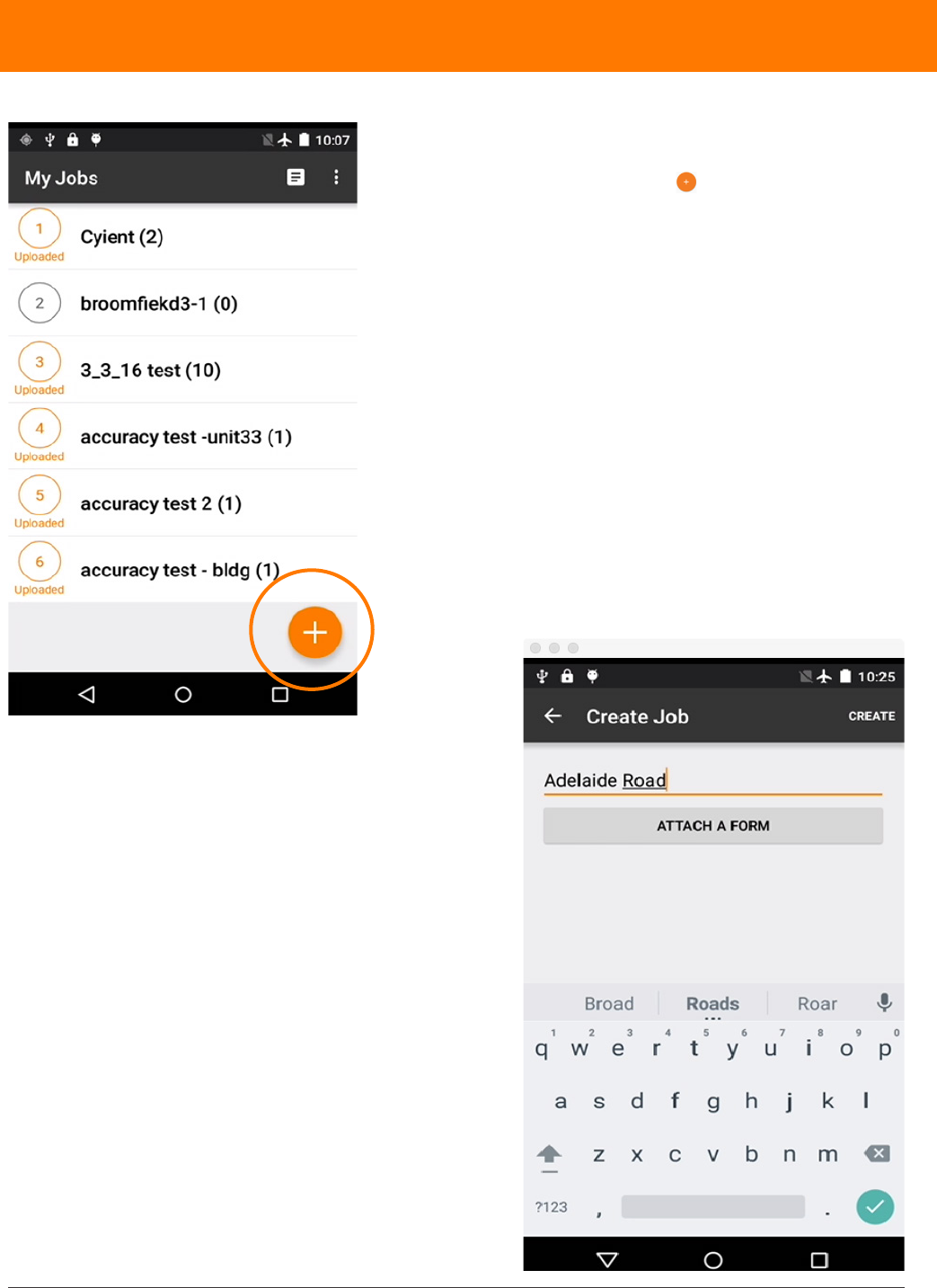
1. To create a job, navigate to the My Jobs screen.
2. Touch the orange plus icon .
3. Enter the name of the Job.
4. Touch ATTACH FORM.
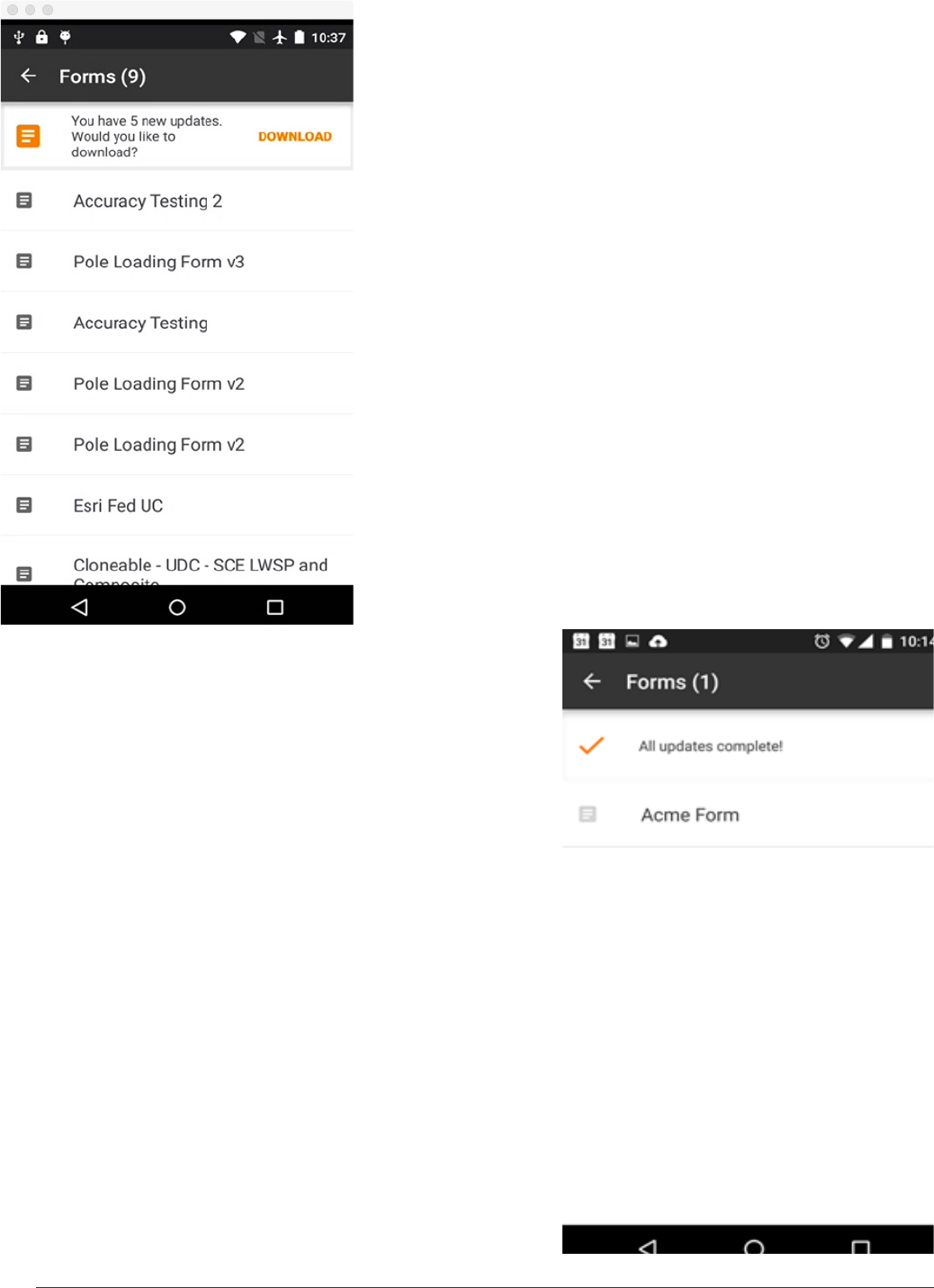
When connected to the Internet, the page will
automatically check for available updated and
new forms.
creating a job
16 IKE 4 user manual
5. Tap DOWNLOAD to download the latest forms.
When forms are downloaded, you have access to
them, even without Internet connectivity.
6. Select the form you want to
use.
IKE 4 user manual 17
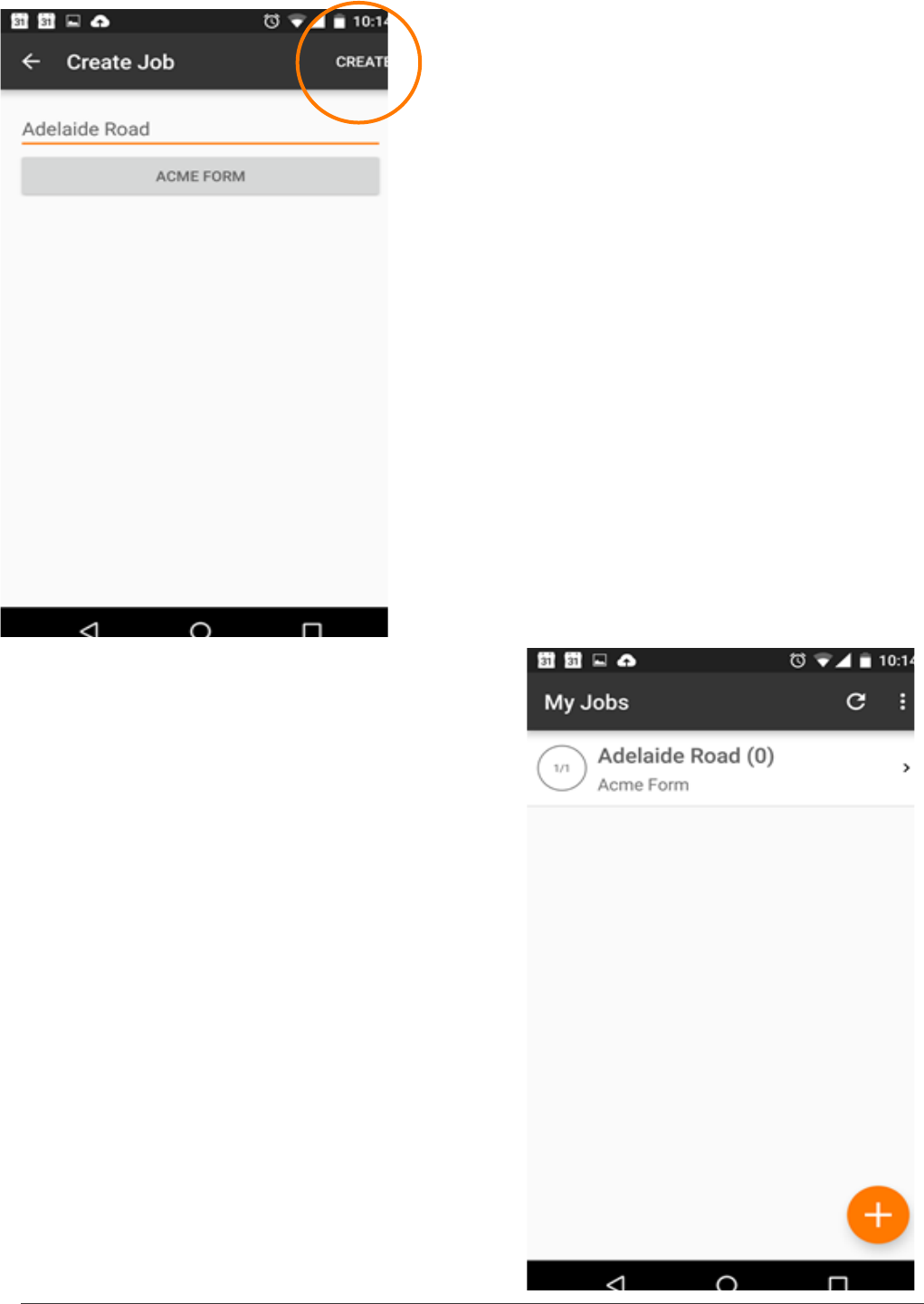
7. When the job has a name and a form attached to it,
tap the CREATE button in the top right.
To ensure you have the resources for data collection,
we recommend creating a job and applying the form
before going on site. If your IKE device has a SIM card
or Wi-Fi connectivity in the eld, you will be able to
receive form updates.
8. The My Jobs screen shows all of the jobs on
the device. Select the Job you wish to work on to
proceed.
18 IKE 4 user manual
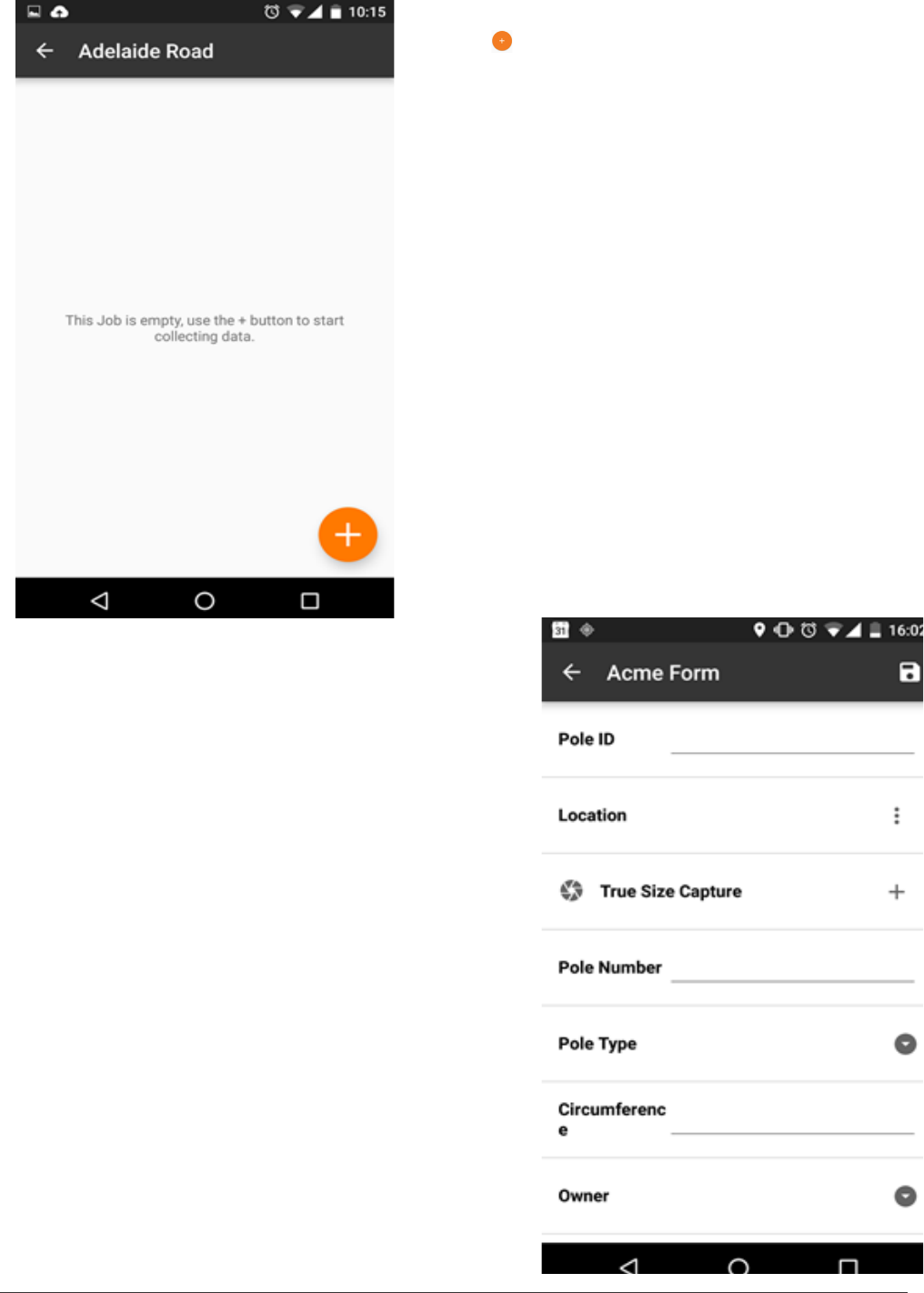
9. Now you are ready to start collecting form data.
Tap the button to create your rst collection.
10. You can enter data directly into the on-screen
form and use tools to make measurements.
Anything with a plus button can be repeated
multiple times.
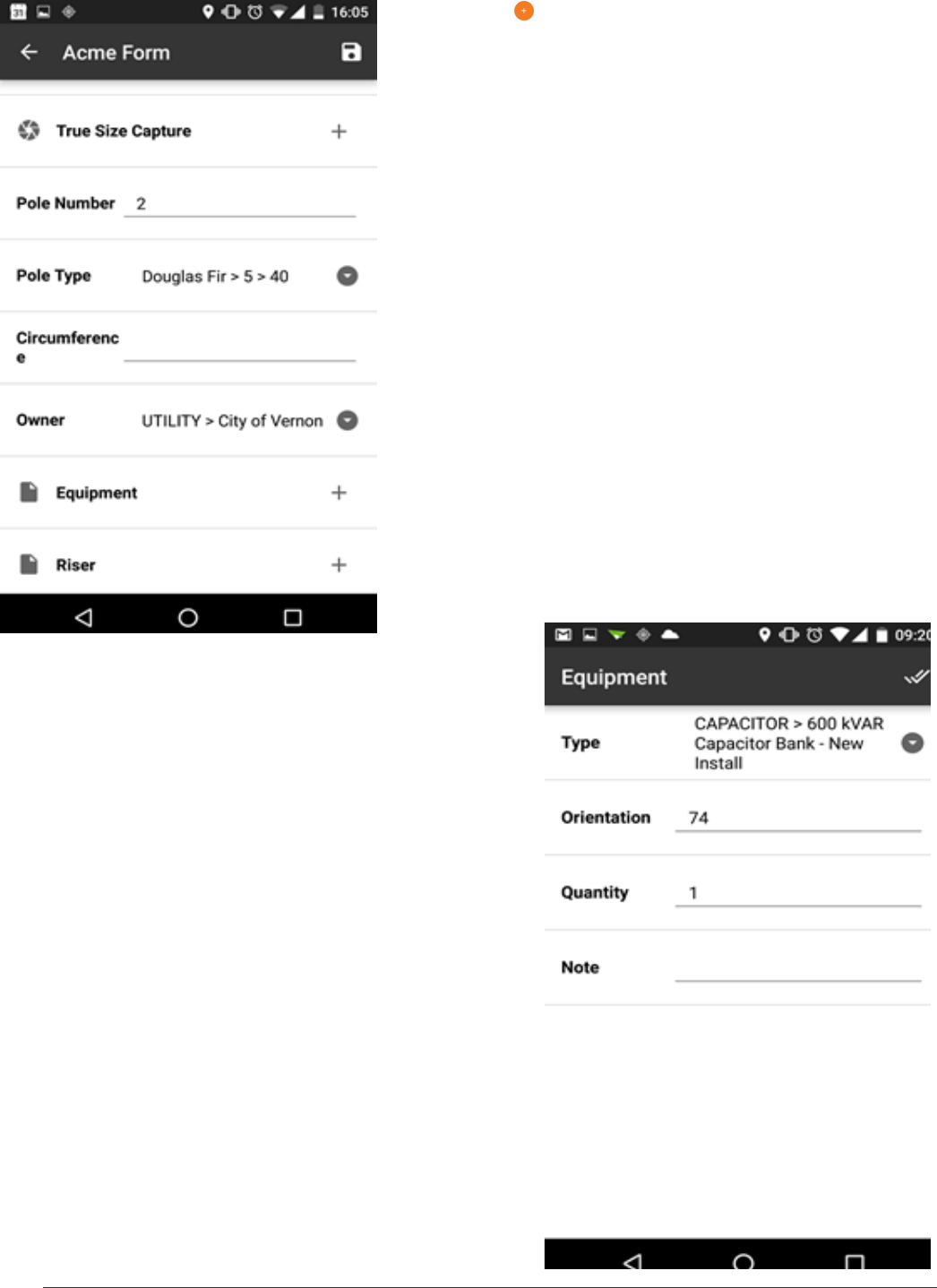
IKE 4 user manual 19
11. Tap the next to equipment sub-form to start
collecting data about that attachment.
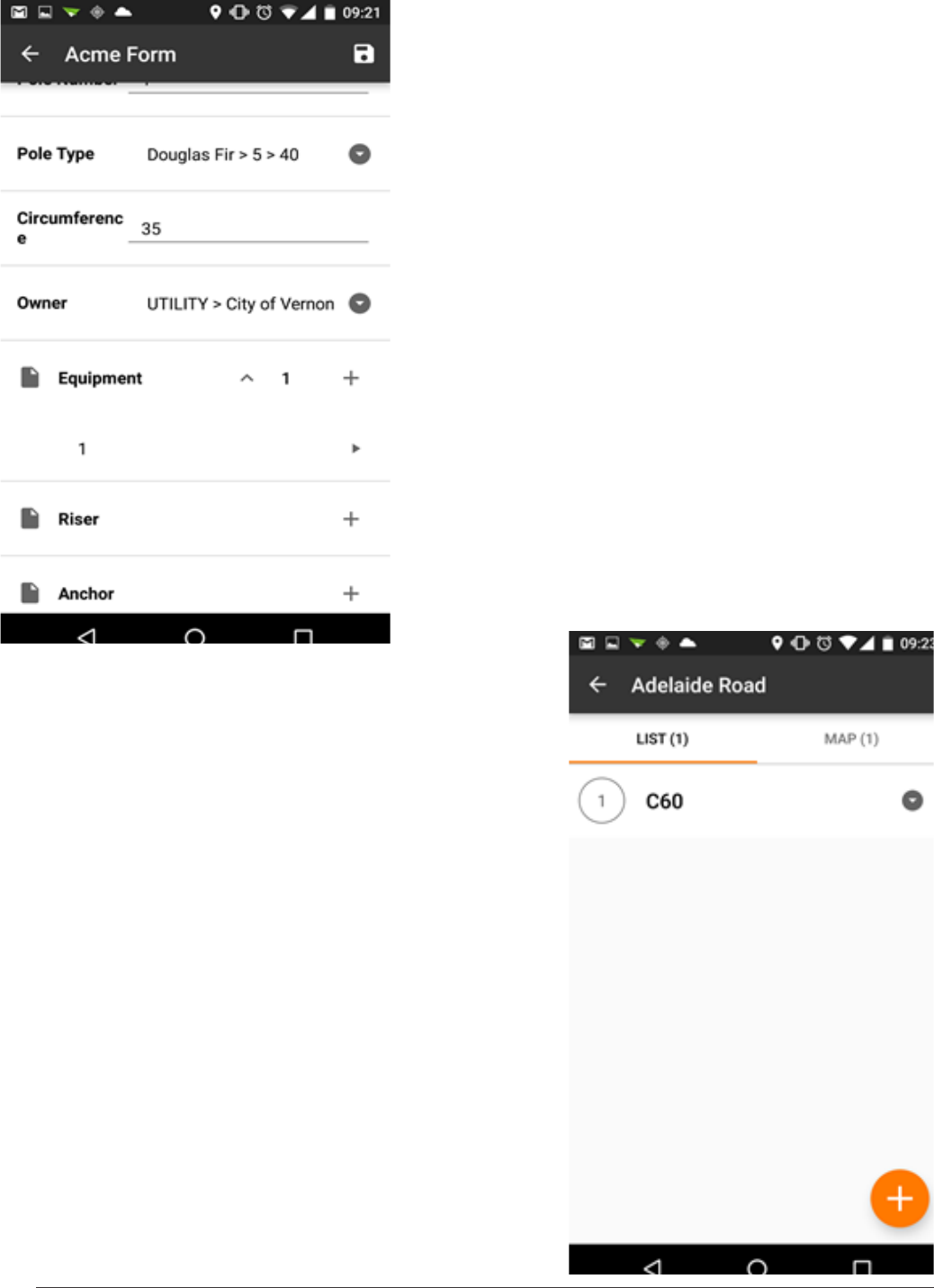
12. When you have collected all of the information
about the equipment, click the done button at the top
right.
20 IKE 4 user manual
13. You can see that one piece of equipment has been
captured.
Tap the Save icon to keep this information.
Tap the Back icon to go back to the Job screen.
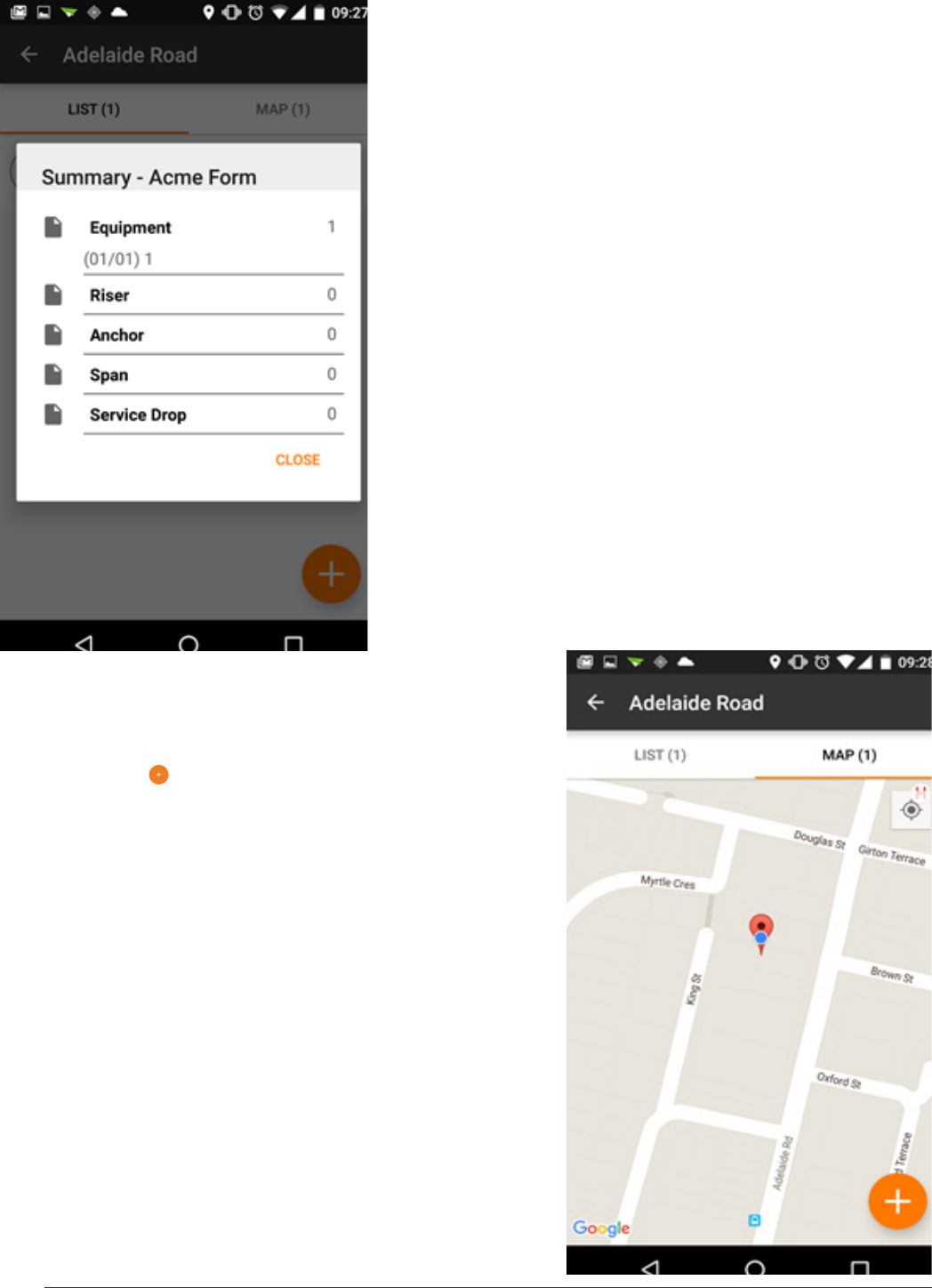
14. The Job screen shows all of the collections you
have made for this job in both a list and on a map.
Tapping the down arrow next to a collection shows a
summary.
IKE 4 user manual 21
15. The summary gives you an overview of a collection
by showing which sub-forms have been collected.
16. Tapping the Map tab shows your collections for
this job on a map.
17. Tapping the will take you to the form screen to
add another collection.
18. Tapping on the location balloon will take you to that
collection.
22 IKE 4 user manual
uploading data
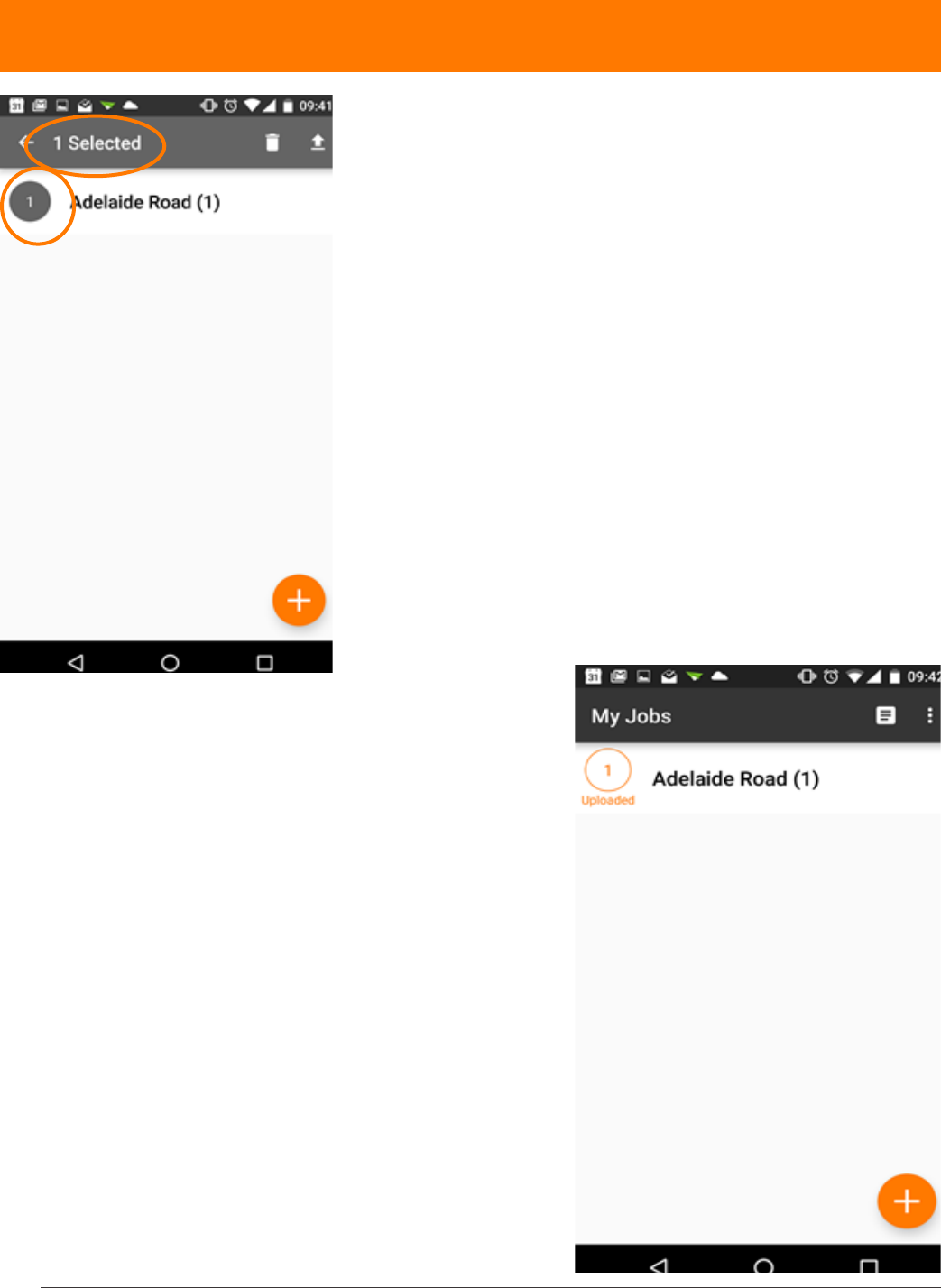
After you’ve collected the data, you will want to upload
the data to the IKE Ofce.
1. Re-establish a Wi-Fi connection or utilize a data
package through an AT&T SIM card, if necessary.
2. Return to the jobs list on the My Jobs screen.
3. Touch the gray, outlined circle to the left of the job
name.
4. Ensure the number to the left of the job becomes
highlighted in gray and the correct number of selected
les is indicated at the top of the screen.
5. Touch the upload arrow to upload your job.
A dialog box indicates the status of the upload and
indicates when successful.
After uploading, the job is paired with an orange,
uploaded circle.
Now you can view the job in IKE Ofce.
After uploading your les, we recommend exiting the
IKE Field app prior to powering down the IKE device.
IKE 4 user manual 23
making measurements
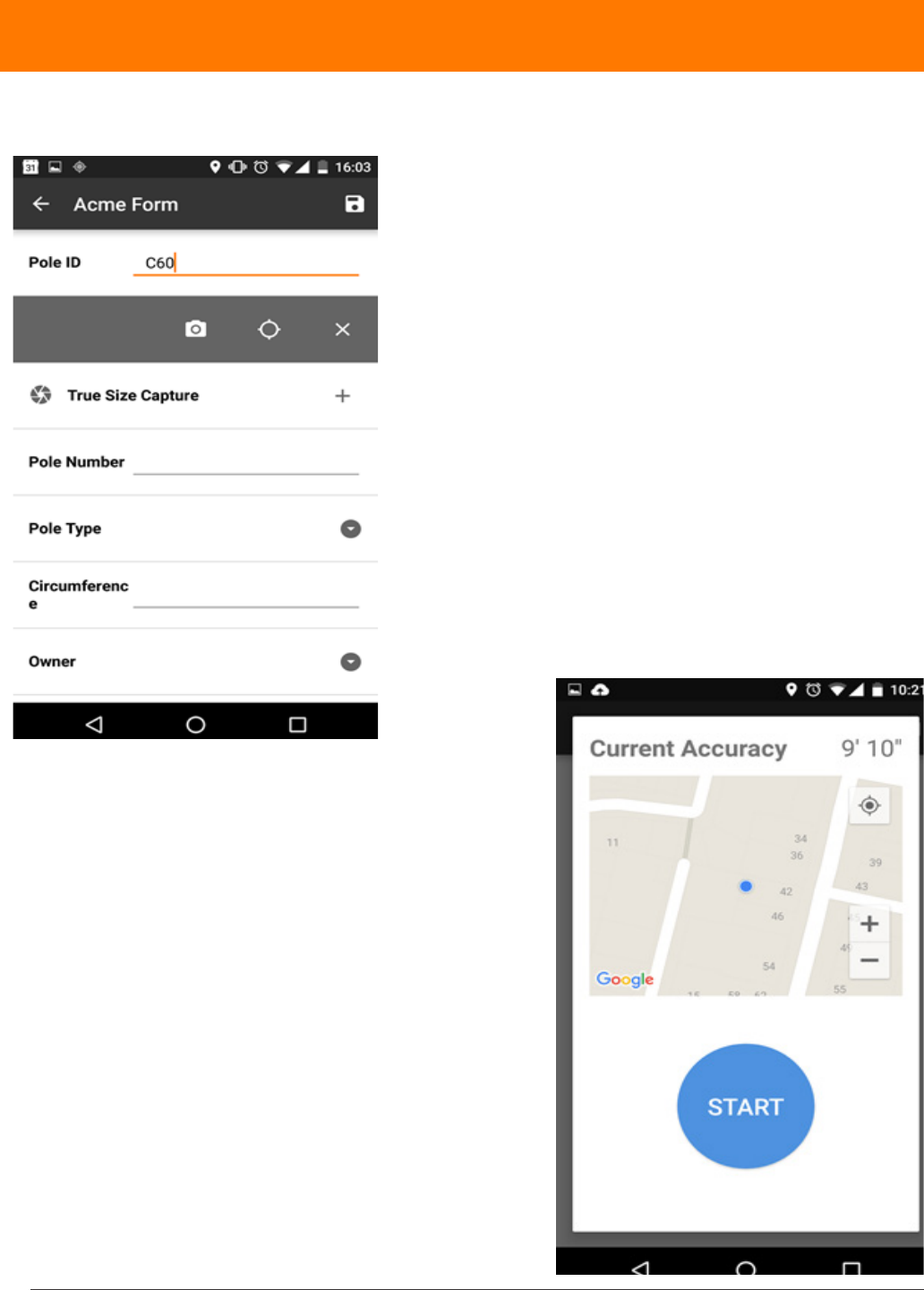
1. To capture a location, select the eld and choose
from local position (GPS icon)(GPS only) or target
position (Camera Icon) (GPS + laser offset).
Local GPS Position
2. For the Local GPS position tool, the current accuracy
shows the expected accuracy of the position. Pressing
START begins averaging GPS data over 30 seconds
to get the best accuracy. Try not to move or cover the
device during this process.
24 IKE 4 user manual
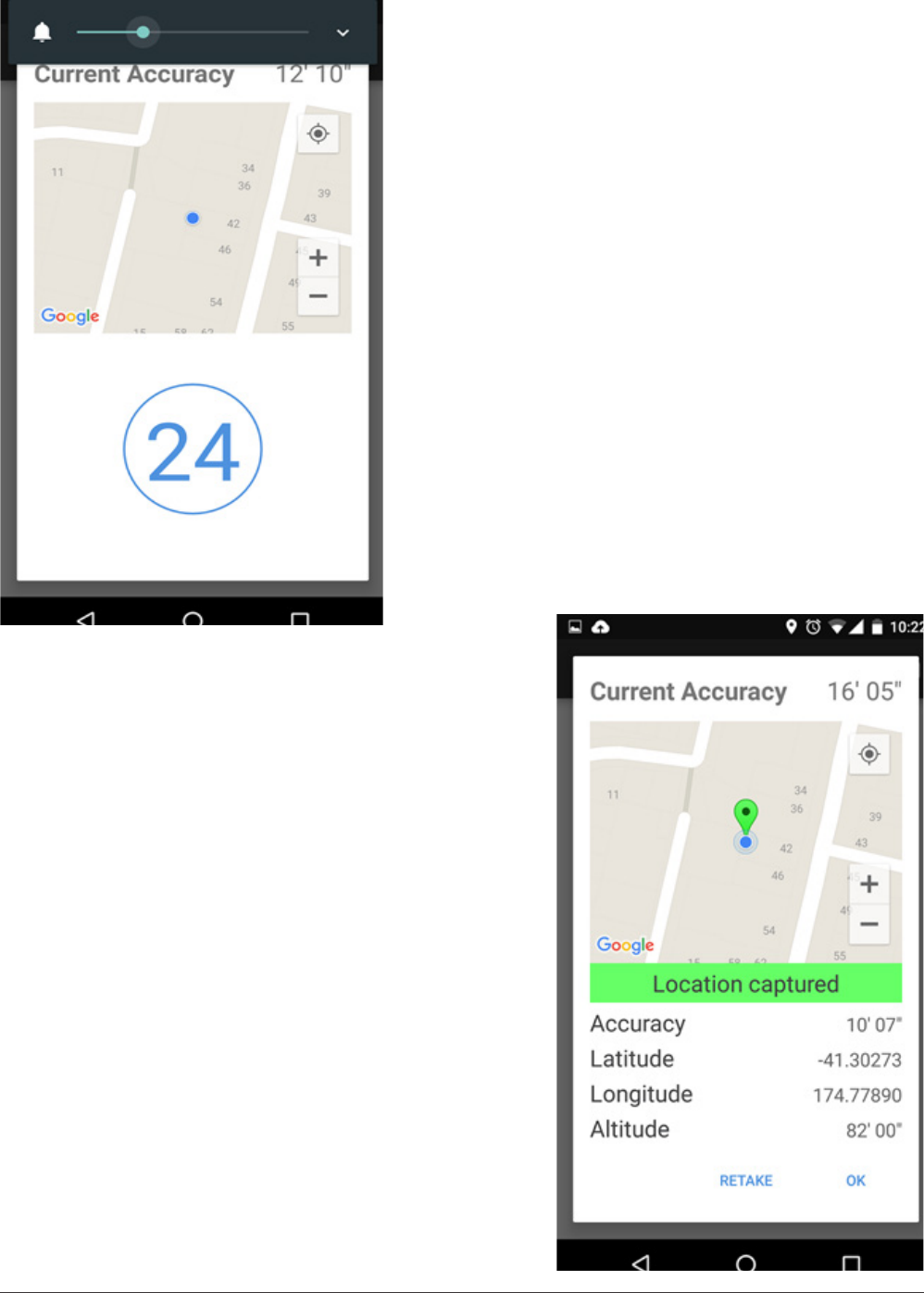
3. Counting down
4. Location captured. The green pin on the map shows
the location captured. The blue dot shows your current
location.
IKE 4 user manual 25
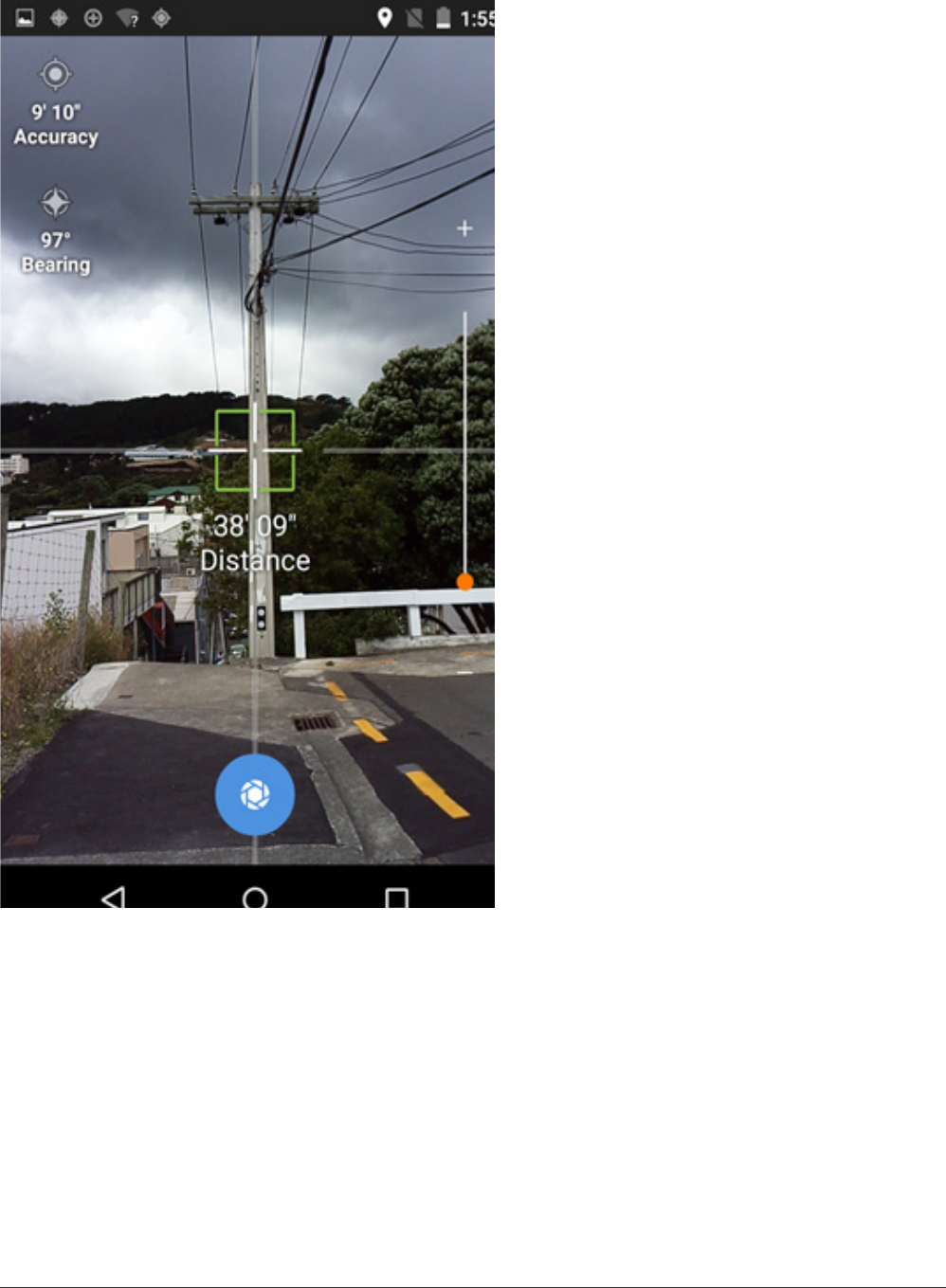
Target GPS Position
1. Aim at the target with the crosshair to
ensure the laser is hitting the object you
want to locate.
2. Ensure the crosshair color is green
which indicates that all of the instruments
(GPS, Compass and Laser) are providing
information
3. Tap the blue capture button at the
bottom of the screen to take a picture and
capture the location.
Note: you can zoom in using the slider on
the right to help with aiming
Note: tapping on different areas of the
camera will change the brightness/focus,
like a standard Android camera.
26 IKE 4 user manual
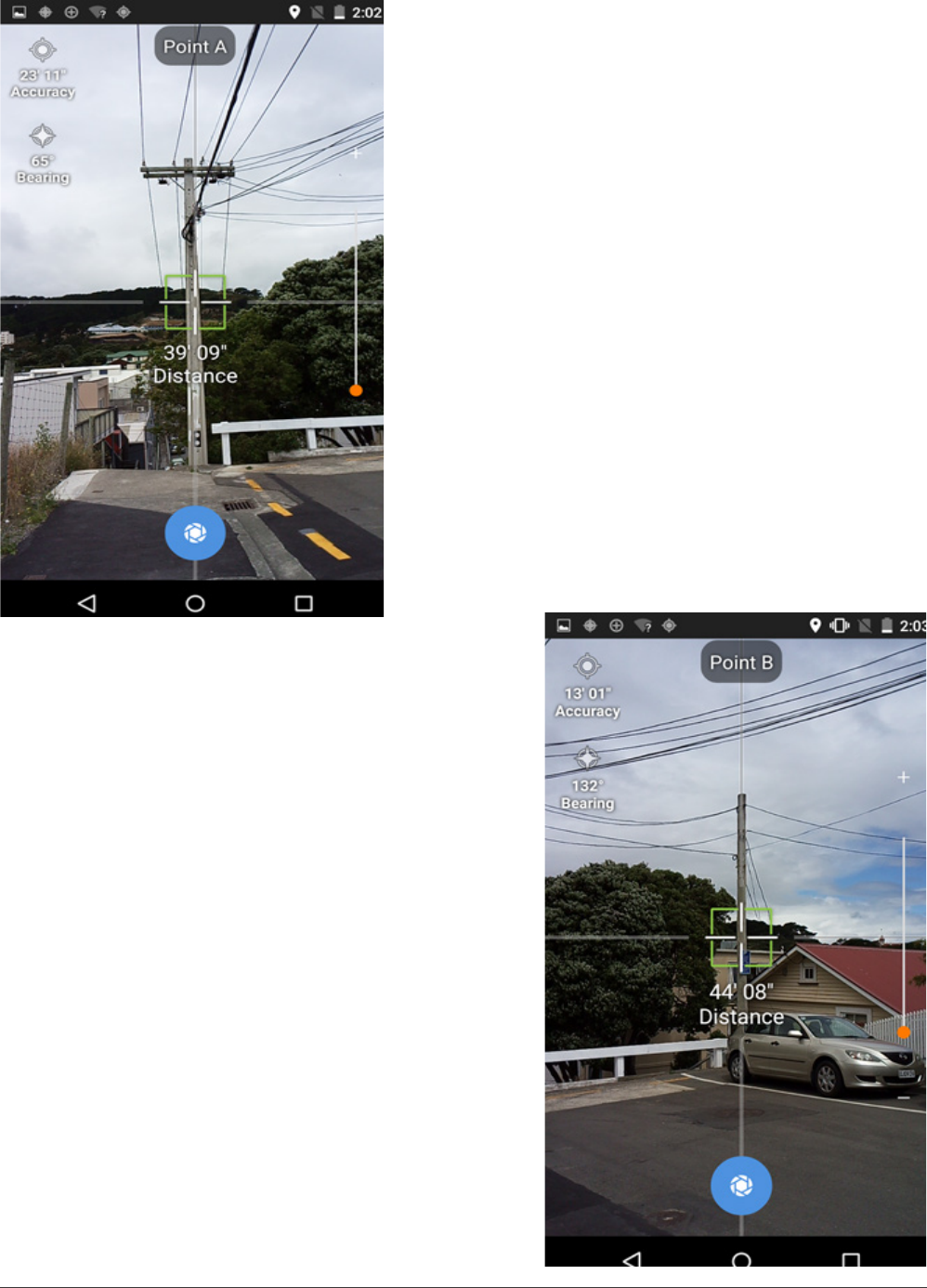
Point to Point
1. Aim at the rst target and capture when the
crosshair turns green.
2. Aim at the second target and capture when the
crosshair turns green.
IKE 4 user manual 27
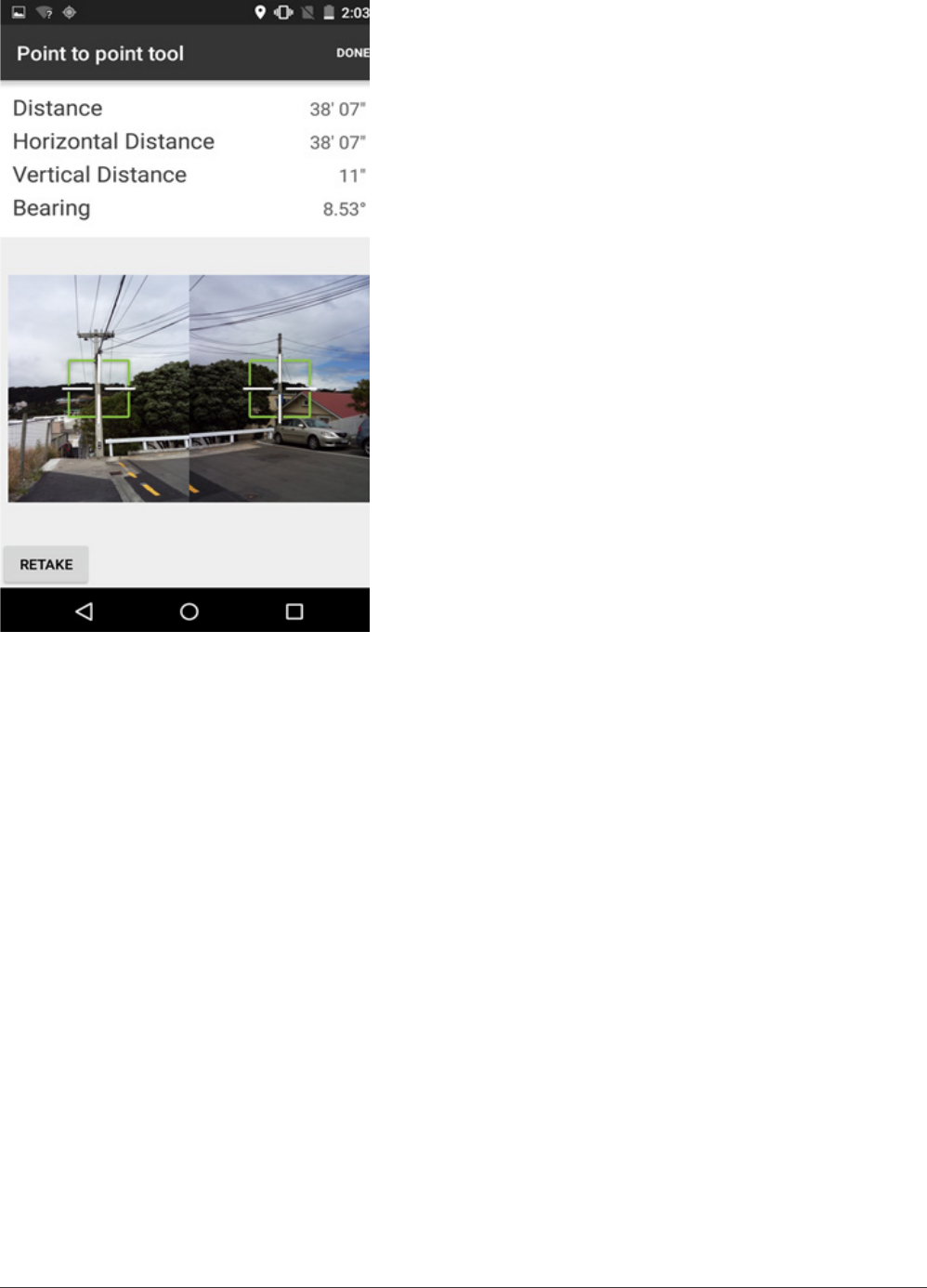
3. The distance and bearing from Point A to Point
B are calculated.
4. Click RETAKE if you’re not satised with your
results.
28 IKE 4 user manual
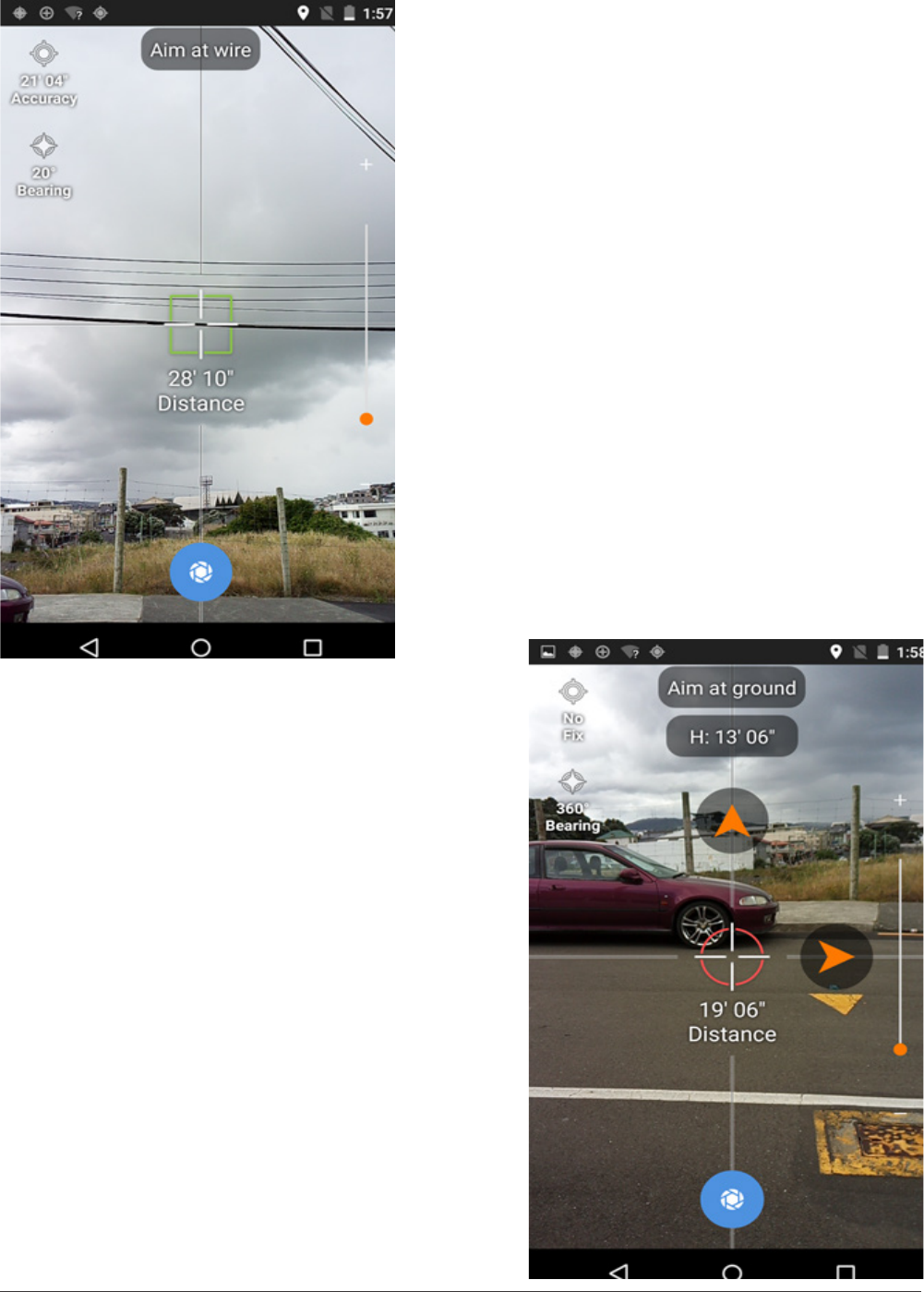
Point to Point
1. Aim at the wire, wait for the crosshair to turn
green and tap the capture button.
2. Use the orange guide arrows to locate the
position directly below the wire.
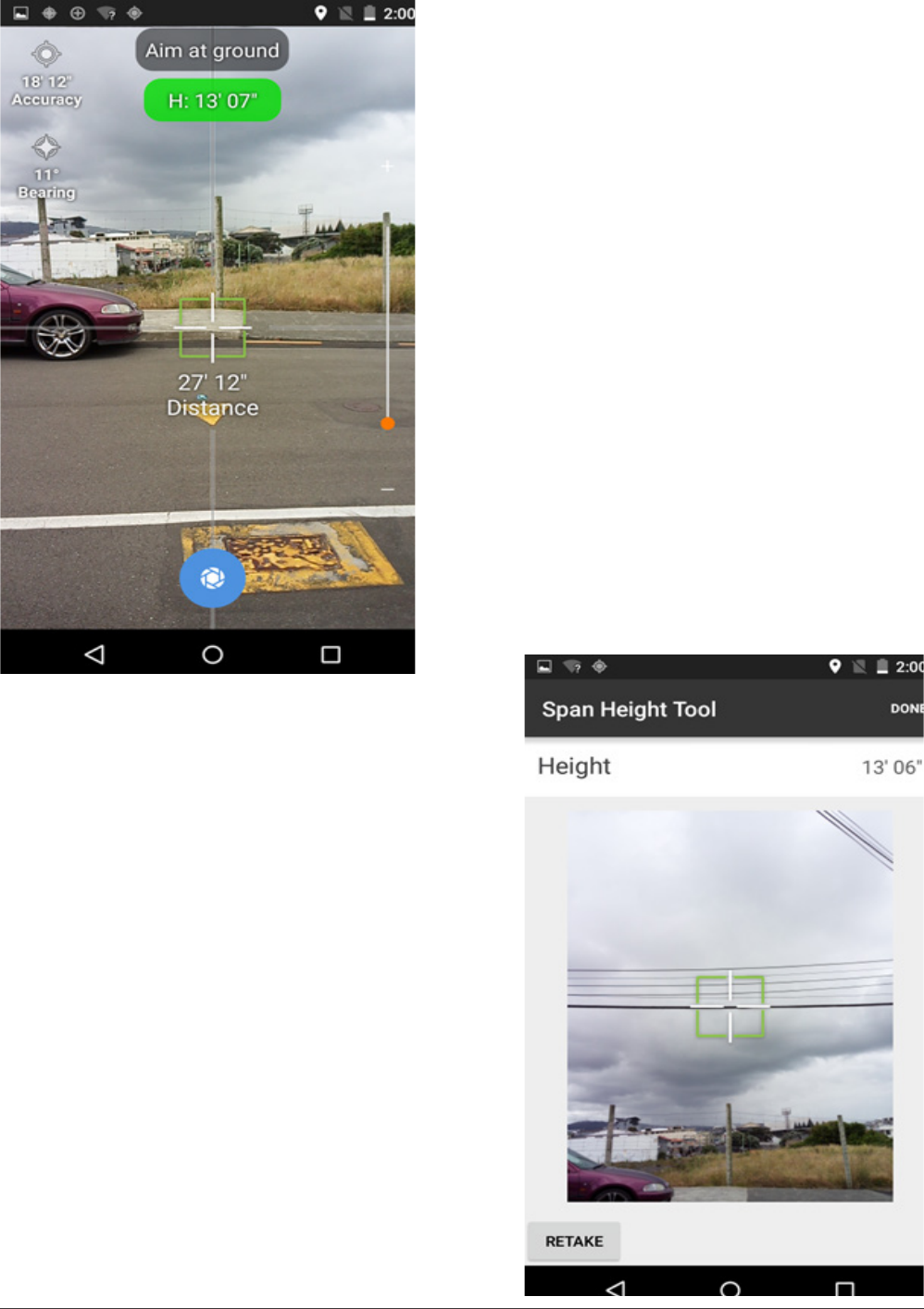
IKE 4 user manual 29
3. When the arrows disappear and both the
crosshair and the height measurement area turn
green, tap the capture button.
4. The results screen shows the height of the wire
and a photo with the crosshair.
30 IKE 4 user manual
Photo Measure
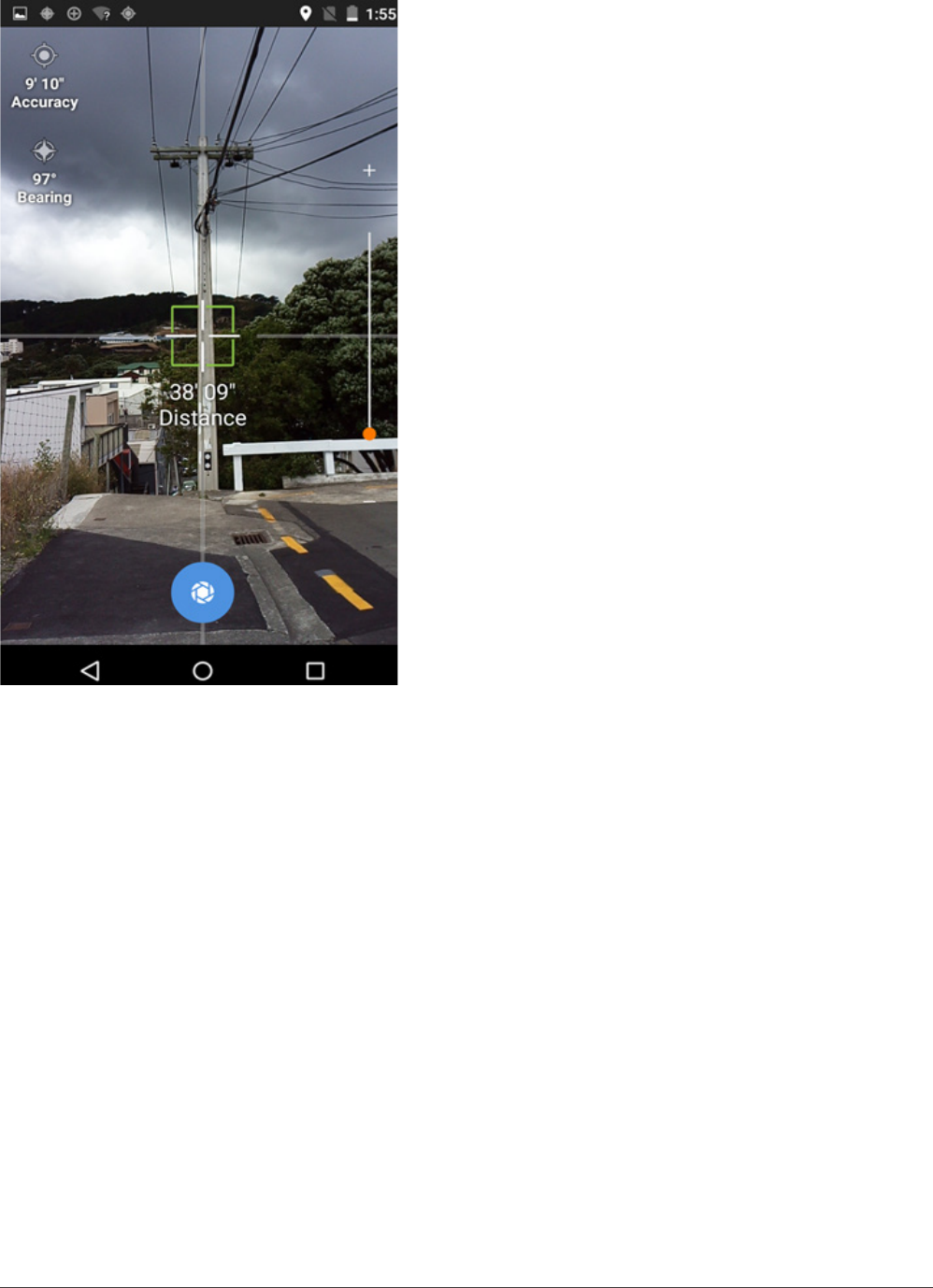
1. Aim at the pole with the crosshair.
2. Ensure the guideline that runs down the whole
screen matches the angle of the pole.
3. When the crosshair is green tap the blue capture
button at the bottom of the screen.
IKE 4 user manual 31
IKE Ofce
IKE Ofce is a cloud-based le management system with which you can
• create customizable forms
• upload and download eld data
• measure heights of utility poles and their attachments
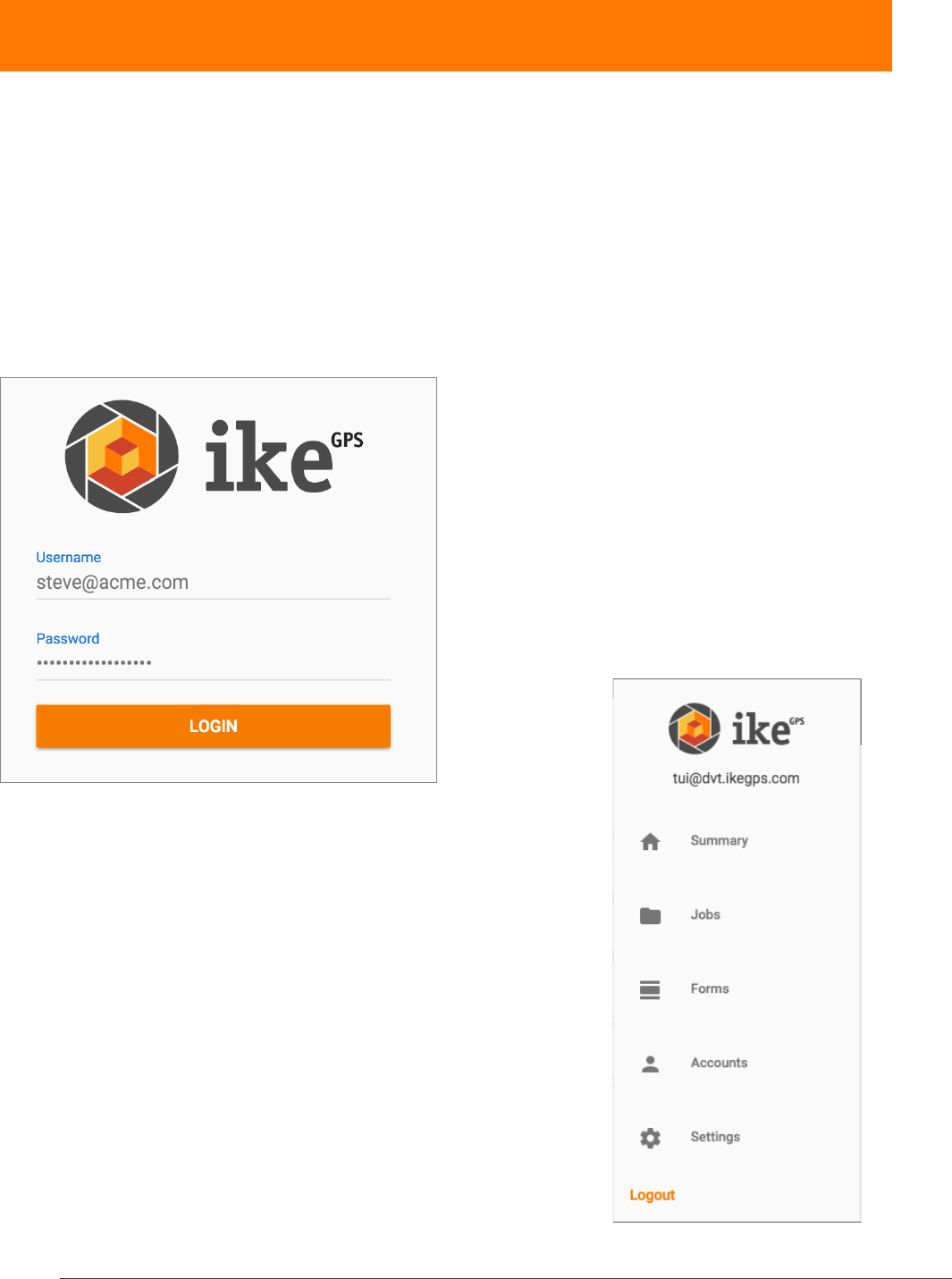
logging in
When signing into IKE Ofce for the rst time use the admin login and password provided by
ikeGPS. Enter these details, then click LOGIN.
IKE Ofce tools
On the left side of the IKE Ofce page are the various
IKE Oce tool tabs:
• Summary
• Jobs
• Forms
• Accounts
• Settings
When a tab is accessed, it will be highlighted in orange.
The following section will examine each tab in detail.
32 IKE 4 user manual
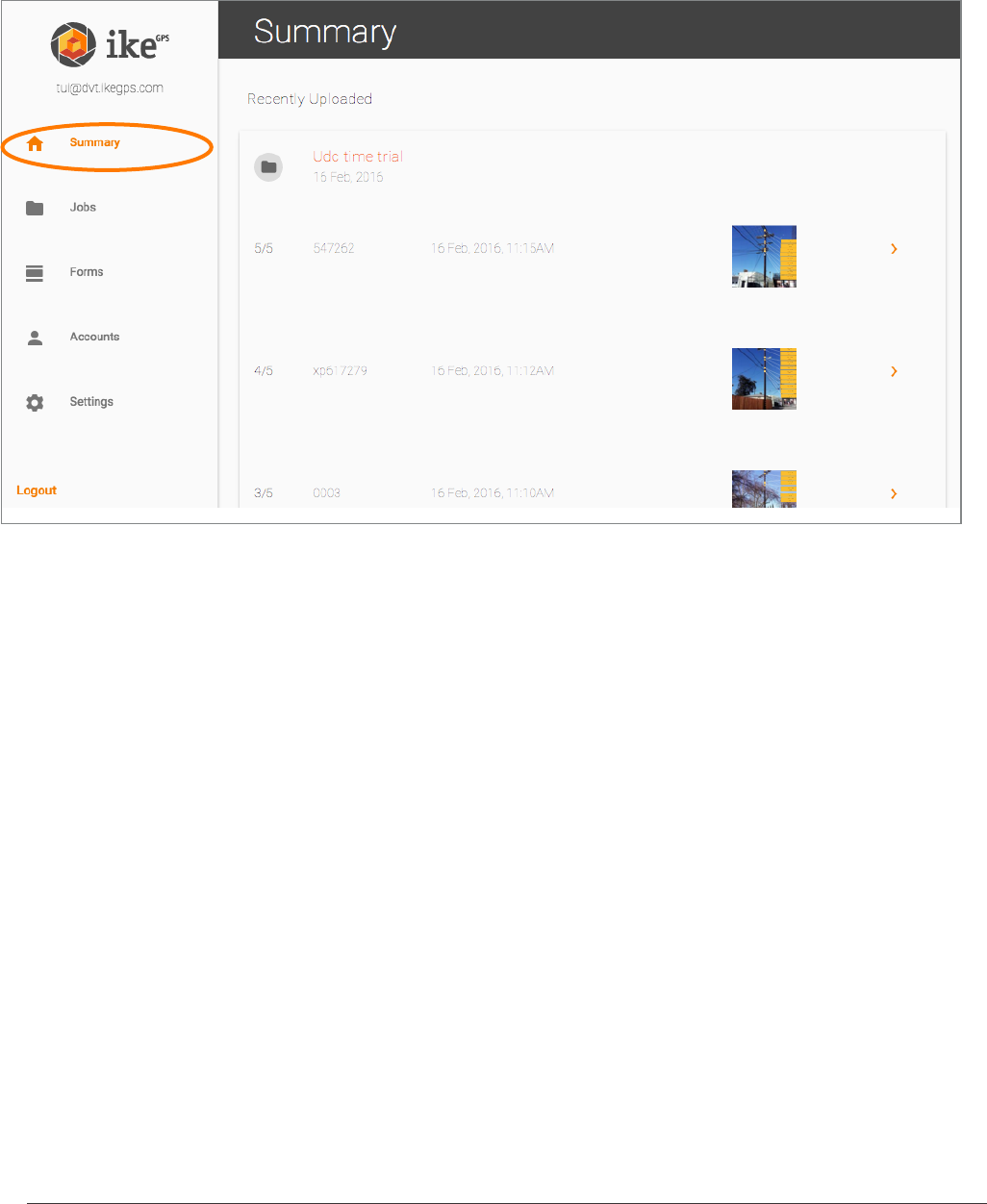
summary screen
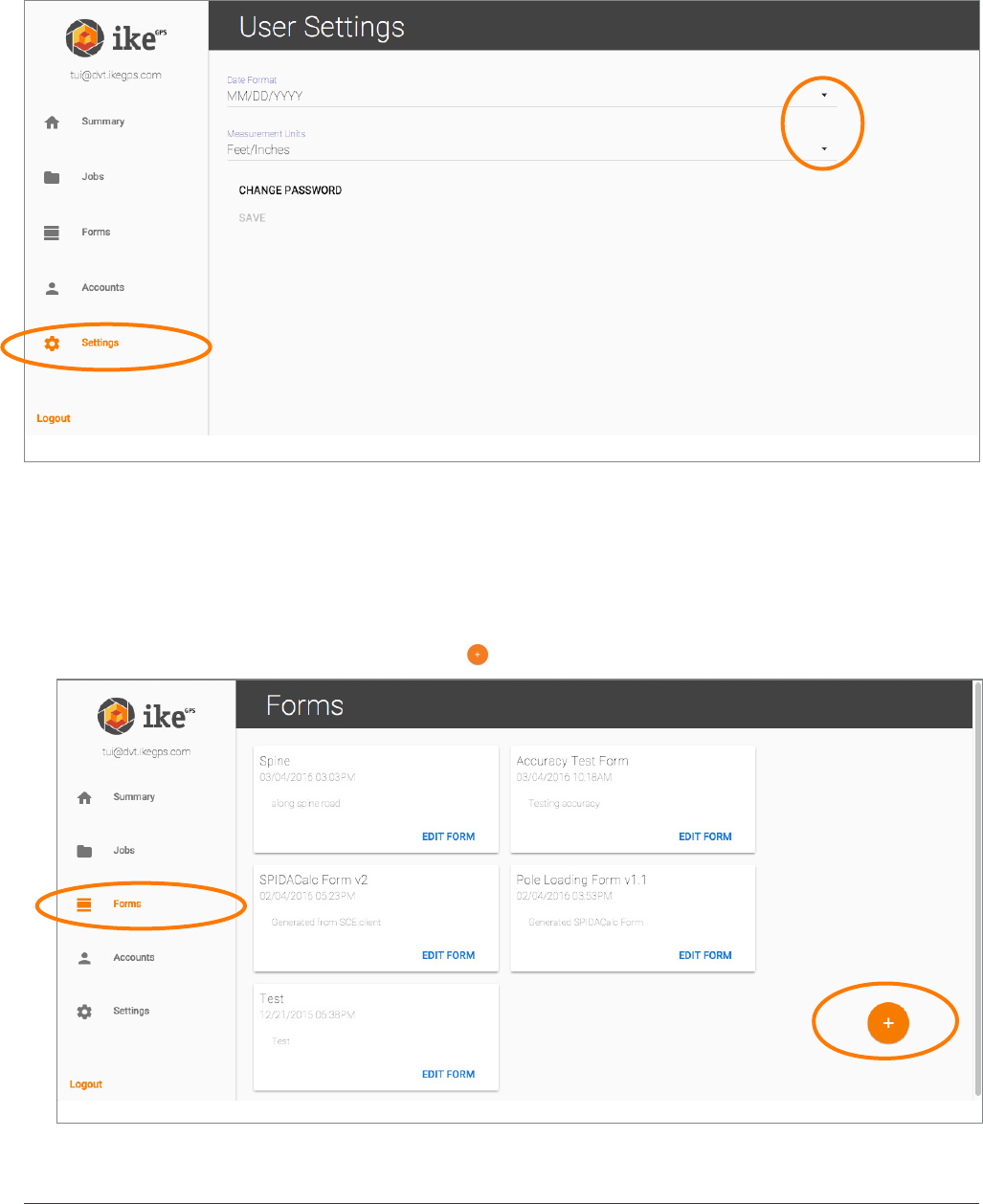
The Summary screen shows the most recently uploaded collections and jobs. From here you can
navigate to an individual job or collection. To access the summary, click Summary.
Now you see the following highlights of the uploaded jobs:
• Number of features (A)
• Pole ID (B)
• Date and time of collection (C)
• Thumbnail sets of collection captures (D)
• More information (E)
Clicking on a right arrow for more information shows you that pole’s complete information.
A B C D E
IKE 4 user manual 33
jobs screen
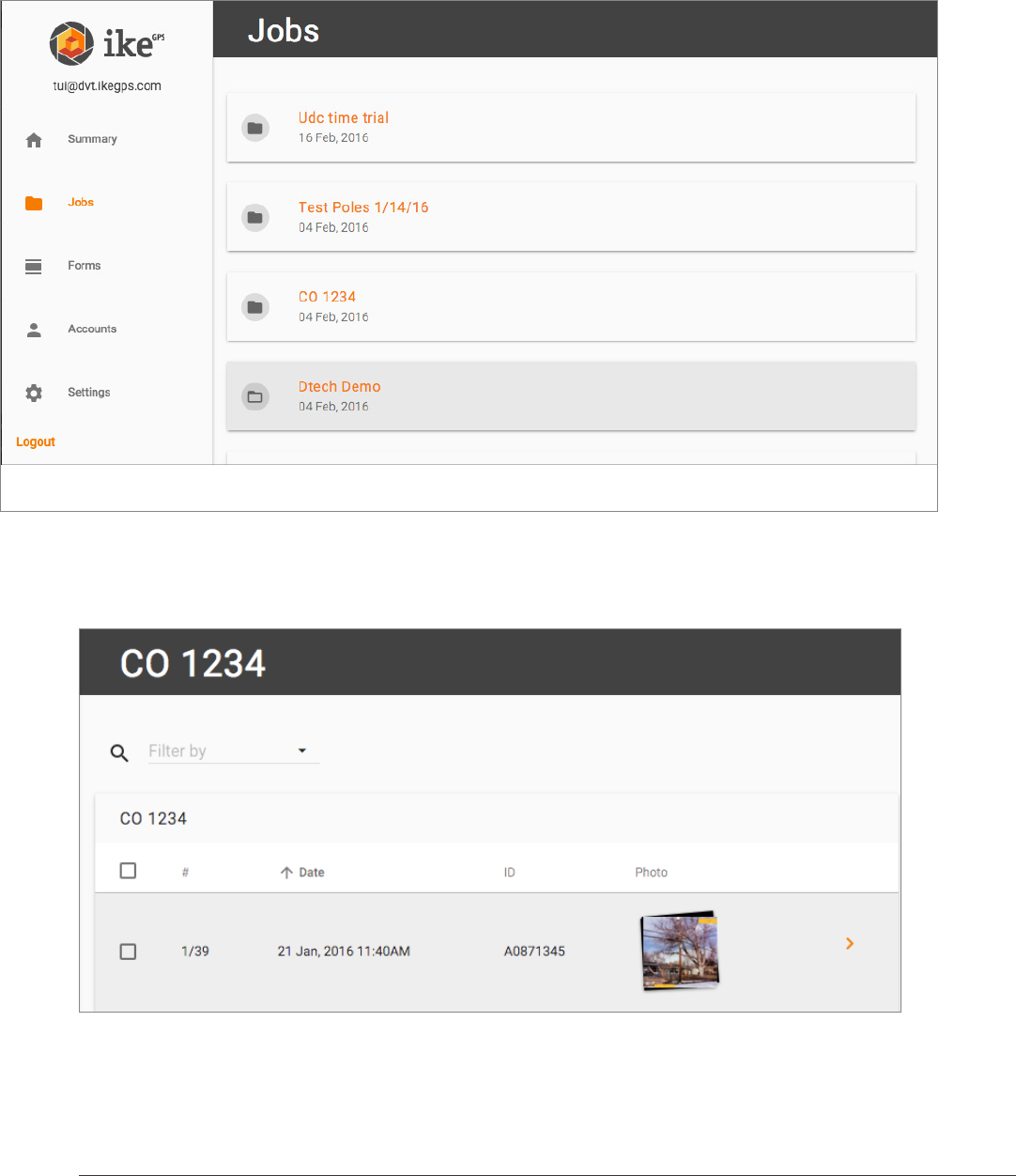
The Jobs screen shows all the data uploaded from the IKE 4 device to the specic account. Jobs
are displayed chronologically, based on the date they were collected. To access the jobs, click
Jobs.
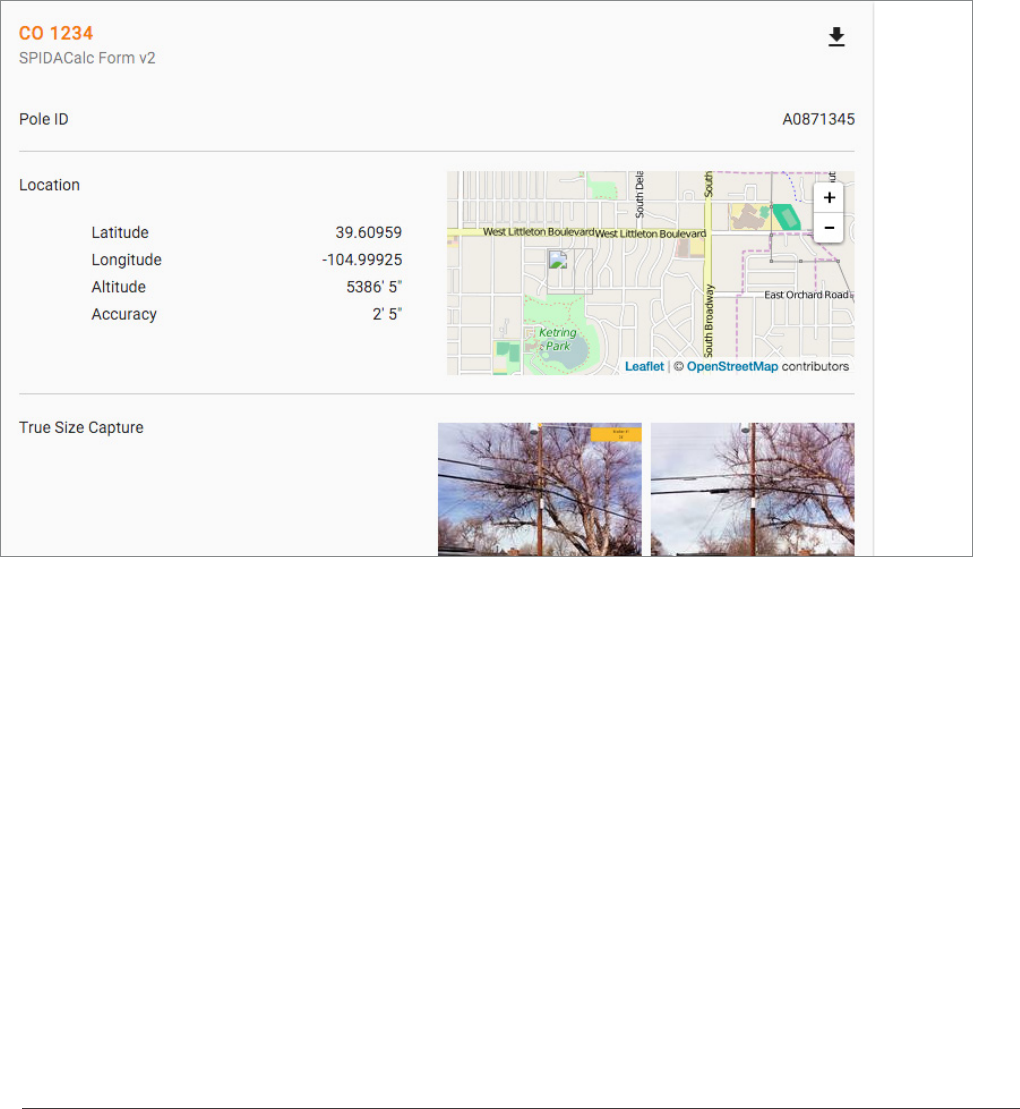
By selecting a Job name, the job’s summary appears.
A B C D E
34 IKE 4 user manual
Now you see the following highlights of the uploaded jobs:
• Number of features (A)
• Pole ID (B)
• Date and time of collection (C)
• Thumbnail sets of collection captures (D)
• More information (E)
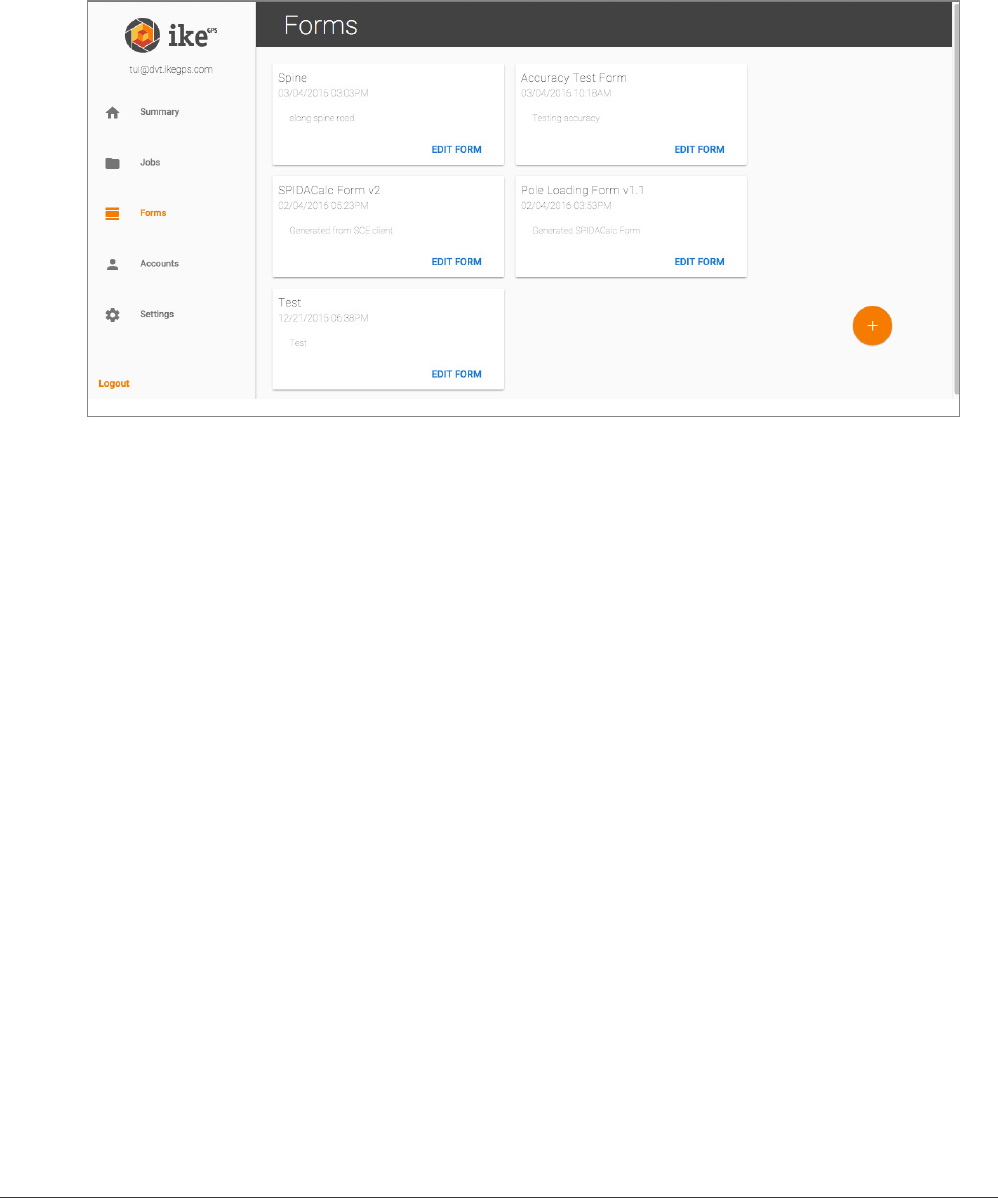
Clicking on a right arrow for more information shows you that pole’s complete information.
Now you see all the data collected for this feature, such as
• Pole ID
• Location data
• True Size capture
• Sub-forms
This data is shaped by form creation and eld data collection. Therefore, it is very important to
be mindful of requirements when creating forms, via the IKE Ofce Forms tab.
IKE 4 user manual 35
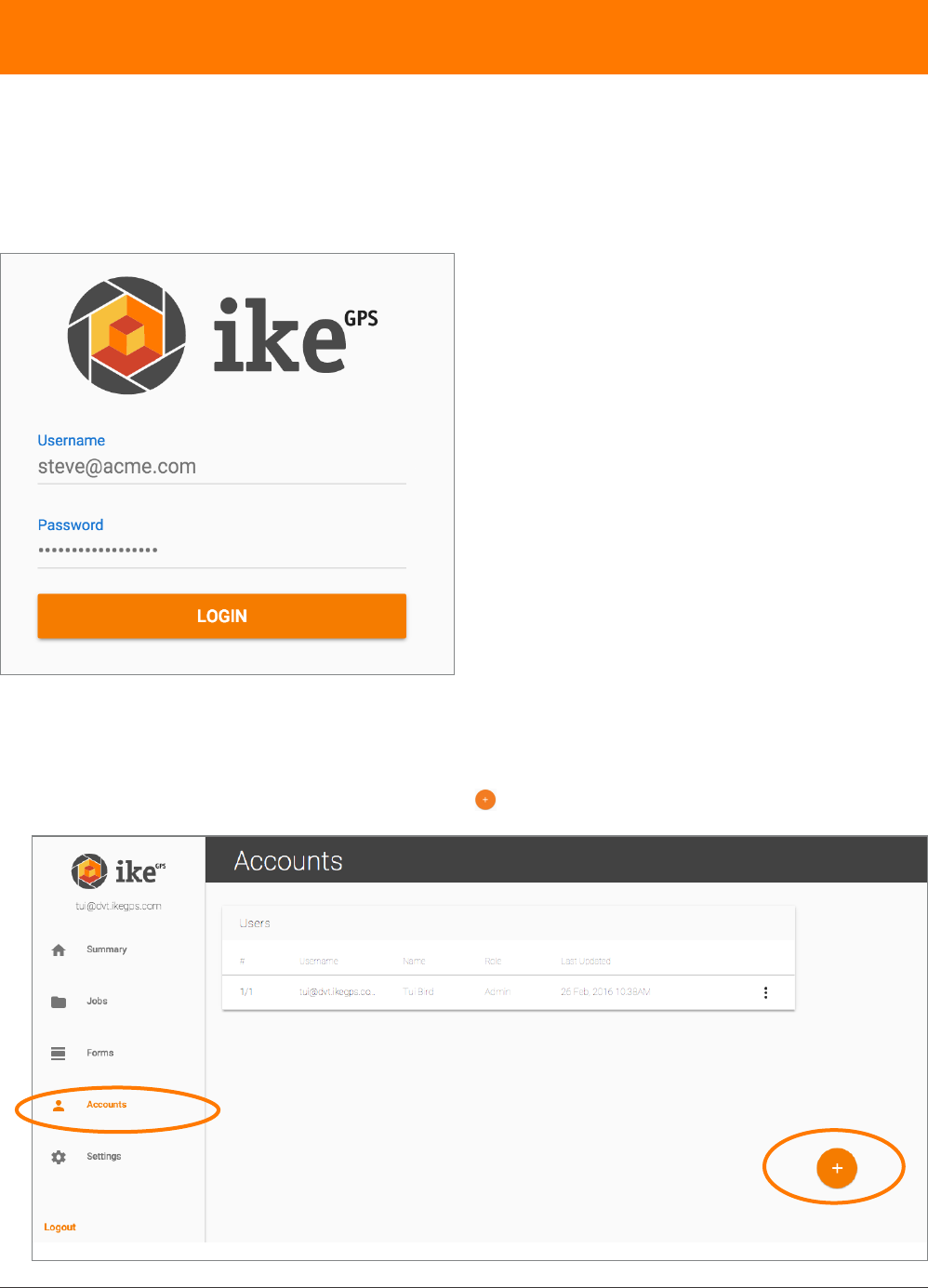
forms screen
The Forms screen shows all the available forms. From this screen you can add customizable
forms to your account. To access the forms, click Forms.
By selecting a form’s edit button, the Form menu appears, and you can
Test a new form against a pole, to ensure you have all the necessary information for pole-loading
analysis.
36 IKE 4 user manual
IKE Ofce quick guide
logging in
When signing into IKE Ofce for the rst time use the admin login and password provided by
ikeGPS. Enter these details, then click LOGIN.
managing accounts
1. To add a new user, click on Accounts then on .
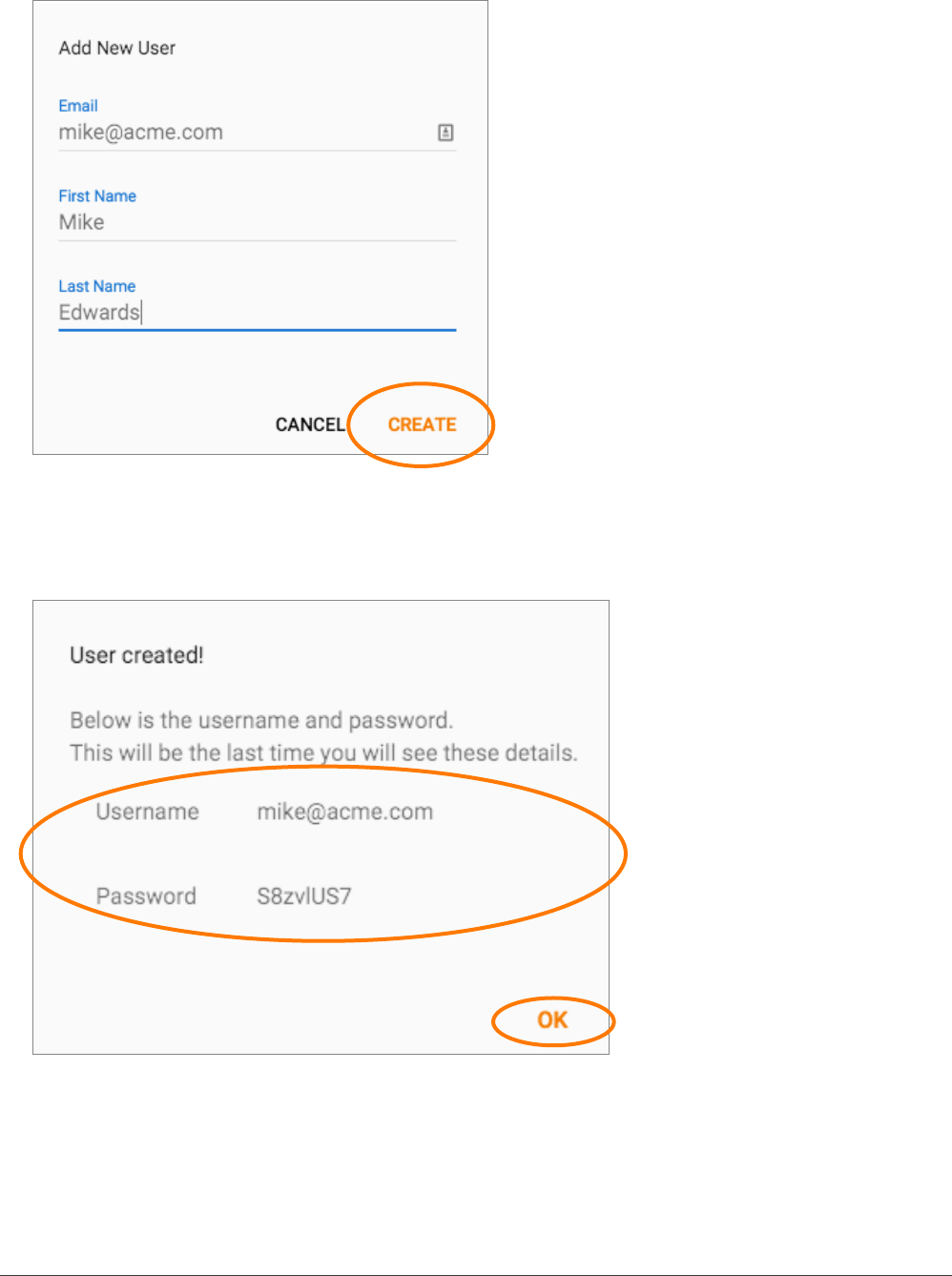
IKE 4 user manual 37
2. Enter the user details, then click create.
3. When the conrmation message appears, copy the login details (username and password)
and pass them on to the user. Click OK to close the window.
38 IKE 4 user manual
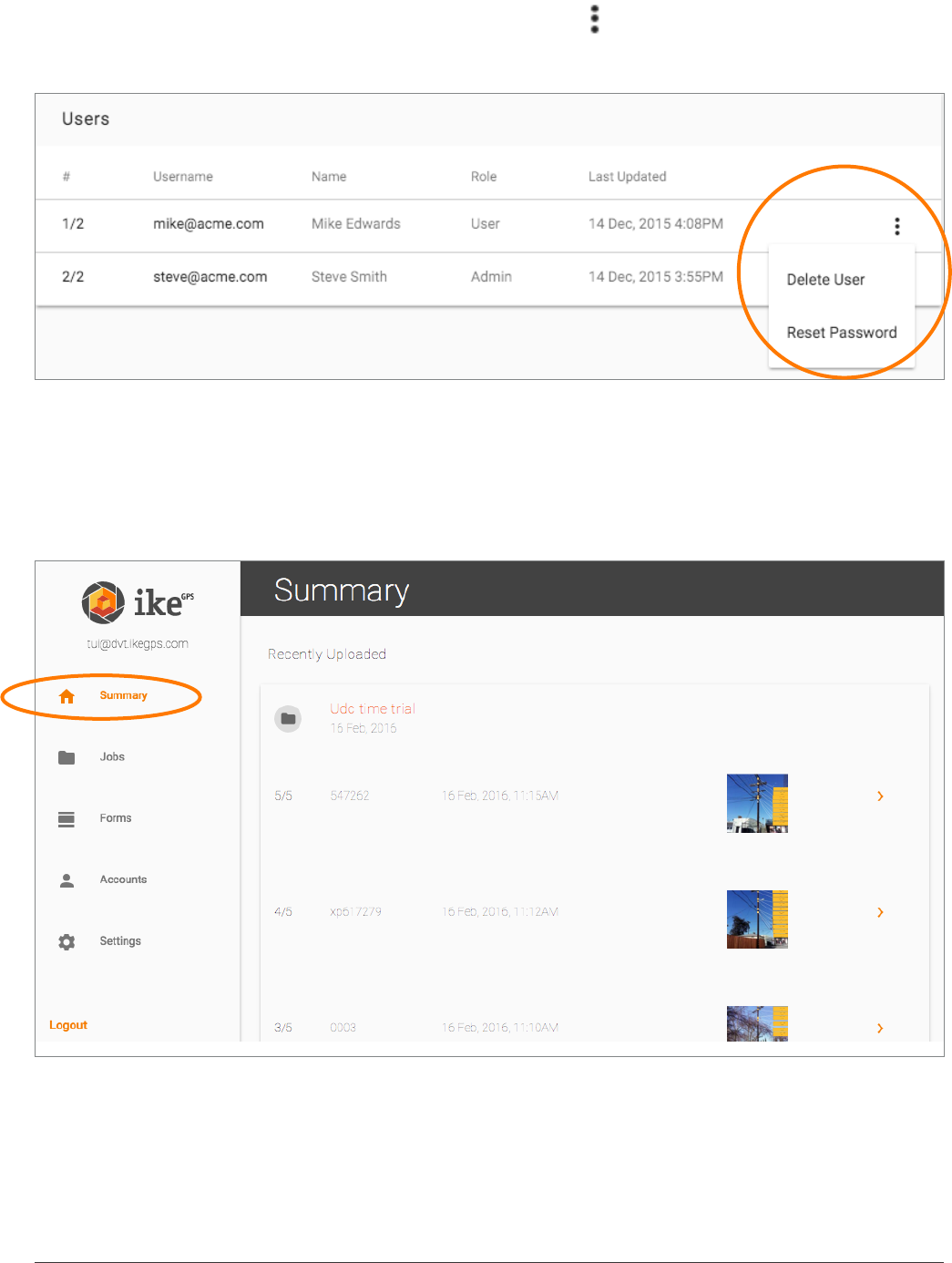
To delete a user or reset a password, click the More icon ( ) to the right of the account and
select the option required.
summary screen
The summary screen shows the most recently uploaded collections and jobs. From here you
can navigate to an individual job or collection.
To access the summary, click Summary.
IKE 4 user manual 39
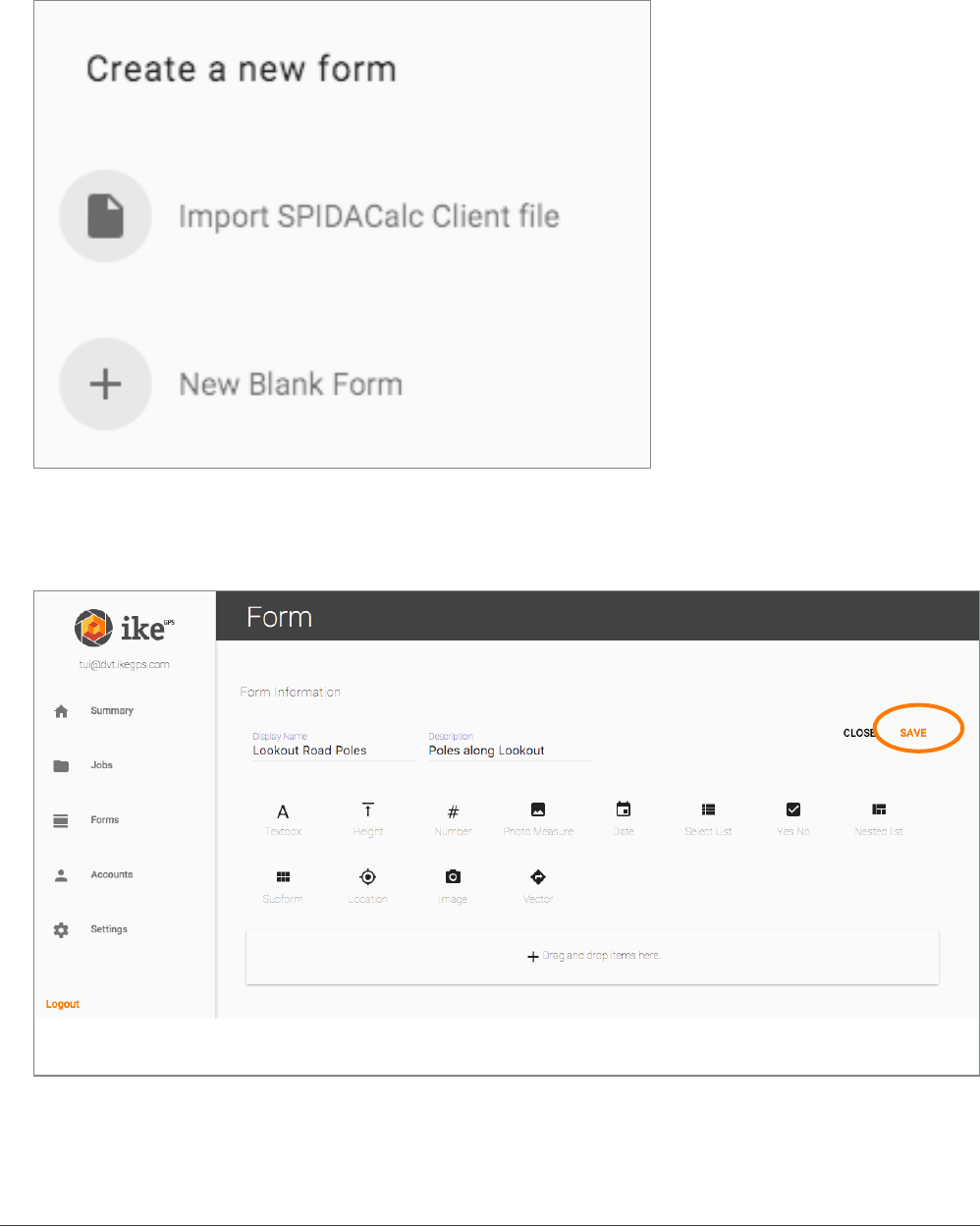
customising the date format and measurement units
You can change the date format and measurement units. To do this, click Settings then click
to select the preferred date format and/or measurement units.
creating a form
Note: It is important to set up the Internet connection to access your forms, especially the rst
time using the network.
1. To create a form, click on Forms then on .
40 IKE 4 user manual
2. Select the type of form you want to create.
If you have a client.json le from ikeGPS, you can select Import SPIDACalc Client le to
create a form specically to be used with SPIDACalc.
To create a form from scratch, select New Blank Form.
3. When the form is created, click SAVE to make the form available for download onto the IKE
device.
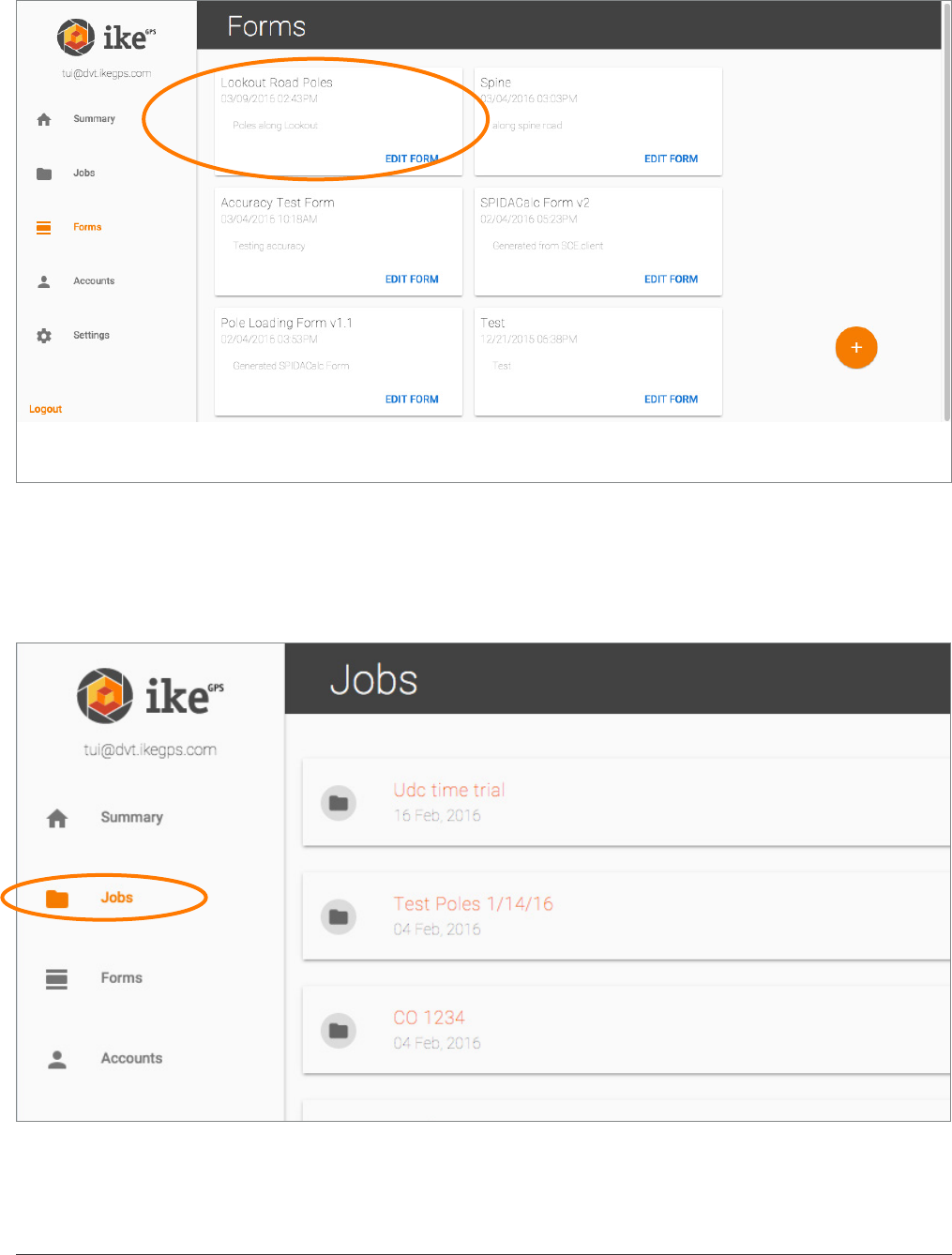
IKE 4 user manual 41
The created forms are displayed as shown below.
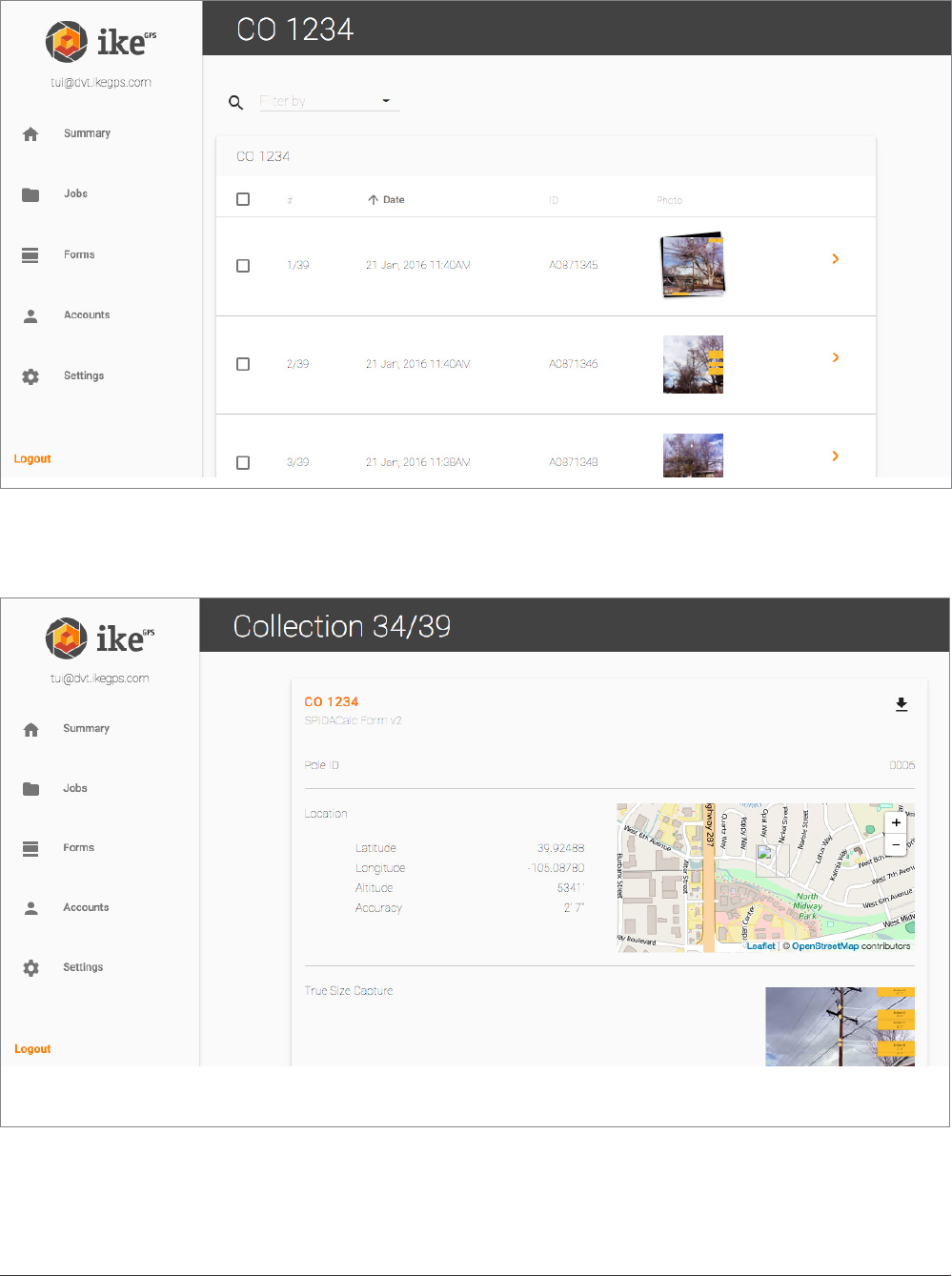
jobs and collections
To display all the jobs collected for your organisation, click Jobs.
42 IKE 4 user manual
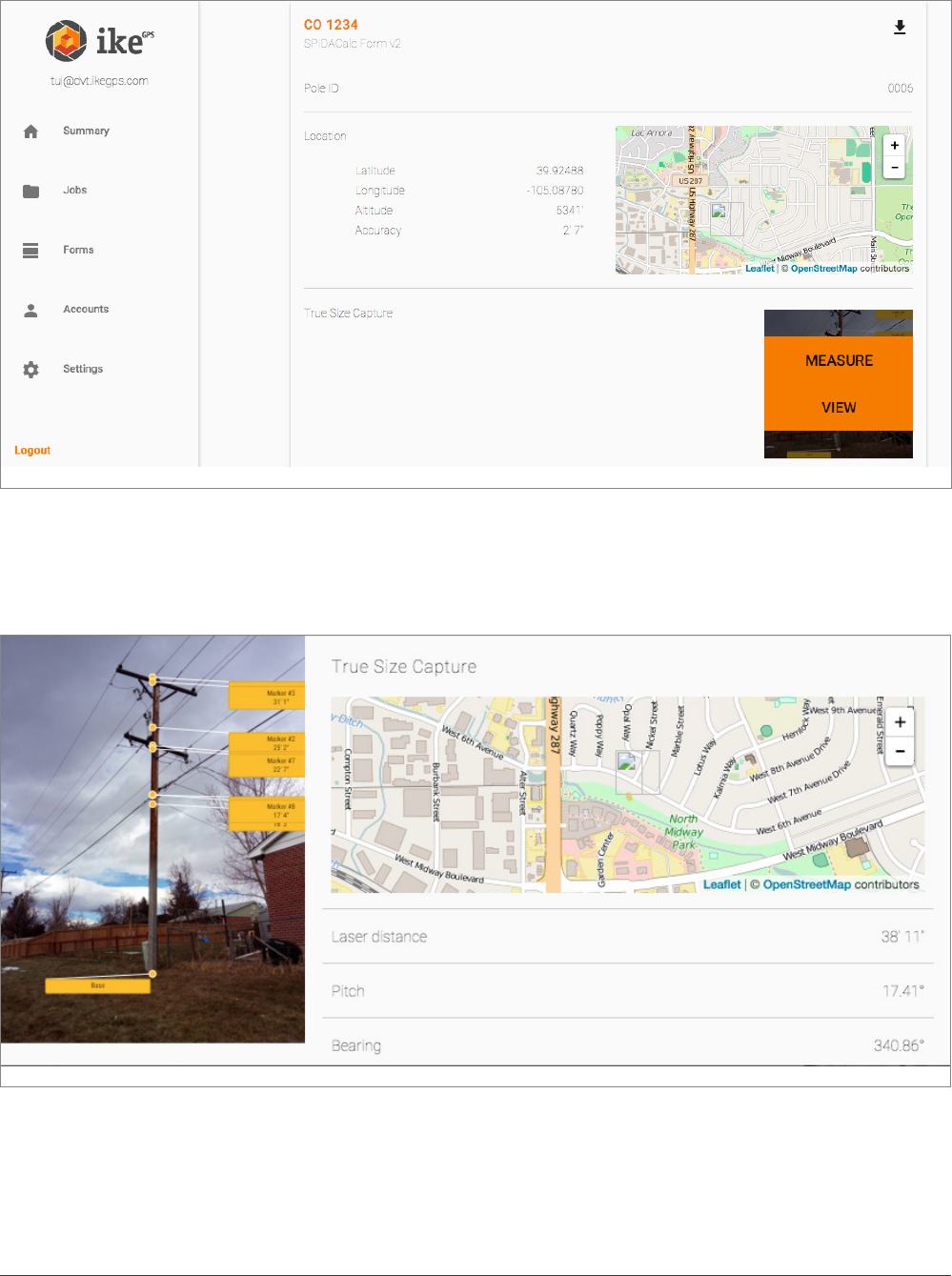
Selecting a job shows all of the collections for that job.
Selecting an individual collection (>) will show all of the data collected on the form.
IKE 4 user manual 43
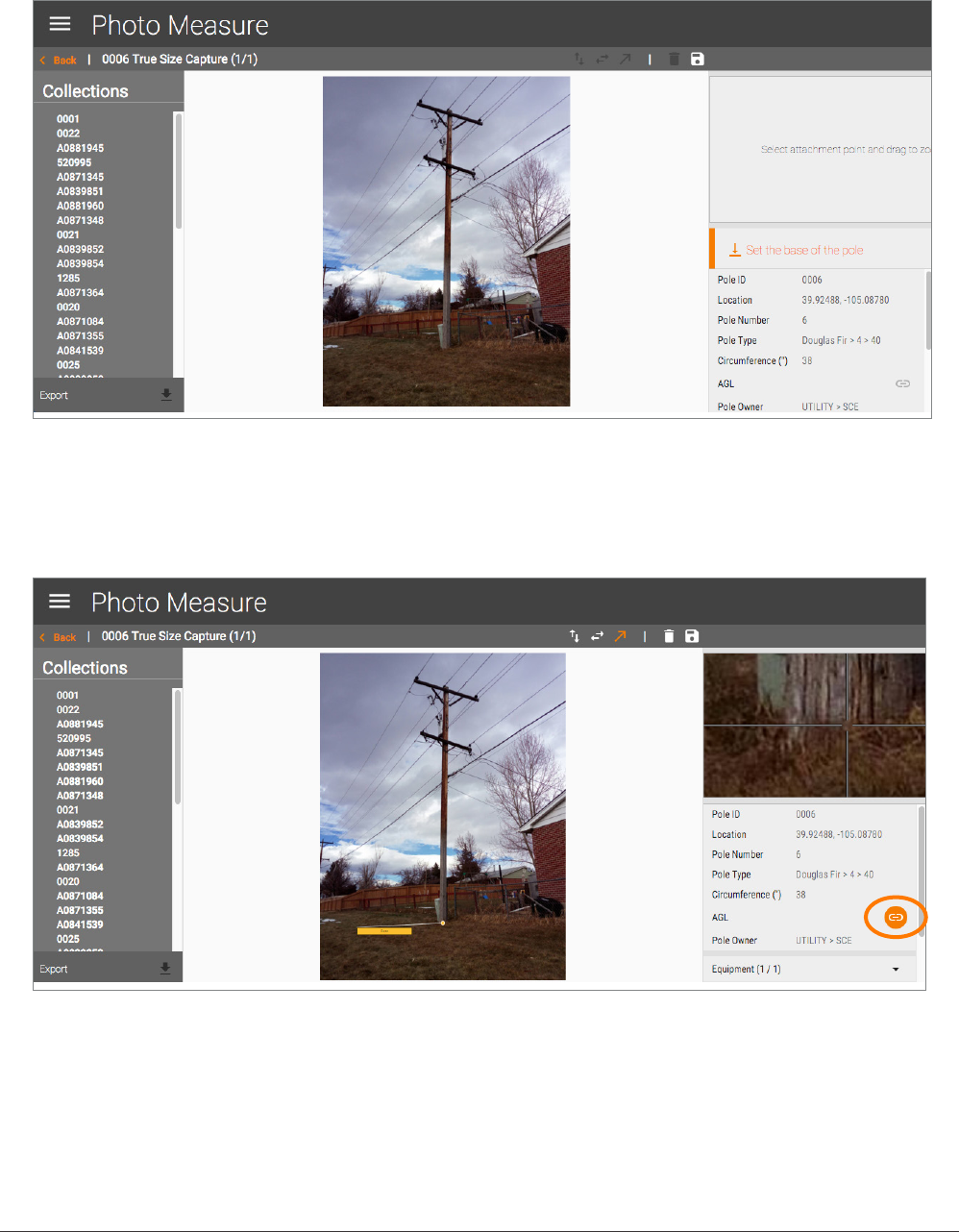
Mousing over an image shows a menu that allows you to view or go to Photo Measure
Selecting a view shows a summary of the capture, including the photo, location and
measurement details.
Click outside the image to close the image.
44 IKE 4 user manual
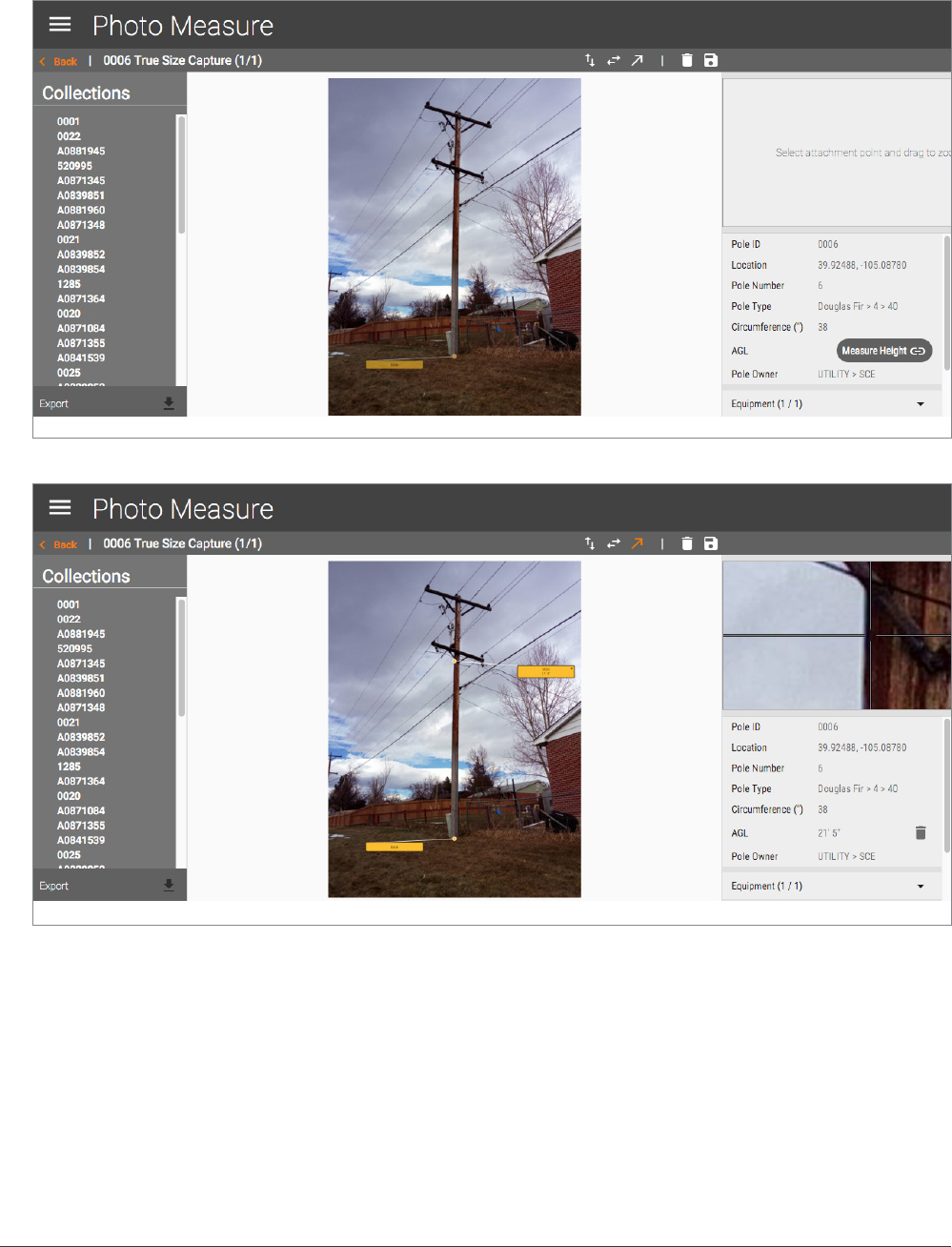
measuring from a photo
1. Set the base of the pole by clicking on the photo near the bottom of the pole.
2. Select the rst orange link on the right.
IKE 4 user manual 45
3. Click on the image to calculate the height for that eld. Continue doing this for the other
height elds in the form.
• For accurate placement, use the zoom window on the right for a closer view.
• To edit the name of the marker on photo, double click on it.
• To save your measurements, click [save icon].
• To go back to the collection screen, click [X icon]
• To delete all measurements on the photo, click [trashcan icon].
46 IKE 4 user manual
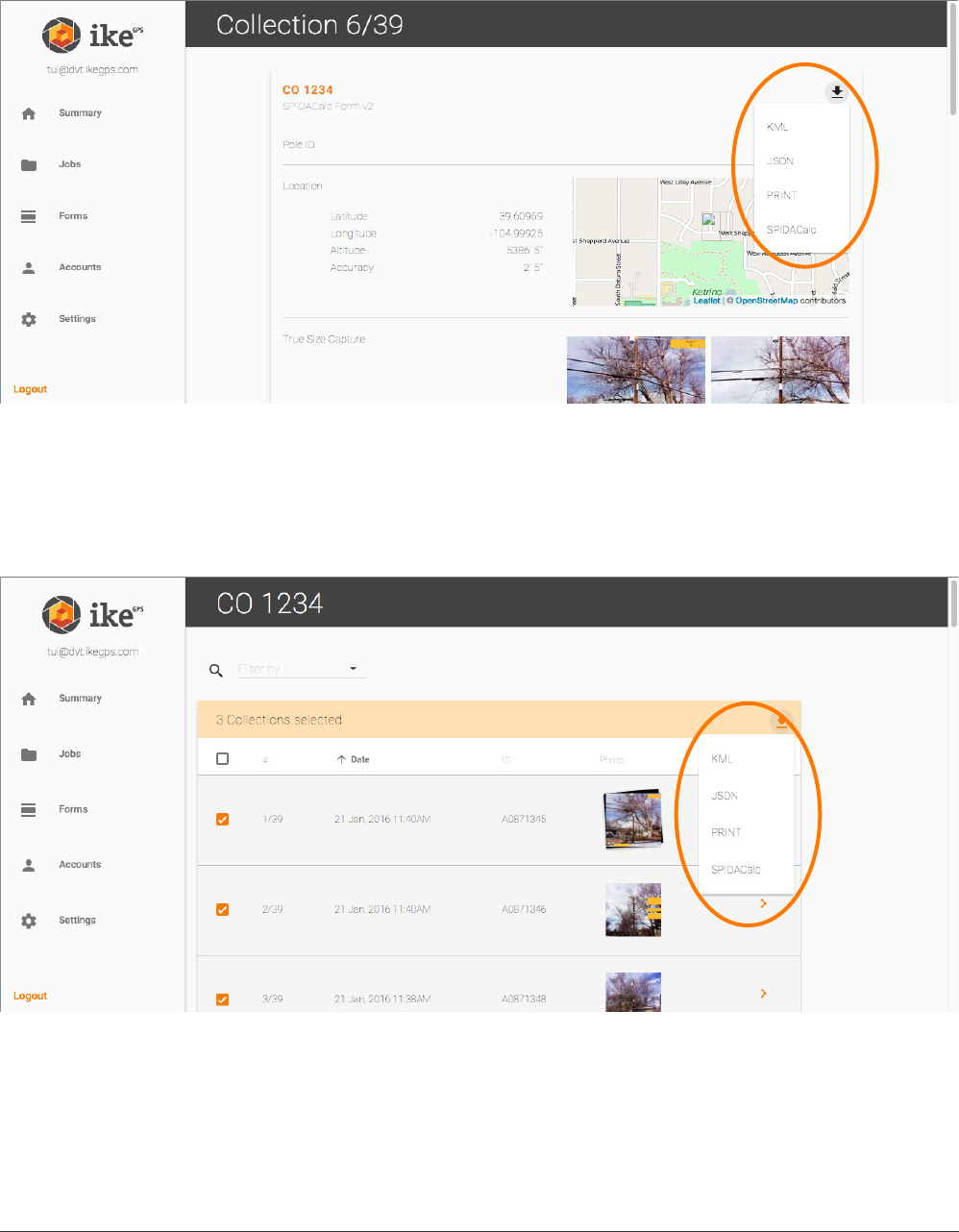
exporting
An individual collection can be exported to KML, JSON, Print (PDF) or to SPIDACalc format.
Multiple collections can also be exported, by checkmarking them.