ipio KB003 Bluetooth keyboard for Kindle 9 inch Tablet User Manual PKG 1787 HDX 8 9 Incipio indd
Incipio Technologies, Inc. Bluetooth keyboard for Kindle 9 inch Tablet PKG 1787 HDX 8 9 Incipio indd
ipio >
User Manual.pdf
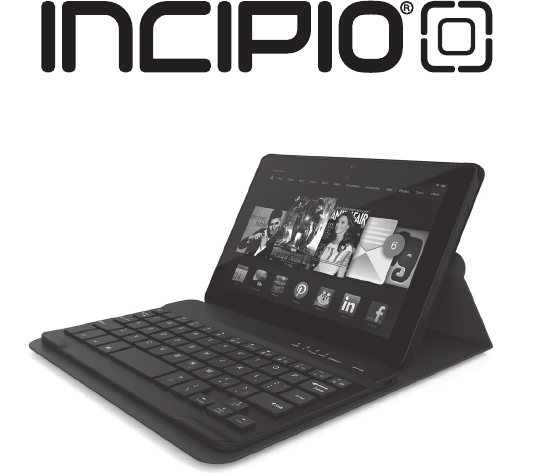
FOLIO WITH BLUETOOTH KEYBOARD
Setup Guide
What’s in The Box?
Main Features
• Folio with Bluetooth wireless keyboard
• USB to micro USB charging cable
• User documentation
• Knowledgeware management system. It can access into auto
standby to save energy and reduce the radiation to body
when you are out of work; just light touch key to wake it within
2~3 seconds when start your work.
• Built-in intelligent power management and anti-static function
which will protect machine be interfered.
• Built-in rechargeable battery which can be charged for cycling
use, also support international standard MICRO USB interface.
• Designed for Pad exclusively with perfect integration;
• Binding with the features of two-way standby and multi-function
key etc.,
• Light weight and compact design enable it a portable one
• Record 3 paired exterior devices to fast connect
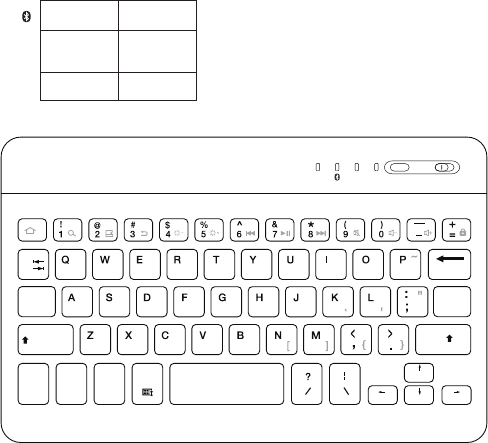
Overview:
Delete
EnterCaps Lock
Tab
Fn Ctrl Alt Home
CAPS Charge Power CONNECT OFF/ON
End
Page
Up
Page
Down
Shift
Shift
LED STATUS
Blue (Blinking)
Charge
CAPS
Red (Blinking)
Red (On)
Blue (On)
Pairing
Low Battery
Charging
Caps Lock On
1. When turn on the power without external power, red LED light
will blink, it means battery is lower and need to charge. During
charging, the red LED light will not be off till finished charge.
2. When turn on the power, blue LED light will be lit for 3 seconds
then go off; Press “CONNECT” button, the blue LED light will be
lit steady, this means access into pairing state, the blue LED
light will be off at once when finish the pairing. If it did’t finish
the pairing and any operation within 60 seconds, the keyboard
will access into standby mode till next pairing starts.
3. After finish the pairing, we can run the function operation on
keyboard. If it’s unnecessary, please keep the pairing message
of external device.
4. If there is not any keyboard operation within 10 minutes or the
external device is far away bluetooth’s operating distance for
10 minutes, the keyboard will access into standby mode. You
can touch any key to wake the keyboard to work within 2-3
seconds (the external device must be at the valid connecting distance).
Brief Description
5. If want to cut off the connection of keyboard and external
device, just long press “CONNECT” button for 3 seconds, the
blue LED light will blink slowly twice; Either turn off the power
directly or cut off the external device.
This bluetooth keyboard just supports 1 external device during working
but can record 3 recent paired external device’s information. When
press [CONNECT] button, the blue LED light blinks, touch any key to
activate the auto connection function. By default, The keyboard will
search the last paired device. If can’t search last paired external
device, it will automatically search and pair with the second external
device, then the third one.
Special Keys Description
As for Pad multimedia function, need to long press Fn and
combine with relevant multimedia hotkeys on keyboard.
Installation Guide
Battery Charging
• The red LED indicator will blink when battery is low. It is time to
recharge the keyboard.
• Connect the Micro-USB cable to the keyboard charging
interface.
• Connect USB-A to the power adaptor or USB interface of
computer
• The red LED indicator will be lit steady during charging.
Once it finished charging the red LED indicator will turn off.
Bluetooth Keyboard Connecting
1. Turn on the power toggle switch, the blue LED indicator will be
lit for 3 seconds then gone off.
2. Press “CONNECT” button, the blue LED indicator will blink, the
keyboard is ready for connecting to Pad.
3. Turn on and unlock Pad. Click on the Pad [setting] icon.
4. On the setting menu, select the item [General] to access
[Bluetooth] setting to open Bluetooth’s searching function.
5. Once wireless Bluetooth keyboard found, click on this device
to connect.
6. Input the paired password code as displayed on Pad screen.
7. Wireless keyboard connected successfully, The LED indicator
will be off.
Troubleshooting
Unable to Connect
1. Make sure the power switch is on.
2. Make sure the keyboard is within the operating distance.
3. Make sure the battery is charged.
4. Make sure iPad Bluetooth is activated.
5. Make sure wireless keyboard has been paired with iPad.
6. Clear the paired record of external device and close the
bluetooth function, then pair again.
Unable to Charge Keyboard
1. Make sure the USB power cord is connected properly to the
keyboard and the power source.
2. Make sure the wall charger is plugged into the power outlet.
Maintenance
and Safety Caution
1. Do not place heavy object on the top of keyboard
2. Do not Microwave the item.
3. Do not force or distort the keyboard.
4. Keep away from oil, chemical or any other organic liquid.
5. Please clean the keyboard with soft cloth.
6. Please turn off the power if long time no use.
7. Routine maintenance for other electronic products.
FCC Statement:
DECLARATION OF CONFORMITY WITH FCC RULES FOR
ELECTROMAGNETIC COMPATIBILITY
We, Incipio Technologies, Inc., of 6001 Oak Canyon, Irvine, CA 92618, declare under
our sole responsibility that the product BTKYB-003, to which this declaration relates:
WARNING: Changes or modifications to this unit not expressly approved by the party
responsible for compliance could void the user’s authority to operate the equipment.
NOTE: This equipment has been tested and found to comply with the limits for
a Class B digital device, pursuant to Part 15 of the FCC Rules. These limits are
designed to provide reasonable protection against harmful interference in a
residential installation. This equipment generates, uses and can radiate radio
frequency energy and, if not installed and used in accordance with the
instructions, may cause harmful interference to radio communications.
However, there is no guarantee that interference will not occur in a particular
installation. If this equipment does cause harmful interference to radio or
television reception, which can be determined by turning the equipment off and
on, the user is encouraged to try to correct the interference by one or more of the
following measures:
• Reorient or relocate the receiving antenna.
• Increase the separation between the equipment and receiver.
• Connect the equipment into an outlet on a circuit different from that to which
the receiver is connected.
• Consult the dealer or an experienced radio/TV technician for help.
This device complies with Part 15 of the FCC Rules. Operation is subject to the
following two conditions : (1) this device may not cause harmful interference, and
(2) this device must accept any interference received, including interference that
may cause undesired operation.
Shielded cables must be used with this unit to ensure compliance with the Class
B FCC limits.
• Bluetooth Specication: ...................................Version 3.0 Class 2
• Output power: ........................................................ highest is 4dm
• Operating distance can reach ...................................... 10meters
• Modulation system: ................................................................ GFSK
• Operation voltage: .......................................................... 3.0~4.2V
• Operating current: .............................................................<2.5mA
• Sleeping current:................................................................... <40μA
• Standby time: ................................................................ >100 days
• Charging time: ................................................................. <2 hours
• Lithium battery capacity: ...................................................280mA
• Lithium battery Specication: .................................3.8*20*35mm
• Uninterrupted working time: .......................................... 100 hours
• Key Strength: ...................................................................... 80±10g
• Key life: ...................................................................5 million strokes
• Operation Temperature: ................................................ -10-+55°C
• Product Size: ..................................................... 247.5*150*6.4mm
Product Specifications