Kenwood DNX 893 S Operating Instructions DNX893S DNX773S DNX693S DNX573S DNX7160BTS DNX5160BTS IM EN
User Manual: kenwood DNX 893 S - Operating Instructions Free User Guide for Kenwood DNX Series GPS, Manual - page2
Open the PDF directly: View PDF  .
.
Page Count: 137 [warning: Documents this large are best viewed by clicking the View PDF Link!]
im391_Ref_K_En_01 (K/R)© 2016 JVC KENWOOD Corporation
DNX893S
DNX773S
DNX693S
DNX573S
DNX7160BTS
DNX5160BTS
GPS NAVIGATION SYSTEM
INSTRUCTION MANUAL
Take the time to read through this instruction manual.
Familiarity with installation and operation procedures will help you obtain the best performance from your new
GPS Navigation System.
For your records
Record the serial number, found on the back of the unit, in the spaces designated on the warranty card, and in the space
provided below. Refer to the model and serial numbers whenever you call upon your KENWOOD dealer for information or
service on the product.
Model DNX893S/ DNX773S/ DNX693S/ DNX573S/ DNX7160BTS/ DNX5160BTS Serial number
US Residence Only
Register Online
Register your KENWOOD product at www.kenwoodusa.com
Before reading this manual, click the button below to check the latest edition and the
modified pages.
http://manual.kenwood.com/edition/im391/
Check the latest edition
What Do You Want To Do?
1
What Do You Want To Do?
Thank you for purchasing the KENWOOD GPS NAVIGATION SYSTEM.
In this manual, you will learn various convenient functions of the system.
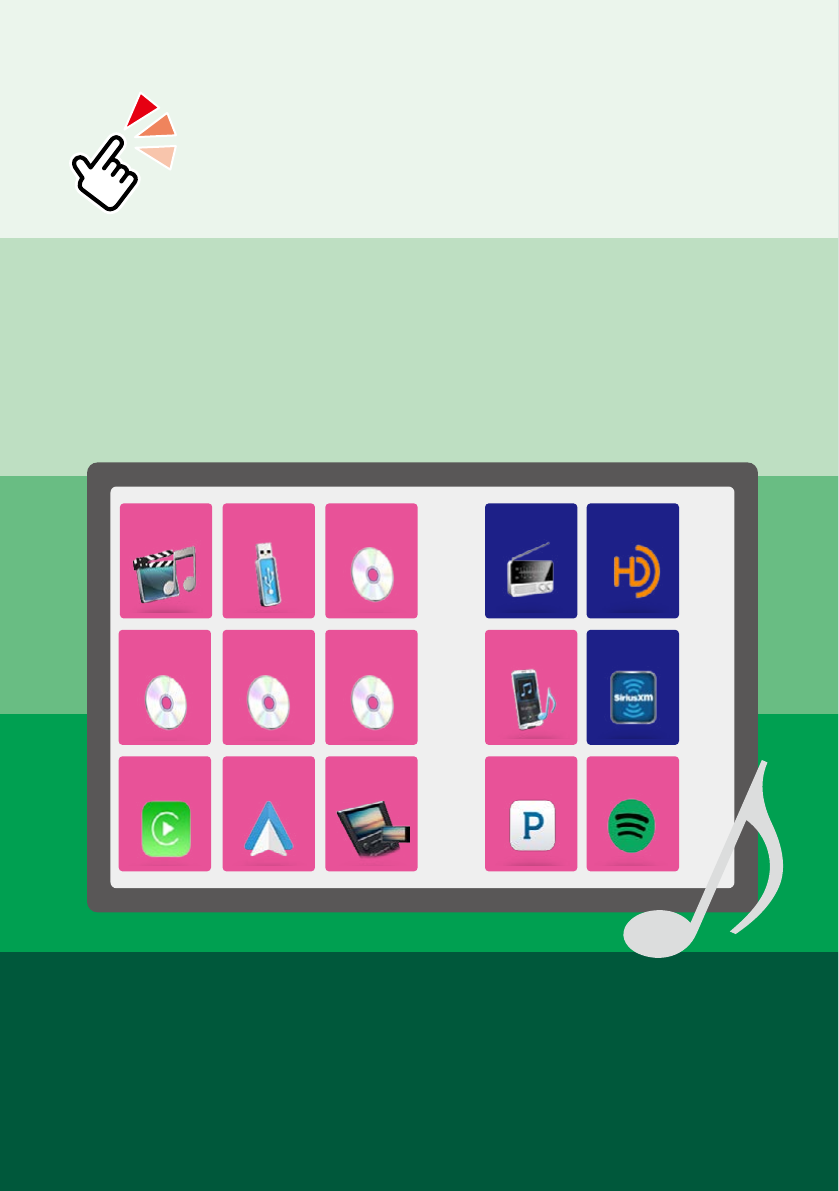
Click the icon of the media you want to play.
With one-click, you can jump to the section of each media!
iPod USB VCD
HD Radio
SiriusXM
DVD VIDEO
Music CD
Disc Media
Android
Auto
Mirroring
Apple
CarPlay
Radio
Pandora
Spotify
BT Audio
Contents
22
Before Use 4
# WARNING _______________________ 4
How to Read this Manual 5
Basic Operations 6
Functions of the Buttons
on the Front Panel __________________ 6
Turning on the Unit _________________ 10
How to Play Media __________________ 13
Operating with the HOME Screen ______ 16
Common Operations ________________ 18
Navigation Operation ________________ 20
OEM Features Operation _____________ 22
DVD/Video CD (VCD) 24
DVD/VCD Basic Operation ____________ 24
DVD Disc Menu Operation ____________ 27
DVD Setup ________________________ 28
CD/Audio and Visual Files/
iPod/APPS 30
APP/iPod settings ___________________ 31
Music/Video Basic Operation __________ 32
Search Operation ___________________ 36
Pandora® Operation _________________ 39
Spotify Operation ___________________ 42
Mirroring Operation _________________ 44
Apple CarPlay Operation _____________ 46
Android Auto™ Operation ____________ 48
Radio and HD Radio™ Tuner 50
Radio/HD Radio Tuner Basic Operation __ 50
Memory Operation __________________ 53
Selecting Operation _________________ 54
Traffic Information __________________ 56
Receive Mode
(HD Radio tuner only) ________________ 57
Bookmark
(HD Radio tuner only) ________________ 57
Alert Message
(HD Radio tuner only) ________________ 59
SiriusXM® 60
SiriusXM® Basic Operation ____________ 60
Storing Channels in Preset Memory ____ 63
Preset select _______________________ 63
Direct search _______________________ 64
Category/Channel search ____________ 64
Content Alerts _____________________ 66
SportsFlash™ _______________________ 66
Replay ____________________________ 67
SmartFavorites, TuneStart™ ___________ 68
TuneMix™ _________________________ 68
Traffic & Weather Now™ ______________ 69
TuneScan™ ________________________ 69
SiriusXM Setup _____________________ 70
Contents

Contents
3
Bluetooth Control 76
Registering and Connecting
Bluetooth Unit _____________________ 76
Playing Bluetooth Audio Device _______ 80
Using Hands-Free Unit _______________ 82
Hands-Free Setup ___________________ 86
Setting Up 88
Monitor Screen Setup _______________ 88
Monitor Angle Control ______________ 89
View Camera Control ________________ 89
System Setup ______________________ 90
User Interface Setup _________________ 90
Special Setup ______________________ 92
Security Setup _____________________ 93
Display Setup ______________________ 94
Camera Setup ______________________ 96
Navigation Setup ___________________ 98
AV Setup __________________________ 98
Controlling Audio 100
Speaker/ X’over setup ________________ 100
Controlling General Audio ____________ 103
Equalizer Control ___________________ 104
Volume Offset ______________________ 105
Zone Control _______________________ 106
Sound Effect _______________________ 107
Listening Position/ DTA ______________ 108
Remote control 112
Battery Installation __________________ 112
Functions of the Remote control Buttons 113
Troubleshooting 116
Problems and Solutions ______________ 116
Error Messages _____________________ 117
Appendix 120
Playable Media and Files _____________ 120
Status Bar Indicator Items ____________ 124
Region Codes in the World ____________ 126
DVD Language Codes _______________ 127
Specifications ______________________ 128
About this Unit _____________________ 131
Before Use
44
# WARNING
To prevent injury or fire, take
the following precautions:
• To prevent a short circuit, never put or
leave any metallic objects (such as coins or
metal tools) inside the unit.
• Do not watch or fix your eyes on the unit’s
display when you are driving for any
extended period.
• If you experience problems during
installation, consult your KENWOOD dealer.
Precautions on using this unit
• When you purchase optional accessories,
check with your KENWOOD dealer to make
sure that they work with your model and in
your area.
• You can select language to display menus,
audio file tags, etc. See User Interface Setup
(P.90).
• The Radio Data System or Radio Broadcast
Data System feature won’t work where
the service is not supported by any
broadcasting station.
Protecting the monitor
To protect the monitor from damage, do not
operate the monitor using a ball point pen or
similar tool with the sharp tip.
Cleaning the unit
If the faceplate of this unit is stained, wipe it
with a dry soft cloth such as a silicon cloth.
If the faceplate is stained badly, wipe the
stain off with a cloth moistened with neutral
cleaner, then wipe it again with a clean soft
dry cloth.
¤
• Applying spray cleaner directly to the unit
may affect its mechanical parts. Wiping the
faceplate with a hard cloth or using a volatile
liquid such as thinner or alcohol may scratch
the surface or erase screened print.
Lens fogging
When you turn on the car heater in cold
weather, dew or condensation may form
on the lens in the disc player of the unit.
Called lens fogging, this condensation on
the lens may not allow discs to play. In such
a situation, remove the disc and wait for the
condensation to evaporate. If the unit still
does not operate normally after a while,
consult your KENWOOD dealer.
Precautions on handling discs
• Do not touch the recording surface of the
disc.
• Do not stick tape etc. on the disc, or use a
disc with tape stuck on it.
• Do not use disc type accessories.
• Clean from the center of the disc and move
outward.
• When removing discs from this unit, pull
them out horizontally.
• If the disc center hole or outside rim has
burrs, use the disc only after removing the
burrs with a ballpoint pen etc.
• Discs that are not round cannot be used.
• 8-cm (3 inch) discs cannot be used.
• Discs with coloring on the recording
surface or discs that are dirty cannot be
used.
• This unit can only play the CDs with
.
This unit may not correctly play discs which
do not have the mark.
• You cannot play a disc that has not been
finalized. (For the finalization process see
your writing software, and your recorder
instruction manual.)
Before Use
How to Read this Manual
5
How to Read this Manual
NOTE
• The screens and panels shown in this
manual are examples used to provide clear
explanations of the operations.
For this reason, they may be different from the
actual screens or panels used, or some display
patterns may be different.
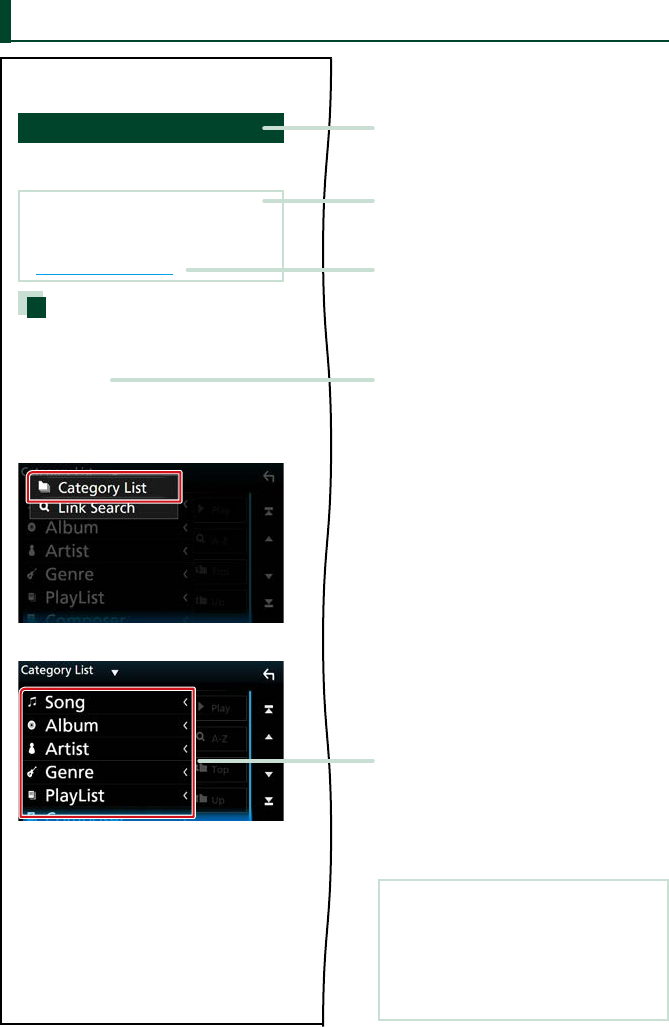
Reference mark
Displayed in blue notes.
With one-click, you can jump to the
article related to the current section.
Screen shot
Shows some screen shots displayed during
operation for reference.
The area or keys to touch are surrounded
with a red frame.
Operation procedure
Explains necessary procedures to
achieve the operation.
< >: Indicates the name of panel
buttons.
[ ]: Indicates the name of touch
keys.
Operation title
Introduces the function.
NOTE
Introduces some tips, notes, etc.
3030
CD/Audio and Visual Files/iPod/APPS
Search Operation
You can search music, video or picture files
by the following operations.
NOTE
• If you use a remote control, you can jump directly
to the desired track/file with entering the track/
folder/file number, play time, etc. For details, see
Direct search mode (P.103).
List search
You can search tracks, folders, and files
according to hierarchy.
1 Touch [1].
Category List screen appears.
2 Touch [ S ].
3 Touch [Category List].
4 Touch the desired category.
5 The list is sorted by selected category.
6 Touch desired item.
Playback starts.
Basic Operations
66
Functions of the Buttons on the Front Panel
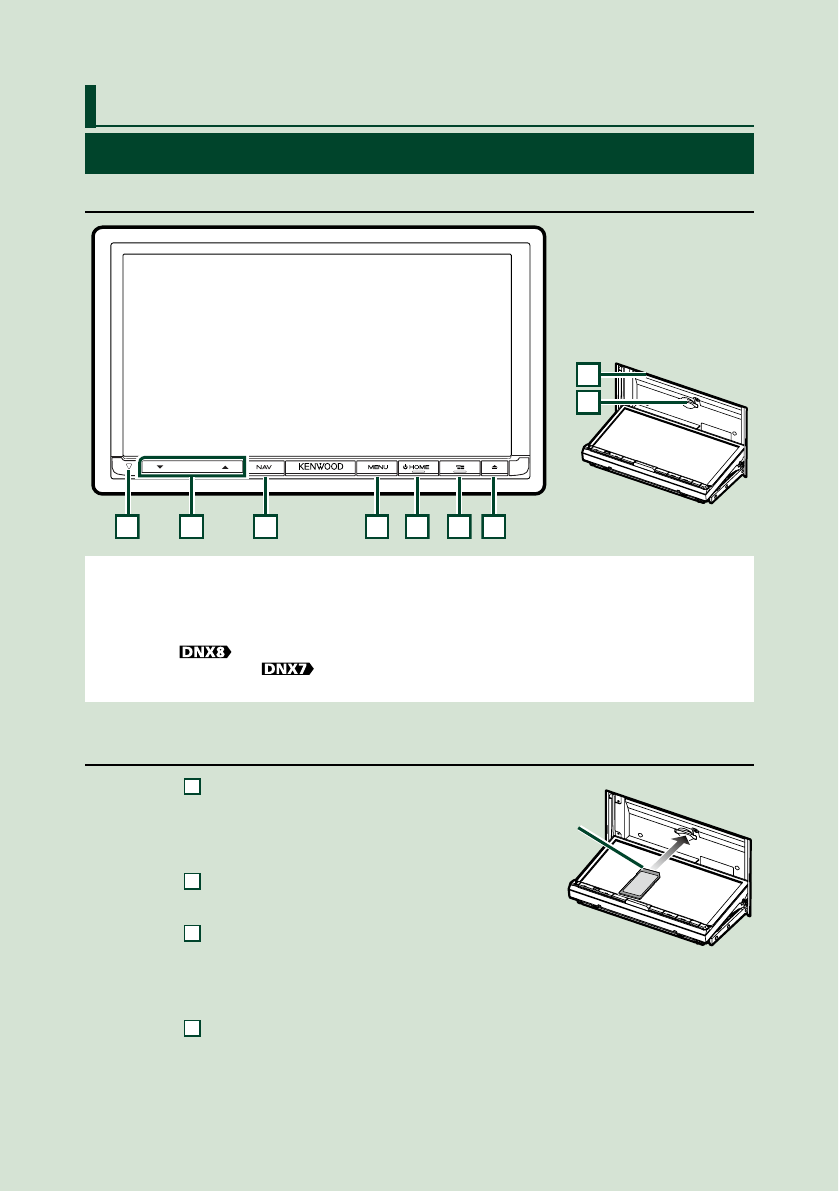
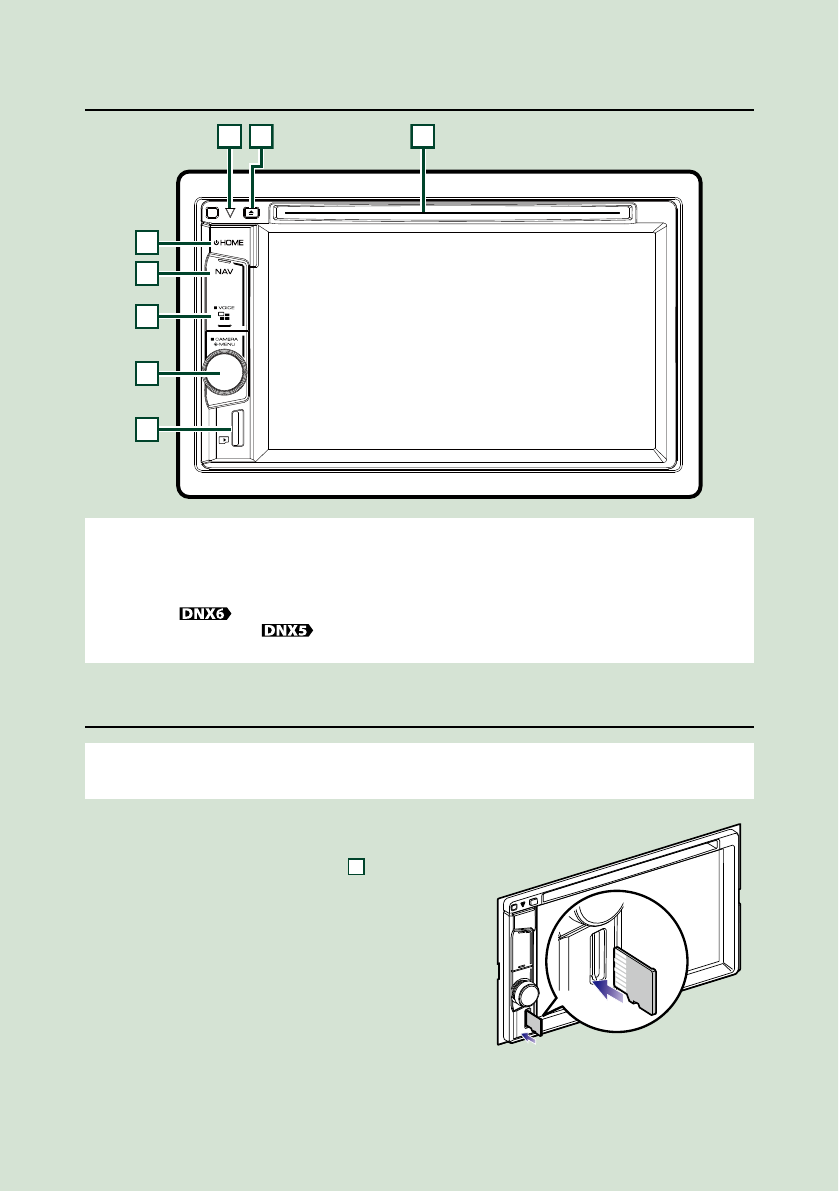
DNX893S/ DNX773S/ DNX7160BTS
1
3
4
5
6
7
9
8
2
NOTE
• The panels shown in this guide are examples used to provide clear explanations of the operations. For this reason,
they may be different from the actual panels.
• In this manual, each model name is abbreviated as follows.
DNX893S:
DNX773S, DNX7160BTS:
If above icon is showed, read the article applicable to the unit you use.
How to insert an SD Card
1) Press
7
<G> button.
2) Touch [OPEN] to the panel fully opens.
3) Hold the SD card as the illustration in the
right and insert it into the slot until it clicks.
4) Press
7
<G> button.
ö To eject the card:
1) Press
7
<G> button.
2) Touch [OPEN].
3) Push the card until it clicks and then remove your finger from the card. The card
pops up so that you can pull it out with your fingers.
4) Press
7
<G> button.
Basic Operations
Labelled side
Basic Operations
7
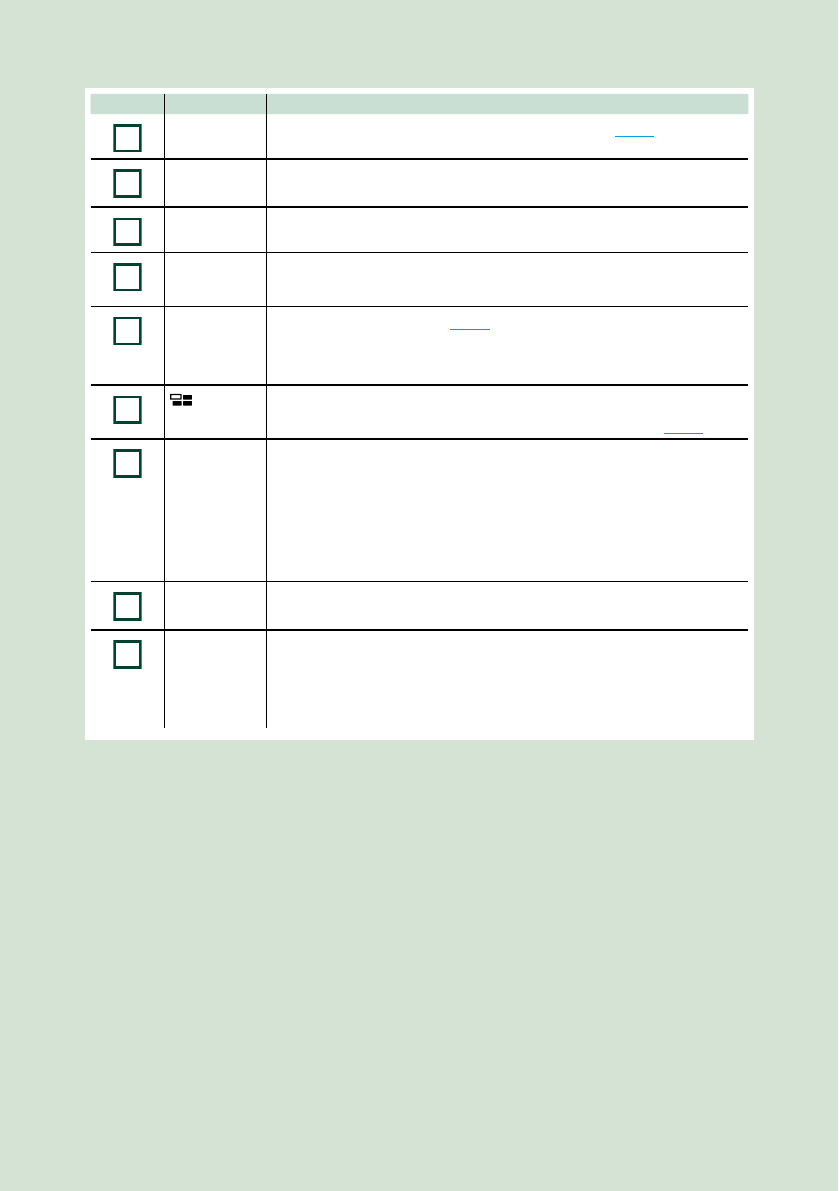
Number Name Motion
1
s• This indicator flashes when the vehicle ignition is off (P.93).
2
S, R
(Volume)
• Adjusts volume.
The volume will go up until 15 when you keep pressing [ R ].
3
NAV • Displays the navigation screen.
4
MENU • Displays the popup menu screen.
• Pressing for 1 second switches view camera display on/off.
5
HOME • Displays the HOME screen (P.16).
• Pressing for 1 second turns the power off.
• When the power off, turns the power on.
6
• Displays the APP (CarPlay/ Android Auto/ Mirroring) screen.
• Pressing for 1 second displays the Voice Recognition screen. (P.85)
7
G• Displays the Angle Adjust screen.
–[DISC EJECT]: Ejects the disc.
–[OPEN]: Fully opens the panel to the location of the SD card slot.
• When the panel is opened, pressing closes the panel.
• To forcibly eject the disc, press it for 2 seconds and touch [DISC EJECT]
after the message is displayed.
8
Disc insert
slot
• A slot to insert a disc media.
9
SD card slot • A slot to insert an SD card.
• You can play audio/visual file in the card. * (Only for DNX893S, DNX773S)
• An SD card slot for upgrading the map. For how to upgrade the map,
refer to the instruction manual of the navigation system.
* If the map update file remains in the SD card, you cannot play audio/visual file.
Basic Operations
88
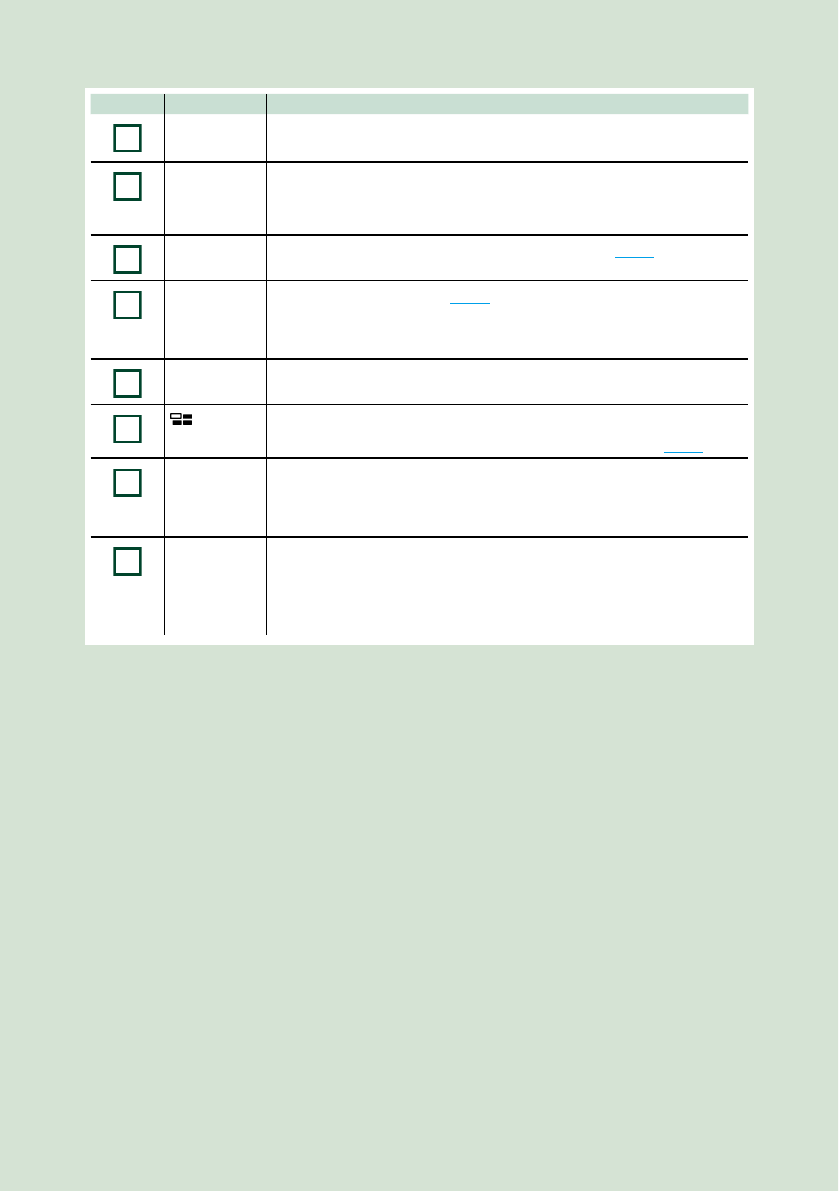
DNX693S/DNX573S/DNX5160BTS
4
3
1
2
5
6
7
8
NOTE
• The panels shown in this guide are examples used to provide clear explanations of the operations. For this reason,
they may be different from the actual panels.
• In this manual, each model name is abbreviated as follows.
DNX693S:
DNX573S, DNX5160BTS:
If above icons are showed, read the article applicable to the unit you use.
How to insert a microSD Card
NOTE
• A dummy microSD card is inserted as the slot cover. Remove it before using and keep it in an appropriate place.
1) Hold the microSD card with the label
side facing right and the notched section
down, and insert it into the
8
slot until it
clicks.
ö To eject the card:
Push the card until it clicks and then remove your
finger from the card.
The card pops up so that you can pull it out with
your fingers.
Basic Operations
9
Number Name Motion
1
Disc insert
slot
• A slot to insert a disc media.
2
G (Eject) • Ejects the disc.
• To forcibly eject the disc, press it for 2 seconds and touch [Yes] after the
message is displayed.
3
s• This indicator flashes when the vehicle ignition is off (P.93).
4
HOME • Displays the HOME screen (P.16).
• Pressing for 1 second turns the power off.
• When the power off, turns the power on.
5
NAV • Displays the navigation screen.
6
• Displays the APP (CarPlay/ Mirroring) screen.
• Pressing for 1 second displays the Voice Recognition screen. (P.85)
7
Volume Knob • Turning adjusts volume up or down.
• Displays the popup menu screen.
• Pressing for 1 second switches view camera display on/off.
8
microSD
card slot
• A slot to insert a microSD card.
• You can play audio/visual file in the card. * (Only for DNX693S, DNX573S)
• A microSD card slot for upgrading the map. For how to upgrade the
map, refer to the instruction manual of the navigation system.
* If the map update file remains in the microSD card, you cannot play audio/visual file.
Basic Operations
1010
Turning on the Unit
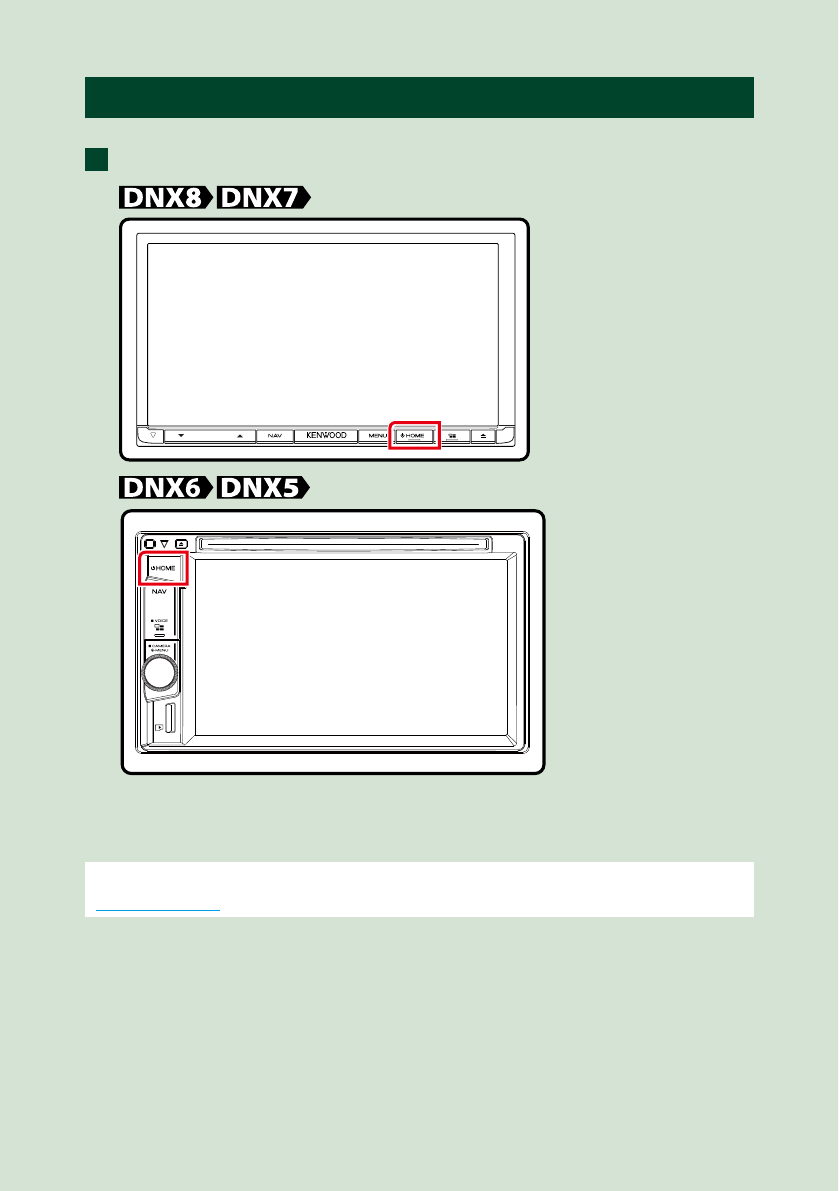
The method of turning on is different depending on the model.
Press the <HOME> button.
The unit is turned on.
●To turn off the unit:
Press the <HOME> button for 1 second.
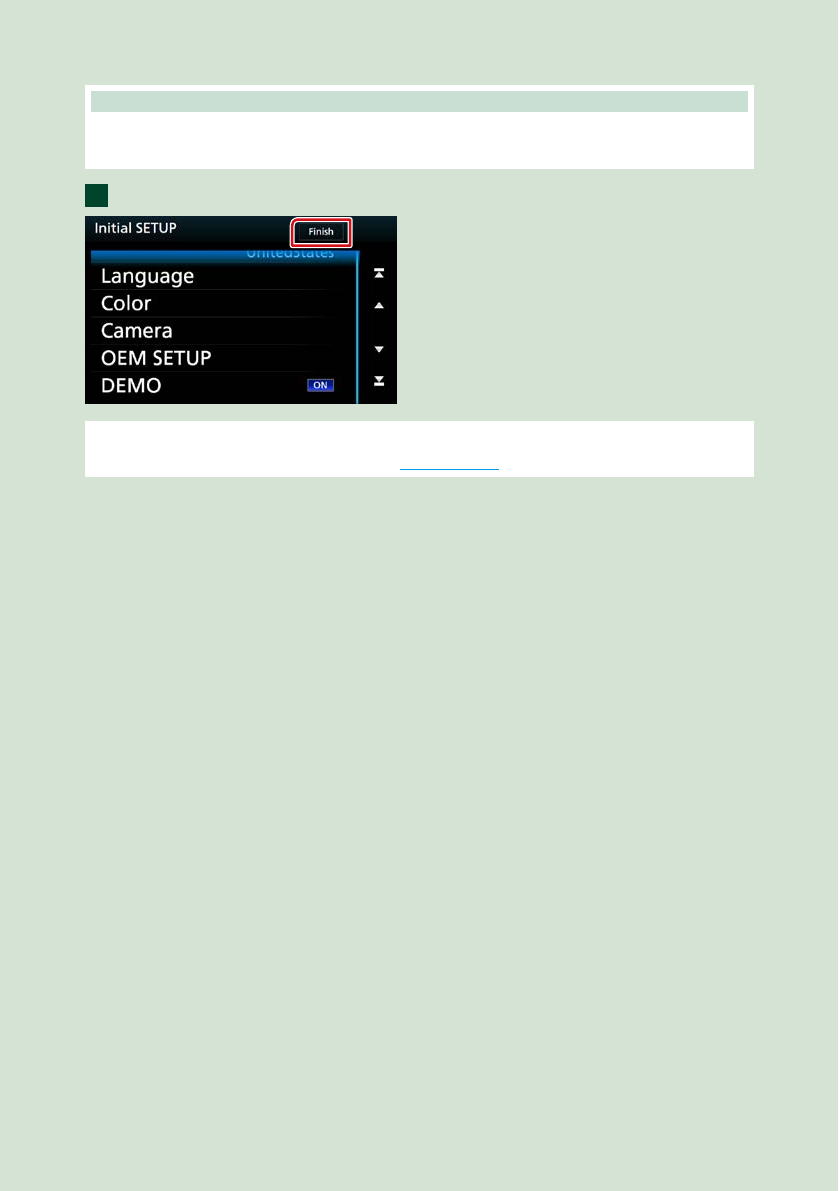
If it is your first time turning the unit on after installation, it will be necessary to perform
Initial setup (P.11).
1
Basic Operations
11
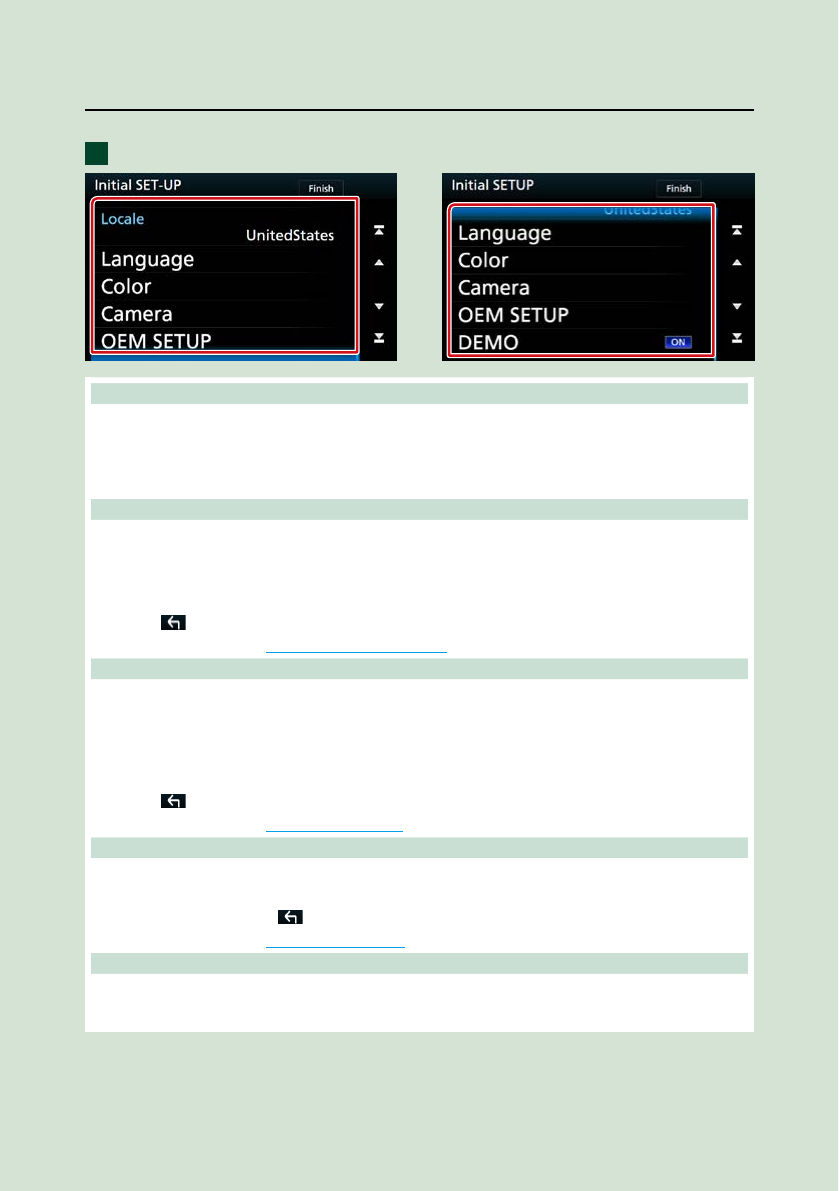
Initial setup
Perform this setup when you use this unit first time.
Set each item as follows.
Locale
Select the country for the navigation system.
The language, the distance unit, and the gasoline unit are set.
1 Touch [Locale].
2 Select the desired country.
Language
Select the language used for the control screen and setting items. Default is “American English (en)”.
1 Touch [Language].
2 Touch [Language Select].
3 Select the desired language.
4 Touch [ ].
For detailed operation, see User Interface Setup (P.90).
Color
Set the screen and button illumination color. You can select whether to allow color scan operation or
select a fixed color for operation.
1 Touch [Color].
2 Touch [Panel Color].
3 Select the desired color.
4 Touch [ ] twice.
For detailed operation, see Display Setup (P.94).
Camera
Set the parameters for the camera.
1 Touch [Camera].
2 Set each item and touch [ ].
For detailed operation, see Camera Setup (P.96).
OEM SETUP (North America Sales area only)
This function requires a commercial adaptor.
Consult your KENWOOD dealer for details.
1
Continued
Basic Operations
13
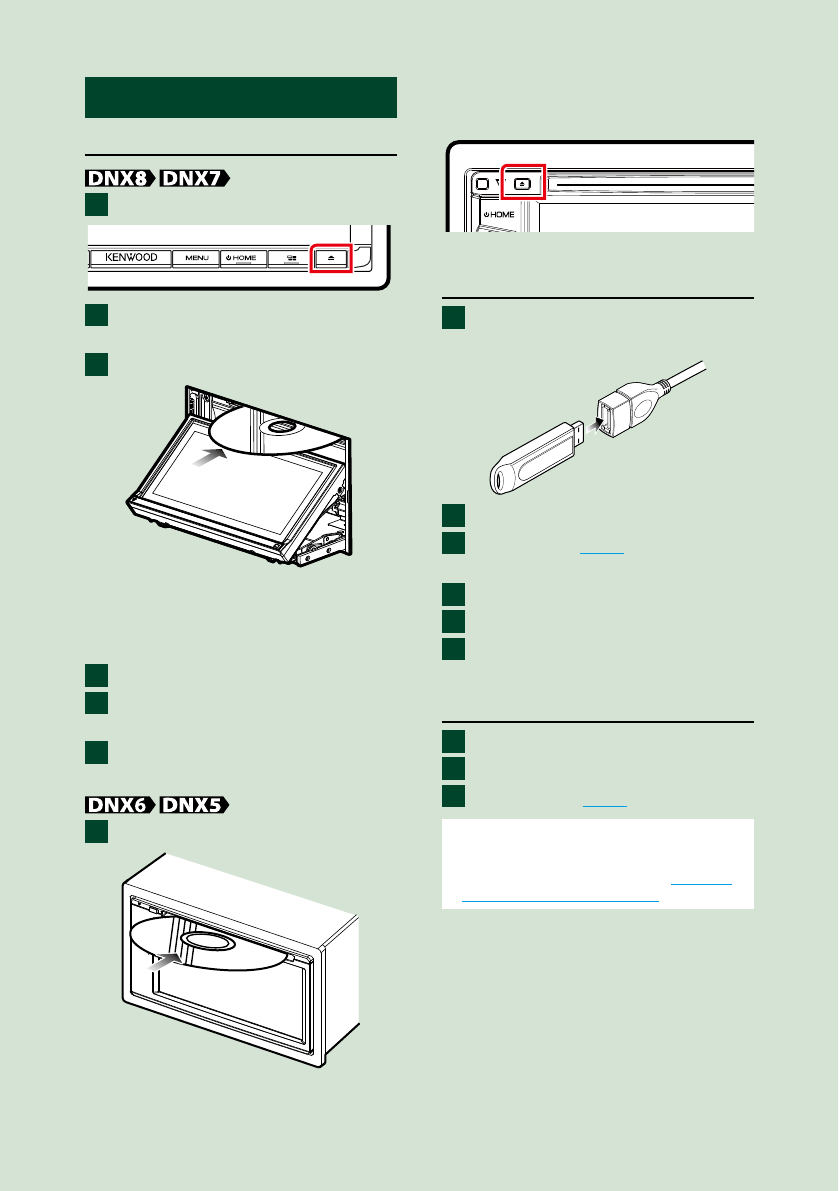
How to Play Media
Music CD and disc media
Press the <G> button.
Touch [DISC EJECT].
The panel opens.
Insert the disc into the slot.
The panel closes automatically.
The unit loads the disc and playback
starts.
●To eject the disc:
Press the <G> button.
Touch [DISC EJECT].
When removing a disc, pull it horizontally.
Press the <G> button.
Insert the disc into the slot.
The unit loads the disc and playback
starts.
●To eject the disc:
Press the <G> button.
USB device
Connect the USB device with the
USB cable.
Press the <HOME> button.
Touch [USB]. (P.16)
●To disconnect the device:
Press the <HOME> button.
Touch a source other than [USB].
Detach the USB device.
iPod
Connect the iPod.
Press the <HOME> button.
Touch [iPod]. (P.16)
NOTE
• For the details of the necessary cable and adapter
to connect with iPod/iPhone, refer to CD/Audio
and Visual Files/iPod/APPS (P.30).
●To disconnect the iPod/iPhone
connected with the cable:
Detach the iPod/iPhone.
1
2
3
1
2
3
1
1
2
3
1
2
3
1
2
3
Basic Operations
1414
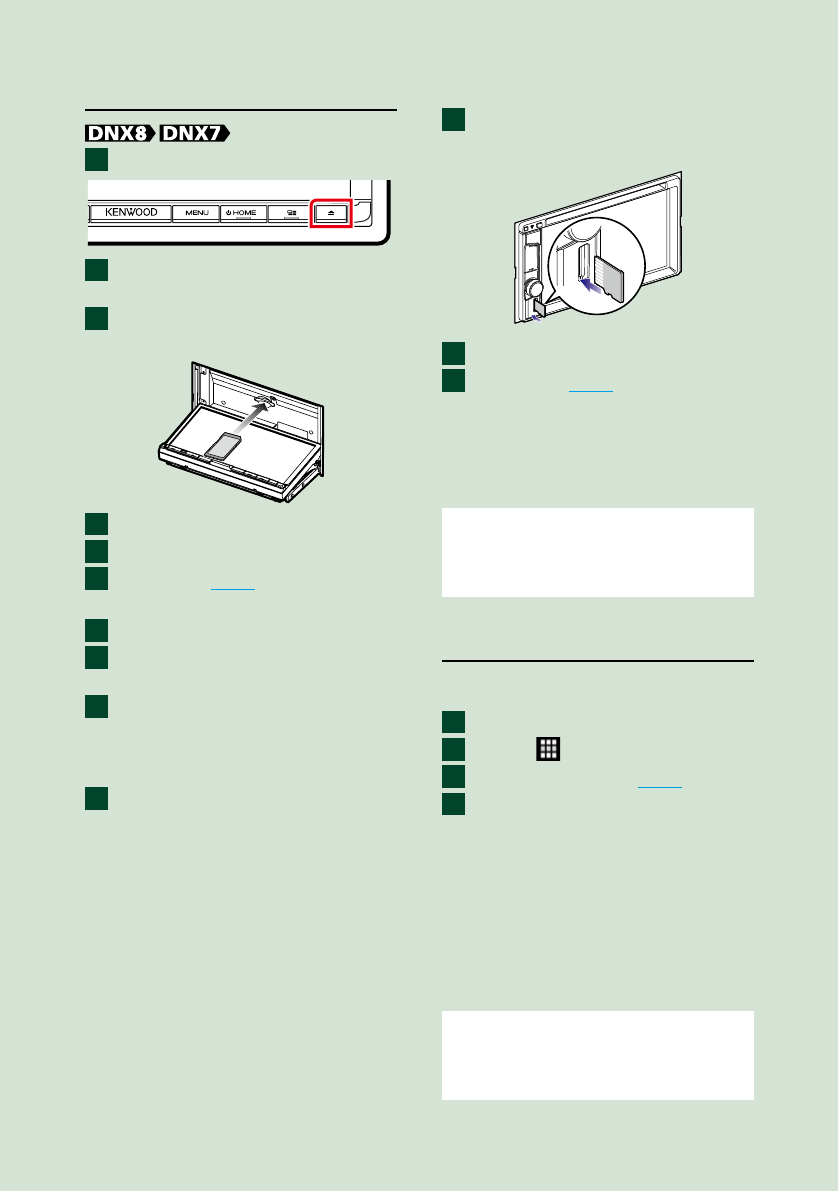
SD card
Press the <G> button.
Touch [OPEN] to the panel fully
opens.
Insert the SD card into the slot
until it clicks.
Press the <G> button.
Press the <HOME> button.
Touch [SD]. (P.16)
●To remove:
Press the <G> button.
Touch [OPEN] to the panel fully
opens.
Push the SD card until it clicks and
then remove your finger from the
card. The card pops up so that you
can pull it out with your fingers.
Press the <G> button.
DNX693S/ DNX573S
Insert the microSD card into the
slot until it clicks.
Press the <HOME> button.
Touch [SD]. (P.16)
●To remove:
Push the microSD card until it clicks and
then remove your finger from the card. The
card pops up so that you can pull it out
with your fingers.
NOTE
• A dummy microSD card is inserted as the slot
cover. Remove it before using and keep it in an
appropriate place.
HDMI/ MHL source
You can display the screen of smartphones
connected via the HDMI/MHL input terminal.
Press the <HOME> button.
Touch [ ].
Touch [HDMI/ MHL]. (P.16)
Start an application or playback
on your smartphone.
●About Wireless Display Adapter:
This unit is compatible with Wireless
Display Adapter. Connecting a Wireless
Display Adapter (KCA-WL100:optional
accessory) to the HDMI/MHL input
terminal enables you to enjoy listening
to music, watching videos, or viewing
pictures over a wireless connection.
NOTE
• For details about Wireless Display Adapter
settings, etc., refer to the instructions supplied
with the Wireless Display Adapter.
1
2
3
4
5
6
1
2
3
4
1
2
3
1
2
3
4
Basic Operations
15
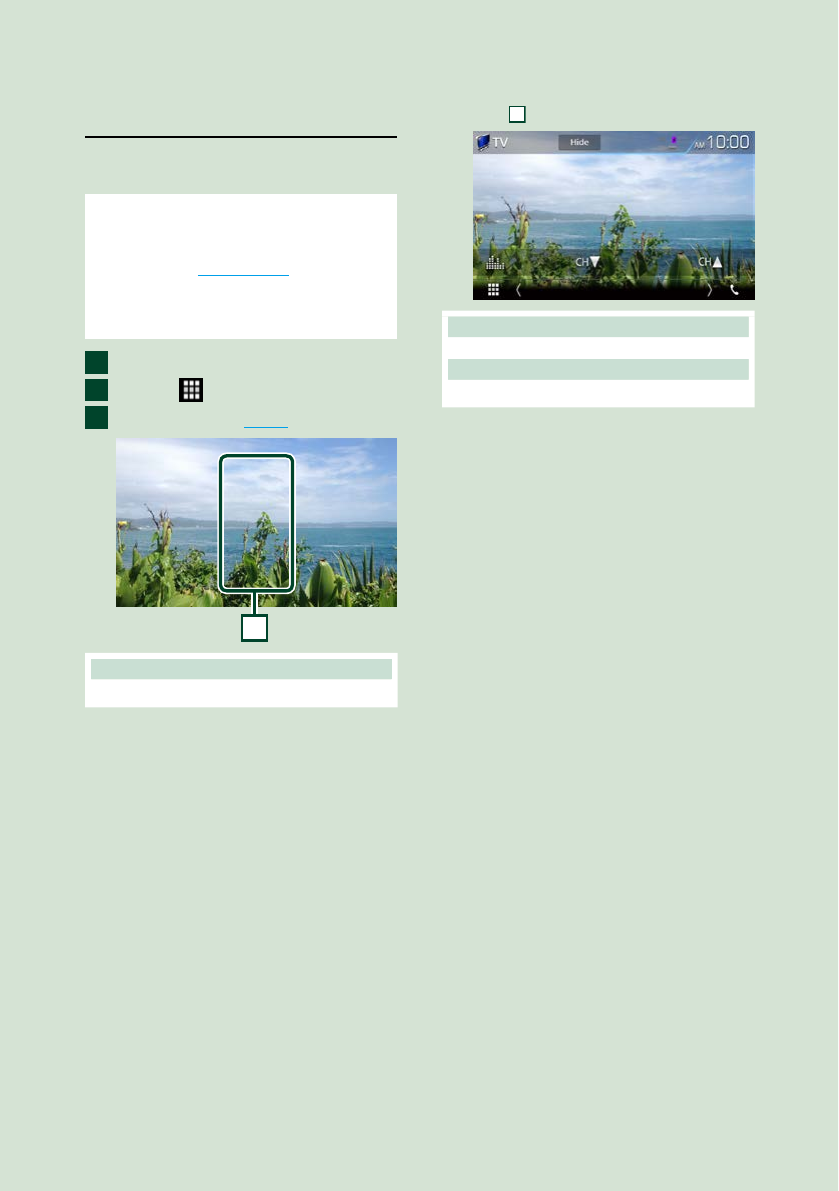
TV tuner (DNX7160BTS/
DNX5160BTS)
You can connect the TV tuner (commercially
available) with this unit and watch TV.
Before use
• When you use TV control function, connect the TV
tuner (commercially available) and set 3rd Party TV
Tuner Control in AV Setup (P.98) to ON.
• The TV tuner can be controlled with its supplied
remote control through the remote sensor on the
front panel of this unit.
Press the <HOME> button.
Touch [ ].
Touch [AV-IN1]. (P.16)
1
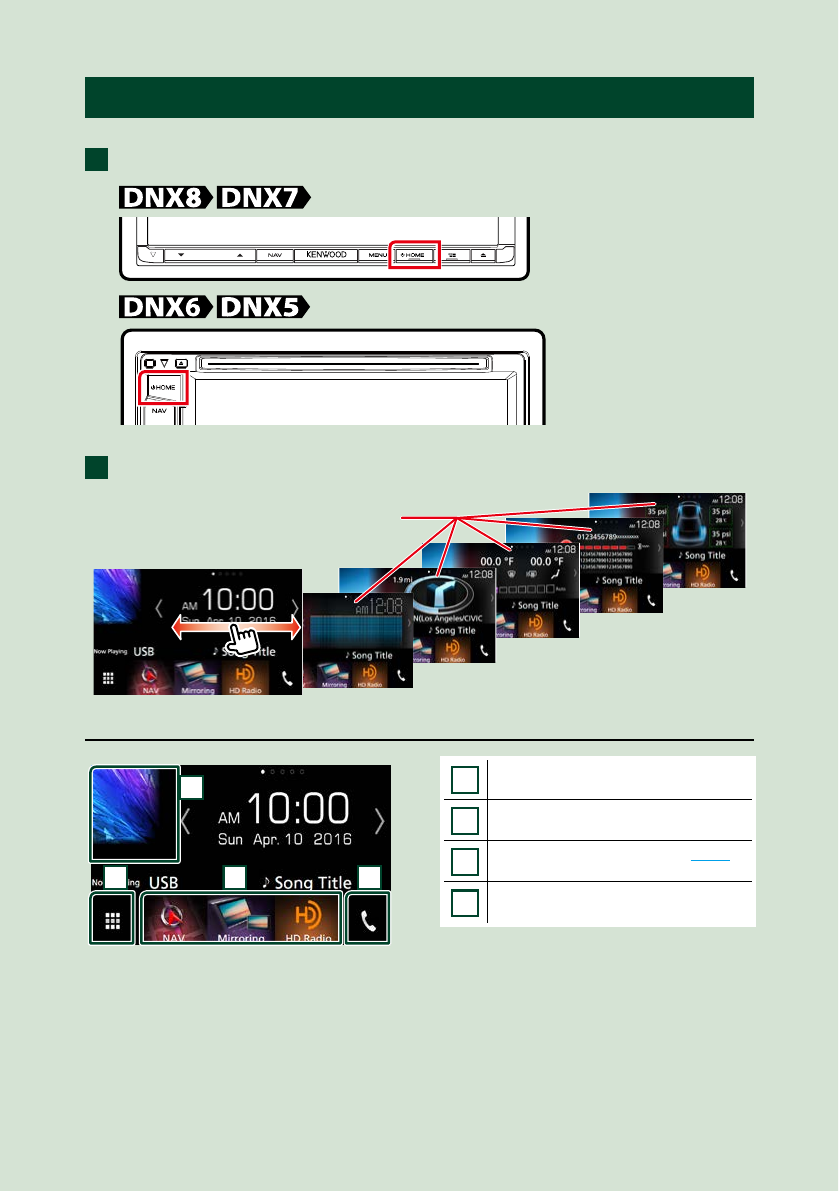
1 Key display area
Touch to display the control screen.
Menu control screen:
Touch
1
Key display area.
Hides the indicators and buttons.
Touch [Hide].
Change the channel.
Touch [CHR], [CHS].
1
2
3
Basic Operations
1616
Operating with the HOME Screen
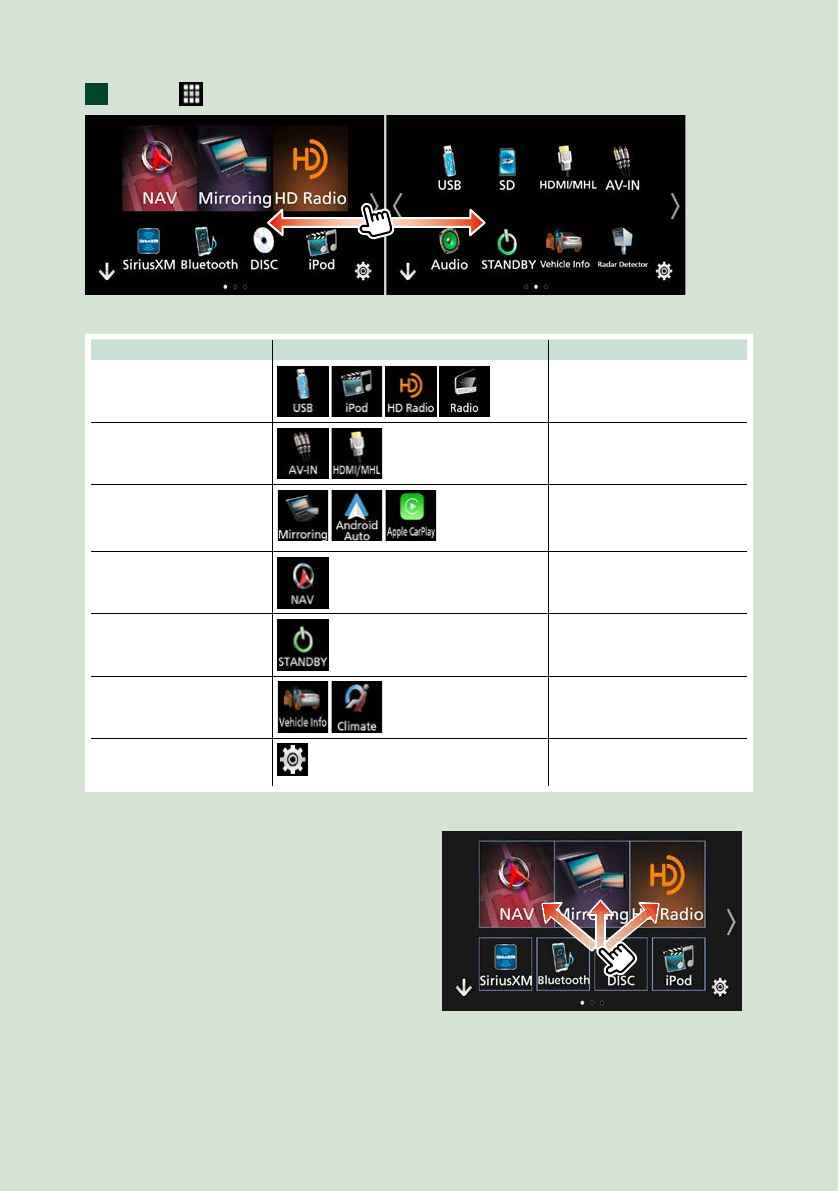
Most functions can be performed from the HOME screen.
Press the <HOME> button.
HOME screen appears.
Flick the screen left or right to select the widget.
Touch the widget to display the
detailed screen.
Selecting the playback source on the HOME screen
4
3
1
2
1
Displays the source selection screen.
2
Short-cut buttons.
3
Displays the Hands Free screen (P.82).
4
Displays the control screen of current
source.
1
2
Basic Operations
17
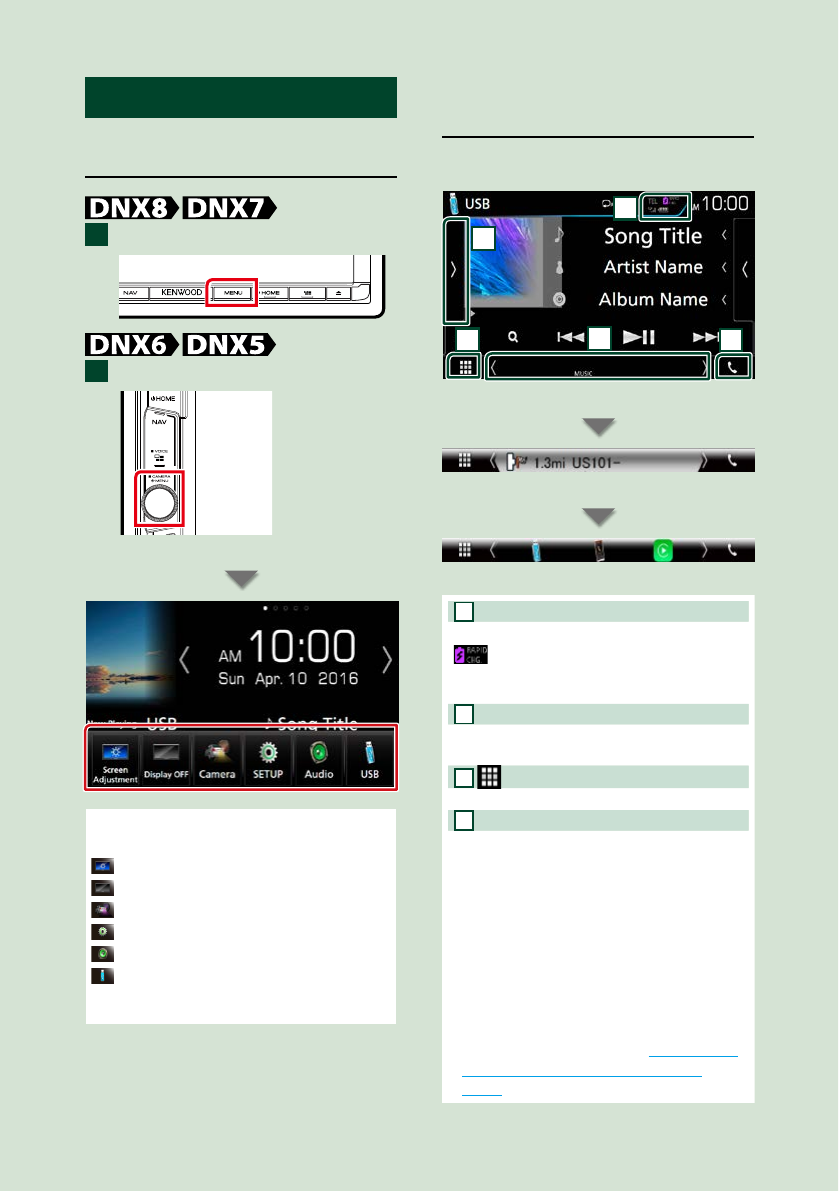
Touch [ ].
From this screen, you can perform the following functions.
Function Icon Operation
Switch the audio source
etc.
Touch the icon of the desired
source.
Switch the video source
etc.
Touch the icon of the desired
video source.
Switch the application
installed in the iPhone/
iPod or Android. etc.
Touch the icon of the desired
application.
Display navigation screen
Touch [NAV].
Turn off all audio function Touch [STANDBY].
Vehicle information
display
etc.
Touch the icon of the desired
vehicle information
Enter setup mode Touch the icon of the desired
setup function.
●Customizing Short-cut buttons on
HOME screen
You can arrange the position of the source
icons as you like.
1. Touch and hold the icon which you want
to move to go into the customizing
mode.
2. Drag it where you want to move.
Customizing mode screen
1
Basic Operations
1818
Common Operations
Introduces the common operations.
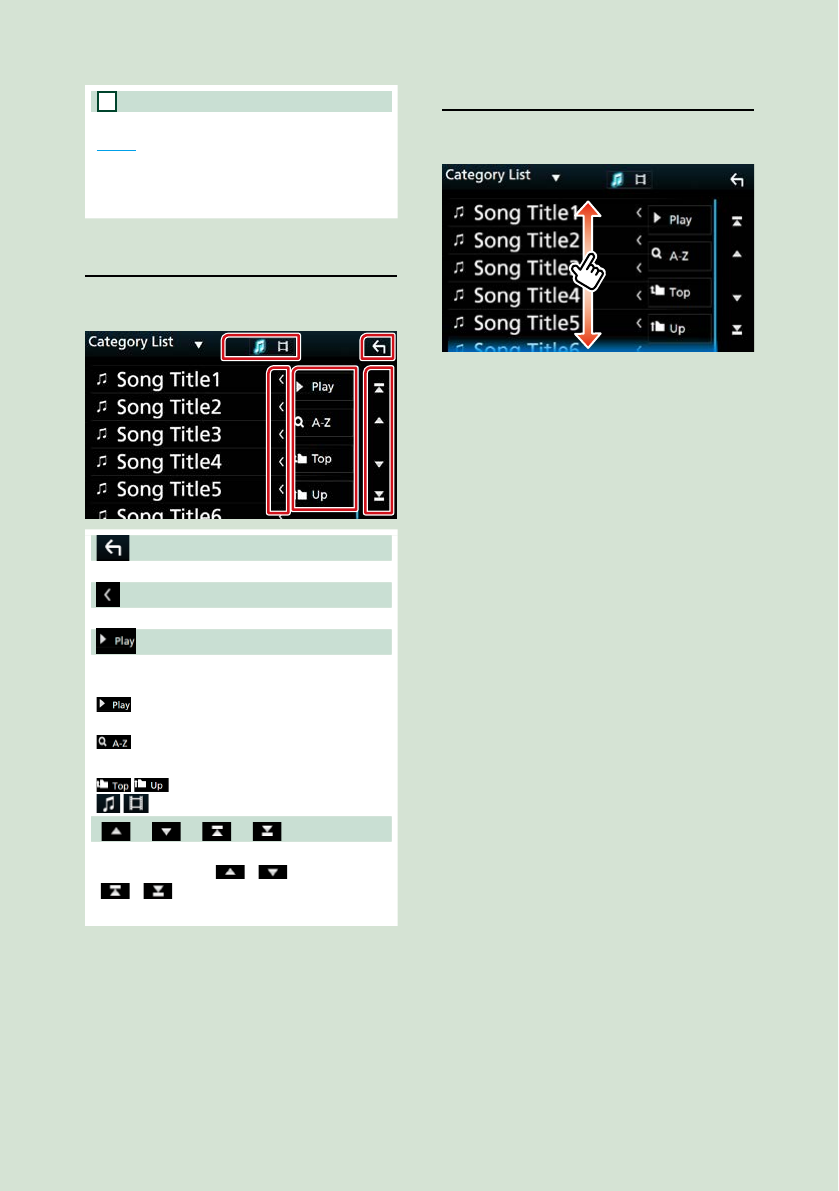
Popup menu
Press the <MENU> button.
Press the volume knob.
Popup menu appears.
Touch to display the popup menu. The
contents of the menu are as follows.
: Displays the Screen Adjustment screen.
: Turns the display off.
: Displays the view camera.
: Displays the SETUP Menu screen.
: Displays the Audio Control Menu screen.
: Displays the control screen of current
source. Icon feature differs depending on
the source.
Source control screen
descriptions
There are some functions which can be
operated from most screens.
4
5
3
1
2
Indicators
Navigation information
Short-cut buttons
1
Connected Bluetooth device information.
: Lights up when quick charging
battery of the connected iPod/ iPhone/
Smartphone.
2
Displays the function panel (other operation
button window).
3
All sources icon
Displays all sources.
4
Secondary screen
[<] [>] : The Secondary screen changes every
time you touch it.
• Indicators: Displays the current source
condition and so on.
• Navigation information: Displays the
current location and the direction. The
screen changes to the navigation screen
when you touch here.
• Short-cut buttons: The source changes
to the one you have set as a short-cut. For
the short-cut setting, refer to Customizing
Short-cut buttons on HOME screen
(P.17).
1
1
Basic Operations
19
5
[Û]
Touch to display the Hands Free screen.
(P.82)
When connecting as Apple CarPlay or
Android Auto, it works as a phone provided
in Apple CarPlay or Android Auto.
List screen
There are some common function keys in the
list screens of most sources.
Return
Returns to previous screen.
Tex t scroll
Scrolls the displayed text.
etc.
Keys with various functions are displayed
here.
: Plays all tracks in the folder containing
the current track.
: Jump to the letter you entered
(alphabet search).
: Moves to the upper hierarchy.
: Displays music/movie file list.
[] / [ ] / [ ] / [ ] Page scroll
You can change the page to display more
items by pressing [ ]/[ ].
[ ]/[ ] : Displays the top or bottom
page.
Flick scrolling
You can scroll the list screen by flicking the
screen up/down.
Basic Operations
2020
Navigation Operation
For details on the navigation function, please
refer to the Navigation Instruction Manual.
Display the navigation screen
Press the <NAV> button.
The navigation screen appears.
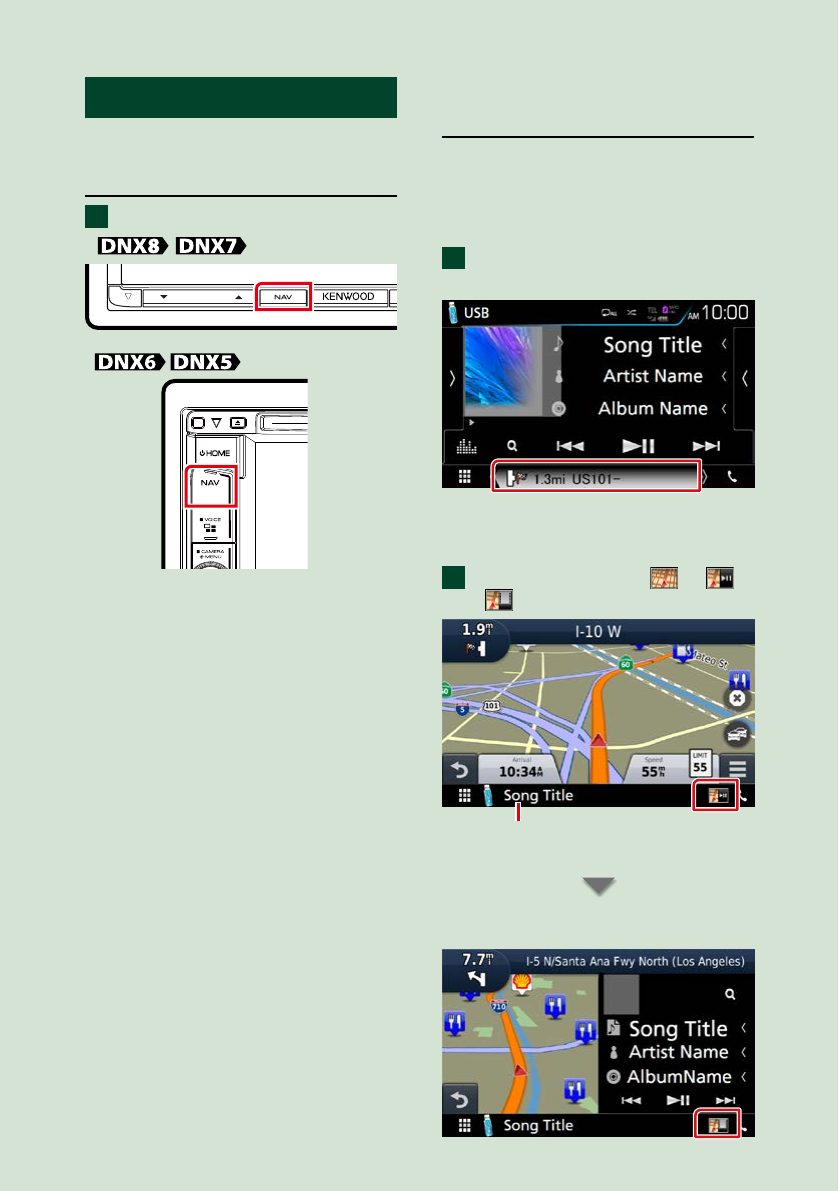
Control audio from the
navigation screen
You can control audio sources while the
navigation screen is displayed.
Also, you can view the navigation
information while the source control screen
is displayed.
Touch the Navigation information
of Secondary screen.
The navigation screen with audio
information appears.
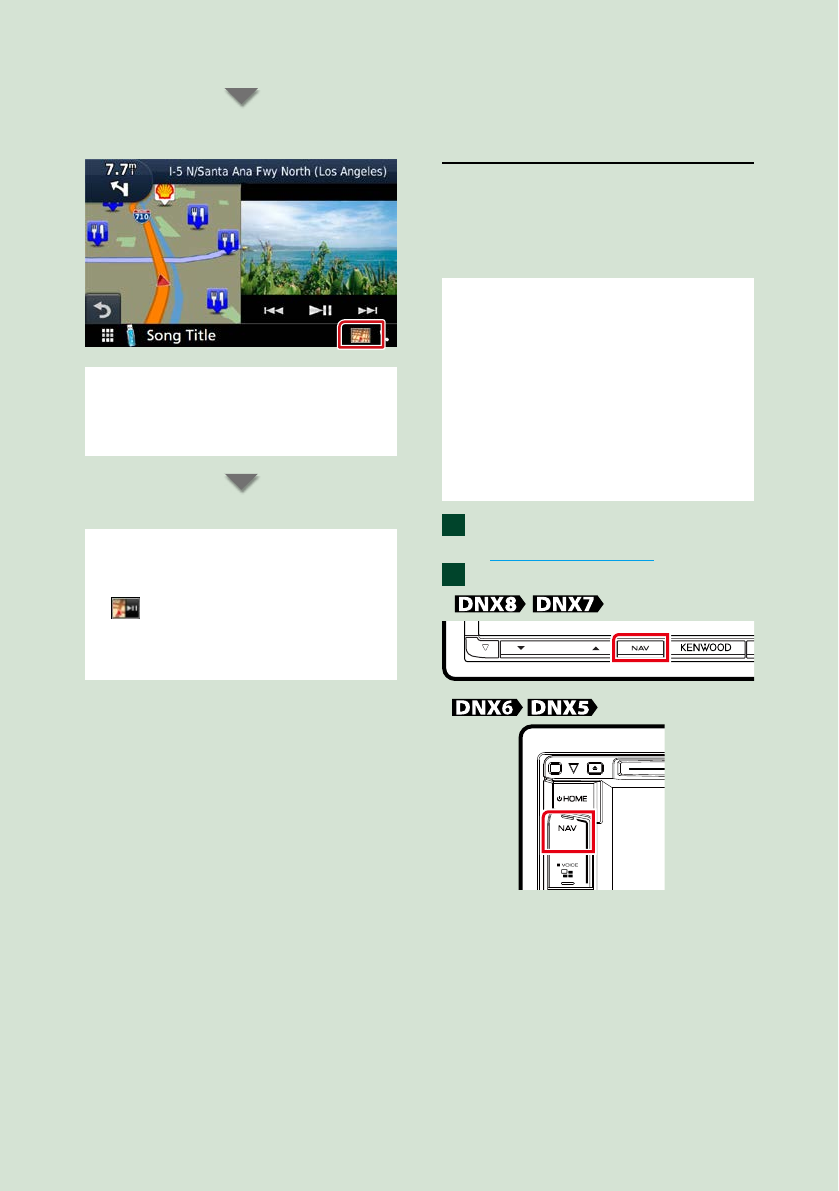
Each time you touch [ ]/ [ ]/
[ ] in the navigation screen,
Touching this area displays
the audio screen.
Displays the navigation and control keys of
the current source.
1
1
2
Basic Operations
21
Displays the navigation and current video/
picture playback display.
NOTE
• The screen switches between playback screen
and view camera each time the viewing area is
touched.
To return to the full navigation screen:
NOTE
• For details on control keys, refer to the instructions
in each section.
• [ ] : It does not appear if the control keys like
AV-IN, HDMI/MHL, etc. are not exist.
• Touching the source icon in the bottom of the
screen displays the full audio screen.
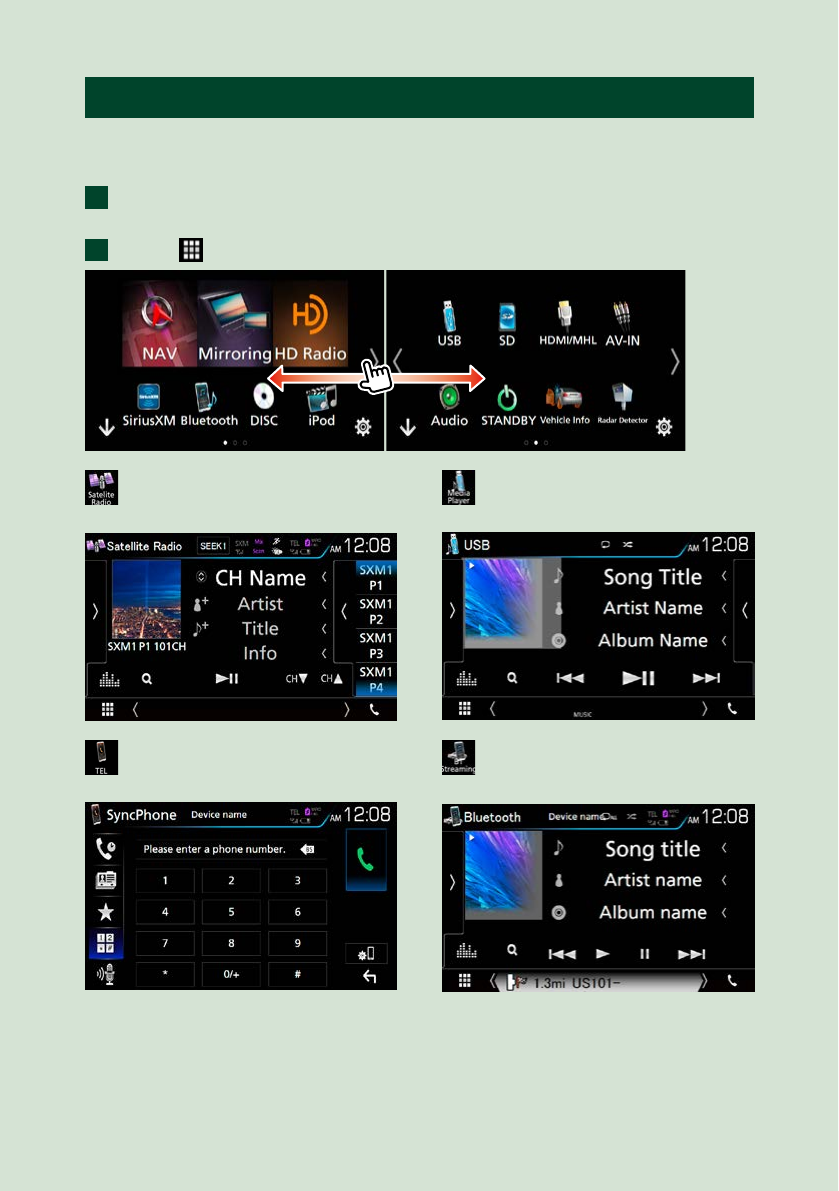
KENWOOD Traffic Powered By
INRIX (North America Sales
area only)
You can receive INRIX traffic information
and weather forecast by connecting your
iPhone or Android smartphone in which
the “KENWOOD Traffic Powered By INRIX”
application is installed to this unit.
Preparation
• Install the latest version of the KENWOOD Traffic
Powered By INRIX application on your iPhone or
Android.
–iPhone: Search for "KENWOOD Traffic Powered
By INRIX" in the Apple App Store to find and
install the most current version.
–Android: Search for "KENWOOD Traffic Powered
By INRIX" in Google play to find and install the
most current version.
• For details, see “KENWOOD Traffic Powered By
INRIX” application.
Register the Smartphone.
See APP/iPod settings (P.31).
Press the <NAV> button.
Navigation screen appears.
Touch [Apps] on the Main Menu screen
and then an icon of your desired content
For details, see Navigation system manual.
1
2
Basic Operations
2222
OEM Features Operation
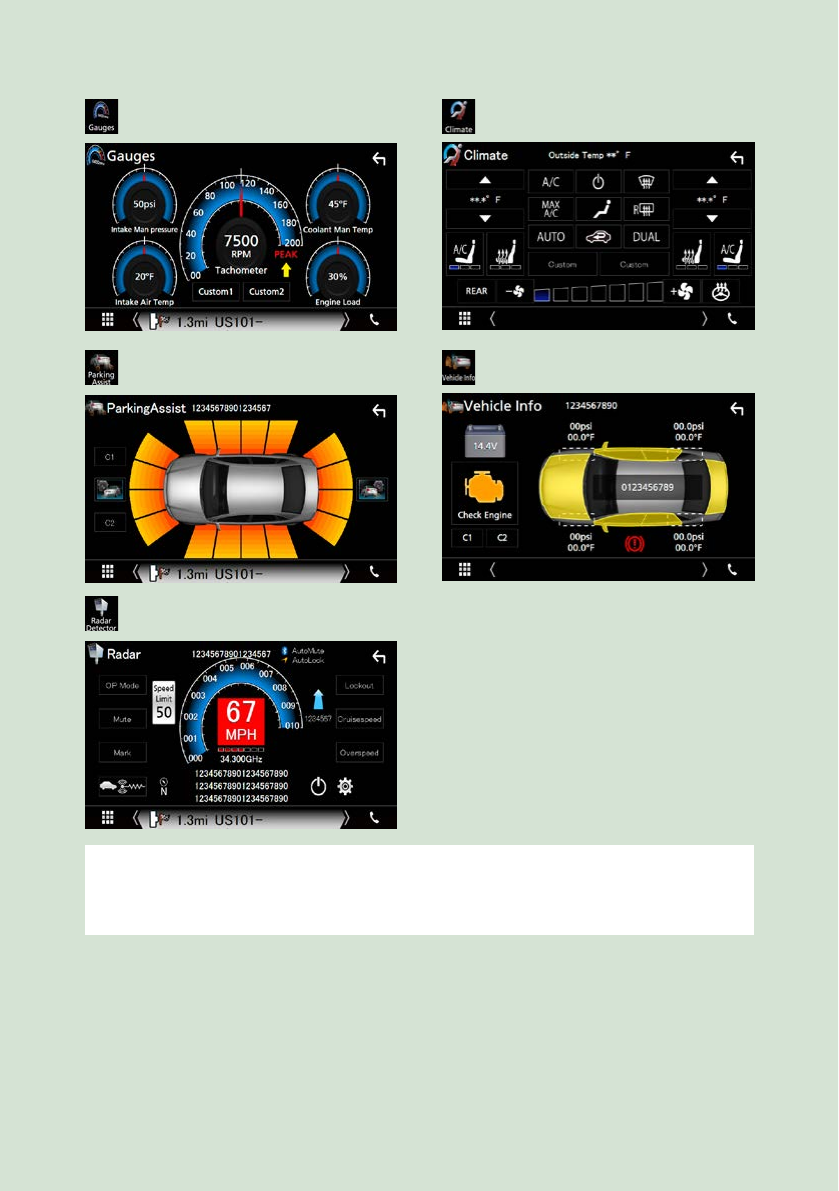
By connecting this unit to the bus system of the vehicle using an iDataLink (commercially
available), this unit can access the satellite radio source provided for the vehicle and vehicle
information can be displayed on this unit.
Press the <HOME> button.
HOME screen appears.
Touch [ ] icon
: Displays the control screen of the
satellite radio source provided for the
vehicle.
: Displays the control screen of the
media player source provided for the
vehicle.
: Displays the control screen of the
Bluetooth Hands Free function
provided for the vehicle.
: Displays the control screen of the
Bluetooth streaming source provided
for the vehicle.
1
2
Basic Operations
23
: Displays information about the
instruments such as a speedometer.
: Displays information about the air
conditioner of the vehicle.
: Displays information about the
Parking Distance Sensor of the vehicle.
: Displays information about the tire
pressures of the vehicle.
: Displays information about the Radar
Detector.
NOTE
• Displayable screens, button names, and screen names vary depending on the type of the connected iDataLink
and the model of the vehicle. For more details, access the following URL:
www.idatalink.com/
DVD/Video CD (VCD)
2424
DVD/VCD Basic Operation
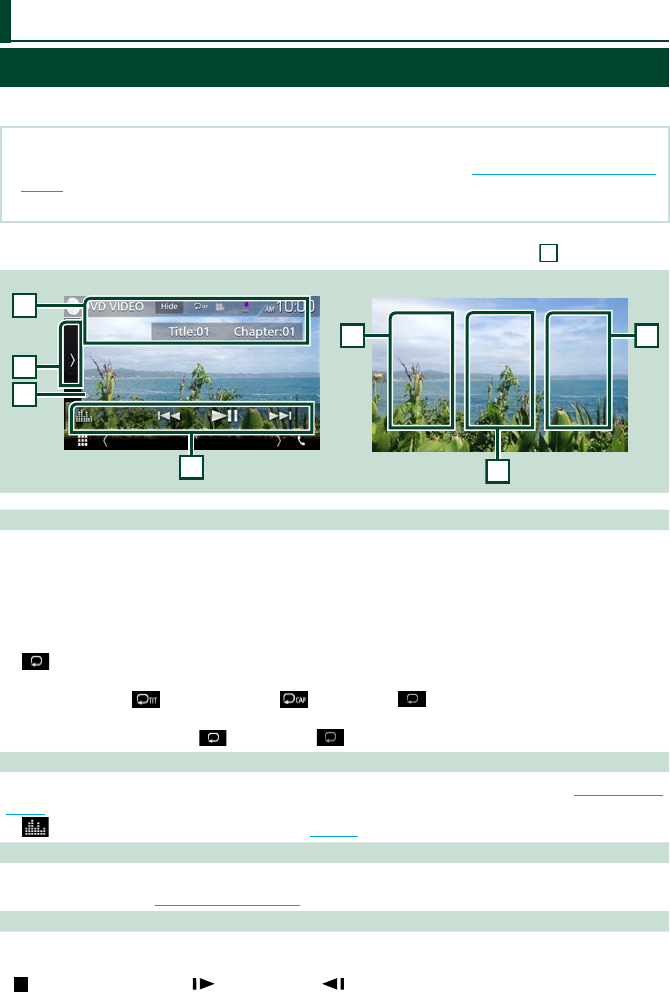
Most functions can be controlled from the source control screen and playback screen.
NOTE
• Set the remote control mode switch to DVD mode before starting operation, see Switching the operation mode
(P.113).
• The screen shot below is for DVD. It may be different from the one for VCD.
1 When the operation buttons are not displayed on the screen, touch the
6
area.
2
1
4
3
Video screenControl screen
5
5
6
1 Information display
Displays the following information.
• Title #, Chap #: DVD title and chapter number display
• Track #/Scene #: VCD track or scene number display
Scene # is displayed only when Playback control (PBC) is on.
• [Hide]: Hides the control screen.
• [ ] : Repeats the current content. Each time you touch the key, repeat mode switches in the
following sequence;
DVD: Title repeat ( ), Chapter repeat ( ), Repeat off ( )
VCD (PBC On): Does not repeat
VCD (PBC Off ): Track repeat ( ), Repeat off ( )
2 Function bar
Various functions can be performed by using keys in this area. For details on the keys, see Function bar
(P.25).
• [ ] : Displays the Graphic Equalizer screen. (P.104)
3 Function panel
Touch on the left side of the screen to display the function panel. Touch again to close the panel. For
details on the keys, see Function panel (P.26).
4 Play mode indicator
• D, B, I, etc.: Current play mode indicator
The meanings of each icon are as follows; D (play), B (fast forward), A (fast backward), I (stop),
R (resume stop), H (pause), (slow playback), (slow reverse playback).
DVD/Video CD (VCD)
DVD/Video CD (VCD)
25
5 Searching area
Touch to search the next/previous content.
6 Key display area
Touch to display the control screen.
NOTE
• The control screen disappears when no operation is done for 5 seconds.
• If you use a remote control, you can jump directly to the desired image with entering the chapter number, scene
number, play time, etc (P.113).
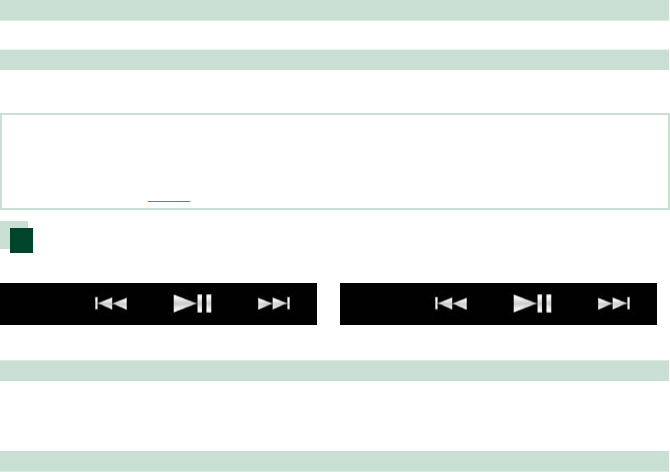
Function bar
DVD VCD
The functions of each key are as follows.
[E] [F]
Searches the previous/next content.
Touch and hold to fast forward or fast backward. (It will be cancelled automatically after about 50
seconds.)
[DH]
Plays or pauses.
DVD/Video CD (VCD)
2626
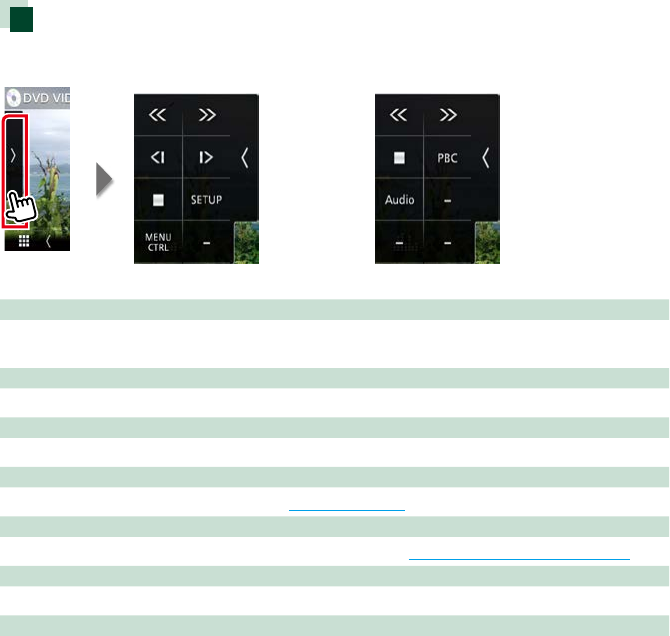
Function panel
1 Touch on the left side of the screen.
DVD VCD
The functions of each key are as follows.
[I]
Stops playback. When touched twice, the disc is played from the beginning when you play it the next
time.
[<<] [>>]
Fast forward or fast backward. Each time you touch the key, the speed changes; 2 times, 8 times.
[<|] or [|>] (DVD only)
Plays in slow motion forward or backward.
[SETUP] (DVD only)
Touch to display the DVD SETUP screen. See DVD Setup (P.28).
[MENU CTRL] (DVD only)
Touch to display the DVD-VIDEO disc manu control screen. See DVD Disc Menu Operation (P.27).
[PBC] (VCD only)
Turn Playback control (PBC) on or off.
[Audio] (VCD only)
Change the audio output channel.
DVD/Video CD (VCD)
27
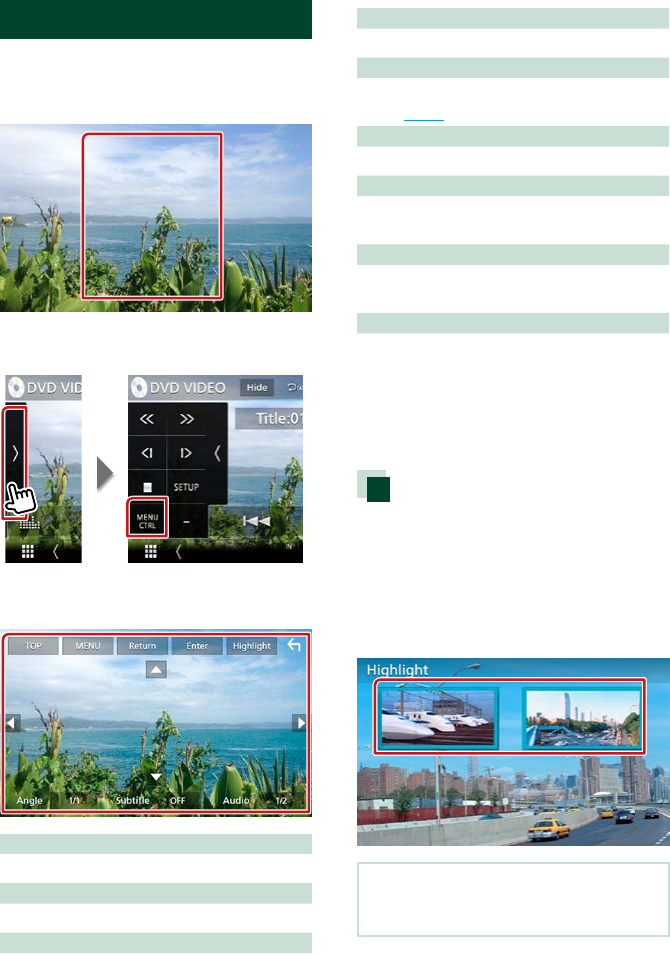
DVD Disc Menu Operation
You can set up some items in the DVD-VIDEO
disc menu.
1 Touch illustrated area during playback.
2 Touch on the left side of the screen.
Touch [MENU CTRL].
Menu Control screen appears.
3 Perform desired operation as follows.
Displays the top menu
Touch [TOP].*
Displays the menu
Touch [MENU].*
Displays the previous menu
Touch [Return].*
Enters selected item
Touch [Enter].
Enables direct operation
Touch [Highlight] to enter the highlight control
mode (P.27).
Moves the cursor
Touch [R], [S], [C], [D].
Switches the subtitle language
Touch [Subtitle]. Each time you touch this key,
language is switched.
Switches the audio language
Touch [Audio]. Each time you touch this key,
language is switched.
Switches the picture angle
Touch [Angle]. Each time you touch this key,
picture angle is switched.
* These keys may not function depending on
the disc.
Highlight control
Highlight control lets you control the DVD
menu by touching the menu key directly on
the screen.
1 Touch [Highlight] in the Menu Control
screen.
2 Touch desired item on the screen.
NOTE
• The highlight control is cleared automatically if
you do not operate for a constant time.
DVD/Video CD (VCD)
2828
DVD Setup
You can set up the DVD playback functions.
NOTE
• Each operation in this section can be started from
the HOME screen. For details, see Operating with
the HOME Screen (P.16).
• Some setup items can only be set in standby
mode.
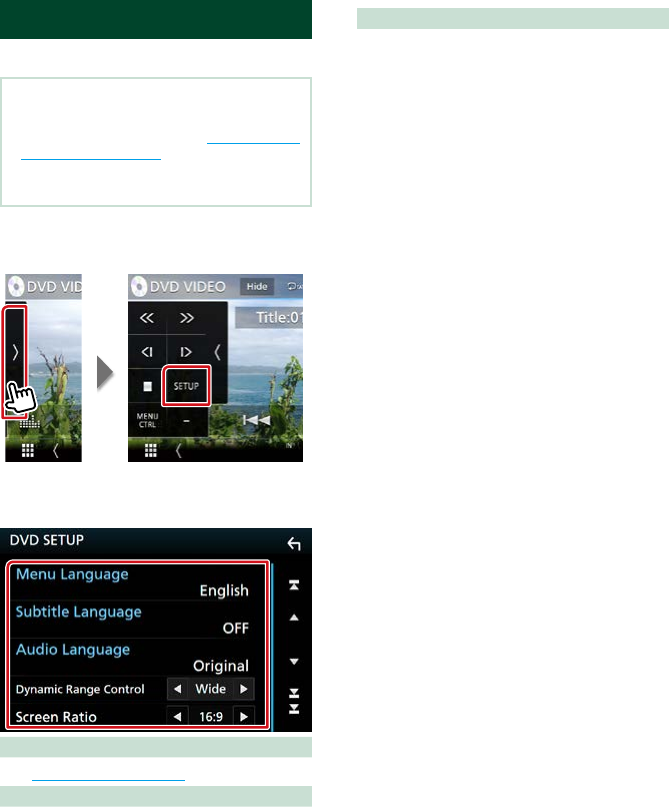
1 Touch on the left side of the screen.
Touch [SETUP].
DVD SETUP screen appears.
2 Set each item as follows.
Menu/Subtitle/Audio Language
See Language setup (P.29).
Dynamic Range Control
Sets the dynamic range.
Wide: The dynamic range is wide.
Normal: The dynamic range is normal.
Dialog (Default): Makes the total sound
volume larger than other modes. This is
effective only when you are using Dolby
Digital software.
Screen Ratio
Sets the screen display mode.
16:9 (Default): Displays wide pictures.
4:3 LB: Displays wide pictures in the Letter Box
format (having black stripes at the top and
bottom of screen).
4:3 PS: Displays wide pictures in the Pan &
Scan format (showing pictures cut at the
right and left ends).
DVD/Video CD (VCD)
29
Language setup
This setting is for the language used in the
menu, subtitle, and voice.
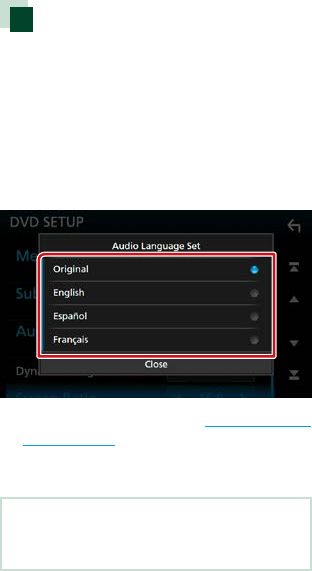
1 Touch the desired item;
[Menu Language], [Subtitle Language],
[Audio Language].
Language Set screen appears.
2 Select a language.
For language code, refer to DVD Language
Codes (P.127).
Sets the entered language and returns to
the DVD Setting screen.
NOTE
• To set the DVD’s original language for audio
language, touch [Original].
CD/Audio and Visual Files/iPod/APPS
3030
See the following sections for each source operation.
• Music CD (P.32)
• Disc media (P.33)
• USB device (P.33)
• iPod (P.33)
• Pandora (P.39)
• Spotify (P.42)
• Mirroring (P.44)
• Apple CarPlay (P.46)
• Android Auto (P.48)
Preparation
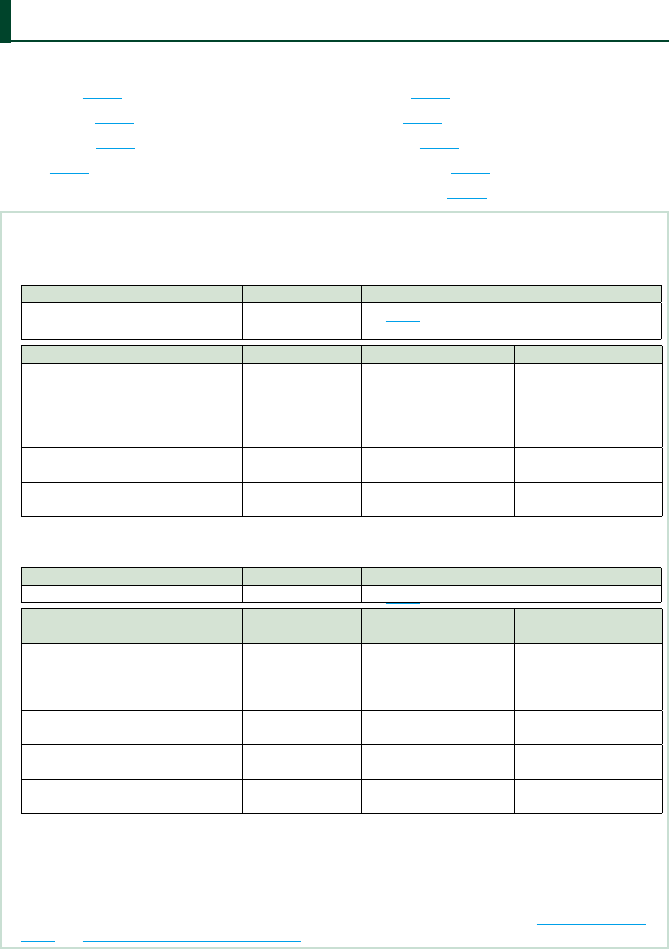
• To connect the Android device with this unit, the cable (sold separately) and the profile which your Android
device supports are necessary as follows:
Use application Sold separately Automotive Mirroring
To Android Auto source
(Android version 5.0 (Lollipop) or later)
Micro USB to USB
cable
ON (P.48)
Use application Sold separately APP Connection select Bluetooth Connection
To listen to music and watch video of
Mirroring source
• MHL or HDMI
device
• KCA-MH100 (MHL)
or KCA-HD100
(HDMI)
• Android Bluetooth
• HDMI/MHL
Audio (A2DP)/App (SPP)
To listen to music of Spotify/ Pandora
source –Android Bluetooth Audio (A2DP)/App (SPP)
To listen to music of Bluetooth Audio
source – – Audio (A2DP)/App (SPP)
• To connect the iPod/iPhone with this unit, the cable, adapter (both sold separately), and the profile which your
iPod/iPhone supports are necessary as follows:
Use application Sold separately Automotive Mirroring
To Apple CarPlay source KCA-iP103 ON (P.46)
Use application Sold separately APP Connection select
(iPod Connection)
Bluetooth Connection
To listen music and watch video with
Lightning connector device
• Lightning Digital
AV Adapter
• KCA-HD100
• KCA-iP103
• iPhone Bluetooth
• HDMI/MHL
(Bluetooth+HDMI/MHL)
Audio (A2DP)/App (SPP)
To listen music with Lightning
connector device
KCA-iP103 iPhone USB (USB) –
To listen music with 30-pin connector
device
KCA-iP102 iPhone USB (USB) –
To listen to music via Bluetooth –iPhone Bluetooth
(Bluetooth)
Audio (A2DP)/App (SPP)
• When connecting with Lightning Digital AV Adapter some applications can be controlled from this unit. The
operable functions depend on the application.
• Do not leave the cable or the adapter made by other makers inside the car. It might lead the malfunction caused
by heat.
• Some settings are necessary to meet the connected iPod/iPhone or Android device. Refer to APP/iPod settings
(P.31) and Connecting the Bluetooth unit (P.78) .
CD/Audio and Visual Files/iPod/APPS
CD/Audio and Visual Files/iPod/APPS
31
APP/iPod settings
Select how to connect your android
smartphone or iPhone to use apps like
Mirroring, etc.
Preparation
• To connect an Android device or iPhone via
Bluetooth, register it as the Bluetooth device
and do the profile setting of the connection
beforehand. See Registering from the Bluetooth
unit (P.77) and Connecting the Bluetooth
unit (P.78).
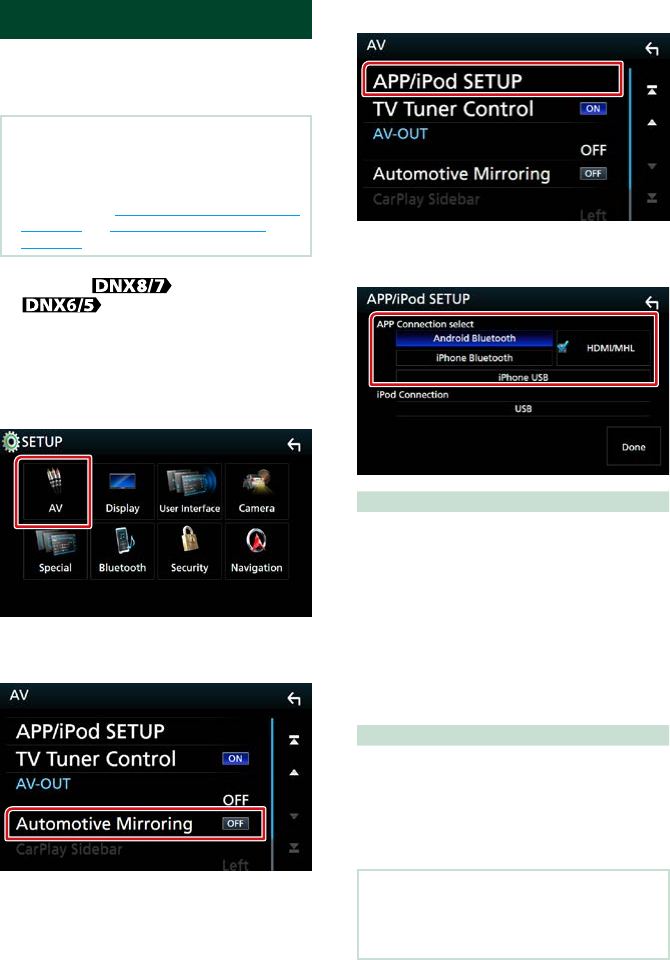
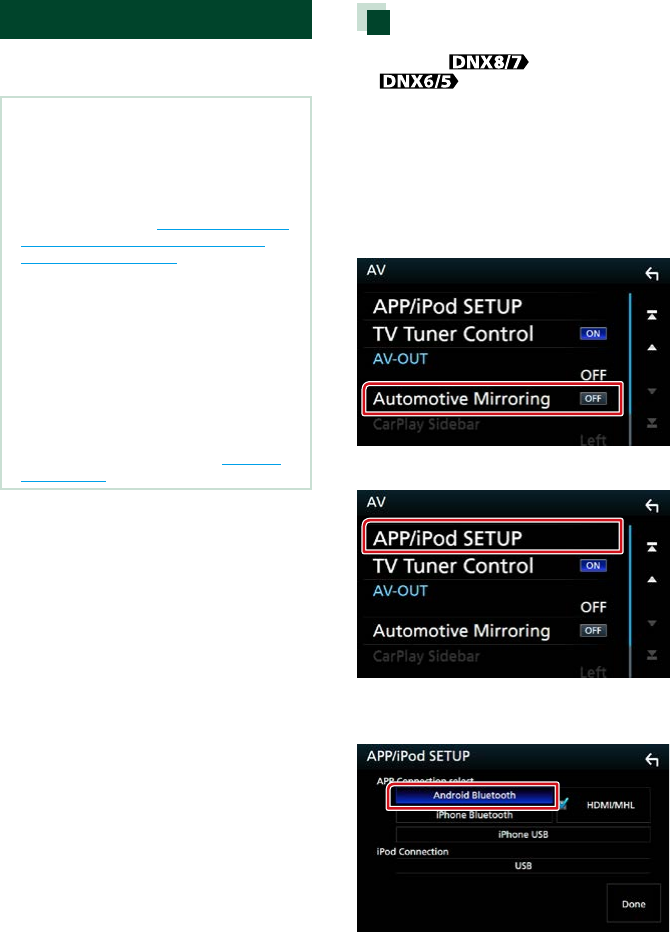
1 Press the <MENU> button/
volume knob.
Popup menu appears.
2 Touch [SETUP].
SETUP Menu screen appears.
3 Touch [AV].
AV screen appears.
4 Set [Automotive Mirroring] to [OFF].
5 Touch [APP/iPod SETUP].
App/iPod SETUP screen appears.
6 Set each item as follows.
APP Connection select
Select how to connect your smartphone.
Android Bluetooth: Connect an Android
smartphone via Bluetooth.
iPhone Bluetooth: Connect an iPhone via
Bluetooth.
HDMI/MHL: Connect an Android smartphone
or iPhone via Bluetooth and watch its video
via HDMI/MHL.
iPhone USB: Connect an iPhone through an
USB cable.
iPod Connection
It shows how the device that is used in
the iPod source is connected. It changes
depending on the “APP Connection select”.
7 Touch [Done].
NOTE
• After changing the setting if the unit does not
work correctly, turn off the power of the unit and
then turn on again.
CD/Audio and Visual Files/iPod/APPS
3232
Music/Video Basic Operation
Most functions can be controlled from the source control screen and playback screen.
NOTE
• Set the remote controller mode switch to AUD mode before starting operation, see Switching the operation
mode (P.113).
• In this manual, “Music CD” will be referred to as the general CDs which include music tracks in.
“Disc media” will be referred to as CD/DVD disc which includes audio or video files.
• The screen shot below is for CD. It may be different from the one for disc media.
Music CD
4
Control screen Content list panel
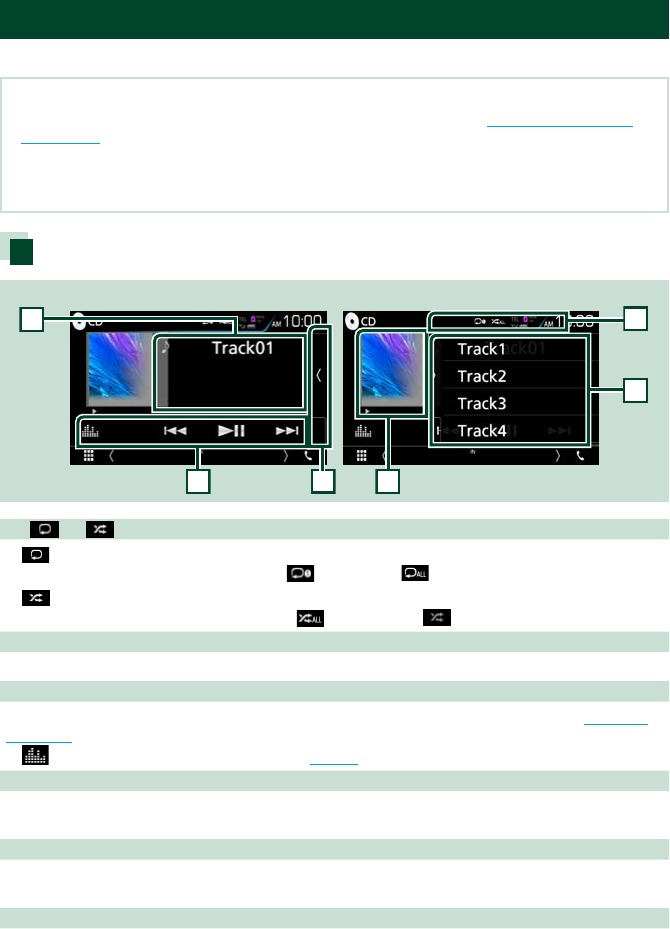
1
5
6
2
3
1 [ ] / [ ]
• [ ] : Repeats the current track. Each time you touch the key, repeat mode switches in the
following sequence; Track repeat ( ), Repeat all ( )
• [ ] : Randomly plays all tracks in disc. Each time you touch the key, random mode switches in the
following sequence; Track random ( ), Random off ( )
2 Track information
Displays the information of the current track.
3 Function bar
Various functions can be performed by using keys in this area. For details on the menu, see Function
bar (P.34).
• [ ] : Displays the Graphic Equalizer screen. (P.104)
4 Content list
Touching on the screen or flicking the screen to left will display the Content list. Touching again or
flicking to right will close the list.
5 Play mode indicator
• D, B, etc.: Current play mode indicator
The meanings of each icon are as follows; D (play), B (fast forward), A (fast backward), H (pause).
6 Content list panel
Displays the playing list. When you touch a track/file name on the list, playback will start.
CD/Audio and Visual Files/iPod/APPS
33
Disc media, USB device, SD card, and iPod
To enter USB/ SD/ iPod source, touch [USB], [SD] or [iPod] icon in the HOME screen.
NOTE
• SD card is for DNX893S, DNX773S, DNX693S, and DNX573S only.
• The screen shot below is for USB device. It may be different from the one for iPod.
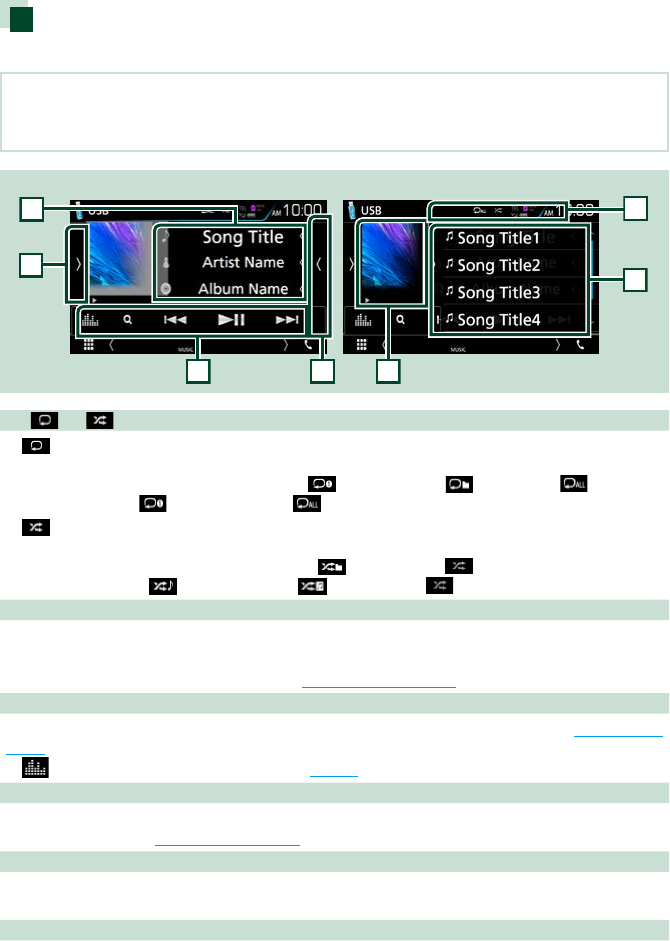
4
7
Control screen Content list panel
1
5
6
2
3
1 [ ] / [ ]
• [ ] : Repeats the current track/folder. Each time you touch the key, repeat mode switches in the
following sequence;
Disc media, USB device, SD card: File repeat ( ), Folder repeat ( ), Repeat all ( )
iPod: Song repeat ( ), All songs repeat ( )
• [ ] : Randomly plays all tracks in current folder/disc. Each time you touch the key, random mode
switches in the following sequence;
Disc media, USB device, SD card: File random ( ), Random off ( )
iPod: Song random ( ), Album random ( ), Random off ( )
2 Track information
• Displays the information of the current file.
Only a file name and a folder name are displayed if there is no tag information.
• Touch to display the category list screen. See Category search (P.36).
3 Function bar
Various functions can be performed by using keys in this area. For details on the keys, see Function bar
(P.34).
• [ ] : Displays the Graphic Equalizer screen. (P.104)
4 Function panel
Touch on the left side of the screen to display the function panel. Touch again to close the panel. For
details on the keys, see Function panel (P.35).
5 Content list
Touching on the screen or flicking the screen to left will display the Content list. Touching again or
flicking to right will close the list.
6 Artwork/ Play mode indicator
The jacket of the currently playing file is displayed.
• D, B, etc.: Current play mode indicatory
The meanings of each icon are as follows; D (play), B (fast forward), A (fast backward), H (pause).
Continued
CD/Audio and Visual Files/iPod/APPS
3434
7 Content list panel
Displays the playing list. When you touch a track/file name on the list, playback will start.
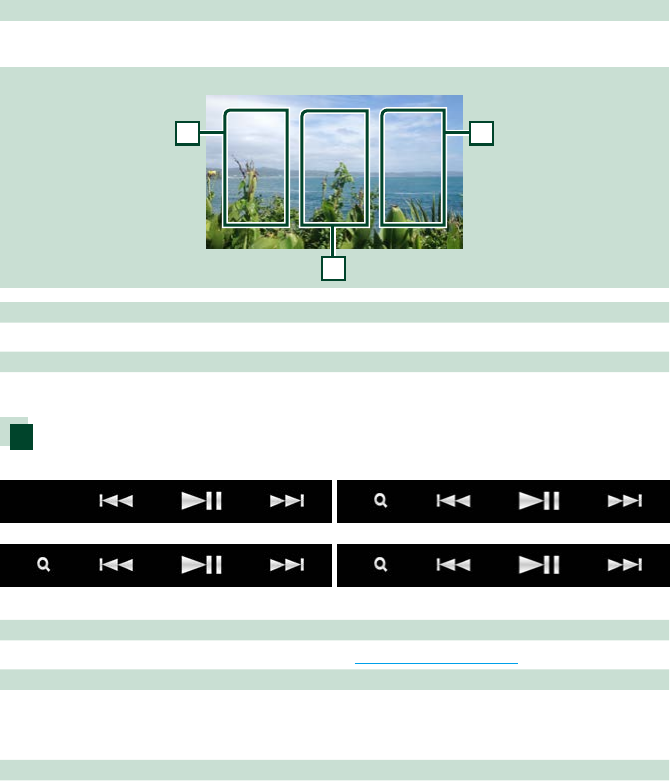
Video screen
8
8
9
8 Searching file area (video file only)
Touch to search the next/previous file.
9
Key display area (video file only)
Touch to display the control screen.
Function bar
Music CD
iPod
Disc media
USB device and SD card
The following functions can be performed by using keys in this area.
[1] (Disc media, iPod, USB device, and SD card only)
Searches track/file. For details on search operation, see Search Operation (P.36).
[E] [F]
Searches the previous/next track/file.
Touch and hold to fast forward or fast backward. (audio and video file only) (It will be cancelled
automatically after about 50 seconds.)
[DH]
Plays or pauses.
CD/Audio and Visual Files/iPod/APPS
35
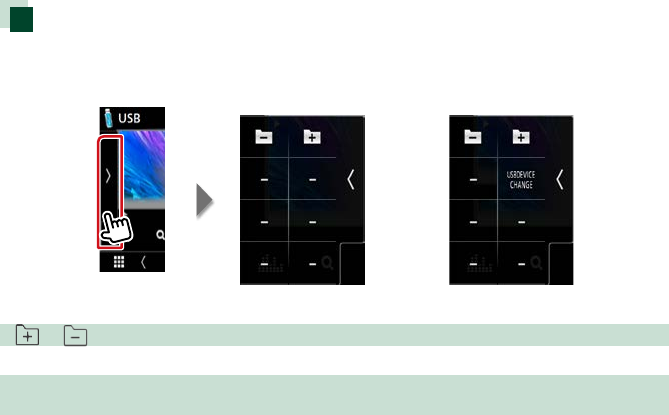
Function panel
1 Touch on the left side of the screen.
Disc media and
SD card USB device
The following functions can be performed by using keys in this area.
[ ] [ ] (disc media, USB device, and SD card only)
Searches previous/next folder.
[USB DEVICE CHANGE] (Only for USB device of DNX893S/ DNX7160BTS/ DNX693S/
DNX5160BTS)
Switches to another USB device when two USB devices are connected.
CD/Audio and Visual Files/iPod/APPS
3636
Search Operation
You can search music or video files by the
following operations.
NOTE
• If you use a remote control, you can jump directly
to the desired track/file with entering the track/
folder/file number, play time, etc. For details, see
Direct search mode (P.113).
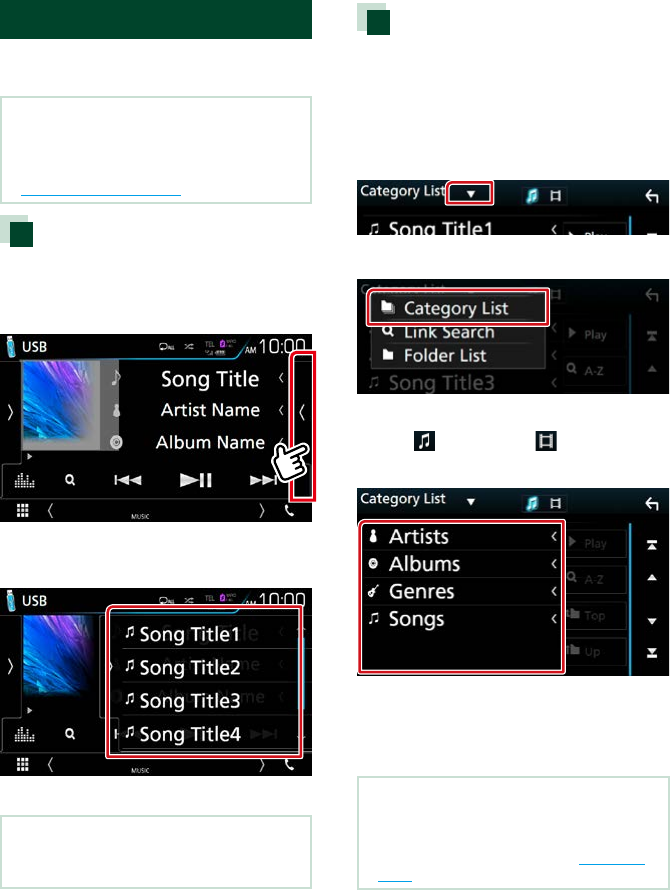
List search
You can search tracks, folders, and files
according to hierarchy.
1 Touch on the right side of the screen.
Control list appears.
2 Touch desired track/file.
Playback starts.
NOTE
• For disc media, you cannot display the list during
random play and stop.
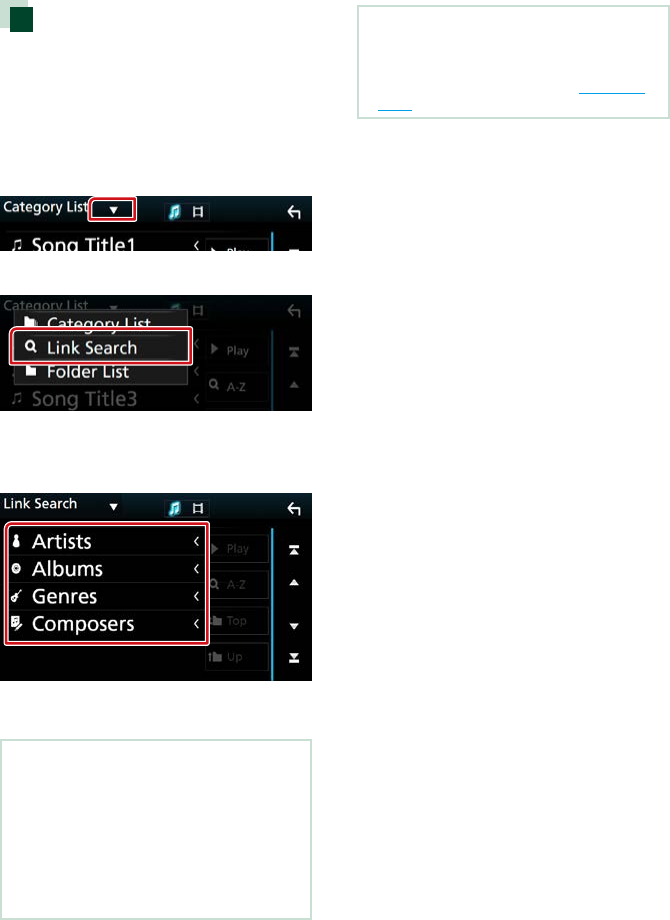
Category search (USB device,
iPod, and SD card only)
You can search a file by selecting category.
1 Touch [1].
Category List screen appears.
2 Touch [ S ].
3 Touch [Category List].
4 Select whether you search by audio
files or video files .
5 Touch the desired category.
6 The list is sorted by selected category.
7 Touch desired item.
Playback starts.
NOTE
• Touch [A-Z] to narrow the search you can select
a letter.
• For operations in the list screen, see List screen
(P.19).
CD/Audio and Visual Files/iPod/APPS
37
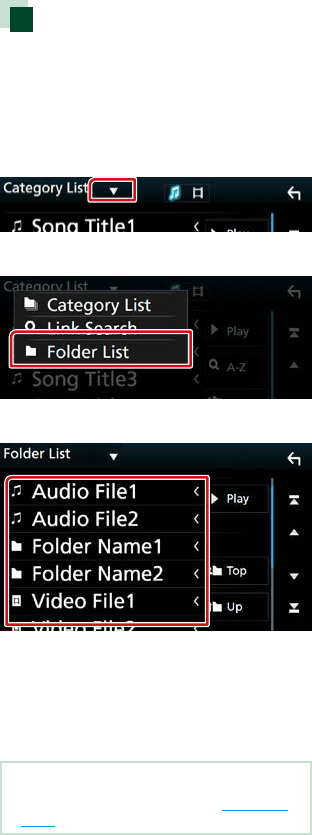
Link search (USB device, iPod,
and SD card only)
You can search a file of same artist/album/
genre/composer as the current track.
1 Touch [1].
Category List screen appears.
2 Touch [ S ].
3 Touch [Link Search].
4 Touch the desired item. You can
select from artist, album, genre and
composer.
The list corresponding to your selection
appears.
NOTE
• The list is sorted by the way you selected.
• Artists: Displays the album list of the artist.
• Albums: Displays all tunes of the current album.
• Genres: Displays the artists list in which artists
belong to the same genre.
• Composers: Displays the album list of the
composer of the current file.
5 Touch to select desired item in the
list. Repeat this step until you find the
desired file.
NOTE
• Touch [A-Z] to narrow the search you can select
a letter.
• For operations in the list screen, see List screen
(P.19).
CD/Audio and Visual Files/iPod/APPS
3838
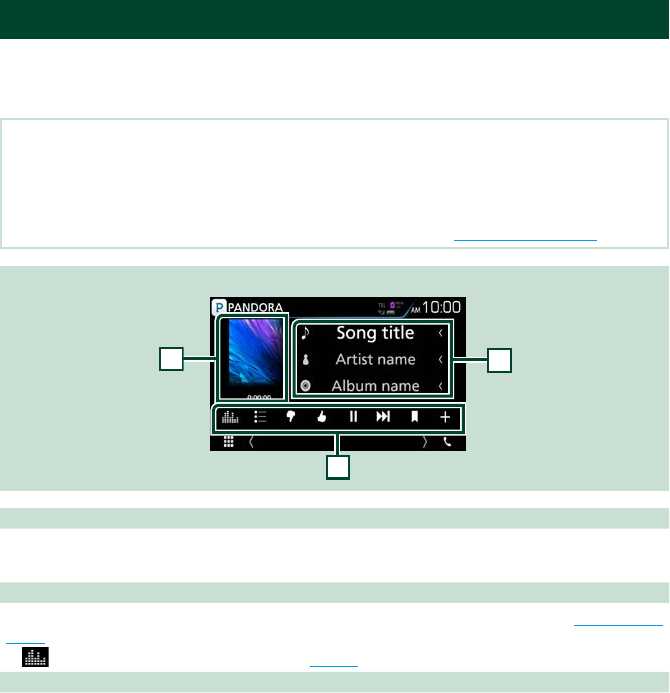
Folder search (USB device, disc
media, and SD card only)
You can search a file according to hierarchy.
1 Touch [1].
Category List screen appears.
2 Touch [ S ].
3 Touch [Folder List].
4 Touch the desired folder.
When you touch a folder its contents are
displayed.
5 Touch desired item from the content
list.
Playback starts.
NOTE
• For operations in the list screen, see List screen
(P.19).
CD/Audio and Visual Files/iPod/APPS
39
Pandora® Operation
You can listen to the Pandora® on this unit by controlling the application installed in the iPhone
or Bluetooth device.
To enter Pandora source, touch [PANDORA] icon in the HOME screen.
Preparation
• Install the latest version of the Pandora® application on your iPhone, Android or BlackBerry.
iPhone: Search for "Pandora" in the Apple App Store to find and install the most current version.
Android: Visit the Google play and search for Pandora to install.
BlackBerry: Visit www.pandora.com from the built in browser to download the Pandora application.
• Select how to connect the unit with your smartphone. For the details, refer to APP/iPod settings (P.31).
Control screen
2
3
1
1 Artwork/ Playing time
• The picture data is displayed if available from current content.
• For confirmation of play time.
2 Function bar
Various functions can be performed by using keys in this area. For details on the keys, see Function bar
(P.40).
• [ ] : Displays the Graphic Equalizer screen. (P.104)
3 Content information
Displays the information of the current content being played.
CD/Audio and Visual Files/iPod/APPS
4040
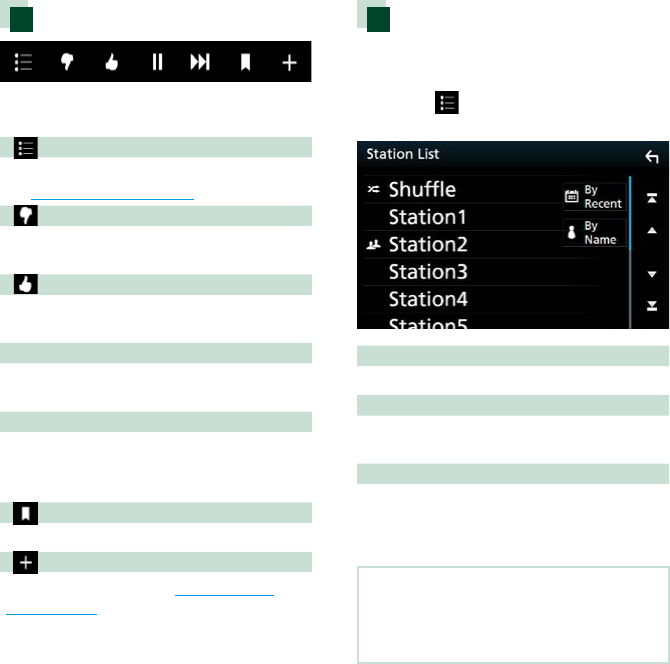
Function bar
The following functions can be performed by
using keys in this area.
[ ]
Searches for a station. For details on searching,
see Station list screen (P.40).
[ ] (Thumbs down)
Thumbs down to the current song and skip to
the next song.
[ ] (Thumbs up)
Registers the current contents as favorite
content.
[ D ] [ H ]
Plays or pauses the content of the current
station.
[ F ]
Skips the current song.
(Note this function is disabled when the
Pandora skip limitation is exceeded.)
[ ] (Bookmark Song)
Bookmarks a song in the current contents.
[ ]
Creates a new station. See Creates a new
station (P.41).
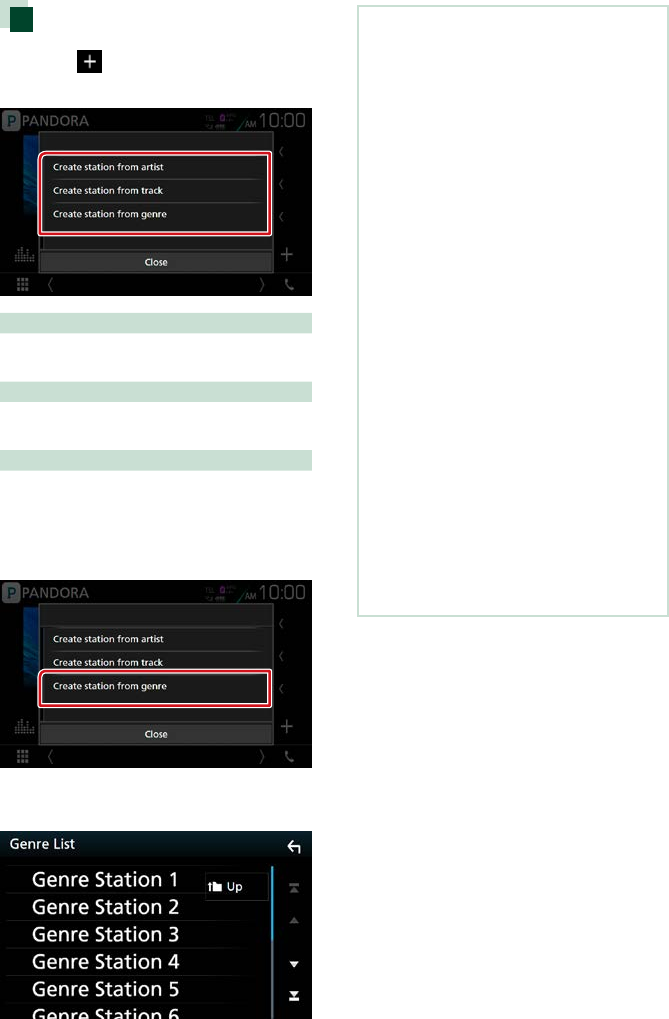
Station list screen
You can perform the following functions
from this screen.
1 Touch [ ].
Station List screen appears.
Selects the station
Touch the station name in the list.
Sort the list by registered date
Touch [By Recent]. The list is sorted to begin
with the last registered station.
Sort the list in alphabetical order
Touch [By Name]. You can select the desired
letter from the list which corresponds to the
station name to help narrow the search.
NOTE
• You can operate Pandora by using the
remote control. However, only playing,
pausing, and skipping are available.
CD/Audio and Visual Files/iPod/APPS
41
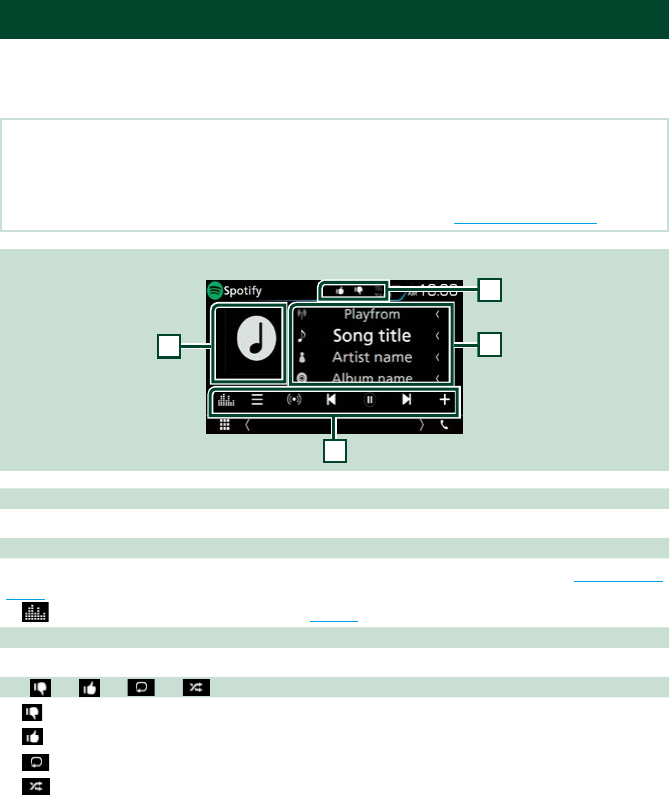
Creates a new station
1 Touch [ ].
2 Touch desired item.
Create station from artist
Creates a new station based on an artist being
played.
Create station from track
Creates a new station based on a song being
played.
Create station from genre
Displays the genre list screen.
Genre list screen
1 Touch [Create station from genre].
2 The selected genre is created as a new
station.
About Pandora®
iPhone or iPod touch
• Install the latest version of the Pandora
application on your iPhone or iPod touch.
(Search for “Pandora” in the Apple App Store to
find and install the most recent version.)
Android™
• Visit the Google play and search for Pandora
to install.
BlackBerry®
• Visit www.pandora.com from the built in
browser to download the Pandora application.
• Bluetooth must be built in and the following
profiles must be supported.
- SPP (Serial Port Profile)
- A2DP (Advanced Audio Distribution Profile)
NOTE
• In the application on your device, log in and
create an account with Pandora.
(If you are not already a registered user, an
account can also be created at www.pandora.
com.)
• Establish an Internet connection.
• Pandora is only available in certain countries.
Please visit http://www.pandora.com/legal for
more information.
• Because Pandora® is a third-party service, the
specifications are subject to change without
prior notice. Accordingly, compatibility may
be impaired or some or all of the services may
become unavailable.
• Some functions of Pandora® cannot be
operated from this unit.
• For issues using the application, please contact
Pandora® at pandora-support@pandora.com.
CD/Audio and Visual Files/iPod/APPS
4242
Spotify Operation
You can listen to the Spotify on this unit by controlling the application installed in the iPhone or
Android.
To enter Spotify source, touch [Spotify] icon in the HOME screen.
Preparation
• Install the latest version of the Spotify application "Spotify" on your iPhone or Android.
iPhone: Search for "Spotify" in the Apple App Store to find and install the most current version.
Android: Search for "Spotify" in Google play to find and install the most current version.
• Select how to connect the unit with your smartphone. For the details, refer to APP/iPod settings (P.31).
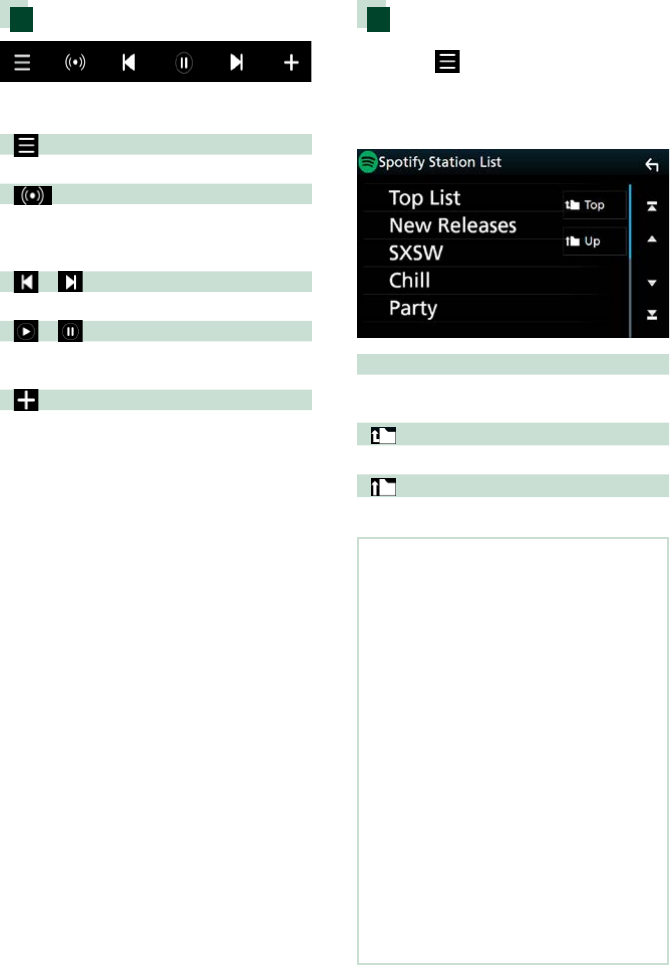
Control screen
2
3
4
1
1 Artwork
The picture data is displayed if available from current content.
2 Function bar
Various functions can be performed by using keys in this area. For details on the keys, see Function bar
(P.43).
• [ ] : Displays the Graphic Equalizer screen. (P.104)
3 Content information
Displays the information of the current content being played.
4 [ ] / [ ] / [ ] / [ ]
• [ ] : Thumbs down to the current song and skip to the next song.
• [ ] : Registers the current contents as favorite content.
• [ ] : Repeats the current song.
• [ ] : Randomly plays all song in current playlist.
CD/Audio and Visual Files/iPod/APPS
43
Function bar
The following functions can be performed by
using keys in this area.
[ ]
Displays the Menu screen
[ ]
New radio station that relates to the artist of
the currently playing song is selected and
playback starts.
[ ] [ ]
Skips the current song.
[ ] [ ]
Plays or pauses the content of the current
station.
[ ]
Saves currently playing song to My Music.
Selecting a track
1 Touch [ ].
Menu screen appears.
2 Select the list type, then select a
desired item.
Selects the category and station
Touch the category and station name in the
list.
[ Top]
Returns to the first hierarchy of the list.
[ Up]
Returns to the previous list.
About Spotify®
iPhone or iPod touch
• Install the latest version of the Spotify
application on your iPhone or iPod touch.
(Search for “Spotify” in the Apple App Store to
find and install the most recent version.)
Android™
• Visit Google play and search for “Spotify” to
install.
Note
• Ensure you are logged in to your smartphone
application. If you do not have an Spotify
account, you can create one for free from your
smartphone or at www.spotify.com.
• Because Spotify is a third-party service, the
specifications are subject to change without
prior notice. Accordingly, compatibility may
be impaired or some or all of the services may
become unavailable.
• Some functions of Spotify cannot be operated
from this unit.
• For issues using the application, contact Spotify
at www.spotify.com.
• Establish an Internet connection.
CD/Audio and Visual Files/iPod/APPS
4444
Mirroring Operation
You can listen to music or watch video from
the Mirroring operating on Android.
Preparation
• Install the latest version of the KENWOOD
Smartphone Control application on your Android.
Search for “KENWOOD Smartphone Control” in
Google play to find and install the most current
version.
For details, see web site. http://www.kenwood.
com/products/car_audio/app/kenwood_
smartphone_control/eng/
• The unit and the Android device are connected
with MHL (KCA-MH100 ; sold separately) or HDMI
(KCA-HD100 ; sold separately) and over Bluetooth
profile HID and SPP.
• Screen calibration of Android device is required
only when making the connection for the first
time. Recalibration is only necessary when the
output screen size of the Android device had
been changed.
• Select how to connect the unit with your
smartphone. For the details, refer to APP/iPod
settings (P.31).
Preparation
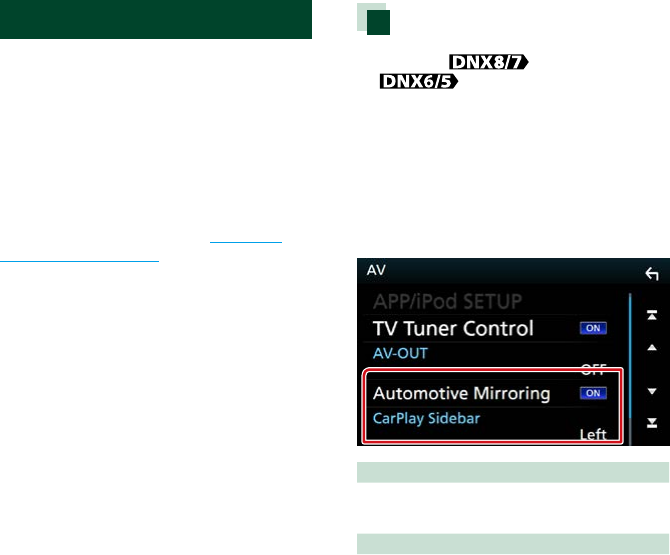
1 Press the <MENU> button/
volume knob.
Popup menu appears.
2 Touch [SETUP].
SETUP Menu screen appears.
3 Touch [AV].
AV screen appears.
4 Set [Automotive Mirroring] to [OFF].
5 Touch [APP/iPod SETUP].
App/iPod SETUP screen appears.
6 Touch [Android Bluetooth].
7 Touch [Done].
8 Connect an Android device.
CD/Audio and Visual Files/iPod/APPS
45
Operation
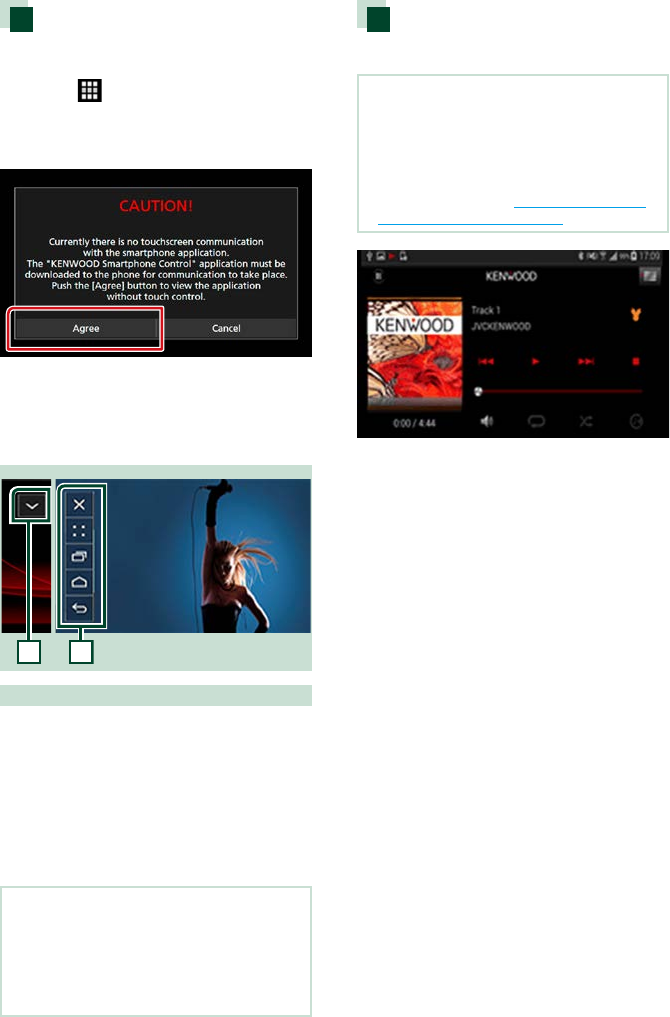
1 Press the <HOME> button.
2 Touch [ ].
3 Touch [Mirroring].
4 Touch [Agree].
If you drive using an app that is prohibited
from using while driving, the confirmation
screen appears. As you select [Yes], the
launcher of “KENWOOD Smartphone
Control” starts.
1
1
1
HOME / BACK / TASK Key will be displayed on
this unit screen, and can be moved within the
screen by dragging. In addition, it is possible
to minimize these keys when they are not
required.
HOME / BACK / TASK Key may not appear
when using certain applications. (i.e. video
application software etc.)
NOTE
• Smartphone control from this unit is limited to a
single finger operation like Tap/ Double Tap/ Long
Tap/ Swipe.
• Operation that requires two or more fingers such
as Pinch-in/ Pinch-out/ Multi-tap are unavailable.
KENWOOD Music Control for
Android
Preparation
• Install the latest version of the KENWOOD Music
Control application on your Android.
Search for “KENWOOD Music Control for Android”
in Google play to find and install the most current
version.
For details, see web site. http://www.kenwood.
com/car/app/kmc1_aapp/eng/
You can use KENWOOD Music Control as
you use the smartphone to play music and
video.
CD/Audio and Visual Files/iPod/APPS
4646
Apple CarPlay Operation
CarPlay is a smarter, safer way to use your
iPhone in the car. CarPlay takes the things
you want to do with iPhone while driving
and displays them on the screen of the
product. You can get directions, make calls,
send and receive messages, and listen to the
music from iPhone while driving. You can
also use Siri voice control to make it easier to
operate iPhone.
For details about CarPlay, visit https://ssl.
apple.com/ios/carplay/.
Compatible iPhone devices
You can use CarPlay with the following
iPhone models.
• iPhone 5
• iPhone 5c
• iPhone 5s
• iPhone 6
• iPhone 6 Plus
• iPhone 6s
• iPhone 6s Plus
Preparation
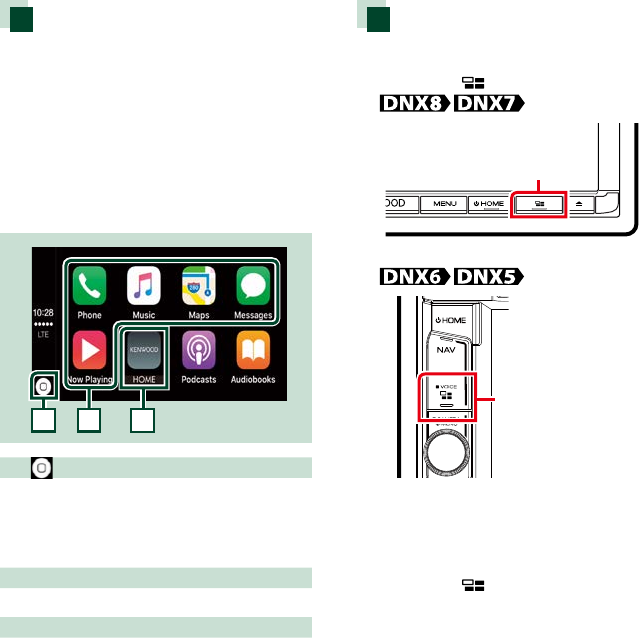
1 Press the <MENU> button/
volume knob.
Popup menu appears.
2 Touch [SETUP].
SETUP Menu screen appears.
3 Touch [AV].
AV screen appears.
4 Set each item as follows.
Automotive Mirroring
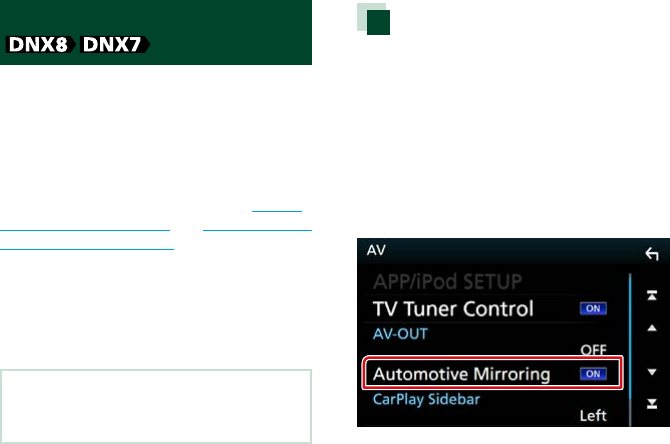
Select “ON” to use Apple CarPlay.
"ON" (Default)/ "OFF"
CarPlay Sidebar
Select the position of the control bar (left or
right) shown on the touch panel.
“Left” (Default)/ “Right”
5 Connect iPhone using KCA-iP103.
When iPhone compatible with CarPlay
is connected to the iPod terminal, the
Bluetooth smartphone currently connected
is disconnected.
6 Unlock your iPhone.
CD/Audio and Visual Files/iPod/APPS
47
Operation buttons and
available Apps on the home
screen of CarPlay
You can use the Apps of the connected
iPhone.
The items displayed and the language used
on the screen differ among the connected
devices.
To enter CarPlay mode, touch [Apple CarPlay]
icon in the HOME screen.
2
3
1
1 [ ]
• On the App screen: Displays the home screen
of CarPlay.
• On the home screen of CarPlay: Touch and
hold to activates Siri.
2 Application buttons
Starts the application.
3 [ HOME ]
Exits the CarPlay screen and displays the Home
screen.
To exit the CarPlay screen
1 Press the <HOME> button.
Using Siri
You can activate Siri.
1 Press the < > button for 1 second.
Press for 1 second
Press for 1 second
2 Talk to Siri.
To deactivate
1 Press the < > button.
CD/Audio and Visual Files/iPod/APPS
4848
Android Auto™ Operation
Android Auto enables you to use functions of
your Android device convenient for driving.
You can easily access route guidance, make
calls, listen to music, and access convenient
functions on the Android device while
driving.
For details about Android Auto, visit https://
www.android.com/auto/ and https://support.
google.com/androidauto.
Compatible Android devices
You can use Android Auto with Android
devices of Android version 5.0 (Lollipop) or
later.
Note
• Android Auto may not be available on all devices
and is not available in all countries or regions.
Preparation
1 Press the <MENU> button.
Popup menu appears.
2 Touch [SETUP].
SETUP Menu screen appears.
3 Touch [AV].
AV screen appears.
4 Set [Automotive Mirroring] to [ON].
5 Connect an Android device via iPod/
iPhone terminal.
To use the hands-free function, connect the
Android device via Bluetooth.
• When an Android device compatible
with Android Auto is connected to the
iPod/iPhone terminal, the device is
connected via Bluetooth automatically,
and the Bluetooth smartphone
currently connected is disconnected.
6 Unlock your Android device.
CD/Audio and Visual Files/iPod/APPS
49
Operation buttons and
available Apps on the Android
Auto screen
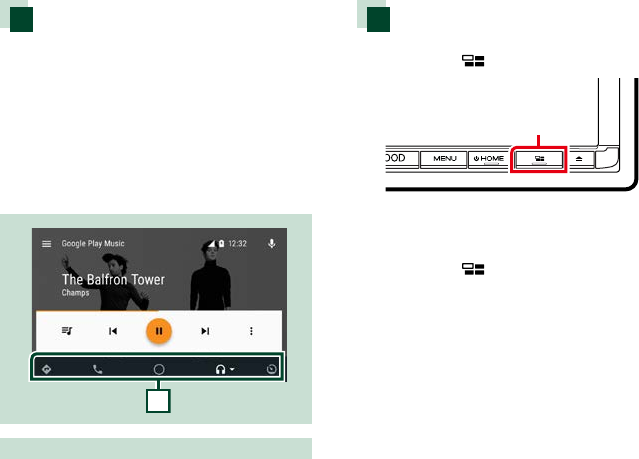
You can perform the operations of the Apps
of the connected Android device.
The items displayed on the screen differ
among the connected Android devices.
To enter Android Auto mode, touch [Android
Auto] icon in the HOME screen.
1
1 Application/information buttons
Starts the application or displays information.
To exit the Android Auto screen
1 Press the <HOME> button.
Using voice control
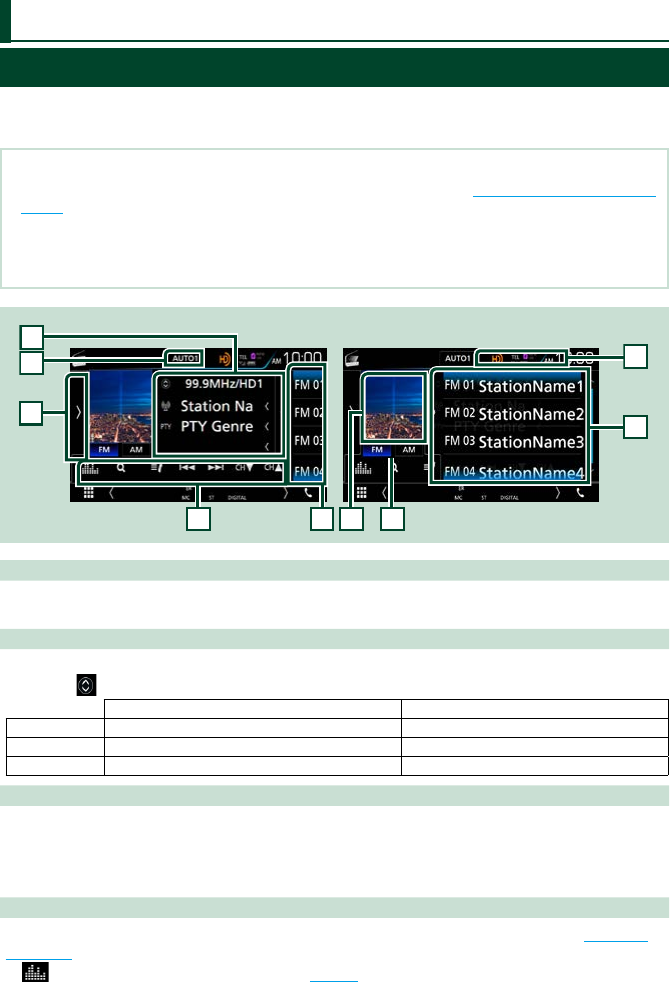
1 Press the < > button for 1 second.
Press for 1 second
To cancel
1 Press the < > button.
Radio and HD Radio™ Tuner
5050
Radio/HD Radio Tuner Basic Operation
Most functions can be controlled from the source control screen.
To enter Radio/HD Radio source, touch [Radio] or [HD Radio] icon in the HOME screen.
NOTE
• Set the remote control mode switch to AUD mode before starting operation, see Switching the operation mode
(P.113).
• HD Radio broadcasting can be received only by the DNX893S, DNX773S, DNX693S, and DNX573S.
• HD Radio broadcasting is for North American sales area only.
• The screen shot below is for tuner. It may be different from the one for HD Radio broadcasting.
6
Control screen Preset list screen
1
4
5
9
7
8
2
3
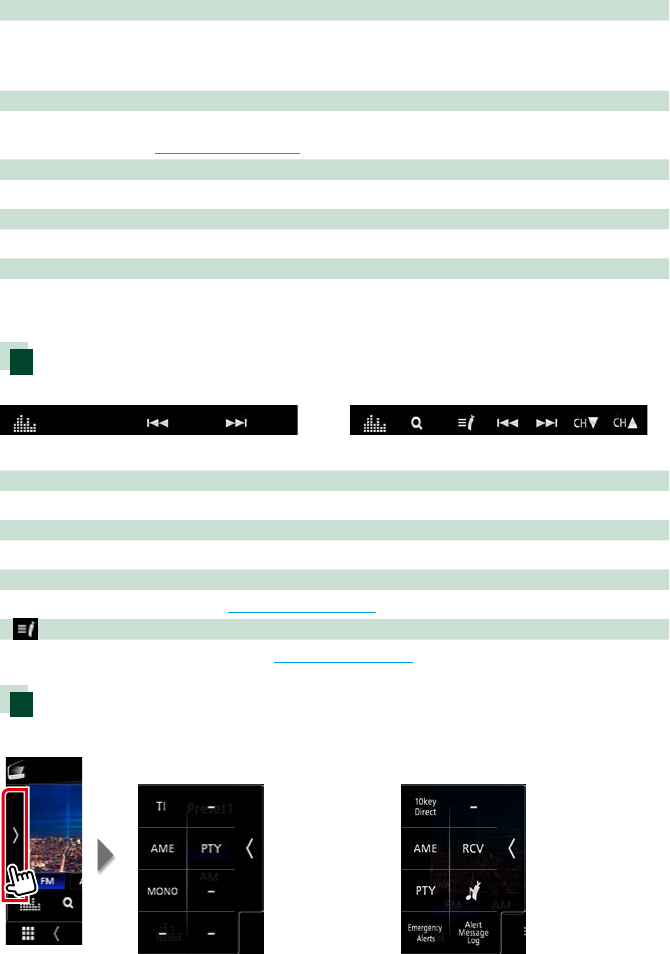
1 Indicator display
While receiving an HD Radio station, it lights with orange when the audio is digital and lights with gray
when it is analog. While receiving an analog station, it is off.
2 Information display
Displays the information of the current station: Frequency and Channel
Touching [ ] allows you to switch between Content A, Content B and Content C.
HD Radio tuner Radio
Content A Station name, Song Title, Artist Name PS name, Radio Text, Title & Artist
Content B Station Message, Radio Text PTY Genre, Radio Text plus
Content C PTY Genre, Album Name –
3 [AUTO1]/ [AUTO2]/ [MANUAL]
Switches the seek mode in the following sequence; [AUTO1], [AUTO2], [MANUAL].
• AUTO1: Tunes in a station with good reception automatically.
• AUTO2: Tunes in stations in memory one after another.
• MANUAL: Switches to the next frequency manually.
4 Function bar
Various functions can be performed by using keys in this area. For details on the menu, see Function
bar (P.51).
• [ ] : Displays the Graphic Equalizer screen. (P.104)
Radio and HD Radio™ Tuner
Radio and HD Radio™ Tuner
51
5 Preset key
Recalls the memorized station or channel.
Touching on the screen or flicking the screen to left will display the Preset list. Touching again or
flicking to right will close the list.
6 Function panel
Touch on the left side of the screen to display the function panel. Touch again to close the panel. For
details on the keys, see Function panel (P.51).
7 Picture
The picture data or station Logo data is displayed if available from current content.
8 [FM] [AM]
Switches the band.
9 Preset list
Recalls the memorized station or channel. When touched for 2 seconds, stores the current receiving
station or channel in memory.
Function bar
Radio HD Radio tuner
The functions of each key are as follows.
[E] [F]
Tunes in a station. The method of frequency switching can be changed. (see 3 in table).
[CHS] [CHR] (HD Radio tuner only)
Selects a channel.
[1] (HD Radio tuner only)
Display the Cannel List screen. See Channel search (P.55).
[ ] (HD Radio tuner only)
Display a list of registered bookmarks. See Bookmark list (P.58).
Function panel
1 Touch on the left side of the screen.
Radio HD Radio tuner
The functions of each key are as follows.
Continued
Radio and HD Radio™ Tuner
5252
[10key Direct] (HD Radio tuner only)
Display the direct station/ channel search screen. For details, see Direct search (P.55).
[TI] (Only for FM Tuner of DNX7160BTS/ DNX5160BTS)
Sets the traffic information mode on. For details, see Traffic Information (P.56).
[AME]
Presets stations automatically. For details, see Auto memory (P.53).
[RCV] (HD Radio tuner only)
Change the HD Radio reception mode. For details, see Receive Mode (P.57).
[PTY] (FM Tuner and HD Radio tuner only)
Searches a program by setting program type. For details, see Search by program type (P.54).
[ ] (HD Radio tuner only)
Stores the information about the song being received. See Bookmark (P.57).
[Emergency Alerts] (HD Radio tuner only)
Turn on or off the alert message. See Alert Message (P.59).
[Alert Message Log] (HD Radio tuner only)
Displays the alert message received. See Alert Message (P.59).
[MONO] (FM Tuner only)
Select the Monaural reception.
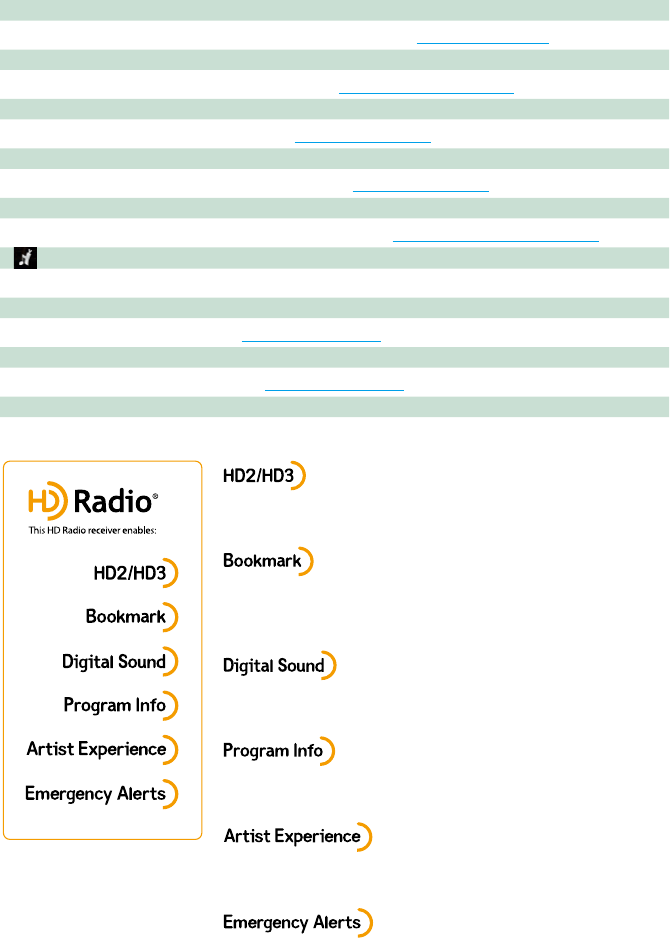
• Adjacent to traditional main stations are HD2/HD3 Channels,
providing new original programming on the FM dial
• A music & product discovery feature that enables users to store
information about content on the radio, and can deliver interactive
information via QR codes
• Crystal clear, CD-like digital audio quality to consumers; eliminates
background noise
• Provides song name, artist, station ID, and other relevant data to
enrich the listening experience
• Visual images, such as album art of over-the-air broadcasts from
HD Radio stations
• Delivers critical and life-saving messages to the public during
emergency situations
Radio and HD Radio™ Tuner
53
Memory Operation
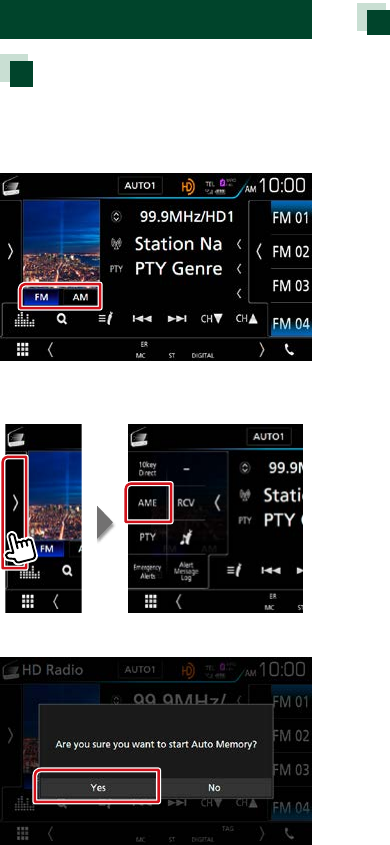
Auto memory
You can store stations with good reception in
memory automatically.
1 Touch desired band key.
2 Touch on the left side of the screen.
Touch [AME].
3 Touch [Yes].
Auto memory starts.
Manual memory
You can store the current receiving station or
channel in memory.
1 Select a station or channel you wish to
store in memory.
2 Touch [FM#] (#:1-15) or [AM#] (#:1-5)
in which you want to store the station
or channel for 2 seconds until a beep
sounds.
Radio and HD Radio™ Tuner
5454
Selecting Operation
Preset select
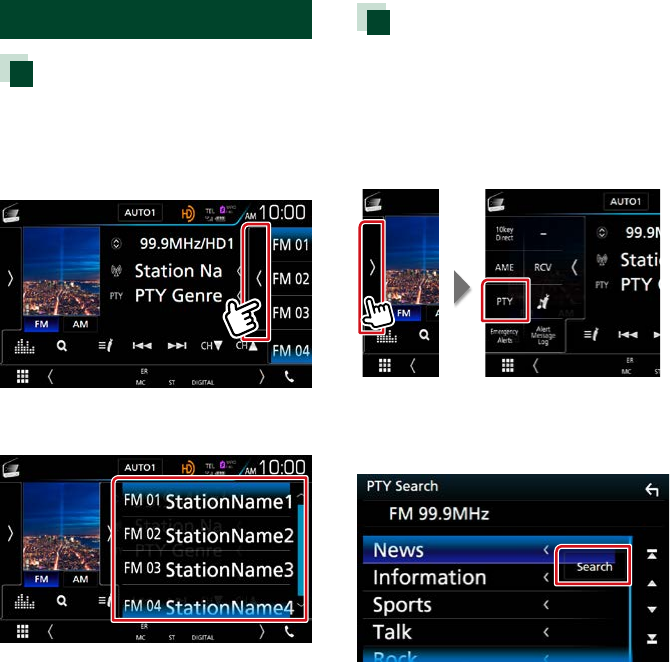
You can list and select memorized station or
channel.
Selecting from the preset list
1 Touch on the right side of the screen.
List Control screen appears.
2 Select a station or channel from the list.
Search by program type
(FM tuner and HD Radio tuner
only)
You can tune to a station with a specific
program type when listening to FM.
1 Touch on the left side of the screen.
Touch [PTY].
TUNER PTY Mode screen appears.
2 Select a program type from the list.
3 Touch [Search].
You can search a station of the selected
program type.
Radio and HD Radio™ Tuner
55
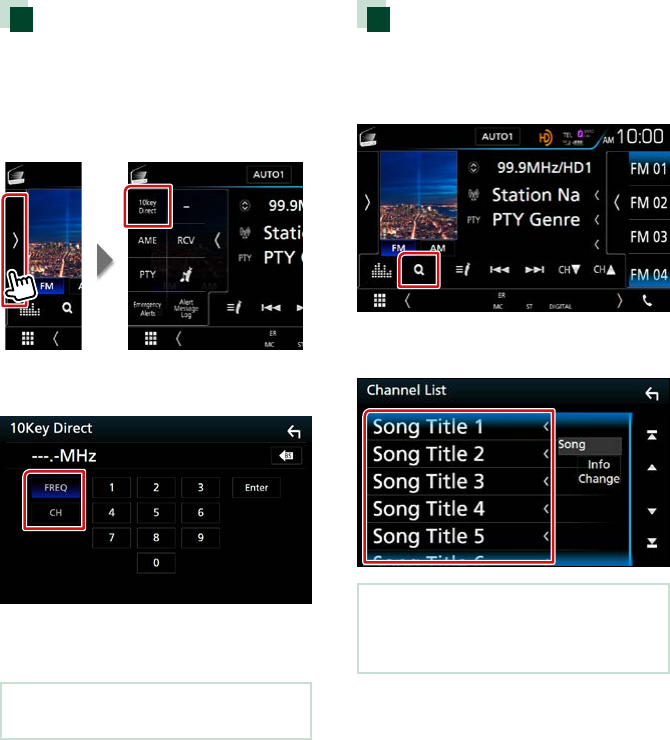
Direct search
(HD Radio tuner only)
You can tune in by entering the desired
frequency or channel number.
1 Touch on the left side of the screen.
Touch [10key Direct].
10Key Direct screen appears.
2 Select the search method.
3 Enter the frequency or channel number.
4 Touch [Enter].
NOTE
• To clear the number you entered, touch [BS].
Channel search
(HD Radio tuner only)
You can specify the desired channel.
1 Touch [1].
Channel list appears.
2 Select the desired content from the list.
NOTE
• Touch [Info Change] in the channel list. Select
the sequence of the list (Song title, artist name,
album name).
Radio and HD Radio™ Tuner
5656
Traffic Information
(Only for FM Tuner of
DNX7160BTS/ DNX5160BTS)
You can listen and watch the traffic
information automatically when a traffic
bulletin starts. However, this feature requires
a Radio Broadcast Data System that includes
the TI information.
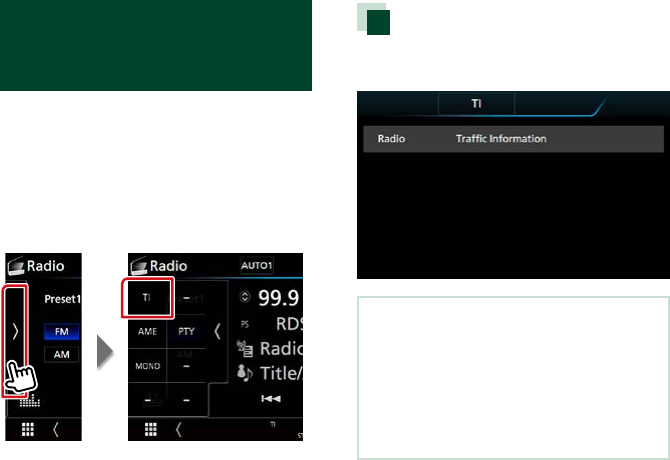
1 Touch on the left side of the screen.
Touch [TI].
Traffic information mode is set.
When the traffic bulletin starts
The Traffic Information screen appears
automatically.
NOTE
• It is necessary to have Traffic Information function
set to on in order to have the Traffic Information
screen appear automatically.
• The volume setting during reception of traffic
information is automatically stored. The next time
the traffic information is received, this unit recalls
the volume setting automatically.
Radio and HD Radio™ Tuner
57
Receive Mode
(HD Radio tuner only)
You can set the radio broadcasts receive
mode.
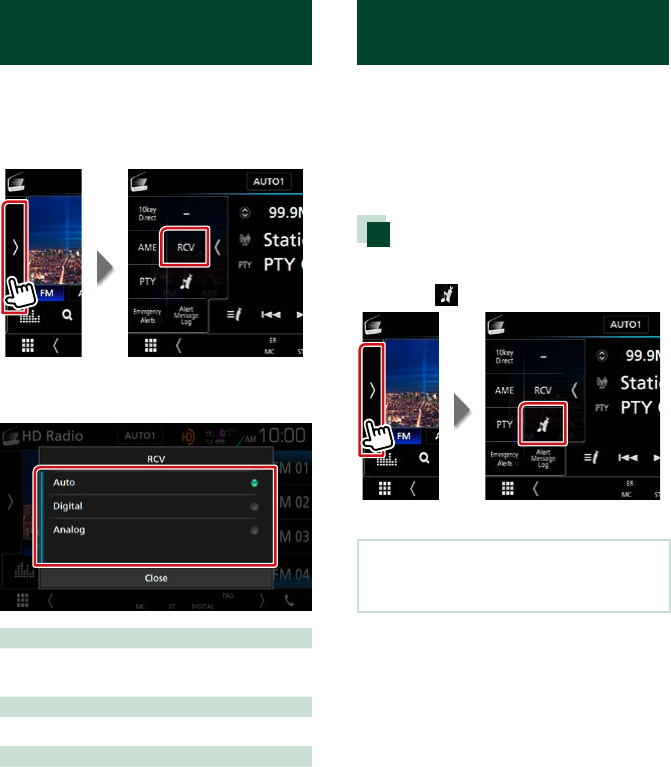
1 Touch on the left side of the screen.
Touch [RCV].
HD Radio tuner Mode screen appears.
2 Select a receive mode.
[Auto]
Switch between digital and analog audio
automatically.
[Digital]
Select this to tune to digital audio only
[Analog]
Select this to tune to analog audio only.
Bookmark
(HD Radio tuner only)
Stores tag information (title, artist, album,
URL, and description) about the song you are
listening to now.
Detailed information and QR codes can
be displayed according to the stored tag
information.
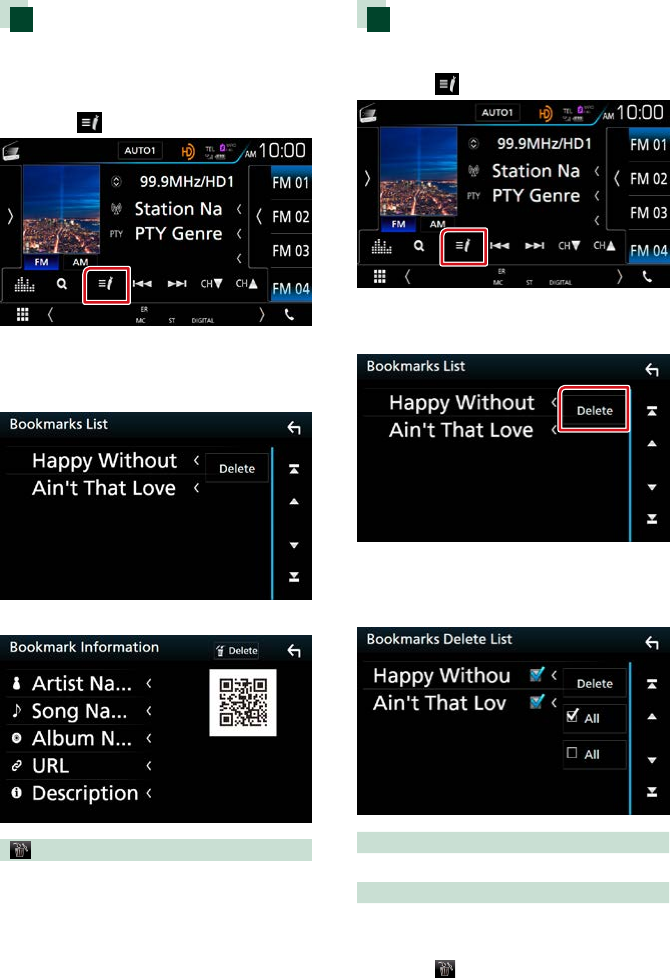
Registering a bookmark
1 Touch on the left side of the screen.
Touch [ ].
Registers a bookmark.
NOTE
• Up to 100 bookmarks can be registered to this
unit.
Radio and HD Radio™ Tuner
5858
Bookmark list
Displaying a list of registered bookmarks
and detailed information and QR code of the
song.
1 Touch [ ].
The Bookmark List appears.
2 Select the desired bookmark from the
list.
The bookmark information appears.
[ Delete]
Deletes the bookmarks being displayed.
Bookmark delete
Deleting a bookmark.
1 Touch [ ].
The Bookmark List appears.
2 Touch [Delete].
The Bookmark Delete List appears.
3 Select the bookmark to delete from
the list.
[; All]
Select all bookmarks.
[ All]
Erases all check marks.
4 Touch [ ].
Deletes all the selected bookmark(s)
Radio and HD Radio™ Tuner
59
Alert Message
(HD Radio tuner only)
This function is to receive alert messages.
First, you need to turn on the “Emergency
Alerts”. (P.52)
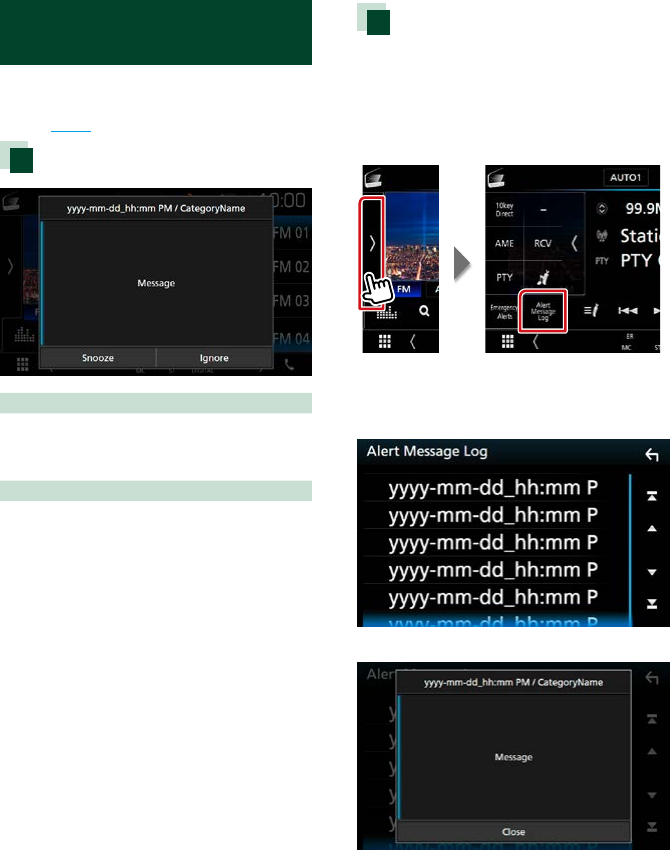
When an Alert Message comes
[Snooze]
The alert message is erased. Same alert
message cannot be displayed for next 10
minutes.
[Ignore]
The alert message is erased. Same alert
message cannot be displayed for next 12
hours.
Display of the received Alert
Message
You can read the received alert message
afterward.
1 Touch on the left side of the screen.
Touch [Alert Message Log].
The Alert Message Log appears.
2 Select the desired Alert Message from
the list.
The Alert Message appears.
3 Touch [Close].
SiriusXM®
6060
SiriusXM® Basic Operation
Only SiriusXM® brings you more of what you love to listen to, all in one place. Get over 140
channels, including commercial-free music plus the best sports, news, talk, comedy and
entertainment. Welcome to the world of satellite radio. A SiriusXM Vehicle Tuner and Subscription
are required. For more information, visit www.siriusxm.com.
To enter SiriusXM source, touch [SiriusXM] icon in the HOME screen.
Activating subscription
• Check your Radio ID.
The SiriusXM Satellite Radio ID is required for activation and can be found by tuning to Channel 0 as well as on
the label found on the SiriusXM Connect tuner and its packaging.
The Radio ID does not include the letters I, O, S or F.
• Activate the SiriusXM Connect Vehicle Tuner using one of the two methods below:
–For users in the U.S.A.
Online: Visit www.siriusxm.com/activatenow
Phone: Call SiriusXM Listener Care at 1-866-635-2349
–For users in Canada:
Online: Visit www.siriusxm.ca/activatexm
Phone: Call XM customer Care at 1-877-438-9677
NOTE
• Set the remote control mode switch to AUD mode before starting operation, see Switching the operation mode
(P.113).
• To use SiriusXM® Satellite Radio, the optional accessory is necessary.
• SiriusXM® Satellite Radio are for North American sales area only.
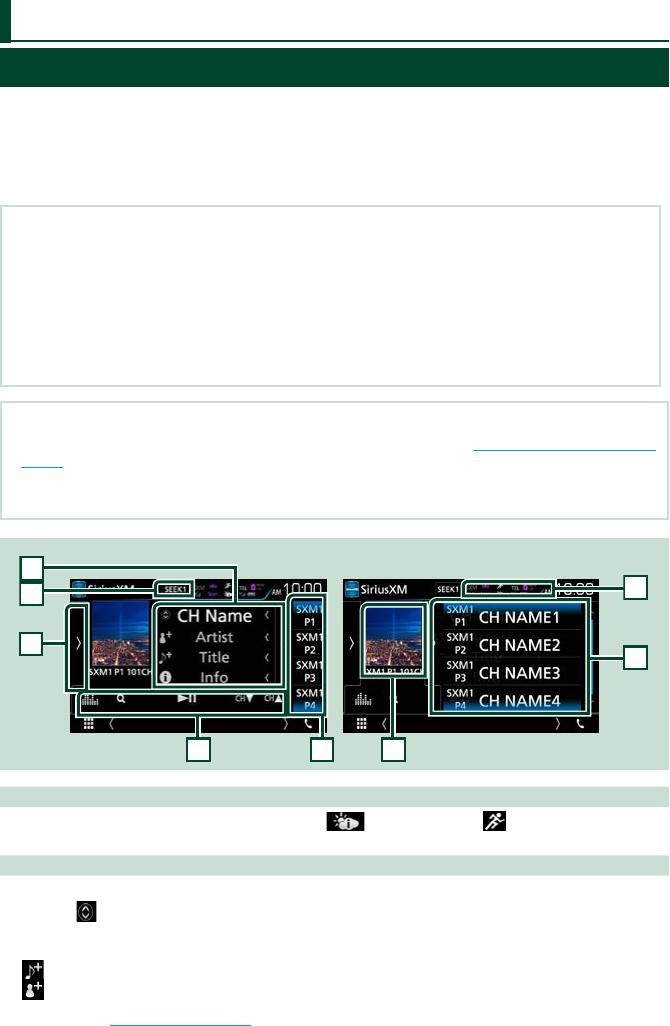
6
Control screen Preset list screen
1
4
5
8
7
2
3
1 Indicator display
Displays the “Mix” (TuneMix™), “Scan” (TuneScan™), (Traffic&Weather), (SportsFlash™) indicator
and the received signal strength of the SiriusXM tuner.
2 Information display
Displays the information of the current channel: Channel Name
Touching [ ] allows you to switch between Content A and Content B.
• Content A: Artist Name, Song Title, Content Info
• Content B: Category Name, Channel Description, Similar Channels
• [ ] : Touch for 2 seconds to registers the artist of the current song as a Content Alert.
• [ ] : Touch for 2 seconds to registers the current song as a Content Alert.
• For details, see Content Alerts (P.66).
SiriusXM®
SiriusXM®
61
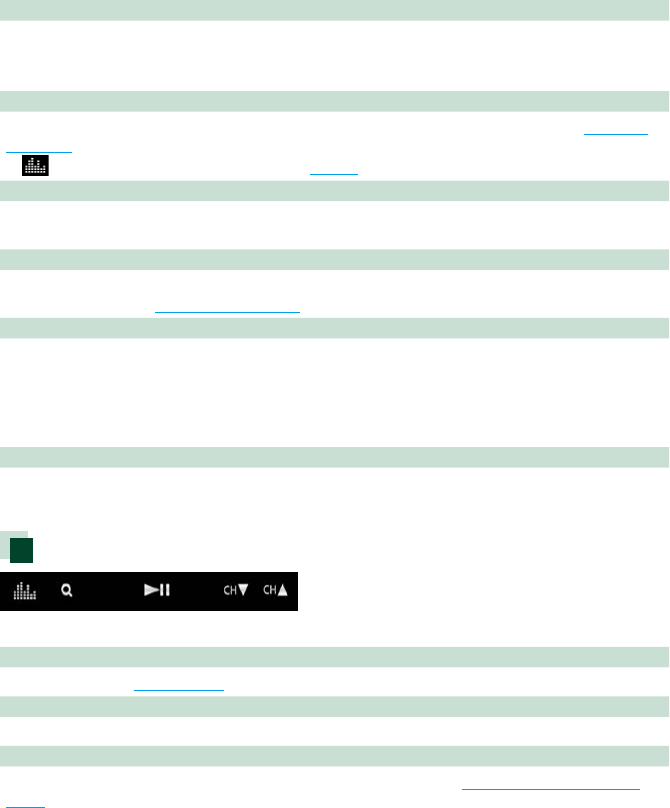
3 [SEEK]
Switches the seek mode in the following sequence; [SEEK1], [SEEK2].
• SEEK1: Tunes channels one after the other.
• SEEK2: Selects channels in preset (memory) one after the other.
4 Function bar
Various functions can be performed by using keys in this area. For details on the menu, see Function
bar (P.61).
• [ ] : Displays the Graphic Equalizer screen. (P.104)
5 Preset key
Recalls the memorized channel. Touching on the screen or flicking the screen to left will display the
Preset list. Touching again or flicking to right will close the list.
6 Function panel
Touch on the left side of the screen to display the function panel. Touch again to close the panel. For
details on the keys, see Function panel (P.62).
7 Information display
Displays the following information.
• SXM#: Band display
• Preset #: Preset number
• #CH: Channel display
• Logo: Display album artwork for most SiriusXM music channels
8 Preset list
Recalls the memorized station or channel. When touched for 2 seconds, stores the current receiving
station or channel in memory.
Function bar
The functions of each key are as follows.
[DH]
Plays or pauses. See Replay (P.67).
[CHS] [CHR]
Selects a channel.
[1]
Display the Category search screen. For details on search operation, see Category/Channel search
(P.64).
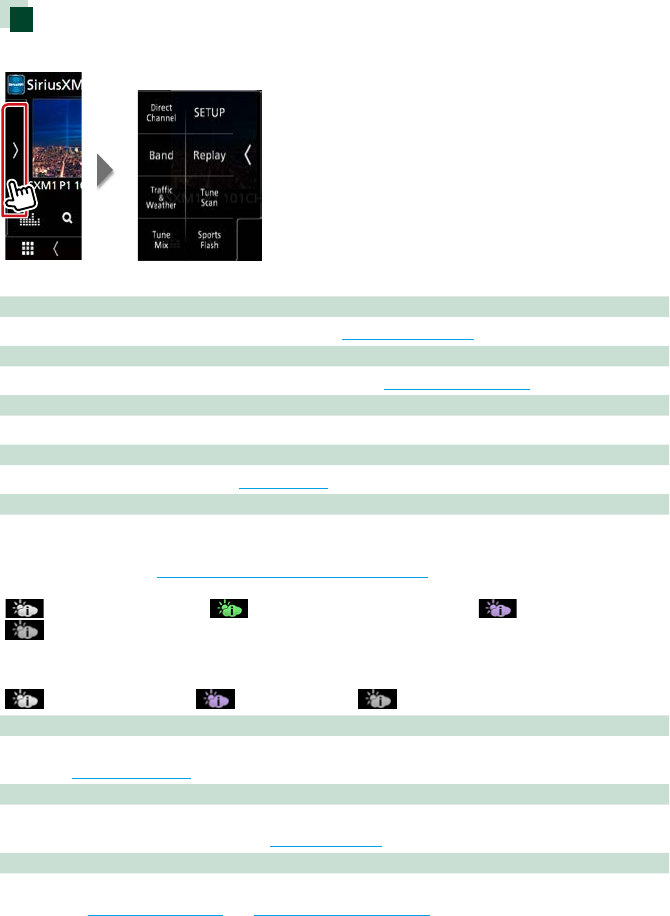
SiriusXM®
6262
Function panel
1 Touch on the left side of the screen.
The functions of each key are as follows.
[Direct Channel]
Touch and enter the desired number. For details, see Direct search (P.64).
[SETUP]
Touch to display the SiriusXM SETUP screen. For details, see SiriusXM Setup (P.70).
[Band]
Switches the band. (SXM1/ SXM2/ SXM3/ SXM4)
[Replay]/ [Live]
Turns the replay mode on or off. See Replay (P.67).
[Traffic & Weather]
For SXV300 *1
Traffic & Weather Now™ allows you to access the latest report whenever you want to hear it. Select your
city at the set up menu Select a City for Traffic & Weather (P.74) and press the [Traffic & Weather]
button to check the latest report. It will start from the beginning.
(White) : Played already. / (Green) : New information arrived. / (Purple) : Playing. /
(Gray) : No information.
For SXV200 or SXV100 *2
Turns the Traffic & Weather Jump function on or off.
(White) : Function on. / (Purple) : Playing. / (Gray) : Function off.
[TuneScan]*3
Hear a few seconds of the songs from each of the SmartFavorite music channels on the current preset
band. See TuneScan™ (P.69).
[TuneMix]*4
When you turn it ON, the preset channels on P1-P6 are shuffled to provide a playback which is a blend
of songs from your favorite channels. See TuneMix™ (P.68).
[SportsFlash]*4
Displays during SportFlash™. To cancel the SportFlash interruption and return to the previous channel,
touch it. See SportsFlash™ (P.66) and SportsFlash™ setup (P.74).
*1 Compatible with SXV300 or later tuner models. It may take a few minutes after power on to
get the first full report for your city. Traffic channels are not available in Canada.
*2 When SXV200 or SXV100 is connected with this unit.
*3 Compatible with SXV200 or later tuner models.
*4 Compatible with SXV300 or later tuner models.
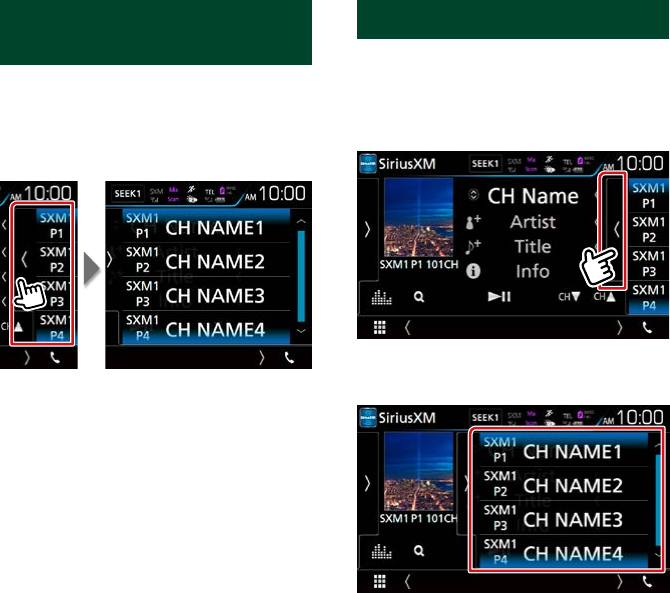
SiriusXM®
63
Storing Channels in Preset
Memory
You can store the current channel in memory.
1 Tune to a channel you wish to store in
memory.
2 Touch on the right side of the screen.
3 Press and hold for 2 seconds (until
you hear a beep) the preset number
[SXM(1-4) P(1-6)] in which you want to
store the channel.
Preset select
You can list and select memorized station or
channel.
Selecting from the preset list
1 Touch on the right side of the screen.
List Control screen appears.
2 Select a channel from the list.
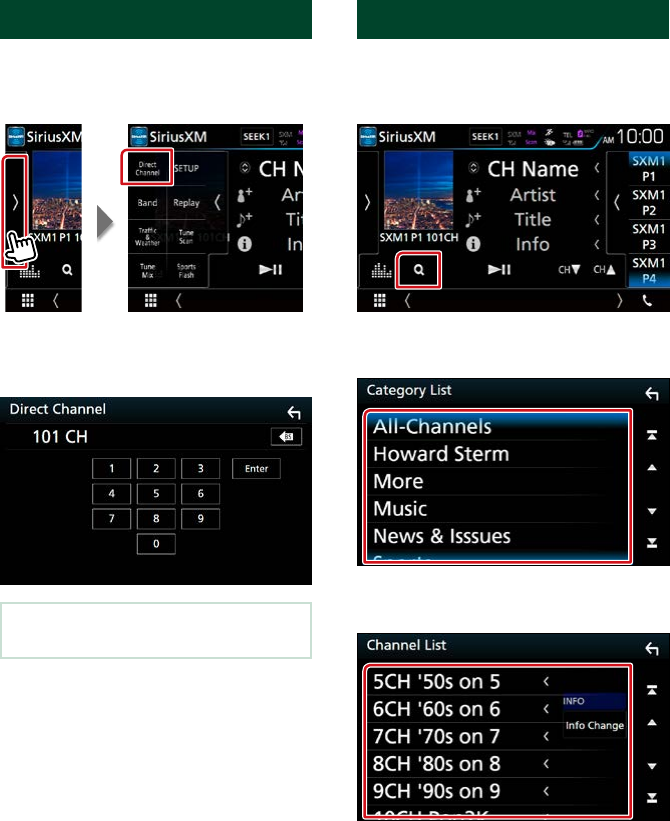
SiriusXM®
6464
Direct search
You can tune to a channel directly.
1 Touch on the left side of the screen.
Touch [Direct Channel].
10Key Direct screen appears.
2 Enter the channel number and touch
[Enter].
NOTE
• To clear the number you entered, touch [BS].
Category/Channel search
You can specify the desired category and
select a channel.
1 Touch [1].
Category list appears.
2 Select a category.
Channel list appears.
3 Select the desired content from the list.

SiriusXM®
65
NOTE
• All the channels in the selected category appear.
• Touching [All-Channels] displays all the channels.
• Touch [Info Change] in the channel list. Select the
sequence of list as follows;
Channel name, artist name, song title, category
name, content info
• Categories which have the prefix “Featured - “ are
Featured Favorites.
• Featured Favorites are groups of channels that
are created by the SiriusXM Programming
department allowing you to discover new
channels. Featured Favorite channels are dynamic
and can change often, allowing you to discover
new channels.
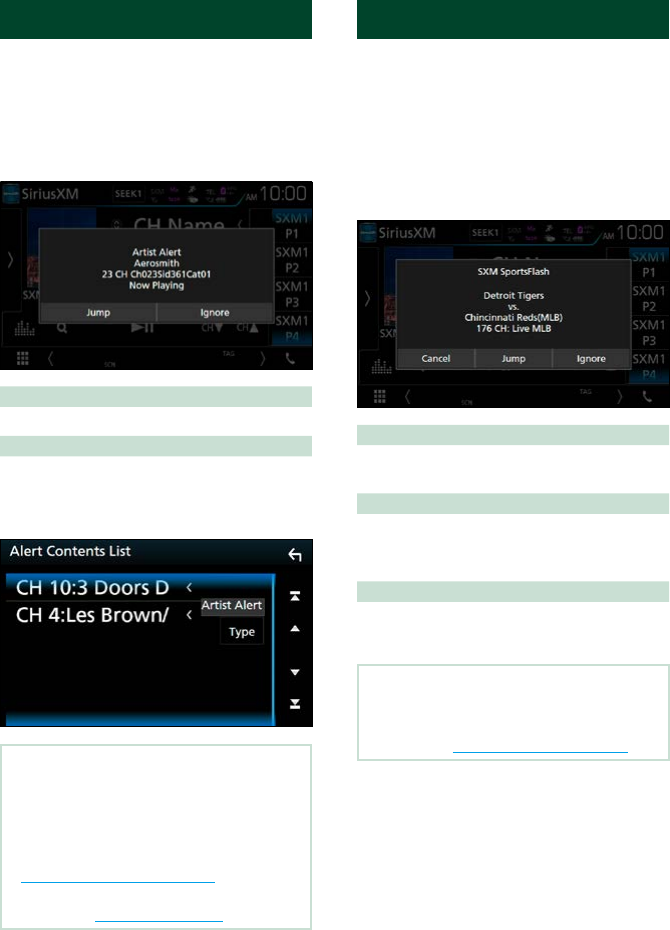
SiriusXM®
6666
Content Alerts
When a broadcast program related to the
registered artist, song or team starts, a
message appears to allow you to switch the
current channel to the relevant channel.
1 When the broadcast of the registered
content starts, an Alert screen appears.
Jump
Touch to display the Alert Content List screen.
Ignore
Touch to cancel the Content Alerts.
2 Select a content from the list.
NOTE
• Touch [Info Change]. Select the sequence of the
channel list as follows;
Artist Alert, Song Alert, GameAlert™
• To learn how to register artists and songs the
Team alert function, see 2. Information display of
SiriusXM® Basic Operation (P.60).
• To learn how to set up the Content Alerts
function, see SiriusXM Setup (P.70).
SportsFlash™
SportsFlash™ will notify you when a big play
happens during a game with one of your
favorite sports teams. Choose to tune in and
hear the play unfold like it was live. Continue
listening to the game, or you can return to
your previous channel.
1 When a big play happens during one of
the games, an Alert screen appears.
Jump
Touch to tune to that channel and play back
the big play.
Ignore
Touch to cancel this specific Sports Flash Alert.
Touching [Ignore] will ignore this specific alert
but will allow future alerts for this game.
Cancel
Touch to cancel the SportsFlash alert. No alerts
from this game will be displayed afterward.
NOTE
• Compatible with SXV300 or later tuner models.
• To learn how to set up the SportsFlash alert
function, see SportsFlash™ Team Set (P.74).
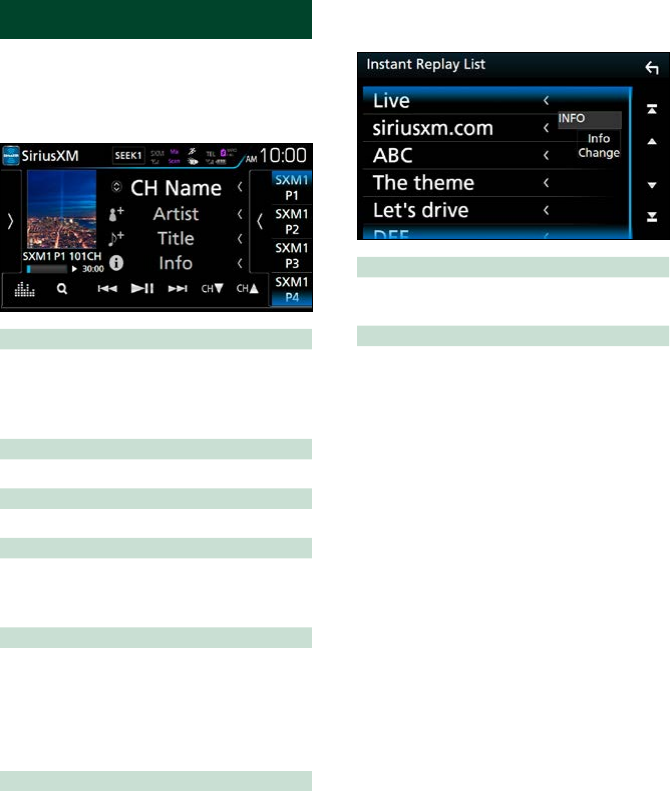
SiriusXM®
67
Replay
You can replay the last 60 minutes of the
current channel.
1 Touch [L] or [Replay] on the function
panel.
[E] [F]
Press to skip to the previous/next track.
Press and hold to rewind or fast forward. (It
will be cancelled automatically after about 50
seconds.)
[DH]
Plays or pauses.
[CHS] [CHR]
Tune in a channel.
Replay time bar/ Play mode indicator
Display recorded capacity and playback
position.
• D, B, etc.: Current play mode indicatory.
[1]
Display a list of recorded data on a program
basis.
Function panel
Touch on the left side of the screen.
[Live]
Return to live music/content.
2 Touch [1] to display an Instant Replay
list.
Instant Replay List
Touching this plays back the displayed
program.
[Info Change]
Touch [Info Change]. Select the sequence of
the list as follows;
Artist name, Song title, Category name, and
Content info
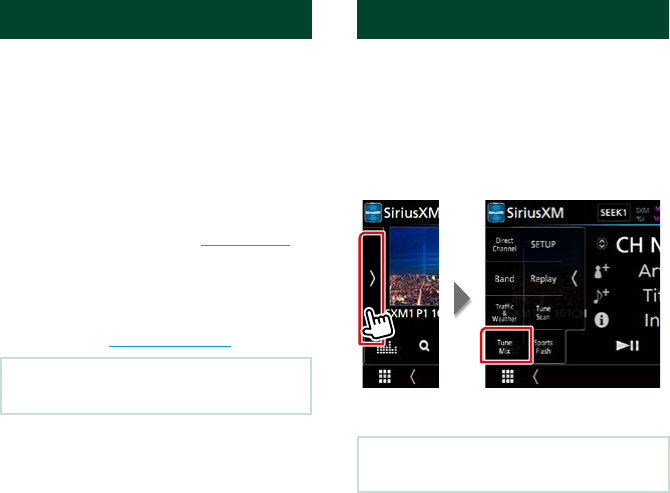
SiriusXM®
6868
SmartFavorites, TuneStart™
Preset channels 1 through 6 of the current
band are SmartFavorites channels.
The SiriusXM Vehicle Tuner automatically
buffers the broadcast audio content of the
SmartFavorites channels in the background.
You can rewind and replay up to 30 minutes
of any of the missed news, talk, sports
or music content when you tune to a
SmartFavorites channel. (see Replay (P.67))
When tuning from a SmartFavorites channel,
songs will play from the beginning of each
track (TuneStart™). You can enable/disable
TuneStart. (see TuneStart™ (P.75))
NOTE
• Compatible with SXV200 or later tuner models.
TuneMix™
TuneMix™ plays a unique blend of songs
from your Preset music channels from the
current SiriusXM Preset Band, allowing you
to build a custom channel from as few as two
to as many as 6 music channels. You can even
skip songs you don’t want to hear.
1 Touch on the left side of the screen.
2 Touch [TuneMix] to set ON or OFF.
NOTE
• Compatible with SXV300 or later tuner models.
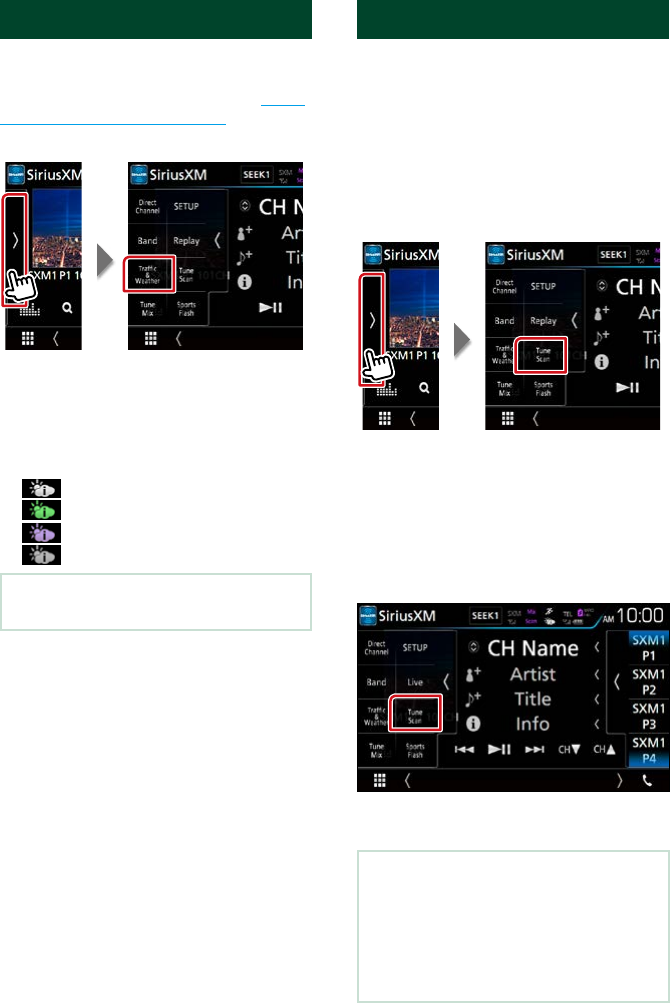
SiriusXM®
69
Traffic & Weather Now™
Traffic & Weather Now™ allows you to access
the latest report whenever you want to hear
it. Select your city at the set up menu Select
a City for Traffic & Weather (P.74).
1 Touch on the left side of the screen.
2 Touch [Traffic & Weather].
The report starts from the beginning. To
stop and return to the previous channel,
touch it again.
Indicator display
(White) : Played already.
(Green) : New information arrived.
(Purple) : Playing.
(Gray) : No information.
NOTE
• Compatible with SXV300 or later tuner models.
TuneScan™
TuneScan™ is a feature that plays samples
from the starts of multiple buffered songs
from each of the SmartFavorites channels
that predominantly play music selections.
You have easy access to a large sampling of
music content and can enjoy hearing a full
song when stopping the scan on a song of
interest.
1 Touch on the left side of the screen.
2 Touch [TuneScan] to begin scanning
your SmartFavorites channels.
You will hear a few seconds of the songs
from each of the SmartFavorite channels.
3 Touch [TuneScan] again while your
favorite song is being played to start
listening to that song.
Scan finishes and continues playing the
song.
NOTE
• To cancel TuneScan™, Touch on the left side of the
screen. Touch [TuneScan].
• Touch and hold [TuneScan] to cancel TuneScan,
the channel before starting TuneScan will be
played.
• Compatible with SXV200 or later tuner models.
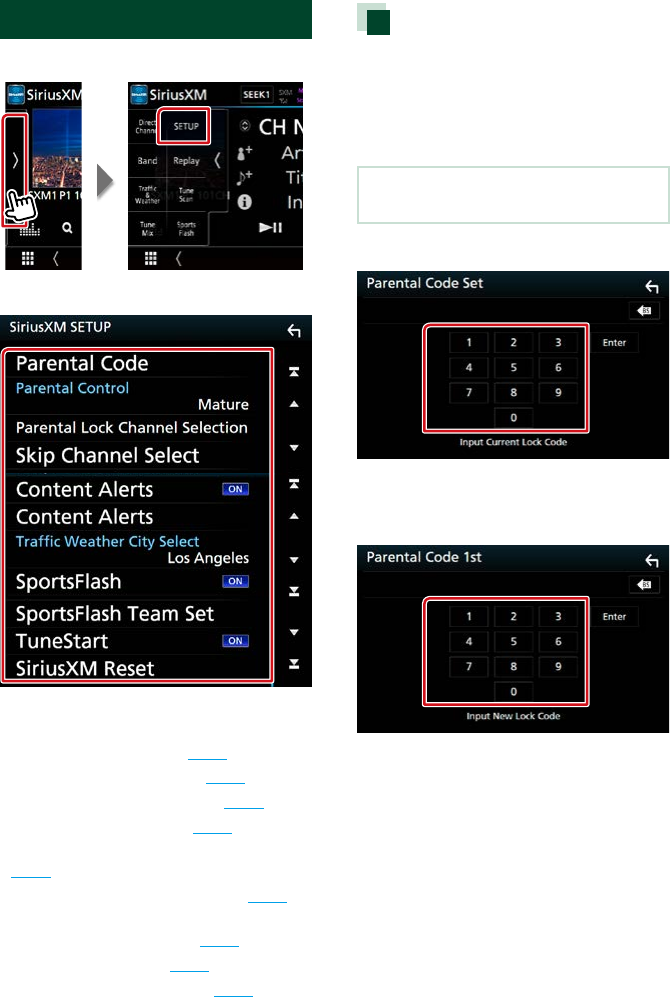
SiriusXM®
7070
SiriusXM Setup
1 Touch on the left side of the screen.
2 Touch [SETUP].
SiriusXM SETUP screen appears.
See the following section for each setting.
• Set up the parental code (P.70)
• Set up the Parental Control (P.71)
• Set up the skip channel select (P.72)
• Set up the Content Alerts (P.72)
• Set up the content for Content Alerts
(P.72)
• Set up the team for SportsFlash™ (P.74)
• Select the city for Traffic & Weather Jump
or Traffic & Weather Now™ (P.74)
• Set up the TuneStart™ (P.75)
• Reset to the default settings (P.75)
Parental code
You can set a SiriusXM parental code for
Parental Control.
1 Touch [Parental Code] in the SiriusXM
SETUP screen.
Parental Pass Check screen appears.
NOTE
• The code number is set to “0000” as default.
2 Enter the current code number.
Parental Pass 1st entering screen appears.
3 Enter the new code number and touch
[Enter].
Parental Pass 2nd entering screen appears.
4 Enter the same code number as you
input in step 3 and touch [Enter].
The code number is confirmed and
SiriusXM parental code is now set.
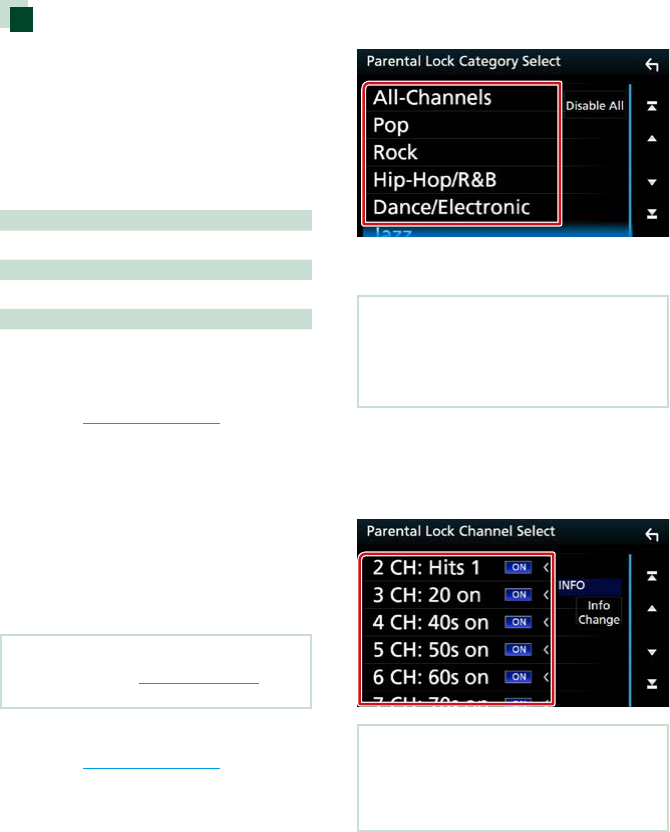
SiriusXM®
71
Parental Control
Parental Control is a feature that provides
the user with the ability to prevent
unauthorized access to mature content and
user selected channels.
1 Touch [Parental Control] in the
SiriusXM SETUP screen.
2 Touch [Mature], [User] or [OFF].
[OFF]
Deactivates the parental mature and user locks.
[Mature]
Locks channels classified as “mature” only.
[User]
Locks only the selected channels.
3 Enter the parental code you originally
input in Parental code (P.70) and
touch [Enter].
When selecting [User]
This allows you to limit access to any
SiriusXM channel (Parental Lock Channel).
1 Touch [Parental Lock Channel
Selection] in the SiriusXM SETUP
screen.
Parental Pass Check screen appears.
NOTE
• You need to set up a Parental code (P.70)
beforehand.
2 Enter the parental code you originally
input in Parental code (P.70) and
touch [Enter].
Parental Lock Category Select screen
appears.
3 Touch the desired category from the
list.
Displays all the channels in the selected
category.
NOTE
• Touch [All-Channels] to display all the channels.
• To delete the parental lock channel setting,
touch [Disable All] and then touch [YES] on the
confirmation screen.
4 Touch each channel on the list and set
to ON or OFF.
On: If you wish to set the lock.
Off: If you wish to unlock the channel.
NOTE
• Touch [Info Change]. Select the sequence of the
channel list as follows;
Channel name, Artist name, Song title, Category
name, Content information.
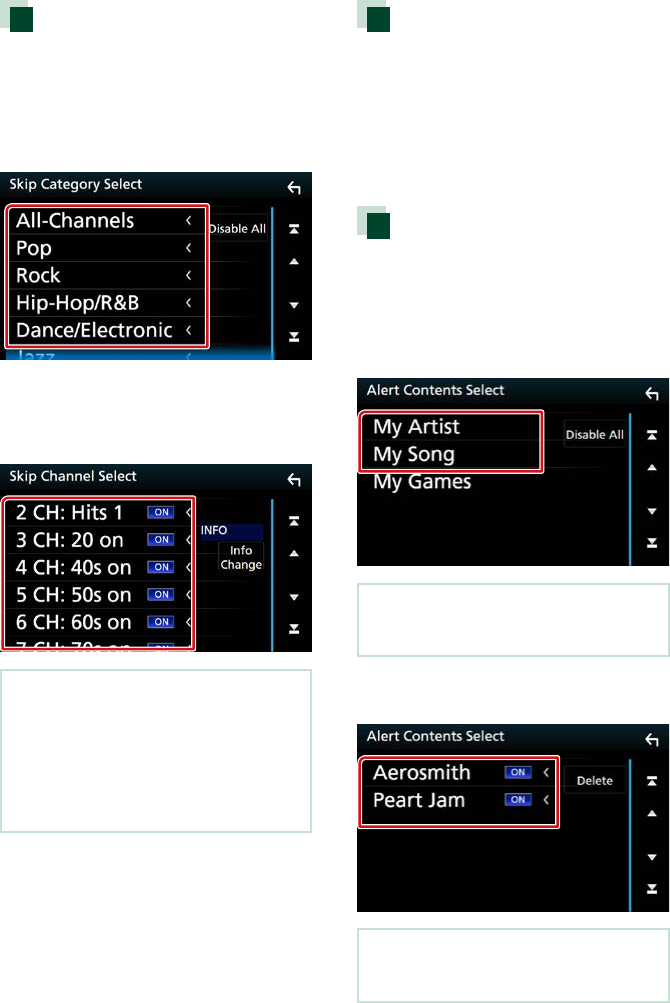
SiriusXM®
7272
Skip channel select
You can set the undesired channels to skip.
1 Touch [Skip Channel Select].
Skip Category Select screen appears.
2 Touch the desired category from the
list.
Displays all the channels in the selected
category.
3 Touch each channel on the list and set
to ON or OFF.
NOTE
• To delete the skip channel setting, touch [Disable
All] and then touch [YES] on the confirmation
screen.
• Touch [Info Change]. Select the sequence of the
channel list as follows;
Channel name, Artist name, Song title, Category
name, Content information.
Content Alerts setup
You can turn on or off the Content Alerts
function.
1 Touch [Content Alerts] in the SiriusXM
SETUP screen.
The Content Alerts is turned on or off.
Default is “ON”.
Content Alerts Content Set
You can set a content for Content Alerts.
1 Touch [Content Alerts Content Set] in
the SiriusXM SETUP screen.
Artist list screen appears.
2 Select the content you want to set up.
NOTE
• To set all the content Alerts off, touch [Disable All]
and then touch [YES] on the confirmation screen.
3 Touch each content list and set ON or
OFF.
NOTE
• You can select “ON” up to 30 items of Artist, Song,
and Team.
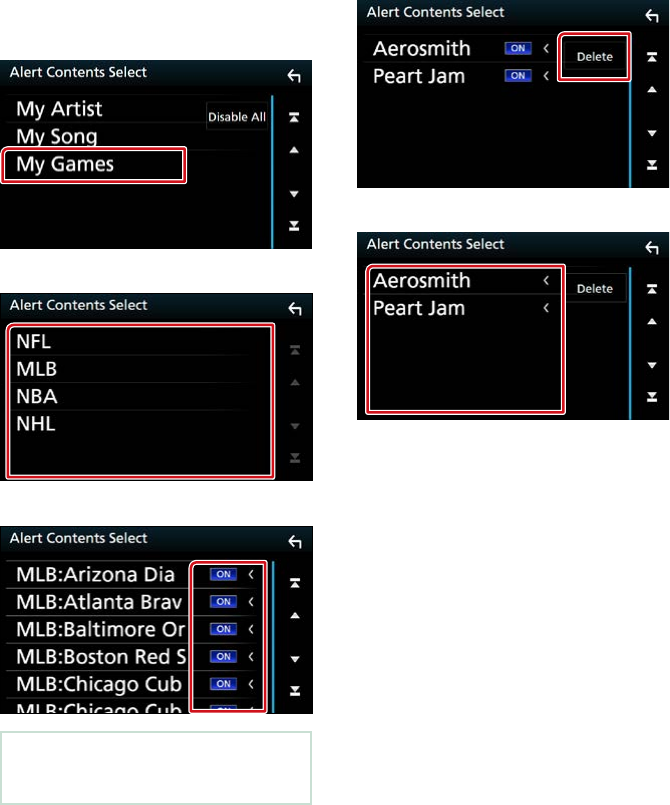
SiriusXM®
73
To select a Team
Get alerted when your favorite sports team
is playing on another SiriusXM channel with
GameAlert™
1 Touch [My Games].
2 Touch the desired league from the list.
3 Touch each team list and set ON or OFF.
NOTE
• You can select “ON” up to 30 items of Artist, Song,
and Team.
To delete the Artist and Song
1 Touch [Delete].
2 Touch each content list.
3 Touch [Delete] and then touch [YES] on
the confirmation screen.
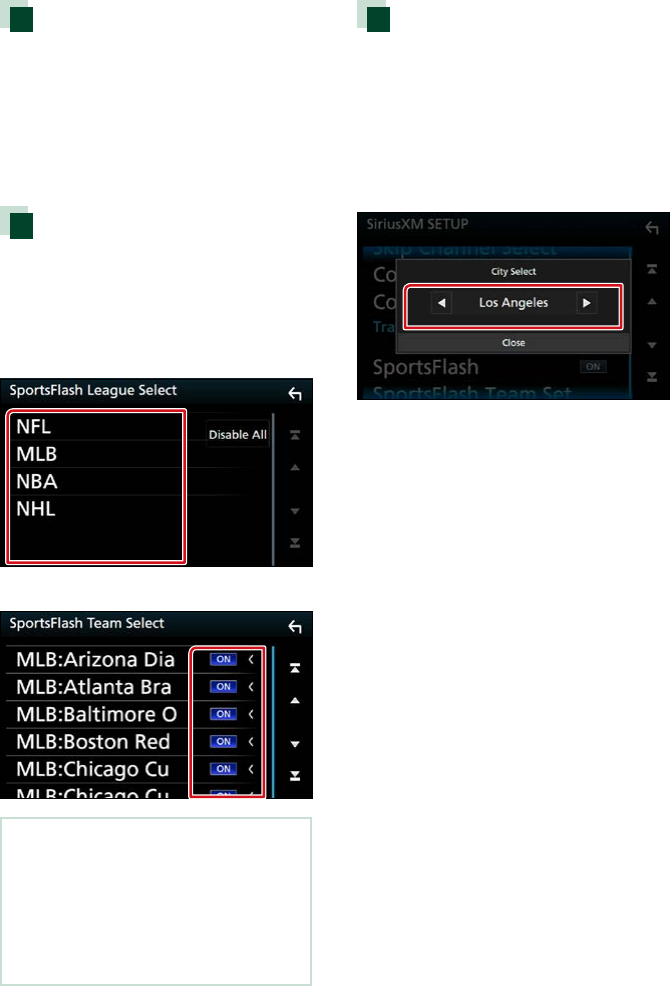
SiriusXM®
7474
SportsFlash™ setup
You can turn on or off the SportsFlash
function.
1 Touch [SportsFlash] in the SiriusXM
SETUP screen.
The SportsFlash is turned on or off.
Default is “ON”.
SportsFlash™ Team Set
You can set a team for SportsFlash.
1 Touch [SportsFlash Team Set] in the
SiriusXM SETUP screen.
Team list screen appears.
2 Touch the desired league from the list.
3 Touch each team list and set ON or OFF.
NOTE
• SportsFlash™ is available on SXV300 or later tuner
models.
• If you select some teams, you cannot give
priorities to teams.
• To delete the SportsFlash League Set, touch
[Disable All]. When the confirmation screen
appears, touch [YES].
Select a City for Traffic &
Weather
You can select a city for which you wish to
receive SiriusXM Traffic & Weather broadcasts
and hear them from the beginning.
1 Touch [Traffic & Weather City Select] in
the SiriusXM SETUP screen.
2 Touch [T] and [U] to select a city.

SiriusXM®
75
TuneStart™
1 Touch [Tune Start] in the SiriusXM
SETUP screen.
The TuneStart is turned on or off.
Default is “ON”.
Reset
1 Touch [SiriusXM Reset] in the SiriusXM
SETUP screen.
Confirmation screen appears.
2 Touch [YES].
All SiriusXM settings return to default.
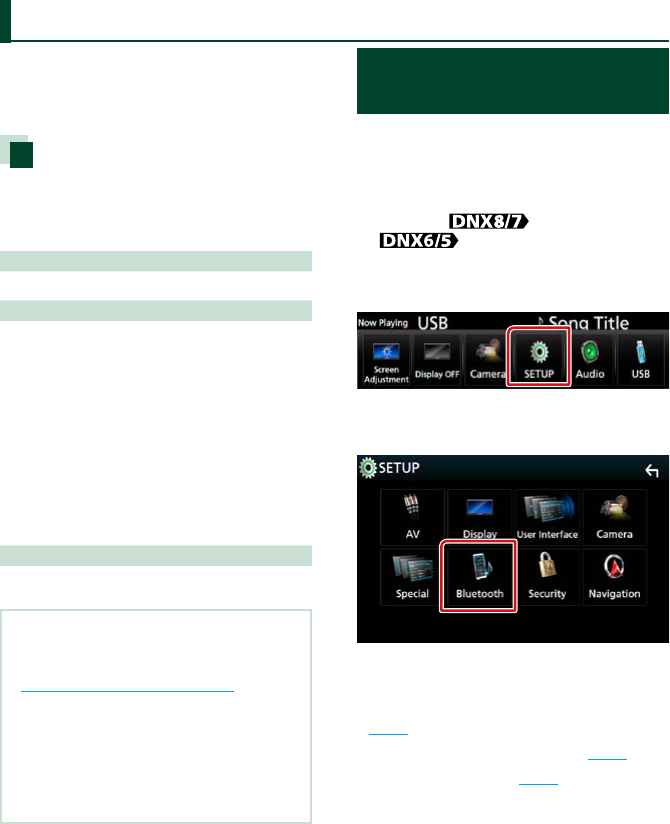
Bluetooth Control
7676
Using the Bluetooth function, various
functions can be used: listening to the audio
file, making/receiving a call.
About the cell-phone and
Bluetooth audio player
This unit conforms to the following
Bluetooth specifications:
Version
Bluetooth Ver. 3.0
Profile
Cell-phone:
HFP (V1.6) (Hands Free Profile)
SPP (Serial Port Profile)
HID (Human Interface Device Profile)
PBAP (Phonebook Access Profile)
GAP (Generic Access Profile)
Audio player:
A2DP (Advanced Audio Distribution Profile)
AVRCP (V1.5) (Audio/Video Remote Control
Profile)
Sound codec
SBC, AAC
NOTE
• For the cell-phones verified for compatibility,
access the following URL:
http://www.kenwood.com/cs/ce/bt/.
• The units supporting the Bluetooth function have
been certified for conformity with the Bluetooth
Standard following the procedure prescribed by
Bluetooth SIG.
However, it may be impossible for such units to
communicate with your cell-phone depending
on its type.
Registering and Connecting
Bluetooth Unit
It is necessary to register the Bluetooth audio
player or cell-phone to this unit before using
the Bluetooth function.
You can register up to 10 Bluetooth units.
1 Press the <MENU> button/
volume knob.
Popup menu appears.
2 Touch [SETUP].
SETUP Menu screen appears.
3 Touch [Bluetooth].
Bluetooth SETUP screen appears.
See the following section for each setting.
• Registering from the Bluetooth unit
(P.77)
• Connecting the Bluetooth unit (P.78)
• Change the PIN code (P.79)
Bluetooth Control
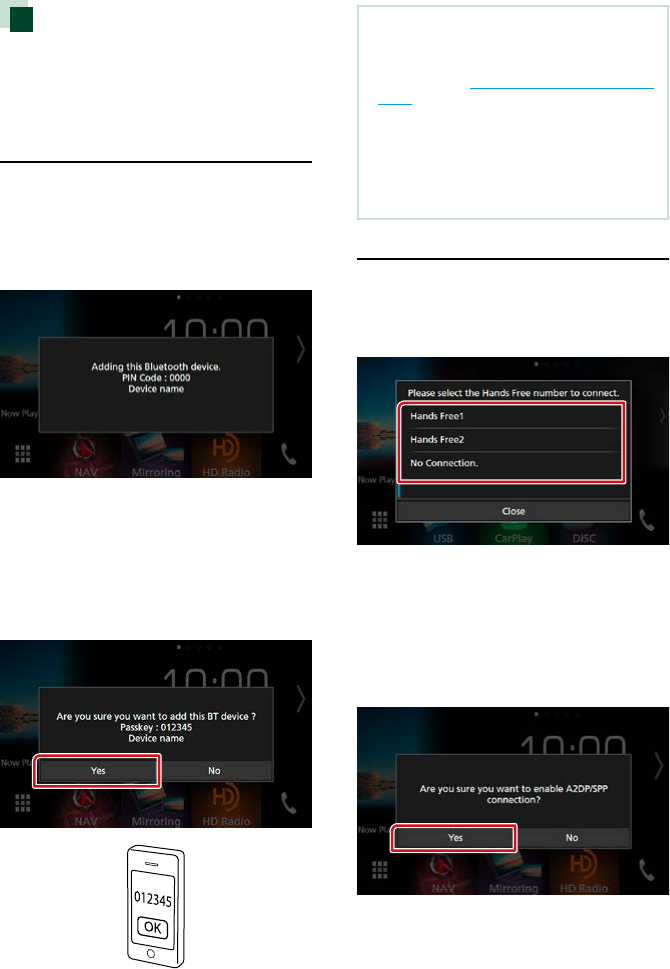
Bluetooth Control
77
Registering from the
Bluetooth unit
Follow the step 1, 2 and 3 for registration.
Step 1: Registration from the
Bluetooth device
1 Search the unit (“DNX****”) from your
smartphone/cell-phone.
2 Input the PIN code in your smartphone/
cell-phone.
PIN code is set to “0000” as the default.
SSP (Secure Simple Pairing of
Bluetooth 2.1 or later)
1 Search the unit (“DNX****”) from your
smartphone/cell-phone.
2 Confirm the request both on the
smartphone/cell-phone and the unit.
NOTE
• A new device cannot be registered if there are 10
registered Bluetooth units. Delete unnecessary
registration. See Connecting the Bluetooth unit
(P.78).
• This unit is compatible with the Apple Easy
Pairing function. When an iPod touch or iPhone is
connected to this unit, an authentication dialog
appears. Performing operation for authentication
on this unit or iOS smartphone registers the
smartphone as a Bluetooth device.
Step 2: Connection settings
1 Select the hands-free number to
connect.
A name of a smartphone is displayed when
it has hands-free connection with the unit.
2 Select if you want to use the audio
player app in your smartphone over
A2DP, and the other apps in your
smartphone over SPP.
This message appears if the device
supports BT audio (A2DP) or smartphone
link (SPP).
Continued
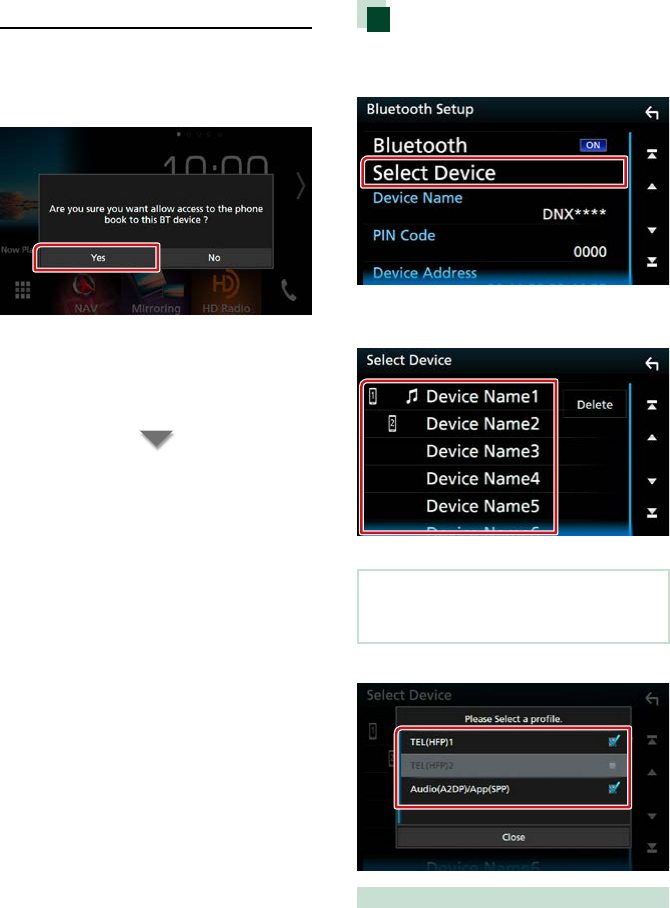
Bluetooth Control
7878
Step 3: Phonebook transfer
1 Select if you want to transfer your
phonebook data.
This message appears if the device
supports PBAP.
The phonebook data transmission starts.
Some smartphones may request
permission to access the data. The
data transmission will start with your
permission.
When the data transmission and
connection have completed, the Bluetooth
connection icon appears on the screen.
Connecting the Bluetooth unit
1 Touch [Select Device] in the Bluetooth
SETUP screen.
2 Touch the device name you want to
connect.
Profile select screen appears.
NOTE
• If the icon is lighted, it means that the unit will
use that device.
3 Set each profile as follows.
TEL (HFP) 1, TEL (HFP) 2
The device is connected with the unit as
hands-free phone 1 or 2.
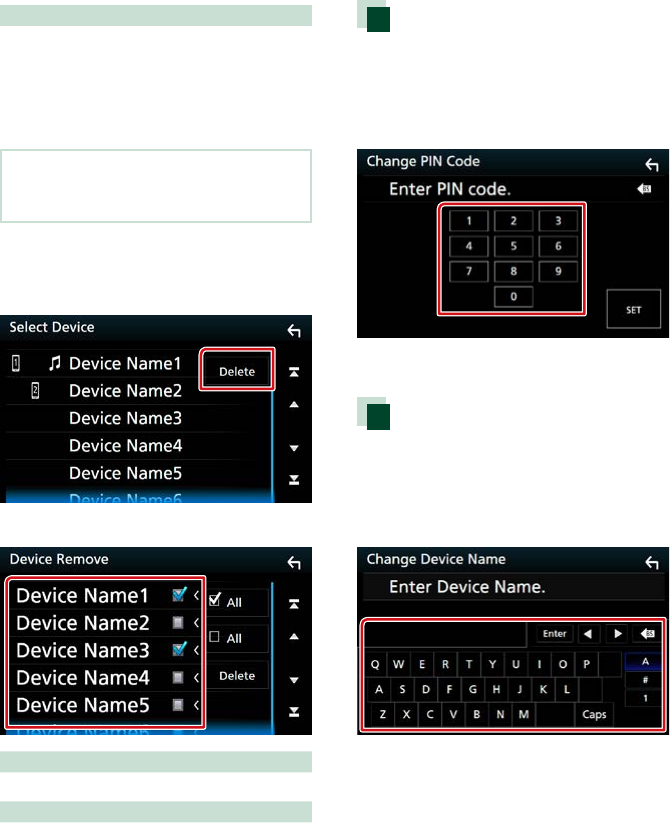
Bluetooth Control
79
Audio (A2DP)/App (SPP)
The device is connected with the unit as an
audio player or as a smartphone with apps
installed.
4 Touch [Close].
NOTE
• If a device has been paired, the Bluetooth unit
cannot be connected from the paired device.
Deleting the registered Bluetooth unit
1 Touch [Delete].
2 Touch the device name to check.
[; All]
Select all Bluetooth unit.
[ All]
Erases all check marks.
3 Touch [Delete].
Confirmation message appears.
4 Touch [Yes].
Change the PIN code
1 Touch [PIN Code] in the Bluetooth
SETUP screen.
PIN Code Set screen appears.
2 Input the PIN code
3 Touch [SET].
Change the device name
1 Touch [Device Name] in the Bluetooth
SETUP screen.
Change Device Name screen appears.
2 Input the device name
3 Touch [Enter].
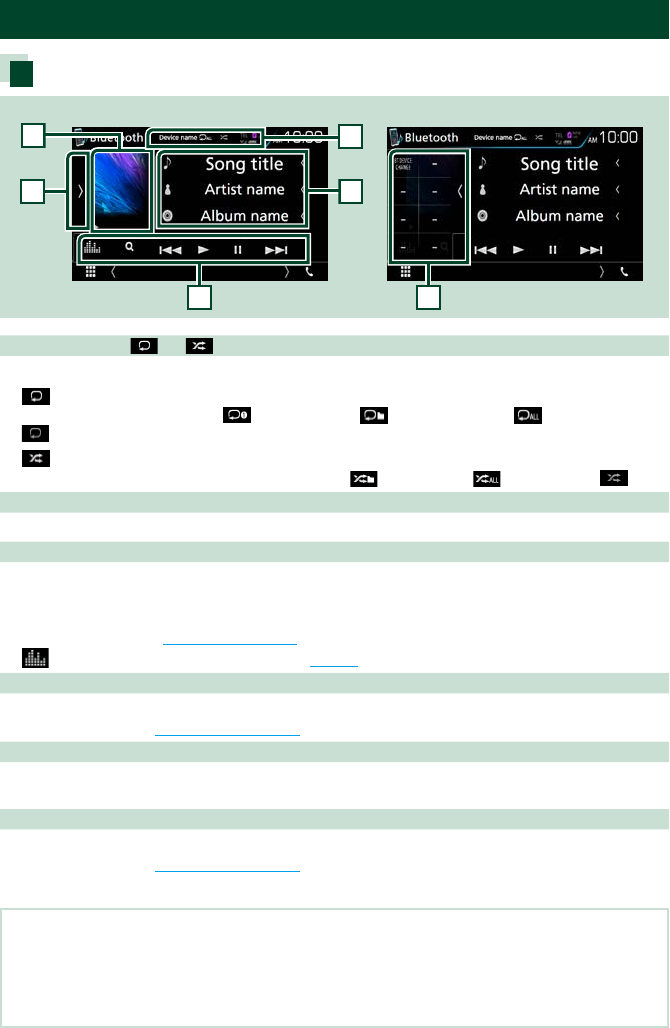
Bluetooth Control
8080
Playing Bluetooth Audio Device
Bluetooth basic operation
4
Control screen Function panel
1
3
6
5
2
1 Device name/ [ ] / [ ]
• Connected device name.
• [ ] : Repeats the current track/folder. Each time you touch the key, repeat mode switches in the
following sequence; File repeat ( ), Folder repeat ( ), All songs repeat ( ), Repeat off
( )
• [ ] : Randomly plays all tracks in current folder. Each time you touch the key, random mode
switches in the following sequence; Folder random ( ), All random ( ), Random off ( )
2 Information display *
Displays the name of the track information.
3 Function bar
• [E] [F]: Searches the previous/next content.*
• [D]: Plays.*
• [H]: Pauses.*
• [1]: Searches file.* See Folder search (P.81).
• [ ] : Displays the Graphic Equalizer screen. (P.104)
4 Function panel
Touch on the left side of the screen to display the function panel. Touch again to close the panel. For
details on the keys, see Function panel (P.81).
5 Play mode indicator
• D, H: Current play mode indicator
The meanings of each icon are as follows; D (play), H (pause).
6 Function panel
Touch on the left side of the screen to display the function panel. Touch again to close the panel. For
details on the keys, see Function panel (P.81).
* These items appear only when the audio player which supports AVRCP profile is connected.
NOTE
• If the operation keys do not appear, operate from the player.
• Depending on your cell-phone or audio player, audio may be heard and controlled but text information may not
appear.
• If the volume is too low, raise it on your cell-phone or audio player.
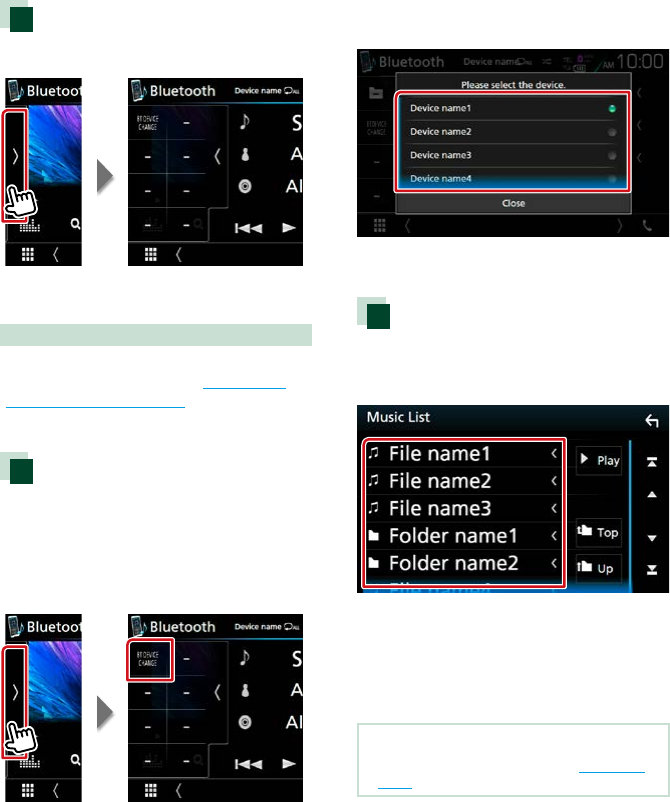
Bluetooth Control
81
Function panel
1 Touch on the left side of the screen.
The following functions can be performed by
using keys in this area.
[BT DEVICE CHANGE]
Selects the device to connect via Bluetooth
audio (A2DP) or APP (SPP). See Connecting
the Bluetooth audio (P.81).
Connecting the Bluetooth
audio
Selects the device to connect via Bluetooth
audio (A2DP) or APP (SPP).
1 Touch on the left side of the screen.
Touch [BT DEVICE CHANGE].
2 Touch the device name you want to
connect.
3 Touch [Close].
Folder search
1 Touch [1].
2 Touch the desired file or folder.
When you touch a folder its contents are
displayed.
3 Touch desired item from the content
list.
Playback starts.
NOTE
• For operations in the list screen, see List screen
(P.19).
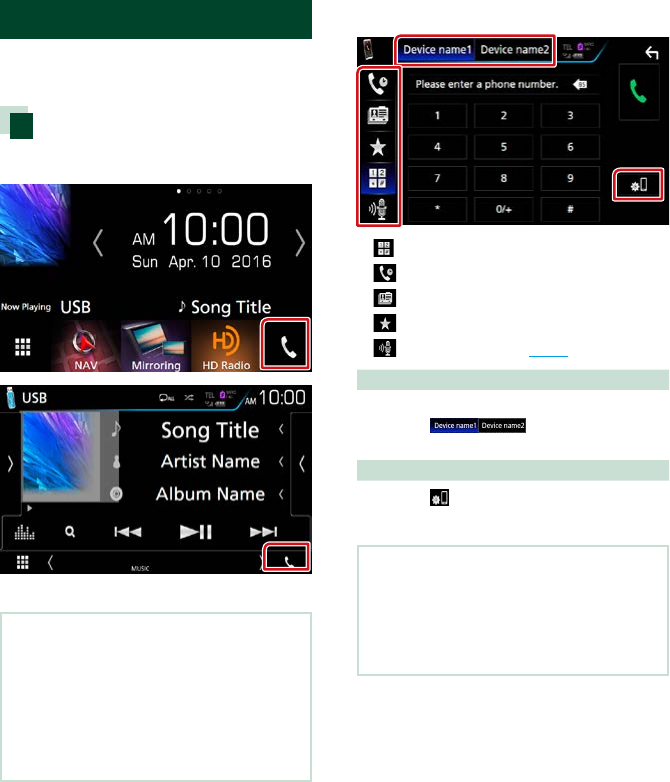
Bluetooth Control
8282
Using Hands-Free Unit
You can use telephone function by
connecting the Bluetooth telephone to this
unit.
Making a call
1 Touch [Û].
Hands Free screen appears.
NOTE
• If your mobile phone supports PBAP, you can
display the phone book and call lists on the
touch panel screen when the mobile phone is
connected.
–Phone book: up to 1000 entries
–Dialed calls, received calls, and missed calls: up
to 50 entries each
2 Select a dialing method.
• [ ]: Call by entering a phone number
• [ ]: Call using call records
• [ ]: Call using the phonebook
• [ ]: Call using the preset number
• [ ]: Voice Recognition (P.85)
Select the cell-phone to use
When you connect two cell-phones
1 Touch [ ] to select the phone
you want to use.
Bluetooth SETUP
1 Touch [ ].
Bluetooth SETUP screen appears.
NOTE
• The status icons such as battery and antenna
displayed may differ from those displayed on the
cell-phone.
• Setting the cell-phone in the private mode can
disable the hands-free function.
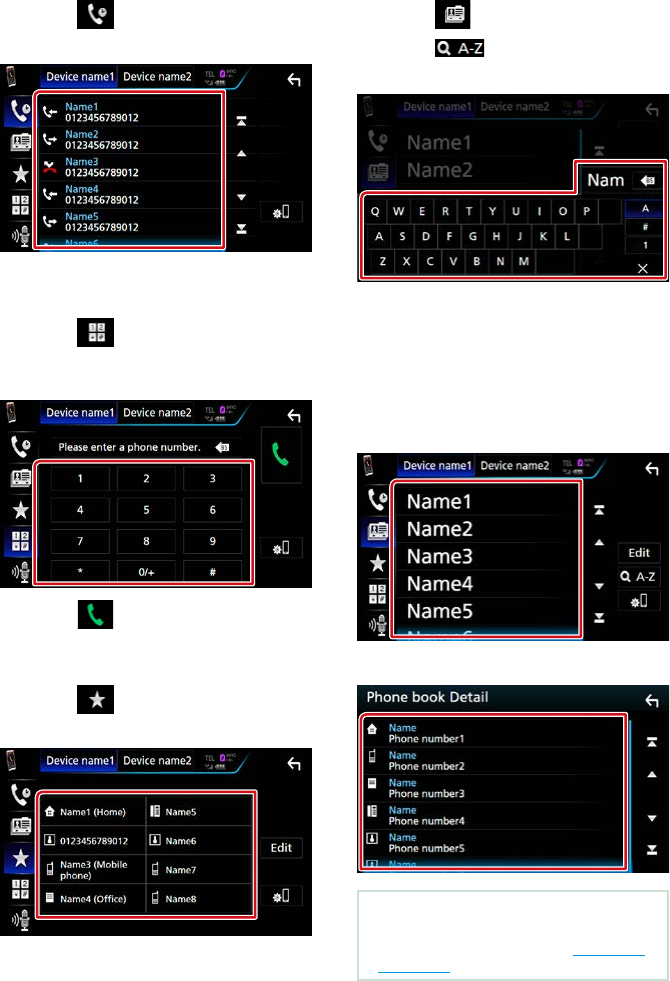
Bluetooth Control
83
Call using call records
1 Touch [ ].
2 Select the phone number from the list.
Call by entering a phone number
1 Touch [ ].
2 Enter a phone number with number
keys.
3 Touch [ ].
Call using the preset number
1 Touch [ ].
2 Touch the Name or phone number.
Call using the phonebook
1 Touch [ ].
2 Touch [ ].
3 Select the initial.
• Characters with no corresponding name
will not appear.
• During search, a non-accent character
such as “u” is searched for instead of an
accent character such as “ü”.
4 Select the person you want to call from
the list.
5 Select the phone number from the list.
NOTE
• You can set the list to arrange in the order of last
name or first name. For details, see Hands-Free
Setup (P.86).
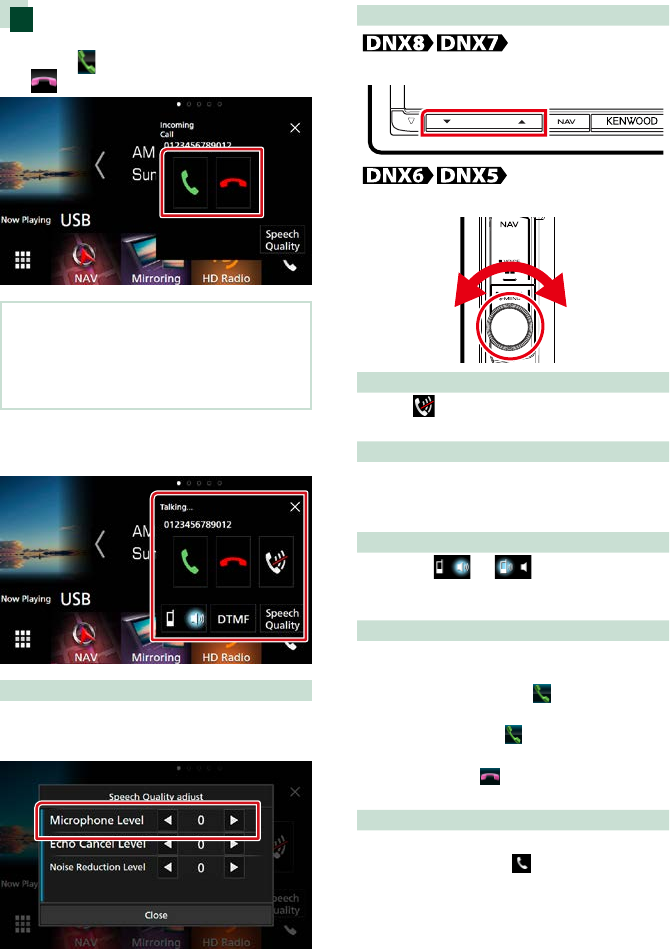
Bluetooth Control
8484
Receiving a call
1 Touch [ ] to answer a phone call or
[ ] to reject an incoming call.
NOTE
• While monitoring the view camera, this screen
does not appear even if a call comes in. To display
this screen, press the <TEL> button or return the
shift knob of car to the driver position.
Operations during a call
Adjust the volume of your voice
1 Touch [Speech Quality].
2 Touch [T] or [U] of [Microphone Level].
Adjust the receiver volume
Press the <S> or <R> button.
Turn the volume knob.
Mute your voice
Touch [ ] to mute or not to mute your
voice.
Output the dial tone
Touch [DTMF] to display the tone input screen.
You can send tones by touching desired keys
on the screen.
Switching the speaking voice output
Touching [ ]/ [ ] each time
switches the speaking voice output between
cell-phone and speaker.
Call-waiting
When you receive a call while talking on
another call, you can answer the newly
received call by touching [ ]. The current call
is on hold.
Each time you touch [ ], the caller will
change.
When you touch [ ], the current call will end
and switch to the call in hold.
[ × ]
The Hands-Free popup screen is closed. To
display it again, touch [ ].
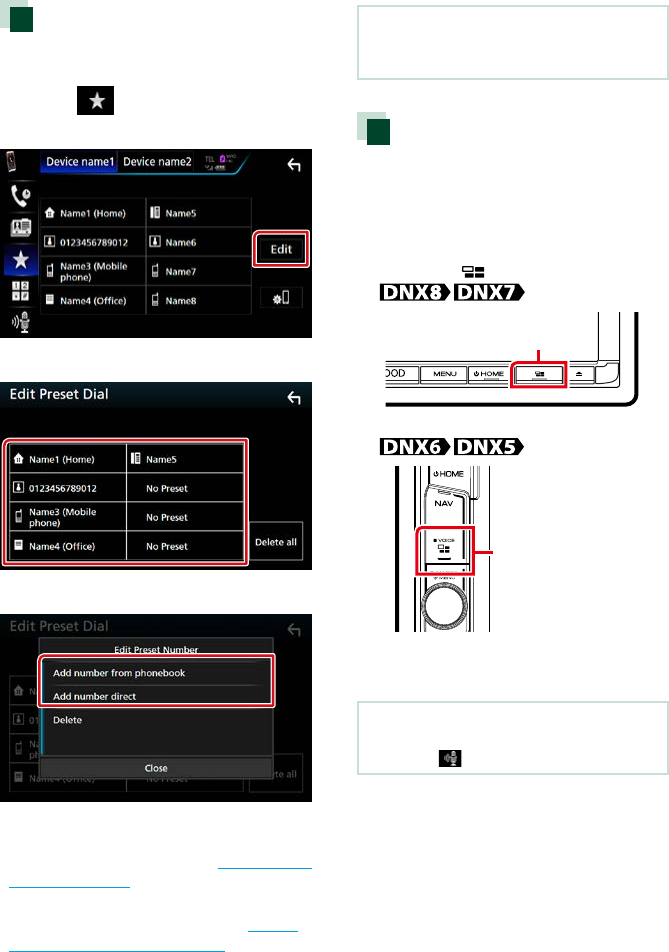
Bluetooth Control
85
Phone number preset
You can register frequently used phone
numbers to this unit.
1 Touch [ ].
2 Touch [Edit].
3 Select where to preset.
4 Select how to preset.
• [Add number from phonebook]:
Select the number to preset by referring to
“Call using the phonebook”. See Call using the
phonebook (P.83).
• [Add number direct]: Enter the telephone
number directly and touch [SET]. See Call by
entering a phone number (P.83).
NOTE
• To delete the preset number, touch [Delete] and
then touch [YES] on the confirmation screen.
Voice Recognition
You can access the voice recognition function
of the cell-phone connected to this unit.
You can search the cell-phone phonebook
by voice. (The functionality depends on the
cell-phone.)
1 Press the < > button for 1 second.
Press for 1 second
Press for 1 second
Voice Recognition screen appears.
2 Start speaking.
NOTE
• You can use voice recognition function by
touching [ ] on the Hands Free screen.
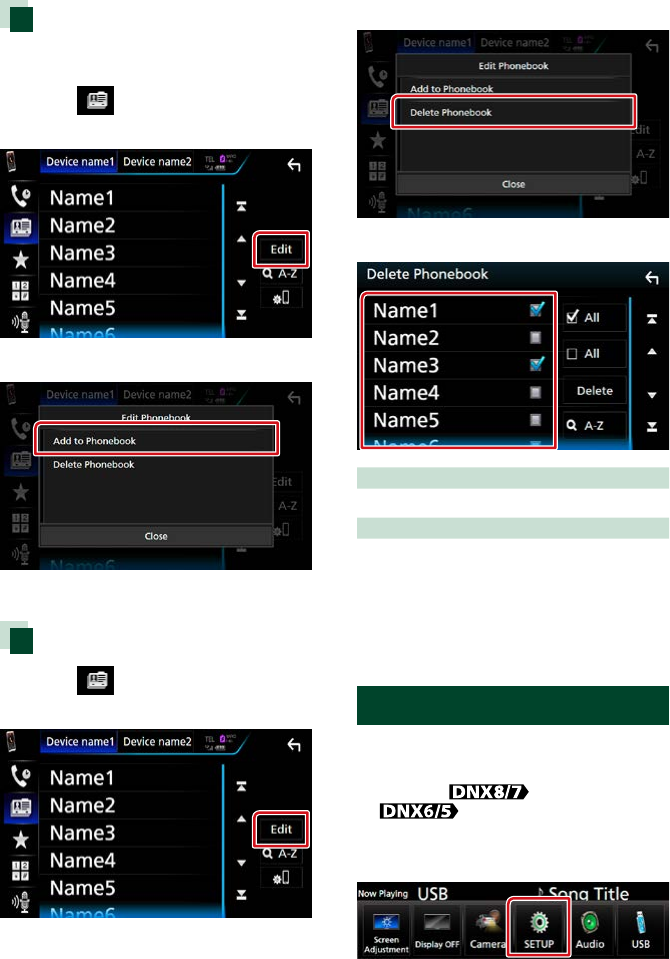
Bluetooth Control
8686
Phonebook transfer
You can transfer the phonebook in your
Bluetooth smartphone via PBAP.
1 Touch [ ].
2 Touch [Edit].
3 Touch [Add to Phonebook].
The phonebook data transmission starts.
Phonebook deletion
1 Touch [ ].
2 Touch [Edit].
3 Touch [Delete Phonebook].
4 Touch the name to check.
[; All]
Checks all boxes.
[ All]
Erases all check marks.
5 Touch [Delete].
Confirmation message appears.
6 Touch [Yes].
Hands-Free Setup
You can perform various setup about
handsfree function.
1 Press the <MENU> button/
volume knob.
Popup menu appears.
2 Touch [SETUP].
SETUP Menu screen appears.
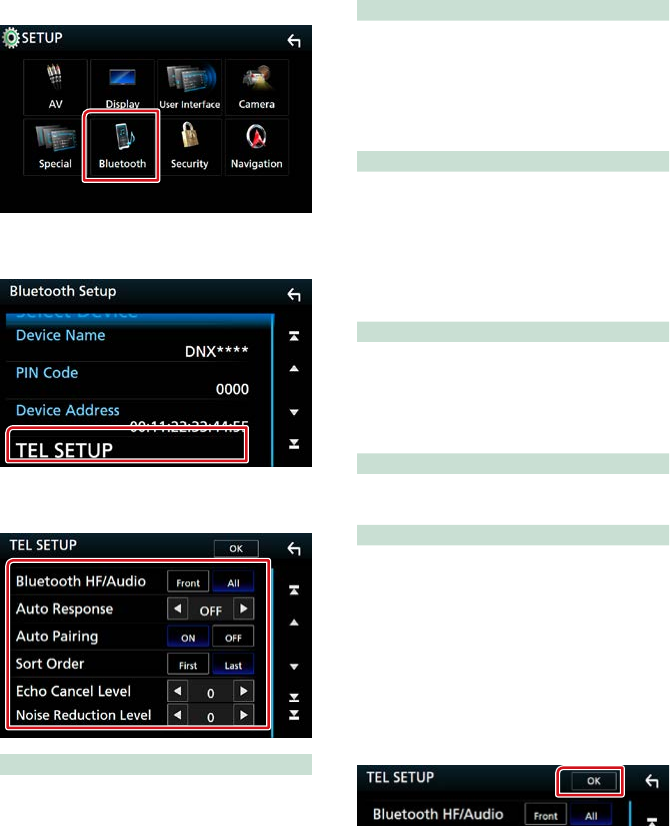
Bluetooth Control
87
3 Touch [Bluetooth].
Bluetooth SETUP screen appears.
4 Touch [TEL SETUP].
TEL SETUP screen appears.
5 Set each item as follows.
Bluetooth HF/Audio
Select the speakers to output the sound from
cell-phone (such as phone call voice and
ringing tone) and Bluetooth audio player.
Front: Outputs from the front speakers.
All (Default): Outputs from all speakers.
Auto Response*
Sets an automatic response time to pick-up an
incoming call.
OFF (Default): Automatic response is not
available.
1/ 5/ 10/ 15/ 20/ 25/ 30: Set calling ring time
(second).
Auto Pairing
When set to “ON”, the Apple Auto Pairing
function is turned on to automatically register
the iPod touch or iPhone connected to this
unit.
ON (Default): Uses Apple Auto Pairing
function.
OFF: Not uses Apple Auto Pairing function.
Sort Order
Sets how to arrange the cell-phone
phonebook.
First: Arranges in the order of first name.
Last (Default): Arranges in the order of last
name.
Echo Cancel Level
Adjusts the level of echo cancellation.
Default is “0”.
Noise Reduction Level
Reduces the noises generated by surrounding
environment without changing the
microphone volume. Use this setting when the
voice of caller is not clear. Default is “0”.
* Either the time interval for automatic
answer set on this unit or the time interval
set on the cell-phone, whichever is shorter
takes effect.
6 Touch [OK].
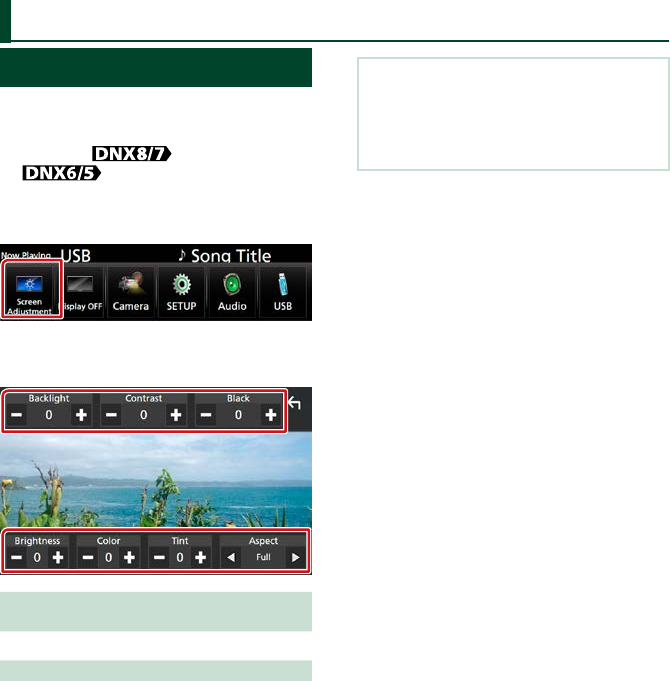
Setting Up
8888
Monitor Screen Setup
You can adjust image quality in video, menu
screen, etc.
1 Press the <MENU> button/
volume knob.
Popup menu appears.
2 Touch [Screen Adjustment].
Screen Control screen appears.
3 Adjust each item as follows.
Backlight / Contrast / Black / Brightness /
Color / Tint
Adjusts each item.
Aspect
Select screen mode.
Full: Changes the aspect ratio of video and
displays fully on the screen.
Normal: Displays with 4:3 ratio.
Auto:
DVD, VCD and disc media: Video of 16:9 ratio
is displayed in Full and video of 4:3 ratio is
displayed in Regular.
USB device and SD card: Displays video
fully on vertical or horizontal with no ratio
change.
NOTE
• Adjusting items are different depending on the
current source.
• The image quality can be set for each source.
Backlight and Black are common to all sources.
Setting Up
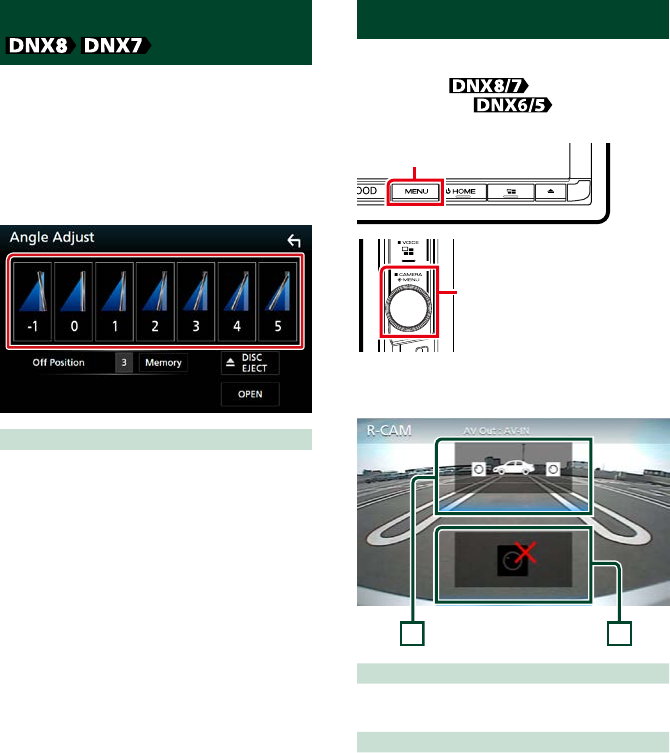
Setting Up
89
Monitor Angle Control
You can adjust the position of the monitor.
1 Press the <G> button.
Angle Adjust screen appears.
2 Select a below number that represents
your desired angle setting.
Default is “0”.
Off Position
You can store the current monitor angle as the
angle during power off. Touch [Memory] when
the desired angle is selected.
View Camera Control
You can select the front or rear view camera.
1 Press the <MENU> button
for 1second/ volume knob
for 1second.
Press for 1 second
Press for 1 second
View camera screen appears.
2 Adjust each item as follows.
2
1
1 Switching the View Camera
Touching each time changes between the
front view camera and rear view camera.
2 Camera off
Touch to exit the camera screen.
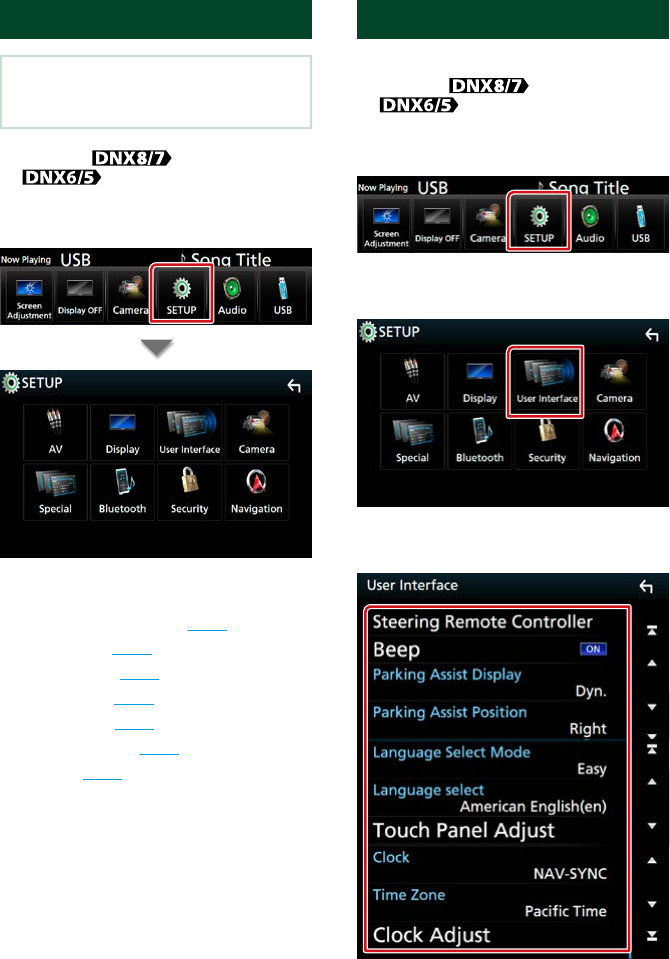
Setting Up
9090
System Setup
NOTE
• Each operation in this section can be started from
the multi function menu.
1 Press the <MENU> button/
volume knob.
Popup menu appears.
2 Touch [SETUP].
SETUP Menu screen appears.
See the following section for each setting.
• Set up the user interface (P.90)
• Set up special (P.92)
• Set up security (P.93)
• Set up display (P.94)
• Set up camera (P.96)
• Set up navigation (P.98)
• Set up AV (P.98)
User Interface Setup
You can setup user interface parameters.
1 Press the <MENU> button/
volume knob.
Popup menu appears.
2 Touch [SETUP].
SETUP Menu screen appears.
3 Touch [User Interface].
User Interface screen appears.
4 Set each item as follows.
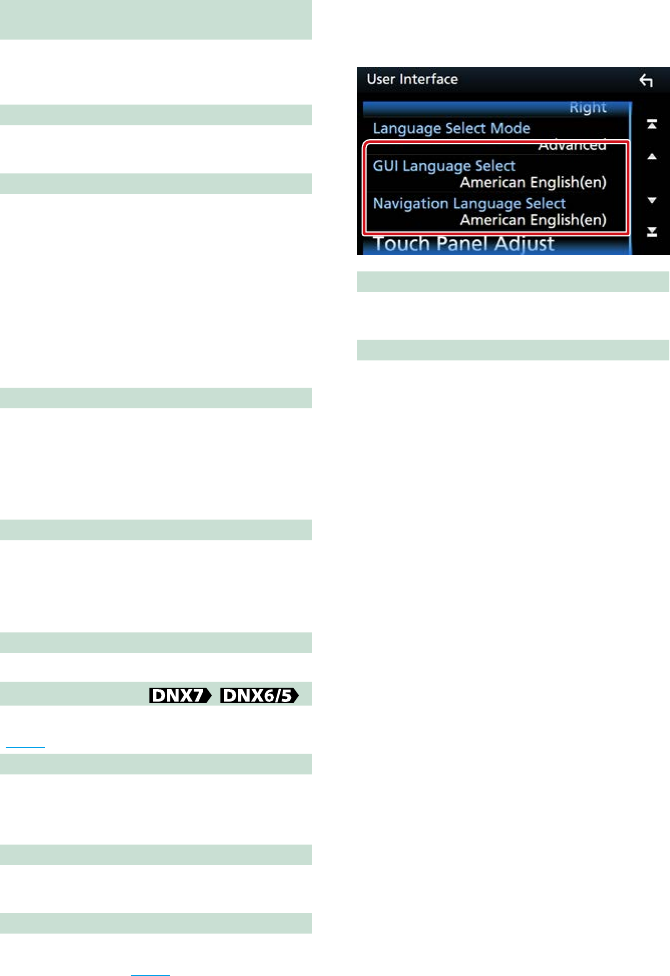
Setting Up
91
Steering Remote Controller
(DNX7160BTS, DNX5160BTS)
Sets the desired function in the steering remote
controller. (Contact your KENWOOD dealer for
details.)
Beep
Turns the key touch tone on or off.
Default is “ON”.
Parking Assist Display
When an ADS adapter is connected, you can
display information about obstacles around
the car.
ON: Always displays information.
Dyn. (Default): Displays information when the
sensor detects obstacles.
OFF: Cancels.
This can be set when the iDataLink
(commercially available) is connected.
Parking Assist Position
Select where information about obstacles is
displayed on the screen (left or right).
“Left”/ “Right” (Default)
This can be set when the iDataLink
(commercially available) is connected.
Language Select Mode
Selects the mode to select a language.
Easy (Default): Selects a language easily.
Advanced: Allows you to select languages for
respective items.*
Language Select
Selects a language.
Touch Panel Adjust ( / )
Adjust the sensing position of touch panel.
(P.92)
Clock
NAV-SYNC (Default): Synchronizes the clock
time with navigation.
Manual: Sets the clock manually
Time Zone
If you have selected [Manual] for Clock, select
the time zone.
Clock Adjust
If you select [Manual] for Clock, adjust the date
and time manually. (P.92)
* If you select [Advanced] for Language
Select Mode, the following screen
appears.
GUI Language Select
Selects the display language used for the
control screen and so forth.
Navigation Language Select
Selects the language used for navigation.
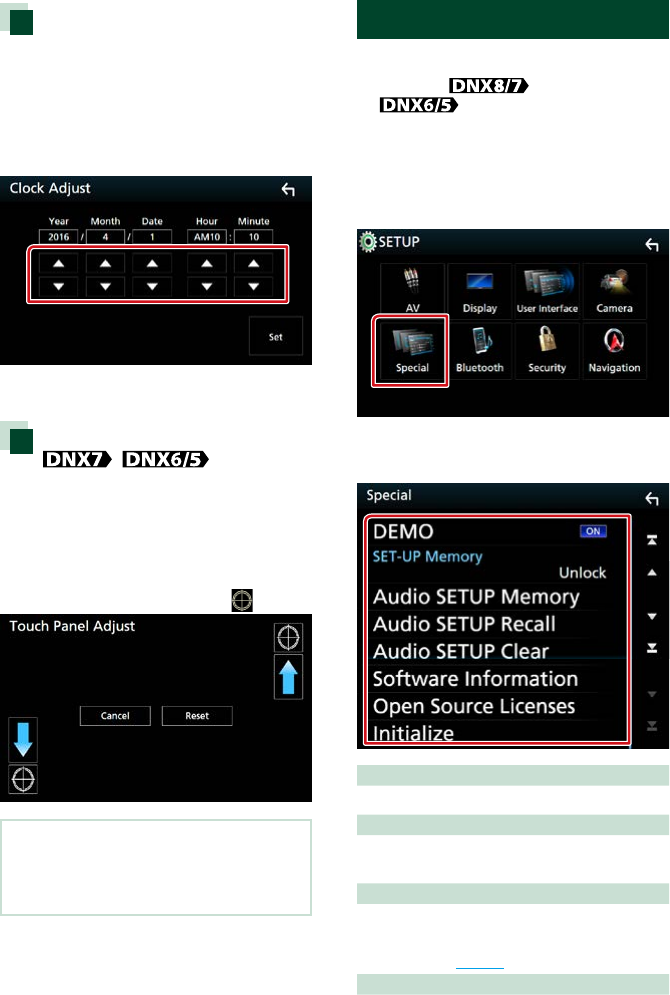
Setting Up
9292
Adjust the date and time
manually.
1 Touch [Clock Adjust] in the User
Interface screen.
Clock Adjust screen appears.
2 Adjust the date, then adjust the time.
3 Touch [Set].
Touch panel adjustment
( / )
1 Touch [Touch Panel Adjust] in the User
Interface screen.
Touch Panel Adjust screen appears.
2 Follow the instruction on the screen
and touch the center of each .
NOTE
• To cancel the touch panel adjustment, touch
[Cancel].
• To reset to the initial status, touch [Reset].
Special Setup
You can setup Special parameters.
1 Press the <MENU> button/
volume knob.
Popup menu appears.
2 Touch [SETUP].
SETUP Menu screen appears.
3 Touch [Special].
Special screen appears.
4 Set each item as follows.
DEMO
Set the demonstration mode. Default is “ON”.
SETUP Memory
Locks or unlocks the Audio SETUP Memory/
Recall/Clear.
Audio SETUP Memory
Memorizes the current audio setting.
• Speaker / X’over, Equalizer, Position/DTA,
Sound Effect (P.100)
Audio SETUP Recall
Recalls the memorized audio setting.
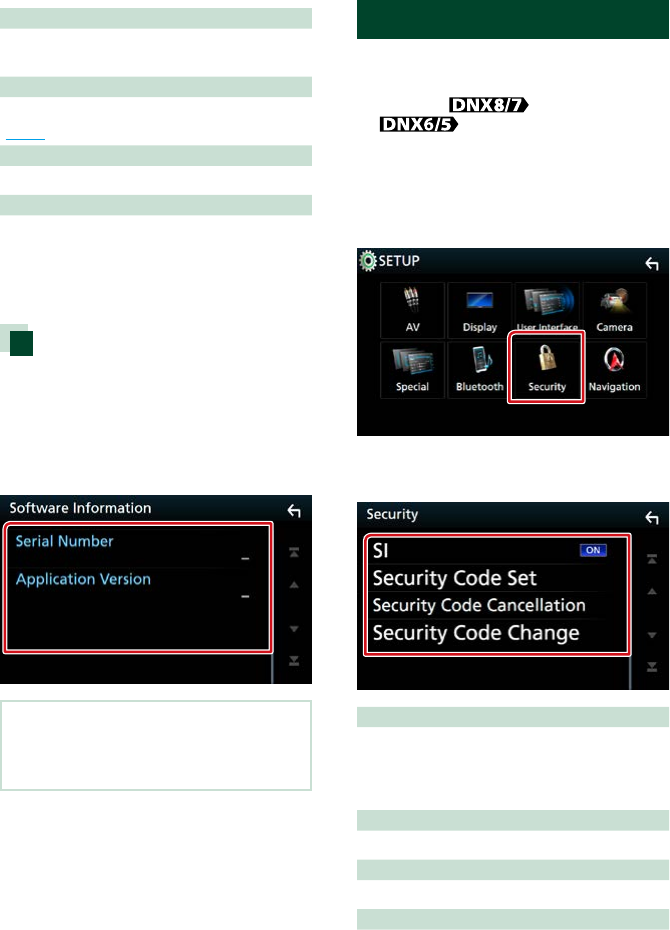
Setting Up
93
Audio SETUP Clear
Clears the AUDIO SETUP Memory and the
currently memorized audio setting.
Software Information
Check the software version of this unit.
(P.93)
Open Source Licenses
Displays the open source licenses.
Initialize
Touch [Initialize] and then touch [Yes] to set all
the settings to the initial default settings.
• Audio SETUP Memory is not initialized.
Software Information
Check the software version of this unit.
1 Touch [Software Information] in the
Special screen.
Software Information screen appears.
2 Confirm the software version.
NOTE
• For how to update the software, see the relevant
update procedure manual which comes with the
software.
Security Setup
You can set up a security code to protect
your receiver system against theft.
1 Press the <MENU> button/
volume knob.
Popup menu appears.
2 Touch [SETUP].
SETUP Menu screen appears.
3 Touch [Security].
Security screen appears.
4 Set each item as follows.
SI
A red indicator will blink on the unit after the ACC
is set to OFF, warning potential thieves. If turned
to “ON” (default), the security indicator on the
front panel flashes when the vehicle ignition is off.
Security Code Set *1
Register the security code for the unit.
Security Code Cancellation *1
Clear the security code.
Security Code Change *1
Change the security code.
*1 DNX7160BTS/ DNX5160BTS only
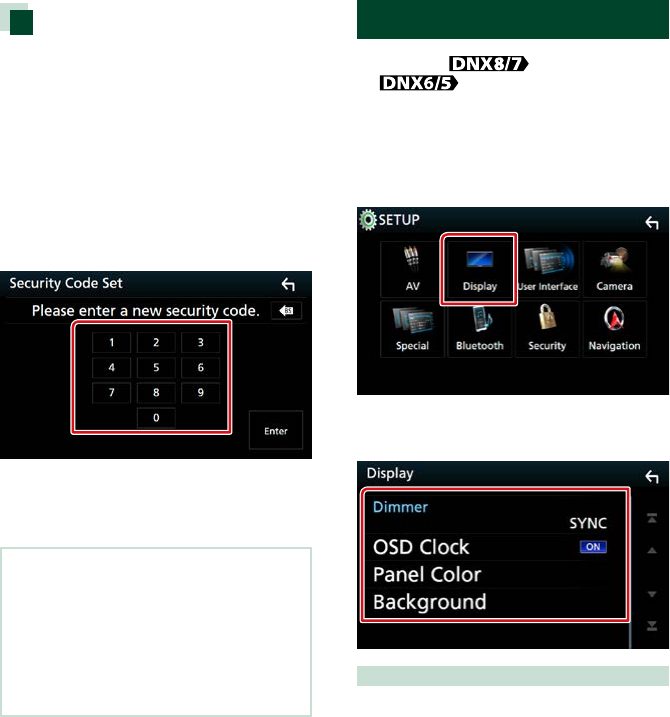
Setting Up
9494
Security Code
When the Security Code function is
activated, the code cannot be changed
and the function cannot be released. Note
the Security Code can be set as the 4 digit
number of your choice.
1 Touch [Security Code Set] on the
Security screen.
Security Code Set screen appears.
2 Enter a security code with four-digit
number and touch [Enter].
3 Enter the same code again and touch
[Enter].
Now, your security code is registered.
NOTE
• Touch [BS] to delete the last entry.
• If you enter a different security code, the screen
returns to step 4 (for the first code entry).
• if you have disconnected the Receiver from
battery, enter the correct security code as that
you have entered in step 4 and touch [Enter]. You
can use your receiver.
To change the security code:
1 Touch [Security Code Change] on the
Security screen, then repeat step 2 and
3.
To clear the security code:
1 Touch [Security Code Cancellation] on
the Security screen.
Display Setup
1 Press the <MENU> button/
volume knob.
Popup menu appears.
2 Touch [SETUP].
SETUP Menu screen appears.
3 Touch [Display].
Display screen appears.
4 Set each item as follows.
Dimmer
Select dimmer mode.
OFF: The display and buttons do not dim.
ON: The display and buttons dim.
SYNC (Default): Turns the dimmer function on
or off when the vehicle light control switch
is turned on or off.
NAV-SYNC: Turns the dimmer function on or
off according to the Navigation Day/Night
display setting.
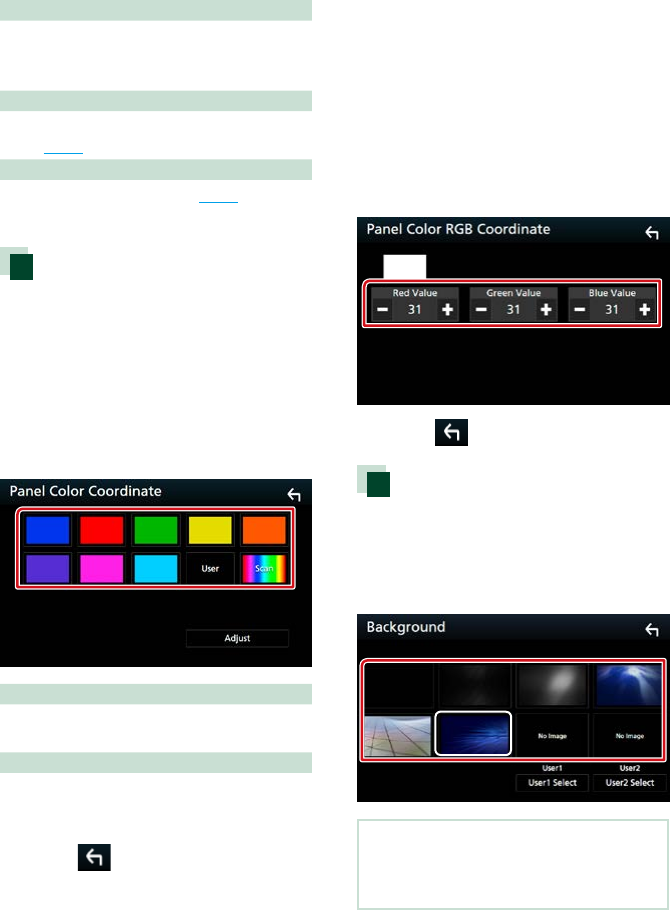
Setting Up
95
OSD Clock
Select if you want to display the clock while
watching DVD video, etc.
"ON" (Default)/ "OFF"
Panel Color
You can set the screen and button illumination
color. (P.95)
Background
Changing background image. (P.95)
Panel color coordinate
You can set the screen and button
illumination color.
The selectable items differ depending on the
unit.
1 Touch [Panel Color] in the Display
screen.
Panel Color Coordinate screen appears.
2 Touch the desired color.
User
The color you have set in the process of
[Adjust] is registered.
Scan
You can set the panel color to continuously
scan through the color spectrum.
3 Touch [ ].
Registering original color
You can register your original color.
1 Touch [User] in the Panel Color
Coordinate screen.
2 Touch [Adjust] .
Panel Color RGB Coordinate screen
appears.
3 Use [−] and [+] to adjust each color
value.
4 Touch [ ].
Changing background image
1 Touch [Background] in the Display
screen.
Background screen appears.
2 Select an image.
*1
NOTE
• *1 The color you have selected at [Panel Color]
is added on the image. If you select “Scan” at
[Panel Color], you cannot select this image.
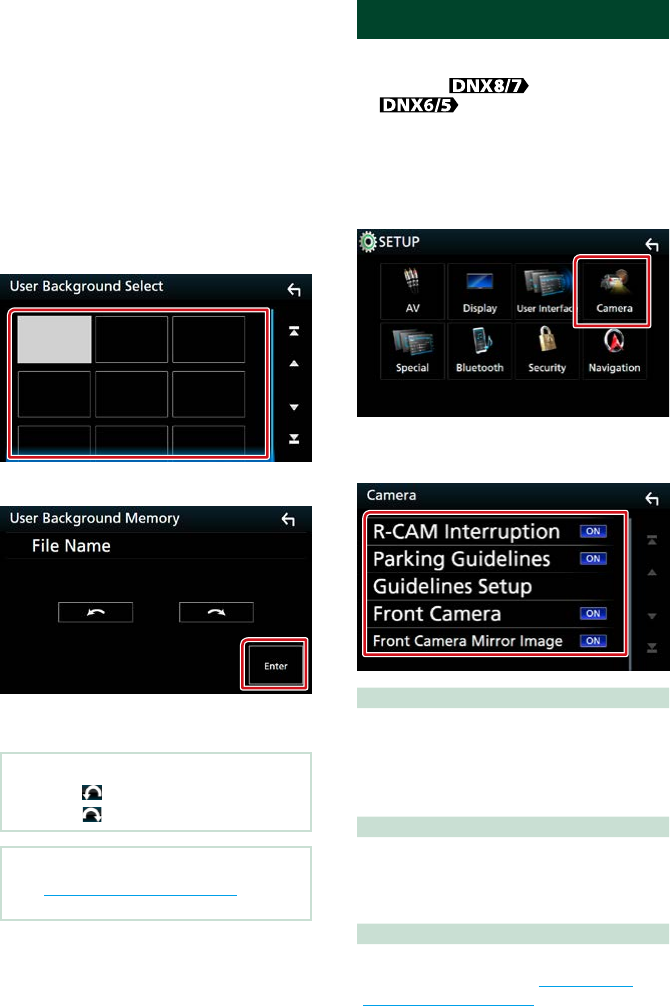
Setting Up
9696
Registering original image
You can load an image from the connected
USB device and set it for the background
image.
Before operating this procedure, it is
necessary to connect the device which has
the image to load.
1 Touch [User1 Select] or [User2 Select] in
the Background screen.
User Background File Select screen
appears.
2 Select the image to load.
3 Touch [Enter].
The selected image is loaded and the
display returns to the Background screen.
NOTE
• Touching [ ] rotates counter clockwise.
• Touching [ ] rotates clockwise.
NOTE
• See Playable Media and Files (P.120) for
readable image specifications.
Camera Setup
You can set camera parameters.
1 Press the <MENU> button/
volume knob.
Popup menu appears.
2 Touch [SETUP].
SETUP Menu screen appears.
3 Touch [Camera].
Camera screen appears.
4 Set each item as follows.
R-CAM Interruption
ON: Displays the picture from the rear view
camera when you shift the gear to the
reverse (R) position.
OFF (Default): Select this when no camera is
connected.
Parking Guidelines
You can display parking guidelines to enable
easier parking when you shift the gear to the
reverse (R) position.
Default is “ON”.
Guideline Setup
If you select [ON] for Parking Guidelines, adjust
the parking guidelines. See Adjusting the
parking guidelines (P.97).
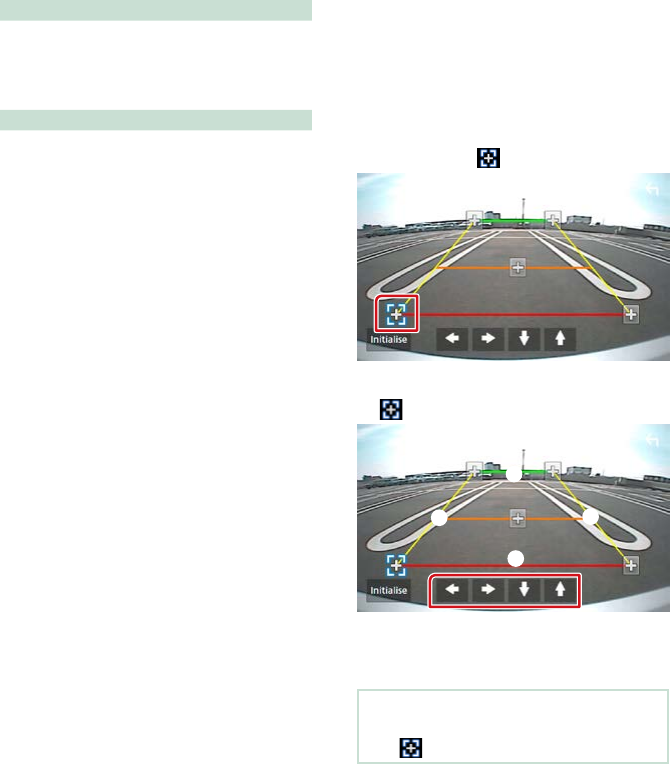
Setting Up
97
Front Camera
On: Activates the front view camera. Select this
to use the front view camera.
OFF (Default): Select this when no camera is
connected.
Front Camera Mirror Image
If you select [ON] for Front Camera.
On: Displays the picture from the front view
camera horizontally reversed.
OFF (Default): Displays the picture from the
front view camera as it is.
Adjusting the parking guidelines
1 Touch [ON] of [Parking Guidelines] in
the Camera screen.
2 Touch [Guideline Setup] in the Camera
screen.
3 Adjust the parking guidelines by
selecting the mark.
4 Adjusting the position of the selected
mark.
A
B
CD
Make sure that A and B are horizontally
parallel, and that C and D are the same
length.
NOTE
• Touch [Initialize] and after touch [Yes] to set all
the marks to the initial default position.
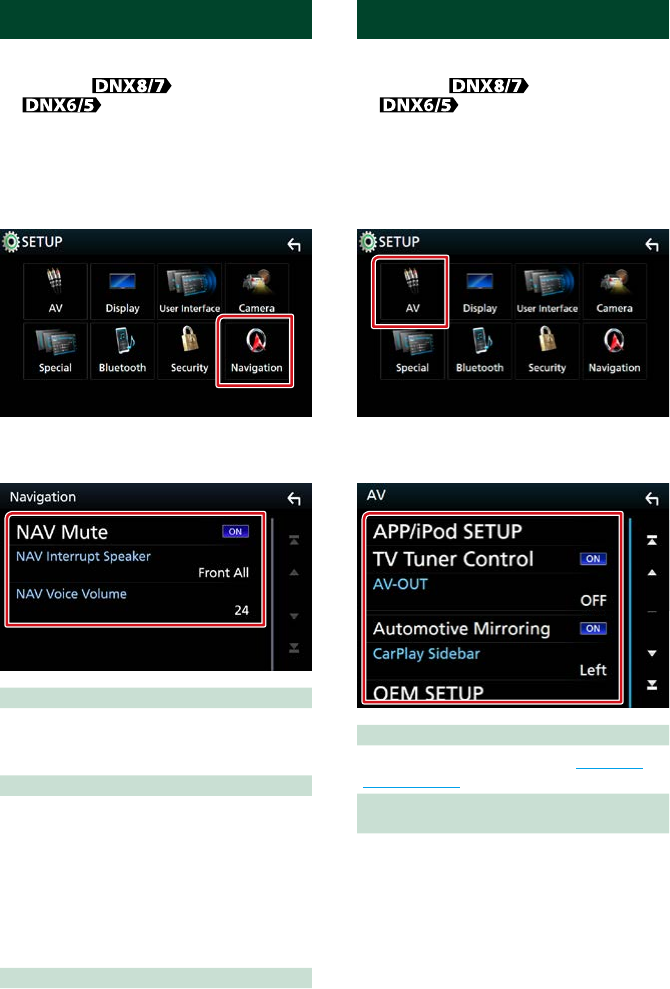
Setting Up
9898
Navigation Setup
You can set navigation parameters.
1 Press the <MENU> button/
volume knob.
Popup menu appears.
2 Touch [SETUP].
SETUP Menu screen appears.
3 Touch [Navigation].
Navigation SETUP screen appears.
4 Set each item as follows.
NAV Mute
Mutes the volume of rear speakers during
voice guidance of the navigation system.
Default is “ON”.
NAV Interrupt Speaker
Selects speakers used for voice guidance of the
navigation system.
Front L: Uses the front left side speaker for
voice guidance.
Front R: Uses the front right side speaker for
voice guidance.
Front All (Default): Uses both front speakers
for voice guidance.
NAV Voice Volume
Adjusts the volume for voice guidance of the
navigation system. Default is “24”.
AV Setup
You can set AV parameters.
1 Press the <MENU> button/
volume knob.
Popup menu appears.
2 Touch [SETUP].
SETUP Menu screen appears.
3 Touch [AV].
AV screen appears.
4 Set each item as follows.
APP/iPod SETUP
Set up APP/iPod connection. See APP/iPod
settings (P.31).
TV Tuner Control
(DNX7160BTS/ DNX5160BTS)
Sets when connecting the TV tuner to AV
INPUT.
ON: Set to ON when connecting the 3rd party
TV tuner. AV-IN1 Name is set to TV. If you
connect the TV tuner made by DOS and
watch TV, you can perform some simple
operations by touching the screen of this
unit.
OFF (Default): Set to OFF when not
connecting the 3rd party TV tuner.

Setting Up
99
AV-OUT
You can select an AV source to be output from
the AV OUTPUT port.
OFF, AV-IN, AV-IN1, AV-IN2, DISC, USB, SD, or
iPod
• You cannot select iPod if it is connected via
Bluetooth.
• If you select USB, SD, iPod, Disc, Mirroring,
Bluetooth audio, Apple CarPlay or Android
Auto as the main source, you cannot select
USB, SD or iPod as the AV output source.
Automotive Mirroring
Select “ON” to use Apple CarPlay or Android
Auto.
"ON" (Default)/ "OFF"
CarPlay Sidebar
Select the position of the control bar (left or
right) shown on the touch panel.
“Left” (Default)/ “Right”
OEM SETUP
Confirm the information about/ change the
settings for using the ADS adapter.
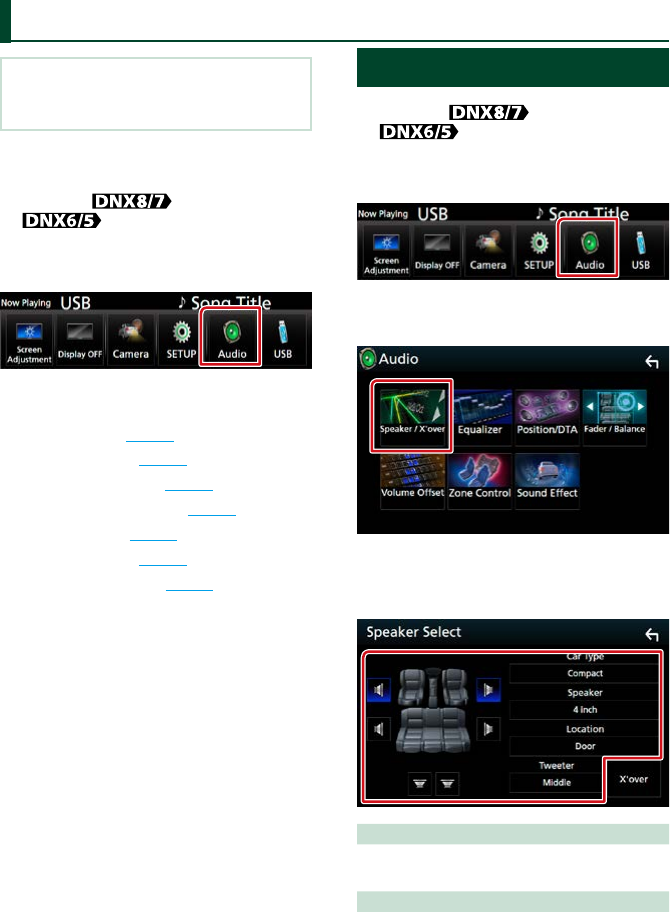
Controlling Audio
100100
NOTE
• Each operation in this section can be started from
the multi function menu.
You can adjust the various settings such as
audio balance or subwoofer level.
1 Press the <MENU> button/
volume knob.
Popup menu appears.
2 Touch [Audio].
Audio screen appears.
See the following section for each setting.
• Set up speakers (P.100)
• Controlling audio (P.103)
• Controlling equalizer (P.104)
• Performing zone control (P.106)
• Set sound effect (P.107)
• Set volume offset (P.105)
• Set listening position (P.108)
Speaker/ X’over setup
1 Press the <MENU> button/
volume knob.
Popup menu appears.
2 Touch [Audio].
Audio screen appears.
3 Touch [Speaker/X’over].
Speaker Select screen appears.
4 Touch the speaker you wish to adjust
and set each item as follows.
Car Type
You can setup the car type and speaker
network, etc.
Speaker
You can select a speaker type and its size to
get the best sound effects.
When the speaker type and size are set, the
speaker crossover network is set automatically.
Controlling Audio

Controlling Audio
101
Location (Only for Front, Rear)
Select the speaker position you have fixed.
Tweeter (Only for Front)
You can set the tweeter when you are
selecting front speakers.
None, Small, Middle, Large
X’over
Displays the speaker crossover setup screen.
You can adjust the crossover setup that was set
automatically when you selected the speaker
type.
For details, see Crossover network setup
(P.102)
5 Select an item.
Car Type
You can setup the car type and speaker
network, etc.
• If your car type is selected, the Delay Time
Alignment is set automatically (for timing
adjustment of sound output for each channel)
to have the highest surround effects.
Speaker
Front
OEM, 3-1/2 inch, 4 inch, 4-3/4 inch, 5 inch,
6-1/2 inch, 6-3/4 inch, 7 inch, 4x6, 5x7, 6x8,
6x9, 7x10
Rear
None, OEM, 3-1/2 inch, 4 inch, 4-3/4 inch, 5
inch, 6-1/2 inch, 6-3/4 inch, 7 inch, 4x6, 5x7,
6x8, 6x9, 7x10
Subwoofer
None, 6 1/2 inch, 8 inch, 10 inch, 12 inch, 15
inch over
• Select “None” if you have no speakers.
Location
Front
Select the location from “Upper Door Area”/
“Lower Door Area”/ “On Dash”/ “Under Dash”.
Rear
Select the location from “Upper Door Area”/
“Lower Door Area”/ “Upper Cargo Area”*1/
“Lower Cargo Area”*1/ “Upper 3rd Row Area”*2/
“Lower 3rd Row Area”*2/ “Parcel Shelf Area”*3
*1 “Compact”/ “Wagon”/ “SUV”
*2 “Minivan”/ “Minivan (Long)”
*3 “OFF”/ “Full Size Car”
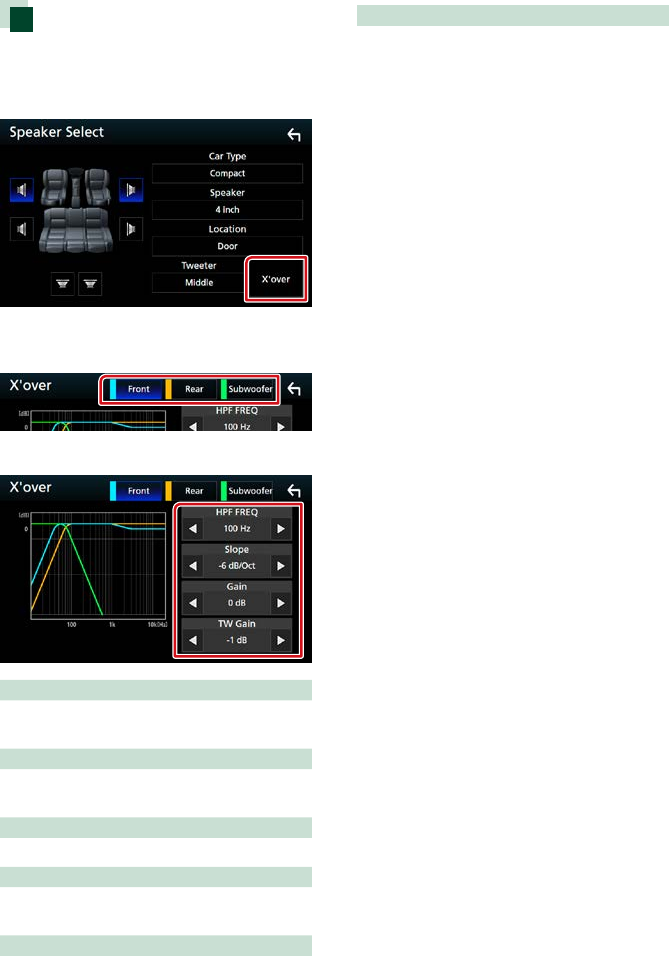
Controlling Audio
102102
Crossover network setup
You can set a crossover frequency of
speakers.
1 Touch [X’over].
X’over screen appears.
2 Touch the speaker to set.
3 Set each item as follows.
HPF FREQ
High Pass Filter adjustment. (When front or rear
speaker is selected on Speaker Select screen)
LPF FREQ
Low Pass Filter adjustment. (When subwoofer
is selected on Speaker Select screen)
Slope*3
Sets a crossover slope.
Gain
Adjusts the front speaker, rear speaker, or
subwoofer level.
TW (Tweeter) Gain *1
Adjusts the tweeter level. (When front is
selected on Speaker Select screen)
Phase Inversion*2
Sets the phase of subwoofer output.
Check [Phase Inversion] to shift the phase
180 degrees. (When subwoofer is selected on
Speaker Select screen)
*1 Only when “Tweeter” is set to “Small”,
“Middle”, “Large” in <Speaker Setup>.
*2 Only when “Subwoofer” is set to a mode
other than “None” in <Speaker Setup>.
*3 Only when “LPF FREQ”/“HPF FREQ” is set to
a mode other than “Through” in <X’over>.
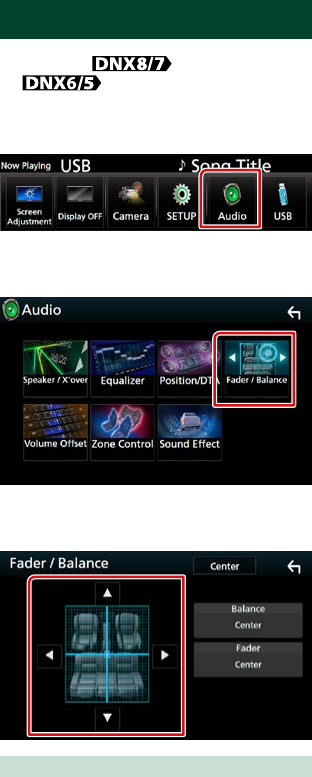
Controlling Audio
103
Controlling General Audio
1 Press the <MENU> button/
volume knob.
Popup menu appears.
2 Touch [Audio].
Audio screen appears.
3 Touch [Fader / Balance].
Fader / Balance screen appears.
4 Set each item as follows.
Fader / Balance
Adjust the volume balance around the
touched area.
[C] and [D] adjust the right and left volume
balance.
[R] and [S] adjust the front and rear volume
balance.
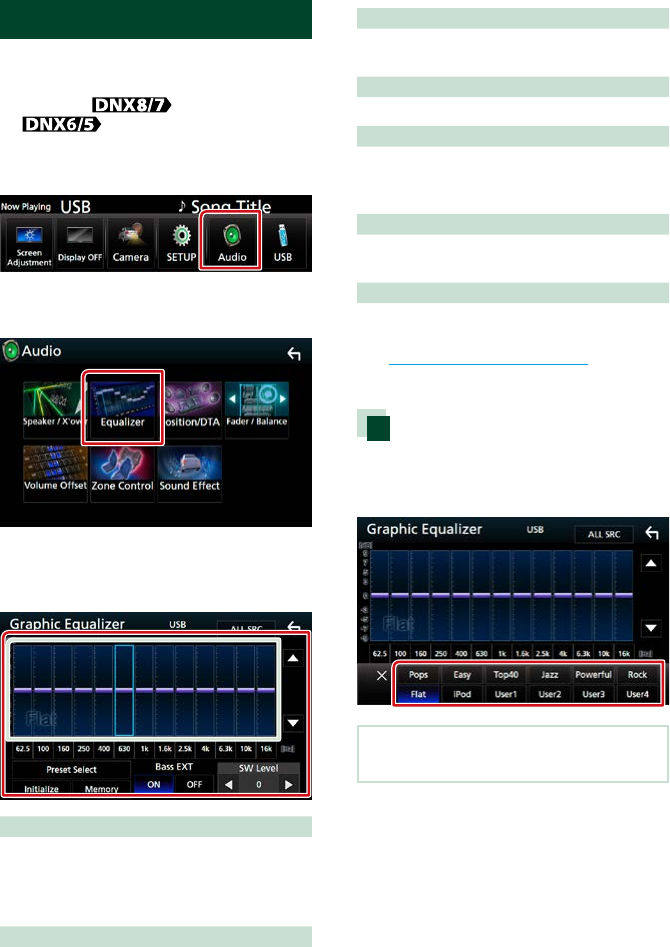
Controlling Audio
104104
Equalizer Control
You can adjust equalizer by selecting the
optimized setting for each category.
1 Press the <MENU> button/
volume knob.
Popup menu appears.
2 Touch [Audio].
Audio screen appears.
3 Touch [Equalizer].
Equalizer screen appears.
4 Touch the screen and set the Graphic
Equalizer as desired.
Gain level (light green boxed area)
Adjust the gain level by touching the each
frequency bar.
You can select frequency bar and adjust its
level by [R], [S].
Preset Select
Displays the screen to recall the preset
equalizer curve.
Memory
Saves the adjusted equalizer curve to “User1”
to “User4”.
Initialize
The current EQ curve returns to flat.
ALL SRC
Apply the adjusted equalizer to all sources.
Touch [ALL SRC] and then touch [OK] on the
confirmation screen.
Bass EXT (Bass Extend Settings)
When turned on, the frequency lower than
62.5 Hz is set to the same gain level as 62.5 Hz.
SW Level
Adjusts the subwoofer volume. This setting is
not available when subwoofer is set to “None”.
See Speaker/ X’over setup (P.100).
Recall the EQ curve
1 Touch [Preset Select].
2 Select EQ curve.
NOTE
• [iPod] is available only during iPod source.
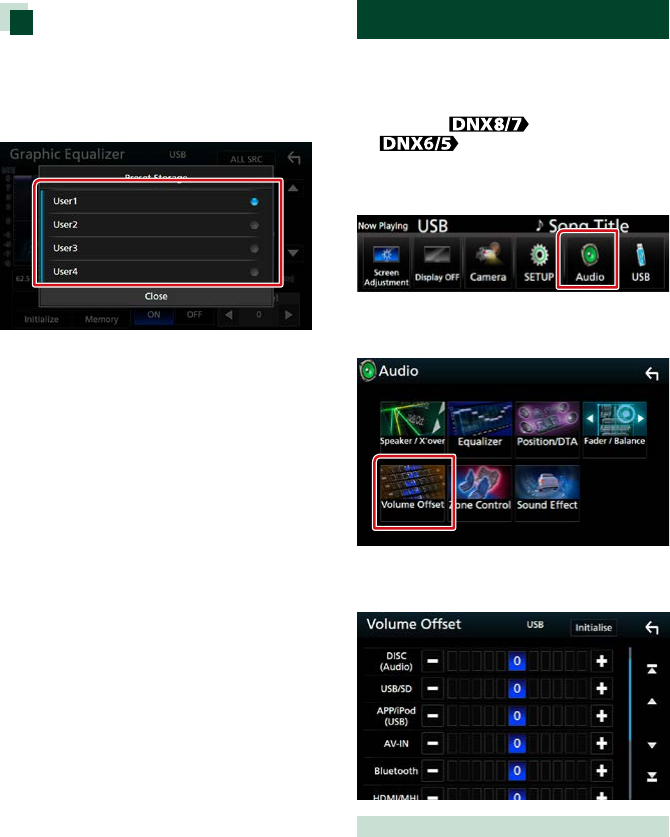
Controlling Audio
105
Save the EQ curve
1 Adjust the EQ curve.
2 Touch [Memory].
3 Select where to save.
Volume Offset
Finely adjust the volume of the current
source to minimize the difference in volume
between different sources.
1 Press the <MENU> button/
volume knob.
Popup menu appears.
2 Touch [Audio].
Audio screen appears.
3 Touch [Volume Offset].
Volume Offset screen appears.
4 Touch [+] or [−] to adjust the level.
Initialize
Returns to the initial settings.
* If you have increased the volume first, then
reduced the volume using the “Volume
Offset”, the sound generated if you
suddenly switch to another source may be
extremely loud.
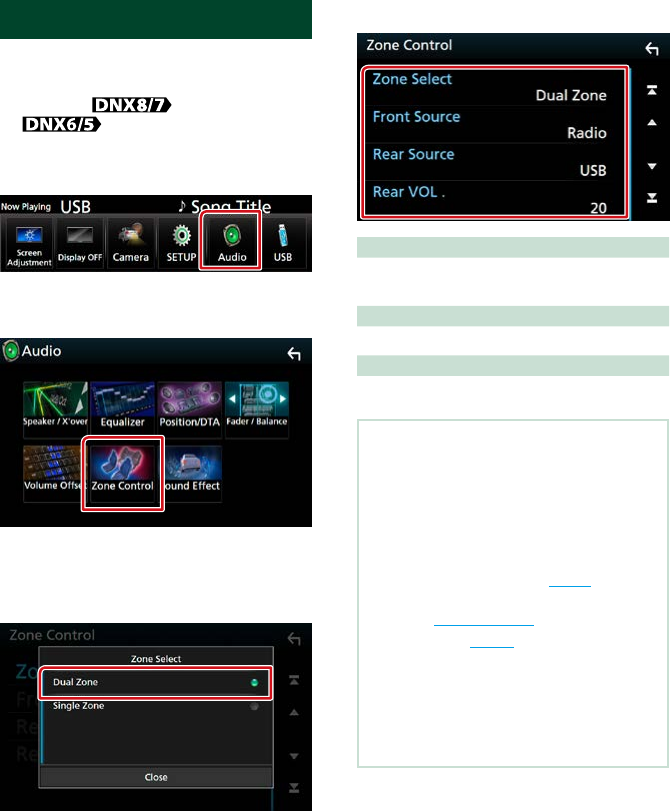
Controlling Audio
106106
Zone Control
You can select different sources for both
front and rear positions in the vehicle.
1 Press the <MENU> button/
volume knob.
Popup menu appears.
2 Touch [Audio].
Audio screen appears.
3 Touch [Zone Control].
Zone Control screen appears.
4 Touch [Zone Select].
5 Touch [Dual Zone].
6 Set each source as follows.
[Zone Select]
Touch [Single Zone] to turn off the dual zone
function.
[Front Source] [Rear Source]
Select the audio source for each.
[Rear VOL.]
Adjusts the rear channel volume.
NOTE
• When the rear speaker sound is switched, the
audio source that is output at the AV OUTPUT
terminal is also switched to the same source.
• When the dual zone function is set to on, the
following functions are not available.
–Output from the subwoofer
–Subwoofer Level/ Bass Boost (P.107)
–Equalizer Control/ Sound Effect/ Listening
Position (P.104, 107, 108)
–Speaker Setup (P. 100)
• You cannot select iPod if it is connected via
Bluetooth.
• If you select USB, SD, iPod, Disc, Mirroring,
Bluetooth audio, Apple CarPlay or Android Auto
as the Front Source, you cannot select USB, SD or
iPod as the Rear Source.
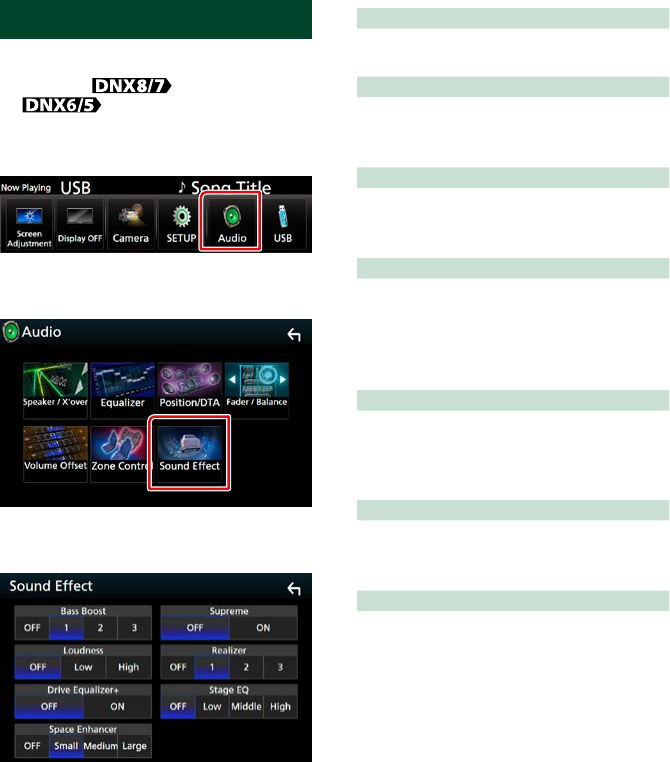
Controlling Audio
107
Sound Effect
You can set sound effects.
1 Press the <MENU> button/
volume knob.
Popup menu appears.
2 Touch [Audio].
Audio screen appears.
3 Touch [Sound Effect].
Sound Effect screen appears.
4 Set each item as follows.
Bass Boost
Sets the amount of bass boost among “OFF”/
“1”/ “2”/ “3”.
Loudness
Sets the amounts of boost of low and high
tones.
“OFF”, “Low”, “High”
Drive Equalizer+
The sound quality is automatically optimized
to meet the current car speed by GPS.
“OFF”, “ON”
Space Enhancer
Select the feeling of sound space
enhancement.
“OFF”/ “Small”/ “Medium”/ “Large”.
• This setting is not available during HD Radio
tuner source.
Supreme
Turns ON/OFF the Supreme function.
Technology to extrapolate and supplement
with proprietary algorithm, the high-frequency
range that is cut off when encoding.
Realizer
Virtually makes the sound more realistic using
the Digital Signal Processor (DSP) system.
Select the level from “OFF”/ “1”/ “2”/ “3”.
Stage EQ
You can adjust the height of speakers virtually
to suit your listening position.
“OFF”/ “Low”/ “Middle”/ “High”.
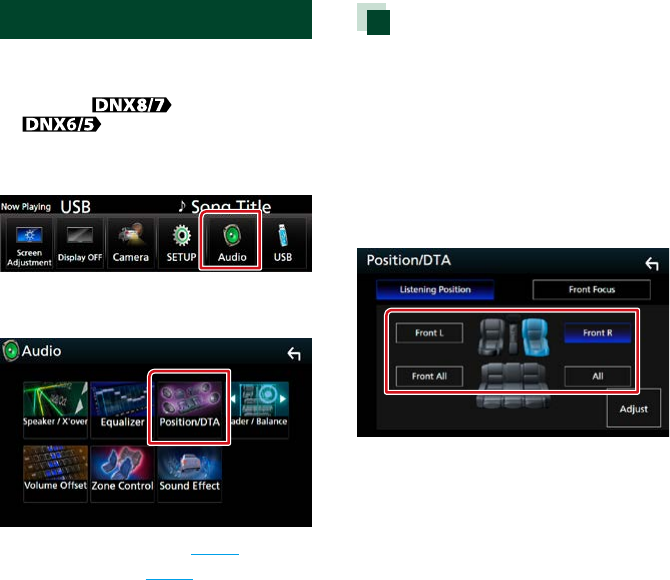
Controlling Audio
108108
Listening Position/ DTA
You can adjust the sound effects according
to your listening position.
1 Press the <MENU> button/
volume knob.
Popup menu appears.
2 Touch [Audio].
Audio screen appears.
3 Touch [Position/DTA].
• Set up Listening Position (P.108)
• Set up Front Focus (P.110)
Listening Position
Adjust the sound delay time as nearer
speakers to the selected seat have more
delay time, so that the sound from each
speaker arrive a listener at the same time.
1 Touch [Listening Position] in the
Position/DTA screen.
2 Select listening position from [Front R]
(Right front), [Front L] (Left front),
[Front All] (All front), and [All].
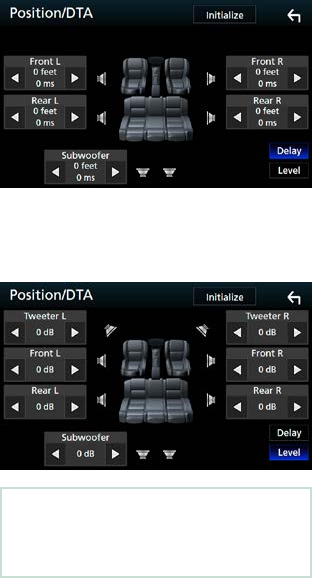
Controlling Audio
109
Position DTA control
You can fine-adjust your listening position.
1 Touch [Adjust].
2 Touch [Delay].
3 Touch [T] or [U] to adjust the delay
time of the selected speaker.
4 Touch [Level].
5 Touch [T] or [U] to adjust the sound
level of the selected speaker.
NOTE
• To return to the initial setting of Delay and Level,
touch [Initialize] and [YES] in the confirmation
screen.
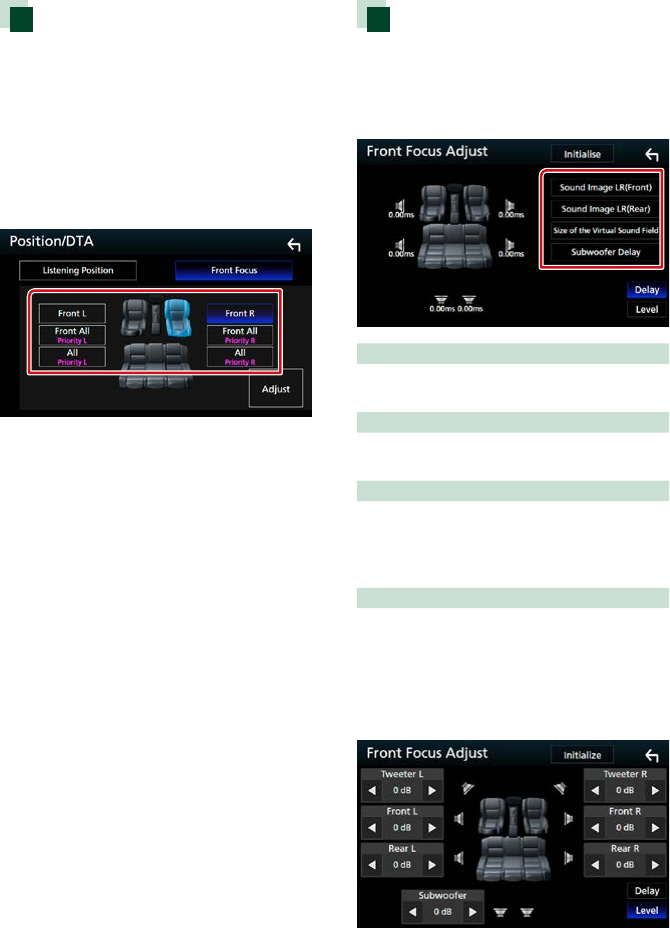
Controlling Audio
110110
Front Focus
This is the function to focus the imaginary
sound image in front of the selected seat.
1 Touch [Front Focus] in the Position/DTA
screen.
2 Select a front focus position.
For [Front All] and [All], select Priority L or R
depending on which side you want to put
the imaginary sound image.
Front Focus fine adjustment
1 Touch [Adjust].
2 Touch [Delay].
3 Set each item as follows.
Sound Image LR (Front)
Adjust the sound image to focus on in front of
front seats.
Sound Image LR (Rear)
Adjust the sound image to focus on in front of
rear seats.
Size of the Virtual Sound Field
Adjust the size of sound image to meet your
taste. If the sound image is shifted from the
front, adjust it by [Sound Image LR (Front)] or
[Sound Image LR (Rear)].
Subwoofer Delay
Adjust the delay time of subwoofer.
4 Touch [Level].
5 Touch [T] or [U] to adjust the sound
level of the selected speaker.

Controlling Audio
111
NOTE
• To return to the initial setting of Delay and Level,
touch [Initialize] and [YES] in the confirmation
screen.
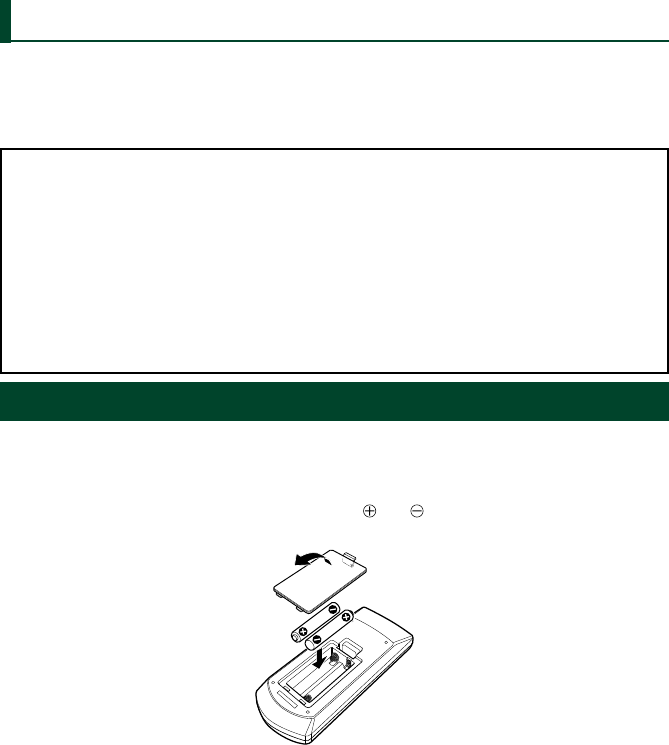
Remote control
112112
Remote control
This unit can be operated using the remote control.
For DNX7160BTS, and DNX5160BTS, the remote control is supplied with the unit.
For DNX893S, DNX773S, DNX693S, and DNX573S the remote control is the optional accessory
(KNA-RCDV331).
2CAUTION
• Put the remote control in a place where it will not move during braking or other operations. A
dangerous situation could result, if the remote control falls down and gets wedged under the pedals
while driving.
• Do not leave the battery near fire or under direct sunlight. A fire, explosion or excessive heat
generation may result.
• Do not recharge, short, break up or heat the battery or place it in an open fire. Such actions may cause
the battery to leak fluid. If spilled fluid comes in contact with your eyes or on clothing, immediately
rinse with water and consult a physician.
• Place the battery out of reach of children. In the unlikely event that a child swallows the battery,
immediately consult a physician.
Battery Installation
If the remote control operates only over shorter distances or does not operate at all, it is possible
that the batteries are depleted.
In such instances, replace the both batteries with new ones.
1 Insert two “AAA”/“R03”-size batteries with the and poles aligned properly, following
the illustration inside the case.
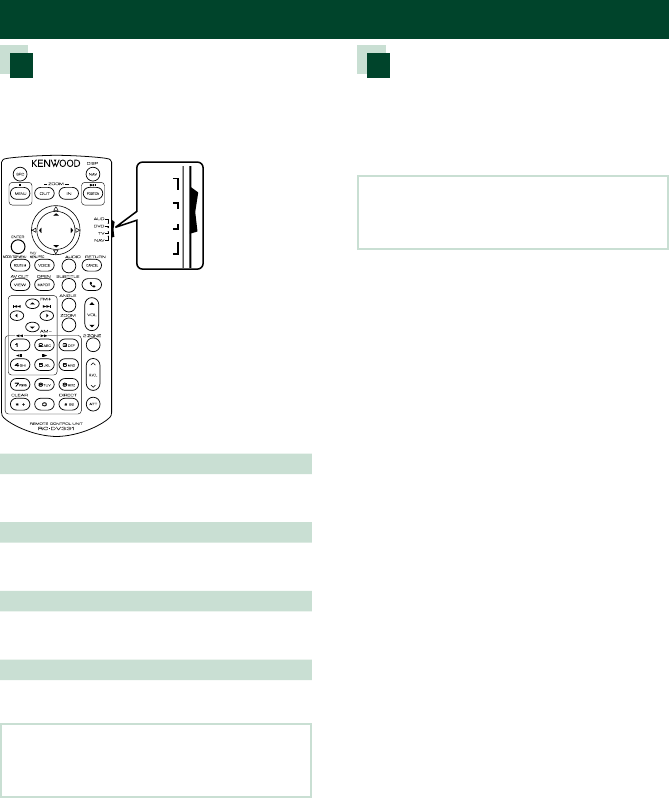
Remote control
113
Functions of the Remote control Buttons
Switching the operation mode
The functions operated from the remote
control differ depending on the position of
the mode switch.
DVD
TV
NAV
AUD
s
s
s
s
AUD mode
Switch to this mode when controlling a
selected source or tuner source, etc.
DVD mode
Switch to this mode when playing a disc
media including DVD, VCD, and CD.
NAV mode
Switch to this mode when controlling
navigation function.
TV mode
Not used.
NOTE
• When controlling a player that is not integrated in
the unit, select “AUD” mode.
Direct search mode
Using the remote control, you can jump
directly to the desired file, track chapter, etc.
with entering the number corresponding to
the content.
NOTE
• This operation cannot be performed for USB
device and iPod.
1 Press the <#BS> button several times
until the desired content appears.
The available contents are different
depending on the source.
DVD
Title number/Chapter number
VCD 1.X and 2.X (PBC OFF)
Track number
VCD 2.X (PBC ON)
Scene number/Track number
Music CD
Track number
Radio
Frequency value
HD Radio tuner
Frequency value/Channel number
SiriusXM
Channel number
2 Enter the number of the content you
want to play using the numeric keypad.
3 For DVD or VCD, music CD, press the
<ENTER> button.
For radio, press the <C> or <D> button.
The content you entered is played.
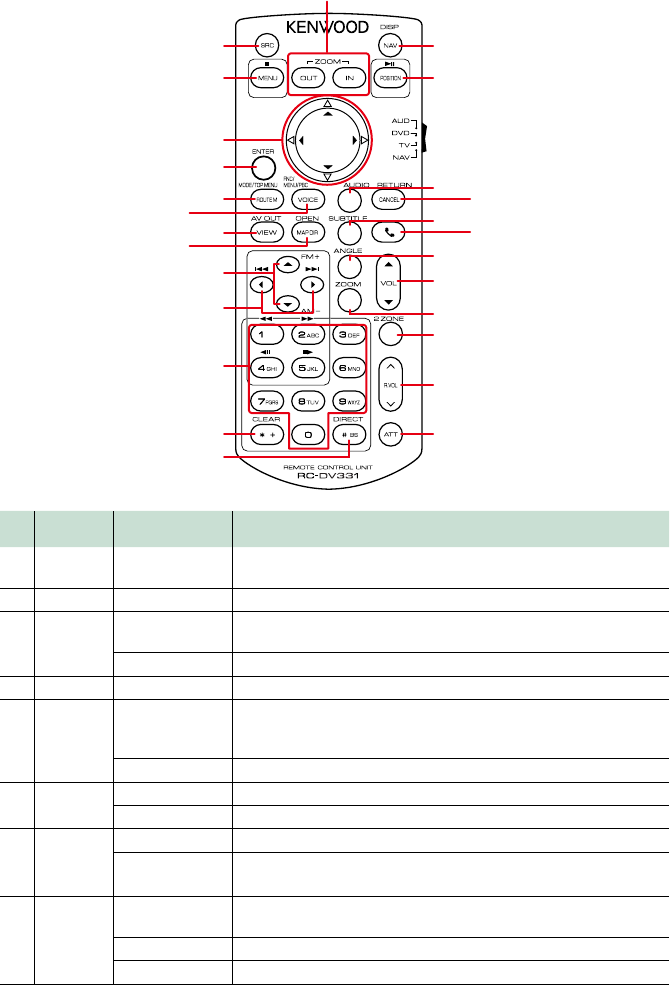
Remote control
114114
12
5
17
19
21
22
23
24
25
26
18
20
3
6
7
8
10
12
13
14
15
16
9
11
4
Key
Name
Location of
the mode switch
Function
1SRC AUD Switches to the source to be played.
In hands-free mode, hangs up the phone.
2NAV −Switches between the navigation and the source screens.
3MENU DVD Stops playing and memorizes the last point where the disc
stopped. The last point is deleted by pressing twice.
NAV Displays Main menu.
4OUT, IN NAV Zooms in or out the navigation map.
5POSITION AUD, DVD Pauses the track or file, and resumes playing by pressing twice.
During radio, HD Radio, and SiriusXM source in AUD mode,
switches the seek mode.
NAV Displays the current position.
6Cursor Key DVD Moves the cursor in the DVD menu.
NAV Moves the cursor or scrolls the map.
7ENTER AUD, DVD Performs the selected function.
NAV • Registers the selected position.
• Performs the selected function.
8ROUTE M AUD Screen mode changes each time you press this key during video
playback.
DVD Returns to the DVD top menu.
NAV Displays Route Option menu.
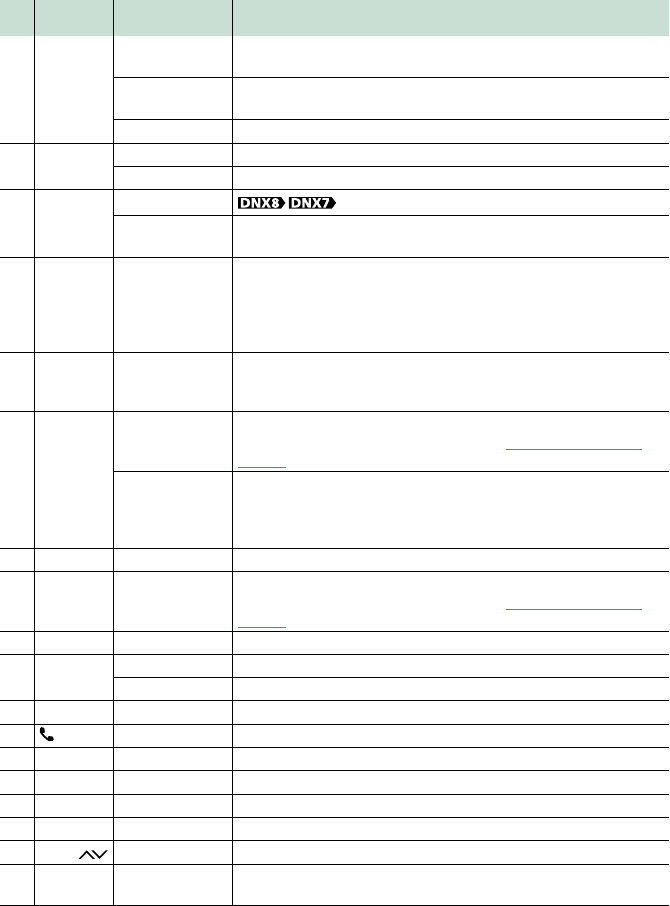
Remote control
115
Key
Name
Location of
the mode switch
Function
9VOICE AUD Displays the control screen of current source. (USB/ SD/ iPod/
DISC)
DVD Displays the DVD menu.
Turns the playback control on or off while playing VCD.
NAV Speaks the voice guidance.
10 VIEW AUD, DVD Switches the AV source to be output.
NAV Switches between 2D and 3D map displays.
11 MAP DIR AUD, DVD Switches the display angle each time it is pressed.
NAV Switches between the heading up navigation and north up
navigation map displays.
12 R/SAUD, DVD Selects the folder to be played.
During radio and HD Radio source in AUD mode, select FM/ AM
band to be received.
During SiriusXM source in AUD mode, switches the bands to be
received.
13 C/DAUD, DVD Selects the track or file to be played.
During radio, HD Radio, and SiriusXM source in AUD mode,
switches to broadcast stations received by the unit.
14 Numeric
Keypad
AUD Specifies the number to search in direct search.
For details on the direct search mode, see Direct search mode
(P.113).
DVD • Press [1] [2] to fast forward/backward.
• Press [4] [5] to slow forward/backward. Switches the slow
playback speed each time you press this key.*
*DVD only
15 * + DVD Clears the number.
16 # BS AUD, DVD Switches to the direct search mode.
For details on the direct search mode, see Direct search mode
(P.113).
17 AUDIO DVD Switches the voice language each time you press this key.
18 CANCEL DVD Displays previous screen.
NAV Cancels the operations.
19 SUBTITLE DVD Switches the subtitle language.
20 −When a call comes in, answers the call.
21 ANGLE DVD Switches the picture angle each time you press this key.
22 Vol RS −Adjusts the volume.
23 ZOOM DVD Switches the zoom ratio (2, 3, 4, Off) each time you press this key.
24 2 ZONE AUD, DVD Switches the Dual Zone function on and off.
25 R.VOL −Adjusts volume at rear when the Dual Zone function is on.
26 AT T −Lowers the volume by pressing the key once.
Restores the previous volume by pressing the key twice.
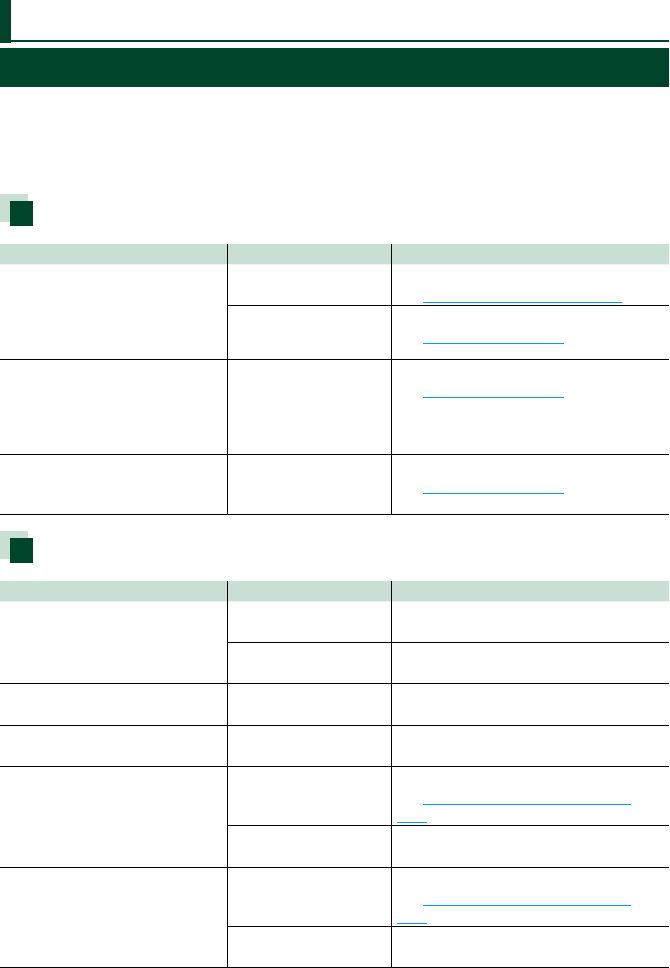
Troubleshooting
116116
Problems and Solutions
If any trouble occurs, first check the following table for possible problems.
• Some functions of this unit may be disabled by some settings made on this unit.
• What might seem to be a malfunction in your unit may just be the result of slight misoperation
or miswiring.
About settings
Problem Reason Solution
• Cannot set up the subwoofer.
• Cannot set up subwoofer phase.
• No output from the subwoofer.
• Cannot set up the low pass filter.
• Cannot set up the high pass filter.
Subwoofer is not set
to on.
Set the subwoofer to on.
See Speaker/ X’over setup (P.100).
The dual zone function
is enabled.
Set the dual zone function to off.
See Zone Control (P.106).
• Cannot select the output
destination of the subsource in
the dual zone.
• Cannot adjust the volume of the
rear speakers.
The dual zone function
is disabled.
Set the dual zone function to on.
See Zone Control (P.106).
• Cannot set up the equalizer.
• Cannot set up the crossover
network.
The dual zone function
is enabled.
Set the dual zone function to off.
See Zone Control (P.106).
About audio operations
Problem Reason Solution
Radio reception is poor. The car antenna is not
extended.
Pull out the antenna all the way.
The antenna control
wire is not connected.
Connect the wire correctly.
See “Connection” in the Quick Start Guide.
Cannot select a folder. The random play
function is enabled.
Turn off the random function.
Cannot perform repeat play
during VCD playback.
The PBC function is
enabled.
Turn off the PBC function.
The specified disc does not play,
but another one plays instead.
The disc is quite dirty. Clean the disc.
See Precautions on handling discs
(P.4).
The disc is severely
scratched.
Try another disc instead.
The sound skips when an audio
file is being played.
The disc is scratched
or dirty.
Clean the disc.
See Precautions on handling discs
(P.4).
The recording
condition is bad.
Record the file again or use another disc.
Troubleshooting
Troubleshooting
117
Other
Problem Reason Solution
The Touch Sensor Tone doesn’t
sound.
The preout jack is being
used.
The Touch Sensor Tone cannot be output
from the preout jack.
Error Messages
When you fail to operate the unit correctly, the cause of the failure appears as the message on
the screen.
Error Message Cause Solution
here is an error
in the speaker
wiring. Please
check the
connections.
Protective circuit has been activated
because a speaker cord has shorted
or it has come in contact with the
car chassis.
Wire or insulate the speaker cord as
appropriate and turn the power off and on
again.
Hot Error When the internal temperature of
this unit rises to 60°C or more, the
protection circuit is activated and
you may not be able to operate
the unit.
Use the unit again after reducing the
temperature of the unit.
Mecha Error The disc player is malfunctioning. Eject the disc and try inserting it again.
Contact the KENWOOD dealer if this indicator
continues blinking or the disc cannot be
ejected.
Disc Error An unplayable disc is inserted. Change the disc.
See Playable Media and Files (P.120).
Read Error The disc is quite dirty. Clean the disc.
See Precautions on handling discs (P.4).
Disc is upside down. Load the disc with the labeled side up.
Region Code
Error
The disc you wanted to play has a
region code that cannot be played
with this unit.
See Region Codes in the World (P.126) or
try another disc.
Error 07–67 The unit is not operating correctly
due to some reason or other.
Turn the power off and on again. If the “Error
07−67” message does not disappear, see your
nearest KENWOOD dealer.
No Device (USB
device)
The USB device is selected as a
source although no USB device is
connected.
Change the source to any source other than
USB/iPod. Connect a USB device, and change
the source to USB again.
Disconnected
(iPod, Bluetooth
audio player)
The iPod/Bluetooth audio player
is selected as a source although
no iPod/Bluetooth audio player is
connected.
Change the source to any source other than
iPod/Bluetooth. Connect an iPod/Bluetooth
audio player, and change the source to iPod/
Bluetooth again.
No Media file The connected USB device contains
no playable audio file. Media was
played that doesn’t have data
recorded that the unit can play.
See Playable Media and Files (P.120) and
try another USB device.
Troubleshooting
118118
Error Message Cause Solution
USB device
over current
status detected.
The connected USB device is rated
a current capacity higher than the
allowable limit.
Check the USB device. Some trouble may have
occurred to the connected USB device.
Change the source to any source other than
USB. Remove the USB device.
Navigation
Error. Please
turn on power
again later.
The communication error has
occurred due to severely cold
temperature.
Turn on power again after warming your car
interior.
SiriusXM
Problem Reason Solution
Check Tuner A SiriusXM tuner is not connected
to this unit.
Verify that the SiriusXM Connect Vehicle Tuner
cable is securely connected to the radio.
Subscription
Updated - Press
Return To
Continue
The SiriusXM subscription has been
renewed.
Pressing the Control knob will clear the
message.
SXM Chan
Unavailable
The currently selected channel is
unavailable. —
SXM Ch
Unsubscribed
The currently selected channel is
not subscribed to. —
SXM Check
Antenna
No antenna is connected to the
SiriusXM tuner.
Check that an antenna is connected to the
SiriusXM tuner. Check antenna for damages.
SXM No Signal No SiriusXM radio signal is received. Verify that your vehicle is outdoors with a clear
view of the sky.
Channel
Locked
The selected channel has been
locked by the parental controls.
Enter the unlock code when you are asked.
See Parental Control (P.71).
Incorrect Pass
Code entered
The selected channel is a mature or
parental lock channel, and locked by
the parental lock or user lock code.
Enter the correct lock code.
Troubleshooting
119
Appendix
120120
Appendix
Playable Media and Files
You can play various kinds of media and files on this unit.
List of playable discs
Disc types Standard Support Remark
DVD DVD Video ‡
DVD Audio ×
DVD-VR ×
DVD-R*1ॠMP3/ WMA/ AAC/ WAV/ FLAC/ Vorbis/ MPEG1/
MPEG2/ MPEG4/ H.264/ WMV/ MKV playback
• Multi-border/Multisession playback (Playback
depends on authoring conditions)
DVD-RW ‡
DVD+R ‡
DVD+RW ‡
DVD-R DL (Dual layer) ‡Only video format
DVD+R DL (Double layer) ‡
DVD-RAM ×
CD Music CD*1‡
CD-ROM ॠMP3/ WMA/ AAC/ WAV/ FLAC/ Vorbis playback
• Multisession is supported.
• Packet write is not supported.
CD-R ‡
CD-RW ‡
DTS-CD ×
Video CD (VCD) ‡
Super video CD ×
Photo CD ×
CD-EXTRA %Only music CD session can be played.
HDCD ‡
CCCD ×
Others Dualdisc ×
Super audio CD %Only CD layer can be played.
*1 Incompatible with 8 cm (3 inch) discs.
‡ : Playback is possible.
% : Playback is partly possible.
× : Playback is impossible.
Appendix
121
■Use of DualDisc
When playing a “DualDisc” on this unit, the surface of the disc that is not played may be scratched while the disc is
inserted or ejected. Since the music CD surface does not conform to the CD standard, playback may be impossible.
(A “DualDisc” is a disc with one surface containing DVD standard signals and the other surface containing music CD
signals.)
■About disc format
The disc format should be the one of the following.
• ISO 9660 Level 1/2
• Joliet
• Romeo
• Long file name
About files
The following audio, video, and picture files are supported.
■Playable Audio files
Bit rate Sampling frequency Bit count
AAC-LC (.m4a) 8 – 320kbps, VBR 16 – 48 kHz 16 bit
MP3 (.mp3) 8 – 320kbps, VBR 16 – 48 kHz 16 bit
WMA (.wma) 8 – 320kbps 16 – 48 kHz 16 bit
Linear PCM (WAVE) (.wav) –16 – 48 kHz (Disc),
16 – 192 kHz (USB/ SD)
16/ 24 bit
FLAC (.flac) –16 – 48 kHz (Disc),
16 – 192 kHz (USB/ SD)
16/ 24 bit
Vorbis (.ogg) VBR 16 – 48 kHz 16 bit
NOTE
• If music of normal CD and other playback systems are recorded in the same disc, only the playback system
recorded at the first setout is played.
• WMA and AAC of which is covered with DRM cannot be played.
• Although the audio files are complied with the standards listed above, the play may be impossible depending on
the types or conditions of media or device.
• An online manual about audio files is put on the site, www.kenwood.com/cs/ce/audiofile/.
On this online manual, detailed information and notes which are not written in this manual are provided. Make
sure to read through the online manual as well.
■Acceptable Video files
Profile Max. Picture size Max. bit rate Audio format
MPEG-1 (.mpg,
.mpeg)
– 352 × 240, 352 × 288 1.5 Mbps MPEG Audio Layer 2
MPEG-2 (.mpg,
.mpeg)
MP@ML 720 × 480, 720 × 576 8M bps MPEG Audio Layer 2
H.264/MPEG-4 AVC
(.mp4, .m4v, .avi,
.flv, .f4v)
Baseline Profile,
Main Profile
1280 × 720 (30 fps) 8M bps MP3, AAC
MPEG-4 (.mp4, .avi) Advanced Simple
Profile
1920 × 1080 (30 fps) 8M bps MP3, AAC
WMV (.wmv) Main Profile 1920 × 1080 (30 fps) 8M bps WMA
MKV (.mkv) Video Format follows H.264/MPEG-4 AVC, MPEG-4, WMV MP3, AAC, WMA, Vorbis,
FLAC
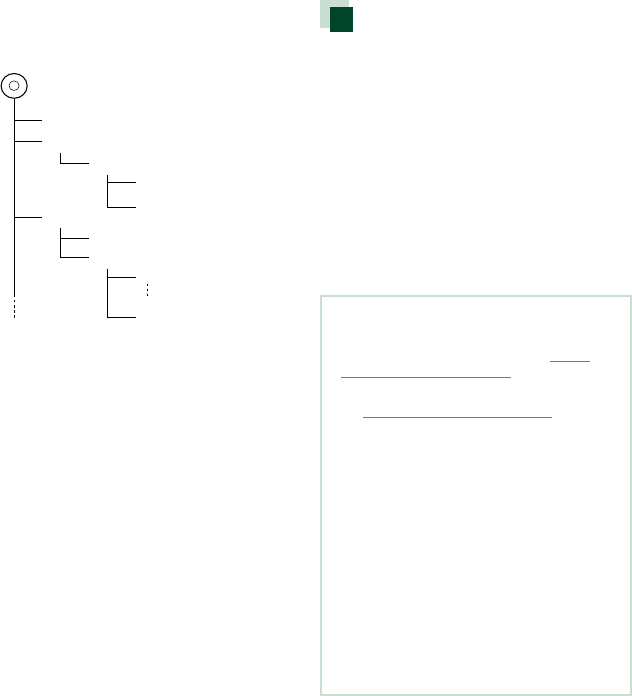
Appendix
122122
■Playing order of files
In the example of folder/file tree shown below, the files
are played in the order from ! to P.
Root
¡!
2
(1)
^
¡
3
¡$
4
¡"
¡#
¡P
5 ¡%
: Folder
: Audio file
Connectable iPod/iPhone
The following models can be connected to
this unit.
Made for
• iPhone 6s Plus
• iPhone 6s
• iPhone 6 Plus
• iPhone 6
• iPhone 5s
• iPhone 5c
• iPhone 5
• iPhone 4s
• iPod touch (6th generation)
• iPod touch (5th generation)
NOTE
• For the details of the necessary cable and adapter
to connect with iPod/iPhone, refer to Music/
Video Basic Operation (P.32).
• Latest compatible list of iPod/iPhone. For details,
see www.kenwood.com/cs/ce/ipod/.
• By connecting your iPod/iPhone to this unit with
an optional accessory iPod connection cable
KCA-iP103 or KCA-iP102, you can supply power
to your iPod/iPhone as well as charge it while
playing music. However, the power of this unit
must be on.
• If you start playback after connecting the iPod,
the music that has been played by the iPod is
played first.
In this case, “Reading” is displayed without
displaying a folder name, etc. Changing the
browse item will display a correct title, etc.
• When the iPod is connected to this unit,
“KENWOOD” or “ä” is displayed on the iPod to
indicate that you cannot operate the iPod.
Appendix
123
Usable USB device
You can use a mass-storage-class USB device
on this unit.
The word “USB device” appearing in this
manual indicates a flash memory device and
digital audio players can be recognized as
mass-storage.
■About file system
The file system should be the one of the following.
• FAT16
• FAT32
• exFAT
• NTFS
NOTE
• When the USB device is connected to this unit, it
can be charged through the USB cable.
• Install the USB device in the place where it will
not affect safe driving.
• You cannot connect a USB device via a USB hub
and Multi Card Reader.
• Take backups of the audio files used with this
unit. The files can be erased depending on the
operating conditions of the USB device.
We shall have no compensation for any damage
arising from any erased data.
• No USB device comes with this unit. You need to
purchase a commercially available USB device.
• When connecting the USB device, usage of the
CA-U1EX (option) is recommended. (However,
maximum supply current of CA-U1EX is 500mA.)
Normal playback is not guaranteed when a cable
other than the USB compatible cable is used.
Usable SD card and
microSD card .
The unit is capable of playback of SD/
SDHC memory cards or microSD/
microSDHC memory cards
complying with the SD or SDHC standard.
A special adapter is required to use a miniSD
card, miniSDHC card, microSD card, or
microSDHC card.
The MultiMedia Card (MMC) cannot be used.
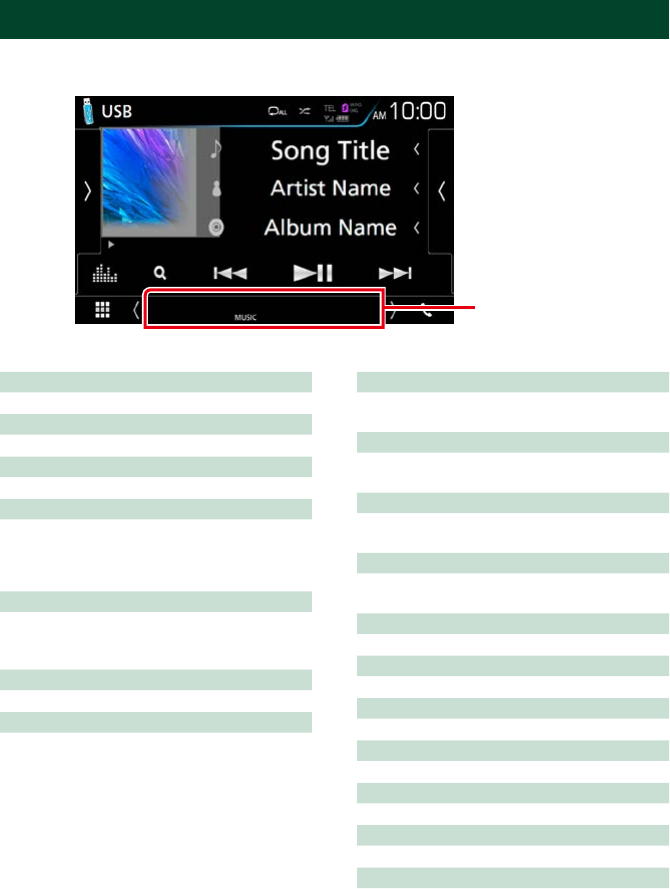
Appendix
124124
Status Bar Indicator Items
Shown below is a list of indicators displayed on the status bar in the screen.
Current status of this unit is displayed on the bar.
Status bar
■General
ATT
The attenuator is active.
DUAL
The dual zone function is on.
MUTE
The mute function is active.
LOUD
The loudness control function is on.
■DVD/CD
IN
A disc is inserted.
• White: A Disc is inside the unit.
• Orange: Error at the disc player
VIDEO
Identifies the video file.
MUSIC
Identifies the music file.
■VCD
1chLL/2chLL
Identifies the left audio output of channel 1
or 2.
1chLR/2chLR
Identifies the monaural audio output of
channel 1 or 2.
1chRR/2chRR
Identifies the right audio output of channel 1
or 2.
1chST/2chST
Identifies the stereo audio output of channel
1 or 2.
LL
Identifies the left audio output.
LR
Identifies the monaural audio output.
RR
Identifies the right audio output.
ST
Identifies the stereo audio output.
PBC
The PBC function is on.
VER1
The VCD version is 1.
VER2
The VCD version is 2.

Appendix
125
■USB/SD
VIDEO
Identifies the video file.
MUSIC
Identifies the music file.
■iPod
MUSIC
Identifies the music file.
■Tuner
ST
A stereo broadcast is being received.
TI
Indicates the reception state of traffic
information.
• White: TP is being received.
• Orange: TP is not being received.
■HD Radio reception
MC
A multicast digital broadcast is being received.
ANALOG
An analog broadcast is being received.
DIGITAL
A digital broadcast is being received.
ST
A stereo broadcast is being received.
EA
• White: Emergency Alert is on.
• No light: Emergency Alert is off.
• Orange: Interrupting or in snooze/ignore
state.
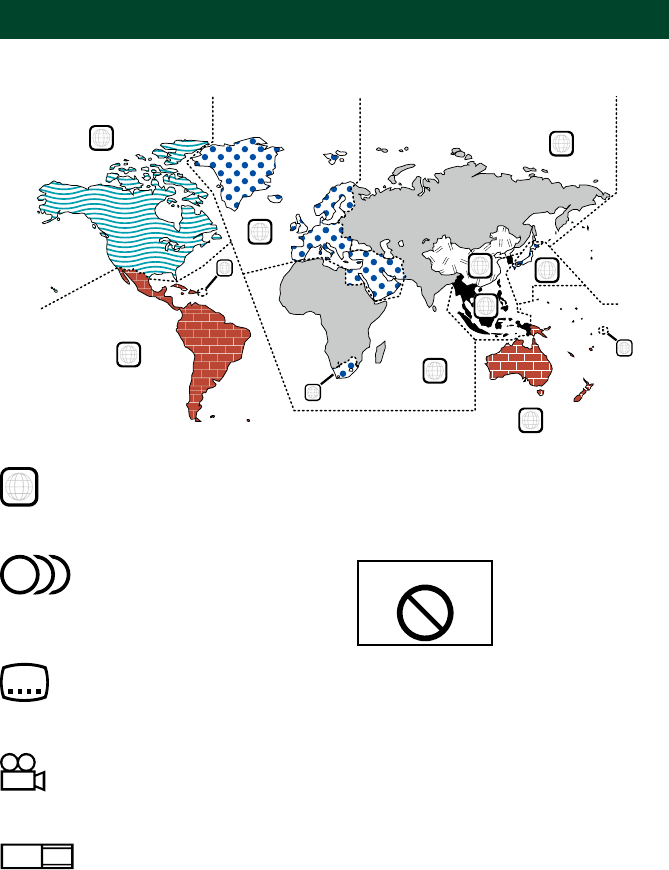
Appendix
126126
Region Codes in the World
The DVD players are given a region code according to the country or area it is marketed, as
shown in the following map.
1
2
4
1
5
4
5
2
1
2
6
3
■DVD disc marks
ALL
Indicates a region number. The discs with this mark can
be played with any DVD player.
8
Indicates the number of audio languages recorded. Up
to 8 languages can be recorded in a movie. You can
select a favorite language.
32
Indicates the number of subtitled languages recorded.
Up to 32 languages can be recorded.
9
If a DVD disc has scenes shot from multiple angles, you
can select a favorite angle.
16:9 LB
Indicates the type of screen for the image. The left mark
indicates that a wide image picture (16:9) is displayed
on a standard TV set screen (4:3) with a black band at
both the top and bottom of the screen (letter box).
■Operation regulatory marks
With this DVD, some functions of this unit such as the
play function may be restricted depending on the
location where the DVD is playing. In this case, the
following marks will appear on the screen. For more
information, refer to the disc manual.
Prohibition Mark
■Discs with limited period of use
Do not leave discs with a limited period of use in this
unit. If you load an already expired disc, you may not be
able to remove it from this unit.
Appendix
127
Code Language
aa Afar
ab Abkhazian
af Afrikaans
am Amharic
ar Arabic
as Assamese
ay Aymara
az Azerbaijani
ba Bashkir
be Byelorussian
bg Bulgarian
bh Bihari
bi Bislama
bn Bengali, Bangla
bo Tibetan
br Breton
ca Catalan
co Corsican
cs Czech
cy Welsh
da Danish
de German
dz Bhutani
el Greek
en English
eo Esperanto
es Spanish
et Estonian
eu Basque
fa Persian
fi Finnish
fj Fiji
fo Faroese
fr French
fy Frisian
ga Irish
gd Scots Gaelic
gl Galician
gn Guarani
gu Gujarati
ha Hausa
he Hebrew
hi Hindi
hr Croatian
hu Hungarian
hy Armenian
Code Language
ia Interlingua
ie Interlingue
ik Inupiak
id Indonesian
is Icelandic
it Italian
ja Japanese
jv Javanese
ka Georgian
kk Kazakh
kl Greenlandic
km Cambodian
kn Kannada
ko Korean
ks Kashmiri
ku Kurdish
ky Kirghiz
la Latin
lb Luxembourgish
ln Lingala
lo Laotian
lt Lithuanian
lv Latvian, Lettish
mg Malagasy
mi Maori
mk Macedonian
ml Malayalam
mn Mongolian
mo Moldavian
mr Marathi
ms Malay
mt Maltese
my Burmese
na Nauru
ne Nepali
nl Dutch
no Norwegian
oc Occitan
om (Afan) Oromo
or Oriya
pa Punjabi
pl Polish
ps Pashto, Pushto
pt Portuguese
qu Quechua
rm Rhaeto-Romance
Code Language
rn Kirundi
ro Romanian
ru Russian
rw Kinyarwanda
sa Sanskrit
sd Sindhi
sg Sangho
sh Serbo-Croatian
si Singhalese
sk Slovak
sl Slovenian
sm Samoan
sn Shona
so Somali
sq Albanian
sr Serbian
ss Siswati
st Sesotho
su Sundanese
sv Swedish
sw Swahili
ta Tamil
te Telugu
tg Tajik
th Thai
ti Tigrinya
tk Turkmen
tl Tagalog
tn Setswana
to Tongan
tr Turkish
ts Tsonga
tt Tatar
tw Twi
uk Ukrainian
ur Urdu
uz Uzbek
vi Vietnamese
vo Volapuk
wo Wolof
xh Xhosa
yo Yoruba
zh Chinese
zu Zulu
DVD Language Codes

Appendix
128128
Specifications
■Monitor section
Picture Size
DNX893S, DNX773S, DNX7160BTS
: 6.95 inches (diagonal) wide
: 156.6 mm (W) × 81.6 mm (H)
6-3/16 × 3-3/16 inch
DNX693S, DNX573S, DNX5160BTS
: 6.2 inches (diagonal) wide
: 137.5 mm (W) × 77.2 mm (H)
5-7/16 × 3-1/16 inch
Display System
: Transparent TN LCD panel
Drive System
: TFT active matrix system
Number of Pixels
: 1,152,000 (800H x 480V x RGB)
Effective Pixels
: 99.99 %
Pixel Arrangement
: RGB striped arrangement
Back Lighting
: LED
■DVD player section
D/A Converter
: 24/ 32 bit
Audio Decoder
: Linear PCM/ Dolby Digital/ MP3/ WMA/ AAC/ WAV/
FLAC/ Vorbis
Video Decoder
: MPEG1/ MPEG2/ MPEG4/ WMV/ H.264/ mkv
Wow & Flutter
: Below Measurable Limit
Frequency Response
• 96 kHz : 20 – 44,000 Hz
• 48 kHz : 20 – 22,000 Hz
• 44.1 kHz : 20 – 20,000 Hz
Total Harmonic Distortion
: 0.010 % (1 kHz)
S/N Ratio (dB)
: 98 dB (DVD-Video 96 kHz)
Dynamic Range
: 98 dB (DVD-Video 96 kHz)
Disc Format
: DVD-Video/ VIDEO-CD/ CD-DA
Quantifying Bit Number
: 16/ 20/ 24 bit
■USB interface section
USB Standard
: USB 2.0 High Speed
File System
: FAT 16/ 32, NTFS
Maximum Power Supply Current
DNX893S, DNX693S, DNX7160BTS
: DC 5 V 1.5 A × 2
DNX773S, DNX573S, DNX5160BTS
: DC 5 V 1.5 A
D/A Converter
: 24/ 32 bit
Audio Decoder
: MP3/ WMA/ AAC/ WAV/ FLAC/ Vorbis
Video Decoder
: MPEG1/ MPEG2/ MPEG4/ WMV/ H.264/ mkv
■SD (DNX893S, DNX773S, DNX693S,
DNX573S)
SD Standard
: SD / SDHC
Compatible File System
: FAT 16/ 32, NTFS
Capacity
: Maximum 32G Byte
Data Transfer Rate
: Maximum 24 Mbps
Audio Decoder
: MP3/ WMA/ AAC/ WAV/ FLAC/ Vorbis
Video Decoder
: MPEG1/ MPEG2/ MPEG4/ WMV/ H.264/ mkv
■HDMI/ MHL section
HDMI
: HDMI Type-A
MHL Supported Version
: MHL 2
MHL Maximum Power Supply Current
: DC 5 V 900 mA
Appendix
129
■Bluetooth section
Technology
: Bluetooth Ver.3.0
Frequency
: 2.402 – 2.480 GHz
Output Power
: +4dBm (MAX), 0dBm (AVE), Power Class2
Maximum Communication range
: Line of sight approx. 10m (32.8 ft)
Audio Codec
SBC/ AAC
Profile (Multi Profile support)
• HFP (V1.6) (Hands Free Profile)
• SPP (Serial Port Profile)
• A2DP (Advanced Audio Distribution Profile)
• AVRCP (V1.5) (Audio/Video Remote Control Profile)
• HID (Human Interface Device Profile)
• PBAP (Phonebook Access Profile)
• GAP (Generic Access Profile)
■DSP section
Graphics equalizer
Band: 13 Band
Frequency (BAND1 – 13)
: 62.5/ 100/ 160/ 250/ 400/ 630/ 1k/ 1.6k/ 2.5k/ 4k/
6.3k/ 10k/ 16k Hz
Gain
: -9/-8/-7/-6/-5/-4/-3/-2/-1/0/1/2/3/4/5/6/7/8/9 dB
2Way X'Over
High pass filter
Frequency: Through, 30/ 40/ 50/ 60/ 70/ 80/ 90/ 100/
120/ 150 / 180/ 220/ 250 Hz
Slope: -6/-12/-18/-24 dB/Oct.
Low pass filter
Frequency: 30/ 40/ 50/ 60/ 70/ 80/ 90/ 100/ 120/
150/ 180/ 220/ 250 Hz, Through
Slope: -6/-12/-18/-24 dB/Oct.
Position
Front / Rear /Subwoofer Delay
: 0 – 20.0ft (0.03ft Step)
Gain
: -8 – 0 dB
Subwoofer level
: -50 – +10 dB
■Digital FM tuner section (DNX893S,
DNX773S, DNX693S, DNX573S)
Frequency Range (step)
: 87.9 MHz – 107.9 MHz (200 kHz)
Frequency Response (± 3.0 dB)
: 20 Hz – 20 kHz
S/N Ratio
: 80 dB (STEREO)
■Digital AM tuner section (DNX893S,
DNX773S, DNX693S, DNX573S)
Frequency Range (step)
: 530 kHz – 1700 kHz (10 kHz)
Frequency Response (± 3.0 dB)
: 40 Hz – 15 kHz
S/N Ratio (dB)
: 80 dB (STEREO)
■FM tuner section
Frequency Range (step)
DNX893S, DNX773S, DNX693S, DNX573S
: 87.9 MHz – 107.9 MHz (200 kHz)
DNX7160BTS, DNX5160BTS
: 87.5 MHz – 108.0 MHz (50 kHz)
Usable Sensitivity (S/N : 30 dB)
: 9.3 dBf (0.8 μV/ 75 Ω)
Quieting Sensitivity (S/N : 50 dB)
DNX893S, DNX773S, DNX693S, DNX573S
: 10.2 dBf (1.13 μV/ 75 Ω)
DNX7160BTS, DNX5160BTS
: 15.2 dBf (1.6 μV/ 75 Ω)
Frequency Response
: 30 Hz – 15 kHz
S/N Ratio (dB)
: 75 dB (MONO)
Selectivity (± 400 kHz)
: Over 80 dB
Stereo Separation
: 45 dB (1 kHz)
■AM tuner section
Frequency Range (step)
: 530 kHz – 1700 kHz (10 kHz)
Usable Sensitivity
: 28 dBμ
Appendix
130130
■Video section
Color System of External Video Input
: NTSC/PAL
External Video Input Level (RCA jacks)
DNX7160BTS, DNX5160BTS: 1 Vp-p/ 75 Ω
External Video Input Level (mini jack)
: 1 Vp-p/ 75 Ω
External Audio Max Input Level (RCA jacks)
DNX7160BTS, DNX5160BTS: 2 V/ 25 kΩ
External Audio Max Input Level (mini jack)
: 2 V/ 25 kΩ
Video Input Level (RCA jacks)
: 1 Vp-p/ 75 Ω
Video Output Level (RCA jacks)
: 1 Vp-p/ 75 Ω
Audio Output Level (RCA jacks)
: 1.2 V/ 10 kΩ
■Audio section
Maximum Power (Front & Rear)
: 50 W × 4
Typical Power Output (Front & Rear)
Full Bandwidth Power (at less than 1% THD)
: 22 W × 4
Preout Level (V)
DNX893S, DNX693S, DNX7160BTS, DNX5160BTS
: 5 V/ 10 kΩ
DNX773S, DNX573S
: 4 V/ 10 kΩ
Preout Impedance
DNX893S, DNX693S, DNX7160BTS, DNX5160BTS
: ≤ 300 Ω
DNX773S, DNX573S
: ≤ 600 Ω
Speaker Impedance
: 4 – 8 Ω
■Navigation section
Receiver
: High-sensitivity GPS receiver
Reception Frequency
: 1575.42 MHz (C/A code)
Acquisition Times
Cold : 29 seconds (typ)
(All satellites at -130 dBm Without aiding)
Update Rate
: 1/second, continuous
Accuracy
Position: <2.5 meters, CEP, at -130 dBm
Velocity: 0.1 meter/sec
Position Method
: GPS
Antenna
: External GPS antenna
■General
Operating Voltage
: 14.4 V (10.5 – 16 V allowable)
Maximum Current Consumption
: 15 A
Installation Dimensions (W × H × D)
DNX893S, DNX773S, DNX7160BTS
: 182 × 112 × 163 mm
7-3/16 × 4-7/16 × 6-7/16 inch
DNX693S, DNX573S, DNX5160BTS
: 182 × 112 × 153 mm
7-3/16 × 4-7/16 × 6 inch
Operational Temperature Range
: -10 °C – +60 °C
Weight
DNX893S
: 2.5 kg (5.5 lbs)
DNX773S, DNX7160BTS
: 2.4 kg (5.3 lbs)
DNX693S, DNX573S, DNX5160BTS
: 2.0 kg (4.4 lbs)
NOTE
• Although the effective pixels for the liquid crystal
panel is given as 99.99% or more, 0.01% of pixels
may not light or may light incorrectly.
Specifications subject to change without notice.
Appendix
131
About this Unit
■Copyrights
• The Bluetooth word mark and logos are owned by
the Bluetooth SIG, Inc. and any use of such marks
by JVC KENWOOD Corporation is under license.
Other trademarks and trade names are those of their
respective owners.
• The “AAC” logo is a trademark of Dolby Laboratories.
• “Made for iPod” and “Made for iPhone” mean that an
electronic accessory has been designed to connect
specifically to iPod, or iPhone, respectively, and
has been certified by the developer to meet Apple
performance standards. Apple is not responsible for
the operation of this device or its compliance with
safety and regulatory standards. Please note that the
use of this accessory with iPod, or iPhone may affect
wireless performance.
• iPhone, iPod, iPod classic, iPod nano, and iPod touch
are trademarks of Apple Inc., registered in the U.S. and
other countries.
• Apple, Siri, Apple CarPlay and Apple CarPlay logo are
trademarks of Apple Inc., registered in the U.S. and
other countries.
• Sirius, XM and all related marks and logos are
trademarks of Sirius XM Radio Inc. All rights reserved.
• HD Radio Technology manufactured under license
from iBiquity Digital Corporation. U.S. and Foreign
Patents. HD Radio™ and the HD, HD Radio, and “Arc”
logos are proprietary trademarks of iBiquity Digital
Corp.
• is a trademark of DVD Format/Logo
Licensing Corporation registered in the U.S., Japan and
other countries.
• This item incorporates copy protection technology
that is protected by U.S. patents and other intellectual
property rights of Rovi Corporation. Reverse
engineering and disassembly are prohibited.
• Manufactured under license from Dolby Laboratories.
Dolby and the double-D symbol are trademarks of
Dolby Laboratories.
• PANDORA, the PANDORA logo, and the Pandora trade
dress are trademarks or registered trademarks of
Pandora Media, Inc., used with permission.
• SPOTIFY and the Spotify logo are among the
registered trademarks of Spotify AB.
• INRIX is a registered trademark of INRIX, Inc.
• Android, Android Auto, Google Play and other marks
are trademarks of Google Inc.
• BlackBerry®, RIM®, Research In Motion® and related
trademarks, names and logos are the property of
Research In Motion Limited and are registered and/or
used in the U.S. and countries around the world. Used
under license from Research In Motion Limited.
• SDHC and microSDHC Logos are trademarks of
SD-3C, LLC.
• Adobe, Acrobat and Reader are either registered
trademarks or trademarks of Adobe Systems
Incorporated in the United States and/or other
countries.
• QR Code ® is registered trademarks of DENSO WAVE
INCORPORATED in JAPAN and other countries.
• The terms HDMI and HDMI High-Definition
Multimedia Interface, and the HDMI logo are
trademarks or registed trademarks of HDMI Licensing
LLC in the United States and other countries.
• MHL and the MHL logo are a trademark or registered
trademark of MHL, LLC.
- Incorporates MHL 2
• THIS PRODUCT IS LICENSED UNDER THE AVC PATENT
PORTFOLIO LICENSE FOR THE PERSONAL USE OF A
CONSUMER OR OTHER USES IN WHICH IT DOES NOT
RECEIVE REMUNERATION TO (¡)ENCODE VIDEO IN
COMPLIANCE WITH THE AVC STANDARD (“AVC VIDEO”)
AND/OR (¡¡)DECODE AVC VIDEO THAT WAS ENCODED
BY A CONSUMER ENGAGED IN A PERSONAL ACTIVITY
AND/OR WAS OBTAINED FROM A VIDEO PROVIDER
LICENSED TO PROVIDE AVC VIDEO. NO LICENSE IS
GRANTED OR SHALL BE IMPLIED FOR ANY OTHER USE.
ADDITIONAL INFORMATION MAY BE OBTAINED FROM
MPEG LA, L.L.C. SEE HTTP://WWW.MPEGLA.COM
• THIS PRODUCT IS LICENSED UNDER THE MPEG-
4 VISUAL PATENT PORTFOLIO LICENSE FOR THE
PERSONAL AND NON-COMMERCIAL USE OF A
CONSUMER FOR (¡) ENCODING VIDEO IN COMPLIANCE
WITH THE MPEG-4 VISUAL STANDARD (“MPEG-4
VIDEO”) AND/OR (¡¡) DECODING MPEG-4 VIDEO
THAT WAS ENCODED BY A CONSUMER ENGAGED
IN A PERSONAL AND NON-COMMERCIAL ACTIVITY
AND/OR WAS OBTAINED FROM A VIDEO PROVIDER
LICENSED BY MPEG LA TO PROVIDE MPEG-4 VIDEO.
NO LICENSE IS GRANTED OR SHALL BE IMPLIED
FOR ANY OTHER USE. ADDITIONAL INFORMATION
INCLUDING THAT RELATING TO PROMOTIONAL,
INTERNAL AND COMMERCIAL USES AND LICENSING
MAY BE OBTAINED FROM MPEG LA, LLC. SEE HTTP://
WWW.MPEGLA.COM.
• THIS PRODUCT IS LICENSED UNDER THE VC-1 PATENT
PORTFOLIO LICENSE FOR THE PERSONAL AND NON-
COMMERCIAL USE OF A CONSUMER TO ( i ) ENCODE
VIDEO IN COMPLIANCE WITH THE VC-1 STANDARD
(“VC-1 VIDEO”) AND/OR ( ii ) DECODE VC-1 VIDEO
THAT WAS ENCODED BY A CONSUMER ENGAGED
IN A PERSONAL AND NON-COMMERCIAL ACTIVITY
AND/OR WAS OBTAINED FROM A VIDEO PROVIDER
LICENSED TO PROVIDE VC-1 VIDEO. NO LICENSE IS
GRANTED OR SHALL BE IMPLIED FOR ANY OTHER USE.
ADDITIONAL INFORMATION MAY BE OBTAINED FROM
MPEG LA, L.L.C. SEE HTTP://WWW.MPEGLA.COM
Appendix
132132
• libFLAC
Copyright (C) 2000,2001,2002,2003,2004,2005,2006,20
07,2008,2009 Josh Coalson
Redistribution and use in source and binary forms,
with or without modification, are permitted provided
that the following conditions are met:
- Redistributions of source code must retain the
above copyright notice, this list of conditions and the
following disclaimer.
- Redistributions in binary form must reproduce the
above copyright notice, this list of conditions and the
following disclaimer in the documentation and/or
other materials provided with the distribution.
- Neither the name of the Xiph.org Foundation nor the
names of its contributors may be used to endorse or
promote products derived from this software without
specific prior written permission.
THIS SOFTWARE IS PROVIDED BY THE COPYRIGHT
HOLDERS AND ONTRIBUTORS ``AS IS’’ AND ANY
EXPRESS OR IMPLIED WARRANTIES, INCLUDING,
BUT NOT LIMITED TO, THE IMPLIED WARRANTIES OF
MERCHANTABILITY AND FITNESS FOR A PARTICULAR
PURPOSE ARE DISCLAIMED. IN NO EVENT SHALL THE
FOUNDATION OR CONTRIBUTORS BE LIABLE FOR ANY
DIRECT, INDIRECT, INCIDENTAL, SPECIAL, EXEMPLARY,
OR CONSEQUENTIAL DAMAGES (INCLUDING, BUT NOT
LIMITED TO, PROCUREMENT OF SUBSTITUTE GOODS
OR SERVICES; LOSS OF USE, DATA, OR PROFITS; OR
BUSINESS INTERRUPTION) HOWEVER CAUSED AND ON
ANY THEORY OF LIABILITY, WHETHER IN CONTRACT,
STRICT LIABILITY, OR TORT (INCLUDING NEGLIGENCE
OR OTHERWISE) ARISING IN ANY WAY OUT OF THE
USE OF THIS SOFTWARE, EVEN IF ADVISED OF THE
POSSIBILITY OF SUCH DAMAGE.
• libvorbis
Copyright (c) 2002-2008 Xiph.org Foundation
Redistribution and use in source and binary forms,
with or without modification, are permitted provided
that the following conditions are met:
- Redistributions of source code must retain the
above copyright notice, this list of conditions and the
following disclaimer.
- Redistributions in binary form must reproduce the
above copyright notice, this list of conditions and the
following disclaimer in the documentation and/or
other materials provided with the distribution.
- Neither the name of the Xiph.org Foundation nor the
names of its contributors may be used to endorse or
promote products derived from this software without
specific prior written permission.
THIS SOFTWARE IS PROVIDED BY THE COPYRIGHT
HOLDERS AND CONTRIBUTORS ``AS IS’’ AND ANY
EXPRESS OR IMPLIED WARRANTIES, INCLUDING,
BUT NOT LIMITED TO, THE IMPLIED WARRANTIES OF
MERCHANTABILITY AND FITNESS FOR A PARTICULAR
PURPOSE ARE DISCLAIMED. IN NO EVENT SHALL THE
FOUNDATION OR CONTRIBUTORS BE LIABLE FOR ANY
DIRECT, INDIRECT, INCIDENTAL, SPECIAL, EXEMPLARY,
OR CONSEQUENTIAL DAMAGES (INCLUDING, BUT NOT
LIMITED TO, PROCUREMENT OF SUBSTITUTE GOODS
OR SERVICES; LOSS OF USE, DATA, OR PROFITS; OR
BUSINESS INTERRUPTION) HOWEVER CAUSED AND ON
ANY THEORY OF LIABILITY, WHETHER IN CONTRACT,
STRICT LIABILITY, OR TORT (INCLUDING NEGLIGENCE
OR OTHERWISE) ARISING IN ANY WAY OUT OF THE
USE OF THIS SOFTWARE, EVEN IF ADVISED OF THE
POSSIBILITY OF SUCH DAMAGE.
• libogg
Copyright (c) 2002, Xiph.org Foundation
Redistribution and use in source and binary forms,
with or without modification, are permitted provided
that the following conditions are met:
- Redistributions of source code must retain the
above copyright notice, this list of conditions and the
following disclaimer.
- Redistributions in binary form must reproduce the
above copyright notice, this list of conditions and the
following disclaimer in the documentation and/or
other materials provided with the distribution.
- Neither the name of the Xiph.org Foundation nor the
names of its contributors may be used to endorse or
promote products derived from this software without
specific prior written permission.
THIS SOFTWARE IS PROVIDED BY THE COPYRIGHT
HOLDERS AND CONTRIBUTORS ``AS IS’’ AND ANY
EXPRESS OR IMPLIED WARRANTIES, INCLUDING,
BUT NOT LIMITED TO, THE IMPLIED WARRANTIES OF
MERCHANTABILITY AND FITNESS FOR A PARTICULAR
PURPOSE ARE DISCLAIMED. IN NO EVENT SHALL THE
FOUNDATION OR CONTRIBUTORS BE LIABLE FOR ANY
DIRECT, INDIRECT, INCIDENTAL, SPECIAL, EXEMPLARY,
OR CONSEQUENTIAL DAMAGES (INCLUDING, BUT NOT
LIMITED TO, PROCUREMENT OF SUBSTITUTE GOODS
OR SERVICES; LOSS OF USE, DATA, OR PROFITS; OR
BUSINESS INTERRUPTION) HOWEVER CAUSED AND ON
ANY THEORY OF LIABILITY, WHETHER IN CONTRACT,
STRICT LIABILITY, OR TORT (INCLUDING NEGLIGENCE
OR OTHERWISE) ARISING IN ANY WAY OUT OF THE
USE OF THIS SOFTWARE, EVEN IF ADVISED OF THE
POSSIBILITY OF SUCH DAMAGE.
Appendix
133
DNX893S/ DNX773S/ DNX693S/ DNX573S:
■FCC WARNING
This equipment may generate or use radio
frequency energy. Changes or modifications to this
equipment may cause harmful interference unless
the modifications are expressly approved in the
instruction manual. The user could lose the authority to
operate this equipment if an unauthorized change or
modification is made.
NOTE
This equipment has been tested and found to
comply with the limits for a Class B digital device,
pursuant to Part 15 of the FCC Rules. These limits are
designed to provide reasonable protection against
harmful interference in a residential installation.
This equipment may cause harmful interference to
radio communications, if it is not installed and used
in accordance with the instructions. However, there
is no guarantee that interference will not occur in a
particular installation. If this equipment does cause
harmful interference to radio or television reception,
which can be determined by turning the equipment
off and on, the user is encouraged to try to correct
the interference by one or more of the following
measures:
• Reorient or relocate the receiving antenna.
• Increase the separation between the equipment
and receiver.
• Connect the equipment into an outlet on a
circuit different from that to which the receiver is
connected.
• Consult the dealer or an experienced radio/TV
technician for help.
2CAUTION
Use of controls or adjustments or performance of
procedures other than those specified herein may result
in hazardous radiation exposure.
In compliance with Federal Regulations, following
are reproductions of labels on, or inside the product
relating to laser product safety.
JVC KENWOOD Corporation
2967-3, ISHIKAWA-MACHI,
HACHIOJI-SHI, TOKYO, JAPAN
THIS PRODUCT COMPLIES WITH DHHS
RULES 21 CFR SUBCHAPTER J IN EFFECT AT
DATE OF MANUFACTURE.
Location: Top plate
DNX893S/ DNX773S/ DNX693S/ DNX573S:
■IC (Industry Canada) Notice
This device complies with Industry Canada licence-
exempt RSS standard(s).
Operation is subject to the following two conditions:
(1)This device may not cause interference, and
(2) this device must accept any interference, including
interference that may cause undesired operation of
the device.
The term “IC: ” before the certification/ registration
number only signifies that the Industry Canada
technical specification were met.
2CAUTION
This equipment complies with FCC/IC radiation
exposure limits set forth for an uncontrolled
environment and meets the FCC radio frequency (RF)
Exposure Guidelines in Supplement C to OET65 and
RSS-102 of the IC radio frequency (RF) Exposure rules.
This equipment has very low levels of RF energy that
it deemed to comply without maximum permissive
exposure evaluation (MPE). But it is desirable that it
should be installed and operated keeping the radiator
at least 20cm or more away from person’s body
(excluding extremities: hands, wrists, feet and ankles).
Under Industry Canada regulations, this radio
transmitter may only operate using an antenna of a
type and maximum (or lesser) gain approved for the
transmitter by Industry Canada. To reduce potential
radio interference to other users, the antenna type
and its gain should be so chosen that the equivalent
isotropically radiated power (e.i.r.p.) is not more than
that necessary for successful communication.
DNX893S/ DNX773S/ DNX693S/ DNX573S:
• Contains Transmitter Module
FCC ID: ZWY8811X
• Contains Transmitter Module
IC: 12033A-8811X
Appendix
134134
■CALIFORNIA, USA
This product contains a CR Coin Cell Lithium Battery
which contains Perchlorate Material – special handling
may apply.
See www.dtsc.ca.gov/hazardouswaste/perchlorate.
■Información acerca de la eliminación
de equipos eléctricos y electrónicos
al final de la vida útil (aplicable a los
países que hayan adoptado sistemas
independientes de recogida de
residuos)
Los productos con el símbolo de un contenedor con
ruedas tachado no podrán ser desechados como
residuos domésticos.
Los equipos eléctricos y electrónicos al final de la vida
útil, deberán ser reciclados en instalaciones que puedan
dar el tratamiento adecuado a estos productos y a sus
subproductos residuales correspondientes. Póngase
en contacto con su administración local para obtener
información sobre el punto de recogida más cercano.
Un tratamiento correcto del reciclaje y la eliminación
de residuos ayuda a conservar los recursos y evita al
mismo tiempo efectos perjudiciales en la salud y el
medio ambiente.
■Para cumplimiento de la COFETEL:
La operación de este equipo esta sujeta a las siguientes
dos condiciones:
(1) es posible que este equipo o dispositivo no cause
interferencia perjudicial y
(2) este equipo o dispositivo debe aceptar cualquier
interferencia,
incluyendo la que pueda causar su operación no
deseada.
■Informação sobre a eliminação de
pilhas
Este produto não deve ser eliminado como lixo
doméstico geral. Devolva a pilha usada ao revendedor
ou entidade autorizada para que a mesma seja
devolvida ao fabricante ou importador.
A reciclagem e a eliminação de lixo de maneira
apropriada ajudarão a conservar os recursos naturais ao
mesmo tempo que prevenirão os efeitos prejudicais à
nossa saúde e ao meio ambiente.
DNX7160BTS/ DNX5160BTS:
■The marking of products using lasers
CLASS 1
LASER PRODUCT
The label is attached to the chassis/case and says
that the component uses laser beams that have been
classified as Class 1. It means that the unit is utilizing
laser beams that are of a weaker class. There is no
danger of hazardous radiation outside the unit.
Appendix
135