

Extron IN1804 Series User Guide
File info: application/pdf · 113 pages · 11.66MB
Extron IN1804 Series User Guide
Extron, Electronics, IN1804, DI, DO, DI/DO, HDMI, DisplayPort, DTP2, XTP, HDBT, RS-232, Ethernet, IR, HDCP, EDID, Contact/Tally, Insertion, analog audio, twisted pair
Extron;, Electronics;, IN1804;, DI;, DO;, DI/DO;, HDMI;, DisplayPort;, DTP2;, XTP;, HDBT;, RS-232;, Ethernet;, IR;, HDCP;, EDID;, Contact/Tally;, Insertion;, analog, audio;, twisted, pair
2018-2020 Extron Electronics. All rights reserved. ... and, if not installed and used in accordance with the instruction manual, may cause harmful interference to ...
Extracted Text
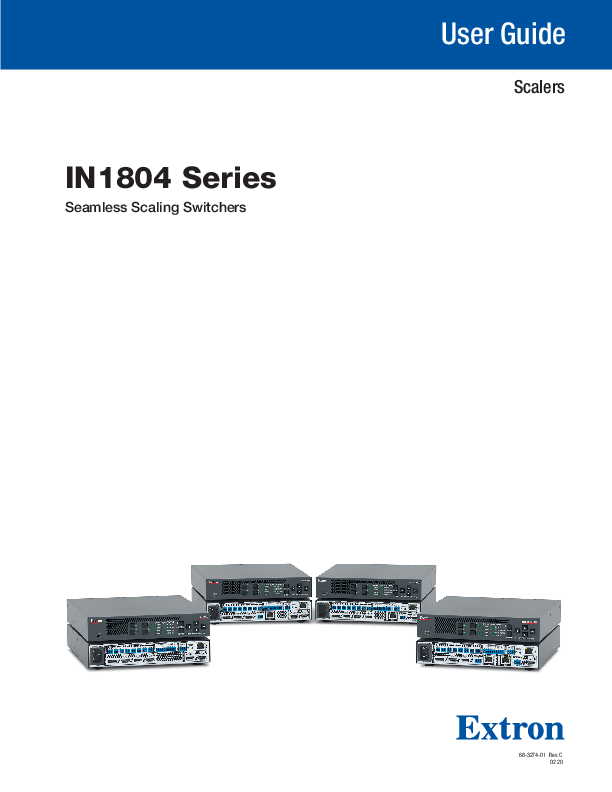
IN1804 Series
Seamless Scaling Switchers

User Guide
Scalers

68-3274-01 Rev. C 02 20

Safety Instructions
Safety Instructions � English
WARNING: This symbol, , when used on the product, is intended to alert the user of the presence of uninsulated dangerous voltage within the product's enclosure that may present a risk of electric shock.
ATTENTION: This symbol, , when used on the product, is intended to alert the user of important operating and maintenance (servicing) instructions in the literature provided with the equipment.
For information on safety guidelines, regulatory compliances, EMI/EMF compatibility, accessibility, and related topics, see the Extron Safety and Regulatory Compliance Guide, part number 68-290-01, on the Extron website, www.extron.com.
Sicherheitsanweisungen � Deutsch
WARNUNG: Dieses Symbol auf dem Produkt soll den Benutzer darauf aufmerksam machen, dass im Inneren des Geh�uses dieses Produktes gef�hrliche Spannungen herrschen, die nicht isoliert sind und die einen elektrischen Schlag verursachen k�nnen.
VORSICHT: Dieses Symbol auf dem Produkt soll dem Benutzer in der im Lieferumfang enthaltenen Dokumentation besonders wichtige Hinweise zur Bedienung und Wartung (Instandhaltung) geben.
Weitere Informationen �ber die Sicherheitsrichtlinien, Produkthandhabung, EMI/EMF-Kompatibilit�t, Zug�nglichkeit und verwandte Themen finden Sie in den Extron-Richtlinien f�r Sicherheit und Handhabung (Artikelnummer 68-290-01) auf der Extron-Website, www.extron.com.
Instrucciones de seguridad � Espa�ol
ADVERTENCIA: Este s�mbolo, , cuando se utiliza en el producto, avisa al usuario de la presencia de voltaje peligroso sin aislar dentro del producto, lo que puede representar un riesgo de descarga el�ctrica.
ATENCI�N: Este s�mbolo, , cuando se utiliza en el producto, avisa al usuario de la presencia de importantes instrucciones de uso y mantenimiento recogidas en la documentaci�n proporcionada con el equipo.
Para obtener informaci�n sobre directrices de seguridad, cumplimiento de normativas, compatibilidad electromagn�tica, accesibilidad y temas relacionados, consulte la Gu�a de cumplimiento de normativas y seguridad de Extron, referencia 68-290-01, en el sitio Web de Extron, www.extron.com.
Instructions de s�curit� � Fran�ais
AVERTISSEMENT : Ce pictogramme, , lorsqu'il est utilis� sur le produit, signale � l'utilisateur la pr�sence � l'int�rieur du bo�tier du produit d'une tension �lectrique dangereuse susceptible de provoquer un choc �lectrique.
ATTENTION : Ce pictogramme, , lorsqu'il est utilis� sur le produit, signale � l'utilisateur des instructions d'utilisation ou de maintenance importantes qui se trouvent dans la documentation fournie avec le mat�riel.
Pour en savoir plus sur les r�gles de s�curit�, la conformit� � la r�glementation, la compatibilit� EMI/EMF, l'accessibilit�, et autres sujets connexes, lisez les informations de s�curit� et de conformit� Extron, r�f. 68290-01, sur le site Extron, www.extron.com.

Istruzioni di sicurezza � Italiano
AVVERTENZA: Il simbolo, , se usato sul prodotto, serve ad avvertire l'utente della presenza di tensione non isolata pericolosa all'interno del contenitore del prodotto che pu� costituire un rischio di scosse elettriche.
ATTENTZIONE: Il simbolo, , se usato sul prodotto, serve ad avvertire l'utente della presenza di importanti istruzioni di funzionamento e manutenzione nella documentazione fornita con l'apparecchio.
Per informazioni su parametri di sicurezza, conformit� alle normative, compatibilit� EMI/EMF, accessibilit� e argomenti simili, fare riferimento alla Guida alla conformit� normativa e di sicurezza di Extron, cod. articolo 6829001, sul sito web di Extron, www.extron.com.
I

Copyright � 2018-2020 Extron Electronics. All rights reserved. www.extron.com
Trademarks All trademarks mentioned in this guide are the properties of their respective owners. The following registered trademarks (�), registered service marks (SM), and trademarks (TM) are the property of RGB Systems, Inc. or Extron Electronics (see the current list of trademarks on the Terms of Use page at www.extron.com):
Registered Trademarks (�)
Extron, Cable Cubby, ControlScript, CrossPoint, DTP, eBUS, EDID Manager, EDID Minder, Flat Field, FlexOS, Glitch Free. Global Configurator, Global Scripter, GlobalViewer, Hideaway, HyperLane, IP Intercom, IP Link, Key Minder, LinkLicense, LockIt, MediaLink, MediaPort, NetPA, PlenumVault, PoleVault, PowerCage, PURE3, Quantum, ShareLink, Show Me, SoundField, SpeedMount, SpeedSwitch, StudioStation, System INTEGRATOR, TeamWork, TouchLink, VLock, VideoLounge, VNMatrix, VoiceLift, WallVault, WindoWall, XPA, XTP, XTP Systems, and ZipClip
Registered Service Mark(SM) : S3 Service Support Solutions
Trademarks (TM)
AAP, AFL (AccuRATE Frame Lock), ADSP (Advanced Digital Sync Processing), AutoImage, AVEdge, CableCover, CDRS (Class D Ripple Suppression), Codec Connect, DDSP (Digital Display Sync Processing), DMI (Dynamic Motion Interpolation), Driver Configurator, DSP Configurator, DSVP (Digital Sync Validation Processing), eLink, EQIP, Everlast, FastBite, Flex55, FOX, FOXBOX, IP Intercom HelpDesk, MAAP, MicroDigital, OptiTorque, PendantConnect, ProDSP, QSFPC (QuickSwitch Front Panel Controller), Room Agent, ScopeTrigger, SIS, Simple Instruction Set, SkewFree, SpeedNav, TripleAction Switching, True4K, True8K, VectorTM 4K, WebShare, XTRA, and ZipCaddy

FCC Class A Notice
This equipment has been tested and found to comply with the limits for a ClassA digital device, pursuant to part 15 of the FCC rules. The Class A limits provide reasonable protection against harmful interference when the equipment is operated in a commercial environment. This equipment generates, uses, and can radiate radio frequency energy and, if not installed and used in accordance with the instruction manual, may cause harmful interference to radio communications. Operation of this equipment in a residential area is likely to cause interference. This interference must be corrected at the expense of the user.
ATTENTION:
� The Twisted Pair Extension technology works with unshielded twisted pair (UTP) or shielded twisted pair (STP) cables; but to ensure FCC Class A and CE compliance, STP cables and STP Connectors are required.
� La technologie extension paires torsad�es fonctionne avec les c�bles paires torsad�es blind�es (UTP) ou non blind�es (STP). Afin de s'assurer de la compatibilit� entre FCC Classe A et CE, les c�bles STP et les connecteurs STP sont n�cessaires.
NOTES: For more information on safety guidelines, regulatory compliances, EMI/EMF compatibility, accessibility, and related topics, see the Extron Safety and Regulatory Compliance Guide on the Extron website.

VCCI-A Notice


I

Battery Notice

This product contains a battery. Do not open the unit to replace the battery. If the battery needs replacing, return the entire unit to Extron (for the correct address, see the Extron Warranty section on the last page of this guide).

CAUTION: Risk of explosion. Do not replace the battery with an incorrect type. Dispose of used batteries according to the instructions.
ATTENTION : Risque d'explosion. Ne pas remplacer la pile par le mauvais type de pile. D�barrassez-vous des piles usag�es selon le mode d'emploi.

Conventions Used in this Guide
Notifications
The following notifications are used in this guide:
CAUTION: Risk of minor personal injury. ATTENTION : Risque de blessure mineure.
ATTENTION: � Risk of property damage. � Risque de dommages mat�riels.
NOTE: A note draws attention to important information.
TIP: A tip provides a suggestion to make working with the application easier.
Software Commands
Commands are written in the fonts shown here: ^ARMerge Scene,,0p1 scene 1,1^B51^W^C.0 [01]R000400300004000080000600[02]35[17][03] EX!*X1&*X2)*X2#*X2!CE} NOTE: For commands and examples of computer or device responses used in this guide, the character "0" is the number zero and "O" is the capital letter "o."
Computer responses and directory paths that do not have variables are written in the font shown here:
Reply from 208.132.180.48: bytes=32 times=2ms TTL=32 C:\Program Files\Extron Variables are written in slanted form as shown here: ping xxx.xxx.xxx.xxx --t SOH R Data STX Command ETB ETX Selectable items, such as menu names, menu options, buttons, tabs, and field names are written in the font shown here: From the File menu, select New. Click the OK button.
Specifications Availability
Product specifications are available on the Extron website, www.extron.com.
Extron Glossary of Terms
A glossary of terms is available at http://www.extron.com/technology/glossary.aspx.

Contents

Introduction.................................................... 1 About this Guide.................................................. 1 Product Description............................................. 1 Models............................................................ 1 Integrated Digital Twisted Pair Extension.......... 2 Features.............................................................. 2 Control Methods.................................................. 6 Application Diagrams........................................... 7
Installation...................................................... 9 Installation Overview............................................ 9 Rear Panel Connections.................................... 10 Connection Details............................................ 16 Analog Audio Connections............................ 16 HDMI Connections........................................ 17 Twisted Pair Recommendations for DTP2, XTP, and HDBaseT Communication.............. 18 Wiring the Contact/Tally Connectors.............. 19 Connecting Using an SM Cable..................... 20
Operation...................................................... 21 Front Panel Overview......................................... 21 Powering Up..................................................... 22 Selecting an Input.............................................. 22 Using the On-Screen Menu System................... 22 Menu Selection Buttons................................. 22 Menu Overview.............................................. 23 Using the Menu Screens................................ 24 Device Info Screen......................................... 25 Quick Setup Submenu.................................. 26 Picture Controls Submenu............................. 27 Input Submenu.............................................. 29 Output Submenu........................................... 32 Audio Submenu............................................. 35 Advanced Submenu...................................... 37 Communication Submenu............................. 40

Front Panel Lockout (Executive Modes)............. 41 Input Presets..................................................... 42 Reset Modes..................................................... 42 RS-232 and IR Signal Insertion.......................... 43
Ethernet to RS-232 Insertion......................... 44 Captive Screw IR Signal Insertion.................. 46 Unidirectional RS-232 Insertion via SIS Commands.................................................. 47
SIS Configuration and Control......................... 48 Host and Switcher Communication................... 48 Copyright Information.................................... 48 Password Messages..................................... 49 Switcher-Initiated Messages.......................... 50 Error Responses............................................ 50 SIS Overview..................................................... 51 Using the Command and Response Tables........................................................... 51 Symbol Definitions......................................... 51 Command and Response Tables for IN1804 SIS Commands................................................ 60
Configuration Software...................................... 82 Software Installation.......................................... 82 Software Download Center Page................... 82 Software Connection......................................... 84 Device Discovery Panel.................................. 84 TCP/IP Panel................................................. 85 Offline Device Preview.................................... 86 Software Overview............................................. 87 Software Menu.............................................. 87 Device Menu................................................. 90

IN1804 Seamless Scaling Switchers � Contents vii

Internal Web Page............................................... 92 Accessing the Web Page................................... 92 Disabling Compatibility Mode......................... 93 Web Page Components.................................... 94 Device Info Panel........................................... 95 Inputs Panel.................................................. 95 Roles and Permissions Panel......................... 96 Device Status Panel....................................... 97 Outputs Panel................................................ 99 Firmware Panel.............................................. 99 Network Settings Panel............................... 100 RS-232 Panel.............................................. 101
Reference Information.............................. 102 Mounting......................................................... 102 Tabletop Mounting....................................... 102 Rack Mounting............................................ 102 Furniture Mounting...................................... 103 Downloading Updated Firmware...................... 103 Licensed Third-Party Software Used in the Switchers....................................................... 104
IN1804 Seamless Scaling Switchers � Contents viii

Introduction

This section provides general information about this guide and the Extron IN1804. Topics in this section include: � About this Guide � Product Description � Features � Application Diagrams � Control Methods

About this Guide
This guide describes how to install, configure, and operate the unit.
In this guide, the terms "switcher" and "IN1804" are used interchangeably to refer to all IN1804 models. The term "standard model" refers to the basic IN1804 containing no twisted pair input or output. "Twisted pair models" refers to the IN1804 DI, IN1804 DO, and IN1804 DI/DO.
Product Description
The Extron IN1804 is a compact, four input seamless scaling switcher that supports signal resolutions up to 4K @ 60 Hz, with 4:4:4 chroma sampling. It incorporates Extron-patented Vector 4K scaling technology specifically engineered for 4K signal processing applications. It features DisplayPort and HDMI inputs with DI, DO, and DI/DO models that provide Extron DTP2 extension of video, audio, and control signals up to 330 feet (100 meters) over a shielded CATx twisted pair cable.
The IN1804 Series also provide automatic switching, audio embedding and de-embedding, seamless transition effects, and logo keying. Designed for professional AV integration, the IN1804 can be controlled and configured via Ethernet, RS-232, USB, and contact closure with tally outputs.

Models

The IN1804 is available in the following models:

Model

Description

IN1804

Standard model

Inputs: 1 DisplayPort, 3 HDMI

IN1804 DI

DTP2 input

Outputs: 2 HDMI Inputs: 1 DisplayPort, 2 HDMI, 1 DTP2/XTP

IN1804 DO DTP2 output

Outputs: 2 HDMI Inputs: 1 DisplayPort, 3 HDMI

Outputs: 1 DTP2/XTP/HDBT, 1 HDMI IN1804 DI/DO DTP2 input and output Inputs: 1 DisplayPort, 2 HDMI, 1 DTP2/XTP

Outputs: 1 DTP2/XTP/HDBT, 1 HDMI

IN1804 Seamless Scaling Switchers � Introduction 1

Integrated Digital Twisted Pair Extension
The DTP2 inputs and outputs are proprietary signals that are created within any of the Extron DTP Extender systems and transmitted over a single shielded twisted pair (STP) cable. The IN1804 accepts DTP inputs from transmitting devices such as the DTP T USW 333.
NOTE: Extron XTP DTP 24 shielded twisted pair cable is strongly recommended for optimal performance.
� The IN1804 DI and IN1804 DI/DO can receive signals from remote DTP or DTP2 transmitters at a conference table, lectern, or wall.
� The IN1804 DO and IN1804 DI/DO can transmit to a DTP or DTP2 receiver or directly to an HDBaseT enabled display device.
All twisted pair models can be integrated into an XTP II matrix switcher system. Additionally, they can send power to selected DTP or DTP2 endpoints over the same shielded CATx cable, streamlining system design and installation.
DTP transmitters and receivers are available in compact, low-profile enclosures, plus decorator-style wallplate and floorbox versions to suit the installation requirements of a specific application.
RS-232 and IR signal insertion Bidirectional RS-232 and IR signals can be inserted from a control system and transmitted over the single shielded CATx cable together with the video and audio, enabling control of a source or display. The DTP2/XTP/HDBT output on IN1804 DO and IN1804 DI/DO can be configured for compatibility with HDBaseT-enabled displays to send digital video and embedded audio, plus bidirectional RS232 and IR signals up to 330 feet (100 meters) over a shielded CATx cable.
Matrix switcher integration In addition to supporting DTP endpoints, the IN1804 twisted pair models can be integrated into an XTP CrossPoint matrix switcher system. This enables facility-wide AV system applications with a centralized AV signal distribution infrastructure, as well as several presentation spaces with local AV switching and processing.

Features

� Integration of DisplayPort, HDMI, and audio sources into presentation systems -- All IN1804 models provide centralized switching for a wide range of AV sources.
� DisplayPort, HDMI, and optional DTP2 inputs --
� IN1804 standard and IN1804 DO models feature one DisplayPort and three HDMI inputs.
� The IN1804 DI and IN1804 DI/DO feature two HDMI, one DisplayPort, and one DTP2 input.
� HDMI and optional DTP2 outputs --
� The IN1804 and IN1804 DI models feature dual mirrored HDMI outputs.
� The IN1804 DO and IN1804 DI/DO feature one DTP2 output and one mirrored HDMI output.

IN1804 Seamless Scaling Switchers � Introduction 2

� Advanced Extron Vector 4K scaling engine -- The Vector 4K scaling engine is specifically designed for critical-quality 4K imagery, with best-in-class image upscaling and downscaling.
� Supports signal resolutions up to 4K @ 60 Hz with 4:4:4 color sampling.
� Supports DisplayPort Single Stream Transport (SST) data rates up to 21.6 Gbps.
� Supports HDMI 2.0 specification features -- Features include data rates up to 18 Gbps, Deep Color, and HD lossless audio formats.
� Logo image keying and display -- A logo graphic can be positioned and keyed over the live video output. Logo graphics in BMP, GIF, JPG, PNG, or TIFF format can be uploaded to the unit. Full screen images up to 4K resolution can also be displayed to eliminate loss of video between presentations.
� Selectable seamless switching transitions -- Seamless cut and fade, cut through black, and fade through black transition effects are available.
� Auto-switching between inputs -- Auto-input switching allows for unmanaged installation in locations such as in a lectern or under a conference table. When multiple inputs are active, the switching priority is configurable, including last-connected input and user-selectable priority.
� HDCP 2.2 compliant -- Ensures display of content-protected 4K video media and maintains interoperability with earlier versions of HDCP.
� Stereo audio embedding -- Analog audio signals can be embedded onto the DTP2 or HDMI output.
� Stereo audio de-embedding -- Embedded HDMI two-channel PCM audio can be extracted to the analog outputs, or multi-channel bitstream formats can be passed to the DTP2 or HDMI output.
� Displays user-supplied images for screen saver, corporate branding, logo insertion, and HDCP notification -- Custom, user-loaded images can be displayed as a screen saver after a predefined duration of inactivity at the video input, or whenever the input is disconnected between presentations. User-supplied images can also be displayed for HDCP Visual Confirmation, whenever HDCP-encrypted content is transmitted to a nonHDCP compliant display. A user-loaded image can be displayed as a corporate logo at any time during the video.
� Consumer Electronics Control (CEC) capability -- Standard, built-in CEC commands can be triggered to control displays or other AV devices connected to the HDMI or DTP2 outputs. The ability to control specific functions, such as power on and off, input selection, or volume level, is dependent on implementation by the device manufacturer.
� Integrated DTP2 extension -- IN1804 DI and IN1804 DI/DO feature one DTP2/XTP input. The IN1804 DO and IN1804 DI/DO feature one DTP2/XTP/HDBT output, which support transmission of video, audio, and control up to 330 feet (100 meters) over a shielded CATx cable.
� Compatible with CATx shielded twisted pair cable -- IN1804 DI, IN1804 DO, and IN1804 DI/DO support a maximum transmission distance of 330 feet (100 meters) for all compatible resolutions when used with CATx shielded twisted pair cable. Shielded twisted pair cabling with solid center conductor sizes of 24 AWG or better is recommended for optimal performance.
� Remote powering of DTP transmitter or receiver -- IN1804 DI, IN1804 DO, and IN1804 DI/DO can provide power to a DTP or DTP2 endpoint over the twisted pair connection, eliminating the need for a separate power supply at the remote unit.
IN1804 Seamless Scaling Switchers � Introduction 3

� RS232 insertion from the Ethernet control port -- Saves system resources and simplifies installation by enabling a control processor to access remote RS-232 devices over Ethernet.
� Additional analog stereo audio signals accepted -- IN1804 DI, IN1804 DO, and IN1804 DI/DO support stereo analog audio signals for simultaneous transmission over the same shielded twisted pair cable.
� Bidirectional RS232 and IR passthrough for AV device control -- Bidirectional RS232 control and IR signals can be transmitted alongside the video signal over the DTP connection, allowing the remote device to be controlled without additional cabling. Bidirectional control extension eliminates control system wiring to remote devices.
� Compatible with all DTPenabled products, plus XTP CrossPoint matrix switchers -- Enables mixing and matching with desktop and wallplate endpoints, as well as other DTP or DTP2enabled products to meet application requirements. The twisted pair models can be integrated with XTP II matrix switchers to provide connectivity between presentation spaces and a larger, facility-wide system.
� DTP2 output compatible with HDBaseT-enabled devices -- The IN1804 DO and IN1804 DI/DO can be configured to send video and embedded audio, plus bidirectional RS-232 and IR signals, to an HDBaseT-enabled display.
� RJ45 signal and link LED indicators for DTP port -- Provides a means for validating signal flow and operation, allowing quick identification of connectivity issues.
� User-selectable HDCP authorization -- Allows inputs 2 through 4 to appear HDCP compliant or non-HDCP compliant to the connected source, which is beneficial if the source automatically encrypts all content when connected to an HDCP-compliant device. Protected material is not passed in non-HDCP mode.
� Key Minder continuously verifies HDCP compliance -- Key Minder authenticates and maintains continuous HDCP encryption between input and output devices to ensure quick and reliable switching in professional AV environments, while enabling simultaneous distribution of a single source signal to one or more displays.
� EDID Minder manages EDID communication between connected devices -- EDID Minder ensures the source powers up properly and reliably outputs content for display.
� Custom EDID and output resolutions supported -- User-defined scaling output resolutions can be supported by uploading custom EDID files, or capturing EDID from a display or other destination device.
� HDCP authentication and signal presence confirmation -- Provides real-time verification of HDCP status for each digital video input and output. This allows for simple, quick, and easy signal and HDCP verification through RS232, USB, or Ethernet, providing feedback to a system operator or helpdesk support staff.
� HDCP Visual Confirmation -- A full-screen green signal is sent when HDCP-encrypted content is transmitted to a nonHDCP compliant display, providing immediate visual confirmation that protected content cannot be viewed on the display.
� Aspect ratio control -- The aspect ratio of the video output can be controlled by selecting a fill mode, which provides a full screen output, or a follow mode, which preserves the original aspect ratio of the input signal.
� Motion-adaptive deinterlacing for signals up to 1080i -- Advanced deinterlacing for all interlaced signals up to 1080i delivers optimized image quality.
IN1804 Seamless Scaling Switchers � Introduction 4

� Automatic 3:2 and 2:2 pulldown detection -- Advanced film mode processing techniques help maximize image quality for content sources that originated from film.
� AutoImage setup -- When Auto-Image is activated, the unit automatically optimizes the image by analyzing and adjusting to the video input signal.
� Auto Input Memory -- When Auto Input Memory is activated, the unit stores size, position, and picture settings based on the incoming signal. When the same signal is detected again, these image settings are recalled from memory.
� Input presets -- Memory presets are available to store and recall optimized image settings.
� Output muting control -- The video and audio output can be muted independently.
� Image freeze control -- A live image can be frozen using RS232, USB, or Ethernet control.
� Onscreen menus -- Intuitive onscreen menus allow for easy system setup using the front panel controls. Key parameters such as input and output video formats are conveniently grouped on the initial Quick Setup screen, while additional screens provide full control over the unit's other functions and settings.
� Picture controls -- Controls are provided for brightness, contrast, and detail, as well as horizontal and vertical sizing, and positioning.
� Internal video test patterns and pink noise generator -- All IN1804 models offer several video test patterns and audio pink noise to facilitate proper system setup and calibration of display devices.
� HDMI to DVI Interface Format Correction -- Automatically enables or disables embedded audio and InfoFrames, and sets the correct color space for proper connection to HDMI and DVI displays.
� Color bit depth management -- Automatically adjusts color bit depth based on the display EDID, preventing color compatibility conflicts between source and display.
� Audio file playback -- Up to 16 prerecorded messages may be stored and played back over the program audio output.
� Output volume control -- Provides master volume control for the analog line level output, two-channel PCM HDMI audio, and DTP analog audio for the IN1804 DO and IN1804 DI/DO models.
� Audio input gain and attenuation -- Gain or attenuation can be adjusted for the analog audio input to eliminate noticeable differences when switching between sources.
� Audio switching transitions -- The audio output level automatically ramps down and then ramps up to match the video during switching transitions.
� Integrated audio delay -- The audio output is automatically delayed to compensate for latency introduced by the video processing.
� Audio input assignment -- The audio input can be associated with one or more video inputs.
� Multiple embedded audio formats -- All IN1804 models are compatible with a broad range of multichannel audio signals, providing reliable operation with HDMI sources.
� Output Standby Mode -- All models can be set to automatically mute video and sync output to the display device when no active input signal is detected. This allows the projector or flat-panel display to automatically enter into standby mode to save energy and enhance lamp or panel life.
� Power Save Mode -- All IN1804 models can be placed in a low power standby state to conserve energy when not in use.
IN1804 Seamless Scaling Switchers � Introduction 5

� Front panel security lockout -- This feature locks out all front panel functions. All functions, however, are available through Ethernet, USB, or RS232 control.
� Ethernet monitoring and control -- Enables control and proactive monitoring over a LAN or WAN.
� Built-in web pages -- Enables the use of a standard browser for device monitoring and troubleshooting over an intuitive web interface.
� RS232 control port -- Enables the use of serial commands for integration into a control system. Extron products use the Simple Instruction Set (SIS) command protocol, a set of basic ASCII commands that allow for quick and easy programming.
� Contact closure remote control with tally output -- Contact closure ports enable remote video input selection control, while tally outputs provide +5 VDC to illuminate LEDs for video input identification. The contact and tally ports may be configured for independent use when the IN1804 is connected to an external control processor.
� Compatible with Teamwork Show Me Cables -- Show Me cables provide convenient connectivity and user input selection and control for TeamWork Collaboration Systems.
� Front panel USB configuration port -- Enables easy system configuration without having to access the rear panel.
� Front panel LED indicators for signal presence, HDCP status, and power -- Provides visual indication of system status for real-time feedback and monitoring of key performance parameters.
� Extron Product Configuration Software (PCS) -- The PCS program enables configuration of multiple products using a single software application.
� Compact 1U, half rack width metal enclosure -- The half rack width enclosure can be mounted under furniture using the UTS Series Under Table Shelf System or MBU 123 Low Profile Mount Kit, available separately.
� Includes LockIt HDMI cable lacing brackets � Internal Extron Everlast power supply -- Provides worldwide power compatibility,
with highdemonstrated reliability and low power consumption for reduced operating cost. The Extron Everlast Power Supply is covered by a 7year parts and labor warranty.
Control Methods
Control the IN1804 series switchers using one or more of the following methods: � The front panel controls and the on-screen display (OSD) menu (see Using the
On-Screen Menu System on page 22). � A computer, a touch screen panel, or any other device that sends and receives
serial communications through the USB, RS-232, or Ethernet port. Use the Extron DataViewer utility on the computer to enter SIS commands (see SIS Configuration and Control beginning on page 48). � The Extron Product Configuration Software (PCS) on a computer with a Windows� operating system (see Configuration Software beginning on page 82 and the IN1804 Series PCS Help File). � Internal web pages, providing a web browser-based interface for monitoring the switcher from a computer over a LAN network (see Internal Web Page beginning on page 92).
IN1804 Seamless Scaling Switchers � Introduction 6

Application Diagrams

Extron Show Me Cable

PRESS

The following diagrams show examples of typical applications for different IN1804 models.

Extron Cable Cubby 500 CCB Cable Access Enclosure

Extron IPCP Pro 250 Control Processor

COM 1

COM 2 DIGITAL I/O

IPCP PRO 250

Tx Rx G RTS CTS Tx Rx G 1 2 3 4 G

POWER 12V 1A MAX

VOL V CG

RELAYS

eBUS

1 2 C +V +S -S G

IR/S

PWR OUT = 6W

S G

LAN

USB CHARGER 125 VAC. 50-60 Hz 12A MAX

PRESS

Tablet

ON/OFF

SHARELINK

PC

Smartphone

Laptop

RS-232
Display
MODEL 80

Wireless

ShareLink 250 W AUDIO OUT

VGA OUT

HDMI OUT

POWER

Extron

Extron IN1804

LAN / PoE

USB 3 5V 2.3A MAX

ShareLink 250 W

Seamless

Wireless Collaboration

Scaling Switcher

FLAT PANEL

Gateway

100-240V ~0.7A MAX

1 CT

2 CT

3 CT

4 CT

5 CT

6 CT

7 CT

G V+

L IN R

L OUT R

RS-232 RESET Tx Rx G

AUDIO REMOTE OUTPUTS
LAN

CONTACT /TALLY

INPUTS

PC

HDMI

1 50-60 Hz

2

3

4

1A

1B

HDMI/CEC

HDMI/CEC

WiFi 1 2 3 4

DisplayPort

HDMI

Figure 1. IN1804 Standard Model Application Example -- Teamwork System

Tablet Smartphone

Laptop

Laptop

HDMI

POWER 12V 1A MAX

INPUTS AUDIO

SIG

LINK

OVER DTP2

RS-232 IR

DTP2 OUT Tx Rx G Tx Rx

Extron DTP2 T 211 Transmitter

Computer
DisplayPort

1
4K Media Player
HDMI

LAN Ethernet

ShareLink 250 W AUDIO OUT

VGA OUT

HDMI OUT

POWER

LAN / PoE

USB 3 5V 2.3A MAX

Extron

ShareLink 250 W

Wireless Collaboration

Gateway

HDMI

CONTACT /TALLY

100-240V ~1.0A MAX

1 CT

2 CT

3 CT

4 CT

5 CT

6 CT

7 CT

G V+

L IN R

L OUT R

INPUTS

1 50-60 Hz

2

3

OVER TP IR
4
Tx Rx G

SIG

LINK

IN

RS-232 RESET Tx Rx G

1A

1B

HDMI/CEC

HDMI/CEC

AUDIO REMOTE OUTPUTS
LAN

Extron IN1804 DI Seamless Scaling Switcher

COM 1

COM 2 DIGITAL I/O

IPCP PRO 250

Tx Rx G RTS CTS Tx Rx G 1 2 3 4 G

POWER 12V 1A MAX

VOL V CG

RELAYS

eBUS

1 2 C +V +S -S G

IR/S

PWR OUT = 6W S G

LAN

HDMI/ CEC

HDMI/ CEC
MODEL 80

Ethernet/PoE

LAN

Extron TLP Pro 725T 7" Tabletop TouchLink Pro Touchpanel

Ethernet
Extron IPCP Pro 250 Control Processor
CATx Cable up to 330' (100 m)

FLAT PANEL
4K Display
MODEL 80

FLAT PANEL
4K Display

Figure 2. IN1804 DI Meeting Room Application Example

IN1804 Seamless Scaling Switchers � Introduction 7

LAN

Laptop

DisplayPort

Ethernet

CONTACT /TALLY

100-240V ~1.0A MAX

1 CT

2 CT

3 CT

4 CT

5 CT

6 CT

7 CT

G V+

L IN R

L OUT R

RS-232 RESET
Tx Rx G

INPUTS

1 50-60 Hz

2

3

4

1A SIG

LINK
OVER TP
IR

OUT

Tx Rx G

1B HDMI/CEC

AUDIO OUTPUTS
REMOTE LAN

Extron IN1804 DO Seamless Scaling Switcher

Laptop Computer

HDMI HDMI HDMI

CATx Cable up to 330' (100 m)

HDMI/CEC

POWER OVER DTP2 12V --A MAX RS-323 IR

SIG LINK

Tx Rx G Tx Rx DTP2 IN

OUTPUTS

AUDIO

L

R

Extron DTP2 R 211 Receiver

HDMI/CEC

MODEL 80
FLAT PANEL
4K Display
MODEL 80

1
4K Media Player

Figure 3.

IN1804 DO Training Room Application Example

FLAT PANEL
4K Display

HDMI

CONFIG

STATUS INPUT LINK OUTPUT

SEND POWER
OFF

DTP2 T 211

Extron DTP2 T 211 Transmitter

Laptop with 4K Video Output
Laptop with 4K Video Output

Tablet

CATx Cable up to 330' (100 m)

Local 4K Monitor

Ethernet

Ethernet

LAN

DisplayPort

HDMI

Ethernet

Ethernet

Smartphone

Laptop
MODEL 80

Facility/Room Wireless Access Point

CONFIG

HDMI WINDOW

INPUT

HDMI

SIGNAL

HDMI PASS-THROUGH

HDCP

DECODER

OUTPUT

HD WIN STANDBY SCREEN

HD PASS DECODER

USB

1

2

ShareLink Pro 1000

Extron

ShareLink Pro 1000

Collaboration

HDMI

Gateway

AUTO SWITCH

CONFIG

INPUTS

1

2

MODE

NORM/ AUTO

Extron DTP2 R 212 SA Receiver

FLAT PANEL
4K Display

HDMI

RS-232

INPUTS

1

2

SIGNAL

HDCP

OUTPUT

DTP2 R 212 SERIES

Audio

Extron IPCP Pro 250 Control Processor

IPCP PRO 250

COM

eBUS RTS

CTS

R

S LIMIT

Tx

IR/S

I/O

RELAYS

1000

12

1 IR LINK

Rx

ACT

OVER

12

34

2

CONFIG

IN1804 DI/DO

1

2

SIGNAL

STATUS

INPUT 1

HDCP IN

3

4

INPUT 2

HDCP OUT 1A MENU

INPUT 3

HDCP OUT 1B

INPUT 4

AUTO SW

ENTER HOLD FOR 720p/1080p

Extron IN1804 DI/DO Seamless Scaling Switcher

CATx Cable up to 330' (100 m)

E

E

Extron

SM 3

Surface Mount

Speakers

Ethernet LAN

Figure 4. IN1804 DI/DO Application Example

IN1804 Seamless Scaling Switchers � Introduction 8

Installation
This section contains information on how to connect cables to the IN1804 models. Topics in this section include: � Installation Overview � Rear Panel Connections � Connection Details
Installation Overview
1. Turn off or disconnect all related equipment. Ensure that video sources and output displays are all turned off and disconnected from the power source.
2. Mount the switcher (see Mounting on page 102). 3. Connect input sources (see Rear Panel Connections on page 10). 4. Connect output devices (see Rear Panel Connections). 5. Connect desired control devices (see Rear Panel Connections). 6. (Optional) Connect contact closure and tally indicator devices and any needed Show
Me cables (see Wiring the Contact/Tally Connectors on page 19). 7. Connect a power source to the switcher (see AC power connector on page 11). 8. Configure the switcher using any of the following methods:
� Front panel menus (see Operation beginning on page 21) � PCS (see Configuration Software beginning on page 82 to download the
software, and see the IN1804 Series PCS Help File to configure the system) � SIS commands (see SIS Configuration and Control, beginning on page 48)
IN1804 Seamless Scaling Switchers � Installation 9

Rear Panel Connections

Figures 5 through 8 show the rear panels of the four IN1804 models: IN1804 (standard), IN1804 DI, IN1804 DO, and IN1804 DI/DO.

Q

PO N M L K J I

100-240V ~0.7A MAX

1 CT

2 CT

3 CT

4 CT

5 CT

6 CT

7 CT

G V+

L IN R

L OUT R

RS-232 RESET
Tx Rx G

AUDIO REMOTE OUTPUTS
LAN

CONTACT /TALLY

INPUTS

AUDIO REMOTE OUTPUTS
LAN

50-60 Hz
A
Figure 5.

1

2

3

4

B

C

IN1804 Standard Rear Panel

1A

1B

HDMI/CEC

HDMI/CEC

H

Q

PO N M L K J I

CONTACT /TALLY

100-240V~1.0A MAX

1 CT

2 CT

3 CT

4 CT

5 CT

6 CT

7 CT

G V+

L IN R

L OUT R

INPUTS

1 50-60 Hz

2

3

OVER TP IR
4
Tx Rx G

SIG

LINK

IN

A

B

C

Figure 6. IN1804 DI Rear Panel

DE

RS-232 RESET
Tx Rx G

1A

1B

HDMI/CEC

HDMI/CEC

H

Q

PO N M L K J I

CONTACT /TALLY

100-240V~1.0A MAX

1 CT

2 CT

3 CT

4 CT

5 CT

6 CT

7 CT

G V+

L IN R

L OUT R

RS-232 Tx Rx G

RESET

INPUTS

1 50-60 Hz

2

3

4

1A SIG

LINK
OVER TP
IR

OUT

Tx Rx G

1B HDMI/CEC

A

B

c

Figure 7. IN1804 DO Rear Panel

FG H

Q

PO N M L K J I

CONTACT /TALLY

100-240V ~ --A MAX

1 CT

2 CT

3 CT

4 CT

5 CT

6 CT

7 CT

G V+

L IN R

L OUT R

RS-232 RESET
Tx Rx G

INPUTS

1 50-60 Hz

2

3

SIG

LINK

OVER TP

4

IR

Tx Rx G

IN

1A SIG

LINK
OVER TP
IR

OUT

Tx Rx G

1B HDMI/CEC

A

B

C

DE

Figure 8. IN1804 DI/DO Rear Panel

FG H

AUDIO OUTPUTS
REMOTE LAN

AUDIO OUTPUTS
REMOTE LAN

IN1804 Seamless Scaling Switchers � Installation 10

A AC power connector B DisplayPort input connector -- Input 1 C HDMI input connectors --
Inputs 2-4 (standard and DO models) Inputs 2-3 (DI and DI/DO models)
D Over TP IR pass-through input port
(DI and DI/DO models)
E DTP2/XTP input connector -- Input 4
(DI and DI/DO models)
F DTP2/XTP/HDBT output connector --
Output 1A (DO and DI/DO models)
G Over TP IR pass-through port
(DO and DI/DO models)

H HDMI mirrored output connectors --
Outputs 1A and 1B (Standard and DI models) HDMI output connector -- Output 1B (DO and DI/DO models)
I LAN connector J Reset button K Reset LED L Remote RS-232 connector M Analog audio output connector N Analog audio input connector O +V connector (for tally voltage output) P Ground pin (for contact/tally ports) Q Contact/Tally ports

A AC Power connector -- Connect a standard IEC power cord (provided) from a
100 to 240 VAC, 50-60 Hz power source to this connector. The front panel button
LED for the selected input (see figure 16, B) on page 21) blinks for approximately
30 seconds. When the unit is ready for operation, the input selection LED lights steadily.
If auto-input switching has been enabled, the Auto SW LED lights also (see Auto
Switch on the OSD Advanced submenu on page 39).
B DisplayPort input connector (input 1) -- Connect a DisplayPort source to this
female DP connector.
C HDMI input connectors -- Connect HDMI video sources to these female HDMI
connectors. (The standard and DO models have three HDMI input connectors while the
DI and DI/DO models have two.)

TIP: Use Extron HDMI LockIt Lacing Brackets to secure HDMI cables to the device (see HDMI Connections on page 17).

D Over TP IR pass-through port for input (IN1804 DI and IN1804 DI/DO only) --

To transmit and receive infrared data to and from a source

IR IN1804

connected to the DTP2 transmitter or XTP matrix switcher, connect a

Tx,R x,and G Pins

control device (such as an Extron IPCP Pro Control Processor) to

G Tx Rx

this 3-pole IR Over TP captive screw port (see the illustration at

right).

NOTE: RS-232 communication can also be sent to the far end of the twisted pair connection, but it must be done through RS-232 insertion via Ethernet. A signal sent to an IN1804 LAN port can be routed to the RS-232 port of any connected twisted pair device (see Ethernet to RS-232 Insertion on page 44).

Tx Rx G

IR C ontrol D evice

IN1804 Seamless Scaling Switchers � Installation 11

E DTP2/XTP input connector (input 4, IN1804 DI and IN1804 DI/DO only) --
Connect a DTP2 transmitter or XTP matrix switcher to this DTP IN RJ-45 connector to send and receive DTP or XTP signals over a single twisted pair cable (see Twisted Pair Recommendations for DTP2, XTP, and HDBaseT Communication on page 18 for wiring and cable recommendations).
The input 4 connector has the following LEDs:
� Signal LED -- Lights when the switcher is receiving an active video signal from a DTP2 transmitter.
� Link LED -- Lights when a valid link is established to a DTP transmitter.
ATTENTION:
� Do not connect these ports to a computer or telecommunications network.
� Ne connectez pas ces ports � des donn�es informatiques ou � un r�seau de t�l�communications.
� DTP2 remote power is intended for indoor use only. No part of the network that uses DTP2 remote power should be routed outdoors.
� L'alimentation DTP2 � distance est destin� � une utilisation en int�rieur seulement. Aucune partie du r�seau qui utilise l'alimentation DTP2 � distance ne peut �tre rout�e en ext�rieur.

NOTE: Depending on the connected transmitter, the DTP2 input can travel up to 330 feet (100 meters) without loss of signal integrity.

F DTP2/XTP/HDBT output connector (output 1A, IN1804 DO and IN1804 DI/DO
only) -- The DTP output signal can travel up to 330 feet (100 meters) without a loss of
signal integrity.

Connect a DTP or DTP2 receiver, an XTP matrix, or an HDBaseT-compatible device to this twisted pair OUT connector. For cable wiring and recommendations, see Twisted Pair Recommendations for DTP2, XTP, and HDBaseT Communication.

The output 1A connector has the following LEDs:

� Signal LED -- Lights when the switcher is sending a signal.

� Link LED -- Lights when a valid link is established.

DTP Mode

Signal Support

HDBaseT Mode

� HDCP-compliant digital video

� HDCP-compliant digital video

� Embedded audio into the TMDS output � Embedded audio into the TMDS

or analog audio

output

� DTP standard IR pass-through signals � IR pass-through signals on the

on the associated 3-pole captive screw associated 3-pole captive screw

connector

connector

� Ethernet insertion of RS-232 control signals

� Ethernet insertion of RS-232 control signals

� Remote power to a DTP receiver

IN1804 Seamless Scaling Switchers � Installation 12

ATTENTION:
� Do not connect this connector to a computer or telecommunications network.
� Ne connectez pas ce port � des donn�es informatiques ou � un r�seau de t�l�communications.
� DTP remote power is intended for indoor use only. No part of the network that uses DTP remote power should be routed outdoors.
� L'alimentation DTP � distance est destin� � une utilisation en int�rieur seulement. Aucune partie du r�seau qui utilise l'alimentation DTP � distance ne peut �tre rout�e en ext�rieur.

G Over TP IR pass-through port (IN1804 DO and IN1804 DI/DO
only) -- To transmit or receive infrared data to and from a sink connected to your DTP2 receiver, XTP matrix, or HDBaseT display, connect a control device (such as an Extron IPCP Pro Control Processor) to the 3-pole IR Over TP captive screw port (see the illustration at right).
NOTE: RS-232 communication can also be sent to the far end of the twisted pair connection, but it must be done through RS-232 insertion via Ethernet. A signal sent to an IN1804 LAN port can be routed to the RS-232 port of any connected twisted pair device (see Ethernet to RS-232 Insertion on page 44).

IR IN1804 Tx,R x,and G Pins
G Tx Rx
IR C ontrol D evice

Tx Rx G

H HDMI/CEC mirrored output connectors (outputs 1A and 1B, standard IN1804
and IN1804 DI only) -- Connect one or two HDMI or DVI (with an appropriate adapter) output devices to rear panel HDMI output connectors 1A, 1B, or both for HDMI video with embedded audio. These mirrored outputs display the same image. You can use either of the connectors for a local monitor to display the OSD menus (see Operation beginning on page 21).
HDMI/CEC output connector (output 1B, IN1804 DO and IN1804 DI/DO only) -- Connect an HDMI or DVI (with an appropriate adapter) output device to this rear panel HDMI output connector for HDMI video with embedded audio. This HDMI/CEC output and DTP2/XTP/HDBT output 1B are mirrored, displaying the same image.
TIP: Use Extron HDMI LockIt Lacing Brackets to secure HDMI cables to the device (see HDMI Connections on page 17).
Consumer Electronics Control (CEC) -- CEC control commands are basic control functions such as power on and off, input switching, volume, and mute. The IN1804 can issue CEC commands to a display device through the HDMI output connectors.
I LAN connector -- To control the IN1804 device through Ethernet, connect a LAN to
this RJ-45 LAN connector.
Ethernet control allows you to configure and control the IN1804 from a remote location using SIS commands, the PCS software, or the embedded web pages.
In addition, RS-232 communication can be sent to the far end of the twisted pair connection. A signal sent to an IN1804 LAN port can be routed to the RS-232 port of any connected twisted pair device (see Ethernet to RS-232 Insertion on page 44).

IN1804 Seamless Scaling Switchers � Installation 13

When connected to an Ethernet LAN, the IN1804 can be accessed from a computer running a standard Internet browser. Use a patch or crossover cable to connect the IN1804 to a computer, control device, router, or switch. The default IP address of the switcher is 192.168.254.254, the default subnet mask is 255.255.255.0, and the default gateway address is 0.0.0.0.

The LAN connector contains two LEDs (see the illustration at right):

� Act LED -- This amber LED blinks to indicate LAN signal activity.

� Link LED -- This green LED lights steadily to indicate a LAN connection.

Figure 9 shows how to wire the LAN connector.

Pin

T568A

Wire Color

T568B Wire Color

Pins: 12345678

1 White-green White-orange

2 Green

Orange

3 White-orange White-green

4 Blue

Blue

5 White-blue White-blue

6 Orange 7 White-brown 8 Brown

Green White-brown Brown

Insert Twisted Pair Wires
RJ-45 Connector

Figure 9. Connecting to the LAN Port
J Reset button -- This recessed button initiates levels (modes) of reset on the IN1804.
To initiate the different reset levels, use a pointed object such as an Extron Tweeker (or other small Philips screwdriver) or a stylus to press and hold the button while the switcher is running or while it is being powered up (see Reset Modes beginning on page 42).
K Reset LED -- This green LED remains lit while the IN1804 has power. While the Reset button (see J, above) is being pressed and held, this LED blinks every 3 seconds
to indicate the level of reset initiated if the button is released at that point (see Reset Modes for more information).
L Remote RS-232 connector -- Connect a host device to this 3-pole captive screw
connector for RS-232 serial control. The baud rate is 9600.
RS-232

Tx Rx G

Do not tin the wires!

Ground (G) Receive (Rx) Transmit (Tx)

Bidirectional

Figure 10. RS-232 Wiring

Controlling Device
Ground (G) Receive (Rx) Transmit (Tx)

IN1804 Seamless Scaling Switchers � Installation 14

M Analog audio output connector -- Connect a balanced or unbalanced audio
output device to this 5-pole captive screw Audio Out connector (see Analog Audio Connections on page 16). ATTENTION:
� For unbalanced audio, connect the sleeves to the ground contact. Do not connect them to negative (�) contacts (see the Extron Audio Wiring Card).
� Pour l'audio asym�trique, connectez les manchons au contact au sol. Ne PAS connecter les manchons aux contacts n�gatifs (�) (voir le Audio Wiring Card d'Extron).
� The length of the exposed wires in the stripping process is critical. The ideal length is 3/16 inch (5 mm). If the exposed portion is longer, the wires may touch, causing a short circuit between them. If the exposed wires are shorter, they can be easily pulled out, even if tightly fastened by the captive screws.
� La longueur des c�bles expos�s est primordiale lorsque l'on entreprend de les d�nuder. S'ils sont un peu plus longs, les c�bles expos�s pourraient se toucher et provoquer un court circuit. S'ils sont un peu plus courts, ils pourraient sortir, m�me s'ils sont attach�s par les vis captives.
� Do not tin the wires. Tinned wire does not hold its shape and can become loose over time.
� Ne pas �tamer les c�bles. Les c�bles �tam�s ne sont pas aussi bien fix�s dans les terminaisons des connecteurs � vis captives et pourraient sortir.
N Analog audio input connector -- Connect a balanced or unbalanced audio source to
this 5-pole captive screw Audio In connector to embed analog audio in the HDMI output signal. Input gain range is -18 dB to +24 dB. The default is 0 dB (see Analog Audio Connections).
O +V connector -- The +V pin constantly outputs +5 VDC power with 200 mA total
(shared between pins). Use this pin when power is needed for external Tally LEDs, such as those on the Extron CCB 30 contact closure remote.
P Ground pin for Contact/Tally ports (see "Q Contact/Tally ports," below) Q Contact/Tally ports -- (Optional) Wire contact closure and tally devices or Show Me
cables to these seven 2-pole captive screw connectors as desired. Each port contains two pins, labeled C and T. � Ports 1 through 4 (for input switching) -- Each Contact/Tally connector is labeled
with the number of the video input associated with it. Wire a push-button switch or other contact closure device to pin C (contact) and pin G (ground) of the 2-pole
connector (P). These ports can also be used for AV mute and sync mute.
Alternatively, wire an SM cable to the C and T pins (see Connecting using an SM Cable on page 20 for connection instructions). � Ports 5 through 7 (configurable via PCS) -- Wire a switch to contact port pin C pin to initiate a command on the IN1804 (for example, video or audio mute), or to issue a CEC command to connected display devices. See Wiring the Contact/Tally Connectors on page 19 for more information.
IN1804 Seamless Scaling Switchers � Installation 15

Connection Details

Analog Audio Connections

Wire the audio input and output connectors as shown in figure 11. Use the supplied tie wrap to strap the audio cable to the extended tail of the connector.

L

Tip Ring Sleeves
Tip Ring
Balanced Audio Output

R

L

No Ground Here
Tip Sleeves
Tip
No Ground Here
Unbalanced Audio Output

R

Tip
Ring Sleeves
Tip Ring

R

L

Tip Sleeve
Tip Sleeve

R

Do not tin the wires!

L

Balanced Audio Input

Unbalanced Audio Input

Figure 11. Analog Audio Wiring Configuration
ATTENTION:
� The length of the exposed wires in the stripping process is critical. The ideal length is 3/16 inch (5 mm). If the exposed portion is longer, the wires may touch, causing a short circuit between them. If the exposed wires are shorter, they can be easily pulled out, even if tightly fastened by the captive screws.
� La longueur des c�bles expos�s est primordiale lorsque l'on entreprend de les d�nuder. La longueur id�ale est de 5 mm (3/16 inches). S'ils sont un peu plus longs, les c�bles expos�s pourraient se toucher et provoquer un court circuit. S'ils sont un peu plus courts, ils pourraient sortir, m�me s'ils sont attach�s par les vis captives.
� Do not tin the wires. Tinned wire does not hold its shape and can become loose over time.
� Ne pas �tamer les c�bles. Les c�bles �tam�s ne sont pas aussi bien fix�s dans les terminaisons des <connecteurs> � vis captives et pourraient sortir.
� For unbalanced audio, connect the sleeves to the ground contact. Do not connect them to negative (�) contacts (see the Extron Audio Wiring Card).
� Pour l'audio asym�trique, connectez les manchons au contact au sol. Ne PAS connecter les manchons aux contacts n�gatifs (�) (voir le Audio Wiring Card d'Extron).

IN1804 Seamless Scaling Switchers � Installation 16

HDMI Connections
Use an Extron LockIt cable lacing bracket to secure HDMI cables to the device. NOTE: The HDMI device must have an HDMI connection mounting screw for this
bracket to be used. To securely fasten an HDMI cable to a device:
2 1
3

4

3

Figure 12. Mounting a LockIt Cable Lacing Bracket
1. Plug the HDMI cable into the panel connection (see figure 12, 1).
2. Loosen the HDMI connection mounting screw from the panel enough to allow the
LockIt lacing bracket to be placed over it (2). The screw does not have to be removed.
3. Place the LockIt lacing bracket on the screw and against the HDMI connector, then tighten
the screw to secure the bracket (3).
4. Loosely place the included tie wrap around the HDMI connector and the LockIt lacing bracket as shown.
5. While holding the connector securely against the lacing bracket, use pliers or a similar
tool to tighten the tie wrap, then remove any excess length (4).
ATTENTION:
� Do not overtighten the HDMI connection mounting screw. The shield to which it is fastened is very thin and can easily be stripped.
� Ne serrez pas trop la vis de montage du connecteur HDMI. Le blindage auquel elle est attach�e est tr�s fin et peut facilement �tre d�nud�.

IN1804 Seamless Scaling Switchers � Installation 17

Twisted Pair Recommendations for DTP2, XTP, and HDBaseT Communication

Use the following pin configurations for shielded twisted pair cables used for DTP or HDBaseT communication.

Pin

T568B

Wire Color

Pins: 12345678

1

White-orange

2

Orange

3

White-green

4

Blue

5

White-blue

6

Green

Insert Twisted

7

White-brown

Pair Wires RJ-45

8

Brown

Connector

Figure 13. Twisted Pair Cable Configuration

Supported cables The switchers are compatible with shielded twisted pair (F/UTP, SF/UTP, and S/FTP) cable.
ATTENTION: � Do not use Extron UTP23SF-4 Enhanced Skew-Free AV UTP cable or STP201 cable to link the device with DTP transmitters or receivers.
� N'utilisez pas le c�ble AV Skew-Free UTP version am�lior�e UTP23SF d'Extron ou le c�ble STP201 pour relier le appareil avec les �metteurs ou les r�cepteurs DTP.

Cable recommendations

Extron recommends using the following practices to achieve full transmission distances and reduce transmission errors when connecting to a remote DTP2 endpoint, XTP matrix switcher, or HDBaseT receiver:

� Use the following Extron XTP DTP 24 SF/UTP cables and connectors for the best performance:

� XTP DTP 24/1000 Non-Plenum 1000' (305 m) spool 22-236-03

� XTP DTP 24P/1000 Plenum 1000' (305 m) spool

22-235-03

� XTP DTP 24 Plug Package of 10

101-005-02

� If not using XTP DTP 24 cable, at a minimum, Extron recommends 24 AWG, solid conductor, STP cable with a minimum bandwidth of 400 MHz.

� Terminate cables with shielded connectors to the TIA/EIA-T568B standard.

� Limit the use of more than two pass-through points, which may include patch points, punch down connectors, couplers, and power injectors. If these pass-through points are required, use shielded couplers and punch down connectors.

IN1804 Seamless Scaling Switchers � Installation 18

NOTE: When using shielded twisted pair cable in bundles or conduits, consider the following:
� Do not exceed 40% fill capacity in conduits.
� Do not comb the cable for the first 20 meters, where cables are straightened, aligned, and secured in tight bundles.
� Loosely place cables and limit the use of tie wraps or hook-and-loop fasteners.
� Separate twisted pair cables from AC power cables.

Wiring the Contact/Tally Connectors

The CONTACT/TALLY portion of the rear panel on all models contains seven sets of contact and tally captive screw connectors (numbered 1 through 7), each with two pins labeled C and T, for contact closure and tally indicator devices. The CONTACT/TALLY panel also contains a 2-pole captive screw connector with a G (ground) pin and a +V pin that provides +5 VDC power to the indicator devices connected to the tally (T) ports.
These ports can be used for triggering and feedback associated with the selected input, for contact-based input switching, and for other triggered functions such as CEC display control or video mute. Contact/Tally ports are typically used with Extron Show Me (SM) cables or with external equipment (such as the Extron CCB 30) to control IN1804 functions, depending on which Contact/Tally port is used.

1
CT

2
CT

3
CT

4
CT

5
CT

6
CT

7
CT

G V+

CONTACT /TALLY

1

2

34

Figure 14. Contact/Tally Panel
� Contact/Tally ports 1 through 4 -- (See figure 14, 1) Each CONTACT/TALLY
connector is labeled with the number of the video input associated with it. Wire a push button or other contact closure switch to pin C (Contact) and to the shared pin G
(ground, 3).
� If using a tally indicator, connect the indicator device to the shared +V pin (5 VDC,
required for tally devices without a power supply, 4) and the T (Tally) pin.
In other words, the V+ pin of the switcher connects to the voltage in (anode) of the indicator, and the T pin connects to the tally output (cathode) of the indicator device.
NOTE: If the indicator has an internal power supply, it is not necessary to connect it to the V+ pin. It can be connected directly to the T pin of the Contact/Tally input connector.

� If using an SM cable, see Connecting Using an SM Cable on the next page.
� Ports 5 through 7 (configurable via PCS) -- (2) Wire a push button or other
contact closure switch to pin C and to the shared pin G. If using a tally indicator, connect the indicator device to the shared +V pin and the T pin.
See the IN1804 Series Help File for instructions on configuring these ports using PCS.

IN1804 Seamless Scaling Switchers � Installation 19

Connecting Using an SM Cable
The Contact/Tally connectors can also be used with Extron SM cables. Figure 15 shows how to wire an SM cable to a contact input.
1 CT
Black

Red

SM Cable

Figure 15. SM Cable Connecting Contact and Tally Ports

For each SM cable:

� Connect the red (contact) pigtail to the C pin corresponding to the input being used.

� Connect the black (tally out) pigtail to the T pin.

NOTE:

In an SM cable, the ground source needed to trigger the contact and the

voltage to drive the tally indicator are supplied by HDMI source device. Therefore, it is

not necessary to connect the cable to a G (ground) pin.

IN1804 Seamless Scaling Switchers � Installation 20

Operation

This section contains information on the front panel operation, on-screen display menu system, presets, and reset modes of the switchers. Topics in this section include: � Front Panel Overview � Powering Up � Selecting an Input � Using the On-Screen Menu System � Front Panel Lockout (Executive Modes) � Input Presets � Reset Modes � RS-232 and IR Signal Insertion

Front Panel Overview
All IN1804 Series models have the same front panels.

CONFIG

IN1804 DO

1

2

SIGNAL

STATUS

INPUT 1

HDCP IN

INPUT 2

HDCP OUT 1A MENU

3

4

INPUT 3

HDCP OUT 1B

INPUT 4

AUTO SW

ENTER HOLD FOR 720p/1080p

A

B

A Config port

B Input selection buttons and LEDs

C Signal LEDs

C DE

F

D Status LEDs

E Menu and Enter buttons

F Navigation buttons

Figure 16. Front Panel Features (IN1804 DO Example)
A USB configuration port -- Connect a host device to the USB mini-B connector for
device configuration, control, file transfer, and firmware upgrades.
B Input selection buttons and LEDs (1-4) -- Press one of these four buttons to select
an input. Each button has a green LED that lights when the input is selected.

C Signal (input) LEDs -- For each input, these green LEDs light when an active video
signal is detected.
D Status LEDs -- These green LEDs light to indicate the state of their corresponding
HDCP and auto-switch settings:

� HDCP IN -- Lights if the current input video signal is encrypted. � HDCP OUT 1A and 1B -- Light if the current output video signal is encrypted. � AUTO SW -- Lights if the unit is in an auto-switch mode.
E Menu and Enter buttons -- Press the Menu button to enter or exit the on-screen
menu system. Press the Enter button to select options from the OSD menus.
F Navigation buttons -- Press any of the four buttons to navigate the on-screen menu
system or change values of adjustable features.

IN1804 Seamless Scaling Switchers � Operation 21

Powering Up

When power is applied to the switcher, the Input 1 LED blinks prior to the full boot-up of the product. When boot-up is complete or nearing completion, each of the input LEDs lights, one at a time, in ascending order (1 through 4).
Next, each of the signal status LEDs lights in the same manner. When boot-up is complete and after the LED lighting sequences occur, normal operation begins.

Selecting an Input
Press any of the four input buttons on the front panel to select an input. The green LED for the selected input lights.
You can also select inputs via the Contact/Tally ports. See Wiring the Contact/Tally Connectors on page 19 for more information.

Using the On-Screen Menu System
The OSD menus are used primarily for the initial setup of the device. The on-screen menu presents configuration options on a local monitor and can be adjusted with front panel controls.
NOTE: The on-screen menu has a default timeout of 60 seconds.

Menu Selection Buttons

1

3

5

6

MENU
2

4

ENTER HOLD FOR 720p/1080p

Figure 17. Menu Selection Buttons
� Menu button -- Press the Menu button (see figure 17, 1) to activate or exit the
on-screen menu, deselect a submenu, or cancel a pending change.
� Enter button -- Press the Enter button (2) to access the on-screen menu, select
submenus, or submenu items, or to accept pending changes.
� Navigation buttons -- Press these buttons to navigate through the menu system:
� Press the > (Up) (3) or the < (Down) (4) arrow button to navigate submenus or
submenu items.
� Press the  (Right) arrow button (5) to access currently selected submenus or
submenu items.
� Press the  (Left) (6) arrow button to exit currently selected submenus or
submenu items. You can also use the navigation buttons to adjust settings according to specific setting directions.

IN1804 Seamless Scaling Switchers � Operation 22

Menu Overview

In the on-screen menu, the product name is displayed at the top of the right column. The active input and output resolutions are displayed in the bottom border. The on-screen menu contains eight submenus with various submenu items of adjustable settings or device information (see the Submenus table, below).

Submenus
Device Info (Read Only) Quick Setup Picture Controls
Input
Output
Audio Advanced Communications

Unit Name
INn: Input
Mode Auto-Image
Selected Input Mode
Output Rate and
Resolution
Audio Mute
Test Pattern
Serial Port Baud Rate

Firmware
INn: EDID
Image Position
Film Detect Mode
(Selected Input)
IN1804 DI and Standard:
HDMI 1A Format IN1804 DO and DI/DO: TP 1A Format Audio Format (Selected Input)
Screen Saver
MAC Address

Submenu Items

Temperature
Output Rate and Resolution

Active Input Details
Audio Mute Status

Output 1A Details
Test Pattern

Image Size Active Video

Brightness (Selected
Input)
HDCP Authorized (Selected
Input)

Contrast (Selected
Input)
INn:EDID

IN1804 DI

and Standard:

� �

� �

HDMI 1B Format

HDCP Notification

IN1804 DO and DI/DO: TP 1A Mode
Audio Gain and Attenuation
(Selected Input)
Screen Saver Timeout
DHCP

Audio Output Format
Aspect Ratio (Selected Input) IP Address

Output Volume
Auto Memory (Selected Input)
Subnet Mask

Output 1B Details DHCP Mode Detail
Capture EDID
User Logo
Auto Switch Gateway

IP Address
Logo Position (H and V)
Input Switch Effect

Factory Reset

IN1804 Seamless Scaling Switchers � Operation 23

Using the Menu Screens
Figure 18. On-screen Menu Example To open the on-screen menu: 1. Connect a display device to an HDMI output connector (see Rear Panel Connections
on page 10). 2. Press the Menu or Enter button to open the on-screen menu. To navigate the on-screen menu:
1. Press the > and < buttons to move through the submenus (left) panel. The table on
the previous page shows the eight submenus and the items they contain. 2. Press Enter or  to select a submenu and display its items in the right panel.
3. Press the > and < buttons to move the blue
selection border to the desired submenu item (see the example at right). 4. Press Enter to select the item. 5. Press the  button to return to the list of submenus in the left panel. To adjust the settings of a submenu item: 1. Navigate to an adjustable submenu item and press the Enter or  button to select the item. 2. Press the  and  buttons to adjust the setting or select a specific adjustable setting within the selected submenu item.
If the selected submenu item has multiple adjustable settings, press the > and <
buttons to select a value. 3. Press the Enter button to accept the new value.
NOTE: To cancel a change, press the  button to return to the submenu list (left
column) without pressing Enter. Then, press the > or < button to move to a
different submenu.
IN1804 Seamless Scaling Switchers � Operation 24

To exit the on-screen menu system: From any menu screen, press the Menu button to close the on-screen menu and exit the system.
Device Info Screen
Figure 19. Device Info Screen The read-only Device Info screen is listed first in the submenus (left) panel. This screen contains information about your IN1804, including unit name, firmware version, internal temperature in Celsius and Fahrenheit, selected input device format and signal information, and output signal information for all outputs.
IN1804 Seamless Scaling Switchers � Operation 25

Quick Setup Submenu
Figure 20. Quick Setup Submenu The Quick Setup submenu is displayed by default when the OSD is first opened, and provides quick access to frequently-used settings. This submenu contains the following items, which also appear on other submenus in the system: � INn: Input Mode -- Displays the format of the selected input. For HDMI or DVI inputs,
this field is read-only. For twisted pair inputs, press the > and < buttons to select DTP
or XTP. � INn: EDID -- Press the  and  buttons to select the resolution or the rate list. Press
the > and < buttons to navigate through the selected list. Selecting Auto (the default)
from the resolutions list matches the current output resolution. There are five custom options, prefaced by C1 through C5.
� Output Rate -- Press the > and < buttons to select from a list of output resolutions
and refresh rates (see Output Rate on the Output submenu on page 32). There are five custom options, prefaced by C1 through C5. The default setting is 1080p @ 60 Hz. � Audio Mute -- Press the navigation buttons to mute (On) or unmute (Off) the audio. You can also select Analog to mute analog audio or Digital to mute embedded digital audio. � Test Pattern -- Press the navigation buttons to select an available test pattern to display or to turn a test pattern off (see Test Pattern on the OSD Advanced submenu on page 37). The available test pattern selections are Crop, Alternating Pixels, Crosshatch, Color Bars, Grayscale, and Audio Test (pink noise). The default setting is Off.
� DHCP Mode -- Press the > and < buttons to enable (On) or disable (Off) DHCP
mode.
� IP Address -- Press the  and  buttons to switch between octets. Press the > and < buttons to change the value of a selected octet.
IN1804 Seamless Scaling Switchers � Operation 26

Picture Controls Submenu
Figure 21. Picture Controls Submenu The Picture Controls submenu adjusts picture settings. NOTE: When the aspect ratio changes as a result of Fill or Follow commands being
entered, the Image Position and Image Size values are updated accordingly. � Auto-Image -- To restore the image on the active input to the default size and position,
press the Enter button, then press  to execute an Auto-Image. Auto-Image updates horizontal and vertical image position, and horizontal and vertical image size settings. NOTE: The Auto-Image submenu item is the same as the standard Auto-Image
Execute SIS command. However, there are other Auto-Image options available through SIS commands (see the Auto-Image SIS commands on page 61 or PCS (see the IN1804 Series PCS Help File). The options include to execute an Auto-Image and fill the output and to execute an Auto-Image and maintain the input aspect ratio. These commands ignore the current aspect mode setting, perform Auto-Image on the input, and then select Fill or Follow. � The following is performed during an Auto-Image when the aspect ratio is set to Fill: � Horizontal and vertical image positions return to 0000. � Horizontal and vertical image sizes match the current output resolution. � The following is performed during an Auto-Image when the aspect ratio is set to Follow: � The horizontal and vertical image position and image size are set to maintain the native aspect of the input rate with regard to the current output resolution. Set the aspect ratio on the Advanced submenu (see INn: Aspect Ratio on page 38).
IN1804 Seamless Scaling Switchers � Operation 27

� Image Position -- Press the  and  buttons to select the horizontal (H) or
vertical (V) position of the image. Press the > and < buttons to adjust the value of the
selected position. The ranges are:
� Horizontal position: -4096 through +4096 pixels. The default is 0000.
� Vertical position: -2160 through +2160 lines. The default is 0000.
� Image Size -- Press the  and  buttons to select the horizontal (H) or
vertical (V) size of the image. Press the > and < buttons to adjust the value of the
selected position.
� Horizontal size (width): 10 through 8192 of signal.
� Vertical size (height): 10 through 4320 of signal.
� INn: Brightness -- Press the > and < buttons to adjust the black level of the video
signal. The range is 0 through 127. The default is 64.
� INn: Contrast -- Press the > and < buttons to adjust the range of white to black levels
of the video signal. The range is 0 through 127. The default is 64.
� Detail -- Press the > and < buttons to adjust the image sharpness. The range is 0
through 127. The default is 64).
Adjusting the picture controls
When you select a Picture Controls submenu item, the OSD menu collapses so that the item is displayed alone on the screen to facilitate adjustment (see figure 22). The separate item field contains blue arrows that indicate which front panel arrow buttons to press to adjust the item.

Image Size

H: *1920 V: *1080

Figure 22. Example of a Selected Picture Controls Submenu Item
After selecting the item to adjust, do the following:
1. With the separate item field displayed, use the navigation buttons to select and adjust the desired settings as indicated by the blue arrows on the screen. (To rapidly increment or decrement the values, press and hold the arrow button.)
Example: In figure 22, the blue right and left arrows before the H setting indicate that you can press the  and u buttons on the front panel to adjust the horizontal size. To adjust
the vertical size, press the  and  buttons, as indicated by the blue up and down
arrows after the V setting.
2. When finished, press Enter to return to the OSD menu.

IN1804 Seamless Scaling Switchers � Operation 28

Input Submenu
Figure 23. Input Submenu (IN1804 Standard and IN1804 DO) The Input submenu adjusts the active input. � INn: Input Type --
� On standard and DO models: Displays the format of the selected input (read-only).
� On DI and DI/DO models: If input 4 (the DTP2/XTP input) is selected, use the
 and  buttons to select between DTP and XTP. For all other inputs, this item is
read-only. � INn: Film Detect -- Film mode detection helps maximize image detail and sharpness
for video sources originating from film. After pressing Enter to select the item, press the
 and  buttons to toggle between On (default) and Off.
If On is selected, the IN1804 detects and applies reverse pull-down for: � 3:2 pull-down for 480i and 1080i @ 59.94 Hz � 2:2 and 24:1 pull-down for 576i and 1080i @ 50 Hz � Active Video -- This view-only field shows the width in pixels (the H value) and the height in lines (the V value) of the applied input signal. � HDCP Authorized -- This feature determines if a digital input reports as an HDCP authorized sink to a source. Select this item to enable or disable HDCP communication by selecting whether the IN1804 input reports to the source as an authorized HDCP
sink. After pressing Enter to select this item, press the  or  button to toggle
between On (default) and Off. For source devices that require encryption, enable HDCP Authorized. If HDCP Authorized is disabled for sources that require encryption (for example, a Blu-ray player), the output is muted or a warning message is displayed. Some source devices may encrypt their output even if the source material does not require HDCP encryption, preventing content from being displayed on a non-HDCP compliant display. Disable HDCP Authorized to allow the output of the switcher to remain unencrypted. NOTE: HDCP Authorized is permanently enabled on DisplayPort Input 1.
IN1804 Seamless Scaling Switchers � Operation 29

� INn:EDID -- Press the navigation buttons to select an EDID for the active input. Select a discrete EDID from a list of factory-supplied EDID or select Auto to use the current output resolution and refresh rate. The Input EDID Resolutions table below lists the available EDID selections, including their SIS command variable numbers (see the Input EDID commands on page 60 for information on the SIS commands).

Input EDID Resolutions

Input EDID

Resolution

23.98 Hz 24 Hz 25 Hz 29.97 Hz 30 Hz 50 Hz 59.94 Hz 60 Hz

640x480

10

800x600

11

1024x768

12

1280x768

13

1280x800

14

1280x1024

15

1360x768

16

1366x768

17

1440x900

18

1400x1050

19

1600x900

20

1680x1050

21

1600x1200

22

1920x1200 480p

23

24

25

576p

26

720p 1080i 1080p

29

30

31

32

35

38

39

40

41

42

43

33

34

36

37

44

45**

2048x1080 (2K)

46

47

48

49

50

51

52

53

2048x1200

54

2048x1536

55

2560x1080

56

2560x1440 2560x1600 3840x2160

57

58

59

60

61

62

63 64***

65***

66***

4096x2160*****

69

70

71

73

73 74**** 75**** 76****

Automatic*

0* -- Match current switcher output resolution

Output 1A HDMI 1 (EDID export only)

Output 1B HDMI 2 (EDID export only) Custom EDIDs 201 through 205

*Default input EDID **Default output resolution ***Rate supported only with 4:2:0 color sampling for IN1804 twisted pair models when in DTP, XTP, or
HDBT mode. 4:4:4 sampling is available via HDMI outputs or DTP2 endpoints only. ****Rate available only with 4:2:0 color sampling when using any twisted pair output. 4:4:4 sampling is
available via HDMI outputs only. *****4096x2160 rates are available only for output resolution and cannot be selected for input EDID.

IN1804 Seamless Scaling Switchers � Operation 30

� Capture EDID -- Select this item to capture the EDID of the sink attached to the output and save it to one of the five custom EDID slots. The IN1804 assigns the captured EDID to its selected input. To capture an EDID: 1. Select Capture EDID, then press Enter. A list of the five custom EDID slots is displayed at the top of the OSD screen. NOTES: � If no EDID has been captured yet, the names displayed for the slots are the default: 1080p @ 60 Hz. � If an EDID has been applied to a slot, last three letters of the EDID file name (in parentheses) represent the name of the display manufacturer (for example, EXN is an abbreviation of Extron).
1
Select Slot to Capture 1A EDID: 3840x2160 @ 30 Hz (GSM)
C1: C1:3840x2160 @ 30 Hz (GSM)
z
C2: C2:1920x1080 @ 60 Hz (EXN)
z
C3: C3:1920x1080 @ 60 Hz (EXN)
z
C4: C4:1920x1080 @ 60 Hz (EXN)
z
C5: C5:1920x1080 @ 60 Hz (EXN)
Figure 24. Custom EDID Slots List Example 2. Press the  or u button to select the display (output 1A or 1B) to assign the
custom EDID. (The arrow button you press is reflected in the upper-right corner of
the screen [see figure 24, 1]). 3. Press the  or  button to highlight the slot to which you want to save the current
display EDID. 4. Press Enter. The display EDID is saved to the selected custom slot and assigned
to the connected inputs.
IN1804 Seamless Scaling Switchers � Operation 31

Output Submenu
Figure 25. Output Submenu The Output submenu enables you to configure the output resolution, refresh rate, HDMI format, and HDCP notification. You can also select a user-loaded logo image to display and position it on the screen. NOTE: Figure 25 shows the Output submenu of the IN1804 DO and DI/DO models.
The IN1804 DI and standard models have HDMI 1A Format as the second option (instead of TP 1A Format) and � � � � as the third option (instead of TP 1A Mode). � Output Rate -- Select this item to specify the output resolution and refresh rate. The IN1804 Series switchers have a range of resolutions from which to choose (see the Output Resolutions and Rates table on the next page for the available settings). The available rates depend on the selected resolution. Five custom user-defined output rate slots are also available to be defined via SIS commands or via the Capture EDID item on the Input menu. If a custom EDID has not been captured from a display device or has not been uploaded to the unit, these slots default to 1080p @ 60 Hz. When a resolution is applied to a user-defined EDID slot, its name is displayed in the Output Resolution panel in the format cn: nnnnxnnnn @ nn (XXX). An example would be C1: 1280x780 @ 60 Hz (EXN) (the last three letters in parentheses represent the name of the manufacturer of the device). NOTE: The five custom, user-defined output rates default to 1080p @ 60 Hz when
no custom EDID is captured or uploaded.
IN1804 Seamless Scaling Switchers � Operation 32

Output Resolutions and Rates

Resolution 640x480 800x600 1024x768 1280x768 1280x800 1280x1024 1360x768 1366x768 1440x900 1400x1050 1600x900 1680x1050 1600x1200 1920x1200 480p 576p 720p 1080i 1080p 2048x1080 (2K) 2048x1200 2048x1536 2560x1080 2560x1440 2560x1600 3840x2160 4096x2160

23.98 Hz 24 Hz 25 Hz 29.97 Hz 30 Hz

X

X

X

X

X

X

X

X

X

X

X

X

X

X

X

X

X

X

X

X

X

X

X

50 Hz
X X X X X
X** X***

59.94 Hz
X X X X X
X** X***

60 Hz X X X X X X X X X X X X X X X
X X X* X X X X X X
X** X***

*Default output resolution
**Rate supported only with 4:2:0 color sampling for IN1804 DI, DO, and DI/DO models when in DTP, XTP, or HDBT mode. 4:4:4 sampling is available via HDMI outputs or DTP2 endpoints only.
***Rate available only with 4:2:0 color sampling when using any twisted pair output. 4:4:4 sampling is available via HDMI outputs only.
� HDMI 1A or TP 1A Format -- After selecting HDMI 1A Format (IN1804 standard and IN1804 DI) or TP 1A Format (IN1804 DO and IN1804 DI/DO) from the list of Output
submenu items, press the  or  buttons to select the output format. The format
choices include:
� Auto (based on the EDID of the sink) (default) � DVI RGB 444 � HDMI RGB 444 Full � HDMI RGB 444 Ltd � HDMI YUV 444 Ltd � HDMI YUV 422 Ltd � HDMI YUV 420 Ltd*
*Available only for 3840x2160 and 4096x2160 resolutions.

IN1804 Seamless Scaling Switchers � Operation 33

� TP 1A Mode (IN1804 DO and IN1804 DI/DO only) -- This item lets you select the twisted pair mode of the DTP2/XTP/HDBT output on the IN1804 DO or IN1804 DI/DO. To switch among DTP, XTP, and HDBT modes for the TP output port, select this item
and press the  or  buttons to select DTP, XTP, or HDBT.
NOTE: For the IN1804 standard and DI models this panel displays �� ��. Mode selection is available only for the TP output (1A) on the IN1804 DO or IN1804 DI/DO.
� HDMI 1B Format -- Select this option to specify an output format for HDMI output
connector 1B. Press the  and  buttons to step through the format options.
� Auto (based on the EDID of the sink) (default) � DVI RGB 444 � HDMI RGB 444 Full � HDMI RGB 444 Ltd � HDMI YUV 444 Ltd � HDMI YUV 422 Ltd � HDMI YUV 420 Ltd* *Available only for 3840x2160 and 4096x2160 resolutions � HDCP Notification -- This item lets you select what is displayed on the HDMI output when the input signal contains HDCP-protected content and the output is a non-
HDCP sink. After pressing Enter to select this item, press the  or  button to select
between:
� Green w/OSD -- Displays a green screen with the message HDCP Content on the HDMI output display (default).
� Black Screen -- Displays a black screen and the output sync is maintained. � User Image -- Displays a user-uploaded image. To upload images, use the PCS
software Logo screen (see the IN1804 Series Help File for instructions). � User Logo -- Select this item to enable or disable display of a user-uploaded logo
image. There are 16 slots available for storing logo files. To upload a logo file to the unit, use the Logo Config page of the PCS configuration program (see the IN1804 Series Help File for the procedures).
To select a logo to display:
1. Select User Logo from the Output menu and press Enter.
2. Press the  or  button to select a logo slot. By default the logo slots are named
01: Unassigned through 16: Unassigned. Use the Logo SIS commands (see the Logos commands beginning on page 67) or the Logo Config screen of the PCS configuration program (see the IN1804 Series Help File) to assign a logo file to the selected slot.
When a logo is assigned to a slot, its name changes from Unassigned to nn:Logo n. You can change this name via SIS or PCS commands. The default selection for this menu is Off. 3. Press Enter to confirm your selection.
NOTE: To configure logo key effects (such as RGB keying, alpha keying, and so on) and to key logos over live video see the IN1804 Series Help File.
IN1804 Seamless Scaling Switchers � Operation 34

� Logo Position -- This item lets you specify a position for the selected logo on the display relative to the upper-left corner of the logo. The default is H: 0000 V: 0000. To position the logo: 1. Press the Enter button to select Logo Position from the Output submenu. The Logo Position item appears as a single field on the OSD.
2. Press the  or  buttons to select the horizontal position of the logo, and the u
or  button to select the vertical position. 3. Press the Enter button to confirm your selections. 4. Press  to return to the Output submenu.
Audio Submenu
Figure 26. Audio Submenu The Audio submenu allows you to configure the audio settings. To use this submenu, press
Enter to select this item, then press the  or  button to step through the selections.
� Audio Mute --Select this item to mute and unmute the output audio. You can make the following audio mute selections: � Off -- Audio output is not muted (default). � Analog -- Mutes the analog audio output only. � Digital -- Mutes the embedded digital audio output only. � On -- Mutes both the analog and the embedded digital audio outputs.
IN1804 Seamless Scaling Switchers � Operation 35

� INn: Audio Format -- Select this item to choose the audio format for the selected input. The first item on the Audio menu shows the selected format of the audio.
NOTES: � For the twisted pair inputs in DTP mode, the analog audio is taken from the analog audio connector on the DTP Tx.
� For the TP inputs in XTP mode, the analog and Auto formats are not available.

Audio Format Selection
None Analog Audio
LPCM-2Ch
Multi-Ch
LPCM-2Ch Auto (Default)
Multi-Ch Auto

Details
Configures input EDID with no audio support. All audio outputs are muted.
Configures input EDID with no audio support. Analog audio from the 5-pole captive screw input is passed to the 5-pole captive screw analog output and embedded into the HDMI output.
Configures input EDID for LPCM-2Ch support. Passes all digital audio input signals to the HDMI outputs. If LPCM-2Ch audio is present it is also de-embedded to the 5-pole captive screw analog output.
Configures input EDID for Multi-Ch support. Passes all digital audio input signals to the HDMI outputs. If LPCM-2Ch audio is present it is also de-embedded to the 5-pole captive screw analog output.
Configures input EDID for LPCM-2Ch support. Passes all digital audio input signals to the HDMI outputs. If LPCM-2Ch audio is present it is also de-embedded to the analog 5-pole captive screw output.
If no embedded audio is present on the input the IN1804 passes analog audio from the 5-pole captive screw input.
Configures input EDID for Multi-Ch support. Passes all digital audio input signals to the HDMI outputs. If LPCM-2Ch audio is present it is also de-embedded to the analog 5-pole captive screw output.
If no embedded audio is present on the input, the IN1804 passes analog audio from the 5-pole captive screw input.

� INn: Analog Gain/Att -- Select this item to set the analog input gain or attenuation
value for the selected input. Press Enter to select this item, then press the  or
button to increase or decrease the gain or attenuation in 1 dB increments. The range is
-18 dB through 24 dB. The default is 12 dB.

NOTE: For DTP2/XTP input 4 on the IN1804 DI and DI/DO, the gain is fixed at 0 dB.

� Audio Output Format -- Select this item to specify stereo or dual mono (Mono) for the analog and embedded digital audio output. Press Enter to select this item, then press
the  or  button to toggle between the two formats. The default is Stereo.
� Output Volume -- Select this item to set the volume level in decibels for both the
analog and embedded digital audio outputs. Press Enter to select the item, then press
the  or  button to raise or lower the volume in increments of 1 dB. The range is
0 dB through -100 dB. The default is -10 dB.

IN1804 Seamless Scaling Switchers � Operation 36

Advanced Submenu

Figure 27. Advanced Submenu

The Advanced submenu enables you to configure the global settings for the unit. The following items are available:

� Test Pattern -- Lets you choose a test pattern to use in setting up a display when outputting different resolutions. The test pattern selections include Crop, Alternating Pixels, Crosshatch, Color Bars, Grayscale, and Audio Test (pink noise). The default is Off.
The following test patterns are available:

Crop

Alternating Pixels

Crosshatch

Color Bars

Grayscale

Audio Test

Figure 28. Available Test Patterns
NOTES: � By default all test patterns include a single pixel wide crop pattern line. � The Audio Test pattern displays a crop pattern and also outputs pink noise at 48 kHz, 24 bit. � Test pattern selections persist through a power cycle.

IN1804 Seamless Scaling Switchers � Operation 37

� Screen Saver -- Configures device behavior when no active input signal is detected. Options include a black (default) or blue screen, or a user provided logo file. Optionally, you can set a timeout to disable the output after a set duration to allow display devices (such as a display screen or projector) to enter a lower power or standby state to increase panel or lamp life.
To select the screen saver:
1. Select Screen Saver from the Advanced menu and press Enter.
2. Press the  or button to select the screen saver type. The menu selections are:
� Black (default)
� Blue with the OSD message IN1804 <model name> Input:n No Signal
� User Image -- Displays an image that has been previously uploaded to the IN1804. The location of this image on the screen can be adjusted using the OSD menu (see Logo Position on the Output submenu on page 35), SIS commands (see the Logo Horizontal Shift and Vertical Shift commands on page 68) or PCS (see the IN1804 Series PCS Help File).
3. Press Enter to confirm your selection.
� Screen Saver Timeout -- Lets you specify the number of seconds the selected screen saver is displayed before the output sync times out.
To set the sync timeout:
� Select Screen Saver Timeout from the Advanced menu and press Enter.
� Press the  or  button to select the amount of time before output sync times
out. You can select a duration of 0 (timeout is immediate) to 500 seconds before the output sync times out. Select Never (the default) to set the sync to never time out.
NOTE: The IN1804 exits screen saver mode when the front panel Menu or Enter button is pressed, a video test pattern is activated, or an active input is detected.
If the unit is in front panel lock mode (see Front Panel Lockout (Executive Modes) on page 41), pressing a front panel button exits time out but access to any front panel controls or the menu system is disabled.
� INn: Aspect Ratio -- Sets the aspect ratio for the selected input to Fill (fills the entire output raster) or Follow (follows the native aspect ratio of the input).
� In fill mode, if you want to set an aspect ratio adjustment for a single input rate, you can select the correct image size and position manually from the Picture Controls submenu (Image Size and Position) (see Picture Controls Submenu on page 27).
� In follow mode, each input rate is displayed with its native aspect ratio (4:3, 5:4, 16:9, or 16:10) with the correct letter box or pillar box settings, visible under the Image Size and Image Position items on the Picture Controls submenu.
If you want a single input to fill the screen in follow mode, you can manually set the Image Position item on the Picture Controls submenu to 0,0 and set the Image Size to match the current output rate X, Y.
� INn: Auto Memory -- Enables or disables Auto Memory. When Auto Memory is set to On (default), the IN1804 stores the current input configuration and picture control values.
The switcher stores 32 auto memories per input, with input configuration and picture control data for each video resolution. The default setting enables these memories to automatically recall input and picture controls for previously applied signals. When auto memories are disabled, the switcher treats every applied signal as a new source.
IN1804 Seamless Scaling Switchers � Operation 38

� Auto Switch -- Press the  or  button to select the auto-input switch mode. Auto
Switch options are:

� Off (default) -- Auto-input switching is disabled. Switching occurs only via the front panel buttons or SIS commands.

� Last Connected -- The IN1804 automatically switches to the most recently connected input and retains a history of the order in which input signals were previously connected to the switcher. If an input is disconnected or the currently selected input is disabled, the IN1804 reverts to the connected inputs in order. See the example in the following table:

Step Connected Input

Priority 1 Priority 2 Priority 3 Priority 4

1

Input 1 connected

1

2

Input 3 connected

3

1

3

Input 2 connected

2

3

4

Input 4 connected

4

2

5

Input 4 disconnected

2

6

Input 2 disconnected

3

1

3

1

� User Priority -- You can define a priority for the connected inputs to be selected. The default input selection order is low-to-high (the input with the lowest number is selected first, and so on).
� Input Switch Effect -- Enables you to select the transition effect that is shown on the display while the IN1804 is switching inputs (see the examples in figure 29). Press the
 or  button to select from the following available effects:

1
Seamless Cut

2
Seamless Fade

4

3

Cut Through Black

Fade Through Black

Figure 29. Transition Effects
� Seamless Cut* -- The last frame of video freezes on the screen, then cuts to the
newly selected input (1).
� Seamless Fade* (default) -- Displays a final frozen frame of the previous input while
the newly selected input fades in (2).
� Fade thru Black -- The current input fades to black before the newly selected
input fades in (3).
� Cut thru Black -- The current input instantly cuts to black, then immediately cuts
to the newly selected input with no fading in or out (4).
*When a Seamless switch is performed between two inputs with resolutions of 4K @ 60 Hz, the OSD menu and logos are momentarily disabled during the transition.

IN1804 Seamless Scaling Switchers � Operation 39

However, for 4K @ 60 Hz rate only, either the input resolution or the output resolution can be at 4K @ 60, but not both. For example, the input can be 4K @ 60 Hz with a 4K @ 30 Hz output and vice versa, but both the input and output cannot be 4K @ 60 Hz. NOTE: This special condition applies only to the currently selected input. For
example, if the current input is 4K @ 30 Hz and the output is 4K @ 60 Hz, and you switch to a 4K @ 60 source, the OSD menu and logo remain visible. However, if you switch back to the 4K @ 30 input, the OSD and logo are disabled. � Factory Reset -- Resets the unit to its factory default values (removing any user-specified values) while retaining all TCP/IP settings. To reset using the OSD menu, press and hold the Enter button until Factory Reset is displayed (approximately 5 seconds). The message remains for approximately 1 minute after the reset is complete to allow time for the display device to sync with the IN1804 output. NOTE: The equivalent SIS command is E ZXXX }. This command does not affect the current password, including the initial factory-set serial number. For other reset methods, see Reset Modes on page 42.
Communication Submenu
Figure 30. Communication Submenu The Communication submenu enables you to view the serial port baud rate and the unit media access code (MAC) address, and to configure the IP address, subnet mask, and gateway address, and DHCP mode. � Serial Port Baud Rate -- Displays the baud rate for the serial RS-232 port (view only). � MAC Address -- Displays the MAC address of the device (view only).
IN1804 Seamless Scaling Switchers � Operation 40

� DHCP Mode -- When this mode is enabled (On), the unit obtains an IP address and other network settings from the DHCP server. The default is Off. To enable or disable DHCP mode: 1. Select DHCP Mode from the Communications submenu and press Enter.
2. Press the > and < button to select On or Off and press Enter again.
You can also set the DHCP mode via an SIS commands (see the DHCP mode commands on page 79), the PCS software, or the internal web page (see Network Settings Panel on page 100). � IP Address -- Press the  and u buttons to select an octet of the IP address.
Press the > and < buttons to adjust the value of the selected octet. The default is
192.168.254.254. � Subnet Mask -- Press the  and u buttons to select an octet of the subnet mask
address. Press the > and < buttons to adjust the value of the selected octet. The
default is 255.255.255.0. � Gateway -- Press the  and u buttons to select an octet of the gateway address.
Press the > and < buttons to adjust the value of the selected octet. The default is
0.0.0.0.
Front Panel Lockout (Executive Modes)
The switchers have three modes of front panel security lock that limit the operation of the device from the front panel. � Mode 0 -- Unlocks front panel functions. This is the default setting. � Mode 1 -- Locks all front panel functions. Pressing the Menu button in this mode
causes the message Executive Mode 1 Enabled to appear on the display. This mode can be enabled or disabled by SIS commands (see the Front Panel Lock (Executive Mode) commands on page 75) and via PCS (see the IN1804 Series PCS Help file). All functions performed via USB, RS-232, or Ethernet remain available). � Mode 2 -- Locks all front panel functions except input switching. Pressing the Menu button in this mode causes the message Executive Mode 2 Enabled to appear on the display. All functions performed via USB, RS-232, or Ethernet remain available. To enable executive mode 2, press and hold the Menu and Enter buttons simultaneously for 2 seconds. This mode can be enabled or disabled by SIS commands (see the Front Panel Lock (Executive Mode) commands) and via PCS (see the IN1804 Series PCS Help file).
IN1804 Seamless Scaling Switchers � Operation 41

Input Presets

The IN1804 Series switchers have 128 memory slots in which you can save input presets. These presets allow a matrix switcher with multiple types of video inputs (such as an XTP) to be placed upstream from the IN1804 to expand the number of video sources.
Input presets can be saved and recalled through SIS commands (see the Presets commands on page 70) and through PCS (see the IN1804 Series PCS Help File).
� When you recall an input preset, it fills the output raster based on the sizing and positioning that it had at the time it was saved. For example, a video source that was configured to be zoomed when it was previously saved as a preset is still zoomed, even if recalled to a smaller output raster.
� Input presets can be saved based on one input rate and recalled to a different rate. This enables presets to be used as aspect ratio or other quick-sizing shortcuts. Because the size and position is saved as a percent of the raster, the preset can be recalled to any scaled output and the saved size and position are scaled proportionally on the output.
Values for the following settings are saved in input presets:

� Preset name � Audio gain and attenuation � Film mode detection � Contrast � Brightness

� Detail � Horizontal image position � Vertical image position � Horizontal image size (width) � Vertical image size (height)

OUTPUTS LAN

Saving a preset when using a matrix switcher When using the IN1804 with a matrix switcher, do the following to save a preset: 1. Switch each input of the matrix to the IN1804. 2. Configure each input: size, position, detail, brightness, and contrast. 3. Save the settings to a preset for recall by the control system when that matrix input is
routed to any IN1804 input.

Reset Modes

The IN1804 series switchers have three reset modes (numbered 1, 4, and 1 2

5). Use a small screwdriver or stylus to press and hold the recessed

Reset button on the rear panel (see 2 in the image at right) to advance

RESET

through the modes. The Reset LED (1) blinks to indicate each mode

that is enabled (see the Reset Mode Summary table on the next page 1A

1B

for a description of the reset modes and how to select them).

HDMI/CEC

HDMI/CEC

You can also perform resets using the OSD (see Factory Reset on

the Advanced submenu on page 40), SIS commands (see the Resets commands on

page 77), and PCS (see the IN1804 Series PCS Help file).

ATTENTION:

� Review the reset modes carefully. Using the wrong reset mode may result in unintended loss of flash memory programming, port reassignment, or processor reboot.

� �tudier de pr�s les diff�rents modes de r�initialisation. Appliquer le mauvais mode de r�initialisation peut causer une perte inattendue de la programmation de la m�moire flash, une reconfiguration des ports ou une r�initialisation du processeur.

IN1804 Seamless Scaling Switchers � Operation 42

Use Factory Firmware

NOTE: The reset modes listed close all open IP and Telnet connections and all sockets. Each mode is a separate function, not a continuation from mode 1 to mode 5.

Reset Mode Summary

Mode

Activation

Result

Purpose/Notes

1 Using an Extron Tweeker or other small The device reverts to the factory default

Use mode 1 to revert

screwdriver, press and hold in the

firmware.

to the factory default

recessed Reset button for 30 seconds while applying power to the switcher.
NOTE: After a mode 1 reset,

� Firmware reverts to the factory default for a version if incompatibility

single power cycle.

issues arise with

user-loaded firmware.

� All user files and settings (drivers, audio

update the device with the latest

and video adjustments, IP settings, and so

firmware version. DO NOT

on) are maintained.

operate with the firmware version

that results from this type of reset. NOTE: If you do not want to update the

This temporarily resets the device

firmware or perform a mode 1 reset by

to factory default until power is

mistake, cycle power to the device to

recycled. To use factory default

return to the firmware version running

firmware, upload that version

prior to the reset.

again.

4 Hold down the Reset button until the Reset LED blinks twice (approximately 6 seconds). Then, press Reset momentarily (less than 1 second).
5 Hold down the Reset button until the Power LED blinks three times (approximately 9 seconds). Then, press Reset momentarily (less than 1 second).

IP settings revert to factory defaults.
� Port mapping reverts to factory default. � DHCP turns off. � IP address is set to 192.168.254.254. � Reset LED blinks four times in quick
succession during reset.
The device reverts to the factory defaults except for firmware.
� Mode 4 results are performed.
� All user modifiable configurations are reset to default values including IP settings and real-time adjustments.
� All user loaded files are deleted.
� The Reset LED blinks 4 times in quick succession during the reset.

Use mode 4 to reset all IP settings back to factory defaults.
Use mode 5 to restart with default configuration. This is equivalent to SIS command ZQQQ. This reset also removes the initial serial number password and sets it to no password.

Reset IP Settings

Reset to Factory Default

RS-232 and IR Signal Insertion
The twisted pair input and output ports allow you to insert RS-232 and IR control signals onto the same cable that carries video and audio to extend them to the Over TP port on a connected endpoint (see figure 31 on the next page, figure 32 on page 46, and figure 33 on page 47). The control signals can be inserted in the following ways:
� Ethernet to RS-232 insertion (see Ethernet to RS-232 Insertion on the next page) -- A control signal applied to the IN1804 LAN port can be routed to the RS-232 port of any connected twisted pair device. The RS-232 insert inputs and outputs inserted via Ethernet can support up to a 115K baud rate.
� Captive screw insertion (see Captive Screw IR Signal Insertion on page 46) -- (IR only) A control signal applied to the IR Over TP captive screw port is tied directly to the TP IN4 (DI and DI/DO models only) or to the TP Output 1A (DO and DI/DO models only). You must physically connect a cable to the captive screw connector where a control signal is to be inserted.

IN1804 Seamless Scaling Switchers � Operation 43

� Unidirectional RS-232 insertion via SIS commands (see Unidirectional RS-232 Insertion via SIS Commands on page 47) -- A control signal can be inserted to the RS-232 port of any connected twisted pair device via SIS commands sent to the IN1804. This method is unidirectional, meaning that the unit receives no response from the device via the TP port.

Ethernet to RS-232 Insertion

Figure 31 is an example of an Ethernet to RS-232 insertion, in which an Extron controller provides control of an HD camera via the IN1804 DI and a DTP HDMI 4K 230 transmitter.
Configure this type of insertion as follows:
1. Connect a TP cable from the control system to the LAN port, directly or via a network.
2. If necessary to match the device to be controlled, configure the port RS-232 protocol (baud rate, parity, data bits, and stop bits) (see RS-232 protocol on the next page ).

100-240V ~ 50-60Hz

1

2

1

2

3

7

1

2

3

4

1

2

3

4

PWR OUT = 12W

T x R x G T x R x G T x R x G T x R x G RTS CTS

SWITCHED 12 VDC 40W MAX TOTAL

3

4

4

5

6

8

SGSG

5

6

SGSG

7

8

5

6

+V +S -S G eBUS

7

8

1 2 3 4G

1.2A MAX

12 VDC

Tx Rx G Tx Rx G Tx Rx G Tx Rx G RTSCTS S G S G S G S G

COM

IR/SERIAL

RELAYS

FLEX I/O

LAN
AV LAN

Control Processor

RS-232 Insertion

N etw ork

AUDIO REMOTE OUTPUTS
LAN

CONTACT /TALLY

100-240V~1.0A MAX

1 CT

2 CT

3 CT

4 CT

5 CT

6 CT

7 CT

G V+

L IN R

L OUT R

INPUTS

1
50-60 Hz
IN1804 DI

2

3

OVER TP IR
4
Tx Rx G

SIG

LINK

IN

RS-232

RS-232 Tx Rx G

RESET

1A

1B

HDMI/CEC

HDMI/CEC

POWER 12V 0.7A MAX

INPUTS AUDIO

SIG LINK

OVER DTP

RS-232 IR

DTP OUT Tx Rx G Tx Rx
DTP HDMI 4K 230 Tx

RS-232
HD Camera
Figure 31. Typical Ethernet to RS-232 Insertion to an Input Endpoint 3. Connect the TP cable to the endpoint as usual. 4. Connect a serial cable from the endpoint to the device to be controlled.

IN1804 Seamless Scaling Switchers � Operation 44

Port number

For Ethernet to RS-232 insertion, the insertion port number must be stated from a specific UART start point. This number is entered as the Telnet port number when you establish communication with the insertion port.

For the purposes of this discussion, consider the Ethernet insertion ports as serial (RS-232) ports. The input insertion port number is the UART start point + 1. The output insertion port number is the UART start point + 3. With the default UART start point of 2000, the input and output insertion ports are:

Input Port

Insertion Port

Output Port

Insertion Port

4

2001

1A

2003

Changing the starting point By default the UART start point is 2000. You can change the starting port number by any of the following methods: � Using the Product Configuration Software (see IN1804 Series PCS Help file) � Using SIS commands (see the Set UART start point SIS command on page 77)
RS-232 protocol You also may need to set the RS-232 protocol of the addressed port to match the connected device. You can do this using any of the following methods: � Using the Product Configuration Software (see the IN1804 Series PCS Help file). � Using SIS commands (see the Serial Port Configuration SIS commands on
page 77).

IN1804 Seamless Scaling Switchers � Operation 45

Captive Screw IR Signal Insertion

Figure 32 shows an example of a typical captive screw Ethernet insertion, in which an Extron control system provides IR control of a display via the switcher. Configure this type of insertion as follows:

100-240V ~ 50-60Hz

1

2

1

2

3

7

1

2

3

4

SWITCHED 12 VDC 40W MAX TOTAL

3

4

T x R x G T x R x G T x R x G T x R x G RTS CTS

4

5

6

8

SGSG

5

6

SGSG

7

8

1.2A MAX

12 VDC

Tx Rx G Tx Rx G Tx Rx G Tx Rx G RTSCTS S G S G S G S G

COM

IR/SERIAL

IR

1

2

3

4

PWR OUT = 12W

5

6

+V +S -S G eBUS

7

8

1 2 3 4G

LAN
AV LAN

RELAYS

FLEX I/O

Control

Processor

AUDIO OUTPUTS
REMOTE LAN

CONTACT /TALLY

100-240V ~1.0A MAX

1 CT

2 CT

3 CT

4 CT

5 CT

6 CT

7 CT

G V+

L IN R

L OUT R

RS-232 RESET
Tx Rx G

INPUTS

1
50-60 Hz
IN1804 DO

2

3

4

1A SIG

LINK
OVER TP
IR

OUT

Tx Rx G

1B HDMI/CEC

Front Panel

IR

O VER D TP RS-232 IR
Tx Rx G Tx Rx

POWER 12V 0.7A MAX

SIG

LIN K

DTP HDMI 230 Rx

D TP IN

DTP HDMI 4K 230 Rx

Rear Panel

O U TPU TS

AUDIO

L

R

HDMI

IR Emitter
Display
Figure 32. Typical Captive Screw Insertion to an Input Endpoint
1. Connect the control system to the Over TP IR captive screw port (output port 1A in this example).
2. Connect the TP cable from the IN1804 RJ-45 Out connector to the DTP input of the endpoint.
3. Connect the endpoint to the device to be controlled. 4. Wire an IR emitter to the IR connector of the twisted pair receiver and place the emitter
on the display device.

IN1804 Seamless Scaling Switchers � Operation 46

Unidirectional RS-232 Insertion via SIS Commands

Figure 33 shows an example of a typical connection for unidirectional RS-232 insertion via SIS commands.

100-240V ~ 50-60Hz

1

2

1

2

3

7

1

2

3

4

T x R x G T x R x G T x R x G T x R x G RTS CTS

SWITCHED 12 VDC 40W MAX TOTAL

3

4

4

5

6

8

SGSG

5

6

SGSG

7

8

1.2A MAX

12 VDC

Tx Rx G Tx Rx G Tx Rx G Tx Rx G RTSCTS S G S G S G S G

COM

IR/SERIAL

RS-232

1

2

3

4

PWR OUT = 12W

5

6

+V +S -S G eBUS

7

8

1 2 3 4G

LAN
AV LAN

RELAYS

FLEX I/O

Control

Processor

AUDIO OUTPUTS
REMOTE LAN

CONTACT /TALLY

100-240V ~ --A MAX

1 CT

2 CT

3 CT

4 CT

5 CT

6 CT

7 CT

G V+

L IN R

L OUT R

RS-232 RESET
Tx Rx G

INPUTS

1
50-60 Hz
IN1804 DI-DO

2

3

SIG

LINK

OVER TP

4

IR

Tx Rx G

IN

1A SIG

LINK
OVER TP
IR

OUT

Tx Rx G

1B HDMI/CEC

Front Panel

RS-232

O VER D TP RS-232 IR
Tx Rx G Tx Rx

POWER 12V 0.7A MAX

SIG

LIN K

DTP HDMI 230 Rx

D TP IN

DTP HDMI 4K 230 Rx

Rear Panel

O U TPU TS

AUDIO

L

R

RS-232

HDMI

Display
Figure 33. Typical Connection for Unidirectional RS-232 Insertion
1. Connect the control system to the Remote RS-232 port on the IN1804 rear panel.
2. Connect the TP cable from the IN1804 RJ-45 Out connector to the DTP input of the endpoint.
3. Connect the output of the endpoint to the device to be controlled.
4. Connect a serial cable from the Over DTP RS-232 port of the twisted pair receiver to the device to be controlled.
Entering SIS commands for RS-232 insertion The following SIS command enables insertion of commands into an RS-232 data stream:
E +snds X5& * X3# } <command being sent> X3# = number of characters in the command X5& = TP port number The unit sends the command when it detects that the specified number of characters (X3#) have been entered.
You can enter the SIS command through any means: Ethernet, USB, or an RS-232 connection. Any RS-232 command can be sent via this method. Typically, however, this command would be sent through an RS-232 connection to the Remote port on the IN1804.
In the following input selection example, 9 is the TP port and 13 is the number of characters in the command %1Bpoweron%0D (to select input 1):
E+snds9*13} %1Bpoweron%0D
IN1804 Seamless Scaling Switchers � Operation 47

SIS Configuration and Control
The IN1804 series switchers can be configured and controlled via Extron Simple Instruction Set (SIS) commands when connected to a host computer or other device (such as a control system). Attach the host device to the rear panel RS-232 connector or LAN connector, or to the front panel USB port. Commands can be entered using a Telnet application such as the Extron DataViewer, available at www.extron.com (see the DataViewer Help file for more details). The default protocol for the RS-232 connection is 9600 baud, 8 data bits, 1 stop bit, no parity, and no flow control. This section describes SIS communication and control. Topics in this section include: � Host and Switcher Communication � SIS Overview � Command and Response Tables for IN1804 SIS Commands
Host and Switcher Communication
SIS commands consist of one or more characters per field. No special characters are required to begin or end a command sequence. When the switcher determines that a command is valid, it executes the command and sends a response to the host device. All responses from the switcher to the host end with a carriage return and a line feed (CR/LF = ]), indicating the end of the response character string (one or more characters).
Copyright Information
The copyright message is displayed upon connecting to a switcher via TCP/IP or Telnet or after a power cycle via RS-232, and depends on the switcher model. ] (c) Copyright YYYY, Extron Electronics, IN1804 <model>, Vn.n, 60-1699-nn] Ddd, DD MMM YYYY HH:MM:SS ] (day, date, and time as in Mon, 18 Oct 2018 11:27:33) � YYYY is the year. � Vn.nn is the firmware version number. � 60-1699-nn is the model part number.
IN1804 Seamless Scaling Switchers � SIS Configuration and Control 48

Password Messages
If the IN1804 is protected by a password, the following password message prompts you for the password to access the switcher features. ]Password] The prompt requires a password, followed by a carriage return. The prompt is repeated if the correct password is not entered. � For initial setup: On the rear panel of the IN1804, a label is attached containing the
following text: Pursuant to California Senate Bill 327, the password for all accounts on this device have been set to the device serial number. Passwords are case sensitive. See user guide for reset instructions.
This means that, for initial setup, you must enter the serial number of your unit at the password prompt (the serial number can be found on another label on the rear panel). This password allows administrator level access. If the correct password is entered, access is granted and the command prompt is displayed. If the password is incorrect, the ]Password] prompt reappears. NOTE: Performing a unit factory reset by entering a ZQQQ SIS command (see the
Absolute system reset SIS command on page 77) or a mode 5 reset via the rear panel Reset button (see page 43) removes the serial number password, leaving the unit with no password. � After a password change: After the initial access, you can keep the serial number password or change it. You can also set administrator and user level passwords (see the Passwords SIS commands on page 81). When you enter the new password correctly, the unit responds with one of the following, depending on the password entered: � ]Login Administrator] � ]Login User] (If the password is not accepted, the Password prompt reappears.) The Login Administrator response represents administrator level access, while the Login User response represents user level access. If the passwords are the same for both administrator and user, the unit defaults to administrator privileges. If the unit is not password-protected, it is ready to accept SIS commands immediately after it sends the copyright message.
IN1804 Seamless Scaling Switchers � SIS Configuration and Control 49

Switcher-Initiated Messages
When certain local events occur, such as a change in the status of a contact closure port, the switcher responds by sending a message to the host. No response is required from the host. The following messages may be sent:
� Reconfig] A change in the current input frequency was detected. � HplgOX@*X7)] A hot plug event was detected on output X@.
For X7): 1 = assertion, 2 = de-assertion � HdcpI X!*X4$] A change was detected in the HDCP status of input X!. � HdcpO X@*X4$] A change was detected in the HDCP status of output X@. � IN00�X6!*X6!*X6!*X6!] This message appears when a sync change (detected or
removed) occurs on any input. X6! is the video signal status for each input.
� Psav9] The unit has entered power save mode due to an internal overheating. � CntcX7%*X7^ Contact closure port X7% (1 through 7) has changed status to X7^.
See Symbol Definitions beginning on the next page for an explanation of the X variables in these messages.

Error Responses
When the switcher receives a valid command, it executes the command and sends a response to the host device. If the unit is unable to execute the command, it returns an error response to the host.

E01 -- Invalid input number E06 -- Invalid switch attempt in this mode E10 -- Invalid command E11 -- Invalid preset number E12 -- Invalid port number E13 -- Invalid parameter E14 -- Not valid for this configuration

E17 -- Invalid command for signal type E22 -- Busy E24 -- Privilege violation E25 -- Device not present E26 -- Maximum number of connections exceeded E28 -- Bad filename or File not found E33 -- Bad file type for logo

IN1804 Seamless Scaling Switchers � SIS Configuration and Control 50

SIS Overview

Using the Command and Response Tables

The Command and Response Tables for SIS commands, beginning on page 60, lists the commands that the switcher recognizes as valid, the responses that are returned to the host, a description of the command function or the results of executing the command, and examples of commands in ASCII (Telnet).

Space

ASCII to Hex Conversion Table

�

Figure 34. ASCII to Hexadecimal Character Conversion Table
Symbol Definitions
NOTE: Upper- and lowercase text can be used interchangeably unless otherwise stated.
� = Space ] = Carriage return with line feed } = Carriage return with no line feed
| = Pipe (can be used interchangeably with the } character)
E = Escape W = Can be used interchangeably with the E character

IN1804 Seamless Scaling Switchers � SIS Configuration and Control 51

X! = Input selection -- 1 through 4
X@ = Output connector
X# = Digital video format
X^ = Total lines X& = Total pixels X* = Active lines X( = Active pixels X1) = Enable or disable X1@ = Internal temperature X1# = Horizontal and vertical
frequencies
X1$ = Text label

1 = DisplayPort input 1 (all models) 2 = HDMI or DVI input 2 (all models) 3 = HDMI or DVI input 3 (all models) 4 = HDMI or DVI input 4 (IN1804 standard, and
IN1804 DO) TP (IN1804 DI and DI/DO)
1 = TP Output 1A (IN1804 DO and DI/DO) HDMI output 1A (IN1804 and IN1804 DI)
2 = HDMI output 1B
0 = No signal 1 = DVI 2 = HDMI 3 = DisplayPort Response is four digits, padded with zeros.
Response is four digits, padded with zeros.
Response is four digits, padded with zeros.
Response is four digits, padded with zeros.
0 = Off or disabled 1 = On or enabled In degrees Celsius. Response is two digits, padded with a zero.
nnn.nn Response is three digits with two decimal places, padded with zeros. (Example: 075.32) Up to 32 characters but cannot contain , * or |.

NOTES:
� Input presets saved without a name are given the default name INPUT PRESET nnn. The default logo name is Logo nn (for example, Logo 05)
� Entering a single space in the field repopulates it with the default name.

X1% = Picture adjustment X1^ = Horizontal and vertical position
(shift)
X1& = Horizontal and vertical size
X2) = EDID file

0-127 (default = 64) Horizontal: -4096 through +4096 Vertical: -2160 through +2160 � The response is five digits, padded with zeros and
preceded by + or �.
� The logo vertical position allows up to � 2400. Horizontal = 10 to 8192 Vertical = 10 to 4320 The response is five digits, padded with zeros. 128 or 256 bytes of binary data

IN1804 Seamless Scaling Switchers � SIS Configuration and Control 52

X2! = EDID emulation or output rate

0 = Automatic (matches the current output resolution, default)
1 = Output 1A (available for EDID export only) 2 = Output 1B (available for EDID export only) 10-76 = See the Input EDID table below. 201 � 205 = Custom EDID or output rates 1 � 5.

Input EDID

Resolution

23.98 Hz 24 Hz 25 Hz 29.97 Hz 30 Hz 50 Hz 59.94 Hz 60 Hz

640x480 800x600 1024x768 1280x768 1280x800 1280x1024 1360x768 1366x768 1440x900 1400x1050 1600x900 1680x1050 1600x1200 1920x1200 480p 576p 720p 1080i 1080p 2048x1080 (2K) 2048x1200 2048x1536 2560x1080 2560x1440 2560x1600 3840x2160 4096x2160***** Automatic* Output 1A HDMI Output 1B HDMI Custom EDIDs

29

30

31

38

39

40

41

42

46

47

48

49

50

59

60

61

62

63

69

70

71

73

73

0* -- Match current switcher output resolution

1 (EDID export only)

2 (EDID export only)

201 through 205

24

26

32

33

35

36

43

44

51

52

64*** 74****

65*** 75****

10 11 12 13 14 15 16 17 18 19 20 21 22 23 25
34 37 45** 53 54 55 56 57 58 66*** 76****

*Default input EDID **Default output resolution ***Rate supported only with 4:2:0 color sampling for IN1804 twisted pair models when in DTP, XTP, or
HDBT mode. 4:4:4 sampling is available via HDMI outputs or DTP2 endpoints only. ****Rate available only with 4:2:0 color sampling when using any twisted pair output. 4:4:4 sampling is
available via HDMI outputs only. *****4096x2160 rates are available only for output resolution and cannot be selected for input EDID.

IN1804 Seamless Scaling Switchers � SIS Configuration and Control 53

X2@ = Test patterns
X2^ = Input presets X2* = Output sync or OSD menu
timeout
X2( = Front Panel Lockout (executive)
mode status
X3) = Auto-input switch mode
X3! = Auto-input switching priority X3@ = Auto-input switch timeout X3# = Number of characters

0 = Off (default) 1 = Crop 2 = Alternating pixels 3 = Crosshatch 4 = Color Bars 5 = Grayscale 6 = Audio test -- Crop pattern with orbiting text AUDIO
TEST and outputting pink noise at LPCM-2Ch, 48 Hz, 24-bit.
1 through 128 Response is three digits, padded with zeros.
Number of seconds before output sync or the OSD menu times out. 1 through 500 seconds, in 1-second increments 0 = Output sync is instantly disabled with no active video
from the selected input (not allowed for MDUR command). 60 = Default for the MDUR command. 501 = Output sync never times out (default for SSAV
command).
0 = Off or disabled (front panel controls fully accessible) (default).
1 = Mode 1 -- Complete front panel lockout 2 = Mode 2 -- Input switching only
0 = Disabled -- Manual switching (default) 1 = User-defined priority mode -- The switcher selects
the input to which the user assigns priority. If no priority is assigned, the switcher selects the active priority input with the lowest number. 2 = Last connected mode -- The switcher selects the most recently applied input, and retains a history of the order in which active inputs are connected to the unit. If an active input is removed, the switcher switches to the most recently prioritized input.
Input number for input switching priority. 1 = Input 1 2 = Input 2 3 = Input 3 4 = Input 4
Number of seconds without video that elapse before switching to the previous input.
1 through 500 in 1-second increments 3 = Default 0 = Immediately switch to most recent input if the
current input is removed.
Number of characters in the command being sent.

IN1804 Seamless Scaling Switchers � SIS Configuration and Control 54

X3$ = Verbose mode
X3% = Model name X3^ = Part number X3( = Aspect ratio setting X4) = Screen saver mode X4@ = Video output mute X4# = User logo number X4$ = HDCP status

0 = None (default for LAN connection) 1 = Verbose mode (default for RS-232 and USB connection) 2 = Tagged responses to queries 3 = Verbose mode and tagged responses
NOTES:
� In verbose response mode, the IN1804 returns unsolicited responses for value and setting changes that may result from a signal change, or a setting adjustment made via another interface.
Example: The IN1804 can send out a notice of a change in some setting without receiving a query via a PC or a control system. That change could have been a result of an internal process or a selection made via the PCS program. This is a verbose (wordy) relationship between the controller and a connected device.
� If tagged responses are enabled, all "view" commands return the command string plus the data, the same as in responses for setting a value. For example: Command: X!*\ Response: VtypX!*X#] or X#] (untagged)
IN1804, IN1804 DI, IN1804 DO, or IN1804 DI/DO
IN1804 (standard) -- 60-1699-01 or 60-1699-11 IN1804 DI -- 60-1699-02 or 60-1699-12 IN1804 DO -- 60-1699-03 or 60-1699-13 IN1804 DI/DO -- 60-1699-14
1 = Fill -- Each input rate fills the entire output raster (default). 2 = Follow -- Each input rate is displayed with its native aspect ratio.
1 = Black screen (default) 2 = Blue screen with OSD text 3 = User image on black screen
0 = Unmute 1 = Mute video to black screen 2 = Mute video and sync
1 through 16. The response is three digits padded with leading zeros. 101 = No signal, screen saver user logo 201 = User HDCP logo
0 = No sink or source device detected 1 = Sink or source detected but no HDCP present 2 = Sink or source detected with HDCP

IN1804 Seamless Scaling Switchers � SIS Configuration and Control 55

X4% = Video switch effect
X4^ = HDCP output mode X4& = HDCP notification X4* = HDMI output format
X5) = Audio output volume X5! = Audio output format

0 = Cut through black -- The input instantly cuts to black, then cuts to the newly selected input with no fading.
1 = Fade through black -- The input fades to black before the newly selected input fades in.
2 = Seamless fade* (default) -- Displays a final frozen frame of the previous input while the newly selected input fades in.
3 = Seamless cut* -- The last frame of video freezes on the screen, then cuts to the newly selected input.
*See Input Switch Effect on page 39 for information on exceptions regarding Seamless effects.
0 = Off -- Disable all HDCP authentication and encryption attempts.
1 = Follow input (default). 2 = Always encrypt. 3 = Follow input (with continuous authentication trials). 4 = Always encrypt (with continuous authentication trials).
0 = Black screen -- Notification disabled (mute output) 1 = Green screen with OSD bug (orbiting message)
(default) 2 = User image with black screen background
0* = Auto -- HDMI RGB Full to a CEA sink, DVI to a non-CEA sink***
1* = DVI -- RGB 444, 0-255. Valid for output rates up to 165 MHz.
2 = HDMI RGB Full -- RGB 444 3 = HDMI RGB Limited -- RGB 444 5 = HDMI YUV 444 Limited -- YUV 444 7 = HDMI YUV 422 Limited -- YUV 422 9** = HDMI YUV 420 Limited -- Used for transmitting
4K @ 60 Hz at a 4K @ 30 Hz character rate.
* If the IN1804 is in DVI mode and a rate greater than 165 MHz is selected, the HDMI output defaults to HDMI RGB 444 Full.
** 420 formats are available only when the current HDMI output resolution is 4K/UHD @ 50, 59.94, or 60 Hz and use half the TMDS character rate.
If X4* is set to 9 and the output rate is changed to a rate other than 4K/UHD @ 50, 59.95, or 60 Hz, X4* is automatically set to 0, and an SIS response is
broadcast.
*** DVI mode applies only up to a 165 MHz pixel clock.
-100 to 0 in 1 dB steps Example: -100 = -100 dB and 0 = 0 dB Default = -10 Response is three digits with a leading + or � sign.
1 = Dual mono 2 = Stereo (default)

IN1804 Seamless Scaling Switchers � SIS Configuration and Control 56

X5@ = Audio input format

Format Selection

Details

0 = None (input muted) --Configures input EDID with no audio support. All audio outputs are muted.

1 = Analog input -- Configures input EDID with no audio support. Analog audio from the 5-pole captive screw input is passed to the 5-pole captive screw
analog output and embedded into the HDMI output.*

2 = LPCM-2Ch -- Configures input EDID for LPCM-2Ch support. Passes all digital audio input signals to the HDMI outputs. If LPCM-2Ch audio is present it is also
de-embedded to the 5-pole captive screw analog output.

3 = Multi-Ch -- Configures input EDID for Multi-Ch support. Passes all digital audio input signals to the HDMI outputs. If LPCM-2Ch audio is present it is also
de-embedded to the 5-pole captive screw analog output.

4 = LPCM-2Ch Auto (default) -- Configures input EDID for LPCM-2Ch support. Passes all digital audio input signals to the HDMI outputs. If LPCM-2Ch audio
is present it is also de-embedded to the analog 5-pole captive screw output.

If no embedded audio is present on the input the IN1804 passes analog audio from the 5-pole captive screw input.

5 = Multi-Ch Auto -- Configures input EDID for Multi-Ch support. Passes all digital audio input signals to the HDMI outputs. If LPCM-2Ch audio is present it is also
de-embedded to the analog 5-pole captive screw output.

If no embedded audio is present on the input, the IN1804 passes analog audio from the 5-pole captive screw input.

*On the IN1804 DI and DI/DO, when Input 4 is set to DTP mode, the switcher uses analog audio from the remote DTP transmitter instead of analog audio from the rear panel of the IN1804. Analog and Auto formats are not allowed on input 4 of the IN1804 DI and DI/DO when they are set to XTP mode.

X5$ = Analog audio input gain

-18 through +24 dB
0 = default Response is two digits.

NOTE: On IN1804 DI and DI/DO, analog gain adjustment is not available on TP Input 4 (fixed at 0 dB).

X5% = Video signal status X5& = Remote port number
X5* = Baud rate X5( = Parity X6) = Data bits X6! = Stop bits

0 = Video, TMDS, or DP signal not detected 1 = Video, TMDS, or DP signal detected
1 = Remote port (3-pole captive screw) 4 = Universal asynchronous receiver-transmitter (UART)
on DTP input 4 (IN1804 DI and DI/DO only) 9 = UART on DTP/HDBT output 1A (IN1804 DO and
IN1804 DI/DO only)
300, 600, 1200, 1800, 2400, 3600, 4800, 7200, 9600 (default), 14400, 19200, 28800, 38400, 57600, 115200
Odd, Even, None (default), Mark, Space Only the first letter is required.
7 or 8 (default)
1 (default) or 2

IN1804 Seamless Scaling Switchers � SIS Configuration and Control 57

X6@ = Power Save mode
X6# = Screen saver status X6$ = Port timeout X6% = Start point for UART ports X6^ = DTP remote power X6& = TP format X7) = Hot plug change or detection X7! = Audio output mute
X7@ = Key effect variable
X7# = Key effect setting X7$ = Key effect
X7% = Contact/Tally port number X7^ = Contact/Tally port mode and
status
X8) = Audio playback file slot number

0 = Full power mode (default) 1 = Lowest power state -- TP remote power and TP
links are disabled. Input LEDS 1 through 4 cycle at a 500 ms interval. 2 = Lower power mode -- TP links remain active, including remote power, and Ethernet to RS-232 insertion. Input LEDS 1 through 4 cycle at a 500 ms interval. 9 = Low power state due to over-heating (query-response only)
0 = Active input detected, timer not running 1 = No active input, timer running, output sync still active 2 = No active input, timer expired, output sync disabled
Set time in seconds before the port connection times out. 1 (10 seconds) through 65000 (650,000 seconds) Default = 30 (300 seconds)
Start point for UART ports:
TP IN4 = X6% + 1 (IN1804 DI and DI/DO only) TP OUT 1A = X6% + 3 (IN1804 DO and DI/DO only) Default = 2000
0 = No remote power (default) 1 = DTP 2 = DTP2
0 = DTP format (default) 1 = XTP format 2 = HDBaseT format
1 = A new sink has been connection (assertion) 2 = HDBaseT format (available only on Output 1A of the
IN1804 DO and IN1804 DI/DO).
Local 5-pole captive screw analog output is muted for all IN1804 models
1 = Local 5-pole captive screw analog audio output connectors are muted for all IN1804 models. Remote analog audio output connectors (DTP only) are muted on IN1804 DO and IN1804 DI/DO only)
2 = Embedded TMDS audio output
0 = Transparency (available only when X7$ = 1) 1 = Red of RGB key (available only when X7$ = 2) 2 = Green of RGB key (available only when X7$ = 2) 3 = Blue of RGB key (available only when X7$ = 2) 4 = Level key (available only when X7$ = 3)
0 through 255
0 = Disabled 1 = Transparency 2 = RGB key 3 = Level key 4 = Alpha key
1 through 7
0 = Open 1 = Closed
1 through 16 Highest priority for playback is slot 1, descending to lowest priority slot 16.

IN1804 Seamless Scaling Switchers � SIS Configuration and Control 58

X8! = Unit name
X8@ = Playback state X8# = Repeat
X8$ = Playback delay
X8% = Configuration type X8^ = Number of open connections X8& = IP address X8* = Gateway IP address X8( = Subnet mask X9) = Hardware (MAC) address X9! = Password
X9@ = Default unit name X9# = Subnet mask in CISG
commands

Unit name -- A text string of up to 32 characters.
� A-Z, 0-9, and the hyphen (-) are permitted. � The first character must be a letter. � The last character cannot be a hyphen. � Names are not case sensitive. � Space or blank characters are not permitted.

0 = Stop or stopped

1 = Play or playing

0 = No 1 = Yes

NOTE: Setting the repeat mode to 0 during continuous playback causes play to stop after the
end of the current iteration.

Number of seconds to wait before the audio file repeats
(valid only if X8# = 1 [repeat]). 1 through 300 (1-300 seconds delay between audio
playbacks) 0 = No delay
0 = IP configuration (ip.cfg) 2 = Unit-specific parameters (box.cfg)
0-<maximum number of open connections>
Format nnn.nnn.nnn.nnn Default = 192.168.254.254
Leading zeros in each of the four octets are optional in setting values, and are suppressed in returned values.
Format nnn.nnn.nnn.nnn Default = 0.0.0.0
Leading zeros in each of the four octets are optional in setting values, and are suppressed in returned values.
Format nnn.nnn.nnn.nnn Default = 255.255.255.0
Leading zeros in each of the four octets are optional in setting values, and are suppressed in returned values.
00-05-A6-xx-xx-xx
� Length is 1-128 characters.
� All human-readable characters are allowed except|.
� The password cannot be a single space. � Passwords are case-sensitive. � A user password cannot be assigned if no
administrator password exists. An E14 error code is returned. � If the admin password is cleared, the user password is cleared as well.
Combination of the model name and the last three hexadecimal character pairs of the unit MAC address (Example: IN1804-DO-15-9E-B0)
Prefix representing subnet mask bits (subnet mask value in CISG commands). Default = /24, which represents the default subnet mask, 255.255.255.0.

NOTE: Unless otherwise indicated, commands are not case-sensitive.

IN1804 Seamless Scaling Switchers � SIS Configuration and Control 59

Command and Response Tables for IN1804 SIS Commands

Command
Input Configuration Input Selection Select input View current input Input Video Format View detected input format
Input Name Write input name View input name Input EDID Specify an EDID value View assigned EDID Save the output EDID to a custom slot

ASCII Command Response (Host to Switcher) (Switcher to Host)

X!!

In X!�All]

!

X!]

X!*\

X#]
Verbose modes 2 and 3:
VtypX!*X#]

E X!,X1$NI} E X!NI}

NmiX!,X1$] X1$]

E AX!*X2!EDID} E AX!EDID} E SX@*X2!EDID}

Edid A X!*X2!] X2!] EdidS X@* X2!]

Additional Description
Select input X!.
View the current input.
View video format X# of input X!.
Set name X1$ for input X!. View name X1$ assigned to input X!. Assign EDID X2! to input X!. View EDID X2! for input X!. Save the EDID of output X@ to X2!. NOTE: For this command, X2! can
be 201 through 205 only.

View EDID native resolution
Example: Export EDID file Import EDID file

E NX2!EDID}

nnnnxnnnn�@nn.nnHz Verbose modes 2 and 3:

Show the resolution and refresh rate of
EDID X2!.

EdidNX2!* nnnnxnnnn�@nn.nnHz

EdidN013*1280x768 @59.87Hz

EEX2!,<filename>EDID}

EdidEX2!]

Export EDID X2! to <filename>.

EIX2!,<filename>EDID}

Import EDID X2! from <filename>.

EdidIX2!]

NOTES: � For the Import EDID file command, X2! can be 201 through 205 only. � <Filename> can optionally be a full path name. The EDID file format is .bin, with 128 or 256 bytes of binary data. � Exporting a default EDID (X2! value of 10 through 76) results in HDMI with LPCM-2Ch audio EDID being exported.

KEY:
X! = Input selection
X@ = Output
X# = Input digital video format (view only) X1$ = Input name (text label) X2! = EDID emulation

1 = DisplayPort input 1 (all models) 2 = HDMI or DVI input 2 (all models) 3 = HDMI or DVI input 3 (all models) 4 = HDMI or DVI (standard and DO), TP (DI and DI/DO)
1 = TP Output 1A (IN1804 DO and DI/DO) HDMI output 1A (IN1804 and IN1804 DI)
2 = HDMI output 1B
0 = No input signal detected, 1 = DVI, 2 = HDMI, 3 = DisplayPort Can contain up to 32 characters, excluding , (comma) ,*, and |.
See the input EDID table on page 53.

IN1804 Seamless Scaling Switchers � SIS Configuration and Control 60

Command

ASCII Command Response (Host to Switcher) (Switcher to Host)

Additional Description

Input Configuration (continued)

Auto-Image Execute
Execute and fill
Execute and follow

1*0A 1*1A 1*2A

Img1*0 ] Img1*1] Img1*2]

Execute an Auto-Image for the current input (follows the current aspect ratio).
Execute an Auto-Image and fill the output raster.
Execute an Auto-Image and maintain the aspect ratio of the current input.

HDCP Authorize

NOTE: DP Input 1 is fixed with HDCP Authorize enabled and cannot be configured.

HDCP authorized

E EX!*X1)HDCP}

Query HDCP authorized status

E EX! HDCP}

Input Aspect Ratio (per input)

Set for fill

E X!*1ASPR}

HdcpE X! *X1)] X1)]
Aspr X! *1 ]

Set to follow

E X!*2ASPR}

Aspr X! *2 ]

View aspect setting

E X! ASPR}

X3(]

Active Pixels and Lines View active pixels

E X! APIX}

View active lines

E X! ALIN}

3:2, 2:2, and 24:1 Film Mode Detection

Auto

E X!*1FILM}

X*]
Verbose modes 2 and 3:
ApixX!*X*] X(]
Verbose modes 2 and 3:
AlinX!*X(]
Film X! * 1]

Off View film mode setting

E X!*0FILM} E X! FILM}

Film X! * 0] X1)]

Configure HDCP Authorize for input X!.
View HDCP Authorized setting for input
X!.
Set input X! to always fill the entire
output raster.
Set input X! to maintain its current
native aspect ratio.
View current aspect ratio setting X3( for input X!.
View active pixels X* on input X!.
View active lines X( on input X!.
Enable automatic film mode detection
for input X! (default). Disable film mode detection for input X!. View the film mode setting for input X!.

KEY:
X! = Input selection
X* = Active pixels X( = Active lines X1) = On or Off status X3( = Aspect ratio setting

1 = DisplayPort input 1 (all models) 2 = HDMI or DVI input 2 (all models) 3 = HDMI or DVI input 3 (all models) 4 = HDMI or DVI (standard and DO models)
TP (IN1804 DI and DI/DO)
Response is four digits, padded with zeros.
Response is four digits, padded with zeros.
0 = Off or disabled 1 = On or enabled (default)
1 = Fill -- Each input rate fills the entire output raster (default) 2 = Follow -- Each input rate is displayed with its native aspect
ratio.

IN1804 Seamless Scaling Switchers � SIS Configuration and Control 61

Command

ASCII Command (Host to Switcher)

Input Configuration (continued)

Auto-input Switch Mode
Set the auto-input switch mode View auto-input switch mode

EX3)AUSW} EAUSW}

Response (Switcher to Host)
AuswX3)] X3)]

Additional Description
Set the auto-input switch mode to X3).
View current auto-input switch mode
X3).

Set user priority order for auto-input switch mode 1

EPX3!�X3!�X3!�X3!AUSW}

AuswPX3!�X3!�X3!�X3!] Set the input priority switching order,
highest priority (first) to lowest (last).

NOTE: The Set Priority command returns an E13 error code unless the correct number of X3! variables are entered.

View mode 1 priority order EP AUSW}

Set timeout View timeout

ETX3@AUSW} ETAUSW}

KEY:
X3) = Auto-input switch mode

X3! = Input number for setting user priority X3@ = Auto-input switch timeout

X3!�X3!�X3!�X3!]
AuswTX3@] X3@]

View the order in which the inputs will be selected in auto-input switch mode 1 (highest to lowest priority). Set the amount of time without video to switch to the previous input. View the auto-input switch timeout duration in seconds.

0 = Disabled -- Manual switching (default) 1 = User-defined priority mode -- The switcher selects the
input to which the user assigns priority. If no priority is assigned, the switcher selects the active input with the lowest number.
2 = Last connected mode -- The switcher selects the most recently applied input, and retains a history of the order in which active inputs are connected to the unit. If an active input is removed, the switcher switches to the most recently prioritized input.
Arrange input numbers in user priority order.
1 = input 1, 2 = input 2, 3 = input 3, 4 = input 4
Amount of time without video that elapses before switching to the input with the next priority.
1 through 500 (in 1-second increments, default = 3 seconds) 0 = Immediately switch to the input with the next priority if the
current input is removed.

IN1804 Seamless Scaling Switchers � SIS Configuration and Control 62

Command
Picture Adjustments Freeze Enable Disable View KEY:
X1) = On or Off status

ASCII Command Response (Host to Switcher) (Switcher to Host)

Additional Description

1*1F 1*0F 1F

Frz1*1] Frz1*0] X1)]

Freeze the output on the screen. Unfreeze the output. Show the freeze status of the output.

0 = Off or disabled 1 = On or enabled (default)

Contrast Set a specific value

EX!*X1%CONT}

Increment contrast value Decrement value View contrast Brightness Set a specific value

EX!+CONT} EX! � CONT} EX!CONT}
EX!*X1%BRIT}

Increment value
Decrement value
View
Detail Filter Set detail level Increment value Decrement View
KEY:
X! = Input selection

EX!+ BRIT}
EX! �BRIT}
EX!BRIT}
E1*X1%HDET} E1+HDET} E1�HDET} E1HDET}

X1% = Picture adjustment

ContX!*X1%]
ContX!*X1%] ContX!*X1%] X1%]

Set the range of image light and dark
values (contrast level) to X1% for input X!.
Increment contrast level X1% for input X!.
Decrement contrast level X1% for input X!.
View the current contrast level for input
X!.

BritX!*X1%]
BritX!*X1%] BritX!*X1%] X1%]
Hdet1*X1%] Hdet1*X1%] Hdet1*X1%] X1%]

Set the intensity of video light on the
screen (brightness level) to X1% for the
current input.
Increment brightness level X1% for input X!.
Decrement contrast level X1% for input X!.
View the current brightness level for
input X!.
Specify the detail (sharpness) level to X1%.
Increment the detail level. Decrement the detail level.
View current detail setting X1% for the
input.

1 = DisplayPort input 1 (all models) 2 = HDMI or DVI input 2 (all models) 3 = HDMI or DVI input 3 (all models) 4 = HDMI or DVI (standard and DO models)
TP (IN1804 DI and DI/DO)
0-127 (default = 64)

IN1804 Seamless Scaling Switchers � SIS Configuration and Control 63

Command

ASCII Command Response (Host to Switcher) (Switcher to Host)

Additional Description

Picture Adjustments (continued)

Horizontal Position (Shift) -- Image

Specific value

EI1*X1^HCTR}

HctrI1* X1^]

Increment value Decrement value View

EI1+HCTR} EI1�HCTR} EI1HCTR}

HctrI1*X1^] HctrI1*X1^] X1^]

Set the horizontal position of the image in relation to the top left corner of the
output raster to X1^.
Shift the image right 1 pixel.
Shift the image left 1 pixel.
View image horizontal centering value
X1^.

Vertical Position (Shift) -- Image

Specific value

EI1*X1^VCTR}

VctrI1*X1^]

Set the vertical position of the image
in relation to the top left corner of the
output raster to X1^.

Increment value

EI1+VCTR}

VctrI1*X1^]

Shift the image down by 1 line.

Decrement value

EI1�VCTR}

VctrI1*X1^]

Shift the image up by 1 line.

View

EI1VCTR}

X1^]

View image vertical centering value X1^.

Horizontal Size -- Image

Specific value

EI1*X1&HSIZ}

HsizI1*X1&]

Set the horizontal size (width) of the
image to X1&.

Increase horizontal size

EI1+HSIZ}

HsizI1*X1&]

Widen the image by 1 pixel.

Decrease horizontal size

EI1�HSIZ}

HsizI1*X1&]

Narrow the image by 1 pixel.

View

EI1HSIZ}

X1&]

View image horizontal size X1&.

Vertical Size -- Image

Specific value

EI1*X1&VSIZ}

VsizI1*X1&]

Set the vertical size (height) of the image
to X1&.

Increase vertical size

EI1+VSIZ}

VsizI1*X1&]

Make the image taller by 1 line.

Decrease vertical size

EI1�V SIZ}

VsizI1*X1&]

Shorten the image by 1 line.

View

EI1VSIZ}

X1&]

View image vertical size X1&.

Compound Image Position and Size -- Image

Specific value

E1,X1^*X1^*X1&*X1&XIMG}

Ximg1,X1^*X1^*X1&*X1&]

Set the horizontal (x) and vertical (y)
position (X1^) and horizontal and vertical size (X1&) for the image.

View

E1XIMG}

X1^*X1^*X1&*X1&]

View x, y position and x, y size for image.

KEY:
X1^ = Horizontal and vertical position (shift)
X1& = Horizontal and vertical size

H = -4096 to +4096, V = -2160 to +2160 The response is five digits, padded with zeros and
preceded by + or �.
H = 10 to 8192 V = 10 to 4320 The response is five digits, padded with zeros.

IN1804 Seamless Scaling Switchers � SIS Configuration and Control 64

Command

ASCII Command Response (Host to Switcher) (Switcher to Host)

Output Configuration

Output Video Mute Mute output video Unmute output video Mute video and sync View mute status Video Mute -- All Outputs Mute all outputs Mute sync and video Unmute video and sync View global mute

X@*1B X@*0B X@*2B X@*B
1B 2B 0B B

VmtX@*1] VmtX@*0] VmtX@*2] X4@ ]
Vmt1] Vmt2] Vmt0] X4@�X4@]
Verbose modes 2 and 3:
VmtX4@�X4@]

NOTE: Video is unmuted (default) after a power cycle.

Additional Description
Mute video output X@. Unmute video output X@. Mute video and sync on output X@. View video mute status X4@ for output X@.
Mute video on all outputs. Mute video and sync on all outputs. Display all outputs.
View video mute status X4@ of both
outputs.

KEY:
X@ = Output
X4@ = Output video mute

1 = TP Output 1A (IN1804 DO and DI/DO) HDMI output 1A (IN1804 and IN1804 DI)
2 = HDMI output 1B
0 = Unmute video 1 = Mute video to black screen 2 = Mute video and sync

Output Rate Set output rate
View output rate KEY:
X2! = Output rate

E1*X2!RATE} E1RATE}

Rate1*X2!] X2!]

Select output resolution and refresh rate
X2!.
View the selected output rate.

See the Input EDID table on page 53 for the X2! rates.

IN1804 Seamless Scaling Switchers � SIS Configuration and Control 65

Command

ASCII Command (Host to Switcher)

Output Configuration (continued)

TMDS Output Format Set output format

EX@*X4*VTPO}

Response (Switcher to Host)
VtpoX@*X4*]

Additional Description
Set the colorspace and format for HDMI
output X@ to X4*.

View format setting View auto output format

EX@VTPO} EX@*VTPO}

X4*] X4*]

View the current output colorspace and
format for output X@.
View the output format when X4* is set to 0 (Auto). (Responses can be 1 through 9.)

KEY:

X@ = Output

1 = TP Output 1A (IN1804 DO and DI/DO) HDMI output 1A (IN1804 and IN1804 DI)

2 = HDMI output 1B
X4* = HDMI output format and colorspace 0* = Auto -- HDMI RGB Full to a CEA sink, DVI to a non-CEA sink*** 1* = DVI -- RGB 444, 0-255, no audio, no InfoFrames. Valid for output
rates up to 165 MHz.
2 = HDMI RGB Full -- RGB 444 3 = HDMI RGB Limited -- RGB 444 5 = HDMI YUV 444 Limited -- YUV 444 7 = HDMI YUV 422 Limited -- YUV 422 9** = HDMI YUV 420 Limited -- Used for transmitting 4K @ 60 Hz at a
4K @ 30 Hz character rate.
* If the IN1804 is in DVI mode and a rate greater than 165 MHz is selected, the HDMI output defaults to HDMI RGB 444 Full.
** 420 formats are available only when the current HDMI output resolution is 4K/UHD @ 50, 59.94,or 60 Hz and use half the TMDS character rate.

If X4* is set to 9 and the output rate is changed to a rate other than 64-66 Hz or 74-76 Hz, X4* is automatically set to 0, and an SIS
response is sent.
*** DVI mode applies only up to a 165 MHz pixel clock.

Power Save Set power save mode

EX6@PSAV}

PsavX6@]

Set the power save mode to X6@.

View power save mode

EPSAV}

X6@]

View the current power save mode.

NOTE: If the unit overheats, it enters PSAV mode 9 (functionally equivalent to mode 1) and sends an unsolicited message to all ports. All normal PSAV mode 1 functionality applies when the unit is in mode 9.
You cannot set the unit to mode 9 manually, it enters that mode only when overheated.

KEY:
X6@ = Power save mode

0 = Full power mode (default) 1 = Lowest power state -- TP remote power and TP links are
disabled. Input LEDs 1 through 4 cycle at a 500 ms interval.
2 = Lower power mode -- TP links remain active, including remote power, and Ethernet to RS-232 insertion. Input LEDs 1 through 4 cycle at a 500 ms interval.
9 = Low power state due to over-heating (query-response only)

IN1804 Seamless Scaling Switchers � SIS Configuration and Control 66

Command

ASCII Command (Host to Switcher)

Output Configuration (continued)

Screen Saver Set mode

EM1*X4)SSAV}

Response (Switcher to Host)
SsavM1*X4)]

Additional Description
Set the screen saver mode for the
output to X4).

View mode

EM1 SSAV}

Set screen saver duration before output sync timeout
View screen saver duration before output sync timeout
View screen saver status

ET1*X2*SSAV} ET1SSAV} ES1SSAV}

OSD Menu Duration Set OSD duration View OSD duration

EX2*MDUR} EMDUR}

X4)]
Ssav T1*X2*]
X2*]
X6#]
Verbose modes 2 and 3:
Ssav S 1* X6# ]
MdurX2*] X2*]

View the screen saver mode X4) for the output. Default = 1 (black).
Set the screen saver timeout duration to
X2* seconds. Default = 501 (never). View screen saver timeout duration X2*.
View screen saver status X6#.
Set the OSD menu duration to X2*.
View the OSD menu duration.

KEY:
X2* = Output sync or OSD menu timeout
X4) = Screen saver mode X6# = Screen saver status

Number of seconds before output sync or the OSD menu times out. 1 through 500 seconds, in 1-second increments 0 = Output sync is instantly disabled with no active video from the
selected input (not allowed for MDUR command). 60 = Default for the MDUR command. 501 = Output sync never times out (default for SSAV command).
1 = Black screen (default) 2 = Blue screen with OSD text 3 = User image on black screen
0 = Active input detected, timer not running 1 = No active input, timer running, output sync still active 2 = No active input, timer expired, output sync disabled

Logos Logo Assignment Select image file

EAX4#,filename LOGO} LogoAX4#,filename]

Assign logo filename to logo slot X4#.

NOTES:

� The filename must consist of a full path name if the file is not in the /Graphics directory. � The file name must include the extension (.png, .bmp, .jpg, .gif, .tif, and so on).

� If the file is not in the /Graphics directory, include a / before the filename to indicate that it is in the root directory. Example: /Logo123.bmp.

View selected logo file

EAX4#LOGO}

filename]

View the logo filename assigned to logo
X4#.

KEY:
X4# = User logo number

1 through 16. The response is three digits padded with leading zeros. 101 = No signal, screen saver user logo or image is displayed. 201 = User HDCP logo displayed

IN1804 Seamless Scaling Switchers � SIS Configuration and Control 67

Command

ASCII Command Response (Host to Switcher) (Switcher to Host)

Additional Description

Logos (continued) Clear Logo Clear logo slot
Logo Name Write name View logo name Logo Availability
View logo availability

EX3*X4#PRST} PrstX3*X4#]

ELX4#,X1$UNAM} Unam LX4#,X1$]

ELX4#UNAM}

X1$ ]

Clear logo slot X4# and change its name to [unassigned].
Assign logo name X1$ to logo X4#. View the name assigned to logo X4#.

EQ LOGO}

<16 characters>*<1 character>*<1 character> ]
Verbose modes 2 and 3:
Logo Q <16 characters>*<1 character>*<1 character>]
1 = saved, 0 = empty

NOTE: The first 16 digits denote logo images, the digit immediately following the first * indicates the screen saver logo, and the last digit (following the second *) indicates the HDCP logo.

Logo On or Off Disable logo Enable logo View logo status
Horizontal Shift (Logo) Specific value
Increment value Decrement value View Vertical Shift (Logo) Specific value
Increment value Decrement value View

EE1*0LOGO} EE1*X4#LOGO} EE 1LOGO}

LogoE1*0] LogoE1*X4#] X4#]

ELX4#*X1^ HCTR} HctrL X4# * X1^]

ELX4#+HCTR} ELX4# � HCTR} ELX4#HCTR}

HctrLX4#*X1^] HctrLX4#*X1^] X1^]

ELX4#*X1^VCTR} VctrLX4#*X1^]

ELX4#+VCTR} ELX4# � VCTR} ELX4#VCTR}

VctrLX4#*X1^] VctrLX4#*X1^] X1^]

Disable display of the current full screen notification logo.
Display the logo assigned to slot X4#. View logo slot X4# for which the logo is
enabled.
Set the horizontal centering of logo X4# to X1^.
Shift logo right 1 pixel. Shift logo left 1 pixel.
View horizontal centering value X1^.
Set the vertical centering of logo X4# to X1^.
Shift logo down 1 pixel. Shift logo up 1 pixel.
View vertical centering value X1^.

KEY:
X1$ = Logo name (text label) X1^ = Horizontal or vertical position (shift)
X4# = User logo number

Up to 32 characters, excluding , (comma) ,*, and |.
The position is � the horizontal or vertical position of the highest output resolution.
� Response is five digits, padded with zeros and preceded by + or �.
� The logo vertical position allows up to � 2400.
1 through 16. The response is three digits padded with leading zeros. 101 = No signal, screen saver user logo or image is displayed. 201 = User HDCP logo displayed

IN1804 Seamless Scaling Switchers � SIS Configuration and Control 68

Command

ASCII Command Response (Host to Switcher) (Switcher to Host)

Additional Description

Logos (continued)

Logo Key Effect Disabled Transparency RGB Key Level Key Alpha Key View setting
Logo Key Effect Level Specific value
View setting

E X4#*0 LKEF} E X4#*1 LKEF} E X4#*2 LKEF} E X4#*3 LKEF} E X4#*4 LKEF} E X4#LKEF}

LkefX4#*0] LkefX4#*1] LkefX4#*2] LkefX4#*3] LkefX4#*4] X7$]
Verbose modes 2 and 3:
LkefX4#*X7$]

E X4#*X7@*X7#*LKEY} LkeyX4#*X7@*X7#]
EX4#*X7@LKEY} X7#]

Disable key effect for logo X4#. Enable transparency for logo X4# Enable RGB key for logo X4#. Enable Level key for logo X4#. Enable Alpha key for logo X4#. View current key effect X7$ for logo X4#.
Set the level for key effect variable X7@ to X7# for logo X4#. View level X7# set for key effect variable X7@ for logo X4#.

KEY:
X1^ = Horizontal or vertical position (shift)
X4# = User logo number X7@ = Key effect variable
X7# = Key effect setting X7$ = Key effect

The position is � the horizontal or vertical position of the highest output resolution.
� Response is five digits, padded with zeros and preceded by + or �.
� The logo vertical position allows up to � 2400.
1 through 16. The response is three digits padded with leading zeros. 101 = No signal, screen saver user logo or image is displayed. 201 = User HDCP logo displayed 0 = Transparency (available only when X7$ = 1) 1 = Red of RGB key (available only when X7$ = 2) 2 = Green of RGB key (available only when X7$ = 2) 3 = Blue of RGB key (available only when X7$ = 2) 4 = Level key (available only when X7$ = 3)
0 through 255
0 = Disable, 1 = Transparency, 2 = RGB key, 3 = Level key, 4 = Alpha key

IN1804 Seamless Scaling Switchers � SIS Configuration and Control 69

Command
Presets Input Presets

ASCII Command Response (Host to Switcher) (Switcher to Host)

Additional Description

Values Saved in Input Presets

Preset Name

Detail

Audio Gain and Attenuation H Image Position

Film Mode Detection

V Image Position

Contrast

H Image Size

Brightness

V Image Size

Recall preset Save preset Delete preset Input Preset Name Write name
View name

2*X2^. 2*X2^, EX2*X2^PRST}

2RprX2^] 2SprX2^] PrstX2*X2^]

E2*X2^,X1$PNAM} E2*X2^PNAM}

Pnam2*X2^,X1$] X1$]

Recall input preset X2^ for the selected
input.
Save input preset X2^ for the selected
input.
Clear input preset X2^ and set its name to [unassigned].
Set the name of input preset X2^ to X1$. View the name (X1$) of input preset X2^.

NOTE: Unsaved input presets are shown as [unassigned]. To restore a default input preset name (with the format Input Preset nnn with leading zeros), enter a single space character for X1$. These entries are valid only for previously saved presets.

Auto Memories Enable
Disable View setting

EX!*1AMEM} EX!*0 AMEM } E 1 AMEM }

AmemX!*1]
AmemX!*0 ]
X1) ]
Verbose modes 2 and 3:
AmemX!*X1) ]

Set Auto Memory to On (default state)
for input X!. Settings are automatically
stored as presets. Previous settings for the incoming signal are recalled.
Set Auto Memory to Off for input X!.
Manual recall of input presets is required to configure the input.
View current Auto Memory status X1) for input X!.

KEY:
X1) = On or off, enable or disable
X1$ = Preset name (text label) X2^ = Input preset number

0 = Off or disabled 1 = On or enabled Up to 32 characters, excluding , (comma) ,*, and |.
1 through 128. Response is three digits, padded with zeros.

IN1804 Seamless Scaling Switchers � SIS Configuration and Control 70

Command
Audio Configuration Audio Input Format Set input audio format View audio input format

ASCII Command Response (Host to Switcher) (Switcher to Host)

EIX!*X5@AFMT} EIX!AFMT}

AfmtIX!*X5@] X5@]

Additional Description
Set the audio format for input X! to X5@. View audio input format X5@ for input X!.

NOTE: Digital auto modes 4 and 5 detect and use embedded digital audio when present. If digital audio is not detected, analog audio is used.

KEY:
X! = Input selection
X5@ = Audio input format

1 = DisplayPort input 1 (all models) 2 = HDMI or DVI input 2 (all models) 3 = HDMI or DVI input 3 (all models) 4 = HDMI or DVI (standard and DO models)
TP (IN1804 DI and DI/DO)
0 = None (input muted) 1 = Analog input -- Configures input EDID with no audio support.
Analog audio from the 5-pole captive screw input is passed to the 5-pole captive screw analog output and embedded into the HDMI output.)
2 = LPCM-2Ch -- Configures input EDID for LPCM-2Ch support. Passes all digital audio input signals to the HDMI outputs. If LPCM-2Ch audio is present it is also de-embedded to the 5-pole captive screw analog output.
3 = Multi-Ch -- Configures input EDID for Multi-Ch support. Passes all digital audio input signals to the HDMI outputs. If LPCM-2Ch audio is present it is also de-embedded to the 5-pole captive screw analog output.
4 = LPCM-2Ch Auto (default) -- Configures input EDID for LPCM-2Ch support. Passes all digital audio input signals to the HDMI outputs. If LPCM-2Ch audio is present it is also de-embedded to the analog 5-pole captive screw output. If no embedded audio is present on the input the IN1804 passes analog audio from the 5-pole captive screw input.*
5 = Multi-Ch Auto -- Configures input EDID for Multi-Ch support. Passes all digital audio input signals to the HDMI outputs. If LPCM-2Ch audio is present it is also de-embedded to the analog 5-pole captive screw output. If no embedded audio is present on the input, the IN1804 passes analog audio from the 5-pole captive screw input.
*On Input 4 of the IN1804 DI and DI/DO, when set to DTP mode the switcher uses the analog audio source connected to the DTP Tx instead of the IN1804 DI or DI/DO rear panel captive screw input. When Input 4 is set for XTP mode, analog and auto audio modes are not available.

IN1804 Seamless Scaling Switchers � SIS Configuration and Control 71

Command

ASCII Command (Host to Switcher)

Audio Configuration (continued)

Audio Output Mute

Enable global audio mute 1Z

Disable global audio mute
Enable or disable discrete mute View discrete mute status

0Z
X7!*X1)Z
X7! *Z

View global mute status

Z

Response (Switcher to Host)
Amt1] Amt0] AmtX7!*X1)]
X1) ]
Verbose modes 2 and 3:
AmtX1) ] X1)�X1) ]
Verbose modes 2 and 3:
AmtX1)�X1) ]

NOTE: Audio mute settings persist after a power cycle.

Additional Description
Mute all audio outputs. Unmute audio on all outputs.
Set mute of audio output X7! to X1). View mute status X1) of audio output X7!. View audio mute status X1) of both
outputs.

KEY:
X1) = On or off, enable or disable X7! = Audio output mode

0 = Audio unmuted (default), 1 = Audio muted
1 = Local and remote (DTP only) 5-pole captive screw analog audio output connectors (applies to IN1804 DO only)
2 = Embedded TMDS audio output

Audio Input Gain and Attenuation (analog audio only)

Set audio input gain or attenuation

X5$G

AudX5$]

Increment

+G

AudX5$ ]

Decrement

-G

AudX5$ ]

View gain

G

X5$]

Volume Set volume Increment volume Decrement volume View volume
Audio Output Format Set audio output format View audio output format

X5)V
+V �V V
EO*X5!AFMT} EO1AFMT}

VolX5) ] VolX5) ] VolX5) ] X5)]
AfmtO1*X5!] X5! ]

Set the audio gain or attenuation on
the analog input to X5$. Increase audio level by 1 to X5$. Decrease audio level by 1 to X5$.
View audio gain level of the current input.
Set the output volume to X5).
Increase the output volume by 1. Decrease the output volume by 1.
View current volume setting X5).
Set the audio output format to X5!. View audio output format X5!.

KEY:
X5) = Audio output volume
X5! = Audio output format
X5$ = Audio input gain or attenuation

-100 to 0 in 1 dB steps. Default = -10 dB. Example: -100 = -100 dB and 0 = 0 dB.
1 = Dual mono 2 = Stereo (default)
-18 through +24 dB

IN1804 Seamless Scaling Switchers � SIS Configuration and Control 72

Command

ASCII Command Response (Host to Switcher) (Switcher to Host)

Audio Configuration (continued)

Configure Playback Set file-to-slot association

EAX8),<filename>CPLY} CplyAX8),<filename>]

Additional Description
Assign a file to slot X8). <filename>
can include an optional path.

NOTES:
� <filename> must include the full path name if the file is not in the /Audio directory. � The file name must include the extension. Example: song123.mp3. � If the file is not in the /Audio directory, a / must be included in front of the name to indicate it is in the root directory.
Example: /song123.mp3.

Clear file-to slot-association View file-to-slot association Set repeat mode

EAX8),�CPLY} EAX8)CPLY} EMX8)*X8#CPLY}

CplyAX8),�] <filename>] CplyMX8)*X8#]

View repeat mode Set delay

EMX8)CPLY}

X8#]

EDX8)*X8$CPLY} CplyDX8)*X8$]

View delay Write name

EDX8)CPLY}

X8$]

ENX8)*X1$CPLY} CplyNX8)*X1$]

Remove audio file from slot X8).
View the audio file in slot X8).
Set the audio playback repeat mode for
slot X8) to X8#.
View the repeat mode set for slot X8).
Set the number of seconds the IN1804 waits before repeating playback of the
file in slot X8).
View number of seconds delay X8$ set for slot X8).
Assign name X1$ to the file in slot X8).

NOTE: Saving a file name as a single space repopulates the field with the default name.

View name Set file playback volume View file play back volume

ENX8)CPLY} EVX5)CPLY} EVCPLY}

X1$] CplyVX5)] X5)]

View the name assigned to the file in
slot X8).
Set global minimum playback volume
level X5).
View the current global minimum volume level.

NOTE: If the master output volume V setting (see the Volume commands on the previous page) does not match the file
playback level, the volume adjusts to the CplyV setting during playback. It returns to the previous program audio volume and mute settings when playback completes.

KEY:
X1$ = Playback text label X5) = Audio output volume X8) = Playback slot number
X8# = Repeat play X8$ = Playback delay

Up to 32 characters, excluding , (comma) ,*, and |.
-100 to 0 in 1 dB steps. Default = -10 dB.
1 through 16 Highest priority for playback is slot 1, descending to lowest priority 16.
0 = No repeat, 1 = Repeat Number of seconds to wait before repeating playback on the current audio file, if repeat has been enabled. 1 through 300 (1-300 seconds delay between repeats). 0 = No delay

IN1804 Seamless Scaling Switchers � SIS Configuration and Control 73

Command

ASCII Command (Host to Switcher)

Audio Configuration (continued)

Transport Start and stop playback

EX8)*X8@PLAY}

Response (Switcher to Host)
PlayX8)*X8@] PlayX8)*0]

Additional Description
Start or stop the audio file playback. Unsolicited message sent when
playback of file X8) is complete.

NOTE: Audio file slots are in order of priority, highest (slot 1) to lowest (slot 16). During playback, if a higher priority slot is requested, it takes precedence. The current slot stops playing and the selected higher priority slot begins. If a lower
priority slot is requested during playback of a higher priority one, an E22--Busy error message is returned.

View slot status Global playback status

EX8)PLAY} EPLAY}

X8@]
X8)]
Verbose modes 2 and 3:
Play0*0] PlayX8)*1]

View playback status of the audio file in
slot X8). View the slot (X8)) currently playing.
No slot is currently playing.
Playback is active on slot X8).

KEY:
X8) = Playback slot number
X8@ = Playback state

1 through 16 Highest priority for playback is slot 1, descending to lowest priority 16.
0 = Stop or stopped, 1 = Play or playing

Advanced Configuration

Test Pattern Set test pattern View test pattern Switch Effects Cut

E1*X2@TEST} E1TEST}
EU1*0SWEF}

Seamless cut

EU1*1SWEF}

View setting Set output switch effect View setting
KEY:
X2@ = Test patterns

EU1SWEF} EO1*X4%SWEF} EO1SWEF}

X4% = Video switch effect

Test1*X2@] X2@]
SwefU1*0] SwefU1*1]
X4%] SwefO1*X4%] X4%]

Select a test pattern (X2@).
View the currently selected test pattern.
Set the upstream video switch effect to Off. Set the switch effect to seamless cut (default): the last frame of video freezes on the screen, then immediately cuts to the newly selected input.
Show current switch effect setting X4%. Set the output switch effect to X4%.
View the current output switch effect.

0 = Off (default), 1 = Crop, 2 = Alternating pixels, 3 = Crosshatch, 4 = Color Bars, 5 = Crayscale, 6 = Audio test (crop pattern with
orbiting text AUDIO TEST and outputting pink noise at LPCM-2Ch, 48 Hz, 24-bit)
0 = Cut through black -- The input instantly cuts to black, then cuts to the newly selected input with no fading.
1 = Fade through black -- The input fades to black before the newly selected input fades in.
2 = Seamless fade* (default) -- Displays a final frozen frame of the previous input while the newly selected input fades in.
3 = Seamless cut* -- The last frame of video freezes on the screen, then cuts to the newly selected input.
*See Input Switch Effect on page 39 for information on exceptions regarding Seamless effects.

IN1804 Seamless Scaling Switchers � SIS Configuration and Control 74

Command

ASCII Command (Host to Switcher)

Advanced Configuration (continued)

HDCP Output Mode Set HDCP mode

ESX@*X4^HDCP}

View HDCP mode

ESX@HDCP}

HDCP Notification Set HDCP notification View HDCP notification Video Signal Presence View signal presence

EN1*X4&HDCP} E N 1 HDCP}
E0LS}

Front Panel Lock (Executive Mode)

Enable lock (mode 1)

1X

Enable lock (mode 2)

2X

Disable lock mode

0X

View lock mode status

X

KEY:

Response (Switcher to Host)
HdcpSX@*X4^] X4^]
HdcpN1*X4&] X4&]
X6!*X6!*X6!*X6!]
Verbose modes 2 and 3:
IN00�X6!*X6!*X6!*X6!]
Exe1] Exe2] Exe0] X2(]

Additional Description
Set the HDCP output mode X4^ for output X@.
View the HDCP output mode for output
X@.
Set the HDCP notification to X4&.
View the HDCP notification selection.
View video signal status X6! for inputs 1
through 4.
Lock all front panel controls. Lock all front panel functions except input switching. Unlock all front panel controls. All front panel adjustments can be made.
View current lock mode status X2(.

X@ = Output X2( = Front panel lock (executive mode) X4^ = HDCP output mode
X4& = HDCP notification mode

1 =TP Output 1A (IN1804 DO and DI/DO) HDMI output 1A (IN1804 and IN1804 DI)
2 = HDMI output 1B
0 = Off or disabled (front panel controls fully accessible) (default). 1 = Mode 1 -- Complete front panel lockout 2 = Mode 2 -- Input switching only
0 = Off -- Disable all HDCP authentication and encryption attempts. 1 = Follow input (default). 2 = Always encrypt. 3 = Follow input (with continuous authentication trials). 4 = Always encrypt (with continuous authentication trials).
0 = Black screen -- Notification disabled (mute output) 1 = Green screen with OSD bug (orbiting message) (default) 2 = User image with black screen background

NOTE: A green screen with HDCP Content orbiting text or an HDCP user logo is visible only if a single noncompliant display is attached, or if both attached displays are non-HDCP compliant. If the IN1804 is connected to one compliant and one non-compliant display at the same time, only a green or black screen with no text or logo appears on the non-compliant display.

X6! = Video signal status

0 = Video, TMDS, or DP signal not detected 1 = Video, TMDS, or DP signal detected

IN1804 Seamless Scaling Switchers � SIS Configuration and Control 75

Command

ASCII Command (Host to Switcher)

Advanced Configuration (continued)

Contact Port Status
View individual contact port status

EX7%CNTC}

View status of all contact ports Tally Port Status Set individual port state

ECNTC} EX7%*X7^TALY}

Response (Switcher to Host)
X7^]
Verbose modes 2 and 3:
CntcX7%*X7^] X7^�...X7^]
TalyX7%*X7^]

Set states of all ports
View individual tally port status View status of all tally ports KEY:

EX7^...X7^TALY}

TalyX7^...X7^]

EX7%TALY}

X7^]

ETALY}

X7^�...X7^]

X7% = Contact/Tally port number X7^ = Contact/Tally port state

1 through 7 0 = Open, 1 = Closed

Additional Description
View the contact status X7^ of contact port X7%.
View status X7^ of all contact ports.
Set the tally output state for port X7% to X7^.
Set all tally ports at once to port state
X7^. View the tally status X7^ of contact port X7%. View status X7^ of all tally ports.

Twisted Pair Protocol
Set input TP protocol (IN1804 DI and DI/DO only) View input TP protocol

EI4*X6&HDBT} EI4HDBT}

Set output TP protocol

EO1*X6&HDBT}

(IN1804 DO and DI/DO only)

View output TP protocol

EO1HDBT}

DTP Remote Power Parameters

HdbtI4*X6&] X6&] HdbtO1*X6&] X6&]

Set the TP protocol for input 4 to X6&.
View current TP protocol setting for input 4.
Set the TP protocol for output 1A to X6&.
View current TP protocol setting for output 1A.

ATTENTION:

� Ensure that the correct remote DTP power setting is used. Sending DTP2 power to a DTP (series 1) endpoint can result in hardware damage. Enable DTP2 power only to a compatible DTP2 endpoint.

� Assurez-vous de bien r�gler l'alimentation DTP � distance. L'envoi d'une alimentation DTP2 � un point de connexion DTP (ancienne gamme) peut provoquer des dommages mat�riels. Assurez une alimentation DTP2 uniquement vers un point de connexion DTP2 compatible

Set input remote power (IN1804 DI and DI/DO only) View input remote power
Set output remote power (IN1804 DO and DI/DO only) View output remote power

EI4*X6^RPWR}
EI4RPWR} EO1*X6^RPWR}
EO1RPWR}

RpwrI4*X6^]
X6^] RpwrO1*X6^]
X6^]

Set the remote power on input 4 to X6^.
View remote power setting for input 4. Set the remote power for output 1A to
X6^.
View remote power setting for output 1A.

KEY:

X6^ = DTP remote power status X6& = DTP protocol setting

0 = No remote power (default) 1 = DTP 2 = DTP2
0 = DTP format (default), 1 = XTP format, 2 = HDBaseT format

IN1804 Seamless Scaling Switchers � SIS Configuration and Control 76

Command

ASCII Command (Host to Switcher)

Advanced Configuration (continued)

Resets

Response (Switcher to Host)

Additional Description

NOTE: The remote power state for HDBT/XTP mode is forced to Off (0). Attempts to change the power setting while the unit is not in DTP mode result in an E14 (Not valid for current configuration) error message.

System reset (soft reset) Absolute system reset

EZXXX} EZQQQ}

Zpx] Zpq]

Absolute system reset, retain EZY}
IP settings

Zpy]

Reset all device settings to factory defaults. Set all device settings plus DHCP and the IP address to factory defaults.
DHCP = Off, IP address = 192.168.254.254. This command also removes the initial serial number password that is set at the factory and resets it to no password. Same as absolute system reset except that IP address, subnet mask, gateway address, DHCP, and port mapping are not reset.

Serial Port Configuration

Set serial port parameters

EX5&*X5*,X5(,X6),X6!CP} CpnX5&�CcpX5*,X5(,X6),X6!]

Set the RS-232 port parameters

View the serial port parameters
Set UART start point
View UART start point Send commands over RS-232 insertion

EX5&CP}
EX6%MD} EMD} E+sndsX5&*X3#} command

X5*,X5(,X6),X6!] Verbose modes 2 and 3: CpnX5&�CcpX5*,X5(,X6),X6!]

View port parameters X5*, X5(, X6), and X6! of port X5&.

PmdX6%]
X6%] SndsX5&]

Set the port number start point for the over TP Universal asynchronous receivertransmitter (UART).
View the port number start point for the over TP UART.
Send a command of X3# characters from port X5& to a TP endpoint.

KEY:

X3# = Command length X5& = Remote port number
X5* = Baud rate of port
X5( = Parity X6) = Data bits X6! = Stop bits X6% = UART port start point

Number of characters to be sent
1 = Remote port (3-pole captive screw) 4 = Universal asynchronous receiver-transmitter (UART) on TP input 4
(IN1804 DI and DI/DO only) 9 = UART on TP output 1A (IN1804 DO and IN1804 DI/DO only)
300, 600, 1200, 1800, 2400, 3600, 4800, 7200, 9600 (default), 14400, 19200, 28800, 38400, 57600, 115200
Odd, Even, None (default), Mark, Space (only the first letter is required).
7 or 8 (default)
1 (default) or 2 Start point for UART ports: TP IN4 = X6% + 1 (IN1804 DI and IN1804 DI/DO only) TP OUT 1A = X6% + 3 (IN1804 DO and IN1804 DI/DO only) Default = 2000

IN1804 Seamless Scaling Switchers � SIS Configuration and Control 77

Command

ASCII Command Response (Host to Switcher) (Switcher to Host)

Additional Description

Backup and Restore Configuration

Save unit configuration

E1*X8%XF}

Restore unit configuration E0*X8%XF}

Cfg1*X8%] Cfg0*X8%]

Back up the current unit configuration as
type X8% to a file on the IN1804.
Restore the saved configuration, type
X8%.

KEY:
X8% = Configuration type

0 = IP configuration (ip.cfg) 2 = Unit-specific parameters (box.cfg)

NOTE: Configuration files are stored in the directory /nortxe-backup, created on the unit by the Save command.

Information Requests

General information

X!*I

View model name

1I

View unit description

2I

Query firmware version

Q

Query full firmware version *Q

KEY:
X! = Input selection

X# = Digital video format X1) = On or off, enable or disable X1# = Horizontal and vertical frequencies
X3% = Model name X4@ = Video output mute

VidX!�TypX#�AmtX1)�VmtX4@�HrtX1#�VrtX1#]

Verbose modes 2 and 3:

Inf00*VidX!�TypX#�AmtX1)�VmtX4@�HrtX1#�VrtX1# ]

View video input signal type, audio mute

status, video mute status, and horizontal

and vertical frequencies.

X3%]

View the IN1804 model name.

Verbose modes 2 and 3:
Inf01*X3% ]
Seamless�Scaling�Switcher]

Verbose modes 2 and 3:
Inf02*Seamless�Scaling�Switcher]
View the IN1804 series description.

n.nn]
Verbose modes 2 and 3:
Ver01*n.nn] n.nn.nnnn ]
Verbose modes 2 and 3:
Bldn.nn.nnnn ]

View the firmware version to the second decimal place.
View the firmware version with its build number.

1 = DisplayPort input 1 (all models) 2 = HDMI or DVI input 2 (all models) 3 = HDMI or DVI input 3 (all models) 4 = HDMI or DVI (standard and DO models)
TP (IN1804 DI and DI/DO)
0 = No signal, 1 = DVI, 2 = HDMI, 3 = DisplayPort
0 = Audio unmuted, 1 = Audio muted
nnn.nn. Response is three digits with two decimal places, padded with zeros.
IN1804, IN1804 DI, IN1804 DO, or IN1804 DI/DO
0 = Unmute, 1 = Mute to black screen, 2 = Mute video and sync

IN1804 Seamless Scaling Switchers � SIS Configuration and Control 78

Command

ASCII Command Response (Host to Switcher) (Switcher to Host)

Additional Description

Information Requests (continued)

Query part number

N

View internal temperature E20STAT}

Set verbose mode View verbose mode

EX3$CV} ECV}

X3^]
Verbose modes 2 and 3:
PnoX3^] X1@]
Verbose modes 2 and 3:
20Stat�X1@ ] VrbX3$]
X3$]

View unit part number X3^ for the model.
View unit internal temperature X1@ in
degrees Celsius.
Set the verbose mode to X3$, with or
without tagged responses. View the current verbose mode.

KEY:
X1@ = Internal temperature

In degrees Celsius. Response is two digits, padded with a zero.

X3$ = Verbose mode (see the verbose mode
command description on page 55 for more information)
X3^ = Part number

0 = None (default for LAN connection) 1 = Verbose mode (default for RS-232 and USB connection) 2 = Tagged responses to queries 3 = Verbose mode and tagged responses
IN1804 (standard) -- 60-1699-01 or 60-1699-11 IN1804 DI -- 60-1699-02 or 60-1699-12 IN1804 DO -- 60-1699-03 or 60-1699-13 IN1804 DI/DO -- 60-1699-14

IP Control Port Commands

IP Setup

NOTES:
� Changes made to any TCP/IP settings do not take effect until the reboot network command (E 2BOOT}) is issued.
� The following IP address setup commands that are followed by 24 require Administrator permission to enter. Attempts to issue them without Administrator status result in an E24 (privilege violation) error message.

Set DHCP mode 24 View DHCP mode Set IP address 24 Read IP address Set subnet mask 24 View subnet mask Set gateway IP address 24 View gateway IP address

E X1)DH} E DH} E X8&CI} E CI} E X8(CS} E CS} E X8*CG} E CG}

Idh X1)] X1)]
Ipi�X8&] X8&]
Ips�X8(] X8(]
Ipg�X8*] X8*]

Enable or disable DHCP. View the DHCP mode setting.
Set the IP address to X8&.
View the current IP address.
Set the subnet mask to X8(.
View the subnet mask setting.
Set the gateway IP address to X8*.
View the gateway IP address setting.

KEY:
X1) = X8& =

On or off, enable or disable IP address

X8* = X8( = X9) =

Gateway address Subnet mask Hardware (MAC) address

0 = DHCP disabled (default), 1 = DHCP enabled Format nnn.nnn.nnn.nnn (192.168.254.254 = default) Leading zeros in each of the four octets are optional in setting values, and are suppressed in returned values.
nnn.nnn.nnn.nnn (0.0.0.0 = default) nnn.nnn.nnn.nnn (255.255.255.0 = default) 00-05-A6-xx-xx-xx

IN1804 Seamless Scaling Switchers � SIS Configuration and Control 79

Command

ASCII Command Response (Host to Switcher) (Switcher to Host)

IP Control Port Commands (continued)

IP Setup (continued) View MAC address

E CH}

X9)]

Set LAN IP address, subnet mask, and gateway address24

Verbose modes 2 and 3: Iph�X9)] E 1*X8&/X9#*X8*CISG}
Cisg 1*X8&/X9#*X8*]

Additional Description
View unit Media Access Code (MAC)
address X9).
Set the IP address to X8& for the LAN port (1), the subnet mask prefix to /X9#, and the gateway address to X8* at the
same time.

NOTE: Setting any values with a CISG command changes the DHCP setting to Off and the Cisg response is followed by Boot2 response (when the unit is in verbose mode 2 or 3).

View all IP settings
Query the number of open connections

E 1CISG} E CC}

Reboot networking

E 2BOOT}

Set unit name
Set unit name to factory default View unit name

E X8!CN} E �CN}
E CN}

KEY:
X1) = X8! =

On or off, enable or disable Unit name

X8^ = Number of open connections X8& = IP address

X8* = X8( = X9) = X9@ =

Gateway address Subnet mask Hardware (MAC) address Default unit name

X9# = Subnet mask in CISG commands

X8&/X9#*X8*]
X8^] Verbose modes 2 and 3: Icc X8^] Boot2]
Ipn�X8!] Ipn�X9@]
X8!]

View the IP address, subnet mask (prefix), and gateway address of the unit. View the number of open connections.
Restart the network after IP setting or DHCP changes. Assign a name for the unit. Reset the unit name to its factory default name.
View current unit name X8!.

0 = DHCP disabled (default), 1 = DHCP enabled
A text string of up to 32 characters. � A-Z, 0-9, and the hyphen (�) are permitted. � The first character must be a letter. � The last character cannot be a hyphen. � No distinction is made between uppercase and lowercase letters. � Space or blank characters are not permitted. 0-<maximum number of open connections>
Format nnn.nnn.nnn.nnn (192.168.254.254 = default)
Leading zeros in each of the four octets are optional in setting values, and are suppressed in returned values.
nnn.nnn.nnn.nnn (0.0.0.0 = default)
nnn.nnn.nnn.nnn (255.255.255.0 = default)
00-05-A6-xx-xx-xx
Combination of the model name and the last three hexadecimal character pairs of the unit MAC address. Example: IN1804-DO-14-9A-B0.
Prefix representing subnet mask bits (subnet mask value in CISG commands). Default = /24, which represents the default subnet mask, 255.255.255.0.

IN1804 Seamless Scaling Switchers � SIS Configuration and Control 80

Command

ASCII Command (Host to Switcher)

IP Control Port Commands (continued)

Passwords

Response (Switcher to Host)

Additional Description

NOTE: The initial passwords set at the factory are the serial number of the unit. However, if the unit is reset (via the ZQQQ SIS command or the rear panel Reset button), this password reverts to no password.

Set administrator password E X9!CA} View administrator password E CA}

Reset (clear) administrator password Set user password
View user password

E�CA}
E X9!CU} E CU}

Reset (clear) user password E�CU}

Ipa�X9!] ****] or ]
In verbose modes 2 and 3:
Ipa�****] or Ipa] Ipa � ]
Ipu�X9!] ****] or ]
In verbose modes 2 and 3:
Ipu�****] or Ipu]
Ipu � ]

Set the administrator password to X9!.
View the administrator password.
Reset or clear the administrator password. Set the user password. View the user password. If there is a
valid password, the response is ****].
If there is no password, the response is
].
Reset or clear the user password.

KEY:

X9! = Password

� Length is 1-128 characters.

� All human-readable characters are permitted except |.

� The password cannot be a single space.

� Passwords are case-sensitive.

� A user password cannot be assigned if no administrative password exists. An E14 error code is returned.

� If the admin password is cleared, the user password is cleared also.

NOTE: If there is a valid password, the response is ****]. if there is no password, the response is ].

IN1804 Seamless Scaling Switchers � SIS Configuration and Control 81

Configuration Software
The Extron Product Configuration Software (PCS) offers another way to control the switchers via USB, or TCP/IP connection. The graphical interface includes the same functions as those on the device front panel with additional features that are available only through the software. This section describes the software installation and communication (see the IN1804 Series PCS Help file for detailed control information). Topics in this section include: � Software Installation � Software Connection � Software Overview The control software is compatible with Microsoft Windows operating systems. The software program is available on the Extron website.
Software Installation
To download PCS from the Extron website, locate it on the Download Center page or go to the PCS product page.
Software Download Center Page
Figure 35. Download Center Page on the Extron Website
IN1804 Seamless Scaling Switchers � Configuration Software 82

1. On the Extron website, select the Download tab (see figure 35, 1, on the previous
page).
2. Move the pointer to the Software link (2) in the Downloads column and click it.
Figure 36. PCS Download Link
3. On the Download Center page, click the P link (see figure 36, 1).
4. If necessary, scroll to locate PCS from the list of available software programs and click
the Download link to the right of the name (2).
5. On the login page that appears next, fill in the required information to log into www.extron.com (if you need an ID number, see your Extron representative).
6. Follow the instructions on the subsequent screens to complete the software program installation. By default, the configuration program files are stored on your computer at: C:\Program Files (x86) \ Extron \ IN1804. If there is not already an Extron folder in your Program Files (x86) folder, the installation program creates it as well.
IN1804 Seamless Scaling Switchers � Configuration Software 83

Software Connection
Open the Product Configuration Software program from the Start menu or desktop shortcut. The Extron Product Configuration Software window opens with the Device Discovery panel open. Connect to the switcher using the Device Discovery panel or the TCP/IP panel.
Device Discovery Panel
The Device Discovery panel displays accessible Extron devices connected directly to the PC or to a LAN or WAN. Devices are identified and sorted by model, IP address, device name, or connection method.
Figure 37. Device Discovery Screen To sort the list of available devices:
1. Click the Device Discovery tab (see figure 37, 1). 2. Click the desired column heading (2) to sort it in ascending or descending order.
To connect to a device:
1. Click the Device Discovery tab (1). 2. Select the desired device (3). 3. Click the Connect button (5). A new device configuration tab opens.
To edit communication settings from the Device Discovery panel:
1. Click the Device Discovery tab (1). 2. Click the Edit button of the desired device (4). The Communication Settings
dialog box opens.
IN1804 Seamless Scaling Switchers � Configuration Software 84

3. Finalize the settings in one of the following ways: � Click the Apply button to accept the changes and return to the Device Discovery panel. � Click the Apply and Connect button to accept the changes and connect to the selected device. A new device configuration tab opens. � Click the Cancel button to cancel any pending changes and return to the Device Discovery panel.
TCP/IP Panel
The TCP/IP panel connects PCS to a specific device through Ethernet.
Figure 38. TCP/IP Panel
1. Click the TCP/IP tab (see figure 38, 1). 2. In the IP Address field (2), enter the IP address of the desired device. 3. If required, enter the device password in the Password field (3).
NOTES: � The factory configured passwords for all accounts on this device have been set to
the device serial number. Passwords are case sensitive.
� Select the Show Characters checkbox (5) to display the password characters. 4. In the Telnet Port field (4), enter the Telnet port of the desired device. 5. Click the Connect button (6). A new device tab opens.
IN1804 Seamless Scaling Switchers � Configuration Software 85

Offline Device Preview
Opening a new device tab for an offline device displays the interface and configuration options for the chosen model without connecting to it. However, settings cannot be changed. To open a switcher device tab: 1. From the Configuration File drop-down menu, select New Configuration File.
Figure 39. Configuration File Drop-Down Menu The New Configuration File dialog box opens.
Figure 40. New Configuration File Dialog Box
2. Select the desired device model from the Device Models list (see figure 40, 1). In
example, IN1804 (standard model) was selected.
3. Click the Configure button (2). A new offline device configuration tab opens.
IN1804 Seamless Scaling Switchers � Configuration Software 86

Software Overview
When you select a device on the Device Discovery screen (see figure 37 on page 84), the IN1804 main screen opens. All configuration tasks are initiated from this screen. Figure 41 shows an example of an IN1804 DI/DO main screen.
Figure 41. IN1804 DI/DO Main Window NOTE: For details about specific software features, see the IN1804 Series PCS Help
file.
Software Menu
Each device screen has a Software drop-down menu for configuration options. This menu contains software and information options pertaining to PCS settings. To display this menu,
click the PCS icon in the upper-right corner of the main screen (see figure 42, 1)
Figure 42. PCS Software Menu IN1804 Seamless Scaling Switchers � Configuration Software 87

Show Expanded Device Tabs This option displays the device IP address or connection method in the Device tab. From the Software menu, select Show Expanded Device Tabs.
Figure 43. Expanded Device Tab (IN1804 Connected through USB) Software Settings This option resets all disabled confirmation dialogs to the default settings. 1. From the Software menu, select Software Settings. The Software Settings
dialog box opens.
Figure 44. Software Settings Dialog Box
2. Click the Re-enable Confirmation Dialogs button (1). The dialog box closes and the reset is complete. Click the Close button (2) to close the dialog box without
re-enabling the confirmation dialogs. Tutorial This option displays a general overview of where to find features in the PCS framework. 1. From the Software menu, select Tutorial. The Tutorial dialog box opens. 2. Click the I Get It! button to close the dialog box. Extron PCS Help This options opens the PCS help file for general PCS operations. From the Software menu, select Extron PCS Help.
IN1804 Seamless Scaling Switchers � Configuration Software 88

About Extron PCS This option contains information about the current PCS version. 1. From the Software menu, select About Extron PCS. The About - Extron PCS dialog
box opens.
Figure 45. About - Extron PCS Dialog Box
2. Click the Details button (see figure 45, 1) for more information about the software.
To display details about third-party software packages and associated licensing, click
Licensing (2).
3. Click the OK button to close the dialog box. Exit This option disconnects PCS from connected devices and closes the application. 1. From the Software menu, select Exit. If device tabs are open, the Exit dialog box
opens.
Figure 46. Exit Dialog Box
2. If necessary, click the Close Session(s) and Exit button (see figure 46, 1) to
disconnect the software from connected devices, close all offline device tabs, and close
the software. Click the Cancel button (2) to leave the software open.
IN1804 Seamless Scaling Switchers � Configuration Software 89

Device Menu
The Device drop-down menu contains options pertaining to device connection, configuration, and information. For details about all these options, see the IN1804 Series PCS Help File.
Figure 47. Device Menu � Disconnect -- Disconnects the PCS program from the connected device and closes
the device tab. NOTE: If a device is already disconnected, the Disconnect option is disabled until
the device is connected. � Settings -- Opens a submenu containing the following options:
� Hardware Settings -- Displays the Hardware Settings dialog box containing device information and side tabs that enable you to change the device name, internal clock, and password of the connected device. It also contains an Edit Communication Settings button, which provides an alternative method of accessing the Communication Settings dialog box.
� Communication Settings -- Opens the Communication Settings dialog box on which you can change IP settings of the connected device.
� Reset Device -- Opens the Reset Device dialog box, which contains selectable modes for resetting the connected device. In addition, the Communication Settings dialog box contains the unit information that is also displayed in the Hardware Settings dialog box.
� Backup -- Enables you to export all audio, video, and communication settings of the connected device to the PC. This exported configuration can be saved as a backup file (with a .extz extension), or used to replicate settings from one device to other devices of the same model. When restoring a configuration, you can select specific device settings.
IN1804 Seamless Scaling Switchers � Configuration Software 90

� Restore -- Opens a submenu containing the following restore options: � Restore this Device -- Lets you load a saved configuration for any IN1804 Series model to the connected device. � Restore to Multiple Devices -- Lets you load a saved configuration file for any IN1804 Series model to multiple devices on the network. NOTE: The connected devices must be connected via LAN. Saved configurations may include audio, video, and communication settings.
� Update Firmware -- Opens a submenu from which you can select to upload firmware from the host device to the connected device or to multiple devices. NOTE: If necessary, download new firmware from the Extron website (see Downloading Updated Firmware on page 103). � Update Firmware to this Device... -- Uploads firmware from the host device to the connected device only. � Update Firmware to Multiple Devices... -- Uploads firmware to multiple devices on the network. NOTE: The connected devices must be connected via LAN.
� IN1804 <model name> Help -- Opens the IN1804 Series PCS Help file in a separate window.
� About This Module -- Opens About This Module dialog box, which contains the module part number and firmware version of the connected device.
IN1804 Seamless Scaling Switchers � Configuration Software 91

Internal Web Page
The IN1804 Series switchers feature an internal web server, displayed as a web page. This page allows you to monitor and adjust certain settings of the IN1804 via a LAN or WAN connection. Use a web browser to view the pages on a PC connected to the switcher LAN port. NOTE: The switcher internal web page does not support compatibility mode in
Microsoft� Internet Explorer� (see Disabling Compatibility Mode on the next page). Extron recommends using Mozilla� Firefox� or Google ChromeTM. This section gives an overview of the internal web page, which is always available and cannot be erased or overwritten. Topics in this section include: � Accessing the Web Page � Web Page Components
Accessing the Web Page
1. Connect the switcher to a network using the rear panel RJ-45 LAN connector (see
figures 5, 6, 7, and 8, I, on page 10).
2. Open a web browser on a connected PC. 3. Enter the IP address of the device in the browser Address field.
NOTE: The default IP address is 192.168.254.254. 4. Press <Enter> on the computer keyboard. The product sign-in page opens (see
figure 48 on the next page).
IN1804 Seamless Scaling Switchers � Internal Web Pages 92

Figure 48. IN1804 DI/DO Sign-in Page
5. Enter admin or user in the Username field (see figure 48, 1). 6. If required, enter the password in the Password field (2):
� If no password has been set since the unit was delivered, enter the unit serial number. This is usually located on a sticker on the side panel of the unit. NOTE: The factory configured passwords for all accounts on this device have been set to the device serial number. Passwords are case sensitive.
� If the unit has had an absolute system reset (the ZQQQ SIS command has been entered, see the Absolute system reset command on page 77), or if the factory password has been removed and no new password has been set, click Sign In to display the internal web page.
� If a new password has been set, enter it and click Sign In. To change the password, see Setting a password on page 96.
Disabling Compatibility Mode
The internal web page does not support compatibility mode in Microsoft Internet Explorer. To check compatibility view settings: From the Tools menu of the browser, select Compatibility View Settings. The Compatibility View Settings dialog box opens. Be sure that the Display all websites in Compatibility View checkbox is clear, and that the IP address of the switcher is not in the list of websites that have been added to Compatibility View.
IN1804 Seamless Scaling Switchers � Internal Web Pages 93

Web Page Components

1 Device Info Panel
2 Inputs Panel
3 Roles and
Permissions Panel

4 Device Status Panel 5 Outputs Panel 6 Firmware Panel

Figure 49. IN1804 Web Page

7 Network Settings Panel 8 RS-232 Panel

NOTE: Figure 49 shows the web page for an IN1804 DI/DO model. The pages for the other three models are identical except for the product names and the contents of the Inputs and Outputs panels.

IN1804 Seamless Scaling Switchers � Internal Web Pages 94

Device Info Panel The Device Info panel (see figure 49, 1, on the previous page) displays device name,
brief product description, and part number, with the option to edit the device name. The panel also contains an Extron link which opens the Extron website in a new window. Setting the device name To edit the device name (TCP/IP hostname), click the Edit button in the lower-left corner of the Device Info panel. The Device Info Settings dialog box opens.
Figure 50. Device Name Dialog Box To change the name: 1. In the Device Name field, enter a name for the IN1804. (The default name is IN1804-
<DI, DO, or DI/DO if applicable>-xx-xx-xx, where xx-xx-xx are the last six characters of the device MAC address.) 2. Click Save to apply the new name and close the dialog box, or click Cancel to close the dialog box without renaming the device.
Inputs Panel The Inputs panel (2) displays the resolution and refresh rate and signal type of the active
input signal as well as its HDCP status. The following HDCP status indicators may be displayed for a connected HDMI input:
Symbol Definition The signal is HDCP encrypted. The signal is not encrypted.
No Signal There is no signal detected.
IN1804 Seamless Scaling Switchers � Internal Web Pages 95

To view the status and type of all inputs, click the 3 More link in the lower-left corner of the
Inputs panel (see figure 49, 2, on page 94) to view the Inputs dialog box. Figure 51
shows an example of an IN1804 DO Inputs dialog box.
Figure 51. Inputs Dialog Box for an IN1804 DO When finished viewing the input information, click the X in the upper-right corner of the dialog box to close it.
Roles and Permissions Panel In this panel (3) you can set and remove administrator and user passwords.
NOTE: The following rules apply to passwords: � Length is 1-128 characters. � All human-readable characters are permitted except |. � The password cannot be a single space. � Passwords are case-sensitive. � A user password cannot be assigned if no administrator password exists. An E14 error code is returned. � If the Admin password is cleared, the user password is cleared as well.
Setting a password NOTE: The factory configured passwords for all accounts on this device have been set
to the device serial number. This password is administrator level. Passwords are case sensitive. To assign administrator and user passwords: 1. In the Roles and Permissions panel, click Edit. The Role and Permission Settings dialog box opens 2. In the Admin panel, click the Change Admin Password link and enter the new
administrator password in the field below (see figure 52, 1, on the next page).
IN1804 Seamless Scaling Switchers � Internal Web Pages 96

3. Click in the Confirm Admin Password field (see figure 52, 2) and repeat the password
from the Change Admin Password field.
Figure 52. Passwords Dialog Box with Administrator Password Entered
4. If you want to assign a user password, repeat steps 2 and 3 in the User panel (3).
5. When finished, click Save to set the passwords. To close the window without saving a password, click Cancel or the X in the upper-right corner. To remove an assigned password:
1. In the Change Admin Password or Change User Password field, enter a single space. 2. Enter a single space in the appropriate Confirm Password field. 3. Click Save.
Device Status Panel The Device Status panel (see figure 49, 4, on page 94) displays the current date,
time, time zone, the amount of time the device has been running (Uptime), and internal temperature in degrees Celsius. Syncing the IN1804 to the PC To set the IN1804 date and time to match that of your computer: Click Sync to PC at the bottom of the Device Status panel. When the sync is completed, the message shown in figure 53 appears in the upper-right corner of the screen.
Figure 53. Sync to PC Success Message
IN1804 Seamless Scaling Switchers � Internal Web Pages 97

Editing the date, time, and time zone 1. Click the Edit link in the lower-left corner of the panel. The Edit Device Status
dialog box opens.
Figure 54. Edit Device Status Panel for Date and Time Setting 2. Set the time, date, and time zone as desired:
� Date and Time -- In the Date | Time field (see figure 54, 1), either click on
the hour and minute text fields and type in the time, or click the Datepicker or
Timepicker icons (2) to display the following panels:
Figure 55. Datepicker and Timepicker Screens � Date -- On the Datepicker screen, either select the desired date from the
calendar or click TODAY to display the current date in the Date | Time field. To select a different month, click the right and left arrows at the top of the screen to display the desired month and year. � Time -- On the Timepicker screen, click on the hour or minutes above the clock, then click on the desired number on the clock. To display the current time in the Date | Time field, click NOW. Select the AM or PM radio button. � Time Zone -- In the Timezone field, select the desired time zone from the
drop-down menu (3). 3. When finished entering settings, click Save (4) to confirm them, or Cancel to close the
dialog box without implementing the settings. IN1804 Seamless Scaling Switchers � Internal Web Pages 98

Outputs Panel The Outputs panel (see figure 49, 5, on page 94) displays the resolution and refresh rate
of the outputs, their signal type, and the HDCP status of all connected outputs.
The following status symbols may be displayed for connected outputs:
Symbol Definition The display is HDCP compliant.

No Display

The display is not HDCP compliant, or no signal is being received from the connected display.
No display is connected.

Firmware Panel The Firmware panel (6) displays the current firmware version and the date it was last
updated. You can also update the firmware on your IN1804 from this panel (firmware files can be downloaded from www.extron.com, see Downloading Updated Firmware on page 103).
To update firmware:
1. In the Firmware panel, click the Select File button.
2. In the Open dialog box, browse to locate the new firmware file on your computer (by default the file is stored at C:\Program Files (x86)\Extron\Firmware\IN1804 after being downloaded from the Extron web page).
NOTE: Firmware files for IN1804 have a .eff extension. Do not attempt to load any other file types.
3. Double-click the firmware file name. The Open window closes, and the selected firmware file name appears in the Update Firmware panel on the web page (see
figure 56, 1).

Figure 56. Firmware Update Dialog Box with a Firmware File Selected
4. Click Update to begin (3). (If you want to cancel the update, click the x (2) at the
right of the name.)
IN1804 Seamless Scaling Switchers � Internal Web Pages 99

During the updating process, a window appears in the middle of the screen, showing messages giving the progress of the update: Initializing, Installing the Firmware, and Rebooting Device.
Figure 57. Firmware Update Message Window When the update is completed, the message window closes and the message Firmware Upload Complete appears near the top of the screen. The new firmware filename appears beside Version in the Firmware panel of the web page.
Network Settings Panel In the Network Settings panel (see figure 49, 7, on page 94), you can set the IP
address, subnet mask, and gateway address for your IN1804, and turn DHCP on and off. You can also view the MAC address of the unit. To set the IP addresses: 1. Click Edit in the lower-left corner of the Network Settings panel. The EDIT Network
Settings screen opens.
Figure 58. Edit Network Settings Screen
IN1804 Seamless Scaling Switchers � Internal Web Pages 100

2. Edit the network settings as desired:
� DHCP -- Click the DHCP button (see figure 58, 1, on the previous page) to toggle
DHCP on and off. When DHCP is enabled (On), the unit configures its IP address and other network settings from the DHCP server. The default is Off.
� IP Address, (2), Subnet mask (3), and Gateway address (4) -- To set any
of these addresses, click in the desired field and enter the address. 3. When finished editing, click Save to confirm your changes or Cancel to close the
window without making changes. You can also close the window by clicking the X in the upper-right corner of the screen. NOTE: If DHCP is being enabled, the web page attempts to redirect and connect to the unit via the unit name (TCP/IP hostname). If a static IP address is being set, the web page attempts to connect to the new IP address.
RS-232 Panel The view-only RS-232 panel (see figure 49, 8) displays the RS-232 protocol for the
IN1804 serial port. The settings are: � Baud rate -- 9600 � Parity Bit -- N (none) � Data bits -- 8 � Stop bits -- 1
IN1804 Seamless Scaling Switchers � Internal Web Pages 101

Reference Information

This section provides reference or supplemental information. Topics in this section include: � Mounting � Downloading Updated Firmware � Licensed Third-Party Software Used in the Switchers

Mounting

The IN1804 can be placed on a table or other furniture, mounted to a rack shelf, or mounted on or under furniture. Follow the instructions provided with the mounting kit.

Tabletop Mounting
Attach the provided rubber feet to the bottom four corners of the enclosure.

Rack Mounting
The switchers can be mounted on an optional Extron full rack shelf system, available at www.extron.com.
UL guidelines for rack mounted devices
The following Underwriters Laboratories (UL) guidelines pertain to the safe installation of the switcher in a rack.
1. Elevated operating ambient temperature -- If the equipment is installed in a closed or multi-unit rack assembly, the operating ambient temperature of the rack environment may be greater than room ambient temperature. Therefore, install the switcher in an environment compatible with the maximum ambient temperature (Tma = +122 �F, +50 �C) specified by Extron.
2. Reduced air flow -- Install the equipment in a rack so that the amount of air flow required for safe operation of the equipment is not compromised.
3. Mechanical loading -- Mount the equipment in the rack so that a hazardous condition is not achieved due to uneven mechanical loading.
4. Circuit overloading -- Connect the equipment to the supply circuit and consider the effect that circuit overloading might have on overcurrent protection and supply wiring. Appropriate consideration of equipment nameplate ratings should be used when addressing this concern.
5. Reliable earthing (grounding) -- Maintain reliable grounding of rack-mounted equipment. Pay particular attention to supply connections other than direct connections to the branch circuit (for example, use of power strips).

IN1804 Seamless Scaling Switchers � Reference Information 102

Furniture Mounting
The IN1804 can be mounted above or below a desk top, podium, or other furniture. Mounting kits are available at www.extron.com.
Downloading Updated Firmware
Figure 59. Downloading Firmware from the Extron Website
1. On the Extron web page, click the Download tab (see figure 61, 1). 2. Move the pointer to the Firmware link (2) in the Downloads column and click it.
Figure 60. I Link on Firmware Download Center Page
3. On the Download Center screen, click the I link (see figure 62, 1).
4. Ensure the available firmware is a later version than the current one on the device. NOTE: The firmware release notes file provides details about the changes between firmware versions, and can be downloaded from the IN1804 firmware page. IN1804 Seamless Scaling Switchers � Reference Information 103

5. Click the Download link to the right of the desired device.
6. On the login page that appears next, fill in the required information to log into the www.extron.com website (if you need an ID number, see your Extron representative).
7. Follow the instructions on the subsequent screens to complete the software program installation. By default, the configuration program files are stored on your computer at: C:\Program Files(x86)\Extron\Firmware\IN1804
If there is not already an Extron folder in your Program Files x86 folder, the installation program creates it as well.

Licensed Third-Party Software Used in the Switchers
The switchers use various licensed third-party software packages during operation. To view details about third-party packages and associated licensing, see the IN1804 Series PCS Help file.
To view a copy of a listed package license, in the License Information dialog box, click the link in the License column for the relevant package. A copy of the package license opens in a separate page.
The following table lists the licensed third-party software packages used by the switchers.

NOTE: Licensed third-party software packages used by the switchers are subject to change without notice.

Licensed Third-party Software Used in IN1804 Models

Package

License

Package

License

avahi

GNU LGPL v2.1

lightpd

BSD

bstrib

BSD

Linux

GNU GPL v2

busybox

GNU GPL v2

lua

MIT

bzip2

BSD

lua-cjson

MIT

cjson

MIT

luafilesystem

MIT

expat

MIT

luasocket

MIT

ExtJS 4

Sencha Commercial License luastruct

MIT

fcgi

fcgi

mtd

GNU GPL v2

freetype

FreeType License

ncurses

MIT

gnupg-1.4.7 GNU GPL v2

openssh

BSD

gpgme

GNU LGPL

openssl

OpenSSL

ifplugd

GNU GPL

PAM

BSD

jpeg

libjpeg

pcre

BSD

libassuan

GNU LGPL

psmisc

GNU GPL v2

libcgicc 3.2.3 GNU LGPL v2.1

qt

GNU LGPL v2.1

libcurl

ICS

socat

GNU GPL v2

libdaemon

GNU GPL v2.1

spawn-fcgi

BSD

libdnet

BSD

sqlite

Public Domain

libgpg

GNU LGPL v2.1

xinetd

custom

libpcap

BSD

zlib

zlib

libpng

libpng license

IN1804 Seamless Scaling Switchers � Reference Information 104

Extron Warranty

Extron Electronics warrants this product against defects in materials and workmanship for a period of three years from the date of purchase. In the event of malfunction during the warranty period attributable directly to faulty workmanship and/or materials, Extron Electronics will, at its option, repair or replace said products or components, to whatever extent it shall deem necessary to restore said product to proper operating condition, provided that it is returned within the warranty period, with proof of purchase and description of malfunction to:

USA, Canada, South America, and Central America: Extron Electronics 1230 South Lewis Street Anaheim, CA 92805 U.S.A.

Asia: Extron Asia Pte Ltd 135 Joo Seng Road, #04-01 PM Industrial Bldg. Singapore 368363 Singapore

Japan: Extron Electronics, Japan Kyodo Building, 16 Ichibancho Chiyoda-ku, Tokyo 102-0082 Japan

Europe: Extron Europe Hanzeboulevard 10 3825 PH Amersfoort The Netherlands
Africa: Extron South Africa South Tower 160 Jan Smuts Avenue Rosebank 2196, South Africa

China: Extron China 686 Ronghua Road Songjiang District Shanghai 201611 China

Middle East: Extron Middle East Dubai Airport Free Zone F13, PO Box 293666 United Arab Emirates, Dubai

This Limited Warranty does not apply if the fault has been caused by misuse, improper handling care, electrical or mechanical abuse, abnormal operating conditions, or if modifications were made to the product that were not authorized by Extron.

NOTE: If a product is defective, please call Extron and ask for an Application Engineer to receive an RA (Return Authorization) number. This will begin the repair process.

USA: Europe: Africa:

714.491.1500 or 800.633.9876 31.33.453.4040 or 800.3987.6673 27.11.447.6162

Asia: Japan: Middle East:

65.6383.4400 81.3.3511.7655 971.4.299.1800

Units must be returned insured, with shipping charges prepaid. If not insured, you assume the risk of loss or damage during shipment. Returned units must include the serial number and a description of the problem, as well as the name of the person to contact in case there are any questions.
Extron Electronics makes no further warranties either expressed or implied with respect to the product and its quality, performance, merchantability, or fitness for any particular use. In no event will Extron Electronics be liable for direct, indirect, or consequential damages resulting from any defect in this product even if Extron Electronics has been advised of such damage.
Please note that laws vary from state to state and country to country, and that some provisions of this warranty may not apply to you.

Contact Information

Worldwide Headquarters: Extron USA West, 1025 E. Ball Road, Anaheim, CA 92805, 800.633.9876