

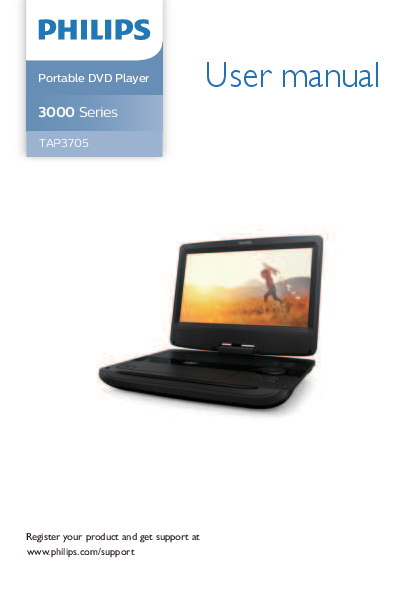
PHILIPS TAP3705 Portable DVD Player User Manual
File info: application/pdf · 18 pages · 3.29MB
3705-05 英文说明书
User manual - Philips
You can connect the player to a TV or an amplifier to enjoy DVDs or Karaoke. Match the color of the AV cables with the jacks: the yellow cable is for the ...
User manual PDF file, 4.2 MB May 19, 2022
Visit the support page for your Portable DVD Player TAP3705/05 | Philips
Full PDF Document

If the inline viewer fails, it will open the original document in compatibility mode automatically. You can also open the file directly.
Extracted Text
Portable DVD Player
3000 Series
TAP3705

User manual

Register your product and get support at www.philips.com/support

1 Safety and important notice

3

2 Your portable DVD player

6

Introduction

6

What's in the box

6

Overview of the main unit

7

Overview of the remote control 9

3 Get started

10

Charge the battery

10

Install remote control battery

11

Connect additional equipment 11

Use your player

12

Control photo play

13

Repeat play

13

Skip play

13

Divx videos

13

4 Adjust settings

14

System setup

15

Language setup

15

Audio setup

15

Video setup

15

Digital setup

15

Auto standby

15

5 Software update

16

6 Specifications

16

7 Troubleshooting

17

1
Hearing safety
Listen at a moderate volume. � Using headphones at a high volume can
impair your hearing.This product can produce sounds in decibel ranges that may cause hearing loss for a normal person, even for exposure less than a minute.The higher decibel ranges are offered for those that may have already experienced some hearing loss. � Sound can be deceiving. Over time your hearing "comfort level" adapts to higher volumes of sound. So after prolonged listening, what sounds "normal"can actually be loud and harmful to your hearing.To guard against this, set your volume to a safe level before your hearing adapts and leave it there. To establish a safe volume level: � Set your volume control at a low setting. � Slowly increase the sound until you can hear it comfortably and clearly, without distor tion. Listen for reasonable periods of time: � Prolonged exposure to sound, even at normally "safe" levels, can also cause hearing loss. � Be sure to use your equipment reasonably and take appropriate breaks.

Be sure to observe the following guidelines when using your headphones.
� Listen at reasonable volumes for reasonable periods of time.
� Be careful not to adjust the volume as your hearing adapts.
� Do not turn up the volume so high that you can't hear what's around you.
� You should use caution or temporarily discontinue use in potentially hazardous situations. Do not use headphones while operating a motorized vehicle, cycling, skateboarding, etc.; it may create a traffic hazard and is illegal in many areas.

Risk of overheating! Never install his product in a confined space. Always leave a space of at least 10 cm around the product for ventilation. Ensure newspapers, table-cloths, curtains or other objects never cover the ventilation slots on the product.
Never use the product in tropical climates.
Risk of contamination! Do not mix batteries. (old and new or carbon and alkaline, etc.)
Danger of explosion if batteries are incorrectly replaced. Replace only with the same or equivalent type. Remove batteries if they are exhausted or if the remote control is not to be used for a long time. Batteries contain chemical substances, they should be disposed of properly to protect the environment.

Inform yourself about the local separate collection system for electrical and electronic products and batteries. Follow local rules and never dispose of the product and batteries with normal household waste. Correct disposal of old products and batteries helps prevent negative consequences for the environment and human health.
Hereby, TP Vision Europe BV declares that this product is in compliance with the essential requirements and other relevant provisions of Directives 2014/35/EU 2014/30/EU You can find the Declaration of Conformity on www.p4c.philips.com.
This symbol on a product means that the product is covered by European Directive 2012/19/EU. This symbol means that the product contains batteries covered by European Directive 2013/56/EU which cannot be disposed of with normal household waste.

2 Your portable DVD player
Congratulations on your purchase, and welcome to Philips! To fully benefi t from the support that Philips offers, register your product at www.philips. com/support.
Introduction
Your portable DVD player plays digital video discs that conform to the universal DVD Video standard. With it, you can play movies with true cinema picture quality and stereo or multi-channel sound (depending on disc and playback set-up). You can also select sound track, subtitle languages, and different angle of view (again depending on DVD disc). Besides, you can restrict the play of discs that are not suitable for children.You can play the following discs on the DVD player : 444A, TCD732, VCD/SVCD, DIVX, MP4, DVD-R/-RW, DVD+R/+RW, DVD-RW, CD-R/RW, MP3, JPG, USB, Area code disc.
What's in the box
Check and identify the contents of your package: � Portable DVD player x1 � Remote control x1 � AAA batteries x2 � AC power adaptor x1 � Car charger x1 � AV cable x1 � Quick Start Guide x1 � Warranty Card x1 � Safety Sheet x1

Overview of the main unit

1

2

4 6

8 9 10

13

3

15

1.LED Display 2.Speakers 3.OPEN : Open the disc compartment. 4.SOURCE : Press to switch DVD/USB/SD card/AV in mode. 5.REPEAT : Press to repeat a title, chapter, track or the whole disc. 6.MENU : Press to return to the main menu of the disc. 7.SETUP : Enter or exit the system setup menu. 8. : Scroll up. 9. / VOL- : Short press to scroll left; long press to reduce volume. 10. : Scroll down. 11.OK : Confirm an entry or selection. 12. / VOL+ : Short press to scroll right; long press to increase volume. 13. : To Star t, pause or resume play. 14. : Press to stop disc play. 15. : Skip to the previous next chapter, track or title. 16. : Skip to the next next chapter, track or title.

17

18 19 20 21 22 23

17.USB : USB port. 18.SD/MMC : SD/MMC slot. 19. : Headphone jack. 20.AV OUT : Audio/video output jack. 21.AV IN : Audio/video input jack. 22.OFF ON : Turn on/off the player. 23.DC IN : Power supply socket.

Overview of the remote control

1

13

14

2

15

3

16

4

17

5

6

18

7 19

8

20

9

10

21

22 12

1. 2.SOURCE 3.A-B 4.
5.
6.SETUP 7. 8. 9. 10. 11.0-9 12.GOTO 13.MUTE 14.DISPLAY 15.SUBTITLE 16.REPEAT 17.AUDIO 18.MENU 19.ENTER 20. 21. 22.PROG

Press to turn on the player, or switch the player to standby. Switch between DVD/USB/SD card/AV IN mode. Marks the section for repeat play. Short press to skip to the previous title, chapter, or track; long press for fast rewind play. Short press to skip to the next title, chapter, or track; long press for fast forward play. Enter or exit the system setup menu. Scroll up. Short press to scroll left; long press to reduce volume. Scroll down. Stop play. Number keys. Skip to a title, a chapter or a track. Press once to turn off the sound; press again to turn on the sound. Display screen information. Select a subtitle language. Repeat a title, chapter, track or the whole disc. Adjust the audio output fomat. Return to the main memu of the disc. Confirm an entry or selection. Short press to scroll right; long press to increase volume. Start, pause or resume play. If a disc contains 2 or more tracks, chapter or titles, set up the playing to your preferred programming. Press this button to enter the programming menu.

3 Get started
Caution
Use the controls only as stated in this user manual.
Always follow the instructions in this chapter in sequence. If you contact Philips, you will be asked for the model and serial number of your player. The model number and serial number are on the bottom of your player. Write the numbers here: Model No. __________________________ Serial No. ___________________________
Charge the battery
Caution � Risk of product damage! Ensure that the power supply voltage corresponds to the voltage printed on the bottom of the
player.
� Use only the supplied AC adaptor to charge the battery.
1 Slide the OFF ON switch to OFF position. 2 Connect the supplied AC adaptor to the player and to the AC outlet or connect to a car charger
to charge battery.
DC IN 12V
DC IN 12V
The charge indicator lights up and turns red. It takes about 3.5 hours to fully charge the battery. When the battery is fully charged, the charge indicator turns yellow.

Install remote control battery
Caution � Risk of explosion! Keep batteries away from heat, sunshine or fire. Never discard batteries in fire. � Risk of decreased battery life! Never mix different brands or types of batteries. � Risk of product damage! When the remote control is not used for long periods, remove the batteries. � Perchlorate Material - special handling may apply. See www.dtsc.ca.gov/hazardouswaste/perchlorate.
For first-time use:
1 Remove the protective tab to activate the remote control battery.
To replace the remote control battery:
1 Open the battery compartment. 2 Insert two RO3 AAA CARBON ZINC batteries 1.5V. 3 Close the battery compartment.

Connect additional equipment
Caution � Turn off your player before connecting to any additional equipment.
You can connect the player to a TV or an amplifier to enjoy DVDs or Karaoke. Match the color of the AV cables with the jacks: the yellow cable is for the yellow video jack, the red/white cable is for the red/white audio jacks.

AV OUT


TV

Tip � To conserve energy, press SOURCE and select AV IN mode to turn off the front panel display.

Use your player
OPEN
SD
SD
USB

Flip the photo up and down.
Rotate a photo anti-clockwise/ clockwise.
Photos are played from beginning to end one by one.
Press once to stop photo play and go back to browse; press twice to go back to menu setting.

Then press OK to proceed.

To cancel repeat play, press and hold REPEAT until [Off] is displayed.

If subtitles are not displayed correctly, change the character set that supports DivX subtitles. Select a character set: press SUBTITLE and switch between subtitles until the desired character set are selected.

English

English

4 Adjust settings
This section helps you adjust the settings of this player.
Press to go back to previous menu level. Press SETUP to exit the menu.

System setup
System setup

Menu lang
Audio setup

(when connected to a TV).
POWER RESUME : If enabled, the player will resume the play at the position it last stopped, after restarting from a power-off.
AUTO PLAY : If enabled, after reading the disc, the player will play the contents of the disc directly. If disabled, after reading the disc, you need to choose the contents that you want to play.

Audio setup KEY : Adjustment of lifting and falling. EQ : Equalizer of different music styles: STANDARD, CLASSIC, ROCK, JAZZ, POP.
Video setup
Video setup

Language setup
Language setup Osd language Audio lang Subtitle lang

Digital setup
Digital setup
Dual mono :Select Stereo, Mono L, Mono R, Mix Mono

5 Software update

Power supply must not be interrupted during software update.
If the power supply is cut off, the machine can no longer be used.

Supported File Formats (nonsupport DIVX3.11)

1. Download the software from website. 2. Name the software as 8202KD.BIN, and then copy it to USB. 3. Remove the disc from the player, and turn it on. Insert the USB with copied software into the player's USB port, and the player will upgrade automatically.
6 Specifications
Specifications are subject to change without notice.

253 x 205 x 43 mm
Input: 100-240V~, 50/60Hz Output: DC 12V, 1.5A

EU

7 Troubleshooting
Supported File Formats

2020 � Philips and the Philips Shield Emblem are registered trademarks of Koninklijke Philips N.V. and are used under license.This product has been manufactured by and is sold under the responsibility of MMD Hong Kong
Limited is the warrantor in relation to this product. TAP3705_05_UM_V1.0