

68-2545-01 E
File info: application/pdf · 35 pages · 3.83MB
68-2545-01 E
User Guide DTP HD DA 4K Series - Extron
if not installed and used in accordance with the instruction manual, may cause harmful interference to radio communications. Operation of this ...
Extron products use the SIS - Simple Instruction Set command protocol, a set of basic ASCII commands that allow for quick and easy ...
Full PDF Document

If the inline viewer fails, it will open the original document in compatibility mode automatically. You can also open the file directly.
Extracted Text
User Guide
Video Products
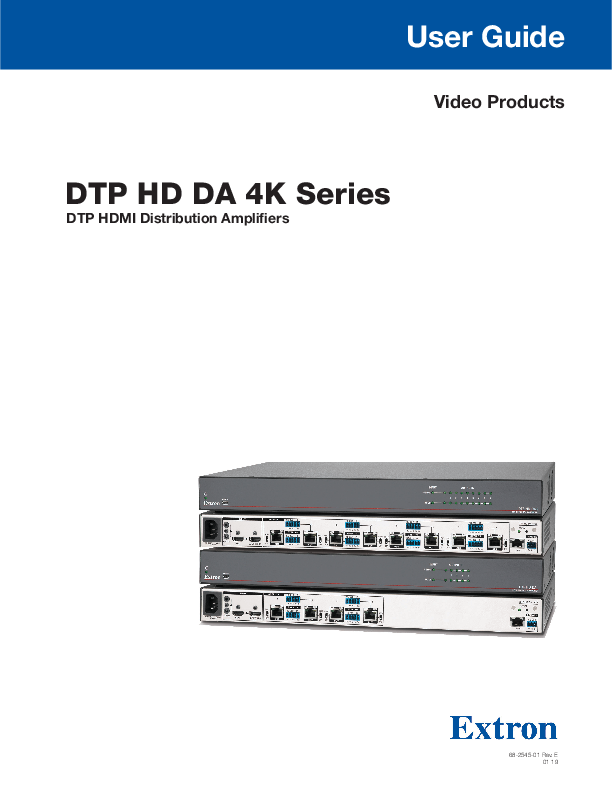
DTP HD DA 4K Series
DTP HDMI Distribution Amplifiers
68-2545-01 Rev. E 01 19

Safety Instructions
Safety Instructions � English
WARNING: This symbol, , when used on the product, is intended to alert the user of the presence of uninsulated dangerous voltage within the product's enclosure that may present a risk of electric shock.
ATTENTION: This symbol, , when used on the product, is intended to alert the user of important operating and maintenance (servicing) instructions in the literature provided with the equipment.
For information on safety guidelines, regulatory compliances, EMI/EMF compatibility, accessibility, and related topics, see the Extron Safety and Regulatory Compliance Guide, part number 68-290-01, on the Extron website, www.extron.com.
Sicherheitsanweisungen � Deutsch
WARNUNG: Dieses Symbol auf dem Produkt soll den Benutzer darauf aufmerksam machen, dass im Inneren des Geh�uses dieses Produktes gef�hrliche Spannungen herrschen, die nicht isoliert sind und die einen elektrischen Schlag verursachen k�nnen.
VORSICHT: Dieses Symbol auf dem Produkt soll dem Benutzer in der im Lieferumfang enthaltenen Dokumentation besonders wichtige Hinweise zur Bedienung und Wartung (Instandhaltung) geben.
Weitere Informationen �ber die Sicherheitsrichtlinien, Produkthandhabung, EMI/EMF-Kompatibilit�t, Zug�nglichkeit und verwandte Themen finden Sie in den Extron-Richtlinien f�r Sicherheit und Handhabung (Artikelnummer 68-290-01) auf der Extron-Website, www.extron.com.
Instrucciones de seguridad � Espa�ol
ADVERTENCIA: Este s�mbolo, , cuando se utiliza en el producto, avisa al usuario de la presencia de voltaje peligroso sin aislar dentro del producto, lo que puede representar un riesgo de descarga el�ctrica.
ATENCI�N: Este s�mbolo, , cuando se utiliza en el producto, avisa al usuario de la presencia de importantes instrucciones de uso y mantenimiento recogidas en la documentaci�n proporcionada con el equipo.
Para obtener informaci�n sobre directrices de seguridad, cumplimiento de normativas, compatibilidad electromagn�tica, accesibilidad y temas relacionados, consulte la Gu�a de cumplimiento de normativas y seguridad de Extron, referencia 68-290-01, en el sitio Web de Extron, www.extron.com.
Instructions de s�curit� � Fran�ais
AVERTISSEMENT : Ce pictogramme, , lorsqu'il est utilis� sur le produit, signale � l'utilisateur la pr�sence � l'int�rieur du bo�tier du produit d'une tension �lectrique dangereuse susceptible de provoquer un choc �lectrique.
ATTENTION : Ce pictogramme, , lorsqu'il est utilis� sur le produit, signale � l'utilisateur des instructions d'utilisation ou de maintenance importantes qui se trouvent dans la documentation fournie avec le mat�riel.
Pour en savoir plus sur les r�gles de s�curit�, la conformit� � la r�glementation, la compatibilit� EMI/EMF, l'accessibilit�, et autres sujets connexes, lisez les informations de s�curit� et de conformit� Extron, r�f. 68-290-01, sur le site Extron, www.extron.com.

Istruzioni di sicurezza � Italiano
AVVISO: Questo simbolo, ,quando viene utilizzato il prodotto, serve ad avvisare l'utente della presenza di tensioni pericolose non isolate all'interno del prodotto, che pu� presentare un rischio di scosse elettriche.
ATTENTZIONE: Questo simbolo, , quando viene utilizzato il prodotto, serve ad avvisare l'utente di importanti istruzioni di uso e manutenzione (assistenza) nella letteratura fornita con l'apparecchiatura.
Per informazioni sulle linee guida di sicurezza, adempimenti normativi, compatibilit� EMI/EMF, accessibilit� e argomenti correlati, vedere la sicurezza di Extron e Regulatory Compliance Guide, parte numero 68-290-01, sul sito Web Extron, www.extron.com.
Instrukcje bezpieczestwa � Polska
OSTRZEENIE: Ten symbol, , gdy uywany na produkt, ma na celu poinformowa uytkownika o obecnoci izolowanego i niebezpiecznego napicia wewntrz obudowy produktu, kt�ry moe stanowi zagroenie poraenia prdem elektrycznym.
UWAGI: Ten symbol, , gdy uywany na produkt, jest przeznaczony do ostrzegania uytkownika wane operacyjne oraz instrukcje konserwacji (obslugi) w literaturze, wyposaone w sprzt.
Informacji na temat wytycznych w sprawie bezpieczestwa, regulacji wzajemnej zgodnoci, zgodno EMI/EMF, dostpnoci i Tematy pokrewne, zobacz Extron bezpieczestwa i regulacyjnego zgodnoci przewodnik, cz numer 68-290-01, na stronie internetowej Extron, www.extron.com.
�������� �� ������ ������������ � �������
��������������: ����� ������, , ���� ������ �� ��������, ������������� ���������� � ������ ���������������� �������� �������� ������ ������� ��������, ������� ����� �������� � �������� ������������ �����.
�������: ����� ������, , ���� ������ �� ��������, ������������� ���������� � ������ ���� ��������� �� ����������� � ����������� � �����������, ����������� � ������� �����������.
�� ������� ��������� � ������� ������ ������������, ��������� ��������� ����������, ���������������� ������������� (���/���), ����������� ������� � ����� ������� ��. ����������� �� ������������ � �������� ��������� ���������� Extron �� ����� Extron: , www.extron.com, ����� �� �������� - 68-290-01.
 �
  b
    b
aa&.*&.'a Extron
www.extron.com Extron68-290-01b

w  :

EMI/EMF   Extron www.extron.comExtron   68-290-01
 �


&.*&.'

 &YUSPO www.extron. com
&YUSPO


&.*&.' www.extron.com Extron Safety and Regulatory Compliance Guide P/N 68-290-01


FCC Class A Notice
This equipment has been tested and found to comply with the limits for a Class A digital device, pursuant to part 15 of the FCC rules. The Class A limits provide reasonable protection against harmful interference when the equipment is operated in a commercial environment. This equipment generates, uses, and can radiate radio frequency energy and, if not installed and used in accordance with the instruction manual, may cause harmful interference to radio communications. Operation of this equipment in a residential area is likely to cause interference. This interference must be corrected at the expense of the user.
ATTENTION: The Twisted Pair Extension technology works with unshielded twisted pair (UTP) or shielded twisted pair (STP) cables; but to ensure FCC Class A and CE compliance, STP cables and STP Connectors are required.
For more information on safety guidelines, regulatory compliances, EMI/EMF compatibility, accessibility, and related topics, see the "Extron Safety and Regulatory Compliance Guide" on the Extron website.

Battery Notice

This product contains a battery. Do not open the unit to replace the battery. If the battery needs replacing, return the entire unit to Extron (for the correct address, see the Extron Warranty section on the last page of this guide).
CAUTION: Risk of explosion. Do not replace the battery with an incorrect type. Dispose of used batteries according to the instructions.
ATTENTION : Risque d'explosion. Ne pas remplacer la pile par le mauvais type de pile. D�barrassez-vous des piles usag�es selon le mode d'emploi.

Copyright � 2018 Extron Electronics. All rights reserved.
Trademarks All trademarks mentioned in this guide are the properties of their respective owners.
All trademarks mentioned in this guide are the properties of their respective owners. The following registered trademarks(�), registered service marks(SM), and trademarks(TM) are the property of RGB Systems, Inc. or Extron Electronics (see the current list of trademarks on the Terms of Use page at www.extron.com):
Registered Trademarks (�)
Extron, AVTrac, Cable Cubby, ControlScript, CrossPoint, DTP, eBUS, EDID Manager, EDID Minder, Flat Field, FlexOS, Global Configurator, Global Scripter, GlobalViewer, Hideaway, Inline, IP Intercom, IP Link, Key Minder, LinkLicense, LockIt, MediaLink, MediaPort, NetPA, PlenumVault, PoleVault, PowerCage, PURE3, Quantum, SoundField, SpeedMount, SpeedSwitch, System INTEGRATOR, TeamWork, TouchLink, V-Lock, VersaTools, VN-Matrix, VoiceLift, WallVault, WindoWall, XTP, and XTP Systems
Registered Service Mark(SM) : S3 Service Support Solutions
Trademarks (TM)
AAP, AFL (Accu-Rate Frame Lock), ADSP (Advanced Digital Sync Processing), Auto-Image, CableCover, CDRS (Class D Ripple Suppression), DDSP (Digital Display Sync Processing), DMI (Dynamic Motion Interpolation), Driver Configurator, DSP Configurator, DSVP (Digital Sync Validation Processing), eLink, EQIP, EverLast, FastBite, FOX, FOXBOX, HyperLane, IP Intercom HelpDesk, MAAP, MicroDigital, Opti-Torque, ProDSP, QS-FPC (QuickSwitch Front Panel Controller), Room Agent, Scope-Trigger, ShareLink, SIS, Simple Instruction Set, Skew-Free, SpeedNav, Triple-Action Switching, True4K, VectorTM 4K , WebShare, XTRA, ZipCaddy, and ZipClip

Conventions Used in this Guide
Notifications
The following notifications are used in this guide:
CAUTION: Risk of minor personal injury. ATTENTION : Risque de blessure mineure.
ATTENTION: � Risk of property damage. � Risque de dommages mat�riels.
NOTE: A note draws attention to important information.
TIP: A tip provides a suggestion to make working with the application easier.
Software Commands
Commands are written in the fonts shown here: ^AR Merge Scene,,Op1 scene 1,1 ^B 51 ^W^C [01] R 0004 00300 00400 00800 00600 [02] 35 [17] [03] E X! *X1&* X2)* X2#* X2! CE} NOTE: For commands and examples of computer or device responses mentioned in this guide, the character "0" is used for the number zero and "O" is the capital letter "o."
Computer responses and directory paths that do not have variables are written in the font shown here:
Reply from 208.132.180.48: bytes=32 times=2ms TTL=32 C:\Program Files\Extron Variables are written in slanted form as shown here: ping xxx.xxx.xxx.xxx --t SOH R Data STX Command ETB ETX Selectable items, such as menu names, menu options, buttons, tabs, and field names are written in the font shown here: From the File menu, select New. Click the OK button.
Specifications Availability
Product specifications are available on the Extron website, www.extron.com.
Extron Glossary of Terms
A glossary of terms is available at www.extron.com/technology/glossary.aspx.

Contents

Introduction............................................................ 1 DTP HD DA 4K Series Description...................... 1 Features ............................................................. 1 Application Diagrams.......................................... 3
Installation and Operation.................................. 4 Mounting the Units ............................................. 4 Tabletop Use .................................................. 4 Mounting Kits ................................................. 4 UL Rack-Mounting Guidelines ........................ 4 Front Panel Features........................................... 5 Rear Panel Features ........................................... 6 Connecting the Input Source .............................. 8 Twisted Pair Recommendations for DTP Communication ................................................. 9 Supported Cables .......................................... 9 Cable Recommendations ............................... 9 Wiring for RS-232 Control ................................ 10

Reference Information ...................................... 21
Using the Internal Web Pages........................... 21 Accessing the Internal Web Pages................ 21 Setting Up the Device with the Internal Web Pages.................................................. 22
Updating the Device Firmware .......................... 23 Downloading Firmware ................................. 23 Downloading and Installing PCS ................... 23 Loading Firmware to the DA with PCS .......... 24 Loading Firmware to the DA with Internal Web Pages.................................................. 26

SIS Commands ................................................... 11
Introduction to SIS ........................................... 11 Host-to-Distribution Amplifier Communications ......................................... 11 Distribution Amplifier-initiated Messages ....... 11 Copyright Information ................................... 11
Symbols Used in this Guide.............................. 12 Symbol Definitions ........................................ 12 Error Messages ............................................ 14 EDID............................................................. 14
DTP HD DA 4K Series EDID Memory Locations........................................... 15 Command and Response Table for SIS Commands ..................................................... 16

Extron DTP HD DA 4K Series � Contents vii

Extron DTP HD DA 4K Series � Introduction viii

Introduction

This guide describes the function, installation, and operation of the DTP HD DA4 4K and DTP HD DA8 4K series of distribution amplifiers. Unless otherwise stated, the terms "distribution amplifier" or "DA" refer to any of the products in the series. This section provides the following information:
z DTP HD DA 4K Series Description
z Features
z Application Diagrams

DTP HD DA 4K Series Description
These Extron distribution amplifiers distribute one HDMI input signal to four (DTP HD DA4 4K 230 and DTP HD DA4 4K 330 models) or eight (DTP HD DA8 4K 230 and DTP HD DA8 4K 330 models) simultaneous outputs over shielded twisted pair (STP) cables. The 230 models distribute one HDMI input signal up to 230 feet (70 meters) and the 330 models distribute one HDMI input signal up to 330 feet (100 meters). All models are fully High-bandwidth Digital Content Protection (HDCP) compliant.
These distribution amplifiers support data rates up to 10.2 Gbps (3.4 Gbps per color) with up to 12-bit deep color and use the EDID Minder feature for EDID management.
The automatic output compatibility correction feature scans each output device to ensure that the output signal is compatible with the color depth and format requirements of the device. Each output is adjusted independently.

Features

� Distributes HDMI plus control and analog audio up to 230 feet (70 meters) or 330 feet (100 meters) over STP cable (depending on the model)
� Inputs: One HDMI with buffered input loop-through, one 3.5 mm stereo mini jack for audio with loop-through
� Outputs: Four (DTP HD DA4 4K models) or eight (DTP HD DA8 4K models) DTP twisted pair outputs on RJ-45
� Supports computer video up to 2560x1600, HDTV 1080p/60 Deep Color, and 4K resolutions
� DTP outputs are compatible with HDBaseT-enabled devices -- Each DTP output can be configured to send video and embedded audio, plus bidirectional RS-232 and IR signals to an HDBaseT-enabled device.
� HDMI input loop-through -- The DTP HD DA 4K series features an active local HDMI output for local monitor support or system expansion.
� Audio input with loop-through accepts additional analog stereo audio signals -- The DTP HD DA 4K series accepts stereo analog audio signals for simultaneous transmission over the same shielded twisted pair cable, and it includes a loop-through for local audio system and monitoring needs. Analog audio is not embedded onto the digital video signal, nor is digital audio de-embedded from the digital video signal.

Extron DTP HD DA 4K Series � Introduction 1

� Supports multiple embedded audio formats -- The DTP HD DA 4K series is compatible with a broad range of multi-channel audio signals, providing reliable operation with HDMI sources.
� Remote powering of DTP receivers -- The DTP HD DA 4K series can provide power to four or eight DTP receivers over the twisted pair connections, eliminating the need for separate power supplies at the remote units.
� RS-232 insertion from the Ethernet control port -- System level AV device control to all remote locations via the Ethernet port on the distribution amplifier, providing control of the attached devices without needing additional equipment.
� Bidirectional RS-232 and IR pass-through for AV device control -- Bidirectional RS-232 control and IR signals can be transmitted alongside the video signal, allowing remote AV devices to be controlled without the need for additional cabling.
� HDCP compliant � Supported HDMI specification features include data rates up to 10.2 Gbps,
Deep Color up to 12-bit, 3D, and HD lossless audio formats � Key Minder continuously verifies HDCP compliance -- Key Minder authenticates
and maintains continuous HDCP encryption between input and output devices to enable simultaneous distribution of a single source signal to two or more displays. � EDID Minder automatically manages EDID communication between connected devices -- EDID Minder ensures that the source powers up properly and reliably outputs content for display. � Supports EDID and HDCP transmission -- DDC channels are actively buffered, allowing continuous communication between source and display. � HDCP authentication and signal presence confirmation -- Provides real-time verification of HDCP status for each digital video input and output. � HDCP Visual Confirmation provides a green signal when encrypted content is sent to a non-compliant display -- A full-screen green signal is sent when HDCP-encrypted content is transmitted to a non-HDCP compliant display, providing immediate visual confirmation that protected content cannot be viewed on the display. � HDMI to DVI Interface Format Correction -- Automatically enables or disables embedded audio and InfoFrames, and sets the correct color space for proper connection to HDMI and DVI displays. � RS-232 control port -- Enables the use of serial commands for integration into a control system. Extron products use the SIS - Simple Instruction Set command protocol, a set of basic ASCII commands that allow for quick and easy programming. � RJ-45 signal and link LED indicators for DTP ports -- Provides a means for validating signal flow and operation. � Compatible with all DTP 230 and DTP 330 Series receivers and DTP-enabled products -- Enables mixing and matching with desktop and wallplate receivers, as well as other DTP-enabled products to meet application requirements.
Extron DTP HD DA 4K Series � Introduction 2

Application Diagrams

The diagrams below show typical applications for the DTP HD DA 4K series.

Laptop

Laptop

Laptop

Tablet
iPad

More

DVD

Combined Video

LAPTOP PC DVD
DOC CAM AUXILIARY

DISPLAY ON DISPLAY OFF
MUTE VOLUME VOLUME

Extron TLP Pro 320C 3.5" Cable Cubby TouchLink Pro Touchpanel

Ethernet

TCP/IP Network

Audio

VGA

HDMI

HDMI

HDMI

100-240V ~ --A MAX 1 CONFIGURABLE

2 HDMI

3 HDMI

4 HDMI

50-60 Hz

INPUT

OUT

L

R

IN 1

2

L

R

AUDIO

HDMI OUTPUT

1 2 3 4 +V

TALLY OUT
CONTACT IN 1 2 3 4G

RS-232 Tx Rx G

REMOTE

Extron IN1604 HD Four Input Scaler

Ethernet Extron IPL Pro S3 IP Link Pro Control Processor
IPL PRO S3

POWER 12V 0.3A MAX

COM 1

COM 2

COM 3

Tx Rx G RTS CTS Tx Rx G RTS CTS Tx Rx G RTS CTS

LAN / PoE

Ethernet

HDMI

INPUT

OUTPUTS

RS-232 IR

1

Tx Rx G Tx Rx

SIG HDBT

LINK

OVER TP

SIG

RS-232 IR

2

LINK

HDBT

HDBT

RS-232 IR

3

4

Tx Rx G Tx Rx

SIG

LINK

OVER TP

SIG

LINK

RS-232 IR

HDBT

100-240V ~ --A MAX 50/60 Hz

AUDIO

Extron

HDMI

LOOP THRU DTP

OUT

Tx Rx G Tx Rx

OUT

DTP

DTP

OUT

Tx Rx G Tx Rx

OUT

DTP

DTP HD DA4 4K 330

DTP Distribution Amplifier

RS-232

DTP HD DA4 4K 330 RESET

REMOTE RS-232

LAN

Tx Rx G

CATx Cable up to 330' (100 m)

CATx Cable up to 330' (100 m)

Extron DTP HDMI 4K 330 D Rx Receiver

OUTPUTS AUDIO

OVER DTP RS-232 IR
Tx Rx G Tx Rx

HDMI

RS-232

MODEL 80

MODEL 80

OUTPUTS AUDIO

OVER DTP RS-232 IR
Tx Rx G Tx Rx

HDMI

RS-232
MODEL 80

OUTPUTS AUDIO

OVER DTP RS-232 IR
Tx Rx G Tx Rx

Extron DTP HDMI 4K 330 D Rx Receiver

OUTPUTS AUDIO

OVER DTP RS-232 IR
Tx Rx G Tx Rx

HDMI

RS-232
MODEL 80

HDMI

RS-232

FLAT PANEL

FLAT PANEL

Display with Speakers

FLAT PANEL

FLAT PANEL

Display with Speakers

Figure 1. DTP HD DA4 4K Application Diagram

Laptop

Laptop

Laptop

Tablet
iPad

More

DVD

Combined Video

LAPTOP PC DVD
DOC CAM AUXILIARY

DISPLAY ON DISPLAY OFF
MUTE VOLUME VOLUME

Extron TLP Pro 320C 3.5" Cable Cubby TouchLink Pro Touchpanel

Ethernet

TCP/IP Network

Audio

VGA

HDMI

HDMI

HDMI

100-240V ~ --A MAX 1 CONFIGURABLE

2 HDMI

3 HDMI

4 HDMI

50-60 Hz

INPUT

OUT

L

R

IN 1

2L

R

AUDIO

HDMI OUTPUT

1 2 3 4 +V

TALLY OUT
CONTACT IN 1 2 3 4G

RS-232 Tx Rx G

REMOTE

Extron IN1604 HD Four Input Scaler

Extron Ethernet IPL Pro S3 IP Link Pro Control Processor
IPL PRO S3

POWER 12V 0.3A MAX

COM 1

COM 2

COM 3

Tx Rx G RTS CTS Tx Rx G RTS CTS Tx Rx G RTS CTS

LAN / PoE

Ethernet

HDMI

RS-232

RS-232 Insertion from Ethernet for Display Control

INPUT

OUTPUTS

RS-232 IR

1

2

Tx Rx G Tx Rx

RS-232 IR

3

4

Tx Rx G Tx Rx

RS-232 IR

5

6

Tx Rx G Tx Rx

RS-232 IR

7

8

Tx Rx G Tx Rx

DTP HD DA8 4K 330 RESET

SIG HDBT

LINK

OVER TP

SIG

RS-232 IR

LINK

SIG

HDBT HDBT

LINK

OVER TP

SIG

RS-232 IR

LINK

SIG

HDBT HDBT

LINK

OVER TP

SIG

RS-232 IR

LINK

SIG

HDBT

HDBT

LINK

OVER TP

SIG

RS-232 IR

LINK

HDBT

REMOTE RS-232

100-240V ~ --A MAX 50/60 Hz

AUDIO

Extron

HDMI

LOOP THRU DTP

OUT

Tx Rx G Tx Rx

OUT

DTP

DTP

OUT

Tx Rx G Tx Rx

OUT

DTP

DTP

OUT

Tx Rx G Tx Rx

OUT

DTP

DTP

OUT

Tx Rx G Tx Rx

OUT

DTP

LAN

Tx Rx G

DTP HD DA8 4K 330 DTP Distribution Amplifier

CATx Cable up to 330' (100 m)

Extron DTP HDMI 4K 330 D Rx Receiver

OUTPUTS AUDIO

OVER DTP RS-232 IR
Tx Rx G Tx Rx

OUTPUTS AUDIO

OVER DTP RS-232 IR
Tx Rx G Tx Rx

HDMI
MODEL 80

RS-232
MODEL 80

OUTPUTS AUDIO

OVER DTP RS-232 IR
Tx Rx G Tx Rx

OUTPUTS AUDIO

OVER DTP RS-232 IR
Tx Rx G Tx Rx

OUTPUTS AUDIO

OVER DTP RS-232 IR
Tx Rx G Tx Rx

MODEL 80

OUTPUTS AUDIO

OVER DTP RS-232 IR
Tx Rx G Tx Rx

MODEL 80

CATx Cable up to 330' (100 m)

OUTPUTS AUDIO

OVER DTP RS-232 IR
Tx Rx G Tx Rx

OUTPUTS AUDIO

OVER DTP RS-232 IR
Tx Rx G Tx Rx

Extron DTP HDMI 4K 330 D Rx Receiver

HDMI

RS-232

FLAT PANEL

MODEL 80

Displays with Speakers

FLAT PANEL

MODEL 80

FLAT PANEL

MODEL 80

FLAT PANEL

MODEL 80

FLAT PANEL

FLAT PANEL

FLAT PANEL

FLAT PANEL

Figure 2. DTP HD DA8 4K Application Diagram

Extron DTP HD DA 4K Series � Introduction 3

Installation and Operation
This section of the guide describes the following topics concerned with the installation, setup, and operation of the DTP HD DA 4K series of distribution amplifiers. z Mounting the Units z Front Panel Features z Rear Panel Features z Connecting the Input Source z Twisted Pair Recommendations for DTP Communication z Wiring for RS-232 Control
Mounting the Units
ATTENTION: � Installation and service must be performed by authorized personnel only. � L'installation et l'entretien doivent �tre effectu�s par le personnel autoris� uniquement.
The DTP HD DA 4K series of distribution amplifiers can be placed on a table, mounted in a rack, or mounted under a desk or table.
Tabletop Use
Attach the included rubber feet to the bottom of the unit and place it in any convenient location.
Mounting Kits
Mount the unit using any optional compatible mounting kit listed on the Extron website (www.extron.com), in accordance with the directions included with the kit. For rack mounting, see "UL Rack-Mounting Guidelines" below.
UL Rack-Mounting Guidelines
The following Underwriters Laboratories (UL) requirements pertain to the installation of the unit into a rack. � Elevated operating ambient temperature -- If installed in a closed or multi-unit rack
assembly, the operating ambient temperature of the rack environment may be greater than room ambient. Therefore, consider installing the equipment in an environment compatible with the maximum ambient temperature (TMA = +122 �F, +50 �C) specified by Extron.
Extron DTP HD DA 4K Series � Installation and Operation 4

� Reduced air flow -- Installation of the equipment in a rack should be such that the amount of air flow required for safe operation of the equipment is not compromised.
� Mechanical loading -- Mounting of the equipment in the rack should be such that a hazardous condition is not achieved due to uneven mechanical loading.
� Circuit overloading -- Consideration should be given to the connection of the equipment to the supply circuit and the effect that overloading of the circuits might have on overcurrent protection and supply wiring. Appropriate consideration of equipment nameplate ratings should be used when addressing this concern.
� Reliable Earthing -- Reliable earthing of rack-mounted equipment should be maintained. Particular attention should be given to supply a connection other than a
direct connection to a branch circuit, such as by using a power strip.

Front Panel Features

C

E

CONFIG
AB

INPUT SIGNAL
HDCP

OUTPUTS LOOP 1 2 3 4 THRU

D

F

DTP HD DA4 Series
DTP DISTRIBUTION AMPLIFIER

C

E

CONFIG
AB

INPUT SIGNAL
HDCP

OUTPUTS

LOOP 1 THRU

2

3

4

5

6

7

8

DTP HD DA8 Series
DTP DISTRIBUTION AMPLIFIER

D

F

Figure 3. DTP HD DA 4K Series Front Panel
A Power status LED -- Lights green when power is applied to the unit. B USB Config port -- Used for firmware updates, SIS configuration, and software
control. This port can be used as an alternative to the rear panel Remote RS-232 captive screw connector (See Rear Panel Features on the following page).
NOTES: � Neither port has precedence and commands from either port are handled in the order they are received.
� Extron recommends that the USB port is used for temporary connections. If a permanent connection is required, the RS-232 port or an IP connection should be used.
C Input Signal LED -- Lights green when a signal is detected on the HDMI input. D Input HDCP LED -- Lights green when HDCP presence is detected on the HDMI
input.
E Output Signal LEDs -- Light green when a signal is detected on the HDMI outputs. F Output HDCP LEDs -- Light green when HDCP presence is detected on the HDMI
outputs.
Extron DTP HD DA 4K Series � Installation and Operation 5

Rear Panel Features

AC

I

100-240V 1.0A

50/60Hz

AUDIO

INPUT HDMI

OUTPUTS

RS-232 IR

RS-232 IR

1

Tx Rx G Tx Rx

SIG

LINK

OVER TP

SIG

HDBT

RS-232 IR

LOOP THRU

2

3

Tx Rx G Tx Rx

LINK

SIG

LINK

OVER TP

SIG

HDBT HDBT

RS-232 IR

4
LINK HDBT

DTP

OUT

Tx Rx G Tx Rx

OUT

DTP DTP

OUT

Tx Rx G Tx Rx

OUT

DTP

DTP HD DA4 330
RESET

REMOTE RS-232

LAN

Tx Rx G

B D EFG H AC

JK I

100-240V 1.0A

50/60Hz

AUDIO

INPUT HDMI

OUTPUTS

RS-232 IR

1

Tx Rx G Tx Rx

SIG

LINK

OVER TP

SIG

HDBT

RS-232 IR

LOOP THRU

RS-232 IR

2

3

Tx Rx G Tx Rx

LINK

SIG

LINK

OVER TP

SIG

HDBT HDBT

RS-232 IR

RS-232 IR

4

5

Tx Rx G Tx Rx

LINK

SIG

LINK

OVER TP

SIG

HDBT HDBT

RS-232 IR

RS-232 IR

6

7

Tx Rx G Tx Rx

LINK

SIG

LINK

OVER TP

SIG

HDBT HDBT

RS-232 IR

8
LINK HDBT

DTP

OUT

Tx Rx G Tx Rx

OUT

DTP DTP

OUT

Tx Rx G Tx Rx

OUT

DTP DTP

OUT

Tx Rx G Tx Rx

OUT

DTP DTP

OUT

Tx Rx G Tx Rx

OUT

DTP

DTP HD DA8 330
RESET

REMOTE RS-232

LAN

Tx Rx G

B D EFG H
G A Power input

G DTP/HDBaseT outputs

B Analog audio input

H Over TP RS-232/IR connectors

C Analog audio Loop Thru

I Reset button and LED

D HDMI input

J LAN connector

E HDMI Loop Thru

K Remote RS-232 connector

F DTP/HDBaseT configuration switches

JK

Figure 4. DTP HD DA 4K Series Rear Panel

A Power input -- Connect the provided IEC connector to a 100-240 VAC (50 or 60 Hz)
power source.
B Analog audio input -- Connect an unbalanced stereo audio source to these 3.5 mm
mini stereo jacks.

NOTE: The units do NOT embed analog audio onto the HDMI signal. This analog audio signal is transmitted simultaneously with audio embedded within the HDMI signal.

C Analog audio Loop Thru -- Connect an audio system to this 3.5 mm mini stereo jack
for local loop-through monitoring of the source audio.
D HDMI input -- Connect a source device to this female HDMI type A connector (see
Connecting the Input Source on page 8 for more information).
E HDMI Loop Thru -- Connect a display to this female HDMI type A connector for local
loop-through monitoring of the source signal (see Connecting the Input Source on page 8 for more information).
F DTP/HDBaseT configuration switch -- Set this 2-position, recessed switch to
configure the output between DTP and HDBaseT modes. When configured for DTP, use a DTP-compatible receiver. When configured for HDBaseT, use an HDBaseT-compatible receiver.

G DTP/HDBaseT outputs -- Use STP cables to connect these 4 (DA4 models) or 8
(DA8 models) outputs (see Figure 4 on the previous page) to the inputs of a compatible receiver (see Twisted Pair Recommendations for DTP Communication on page 9
Extron DTP HD DA 4K Series � Installation and Operation 6

for more information).

ATTENTION:
� Do not connect these outputs to a telecommunications or computer data network.
� Ne connectez pas ces appareils � des donn�es informatiques ou � un r�seau de t�l�communications.

H RS-232 Over TP port -- To pass bidirectional serial control between

DTP-compatible or HDBaseT-compatible devices, connect a control device to the

5-pole captive screw connector. This port includes only the 3 poles labeled "RS-232" (see image below for wiring instructions).

RS-232 IR

IR Over TP port -- To transmit and receive IR signals, connect a control

device to the 5-pole captive screw connector. This port includes only the

2 poles labeled "IR" and shares the ground pole with the RS-232 port

(see figure 5 for wiring instructions).

IR Device

Tx/Rx Pins

Rx Tx Gnd

Tx Rx G Tx Rx
RS-232 IR
Tx Rx G Tx Rx

Tx Rx G Tx Rx

IR

RS-232

Figure 5.

Tx Rx Gnd RS-232 Device
RS-232 and IR Wiring for the Over TP Port

NOTE: RS-232 and IR data can be transmitted simultaneously.

I Reset button and LED -- To reset the unit to factory default settings, press and hold
this reset button for approximately 9 seconds. The reset LED flashes green 3 times, once every 3 seconds. After the third flash, release the button and quickly press it once more to complete the reset. The LED flashes green 3 times indicating that the default settings have been restored.

J LAN (Ethernet) connector -- Use an RJ-45 cable to connect this jack to a LAN
(Ethernet) for control of the device.

� Use a straight-through cable for connection to a switch, hub, or router.

� Use a crossover cable or a straight-through cable for connection directly to a PC. Wire the connector as shown in figure 6.

Pins: 12345678
RJ-45 Connector
Insert Twisted Pair Wires

Straight-through Cable
(for connection to a switch, hub, or router)

End 1 Pin Wire Color

End 2 Pin Wire Color

1 white-orange 1 white-orange

2 orange

2 orange

3 white-green 3 white-green

4 blue

4 blue

5 white-blue

5 white-blue

6 green

6 green

7 white-brown 7 white-brown

8 brown

8 brown

TIA/EIA-T568B

T568B

Crossover Cable
(for direct connection to a PC)

End 1 Pin Wire Color

End 2 Pin Wire Color

1 white-orange 1 white-green

2 orange

2 green

3 white-green 3 white-orange

4 blue

4 blue

5 white-blue

5 white-blue

6 green

6 orange

7 white-brown 7 white-brown

8 brown

8 brown

T568B

T568A

Figure 6. LAN Connector Wiring

K Remote RS-232 connector -- (see Figure 4 on page 6) To control the unit, connect
an RS-232 device to this 3-pole, 3.5 mm captive screw connector and configure it as follows: 9600 baud rate, 8 data bits,1 stop bit, no parity (see Wiring for RS-232
Extron DTP HD DA 4K Series � Installation and Operation 7

Control on page 10 for more information).
Connecting the Input Source
Use an HDMI cable to connect the input source to the female HDMI socket on the rear panel
(6).
Follow these instructions to secure the input and output HDMI connectors to the unit with the LockIt HDMI lacing bracket provided:
3

3

4

2

1

5

Figure 7. LockIt Installation
1. Plug the HDMI cable into the rear panel connection (1).
2. Loosen the HDMI connection mounting screw from the panel enough to allow the LockIt
lacing bracket to be placed over it (2). The screw does not have to be removed.
3. Place the LockIt lacing bracket on the screw and against the HDMI connector, then tighten
the screw to secure the bracket (3).
ATTENTION: � Do not overtighten the HDMI connection mounting screw. The shield it fastens to is very thin and can easily be stripped.
� Ne serrez pas trop la vis de montage de la connexion HDMI. Le blindage auquel elle est attach�e est tr�s fin et peut facilement �tre d�nud�.

4. Loosely place the included tie wrap around the HDMI connector and the LockIt lacing
bracket as shown (4).
5. While holding the connector securely against the lacing bracket, tighten the tie wrap, then
remove any excess length (5).

Extron DTP HD DA 4K Series � Installation and Operation 8

Twisted Pair Recommendations for DTP Communication

Use the following pin configurations for shielded twisted pair cables.

Pins: 12345678
TP Wires

TIA/EIA T 568 B
Pin Wire color 1 White-orange 2 Orange 3 White-green 4 Blue 5 White-blue 6 Green 7 White-brown 8 Brown

Figure 8. Twisted Pair Wiring Diagram

Supported Cables
The distribution amplifiers are compatible with shielded twisted pair cable (F/UTP, SF/UTP, and S/FTP).
ATTENTION: � Do not use Extron UTP23SF-4 Enhanced Skew-Free AV UTP cable or STP201 cable to link the device with DTP transmitters or receivers. � N'utilisez pas le c�ble AV Skew-Free UTP version am�lior�e UTP23SF d'Extron ou le c�ble STP201 pour relier le appareil avec les �metteurs ou les r�cepteurs DTP.

Cable Recommendations

Extron recommends using the following practices to achieve full transmission distances and reduce transmission errors.

� Use the following Extron XTP DTP 24 SF/UTP cables and connectors for the best performance:

� XTP DTP 24/1000 Non-Plenum 1000' (305 m) spool

22-236-03

� XTP DTP 24P/1000 Plenum 1000' (305 m) spool

22-235-03

� XTP DTP 24 Plug Package of 10

101-005-02

� If not using XTP DTP 24 cable, at a minimum, Extron recommends 24 AWG, solid conductor, STP cable with a minimum bandwidth of 400 MHz.

� Terminate cables with shielded connectors to the TIA/EIA-T568B standard.

� Limit the use of more than two pass-through points, which may include patch points, punch down connectors, couplers, and power injectors. If these pass-through points are required, use shielded couplers and punch down connectors.

NOTE: When using shielded twisted pair cable in bundles or conduits, consider the following: � Do not exceed 40% fill capacity in conduits. � Do not comb the cable for the first 20 meters, where cables are straightened, aligned, and secured in tight bundles. � Loosely place cables and limit the use of tie wraps or hook-and-loop fasteners. � Separate twisted pair cables from AC power cables.

Extron DTP HD DA 4K Series � Installation and Operation 9

Wiring for RS-232 Control
RS-232 communication between the distribution amplifier and a host PC can be used to update firmware or configure the unit using SIS commands (see Command and Response Table for SIS Commands on page 16).
The computer connects to either the rear panel 3-pole RS-232 port (K on page 8) or the front panel USB port (see Figure 4 B on page 6) of the distribution amplifier.
NOTES: � Neither port has precedence and commands from either port are handled in the order they are received. � Extron recommends that the USB port is used for temporary connections. If a permanent connection is required, the RS-232 port should be used.

1. Connect an RS-232 cable to the computer, using a female 9-pin D connector (see figure 4): z Data received by the computer = pin 2 z Data transmitted by the computer = pin 3 z Ground = pin 5
2. Wire the opposite end of the cable to the provided 3-pole captive screw plug (see figure 9): z Data transmitted by the DA plugs into the Tx (transmit) port z Data received by the DA plugs into the Rx (receive) port z Ground plugs into the G (ground) port
NOTES: � The wiring in the RS-232 cables crosses over so that the Tx on the distribution amplifier connects to the Rx of the control device and vice versa. Ground always connects to ground. � If the cable has a drain wire, tie the drain wire to the ground at both ends.

5

1

9

6

DB9 Pin Locations

Female

Computer

Pin 2 = Rx Pin 3 = Tx Pin 5 = G

Receive Transmit
Ground

Transmit Receive Ground

Figure 9. Wiring the DTP HD DA 4K Series for RS-232 Control

REMOTE RS-232
Tx Rx G
DTP HD DA 4K

Extron DTP HD DA 4K Series � Installation and Operation 10

SIS Commands
This section provides information about the SIS commands that are used to configure the DTP HD DA 4K series. The following topics are discussed: z Introduction to SIS z Symbols Used in this Guide z DTP HD DA4 Series EDID Memory Locations z Command and Response Table for SIS Commands
Introduction to SIS
The distribution amplifiers can be set up and controlled remotely via Extron SIS commands that are issued from a host computer running the Extron DataViewer utility or other control system. The host device can be connected to the RJ-45 LAN connector on the rear panel, the 3-pole captive screw connector on the rear panel, or to the mini USB config port on the front panel. The serial protocol is 9600 baud, 8 data bit, 1 stop bit, and no parity.
NOTE: The wiring in the RS-232 cables crosses over so that the distribution amplifier transmit (Tx) wire connects with the control device receive (Rx) and vice versa.
Host-to-Distribution Amplifier Communications
SIS commands consist of strings (one or more characters per command field). No special characters are required to begin or end a command sequence. Unless otherwise stated, upper and lower case characters can be used interchangeably. Most responses from the distribution
amplifier end with a carriage return and a line feed (CR/LF = ]), which signal the end of the
response character string. When the switcher determines that a command is valid, it executes the command and sends a response to the host device.
Distribution Amplifier-Initiated Messages
When a local event such as a change in signal status takes place, the distribution amplifier responds by sending a message to the host, indicating the status change. No response is required from the host.
Copyright Information
The copyright message is displayed upon connecting to a DA via TCP/IP or Telnet or after a power cycle via RS-232. An example is provided below.
] (�) Copyright 20yy, Extron Electronics, DTP HD DA8 4K 330, Vx.xx, 60-xxxx-01] Mon, 6 Feb 2017 11:27:33 ]
20yy is the year the currently installed firmware was released, Vx.xx is the firmware version number, and 60-xxxx-01 is the catalog part number. This is followed by a Password prompt if a password has been set.
Extron DTP HD DA 4K Series � SIS Commands 11

Symbols Used in this Guide
When programming in the field, certain characters are most conveniently represented by their hexadecimal rather than their ASCII values. The table below shows the hexadecimal equivalent of each ASCII character:
ASCII to HEX Conversion Table
Space
.

Figure 10. ASCII to HEX Conversion Table

Symbol Definitions

� = Space

] = Carriage return with line feed

| or } = Carriage return with no line feed

E = Escape

or W

X! = Output selection

0 - 4 or loop out to 4 (DTP HD DA4 models) 0 - 8 or loop out to 8 (DTP HD DA8 models)

X@ = Status

0 = disabled/off/undetected 1 = enabled/on/detected

X# = Video color bit depth

0 = auto (based on EDID of sink, default) 1 = force 8-bit

X$ = EDID memory location

See the DTP HD DA4/DA8 EDID Memory Locations table on page 15.

X% = EDID data as 256 bytes of hex
data (text representation)

X^ = Native resolution and refresh
rate (translated from hex)

Example: 1600x1200 @60Hz

X& = Controller firmware version to
the second decimal place

X* = Unit name: Up to 24
alphanumeric characters (including the hyphen [-])

No spaces allowed No distinction between upper and lower case letters First character must be a letter Last character cannot be a hyphen (-) Default is model name followed by last 3 pairs of digits of MAC address

X(  Output 5V mode

0 = Auto (5V enabled when 5V source present, else off) 1 = 5V always enabled (default)

X1) = RS-232 insertion mode

0 = RS-232 pass through (default) 1 = Embedded RS-232

Extron DTP HD DA 4K Series � SIS Commands 12

X1! = TMDS output format
X1@ = HDCP output mode
X1# = DTP/HDBaseT switch position X1$ = Verbose mode
X1% = Set date/time X1^ = IP address X1& = MAC address X1* = Subnet mask X1( = Password X5& = Port number X5* = Baud rate X5( = Parity X6) = Data bits X6! = Stop bits X6$ = Port timeout intervals X6% = Start point for UART ports X6^ = Video mute X6&  View HDCP Notification

0 = Auto (default), pass through if HDMI sink, force DVI format if DVI sink 1 = DVI 2 = HDMI RGB "Full" 3 = HDMI RGB "Limited" 4 = HDMI YUV 444 "Limited" 5 = HDMI YUV 444 "Full" 6 = HDMI YUV 422 "Limited" 7 = HDMI YUV 422 "Full"
0 = Encrypt as required by input (Continuous trials for HDMI sinks, attempt for 10 seconds on DVI sinks,then fail) 1 = Always encrypt (Continuous trials for HDMI sinks, attempt for 10 seconds on DVI sinks,then fail) 2 = Encrypt as required by input (Continuous trials for HDMI sinks and DVI sinks) 3 = Always encrypt (Continuous trials for HDMI sinks and DVI sinks)
0 = DTP mode 1 = HDBaseT mode
0 = Clear/none (default for telnet) 1 = Verbose mode (default for RS-232 and USB) 2 = Tagged responses for queries 3 = Verbose mode and tagged responses for queries
MM/DD/YY-HH:MM:SS Example: 06/21/02-10:54:00
xxx.xxx.xxx.xxx (192.168.254.254 = default)
00-05-A6-xx-xx-xx
xxx.xxx.xxx.xxx (255.255.0.0 = default)
12 digits and alphanumeric characters for user or admin passwords.
01 = Remote RS-232/RS-422 port 02 = unused 03-10 = UARTs 1 through 8
Default = 9600 Port 1 is fixed at 9600
Odd, Even, None (default), Mark, Space (only the first letter is required)
7-8 (8 = default)
1, 2 (1 = default)
1-65000 (1 = 10 seconds; default = 30 - 300 seconds = 5 minutes, in 10-second increments)
1999 = default
0 = Video mute disabled 1 = Video mute 2 = Video and sync mute
0 = Green Screen (default); 1 = Black Screen

Extron DTP HD DA 4K Series � SIS Commands 13

Error Messages
E01 -- Invalid input channel number E10 -- Invalid command E13 -- Invalid value E24 -- Privilege violation E28 -- Bad filename / File not found
EDID User assigned mode
In user assigned mode, the user can select from 55 factory loaded EDID files, each categorized by rate type (PC or HDTV), video format (DVI or HDMI), audio type (2-Ch or Multi-Ch), and native resolution. The unit retains this setting after a power cycle. Additionally, two user-loaded slots are available to save the EDID of any connected display. EDID saved to these slots are retained after a power cycle. Upon a factory reset, these EDID revert to the factory default (720p @ 60 Hz, 2-Ch audio). A table showing the factory loaded EDID options is shown on the following page. The EDID
memory location is labelled X$ for consistency with the value in the SIS commands.
Extron DTP HD DA 4K Series � SIS Commands 14

Extron DTP HD DA 4K Series � SIS Commands 15

DTP HD DA 4K Series EDID Memory Locations

X$

Native Resolution

Refresh Rate Video Audio Rate Type Format Type

File Name

X$

1

800x600

60 Hz

PC

DVI

n/a

EXN_DVI1_800x600_60.bin

36

2

1024x768

60 Hz

PC

DVI

n/a

EXN_DVI2_1024x768_60.bin

37

3

1280x720

60 Hz

PC

DVI

n/a

EXN_DVI3_1280x720_60.bin

38

4

1280x768

60 Hz

PC

DVI

n/a

EXN_DVI4_1280x768_60.bin

39*

5

1280x800

60 Hz

PC

DVI

n/a

EXN_DVI5_1280x800_60.bin

40

6

1280x1024

60 Hz

PC

DVI

n/a

EXN_DVI6_1280x1024_60.bin

41

7

1360x768

60 Hz

PC

DVI

n/a

EXN_DVI7_1360x768_60.bin

42

8

1366x768

60 Hz

PC

DVI

n/a

EXN_DVI8_1366x768_60.bin

43

9

1400x1050

60 Hz

PC

DVI

n/a

EXN_DVI9_1400x1050_60.bin

44

10

1440x900

60 Hz

PC

DVI

n/a

EXN_DVI10_1440x900_60.bin

45

11

1600x900

60 Hz

PC

DVI

n/a

EXN_DVI11_1600x900_60.bin

46

12

1600x1200

60 Hz

PC

DVI

n/a

EXN_DVI12_1600x1200_60.bin

47

13

1680x1050

60 Hz

PC

DVI

n/a

EXN_DVI13_1680x1050_60.bin

48

14

1920x1080

60 Hz

PC

DVI

n/a

EXN_DVI14_1920x1080_60.bin

49

15

1920x1200

60 Hz

PC

DVI

n/a

EXN_DVI15_1920x1200_60.bin

50

16

2048x1080

60 Hz

PC

DVI

n/a

EXN_DVI16_2048x1080_60.bin

51

17

800x600

60 Hz

PC

HDMI

2-ch EXN_HDMI1_800x600_60_2Ch Audio.bin

52

18

1024x768

60 Hz

PC

HDMI

2-ch EXN_HDMI2_1024x768_60_2Ch Audio.bin

53

19

1280x768

60 Hz

PC

HDMI

2-ch EXN_HDMI3_1280x768_60_2Ch Audio.bin

54

20

1280x800

60 Hz

PC

HDMI

2-ch EXN_HDMI4_1280x800_60_2Ch Audio.bin

55

21

1280x1024

60 Hz

PC

HDMI

2-ch EXN_HDMI5_1280x1024_60_2Ch Audio.bin

56

22

1360x768

23

1366x768

24

1400x1050

60 Hz

PC

HDMI

2-ch EXN_HDMI6_1360x768_60_2Ch Audio.bin

57

60 Hz

PC

HDMI

2-ch EXN_HDMI7_1366x768_60_2Ch Audio.bin

58

60 Hz

PC

HDMI

2-ch EXN_HDMI8_1400x1050_60_2Ch Audio.bin

59

25

1440x900

26

1600x900

27

1600x1200

28

1680x1050

60 Hz

PC

HDMI

2-ch EXN_HDMI9_1440x900_60_2Ch Audio.bin

60

60 Hz

PC

HDMI

2-ch EXN_HDMI10_1600x900_60_2Ch Audio.bin

61

60 Hz

PC

HDMI

2-ch EXN_HDMI11_1600x1200_60_2Ch Audio.bin 62

60 Hz

PC

HDMI

2-ch EXN_HDMI12_1680x1050_60_2Ch Audio.bin 63

29

1920x1200

60 Hz

PC

HDMI

2-ch EXN_HDMI13_1920x1200_60_2Ch Audio.bin 64

30

1920x2160

60 Hz

PC

HDMI

2-ch EXN_HDMI14_1920x2160_60_2Ch Audio.bin 65

31

2048x1080

60 Hz

PC

HDMI

2-ch EXN_HDMI15_2048x1080_60_2Ch Audio.bin 66

32

2048x2160

60 Hz

PC

HDMI

2-ch EXN_HDMI16_2048x2160_60_2Ch Audio.bin *Default

33

2560x1080

60 Hz

PC

HDMI

2-ch EXN_HDMI17_2560x1080_60_2Ch Audio.bin

34

2560x1440

60 Hz

PC

HDMI

2-ch EXN_HDMI18_2560x1440_60_2Ch Audio.bin

35

2560x1600

60 Hz

PC

HDMI

2-ch EXN_HDMI19_2560x1600_60_2Ch Audio.bin

Native Resolution
480p 576p 720p 720p 1080i 1080i 1080p 1080p 1080p 1080p 4k / UHD 720p 720p 1080i 1080i 1080p 1080p 1080p 1080p 4k / UHD

Refresh Rate
60 Hz 50 Hz 50 Hz 60 Hz 50 Hz 60 Hz 50/25 Hz 50 Hz 60/24 Hz 60 Hz 30 Hz 50 Hz 60 Hz 50 Hz 60 Hz 50/25 Hz 50 Hz 60/24 Hz 60 Hz 30 Hz Loop-Through

Rate Type
HDTV HDTV HDTV HDTV HDTV HDTV HDTV HDTV HDTV HDTV HDTV HDTV HDTV HDTV HDTV HDTV HDTV HDTV HDTV HDTV

Video Format
HDMI HDMI HDMI HDMI HDMI HDMI HDMI HDMI HDMI HDMI HDMI HDMI HDMI HDMI HDMI HDMI HDMI HDMI HDMI HDMI

Output 1 Output 2 Output 3

Output 4 Output 5 (DA8) Output 6 (DA8) Output 7 (DA8)

Output 8 (DA8)

User loaded slot 1

User loaded slot 2

Audio Type
2-ch 2-ch 2-ch 2-ch 2-ch 2-ch 2-ch 2-ch 2-ch 2-ch 2-ch multi-ch multi-ch multi-ch multi-ch multi-ch multi-ch multi-ch multi-ch multi-ch

File Name
EXN_HDMI20_480p60_2Ch Audio.bin EXN_HDMI21_576p50_2Ch Audio.bin EXN_HDMI22_720p50_2Ch Audio.bin EXN_HDMI23_720p60_2Ch Audio.bin EXN_HDMI24_1080i50_2Ch Audio.bin EXN_HDMI25_1080i60_2Ch Audio.bin EXN_HDMI26_1080p50_25_2Ch Audio.bin EXN_HDMI27_1080p50_2Ch Audio.bin EXN_HDMI28_1080p60_24_2Ch Audio.bin EXN_HDMI29_1080p60_2Ch Audio.bin EXN_HDMI30_4KUHD_30_2Ch Audio.bin EXN_HDMI31_720p50_MultiCh Audio.bin EXN_HDMI32_720p60_MultiCh Audio.bin EXN_HDMI33_1080i50_MultiCh Audio.bin EXN_HDMI34_1080i60_MultiCh Audio.bin EXN_HDMI35_1080p50_25_MultiCh Audio.bin EXN_HDMI36_1080p50_MultiCh Audio.bin EXN_HDMI37_1080p60_24_MultiCh Audio.bin EXN_HDMI38_1080p60_MultiCh Audio.bin EXN_HDMI39_4KUHD_30_MultiCh Audio.bin

Automatically populated with EDID from connected sink device(s).

Manually populated by user

Command and Response Table for SIS Commands

Command
Video Mute Video mute single output

ASCII Command (host to unit)
X!*X6^B

Video mute all outputs Query video mute status
Analog Audio Mute Audio mute single output

X6^B
B
X!*X@Z

Audio mute all outputs

X@Z

Query audio mute status

Z

HDMI (embedded) Audio Mute

Audio mute single output

EX!*X@AFMT}

Audio mute all outputs Query audio mute status

EX@AFMT} EAFMT}

TMDS Output Format Set format for single output
Set format for all outputs Query format settings

EX!*X1!VTPO}
EX1!VTPO} EVTPO}

Video Color Bit Depth
Set video bit depth for a single EVX!*X#BITD}
output

Set video bit depth for all outputs
Query video bit depth for all outputs

EVX#BITD} EVBITD}

Response (unit to host)
VmtX!*X6^]
VmtX6^] X6^�X6^�...X6^]
AmtX!*X@] AmtX@] X@�X@�...X@]
AfmtX!*X@] AfmtX@] X@�X@�...X@]
VtpoX!*X1!] VtpoX1!] X1!�X1!�...X1!]
BitdVX!*X#] BitdVX#] X#�X#�...X#]

Additional Description
Video mute output X! only
1, 2, 3, or 4 (DA4) 1, 2, 3, 4, 5, 6, 7, or 8 (DA8)
X6^ = 0 (video mute disabled)
or 1 (video mute TMDS) or 2 (video and sync mute)
Video mute status of outputs 0 to 4 (0 = loop out) for DA4, or 0 to 8 (0 = loop out) for DA8
Audio mute output X! only X@ = 0 (audio mute disabled)
or 1 (audio mute)
Audio mute status of outputs 0 to 4 (0 = loop out) for DA4, or 0 to 8 (0 = loop out) for DA8
Audio mute output X! only X@ = 0 (audio mute disabled)
or 1 (audio mute)
Audio mute status of outputs 0 to 4 (0 = loop out) for DA4, or 0 to 8 (0 = loop out) for DA8
X1! = 0-7
(0 = default)
TMDS settings of outputs 0 to 4 (0 = loop out) for DA4, or 0 to 8 (0 = loop out) for DA8
X# = 0 (auto, sink EDID,
default) 1 (force 8-bit)
Video bit depth of outputs 0 to 4 (0 = loop out) for DA4, or 0 to 8 (0 = loop out) for DA8

Extron DTP HD DA 4K Series � SIS Commands 16

Command
HDCP Output Mode Set HDCP output mode for a single output Set HDCP output mode for all outputs Query HDCP output mode for all outputs

ASCII Command (host to unit)
ESX!*X1@HDCP} ESX1@HDCP} ESHDCP}

Signal Status (unsolicited) Request all signal status
Request all HDCP status
HDCP Authorized Device HDCP authorization enable/ disable
Query HDCP authorization status EDID Minder Assign EDID to input

ELS} EHDCP} EEX@HDCP} EEHDCP}
EAX$EDID}

Response (unit to host)
HdcpSX!*X1@] HdcpSX1@] X1@�X1@�...X1@]
X@*X@�X@�...X@] X@*X@�X@�...X@] HdcpEX@] X@]
EdidAX$]

View EDID assignment Save EDID of output to user location
View/Read EDID in Hex
View EDID native resolution

EAEDID} ESX!*X$EDID}
EREDID} ENEDID}

X$] EdidSX!*X$]
X%] X^]

Import EDID to user slot

EIX$,filenameEDID} EdidIX$]

Upload EDID file to unit Export EDID to file

E+UFsize, filename} EEX$,filenameEDID}

Upl] EdidEX$]

Send file from unit to PC

EfilenameSF}

File data (128 or 256 bytes)

Additional Description
X! = 1-4 (DA4) or 1-8 (DA8)
X1@ = 0 - 3 (0 is default)
Video bit depth of outputs 0 to 4 (0 = loop out) for DA4, or 0 to 8 (0 = loop out) for DA8
Input * Outputs local-max Input * Outputs local-max
X@ = 0 (disabled)
1 (enabled, default)
X$ = EDID memory location
(1 - 66) see the DTP HD DA4/DA8 4K EDID Memory Locations table on page 15 (default is 39 [720p @ 60 Hz, 2-ch audio])
Store the EDID of output X! into EDID memory location X$ (65 or 66) Read out EDID in Hex from currently selected EDID Resolution and refresh rate of currently selected EDID Example: 1600x1200@60Hz Import EDID from filename into specified user slot
X$ = 65 or 66
Export EDID from specified EDID table slot to filename
X$ = 1 - 66
Send filename from unit to connected PC

Extron DTP HD DA 4K Series � SIS Commands 17

Command

ASCII Command (host to unit)

Response (unit to host)

Additional Description

NOTE: filename can optionally carry a full path name. The EDID file format is .bin, carrying 128 or 256 bytes of binary data.

IP Configuration/Setup

Set date/time View date/time Set DHCP mode

EX1%CT} ECT} EX@DH}

View DHCP mode

EDH}

Set IP address View IP address View MAC address

EX1^CI} ECI} ECH}

Set subnet mask

EX1*CS}

View subnet mask Set gateway IP address View gateway IP address

ECS} EX1^CG} ECG}

Set DNS server IP address

EX1^DI}

View DNS server IP address EDI}

Get number of connections Set admin password Clear admin password

ECC} EX1(CA} E�CA}

View admin password

ECA}

Set user password Clear user password View user password

EX1(CU} E�CU} ECU}

RS-232 Insertion Port Setup

Enable output RS-232 port

EOX!*0LRPT}

Enable output UART port

EOX!*1LRPT}

Set all ports

EOX1)*LRPT}

View Insertion Port Setup

View output insert setting

EOX!LRPT}

IptX1%] X1%] IdhX@] X@] IpiX1^] X1^] IphX1&] IpsX1*] X1*] IpgX1^] X1^] IpdX1^] X1^] {Number of connections}] Ipa�X1(] Ipa�] X1(] Ipu�X1(] Ipu�] X1(]

Default = 192.168.254.254 Verbose mode 2/3 Default = 255.255.0.0 Default = 0.0.0.0 Default = 0.0.0.0

LrptOX!*0]
LrptOX!*1] LrptOX1)]

Set RS-232 to pass through (default)
X! = 1-4 (DA4) or 1-8 (DA8)
Set RS-232 to Ethernet insertion
Set all ports to pass through or Ethernet insertion

X1)]

View port setting
X! = 1-4 (DA4) or 1-8 (DA8)

Extron DTP HD DA 4K Series � SIS Commands 18

Command
View all output insert port setting

ASCII Command (host to unit)
EOLRPT}

Serial Port Configuration Set serial port parameters
Query serial port parameters Configure current port timeout View current port timeout Configure global port timeout View global port timeout Set UART start point

EX5&*X5*,X5(,X6), X6!CP} EX5&CP} E0*X6$TC} E0TC} E1*X6$TC} E1TC} EX6%*MD}

Query UART start point Unit Name Set unit name

EMD} EX*CN}

Set unit name to factory default E�CN}

View unit name Other Set verbose mode
Query verbose mode Query DTP mode
Request part number

ECN} EX1$CV}
ECV} EOHDBT}
N/n

Query firmware version
Query firmware version with build
Reset settings (retain IP settings)
Reset all settings (including IP settings)

Q/q *Q/q
EZXXX} EZQQQ}

Response (unit to host)
X1)1X1)2X1)3...X1)n] LrptO00*X1)1X1)2...X1)n]

Additional Description Verbose mode 2/3

CpnX5&�CcpX5*,X5(, X6),X6!] X5*,X5(,X6),X6!] Pti0*X6$] X6$] Pti1*X6$] X6$] PmdX6%]
X6%]

Read port parameters Set timeout View timeout
Default = 1999 Output 1 uses 2001 Output 8 uses 2008 Read start point for UART

Ipn�X*] Ipn�{Default}]
X*]

X* = Up to 24 alphanumeric
characters, including "-"
Example: DTP-HD-DA8-4K-330-0B4A-45 (Model name and last 3 pairs of MAC address)

VrbX1$]
X1$] X1#�X1#�X1#......X1#]
60-1437-01] 60-1438-01] 60-1437-51] 60-1438-51]
X&] x.xx.xxxx]
Zpx]
Zpq]

In modes 2 and 3, all "view" commands return the prefix and the value, just as the "set" commands do
This command returns the rear panel DTP/HDBaseT switch status DTP HD DA4 4K 230 DTP HD DA8 4K 230 DTP HD DA4 4K 330 DTP HD DA8 4K 330
Firmware build

Extron DTP HD DA 4K Series � SIS Commands 19

Command
View HDCP Notifications Set green screen

ASCII Command (host to unit)
E N 0 HDCP}

Set black screen View HDCP notifications

E N 1 HDCP} E N HDCP}

Response (unit to host)
HdcpN 0]
HdcpN 1] X6&] HdcpNX6&]

Additional Description
X6& = 0 = Green Screen
(default) 1 = Black Screen Verbose 2/3

Extron DTP HD DA 4K Series � SIS Commands 20

Reference Information
This section provides information about updating the firmware of the DTP HD DA 4K models. The following topics are discussed: z Using the Internal Web Pages z Updating the Device Firmware
Using the Internal Web Page
The DTP HD DA 4K series Internal Web Page allows for monitoring and set up of the device via an Ethernet connection.
Figure 11. DTP HD DA 4K Internal Web Page
Accessing the Internal Web Page
To access the Internal Web Page: 1. Using an RJ-45 cable, connect the device to a LAN via the rear panel LAN connector
(see J on page 7).
2. Enter the device IP address into a Web browser address bar.
Extron DTP HD DA 4K Series � Internal Web Pages 21

Setting Up the Device with the Internal Web Page
Output status This section displays the status of all connected outputs. This section is not configurable.
Input status This section displays the status of the connected input. This section is not configurable.
Device info This section displays device information including: � Device Name -- Displays the device name. Click the Edit button to configure the
name. � Part Number -- Displays the device part number (non-configurable) � Model Name -- Displays the device model number (non-configurable) � Model Description -- Displays a description of the connected model (non-
configurable) � Firmware Version -- Displays the current firmware version number. Click the
Update button to load new firmware to the device (see the following section for more information) � Firmware Build -- Displays the current firmware build (non-configurable)
Date/Time settings This section displays the date and time settings of the device. Click Sync to PC to automatically sync the time to the connected PC. Click Set Manually to set a desired time.
Configure this device Click the link in this section to go to the Extron website where the Product Configuration Software (PCS) can be downloaded. For more information about PCS, see the PCS Help File, which is packaged with the software.
Communication settings This section displays the TCP/IP and RS-232 device communications settings.
TCP/IP If necessary, click the Edit button to change the TCP/IP settings.
RS-232 This section is non-configurable.
Passwords Click the Set button to set up a password for the device.
Extron DTP HD DA 4K Series � Internal Web Pages 22

Updating the Device Firmware
Update the device firmware via either the Internal Web Page or the Extron PCS software.
Downloading Firmware
To obtain the latest version of firmware for your distribution amplifier:
1. At www.extron.com, click the Download link at the top of the page (figure 12, 1), then click the Firmware link (2) on the left sidebar menu.
1

3

2

4

5

Figure 12. Firmware Link on the Download Tab
2. On the Download Center screen, click the letter D (3). 3. Locate the necessary firmware in the list and click Download (5). 4. (Optional) click Release Notes (4) next to the necessary firmware. These notes show
the issues that are addressed by the latest update. If these issues do not affect the current device, updating the firmware may not be necessary.
5. On the next screen that appears, enter the requested user information, then click the Download button.
6. Follow the instructions on the rest of the download screens to save the executable firmware file to the computer. Note the folder to which the file was saved.
7. In Windows Explorer or another file browser, locate the downloaded executable file and double-click it to run it.
8. Follow the instructions on the Installation Wizard screens to install the new firmware on the computer. A Release Notes file and a set of instructions for updating the firmware are also loaded.
Downloading and Installing PCS
Extron recommends using the PCS software to update the firmware on Extron products. If PCS is not already installed on the connected computer, download it as follows:
1. Go to www.extron.com and click the Download tab. 2. On the Download Center screen, click the Software link on the left sidebar menu.

Extron DTP HD DA 4K Series � Internal Web Pages 23

3. On the next Download Center screen, locate PCS and click its Download link.
1
Figure 13. PCS Download Link 4. On the next screen, enter the requested information, then click the
Download PCS_vnxnxn.exe button (where n is the PCS version number). 5. Follow the instructions on the rest of the download screens to save the executable PCS
installer file to the computer. Note the folder to which the file was saved. 6. In Windows Explorer or another file browser, locate the downloaded executable installer file
and double-click it to open it. 7. Follow the instructions on the Installation Wizard screens to install PCS on the computer.
Unless you specify otherwise, the installer program places the PCS file, FWLoader.exe, at c:\Program Files\Extron\Extron PCS.
Loading Firmware to the DA with PCS
To load a new version of firmware to the distribution amplifier using PCS, follow these instructions. 1. If not already installed, download and install the PCS executable
installer file to the computer (see Downloading and Installing PCS on the previous page). 2. If necessary, download the latest version of firmware for the desired product (see Downloading Firmware on the previous page). 3. Connect the distribution amplifier to the computer using the front panel USB connector
(B on page 5), the rear panel LAN connector (J on page 7), or the rear panel RS-232 connector (K on page 8).
4. Open Firmware Loader. If there is no desktop icon, open the program from the Start menu by selecting: Start > All Programs > Extron Electronics > Extron Product Configuration Software> Product Configuration Software The PCS dialog box opens with the Add Device... dialog box in front of it.
Figure 14. Opening PCS 5. Select the DTP HD DA 4K product from the Device Name menu. 6. Select RS-232, USB, or TCP/IP from the Connection Method menu.
Extron DTP HD DA 4K Series � Internal Web Pages 24

7. Depending on the connection method that selected, additional options appear. Make the appropriate selections for the connection method. � RS-232: Select the appropriate options from the Com Port and Baud Rate menus. � USB: Only the Extron USB Device_0 option is available on the Available Devices menu. Make sure that it is selected. � TCP/IP: Enter the IP address (default is 192.168.254.254), port number, and password (if necessary).
8. Click Connect. If the connection is successful, DTP HD DA4 4K 230/330 or DTP HD DA8 4K 230/330 is displayed in green in the Connected Device panel, followed by a green check mark.
9. Click Browse to locate the Firmware file that was downloaded in step 2. ATTENTION: � Valid firmware files must have the file extension S19. A file with any other extension is not a firmware upgrade for this device and could cause the device to stop functioning. � Les fichiers firmware valides doivent contenir l'extension fichier S19. Un fichier avec n'importe quelle autre extension n'est pas une mise � jour de firmware pour cet appareil et l'appareil pourrait arr�ter de fonctionner.
NOTES: � The original factory-installed firmware is permanently available on the DA units. If the attempted firmware upload fails for any reason, the unit reverts to the factory version. � By default, when the firmware is downloaded from the Extron site, it is saved in one of the following paths: C:\Program Files\Extron\Firmware\folder_name (Windows XP) or C:\Program Files (x86)\Extron\Firmware\folder_name (Windows 7) where folder_name may be named for the specific model needed.
10. If multiple units are connected to the computer, it is possible to upload the same firmware to all of them simultaneously. Click Add Next. The first device is added to the Devices section and the Add Device... dialog box remains open. Add additional devices, by repeating this step. When adding the last device, (or if only updating a single unit) click Add (do not press Add Next). The device is added to the device list in the Firmware Loader window and the Add Device... dialog box closes.
11. Highlight the distribution amplifier in the device list and click Begin. The following indicators show the progress of the update: � The Transfer Time section shows the amounts of remaining and elapsed time for the update. � The Total Progress section displays a progress bar with Uploading... above it. � In the Devices section, the Progress column displays an incrementing percentage and another progress bar. The Status column displays Uploading.
12. The upload is complete when the Remaining Time field shows 00.00.00, the Progress column shows 100%, and Completed is displayed above the progress bar and in the Status field. Close the Firmware Loader software.
Extron DTP HD DA 4K Series � Internal Web Pages 25

Loading Firmware to the DA with Internal Web Page
The firmware can also be updated via the DTP HD DA 4K internal web page. To update the firmware via the internal web page: 1. Using an internet browser, navigate to the device Internal Web Page. 2. In the Device Info section, click the Update button.
Figure 15. Device Info Section 3. Click the Browse button and locate and select the desired firmware file, then click
Open. 4. Click the Upload button.
Extron DTP HD DA 4K Series � Internal Web Pages 26

Extron Warranty

Extron Electronics warrants this product against defects in materials and workmanship for a period of three years from the date of purchase. In the event of malfunction during the warranty period attributable directly to faulty workmanship and/or materials, Extron Electronics will, at its option, repair or replace said products or components, to whatever extent it shall deem necessary to restore said product to proper operating condition, provided that it is returned within the warranty period, with proof of purchase and description of malfunction to:

USA, Canada, South America, and Central America: Extron Electronics 1230 South Lewis Street Anaheim, CA 92805 U.S.A.

Japan: Extron Electronics, Japan Kyodo Building, 16 Ichibancho Chiyoda-ku, Tokyo 102-0082 Japan

Europe and Africa: Extron Europe Hanzeboulevard 10 3825 PH Amersfoort The Netherlands

China: Extron China 686 Ronghua Road Songjiang District Shanghai 201611 China

Asia: Extron Asia Pte Ltd 135 Joo Seng Road, #04-01 PM Industrial Bldg. Singapore 368363 Singapore

Middle East: Extron Middle East Dubai Airport Free Zone F13, PO Box 293666 United Arab Emirates, Dubai

This Limited Warranty does not apply if the fault has been caused by misuse, improper handling care, electrical or mechanical abuse, abnormal operating conditions, or if modifications were made to the product that were not authorized by Extron.
NOTE: If a product is defective, please call Extron and ask for an Application Engineer to receive an RA (Return Authorization) number. This will begin the repair process.

USA: Asia:

714.491.1500 or 800.633.9876 65.6383.4400

Europe: Japan:

31.33.453.4040 81.3.3511.7655

Units must be returned insured, with shipping charges prepaid. If not insured, you assume the risk of loss or damage during shipment. Returned units must include the serial number and a description of the problem, as well as the name of the person to contact in case there are any questions.
Extron Electronics makes no further warranties either expressed or implied with respect to the product and its quality, performance, merchantability, or fitness for any particular use. In no event will Extron Electronics be liable for direct, indirect, or consequential damages resulting from any defect in this product even if Extron Electronics has been advised of such damage.
Please note that laws vary from state to state and country to country, and that some provisions of this warranty may not apply to you.