

UNISTELLAR eVscope Telescope User Guide
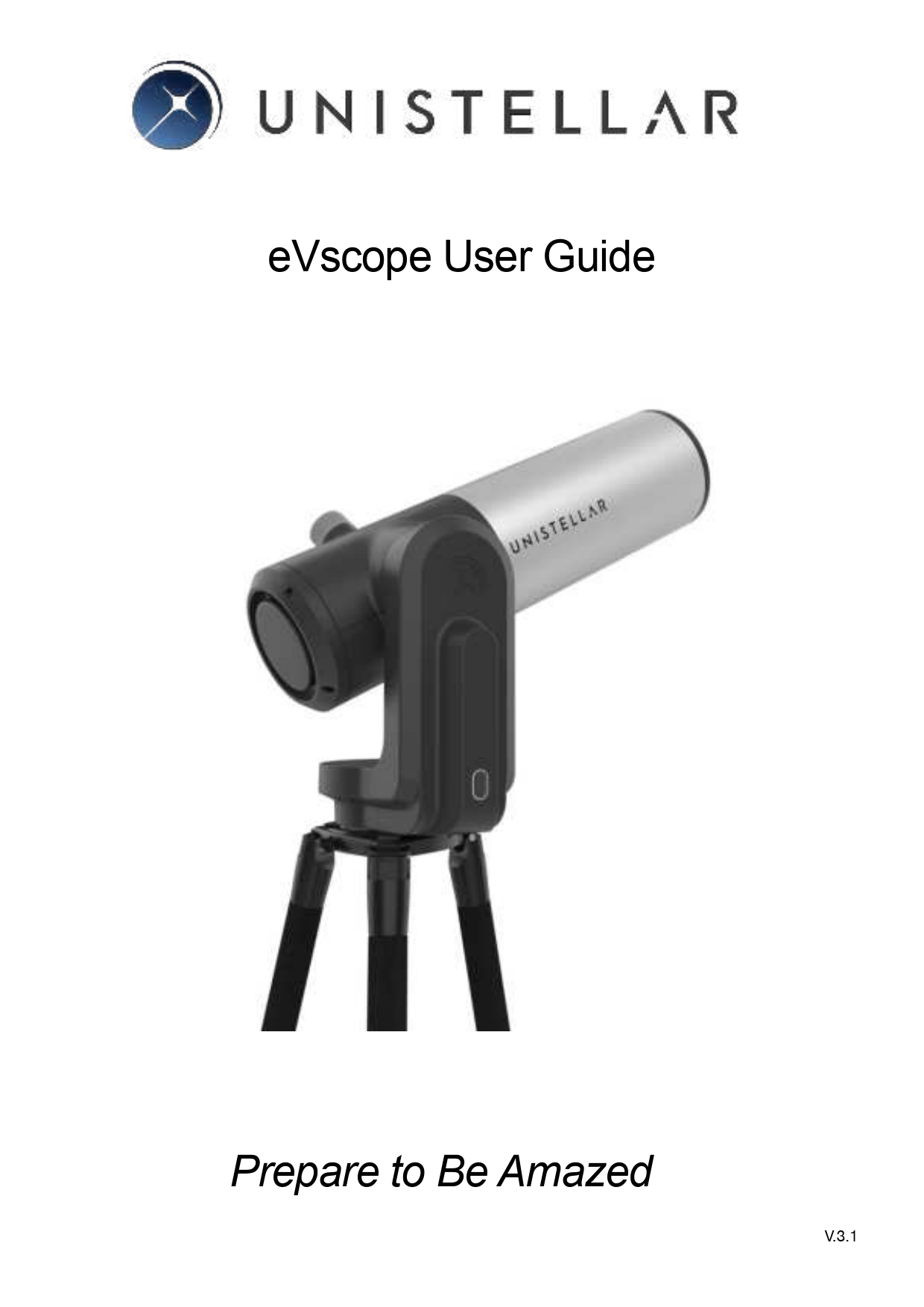
File info: application/pdf · 14 pages · 788.86KB
Tech Guide ENG V3.1
eVscope User Guide Prepare to Be Amazed - Astronomy Plus
Remove the dust caps from the top of the tube and the eyepiece. 5. Connection the smartphone: o Download the Unistellar app from the. Google Play Store or Apple ...
Setup the tripod: open the legs of the tripod and adjust the device to the height that works best for you. Warning: The internal tripod's screws could have ...
Tech-Guide-ENG-V3.1
Index of /wp-content/uploads/2021/02
Extracted Text
eVscope User Guide
Prepare to Be Amazed
V.3.1


Never use an eVscope to look at the Sun
without an adapted filter!
Looking at or near the Sun will cause irreversible damage
to your product. Do not point the telescope at
or near the Sun. Children should always have adult
supervision while observing.
Never charge an eVscope if the temperature is under
10� Celsius.
It could cause irreversible damage to the eVscope's battery.
Always charge it between 10�C and 40�C.

CONTENTS:
Instructions
1. Tripod installation 2. Adjusting level bubble 3. eVscope installation 4. Starting the eVscope 5. Connecting the eVscope to your smartphone 6. Focus 7. Observation 8. Park mode 9. Improve your observations 10. Mirror alignment 11. Charge/discharge 12. Data
Safety instructions Maintenance Specifications Declarations

p. 4 p. 5 p. 5 p. 5 p. 6 p. 6 p. 8 p. 8 p. 9 p. 9 p. 11 p. 12

Page 3

V.3.1

Instructions
Box content: - eVscope + Bahtinov mask included in the tube top cover - Tripod - Power supply with exchangeable plugs (EU, USA, UK) - Quick start guide - User Guide - Accessories box with tools
Requirements: - Avoid directly exposing the eVscope to strong wind and try to shelter it from moderate winds to
improve your observations.
 - Use the eVscope on stable ground that doesn't vibrate when you walk near the eVscope.
 - Use the eVscope under a clear sky.

- Locate the eVscope away from direct streetlight. - For best results, avoid a full moon.
In order to use your eVscope, please follow these steps carefully:
1. Setup the tripod: open the legs of the tripod and adjust the device to the height that works best for you. Warning: The internal tripod's screws could have loosened during shipment. Please check that all screws are tightened. If not, you can tighten them with the specific tools you can find in the accessories box.

Page 4

V.3.1

2. Adjust the legs in order to put the bubble level in the middle of the black circle, as in the image. Note: each time you move your eVscope, we recommend resetting the level bubble.

3. Loosen the 2 tripod screws. Install your eVscope vertically on the tripod and tighten the
 screws. Be careful not to tighten it too hard.

4. Start the eVscope by pressing the On button for 2 seconds. When you see a red light,
 the eVscope is on and ready to use.

Warning : if you turn on your eVscope in daylight, you might not see the button light
 because of its low intensity. It has been set up like this so it won't dazzle you at night.

 Battery is not fully charged when shipped.

Page 5

V.3.1

� Remove the dust caps from the top of the tube and the eyepiece.
 5. Connection the smartphone: o Download the Unistellar app from the Google Play Store or Apple Store. o Turn on your smartphone's Wi-Fi. o Check available Wi-Fi networks. o Connect your smartphone to the eVscope Wi-Fi network named eVscope-abcdef (the network's name consists of eVscope and six random characters).
o Launch the Unistellar app on your smartphone
o Warning: the connection between your eVscope and your smartphone may sometimes be lost, in this case please restart your application. If you encounter broken connections, we advise you to disable Auto-Lock.
6. Focus : o Using the in-app joystick, lower the telescope to around 45�. o Basic focus: Adjust the focusing wheel at the bottom of your eVscope to align the visual cue with the top screw. Note : To get a perfect focus, the visual cue might not be exactly aligned with the top screw to have the perfect focus. You can focus "by eye" or focus precisely using the Bahtinov mask (recommended for excellent results).

Page 6

V.3.1

o Accurate focus: To ensure perfect accuracy, point the eVscope on a bright star and use the Bahtinov mask to adjust the focus and the coma (see Mirror Alignment).

i. Here's how to focus with the mask. In the � Explore � tab of your app, go to Star and select the first one. Select � GoTo � to move the eVscope on it. Go to � eVscope � tab, then touch the Settings icon : on the top right of your screen and activate the � Auto � mode. Put the mask on top of the tube. This will create a specific diffraction pattern for that bright star, with a central line and two spikes forming an X, which you can see in the eyepiece. If the central line is positioned exactly in the middle of X, it means your eVscope is perfectly focused. To achieve this result, you just need to manually rotate the bottom of your eVscope and observe the results in the eyepiece.


The orientation of the cross doesn't matter

ii. In these three images, you can see the star Rigel observed with our mask. The first two images are out of focus, but by rotating the wheel, we were able to achieve perfect focus.

Page 7

V.3.1

iii. The Bahtinov mask is included in the cover, in order to use it you should remove


the mask from the cover and install it on the eVscope, as in the pictures.

iv. In case you need to adjust the coma, use the two screws of the adjustment mechanism (see Mirror Alignment on next page).

7. Observation: o Check the Quick Start Guide for detailed explanations on how to use your eVscope.
8. Park: o When you're done observing, use the � Park my eVscope � function so it automatically moves to the zenith position and turns itself off. First, the tube will go a little further than the zenith, then it will slowly go back. You will find the option � Park my eVscope � in the User tab o Put the dust caps back on the tube and eyepiece.

Page 8

V.3.1

9. To improve your next observations: o Adjust the gain and the exposure time in Live View mode. o Adjust the contrast and brightness in Enhanced Vision mode. o Set up your observing conditions in the Explore settings (city, suburb, countryside)

o You can adapt the focus of your observations to your vision by rotating the ring located on the eyepiece. Do not point at an object (star, galaxy,...) while proceeding to this adjustment. For optimal results, we advise each user to use the "focus help" available in the "User" tab of the app (this can be done during the day). You can also adjust the eyepiece focus while observing, by turning the ring to obtain a sharp image adapted to your vision."
o Check and adjust the mirror alignment (below). o Check the battery charge level in the "User" tab o Share your observations with the community by sending us your data (Download
data, then Upload my data). o Enjoy the multi-user experience. o Contribute to science by joining eVscope observing campaigns. o Check the online FAQ to learn more about your eVscope's capabilities.
10. Mirror Alignment Mirror alignment is advised after each time your eVscope is having a long journey.
o For this procedure, you will need:
a. The smallest hex key provided in the toolbox (S2 3mm),
b. A clear sky with visible bright stars.

Page 9

V.3.1

o Set up the eVscope using the 1. INSTALL and 2. CONNECT and 3. FOCUS & TRACK sections of the Quick Start Guide.
o Point toward a bright star by selecting a visible one in the list of proposed stars.
o Center the target using the joystick.
Note: the joystick of the app can be used in 2 different ways: drag the yellow dot for fast movement or simply touch the edge of the disc for slow movement. The short touches allow a slow movement. In the "eVscope" tab, display the settings by touching the icon at the top right and activate the "Auto" mode.
o Fully rotate the large focus wheel clockwise without forcing. You should see this :

Bad alignment
 (the cross is not centered)

Good alignment
 (the cross is centered)

o If the dark cross is not centered (as shown in the above image on the left), you need to realign your mirror.
o Find the smallest hex key (S2 3mm) in the toolbox.
o First, move the telescope with the in-app joystick (touch the edge of the circle quickly) to put the star at the edge in the direction indicated in the table below:

The cross is too high The cross is too low The cross is off-centered on the left The cross is off-centered on the right

Move the star to the top of the image Move the star to the bottom of the image
Move the star to the left of the image Move the star to the right of the image

Page 10

V.3.1

o Then turn the vertical or horizontal screw in the mirror mount to put the star back at the center. For example, if the cross is too high :
Ver$cal Horizontal

1. Put the star on the edge of the screen with the in-app joystick.


2. Use the hex key to turn the screw (in this example the vertical screw)

3.Put back the star at the center of the screen. The cross will recenter itself

o Repeat the procedure until the cross looks centered. You might have to do it several times.
o Move back the focus to the default position by aligning the visual cue with the top screw (Section 3 in the Quick Start Guide).
o Move toward a target and enjoy. The image should look better now.

11. Charge/Discharge
o The eVscope can be used while charging. o It can take from 7 to 8 hours to fully charge it. o When the eVscope is charging, you will see a blue flashing LED that will go from six
flashes to none. Flashes decrease as the battery gets more charged. o We strongly advise not to recharge your eVscope below 10�C. o When the battery is low, the performance of the eVscope can be compromised. You
can see the battery charge level in the "User" tab of the app. A fully charged battery is all yellow, a fully discharged battery is black with a yellow border. o We advise to only use the USB-C charger provided by Unistellar. o You can also use an external battery to recharge your eVscope. o You can charge your smartphone with the eVscope. Plug it to the USB-A port, next to the USB-C port.

Page 11

V.3.1

12. Data
Raw data is saved during Enhanced Vision. You can empty your SD card when the storage is full.
To empty the SD card storage, first select Download data, then when it's done, select Upload my data.
Download data sends data from eVscope to your smartphone. Upload my data send data from your smartphone to the Unistellar servers.
You are your observations owner. By sharing your data with us, you allow Unistellar to provide its users with continuous improvement of their observation experience.
It also makes scientific discoveries possible, for which your contribution will be mentioned if you wish. As usual in these cases, the results of analyzes will be the property of those who analyzed it : Unistellar and its scientific partners.

Safety instructions

Your eVscope and its accessories are not toys. Do not allow small children to play with them because children could hurt themselves or others or damage your device. Keep your device and all its parts and accessories out of the reach of small children.

Your eVscope is not meant to be used in wet environment. As every electronics object (as exception of the waterproof ones), if water or another liquid enters into the eVscope it can be permanently damaged. You should immediately turn off the power and dry it.

Do not look at the Sun without an adapted filter. You eVscope can be definitively damaged also after a short exposure. There is also an important fire hazard.

Furthermore, do not expose your eVscope at temperatures above 50�C or below


-20�C, the performances can be compromised by extreme temperatures.

Your eVscope is fragile, don't let it drop or fall. In case of shocks it can be definitively damaged.

Page 12

V.3.1

Maintenance
1. Storage: o Store the eVscope in its original packaging or in its backpack. o Store the eVscope with its cover and with the eyepiece cover, in order to avoid dust to enter in the device. o Do not store the eVscope with empty battery. o Do not store the eVscope in wet environment and temperatures below -20�C or above 50�C. o Do not store under direct sunlight.
2. Mirror removal and cleaning: o The mirror can be removed by removing the 4 screws on the back of the adjustment mechanism, as in the picture:

o Gloves must be used in order to manipulate the mirror. o Once the back removed the mirror can be cleaned with dry compressed air. o No liquids should be used in order to clean the mirror. o No wet tissues should be used in order to clean the mirror.
3. Tripod maintenance: o The tripod screws could untighten with the use. o Three different "tripod tools" are provided in order to tighten the screws of the tripod in case of loose performance.
4. Battery removal: o The battery is not meant to be removed by the user.

Page 13

V.3.1

Specifications
Model: eVscope v1.0 Mirror specifications: diameter 112mm, focal length 450mm, material BK7 Battery specifications: 9 hours life, capacity 15 000 mAh Power supply unit (PSU) input: 100-240 ~50/60 Hz 0.6A Max; Output: 5.0V, 2.4A WIFI frequency and bandwidth: 2.4 GHz, 72.2 Mbit/s WIFI range: 50m in free space Input/output: USB-C (PSU); USB-A (smartphone recharge) Tripod: aluminum, adjustable height; designed for the eVscope
Declarations
Hereby, Unistellar SAS declares that the radio equipment type eVscope V1.0 is in compliance with Directive 2014/53/EU, the FCC 47 CFR Part 15 and the ICES-003 / NMB-003 standards. The full text of the declarations of conformity is available at the following internet address: unistellar.com. Contains : FCC ID: 2ABCB - RPI3AP. Contains IC : 20953 - RPI3A For Canadian users: A separation distance of 20cm or more is required between the user and the device according to Canadian standard RSS-102 -- Radio Frequency (RF) Exposure Compliance of Radiocommunication Apparatus (All Frequency Bands) (https://www.ic.gc.ca/eic/site/smt-gst.nsf/ eng/sf01904.html)
Recycling
This device is compliant to the 2012/19/UE directive and should not be disposed in household waste. The special waste disposal varies according to local rules. The correct recycling of electronic devices helps to preserve environment and health.
Unistellar SAS 19 rue Vacon 13001, Marseille France N� SIRET 81233935600022 Designed in France � Made in China

Page 14

V.3.1