

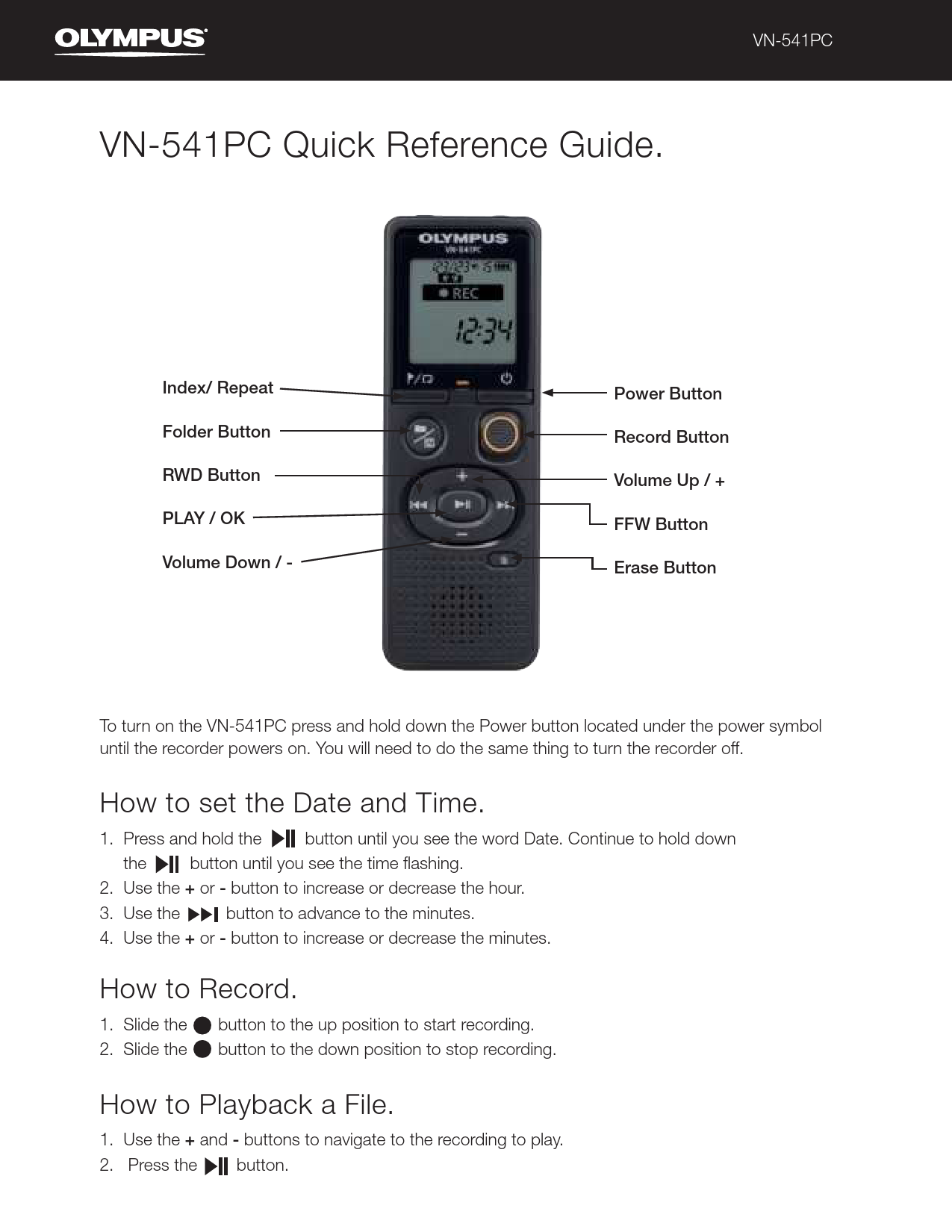
Olympus VN-541PC Quick Reference Guide
Getting Started
To turn on the VN-541PC, press and hold the Power button located under the power symbol until the recorder powers on. To turn the recorder off, perform the same action.
How to set the Date and Time
- Press and hold the Play/OK button until you see the word "Date". Continue to hold the button until you see the time flashing.
- Use the + or - buttons to increase or decrease the hour.
- Use the Play/OK button to advance to the minutes.
- Use the + or - buttons to increase or decrease the minutes.
How to Record
- Slide the Record button to the up position to start recording.
- Slide the Record button to the down position to stop recording.
How to Playback a File
- Use the + and - buttons to navigate to the recording to play.
- Press the Play/OK button.
How to Delete Files
- Use the + or - buttons to navigate to the file to be deleted.
- Press the Erase button.
- Select "yes" using the + or - buttons.
- Press the Play/OK button to delete the file.
How to Transfer Files to the PC
- Connect the VN-541PC to a compatible computer using the provided micro USB cable.
- Open Windows Explorer and browse to the VN-541PC.
- Open the folder containing the file.
- Copy the file from the recorder and paste it to the desired location on your computer.
How to Change Playback Speed
- While the file is playing, press the Play/OK button.
- Use the + or - buttons to increase or decrease the playback speed.
How to Change the Volume
- Play a file on the device.
- While playing the file, use the + or - buttons to increase or decrease the playback volume.
How to Switch between Folders
Press the Recording Scene/Folder/ Noise Cancel button to change folders (e.g., Talk, Music, LP, Memo).
