

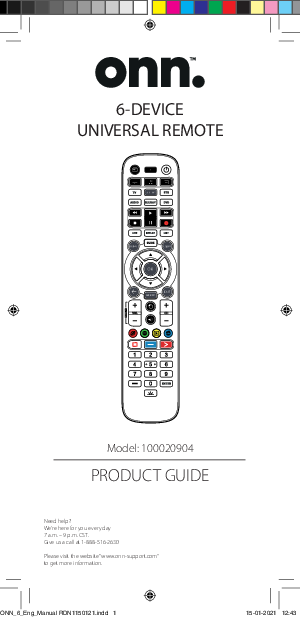
ONN 6-Device Universal Remote Control
Model: 100020904
Product Guide
Introduction
Thank you for purchasing the ONN Device Universal Remote Control. This remote can control up to 6 Audio Video Devices such as a TV, Set Top Box, Blu-ray Player, or Sound Bar, and offers multiple extra features to enhance your living room experience. The remote also features a backlight for easy control in darkened rooms. This manual will guide you through setting up the ONN 6 to control all your devices and utilize its features.
Getting Started (Batteries)
Your remote requires 2 x AA / LR6 batteries. Alkaline batteries are recommended. Please insert them as shown:
Installing the Batteries
- Remove the battery cover.
- Insert the batteries, ensuring correct polarity (+/-).
- Snap the battery cover back into place.
Battery Precautions
- Do not mix old and new batteries.
- Do not mix alkaline, standard (carbon-zinc), or rechargeable (nickel-cadmium) batteries.
- Always remove old, weak, or worn-out batteries promptly and recycle or dispose of them in accordance with local and national regulations.
Setup
The ONN 6 remote is pre-programmed to control some popular devices out of the box. If you have one of the following devices, try inserting batteries and pressing the device key, then test a few keys.
Device Key To Press & Device Controlled (Pre-programmed)
| Device Key | Device Controlled |
|---|---|
| TV | Samsung TV |
| STREAM | Roku Streaming Box |
| STB | Comcast Set top box |
| AUDIO | Yamaha Receiver |
| BLURAY | Samsung Blu-ray Player |
| DVD | Sony DVD Player |
If your device is not listed or you have extra devices to set up, there are 3 ways: SimpleSet, Setup by Code, and Learning.
Setup - SimpleSet
If your device brand is in the SimpleSet list next to a digit key, use this system. Locate your brand and note the associated key.
TV Brands (SimpleSet)
- 1 Element
- 2 Insignia
- 3 LG
- 4 Philips, Magnavox
- 5 Samsung, Panasonic, Sceptre
- 6 Sharp, Hisense
- 7 Sony, Sanyo
- 8 TCL, RCA
- 9 Toshiba, Westinghouse
- 0 VIZIO
STREAM Brands (SimpleSet)
- 1 AirTV, Sling TV
- 2 Apple
- 3 Microsoft
- 4 Netgear
- 5 NVIDIA
- 6 Popcorn Hour
- 7 Roku
- 8 Sony
- 9 Western Digital
- 0 Xiaomi
STB Brands (SimpleSet)
- 1 Bell
- 2 Comcast/Xfinity
- 3 Cox Communications
- 4 DIRECTV, AT&T, Sky Mexico
- 5 DISH Network, Dish Mexico, Izzi Telecom
- 6 Optimum, Suddenlink, Altice
- 7 Rogers
- 8 Shaw
- 9 Spectrum, Charter, Time Warner Cable
- 0 Verizon, Frontier Communications
AUDIO Brands (SimpleSet)
- 1 Bose
- 2 Denon
- 3 Harman/Kardon
- 4 JBL, Polk Audio
- 5 LG
- 6 Onkyo
- 7 Samsung
- 8 Sonos, VIZIO
- 9 Sony
- 0 Yamaha
DVD and BLURAY Brands (SimpleSet)
- 1 Insignia
- 2 LG, Sharp
- 3 Panasonic
- 4 Philips, Magnavox
- 5 Pioneer
- 6 Samsung
- 7 Sony
- 8 Toshiba
- 9 VIZIO, RCA
- 0 Yamaha
To set up your device (SimpleSet)
- Turn on your device (not on standby) and point the ONN remote towards it. If setting up a Streaming device, ensure a movie or TV show is playing.
- Press the Device key you wish to set up (e.g., TV).
- Hold down the Setup key until the LED under the Device key blinks twice.
- Hold down the digit key for your brand and device as listed in the tables above (e.g., 3 for an LG TV).
- The remote will send a Power command every 3 seconds (or Play/Pause for streaming boxes).
- As soon as your device reacts by turning off or pausing, release the digit.
- The LED will blink twice, and the remote should now operate your device.
If keys do not work as expected, repeat from step 2; the remote will try the next code.
Setup - Setup by Code
If your device brand is not listed in SimpleSet, try codes individually. Locate your brand in the Code List (listed by brand and popularity).
- Turn on your device (not on standby) and point the ONN remote towards it.
- Press the Device key you wish to set up (e.g., TV).
- Hold down the Setup key until the LED under the Device key blinks twice.
- Enter the first 4-digit code listed for your brand (e.g., 1840 for LG).
- The LED will blink twice on the last digit of the code.
- Aim the remote towards your device and press the Power key.*
- If the device turns off, your remote is ready. If not, repeat steps 2-6 with the next code in the list.
*Note: If your original remote did not have a Power key, try testing with a different key (e.g., Play or Pause) when setting up a streaming box.
Setup - Learning
Your ONN remote can learn functions from any other working remote control. This allows you to control any infrared device or add missing keys to a spare key on the ONN. Ensure original remotes have working batteries. For learning, the original remote should be approximately 2-5 cm from the ONN remote, pointing towards it.
- Press the Device key for the device you want to learn functions onto (e.g., TV).
- Hold down the Setup key until the LED under the Device key blinks twice.
- Press 975 – the LED should blink twice.
- Press and release the key you want to learn a function onto (e.g., the Power key) – the LED will flash rapidly.
- Press and release* the corresponding key on the original remote (e.g., Power).
- The LED will blink twice to indicate the key has been learned correctly.
- Repeat steps 4 and 5 for each key you want to learn. You can learn from multiple remotes, but only one function per key.
- When you have learned all required functions, press and hold the Setup key until the LED blinks twice.
*Some remotes send commands differently. If a function cannot be learned, try holding down the key on the original remote instead of pressing and releasing.
Hints:
- If the LED shows one long blink at step 5, the function was not learned correctly. Try again from step 4.
- If keys don't work properly after setup, re-enter learning mode by repeating from step 1.
- If original remotes aren't working, you can still set up the ONN remote by SimpleSet or Code Set Up.
Deleting a learned function
To delete a learned function and return that key to its original state:
- Press the Device key for the device your learned function operates.
- Hold down the Setup key until the LED under the Device key blinks twice.
- Press 976 – the LED should blink twice.
- Press the key you want to reset twice – the LED should blink twice, and the learned function will be deleted.
Setup - Volume Lock
If you primarily use one device for controlling sound (e.g., a Sound Bar or Audio Video Receiver), you can program your ONN remote to only control that device with the Volume Up, Down, and Mute keys.
- Hold down the Setup key until the LED under the Device key blinks twice.
- Press 993 – the LED should blink twice.
- Press the device key for the device to always control volume (e.g., Audio).
- The LED will blink twice.
From now on, pressing the Volume Up, Down, or Mute keys will always control the programmed device, regardless of the device you are controlling.
To unlock the volume
To return the remote to controlling each device's sound individually:
- Hold down the Setup key until the LED under the Device key blinks twice.
- Press 993 - the LED should blink twice.
- Press VOLUME DOWN – the LED will blink four times, and Volume is now unlocked.
Channel Shortcut Macros
The Red, Green, Yellow, and Blue keys can be reprogrammed to select your favorite channels by genre. Pressing and releasing these keys performs their original function. Holding them down for 3 seconds sends a channel number. You can group channels by genre (Sports, News, Movies, Kids).
To program:
First, select the device you use to watch live TV (e.g., STB key for DirecTV).
- Hold down the Setup key and the Red key until the LED blinks twice.
- Enter the first channel number (e.g., 200).
- Press and release the Red key.
- Enter the next channel number (e.g., 201).
- Repeat steps 3 and 4 for each channel shortcut you want to add.
- After entering the last channel number, press and hold the SETUP key.
The LED will blink twice, and shortcuts are programmed. When watching live TV, hold down the Red key for 3 seconds to send the first Channel Shortcut. The next time you hold down the Red Key, the next Channel Shortcut will be sent. You can reprogram each color key with different channel lists. Each colored key has an icon to help remember stored channels. You can program up to 10 different channel numbers per key.
To reset the key to default
- Press the device key you have programmed the shortcuts on (e.g., STB).
- Hold down the Setup key and the key you wish to reset (e.g., the Green key) until the LED blinks twice.
- Press and release the key to reset (e.g., the Green key).
- Hold down the SETUP key until the LED blinks twice. The key is now reset.
App Shortcut Keys
The ONN remote features three App Shortcut Keys to open apps on your Smart Devices. If your original remote has a Netflix, Amazon Prime Video, or YouTube key, these keys will perform the same function.
If you don't have such a key but can watch streaming services, you can use these keys as a shortcut by programming a macro. Most internet-connected AV devices (Smart TVs, streaming Set Top Boxes) have applications to access TV viewing via the internet (e.g., Netflix, YouTube, Amazon Prime).
To program the macro
First, identify the device and the sequence of keys needed to bring up your preferred service (e.g., for some Panasonic TVs: Apps key, then Menu Down Twice, then OK; for Apple TV: Menu, Menu Down, OK).
- Sit in front of your device with it switched on (not on standby).
- Hold down the App Shortcut key until the LED blinks twice.
- Press the device key for the device you want to use for the macro (e.g., Stream).
- Perform the sequence of keys exactly as you would normally to start your streaming service. The remote will operate your device, and the macro is recorded in real time.
- Once the sequence is finished and the Streaming Service has started, hold down the App Shortcut key until the LED blinks twice and goes out. The macro is now stored.
Tips
- Ensure the ONN remote is operating the device in question before programming.
- If the Macro doesn't work as expected, repeat the sequence to reprogram.
- When programming, wait for your device to respond first; the remote remembers the timing.
- The App Shortcut macro is tied to one device; ensure you are watching the correct device.
Activities
An Activity is a combination of devices. On a standard universal remote, you swap between devices using device keys. With ONN remotes, devices can be grouped into one Activity mode. For example, after pressing "Watch TV," the Input key controls the TV, Volume Up/Down/Mute control the Sound Bar, and other keys control the Set Top Box.
The ONN remote has 3 Activity modes: Watch TV, Listen To Music, and Watch Movie. Each mode has choices of devices to combine:
Activity Modes
- Watch TV
- Combination 1 – TV + STB + AUDIO (default)
- Combination 2 – TV + STB
- Combination 3 – TV + AUDIO
- Listen To Music
- Combination 1 – TV + BLU + AUDIO (default)
- Combination 3 – TV + STREAM + AUDIO
- Combination 5 – AUDIO only
- Watch Movie
- Combination 1 – TV + STREAM + AUDIO (default)
- Combination 2 – TV + STREAM
- Combination 3 – TV + BLU
- Combination 4 – TV + BLU + AUDIO
If you set the default devices for any Activity, it will be set up automatically. To change to a different combination:
- Hold down SETUP until the LED under the device blinks twice. The LED under the current device will stay lit.
- Press the Activity key you want to set up (e.g., Watch TV).
- Press the number of the combination you want to set (e.g., 3 for TV + AUD in Watch TV).
- The LED will blink twice and go out.
To access Activities, press the ACTIVITY key. To return to controlling by device, use any Device key.
AV Shift
The AV key selects the input on your TV. Most TVs use a menu for input selection. When the AV key is pressed in an Activity, the Menu Up, Down, Left, Right, and OK keys temporarily control the TV. If the OK key is pressed, or no key is pressed for ten seconds, these keys revert to controlling the relevant device for the Activity (e.g., STB in Watch TV Mode).
Power Macro
If you hold down the Power key for 2 seconds in any Activity, the remote will send the Power function for each device within that Activity. For example, holding Power in the default "Watch TV" setting will turn both the TV and Set Top Box on or off.
Setup by Activity
Activities can also be used to set up a combination of devices. If you have a combination of devices from the brands below, you can easily set up your ONN remote to control all 3 devices with one step using 3 digits.
Device Brand Digits
| Digit | TV Brand | STB Brand | STREAM Brand | BLU Brand | AUDIO Brand |
|---|---|---|---|---|---|
| 1 | Samsung | DirecTV | Apple | Samsung | Samsung |
| 2 | Sony | Dish Network | Xbox One | Sony | Vizio |
| 3 | LG | Verizon Frontier | Roku | LG | Yamaha |
| 4 | Panasonic | AT&T Uverse | Vizio | Onkyo | |
| 5 | Vizio | Pioneer | |||
| 6 | TCL Roku | LG | |||
| 7 | Insignia |
If you have the right combination, note the digit for each device. For example, a Sony TV, a DirecTV receiver, and an Onkyo Audio device use digits 2, 1, and 4.
To set up the Watch TV Activity
- Hold down the Activity key you want to set up until the LED blinks twice.
- Enter the 3-digit code for your 3 devices (e.g., 214).
- The LED should blink twice, and all 3 devices and the Watch TV Activity are now set up.
From now on, the TV device key will control a Sony TV, the STB Device controls a DirecTV receiver, and the Audio key controls an Onkyo sound bar. Your Watch TV Activity combines all three.
You can repeat this for Listen to Music and Watch Movie Activities, replacing the second digit with the Blu-ray player or Streaming box brand, if listed above. Otherwise, use SimpleSet or Code Setup methods.
FCC Information
This device complies with part 15 of the FCC rules. Operation is subject to the following two conditions: (1) this device may not cause harmful interference, and (2) this device must accept any interference received, including interference that may cause undesired operation.
NOTE: This equipment has been tested and found to comply with the limits for a Class B digital device, pursuant to Part 15 of the FCC Rules. These limits are designed to provide reasonable protection against harmful interference in a residential installation. This equipment generates, uses, and can radiate radio frequency energy and, if not installed and used in accordance with the instructions, may cause harmful interference to radio communications. However, there is no guarantee that interference will not occur in a particular installation. If this equipment does cause harmful interference to radio or television reception, which can be determined by turning the equipment off and on, the user is encouraged to try to correct the interference by one or more of the following measures:
- Reorient or relocate the receiving antenna.
- Increase the separation between the equipment and receiver.
- Connect the equipment into an outlet on a circuit different from that to which the receiver is connected.
- Consult the dealer or an experienced radio/TV technician for help.
CAUTION: Any changes or modifications not expressly approved by the party responsible for compliance could void the user's authority to operate this equipment.
Codelist
This section provides extensive code lists for various device brands. Due to the large volume of codes, only a representative sample is included here. For the complete list, please refer to the original ONN 6-Device Universal Remote Control Product Guide.
TV Codes (Sample)
| Brand | Codes |
|---|---|
| Acer | 4143 |
| Admiral | 3879 |
| Samsung | 2051, 1632 |
| Sony | 0810, 4448, 4189 |
| VIZIO | 1758, 3758, 4905 |
STREAM - STB Codes (Sample)
| Brand | Codes |
|---|---|
| Apple | 2615 |
| Roku | 3061 |
| Comcast | 1982, 1376, 1877 |
| DIRECTV | 1377, 3724, 6268 |
| Verizon | 1376, 1877, 1982 |
AUDIO SOUNDBAR Codes (Sample)
| Brand | Codes |
|---|---|
| Bose | 1933, 1629, 3959 |
| Denon | 2857, 3347, 2516 |
| Harman/Kardon | 2241, 0110, 1304 |
| Onkyo | 1805, 2730, 3860 |
| Samsung | 2660, 1868, 2809 |
BLURAY DVD Codes (Sample)
| Brand | Codes |
|---|---|
| Pioneer | 1571, 2854, 2442 |
| Samsung | 0199, 0573, 1075 |
| Sony | 1633, 1516, 1033 |
| Toshiba | 0503, 2277, 2006 |
| Yamaha | 0539, 2298, 0490 |
Models: 100020904, 6-Device Universal Remote
 Astrea - Internet, TV and Phone Services
  Westpa.net
  ONN Support