

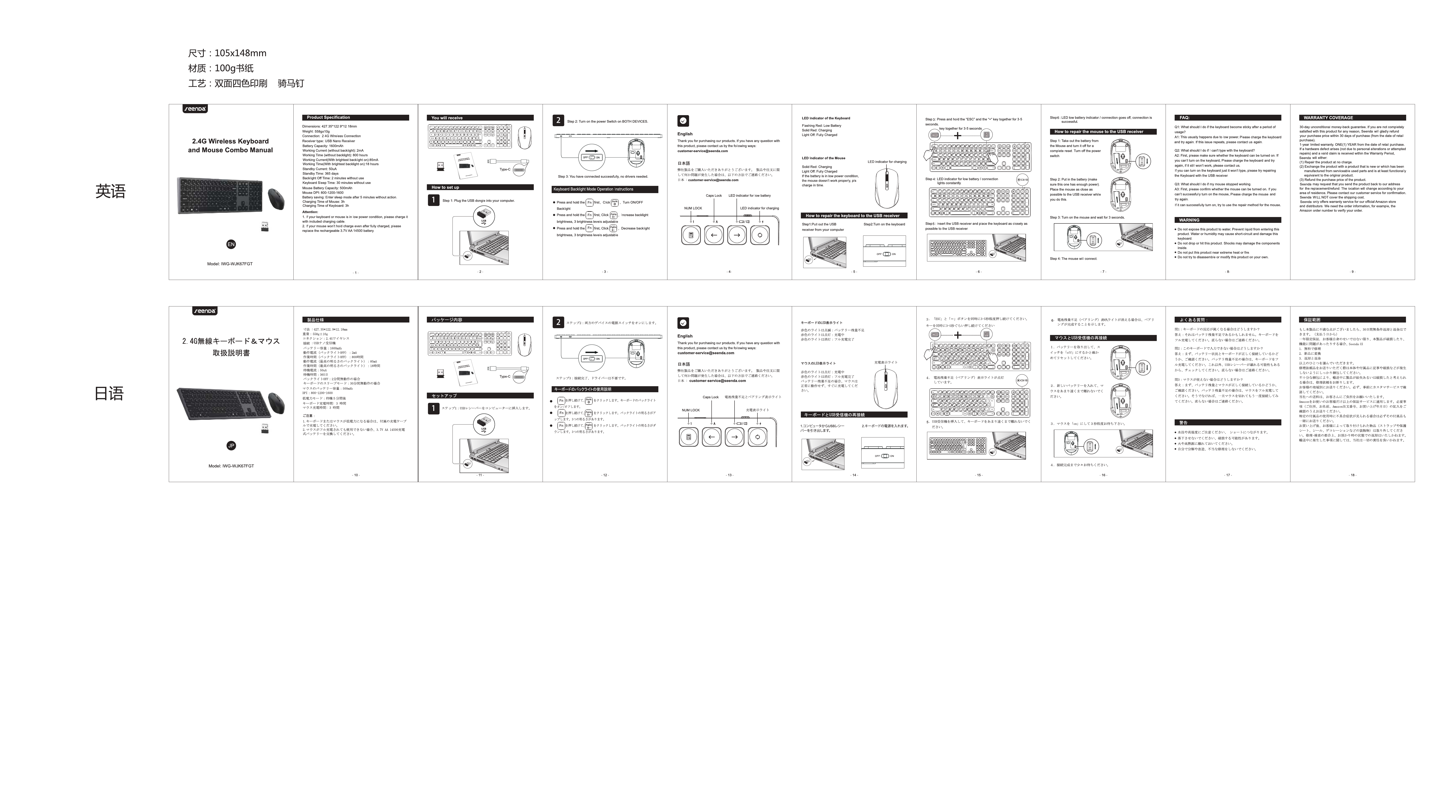
Seenda IWG-WJK67FGT Wireless Keyboard and Mouse Combo
User Manual
Product Overview
This manual provides essential information for the Seenda IWG-WJK67FGT wireless keyboard and mouse combo. It details the product's features, setup procedures, and troubleshooting guidance to ensure optimal performance.
Package Contents
- Seenda IWG-WJK67FGT Wireless Keyboard
- Seenda IWG-WJK67FGT Wireless Mouse
- USB Receiver
- User Manual
Keyboard Features
The Seenda IWG-WJK67FGT keyboard offers a comfortable and efficient typing experience.
- Full-Size Layout: Includes a dedicated numeric keypad for data entry and productivity.
- Quiet Keys: Designed for silent operation, minimizing typing noise.
- Ergonomic Design: Contoured shape to promote a natural hand position and reduce strain during extended use.
- [Battery Compartment]: Requires batteries (not included) for wireless operation.
Keyboard Layout Description: The keyboard features a standard QWERTY layout, complete with function keys (F1-F12), navigation keys (Insert, Home, Page Up, Delete, End, Page Down), arrow keys, and a numeric keypad. Status indicator lights for Caps Lock, Num Lock, and Scroll Lock are present.
Mouse Features
The accompanying mouse is designed for precision and comfort.
- Ergonomic Shape: Designed to fit comfortably in the hand, suitable for right-handed users.
- Standard Buttons: Features left-click, right-click, and a clickable scroll wheel.
- [DPI Button]: Allows adjustment of cursor sensitivity (DPI) on the fly for different tasks.
- [Battery Compartment]: Houses batteries (not included) for wireless connectivity.
Mouse Description: The mouse has a sculpted design for a secure grip. It includes the primary left and right buttons, a textured scroll wheel that doubles as a middle button, and a dedicated DPI adjustment button located behind the scroll wheel.
Setup and Connection
Step 1: Install Batteries
Open the [Battery Compartment] on both the keyboard and mouse and insert the required batteries, observing the correct polarity.
Step 2: Connect the USB Receiver
Locate the compact USB receiver. Plug the [USB Receiver] into an available USB port on your computer.
Step 3: Automatic Pairing
The keyboard and mouse will automatically attempt to pair with the computer once the USB receiver is connected and batteries are installed. Allow a few moments for the system to recognize the devices.
Step 4: Start Using
Your wireless keyboard and mouse are now ready for use. If connection issues arise, ensure batteries are properly installed and try reconnecting the USB receiver.
Troubleshooting
Issue: No connection detected.
- Verify that fresh batteries are correctly installed in both devices.
- Try connecting the [USB Receiver] to a different USB port on your computer.
- If the problem persists, consider re-pairing the devices. Consult the manufacturer's support resources for specific re-pairing instructions if needed.
Issue: Unresponsive keys or buttons.
- Check the battery level of the affected device.
- Restart your computer to refresh the connection.
Specifications
Connectivity: 2.4GHz Wireless
Battery Type: Typically AA or AAA (not included)
Compatibility: Windows, macOS, Linux, and other USB-enabled operating systems.
Model Number: IWG-WJK67FGT
Safety and Compliance
This product complies with relevant safety and electromagnetic interference regulations. Please refer to the product packaging or manufacturer's website for detailed compliance information (e.g., FCC, CE).
