

Quick Start
Getting Started in 3 Steps
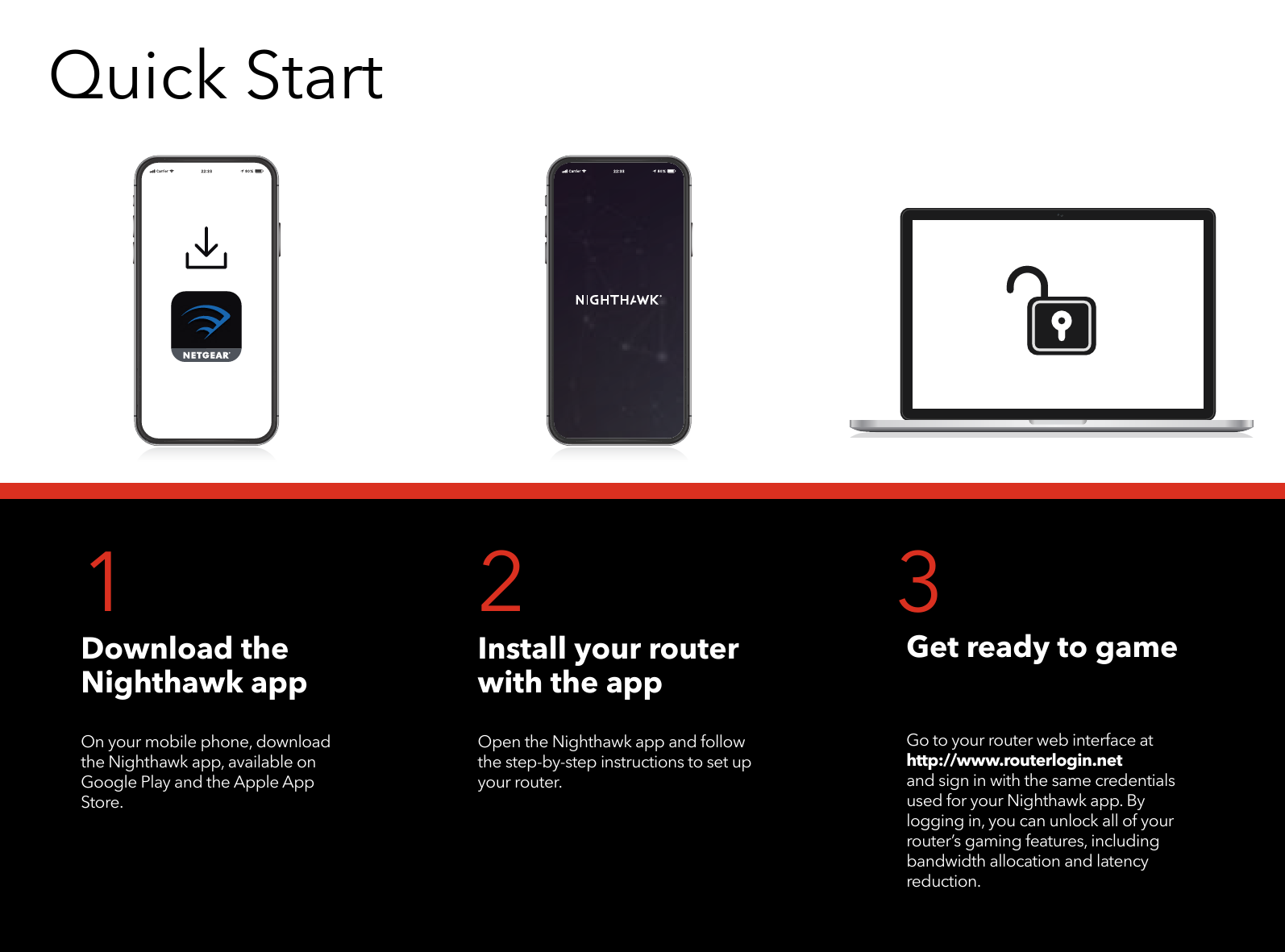
1. Download the Nighthawk app
On your mobile phone, download the Nighthawk app, available on Google Play and the Apple App Store.
2. Install your router with the app
Open the Nighthawk app and follow the step-by-step instructions to set up your router.
3. Get ready to game
Go to your router web interface at http://www.routerlogin.net and sign in with the same credentials used for your Nighthawk app. By logging in, you can unlock all of your router's gaming features, including bandwidth allocation and latency reduction.
Contents
- Router
- Antenna x 4
- Ethernet Cable
- Power Adapter (varies by region)
Overview
The NETGEAR Nighthawk Pro Gaming XR500 router features the following ports and buttons:
- 1 Power LED: Indicates power status.
- 2 Internet LED: Indicates internet connection status.
- 3 2.4 GHz WiFi LED: Indicates 2.4 GHz WiFi activity.
- 4 5 GHz WiFi LED: Indicates 5 GHz WiFi activity.
- 5 Guest WiFi LED: Indicates guest WiFi status.
- 6 USB 1 LED: Indicates USB 1 port activity.
- 7 USB 2 LED: Indicates USB 2 port activity.
- 8 Ethernet ports 1-4 LEDs: Indicate activity on Ethernet ports 1-4.
- A WiFi On/Off button with LED: Toggles WiFi on/off.
- B WPS Button with LED: Activates Wi-Fi Protected Setup.
- C USB port 1: For connecting USB devices.
- D USB port 2: For connecting USB devices.
- E LED On/Off switch: Turns all LEDs on or off.
- F Reset button: Resets the router to factory defaults.
- G Ethernet ports 1-4: For wired network connections.
- H Internet port: Connects to your modem.
- I Power connector: Connects the power adapter.
- J Power On/Off button: Turns the router on or off.
Troubleshooting
If you encounter installation issues, try the following:
- Turn off your modem and router, then disconnect them. Reboot your modem. Reconnect your router to your modem and attempt installation again using the Nighthawk app.
- If app installation fails, manually set up the router via its web interface. Visit http://www.routerlogin.net to access the router web interface.
For additional help, visit netgear.com/routerhelp.
Support and Community
For answers to your questions and the latest downloads, visit netgear.com/support.
For community advice, visit the NETGEAR Community at community.netgear.com.
Regulatory and Legal
For Canadian customers, this document is also available in Canadian French at https://www.netgear.com/support/download/.
For regulatory compliance information, including the EU Declaration of Conformity, visit https://www.netgear.com/about/regulatory/.
Please review the regulatory compliance document before connecting the power supply.
NETGEAR's Privacy Policy is available at https://www.netgear.com/about/privacy-policy/.
By using this device, you agree to NETGEAR's Terms and Conditions at https://www.netgear.com/about/terms-and-conditions/. If you do not agree, return the device to your place of purchase within the return period.

 Category: Welcome to the NETGEAR Community | NETGEAR Communities
  I’m having trouble installing my NETGEAR router; what do I do? - NETGEAR Support
  Router Login & Setup | NETGEAR
  NETGEAR Privacy Policy | NETGEAR